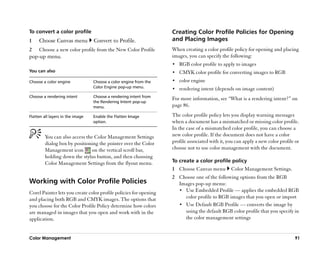
Contents
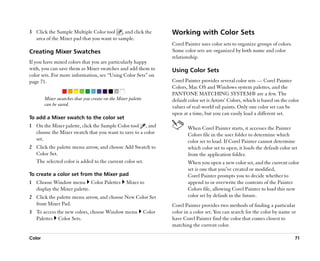
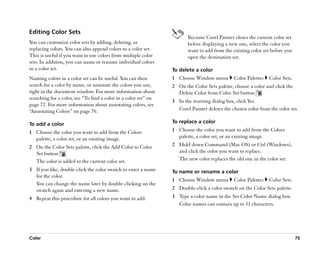
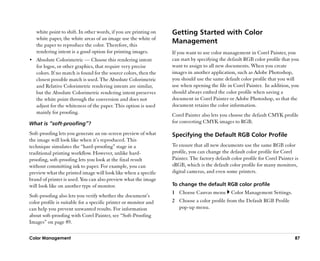
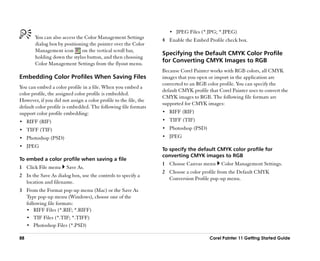
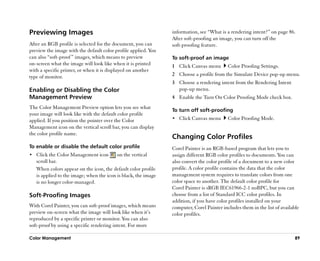
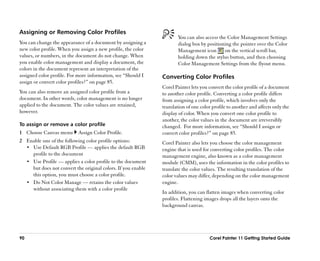
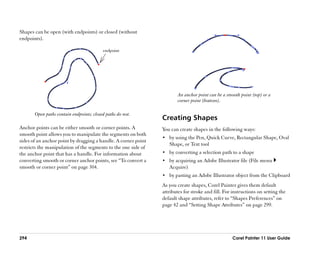
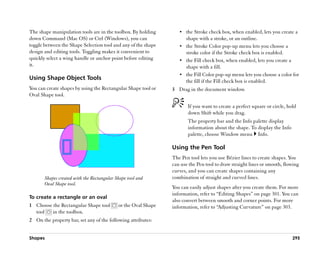
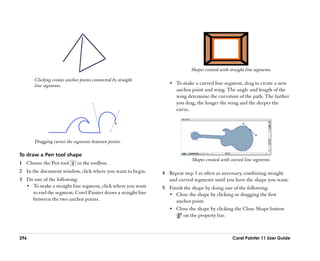
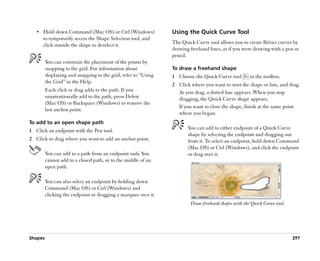
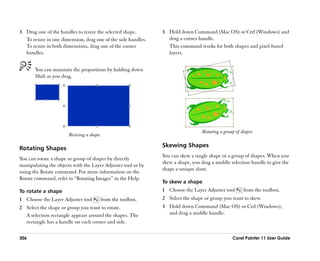
Welcome to Corel Painter 11 . . . . . . . . . . . . . . . . 1                            Color . . . . . . . . . . . . . . . . . . . . . . . . . . . . . . . . . . 59
    What’’s in This User Guide? . . . . . . . . . . . . . . . . . . . . . . 1                Getting Started with Color . . . . . . . . . . . . . . . . . . . . . .59
    What’’s New in Corel Painter? . . . . . . . . . . . . . . . . . . . . 2                  Working with the Mixer Palette . . . . . . . . . . . . . . . . . .65
    How to Use the Documentation . . . . . . . . . . . . . . . . . . 3                       Working with Color Sets . . . . . . . . . . . . . . . . . . . . . . . .71
    Registration . . . . . . . . . . . . . . . . . . . . . . . . . . . . . . . . . . 4       Setting Color Variability . . . . . . . . . . . . . . . . . . . . . . . .77
    About Corel Corporation . . . . . . . . . . . . . . . . . . . . . . . . 4                Working with Gradients . . . . . . . . . . . . . . . . . . . . . . . .79

Workspace Tour . . . . . . . . . . . . . . . . . . . . . . . . . . 5                     Color Management . . . . . . . . . . . . . . . . . . . . . . . 83
    The Menu Bar . . . . . . . . . . . . . . . . . . . . . . . . . . . . . . . . 5           Understanding Color Management . . . . . . . . . . . . . . .83
    The Toolbox . . . . . . . . . . . . . . . . . . . . . . . . . . . . . . . . . . 7        Getting Started with Color Management . . . . . . . . . . .87
    The Property Bar . . . . . . . . . . . . . . . . . . . . . . . . . . . . . 12            Previewing Images . . . . . . . . . . . . . . . . . . . . . . . . . . . .89
    The Brush Selector Bar . . . . . . . . . . . . . . . . . . . . . . . . . 12              Changing Color Profiles . . . . . . . . . . . . . . . . . . . . . . . .89
    The Palettes . . . . . . . . . . . . . . . . . . . . . . . . . . . . . . . . . 13        Working with Color Profile Policies . . . . . . . . . . . . . . . .91
    Custom Palettes . . . . . . . . . . . . . . . . . . . . . . . . . . . . . . 17           Working with Presets . . . . . . . . . . . . . . . . . . . . . . . . . .92

Basics . . . . . . . . . . . . . . . . . . . . . . . . . . . . . . . . . 19              Painting . . . . . . . . . . . . . . . . . . . . . . . . . . . . . . . . 95
    Working with Documents . . . . . . . . . . . . . . . . . . . . . . 20                    Exploring Brushes . . . . . . . . . . . . . . . . . . . . . . . . . . . . .95
    Working with Composition Tools, Rulers, and Guides . 31                                  Understanding Brush Categories . . . . . . . . . . . . . . . . .97
    Setting Preferences . . . . . . . . . . . . . . . . . . . . . . . . . . . 36             Choosing Brush Settings . . . . . . . . . . . . . . . . . . . . . . .107
    Using Two Monitors . . . . . . . . . . . . . . . . . . . . . . . . . . 44                Marking the Canvas . . . . . . . . . . . . . . . . . . . . . . . . . .110
    Wacom Intuos Support . . . . . . . . . . . . . . . . . . . . . . . . 44                  Exploring Painting . . . . . . . . . . . . . . . . . . . . . . . . . . .114
                                                                                             Working with Fills . . . . . . . . . . . . . . . . . . . . . . . . . . . .124
Textures, Patterns, and Weaves . . . . . . . . . . . . . 47
    Using Paper Texture . . . . . . . . . . . . . . . . . . . . . . . . . . . 48         Hard Media . . . . . . . . . . . . . . . . . . . . . . . . . . . . 129
    Using Patterns . . . . . . . . . . . . . . . . . . . . . . . . . . . . . . . 52          Using Hard Media Variants . . . . . . . . . . . . . . . . . . . . .129
    Using Weaves . . . . . . . . . . . . . . . . . . . . . . . . . . . . . . . 56            Customizing Hard Media Variants . . . . . . . . . . . . . . .130


Table of contents                                                                                                                                                        i
Markers . . . . . . . . . . . . . . . . . . . . . . . . . . . . . . . 135           Layers. . . . . . . . . . . . . . . . . . . . . . . . . . . . . . . . .241
     Getting Started with Markers . . . . . . . . . . . . . . . . . . 135               Getting Started with Layers . . . . . . . . . . . . . . . . . . . . 242
     Customizing Markers . . . . . . . . . . . . . . . . . . . . . . . . 136            Managing Layers . . . . . . . . . . . . . . . . . . . . . . . . . . . . 248
                                                                                        Editing Layers . . . . . . . . . . . . . . . . . . . . . . . . . . . . . . . 257
RealBristle Brushes . . . . . . . . . . . . . . . . . . . . . . 137
     Getting Started with RealBristle brushes . . . . . . . . . . 138               Image Effects . . . . . . . . . . . . . . . . . . . . . . . . . . .265
     RealBristle settings . . . . . . . . . . . . . . . . . . . . . . . . . . 138       Applying Effects . . . . . . . . . . . . . . . . . . . . . . . . . . . . . 265
                                                                                        Tonal Effects . . . . . . . . . . . . . . . . . . . . . . . . . . . . . . . 266
Watercolor . . . . . . . . . . . . . . . . . . . . . . . . . . . . 141
                                                                                        Using Lighting . . . . . . . . . . . . . . . . . . . . . . . . . . . . . . 269
     Getting Started with Watercolor . . . . . . . . . . . . . . . . 141
                                                                                        Working with Surface Texture . . . . . . . . . . . . . . . . . . 270
     Working with Digital Watercolor . . . . . . . . . . . . . . . . 143
                                                                                    Mosaics . . . . . . . . . . . . . . . . . . . . . . . . . . . . . . .279
Customizing Brushes . . . . . . . . . . . . . . . . . . . . 147
                                                                                        Getting Started with Mosaics . . . . . . . . . . . . . . . . . . . 280
     Getting Started with the Brush Creator . . . . . . . . . . . 148
                                                                                        Placing and Customizing Tiles . . . . . . . . . . . . . . . . . . 285
     Managing Settings and Controls . . . . . . . . . . . . . . . . 153
     Managing Custom Brushes . . . . . . . . . . . . . . . . . . . . 197            Shapes . . . . . . . . . . . . . . . . . . . . . . . . . . . . . . . .291
                                                                                        Getting Started with Shapes . . . . . . . . . . . . . . . . . . . 292
Photo Painting System . . . . . . . . . . . . . . . . . . . 201
                                                                                        Creating Shapes . . . . . . . . . . . . . . . . . . . . . . . . . . . . . 294
     Creating Underpaintings . . . . . . . . . . . . . . . . . . . . . . 202
                                                                                        Editing Shapes . . . . . . . . . . . . . . . . . . . . . . . . . . . . . . 301
     Auto-Painting Photos . . . . . . . . . . . . . . . . . . . . . . . . 204
                                                                                        Transforming Shapes . . . . . . . . . . . . . . . . . . . . . . . . . 305
     Restoring Detail to Paintings . . . . . . . . . . . . . . . . . . . 207
                                                                                    Printing . . . . . . . . . . . . . . . . . . . . . . . . . . . . . . .311
Cloning and Tracing . . . . . . . . . . . . . . . . . . . . . 209
                                                                                        Getting Started with Printing . . . . . . . . . . . . . . . . . . . 311
     Cloning Images . . . . . . . . . . . . . . . . . . . . . . . . . . . . . 209
     Using Clone Tools . . . . . . . . . . . . . . . . . . . . . . . . . . . 213    Index . . . . . . . . . . . . . . . . . . . . . . . . . . . . . . . . .313
     Turning Other Brushes into Cloners . . . . . . . . . . . . . . 219

Selections and Transformations . . . . . . . . . . . . 223
     Creating and Saving Selections . . . . . . . . . . . . . . . . . 223
     Adjusting Selections . . . . . . . . . . . . . . . . . . . . . . . . . 231
     Transforming Selections . . . . . . . . . . . . . . . . . . . . . . 235


ii
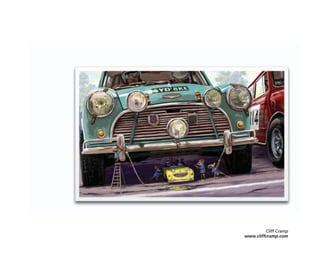
Cliff Cramp
www.cliffcramp.com
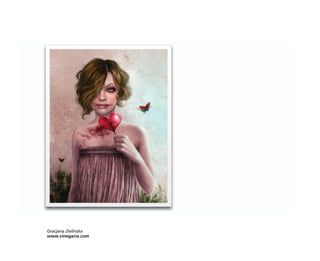
Gracjana Zielinska
www.vinegaria.com
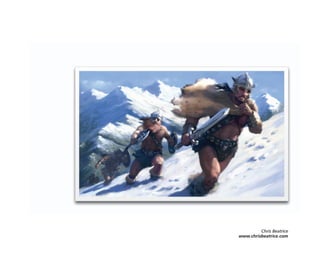
Chris Beatrice
www.chrisbeatrice.com
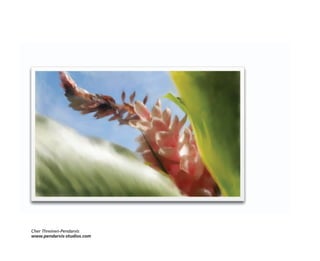
Cher Threinen-Pendarvis
www.pendarvis-studios.com
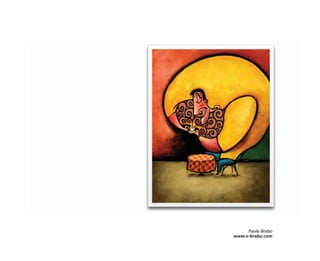
Paolo Brabo
www.e-brabo.com
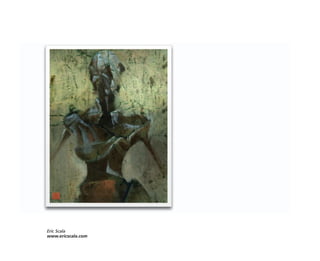
Eric Scala
www.ericscala.com
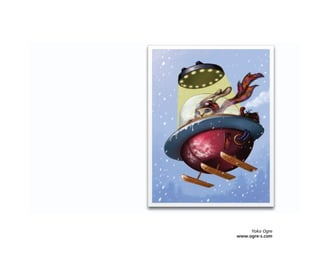
Yoko Ogre
www.ogre-s.com
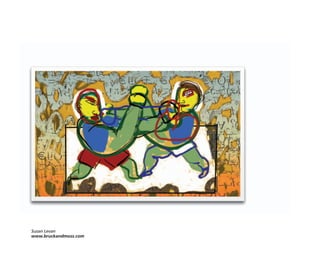
Susan Levan
www.bruckandmoss.com
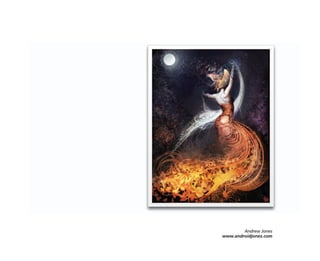
Andrew Jones
www.androidjones.com
Erik Holmen
www.robrady.com
Mike McCarthy
www.widigan.cghub.com
Marilyn Sholin
www.marilynsholin.com
Daniel Cox
www.danieljamescox.blogspot.com
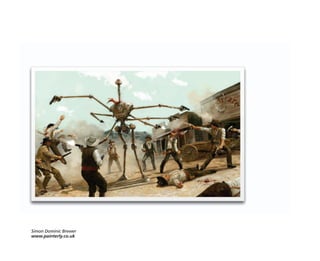
Simon Dominic Brewer
www.painterly.co.uk
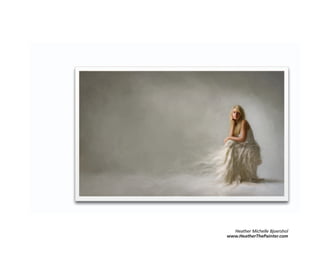
Heather Michelle Bjoershol
www.HeatherThePainter.com
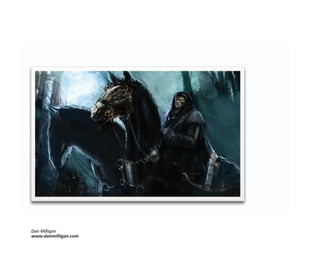
Dan Milligan
www.danmilligan.com
Welcome to Corel Painter 11
Corel® Painter™™ 11 is the ultimate digital art studio. Its
inventive drawing tools, realistic brushes, and customizable
features let you expand your creative output in exciting new
ways. When you use the pressure-sensitive brushes of
Corel Painter, they become fluid extensions of your hand, so
the resulting brushstrokes are unrivaled in texture and
precision. What's more, features such as the ability to build
your own Natural-Media® brushes and customize how
brushes interact with the canvas give you countless ways to
develop your artistic ideas. Corel Painter takes you far
beyond what's possible in a traditional art environment.
This section contains the following topics:
•• What’’s in This User Guide?
•• What’’s New in Corel Painter?
•• How to Use the Documentation
•• Registration
•• About Corel Corporation


What’’s in This User Guide?
This user guide provides step-by-step instructions to help
you learn to use Corel Painter 11. The content describes the
most common tasks performed with Corel Painter 11. Please
note that this guide is not an exhaustive reference for every
tool. If you require additional information, please refer to the
application’’s Help system.

                                                               1
To demonstrate what can be achieved with Corel Painter 11,        •• Pens —— You can create fine pen strokes, or thick strokes
a gallery of artwork by renowned digital artists is featured at      and ink deposits, by changing the stroke velocity. The
the beginning of this user guide.                                    faster you go, the thinner the line; the slower you go, the
                                                                     thicker the line.

What’’s New in Corel Painter?                                     Transformation capabilities are combined in a centralized
                                                                  tool, improving the ease and efficiency of transforming
In this section, you will find information about the new and      images. The new Transform tool offers convenient property
enhanced features of Corel Painter 11.                            bar buttons that let users quickly switch between the Move,
                                                                  Scale, Rotate, Skew, Distort, and Perspective Distortion
New Features                                                      modes.
Color management includes individual color profiles per
                                                                  Enhanced Features
document and improved color recognition for imported files,
which result in better color matches. Having fewer color          Brushes perform as much as 30% faster than the previous
corrections to make streamlines your workflow. In addition,       version, creating a more true-to-life painting speed.
the fresh, simplified interface for color-management
                                                                  Brush controls let you change the width of your strokes by
operations makes it easier to control color profiles when you
                                                                  adjusting the angle of your pen when you work with a
create or open files.
                                                                  drawing tablet. Now, shading by hand feels more natural
Hard Media variants include pencils, chalk, markers, and          than ever.
pens that mimic the behavior of their traditional
                                                                  Selection tools include a new Polygonal mode for the Lasso
counterparts more accurately than the tools of any other
                                                                  tool, plus overall improvements to marquee tools and the
software!
                                                                  Magic Wand, which lets you make more nimble selections
•• Pencils and Chalks —— You can control shading by               on your first try.
    changing the angle of your pen on the drawing tablet. As
    with conventional pencils and chalk, you can use the tip      The Colors palette lets you adjust colors manually with
    for drawing and the side of the nib for shading.              sliders and enlarge the palette up to 800 pixels for a clearer
                                                                  view of colors. You can now also fine-tune the Hue Ring
•• Markers —— You can intensify color with each marker
                                                                  with the keyboard arrow keys, so it takes less time to find the
    stroke. This feature lets you use one continuous shade or
                                                                  perfect color.
    a buildup of color.

2                                                                                        Corel Painter 11 Getting Started Guide
The Mixer palette and swatches give you more color              To use the Help
options. Extra mixer swatches appear when you enlarge the       1 Choose Help menu Corel Painter 11 Help (Mac OS)
newly resizable Mixer palette. You can enlarge the palette to     or Help Topics (Windows).
make colors more accessible and provide a clearer view of
                                                                2 Perform a task from the following table.
your chosen color. When you no longer need to mix colors,
you can reduce the size of the palette so that it uses less     To                                 Do the following
screen space.
                                                                Browse through Help topics         Click Contents (Mac) or the
                                                                                                   Contents tab (Windows).
How to Use the Documentation                                    Use the index                      Click Index (Mac).

The Help gives you access to a full range of topics in a                                           Click the Index tab, and scroll
                                                                                                   through the entries, or type a
searchable format. You can access the Help from within the                                         word or phrase in the box
application by choosing Help menu Corel Painter 11 Help                                            (Windows).
(Mac OS®) or Help Topics (Windows®). In addition, you
                                                                Search the full text of the Help   (Mac OS) Type a word or phrase
can refer to the Corel Painter 11 Getting Started Guide,                                           in the Search box in the upper-
which provides general overviews about Corel Painter                                               right corner of the Help
features and presents the most commonly used procedures.                                           window, and press Return.
                                                                                                   (Windows) Click the Search tab,
You can learn about Corel Painter by accessing online                                              type a word or phrase in the
resources for the Corel Painter community, including Tips                                          box, and click List Topics.
and Tricks and tutorials.
                                                                        If you are using Windows, you can perform a search
Using the Corel Painter Help                                            by typing a phrase and enclosing it in quotation
The Help is a fully searchable source of information about              marks (for example, ““Divine Proportion”” or ““Match
Corel Painter.                                                          Palette””).


Welcome to Corel Painter 11                                                                                                          3
Registration
Registering Corel products is important. Registration
provides you with timely access to the latest product updates,
valuable information about product releases, and access to
free downloads, articles, tips and tricks, and special offers.


About Corel Corporation
Corel Corporation is one of the world’’s top software
companies, with more than 100 million active users in over
75 countries. We develop software that helps people express
their ideas and share their stories in more exciting, creative,
and persuasive ways. Through the years, we’’ve built a
reputation for delivering innovative, trusted products that
are easy to learn and use, helping people achieve new levels
of productivity. The industry has responded with hundreds
of awards for software innovation, design, and value.
Our award-winning product portfolio includes some of the
world's most widely recognized and popular software
brands, including CorelDRAW® Graphics Suite,
Corel® Paint Shop Pro™™ Photo, Corel® Painter™™,
VideoStudio®, WinDVD®, Corel® WordPerfect® Office,
and WinZip®. Our global headquarters are in Ottawa,
Canada, and our major offices are in the United States, the
United Kingdom, Germany, China, Taiwan, and Japan.


4                                                                 Corel Painter 11 Getting Started Guide
Workspace Tour
The Corel Painter workspace has been designed to give you
easy access to tools, effects, commands, and features. The
workspace is organized across a series of menus, selectors,
and interactive palettes. Some features are also available in
the frame of the document window.
This section contains the following topics:
•• The Menu Bar
•• The Toolbox
•• The Property Bar
•• The Brush Selector Bar
•• The Palettes
•• Customizing the Workspace
•• Custom Palettes


The Menu Bar
Using the commands on the Corel Painter menu bar, you
can
•• work with files and editing commands
•• apply and adjust effects
•• perform selection operations, work with shapes, and
   create animations
•• control the document window or the Corel Painter
   workspace

                                                            5
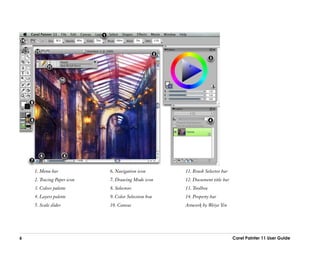
1. Menu bar             6. Navigation icon       11. Brush Selector bar
    2. Tracing Paper icon   7. Drawing Mode icon     12. Document title bar
    3. Colors palette       8. Selectors             13. Toolbox
    4. Layers palette       9. Color Selection box   14. Property bar
    5. Scale slider         10. Canvas               Artwork by Weiye Yin


6                                                                             Corel Painter 11 User Guide
The document window lets you access the following features         The Toolbox
with the click of a button:
•• Tracing Paper      —— Lets you trace a clone source. When       You can use the tools in the toolbox to paint, draw lines and
                                                                   shapes, fill shapes with color, view and navigate documents,
   Tracing Paper is in use, you see a faded-out version of the
                                                                   and make selections. Under the toolbox is a color selector,
   clone source, as if it were displayed under real tracing
                                                                   plus six content selectors that let you choose papers,
   paper on top of a light box.
                                                                   gradients, patterns, weaves, looks, and nozzles.
•• Grid    —— Helps you position brushstrokes and shapes.
   You can set the types, size, line thickness, and color of the   The toolbox contains flyout menus, in which tools of similar
   grid.                                                           function share a space. The button for only one of these tools
                                                                   is displayed at a given time. A flyout menu is indicated by a
•• Color Correction     —— Lets you apply the current color
                                                                   triangle in the lower-right corner of the button.
   management style to an image. When the icon shows
   colors, the color management style is applied to the
   image; when the icon shows black, the color
   management style is not applied to the image.
•• Impasto Effect       —— Lets you view the depth effect of
   the Impasto layer.
•• Drawing Mode         —— Lets you choose where you can
   apply brushstrokes to your image when you have an
   active selection. Position the pointer over the icon, and
   hold down the stylus button to choose between drawing
   anywhere, drawing outside the selection only, or drawing
   inside the selection only.
•• Navigation     —— Lets you view a pop-up window of the
   entire image and choose which area is displayed in the
   document window. For example, when you are working
   at a high zoom level or with a large image, you can find a
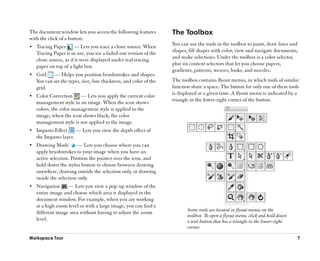
                                                                          Some tools are located in flyout menus on the
   different image area without having to adjust the zoom
                                                                          toolbox. To open a flyout menu, click and hold down
   level.                                                                 a tool button that has a triangle in the lower-right
                                                                          corner.

Workspace Tour                                                                                                                   7
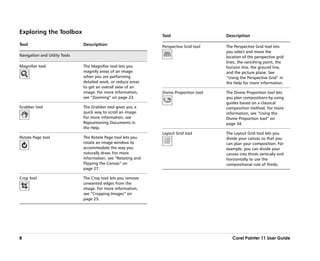
Exploring the Toolbox
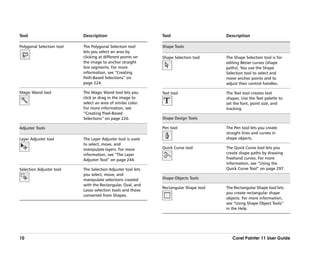
                                                                 Tool                     Description

Tool                           Description                       Perspective Grid tool    The Perspective Grid tool lets
                                                                                          you select and move the
Navigation and Utility Tools                                                              location of the perspective grid
                                                                                          lines, the vanishing point, the
Magnifier tool                 The Magnifier tool lets you                                horizon line, the ground line,
                               magnify areas of an image                                  and the picture plane. See
                               when you are performing                                    ““Using the Perspective Grid”” in
                               detailed work, or reduce areas                             the Help for more information.
                               to get an overall view of an
                               image. For more information,      Divine Proportion tool   The Divine Proportion tool lets
                               see ““Zooming”” on page 23.                                you plan compositions by using
                                                                                          guides based on a classical
Grabber tool                   The Grabber tool gives you a                               composition method. For more
                               quick way to scroll an image.                              information, see ““Using the
                               For more information, see                                  Divine Proportion tool”” on
                               Repositioning Documents in                                 page 34.
                               the Help.
                                                                 Layout Grid tool         The Layout Grid tool lets you
Rotate Page tool               The Rotate Page tool lets you                              divide your canvas so that you
                               rotate an image window to                                  can plan your composition. For
                               accommodate the way you                                    example, you can divide your
                               naturally draw. For more                                   canvas into thirds vertically and
                               information, see ““Rotating and                            horizontally to use the
                               Flipping the Canvas”” on                                   compositional rule of thirds.
                               page 27.

Crop tool                      The Crop tool lets you remove
                               unwanted edges from the
                               image. For more information,
                               see ““Cropping Images”” on
                               page 25.


8                                                                                            Corel Painter 11 User Guide
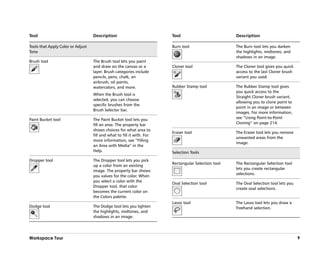
Tool                               Description                          Tool                         Description

Tools that Apply Color or Adjust                                        Burn tool                    The Burn tool lets you darken
Tone                                                                                                 the highlights, midtones, and
                                                                                                     shadows in an image.
Brush tool                         The Brush tool lets you paint
                                   and draw on the canvas or a          Cloner tool                  The Cloner tool gives you quick
                                   layer. Brush categories include                                   access to the last Cloner brush
                                   pencils, pens, chalk, an                                          variant you used.
                                   airbrush, oil paints,
                                   watercolors, and more.               Rubber Stamp tool            The Rubber Stamp tool gives
                                                                                                     you quick access to the
                                   When the Brush tool is
                                                                                                     Straight Cloner brush variant,
                                   selected, you can choose
                                                                                                     allowing you to clone point to
                                   specific brushes from the
                                                                                                     point in an image or between
                                   Brush Selector bar.
                                                                                                     images. For more information,
Paint Bucket tool                  The Paint Bucket tool lets you                                    see ““Using Point-to-Point
                                   fill an area. The property bar                                    Cloning”” on page 214.
                                   shows choices for what area to
                                                                        Eraser tool                  The Eraser tool lets you remove
                                   fill and what to fill it with. For
                                                                                                     unwanted areas from the
                                   more information, see ““Filling
                                                                                                     image.
                                   an Area with Media”” in the
                                   Help.                                Selection Tools
Dropper tool                       The Dropper tool lets you pick
                                                                        Rectangular Selection tool   The Rectangular Selection tool
                                   up a color from an existing
                                                                                                     lets you create rectangular
                                   image. The property bar shows
                                                                                                     selections.
                                   you values for the color. When
                                   you select a color with the
                                                                        Oval Selection tool          The Oval Selection tool lets you
                                   Dropper tool, that color
                                                                                                     create oval selections.
                                   becomes the current color on
                                   the Colors palette.
                                                                        Lasso tool                   The Lasso tool lets you draw a
Dodge tool                         The Dodge tool lets you lighten                                   freehand selection.
                                   the highlights, midtones, and
                                   shadows in an image.


Workspace Tour                                                                                                                          9
Tool                       Description                        Tool                     Description

Polygonal Selection tool   The Polygonal Selection tool       Shape Tools
                           lets you select an area by
                           clicking at different points on    Shape Selection tool     The Shape Selection tool is for
                           the image to anchor straight                                editing Bézier curves (shape
                           line segments. For more                                     paths). You use the Shape
                           information, see ““Creating                                 Selection tool to select and
                           Path-Based Selections”” on                                  move anchor points and to
                           page 224.                                                   adjust their control handles.

Magic Wand tool            The Magic Wand tool lets you       Text tool                The Text tool creates text
                           click or drag in the image to                               shapes. Use the Text palette to
                           select an area of similar color.                            set the font, point size, and
                           For more information, see                                   tracking.
                           ““Creating Pixel-Based
                           Selections”” on page 226.          Shape Design Tools

Adjuster Tools                                                Pen tool                 The Pen tool lets you create
                                                                                       straight lines and curves in
Layer Adjuster tool        The Layer Adjuster tool is used                             shape objects.
                           to select, move, and
                           manipulate layers. For more        Quick Curve tool         The Quick Curve tool lets you
                           information, see ““The Layer                                create shape paths by drawing
                           Adjuster Tool”” on page 244.                                freehand curves. For more
                                                                                       information, see ““Using the
Selection Adjuster tool    The Selection Adjuster tool lets                            Quick Curve Tool”” on page 297.
                           you select, move, and
                           manipulate selections created      Shape Objects Tools
                           with the Rectangular, Oval, and
                                                              Rectangular Shape tool   The Rectangular Shape tool lets
                           Lasso selection tools and those
                                                                                       you create rectangular shape
                           converted from Shapes.
                                                                                       objects. For more information,
                                                                                       see ““Using Shape Object Tools””
                                                                                       in the Help.


10                                                                                        Corel Painter 11 User Guide
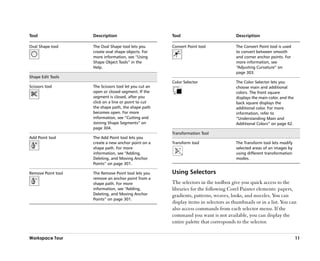
Tool                Description                        Tool                           Description

Oval Shape tool     The Oval Shape tool lets you       Convert Point tool             The Convert Point tool is used
                    create oval shape objects. For                                    to convert between smooth
                    more information, see ““Using                                     and corner anchor points. For
                    Shape Object Tools”” in the                                       more information, see
                    Help.                                                             ““Adjusting Curvature”” on
                                                                                      page 303.
Shape Edit Tools
                                                       Color Selector                 The Color Selector lets you
Scissors tool       The Scissors tool let you cut an                                  choose main and additional
                    open or closed segment. If the                                    colors. The front square
                    segment is closed, after you                                      displays the main color, and the
                    click on a line or point to cut                                   back square displays the
                    the shape path, the shape path                                    additional color. For more
                    becomes open. For more                                            information, refer to
                    information, see ““Cutting and                                    ““Understanding Main and
                    Joining Shape Segments”” on                                       Additional Colors”” on page 62.
                    page 304.
                                                       Transformation Tool
Add Point tool      The Add Point tool lets you
                    create a new anchor point on a     Transform tool                 The Transform tool lets modify
                    shape path. For more                                              selected areas of an images by
                    information, see ““Adding,                                        using different transformation
                    Deleting, and Moving Anchor                                       modes.
                    Points”” on page 301.

Remove Point tool   The Remove Point tool lets you     Using Selectors
                    remove an anchor point from a
                    shape path. For more               The selectors in the toolbox give you quick access to the
                    information, see ““Adding,         libraries for the following Corel Painter elements: papers,
                    Deleting, and Moving Anchor        gradients, patterns, weaves, looks, and nozzles. You can
                    Points”” on page 301.
                                                       display items in selectors as thumbnails or in a list. You can
                                                       also access commands from each selector menu. If the
                                                       command you want is not available, you can display the
                                                       entire palette that corresponds to the selector.

Workspace Tour                                                                                                           11
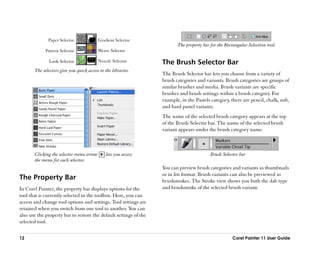
Paper Selector              Gradient Selector
                                                                          The property bar for the Rectangular Selection tool.
             Pattern Selector             Weave Selector

               Look Selector              Nozzle Selector          The Brush Selector Bar
       The selectors give you quick access to the libraries.
                                                                   The Brush Selector bar lets you choose from a variety of
                                                                   brush categories and variants. Brush categories are groups of
                                                                   similar brushes and media. Brush variants are specific
                                                                   brushes and brush settings within a brush category. For
                                                                   example, in the Pastels category, there are pencil, chalk, soft,
                                                                   and hard pastel variants.
                                                                   The name of the selected brush category appears at the top
                                                                   of the Brush Selector bar. The name of the selected brush
                                                                   variant appears under the brush category name.


       Clicking the selector menu arrow        lets you access                             Brush Selector bar
       the menu for each selector.
                                                                   You can preview brush categories and variants as thumbnails
                                                                   or in list format. Brush variants can also be previewed as
The Property Bar                                                   brushstrokes. The Stroke view shows you both the dab type
In Corel Painter, the property bar displays options for the        and brushstroke of the selected brush variant.
tool that is currently selected in the toolbox. Here, you can
access and change tool options and settings. Tool settings are
retained when you switch from one tool to another. You can
also use the property bar to restore the default settings of the
selected tool.

12                                                                                                     Corel Painter 11 User Guide
The Palettes
                                                            The interactive palettes in Corel Painter let you access
                                                            commands, controls, and settings. By default, palettes are
                                                            organized into task-related groups. For example, Brush
                                                            Controls is the name given to the group of palettes that
                                                            contain all the brush-related settings.
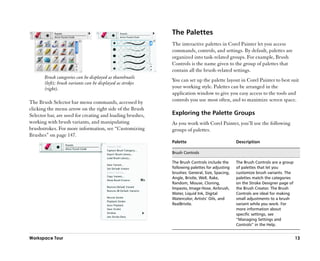
       Brush categories can be displayed as thumbnails
                                                            You can set up the palette layout in Corel Painter to best suit
       (left); brush variants can be displayed as strokes
       (right).                                             your working style. Palettes can be arranged in the
                                                            application window to give you easy access to the tools and
The Brush Selector bar menu commands, accessed by           controls you use most often, and to maximize screen space.
clicking the menu arrow on the right side of the Brush
Selector bar, are used for creating and loading brushes,    Exploring the Palette Groups
working with brush variants, and manipulating               As you work with Corel Painter, you’’ll use the following
brushstrokes. For more information, see ““Customizing       groups of palettes.
Brushes”” on page 147.
                                                            Palette                            Description

                                                            Brush Controls

                                                            The Brush Controls include the     The Brush Controls are a group
                                                            following palettes for adjusting   of palettes that let you
                                                            brushes: General, Size, Spacing,   customize brush variants. The
                                                            Angle, Bristle, Well, Rake,        palettes match the categories
                                                            Random, Mouse, Cloning,            on the Stroke Designer page of
                                                            Impasto, Image Hose, Airbrush,     the Brush Creator. The Brush
                                                            Water, Liquid Ink, Digital         Controls are ideal for making
                                                            Watercolor, Artists’’ Oils, and    small adjustments to a brush
                                                            RealBristle.                       variant while you work. For
                                                                                               more information about
                                                                                               specific settings, see
                                                                                               ““Managing Settings and
                                                                                               Controls”” in the Help.


Workspace Tour                                                                                                                  13
Palette             Description                         Palette                            Description

Color Variability   The Color Variability palette       Color Sets                         The Color Sets palette displays
                    contains sliders to adjust color                                       the colors in the current color
                    variability within brushstrokes.                                       set. You can use color sets to
                    For more information, see                                              organize groups of colors.
                    ““Color Variability Palette”” on                                       Some color sets are organized
                    page 77.                                                               by both name and color
                                                                                           relationship. For more
Color Expression    The Color Expression palette                                           information, refer to ““Working
                    lets you determine how a stylus                                        with Color Sets”” on page 71.
                    applies the Main Color and
                    Additional Color in                 Library Palettes
                    Corel Painter documents. For
                    more information, refer to ““The    Papers, Gradients, Patterns, and   The Library palettes let you
                    Color Expression Palette”” in the   Weaves                             choose and edit resources. You
                    Help.                                                                  can view resources as
                                                                                           thumbnails or in a list, and
Color Palettes                                                                             preview the selected resource.
                                                                                           For more information, see
Colors              The Colors palette lets you                                            ““Using Paper Texture”” on
                    choose main and additional                                             page 48, ““Using Gradients”” on
                    colors for painting in                                                 page 79, ““Using Patterns”” on
                    Corel Painter documents. You                                           page 52, and ““Using Weaves””
                    can also use the Clone Color                                           on page 56.
                    option on the Colors palette.
                    For more information, see
                    ““Using the Colors Palette”” on
                    page 60.

Mixer               The Mixer palette lets you mix
                    and blend colors as you would
                    on an artist’’s palette. It
                    contains its own set of tools.
                    For more information, see
                    ““Working with the Mixer
                    Palette”” on page 65.


14                                                                                            Corel Painter 11 User Guide
Palette                        Description                        Palette                     Description

Layers and Channels Palettes                                      Text and Scripts Palettes

Layers                         The Layers palette contains        Text                        The Text palette lets you
                               thumbnail previews of all the                                  perform all tasks relating to
                               layers in a Corel Painter                                      text in a Corel Painter
                               document. You can use the                                      document, such as choosing
                               buttons on the Layers palette                                  fonts, adjusting opacity, and
                               to arrange layers, use Dynamic                                 applying drop shadows. For
                               Plug-ins, add new layers                                       more information, refer to
                               (including Watercolor and                                      ““Working with Text”” in the
                               Liquid Ink layers), create layer                               Help.
                               masks, and delete layers. You
                                                                  Scripts                     The Scripts palette gives you
                               can also set the composite
                                                                                              access to all commands and
                               method and depth, adjust the
                                                                                              settings related to scripts. For
                               opacity, and lock and unlock
                                                                                              example, you can open, close,
                               layers. For more information,
                                                                                              play, and record scripts from
                               see ““Layers”” on page 241.
                                                                                              the Scripts palette.
Channels                       The Channels palette contains
                                                                  Info and Tracker Palettes
                               thumbnail previews of all the
                               channels in a Corel Painter
                                                                  Info                        The Info palette provides you
                               document, including RGB
                                                                                              with an image preview;
                               composite channels, layer
                                                                                              document information, such as
                               masks, and alpha channels. The
                                                                                              width and height; X and Y
                               buttons on the palette can be
                                                                                              coordinates and the cursor
                               used to load, save, and invert
                                                                                              position; context-sensitive
                               existing channels, and to create
                                                                                              information based on the
                               new channels. For more
                                                                                              selected tool; and unit
                               information, see ““Alpha
                                                                                              information, such as pixels,
                               Channels”” in the Help.
                                                                                              inches, and resolution. The
                                                                                              palette menu lets you choose
                                                                                              the preview style and how RGB
                                                                                              values are displayed.


Workspace Tour                                                                                                                   15
Palette                         Description                          Palette                Description

Tracker                         The Tracker palette temporarily      Auto-Painting          The Auto-Painting palette lets
                                stores brush categories,                                    you specify a range of settings
                                variants, and dab types when                                that control how brushstrokes
                                you apply brushstrokes to the                               are applied. This palette is used
                                canvas. Each time you use a                                 in the second step of the
                                new brush, the variant is saved                             photo-painting process.
                                on the Tracker palette.
                                                                     Restoration            The Restoration palette lets you
Image Portfolio and Selection                                                               fine-tune a painting by
Portfolio Palettes                                                                          providing brushes that help you
                                                                                            restore detail. This palette is
Image Portfolio and Selection   These palettes contain all of the                           used in the third step of the
Portfolio                       images or selections in the                                 photo-painting process.
                                current library. You can view
                                the items as thumbnails or in a      Composition Palettes
                                list, as well as preview the
                                current item. For more               Divine Proportion      The Divine Proportion palette
                                information, see ““Storing                                  lets you customize the Divine
                                Images with the Image                                       Proportion guide —— a tool that
                                Portfolio”” and ““Using the                                 helps you plan a layout
                                Selection Portfolio”” in the Help.                          according to a classic
                                                                                            composition method.
Photo Painting Palettes
                                                                     Layout Grid            The Layout Grid palette lets you
Underpainting                   The Underpainting palette lets                              customize the Layout Grid —— a
                                you adjust tone, color, and                                 tool that helps you divide your
                                detail in a photo in preparation                            canvas so that you can plan
                                for auto-painting. This palette                             your composition.
                                is used in the first step of the
                                photo-painting process.


16                                                                                             Corel Painter 11 User Guide
Custom Palettes
To give you the freedom to work in your own style,
Corel Painter lets you create custom palettes that contain
exactly the features you want. Because the features on a
custom palette are immediately available, you can choose                   Creating a custom palette is as simple as dragging a
them with a single click. You can place items from the Brush               tool out of a palette. Other icons can then be dragged
                                                                           onto the custom palette.
Selector bar, any of the six content selectors (papers, patterns,
looks, weaves, nozzles, or gradients), Library palettes, or the
Script palette on a custom palette. You can also add any
menu command, such as File menu New, to a custom
palette.
You may want to create special palettes for a particular
project or workflow that you use frequently. You can create a              A custom palette can contain menu items as well as
                                                                           icons.
whole series of palettes and switch between them as you
change projects or workflows. There is no limit to the
number of custom palettes you can create. Corel Painter             Customizing the Workspace
saves them from session to session, so you can access the           Corel Painter lets you completely customize your workspace
necessary tools immediately whenever you sit down to work.          to suit your workflow needs. You can customize Brush
Items that appear on a custom palette are references (aliases       Libraries, Paper Libraries, and Portfolios and save these
or shortcuts) to the original. This means that if you change        changes to use again whenever you like. In addition, you can
the original —— for example, by modifying and saving a brush        easily create multiple workspaces, each with different
variant —— the custom palette button loads the newest               libraries and portfolios. You can even share these customized
version. However, if you delete the original, Corel Painter         workspaces with others by importing or exporting them.
won’’t be able to find the item again to load on the custom
palette.
Custom palettes behave like the standard palettes. For more
information about working with palettes, see ““Grouping,
Repositioning, and Resizing Palettes”” in the Help.

Workspace Tour                                                                                                                      17
To create a new workspace                                           •• To reorder media variants, drag each media variant to
1 From the Window menu, choose Workspace           New                 a new location in the list.
  Workspace.                                                     5 Click Done.
2 In the New Workspace dialog box, type the name of the
  new workspace.                                                 To switch to a different workspace
3 From the Based On pop-up menu, choose the workspace            •• From the Window menu, choose Workspace
  on which you want to base the new workspace.                      [Workspace Name].
4 Click Save.
                                                                 To import a workspace
To customize a workspace                                         1 To import a workspace, do one of the following:
                                                                   •• From the Window menu, choose Workspace Import
1 From the Window menu, choose Workspace
                                                                      Workspace.
  Customize Workspace.
                                                                   •• From the Window menu, choose Workspace
2 From the Workspace pop-up menu, choose the
                                                                      Customize Workspace and click Import Workspace.
  workspace you want to customize.
                                                                 2 Choose the workspace file you want to import, and click
3 In the Media list, expand the folders for any of the media
                                                                   Open.
  categories you want to customize by clicking on the folder
  name or the + icon.                                            To export a workspace
4 Click on the eye icon that appears next to the name of         1 To export a workspace, do one of the following:
  each media variant you want to show or hide.                     •• From the Window menu, choose Workspace Export
  A closed eye indicates that the media variant is not visible        Workspace.
  in the specified workspace. An open eye indicates that the       •• From the Window menu, choose Workspace
  media variant is visible in the specified workspace. Note           Customize Workspace and click Export Workspace.
  that you cannot hide every media variant within a media
  category. At least one media variant appears for each          2 Choose the workspace you want to export, and click
  media category.                                                  Open.
  •• To rename a media variant, click on the variant, and        3 Choose a destination for the workspace, and click Save.
      type its new name in the Preview text box.


18                                                                                                   Corel Painter 11 User Guide
Basics
The Corel Painter application provides a digital workspace
in which you can create new images, or alter existing images,
by using the Natural-Media tools and effects. Your working
image is known as a document and is displayed in a
document window. This document window includes
navigation and productivity features to help you work
efficiently.
As you create an image, you can save your document in
various file formats, such as RIFF (Corel Painter native
format), JPEG, TIFF, and Adobe® Photoshop® (PSD).
Corel Painter also lets you open or import images saved in
many other file formats.
Every artist works in a unique way, and every computer
system has its own configuration of memory, disks, printers,
and accessories. Corel Painter preferences let you customize
the program for your own work style and for optimum
performance on your particular system. You can also
customize the features of your tablet and pens.
This section contains the following topics:
•• Working with Documents
•• Working with Composition Tools, Rulers, and Guides
•• Setting Preferences


                                                             19
Working with Documents                                           •• CMYK TIF (TIF)
                                                                 •• Adobe Photoshop formats (PSD) —— Corel Painter
The first step in creating an image in Corel Painter is             preserves layers, layer masks, alpha channels, and
opening a document. You can open a blank canvas by                  composite methods. Layer effects and adjustment layers
creating a new document, work with an existing image by             are not supported and should be merged or flattened in
opening a file already created, or acquire an image from a          Adobe Photoshop.
scanner or digital camera. After you create your image, you
can place it directly in a document.                             •• Windows Bitmap (BMP)
                                                                 •• PC Paintbrush (PCX)
Creating and Opening Documents                                   •• PSPIMAGE —— Corel Paint Shop Pro format (Windows)
The New command in the File menu lets you create a blank,        •• TARGA® (TGA)
untitled document based on the specifications you set in the     •• GIF —— Corel Painter does not convert GIF animations
New dialog box. Canvas Size shows the RAM requirement               to frame stacks.
for creating the document at the specified width, height, and    •• JPEG (JPG)
resolution. This number does not reflect the file size for the
                                                                 •• Frame stacks (FRM) —— Corel Painter animation files
saved document. A saved Corel Painter file is usually 25% to
50% of the size of the working document, depending on the        •• QuickTime® (MOV), Video for Windows (AVI), and
number of colors it contains.                                       numbered files. For more information, refer to ““Opening
                                                                    a Movie”” or ““Working with Numbered Files”” in the
You can open documents from other graphics applications             Help.
and use Corel Painter to add brushstrokes, tints, or paper
textures. You can also clone a document to re-create it in a
different medium.                                                       Corel Painter does not support LZW compressed
                                                                        TIFF file format. Only uncompressed TIFF files can
Supported File Formats                                                  be opened in Corel Painter.
Corel Painter lets you open the following file formats:
•• RIFF —— Corel Painter native format (RIF)
•• TIFF (TIF)
•• PNG


20                                                                                               Corel Painter 11 User Guide
To create a new document                                         To open an existing document
1 Choose File menu       New.                                    1 Choose File menu Open.
2 In the New dialog box, enter values for the following:           Corel Painter displays the folder of the last file you
  •• Width and Height determine the dimensions of the              opened.
      canvas. You can change the unit of measurement by          2 In the Open (Mac OS) or Select Image (Windows) dialog
      using the menu. Choose from pixels (the default),            box, use the controls to locate the file you want to open.
      inches, centimeters (CM), points, picas, and columns         For each image, Corel Painter lists the dimensions
      (2 inches wide).                                             (in pixels), file size, and file format. Files saved in
  •• Resolution is the number of pixels per inch (ppi) or          Corel Painter include thumbnails for browsing.
      pixels per centimeter that make up an image. In the        3 Click Open.
      New dialog box, setting the document’’s pixels per
      inch is the same as setting its dots per inch (dpi). For
      detailed information about document, screen, and                  The File menu also offers you a shortcut to
      print resolutions, see ““Understanding Resolution”” on            previously opened documents. You can find your file
      page 22.                                                          in the recently opened files list by choosing File
3 Click the Paper Color chip to set the document’’s                     menu Recent and click the filename to open the
  background to a color other than white.                               file.
  Choose a color from the Color dialog box.
                                                                 To browse for a document (Mac OS)
4 Choose an option from the Picture Type area.
                                                                 1 Choose File menu       Open.
  The Picture Type options let you set up a document to
  contain a single frame for an image (the default) or           2 Click Browse.
  multiple frames for a movie.                                     The Browse dialog box shows thumbnails for all the
                                                                   RIFF files in a folder.
5 Click OK.
  A new document appears in the workspace.                       3 Double-click the filename, or select a file, and click
                                                                   Open.


Basics                                                                                                                      21
Creating and Opening Templates
                                                                     If you work in a multiuser environment, only users
If you regularly work with documents that contain similar            with Administrator status can add files to the
dimensions, formatting, and resolution, you can create               Templates folder.
document templates so that you don’’t have to start each
document from scratch.                                        Understanding Resolution
To open a document template                                   When you work with images in a digital workspace, it is
•• Choose File menu     Open Template.                        helpful to understand the concept and applications of
                                                              resolution. Resolution refers to how Corel Painter measures,
                                                              displays, saves, and prints images —— either as small squares
       You can also open a template by choosing Help          of color called ““pixels”” or as mathematical objects called
       menu Welcome, and then choosing a template             ““vectors.””
       from the Open a Template pop-up menu.
                                                              A document’’s resolution affects both its appearance on your
To save a document as a template                              computer screen and its print quality. You can specify a
1 Create a file with the sizing, formatting, and resolution   document’’s resolution when you create a new document,
  attributes that you want.                                   acquire an image, or save or export a file.
2 Choose File menu      Save As.                              Resolution and Screen Appearance
3 In the Save dialog box, save the file to one of the         Most monitors have a resolution of 72 pixels per inch (ppi).
  following folders in your user folder:                      The Corel Painter display default is 72 ppi, which means
  •• (Mac OS) Corel Painter 11Support FilesTemplates        that each pixel in the Corel Painter image occupies 1 pixel on
  •• (Windows) Application                                    your monitor. The display resolution does not affect the
      DataCorelPainter 11DefaultTemplates                 document’’s actual number of pixels per inch —— it affects
      If you want the template to display under File menu     only how the image is displayed on the monitor.
      Open Template, you need to close and then reopen        For example, a 300-ppi image is displayed on-screen at
      Corel Painter.                                          approximately four times its actual size. Because each pixel
                                                              in the Corel Painter image occupies 1 pixel on your monitor,
                                                              and the monitor’’s pixels are approximately four times the
                                                              size of the image’’s pixels (72 ppi versus 330 ppi), the image

22                                                                                              Corel Painter 11 User Guide
must appear four times larger on-screen in order to display        printed piece. A good rule of thumb is to set the number of
all of the pixels. In other words, your 330-ppi document will      pixels per inch to twice the desired lines per inch. So, at
print at approximately one-quarter of its on-screen size. To       150 lpi, the setting should be twice that, or 300 ppi; at 85 lpi,
view the image at its actual size, you can set the zoom level to   the setting should be 170 ppi. It’’s a good idea to check with
25%.                                                               your service bureau if you have questions about output
                                                                   device resolution.
If you set the dimensions in pixels and then change the
number of pixels per inch (resolution), this change will affect
the size of the printed image. If you set your document size       Zooming
in inches, centimeters, points, or picas and then change the       By default, Corel Painter opens a document at 100%
resolution, the dimensions of the printed image will not be        magnification, but you can change the level of magnification
affected.                                                          by zooming. You can zoom in and out by using the
                                                                   Magnifier tool, resetting magnification, or zooming to fit the
Resolution and Print Quality
                                                                   screen. You can even zoom in and out while working with
The resolution of output devices (printers) is measured in         other tools.
dots per inch, and in the case of halftones, lines per inch
(lpi). Output device resolutions vary, depending on the type
of press and paper used. In general, a photograph is output at
a crisp 150 lpi if printed on glossy magazine stock, and at
85 lpi if printed on newspaper stock.
If you are using a personal laser or inkjet printer, set your
document size in inches, centimeters, points, or picas at the
dots-per-inch setting specific to your printer. Most printers
produce excellent output from images set at 300 ppi.
Increasing the file’’s pixels-per-inch setting does not
necessarily improve the output and may create a large,
unwieldy file.
If you are using a commercial printer or a more sophisticated
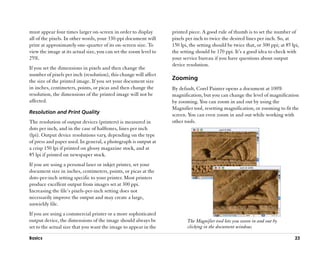
output device, the dimensions of the image should always be               The Magnifier tool lets you zoom in and out by
set to the actual size that you want the image to appear in the           clicking in the document window.

Basics                                                                                                                           23
To zoom in                                                          Each click reduces the magnification to the next level, as
1 In the toolbox, click the Magnifier tool .                        defined in the Scale box at the bottom of the image
  The Magnifier cursor shows a plus sign (+), which                 window.
  indicates that you are increasing magnification
  (zooming in).                                                         You can also zoom out by doing one of the following:
2 Click or drag in the document window.                                   •• (Mac OS) While holding down Command, press
                                                                             –– (minus sign).
  Each click increases the magnification to the next level, as
  defined in the Scale box at the bottom of the image                     •• (Windows) While holding down Ctrl, press
  window.                                                                    –– (minus sign).
  When you drag, Corel Painter chooses the magnification
                                                                 To zoom to a specific magnification by using the
  level that most closely conforms to the selected area and      Scale slider
  centers the screen view on that area.
                                                                 •• At the bottom of the document window, adjust the Scale
                                                                    slider                             .
       You can also zoom in by doing one of the following:
         •• (Mac OS) While holding down Command, press
                                                                        You can also zoom to a specific magnification by
            + (plus sign).
                                                                        typing a value in the Scale box beside the slider.
         •• (Windows) While holding down Ctrl, press +
            (plus sign).
                                                                 To reset magnification to 100%
To zoom out                                                      •• Double-click the Magnifier tool in the toolbox.

1 In the toolbox, click the Magnifier tool, and hold down
  Option (Mac OS) or Alt (Windows).                                     You can also reset magnification to 100% by clicking
                                                                        the Reset tool on the property bar.
  A minus sign (––) appears on the Magnifier cursor, which
  indicates that you are decreasing magnification (zooming
  out).
2 Click in the document window.


24                                                                                                Corel Painter 11 User Guide
To zoom to fit the screen
•• Choose Window menu        Zoom to Fit.
   Corel Painter generates a view of the entire document to
   fit your document window.

         You can also zoom to fit the screen by clicking the Fit
         on Screen button on the property bar, or by double-
         clicking the Grabber tool     in the toolbox.                    Rotate a document to accommodate the way you
                                                                          naturally draw.
Rotating Documents
                                                                   To return an image to its original orientation
The Rotate Page tool lets you rotate an image on the screen
to accommodate the way you draw naturally.                         1 In the toolbox, click the Rotate Page tool   .
                                                                   2 Do one of the following:
To rotate the page                                                   •• Click once in the document window.
1 Activate the Rotate Page tool by doing one of the                  •• Double-click the Rotate Page tool.
  following:                                                         •• On the property bar, click the Reset Tool button.
  •• In the toolbox, click the Rotate Page tool .
  •• Hold down Option + Spacebar (Mac OS) or                       To constrain rotation to 90° increments
      Alt + Spacebar (Windows).                                    •• Hold down the Shift key while rotating.
  The cursor changes to a hand with a pointing finger.
2 Drag in the document window to rotate the image.                 Cropping Images
  Move the cursor clockwise to rotate the image clockwise.         You can remove unwanted edges from the image with the
  Move the cursor counterclockwise to rotate the image             Crop tool. You can adjust the aspect ratio of the cropped
  counterclockwise.                                                image and choose to maintain the aspect ratio.
  The new rotation angle appears on the property bar.

         You can also rotate an image by typing a rotation
         angle in the Rotation Angle box on the property bar.

Basics                                                                                                                         25
To crop an image                                             Using Full-Screen Mode
1 In the toolbox, click the Crop tool    .                   Full-screen mode lets you hide your computer’’s desktop and
2 Drag inside the image to define the rectangular area you   view the document window without scroll bars. When
  want to keep.                                              full-screen mode is on, the document window is centered
  You can adjust the rectangle by dragging a corner or any   over a solid background. Except for the buttons on the
  of its edges.                                              document window, all Corel Painter features work when you
3 When you’’re ready to execute the crop, click inside the   use full-screen mode.
  rectangle.
                                                             To toggle the full-screen mode on and off
       To constrain the cropping rectangle to a certain      •• Choose Window menu         Screen Mode Toggle.
       aspect ratio, enable the Ratio check box on the
       property bar, and type values in the Crop Ratio              You can also toggle the full-screen mode by pressing
       Width and Crop Ratio Height boxes.                           Command + M (Mac OS) or Ctrl + M (Windows).
                                                                    You can position the canvas anywhere on the screen
To constrain cropping to a square                                   by holding down the Spacebar and dragging.
1 In the toolbox, click the Crop tool.
2 Hold down the Shift key, and drag to define the area for   Image Size Information
  cropping.                                                  You can use the Info palette to check image size. For more
3 Click inside the square.                                   information, see ““Using the Info Palette”” in the Help.

To adjust the aspect ratio of the cropped image              Resizing the Canvas
1 In the toolbox, click the Crop tool.
                                                             If you want the same image at a different scale, you can
2 On the property bar, type values in the Crop Ratio Width   resize the canvas. You can also change the size of the drawing
  and Crop Ratio Height boxes.                               area or crop the canvas.


26                                                                                             Corel Painter 11 User Guide
To resize the canvas                                             amount, or you can choose the amount of rotation. If your
1 Choose Canvas menu Resize.                                     document has layers of different types, you are prompted to
  The Resize dialog box appears, showing the current and         commit all of them to default, pixel-based layers. The
  new sizes by width, height, and resolution.                    Canvas layer increases in size when necessary, so rotating or
                                                                 flipping it does not cause the contents of the other layers to
2 Enter a new value for width, height, or resolution.            be cropped.
  For more information on these values, see ““Creating and
  Opening Documents”” on page 20.                                To rotate the Canvas layer
3 Enable or disable the Constrain File Size check box.           1 Choose Canvas menu           Rotate Canvas.
  When you enable the Constrain File Size check box, the         2 Perform a task from the following table.
  height and width of the image change together, and the
  resolution changes accordingly.                                To                               Do the following
  When you disable the Constrain File Size check box, you
                                                                 Rotate the Canvas layer 180      Choose 180.
  can change the height and width independently of the           degrees
  resolution, and vice versa.
                                                                 Rotate the Canvas layer 90       Choose 90 CW.
  If you choose pixels or percent as the unit and enter a        degrees clockwise
  value, the Constrain File Size check box is automatically
  disabled.                                                      Rotate the Canvas layer 90       Choose 90 CCW.
                                                                 degrees counterclockwise

To resize the drawing area                                       Rotate the Canvas layer by a     Choose Arbitrary; in the Rotate
1 Choose Canvas menu        Canvas Size.                         user-defined amount              Selection dialog box, type a
                                                                                                  number in the Angle box to
2 In the Canvas Size dialog box, specify the number of                                            specify degrees of rotation.
  pixels you want to add to any side of the canvas.
  To reduce the canvas size, specify negative values.            To flip the Canvas
                                                                 1 Choose Canvas menu           Rotate Canvas.
Rotating and Flipping the Canvas                                 2 Choose one of the following:
Corel Painter lets you rotate and flip the Canvas layer. When      •• Flip Canvas Horizontal
you rotate or flip the Canvas layer, all other layers move         •• Flip Canvas Vertical
along with it. You can rotate the Canvas layer by a predefined
Basics                                                                                                                              27
Saving Files                                                        Choosing a file format
You have several options for saving files. You can save a file in   When you save a file, you must choose a file format. The
its current format or in a different format. You can also save      following section contains information about some of the file
iterations of the same file. Whenever you perform an                formats that Corel Painter supports.
iterative save, a new version of the file is saved with a number
added to the filename, and for each subsequent save, the            Saving RIFF Files
number added to the filename increases by 1. In addition,           RIFF is the Corel Painter native format, which retains
the location of the last file saved is stored and used for          special information about your document. For example, a
subsequent saves unless you specify a new location.                 RIFF file maintains layers so that you can return to the file to
                                                                    re-access them.
To save a file in its current format
                                                                    RIFF files are best used as ““work-in-progress”” files. It is
•• Choose File menu       Save.
                                                                    recommended that you save files in RIFF format first, and
                                                                    then save to GIF, JPEG, TIF, or another file format when a
To save a file with a different name or format
                                                                    file is ready for production.
1 Choose File menu        Save As.
                                                                    Corel Painter lets you compress files and save disk space with
2 In the Save (Mac OS) or Save Image As (Windows)
                                                                    a lossless compression method. When saving in RIFF
  dialog box, use the controls to specify a location, file
                                                                    format, you can minimize the file size on your hard disk by
  name, and format.
                                                                    ensuring that the Uncompressed option is disabled by
                                                                    default.
To perform an iterative save
•• Choose File menu       Iterative Save.                           Saving JPEG Files
                                                                    Corel Painter supports the JPEG file format. Because of its
        You can also perform an iterative save by pressing          small file size and high quality, JPEG is commonly used to
        Command + Option + S (Mac OS) or                            transmit files through a modem. Unlike GIF, the JPEG file
        Ctrl + Alt + S (Windows).                                   format displays a full range of colors.
                                                                    The JPEG file format allows you to compress your file on a
                                                                    scale of Fair to Excellent, where quality is directly
                                                                    proportional to file size. These quality settings will let you

28                                                                                                     Corel Painter 11 User Guide
achieve compression ratios ranging from less than 10:1 to       •• The Progressive JPEG check box creates a progressive
greater than 100:1. JPEG is a ““lossy”” file format, meaning       JPEG file. Progressive format is useful for files designed
that an uncompressed JPEG file will not be identical, pixel-       for the Web. As the name implies, progressive format
for-pixel, to the original. However, because the JPEG              displays an image in stages —— as a series of scans ——
algorithm takes into account the sensitivity of the eye to         while the file downloads. The first scan is a low-quality
different colors, the higher-quality settings should achieve       image; the following scans improve in quality. This
visually satisfying results.                                       allows the user to see the whole image very quickly.
You can assign a URL to layers and placed images and then       •• The HTML Map Options —— NCSA Map File, CERN
save the file in GIF or JPEG format to produce an image            Map File, and Client Side Map File —— let you generate
map. For more information, refer to ““Client-Side Image            an image map. (NCSA refers to the National Center for
Mapping”” in the Help.                                             Supercomputing Applications, and CERN refers to the
                                                                   Conseil Europeén pour la Recherche Nucléaire.) Use the
When you save a file in JPEG format, Corel Painter displays        NCSA Map File or CERN Map File option to generate a
the JPEG Encoding Quality dialog box.                              server-side image map. Use the Client Side Map File
When you save a file in JPEG format, Corel Painter displays        option to generate a client-side image map.
the JPEG Encoding Quality dialog box, with the following        Refer to ““Working with Image Maps”” in the Help for more
options:                                                        information about image map types. When a file has lost a
•• The Quality options —— Excellent, High, Good, and            significant amount of data, block patterns may appear in
   Fair —— let you set the degree of file compression.          areas of the image. If you try to use the Apply Surface
   The Excellent option compresses the least, but retains the   Texture feature on a JPEG file, you may find it will accent
   most data. Fair compresses the most, but loses the most      the block patterns.
   data.
                                                                Saving GIF Files
   You can also use the Quality slider to adjust file
   compression.                                                 Corel Painter allows you to save documents as GIF files.
•• The Smoothness slider applies smoothing to the entire
                                                                GIF, a file format using 8 or fewer bits, is commonly used to
   image. This is useful when using the Fair option, to blur    display graphics on the Web. When you save a GIF file, you
   the edges of JPEG artifacts. The default is 0. Keep in       can choose settings from 4 Colors to 256 Colors. You can
   mind that using a high smoothness setting can cause          choose how your colors will be displayed and what part of
   blurring.                                                    your image will be transparent.

Basics                                                                                                                      29
You can enable the Color Set option to force all colors in the      transparency of your image in the Preview window of the
color table of the GIF file to match the colors in the current      dialog box. Transparency is displayed in the Preview window
color set. This option can be useful when you are doing Web         by a rectangular lattice. You can toggle between the Preview
work, especially if you want to constrain colors to a specific      window and your Save As GIF options to get exactly what
color set or control the number of colors in a Web page, thus       you want. Enable the Interlaced check box if your image will
controlling the image file size.                                    be displayed on a Web page.
The Imaging Method setting determines how your 24-bit               For information on creating masks, see ““Selections and
Corel Painter document will be converted to the limited             Transformations”” on page 223.
number of colors that GIF uses. If you choose Quantize to
Nearest Color, Corel Painter picks the color nearest to that of     Saving RGB TIF Files
each pixel. If you choose Dither Colors, Corel Painter              The TIF format facilitates exchange between applications
applies a pattern to the colors chosen to generate a more           and computer platforms. It is a widely supported bitmap
accurate, less banded result.                                       image format that lets you save with RGB color profile
Corel Painter can also save a frame stack as a GIF animation        information.
file. For more information, refer to ““Creating Animated
                                                                    Saving Adobe Photoshop (PSD) Files
GIFs”” in the Help.
                                                                    Corel Painter can save files in Adobe Photoshop (PSD)
If you want your image to have transparency, enable the
                                                                    format. For optimum compatibility, shapes and text are
check box for Output Transparency. Most programs that
                                                                    rasterized, and masks are placed in channels.
display GIF files support transparency, but for those that
don’’t, you should specify the color of the ““transparent”” area.   When you save a file in PSD format, you have RGB options,
If your image will be displayed on the Web, enable the              as you do when saving in TIF format.
Background is WWW Gray option. You can also choose to
use the background color of your Web page by enabling the           Saving Encapsulated PostScript (EPS) Files
Background is BG Color option.                                      The encapsulated PostScript® (EPS) files in Corel Painter
For programs that support transparency, your selection will         conform to the Desktop Color Separation (DCS) 2.0 format
determine which areas are transparent. The Threshold slider         (EPS-DCS 5 file format). Although Corel Painter saves files
determines which selection (loaded mask) value becomes              in EPS-DCS, it can’’t read EPS-DCS. If you plan to save an
transparent. You can see how the Threshold slider affects the

30                                                                                                   Corel Painter 11 User Guide
image in EPS-DCS, it’’s a good idea to save it in another       Closing Documents and Quitting the
format first, so that you’’ll have a copy of it that you can    Application
reopen in Corel Painter.
                                                                You can close documents or quit Corel Painter using menu
When you save an image as EPS-DCS with Preview Options          commands, keyboard shortcuts, or the Close button of the
turned on, Corel Painter uses the loaded International Color    current window.
Consortium® (ICC) profile to prepare the separation files. If
you’’re using the Hexachrome® ICC profile, Corel Painter        To close a document
prepares six separation files —— Cyan, Magenta, Yellow,         •• Do one of the following:
Green, Orange, and Black. For more information on Preview          •• Click the current window’’s Close button.
Options and color management, see ““Printing”” on page 311.
                                                                   •• Choose File menu     Close.
Although you can save your images as CMYK EPS                      •• Press Command + W (Mac OS) or Ctrl + W
separations, Corel Painter can’’t open or edit CMYK files.            (Windows).
When you save a file in EPS-DCS, Corel Painter opens the
EPS Save Options dialog box, with these options:                To quit Corel Painter
•• Hex (ASCII) Picture Data provides another way of             •• Do one of the following:
   storing PostScript information. Some page design                •• (Mac OS) Choose Corel Painter 11 menu        Quit
   programs require that this option be checked. The file             Corel Painter 11.
   sizes will be approximately twice as large when saved           •• (Windows) Choose File menu       Exit.
   with this option.                                                   You can also quit Corel Painter by pressing
•• Preview Options —— No Preview, Black and White                      Command + Q (Mac OS) or Ctrl + Q (Windows).
   Preview, and Color Preview —— specify whether to save
   preview data and in what format. The resulting preview
   file is a low-resolution (72-ppi) file.                      Working with Composition Tools,
   If you have an older laser printer, you have to use the      Rulers, and Guides
   black and white preview to print these files. Although the
                                                                The document window in Corel Painter contains the
   preview or display is black and white, the color
                                                                following features to help you compose, size, and position
   information remains intact.
                                                                images and image elements:


Basics                                                                                                                       31
•• Layout Grid —— lets you divide the canvas into                  Using the Layout Grid
     compositional sections based on the proportions of the
     canvas. This nonprinting grid is used primarily for           The Layout Grid provides an easy way to divide your canvas
     composing artwork before you begin drawing or painting.       so that you can plan your composition. For example, you can
                                                                   divide your canvas into thirds vertically and horizontally to
•• Divine Proportion —— helps identify where to place focal        use the compositional rule of thirds. From the Layout Grid
     areas in artwork by using classical composition. This         palette, you can access grid settings, such as the number of
     nonprinting layout is primarily used for composing            divisions, size, angle, color, and opacity of the grid. You can
     artwork before you begin drawing or painting.                 adjust these settings while you work and save them as a
•• Rulers —— let you size, position, and measure images and        preset for future drawings and paintings. You can also move
     image elements                                                the grid to a new position.
•• Guides —— let you align and position image elements by
     using nonprinting lines that can be placed anywhere on
     the canvas. They can be used with the ruler to mark
     specific distances, and they have a ““snap”” option that
     makes it easy to align image elements precisely.
•• Grid —— lets you align and snap image elements to a basic
     grid. By default, the horizontal and vertical lines appear
     at equal distances (dividing the canvas area into squares).
     You can print this basic grid.
•• Perspective Grid —— helps you create three-dimensional
     images by displaying a nonprinting array of lines that
     converge at a single vanishing point.
                                                                          The Layout Grid helps you compose images.
For more information about rulers and grids, see ““Working
with Composition Tools, Rulers, and Guides”” in the Help.


32                                                                                                   Corel Painter 11 User Guide
To show or hide the Layout Grid
                                                                      To                                 Do the following
•• Choose Canvas menu     Compositions, and choose either
     Show Layout Grid or Hide Layout Grid.                            Change the angle of the grid       Type a value in the Rotate box
                                                                                                         to set the degree of the angle.

         You can also show or hide the Layout Grid by                 Change the color of the vertical   In the Display area, click the
         clicking the Layout Grid tool   in the toolbox and           or horizontal gridlines            Horizontal or Vertical color
                                                                                                         picker, and choose a color from
         clicking the Enable button    on the property bar.                                              the pop-up menu.

To set Layout Grid options                                            Change the opacity of the grid     Move the Opacity slider to the
                                                                                                         left to increase transparency;
1 Choose Window Layout Grid.                                                                             move the slider to the right to
  On the Layout Grid palette, ensure that the Enable                                                     increase opacity.
  Layout Grid check box is enabled.
2 Perform a task from the following table.                                    You can also set some Layout Grid options by
                                                                              clicking the Layout Grid tool   in the toolbox and
To                               Do the following                             modifying the settings you want on the property bar.
Set the number of vertical and   In the Divisions area, type
horizontal divisions             values in the Vertical box and
                                                                      To save Layout Grid settings as a preset
                                 the Horizontal box.                  1 On the Layout Grid palette, modify the settings you
                                 If you want to link the Vertical       want, and click the Add Preset button .
                                 and Horizontal values, enable
                                 the Synchronize the Divisions
                                                                      2 In the Save Preset dialog box, type a name for your preset
                                 check box.                             in the Save As box.
Resize the grid                  In the Size area, move the
                                                                      3 Click OK.
                                 Vertical slider to set the height,     The preset appears in the Type pop-up menu.
                                 and move the Horizontal slider
                                 to set the width.
                                 If you want to resize the grid
                                                                              You can also save a preset by clicking the Layout Grid
                                 proportionally, enable the                   tool   in the toolbox and clicking the Add Preset
                                 Synchronize the Sizes check                  button     on the property bar.
                                 box.


Basics                                                                                                                                     33
To delete a Layout Grid preset
1 On the Layout Grid palette, choose the preset you want
  to delete from the Type pop-up menu.
2 Click the Delete Preset button      .

        You can also delete a preset by clicking the Layout
        Grid tool     in the toolbox, selecting a preset from
        the Presets pop-up menu on the property bar, and
        clicking the Delete Preset button .

To choose a Layout Grid preset
•• On the Layout Grid palette, choose a preset from the
     Type pop-up menu.                                                 The Divine Proportion tool can help you establish
                                                                       focal areas. (Artwork by Andrew Jones.)
To move a Layout Grid
1 In the toolbox, click the Layout Grid tool      .             The Divine Proportion palette lets you change the
                                                                orientation, size, angle, color, and opacity of the Divine
  The cursor changes to a hand icon.
                                                                Proportion guide that appears on the canvas. You can also
2 Drag the grid to a new position.                              adjust the number of levels to determine how many times a
                                                                section divides within itself, creating a spiral. You can adjust
Using the Divine Proportion tool                                these settings while you work, and you can save them as a
The Divine Proportion tool lets you use guides based on a       preset. You can also move the Divine Proportion guide to a
classical composition method of the same name. When             new position.
planning your artwork, you can use the guides to create a
sense of proportion, which helps maintain interest as the eye
of the viewer travels across a drawing or painting.


34                                                                                                 Corel Painter 11 User Guide
To show or hide the Divine Proportion guide
                                                                   To                              Do the following
•• Choose Canvas menu       Compositions, and then choose
     either Show Divine Proportion or Hide Divine                  Change the angle                Type a value in the Rotate box
     Proportion.                                                                                   to set the degree of the angle.

                                                                   Change the color of the grid,   In the Display area, click the
         You can also show or hide the Divine Proportion           spiral, or axis                 Grid, Spiral, or Axis color picker,
                                                                                                   and choose a color from the
         guide by clicking the Divine Proportion tool   in                                         pop-up menu.
         the toolbox and clicking the Enable button on the
         property bar.                                             Change the opacity              Move the Opacity slider to the
                                                                                                   left to increase transparency;
                                                                                                   move the slider to the right to
To set Divine Proportion options                                                                   increase opacity.
1 Choose Window Divine Proportion.
                                                                   Change the numbers of levels    Move the Levels slider to the
  The Divine Proportion palette appears.                                                           right to increase the number of
                                                                                                   levels; move the slider to the
2 On the Divine Proportion palette, enable the Enable                                              left to decrease the number of
  Divine Proportion check box, and perform a task from                                             levels.
  the following table.

To                            Do the following                             You can also set some Divine Proportion options by
                                                                           clicking the Divine Proportion tool   in the toolbox
Set orientation               In the Orientation area, click               and modifying the settings you want on the property
                              one of the Landscape or                      bar.
                              Portrait buttons.

Resize the guide              Move the Size slider to the right
                              to increase the size; move the
                              slider to the left to decrease the
                              size. Size is measured as a
                              percentage of the width or
                              height of the canvas,
                              depending on whether the
                              orientation is Landscape or
                              Portrait.


Basics                                                                                                                                   35
To save Divine Proportion settings as a preset                   To move the Divine Proportion guide
1 On the Divine Proportion palette, modify the settings you      1 In the toolbox, click the Divine Proportion tool      .
  want, and click the Add Preset button .                          The cursor changes to a hand icon.
2 In the Save Preset dialog box, type a name for your preset     2 Drag the Divine Proportion guide to a new position.
  in the Save As box.
3 Click OK.
  The preset appears in the Type pop-up menu.                    Setting Preferences
                                                                 Corel Painter has several different pages of the Preferences
        You can also save a preset by clicking the Divine        dialog boxes: General, Brush Tracking, Customize Keys,
        Proportion tool     in the toolbox and clicking the      Undo, Shapes, Operating System (Windows), Palettes and
        Add Preset button      on the property bar.              UI, and Memory and Scratch.

To delete a Divine Proportion preset                             General Preferences
1 On the Divine Proportion palette, choose the preset you        The General Preferences page lets you set a variety of
  want to delete from the Type pop-up menu.                      settings, such as how the cursor displays, library locations,
2 Click the Delete Preset button       .                         and units of measurement.

        You can also delete a preset by clicking the Divine      To access General preferences
        Proportion tool     in the toolbox, selecting a preset   •• Do one of the following:
        from the Presets pop-up menu on the property bar,           •• (Mac OS) Choose Corel Painter 11 menu
        and clicking the Delete Preset button .                        Preferences    General.
                                                                    •• (Windows) Choose Edit menu          Preferences
To choose a Divine Proportion preset                                   General.
•• On the Divine Proportion palette, choose a preset from
     the Type pop-up menu.                                              To make changes to other preferences before closing
                                                                        the Preferences dialog box, choose another
                                                                        preference type from the pop-up menu.


36                                                                                                  Corel Painter 11 User Guide
Setting up the Drawing Cursor                                       The selected cursor icon appears in the Orientation area.
You can choose a cursor icon and its orientation. You can also   3 Enable an Orientation option.
set the drawing cursor to show a brush ghost —— a
representation of the brush variant you choose from the                 If you want the drawing cursor icon to be a single
Brush Selector bar.                                                     pixel, enable the Single Pixel option in the Cursor
                                                                        Type area.

                                                                 To set brush ghost options
                                                                 •• On the General page of the Preferences dialog box,
                                                                    choose one of the following options:
                                                                    •• Enable Brush Ghosting —— gives you immediate
                                                                       visual feedback on the cursor, showing you the shape
         The brush ghost (left) gives you information about            and size of the selected brush
         the size of your brush variant. The Enhanced brush
         ghost (right) gives you information about the tilt,        •• Enhanced Brush Ghost —— gives you visual feedback
         bearing, and rotation of your pen.                            about the brush size as well as the tilt, bearing, and
                                                                       rotation of the pen. The outer ring indicates the brush
To choose a drawing cursor icon                                        size, and the line indicates the tilt and bearing of the
1 On the General page of the Preferences dialog box,                   pen. If you have a flat-tip pen that supports
  enable the Brush option in the Cursor Type area.                     360-degree rotation, a dot appears along the outer ring
2 Choose one of the following icon options from the                    to indicate the pen rotation.
  pop-up menu to the right of the Brush option:
  •• Brush
  •• Cross
  •• Torus
  •• Triangle
  •• Hollow Triangle
  •• Gray Triangle                                                      The Enhanced brush ghost gives you more visual
                                                                        feedback about your pen in relation to the tablet.


Basics                                                                                                                        37
Setting the Default Libraries                                        •• Turn on Tracing Paper. When enabled, this option
                                                                        automatically activates the Tracing Paper feature.
Corel Painter provides standard libraries that contain
brushes, paper grains, selections, layers, images, and color      3 Enable one of the following check boxes:
sets. The Libraries section of the General page of the              •• Switch to Cloner Brushes automatically activates the
Preferences dialog box lets you designate which libraries              last Cloner brush variant used.
appear by default.                                                  •• Clone Color uses the current brush variant to clone
                                                                       the underlying color.
To set default libraries                                            By default, the Switch to Cloner Brushes check box is
•• Enter library file names in the Selections and Images            enabled. To enable the Clone Color check box, you must
     boxes.                                                         disable the Switch to Cloner Brushes check box.

                                                                  Auto-Save Scripts
         The default libraries must reside in the Corel Painter
         folder.                                                  When you create an image, Corel Painter records all the
                                                                  operations you perform. This recording is known as a
Setting Quick Clone Preferences                                   background script and is saved on the Scripts palette. The
You can customize the Quick Clone effect. You can choose          Auto-Save Scripts preference governs how long
whether to delete the image from the clone or to turn on          Corel Painter saves background scripts before deleting them.
Tracing Paper. You can also select the last-used Cloner brush
or choose to clone color with any brush variant.                  To reset the Auto-Save Scripts preference
                                                                  1 Do one of the following:
To set Quick Clone preferences                                      •• (Mac OS) Choose Corel Painter 11 menu
1 Choose Corel Painter 11 menu Preferences General                     Preferences General.
  (Mac OS), or Edit menu Preferences General                        •• (Windows) Choose Edit menu Preferences
  (Windows).                                                           General.
2 In the Quick Clone area of the Preferences dialog box,          2 Specify the number of days for which you want
  enable or disable the following check boxes:                      Corel Painter to save background scripts in the Auto-Save
  •• Delete Image From Clone. When enabled, this option             Scripts For box.
      automatically deletes the contents of the clone file.


38                                                                                                 Corel Painter 11 User Guide
Save Preferences                                                  Draw Zoomed-out Views Using Area-Averaging
The Save preferences in Corel Painter let you create backup       When you are viewing an image at less than 100%
files.                                                            magnification, screen draw is faster when Draw Zoomed-out
                                                                  Views Using Area-Averaging is enabled, and slower —— but
To create a backup file when you save your work                   more accurate —— when this check box is not enabled.
1 Do one of the following:
                                                                  Show Commit Dialog When Converting to a Layer
  •• (Mac OS) Choose Corel Painter 11 menu
     Preferences General.                                         Enable this check box if you have enabled the Commit and
  •• (Windows) Choose Edit menu Preferences                       Don’’t Ask Again check box in the Commit dialog box and
     General.                                                     want to reinstate the dialog box.
2 Enable the Create Backup on Save check box.
                                                                  Brush Tracking Preferences
Brush Size Increment
                                                                  When you draw with traditional media, the amount of
The Brush Size Increment preference lets you set the              pressure you use with a tool determines the density and
increment value in pixels.                                        width of your strokes. Using a pressure-sensitive stylus with
                                                                  Corel Painter gives you this same kind of control. Each artist
Units                                                             has a different strength or pressure level in a stroke. The
The Units preference lets you choose the unit of                  Brush Tracking preference lets you adjust Corel Painter to
measurement used by the application’’s various sliders and        match your stroke strength. This is particularly useful for
other measurement options.                                        artists with a light touch. If a light stroke leaves no color on
                                                                  the canvas, you should use Brush Tracking to increase
Cloning Preference                                                sensitivity.
When you clone an image, Corel Painter uses the color             You might also change brush tracking between phases of a
information from the original as you fill in your clone. If you   project. You could use a light touch when sketching with a
would like Corel Painter to display what part of the original     pencil brush variant, then set tracking for more pressure
you’’re cloning, enable the check box next to Indicate Clone      when you switch to an oil paint variant. Corel Painter saves
Source with Crosshairs While Cloning.                             Brush Tracking between sessions, so whatever tracking
                                                                  sensitivity you set will be the default the next time you open
                                                                  the application.
Basics                                                                                                                          39
To set brush tracking                                      Customize Keys Preferences
1 Do one of the following:                                 Corel Painter lets you assign commands to keys on your
  •• (Mac OS) Choose Corel Painter 11 menu                 keyboard. This saves you time by giving you immediate
     Preferences Brush Tracking.                           keyboard access to your favorite commands. Along with
  •• (Windows) Choose Edit menu Preferences Brush          character, numeric, function, and modifier keys, you can also
     Tracking.                                             use Tab, Backspace (Windows), Delete, Insert, Home, End,
2 Drag in the scratch pad in a ““normal”” stroke.          Page Up, Page Down, Up Arrow, Down Arrow, Left Arrow,
  Use the pressure and speed you prefer when drawing or    Right Arrow, and Spacebar. You can use keys already used for
  painting. For specific adjustments, you can move the     other shortcuts.
  sliders.                                                 You can also create a collection of keyboard shortcuts, or key
                                                           sets, based on changes to the default key set. For easy
                                                           reference, you can generate an HTML summary of a key set.

                                                           To assign commands to keys
                                                           1 Do one of the following:
                                                             •• (Mac OS) Choose Corel Painter 11 menu
                                                                Preferences Customize Keys.
                                                             •• (Windows) Choose Edit menu Preferences
                                                                Customize Keys.
                                                           2 Choose a key set from the Key Set pop-up menu.
                                                           3 Choose one of the following from the Shortcuts menu:
                                                             •• Application Menus lets you create or modify menu
                                                                bar command shortcuts.
      Use the Brush Tracking dialog box to customize how
      Corel Painter responds to your stroke pressure and     •• Palette Menus lets you create or modify palette menu
      speed.                                                    command shortcuts.
                                                             •• Tools lets you create or modify tools shortcuts.
                                                             •• Other lets you create or modify command shortcuts
                                                                for items that are not menus, palettes, or tools.

40                                                                                           Corel Painter 11 User Guide
4 Choose a command from the Application Commands                    To manage key sets
  list, and type the shortcut keys you want to assign.
                                                                    To                              Do the following
  If the shortcut you assigned is already in use, a message
  appears below the Application Commands list.                      Open an existing key set        Click the Open button       . In
5 Do one of the following:                                                                          the Open Key Set dialog box,
                                                                                                    select a key set, and click Open.
  •• Click Accept to assign the shortcut to the command.
  The conflicting command that previously had the                   Create a new key set from the   Click the New from Existing
                                                                    existing key set                button      . In the Save New
  keyboard shortcut now has no keyboard shortcut assigned
                                                                                                    Key Set dialog box, type a name
  to it.                                                                                            for the key set in the Filename
  •• Click Accept and Go To Conflict to assign the                                                  box, and click Save.
      shortcut to the new command, and to assign another            Save the active key set         Click the Save Active Set button
      keyboard shortcut to the conflicting.                                                             . In the Save Key Set dialog
                                                                                                    box, type a name for the key
To revert keyboard shortcuts                                                                        set in the Filename box, and
                                                                                                    click Save.

To                                 Do the following                 Create an HTML summary of       Click the Create HTML
                                                                    the active key set              Summary button      . In the
Revert the last keyboard           Click Undo.                                                      Save Summary dialog box, type
shortcut you created or                                                                             a name in the Filename box,
modified                                                                                            and click Save.

Revert to all keyboard shortcuts   Click Reset. In the warning      Delete the active key set       Click the Delete button     .
you created or modified since      dialog box, click Yes.
you opened the Preferences
dialog box                                                                  Key set files created on the Mac OS cannot be
Revert all keyboard shortcuts to   Click Defaults. In the warning
                                                                            imported into Corel Painter on Windows. Likewise,
their default settings             dialog box, click Yes.                   key set files created on Windows cannot be imported
                                                                            into Corel Painter on the Mac OS.


Basics                                                                                                                                  41
Undo Preferences                                                   To change Shapes preferences

Multiple Undo allows you to undo and redo up to 32 levels          1 Do one of the following:
of changes. Corel Painter sets 32 levels as the default.             •• (Mac OS) Choose Corel Painter 11 menu
                                                                        Preferences Shapes.
The number of Undo levels applies across open documents.             •• (Windows) Choose Edit menu Preferences
If you have set the number of Undo levels to 5, and you have            Shapes.
two documents open and have ““undone”” three operations on
                                                                   2 Select your preferences from the following options:
the first document, you can undo only two operations on the
                                                                     •• Drawing Options controls how Corel Painter displays
second document.
                                                                        shapes as you create them (On Draw) and when a
Multiple Undo can use a significant amount of disk space. If            shape path is closed (On Close). The default setting
you perform multiple operations on the entire image, the                for On Draw is Stroke In Current Color, and the
whole image must be saved for each Undo step.                           default setting for On Close is Stroke in Current
                                                                        Color.
To set Undo levels                                                   •• Big Handles controls the size of the anchor points and
1 Do one of the following:                                              direction wing handles. This can make them easier to
  •• (Mac OS) Choose Corel Painter 11 menu                              grab and drag. If you want big points, enable this
     Preferences Undo.                                                  option.
  •• (Windows) Choose Edit menu Preferences              Undo.       •• Outline controls the color of the shape outline paths.
2 Enter a number between 1 and 32 in the box.                           Double-click the chip to change the color.
                                                                     •• Selected Point controls the color of selected anchor
Shapes Preferences                                                      points (unselected anchor points appear ““hollow””).
                                                                        Double-click the chip to change the color.
You can set the default fill and stroke in the Shapes page of
                                                                     •• Wing controls the color of the control wings and
the Preferences dialog box. These settings apply to new
                                                                        handles. Double-click the chip to change the color.
shapes you create. If you enable the Big Handles check box,
the Bézier curve control handles will appear larger. (You may        •• Tolerance determines how close the brushstroke must
find it easier to work with them in the larger size.) You can           be, in pixels, to the path or shape for automatic
also specify colors for the wing color, outline color, and point        alignment to occur.
color.                                                               •• Paint Hidden Shapes aligns a brushstroke with a
                                                                        hidden shape or path.

42                                                                                                 Corel Painter 11 User Guide
Operating System Preferences (Windows)                          Palettes and UI Preferences
Computers running Windows have some additional options.         Corel Painter lets you control how palettes are docked and
                                                                grouped. You can also set the window background color.
Printing Option
In the Printing Option area of the Operating System page of     To change palette behavior
the Preferences dialog box, if you enable the No Print          1 Do one of the following:
Banding check box, print banding is disabled. Disabling           •• (Mac OS) Choose Corel Painter 11 menu
print banding may help some PostScript printers, but it hurts        Preferences Palettes and UI.
the performance of some bitmap printers, such as the              •• (Windows) Choose Edit menu Preferences
HP® Deskjet® printers. The operation of most dot matrix              Palettes and UI.
printers is faster if you do not enable No Print Banding. If
                                                                2 Choose your preferences from the following options:
you experience problems printing in landscape orientation,
                                                                  •• Autoscroll lets you scroll through a palette with many
you may have to enable the No Print Banding check box.
                                                                     elements automatically.
Display Option                                                    •• Snapping Behavior determines where palettes are
                                                                     docked in relation to other elements on the user
If your video display driver is set to 16-bit colors, you may        interface.
experience some color irregularities on your screen when you
                                                                  •• Snapping Tolerance determines the minimum
use Corel Painter. Enabling the No Device Dependent
                                                                     distance, in pixels, between the palette and other
Bitmaps check box corrects this problem for most 16-bit
                                                                     elements on the user interface before docking.
color video displays. If you are not using 16-bit color,
enabling this check box does not affect your system.
                                                                To change the window background color
To access Operating System preferences (Windows)                1 Do one of the following:
                                                                  •• (Mac OS) Choose Corel Painter 11 menu
•• Choose Edit menu      Preferences   Operating System.
                                                                     Preferences Palettes and UI.
                                                                  •• (Windows) Choose Edit menu Preferences
                                                                     Palettes and UI.
                                                                2   Do one of the following:


Basics                                                                                                                       43
•• To use the current main color, click Use Current           Painting with an Intuos Tablet and Pen
        Color.
                                                                   The Intuos tablet provides 1,024 levels of pressure sensitivity
     •• To choose another color, click Custom Color, select a      to help you create smooth curves, gradual transitions, and
        color in the Color dialog box, and click OK.               precise brushstrokes. Corel Painter allows you to take
                                                                   advantage of tilt and bearing input from an Intuos pen in
                                                                   new and exciting ways.
Using Two Monitors
The Corel Painter user interface can be displayed across two              Before you use Corel Painter with your
or more monitors. You can drag any of the Corel Painter                   Wacom Intuos 3 tablet on the Mac OS, you need to
palettes, the property bar, and the toolbox to any monitor;               ensure that the Wacom Intuos 3 driver you’’ve
however, each palette must be displayed entirely on one                   installed is optimized for use with Corel Painter. To
monitor at a time. If the palette is displayed equally on both            do this, access the Mac OS System Preferences, and
monitors, it will snap to the vertical edge of the left monitor.          choose the Wacom Tablet command. Choose
                                                                          Functions from the Tool area, and then click the
For best performance, make sure that both monitors are set
                                                                          Touch Strip button that appears. In the Touch Strip
to the same resolution. In Windows, you must stretch the
                                                                          area, make sure that the left and right Touch Strip
application window to straddle both monitors, then redesign
                                                                          functions are both set to Scroll.
your workspace. For information on configuring your system
so that Corel Painter is displayed across two or more                     The mouse mode option in the Wacom controls
monitors, refer to your operating system documentation.                   panel, which causes a stylus to behave like a mouse,
                                                                          is not compatible with Corel Painter. Always use pen
                                                                          mode when painting with an Intuos tablet and pen.
Wacom Intuos Support
                                                                   Customizing Brush Tracking
Corel Painter supports the use of Wacom® Intuos® tablet,
                                                                   Every artist uses a different pressure when drawing on an
pen, and airbrush technology.
                                                                   Intuos tablet. The Corel Painter Brush Tracking preferences
                                                                   help you customize your Intuos tablet to meet your pressure
                                                                   sensitivity needs. For more information, see ““Brush Tracking
                                                                   Preferences”” on page 39.


44                                                                                                   Corel Painter 11 User Guide
Linking Stylus Features to Expression Settings                     or how much medium is applied. For more information
                                                                   about using the new airbrushes, see ““Painting with
Settings you make in the Expression areas of the Brush
                                                                   Airbrushes”” on page 121.
Creator allow you to tie brush features like Opacity, Grain,
Angle, Size, Jitter, Resaturation, Bleed, Flow, and Depth to       Using Multiple Intuos Pens
stylus data, such as Velocity, Direction, Pressure, Wheel, Tilt,
and Bearing. For more information about using the                  All Intuos pens —— both standard and airbrush —— feature
Expression areas in the Brush Creator, see ““Expression            Tool ID™™, which allows you to configure and work with
Settings”” on page 195.                                            multiple pens during a Corel Painter session. For example,
                                                                   let’’s assume you have two Intuos pens: Pen 1 and Pen 2. Pen
Using the Min Size Setting                                         1 is set to an Oil brush variant; Pen 2 is set to an Artists
                                                                   variant.
In Corel Painter, the Min Size setting lets you take even
further advantage of stylus input data. When Size is set in        Every time you bring Pen 1 into the tablet’’s proximity,
the Expression area of the Brush Creator to respond to stylus      Corel Painter automatically changes the active brush to the
pressure, and the Min Size setting is set to a small percentage    Oil brush. Every time you bring Pen 2 into the tablet’’s
of the brush size, the strokes you make with the stylus create     proximity, Corel Painter switches to the Artists brush. If
amazingly realistic results.                                       you’’ve adjusted the tool assigned to a pen’’s size or other
                                                                   settings, Corel Painter remembers those changes for the next
Using the Intuos Airbrush Wheel                                    time you use that pen.
The Intuos Airbrush —— the first true computer airbrush ——
provides fingertip media flow control. Corel Painter
airbrushes respond to angle (tilt), bearing (direction), and
flow (wheel setting) data from the Intuos stylus, allowing for
a truly realistic brushstroke. For example, as you tilt your
stylus, specks of media land on the paper in a way that
reflects that tilt. Corel Painter airbrushes create conic
sections that mirror your stylus movements.
Corel Painter airbrushes take advantage of the Intuos
Airbrush stylus wheel control. Like the needle control on a
real airbrush, the Intuos wheel control adjusts airbrush flow,

Basics                                                                                                                       45
Textures, Patterns, and
Weaves
With Corel Painter, you can apply paper textures, gradients,
patterns, and weaves to your image by brushing some of
them on, having them interact with each other, spraying
them, or smearing them. You can even create your own
textures, patterns, and weaves. Corel Painter lets you
experiment freely without interrupting your creative work ——
you never have to rush to the store to buy a new tube of paint
or the right kind of paper.
You can use textures, patterns, and weaves to do the
following:
•• load the Brush tool with media for painting
•• fill selections when using the Paint Bucket tool or the Fill
   command from the Effects menu
•• control certain image effects, such as Apply Surface
   Texture
This chapter explains how to select, customize, and create
textures, patterns, and weaves, as well as how to save them to
a library for future use.
Papers, patterns, and weaves all reside in libraries. The
default libraries offer sample materials. You’’ll find more
libraries, with additional materials, on the Corel Painter
DVD and on the Corel Web site. For more information about


                                                             47
libraries, including how to load alternate libraries, create
your own libraries, and manage library content, see ““What
Are Libraries?”” in the Help.
This section contains the following topics:
•• Using Paper Texture
•• Using Patterns
•• Using Weaves


Using Paper Texture
                                                                         Most brushes interact with the current paper texture.
With traditional art media, the results from using a marking
tool depend on the texture of the surface to which it is          You can use paper textures in many ways. Brushes interact
applied. Corel Painter allows you to control the texture of the   with paper ““grain,”” just as traditional tools react with the
canvas to achieve the results you’’d expect from using            texture of the surfaces beneath them. Working with paper
traditional media on a given surface —— pencil on watercolor      grains is useful when you use the Apply Surface Texture
paper, felt pens on cotton paper, chalk on the sidewalk, and      command or other effects, such as Glass Distortion. You can
so on.                                                            select different paper textures, modify them, organize them
Some brushes, like those in the Airbrushes category, don’’t       in libraries, and even create your own custom textures.
reveal paper texture in their strokes. This behavior              In Corel Painter, brushes that react with paper texture have a
corresponds with that of a traditional airbrush.                  ““grainy”” method. For more information about brush
                                                                  methods, see ““Methods and Subcategories”” on page 158.

                                                                         The terms ““paper grain”” and ““paper texture”” are
                                                                         used synonymously.


48                                                                                                   Corel Painter 11 User Guide
Choosing Paper Textures
                                                                         You can also choose a paper texture from the Paper
The Papers palette is where all paper textures are stored. In            Selector in the toolbox.
addition to using it to select papers, you can use this palette
to invert, resize, or randomize paper grain; control                     Corel Painter uses the currently selected texture. You
brightness and contrast; or open other paper libraries. For              can make a few strokes, and then change the paper
more information on working with libraries, see ““Creating a             and make a few more strokes to get different results.
Library”” in the Help.
                                                                  Creating Paper Textures
                                                                  The Make Paper command lets you make your own paper
                                                                  textures. The Capture Paper command lets you turn a
                                                                  section of an image into a paper texture. When you save
                                                                  textures, they become available on the Papers palette.

                                                                  To create a paper texture
               Paper Selector on the Papers palette.
                                                                  1 Choose Window menu         Library Palettes   Papers.
To choose a paper texture                                         2 On the Papers palette, click the palette menu arrow, and
                                                                    choose Make Paper.
1 Choose Window menu Library Palettes Papers.
  The Papers palette appears. If the palette is not expanded,     3 In the Make Paper dialog box, choose a pattern from the
  click the palette arrow.                                          Pattern pop-up menu to use as the basis of your paper
                                                                    texture.
2 On the Papers palette, click the Paper Selector to display
  the available paper textures.                                   4 Adjust the Spacing slider.
                                                                    Moving the Spacing slider to the right opens up space
3 Choose a paper texture from the Paper Selector.
                                                                    between rows and columns in the selected pattern.
  The Papers palette shows the dimensions, in pixels, of the
  selected paper. Corel Painter tiles the paper to cover as       5 Adjust the Angle slider.
  much canvas as needed.                                            Moving the Angle slider changes the direction in which
                                                                    the pattern’’s rows are lined up.
                                                                  6 When you like the look of the texture, enter a name, and
                                                                    click OK.

Textures, Patterns, and Weaves                                                                                               49
Your new texture appears as the last item in the Paper
     Selector.                                                           You can also use the Paper Selector in the toolbox to
                                                                         capture paper texture. Click the Paper Selector, click
         You can also use the Paper Selector in the toolbox to           the selector menu arrow, and choose Capture Paper.
         create paper. Click the Paper Selector, click the               The Make Fractal Pattern feature creates excellent
         selector menu arrow, and choose Make Paper.                     textures. Some weaves also produce good textures.
                                                                         For more information, see ““Creating Fractal
                                                                         Patterns”” in the Help.

                                                                 Adjusting the Grain
                                                                 When you use a brush that interacts with paper grain, the
                                                                 results appear with each stroke. If you have a stylus and
        The Make Paper dialog box allows you to create your
                                                                 tablet, you can adjust paper grain by changing the stroke of
        own textures based on patterns in the Pattern pop-up     the stylus on a pressure-sensitive tablet. In most cases, a light
        menu.                                                    stroke colors only the peaks and ridges of the grain. A heavy
                                                                 stroke fills color deep into the pockets and valleys. You can
To capture paper texture                                         also affect paper grain by using the Grain settings on the
                                                                 Stroke Designer page of the Brush Creator.
1 Open or create an image.
2 Select all or a piece of your source image.                    If you want a uniform paper grain across an image, create
                                                                 your artwork first, and then apply the grain as a surface
3 On the Papers palette, click the palette menu arrow, and
                                                                 texture. If you apply paper texture before you create an
  choose Capture Paper.
                                                                 image, the texture is erasable, and you cannot erase paper
  If you want to blend the distinction between tile borders,     texture without erasing brushstrokes at the same time. For
  move the Crossfade slider in the Save Paper dialog box to      this reason, it is usually best to add paper texture as a last step
  the right.                                                     in developing your image.
4 Type the name of your new texture, and click OK.
  Your texture now appears in the Paper Selector and is
  added to the current library.


50                                                                                                    Corel Painter 11 User Guide
By default, paper grain is fixed, which means that the texture     Inverting and Scaling Paper Textures
is in the same position each time you apply a brushstroke.
You can change this setting if you want grain to be applied        Paper texture can be visualized as a three-dimensional
randomly.                                                          landscape. Ordinarily, brushes react to paper texture by
                                                                   coloring the peaks and ignoring the valleys. You can enable
You can also change the look of brushstrokes by having the         the Invert Paper option to make color fill the valleys instead
paper grain interact with stroke direction. This option works      of the peaks. You can also adjust the paper texture scale to
best when you paint with a stylus and use certain papers and       resize the paper texture. Scaling the paper grain affects how
brushes.                                                           the grain appears in brushstrokes and images.
When you find a brush and paper combination that you
                                                                   To invert paper grain
really like, you can save it as a new look in the Look Selector.
                                                                   1 Choose Window menu          Library Palettes    Papers.
To randomize paper grain                                           2 On the Papers palette, do one of the following:
1 Choose Window menu           Brush Creator.                        •• Click the palette menu arrow, and choose Invert
                                                                        Paper.
2 Click the Stroke Designer tab, and choose Random.
                                                                     •• Click the Invert Paper button .
3 Enable the Random Brush Stroke Grain option.

                                                                          You can also use the Paper Selector in the toolbox to
       The Random Brush Stroke Grain option is not
                                                                          invert paper grain. Click the Paper Selector, click the
       available for all brushes.
                                                                          selector menu arrow, and choose Invert Paper.
To enable directional paper grain
1 Choose Window menu           Library Palettes   Papers.
2 Click the Directional Grain button        .

       Factors such as stylus pressure, paper, and brush
       variant affect the appearance of brushstrokes when
       the Directional Grain option is enabled. Papers with               Two brushstrokes overlapping. The green brushstroke
       pronounced grain, such as Wood Grain and Gessoed                   was painted with the paper grain inverted.
       Canvas, produce the best results.

Textures, Patterns, and Weaves                                                                                                  51
To change the paper texture scale                                   •• paint patterns directly onto your image with computed
1 Choose Window menu            Library Palettes     Papers.           brushes that use rendered dab types
2 On the Papers palette, use the Paper Scale slider to resize       •• paint using a cloning brush
  the paper grain.                                                  •• control image effects
  As you move the slider, the Paper Preview Window                  You’’ll find a sampling of patterns in the default Pattern
  updates to display the new grain size. You can scale              library. You’’ll find other pattern libraries on the
  texture down to 25% or up to 400%.                                Corel Painter 11 DVD.

        Scaling large textures can use a great deal of RAM.         Choosing Patterns
        Most textures in Corel Painter range from 50 to 400
        pixels square at 100% scaling.                              The Patterns palette shows a preview of the pattern, gives tile
                                                                    image dimensions, and gives you options for scaling and
                                                                    arranging the tile in fills.
                                                                    Patterns are created by repeating a rectangular image tile
                                                                    across an area. Ideally, images intended to be tiled are created
                                                                    so that they tile seamlessly. Corel Painter provides ways to
                                                                    help you generate seamless tiles.
          Brushstrokes on paper grains with different scale
                              values.                               You can capture a pattern after you create it and manipulate
                                                                    it to be a half-drop design, traditionally used in wallpaper
                                                                    designs. Your patterns can be added to the Pattern library.
Using Patterns
A pattern is a repeating design. The smallest unit of a pattern
is known as a ““tile.”” When you fill an area with a pattern, the
tile is repeated across the selected area.
With patterns, you can
•• fill selections with an image


52                                                                                                     Corel Painter 11 User Guide
To adjust the appearance of a pattern
                                                                1 Choose Window menu              Library Palettes   Patterns.
                                                                2 Choose a pattern from the Pattern Selector.
                                                                3 Enable one of the following options:
                                                                  •• Rectangular Pattern Type        places the tiles in a
                                                                     rectangular grid for fills. The Pattern Offset slider
                                                                     does not apply.
                                                                  •• Horizontal Pattern Type        offsets the tiles in
                                                                     subsequent rows. The Pattern Offset slider controls
                                                                     the amount of offset.
                                                                  •• Vertical Pattern Type      offsets the tiles in subsequent
                                                                     columns. The Pattern Offset slider controls the
              Pattern Selector on the Patterns palette.
                                                                     amount of offset.
Fractal patterns can be used to create interesting landscapes   4 Adjust the Pattern Scale slider to control the dimensions
in Corel Painter.                                                 of the pattern.
                                                                  After setting these options, the pattern is ready to use.
To choose a pattern
1 Choose Window menu Library Palettes Patterns.                 To fill an image with pattern tiles
  If the Patterns palette is not expanded, click the palette    1 On the Patterns palette, choose a pattern.
  arrow.                                                        2 Choose Edit menu        Fill.
2 On the Patterns palette, click the Pattern Selector.          3 In the Fill dialog box, choose Pattern.
3 Choose a pattern from the list.
                                                                       The image must be larger than the tile in order for
       You can also choose a pattern from the Pattern                  the tiling to be visible in an image.
       Selector in the toolbox.


Textures, Patterns, and Weaves                                                                                                   53
To paint with a pattern                                                  When painting with a pattern, keep in mind that
1 From the Brush Selector bar, choose a brush that applies               direction matters. Corel Painter flips the pattern
  media to a document.                                                   you’’re painting when you change directions, so apply
                                                                         strokes in the same direction for a uniform effect.
2 On the Stroke Designer page of the Brush Creator,
  choose General.
                                                                 Creating and Capturing Patterns
3 From the Source pop-up menu, choose one of the
  following:                                                     Corel Painter offers three ways to create patterns:
  •• Pattern paints with a pattern containing no mask            •• Define the current image as a pattern, then add it to the
      information.                                                  Pattern library.
  •• Pattern with Mask paints using mask data contained          •• Create a rectangular selection, then capture it as a
      in the pattern.                                               pattern. For more information about creating selections,
  •• Pattern as Opacity paints with the pattern at a reduced        see ““Creating Selections”” in the Help.
      opacity.                                                   •• Make a fractal pattern, then add it to the library. For more
4 Choose Window menu         Library Palettes    Patterns.          information on creating fractal patterns, see ““Creating
5 Choose a pattern from the Pattern Selector.                       Fractal Patterns”” in the Help.
6 Paint in the image.                                            After creating a pattern tile, you’’ll probably want to refine it
                                                                 so that it tiles seamlessly. For more information, see
                                                                 ““Creating Seamless Tiles”” in the Help.
       If you have not set a clone source, Corel Painter uses
       the current pattern in any operation referring to         Images that you turn into patterns and save in RIFF format
       clone source colors or luminance. This means you          maintain their pattern characteristics even after being saved
       can paint with a pattern using a Cloner brush.            and reopened. To keep the Pattern Selector manageable, it’’s
       If the Source option is not available (is grayed), you    a good idea to keep libraries small. Use the Patterns Mover to
       can use the selected brush only to apply color. In that   create new libraries and delete unwanted patterns. You can
       case, select a rendered brush, or choose Rendered         switch libraries whenever you want to use a different set of
       from the Dab Type pop-up menu.                            patterns. For more information about movers, refer to
                                                                 ““Creating a Library”” in the Help.


54                                                                                                   Corel Painter 11 User Guide
If a pattern preview isn’’t detailed enough or you want to edit   To capture a pattern
an existing pattern, you can open the pattern tile in its own     1 Using the Rectangular Selection tool , select the area of
window. By loading a pattern as a file, you can view the            the image you want to use as a pattern.
pattern closely and modify it.                                      Remember, selection edges meet when the image is tiled,
After a pattern becomes a tile, you can paint off one side of       so select carefully.
the canvas and watch your stroke appear on the opposite side      2 Choose Window menu Library Palettes           Patterns.
of the canvas, automatically wrapping to the other side. For        The Patterns palette appears.
more information about editing pattern tiles, see ““Creating
                                                                  3 Click the palette menu arrow, and choose Capture
Seamless Tiles”” in the Help.
                                                                    Pattern.
You can also create masked patterns to use with the Pattern       4 Enable one of the following options:
Pens Masked brush variant.                                          •• Rectangular Tile places the tile in a rectangular grid
                                                                       for fills. The Bias slider does not apply.
To create a pattern
                                                                    •• Horizontal Shift offsets the tiles in subsequent rows.
1 Open the image file you want to use in creating a pattern.           The Bias slider controls the amount of offset.
2 Choose Window menu Library Palettes             Patterns.         •• Vertical Shift offsets the tiles in subsequent columns.
  The Patterns palette appears.                                        The Bias slider controls the amount of offset.
3 Click the palette menu arrow, and choose Define Pattern.          As you try different tile arrangements and Bias settings,
4 On the Patterns palette, click the palette menu arrow, and        the Pattern Preview Window shows the result.
  choose Add Image to Library.                                    5 Enter a descriptive name for the pattern.
5 In the Save Image dialog box, type a name for the pattern.        Corel Painter captures the pattern and saves it to the
                                                                    current library.
       With the Grabber tool selected, you can hold down
       the Shift key and drag the seams to the center of the
       image in the document window. For best results, do
       this at 100% scale.


Textures, Patterns, and Weaves                                                                                                55
To create and use a masked pattern
                                                               1 Make a selection to capture the area of an image that you
                                                                 want to use as a pattern.
                                                               2 On the Patterns palette, click the palette menu arrow, and
                                                                 choose Define Pattern.
                                                               3 On the Patterns palette, click the palette menu arrow, and
                                                                 choose Add Image to Library.
                                                               4 In the Save Image dialog box, type a name for the pattern,
                                                                 and click Save.
                                                               5 On the Brush Selector bar, choose Pattern Pens from the
       The Capture Pattern dialog box lets you decide how        Brush Category selector, and choose Pattern Pen Masked
       much to offset pattern tiles and in which direction.
                                                                 from the Brush Variant selector.
To edit a pattern tile                                           On the Patterns palette, choose the masked pattern you
                                                                 saved in step 4.
1 On the Patterns palette, choose a pattern from the Pattern
  Selector.
2 Click the palette menu arrow, and choose Check Out           Using Weaves
  Pattern.
                                                               The Weaves palette is, in effect, a virtual loom that you can
  Corel Painter opens the selected pattern tile in its own
                                                               use to create weaves to use as fill patterns. Weave libraries are
  document window.
                                                               included with Corel Painter. You can modify a weave by
  You can now edit the pattern tile as you would any image.    changing the way it displays the scaling and thickness of its
  To put the modified pattern back in the palette, you must    threads, or by changing its colors. You can also create and
  save it to the Pattern library. For more information about   save weaves of your own, and you can preview your changes
  saving patterns to a library, refer to ““Using Weaves”” on   before you apply them.
  page 56.


56                                                                                                Corel Painter 11 User Guide
Choosing Weaves                                                    To choose a weave

You can choose weaves from the Weave Selector on the               1 Choose Window menu Library Palettes Weaves.
Weaves palette. In addition, you can change the way a weave           If the Weaves palette is not expanded, click the palette
is displayed. You can also use the four sliders at the bottom of      arrow.
the Weaves palette to control the thickness of threads and the     2 On the Weaves palette, click the Weave Selector.
spacing between them. The top two sliders control                  3 Choose a weave from the list.
horizontal dimensions; the bottom two control vertical
dimensions. By adjusting these sliders, you can create a wide
                                                                          You can also choose a weave from the Weave Selector
variety of weaves with any one of the patterns supplied.
                                                                          in the toolbox.

                                                                   To adjust scaling and thickness
                                                                   1 On the Weaves palette, choose a weave from the Weave
                                                                     Selector.
                                                                     The weave appears in the Weave Preview Window.
             The Weave Selector on the Weaves palette.             2 Click the Three-Dimensional Weave button to show a
                                                                     three-dimensional weave.
Corel Painter can display a weave as two-dimensional or              For most weaves, you won’’t see a change in the preview
show the interwoven threads three-dimensionally, complete            until you adjust the scale and thickness values.
with shadows.                                                      3 Adjust the horizontal and vertical scale sliders to increase
                                                                     the scale, thus enlarging the weave.
                                                                   4 Adjust the horizontal and vertical thickness sliders to
                                                                     reduce the thickness.
                                                                     You should begin to see a change in the Weave Preview
                                                                     Window.
       A weave’’s appearance changes, depending
       on whether you display it as two-dimensional or
       three-dimensional.


Textures, Patterns, and Weaves                                                                                                   57
To display the color set for a weave
       Thickness sliders affect the three-dimensional           1 On the Weaves palette, choose a weave from the Weave
       display only. When you select a two-dimensional            Selector.
       display, the thickness sliders have no effect.
                                                                2 Click the palette menu arrow, and choose Get Color Set.
To change how a weave is displayed                                The color set for the selected weave appears in the Color
                                                                  Sets palette, replacing the current color set.
1 Choose Window menu Library Palettes           Weaves.
  The Weaves palette appears.                                   To change weave colors
2 Click the Two-Dimensional Weave       or the                  1 Choose a new color from the Colors palette or from the
  Three-Dimensional Weave       button.                           Color Sets palette, or sample a color with the Dropper
  The Weave Preview Window changes to show either a               tool .
  two-dimensional (Blocks) or three-dimensional (Fibers)
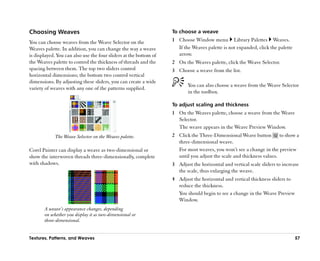
                                                                2 Choose Window menu Library Palettes          Weaves.
  weave.
                                                                  The Weaves palette appears.
       Depending on which weave is selected, you may or         3 On the Weaves palette, choose a weave from the Weave
       may not see a change in the Weave Preview Window.          Selector.
       For different two- and three-dimensional effects, you    4 Click the palette menu arrow, and choose Get Color Set.
       can adjust the scaling and thickness sliders at the      5 On the Color Sets palette, hold down Command
       bottom of the Weaves palette.                              (Mac OS) or Ctrl (Windows), and click the color swatch
                                                                  that you want to replace.
Editing Weave Colors                                              The new color replaces the old one.
Each weave uses its own color set. You can display the color    6 On the Weaves palette, click the palette menu arrow, and
set used for a weave, change the colors in the set, and apply     choose Put Color Set.
the changed colors to the weave. Remember that you can            The Preview window shows the weave with the new
open several palettes and rearrange them to make it easier to     colors. If you fill an image with the weave pattern,
see the controls you need.                                        Corel Painter now uses the new color set.


58                                                                                              Corel Painter 11 User Guide
Color
Corel Painter offers many ways to apply color to your image.
For example, you can change the paper color, choose colors
for your brushstrokes, or apply gradients to an entire image
or selection.
This section contains the following topics:
•• Getting Started with Color
•• Working with the Mixer Palette
•• Working with Color Sets
•• Setting Color Variability
•• Working with Gradients


Getting Started with Color
You can select colors in several ways by using any of the
following:
•• the color squares on the Colors palette
•• the Dropper tool, which samples color from the image
•• the Use Clone Color setting, which pulls color from a
   source
•• the Mixer palette
•• the Color Sets palette


                                                            59
Using the Colors Palette                                          •• Color values span the Saturation/Value Triangle from top
                                                                     to bottom. The top of the triangle represents the highest
You can use the Colors palette to select a color and view            value (white), and the bottom of the triangle represents
information about the selected color. You can also customize         the lowest value (black).
the Colors palette by resizing it or by changing the
information that it displays. For instance, you can increase      •• Saturation levels increase from left to right. Dragging to
the palette size in order to select colors more accurately, and      the right, or clicking on the right, produces purer colors
then decrease the palette size in order to focus on the canvas.      within the predominant hue. Dragging to the left, or
                                                                     clicking on the left, reduces the color saturation and
                                                                     produces ““muddier”” or grayer colors.
      Hue Ring                                 Saturation/Value   You can also set the HSV and standard RGB values for the
                                               Triangle
                                                                  selected color, and you can display RGB values in decimal
Additional color
                                                                  format. These values can be adjusted by moving the sliders
     Main color                                 Clone color
                                                                  or by typing new values in the corresponding boxes.
 Color                                                            You can also enable the Clone Color option from the Colors
 information                                     Resize handle
                                                                  palette. For more information, see ““Using Clone Color”” on
                                                                  page 219.
                       The Colors palette.
                                                                  To display the Colors palette
By default, the Colors palette displays the color wheel and       •• Choose Window menu         Color Palettes   Colors.
color information for a selected color, but you can hide these
elements. You can also choose to show or hide color tooltips,     To resize the Colors palette
which appear by default when you point to a color in the
                                                                  •• With the Colors palette undocked, drag the resize handle
Colors palette. Tooltips provide information about
                                                                     at the lower-right corner of the main window of the
individual colors.
                                                                     palette.
The color wheel includes the Hue Ring and the Saturation/
Value Triangle. The following information can help you use        To hide the color wheel
the color wheel.                                                  •• On the Colors Palette, click the palette menu arrow and
                                                                     choose Hide Color Wheel.


60                                                                                                  Corel Painter 11 User Guide
To choose a hue and color from the Colors palette
1 Choose Window menu          Color Palettes   Colors.                  You can display hexadecimal RGB values on the
                                                                        Colors palette by pressing Shift + click in the
2 Drag the circle on the Hue Ring to select the                         HSV/RGB square. Hexadecimal RGB values can be
  predominant hue.                                                      useful when you create graphics for the Web.
  The Saturation/Value Triangle displays all available
  colors within that selected hue.                               To hide the color information
3 Select a color on the Saturation/Value Triangle by
                                                                 •• On the Colors Palette, click the palette menu arrow, and
  dragging the circle or by clicking the color you want.
                                                                    choose Hide Color Info.

        You can also select a hue by clicking anywhere on the    To hide the color tooltips
        Hue Ring (in the Standard Colors view) or on the         •• On the Colors Palette, click the palette menu arrow, and
        hue indicator (in the Small Colors view). In addition,      choose Show/Hide Color Tooltip.
        you can use the arrow keys on your keyboard to
        adjust the color in the Saturation/Value Triangle.       Changing the Paper Color

To set RGB or HSV values                                         You can change a document’’s paper color —— the color of the
                                                                 background canvas —— at any time. This color appears when
1 On the Colors Palette, click the palette menu arrow and
                                                                 you delete a filled area or use a brush from the Erasers
  choose one of the following:
                                                                 category to remove color.
  •• Display as RGB
  •• Display as HSV
2 Move the sliders to adjust the values, or type new values
  in the boxes.
  You can preview the new color in the Main Color and
  Additional Color squares.

                                                                               Example of changing the paper color.


Color                                                                                                                      61
To change the existing paper color
1 Choose a main color from the Colors palette.
2 Choose Canvas menu         Set Paper Color.
3 To expose the new paper color, do one of the following:                Overlapping squares display the current main and
  •• Make a selection, and cut or delete it.                             additional colors.
  •• Use a brush from the Erasers category to erase part of
     your image.                                                  To choose the main color
                                                                  1 Choose Window menu Color Palettes                Colors to
       Do not use a bleach variant to expose the new paper          display the Colors palette.
       color unless the paper color is white. Bleach variants     2 Double-click the front square.
       erase to white, regardless of the paper color.             3 Choose a color from the Colors dialog box.

Understanding Main and Additional Colors
The current color appears as one of two overlapping squares
on the Colors palette. The front square represents the
selected main color. The back square shows the selected                      Click the front square to set the main color.
additional color. By default, blue is the main color, and white
is the additional color. Most of the time, you work with the      To choose the additional color
main color.                                                       1 On the Colors palette, double-click the back square.
The additional color is used when more than one color is          2 Choose a color from the Colors dialog box.
applied, as in multicolor brushstrokes, two-point gradients,
and Image Hose effects.
The additional color is not what other graphics programs call
the ““background color.”” In Corel Painter, the background                 Click the back square to set the additional color.
color is the paper color.
                                                                     If you usually work with the main color, you might want
                                                                     to click the front square again to reselect it.

62                                                                                                    Corel Painter 11 User Guide
To swap the main and additional colors
•• Click the Color Swap icon      .                                      The Dropper tool works with the Brush, Crop, Pen,
                                                                         Rectangular Shape, Oval Shape, Text, Shape
                                                                         Selection, Scissors, Add Point, Remove Point,
Sampling Colors from Images
                                                                         Convert Point, and Paint Bucket tools.
In addition to choosing colors on the Colors palette, you can
use the Dropper tool to select, or ““pick up,”” a color from an   Cloning Color
existing image.
                                                                  The Clone Color option offers another way to choose color.
To use the Dropper tool                                           This feature lets the brush pick up dabs of color from an
                                                                  original (source) image. Brushes that use dab-based dab
1 Click the front or back square to select a main or              types take an average based on samples of color from the
  additional color.                                               clone source, which results in an approximation of the
2 Click the Dropper tool       in the toolbox.                    original color. Brushes that use rendered dab types sample
3 Move the cursor to the color you want to pick up, and           several colors and load each color onto individual bristles,
  click it.                                                       which allows startlingly realistic results. For more
  The color square is updated to display the color you’’ve        information, see ““Cloning Images”” on page 209.
  selected.
                                                                  To set up a clone source
        The Dropper tool picks up visible color only; it          1 Choose File menu Open, and choose the file you want
        cannot be used to select a hidden color.                    to use as a clone source.
                                                                  2 Choose File menu      Clone.
        You can quickly access the Dropper tool by pressing       3 Choose Select menu All, and press Delete (Mac OS) or
        D on the keyboard.                                          Backspace (Windows).
                                                                    Now you can work in the new file, taking data from the
To access the Dropper tool from other tools                         original source file.
•• Press Option (Mac OS) or Alt (Windows).
                                                                         You can also use this feature when creating a mosaic.
                                                                         For more information, see ““Mosaics”” on page 279.


Color                                                                                                                       63
To use clone colors                                                Using Two Colors at Once
1 Set up a clone source.                                           When you work with only the main color, you produce a
  If you don’’t set a file as the source, Corel Painter uses the   solid-color brushstroke. The main color is represented by the
  currently selected pattern.                                      top square of the two overlapping squares on the Colors
2 Choose a brush from the Brush Selector bar.                      palette.
3 Choose Window menu Color Palettes              Colors to
                                                                   By selecting an additional color, you can determine the
  display the Colors palette.
                                                                   colors for multicolored brushstrokes.
4 Do one of the following:
  •• Click the palette menu arrow, and choose Use Clone            The settings on the Color Expression palette determine
     Color.                                                        when Corel Painter uses one color or the other. For more
                                                                   information about using color expression, see ““Setting Color
  •• Click the Clone Color button       on the Colors
                                                                   Expression”” in the Help.
     palette.
  Enabling the Clone Color option disables the Colors
  palette. This is a reminder that your color information is
  coming from the clone source.
5 When you paint in the clone file, Corel Painter uses
  colors from the clone source image.

       When you change the brush or variant, Corel Painter
                                                                             You can use two colors at once in a brushstroke.
       turns Use Clone Color off. Be sure to turn it back on
       to continue working with the clone color.
                                                                   To set up a two-color brushstroke
                                                                   1 Choose a brush from the Brush Selector bar.
                                                                   2 Choose Window menu Color Palettes               Colors to
                                                                     display the Colors palette.
                                                                   3 Choose a main color and an additional color from the
                                                                     Colors palette.


64                                                                                                     Corel Painter 11 User Guide
For more information, see ““Understanding Main and
   Additional Colors”” on page 62.
4 Choose Window menu Brush Controls Color
  Expression to display the Color Expression palette.
5 From the Controller pop-up menu, choose Direction.
6 Paint in the document.
  The main color is used in one direction, and the
  additional color is used in the other.

        You can also choose a color from a color set. For more
                                                                                              Mixer palette
        information, see ““Working with Color Sets”” on
        page 71.
                                                                    You can save, load, and reset colors on the Mixer palette. In
        You might want to try a different setting from the
                                                                    addition, you can save colors as Mixer swatches and save
        Controller pop-up menu on the Color Expression
                                                                    colors to color sets.
        palette. Try setting it to Pressure instead of Direction.
                                                                    Viewing the Mixer Palette
Working with the Mixer Palette                                      To display the Mixer palette, you can use the Window menu,
                                                                    or you can use a keyboard shortcut. If you need more space
The Mixer palette lets you mimic the experience of mixing
                                                                    to mix your colors, you can undock the Mixer palette and
colors on a traditional artist's palette. On the Mixer palette,
                                                                    resize it. Increasing the size of the Mixer palette also gives
you can access color swatches and various tools that let you
                                                                    you access to additional Mixer swatches. For more
mix colors. You can then apply two or more colors to the
                                                                    information, see ““Creating Mixer Swatches”” on page 71.
Mixer pad, the mixing area at the center of the Mixer palette,
and then blend them together to create a new color.                 You can also change the background of the Mixer pad, the
                                                                    surface on which you mix color.


Color                                                                                                                           65
Understanding the Mixer Palette Controls
                                                                  The controls on the Mixer palette are used to apply, mix,
                                                                  sample, and clear color on the Mixer pad.


                                                                                          Mixer palette tools.


                                                                  Mixer Palette tool        Description
        Mixer palette before (left) and after (right) resizing.
                                                                  Dirty Brush Mode tool     Lets you apply colors that were mixed
                                                                                            on the Mixer palette to the canvas.
To display the Mixer palette                                                                The Dirty Brush Mode tool is active by
                                                                                            default and can be used with brush
•• Choose Window menu             Color Palettes     Mixer.                                 variants that support mixing. For more
                                                                                            information, see ““Mixing Paint”” on
         You can also display the Mixer palette by pressing                                 page 70.

         Command + 2 (Mac OS) or Ctrl + 2 (Windows).              Apply Color tool          Acts as a loaded paint source; applies
                                                                                            color to the Mixer pad. Color loaded
To resize the Mixer palette                                                                 on the Apply Color tool blends with
                                                                                            color already on the Mixer pad.
•• With the Mixer palette undocked, drag the resize handle
     at the lower-right corner of the main window of the          Mix Color tool            Mixes colors already on the Mixer pad;
     palette.                                                                               does not add new colors to the Mixer
                                                                                            pad.

To change the Mixer pad background                                Sample Color tool         Samples color on the Mixer pad for
                                                                                            use on the canvas. The sampled color
1 Choose Window menu              Color Palettes     Mixer.                                 becomes the main color on the Colors
2 Click the palette menu arrow, and choose Change Mixer                                     palette.
  Background.
3 In the Color dialog box, choose a background color.


66                                                                                                    Corel Painter 11 User Guide
Using the Mixer Palette Colors
Mixer Palette tool       Description
                                                                  You can store commonly used colors in Mixer swatches at the
Sample Multiple Colors   Samples multiple colors on the Mixer
tool                     pad. The size of the sample area is
                                                                  top of the Mixer palette and then use these colors on the
                         determined by the Change Brush Size      Mixer pad. A series of colors appears by default; however,
                         slider. You can use the sampled color    this color series can be changed to suit the individual
                         on the canvas.                           preferences of the artist. Mixer colors can be saved, loaded,
Zoom tool                Lets you zoom in and out of areas on     and reset to the default.
                         the Mixer pad.
                                                                  To change colors on the Mixer palette
                                                                  1 Choose Window menu Color Palettes Mixer to
Pan Tool                 Lets you scroll through the Mixer pad.     display the Mixer palette.
                                                                    If the Mixer palette is not expanded, click the palette
                                                                    arrow.
Using the Clear and Reset Canvas Button                           2 Choose Window menu Color Palettes            Colors to
                                                                    display the Colors palette.
                                                                  3 On the Colors palette, choose a color.
The Clear and Reset Canvas button erases the contents of          4 On the Mixer palette, choose the Mixer swatch that you
the Mixer pad and resets the zoom level to 100%. It does not,       want to change.
however, reset the brush size.
                                                                  5 In the color Mixer swatch, press Command + click
Using the Change Brush Size Slider                                  (Mac OS) or Ctrl + click (Windows).
                                                                    The new color appears in the Mixer swatch.
The Change Brush Size slider lets you increase or decrease
the size of the Apply Color tool and the Mix Color tool. The
                                                                         You can also change a Mixer palette color by
Change Brush Size slider also lets you set the size of the
                                                                         sampling a color on the Mixer pad. On the Mixer
sample area on the Mixer pad when sampling with the
                                                                         pad, click the color that you want to sample, choose
Sample Multiple Colors tool. If you adjust the Change
                                                                         the Mixer swatch that you want to change, and press
Brush Size slider, the new value is retained when you reopen
                                                                         Command + click (Mac OS) or Ctrl + click
the application.
                                                                         (Windows).

Color                                                                                                                         67
To save colors on the Mixer palette                          To reset colors on the Mixer palette
1 Choose Window menu Color Palettes           Mixer to       1 Choose Window menu Color Palettes           Mixer to
  display the Mixer palette.                                   display the Mixer palette.
2 Click the palette menu arrow, and choose Save Mixer        2 Click the palette menu arrow, and choose Reset Mixer
  Colors.                                                      Colors.
3 In the Save Mixer Colors dialog box, type a name for the
  Mixer colors and choose where you want to save the         Mixing Colors
  Mixer swatches (MSW) file.                                 You can create new colors for your documents by using the
4 Click Save.                                                Mixer pad, Mixer swatches, and Apply Color, Mix Color,
                                                             Sample Color, Sample Multiple Colors, and Dirty Brush
To load colors on the Mixer palette                          Mode tools.
1 Choose Window menu Color Palettes           Mixer to       When you have finished mixing and sampling colors, you
  display the Mixer palette.                                 can clear the mixer pad, or save it as a mixer pad (MXS) file
2 Click the palette menu arrow, and choose Load Mixer        that you can open and use later.
  Colors.
3 In the Load Mixer dialog box, choose the Mixer swatch      To mix colors
  (MSW) file that you want to load.                          1 Choose Window menu Color Palettes           Mixer to
4 Click Open.                                                  display the Mixer palette.
                                                             2 Click the Apply Color tool      on the Mixer palette.
       You can also load a color set on the Mixer palette.   3 Choose a color from the Mixer swatch, and paint on the
       Click the palette menu arrow, and choose Load           Mixer pad.
       Mixer Colors. In the Load Mixer dialog box, go to     4 Choose a second color from the Mixer swatch, and paint
       Corel Painter 11Support FilesColor Sets, and          on the Mixer pad.
       double-click a color set.
                                                             5 Do one of the following:
                                                               •• Use the Apply Color tool to add to and blend the
                                                                  colors.
                                                               •• Use the Mix Color tool     to blend the colors.

68                                                                                            Corel Painter 11 User Guide
You can toggle between the Apply Color and Mix Color                You can also paint on the canvas with an Artists’’ Oils
   tools by holding down Command (Mac OS) or Ctrl                      palette knife variant. Unlike palette knives in other
   (Windows).                                                          brush categories, Artists’’ Oils palette knives do not
                                                                       apply color. For more information, see ““To sample
        When working with the Apply Color or Mix Color                 multiple colors”” on page 70.
        tool, you can access other Mixer palette tools as you
        work. Holding down Spacebar activates the Pan tool      To clear the Mixer pad
           . Holding down Spacebar + Command (Mac OS)           1 Choose Window menu Color Palettes            Mixer to
        or Spacebar + Ctrl (Windows) activates the Zoom           display the Mixer palette.
        tool    in zoom-in mode. Holding down                   2 Do one of the following:
        Spacebar + Command + Option (Mac OS) or                   •• Click the palette menu arrow, and choose Clear Mixer
        Spacebar + Ctrl + Alt (Windows) activates the                Pad.
        Zoom tool in zoom-out mode. When you release the          •• On the Mixer palette, click the Clear and Reset
        keys, the Apply Color or Mix Color tool is                   Canvas button .
        reactivated.
                                                                To save a new version of the Mixer pad
To sample a color from the Mixer pad
                                                                1 Choose Window menu Color Palettes            Mixer to
1 Choose Window menu Color Palettes           Mixer to            display the Mixer palette.
  display the Mixer palette.
                                                                2 Click the palette menu arrow, and choose Save Mixer
2 Click the Sample Color tool      .                              Pad.
3 On the Mixer pad, click the color you want to sample.         3 In the Save Mixer Pad dialog box, type a name for the
  The sampled color becomes the main color in the image.          Mixer colors, and choose where you want to save the
                                                                  Mixer pad (MXS) file.
        Some brush variants let you sample multiple colors      4 Click Save.
        from the Mixer pad. For more information, see
        ““Mixing Paint”” on page 70.


Color                                                                                                                       69
To load a different version of the Mixer pad                      You can mix colors with brush variants that use the following
1 Choose Window menu Color Palettes              Mixer to         dab types: Camel Hair, Flat, Bristle Spray, Watercolor
  display the Mixer palette.                                      Camel, Watercolor Flat, and Watercolor Bristle. The dab
                                                                  type for a brush variant appears on the General palette of the
2 Click the palette menu arrow, and choose Open Mixer
                                                                  Brush Control palettes.
  Pad.
3 In the Open Mixer Pad dialog box, choose the Mixer pad          To paint from the Mixer palette
  (MXS) file that you want to open.
                                                                  1 Mix the color you want on the Mixer palette.
4 Click Open.
                                                                    The Dirty Brush Mode tool        is active by default. If it is
                                                                    not active, click the Dirty Brush Mode tool.
Mixing Paint
                                                                  2 On the Brush Selector bar, choose a brush variant that
On its own, the Mixer palette mimics the traditional                supports mixing.
experience of mixing color on a palette. When used in             3 Paint in the document window.
tandem with brush variants that support mixing, the Mixer
                                                                    The last color on the Apply Color tool         or Mix Color
palette offers digital artists as much color-mixing flexibility
                                                                    tool    is used in the brushstroke.
as its traditional counterpart. You can create a color on the
Mixer palette and apply it to the canvas. You can also sample
and paint with multiple colors.                                           You can also mix paint on the canvas with the Artists’’
                                                                          Oils palette knife variant. Unlike palette knives in
                                                                          other brush categories, Artists’’ Oils palette knives do
                                                                          not apply color.

                                                                  To sample multiple colors
                                                                  1 Mix the color you want on the Mixer palette.
                                                                  2 Move the Change Brush Size slider to set the size of the
                                                                    sample area.
                                                                    The size of the sample area is displayed to the right of the
       You can sample multiple colors on the Mixer palette          slider and is measured in pixels.
       and paint directly on the canvas.

70                                                                                                   Corel Painter 11 User Guide
3 Click the Sample Multiple Color tool , and click the                Working with Color Sets
  area of the Mixer pad that you want to sample.
                                                                      Corel Painter uses color sets to organize groups of colors.
Creating Mixer Swatches                                               Some color sets are organized by both name and color
                                                                      relationship.
If you have mixed colors that you are particularly happy
with, you can save them as Mixer swatches and add them to             Using Color Sets
color sets. For more information, see ““Using Color Sets”” on
page 71.                                                              Corel Painter provides several color sets —— Corel Painter
                                                                      Colors, Mac OS and Windows system palettes, and the
                                                                      PANTONE MATCHING SYSTEM® are a few. The
        Mixer swatches that you create on the Mixer palette           default color set is Artists’’ Colors, which is based on the color
        can be saved.                                                 values of real-world oil paints. Only one color set can be
                                                                      open at a time, but you can easily load a different set.
To add a Mixer swatch to the color set
1 On the Mixer palette, click the Sample Color tool , and                     When Corel Painter starts, it accesses the Painter
  choose the Mixer swatch that you want to save to a color                    Colors file in the user folder to determine which
  set.                                                                        color set to load. If Corel Painter cannot determine
2 Click the palette menu arrow, and choose Add Swatch to                      which color set to open, it loads the default color set
  Color Set.                                                                  from the application folder.
  The selected color is added to the current color set.                       When you open a new color set, and the current color
                                                                              set is one that you’’ve created or modified,
To create a color set from the Mixer pad                                      Corel Painter prompts you to decide whether to
1 Choose Window menu Color Palettes               Mixer to                    append to or overwrite the contents of the Painter
  display the Mixer palette.                                                  Colors file, allowing Corel Painter to load this new
2 Click the palette menu arrow, and choose New Color Set                      color set by default in the future.
  from Mixer Pad.                                                     Corel Painter provides two methods of finding a particular
3 To access the new colors, choose Window menu                Color   color in a color set. You can search for the color by name or
  Palettes Color Sets.                                                have Corel Painter find the color that comes closest to
                                                                      matching the current color.

Color                                                                                                                                71
To save a color set
                                                               1 On the Color Sets palette, click the palette menu arrow or
                                                                 the Library Access button, and choose Save Color Set.
                                                               2 In the Enter Color Set Name dialog box, choose where
                                                                 you want to save the file.
                                                               3 Type a name for the color set in the File Name box.
                                                               4 Click Save.

                        Color Sets palette                     To find a color in a color set
                                                               1 On the Color Sets palette, do one of the following:
To display the Color Sets palette
                                                                 •• Click the Search for Color button .
•• Choose Window menu         Color Palettes   Color Sets.       •• Click the palette menu arrow, and choose Find
                                                                    Swatch.
To choose a color from a color set
                                                               2 In the Find Color dialog box, do one of the following:
•• On the Color Sets palette, click a color.
                                                                 •• Enable the By Name option, and type a name in the
                                                                     box.
To open a different color set
                                                                 •• Enable Closest to Current Color.
1 On the Color Sets palette, click the palette menu arrow or
  the Library Access button , and choose Open Color            3 Click Begin.
  Set.                                                         4 Click OK when the desired color is found.
2 In the Select Color Set dialog box, do one of the              If the color set is visible, Corel Painter surrounds the found
  following:                                                     color with a selection frame.
  •• (Mac OS) Click the Color Sets folder, choose a color
      set, and click Open                                      To revert to the default color set
  •• (Windows) Choose a color set, and click Open.             1 On the Color Sets palette, click the palette menu arrow or
  You can set a default color set in the Preferences dialog      the Library Access button , and choose Open Color
  box.                                                           Set.


72                                                                                                Corel Painter 11 User Guide
2 In the Select Color Set dialog box, do one of the              To adjust the size of a color swatch
  following:                                                     1 On the Color Sets palette, click the palette menu arrow,
  •• (Mac OS) Press Command + Shift + A, click the                 and choose Swatch Size.
      Corel Painter 11Support FilesColor Sets folder, and
                                                                 2 Do one of the following:
      double-click Artists Oils Colors.colors.
                                                                   •• Choose a pixel value.
  •• (Windows) From the Look In pop-up menu, choose
                                                                   •• Choose Customize.
      the Corel Painter 11Support FilesColor Sets folder,
      and double-click Artists Oils Colors.colors.               3 If you choose Customize, move the Width and Height
                                                                   sliders in the Customize dialog box, or type values in the
Customizing the Layouts of Color Sets                              Width and Height boxes.

You can arrange colors in a color set in various ways. You can   To turn the grid on or off
sort by hue, luminance, and saturation; determine the size of    •• On the Color Sets palette, click the palette menu arrow,
color swatches; decide whether to have grid lines; and              and choose Show Grid to toggle the display of the grid on
indicate whether the colors in the set are named. You can           and off.
change a color set until it’’s exactly the way you want it.
                                                                    Turning the grid off eliminates lines between colors. You
                                                                    can see more colors, but the separations between colors
To change how colors are sorted
                                                                    are not as distinct as when the grid is on.
1 On the Color Sets palette, click the palette menu arrow
  and choose Sort Order.                                         To turn color names on or off
2 Choose one of the following options:                           •• Click the palette menu arrow, and choose Display Name
  •• Saved sorts colors in the order in which they were             to toggle the display of color names on or off.
     originally entered.
  •• HLS sorts colors by hue, luminance, and saturation.         Creating Color Sets
  •• LHS sorts colors by luminance, hue, and saturation.
                                                                 You can create your own color sets to control the colors in
  •• SHL sorts colors by saturation, hue, and luminance.         particular projects or to create groups of favorite painting
                                                                 colors. Creating clearly named color sets can be very useful.


Color                                                                                                                       73
For example, you could name a color set Shades of Purple,         To create a color set from an image, selection, or
Hero Image, My Crayons, or Rollover Buttons —— all offering       layer, or the Mixer palette
you easy access to recognizable color sets.                       •• On the Color Sets palette, click the palette menu arrow or
You can create color sets from                                       the Library Access button , and choose one of the
                                                                     following:
•• the Colors palette
                                                                     •• New Color Set from Image —— All colors in the image
•• an image                                                              are included in the color set. This option is available
•• a selection on an image                                               only if an image is open.
•• a layer                                                           •• New Color Set from Layer —— All colors in the active
                                                                         layer are included in the color set. This option is
•• the Mixer palette
                                                                         available only if an active layer is selected in the
Before you create a new color set, you may be prompted to                image.
save the current color set. For more information, see ““To save      •• New Color Set from Selection —— All colors in the
a color set”” on page 72.                                                selected area of the image are included in the color set.
                                                                         This option is available only if the image has an active
To create a new color set by using the Colors                            selection.
palette
                                                                     •• New Color Set from Mixer —— All colors that are used
1 On the Color Sets palette, click the palette menu arrow,               on the Mixer palette are included in the color set.
  and choose New Empty Color Set.
2 On the Colors palette, choose a color.                                 When working on Web pages, you can reduce the
3 On the Color Sets palette, click the Add Color to Color                number of colors used in an image (and reduce the
  Set button .                                                           subsequent image size) by creating a color set and
                                                                         using only colors in that set.
       For information about adding colors to a color set,
       see ““Editing Color Sets”” on page 75.
       For more information about selecting colors, see
       ““Using the Colors Palette”” on page 60.


74                                                                                                   Corel Painter 11 User Guide
Editing Color Sets
                                                                          Because Corel Painter closes the current color set
You can customize color sets by adding, deleting, or                      before displaying a new one, select the color you
replacing colors. You can also append colors to a color set.              want to add from the existing color set before you
This is useful if you want to use colors from multiple color              open the destination set.
sets. In addition, you can name or rename individual colors
in a color set.                                                    To delete a color
Naming colors in a color set can be useful. You can then           1 Choose Window menu         Color Palettes   Color Sets.
search for a color by name, or annotate the colors you use,        2 On the Color Sets palette, choose a color and click the
right in the document window. For more information about             Delete Color from Color Set button .
searching for a color, see ““To find a color in a color set”” on
                                                                   3 In the warning dialog box, click Yes.
page 72. For more information about annotating colors, see
““Annotating Colors”” on page 76.                                    Corel Painter deletes the chosen color from the color set.

To add a color                                                     To replace a color

1 Choose the color you want to add from the Colors                 1 Choose the color you want to add from the Colors
  palette, a color set, or an existing image.                        palette, a color set, or an existing image.
2 On the Color Sets palette, click the Add Color to Color          2 Hold down Command (Mac OS) or Ctrl (Windows),
  Set button .                                                       and click the color you want to replace.
  The color is added to the current color set.                       The new color replaces the old one in the color set.
3 If you like, double-click the color swatch to enter a name       To name or rename a color
  for the color.
                                                                   1 Choose Window menu         Color Palettes   Color Sets.
  You can change the name later by double-clicking on the
  swatch again and entering a new name.                            2 Double-click a color swatch on the Color Sets palette.
4 Repeat this procedure for all colors you want to add.            3 Type a color name in the Set Color Name dialog box.
                                                                     Color names can contain up to 31 characters.


Color                                                                                                                          75
To append colors to a color set
1 On the Color Sets palette, click the palette menu arrow,
  and choose Append Color Set.
2 In the Select Color Set dialog box, select the Color Set
  you want to use, and click Open.
  The new colors from the selected color set are appended
  to the active Color Set List.

Annotating Colors
The Annotation feature uses color names as labels for the                Create labels or annotations for individual colors in
                                                                         your image.
colors in your images. Labels are small text boxes connected
to lines that point to an individual color in your on-screen or
                                                                  When you move a layer, its annotations go with it. If you
printed image. Annotating colors in an image can help you
                                                                  move an annotated layer on top of another, the visible
track, and limit, which colors are used, which can help you
                                                                  annotation might actually belong to the underlying layer,
control image size. After you create annotations, you can
                                                                  even though it appears to be labeling the top one.
hide, show, or delete them.
                                                                  When you annotate a color that doesn’’t exactly match a color
You must name color swatches in the active color set to
                                                                  in the active color set —— for example, when you annotate
generate useful annotations. You can change color names
                                                                  brushstrokes applied at less than 100% opacity ——
after you have added them as annotations. For information
                                                                  Corel Painter approximates the color, displays the name of
about naming color sets, see ““To name or rename a color”” on
                                                                  the nearest match, and adds an asterisk after the color name
page 75.
                                                                  to indicate a near match.
Annotations are kept in a separate layer on top of the image
                                                                  When you refill an annotated area, the annotation is updated
and can be saved in RIFF format with your image.
                                                                  to reflect the new color. For more information, see ““Filling
Annotations are included when you record a script and are
                                                                  an Area with Media”” on page 125.
properly scaled when you play the script back at a different
resolution.


76                                                                                                    Corel Painter 11 User Guide
To create annotations                                           7 Repeat the procedure for each annotation you want to
1 Use a color set that includes names for the colors.             rename.
2 Choose Canvas menu        Annotations    Annotate.
3 Position the cursor on the color you wish to annotate and     Setting Color Variability
  drag to an area outside the color’’s boundaries.
  A color name appears, attached to a line that points to the   Color variability allows you to create brushstrokes of more
  annotated color.                                              than one color. Variability can be used to enhance the
                                                                Natural-Media appearance of your work.
4 After you annotate as many colors as you need, click
  Done in the Annotation dialog box.
                                                                Color Variability Palette
To delete an annotation                                         The Color Variability palette contains sliders to adjust color
1 Choose Canvas menu        Annotations    Annotate.            variability values. Color variability can be set for HSV or
                                                                RGB mode, and it can be based on the current gradient or
2 Click the annotation (color name) to select it.
                                                                color set.
3 Press Delete (Mac OS) or Backspace (Windows).

To show or hide annotations
•• Choose Canvas menu    Annotations       Show
   Annotations or Hide Annotations.

To change color names after annotating an image                                      Color Variability palette
1 Choose the annotation you want to rename.
                                                                To display the Color Variability palette
2 Press Delete (Mac OS) or Backspace (Windows).
                                                                •• Choose Window menu          Brush Controls    Color
3 On the Color Sets palette, double-click the color swatch
                                                                   Variability.
  of the color you want to rename.
4 Type a new name in the Set Color Name dialog box.
5 Choose Canvas menu        Annotations    Annotate.
6 Re-create the deleted annotation.

Color                                                                                                                         77
To set color variability in HSV mode                          To set color variability in RGB mode
1 On the Colors palette, choose a main color.                 1 On the Colors palette, choose a main color.
2 Choose Window menu Brush Controls Color                     2 Choose Window menu Brush Controls Color
  Variability to display the Color Variability palette.         Variability to display the Color Variability palette.
3 Choose In HSV from the pop-up menu.                         3 Choose In RGB from the pop-up menu.
4 Adjust the Hue, Saturation, and Value sliders to control    4 Move the R, G, and B sliders to control color variability of
  hue, saturation, and value ranges for color variability:      red, green, and blue values.
  •• Moving the ±Hue slider to the right increases the
     number of hues in the resulting brushstroke. These       To set color variability based on the current
     colors are the ones adjacent to the selected color on    gradient
     the color wheel.                                         1 On the Colors palette, choose a main color.
  •• Moving the ±Saturation slider to the right increases     2 Choose Window menu Brush Controls Color
     variability in the color intensity of the brushstroke.     Variability to display the Color Variability palette.
  •• Moving the ±Value slider to the right increases          3 Choose From Gradient from the pop-up menu.
     variability in the brightness of the brushstroke.
                                                                Color variability is now based on random colors from the
  You can try different ±HSV settings with any of the           current gradient.
  brushes to produce interesting results.
                                                              To set color variability based on the current color
       When you save a brush variant, the current color       set
       variability setting is also saved.                     1 On the Colors palette, choose a main color.
                                                              2 Choose Window menu Brush Controls Color
       When working with brushes like the Van Gogh and          Variability to display the Color Variability palette.
       Seurat variants of the Artists brush, you can add a
                                                              3 Choose From Color Set from the pop-up menu.
       natural, almost 3D appearance to your Web page
       images by moving the Hue, Saturation, and Value          Color variability is now based on random colors from the
       settings to the right.                                   current color set.


78                                                                                              Corel Painter 11 User Guide
Working with Gradients                                             information, see ““Using Image Luminance to Create
                                                                   Texture”” on page 273.
A gradient is a gradual transformation from one color into      •• Brush with a gradient by using a computed brush and a
another. Sometimes gradients are called blends or fountains.       Line Airbrush, Projected, or Rendered dab type. For more
                                                                   information, see ““Dab Types”” on page 153.
Using Gradients
                                                                Although Corel Painter comes with libraries full of
Corel Painter provides several different types of gradients:    gradients, you’’ll invariably want to create some of your own.
linear, radial, circular, and spiral.                           You can easily create a gradient between any two colors that
                                                                you define.
                                                                You can also capture gradients from existing images or create
                                                                your own libraries of gradients. Use the options on the
                                                                Gradients palette to select and adjust Corel Painter
                                                                gradients.
                                                                Gradients are stored in libraries. You can load alternate
                                                                libraries of gradients to increase your choices. For more
          Left to right: Linear, radial, circular, and spiral
                             gradients.                         information about working with libraries, see ““Creating a
                                                                Library”” in the Help.
You can use gradients to do the following:
•• Fill an image selection, layer, or channel. For more
   information, see ““Layers”” on page 241, and ““Selections
   and Transformations”” and ““Alpha Channels”” in the
   Help.
•• Control a Pop Art Fill effect. (Other effects work best
   when you use a filled mask.) For more information, see                   Gradient Selector on the Gradients palette.
   ““Applying Pop Art Fill”” in the Help.
•• Express the gradient in an existing image by mapping
   gradient colors to image luminance. For more


Color                                                                                                                        79
To select a gradient
1 Choose Window menu Library Palettes Gradients to
  display the Gradients palette.
  If the Gradients palette is not expanded, click the palette
  arrow.
2 Click the Gradient Selector, and choose a gradient.
3 Click one of the gradient types on the right of the palette:
  Linear Gradient, Radial Gradient, Spiral Gradient, or
  Circular Gradient.
  The Gradient Preview Window shows how current
  settings affect a selected gradient.                                 The Gradient Order Preview strip (above the
                                                                       gradient orders) shows the selected gradient order.
To gradient direction
                                                                 To change a gradient angle
1 Choose Window menu Library Palettes            Gradients to
  display the Gradients palette.                                 1 Choose Window menu Library Palettes               Gradients to
                                                                   display the Gradients palette.
2 Click one of the gradient order buttons at the bottom of
  the palette to determine how the gradient behaves:             2 Drag the red ball in the Gradient Angle Ring, or click
  •• Left to Right Gradient                                        once anywhere on the ring to change the gradient angle.
  •• Mirrored Right to Left Gradient                               A corresponding numeric value appears below the
                                                                   Gradient Preview Window.
  •• Double Left to Right Gradient
  •• Right to Left Gradient                                      To change spiral tension
  •• Mirrored Left to Right Gradient
                                                                 1 Choose Window menu Library Palettes               Gradients to
  •• Double Right to Left Gradient                                 display the Gradients palette.
                                                                 2 Do one of the following:


80                                                                                                  Corel Painter 11 User Guide
•• Hold down Command (Mac OS) or Ctrl (Windows)               3 Click the Additional Color square, and choose an
      while you drag the red ball in the gradient angle ring.      additional color.
      This changes how tightly wound the spiral gradient         4 Choose Window menu          Library Palettes   Gradients.
      becomes.
                                                                 5 Choose Two-Point from the Gradient Selector.
   •• Click inside the Gradient Preview Window.
      Corel Painter rotates the gradient for you.                To edit or create a complex gradient
   Click anywhere outside the Gradient Preview Window to         1 Choose Window menu Library Palettes            Gradients to
   stop the rotation.                                              display the Gradients palette.
                                                                 2 Click the palette menu arrow, and choose Edit Gradient.
Creating and Editing Gradients
                                                                   The color ramp bar across the top of the Edit Gradient
You can create very simple to very complex gradients. For a        dialog box displays the current gradient. The pointed
simple two-point gradient, you need only to choose a main          gray markers along the bottom of the color ramp bar are
and an additional color and then have Corel Painter create a       color control points. You can position these pointed
gradient between them. For more complex gradients, you             markers to change the color of the blend at individual
can use the Edit Gradient dialog box or capture gradients          gradient points.
from existing artwork. Color control points in the Edit
                                                                 3 Click a color control point to select it.
Gradient dialog box specify the point at which a new
gradient starts.                                                 4 On the Colors palette, click the Main Color square, and
                                                                   choose a main color.
You can save gradients and use them to fill a selected object.
                                                                 5 Repeat steps 3 and 4 for each color control point you want
For more information about filling an object, see ““Filling an
                                                                   to edit.
Area with Media”” on page 125.
                                                                 To add color control points
To create a two-point gradient
                                                                 1 Choose Window menu Library Palettes            Gradients to
1 Choose Window menu Color Palettes            Colors to
                                                                   display the Gradients palette.
  display the Colors palette.
                                                                 2 Click the palette menu arrow, and choose Edit Gradient.
2 On the Colors palette, click the Main Color square, and
  choose a main color.                                           3 In the Edit Gradient dialog box, click anywhere in the
                                                                   color ramp bar.
                                                                   The control point is added, without affecting color.
Color                                                                                                                       81
4 Click the new color control point to select it.                 To save a gradient
5 Display the Colors palette and choose a color.                  1 Choose Window menu Library Palettes         Gradients to
                                                                    display the Gradients palette.
       For a two-point gradient, you set a color for the right    2 Click the palette menu arrow, and choose Save Gradient.
       control point and then set a color for the left control    3 In the Save Gradient dialog box, enter a name for the
       point.                                                       gradient.

       You can press Option + click (Mac OS) or
       Alt + click (Windows) in the color ramp bar to
       create a control point that is set to the current color.
       You can create interesting gradient effects by selecting
       two additional colors in between the end colors.

To delete a color control point
1 Choose Window menu Library Palettes             Gradients to
  display the Gradients palette.
2 Click the palette menu arrow, and choose Edit Gradient.
3 In the Edit Gradient dialog box, click a control point to
  select it.
4 Press Delete (Mac OS) or Backspace (Windows) to delete
  a selected color control point.


82                                                                                                Corel Painter 11 User Guide
Color Management
Corel Painter lets you manage colors when you create or
open images, or place images in a document. The color
management controls help ensure that colors are consistent
when you work with images from various sources, such as
Adobe Photoshop or a digital camera. In addition, you can
store color information in a document by embedding a color
profile in the file when you save it.
This section contains the following topics:
•• Understanding Color Management
•• Getting Started with Color Management
•• Previewing Images
•• Changing Color Profiles
•• Working with Color Profile Policies
•• Working with Presets


Understanding Color Management
This section provides answers to some commonly asked
questions about color management.

What is color management?
Color management is a process that lets you predict and
control color reproduction, regardless of the source or
destination of the image. For example, a monitor displays a
different set of colors than a printer reproduces, so you may

                                                            83
see colors on-screen that cannot be printed. If you want to       A color management system, also known as a color engine,
reduce color discrepancies, you can use color management to       uses color profiles to translate the color values from the
ensure a more accurate color representation when an image         source, which ensures a more accurate color reproduction at
is viewed, modified, or printed.                                  the destination. A color profile contains the data that the
                                                                  color management system requires to translate colors. Many
During the digital imaging process, different tools are used
                                                                  standard color profiles are available. In addition, color
to capture, modify, and print images. In a typical workflow,
                                                                  profiles exist for different brands of monitors, scanners,
you capture an image by using a digital camera, upload the
                                                                  digital cameras, and printers.
image to a computer, modify the image in a photo-editing
application, and print the image. Each of these tools has a       Why do I need color management?
different way of interpreting color. In addition, each has its
own range of available colors, called a color space, which is a   If your document requires accurate color representation, you
set of numbers that define how each color is represented. A       should consider using color management. The complexity of
color space is a subset of a color model (for example, CMYK       your workflow and the ultimate destination of the images are
or RGB). In other words, each tool speaks a unique language       also important considerations. If your documents are
when it comes to color. One number in the color space of a        destined only for online viewing, color management may not
digital camera may represent an entirely different color in       be as important. However, if you plan to open images in
the color space of a monitor. As a result, when an image          another application, such as Adobe Photoshop, or if you are
moves through the workflow, the colors get lost in the            creating images for print or multiple types of output, the use
translation and are not accurately reproduced. A color            of color management is essential.
management system is designed to improve the                      Color management lets you do the following:
communication of color in the workflow.
                                                                  •• reproduce colors consistently across your digital imaging
                                                                     workflow, especially when opening documents that were
                                                                     created in other applications
                                                                  •• reproduce colors consistently when sharing files with
                                                                     others
                                                                  •• preview, or ““soft-proof ””, colors before they are printed
                                                                  •• reduce the need to adjust and correct images when
       This is an example of a typical digital imaging               sending images to different destinations
       workflow.

84                                                                                        Corel Painter 11 Getting Started Guide
A color management system does not offer identical color         that are displayed on the monitor. After calibration, you can
matching (this is not technically possible), but it greatly      create a color profile of the monitor, which contains the
improves the color representation.                               details of how the monitor interprets colors. The profile is
                                                                 then shared with other devices. Calibration and profiling
Is my monitor displaying the right colors?                       work together to achieve color accuracy: If a monitor is
How you perceive the color that your monitor displays is         incorrectly calibrated, its color profile is not useful.
another important factor in managing color consistency. Your     However, calibration and profiling are complex and usually
perception is influenced by the environment in which you         require a special calibration device and specialized software.
are viewing the images. Here are some ways to neutralize         Furthermore, improper calibration may do more harm than
your viewing environment.                                        good. You can find additional information about monitor
•• Ensure that your room has a consistent flow of light. For     calibration and custom color profiles by researching color-
   example, if the room is filled with sunlight, use a shade,    management techniques and products. You can also refer to
   or if possible, work in a room without windows.               the documentation that was provided with your operating
•• To ensure accuracy in perceiving colors, some graphics        system or monitor.
   professionals work in windowless rooms with gray or
                                                                 Should I assign or convert color profiles?
   neutral walls and ceilings. If these conditions do not
   match the room you work in, you can invest in a monitor       In deciding whether to assign or convert a color profile, you
   hood, or you can create one by using black cardboard and      should first consider the results that each action produces.
   tape.                                                         When you assign a color profile in Corel Painter, the color
•• Don’’t wear bright clothing that can clash with the display   values, or numbers, in the document do not change. Instead,
   of colors on the monitor. For example, wearing a white        the application simply uses the color profile to interpret the
   shirt reflects on the monitor and alters your perception of   colors in an image. However, when you convert a color
   color.                                                        profile, the color values in the document change. Instead of
                                                                 assigning a color profile, the application translates one color
•• Set the monitor background to a neutral color, such as
                                                                 profile to another. Converting a color profile does more than
   gray, or apply a grayscale image. Avoid using colorful
                                                                 affect the display of colors —— it produces irreversible changes
   wallpapers and screensavers.
                                                                 to the colors in the document.
Calibration and profiling of the monitor, also known as
characterization, are also important steps for ensuring color
accuracy. Calibration helps ensure consistency in the colors

Color Management                                                                                                               85
The best practice is to choose a working color space, such as
sRGB, when you create an image and to use the same color
profile throughout your workflow. You should avoid
assigning and converting color profiles. However, you may
encounter scenarios that require you to switch to a different
color profile.
For example, if you receive a file from someone, and no color
profile is embedded in the file, you should assign a color
profile to the file. In this way, you can retain the file’’s original
color values.                                                                    Saturated          Relative
                                                                                                                           Perceptual
                                                                                                    Colorimetric
You should choose the conversion option only if you are
preparing the file for a specific output, such as a printer. After             Three different types of images and their
                                                                               corresponding rendering intent.
the data has been changed to accommodate the destination
profile, conversion back to the original color profile is often
                                                                        •• Perceptual —— Choose this rendering intent for
not suitable.
                                                                           photographs and bitmaps that contain many
What is a rendering intent?                                                out-of-gamut colors. The overall color appearance is
                                                                           preserved by changing all colors, including in-gamut
A color management system can perform effective                            colors, to fit within the destinations range of colors at the
translation of colors from the source to multiple outputs.                 destination. This rendering intent maintains the
However, when matching colors from one color space to                      relationships between colors to produce the best results.
another, a color management system may be unable to match
certain colors. These ““out-of-gamut”” colors can dramatically          •• Saturated —— Choose this rendering intent to produce
change the look of the image, depending on how they are                    more concentrated solid colors in business graphics, such
interpreted by the color management system. Fortunately,                   as charts and graphs. Colors may be less accurate than
you can choose a rendering intent to instruct the color                    those produced by other rendering intents.
management system how to interpret the out-of-gamut                     •• Relative Colorimetric —— Choose this rendering intent for
colors. The rendering intent that you choose depends on the                logos or other graphics to preserve original colors. If a
graphical content of the image.                                            match is not found for the source colors, then the closest
                                                                           possible match is found. This rendering intent causes the

86                                                                                              Corel Painter 11 Getting Started Guide
white point to shift. In other words, if you are printing on   Getting Started with Color
   white paper, the white areas of an image use the white of
   the paper to reproduce the color. Therefore, this
                                                                  Management
   rendering intent is a good option for printing images.         If you want to use color management in Corel Painter, you
•• Absolute Colorimetric —— Choose this rendering intent          can start by specifying the default RGB color profile that you
   for logos, or other graphics, that require very precise        want to assign to all new documents. When you create
   colors. If no match is found for the source colors, then the   images in another application, such as Adobe Photoshop,
   closest possible match is used. The Absolute Colorimetric      you should use the same default color profile that you will
   and Relative Colorimetric rendering intents are similar,       use when opening the file in Corel Painter. In addition, you
   but the Absolute Colorimetric rendering intent preserves       should always embed the color profile when saving a
   the white point through the conversion and does not            document in Corel Painter or Adobe Photoshop, so that the
   adjust for the whiteness of the paper. This option is used     document retains the color information.
   mainly for proofing.                                           Corel Painter also lets you choose the default CMYK profile
What is ““soft-proofing””?                                        for converting CMYK images to RGB.

Soft-proofing lets you generate an on-screen preview of what      Specifying the Default RGB Color Profile
the image will look like when it’’s reproduced. This
technique simulates the ““hard-proofing”” stage in a              To ensure that all new documents use the same RGB color
traditional printing workflow. However, unlike hard-              profile, you can change the default color profile for Corel
proofing, soft-proofing lets you look at the final result         Painter. The factory default color profile for Corel Painter is
without committing ink to paper. For example, you can             sRGB, which is the default color profile for many monitors,
preview what the printed image will look like when a specific     digital cameras, and even some printers.
brand of printer is used. You can also preview what the image
will look like on another type of monitor.                        To change the default RGB color profile
                                                                  1 Choose Canvas menu         Color Management Settings.
Soft-proofing also lets you verify whether the document’’s
color profile is suitable for a specific printer or monitor and   2 Choose a color profile from the Default RGB Profile
can help you prevent unwanted results. For information              pop-up menu.
about soft-proofing with Corel Painter, see ““Soft-Proofing
Images”” on page 89.

Color Management                                                                                                               87
•• JPEG Files (*.JPG; *.JPEG)
       You can also access the Color Management Settings          4 Enable the Embed Profile check box.
       dialog box by positioning the pointer over the Color
       Management icon        on the vertical scroll bar,
                                                                  Specifying the Default CMYK Color Profile
       holding down the stylus button, and then choosing
       Color Management Settings from the flyout menu.
                                                                  for Converting CMYK Images to RGB
                                                                  Because Corel Painter works with RGB colors, all CMYK
Embedding Color Profiles When Saving Files                        images that you open or import in the application are
                                                                  converted to an RGB color profile. You can specify the
You can embed a color profile in a file. When you embed a
                                                                  default CMYK profile that Corel Painter uses to convert the
color profile, the assigned color profile is embedded.
                                                                  CMYK images to RGB. The following file formats are
However, if you did not assign a color profile to the file, the
                                                                  supported for CMYK images:
default color profile is embedded. The following file formats
support color profile embedding:                                  •• RIFF (RIF)

•• RIFF (RIF)                                                     •• TIFF (TIF)

•• TIFF (TIF)                                                     •• Photoshop (PSD)

•• Photoshop (PSD)                                                •• JPEG

•• JPEG
                                                                  To specify the default CMYK color profile for
                                                                  converting CMYK images to RGB
To embed a color profile when saving a file
                                                                  1 Choose Canvas menu       Color Management Settings.
1 Click File menu      Save As.
                                                                  2 Choose a color profile from the Default CMYK
2 In the Save As dialog box, use the controls to specify a
                                                                    Conversion Profile pop-up menu.
  location and filename.
3 From the Format pop-up menu (Mac) or the Save As
  Type pop-up menu (Windows), choose one of the
  following file formats:
  •• RIFF Files (*.RIF; *.RIFF)
  •• TIF Files (*.TIF; *.TIFF)
  •• Photoshop Files (*.PSD)

88                                                                                      Corel Painter 11 Getting Started Guide
Previewing Images                                               information, see ““What is a rendering intent?”” on page 86.
                                                                After soft-proofing an image, you can turn off the
After an RGB profile is selected for the document, you can      soft-proofing feature.
preview the image with the default color profile applied. You
can also ““soft-proof ”” images, which means to preview         To soft-proof an image
on-screen what the image will look like when it is printed      1 Click Canvas menu        Color Proofing Settings.
with a specific printer, or when it is displayed on another
type of monitor.                                                2 Choose a profile from the Simulate Device pop-up menu.
                                                                3 Choose a rendering intent from the Rendering Intent
Enabling or Disabling the Color                                   pop-up menu.
Management Preview                                              4 Enable the Turn On Color Proofing Mode check box.
The Color Management Preview option lets you see what
                                                                To turn off soft-proofing
your image will look like with the default color profile
applied. If you position the pointer over the Color             •• Click Canvas menu       Color Proofing Mode.
Management icon on the vertical scroll bar, you can display
the color profile name.
                                                                Changing Color Profiles
To enable or disable the default color profile                  Corel Painter is an RGB-based program that lets you to
•• Click the Color Management icon        on the vertical       assign different RGB color profiles to documents. You can
   scroll bar.                                                  also convert the color profile of a document to a new color
   When colors appear on the icon, the default color profile    profile. A color profile contains the data that the color
   is applied to the image; when the icon is black, the image   management system requires to translate colors from one
   is no longer color-managed.                                  color space to another. The default color profile for
                                                                Corel Painter is sRGB IEC61966-2-1 noBPC, but you can
Soft-Proofing Images                                            choose from a list of Standard ICC color profiles. In
                                                                addition, if you have color profiles installed on your
With Corel Painter, you can soft-proof images, which means      computer, Corel Painter includes them in the list of available
preview on-screen what the image will look like when it’’s      color profiles.
reproduced by a specific printer or monitor. You can also
soft-proof by using a specific rendering intent. For more

Color Management                                                                                                            89
Assigning or Removing Color Profiles
                                                                      You can also access the Color Management Settings
You can change the appearance of a document by assigning a            dialog box by positioning the pointer over the Color
new color profile. When you assign a new profile, the color           Management icon        on the vertical scroll bar,
values, or numbers, in the document do not change. When               holding down the stylus button, and then choosing
you enable color management and display a document, the               Color Management Settings from the flyout menu.
colors in the document represent an interpretation of the
assigned color profile. For more information, see ““Should I   Converting Color Profiles
assign or convert color profiles?”” on page 85.
                                                               Corel Painter lets you convert the color profile of a document
You can also remove an assigned color profile from a           to another color profile. Converting a color profile differs
document. In other words, color management is no longer        from assigning a color profile, which involves only the
applied to the document. The color values are retained,        translation of one color profile to another and affects only the
however.                                                       display of color. When you convert one color profile to
                                                               another, the color values in the document are irreversibly
To assign or remove a color profile                            changed. For more information, see ““Should I assign or
1 Choose Canvas menu        Assign Color Profile.              convert color profiles?”” on page 85.
2 Enable one of the following color profile options:           Corel Painter also lets you choose the color management
  •• Use Default RGB Profile —— applies the default RGB        engine that is used for converting color profiles. The color
     profile to the document                                   management engine, also known as a color management
  •• Use Profile —— applies a color profile to the document    module (CMM), uses the information in the color profiles to
     but does not convert the original colors. If you enable   translate the color values. The resulting translation of the
     this option, you must choose a color profile.             color values may differ, depending on the color management
  •• Do Not Color Manage —— retains the color values           engine.
     without associating them with a color profile
                                                               In addition, you can flatten images when converting color
                                                               profiles. Flattening images drops all the layers onto the
                                                               background canvas.


90                                                                                    Corel Painter 11 Getting Started Guide
To convert a color profile                                         Creating Color Profile Policies for Opening
1    Choose Canvas menu           Convert to Profile.              and Placing Images
2    Choose a new color profile from the New Color Profile         When creating a color profile policy for opening and placing
pop-up menu.                                                       images, you can specify the following:
                                                                   •• RGB color profile to apply to images
You can also                                                       •• CMYK color profile for converting images to RGB
Choose a color engine             Choose a color engine from the   •• color engine
                                  Color Engine pop-up menu.        •• rendering intent (depends on image content)
Choose a rendering intent         Choose a rendering intent from
                                                                   For more information, see ““What is a rendering intent?”” on
                                  the Rendering Intent pop-up
                                  menu.                            page 86.

Flatten all layers in the image   Enable the Flatten Image         The color profile policy lets you display warning messages
                                  option.                          when a document has a mismatched or missing color profile.
                                                                   In the case of a mismatched color profile, you can choose a
         You can also access the Color Management Settings         new color profile. If the document does not have a color
         dialog box by positioning the pointer over the Color      profile associated with it, you can apply a new color profile or
         Management icon        on the vertical scroll bar,        choose not to use color management with the document.
         holding down the stylus button, and then choosing
         Color Management Settings from the flyout menu.           To create a color profile policy
                                                                   1 Choose Canvas menu         Color Management Settings.
                                                                   2 Choose one of the following options from the RGB
Working with Color Profile Policies                                  Images pop-up menu:
                                                                     •• Use Embedded Profile —— applies the embedded RGB
Corel Painter lets you create color profile policies for opening
and placing both RGB and CMYK images. The options that                  color profile to RGB images that you open or import
you choose for the Color Profile Policy determine how colors         •• Use Default RGB Profile —— converts the image by
are managed in images that you open and work with in the                using the default RGB color profile that you specify in
application.                                                            the color management settings


Color Management                                                                                                                91
3 Choose one of the following options from the Convert
  CMYK Images pop-up menu:                                            You can also access the Color Management Settings
  •• Use Default CMYK Profile —— converts to RGB by                   dialog box by positioning the pointer over the Color
     using the default CMYK color profile that you specify            Management icon        on the vertical scroll bar,
     in the color management settings                                 holding down the stylus button, and then choosing
  •• Use Embedded Profile —— converts to RGB by using                 Color Management Settings from the flyout menu.
     the embedded CMYK color profile
4 Choose a color engine from the Color Engine pop-up           Working with Presets
  menu.
5 From the Rendering Intent pop-up menu, choose one of         Corel Painter provides color management presets, which are
  the following options:                                       default settings that you can apply to a document. You can
  •• Perceptual —— is recommended for a variety of images,     also create your own presets, which allows you to retain all of
      especially bitmaps and photographs                       your selections in the Color Management Settings dialog box
                                                               and reuse them in other documents. If you no longer need a
  •• Saturation —— is best for vector graphics (lines, text,
                                                               preset, you can delete it.
      and solid-colored objects, such as charts)
  •• Relative Colorimetric —— is ideal for producing proofs
                                                               Choosing a Default Preset
      on inkjet printers
  •• Absolute Colorimetric —— preserves the white point        If you do not feel comfortable changing the settings in the
      and can be used to proof images.                         Color Management Settings dialog box, you can choose a
                                                               default preset, or you can also choose a preset that you
  If you want to display a warning message when you open
                                                               created.
  a document that has a mismatched color profile, enable
  the Profile Mismatch check box.
                                                               To choose a preset
  If you want to display a warning message when you open
  a document that has a missing color profile, enable the      1 Choose Canvas menu         Color Management Settings.
  Profile Missing check box.                                   2 Choose a preset from the Presets pop-up menu.

       For more complete descriptions of rendering intents,
       see ““What is a rendering intent?”” on page 86.


92                                                                                    Corel Painter 11 Getting Started Guide
Adding and Deleting Presets
Corel Painter lets you add or delete presets.

To add a preset
1 Choose Canvas menu         Color Management Settings.
2 In the Color Management Settings dialog box, use the
  controls to specify color management settings.
3 Click the + button next to the Presets pop-up menu.
4 Type a name for the preset in the Preset Name box.

       You can also access the Color Management Settings
       dialog box by positioning the pointer over the Color
       Management icon        on the vertical scroll bar,
       holding down the stylus button, and then choosing
       Color Management Settings from the flyout menu.

To delete a preset
1 Choose Canvas menu         Color Management Settings.
2 Choose a preset from the Presets pop-up menu.
3 Click the - button next to the Presets pop-up menu.
  A warning box appears and asks you if you want to delete
  the preset.
4 Click Yes.


Color Management                                              93
Painting
The Corel Painter application lets you draw and paint as you
might with real artists’’ tools and media. In your studio, you
use brushes, pens, pencils, chalk, airbrushes, and palette
knives to make marks on a canvas or piece of paper. With
Corel Painter, an infinite variety of marks are possible. Like a
fully stocked art store, Corel Painter supplies you with many
different brushes and drawing tools, each with modifiable
characteristics.
This section contains the following topics:
•• Exploring Brushes
•• Understanding Brush Categories
•• Choosing Brush Settings
•• Marking the Canvas
•• Exploring Painting
•• Working with Fills


Exploring Brushes
The Corel Painter Brush tool offers users a wide range of
preset painting and drawing tools called brush variants.
Brush variants are organized into categories, such as
Airbrushes, Artists’’ Oils, Calligraphy, Pencils, and
Watercolor. They are designed with real media in mind, so
you can select a tool with an expectation of how it will
behave. For example, you’’ll find a 2B Pencil brush variant in


                                                             95
the Pencils category, and a Fine Camel brush variant in the      create wonderfully realistic, continuous, smooth-edged
Watercolor category. The Brush Selector bar lets you choose      strokes. They are fast and more consistent because the
a category and brush variant quickly and easily.                 strokes are computed as you draw, not created by applying
                                                                 dabs of color. In fact, you can’’t draw fast enough to leave
                                                                 dabs or dots of color in a stroke. These brushes allow for rich
                                                                 features that are not possible with the application of
       The Brush Selector bar lets you choose a brush            dab-based media. You can take better advantage of tilt and
       category (left) and a brush variant (right) quickly       angle, and you can paint with patterns or gradients. For
       and easily.
                                                                 information about using rendered dab types when
                                                                 customizing brushes, refer to ““Dab Types”” on page 153.
You can use the Corel Painter brush variants as they are, or
you can adjust them to suit your purposes. Many artists use      If you’’re looking for a brush from a previous version of
Corel Painter brush variants with only minor adjustments         Corel Painter, you can reload the old version’’s brush library.
—— to size, opacity, or grain (how much color penetrates
paper texture).                                                  Selecting a Brush
If you want to make more extensive modifications to a brush      On the Brush Selector bar, you can choose from brush
or create a totally new brush variant, you can do just that by   variants that are arranged in recognizable categories. The
using brush controls.                                            categories are named according to traditional categories of
                                                                 art media, which lets you select a tool with a reasonable
Most Corel Painter brushes apply media (a color, gradient,
                                                                 expectation of how it will behave. In an art store, if the tools
or pattern) to an image. Some brushes, however, do not
                                                                 in one aisle don’’t produce the results you want, you can try a
apply media. Instead, they make changes to media already in
                                                                 different aisle. Similarly, with Corel Painter, you can try
the image. For example, the Just Add Water brush variant (in
                                                                 different brush categories to find the tool you want.
the Blenders brush category) smudges and dilutes existing
colors in the image with smooth, anti-aliased strokes. Using
                                                                 To show the Brush Selector bar
one of these brushes on a blank area of the canvas has no
effect.                                                          •• In the toolbox, click the Brush tool     .

Corel Painter includes a batch of Natural-Media brushes
that use a media application method called ““rendered dab               You can also show the Brush Selector bar by choosing
types”” to produce ““computed”” brushstrokes. These brushes             Window menu Brush Selector Bar.


96                                                                                                  Corel Painter 11 User Guide
To choose a brush
1 On the Brush Selector bar, choose a brush category from
  the Brush Category selector.
2 Choose a variant from the Brush Variant selector.

                                                                    Coarse Spray           Fine Spray         Digital Airbrush
Understanding Brush Categories
In the following section, descriptions of the brush categories   Art Pens
are presented in alphabetical order.
                                                                 Art Pens are based on brush variants from other brush
Acrylics                                                         categories, but they are optimized to work with flat-tipped
                                                                 pens that support 360-degree barrel rotation.
All Acrylic brush variants cover underlying brushstrokes.
Many are capable of multicolored strokes, and others interact    Artists’’ Oils
with underlying pixels to create realistic effects.
                                                                 Brush variants from the Artists’’ Oils category let you mix
                                                                 media as though you were working with traditional oil
                                                                 paints. You can use colors mixed on the Mixer palette and
                                                                 apply them directly to the canvas. The colors can then be
                                                                 blended with the oils already on the canvas. Multiple colors
                                                                 from the Mixer palette can be loaded on an Artists’’ Oils
                                                                 brush variant at the same time. Each stroke created with an
 Captured Bristle     Thick Acrylic Flat     Wet Acrylic
                                                                 Artists’’ Oils brush variant loads the brush with a finite
                                                                 amount of oil, which is then transferred to the image. As you
Airbrushes                                                       apply a stroke to the canvas, the Artists’’ Oil brush loses oil,
Airbrushes apply fine sprays of color. Computed airbrushes       and the brushstroke becomes fainter. Because layers don’’t
carefully mirror the feel of a real airbrush in action. The      have the oily properties of the canvas, brushstrokes applied
Wacom airbrush styluses are fully compatible with the            to a layer don’’t fade as rapidly. Some Artists’’ Oil brush
variants in the Airbrushes category.                             variants are palette knives, allowing you to mix paint directly


Painting                                                                                                                         97
on the canvas. There are six brush tip profiles designed          Blenders
specifically for Artists’’ Oil brushes. For more information,
                                                                  Blenders affect underlying pixels by moving and mixing
see ““Artists’’ Oils Brush Tip Profiles”” on page 164.
                                                                  them. The variants can reproduce the effects of blending
                                                                  paint by applying water or oil. You can also smooth drawing
                                                                  lines and create shading just as you would on a pencil sketch
                                                                  or charcoal drawing.


     Bristle Brush    Soft Grainy Brush    Thick Wet Impasto


Artists
Artist brush variants help you paint in the styles of master        Just Add Water           Smear               Smudge
artists. For example, you can paint in the style of Vincent Van
Gogh, where brushstrokes are multishaded, or in the style of      Calligraphy
Georges Seurat, where multiple dots combine to form an
                                                                  Whether you want to reproduce the look of calligraphy pen
image.
                                                                  strokes on a grainy texture, or the smooth strokes of a
When you use any of the Artist brush variants, dragging           calligraphy brush, the Calligraphy brush variants offer you a
quickly produces wider strokes. You can use the Color             range of creative options.
Variability settings to adjust how the Artist brushstrokes are
colored.


                                                                      Calligraphy      Calligraphy Brush         Dry Ink


     Impressionist      Sargent Brush            Seurat


98                                                                                                   Corel Painter 11 User Guide
Chalk                                                           Cloners
Chalk brush variants produce the thick, rich texture of         The Cloner brush variants behave like other brush variants,
natural chalk sticks, and have strokes that interact with the   except that they take color from a cloned source. These
paper grain. The opacity is linked to stylus pressure.          variants recreate the source imagery while effectively
                                                                filtering it, reproducing the image in an artistic style, such as
                                                                pastel chalk or watercolor. For more information, see
                                                                ““Cloning and Tracing”” on page 209.


    Blunt Chalk         Square Chalk        Variable Chalk


Charcoal
                                                                  Original photo          Soft Cloner          Impressionist
Charcoal brush variants range from pencils to hard or soft                                                        Cloner
charcoal sticks. As with other dry media brush variants, the
                                                                Colored Pencils
opacity is linked to stylus pressure. Blender brush variants
can be used to soften and blend the charcoal strokes. For a     Colored Pencils interact with the canvas texture and unlike
smooth workflow, keep your favorite Charcoal and Blender        other dry media brush variants, apply strokes with even
brush variants together in a custom palette.                    opacity, regardless of pressure. However, these brush variants
                                                                do react to speed. For example, dragging quickly produces a
                                                                thinner line; dragging slowly produces a thicker line. As with
                                                                all pencil-style brush variants, Colored Pencil brush variants
                                                                build to black as you draw over the same area of the image.


     Charcoal          Hard Charcoal      Soft Vine Charcoal
                           Pencil


                                                                  Colored Pencil      Hard Colored Pencil   Oily Colored Pencil


Painting                                                                                                                       99
Conte                                                             Digital Watercolor
Similar to Chalk, Conte brush variants produce textured           Digital Watercolor brush variants produce watercolor effects
strokes that interact with the paper grain. As with other dry     that react with the canvas texture. Unlike Watercolor brush
media brush variants, the opacity is linked to stylus pressure.   variants, which work with the Watercolor Layer, Digital
                                                                  Watercolor strokes can be applied directly to any standard
                                                                  pixel-based layers, including the canvas. For example, if
                                                                  you’’re applying watercolor effects to a photo, Digital
                                                                  Watercolor brushstrokes can be applied directly to the image.
                                                                  If you’’re creating a realistic watercolor from scratch, the
                                                                  Watercolor brush variants allow colors to flow, mix, and
      Dull Conte        Square Conte        Tapered Conte         absorb more realistically.
                                                                  Digital Watercolor brushstrokes affect each other as you
Crayons
                                                                  apply one brushstroke on another, and they react
Crayons offer a range of styles. From soft and dull, to waxy      dynamically to the Wet Fringe setting. When you achieve the
and grainy, they produce textured strokes that interact with      results you want, you can keep the brushstrokes from
the paper grain. As with other dry media brush variants, the      changing by choosing Layers menu
opacity is linked to stylus pressure.                             Dry Digital Watercolor.
                                                                  The width of Digital Watercolor brushstrokes is affected by
                                                                  stylus pressure, with the exception of the Wet Eraser brush
                                                                  variant.


   Basic Crayon      Grainy Hard Crayon      Waxy Crayon


                                                                     Simple Water        Diffuse Water         Dry Brush


100                                                                                                Corel Painter 11 User Guide
Distortion                                                        F/X
Distortion brush variants apply special effects that distort an   F/X brush variants give you wildly creative results. Some add
image. Some variants, such as Grainy Distorto, or Grainy          color; others affect underlying pixels. The best way to
Mover, produce blending effects. Other variants, such as          appreciate the F/X brush variants is to experiment with them
Hurricane, Turbulence, and Water Bubble, produce more             on an image and a blank canvas.
dramatic effects.


                                                                        Fairy Dust      The Fire brush            Glow
       Bulge             Confusion             Hurricane                                 (works with
                                                                                       underlying colors)

Erasers                                                           Felt Pens

There are three types of Eraser brush variants: Eraser,           Felt pen variants let you create marker-style drawings. The
Bleach, and Darkener. Eraser brush variants erase down to         brush variants range from fine point to blunt and have a
the paper color. Bleach brush variants erase to white,            variety of nib shapes and opacity levels. Felt Pen brush
gradually lightening by removing color. Darkener brush            variants build to black as you draw over the same area of the
variants are the inverse of Bleach variants. Darkener brush       image.
variants gradually increase color density, building colors
toward black. With all Eraser brush variants, pressure
determines how much you erase.


                                                                        Art Marker        Dirty Marker         Felt Marker


      Bleach                Eraser             Flat Eraser


Painting                                                                                                                     101
Gouache
Gouache brush variants let you paint with the fluidity of
watercolors and the opacity of acrylics. These variants range
from fine, detail brushes, to flat or thick brushes.
Brushstrokes created with Gouache brush variants cover
underlying brushstrokes.                                           Linear-Angle-B        Linear-Size-P         Spray-Size-P
                                                                      (Bearing)            (Pressure)      (Pressure) controls

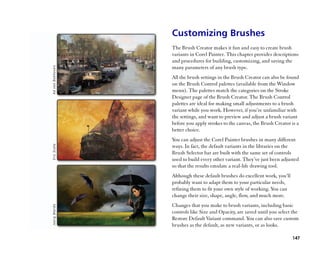
                                                                                                             size and spread

                                                                 Impasto
                                                                 Impasto brush variants let you create the classic technique of
                                                                 applying thick paint on a canvas to create depth. The depth
  Detail Opaque      Thick Gouache Flat     Wet Gouache          information for the brushstroke is stored on the Impasto
                                              Round
                                                                 Layer.
                                                                 Some variants apply depth effects to underlying pixels,
Image Hose
                                                                 such as Acid Etch, Clear Varnish, Depth Rake, and
The Image Hose is a special brush that applies images            Texturizer-Clear. Other variants apply three-dimensional
instead of color. The images it ““paints”” with come from        brushstrokes with the current paint color.
special image files called nozzles. Each nozzle file contains
multiple images that are organized by characteristics such as
size, color, and angle. Each characteristic (parameter) can be
linked to a stylus attribute (animator), such as Velocity,
Pressure, and Direction.
The name of each Image Hose variant tells you which                 Opaque Flat         Smeary Round         Loaded Palette
parameter and animator are in effect. For example, the                                                           Knife
Linear-Size-P Angle-R brush variant links size to stylus
pressure (P) and sets the angle randomly (R).


102                                                                                                Corel Painter 11 User Guide
Liquid Ink
Liquid Ink brush variants combine ink and paint to create a
thick, liquid paint effect. There are three main types of
Liquid Ink brush variants: ones that apply ink, ones that
remove ink to create a resist effect, and ones that soften
edges. Like Watercolor brush variants, a new layer is created
automatically when you first apply a brushstroke. You can         Flat Rendering       Leaky Marker      Round Tip Marker
                                                                      Marker
also create 3D effects by double-clicking a Liquid Ink layer
and adjusting the Threshold and Amount sliders.                 Oil Pastels
                                                                Oil Pastel brush variants produce the thick, rich texture of
                                                                natural pastel sticks. Most Oil Pastel brush variants cover
                                                                existing brushstrokes with the current paint color. However,
                                                                the Variable Oil Pastel brush variants blend the underlying
                                                                color into the brushstroke. As with other dry media brush
    Clumpy Ink         Coarse Bristle       Smooth Flat
                                                                variants, opacity is linked to stylus pressure.

Markers
The brush variants in the Marker category replicate
conventional, real-world markers.
The strokes that you make with the Marker variants closely
reflect those of traditional, high-quality markers, mainly           Oil Pastel      Chunky Oil Pastel   Variable Oil Pastel
because of the way the Marker variants interact with the
canvas. For example, the Flat Rendering Marker in
Corel Painter allow color buildup and pooling.


Painting                                                                                                                  103
Oils                                                               Pastels
Oil brush variants let you create effects you’’d expect from oil   Pastels range from hard pastel styles that reveal the paper
paints. Some variants are semitransparent and can be used to       grain to extra soft pastels that glide on to completely cover
produce a glazed effect. Other variants are opaque and cover       existing brushstrokes. Opacity is linked to stylus pressure.
underlying brushstrokes. For realistic interaction with the
Mixer palette, and to apply multiple colors in a single
brushstroke, try using Artists’’ Oil brush variants.


                                                                   Artist Pastel Chalk       Soft Pastel      Square Soft Pastel


                                                                   Pattern Pens
      Fine Camel         Opaque Flat         Smeary Round
                                                                   Pattern Pen brush variants let you use a brush to apply a
                                                                   pattern to an image. You can vary features such as the size of
Palette Knives                                                     the pattern and the transparency. For example,
You can use Palette Knife brush variants to scrape, push, or       Pattern Pen Micro decreases the size of the pattern, and
pick up and drag colors in your image. Only one Palette            Pattern Pen Transparent applies a semitransparent version of
Knife brush variant, the Loaded Palette Knife, applies the         the pattern.
current paint color. Palette Knife dabs are always parallel to
the shaft of the stylus.


                                                                       Pattern Pen       Pattern Pen Masked Pattern Pen Marker
                                                                                                               (based on the
                                                                                                               current color)
  Loaded Palette         Palette Knife       Smeary Palette
      Knife                                     Knife


104                                                                                                   Corel Painter 11 User Guide
Pencils                                                            Photo
Pencil brush variants are great for any artwork that would         Photo brush variants let you modify digital images or
traditionally require pencils; from rough sketches to fine line    existing artwork. For example, you can clean up photos by
drawings. Like their natural counterparts, Pencil brush            adjusting color or removing scratches, add a blur effect, or
variants interact with canvas texture. All of the variants build   sharpen an image.
to black and link opacity to stylus pressure. The width of
Pencil strokes varies according to the speed of the stroke, so
dragging quickly produces a thinner line and dragging
slowly leaves a thicker line.


                                                                           Blur               Dodge                 Burn


                                                                   RealBristle

     2B Pencil           Cover Pencil         Greasy Pencil        RealBristle brush variants bring a new level of realism to the
                                                                   digital painting experience by simulating the natural
                                                                   movement of an artist’’s brush. The RealBristle brushes are
Pens                                                               based on individual brushes from other categories, but their
                                                                   Natural-Media capabilities are enhanced so you can better
Pen brush variants, like the Scratchboard Rake and Bamboo          control how the bristles interact with the canvas and the
Pen, create realistic effects without the drawbacks of             paint. For more information about working with RealBristle
traditional pens, which can clog, spatter, or run dry.             brush variants, see ““RealBristle Brushes”” on page 137.


    Croquil Pen       Scratchboard Tool    Thick and Thin Pen        Real Fan Short     Real Round Bristle   Real Tapered Round


Painting                                                                                                                      105
Smart Stroke                                                      Sumi-e
Smart Stroke brush variants are based on popular brush            Sumi-e brush variants let you create flowing sumi-e-style
variants from other brush categories, but they are optimized      brushstrokes. There are a variety of brush sizes and shapes to
to work with the Photo Painting System. For more                  help you recreate traditional sumi-e brushstrokes.
information about the Photo Painting System, see ““Auto-
Painting Photos”” on page 204.

Sponges
Sponges let you create a variety of textures by applying the
current paint color to cover or blend existing colors. Some
                                                                     Coarse Bristle       Detail Sumi-e         Sumi-e Brush
Sponge brush variants apply dabs of paint at random angles              Sumi-e
with each click of a stylus. Wet sponge brush variants, such
as Grainy Wet Sponge, apply sponge dabs as you drag across        Tinting
the canvas. Smeary Wet Sponge variants let you blend the          Tinting brush variants let you apply effects to photos or
current paint color with existing colors as you drag across the   existing artwork. For example, you can apply translucent
canvas.                                                           color to areas of a black and white photo by using the Basic
                                                                  Round brush variant. Applying each color to a separate Gel
                                                                  or Colorize layer lets you adjust the opacity of each color
                                                                  layer independently for a more subtle or dramatic effect.


  Dense Sponge       Grainy Wet Sponge        Smeary Wet
                                                Sponge


                                                                     Basic Round            Blender          Soft Grainy Round


106                                                                                                   Corel Painter 11 User Guide
Watercolor                                                       When a brush is selected and positioned over the canvas, the
                                                                 cursor changes, by default, into a ““ghost”” of the brush ——
Watercolor brush variants paint onto a watercolor layer,
                                                                 mirroring size and shape —— so you can see the area that
which enables the colors to flow, mix, and absorb into the
                                                                 you’’re about to paint. This ghost brush provides a handy way
paper. The watercolor layer is created automatically when
                                                                 to see if a change in size is required.
you first apply a brushstroke with a Watercolor brush variant.
The layer lets you control the wetness and evaporation rate      The Brush Creator contains other controls, depending on
of the paper to effectively simulate conventional watercolor     the selected variant. Eventually, you’’ll want to learn about
media. Most Watercolor brush variants interact with the          these and other advanced controls. For example, the Brush
canvas texture. You can use Watercolor brush variants to         Creator offers more sophisticated controls for resizing and
apply a watercolor effect to a photo by lifting the canvas to    shaping brushes, including a minimum (Min) size setting.
the watercolor layer. To paint directly on the canvas, use a     When a brush takes advantage of the Min size setting, you’’ll
Digital Watercolor brush variant.                                see strokes taper and widen as stylus pressure or direction is
                                                                 varied. For complete information about using the Brush
                                                                 Creator, refer to ““Customizing Brushes”” on page 147. For
                                                                 more information on saving customized brushes as custom
                                                                 variants, refer to ““Saving Brush Variants”” on page 197.

                                                                 Setting Brush Size
    Diffuse Flat       Splatter Water         Wet Camel
                                                                 The Size slider on the property bar determines the size of a
                                                                 single brush dab. The text field next to this slider lets you
                                                                 enter a specific size (in pixels).
Choosing Brush Settings
Basic brush controls for size, opacity, and grain are located    To set brush size
on the property bar. The property bar may also contain           1 Choose the Brush tool from the toolbox.
additional controls for the selected brush category, such as     2 Choose a brush from the Brush Selector bar.
resaturation, bleed, and jitter.
                                                                 3 On the property bar, type a value in the Size box, or
                                                                   adjust the pop-up slider.


Painting                                                                                                                   107
Corel Painter may need to rebuild the brush after you
   resize it. Automatic rebuilding of modified brushes is the
   default in Corel Painter. Expect a short delay while
   Corel Painter is rebuilding the brush.

To use the resize shortcut
•• To increase brush size incrementally, click the right
   square bracket ( ] ) key. To decrease brush size
   incrementally, click the left square bracket ( [ ) key.                 89% grain (top), and 12% grain (bottom).

Adjusting Opacity and Grain                                     To set opacity
The Opacity slider controls the degree to which a stroke        1 Choose the Brush tool from the toolbox.
covers or builds up on the underlying pixels.                   2 Choose a brush from the Brush Selector bar.
                                                                3 On the property bar, type a percentage in the Opacity box,
                                                                  or adjust the pop-up slider.
                                                                  When Opacity setting is low, the applied color is thin,
                                                                  allowing you to see through to the underlying colors.
                                                                  When the setting is high, the applied color covers
                                                                  underlying pixels more completely.

                                                                       Some methods and dab types do not allow for
          80% opacity (top) and 20% opacity (bottom).                  adjustments in opacity.

The Grain slider controls how much color penetrates into
                                                                       When the Brush tool is active, you can set opacity by
the paper texture. Lower settings show more of the grain.
                                                                       pressing a number key. Each number key is mapped
                                                                       to a fixed percentage. For example, 1 equals 10%
                                                                       opacity, 5 equals 50% opacity, and 0 equals 100%
                                                                       opacity.


108                                                                                              Corel Painter 11 User Guide
To set grain                                                    Corel Painter produces realistic brushstrokes that fade in and
•• On the Brush property bar, type a percentage in the          out; change width, tilt, and angle; and penetrate based on the
   Grain box, or adjust the pop-up slider.                      stylus input. Brush variants that use computed brushes, such
   Move the slider to the left to reduce penetration and        as the Smeary Flat variant in the Oils category, also react to
   reveal more texture. Move it to the right to increase        stylus tilt (how close to vertical the stylus is held) and bearing
   penetration and reveal less grain.                           (the compass direction in which the stylus is pointing).
                                                                Tilt can significantly affect brushstrokes. If you get
       For liquid media brushes, Grain controls the amount      unexpected results, especially with bristle-type brushes or
       of ““pull.”” For Image Hose brushes, Grain controls      airbrushes, you can try reducing the tilt of your stylus.
       the mixture with the additional color. For other         Extreme tilt angles are usually undesirable.
       brushes, such as airbrushes, the Grain slider is not     Many Corel Painter brushes also respond to stylus pressure
       available.                                               (how hard you press with the stylus). Depending on variant
                                                                settings, greater stylus pressure can increase the width of a
Using a Stylus or Mouse                                         brushstroke, the penetration of color, or the degree of other
When you reach for a wide, flat brush, you expect the stroke    effects. The Corel Painter airbrushes also respond to the
you make to be affected by how you hold the brush. A stroke     fingerwheel on the Wacom Intuos airbrush, simulating a
made with the face of the brush comes out wide. A stroke        needle control that adjusts how much ink is sprayed.
made with the edge is narrow.                                   You can link brush settings (such as size, opacity, and angle)
                                                                to stylus input data (such as velocity, direction, pressure,
                                                                airbrush fingerwheel, tilt, and bearing). Refer to ““Expression
                                                                Settings”” on page 195 for more information about linking
                                                                brush settings to stylus input controls.
                                                                In theory, a mouse has no pressure information. A mouse
                                                                button is either ““on”” (button down) or ““off ”” (button up).
                                                                Corel Painter introduces mouse controls that let you
       Paint with the face of a flat brush for a wide stroke;   simulate stylus pressure, tilt, bearing, and fingerwheel
       use the edge for a narrow stroke.                        settings.


Painting                                                                                                                      109
If you are using a mouse with Corel Painter, you can                  A setting of zero indicates that if a stylus were in use, it
compensate for the lack of pressure information by adjusting          would be pointing left.
size, opacity, and grain on the property bar. For example,
reducing opacity or grain can produce the same results as                 To see the effect of the tilt setting, use the Fine Spray
pressing more lightly with a stylus.                                      variant of the Airbrush category.
The content DVD contains brushes designed specifically for
use with a mouse. For information about loading alternate          To adjust fingerwheel settings when using a mouse
brush libraries, refer to ““Loading Alternate Libraries”” in the   1 On the Stroke Designer page of the Brush Creator, click
Help.                                                                General.
Corel Painter lets you record brushstrokes, save them, and         2 Choose Wheel from the Expression pop-up menu.
later use the saved stroke data. This makes it possible to         3 Choose Mouse.
record a stylus-created brushstroke, save it, and then use a       4 Move the Wheel slider.
mouse to reproduce the stroke that you made originally with          A 90% setting indicates that if a stylus were in use, it
the stylus. Refer to ““Recording and Playing Back Strokes”” on       would be perpendicular to the tablet.
page 123 for more information about recording brushstrokes
to further enhance mouse functionality.
                                                                   Marking the Canvas
To adjust pressure, tilt, and bearing when using a
mouse                                                              You can paint on the canvas or on a layer above the canvas.
1 On the Stroke Designer page of the Brush Creator, click          When you select a layer on the Layers palette, that layer
  Mouse.                                                           becomes the target for your brushstrokes.
2 Move the Pressure slider.                                        If you are using a Watercolor brush, you can paint only on a
  A 100% setting uses maximum pressure.                            Watercolor layer. If you are using a Liquid Ink brush, you
                                                                   can paint only on a Liquid Ink layer. For more information,
3 Move the Tilt slider.
                                                                   refer to ““Working with the Watercolor Layer”” on page 142
  A 90° setting simulates a stylus that is perpendicular to        and ““Working with the Liquid Ink Layer”” in the Help. If
  the tablet.                                                      you try to paint on a shape, dynamic layer, or reference layer,
4 Move the Bearing slider.                                         you must commit it to a standard layer so that your
                                                                   brushstrokes are accepted.

110                                                                                                   Corel Painter 11 User Guide
You can also select a channel or a layer mask as the target for
your brushstrokes. For more information, refer to
““Managing and Editing Channels”” and ““Creating Layer
Masks”” in the Help. When you have an active selection,
painting is confined to the selection by default. For more
information about selecting areas of an images, see                      With the Freehand Stroke option, you drag to create
““Selections and Transformations”” on page 223. In all cases,            strokes.
your brushstrokes go to the selected target, so you should
check that this target matches your intended destination          When you use Straight Line Strokes, Corel Painter connects
before you start to paint.                                        points with a straight line.
You mark the canvas by selecting the Brush tool and
dragging in the document window with a brush variant that
applies media. Each time you drag, you create a brushstroke.
When you use complex brush variants, you see a dotted line
on the canvas before the mark appears. For example, the
Gloopy variant of the Impasto brush requires complex
computations that delay the stroke’’s appearance on the                  With the Straight Line Strokes option, you click to
screen. When you experience a delay, you can queue up                    create the first point and then click or drag to create a
strokes, without losing any stroke data.                                 stroke.

Freehand vs. Straight-Line Drawing                                To draw freehand lines
                                                                  1 On the Brush property bar, click the Freehand Strokes
You can draw unconstrained lines by using the freehand              button .
drawing style, or you can draw straight lines. Options on the
property bar let you choose the drawing style.                    2 Drag on the canvas.

When you use Freehand Strokes, you can drag with any                     You can use shortcut keys to toggle between the
motion or in any direction. The stroke follows your drag                 freehand and straight line drawing styles. Press B to
path.                                                                    choose the freehand style, or V to choose the
                                                                         straight-line style.

Painting                                                                                                                             111
To draw straight lines                                         If you apply a stroke, but want it to be less opaque or faded,
1 On the Brush property bar, click the Straight Line           you can apply the Fade option.
  Strokes button .                                             You can also use the Undo command to remove a stroke. You
2 Click a point on the canvas where you want to start your     can repeat the command to remove previous strokes and set
  line.                                                        how many individual strokes can be undone. For more
3 Do one of the following:                                     information, refer to ““Undo Preferences”” on page 42.
  •• Click the point where you want to end the line.
                                                               To constrain freehand strokes
  •• Drag to place the end point exactly where you want it.
  Corel Painter connects the first and second points with a    •• Hold down Shift as you drag.
  straight line.
                                                               To fade a stroke
4 To continue drawing from the second point, click or drag
  to create additional points on the canvas.                   1 Choose Edit menu        Fade.
  Corel Painter connects each point with a straight line.      2 Set the Undo Amount slider for the opacity you want,
                                                                 and click OK.
5 To end a line, do one of the following:
  •• Press Return (Mac OS) or Enter (Windows) to close
                                                                 The Preview window shows the results of your selection.
     the polygon. The final point is connected to the origin
                                                               To undo a stroke
     with a straight line.
  •• Click the Freehand Strokes button to return to the        •• Choose Edit menu       Undo Brush Stroke.
     freehand drawing style without closing the polygon.
  •• Press V to end the current polygon without closing it,           You can also undo a stroke by pressing
     so that you can begin a new one.                                 Command + Z (Mac OS) or Ctrl + Z (Windows).

Constraining, Fading, and Undoing Strokes                      Erasing Image Areas
In the Freehand Stroke drawing style, you can constrain your   You can erase any part of your image and control the opacity
strokes to a straight line, with the angle depending on the    of erased areas. You can link the opacity to stylus pressure or
orientation of the stroke.                                     specify a fixed opacity value.


112                                                                                              Corel Painter 11 User Guide
To erase an image area                                            Aligning Brushstrokes to Paths and Shapes
1 On the Layers palette, choose the layer on which you            You can automatically align a brushstroke to a path or the
  want to erase.                                                  edge of a shape. You do this by determining the tolerance
2 Choose the Eraser tool       in the toolbox.                    area, that is, how close the brushstroke must be to the path or
3 On the property bar, adjust the Size pop-up slider.             shape for automatic alignment to occur. If the brush stoke is
4 Adjust the Opacity pop-up slider.                               within the tolerance area, the brushstroke snaps to the path
                                                                  or shape; if the brushstroke is outside of the tolerance area,
5 Click one of the following buttons:                             no brushstroke is applied.
  •• Soft Mode      —— sets opacity based on stylus pressure.
     The more pressure you apply, the higher the opacity.         To align a brushstroke to a path or shape
     The initial opacity level is determined by the Opacity
                                                                  1 Choose a brush from the Brush Selector bar.
     pop-up slider.
  •• Hard Mode        —— sets opacity based on the value set      2 On the property bar, click the Align Brush to Path button
     by the Opacity pop-up slider                                      .
                                                                    Brushstrokes within the tolerance area of a path or shape
                                                                    are automatically aligned.
       You can toggle between Soft Mode and Hard Mode
       by holding down Option (Mac OS) or Alt
       (Windows) as you drag in the image window.                        If there are multiple shapes within the tolerance area,
                                                                         the brushstroke is aligned to the shape on the
       You can erase in straight lines by clicking the Straight
                                                                         selected layer.
       Line Strokes button      on the property bar, clicking
       a point on the canvas where you want to start your
                                                                  To set the tolerance area for brushstroke alignment
       line, and clicking where you want to end the line.
                                                                  1 Choose one of the following:
       You can also erase image areas by choosing the Brush
                                                                    •• (Mac OS) Corel Painter 11 menu Preferences
       tool in the toolbox, and choosing Erasers from the
                                                                       Shapes
       Brush Category selector on the Brush Selector bar.
                                                                    •• (Windows) Edit Preferences Shapes
                                                                  2 In the Align to Path area, type a number in the Tolerance
                                                                    box.


Painting                                                                                                                     113
The tolerance area is measured in pixels and must be
   between 1 and 999.

       If you want to align a brushstroke with a hidden
       shape or path, enable the Paint Hidden Shapes check
       box.

Letting Media Pool                                                    With an airbrush, paint pools when you pause in a
                                                                      stroke for 1 second (left), 4 seconds (middle), and
Corel Painter computed brushes allow media to build up or             7 seconds (right).
““pool”” when you move a brush slowly. Pooling creates very
realistic strokes, especially with airbrushes. You can also    Making 360° Strokes
cause media to pool by simply touching and pausing with
the selected brush. You can enable this feature in the Brush   Because there are no restrictions on bearing (stylus direction)
Creator.                                                       in Corel Painter, you can create full 360° strokes with
                                                               noncomputed brushes by completing an arc without
To enable media pooling                                        interruption. Computed brushes use bearing, with the
                                                               exception of those that use the Rendered dab type, so you
1 On the Stroke Designer page of the Brush Creator, click      cannot use them to create 360° strokes.
  Spacing.
2 Enable the Continuous Time Deposition check box.
                                                               Exploring Painting
       When the Continuous Time Deposition check box is        Many Corel Painter brush variants are digital equivalents of
       disabled, you must move the brush (even just            real-life brushes you might already use. Others let you create
       slightly) to cause media to be deposited.               images that aren’’t possible with real-life tools.
                                                               Corel Painter features ““computed”” brushes that create
                                                               smooth, continuous strokes. You can use these brushes to
                                                               apply color, brush on gradients, or paint with patterns. For
                                                               more information about computed brushes, refer to ““Using a
                                                               Stylus or Mouse”” on page 109.

114                                                                                                Corel Painter 11 User Guide
Corel Painter brushes can be changed in many ways to create       Painting with Color
the look you desire. For example, you can start with a pencil
and then change the settings until the tool works like an         Before actually painting, you must choose which media to
airbrush. You can also modify an oil pastel to create a pastel    apply. Most often, you may choose to apply a color, but
brush, or make a leaky pen act like a camel hair brush.           selecting a color is just the beginning. Corel Painter offers a
Suddenly, the art store has unlimited aisles and floors, giving   powerful range of color features, including random color
you the freedom to create whatever you imagine. For more          variability and color sets. For more detailed information
information about using controls to customize brushes, refer      about using color, refer to ““Getting Started with Color”” on
to ““Customizing Brushes”” on page 147.                           page 59.

The result of any single mark or stroke you make with a           To paint with color
Corel Painter drawing tool depends on the following:              1 Select a brush that applies media to a document.
•• The brush category (or drawing tool) you choose. Refer         2 On the Colors palette, click the palette menu arrow, and
   to ““Understanding Brush Categories”” on page 97.                choose Standard Colors.
•• The brush variant you select within the brush category.
   Refer to ““Selecting a Brush”” on page 96 for more
                                                                                                                          Palette
   information about selecting a specific brush variant.                  Hue Ring                                        menu arrow
•• Controls such as brush size, opacity, and the amount of
   color penetrating paper texture. Refer to ““Choosing              Saturation/
                                                                     Value Triangle
   Brush Settings”” on page 107 for more information.
•• The current paper texture. Refer to ““Choosing Paper
   Textures”” on page 49 for more information about
   selecting paper.
•• The color, gradient, or pattern you use as media. Refer to             Use the Colors palette to choose a color for painting.
   ““Painting with Color”” on page 115 and ““Painting with
   Gradients and Patterns”” on page 118 for more
   information about choosing media.
•• The brush method. Refer to ““Methods and
   Subcategories”” on page 158.

Painting                                                                                                                           115
3 Drag or click in the Hue Ring to select a hue.                  Creating Two-Color Brushstrokes
4 Drag or click in the Saturation/Value Triangle to pick the      Usually, you work with only the main color —— the front
  saturation.                                                     square of the two overlapping squares on the Colors palette.
  The color you select becomes the main color and is              Using one color produces a solid, one-color brushstroke. By
  displayed in the front square below the Hue Ring. The           selecting an additional color, you can create a two-color
  back square shows the additional color. The additional          brushstroke.
  color is not the canvas color; it is used to create two-color
  brushstrokes and two-point gradients. Refer to                  To set up a two-color brushstroke
  ““Understanding Main and Additional Colors”” on page 62         1 On the Brush Selector bar, choose a brush category.
  for more information.
                                                                    Not all brushes can create two-color brushstrokes.
5 Paint in the document window.                                     Among those that can are Acrylics, Calligraphy, and
                                                                    Chalk.
To paint with a color already in the image
                                                                  2 From the Brush Variant selector, choose a variant with a
1 Select a brush that applies media to a document.                  noncomputed dab type —— for example, the Circular dab
2 Hold down Option (Mac OS) or Alt (Windows), and                   type.
  click a color in the image.                                       A noncomputed dab type is dab-based, as opposed to
  The Brush tool switches to the Dropper tool . The                 rendered. For more information, see ““Dab Types”” on
  color is ““picked up”” by the Dropper tool and becomes the        page 153.
  main color. Refer to ““Understanding Main and                   3 On the Colors palette, click the palette menu arrow, and
  Additional Colors”” on page 62 for more information               choose Standard Colors.
  about using the Dropper tool.
                                                                    If the Colors palette is not displayed, choose Window
3 Paint in the document window.                                     menu Color Palettes Colors.
                                                                  4 Click the Main Color (front) square     .
                                                                  5 Choose a color on the Colors palette or the Color Sets
                                                                    palette.
                                                                    The front square changes according to your selection.
                                                                  6 Click the Additional Color (back) square     .


116                                                                                                Corel Painter 11 User Guide
7 Choose a color on the Colors palette or the Color Sets           Loading Multiple Colors
  palette.
                                                                   Imagine the ability to load color at a bristle level, picking up
  The back square changes according to your selection.
                                                                   different colors with each ““hair”” of a brush —— as though
8 Click the Main Color (front) square.                             filling tiny ink wells. Imagine also the ability to move
  This step reactivates the main color for the next time you       multiple colors along with a palette knife, dragging them
  pick a color.                                                    across your canvas or paper. The Brush Loading feature
9 Choose Window menu Brush Controls Color                          affects how paint comes off a brush and what happens to the
  Expression to display the Color Expression palette.              pixels underneath.
  If the palette is not expanded, click the palette arrow.         When Brush Loading is not active, brushes interact with
10 On the Color Expression palette, choose Direction from          previously applied colors by sampling underlying pixels and
   the Controller pop-up menu.                                     then loading the brush with one new color —— the average of
                                                                   those that were sampled. With Brush Loading active,
11 Paint a ““T”” in your document. Draw some loops and
                                                                   brushes can literally ““pick up”” existing colors, hair by hair.
   circles to see how the transition between colors depends
                                                                   This capability offers truer color interaction, astounding
   on brushstroke direction.
                                                                   color variations, and better cloning results.

       For information about using the Color Sets palette to       To paint with multiple colors
       choose a color, see ““Using Color Sets”” on page 71.
                                                                   1 Choose a brush.
                                                                   2 On the Stroke Designer page of the Brush Creator, click
                                                                     General.
       For different results, try different Controller settings.
                                                                   3 Choose Static Bristle from the Dab Type pop-up menu.
       For example, choose Pressure to create color
       transitions based on the pressure you apply with your       4 Choose Multi from the Stroke Type pop-up menu.
       stylus.                                                     5 On the Stroke Designer page, click Well, and enable the
                                                                     Brush Loading check box.
                                                                     This step activates the brush’’s ability to pick up
                                                                     underlying colors.
                                                                   6 Adjust the Resaturation and Bleed sliders.


Painting                                                                                                                       117
The Bleed setting determines how much underlying              for more information. You can also use the Corel Painter
   paint is affected by the brushstroke. A higher Bleed          computed brushes to brush on patterns (repeating designs).
   setting, combined with a low Resaturation setting, can        Refer to ““Using Patterns”” on page 52 for more information.
   enhance the Brush Loading feature. A resaturation value
                                                                 When you paint with a pattern, you can adjust the pattern’’s
   of 0, combined with different levels of bleed, will cause
                                                                 scale. Scale affects a pattern brushstroke in a special way by
   your brush to smear image color, rather than deposit it. In
                                                                 determining the resolution of the painted patterns.
   this case, the lower the bleed, the longer the smear.
7 On the Stroke Designer page, click Spacing, and adjust         Small scale causes blurry computed brushstrokes; large scale
  the Spacing and Min Spacing sliders to create fewer            causes sharper strokes. Here’’s why: the brushstroke is always
  ““echo”” artifacts in your smeared stroke.                     drawn as the entire pattern, sized to fit in the current dab
                                                                 size. Scaling the pattern down very small (for example, to
8 Drag a brushstroke through existing paint to see how the
                                                                 20%) makes the brushstroke appear blurry, because the dab
  paint is ““picked up”” from the underlying pixels and
                                                                 is significantly bigger than the pattern. Scaling the pattern
  moved across the canvas.
                                                                 up to 100% makes the dab as clear as it can get. Settings
                                                                 higher than 100% have no effect on the appearance of the
       It is easier to see the Brush Loading feature if the      brushstroke.
       canvas is not white. To fill the canvas with another      You can picture this process by imagining that the current
       color, see ““Filling an Area with Media”” on page 125.    pattern is 100 pixels across and the current brush size is 50
       You can tie brush controls like Bleed to the              pixels across. With the pattern set to 100%, Corel Painter
       Controller setting on the Color Expression palette.       shrinks 100 pixels into a 50-pixel area, which it can easily do
       For example, if you choose Pressure, each stroke          without visible loss of accuracy. If you scale the pattern up to
       bleeds more or less, depending on how hard you            200%, it looks as clear as the original, so that fitting it into the
       press the stylus. For more information, refer to          50-pixel brush size creates a brushstroke that looks the same
       ““Expression Settings”” on page 195.                      as when the pattern was scaled at 100%. If you scale the
                                                                 pattern to 50%, the original will be the same size as the
Painting with Gradients and Patterns                             brush, so there is still no difference in the resulting
                                                                 brushstroke.
With the Corel Painter computed brushes, you can brush on
gradients, which are gradual transformations of one color
into another. Refer to ““Working with Gradients”” on page 79

118                                                                                                   Corel Painter 11 User Guide
Now, keep scaling downward. As the size of the pattern is             •• Double Left to Right Gradient
scaled below the size of the brush, Corel Painter must                •• Right to Left Gradient
increase the size of the pattern to fit the 50-pixel area of the      •• Mirrored Left to Right Gradient
brushstroke. When images are scaled up, after first being
                                                                      •• Double Right to Left Gradient
scaled down, the image becomes blurry. This is especially
noticeable if you scale the pattern well below brush size. At         The Gradient Preview Window above the Order buttons
20%, the pattern now consists of only 20 pixels and has lost          illustrates how the selected order affects the gradient.
80% of the original data. When Corel Painter expands that to          Refer to ““Working with Gradients”” on page 79 for more
50 pixels (the brushstroke size), the loss of data becomes very       information about gradient order.
visible. Lower settings in scale result in even blurrier           4 On the Stroke Designer page of the Brush Creator, click
brushstrokes. If you scale down to 2%, the pattern is only 2         General.
pixels across and is able to contain, at most, four colors (two    5 From the Dab Type pop-up menu, choose a dab type that
across and two down). When Corel Painter expands the                 activates the Source pop-up menu (for example,
image to fit the brushstroke, you won’’t see any of the original     Rendered).
pattern, just a fairly uniform color, across the dab.
                                                                   6 Choose one of the following from the Source pop-up
                                                                     menu:
To paint with a gradient
                                                                     •• Gradient, which applies the current gradient across
1 Select a brush that applies media to a document.                      the width of the stroke.
  If the Gradients palette is not displayed, choose Window           •• Gradient Repeat, which repeats the current gradient
  menu Library Palettes Gradients.                                      along the length of the stroke.
  If the Gradients palette is not expanded, click the palette      7 Paint in the document window.
  arrow.
2 On the Gradients palette, choose a gradient from the
  Gradient Selector.
  In the center of the palette, the Gradient Preview
  Window shows the selected gradient.
3 Click one of the following Gradient Order buttons:
                                                                          Painting with a gradient by using Gradient (left) and
  •• Left to Right Gradient
                                                                          Gradient Repeat (right).
  •• Mirrored Right to Left Gradient

Painting                                                                                                                          119
6 Choose one of the following from the Source pop-up
       If the Source pop-up menu is not available (appears         menu:
       gray), the selected brush can apply color only. In that     •• Pattern, to paint with a pattern containing no mask
       case, you can select a computed brush or choose a              information
       dab type that activates the Source pop-up menu.             •• Pattern with Mask, to paint by using mask data
       Although you can choose a gradient type (Linear,               contained in the pattern
       Radial, Circular, or Spiral) on the Gradients palette,
       you always use a Linear gradient type when painting              If the Source option is not available (appears gray),
       with a gradient.                                                 the selected brush can only apply color. To activate
                                                                        the Source pop-up menu, you must choose a dab
                                                                        type that activates the Source pop-up menu.
       You can also choose a gradient from the Gradient
       Selector in the toolbox. Corel Painter uses the current
       gradient order.                                                  Direction matters when you paint with a gradient ——
                                                                        Corel Painter flips the gradient when you change
       Direction matters when you paint with a gradient.
                                                                        direction. For a uniform effect, apply strokes in the
       Corel Painter flips the gradient when you change
                                                                        same direction.
       direction. For a uniform effect, apply strokes in the
       same direction.
                                                                 To paint with pattern opacity
To paint with a pattern                                          1 Select a brush that applies media to a document.
1 Select a brush that applies media to a document.               2 On the Patterns palette, choose a pattern from the Pattern
                                                                   Selector.
2 On the Patterns palette, choose a pattern from the Pattern
  Selector.                                                      3 On the Stroke Designer page of the Brush Creator, click
                                                                   General.
3 Adjust the Pattern Scale slider.
                                                                 4 From the Dab Type pop-up menu, choose a dab type that
4 On the Stroke Designer page of the Brush Creator, click
                                                                   activates Source (for example, Rendered).
  General.
                                                                 5 Choose Pattern As Opacity from the Source pop-up
5 From the Dab Type pop-up menu, choose a dab type that
                                                                   menu.
  activates the Source pop-up menu (for example,
  Rendered).

120                                                                                               Corel Painter 11 User Guide
Pattern As Opacity is the only computed dab type that         Conic Sections
   responds to methods (Cover and Buildup), allowing it to
                                                                 Previous versions of digital airbrushes projected a thin mist
   respond to Graininess.
                                                                 of dots (or paint dabs) onto the canvas. The Digital Airbrush
6 Paint on your image.                                           variant (named Fat Stroke in previous versions of
  Corel Painter applies the current color, using luminance       Corel Painter) is included in the default brush library. With a
  in the pattern to control opacity. Light colors in the         digital airbrush, dots are laid down, or sprayed, within a
  pattern are rendered as transparent (or as having very low     circular area, resembling the circle thrown by a flashlight
  opacity). Dark colors in the pattern are rendered as very      that is perfectly perpendicular to a piece of paper. The area of
  dark (or as having high opacity).                              application remains circular, regardless of tilt, bearing, or
                                                                 stylus pressure. Density, or flow, adjustments can be
Painting with Airbrushes                                         mimicked with adjustments to the Opacity setting.
The Corel Painter computed airbrushes are so realistic, you
feel as though you’’re using the real thing. Taking advantage
of computed dab-type technology, most airbrush
functionality is now available. For more about computed
brushes, refer to ““Dab Types”” on page 153.
The best way to get used to the Corel Painter airbrushes is to
play with them. Select each variant and spray paint onto the
canvas without worrying about running out of compressed
air. With computed airbrushes, you can paint with color,                Previous versions of airbrushes sprayed a thin layer of
patterns, or variants. One variant blows hairlike strokes;              dots within an area that was always circular, like a
another variant just blows existing paint around on the                 circle of light from a flashlight that is perpendicular
canvas, like a hose without an airbrush attached.                       to a piece of paper.

Try using the Fine Spray variant in the Airbrushes category
                                                                 Now, airbrushes respond to angle (tilt), bearing (direction),
for an example of how Bearing and Flow settings combine to
                                                                 and flow (fingerwheel setting) data from a stylus, allowing
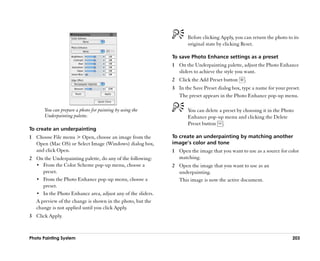
give realistic airbrush results.
                                                                 for a truly realistic brushstroke. For example, as you tilt your
For information about the Airbrush controls in the Brush         stylus, specks of media land on the paper in a way that
Creator, refer to ““Airbrushes”” in the Help.                    reflects that tilt. Imagine, again, the circle of light thrown by

Painting                                                                                                                          121
a flashlight. The moment the flashlight is no longer              A good range for the Spread setting is 30° to 40°. Narrow
perpendicular to the paper —— rather, the shape of the cone of    settings for Spread and Angle can cause problems.
light changes, creating a conic section. In the same manner,      Combined with a very tilted stylus, a narrow setting for
Corel Painter airbrushes create conic sections that mirror        Spread can cause paint to be deposited away from the cursor.
your stylus movements.
                                                                  Varying Edges
                                                                  You can vary the edges of the paint sprayed from an airbrush
                                                                  to achieve desired softness. You do this by selecting a brush
                                                                  tip profile in the Brush Creator. Each profile gives you a
                                                                  different edge to the paint you spray. For more information,
                                                                  refer to ““Brush Tip Profiles”” on page 163.


       Angle and tilt determine the shape and size of the
       conic section created by Corel Painter airbrushes,
       which resembles a circle of light from a flashlight
       that is no longer perpendicular to the paper.
                                                                         Airbrush edges created with the Watercolor profile
Extreme-tilt angles affect large areas of the canvas. This can           (left) and the Medium profile (right).
slow the brush down as it tries to squirt paint too far from
the stylus.                                                       Adjusting Flow
                                                                  Although you can still adjust Opacity to apply fainter or
Adjusting Spread                                                  darker dots of media, some Corel Painter airbrushes, for
You can adjust airbrush spread in the Brush Creator.              example, the Fine Wheel Airbrush variant, take advantage of
Airbrush spread affects how paint spreads out as it is applied.   stylus fingerwheel controls. Like the needle control on real
In other words, it sets the size of the cone of spread from the   airbrushes, the wheel fingerwheel control adjusts airbrush
tip of the airbrush or spray can.                                 flow —— that is, how much media is applied.


122                                                                                                   Corel Painter 11 User Guide
To increase or decrease media flow from an
                                                                 airbrush
                                                                 •• Move the stylus fingerwheel toward the tip (or forward),
                                                                    to decrease flow. Move it away from the tip (or backward),
                                                                    to increase flow.


                                                                        You can also control media flow from an airbrush on
                                                                        the Stroke Designer page of the Brush Creator, by
                                                                        clicking Airbrush and adjusting the Flow and Min
       You can adjust airbrush flow with the fingerwheel                Flow sliders. Flow sets the maximum flow. Min Flow
       control on many airbrush styluses.
                                                                        sets the minimum amount of flow as a percentage of
                                                                        Flow.
Controlling Droplet Size
                                                                        Depending on the Airbrush variant, you can reverse
You can control the size of the airbrush droplets. This is not          the effect of moving the airbrush fingerwheel by
the same as adjusting the size of the brush (the larger the             enabling the Invert check box on the Color
brush, the more droplets are sprayed).                                  Expression palette, or by enabling the Invert Flow
                                                                        Expression check box on the Stroke Designer page of
To change the size of airbrush droplets                                 the Brush Creator.
1 On the Stroke Designer page of the Brush Creator, click               In the Brush Creator, you can also determine flow
  General.                                                              based on stylus information, such as velocity or
2 Choose Airbrush from the Dab Type pop-up menu.                        pressure, by choosing an expression from the Flow
3 Choose Size from the left column.                                     Expression pop-up menu.
4 Move the Feature slider to the left for smaller droplets, or
                                                                 Recording and Playing Back Strokes
  to the right for larger droplets.
                                                                 Corel Painter plays back any stroke you record, wherever you
                                                                 click in the document window. In this way, you can easily
       Very large droplets may produce unexpected results.
                                                                 create a series of identical strokes —— for example, when you
       The Feature setting is not available for variants that    create hatching effects.
       use the Pixel Airbrush or Line Airbrush dab types.

Painting                                                                                                                  123
Corel Painter centers the stroke on the point on which
                                                                    you click. You can repeat the stroke as many times as you
                                                                    want.
                                                                 3 On the Brush Selector bar, click the menu arrow, and
                                                                   choose Playback Stroke to turn off playback.

                                                                 To save a stroke
                                                                 1 On the Brush Selector bar, click the menu arrow, and
       A brushstroke (top) is recorded and played back             choose Save Stroke.
       within a triangular selection.                            2 In the Save Stroke dialog box, type a name.
                                                                   Corel Painter adds the stroke to the list of saved strokes.
You can also save recorded strokes for later use. You can play
back saved strokes, and you can paint with the data from a       To select a saved stroke
saved stroke. This way of working can be particularly useful     •• On the Brush Selector bar, click the menu arrow, choose
if you work sometimes with a stylus and sometimes with a            Strokes, and choose a saved stroke.
mouse: you can record the brushstrokes you make with a
                                                                    The selected stroke is used when you play back strokes or
stylus, save them for later use, and then use a mouse to
                                                                    use stroke data.
obtain the data from that stroke, allowing stylus-quality
results.
                                                                 Working with Fills
To record a stroke
•• On the Brush Selector bar, click the menu arrow, and          Corel Painter gives you many options for filling images with
   choose Record Stroke.                                         media. You can use a gradient, pattern, weave, or color to fill
   The next brushstroke you make is saved in memory.             an area of an image. You can apply a fill to only part of an
                                                                 image, to a layer of an image, to an alpha channel, or to an
To play back a stroke                                            entire image. You can also use the Paint Bucket tool to fill
                                                                 image areas based on pixel color.
1 On the Brush Selector bar, click the menu arrow, and
  choose Playback Stroke.
2 Click where you want to repeat the stroke.

124                                                                                                Corel Painter 11 User Guide
Filling an Area with Media                                         3 In the Fill dialog box, enable one of the following filling
                                                                     options:
You can fill an area of an image with a gradient, pattern,           •• Current Color
weave, or color.
                                                                     •• Pattern
What about filling with paper? The paper is a texture; it has        •• Gradient
no color by itself. You can apply texture to an image,
                                                                     •• Weave
however, with various image effects. Many surface control
effects let you use paper as the control medium. For more          4 Adjust the Opacity slider.
information about surface control effects, refer to ““Working
with Surface Texture”” on page 270 and ““Using Other                      Corel Painter uses the current color, pattern,
Surface Control Effects”” in the Help.                                    gradient, or weave. Before filling, choose the media
                                                                          you want from the corresponding selector in the
To fill an area of an image                                               toolbox.
1 Do one of the following:
  •• If you want to fill only part of an image, select the area    Filling Images Based on Color
     of the image you want to fill.                                You can use the Paint Bucket tool to fill image areas based on
  •• If you want to fill a layer, select the layer on the Layers   pixel color. This method can be used on the canvas or in a
     palette.                                                      channel. Corel Painter fills areas based on color boundaries
  •• If you want to fill an alpha channel, select the channel      and the current Tolerance and Feather settings.
     on the Channels palette.
                                                                   Tolerance sets the amount of variance allowed from the color
  •• If you want to fill the entire image, make sure there         of the pixel you choose. With a low Tolerance setting, the
     are no selections.                                            Paint Bucket fills only contiguous pixels that are very close to
2 Choose Edit menu Fill, or press Command + F                      your chosen pixel color. With a high Tolerance setting, the
  (Mac OS) or Ctrl + F (Windows).                                  Paint Bucket fills a greater range of colors.
                                                                   Feathering softens the edges of the fill by controlling the fill
                                                                   opacity for pixels with colors outside the Tolerance range.
                                                                   With Feather set to zero (the default), only pixels in the
                                                                   Tolerance range are filled. With a low Feather setting, pixels
                                                                   with colors just outside the Tolerance range receive partial

Painting                                                                                                                       125
fill. Increasing the Feather setting increases the range of         5 Type a value in the Tolerance box, or adjust the pop-up
colors that receive partial fill. Pixels with colors farther from     slider, to specify the range of colors to be filled.
the Tolerance range receive a more transparent fill. Typically,     6 Type a value in the Feather box, or adjust the pop-up
when Feather is set high, Tolerance is set low.                       slider, to specify the fill opacity for pixels outside the
The Lock Out Color feature protects areas of a given color            Tolerance range.
from accidental filling. You can choose a color that will not         If you want to create intermediate fill values on the
accept filling when clicked with the Paint Bucket. Black is           boundaries, enable the Anti-Alias check box. This gives
the default locked-out color.                                         soft edges to the fill. Anti-aliasing is desirable when the
                                                                      Feather setting is zero or extremely low. Click the area of
You can use the Paint Bucket tool to fill the interior of areas       the image you want to fill.
bounded by lines. This is especially good for producing solid
                                                                      If the result is not what you want, undo the fill, change
fills of regions bounded by anti-aliased lines. If you want to
                                                                      the settings, and try again.
fill regions completely, without affecting the lines, you can
first copy the lines to a selection. Then, when you fill the
cells, the lines are protected.                                            You can constrain the fill to a rectangular area by
                                                                           dragging with the Paint Bucket tool.
To fill an image based on color
1 Choose the Paint Bucket tool         from the toolbox.            To choose a lock-out color
2 Click the Fill Image button        on the property bar.           1 On the Colors palette, choose the color you want to
3 Choose one of the following options from the Fill pop-up            protect.
  menu:                                                             2 Double-click the Paint Bucket tool in the toolbox.
  •• Current Color, which fills with the selected color.            3 In the Lock Out Color dialog box, click Set.
  •• Gradient, which fills with the selected gradient.                The color swatch updates to the new color, and the Lock
  •• Clone Source, which fills with the current clone                 Out Color check box is enabled.
     source image. If you haven’’t defined a clone source,
     Corel Painter fills with the current pattern.
  •• Weaves, which fills with the selected weave.
4 Choose the specific material you want from the Select Fill
  pop-up menu.

126                                                                                                  Corel Painter 11 User Guide
To copy lines to a selection                                       selection, refer to ““To copy lines to a selection”” on page 127,
1 Choose Select menu        Auto Select.                           saving the selection to a channel, editing the channel, and
                                                                   then reloading it to the selection. For more information
2 In the Auto Select dialog box, choose Image Luminance
                                                                   about editing channels, refer to ““Managing and Editing
  from the Using pop-up menu.
                                                                   Channels”” in the Help.
3 Click OK.
  Corel Painter creates a selection that will protect the dark     To undo a fill
  lines.                                                           •• To undo a fill, do one of the following:
  When you protect anti-aliased or non-black lines in this            •• Choose Edit menu Undo Paint Bucket Fill.
  way, the lines in the selection have varying levels of              •• Press Command + Z (Mac OS), or Ctrl + Z
  transparency, depending on the pixel luminance.                         (Windows).
  The mask threshold lets you compensate for the
  semitransparency of the selection, allowing you produce          To limit leakage
  the fill you want.
                                                                   1 Choose the Paint Bucket tool from the toolbox.
Limiting and Preventing Leakage                                    2 On the property bar, click the Fill Cell button or the Fill
                                                                     Image button.
In complex drawings, lines don’’t always meet, which can
                                                                   3 Drag to create a rectangle that just covers the area you
cause the fill to leak into areas that you don’’t want filled ——
                                                                     want to fill.
sometimes through the whole image. You can’’t always tell if
there’’s a leak just by looking at your image. If you click a        If there is no leak, only the area within the lines is filled.
small area and see the prompt, ““Now Looking for Extent of           If there is a leak, the fill goes outside the area, but not
Fill,”” there’’s probably a leak, and Corel Painter is preparing     beyond the constraints of your rectangle.
to fill a bigger area than you had in mind. In this case, you
can abort the fill.
You can limit leakage to a specific rectangular area. In typical
cartoon line work, unbounded areas —— for example, hair, tail
feathers, and brush bristles —— sometimes must be filled. By
limiting leakage to a specific area, you can close off these
items. You can also close leaks by copying the lines to a

Painting                                                                                                                         127
To close a leak
1 Copy the lines to a selection.
2 Choose Select menu      Save Selection.
3 In the Save Selection dialog box, choose New from the
  Save To pop-up menu.
4 Click OK.
  A new channel is displayed on the Channels palette.           Edit the channel to close leaks. Remember to load the
5 On the Channels palette, display and select the channel.      channel back into the selection after editing.

6 On the Brush Selector bar, choose the same brush you
  used to create the lines.
7 On the Colors palette, set Black as the current main color.
8 Paint in the channel to close the gaps.
9 Choose Select menu      Load Selection.
10 In the Load Selection dialog box, choose the modified
   channel from the Load From pop-up menu.
11 Enable the Replace Selection option to replace the
   original with the edited version.
   If you want to adjust the mask threshold, double-click the
   Paint Bucket tool in the toolbox, and move the slider.


128                                                                                          Corel Painter 11 User Guide
Hard Media
Corel Painter lets you simulate many different types of
traditional hard media, such as pencils, pens, and markers.
The hard media controls and variants give you a wide range
of options for creating drawings, sketches, and renderings.
You can use the preset variants or create your own collection
of customized Hard Media variants.
This section contains the following topics:
•• Using Hard Media Variants
•• Customizing Hard Media Variants


Using Hard Media Variants
Corel Painter includes a vast array of preset Hard Media
variants. You can use the variants as they are or customize
them by using the Hard Media controls. For more
information, see ““Customizing Hard Media Variants”” on
page 130.


       You can modify select chalk (top) and pencil
       (bottom) variants using the Hard Media controls.

                                                          129
Choosing a Hard Media Variant                                   Brush category                Hard Media variant

The Hard Media variants are found in many different brush       Blenders                      Real Pointy Blender
categories. The following table lists the Hard Media variants                                 Real Stubby Blender
found in each of these brush categories.
                                                                Sumi-e                        Real Sumi-e Wet Brush
Brush category                Hard Media variant                                              Real Sumi-e Dry Brush

Pencils                       Real 2B Pencil                    Calligraphy                   Real Variable-Tip Pen

                              Real 6B Soft Pencil               Watercolor                    Real Filbert
                              Real 2H Drafting Pencil                                         Real Flat
                              Real 4H Hard Pencil                                             Real Tapered

Erasers                       Real Pointy Eraser                Acrylic                       Real Long Bristle
                              Real Soft Eraser                                                Real Dry Flat
                              Real Hard Eraser                                                Real Wet Brush

Colored Pencils               Real Soft Colored Pencil          Markers                       All variants
                              Real Sharp Colored Pencil

Pens                          Real Fine-Point Pen               To choose a Hard Media variant
                              Real Variable-Width Pen           1 On the Brush Selector bar, choose a Hard Media
                              Real Drippy Pen                     category from the Brush Category selector.
Chalk                         Real Soft Chalk
                                                                2 Choose a variant from the Brush Variant selector.
                              Real Fat Chalk
                              Real Hard Chalk                   Customizing Hard Media Variants
Conté                         Real Hard Conté
                                                                The Hard Media controls let you modify Hard Media
                              Real Soft Conté
                                                                variants, which include blenders, pencils, chalks, Conté
Pastels                       Real Soft Pastel                  crayons, crayons, pastels, markers, and erasers. The controls
                              Real Hard Pastel


130                                                                                              Corel Painter 11 User Guide
let you build your own Hard Media toolkit with your own
                                                                  Hard Media profile            Description
customized variants. For a complete list of the Hard Media
variants, see ““Choosing a Hard Media Variant”” on page 130.      Pointed Profile               Provides maximum density at
                                                                                                the center, with rapid falloff
The Hard Media controls are usable only with the Circular,                                      toward the edge.
Captured, and Eraser dab types. For more information about
dab types, see ““General Controls”” on page 153.                  Dull Profile                  Provides maximum density at
                                                                                                the center, with high-density
You can also save your customized Hard Media variant. For                                       weighting toward the edge.
more information, see ““Saving Brush Variants”” on page 197.
                                                                  1-Pixel Edge                  1-Pixel Edge provides maximum
                                                                                                density throughout, with rapid
Modifying Hard Media Profiles                                                                   falloff toward the edge,
                                                                                                producing a 1-pixel,
You can modify Hard Media profiles to change the shape                                          anti-aliased edge.
and size of the dabs that you apply to the canvas. By
changing the profile, you can simulate the real-world hard        When changing the shape, you can use the Squeeze controls
media that have different shapes, sharpness, or thickness.        to specify the vertical and horizontal ranges of the dab. For
Using the Hard Media controls, you can change the size, and       example, tilting the tool while drawing can change the dab
choose one of six profiles to modify the shape.                   shape from round to elliptical. You can also change the size
                                                                  of the tip.
Hard Media profile            Description
                                                                  To choose a Hard Media tip profile
Pencil Profile                Provides a sharper tip when
                              perpendicular to the tablet,        1 With a Hard Media variant active, click Hard Media on
                              and provides a wider, softer tip      the Stroke Designer page of the Brush Creator.
                              when at an angle.
                                                                  2 Click the Hard Media tip profile that you want to use.
Medium Profile                Has a wide area of greater
                              density at the center, with rapid
                              falloff toward the edge.
                                                                           You can also access the Hard Media controls by
                                                                           clicking Windows menu, Brush Controls, and Hard
Linear Profile                Provides maximum density at                  Media.
                              the center, with even falloff
                              toward the edge.


Hard Media                                                                                                                       131
To set the Hard Media tip size                                         •• Move the H Max slider to the left to increase the
1 With a Hard Media variant active, click Hard Media on                   amount of squeeze applied to the dab on the
  the Stroke Designer page of the Brush Creator.                          horizontal axis. This setting represents the dab at its
                                                                          maximum size.
2 Move the Size slider to the right to increase the size of the
  tip, or move the slider to the left to decrease the size of the
  tip.                                                                     You can also access the Hard Media controls by
                                                                           clicking Windows menu, Brush Controls, and Hard
                                                                           Media.
        You can also access the Hard Media controls by
        clicking Windows menu, Brush Controls, and Hard
        Media.                                                      Controlling the Behavior of Hard Media
                                                                    Variants
To set the Hard Media tip shape                                     Corel Painter lets you control how a Hard Media variant
1 With a Hard Media variant active, click Hard Media on             behaves when you apply strokes to the canvas. The Stepping
  the Stroke Designer page of the Brush Creator.                    slider controls the transition between narrow and wide
2 In the Squeeze area, do any of the following:                     sections of a stroke. Moving the slider to the right makes the
  •• Move the V Min slider to the left to increase the              transition appear more abrupt, and moving it to the left
      amount of squeeze applied to the dab on the vertical          makes the transition smoother.
      axis. This setting represents the dab at its smallest.        The Transition Range sliders lets you determine the angle at
  •• Move the V Max slider to the left to increase the              which you transition from a fine point to a wider stroke
      amount of squeeze applied to the dab on the vertical          when tilting your stylus. This control lets you simulate the
      axis. This setting represents the dab at its maximum          look and feel of hard media such as pencils or markers. A
      size.                                                         real-world example of this would be holding a sharp pencil
  •• Move the H Min slider to the left to increase the              perpendicular to a piece of paper. When you draw at a 90°
      amount of squeeze applied to the dab on the                   angle, you produce a very narrow or hard line. If you tilt your
      horizontal axis. This setting represents the dab at its       pencil to a 60° angle, you produce a wider or softer line.
      smallest.


132                                                                                                   Corel Painter 11 User Guide
To set the Hard Media transition range
                                                                1 With a Hard Media brush variant, click Hard Media on
                                                                  the Stroke Designer page of the Brush Creator.
                                                                2 Move the Start slider to set the angle at which the
                                                                  transition will start.
                                                                  Moving the slider to the right increases the angle; moving
                                                                  the slider to the left decreases the angle.
                                                                3 Move the Finish slider to set the angle at which the
                                                                  transition will finish.
       At the top of the image, a stylus is shown tilting at
       different angles and the stoke that corresponds with       Moving the slider to the right increases the angle; moving
       the angle is displayed at the bottom of the image. The     the slider to the left decreases the angle.
       graph in the middle of the image identifies the start
       (green arrow) and the Finish (red arrow) of the                 You can also access the Hard Media controls by
       Transition Range.
                                                                       clicking Windows menu Brush Controls Hard
                                                                       Media.
To set the Hard Media size step
1 With a Hard Media brush variant, click Hard Media on          Previewing Hard Media Dabs
  the Stroke Designer page of the Brush Creator.
                                                                As you modify the Hard Media variants, you can preview
2 Move the Size Step slider to the right to produce fewer
                                                                your changes to see how they affect the dab shape and size.
  angles between dabs, or move it to the left to create more
                                                                You can toggle between ““hard”” and ““soft”” views of the dab by
  angles between dabs.
                                                                clicking in the Brush Dab Preview Window. These views are
                                                                also available in the Size area of the Stroke Designer page.
       You can also access the Hard Media controls by           For more information about these views, see ““Size Controls””
       clicking Windows menu Brush Controls Hard                on page 162.
       Media.
                                                                You can also control what the dab will look like at various
                                                                angles by specifying an angle in the Preview Tilt area of the
                                                                Hard Media controls. The dab appears in the Brush Dab
                                                                Preview Window at the corresponding angle. The Preview

Hard Media                                                                                                                  133
Tilt setting also affects the angle at which the dab is applied
to the canvas. When you modify the Tilt setting, the shape of
the brush ghost changes accordingly. For more information
about the brush ghost, see ““General Preferences”” on page 36.

To choose a brush dab preview option
1 With a Hard Media brush selected, click Hard Media on
  the Stroke Designer page of the Brush Creator.
2 Click the Brush Dab Preview Window until the desired
  preview appears.

       You can also access the Hard Media controls by
       clicking Windows menu, Brush Controls, and Hard
       Media.

To set the Hard Media preview angle
1 With a Hard Media variant selected, click Hard Media on
  the Stroke Designer page of the Brush Creator.
2 In the Preview Tilt area, move the Angle slider to increase
  or decrease the tilt angle.

       You can also access the Hard Media controls by
       clicking Windows menu, Brush Controls, and Hard
       Media.


134                                                               Corel Painter 11 User Guide
Markers
Corel Painter includes a Marker brush category to simulate
the professional markers that are used by illustrators, graphic
designers, industrial designers, and architects for drawing
and creating renderings.
This section contains the following topics:
•• Getting Started with Markers
•• Customizing Markers


Getting Started with Markers
The brush variants in the Marker category replicate
conventional, real-world markers.
The strokes that you make with the Marker variants closely
reflect those of traditional, high-quality markers, mainly
because of the way the Marker variants interact with the
canvas. For example, the Flat Rendering Marker in Corel
Painter allow color buildup and pooling. One continuous
brushstroke at a constant speed lays down one consistent
color. However, if you lift the stylus, or release the mouse
button, the color builds up, as it would with conventional
markers. The Marker variants also let you overlay strokes,
and because the applied color is somewhat transparent, the
underlying colors show through.
The color builds up only when you either lift your stylus up
from the tablet or let go of the left mouse button. Slowing
down or stopping does not cause build up.
                                                           135
Customizing Markers
                                                           You can customize a preset Marker variant by using various
                                                           Brush Controls, such as General controls or Size controls. In
                                                           addition, you can change the look of Markers more precisely
                                                           by using the Hard Media controls that are specifically
                                                           designed for modifying drawing media, such as markers and
          With a marker, you can build up or pool color.   pencils. For more information about customizing brushes,
                                                           see ““Customizing Brushes”” on page 147. For more
Choosing a Marker Variant                                  information about the Hard Media options, see
You can choose any of the following variants from the      ““Customizing Hard Media Variants”” on page 130.
Marker brush category:                                     You can also save your customized Marker variant. For more
•• Chisel Tip Marker                                       information, see ““Saving Brush Variants”” on page 197.
•• Dry Chisel Tip Marker
•• Fine Tip Marker
•• Leaky Marker
•• Real Flat Rendering Marker
•• Real Pointy Rendering Marker
•• Real Sharp Marker
•• Real Variable Chisel Tip Marker
•• Round Tip Marker
•• Scratchy Dry Tip Marker

To choose a Marker variant
1 On the Brush Selector bar, choose the Marker category
  from the Brush Category selector.
2 Choose a variant from the Brush Variant selector.

136                                                                                         Corel Painter 11 User Guide
RealBristle Brushes
RealBristle brushes bring a new level of realism to the digital
painting experience by simulating the natural movement of
an artist’’s brush. The resulting brushstrokes and their
interaction with the canvas more closely reflect the look and
feel of working with a traditional art brush.


       RealBristle Painting System.
       Artwork by Cher Threinen-Pendarvis.

RealBristle brush variants are based on brush variants from
different brush categories, such as Acrylics, Artists’’ Oils, and
Watercolor.
When you work with RealBristle brushes, enabling the
Enhanced Brush Ghost option gives you more visual
feedback about your brush. For information about the
Enhanced Brush Ghost, see ““To set brush ghost options”” on
page 37.
                                                             137
This section contains the following topics:
                                                                               Ferrule
•• Getting Started with RealBristle brushes                                                     Profile

•• RealBristle settings
                                                                                                                 Brush Tip


Getting Started with RealBristle                                                           Bristle Length
brushes
                                                                 The RealBristle Palette
RealBristle brush variants are available from the RealBristle
brush category on the Brush Selector bar. The RealBristle        The RealBristle palette contains the following settings:
brush category consists of a broad range of bristle-based
                                                                 Brush Tip Profile —— based on the profiles of traditional
brushes that let you apply brushstrokes to the canvas or a
                                                                 artist brushes, this setting affects the shape of the brushstroke
layer.
                                                                 and density distribution. For general information about
                                                                 brush tip profiles, see ““Size Controls”” on page 162.
To choose a RealBristle brush variant
1 On the Brush Selector bar, choose RealBristle from the
  Brush Category selector.
2 Choose a variant from the Brush Variant selector.
                                                                        The RealBristle palette lets you choose a brush tip
                                                                        profile.
RealBristle settings
                                                                 Roundness —— lets you control the rounding along the width
You can work with a preset RealBristle brush variant or          of the brush and overall shape of the brush. With a round
customize a preset brush and save it as a new brush variant.     brush, lower values flatten the brush to create an elliptical
The RealBristle palette gives you easy access to settings that   shape (can be flattened to a minimum thickness of 10% of
let you modify a brush variant.                                  the diameter). With a flat brush, lower values create a brush
The following diagram outlines some key terminology used         with more angular corners (90 degree edges as opposed to
to describe RealBristle brushes and their settings.              rounded edges).


138                                                                                                  Corel Painter 11 User Guide
Although quite different in shape, both brushes have
       The brush on the left approximates the rounded edges               a Profile Length of approximately 50%.
       created by a flat brush with a Roundness setting of
       100%; the brush on the right approximates a round           Bristle Rigidity —— lets you control the flexibility of the
       brush with a Roundness setting of 100%.                     bristles. Lower values create a more flexible brush, similar to
                                                                   a sable hair brush; higher values create a more rigid brush,
Bristle Length —— lets you control the length of the bristles,     similar to a hog hair brush.
from the end of the ferrule to the tip of the brush. The Bristle
Length is calculated by multiplying the Brush Size value by
the Bristle Length value you choose. For example, if your
Brush Size setting is 20, and your Bristle Length setting is 2,
the length of the bristles is 40.


                                                                          The brush on the left approximates a Bristle Rigidity
                                                                          setting of approximately 90%; the brush on the right
                                                                          approximates a setting of approximately 30%.

       The brush on the left approximates a brush with a           Fanning —— lets you control how the bristles spread out from
       Bristle Length setting of 1; the brush on the right         the ferrule. Lower values keep the bristles closer together,
       approximates a brush with a setting of 2.                   creating a more pointed tip; higher values spread the bristles
                                                                   out.
Profile Length —— lets you control the length of the profile as
a percentage of the overall length of the bristles.

RealBristle Brushes                                                                                                               139
To open the RealBristle palette
                                                                •• Choose Window menu        Brush Controls    RealBristle.

                                                                To customize a RealBristle brush variant
                                                                1 On the Brush Selector bar, choose RealBristle from the
                                                                  Brush Category selector.
       The brush on the left represents a Fanning setting of    2 Choose a variant from the Brush Variant selector.
       100%; the brush on the right represents a setting of
       0%.                                                      3 Choose Window menu Brush Controls RealBristle.
                                                                  Ensure the Enable RealBristle check box is enabled.
Friction —— lets you control how smoothly the bristles move     4 Click the brush tip profile that you want to use.
across the canvas. This setting works in conjunction with the   5 Adjust any of the Brush sliders.
Rigidity setting. Lower values produce smoother strokes;
                                                                6 Adjust any of the Surface sliders.
higher values produce more textured, splayed brushstrokes.
Height —— lets you control the minimum distance between
the ferrule and the canvas. Higher values let you paint with           You can save your customized brush variant by
the tip of the brush only; lower values let you compress the           clicking the menu arrow on the Brush Selector bar,
bristles against the canvas, causing the bristles to splay in          choosing Save Variant, and typing a name for your
different directions.                                                  variant in the Save Variant dialog box. For more
                                                                       information about saving brush variants, see ““Saving
                                                                       Brush Variants”” on page 197.
                                                                       By enabling the Enable RealBristle check box, you
                                                                       can create RealBristle brushes from the any brush
                                                                       variant that uses the following Dab types: Camel
                                                                       Hair, Flat, Palette Knife, or Bristle Spray.


       The brush on the left represents a Height setting of
       100%; the brush on the right represents a height
       setting of 50%.


140                                                                                              Corel Painter 11 User Guide
Watercolor
Corel Painter features two ways to work with watercolors:
the Watercolor layer and Digital Watercolor.
This section contains the following topics:
•• Getting Started with Watercolor
•• Working with Digital Watercolor


Getting Started with Watercolor
Watercolor brushes paint into a watercolor layer, which
enables the colors to flow and mix and absorb into the paper.
In Corel Painter, you can edit the Watercolor layer as you
would any other layer —— even erase and blur —— without
changing anything in the image layer. For example, you can
draw pencil outlines in the image layer and then overlay
watercolor shading without smudging the pencil lines.


       You can sketch on one layer and paint with
       watercolors on a separate Watercolor layer.

                                                         141
Working with the Watercolor Layer                                 To lift the canvas to the Watercolor layer

You can transfer, or lift, information from the canvas to the     1 Apply one or more strokes to the canvas with a
Watercolor layer. This is useful if you want to apply               Watercolor brush variant.
Watercolor effects to a photograph. You can also wet the          2 Choose Window menu          Layers to display the Layers
entire Watercolor layer, which activates a diffusion process        palette.
that you can control. Unless a Watercolor layer is already        3 Click the palette menu arrow, and choose Lift Canvas to
selected, a new Watercolor layer is automatically created           Watercolor Layer.
when a Watercolor brush is applied to an image.
                                                                  To wet the Watercolor layer
The Watercolor layer is represented on the Layers palette by
a blue water droplet icon. When the icon is falling, it           1 Apply one or more strokes to the canvas with a
indicates that the drying process is underway. It is a good         Watercolor brush variant.
practice to monitor the Watercolor icon while painting with       2 Choose Window menu          Layers to display the Layers
Watercolor brushes. If too many strokes are made within a           palette.
short period, particularly with slow-drying brushes, the          3 Click the palette menu arrow, and choose Wet Entire
application can become slower. In this situation, it is best to     Watercolor Layer.
wait for the drying process to finish before continuing.

To create a new Watercolor layer                                         To stop the diffusion process, click the palette menu
                                                                         arrow on the Layers palette, and choose Dry
1 Choose Window menu Layers to display the Layers                        Watercolor Layer.
  palette.
  If the Layers palette is not expanded, click the palette        Working with Watercolor Brush Variants
  arrow.
                                                                  The Watercolor brush variants produce natural-looking
2 Do one of the following:
                                                                  watercolor effects. All Watercolor brush variants, except Wet
  •• On the Layers palette, click the palette menu arrow,
                                                                  Eraser, interact with the canvas texture.
     and choose New Watercolor Layer.
  •• Click the New Watercolor Layer button       at the           Stylus pressure affects the width of the brushstroke for all
     bottom of the Layers palette.                                Watercolor brush variants except Wet Eraser. Increased
                                                                  pressure widens a brushstroke; less pressure narrows a
                                                                  stroke.
142                                                                                                 Corel Painter 11 User Guide
Watercolor Dab Types                                            You can experiment by adjusting the sliders on the Papers
                                                                palette to see their effect on the Watercolor brushes. The
For more information about Watercolor Dab Types, see ““Dab
                                                                Scale slider controls the size of the grain. The Contrast
Types”” on page 153.
                                                                slider, as it applies to the Watercolor layer, controls the height
Water Controls                                                  of the grain surface. Adjusting the Contrast slider to the right
                                                                increases the height of the grain and adds more texture as a
You can adjust the Water controls when you have selected a      result. For more information, see ““Using Paper Texture”” on
Watercolor brush from the Brush Selector bar. Located on        page 48.
the Stroke Designer page of the Brush Creator, or the Brush
Controls palette, the Water controls allow you to specify
various settings for your Watercolor brushes. For example,
you can adjust brush size, control diffusion, and determine
how the paper texture will interact with the brushstrokes.
Refer to ““Water Controls”” on page 184 for more information.
                                                                        The Scale slider controls the size of the paper grain.
                                                                        Left=50%, right=200%.


                                                                Working with Digital Watercolor
                                                                The Digital Watercolor brushes paint directly on both the
       Watercolor stroke before (left) and after (right)
       diffusion.                                               Canvas layer or a default layer so you can create effects
                                                                similar to those of Watercolor brushes without using a
                                                                separate layer. The watercolor behavior of Corel Painter 6
Applying a Paper Texture                                        has been integrated with Digital Watercolor, which allows for
The Watercolor brushes interact with paper grain —— the         the dynamic adjustment of the wet fringe. Corel Painter 11
colors flow, mix, and are absorbed into the paper. The          and Corel Painter 8 handle digital watercolor differently.
luminance information of the current paper grain is used to     Corel Painter 8 can open any Corel Painter 11 file
determine how the paint diffuses into the paper and how it      containing digital watercolor, but the file’’s contents might
dries.


Watercolor                                                                                                                       143
look different. To ensure that the image looks the same in           If you would like to restrict the diffusion to a region,
Corel Painter 8, you should first dry the digital watercolor in      make a selection with any selection tool. The diffusion
Corel Painter 11.                                                    effect will apply only within the selection.


                                                                         The Diffusion slider is also accessible on the Brush
                                                                         Controls palette and in the Digital Watercolor area of
                                                                         the Stroke Designer page of the Brush Creator.

                                                                  Wet Fringe
                                                                  The Wet Fringe slider controls the amount of pooling of
       You can use Digital Watercolor brushes to create           water and paint at the edges of Digital Watercolor
       effects similar to those produced with Watercolor          brushstrokes. You can dynamically adjust the wet fringe on
       brushes, without having to create a separate layer.        any Digital Watercolor brushstroke before you dry it.
       Settings such as Diffusion, Opacity, and Wet Fringe        Dynamically adjusting the Wet Fringe affects every wet
       control the appearance of the stroke.
                                                                  Digital Watercolor brushstroke, which remains wet until you
                                                                  dry it. When you’’re satisfied with the wet fringe, it’’s a good
Digital Watercolor Diffusion                                      idea to dry Digital Watercolor brushstrokes. This allows you
Digital Watercolor brushes also use diffusion to create soft,     to dynamically adjust the Wet Fringe on future Digital
feathery edges on the brushstrokes. You can adjust the            Watercolor brushstrokes without affecting existing
amount of diffusion by using the controls on the property         brushstrokes that you’’re satisfied with.
bar.
                                                                  To adjust wet fringe
To adjust diffusion                                               1 Apply one or more strokes with a Digital Watercolor
1 On the property bar, adjust the Diffusion pop-up slider.          variant.
  Drag the slider to the right to increase diffusion, to the        If you would like to restrict the diffusion to a region,
  left to decrease diffusion.                                       make a selection with any selection tool. The pooling
                                                                    effect will apply only within the selection.
2 Apply one or more strokes with a Digital Watercolor
  variant.                                                        2 On the property bar, adjust the Wet Fringe slider.


144                                                                                                  Corel Painter 11 User Guide
Drag the slider to the right to increase pooling, to the left
   to decrease pooling.


       You can also adjust wet fringe before applying
       brushstrokes by adjusting the Wet Fringe slider.
       The Wet Fringe slider is also accessible on the Brush
       Controls palette and in the Digital Watercolor area of
       the Stroke Designer page of the Brush Creator.

To dry Digital Watercolor brushstrokes
•• Choose Layer menu       Dry Digital Watercolor.

       After you dry a Digital Watercolor brushstroke, you
       can no longer adjust its wet fringe.


Watercolor                                                         145
Customizing Brushes
The Brush Creator makes it fun and easy to create brush
variants in Corel Painter. This chapter provides descriptions
and procedures for building, customizing, and saving the
many parameters of any brush type.
All the brush settings in the Brush Creator can also be found
on the Brush Control palettes (available from the Window
menu). The palettes match the categories on the Stroke
Designer page of the Brush Creator. The Brush Control
palettes are ideal for making small adjustments to a brush
variant while you work. However, if you’’re unfamiliar with
the settings, and want to preview and adjust a brush variant
before you apply strokes to the canvas, the Brush Creator is a
better choice.
You can adjust the Corel Painter brushes in many different
ways. In fact, the default variants in the libraries on the
Brush Selector bar are built with the same set of controls
used to build every other variant. They’’ve just been adjusted
so that the results emulate a real-life drawing tool.
Although these default brushes do excellent work, you’’ll
probably want to adapt them to your particular needs,
refining them to fit your own style of working. You can
change their size, shape, angle, flow, and much more.
Changes that you make to brush variants, including basic
controls like Size and Opacity, are saved until you select the
Restore Default Variant command. You can also save custom
brushes as the default, as new variants, or as looks.

                                                            147
brush settings based on the transition from one brush
       Changes that you make to brush variants are saved in    category and variant to another. The Stroke Designer lets
       the Brushes subfolder of your user folder. When you     you control the size and shape of the media applied by a
       start Corel Painter, the application accesses these     brush, the way the dabs are repeated in a stroke, the media
       modified brush variants instead of the original         (usually color) that flows from a brush, and how a brush
       default brush variants and settings, which are stored   interacts with underlying pixels.
       in the application folder. When you reset a brush
       variant, the customized brush files are deleted from    The Brush Creator Workspace
       your user folder.
                                                               The main window of the Brush Creator contains three tabs,
This section contains the following topics:                    each with its own user interface: Randomizer, Transposer,
•• Getting Started with the Brush Creator                      and Stroke Designer. The other components of the main
•• Managing Settings and Controls                              window are the toolbox, the preview grid and window, the
                                                               Scratch Pad, and the palettes.
•• Managing Custom Brushes


Getting Started with the Brush
Creator
The Brush Creator lets you design custom brushes. It
provides controls for customizing and creating brush
variants. The Brush Creator is integrated tightly with
Corel Painter but contains its own tools, palettes, menus,
and workflow. The appearance of the workspace changes,
depending on whether you are using the main application or
the Brush Creator.
There are three elements to the Brush Creator: the
                                                                            The main window of the Brush Creator.
Randomizer, the Transposer, and the Stroke Designer. The
Randomizer creates random brush settings for the selected
brush category and variant. The Transposer creates new

148                                                                                             Corel Painter 11 User Guide
There are seven palettes used with the Brush Creator:
Colors, Tracker, Color Variability, Color Expression, Papers,
Patterns, and Gradients. Color Variability and Color
Expression controls appear in the Brush Creator window (on
the Stroke Designer page); the others are available through                              The preview grid.
the Window menu. The Colors and Tracker palettes are
open by default. You can choose the main and additional           To open the Brush Creator
colors on the Colors palette, or you can choose to clone color.   •• Press Command + B (Mac OS) or Ctrl + B (Windows).
For more information, see ““Getting Started with Color”” on
page 59.
                                                                         You can also open the Brush Creator by choosing
The Tracker palette keeps a visual record of all brushstrokes            Window menu Brush Creator.
made in the Scratch Pad. You can choose a brush variant
from the Tracker palette to use in Corel Painter. Colors and      To access the Randomizer, Transposer, or Stroke
brushstrokes selected in the Brush Creator apply to               Designer page
Corel Painter as a whole. For more information, see ““Using       1 Choose Window menu         Brush Creator.
the Tracker Palette”” in the Help.
                                                                  2 Click one of the following tabs:
The preview grid is located on the Randomizer and                   •• Randomizer
Transposer pages, on the left side of the main window. The          •• Transposer
preview grid contains a brush selector bar and displays             •• Stroke Designer
several variations of brushstrokes for the selected brush. You
can use these brushstrokes as variants to be randomized or
transposed. The preview window displays the variant that                 Throughout the documentation, the steps for
you select.                                                              accessing the Randomizer, Transposer, or Stroke
                                                                         Designer pages are replaced with a direction to go
By increasing the size of the main window, you also make                 directly to the particular page (for example, ““On the
more brushstrokes available in the preview grid.                         Stroke Designer page, click General).


Customizing Brushes                                                                                                         149
To resize the preview grid                                       The Rectangular and Oval Selection tools, and the Lasso
•• Drag the resize handle at the lower-right corner of the       tool and Polygonal Lasso tool, let you make selections on the
   main window of the Brush Creator.                             Scratch Pad, just as you would in Corel Painter. The
                                                                 Magnifier tool lets you zoom in on areas of the Scratch Pad.
The Brush Creator Toolbox                                        The Grabber tool lets you scroll around the Scratch Pad.

The Brush Creator toolbox contains tools, color selection        The toolbox contains two overlapping squares for selecting a
squares, and access to four content libraries to use in          main color and an additional color. Double-click either
designing brush variants.                                        square to open the Color dialog box and choose a new color.
                                                                 Four libraries are accessible in the toolbox through the Paper
                                                                 Selector, Gradient Selector, Nozzle Selector, and Pattern
                                                                 Selector.
                                                                 When creating new brushes, you can test the brushstrokes
                                                                 on the Scratch Pad. You can zoom in on and zoom out of
                                                                 specific areas of the Scratch Pad, adjust the brush size, make
                                                                 selections, and clear the Scratch Pad.

                                                                 To zoom in on the Scratch Pad
                                                                 1 Do one of the following:
                   The Brush Creator toolbox.                      •• Choose the Magnifier tool      in the toolbox.
                                                                   •• Hold down Command + Spacebar (Mac OS) or
The Brush tool applies brushstrokes to the Scratch Pad, just          Ctrl + Spacebar (Windows).
as it applies brushstrokes to the canvas in Corel Painter. The     The Magnifier cursor shows a plus sign (+), which
Brush tool is selected by default when you open the Brush          indicates that you are increasing magnification
Creator, and it’’s set to the brush that you last used in          (zooming in).
Corel Painter.
                                                                 2 Click or drag in the Scratch Pad.


150                                                                                                Corel Painter 11 User Guide
To zoom out of the Scratch Pad                                      For more information about making selections, see
1 Do one of the following:                                          ““Creating and Saving Selections”” on page 223.
  •• Choose the Magnifier tool , and hold down
     Option (Mac OS) or Alt (Windows).                           To clear the Scratch Pad
  •• Hold down Option + Command + Spacebar                       •• Click Clear.
     (Mac OS), or Alt + Ctrl + Spacebar (Windows).
  The Magnifier cursor shows a minus sign (-), which             The Randomizer
  indicates that you are decreasing magnification (zooming       The Randomizer takes the current brush category and
  out).                                                          variant, creates random settings for them, and displays
2 Click in the Scratch Pad.                                      variants created from these random settings. You can then
                                                                 choose a new randomized variant from the preview grid to
       You can also adjust the Scale slider in the lower-right   use in the application, or you can use one of these new
       corner of the main window to zoom in and out.             variants to create even more randomized variants.

To adjust brush size in the Scratch Pad
•• Adjust the Brush Size slider above the Scratch Pad.

To make a selection in the Scratch Pad
1 In the toolbox, choose one of the following tools:
  •• Rectangular Selection
  •• Oval Selection
  •• Lasso tool
  •• Polygonal Lasso tool
                                                                                   Randomized brush variants.
  These four selection tools share the same space in the
  toolbox. Holding down the tool button provides access to
  the hidden tools.
2 Drag in the document to make your selection.


Customizing Brushes                                                                                                     151
To create a random brush variant                               The Transposer uses two Brush Selector bars, at the top and
1 On the Randomizer page of the Brush Creator, do one of       bottom of the page. The top Brush Selector bar is used to
  the following:                                               choose the From variant; the bottom one is used to choose
  •• On the Brush Selector bar, choose a brush category        the To variant. The Transposer uses these two variants to
      and variant.                                             create a series of new brushstrokes.
  •• Choose a brushstroke from the preview grid.
  Random settings are created according to the default
  settings.
2 To fine-tune the settings of the randomized variants that
  appear in the preview grid, adjust the Amount of
  Randomization slider.
  Move the slider to the right to increase randomization;
  move it to the left to decrease randomization.
3 To create a new set of randomized settings, click the
  Randomize Current Selection button .                                            Transposed brush variants.


       You can also choose a brush category and variant in     To create a transposed brush variant
       the main application before you open the Brush          1 Do one of the following:
       Creator.                                                  •• On the Brush Selector bars at both the top and bottom
                                                                    of the Transposer page, choose a brush category and
The Transposer                                                      brush variant.
                                                                 •• Choose a brushstroke from the preview grid.
The Transposer creates new brush variants based on a
transition from one variant to another. For example, you can     This brush variant becomes the next variant to be
choose to combine variants from two categories, such as          transposed.
Pencils and Felt Pens. The Transposer uses the settings from   2 Click the Transpose Current Selection button      .
each variant to create new variants.


152                                                                                              Corel Painter 11 User Guide
To choose a new brush variant from the preview                   General Controls
window
•• Click a brushstroke in the preview window.                    Corel Painter provides extensive control over brush
   This brush variant becomes the next variant to be             properties and dab types. You can also choose how
   transposed.                                                   brushstrokes interact with existing color in the image. Some
                                                                 General controls work in conjunction with Expression
The Stroke Designer                                              settings. For more information about Expression settings, see
                                                                 ““Expression Settings”” on page 195.
The Stroke Designer lets you tweak the various settings for
each brush variant to create new brushes. A series of            Dab Types
controls, each containing its own settings, can be adjusted on   Dab types are methods of media application. To produce
the Stroke Designer page. The Stroke Designer page               ““computed”” brushstrokes, Corel Painter uses rendered dab
contains the same controls that are available on the Brush       types that are computed during the stroke.
Control palettes. For more information, see ““Managing
Settings and Controls”” on page 153.                             Earlier versions of Corel Painter used ““dab-based”” media
                                                                 application, in which brushes applied small dots of media to
                                                                 create brushstrokes. With Spacing between dabs set small,
Managing Settings and Controls                                   strokes appear smooth. If you zoom in close enough, you can
                                                                 probably tell that the brushstroke is made up of tiny dabs of
You can modify and customize brush variants by accessing         color. If you make a rapid brushstroke or set large spacing
settings and controls on the Stroke Designer page of the         between dabs, strokes can become trails of dots.
Brush Creator. You can also access the controls from the
Brush Control palettes.                                          Rendered dab types create continuous, smooth-edged
                                                                 strokes. They’’re fast and less prone to artifacts than
Some controls are specific to a brush category, such as          dab-based media application. In fact, you can’’t draw fast
Artists’’ Oils or Impasto. Other controls and settings are       enough to leave dabs or dots of color showing in a stroke,
specific to a type of variant. For example, Rake controls are    because they’’re just not there. Rendered dab types allow rich
active only when a rake brush variant is selected, regardless    new features that were not possible with dab-based media
of brush category.                                               application.


Customizing Brushes                                                                                                        153
Dab-based dab type           Description

                                                                        Captured                     Shapes that you create and
                                                                                                     capture.
                                                                                                     For more information, see
                                                                                                     ““Capturing Brush Dabs”” on
                                                                                                     page 198.

                                                                        Eraser                       Dabs that let you erase parts of
                                                                                                     images.
           The Scratchboard Tool variant of the Pen brush
           category illustrates the smooth stroke that can be
           accomplished with the rendered dab types.

Corel Painter brushes use dab-based or rendered dab types:

Dab-based dab type             Description

Circular                       Dabs are controlled by the sliders in
                               the Size and Angle areas of the
                               Stroke Designer.

Single-Pixel                   Consists of one pixel only. You can’’t
                               change its size. You use single-pixel
                               brushes when you zoom in for
                               editing at the pixel level.                       A captured dab is for a captured brush. It lets you
Static Bristle                 Controlled by the sliders in the Size
                                                                                 paint with specific shapes and designs.
                               area of the Stroke Designer. When
                               you select the Static Bristle dab
                               type, the preview grid displays a
                               bristly profile.


154                                                                                                            Corel Painter 11 User Guide
Rendered dab type     Description                             Rendered dab type   Description

Camel Hair            Creates bristle brushes with circular   Palette Knife       Creates brushes that are the
                      arrays of bristles. Individual brush                        opposite of Flat dab brushes. With
                      hairs can have their own color and                          resaturation set low, you can use
                      can pick up underlying colors                               these brushes to scrape, push, pick
                      independently of the Brush loading                          up, or rapidly drag colors along.
                      option. By increasing color                                 Palette Knife dabs are always
                      variability in Corel Painter, you can                       parallel to the shaft of the stylus.
                      make each hair a separate color. For                        The Feature setting in the Size area
                      more information, see ““Setting                             separates bristles.
                      Color Variability”” on page 77.
                                                              Bristle Spray       Creates brushes that can use
                      The Feature slider in the Size area
                                                                                  airbrush controls. These brushes
                      separates bristles. The higher the
                                                                                  recognize tilt, which separates
                      setting, the farther apart hairs
                                                                                  bristles on the opposite side of the
                      appear. Using a low setting makes
                                                                                  tilt. Holding down Option + Shift
                      the strokes more solid. For more
                                                                                  (Mac OS) or Alt + Shift (Windows)
                      information about the Size controls,
                                                                                  reverses the spray direction when
                      see ““Size Controls”” on page 162.
                                                                                  you paint.
Flat                  Creates flat brushes, like those used                       By adjusting the Feature slider in
                      to apply paint to houses or walls.                          the Size area, you can separate
                      Brushes that use Flat dabs respond                          bristles.
                      to bearing, allowing for flat or
                      narrow strokes, depending on how
                      the stylus is held. Flat dabs are
                      always perpendicular to the shaft of
                      the stylus.
                      The Feature setting in the Size area
                      separates bristles.


Customizing Brushes                                                                                                      155
Rendered dab type   Description                               Rendered dab type     Description

Airbrush            Creates brushes that act like             Projected             Creates brushes that act like
                    airbrushes. Bearing (direction) and                             airbrushes. Brushes created with
                    angle (tilt) affect the eccentricity of                         Projected dabs work similarly to the
                    the resulting conic section. The                                airbrush from previous versions of
                    Feature slider in the Size area                                 the application, but react to bearing
                    controls the size of the individual                             and angle data. They create conic
                    droplets of media. Setting the                                  sections with an overall softness. By
                    Feature slider too high might                                   holding down Option + Shift
                    produce undesirable artifacts.                                  (Mac OS), or Alt + Shift (Windows),
                    By holding down Option + Shift                                  you can reverse the spray direction
                    (Mac OS), or Alt + Shift (Windows),                             when you paint.
                    you can reverse the spray direction
                                                              Rendered              Creates brushes that conform the
                    when you paint.
                                                                                    source to a stroke. Use the Source
Pixel Airbrush      Creates brushes that work like                                  pop-up menu to control what is
                    airbrushes. Brushes that use Pixel                              mapped into the computed
                    Airbrush dabs cannot use the                                    brushstrokes. For more information,
                    Feature slider to control the size of                           see ““Source, Opacity, and Grain
                    individual droplets of media.                                   Settings”” on page 161.
                    Holding down Option + Shift
                    (Mac OS) or Alt + Shift (Windows)
                    when painting reverses the spray
                    direction.

Line Airbrush       Creates brushes that work like
                    airbrushes. Brushes that use Line
                    Airbrush dabs spray lines instead of                   The effects of Feature on the stroke.
                    droplets of media. By holding down
                    Option + Shift (Mac OS), or
                    Alt + Shift (Windows), you can
                    reverse the spray direction when
                    you paint.


156                                                                                             Corel Painter 11 User Guide
•• Liquid Ink dabs create liquid paint effects that simulate        You can use Static Bristle, Captured, or one of the bristly
   traditional ink-based media. You can give a Liquid Ink           rendered dab types (such as Camel Hair) with the Single
   brushstroke the appearance of height by applying                 stroke type to create the effect of multiple bristles.
   lighting effects. There are five types of Liquid Ink dab
   types: Liquid Ink Camel Hair, Liquid Ink Flat, Liquid
   Ink Palette Knife, Liquid Ink Bristle Spray, and Liquid
   Ink Airbrush.
•• Watercolor dabs create brushes that work like watercolor                   The Single stroke type has one dab path.
   brushes. The colors flow and mix and absorb into the
   paper. You can control the wetness and evaporation rate
                                                                 •• The Multi stroke type draws a set of randomly distributed
   of the paper. There are five types of Watercolor dab types:
                                                                    dab paths, positioned around the brushstroke you make.
   Watercolor Camel Hair, Watercolor Flat, Watercolor
                                                                    These dabs leave dab paths that are not parallel and
   Palette Knife, Watercolor Bristle Spray, and Watercolor
                                                                    might overlap. The Multi stroke type may produce
   Airbrush.
                                                                    different results each time you use it.
•• Artists’’ Oil dabs produce brushes that work like real-          Increasing the Jitter value in the Random area spreads
   world, high quality oil brushes.                                 out the strokes in a multi-stroke brush.
                                                                    Multi-stroke brushes must be precomputed, which can
To choose a dab type
                                                                    generate a delay in their appearance on the screen.
1 On the Stroke Designer page of the Brush Creator, click           Because of this delay, multi-stroke brushes work best
  General.                                                          when you apply them in short, controlled strokes.
2 Choose a dab type from the Dab Type pop-up menu.

Stroke Types
Stroke type determines how media is applied during a
brushstroke. Corel Painter brushes use one of the following
stroke types. Some stroke types may be grayed out depending
on the currently selected brush variant and dab type.
•• The Single stroke type draws one dab path that                       The Multi stroke type draws a set of randomly
   corresponds exactly to your brushstroke.                             distributed dab paths.

Customizing Brushes                                                                                                        157
•• The Rake stroke type draws a set of evenly distributed dab     To choose a stroke type
   paths. The several dab paths in a rake brushstroke are         1 On the Stroke Designer page of the Brush Creator, click
   parallel. You can control all other aspects of the stroke by      General.
   using settings in the Rake area of the Stroke Designer.
                                                                  2 Choose a stroke type from the Stroke Type pop-up menu.
   Each bristle in a Rake brush can have a different color.
   Increasing Color Variability in Corel Painter causes           Methods and Subcategories
   bristles to be colored differently.
                                                                  The brush method defines the most basic level of brush
                                                                  behavior and is the foundation on which all other brush
                                                                  variables build. You can think of the method and method
                                                                  subcategory as attributes of the stroke’’s appearance.
                                                                  Because the method sets a brush variant’’s most basic
                                                                  behavior, you can alter a variant’’s behavior by changing its
       A Rake stroke is composed of evenly distributed dab
       paths.                                                     method. For example, suppose you want a stroke that looks
                                                                  like Charcoal, but instead of hiding underlying strokes, you
                                                                  want the brushstrokes to build to black. You can get this
•• The Hose stroke type applies only to the Image Hose. It’’s
                                                                  effect by changing the method to Buildup. Perhaps you want
   a single stroke composed of the current Image Hose
                                                                  a variant of the Pens brush category to smear underlying
   Nozzle file. For more information about the Image Hose
                                                                  colors. You can change its method from Cover to Drip. Some
   and Nozzle files, see Image Hose in the Help.
                                                                  brush effects are less easily affected by other methods, and
                                                                  results may differ.
                                                                  Each method can have several variations, called method
                                                                  subcategories. These subcategories further refine the brush
                                                                  behavior. The following terms are used in describing most
                                                                  method subcategories:
                                                                  •• Soft methods produce strokes with feathered edges.
                                                                  •• Flat methods produce hard, aliased strokes with pixelated
       The Hose stroke type uses the current Nozzle file as          edges.
       media.
                                                                  •• Hard methods produce smooth strokes.

158                                                                                                Corel Painter 11 User Guide
•• Grainy methods produce brushstrokes that react to paper       Corel Painter supplies the following methods:
   texture.                                                      •• Buildup
•• The words ““edge”” and ““variable”” are sometimes used to     •• Cover
   describe a method subcategory. Edge strokes are thick
                                                                 •• Eraser
   and sticky-looking. Variable strokes are affected by tilt
   and direction.                                                •• Drip
                                                                 •• Mask (Cover)
Combining a method with a method subcategory results in a
specific brush style that you can assign to a given brush. For   •• Cloning
example, Grainy Hard Cover brushstrokes interact with            •• Wet
paper grain and are semi––anti-aliased so that they hide         •• Digital Wet
underlying pixels. Grainy Hard Cover is the default method
                                                                 •• Marker
for Chalk and Charcoal.
                                                                 •• Plug-in
                                                                 The Buildup methods produce brushstrokes that build
                                                                 toward black as you overlay them. A real-world example of
                                                                 buildup is the felt pen: scribble on the page with blue, then
                                                                 scribble on top of that with green, and then red. The
                                                                 scribbled area keeps getting darker, approaching black. Even
                                                                 if you were to apply a bright color like yellow, you couldn’’t
                                                                 lighten the scribble —— it would stay dark. Crayons and Felt
       Grainy Hard Buildup was used to create the                Pens are buildup brushes.
       brushstroke on top. Soft Variable Buildup was used to
       create the stroke on the bottom.


                                                                                  An example of the Buildup method.


Customizing Brushes                                                                                                        159
The Cover methods produce brushstrokes that cover
underlying strokes, as oil paint does in a traditional art
studio. No matter what colors you use, you can always apply
a layer of paint that completely hides what’’s underneath.
Even with a black background, a thick layer of yellow
remains pure yellow. Some Chalk and Pen variants are
examples of brushes that use the Cover method.                                 An example of the Drip method.

                                                              You do not normally need to use the Mask method, because
                                                              the masking capabilities of Corel Painter are provided by the
                                                              Cover method. The Mask method is provided only for
                                                              compatibility with earlier versions of the application.
                                                              The Cloning methods take images from a clone source and
               An example of the Cover method.
                                                              re-create them in another location, often rendering them in a
                                                              Natural-Media style. For more information about cloning
The Eraser methods erase, lighten, darken, or smear the
                                                              images, see ““Cloning Images”” on page 209.
underlying colors.


               An example of the Eraser method.                      The image on the left was created with a brush that
                                                                     used the image on the right as the clone source.
The Drip methods interact with the underlying colors to
distort the image.                                            The Wet method applies brushstrokes to a Watercolor layer.
                                                              For more information, see ““Working with the Watercolor
                                                              Layer”” on page 142.

160                                                                                              Corel Painter 11 User Guide
The Digital Wet method applies digital watercolor              3 Choose a subcategory from the Subcategory pop-up
brushstrokes to the canvas or a regular layer. For more          menu.
information, see ““Working with Digital Watercolor”” on
page 143.                                                             The Method and Subcategory options are available
The Marker method lets you simulate the use of professional           only with circular, single-pixel, static bristle,
markers for drawing and creating renderings. For more                 captured, and eraser dab types.
information, see ““Markers”” on page 135.
                                                               Source, Opacity, and Grain Settings
Plug-in is a special category of method subcategories. It
                                                               The Source setting specifies the media that is applied by the
defines no specific brush behavior, but is an open door to a
                                                               brush variant. Source applies only to some dab types, such as
wide range of subcategories.
                                                               Line Airbrush, Projected, and Rendered. For more
It’’s well worth your time to browse through the Plug-in       information about setting a media source, see ““Painting with
method subcategories. There, you’’ll find methods such as      Color”” on page 115.
Left Twirl, which gives you a brush with the dab and stroke
                                                               Corel Painter brushes use one of the following source types:
of an Impressionist performing left-handed twirls.
                                                               •• Color applies primary or secondary color.
                                                               •• Gradient applies the current gradient across the length of
                                                                  the stroke.
                                                               •• Gradient Repeat applies the current gradient repeatedly
                                                                  along the stroke.
                                                               •• Pattern paints with a pattern containing no mask
       You can give any built-in brush the power of a plug-       information.
       in by changing its method and subcategory.
                                                               •• Pattern With Mask paints with a pattern limited by the
                                                                  pattern’’s mask.
To choose a method and subcategory
                                                               •• Pattern As Opacity paints a pattern in which the
1 On the Stroke Designer page of the Brush Creator, click         luminance of the pattern becomes the opacity of the
  General.                                                        stroke.
2 Choose a method from the Method pop-up menu.


Customizing Brushes                                                                                                     161
The Opacity slider determines how Corel Painter should            To set grain
vary the density of the media being applied. It sets the          1 On the Stroke Designer page of the Brush Creator, click
maximum opacity of the selected brush. The opacity of an            General.
Airbrush variant is often set to be determined by stylus
                                                                  2 Move the Grain slider to the left to reduce the penetration
pressure. Heavier pressure produces more opaque strokes.
                                                                    into the grain. Move it to the right to increase the
You can use the Expressions settings on the Stroke Designer
                                                                    penetration.
page to link opacity to stylus or mouse data.
The Grain slider determines the maximum amount of paper           Size Controls
texture that Corel Painter should reveal in a brushstroke.
                                                                  The Size brush feature determines how Corel Painter varies
Some default variants have their grain component
                                                                  the width of the brushstroke. The range from minimum to
determined by pressure. Increasing pressure causes the
                                                                  maximum is determined by Size and Min Size sliders in the
pencil to ““dig into”” the paper. You can use the Expressions
                                                                  Size area of the Stroke Designer page. Some Size controls
settings on the Stroke Designer page to link grain to stylus or
                                                                  work in conjunction with Expression settings. For more
mouse data. You can also use the paper’’s brightness and
                                                                  information, see ““Expression Settings”” on page 195.
contrast settings to control brush––grain interaction. For
more information, see ““Using Paper Texture”” on page 48.         The Brush Dab Preview Window in the Size area of the
                                                                  Stroke Designer page shows how your changes affect the
To choose a media source                                          brush dab. Clicking in this preview window lets you toggle
1 On the Stroke Designer page of the Brush Creator, click         between hard and soft views of the dab. The Preview
  General.                                                        supports only hard and soft views of dab based brushes.
2 Choose a source from the Source pop-up menu.

To set brush opacity
1 On the Stroke Designer page of the Brush Creator, click                Click in the preview window to toggle between
  General.                                                               ““hard”” (left) and ““soft”” (right) views.
2 Move the Opacity slider to the left to reduce opacity, or to
  the right to increase opacity.                                  In the hard view, concentric circles show the minimum and
                                                                  maximum sizes of a brush. The inner (black) circle shows
                                                                  the minimum dab width. The outer (gray) circle shows the

162                                                                                                 Corel Painter 11 User Guide
maximum dab width. Remember that some brushes vary the
line width based on pressure or stroke speed. The difference      Profile              Description
between the diameter of the two circles shows the range in
                                                                  Pointed Profile      Provides maximum density at
which the stroke width can vary.                                                       the center, with rapid falloff to
                                                                                       the edge.
In the soft view, shading shows the density distribution of the
brush tip. The density distribution describes how much of         Medium Profile       Has a wide area of greater
the medium is conveyed by a given point on the brush dab.                              density at the center, with rapid
                                                                                       falloff to the edge.
For example, an individual dab made by an airbrush
produces a soft-edged circular mark with minimum density          Linear Profile       Provides maximum density at
at the outer edge of the dab. Density increases inward to a                            the center, with even falloff to
maximum value at the exact center of the dab. The soft view                            the edge.
cannot be used for the Image Hose or rendered dab types.
                                                                  Dull Profile         Provides maximum density at
Brush Tip Profiles                                                                     the center, with high density
                                                                                       weighting to the edge.
The brush tip profile shows a cross-section of density
distribution across the diameter of the dab. You can think of     Watercolor Profile   Provides maximum density at
a brush tip profile as a bell-curve graph representing the                             the outer edge in a ringlike
                                                                                       fashion, with medium internal
density spread across the brush dab.                                                   density. This tip may be used
                                                                                       with the rendered dab types to
Different media have different density distributions.                                  yield a hollow dab or a spray
Changes in the density distribution produce different                                  concentration.
marking qualities in a brushstroke. For rendered airbrush
                                                                  1-Pixel Edge         1-Pixel Edge provides maximum
dab types, the brush tip profile controls the concentration of                         density throughout, with rapid
the spray.                                                                             falloff at the edge, producing a
                                                                                       1-pixel, anti-aliased edge.
Each Corel Painter brush uses one of the following brush tip
profiles.


Customizing Brushes                                                                                                       163
Artists’’ Oils Brush Tip Profiles                                   Stroke Size
There are six brush tips designed specifically for Artists’’ Oils   The Size slider controls the width of the brush and the
brushes. You can also use any brush tip, listed in the table        brushstroke. As Size changes, you may need to adjust the
above, with Artists’’ Oils brushes.                                 Spacing controls for brushes that use nonrendered or
                                                                    dab-based dab types to prevent gaps from appearing in the
Artists’’ Oils profile          Description                         stroke.
Soft Round                      Provides maximum density
                                throughout, with rapid falloff
                                at the edge.

Pointed Rake                    Provides a range of bristle
                                lengths, with bristles longer in
                                the center and tapering in
                                length toward the edge.

Flat Rake                       Provides a range of bristle
                                lengths and maximum density
                                throughout, producing
                                pronounced, even bristling.                The Size slider controls the width of the brush.

Flat                            Designed for Artists’’ Oils
                                                                    In your studio, you expect the pressure you exert on a brush
                                palette knives, it provides
                                maximum density throughout,         or drawing tool to make a difference in the width of the
                                with rapid falloff at the edge.     resulting brushstroke. The Min Size control allows you to
                                                                    create a brushstroke that is amazingly realistic. You can set
Chisel                          Designed for Artists’’ Oils
                                palette knives, its maximum         up a brush that responds to the elegance of subtle hand
                                density is off-center, with         movements. As stylus pressure eases, brushstrokes taper. As
                                uneven falloff.                     pressure increases, brushstrokes widen, just as they would
Wedge                           Designed for Artists’’ Oils
                                                                    with a real brush.
                                palette knives, it provides
                                maximum density at one edge,
                                                                    Min Size represents the smallest stroke size for the selected
                                with consistent falloff to the      brush and is expressed as a percentage of the Size setting.
                                other edge.                         Knowing that Size sets the largest stroke size and that Min


164                                                                                                     Corel Painter 11 User Guide
Size sets the smallest stroke size (in relationship to the Size    For brushes that use rendered dab types, the Feature slider
setting), you can easily control the overall variation in stroke   determines the size of the dabs of paint applied.
size.
                                                                   To set brush size in the Stroke Designer
                                                                   1 On the Stroke Designer page of the Brush Creator, click
                                                                     Size.
                                                                   2 Move the Size slider to the right to make the brush larger,
                                                                     or to the left to make it smaller.

       The minimum and maximum sizes of a stroke can be
       linked to stylus settings, such as pressure or velocity.           You don’’t need to open the Size area of the Stroke
       The small black circle shows the minimum stroke                    Designer page to adjust the size of a brush. You can
       size, and the gray circle shows the maximum stroke                 type a value in the Size box on the property bar, or
       size.                                                              you can adjust the slider on the property bar. For
                                                                          more information, see ““Property Bar Basics”” in the
The Size Step slider controls the transition between narrow               Help.
and wide sections of a stroke. Moving the slider to the right             You can also press the square brackets, ( [ or ] ), to
makes the transition appear more abrupt. Moving it to the                 decrease and increase the brush size according to the
left makes the transition smoother. Size step is applicable               value specified in General Preferences. For more
only to dab-based brushes.                                                information, see ““General Preferences”” on page 36.

                                                                   To use the brush sizing shortcut
                                                                   1 Hold down Command + Option (Mac OS) or Ctrl + Alt
                                                                     (Windows), and drag in the image window.
                                                                     A circle that represents the brush diameter appears
                                                                     beneath the cursor.
                                                                   2 When you’’ve dragged the circle to the size you want,
       The Size Step slider controls the transition between
       the narrow and wide sections of a stroke. Settings            release the mouse button.
       shown are 1% (top) and 100% (bottom).

Customizing Brushes                                                                                                          165
Spacing Controls
                                                                When a brushstroke uses a dab-based dab type,
                                                                Corel Painter creates the stroke with a series of dabs. By
                                                                adjusting the spacing between those dabs, you can control
                                                                the continuity of the brushstroke.
                                                                The Spacing slider controls the distance between brush dabs
                                                                in a stroke. The Min Spacing slider specifies the minimum
                                                                number of pixels between dabs. If you don’’t want a
       The brush sizing shortcut lets you use keyboard          continuous stroke, you can adjust the Min Spacing to create
       commands to adjust the brush size in the document        a dotted or dashed line. Each dot or dash represents one
       window.                                                  brush dab.

To set minimum stroke size
1 On the Stroke Designer page of the Brush Creator, click
  Size.
2 Move the Min Size slider to the right to increase the
  minimum brush size. Move it to the left to decrease the
  minimum brush size.

To set stroke transition
1 On the Stroke Designer page of the Brush Creator, click              The Min Spacing slider controls the minimum
  Size.                                                                number of pixels between dabs. Settings shown are
                                                                       2.0 (top) and 10.5 (bottom).
2 Move the Size Step slider to the right to increase the
  transition between brush sizes. Move it to the left to make   Damping smooths otherwise jagged brushstrokes for
  the transitions smaller.                                      brushes that use rendered dab types. Higher values make the
                                                                stroke smoother. (Damping suspends a stroke in a
                                                                mathematical spring area by using calculations to even out
                                                                edges and reduce jaggedness.)

166                                                                                                Corel Painter 11 User Guide
High values of Damping round out corners of a stroke. A         To set spacing between brush dabs
value of 50% works best. Higher values might be necessary       1 On the Stroke Designer page of the Brush Creator, click
for jittery input devices such as a mouse.                        Spacing.
Continuous Time Deposition controls whether you must            2 Do one of the following:
move a brush before a medium is applied. With Continuous          •• To increase the spacing between dabs, move the
Time Deposition enabled, the medium begins flowing at the            Spacing slider to the right bringing it closer to the size
first touch.                                                         of the dab itself.
                                                                     When the Spacing slider is at 100%, the size of the dab
Brushes that use rendered dab types take full advantage of
                                                                     equals the spacing. For example, a dab that is 10 pixels
this setting, which causes the medium to pool realistically
                                                                     across is repeated every 10 pixels.
when the stroke is slowed or paused. Brushes that use
dab-based dab types require a full pause in the stroke before     •• To decrease the distance between dabs, move the
the medium begins to pool. You use Continuous Time                   Spacing slider to the left until the dabs begin to
Deposition mostly with airbrush tools.                               overlap.
                                                                     Overlapping increases the density of the stroke and
With Continuous Time Deposition disabled, you must move              makes it look more continuous.
a brush before the medium flows.
                                                                To set minimum dab spacing
Cubic Interpolation smooths jagged brushstrokes by adding
points to dab paths, primarily for brushes that use dab-based   1 On the Stroke Designer page of the Brush Creator, click
dab types. Unlike Damping, which uses mathematical                Spacing.
calculations to smooth jagged edges, Cubic Interpolation        2 Move the Min Spacing slider to the right to increase the
inserts additional points into dab paths, which are used to       minimum spacing between dabs. Move it to the left to
replot brushstrokes.                                              decrease the minimum spacing between dabs.
Cubic Interpolation is best for dab-based dab types, while
                                                                To set smooth rendered dab strokes
Damping is best for rendered dab types.
                                                                1 On the Stroke Designer page of the Brush Creator, click
                                                                  Spacing.
                                                                2 Move the Damping slider to the right to even out jagged
                                                                  strokes. Move it to the left to allow for more ragged
                                                                  transitions between points on the stroke.

Customizing Brushes                                                                                                        167
To set Continuous Time Deposition
1 On the Stroke Designer page of the Brush Creator, click
  Spacing.
2 Enable the Continuous Time Deposition check box.

To set smooth strokes by adding path points
1 On the Stroke Designer page of the Brush Creator, click
  Spacing.                                                              Examples of Squeeze used to create a Calligraphy
2 Move the Points slider to the right to add points and even            effect with a Pen brush.
  out jagged strokes. Move it to the left to decrease the
  number of additional points.                                   The Angle slider controls the angle of an elliptical brush dab
                                                                 and the length of the ellipse. You use Angle controls with
Angle Controls                                                   Circular and Captured dab types.

Corel Painter gives you extensive control over brush shape.
Some Angle controls work in conjunction with Expression
settings. For more information, see ““Expression Settings”” on
page 195.
The Squeeze slider controls the shape of the brush dab.
Squeezing a brush changes it from round to elliptical. You
use Squeeze controls with Circular and Captured dab types.


                                                                        The Angle slider controls the angle of an elliptical
                                                                        brush dab. It is significant only for dabs with Squeeze
                                                                        settings under 100%. Angle settings shown are 90°
       The Squeeze slider controls the shape of the brush               (top) and 45° (bottom).
       dab. Settings shown are 100% (left) and 25% (right).


168                                                                                                   Corel Painter 11 User Guide
For dab-based brushes, the Ang Range slider lets you specify
a range of dab angles that may appear in a brushstroke. To
take advantage of this feature, you must use the Expression
settings on the Stroke Designer page to base the angle on
some factor, such as stroke direction or bearing.


                                                                      The Ang Step slider controls the increment of change
                                                                      for brushes with an Ang Range setting greater than
                                                                      0°. Settings shown are 0° (left) and 90° (right).

                                                               To set brush shape
       The Ang Range slider controls the range of dab          1 On the Stroke Designer page of the Brush Creator, click
       angles that can appear in a brushstroke. Settings         Angle.
       shown are 0° (left) and 180° (right).
                                                               2 Move the Squeeze slider to the left to make the Brush
                                                                 dab more elliptical. Move it to the right to make it
For dab-based brushes, the Ang Step slider controls the
                                                                 rounder.
increment of change for brushes with an Ang Range setting
greater than 0°. For example, setting the Ang Step to 5°
                                                               To set elliptical brush dab angle
produces a brush dab every 5° within the current Ang Range
setting.                                                       1 On the Stroke Designer page of the Brush Creator, click
                                                                 Angle.
                                                               2 Move the Angle slider to the right to rotate the dab
                                                                 counterclockwise. Move the slider to the left to rotate the
                                                                 brush clockwise.


Customizing Brushes                                                                                                          169
To set brush dab angle range                                        changes as you move bristle control sliders in the Bristle
1 On the Stroke Designer page of the Brush Creator, click           section. For more information, see ““Size Controls”” on
  Angle.                                                            page 162.
2 Move the Ang Range slider to the right to increase the            If you choose Rake as the stroke type, you can adjust brush
  range of angles that can appear in a dab. Move the slider         scale and contact angle in the Rake area of the Stroke
  to the left to reduce the range of angles that can appear in      Designer page. For more information, see ““Rake Controls””
  a stroke.                                                         on page 174.
  Setting this slider to 360° allows for any angle in your          The Thickness slider controls the diameter of separate
  stroke.                                                           bristles.
To set brush angle increment
1 On the Stroke Designer page of the Brush Creator, click
  Angle.
2 Move the Ang Step slider to the right to produce fewer
  angles between dabs. Move it to the left to create more
  angles between dabs.

Bristle Controls                                                           The Thickness slider controls the diameter of the
                                                                           individual bristles. Settings shown are 17% (left) and
Bristles create the look of a real brushstroke, complete with              87% (right).
the striations that hairs on a real brush make. Use the
controls in the Bristle area of the Stroke Designer page to         The Clumpiness slider applies a random variance to the
design the many individual bristles in a single brush dab.          thickness of each bristle, which makes some of the bristles
                                                                    look like they are clumping together. Clumpiness is
The best place to see the effect of the Bristle sliders is on the
                                                                    proportional to Thickness.
Brush Control palettes. If you open the Bristle and Size
sections, you can click in the preview window of the Size
section to show the ““soft”” view of the dab. The bristled dab


170                                                                                                     Corel Painter 11 User Guide
The Clumpiness slider controls how bristles adhere to
       each other, or "clump" together, Settings shown are
       0% (left) and 100% (right).                                       The Scale/Size slider controls the degree of Size
                                                                         variation applied to a bristle set. Settings shown are
                                                                         0% (top) and 100% (bottom).
The Hair Scale slider controls the density of bristles in the
brush dab and, therefore, the number of bristles in the dab.
                                                                 At a Scale/Size setting of 100%, when the brush size
                                                                 changes, the bristles scale in proportion to the size. At a
                                                                 Scale/Size setting of 8%, when the brush size changes, the
                                                                 bristles remain a constant absolute size. The Scale/Size
                                                                 control is invalid if a size range is not specified (that is, if
                                                                 Size Min is set to 100%).

                                                                 To set bristle thickness
       The Hair Scale slider controls the density of bristles    1 On the Stroke Designer page of the Brush Creator, click
       in the brush dab. Settings shown are 410% (top) and         Bristle.
       990% (bottom).
                                                                 2 Move the Thickness slider to the left to reduce the density
                                                                   of the medium left by the stroke. Move it to the right to
The Scale/Size slider controls the degree of Size variation
                                                                   increase brush density.
applied to the bristles of a brush. At 0%, there is no size
change applied to the bristles. Setting this slider to a value     When the slider is moved fully to the left, the brush will
greater than 0% creates a set of scaled iterations of the dab.     leave a faint stroke —— even if Opacity is set to 100%.

Customizing Brushes                                                                                                               171
To set clumping of bristles                                     Brush Loading affects how dab-based brushes interact with
1 On the Stroke Designer page of the Brush Creator, click       underlying pixels. When Brush Loading is active, brushes
  Bristle.                                                      can pick up existing colors, hair by hair. This capability offers
                                                                truer color interaction, astounding color-variations,
2 Move the Clumpiness slider to the left to reduce bristle
                                                                smearing, and better cloning results. For more information
  clumping. Move it to the right to increase bristle
                                                                about dab-based brushes, see ““Dab Types”” on page 153.
  clumping.
                                                                When Brush Loading is not active, brushes interact with
To set bristle density                                          previously applied colors by sampling underlying pixels and
1 On the Stroke Designer page of the Brush Creator, click       then loading the brush with one new color —— the average of
  Bristle.                                                      those colors that were sampled. When you use Brush
                                                                Loading, it’’s best to use a very low setting for spacing. For
2 Move the Hair Scale slider to the left to reduce the
                                                                more information, see ““Spacing Controls”” on page 166.
  amount of bristle density and create a fine-hair brush.
  Move it to the right to increase density.                     The Resaturation slider controls the amount of color that is
                                                                replenished in a stroke. If it is set at zero, the brush does not
To scale bristles according to brush size                       produce any color. When Resaturation is less than 10% (and
1 On the Stroke Designer page of the Brush Creator, click       Bleed is less), a brushstroke fades in gently. When the
  Bristle.                                                      Resaturation slider is set at zero and Bleed is set high, an
2 Move the Scale/Size slider to the left to reduce the degree   airbrush can move underlying colors, as when just the
  of size variation. Move it to the right to increase size      airbrush hose is used to blow paint around on the canvas.
  variation.                                                    The Bleed slider controls how much the brush colors smear
                                                                underlying colors, including the paper color. When Bleed is
Well Controls                                                   higher than resaturation, more color bleeds than covers, so
                                                                the stroke never reaches full Opacity.
The Well controls determine how a brush conveys its
medium (color) to the paper. The Resaturation, Bleed, and
Dryout controls work together to determine how much color
a brush has at the start and finish of a stroke. Some Well
controls work in conjunction with Expression settings. For
more information, see ““Expression Settings”” on page 195.

172                                                                                                 Corel Painter 11 User Guide
Dryout works in conjunction with Bleed, so Bleed must be
                                                                set above zero if you want to take advantage of Dryout. You
                                                                can modulate the Dryout effect by changing the Bleed
                                                                setting.


       The Bleed slider controls the amount of underlying
       color mixed in with the selected color. Settings shown
       are 55% (left) and 1% (right).                                  The Dryout slider controls how fast the brush runs
                                                                       out of medium. Settings shown are 724 (left) and
                                                                       22026 (right).

                                                                To set resaturation
                                                                1 On the Stroke Designer page of the Brush Creator, click
                                                                  Well.
                                                                2 Move the Resaturation slider to the left to reduce the
                                                                  amount of color replenished in a stroke. Move it to the
                                                                  right to increase the amount of color.
       The Resaturation slider controls the amount of color
       replenished in the stroke. Settings shown are 25%        To set color bleed
       (top) and 100% (bottom).                                 1 On the Stroke Designer page of the Brush Creator, click
                                                                  Well.
The Dryout control determines how quickly a brush runs          2 Move the Bleed slider to the left to reduce the amount of
out of medium. Dryout is measured in pixels. Moving the           interaction with underlying pixels. Move it to the right to
slider to the left causes a brush’’s reservoir empty more         increase the interaction.
quickly. This can produce brushstrokes that fade out gently.
If Dryout is set high, the brush never runs out of color.

Customizing Brushes                                                                                                         173
To set brush dryout                                              Brush Scale controls the spacing between individual bristles
1 On the Stroke Designer page of the Brush Creator, click        that compose the Rake. The size of each dab is determined
  Well.                                                          in the Size area of the Stroke Designer page. For more
                                                                 information, see ““Spacing Controls”” on page 166.
2 Move the Dryout slider to the left to shorten the distance
  the brush can move before it dries out. Move it to the
  right to lengthen the distance.

Rake Controls
The Rake controls lets you control the sophisticated features
of a Rake stroke, which maintains the angle of the brush
head as the stroke changes direction. As the brush turns,
bristles come in and out of contact with the painting surface.
                                                                        Brush Scale controls the spacing between individual
The Contact Ang slider adjusts how much of the brush                    dabs in the rake. Higher Brush Scale settings spread
touches the painting surface —— in other words, the number              the dabs. Settings shown are 2500% (left) and 0%
of rake ““tines”” that touch the canvas at any one time.                (right).

                                                                 When you turn a real brush to paint a curve, bristles at the
                                                                 edges move in and out of contact with the painting surface,
                                                                 depending on the brush’’s location on the curve (inside or
                                                                 outside). Turn Amount simulates this bristle displacement.


       The Contact Ang controls determine how much of
       the brush contacts the painting surface. Settings
       shown are 180° (left), 125° (middle), and right=0°
       (right), with a Brush Scale setting of 450%.


174                                                                                                 Corel Painter 11 User Guide
Soften Bristle Edge makes a brush’’s outer dabs
                                                                 semitransparent. This option is particularly effective when
                                                                 used with Turn Amount.


       The Turn Amount slider controls the displacement of
       inside and outside bristles. Settings shown are 0%
       (left) and 150% (right).
                                                                        Soften Bristle Edge turns the outer dabs
The Bristle controls set the number of bristles or dabs used            semitransparent. Disabled (left) and enabled (right)
for Multi and Rake stroke types.                                        settings are shown.
The Spread Bristles control dynamically adjusts brush scale
                                                                 To set brush contact angle
on the basis of pressure. The harder you press, the more the
brush fans out.                                                  1 On the Stroke Designer page of the Brush Creator, click
                                                                   Rake.
                                                                 2 Move the Contact Ang slider to the left to create a low
                                                                   contact angle (few of the dabs are in contact with the
                                                                   paper). Move the slider all the way to the right to create a
                                                                   high contact angle (all the dabs are in contact with the
                                                                   paper).

       Spread Bristles controls the spacing of bristles, based   To set brush scale
       on stylus pressure. The harder you press, the more the
       bristles spread. If you want the spread constant,         1 On the Stroke Designer page of the Brush Creator, click
       disable this option. Enabled (left) and disabled            Rake.
       (right) settings are shown.                               2 Do one of the following:


Customizing Brushes                                                                                                            175
•• To bring the scale closer to equaling the dab width,      To set bristle spacing
      move the Brush Scale slider to the right. When the        1 On the Stroke Designer page of the Brush Creator, click
      scale is 100%, the stroke width equals the dab width        Rake.
      multiplied by the number of dabs.
                                                                2 Enable the Spread Bristles check box.
   •• To cause dabs to overlap, move the Brush Scale slider
      to the left. When the scale is less than 100%, the dabs   To soften bristle edge
      overlap. Overlapping dabs create a natural, subtle
                                                                1 On the Stroke Designer page of the Brush Creator, click
      stroke when used with Turn Amount and Soften
                                                                  Rake.
      Bristle Edge.
                                                                2 Enable the Soften Bristle Edge check box.
To set bristle displacement
1 On the Stroke Designer page of the Brush Creator, click       Random Controls
  Rake.                                                         Corel Painter uses randomness to introduce an ““accidental””
2 Do one of the following:                                      quality in color and stroke. Randomness contributes to the
  •• To increase the degree to which the displacement           appealing, unique look of artwork created in Corel Painter.
     changes are based on the direction of the brush, move      You can control brush randomness with settings in the
     the Turn Amount slider to the right.                       Random area of the Stroke Designer page. Some Random
  •• To decrease the degree to which the displacement           controls work in conjunction with Expression settings. For
     changes are based on the direction of the brush, move      more information, see ““Expression Settings”” on page 195.
     the Turn Amount slider to the left.                        The Jitter control introduces a randomized jitter to the
                                                                brushstroke. Instead of appearing directly along the stroke,
To set bristle number                                           dabs appear randomly outside the brushstroke path.
1 On the Stroke Designer page of the Brush Creator, click
  Rake.
2 Move the Bristle slider to the right to increase, or to the
  left to decrease, the number of bristles in the brush.


176                                                                                               Corel Painter 11 User Guide
Introducing a degree of randomness disturbs the
                                                                 pixel-to-pixel correspondence. The resultant variations in
                                                                 the image distance the clone from its photographic source,
                                                                 which can contribute to a Natural-Media appearance.
                                                                 The How Often slider controls the period between random
                                                                 offsets.
                                                                 Normally, when you make a brushstroke, the paper grain is
       The Jitter slider creates a randomized jitter in the      fixed. Strokes repeated over an area bring out the same grain.
       brushstroke. Settings shown are 0 (top) and 3.13          The Random Brush Stroke Grain option randomly moves
       (bottom).                                                 the paper grain for each dab of each stroke.

Both Clone Location sliders work with brushes of the
Cloning method. The Variability control lets you randomly
offset the location where the clone brush samples the source.
When Variability is set at zero, the pixels of the source and
destination images correspond precisely. Using a cover brush
at full Opacity (and no Grain) simply re-creates the source
image.


                                                                        The Random Brush Stroke Grain option randomly
                                                                        moves the paper grain for each stroke. Disabled (top)
       The Variability slider controls the offset of the clone
                                                                        and enabled (bottom) settings are shown.
       based on the location of the source image. Settings
       shown are 0 (top) and 12 (bottom).

Customizing Brushes                                                                                                             177
Random Clone Source randomly samples the source               2 Move the Jitter slider to the left to decrease deviation
document and then places strokes on the clone destination.      from the stroke path, or to the right to increase the
There is no correspondence between the samples taken from       deviation.
the source and where they are placed on the clone. The
result is a random pattern of the predominant colors and      To set clone location variability
edges of the source. The brush and stroke determine the       1 On the Stroke Designer page of the Brush Creator, click
nature of the pattern.                                          Random.
You might use Random Clone Source with a faint stipple        2 Do one of the following:
brush to add ““noise”” to an image. In this case, the clone     •• To increase the range (distance) that the sample can
source image merely contains the noise colors that you wish        be offset, move the Clone Location Variability slider to
to add.                                                            the right.
                                                                •• To limit offset so that source and destination images
                                                                   correspond more precisely, move the Clone Location
                                                                   Variability slider to the left.

                                                                     Clone location sliders have no effect when Clone
                                                                     Color is enabled on the Colors palette. They have an
                                                                     effect only when a Clone method is used.

                                                              To set the period between random offsets
                                                              1 On the Stroke Designer page of the Brush Creator, click
                                                                Random.
       The Random Clone Source option randomly samples
       the source document. Disabled (left) and enabled       2 Do one of the following:
       (right) settings are shown.                              •• To offset a greater number of samples and give the
                                                                   clone image a rough, distorted look, move the How
To set jitter                                                      Often slider to the left.
1 On the Stroke Designer page of the Brush Creator, click       •• To offset samples less frequently and keep the clone
  Random.                                                          image more coherent, move the How Often slider to
                                                                   the right.

178                                                                                             Corel Painter 11 User Guide
Mouse Controls
                                                            In theory, a mouse has no pressure information. A mouse
                                                            button is either on (button down), or off (button up). The
                                                            Corel Painter Mouse controls let you simulate the following
                                                            stylus settings: Pressure (how hard you would be pressing
                                                            with a stylus), Tilt (how close to vertical the stylus is held),
                                                            Bearing (the compass direction in which the stylus is
                                                            pointing), and Wheel (how much ink is sprayed).
                                                            You can record and save brushstrokes created with a stylus
                                                            and then have Corel Painter use the saved settings for the
       The How Often slider controls the period between     stroke when you switch to a mouse. For more information
       random offsets. Settings shown are 0 (top) and 15    about using saved brushstrokes to further enhance mouse
       (bottom).                                            functionality, see ““Recording and Playing Back Strokes”” on
                                                            page 123.
To choose the Random Brush Stroke Grain option
1 On the Stroke Designer page of the Brush Creator, click   To set pressure for the mouse
  Random.                                                   1 On the Stroke Designer page of the Brush Creator, click
2 Enable the Random Brush Stroke Grain check box.             Mouse.
                                                            2 Drag the Pressure slider.
To choose the Random Clone Source option
                                                              A 100% setting uses maximum pressure.
1 On the Stroke Designer page of the Brush Creator, click
  Random.                                                   To set tilt for the mouse
2 Enable the Random Clone Source check box.                 1 On the Stroke Designer page of the Brush Creator, click
                                                              Mouse.
                                                            2 Drag the Tilt slider.
                                                              A 90º setting indicates that if a stylus were in use, it
                                                              would be perpendicular to the tablet.


Customizing Brushes                                                                                                      179
To set bearing for the mouse                                     reference points, you can apply a transformation (rotate,
1 On the Stroke Designer page of the Brush Creator, click        skew, scale mirror, and perspective) during cloning. For
  Mouse.                                                         complete information on using the different clone types,
                                                                 refer to ““Cloning Images”” on page 209.
2 Drag the Bearing slider.
  A setting of zero indicates that if a stylus were in use, it   The Obey Source Selection option uses any selection in the
  would be pointing left.                                        clone source region to constrain painting in the destination.
                                                                 If a transform Clone Type is used, the selection is
To set ink flow for the mouse                                    appropriately transformed. This option is available only with
1 On the Stroke Designer page of the Brush Creator, click        the Cloning method.
  Mouse.                                                         When Copy Source Selection is enabled, the Cloner brush
2 Drag the Wheel slider.                                         reproduces the source selection information in the
  A setting of 100% indicates that maximum flow is in            destination selection. This option is available only with the
  effect.                                                        Cloning method.
                                                                 With the 4-Point Tiling option enabled, your clone source is
Cloning Controls                                                 tiled in a repeating pattern.
The Cloning controls are specific to cloning method brushes
and affect other brushes only when the Clone Color option is     To set Clone Color
enabled.                                                         1 On the Stroke Designer page of the Brush Creator, click
                                                                   Cloning.
The Clone Color control directs a brush to pick up color
from a source image. Clone Color takes averaged samples of       2 Enable the Clone Color check box.
color from the clone source, resulting in an approximation of
                                                                 To set Clone Type
the original. The Clone Color option is also available on the
Colors palette. For information about using different clone      1 On the Stroke Designer page of the Brush Creator, click
types, see ““Cloning Color”” on page 63.                           Cloning.

The Clone Type control lets you choose between several           2 Choose a type from the Clone Type pop-up menu.
cloning variations. These variations are arranged according
to the number of reference points used. With two or more


180                                                                                                Corel Painter 11 User Guide
To constrain painting in the destination                         There are three Impasto Drawing Methods: Color, which
1 On the Stroke Designer page of the Brush Creator, click        applies only color, Depth, which applies only depth, and
  Cloning.                                                       Color and Depth, which applies both color and depth to the
                                                                 image.
2 Enable the Obey Source Selection check box.
                                                                 The Depth Methods in Corel Painter use the luminance
To reproduce the source selection information in                 information in the control medium to determine how much
the destination selection                                        depth is applied within a stroke. You can use the Invert and
1 On the Stroke Designer page of the Brush Creator, click        Negative Depth options to affect the stroke’’s appearance. For
  Cloning.                                                       more information about Depth methods, see ““Setting Depth
2 Click the Copy Source Selection check box to enable or         Method”” in the Help.
  disable the option.                                            The Depth slider determines how much depth is applied to
                                                                 Impasto brushstrokes. When you set Depth Expression to
To tile clone source                                             Pressure and the Invert option is enabled, less depth is
1 On the Stroke Designer page of the Brush Creator, click        applied as you press harder, just as it would if you were using
  Cloning.                                                       a real brush. For more information about painting with
2 Enable the 4-Point Tiling check box.                           depth, see ““Creating an Impasto Effect”” in the Help.
                                                                 Smoothing controls the transition of the texture applied to a
Impasto Controls                                                 stroke.
Impasto controls let you create brush variants that give the     Plow controls the degree to which a stroke interacts with
illusion of depth. For more information about Impasto            other Impasto brushstrokes. In essence, your brushstroke
techniques, see ““Impasto”” in the Help.                         ““plows”” through existing strokes.
Some Impasto controls work in conjunction with Expression
                                                                 To choose a drawing method
settings. For more information, see ““Expression Settings”” on
page 195.                                                        1 On the Stroke Designer page of the Brush Creator, click
                                                                   Impasto.
                                                                 2 Choose a drawing method from the Draw To pop-up
                                                                   menu.


Customizing Brushes                                                                                                          181
To choose a depth method                                        To set Plow effect
1 On the Stroke Designer page of the Brush Creator, click       1 On the Stroke Designer page of the Brush Creator, click
  Impasto.                                                        Impasto.
2 Choose a depth method from the Depth Method pop-up            2 Move the Plow slider to the right to increase the Plow
  menu.                                                           effect, or to the left to decrease it.

To invert a depth method                                        Image Hose Controls
1 On the Stroke Designer page of the Brush Creator, click       The Image Hose controls let you design nozzles designated
  Impasto.                                                      Rank 1, 2, and 3. For more information, see ““Creating,
2 Enable the Invert check box.                                  Loading, and Saving Nozzles for the Image Hose”” in the
                                                                Help.
To choose the Negative Depth option
                                                                The settings for each rank consist of the Expression settings
1 On the Stroke Designer page of the Brush Creator, click       plus the Sequential setting. For more information, see
  Impasto.                                                      ““Expression Settings”” on page 195.
2 Enable the Negative Depth check box.
                                                                Rank 1
To set depth
                                                                The Rank 1 control lets you assign an input to locate Rank 1
1 On the Stroke Designer page of the Brush Creator, click       imagery within an Image Hose nozzle.
  Impasto.
2 Drag the Depth slider to the right to increase depth, or to   Rank 2
  the left to decrease it.                                      The Rank 2 control lets you assign an input to locate Rank 2
                                                                imagery within an Image Hose nozzle.
To set Smoothing effect
1 On the Stroke Designer page of the Brush Creator, click       Rank 3
  Impasto.                                                      The Rank 3 control lets you assign an input to locate Rank 3
2 Move the Smoothing slider to the right to increase the        imagery within an Image Hose nozzle.
  Smoothing effect, or to the left to decrease it.


182                                                                                               Corel Painter 11 User Guide
To choose expression settings for ranks                            The Min Flow control determines the smallest amount of
1 On the Stroke Designer page of the Brush Creator, click          paint flow that can be applied during a stroke. The Min
  Image Hose.                                                      Flow setting represents a percentage of the Flow setting.
2 Choose a setting from each of the Rank pop-up menus.
                                                                   To set paint spread
Airbrush Controls                                                  1 On the Stroke Designer page of the Brush Creator, click
                                                                     Airbrush.
Airbrush controls adjust Spread, or the amount of media that
                                                                   2 Move the Spread slider to the left to reduce the amount of
spreads out as it is applied, and Flow, or the amount of
                                                                     spread, or to the right to increase the amount of spread.
media that is actually applied. Some Airbrush controls work
in conjunction with Expression settings. For more                  To set minimum paint spread
information, see ““Expression Settings”” on page 195.
                                                                   1 On the Stroke Designer page of the Brush Creator, click
Spread controls how paint spreads out as it is applied. In           Airbrush.
other words, it sets the size of the cone of spread from the tip   2 Move the Min Spread slider to the left to reduce the
of the airbrush or spray can. A good range for the Spread            smallest amount of spread allowed, or to the right to
setting is 30% to 40%. Narrow settings for Spread and Angle          increase the smallest amount of spread allowed.
can cause problems. Narrow settings for Spread and Tilt can
cause paint to be deposited away from the cursor.                  To set ink flow
The Min Spread control determines the smallest amount of           1 On the Stroke Designer page of the Brush Creator, click
paint that can spread out as it is applied. The Min Spread           Airbrush.
setting represents a percentage of the Spread setting.             2 Move the Flow slider to the left to reduce the smallest
Flow controls how much media is applied by an airbrush               amount of media applied with a stroke, or to the right to
stroke. The Flow control acts like the needle control on a real      increase it.
airbrush. Use the Expression settings on the Stroke Designer
page to tie Flow to the wheel on an airbrush stylus. Because       To set minimum ink flow
the airbrush dab types deposit many small dabs to create           1 On the Stroke Designer page of the Brush Creator, click
their spray-paint look, you might need to cut down on the            Airbrush.
flow to speed up the airbrush.


Customizing Brushes                                                                                                          183
2 Move the Min Flow slider to the left to reduce the
  smallest amount of flow allowed, or to the right to
  increase it.

Water Controls
Water controls work with Watercolor layers. A Watercolor
layer is automatically created when you apply a stroke with a
Watercolor brush. The layer can be edited from the Layers              The Pickup slider controls how much paint gets
palette.                                                               picked up during diffusion. Settings shown are 0%
                                                                       (top) and 100% (bottom).
Wetness controls the dilution and the spread of paint. As
Wetness is increased, the resulting stroke expands over a       Dry Rate controls the rate at which water dries during
larger area, eliminating the appearance of brush hairs.         diffusion. Lower values cause greater spread; higher values
                                                                reduce the amount of spread.


       The Wetness slider controls the dilution and spread of
       the paint. Settings shown are 0 (top) and 40
       (bottom).
                                                                       The Dry Rate slider controls the rate at which water
Pickup controls how much dry paint gets picked up during               dries during diffusion. Settings shown are 1% (top)
diffusion. Lower values mean that there is no mixing or                and 50% (bottom).
leaching of paints. Higher values produce more leaching.
                                                                The evaporation threshold (Evap Thresh slider) controls the
                                                                minimum amount of water that can still diffuse. Lower
                                                                values cause greater spread; higher values reduce the amount
                                                                of spread.


184                                                                                                Corel Painter 11 User Guide
The grain soak-in (Grn Soak-In slider) controls the
                                                                 graininess of soak-in when paint is drying. You can lower
                                                                 both capillary factor and grain soak-in values to reduce grain
                                                                 effects.


       The Evap Thresh slider controls the minimum
       amount of water which can still diffuse. Settings
       shown are 1% (top) and 50% (bottom).
                                                                        The Grn Soak-In slider controls the graininess of
The diffusion setting (Diffuse Amt slider) controls the                 soak-in when paint is drying. Settings shown are 0%
amount of paint diffused. Using high diffusion creates soft             (top) and 100% (bottom).
edges that feather into the grain, as though you were
painting on wet absorbent paper. Using low diffusion is          Enable the Accurate Diffusion check box to use a smaller
similar to painting on dry paper.                                diffusion window. Disabling Accurate Diffusion results in a
                                                                 larger, less accurate window being used.


       The Diffuse Amt slider controls the spread of the                With Accurate Diffusion enabled, a smaller diffusion
       stroke. Settings shown are 0% (top) and 8%                       window is used. Enabled (top) and disabled
       (bottom).                                                        (bottom) settings are shown.

The capillary factor (Cap Factor slider) controls the grain’’s   You can specify the amount of wind force exerted on the
effect on diffusion. Lower values result in a smoother edge.     diffusing particles. Set the Wind Force slider to zero to turn
                                                                 off directional diffusion.

Customizing Brushes                                                                                                            185
To set wetness
                                                               1 On the Stroke Designer page of the Brush Creator, click
                                                                  Water.
                                                               2 Move the Wetness slider to the left to create a more
                                                                 uniform brushstroke, or to the right to have the water
                                                                 flow more in the direction of the wind.
       Wind Force controls the amount of force exerted on
       diffusing particles. Settings shown are 0% (top) and    To set paint pickup
       25% (bottom).
                                                               1 On the Stroke Designer page of the Brush Creator, click
You can specify wind direction, which controls the direction     Water.
in which the particles diffuse. This can be used to simulate   2 Move the Pickup slider to the right to increase the
tilting of a wet watercolor image to introduce the paint         amount of leaching, or to the left to reduce it.
migration effects of gravity.
                                                               To set the dry rate
                                                               1 On the Stroke Designer page of the Brush Creator, click
                                                                 Water.
                                                               2 Move the Dry Rate slider to the right to reduce the
                                                                 amount of spread, or to the left to increase it.

                                                               To set the evaporation threshold
                                                               1 On the Stroke Designer page of the Brush Creator, click
       Wind Direction controls the direction in which the        Water.
       particles diffuse. Settings shown are 270° (top) and
       180° (bottom).                                          2 Move the Evap Threshold slider to the right to reduce the
                                                                 amount of spread, or to the left to increase it.


186                                                                                             Corel Painter 11 User Guide
To set the diffusion amount                                       To set wind force
1 On the Stroke Designer page of the Brush Creator, click         1 On the Stroke Designer page of the Brush Creator, click
  Water.                                                            Water.
2 Move the Diffuse Amt slider right to create soft edges that     2 Move the Wind Force slider to the right to increase wind
  feather into the grain, or to the left to emulate painting on     force, or to the left to decrease it.
  dry paper.
                                                                  To set wind direction
To set the effect of grain on diffusion                           1 On the Stroke Designer page of the Brush Creator, click
1 On the Stroke Designer page of the Brush Creator, click           Water.
  Water.                                                          2 Drag the Wind Direction control to the desired setting.
2 Move the Cap Factor slider to the right to create rougher
  edges, or to the left to create smoother, more continuous       To delay diffusion
  results.                                                        1 On the Stroke Designer page of the Brush Creator, click
                                                                    Water.
To set grain soak-in
                                                                  2 Enable the Delay Diffusion check box.
1 On the Stroke Designer page of the Brush Creator, click           Diffusion begins when you finish the brushstroke.
  Water.
2 Move the Grn Soak-In slider to the right to create
  rougher surfaces, or to the left to create smoother, more              When you enable the Delay Diffusion check box, you
  continuous results.                                                    increase the speed of Watercolor brush variants.
                                                                         You can also access the Delay Diffusion check box on
To set accurate diffusion                                                the Watercolor palette of the Brush Controls by
1 On the Stroke Designer page of the Brush Creator, click                clicking Window Brush Controls Water.
  Water.
2 Click the Accurate Diffusion check box.


Customizing Brushes                                                                                                      187
Liquid Ink Controls                                             •• Color Only applies only the Color component.

Liquid Ink controls work with Liquid Ink layers. Use the
Liquid Ink controls to specify qualities such as type,
smoothness, and volume of a brushstroke. You can adjust the
Liquid Ink controls when you have selected a Liquid Ink
brush from the Brush Selector bar. Some Liquid Ink controls
work in conjunction with Expression settings. For more          •• Soften Ink Plus Color applies Color to an Ink form,
information, see ““Expression Settings”” on page 195.              causing inks and colors to blend into one another.
Liquid Ink is divided into two basic properties: Ink and
Color. The Ink component provides the form of the
brushstroke, while the Color component applies color to the
Ink form. The Ink and Color components can be used
together or controlled separately.
You can select from the following Ink types:                    •• Soften Ink Only applies only the Ink component.
•• Ink Plus Color applies the currently selected color to the
   Ink form.


                                                                •• Soften Color Only applies only the Color component.


•• Ink Only applies only the Ink component.


                                                                •• Resist repels Ink.


188                                                                                              Corel Painter 11 User Guide
Smoothness Settings shown are 0% (top) and 100%
•• Erase deletes Ink and Color.                                     (bottom).

                                                             The Volume slider controls the height of the brushstroke, or
                                                             the amount of medium applied to the image. Higher values
                                                             result in thicker strokes.
                                                             The Wheel option in the Expression pop-up menu under
                                                             the Volume slider allows you to control the amount of spray
•• Presoftened Ink Plus Color is applied in conjunction      from the Liquid Ink airbrush by adjusting the wheel on the
   with surface depth effects.                               airbrush stylus (especially the Intuos Airbrush Stylus). The
                                                             wheel on the stylus acts like a needle control on a real
                                                             airbrush.
                                                             You can use the Depth controls in the Impasto area of the
                                                             Stroke Designer to give Liquid Ink brushstrokes the
                                                             appearance of height. For more information about Depth
                                                             controls, see ““Impasto Controls”” on page 181.
The Smoothness slider controls the ““tack”” of the
brushstrokes. Lower values result in coarser brushstrokes.
Higher values cause brushstrokes to appear smoother.


Customizing Brushes                                                                                                   189
The Volume slider controls the height of the
       brushstroke. Settings shown are 100% (top) and                   The Rand Vol slider controls the randomness in
       500% (bottom).                                                   volume within the brushstroke. Settings shown are
                                                                        0% (top) and 100% (bottom).
The Min Volume slider controls the maximum variation in
volume. A value of 100%, for example, produces no variation      The Rand Size slider controls the randomness in size within
in volume during the brushstroke.                                a brushstroke. A value of zero results in a perfectly smooth
                                                                 brushstroke.


       The Min Volume slider controls the maximum                       The Rand Size slider controls the randomness in size
       variation in volume. Settings shown are 100% (top)               within a brushstroke. Settings shown are 0% (top)
       and 0% (bottom).                                                 and 100% (bottom).

The Rand Vol slider controls the randomness in volume            The bristle fraction (Bristle Frac slider) controls the
within the brushstroke. A value of zero results in a perfectly   thickness of the bristles. Higher values cause the bristles to
smooth brushstroke.                                              stick together and result in a smoother brushstroke. Lower
                                                                 values cause the individual brushstrokes to become visible.


190                                                                                                 Corel Painter 11 User Guide
The Bristle Frac slider controls the thickness of the
        bristles. Settings shown are 3% (top) and 20%                   The Rand Br Size slider controls the variation in
        (bottom).                                                       bristle width. Settings shown are 0% (top) and 100%
                                                                        (bottom).
The Rand Br Vol slider controls the variation in bristle
                                                                 To choose an ink type
height. A value of zero signifies that all the bristles are of
equal height.                                                    1 On the Stroke Designer page of the Brush Creator, click
                                                                   Liquid Ink.
                                                                 2 Choose a Liquid Ink type from the Ink Type pop-up
                                                                   menu.

                                                                 To set smoothness
                                                                 1 On the Stroke Designer page of the Brush Creator, click
        The Rand Br Vol slider controls the variation in           Liquid Ink.
        bristle height. Settings shown are 0% (top) and 75%
        (bottom).                                                2 Adjust the Smoothness slider.
                                                                   Lower values result in coarse brushstrokes. Higher values
The Rand Br Size slider controls the variation in bristle          cause brushstrokes to blend into one another and appear
width. A value of zero signifies that all the bristles are of      smoother.
equal width.
                                                                 To set ink volume
                                                                 1 On the Stroke Designer page of the Brush Creator, click
                                                                   Liquid Ink.
                                                                 2 Adjust the Volume slider.
                                                                   Higher values result in thicker strokes.

Customizing Brushes                                                                                                           191
To set maximum variation in volume                           To set random bristle volume
1 On the Stroke Designer page of the Brush Creator, click    1 On the Stroke Designer page of the Brush Creator, click
  Liquid Ink.                                                  Liquid Ink.
2 Adjust the Min Volume slider.                              2 Adjust the Rand Br Vol slider.
  If you want volume to respond to stylus pressure, choose     Higher values result in a greater variation in the length of
  Pressure from the Expression pop-up menu.                    brush bristles.

To set random volume                                         To set random bristle size
1 On the Stroke Designer page of the Brush Creator, click    1 On the Stroke Designer page of the Brush Creator, click
  Liquid Ink.                                                  Liquid Ink.
2 Adjust the Rand Vol slider.                                2 Adjust the Rand Br Size slider.
  Lower values result in more uniform brushstrokes.            Higher values result in a greater variation in the length of
                                                               brush bristles.
To set random size
1 On the Stroke Designer page of the Brush Creator, click    Digital Watercolor Controls
  Liquid Ink.                                                Digital Watercolor controls let you create effects similar to
2 Adjust the Rand Size slider.                               those of Watercolor brushes without requiring a separate
  Lower values result in more uniformly sized                layer.
  brushstrokes.
                                                             The Diffusion slider is used to create soft, feathery edges on
                                                             the brushstrokes. For more information about diffusion, see
To set bristle fraction
                                                             ““Digital Watercolor Diffusion”” on page 144.
1 On the Stroke Designer page of the Brush Creators, click
  Liquid Ink.                                                The Wet Fringe slider controls the amount of pooling of
                                                             water and paint at the edges of Digital Watercolor
2 Adjust the Bristle Frac slider.
                                                             brushstrokes. For more information about wet fringe, see
  Higher values result in strokes in which individual        ““Wet Fringe”” on page 144.
  bristles are less visible.


192                                                                                             Corel Painter 11 User Guide
Artists’’ Oils Controls                                             The Blend slider controls how the paint color mixes with
                                                                    paint already on the canvas. High blend levels allow paint on
The Artists’’ Oils controls are divided into three critical         the brush to blend easily with existing paint.
components: Paint, Brush, and Canvas. You can control
Artists’’ Oils brush size and opacity with a tablet expression.     To set the amount of Artists’’ Oils paint loaded
For more information, see ““Expression Settings”” on
page 195. For more information about setting brush size,            1 With an Artists’’ Oils brush active, click Artists’’ Oils on
grain, and opacity, see ““General Controls”” on page 153.             the Stroke Designer page of the Brush Creator.
                                                                    2 Do one of the following:
The Grain slider on the property bar affects the look of              •• Move the Amount slider to the right to increase the
Artists’’ Oils by controlling the level at which paper absorbs           amount of paint loaded for each brushstroke.
paint. When the Grain slider is set to 0%, the paper absorbs a
                                                                      •• Move the Amount slider to the left to decrease the
very limited amount of paint; no paper grain is visible in the
                                                                         amount of paint loaded for each brushstroke.
stroke and the paint color appears lighter. When the Grain
slider is set to 100%, the paper completely absorbs the paint;
                                                                    To set the viscosity of Artists’’ Oils paint
no paper grain is visible, and the paint color appears darker.
Grain is visible with Artists’’ Oils when the Grain slider is set   1 With an Artists’’ Oils brush active, click Artists’’ Oils on
between 1% and 99%. As an Artists’’ Oils brush runs out of            the Stroke Designer page of the Brush Creator.
paint, paper grain becomes more visible, so the Amount              2 Do one of the following:
slider also affects how much grain appears.                           •• Move the Viscosity slider to the right to increase the
                                                                         rate at which paint is transferred to the canvas.
Paint
                                                                      Higher viscosity settings make for a shorter brushstroke.
The Amount slider determines how much paint is loaded                 •• Move the Viscosity slider to the left to decrease the
before each new brushstroke. The more paint you load, the                rate at which paint is transferred to the canvas.
longer the brushstroke lasts.
The Viscosity slider controls the rate of paint transfer to the            You can also set the viscosity of Artists’’ Oils on the
canvas. The higher the viscosity, the faster the brush runs out            Viscosity slider on the Artists’’ Oils property bar.
of paint, creating shorter brushstrokes.


Customizing Brushes                                                                                                              193
To set Artists’’ Oils paint blending                               2 Do one of the following:
1 With an Artists’’ Oils brush active, click Artists’’ Oils on       •• Move the Bristling slider to the right to increase the
  the Stroke Designer page of the Brush Creator.                        length of the bristling and the tip and tail of the
                                                                        brushstroke.
2 Do one of the following:
  •• Move the Blend slider to the right to increase the              •• Move the Bristling slider to the left to decrease the
     blending of brushstroke paint and existing paint.                  length of the bristling and the tip and tail of the
                                                                        brushstroke.
  •• Move the Blend slider to the left to decrease the
     blending of brushstroke paint and existing paint.
                                                                   To set Artists’’ Oils brushstroke trail-off
                                                                   1 With an Artists’’ Oils brush active, click Artists’’ Oils on
        You can also set how Artists’’ Oils paint blend on the
                                                                     the Stroke Designer page of the Brush Creator.
        Blend slider on the Artists’’ Oils property bar.
                                                                   2 Do one of the following:
Brush                                                                •• Move the Trail-off slider to the right to increase the
                                                                        length of brushstroke trail-off.
The Bristling slider controls the amount of bristling at the
tail and tip of a brushstroke. The farther to the right you          •• Move the Trail-off slider to the left to decrease the
move the slider, the more irregular the bristling.                      length of brushstroke trail-off.

The Clumpiness slider controls brush bristle fineness. The         Canvas
farther to the right you move the slider, the greater the
                                                                   The Wetness slider determines the wetness of the paint on
amount of brush hair variation, or clumpiness.
                                                                   the canvas. This affects how paint from a brushstroke
The Trail-off slider determines the length of a brushstroke        interacts with paint already on the canvas.
tail when the brush is running out of paint. This doesn’’t
change the length of the brushstroke, just the look of the end     To set canvas wetness for Artists’’ Oils
of the stroke. The farther to the right you move the slider, the   1 With an Artists’’ Oils brush active, click Artists’’ Oils on
longer the trail-off of the brushstroke tail.                        the Stroke Designer page of the Brush Creator.
                                                                   2 Do one of the following:
To set Artists’’ Oils brush bristling
                                                                     •• Move the Wetness slider to the right to increase the
1 With an Artists’’ Oils brush active, click Artists’’ Oils on          mixing of brushstroke color and existing color.
  the Stroke Designer page of the Brush Creator.

194                                                                                                   Corel Painter 11 User Guide
•• Move the Wetness slider to the left to decrease the             Expression Settings
       mixing of brushstroke color and existing color.
                                                                      Corel Painter lets you control brush effects along the stroke
                                                                      based on a number of real-time input factors. For example,
        You can also set how Artists’’ Oil paints blend on the        many brushes vary their Opacity or Size in response to
        Blend slider on the Artists’’ Oils property bar.              changes in stylus pressure. These responses reflect their
Painting in Dirty Mode                                                default settings. You can use the Expression settings on the
                                                                      Stroke Designer page to vary these effects in response to
Painting in Dirty Mode allows you to further replicate the            other factors, such as stroke direction or velocity.
experience of using artists’’ oil paints in the real world. In this
mode, any paint remaining on the brush upon completion of             Expression settings are linked to the individual controls on
a brushstroke is left to interact with paint loaded for the next      the Stroke Designer page: General, Size, Angle, Well,
brushstroke. When you select another color, the brush is              Random, Impasto, Airbrush, and Liquid Ink.
cleared of remaining paint.                                           The Direction slider below the Expression pop-up menu
                                                                      adjusts the angle value of the Direction controller. When the
To paint in Dirty Mode                                                Expression pop-up menu is set to Direction, it specifies the
1 With an Artists’’ Oils brush active, click Artists’’ Oils on        angle at which a brushstroke narrows or widens, which is
  the Stroke Designer page of the Brush Creator.                      particularly useful for calligraphic effects.
2 Enable the Dirty Mode check box.
                                                                      To choose an Expression setting
Color Variability Controls                                            1 On the Stroke Designer page of the Brush Creator, click a
                                                                        control that contains Expression settings.
The color variability controls in the Brush Creator are
                                                                      2 Choose one of the following options from the Expression
identical to those on the Color Variability palette. For more
                                                                        pop-up menu:
information, see ““Setting Color Variability”” on page 77.
                                                                        •• None applies no adjustment to the brush feature.

Color Expression Controls                                               •• Velocity adjusts the brush feature based on the
                                                                           dragging speed. Dragging quickly minimizes the
The color expression controls in the Brush Creator are                     setting; dragging more slowly increases it.
identical to those on the Color Expression palette. For more            •• Direction adjusts the selected brush feature based on
information, see ““Setting Color Expression”” in the Help.                 the direction of the stroke.

Customizing Brushes                                                                                                             195
•• Pressure adjusts the brush feature based on stylus
      pressure. Greater pressure increases the setting for              Not all stylus models convey tilt or bearing
      that brush feature.                                               information.
   •• Wheel adjusts the brush feature based on the wheel
      setting on an airbrush stylus, specifically the Intuos     To set controller direction
      Airbrush stylus. The maximum value is set when the         1 On the Stroke Designer page of the Brush Creator, click a
      wheel is pushed all the way forward. The minimum is          control that contains Expression settings.
      set when the wheel is pushed all the way back.             2 Choose Direction from the Expression pop-up menu.
   •• Tilt adjusts the brush feature based on the angle of the   3 Drag the Direction slider until the desired angle is
      stylus from the tablet. For example, when the stylus is      achieved.
      perpendicular to the tablet, Tilt is set at zero.
   •• Bearing adjusts the brush feature according to the         RealBristle Controls
      direction in which the stylus points.
                                                                 RealBristle controls let you choose a brush tip profile, adjust
   •• Rotation adjusts the brush feature as you turn a           the brush, and determine how the brush interacts with the
      flat-tip stylus that supports 360-degree rotation.         surface of the canvas. For more information about
   •• Source adjusts the brush feature according to the          RealBristle controls, see ““RealBristle settings”” on page 138.
      luminance of the clone source. Higher luminance
      (closer to white) increases the setting for that           Hard Media Controls
      component, producing, for example, a wider stroke.
                                                                 The Hard Media controls let you customize drawing and
   •• Random adjusts the brush feature on a random basis.
                                                                 sketching tools with more precision. You can adjust several
   •• Sequential applies only to Rank settings for Image         Hard Media variants, which include blenders, pencils,
      Hose brushes. When enabled, this feature picks out         chalks, Conté, crayons, pastels, markers, and erasers. The
      nozzles from the index, in order.                          Hard Media controls can be used only with the Circular,
3 If you like, enable the Invert check box next to the           Captured, and Eraser dab types. For more information, see
  Expression pop-up menu to reverse the effect of the            ““Hard Media”” on page 129.
  Expression setting.


196                                                                                                Corel Painter 11 User Guide
Managing Custom Brushes                                                 •• From within the Brush Creator, choose Variant menu
                                                                             Save Variant.
After you’’ve customized a variant, you can use it                   2 In the Save Variant dialog box, type a name for the new
immediately. In fact, adjusting brushes as you paint is                variant.
something you’’ll probably do often. Changes you make to
                                                                       The name can have up to 23 characters.
brush variants are saved until the Restore Default Variant
command is selected.                                                 3 Enable the Save Current Colors check box if you want
                                                                       the current main and additional colors saved with the
Saving Brush Variants                                                  variant.
                                                                       If a variant uses the Clone Color option, it is not
If you want to keep a customized version of a brush variant,
                                                                       necessary to enable Save Current Colors.
Corel Painter lets you do it as a new variant or as a look.
                                                                       Your new variant appears on the variant menu, in the
Variant settings are included when you save a look, but looks
                                                                       current brush category. A new XML file is created in the
also include paper texture, pattern, gradient, and nozzle
                                                                       Brushes category folder.
data. For more information, see ““Saving a Look”” on
page 200.
                                                                     To return the current brush variant to default
It’’s easier to find a variant when the variant list is short. You   settings
can manage the number of variants in a brush category by             1 Choose the brush variant from the Brush Selector bar.
creating new categories in which to save the variants you
                                                                     2 Click the selector menu arrow and choose Restore
create.
                                                                       Default Variant.
To save current settings as a custom variant                           Choose Restore All Default Variants to reset settings for
                                                                       all brush variants that you may have adjusted.
1 Do one of the following:
  •• On the Tracker palette, choose the variant that you
                                                                     To delete a brush variant
     want to save, click the Tracker palette menu arrow,
     and choose Save Variant.                                        1 Choose the brush variant from the Brush Selector bar.
  •• From outside of the Brush Creator, click the selector           2 Click the selector menu arrow, and choose Delete Variant.
     menu arrow on the Brush Selector bar and choose                 3 Click Yes to delete the variant.
     Save Variant.                                                     The variant’’s related XML file is deleted from the
                                                                       Brushes category folder.

Customizing Brushes                                                                                                           197
Copying Variants Between Brush Categories
If you create a brush variant and then decide that you want it
in a different brush category, you can copy it there. After
copying, you can then delete the original.

To copy a variant to a different brush category
1 Choose the brush variant you want to copy from the                      When you’’ve created a shape you like, select and
  Brush Selector bar.                                                                       capture it.
2 Click the selector menu arrow, and choose Copy Variant.
                                                                 To create a brush dab shape
3 In the Copy Variant dialog box, choose the destination
                                                                 1 On a white background, draw a brush shape in black.
  brush category from the pop-up menu.
                                                                    Use shades of gray to define what you wish to be partially
  The brush variant is copied to the selected category.
                                                                    transparent areas of the brush.
  (Remember to delete the variant in the category from
  which it was copied.)                                             To follow stroke direction, a captured brush set must face
                                                                    toward the right side.
       You can also copy brush variants at the root of the       2 Choose the Rectangular Selection tool          from the
       category folder by copying the XML files to the             toolbox.
       desired category. Use this method to save time when       3 Drag across your brush shape to create a square selection.
       you need to copy multiple files.                            Corel Painter uses the selected area to map brush size.
                                                                   When the brush is created, this area is sampled to
Capturing Brush Dabs                                               compute each brush dab.
You can create your own brush dab shapes. Any shape is             When the original area must be scaled to the size of the
possible.                                                          brush dab, sampling can appear aliased. The greater the
                                                                   scaling, the more aliasing is apparent. To prevent too
                                                                   much aliasing from appearing, create a shape with soft
                                                                   (grayscale) edges that is close to the size you’’ll be using.


198                                                                                                 Corel Painter 11 User Guide
4 On the Brush Selector bar, choose the brush category in      Creating a New Brush Category
  which you want to save the variant for the captured dab
  shape.                                                       The brushes that appear as icons on the Brush Selector bar
                                                               are really categories for collections of similar variants. You
5 Click the selector menu arrow, and choose Capture Dab.       can add your own brush categories to the Brush Selector bar.
6 On the Stroke Designer page of the Brush Creator, click
  Size to see the captured brush dab.                          You might want to create a brush category if you’’ve
                                                               customized a medium and you want to keep its related tools
7 If necessary, change the Size, Squeeze, and Angle            organized.
  settings.
8 Draw with the brush on the canvas.                           To create a new brush category
  If you like the results you’’ve captured, you can save the   1 Draw a small image to use as the icon for the new brush.
  brush as a new variant. For information about how to           This icon will appear on the Brush Selector bar with the
  save customized brushes for later use, see ““Saving Brush      default brush category icons.
  Variants”” on page 197.
                                                               2 Choose the Rectangular Selection tool       from the
                                                                 toolbox.
                                                               3 Drag across the image to create a square selection.
                                                               4 Do one of the following:
                                                                 •• On the Brush Selector bar, click the selector menu
                                                                    arrow, and choose Capture Brush Category.
                                                                 •• In the Brush Creator, choose Brush menu Capture
                                                                    Brush Category.
                                                               5 Type a name in the Capture Brush dialog box.
       You can paint with a captured brush just as you           Your new brush and its icon now appear on the Brush
       would with other brushes.                                 Selector bar.


Customizing Brushes                                                                                                      199
Saving a Look                                                      6 Choose Select menu None to clear the selection used
                                                                     for the icon.
A look retains all brush variant settings, plus the paper,
                                                                     Your new look appears as the last item in the Look
pattern, gradient, or nozzle settings. For example, if you
                                                                     Selector.
customize a brush variant and paper texture to achieve a
specific effect that you want to use in the future, you can save     In the case of the Image Hose brush, the look may have a
these settings as a look. When you save a look, it is added to       particular nozzle file attached. For more information
the Look Selector.                                                   about working with the Image Hose and Nozzle files, see
                                                                     ““Getting Started with the Image Hose”” in the Help.
A brush variant is not itself associated with data about
underlying texture or other elements. The look, on the other       To use a saved look
hand, is associated with additional data about a particular
                                                                   1 In the toolbox, choose a look from the Look Selector.
variant. Regardless of a document’’s current libraries, when
you select a look, you use the elements that are part of that        Corel Painter loads the correct variant and materials for
look.                                                                the saved look.
                                                                   2 Paint in the document window.
To save a look
1 Open or create an image and ensure that all settings for
  your new look are satisfactory.
2 Click the Rectangular Selection tool, and select a square
  portion of the image.
  The selected area will be the icon that appears in the
  Look Selector for your look.
3 With the image selected, click the Brush tool in the
  toolbox.
4 In the toolbox, click the Look Selector menu arrow, and
  choose Save Look.
5 In the New Look dialog box, type a name for your new
  look, and click OK.


200                                                                                                 Corel Painter 11 User Guide
Photo Painting System
The Photo Painting System consists of three palettes that
help you transform a photo into a painting. The process
involves three basic steps:
•• Creating an underpainting —— You create an
   underpainting to prepare a photo for painting. An
   underpainting is a version of the photo in which you
   adjust the photo’’s colors, tones, and sharpness. After
   adjusting these elements, you can clone the
   underpainting to preserve it.
•• Auto-painting —— You use the Auto-Painting palette to
   apply brushstrokes to the canvas.
•• Fine-tuning —— You fine-tune your artwork by using the
   Restoration palette to restore some detail to the image.
This section contains the following topics:
•• Creating Underpaintings
•• Auto-Painting Photos
•• Restoring Detail to Paintings


                                                             201
Creating Underpaintings                                           Choosing an Underpainting Method
Historically, an underpainting was used to establish the          Depending on the effect you want to achieve, you can choose
overall color values for a painting. Similarly, the               one of the following methods for creating an underpainting:
Underpainting palette lets you adjust the color, tone, and        •• Quickly simulate the color and tone used in some
detail of a photo to prepare it for auto-painting. For example,      popular art styles, such as watercolor paintings or chalk
you can darken colors to simulate the colors used in an              drawings, by using a Color Scheme preset.
18th-century painting, or you can soften colors to simulate       •• Match the color and tone of your underpainting to an
the colors found in watercolor paintings.                            existing image, such as a photo, scanned image, or digital
                                                                     artwork.
                                                                  •• Quickly lighten, darken, or shift the color or contrast of
                                                                     your photo by using a Photo Enhance preset.
                                                                  •• Adjust individual settings in the Photo Enhance area,
                                                                     and save the settings as a custom preset. You can use the
                                                                     following settings:
                                                                     •• Brightness —— lets you brighten or darken the photo
                                                                     •• Contrast —— lets you increase or decrease the
                                                                         difference in tone between the dark and light areas of
                                                                         the photo
       One method you can use to prepare a photo for                 •• Hue —— lets you shift the color balance of the photo.
       painting (left) is to choose a source image (center)              For example, you can correct a color cast or apply a
       that contains the colors and tones you want to use.               cast to create a special effect.
       The color and tone of the source image can be                 •• Saturation —— lets you adjust the vividness of colors
       applied to your photo to create an underpainting
                                                                     •• Value —— lets you brighten or darken the photo by
       (right).
                                                                         using the HSV color space values
                                                                     •• Smart Blur —— lets you adjust the level of detail in the
                                                                         photo. More detail is maintained in high-contrast
                                                                         areas than in low-contrast areas.


202                                                                                                 Corel Painter 11 User Guide
Before clicking Apply, you can return the photo to its
                                                                    original state by clicking Reset.

                                                             To save Photo Enhance settings as a preset
                                                             1 On the Underpainting palette, adjust the Photo Enhance
                                                               sliders to achieve the style you want.
                                                             2 Click the Add Preset button     .
                                                             3 In the Save Preset dialog box, type a name for your preset.
                                                               The preset appears in the Photo Enhance pop-up menu.

       You can prepare a photo for painting by using the            You can delete a preset by choosing it in the Photo
       Underpainting palette.                                       Enhance pop-up menu and clicking the Delete
                                                                    Preset button .
To create an underpainting
1 Choose File menu > Open, choose an image from the          To create an underpainting by matching another
  Open (Mac OS) or Select Image (Windows) dialog box,        image’’s color and tone
  and click Open.                                            1 Open the image that you want to use as a source for color
2 On the Underpainting palette, do any of the following:       matching.
  •• From the Color Scheme pop-up menu, choose a             2 Open the image that you want to use as an
     preset.                                                   underpainting.
  •• From the Photo Enhance pop-up menu, choose a              This image is now the active document.
     preset.
  •• In the Photo Enhance area, adjust any of the sliders.
  A preview of the change is shown in the photo, but the
  change is not applied until you click Apply.
3 Click Apply.


Photo Painting System                                                                                                 203
3 On the Underpainting palette, choose the filename for        Cloning Underpaintings
  the source image from the Color Scheme pop-up menu.
                                                               After you create an underpainting, it is recommended that
  The underpainting is automatically updated with the
                                                               you use Quick Clone. Creating a clone lets you preserve the
  color scheme from the source image.
                                                               underpainting before the image is auto-painted. For more
  If you want to fine-tune the underpainting, you can          information about Quick Clone, see ““Using Quick Clone””
  adjust the Photo Enhance settings.                           on page 212.
4 Click Apply.
                                                               To clone an underpainting
       If you want more control over the matching process,     •• On the Underpainting palette, click the Quick Clone
       you can use the Match Palette effect. For more             button.
       information, see ““Matching Color and Brightness
       across Images”” on page 267.
                                                               Auto-Painting Photos
Adding Edge Effects to Underpaintings                          Even if you have no experience with digital art, the
You can add an edge effect to simulate the unpainted edge of   Auto-Painting palette lets you create paintings based on
a canvas or to create a frame effect. You can choose from      digital images or scanned photos. You simply choose a
rectangular, circular, or jagged vignettes.                    Smart Stroke Brush variant and let Smart Stroke Painting
                                                               and Smart Settings do the work. If you want more control
To add an edge effect to an underpainting                      over how the brushstrokes interact with the canvas, you can
1 On the Underpainting palette, choose an edge from the        set individual stroke settings. Although the Smart Stroke
  Edge Effect pop-up menu.                                     Brush variants are optimized for auto-painting, you can also
                                                               use any Cloner brush variant.
2 Adjust the Amount slider.
3 Click Apply.


204                                                                                             Corel Painter 11 User Guide
appealing, unique look of artwork created with
                                                                    Corel Painter. You can control the randomness of the
                                                                    following settings:
                                                                    •• Pressure —— lets you set a value from 0 to 200 to specify
                                                                        the amount of pressure with which brushstrokes are
                                                                        applied. This setting represents the percentage of the
                                                                        preset pressure for the Stroke option.
                                                                    •• Length —— lets you set a value from 0 to 200 to specify
                                                                        the length of the brushstrokes. This setting represents
                                                                        the percentage of the preset length for the Stroke
                                                                        option.
                                                                    •• Rotation —— lets you set a value from 0 to 360 degrees
       Auto-painting applies brushstrokes to the canvas.                to specify the rotation of the brushstrokes
                                                                 •• Brush Size —— lets you set the brush size
Using the Auto-Painting Palette
The Auto-Painting palette lets you specify how paint strokes
are applied to a photo. You can choose from the following
options:
•• Smart Stroke Painting —— automatically applies paint
   strokes that follow forms in the photo
•• Smart Settings —— changes the size, length, and pressure
   of brushstrokes in areas of greater detail. This option can
   be used with Smart Stroke Painting to preserve detail
   from the source photo.
                                                                        The Auto-Painting palette provides a range of
•• Stroke —— lets you choose a brushstroke. You can also add            options.
   custom brushstrokes to the list.
•• Randomness —— introduces an ““accidental”” quality in
   color and stroke. Randomness contributes to the

Photo Painting System                                                                                                       205
You can control the speed of auto-painting so that you can           If you do not click the Stop button, auto-painting stops at
see how and where individual strokes are applied. You can            the end of the brushstroke cycle.
also stop the auto-painting process at any time.
                                                                  To auto-paint a photo by using Stroke settings
To auto-paint a photo by using Smart Stroke                       1 In the document window, select the image that you want
Painting                                                            to auto-paint.
1 In the document window, select the image that you want            The image is usually a Quick Clone of an underpainting.
  to auto-paint.                                                    For information about creating an underpainting, see
  The image is usually a Quick Clone of an underpainting.           ““Creating Underpaintings”” on page 202.
  For information about creating an underpainting, see            2 From the Brush Selector bar, choose a Smart Stroke
  ““Creating Underpaintings”” on page 202.                          Brush variant or a Cloner brush variant.
2 On the Auto-Painting palette, enable the Smart Stroke           3 On the Auto-Painting palette, choose a stroke from the
  Painting check box.                                               Stroke pop-up menu.
  If you want the paint strokes to adjust automatically in        4 Adjust any of the following settings: Randomness,
  size, length, and pressure to areas of greater detail, enable     Pressure, Length, Rotation, or Brush Size.
  the Smart Settings check box.
                                                                  5 Adjust the Speed slider to control the speed at which
3 From the Brush Selector bar, choose a Smart Stroke                brushstrokes are applied.
  Brushes variant.
                                                                  6 Click the Play button .
4 On the Auto-Painting palette, adjust the Speed slider to
                                                                    Brushstrokes are applied automatically.
  control the speed at which brushstrokes are applied.
                                                                  7 Click the Stop button      when you are satisfied with the
5 Click the Play button .
                                                                    results.
  Brushstrokes are applied automatically. You can view the
                                                                    If you do not click the Stop button, auto-painting stops at
  auto-painting progression more easily when Tracing
                                                                    the end of the brushstroke cycle.
  Paper is turned off. If Tracing Paper is turned on, you can
  turn it off by pressing Command + T (Mac OS) or
  Ctrl + T (Windows).
6 Click the Stop button       when you are satisfied with the
  results.

206                                                                                                 Corel Painter 11 User Guide
You can use a custom stroke by clicking the menu
       arrow beside the Stroke pop-up menu and choosing
       Record Stroke. Paint a stroke on the canvas, and
       choose Save Stroke from the same menu. Your stroke
       is added to the Stroke pop-up menu. For general
       information about recording brushstrokes, see
       ““Recording and Playing Back Strokes”” on page 123.
       You can randomize the pressure, length, and rotation
       values of the brushstrokes in the clone by enabling a
       check box next to the corresponding slider and
       adjusting the Randomness slider. The settings in the
       slider determine the range of randomness. For
                                                                        You can restore detail from the original photo by
       example, if the Pressure slider is set to 32% and you
                                                                        using brushes in the Restoration palette.
       set the Randomness slider to 64%, the pressure for
       each stroke is between 0% and 32% with a variation
       of 64%.
                                                                 Using the Restoration Palette
                                                                 The Restoration palette gives you access to two cloner
                                                                 brushes, which you can use in specific areas of your photo to
Restoring Detail to Paintings                                    restore detail. You can adjust the settings for these brushes on
                                                                 the property bar.
After using the Auto-Painting palette, you can use the
Restoration palette to recover detail in the portrait from the
original photo. For example, the Restoration palette is ideal
for restoring some detail in the area of a subject’’s eyes.


                                                                        You can restore detail by using the Restoration
                                                                        palette.


Photo Painting System                                                                                                        207
To restore photo detail
1 On the Restoration palette, click one of the following
  buttons:
  •• Soft Edge Cloner Brush       —— activates the Soft Edge
     Cloner brush variant, which restores detail gradually
  •• Hard Edge Cloner Brush         —— activates the Straight
     Cloner brush variant, which restores detail quickly
     with a few brushstrokes
2 Adjust the Brush Size slider.
3 Paint over the area in which you want to restore detail.


208                                                             Corel Painter 11 User Guide
Cloning and Tracing
Cloning can help you create art quickly and easily. Cloning
is the process of taking an image from one area or document
(the source) and re-creating it in another area or document
(the destination).
Cloning is a two-step process: First, you set a clone source;
then, you work in a destination area. The source and
destination can be in separate documents or in different
areas of the same document.
This section contains the following topics:
•• Cloning Images
•• Using Clone Tools
•• Turning Other Brushes into Cloners


Cloning Images
Using a cloning-method brush variant is the most common
way to develop an image in a clone destination. The variant
re-creates the source image while it effectively ““filters”” it,
reproducing it in an artistic style, such as pastel chalk or
watercolor.


                                                             209
more than a copy. It maintains a pixel-for-pixel
                                                                  correspondence with its source document. For this reason,
                                                                  the source must remain open while you work in the clone.
                                                                  Here are some ways to take advantage of a clone source––
                                                                  destination relationship:
                                                                  •• Trace the source image by using Tracing Paper
                                                                     (the ““light box”” method). Refer to ““Using Tracing Paper””
                                                                     on page 211 for more information.
       Cloning allows you to ““filter”” source images to create   •• Paint a source image into a destination area by using
       Natural-Media renderings.
                                                                     cloner brushes (Cloners). Refer to ““Painting in the
                                                                     Clone”” on page 213 for more information about painting
Advanced, multipoint cloning lets you transform                      with cloner brushes.
(rotate, scale, slant, or apply perspective to) an image as you
                                                                  •• Load a brush with color taken from a clone source. Refer
clone it. Corel Painter offers other interesting ways to take
advantage of clone source––destination relationships, such as        to ““Cloning Color”” on page 63 for more information.
the Corel Painter imaginary light box method provided by          •• Create a mosaic or tessellation by using a source image.
the Tracing Paper feature. Because cloning can be simple or       •• Add three-dimensional effects after setting up a clone
complex, this chapter begins with the basics and then                source––destination relationship.
progresses to advanced cloning techniques.                        •• Use variant settings from the source image to control
You can also use the Quick Clone effect to automatically set         brush features for painting.
up everything you need to clone an image. For more                •• Develop a selection or channel.
information, see ““Using Quick Clone”” on page 212.
                                                                  To clone a document
Cloning a Document                                                1 Open the image you want to clone.
One way to use the Corel Painter cloning feature is to clone        This is the clone source. A good clone source contains a
an entire file, creating a clone source––destination                well-defined image.
relationship between two documents. The clone of the file is      2 Choose File menu       Clone.


210                                                                                                 Corel Painter 11 User Guide
Corel Painter creates a clone, or duplicate, of the source
   image. The clone appears in its own document window,
   with the words ““Clone of ”” preceding the source
   document’’s name in the title bar.

       If a source image has layers, cloning creates a fully
       composited copy —— that is, all layers in the image are
       dropped automatically. This aspect of cloning lets               Use the Tracing Paper feature to view the clone
       you to flatten an image for faster printing.                     source for tracing (left). When you turn Tracing
                                                                        Paper off, you can see what you’’ve traced (right).
Using Tracing Paper
                                                                 To trace an image
You can use Tracing Paper, the on-screen ““light box”” in        1 Choose File menu Clone to create a clone of the
Corel Painter, to help you trace, or clone, the source image.      original image you wish to trace.
To use Tracing Paper, the source and clone documents must
                                                                 2 Choose Select menu         All.
be the same size. When Tracing Paper is in use, you see a
faded-out version of the clone source, as if it were displayed   3 Press Delete (Mac OS) or Backspace (Windows) to clear
under real tracing paper on top of a light box.                    the entire canvas.
                                                                 4 Do one of the following:
As you trace, brushstrokes appear at the opacity you set (by
                                                                   •• Click the Tracing Paper icon on the vertical scroll bar.
default, 50%). When you finish tracing and turn Tracing
Paper off, the faint source image disappears, and your             •• Choose Canvas menu Tracing Paper.
brushstrokes appear at 100% opacity.                               •• Press Command + T (Mac OS) or Ctrl + T
                                                                       (Windows).
                                                                   A faint rendering of the source image shows through the
                                                                   tracing paper.
                                                                 5 Trace over the image using any Corel Painter brush
                                                                   variant.


Cloning and Tracing                                                                                                           211
Changing Clone Source
                                                               For more flexibility in setting up cloning relationships,
                                                               Corel Painter lets you set any open document as a clone
                                                               source. You can do this to reestablish a source––destination
                                                               relationship between two files. You might also do this to
                                                               choose a special source image for controlling an image effect.
       Click the Tracing Paper icon to toggle tracing paper
       on and off.                                             To set an open document as the clone source
                                                               •• Choose File menu   Clone Source, and select which of
To change the opacity of tracing paper                            the open documents is the clone source.
1 Click and hold the Tracing Paper icon.
2 Choose an opacity setting from the pop-up menu.                     If you forget which document is the clone source,
                                                                      choose File menu Clone Source. The filename
To turn Tracing Paper off                                             with a check beside it is the clone source.
•• Click the Tracing Paper icon again.
                                                               To make an open file the clone source for the next
   The faint source image disappears, and brushstrokes
                                                               file you open
   appear at 100% opacity.
                                                               1 Hold down Option (Mac OS) or Ctrl (Windows).
                                                               2 Choose File menu       Clone.
       You can also turn Tracing Paper on or off by choosing
       Canvas menu Tracing Paper or by pressing                3 In the Open dialog box (Mac OS) or Select Image dialog
       Command + T (Mac OS) or Ctrl + T (Windows).               box (Windows), choose a file to use as the clone
                                                                 destination.
To resume tracing
•• To resume tracing, turn Tracing Paper back on.
                                                               Using Quick Clone
   The faint source image returns, and you can continue        The Quick Clone effect automatically sets up everything you
   tracing.                                                    need to clone an image. Quick Clone can create the clone
                                                               image, delete its contents, turn on Tracing Paper, and select
                                                               the last Cloner brush you used.

212                                                                                              Corel Painter 11 User Guide
To clone using Quick Clone                                        •• Rubber Stamp tool —— a basic clone tool designed for
1 Choose File menu       Quick Clone.                                point-to-point cloning within a document. This tool
                                                                     gives you an easy way to copy a portion of your image to
2 Trace over the image using any Corel Painter brush
                                                                     another area by setting source and destination points.
  variant.
  If you have enabled the Switch to Cloner Brushes check
                                                                  Painting in the Clone
  box in the Preferences dialog box, the last Cloner brush
  you used is automatically selected.                             When you use the Cloner tool, it picks up color from the
                                                                  clone source while you control the size and direction of
       You can customize the Quick Clone effect. You can          brushstrokes. Painting with a cloner brush is a great way to
       choose whether to delete the image from the clone or       obtain Natural-Media renderings from photographic source
       to turn on Tracing Paper. You can also select the          material.
       last-used Cloner brush or choose to clone color with
       any brush variant. For more information, see
       ““Setting Quick Clone Preferences”” on page 38.


Using Clone Tools
Clone tools are similar to other Brush tools, except that clone
tools take their color information from a clone source instead
of from the Colors palette.
                                                                         The Oil Brush Cloner is just one of many cloner
Corel Painter has two tools dedicated to cloning:                        brush variants.
•• Cloner tool —— similar to the Brush tool, the Cloner tool
   gives you direct access to the Cloner Brush Category on        You can create new cloner brushes or refine existing cloner
   the Brush Selector bar. Some cloner brush variants             brush variants by using the Brush Controls palette or the
   reproduce a source image directly, but most variants let       Brush Creator. For more information about customizing
   you reproduce a source image with media effects, such as       brushes, refer to ““Customizing Brushes”” on page 147.
   paper grain and specialized dabs. You can use the Cloner
   tool to clone within a document or between documents.

Cloning and Tracing                                                                                                         213
Brushes that use buildup methods, like pencils and felt pens,            Using a cloner brush can take a long time if you’’re
build toward black. If you clone with one of these brushes in            working on a large area. To work more quickly, you
a dark area of your image, you may not achieve the desired               can have Corel Painter make brushstrokes for you,
results. You can use the Opacity pop-up slider on the                    using the Auto Clone feature. You can also have
property bar to control how rapidly these brushes build up to            Corel Painter place directional brushstrokes to
black. You can also choose chalk or one of the other tools that          produce a Van Gogh––like rendition of a cloned
cover underlying colors.                                                 image.

To paint with cloner brushes                                      Using Point-to-Point Cloning
1 Create a clone of the document you wish to paint.               Point-to-point cloning lets you clone within a document or
  If you are not using Quick Clone, select the clone, choose      between different areas of separate documents. This type of
  Select menu All, and then press Delete (Mac OS) or              cloning is also known as ““offset cloning.”” To apply
  Backspace (Windows) to clear the entire canvas.                 point-to-point cloning effects, you must set source and
2 Choose the Cloner tool        in the toolbox.                   destination reference points. Source reference points specify
3 Choose a cloner brush variant from the Brush Selector           the area in the source document that you want to clone.
  bar.                                                            Destination reference points indicate the area where you
                                                                  want the cloned image to appear. To indicate the area of the
4 On the property bar, adjust size, opacity, and grain
                                                                  source document you’’re cloning, you can turn the crosshair
  penetration.
                                                                  cursor on.
5 Paint in the image.
                                                                  To clone point to point within a document
       If you don’’t set a clone source, cloner brushes paint     1 Do one of the following:
       with imagery from the currently selected pattern.            •• Choose the Rubber Stamp tool       in the toolbox.
       For increased color accuracy, you can enable the             •• Choose the Cloner tool     in the toolbox, and choose
       Brush Loading option.                                           a cloner brush variant from the Brush Selector bar.
                                                                  2 Hold down Option (Mac OS) or Alt (Windows).
       You can use Edit menu Fade after clearing the                A crosshair cursor appears.
       canvas to bring back some of the image.
                                                                  3 Click to set the source reference point.


214                                                                                                 Corel Painter 11 User Guide
A green marker appears on the image, indicating the       4 Start painting at the point where you want to begin
   reference point for the source image.                       applying the source image.
4 Begin painting in the destination area.
                                                             To change to a crosshair cursor
       You can set the destination area before painting by   1 Do one of the following:
       clicking while holding down Option + Shift              •• (Mac OS) Choose Corel Painter 11 menu
       (Mac OS) or Alt + Shift (Windows). A red marker            Preferences General.
       indicates the destination area.                         •• (Windows) Choose Edit menu Preferences
                                                                  General.
                                                             2 In the Preferences dialog box, enable the Indicate Clone
                                                               Source with Crosshairs While Cloning option.
                                                               The crosshairs indicate which area of the original image
                                                               you’’re cloning as you paint.

                                                             Using Multipoint Cloning
                                                             Some variants of the Cloners brush category use multipoint
       Cloning within a document with the destination        cloning to apply a transformation to the source image when
       marker showing.                                       you clone it. To take advantage of the cool effects you can get
                                                             with these cloning brush variants, you need to set multiple
To clone point to point between documents                    source and destination reference points.
1 Choose the Cloner tool     in the toolbox, and choose a
  cloner brush variant from the Brush Selector bar.          Selecting a Clone Type for Multipoint
2 Hold down Option (Mac OS) or Alt (Windows), and            Cloning
  click inside the source document to set the reference      Corel Painter lets you establish different kinds of
  point for the source area.                                 relationships between the clone source and destination based
  A green marker appears on the image to indicate the        on the number of reference points you use. The number of
  reference point for the source image.                      reference points determines which clone type you can select
3 Select the destination document.                           and, therefore, which transformations you can apply. All

Cloning and Tracing                                                                                                     215
clone types are valid for brushes that use the cloning method
and for brushes that use either the Clone Color option or a
clone source. You must set source and destination reference
points before using a multipoint cloning brush.
The number of source and destination reference points
required for each of the following clone types is shown in             Rotate & Scale cloning. Note that the source and
parentheses:                                                           destination reference points are numbered and
                                                                       connected by a line.
•• Normal (0), or zero-point, cloning references the
   upper-left corners of the source and destination
                                                                •• Scale (2) cloning scales the source image. The distance
   documents and patterns. This means that the pixels of
                                                                   between the two destination points, in relation to the
   the destination document correspond directly with the
                                                                   distance between the two source points, determines the
   pixels of the source document. This type of cloning, in
                                                                   scaling transformation.
   which no transformations occur, is valid only between
   documents. This type of cloning is the basic type of
   cloning between documents. Refer to ““Cloning a
   Document”” on page 210 for more information about
   basic cloning.
•• Offset (1) cloning offsets the image from the source. The
   source and destination areas can be separate places in the                             Scale cloning.
   same or different documents. Offset cloning is basic
   point-to-point cloning and is useful for retouching          •• Rotate (2) cloning rotates the source image. The line
   photographs. Refer to ““Using Point-to-Point Cloning”” on       between the two destination points in relation to the line
   page 214 for more information about point-to-point              between the two source points determines the rotation
   cloning.                                                        transformation.
•• Rotate & Scale (2) cloning rotates and scales the source
   image.


216                                                                                                Corel Painter 11 User Guide
•• Bilinear (4) cloning applies a bilinear warp to the source
                                                                    image. The relative positions of the four source and
                                                                    destination points describe the bilinear transformation.


                         Rotate cloning.

•• Rotate & Mirror (2) cloning rotates and mirrors (flips) the
   source image.
                                                                                         Bilinear cloning.

                                                                 •• Perspective (4) cloning applies perspective to the source
                                                                    image. The relative positions of the four source and
                                                                    destination points describe the perspective
                                                                    transformation.
                    Rotate & Mirror cloning.

•• Rotate, Scale, & Shear (3) cloning rotates, scales, and
   shears (slants) the source image. The relative positions of
   the three source and destination reference points
   determine the transformation effect.
                                                                                       Perspective cloning.

                                                                 To set a Clone Type
                                                                 1 Choose the Cloner tool     in the toolbox, and choose a
                                                                   cloner brush variant from the Brush Selector bar.
                                                                 2 Choose Window menu Brush Controls             Cloning to
                 Rotate, Scale, & Shear cloning.
                                                                   display the Cloning palette.
                                                                 3 Choose a clone type from the Clone Type pop-up menu.

Cloning and Tracing                                                                                                        217
Setting Reference Points for Multipoint                              The number that follows each option in the Clone Type
Cloning                                                              pop-up menu indicates the number of required reference
                                                                     points.
Before you can paint with a multipoint cloner brush, you
must set the correct number of source and destination             To set source reference points
reference points. Source points can be in one document and
                                                                  1 On the Brush Selector bar, click the Brush Variant
destination points in another, or both sets of points can be in
                                                                    selector arrow and choose a multi-point cloner brush
the same document.
                                                                    variant.
Multipoint cloner brush variants are indicated by the             2 Hold down Option (Mac OS) or Alt (Windows), and
number of source and destination reference points required          click in the source area for each reference point required.
for each clone type beside the variant name. For example, the
                                                                  3 Points appear in the source image as you click, along with
xScale 2P variant requires two reference points. After source
                                                                    identifying numbers.
and destination reference points are set, you can start
painting with the multi-point cloner brush.
                                                                         You can use other cloner brush variants by selecting a
In some cases, you don’’t have to place source points. When              new variant and setting a clone type. Refer to
you clone source files and patterns, Corel Painter places                ““Selecting a Clone Type for Multipoint Cloning”” on
source points for you in each corner of the document. These              page 215 for more information.
corner source points are ideal for perspective cloning with
                                                                         You can reposition reference points by holding down
4-point tiling. If you don’’t want to use these default source
                                                                         Option (Mac OS) or Alt (Windows) and dragging
points, just move them or set source points of your own. For
                                                                         the points to their new position.
more information, see ““Filling with Transformed Cloning””
in the Help.
                                                                  To set destination reference points
To set the number of reference points                             1 Select the destination document.
1 Choose Window menu Brush Controls              Cloning to       2 On the Brush Selector bar, click the variant selector
  display the Cloning palette.                                      arrow, and choose a multipoint cloner brush variant.
2 Enable the Clone Color check box.                               3 Hold down Option + Shift (Mac OS) or Alt + Shift
                                                                    (Windows), and click in the destination area for each
3 Choose the transformation you want from the Clone
                                                                    reference point required.
  Type pop-up menu.

218                                                                                                Corel Painter 11 User Guide
To move source points to a pattern
                                                                •• On the Patterns palette, click the palette menu arrow, and
                                                                   choose Check Out Pattern.
                                                                   Source points are moved into a new ““checked out
                                                                   pattern”” window. For more information about checking
      Two destination reference points are set in                  out patterns, refer to ““To edit a pattern tile”” on page 56.
      preparation for Rotate & Scale cloning.
                                                                       You can reposition reference points by holding down
                                                                       Option (Mac OS) or Alt (Windows) and dragging
                                                                       the points to their new position.


                                                                Turning Other Brushes into Cloners
      Sample source––destination reference points are set for   Corel Painter offers two ways to use other brushes as
      Rotate, Scale, & Shear cloning.                           Cloners:
                                                                •• the Clone Color button
                                                                •• the Cloning method

                                                                Using Clone Color
                                                                You can turn almost any brush into a cloner with the Clone
                                                                Color button. The Clone Color button causes a brush to pick
      Sample source––destination reference points are set for   up color from the source image while staying true to its own
      Perspective cloning.
                                                                stroke nature. The Clone Color button is useful for creating
                                                                mosaics and tessellations based on a source image.


Cloning and Tracing                                                                                                           219
To use Clone Color                                              Choosing a Cloning Method
1 Choose Window menu Colors to display the Colors               You can turn almost any brush into a cloner variant by
  palette.                                                      setting its method to Cloning and choosing the Cloning
  If the Colors palette is not expanded, click the palette      method subcategory appropriate to the intended media style.
  arrow.
                                                                Because the cloning methods use a full set of pixels from the
2 Click the Clone Color button      .
                                                                original document for each brush dab, you get a truer copy of
                                                                the original than you might by using the Clone Color
       If you change brushes while cloning images, you          button. Unlike the Clone Color option, the cloning methods
       must click the Clone Color button    again.              preserve the original image texture in the clone. Cloning
       Clicking the Clone Color button in the Colors            methods are good to use when you want to precisely
       palette also enables the Clone Color check box on the    re-create portions of a source image. To modify a cloning
       Cloning palette.                                         method, you can adjust the settings on the Random palette.
                                                                The Cloning method subcategories are briefly described
Using Brush Loading                                             here. For a more detailed discussion of these methods, refer
For greater color accuracy while cloning, you can use the       to ““Methods and Subcategories”” on page 158.
Brush Loading option. This causes the brush to pick up          •• Hard Cover Cloning results in partially anti-aliased
individual colors in different regions of the brush dab.           brushstrokes that hide underlying strokes.
Without Brush Loading, the Clone Color option uses a            •• Soft Cover Cloning produces anti-aliased brushstrokes
single, averaged color from the source for each brush dab.         that cover layered ones.
This results in an approximation of the original. You can use   •• Grainy Hard Cover Cloning works like Hard Cover
the Clone Color button without Brush Loading to create an          Cloning, but brushstrokes also interact with paper grain.
artistic impression of the source.                              •• Grainy Soft Cover Cloning works like Soft Cover
                                                                   Cloning, but brushstrokes also interact with paper grain.
To enable the Brush Loading option
                                                                •• Drip Cloning pushes color around as if it were wet,
1 Choose Window menu Brush Controls             Well to            cloning the original with distortions based on your stroke.
  display the Well palette.
2 Enable the Brush Loading check box.


220                                                                                              Corel Painter 11 User Guide
To choose a cloning method for a brush                        •• Enable the Random Clone Source check box to make
1 Choose a brush from the Brush Selector bar.                    the cloning method randomly pick up pieces from the
                                                                 source document. Your brush then gives you random
2 Choose Window menu Brush Controls           General to
                                                                 snippets of the source image. This option is not
  display the General palette.
                                                                 available for all Brush categories.
3 From the Method pop-up menu, choose Cloning.
                                                              •• Enable the Random Brush Stroke Grain check box to
4 From the Subcategory pop-up menu, choose a method.             make the cloning methods randomly pick up texture
                                                                 from the current paper grain. This option is not
To adjust a cloning method                                       available for all Brush categories.
1 Choose a brush from the Brush Selector bar.
2 Choose Window menu Brush Controls           Random to          For more information about the controls on the
  display the Random palette.                                    Random palette, see ““Random Controls”” on
3 Modify the sliders and options to change the character of      page 176.
  the brush variant:
  •• Move the Jitter slider to the right to determine the
     amount of randomness in the brushstroke.
  •• Choose an expression from the Expression pop-up
     menu to vary the brushstroke.
  •• Move the Direction slider to adjust the angle value of
     the direction control.
  •• Move the Variability slider to the right to soften
     brushstrokes. This works best with bristle brushes,
     creating an impressionistic effect.
  •• Move the Variability slider a bit to the right and the
     How Often slider to the left to give drawing tools a
     ““sketchy”” feel.


Cloning and Tracing                                                                                               221
Selections and
Transformations
Corel Painter includes various tools that let you mark off
areas of the canvas for special treatment. Marking off these
areas is referred to as ““making selections.”” A selection either
designates an area that you want to change or protects an
area that you don't want to change.
You can use one selection but have multiple channels. This
method of working is both convenient and a powerful
time-saving strategy. It’’s easy to save selections and then
reactivate them later. You can also create a selection by
adding, subtracting, or intersecting multiple channels.
You can also transform selections by moving, rotating,
scaling, skewing, and distorting them.
This section contains the following topics:
•• Creating and Saving Selections
•• Adjusting Selections
•• Transforming Selections


Creating and Saving Selections
Corel Painter provides many tools and commands for
creating selections in a document. Whenever you create a
selection, Corel Painter deactivates the previous selection.


                                                              223
You can use selections for various purposes:                      areas of the selection provide 100% protection and prevent
•• To constrain brushstrokes. You can protect the area inside     brushstrokes and effects from marking the canvas. Clear
   or outside the selection.                                      areas of the selection provide no protection and allow
                                                                  brushstrokes and effects to mark the canvas. Brushstrokes
•• To transform an area by moving, scaling, rotating,
                                                                  and effects are partially applied to areas where the selection
   scaling, skewing, or distorting it.
                                                                  is shaded or semitransparent. As a result, you can paint and
•• To isolate an area of the canvas for applying an image         apply effects with varying levels of intensity within a
   effect, so that the effect is applied only to the selected     selection.
   area. You can also set different levels of protection within
   a selection to create partial intensity of the effect.         When you save a selection, it becomes a channel, which is
                                                                  pixel-based. When you load a channel to a selection, the
•• To choose the area of the canvas that you want to cut or
                                                                  selection is always pixel-based. A pixel-based selection can be
   copy
                                                                  converted to a path-based selection. For more information,
•• To choose the area of the canvas that you want to move or      see ““To convert a pixel-based selection to a path-based
   copy to a new layer                                            selection”” on page 226.
•• To apply a brushstroke along a selection border
                                                                  The method that you use to create a selection determines the
You can also save a selection by creating a channel.              selection type. Path-based selections result from using the
                                                                  Rectangular Selection, Oval Selection, or Lasso tool.
The method you use to create a selection determines its type.
                                                                  Pixel-based selections result from converting shapes, using
The two types of selections are path-based and pixel-based.
                                                                  the Magic Wand tool, or using the Auto Select or Color
•• Path-based selections are defined by a closed path. They       Select command.
   provide two levels of selection: what is inside the path is
   selected, and what is outside the path is not selected.        Creating Path-Based Selections
•• Pixel-based selections are defined at the pixel level. These
   selections can be moved, but not resized or rotated.           You can create path-based selections that are rectangular or
   However, pixel-based selections can be transformed into        oval. If you need more flexibility, you can create freehand
   path-based selections.                                         selections by using the Lasso tool or the Polygonal Selection
                                                                  tool. The Lasso tool lets you create selections based on
Pixel-based selections provide 256 levels of protection to the    freehand segments. The Polygonal Selection tool lets you
canvas. Each pixel in the selection sets a level of protection    select an area with more precision by clicking different points
for its corresponding color pixel in the RGB image. Opaque        on the image to anchor straight-line segments.

224                                                                                                 Corel Painter 11 User Guide
In addition, you can create path-based selections by              To make a rectangular or square selection
converting shapes or pixel-based selections. You can create a
selection from the border, or outline, of the current             To select                        Do the following
path-based selection. You can also select the entire canvas.      A rectangular area               Choose the Rectangular
Converting a shape to create a path-based selection is useful                                      Selection tool    from the
                                                                                                   toolbox. Drag in the document
if you need to select an area that is identical to an existing                                     window to select an area.
shape or text.
                                                                  A square area                    Choose the Rectangular
You can also convert a pixel-based selection to a path-based                                       Selection tool     from the
selection to apply transformations to it. However, when you                                        toolbox. While holding down
                                                                                                   Shift, drag in the document
convert a pixel-based selection, the modified selection is                                         window to select an area.
reduced to having two levels of protection.

To make an oval or a circular selection                                   You can also create a selection area from its center by
                                                                          holding down Option (Mac) or Alt (Windows) while
To select                      Do the following                           dragging in the document window.
An oval area                   Choose the Oval Selection tool
                                                                  To make a freehand selection
                                   from the toolbox. Drag in
                               the document window to select
                               an area.                           To                               Do the following

A circular area                Choose the Oval Selection tool     Make a freehand selection        Choose the Lasso tool     from
                                   from the toolbox. While                                         the toolbox. Draw a freehand
                               holding down Shift, drag in the                                     border around the area that
                               document window to select an                                        you want to select in the
                               area.                                                               document window.

                                                                  Make a freehand selection with   Choose the Polygonal Selection
        You can also create a selection area from its center by   straight-edged segments          tool     from the toolbox. Click
                                                                                                   where you want to set the
        holding down Option (Mac) or Alt (Windows) while                                           anchor points of the polygon
        dragging in the document window.                                                           selection, and double-click to
                                                                                                   set the last anchor point.


Selections and Transformations                                                                                                    225
Corel Painter generates paths from the outlines of the
       If you draw an open path with the Lasso tool      , the      pixel-based selection. You can now use the Transform
       endpoints are connected automatically with a                 tool    for transformations.
       straight line before the selection is created.
       When using the Lasso tool or Polygonal Selection          Creating Pixel-Based Selections
       tool , you can switch from one tool to another by
                                                                 The Magic Wand tool lets you create pixel-based selections.
       pressing Option (Mac OS) or Ctrl (Windows).
                                                                 Groups of pixels are selected according to color. You can
                                                                 adjust settings to control the range of colors, and you can
To select the entire canvas
                                                                 choose to include only adjacent colors (colors) or only
•• Choose Select menu     All.                                   nonadjacent colors (noncontiguous).

To convert a shape to a selection                                You can use the Auto Select command to create a pixel-based
                                                                 selection from your choice of image characteristics. You can
1 Select the shape that you want to convert.
                                                                 also create a noncontiguous pixel-based selection based on a
  The shape must be closed.
                                                                 range of colors.
2 Choose Shapes menu Convert to Selection.
  The outline of the shape creates the selection path.           To select an area by using the Magic Wand tool
  Everything within the outline is fully selected.               1 In the toolbox, click the Magic Wand tool     .
                                                                 2 On the property bar, adjust any of the following settings:
       You can also convert the current selection to a shape.      •• Tolerance controls the amount of variance allowed
       For more information, see ““To convert a selection to          from the selected color. Higher values create a larger
       a shape”” on page 298.                                         range of colors.
                                                                   •• Anti-Alias creates intermediate selection values on the
To convert a pixel-based selection to a path-based
                                                                      selection boundaries. This setting gives soft edges to
selection
                                                                      the selection.
1 Create a pixel-based selection.                                  •• Contiguous creates a selection with contiguous pixels.
2 Choose Select menu      Transform Selection.


226                                                                                               Corel Painter 11 User Guide
3 On the property bar, click one of the following buttons:
  ••    New Selection
  ••    Add to Selection
  ••    Subtract from Selection
4 In the document window, do one of the following:
  •• Click to select the color in the middle of the range of
      colors that will be used for the selection.
  •• Click and drag over an area to define the range of
      colors that will be used for the selection.
  It may take a moment for the selection to be calculated
  and loaded.                                                            Adding to a selection by using the Magic Wand tool.

                                                                 To generate a selection by using the Auto Select
       The default tolerance for selections is 32. This can be   command
       adjusted from 1 to 255.
                                                                 1 Choose Select menu        Auto Select.
       If you add to the current selection, you add to the
                                                                 2 In the Auto Select dialog box, choose an image
       range of values that the Magic Wand tool selects
                                                                   characteristic from the Using pop-up menu.
       rather than create an additional selection with a
                                                                   •• Paper creates a selection by using the current paper
       unique seed color.
                                                                       texture.
                                                                   •• 3D Brush Strokes creates a selection that is based on
       If you want to restrict your selection to a rectangular         the difference between the current image and the
       area, press Option + Shift (Mac OS) or Alt + Shift              clone source. If no clone source is selected, the current
       (Windows), and drag a bounding rectangle in your                pattern is used. For information about clones, see
       image.                                                          ““Cloning and Tracing”” on page 209.
       You can restore the default settings by clicking the        •• Original Selection imports the selection from the
       Reset Tool button     on the property bar.                      clone source document. You can use this feature to
                                                                       transfer a selection from another document. For best
                                                                       results, the dimensions of the source and working
                                                                       document should match. You must establish a clone

Selections and Transformations                                                                                                 227
source file, and create a selection in this file, for this        Feathering helps soften the selection edge.
       option to be valid. For information about clones, see        5 The Preview window shows the selected area as a red
       ““Cloning and Tracing”” on page 209.                           overlay on the image. Drag in the Preview window to see
   •• Image Luminance creates a selection based on the                other parts of the document.
       light and dark areas of the current image.
   •• Original Luminance produces a selection in the                Creating Selections from Layers
       current document based on the light and dark areas of
                                                                    You can create a selection from a layer, multiple layers, or
       the clone source. This option lets you import an
                                                                    layer group. You can also add the transparency mask of a
       image into the selection. If no clone source is selected,
                                                                    layer, or layer group, to a previous selection. You can also
       the current pattern is used.
                                                                    subtract from a layer-based selection or intersect the
   •• Current Color creates a selection of pixels of the            transparency mask of a layer, or layer group, with a previous
       current main color. Before using this option, you may        selection. Intersecting lets you include only those parts that
       want to use the Dropper tool to pick a color from the        are common to all selected layers. For more information
       image.                                                       about layers, see ““Getting Started with Layers”” on page 242.
   If you want to invert the selection, enable the Invert check
   box.                                                             To create a selection from a layer
                                                                    •• With the Layers palette open, perform an action from the
To generate a color-based selection
                                                                         following table:
1 Choose Select menu        Color Select.
2 With the Color Select dialog box open, click in the               To                              Do the following
  document window to pick a color.                                  Select the content of a layer   Choose Select menu     Select
3 Adjust the H Extents (hue), S Extents (saturation), and                                           Layer Content.
  V Extents (value) sliders to control the range of colors.                                         You can also select the content
                                                                                                    of a layer from the Layers
  These sliders control the selected range. You can drag the                                        palette, by holding down
  limits of the range in either direction.                                                          Command (Mac) or Ctrl
4 Adjust the H Feather (hue), S Feather (saturation), and                                           (Windows), and clicking the
                                                                                                    title of the layer that you want
  V Feather (value) sliders to control the feathering at the                                        to select.
  edges of the color space extents.


228                                                                                                    Corel Painter 11 User Guide
To                                 Do the following                      To                              Do the following

Select the content of a group of   Choose Select menu        Select      Create a selection from a       On the Layers palette, click the
layers                             Group Content.                        Dynamic, Shape, or Text layer   palette menu arrow, and
                                   You can also select the content                                       choose Convert to Default
                                   of a layer group from the                                             Layer.
                                   Layers palette, by clicking the                                       Choose Select menu Load
                                   group, and then holding down                                          Selection. In the Load Selection
                                   Command (Mac) or Ctrl                                                 dialog box, choose the
                                   (Windows), and clicking the                                           transparency of the selected
                                   title of the layer group that you                                     layer from the Load From
                                   want to select.                                                       pop-up menu, and enable the
                                                                                                         Replace Selection option.
Add the transparency mask of       On the Layers palette, hold
the layer or layer group to the    down Shift + Command (Mac)
previous selection                 or Shift + Ctrl (Windows), and                You can also create a selection from a layer by
                                   click the titles of the layers that           choosing Load Selection from the Select menu. In
                                   you want to add.
                                                                                 the Load Selection dialog box, choose the
Subtract the transparency mask     On the Layers palette, hold                   transparency of the selected layer from the Load
of the layer or layer group from   down Option + Command                         From pop-up menu, and enable the Replace
the previous selection             (Mac) or Alt + Ctrl (Windows),
                                   and click the title of the layer
                                                                                 Selection option.
                                   that you want to subtract.
                                                                         Protecting an Area of the Canvas
Intersect the transparency mask    On the Layers palette, hold
of a layer or layer group with     down                                  The drawing mode determines whether the inside or outside
the previous selection             Shift + Option + Command
                                   (Mac) or Shift +Alt + Ctrl
                                                                         of a selection is protected when you paint.
                                   (Windows), and click the title of
                                   the layer that you want to            To protect an area of the canvas
                                   intersect.
                                                                         1 Click and hold the drawing mode icon in the lower-left
                                                                           corner of the document window.
                                                                         2 Choose one of the following buttons:


Selections and Transformations                                                                                                          229
•• Draw Anywhere        disables protection by the                If you want to specify a name, type a name in the Name
      selection. Brushstrokes are allowed anywhere on the            box.
      canvas. The selection is active only for applying effects
      and using the Cut or Copy command.                                 If you do not specify a name, new the channel is
   •• Draw Outside       protects the area inside the                    named incrementally with the previous channel:
      selection.                                                         Alpha 1, Alpha 2, and so on.
   •• Draw Inside      protects the area outside selection.
      This drawing mode is similar to using a stencil in that     To modify an existing channel
      only the selected region accepts brushstrokes.              1 Create a selection.
                                                                  2 Do one of the following:
Saving Selections                                                   •• Choose Select menu Save Selection.
Saving a selection generates a channel. Channels let you save       •• On the Channels palette, click the Save Selection as
selections for future use and give you more editing control.           Channel button .
When you save a selection, you can create a channel, or           3 In the Save Selection dialog box, choose an existing
modify or replace an existing channel. You can also add a           channel from the Save To pop-up menu.
selection to an existing channel, subtract a selection from an
                                                                  4 Select an operation:
existing channel, or intersect a selection with an existing
                                                                    •• Replace Mask replaces the channel with the saved
channel. For more information, see ““Combining Selections
                                                                       selection.
by Using Boolean Operations”” in the Help.
                                                                    •• Add to Mask combines the current selection with the
To save a selection to a new channel                                   chosen channel.
                                                                    •• Subtract from Mask subtracts the current selection
1 Create a selection.
                                                                       from the chosen channel.
2 Do one of the following:
                                                                    •• Intersect with Mask determines the intersection of the
  •• Choose Select menu Save Selection.
                                                                       selection and the chosen channel, and saves the
  •• On the Channels palette, click the Save Selection as              intersection to the channel.
     Channel button .
3 In the Save Selection dialog box, choose New from the
  Save To pop-up menu.


230                                                                                               Corel Painter 11 User Guide
Adjusting Selections                                               To invert a selection
                                                                   1 In the toolbox, click the Selection Adjuster tool      , and
Corel Painter lets you adjust selections in various ways. You        then click a selection.
can invert a selection, which deselects the previously selected
area and selects the previously unselected area. You can also      2 From the menu bar, choose Select menu        Invert.
change the look of the edges of a selection by feathering,
anti-aliasing, stroking, or changing the borders. In addition,            For a unique effect, you can nudge the selection by a
you can adjust the size of selections by expanding and                    few pixels and choose the command again. To nudge
contracting the pixels. You can also add or subtract areas of             the selection, use the Selection Adjuster tool to click
the selection.                                                            the selection, and then press an arrow key on your
                                                                          keyboard a few times.
Inverting Selections
                                                                   Softening the Edges of Selections
Inverting a selection switches the selected and unselected
areas. For example, in an image of a boat on water, if you've      You can soften the edges of a path-based selection by
created a precise selection of the boat, you can select            anti-aliasing or feathering. Anti-aliasing smooths the edges
everything but the boat by inverting the selection.                of a selection by modifying the color transition between the
                                                                   pixels. Feathering, on the other hand, softens the edges by
                                                                   gradually increasing the transparency of the pixels along the
                                                                   edge of the selection.

                                                                   To apply anti-aliasing to a selection
                                                                   1 Create a selection by using one of the selection tools.
       The flower is selected (left). After inverting the          2 On the property bar, enable the Anti-Alias check box.
       selection, everything but the flower is selected (right).

A pixel-based selection can have 256 values in it, like a
grayscale image. An inverted pixel-based selection is
equivalent to the negative of a grayscale image. For example,
a pixel that has 80% luminance will have 20% luminance
when inverted.

Selections and Transformations                                                                                                 231
To feather the edge of a selection                                  To stroke a selection
1 In the toolbox, click the Selection Adjuster tool       , and     1 Create a path-based selection.
  then click a selection.                                           2 Choose the brush variant, color, and paper texture.
2 From the menu bar, choose Select menu           Feather.          3 On the property bar, type a value in the Size box, or
3 In the Feather Selection dialog box, specify the number of          adjust the pop-up slider.
  pixels that you want to feather.                                  4 Click the drawing mode icon in the lower-left corner of
                                                                      the document window, and choose a drawing mode.
       When the selection marquee is shown, feathering              5 From the menu bar, choose Select menu Stroke
       may be difficult to see. It is easier to see the effect of     Selection, and repeat the command to build strokes.
       feathering if you save the selection to a channel and
                                                                      You can use different brushes while building strokes.
       view the channel. For more information, see ““To
       view or hide a channel”” in the Help.
                                                                           For a unique effect, you can nudge the selection by a
Stroking Selections                                                        few pixels and choose the command again. To nudge
                                                                           the selection, use the Selection Adjuster tool to click
You can apply a stroke to a path-based selection.                          the selection, and then press an arrow key on your
Corel Painter uses the current brush variant, brush size,                  keyboard a few times.
color, and paper texture to apply a stroke along the border of
a selection. Stroking selections is an excellent way to make
brushstrokes follow specific contours.
You can set the drawing mode to control whether
brushstrokes are placed inside the selection border, outside
the selection border, or on both sides of the selection border.
For more information, see ““Protecting an Area of the
Canvas”” on page 229.
                                                                           Stroking a selection while using the Draw Anywhere
                                                                           drawing mode lets you apply strokes to both sides of
                                                                           the selection border.


232                                                                                                    Corel Painter 11 User Guide
Modifying the Borders of Selections                                 2 From the menu bar, choose Select menu             Modify
                                                                      Smooth.
The Select menu has several options for modifying the
borders of path-based selections. You can increase the border       3 Repeat the command from the previous step until the
width. You can smooth a selection by removing sharp edges,            path is sufficiently smooth.
rounding corners, and straightening the outline path.

To modify the border of a selection
1 In the toolbox, click the Selection Adjuster tool         , and
  then click a selection.
                                                                              Selection before (left) and after (right)smoothing.
2 From the menu bar, choose Select menu           Modify
  Border.
                                                                    Expanding or Contracting Selections
3 In the Border Selection dialog box, specify the number of
  pixels for the width of the border.                               You can expand or contract a selection by a set number of
                                                                    pixels. When you expand a selection, it is expanded on all
                                                                    sides by the specified number of pixels. When you contract a
                                                                    selection, it shrinks on all sides by the specified number of
                                                                    pixels.

                                                                    To expand or contract a selection

                                                                    To                                Do the following

                                                                    Expand a selection                Choose Select menu Modify
                                                                                                        Widen. In the Widen
          Border selection with airbrush strokes applied.                                             Selection dialog box, specify
                                                                                                      the number of pixels.
To smooth a selection                                               Contract a selection              Choose Select menu Modify
1 In the toolbox, click the Selection Adjuster tool         , and                                       Contract. In the Contract
                                                                                                      Selection dialog box, specify
  then click a selection.
                                                                                                      the number of pixels.


Selections and Transformations                                                                                                        233
Adding to or Subtracting from Selections
You can adjust the size and shape of a selection by adding or
subtracting selection areas.

To add to a selection
                                                                                    Adding to a path-based selection.
1 Create a selection by using one of the selection tools.
2 On the property bar, click the Add to Selection button        .   To subtract from a selection
3 Select the area that you want to add.                             1 Create a selection by using one of the selection tools.
  If you are using the Oval Selection tool or the                   2 On the property bar, click the Subtract from Selection
  Rectangular Selection tool, you can select a circular or            button .
  square area by holding down Shift while dragging.
                                                                    3 Select the area that you want to subtract.
                                                                      If you are using the Oval Selection tool or the
       You can also add to a selection by holding down Shift
                                                                      Rectangular Selection tool, you can select a circular or
       and selecting the area that you want to add. If you are
                                                                      square selection by holding down Shift while dragging.
       using the Oval Selection tool or the Rectangular
       Selection tool and you want to select a circular or
       square area, you need to release Shift for a moment                 You can also subtract from a selection by holding
       and then hold down Shift again while dragging.                      down Option (Mac OS) or Alt (Windows) and
                                                                           selecting the area you want to subtract. If you are
       When making selections, you can use any
                                                                           using the Oval Selection tool or the Rectangular
       combination of selection tools, including the Magic
                                                                           Selection tool and you want to select a circular or
       Wand tool. If you combine pixel- and path-based
                                                                           square area, you need to hold down Option + Shift
       selections, the result is a pixel-based selection. For
                                                                           (Mac OS) or Alt + Shift (Windows) while dragging.
       more information about creating pixel-based
       selections with the Magic Wand tool, see ““To select
       an area by using the Magic Wand tool”” on page 226.


234                                                                                                   Corel Painter 11 User Guide
Setting the Reference Point for
                                                                 Transformations
                                                                 When performing a transformation on a selection, you can
                                                                 choose the reference point for the transformation. The
                                                                 reference point is located at the center of the selection by
                                                                 default. However, you can move the reference point. The
             Subtracting from a path-based selection.            transformation is performed around this point.

                                                                 To set the reference point for a transformation
Transforming Selections                                          1 For a selection made by using the Selection Adjuster tool
                                                                       , choose the Transform tool     from the toolbox.
Path-based selections support many transformations that
pixel-based selections do not. However, you can convert a          Point to the center of the selection’’s bounding box.
pixel-based selection to a path-based selection to apply           If the Transform tool     is not displayed in the toolbox,
transformations to it. When you convert a pixel-based              click and hold the Layer Adjuster tool to open the flyout,
selection, the protection of the modified selection is reduced     and then choose the Transform tool .
to two levels.                                                   2 Drag the Reference Point to new location on the canvas.
To determine whether a selection is pixel- or path-based, you      You can place the Reference Point outside the selection.
can use the Selection Adjuster tool. If the selection displays
handles when the Selection Adjuster tool is active, the                 You can reset the Reference Point to its default
selection is path-based. If the selection does not have                 location by clicking the Reference Point mode      on
handles, it is pixel-based. For more information about                  the property bar or choosing the Edit menu
selection types, see ““Creating and Saving Selections”” on              Transform Reset Reference Point.
page 223.


Selections and Transformations                                                                                             235
Moving Selections
                                                                You can also move a path-based selection by nudging
You can move both path-based and pixel-based selections to      it with the arrow keys on your keyboard. Using the
a new location on the canvas.                                   Transform tool , click the selection, and then press
                                                                an arrow key to move the selection by 1 pixel. Hold
To move a selection                                             down Shift while pressing an arrow key to move the
1 For a selection made by using the Selection Adjuster tool     selection by 4 pixels.
      , choose the Transform tool     from the toolbox.
  If the Transform tool     is not displayed in the toolbox,
  click and hold the Layer Adjuster tool to open the flyout,
  and then choose the Transform tool .
2 On the property bar, click the Move mode .
  If you hold down Shift, you can constrain the movement
  to a 45-degree angle from the original location.
3 While staying within the bounding box, click the
  selection, and then drag it to a new position on the
  canvas.
                                                                To reposition a selection, use the Move tool, and drag
4 On the property bar, click Commit Transformation        .     the selection to a new position. A rectangular
  If you prefer, you can apply the transformation by            marquee appears while you are dragging the
  pressing Enter.                                               selection.


       You can move a pixel-based selection with the
       Transform tool; however, if a portion of the selection
       moves off the canvas, it is subtracted from the
       selection.


236                                                                                          Corel Painter 11 User Guide
Transforming a Duplicate                                          2 On the property bar, click the Scale mode          .
You can transform a copy of a selection or the contents of an     3 Perform a task from the following table.
active layer.
                                                                  To                                Do the following
To transform a duplicate                                          Scale a selection in one          Drag a side, top, or bottom
1 Hold down Option (Mac) or Alt (Windows), and choose             dimension                         handle. On the property bar,
  the Transform tool    from the toolbox.                                                           click Commit Transformation
                                                                                                       .
  If the Transform tool    is not displayed in the toolbox,
  click and hold the Layer Adjuster tool to open the flyout,      Scale a selection in two          Drag a corner handle. On the
                                                                  dimensions                        property bar, click Commit
  and then choose the Transform tool .                                                              Transformation      .
2 On the property bar, click a transformation mode.
                                                                  Scale while maintaining the       Hold down Shift while you drag
  The transformation is applied to copied content.                selection’’s shape, or ““aspect   a corner handle. On the
                                                                  ratio””                           property bar, click Commit
       You can also transform a duplicate by clicking
                                                                                                    Transformation      .
       Command + Shift + Option + T (Mac) or                      Scale around the reference        Hold down Alt + Shift
       CTRL + Shift + Alt + T (Windows).                          point while maintaining the       (Windows) or Option + Shift
                                                                  selection’’s shape, or ““aspect   (Mac), and drag a corner
                                                                  ratio””                           handle. On the property bar,
Scaling and Rotating Path-Based Selections                                                          click Commit Transformation
                                                                                                       .
You can scale or rotate path-based selections. Scaling lets you
change the dimensions of a selection. You can also scale an       Scale around the reference        Hold down Alt (Windows) or
                                                                  point                             Option (Mac), and drag a
object proportionally by preserving its aspect ratio.                                               corner handle. On the property
                                                                                                    bar, click Commit
To scale a selection                                                                                Transformation    .
1 In the toolbox, click the Transform tool .
  If the Transform tool     is not displayed in the toolbox,
  click and hold the Layer Adjuster tool to open the flyout,
  then select the Transform tool .


Selections and Transformations                                                                                                     237
You can also Rotate a selection by choosing Edit
                                                                        menu Transform Rotate, and specifying the
                                                                        rotation angle in degrees in the dialog box. A positive
                                                                        number rotates counterclockwise; a negative number
                                                                        rotates clockwise.


             Drag a side handle to scale horizontally.


       You can also scale a selection by choosing Edit menu
         Transform Scale, and specifying the horizontal
       and vertical scale percentages in the dialog box.

To rotate a selection
1 In the toolbox, click the Transform tool .                                           Rotating a selection.
  If the Transform tool     is not displayed in the toolbox,
  click and hold the Layer Adjuster tool to open the flyout,     Skewing and Distorting Path-Based
  and then choose the Transform tool .                           Selections
2 On the property bar, click the Rotate mode             .       You can skew and distort path-based selections. Skewing
3 Move the pointer outside the border of the selection’’s        slants the vertical and horizontal dimensions of a selection
  bounding box.                                                  nonproportionally. Distorting a selection lets you move the
                                                                 sides or corners of a selection in different directions. For
4 Drag a corner handle.
                                                                 example, you can crush or stretch the selection. In addition,
  If you want to constrain the rotation by 15-degree             you can use perspective distortion to give an object the
  increments, hold down Shift while dragging.                    appearance of depth. Skewing distortion allows you to
5 On the property bar, click Commit Transformation           .   achieve a 3D look.


238                                                                                                Corel Painter 11 User Guide
To skew a selection                                             To distort a selection
1 In the toolbox, click the Transform tool .                    1 In the toolbox, click the Transform tool .
  If the Transform tool     is not displayed in the toolbox,       If the Transform tool    is not displayed in the toolbox,
  click and hold the Layer Adjuster tool to open the flyout,       click and hold the Layer Adjuster tool to open the flyout,
  and then choose the Transform tool .                             and then choose the Transform tool .
2 On the property bar, click the Skew mode      .               2 On the property bar, click the Distort mode             .
3 Move the pointer outside the border of the selection’’s       3 Drag a corner handle.
  bounding box.                                                   If you want to constrain the distortion to the horizontal
4 Drag a side handle.                                             or vertical axis, hold down Shift while dragging a corner
  If you want to skew only the selected side, hold down Alt       handle.
  (Windows) or Option (Mac) while dragging the side               If you want to distort the selection relative to the
  handle.                                                         Reference Point, hold down Option while dragging a
  If you want to skew only the opposite side, hold down           corner handle.
  Shift while dragging the side handle.                         4 On the property bar, click Commit Transformation                .
  If you want to lock the side and plane, hold down
  Shift + Alt (Windows) or Shift + Option (Mac).
5 On the property bar, click Commit Transformation          .


                                                                        A selection before (left) and after (right) distorting.


                      Skewing a selection.

Selections and Transformations                                                                                                    239
To distort perspective in a selection
1 In the toolbox, click the Transform tool .
  If the Transform tool     is not displayed in the toolbox,
  click and hold the Layer Adjuster tool to open the flyout,
  and then choose the Transform tool .
2 On the property bar, click the Perspective Distortion
  mode .
3 Drag a corner handle.
  If you want to constrain the distortion to the horizontal
  or vertical axis, hold down Shift while dragging a corner
  handle.
4 On the property bar, click Commit Transformation                .


        A selection before (left) and after (right) perspective
                               skewing.

Canceling Transformations
If you are not satisfied with the transformation, you can
cancel it and return the selection to its previous state.

To cancel a transformation
•• On the property bar, click Cancel Transformation               or
   press Esc.

240                                                                    Corel Painter 11 User Guide
Layers
When you open a new document and create an image, your
work appears on a background layer known as the Canvas
layer. You can add additional layers to a document, which
allows you to manipulate the visual elements in the image
independently of the canvas.
Layers provide one of the great advantages of creating images
in a digital workspace —— the freedom to experiment with
different compositions and effects without risking an
unwanted, permanent edit. The Corel Painter file format
preserves layers when you save a document, so you can easily
make changes at a later time. There’’s no need to re-create
the entire composition —— just modify one or more layers.
The result is a dynamic and flexible design environment.


       Think of layers as sheets of clear material, such as
       acetate. Painting on a layer obscures the image below
       it. Areas of a layer that don’’t contain images remain
       transparent.

                                                                241
This section contains the following topics:                     •• Vector-based images
•• Getting Started with Layers                                  Corel Painter also features specialized types of layers:
•• Managing Layers                                              •• Floating object layers
•• Editing Layers                                               •• Reference layers
                                                                •• Dynamic layers
Getting Started with Layers                                     •• Watercolor layers
                                                                •• Liquid Ink layers
Corel Painter uses different types of layers; how you work
with each layer depends on the type of data it contains. You    Some features in Corel Painter can be applied only to
can manage layers by using the Layers palette, and modify       default, pixel-based layers. If you want to use these features
layers by using the Layer Adjuster tool. You can also create,   on shapes, Watercolor layers, Liquid Ink layers, dynamic
name, save, and delete layers.                                  layers, and so on, you must convert them to default layers.

Layer Basics                                                    Pixel-based Layers

In Corel Painter, layers are objects that contain image data.   You can create pixel-based images on a layer using any brush
Because each layer is a distinct object, you can move it        variant, with the following exceptions: Watercolor brushes,
around and edit it without interfering with the image data on   Liquid Ink brushes, brushes that use the Wet method. You
the canvas or other layers. Likewise, you can work on the       can also create pixel-based images on a layer by pasting or
canvas without interfering with any of the other layers.        placing an image.

Layers can contain either pixel-based or vector-based images.   Layers play a role in more specialized functions, such as
How you work with a layer depends on the type of data it        building an image hose nozzle, embedding a URL in an
contains. When you work with layers, you use the Layers         image, or creating an animation.
palette and the Layer Adjuster tool.                            Vector Shape Layers

Layer Types                                                     Shapes are vector-based objects. When you create a shape
                                                                with one of the shape tools (Pen, Quick Curve, Rectangular
Layers can contain two types of images:                         Shape, Oval Shape, or Text), Corel Painter automatically
•• Pixel-based images

242                                                                                                Corel Painter 11 User Guide
adds a new layer to the document. Each new shape becomes        Dynamic layers are different from other effects because they
a separate layer; you can group multiple shapes together or     are distinct objects —— you can access them on the Layers
merge them into a single shape.                                 palette and update their controls to modify them at any time.
Shapes cannot contain pixel information. To perform             This chapter can help you manage dynamic layers on the
pixel-based operations —— such as painting in a shape with a    Layers palette. For detailed information about creating and
brush or filling it with a gradation —— you must convert the    working with dynamic layers, see ““Dynamic Plug-ins”” in the
shape to a pixel-based layer.                                   Help.
The information in this chapter can help you manage shapes      Watercolor Layers
on the Layers palette. For detailed information about
creating and working with shapes, see ““Shapes”” on page 291.   The Watercolor layer is reserved for Watercolor brushes. It
                                                                enables the paint applied with these brushes to mix and flow
Floating Object Layers                                          together. You can create multiple Watercolor layers in a
                                                                document. These layers are part of the layer hierarchy and
Floating object layers contain images that can be moved
                                                                appear on the Layers palette, where they are characterized by
around the layer. For more information, refer to ““Working
                                                                a blue ink droplet icon .
with Floating Objects”” on page 259.
                                                                In earlier versions of the application, if you applied
Reference Layers                                                watercolor brushstrokes, they were applied to the Canvas
Reference layers are low-resolution representations of other    layer and, as such, were uneditable. Now, when you apply a
layers. Using reference layers lets you more easily             Watercolor brush to the canvas or to an image layer, a new
manipulate standard layers. For more information, refer to      Watercolor layer is automatically created. You can edit
““Working with Reference Layers”” on page 261.                  Watercolor layers as you would any other layer, including
                                                                erasing and blurring, without affecting other layers.
Dynamic Layers
                                                                Liquid Ink Layers
Dynamic layers provide dynamic effects to the underlying
image. Some dynamic layers, such as Glass Distortion and        The Liquid Ink layer is reserved for Liquid Ink brushes. You
Equalize, interact with the underlying images in a specific     can create multiple Liquid Ink layers in a document. These
area to produce effects. Other dynamic layers, such as Liquid   layers are part of the layer hierarchy and appear on the
Metal, interact with the underlying images as you apply         Layers palette, where they are characterized by a black ink
brushstrokes.                                                   droplet icon .

Layers                                                                                                                   243
When you apply one of the Liquid Ink brushes to the canvas       On the Layers palette, you can set layer opacity and choose a
or to an image layer, a new Liquid Ink layer is automatically    composite method. For information about layer opacity, refer
created. You can edit Liquid Ink layers without affecting        to ““Setting Layer Opacity”” on page 262. For information
other layers.                                                    about composite methods, refer to ““Blending Layers by
                                                                 Using Composite Methods”” on page 262.
The Layers Palette                                               The Info palette displays information about the dimensions
All layers in a document are listed on the Layers palette. The   and position of layer content. For more information, refer to
Layers palette manages the hierarchy of layers and includes      ““Using the Info Palette”” in the Help.
controls for selecting, hiding, locking, deleting, naming, and
grouping layers.                                                 To display the Layers palette

You can access many layer functions and commands using           •• Choose Window menu          Layers.
the buttons at the bottom of the palette, and the palette menu      If the palette is not expanded, click the palette arrow.
(accessed by clicking the palette menu arrow in the
upper-right corner of the palette).                              To convert to a default layer
                                                                 1 On the Layers palette, select the layer that you want to
The Layers palette displays icons next to each layer to
                                                                   convert.
indicate the layer’’s type and characteristics. The following
table lists the icons that appear in the Layers palette:           Types of layers that you may want to convert include
                                                                   shape, Watercolor, Liquid Ink, and dynamic layers.
    Pixel-based         Floating object      Expanded            2 Click the palette menu arrow, and choose Convert to
layer                                     group                    Default Layer.
   Watercolor layer     Reference layer       Visible layer
                                                                 The Layer Adjuster Tool
   Liquid Ink layer     Dynamic layer         Hidden layer
                                                                 With the Layer Adjuster tool, you can select and work with
   Shape layer          Grouped layer         Locked layer
                                                                 layers. When you choose the Layer Adjuster tool from the
                                                                 toolbox, the property bar contains options for selecting layers
                                                                 automatically and for changing a layer’’s position in the
                                                                 hierarchy. For information about selecting layers


244                                                                                                Corel Painter 11 User Guide
automatically, refer to ““Selecting Layers”” on page 248. For     To create a new layer
information about changing the layer hierarchy, refer to          •• Click one of the following buttons at the bottom of the
““Changing Layer Hierarchy”” on page 252.                              Layers palette:
You can also cut, copy, paste, and duplicate layers using the          ••    New Layer
Layer Adjuster tool. For more information, see ““Creating              ••    New Watercolor Layer
Layers”” on page 245.                                                  ••    New Liquid Ink Layer

Creating Layers                                                           You can also create a new layer by clicking the palette
You can create new pixel-based, Watercolor, or Liquid Ink                 menu arrow and choosing New Layer, New
layers directly from the Layers palette. You can also duplicate           Watercolor Layer, or New Liquid Ink Layer.
layers and copy layers between documents.
                                                                  To duplicate or copy and paste a layer
How you create a layer determines its place in the layer
                                                                  1 Choose the Layer Adjuster tool        from the toolbox.
hierarchy on the Layers palette. If you use a button on the
Layers palette, a Layers menu command, or a keyboard              2 On the property bar, enable the Auto Select Layer check
shortcut to create a layer, the new layer is placed directly        box.
above the selected layer. If the selected layer belongs to a      3 Perform an action from the following table.
group, the new layer is added to the group. If a group of
layers is selected, the layer is placed above the group. For      To                             Do the following
more information, see ““Grouping Layers”” on page 254.            Duplicate a layer              In the document window, hold
                                                                                                 down Option (Mac OS) or
Another way to create a layer is to base it on a selection. To
                                                                                                 Alt (Windows), and click the
do this, you can copy or convert the contents of a selection to                                  layer.
a new layer. For information about creating selections, refer                                    A duplicate layer is created on
to ““Creating and Saving Selections”” on page 223. You can                                       top of the original layer. Drag
also use the selection to copy the contents of multiple layers.                                  the new layer to reveal the
                                                                                                 original layer in the document
For information about creating dynamic layers, refer to                                          window.
““Creating Dynamic Layers”” in the Help. For information
about creating vector shape layers, see ““Creating Shapes”” on
page 294.

Layers                                                                                                                             245
To                                 Do the following                    To                                  Do the following

Copy a layer between               In the document window,             Copy the selection to a layer       Hold down Option (Mac OS) or
documents                          select a layer, and do one of the                                       Alt (Windows), and click the
                                   following:                                                              selection with the Layer
                                     •• In the document window,                                            Adjuster tool.
                                        drag the layer to another
                                        document.                      Copy and move the selection to      Hold down Option (Mac OS) or
                                     •• Choose Edit menu Copy,         a layer                             Alt (Windows), and drag the
                                        display the other document,                                        selection with the Layer
                                        and then choose Edit menu                                          Adjuster tool.
                                        Paste.

                                                                               You can also convert a selection to a layer by rotating,
        For more information about selecting layers, refer to                  scaling, distorting, or flipping a selection. Refer to
        ““Selecting Layers”” on page 248.                                      ““Using Orientation Effects”” in the Help for more
                                                                               information.
        You can also paste a copied layer from the Clipboard                   You can also create a new layer by copying or cutting
        to a new document by choosing Edit menu Paste                          a selection and then pasting it.
        Into New Image.
                                                                       To copy a selection from multiple layers
To create a layer based on a selection                                 1 Make a selection.
1 Make a selection.                                                    2 Choose Edit menu              Copy Merged.
2 Perform an action from the following table.

To                                 Do the following                            You can also copy from multiple layers by pressing
                                                                               Command + Option+C (Mac OS) or
Convert the selection to a layer   Choose Select menu Float or                 Ctrl + Alt + C (Windows).
                                   click the selection with the
                                   Layer Adjuster tool     .

Convert, cut, and move the         Drag the selection with the
selection to layer                 Layer Adjuster tool.


246                                                                                                           Corel Painter 11 User Guide
Naming Layers                                                      Saving Files That Contain Layers
Corel Painter assigns each layer or group a default name           You can save your Corel Painter document in the RIFF
when you create it. This name references the object’’s type        format with ““live”” layers —— the layers continue to function
and creation order. For example, pixel-based layers are titled     when you reopen the file. RIFF is the only format that
Layer 1, Layer 2, and so on. A shape’’s title is based on the      preserves layers in their original state.
tool you use to create it —— Rect # for the Rectangular Shape
                                                                   If you save a Corel Painter document in PSD (Photoshop)
tool, Oval # for the Oval Shape tool, and Shape # for the
                                                                   format, all layers convert to standard Photoshop transparent
Pen and Quick Curve tools.
                                                                   layers. Photoshop does not preserve groups; each layer in a
As you add more layers and groups to a document, it can            group becomes its own Photoshop layer. For information
become difficult to remember which image data each layer           about grouping layers in Corel Painter, refer to ““Grouping
contains. By assigning descriptive names to layers and             Layers”” on page 254.
groups, you can easily keep track of the separate pieces of an
                                                                   If you save a Corel Painter document to PSD format, keep in
image.
                                                                   mind how layer composite methods in Corel Painter convert
                                                                   to blend modes in Photoshop:
To name a layer or group
1 On the Layers palette, select a layer or group.                   Corel Painter                   Photoshop Blend Mode
2 Click the palette menu arrow, and choose Layer                    Composite Method
  Attributes.                                                       Gel                             Darken
3 In the Layer Attributes dialog box, type a new name in            GelCover                        not converted
  the Name box.                                                     Colorize                        Color
                                                                    Reverse-Out                     Normal
         For pixel-based layers and reference layers, double-       Shadow Map                      Multiply
         click the item on the Layers palette, or select an item    Magic Combine                   Lighten
         and press Return (Mac OS) or Enter (Windows).              Pseudocolor                     Normal
         You cannot change the name of the Canvas layer.            Normal                          Normal
         You can add extra information to a layer using notes.      Dissolve                        Dissolve
         For more information, see ““Adding Notes to a Layer””      Multiply                        Multiply
         in the Help.

Layers                                                                                                                         247
•• Click the palette menu arrow, and choose Delete
 Corel Painter                   Photoshop Blend Mode
 Composite Method                                                        Layer.
 Screen                          Screen
                                                                     •• Click the Delete button       at the bottom of the Layers
                                                                         palette.
 Overlay                         Overlay
 Soft Light                      Soft Light
                                                                          You can also delete vector shape layers by pressing
 Hard Light                      Hard Light
                                                                          Delete (Mac OS) or Backspace (Windows).
 Darken                          Darken
                                                                          You cannot delete the Canvas layer.
 Lighten                         Lighten
 Difference                      Difference
 Hue                             Hue                              Managing Layers
 Saturation                      Saturation
                                                                  To manage layers in a document, you can select, lock, view,
 Color                           Color
                                                                  or hide them, or change their position in the hierarchy.
 Luminosity                      Luminosity

For more information about composite methods, refer to            Selecting Layers
““Blending Layers by Using Composite Methods”” on
                                                                  Selecting a layer lets you make changes to it. If no layers are
page 262.
                                                                  selected, any changes you make apply to the canvas. The
If you save a file to a file format other than RIFF or PSD, the   Auto Select Layer option changes your ability to select and
layers drop (or merge) into a single background image.            move layers with the Layer Adjuster tool.
                                                                  By default, the Auto Select Layer option is disabled. This
Deleting Layers                                                   means that the layer selection is ““locked in”” —— the Layer
                                                                  Adjuster tool affects only the selected layer or layers. In other
You can delete layers from the Layers palette, but you cannot
                                                                  words, you cannot select a layer by clicking it in the
delete the canvas.
                                                                  document window; you must select a layer by clicking it on
                                                                  the Layers palette. When the Auto Select Layer option is
To delete a layer
                                                                  enabled, you can select layers automatically with the Layer
1 On the Layers palette, select the layer.                        Adjuster tool by clicking an area of layer content in the
2 Do one of the following:                                        document window.

248                                                                                                  Corel Painter 11 User Guide
To select a layer                                                             If you are working with a shape, you can switch to
                                                                              the Shape Selection tool by double-clicking a shape
To                                Do the following                            with the Layer Adjuster tool.
Select a single layer             Do one of the following:
                                   •• Click a layer on the Layers      To deselect layers
                                      palette.                         •• On the Layers palette, click Canvas (the last item in the
                                   •• Choose the Layer Adjuster tool      list).
                                          from the toolbox. With the
                                      Auto Select Layer check box         Deselecting one or more layers automatically selects the
                                      on the property bar enabled,        Canvas layer.
                                      click anywhere in a layer’’s
                                      content.
                                                                              You can also click the palette menu arrow on the
Select multiple layers            Do one of the following:                    Layers palette, and choose Deselect.
                                   •• On the Layers palette, hold
                                      down Shift and click each
                                      layer you want to select.        Moving Layers
                                   •• Choose the Layer Adjuster tool
                                      from the toolbox. With the       When a layer is selected, you can move its content anywhere
                                      Auto Select Layer check box      in the document to create a new image layout.
                                      on the property bar enabled,
                                      drag over the layers you want
                                      to select in the document
                                      window.

Select all layers in a document   On the Layers palette, click the
                                  palette menu arrow, and
                                  choose Select All Layers. All
                                  layers, except the canvas, are
                                  selected.                                   Repositioning layer content helps you achieve the
                                                                              optimal image composition quickly and easily.
         You can also press the F key to activate the Layer
         Adjuster tool.


Layers                                                                                                                            249
Think of a layer’’s content as being contained by an invisible
bounding box. This bounding box is a rectangle that marks          To                                 Do the following
the left, right, top, and bottom edges of the layer’’s content.
                                                                   Move a layer                       Choose the Layer Adjuster tool
When you move or align a layer, you work with the                                                         from the toolbox, and drag
dimensions and position of this bounding box, not with the                                            the selected layer in the
entire area of the layer. This allows you to easily position the                                      document window.
contents of a layer in relation to the canvas.                     Move a layer one pixel at a time   Press the Arrow keys to move
                                                                                                      the selected layer one pixel at a
                                                                                                      time.


                                                                   To move a layer to a specific location
                                                                   1 On the Layers palette, select a layer or group.
       This layer contains a brushstroke. The content area is      2 Click the palette menu arrow, and choose Layer
       defined by an invisible bounding box (indicated by a          Attributes.
       dashed outline in the image).                               3 In the Layer Attributes dialog box, type values in the
                                                                     following boxes:
The layer indicators provide a visual representation of the          •• Top defines the distance in pixels from the top edge of
bounding box. Refer to ““Showing Layer Indicators”” on                   the canvas to the top edge of the layer’’s content.
page 254 for more information.                                           Increase to move the layer down, or decrease to move
                                                                         the layer up.
To move or nudge a layer
                                                                     •• Left defines the distance in pixels from the left edge of
1 On the Layers palette, select the layer or group you want              the canvas to the left edge of the layer’’s content.
  to move.                                                               Increase to move the layer to the right, or decrease to
2 Perform an action from the following table.                            move the layer to the left.

                                                                           If you use negative values, or values larger than the
                                                                           canvas dimensions, the layer is placed partially or
                                                                           wholly outside the canvas.


250                                                                                                      Corel Painter 11 User Guide
to the left so that all the layers line up with the
         You can also open the Layer Attributes dialog box for            leftmost point (right).
         pixel-based and reference layers by double-clicking
         the item on the Layers palette, or by selecting an item   To align layers
         and pressing Return (Mac OS) or Enter (Windows).          1 Select the layers or groups that you want to align.
                                                                   2 Choose Effects menu          Objects      Align.
Aligning Layers
                                                                   3 In the Align Shapes dialog box, enable any of the
You can align layers horizontally or vertically. When you            following Horizontal options:
align layers, Corel Painter calculates the ““destination”” point     •• Left aligns the left edges of the layers’’ content.
for alignment. For example, if you align layers to the left, the     •• Center aligns the midpoints of the layers’’ content
destination is the leftmost point of all selected layers. If you         horizontally.
align horizontally to the center, the destination is the
                                                                     •• Right aligns the right edges of the layers’’ content.
midpoint between the leftmost edge and the rightmost edge
of the selected layers.                                              •• None preserves the existing horizontal alignment.
                                                                   4 Enable any of the following Vertical options:
Next, Corel Painter aligns the corresponding edge of each
                                                                     •• Top aligns the top edges of the layers’’ content.
selected layer’’s bounding box with the destination point.
                                                                     •• Middle aligns the midpoints of the layers’’ content
For example, if you align layers to the left, each layer is             vertically.
moved so that the left edge of its bounding box lines up with        •• Bottom aligns the bottom edges of the layers’’ content.
the destination point. If you align horizontally to the center,
                                                                     •• None preserves the existing vertical alignment.
each layer is moved so that the horizontal midpoint of its
bounding box lines up with the destination point.
                                                                   Locking Layers
                                                                   You can lock layers to avoid accidentally changing them.
                                                                   When a layer is locked, you cannot select it with the Layer
                                                                   Adjuster tool in the document window. You can, however,
                                                                   move a locked layer or shape by nudging it. For more
                                                                   information, refer to ““Working with Reference Layers”” on
                                                                   page 261.
         The left edge of the image is the leftmost point of all
         the layers (left). The layers are aligned horizontally

Layers                                                                                                                          251
To lock or unlock a layer                                         Layer visibility settings stay active when you print or save
1 Select the layer on the Layers palette.                         documents to certain file formats. In other words, the
                                                                  content of hidden layers does not print and is not saved.
2 Do one of the following:
                                                                  However, saving a document in RIFF or PSD format
  •• On the Layers palette, click the Lock Layer button .
                                                                  preserves hidden layers as part of the document. Refer to
  •• Click the palette menu arrow, and choose Lock or             ““Saving Files That Contain Layers”” on page 247 for more
     Unlock.                                                      information about how layers are saved in different file
  The Locked Layer icon       appears next to a locked layer      formats.
  on the Layers palette.
                                                                  To show or hide a layer or the canvas
Viewing Layers                                                    •• On the Layers palette, click the eye icon next to the layer
You can control your view of an image in the document                name or the canvas.
window by changing layer visibility settings. This is helpful        When the eye is shut , the layer is hidden in the
in both compositing an image and applying effects. You can           document window. When the eye is open , the layer is
hide one layer to gain better visibility of the layer below it.      visible in the document window.
Or, you can set up different states of an image to create
rollover effects for use on the Web. For more information                You can show or hide multiple layers at the same
about creating rollovers, refer to ““Creating Rollovers from             time by dragging over eye icons in the Layers palette.
Image Slices”” in the Help.                                              The state of the first eye icon you drag over
                                                                         determines what will happen with subsequent layers.
                                                                         For example, if you first drag over a layer that is
                                                                         hidden, and then drag over some layers that are
                                                                         visible and some that are hidden, all layers you drag
                                                                         over become visible.

                                                                  Changing Layer Hierarchy
       In the example on the left, the layers containing the
       background are hidden; in the example on the right,        The hierarchy of layers determines how the layers in a
       the layers containing the background are visible.          document interact. When you create a new pixel-based layer,
                                                                  it appears on top of the existing layers (when the canvas is

252                                                                                                 Corel Painter 11 User Guide
selected) or on top of the selected layer. New Watercolor,
Liquid Ink, and dynamic layers are always created on top of           When you have nonoverlapping layers in a
existing layers. Depending on its transparency, masking, and          document, the Move Up One Layer and Move Down
compositing characteristics, the layer will obscure or                One Layer commands may move the selected layer
otherwise affect the underlying layers.                               past multiple layers. This is because nonoverlapping
                                                                      layers are considered to be at the same level. The
A document’’s layer hierarchy is reflected on the Layers              Move Up One Layer and Move Down One Layer
palette. The bottom layer is always the canvas.                       commands move the selected layer (or layers) above
                                                                      or below the next level. To move a layer to a position
                                                                      between nonoverlapping layers, drag it on the Layers
                                                                      palette.

                                                                      You can also reposition a layer by dragging it to a new
                                                                      position on the Layers palette, by clicking the Move
                                                                      to Bottom , Move to Top , Move Down One
         Change the hierarchy of layers to create different
                             effects.                                 Layer , or Move Up One Layer            buttons on the
                                                                      property bar.
To change a layer’’s position in the hierarchy
                                                               Viewing Layer Position
1 Choose the Layer Adjuster tool          from the toolbox.
2 On the Layers palette, select the layer you want to          The Info palette contains information about the size and
  reposition in the hierarchy.                                 position of the selected layer’’s content on the canvas. Think
                                                               of the area of a layer that contains images as being marked by
3 From the menu bar, choose Layers, and one of the
                                                               a bounding box. The Info palette displays the dimensions
  following:
                                                               and position of the bounding box, not the entire area of the
  •• Move to Bottom
                                                               layer. This makes it easy to determine the exact size and
  •• Move to Top                                               location of a layer’’s content in the document.
  •• Move Down One Layer
                                                               The following list describes information displayed in the
  •• Move Up One Layer
                                                               Info palette:


Layers                                                                                                                     253
•• X is the x-coordinate of the pointer on the canvas,
   measured in pixels.
•• Y is the y-coordinate of the pointer on the canvas,
   measured in pixels.
•• W is the width of the layer’’s content, measured in pixels.
•• H is the height of the layer’’s content, measured in pixels.
•• T is the position of the top edge of the layer’’s bounding
   box, measured in pixels from the top edge of the canvas.                Show the layer indicators to mark the corners of a
                                                                                            selected layer.
•• L is the position of the left edge of the layer’’s bounding
   box, measured in pixels from the left edge of the canvas.      To display the Info palette
•• B is the position of the bottom edge of the layer’’s           •• Choose Window menu          Info.
   bounding box, measured in pixels from the top edge of
                                                                     If the palette is not expanded, click the palette arrow.
   the canvas.
•• R is the position of the right edge of the layer’’s bounding   To show layer indicators
   box, measured in pixels from the left edge of the canvas.
                                                                  1 On the Layers palette, select a non-Canvas layer.
In the document window, you can also view indicators that         2 Click the palette menu arrow, and choose Show Layer
mark the corners of the selected layer’’s content. For more         Indicators.
information, see ““Showing Layer Indicators”” on page 254.
                                                                         To hide the layer indicators, click the palette menu
Showing Layer Indicators                                                 arrow, and choose Hide Layer Indicators.
You can show the layer indicators to see display handles at
the corners of a layer’’s content when it is selected. You can    Grouping Layers
also display information about the size of a layer’’s content
                                                                  Grouping layers enables you to control layers as a unit. A
and its position on the canvas. For more information, see
                                                                  group can contain any combination of layers: pixel-based
““Viewing Layer Position”” on page 253.
                                                                  layers, Watercolor layers, Liquid Ink layers, vector-based
                                                                  shapes, and dynamic layers.


254                                                                                                   Corel Painter 11 User Guide
You can move, rename, hide, show, lock, and set options for a
group just as you do for a single layer. However, you cannot              If you select nonsequential layers (layers not next to
paint across layers in a group or change the composite                    each other in the list), Corel Painter creates the group
method for a group; you must collapse the group into a                    at the position of the topmost layer. To select
single layer if you want to paint on it.                                  nonsequential layers, on the Layers palette, hold
                                                                          down Shift and click each layer you want to select.
To work with individual layers in a group, you must open the
group. To regain control of the group as a unit, you must        To open or close a group
close the group. Collapsing a group reduces its contents to a
                                                                 •• On the Layers palette, click the palette arrow to the left of
single layer.
                                                                      the group.
If you create a layer with a button on the Layers palette, a          When the arrow points down       and you can see the
Layers menu command, or a keyboard shortcut when a layer              group items, the group is open. When the arrow points to
within a group is selected, the new layer is added to the             the right   and the names of the group members are
group. If the group is selected, the layer is placed above the        hidden, the group is closed.
group.
                                                                 To add or remove a layer in a group
To create a group
                                                                 1 On the Layers palette, open the destination group.
1 On the Layers palette, select the layers you want to group.
                                                                 2 Perform an action from the following table.
  For more information about selecting multiple layers,
  refer to ““Selecting Layers”” on page 248.                     To                               Do the following
2 Do one of the following:
                                                                 Add a layer to a group           Drag a layer to the group.
  •• Click the Layer Commands button , and choose
     Group.                                                      Remove a layer from a group      Drag the layer out of the
                                                                                                  group.
  •• Click the palette menu arrow, and choose Group.
  The layers are collected under a group item on the Layers
  palette.                                                                You can create a nested group by dragging a closed
                                                                          group to the open destination group.


Layers                                                                                                                         255
To ungroup layers                                              Merging Layers with the Canvas
1 On the Layers palette, select the group.                     Dropping a layer or group merges its contents with the
  If the group is open, click the palette arrow to close it.   canvas. After you drop a layer, you can no longer access the
2 Do one of the following:                                     layer’’s content separately from the canvas. You can drop
  •• Click the Layer Commands button , and choose              specific layers or you can drop all layers at once.
     Ungroup.
                                                               When you drop a layer, you can choose to create a selection
  •• Click the palette menu arrow, and choose Ungroup.         based on the layer contents. If the layer has a layer mask, the
                                                               mask is used to make the selection. For more information
To collapse a group                                            about layer masks, refer to ““Working with Layer Masks”” in
1 On the Layers palette, select the group.                     the Help. For more information about selections, refer to .
2 Do one of the following:
  •• Click the Layer Commands button , and choose              To drop a layer
      Collapse.
                                                               To                               Do the following
  •• Click the palette menu arrow, and choose Collapse.
  If the group contains shapes, Liquid Ink layers, or          Drop specific layers             On the Layers palette, select
  dynamic layers, the Commit dialog box is displayed.                                           the layers (or groups) that you
                                                                                                want to drop, and do one of
  Click Commit All to convert the items to pixel-based                                          the following:
  layers before collapsing the entire group.                                                      •• Click the Layer Commands
                                                                                                     button     , and choose Drop.
                                                                                                  •• Click the palette menu arrow,
       If you want to collapse a group containing a                                                  and choose Drop.
       Watercolor layer, you must first convert the
       Watercolor layer to a default layer and change its      Drop all layers                  On the Layers palette, click the
                                                                                                palette menu arrow, and
       composite method to Default. For more information                                        choose Drop All.
       about composite methods, refer to ““Blending Layers
       by Using Composite Methods”” on page 262.               Make a selection by dropping a   On the Layers palette, click the
                                                               layer                            palette menu arrow, and
                                                                                                choose Drop and Select.


256                                                                                                Corel Painter 11 User Guide
Editing Layers                                                       •• Before painting on a shape, you must commit it to a
                                                                        pixel-based layer. Corel Painter prompts you to commit a
You can paint on layers, and preserve layer transparency to             shape if you attempt to paint on it. After you commit the
prevent painting on transparent areas. You can also move                shape, you cannot re-access the shape’’s vector controls.
layer content to change the overall image layout. Using                 For more information, see ““To paint a shape”” on
selections, you can turn an area of a layer into a floating             page 308.
object so that you can move it separately. Reference layers,
                                                                     •• You can protect areas of a layer from painting by creating
low-resolution representations of an image, let you quickly
                                                                        a selection. For more information, see ““Creating
manipulate images in ways that might otherwise require
                                                                        Selections”” in the Help.
more time.
                                                                     •• You can control what parts of a layer are visible and
You can edit a layer’’s content by applying effects to it, such as      hidden by creating a layer mask. For more information,
drop shadows and patterns, and by transforming its                      refer to ““Working with Layer Masks”” in the Help.
dimensions. You can also change a layer’’s opacity, and use
composite methods to change how a layer blends with other            To paint on a layer
layers. The Image Portfolio lets you save the contents of a          1 On the Layers palette, select a layer.
layer for future use.
                                                                     2 On the Brush Selector bar, choose a brush category and
                                                                       variant.
Painting on Layers
                                                                     3 Paint on the layer in the document window.
When a layer is selected, you can use the brushes to paint,
                                                                       The Preserve Transparency option on the Layers palette
draw, erase, or clone. When painting on layers, keep the
                                                                       affects what areas of a layer you can paint on. Refer to
following points in mind:
                                                                       ““Preserving Layer Transparency”” on page 258 for more
•• Watercolor brushes can be used only on Watercolor                   information.
   layers.
•• Liquid Ink brushes can be used only on Liquid Ink
   layers.
•• You can’’t paint across grouped layers —— you must
   collapse the group first. For more information, see ““To
   collapse a group”” on page 256.


Layers                                                                                                                          257
Brush Methods and Painting on Layers                               By default, the Preserve Transparency check box is disabled,
                                                                   which lets you paint anywhere on the layer. When Preserve
The Natural-Media environment allows brushstrokes on               Transparency is enabled, the transparent areas are preserved,
different layers to interact with each other. However, mixing      and you are confined to painting on areas of the layer that
brushstrokes that use the Cover and Buildup methods on the         already contain images.
same layer can produce unexpected results. This is caused by
a conflict between the brush method and the layer’’s
composite method.
•• Brushes that use the Buildup method —— such as those in
   the Felt Pens or Pencils category —— work best on layers
   that use the Gel composite method. In fact, when you use
   the Buildup method to paint on a blank layer,
   Corel Painter automatically sets the layer’’s composite                The results of painting on a layer with the Preserve
                                                                          Transparency option disabled (left) and enabled
   method to Gel.                                                         (right).
•• Brushes that use the Cover method work best on layers
   that are set to the Default composite method.                   If you want to paint on a shape, you must first commit the
For more information about layer composite methods, refer          shape to a pixel-based layer. For more information, see ““To
to ““Blending Layers by Using Composite Methods”” on               paint a shape”” on page 308.
page 262. For more information about brush methods, refer          A good way to think about the Preserve Transparency option
to ““Methods and Subcategories”” on page 158.                      is in terms of a layer mask. As described in ““Working with
                                                                   Layer Masks”” in the Help, a layer mask defines the visible
Preserving Layer Transparency                                      areas of a layer.
Areas of a layer that don’’t contain images are transparent.       Preserve Transparency provides a powerful selective editing
You can preserve the transparent areas of a layer with the         capability to create interesting effects by altering the strokes
Preserve Transparency check box on the Layers palette. This        you’’ve already applied. For example, you can enable
option affects which areas of a layer you can create images        Preserve Transparency to fill a set of hand-drawn letters with
on. It also affects the results of erasing or deleting images on   a pattern, a color gradient, or other brushstrokes.
a layer.


258                                                                                                    Corel Painter 11 User Guide
Preserve Transparency also affects the results of cutting or
erasing on a layer.                                                       You can also load a layer’’s transparency to a selection.
                                                                          On the Layers palette, hold down Control and click
•• When Preserve Transparency is disabled, erasing or
                                                                          the layer (Mac OS), or right-click the layer
   deleting images restores transparency to the area and
                                                                          (Windows), and choose Select Layer Transparency.
   reveals the underlying image.
                                                                          For more information about selections, refer to
•• When Preserve Transparency is enabled, erasing or                      ““Selections and Transformations”” on page 223.
   deleting images reveals the document’’s paper color. In
   effect, erasing or deleting with Preserve Transparency         Working with Floating Objects
   enabled is the same as painting or filling with the
   document’’s paper color.                                       You can make a selection on a layer using the Rectangular
                                                                  Selection, Oval Selection, Lasso, or Magic Wand tool.
                                                                  Selections on layers function in the same way as selections
                                                                  on the canvas —— you can use them to constrain brushstrokes,
                                                                  to isolate an area of the layer for applying an effect, or to
                                                                  choose an area of the layer to cut or copy. For more
                                                                  information about working with selections, see ““Selections
                                                                  and Transformations”” on page 223.
         Erasing part of a layer (the woman’’s hair) with the
         Preserve Transparency check box disabled restores        By default, when you move a selection, only the selection
         transparency (left). When the option is enabled,         marquee moves, not the images. To move selected images on
         erasing reveals the paper color (right).                 a layer, you must ““float”” the selection. In effect, this turns the
                                                                  selected area of the layer into a floating object. You can move
You can create a layer mask based on the layer’’s transparency.   floating objects around a layer to create new compositions.
A layer mask defines which areas of a layer are visible in the
document window. For more information, see ““Creating             Each layer in a document can have only one floating object
Layer Masks”” in the Help.                                        at a time. You can drop a floating object to merge it with the
                                                                  layer. Many operations automatically drop (or merge) the
To preserve layer transparency                                    floating object back to its parent layer.
•• On the Layers palette, enable the Preserve Transparency
   check box.


Layers                                                                                                                            259
Floating objects are created by making a selection on a
                                                                   To                             Do the following
pixel-based layer. Shapes cannot be floating objects because
they are vector-based. However, you can turn a shape into a        Drop a floating object         Click the Layer Commands
pixel-based layer. For instructions, see ““To convert a shape to                                  button     , and choose Drop.
a pixel-based layer”” on page 293.
When you save a document to RIFF format, Corel Painter             Adding Drop Shadows
preserves all floating objects. However, saving a document in      Adding shadows to a layer’’s content can enhance the
a non-RIFF format automatically drops floating objects onto        appearance of an image. You can add a drop shadow to a
their parent layers.                                               single layer or to a group.

To create a floating object                                        Drop shadows are also helpful for developing Image Hose
                                                                   nozzles. For more information, refer to ““Preparing Images””
1 Create a selection on a layer using a selection tool.
                                                                   in the Help.
2 Do one of the following:
  •• Click the selection with the Layer Adjuster tool .            When you add a drop shadow, Corel Painter creates a new
                                                                   layer for the shadow and groups it with the original. This
  •• Choose Select menu Float.
                                                                   enables you to select and modify the drop shadow layer
  The floating object appears as an item below the parent          independently from the original layer.
  layer on the Layers palette.
                                                                   To add a drop shadow
To reposition or drop a floating object
                                                                   1 Select a layer or group.
1 On the Layers palette, select the floating object.
                                                                   2 Choose Effects menu        Objects   Create Drop Shadow.
2 Perform an action from the following table.
                                                                   3 In the Drop Shadow dialog box, type values in the
To                              Do the following                     following boxes:
                                                                     •• X-Offset and Y-Offset specify the distance, in pixels,
Reposition a floating object    In the document window, drag             from the center of the layer image to the shadow.
                                the floating object to the new
                                location with the Layer Adjuster     •• Opacity specifies the degree to which the shadow
                                tool    . Then, press the arrow          covers underlying images. Setting Opacity to 100%
                                keys to move the floating                obscures underlying images; lower values create a
                                object one pixel at a time.
                                                                         more transparent shadow.

260                                                                                                  Corel Painter 11 User Guide
•• Radius specifies the amount of blur at the edge of the       you finish making changes, you can commit the reference
       shadow. The radius is half the distance across the          layer back to a standard layer. Corel Painter examines the
       blurred region. If you set Radius to zero, you create a     source image to restore the original resolution.
       sharp-edged shadow.
                                                                   You cannot edit the image data in a reference layer. If you try
   •• Angle specifies the direction of the blur.                   to paint on or apply effects to a reference layer, Corel Painter
   •• Thinness specifies the amount of blur applied                prompts you to commit it back to a pixel-based layer.
       perpendicular to the Angle. If a blur shows streaks,
       increase Thinness to soften it.                             You can create a reference layer by basing it on an existing
                                                                   layer or by placing an image. For more information about
   If you want to merge the drop shadow layer with the
                                                                   placing images, see ““Placing Files”” in the Help.
   image layer, enable the Collapse to One Layer check box.
                                                                   To create a reference layer
Creating Patterns on Layers
                                                                   1 Select a layer.
You can use the same techniques to create patterns on layers       2 Choose Layer menu Convert to Reference Layer.
as you do to create them on the canvas. However, a pattern’’s
                                                                     The layer’’s icon on the Layers palette changes to an
wrap-around features do not apply to layers. This is because
                                                                     eight-handled square , and an eight-handled box
the canvas has edges, but layers do not —— they are unlimited
                                                                     marks the boundary of the layer’’s contents in the
in size. If you shift a pattern on a layer, the pattern does not
                                                                     document window.
wrap around. Refer to ““Using Patterns”” on page 52 for more
information.
                                                                   To modify a reference layer
Working with Reference Layers                                      •• Select a reference layer.

Reference layers get their image content from an external          To                                Do the following
source —— either a pixel-based layer in the current document
                                                                   Resize a reference layer in one   Drag a side handle to resize the
or a separate file. They provide a low-resolution                  direction                         layer in one direction only.
representation of the original image that you can quickly
manipulate in ways that would otherwise require more time.
Working with a reference layer allows you to resize, rotate, or
slant a layer onscreen by dragging its handles. The changes
are immediately displayed in the document window. When

Layers                                                                                                                              261
To change a layer’’s opacity
To                                 Do the following
                                                                      1 Select the layer you want to change.
Resize a reference layer in more   Drag a corner handle to resize     2 On the Layers palette, do one of the following:
than direction                     the layer in two directions at
                                   once. If you want to maintain
                                                                        •• Move the Opacity slider.
                                   the layer proportions, hold          •• Type a percentage in the Opacity box, and press
                                   down Shift as you drag. The             Return (Mac OS) or Enter (Windows).
                                   pointer changes when you
                                   position it over a corner handle
                                      .

Rotate a reference layer           Hold down Command (Mac OS)
                                   or Ctrl (Windows), and drag a
                                   corner handle. The pointer
                                   changes when you position it
                                   over a corner handle    .

Skew a reference layer             Hold down Command (Mac OS)                The example on the left shows the background layers
                                   or Ctrl (Windows), and drag a             at 100% opacity. The example on the right shows
                                   side handle. The pointer                  them at 50% opacity.
                                   changes when you position it
                                   over a side handle    .
                                                                      Blending Layers by Using Composite
                                                                      Methods
To commit a reference layer
•• In the Layers palette, right-click a reference layer, and          A layer’’s composite method controls how it interacts with the
     click Commit.                                                    underlying image. You can change composite methods to
                                                                      create special effects without changing the actual images that
     The conversion process might take a few seconds,                 make up a document.
     depending on the size and quality of the layer.
                                                                      Corel Painter provides two types of composite settings:
Setting Layer Opacity                                                 •• Composite Method sets the standard composite method.
You can adjust a layer’’s opacity to create different levels of       •• Composite Depth controls how a layer’’s image data
transparency. The Opacity slider covers a range of 0%                    interacts with depth information on the canvas and other
(completely transparent) to 100% (completely opaque).                    layers.

262                                                                                                      Corel Painter 11 User Guide
For example, if the canvas contains Impasto brushstrokes,          •• Choose Layers menu      Layer Attributes.
the Composite Depth setting determines what happens                •• Click the palette menu arrow on the Layers palette,
when these brushstrokes intersect with brushstrokes on the            and choose Layer Attributes.
layer. Refer to ““Blending Impasto with Other Layers”” in the
                                                                3 Type in the Note box.
Help for more information about Composite Depth options.
You can set a different composite method for every layer in a          You cannot record notes for a layer if you enable the
document. Keep in mind the role of the underlying image in             WWW Map Clickable Region check box for image
creating an effect —— you might achieve an unexpected result           mapping.
if the underlying image is solid black or white.
The best way to understand the different composite methods             You can also record notes for pixel-based layers and
is by seeing them in action. Quickly cycle through a layer’’s          reference layers, by double-clicking the item on the
composite methods to create new and interesting versions of            Layers palette, or selecting an item and pressing
your image. For a comparison of Corel Painter composite                Return (Mac OS) or Enter (Windows).
methods and Adobe PhotoShop blend modes, see ““Saving
Files That Contain Layers”” on page 247.

To change a layer’’s composite method
1 Select a layer.
2 On the Layers palette, choose a composite method from
  the Composite Method pop-up menu.

Adding Notes to a Layer
In the Layer Attributes dialog box, you can attach additional
information to a layer by adding notes to it.

To record notes for a layer
1 Select a layer or group.
2 Do one of the following:

Layers                                                                                                                   263
Storing Images with the Image Portfolio                        To use an image from the Image Portfolio
                                                               •• Drag an item from the Image Portfolio palette to the
The Image Portfolio is a convenient place to store images
you that want to use again.                                       document window.

To display the Image Portfolio palette
•• Choose Window menu         Image Portfolio.
   If the Image Portfolio palette is not expanded, click the
   palette arrow.

To add a layer to the Image Portfolio
                                                                       Corel Painter places the Image Portfolio item on a
1 Select a layer.                                                      new layer.
2 In the toolbox, click the Layer Adjuster tool    .
3 Drag the layer from the document window to the Image         Organizing Layers with Image Portfolio
  Portfolio palette.                                           Libraries
  The layer is cut from the current document.
                                                               You can create your own Image Portfolio libraries to organize
4 In the Save Image dialog box, type a name in the Save As     layers by category. When you’’re creating a library, keep in
  box.                                                         mind that the smaller the library, the easier it will be to see its
                                                               contents at a glance.
       To copy the layer from the current document, hold
                                                               The Image Mover command on the Image Portfolio palette
       down Option (Mac OS) or Alt (Windows), and drag
                                                               menu lets you move items between Image Portfolio libraries.
       it to the Image Portfolio palette using the Layer
                                                               For more information about moving items between libraries,
       Adjuster tool .
                                                               refer to ““Librairies and Movers”” in the Help.
       The Image Portfolio holds only pixel-based layers. If
       you want to add a shape, Watercolor, Liquid Ink, or
       dynamic layer to the Image Portfolio, you must first
       convert it to a default layer. On the Layers palette
       menu, click Convert to Default Layer.


264                                                                                                 Corel Painter 11 User Guide
Image Effects
Inspired by traditional artistic methods, the Corel Painter
image effects let you do everything from correcting colors to
retouching images to creating a completely new image from
a source. The effects range from practical tools, like the
orientation, tonal control and focus effects, to artistic
expressions, like embossing, color overlay, and posterize. For
more information about image effects, refer to ““Image
Effects”” in the Help.
This section contains the following topics:
•• Applying Effects
•• Tonal Effects
•• Working with Surface Texture


Applying Effects
You apply most of the Corel Painter effects in the same
manner:
•• Select where to apply the effect.
•• Choose a specific effect.
•• Set effect options, and click OK to apply the effect to your
   image.
Each effect can have several options and parameters that
might require you to use other features, such as selections,
layers, colors, paper textures, and gradients. In addition to


                                                           265
working with other palettes, you can get the most out of the       areas of the source, and a smaller degree of change is applied
effects if you understand more about application methods           to dark areas. For example, when you use the Paper method,
and the Fade command.                                              the effect is applied according to the light and dark areas of
                                                                   the selected paper texture.
Where to Apply Effects                                             The choices available in the Using pop-up menu vary
You can apply special effects to a selection, a layer, or the      between effects. The choices include:
entire image.                                                      •• Uniform Color
•• If there is no selection, the effect is applied to the entire   •• Paper
   image.
                                                                   •• Image Luminance
•• If you want to apply an effect to a region of the canvas,
                                                                   •• Original Luminance (clone source)
   use any selection tool to select that area before you choose
   an effect command. For more information about these             •• 3D Brush Strokes
   tools, refer to ““Creating and Saving Selections”” on           •• Alpha channel or layer mask
   page 223.                                                          This option is available only if your document has a
•• If you want to apply an effect to a layer, select that layer       channel or a layer with a layer mask.
   before you choose an effect command. Corel Painter              These options are explained in greater detail in the overview
   applies the effect to the entire layer. For more information    for each effect.
   about selecting a layer, refer to ““Selecting Layers”” on
   page 248.                                                       In most cases, you can see the results of choosing different
                                                                   options in the Preview window of an effect’’s dialog box. The
•• If you apply an effect to a shape, dynamic layer, or
                                                                   best way to see how these options affect your images is to try
   reference layer, you must first commit the layer to an
                                                                   them.
   image layer.

Understanding the Using Pop-up Menu                                Tonal Effects
Many of the Corel Painter effects dialog boxes have a Using
                                                                   Corel Painter has a variety of effects that let you adjust color
pop-up menu that lets you specify a source, or method. The
                                                                   and tone. Some effects are designed primarily for correcting
source determines how an effect is applied to different areas
                                                                   colors, while others let you adjust colors for special effects.
of an image. A larger degree of change is applied to light
                                                                   For example, you can match colors across images.

266                                                                                                   Corel Painter 11 User Guide
You can also use tools, such as the Dodge tool and the Burn     To match colors across images
tool, to adjust color and tone in specific areas.               1 Open both the source image and the destination image.
For information about color correction, see ““Correcting and    2 Select the destination image.
Adjusting Colors”” in the Help.                                 3 Choose Effects menu Tonal Control         Match Palette.
                                                                  The Match Palette dialog box appears.
Matching Color and Brightness across
                                                                4 From the Source pop-up menu, select the source image.
Images
                                                                  The filenames for all open images appear in the pop-up
The Match Palette effect lets you apply the color and             menu.
brightness of a source image to a destination image. For        5 Adjust any of the following sliders:
example, you can match the colors in a photo to the colors in     •• Color —— lets you determine how the colors from the
a favorite painting. You can then clone and paint your photo         source image blend with the colors in the destination
in the same style as your favorite painting. You can also use        image. At higher settings, more source color is
the Match Palette effect to ensure that the color and                applied.
brightness in a group of photos is consistent.
                                                                  •• Variance (Color) —— lets you adjust the range of the
                                                                     source colors. Higher settings increase the number of
                                                                     shades used from the source image.
                                                                  •• Brightness —— lets you determine how the luminance
                                                                     from the source image blends with the luminance in
                                                                     the destination image. Higher Brightness settings pull
                                                                     more highlights and shadows from the source image
                                                                     into the destination image.
                                                                  •• Variance (Brightness) —— lets you adjust the range of
                                                                     highlights and shadows. Higher settings increase the
                                                                     contrast between the highlights and shadows.
                                                                6 Move the Amount slider to specify the overall intensity of
       You can apply the color and brightness from a source       the other settings.
       image (centre) to your working image (left) to create      Start at 100%, and decrease the amount until you are
       a new effect (right).                                      satisfied with the results.

Image Effects                                                                                                           267
Inverting Colors                                                 To posterize an image

The Negative effect inverts all the colors in your image or in   1 Select a layer or area of the canvas.
the selected layer.                                                If you want to apply the effect to the entire image, do not
                                                                   make a sure that there are no selection.
                                                                 2 Choose Effects menu       Tonal Control    Posterize.
                                                                 3 In the Posterize dialog box, specify a number of levels.
                                                                   The fewer levels you specify, the more dramatic the effect.


                                                                        To posterize an image combined with a paper grain,
                                                                        refer to ““Applying a Screen”” in the Help.
                                                                        To posterize to two levels and also adjust the
                                                                        brightness, refer to ““Using the Equalize Effect to
                                                                        Equalize Images”” in the Help.
         Positive (left) and negative (right) versions of an
                               image.
                                                                 Dodging and Burning
To invert colors                                                 The Dodge and Burn tools let you adjust the highlights,
1 Select a layer or area of the canvas.                          midtones, and shadows in an image. The Dodge tool
  If you want to invert the entire image, do not make a          lightens the tone; the Burn tool darkens it. You can dodge
  selection.                                                     and burn anywhere in a photo, affecting an area as large or as
                                                                 small as you like.
2 Choose Effects menu         Tonal Control       Negative.
                                                                 To lighten the tone
Posterizing an Image
                                                                 1 Choose the Dodge tool        from the toolbox.
Posterizing reduces the number of color levels an image          2 On the property bar, move the Size slider, or type a value
contains.                                                          in the Size box, to adjust the size of the Dodge tool.
                                                                 3 Move the Opacity slider, or type a value in the Opacity
                                                                   box, to adjust the opacity of the Dodge tool.

268                                                                                                Corel Painter 11 User Guide
4 Move the Jitter slider, or type a value in the Jitter box, to
  specify the amount of randomness in the stroke.
5 Drag the brush in the image to apply the effect.


                                                                         The Burn tool was used to reduce the strong
                                                                         highlights on the faces.


       The Dodge tool was used to lighten the girl’’s eye.        Using Lighting
To darken the tone                                                The Apply Lighting effect lets you shine one or more light
1 Choose the Burn tool          from the toolbox.                 sources on an image. Using this effect is like hanging your
                                                                  artwork in a gallery and adjusting colored spotlights to
2 On the property bar, move the Size slider, or type a value
                                                                  illuminate it. You can choose different lighting effects from
  in the Size box, to adjust the size of the Burn tool.
                                                                  the Corel Painter library, or you can create your own effects
3 Move the Opacity slider, or type a value in the Opacity         by defining brightness, distance, color, and other
  box, to adjust the opacity of the Burn tool.                    characteristics. After you’’ve produced a lighting effect you
4 Move the Jitter slider, or type a value in the Jitter box, to   like, you can save it in a library for use with other images.
  specify the amount of randomness in the stroke.
5 Drag the brush in the image to apply the effect.


                                                                            Before (left) and after (right) Apply Lighting.

Image Effects                                                                                                                 269
Applying Preset Lighting Effects                                  •• Using a paper texture

The Lighting library contains several preset lighting             •• Using the difference from a clone source
environments. You can use these directly or as a starting         •• Using image luminance
point for customized lighting.                                    •• Using the luminance from a clone source
                                                                  •• Using a channel or layer mask
To apply preset lighting effects
1 Select a layer or area of the canvas.                           The Apply Surface Texture effect also lets you apply a
                                                                  reflection map to your surfaces, which can make the textured
  If you want to apply the effect to the entire image, do not
                                                                  parts of the image look metallic or glasslike. Refer to
  make a selection.
                                                                  ““Working with Reflection Maps”” in the Help.
2 Choose Effects menu       Surface Control     Apply
  Lighting.
3 In the Apply Lighting dialog box, click a preset
  thumbnail.
  The lighting effect is displayed in the Preview window.


Working with Surface Texture
The Apply Surface Texture effect lets you add a
three-dimensional (3D) surface texture to your image. You
can use this feature to apply a paper texture across the image,
to give depth to the brushstrokes of an oil painting, or to
create 3D mosaic tiles.
Surface texture is created either by applying a paper texture


                                                                                                               ¨¬®¬¨¬©199
or by using information from a clone source to determine
depth and height. There are five methods for creating                       Examples of effects created with Apply Surface
texture:                                                                                        Texture.


270                                                                                                  Corel Painter 11 User Guide
Setting Appearance of Depth Properties
The surface texture you apply is made up of a material. That
material can be subtle and blend with the original image, or
it can be highly reflective or shiny, distorting the original
image.
The Appearance of Depth sliders on the Apply Surface
Texture dialog box let you control material properties.
•• The Amount slider controls how much surface texture is
   applied to the image. Moving the slider all the way to the           Before (left) and after (right) creating texture by
   right applies the maximum amount.                                    using paper grain.
•• The Picture slider controls how much of the color from
   the original image is applied to the texture. At 100%, the    To create surface texture by using paper
   full color of the picture shines through. Moving the slider   1 Select a layer or area of the canvas.
   to the left displays more black, leaving only the shine.
                                                                   If you want to apply the effect to the entire image, do not
•• The Shine slider controls how much highlight appears            make a selection.
   on the surface of the texture. Higher Shine values make
                                                                 2 Choose Effects menu         Surface Control       Apply Surface
   the texture look metallic.
                                                                   Texture.
•• The Reflection slider maps a clone source image or
                                                                 3 In the Apply Surface Texture dialog box, choose Paper
   pattern onto the texture at a variable percentage.
                                                                   from the Using pop-up menu.
Using Paper to Create Texture                                      If you want to apply an inverted paper texture, enable the
                                                                   Inverted check box.
When you create a texture by using the Paper method, the         4 Adjust the Softness slider to control the amount of
current paper texture is applied to your image. If the Papers      distortion created by the texture.
palette is open, you can choose different papers and change
                                                                   Increasing softness creates more intermediate steps,
their scale to try different textures. The Preview window is
                                                                   which produces a smoother distortion.
updated automatically to reflect paper changes.
                                                                 5 Adjust the Appearance of Depth sliders.


Image Effects                                                                                                                  271
Refer to ““Setting Appearance of Depth Properties”” on
   page 271 for more information.
6 Adjust the Light Controls sliders.
  For more information, refer to ““Applying Lighting to a
  Texture”” on page 277.

Using 3D Brushstrokes to Create Texture
When you create a texture using the 3D Brushstrokes
method, the difference in luminance between the clone
source and the current document is used to determine the                An example of the texture created when brushstrokes
look of the texture.                                                    (right) are applied to a cloned image (left).

If you change the colors in the clone or posterize the clone,    To create surface texture by using 3D Brushstrokes
the texture is based on color differences. If you paint on the
                                                                 1 Open the original image.
clone, however, you can make the brushstrokes appear
three-dimensional, giving them the illusion of oil paints. For   2 Choose File menu Clone.
information about cloning, refer to ““Cloning Images”” on          If you want to alter the clone before using the 3D Brush
page 209.                                                          Strokes method, apply an effect or paint on it.
                                                                 3 Select a layer or area of the canvas.
                                                                   If you want to apply the effect to the entire image, do not
                                                                   make a selection.
                                                                 4 Choose Effects menu       Surface Control      Apply Surface
                                                                   Texture.
                                                                 5 In the Apply Surface Texture dialog box, choose 3D
                                                                   Brush Strokes from the Using pop-up menu.
                                                                   If you want to apply an inverted texture, enable the
                                                                   Inverted check box.
       An example of the texture created when Posterize
       (right) is applied to the clone source (left).            6 Adjust the Softness slider to control the amount of
                                                                   distortion created by the texture.
272                                                                                                 Corel Painter 11 User Guide
Increasing softness creates more intermediate steps,          You can apply a paper texture when you first create an image,
   which produces a smoother distortion.                         and then paint or draw over it to make a textured canvas for
7 Adjust the Appearance of Depth sliders.                        your strokes. However, the texture is erasable, so you might
  Refer to ““Setting Appearance of Depth Properties”” on         not end up with the same texture across the document
  page 271 for more information.                                 surface. As a rule, you add the paper texture as the last step in
                                                                 producing artwork.
8 Adjust the Light Controls sliders.
  For more information, refer to ““Applying Lighting to a        You can also use advanced brush settings to make realistic
  Texture”” on page 277.                                         strokes. For example, you can use the Brush Loading option
                                                                 to move underlying colors as you make brushstrokes. You
Creating 3D Oils                                                 can also apply other settings, like Bleed, or adjust brush size
                                                                 to create complex strokes. For more information, see
Because the 3D Brushstrokes method uses the difference           ““Customizing Brushes”” on page 147.
between the clone source and its clone to define a 3D texture,
you can create the illusion of dimensional oils by painting on
the clone. The look of the strokes on the clone determines
how realistic the final 3D strokes appear. So, you may want
to set up a more complex brush before painting. For
example, you can apply a paper texture to the stroke. Many
of the brush variants reveal the paper texture automatically
in their strokes.

                                                                        An example of 3D brushstrokes with Brush Loading
                                                                        (left) and Bleed (right) settings applied.

                                                                 Using Image Luminance to Create Texture
                                                                 When you create a texture by using the Image Luminance
                                                                 method, the current image’’s luminance, or lightness,
                                                                 determines where surface texture is added. Light parts of the
        An example of 3D brushstrokes with paper texture.

Image Effects                                                                                                                 273
image create dents; darker parts create raised areas. The             Increasing softness creates more intermediate steps,
overall effect gives an embossed look to the edges of the             which produces a smoother distortion.
image.                                                             5 Adjust the Appearance of Depth sliders.
                                                                     Refer to ““Setting Appearance of Depth Properties”” on
                                                                     page 271 for more information.
                                                                   6 Adjust the Light Controls sliders.
                                                                     For more information, refer to ““Applying Lighting to a
                                                                     Texture”” on page 277.

                                                                   Using Clone Source Luminance to Create
                                                                   Texture
       Before (left) and after (right) adding texture based        When you create a texture by using clone source luminance,
       on Image Luminance.                                         the dents and bumps in the texture are determined by the
                                                                   light and dark areas in the clone source and are applied to its
To create surface texture by using Image                           clone. What is unique about this method is that you can
Luminance                                                          create interesting embossed looks by changing the clone
1 Select a layer or area of the canvas.                            source.
  If you want to apply the effect to the entire image, do not
  make a selection.
2 Choose Effects menu         Surface Control      Apply Surface
  Texture.
3 In the Apply Surface Texture dialog box, choose Image
  Luminance from the Using pop-up menu.
  If you want to apply an inverted texture, enable the
  Inverted check box.
4 Adjust the Softness slider to control the amount of                           Texture based on clone source luminance.
  distortion created by the texture.


274                                                                                                   Corel Painter 11 User Guide
Any image effects or brushstrokes that you apply to the         9 Adjust the Light Controls sliders.
source result in different textures. For example, you can         For more information, refer to ““Applying Lighting to a
create raised areas in the clone by darkening the area in the     Texture”” on page 277.
source image.
                                                                Creating Embossing Effects
To create surface texture based on clone source
luminance                                                       One of the most effective ways of using the Original
1 Open an image.                                                Luminance method is to create an embossed image. Unlike
                                                                standard emboss effects, Apply Surface Texture lets you
2 Choose File menu       Clone.                                 control not only the height of the texture, but also the
3 Alter the clone by applying an effect, by painting, or by     lighting and material properties of the embossing.
  choosing a pattern or gradient.
4 Select a layer or area of the canvas.
  If you want to apply the effect to the entire image, do not
  make a selection.
5 Choose Effects menu       Surface Control    Apply Surface
  Texture.
6 In the Apply Surface Texture dialog box, choose Original
  Luminance from the Using pop-up menu.
  If you want to apply an inverted texture, enable the
  Inverted check box.
7 Adjust the Softness slider to control the amount of                  Before (left) and after (right) applying the embossed
                                                                       effect.
  distortion created by the texture.
  Increasing softness creates more intermediate steps,          To create an embossed effect
  which produces a smoother distortion.
                                                                1 Open an image.
8 Adjust the Appearance of Depth sliders.
                                                                2 Choose File menu        Clone.
  Refer to ““Setting Appearance of Depth Properties”” on
  page 271 for more information.                                3 Choose a color other than black from the Colors or Color
                                                                  Sets palette.

Image Effects                                                                                                                  275
If you want the embossed image to be white, select all,      When you choose a channel, the texture is applied around
   and then press Delete (Mac OS) or Backspace                  the edges of the channel so that the area it covers appears
   (Windows).                                                   raised. When you choose a layer mask, the layer mask is used
4 Choose Edit menu        Fill.                                 to determine the boundaries of the texture. In this case,
                                                                texture is applied to the edges of the layer mask. Refer to
5 In the Fill dialog box, enable the Current Color option.
                                                                ““Working with Layer Masks”” in the Help for more
6 Adjust the Opacity slider to set the opacity of the fill.     information.
7 Click OK to fill the clone file with color.
8 Choose Effects menu        Surface Control    Apply Surface
  Texture.
9 In the Apply Surface Texture dialog box, choose Original
  Luminance from the Using pop-up menu.
  The Preview window shows how the embossed image
  will look.                                                           Before (left) and after (right) adding texture based
                                                                       on a saved alpha channel.
10 Adjust any of the Appearance of Depth or Light Controls
   sliders.
11 Enable a Light Direction option to change the location of
   highlights and shadows.
   If you want to change the light color, click the Light
   Color chip, and choose a color from the Colors dialog
   box.

Using Channels and Layer Masks to Create
Texture
Corel Painter lets you produce surface texture based on an             Before (left) and after (right) adding texture based
alpha channel or a layer mask. You can use this method only            on a layer mask.
if your image has a saved alpha channel or a layer with a
layer mask.

276                                                                                                 Corel Painter 11 User Guide
To create surface texture based on a channel or                Applying Lighting to a Texture
layer mask
                                                               A large part of the final look of your textures is determined
1 Select a layer or the canvas.
                                                               by the lighting you apply. Bad lighting can obscure details in
  If you want to use a layer mask, you must select the layer   a pattern or surface. Good lighting can add interesting
  to which the layer mask is attached. Make sure that the      highlights and enhance reflections.
  layer mask is not blank.
                                                               You can add, delete, and position light sources, and you can
2 Choose Effects menu      Surface Control   Apply Surface
                                                               set light properties. You can also position lights by enabling
  Texture.
                                                               one of the Light Direction options, which represent eight
3 In the Apply Surface Texture dialog box, choose the          different preset lighting angles. You can also create a custom
  channel or layer mask from the Using pop-up menu.            lighting setup by working in the sphere.
  If you want to apply an inverted texture, enable the
                                                               The lighting sphere shows all possible surface angles and
  Inverted check box.
                                                               how they are illuminated. The light indicators on the sphere
4 Adjust the Softness slider to control the amount of          show the current positions of each light source.
  distortion created by the texture.
  Increasing softness creates more intermediate steps,
  which produces a smoother distortion.
5 Adjust the Appearance of Depth sliders.
  Refer to ““Setting Appearance of Depth Properties”” on
  page 271 for more information.
6 Adjust the Light Controls sliders.                                        The lighting sphere with a light indicator.
  For more information, refer to ““Applying Lighting to a
                                                               The Display slider beneath the lighting sphere controls the
  Texture”” on page 277.
                                                               brightness of the sphere so that it’’s easier to see light
                                                               positions. It does not affect the lights themselves.
                                                               Sliders for the three Light Controls let you set the properties
                                                               of a light source. You can also change a light’’s color.
                                                               •• The Brightness slider indicates the intensity of the light.


Image Effects                                                                                                             277
•• The Conc (concentration) slider adjusts the spread of the
     light’’s shine over the surface.
•• The Exposure slider globally adjusts the overall lighting
     amount from darkest to brightest.

To add or delete a light

To                                Do the following

Add a light                       In the Apply Surface Texture
                                  dialog box, click the lighting
                                  sphere. A new light indicator (a
                                  small circle) is added to the
                                  lighting sphere.

Delete a light                    In the Apply Surface Texture
                                  dialog box, click a light
                                  indicator, and press Delete
                                  (Mac OS) or Backspace
                                  (Windows).


         The Show Light Icons check box lets you hide or
         show the light indicators.

To change a light’’s position
•• In the Apply Surface Texture dialog box, drag a light
     indicator on the lighting sphere.

         You can also change a light’’s position by selecting a
         light indicator on the sphere and enabling one of the
         Light Direction options.


278                                                                  Corel Painter 11 User Guide
Mosaics
Making mosaics is a classical art technique that creates
pictures from colored tiles and grout. In Corel Painter, the
Make Mosaic feature and its companion, Make Tessellation,
let you create tile mosaics and stained-glass window
formations.
The Make Mosaics feature lets you paint with a mosaic
medium. In essence, you’’re painting with tiles. The medium
you paint with can be simple colored tiles or colors cloned
from an original image. In this way, you can paint an original
image on a blank canvas or re-create an image from a cloned
photo.
Each tile is an independent object and carves its shape so
that it fits perfectly with surrounding tiles. You can erase
and/or reshape tiles to create the perfect mosaic design.


                        A mosaic image.


                                                               279
After creating a mosaic, you can give it a three-dimensional     Whether you are cloning from an existing image or creating
(3D) appearance. You can also apply brushstrokes to the          a mosaic design from scratch, you may find the following
mosaic. A brush such as Distortion will smear the tile colors.   guidelines helpful:
For instructions on adding dimension to the tiles, refer to      •• Use your first few courses of mosaic tiles to delineate the
““Giving Tiles a 3D Look”” on page 288.                             most important contours of your subject —— just as if you
This section contains the following topics:                         were drawing with a pencil. Describe the most important
                                                                    lines of your scene first. Additional courses of tiles should
•• Getting Started with Mosaics
                                                                    follow the initial contours.
•• Placing and Customizing Tiles


Getting Started with Mosaics
The Mosaic feature differs from the other Natural-Media
tools in Corel Painter. With the mosaics medium, you’’re
actually working in a different mode. This means that you
must have the Make Mosaic dialog box open, and you cannot
access any other tools or features —— except for the Colors
palette.
When in Mosaics mode, you can add, remove, and reshape
mosaic tiles. You can choose a color to paint with or use the
Clone Color option on the Colors palette. You can also set
grout thickness.
The Make Mosaic dialog box provides all the controls                           Tiles applied to the outline of an image.
needed for working in this medium. When painting with
mosaic tiles, you work with one of four tools: Apply Tiles,      •• Use larger tiles in areas of flat color and smaller tiles in
Remove Tiles, Change Tile Color, or Select Tiles.                   regions where you must add more detail. In flat-color
                                                                    areas, you may want to introduce some color variability
                                                                    for a more realistic effect. Tiles used in traditional
                                                                    mosaics rarely have uniform color.

280                                                                                                  Corel Painter 11 User Guide
•• If you’’re working in a clone, turn on the Tracing Paper      To display the Make Mosaic dialog box
   feature by enabling the Use Tracing Paper check box in        1 Do one of the following:
   the Make Mosaics dialog box. This helps you follow the          •• Start a new document by choosing File menu New.
   source images.                                                  •• Clone an existing document by choosing File menu
                                                                      Open and locating the file that you want to clone.
                                                                      Then, choose File menu Quick Clone.
                                                                 2 Choose Canvas menu       Make Mosaic.

                                                                 To create a mosaic from scratch
                                                                 1 Start a new document by choosing File menu       New.
                                                                 2 Choose Canvas menu       Make Mosaic.
                                                                 3 In the Make Mosaic dialog box, click the Apply Tiles
                                                                   button .
                                                                 4 Drag in the document window.
                                                                   New tiles flow from your stroke.
       Clone without source images showing (the Use              5 Keep the Make Mosaic dialog box open so that you can
       Tracing Paper check box in the Make Mosaic dialog
       box is disabled).                                           continue to work on the mosaic.


Creating a Mosaic Effect                                                You can also have Corel Painter do the tile work
                                                                        automatically with the Stroke Selections and Fill
You can create a mosaic from scratch or based on a clone of             Selection commands located in the Make Mosaic
another image. For more information about cloning images,               dialog box in the Options pop-up menu. For
see ““Cloning Images”” on page 209. After you create a mosaic,          information on how to use the Stroke Selections and
keep the Make Mosaic dialog box open so that you can                    Fill Selection options, see ““Using Stroke Selections
continue to work on the mosaic. After you apply tiles to a              and Fill Selection Commands”” on page 289.
mosaic, you can select or deselect tiles to change their color
or apply effects to them.


Mosaics                                                                                                                    281
To create a mosaic based on a cloned image                     To select tiles
1 Clone an existing document by choosing File menu
                                                               To                               Do the following
  Open, and locating the file that you want to clone. Then,
  choose File menu Quick Clone.                                Select tiles                     In the Make Mosaic dialog box,
2 Choose Canvas menu       Make Mosaic.                                                         click the Select Tiles button  .
                                                                                                Drag across the tiles you want
3 On the Colors palette, click the Clone Color option     to                                    to select. Red borders appear
  enable it.                                                                                    on selected tiles.

4 In the Make Mosaic dialog box, click the Apply Tiles         Select contiguous tiles of the   In the Make Mosaic dialog box,
  button .                                                     same color (no variability       click the Select Tiles button.
                                                               allowed)                         Press Command + Control
  If you don’’t want to work with Tracing Paper, disable the                                    (Mac OS), or Ctrl (Windows),
  Use Tracing Paper check box.                                                                  and drag across part of a line of
                                                                                                tiles, so that the whole line of
5 Drag in the document window.                                                                  tiles is selected. A magic wand
  New tiles flow from your stroke.                                                              appears as you select the tiles.
6 Keep the Make Mosaic dialog box open so that you can         Select every tile                With the Make Mosaic dialog
  continue to work on the mosaic.                                                               box displayed, press the A key.


                                                               To deselect tiles
       You can monitor the progress of the clone-based
       mosaic by viewing the image with Tracing Paper on,      To                               Do the following
       by enabling the Use Tracing Paper check box. This
       lets you see a faded out version of the clone source.   Deselect an individual tile      In the Make Mosaic dialog box,
       You can also enable or disable Tracing Paper by                                          click the Select Tiles button.
                                                                                                Click on a tile that is already
       choosing Canvas menu Tracing Paper. A check                                              selected to deselect it.
       mark indicates that it is enabled.
                                                               Deselect all tiles               With the Make Mosaic dialog
                                                                                                box displayed, press the D key.


282                                                                                                Corel Painter 11 User Guide
Specifying Tile Color                                                 •• V (Vary) Adds color variability, based on the variability
                                                                         settings on the Colors palette. On the Colors and
There are several ways to change tile color. You can adjust              Color Variability palettes, choose the color and
the value, change the hue, or randomize variability. You can             variability settings you want to use. Repeat until you
adjust the color for individual tiles or for larger areas across         are satisfied with the results.
the mosaic.
The tile color is determined by the main color selected on the     To change tile color individually
Colors palette. You might want to add some color variability       1 In the Make Mosaic dialog box, click the Change Tile
to build visual interest. When working in a clone document,          Color button .
you can color the tiles based on the clone source.                 2 Choose one of the following color adjustment modes
Normally, each tile is given a single color. If you want more        from the menu:
options for coloring tiles, render the tiles to a channel. You       •• The Color mode changes the tiles to the current main
can then convert the channel to a selection to paint directly           color.
on the tiles, apply effects, or fill them with a pattern, weave,     •• The Darken mode applies a small amount of black.
gradient, or image. Refer to ““Giving Tiles a 3D Look”” on           •• The Lighten mode applies a small amount of white.
page 288 for more information.                                       •• The Tint mode applies a small amount (10%) of the
                                                                        current main color.
To change the color of selected tiles
                                                                     •• The Vary mode adds color variability, based on the
1 In the Make Mosaic dialog box, click the Select Tiles                 variability settings on the Colors palette. On the
  button .                                                              Colors and Color Variability palettes, choose the color
2 Click or drag across the tiles you want to select.                    and variability settings you want to use.
  Red borders appear on selected tiles.                            3 Click individual tiles you want to change or drag across a
3 Choose a color from the Colors palette.                            group of tiles.
4 Press one of the following keys to apply the described
  color change to the selected tiles:                              To use multicolored tiles
  •• C (Color) Changes the tiles to the current main color.        1 Choose Window menu Brush Controls Color
  •• T (Tint) Applies a small amount (10%) of the current            Variability to display the Color Variability palette.
     main color. Repeat to accentuate.                               If the Color Variability palette is not expanded, click the
                                                                     palette arrow.
Mosaics                                                                                                                       283
2 Choose a color variability method from the pop-up                  which erases any part of the image that is not a tile or
  menu.                                                              grout.
3 Move the sliders or type values in the boxes to adjust the
  color variability settings.                                   Removing Tiles
                                                                If you want to remove tiles selectively, use the Remove Tile
       If the Color Variability palette is not open, you must   tool. The Reset Mosaic command removes all tiles from the
       first close the Make Mosaic dialog box. Then, display    document; Corel Painter clears the canvas, leaving only the
       the Color Variability palette, and open the Make         grout color.
       Mosaic dialog box again.
                                                                To remove tiles
To base colors on a clone source
                                                                To                               Do the following
•• After cloning an image, enable the Clone Color option
      on the Colors palette.                                    Remove specific tiles            In the Make Mosaic dialog box,
                                                                                                 click the Remove Tiles button
   For more information about creating mosaics based on                                              . Click or drag across the
   cloned images, see ““To create a mosaic based on a cloned                                     tiles you want to remove.
   image”” on page 282.
                                                                Remove all tiles                 In the Make Mosaic dialog box,
                                                                                                 from the Options pop-up
Specifying Grout Color                                                                           menu, choose Reset Mosaic.

Any area not covered by tiles is considered grout. The grout
color is assigned to the mosaic background when you begin       Saving a Mosaic in the RIFF File Format
working.                                                        If you save a mosaic in the RIFF format, you can open the
                                                                file later, choose the Make Mosaic command, and continue
To change the grout color                                       working.
•• In the Make Mosaic dialog box, click the Grout color
                                                                RIFF is the only file format that will save the
   chip.
                                                                resolution-independent mosaic tile objects. Saving in any
   Use the Color dialog box to select a grout color. You can    other format prohibits you from resuming the mosaic
   change the grout color at any time. However, changing
   the grout color automatically re-renders the mosaic,

284                                                                                                 Corel Painter 11 User Guide
process. All file formats will save the rendered image of the     To adjust tile dimensions or randomness
mosaic tiles on the canvas. For more information about            1 In the Make Mosaic dialog box, from the Settings pop-up
saving files, see ““Saving Files”” on page 28.                      menu, choose one of the following:
                                                                    •• Dimensions
                                                                    •• Randomness
Placing and Customizing Tiles
                                                                  2 Adjust the sliders.
The Make Mosaic dialog box includes several powerful              3 Drag in the document window to apply tiles with the new
features for placing tiles and developing and improving your        dimensions or randomness settings.
mosaic. The commands in this section are accessible from
the Settings and Options pop-up menus.                            Dimension control                Example

Adjusting Dimensions and Randomness                               The Width control sets the       In this example, the width is set
                                                                  width of the tiles in pixels.    to 3.5 pixels (top) and 30.4
Tile shapes have two categories of control: Dimensions and                                         pixels (bottom).
Randomness. These categories can be controlled by using
the Settings pop-up menu.
The Dimensions sliders let you control the basic size of the
tiles and grout spacing.
The Randomness sliders allow you to control the uniformity
of the tile shapes. Increasing randomness makes the shapes
more erratic, each different from the last. For example, if the   The Length control sets the      In this example, the length is
Length dimension is 10 pixels, a Length randomness of 25%         length of the tiles in pixels.   set to 4.1 pixels (top) and 24.2
                                                                                                   pixels (bottom).
creates tiles that are randomly given a length in the range of
7.5 to 12.5 pixels.


Mosaics                                                                                                                            285
Dimension control                    Example                         Randomness control                 Example

Pressure determines how tile         In this example, the pressure   Increasing Width randomness        In this example, Width
dimensions are affected by           slider is set to 0% (top) and   allows the width to vary by the    randomness is set to 92%.
stylus pressure. The Pressure        100% (bottom).                  set percentages.
slider allows you to control the
width variance under
differently weighted strokes.
With the Pressure slider set to
zero, a light stroke produces
narrow tiles, and a heavier
stroke creates wider tiles.
Increasing the Pressure slider                                       Increasing Length randomness       In this example, the Length
increases the effect of pressure                                     allows the length to vary by the   slider is set to 98%.
on the width of the tiles. By                                        set percentage.
increasing the Pressure setting,
you can prevent the creation of
narrow tiles in response to a
light stroke. Setting Pressure to
100% creates uniformly wide
tiles, regardless of the pressure.

The Grout control sets the           In this example, the spacing    With Cut randomness set to         In this example, the Cut slider is
spacing between tiles in pixels.     between tiles is 0% (top) and   zero, the edges of the tile are    set to 90°.
                                     15% (bottom).                   created perpendicularly to the
                                                                     stroke. Increasing Cut
                                                                     randomness allows the angle of
                                                                     the tile ends to vary.


286                                                                                                        Corel Painter 11 User Guide
Randomness control               Example

Increasing Grout randomness      The Grout randomness is set to
allows the spacing between       100%.
tiles to vary by the set
percentage.


                                                                            The Start With Triangle command makes a perfect
                                                                            wedge in the ““v.””

                                                                     Respecting the Edge of an Image
Fitting Tiles Together
                                                                     When the Respect Edge Of Image command is enabled,
When you work with real ceramic tiles, it is physically              Corel Painter maintains a grout line at the perimeter of the
impossible to merge them. You can put them close to each             image. Tiles you create at the edge of the image do not
other, but you can’’t make them occupy the same space.               violate the grout line.
Likewise, the mosaic tiles in Corel Painter respect each
other’’s space and do not overlap or merge. Corel Painter
adjusts the shape of the tiles to fit them together while
maintaining the grout lines. So, when you want to re-lay the
tiles in an area, you must remove the existing tiles. For more
information on removing tiles, refer to ““Removing Tiles”” on
page 284.

Starting with a Triangle
When the Start With Triangle command is enabled,                            The Respect Edge Of Image command ensures that
Corel Painter creates a triangle as the first tile in each stroke.          the tiles you create at the edge will not violate the
                                                                            grout line. In this example, the white tiles respect the
This command is particularly useful when you want to fill a
                                                                            edge, while the black tiles do not.
““V””-shaped space with tiles.


Mosaics                                                                                                                                287
Giving Tiles a 3D Look                                            5 Change the Amount and Softness sliders to achieve the
                                                                    level of relief you want.
The Render Tiles Into Mask command places the tile shapes
                                                                    In most cases, the best results are obtained with the
in a new channel named Mosaic Mask (on the Channels
                                                                    Picture slider set at 100%. For more information on
palette). This feature has several uses. The most common is
                                                                    surface texture options, refer to ““Working with Surface
adding depth to the tiles.
                                                                    Texture”” on page 270.
                                                                    Because Corel Painter uses the tile shapes from the
                                                                    channel, the resulting surface texture gives the tiles a
                                                                    realistic 3D appearance.

                                                                  Re-Rendering Mosaic Tiles
                                                                  You can use this command to change the resolution of the
       Use the Apply Surface Texture command to create a          tiles, after you change the resolution of your document. This
       look of 3D tiles.
                                                                  command re-creates the mosaic from the grout color and the
                                                                  tile object information. Re-rendering first fills the image with
With the tiles in a channel, you can load the mosaic pattern      the grout color and then re-renders the mosaic tiles at the
as a selection or you can invert the channel to use the grout     resolution of the document. However, after you choose
as a selection. The result can be particularly interesting when   Re-render Mosaic, Corel Painter erases any image that is not
you work with a tessellated mosaic.                               a tile or grout.
To give mosaic tiles a 3D look
                                                                  To re-render tiles
1 After creating the mosaic, choose Render Tiles Into Mask        1 Open an image that is the size you want.
  from the Options pop-up menu in the Make Mosaic
  dialog box.                                                     2 Create a mosaic, and click Done to exit the Make Mosaic
                                                                    dialog box.
2 Click Done to exit the Make Mosaic dialog box.
                                                                  3 Choose Canvas menu Resize.
3 Choose Effects menu       Surface Control     Apply Surface
                                                                    In the Resize dialog box, disable the Constrain File Size
  Texture.
                                                                    check box, and set the resolution to a higher value.
4 In the Apply Surface Texture dialog box, choose Mosaic
  Mask from the Using pop-up menu.

288                                                                                                  Corel Painter 11 User Guide
When Corel Painter finishes resizing, you’’ll notice that        oval or rectangular selection, you must first use the Stroke
   the tiles have blurred. You can correct this problem by          Selection command to apply tiles to the selection path, and
   re-rendering the mosaic.                                         then use the Fill Selection command to fill the rest of the
4 Choose Canvas menu          Make Mosaic.                          selection.
5 In the Make Mosaic dialog box, choose Re-Render
  Mosaic from the Options pop-up menu.
  Corel Painter replaces the resized, blurry tiles with tiles
  rendered at the higher resolution.


        After you choose Re-render Mosaic, Corel Painter
        erases any part of the image that is not a tile or grout.

Using Stroke Selections and Fill Selection                                 To fill an oval or rectangular selection, you must first
                                                                           use the Stroke Selection command to apply tiles to
Commands                                                                   the selection path (left), and then use the Fill
The Stroke Selections and Fill Selection commands let you                  Selection command to fill the rest of the selection
                                                                           (right).
apply mosaic tiles to selections. These features work only
with path-based selections created with the Rectangular
                                                                    To create a mosaic in a selection
Selection, Oval Selection, and Lasso tools. You might need to
use the Transform Selection command to convert a                    1 Set up the area you want to tile as an active selection.
channel-based selection to a path-based selection when you          2 Choose Canvas menu           Make Mosaic.
work with mosaics. For more information, refer to ““Creating        3 In the Make Mosaic dialog box, choose Dimensions or
and Saving Selections”” on page 223.                                  Randomness from the Settings pop-up menu.
Stroking and filling a selection are appropriate only when          4 Choose the color for the tile and the grout.
you change a parameter between operations —— for example,           5 Use the Options pop-up menu to select the command
if you change the tile color or dimensions. The Stroke                you want:
Selection command applies a single row of tiles as an outline         •• Stroke Selections creates one row of tiles along each
along the selection path. To fill an entire selection with tiles,        selection path.
you can make the selection using the Lasso tool. To fill an

Mosaics                                                                                                                               289
•• Fill Selection applies multiple rows of tiles, working
      in from the path until the selected area is filled with
      tiles.
  The Fill Selection command works with selections made
  using the Lasso tool. To fill an oval or rectangular
  selection, you must first choose the Stroke Selection
  command, and then choose the Fill Selection command.


      In some cases, Corel Painter might not put a tile in
      every space. You can fill openings by choosing the
      Apply Tiles tool and putting them the tiles in
      yourself.
      If you want to change the tiling of an area, you can
      use the Remove Tiles tool to clear it. Then you can
      reapply tiles manually.


290                                                             Corel Painter 11 User Guide
Shapes
Shapes are vector-based objects that you can draw, modify,
and fill. Shapes can be open or closed. They can be simple
lines, curves, or text outlines. You can create and edit shapes
with the precision of a drawing program and integrate them
with the Natural-Media environment in Corel Painter.


                   An image created with shapes.

In this chapter, you’’ll learn how to create shapes and set their
stroke and fill attributes. You’’ll learn how to modify shapes,
edit their outlines, and convert them to pixel-based layers.
This section contains the following topics:
•• Getting Started with Shapes
•• Creating Shapes
•• Editing Shapes
•• Transforming Shapes


                                                             291
Getting Started with Shapes                                     Shapes in Corel Painter can be interleaved with pixel-based
                                                                layers, so you can layer both styles of artwork in a single
In Corel Painter, you work mainly with bitmaps, or raster       composition. You can convert vector objects and groups into
images. Bitmaps are composed of tiny squares called pixels;     pixel-based layers and use any of the effects or painting tools
each pixel is mapped to a location in an image and has a        on these floating objects to create Natural-Media artwork.
numerical color value. The location and color value data are
stored as bits —— hence, the name bitmaps.                      You can also convert shapes to selections and vice versa. The
                                                                tools for adjusting shapes allow precise control over the
Shapes are vector objects, and you can work with them in        outline path, so you may want to use shapes to create some of
Corel Painter in much the same way you work with vector         your selection paths. For more information about selections,
objects in drawing programs like CorelDRAW and                  refer to ““Selections and Transformations”” on page 223.
Adobe® Illustrator®. Vector graphics are made up of lines,
curves, objects, and fills that are all calculated              Understanding Shapes as Layers
mathematically.
                                                                In Corel Painter, shapes are implemented as layers. When
Corel Painter draws shapes in an anti-aliased fashion. This     you create a shape, a new layer is added to your document.
anti-aliasing gives objects a smooth edge, as opposed to the    The shapes you create are listed on the Layers palette. Many
jagged edges apparent in some drawing programs. Some            of the options and controls for working with pixel-based
clipart objects actually look like photographic elements when   layers apply equally to shapes. For example, you can move
they are imported into Corel Painter and displayed with         shapes in the same way you move layers, you can apply
anti-aliasing.                                                  effects to shapes, and you can change the composite method
Anti-aliased shapes are typically slower to appear on the       to control how the shape interacts with the underlying
screen in Corel Painter than are aliased objects in drawing     image.
programs, so you may want to use your drawing program for       Shapes follow the same layering rules as pixel-based layers,
most of your object creation. You can then import the vector    and you can manipulate them in many of the same ways.
artwork into Corel Painter, tweak it with the drawing tools,    Shapes differ from pixel-based layers by the type of data they
and add some Natural-Media effects.                             contain. Shapes are vector objects; pixel-based layers are
                                                                constructed of pixels.


292                                                                                               Corel Painter 11 User Guide
If you want to work with pixel information in a shape, you          Working with Bézier Lines
can convert the shape to a pixel-based layer. In many cases,
Corel Painter will do this for you automatically. For example,      The paths used to create shapes are known as Bézier lines.
if you want to apply a fill to a shape, Corel Painter asks if you   They can be straight or curved, and they consist of anchor
want to commit the shape to an image layer. You can also            points connected by line segments.
deliberately convert a shape or group of shapes to a                When the path is a curve, ““wings”” extend from the anchor
pixel-based layer.                                                  points. The wings are represented by a straight line and are
For more information about layers, refer to ““Layers”” on           tangent to the curve. The wings have control ““handles”” on
page 241.                                                           them. By dragging the wing handle, you can change the
                                                                    curvature of the line segment.
To convert a shape to a pixel-based layer
                                                                        Wing handle
1 Choose the Shape Selection tool         in the toolbox.
2 Click the shape to select it.
                                                                          Anchor point
3 Do one of the following:
  •• Choose Shapes menu Convert To Layer.
  •• Click the Convert To Layer button       on the property
     bar.
  •• On the Layers palette, click the shape’’s layer, click the
     palette menu arrow, and choose Convert To Default
                                                                           Paths can be modified by using anchor points and
     Layer.
                                                                           wing handles.

         You can paint a shape, but you must first convert the
         shape to a pixel-based layer. For more information,
         see ““Painting Shapes”” on page 308.


Shapes                                                                                                                        293
Shapes can be open (with endpoints) or closed (without
endpoints).

                                          endpoint


                                                                       An anchor point can be a smooth point (top) or a
                                                                       corner point (bottom).

       Open paths contain endpoints; closed paths do not.
                                                                Creating Shapes
Anchor points can be either smooth or corner points. A          You can create shapes in the following ways:
smooth point allows you to manipulate the segments on both
                                                                •• by using the Pen, Quick Curve, Rectangular Shape, Oval
sides of an anchor point by dragging a handle. A corner point
                                                                   Shape, or Text tool
restricts the manipulation of the segments to the one side of
the anchor point that has a handle. For information about       •• by converting a selection path to a shape
converting smooth or corner anchor points, see ““To convert a   •• by acquiring an Adobe Illustrator file (File menu
smooth or corner point”” on page 304.                              Acquire)
                                                                •• by pasting an Adobe Illustrator object from the Clipboard
                                                                As you create shapes, Corel Painter gives them default
                                                                attributes for stroke and fill. For instructions on setting the
                                                                default shape attributes, refer to ““Shapes Preferences”” on
                                                                page 42 and ““Setting Shape Attributes”” on page 299.


294                                                                                                Corel Painter 11 User Guide
The shape manipulation tools are in the toolbox. By holding        •• the Stroke check box, when enabled, lets you create a
down Command (Mac OS) or Ctrl (Windows), you can                      shape with a stroke, or an outline.
toggle between the Shape Selection tool and any of the shape       •• the Stroke Color pop-up menu lets you choose a
design and editing tools. Toggling makes it convenient to             stroke color if the Stroke check box is enabled.
quickly select a wing handle or anchor point before editing        •• the Fill check box, when enabled, lets you create a
it.                                                                   shape with a fill.
                                                                   •• the Fill Color pop-up menu lets you choose a color for
Using Shape Object Tools                                              the fill if the Fill check box is enabled.
You can create shapes by using the Rectangular Shape tool or    3 Drag in the document window.
Oval Shape tool.

                                                                       If you want to create a perfect square or circle, hold
                                                                       down Shift while you drag.
                                                                       The property bar and the Info palette display
                                                                       information about the shape. To display the Info
                                                                       palette, choose Window menu Info.

                                                                Using the Pen Tool
                                                                The Pen tool lets you use Bézier lines to create shapes. You
                                                                can use the Pen tool to draw straight lines or smooth, flowing
                                                                curves, and you can create shapes containing any
       Shapes created with the Rectangular Shape tool and       combination of straight and curved lines.
       Oval Shape tool.
                                                                You can easily adjust shapes after you create them. For more
                                                                information, refer to ““Editing Shapes”” on page 301. You can
To create a rectangle or an oval
                                                                also convert between smooth and corner points. For more
1 Choose the Rectangular Shape tool         or the Oval Shape   information, refer to ““Adjusting Curvature”” on page 303.
  tool  in the toolbox.
2 On the property bar, set any of the following attributes:


Shapes                                                                                                                     295
Shapes created with straight line segments.
       Clicking creates anchor points connected by straight
       line segments.                                             •• To make a curved line segment, drag to create a new
                                                                     anchor point and wing. The angle and length of the
                                                                     wing determine the curvature of the path. The farther
                                                                     you drag, the longer the wing and the deeper the
                                                                     curve.


       Dragging curves the segments between points.

To draw a Pen tool shape
                                                                            Shapes created with curved line segments.
1 Choose the Pen tool        in the toolbox.
2 In the document window, click where you want to begin.       4 Repeat step 3 as often as necessary, combining straight
3 Do one of the following:                                       and curved segments until you have the shape you want.
  •• To make a straight line segment, click where you want     5 Finish the shape by doing one of the following:
     to end the segment. Corel Painter draws a straight line     •• Close the shape by clicking or dragging the first
     between the two anchor points.                                 anchor point.
                                                                 •• Close the shape by clicking the Close Shape button
                                                                        on the property bar.


296                                                                                               Corel Painter 11 User Guide
•• Hold down Command (Mac OS) or Ctrl (Windows)               Using the Quick Curve Tool
      to temporarily access the Shape Selection tool, and
      click outside the shape to deselect it.                    The Quick Curve tool allows you to create Bézier curves by
                                                                 drawing freehand lines, as if you were drawing with a pen or
                                                                 pencil.
         You can constrain the placement of the points by
         snapping to the grid. For information about             To draw a freehand shape
         displaying and snapping to the grid, refer to ““Using   1 Choose the Quick Curve tool        in the toolbox.
         the Grid”” in the Help.
                                                                 2 Click where you want to start the shape or line, and drag.
         Each click or drag adds to the path. If you               As you drag, a dotted line appears. When you stop
         unintentionally add to the path, press Delete             dragging, the Quick Curve shape appears.
         (Mac OS) or Backspace (Windows) to remove the
                                                                   If you want to close the shape, finish at the same point
         last anchor point.
                                                                   where you began.
To add to an open shape path
                                                                        You can add to either endpoint of a Quick Curve
1 Click an endpoint with the Pen tool.
                                                                        shape by selecting the endpoint and dragging out
2 Click or drag where you want to add an anchor point.                  from it. To select an endpoint, hold down Command
                                                                        (Mac OS) or Ctrl (Windows), and click the endpoint
         You can add to a path from an endpoint only. You               or drag over it.
         cannot add to a closed path, or to the middle of an
         open path.

         You can also select an endpoint by holding down
         Command (Mac OS) or Ctrl (Windows) and
         clicking the endpoint or dragging a marquee over it.
                                                                         Draw freehand shapes with the Quick Curve tool.


Shapes                                                                                                                     297
Converting Selections to Shapes                                    Corel Painter converts the selection to a shape, giving it
                                                                   the default shape attributes. The new shape appears on
Converting a selection to a shape enables you to edit the          the Layers palette.
contour by using the Shape Edit tools. When you are
satisfied with the contour, you can convert the shape outline
back to a selection. For more information, refer to ““To               For best results, the selection should be path-based. If
convert a shape to a selection”” in the Help.                          the selection is pixel-based, from the menu bar
                                                                       choose Select Transform Selection to convert it to a
If you are simply scaling, rotating, or skewing a selection            path-based selection.
path, use the Selection Adjuster tool. If you must edit the
profile of the curve, convert the selection to a shape.         Acquiring Shapes from Adobe Illustrator
Working from a selection path also lets you create shapes       You may want to work with shapes you’’ve created in
based on regions of the image. For example, if you used the     Adobe Illustrator. Corel Painter lets you import the shape
Magic Wand tool to select a region of common color, you         contents of files in Illustrator EPS format.
could convert the Magic Wand selection path to a shape.
When the selection is pixel-based, Corel Painter may create     Some Adobe Illustrator file options are not supported by
multiple shapes.                                                Corel Painter. Patterns, placed images, gradients, masks, and
                                                                text cannot be interpreted. If the file contains text, you must
                                                                convert the text to outlines.
                                                                Corel Painter also supports PostScript on the Clipboard
                                                                when you paste content into a Corel Painter document. This
              You can convert a selection to a shape.           convention allows applications to exchange high-quality
                                                                vector PostScript information. With PostScript on the
To convert a selection to a shape                               Clipboard, you can copy from Illustrator and paste into
1 Do one of the following:                                      Corel Painter when both applications are running.
  •• Create a selection in the image.
                                                                Corel Painter imports PostScript content from the
                                                                Clipboard, but exports only pixel-based layers and selections.
  •• From the Selection Portfolio palette, drag a selection
     to the document window.
2 Choose Select menu        Convert To Shape.


298                                                                                               Corel Painter 11 User Guide
To acquire shapes from Adobe Illustrator                          You can also change the default shape attributes. For more
1 In Corel Painter, choose File menu       Acquire                information, refer to ““Shapes Preferences”” on page 42. In
  Adobe Illustrator File.                                         addition, you can paint a shape after the shape has been
                                                                  committed to a pixel-based image layer.
2 In the Adobe Illustrator File dialog box, select the
  Adobe Illustrator file, and click Open.
                                                                  To set shape stroke attributes
To convert text in Adobe Illustrator                              1 With the Shape Selection tool , click a shape whose
                                                                    stroke attributes you want to change, and press Return
1 In Adobe Illustrator, select the text using a selection tool.
                                                                    (Mac OS) or Enter (Windows).
2 Choose Type menu        Create Outlines.
                                                                    You can select multiple shapes by holding down Shift
                                                                    while clicking the shapes.
Setting Shape Attributes
                                                                  2 In the Set Shape Attributes dialog box, enable the Stroke
When you apply a stroke, also known as an outline, to a             check box to apply an outline to the selected shape.
shape, you can choose the color, opacity, and width of the          To remove the stroke, disable the check box.
path outlining the shape. You can also control the way line
                                                                  3 Double-click the chip, choose a color from the Colors
ends are drawn and joined. In addition, you can apply a fill
                                                                    dialog box, and click OK.
to a shape by coloring the area enclosed by the stroke. When
you fill a shape, you can choose the color and opacity of the     4 Adjust the Opacity and Width sliders to control the
fill.                                                               opacity and width of the stroke.
                                                                  5 Click one of the following Line Cap icons to control the
Stroke and fill attributes apply to both open and closed
                                                                    endpoints of open shapes.
shapes. Before filling an open shape, Corel Painter closes the
shape by connecting the endpoints with a straight line.             Choose Projecting , Round , or Butt .
                                                                  6 Click one of the following Line Join icons to determine
The Flatness attribute controls how many straight lines the
                                                                    how corners are created when two segments meet.
program uses to approximate a curve when printing.
PostScript output devices create curved lines by linking a          Choose Miter , Round , or Bevel .
series of short, straight lines that progress in angle. The       7 Adjust the Miter Limit slider.
smaller the flatness setting, the greater the number of           8 Click Set New Shape Attributes.
straight lines, and the more accurate the curve.


Shapes                                                                                                                      299
You can also use the Edit menu Fill command or
       You can also specify the Stroke, Stroke Color, Fill,              the Paint Bucket tool     to fill a shape. Because these
       and Fill Color attributes on the property bar when                methods apply pixel data to the region, Corel Painter
       you select a shape with the Shape Selection tool.                 first converts the shape to a pixel-based layer. For
                                                                         more information, refer to ““Filling an Area with
To set shape fill attributes                                             Media”” on page 125.
1 With the Shape Selection tool , click a shape whose fill
  attributes you want to change, and press Return                 To set shape flatness
  (Mac OS) or Enter (Windows).                                    1 With the Shape Selection tool , click a shape whose
  You can select multiple shapes by holding down Shift              flatness you want to change, and press Return (Mac OS)
  while clicking the shapes.                                        or Enter (Windows).
2 In the Set Shape Attributes dialog box, enable the Fill           You can select multiple shapes by holding down Shift
  check box to apply a stroke to the selected shape.                while clicking the shapes.
  To remove the fill, disable the check box.                      2 In the Set Shape Attributes dialog box, adjust the Flatness
3 Double-click the chip, choose a color from the Color              slider.
  dialog box, and click OK.                                       3 Click Set New Shape Attributes.
4 Adjust the Opacity slider to control the opacity of the fill.
5 Click one of the following icons:                                      Usually, it is not necessary to change the flatness
  •• Fill Overlaps     to fill overlapping areas of multiple             setting. You may want to change it to adjust for a
     shapes.                                                             particular high resolution printer or to avoid a
  •• Don’’t Fill Overlaps       to leave overlapping areas               PostScript limitcheck error. Check with your output
     unfilled. Multiple overlaps alternate between filled                service to find out if they have a recommended
     and not filled.                                                     flatness setting.
6 Click Set New Shape Attributes.                                        A change in flatness appears only in your output, not
                                                                         on your screen.

       You can also specify some fill and fill color attributes
       on the property bar when you select a shape with the
       Layer Adjuster     or Shape Selection tool.

300                                                                                                 Corel Painter 11 User Guide
Editing Shapes                                                        To select shapes

Corel Painter provides five tools for editing shapes. As you          To                             Do the following
work, you’’ll switch tools based on the type of changes you’’re
                                                                      Select a shape                 With the Shape Selection tool
going to make. From any other editing tool, you can toggle to                                           , click a shape.
the Shape Selection tool by pressing Command (Mac OS) or
Ctrl (Windows).                                                       Select multiple shapes         Hold down Shift, and click the
                                                                                                     shapes with the Shape
   Shape Selection drags anchor points and control handles.                                          Selection tool.

   Scissors cuts the segment at the point you click.
                                                                              If you are using the Layer Adjuster tool, you can
   Add Point adds an anchor point where you click on the                      double-click a shape to switch to the Shape Selection
curve.                                                                        tool and select the shape.
   Remove Point deletes the anchor point you click.
                                                                      Adding, Deleting, and Moving Anchor Points
    Convert Point changes anchor points from corner points
into smooth points and vice versa.                                    You can add anchor points to create new vertices or curves.
                                                                      You can delete anchor points to change the shape of the path
Selecting a Shape                                                     or to smooth a contour that has unnecessary points. This
                                                                      might occur when you draw with the Quick Curve tool or
If you don’’t see the shape’’s outline path, you’’ll want to select   create a shape from a selection.
the shape —— to display the path and anchor points —— before
proceeding. It is easier to work when you can see the path            You can move one or several anchor points by dragging. You
and points. For information about selecting shapes as layers,         can also move one or several points by averaging, which
refer to ““Selecting Layers”” on page 248.                            moves two or more anchor points with respect to each other.


Shapes                                                                                                                                301
Averaging is useful when you need to join the endpoint of
one curve to the endpoint of another. Averaging the
endpoints in both directions brings them precisely on top of
each other. Now, when you join the endpoints, Corel Painter
merges them to a single point, through which the path
continues. If you don’’t average points that are near each
other, Corel Painter joins them with a segment.
                                                                            Use the Remove Point tool to delete anchor points.
To add or delete an anchor point
                                                                    To move anchor points
•• With the Shape Selection tool       , select a shape.
                                                                    1 Choose the Shape Selection tool         from the toolbox.
To                              Do the following                    2 Click an anchor point to select it, or marquee select a
                                                                      point by dragging over it.
Add an anchor point             Choose the Add Point tool
                                in the toolbox, and click where       If you want to select several points, marquee select them
                                you want to add the point.            by dragging over them. All anchor points within the
                                                                      marquee are selected, including those from other shapes.
Delete an anchor point          Choose the Remove Point tool
                                    in the toolbox, and click the     If you want to add to the selection, hold down Shift and
                                anchor point you want to              select more points.
                                delete.
                                                                    3 Drag the point to a new location.
                                The anchor point is deleted, but
                                the path remains connected.           If you have selected several points, dragging one moves
                                                                      them all.


                                                                                    Drag an anchor point to move it.
       Use the Add Point tool to add anchor points to the
       path.


302                                                                                                    Corel Painter 11 User Guide
To average anchor points
1 With the Shape Selection tool, select the anchor points
  you want to average.
  It is often easiest to drag a marquee around the points
  you want.
2 Choose Shapes menu        Average Points.
3 In the Average Points dialog box, enable an option to
  determine the axis for the averaging.
                                                                          A corner point is converted to a smooth point.
Adjusting Curvature
The angle and length of the wing determine the curvature of     When you drag the handle on one wing of a corner point,
the segments on either side of the anchor point. The longer     only the curve on that side of the point changes. With a
the wing, the deeper the curve.                                 corner point, you can adjust the angle of the wings
                                                                independently.
The result of moving a wing depends on whether the anchor
point is defined as a smooth point or a corner point. Two
                                                                To adjust a curve
connecting curves (or straight lines) share one anchor point,
which can be a smooth or corner point. The wings on             1 Choose the Shape Selection tool         from the toolbox.
smooth and corner points behave differently.                    2 Click a shape to select it.
                                                                  If an anchor point’’s wings are not displayed, drag over
When you drag the handle on one wing of a smooth point,
                                                                  the anchor point to display them.
the curves on both sides of the point change. With a smooth
point, you adjust the angle of the wings concurrently.          3 Drag a wing handle to set the curve you want.

                                                                       You can also adjust a curve by dragging a line
                                                                       segment with the Shape Selection tool.


Shapes                                                                                                                        303
To cut a shape
                                                                1 Choose the Scissors tool        from the toolbox.
                                                                2 Click where you want to split the shape (you cannot click
                                                                  an endpoint).
                                                                  The hot spot of the Scissors tool is where the blades cross.
                                                                  Position the cross on the line.
        Use the Shape Selection tool to drag a wing handle.       The scissors snap closed momentarily, and two new
                                                                  anchor points are created.
To convert a smooth or corner point
1 With the Shape Selection tool , select an anchor point.
  If the anchor point’’s wings are not displayed, drag over
  the anchor point to display them.
2 Choose the Convert Point tool         from the toolbox.
3 Click one of the anchor point’’s wing handles.

       After converting a point, you must use the Shape
                                                                         The Scissors tool opens and closes to cut the path.
       Selection tool for further adjustments. If you try to
       adjust an anchor point with the Convert Point tool,
       the anchor point will be converted again.                3 Choose the Shape Selection tool        from the toolbox,
                                                                  and drag the new anchor points or segments.
Cutting and Joining Shape Segments                                The new anchor points are on top of each other, and both
                                                                  are selected. If you try to drag one of the new anchor
You may want to open a shape so that you can add new              points with the Shape Selection tool and both move,
curves or connect another open shape. You can do this with        deselect them, then drag one point away.
the Scissors tool. You can also connect any two endpoints ——
of the same shape or of different shapes. This lets you close
an open shape or attach one shape to another.


304                                                                                                  Corel Painter 11 User Guide
After a path is cut, it can be moved.                  Use the Join Endpoints command to connect two
                                                                      endpoints.
To join endpoints
1 Choose the Shape Selection tool          from the toolbox.   Transforming Shapes
2 Select the two anchor points you want to join.
                                                               Corel Painter lets you manipulate and modify shapes in a
  You can do this either by marquee selecting both points,     number of ways. You can resize, rotate, or skew shapes. You
  or by clicking the first point and then holding down Shift   can also create shape duplicates and groups. Before you can
  and clicking the second point.                               work with a shape, you must select it. For more information,
3 Choose Shapes menu Join Endpoints.                           see ““To select shapes”” on page 301.
  A straight line is created between the two points.
                                                               Resizing Shapes
                                                               You can resize a shape or group of shapes by directly
                                                               manipulating the objects with the Layer Adjuster tool or by
                                                               using the Scale command.

                                                               To resize a shape
                                                               1 Choose the Layer Adjuster tool      from the toolbox.
       Use the Shape Selection tool to select two endpoints.   2 Select the shape or group you want to resize.
                                                                 A selection rectangle appears around the shapes. The
                                                                 rectangle has a handle on each corner and side.

Shapes                                                                                                                   305
3 Drag one of the handles to resize the selected shape.       3 Hold down Command (Mac OS) or Ctrl (Windows) and
  To resize in one dimension, drag one of the side handles.     drag a corner handle.
  To resize in both dimensions, drag one of the corner          This command works for both shapes and pixel-based
  handles.                                                      layers.


       You can maintain the proportions by holding down
       Shift as you drag.


                                                                                Rotating a group of shapes.
                       Resizing a shape.

Rotating Shapes                                               Skewing Shapes
                                                              You can skew a single shape or a group of shapes. When you
You can rotate a shape or group of shapes by directly
                                                              skew a shape, you drag a middle selection handle to give the
manipulating the objects with the Layer Adjuster tool or by
                                                              shape a unique slant.
using the Rotate command. For more information on the
Rotate command, refer to ““Rotating Images”” in the Help.
                                                              To skew a shape
To rotate a shape                                             1 Choose the Layer Adjuster tool       from the toolbox.
1 Choose the Layer Adjuster tool       from the toolbox.      2 Select the shape or group you want to skew.
2 Select the shape or group you want to rotate.               3 Hold down Command (Mac OS) or Ctrl (Windows),
  A selection rectangle appears around the shapes. The          and drag a middle handle.
  rectangle has a handle on each corner and side.

306                                                                                            Corel Painter 11 User Guide
Duplicating Shapes
                                                                    Duplicating creates an identical copy of the selected shape.
                                                                    Corel Painter also lets you duplicate shapes by using
                                                                    compound transformations. Transformed duplicates are
                                                                    created according to the options you set.

                                                                    To duplicate a shape
       A rectangle (upper left) is skewed by dragging a side
       middle handle (upper right) and by dragging the top          1 Choose the Layer Adjuster tool       from the toolbox.
       middle handle (bottom).                                      2 Hold down Option (Mac OS) or Alt (Windows), and or
                                                                      drag across the shape.
Flipping Shapes
                                                                    To change duplication settings
You can flip a shape horizontally or vertically.
                                                                    1 Choose Shapes menu        Set Duplicate Transform.
To flip a shape                                                     2 In the Set Duplicate Transform dialog box, specify any of
1 Select a shape.                                                     the following settings:
                                                                      •• Translation controls where Corel Painter creates
2 Choose one of the following:                                            duplicate shapes in relation to the original. The offset
  •• Edit menu Flip Horizontal                                            values are in pixels. When H. Offset and V Offset are
                                                                                                                      .
  •• Edit menu Flip Vertical                                              both zero, the duplicate is created precisely on top of
                                                                          the original. If both values are 100, the duplicate
         You can also flip a shape by first selecting it with the         appears 100 pixels lower and 100 pixels to the right.
         Layer Adjuster tool . Then, to flip horizontally,                Negative values offset the duplicate up and to the left,
         drag a top or bottom handle past the opposite handle.            respectively.
         To flip vertically, drag a side handle past the opposite     •• Scaling controls the size of duplicates in relation to
         handle.                                                          the original. The scale values are percentages.


Shapes                                                                                                                         307
•• Constrain Aspect Ratio maintains the aspect ratio of
      the shape. If you want to create distorted duplicates,
      disable this option and specify different percentages
      for horizontal and vertical scaling.
   •• Rotation lets you specify a number of degrees to rotate
      duplicates. Positive values rotate counterclockwise,
      and negative values rotate clockwise.
   •• Slant controls the degree of slant applied to                       The oval shape was duplicated by using rotation only
      duplicates. Positive values slant duplicates to the right.          (left). The number 5 shape was duplicated by using
      Negative values slant them to the left. Slant accepts               translation, scaling, and rotation (right).
      values between ––90° and 90°. However, as values
      approach the extremes, the duplicate shape becomes a         Painting Shapes
      streak.
                                                                   You can paint on a shape, but you must commit it to a
To create a transformed duplicate                                  pixel-based layer. After you commit the shape, you cannot
                                                                   re-access the shape’’s vector controls.
1 Select the shape you want to transform.
2 Choose Shapes menu Duplicate.                                    To paint a shape
  Corel Painter creates a duplicate shape according to the         1 Choose a brush category and variant from the Brush
  specifications you’’ve set.                                        Selector bar.
  This duplicate is now the selected shape. You can choose           You cannot use Watercolor or Liquid Ink brushes to paint
  the Duplicate command again, or press Command + ]                  a shape.
  (Mac OS) or Ctrl + ] (Windows), to repeat the
                                                                   2 Click the shape on the Layers palette.
  transformation on the new shape.
                                                                   3 Click the palette menu arrow, and choose Convert To
                                                                     Default Layer.
                                                                     The shape is committed to a pixel-based layer.


308                                                                                                   Corel Painter 11 User Guide
4 Enable the Preserve Transparency check box on the
  Layers palette.
5 Paint on the shape.

         After a shape has been committed to an image layer,
         none of the shape-specific editing features are
         available. To modify the content of a new, pixel-based
         image layer, see ““Editing Layers”” on page 257.
         You cannot paint on a shape using Watercolor
         brushes or Liquid Ink brushes, because they
         automatically create their own special layers.


Shapes                                                            309
Printing
You can print Corel Painter images on a wide variety of
printers, including PostScript, Windows Graphics Device
Interface (GDI), and QuickDraw® printers, and
high-resolution imagesetters.
This section contains the following topics:
•• Getting Started with Printing


Getting Started with Printing
Corel Painter offers a wide range of printing options for
various output devices. You can preview and size the image
before you print it.

Setting Up Printing
Options for setting up your file for printing depend on
several factors: the type of output device to be used, whether
the printed output will be in color or in black and white, and
whether you are printing separations.

To access print settings
•• Choose File menu      Page Setup.

To preview an image
1 On the Info palette, click the palette menu arrow.
2 Choose one of the following:

                                                          311
•• To view the image as it appears on your canvas with         If you are using the Mac OS, choose Corel Painter 11
      no relation to the printing paper, choose Canvas            from the pop-up menu below the Presets pop-up menu.
      Preview.                                                 2 In the Print Type area, choose one of the four print types
   •• To view the image as it will appear on the currently       that Corel Painter supports.
      selected printing paper, choose Page Layout Preview.       •• If your printer is not a PostScript printer, enable the
                                                                     Color QuickDraw (Mac OS) or GDI Printing
Sizing an Image                                                      (Windows) option. Some common examples are the
                                                                     HP Deskjet, the Canon® Bubble Jet®, and the
If you want to print an image that is larger than a selected
                                                                     EPSON Stylus®.
page size, you can size the image to fit the page. For
example, when this option is enabled, a 12-by-12-inch image      •• To print an image to a color PostScript device, enable
would be resized to fit on an 8.5-by-11-inch page.                   the Color PostScript option.
                                                                 •• To print separations, enable the Separations option.
To size an image to fit the page                                     The output consists of four pages, one each for cyan,
1 Choose File menu      Print.                                       magenta, yellow, and black. You can print separations
                                                                     from Corel Painter with PostScript devices, including
2 Enable the Size to Fit Page check box.                             high-resolution imagesetters. Corel Painter places a
                                                                     color bar, registration marks, and the color name on
       To print images larger than the page size, you must           each of the four separated plates.
       enable the Size to Fit Page check box.                    •• To print an image to a black-and-white PostScript
                                                                     laser printer, enable the B & W PostScript option.
Printing an Image
After choosing options in the Print Setup dialog box                  Corel Painter uses the device’’s default screening
(Mac OS) or the Page Setup dialog box (Windows), you are              information to produce high-quality color
ready to print your image.                                            separations. If Output Preview is off when you save a
                                                                      file in EPS format, Corel Painter uses the
To print an image                                                     Color Studio separation tables with your device’’s
1 Choose File menu Print.                                             default screening. For more information, see ““Saving
                                                                      in EPS File Format for Printing”” in the Help.
  The Print dialog box appears.


312                                                                                             Corel Painter 11 User Guide
Index
Numerics                                                          Aligning                                                              using luminance . . . . . . . . . . . . 273
                                                                        brush strokes to paths . . . . . . . 113                        using paper . . . . . . . . . . . . . . . . . 271
3D oils . . . . . . . . . . . . . . . . . . . . . . . . . 273
                                                                        layers . . . . . . . . . . . . . . . . . . . . . . 251   Art Pens. . . . . . . . . . . . . . . . . . . . . . . . . 97
4-Point Tiling . . . . . . . . . . . . . . . . . . 180
                                                                  Anchor points                                                  Artists brush category . . . . . . . . . . 98
                                                                        adding and deleting . . . . . . . . .            301
A                                                                                                                                Artists’’ Oils
                                                                        averaging . . . . . . . . . . . . . . . . . .    301
Acrylics . . . . . . . . . . . . . . . . . . . . . . . . . . 97                                                                         brush category . . . . . . . . . . . . . . . 97
                                                                        converting. . . . . . . . . . . . . . . . . .    303
                                                                                                                                        brush tip profiles . . . . . . . . . . . . 164
Add Point tool . . . . . . . . . . . . . . . . . . . 11                 moving . . . . . . . . . . . . . . . . . . . .   301
                                                                                                                                        mixing . . . . . . . . . . . . . . . . . . . . . . 70
Adobe Illustrator files                                           Angles                                                                sampling multiple colors . . . . . 70
       acquiring shapes from . . . . . . 298                            changing in gradients . . . . . . . . . 80
                                                                                                                                 Artists’’ Oils controls . . . . . . . . . . . 193
       converting text from . . . . . . . . 299                         constraining strokes to 45° . . . 112
                                                                        controlling in brush strokes . . 168                     Auto Select command . . . . . . . . . 227
Adobe Photoshop files
       saving . . . . . . . . . . . . . . . . . . . . . . . 30                                                                   Auto-Backup . . . . . . . . . . . . . . . . . . . . 39
                                                                  Annotations . . . . . . . . . . . . . . . . . . . . . 76
       saving layers as . . . . . . . . . . . . . 247                   creating and deleting . . . . . . . . . . 77             Auto-painting . . . . . . . . . . . . . . . . . . 204
Airbrush controls . . . . . . . . . . . . . . 183                       hiding and showing . . . . . . . . . . . 77                     with Smart Stroke . . . . . . . . . . 206
                                                                        renaming colors . . . . . . . . . . . . . . 77                  with Stroke settings . . . . . . . . . 206
Airbrushes . . . . . . . . . . . . . . . . . . . . . . . 97
       adjusting flow . . . . . . . . . . . . . .        122      Anti-aliasing . . . . . . . . . . . . . . . . . . . 226        Auto-Painting palette . . . . . . . . . . . 16
       adjusting spread . . . . . . . . . . . .          122            selections . . . . . . . . . . . . . . . . . . 231              using . . . . . . . . . . . . . . . . . . . . . . 205
       conic sections . . . . . . . . . . . . . .        121      Apply Lighting effect . . . . . . . . . . 269
                                                                                                                                        with Photo Painting System . 201
       controlling droplet size . . . . . .              123                                                                     Auto-Save Scripts . . . . . . . . . . . . . . . 38
                                                                  Apply Surface Texture effect . . . 270
       painting with . . . . . . . . . . . . . . .       121            applying lighting . . . . . . . . . . .          277
       pooling . . . . . . . . . . . . . . . . . . . .   114            embossing. . . . . . . . . . . . . . . . . .     275
       stylus settings . . . . . . . . . . . . . .       121            using 3D Brush Strokes . . . . .                 272
       varying edges . . . . . . . . . . . . . . .       122            using a channel or layer mask                    276
                                                                        using clone source luminance                     274

Index                                                                                                                                                                                  313
B                                                                  Brush dabs                                                             creating transposed variants . . 152
Backing up files . . . . . . . . . . . . . . . . . 39
                                                                          adjusting spacing between . . .                   166           custom . . . . . . . . . . . . . . . . . . . . . 148
                                                                          capturing . . . . . . . . . . . . . . . . . . .   198           default. . . . . . . . . . . . . . . . . . . . . . 148
Bearing, adjusting for mouse . . . 110
                                                                          creating shapes for. . . . . . . . . . .          198           deleting. . . . . . . . . . . . . . . . . . . . . 197
Bézier lines . . . . . . . . . . . . . . . . . . . . . 293                previewing . . . . . . . . . . . . . . . . . .    162           designing . . . . . . . . . . . . . . . . . . . 153
Bleed . . . . . . . . . . . . . . . . . . . . . . . . . . . 172    Brush ghost, setting options . . . . 37                                restoring default settings . . . . . 197
       controlling with stylus . . . . . . . 118                                                                                          saving . . . . . . . . . . . . . . . . . . . . . . 197
                                                                   Brush Loading option . . . . . . . . . . 172
       setting . . . . . . . . . . . . . . . . . . . . . . 173
                                                                          cloning with . . . . . . . . . . . . . . . . 220         Brushes . . . . . . . . . . . . . . . . . . . . . . . . . . 95
Blend modes . . . . . . . . . . . . . . . . . . . 247                     painting with multiple colors . 117                             adjusting size in Scratch Pad . 151
Blenders . . . . . . . . . . . . . . . . . . . . . . . . . 98      Brush looks                                                            Art Pens . . . . . . . . . . . . . . . . . . . . . 97
Blending layers . . . . . . . . . . . . . . . . . 262                     saving . . . . . . . . . . . . . . . . . . . . . . 200          categories . . . . . . . . . . . . . . . . . . . . 97
                                                                          using saved . . . . . . . . . . . . . . . . . 200               choosing settings . . . . . . . . . . . . 107
Borders, modifying . . . . . . . . . . . . . 233
                                                                                                                                          Cloner. . . . . . . . . . . . . . . . . . . . . . 213
Bristles                                                           Brush methods, subcategories. . 158
                                                                                                                                          creating new category . . . . . . . . 199
       clumping . . . . . . . . . . . . . . . . . . .        172   Brush Selector bar . . . . . . . . . . . . . . . 12                    customizing. . . . . . . . . . . . . . . . . 147
       density . . . . . . . . . . . . . . . . . . . . .     172          choosing brush from . . . . . . . . . . 97                      dab types . . . . . . . . . . . . . . . . . . . 153
       modifying . . . . . . . . . . . . . . . . . .         170          showing . . . . . . . . . . . . . . . . . . . . . 96            dryout . . . . . . . . . . . . . . . . . . . . . . 173
       scaling . . . . . . . . . . . . . . . . . . . . .     172   Brush shape, setting . . . . . . . . . . . . 169                       grain . . . . . . . . . . . . . . . . . . . . . . . 108
       thickness . . . . . . . . . . . . . . . . . . .       171
                                                                   Brush tip profiles . . . . . . . . . . . . . . . 163                   Hard Media . . . . . . . . . . . . . . . . 129
Brush Control palettes . . . . . . . . . . 13                             airbrushes . . . . . . . . . . . . . . . . . . 122              managing customized . . . . . . . 197
Brush Creator . . . . . . . . . . . . . . . . . . 148                     Artists’’ Oils . . . . . . . . . . . . . . . . . 164            Markers . . . . . . . . . . . . . . . . . . . . 135
       opening . . . . . . . . . . . . . . . . . . . .       149          Hard Media . . . . . . . . . . . . . . . . 131                  opacity . . . . . . . . . . . . . . . . . . . . . 108
       Randomizer . . . . . . . . . . . . . . . .            151   Brush tool . . . . . . . . . . . . . . . . . . . . . . . . 9           painting with stylus . . . . . . . . . . 109
       resizing preview . . . . . . . . . . . . .            150                                                                          pooling media. . . . . . . . . . . . . . . 114
                                                                   Brush Tracking preferences . . . . . . 39
       Stroke Designer . . . . . . . . . . . . .             153                                                                          RealBristle . . . . . . . . . . . . . . . . . . 137
       tools . . . . . . . . . . . . . . . . . . . . . . .   150   Brush variants
                                                                                                                                          selecting . . . . . . . . . . . . . . . . . . . . . 96
       Transposer . . . . . . . . . . . . . . . . .          152          choosing . . . . . . . . . . . . . . . . . . . . 153            setting opacity . . . . . . . . . . . . . . . 162
       workspace . . . . . . . . . . . . . . . . . .         148          copying between categories. . . 198                             sizing . . . . . . . . . . . . . . . . . . . . . . 107
                                                                          creating random variants . . . . . 151                          Smart Stroke . . . . . . . . . . . . . . . . 106

314                                                                                                                                                 Corel Painter 11 User Guide
subcategories . . . . . . . . . . . . . . . 158             C                                                                  Cloner tool . . . . . . . . . . . . . . . . . . . . . . . . 9
       using as Cloners . . . . . . . . . . . . 219                Calligraphy . . . . . . . . . . . . . . . . . . . . . . 98         Cloners . . . . . . . . . . . . . . . . . . . . . . . . . 99
       Watercolor . . . . . . . . . . . . . . . . . 142                                                                                      Cloner tool . . . . . . . . . . . . . . . . . 213
                                                                   Canvas
Brushstrokes                                                              flipping . . . . . . . . . . . . . . . . . . . . . . 27            using other brushes . . . . . . . . . 219
       360° . . . . . . . . . . . . . . . . . . . . . . .    114          marking. . . . . . . . . . . . . . . . . . . . 110          Cloning
       aligning to paths and shapes .                        112          protecting . . . . . . . . . . . . . . . . . . 229                 4-point tiling . . . . . . . . . . . . . . . 180
       applying to selection borders .                       232          resizing . . . . . . . . . . . . . . . . . . . . . . 26            Brush Loading option . . . . . . . 220
       constraining . . . . . . . . . . . . . . . .          112          rotating . . . . . . . . . . . . . . . . . . . . . . 27            choosing method . . . . . . . . . . . 220
       controlling angles . . . . . . . . . . .              168                                                                             clone source . . . . . . . . . . . . . . . . 212
                                                                   Capturing
       creating . . . . . . . . . . . . . . . . . . . .      110                                                                             Cloner brushes . . . . . . . . . . . . . 213
                                                                          brush dabs . . . . . . . . . . . . . . . . . 198
       creating texture with . . . . . . . .                 273                                                                             color . . . . . . . . . . . . . . . . . . . . . . . . 63
                                                                          patterns . . . . . . . . . . . . . . . . . . . . . . 54
       damping . . . . . . . . . . . . . . . . . . .         166                                                                             constraining in destination . . 180
       fading . . . . . . . . . . . . . . . . . . . . .      112   Chalk . . . . . . . . . . . . . . . . . . . . . . . . . . . . 99
                                                                                                                                             customizing Quick Clone . . . . 38
       playing back. . . . . . . . . . . . . . . .           123   Channels                                                                  documents . . . . . . . . . . . . . . . . . 210
       randomizing . . . . . . . . . . . . . . .             176          creating texture with . . . . . . . . 276                          for embossing effect . . . . . . . . . 275
       recording . . . . . . . . . . . . . . . . . .         123          modifying with selections. . . . 230                               images . . . . . . . . . . . . . . . . . . . . . 209
       resizing . . . . . . . . . . . . . . . . . . . .      164   Channels palette . . . . . . . . . . . . . . . . . 15                     moving source points. . . . . . . . 219
       saving . . . . . . . . . . . . . . . . . . . . .      124   Charcoal . . . . . . . . . . . . . . . . . . . . . . . . . 99             multipoint . . . . . . . . . . . . . . . . . 215
       selecting saved . . . . . . . . . . . . . .           124                                                                             offset. . . . . . . . . . . . . . . . . . . . . . . 214
                                                                   Clear and Reset Canvas tool . . . . . 67
       two-color . . . . . . . . . . . . . . . . . .         116                                                                             painting in a clone . . . . . . . . . . 213
                                                                   Clearing Mixer Pad . . . . . . . . . . . . . . . 69
       types . . . . . . . . . . . . . . . . . . . . . . .   157                                                                             point-to-point . . . . . . . . . . . . . . 214
       undoing . . . . . . . . . . . . . . . . . . .         112   Clone Color, using . . . . . . . . . . . . . 219                          reproducing source selection . 180
Buildup method . . . . . . . . . . . . . . . 159                   Clone Location controls . . . . . . . . 177                               setting clone source . . . . . . . . . 212
Burn tool . . . . . . . . . . . . . . . . . . . . . . . . . 9      Clone source luminance                                                    setting reference points . . . . . . 218
       using to darken photos . . . . . . 268                             creating texture with . . . . . . . . 274                          setting up clone source . . . . . . . 63
                                                                   Clone types                                                               underpaintings . . . . . . . . . . . . . 204
                                                                          selecting . . . . . . . . . . . . . . . . . . . 215                using brushes as Cloners . . . . 219
                                                                          setting . . . . . . . . . . . . . . . . . . . . . 217              with Clone Color . . . . . . . . . . . 219
                                                                                                                                             with crosshair cursor . . . . . . . . 215

Index                                                                                                                                                                                          315
with Quick Clone . . . . . . . . . . . 212                        sampling multiple . . . . . . . . . . . .               70          converting . . . . . . . . . . . . . . . 85, 90
       with Tracing Paper . . . . . . . . . . 211                        sets. See Color sets                                                default CMYK . . . . . . . . . . . . . . . 88
Cloning controls. . . . . . . . . . . . . . . . 180                      swapping additional . . . . . . . . . .                 63          embedding in files . . . . . . . . . . . . 88
                                                                         swapping main . . . . . . . . . . . . . . .             63          specifying default . . . . . . . . . . . . . 87
Cloning method . . . . . . . . . . . . . . . . 160
                                                                         variability . . . . . . . . . . . . . . . . . . . .     77   Color Selector . . . . . . . . . . . . . . . . . . . 11
Closing documents . . . . . . . . . . . . . . 31
                                                                         viewing information . . . . . . . . . .                 60
                                                                                                                                      Color sets . . . . . . . . . . . . . . . . . . . . . . . 71
Collapsing layer groups . . . . . . . . 256
                                                                   Color correction . . . . . . . . . . . . . . . . 266                      adding color swatches to . . . . . . 71
Color . . . . . . . . . . . . . . . . . . . . . . . . . . . . 59
                                                                   Color expression controls. . . . . . . 195                                adding colors to . . . . . . . . . . . . . . 75
       adding in gradients . . . . . . . . . . . 81
                                                                   Color management . . . . . . . . . . . . . . 87                           choosing colors . . . . . . . . . . . . . . . 72
       adding swatches to a color set . 71
                                                                         adding presets . . . . . . . . . . . . . . . .          93          creating from the Mixer Pad . . . 71
       annotations . . . . . . . . . . . . . . . . . . 76
                                                                         changing color profile . . . . . . . .                  89          creating with the Colors palette 74
       bleed . . . . . . . . . . . . . . . . . . . . . . . 173
                                                                         default CMYK . . . . . . . . . . . . . . .              88          customizing layout . . . . . . . . . . . 73
       choosing for color sets . . . . . . . . 72
                                                                         default color profile . . . . . . . . . . .             87          deleting colors from . . . . . . . . . . 75
       choosing from Colors palette . . 61
                                                                         deleting presets. . . . . . . . . . . . . . .           93          displaying for weaves . . . . . . . . . 58
       choosing with Dropper tool . . 116
                                                                         disabling color profile . . . . . . . . .               89          editing. . . . . . . . . . . . . . . . . . . . . . . 75
       cloning . . . . . . . . . . . . . . . . . . . . . . 63
                                                                         embedding profiles . . . . . . . . . . .                88          finding color in. . . . . . . . . . . . . . . 72
       creating color sets . . . . . . . . . . . . 73
                                                                         enabling color profile . . . . . . . . .                89          loading in Mixer palette . . . . . . . 68
       creating selections based on . . 228
                                                                         FAQ . . . . . . . . . . . . . . . . . . . . . . . .     83          opening . . . . . . . . . . . . . . . . . . . . . 72
       finding in color set . . . . . . . . . . . 72
                                                                         monitor calibration . . . . . . . . . . .               85          renaming colors . . . . . . . . . . . . . . 75
       getting started with . . . . . . . . . . . 59
                                                                         monitor display . . . . . . . . . . . . . .             85          replacing colors in . . . . . . . . . . . . 75
       inverting . . . . . . . . . . . . . . . . . . . 268
                                                                         monitor profiling . . . . . . . . . . . . .             85          reverting to default . . . . . . . . . . . 72
       loading . . . . . . . . . . . . . . . . . . . . . 117
                                                                         presets . . . . . . . . . . . . . . . . . . . . . . .   92          saving . . . . . . . . . . . . . . . . . . . . . . . 72
       main and additional . . . . . . . . . . 62
                                                                         settings . . . . . . . . . . . . . . . . . . . . . .    91          setting color variability . . . . . . . . 78
       mixing . . . . . . . . . . . . . . . . . . . . . . 68
       painting with . . . . . . . . . . . . . . . 115
                                                                         soft-proofing . . . . . . . . . . . . . . . . .         89   Color Sets palette . . . . . . . . . . . . . . . 14

       posterizing . . . . . . . . . . . . . . . . . 268           Color policies . . . . . . . . . . . . . . . . . . . . 91          Color variability controls . . . . . . . 195
       replacing in color set . . . . . . . . . 75                 Color profiles                                                     Color Variability palette . . . . . . . . . 77
       sampling from images . . . . . . . . 63                           assigning . . . . . . . . . . . . . . . . 85, 90             Colored Pencils . . . . . . . . . . . . . . . . . . 99
       sampling from Mixer Pad . . . . . 69                              changing . . . . . . . . . . . . . . . . . . . . 89

316                                                                                                                                                   Corel Painter 11 User Guide
Colors palette. . . . . . . . . . . . . . . . . . . . 60           Cropping                                                        Designing brush variants. . . . . . . 153
       choosing color from . . . . . . . . . . . 61                      adjusting ratio values. . . . . . . . . . 26              Diffusion . . . . . . . . . . . . . . . . . . . . . . . 144
       displaying . . . . . . . . . . . . . . . . . . . . 60             images . . . . . . . . . . . . . . . . . . . . . . . 25
                                                                                                                                   Digital Watercolor . . . . . . . . . . . . . 143
Combining layers with canvas . 256                                 Crosshair cursor . . . . . . . . . . . . . . . 215                     adjusting diffusion . . . . . . . . . . 144
Committing reference layers . . . 262                              Cubic Interpolation . . . . . . . . . . . . 167                        brushes . . . . . . . . . . . . . . . . . . . . 100
Composite methods                                                  Cursor, crosshair . . . . . . . . . . . . . . . 215                    pooling . . . . . . . . . . . . . . . . . . . . 144
       changing . . . . . . . . . . . . . . . . . . . 263          Curves, adjusting . . . . . . . . . . . . . . 303               Digital Watercolor controls . . . . 192
       converting to blend modes . . . 247                                                                                         Digital Wet method . . . . . . . . . . . . 161
                                                                   Customizing
       for blending layers . . . . . . . . . . 262
                                                                         brushes . . . . . . . . . . . . . . . . . . . . 147       Directional grain, enabling . . . . . . 51
Constraining                                                             color set layout . . . . . . . . . . . . . . . 73         Dirty Brush Mode tool . . . . . . . . . . 66
       fills . . . . . . . . . . . . . . . . . . . . . . . . 126         RealBristle brushes. . . . . . . . . . 140
                                                                                                                                   Dirty Mode option . . . . . . . . . . . . . 195
       lines . . . . . . . . . . . . . . . . . . . . . . . 111
                                                                   Cutting shape segments . . . . . . . 304
                                                                                                                                   Displaying
Conte . . . . . . . . . . . . . . . . . . . . . . . . . . 100
                                                                                                                                          Brush Selector bar . . . . . . . . . . . 96
Contiguous selecting . . . . . . . . . . 226                       D                                                                      color sets for weaves . . . . . . . . . . 58
Continuous Time Deposition . . . 167                               Dab types . . . . . . . . . . . . . . . . . . . . . . 153              Colors palette. . . . . . . . . . . . . . . . 60
Contracting selections . . . . . . . . . 233                             choosing . . . . . . . . . . . . . . . . . . . 157               Image Portfolio . . . . . . . . . . . . . 264
Convert Point tool . . . . . . . . . . . . . . . 11                      Dab-based . . . . . . . . . . . . . . . . . 154                  Mixer palette . . . . . . . . . . . . . . . . 65
                                                                         rendered . . . . . . . . . . . . . . . . . . . 155        Distorting selections . . . . . . . . . . . 238
Copying
       layers . . . . . . . . . . . . . . . . . . . . . . 245      Damping brushstrokes . . . . . . . . . 166                      Distortion brushes . . . . . . . . . . . . . 101
       lines to selection . . . . . . . . . . . . 127              Depth                                                           Divine Proportion . . . . . . . . . . . . . . . 34
Corel Corporation . . . . . . . . . . . . . . . . 4                      creating appearance of . . . . . . 271                           choosing presets . . . . . . . . . . . . . 36
Correct Colors effect . . . . . . . . . . . 266                    Depth method                                                           displaying and hiding . . . . . . . . 35
                                                                         Impasto controls . . . . . . . . . . . . 181                     moving . . . . . . . . . . . . . . . . . . . . . 36
Cover method . . . . . . . . . . . . . . . . . 160
                                                                                                                                          saving presets . . . . . . . . . . . . . . . . 36
Crayons . . . . . . . . . . . . . . . . . . . . . . . . 100
                                                                                                                                          tool . . . . . . . . . . . . . . . . . . . . . . . . . . . 8


Index                                                                                                                                                                                          317
Divine Proportion palette . . . . . . . 16                       Dropping floating objects . . . . . . 260                         EPS files, saving . . . . . . . . . . . . . . . . . 30
Document window . . . . . . . . . . . . . . . 7                  Dryout . . . . . . . . . . . . . . . . . . . . . . . . . 173      Eraser method . . . . . . . . . . . . . . . . . . 160
Documentation . . . . . . . . . . . . . . . . . . 3                     setting . . . . . . . . . . . . . . . . . . . . . . 174    Eraser tool . . . . . . . . . . . . . . . . . . . . . . . . 9
Documents . . . . . . . . . . . . . . . . . . . . . . 20         Duplicating                                                       Erasers . . . . . . . . . . . . . . . . . . . . . . . . . 101
      cloning . . . . . . . . . . . . . . . . . . . . . 210             changing settings for. . . . . . . . . 307
                                                                                                                                   Exporting workspaces . . . . . . . . . . . 18
      closing . . . . . . . . . . . . . . . . . . . . . . 31            layers . . . . . . . . . . . . . . . . . . . . . . . 245
                                                                                                                                   Expression settings . . . . . . . . . . . . . 195
      creating . . . . . . . . . . . . . . . . . . . . . 20             shapes . . . . . . . . . . . . . . . . . . . . . . 307
                                                                                                                                           for Ranks . . . . . . . . . . . . . . . . . . . 182
      opening . . . . . . . . . . . . . . . . . . . . . 20       Dynamic layers . . . . . . . . . . . . . . . . . 243
                                                                                                                                           varying brush strokes with . . . 195
      saving as templates . . . . . . . . . . . 22
      viewing full-screen . . . . . . . . . . . 26               E                                                                 F
Dodge tool . . . . . . . . . . . . . . . . . . . . . 268         Edge effects
                                                                                                                                   F/X. . . . . . . . . . . . . . . . . . . . . . . . . . . . . . 101
Drawing                                                                 adding to underpaintings . . . . 204
                                                                                                                                   Fading strokes . . . . . . . . . . . . . . . . . . 112
      freehand . . . . . . . . . . . . . . . . . . . . 111       Editing
      straight-line . . . . . . . . . . . . . . . . 111                                                                            Feathering selections . . . . . . . . . . . 231
                                                                        color sets . . . . . . . . . . . . . . . . . . . . 75
      styles . . . . . . . . . . . . . . . . . . . . . . . 111          complex gradients . . . . . . . . . . . . 81               Felt Pens. . . . . . . . . . . . . . . . . . . . . . . . 101
Drawing cursor, choosing . . . . . . . 37                               layers . . . . . . . . . . . . . . . . . . . . . . . 257   File Formats
Drawing method                                                          pattern tiles . . . . . . . . . . . . . . . . . . 56               choosing . . . . . . . . . . . . . . . . . . . . . 28
      for Impasto . . . . . . . . . . . . . . . . . 181                 shapes . . . . . . . . . . . . . . . . . . . . . . 301             supported . . . . . . . . . . . . . . . . . . . . 20
                                                                        weave colors . . . . . . . . . . . . . . . . . 58          Files
Drawing modes . . . . . . . . . . . . . . . . 229
                                                                 Effects . . . . . . . . . . . . . . . . . . . . . . . . . . 265           choosing format . . . . . . . . . . . . . . 28
Drip method . . . . . . . . . . . . . . . . . . . 160
                                                                        applying . . . . . . . . . . . . . . . 265, 266                    saving . . . . . . . . . . . . . . . . . . . . . . . 28
Drop shadows, adding . . . . . . . . . 260
                                                                        embossing . . . . . . . . . . . . . . . . . . 275          Filling . . . . . . . . . . . . . . . . . . . . . . . . . . 124
Dropper tool . . . . . . . . . . . . . . . . . . . . . 9                Match Palette . . . . . . . . . . . . . . . 267                    aborting . . . . . . . . . . . . . . . . . . . . 127
      accessing . . . . . . . . . . . . . . . . . . . . 63              Surface Control. See Surface Con-                                  areas . . . . . . . . . . . . . . . . . . . . . . . 125
      sampling color with . . . . . . . . . . 63                        trol effects                                                       based on color . . . . . . . . . . . . . . . 125
Dropping                                                         Embossing effects, creating . . . . 275                                   constraining . . . . . . . . . . . . . . . . 126
      floating objects . . . . . . . . . . . . . . 260           Endpoints, joining . . . . . . . . . . . . . . 305                        preventing leakage. . . . . . . . . . . 127
      layers. . . . . . . . . . . . . . . . . . . . . . . 256                                                                              techniques . . . . . . . . . . . . . . . . . . 125

318                                                                                                                                                  Corel Painter 11 User Guide
with pattern tiles. . . . . . . . . . . . . . 53                    deleting control points . . . . . . . . 82                   Hiding
Finding information . . . . . . . . . . . . . . 3                          direction . . . . . . . . . . . . . . . . . . . . . 80             annotations . . . . . . . . . . . . . . . . . 77
                                                                           editing . . . . . . . . . . . . . . . . . . . . . . . 81           layers . . . . . . . . . . . . . . . . . . . . . . 252
Flipping
                                                                           painting with . . . . . . . . . . . . . . . 118              HSV values, setting . . . . . . . . . . . . . 61
       canvas . . . . . . . . . . . . . . . . . . . . . . . 27
       shapes . . . . . . . . . . . . . . . . . . . . . 307                saving. . . . . . . . . . . . . . . . . . . . . . . . 82
                                                                           selecting . . . . . . . . . . . . . . . . . . . . . 80       I
Floating objects. . . . . . . . . . . . . . . . 243
                                                                           spiral tension . . . . . . . . . . . . . . . . . 80
       creating . . . . . . . . . . . . . . . . . . . . 260                                                                             Image effects . . . . . . . . . . . . . . . . . . 265
                                                                           two-point . . . . . . . . . . . . . . . . . . . . 81
       dropping . . . . . . . . . . . . . . . . . . . 260                                                                               Image Hose
                                                                           types . . . . . . . . . . . . . . . . . . . . . . . . . 79
       repositioning . . . . . . . . . . . . . . . 260                                                                                        brush category . . . . . . . . . . . . . . 102
                                                                    Grain . . . . . . . . . . . . . . . . . . . . . . . . . . 108
Flow, adjusting airbrush . . . . . . . 122                                                                                                    controls . . . . . . . . . . . . . . . . . . . . 182
                                                                           adjusting . . . . . . . . . . . . . . . . . . . 161
Freehand drawing . . . . . . . . . . . . . 111                                                                                          Image Luminance
                                                                    Grouping layers . . . . . . . . . . . . . . . . 254
Freehand selections . . . . . . . . . . . . 225                                                                                               creating texture using . . . . . . . 273
                                                                    Grout color, mosaic . . . . . . . . . . . . 284
Full screen mode. . . . . . . . . . . . . . . . . 26                                                                                    Image Portfolio . . . . . . . . . . . . . . . . . 16
                                                                                                                                              adding layers to . . . . . . . . . . . . . 264
                                                                    H                                                                         storing images in. . . . . . . . . . . . 264
G
                                                                    Hard Media . . . . . . . . . . . . . . . . . . . . 129                    using images from . . . . . . . . . . 264
Gallery . . . . . . . . . . . . . . . . . . . . . . . . . . . . 1          brush tip profiles. . . . . . . . . . . .           131      Image Portfolio Libraries
General preferences . . . . . . . . . . . . . 36                           choosing variants . . . . . . . . . . .             130            organizing layers with . . . . . . . 264
GIF files, saving . . . . . . . . . . . . . . . . . . 29                   controls . . . . . . . . . . . . . . . . . . . .    132
                                                                                                                                        Images
Gouache . . . . . . . . . . . . . . . . . . . . . . . 102
                                                                           previewing angle. . . . . . . . . . . .             133
                                                                                                                                              cloning. . . . . . . . . . . . . . . . . . . . . 209
                                                                           previewing dabs . . . . . . . . . . . .             133
Grabber tool . . . . . . . . . . . . . . . . . . . . . . 8                                                                                    cropping . . . . . . . . . . . . . . . . . . . . 25
                                                                           size step . . . . . . . . . . . . . . . . . . . .   132
Gradients . . . . . . . . . . . . . . . . . . . . . . . . 79                                                                                  posterizing . . . . . . . . . . . . . . . . . 268
                                                                           transition range . . . . . . . . . . . . .          132
       adding color control points . . . . 81                                                                                                 previewing . . . . . . . . . . . . . . . . . 311
                                                                    Hard Media Controls . . . . . . . . . . . 196                             printing . . . . . . . . . . . . . . . . . . . . 312
       angles in . . . . . . . . . . . . . . . . . . . . . 80
       color variability . . . . . . . . . . . . . . . 78           Help system . . . . . . . . . . . . . . . . . . . . . . . 3               sampling color from . . . . . . . . . 116
       complex . . . . . . . . . . . . . . . . . . . . . 81                                                                                   sizing . . . . . . . . . . . . . . . . . . . . . . 312
       creating . . . . . . . . . . . . . . . . . . . . . . 81                                                                                storing . . . . . . . . . . . . . . . . . . . . . 264


Index                                                                                                                                                                                         319
tracing . . . . . . . . . . . . . . . . . . . . . 211     L                                                                dropping floating objects on . . 260
      using effects in . . . . . . . . . . . . . . 265          Layer Adjuster tool . . . . . . . . . . . . . 244                duplicating . . . . . . . . . . . . 237, 245
      using stored. . . . . . . . . . . . . . . . . 264                                                                          dynamic . . . . . . . . . . . . . . . . . . . . 243
                                                                Layer masks
Impasto                                                                                                                          editing. . . . . . . . . . . . . . . . . . . . . . 257
                                                                       creating texture with . . . . . . . . . 276
      brushes . . . . . . . . . . . . . . . . . . . . .   102                                                                    floating object . . . . . . . . . . . . . . . 243
                                                                Layers . . . . . . . . . . . . . . . . . . . . . . . . . . 241   floating objects . . . . . . . . . . . . . . 260
      controls . . . . . . . . . . . . . . . . . . . .    181
                                                                       adding notes to . . . . . . . . . . . . . . 263           getting started with . . . . . . . . . . 242
      depth method . . . . . . . . . . . . . . .          181
                                                                       adding to groups . . . . . . . . . . . . 255              grouping. . . . . . . . . . . . . . . . . . . . 254
      drawing method . . . . . . . . . . . .              181
                                                                       adding to Image Portfolio . . . . 264                     hiding . . . . . . . . . . . . . . . . . . . . . . 252
Importing                                                              aligning . . . . . . . . . . . . . . . . . . . . 251
      Adobe Illustrator shapes . . . . . 298                                                                                     hierarchy . . . . . . . . . . . . . . . . . . . 252
                                                                       based on selection . . . . . . . . . . . 246              intersecting . . . . . . . . . . . . . . . . . 228
      workspaces . . . . . . . . . . . . . . . . . . 17                blending . . . . . . . . . . . . . . . . . . . . 262      locking . . . . . . . . . . . . . . . . 251, 252
Info palette . . . . . . . . . . . . . . . . . . . . . 15              brush methods for painting . . 258                        managing . . . . . . . . . . . . . . . . . . . 248
      displaying . . . . . . . . . . . . . . . . . . 254               changing hierarchy . . . . . . . . . . 252                merging with canvas . . . . . . . . . 256
Inverting                                                              collapsing groups . . . . . . . . . . . . 256             moving . . . . . . . . . . . . . . . . . . . . . 249
      colors . . . . . . . . . . . . . . . . . . . . . . 268           composite method . . . . . . . . . . . 263                naming . . . . . . . . . . . . . . . . . . . . . 247
      selections . . . . . . . . . . . . . . . . . . . 231             composite methods . . . . . 247, 262                      opacity . . . . . . . . . . . . . . . . . . . . . 258
Iterative Save . . . . . . . . . . . . . . . . . . . . 28
                                                                       converting . . . . . . . . . . . . . . . . . . . 39       opening and closing groups . . 255
                                                                       converting shapes to . . . . . . . . . 293                order . . . . . . . . . . . . . . . . . . . . . . . 252
                                                                       converting to default . . . . . . . . . 244               organizing . . . . . . . . . . . . . . . . . . 264
J
                                                                       copying and pasting . . . . . . . . . 245                 painting on . . . . . . . . . . . . . . . . . 257
Jitter control . . . . . . . . . . . . . . . . . . . 176               creating . . . . . . . . . . . . . . . . . . . . 245
      setting . . . . . . . . . . . . . . . . . . . . . . 178                                                                    palette . . . . . . . . . . . . . . . . . . . . . . 244
                                                                       creating floating objects on . . . 259                    pixel-based . . . . . . . . . . . . . . . . . 242
Joining shape segments . . . . . . . . 304                             creating patterns on . . . . . . . . . 261                position. . . . . . . . . . . . . . . . . . . . . 253
JPEG files, saving . . . . . . . . . . . . . . . . 28                  creating selections from . . . . . . 228                  preserving transparency . . . . . . 258
                                                                       creating Watercolor. . . . . . . . . . 142                reference. . . . . . . . . . . . . . . . . . . . 261
K                                                                      deleting . . . . . . . . . . . . . . . . . . . . 248      removing from groups . . . . . . . 255
                                                                       deselecting . . . . . . . . . . . . . . . . . . 249       resizing . . . . . . . . . . . . . . . . . . . . . 261
Keyboard shortcuts
                                                                       dropping . . . . . . . . . . . . . . . . . . . 256        rotating . . . . . . . . . . . . . . . . . . . . . 261
      customizing . . . . . . . . . . . . . . . . . 40

320                                                                                                                                       Corel Painter 11 User Guide
saving . . . . . . . . . . . . . . . . . . . . .      247      Lighting                                                         Magnifying images . . . . . . . . . . . . . 23
       selecting . . . . . . . . . . . . . . . . . . .       248            adjusting for textures . . . . . . . .              278    Marker method . . . . . . . . . . . . . . . . 161
       setting opacity . . . . . . . . . . . . . .           262            applying preset . . . . . . . . . . . . .           270
                                                                                                                                       Markers . . . . . . . . . . . . . . . . . . . . . . . . 135
       shapes as . . . . . . . . . . . . . . . . . . .       292            applying to textures . . . . . . . . .              277           choosing variant . . . . . . . . . . . . 136
       showing . . . . . . . . . . . . . . . . . . .         252            changing position of . . . . . . . .                278           customizing . . . . . . . . . . . . . . . . 136
       showing indicators . . . . . . . . . .                254            deleting from texture . . . . . . . .               278
                                                                                                                                       Mask method . . . . . . . . . . . . . . . . . . 160
       subtracting . . . . . . . . . . . . . . . . .         228            using . . . . . . . . . . . . . . . . . . . . . .   269
       types . . . . . . . . . . . . . . . . . . . . . . .   242                                                                       Masked patterns . . . . . . . . . . . . . . . . 56
                                                                      Lines
       ungrouping . . . . . . . . . . . . . . . .            256            Bézier . . . . . . . . . . . . . . . . . . . . . 293       Match Palette effect . . . . . . . . . . . 268
       unlocking . . . . . . . . . . . . . . . . . .         252            copying to selections . . . . . . . . 127                  Media
       vector shape . . . . . . . . . . . . . . . .          242            drawing . . . . . . . . . . . . . . . . . . . . 111               choosing source for . . . . . . . . . 162
       viewing . . . . . . . . . . . . . . . . . . . .       252      Liquid Ink                                                              enabling pooling . . . . . . . . . . . . 114
       viewing position . . . . . . . . . . . .              253            brushes . . . . . . . . . . . . . . . . . . . . 103               filling with . . . . . . . . . . . . . . . . . 125
       Watercolor . . . . . . . . . . . . . . . . .          243            choosing ink type . . . . . . . . . . . 191                Menu Bar . . . . . . . . . . . . . . . . . . . . . . . . . 5
Layers palette . . . . . . . . . . . . . . . . . . . . 15                   controls . . . . . . . . . . . . . . . . . . . . 188       Merging layers with canvas . . . . 256
Layout Grid . . . . . . . . . . . . . . . . . . . . . . 32            Loading                                                          Methods . . . . . . . . . . . . . . . . . . . . . . . 158
       choosing preset . . . . . . . . . . . . . . . 34                     Mixer Pad . . . . . . . . . . . . . . . . . . . . 70              choosing for brushes . . . . . . . . 161
       deleting presets . . . . . . . . . . . . . . . 34                    Mixer palette colors . . . . . . . . . . . 68                     composite . . . . . . . . . . . . . . . . . . 262
       displaying and hiding . . . . . . . . . 33                     Locking layers . . . . . . . . . . . . . . . . . 252                    for painting on layers . . . . . . . . 258
       moving . . . . . . . . . . . . . . . . . . . . . . 34
                                                                      Lock-out color, choosing . . . . . . . 126                       Mix Color tool . . . . . . . . . . . . . . . . . . 66
       saving presets. . . . . . . . . . . . . . . . . 33
                                                                      Looks, saving . . . . . . . . . . . . . . . . . . 200            Mixer Pad
       setting options . . . . . . . . . . . . . . . . 33
       tool . . . . . . . . . . . . . . . . . . . . . . . . . . . 8   Luminance, from clone source . 274                                      changing background . . . . . . . .                    66
                                                                                                                                              clearing . . . . . . . . . . . . . . . . . . . . .     69
Layout tools . . . . . . . . . . . . . . . . . . . . . 31
                                                                                                                                              creating color sets . . . . . . . . . . . .            71
Libraries
                                                                      M
                                                                                                                                              loading . . . . . . . . . . . . . . . . . . . . .      70
       patterns . . . . . . . . . . . . . . . . . . . . . . 56        Magic Wand tool . . . . . . . . . . . . . . 226
                                                                                                                                              mixing Artists’’ Oils paint . . . . .                  70
       setting default . . . . . . . . . . . . . . . . 38             Magnifier tool . . . . . . . . . . . . . . . . . . . . 8                sampling color from . . . . . . . . . .                69
Library Palettes . . . . . . . . . . . . . . . . . . 14                     using . . . . . . . . . . . . . . . . . . . . . . . . 23          saving . . . . . . . . . . . . . . . . . . . . . . .   69

Index                                                                                                                                                                                                321
Mixer palette . . . . . . . . . . . . . . . . . . . . 65                    selecting tiles. . . . . . . . . . . . . . . .        282    Opacity
       adding color swatches to . . . . . .                    71           tile color . . . . . . . . . . . . . . . . . . . .    283           brushes . . . . . . . . . . . . . . . . . . . . . 108
       changing colors on . . . . . . . . . . .                67           tile dimensions . . . . . . . . . . . . . .           285           preserving for layers . . . . . . . . . 258
       displaying . . . . . . . . . . . . . . . . . . .        65           tile size . . . . . . . . . . . . . . . . . . . . .   285           reducing . . . . . . . . . . . . . . . . . . . . 112
       loading colors to . . . . . . . . . . . . .             68           tile spacing . . . . . . . . . . . . . . . . .        285           setting . . . . . . . . . . . . . . . . . . . . . . 161
       mixing colors in . . . . . . . . . . . . . .            68   Mouse                                                                       setting for brushes . . . . . . . . . . . 162
       resetting colors on . . . . . . . . . . . .             68           controlling . . . . . . . . . . . . . . . . . . 179                 setting for layers . . . . . . . . . . . . . 262
       saving colors from . . . . . . . . . . . .              68           simulating a stylus. . . . . . . . . . . 109                 Opening
       tools . . . . . . . . . . . . . . . . . . . . . . . .   66                                                                               color sets. . . . . . . . . . . . . . . . . . . . . 72
                                                                    Moving
Mixing paint . . . . . . . . . . . . . . . . . . . . 70                     layers . . . . . . . . . . . . . . . . . . . . . . . 249            documents . . . . . . . . . . . . . . . . . . . 20
Monitor display . . . . . . . . . . . . . . . . . 85                        selections . . . . . . . . . . . . . . . . . . . 236         Operating system (Windows)
Monitors, using two . . . . . . . . . . . . . 44                    Multipoint cloning . . . . . . . . . . . . . 215                            preferences for . . . . . . . . . . . . . . . 43
Mosaics . . . . . . . . . . . . . . . . . . . . . . . . 279                 setting reference points . . . . . . 218                     Organizing layers . . . . . . . . . . . . . . . 264
       adding depth to tiles . . . . . . . . .             288      Multiuser support                                                    Oval Selection tool . . . . . . . . . . . . . . . 9
       commands . . . . . . . . . . . . . . . . . .        285              templates . . . . . . . . . . . . . . . . . . . . 22         Oval Shape tool . . . . . . . . . . . . . . . . 295
       creating from cloned images .                       282
       creating from scratch . . . . . . . .               281      N                                                                    P
       creating in a selection . . . . . . . .             289
                                                                    Naming layers . . . . . . . . . . . . . . . . . . 247                Page setup . . . . . . . . . . . . . . . . . . . . . 311
       deselecting tiles . . . . . . . . . . . . .         282
       filling a V-shaped space . . . . . .                287      New features . . . . . . . . . . . . . . . . . . . . . 2             Paint Bucket tool
       filling selections . . . . . . . . . . . . .        289                                                                                  filling images with . . . . . . . . . . . 125
       grout color . . . . . . . . . . . . . . . . . .     284      O                                                                    Painting . . . . . . . . . . . . . . . . . . . . . . . . . 95
       removing tiles . . . . . . . . . . . . . . .        284      Obey Source Selection option . . 180                                        360° degree brush strokes . . . . 114
       rendering tiles into mask . . . . .                 288      Offset cloning . . . . . . . . . . . . . . . . . . 214                      brush methods for layers . . . . . 258
       re-rendering . . . . . . . . . . . . . . . .        288                                                                                  constraining strokes . . . . . . . . . 112
                                                                    Oil Pastels . . . . . . . . . . . . . . . . . . . . . . 103
       respecting edge of image . . . . .                  287                                                                                  exploring . . . . . . . . . . . . . . . . . . . 114
                                                                    Oils . . . . . . . . . . . . . . . . . . . . . . . . . . . . . 104          in a clone . . . . . . . . . . . . . . . . . . . 213
       saving as RIFF files. . . . . . . . . .             284
       selecting strokes . . . . . . . . . . . . .         289                                                                                  in Dirty Mode . . . . . . . . . . . . . . . 195


322                                                                                                                                                       Corel Painter 11 User Guide
on canvas vs. layer . . . . . . . . . . 110                Pan tool . . . . . . . . . . . . . . . . . . . . . . . . . 67     Patterns . . . . . . . . . . . . . . . . . . . . . . . . . 47
       on layers . . . . . . . . . . . . . . . . . . . 257        Paper color, changing . . . . . . . . . . . . 61                         adding to library . . . . . . . . . . . . . 56
       playing recordings . . . . . . . . . . 124                                                                                          adjusting appearance . . . . . . . . . 53
                                                                  Paper grain
       shapes . . . . . . . . . . . . . . . . . . . . . 308                                                                                brushstorkes . . . . . . . . . . . . . . . . 118
                                                                         adjusting . . . . . . . . . . . . . . . . . . . . . 50
       two-color brush strokes. . . . . . 116                                                                                              capturing. . . . . . . . . . . . . . . . . . . . 54
                                                                         enabling directional grain . . . . . 51
       with airbrushes . . . . . . . . . . . . . 121                                                                                       choosing . . . . . . . . . . . . . . . . . . . . 52
                                                                         randomizing . . . . . . . . . . . . . . . . . 51
       with Cloner brushes . . . . . . . . 214                                                                                             creating . . . . . . . . . . . . . . . . . . . . . 54
                                                                  Paper texture . . . . . . . . . . . . . . . . . . . . 48
       with color . . . . . . . . . . . . . . . . . . 115                                                                                  creating on layers . . . . . . . . . . . 261
                                                                         applying . . . . . . . . . . . . . . . . . . . 271
       with gradients . . . . . . . . . . . . . . 118                                                                                      masked . . . . . . . . . . . . . . . . . . . . . 56
                                                                         capturing . . . . . . . . . . . . . . . . . . . . 50
       with multiple colors. . . . . . . . . 117                                                                                           painting with . . . . . . . . . . . . . . . . 54
                                                                         choosing . . . . . . . . . . . . . . . . . . . . . 49
       with pattern opacity . . . . . . . . . 120                                                                                          uses for . . . . . . . . . . . . . . . . . . . . . 52
                                                                         creating . . . . . . . . . . . . . . . . . . . . . . 49
       with patterns . . . . . . . . . . . . . . . . . 54                                                                           Pen tool
                                                                         inverting . . . . . . . . . . . . . . . . . . . . . 51
       with tablet and pen . . . . . . . . . . . 44                                                                                        drawing shapes . . . . . . . . . . . . . 296
                                                                         revealing when painting . . . . . 108
       with two-color brush strokes . . . 64                                                                                               using . . . . . . . . . . . . . . . . . . . . . . 295
                                                                         scaling . . . . . . . . . . . . . . . . . . . . . . . 51
Palette Knives . . . . . . . . . . . . . . . . . . 104                   setting grain . . . . . . . . . . . . . . . . 161          Pencils . . . . . . . . . . . . . . . . . . . . . . . . . 105
Palettes . . . . . . . . . . . . . . . . . . . . . . . . . . 13          Watercolor . . . . . . . . . . . . . . . . . 143           Pens . . . . . . . . . . . . . . . . . . . . . . . . . . . 105
       Auto-Painting . . . . . . . . . . . . . . 204                     working with . . . . . . . . . . . . . . . 270             Perspective Grid tool . . . . . . . . . . . . . . 8
       Brush Control . . . . . . . . . . . . . . 147              Pastels . . . . . . . . . . . . . . . . . . . . . . . . . 104     Photo brushes . . . . . . . . . . . . . . . . . 105
       Color Variability . . . . . . . . . . . . . . 77
                                                                  Path-based selections . . . . . . . . . . 224                     Photo Enhance . . . . . . . . . . . . . . . . . 202
       Colors . . . . . . . . . . . . . . . . . . . . . . . 60
                                                                         creating . . . . . . . . . . . . . . . . . . . . 224              saving settings as presets . . . . . 203
       customizing . . . . . . . . . . . . . . . . . . 17
       displaying Info . . . . . . . . . . . . . 254              Paths                                                             Photo Painting System . . . . . . . . . 201
       groups . . . . . . . . . . . . . . . . . . . . . . . 13           adding to shapes . . . . . . . . . . . . 297
                                                                                                                                    Photos, restoring detail . . . . . . . . 207
       Image Portfolio . . . . . . . . . . . . . 264                     aligning brush strokes to . . . . 113
                                                                                                                                    Pixel-based layers . . . . . . . . . . . . . . 242
       Layers . . . . . . . . . . . . . . . . . . . . . 244       Pattern Pens . . . . . . . . . . . . . . . . . . . 104
                                                                                                                                    Pixel-based selections . . . . . . . . . . 224
       Mixer. See Mixer palette                                   Pattern tiles
                                                                                                                                           creating . . . . . . . . . . . . . . . . . . . . 226
       Restoration . . . . . . . . . . . . . . . . . 207                 editing . . . . . . . . . . . . . . . . . . . . . . . 56
                                                                                                                                    Plug-in method . . . . . . . . . . . . . . . . 161
       setting preferences . . . . . . . . . . . . 43                    filling with . . . . . . . . . . . . . . . . . . . 53
       Underpainting . . . . . . . . . . . . . 202

Index                                                                                                                                                                                       323
Point-to-point cloning . . . . . . . . . . 214                   Quick Curve tool . . . . . . . . . . . . . . . . 10                   Roundness . . . . . . . . . . . . . . . . . . 138
      between documents . . . . . . . . . 215                          using . . . . . . . . . . . . . . . . . . . . . . . 297   Recording
      within a document . . . . . . . . . . 214                                                                                        brush strokes . . . . . . . . . . . . . . . . 124
Polygonal Selection tool . . . . . . . . . 10                    R                                                                     notes for layers . . . . . . . . . . . . . . 263
Pooling media . . . . . . . . . . . . . . . . . . 114            Rake controls . . . . . . . . . . . . . . . . . . . 174         Rectangular selection . . . . . . . . . . . 225
Posterize effect . . . . . . . . . . . . . . . . . 268           Random Brush Stroke Grain . . . . 177                           Rectangular Selection tool . . . . . . . . 9
Preferences                                                            choosing . . . . . . . . . . . . . . . . . . . . 179      Rectangular Shape tool . . . . . . . . . . 10
      General . . . . . . . . . . . . . . . . . . . . . 36       Random Clone Source . . . . . . . . . . 178                           using . . . . . . . . . . . . . . . . . . . . . . . 295
      setting . . . . . . . . . . . . . . . . . . . . . . . 36         choosing . . . . . . . . . . . . . . . . . . . . 179      Reference layers . . . . . . . . . . . . . . . . 243
Preset lighting, applying . . . . . . . 270                      Randomizer . . . . . . . . . . . . . . . . . . . . 151                committing . . . . . . . . . . . . . . . . . 262
Presets, Photo Enhance. . . . . . . . . 203                      Randomizing                                                           creating. . . . . . . . . . . . . . . . . . . . . 261
Pressure, adjusting mouse. . . . . . 110                               brush strokes . . . . . . . . . . . . . . . . 176               modifying . . . . . . . . . . . . . . . . . . 261
                                                                       brush variants . . . . . . . . . . . . . . . 151                working with. . . . . . . . . . . . . . . . 261
Previewing images . . . . . . . . . . . . . 311
                                                                       paper grain . . . . . . . . . . . . . . . . . . 51        Reference Point, selections . . . . . 235
Printing
                                                                 RealBristle brushes . . . . . . . . . . . . . 137               Registering Corel products . . . . . . . 4
      images . . . . . . . . . . . . . . . . . . . . . 312
                                                                       customizing . . . . . . . . . . . . . . . . 140           Remove Point tool . . . . . . . . . . . . . . . 11
      page setup . . . . . . . . . . . . . . . . . . 311
                                                                       settings . . . . . . . . . . . . . . . . . . . . . 138
      quality . . . . . . . . . . . . . . . . . . . . . . 23                                                                     Renaming
      resolution . . . . . . . . . . . . . . . . . . . 23        RealBristle controls . . . . . . . . . . . . . 196                    annotations . . . . . . . . . . . . . . . . . . 77
Property bar . . . . . . . . . . . . . . . . . . . . . 12        RealBristle palette                                                   colors . . . . . . . . . . . . . . . . . . . . . . . . 75
                                                                       Bristle Length. . . . . . . . . . . . . . .        139    Rendering intents . . . . . . . . . . . . . . . 86
Protecting canvas . . . . . . . . . . . . . . 229
                                                                       Bristle Rigidity . . . . . . . . . . . . . .       139
PSD files, saving . . . . . . . . . . . . . . . . . 30                                                                           Rendering Markers . . . . . . . . . . . . . 135
                                                                       Brush Tip Profile . . . . . . . . . . .            138
                                                                       Fanning . . . . . . . . . . . . . . . . . . . .    139    Replacing colors in color sets . . . . 75
Q                                                                      Friction . . . . . . . . . . . . . . . . . . . .   140    Resaturation . . . . . . . . . . . . . . . . . . . . 172
Quick Clone . . . . . . . . . . . . . . . . . . . . 204                Height . . . . . . . . . . . . . . . . . . . . .   140          setting . . . . . . . . . . . . . . . . . . . . . . 173
      setting preferences. . . . . . . . . . . . 38                    opening . . . . . . . . . . . . . . . . . . . .    140    Resetting Mixer palette colors . . . 68
      using . . . . . . . . . . . . . . . . . . . . . . . 212          Profile Length . . . . . . . . . . . . . .         139

324                                                                                                                                              Corel Painter 11 User Guide
Resizing                                                          S                                                                    Scaling selections . . . . . . . . . . . . . . 237
       airbrush droplets . . . . . . . . . . . 123                Sample Color tool. . . . . . . . . . . . . . . . 66                  Scissors tool . . . . . . . . . . . . . . . . . . . . 11
       shapes . . . . . . . . . . . . . . . . . . . . . 305
                                                                  Sample Multiple Colors tool . . . . . 67                             Scratch Pad
Resolution . . . . . . . . . . . . . . . . . . . . . . . 22                                                                                   adjusting brush size . . . . . . . . .             151
                                                                  Sampling
       print quality . . . . . . . . . . . . . . . . . . 23                                                                                   clearing . . . . . . . . . . . . . . . . . . . .   151
                                                                        color from images . . . . . . . . 63, 116
       screen appearance . . . . . . . . . . . . 22                                                                                           making selection in . . . . . . . . .              151
                                                                        color from Mixer Pad . . . . . . . . . 69
Restoration palette                                                     multiple colors . . . . . . . . . . . . . . . 70                      zooming in . . . . . . . . . . . . . . . . .       150
       definition . . . . . . . . . . . . . . . . . . . . 16                                                                                  zooming out. . . . . . . . . . . . . . . .         151
                                                                  Saving
       using . . . . . . . . . . . . . . . . . . . . . . 207                                                                           Screen resolution . . . . . . . . . . . . . . . 22
                                                                        Adobe Photoshop files . . . . . . . . 30
Restoring details to paintings . . 207                                  back up . . . . . . . . . . . . . . . . . . . . . . 39         Scripts palette, definition . . . . . . . 15
RGB values                                                              brush strokes . . . . . . . . . . . . . . . 124                Scripts, Auto-Save . . . . . . . . . . . . . . 38
       setting . . . . . . . . . . . . . . . . . . . . . . . 61         brush variants . . . . . . . . . . . . . . 197                 Searching the Help . . . . . . . . . . . . . . . . 3
       setting color variability . . . . . . . . 78                     color sets . . . . . . . . . . . . . . . . . . . . . 72
                                                                                                                                       Segments, cutting . . . . . . . . . . . . . 304
RIFF files                                                              EPS files . . . . . . . . . . . . . . . . . . . . . 30
                                                                                                                                       Selecting
       saving . . . . . . . . . . . . . . . . . . . . . . . 28          files . . . . . . . . . . . . . . . . . . . . . . . . . . 28
                                                                                                                                              areas . . . . . . . . . . . . . . . . . . . . . . . 225
       saving layers as . . . . . . . . . . . . . 247                   GIF files . . . . . . . . . . . . . . . . . . . . . 29
                                                                                                                                              brushes . . . . . . . . . . . . . . . . . . . . . 96
Rotate Page tool . . . . . . . . . . . . . . . . . . 8                  gradients . . . . . . . . . . . . . . . . . . . . . 82
                                                                                                                                              clone type . . . . . . . . . . . . . . . . . . 215
       using . . . . . . . . . . . . . . . . . . . . . . . . 25         iterations of same file. . . . . . . . . . 28
                                                                                                                                              freehand . . . . . . . . . . . . . . . . . . . 225
                                                                        JPEG files . . . . . . . . . . . . . . . . . . . . 28
Rotating                                                                                                                                      gradients . . . . . . . . . . . . . . . . . . . . 80
                                                                        layers . . . . . . . . . . . . . . . . . . . . . . 247
       canvas . . . . . . . . . . . . . . . . . . . . . . . 27                                                                                layers . . . . . . . . . . . . . . . . . . . . . . 248
                                                                        Mixer Pad . . . . . . . . . . . . . . . . . . . . 69
       documents . . . . . . . . . . . . . . . . . . . 25                                                                                     saved brush strokes. . . . . . . . . . 124
                                                                        Mixer palette colors . . . . . . . . . . . 68
       selections . . . . . . . . . . . . . . . . . . 237                                                                                     shapes . . . . . . . . . . . . . . . . . . . . . 301
                                                                        mosaics . . . . . . . . . . . . . . . . . . . . 284
       shapes . . . . . . . . . . . . . . . . . . . . . 306
                                                                        RIFF files . . . . . . . . . . . . . . . . . . . . 28          Selection Adjuster tool . . . . . . . . . . 10
Rubber Stamp tool . . . . . . . . . . . . . . . 9
                                                                        selections . . . . . . . . . . . . . . . . . . 230             Selection Portfolio . . . . . . . . . . . . . . 16
       for cloning . . . . . . . . . . . . . . . . . 214
                                                                        setting preferences for . . . . . . . . . 39                   Selections . . . . . . . . . . . . . . . . . . . . . . 223
       using . . . . . . . . . . . . . . . . . . . . . . 213
                                                                        TIF files . . . . . . . . . . . . . . . . . . . . . 30                adding to . . . . . . . . . . . . . . . . . . . 234
                                                                                                                                              adjusting . . . . . . . . . . . . . . . . . . . 231

Index                                                                                                                                                                                            325
anti-aliasing . . . . . . . . . . . . . . . .        231          saving . . . . . . . . . . . . . . . . . . . . . .   230          deleting anchor points . . . . . . . 301
      color-based . . . . . . . . . . . . . . . . .        228          scaling . . . . . . . . . . . . . . . . . . . . .    237          drawing with Pen tool . . . . . . . 296
      contracting . . . . . . . . . . . . . . . . .        233          skewing . . . . . . . . . . . . . . . . . . . .      238          duplicating . . . . . . . . . . . . . . . . . 307
      converting shapes to . . . . . . . . .               226          smoothing . . . . . . . . . . . . . . . . . .        233          editing. . . . . . . . . . . . . . . . . . . . . . 301
      converting to shapes . . . . . . . . .               298          stroking . . . . . . . . . . . . . . . . . . . .     232          flipping . . . . . . . . . . . . . . . . . . . . . 307
      converting type. . . . . . . . . . . . . .           226          subtracting from . . . . . . . . . . . .             234          joining endpoints. . . . . . . . . . . . 304
      copying lines to . . . . . . . . . . . . .           127          transforming . . . . . . . . . . . . . . . .         235          moving anchor points . . . . . . . . 301
      creating by dropping layers . . .                    256          widening . . . . . . . . . . . . . . . . . . .       233          painting . . . . . . . . . . . . . . . . . . . . 308
      creating layers from . . . . . . . . .               246   Selectors . . . . . . . . . . . . . . . . . . . . . . . . 11             preferences for . . . . . . . . . . . . . . . 42
      creating path-based. . . . . . . . . .               224                                                                            resizing . . . . . . . . . . . . . . . . . . . . . 305
                                                                 Shadows, adding to layers . . . . . 260
      creating pixel-based . . . . . . . . .               226                                                                            rotating . . . . . . . . . . . . . . . . . . . . . 306
                                                                 Shape Selection tool. . . . . . . . . . . . . 10
      distorting . . . . . . . . . . . . . . . . . . .     238                                                                            selecting . . . . . . . . . . . . . . . . . . . . 301
      drawing modes. . . . . . . . . . . . . .             229   Shapes . . . . . . . . . . . . . . . . . . . . . . . . . 291             setting attributes. . . . . . . . . . . . . 299
      duplicating . . . . . . . . . . . . . . . . .        237          acquiring Adobe Illustrator . .                      298          settings for duplicating . . . . . . . 307
      feathering . . . . . . . . . . . . . . . . . .       231          adding anchor points . . . . . . . .                 301          skewing . . . . . . . . . . . . . . . . . . . . 306
      floating . . . . . . . . . . . . . . . . . . . . .   259          adding to paths. . . . . . . . . . . . . .           297          tools . . . . . . . . . . . . . . . . . . . . . . . . 295
      freehand . . . . . . . . . . . . . . . . . . . .     225          adjusting curves . . . . . . . . . . . . .           303          transforming . . . . . . . . . . . . . . . . 305
      generating automatically . . . . .                   227          aligning brush strokes to . . . . .                  113          Vector . . . . . . . . . . . . . . . . . . . . . . 242
      inverting . . . . . . . . . . . . . . . . . . .      231          as layers . . . . . . . . . . . . . . . . . . . .    292
                                                                                                                                   Shortcut keys, customizing . . . . . . 40
      layer-based . . . . . . . . . . . . . . . . .        228          averaging anchor points. . . . . .                   301
                                                                                                                                   Sizing
      modifying border . . . . . . . . . . . .             233          Bézier lines . . . . . . . . . . . . . . . . .       293
                                                                                                                                          See also Resizing
      modifying channels with . . . . .                    230          converting points . . . . . . . . . . . .            303
                                                                                                                                          brushes . . . . . . . . . . . . . . . . . . . . . 107
      moving . . . . . . . . . . . . . . . . . . . . .     236          converting selections to . . . . . .                 298
                                                                                                                                          images. . . . . . . . . . . . . . . . . . . . . . 312
      oval and circular . . . . . . . . . . . .            225          converting to layers . . . . . . . . . .             293
                                                                        converting to selections . . . . . .                 226   Skewing
      path-based . . . . . . . . . . . . . . . . . .       224
                                                                        creating . . . . . . . . . . . . . . . . . . . .     294          selections . . . . . . . . . . . . . . . . . . . 238
      pixel-based . . . . . . . . . . . . . . . . .        224
                                                                        creating for brush dabs . . . . . . .                198          shapes . . . . . . . . . . . . . . . . . . . . . . 306
      rectangular and square . . . . . .                   225
      reference point . . . . . . . . . . . . . .          235          creating rectangles or ovals . . .                   295   Smart Blur . . . . . . . . . . . . . . . . . . . . . . 202
      rotating. . . . . . . . . . . . . . . . . . . . .    237          cutting segments . . . . . . . . . . . .             304   Smart Settings. . . . . . . . . . . . . . . . . . 204

326                                                                                                                                                 Corel Painter 11 User Guide
Smart Stroke. . . . . . . . . . . . . . . . . . . 106                  General controls . . . . . . . . . . . .           153   T
Smart Stroke Painting . . . . . 204, 205                               Image Hose controls . . . . . . . .                182   Templates
Smoothing selections . . . . . . . . . . 233                           Impasto controls . . . . . . . . . . . .           181           creating . . . . . . . . . . . . . . . . . . . . . 22
                                                                       Liquid Ink controls . . . . . . . . .              188           multiuser support . . . . . . . . . . . . 22
Snap-to-Path Painting, using. . . 113
                                                                       Mouse controls . . . . . . . . . . . . .           179           opening . . . . . . . . . . . . . . . . . . . . . 22
Soft-proofing . . . . . . . . . . . . . . . . . . . . 87               Rake controls . . . . . . . . . . . . . . .        174
      images . . . . . . . . . . . . . . . . . . . . . . . 89                                                                   Text
                                                                       Random controls . . . . . . . . . . .              176
                                                                                                                                        Adobe Illustrator files . . . . . . . 299
Source                                                                 settings . . . . . . . . . . . . . . . . . . . .   153
                                                                                                                                        tool . . . . . . . . . . . . . . . . . . . . . . . . . 10
      choosing media . . . . . . . . . . . . . 162                     Size controls . . . . . . . . . . . . . . .        162
      setting . . . . . . . . . . . . . . . . . . . . . 161            spacing controls . . . . . . . . . . . .           166   Text palette . . . . . . . . . . . . . . . . . . . . . 15

Spacing, between brush dabs. . 166                                     Water controls . . . . . . . . . . . . . .         184   Texture . . . . . . . . . . . . . . . . . . . . . . . . . 47
                                                                       Well controls . . . . . . . . . . . . . . .        172           See also Paper texture
Special effects . . . . . . . . . . . . . . . . . 265
                                                                Strokes, brushes . . . . . . . . . . . . . . . 147
                                                                                                                                        adding lighting to . . . . . . . . . . .          277
Spiral tension, in gradients . . . . . . 80
                                                                                                                                        applying to surface . . . . . . . . . .           270
Sponges . . . . . . . . . . . . . . . . . . . . . . . 106       Strokes. See Brush strokes
                                                                                                                                        clone source luminance . . . . .                  274
Spread, airbrushes . . . . . . . . . . . . . 122                Stylus                                                                  deleting lighting . . . . . . . . . . . .         278
                                                                       controlling bleed . . . . . . . . . . . .          118           embossing . . . . . . . . . . . . . . . . . .     275
Square selection . . . . . . . . . . . . . . . 225
                                                                       using with airbrushes . . . . . . .                121           from 3D Brush Strokes . . . . . .                 272
Storing images . . . . . . . . . . . . . . . . 264
                                                                       vs. mouse . . . . . . . . . . . . . . . . . .      109           from 3D Oils . . . . . . . . . . . . . . .        273
Straight lines, drawing. . . . . . . . . 111                           wheel controls . . . . . . . . . . . . . .         122           from channels . . . . . . . . . . . . . .         276
Stroke Designer . . . . . . . . . . . . . . . . 153             Subtracting from selections . . . . 234                                 from image luminance . . . . . .                  273
      Airbrush controls . . . . . . . . . . .         183                                                                               from layer masks . . . . . . . . . . . .          276
                                                                Sumi-e . . . . . . . . . . . . . . . . . . . . . . . . . 106
      Angle controls . . . . . . . . . . . . . .      168                                                                               from paper . . . . . . . . . . . . . . . . .      271
                                                                Surface Control effects
      Artists’’ Oil controls . . . . . . . . .        193
                                                                       Apply Lighting . . . . . . . . . . . . . 269             3D Brush Strokes
      Bristle controls . . . . . . . . . . . . .      170
                                                                       Apply Surface Texture . . . . . . 270                            creating texture using . . . . . . . 272
      Brush Dab Preview Window                        162
      Cloning controls . . . . . . . . . . . .        180       Surface texture . . . . . . . . . . . . . . . . 270             TIF files, saving. . . . . . . . . . . . . . . . . . 30
      Digital Watercolor controls . .                 192       Swapping colors . . . . . . . . . . . . . . . . . 63            Tiles
      Expression settings . . . . . . . . .           195                                                                               adding depth . . . . . . . . . . . . . . . 288


Index                                                                                                                                                                                     327
color . . . . . . . . . . . . . . . . . . . . . . .   283   Transform tool . . . . . . . . . . . . . . . . . . 11            Ungrouping layers . . . . . . . . . . . . . . 256
       dimensions . . . . . . . . . . . . . . . . .          285   Transformations . . . . . . . . . . . . . . . . 235              Unlocking layers . . . . . . . . . . . . . . . . 252
       fitting together . . . . . . . . . . . . . .          287         cancelling . . . . . . . . . . . . . . . . . . 240         User guide, contents . . . . . . . . . . . . . 1
       4-Point Tiling option . . . . . . . .                 180   Transforming                                                     Using pop-up menu . . . . . . . . . . . . 266
       randomness. . . . . . . . . . . . . . . . .           285         duplicated shapes . . . . . . . . . . .              308
       removing from mosaics . . . . . .                     284         duplicates. . . . . . . . . . . . . . . . . . .      237
       rendering into mask . . . . . . . . .                 288                                                                    V
                                                                         selections . . . . . . . . . . . . . . . . . . .     235
       re-rendering . . . . . . . . . . . . . . . .          288                                                                    Values
                                                                         shapes . . . . . . . . . . . . . . . . . . . . . .   305
       respecting image edge . . . . . . .                   287                                                                          HSV . . . . . . . . . . . . . . . . . . . . . . . . 61
                                                                   Transparency
       settings . . . . . . . . . . . . . . . . . . . . .    285                                                                          RGB . . . . . . . . . . . . . . . . . . . . . . . . 61
                                                                         preserving on layers . . . . . . . . . 258
Tilt, adjusting for mouse . . . . . . . 110                                                                                         Vector shape layers . . . . . . . . . . . . . 242
                                                                   Transparency mask, selecting. . . 228
Tinting . . . . . . . . . . . . . . . . . . . . . . . . . 106
                                                                   Transposer . . . . . . . . . . . . . . . . . . . . . 152         W
Tonal Control effects . . . . . . . . . . . 266                          choosing a brush variant . . . . . 153
       correcting colors . . . . . . . . . . . . 266                                                                                Wacom Intuos
                                                                         creating brush variants . . . . . . . 152
       Posterize . . . . . . . . . . . . . . . . . . . 268                                                                                support for . . . . . . . . . . . . . . . . . . . 44
                                                                   Two-color brush strokes . . . . . . . . 116
Toolbox . . . . . . . . . . . . . . . . . . . . . . . . . . 7
                                                                                                                                          tablet and pen . . . . . . . . . . . . . . . . 44
                                                                                                                                    Wacom stylus . . . . . . . . . . . . . . . . . . 109
Tools                                                              U
       Burn . . . . . . . . . . . . . . . . . . . . . . . 268                                                                             using airbrush with . . . . . . . . . . . 97
                                                                   Underpainting palette . . . . . . . . . . . 16
       Cloner . . . . . . . . . . . . . . . . . . . . . 213                                                                         Water controls . . . . . . . . . . . . . . . . . 184
                                                                         using . . . . . . . . . . . . . . . . . . . . . . . 202          modifying brush variants . . . . . 143
       Dodge . . . . . . . . . . . . . . . . . . . . . . 268
       Mixer palette. . . . . . . . . . . . . . . . . 66           Underpaintings
                                                                                                                                    Watercolor . . . . . . . . . . . . . . . . . . . . . 141
       Rubber Stamp . . . . . . . . . . . . . . 213                      cloning . . . . . . . . . . . . . . . . . . . . .    204         brush variants . . . . . . . . . . . . . . . 107
                                                                         creating . . . . . . . . . . . . . . . . . . . .     202         customizing brush variants . . . 142
Tracing
                                                                         matching color . . . . . . . . . . . . . .           203         Digital Watercolor. . . . . . . . . . . 143
       images . . . . . . . . . . . . . . . . . . . . . 211
                                                                         methods for . . . . . . . . . . . . . . . . .        202         paper textures . . . . . . . . . . . . . . . 143
       resuming . . . . . . . . . . . . . . . . . . . 212
                                                                   Undo preferences . . . . . . . . . . . . . . . 42                      Water Controls . . . . . . . . . . . . . . 143
Tracing Paper . . . . . . . . . . . . . . . . . . 211
       turning on or off . . . . . . . . . . . . 212               Undoing strokes . . . . . . . . . . . . . . . . 112


328                                                                                                                                                Corel Painter 11 User Guide
Watercolor layer . . . . . . . . . . . . . . . 243               Z
       creating . . . . . . . . . . . . . . . . . . . .    142   Zoom tool . . . . . . . . . . . . . . . . . . . . . . . 67
       lifting the canvas to . . . . . . . . .             142
                                                                 Zooming . . . . . . . . . . . . . . . . . . . . . . . . . 23
       using . . . . . . . . . . . . . . . . . . . . . .   243
                                                                        on Scratch Pad . . . . . . . . . . . . . 150
       wetting . . . . . . . . . . . . . . . . . . . .     142
                                                                        to fit screen . . . . . . . . . . . . . . . . . . . 25
       working with . . . . . . . . . . . . . . .          142
Weaves . . . . . . . . . . . . . . . . . . . . . . . . . . 47
       adjusting scale . . . . . . . . . . . . . . . . 57
       adjusting thickness . . . . . . . . . . . 57
       changing colors . . . . . . . . . . . . . . . 58
       changing display of . . . . . . . . . . . 58
       choosing . . . . . . . . . . . . . . . . . . . . . 57
       displaying color sets . . . . . . . . . . . 58
       editing colors . . . . . . . . . . . . . . . . . 58
       uses for . . . . . . . . . . . . . . . . . . . . . . 56
Wet method . . . . . . . . . . . . . . . . . . . 160
Widening selections . . . . . . . . . . . 233
Workspaces . . . . . . . . . . . . . . . . . . . . . . . 5
       adding . . . . . . . . . . . . . . . . . . . . . . . 17
       creating . . . . . . . . . . . . . . . . . . . . . . 17
       customizing . . . . . . . . . . . . . . . . . . 17
       deleting . . . . . . . . . . . . . . . . . . . . . . 17
       exporting . . . . . . . . . . . . . . . . . . . . 17
       importing . . . . . . . . . . . . . . . . . . . . 17
       reverting to default . . . . . . . . . . . . 17
       switching . . . . . . . . . . . . . . . . . . . . 17


Index                                                                                                                            329
Copyright 2009 Corel Corporation. All rights reserved.
Corel® Painter™™ 11 User Guide
The contents of this user guide and the associated Corel Painter software are the property of Corel Corporation and its respective
licensors, and are protected by copyright. For more complete copyright information about Corel Painter, please refer to the About
Corel Painter section in the Help menu of the software.
Protected by U.S. Patents 5,347,620; 5,767,860; Patents Pending.
Product specifications, pricing, packaging, technical support and information (““specifications””) refer to the retail English version
only. The specifications for all other versions (including other language versions) may vary.
Information is provided by Corel on an ““as is”” basis, without any other warranties or conditions, express or implied,
including, but not limited to, warranties of merchantable quality, satisfactory quality, merchantability or fitness for a
particular purpose, or those arising by law, statute, usage of trade, course of dealing or otherwise. The entire risk as to the
results of the information provided or its use is assumed by you. Corel shall have no liability to you or any other person or
entity for any indirect, incidental, special, or consequential damages whatsoever, including, but not limited to, loss of revenue
or profit, lost or damaged data or other commercial or economic loss, even if Corel has been advised of the possibility of such
damages, or they are foreseeable. Corel is also not liable for any claims made by any third party. Corel's maximum aggregate
liability to you shall not exceed the costs paid by you to purchase the materials. Some states/countries do not allow exclusions
or limitations of liability for consequential or incidental damages, so the above limitations may not apply to you.
Corel, the Corel logo, Painter, CorelDRAW Natural-Media, Paint Shop Pro, VideoStudio, WinDVD, WinZip, and
                                           ,
WordPerfect, are trademarks or registered trademarks of Corel Corporation and/or its subsidiaries in Canada, the U.S., and/or
other countries.
Adobe, Illustrator, Photoshop, and PostScript are either registered trademarks or trademarks of Adobe Systems Incorporated in
the United States
and/or other countries. Bubble Jet and Canon are registered trademarks of Canon Inc. Intuos, Tool ID, and Wacom are
trademarks or registered trademarks of Wacom Company, Ltd. in the United States and/or other countries. EPSON Stylus is a
registered trademark of Seiko Epson Corporation. HP and Deskjet are registered trademarks of Hewlett-Packard Company.
International Color Consortium is a registered trademark of the International Color Consortium. Mac OS, QuickDraw,
QuickTime, and the QuickTime logo are trademarks of Apple Inc., registered in the U.S. and other countries. QuickTime and
the QuickTime logo are trademarks used under license. Windows is either a registered trademark or trademark of Microsoft
Corporation in the United States and/or other countries. PANTONE®, and other Pantone, Inc. trademarks are the property of
Pantone, Inc. TARGA is a trademark of Pinnacle Systems, Inc., registered in the U.S. and other countries. Other product, font,
and company names and logos may be trademarks or registered trademarks of their respective companies.
030019
Corel painter
Corel painter

Corel painter

  • 3.
    Contents Welcome to CorelPainter 11 . . . . . . . . . . . . . . . . 1 Color . . . . . . . . . . . . . . . . . . . . . . . . . . . . . . . . . . 59 What’’s in This User Guide? . . . . . . . . . . . . . . . . . . . . . . 1 Getting Started with Color . . . . . . . . . . . . . . . . . . . . . .59 What’’s New in Corel Painter? . . . . . . . . . . . . . . . . . . . . 2 Working with the Mixer Palette . . . . . . . . . . . . . . . . . .65 How to Use the Documentation . . . . . . . . . . . . . . . . . . 3 Working with Color Sets . . . . . . . . . . . . . . . . . . . . . . . .71 Registration . . . . . . . . . . . . . . . . . . . . . . . . . . . . . . . . . . 4 Setting Color Variability . . . . . . . . . . . . . . . . . . . . . . . .77 About Corel Corporation . . . . . . . . . . . . . . . . . . . . . . . . 4 Working with Gradients . . . . . . . . . . . . . . . . . . . . . . . .79 Workspace Tour . . . . . . . . . . . . . . . . . . . . . . . . . . 5 Color Management . . . . . . . . . . . . . . . . . . . . . . . 83 The Menu Bar . . . . . . . . . . . . . . . . . . . . . . . . . . . . . . . . 5 Understanding Color Management . . . . . . . . . . . . . . .83 The Toolbox . . . . . . . . . . . . . . . . . . . . . . . . . . . . . . . . . . 7 Getting Started with Color Management . . . . . . . . . . .87 The Property Bar . . . . . . . . . . . . . . . . . . . . . . . . . . . . . 12 Previewing Images . . . . . . . . . . . . . . . . . . . . . . . . . . . .89 The Brush Selector Bar . . . . . . . . . . . . . . . . . . . . . . . . . 12 Changing Color Profiles . . . . . . . . . . . . . . . . . . . . . . . .89 The Palettes . . . . . . . . . . . . . . . . . . . . . . . . . . . . . . . . . 13 Working with Color Profile Policies . . . . . . . . . . . . . . . .91 Custom Palettes . . . . . . . . . . . . . . . . . . . . . . . . . . . . . . 17 Working with Presets . . . . . . . . . . . . . . . . . . . . . . . . . .92 Basics . . . . . . . . . . . . . . . . . . . . . . . . . . . . . . . . . 19 Painting . . . . . . . . . . . . . . . . . . . . . . . . . . . . . . . . 95 Working with Documents . . . . . . . . . . . . . . . . . . . . . . 20 Exploring Brushes . . . . . . . . . . . . . . . . . . . . . . . . . . . . .95 Working with Composition Tools, Rulers, and Guides . 31 Understanding Brush Categories . . . . . . . . . . . . . . . . .97 Setting Preferences . . . . . . . . . . . . . . . . . . . . . . . . . . . 36 Choosing Brush Settings . . . . . . . . . . . . . . . . . . . . . . .107 Using Two Monitors . . . . . . . . . . . . . . . . . . . . . . . . . . 44 Marking the Canvas . . . . . . . . . . . . . . . . . . . . . . . . . .110 Wacom Intuos Support . . . . . . . . . . . . . . . . . . . . . . . . 44 Exploring Painting . . . . . . . . . . . . . . . . . . . . . . . . . . .114 Working with Fills . . . . . . . . . . . . . . . . . . . . . . . . . . . .124 Textures, Patterns, and Weaves . . . . . . . . . . . . . 47 Using Paper Texture . . . . . . . . . . . . . . . . . . . . . . . . . . . 48 Hard Media . . . . . . . . . . . . . . . . . . . . . . . . . . . . 129 Using Patterns . . . . . . . . . . . . . . . . . . . . . . . . . . . . . . . 52 Using Hard Media Variants . . . . . . . . . . . . . . . . . . . . .129 Using Weaves . . . . . . . . . . . . . . . . . . . . . . . . . . . . . . . 56 Customizing Hard Media Variants . . . . . . . . . . . . . . .130 Table of contents i
  • 4.
    Markers . .. . . . . . . . . . . . . . . . . . . . . . . . . . . . . 135 Layers. . . . . . . . . . . . . . . . . . . . . . . . . . . . . . . . .241 Getting Started with Markers . . . . . . . . . . . . . . . . . . 135 Getting Started with Layers . . . . . . . . . . . . . . . . . . . . 242 Customizing Markers . . . . . . . . . . . . . . . . . . . . . . . . 136 Managing Layers . . . . . . . . . . . . . . . . . . . . . . . . . . . . 248 Editing Layers . . . . . . . . . . . . . . . . . . . . . . . . . . . . . . . 257 RealBristle Brushes . . . . . . . . . . . . . . . . . . . . . . 137 Getting Started with RealBristle brushes . . . . . . . . . . 138 Image Effects . . . . . . . . . . . . . . . . . . . . . . . . . . .265 RealBristle settings . . . . . . . . . . . . . . . . . . . . . . . . . . 138 Applying Effects . . . . . . . . . . . . . . . . . . . . . . . . . . . . . 265 Tonal Effects . . . . . . . . . . . . . . . . . . . . . . . . . . . . . . . 266 Watercolor . . . . . . . . . . . . . . . . . . . . . . . . . . . . 141 Using Lighting . . . . . . . . . . . . . . . . . . . . . . . . . . . . . . 269 Getting Started with Watercolor . . . . . . . . . . . . . . . . 141 Working with Surface Texture . . . . . . . . . . . . . . . . . . 270 Working with Digital Watercolor . . . . . . . . . . . . . . . . 143 Mosaics . . . . . . . . . . . . . . . . . . . . . . . . . . . . . . .279 Customizing Brushes . . . . . . . . . . . . . . . . . . . . 147 Getting Started with Mosaics . . . . . . . . . . . . . . . . . . . 280 Getting Started with the Brush Creator . . . . . . . . . . . 148 Placing and Customizing Tiles . . . . . . . . . . . . . . . . . . 285 Managing Settings and Controls . . . . . . . . . . . . . . . . 153 Managing Custom Brushes . . . . . . . . . . . . . . . . . . . . 197 Shapes . . . . . . . . . . . . . . . . . . . . . . . . . . . . . . . .291 Getting Started with Shapes . . . . . . . . . . . . . . . . . . . 292 Photo Painting System . . . . . . . . . . . . . . . . . . . 201 Creating Shapes . . . . . . . . . . . . . . . . . . . . . . . . . . . . . 294 Creating Underpaintings . . . . . . . . . . . . . . . . . . . . . . 202 Editing Shapes . . . . . . . . . . . . . . . . . . . . . . . . . . . . . . 301 Auto-Painting Photos . . . . . . . . . . . . . . . . . . . . . . . . 204 Transforming Shapes . . . . . . . . . . . . . . . . . . . . . . . . . 305 Restoring Detail to Paintings . . . . . . . . . . . . . . . . . . . 207 Printing . . . . . . . . . . . . . . . . . . . . . . . . . . . . . . .311 Cloning and Tracing . . . . . . . . . . . . . . . . . . . . . 209 Getting Started with Printing . . . . . . . . . . . . . . . . . . . 311 Cloning Images . . . . . . . . . . . . . . . . . . . . . . . . . . . . . 209 Using Clone Tools . . . . . . . . . . . . . . . . . . . . . . . . . . . 213 Index . . . . . . . . . . . . . . . . . . . . . . . . . . . . . . . . .313 Turning Other Brushes into Cloners . . . . . . . . . . . . . . 219 Selections and Transformations . . . . . . . . . . . . 223 Creating and Saving Selections . . . . . . . . . . . . . . . . . 223 Adjusting Selections . . . . . . . . . . . . . . . . . . . . . . . . . 231 Transforming Selections . . . . . . . . . . . . . . . . . . . . . . 235 ii
  • 5.
  • 6.
  • 7.
  • 8.
  • 9.
  • 10.
  • 11.
  • 12.
  • 13.
  • 14.
  • 15.
  • 16.
  • 17.
  • 18.
  • 19.
  • 20.
  • 21.
    Welcome to CorelPainter 11 Corel® Painter™™ 11 is the ultimate digital art studio. Its inventive drawing tools, realistic brushes, and customizable features let you expand your creative output in exciting new ways. When you use the pressure-sensitive brushes of Corel Painter, they become fluid extensions of your hand, so the resulting brushstrokes are unrivaled in texture and precision. What's more, features such as the ability to build your own Natural-Media® brushes and customize how brushes interact with the canvas give you countless ways to develop your artistic ideas. Corel Painter takes you far beyond what's possible in a traditional art environment. This section contains the following topics: •• What’’s in This User Guide? •• What’’s New in Corel Painter? •• How to Use the Documentation •• Registration •• About Corel Corporation What’’s in This User Guide? This user guide provides step-by-step instructions to help you learn to use Corel Painter 11. The content describes the most common tasks performed with Corel Painter 11. Please note that this guide is not an exhaustive reference for every tool. If you require additional information, please refer to the application’’s Help system. 1
  • 22.
    To demonstrate whatcan be achieved with Corel Painter 11, •• Pens —— You can create fine pen strokes, or thick strokes a gallery of artwork by renowned digital artists is featured at and ink deposits, by changing the stroke velocity. The the beginning of this user guide. faster you go, the thinner the line; the slower you go, the thicker the line. What’’s New in Corel Painter? Transformation capabilities are combined in a centralized tool, improving the ease and efficiency of transforming In this section, you will find information about the new and images. The new Transform tool offers convenient property enhanced features of Corel Painter 11. bar buttons that let users quickly switch between the Move, Scale, Rotate, Skew, Distort, and Perspective Distortion New Features modes. Color management includes individual color profiles per Enhanced Features document and improved color recognition for imported files, which result in better color matches. Having fewer color Brushes perform as much as 30% faster than the previous corrections to make streamlines your workflow. In addition, version, creating a more true-to-life painting speed. the fresh, simplified interface for color-management Brush controls let you change the width of your strokes by operations makes it easier to control color profiles when you adjusting the angle of your pen when you work with a create or open files. drawing tablet. Now, shading by hand feels more natural Hard Media variants include pencils, chalk, markers, and than ever. pens that mimic the behavior of their traditional Selection tools include a new Polygonal mode for the Lasso counterparts more accurately than the tools of any other tool, plus overall improvements to marquee tools and the software! Magic Wand, which lets you make more nimble selections •• Pencils and Chalks —— You can control shading by on your first try. changing the angle of your pen on the drawing tablet. As with conventional pencils and chalk, you can use the tip The Colors palette lets you adjust colors manually with for drawing and the side of the nib for shading. sliders and enlarge the palette up to 800 pixels for a clearer view of colors. You can now also fine-tune the Hue Ring •• Markers —— You can intensify color with each marker with the keyboard arrow keys, so it takes less time to find the stroke. This feature lets you use one continuous shade or perfect color. a buildup of color. 2 Corel Painter 11 Getting Started Guide
  • 23.
    The Mixer paletteand swatches give you more color To use the Help options. Extra mixer swatches appear when you enlarge the 1 Choose Help menu Corel Painter 11 Help (Mac OS) newly resizable Mixer palette. You can enlarge the palette to or Help Topics (Windows). make colors more accessible and provide a clearer view of 2 Perform a task from the following table. your chosen color. When you no longer need to mix colors, you can reduce the size of the palette so that it uses less To Do the following screen space. Browse through Help topics Click Contents (Mac) or the Contents tab (Windows). How to Use the Documentation Use the index Click Index (Mac). The Help gives you access to a full range of topics in a Click the Index tab, and scroll through the entries, or type a searchable format. You can access the Help from within the word or phrase in the box application by choosing Help menu Corel Painter 11 Help (Windows). (Mac OS®) or Help Topics (Windows®). In addition, you Search the full text of the Help (Mac OS) Type a word or phrase can refer to the Corel Painter 11 Getting Started Guide, in the Search box in the upper- which provides general overviews about Corel Painter right corner of the Help features and presents the most commonly used procedures. window, and press Return. (Windows) Click the Search tab, You can learn about Corel Painter by accessing online type a word or phrase in the resources for the Corel Painter community, including Tips box, and click List Topics. and Tricks and tutorials. If you are using Windows, you can perform a search Using the Corel Painter Help by typing a phrase and enclosing it in quotation The Help is a fully searchable source of information about marks (for example, ““Divine Proportion”” or ““Match Corel Painter. Palette””). Welcome to Corel Painter 11 3
  • 24.
    Registration Registering Corel productsis important. Registration provides you with timely access to the latest product updates, valuable information about product releases, and access to free downloads, articles, tips and tricks, and special offers. About Corel Corporation Corel Corporation is one of the world’’s top software companies, with more than 100 million active users in over 75 countries. We develop software that helps people express their ideas and share their stories in more exciting, creative, and persuasive ways. Through the years, we’’ve built a reputation for delivering innovative, trusted products that are easy to learn and use, helping people achieve new levels of productivity. The industry has responded with hundreds of awards for software innovation, design, and value. Our award-winning product portfolio includes some of the world's most widely recognized and popular software brands, including CorelDRAW® Graphics Suite, Corel® Paint Shop Pro™™ Photo, Corel® Painter™™, VideoStudio®, WinDVD®, Corel® WordPerfect® Office, and WinZip®. Our global headquarters are in Ottawa, Canada, and our major offices are in the United States, the United Kingdom, Germany, China, Taiwan, and Japan. 4 Corel Painter 11 Getting Started Guide
  • 25.
    Workspace Tour The CorelPainter workspace has been designed to give you easy access to tools, effects, commands, and features. The workspace is organized across a series of menus, selectors, and interactive palettes. Some features are also available in the frame of the document window. This section contains the following topics: •• The Menu Bar •• The Toolbox •• The Property Bar •• The Brush Selector Bar •• The Palettes •• Customizing the Workspace •• Custom Palettes The Menu Bar Using the commands on the Corel Painter menu bar, you can •• work with files and editing commands •• apply and adjust effects •• perform selection operations, work with shapes, and create animations •• control the document window or the Corel Painter workspace 5
  • 26.
    1. Menu bar 6. Navigation icon 11. Brush Selector bar 2. Tracing Paper icon 7. Drawing Mode icon 12. Document title bar 3. Colors palette 8. Selectors 13. Toolbox 4. Layers palette 9. Color Selection box 14. Property bar 5. Scale slider 10. Canvas Artwork by Weiye Yin 6 Corel Painter 11 User Guide
  • 27.
    The document windowlets you access the following features The Toolbox with the click of a button: •• Tracing Paper —— Lets you trace a clone source. When You can use the tools in the toolbox to paint, draw lines and shapes, fill shapes with color, view and navigate documents, Tracing Paper is in use, you see a faded-out version of the and make selections. Under the toolbox is a color selector, clone source, as if it were displayed under real tracing plus six content selectors that let you choose papers, paper on top of a light box. gradients, patterns, weaves, looks, and nozzles. •• Grid —— Helps you position brushstrokes and shapes. You can set the types, size, line thickness, and color of the The toolbox contains flyout menus, in which tools of similar grid. function share a space. The button for only one of these tools is displayed at a given time. A flyout menu is indicated by a •• Color Correction —— Lets you apply the current color triangle in the lower-right corner of the button. management style to an image. When the icon shows colors, the color management style is applied to the image; when the icon shows black, the color management style is not applied to the image. •• Impasto Effect —— Lets you view the depth effect of the Impasto layer. •• Drawing Mode —— Lets you choose where you can apply brushstrokes to your image when you have an active selection. Position the pointer over the icon, and hold down the stylus button to choose between drawing anywhere, drawing outside the selection only, or drawing inside the selection only. •• Navigation —— Lets you view a pop-up window of the entire image and choose which area is displayed in the document window. For example, when you are working at a high zoom level or with a large image, you can find a Some tools are located in flyout menus on the different image area without having to adjust the zoom toolbox. To open a flyout menu, click and hold down level. a tool button that has a triangle in the lower-right corner. Workspace Tour 7
  • 28.
    Exploring the Toolbox Tool Description Tool Description Perspective Grid tool The Perspective Grid tool lets you select and move the Navigation and Utility Tools location of the perspective grid lines, the vanishing point, the Magnifier tool The Magnifier tool lets you horizon line, the ground line, magnify areas of an image and the picture plane. See when you are performing ““Using the Perspective Grid”” in detailed work, or reduce areas the Help for more information. to get an overall view of an image. For more information, Divine Proportion tool The Divine Proportion tool lets see ““Zooming”” on page 23. you plan compositions by using guides based on a classical Grabber tool The Grabber tool gives you a composition method. For more quick way to scroll an image. information, see ““Using the For more information, see Divine Proportion tool”” on Repositioning Documents in page 34. the Help. Layout Grid tool The Layout Grid tool lets you Rotate Page tool The Rotate Page tool lets you divide your canvas so that you rotate an image window to can plan your composition. For accommodate the way you example, you can divide your naturally draw. For more canvas into thirds vertically and information, see ““Rotating and horizontally to use the Flipping the Canvas”” on compositional rule of thirds. page 27. Crop tool The Crop tool lets you remove unwanted edges from the image. For more information, see ““Cropping Images”” on page 25. 8 Corel Painter 11 User Guide
  • 29.
    Tool Description Tool Description Tools that Apply Color or Adjust Burn tool The Burn tool lets you darken Tone the highlights, midtones, and shadows in an image. Brush tool The Brush tool lets you paint and draw on the canvas or a Cloner tool The Cloner tool gives you quick layer. Brush categories include access to the last Cloner brush pencils, pens, chalk, an variant you used. airbrush, oil paints, watercolors, and more. Rubber Stamp tool The Rubber Stamp tool gives you quick access to the When the Brush tool is Straight Cloner brush variant, selected, you can choose allowing you to clone point to specific brushes from the point in an image or between Brush Selector bar. images. For more information, Paint Bucket tool The Paint Bucket tool lets you see ““Using Point-to-Point fill an area. The property bar Cloning”” on page 214. shows choices for what area to Eraser tool The Eraser tool lets you remove fill and what to fill it with. For unwanted areas from the more information, see ““Filling image. an Area with Media”” in the Help. Selection Tools Dropper tool The Dropper tool lets you pick Rectangular Selection tool The Rectangular Selection tool up a color from an existing lets you create rectangular image. The property bar shows selections. you values for the color. When you select a color with the Oval Selection tool The Oval Selection tool lets you Dropper tool, that color create oval selections. becomes the current color on the Colors palette. Lasso tool The Lasso tool lets you draw a Dodge tool The Dodge tool lets you lighten freehand selection. the highlights, midtones, and shadows in an image. Workspace Tour 9
  • 30.
    Tool Description Tool Description Polygonal Selection tool The Polygonal Selection tool Shape Tools lets you select an area by clicking at different points on Shape Selection tool The Shape Selection tool is for the image to anchor straight editing Bézier curves (shape line segments. For more paths). You use the Shape information, see ““Creating Selection tool to select and Path-Based Selections”” on move anchor points and to page 224. adjust their control handles. Magic Wand tool The Magic Wand tool lets you Text tool The Text tool creates text click or drag in the image to shapes. Use the Text palette to select an area of similar color. set the font, point size, and For more information, see tracking. ““Creating Pixel-Based Selections”” on page 226. Shape Design Tools Adjuster Tools Pen tool The Pen tool lets you create straight lines and curves in Layer Adjuster tool The Layer Adjuster tool is used shape objects. to select, move, and manipulate layers. For more Quick Curve tool The Quick Curve tool lets you information, see ““The Layer create shape paths by drawing Adjuster Tool”” on page 244. freehand curves. For more information, see ““Using the Selection Adjuster tool The Selection Adjuster tool lets Quick Curve Tool”” on page 297. you select, move, and manipulate selections created Shape Objects Tools with the Rectangular, Oval, and Rectangular Shape tool The Rectangular Shape tool lets Lasso selection tools and those you create rectangular shape converted from Shapes. objects. For more information, see ““Using Shape Object Tools”” in the Help. 10 Corel Painter 11 User Guide
  • 31.
    Tool Description Tool Description Oval Shape tool The Oval Shape tool lets you Convert Point tool The Convert Point tool is used create oval shape objects. For to convert between smooth more information, see ““Using and corner anchor points. For Shape Object Tools”” in the more information, see Help. ““Adjusting Curvature”” on page 303. Shape Edit Tools Color Selector The Color Selector lets you Scissors tool The Scissors tool let you cut an choose main and additional open or closed segment. If the colors. The front square segment is closed, after you displays the main color, and the click on a line or point to cut back square displays the the shape path, the shape path additional color. For more becomes open. For more information, refer to information, see ““Cutting and ““Understanding Main and Joining Shape Segments”” on Additional Colors”” on page 62. page 304. Transformation Tool Add Point tool The Add Point tool lets you create a new anchor point on a Transform tool The Transform tool lets modify shape path. For more selected areas of an images by information, see ““Adding, using different transformation Deleting, and Moving Anchor modes. Points”” on page 301. Remove Point tool The Remove Point tool lets you Using Selectors remove an anchor point from a shape path. For more The selectors in the toolbox give you quick access to the information, see ““Adding, libraries for the following Corel Painter elements: papers, Deleting, and Moving Anchor gradients, patterns, weaves, looks, and nozzles. You can Points”” on page 301. display items in selectors as thumbnails or in a list. You can also access commands from each selector menu. If the command you want is not available, you can display the entire palette that corresponds to the selector. Workspace Tour 11
  • 32.
    Paper Selector Gradient Selector The property bar for the Rectangular Selection tool. Pattern Selector Weave Selector Look Selector Nozzle Selector The Brush Selector Bar The selectors give you quick access to the libraries. The Brush Selector bar lets you choose from a variety of brush categories and variants. Brush categories are groups of similar brushes and media. Brush variants are specific brushes and brush settings within a brush category. For example, in the Pastels category, there are pencil, chalk, soft, and hard pastel variants. The name of the selected brush category appears at the top of the Brush Selector bar. The name of the selected brush variant appears under the brush category name. Clicking the selector menu arrow lets you access Brush Selector bar the menu for each selector. You can preview brush categories and variants as thumbnails or in list format. Brush variants can also be previewed as The Property Bar brushstrokes. The Stroke view shows you both the dab type In Corel Painter, the property bar displays options for the and brushstroke of the selected brush variant. tool that is currently selected in the toolbox. Here, you can access and change tool options and settings. Tool settings are retained when you switch from one tool to another. You can also use the property bar to restore the default settings of the selected tool. 12 Corel Painter 11 User Guide
  • 33.
    The Palettes The interactive palettes in Corel Painter let you access commands, controls, and settings. By default, palettes are organized into task-related groups. For example, Brush Controls is the name given to the group of palettes that contain all the brush-related settings. Brush categories can be displayed as thumbnails You can set up the palette layout in Corel Painter to best suit (left); brush variants can be displayed as strokes (right). your working style. Palettes can be arranged in the application window to give you easy access to the tools and The Brush Selector bar menu commands, accessed by controls you use most often, and to maximize screen space. clicking the menu arrow on the right side of the Brush Selector bar, are used for creating and loading brushes, Exploring the Palette Groups working with brush variants, and manipulating As you work with Corel Painter, you’’ll use the following brushstrokes. For more information, see ““Customizing groups of palettes. Brushes”” on page 147. Palette Description Brush Controls The Brush Controls include the The Brush Controls are a group following palettes for adjusting of palettes that let you brushes: General, Size, Spacing, customize brush variants. The Angle, Bristle, Well, Rake, palettes match the categories Random, Mouse, Cloning, on the Stroke Designer page of Impasto, Image Hose, Airbrush, the Brush Creator. The Brush Water, Liquid Ink, Digital Controls are ideal for making Watercolor, Artists’’ Oils, and small adjustments to a brush RealBristle. variant while you work. For more information about specific settings, see ““Managing Settings and Controls”” in the Help. Workspace Tour 13
  • 34.
    Palette Description Palette Description Color Variability The Color Variability palette Color Sets The Color Sets palette displays contains sliders to adjust color the colors in the current color variability within brushstrokes. set. You can use color sets to For more information, see organize groups of colors. ““Color Variability Palette”” on Some color sets are organized page 77. by both name and color relationship. For more Color Expression The Color Expression palette information, refer to ““Working lets you determine how a stylus with Color Sets”” on page 71. applies the Main Color and Additional Color in Library Palettes Corel Painter documents. For more information, refer to ““The Papers, Gradients, Patterns, and The Library palettes let you Color Expression Palette”” in the Weaves choose and edit resources. You Help. can view resources as thumbnails or in a list, and Color Palettes preview the selected resource. For more information, see Colors The Colors palette lets you ““Using Paper Texture”” on choose main and additional page 48, ““Using Gradients”” on colors for painting in page 79, ““Using Patterns”” on Corel Painter documents. You page 52, and ““Using Weaves”” can also use the Clone Color on page 56. option on the Colors palette. For more information, see ““Using the Colors Palette”” on page 60. Mixer The Mixer palette lets you mix and blend colors as you would on an artist’’s palette. It contains its own set of tools. For more information, see ““Working with the Mixer Palette”” on page 65. 14 Corel Painter 11 User Guide
  • 35.
    Palette Description Palette Description Layers and Channels Palettes Text and Scripts Palettes Layers The Layers palette contains Text The Text palette lets you thumbnail previews of all the perform all tasks relating to layers in a Corel Painter text in a Corel Painter document. You can use the document, such as choosing buttons on the Layers palette fonts, adjusting opacity, and to arrange layers, use Dynamic applying drop shadows. For Plug-ins, add new layers more information, refer to (including Watercolor and ““Working with Text”” in the Liquid Ink layers), create layer Help. masks, and delete layers. You Scripts The Scripts palette gives you can also set the composite access to all commands and method and depth, adjust the settings related to scripts. For opacity, and lock and unlock example, you can open, close, layers. For more information, play, and record scripts from see ““Layers”” on page 241. the Scripts palette. Channels The Channels palette contains Info and Tracker Palettes thumbnail previews of all the channels in a Corel Painter Info The Info palette provides you document, including RGB with an image preview; composite channels, layer document information, such as masks, and alpha channels. The width and height; X and Y buttons on the palette can be coordinates and the cursor used to load, save, and invert position; context-sensitive existing channels, and to create information based on the new channels. For more selected tool; and unit information, see ““Alpha information, such as pixels, Channels”” in the Help. inches, and resolution. The palette menu lets you choose the preview style and how RGB values are displayed. Workspace Tour 15
  • 36.
    Palette Description Palette Description Tracker The Tracker palette temporarily Auto-Painting The Auto-Painting palette lets stores brush categories, you specify a range of settings variants, and dab types when that control how brushstrokes you apply brushstrokes to the are applied. This palette is used canvas. Each time you use a in the second step of the new brush, the variant is saved photo-painting process. on the Tracker palette. Restoration The Restoration palette lets you Image Portfolio and Selection fine-tune a painting by Portfolio Palettes providing brushes that help you restore detail. This palette is Image Portfolio and Selection These palettes contain all of the used in the third step of the Portfolio images or selections in the photo-painting process. current library. You can view the items as thumbnails or in a Composition Palettes list, as well as preview the current item. For more Divine Proportion The Divine Proportion palette information, see ““Storing lets you customize the Divine Images with the Image Proportion guide —— a tool that Portfolio”” and ““Using the helps you plan a layout Selection Portfolio”” in the Help. according to a classic composition method. Photo Painting Palettes Layout Grid The Layout Grid palette lets you Underpainting The Underpainting palette lets customize the Layout Grid —— a you adjust tone, color, and tool that helps you divide your detail in a photo in preparation canvas so that you can plan for auto-painting. This palette your composition. is used in the first step of the photo-painting process. 16 Corel Painter 11 User Guide
  • 37.
    Custom Palettes To giveyou the freedom to work in your own style, Corel Painter lets you create custom palettes that contain exactly the features you want. Because the features on a custom palette are immediately available, you can choose Creating a custom palette is as simple as dragging a them with a single click. You can place items from the Brush tool out of a palette. Other icons can then be dragged onto the custom palette. Selector bar, any of the six content selectors (papers, patterns, looks, weaves, nozzles, or gradients), Library palettes, or the Script palette on a custom palette. You can also add any menu command, such as File menu New, to a custom palette. You may want to create special palettes for a particular project or workflow that you use frequently. You can create a A custom palette can contain menu items as well as icons. whole series of palettes and switch between them as you change projects or workflows. There is no limit to the number of custom palettes you can create. Corel Painter Customizing the Workspace saves them from session to session, so you can access the Corel Painter lets you completely customize your workspace necessary tools immediately whenever you sit down to work. to suit your workflow needs. You can customize Brush Items that appear on a custom palette are references (aliases Libraries, Paper Libraries, and Portfolios and save these or shortcuts) to the original. This means that if you change changes to use again whenever you like. In addition, you can the original —— for example, by modifying and saving a brush easily create multiple workspaces, each with different variant —— the custom palette button loads the newest libraries and portfolios. You can even share these customized version. However, if you delete the original, Corel Painter workspaces with others by importing or exporting them. won’’t be able to find the item again to load on the custom palette. Custom palettes behave like the standard palettes. For more information about working with palettes, see ““Grouping, Repositioning, and Resizing Palettes”” in the Help. Workspace Tour 17
  • 38.
    To create anew workspace •• To reorder media variants, drag each media variant to 1 From the Window menu, choose Workspace New a new location in the list. Workspace. 5 Click Done. 2 In the New Workspace dialog box, type the name of the new workspace. To switch to a different workspace 3 From the Based On pop-up menu, choose the workspace •• From the Window menu, choose Workspace on which you want to base the new workspace. [Workspace Name]. 4 Click Save. To import a workspace To customize a workspace 1 To import a workspace, do one of the following: •• From the Window menu, choose Workspace Import 1 From the Window menu, choose Workspace Workspace. Customize Workspace. •• From the Window menu, choose Workspace 2 From the Workspace pop-up menu, choose the Customize Workspace and click Import Workspace. workspace you want to customize. 2 Choose the workspace file you want to import, and click 3 In the Media list, expand the folders for any of the media Open. categories you want to customize by clicking on the folder name or the + icon. To export a workspace 4 Click on the eye icon that appears next to the name of 1 To export a workspace, do one of the following: each media variant you want to show or hide. •• From the Window menu, choose Workspace Export A closed eye indicates that the media variant is not visible Workspace. in the specified workspace. An open eye indicates that the •• From the Window menu, choose Workspace media variant is visible in the specified workspace. Note Customize Workspace and click Export Workspace. that you cannot hide every media variant within a media category. At least one media variant appears for each 2 Choose the workspace you want to export, and click media category. Open. •• To rename a media variant, click on the variant, and 3 Choose a destination for the workspace, and click Save. type its new name in the Preview text box. 18 Corel Painter 11 User Guide
  • 39.
    Basics The Corel Painterapplication provides a digital workspace in which you can create new images, or alter existing images, by using the Natural-Media tools and effects. Your working image is known as a document and is displayed in a document window. This document window includes navigation and productivity features to help you work efficiently. As you create an image, you can save your document in various file formats, such as RIFF (Corel Painter native format), JPEG, TIFF, and Adobe® Photoshop® (PSD). Corel Painter also lets you open or import images saved in many other file formats. Every artist works in a unique way, and every computer system has its own configuration of memory, disks, printers, and accessories. Corel Painter preferences let you customize the program for your own work style and for optimum performance on your particular system. You can also customize the features of your tablet and pens. This section contains the following topics: •• Working with Documents •• Working with Composition Tools, Rulers, and Guides •• Setting Preferences 19
  • 40.
    Working with Documents •• CMYK TIF (TIF) •• Adobe Photoshop formats (PSD) —— Corel Painter The first step in creating an image in Corel Painter is preserves layers, layer masks, alpha channels, and opening a document. You can open a blank canvas by composite methods. Layer effects and adjustment layers creating a new document, work with an existing image by are not supported and should be merged or flattened in opening a file already created, or acquire an image from a Adobe Photoshop. scanner or digital camera. After you create your image, you can place it directly in a document. •• Windows Bitmap (BMP) •• PC Paintbrush (PCX) Creating and Opening Documents •• PSPIMAGE —— Corel Paint Shop Pro format (Windows) The New command in the File menu lets you create a blank, •• TARGA® (TGA) untitled document based on the specifications you set in the •• GIF —— Corel Painter does not convert GIF animations New dialog box. Canvas Size shows the RAM requirement to frame stacks. for creating the document at the specified width, height, and •• JPEG (JPG) resolution. This number does not reflect the file size for the •• Frame stacks (FRM) —— Corel Painter animation files saved document. A saved Corel Painter file is usually 25% to 50% of the size of the working document, depending on the •• QuickTime® (MOV), Video for Windows (AVI), and number of colors it contains. numbered files. For more information, refer to ““Opening a Movie”” or ““Working with Numbered Files”” in the You can open documents from other graphics applications Help. and use Corel Painter to add brushstrokes, tints, or paper textures. You can also clone a document to re-create it in a different medium. Corel Painter does not support LZW compressed TIFF file format. Only uncompressed TIFF files can Supported File Formats be opened in Corel Painter. Corel Painter lets you open the following file formats: •• RIFF —— Corel Painter native format (RIF) •• TIFF (TIF) •• PNG 20 Corel Painter 11 User Guide
  • 41.
    To create anew document To open an existing document 1 Choose File menu New. 1 Choose File menu Open. 2 In the New dialog box, enter values for the following: Corel Painter displays the folder of the last file you •• Width and Height determine the dimensions of the opened. canvas. You can change the unit of measurement by 2 In the Open (Mac OS) or Select Image (Windows) dialog using the menu. Choose from pixels (the default), box, use the controls to locate the file you want to open. inches, centimeters (CM), points, picas, and columns For each image, Corel Painter lists the dimensions (2 inches wide). (in pixels), file size, and file format. Files saved in •• Resolution is the number of pixels per inch (ppi) or Corel Painter include thumbnails for browsing. pixels per centimeter that make up an image. In the 3 Click Open. New dialog box, setting the document’’s pixels per inch is the same as setting its dots per inch (dpi). For detailed information about document, screen, and The File menu also offers you a shortcut to print resolutions, see ““Understanding Resolution”” on previously opened documents. You can find your file page 22. in the recently opened files list by choosing File 3 Click the Paper Color chip to set the document’’s menu Recent and click the filename to open the background to a color other than white. file. Choose a color from the Color dialog box. To browse for a document (Mac OS) 4 Choose an option from the Picture Type area. 1 Choose File menu Open. The Picture Type options let you set up a document to contain a single frame for an image (the default) or 2 Click Browse. multiple frames for a movie. The Browse dialog box shows thumbnails for all the RIFF files in a folder. 5 Click OK. A new document appears in the workspace. 3 Double-click the filename, or select a file, and click Open. Basics 21
  • 42.
    Creating and OpeningTemplates If you work in a multiuser environment, only users If you regularly work with documents that contain similar with Administrator status can add files to the dimensions, formatting, and resolution, you can create Templates folder. document templates so that you don’’t have to start each document from scratch. Understanding Resolution To open a document template When you work with images in a digital workspace, it is •• Choose File menu Open Template. helpful to understand the concept and applications of resolution. Resolution refers to how Corel Painter measures, displays, saves, and prints images —— either as small squares You can also open a template by choosing Help of color called ““pixels”” or as mathematical objects called menu Welcome, and then choosing a template ““vectors.”” from the Open a Template pop-up menu. A document’’s resolution affects both its appearance on your To save a document as a template computer screen and its print quality. You can specify a 1 Create a file with the sizing, formatting, and resolution document’’s resolution when you create a new document, attributes that you want. acquire an image, or save or export a file. 2 Choose File menu Save As. Resolution and Screen Appearance 3 In the Save dialog box, save the file to one of the Most monitors have a resolution of 72 pixels per inch (ppi). following folders in your user folder: The Corel Painter display default is 72 ppi, which means •• (Mac OS) Corel Painter 11Support FilesTemplates that each pixel in the Corel Painter image occupies 1 pixel on •• (Windows) Application your monitor. The display resolution does not affect the DataCorelPainter 11DefaultTemplates document’’s actual number of pixels per inch —— it affects If you want the template to display under File menu only how the image is displayed on the monitor. Open Template, you need to close and then reopen For example, a 300-ppi image is displayed on-screen at Corel Painter. approximately four times its actual size. Because each pixel in the Corel Painter image occupies 1 pixel on your monitor, and the monitor’’s pixels are approximately four times the size of the image’’s pixels (72 ppi versus 330 ppi), the image 22 Corel Painter 11 User Guide
  • 43.
    must appear fourtimes larger on-screen in order to display printed piece. A good rule of thumb is to set the number of all of the pixels. In other words, your 330-ppi document will pixels per inch to twice the desired lines per inch. So, at print at approximately one-quarter of its on-screen size. To 150 lpi, the setting should be twice that, or 300 ppi; at 85 lpi, view the image at its actual size, you can set the zoom level to the setting should be 170 ppi. It’’s a good idea to check with 25%. your service bureau if you have questions about output device resolution. If you set the dimensions in pixels and then change the number of pixels per inch (resolution), this change will affect the size of the printed image. If you set your document size Zooming in inches, centimeters, points, or picas and then change the By default, Corel Painter opens a document at 100% resolution, the dimensions of the printed image will not be magnification, but you can change the level of magnification affected. by zooming. You can zoom in and out by using the Magnifier tool, resetting magnification, or zooming to fit the Resolution and Print Quality screen. You can even zoom in and out while working with The resolution of output devices (printers) is measured in other tools. dots per inch, and in the case of halftones, lines per inch (lpi). Output device resolutions vary, depending on the type of press and paper used. In general, a photograph is output at a crisp 150 lpi if printed on glossy magazine stock, and at 85 lpi if printed on newspaper stock. If you are using a personal laser or inkjet printer, set your document size in inches, centimeters, points, or picas at the dots-per-inch setting specific to your printer. Most printers produce excellent output from images set at 300 ppi. Increasing the file’’s pixels-per-inch setting does not necessarily improve the output and may create a large, unwieldy file. If you are using a commercial printer or a more sophisticated output device, the dimensions of the image should always be The Magnifier tool lets you zoom in and out by set to the actual size that you want the image to appear in the clicking in the document window. Basics 23
  • 44.
    To zoom in Each click reduces the magnification to the next level, as 1 In the toolbox, click the Magnifier tool . defined in the Scale box at the bottom of the image The Magnifier cursor shows a plus sign (+), which window. indicates that you are increasing magnification (zooming in). You can also zoom out by doing one of the following: 2 Click or drag in the document window. •• (Mac OS) While holding down Command, press –– (minus sign). Each click increases the magnification to the next level, as defined in the Scale box at the bottom of the image •• (Windows) While holding down Ctrl, press window. –– (minus sign). When you drag, Corel Painter chooses the magnification To zoom to a specific magnification by using the level that most closely conforms to the selected area and Scale slider centers the screen view on that area. •• At the bottom of the document window, adjust the Scale slider . You can also zoom in by doing one of the following: •• (Mac OS) While holding down Command, press You can also zoom to a specific magnification by + (plus sign). typing a value in the Scale box beside the slider. •• (Windows) While holding down Ctrl, press + (plus sign). To reset magnification to 100% To zoom out •• Double-click the Magnifier tool in the toolbox. 1 In the toolbox, click the Magnifier tool, and hold down Option (Mac OS) or Alt (Windows). You can also reset magnification to 100% by clicking the Reset tool on the property bar. A minus sign (––) appears on the Magnifier cursor, which indicates that you are decreasing magnification (zooming out). 2 Click in the document window. 24 Corel Painter 11 User Guide
  • 45.
    To zoom tofit the screen •• Choose Window menu Zoom to Fit. Corel Painter generates a view of the entire document to fit your document window. You can also zoom to fit the screen by clicking the Fit on Screen button on the property bar, or by double- clicking the Grabber tool in the toolbox. Rotate a document to accommodate the way you naturally draw. Rotating Documents To return an image to its original orientation The Rotate Page tool lets you rotate an image on the screen to accommodate the way you draw naturally. 1 In the toolbox, click the Rotate Page tool . 2 Do one of the following: To rotate the page •• Click once in the document window. 1 Activate the Rotate Page tool by doing one of the •• Double-click the Rotate Page tool. following: •• On the property bar, click the Reset Tool button. •• In the toolbox, click the Rotate Page tool . •• Hold down Option + Spacebar (Mac OS) or To constrain rotation to 90° increments Alt + Spacebar (Windows). •• Hold down the Shift key while rotating. The cursor changes to a hand with a pointing finger. 2 Drag in the document window to rotate the image. Cropping Images Move the cursor clockwise to rotate the image clockwise. You can remove unwanted edges from the image with the Move the cursor counterclockwise to rotate the image Crop tool. You can adjust the aspect ratio of the cropped counterclockwise. image and choose to maintain the aspect ratio. The new rotation angle appears on the property bar. You can also rotate an image by typing a rotation angle in the Rotation Angle box on the property bar. Basics 25
  • 46.
    To crop animage Using Full-Screen Mode 1 In the toolbox, click the Crop tool . Full-screen mode lets you hide your computer’’s desktop and 2 Drag inside the image to define the rectangular area you view the document window without scroll bars. When want to keep. full-screen mode is on, the document window is centered You can adjust the rectangle by dragging a corner or any over a solid background. Except for the buttons on the of its edges. document window, all Corel Painter features work when you 3 When you’’re ready to execute the crop, click inside the use full-screen mode. rectangle. To toggle the full-screen mode on and off To constrain the cropping rectangle to a certain •• Choose Window menu Screen Mode Toggle. aspect ratio, enable the Ratio check box on the property bar, and type values in the Crop Ratio You can also toggle the full-screen mode by pressing Width and Crop Ratio Height boxes. Command + M (Mac OS) or Ctrl + M (Windows). You can position the canvas anywhere on the screen To constrain cropping to a square by holding down the Spacebar and dragging. 1 In the toolbox, click the Crop tool. 2 Hold down the Shift key, and drag to define the area for Image Size Information cropping. You can use the Info palette to check image size. For more 3 Click inside the square. information, see ““Using the Info Palette”” in the Help. To adjust the aspect ratio of the cropped image Resizing the Canvas 1 In the toolbox, click the Crop tool. If you want the same image at a different scale, you can 2 On the property bar, type values in the Crop Ratio Width resize the canvas. You can also change the size of the drawing and Crop Ratio Height boxes. area or crop the canvas. 26 Corel Painter 11 User Guide
  • 47.
    To resize thecanvas amount, or you can choose the amount of rotation. If your 1 Choose Canvas menu Resize. document has layers of different types, you are prompted to The Resize dialog box appears, showing the current and commit all of them to default, pixel-based layers. The new sizes by width, height, and resolution. Canvas layer increases in size when necessary, so rotating or flipping it does not cause the contents of the other layers to 2 Enter a new value for width, height, or resolution. be cropped. For more information on these values, see ““Creating and Opening Documents”” on page 20. To rotate the Canvas layer 3 Enable or disable the Constrain File Size check box. 1 Choose Canvas menu Rotate Canvas. When you enable the Constrain File Size check box, the 2 Perform a task from the following table. height and width of the image change together, and the resolution changes accordingly. To Do the following When you disable the Constrain File Size check box, you Rotate the Canvas layer 180 Choose 180. can change the height and width independently of the degrees resolution, and vice versa. Rotate the Canvas layer 90 Choose 90 CW. If you choose pixels or percent as the unit and enter a degrees clockwise value, the Constrain File Size check box is automatically disabled. Rotate the Canvas layer 90 Choose 90 CCW. degrees counterclockwise To resize the drawing area Rotate the Canvas layer by a Choose Arbitrary; in the Rotate 1 Choose Canvas menu Canvas Size. user-defined amount Selection dialog box, type a number in the Angle box to 2 In the Canvas Size dialog box, specify the number of specify degrees of rotation. pixels you want to add to any side of the canvas. To reduce the canvas size, specify negative values. To flip the Canvas 1 Choose Canvas menu Rotate Canvas. Rotating and Flipping the Canvas 2 Choose one of the following: Corel Painter lets you rotate and flip the Canvas layer. When •• Flip Canvas Horizontal you rotate or flip the Canvas layer, all other layers move •• Flip Canvas Vertical along with it. You can rotate the Canvas layer by a predefined Basics 27
  • 48.
    Saving Files Choosing a file format You have several options for saving files. You can save a file in When you save a file, you must choose a file format. The its current format or in a different format. You can also save following section contains information about some of the file iterations of the same file. Whenever you perform an formats that Corel Painter supports. iterative save, a new version of the file is saved with a number added to the filename, and for each subsequent save, the Saving RIFF Files number added to the filename increases by 1. In addition, RIFF is the Corel Painter native format, which retains the location of the last file saved is stored and used for special information about your document. For example, a subsequent saves unless you specify a new location. RIFF file maintains layers so that you can return to the file to re-access them. To save a file in its current format RIFF files are best used as ““work-in-progress”” files. It is •• Choose File menu Save. recommended that you save files in RIFF format first, and then save to GIF, JPEG, TIF, or another file format when a To save a file with a different name or format file is ready for production. 1 Choose File menu Save As. Corel Painter lets you compress files and save disk space with 2 In the Save (Mac OS) or Save Image As (Windows) a lossless compression method. When saving in RIFF dialog box, use the controls to specify a location, file format, you can minimize the file size on your hard disk by name, and format. ensuring that the Uncompressed option is disabled by default. To perform an iterative save •• Choose File menu Iterative Save. Saving JPEG Files Corel Painter supports the JPEG file format. Because of its You can also perform an iterative save by pressing small file size and high quality, JPEG is commonly used to Command + Option + S (Mac OS) or transmit files through a modem. Unlike GIF, the JPEG file Ctrl + Alt + S (Windows). format displays a full range of colors. The JPEG file format allows you to compress your file on a scale of Fair to Excellent, where quality is directly proportional to file size. These quality settings will let you 28 Corel Painter 11 User Guide
  • 49.
    achieve compression ratiosranging from less than 10:1 to •• The Progressive JPEG check box creates a progressive greater than 100:1. JPEG is a ““lossy”” file format, meaning JPEG file. Progressive format is useful for files designed that an uncompressed JPEG file will not be identical, pixel- for the Web. As the name implies, progressive format for-pixel, to the original. However, because the JPEG displays an image in stages —— as a series of scans —— algorithm takes into account the sensitivity of the eye to while the file downloads. The first scan is a low-quality different colors, the higher-quality settings should achieve image; the following scans improve in quality. This visually satisfying results. allows the user to see the whole image very quickly. You can assign a URL to layers and placed images and then •• The HTML Map Options —— NCSA Map File, CERN save the file in GIF or JPEG format to produce an image Map File, and Client Side Map File —— let you generate map. For more information, refer to ““Client-Side Image an image map. (NCSA refers to the National Center for Mapping”” in the Help. Supercomputing Applications, and CERN refers to the Conseil Europeén pour la Recherche Nucléaire.) Use the When you save a file in JPEG format, Corel Painter displays NCSA Map File or CERN Map File option to generate a the JPEG Encoding Quality dialog box. server-side image map. Use the Client Side Map File When you save a file in JPEG format, Corel Painter displays option to generate a client-side image map. the JPEG Encoding Quality dialog box, with the following Refer to ““Working with Image Maps”” in the Help for more options: information about image map types. When a file has lost a •• The Quality options —— Excellent, High, Good, and significant amount of data, block patterns may appear in Fair —— let you set the degree of file compression. areas of the image. If you try to use the Apply Surface The Excellent option compresses the least, but retains the Texture feature on a JPEG file, you may find it will accent most data. Fair compresses the most, but loses the most the block patterns. data. Saving GIF Files You can also use the Quality slider to adjust file compression. Corel Painter allows you to save documents as GIF files. •• The Smoothness slider applies smoothing to the entire GIF, a file format using 8 or fewer bits, is commonly used to image. This is useful when using the Fair option, to blur display graphics on the Web. When you save a GIF file, you the edges of JPEG artifacts. The default is 0. Keep in can choose settings from 4 Colors to 256 Colors. You can mind that using a high smoothness setting can cause choose how your colors will be displayed and what part of blurring. your image will be transparent. Basics 29
  • 50.
    You can enablethe Color Set option to force all colors in the transparency of your image in the Preview window of the color table of the GIF file to match the colors in the current dialog box. Transparency is displayed in the Preview window color set. This option can be useful when you are doing Web by a rectangular lattice. You can toggle between the Preview work, especially if you want to constrain colors to a specific window and your Save As GIF options to get exactly what color set or control the number of colors in a Web page, thus you want. Enable the Interlaced check box if your image will controlling the image file size. be displayed on a Web page. The Imaging Method setting determines how your 24-bit For information on creating masks, see ““Selections and Corel Painter document will be converted to the limited Transformations”” on page 223. number of colors that GIF uses. If you choose Quantize to Nearest Color, Corel Painter picks the color nearest to that of Saving RGB TIF Files each pixel. If you choose Dither Colors, Corel Painter The TIF format facilitates exchange between applications applies a pattern to the colors chosen to generate a more and computer platforms. It is a widely supported bitmap accurate, less banded result. image format that lets you save with RGB color profile Corel Painter can also save a frame stack as a GIF animation information. file. For more information, refer to ““Creating Animated Saving Adobe Photoshop (PSD) Files GIFs”” in the Help. Corel Painter can save files in Adobe Photoshop (PSD) If you want your image to have transparency, enable the format. For optimum compatibility, shapes and text are check box for Output Transparency. Most programs that rasterized, and masks are placed in channels. display GIF files support transparency, but for those that don’’t, you should specify the color of the ““transparent”” area. When you save a file in PSD format, you have RGB options, If your image will be displayed on the Web, enable the as you do when saving in TIF format. Background is WWW Gray option. You can also choose to use the background color of your Web page by enabling the Saving Encapsulated PostScript (EPS) Files Background is BG Color option. The encapsulated PostScript® (EPS) files in Corel Painter For programs that support transparency, your selection will conform to the Desktop Color Separation (DCS) 2.0 format determine which areas are transparent. The Threshold slider (EPS-DCS 5 file format). Although Corel Painter saves files determines which selection (loaded mask) value becomes in EPS-DCS, it can’’t read EPS-DCS. If you plan to save an transparent. You can see how the Threshold slider affects the 30 Corel Painter 11 User Guide
  • 51.
    image in EPS-DCS,it’’s a good idea to save it in another Closing Documents and Quitting the format first, so that you’’ll have a copy of it that you can Application reopen in Corel Painter. You can close documents or quit Corel Painter using menu When you save an image as EPS-DCS with Preview Options commands, keyboard shortcuts, or the Close button of the turned on, Corel Painter uses the loaded International Color current window. Consortium® (ICC) profile to prepare the separation files. If you’’re using the Hexachrome® ICC profile, Corel Painter To close a document prepares six separation files —— Cyan, Magenta, Yellow, •• Do one of the following: Green, Orange, and Black. For more information on Preview •• Click the current window’’s Close button. Options and color management, see ““Printing”” on page 311. •• Choose File menu Close. Although you can save your images as CMYK EPS •• Press Command + W (Mac OS) or Ctrl + W separations, Corel Painter can’’t open or edit CMYK files. (Windows). When you save a file in EPS-DCS, Corel Painter opens the EPS Save Options dialog box, with these options: To quit Corel Painter •• Hex (ASCII) Picture Data provides another way of •• Do one of the following: storing PostScript information. Some page design •• (Mac OS) Choose Corel Painter 11 menu Quit programs require that this option be checked. The file Corel Painter 11. sizes will be approximately twice as large when saved •• (Windows) Choose File menu Exit. with this option. You can also quit Corel Painter by pressing •• Preview Options —— No Preview, Black and White Command + Q (Mac OS) or Ctrl + Q (Windows). Preview, and Color Preview —— specify whether to save preview data and in what format. The resulting preview file is a low-resolution (72-ppi) file. Working with Composition Tools, If you have an older laser printer, you have to use the Rulers, and Guides black and white preview to print these files. Although the The document window in Corel Painter contains the preview or display is black and white, the color following features to help you compose, size, and position information remains intact. images and image elements: Basics 31
  • 52.
    •• Layout Grid—— lets you divide the canvas into Using the Layout Grid compositional sections based on the proportions of the canvas. This nonprinting grid is used primarily for The Layout Grid provides an easy way to divide your canvas composing artwork before you begin drawing or painting. so that you can plan your composition. For example, you can divide your canvas into thirds vertically and horizontally to •• Divine Proportion —— helps identify where to place focal use the compositional rule of thirds. From the Layout Grid areas in artwork by using classical composition. This palette, you can access grid settings, such as the number of nonprinting layout is primarily used for composing divisions, size, angle, color, and opacity of the grid. You can artwork before you begin drawing or painting. adjust these settings while you work and save them as a •• Rulers —— let you size, position, and measure images and preset for future drawings and paintings. You can also move image elements the grid to a new position. •• Guides —— let you align and position image elements by using nonprinting lines that can be placed anywhere on the canvas. They can be used with the ruler to mark specific distances, and they have a ““snap”” option that makes it easy to align image elements precisely. •• Grid —— lets you align and snap image elements to a basic grid. By default, the horizontal and vertical lines appear at equal distances (dividing the canvas area into squares). You can print this basic grid. •• Perspective Grid —— helps you create three-dimensional images by displaying a nonprinting array of lines that converge at a single vanishing point. The Layout Grid helps you compose images. For more information about rulers and grids, see ““Working with Composition Tools, Rulers, and Guides”” in the Help. 32 Corel Painter 11 User Guide
  • 53.
    To show orhide the Layout Grid To Do the following •• Choose Canvas menu Compositions, and choose either Show Layout Grid or Hide Layout Grid. Change the angle of the grid Type a value in the Rotate box to set the degree of the angle. You can also show or hide the Layout Grid by Change the color of the vertical In the Display area, click the clicking the Layout Grid tool in the toolbox and or horizontal gridlines Horizontal or Vertical color picker, and choose a color from clicking the Enable button on the property bar. the pop-up menu. To set Layout Grid options Change the opacity of the grid Move the Opacity slider to the left to increase transparency; 1 Choose Window Layout Grid. move the slider to the right to On the Layout Grid palette, ensure that the Enable increase opacity. Layout Grid check box is enabled. 2 Perform a task from the following table. You can also set some Layout Grid options by clicking the Layout Grid tool in the toolbox and To Do the following modifying the settings you want on the property bar. Set the number of vertical and In the Divisions area, type horizontal divisions values in the Vertical box and To save Layout Grid settings as a preset the Horizontal box. 1 On the Layout Grid palette, modify the settings you If you want to link the Vertical want, and click the Add Preset button . and Horizontal values, enable the Synchronize the Divisions 2 In the Save Preset dialog box, type a name for your preset check box. in the Save As box. Resize the grid In the Size area, move the 3 Click OK. Vertical slider to set the height, The preset appears in the Type pop-up menu. and move the Horizontal slider to set the width. If you want to resize the grid You can also save a preset by clicking the Layout Grid proportionally, enable the tool in the toolbox and clicking the Add Preset Synchronize the Sizes check button on the property bar. box. Basics 33
  • 54.
    To delete aLayout Grid preset 1 On the Layout Grid palette, choose the preset you want to delete from the Type pop-up menu. 2 Click the Delete Preset button . You can also delete a preset by clicking the Layout Grid tool in the toolbox, selecting a preset from the Presets pop-up menu on the property bar, and clicking the Delete Preset button . To choose a Layout Grid preset •• On the Layout Grid palette, choose a preset from the Type pop-up menu. The Divine Proportion tool can help you establish focal areas. (Artwork by Andrew Jones.) To move a Layout Grid 1 In the toolbox, click the Layout Grid tool . The Divine Proportion palette lets you change the orientation, size, angle, color, and opacity of the Divine The cursor changes to a hand icon. Proportion guide that appears on the canvas. You can also 2 Drag the grid to a new position. adjust the number of levels to determine how many times a section divides within itself, creating a spiral. You can adjust Using the Divine Proportion tool these settings while you work, and you can save them as a The Divine Proportion tool lets you use guides based on a preset. You can also move the Divine Proportion guide to a classical composition method of the same name. When new position. planning your artwork, you can use the guides to create a sense of proportion, which helps maintain interest as the eye of the viewer travels across a drawing or painting. 34 Corel Painter 11 User Guide
  • 55.
    To show orhide the Divine Proportion guide To Do the following •• Choose Canvas menu Compositions, and then choose either Show Divine Proportion or Hide Divine Change the angle Type a value in the Rotate box Proportion. to set the degree of the angle. Change the color of the grid, In the Display area, click the You can also show or hide the Divine Proportion spiral, or axis Grid, Spiral, or Axis color picker, and choose a color from the guide by clicking the Divine Proportion tool in pop-up menu. the toolbox and clicking the Enable button on the property bar. Change the opacity Move the Opacity slider to the left to increase transparency; move the slider to the right to To set Divine Proportion options increase opacity. 1 Choose Window Divine Proportion. Change the numbers of levels Move the Levels slider to the The Divine Proportion palette appears. right to increase the number of levels; move the slider to the 2 On the Divine Proportion palette, enable the Enable left to decrease the number of Divine Proportion check box, and perform a task from levels. the following table. To Do the following You can also set some Divine Proportion options by clicking the Divine Proportion tool in the toolbox Set orientation In the Orientation area, click and modifying the settings you want on the property one of the Landscape or bar. Portrait buttons. Resize the guide Move the Size slider to the right to increase the size; move the slider to the left to decrease the size. Size is measured as a percentage of the width or height of the canvas, depending on whether the orientation is Landscape or Portrait. Basics 35
  • 56.
    To save DivineProportion settings as a preset To move the Divine Proportion guide 1 On the Divine Proportion palette, modify the settings you 1 In the toolbox, click the Divine Proportion tool . want, and click the Add Preset button . The cursor changes to a hand icon. 2 In the Save Preset dialog box, type a name for your preset 2 Drag the Divine Proportion guide to a new position. in the Save As box. 3 Click OK. The preset appears in the Type pop-up menu. Setting Preferences Corel Painter has several different pages of the Preferences You can also save a preset by clicking the Divine dialog boxes: General, Brush Tracking, Customize Keys, Proportion tool in the toolbox and clicking the Undo, Shapes, Operating System (Windows), Palettes and Add Preset button on the property bar. UI, and Memory and Scratch. To delete a Divine Proportion preset General Preferences 1 On the Divine Proportion palette, choose the preset you The General Preferences page lets you set a variety of want to delete from the Type pop-up menu. settings, such as how the cursor displays, library locations, 2 Click the Delete Preset button . and units of measurement. You can also delete a preset by clicking the Divine To access General preferences Proportion tool in the toolbox, selecting a preset •• Do one of the following: from the Presets pop-up menu on the property bar, •• (Mac OS) Choose Corel Painter 11 menu and clicking the Delete Preset button . Preferences General. •• (Windows) Choose Edit menu Preferences To choose a Divine Proportion preset General. •• On the Divine Proportion palette, choose a preset from the Type pop-up menu. To make changes to other preferences before closing the Preferences dialog box, choose another preference type from the pop-up menu. 36 Corel Painter 11 User Guide
  • 57.
    Setting up theDrawing Cursor The selected cursor icon appears in the Orientation area. You can choose a cursor icon and its orientation. You can also 3 Enable an Orientation option. set the drawing cursor to show a brush ghost —— a representation of the brush variant you choose from the If you want the drawing cursor icon to be a single Brush Selector bar. pixel, enable the Single Pixel option in the Cursor Type area. To set brush ghost options •• On the General page of the Preferences dialog box, choose one of the following options: •• Enable Brush Ghosting —— gives you immediate visual feedback on the cursor, showing you the shape The brush ghost (left) gives you information about and size of the selected brush the size of your brush variant. The Enhanced brush ghost (right) gives you information about the tilt, •• Enhanced Brush Ghost —— gives you visual feedback bearing, and rotation of your pen. about the brush size as well as the tilt, bearing, and rotation of the pen. The outer ring indicates the brush To choose a drawing cursor icon size, and the line indicates the tilt and bearing of the 1 On the General page of the Preferences dialog box, pen. If you have a flat-tip pen that supports enable the Brush option in the Cursor Type area. 360-degree rotation, a dot appears along the outer ring 2 Choose one of the following icon options from the to indicate the pen rotation. pop-up menu to the right of the Brush option: •• Brush •• Cross •• Torus •• Triangle •• Hollow Triangle •• Gray Triangle The Enhanced brush ghost gives you more visual feedback about your pen in relation to the tablet. Basics 37
  • 58.
    Setting the DefaultLibraries •• Turn on Tracing Paper. When enabled, this option automatically activates the Tracing Paper feature. Corel Painter provides standard libraries that contain brushes, paper grains, selections, layers, images, and color 3 Enable one of the following check boxes: sets. The Libraries section of the General page of the •• Switch to Cloner Brushes automatically activates the Preferences dialog box lets you designate which libraries last Cloner brush variant used. appear by default. •• Clone Color uses the current brush variant to clone the underlying color. To set default libraries By default, the Switch to Cloner Brushes check box is •• Enter library file names in the Selections and Images enabled. To enable the Clone Color check box, you must boxes. disable the Switch to Cloner Brushes check box. Auto-Save Scripts The default libraries must reside in the Corel Painter folder. When you create an image, Corel Painter records all the operations you perform. This recording is known as a Setting Quick Clone Preferences background script and is saved on the Scripts palette. The You can customize the Quick Clone effect. You can choose Auto-Save Scripts preference governs how long whether to delete the image from the clone or to turn on Corel Painter saves background scripts before deleting them. Tracing Paper. You can also select the last-used Cloner brush or choose to clone color with any brush variant. To reset the Auto-Save Scripts preference 1 Do one of the following: To set Quick Clone preferences •• (Mac OS) Choose Corel Painter 11 menu 1 Choose Corel Painter 11 menu Preferences General Preferences General. (Mac OS), or Edit menu Preferences General •• (Windows) Choose Edit menu Preferences (Windows). General. 2 In the Quick Clone area of the Preferences dialog box, 2 Specify the number of days for which you want enable or disable the following check boxes: Corel Painter to save background scripts in the Auto-Save •• Delete Image From Clone. When enabled, this option Scripts For box. automatically deletes the contents of the clone file. 38 Corel Painter 11 User Guide
  • 59.
    Save Preferences Draw Zoomed-out Views Using Area-Averaging The Save preferences in Corel Painter let you create backup When you are viewing an image at less than 100% files. magnification, screen draw is faster when Draw Zoomed-out Views Using Area-Averaging is enabled, and slower —— but To create a backup file when you save your work more accurate —— when this check box is not enabled. 1 Do one of the following: Show Commit Dialog When Converting to a Layer •• (Mac OS) Choose Corel Painter 11 menu Preferences General. Enable this check box if you have enabled the Commit and •• (Windows) Choose Edit menu Preferences Don’’t Ask Again check box in the Commit dialog box and General. want to reinstate the dialog box. 2 Enable the Create Backup on Save check box. Brush Tracking Preferences Brush Size Increment When you draw with traditional media, the amount of The Brush Size Increment preference lets you set the pressure you use with a tool determines the density and increment value in pixels. width of your strokes. Using a pressure-sensitive stylus with Corel Painter gives you this same kind of control. Each artist Units has a different strength or pressure level in a stroke. The The Units preference lets you choose the unit of Brush Tracking preference lets you adjust Corel Painter to measurement used by the application’’s various sliders and match your stroke strength. This is particularly useful for other measurement options. artists with a light touch. If a light stroke leaves no color on the canvas, you should use Brush Tracking to increase Cloning Preference sensitivity. When you clone an image, Corel Painter uses the color You might also change brush tracking between phases of a information from the original as you fill in your clone. If you project. You could use a light touch when sketching with a would like Corel Painter to display what part of the original pencil brush variant, then set tracking for more pressure you’’re cloning, enable the check box next to Indicate Clone when you switch to an oil paint variant. Corel Painter saves Source with Crosshairs While Cloning. Brush Tracking between sessions, so whatever tracking sensitivity you set will be the default the next time you open the application. Basics 39
  • 60.
    To set brushtracking Customize Keys Preferences 1 Do one of the following: Corel Painter lets you assign commands to keys on your •• (Mac OS) Choose Corel Painter 11 menu keyboard. This saves you time by giving you immediate Preferences Brush Tracking. keyboard access to your favorite commands. Along with •• (Windows) Choose Edit menu Preferences Brush character, numeric, function, and modifier keys, you can also Tracking. use Tab, Backspace (Windows), Delete, Insert, Home, End, 2 Drag in the scratch pad in a ““normal”” stroke. Page Up, Page Down, Up Arrow, Down Arrow, Left Arrow, Use the pressure and speed you prefer when drawing or Right Arrow, and Spacebar. You can use keys already used for painting. For specific adjustments, you can move the other shortcuts. sliders. You can also create a collection of keyboard shortcuts, or key sets, based on changes to the default key set. For easy reference, you can generate an HTML summary of a key set. To assign commands to keys 1 Do one of the following: •• (Mac OS) Choose Corel Painter 11 menu Preferences Customize Keys. •• (Windows) Choose Edit menu Preferences Customize Keys. 2 Choose a key set from the Key Set pop-up menu. 3 Choose one of the following from the Shortcuts menu: •• Application Menus lets you create or modify menu bar command shortcuts. Use the Brush Tracking dialog box to customize how Corel Painter responds to your stroke pressure and •• Palette Menus lets you create or modify palette menu speed. command shortcuts. •• Tools lets you create or modify tools shortcuts. •• Other lets you create or modify command shortcuts for items that are not menus, palettes, or tools. 40 Corel Painter 11 User Guide
  • 61.
    4 Choose acommand from the Application Commands To manage key sets list, and type the shortcut keys you want to assign. To Do the following If the shortcut you assigned is already in use, a message appears below the Application Commands list. Open an existing key set Click the Open button . In 5 Do one of the following: the Open Key Set dialog box, select a key set, and click Open. •• Click Accept to assign the shortcut to the command. The conflicting command that previously had the Create a new key set from the Click the New from Existing existing key set button . In the Save New keyboard shortcut now has no keyboard shortcut assigned Key Set dialog box, type a name to it. for the key set in the Filename •• Click Accept and Go To Conflict to assign the box, and click Save. shortcut to the new command, and to assign another Save the active key set Click the Save Active Set button keyboard shortcut to the conflicting. . In the Save Key Set dialog box, type a name for the key To revert keyboard shortcuts set in the Filename box, and click Save. To Do the following Create an HTML summary of Click the Create HTML the active key set Summary button . In the Revert the last keyboard Click Undo. Save Summary dialog box, type shortcut you created or a name in the Filename box, modified and click Save. Revert to all keyboard shortcuts Click Reset. In the warning Delete the active key set Click the Delete button . you created or modified since dialog box, click Yes. you opened the Preferences dialog box Key set files created on the Mac OS cannot be Revert all keyboard shortcuts to Click Defaults. In the warning imported into Corel Painter on Windows. Likewise, their default settings dialog box, click Yes. key set files created on Windows cannot be imported into Corel Painter on the Mac OS. Basics 41
  • 62.
    Undo Preferences To change Shapes preferences Multiple Undo allows you to undo and redo up to 32 levels 1 Do one of the following: of changes. Corel Painter sets 32 levels as the default. •• (Mac OS) Choose Corel Painter 11 menu Preferences Shapes. The number of Undo levels applies across open documents. •• (Windows) Choose Edit menu Preferences If you have set the number of Undo levels to 5, and you have Shapes. two documents open and have ““undone”” three operations on 2 Select your preferences from the following options: the first document, you can undo only two operations on the •• Drawing Options controls how Corel Painter displays second document. shapes as you create them (On Draw) and when a Multiple Undo can use a significant amount of disk space. If shape path is closed (On Close). The default setting you perform multiple operations on the entire image, the for On Draw is Stroke In Current Color, and the whole image must be saved for each Undo step. default setting for On Close is Stroke in Current Color. To set Undo levels •• Big Handles controls the size of the anchor points and 1 Do one of the following: direction wing handles. This can make them easier to •• (Mac OS) Choose Corel Painter 11 menu grab and drag. If you want big points, enable this Preferences Undo. option. •• (Windows) Choose Edit menu Preferences Undo. •• Outline controls the color of the shape outline paths. 2 Enter a number between 1 and 32 in the box. Double-click the chip to change the color. •• Selected Point controls the color of selected anchor Shapes Preferences points (unselected anchor points appear ““hollow””). Double-click the chip to change the color. You can set the default fill and stroke in the Shapes page of •• Wing controls the color of the control wings and the Preferences dialog box. These settings apply to new handles. Double-click the chip to change the color. shapes you create. If you enable the Big Handles check box, the Bézier curve control handles will appear larger. (You may •• Tolerance determines how close the brushstroke must find it easier to work with them in the larger size.) You can be, in pixels, to the path or shape for automatic also specify colors for the wing color, outline color, and point alignment to occur. color. •• Paint Hidden Shapes aligns a brushstroke with a hidden shape or path. 42 Corel Painter 11 User Guide
  • 63.
    Operating System Preferences(Windows) Palettes and UI Preferences Computers running Windows have some additional options. Corel Painter lets you control how palettes are docked and grouped. You can also set the window background color. Printing Option In the Printing Option area of the Operating System page of To change palette behavior the Preferences dialog box, if you enable the No Print 1 Do one of the following: Banding check box, print banding is disabled. Disabling •• (Mac OS) Choose Corel Painter 11 menu print banding may help some PostScript printers, but it hurts Preferences Palettes and UI. the performance of some bitmap printers, such as the •• (Windows) Choose Edit menu Preferences HP® Deskjet® printers. The operation of most dot matrix Palettes and UI. printers is faster if you do not enable No Print Banding. If 2 Choose your preferences from the following options: you experience problems printing in landscape orientation, •• Autoscroll lets you scroll through a palette with many you may have to enable the No Print Banding check box. elements automatically. Display Option •• Snapping Behavior determines where palettes are docked in relation to other elements on the user If your video display driver is set to 16-bit colors, you may interface. experience some color irregularities on your screen when you •• Snapping Tolerance determines the minimum use Corel Painter. Enabling the No Device Dependent distance, in pixels, between the palette and other Bitmaps check box corrects this problem for most 16-bit elements on the user interface before docking. color video displays. If you are not using 16-bit color, enabling this check box does not affect your system. To change the window background color To access Operating System preferences (Windows) 1 Do one of the following: •• (Mac OS) Choose Corel Painter 11 menu •• Choose Edit menu Preferences Operating System. Preferences Palettes and UI. •• (Windows) Choose Edit menu Preferences Palettes and UI. 2 Do one of the following: Basics 43
  • 64.
    •• To usethe current main color, click Use Current Painting with an Intuos Tablet and Pen Color. The Intuos tablet provides 1,024 levels of pressure sensitivity •• To choose another color, click Custom Color, select a to help you create smooth curves, gradual transitions, and color in the Color dialog box, and click OK. precise brushstrokes. Corel Painter allows you to take advantage of tilt and bearing input from an Intuos pen in new and exciting ways. Using Two Monitors The Corel Painter user interface can be displayed across two Before you use Corel Painter with your or more monitors. You can drag any of the Corel Painter Wacom Intuos 3 tablet on the Mac OS, you need to palettes, the property bar, and the toolbox to any monitor; ensure that the Wacom Intuos 3 driver you’’ve however, each palette must be displayed entirely on one installed is optimized for use with Corel Painter. To monitor at a time. If the palette is displayed equally on both do this, access the Mac OS System Preferences, and monitors, it will snap to the vertical edge of the left monitor. choose the Wacom Tablet command. Choose Functions from the Tool area, and then click the For best performance, make sure that both monitors are set Touch Strip button that appears. In the Touch Strip to the same resolution. In Windows, you must stretch the area, make sure that the left and right Touch Strip application window to straddle both monitors, then redesign functions are both set to Scroll. your workspace. For information on configuring your system so that Corel Painter is displayed across two or more The mouse mode option in the Wacom controls monitors, refer to your operating system documentation. panel, which causes a stylus to behave like a mouse, is not compatible with Corel Painter. Always use pen mode when painting with an Intuos tablet and pen. Wacom Intuos Support Customizing Brush Tracking Corel Painter supports the use of Wacom® Intuos® tablet, Every artist uses a different pressure when drawing on an pen, and airbrush technology. Intuos tablet. The Corel Painter Brush Tracking preferences help you customize your Intuos tablet to meet your pressure sensitivity needs. For more information, see ““Brush Tracking Preferences”” on page 39. 44 Corel Painter 11 User Guide
  • 65.
    Linking Stylus Featuresto Expression Settings or how much medium is applied. For more information about using the new airbrushes, see ““Painting with Settings you make in the Expression areas of the Brush Airbrushes”” on page 121. Creator allow you to tie brush features like Opacity, Grain, Angle, Size, Jitter, Resaturation, Bleed, Flow, and Depth to Using Multiple Intuos Pens stylus data, such as Velocity, Direction, Pressure, Wheel, Tilt, and Bearing. For more information about using the All Intuos pens —— both standard and airbrush —— feature Expression areas in the Brush Creator, see ““Expression Tool ID™™, which allows you to configure and work with Settings”” on page 195. multiple pens during a Corel Painter session. For example, let’’s assume you have two Intuos pens: Pen 1 and Pen 2. Pen Using the Min Size Setting 1 is set to an Oil brush variant; Pen 2 is set to an Artists variant. In Corel Painter, the Min Size setting lets you take even further advantage of stylus input data. When Size is set in Every time you bring Pen 1 into the tablet’’s proximity, the Expression area of the Brush Creator to respond to stylus Corel Painter automatically changes the active brush to the pressure, and the Min Size setting is set to a small percentage Oil brush. Every time you bring Pen 2 into the tablet’’s of the brush size, the strokes you make with the stylus create proximity, Corel Painter switches to the Artists brush. If amazingly realistic results. you’’ve adjusted the tool assigned to a pen’’s size or other settings, Corel Painter remembers those changes for the next Using the Intuos Airbrush Wheel time you use that pen. The Intuos Airbrush —— the first true computer airbrush —— provides fingertip media flow control. Corel Painter airbrushes respond to angle (tilt), bearing (direction), and flow (wheel setting) data from the Intuos stylus, allowing for a truly realistic brushstroke. For example, as you tilt your stylus, specks of media land on the paper in a way that reflects that tilt. Corel Painter airbrushes create conic sections that mirror your stylus movements. Corel Painter airbrushes take advantage of the Intuos Airbrush stylus wheel control. Like the needle control on a real airbrush, the Intuos wheel control adjusts airbrush flow, Basics 45
  • 67.
    Textures, Patterns, and Weaves WithCorel Painter, you can apply paper textures, gradients, patterns, and weaves to your image by brushing some of them on, having them interact with each other, spraying them, or smearing them. You can even create your own textures, patterns, and weaves. Corel Painter lets you experiment freely without interrupting your creative work —— you never have to rush to the store to buy a new tube of paint or the right kind of paper. You can use textures, patterns, and weaves to do the following: •• load the Brush tool with media for painting •• fill selections when using the Paint Bucket tool or the Fill command from the Effects menu •• control certain image effects, such as Apply Surface Texture This chapter explains how to select, customize, and create textures, patterns, and weaves, as well as how to save them to a library for future use. Papers, patterns, and weaves all reside in libraries. The default libraries offer sample materials. You’’ll find more libraries, with additional materials, on the Corel Painter DVD and on the Corel Web site. For more information about 47
  • 68.
    libraries, including howto load alternate libraries, create your own libraries, and manage library content, see ““What Are Libraries?”” in the Help. This section contains the following topics: •• Using Paper Texture •• Using Patterns •• Using Weaves Using Paper Texture Most brushes interact with the current paper texture. With traditional art media, the results from using a marking tool depend on the texture of the surface to which it is You can use paper textures in many ways. Brushes interact applied. Corel Painter allows you to control the texture of the with paper ““grain,”” just as traditional tools react with the canvas to achieve the results you’’d expect from using texture of the surfaces beneath them. Working with paper traditional media on a given surface —— pencil on watercolor grains is useful when you use the Apply Surface Texture paper, felt pens on cotton paper, chalk on the sidewalk, and command or other effects, such as Glass Distortion. You can so on. select different paper textures, modify them, organize them Some brushes, like those in the Airbrushes category, don’’t in libraries, and even create your own custom textures. reveal paper texture in their strokes. This behavior In Corel Painter, brushes that react with paper texture have a corresponds with that of a traditional airbrush. ““grainy”” method. For more information about brush methods, see ““Methods and Subcategories”” on page 158. The terms ““paper grain”” and ““paper texture”” are used synonymously. 48 Corel Painter 11 User Guide
  • 69.
    Choosing Paper Textures You can also choose a paper texture from the Paper The Papers palette is where all paper textures are stored. In Selector in the toolbox. addition to using it to select papers, you can use this palette to invert, resize, or randomize paper grain; control Corel Painter uses the currently selected texture. You brightness and contrast; or open other paper libraries. For can make a few strokes, and then change the paper more information on working with libraries, see ““Creating a and make a few more strokes to get different results. Library”” in the Help. Creating Paper Textures The Make Paper command lets you make your own paper textures. The Capture Paper command lets you turn a section of an image into a paper texture. When you save textures, they become available on the Papers palette. To create a paper texture Paper Selector on the Papers palette. 1 Choose Window menu Library Palettes Papers. To choose a paper texture 2 On the Papers palette, click the palette menu arrow, and choose Make Paper. 1 Choose Window menu Library Palettes Papers. The Papers palette appears. If the palette is not expanded, 3 In the Make Paper dialog box, choose a pattern from the click the palette arrow. Pattern pop-up menu to use as the basis of your paper texture. 2 On the Papers palette, click the Paper Selector to display the available paper textures. 4 Adjust the Spacing slider. Moving the Spacing slider to the right opens up space 3 Choose a paper texture from the Paper Selector. between rows and columns in the selected pattern. The Papers palette shows the dimensions, in pixels, of the selected paper. Corel Painter tiles the paper to cover as 5 Adjust the Angle slider. much canvas as needed. Moving the Angle slider changes the direction in which the pattern’’s rows are lined up. 6 When you like the look of the texture, enter a name, and click OK. Textures, Patterns, and Weaves 49
  • 70.
    Your new textureappears as the last item in the Paper Selector. You can also use the Paper Selector in the toolbox to capture paper texture. Click the Paper Selector, click You can also use the Paper Selector in the toolbox to the selector menu arrow, and choose Capture Paper. create paper. Click the Paper Selector, click the The Make Fractal Pattern feature creates excellent selector menu arrow, and choose Make Paper. textures. Some weaves also produce good textures. For more information, see ““Creating Fractal Patterns”” in the Help. Adjusting the Grain When you use a brush that interacts with paper grain, the results appear with each stroke. If you have a stylus and The Make Paper dialog box allows you to create your tablet, you can adjust paper grain by changing the stroke of own textures based on patterns in the Pattern pop-up the stylus on a pressure-sensitive tablet. In most cases, a light menu. stroke colors only the peaks and ridges of the grain. A heavy stroke fills color deep into the pockets and valleys. You can To capture paper texture also affect paper grain by using the Grain settings on the Stroke Designer page of the Brush Creator. 1 Open or create an image. 2 Select all or a piece of your source image. If you want a uniform paper grain across an image, create your artwork first, and then apply the grain as a surface 3 On the Papers palette, click the palette menu arrow, and texture. If you apply paper texture before you create an choose Capture Paper. image, the texture is erasable, and you cannot erase paper If you want to blend the distinction between tile borders, texture without erasing brushstrokes at the same time. For move the Crossfade slider in the Save Paper dialog box to this reason, it is usually best to add paper texture as a last step the right. in developing your image. 4 Type the name of your new texture, and click OK. Your texture now appears in the Paper Selector and is added to the current library. 50 Corel Painter 11 User Guide
  • 71.
    By default, papergrain is fixed, which means that the texture Inverting and Scaling Paper Textures is in the same position each time you apply a brushstroke. You can change this setting if you want grain to be applied Paper texture can be visualized as a three-dimensional randomly. landscape. Ordinarily, brushes react to paper texture by coloring the peaks and ignoring the valleys. You can enable You can also change the look of brushstrokes by having the the Invert Paper option to make color fill the valleys instead paper grain interact with stroke direction. This option works of the peaks. You can also adjust the paper texture scale to best when you paint with a stylus and use certain papers and resize the paper texture. Scaling the paper grain affects how brushes. the grain appears in brushstrokes and images. When you find a brush and paper combination that you To invert paper grain really like, you can save it as a new look in the Look Selector. 1 Choose Window menu Library Palettes Papers. To randomize paper grain 2 On the Papers palette, do one of the following: 1 Choose Window menu Brush Creator. •• Click the palette menu arrow, and choose Invert Paper. 2 Click the Stroke Designer tab, and choose Random. •• Click the Invert Paper button . 3 Enable the Random Brush Stroke Grain option. You can also use the Paper Selector in the toolbox to The Random Brush Stroke Grain option is not invert paper grain. Click the Paper Selector, click the available for all brushes. selector menu arrow, and choose Invert Paper. To enable directional paper grain 1 Choose Window menu Library Palettes Papers. 2 Click the Directional Grain button . Factors such as stylus pressure, paper, and brush variant affect the appearance of brushstrokes when the Directional Grain option is enabled. Papers with Two brushstrokes overlapping. The green brushstroke pronounced grain, such as Wood Grain and Gessoed was painted with the paper grain inverted. Canvas, produce the best results. Textures, Patterns, and Weaves 51
  • 72.
    To change thepaper texture scale •• paint patterns directly onto your image with computed 1 Choose Window menu Library Palettes Papers. brushes that use rendered dab types 2 On the Papers palette, use the Paper Scale slider to resize •• paint using a cloning brush the paper grain. •• control image effects As you move the slider, the Paper Preview Window You’’ll find a sampling of patterns in the default Pattern updates to display the new grain size. You can scale library. You’’ll find other pattern libraries on the texture down to 25% or up to 400%. Corel Painter 11 DVD. Scaling large textures can use a great deal of RAM. Choosing Patterns Most textures in Corel Painter range from 50 to 400 pixels square at 100% scaling. The Patterns palette shows a preview of the pattern, gives tile image dimensions, and gives you options for scaling and arranging the tile in fills. Patterns are created by repeating a rectangular image tile across an area. Ideally, images intended to be tiled are created so that they tile seamlessly. Corel Painter provides ways to help you generate seamless tiles. Brushstrokes on paper grains with different scale values. You can capture a pattern after you create it and manipulate it to be a half-drop design, traditionally used in wallpaper designs. Your patterns can be added to the Pattern library. Using Patterns A pattern is a repeating design. The smallest unit of a pattern is known as a ““tile.”” When you fill an area with a pattern, the tile is repeated across the selected area. With patterns, you can •• fill selections with an image 52 Corel Painter 11 User Guide
  • 73.
    To adjust theappearance of a pattern 1 Choose Window menu Library Palettes Patterns. 2 Choose a pattern from the Pattern Selector. 3 Enable one of the following options: •• Rectangular Pattern Type places the tiles in a rectangular grid for fills. The Pattern Offset slider does not apply. •• Horizontal Pattern Type offsets the tiles in subsequent rows. The Pattern Offset slider controls the amount of offset. •• Vertical Pattern Type offsets the tiles in subsequent columns. The Pattern Offset slider controls the Pattern Selector on the Patterns palette. amount of offset. Fractal patterns can be used to create interesting landscapes 4 Adjust the Pattern Scale slider to control the dimensions in Corel Painter. of the pattern. After setting these options, the pattern is ready to use. To choose a pattern 1 Choose Window menu Library Palettes Patterns. To fill an image with pattern tiles If the Patterns palette is not expanded, click the palette 1 On the Patterns palette, choose a pattern. arrow. 2 Choose Edit menu Fill. 2 On the Patterns palette, click the Pattern Selector. 3 In the Fill dialog box, choose Pattern. 3 Choose a pattern from the list. The image must be larger than the tile in order for You can also choose a pattern from the Pattern the tiling to be visible in an image. Selector in the toolbox. Textures, Patterns, and Weaves 53
  • 74.
    To paint witha pattern When painting with a pattern, keep in mind that 1 From the Brush Selector bar, choose a brush that applies direction matters. Corel Painter flips the pattern media to a document. you’’re painting when you change directions, so apply strokes in the same direction for a uniform effect. 2 On the Stroke Designer page of the Brush Creator, choose General. Creating and Capturing Patterns 3 From the Source pop-up menu, choose one of the following: Corel Painter offers three ways to create patterns: •• Pattern paints with a pattern containing no mask •• Define the current image as a pattern, then add it to the information. Pattern library. •• Pattern with Mask paints using mask data contained •• Create a rectangular selection, then capture it as a in the pattern. pattern. For more information about creating selections, •• Pattern as Opacity paints with the pattern at a reduced see ““Creating Selections”” in the Help. opacity. •• Make a fractal pattern, then add it to the library. For more 4 Choose Window menu Library Palettes Patterns. information on creating fractal patterns, see ““Creating 5 Choose a pattern from the Pattern Selector. Fractal Patterns”” in the Help. 6 Paint in the image. After creating a pattern tile, you’’ll probably want to refine it so that it tiles seamlessly. For more information, see ““Creating Seamless Tiles”” in the Help. If you have not set a clone source, Corel Painter uses the current pattern in any operation referring to Images that you turn into patterns and save in RIFF format clone source colors or luminance. This means you maintain their pattern characteristics even after being saved can paint with a pattern using a Cloner brush. and reopened. To keep the Pattern Selector manageable, it’’s If the Source option is not available (is grayed), you a good idea to keep libraries small. Use the Patterns Mover to can use the selected brush only to apply color. In that create new libraries and delete unwanted patterns. You can case, select a rendered brush, or choose Rendered switch libraries whenever you want to use a different set of from the Dab Type pop-up menu. patterns. For more information about movers, refer to ““Creating a Library”” in the Help. 54 Corel Painter 11 User Guide
  • 75.
    If a patternpreview isn’’t detailed enough or you want to edit To capture a pattern an existing pattern, you can open the pattern tile in its own 1 Using the Rectangular Selection tool , select the area of window. By loading a pattern as a file, you can view the the image you want to use as a pattern. pattern closely and modify it. Remember, selection edges meet when the image is tiled, After a pattern becomes a tile, you can paint off one side of so select carefully. the canvas and watch your stroke appear on the opposite side 2 Choose Window menu Library Palettes Patterns. of the canvas, automatically wrapping to the other side. For The Patterns palette appears. more information about editing pattern tiles, see ““Creating 3 Click the palette menu arrow, and choose Capture Seamless Tiles”” in the Help. Pattern. You can also create masked patterns to use with the Pattern 4 Enable one of the following options: Pens Masked brush variant. •• Rectangular Tile places the tile in a rectangular grid for fills. The Bias slider does not apply. To create a pattern •• Horizontal Shift offsets the tiles in subsequent rows. 1 Open the image file you want to use in creating a pattern. The Bias slider controls the amount of offset. 2 Choose Window menu Library Palettes Patterns. •• Vertical Shift offsets the tiles in subsequent columns. The Patterns palette appears. The Bias slider controls the amount of offset. 3 Click the palette menu arrow, and choose Define Pattern. As you try different tile arrangements and Bias settings, 4 On the Patterns palette, click the palette menu arrow, and the Pattern Preview Window shows the result. choose Add Image to Library. 5 Enter a descriptive name for the pattern. 5 In the Save Image dialog box, type a name for the pattern. Corel Painter captures the pattern and saves it to the current library. With the Grabber tool selected, you can hold down the Shift key and drag the seams to the center of the image in the document window. For best results, do this at 100% scale. Textures, Patterns, and Weaves 55
  • 76.
    To create anduse a masked pattern 1 Make a selection to capture the area of an image that you want to use as a pattern. 2 On the Patterns palette, click the palette menu arrow, and choose Define Pattern. 3 On the Patterns palette, click the palette menu arrow, and choose Add Image to Library. 4 In the Save Image dialog box, type a name for the pattern, and click Save. 5 On the Brush Selector bar, choose Pattern Pens from the The Capture Pattern dialog box lets you decide how Brush Category selector, and choose Pattern Pen Masked much to offset pattern tiles and in which direction. from the Brush Variant selector. To edit a pattern tile On the Patterns palette, choose the masked pattern you saved in step 4. 1 On the Patterns palette, choose a pattern from the Pattern Selector. 2 Click the palette menu arrow, and choose Check Out Using Weaves Pattern. The Weaves palette is, in effect, a virtual loom that you can Corel Painter opens the selected pattern tile in its own use to create weaves to use as fill patterns. Weave libraries are document window. included with Corel Painter. You can modify a weave by You can now edit the pattern tile as you would any image. changing the way it displays the scaling and thickness of its To put the modified pattern back in the palette, you must threads, or by changing its colors. You can also create and save it to the Pattern library. For more information about save weaves of your own, and you can preview your changes saving patterns to a library, refer to ““Using Weaves”” on before you apply them. page 56. 56 Corel Painter 11 User Guide
  • 77.
    Choosing Weaves To choose a weave You can choose weaves from the Weave Selector on the 1 Choose Window menu Library Palettes Weaves. Weaves palette. In addition, you can change the way a weave If the Weaves palette is not expanded, click the palette is displayed. You can also use the four sliders at the bottom of arrow. the Weaves palette to control the thickness of threads and the 2 On the Weaves palette, click the Weave Selector. spacing between them. The top two sliders control 3 Choose a weave from the list. horizontal dimensions; the bottom two control vertical dimensions. By adjusting these sliders, you can create a wide You can also choose a weave from the Weave Selector variety of weaves with any one of the patterns supplied. in the toolbox. To adjust scaling and thickness 1 On the Weaves palette, choose a weave from the Weave Selector. The weave appears in the Weave Preview Window. The Weave Selector on the Weaves palette. 2 Click the Three-Dimensional Weave button to show a three-dimensional weave. Corel Painter can display a weave as two-dimensional or For most weaves, you won’’t see a change in the preview show the interwoven threads three-dimensionally, complete until you adjust the scale and thickness values. with shadows. 3 Adjust the horizontal and vertical scale sliders to increase the scale, thus enlarging the weave. 4 Adjust the horizontal and vertical thickness sliders to reduce the thickness. You should begin to see a change in the Weave Preview Window. A weave’’s appearance changes, depending on whether you display it as two-dimensional or three-dimensional. Textures, Patterns, and Weaves 57
  • 78.
    To display thecolor set for a weave Thickness sliders affect the three-dimensional 1 On the Weaves palette, choose a weave from the Weave display only. When you select a two-dimensional Selector. display, the thickness sliders have no effect. 2 Click the palette menu arrow, and choose Get Color Set. To change how a weave is displayed The color set for the selected weave appears in the Color Sets palette, replacing the current color set. 1 Choose Window menu Library Palettes Weaves. The Weaves palette appears. To change weave colors 2 Click the Two-Dimensional Weave or the 1 Choose a new color from the Colors palette or from the Three-Dimensional Weave button. Color Sets palette, or sample a color with the Dropper The Weave Preview Window changes to show either a tool . two-dimensional (Blocks) or three-dimensional (Fibers) 2 Choose Window menu Library Palettes Weaves. weave. The Weaves palette appears. Depending on which weave is selected, you may or 3 On the Weaves palette, choose a weave from the Weave may not see a change in the Weave Preview Window. Selector. For different two- and three-dimensional effects, you 4 Click the palette menu arrow, and choose Get Color Set. can adjust the scaling and thickness sliders at the 5 On the Color Sets palette, hold down Command bottom of the Weaves palette. (Mac OS) or Ctrl (Windows), and click the color swatch that you want to replace. Editing Weave Colors The new color replaces the old one. Each weave uses its own color set. You can display the color 6 On the Weaves palette, click the palette menu arrow, and set used for a weave, change the colors in the set, and apply choose Put Color Set. the changed colors to the weave. Remember that you can The Preview window shows the weave with the new open several palettes and rearrange them to make it easier to colors. If you fill an image with the weave pattern, see the controls you need. Corel Painter now uses the new color set. 58 Corel Painter 11 User Guide
  • 79.
    Color Corel Painter offersmany ways to apply color to your image. For example, you can change the paper color, choose colors for your brushstrokes, or apply gradients to an entire image or selection. This section contains the following topics: •• Getting Started with Color •• Working with the Mixer Palette •• Working with Color Sets •• Setting Color Variability •• Working with Gradients Getting Started with Color You can select colors in several ways by using any of the following: •• the color squares on the Colors palette •• the Dropper tool, which samples color from the image •• the Use Clone Color setting, which pulls color from a source •• the Mixer palette •• the Color Sets palette 59
  • 80.
    Using the ColorsPalette •• Color values span the Saturation/Value Triangle from top to bottom. The top of the triangle represents the highest You can use the Colors palette to select a color and view value (white), and the bottom of the triangle represents information about the selected color. You can also customize the lowest value (black). the Colors palette by resizing it or by changing the information that it displays. For instance, you can increase •• Saturation levels increase from left to right. Dragging to the palette size in order to select colors more accurately, and the right, or clicking on the right, produces purer colors then decrease the palette size in order to focus on the canvas. within the predominant hue. Dragging to the left, or clicking on the left, reduces the color saturation and produces ““muddier”” or grayer colors. Hue Ring Saturation/Value You can also set the HSV and standard RGB values for the Triangle selected color, and you can display RGB values in decimal Additional color format. These values can be adjusted by moving the sliders Main color Clone color or by typing new values in the corresponding boxes. Color You can also enable the Clone Color option from the Colors information Resize handle palette. For more information, see ““Using Clone Color”” on page 219. The Colors palette. To display the Colors palette By default, the Colors palette displays the color wheel and •• Choose Window menu Color Palettes Colors. color information for a selected color, but you can hide these elements. You can also choose to show or hide color tooltips, To resize the Colors palette which appear by default when you point to a color in the •• With the Colors palette undocked, drag the resize handle Colors palette. Tooltips provide information about at the lower-right corner of the main window of the individual colors. palette. The color wheel includes the Hue Ring and the Saturation/ Value Triangle. The following information can help you use To hide the color wheel the color wheel. •• On the Colors Palette, click the palette menu arrow and choose Hide Color Wheel. 60 Corel Painter 11 User Guide
  • 81.
    To choose ahue and color from the Colors palette 1 Choose Window menu Color Palettes Colors. You can display hexadecimal RGB values on the Colors palette by pressing Shift + click in the 2 Drag the circle on the Hue Ring to select the HSV/RGB square. Hexadecimal RGB values can be predominant hue. useful when you create graphics for the Web. The Saturation/Value Triangle displays all available colors within that selected hue. To hide the color information 3 Select a color on the Saturation/Value Triangle by •• On the Colors Palette, click the palette menu arrow, and dragging the circle or by clicking the color you want. choose Hide Color Info. You can also select a hue by clicking anywhere on the To hide the color tooltips Hue Ring (in the Standard Colors view) or on the •• On the Colors Palette, click the palette menu arrow, and hue indicator (in the Small Colors view). In addition, choose Show/Hide Color Tooltip. you can use the arrow keys on your keyboard to adjust the color in the Saturation/Value Triangle. Changing the Paper Color To set RGB or HSV values You can change a document’’s paper color —— the color of the background canvas —— at any time. This color appears when 1 On the Colors Palette, click the palette menu arrow and you delete a filled area or use a brush from the Erasers choose one of the following: category to remove color. •• Display as RGB •• Display as HSV 2 Move the sliders to adjust the values, or type new values in the boxes. You can preview the new color in the Main Color and Additional Color squares. Example of changing the paper color. Color 61
  • 82.
    To change theexisting paper color 1 Choose a main color from the Colors palette. 2 Choose Canvas menu Set Paper Color. 3 To expose the new paper color, do one of the following: Overlapping squares display the current main and •• Make a selection, and cut or delete it. additional colors. •• Use a brush from the Erasers category to erase part of your image. To choose the main color 1 Choose Window menu Color Palettes Colors to Do not use a bleach variant to expose the new paper display the Colors palette. color unless the paper color is white. Bleach variants 2 Double-click the front square. erase to white, regardless of the paper color. 3 Choose a color from the Colors dialog box. Understanding Main and Additional Colors The current color appears as one of two overlapping squares on the Colors palette. The front square represents the selected main color. The back square shows the selected Click the front square to set the main color. additional color. By default, blue is the main color, and white is the additional color. Most of the time, you work with the To choose the additional color main color. 1 On the Colors palette, double-click the back square. The additional color is used when more than one color is 2 Choose a color from the Colors dialog box. applied, as in multicolor brushstrokes, two-point gradients, and Image Hose effects. The additional color is not what other graphics programs call the ““background color.”” In Corel Painter, the background Click the back square to set the additional color. color is the paper color. If you usually work with the main color, you might want to click the front square again to reselect it. 62 Corel Painter 11 User Guide
  • 83.
    To swap themain and additional colors •• Click the Color Swap icon . The Dropper tool works with the Brush, Crop, Pen, Rectangular Shape, Oval Shape, Text, Shape Selection, Scissors, Add Point, Remove Point, Sampling Colors from Images Convert Point, and Paint Bucket tools. In addition to choosing colors on the Colors palette, you can use the Dropper tool to select, or ““pick up,”” a color from an Cloning Color existing image. The Clone Color option offers another way to choose color. To use the Dropper tool This feature lets the brush pick up dabs of color from an original (source) image. Brushes that use dab-based dab 1 Click the front or back square to select a main or types take an average based on samples of color from the additional color. clone source, which results in an approximation of the 2 Click the Dropper tool in the toolbox. original color. Brushes that use rendered dab types sample 3 Move the cursor to the color you want to pick up, and several colors and load each color onto individual bristles, click it. which allows startlingly realistic results. For more The color square is updated to display the color you’’ve information, see ““Cloning Images”” on page 209. selected. To set up a clone source The Dropper tool picks up visible color only; it 1 Choose File menu Open, and choose the file you want cannot be used to select a hidden color. to use as a clone source. 2 Choose File menu Clone. You can quickly access the Dropper tool by pressing 3 Choose Select menu All, and press Delete (Mac OS) or D on the keyboard. Backspace (Windows). Now you can work in the new file, taking data from the To access the Dropper tool from other tools original source file. •• Press Option (Mac OS) or Alt (Windows). You can also use this feature when creating a mosaic. For more information, see ““Mosaics”” on page 279. Color 63
  • 84.
    To use clonecolors Using Two Colors at Once 1 Set up a clone source. When you work with only the main color, you produce a If you don’’t set a file as the source, Corel Painter uses the solid-color brushstroke. The main color is represented by the currently selected pattern. top square of the two overlapping squares on the Colors 2 Choose a brush from the Brush Selector bar. palette. 3 Choose Window menu Color Palettes Colors to By selecting an additional color, you can determine the display the Colors palette. colors for multicolored brushstrokes. 4 Do one of the following: •• Click the palette menu arrow, and choose Use Clone The settings on the Color Expression palette determine Color. when Corel Painter uses one color or the other. For more information about using color expression, see ““Setting Color •• Click the Clone Color button on the Colors Expression”” in the Help. palette. Enabling the Clone Color option disables the Colors palette. This is a reminder that your color information is coming from the clone source. 5 When you paint in the clone file, Corel Painter uses colors from the clone source image. When you change the brush or variant, Corel Painter You can use two colors at once in a brushstroke. turns Use Clone Color off. Be sure to turn it back on to continue working with the clone color. To set up a two-color brushstroke 1 Choose a brush from the Brush Selector bar. 2 Choose Window menu Color Palettes Colors to display the Colors palette. 3 Choose a main color and an additional color from the Colors palette. 64 Corel Painter 11 User Guide
  • 85.
    For more information,see ““Understanding Main and Additional Colors”” on page 62. 4 Choose Window menu Brush Controls Color Expression to display the Color Expression palette. 5 From the Controller pop-up menu, choose Direction. 6 Paint in the document. The main color is used in one direction, and the additional color is used in the other. You can also choose a color from a color set. For more Mixer palette information, see ““Working with Color Sets”” on page 71. You can save, load, and reset colors on the Mixer palette. In You might want to try a different setting from the addition, you can save colors as Mixer swatches and save Controller pop-up menu on the Color Expression colors to color sets. palette. Try setting it to Pressure instead of Direction. Viewing the Mixer Palette Working with the Mixer Palette To display the Mixer palette, you can use the Window menu, or you can use a keyboard shortcut. If you need more space The Mixer palette lets you mimic the experience of mixing to mix your colors, you can undock the Mixer palette and colors on a traditional artist's palette. On the Mixer palette, resize it. Increasing the size of the Mixer palette also gives you can access color swatches and various tools that let you you access to additional Mixer swatches. For more mix colors. You can then apply two or more colors to the information, see ““Creating Mixer Swatches”” on page 71. Mixer pad, the mixing area at the center of the Mixer palette, and then blend them together to create a new color. You can also change the background of the Mixer pad, the surface on which you mix color. Color 65
  • 86.
    Understanding the MixerPalette Controls The controls on the Mixer palette are used to apply, mix, sample, and clear color on the Mixer pad. Mixer palette tools. Mixer Palette tool Description Mixer palette before (left) and after (right) resizing. Dirty Brush Mode tool Lets you apply colors that were mixed on the Mixer palette to the canvas. To display the Mixer palette The Dirty Brush Mode tool is active by default and can be used with brush •• Choose Window menu Color Palettes Mixer. variants that support mixing. For more information, see ““Mixing Paint”” on You can also display the Mixer palette by pressing page 70. Command + 2 (Mac OS) or Ctrl + 2 (Windows). Apply Color tool Acts as a loaded paint source; applies color to the Mixer pad. Color loaded To resize the Mixer palette on the Apply Color tool blends with color already on the Mixer pad. •• With the Mixer palette undocked, drag the resize handle at the lower-right corner of the main window of the Mix Color tool Mixes colors already on the Mixer pad; palette. does not add new colors to the Mixer pad. To change the Mixer pad background Sample Color tool Samples color on the Mixer pad for use on the canvas. The sampled color 1 Choose Window menu Color Palettes Mixer. becomes the main color on the Colors 2 Click the palette menu arrow, and choose Change Mixer palette. Background. 3 In the Color dialog box, choose a background color. 66 Corel Painter 11 User Guide
  • 87.
    Using the MixerPalette Colors Mixer Palette tool Description You can store commonly used colors in Mixer swatches at the Sample Multiple Colors Samples multiple colors on the Mixer tool pad. The size of the sample area is top of the Mixer palette and then use these colors on the determined by the Change Brush Size Mixer pad. A series of colors appears by default; however, slider. You can use the sampled color this color series can be changed to suit the individual on the canvas. preferences of the artist. Mixer colors can be saved, loaded, Zoom tool Lets you zoom in and out of areas on and reset to the default. the Mixer pad. To change colors on the Mixer palette 1 Choose Window menu Color Palettes Mixer to Pan Tool Lets you scroll through the Mixer pad. display the Mixer palette. If the Mixer palette is not expanded, click the palette arrow. Using the Clear and Reset Canvas Button 2 Choose Window menu Color Palettes Colors to display the Colors palette. 3 On the Colors palette, choose a color. The Clear and Reset Canvas button erases the contents of 4 On the Mixer palette, choose the Mixer swatch that you the Mixer pad and resets the zoom level to 100%. It does not, want to change. however, reset the brush size. 5 In the color Mixer swatch, press Command + click Using the Change Brush Size Slider (Mac OS) or Ctrl + click (Windows). The new color appears in the Mixer swatch. The Change Brush Size slider lets you increase or decrease the size of the Apply Color tool and the Mix Color tool. The You can also change a Mixer palette color by Change Brush Size slider also lets you set the size of the sampling a color on the Mixer pad. On the Mixer sample area on the Mixer pad when sampling with the pad, click the color that you want to sample, choose Sample Multiple Colors tool. If you adjust the Change the Mixer swatch that you want to change, and press Brush Size slider, the new value is retained when you reopen Command + click (Mac OS) or Ctrl + click the application. (Windows). Color 67
  • 88.
    To save colorson the Mixer palette To reset colors on the Mixer palette 1 Choose Window menu Color Palettes Mixer to 1 Choose Window menu Color Palettes Mixer to display the Mixer palette. display the Mixer palette. 2 Click the palette menu arrow, and choose Save Mixer 2 Click the palette menu arrow, and choose Reset Mixer Colors. Colors. 3 In the Save Mixer Colors dialog box, type a name for the Mixer colors and choose where you want to save the Mixing Colors Mixer swatches (MSW) file. You can create new colors for your documents by using the 4 Click Save. Mixer pad, Mixer swatches, and Apply Color, Mix Color, Sample Color, Sample Multiple Colors, and Dirty Brush To load colors on the Mixer palette Mode tools. 1 Choose Window menu Color Palettes Mixer to When you have finished mixing and sampling colors, you display the Mixer palette. can clear the mixer pad, or save it as a mixer pad (MXS) file 2 Click the palette menu arrow, and choose Load Mixer that you can open and use later. Colors. 3 In the Load Mixer dialog box, choose the Mixer swatch To mix colors (MSW) file that you want to load. 1 Choose Window menu Color Palettes Mixer to 4 Click Open. display the Mixer palette. 2 Click the Apply Color tool on the Mixer palette. You can also load a color set on the Mixer palette. 3 Choose a color from the Mixer swatch, and paint on the Click the palette menu arrow, and choose Load Mixer pad. Mixer Colors. In the Load Mixer dialog box, go to 4 Choose a second color from the Mixer swatch, and paint Corel Painter 11Support FilesColor Sets, and on the Mixer pad. double-click a color set. 5 Do one of the following: •• Use the Apply Color tool to add to and blend the colors. •• Use the Mix Color tool to blend the colors. 68 Corel Painter 11 User Guide
  • 89.
    You can togglebetween the Apply Color and Mix Color You can also paint on the canvas with an Artists’’ Oils tools by holding down Command (Mac OS) or Ctrl palette knife variant. Unlike palette knives in other (Windows). brush categories, Artists’’ Oils palette knives do not apply color. For more information, see ““To sample When working with the Apply Color or Mix Color multiple colors”” on page 70. tool, you can access other Mixer palette tools as you work. Holding down Spacebar activates the Pan tool To clear the Mixer pad . Holding down Spacebar + Command (Mac OS) 1 Choose Window menu Color Palettes Mixer to or Spacebar + Ctrl (Windows) activates the Zoom display the Mixer palette. tool in zoom-in mode. Holding down 2 Do one of the following: Spacebar + Command + Option (Mac OS) or •• Click the palette menu arrow, and choose Clear Mixer Spacebar + Ctrl + Alt (Windows) activates the Pad. Zoom tool in zoom-out mode. When you release the •• On the Mixer palette, click the Clear and Reset keys, the Apply Color or Mix Color tool is Canvas button . reactivated. To save a new version of the Mixer pad To sample a color from the Mixer pad 1 Choose Window menu Color Palettes Mixer to 1 Choose Window menu Color Palettes Mixer to display the Mixer palette. display the Mixer palette. 2 Click the palette menu arrow, and choose Save Mixer 2 Click the Sample Color tool . Pad. 3 On the Mixer pad, click the color you want to sample. 3 In the Save Mixer Pad dialog box, type a name for the The sampled color becomes the main color in the image. Mixer colors, and choose where you want to save the Mixer pad (MXS) file. Some brush variants let you sample multiple colors 4 Click Save. from the Mixer pad. For more information, see ““Mixing Paint”” on page 70. Color 69
  • 90.
    To load adifferent version of the Mixer pad You can mix colors with brush variants that use the following 1 Choose Window menu Color Palettes Mixer to dab types: Camel Hair, Flat, Bristle Spray, Watercolor display the Mixer palette. Camel, Watercolor Flat, and Watercolor Bristle. The dab type for a brush variant appears on the General palette of the 2 Click the palette menu arrow, and choose Open Mixer Brush Control palettes. Pad. 3 In the Open Mixer Pad dialog box, choose the Mixer pad To paint from the Mixer palette (MXS) file that you want to open. 1 Mix the color you want on the Mixer palette. 4 Click Open. The Dirty Brush Mode tool is active by default. If it is not active, click the Dirty Brush Mode tool. Mixing Paint 2 On the Brush Selector bar, choose a brush variant that On its own, the Mixer palette mimics the traditional supports mixing. experience of mixing color on a palette. When used in 3 Paint in the document window. tandem with brush variants that support mixing, the Mixer The last color on the Apply Color tool or Mix Color palette offers digital artists as much color-mixing flexibility tool is used in the brushstroke. as its traditional counterpart. You can create a color on the Mixer palette and apply it to the canvas. You can also sample and paint with multiple colors. You can also mix paint on the canvas with the Artists’’ Oils palette knife variant. Unlike palette knives in other brush categories, Artists’’ Oils palette knives do not apply color. To sample multiple colors 1 Mix the color you want on the Mixer palette. 2 Move the Change Brush Size slider to set the size of the sample area. The size of the sample area is displayed to the right of the You can sample multiple colors on the Mixer palette slider and is measured in pixels. and paint directly on the canvas. 70 Corel Painter 11 User Guide
  • 91.
    3 Click theSample Multiple Color tool , and click the Working with Color Sets area of the Mixer pad that you want to sample. Corel Painter uses color sets to organize groups of colors. Creating Mixer Swatches Some color sets are organized by both name and color relationship. If you have mixed colors that you are particularly happy with, you can save them as Mixer swatches and add them to Using Color Sets color sets. For more information, see ““Using Color Sets”” on page 71. Corel Painter provides several color sets —— Corel Painter Colors, Mac OS and Windows system palettes, and the PANTONE MATCHING SYSTEM® are a few. The Mixer swatches that you create on the Mixer palette default color set is Artists’’ Colors, which is based on the color can be saved. values of real-world oil paints. Only one color set can be open at a time, but you can easily load a different set. To add a Mixer swatch to the color set 1 On the Mixer palette, click the Sample Color tool , and When Corel Painter starts, it accesses the Painter choose the Mixer swatch that you want to save to a color Colors file in the user folder to determine which set. color set to load. If Corel Painter cannot determine 2 Click the palette menu arrow, and choose Add Swatch to which color set to open, it loads the default color set Color Set. from the application folder. The selected color is added to the current color set. When you open a new color set, and the current color set is one that you’’ve created or modified, To create a color set from the Mixer pad Corel Painter prompts you to decide whether to 1 Choose Window menu Color Palettes Mixer to append to or overwrite the contents of the Painter display the Mixer palette. Colors file, allowing Corel Painter to load this new 2 Click the palette menu arrow, and choose New Color Set color set by default in the future. from Mixer Pad. Corel Painter provides two methods of finding a particular 3 To access the new colors, choose Window menu Color color in a color set. You can search for the color by name or Palettes Color Sets. have Corel Painter find the color that comes closest to matching the current color. Color 71
  • 92.
    To save acolor set 1 On the Color Sets palette, click the palette menu arrow or the Library Access button, and choose Save Color Set. 2 In the Enter Color Set Name dialog box, choose where you want to save the file. 3 Type a name for the color set in the File Name box. 4 Click Save. Color Sets palette To find a color in a color set 1 On the Color Sets palette, do one of the following: To display the Color Sets palette •• Click the Search for Color button . •• Choose Window menu Color Palettes Color Sets. •• Click the palette menu arrow, and choose Find Swatch. To choose a color from a color set 2 In the Find Color dialog box, do one of the following: •• On the Color Sets palette, click a color. •• Enable the By Name option, and type a name in the box. To open a different color set •• Enable Closest to Current Color. 1 On the Color Sets palette, click the palette menu arrow or the Library Access button , and choose Open Color 3 Click Begin. Set. 4 Click OK when the desired color is found. 2 In the Select Color Set dialog box, do one of the If the color set is visible, Corel Painter surrounds the found following: color with a selection frame. •• (Mac OS) Click the Color Sets folder, choose a color set, and click Open To revert to the default color set •• (Windows) Choose a color set, and click Open. 1 On the Color Sets palette, click the palette menu arrow or You can set a default color set in the Preferences dialog the Library Access button , and choose Open Color box. Set. 72 Corel Painter 11 User Guide
  • 93.
    2 In theSelect Color Set dialog box, do one of the To adjust the size of a color swatch following: 1 On the Color Sets palette, click the palette menu arrow, •• (Mac OS) Press Command + Shift + A, click the and choose Swatch Size. Corel Painter 11Support FilesColor Sets folder, and 2 Do one of the following: double-click Artists Oils Colors.colors. •• Choose a pixel value. •• (Windows) From the Look In pop-up menu, choose •• Choose Customize. the Corel Painter 11Support FilesColor Sets folder, and double-click Artists Oils Colors.colors. 3 If you choose Customize, move the Width and Height sliders in the Customize dialog box, or type values in the Customizing the Layouts of Color Sets Width and Height boxes. You can arrange colors in a color set in various ways. You can To turn the grid on or off sort by hue, luminance, and saturation; determine the size of •• On the Color Sets palette, click the palette menu arrow, color swatches; decide whether to have grid lines; and and choose Show Grid to toggle the display of the grid on indicate whether the colors in the set are named. You can and off. change a color set until it’’s exactly the way you want it. Turning the grid off eliminates lines between colors. You can see more colors, but the separations between colors To change how colors are sorted are not as distinct as when the grid is on. 1 On the Color Sets palette, click the palette menu arrow and choose Sort Order. To turn color names on or off 2 Choose one of the following options: •• Click the palette menu arrow, and choose Display Name •• Saved sorts colors in the order in which they were to toggle the display of color names on or off. originally entered. •• HLS sorts colors by hue, luminance, and saturation. Creating Color Sets •• LHS sorts colors by luminance, hue, and saturation. You can create your own color sets to control the colors in •• SHL sorts colors by saturation, hue, and luminance. particular projects or to create groups of favorite painting colors. Creating clearly named color sets can be very useful. Color 73
  • 94.
    For example, youcould name a color set Shades of Purple, To create a color set from an image, selection, or Hero Image, My Crayons, or Rollover Buttons —— all offering layer, or the Mixer palette you easy access to recognizable color sets. •• On the Color Sets palette, click the palette menu arrow or You can create color sets from the Library Access button , and choose one of the following: •• the Colors palette •• New Color Set from Image —— All colors in the image •• an image are included in the color set. This option is available •• a selection on an image only if an image is open. •• a layer •• New Color Set from Layer —— All colors in the active layer are included in the color set. This option is •• the Mixer palette available only if an active layer is selected in the Before you create a new color set, you may be prompted to image. save the current color set. For more information, see ““To save •• New Color Set from Selection —— All colors in the a color set”” on page 72. selected area of the image are included in the color set. This option is available only if the image has an active To create a new color set by using the Colors selection. palette •• New Color Set from Mixer —— All colors that are used 1 On the Color Sets palette, click the palette menu arrow, on the Mixer palette are included in the color set. and choose New Empty Color Set. 2 On the Colors palette, choose a color. When working on Web pages, you can reduce the 3 On the Color Sets palette, click the Add Color to Color number of colors used in an image (and reduce the Set button . subsequent image size) by creating a color set and using only colors in that set. For information about adding colors to a color set, see ““Editing Color Sets”” on page 75. For more information about selecting colors, see ““Using the Colors Palette”” on page 60. 74 Corel Painter 11 User Guide
  • 95.
    Editing Color Sets Because Corel Painter closes the current color set You can customize color sets by adding, deleting, or before displaying a new one, select the color you replacing colors. You can also append colors to a color set. want to add from the existing color set before you This is useful if you want to use colors from multiple color open the destination set. sets. In addition, you can name or rename individual colors in a color set. To delete a color Naming colors in a color set can be useful. You can then 1 Choose Window menu Color Palettes Color Sets. search for a color by name, or annotate the colors you use, 2 On the Color Sets palette, choose a color and click the right in the document window. For more information about Delete Color from Color Set button . searching for a color, see ““To find a color in a color set”” on 3 In the warning dialog box, click Yes. page 72. For more information about annotating colors, see ““Annotating Colors”” on page 76. Corel Painter deletes the chosen color from the color set. To add a color To replace a color 1 Choose the color you want to add from the Colors 1 Choose the color you want to add from the Colors palette, a color set, or an existing image. palette, a color set, or an existing image. 2 On the Color Sets palette, click the Add Color to Color 2 Hold down Command (Mac OS) or Ctrl (Windows), Set button . and click the color you want to replace. The color is added to the current color set. The new color replaces the old one in the color set. 3 If you like, double-click the color swatch to enter a name To name or rename a color for the color. 1 Choose Window menu Color Palettes Color Sets. You can change the name later by double-clicking on the swatch again and entering a new name. 2 Double-click a color swatch on the Color Sets palette. 4 Repeat this procedure for all colors you want to add. 3 Type a color name in the Set Color Name dialog box. Color names can contain up to 31 characters. Color 75
  • 96.
    To append colorsto a color set 1 On the Color Sets palette, click the palette menu arrow, and choose Append Color Set. 2 In the Select Color Set dialog box, select the Color Set you want to use, and click Open. The new colors from the selected color set are appended to the active Color Set List. Annotating Colors The Annotation feature uses color names as labels for the Create labels or annotations for individual colors in your image. colors in your images. Labels are small text boxes connected to lines that point to an individual color in your on-screen or When you move a layer, its annotations go with it. If you printed image. Annotating colors in an image can help you move an annotated layer on top of another, the visible track, and limit, which colors are used, which can help you annotation might actually belong to the underlying layer, control image size. After you create annotations, you can even though it appears to be labeling the top one. hide, show, or delete them. When you annotate a color that doesn’’t exactly match a color You must name color swatches in the active color set to in the active color set —— for example, when you annotate generate useful annotations. You can change color names brushstrokes applied at less than 100% opacity —— after you have added them as annotations. For information Corel Painter approximates the color, displays the name of about naming color sets, see ““To name or rename a color”” on the nearest match, and adds an asterisk after the color name page 75. to indicate a near match. Annotations are kept in a separate layer on top of the image When you refill an annotated area, the annotation is updated and can be saved in RIFF format with your image. to reflect the new color. For more information, see ““Filling Annotations are included when you record a script and are an Area with Media”” on page 125. properly scaled when you play the script back at a different resolution. 76 Corel Painter 11 User Guide
  • 97.
    To create annotations 7 Repeat the procedure for each annotation you want to 1 Use a color set that includes names for the colors. rename. 2 Choose Canvas menu Annotations Annotate. 3 Position the cursor on the color you wish to annotate and Setting Color Variability drag to an area outside the color’’s boundaries. A color name appears, attached to a line that points to the Color variability allows you to create brushstrokes of more annotated color. than one color. Variability can be used to enhance the Natural-Media appearance of your work. 4 After you annotate as many colors as you need, click Done in the Annotation dialog box. Color Variability Palette To delete an annotation The Color Variability palette contains sliders to adjust color 1 Choose Canvas menu Annotations Annotate. variability values. Color variability can be set for HSV or RGB mode, and it can be based on the current gradient or 2 Click the annotation (color name) to select it. color set. 3 Press Delete (Mac OS) or Backspace (Windows). To show or hide annotations •• Choose Canvas menu Annotations Show Annotations or Hide Annotations. To change color names after annotating an image Color Variability palette 1 Choose the annotation you want to rename. To display the Color Variability palette 2 Press Delete (Mac OS) or Backspace (Windows). •• Choose Window menu Brush Controls Color 3 On the Color Sets palette, double-click the color swatch Variability. of the color you want to rename. 4 Type a new name in the Set Color Name dialog box. 5 Choose Canvas menu Annotations Annotate. 6 Re-create the deleted annotation. Color 77
  • 98.
    To set colorvariability in HSV mode To set color variability in RGB mode 1 On the Colors palette, choose a main color. 1 On the Colors palette, choose a main color. 2 Choose Window menu Brush Controls Color 2 Choose Window menu Brush Controls Color Variability to display the Color Variability palette. Variability to display the Color Variability palette. 3 Choose In HSV from the pop-up menu. 3 Choose In RGB from the pop-up menu. 4 Adjust the Hue, Saturation, and Value sliders to control 4 Move the R, G, and B sliders to control color variability of hue, saturation, and value ranges for color variability: red, green, and blue values. •• Moving the ±Hue slider to the right increases the number of hues in the resulting brushstroke. These To set color variability based on the current colors are the ones adjacent to the selected color on gradient the color wheel. 1 On the Colors palette, choose a main color. •• Moving the ±Saturation slider to the right increases 2 Choose Window menu Brush Controls Color variability in the color intensity of the brushstroke. Variability to display the Color Variability palette. •• Moving the ±Value slider to the right increases 3 Choose From Gradient from the pop-up menu. variability in the brightness of the brushstroke. Color variability is now based on random colors from the You can try different ±HSV settings with any of the current gradient. brushes to produce interesting results. To set color variability based on the current color When you save a brush variant, the current color set variability setting is also saved. 1 On the Colors palette, choose a main color. 2 Choose Window menu Brush Controls Color When working with brushes like the Van Gogh and Variability to display the Color Variability palette. Seurat variants of the Artists brush, you can add a 3 Choose From Color Set from the pop-up menu. natural, almost 3D appearance to your Web page images by moving the Hue, Saturation, and Value Color variability is now based on random colors from the settings to the right. current color set. 78 Corel Painter 11 User Guide
  • 99.
    Working with Gradients information, see ““Using Image Luminance to Create Texture”” on page 273. A gradient is a gradual transformation from one color into •• Brush with a gradient by using a computed brush and a another. Sometimes gradients are called blends or fountains. Line Airbrush, Projected, or Rendered dab type. For more information, see ““Dab Types”” on page 153. Using Gradients Although Corel Painter comes with libraries full of Corel Painter provides several different types of gradients: gradients, you’’ll invariably want to create some of your own. linear, radial, circular, and spiral. You can easily create a gradient between any two colors that you define. You can also capture gradients from existing images or create your own libraries of gradients. Use the options on the Gradients palette to select and adjust Corel Painter gradients. Gradients are stored in libraries. You can load alternate libraries of gradients to increase your choices. For more Left to right: Linear, radial, circular, and spiral gradients. information about working with libraries, see ““Creating a Library”” in the Help. You can use gradients to do the following: •• Fill an image selection, layer, or channel. For more information, see ““Layers”” on page 241, and ““Selections and Transformations”” and ““Alpha Channels”” in the Help. •• Control a Pop Art Fill effect. (Other effects work best when you use a filled mask.) For more information, see Gradient Selector on the Gradients palette. ““Applying Pop Art Fill”” in the Help. •• Express the gradient in an existing image by mapping gradient colors to image luminance. For more Color 79
  • 100.
    To select agradient 1 Choose Window menu Library Palettes Gradients to display the Gradients palette. If the Gradients palette is not expanded, click the palette arrow. 2 Click the Gradient Selector, and choose a gradient. 3 Click one of the gradient types on the right of the palette: Linear Gradient, Radial Gradient, Spiral Gradient, or Circular Gradient. The Gradient Preview Window shows how current settings affect a selected gradient. The Gradient Order Preview strip (above the gradient orders) shows the selected gradient order. To gradient direction To change a gradient angle 1 Choose Window menu Library Palettes Gradients to display the Gradients palette. 1 Choose Window menu Library Palettes Gradients to display the Gradients palette. 2 Click one of the gradient order buttons at the bottom of the palette to determine how the gradient behaves: 2 Drag the red ball in the Gradient Angle Ring, or click •• Left to Right Gradient once anywhere on the ring to change the gradient angle. •• Mirrored Right to Left Gradient A corresponding numeric value appears below the Gradient Preview Window. •• Double Left to Right Gradient •• Right to Left Gradient To change spiral tension •• Mirrored Left to Right Gradient 1 Choose Window menu Library Palettes Gradients to •• Double Right to Left Gradient display the Gradients palette. 2 Do one of the following: 80 Corel Painter 11 User Guide
  • 101.
    •• Hold downCommand (Mac OS) or Ctrl (Windows) 3 Click the Additional Color square, and choose an while you drag the red ball in the gradient angle ring. additional color. This changes how tightly wound the spiral gradient 4 Choose Window menu Library Palettes Gradients. becomes. 5 Choose Two-Point from the Gradient Selector. •• Click inside the Gradient Preview Window. Corel Painter rotates the gradient for you. To edit or create a complex gradient Click anywhere outside the Gradient Preview Window to 1 Choose Window menu Library Palettes Gradients to stop the rotation. display the Gradients palette. 2 Click the palette menu arrow, and choose Edit Gradient. Creating and Editing Gradients The color ramp bar across the top of the Edit Gradient You can create very simple to very complex gradients. For a dialog box displays the current gradient. The pointed simple two-point gradient, you need only to choose a main gray markers along the bottom of the color ramp bar are and an additional color and then have Corel Painter create a color control points. You can position these pointed gradient between them. For more complex gradients, you markers to change the color of the blend at individual can use the Edit Gradient dialog box or capture gradients gradient points. from existing artwork. Color control points in the Edit 3 Click a color control point to select it. Gradient dialog box specify the point at which a new gradient starts. 4 On the Colors palette, click the Main Color square, and choose a main color. You can save gradients and use them to fill a selected object. 5 Repeat steps 3 and 4 for each color control point you want For more information about filling an object, see ““Filling an to edit. Area with Media”” on page 125. To add color control points To create a two-point gradient 1 Choose Window menu Library Palettes Gradients to 1 Choose Window menu Color Palettes Colors to display the Gradients palette. display the Colors palette. 2 Click the palette menu arrow, and choose Edit Gradient. 2 On the Colors palette, click the Main Color square, and choose a main color. 3 In the Edit Gradient dialog box, click anywhere in the color ramp bar. The control point is added, without affecting color. Color 81
  • 102.
    4 Click thenew color control point to select it. To save a gradient 5 Display the Colors palette and choose a color. 1 Choose Window menu Library Palettes Gradients to display the Gradients palette. For a two-point gradient, you set a color for the right 2 Click the palette menu arrow, and choose Save Gradient. control point and then set a color for the left control 3 In the Save Gradient dialog box, enter a name for the point. gradient. You can press Option + click (Mac OS) or Alt + click (Windows) in the color ramp bar to create a control point that is set to the current color. You can create interesting gradient effects by selecting two additional colors in between the end colors. To delete a color control point 1 Choose Window menu Library Palettes Gradients to display the Gradients palette. 2 Click the palette menu arrow, and choose Edit Gradient. 3 In the Edit Gradient dialog box, click a control point to select it. 4 Press Delete (Mac OS) or Backspace (Windows) to delete a selected color control point. 82 Corel Painter 11 User Guide
  • 103.
    Color Management Corel Painterlets you manage colors when you create or open images, or place images in a document. The color management controls help ensure that colors are consistent when you work with images from various sources, such as Adobe Photoshop or a digital camera. In addition, you can store color information in a document by embedding a color profile in the file when you save it. This section contains the following topics: •• Understanding Color Management •• Getting Started with Color Management •• Previewing Images •• Changing Color Profiles •• Working with Color Profile Policies •• Working with Presets Understanding Color Management This section provides answers to some commonly asked questions about color management. What is color management? Color management is a process that lets you predict and control color reproduction, regardless of the source or destination of the image. For example, a monitor displays a different set of colors than a printer reproduces, so you may 83
  • 104.
    see colors on-screenthat cannot be printed. If you want to A color management system, also known as a color engine, reduce color discrepancies, you can use color management to uses color profiles to translate the color values from the ensure a more accurate color representation when an image source, which ensures a more accurate color reproduction at is viewed, modified, or printed. the destination. A color profile contains the data that the color management system requires to translate colors. Many During the digital imaging process, different tools are used standard color profiles are available. In addition, color to capture, modify, and print images. In a typical workflow, profiles exist for different brands of monitors, scanners, you capture an image by using a digital camera, upload the digital cameras, and printers. image to a computer, modify the image in a photo-editing application, and print the image. Each of these tools has a Why do I need color management? different way of interpreting color. In addition, each has its own range of available colors, called a color space, which is a If your document requires accurate color representation, you set of numbers that define how each color is represented. A should consider using color management. The complexity of color space is a subset of a color model (for example, CMYK your workflow and the ultimate destination of the images are or RGB). In other words, each tool speaks a unique language also important considerations. If your documents are when it comes to color. One number in the color space of a destined only for online viewing, color management may not digital camera may represent an entirely different color in be as important. However, if you plan to open images in the color space of a monitor. As a result, when an image another application, such as Adobe Photoshop, or if you are moves through the workflow, the colors get lost in the creating images for print or multiple types of output, the use translation and are not accurately reproduced. A color of color management is essential. management system is designed to improve the Color management lets you do the following: communication of color in the workflow. •• reproduce colors consistently across your digital imaging workflow, especially when opening documents that were created in other applications •• reproduce colors consistently when sharing files with others •• preview, or ““soft-proof ””, colors before they are printed •• reduce the need to adjust and correct images when This is an example of a typical digital imaging sending images to different destinations workflow. 84 Corel Painter 11 Getting Started Guide
  • 105.
    A color managementsystem does not offer identical color that are displayed on the monitor. After calibration, you can matching (this is not technically possible), but it greatly create a color profile of the monitor, which contains the improves the color representation. details of how the monitor interprets colors. The profile is then shared with other devices. Calibration and profiling Is my monitor displaying the right colors? work together to achieve color accuracy: If a monitor is How you perceive the color that your monitor displays is incorrectly calibrated, its color profile is not useful. another important factor in managing color consistency. Your However, calibration and profiling are complex and usually perception is influenced by the environment in which you require a special calibration device and specialized software. are viewing the images. Here are some ways to neutralize Furthermore, improper calibration may do more harm than your viewing environment. good. You can find additional information about monitor •• Ensure that your room has a consistent flow of light. For calibration and custom color profiles by researching color- example, if the room is filled with sunlight, use a shade, management techniques and products. You can also refer to or if possible, work in a room without windows. the documentation that was provided with your operating •• To ensure accuracy in perceiving colors, some graphics system or monitor. professionals work in windowless rooms with gray or Should I assign or convert color profiles? neutral walls and ceilings. If these conditions do not match the room you work in, you can invest in a monitor In deciding whether to assign or convert a color profile, you hood, or you can create one by using black cardboard and should first consider the results that each action produces. tape. When you assign a color profile in Corel Painter, the color •• Don’’t wear bright clothing that can clash with the display values, or numbers, in the document do not change. Instead, of colors on the monitor. For example, wearing a white the application simply uses the color profile to interpret the shirt reflects on the monitor and alters your perception of colors in an image. However, when you convert a color color. profile, the color values in the document change. Instead of assigning a color profile, the application translates one color •• Set the monitor background to a neutral color, such as profile to another. Converting a color profile does more than gray, or apply a grayscale image. Avoid using colorful affect the display of colors —— it produces irreversible changes wallpapers and screensavers. to the colors in the document. Calibration and profiling of the monitor, also known as characterization, are also important steps for ensuring color accuracy. Calibration helps ensure consistency in the colors Color Management 85
  • 106.
    The best practiceis to choose a working color space, such as sRGB, when you create an image and to use the same color profile throughout your workflow. You should avoid assigning and converting color profiles. However, you may encounter scenarios that require you to switch to a different color profile. For example, if you receive a file from someone, and no color profile is embedded in the file, you should assign a color profile to the file. In this way, you can retain the file’’s original color values. Saturated Relative Perceptual Colorimetric You should choose the conversion option only if you are preparing the file for a specific output, such as a printer. After Three different types of images and their corresponding rendering intent. the data has been changed to accommodate the destination profile, conversion back to the original color profile is often •• Perceptual —— Choose this rendering intent for not suitable. photographs and bitmaps that contain many What is a rendering intent? out-of-gamut colors. The overall color appearance is preserved by changing all colors, including in-gamut A color management system can perform effective colors, to fit within the destinations range of colors at the translation of colors from the source to multiple outputs. destination. This rendering intent maintains the However, when matching colors from one color space to relationships between colors to produce the best results. another, a color management system may be unable to match certain colors. These ““out-of-gamut”” colors can dramatically •• Saturated —— Choose this rendering intent to produce change the look of the image, depending on how they are more concentrated solid colors in business graphics, such interpreted by the color management system. Fortunately, as charts and graphs. Colors may be less accurate than you can choose a rendering intent to instruct the color those produced by other rendering intents. management system how to interpret the out-of-gamut •• Relative Colorimetric —— Choose this rendering intent for colors. The rendering intent that you choose depends on the logos or other graphics to preserve original colors. If a graphical content of the image. match is not found for the source colors, then the closest possible match is found. This rendering intent causes the 86 Corel Painter 11 Getting Started Guide
  • 107.
    white point toshift. In other words, if you are printing on Getting Started with Color white paper, the white areas of an image use the white of the paper to reproduce the color. Therefore, this Management rendering intent is a good option for printing images. If you want to use color management in Corel Painter, you •• Absolute Colorimetric —— Choose this rendering intent can start by specifying the default RGB color profile that you for logos, or other graphics, that require very precise want to assign to all new documents. When you create colors. If no match is found for the source colors, then the images in another application, such as Adobe Photoshop, closest possible match is used. The Absolute Colorimetric you should use the same default color profile that you will and Relative Colorimetric rendering intents are similar, use when opening the file in Corel Painter. In addition, you but the Absolute Colorimetric rendering intent preserves should always embed the color profile when saving a the white point through the conversion and does not document in Corel Painter or Adobe Photoshop, so that the adjust for the whiteness of the paper. This option is used document retains the color information. mainly for proofing. Corel Painter also lets you choose the default CMYK profile What is ““soft-proofing””? for converting CMYK images to RGB. Soft-proofing lets you generate an on-screen preview of what Specifying the Default RGB Color Profile the image will look like when it’’s reproduced. This technique simulates the ““hard-proofing”” stage in a To ensure that all new documents use the same RGB color traditional printing workflow. However, unlike hard- profile, you can change the default color profile for Corel proofing, soft-proofing lets you look at the final result Painter. The factory default color profile for Corel Painter is without committing ink to paper. For example, you can sRGB, which is the default color profile for many monitors, preview what the printed image will look like when a specific digital cameras, and even some printers. brand of printer is used. You can also preview what the image will look like on another type of monitor. To change the default RGB color profile 1 Choose Canvas menu Color Management Settings. Soft-proofing also lets you verify whether the document’’s color profile is suitable for a specific printer or monitor and 2 Choose a color profile from the Default RGB Profile can help you prevent unwanted results. For information pop-up menu. about soft-proofing with Corel Painter, see ““Soft-Proofing Images”” on page 89. Color Management 87
  • 108.
    •• JPEG Files(*.JPG; *.JPEG) You can also access the Color Management Settings 4 Enable the Embed Profile check box. dialog box by positioning the pointer over the Color Management icon on the vertical scroll bar, Specifying the Default CMYK Color Profile holding down the stylus button, and then choosing Color Management Settings from the flyout menu. for Converting CMYK Images to RGB Because Corel Painter works with RGB colors, all CMYK Embedding Color Profiles When Saving Files images that you open or import in the application are converted to an RGB color profile. You can specify the You can embed a color profile in a file. When you embed a default CMYK profile that Corel Painter uses to convert the color profile, the assigned color profile is embedded. CMYK images to RGB. The following file formats are However, if you did not assign a color profile to the file, the supported for CMYK images: default color profile is embedded. The following file formats support color profile embedding: •• RIFF (RIF) •• RIFF (RIF) •• TIFF (TIF) •• TIFF (TIF) •• Photoshop (PSD) •• Photoshop (PSD) •• JPEG •• JPEG To specify the default CMYK color profile for converting CMYK images to RGB To embed a color profile when saving a file 1 Choose Canvas menu Color Management Settings. 1 Click File menu Save As. 2 Choose a color profile from the Default CMYK 2 In the Save As dialog box, use the controls to specify a Conversion Profile pop-up menu. location and filename. 3 From the Format pop-up menu (Mac) or the Save As Type pop-up menu (Windows), choose one of the following file formats: •• RIFF Files (*.RIF; *.RIFF) •• TIF Files (*.TIF; *.TIFF) •• Photoshop Files (*.PSD) 88 Corel Painter 11 Getting Started Guide
  • 109.
    Previewing Images information, see ““What is a rendering intent?”” on page 86. After soft-proofing an image, you can turn off the After an RGB profile is selected for the document, you can soft-proofing feature. preview the image with the default color profile applied. You can also ““soft-proof ”” images, which means to preview To soft-proof an image on-screen what the image will look like when it is printed 1 Click Canvas menu Color Proofing Settings. with a specific printer, or when it is displayed on another type of monitor. 2 Choose a profile from the Simulate Device pop-up menu. 3 Choose a rendering intent from the Rendering Intent Enabling or Disabling the Color pop-up menu. Management Preview 4 Enable the Turn On Color Proofing Mode check box. The Color Management Preview option lets you see what To turn off soft-proofing your image will look like with the default color profile applied. If you position the pointer over the Color •• Click Canvas menu Color Proofing Mode. Management icon on the vertical scroll bar, you can display the color profile name. Changing Color Profiles To enable or disable the default color profile Corel Painter is an RGB-based program that lets you to •• Click the Color Management icon on the vertical assign different RGB color profiles to documents. You can scroll bar. also convert the color profile of a document to a new color When colors appear on the icon, the default color profile profile. A color profile contains the data that the color is applied to the image; when the icon is black, the image management system requires to translate colors from one is no longer color-managed. color space to another. The default color profile for Corel Painter is sRGB IEC61966-2-1 noBPC, but you can Soft-Proofing Images choose from a list of Standard ICC color profiles. In addition, if you have color profiles installed on your With Corel Painter, you can soft-proof images, which means computer, Corel Painter includes them in the list of available preview on-screen what the image will look like when it’’s color profiles. reproduced by a specific printer or monitor. You can also soft-proof by using a specific rendering intent. For more Color Management 89
  • 110.
    Assigning or RemovingColor Profiles You can also access the Color Management Settings You can change the appearance of a document by assigning a dialog box by positioning the pointer over the Color new color profile. When you assign a new profile, the color Management icon on the vertical scroll bar, values, or numbers, in the document do not change. When holding down the stylus button, and then choosing you enable color management and display a document, the Color Management Settings from the flyout menu. colors in the document represent an interpretation of the assigned color profile. For more information, see ““Should I Converting Color Profiles assign or convert color profiles?”” on page 85. Corel Painter lets you convert the color profile of a document You can also remove an assigned color profile from a to another color profile. Converting a color profile differs document. In other words, color management is no longer from assigning a color profile, which involves only the applied to the document. The color values are retained, translation of one color profile to another and affects only the however. display of color. When you convert one color profile to another, the color values in the document are irreversibly To assign or remove a color profile changed. For more information, see ““Should I assign or 1 Choose Canvas menu Assign Color Profile. convert color profiles?”” on page 85. 2 Enable one of the following color profile options: Corel Painter also lets you choose the color management •• Use Default RGB Profile —— applies the default RGB engine that is used for converting color profiles. The color profile to the document management engine, also known as a color management •• Use Profile —— applies a color profile to the document module (CMM), uses the information in the color profiles to but does not convert the original colors. If you enable translate the color values. The resulting translation of the this option, you must choose a color profile. color values may differ, depending on the color management •• Do Not Color Manage —— retains the color values engine. without associating them with a color profile In addition, you can flatten images when converting color profiles. Flattening images drops all the layers onto the background canvas. 90 Corel Painter 11 Getting Started Guide
  • 111.
    To convert acolor profile Creating Color Profile Policies for Opening 1 Choose Canvas menu Convert to Profile. and Placing Images 2 Choose a new color profile from the New Color Profile When creating a color profile policy for opening and placing pop-up menu. images, you can specify the following: •• RGB color profile to apply to images You can also •• CMYK color profile for converting images to RGB Choose a color engine Choose a color engine from the •• color engine Color Engine pop-up menu. •• rendering intent (depends on image content) Choose a rendering intent Choose a rendering intent from For more information, see ““What is a rendering intent?”” on the Rendering Intent pop-up menu. page 86. Flatten all layers in the image Enable the Flatten Image The color profile policy lets you display warning messages option. when a document has a mismatched or missing color profile. In the case of a mismatched color profile, you can choose a You can also access the Color Management Settings new color profile. If the document does not have a color dialog box by positioning the pointer over the Color profile associated with it, you can apply a new color profile or Management icon on the vertical scroll bar, choose not to use color management with the document. holding down the stylus button, and then choosing Color Management Settings from the flyout menu. To create a color profile policy 1 Choose Canvas menu Color Management Settings. 2 Choose one of the following options from the RGB Working with Color Profile Policies Images pop-up menu: •• Use Embedded Profile —— applies the embedded RGB Corel Painter lets you create color profile policies for opening and placing both RGB and CMYK images. The options that color profile to RGB images that you open or import you choose for the Color Profile Policy determine how colors •• Use Default RGB Profile —— converts the image by are managed in images that you open and work with in the using the default RGB color profile that you specify in application. the color management settings Color Management 91
  • 112.
    3 Choose oneof the following options from the Convert CMYK Images pop-up menu: You can also access the Color Management Settings •• Use Default CMYK Profile —— converts to RGB by dialog box by positioning the pointer over the Color using the default CMYK color profile that you specify Management icon on the vertical scroll bar, in the color management settings holding down the stylus button, and then choosing •• Use Embedded Profile —— converts to RGB by using Color Management Settings from the flyout menu. the embedded CMYK color profile 4 Choose a color engine from the Color Engine pop-up Working with Presets menu. 5 From the Rendering Intent pop-up menu, choose one of Corel Painter provides color management presets, which are the following options: default settings that you can apply to a document. You can •• Perceptual —— is recommended for a variety of images, also create your own presets, which allows you to retain all of especially bitmaps and photographs your selections in the Color Management Settings dialog box and reuse them in other documents. If you no longer need a •• Saturation —— is best for vector graphics (lines, text, preset, you can delete it. and solid-colored objects, such as charts) •• Relative Colorimetric —— is ideal for producing proofs Choosing a Default Preset on inkjet printers •• Absolute Colorimetric —— preserves the white point If you do not feel comfortable changing the settings in the and can be used to proof images. Color Management Settings dialog box, you can choose a default preset, or you can also choose a preset that you If you want to display a warning message when you open created. a document that has a mismatched color profile, enable the Profile Mismatch check box. To choose a preset If you want to display a warning message when you open a document that has a missing color profile, enable the 1 Choose Canvas menu Color Management Settings. Profile Missing check box. 2 Choose a preset from the Presets pop-up menu. For more complete descriptions of rendering intents, see ““What is a rendering intent?”” on page 86. 92 Corel Painter 11 Getting Started Guide
  • 113.
    Adding and DeletingPresets Corel Painter lets you add or delete presets. To add a preset 1 Choose Canvas menu Color Management Settings. 2 In the Color Management Settings dialog box, use the controls to specify color management settings. 3 Click the + button next to the Presets pop-up menu. 4 Type a name for the preset in the Preset Name box. You can also access the Color Management Settings dialog box by positioning the pointer over the Color Management icon on the vertical scroll bar, holding down the stylus button, and then choosing Color Management Settings from the flyout menu. To delete a preset 1 Choose Canvas menu Color Management Settings. 2 Choose a preset from the Presets pop-up menu. 3 Click the - button next to the Presets pop-up menu. A warning box appears and asks you if you want to delete the preset. 4 Click Yes. Color Management 93
  • 115.
    Painting The Corel Painterapplication lets you draw and paint as you might with real artists’’ tools and media. In your studio, you use brushes, pens, pencils, chalk, airbrushes, and palette knives to make marks on a canvas or piece of paper. With Corel Painter, an infinite variety of marks are possible. Like a fully stocked art store, Corel Painter supplies you with many different brushes and drawing tools, each with modifiable characteristics. This section contains the following topics: •• Exploring Brushes •• Understanding Brush Categories •• Choosing Brush Settings •• Marking the Canvas •• Exploring Painting •• Working with Fills Exploring Brushes The Corel Painter Brush tool offers users a wide range of preset painting and drawing tools called brush variants. Brush variants are organized into categories, such as Airbrushes, Artists’’ Oils, Calligraphy, Pencils, and Watercolor. They are designed with real media in mind, so you can select a tool with an expectation of how it will behave. For example, you’’ll find a 2B Pencil brush variant in 95
  • 116.
    the Pencils category,and a Fine Camel brush variant in the create wonderfully realistic, continuous, smooth-edged Watercolor category. The Brush Selector bar lets you choose strokes. They are fast and more consistent because the a category and brush variant quickly and easily. strokes are computed as you draw, not created by applying dabs of color. In fact, you can’’t draw fast enough to leave dabs or dots of color in a stroke. These brushes allow for rich features that are not possible with the application of The Brush Selector bar lets you choose a brush dab-based media. You can take better advantage of tilt and category (left) and a brush variant (right) quickly angle, and you can paint with patterns or gradients. For and easily. information about using rendered dab types when customizing brushes, refer to ““Dab Types”” on page 153. You can use the Corel Painter brush variants as they are, or you can adjust them to suit your purposes. Many artists use If you’’re looking for a brush from a previous version of Corel Painter brush variants with only minor adjustments Corel Painter, you can reload the old version’’s brush library. —— to size, opacity, or grain (how much color penetrates paper texture). Selecting a Brush If you want to make more extensive modifications to a brush On the Brush Selector bar, you can choose from brush or create a totally new brush variant, you can do just that by variants that are arranged in recognizable categories. The using brush controls. categories are named according to traditional categories of art media, which lets you select a tool with a reasonable Most Corel Painter brushes apply media (a color, gradient, expectation of how it will behave. In an art store, if the tools or pattern) to an image. Some brushes, however, do not in one aisle don’’t produce the results you want, you can try a apply media. Instead, they make changes to media already in different aisle. Similarly, with Corel Painter, you can try the image. For example, the Just Add Water brush variant (in different brush categories to find the tool you want. the Blenders brush category) smudges and dilutes existing colors in the image with smooth, anti-aliased strokes. Using To show the Brush Selector bar one of these brushes on a blank area of the canvas has no effect. •• In the toolbox, click the Brush tool . Corel Painter includes a batch of Natural-Media brushes that use a media application method called ““rendered dab You can also show the Brush Selector bar by choosing types”” to produce ““computed”” brushstrokes. These brushes Window menu Brush Selector Bar. 96 Corel Painter 11 User Guide
  • 117.
    To choose abrush 1 On the Brush Selector bar, choose a brush category from the Brush Category selector. 2 Choose a variant from the Brush Variant selector. Coarse Spray Fine Spray Digital Airbrush Understanding Brush Categories In the following section, descriptions of the brush categories Art Pens are presented in alphabetical order. Art Pens are based on brush variants from other brush Acrylics categories, but they are optimized to work with flat-tipped pens that support 360-degree barrel rotation. All Acrylic brush variants cover underlying brushstrokes. Many are capable of multicolored strokes, and others interact Artists’’ Oils with underlying pixels to create realistic effects. Brush variants from the Artists’’ Oils category let you mix media as though you were working with traditional oil paints. You can use colors mixed on the Mixer palette and apply them directly to the canvas. The colors can then be blended with the oils already on the canvas. Multiple colors from the Mixer palette can be loaded on an Artists’’ Oils brush variant at the same time. Each stroke created with an Captured Bristle Thick Acrylic Flat Wet Acrylic Artists’’ Oils brush variant loads the brush with a finite amount of oil, which is then transferred to the image. As you Airbrushes apply a stroke to the canvas, the Artists’’ Oil brush loses oil, Airbrushes apply fine sprays of color. Computed airbrushes and the brushstroke becomes fainter. Because layers don’’t carefully mirror the feel of a real airbrush in action. The have the oily properties of the canvas, brushstrokes applied Wacom airbrush styluses are fully compatible with the to a layer don’’t fade as rapidly. Some Artists’’ Oil brush variants in the Airbrushes category. variants are palette knives, allowing you to mix paint directly Painting 97
  • 118.
    on the canvas.There are six brush tip profiles designed Blenders specifically for Artists’’ Oil brushes. For more information, Blenders affect underlying pixels by moving and mixing see ““Artists’’ Oils Brush Tip Profiles”” on page 164. them. The variants can reproduce the effects of blending paint by applying water or oil. You can also smooth drawing lines and create shading just as you would on a pencil sketch or charcoal drawing. Bristle Brush Soft Grainy Brush Thick Wet Impasto Artists Artist brush variants help you paint in the styles of master Just Add Water Smear Smudge artists. For example, you can paint in the style of Vincent Van Gogh, where brushstrokes are multishaded, or in the style of Calligraphy Georges Seurat, where multiple dots combine to form an Whether you want to reproduce the look of calligraphy pen image. strokes on a grainy texture, or the smooth strokes of a When you use any of the Artist brush variants, dragging calligraphy brush, the Calligraphy brush variants offer you a quickly produces wider strokes. You can use the Color range of creative options. Variability settings to adjust how the Artist brushstrokes are colored. Calligraphy Calligraphy Brush Dry Ink Impressionist Sargent Brush Seurat 98 Corel Painter 11 User Guide
  • 119.
    Chalk Cloners Chalk brush variants produce the thick, rich texture of The Cloner brush variants behave like other brush variants, natural chalk sticks, and have strokes that interact with the except that they take color from a cloned source. These paper grain. The opacity is linked to stylus pressure. variants recreate the source imagery while effectively filtering it, reproducing the image in an artistic style, such as pastel chalk or watercolor. For more information, see ““Cloning and Tracing”” on page 209. Blunt Chalk Square Chalk Variable Chalk Charcoal Original photo Soft Cloner Impressionist Charcoal brush variants range from pencils to hard or soft Cloner charcoal sticks. As with other dry media brush variants, the Colored Pencils opacity is linked to stylus pressure. Blender brush variants can be used to soften and blend the charcoal strokes. For a Colored Pencils interact with the canvas texture and unlike smooth workflow, keep your favorite Charcoal and Blender other dry media brush variants, apply strokes with even brush variants together in a custom palette. opacity, regardless of pressure. However, these brush variants do react to speed. For example, dragging quickly produces a thinner line; dragging slowly produces a thicker line. As with all pencil-style brush variants, Colored Pencil brush variants build to black as you draw over the same area of the image. Charcoal Hard Charcoal Soft Vine Charcoal Pencil Colored Pencil Hard Colored Pencil Oily Colored Pencil Painting 99
  • 120.
    Conte Digital Watercolor Similar to Chalk, Conte brush variants produce textured Digital Watercolor brush variants produce watercolor effects strokes that interact with the paper grain. As with other dry that react with the canvas texture. Unlike Watercolor brush media brush variants, the opacity is linked to stylus pressure. variants, which work with the Watercolor Layer, Digital Watercolor strokes can be applied directly to any standard pixel-based layers, including the canvas. For example, if you’’re applying watercolor effects to a photo, Digital Watercolor brushstrokes can be applied directly to the image. If you’’re creating a realistic watercolor from scratch, the Watercolor brush variants allow colors to flow, mix, and Dull Conte Square Conte Tapered Conte absorb more realistically. Digital Watercolor brushstrokes affect each other as you Crayons apply one brushstroke on another, and they react Crayons offer a range of styles. From soft and dull, to waxy dynamically to the Wet Fringe setting. When you achieve the and grainy, they produce textured strokes that interact with results you want, you can keep the brushstrokes from the paper grain. As with other dry media brush variants, the changing by choosing Layers menu opacity is linked to stylus pressure. Dry Digital Watercolor. The width of Digital Watercolor brushstrokes is affected by stylus pressure, with the exception of the Wet Eraser brush variant. Basic Crayon Grainy Hard Crayon Waxy Crayon Simple Water Diffuse Water Dry Brush 100 Corel Painter 11 User Guide
  • 121.
    Distortion F/X Distortion brush variants apply special effects that distort an F/X brush variants give you wildly creative results. Some add image. Some variants, such as Grainy Distorto, or Grainy color; others affect underlying pixels. The best way to Mover, produce blending effects. Other variants, such as appreciate the F/X brush variants is to experiment with them Hurricane, Turbulence, and Water Bubble, produce more on an image and a blank canvas. dramatic effects. Fairy Dust The Fire brush Glow Bulge Confusion Hurricane (works with underlying colors) Erasers Felt Pens There are three types of Eraser brush variants: Eraser, Felt pen variants let you create marker-style drawings. The Bleach, and Darkener. Eraser brush variants erase down to brush variants range from fine point to blunt and have a the paper color. Bleach brush variants erase to white, variety of nib shapes and opacity levels. Felt Pen brush gradually lightening by removing color. Darkener brush variants build to black as you draw over the same area of the variants are the inverse of Bleach variants. Darkener brush image. variants gradually increase color density, building colors toward black. With all Eraser brush variants, pressure determines how much you erase. Art Marker Dirty Marker Felt Marker Bleach Eraser Flat Eraser Painting 101
  • 122.
    Gouache Gouache brush variantslet you paint with the fluidity of watercolors and the opacity of acrylics. These variants range from fine, detail brushes, to flat or thick brushes. Brushstrokes created with Gouache brush variants cover underlying brushstrokes. Linear-Angle-B Linear-Size-P Spray-Size-P (Bearing) (Pressure) (Pressure) controls size and spread Impasto Impasto brush variants let you create the classic technique of applying thick paint on a canvas to create depth. The depth Detail Opaque Thick Gouache Flat Wet Gouache information for the brushstroke is stored on the Impasto Round Layer. Some variants apply depth effects to underlying pixels, Image Hose such as Acid Etch, Clear Varnish, Depth Rake, and The Image Hose is a special brush that applies images Texturizer-Clear. Other variants apply three-dimensional instead of color. The images it ““paints”” with come from brushstrokes with the current paint color. special image files called nozzles. Each nozzle file contains multiple images that are organized by characteristics such as size, color, and angle. Each characteristic (parameter) can be linked to a stylus attribute (animator), such as Velocity, Pressure, and Direction. The name of each Image Hose variant tells you which Opaque Flat Smeary Round Loaded Palette parameter and animator are in effect. For example, the Knife Linear-Size-P Angle-R brush variant links size to stylus pressure (P) and sets the angle randomly (R). 102 Corel Painter 11 User Guide
  • 123.
    Liquid Ink Liquid Inkbrush variants combine ink and paint to create a thick, liquid paint effect. There are three main types of Liquid Ink brush variants: ones that apply ink, ones that remove ink to create a resist effect, and ones that soften edges. Like Watercolor brush variants, a new layer is created automatically when you first apply a brushstroke. You can Flat Rendering Leaky Marker Round Tip Marker Marker also create 3D effects by double-clicking a Liquid Ink layer and adjusting the Threshold and Amount sliders. Oil Pastels Oil Pastel brush variants produce the thick, rich texture of natural pastel sticks. Most Oil Pastel brush variants cover existing brushstrokes with the current paint color. However, the Variable Oil Pastel brush variants blend the underlying color into the brushstroke. As with other dry media brush Clumpy Ink Coarse Bristle Smooth Flat variants, opacity is linked to stylus pressure. Markers The brush variants in the Marker category replicate conventional, real-world markers. The strokes that you make with the Marker variants closely reflect those of traditional, high-quality markers, mainly Oil Pastel Chunky Oil Pastel Variable Oil Pastel because of the way the Marker variants interact with the canvas. For example, the Flat Rendering Marker in Corel Painter allow color buildup and pooling. Painting 103
  • 124.
    Oils Pastels Oil brush variants let you create effects you’’d expect from oil Pastels range from hard pastel styles that reveal the paper paints. Some variants are semitransparent and can be used to grain to extra soft pastels that glide on to completely cover produce a glazed effect. Other variants are opaque and cover existing brushstrokes. Opacity is linked to stylus pressure. underlying brushstrokes. For realistic interaction with the Mixer palette, and to apply multiple colors in a single brushstroke, try using Artists’’ Oil brush variants. Artist Pastel Chalk Soft Pastel Square Soft Pastel Pattern Pens Fine Camel Opaque Flat Smeary Round Pattern Pen brush variants let you use a brush to apply a pattern to an image. You can vary features such as the size of Palette Knives the pattern and the transparency. For example, You can use Palette Knife brush variants to scrape, push, or Pattern Pen Micro decreases the size of the pattern, and pick up and drag colors in your image. Only one Palette Pattern Pen Transparent applies a semitransparent version of Knife brush variant, the Loaded Palette Knife, applies the the pattern. current paint color. Palette Knife dabs are always parallel to the shaft of the stylus. Pattern Pen Pattern Pen Masked Pattern Pen Marker (based on the current color) Loaded Palette Palette Knife Smeary Palette Knife Knife 104 Corel Painter 11 User Guide
  • 125.
    Pencils Photo Pencil brush variants are great for any artwork that would Photo brush variants let you modify digital images or traditionally require pencils; from rough sketches to fine line existing artwork. For example, you can clean up photos by drawings. Like their natural counterparts, Pencil brush adjusting color or removing scratches, add a blur effect, or variants interact with canvas texture. All of the variants build sharpen an image. to black and link opacity to stylus pressure. The width of Pencil strokes varies according to the speed of the stroke, so dragging quickly produces a thinner line and dragging slowly leaves a thicker line. Blur Dodge Burn RealBristle 2B Pencil Cover Pencil Greasy Pencil RealBristle brush variants bring a new level of realism to the digital painting experience by simulating the natural movement of an artist’’s brush. The RealBristle brushes are Pens based on individual brushes from other categories, but their Natural-Media capabilities are enhanced so you can better Pen brush variants, like the Scratchboard Rake and Bamboo control how the bristles interact with the canvas and the Pen, create realistic effects without the drawbacks of paint. For more information about working with RealBristle traditional pens, which can clog, spatter, or run dry. brush variants, see ““RealBristle Brushes”” on page 137. Croquil Pen Scratchboard Tool Thick and Thin Pen Real Fan Short Real Round Bristle Real Tapered Round Painting 105
  • 126.
    Smart Stroke Sumi-e Smart Stroke brush variants are based on popular brush Sumi-e brush variants let you create flowing sumi-e-style variants from other brush categories, but they are optimized brushstrokes. There are a variety of brush sizes and shapes to to work with the Photo Painting System. For more help you recreate traditional sumi-e brushstrokes. information about the Photo Painting System, see ““Auto- Painting Photos”” on page 204. Sponges Sponges let you create a variety of textures by applying the current paint color to cover or blend existing colors. Some Coarse Bristle Detail Sumi-e Sumi-e Brush Sponge brush variants apply dabs of paint at random angles Sumi-e with each click of a stylus. Wet sponge brush variants, such as Grainy Wet Sponge, apply sponge dabs as you drag across Tinting the canvas. Smeary Wet Sponge variants let you blend the Tinting brush variants let you apply effects to photos or current paint color with existing colors as you drag across the existing artwork. For example, you can apply translucent canvas. color to areas of a black and white photo by using the Basic Round brush variant. Applying each color to a separate Gel or Colorize layer lets you adjust the opacity of each color layer independently for a more subtle or dramatic effect. Dense Sponge Grainy Wet Sponge Smeary Wet Sponge Basic Round Blender Soft Grainy Round 106 Corel Painter 11 User Guide
  • 127.
    Watercolor When a brush is selected and positioned over the canvas, the cursor changes, by default, into a ““ghost”” of the brush —— Watercolor brush variants paint onto a watercolor layer, mirroring size and shape —— so you can see the area that which enables the colors to flow, mix, and absorb into the you’’re about to paint. This ghost brush provides a handy way paper. The watercolor layer is created automatically when to see if a change in size is required. you first apply a brushstroke with a Watercolor brush variant. The layer lets you control the wetness and evaporation rate The Brush Creator contains other controls, depending on of the paper to effectively simulate conventional watercolor the selected variant. Eventually, you’’ll want to learn about media. Most Watercolor brush variants interact with the these and other advanced controls. For example, the Brush canvas texture. You can use Watercolor brush variants to Creator offers more sophisticated controls for resizing and apply a watercolor effect to a photo by lifting the canvas to shaping brushes, including a minimum (Min) size setting. the watercolor layer. To paint directly on the canvas, use a When a brush takes advantage of the Min size setting, you’’ll Digital Watercolor brush variant. see strokes taper and widen as stylus pressure or direction is varied. For complete information about using the Brush Creator, refer to ““Customizing Brushes”” on page 147. For more information on saving customized brushes as custom variants, refer to ““Saving Brush Variants”” on page 197. Setting Brush Size Diffuse Flat Splatter Water Wet Camel The Size slider on the property bar determines the size of a single brush dab. The text field next to this slider lets you enter a specific size (in pixels). Choosing Brush Settings Basic brush controls for size, opacity, and grain are located To set brush size on the property bar. The property bar may also contain 1 Choose the Brush tool from the toolbox. additional controls for the selected brush category, such as 2 Choose a brush from the Brush Selector bar. resaturation, bleed, and jitter. 3 On the property bar, type a value in the Size box, or adjust the pop-up slider. Painting 107
  • 128.
    Corel Painter mayneed to rebuild the brush after you resize it. Automatic rebuilding of modified brushes is the default in Corel Painter. Expect a short delay while Corel Painter is rebuilding the brush. To use the resize shortcut •• To increase brush size incrementally, click the right square bracket ( ] ) key. To decrease brush size incrementally, click the left square bracket ( [ ) key. 89% grain (top), and 12% grain (bottom). Adjusting Opacity and Grain To set opacity The Opacity slider controls the degree to which a stroke 1 Choose the Brush tool from the toolbox. covers or builds up on the underlying pixels. 2 Choose a brush from the Brush Selector bar. 3 On the property bar, type a percentage in the Opacity box, or adjust the pop-up slider. When Opacity setting is low, the applied color is thin, allowing you to see through to the underlying colors. When the setting is high, the applied color covers underlying pixels more completely. Some methods and dab types do not allow for 80% opacity (top) and 20% opacity (bottom). adjustments in opacity. The Grain slider controls how much color penetrates into When the Brush tool is active, you can set opacity by the paper texture. Lower settings show more of the grain. pressing a number key. Each number key is mapped to a fixed percentage. For example, 1 equals 10% opacity, 5 equals 50% opacity, and 0 equals 100% opacity. 108 Corel Painter 11 User Guide
  • 129.
    To set grain Corel Painter produces realistic brushstrokes that fade in and •• On the Brush property bar, type a percentage in the out; change width, tilt, and angle; and penetrate based on the Grain box, or adjust the pop-up slider. stylus input. Brush variants that use computed brushes, such Move the slider to the left to reduce penetration and as the Smeary Flat variant in the Oils category, also react to reveal more texture. Move it to the right to increase stylus tilt (how close to vertical the stylus is held) and bearing penetration and reveal less grain. (the compass direction in which the stylus is pointing). Tilt can significantly affect brushstrokes. If you get For liquid media brushes, Grain controls the amount unexpected results, especially with bristle-type brushes or of ““pull.”” For Image Hose brushes, Grain controls airbrushes, you can try reducing the tilt of your stylus. the mixture with the additional color. For other Extreme tilt angles are usually undesirable. brushes, such as airbrushes, the Grain slider is not Many Corel Painter brushes also respond to stylus pressure available. (how hard you press with the stylus). Depending on variant settings, greater stylus pressure can increase the width of a Using a Stylus or Mouse brushstroke, the penetration of color, or the degree of other When you reach for a wide, flat brush, you expect the stroke effects. The Corel Painter airbrushes also respond to the you make to be affected by how you hold the brush. A stroke fingerwheel on the Wacom Intuos airbrush, simulating a made with the face of the brush comes out wide. A stroke needle control that adjusts how much ink is sprayed. made with the edge is narrow. You can link brush settings (such as size, opacity, and angle) to stylus input data (such as velocity, direction, pressure, airbrush fingerwheel, tilt, and bearing). Refer to ““Expression Settings”” on page 195 for more information about linking brush settings to stylus input controls. In theory, a mouse has no pressure information. A mouse button is either ““on”” (button down) or ““off ”” (button up). Corel Painter introduces mouse controls that let you Paint with the face of a flat brush for a wide stroke; simulate stylus pressure, tilt, bearing, and fingerwheel use the edge for a narrow stroke. settings. Painting 109
  • 130.
    If you areusing a mouse with Corel Painter, you can A setting of zero indicates that if a stylus were in use, it compensate for the lack of pressure information by adjusting would be pointing left. size, opacity, and grain on the property bar. For example, reducing opacity or grain can produce the same results as To see the effect of the tilt setting, use the Fine Spray pressing more lightly with a stylus. variant of the Airbrush category. The content DVD contains brushes designed specifically for use with a mouse. For information about loading alternate To adjust fingerwheel settings when using a mouse brush libraries, refer to ““Loading Alternate Libraries”” in the 1 On the Stroke Designer page of the Brush Creator, click Help. General. Corel Painter lets you record brushstrokes, save them, and 2 Choose Wheel from the Expression pop-up menu. later use the saved stroke data. This makes it possible to 3 Choose Mouse. record a stylus-created brushstroke, save it, and then use a 4 Move the Wheel slider. mouse to reproduce the stroke that you made originally with A 90% setting indicates that if a stylus were in use, it the stylus. Refer to ““Recording and Playing Back Strokes”” on would be perpendicular to the tablet. page 123 for more information about recording brushstrokes to further enhance mouse functionality. Marking the Canvas To adjust pressure, tilt, and bearing when using a mouse You can paint on the canvas or on a layer above the canvas. 1 On the Stroke Designer page of the Brush Creator, click When you select a layer on the Layers palette, that layer Mouse. becomes the target for your brushstrokes. 2 Move the Pressure slider. If you are using a Watercolor brush, you can paint only on a A 100% setting uses maximum pressure. Watercolor layer. If you are using a Liquid Ink brush, you can paint only on a Liquid Ink layer. For more information, 3 Move the Tilt slider. refer to ““Working with the Watercolor Layer”” on page 142 A 90° setting simulates a stylus that is perpendicular to and ““Working with the Liquid Ink Layer”” in the Help. If the tablet. you try to paint on a shape, dynamic layer, or reference layer, 4 Move the Bearing slider. you must commit it to a standard layer so that your brushstrokes are accepted. 110 Corel Painter 11 User Guide
  • 131.
    You can alsoselect a channel or a layer mask as the target for your brushstrokes. For more information, refer to ““Managing and Editing Channels”” and ““Creating Layer Masks”” in the Help. When you have an active selection, painting is confined to the selection by default. For more information about selecting areas of an images, see With the Freehand Stroke option, you drag to create ““Selections and Transformations”” on page 223. In all cases, strokes. your brushstrokes go to the selected target, so you should check that this target matches your intended destination When you use Straight Line Strokes, Corel Painter connects before you start to paint. points with a straight line. You mark the canvas by selecting the Brush tool and dragging in the document window with a brush variant that applies media. Each time you drag, you create a brushstroke. When you use complex brush variants, you see a dotted line on the canvas before the mark appears. For example, the Gloopy variant of the Impasto brush requires complex computations that delay the stroke’’s appearance on the With the Straight Line Strokes option, you click to screen. When you experience a delay, you can queue up create the first point and then click or drag to create a strokes, without losing any stroke data. stroke. Freehand vs. Straight-Line Drawing To draw freehand lines 1 On the Brush property bar, click the Freehand Strokes You can draw unconstrained lines by using the freehand button . drawing style, or you can draw straight lines. Options on the property bar let you choose the drawing style. 2 Drag on the canvas. When you use Freehand Strokes, you can drag with any You can use shortcut keys to toggle between the motion or in any direction. The stroke follows your drag freehand and straight line drawing styles. Press B to path. choose the freehand style, or V to choose the straight-line style. Painting 111
  • 132.
    To draw straightlines If you apply a stroke, but want it to be less opaque or faded, 1 On the Brush property bar, click the Straight Line you can apply the Fade option. Strokes button . You can also use the Undo command to remove a stroke. You 2 Click a point on the canvas where you want to start your can repeat the command to remove previous strokes and set line. how many individual strokes can be undone. For more 3 Do one of the following: information, refer to ““Undo Preferences”” on page 42. •• Click the point where you want to end the line. To constrain freehand strokes •• Drag to place the end point exactly where you want it. Corel Painter connects the first and second points with a •• Hold down Shift as you drag. straight line. To fade a stroke 4 To continue drawing from the second point, click or drag to create additional points on the canvas. 1 Choose Edit menu Fade. Corel Painter connects each point with a straight line. 2 Set the Undo Amount slider for the opacity you want, and click OK. 5 To end a line, do one of the following: •• Press Return (Mac OS) or Enter (Windows) to close The Preview window shows the results of your selection. the polygon. The final point is connected to the origin To undo a stroke with a straight line. •• Click the Freehand Strokes button to return to the •• Choose Edit menu Undo Brush Stroke. freehand drawing style without closing the polygon. •• Press V to end the current polygon without closing it, You can also undo a stroke by pressing so that you can begin a new one. Command + Z (Mac OS) or Ctrl + Z (Windows). Constraining, Fading, and Undoing Strokes Erasing Image Areas In the Freehand Stroke drawing style, you can constrain your You can erase any part of your image and control the opacity strokes to a straight line, with the angle depending on the of erased areas. You can link the opacity to stylus pressure or orientation of the stroke. specify a fixed opacity value. 112 Corel Painter 11 User Guide
  • 133.
    To erase animage area Aligning Brushstrokes to Paths and Shapes 1 On the Layers palette, choose the layer on which you You can automatically align a brushstroke to a path or the want to erase. edge of a shape. You do this by determining the tolerance 2 Choose the Eraser tool in the toolbox. area, that is, how close the brushstroke must be to the path or 3 On the property bar, adjust the Size pop-up slider. shape for automatic alignment to occur. If the brush stoke is 4 Adjust the Opacity pop-up slider. within the tolerance area, the brushstroke snaps to the path or shape; if the brushstroke is outside of the tolerance area, 5 Click one of the following buttons: no brushstroke is applied. •• Soft Mode —— sets opacity based on stylus pressure. The more pressure you apply, the higher the opacity. To align a brushstroke to a path or shape The initial opacity level is determined by the Opacity 1 Choose a brush from the Brush Selector bar. pop-up slider. •• Hard Mode —— sets opacity based on the value set 2 On the property bar, click the Align Brush to Path button by the Opacity pop-up slider . Brushstrokes within the tolerance area of a path or shape are automatically aligned. You can toggle between Soft Mode and Hard Mode by holding down Option (Mac OS) or Alt (Windows) as you drag in the image window. If there are multiple shapes within the tolerance area, the brushstroke is aligned to the shape on the You can erase in straight lines by clicking the Straight selected layer. Line Strokes button on the property bar, clicking a point on the canvas where you want to start your To set the tolerance area for brushstroke alignment line, and clicking where you want to end the line. 1 Choose one of the following: You can also erase image areas by choosing the Brush •• (Mac OS) Corel Painter 11 menu Preferences tool in the toolbox, and choosing Erasers from the Shapes Brush Category selector on the Brush Selector bar. •• (Windows) Edit Preferences Shapes 2 In the Align to Path area, type a number in the Tolerance box. Painting 113
  • 134.
    The tolerance areais measured in pixels and must be between 1 and 999. If you want to align a brushstroke with a hidden shape or path, enable the Paint Hidden Shapes check box. Letting Media Pool With an airbrush, paint pools when you pause in a stroke for 1 second (left), 4 seconds (middle), and Corel Painter computed brushes allow media to build up or 7 seconds (right). ““pool”” when you move a brush slowly. Pooling creates very realistic strokes, especially with airbrushes. You can also Making 360° Strokes cause media to pool by simply touching and pausing with the selected brush. You can enable this feature in the Brush Because there are no restrictions on bearing (stylus direction) Creator. in Corel Painter, you can create full 360° strokes with noncomputed brushes by completing an arc without To enable media pooling interruption. Computed brushes use bearing, with the exception of those that use the Rendered dab type, so you 1 On the Stroke Designer page of the Brush Creator, click cannot use them to create 360° strokes. Spacing. 2 Enable the Continuous Time Deposition check box. Exploring Painting When the Continuous Time Deposition check box is Many Corel Painter brush variants are digital equivalents of disabled, you must move the brush (even just real-life brushes you might already use. Others let you create slightly) to cause media to be deposited. images that aren’’t possible with real-life tools. Corel Painter features ““computed”” brushes that create smooth, continuous strokes. You can use these brushes to apply color, brush on gradients, or paint with patterns. For more information about computed brushes, refer to ““Using a Stylus or Mouse”” on page 109. 114 Corel Painter 11 User Guide
  • 135.
    Corel Painter brushescan be changed in many ways to create Painting with Color the look you desire. For example, you can start with a pencil and then change the settings until the tool works like an Before actually painting, you must choose which media to airbrush. You can also modify an oil pastel to create a pastel apply. Most often, you may choose to apply a color, but brush, or make a leaky pen act like a camel hair brush. selecting a color is just the beginning. Corel Painter offers a Suddenly, the art store has unlimited aisles and floors, giving powerful range of color features, including random color you the freedom to create whatever you imagine. For more variability and color sets. For more detailed information information about using controls to customize brushes, refer about using color, refer to ““Getting Started with Color”” on to ““Customizing Brushes”” on page 147. page 59. The result of any single mark or stroke you make with a To paint with color Corel Painter drawing tool depends on the following: 1 Select a brush that applies media to a document. •• The brush category (or drawing tool) you choose. Refer 2 On the Colors palette, click the palette menu arrow, and to ““Understanding Brush Categories”” on page 97. choose Standard Colors. •• The brush variant you select within the brush category. Refer to ““Selecting a Brush”” on page 96 for more Palette information about selecting a specific brush variant. Hue Ring menu arrow •• Controls such as brush size, opacity, and the amount of color penetrating paper texture. Refer to ““Choosing Saturation/ Value Triangle Brush Settings”” on page 107 for more information. •• The current paper texture. Refer to ““Choosing Paper Textures”” on page 49 for more information about selecting paper. •• The color, gradient, or pattern you use as media. Refer to Use the Colors palette to choose a color for painting. ““Painting with Color”” on page 115 and ““Painting with Gradients and Patterns”” on page 118 for more information about choosing media. •• The brush method. Refer to ““Methods and Subcategories”” on page 158. Painting 115
  • 136.
    3 Drag orclick in the Hue Ring to select a hue. Creating Two-Color Brushstrokes 4 Drag or click in the Saturation/Value Triangle to pick the Usually, you work with only the main color —— the front saturation. square of the two overlapping squares on the Colors palette. The color you select becomes the main color and is Using one color produces a solid, one-color brushstroke. By displayed in the front square below the Hue Ring. The selecting an additional color, you can create a two-color back square shows the additional color. The additional brushstroke. color is not the canvas color; it is used to create two-color brushstrokes and two-point gradients. Refer to To set up a two-color brushstroke ““Understanding Main and Additional Colors”” on page 62 1 On the Brush Selector bar, choose a brush category. for more information. Not all brushes can create two-color brushstrokes. 5 Paint in the document window. Among those that can are Acrylics, Calligraphy, and Chalk. To paint with a color already in the image 2 From the Brush Variant selector, choose a variant with a 1 Select a brush that applies media to a document. noncomputed dab type —— for example, the Circular dab 2 Hold down Option (Mac OS) or Alt (Windows), and type. click a color in the image. A noncomputed dab type is dab-based, as opposed to The Brush tool switches to the Dropper tool . The rendered. For more information, see ““Dab Types”” on color is ““picked up”” by the Dropper tool and becomes the page 153. main color. Refer to ““Understanding Main and 3 On the Colors palette, click the palette menu arrow, and Additional Colors”” on page 62 for more information choose Standard Colors. about using the Dropper tool. If the Colors palette is not displayed, choose Window 3 Paint in the document window. menu Color Palettes Colors. 4 Click the Main Color (front) square . 5 Choose a color on the Colors palette or the Color Sets palette. The front square changes according to your selection. 6 Click the Additional Color (back) square . 116 Corel Painter 11 User Guide
  • 137.
    7 Choose acolor on the Colors palette or the Color Sets Loading Multiple Colors palette. Imagine the ability to load color at a bristle level, picking up The back square changes according to your selection. different colors with each ““hair”” of a brush —— as though 8 Click the Main Color (front) square. filling tiny ink wells. Imagine also the ability to move This step reactivates the main color for the next time you multiple colors along with a palette knife, dragging them pick a color. across your canvas or paper. The Brush Loading feature 9 Choose Window menu Brush Controls Color affects how paint comes off a brush and what happens to the Expression to display the Color Expression palette. pixels underneath. If the palette is not expanded, click the palette arrow. When Brush Loading is not active, brushes interact with 10 On the Color Expression palette, choose Direction from previously applied colors by sampling underlying pixels and the Controller pop-up menu. then loading the brush with one new color —— the average of those that were sampled. With Brush Loading active, 11 Paint a ““T”” in your document. Draw some loops and brushes can literally ““pick up”” existing colors, hair by hair. circles to see how the transition between colors depends This capability offers truer color interaction, astounding on brushstroke direction. color variations, and better cloning results. For information about using the Color Sets palette to To paint with multiple colors choose a color, see ““Using Color Sets”” on page 71. 1 Choose a brush. 2 On the Stroke Designer page of the Brush Creator, click General. For different results, try different Controller settings. 3 Choose Static Bristle from the Dab Type pop-up menu. For example, choose Pressure to create color transitions based on the pressure you apply with your 4 Choose Multi from the Stroke Type pop-up menu. stylus. 5 On the Stroke Designer page, click Well, and enable the Brush Loading check box. This step activates the brush’’s ability to pick up underlying colors. 6 Adjust the Resaturation and Bleed sliders. Painting 117
  • 138.
    The Bleed settingdetermines how much underlying for more information. You can also use the Corel Painter paint is affected by the brushstroke. A higher Bleed computed brushes to brush on patterns (repeating designs). setting, combined with a low Resaturation setting, can Refer to ““Using Patterns”” on page 52 for more information. enhance the Brush Loading feature. A resaturation value When you paint with a pattern, you can adjust the pattern’’s of 0, combined with different levels of bleed, will cause scale. Scale affects a pattern brushstroke in a special way by your brush to smear image color, rather than deposit it. In determining the resolution of the painted patterns. this case, the lower the bleed, the longer the smear. 7 On the Stroke Designer page, click Spacing, and adjust Small scale causes blurry computed brushstrokes; large scale the Spacing and Min Spacing sliders to create fewer causes sharper strokes. Here’’s why: the brushstroke is always ““echo”” artifacts in your smeared stroke. drawn as the entire pattern, sized to fit in the current dab size. Scaling the pattern down very small (for example, to 8 Drag a brushstroke through existing paint to see how the 20%) makes the brushstroke appear blurry, because the dab paint is ““picked up”” from the underlying pixels and is significantly bigger than the pattern. Scaling the pattern moved across the canvas. up to 100% makes the dab as clear as it can get. Settings higher than 100% have no effect on the appearance of the It is easier to see the Brush Loading feature if the brushstroke. canvas is not white. To fill the canvas with another You can picture this process by imagining that the current color, see ““Filling an Area with Media”” on page 125. pattern is 100 pixels across and the current brush size is 50 You can tie brush controls like Bleed to the pixels across. With the pattern set to 100%, Corel Painter Controller setting on the Color Expression palette. shrinks 100 pixels into a 50-pixel area, which it can easily do For example, if you choose Pressure, each stroke without visible loss of accuracy. If you scale the pattern up to bleeds more or less, depending on how hard you 200%, it looks as clear as the original, so that fitting it into the press the stylus. For more information, refer to 50-pixel brush size creates a brushstroke that looks the same ““Expression Settings”” on page 195. as when the pattern was scaled at 100%. If you scale the pattern to 50%, the original will be the same size as the Painting with Gradients and Patterns brush, so there is still no difference in the resulting brushstroke. With the Corel Painter computed brushes, you can brush on gradients, which are gradual transformations of one color into another. Refer to ““Working with Gradients”” on page 79 118 Corel Painter 11 User Guide
  • 139.
    Now, keep scalingdownward. As the size of the pattern is •• Double Left to Right Gradient scaled below the size of the brush, Corel Painter must •• Right to Left Gradient increase the size of the pattern to fit the 50-pixel area of the •• Mirrored Left to Right Gradient brushstroke. When images are scaled up, after first being •• Double Right to Left Gradient scaled down, the image becomes blurry. This is especially noticeable if you scale the pattern well below brush size. At The Gradient Preview Window above the Order buttons 20%, the pattern now consists of only 20 pixels and has lost illustrates how the selected order affects the gradient. 80% of the original data. When Corel Painter expands that to Refer to ““Working with Gradients”” on page 79 for more 50 pixels (the brushstroke size), the loss of data becomes very information about gradient order. visible. Lower settings in scale result in even blurrier 4 On the Stroke Designer page of the Brush Creator, click brushstrokes. If you scale down to 2%, the pattern is only 2 General. pixels across and is able to contain, at most, four colors (two 5 From the Dab Type pop-up menu, choose a dab type that across and two down). When Corel Painter expands the activates the Source pop-up menu (for example, image to fit the brushstroke, you won’’t see any of the original Rendered). pattern, just a fairly uniform color, across the dab. 6 Choose one of the following from the Source pop-up menu: To paint with a gradient •• Gradient, which applies the current gradient across 1 Select a brush that applies media to a document. the width of the stroke. If the Gradients palette is not displayed, choose Window •• Gradient Repeat, which repeats the current gradient menu Library Palettes Gradients. along the length of the stroke. If the Gradients palette is not expanded, click the palette 7 Paint in the document window. arrow. 2 On the Gradients palette, choose a gradient from the Gradient Selector. In the center of the palette, the Gradient Preview Window shows the selected gradient. 3 Click one of the following Gradient Order buttons: Painting with a gradient by using Gradient (left) and •• Left to Right Gradient Gradient Repeat (right). •• Mirrored Right to Left Gradient Painting 119
  • 140.
    6 Choose oneof the following from the Source pop-up If the Source pop-up menu is not available (appears menu: gray), the selected brush can apply color only. In that •• Pattern, to paint with a pattern containing no mask case, you can select a computed brush or choose a information dab type that activates the Source pop-up menu. •• Pattern with Mask, to paint by using mask data Although you can choose a gradient type (Linear, contained in the pattern Radial, Circular, or Spiral) on the Gradients palette, you always use a Linear gradient type when painting If the Source option is not available (appears gray), with a gradient. the selected brush can only apply color. To activate the Source pop-up menu, you must choose a dab type that activates the Source pop-up menu. You can also choose a gradient from the Gradient Selector in the toolbox. Corel Painter uses the current gradient order. Direction matters when you paint with a gradient —— Corel Painter flips the gradient when you change Direction matters when you paint with a gradient. direction. For a uniform effect, apply strokes in the Corel Painter flips the gradient when you change same direction. direction. For a uniform effect, apply strokes in the same direction. To paint with pattern opacity To paint with a pattern 1 Select a brush that applies media to a document. 1 Select a brush that applies media to a document. 2 On the Patterns palette, choose a pattern from the Pattern Selector. 2 On the Patterns palette, choose a pattern from the Pattern Selector. 3 On the Stroke Designer page of the Brush Creator, click General. 3 Adjust the Pattern Scale slider. 4 From the Dab Type pop-up menu, choose a dab type that 4 On the Stroke Designer page of the Brush Creator, click activates Source (for example, Rendered). General. 5 Choose Pattern As Opacity from the Source pop-up 5 From the Dab Type pop-up menu, choose a dab type that menu. activates the Source pop-up menu (for example, Rendered). 120 Corel Painter 11 User Guide
  • 141.
    Pattern As Opacityis the only computed dab type that Conic Sections responds to methods (Cover and Buildup), allowing it to Previous versions of digital airbrushes projected a thin mist respond to Graininess. of dots (or paint dabs) onto the canvas. The Digital Airbrush 6 Paint on your image. variant (named Fat Stroke in previous versions of Corel Painter applies the current color, using luminance Corel Painter) is included in the default brush library. With a in the pattern to control opacity. Light colors in the digital airbrush, dots are laid down, or sprayed, within a pattern are rendered as transparent (or as having very low circular area, resembling the circle thrown by a flashlight opacity). Dark colors in the pattern are rendered as very that is perfectly perpendicular to a piece of paper. The area of dark (or as having high opacity). application remains circular, regardless of tilt, bearing, or stylus pressure. Density, or flow, adjustments can be Painting with Airbrushes mimicked with adjustments to the Opacity setting. The Corel Painter computed airbrushes are so realistic, you feel as though you’’re using the real thing. Taking advantage of computed dab-type technology, most airbrush functionality is now available. For more about computed brushes, refer to ““Dab Types”” on page 153. The best way to get used to the Corel Painter airbrushes is to play with them. Select each variant and spray paint onto the canvas without worrying about running out of compressed air. With computed airbrushes, you can paint with color, Previous versions of airbrushes sprayed a thin layer of patterns, or variants. One variant blows hairlike strokes; dots within an area that was always circular, like a another variant just blows existing paint around on the circle of light from a flashlight that is perpendicular canvas, like a hose without an airbrush attached. to a piece of paper. Try using the Fine Spray variant in the Airbrushes category Now, airbrushes respond to angle (tilt), bearing (direction), for an example of how Bearing and Flow settings combine to and flow (fingerwheel setting) data from a stylus, allowing give realistic airbrush results. for a truly realistic brushstroke. For example, as you tilt your For information about the Airbrush controls in the Brush stylus, specks of media land on the paper in a way that Creator, refer to ““Airbrushes”” in the Help. reflects that tilt. Imagine, again, the circle of light thrown by Painting 121
  • 142.
    a flashlight. Themoment the flashlight is no longer A good range for the Spread setting is 30° to 40°. Narrow perpendicular to the paper —— rather, the shape of the cone of settings for Spread and Angle can cause problems. light changes, creating a conic section. In the same manner, Combined with a very tilted stylus, a narrow setting for Corel Painter airbrushes create conic sections that mirror Spread can cause paint to be deposited away from the cursor. your stylus movements. Varying Edges You can vary the edges of the paint sprayed from an airbrush to achieve desired softness. You do this by selecting a brush tip profile in the Brush Creator. Each profile gives you a different edge to the paint you spray. For more information, refer to ““Brush Tip Profiles”” on page 163. Angle and tilt determine the shape and size of the conic section created by Corel Painter airbrushes, which resembles a circle of light from a flashlight that is no longer perpendicular to the paper. Airbrush edges created with the Watercolor profile Extreme-tilt angles affect large areas of the canvas. This can (left) and the Medium profile (right). slow the brush down as it tries to squirt paint too far from the stylus. Adjusting Flow Although you can still adjust Opacity to apply fainter or Adjusting Spread darker dots of media, some Corel Painter airbrushes, for You can adjust airbrush spread in the Brush Creator. example, the Fine Wheel Airbrush variant, take advantage of Airbrush spread affects how paint spreads out as it is applied. stylus fingerwheel controls. Like the needle control on real In other words, it sets the size of the cone of spread from the airbrushes, the wheel fingerwheel control adjusts airbrush tip of the airbrush or spray can. flow —— that is, how much media is applied. 122 Corel Painter 11 User Guide
  • 143.
    To increase ordecrease media flow from an airbrush •• Move the stylus fingerwheel toward the tip (or forward), to decrease flow. Move it away from the tip (or backward), to increase flow. You can also control media flow from an airbrush on the Stroke Designer page of the Brush Creator, by clicking Airbrush and adjusting the Flow and Min You can adjust airbrush flow with the fingerwheel Flow sliders. Flow sets the maximum flow. Min Flow control on many airbrush styluses. sets the minimum amount of flow as a percentage of Flow. Controlling Droplet Size Depending on the Airbrush variant, you can reverse You can control the size of the airbrush droplets. This is not the effect of moving the airbrush fingerwheel by the same as adjusting the size of the brush (the larger the enabling the Invert check box on the Color brush, the more droplets are sprayed). Expression palette, or by enabling the Invert Flow Expression check box on the Stroke Designer page of To change the size of airbrush droplets the Brush Creator. 1 On the Stroke Designer page of the Brush Creator, click In the Brush Creator, you can also determine flow General. based on stylus information, such as velocity or 2 Choose Airbrush from the Dab Type pop-up menu. pressure, by choosing an expression from the Flow 3 Choose Size from the left column. Expression pop-up menu. 4 Move the Feature slider to the left for smaller droplets, or Recording and Playing Back Strokes to the right for larger droplets. Corel Painter plays back any stroke you record, wherever you click in the document window. In this way, you can easily Very large droplets may produce unexpected results. create a series of identical strokes —— for example, when you The Feature setting is not available for variants that create hatching effects. use the Pixel Airbrush or Line Airbrush dab types. Painting 123
  • 144.
    Corel Painter centersthe stroke on the point on which you click. You can repeat the stroke as many times as you want. 3 On the Brush Selector bar, click the menu arrow, and choose Playback Stroke to turn off playback. To save a stroke 1 On the Brush Selector bar, click the menu arrow, and A brushstroke (top) is recorded and played back choose Save Stroke. within a triangular selection. 2 In the Save Stroke dialog box, type a name. Corel Painter adds the stroke to the list of saved strokes. You can also save recorded strokes for later use. You can play back saved strokes, and you can paint with the data from a To select a saved stroke saved stroke. This way of working can be particularly useful •• On the Brush Selector bar, click the menu arrow, choose if you work sometimes with a stylus and sometimes with a Strokes, and choose a saved stroke. mouse: you can record the brushstrokes you make with a The selected stroke is used when you play back strokes or stylus, save them for later use, and then use a mouse to use stroke data. obtain the data from that stroke, allowing stylus-quality results. Working with Fills To record a stroke •• On the Brush Selector bar, click the menu arrow, and Corel Painter gives you many options for filling images with choose Record Stroke. media. You can use a gradient, pattern, weave, or color to fill The next brushstroke you make is saved in memory. an area of an image. You can apply a fill to only part of an image, to a layer of an image, to an alpha channel, or to an To play back a stroke entire image. You can also use the Paint Bucket tool to fill image areas based on pixel color. 1 On the Brush Selector bar, click the menu arrow, and choose Playback Stroke. 2 Click where you want to repeat the stroke. 124 Corel Painter 11 User Guide
  • 145.
    Filling an Areawith Media 3 In the Fill dialog box, enable one of the following filling options: You can fill an area of an image with a gradient, pattern, •• Current Color weave, or color. •• Pattern What about filling with paper? The paper is a texture; it has •• Gradient no color by itself. You can apply texture to an image, •• Weave however, with various image effects. Many surface control effects let you use paper as the control medium. For more 4 Adjust the Opacity slider. information about surface control effects, refer to ““Working with Surface Texture”” on page 270 and ““Using Other Corel Painter uses the current color, pattern, Surface Control Effects”” in the Help. gradient, or weave. Before filling, choose the media you want from the corresponding selector in the To fill an area of an image toolbox. 1 Do one of the following: •• If you want to fill only part of an image, select the area Filling Images Based on Color of the image you want to fill. You can use the Paint Bucket tool to fill image areas based on •• If you want to fill a layer, select the layer on the Layers pixel color. This method can be used on the canvas or in a palette. channel. Corel Painter fills areas based on color boundaries •• If you want to fill an alpha channel, select the channel and the current Tolerance and Feather settings. on the Channels palette. Tolerance sets the amount of variance allowed from the color •• If you want to fill the entire image, make sure there of the pixel you choose. With a low Tolerance setting, the are no selections. Paint Bucket fills only contiguous pixels that are very close to 2 Choose Edit menu Fill, or press Command + F your chosen pixel color. With a high Tolerance setting, the (Mac OS) or Ctrl + F (Windows). Paint Bucket fills a greater range of colors. Feathering softens the edges of the fill by controlling the fill opacity for pixels with colors outside the Tolerance range. With Feather set to zero (the default), only pixels in the Tolerance range are filled. With a low Feather setting, pixels with colors just outside the Tolerance range receive partial Painting 125
  • 146.
    fill. Increasing theFeather setting increases the range of 5 Type a value in the Tolerance box, or adjust the pop-up colors that receive partial fill. Pixels with colors farther from slider, to specify the range of colors to be filled. the Tolerance range receive a more transparent fill. Typically, 6 Type a value in the Feather box, or adjust the pop-up when Feather is set high, Tolerance is set low. slider, to specify the fill opacity for pixels outside the The Lock Out Color feature protects areas of a given color Tolerance range. from accidental filling. You can choose a color that will not If you want to create intermediate fill values on the accept filling when clicked with the Paint Bucket. Black is boundaries, enable the Anti-Alias check box. This gives the default locked-out color. soft edges to the fill. Anti-aliasing is desirable when the Feather setting is zero or extremely low. Click the area of You can use the Paint Bucket tool to fill the interior of areas the image you want to fill. bounded by lines. This is especially good for producing solid If the result is not what you want, undo the fill, change fills of regions bounded by anti-aliased lines. If you want to the settings, and try again. fill regions completely, without affecting the lines, you can first copy the lines to a selection. Then, when you fill the cells, the lines are protected. You can constrain the fill to a rectangular area by dragging with the Paint Bucket tool. To fill an image based on color 1 Choose the Paint Bucket tool from the toolbox. To choose a lock-out color 2 Click the Fill Image button on the property bar. 1 On the Colors palette, choose the color you want to 3 Choose one of the following options from the Fill pop-up protect. menu: 2 Double-click the Paint Bucket tool in the toolbox. •• Current Color, which fills with the selected color. 3 In the Lock Out Color dialog box, click Set. •• Gradient, which fills with the selected gradient. The color swatch updates to the new color, and the Lock •• Clone Source, which fills with the current clone Out Color check box is enabled. source image. If you haven’’t defined a clone source, Corel Painter fills with the current pattern. •• Weaves, which fills with the selected weave. 4 Choose the specific material you want from the Select Fill pop-up menu. 126 Corel Painter 11 User Guide
  • 147.
    To copy linesto a selection selection, refer to ““To copy lines to a selection”” on page 127, 1 Choose Select menu Auto Select. saving the selection to a channel, editing the channel, and then reloading it to the selection. For more information 2 In the Auto Select dialog box, choose Image Luminance about editing channels, refer to ““Managing and Editing from the Using pop-up menu. Channels”” in the Help. 3 Click OK. Corel Painter creates a selection that will protect the dark To undo a fill lines. •• To undo a fill, do one of the following: When you protect anti-aliased or non-black lines in this •• Choose Edit menu Undo Paint Bucket Fill. way, the lines in the selection have varying levels of •• Press Command + Z (Mac OS), or Ctrl + Z transparency, depending on the pixel luminance. (Windows). The mask threshold lets you compensate for the semitransparency of the selection, allowing you produce To limit leakage the fill you want. 1 Choose the Paint Bucket tool from the toolbox. Limiting and Preventing Leakage 2 On the property bar, click the Fill Cell button or the Fill Image button. In complex drawings, lines don’’t always meet, which can 3 Drag to create a rectangle that just covers the area you cause the fill to leak into areas that you don’’t want filled —— want to fill. sometimes through the whole image. You can’’t always tell if there’’s a leak just by looking at your image. If you click a If there is no leak, only the area within the lines is filled. small area and see the prompt, ““Now Looking for Extent of If there is a leak, the fill goes outside the area, but not Fill,”” there’’s probably a leak, and Corel Painter is preparing beyond the constraints of your rectangle. to fill a bigger area than you had in mind. In this case, you can abort the fill. You can limit leakage to a specific rectangular area. In typical cartoon line work, unbounded areas —— for example, hair, tail feathers, and brush bristles —— sometimes must be filled. By limiting leakage to a specific area, you can close off these items. You can also close leaks by copying the lines to a Painting 127
  • 148.
    To close aleak 1 Copy the lines to a selection. 2 Choose Select menu Save Selection. 3 In the Save Selection dialog box, choose New from the Save To pop-up menu. 4 Click OK. A new channel is displayed on the Channels palette. Edit the channel to close leaks. Remember to load the 5 On the Channels palette, display and select the channel. channel back into the selection after editing. 6 On the Brush Selector bar, choose the same brush you used to create the lines. 7 On the Colors palette, set Black as the current main color. 8 Paint in the channel to close the gaps. 9 Choose Select menu Load Selection. 10 In the Load Selection dialog box, choose the modified channel from the Load From pop-up menu. 11 Enable the Replace Selection option to replace the original with the edited version. If you want to adjust the mask threshold, double-click the Paint Bucket tool in the toolbox, and move the slider. 128 Corel Painter 11 User Guide
  • 149.
    Hard Media Corel Painterlets you simulate many different types of traditional hard media, such as pencils, pens, and markers. The hard media controls and variants give you a wide range of options for creating drawings, sketches, and renderings. You can use the preset variants or create your own collection of customized Hard Media variants. This section contains the following topics: •• Using Hard Media Variants •• Customizing Hard Media Variants Using Hard Media Variants Corel Painter includes a vast array of preset Hard Media variants. You can use the variants as they are or customize them by using the Hard Media controls. For more information, see ““Customizing Hard Media Variants”” on page 130. You can modify select chalk (top) and pencil (bottom) variants using the Hard Media controls. 129
  • 150.
    Choosing a HardMedia Variant Brush category Hard Media variant The Hard Media variants are found in many different brush Blenders Real Pointy Blender categories. The following table lists the Hard Media variants Real Stubby Blender found in each of these brush categories. Sumi-e Real Sumi-e Wet Brush Brush category Hard Media variant Real Sumi-e Dry Brush Pencils Real 2B Pencil Calligraphy Real Variable-Tip Pen Real 6B Soft Pencil Watercolor Real Filbert Real 2H Drafting Pencil Real Flat Real 4H Hard Pencil Real Tapered Erasers Real Pointy Eraser Acrylic Real Long Bristle Real Soft Eraser Real Dry Flat Real Hard Eraser Real Wet Brush Colored Pencils Real Soft Colored Pencil Markers All variants Real Sharp Colored Pencil Pens Real Fine-Point Pen To choose a Hard Media variant Real Variable-Width Pen 1 On the Brush Selector bar, choose a Hard Media Real Drippy Pen category from the Brush Category selector. Chalk Real Soft Chalk 2 Choose a variant from the Brush Variant selector. Real Fat Chalk Real Hard Chalk Customizing Hard Media Variants Conté Real Hard Conté The Hard Media controls let you modify Hard Media Real Soft Conté variants, which include blenders, pencils, chalks, Conté Pastels Real Soft Pastel crayons, crayons, pastels, markers, and erasers. The controls Real Hard Pastel 130 Corel Painter 11 User Guide
  • 151.
    let you buildyour own Hard Media toolkit with your own Hard Media profile Description customized variants. For a complete list of the Hard Media variants, see ““Choosing a Hard Media Variant”” on page 130. Pointed Profile Provides maximum density at the center, with rapid falloff The Hard Media controls are usable only with the Circular, toward the edge. Captured, and Eraser dab types. For more information about dab types, see ““General Controls”” on page 153. Dull Profile Provides maximum density at the center, with high-density You can also save your customized Hard Media variant. For weighting toward the edge. more information, see ““Saving Brush Variants”” on page 197. 1-Pixel Edge 1-Pixel Edge provides maximum density throughout, with rapid Modifying Hard Media Profiles falloff toward the edge, producing a 1-pixel, You can modify Hard Media profiles to change the shape anti-aliased edge. and size of the dabs that you apply to the canvas. By changing the profile, you can simulate the real-world hard When changing the shape, you can use the Squeeze controls media that have different shapes, sharpness, or thickness. to specify the vertical and horizontal ranges of the dab. For Using the Hard Media controls, you can change the size, and example, tilting the tool while drawing can change the dab choose one of six profiles to modify the shape. shape from round to elliptical. You can also change the size of the tip. Hard Media profile Description To choose a Hard Media tip profile Pencil Profile Provides a sharper tip when perpendicular to the tablet, 1 With a Hard Media variant active, click Hard Media on and provides a wider, softer tip the Stroke Designer page of the Brush Creator. when at an angle. 2 Click the Hard Media tip profile that you want to use. Medium Profile Has a wide area of greater density at the center, with rapid falloff toward the edge. You can also access the Hard Media controls by clicking Windows menu, Brush Controls, and Hard Linear Profile Provides maximum density at Media. the center, with even falloff toward the edge. Hard Media 131
  • 152.
    To set theHard Media tip size •• Move the H Max slider to the left to increase the 1 With a Hard Media variant active, click Hard Media on amount of squeeze applied to the dab on the the Stroke Designer page of the Brush Creator. horizontal axis. This setting represents the dab at its maximum size. 2 Move the Size slider to the right to increase the size of the tip, or move the slider to the left to decrease the size of the tip. You can also access the Hard Media controls by clicking Windows menu, Brush Controls, and Hard Media. You can also access the Hard Media controls by clicking Windows menu, Brush Controls, and Hard Media. Controlling the Behavior of Hard Media Variants To set the Hard Media tip shape Corel Painter lets you control how a Hard Media variant 1 With a Hard Media variant active, click Hard Media on behaves when you apply strokes to the canvas. The Stepping the Stroke Designer page of the Brush Creator. slider controls the transition between narrow and wide 2 In the Squeeze area, do any of the following: sections of a stroke. Moving the slider to the right makes the •• Move the V Min slider to the left to increase the transition appear more abrupt, and moving it to the left amount of squeeze applied to the dab on the vertical makes the transition smoother. axis. This setting represents the dab at its smallest. The Transition Range sliders lets you determine the angle at •• Move the V Max slider to the left to increase the which you transition from a fine point to a wider stroke amount of squeeze applied to the dab on the vertical when tilting your stylus. This control lets you simulate the axis. This setting represents the dab at its maximum look and feel of hard media such as pencils or markers. A size. real-world example of this would be holding a sharp pencil •• Move the H Min slider to the left to increase the perpendicular to a piece of paper. When you draw at a 90° amount of squeeze applied to the dab on the angle, you produce a very narrow or hard line. If you tilt your horizontal axis. This setting represents the dab at its pencil to a 60° angle, you produce a wider or softer line. smallest. 132 Corel Painter 11 User Guide
  • 153.
    To set theHard Media transition range 1 With a Hard Media brush variant, click Hard Media on the Stroke Designer page of the Brush Creator. 2 Move the Start slider to set the angle at which the transition will start. Moving the slider to the right increases the angle; moving the slider to the left decreases the angle. 3 Move the Finish slider to set the angle at which the transition will finish. At the top of the image, a stylus is shown tilting at different angles and the stoke that corresponds with Moving the slider to the right increases the angle; moving the angle is displayed at the bottom of the image. The the slider to the left decreases the angle. graph in the middle of the image identifies the start (green arrow) and the Finish (red arrow) of the You can also access the Hard Media controls by Transition Range. clicking Windows menu Brush Controls Hard Media. To set the Hard Media size step 1 With a Hard Media brush variant, click Hard Media on Previewing Hard Media Dabs the Stroke Designer page of the Brush Creator. As you modify the Hard Media variants, you can preview 2 Move the Size Step slider to the right to produce fewer your changes to see how they affect the dab shape and size. angles between dabs, or move it to the left to create more You can toggle between ““hard”” and ““soft”” views of the dab by angles between dabs. clicking in the Brush Dab Preview Window. These views are also available in the Size area of the Stroke Designer page. You can also access the Hard Media controls by For more information about these views, see ““Size Controls”” clicking Windows menu Brush Controls Hard on page 162. Media. You can also control what the dab will look like at various angles by specifying an angle in the Preview Tilt area of the Hard Media controls. The dab appears in the Brush Dab Preview Window at the corresponding angle. The Preview Hard Media 133
  • 154.
    Tilt setting alsoaffects the angle at which the dab is applied to the canvas. When you modify the Tilt setting, the shape of the brush ghost changes accordingly. For more information about the brush ghost, see ““General Preferences”” on page 36. To choose a brush dab preview option 1 With a Hard Media brush selected, click Hard Media on the Stroke Designer page of the Brush Creator. 2 Click the Brush Dab Preview Window until the desired preview appears. You can also access the Hard Media controls by clicking Windows menu, Brush Controls, and Hard Media. To set the Hard Media preview angle 1 With a Hard Media variant selected, click Hard Media on the Stroke Designer page of the Brush Creator. 2 In the Preview Tilt area, move the Angle slider to increase or decrease the tilt angle. You can also access the Hard Media controls by clicking Windows menu, Brush Controls, and Hard Media. 134 Corel Painter 11 User Guide
  • 155.
    Markers Corel Painter includesa Marker brush category to simulate the professional markers that are used by illustrators, graphic designers, industrial designers, and architects for drawing and creating renderings. This section contains the following topics: •• Getting Started with Markers •• Customizing Markers Getting Started with Markers The brush variants in the Marker category replicate conventional, real-world markers. The strokes that you make with the Marker variants closely reflect those of traditional, high-quality markers, mainly because of the way the Marker variants interact with the canvas. For example, the Flat Rendering Marker in Corel Painter allow color buildup and pooling. One continuous brushstroke at a constant speed lays down one consistent color. However, if you lift the stylus, or release the mouse button, the color builds up, as it would with conventional markers. The Marker variants also let you overlay strokes, and because the applied color is somewhat transparent, the underlying colors show through. The color builds up only when you either lift your stylus up from the tablet or let go of the left mouse button. Slowing down or stopping does not cause build up. 135
  • 156.
    Customizing Markers You can customize a preset Marker variant by using various Brush Controls, such as General controls or Size controls. In addition, you can change the look of Markers more precisely by using the Hard Media controls that are specifically designed for modifying drawing media, such as markers and With a marker, you can build up or pool color. pencils. For more information about customizing brushes, see ““Customizing Brushes”” on page 147. For more Choosing a Marker Variant information about the Hard Media options, see You can choose any of the following variants from the ““Customizing Hard Media Variants”” on page 130. Marker brush category: You can also save your customized Marker variant. For more •• Chisel Tip Marker information, see ““Saving Brush Variants”” on page 197. •• Dry Chisel Tip Marker •• Fine Tip Marker •• Leaky Marker •• Real Flat Rendering Marker •• Real Pointy Rendering Marker •• Real Sharp Marker •• Real Variable Chisel Tip Marker •• Round Tip Marker •• Scratchy Dry Tip Marker To choose a Marker variant 1 On the Brush Selector bar, choose the Marker category from the Brush Category selector. 2 Choose a variant from the Brush Variant selector. 136 Corel Painter 11 User Guide
  • 157.
    RealBristle Brushes RealBristle brushesbring a new level of realism to the digital painting experience by simulating the natural movement of an artist’’s brush. The resulting brushstrokes and their interaction with the canvas more closely reflect the look and feel of working with a traditional art brush. RealBristle Painting System. Artwork by Cher Threinen-Pendarvis. RealBristle brush variants are based on brush variants from different brush categories, such as Acrylics, Artists’’ Oils, and Watercolor. When you work with RealBristle brushes, enabling the Enhanced Brush Ghost option gives you more visual feedback about your brush. For information about the Enhanced Brush Ghost, see ““To set brush ghost options”” on page 37. 137
  • 158.
    This section containsthe following topics: Ferrule •• Getting Started with RealBristle brushes Profile •• RealBristle settings Brush Tip Getting Started with RealBristle Bristle Length brushes The RealBristle Palette RealBristle brush variants are available from the RealBristle brush category on the Brush Selector bar. The RealBristle The RealBristle palette contains the following settings: brush category consists of a broad range of bristle-based Brush Tip Profile —— based on the profiles of traditional brushes that let you apply brushstrokes to the canvas or a artist brushes, this setting affects the shape of the brushstroke layer. and density distribution. For general information about brush tip profiles, see ““Size Controls”” on page 162. To choose a RealBristle brush variant 1 On the Brush Selector bar, choose RealBristle from the Brush Category selector. 2 Choose a variant from the Brush Variant selector. The RealBristle palette lets you choose a brush tip profile. RealBristle settings Roundness —— lets you control the rounding along the width You can work with a preset RealBristle brush variant or of the brush and overall shape of the brush. With a round customize a preset brush and save it as a new brush variant. brush, lower values flatten the brush to create an elliptical The RealBristle palette gives you easy access to settings that shape (can be flattened to a minimum thickness of 10% of let you modify a brush variant. the diameter). With a flat brush, lower values create a brush The following diagram outlines some key terminology used with more angular corners (90 degree edges as opposed to to describe RealBristle brushes and their settings. rounded edges). 138 Corel Painter 11 User Guide
  • 159.
    Although quite differentin shape, both brushes have The brush on the left approximates the rounded edges a Profile Length of approximately 50%. created by a flat brush with a Roundness setting of 100%; the brush on the right approximates a round Bristle Rigidity —— lets you control the flexibility of the brush with a Roundness setting of 100%. bristles. Lower values create a more flexible brush, similar to a sable hair brush; higher values create a more rigid brush, Bristle Length —— lets you control the length of the bristles, similar to a hog hair brush. from the end of the ferrule to the tip of the brush. The Bristle Length is calculated by multiplying the Brush Size value by the Bristle Length value you choose. For example, if your Brush Size setting is 20, and your Bristle Length setting is 2, the length of the bristles is 40. The brush on the left approximates a Bristle Rigidity setting of approximately 90%; the brush on the right approximates a setting of approximately 30%. The brush on the left approximates a brush with a Fanning —— lets you control how the bristles spread out from Bristle Length setting of 1; the brush on the right the ferrule. Lower values keep the bristles closer together, approximates a brush with a setting of 2. creating a more pointed tip; higher values spread the bristles out. Profile Length —— lets you control the length of the profile as a percentage of the overall length of the bristles. RealBristle Brushes 139
  • 160.
    To open theRealBristle palette •• Choose Window menu Brush Controls RealBristle. To customize a RealBristle brush variant 1 On the Brush Selector bar, choose RealBristle from the Brush Category selector. The brush on the left represents a Fanning setting of 2 Choose a variant from the Brush Variant selector. 100%; the brush on the right represents a setting of 0%. 3 Choose Window menu Brush Controls RealBristle. Ensure the Enable RealBristle check box is enabled. Friction —— lets you control how smoothly the bristles move 4 Click the brush tip profile that you want to use. across the canvas. This setting works in conjunction with the 5 Adjust any of the Brush sliders. Rigidity setting. Lower values produce smoother strokes; 6 Adjust any of the Surface sliders. higher values produce more textured, splayed brushstrokes. Height —— lets you control the minimum distance between the ferrule and the canvas. Higher values let you paint with You can save your customized brush variant by the tip of the brush only; lower values let you compress the clicking the menu arrow on the Brush Selector bar, bristles against the canvas, causing the bristles to splay in choosing Save Variant, and typing a name for your different directions. variant in the Save Variant dialog box. For more information about saving brush variants, see ““Saving Brush Variants”” on page 197. By enabling the Enable RealBristle check box, you can create RealBristle brushes from the any brush variant that uses the following Dab types: Camel Hair, Flat, Palette Knife, or Bristle Spray. The brush on the left represents a Height setting of 100%; the brush on the right represents a height setting of 50%. 140 Corel Painter 11 User Guide
  • 161.
    Watercolor Corel Painter featurestwo ways to work with watercolors: the Watercolor layer and Digital Watercolor. This section contains the following topics: •• Getting Started with Watercolor •• Working with Digital Watercolor Getting Started with Watercolor Watercolor brushes paint into a watercolor layer, which enables the colors to flow and mix and absorb into the paper. In Corel Painter, you can edit the Watercolor layer as you would any other layer —— even erase and blur —— without changing anything in the image layer. For example, you can draw pencil outlines in the image layer and then overlay watercolor shading without smudging the pencil lines. You can sketch on one layer and paint with watercolors on a separate Watercolor layer. 141
  • 162.
    Working with theWatercolor Layer To lift the canvas to the Watercolor layer You can transfer, or lift, information from the canvas to the 1 Apply one or more strokes to the canvas with a Watercolor layer. This is useful if you want to apply Watercolor brush variant. Watercolor effects to a photograph. You can also wet the 2 Choose Window menu Layers to display the Layers entire Watercolor layer, which activates a diffusion process palette. that you can control. Unless a Watercolor layer is already 3 Click the palette menu arrow, and choose Lift Canvas to selected, a new Watercolor layer is automatically created Watercolor Layer. when a Watercolor brush is applied to an image. To wet the Watercolor layer The Watercolor layer is represented on the Layers palette by a blue water droplet icon. When the icon is falling, it 1 Apply one or more strokes to the canvas with a indicates that the drying process is underway. It is a good Watercolor brush variant. practice to monitor the Watercolor icon while painting with 2 Choose Window menu Layers to display the Layers Watercolor brushes. If too many strokes are made within a palette. short period, particularly with slow-drying brushes, the 3 Click the palette menu arrow, and choose Wet Entire application can become slower. In this situation, it is best to Watercolor Layer. wait for the drying process to finish before continuing. To create a new Watercolor layer To stop the diffusion process, click the palette menu arrow on the Layers palette, and choose Dry 1 Choose Window menu Layers to display the Layers Watercolor Layer. palette. If the Layers palette is not expanded, click the palette Working with Watercolor Brush Variants arrow. The Watercolor brush variants produce natural-looking 2 Do one of the following: watercolor effects. All Watercolor brush variants, except Wet •• On the Layers palette, click the palette menu arrow, Eraser, interact with the canvas texture. and choose New Watercolor Layer. •• Click the New Watercolor Layer button at the Stylus pressure affects the width of the brushstroke for all bottom of the Layers palette. Watercolor brush variants except Wet Eraser. Increased pressure widens a brushstroke; less pressure narrows a stroke. 142 Corel Painter 11 User Guide
  • 163.
    Watercolor Dab Types You can experiment by adjusting the sliders on the Papers palette to see their effect on the Watercolor brushes. The For more information about Watercolor Dab Types, see ““Dab Scale slider controls the size of the grain. The Contrast Types”” on page 153. slider, as it applies to the Watercolor layer, controls the height Water Controls of the grain surface. Adjusting the Contrast slider to the right increases the height of the grain and adds more texture as a You can adjust the Water controls when you have selected a result. For more information, see ““Using Paper Texture”” on Watercolor brush from the Brush Selector bar. Located on page 48. the Stroke Designer page of the Brush Creator, or the Brush Controls palette, the Water controls allow you to specify various settings for your Watercolor brushes. For example, you can adjust brush size, control diffusion, and determine how the paper texture will interact with the brushstrokes. Refer to ““Water Controls”” on page 184 for more information. The Scale slider controls the size of the paper grain. Left=50%, right=200%. Working with Digital Watercolor The Digital Watercolor brushes paint directly on both the Watercolor stroke before (left) and after (right) diffusion. Canvas layer or a default layer so you can create effects similar to those of Watercolor brushes without using a separate layer. The watercolor behavior of Corel Painter 6 Applying a Paper Texture has been integrated with Digital Watercolor, which allows for The Watercolor brushes interact with paper grain —— the the dynamic adjustment of the wet fringe. Corel Painter 11 colors flow, mix, and are absorbed into the paper. The and Corel Painter 8 handle digital watercolor differently. luminance information of the current paper grain is used to Corel Painter 8 can open any Corel Painter 11 file determine how the paint diffuses into the paper and how it containing digital watercolor, but the file’’s contents might dries. Watercolor 143
  • 164.
    look different. Toensure that the image looks the same in If you would like to restrict the diffusion to a region, Corel Painter 8, you should first dry the digital watercolor in make a selection with any selection tool. The diffusion Corel Painter 11. effect will apply only within the selection. The Diffusion slider is also accessible on the Brush Controls palette and in the Digital Watercolor area of the Stroke Designer page of the Brush Creator. Wet Fringe The Wet Fringe slider controls the amount of pooling of You can use Digital Watercolor brushes to create water and paint at the edges of Digital Watercolor effects similar to those produced with Watercolor brushstrokes. You can dynamically adjust the wet fringe on brushes, without having to create a separate layer. any Digital Watercolor brushstroke before you dry it. Settings such as Diffusion, Opacity, and Wet Fringe Dynamically adjusting the Wet Fringe affects every wet control the appearance of the stroke. Digital Watercolor brushstroke, which remains wet until you dry it. When you’’re satisfied with the wet fringe, it’’s a good Digital Watercolor Diffusion idea to dry Digital Watercolor brushstrokes. This allows you Digital Watercolor brushes also use diffusion to create soft, to dynamically adjust the Wet Fringe on future Digital feathery edges on the brushstrokes. You can adjust the Watercolor brushstrokes without affecting existing amount of diffusion by using the controls on the property brushstrokes that you’’re satisfied with. bar. To adjust wet fringe To adjust diffusion 1 Apply one or more strokes with a Digital Watercolor 1 On the property bar, adjust the Diffusion pop-up slider. variant. Drag the slider to the right to increase diffusion, to the If you would like to restrict the diffusion to a region, left to decrease diffusion. make a selection with any selection tool. The pooling effect will apply only within the selection. 2 Apply one or more strokes with a Digital Watercolor variant. 2 On the property bar, adjust the Wet Fringe slider. 144 Corel Painter 11 User Guide
  • 165.
    Drag the sliderto the right to increase pooling, to the left to decrease pooling. You can also adjust wet fringe before applying brushstrokes by adjusting the Wet Fringe slider. The Wet Fringe slider is also accessible on the Brush Controls palette and in the Digital Watercolor area of the Stroke Designer page of the Brush Creator. To dry Digital Watercolor brushstrokes •• Choose Layer menu Dry Digital Watercolor. After you dry a Digital Watercolor brushstroke, you can no longer adjust its wet fringe. Watercolor 145
  • 167.
    Customizing Brushes The BrushCreator makes it fun and easy to create brush variants in Corel Painter. This chapter provides descriptions and procedures for building, customizing, and saving the many parameters of any brush type. All the brush settings in the Brush Creator can also be found on the Brush Control palettes (available from the Window menu). The palettes match the categories on the Stroke Designer page of the Brush Creator. The Brush Control palettes are ideal for making small adjustments to a brush variant while you work. However, if you’’re unfamiliar with the settings, and want to preview and adjust a brush variant before you apply strokes to the canvas, the Brush Creator is a better choice. You can adjust the Corel Painter brushes in many different ways. In fact, the default variants in the libraries on the Brush Selector bar are built with the same set of controls used to build every other variant. They’’ve just been adjusted so that the results emulate a real-life drawing tool. Although these default brushes do excellent work, you’’ll probably want to adapt them to your particular needs, refining them to fit your own style of working. You can change their size, shape, angle, flow, and much more. Changes that you make to brush variants, including basic controls like Size and Opacity, are saved until you select the Restore Default Variant command. You can also save custom brushes as the default, as new variants, or as looks. 147
  • 168.
    brush settings basedon the transition from one brush Changes that you make to brush variants are saved in category and variant to another. The Stroke Designer lets the Brushes subfolder of your user folder. When you you control the size and shape of the media applied by a start Corel Painter, the application accesses these brush, the way the dabs are repeated in a stroke, the media modified brush variants instead of the original (usually color) that flows from a brush, and how a brush default brush variants and settings, which are stored interacts with underlying pixels. in the application folder. When you reset a brush variant, the customized brush files are deleted from The Brush Creator Workspace your user folder. The main window of the Brush Creator contains three tabs, This section contains the following topics: each with its own user interface: Randomizer, Transposer, •• Getting Started with the Brush Creator and Stroke Designer. The other components of the main •• Managing Settings and Controls window are the toolbox, the preview grid and window, the Scratch Pad, and the palettes. •• Managing Custom Brushes Getting Started with the Brush Creator The Brush Creator lets you design custom brushes. It provides controls for customizing and creating brush variants. The Brush Creator is integrated tightly with Corel Painter but contains its own tools, palettes, menus, and workflow. The appearance of the workspace changes, depending on whether you are using the main application or the Brush Creator. There are three elements to the Brush Creator: the The main window of the Brush Creator. Randomizer, the Transposer, and the Stroke Designer. The Randomizer creates random brush settings for the selected brush category and variant. The Transposer creates new 148 Corel Painter 11 User Guide
  • 169.
    There are sevenpalettes used with the Brush Creator: Colors, Tracker, Color Variability, Color Expression, Papers, Patterns, and Gradients. Color Variability and Color Expression controls appear in the Brush Creator window (on the Stroke Designer page); the others are available through The preview grid. the Window menu. The Colors and Tracker palettes are open by default. You can choose the main and additional To open the Brush Creator colors on the Colors palette, or you can choose to clone color. •• Press Command + B (Mac OS) or Ctrl + B (Windows). For more information, see ““Getting Started with Color”” on page 59. You can also open the Brush Creator by choosing The Tracker palette keeps a visual record of all brushstrokes Window menu Brush Creator. made in the Scratch Pad. You can choose a brush variant from the Tracker palette to use in Corel Painter. Colors and To access the Randomizer, Transposer, or Stroke brushstrokes selected in the Brush Creator apply to Designer page Corel Painter as a whole. For more information, see ““Using 1 Choose Window menu Brush Creator. the Tracker Palette”” in the Help. 2 Click one of the following tabs: The preview grid is located on the Randomizer and •• Randomizer Transposer pages, on the left side of the main window. The •• Transposer preview grid contains a brush selector bar and displays •• Stroke Designer several variations of brushstrokes for the selected brush. You can use these brushstrokes as variants to be randomized or transposed. The preview window displays the variant that Throughout the documentation, the steps for you select. accessing the Randomizer, Transposer, or Stroke Designer pages are replaced with a direction to go By increasing the size of the main window, you also make directly to the particular page (for example, ““On the more brushstrokes available in the preview grid. Stroke Designer page, click General). Customizing Brushes 149
  • 170.
    To resize thepreview grid The Rectangular and Oval Selection tools, and the Lasso •• Drag the resize handle at the lower-right corner of the tool and Polygonal Lasso tool, let you make selections on the main window of the Brush Creator. Scratch Pad, just as you would in Corel Painter. The Magnifier tool lets you zoom in on areas of the Scratch Pad. The Brush Creator Toolbox The Grabber tool lets you scroll around the Scratch Pad. The Brush Creator toolbox contains tools, color selection The toolbox contains two overlapping squares for selecting a squares, and access to four content libraries to use in main color and an additional color. Double-click either designing brush variants. square to open the Color dialog box and choose a new color. Four libraries are accessible in the toolbox through the Paper Selector, Gradient Selector, Nozzle Selector, and Pattern Selector. When creating new brushes, you can test the brushstrokes on the Scratch Pad. You can zoom in on and zoom out of specific areas of the Scratch Pad, adjust the brush size, make selections, and clear the Scratch Pad. To zoom in on the Scratch Pad 1 Do one of the following: The Brush Creator toolbox. •• Choose the Magnifier tool in the toolbox. •• Hold down Command + Spacebar (Mac OS) or The Brush tool applies brushstrokes to the Scratch Pad, just Ctrl + Spacebar (Windows). as it applies brushstrokes to the canvas in Corel Painter. The The Magnifier cursor shows a plus sign (+), which Brush tool is selected by default when you open the Brush indicates that you are increasing magnification Creator, and it’’s set to the brush that you last used in (zooming in). Corel Painter. 2 Click or drag in the Scratch Pad. 150 Corel Painter 11 User Guide
  • 171.
    To zoom outof the Scratch Pad For more information about making selections, see 1 Do one of the following: ““Creating and Saving Selections”” on page 223. •• Choose the Magnifier tool , and hold down Option (Mac OS) or Alt (Windows). To clear the Scratch Pad •• Hold down Option + Command + Spacebar •• Click Clear. (Mac OS), or Alt + Ctrl + Spacebar (Windows). The Magnifier cursor shows a minus sign (-), which The Randomizer indicates that you are decreasing magnification (zooming The Randomizer takes the current brush category and out). variant, creates random settings for them, and displays 2 Click in the Scratch Pad. variants created from these random settings. You can then choose a new randomized variant from the preview grid to You can also adjust the Scale slider in the lower-right use in the application, or you can use one of these new corner of the main window to zoom in and out. variants to create even more randomized variants. To adjust brush size in the Scratch Pad •• Adjust the Brush Size slider above the Scratch Pad. To make a selection in the Scratch Pad 1 In the toolbox, choose one of the following tools: •• Rectangular Selection •• Oval Selection •• Lasso tool •• Polygonal Lasso tool Randomized brush variants. These four selection tools share the same space in the toolbox. Holding down the tool button provides access to the hidden tools. 2 Drag in the document to make your selection. Customizing Brushes 151
  • 172.
    To create arandom brush variant The Transposer uses two Brush Selector bars, at the top and 1 On the Randomizer page of the Brush Creator, do one of bottom of the page. The top Brush Selector bar is used to the following: choose the From variant; the bottom one is used to choose •• On the Brush Selector bar, choose a brush category the To variant. The Transposer uses these two variants to and variant. create a series of new brushstrokes. •• Choose a brushstroke from the preview grid. Random settings are created according to the default settings. 2 To fine-tune the settings of the randomized variants that appear in the preview grid, adjust the Amount of Randomization slider. Move the slider to the right to increase randomization; move it to the left to decrease randomization. 3 To create a new set of randomized settings, click the Randomize Current Selection button . Transposed brush variants. You can also choose a brush category and variant in To create a transposed brush variant the main application before you open the Brush 1 Do one of the following: Creator. •• On the Brush Selector bars at both the top and bottom of the Transposer page, choose a brush category and The Transposer brush variant. •• Choose a brushstroke from the preview grid. The Transposer creates new brush variants based on a transition from one variant to another. For example, you can This brush variant becomes the next variant to be choose to combine variants from two categories, such as transposed. Pencils and Felt Pens. The Transposer uses the settings from 2 Click the Transpose Current Selection button . each variant to create new variants. 152 Corel Painter 11 User Guide
  • 173.
    To choose anew brush variant from the preview General Controls window •• Click a brushstroke in the preview window. Corel Painter provides extensive control over brush This brush variant becomes the next variant to be properties and dab types. You can also choose how transposed. brushstrokes interact with existing color in the image. Some General controls work in conjunction with Expression The Stroke Designer settings. For more information about Expression settings, see ““Expression Settings”” on page 195. The Stroke Designer lets you tweak the various settings for each brush variant to create new brushes. A series of Dab Types controls, each containing its own settings, can be adjusted on Dab types are methods of media application. To produce the Stroke Designer page. The Stroke Designer page ““computed”” brushstrokes, Corel Painter uses rendered dab contains the same controls that are available on the Brush types that are computed during the stroke. Control palettes. For more information, see ““Managing Settings and Controls”” on page 153. Earlier versions of Corel Painter used ““dab-based”” media application, in which brushes applied small dots of media to create brushstrokes. With Spacing between dabs set small, Managing Settings and Controls strokes appear smooth. If you zoom in close enough, you can probably tell that the brushstroke is made up of tiny dabs of You can modify and customize brush variants by accessing color. If you make a rapid brushstroke or set large spacing settings and controls on the Stroke Designer page of the between dabs, strokes can become trails of dots. Brush Creator. You can also access the controls from the Brush Control palettes. Rendered dab types create continuous, smooth-edged strokes. They’’re fast and less prone to artifacts than Some controls are specific to a brush category, such as dab-based media application. In fact, you can’’t draw fast Artists’’ Oils or Impasto. Other controls and settings are enough to leave dabs or dots of color showing in a stroke, specific to a type of variant. For example, Rake controls are because they’’re just not there. Rendered dab types allow rich active only when a rake brush variant is selected, regardless new features that were not possible with dab-based media of brush category. application. Customizing Brushes 153
  • 174.
    Dab-based dab type Description Captured Shapes that you create and capture. For more information, see ““Capturing Brush Dabs”” on page 198. Eraser Dabs that let you erase parts of images. The Scratchboard Tool variant of the Pen brush category illustrates the smooth stroke that can be accomplished with the rendered dab types. Corel Painter brushes use dab-based or rendered dab types: Dab-based dab type Description Circular Dabs are controlled by the sliders in the Size and Angle areas of the Stroke Designer. Single-Pixel Consists of one pixel only. You can’’t change its size. You use single-pixel brushes when you zoom in for editing at the pixel level. A captured dab is for a captured brush. It lets you Static Bristle Controlled by the sliders in the Size paint with specific shapes and designs. area of the Stroke Designer. When you select the Static Bristle dab type, the preview grid displays a bristly profile. 154 Corel Painter 11 User Guide
  • 175.
    Rendered dab type Description Rendered dab type Description Camel Hair Creates bristle brushes with circular Palette Knife Creates brushes that are the arrays of bristles. Individual brush opposite of Flat dab brushes. With hairs can have their own color and resaturation set low, you can use can pick up underlying colors these brushes to scrape, push, pick independently of the Brush loading up, or rapidly drag colors along. option. By increasing color Palette Knife dabs are always variability in Corel Painter, you can parallel to the shaft of the stylus. make each hair a separate color. For The Feature setting in the Size area more information, see ““Setting separates bristles. Color Variability”” on page 77. Bristle Spray Creates brushes that can use The Feature slider in the Size area airbrush controls. These brushes separates bristles. The higher the recognize tilt, which separates setting, the farther apart hairs bristles on the opposite side of the appear. Using a low setting makes tilt. Holding down Option + Shift the strokes more solid. For more (Mac OS) or Alt + Shift (Windows) information about the Size controls, reverses the spray direction when see ““Size Controls”” on page 162. you paint. Flat Creates flat brushes, like those used By adjusting the Feature slider in to apply paint to houses or walls. the Size area, you can separate Brushes that use Flat dabs respond bristles. to bearing, allowing for flat or narrow strokes, depending on how the stylus is held. Flat dabs are always perpendicular to the shaft of the stylus. The Feature setting in the Size area separates bristles. Customizing Brushes 155
  • 176.
    Rendered dab type Description Rendered dab type Description Airbrush Creates brushes that act like Projected Creates brushes that act like airbrushes. Bearing (direction) and airbrushes. Brushes created with angle (tilt) affect the eccentricity of Projected dabs work similarly to the the resulting conic section. The airbrush from previous versions of Feature slider in the Size area the application, but react to bearing controls the size of the individual and angle data. They create conic droplets of media. Setting the sections with an overall softness. By Feature slider too high might holding down Option + Shift produce undesirable artifacts. (Mac OS), or Alt + Shift (Windows), By holding down Option + Shift you can reverse the spray direction (Mac OS), or Alt + Shift (Windows), when you paint. you can reverse the spray direction Rendered Creates brushes that conform the when you paint. source to a stroke. Use the Source Pixel Airbrush Creates brushes that work like pop-up menu to control what is airbrushes. Brushes that use Pixel mapped into the computed Airbrush dabs cannot use the brushstrokes. For more information, Feature slider to control the size of see ““Source, Opacity, and Grain individual droplets of media. Settings”” on page 161. Holding down Option + Shift (Mac OS) or Alt + Shift (Windows) when painting reverses the spray direction. Line Airbrush Creates brushes that work like airbrushes. Brushes that use Line Airbrush dabs spray lines instead of The effects of Feature on the stroke. droplets of media. By holding down Option + Shift (Mac OS), or Alt + Shift (Windows), you can reverse the spray direction when you paint. 156 Corel Painter 11 User Guide
  • 177.
    •• Liquid Inkdabs create liquid paint effects that simulate You can use Static Bristle, Captured, or one of the bristly traditional ink-based media. You can give a Liquid Ink rendered dab types (such as Camel Hair) with the Single brushstroke the appearance of height by applying stroke type to create the effect of multiple bristles. lighting effects. There are five types of Liquid Ink dab types: Liquid Ink Camel Hair, Liquid Ink Flat, Liquid Ink Palette Knife, Liquid Ink Bristle Spray, and Liquid Ink Airbrush. •• Watercolor dabs create brushes that work like watercolor The Single stroke type has one dab path. brushes. The colors flow and mix and absorb into the paper. You can control the wetness and evaporation rate •• The Multi stroke type draws a set of randomly distributed of the paper. There are five types of Watercolor dab types: dab paths, positioned around the brushstroke you make. Watercolor Camel Hair, Watercolor Flat, Watercolor These dabs leave dab paths that are not parallel and Palette Knife, Watercolor Bristle Spray, and Watercolor might overlap. The Multi stroke type may produce Airbrush. different results each time you use it. •• Artists’’ Oil dabs produce brushes that work like real- Increasing the Jitter value in the Random area spreads world, high quality oil brushes. out the strokes in a multi-stroke brush. Multi-stroke brushes must be precomputed, which can To choose a dab type generate a delay in their appearance on the screen. 1 On the Stroke Designer page of the Brush Creator, click Because of this delay, multi-stroke brushes work best General. when you apply them in short, controlled strokes. 2 Choose a dab type from the Dab Type pop-up menu. Stroke Types Stroke type determines how media is applied during a brushstroke. Corel Painter brushes use one of the following stroke types. Some stroke types may be grayed out depending on the currently selected brush variant and dab type. •• The Single stroke type draws one dab path that The Multi stroke type draws a set of randomly corresponds exactly to your brushstroke. distributed dab paths. Customizing Brushes 157
  • 178.
    •• The Rakestroke type draws a set of evenly distributed dab To choose a stroke type paths. The several dab paths in a rake brushstroke are 1 On the Stroke Designer page of the Brush Creator, click parallel. You can control all other aspects of the stroke by General. using settings in the Rake area of the Stroke Designer. 2 Choose a stroke type from the Stroke Type pop-up menu. Each bristle in a Rake brush can have a different color. Increasing Color Variability in Corel Painter causes Methods and Subcategories bristles to be colored differently. The brush method defines the most basic level of brush behavior and is the foundation on which all other brush variables build. You can think of the method and method subcategory as attributes of the stroke’’s appearance. Because the method sets a brush variant’’s most basic behavior, you can alter a variant’’s behavior by changing its A Rake stroke is composed of evenly distributed dab paths. method. For example, suppose you want a stroke that looks like Charcoal, but instead of hiding underlying strokes, you want the brushstrokes to build to black. You can get this •• The Hose stroke type applies only to the Image Hose. It’’s effect by changing the method to Buildup. Perhaps you want a single stroke composed of the current Image Hose a variant of the Pens brush category to smear underlying Nozzle file. For more information about the Image Hose colors. You can change its method from Cover to Drip. Some and Nozzle files, see Image Hose in the Help. brush effects are less easily affected by other methods, and results may differ. Each method can have several variations, called method subcategories. These subcategories further refine the brush behavior. The following terms are used in describing most method subcategories: •• Soft methods produce strokes with feathered edges. •• Flat methods produce hard, aliased strokes with pixelated The Hose stroke type uses the current Nozzle file as edges. media. •• Hard methods produce smooth strokes. 158 Corel Painter 11 User Guide
  • 179.
    •• Grainy methodsproduce brushstrokes that react to paper Corel Painter supplies the following methods: texture. •• Buildup •• The words ““edge”” and ““variable”” are sometimes used to •• Cover describe a method subcategory. Edge strokes are thick •• Eraser and sticky-looking. Variable strokes are affected by tilt and direction. •• Drip •• Mask (Cover) Combining a method with a method subcategory results in a specific brush style that you can assign to a given brush. For •• Cloning example, Grainy Hard Cover brushstrokes interact with •• Wet paper grain and are semi––anti-aliased so that they hide •• Digital Wet underlying pixels. Grainy Hard Cover is the default method •• Marker for Chalk and Charcoal. •• Plug-in The Buildup methods produce brushstrokes that build toward black as you overlay them. A real-world example of buildup is the felt pen: scribble on the page with blue, then scribble on top of that with green, and then red. The scribbled area keeps getting darker, approaching black. Even if you were to apply a bright color like yellow, you couldn’’t lighten the scribble —— it would stay dark. Crayons and Felt Grainy Hard Buildup was used to create the Pens are buildup brushes. brushstroke on top. Soft Variable Buildup was used to create the stroke on the bottom. An example of the Buildup method. Customizing Brushes 159
  • 180.
    The Cover methodsproduce brushstrokes that cover underlying strokes, as oil paint does in a traditional art studio. No matter what colors you use, you can always apply a layer of paint that completely hides what’’s underneath. Even with a black background, a thick layer of yellow remains pure yellow. Some Chalk and Pen variants are examples of brushes that use the Cover method. An example of the Drip method. You do not normally need to use the Mask method, because the masking capabilities of Corel Painter are provided by the Cover method. The Mask method is provided only for compatibility with earlier versions of the application. The Cloning methods take images from a clone source and An example of the Cover method. re-create them in another location, often rendering them in a Natural-Media style. For more information about cloning The Eraser methods erase, lighten, darken, or smear the images, see ““Cloning Images”” on page 209. underlying colors. An example of the Eraser method. The image on the left was created with a brush that used the image on the right as the clone source. The Drip methods interact with the underlying colors to distort the image. The Wet method applies brushstrokes to a Watercolor layer. For more information, see ““Working with the Watercolor Layer”” on page 142. 160 Corel Painter 11 User Guide
  • 181.
    The Digital Wetmethod applies digital watercolor 3 Choose a subcategory from the Subcategory pop-up brushstrokes to the canvas or a regular layer. For more menu. information, see ““Working with Digital Watercolor”” on page 143. The Method and Subcategory options are available The Marker method lets you simulate the use of professional only with circular, single-pixel, static bristle, markers for drawing and creating renderings. For more captured, and eraser dab types. information, see ““Markers”” on page 135. Source, Opacity, and Grain Settings Plug-in is a special category of method subcategories. It The Source setting specifies the media that is applied by the defines no specific brush behavior, but is an open door to a brush variant. Source applies only to some dab types, such as wide range of subcategories. Line Airbrush, Projected, and Rendered. For more It’’s well worth your time to browse through the Plug-in information about setting a media source, see ““Painting with method subcategories. There, you’’ll find methods such as Color”” on page 115. Left Twirl, which gives you a brush with the dab and stroke Corel Painter brushes use one of the following source types: of an Impressionist performing left-handed twirls. •• Color applies primary or secondary color. •• Gradient applies the current gradient across the length of the stroke. •• Gradient Repeat applies the current gradient repeatedly along the stroke. •• Pattern paints with a pattern containing no mask You can give any built-in brush the power of a plug- information. in by changing its method and subcategory. •• Pattern With Mask paints with a pattern limited by the pattern’’s mask. To choose a method and subcategory •• Pattern As Opacity paints a pattern in which the 1 On the Stroke Designer page of the Brush Creator, click luminance of the pattern becomes the opacity of the General. stroke. 2 Choose a method from the Method pop-up menu. Customizing Brushes 161
  • 182.
    The Opacity sliderdetermines how Corel Painter should To set grain vary the density of the media being applied. It sets the 1 On the Stroke Designer page of the Brush Creator, click maximum opacity of the selected brush. The opacity of an General. Airbrush variant is often set to be determined by stylus 2 Move the Grain slider to the left to reduce the penetration pressure. Heavier pressure produces more opaque strokes. into the grain. Move it to the right to increase the You can use the Expressions settings on the Stroke Designer penetration. page to link opacity to stylus or mouse data. The Grain slider determines the maximum amount of paper Size Controls texture that Corel Painter should reveal in a brushstroke. The Size brush feature determines how Corel Painter varies Some default variants have their grain component the width of the brushstroke. The range from minimum to determined by pressure. Increasing pressure causes the maximum is determined by Size and Min Size sliders in the pencil to ““dig into”” the paper. You can use the Expressions Size area of the Stroke Designer page. Some Size controls settings on the Stroke Designer page to link grain to stylus or work in conjunction with Expression settings. For more mouse data. You can also use the paper’’s brightness and information, see ““Expression Settings”” on page 195. contrast settings to control brush––grain interaction. For more information, see ““Using Paper Texture”” on page 48. The Brush Dab Preview Window in the Size area of the Stroke Designer page shows how your changes affect the To choose a media source brush dab. Clicking in this preview window lets you toggle 1 On the Stroke Designer page of the Brush Creator, click between hard and soft views of the dab. The Preview General. supports only hard and soft views of dab based brushes. 2 Choose a source from the Source pop-up menu. To set brush opacity 1 On the Stroke Designer page of the Brush Creator, click Click in the preview window to toggle between General. ““hard”” (left) and ““soft”” (right) views. 2 Move the Opacity slider to the left to reduce opacity, or to the right to increase opacity. In the hard view, concentric circles show the minimum and maximum sizes of a brush. The inner (black) circle shows the minimum dab width. The outer (gray) circle shows the 162 Corel Painter 11 User Guide
  • 183.
    maximum dab width.Remember that some brushes vary the line width based on pressure or stroke speed. The difference Profile Description between the diameter of the two circles shows the range in Pointed Profile Provides maximum density at which the stroke width can vary. the center, with rapid falloff to the edge. In the soft view, shading shows the density distribution of the brush tip. The density distribution describes how much of Medium Profile Has a wide area of greater the medium is conveyed by a given point on the brush dab. density at the center, with rapid falloff to the edge. For example, an individual dab made by an airbrush produces a soft-edged circular mark with minimum density Linear Profile Provides maximum density at at the outer edge of the dab. Density increases inward to a the center, with even falloff to maximum value at the exact center of the dab. The soft view the edge. cannot be used for the Image Hose or rendered dab types. Dull Profile Provides maximum density at Brush Tip Profiles the center, with high density weighting to the edge. The brush tip profile shows a cross-section of density distribution across the diameter of the dab. You can think of Watercolor Profile Provides maximum density at a brush tip profile as a bell-curve graph representing the the outer edge in a ringlike fashion, with medium internal density spread across the brush dab. density. This tip may be used with the rendered dab types to Different media have different density distributions. yield a hollow dab or a spray Changes in the density distribution produce different concentration. marking qualities in a brushstroke. For rendered airbrush 1-Pixel Edge 1-Pixel Edge provides maximum dab types, the brush tip profile controls the concentration of density throughout, with rapid the spray. falloff at the edge, producing a 1-pixel, anti-aliased edge. Each Corel Painter brush uses one of the following brush tip profiles. Customizing Brushes 163
  • 184.
    Artists’’ Oils BrushTip Profiles Stroke Size There are six brush tips designed specifically for Artists’’ Oils The Size slider controls the width of the brush and the brushes. You can also use any brush tip, listed in the table brushstroke. As Size changes, you may need to adjust the above, with Artists’’ Oils brushes. Spacing controls for brushes that use nonrendered or dab-based dab types to prevent gaps from appearing in the Artists’’ Oils profile Description stroke. Soft Round Provides maximum density throughout, with rapid falloff at the edge. Pointed Rake Provides a range of bristle lengths, with bristles longer in the center and tapering in length toward the edge. Flat Rake Provides a range of bristle lengths and maximum density throughout, producing pronounced, even bristling. The Size slider controls the width of the brush. Flat Designed for Artists’’ Oils In your studio, you expect the pressure you exert on a brush palette knives, it provides maximum density throughout, or drawing tool to make a difference in the width of the with rapid falloff at the edge. resulting brushstroke. The Min Size control allows you to create a brushstroke that is amazingly realistic. You can set Chisel Designed for Artists’’ Oils palette knives, its maximum up a brush that responds to the elegance of subtle hand density is off-center, with movements. As stylus pressure eases, brushstrokes taper. As uneven falloff. pressure increases, brushstrokes widen, just as they would Wedge Designed for Artists’’ Oils with a real brush. palette knives, it provides maximum density at one edge, Min Size represents the smallest stroke size for the selected with consistent falloff to the brush and is expressed as a percentage of the Size setting. other edge. Knowing that Size sets the largest stroke size and that Min 164 Corel Painter 11 User Guide
  • 185.
    Size sets thesmallest stroke size (in relationship to the Size For brushes that use rendered dab types, the Feature slider setting), you can easily control the overall variation in stroke determines the size of the dabs of paint applied. size. To set brush size in the Stroke Designer 1 On the Stroke Designer page of the Brush Creator, click Size. 2 Move the Size slider to the right to make the brush larger, or to the left to make it smaller. The minimum and maximum sizes of a stroke can be linked to stylus settings, such as pressure or velocity. You don’’t need to open the Size area of the Stroke The small black circle shows the minimum stroke Designer page to adjust the size of a brush. You can size, and the gray circle shows the maximum stroke type a value in the Size box on the property bar, or size. you can adjust the slider on the property bar. For more information, see ““Property Bar Basics”” in the The Size Step slider controls the transition between narrow Help. and wide sections of a stroke. Moving the slider to the right You can also press the square brackets, ( [ or ] ), to makes the transition appear more abrupt. Moving it to the decrease and increase the brush size according to the left makes the transition smoother. Size step is applicable value specified in General Preferences. For more only to dab-based brushes. information, see ““General Preferences”” on page 36. To use the brush sizing shortcut 1 Hold down Command + Option (Mac OS) or Ctrl + Alt (Windows), and drag in the image window. A circle that represents the brush diameter appears beneath the cursor. 2 When you’’ve dragged the circle to the size you want, The Size Step slider controls the transition between the narrow and wide sections of a stroke. Settings release the mouse button. shown are 1% (top) and 100% (bottom). Customizing Brushes 165
  • 186.
    Spacing Controls When a brushstroke uses a dab-based dab type, Corel Painter creates the stroke with a series of dabs. By adjusting the spacing between those dabs, you can control the continuity of the brushstroke. The Spacing slider controls the distance between brush dabs in a stroke. The Min Spacing slider specifies the minimum number of pixels between dabs. If you don’’t want a The brush sizing shortcut lets you use keyboard continuous stroke, you can adjust the Min Spacing to create commands to adjust the brush size in the document a dotted or dashed line. Each dot or dash represents one window. brush dab. To set minimum stroke size 1 On the Stroke Designer page of the Brush Creator, click Size. 2 Move the Min Size slider to the right to increase the minimum brush size. Move it to the left to decrease the minimum brush size. To set stroke transition 1 On the Stroke Designer page of the Brush Creator, click The Min Spacing slider controls the minimum Size. number of pixels between dabs. Settings shown are 2.0 (top) and 10.5 (bottom). 2 Move the Size Step slider to the right to increase the transition between brush sizes. Move it to the left to make Damping smooths otherwise jagged brushstrokes for the transitions smaller. brushes that use rendered dab types. Higher values make the stroke smoother. (Damping suspends a stroke in a mathematical spring area by using calculations to even out edges and reduce jaggedness.) 166 Corel Painter 11 User Guide
  • 187.
    High values ofDamping round out corners of a stroke. A To set spacing between brush dabs value of 50% works best. Higher values might be necessary 1 On the Stroke Designer page of the Brush Creator, click for jittery input devices such as a mouse. Spacing. Continuous Time Deposition controls whether you must 2 Do one of the following: move a brush before a medium is applied. With Continuous •• To increase the spacing between dabs, move the Time Deposition enabled, the medium begins flowing at the Spacing slider to the right bringing it closer to the size first touch. of the dab itself. When the Spacing slider is at 100%, the size of the dab Brushes that use rendered dab types take full advantage of equals the spacing. For example, a dab that is 10 pixels this setting, which causes the medium to pool realistically across is repeated every 10 pixels. when the stroke is slowed or paused. Brushes that use dab-based dab types require a full pause in the stroke before •• To decrease the distance between dabs, move the the medium begins to pool. You use Continuous Time Spacing slider to the left until the dabs begin to Deposition mostly with airbrush tools. overlap. Overlapping increases the density of the stroke and With Continuous Time Deposition disabled, you must move makes it look more continuous. a brush before the medium flows. To set minimum dab spacing Cubic Interpolation smooths jagged brushstrokes by adding points to dab paths, primarily for brushes that use dab-based 1 On the Stroke Designer page of the Brush Creator, click dab types. Unlike Damping, which uses mathematical Spacing. calculations to smooth jagged edges, Cubic Interpolation 2 Move the Min Spacing slider to the right to increase the inserts additional points into dab paths, which are used to minimum spacing between dabs. Move it to the left to replot brushstrokes. decrease the minimum spacing between dabs. Cubic Interpolation is best for dab-based dab types, while To set smooth rendered dab strokes Damping is best for rendered dab types. 1 On the Stroke Designer page of the Brush Creator, click Spacing. 2 Move the Damping slider to the right to even out jagged strokes. Move it to the left to allow for more ragged transitions between points on the stroke. Customizing Brushes 167
  • 188.
    To set ContinuousTime Deposition 1 On the Stroke Designer page of the Brush Creator, click Spacing. 2 Enable the Continuous Time Deposition check box. To set smooth strokes by adding path points 1 On the Stroke Designer page of the Brush Creator, click Spacing. Examples of Squeeze used to create a Calligraphy 2 Move the Points slider to the right to add points and even effect with a Pen brush. out jagged strokes. Move it to the left to decrease the number of additional points. The Angle slider controls the angle of an elliptical brush dab and the length of the ellipse. You use Angle controls with Angle Controls Circular and Captured dab types. Corel Painter gives you extensive control over brush shape. Some Angle controls work in conjunction with Expression settings. For more information, see ““Expression Settings”” on page 195. The Squeeze slider controls the shape of the brush dab. Squeezing a brush changes it from round to elliptical. You use Squeeze controls with Circular and Captured dab types. The Angle slider controls the angle of an elliptical brush dab. It is significant only for dabs with Squeeze settings under 100%. Angle settings shown are 90° The Squeeze slider controls the shape of the brush (top) and 45° (bottom). dab. Settings shown are 100% (left) and 25% (right). 168 Corel Painter 11 User Guide
  • 189.
    For dab-based brushes,the Ang Range slider lets you specify a range of dab angles that may appear in a brushstroke. To take advantage of this feature, you must use the Expression settings on the Stroke Designer page to base the angle on some factor, such as stroke direction or bearing. The Ang Step slider controls the increment of change for brushes with an Ang Range setting greater than 0°. Settings shown are 0° (left) and 90° (right). To set brush shape The Ang Range slider controls the range of dab 1 On the Stroke Designer page of the Brush Creator, click angles that can appear in a brushstroke. Settings Angle. shown are 0° (left) and 180° (right). 2 Move the Squeeze slider to the left to make the Brush dab more elliptical. Move it to the right to make it For dab-based brushes, the Ang Step slider controls the rounder. increment of change for brushes with an Ang Range setting greater than 0°. For example, setting the Ang Step to 5° To set elliptical brush dab angle produces a brush dab every 5° within the current Ang Range setting. 1 On the Stroke Designer page of the Brush Creator, click Angle. 2 Move the Angle slider to the right to rotate the dab counterclockwise. Move the slider to the left to rotate the brush clockwise. Customizing Brushes 169
  • 190.
    To set brushdab angle range changes as you move bristle control sliders in the Bristle 1 On the Stroke Designer page of the Brush Creator, click section. For more information, see ““Size Controls”” on Angle. page 162. 2 Move the Ang Range slider to the right to increase the If you choose Rake as the stroke type, you can adjust brush range of angles that can appear in a dab. Move the slider scale and contact angle in the Rake area of the Stroke to the left to reduce the range of angles that can appear in Designer page. For more information, see ““Rake Controls”” a stroke. on page 174. Setting this slider to 360° allows for any angle in your The Thickness slider controls the diameter of separate stroke. bristles. To set brush angle increment 1 On the Stroke Designer page of the Brush Creator, click Angle. 2 Move the Ang Step slider to the right to produce fewer angles between dabs. Move it to the left to create more angles between dabs. Bristle Controls The Thickness slider controls the diameter of the individual bristles. Settings shown are 17% (left) and Bristles create the look of a real brushstroke, complete with 87% (right). the striations that hairs on a real brush make. Use the controls in the Bristle area of the Stroke Designer page to The Clumpiness slider applies a random variance to the design the many individual bristles in a single brush dab. thickness of each bristle, which makes some of the bristles look like they are clumping together. Clumpiness is The best place to see the effect of the Bristle sliders is on the proportional to Thickness. Brush Control palettes. If you open the Bristle and Size sections, you can click in the preview window of the Size section to show the ““soft”” view of the dab. The bristled dab 170 Corel Painter 11 User Guide
  • 191.
    The Clumpiness slidercontrols how bristles adhere to each other, or "clump" together, Settings shown are 0% (left) and 100% (right). The Scale/Size slider controls the degree of Size variation applied to a bristle set. Settings shown are 0% (top) and 100% (bottom). The Hair Scale slider controls the density of bristles in the brush dab and, therefore, the number of bristles in the dab. At a Scale/Size setting of 100%, when the brush size changes, the bristles scale in proportion to the size. At a Scale/Size setting of 8%, when the brush size changes, the bristles remain a constant absolute size. The Scale/Size control is invalid if a size range is not specified (that is, if Size Min is set to 100%). To set bristle thickness The Hair Scale slider controls the density of bristles 1 On the Stroke Designer page of the Brush Creator, click in the brush dab. Settings shown are 410% (top) and Bristle. 990% (bottom). 2 Move the Thickness slider to the left to reduce the density of the medium left by the stroke. Move it to the right to The Scale/Size slider controls the degree of Size variation increase brush density. applied to the bristles of a brush. At 0%, there is no size change applied to the bristles. Setting this slider to a value When the slider is moved fully to the left, the brush will greater than 0% creates a set of scaled iterations of the dab. leave a faint stroke —— even if Opacity is set to 100%. Customizing Brushes 171
  • 192.
    To set clumpingof bristles Brush Loading affects how dab-based brushes interact with 1 On the Stroke Designer page of the Brush Creator, click underlying pixels. When Brush Loading is active, brushes Bristle. can pick up existing colors, hair by hair. This capability offers truer color interaction, astounding color-variations, 2 Move the Clumpiness slider to the left to reduce bristle smearing, and better cloning results. For more information clumping. Move it to the right to increase bristle about dab-based brushes, see ““Dab Types”” on page 153. clumping. When Brush Loading is not active, brushes interact with To set bristle density previously applied colors by sampling underlying pixels and 1 On the Stroke Designer page of the Brush Creator, click then loading the brush with one new color —— the average of Bristle. those colors that were sampled. When you use Brush Loading, it’’s best to use a very low setting for spacing. For 2 Move the Hair Scale slider to the left to reduce the more information, see ““Spacing Controls”” on page 166. amount of bristle density and create a fine-hair brush. Move it to the right to increase density. The Resaturation slider controls the amount of color that is replenished in a stroke. If it is set at zero, the brush does not To scale bristles according to brush size produce any color. When Resaturation is less than 10% (and 1 On the Stroke Designer page of the Brush Creator, click Bleed is less), a brushstroke fades in gently. When the Bristle. Resaturation slider is set at zero and Bleed is set high, an 2 Move the Scale/Size slider to the left to reduce the degree airbrush can move underlying colors, as when just the of size variation. Move it to the right to increase size airbrush hose is used to blow paint around on the canvas. variation. The Bleed slider controls how much the brush colors smear underlying colors, including the paper color. When Bleed is Well Controls higher than resaturation, more color bleeds than covers, so the stroke never reaches full Opacity. The Well controls determine how a brush conveys its medium (color) to the paper. The Resaturation, Bleed, and Dryout controls work together to determine how much color a brush has at the start and finish of a stroke. Some Well controls work in conjunction with Expression settings. For more information, see ““Expression Settings”” on page 195. 172 Corel Painter 11 User Guide
  • 193.
    Dryout works inconjunction with Bleed, so Bleed must be set above zero if you want to take advantage of Dryout. You can modulate the Dryout effect by changing the Bleed setting. The Bleed slider controls the amount of underlying color mixed in with the selected color. Settings shown are 55% (left) and 1% (right). The Dryout slider controls how fast the brush runs out of medium. Settings shown are 724 (left) and 22026 (right). To set resaturation 1 On the Stroke Designer page of the Brush Creator, click Well. 2 Move the Resaturation slider to the left to reduce the amount of color replenished in a stroke. Move it to the right to increase the amount of color. The Resaturation slider controls the amount of color replenished in the stroke. Settings shown are 25% To set color bleed (top) and 100% (bottom). 1 On the Stroke Designer page of the Brush Creator, click Well. The Dryout control determines how quickly a brush runs 2 Move the Bleed slider to the left to reduce the amount of out of medium. Dryout is measured in pixels. Moving the interaction with underlying pixels. Move it to the right to slider to the left causes a brush’’s reservoir empty more increase the interaction. quickly. This can produce brushstrokes that fade out gently. If Dryout is set high, the brush never runs out of color. Customizing Brushes 173
  • 194.
    To set brushdryout Brush Scale controls the spacing between individual bristles 1 On the Stroke Designer page of the Brush Creator, click that compose the Rake. The size of each dab is determined Well. in the Size area of the Stroke Designer page. For more information, see ““Spacing Controls”” on page 166. 2 Move the Dryout slider to the left to shorten the distance the brush can move before it dries out. Move it to the right to lengthen the distance. Rake Controls The Rake controls lets you control the sophisticated features of a Rake stroke, which maintains the angle of the brush head as the stroke changes direction. As the brush turns, bristles come in and out of contact with the painting surface. Brush Scale controls the spacing between individual The Contact Ang slider adjusts how much of the brush dabs in the rake. Higher Brush Scale settings spread touches the painting surface —— in other words, the number the dabs. Settings shown are 2500% (left) and 0% of rake ““tines”” that touch the canvas at any one time. (right). When you turn a real brush to paint a curve, bristles at the edges move in and out of contact with the painting surface, depending on the brush’’s location on the curve (inside or outside). Turn Amount simulates this bristle displacement. The Contact Ang controls determine how much of the brush contacts the painting surface. Settings shown are 180° (left), 125° (middle), and right=0° (right), with a Brush Scale setting of 450%. 174 Corel Painter 11 User Guide
  • 195.
    Soften Bristle Edgemakes a brush’’s outer dabs semitransparent. This option is particularly effective when used with Turn Amount. The Turn Amount slider controls the displacement of inside and outside bristles. Settings shown are 0% (left) and 150% (right). Soften Bristle Edge turns the outer dabs The Bristle controls set the number of bristles or dabs used semitransparent. Disabled (left) and enabled (right) for Multi and Rake stroke types. settings are shown. The Spread Bristles control dynamically adjusts brush scale To set brush contact angle on the basis of pressure. The harder you press, the more the brush fans out. 1 On the Stroke Designer page of the Brush Creator, click Rake. 2 Move the Contact Ang slider to the left to create a low contact angle (few of the dabs are in contact with the paper). Move the slider all the way to the right to create a high contact angle (all the dabs are in contact with the paper). Spread Bristles controls the spacing of bristles, based To set brush scale on stylus pressure. The harder you press, the more the bristles spread. If you want the spread constant, 1 On the Stroke Designer page of the Brush Creator, click disable this option. Enabled (left) and disabled Rake. (right) settings are shown. 2 Do one of the following: Customizing Brushes 175
  • 196.
    •• To bringthe scale closer to equaling the dab width, To set bristle spacing move the Brush Scale slider to the right. When the 1 On the Stroke Designer page of the Brush Creator, click scale is 100%, the stroke width equals the dab width Rake. multiplied by the number of dabs. 2 Enable the Spread Bristles check box. •• To cause dabs to overlap, move the Brush Scale slider to the left. When the scale is less than 100%, the dabs To soften bristle edge overlap. Overlapping dabs create a natural, subtle 1 On the Stroke Designer page of the Brush Creator, click stroke when used with Turn Amount and Soften Rake. Bristle Edge. 2 Enable the Soften Bristle Edge check box. To set bristle displacement 1 On the Stroke Designer page of the Brush Creator, click Random Controls Rake. Corel Painter uses randomness to introduce an ““accidental”” 2 Do one of the following: quality in color and stroke. Randomness contributes to the •• To increase the degree to which the displacement appealing, unique look of artwork created in Corel Painter. changes are based on the direction of the brush, move You can control brush randomness with settings in the the Turn Amount slider to the right. Random area of the Stroke Designer page. Some Random •• To decrease the degree to which the displacement controls work in conjunction with Expression settings. For changes are based on the direction of the brush, move more information, see ““Expression Settings”” on page 195. the Turn Amount slider to the left. The Jitter control introduces a randomized jitter to the brushstroke. Instead of appearing directly along the stroke, To set bristle number dabs appear randomly outside the brushstroke path. 1 On the Stroke Designer page of the Brush Creator, click Rake. 2 Move the Bristle slider to the right to increase, or to the left to decrease, the number of bristles in the brush. 176 Corel Painter 11 User Guide
  • 197.
    Introducing a degreeof randomness disturbs the pixel-to-pixel correspondence. The resultant variations in the image distance the clone from its photographic source, which can contribute to a Natural-Media appearance. The How Often slider controls the period between random offsets. Normally, when you make a brushstroke, the paper grain is The Jitter slider creates a randomized jitter in the fixed. Strokes repeated over an area bring out the same grain. brushstroke. Settings shown are 0 (top) and 3.13 The Random Brush Stroke Grain option randomly moves (bottom). the paper grain for each dab of each stroke. Both Clone Location sliders work with brushes of the Cloning method. The Variability control lets you randomly offset the location where the clone brush samples the source. When Variability is set at zero, the pixels of the source and destination images correspond precisely. Using a cover brush at full Opacity (and no Grain) simply re-creates the source image. The Random Brush Stroke Grain option randomly moves the paper grain for each stroke. Disabled (top) The Variability slider controls the offset of the clone and enabled (bottom) settings are shown. based on the location of the source image. Settings shown are 0 (top) and 12 (bottom). Customizing Brushes 177
  • 198.
    Random Clone Sourcerandomly samples the source 2 Move the Jitter slider to the left to decrease deviation document and then places strokes on the clone destination. from the stroke path, or to the right to increase the There is no correspondence between the samples taken from deviation. the source and where they are placed on the clone. The result is a random pattern of the predominant colors and To set clone location variability edges of the source. The brush and stroke determine the 1 On the Stroke Designer page of the Brush Creator, click nature of the pattern. Random. You might use Random Clone Source with a faint stipple 2 Do one of the following: brush to add ““noise”” to an image. In this case, the clone •• To increase the range (distance) that the sample can source image merely contains the noise colors that you wish be offset, move the Clone Location Variability slider to to add. the right. •• To limit offset so that source and destination images correspond more precisely, move the Clone Location Variability slider to the left. Clone location sliders have no effect when Clone Color is enabled on the Colors palette. They have an effect only when a Clone method is used. To set the period between random offsets 1 On the Stroke Designer page of the Brush Creator, click Random. The Random Clone Source option randomly samples the source document. Disabled (left) and enabled 2 Do one of the following: (right) settings are shown. •• To offset a greater number of samples and give the clone image a rough, distorted look, move the How To set jitter Often slider to the left. 1 On the Stroke Designer page of the Brush Creator, click •• To offset samples less frequently and keep the clone Random. image more coherent, move the How Often slider to the right. 178 Corel Painter 11 User Guide
  • 199.
    Mouse Controls In theory, a mouse has no pressure information. A mouse button is either on (button down), or off (button up). The Corel Painter Mouse controls let you simulate the following stylus settings: Pressure (how hard you would be pressing with a stylus), Tilt (how close to vertical the stylus is held), Bearing (the compass direction in which the stylus is pointing), and Wheel (how much ink is sprayed). You can record and save brushstrokes created with a stylus and then have Corel Painter use the saved settings for the The How Often slider controls the period between stroke when you switch to a mouse. For more information random offsets. Settings shown are 0 (top) and 15 about using saved brushstrokes to further enhance mouse (bottom). functionality, see ““Recording and Playing Back Strokes”” on page 123. To choose the Random Brush Stroke Grain option 1 On the Stroke Designer page of the Brush Creator, click To set pressure for the mouse Random. 1 On the Stroke Designer page of the Brush Creator, click 2 Enable the Random Brush Stroke Grain check box. Mouse. 2 Drag the Pressure slider. To choose the Random Clone Source option A 100% setting uses maximum pressure. 1 On the Stroke Designer page of the Brush Creator, click Random. To set tilt for the mouse 2 Enable the Random Clone Source check box. 1 On the Stroke Designer page of the Brush Creator, click Mouse. 2 Drag the Tilt slider. A 90º setting indicates that if a stylus were in use, it would be perpendicular to the tablet. Customizing Brushes 179
  • 200.
    To set bearingfor the mouse reference points, you can apply a transformation (rotate, 1 On the Stroke Designer page of the Brush Creator, click skew, scale mirror, and perspective) during cloning. For Mouse. complete information on using the different clone types, refer to ““Cloning Images”” on page 209. 2 Drag the Bearing slider. A setting of zero indicates that if a stylus were in use, it The Obey Source Selection option uses any selection in the would be pointing left. clone source region to constrain painting in the destination. If a transform Clone Type is used, the selection is To set ink flow for the mouse appropriately transformed. This option is available only with 1 On the Stroke Designer page of the Brush Creator, click the Cloning method. Mouse. When Copy Source Selection is enabled, the Cloner brush 2 Drag the Wheel slider. reproduces the source selection information in the A setting of 100% indicates that maximum flow is in destination selection. This option is available only with the effect. Cloning method. With the 4-Point Tiling option enabled, your clone source is Cloning Controls tiled in a repeating pattern. The Cloning controls are specific to cloning method brushes and affect other brushes only when the Clone Color option is To set Clone Color enabled. 1 On the Stroke Designer page of the Brush Creator, click Cloning. The Clone Color control directs a brush to pick up color from a source image. Clone Color takes averaged samples of 2 Enable the Clone Color check box. color from the clone source, resulting in an approximation of To set Clone Type the original. The Clone Color option is also available on the Colors palette. For information about using different clone 1 On the Stroke Designer page of the Brush Creator, click types, see ““Cloning Color”” on page 63. Cloning. The Clone Type control lets you choose between several 2 Choose a type from the Clone Type pop-up menu. cloning variations. These variations are arranged according to the number of reference points used. With two or more 180 Corel Painter 11 User Guide
  • 201.
    To constrain paintingin the destination There are three Impasto Drawing Methods: Color, which 1 On the Stroke Designer page of the Brush Creator, click applies only color, Depth, which applies only depth, and Cloning. Color and Depth, which applies both color and depth to the image. 2 Enable the Obey Source Selection check box. The Depth Methods in Corel Painter use the luminance To reproduce the source selection information in information in the control medium to determine how much the destination selection depth is applied within a stroke. You can use the Invert and 1 On the Stroke Designer page of the Brush Creator, click Negative Depth options to affect the stroke’’s appearance. For Cloning. more information about Depth methods, see ““Setting Depth 2 Click the Copy Source Selection check box to enable or Method”” in the Help. disable the option. The Depth slider determines how much depth is applied to Impasto brushstrokes. When you set Depth Expression to To tile clone source Pressure and the Invert option is enabled, less depth is 1 On the Stroke Designer page of the Brush Creator, click applied as you press harder, just as it would if you were using Cloning. a real brush. For more information about painting with 2 Enable the 4-Point Tiling check box. depth, see ““Creating an Impasto Effect”” in the Help. Smoothing controls the transition of the texture applied to a Impasto Controls stroke. Impasto controls let you create brush variants that give the Plow controls the degree to which a stroke interacts with illusion of depth. For more information about Impasto other Impasto brushstrokes. In essence, your brushstroke techniques, see ““Impasto”” in the Help. ““plows”” through existing strokes. Some Impasto controls work in conjunction with Expression To choose a drawing method settings. For more information, see ““Expression Settings”” on page 195. 1 On the Stroke Designer page of the Brush Creator, click Impasto. 2 Choose a drawing method from the Draw To pop-up menu. Customizing Brushes 181
  • 202.
    To choose adepth method To set Plow effect 1 On the Stroke Designer page of the Brush Creator, click 1 On the Stroke Designer page of the Brush Creator, click Impasto. Impasto. 2 Choose a depth method from the Depth Method pop-up 2 Move the Plow slider to the right to increase the Plow menu. effect, or to the left to decrease it. To invert a depth method Image Hose Controls 1 On the Stroke Designer page of the Brush Creator, click The Image Hose controls let you design nozzles designated Impasto. Rank 1, 2, and 3. For more information, see ““Creating, 2 Enable the Invert check box. Loading, and Saving Nozzles for the Image Hose”” in the Help. To choose the Negative Depth option The settings for each rank consist of the Expression settings 1 On the Stroke Designer page of the Brush Creator, click plus the Sequential setting. For more information, see Impasto. ““Expression Settings”” on page 195. 2 Enable the Negative Depth check box. Rank 1 To set depth The Rank 1 control lets you assign an input to locate Rank 1 1 On the Stroke Designer page of the Brush Creator, click imagery within an Image Hose nozzle. Impasto. 2 Drag the Depth slider to the right to increase depth, or to Rank 2 the left to decrease it. The Rank 2 control lets you assign an input to locate Rank 2 imagery within an Image Hose nozzle. To set Smoothing effect 1 On the Stroke Designer page of the Brush Creator, click Rank 3 Impasto. The Rank 3 control lets you assign an input to locate Rank 3 2 Move the Smoothing slider to the right to increase the imagery within an Image Hose nozzle. Smoothing effect, or to the left to decrease it. 182 Corel Painter 11 User Guide
  • 203.
    To choose expressionsettings for ranks The Min Flow control determines the smallest amount of 1 On the Stroke Designer page of the Brush Creator, click paint flow that can be applied during a stroke. The Min Image Hose. Flow setting represents a percentage of the Flow setting. 2 Choose a setting from each of the Rank pop-up menus. To set paint spread Airbrush Controls 1 On the Stroke Designer page of the Brush Creator, click Airbrush. Airbrush controls adjust Spread, or the amount of media that 2 Move the Spread slider to the left to reduce the amount of spreads out as it is applied, and Flow, or the amount of spread, or to the right to increase the amount of spread. media that is actually applied. Some Airbrush controls work in conjunction with Expression settings. For more To set minimum paint spread information, see ““Expression Settings”” on page 195. 1 On the Stroke Designer page of the Brush Creator, click Spread controls how paint spreads out as it is applied. In Airbrush. other words, it sets the size of the cone of spread from the tip 2 Move the Min Spread slider to the left to reduce the of the airbrush or spray can. A good range for the Spread smallest amount of spread allowed, or to the right to setting is 30% to 40%. Narrow settings for Spread and Angle increase the smallest amount of spread allowed. can cause problems. Narrow settings for Spread and Tilt can cause paint to be deposited away from the cursor. To set ink flow The Min Spread control determines the smallest amount of 1 On the Stroke Designer page of the Brush Creator, click paint that can spread out as it is applied. The Min Spread Airbrush. setting represents a percentage of the Spread setting. 2 Move the Flow slider to the left to reduce the smallest Flow controls how much media is applied by an airbrush amount of media applied with a stroke, or to the right to stroke. The Flow control acts like the needle control on a real increase it. airbrush. Use the Expression settings on the Stroke Designer page to tie Flow to the wheel on an airbrush stylus. Because To set minimum ink flow the airbrush dab types deposit many small dabs to create 1 On the Stroke Designer page of the Brush Creator, click their spray-paint look, you might need to cut down on the Airbrush. flow to speed up the airbrush. Customizing Brushes 183
  • 204.
    2 Move theMin Flow slider to the left to reduce the smallest amount of flow allowed, or to the right to increase it. Water Controls Water controls work with Watercolor layers. A Watercolor layer is automatically created when you apply a stroke with a Watercolor brush. The layer can be edited from the Layers The Pickup slider controls how much paint gets palette. picked up during diffusion. Settings shown are 0% (top) and 100% (bottom). Wetness controls the dilution and the spread of paint. As Wetness is increased, the resulting stroke expands over a Dry Rate controls the rate at which water dries during larger area, eliminating the appearance of brush hairs. diffusion. Lower values cause greater spread; higher values reduce the amount of spread. The Wetness slider controls the dilution and spread of the paint. Settings shown are 0 (top) and 40 (bottom). The Dry Rate slider controls the rate at which water Pickup controls how much dry paint gets picked up during dries during diffusion. Settings shown are 1% (top) diffusion. Lower values mean that there is no mixing or and 50% (bottom). leaching of paints. Higher values produce more leaching. The evaporation threshold (Evap Thresh slider) controls the minimum amount of water that can still diffuse. Lower values cause greater spread; higher values reduce the amount of spread. 184 Corel Painter 11 User Guide
  • 205.
    The grain soak-in(Grn Soak-In slider) controls the graininess of soak-in when paint is drying. You can lower both capillary factor and grain soak-in values to reduce grain effects. The Evap Thresh slider controls the minimum amount of water which can still diffuse. Settings shown are 1% (top) and 50% (bottom). The Grn Soak-In slider controls the graininess of The diffusion setting (Diffuse Amt slider) controls the soak-in when paint is drying. Settings shown are 0% amount of paint diffused. Using high diffusion creates soft (top) and 100% (bottom). edges that feather into the grain, as though you were painting on wet absorbent paper. Using low diffusion is Enable the Accurate Diffusion check box to use a smaller similar to painting on dry paper. diffusion window. Disabling Accurate Diffusion results in a larger, less accurate window being used. The Diffuse Amt slider controls the spread of the With Accurate Diffusion enabled, a smaller diffusion stroke. Settings shown are 0% (top) and 8% window is used. Enabled (top) and disabled (bottom). (bottom) settings are shown. The capillary factor (Cap Factor slider) controls the grain’’s You can specify the amount of wind force exerted on the effect on diffusion. Lower values result in a smoother edge. diffusing particles. Set the Wind Force slider to zero to turn off directional diffusion. Customizing Brushes 185
  • 206.
    To set wetness 1 On the Stroke Designer page of the Brush Creator, click Water. 2 Move the Wetness slider to the left to create a more uniform brushstroke, or to the right to have the water flow more in the direction of the wind. Wind Force controls the amount of force exerted on diffusing particles. Settings shown are 0% (top) and To set paint pickup 25% (bottom). 1 On the Stroke Designer page of the Brush Creator, click You can specify wind direction, which controls the direction Water. in which the particles diffuse. This can be used to simulate 2 Move the Pickup slider to the right to increase the tilting of a wet watercolor image to introduce the paint amount of leaching, or to the left to reduce it. migration effects of gravity. To set the dry rate 1 On the Stroke Designer page of the Brush Creator, click Water. 2 Move the Dry Rate slider to the right to reduce the amount of spread, or to the left to increase it. To set the evaporation threshold 1 On the Stroke Designer page of the Brush Creator, click Wind Direction controls the direction in which the Water. particles diffuse. Settings shown are 270° (top) and 180° (bottom). 2 Move the Evap Threshold slider to the right to reduce the amount of spread, or to the left to increase it. 186 Corel Painter 11 User Guide
  • 207.
    To set thediffusion amount To set wind force 1 On the Stroke Designer page of the Brush Creator, click 1 On the Stroke Designer page of the Brush Creator, click Water. Water. 2 Move the Diffuse Amt slider right to create soft edges that 2 Move the Wind Force slider to the right to increase wind feather into the grain, or to the left to emulate painting on force, or to the left to decrease it. dry paper. To set wind direction To set the effect of grain on diffusion 1 On the Stroke Designer page of the Brush Creator, click 1 On the Stroke Designer page of the Brush Creator, click Water. Water. 2 Drag the Wind Direction control to the desired setting. 2 Move the Cap Factor slider to the right to create rougher edges, or to the left to create smoother, more continuous To delay diffusion results. 1 On the Stroke Designer page of the Brush Creator, click Water. To set grain soak-in 2 Enable the Delay Diffusion check box. 1 On the Stroke Designer page of the Brush Creator, click Diffusion begins when you finish the brushstroke. Water. 2 Move the Grn Soak-In slider to the right to create rougher surfaces, or to the left to create smoother, more When you enable the Delay Diffusion check box, you continuous results. increase the speed of Watercolor brush variants. You can also access the Delay Diffusion check box on To set accurate diffusion the Watercolor palette of the Brush Controls by 1 On the Stroke Designer page of the Brush Creator, click clicking Window Brush Controls Water. Water. 2 Click the Accurate Diffusion check box. Customizing Brushes 187
  • 208.
    Liquid Ink Controls •• Color Only applies only the Color component. Liquid Ink controls work with Liquid Ink layers. Use the Liquid Ink controls to specify qualities such as type, smoothness, and volume of a brushstroke. You can adjust the Liquid Ink controls when you have selected a Liquid Ink brush from the Brush Selector bar. Some Liquid Ink controls work in conjunction with Expression settings. For more •• Soften Ink Plus Color applies Color to an Ink form, information, see ““Expression Settings”” on page 195. causing inks and colors to blend into one another. Liquid Ink is divided into two basic properties: Ink and Color. The Ink component provides the form of the brushstroke, while the Color component applies color to the Ink form. The Ink and Color components can be used together or controlled separately. You can select from the following Ink types: •• Soften Ink Only applies only the Ink component. •• Ink Plus Color applies the currently selected color to the Ink form. •• Soften Color Only applies only the Color component. •• Ink Only applies only the Ink component. •• Resist repels Ink. 188 Corel Painter 11 User Guide
  • 209.
    Smoothness Settings shownare 0% (top) and 100% •• Erase deletes Ink and Color. (bottom). The Volume slider controls the height of the brushstroke, or the amount of medium applied to the image. Higher values result in thicker strokes. The Wheel option in the Expression pop-up menu under the Volume slider allows you to control the amount of spray •• Presoftened Ink Plus Color is applied in conjunction from the Liquid Ink airbrush by adjusting the wheel on the with surface depth effects. airbrush stylus (especially the Intuos Airbrush Stylus). The wheel on the stylus acts like a needle control on a real airbrush. You can use the Depth controls in the Impasto area of the Stroke Designer to give Liquid Ink brushstrokes the appearance of height. For more information about Depth controls, see ““Impasto Controls”” on page 181. The Smoothness slider controls the ““tack”” of the brushstrokes. Lower values result in coarser brushstrokes. Higher values cause brushstrokes to appear smoother. Customizing Brushes 189
  • 210.
    The Volume slidercontrols the height of the brushstroke. Settings shown are 100% (top) and The Rand Vol slider controls the randomness in 500% (bottom). volume within the brushstroke. Settings shown are 0% (top) and 100% (bottom). The Min Volume slider controls the maximum variation in volume. A value of 100%, for example, produces no variation The Rand Size slider controls the randomness in size within in volume during the brushstroke. a brushstroke. A value of zero results in a perfectly smooth brushstroke. The Min Volume slider controls the maximum The Rand Size slider controls the randomness in size variation in volume. Settings shown are 100% (top) within a brushstroke. Settings shown are 0% (top) and 0% (bottom). and 100% (bottom). The Rand Vol slider controls the randomness in volume The bristle fraction (Bristle Frac slider) controls the within the brushstroke. A value of zero results in a perfectly thickness of the bristles. Higher values cause the bristles to smooth brushstroke. stick together and result in a smoother brushstroke. Lower values cause the individual brushstrokes to become visible. 190 Corel Painter 11 User Guide
  • 211.
    The Bristle Fracslider controls the thickness of the bristles. Settings shown are 3% (top) and 20% The Rand Br Size slider controls the variation in (bottom). bristle width. Settings shown are 0% (top) and 100% (bottom). The Rand Br Vol slider controls the variation in bristle To choose an ink type height. A value of zero signifies that all the bristles are of equal height. 1 On the Stroke Designer page of the Brush Creator, click Liquid Ink. 2 Choose a Liquid Ink type from the Ink Type pop-up menu. To set smoothness 1 On the Stroke Designer page of the Brush Creator, click The Rand Br Vol slider controls the variation in Liquid Ink. bristle height. Settings shown are 0% (top) and 75% (bottom). 2 Adjust the Smoothness slider. Lower values result in coarse brushstrokes. Higher values The Rand Br Size slider controls the variation in bristle cause brushstrokes to blend into one another and appear width. A value of zero signifies that all the bristles are of smoother. equal width. To set ink volume 1 On the Stroke Designer page of the Brush Creator, click Liquid Ink. 2 Adjust the Volume slider. Higher values result in thicker strokes. Customizing Brushes 191
  • 212.
    To set maximumvariation in volume To set random bristle volume 1 On the Stroke Designer page of the Brush Creator, click 1 On the Stroke Designer page of the Brush Creator, click Liquid Ink. Liquid Ink. 2 Adjust the Min Volume slider. 2 Adjust the Rand Br Vol slider. If you want volume to respond to stylus pressure, choose Higher values result in a greater variation in the length of Pressure from the Expression pop-up menu. brush bristles. To set random volume To set random bristle size 1 On the Stroke Designer page of the Brush Creator, click 1 On the Stroke Designer page of the Brush Creator, click Liquid Ink. Liquid Ink. 2 Adjust the Rand Vol slider. 2 Adjust the Rand Br Size slider. Lower values result in more uniform brushstrokes. Higher values result in a greater variation in the length of brush bristles. To set random size 1 On the Stroke Designer page of the Brush Creator, click Digital Watercolor Controls Liquid Ink. Digital Watercolor controls let you create effects similar to 2 Adjust the Rand Size slider. those of Watercolor brushes without requiring a separate Lower values result in more uniformly sized layer. brushstrokes. The Diffusion slider is used to create soft, feathery edges on the brushstrokes. For more information about diffusion, see To set bristle fraction ““Digital Watercolor Diffusion”” on page 144. 1 On the Stroke Designer page of the Brush Creators, click Liquid Ink. The Wet Fringe slider controls the amount of pooling of water and paint at the edges of Digital Watercolor 2 Adjust the Bristle Frac slider. brushstrokes. For more information about wet fringe, see Higher values result in strokes in which individual ““Wet Fringe”” on page 144. bristles are less visible. 192 Corel Painter 11 User Guide
  • 213.
    Artists’’ Oils Controls The Blend slider controls how the paint color mixes with paint already on the canvas. High blend levels allow paint on The Artists’’ Oils controls are divided into three critical the brush to blend easily with existing paint. components: Paint, Brush, and Canvas. You can control Artists’’ Oils brush size and opacity with a tablet expression. To set the amount of Artists’’ Oils paint loaded For more information, see ““Expression Settings”” on page 195. For more information about setting brush size, 1 With an Artists’’ Oils brush active, click Artists’’ Oils on grain, and opacity, see ““General Controls”” on page 153. the Stroke Designer page of the Brush Creator. 2 Do one of the following: The Grain slider on the property bar affects the look of •• Move the Amount slider to the right to increase the Artists’’ Oils by controlling the level at which paper absorbs amount of paint loaded for each brushstroke. paint. When the Grain slider is set to 0%, the paper absorbs a •• Move the Amount slider to the left to decrease the very limited amount of paint; no paper grain is visible in the amount of paint loaded for each brushstroke. stroke and the paint color appears lighter. When the Grain slider is set to 100%, the paper completely absorbs the paint; To set the viscosity of Artists’’ Oils paint no paper grain is visible, and the paint color appears darker. Grain is visible with Artists’’ Oils when the Grain slider is set 1 With an Artists’’ Oils brush active, click Artists’’ Oils on between 1% and 99%. As an Artists’’ Oils brush runs out of the Stroke Designer page of the Brush Creator. paint, paper grain becomes more visible, so the Amount 2 Do one of the following: slider also affects how much grain appears. •• Move the Viscosity slider to the right to increase the rate at which paint is transferred to the canvas. Paint Higher viscosity settings make for a shorter brushstroke. The Amount slider determines how much paint is loaded •• Move the Viscosity slider to the left to decrease the before each new brushstroke. The more paint you load, the rate at which paint is transferred to the canvas. longer the brushstroke lasts. The Viscosity slider controls the rate of paint transfer to the You can also set the viscosity of Artists’’ Oils on the canvas. The higher the viscosity, the faster the brush runs out Viscosity slider on the Artists’’ Oils property bar. of paint, creating shorter brushstrokes. Customizing Brushes 193
  • 214.
    To set Artists’’Oils paint blending 2 Do one of the following: 1 With an Artists’’ Oils brush active, click Artists’’ Oils on •• Move the Bristling slider to the right to increase the the Stroke Designer page of the Brush Creator. length of the bristling and the tip and tail of the brushstroke. 2 Do one of the following: •• Move the Blend slider to the right to increase the •• Move the Bristling slider to the left to decrease the blending of brushstroke paint and existing paint. length of the bristling and the tip and tail of the brushstroke. •• Move the Blend slider to the left to decrease the blending of brushstroke paint and existing paint. To set Artists’’ Oils brushstroke trail-off 1 With an Artists’’ Oils brush active, click Artists’’ Oils on You can also set how Artists’’ Oils paint blend on the the Stroke Designer page of the Brush Creator. Blend slider on the Artists’’ Oils property bar. 2 Do one of the following: Brush •• Move the Trail-off slider to the right to increase the length of brushstroke trail-off. The Bristling slider controls the amount of bristling at the tail and tip of a brushstroke. The farther to the right you •• Move the Trail-off slider to the left to decrease the move the slider, the more irregular the bristling. length of brushstroke trail-off. The Clumpiness slider controls brush bristle fineness. The Canvas farther to the right you move the slider, the greater the The Wetness slider determines the wetness of the paint on amount of brush hair variation, or clumpiness. the canvas. This affects how paint from a brushstroke The Trail-off slider determines the length of a brushstroke interacts with paint already on the canvas. tail when the brush is running out of paint. This doesn’’t change the length of the brushstroke, just the look of the end To set canvas wetness for Artists’’ Oils of the stroke. The farther to the right you move the slider, the 1 With an Artists’’ Oils brush active, click Artists’’ Oils on longer the trail-off of the brushstroke tail. the Stroke Designer page of the Brush Creator. 2 Do one of the following: To set Artists’’ Oils brush bristling •• Move the Wetness slider to the right to increase the 1 With an Artists’’ Oils brush active, click Artists’’ Oils on mixing of brushstroke color and existing color. the Stroke Designer page of the Brush Creator. 194 Corel Painter 11 User Guide
  • 215.
    •• Move theWetness slider to the left to decrease the Expression Settings mixing of brushstroke color and existing color. Corel Painter lets you control brush effects along the stroke based on a number of real-time input factors. For example, You can also set how Artists’’ Oil paints blend on the many brushes vary their Opacity or Size in response to Blend slider on the Artists’’ Oils property bar. changes in stylus pressure. These responses reflect their Painting in Dirty Mode default settings. You can use the Expression settings on the Stroke Designer page to vary these effects in response to Painting in Dirty Mode allows you to further replicate the other factors, such as stroke direction or velocity. experience of using artists’’ oil paints in the real world. In this mode, any paint remaining on the brush upon completion of Expression settings are linked to the individual controls on a brushstroke is left to interact with paint loaded for the next the Stroke Designer page: General, Size, Angle, Well, brushstroke. When you select another color, the brush is Random, Impasto, Airbrush, and Liquid Ink. cleared of remaining paint. The Direction slider below the Expression pop-up menu adjusts the angle value of the Direction controller. When the To paint in Dirty Mode Expression pop-up menu is set to Direction, it specifies the 1 With an Artists’’ Oils brush active, click Artists’’ Oils on angle at which a brushstroke narrows or widens, which is the Stroke Designer page of the Brush Creator. particularly useful for calligraphic effects. 2 Enable the Dirty Mode check box. To choose an Expression setting Color Variability Controls 1 On the Stroke Designer page of the Brush Creator, click a control that contains Expression settings. The color variability controls in the Brush Creator are 2 Choose one of the following options from the Expression identical to those on the Color Variability palette. For more pop-up menu: information, see ““Setting Color Variability”” on page 77. •• None applies no adjustment to the brush feature. Color Expression Controls •• Velocity adjusts the brush feature based on the dragging speed. Dragging quickly minimizes the The color expression controls in the Brush Creator are setting; dragging more slowly increases it. identical to those on the Color Expression palette. For more •• Direction adjusts the selected brush feature based on information, see ““Setting Color Expression”” in the Help. the direction of the stroke. Customizing Brushes 195
  • 216.
    •• Pressure adjuststhe brush feature based on stylus pressure. Greater pressure increases the setting for Not all stylus models convey tilt or bearing that brush feature. information. •• Wheel adjusts the brush feature based on the wheel setting on an airbrush stylus, specifically the Intuos To set controller direction Airbrush stylus. The maximum value is set when the 1 On the Stroke Designer page of the Brush Creator, click a wheel is pushed all the way forward. The minimum is control that contains Expression settings. set when the wheel is pushed all the way back. 2 Choose Direction from the Expression pop-up menu. •• Tilt adjusts the brush feature based on the angle of the 3 Drag the Direction slider until the desired angle is stylus from the tablet. For example, when the stylus is achieved. perpendicular to the tablet, Tilt is set at zero. •• Bearing adjusts the brush feature according to the RealBristle Controls direction in which the stylus points. RealBristle controls let you choose a brush tip profile, adjust •• Rotation adjusts the brush feature as you turn a the brush, and determine how the brush interacts with the flat-tip stylus that supports 360-degree rotation. surface of the canvas. For more information about •• Source adjusts the brush feature according to the RealBristle controls, see ““RealBristle settings”” on page 138. luminance of the clone source. Higher luminance (closer to white) increases the setting for that Hard Media Controls component, producing, for example, a wider stroke. The Hard Media controls let you customize drawing and •• Random adjusts the brush feature on a random basis. sketching tools with more precision. You can adjust several •• Sequential applies only to Rank settings for Image Hard Media variants, which include blenders, pencils, Hose brushes. When enabled, this feature picks out chalks, Conté, crayons, pastels, markers, and erasers. The nozzles from the index, in order. Hard Media controls can be used only with the Circular, 3 If you like, enable the Invert check box next to the Captured, and Eraser dab types. For more information, see Expression pop-up menu to reverse the effect of the ““Hard Media”” on page 129. Expression setting. 196 Corel Painter 11 User Guide
  • 217.
    Managing Custom Brushes •• From within the Brush Creator, choose Variant menu Save Variant. After you’’ve customized a variant, you can use it 2 In the Save Variant dialog box, type a name for the new immediately. In fact, adjusting brushes as you paint is variant. something you’’ll probably do often. Changes you make to The name can have up to 23 characters. brush variants are saved until the Restore Default Variant command is selected. 3 Enable the Save Current Colors check box if you want the current main and additional colors saved with the Saving Brush Variants variant. If a variant uses the Clone Color option, it is not If you want to keep a customized version of a brush variant, necessary to enable Save Current Colors. Corel Painter lets you do it as a new variant or as a look. Your new variant appears on the variant menu, in the Variant settings are included when you save a look, but looks current brush category. A new XML file is created in the also include paper texture, pattern, gradient, and nozzle Brushes category folder. data. For more information, see ““Saving a Look”” on page 200. To return the current brush variant to default It’’s easier to find a variant when the variant list is short. You settings can manage the number of variants in a brush category by 1 Choose the brush variant from the Brush Selector bar. creating new categories in which to save the variants you 2 Click the selector menu arrow and choose Restore create. Default Variant. To save current settings as a custom variant Choose Restore All Default Variants to reset settings for all brush variants that you may have adjusted. 1 Do one of the following: •• On the Tracker palette, choose the variant that you To delete a brush variant want to save, click the Tracker palette menu arrow, and choose Save Variant. 1 Choose the brush variant from the Brush Selector bar. •• From outside of the Brush Creator, click the selector 2 Click the selector menu arrow, and choose Delete Variant. menu arrow on the Brush Selector bar and choose 3 Click Yes to delete the variant. Save Variant. The variant’’s related XML file is deleted from the Brushes category folder. Customizing Brushes 197
  • 218.
    Copying Variants BetweenBrush Categories If you create a brush variant and then decide that you want it in a different brush category, you can copy it there. After copying, you can then delete the original. To copy a variant to a different brush category 1 Choose the brush variant you want to copy from the When you’’ve created a shape you like, select and Brush Selector bar. capture it. 2 Click the selector menu arrow, and choose Copy Variant. To create a brush dab shape 3 In the Copy Variant dialog box, choose the destination 1 On a white background, draw a brush shape in black. brush category from the pop-up menu. Use shades of gray to define what you wish to be partially The brush variant is copied to the selected category. transparent areas of the brush. (Remember to delete the variant in the category from which it was copied.) To follow stroke direction, a captured brush set must face toward the right side. You can also copy brush variants at the root of the 2 Choose the Rectangular Selection tool from the category folder by copying the XML files to the toolbox. desired category. Use this method to save time when 3 Drag across your brush shape to create a square selection. you need to copy multiple files. Corel Painter uses the selected area to map brush size. When the brush is created, this area is sampled to Capturing Brush Dabs compute each brush dab. You can create your own brush dab shapes. Any shape is When the original area must be scaled to the size of the possible. brush dab, sampling can appear aliased. The greater the scaling, the more aliasing is apparent. To prevent too much aliasing from appearing, create a shape with soft (grayscale) edges that is close to the size you’’ll be using. 198 Corel Painter 11 User Guide
  • 219.
    4 On theBrush Selector bar, choose the brush category in Creating a New Brush Category which you want to save the variant for the captured dab shape. The brushes that appear as icons on the Brush Selector bar are really categories for collections of similar variants. You 5 Click the selector menu arrow, and choose Capture Dab. can add your own brush categories to the Brush Selector bar. 6 On the Stroke Designer page of the Brush Creator, click Size to see the captured brush dab. You might want to create a brush category if you’’ve customized a medium and you want to keep its related tools 7 If necessary, change the Size, Squeeze, and Angle organized. settings. 8 Draw with the brush on the canvas. To create a new brush category If you like the results you’’ve captured, you can save the 1 Draw a small image to use as the icon for the new brush. brush as a new variant. For information about how to This icon will appear on the Brush Selector bar with the save customized brushes for later use, see ““Saving Brush default brush category icons. Variants”” on page 197. 2 Choose the Rectangular Selection tool from the toolbox. 3 Drag across the image to create a square selection. 4 Do one of the following: •• On the Brush Selector bar, click the selector menu arrow, and choose Capture Brush Category. •• In the Brush Creator, choose Brush menu Capture Brush Category. 5 Type a name in the Capture Brush dialog box. You can paint with a captured brush just as you Your new brush and its icon now appear on the Brush would with other brushes. Selector bar. Customizing Brushes 199
  • 220.
    Saving a Look 6 Choose Select menu None to clear the selection used for the icon. A look retains all brush variant settings, plus the paper, Your new look appears as the last item in the Look pattern, gradient, or nozzle settings. For example, if you Selector. customize a brush variant and paper texture to achieve a specific effect that you want to use in the future, you can save In the case of the Image Hose brush, the look may have a these settings as a look. When you save a look, it is added to particular nozzle file attached. For more information the Look Selector. about working with the Image Hose and Nozzle files, see ““Getting Started with the Image Hose”” in the Help. A brush variant is not itself associated with data about underlying texture or other elements. The look, on the other To use a saved look hand, is associated with additional data about a particular 1 In the toolbox, choose a look from the Look Selector. variant. Regardless of a document’’s current libraries, when you select a look, you use the elements that are part of that Corel Painter loads the correct variant and materials for look. the saved look. 2 Paint in the document window. To save a look 1 Open or create an image and ensure that all settings for your new look are satisfactory. 2 Click the Rectangular Selection tool, and select a square portion of the image. The selected area will be the icon that appears in the Look Selector for your look. 3 With the image selected, click the Brush tool in the toolbox. 4 In the toolbox, click the Look Selector menu arrow, and choose Save Look. 5 In the New Look dialog box, type a name for your new look, and click OK. 200 Corel Painter 11 User Guide
  • 221.
    Photo Painting System ThePhoto Painting System consists of three palettes that help you transform a photo into a painting. The process involves three basic steps: •• Creating an underpainting —— You create an underpainting to prepare a photo for painting. An underpainting is a version of the photo in which you adjust the photo’’s colors, tones, and sharpness. After adjusting these elements, you can clone the underpainting to preserve it. •• Auto-painting —— You use the Auto-Painting palette to apply brushstrokes to the canvas. •• Fine-tuning —— You fine-tune your artwork by using the Restoration palette to restore some detail to the image. This section contains the following topics: •• Creating Underpaintings •• Auto-Painting Photos •• Restoring Detail to Paintings 201
  • 222.
    Creating Underpaintings Choosing an Underpainting Method Historically, an underpainting was used to establish the Depending on the effect you want to achieve, you can choose overall color values for a painting. Similarly, the one of the following methods for creating an underpainting: Underpainting palette lets you adjust the color, tone, and •• Quickly simulate the color and tone used in some detail of a photo to prepare it for auto-painting. For example, popular art styles, such as watercolor paintings or chalk you can darken colors to simulate the colors used in an drawings, by using a Color Scheme preset. 18th-century painting, or you can soften colors to simulate •• Match the color and tone of your underpainting to an the colors found in watercolor paintings. existing image, such as a photo, scanned image, or digital artwork. •• Quickly lighten, darken, or shift the color or contrast of your photo by using a Photo Enhance preset. •• Adjust individual settings in the Photo Enhance area, and save the settings as a custom preset. You can use the following settings: •• Brightness —— lets you brighten or darken the photo •• Contrast —— lets you increase or decrease the difference in tone between the dark and light areas of the photo One method you can use to prepare a photo for •• Hue —— lets you shift the color balance of the photo. painting (left) is to choose a source image (center) For example, you can correct a color cast or apply a that contains the colors and tones you want to use. cast to create a special effect. The color and tone of the source image can be •• Saturation —— lets you adjust the vividness of colors applied to your photo to create an underpainting •• Value —— lets you brighten or darken the photo by (right). using the HSV color space values •• Smart Blur —— lets you adjust the level of detail in the photo. More detail is maintained in high-contrast areas than in low-contrast areas. 202 Corel Painter 11 User Guide
  • 223.
    Before clicking Apply,you can return the photo to its original state by clicking Reset. To save Photo Enhance settings as a preset 1 On the Underpainting palette, adjust the Photo Enhance sliders to achieve the style you want. 2 Click the Add Preset button . 3 In the Save Preset dialog box, type a name for your preset. The preset appears in the Photo Enhance pop-up menu. You can prepare a photo for painting by using the You can delete a preset by choosing it in the Photo Underpainting palette. Enhance pop-up menu and clicking the Delete Preset button . To create an underpainting 1 Choose File menu > Open, choose an image from the To create an underpainting by matching another Open (Mac OS) or Select Image (Windows) dialog box, image’’s color and tone and click Open. 1 Open the image that you want to use as a source for color 2 On the Underpainting palette, do any of the following: matching. •• From the Color Scheme pop-up menu, choose a 2 Open the image that you want to use as an preset. underpainting. •• From the Photo Enhance pop-up menu, choose a This image is now the active document. preset. •• In the Photo Enhance area, adjust any of the sliders. A preview of the change is shown in the photo, but the change is not applied until you click Apply. 3 Click Apply. Photo Painting System 203
  • 224.
    3 On theUnderpainting palette, choose the filename for Cloning Underpaintings the source image from the Color Scheme pop-up menu. After you create an underpainting, it is recommended that The underpainting is automatically updated with the you use Quick Clone. Creating a clone lets you preserve the color scheme from the source image. underpainting before the image is auto-painted. For more If you want to fine-tune the underpainting, you can information about Quick Clone, see ““Using Quick Clone”” adjust the Photo Enhance settings. on page 212. 4 Click Apply. To clone an underpainting If you want more control over the matching process, •• On the Underpainting palette, click the Quick Clone you can use the Match Palette effect. For more button. information, see ““Matching Color and Brightness across Images”” on page 267. Auto-Painting Photos Adding Edge Effects to Underpaintings Even if you have no experience with digital art, the You can add an edge effect to simulate the unpainted edge of Auto-Painting palette lets you create paintings based on a canvas or to create a frame effect. You can choose from digital images or scanned photos. You simply choose a rectangular, circular, or jagged vignettes. Smart Stroke Brush variant and let Smart Stroke Painting and Smart Settings do the work. If you want more control To add an edge effect to an underpainting over how the brushstrokes interact with the canvas, you can 1 On the Underpainting palette, choose an edge from the set individual stroke settings. Although the Smart Stroke Edge Effect pop-up menu. Brush variants are optimized for auto-painting, you can also use any Cloner brush variant. 2 Adjust the Amount slider. 3 Click Apply. 204 Corel Painter 11 User Guide
  • 225.
    appealing, unique lookof artwork created with Corel Painter. You can control the randomness of the following settings: •• Pressure —— lets you set a value from 0 to 200 to specify the amount of pressure with which brushstrokes are applied. This setting represents the percentage of the preset pressure for the Stroke option. •• Length —— lets you set a value from 0 to 200 to specify the length of the brushstrokes. This setting represents the percentage of the preset length for the Stroke option. •• Rotation —— lets you set a value from 0 to 360 degrees Auto-painting applies brushstrokes to the canvas. to specify the rotation of the brushstrokes •• Brush Size —— lets you set the brush size Using the Auto-Painting Palette The Auto-Painting palette lets you specify how paint strokes are applied to a photo. You can choose from the following options: •• Smart Stroke Painting —— automatically applies paint strokes that follow forms in the photo •• Smart Settings —— changes the size, length, and pressure of brushstrokes in areas of greater detail. This option can be used with Smart Stroke Painting to preserve detail from the source photo. The Auto-Painting palette provides a range of •• Stroke —— lets you choose a brushstroke. You can also add options. custom brushstrokes to the list. •• Randomness —— introduces an ““accidental”” quality in color and stroke. Randomness contributes to the Photo Painting System 205
  • 226.
    You can controlthe speed of auto-painting so that you can If you do not click the Stop button, auto-painting stops at see how and where individual strokes are applied. You can the end of the brushstroke cycle. also stop the auto-painting process at any time. To auto-paint a photo by using Stroke settings To auto-paint a photo by using Smart Stroke 1 In the document window, select the image that you want Painting to auto-paint. 1 In the document window, select the image that you want The image is usually a Quick Clone of an underpainting. to auto-paint. For information about creating an underpainting, see The image is usually a Quick Clone of an underpainting. ““Creating Underpaintings”” on page 202. For information about creating an underpainting, see 2 From the Brush Selector bar, choose a Smart Stroke ““Creating Underpaintings”” on page 202. Brush variant or a Cloner brush variant. 2 On the Auto-Painting palette, enable the Smart Stroke 3 On the Auto-Painting palette, choose a stroke from the Painting check box. Stroke pop-up menu. If you want the paint strokes to adjust automatically in 4 Adjust any of the following settings: Randomness, size, length, and pressure to areas of greater detail, enable Pressure, Length, Rotation, or Brush Size. the Smart Settings check box. 5 Adjust the Speed slider to control the speed at which 3 From the Brush Selector bar, choose a Smart Stroke brushstrokes are applied. Brushes variant. 6 Click the Play button . 4 On the Auto-Painting palette, adjust the Speed slider to Brushstrokes are applied automatically. control the speed at which brushstrokes are applied. 7 Click the Stop button when you are satisfied with the 5 Click the Play button . results. Brushstrokes are applied automatically. You can view the If you do not click the Stop button, auto-painting stops at auto-painting progression more easily when Tracing the end of the brushstroke cycle. Paper is turned off. If Tracing Paper is turned on, you can turn it off by pressing Command + T (Mac OS) or Ctrl + T (Windows). 6 Click the Stop button when you are satisfied with the results. 206 Corel Painter 11 User Guide
  • 227.
    You can usea custom stroke by clicking the menu arrow beside the Stroke pop-up menu and choosing Record Stroke. Paint a stroke on the canvas, and choose Save Stroke from the same menu. Your stroke is added to the Stroke pop-up menu. For general information about recording brushstrokes, see ““Recording and Playing Back Strokes”” on page 123. You can randomize the pressure, length, and rotation values of the brushstrokes in the clone by enabling a check box next to the corresponding slider and adjusting the Randomness slider. The settings in the slider determine the range of randomness. For You can restore detail from the original photo by example, if the Pressure slider is set to 32% and you using brushes in the Restoration palette. set the Randomness slider to 64%, the pressure for each stroke is between 0% and 32% with a variation of 64%. Using the Restoration Palette The Restoration palette gives you access to two cloner brushes, which you can use in specific areas of your photo to Restoring Detail to Paintings restore detail. You can adjust the settings for these brushes on the property bar. After using the Auto-Painting palette, you can use the Restoration palette to recover detail in the portrait from the original photo. For example, the Restoration palette is ideal for restoring some detail in the area of a subject’’s eyes. You can restore detail by using the Restoration palette. Photo Painting System 207
  • 228.
    To restore photodetail 1 On the Restoration palette, click one of the following buttons: •• Soft Edge Cloner Brush —— activates the Soft Edge Cloner brush variant, which restores detail gradually •• Hard Edge Cloner Brush —— activates the Straight Cloner brush variant, which restores detail quickly with a few brushstrokes 2 Adjust the Brush Size slider. 3 Paint over the area in which you want to restore detail. 208 Corel Painter 11 User Guide
  • 229.
    Cloning and Tracing Cloningcan help you create art quickly and easily. Cloning is the process of taking an image from one area or document (the source) and re-creating it in another area or document (the destination). Cloning is a two-step process: First, you set a clone source; then, you work in a destination area. The source and destination can be in separate documents or in different areas of the same document. This section contains the following topics: •• Cloning Images •• Using Clone Tools •• Turning Other Brushes into Cloners Cloning Images Using a cloning-method brush variant is the most common way to develop an image in a clone destination. The variant re-creates the source image while it effectively ““filters”” it, reproducing it in an artistic style, such as pastel chalk or watercolor. 209
  • 230.
    more than acopy. It maintains a pixel-for-pixel correspondence with its source document. For this reason, the source must remain open while you work in the clone. Here are some ways to take advantage of a clone source–– destination relationship: •• Trace the source image by using Tracing Paper (the ““light box”” method). Refer to ““Using Tracing Paper”” on page 211 for more information. Cloning allows you to ““filter”” source images to create •• Paint a source image into a destination area by using Natural-Media renderings. cloner brushes (Cloners). Refer to ““Painting in the Clone”” on page 213 for more information about painting Advanced, multipoint cloning lets you transform with cloner brushes. (rotate, scale, slant, or apply perspective to) an image as you •• Load a brush with color taken from a clone source. Refer clone it. Corel Painter offers other interesting ways to take advantage of clone source––destination relationships, such as to ““Cloning Color”” on page 63 for more information. the Corel Painter imaginary light box method provided by •• Create a mosaic or tessellation by using a source image. the Tracing Paper feature. Because cloning can be simple or •• Add three-dimensional effects after setting up a clone complex, this chapter begins with the basics and then source––destination relationship. progresses to advanced cloning techniques. •• Use variant settings from the source image to control You can also use the Quick Clone effect to automatically set brush features for painting. up everything you need to clone an image. For more •• Develop a selection or channel. information, see ““Using Quick Clone”” on page 212. To clone a document Cloning a Document 1 Open the image you want to clone. One way to use the Corel Painter cloning feature is to clone This is the clone source. A good clone source contains a an entire file, creating a clone source––destination well-defined image. relationship between two documents. The clone of the file is 2 Choose File menu Clone. 210 Corel Painter 11 User Guide
  • 231.
    Corel Painter createsa clone, or duplicate, of the source image. The clone appears in its own document window, with the words ““Clone of ”” preceding the source document’’s name in the title bar. If a source image has layers, cloning creates a fully composited copy —— that is, all layers in the image are dropped automatically. This aspect of cloning lets Use the Tracing Paper feature to view the clone you to flatten an image for faster printing. source for tracing (left). When you turn Tracing Paper off, you can see what you’’ve traced (right). Using Tracing Paper To trace an image You can use Tracing Paper, the on-screen ““light box”” in 1 Choose File menu Clone to create a clone of the Corel Painter, to help you trace, or clone, the source image. original image you wish to trace. To use Tracing Paper, the source and clone documents must 2 Choose Select menu All. be the same size. When Tracing Paper is in use, you see a faded-out version of the clone source, as if it were displayed 3 Press Delete (Mac OS) or Backspace (Windows) to clear under real tracing paper on top of a light box. the entire canvas. 4 Do one of the following: As you trace, brushstrokes appear at the opacity you set (by •• Click the Tracing Paper icon on the vertical scroll bar. default, 50%). When you finish tracing and turn Tracing Paper off, the faint source image disappears, and your •• Choose Canvas menu Tracing Paper. brushstrokes appear at 100% opacity. •• Press Command + T (Mac OS) or Ctrl + T (Windows). A faint rendering of the source image shows through the tracing paper. 5 Trace over the image using any Corel Painter brush variant. Cloning and Tracing 211
  • 232.
    Changing Clone Source For more flexibility in setting up cloning relationships, Corel Painter lets you set any open document as a clone source. You can do this to reestablish a source––destination relationship between two files. You might also do this to choose a special source image for controlling an image effect. Click the Tracing Paper icon to toggle tracing paper on and off. To set an open document as the clone source •• Choose File menu Clone Source, and select which of To change the opacity of tracing paper the open documents is the clone source. 1 Click and hold the Tracing Paper icon. 2 Choose an opacity setting from the pop-up menu. If you forget which document is the clone source, choose File menu Clone Source. The filename To turn Tracing Paper off with a check beside it is the clone source. •• Click the Tracing Paper icon again. To make an open file the clone source for the next The faint source image disappears, and brushstrokes file you open appear at 100% opacity. 1 Hold down Option (Mac OS) or Ctrl (Windows). 2 Choose File menu Clone. You can also turn Tracing Paper on or off by choosing Canvas menu Tracing Paper or by pressing 3 In the Open dialog box (Mac OS) or Select Image dialog Command + T (Mac OS) or Ctrl + T (Windows). box (Windows), choose a file to use as the clone destination. To resume tracing •• To resume tracing, turn Tracing Paper back on. Using Quick Clone The faint source image returns, and you can continue The Quick Clone effect automatically sets up everything you tracing. need to clone an image. Quick Clone can create the clone image, delete its contents, turn on Tracing Paper, and select the last Cloner brush you used. 212 Corel Painter 11 User Guide
  • 233.
    To clone usingQuick Clone •• Rubber Stamp tool —— a basic clone tool designed for 1 Choose File menu Quick Clone. point-to-point cloning within a document. This tool gives you an easy way to copy a portion of your image to 2 Trace over the image using any Corel Painter brush another area by setting source and destination points. variant. If you have enabled the Switch to Cloner Brushes check Painting in the Clone box in the Preferences dialog box, the last Cloner brush you used is automatically selected. When you use the Cloner tool, it picks up color from the clone source while you control the size and direction of You can customize the Quick Clone effect. You can brushstrokes. Painting with a cloner brush is a great way to choose whether to delete the image from the clone or obtain Natural-Media renderings from photographic source to turn on Tracing Paper. You can also select the material. last-used Cloner brush or choose to clone color with any brush variant. For more information, see ““Setting Quick Clone Preferences”” on page 38. Using Clone Tools Clone tools are similar to other Brush tools, except that clone tools take their color information from a clone source instead of from the Colors palette. The Oil Brush Cloner is just one of many cloner Corel Painter has two tools dedicated to cloning: brush variants. •• Cloner tool —— similar to the Brush tool, the Cloner tool gives you direct access to the Cloner Brush Category on You can create new cloner brushes or refine existing cloner the Brush Selector bar. Some cloner brush variants brush variants by using the Brush Controls palette or the reproduce a source image directly, but most variants let Brush Creator. For more information about customizing you reproduce a source image with media effects, such as brushes, refer to ““Customizing Brushes”” on page 147. paper grain and specialized dabs. You can use the Cloner tool to clone within a document or between documents. Cloning and Tracing 213
  • 234.
    Brushes that usebuildup methods, like pencils and felt pens, Using a cloner brush can take a long time if you’’re build toward black. If you clone with one of these brushes in working on a large area. To work more quickly, you a dark area of your image, you may not achieve the desired can have Corel Painter make brushstrokes for you, results. You can use the Opacity pop-up slider on the using the Auto Clone feature. You can also have property bar to control how rapidly these brushes build up to Corel Painter place directional brushstrokes to black. You can also choose chalk or one of the other tools that produce a Van Gogh––like rendition of a cloned cover underlying colors. image. To paint with cloner brushes Using Point-to-Point Cloning 1 Create a clone of the document you wish to paint. Point-to-point cloning lets you clone within a document or If you are not using Quick Clone, select the clone, choose between different areas of separate documents. This type of Select menu All, and then press Delete (Mac OS) or cloning is also known as ““offset cloning.”” To apply Backspace (Windows) to clear the entire canvas. point-to-point cloning effects, you must set source and 2 Choose the Cloner tool in the toolbox. destination reference points. Source reference points specify 3 Choose a cloner brush variant from the Brush Selector the area in the source document that you want to clone. bar. Destination reference points indicate the area where you want the cloned image to appear. To indicate the area of the 4 On the property bar, adjust size, opacity, and grain source document you’’re cloning, you can turn the crosshair penetration. cursor on. 5 Paint in the image. To clone point to point within a document If you don’’t set a clone source, cloner brushes paint 1 Do one of the following: with imagery from the currently selected pattern. •• Choose the Rubber Stamp tool in the toolbox. For increased color accuracy, you can enable the •• Choose the Cloner tool in the toolbox, and choose Brush Loading option. a cloner brush variant from the Brush Selector bar. 2 Hold down Option (Mac OS) or Alt (Windows). You can use Edit menu Fade after clearing the A crosshair cursor appears. canvas to bring back some of the image. 3 Click to set the source reference point. 214 Corel Painter 11 User Guide
  • 235.
    A green markerappears on the image, indicating the 4 Start painting at the point where you want to begin reference point for the source image. applying the source image. 4 Begin painting in the destination area. To change to a crosshair cursor You can set the destination area before painting by 1 Do one of the following: clicking while holding down Option + Shift •• (Mac OS) Choose Corel Painter 11 menu (Mac OS) or Alt + Shift (Windows). A red marker Preferences General. indicates the destination area. •• (Windows) Choose Edit menu Preferences General. 2 In the Preferences dialog box, enable the Indicate Clone Source with Crosshairs While Cloning option. The crosshairs indicate which area of the original image you’’re cloning as you paint. Using Multipoint Cloning Some variants of the Cloners brush category use multipoint Cloning within a document with the destination cloning to apply a transformation to the source image when marker showing. you clone it. To take advantage of the cool effects you can get with these cloning brush variants, you need to set multiple To clone point to point between documents source and destination reference points. 1 Choose the Cloner tool in the toolbox, and choose a cloner brush variant from the Brush Selector bar. Selecting a Clone Type for Multipoint 2 Hold down Option (Mac OS) or Alt (Windows), and Cloning click inside the source document to set the reference Corel Painter lets you establish different kinds of point for the source area. relationships between the clone source and destination based A green marker appears on the image to indicate the on the number of reference points you use. The number of reference point for the source image. reference points determines which clone type you can select 3 Select the destination document. and, therefore, which transformations you can apply. All Cloning and Tracing 215
  • 236.
    clone types arevalid for brushes that use the cloning method and for brushes that use either the Clone Color option or a clone source. You must set source and destination reference points before using a multipoint cloning brush. The number of source and destination reference points required for each of the following clone types is shown in Rotate & Scale cloning. Note that the source and parentheses: destination reference points are numbered and connected by a line. •• Normal (0), or zero-point, cloning references the upper-left corners of the source and destination •• Scale (2) cloning scales the source image. The distance documents and patterns. This means that the pixels of between the two destination points, in relation to the the destination document correspond directly with the distance between the two source points, determines the pixels of the source document. This type of cloning, in scaling transformation. which no transformations occur, is valid only between documents. This type of cloning is the basic type of cloning between documents. Refer to ““Cloning a Document”” on page 210 for more information about basic cloning. •• Offset (1) cloning offsets the image from the source. The source and destination areas can be separate places in the Scale cloning. same or different documents. Offset cloning is basic point-to-point cloning and is useful for retouching •• Rotate (2) cloning rotates the source image. The line photographs. Refer to ““Using Point-to-Point Cloning”” on between the two destination points in relation to the line page 214 for more information about point-to-point between the two source points determines the rotation cloning. transformation. •• Rotate & Scale (2) cloning rotates and scales the source image. 216 Corel Painter 11 User Guide
  • 237.
    •• Bilinear (4)cloning applies a bilinear warp to the source image. The relative positions of the four source and destination points describe the bilinear transformation. Rotate cloning. •• Rotate & Mirror (2) cloning rotates and mirrors (flips) the source image. Bilinear cloning. •• Perspective (4) cloning applies perspective to the source image. The relative positions of the four source and destination points describe the perspective transformation. Rotate & Mirror cloning. •• Rotate, Scale, & Shear (3) cloning rotates, scales, and shears (slants) the source image. The relative positions of the three source and destination reference points determine the transformation effect. Perspective cloning. To set a Clone Type 1 Choose the Cloner tool in the toolbox, and choose a cloner brush variant from the Brush Selector bar. 2 Choose Window menu Brush Controls Cloning to Rotate, Scale, & Shear cloning. display the Cloning palette. 3 Choose a clone type from the Clone Type pop-up menu. Cloning and Tracing 217
  • 238.
    Setting Reference Pointsfor Multipoint The number that follows each option in the Clone Type Cloning pop-up menu indicates the number of required reference points. Before you can paint with a multipoint cloner brush, you must set the correct number of source and destination To set source reference points reference points. Source points can be in one document and 1 On the Brush Selector bar, click the Brush Variant destination points in another, or both sets of points can be in selector arrow and choose a multi-point cloner brush the same document. variant. Multipoint cloner brush variants are indicated by the 2 Hold down Option (Mac OS) or Alt (Windows), and number of source and destination reference points required click in the source area for each reference point required. for each clone type beside the variant name. For example, the 3 Points appear in the source image as you click, along with xScale 2P variant requires two reference points. After source identifying numbers. and destination reference points are set, you can start painting with the multi-point cloner brush. You can use other cloner brush variants by selecting a In some cases, you don’’t have to place source points. When new variant and setting a clone type. Refer to you clone source files and patterns, Corel Painter places ““Selecting a Clone Type for Multipoint Cloning”” on source points for you in each corner of the document. These page 215 for more information. corner source points are ideal for perspective cloning with You can reposition reference points by holding down 4-point tiling. If you don’’t want to use these default source Option (Mac OS) or Alt (Windows) and dragging points, just move them or set source points of your own. For the points to their new position. more information, see ““Filling with Transformed Cloning”” in the Help. To set destination reference points To set the number of reference points 1 Select the destination document. 1 Choose Window menu Brush Controls Cloning to 2 On the Brush Selector bar, click the variant selector display the Cloning palette. arrow, and choose a multipoint cloner brush variant. 2 Enable the Clone Color check box. 3 Hold down Option + Shift (Mac OS) or Alt + Shift (Windows), and click in the destination area for each 3 Choose the transformation you want from the Clone reference point required. Type pop-up menu. 218 Corel Painter 11 User Guide
  • 239.
    To move sourcepoints to a pattern •• On the Patterns palette, click the palette menu arrow, and choose Check Out Pattern. Source points are moved into a new ““checked out pattern”” window. For more information about checking Two destination reference points are set in out patterns, refer to ““To edit a pattern tile”” on page 56. preparation for Rotate & Scale cloning. You can reposition reference points by holding down Option (Mac OS) or Alt (Windows) and dragging the points to their new position. Turning Other Brushes into Cloners Sample source––destination reference points are set for Corel Painter offers two ways to use other brushes as Rotate, Scale, & Shear cloning. Cloners: •• the Clone Color button •• the Cloning method Using Clone Color You can turn almost any brush into a cloner with the Clone Color button. The Clone Color button causes a brush to pick Sample source––destination reference points are set for up color from the source image while staying true to its own Perspective cloning. stroke nature. The Clone Color button is useful for creating mosaics and tessellations based on a source image. Cloning and Tracing 219
  • 240.
    To use CloneColor Choosing a Cloning Method 1 Choose Window menu Colors to display the Colors You can turn almost any brush into a cloner variant by palette. setting its method to Cloning and choosing the Cloning If the Colors palette is not expanded, click the palette method subcategory appropriate to the intended media style. arrow. Because the cloning methods use a full set of pixels from the 2 Click the Clone Color button . original document for each brush dab, you get a truer copy of the original than you might by using the Clone Color If you change brushes while cloning images, you button. Unlike the Clone Color option, the cloning methods must click the Clone Color button again. preserve the original image texture in the clone. Cloning Clicking the Clone Color button in the Colors methods are good to use when you want to precisely palette also enables the Clone Color check box on the re-create portions of a source image. To modify a cloning Cloning palette. method, you can adjust the settings on the Random palette. The Cloning method subcategories are briefly described Using Brush Loading here. For a more detailed discussion of these methods, refer For greater color accuracy while cloning, you can use the to ““Methods and Subcategories”” on page 158. Brush Loading option. This causes the brush to pick up •• Hard Cover Cloning results in partially anti-aliased individual colors in different regions of the brush dab. brushstrokes that hide underlying strokes. Without Brush Loading, the Clone Color option uses a •• Soft Cover Cloning produces anti-aliased brushstrokes single, averaged color from the source for each brush dab. that cover layered ones. This results in an approximation of the original. You can use •• Grainy Hard Cover Cloning works like Hard Cover the Clone Color button without Brush Loading to create an Cloning, but brushstrokes also interact with paper grain. artistic impression of the source. •• Grainy Soft Cover Cloning works like Soft Cover Cloning, but brushstrokes also interact with paper grain. To enable the Brush Loading option •• Drip Cloning pushes color around as if it were wet, 1 Choose Window menu Brush Controls Well to cloning the original with distortions based on your stroke. display the Well palette. 2 Enable the Brush Loading check box. 220 Corel Painter 11 User Guide
  • 241.
    To choose acloning method for a brush •• Enable the Random Clone Source check box to make 1 Choose a brush from the Brush Selector bar. the cloning method randomly pick up pieces from the source document. Your brush then gives you random 2 Choose Window menu Brush Controls General to snippets of the source image. This option is not display the General palette. available for all Brush categories. 3 From the Method pop-up menu, choose Cloning. •• Enable the Random Brush Stroke Grain check box to 4 From the Subcategory pop-up menu, choose a method. make the cloning methods randomly pick up texture from the current paper grain. This option is not To adjust a cloning method available for all Brush categories. 1 Choose a brush from the Brush Selector bar. 2 Choose Window menu Brush Controls Random to For more information about the controls on the display the Random palette. Random palette, see ““Random Controls”” on 3 Modify the sliders and options to change the character of page 176. the brush variant: •• Move the Jitter slider to the right to determine the amount of randomness in the brushstroke. •• Choose an expression from the Expression pop-up menu to vary the brushstroke. •• Move the Direction slider to adjust the angle value of the direction control. •• Move the Variability slider to the right to soften brushstrokes. This works best with bristle brushes, creating an impressionistic effect. •• Move the Variability slider a bit to the right and the How Often slider to the left to give drawing tools a ““sketchy”” feel. Cloning and Tracing 221
  • 243.
    Selections and Transformations Corel Painterincludes various tools that let you mark off areas of the canvas for special treatment. Marking off these areas is referred to as ““making selections.”” A selection either designates an area that you want to change or protects an area that you don't want to change. You can use one selection but have multiple channels. This method of working is both convenient and a powerful time-saving strategy. It’’s easy to save selections and then reactivate them later. You can also create a selection by adding, subtracting, or intersecting multiple channels. You can also transform selections by moving, rotating, scaling, skewing, and distorting them. This section contains the following topics: •• Creating and Saving Selections •• Adjusting Selections •• Transforming Selections Creating and Saving Selections Corel Painter provides many tools and commands for creating selections in a document. Whenever you create a selection, Corel Painter deactivates the previous selection. 223
  • 244.
    You can useselections for various purposes: areas of the selection provide 100% protection and prevent •• To constrain brushstrokes. You can protect the area inside brushstrokes and effects from marking the canvas. Clear or outside the selection. areas of the selection provide no protection and allow brushstrokes and effects to mark the canvas. Brushstrokes •• To transform an area by moving, scaling, rotating, and effects are partially applied to areas where the selection scaling, skewing, or distorting it. is shaded or semitransparent. As a result, you can paint and •• To isolate an area of the canvas for applying an image apply effects with varying levels of intensity within a effect, so that the effect is applied only to the selected selection. area. You can also set different levels of protection within a selection to create partial intensity of the effect. When you save a selection, it becomes a channel, which is pixel-based. When you load a channel to a selection, the •• To choose the area of the canvas that you want to cut or selection is always pixel-based. A pixel-based selection can be copy converted to a path-based selection. For more information, •• To choose the area of the canvas that you want to move or see ““To convert a pixel-based selection to a path-based copy to a new layer selection”” on page 226. •• To apply a brushstroke along a selection border The method that you use to create a selection determines the You can also save a selection by creating a channel. selection type. Path-based selections result from using the Rectangular Selection, Oval Selection, or Lasso tool. The method you use to create a selection determines its type. Pixel-based selections result from converting shapes, using The two types of selections are path-based and pixel-based. the Magic Wand tool, or using the Auto Select or Color •• Path-based selections are defined by a closed path. They Select command. provide two levels of selection: what is inside the path is selected, and what is outside the path is not selected. Creating Path-Based Selections •• Pixel-based selections are defined at the pixel level. These selections can be moved, but not resized or rotated. You can create path-based selections that are rectangular or However, pixel-based selections can be transformed into oval. If you need more flexibility, you can create freehand path-based selections. selections by using the Lasso tool or the Polygonal Selection tool. The Lasso tool lets you create selections based on Pixel-based selections provide 256 levels of protection to the freehand segments. The Polygonal Selection tool lets you canvas. Each pixel in the selection sets a level of protection select an area with more precision by clicking different points for its corresponding color pixel in the RGB image. Opaque on the image to anchor straight-line segments. 224 Corel Painter 11 User Guide
  • 245.
    In addition, youcan create path-based selections by To make a rectangular or square selection converting shapes or pixel-based selections. You can create a selection from the border, or outline, of the current To select Do the following path-based selection. You can also select the entire canvas. A rectangular area Choose the Rectangular Converting a shape to create a path-based selection is useful Selection tool from the toolbox. Drag in the document if you need to select an area that is identical to an existing window to select an area. shape or text. A square area Choose the Rectangular You can also convert a pixel-based selection to a path-based Selection tool from the selection to apply transformations to it. However, when you toolbox. While holding down Shift, drag in the document convert a pixel-based selection, the modified selection is window to select an area. reduced to having two levels of protection. To make an oval or a circular selection You can also create a selection area from its center by holding down Option (Mac) or Alt (Windows) while To select Do the following dragging in the document window. An oval area Choose the Oval Selection tool To make a freehand selection from the toolbox. Drag in the document window to select an area. To Do the following A circular area Choose the Oval Selection tool Make a freehand selection Choose the Lasso tool from from the toolbox. While the toolbox. Draw a freehand holding down Shift, drag in the border around the area that document window to select an you want to select in the area. document window. Make a freehand selection with Choose the Polygonal Selection You can also create a selection area from its center by straight-edged segments tool from the toolbox. Click where you want to set the holding down Option (Mac) or Alt (Windows) while anchor points of the polygon dragging in the document window. selection, and double-click to set the last anchor point. Selections and Transformations 225
  • 246.
    Corel Painter generatespaths from the outlines of the If you draw an open path with the Lasso tool , the pixel-based selection. You can now use the Transform endpoints are connected automatically with a tool for transformations. straight line before the selection is created. When using the Lasso tool or Polygonal Selection Creating Pixel-Based Selections tool , you can switch from one tool to another by The Magic Wand tool lets you create pixel-based selections. pressing Option (Mac OS) or Ctrl (Windows). Groups of pixels are selected according to color. You can adjust settings to control the range of colors, and you can To select the entire canvas choose to include only adjacent colors (colors) or only •• Choose Select menu All. nonadjacent colors (noncontiguous). To convert a shape to a selection You can use the Auto Select command to create a pixel-based selection from your choice of image characteristics. You can 1 Select the shape that you want to convert. also create a noncontiguous pixel-based selection based on a The shape must be closed. range of colors. 2 Choose Shapes menu Convert to Selection. The outline of the shape creates the selection path. To select an area by using the Magic Wand tool Everything within the outline is fully selected. 1 In the toolbox, click the Magic Wand tool . 2 On the property bar, adjust any of the following settings: You can also convert the current selection to a shape. •• Tolerance controls the amount of variance allowed For more information, see ““To convert a selection to from the selected color. Higher values create a larger a shape”” on page 298. range of colors. •• Anti-Alias creates intermediate selection values on the To convert a pixel-based selection to a path-based selection boundaries. This setting gives soft edges to selection the selection. 1 Create a pixel-based selection. •• Contiguous creates a selection with contiguous pixels. 2 Choose Select menu Transform Selection. 226 Corel Painter 11 User Guide
  • 247.
    3 On theproperty bar, click one of the following buttons: •• New Selection •• Add to Selection •• Subtract from Selection 4 In the document window, do one of the following: •• Click to select the color in the middle of the range of colors that will be used for the selection. •• Click and drag over an area to define the range of colors that will be used for the selection. It may take a moment for the selection to be calculated and loaded. Adding to a selection by using the Magic Wand tool. To generate a selection by using the Auto Select The default tolerance for selections is 32. This can be command adjusted from 1 to 255. 1 Choose Select menu Auto Select. If you add to the current selection, you add to the 2 In the Auto Select dialog box, choose an image range of values that the Magic Wand tool selects characteristic from the Using pop-up menu. rather than create an additional selection with a •• Paper creates a selection by using the current paper unique seed color. texture. •• 3D Brush Strokes creates a selection that is based on If you want to restrict your selection to a rectangular the difference between the current image and the area, press Option + Shift (Mac OS) or Alt + Shift clone source. If no clone source is selected, the current (Windows), and drag a bounding rectangle in your pattern is used. For information about clones, see image. ““Cloning and Tracing”” on page 209. You can restore the default settings by clicking the •• Original Selection imports the selection from the Reset Tool button on the property bar. clone source document. You can use this feature to transfer a selection from another document. For best results, the dimensions of the source and working document should match. You must establish a clone Selections and Transformations 227
  • 248.
    source file, andcreate a selection in this file, for this Feathering helps soften the selection edge. option to be valid. For information about clones, see 5 The Preview window shows the selected area as a red ““Cloning and Tracing”” on page 209. overlay on the image. Drag in the Preview window to see •• Image Luminance creates a selection based on the other parts of the document. light and dark areas of the current image. •• Original Luminance produces a selection in the Creating Selections from Layers current document based on the light and dark areas of You can create a selection from a layer, multiple layers, or the clone source. This option lets you import an layer group. You can also add the transparency mask of a image into the selection. If no clone source is selected, layer, or layer group, to a previous selection. You can also the current pattern is used. subtract from a layer-based selection or intersect the •• Current Color creates a selection of pixels of the transparency mask of a layer, or layer group, with a previous current main color. Before using this option, you may selection. Intersecting lets you include only those parts that want to use the Dropper tool to pick a color from the are common to all selected layers. For more information image. about layers, see ““Getting Started with Layers”” on page 242. If you want to invert the selection, enable the Invert check box. To create a selection from a layer •• With the Layers palette open, perform an action from the To generate a color-based selection following table: 1 Choose Select menu Color Select. 2 With the Color Select dialog box open, click in the To Do the following document window to pick a color. Select the content of a layer Choose Select menu Select 3 Adjust the H Extents (hue), S Extents (saturation), and Layer Content. V Extents (value) sliders to control the range of colors. You can also select the content of a layer from the Layers These sliders control the selected range. You can drag the palette, by holding down limits of the range in either direction. Command (Mac) or Ctrl 4 Adjust the H Feather (hue), S Feather (saturation), and (Windows), and clicking the title of the layer that you want V Feather (value) sliders to control the feathering at the to select. edges of the color space extents. 228 Corel Painter 11 User Guide
  • 249.
    To Do the following To Do the following Select the content of a group of Choose Select menu Select Create a selection from a On the Layers palette, click the layers Group Content. Dynamic, Shape, or Text layer palette menu arrow, and You can also select the content choose Convert to Default of a layer group from the Layer. Layers palette, by clicking the Choose Select menu Load group, and then holding down Selection. In the Load Selection Command (Mac) or Ctrl dialog box, choose the (Windows), and clicking the transparency of the selected title of the layer group that you layer from the Load From want to select. pop-up menu, and enable the Replace Selection option. Add the transparency mask of On the Layers palette, hold the layer or layer group to the down Shift + Command (Mac) previous selection or Shift + Ctrl (Windows), and You can also create a selection from a layer by click the titles of the layers that choosing Load Selection from the Select menu. In you want to add. the Load Selection dialog box, choose the Subtract the transparency mask On the Layers palette, hold transparency of the selected layer from the Load of the layer or layer group from down Option + Command From pop-up menu, and enable the Replace the previous selection (Mac) or Alt + Ctrl (Windows), and click the title of the layer Selection option. that you want to subtract. Protecting an Area of the Canvas Intersect the transparency mask On the Layers palette, hold of a layer or layer group with down The drawing mode determines whether the inside or outside the previous selection Shift + Option + Command (Mac) or Shift +Alt + Ctrl of a selection is protected when you paint. (Windows), and click the title of the layer that you want to To protect an area of the canvas intersect. 1 Click and hold the drawing mode icon in the lower-left corner of the document window. 2 Choose one of the following buttons: Selections and Transformations 229
  • 250.
    •• Draw Anywhere disables protection by the If you want to specify a name, type a name in the Name selection. Brushstrokes are allowed anywhere on the box. canvas. The selection is active only for applying effects and using the Cut or Copy command. If you do not specify a name, new the channel is •• Draw Outside protects the area inside the named incrementally with the previous channel: selection. Alpha 1, Alpha 2, and so on. •• Draw Inside protects the area outside selection. This drawing mode is similar to using a stencil in that To modify an existing channel only the selected region accepts brushstrokes. 1 Create a selection. 2 Do one of the following: Saving Selections •• Choose Select menu Save Selection. Saving a selection generates a channel. Channels let you save •• On the Channels palette, click the Save Selection as selections for future use and give you more editing control. Channel button . When you save a selection, you can create a channel, or 3 In the Save Selection dialog box, choose an existing modify or replace an existing channel. You can also add a channel from the Save To pop-up menu. selection to an existing channel, subtract a selection from an 4 Select an operation: existing channel, or intersect a selection with an existing •• Replace Mask replaces the channel with the saved channel. For more information, see ““Combining Selections selection. by Using Boolean Operations”” in the Help. •• Add to Mask combines the current selection with the To save a selection to a new channel chosen channel. •• Subtract from Mask subtracts the current selection 1 Create a selection. from the chosen channel. 2 Do one of the following: •• Intersect with Mask determines the intersection of the •• Choose Select menu Save Selection. selection and the chosen channel, and saves the •• On the Channels palette, click the Save Selection as intersection to the channel. Channel button . 3 In the Save Selection dialog box, choose New from the Save To pop-up menu. 230 Corel Painter 11 User Guide
  • 251.
    Adjusting Selections To invert a selection 1 In the toolbox, click the Selection Adjuster tool , and Corel Painter lets you adjust selections in various ways. You then click a selection. can invert a selection, which deselects the previously selected area and selects the previously unselected area. You can also 2 From the menu bar, choose Select menu Invert. change the look of the edges of a selection by feathering, anti-aliasing, stroking, or changing the borders. In addition, For a unique effect, you can nudge the selection by a you can adjust the size of selections by expanding and few pixels and choose the command again. To nudge contracting the pixels. You can also add or subtract areas of the selection, use the Selection Adjuster tool to click the selection. the selection, and then press an arrow key on your keyboard a few times. Inverting Selections Softening the Edges of Selections Inverting a selection switches the selected and unselected areas. For example, in an image of a boat on water, if you've You can soften the edges of a path-based selection by created a precise selection of the boat, you can select anti-aliasing or feathering. Anti-aliasing smooths the edges everything but the boat by inverting the selection. of a selection by modifying the color transition between the pixels. Feathering, on the other hand, softens the edges by gradually increasing the transparency of the pixels along the edge of the selection. To apply anti-aliasing to a selection 1 Create a selection by using one of the selection tools. The flower is selected (left). After inverting the 2 On the property bar, enable the Anti-Alias check box. selection, everything but the flower is selected (right). A pixel-based selection can have 256 values in it, like a grayscale image. An inverted pixel-based selection is equivalent to the negative of a grayscale image. For example, a pixel that has 80% luminance will have 20% luminance when inverted. Selections and Transformations 231
  • 252.
    To feather theedge of a selection To stroke a selection 1 In the toolbox, click the Selection Adjuster tool , and 1 Create a path-based selection. then click a selection. 2 Choose the brush variant, color, and paper texture. 2 From the menu bar, choose Select menu Feather. 3 On the property bar, type a value in the Size box, or 3 In the Feather Selection dialog box, specify the number of adjust the pop-up slider. pixels that you want to feather. 4 Click the drawing mode icon in the lower-left corner of the document window, and choose a drawing mode. When the selection marquee is shown, feathering 5 From the menu bar, choose Select menu Stroke may be difficult to see. It is easier to see the effect of Selection, and repeat the command to build strokes. feathering if you save the selection to a channel and You can use different brushes while building strokes. view the channel. For more information, see ““To view or hide a channel”” in the Help. For a unique effect, you can nudge the selection by a Stroking Selections few pixels and choose the command again. To nudge the selection, use the Selection Adjuster tool to click You can apply a stroke to a path-based selection. the selection, and then press an arrow key on your Corel Painter uses the current brush variant, brush size, keyboard a few times. color, and paper texture to apply a stroke along the border of a selection. Stroking selections is an excellent way to make brushstrokes follow specific contours. You can set the drawing mode to control whether brushstrokes are placed inside the selection border, outside the selection border, or on both sides of the selection border. For more information, see ““Protecting an Area of the Canvas”” on page 229. Stroking a selection while using the Draw Anywhere drawing mode lets you apply strokes to both sides of the selection border. 232 Corel Painter 11 User Guide
  • 253.
    Modifying the Bordersof Selections 2 From the menu bar, choose Select menu Modify Smooth. The Select menu has several options for modifying the borders of path-based selections. You can increase the border 3 Repeat the command from the previous step until the width. You can smooth a selection by removing sharp edges, path is sufficiently smooth. rounding corners, and straightening the outline path. To modify the border of a selection 1 In the toolbox, click the Selection Adjuster tool , and then click a selection. Selection before (left) and after (right)smoothing. 2 From the menu bar, choose Select menu Modify Border. Expanding or Contracting Selections 3 In the Border Selection dialog box, specify the number of pixels for the width of the border. You can expand or contract a selection by a set number of pixels. When you expand a selection, it is expanded on all sides by the specified number of pixels. When you contract a selection, it shrinks on all sides by the specified number of pixels. To expand or contract a selection To Do the following Expand a selection Choose Select menu Modify Widen. In the Widen Border selection with airbrush strokes applied. Selection dialog box, specify the number of pixels. To smooth a selection Contract a selection Choose Select menu Modify 1 In the toolbox, click the Selection Adjuster tool , and Contract. In the Contract Selection dialog box, specify then click a selection. the number of pixels. Selections and Transformations 233
  • 254.
    Adding to orSubtracting from Selections You can adjust the size and shape of a selection by adding or subtracting selection areas. To add to a selection Adding to a path-based selection. 1 Create a selection by using one of the selection tools. 2 On the property bar, click the Add to Selection button . To subtract from a selection 3 Select the area that you want to add. 1 Create a selection by using one of the selection tools. If you are using the Oval Selection tool or the 2 On the property bar, click the Subtract from Selection Rectangular Selection tool, you can select a circular or button . square area by holding down Shift while dragging. 3 Select the area that you want to subtract. If you are using the Oval Selection tool or the You can also add to a selection by holding down Shift Rectangular Selection tool, you can select a circular or and selecting the area that you want to add. If you are square selection by holding down Shift while dragging. using the Oval Selection tool or the Rectangular Selection tool and you want to select a circular or square area, you need to release Shift for a moment You can also subtract from a selection by holding and then hold down Shift again while dragging. down Option (Mac OS) or Alt (Windows) and selecting the area you want to subtract. If you are When making selections, you can use any using the Oval Selection tool or the Rectangular combination of selection tools, including the Magic Selection tool and you want to select a circular or Wand tool. If you combine pixel- and path-based square area, you need to hold down Option + Shift selections, the result is a pixel-based selection. For (Mac OS) or Alt + Shift (Windows) while dragging. more information about creating pixel-based selections with the Magic Wand tool, see ““To select an area by using the Magic Wand tool”” on page 226. 234 Corel Painter 11 User Guide
  • 255.
    Setting the ReferencePoint for Transformations When performing a transformation on a selection, you can choose the reference point for the transformation. The reference point is located at the center of the selection by default. However, you can move the reference point. The Subtracting from a path-based selection. transformation is performed around this point. To set the reference point for a transformation Transforming Selections 1 For a selection made by using the Selection Adjuster tool , choose the Transform tool from the toolbox. Path-based selections support many transformations that pixel-based selections do not. However, you can convert a Point to the center of the selection’’s bounding box. pixel-based selection to a path-based selection to apply If the Transform tool is not displayed in the toolbox, transformations to it. When you convert a pixel-based click and hold the Layer Adjuster tool to open the flyout, selection, the protection of the modified selection is reduced and then choose the Transform tool . to two levels. 2 Drag the Reference Point to new location on the canvas. To determine whether a selection is pixel- or path-based, you You can place the Reference Point outside the selection. can use the Selection Adjuster tool. If the selection displays handles when the Selection Adjuster tool is active, the You can reset the Reference Point to its default selection is path-based. If the selection does not have location by clicking the Reference Point mode on handles, it is pixel-based. For more information about the property bar or choosing the Edit menu selection types, see ““Creating and Saving Selections”” on Transform Reset Reference Point. page 223. Selections and Transformations 235
  • 256.
    Moving Selections You can also move a path-based selection by nudging You can move both path-based and pixel-based selections to it with the arrow keys on your keyboard. Using the a new location on the canvas. Transform tool , click the selection, and then press an arrow key to move the selection by 1 pixel. Hold To move a selection down Shift while pressing an arrow key to move the 1 For a selection made by using the Selection Adjuster tool selection by 4 pixels. , choose the Transform tool from the toolbox. If the Transform tool is not displayed in the toolbox, click and hold the Layer Adjuster tool to open the flyout, and then choose the Transform tool . 2 On the property bar, click the Move mode . If you hold down Shift, you can constrain the movement to a 45-degree angle from the original location. 3 While staying within the bounding box, click the selection, and then drag it to a new position on the canvas. To reposition a selection, use the Move tool, and drag 4 On the property bar, click Commit Transformation . the selection to a new position. A rectangular If you prefer, you can apply the transformation by marquee appears while you are dragging the pressing Enter. selection. You can move a pixel-based selection with the Transform tool; however, if a portion of the selection moves off the canvas, it is subtracted from the selection. 236 Corel Painter 11 User Guide
  • 257.
    Transforming a Duplicate 2 On the property bar, click the Scale mode . You can transform a copy of a selection or the contents of an 3 Perform a task from the following table. active layer. To Do the following To transform a duplicate Scale a selection in one Drag a side, top, or bottom 1 Hold down Option (Mac) or Alt (Windows), and choose dimension handle. On the property bar, the Transform tool from the toolbox. click Commit Transformation . If the Transform tool is not displayed in the toolbox, click and hold the Layer Adjuster tool to open the flyout, Scale a selection in two Drag a corner handle. On the dimensions property bar, click Commit and then choose the Transform tool . Transformation . 2 On the property bar, click a transformation mode. Scale while maintaining the Hold down Shift while you drag The transformation is applied to copied content. selection’’s shape, or ““aspect a corner handle. On the ratio”” property bar, click Commit You can also transform a duplicate by clicking Transformation . Command + Shift + Option + T (Mac) or Scale around the reference Hold down Alt + Shift CTRL + Shift + Alt + T (Windows). point while maintaining the (Windows) or Option + Shift selection’’s shape, or ““aspect (Mac), and drag a corner ratio”” handle. On the property bar, Scaling and Rotating Path-Based Selections click Commit Transformation . You can scale or rotate path-based selections. Scaling lets you change the dimensions of a selection. You can also scale an Scale around the reference Hold down Alt (Windows) or point Option (Mac), and drag a object proportionally by preserving its aspect ratio. corner handle. On the property bar, click Commit To scale a selection Transformation . 1 In the toolbox, click the Transform tool . If the Transform tool is not displayed in the toolbox, click and hold the Layer Adjuster tool to open the flyout, then select the Transform tool . Selections and Transformations 237
  • 258.
    You can alsoRotate a selection by choosing Edit menu Transform Rotate, and specifying the rotation angle in degrees in the dialog box. A positive number rotates counterclockwise; a negative number rotates clockwise. Drag a side handle to scale horizontally. You can also scale a selection by choosing Edit menu Transform Scale, and specifying the horizontal and vertical scale percentages in the dialog box. To rotate a selection 1 In the toolbox, click the Transform tool . Rotating a selection. If the Transform tool is not displayed in the toolbox, click and hold the Layer Adjuster tool to open the flyout, Skewing and Distorting Path-Based and then choose the Transform tool . Selections 2 On the property bar, click the Rotate mode . You can skew and distort path-based selections. Skewing 3 Move the pointer outside the border of the selection’’s slants the vertical and horizontal dimensions of a selection bounding box. nonproportionally. Distorting a selection lets you move the sides or corners of a selection in different directions. For 4 Drag a corner handle. example, you can crush or stretch the selection. In addition, If you want to constrain the rotation by 15-degree you can use perspective distortion to give an object the increments, hold down Shift while dragging. appearance of depth. Skewing distortion allows you to 5 On the property bar, click Commit Transformation . achieve a 3D look. 238 Corel Painter 11 User Guide
  • 259.
    To skew aselection To distort a selection 1 In the toolbox, click the Transform tool . 1 In the toolbox, click the Transform tool . If the Transform tool is not displayed in the toolbox, If the Transform tool is not displayed in the toolbox, click and hold the Layer Adjuster tool to open the flyout, click and hold the Layer Adjuster tool to open the flyout, and then choose the Transform tool . and then choose the Transform tool . 2 On the property bar, click the Skew mode . 2 On the property bar, click the Distort mode . 3 Move the pointer outside the border of the selection’’s 3 Drag a corner handle. bounding box. If you want to constrain the distortion to the horizontal 4 Drag a side handle. or vertical axis, hold down Shift while dragging a corner If you want to skew only the selected side, hold down Alt handle. (Windows) or Option (Mac) while dragging the side If you want to distort the selection relative to the handle. Reference Point, hold down Option while dragging a If you want to skew only the opposite side, hold down corner handle. Shift while dragging the side handle. 4 On the property bar, click Commit Transformation . If you want to lock the side and plane, hold down Shift + Alt (Windows) or Shift + Option (Mac). 5 On the property bar, click Commit Transformation . A selection before (left) and after (right) distorting. Skewing a selection. Selections and Transformations 239
  • 260.
    To distort perspectivein a selection 1 In the toolbox, click the Transform tool . If the Transform tool is not displayed in the toolbox, click and hold the Layer Adjuster tool to open the flyout, and then choose the Transform tool . 2 On the property bar, click the Perspective Distortion mode . 3 Drag a corner handle. If you want to constrain the distortion to the horizontal or vertical axis, hold down Shift while dragging a corner handle. 4 On the property bar, click Commit Transformation . A selection before (left) and after (right) perspective skewing. Canceling Transformations If you are not satisfied with the transformation, you can cancel it and return the selection to its previous state. To cancel a transformation •• On the property bar, click Cancel Transformation or press Esc. 240 Corel Painter 11 User Guide
  • 261.
    Layers When you opena new document and create an image, your work appears on a background layer known as the Canvas layer. You can add additional layers to a document, which allows you to manipulate the visual elements in the image independently of the canvas. Layers provide one of the great advantages of creating images in a digital workspace —— the freedom to experiment with different compositions and effects without risking an unwanted, permanent edit. The Corel Painter file format preserves layers when you save a document, so you can easily make changes at a later time. There’’s no need to re-create the entire composition —— just modify one or more layers. The result is a dynamic and flexible design environment. Think of layers as sheets of clear material, such as acetate. Painting on a layer obscures the image below it. Areas of a layer that don’’t contain images remain transparent. 241
  • 262.
    This section containsthe following topics: •• Vector-based images •• Getting Started with Layers Corel Painter also features specialized types of layers: •• Managing Layers •• Floating object layers •• Editing Layers •• Reference layers •• Dynamic layers Getting Started with Layers •• Watercolor layers •• Liquid Ink layers Corel Painter uses different types of layers; how you work with each layer depends on the type of data it contains. You Some features in Corel Painter can be applied only to can manage layers by using the Layers palette, and modify default, pixel-based layers. If you want to use these features layers by using the Layer Adjuster tool. You can also create, on shapes, Watercolor layers, Liquid Ink layers, dynamic name, save, and delete layers. layers, and so on, you must convert them to default layers. Layer Basics Pixel-based Layers In Corel Painter, layers are objects that contain image data. You can create pixel-based images on a layer using any brush Because each layer is a distinct object, you can move it variant, with the following exceptions: Watercolor brushes, around and edit it without interfering with the image data on Liquid Ink brushes, brushes that use the Wet method. You the canvas or other layers. Likewise, you can work on the can also create pixel-based images on a layer by pasting or canvas without interfering with any of the other layers. placing an image. Layers can contain either pixel-based or vector-based images. Layers play a role in more specialized functions, such as How you work with a layer depends on the type of data it building an image hose nozzle, embedding a URL in an contains. When you work with layers, you use the Layers image, or creating an animation. palette and the Layer Adjuster tool. Vector Shape Layers Layer Types Shapes are vector-based objects. When you create a shape with one of the shape tools (Pen, Quick Curve, Rectangular Layers can contain two types of images: Shape, Oval Shape, or Text), Corel Painter automatically •• Pixel-based images 242 Corel Painter 11 User Guide
  • 263.
    adds a newlayer to the document. Each new shape becomes Dynamic layers are different from other effects because they a separate layer; you can group multiple shapes together or are distinct objects —— you can access them on the Layers merge them into a single shape. palette and update their controls to modify them at any time. Shapes cannot contain pixel information. To perform This chapter can help you manage dynamic layers on the pixel-based operations —— such as painting in a shape with a Layers palette. For detailed information about creating and brush or filling it with a gradation —— you must convert the working with dynamic layers, see ““Dynamic Plug-ins”” in the shape to a pixel-based layer. Help. The information in this chapter can help you manage shapes Watercolor Layers on the Layers palette. For detailed information about creating and working with shapes, see ““Shapes”” on page 291. The Watercolor layer is reserved for Watercolor brushes. It enables the paint applied with these brushes to mix and flow Floating Object Layers together. You can create multiple Watercolor layers in a document. These layers are part of the layer hierarchy and Floating object layers contain images that can be moved appear on the Layers palette, where they are characterized by around the layer. For more information, refer to ““Working a blue ink droplet icon . with Floating Objects”” on page 259. In earlier versions of the application, if you applied Reference Layers watercolor brushstrokes, they were applied to the Canvas Reference layers are low-resolution representations of other layer and, as such, were uneditable. Now, when you apply a layers. Using reference layers lets you more easily Watercolor brush to the canvas or to an image layer, a new manipulate standard layers. For more information, refer to Watercolor layer is automatically created. You can edit ““Working with Reference Layers”” on page 261. Watercolor layers as you would any other layer, including erasing and blurring, without affecting other layers. Dynamic Layers Liquid Ink Layers Dynamic layers provide dynamic effects to the underlying image. Some dynamic layers, such as Glass Distortion and The Liquid Ink layer is reserved for Liquid Ink brushes. You Equalize, interact with the underlying images in a specific can create multiple Liquid Ink layers in a document. These area to produce effects. Other dynamic layers, such as Liquid layers are part of the layer hierarchy and appear on the Metal, interact with the underlying images as you apply Layers palette, where they are characterized by a black ink brushstrokes. droplet icon . Layers 243
  • 264.
    When you applyone of the Liquid Ink brushes to the canvas On the Layers palette, you can set layer opacity and choose a or to an image layer, a new Liquid Ink layer is automatically composite method. For information about layer opacity, refer created. You can edit Liquid Ink layers without affecting to ““Setting Layer Opacity”” on page 262. For information other layers. about composite methods, refer to ““Blending Layers by Using Composite Methods”” on page 262. The Layers Palette The Info palette displays information about the dimensions All layers in a document are listed on the Layers palette. The and position of layer content. For more information, refer to Layers palette manages the hierarchy of layers and includes ““Using the Info Palette”” in the Help. controls for selecting, hiding, locking, deleting, naming, and grouping layers. To display the Layers palette You can access many layer functions and commands using •• Choose Window menu Layers. the buttons at the bottom of the palette, and the palette menu If the palette is not expanded, click the palette arrow. (accessed by clicking the palette menu arrow in the upper-right corner of the palette). To convert to a default layer 1 On the Layers palette, select the layer that you want to The Layers palette displays icons next to each layer to convert. indicate the layer’’s type and characteristics. The following table lists the icons that appear in the Layers palette: Types of layers that you may want to convert include shape, Watercolor, Liquid Ink, and dynamic layers. Pixel-based Floating object Expanded 2 Click the palette menu arrow, and choose Convert to layer group Default Layer. Watercolor layer Reference layer Visible layer The Layer Adjuster Tool Liquid Ink layer Dynamic layer Hidden layer With the Layer Adjuster tool, you can select and work with Shape layer Grouped layer Locked layer layers. When you choose the Layer Adjuster tool from the toolbox, the property bar contains options for selecting layers automatically and for changing a layer’’s position in the hierarchy. For information about selecting layers 244 Corel Painter 11 User Guide
  • 265.
    automatically, refer to““Selecting Layers”” on page 248. For To create a new layer information about changing the layer hierarchy, refer to •• Click one of the following buttons at the bottom of the ““Changing Layer Hierarchy”” on page 252. Layers palette: You can also cut, copy, paste, and duplicate layers using the •• New Layer Layer Adjuster tool. For more information, see ““Creating •• New Watercolor Layer Layers”” on page 245. •• New Liquid Ink Layer Creating Layers You can also create a new layer by clicking the palette You can create new pixel-based, Watercolor, or Liquid Ink menu arrow and choosing New Layer, New layers directly from the Layers palette. You can also duplicate Watercolor Layer, or New Liquid Ink Layer. layers and copy layers between documents. To duplicate or copy and paste a layer How you create a layer determines its place in the layer 1 Choose the Layer Adjuster tool from the toolbox. hierarchy on the Layers palette. If you use a button on the Layers palette, a Layers menu command, or a keyboard 2 On the property bar, enable the Auto Select Layer check shortcut to create a layer, the new layer is placed directly box. above the selected layer. If the selected layer belongs to a 3 Perform an action from the following table. group, the new layer is added to the group. If a group of layers is selected, the layer is placed above the group. For To Do the following more information, see ““Grouping Layers”” on page 254. Duplicate a layer In the document window, hold down Option (Mac OS) or Another way to create a layer is to base it on a selection. To Alt (Windows), and click the do this, you can copy or convert the contents of a selection to layer. a new layer. For information about creating selections, refer A duplicate layer is created on to ““Creating and Saving Selections”” on page 223. You can top of the original layer. Drag also use the selection to copy the contents of multiple layers. the new layer to reveal the original layer in the document For information about creating dynamic layers, refer to window. ““Creating Dynamic Layers”” in the Help. For information about creating vector shape layers, see ““Creating Shapes”” on page 294. Layers 245
  • 266.
    To Do the following To Do the following Copy a layer between In the document window, Copy the selection to a layer Hold down Option (Mac OS) or documents select a layer, and do one of the Alt (Windows), and click the following: selection with the Layer •• In the document window, Adjuster tool. drag the layer to another document. Copy and move the selection to Hold down Option (Mac OS) or •• Choose Edit menu Copy, a layer Alt (Windows), and drag the display the other document, selection with the Layer and then choose Edit menu Adjuster tool. Paste. You can also convert a selection to a layer by rotating, For more information about selecting layers, refer to scaling, distorting, or flipping a selection. Refer to ““Selecting Layers”” on page 248. ““Using Orientation Effects”” in the Help for more information. You can also paste a copied layer from the Clipboard You can also create a new layer by copying or cutting to a new document by choosing Edit menu Paste a selection and then pasting it. Into New Image. To copy a selection from multiple layers To create a layer based on a selection 1 Make a selection. 1 Make a selection. 2 Choose Edit menu Copy Merged. 2 Perform an action from the following table. To Do the following You can also copy from multiple layers by pressing Command + Option+C (Mac OS) or Convert the selection to a layer Choose Select menu Float or Ctrl + Alt + C (Windows). click the selection with the Layer Adjuster tool . Convert, cut, and move the Drag the selection with the selection to layer Layer Adjuster tool. 246 Corel Painter 11 User Guide
  • 267.
    Naming Layers Saving Files That Contain Layers Corel Painter assigns each layer or group a default name You can save your Corel Painter document in the RIFF when you create it. This name references the object’’s type format with ““live”” layers —— the layers continue to function and creation order. For example, pixel-based layers are titled when you reopen the file. RIFF is the only format that Layer 1, Layer 2, and so on. A shape’’s title is based on the preserves layers in their original state. tool you use to create it —— Rect # for the Rectangular Shape If you save a Corel Painter document in PSD (Photoshop) tool, Oval # for the Oval Shape tool, and Shape # for the format, all layers convert to standard Photoshop transparent Pen and Quick Curve tools. layers. Photoshop does not preserve groups; each layer in a As you add more layers and groups to a document, it can group becomes its own Photoshop layer. For information become difficult to remember which image data each layer about grouping layers in Corel Painter, refer to ““Grouping contains. By assigning descriptive names to layers and Layers”” on page 254. groups, you can easily keep track of the separate pieces of an If you save a Corel Painter document to PSD format, keep in image. mind how layer composite methods in Corel Painter convert to blend modes in Photoshop: To name a layer or group 1 On the Layers palette, select a layer or group. Corel Painter Photoshop Blend Mode 2 Click the palette menu arrow, and choose Layer Composite Method Attributes. Gel Darken 3 In the Layer Attributes dialog box, type a new name in GelCover not converted the Name box. Colorize Color Reverse-Out Normal For pixel-based layers and reference layers, double- Shadow Map Multiply click the item on the Layers palette, or select an item Magic Combine Lighten and press Return (Mac OS) or Enter (Windows). Pseudocolor Normal You cannot change the name of the Canvas layer. Normal Normal You can add extra information to a layer using notes. Dissolve Dissolve For more information, see ““Adding Notes to a Layer”” Multiply Multiply in the Help. Layers 247
  • 268.
    •• Click thepalette menu arrow, and choose Delete Corel Painter Photoshop Blend Mode Composite Method Layer. Screen Screen •• Click the Delete button at the bottom of the Layers palette. Overlay Overlay Soft Light Soft Light You can also delete vector shape layers by pressing Hard Light Hard Light Delete (Mac OS) or Backspace (Windows). Darken Darken You cannot delete the Canvas layer. Lighten Lighten Difference Difference Hue Hue Managing Layers Saturation Saturation To manage layers in a document, you can select, lock, view, Color Color or hide them, or change their position in the hierarchy. Luminosity Luminosity For more information about composite methods, refer to Selecting Layers ““Blending Layers by Using Composite Methods”” on Selecting a layer lets you make changes to it. If no layers are page 262. selected, any changes you make apply to the canvas. The If you save a file to a file format other than RIFF or PSD, the Auto Select Layer option changes your ability to select and layers drop (or merge) into a single background image. move layers with the Layer Adjuster tool. By default, the Auto Select Layer option is disabled. This Deleting Layers means that the layer selection is ““locked in”” —— the Layer Adjuster tool affects only the selected layer or layers. In other You can delete layers from the Layers palette, but you cannot words, you cannot select a layer by clicking it in the delete the canvas. document window; you must select a layer by clicking it on the Layers palette. When the Auto Select Layer option is To delete a layer enabled, you can select layers automatically with the Layer 1 On the Layers palette, select the layer. Adjuster tool by clicking an area of layer content in the 2 Do one of the following: document window. 248 Corel Painter 11 User Guide
  • 269.
    To select alayer If you are working with a shape, you can switch to the Shape Selection tool by double-clicking a shape To Do the following with the Layer Adjuster tool. Select a single layer Do one of the following: •• Click a layer on the Layers To deselect layers palette. •• On the Layers palette, click Canvas (the last item in the •• Choose the Layer Adjuster tool list). from the toolbox. With the Auto Select Layer check box Deselecting one or more layers automatically selects the on the property bar enabled, Canvas layer. click anywhere in a layer’’s content. You can also click the palette menu arrow on the Select multiple layers Do one of the following: Layers palette, and choose Deselect. •• On the Layers palette, hold down Shift and click each layer you want to select. Moving Layers •• Choose the Layer Adjuster tool from the toolbox. With the When a layer is selected, you can move its content anywhere Auto Select Layer check box in the document to create a new image layout. on the property bar enabled, drag over the layers you want to select in the document window. Select all layers in a document On the Layers palette, click the palette menu arrow, and choose Select All Layers. All layers, except the canvas, are selected. Repositioning layer content helps you achieve the optimal image composition quickly and easily. You can also press the F key to activate the Layer Adjuster tool. Layers 249
  • 270.
    Think of alayer’’s content as being contained by an invisible bounding box. This bounding box is a rectangle that marks To Do the following the left, right, top, and bottom edges of the layer’’s content. Move a layer Choose the Layer Adjuster tool When you move or align a layer, you work with the from the toolbox, and drag dimensions and position of this bounding box, not with the the selected layer in the entire area of the layer. This allows you to easily position the document window. contents of a layer in relation to the canvas. Move a layer one pixel at a time Press the Arrow keys to move the selected layer one pixel at a time. To move a layer to a specific location 1 On the Layers palette, select a layer or group. This layer contains a brushstroke. The content area is 2 Click the palette menu arrow, and choose Layer defined by an invisible bounding box (indicated by a Attributes. dashed outline in the image). 3 In the Layer Attributes dialog box, type values in the following boxes: The layer indicators provide a visual representation of the •• Top defines the distance in pixels from the top edge of bounding box. Refer to ““Showing Layer Indicators”” on the canvas to the top edge of the layer’’s content. page 254 for more information. Increase to move the layer down, or decrease to move the layer up. To move or nudge a layer •• Left defines the distance in pixels from the left edge of 1 On the Layers palette, select the layer or group you want the canvas to the left edge of the layer’’s content. to move. Increase to move the layer to the right, or decrease to 2 Perform an action from the following table. move the layer to the left. If you use negative values, or values larger than the canvas dimensions, the layer is placed partially or wholly outside the canvas. 250 Corel Painter 11 User Guide
  • 271.
    to the leftso that all the layers line up with the You can also open the Layer Attributes dialog box for leftmost point (right). pixel-based and reference layers by double-clicking the item on the Layers palette, or by selecting an item To align layers and pressing Return (Mac OS) or Enter (Windows). 1 Select the layers or groups that you want to align. 2 Choose Effects menu Objects Align. Aligning Layers 3 In the Align Shapes dialog box, enable any of the You can align layers horizontally or vertically. When you following Horizontal options: align layers, Corel Painter calculates the ““destination”” point •• Left aligns the left edges of the layers’’ content. for alignment. For example, if you align layers to the left, the •• Center aligns the midpoints of the layers’’ content destination is the leftmost point of all selected layers. If you horizontally. align horizontally to the center, the destination is the •• Right aligns the right edges of the layers’’ content. midpoint between the leftmost edge and the rightmost edge of the selected layers. •• None preserves the existing horizontal alignment. 4 Enable any of the following Vertical options: Next, Corel Painter aligns the corresponding edge of each •• Top aligns the top edges of the layers’’ content. selected layer’’s bounding box with the destination point. •• Middle aligns the midpoints of the layers’’ content For example, if you align layers to the left, each layer is vertically. moved so that the left edge of its bounding box lines up with •• Bottom aligns the bottom edges of the layers’’ content. the destination point. If you align horizontally to the center, •• None preserves the existing vertical alignment. each layer is moved so that the horizontal midpoint of its bounding box lines up with the destination point. Locking Layers You can lock layers to avoid accidentally changing them. When a layer is locked, you cannot select it with the Layer Adjuster tool in the document window. You can, however, move a locked layer or shape by nudging it. For more information, refer to ““Working with Reference Layers”” on page 261. The left edge of the image is the leftmost point of all the layers (left). The layers are aligned horizontally Layers 251
  • 272.
    To lock orunlock a layer Layer visibility settings stay active when you print or save 1 Select the layer on the Layers palette. documents to certain file formats. In other words, the content of hidden layers does not print and is not saved. 2 Do one of the following: However, saving a document in RIFF or PSD format •• On the Layers palette, click the Lock Layer button . preserves hidden layers as part of the document. Refer to •• Click the palette menu arrow, and choose Lock or ““Saving Files That Contain Layers”” on page 247 for more Unlock. information about how layers are saved in different file The Locked Layer icon appears next to a locked layer formats. on the Layers palette. To show or hide a layer or the canvas Viewing Layers •• On the Layers palette, click the eye icon next to the layer You can control your view of an image in the document name or the canvas. window by changing layer visibility settings. This is helpful When the eye is shut , the layer is hidden in the in both compositing an image and applying effects. You can document window. When the eye is open , the layer is hide one layer to gain better visibility of the layer below it. visible in the document window. Or, you can set up different states of an image to create rollover effects for use on the Web. For more information You can show or hide multiple layers at the same about creating rollovers, refer to ““Creating Rollovers from time by dragging over eye icons in the Layers palette. Image Slices”” in the Help. The state of the first eye icon you drag over determines what will happen with subsequent layers. For example, if you first drag over a layer that is hidden, and then drag over some layers that are visible and some that are hidden, all layers you drag over become visible. Changing Layer Hierarchy In the example on the left, the layers containing the background are hidden; in the example on the right, The hierarchy of layers determines how the layers in a the layers containing the background are visible. document interact. When you create a new pixel-based layer, it appears on top of the existing layers (when the canvas is 252 Corel Painter 11 User Guide
  • 273.
    selected) or ontop of the selected layer. New Watercolor, Liquid Ink, and dynamic layers are always created on top of When you have nonoverlapping layers in a existing layers. Depending on its transparency, masking, and document, the Move Up One Layer and Move Down compositing characteristics, the layer will obscure or One Layer commands may move the selected layer otherwise affect the underlying layers. past multiple layers. This is because nonoverlapping layers are considered to be at the same level. The A document’’s layer hierarchy is reflected on the Layers Move Up One Layer and Move Down One Layer palette. The bottom layer is always the canvas. commands move the selected layer (or layers) above or below the next level. To move a layer to a position between nonoverlapping layers, drag it on the Layers palette. You can also reposition a layer by dragging it to a new position on the Layers palette, by clicking the Move to Bottom , Move to Top , Move Down One Change the hierarchy of layers to create different effects. Layer , or Move Up One Layer buttons on the property bar. To change a layer’’s position in the hierarchy Viewing Layer Position 1 Choose the Layer Adjuster tool from the toolbox. 2 On the Layers palette, select the layer you want to The Info palette contains information about the size and reposition in the hierarchy. position of the selected layer’’s content on the canvas. Think of the area of a layer that contains images as being marked by 3 From the menu bar, choose Layers, and one of the a bounding box. The Info palette displays the dimensions following: and position of the bounding box, not the entire area of the •• Move to Bottom layer. This makes it easy to determine the exact size and •• Move to Top location of a layer’’s content in the document. •• Move Down One Layer The following list describes information displayed in the •• Move Up One Layer Info palette: Layers 253
  • 274.
    •• X isthe x-coordinate of the pointer on the canvas, measured in pixels. •• Y is the y-coordinate of the pointer on the canvas, measured in pixels. •• W is the width of the layer’’s content, measured in pixels. •• H is the height of the layer’’s content, measured in pixels. •• T is the position of the top edge of the layer’’s bounding box, measured in pixels from the top edge of the canvas. Show the layer indicators to mark the corners of a selected layer. •• L is the position of the left edge of the layer’’s bounding box, measured in pixels from the left edge of the canvas. To display the Info palette •• B is the position of the bottom edge of the layer’’s •• Choose Window menu Info. bounding box, measured in pixels from the top edge of If the palette is not expanded, click the palette arrow. the canvas. •• R is the position of the right edge of the layer’’s bounding To show layer indicators box, measured in pixels from the left edge of the canvas. 1 On the Layers palette, select a non-Canvas layer. In the document window, you can also view indicators that 2 Click the palette menu arrow, and choose Show Layer mark the corners of the selected layer’’s content. For more Indicators. information, see ““Showing Layer Indicators”” on page 254. To hide the layer indicators, click the palette menu Showing Layer Indicators arrow, and choose Hide Layer Indicators. You can show the layer indicators to see display handles at the corners of a layer’’s content when it is selected. You can Grouping Layers also display information about the size of a layer’’s content Grouping layers enables you to control layers as a unit. A and its position on the canvas. For more information, see group can contain any combination of layers: pixel-based ““Viewing Layer Position”” on page 253. layers, Watercolor layers, Liquid Ink layers, vector-based shapes, and dynamic layers. 254 Corel Painter 11 User Guide
  • 275.
    You can move,rename, hide, show, lock, and set options for a group just as you do for a single layer. However, you cannot If you select nonsequential layers (layers not next to paint across layers in a group or change the composite each other in the list), Corel Painter creates the group method for a group; you must collapse the group into a at the position of the topmost layer. To select single layer if you want to paint on it. nonsequential layers, on the Layers palette, hold down Shift and click each layer you want to select. To work with individual layers in a group, you must open the group. To regain control of the group as a unit, you must To open or close a group close the group. Collapsing a group reduces its contents to a •• On the Layers palette, click the palette arrow to the left of single layer. the group. If you create a layer with a button on the Layers palette, a When the arrow points down and you can see the Layers menu command, or a keyboard shortcut when a layer group items, the group is open. When the arrow points to within a group is selected, the new layer is added to the the right and the names of the group members are group. If the group is selected, the layer is placed above the hidden, the group is closed. group. To add or remove a layer in a group To create a group 1 On the Layers palette, open the destination group. 1 On the Layers palette, select the layers you want to group. 2 Perform an action from the following table. For more information about selecting multiple layers, refer to ““Selecting Layers”” on page 248. To Do the following 2 Do one of the following: Add a layer to a group Drag a layer to the group. •• Click the Layer Commands button , and choose Group. Remove a layer from a group Drag the layer out of the group. •• Click the palette menu arrow, and choose Group. The layers are collected under a group item on the Layers palette. You can create a nested group by dragging a closed group to the open destination group. Layers 255
  • 276.
    To ungroup layers Merging Layers with the Canvas 1 On the Layers palette, select the group. Dropping a layer or group merges its contents with the If the group is open, click the palette arrow to close it. canvas. After you drop a layer, you can no longer access the 2 Do one of the following: layer’’s content separately from the canvas. You can drop •• Click the Layer Commands button , and choose specific layers or you can drop all layers at once. Ungroup. When you drop a layer, you can choose to create a selection •• Click the palette menu arrow, and choose Ungroup. based on the layer contents. If the layer has a layer mask, the mask is used to make the selection. For more information To collapse a group about layer masks, refer to ““Working with Layer Masks”” in 1 On the Layers palette, select the group. the Help. For more information about selections, refer to . 2 Do one of the following: •• Click the Layer Commands button , and choose To drop a layer Collapse. To Do the following •• Click the palette menu arrow, and choose Collapse. If the group contains shapes, Liquid Ink layers, or Drop specific layers On the Layers palette, select dynamic layers, the Commit dialog box is displayed. the layers (or groups) that you want to drop, and do one of Click Commit All to convert the items to pixel-based the following: layers before collapsing the entire group. •• Click the Layer Commands button , and choose Drop. •• Click the palette menu arrow, If you want to collapse a group containing a and choose Drop. Watercolor layer, you must first convert the Watercolor layer to a default layer and change its Drop all layers On the Layers palette, click the palette menu arrow, and composite method to Default. For more information choose Drop All. about composite methods, refer to ““Blending Layers by Using Composite Methods”” on page 262. Make a selection by dropping a On the Layers palette, click the layer palette menu arrow, and choose Drop and Select. 256 Corel Painter 11 User Guide
  • 277.
    Editing Layers •• Before painting on a shape, you must commit it to a pixel-based layer. Corel Painter prompts you to commit a You can paint on layers, and preserve layer transparency to shape if you attempt to paint on it. After you commit the prevent painting on transparent areas. You can also move shape, you cannot re-access the shape’’s vector controls. layer content to change the overall image layout. Using For more information, see ““To paint a shape”” on selections, you can turn an area of a layer into a floating page 308. object so that you can move it separately. Reference layers, •• You can protect areas of a layer from painting by creating low-resolution representations of an image, let you quickly a selection. For more information, see ““Creating manipulate images in ways that might otherwise require Selections”” in the Help. more time. •• You can control what parts of a layer are visible and You can edit a layer’’s content by applying effects to it, such as hidden by creating a layer mask. For more information, drop shadows and patterns, and by transforming its refer to ““Working with Layer Masks”” in the Help. dimensions. You can also change a layer’’s opacity, and use composite methods to change how a layer blends with other To paint on a layer layers. The Image Portfolio lets you save the contents of a 1 On the Layers palette, select a layer. layer for future use. 2 On the Brush Selector bar, choose a brush category and variant. Painting on Layers 3 Paint on the layer in the document window. When a layer is selected, you can use the brushes to paint, The Preserve Transparency option on the Layers palette draw, erase, or clone. When painting on layers, keep the affects what areas of a layer you can paint on. Refer to following points in mind: ““Preserving Layer Transparency”” on page 258 for more •• Watercolor brushes can be used only on Watercolor information. layers. •• Liquid Ink brushes can be used only on Liquid Ink layers. •• You can’’t paint across grouped layers —— you must collapse the group first. For more information, see ““To collapse a group”” on page 256. Layers 257
  • 278.
    Brush Methods andPainting on Layers By default, the Preserve Transparency check box is disabled, which lets you paint anywhere on the layer. When Preserve The Natural-Media environment allows brushstrokes on Transparency is enabled, the transparent areas are preserved, different layers to interact with each other. However, mixing and you are confined to painting on areas of the layer that brushstrokes that use the Cover and Buildup methods on the already contain images. same layer can produce unexpected results. This is caused by a conflict between the brush method and the layer’’s composite method. •• Brushes that use the Buildup method —— such as those in the Felt Pens or Pencils category —— work best on layers that use the Gel composite method. In fact, when you use the Buildup method to paint on a blank layer, Corel Painter automatically sets the layer’’s composite The results of painting on a layer with the Preserve Transparency option disabled (left) and enabled method to Gel. (right). •• Brushes that use the Cover method work best on layers that are set to the Default composite method. If you want to paint on a shape, you must first commit the For more information about layer composite methods, refer shape to a pixel-based layer. For more information, see ““To to ““Blending Layers by Using Composite Methods”” on paint a shape”” on page 308. page 262. For more information about brush methods, refer A good way to think about the Preserve Transparency option to ““Methods and Subcategories”” on page 158. is in terms of a layer mask. As described in ““Working with Layer Masks”” in the Help, a layer mask defines the visible Preserving Layer Transparency areas of a layer. Areas of a layer that don’’t contain images are transparent. Preserve Transparency provides a powerful selective editing You can preserve the transparent areas of a layer with the capability to create interesting effects by altering the strokes Preserve Transparency check box on the Layers palette. This you’’ve already applied. For example, you can enable option affects which areas of a layer you can create images Preserve Transparency to fill a set of hand-drawn letters with on. It also affects the results of erasing or deleting images on a pattern, a color gradient, or other brushstrokes. a layer. 258 Corel Painter 11 User Guide
  • 279.
    Preserve Transparency alsoaffects the results of cutting or erasing on a layer. You can also load a layer’’s transparency to a selection. On the Layers palette, hold down Control and click •• When Preserve Transparency is disabled, erasing or the layer (Mac OS), or right-click the layer deleting images restores transparency to the area and (Windows), and choose Select Layer Transparency. reveals the underlying image. For more information about selections, refer to •• When Preserve Transparency is enabled, erasing or ““Selections and Transformations”” on page 223. deleting images reveals the document’’s paper color. In effect, erasing or deleting with Preserve Transparency Working with Floating Objects enabled is the same as painting or filling with the document’’s paper color. You can make a selection on a layer using the Rectangular Selection, Oval Selection, Lasso, or Magic Wand tool. Selections on layers function in the same way as selections on the canvas —— you can use them to constrain brushstrokes, to isolate an area of the layer for applying an effect, or to choose an area of the layer to cut or copy. For more information about working with selections, see ““Selections and Transformations”” on page 223. Erasing part of a layer (the woman’’s hair) with the Preserve Transparency check box disabled restores By default, when you move a selection, only the selection transparency (left). When the option is enabled, marquee moves, not the images. To move selected images on erasing reveals the paper color (right). a layer, you must ““float”” the selection. In effect, this turns the selected area of the layer into a floating object. You can move You can create a layer mask based on the layer’’s transparency. floating objects around a layer to create new compositions. A layer mask defines which areas of a layer are visible in the document window. For more information, see ““Creating Each layer in a document can have only one floating object Layer Masks”” in the Help. at a time. You can drop a floating object to merge it with the layer. Many operations automatically drop (or merge) the To preserve layer transparency floating object back to its parent layer. •• On the Layers palette, enable the Preserve Transparency check box. Layers 259
  • 280.
    Floating objects arecreated by making a selection on a To Do the following pixel-based layer. Shapes cannot be floating objects because they are vector-based. However, you can turn a shape into a Drop a floating object Click the Layer Commands pixel-based layer. For instructions, see ““To convert a shape to button , and choose Drop. a pixel-based layer”” on page 293. When you save a document to RIFF format, Corel Painter Adding Drop Shadows preserves all floating objects. However, saving a document in Adding shadows to a layer’’s content can enhance the a non-RIFF format automatically drops floating objects onto appearance of an image. You can add a drop shadow to a their parent layers. single layer or to a group. To create a floating object Drop shadows are also helpful for developing Image Hose nozzles. For more information, refer to ““Preparing Images”” 1 Create a selection on a layer using a selection tool. in the Help. 2 Do one of the following: •• Click the selection with the Layer Adjuster tool . When you add a drop shadow, Corel Painter creates a new layer for the shadow and groups it with the original. This •• Choose Select menu Float. enables you to select and modify the drop shadow layer The floating object appears as an item below the parent independently from the original layer. layer on the Layers palette. To add a drop shadow To reposition or drop a floating object 1 Select a layer or group. 1 On the Layers palette, select the floating object. 2 Choose Effects menu Objects Create Drop Shadow. 2 Perform an action from the following table. 3 In the Drop Shadow dialog box, type values in the To Do the following following boxes: •• X-Offset and Y-Offset specify the distance, in pixels, Reposition a floating object In the document window, drag from the center of the layer image to the shadow. the floating object to the new location with the Layer Adjuster •• Opacity specifies the degree to which the shadow tool . Then, press the arrow covers underlying images. Setting Opacity to 100% keys to move the floating obscures underlying images; lower values create a object one pixel at a time. more transparent shadow. 260 Corel Painter 11 User Guide
  • 281.
    •• Radius specifiesthe amount of blur at the edge of the you finish making changes, you can commit the reference shadow. The radius is half the distance across the layer back to a standard layer. Corel Painter examines the blurred region. If you set Radius to zero, you create a source image to restore the original resolution. sharp-edged shadow. You cannot edit the image data in a reference layer. If you try •• Angle specifies the direction of the blur. to paint on or apply effects to a reference layer, Corel Painter •• Thinness specifies the amount of blur applied prompts you to commit it back to a pixel-based layer. perpendicular to the Angle. If a blur shows streaks, increase Thinness to soften it. You can create a reference layer by basing it on an existing layer or by placing an image. For more information about If you want to merge the drop shadow layer with the placing images, see ““Placing Files”” in the Help. image layer, enable the Collapse to One Layer check box. To create a reference layer Creating Patterns on Layers 1 Select a layer. You can use the same techniques to create patterns on layers 2 Choose Layer menu Convert to Reference Layer. as you do to create them on the canvas. However, a pattern’’s The layer’’s icon on the Layers palette changes to an wrap-around features do not apply to layers. This is because eight-handled square , and an eight-handled box the canvas has edges, but layers do not —— they are unlimited marks the boundary of the layer’’s contents in the in size. If you shift a pattern on a layer, the pattern does not document window. wrap around. Refer to ““Using Patterns”” on page 52 for more information. To modify a reference layer Working with Reference Layers •• Select a reference layer. Reference layers get their image content from an external To Do the following source —— either a pixel-based layer in the current document Resize a reference layer in one Drag a side handle to resize the or a separate file. They provide a low-resolution direction layer in one direction only. representation of the original image that you can quickly manipulate in ways that would otherwise require more time. Working with a reference layer allows you to resize, rotate, or slant a layer onscreen by dragging its handles. The changes are immediately displayed in the document window. When Layers 261
  • 282.
    To change alayer’’s opacity To Do the following 1 Select the layer you want to change. Resize a reference layer in more Drag a corner handle to resize 2 On the Layers palette, do one of the following: than direction the layer in two directions at once. If you want to maintain •• Move the Opacity slider. the layer proportions, hold •• Type a percentage in the Opacity box, and press down Shift as you drag. The Return (Mac OS) or Enter (Windows). pointer changes when you position it over a corner handle . Rotate a reference layer Hold down Command (Mac OS) or Ctrl (Windows), and drag a corner handle. The pointer changes when you position it over a corner handle . Skew a reference layer Hold down Command (Mac OS) The example on the left shows the background layers or Ctrl (Windows), and drag a at 100% opacity. The example on the right shows side handle. The pointer them at 50% opacity. changes when you position it over a side handle . Blending Layers by Using Composite Methods To commit a reference layer •• In the Layers palette, right-click a reference layer, and A layer’’s composite method controls how it interacts with the click Commit. underlying image. You can change composite methods to create special effects without changing the actual images that The conversion process might take a few seconds, make up a document. depending on the size and quality of the layer. Corel Painter provides two types of composite settings: Setting Layer Opacity •• Composite Method sets the standard composite method. You can adjust a layer’’s opacity to create different levels of •• Composite Depth controls how a layer’’s image data transparency. The Opacity slider covers a range of 0% interacts with depth information on the canvas and other (completely transparent) to 100% (completely opaque). layers. 262 Corel Painter 11 User Guide
  • 283.
    For example, ifthe canvas contains Impasto brushstrokes, •• Choose Layers menu Layer Attributes. the Composite Depth setting determines what happens •• Click the palette menu arrow on the Layers palette, when these brushstrokes intersect with brushstrokes on the and choose Layer Attributes. layer. Refer to ““Blending Impasto with Other Layers”” in the 3 Type in the Note box. Help for more information about Composite Depth options. You can set a different composite method for every layer in a You cannot record notes for a layer if you enable the document. Keep in mind the role of the underlying image in WWW Map Clickable Region check box for image creating an effect —— you might achieve an unexpected result mapping. if the underlying image is solid black or white. The best way to understand the different composite methods You can also record notes for pixel-based layers and is by seeing them in action. Quickly cycle through a layer’’s reference layers, by double-clicking the item on the composite methods to create new and interesting versions of Layers palette, or selecting an item and pressing your image. For a comparison of Corel Painter composite Return (Mac OS) or Enter (Windows). methods and Adobe PhotoShop blend modes, see ““Saving Files That Contain Layers”” on page 247. To change a layer’’s composite method 1 Select a layer. 2 On the Layers palette, choose a composite method from the Composite Method pop-up menu. Adding Notes to a Layer In the Layer Attributes dialog box, you can attach additional information to a layer by adding notes to it. To record notes for a layer 1 Select a layer or group. 2 Do one of the following: Layers 263
  • 284.
    Storing Images withthe Image Portfolio To use an image from the Image Portfolio •• Drag an item from the Image Portfolio palette to the The Image Portfolio is a convenient place to store images you that want to use again. document window. To display the Image Portfolio palette •• Choose Window menu Image Portfolio. If the Image Portfolio palette is not expanded, click the palette arrow. To add a layer to the Image Portfolio Corel Painter places the Image Portfolio item on a 1 Select a layer. new layer. 2 In the toolbox, click the Layer Adjuster tool . 3 Drag the layer from the document window to the Image Organizing Layers with Image Portfolio Portfolio palette. Libraries The layer is cut from the current document. You can create your own Image Portfolio libraries to organize 4 In the Save Image dialog box, type a name in the Save As layers by category. When you’’re creating a library, keep in box. mind that the smaller the library, the easier it will be to see its contents at a glance. To copy the layer from the current document, hold The Image Mover command on the Image Portfolio palette down Option (Mac OS) or Alt (Windows), and drag menu lets you move items between Image Portfolio libraries. it to the Image Portfolio palette using the Layer For more information about moving items between libraries, Adjuster tool . refer to ““Librairies and Movers”” in the Help. The Image Portfolio holds only pixel-based layers. If you want to add a shape, Watercolor, Liquid Ink, or dynamic layer to the Image Portfolio, you must first convert it to a default layer. On the Layers palette menu, click Convert to Default Layer. 264 Corel Painter 11 User Guide
  • 285.
    Image Effects Inspired bytraditional artistic methods, the Corel Painter image effects let you do everything from correcting colors to retouching images to creating a completely new image from a source. The effects range from practical tools, like the orientation, tonal control and focus effects, to artistic expressions, like embossing, color overlay, and posterize. For more information about image effects, refer to ““Image Effects”” in the Help. This section contains the following topics: •• Applying Effects •• Tonal Effects •• Working with Surface Texture Applying Effects You apply most of the Corel Painter effects in the same manner: •• Select where to apply the effect. •• Choose a specific effect. •• Set effect options, and click OK to apply the effect to your image. Each effect can have several options and parameters that might require you to use other features, such as selections, layers, colors, paper textures, and gradients. In addition to 265
  • 286.
    working with otherpalettes, you can get the most out of the areas of the source, and a smaller degree of change is applied effects if you understand more about application methods to dark areas. For example, when you use the Paper method, and the Fade command. the effect is applied according to the light and dark areas of the selected paper texture. Where to Apply Effects The choices available in the Using pop-up menu vary You can apply special effects to a selection, a layer, or the between effects. The choices include: entire image. •• Uniform Color •• If there is no selection, the effect is applied to the entire •• Paper image. •• Image Luminance •• If you want to apply an effect to a region of the canvas, •• Original Luminance (clone source) use any selection tool to select that area before you choose an effect command. For more information about these •• 3D Brush Strokes tools, refer to ““Creating and Saving Selections”” on •• Alpha channel or layer mask page 223. This option is available only if your document has a •• If you want to apply an effect to a layer, select that layer channel or a layer with a layer mask. before you choose an effect command. Corel Painter These options are explained in greater detail in the overview applies the effect to the entire layer. For more information for each effect. about selecting a layer, refer to ““Selecting Layers”” on page 248. In most cases, you can see the results of choosing different options in the Preview window of an effect’’s dialog box. The •• If you apply an effect to a shape, dynamic layer, or best way to see how these options affect your images is to try reference layer, you must first commit the layer to an them. image layer. Understanding the Using Pop-up Menu Tonal Effects Many of the Corel Painter effects dialog boxes have a Using Corel Painter has a variety of effects that let you adjust color pop-up menu that lets you specify a source, or method. The and tone. Some effects are designed primarily for correcting source determines how an effect is applied to different areas colors, while others let you adjust colors for special effects. of an image. A larger degree of change is applied to light For example, you can match colors across images. 266 Corel Painter 11 User Guide
  • 287.
    You can alsouse tools, such as the Dodge tool and the Burn To match colors across images tool, to adjust color and tone in specific areas. 1 Open both the source image and the destination image. For information about color correction, see ““Correcting and 2 Select the destination image. Adjusting Colors”” in the Help. 3 Choose Effects menu Tonal Control Match Palette. The Match Palette dialog box appears. Matching Color and Brightness across 4 From the Source pop-up menu, select the source image. Images The filenames for all open images appear in the pop-up The Match Palette effect lets you apply the color and menu. brightness of a source image to a destination image. For 5 Adjust any of the following sliders: example, you can match the colors in a photo to the colors in •• Color —— lets you determine how the colors from the a favorite painting. You can then clone and paint your photo source image blend with the colors in the destination in the same style as your favorite painting. You can also use image. At higher settings, more source color is the Match Palette effect to ensure that the color and applied. brightness in a group of photos is consistent. •• Variance (Color) —— lets you adjust the range of the source colors. Higher settings increase the number of shades used from the source image. •• Brightness —— lets you determine how the luminance from the source image blends with the luminance in the destination image. Higher Brightness settings pull more highlights and shadows from the source image into the destination image. •• Variance (Brightness) —— lets you adjust the range of highlights and shadows. Higher settings increase the contrast between the highlights and shadows. 6 Move the Amount slider to specify the overall intensity of You can apply the color and brightness from a source the other settings. image (centre) to your working image (left) to create Start at 100%, and decrease the amount until you are a new effect (right). satisfied with the results. Image Effects 267
  • 288.
    Inverting Colors To posterize an image The Negative effect inverts all the colors in your image or in 1 Select a layer or area of the canvas. the selected layer. If you want to apply the effect to the entire image, do not make a sure that there are no selection. 2 Choose Effects menu Tonal Control Posterize. 3 In the Posterize dialog box, specify a number of levels. The fewer levels you specify, the more dramatic the effect. To posterize an image combined with a paper grain, refer to ““Applying a Screen”” in the Help. To posterize to two levels and also adjust the brightness, refer to ““Using the Equalize Effect to Equalize Images”” in the Help. Positive (left) and negative (right) versions of an image. Dodging and Burning To invert colors The Dodge and Burn tools let you adjust the highlights, 1 Select a layer or area of the canvas. midtones, and shadows in an image. The Dodge tool If you want to invert the entire image, do not make a lightens the tone; the Burn tool darkens it. You can dodge selection. and burn anywhere in a photo, affecting an area as large or as small as you like. 2 Choose Effects menu Tonal Control Negative. To lighten the tone Posterizing an Image 1 Choose the Dodge tool from the toolbox. Posterizing reduces the number of color levels an image 2 On the property bar, move the Size slider, or type a value contains. in the Size box, to adjust the size of the Dodge tool. 3 Move the Opacity slider, or type a value in the Opacity box, to adjust the opacity of the Dodge tool. 268 Corel Painter 11 User Guide
  • 289.
    4 Move theJitter slider, or type a value in the Jitter box, to specify the amount of randomness in the stroke. 5 Drag the brush in the image to apply the effect. The Burn tool was used to reduce the strong highlights on the faces. The Dodge tool was used to lighten the girl’’s eye. Using Lighting To darken the tone The Apply Lighting effect lets you shine one or more light 1 Choose the Burn tool from the toolbox. sources on an image. Using this effect is like hanging your artwork in a gallery and adjusting colored spotlights to 2 On the property bar, move the Size slider, or type a value illuminate it. You can choose different lighting effects from in the Size box, to adjust the size of the Burn tool. the Corel Painter library, or you can create your own effects 3 Move the Opacity slider, or type a value in the Opacity by defining brightness, distance, color, and other box, to adjust the opacity of the Burn tool. characteristics. After you’’ve produced a lighting effect you 4 Move the Jitter slider, or type a value in the Jitter box, to like, you can save it in a library for use with other images. specify the amount of randomness in the stroke. 5 Drag the brush in the image to apply the effect. Before (left) and after (right) Apply Lighting. Image Effects 269
  • 290.
    Applying Preset LightingEffects •• Using a paper texture The Lighting library contains several preset lighting •• Using the difference from a clone source environments. You can use these directly or as a starting •• Using image luminance point for customized lighting. •• Using the luminance from a clone source •• Using a channel or layer mask To apply preset lighting effects 1 Select a layer or area of the canvas. The Apply Surface Texture effect also lets you apply a reflection map to your surfaces, which can make the textured If you want to apply the effect to the entire image, do not parts of the image look metallic or glasslike. Refer to make a selection. ““Working with Reflection Maps”” in the Help. 2 Choose Effects menu Surface Control Apply Lighting. 3 In the Apply Lighting dialog box, click a preset thumbnail. The lighting effect is displayed in the Preview window. Working with Surface Texture The Apply Surface Texture effect lets you add a three-dimensional (3D) surface texture to your image. You can use this feature to apply a paper texture across the image, to give depth to the brushstrokes of an oil painting, or to create 3D mosaic tiles. Surface texture is created either by applying a paper texture ¨¬®¬¨¬©199 or by using information from a clone source to determine depth and height. There are five methods for creating Examples of effects created with Apply Surface texture: Texture. 270 Corel Painter 11 User Guide
  • 291.
    Setting Appearance ofDepth Properties The surface texture you apply is made up of a material. That material can be subtle and blend with the original image, or it can be highly reflective or shiny, distorting the original image. The Appearance of Depth sliders on the Apply Surface Texture dialog box let you control material properties. •• The Amount slider controls how much surface texture is applied to the image. Moving the slider all the way to the Before (left) and after (right) creating texture by right applies the maximum amount. using paper grain. •• The Picture slider controls how much of the color from the original image is applied to the texture. At 100%, the To create surface texture by using paper full color of the picture shines through. Moving the slider 1 Select a layer or area of the canvas. to the left displays more black, leaving only the shine. If you want to apply the effect to the entire image, do not •• The Shine slider controls how much highlight appears make a selection. on the surface of the texture. Higher Shine values make 2 Choose Effects menu Surface Control Apply Surface the texture look metallic. Texture. •• The Reflection slider maps a clone source image or 3 In the Apply Surface Texture dialog box, choose Paper pattern onto the texture at a variable percentage. from the Using pop-up menu. Using Paper to Create Texture If you want to apply an inverted paper texture, enable the Inverted check box. When you create a texture by using the Paper method, the 4 Adjust the Softness slider to control the amount of current paper texture is applied to your image. If the Papers distortion created by the texture. palette is open, you can choose different papers and change Increasing softness creates more intermediate steps, their scale to try different textures. The Preview window is which produces a smoother distortion. updated automatically to reflect paper changes. 5 Adjust the Appearance of Depth sliders. Image Effects 271
  • 292.
    Refer to ““SettingAppearance of Depth Properties”” on page 271 for more information. 6 Adjust the Light Controls sliders. For more information, refer to ““Applying Lighting to a Texture”” on page 277. Using 3D Brushstrokes to Create Texture When you create a texture using the 3D Brushstrokes method, the difference in luminance between the clone source and the current document is used to determine the An example of the texture created when brushstrokes look of the texture. (right) are applied to a cloned image (left). If you change the colors in the clone or posterize the clone, To create surface texture by using 3D Brushstrokes the texture is based on color differences. If you paint on the 1 Open the original image. clone, however, you can make the brushstrokes appear three-dimensional, giving them the illusion of oil paints. For 2 Choose File menu Clone. information about cloning, refer to ““Cloning Images”” on If you want to alter the clone before using the 3D Brush page 209. Strokes method, apply an effect or paint on it. 3 Select a layer or area of the canvas. If you want to apply the effect to the entire image, do not make a selection. 4 Choose Effects menu Surface Control Apply Surface Texture. 5 In the Apply Surface Texture dialog box, choose 3D Brush Strokes from the Using pop-up menu. If you want to apply an inverted texture, enable the Inverted check box. An example of the texture created when Posterize (right) is applied to the clone source (left). 6 Adjust the Softness slider to control the amount of distortion created by the texture. 272 Corel Painter 11 User Guide
  • 293.
    Increasing softness createsmore intermediate steps, You can apply a paper texture when you first create an image, which produces a smoother distortion. and then paint or draw over it to make a textured canvas for 7 Adjust the Appearance of Depth sliders. your strokes. However, the texture is erasable, so you might Refer to ““Setting Appearance of Depth Properties”” on not end up with the same texture across the document page 271 for more information. surface. As a rule, you add the paper texture as the last step in producing artwork. 8 Adjust the Light Controls sliders. For more information, refer to ““Applying Lighting to a You can also use advanced brush settings to make realistic Texture”” on page 277. strokes. For example, you can use the Brush Loading option to move underlying colors as you make brushstrokes. You Creating 3D Oils can also apply other settings, like Bleed, or adjust brush size to create complex strokes. For more information, see Because the 3D Brushstrokes method uses the difference ““Customizing Brushes”” on page 147. between the clone source and its clone to define a 3D texture, you can create the illusion of dimensional oils by painting on the clone. The look of the strokes on the clone determines how realistic the final 3D strokes appear. So, you may want to set up a more complex brush before painting. For example, you can apply a paper texture to the stroke. Many of the brush variants reveal the paper texture automatically in their strokes. An example of 3D brushstrokes with Brush Loading (left) and Bleed (right) settings applied. Using Image Luminance to Create Texture When you create a texture by using the Image Luminance method, the current image’’s luminance, or lightness, determines where surface texture is added. Light parts of the An example of 3D brushstrokes with paper texture. Image Effects 273
  • 294.
    image create dents;darker parts create raised areas. The Increasing softness creates more intermediate steps, overall effect gives an embossed look to the edges of the which produces a smoother distortion. image. 5 Adjust the Appearance of Depth sliders. Refer to ““Setting Appearance of Depth Properties”” on page 271 for more information. 6 Adjust the Light Controls sliders. For more information, refer to ““Applying Lighting to a Texture”” on page 277. Using Clone Source Luminance to Create Texture Before (left) and after (right) adding texture based When you create a texture by using clone source luminance, on Image Luminance. the dents and bumps in the texture are determined by the light and dark areas in the clone source and are applied to its To create surface texture by using Image clone. What is unique about this method is that you can Luminance create interesting embossed looks by changing the clone 1 Select a layer or area of the canvas. source. If you want to apply the effect to the entire image, do not make a selection. 2 Choose Effects menu Surface Control Apply Surface Texture. 3 In the Apply Surface Texture dialog box, choose Image Luminance from the Using pop-up menu. If you want to apply an inverted texture, enable the Inverted check box. 4 Adjust the Softness slider to control the amount of Texture based on clone source luminance. distortion created by the texture. 274 Corel Painter 11 User Guide
  • 295.
    Any image effectsor brushstrokes that you apply to the 9 Adjust the Light Controls sliders. source result in different textures. For example, you can For more information, refer to ““Applying Lighting to a create raised areas in the clone by darkening the area in the Texture”” on page 277. source image. Creating Embossing Effects To create surface texture based on clone source luminance One of the most effective ways of using the Original 1 Open an image. Luminance method is to create an embossed image. Unlike standard emboss effects, Apply Surface Texture lets you 2 Choose File menu Clone. control not only the height of the texture, but also the 3 Alter the clone by applying an effect, by painting, or by lighting and material properties of the embossing. choosing a pattern or gradient. 4 Select a layer or area of the canvas. If you want to apply the effect to the entire image, do not make a selection. 5 Choose Effects menu Surface Control Apply Surface Texture. 6 In the Apply Surface Texture dialog box, choose Original Luminance from the Using pop-up menu. If you want to apply an inverted texture, enable the Inverted check box. 7 Adjust the Softness slider to control the amount of Before (left) and after (right) applying the embossed effect. distortion created by the texture. Increasing softness creates more intermediate steps, To create an embossed effect which produces a smoother distortion. 1 Open an image. 8 Adjust the Appearance of Depth sliders. 2 Choose File menu Clone. Refer to ““Setting Appearance of Depth Properties”” on page 271 for more information. 3 Choose a color other than black from the Colors or Color Sets palette. Image Effects 275
  • 296.
    If you wantthe embossed image to be white, select all, When you choose a channel, the texture is applied around and then press Delete (Mac OS) or Backspace the edges of the channel so that the area it covers appears (Windows). raised. When you choose a layer mask, the layer mask is used 4 Choose Edit menu Fill. to determine the boundaries of the texture. In this case, texture is applied to the edges of the layer mask. Refer to 5 In the Fill dialog box, enable the Current Color option. ““Working with Layer Masks”” in the Help for more 6 Adjust the Opacity slider to set the opacity of the fill. information. 7 Click OK to fill the clone file with color. 8 Choose Effects menu Surface Control Apply Surface Texture. 9 In the Apply Surface Texture dialog box, choose Original Luminance from the Using pop-up menu. The Preview window shows how the embossed image will look. Before (left) and after (right) adding texture based on a saved alpha channel. 10 Adjust any of the Appearance of Depth or Light Controls sliders. 11 Enable a Light Direction option to change the location of highlights and shadows. If you want to change the light color, click the Light Color chip, and choose a color from the Colors dialog box. Using Channels and Layer Masks to Create Texture Corel Painter lets you produce surface texture based on an Before (left) and after (right) adding texture based alpha channel or a layer mask. You can use this method only on a layer mask. if your image has a saved alpha channel or a layer with a layer mask. 276 Corel Painter 11 User Guide
  • 297.
    To create surfacetexture based on a channel or Applying Lighting to a Texture layer mask A large part of the final look of your textures is determined 1 Select a layer or the canvas. by the lighting you apply. Bad lighting can obscure details in If you want to use a layer mask, you must select the layer a pattern or surface. Good lighting can add interesting to which the layer mask is attached. Make sure that the highlights and enhance reflections. layer mask is not blank. You can add, delete, and position light sources, and you can 2 Choose Effects menu Surface Control Apply Surface set light properties. You can also position lights by enabling Texture. one of the Light Direction options, which represent eight 3 In the Apply Surface Texture dialog box, choose the different preset lighting angles. You can also create a custom channel or layer mask from the Using pop-up menu. lighting setup by working in the sphere. If you want to apply an inverted texture, enable the The lighting sphere shows all possible surface angles and Inverted check box. how they are illuminated. The light indicators on the sphere 4 Adjust the Softness slider to control the amount of show the current positions of each light source. distortion created by the texture. Increasing softness creates more intermediate steps, which produces a smoother distortion. 5 Adjust the Appearance of Depth sliders. Refer to ““Setting Appearance of Depth Properties”” on page 271 for more information. 6 Adjust the Light Controls sliders. The lighting sphere with a light indicator. For more information, refer to ““Applying Lighting to a The Display slider beneath the lighting sphere controls the Texture”” on page 277. brightness of the sphere so that it’’s easier to see light positions. It does not affect the lights themselves. Sliders for the three Light Controls let you set the properties of a light source. You can also change a light’’s color. •• The Brightness slider indicates the intensity of the light. Image Effects 277
  • 298.
    •• The Conc(concentration) slider adjusts the spread of the light’’s shine over the surface. •• The Exposure slider globally adjusts the overall lighting amount from darkest to brightest. To add or delete a light To Do the following Add a light In the Apply Surface Texture dialog box, click the lighting sphere. A new light indicator (a small circle) is added to the lighting sphere. Delete a light In the Apply Surface Texture dialog box, click a light indicator, and press Delete (Mac OS) or Backspace (Windows). The Show Light Icons check box lets you hide or show the light indicators. To change a light’’s position •• In the Apply Surface Texture dialog box, drag a light indicator on the lighting sphere. You can also change a light’’s position by selecting a light indicator on the sphere and enabling one of the Light Direction options. 278 Corel Painter 11 User Guide
  • 299.
    Mosaics Making mosaics isa classical art technique that creates pictures from colored tiles and grout. In Corel Painter, the Make Mosaic feature and its companion, Make Tessellation, let you create tile mosaics and stained-glass window formations. The Make Mosaics feature lets you paint with a mosaic medium. In essence, you’’re painting with tiles. The medium you paint with can be simple colored tiles or colors cloned from an original image. In this way, you can paint an original image on a blank canvas or re-create an image from a cloned photo. Each tile is an independent object and carves its shape so that it fits perfectly with surrounding tiles. You can erase and/or reshape tiles to create the perfect mosaic design. A mosaic image. 279
  • 300.
    After creating amosaic, you can give it a three-dimensional Whether you are cloning from an existing image or creating (3D) appearance. You can also apply brushstrokes to the a mosaic design from scratch, you may find the following mosaic. A brush such as Distortion will smear the tile colors. guidelines helpful: For instructions on adding dimension to the tiles, refer to •• Use your first few courses of mosaic tiles to delineate the ““Giving Tiles a 3D Look”” on page 288. most important contours of your subject —— just as if you This section contains the following topics: were drawing with a pencil. Describe the most important lines of your scene first. Additional courses of tiles should •• Getting Started with Mosaics follow the initial contours. •• Placing and Customizing Tiles Getting Started with Mosaics The Mosaic feature differs from the other Natural-Media tools in Corel Painter. With the mosaics medium, you’’re actually working in a different mode. This means that you must have the Make Mosaic dialog box open, and you cannot access any other tools or features —— except for the Colors palette. When in Mosaics mode, you can add, remove, and reshape mosaic tiles. You can choose a color to paint with or use the Clone Color option on the Colors palette. You can also set grout thickness. The Make Mosaic dialog box provides all the controls Tiles applied to the outline of an image. needed for working in this medium. When painting with mosaic tiles, you work with one of four tools: Apply Tiles, •• Use larger tiles in areas of flat color and smaller tiles in Remove Tiles, Change Tile Color, or Select Tiles. regions where you must add more detail. In flat-color areas, you may want to introduce some color variability for a more realistic effect. Tiles used in traditional mosaics rarely have uniform color. 280 Corel Painter 11 User Guide
  • 301.
    •• If you’’reworking in a clone, turn on the Tracing Paper To display the Make Mosaic dialog box feature by enabling the Use Tracing Paper check box in 1 Do one of the following: the Make Mosaics dialog box. This helps you follow the •• Start a new document by choosing File menu New. source images. •• Clone an existing document by choosing File menu Open and locating the file that you want to clone. Then, choose File menu Quick Clone. 2 Choose Canvas menu Make Mosaic. To create a mosaic from scratch 1 Start a new document by choosing File menu New. 2 Choose Canvas menu Make Mosaic. 3 In the Make Mosaic dialog box, click the Apply Tiles button . 4 Drag in the document window. New tiles flow from your stroke. Clone without source images showing (the Use 5 Keep the Make Mosaic dialog box open so that you can Tracing Paper check box in the Make Mosaic dialog box is disabled). continue to work on the mosaic. Creating a Mosaic Effect You can also have Corel Painter do the tile work automatically with the Stroke Selections and Fill You can create a mosaic from scratch or based on a clone of Selection commands located in the Make Mosaic another image. For more information about cloning images, dialog box in the Options pop-up menu. For see ““Cloning Images”” on page 209. After you create a mosaic, information on how to use the Stroke Selections and keep the Make Mosaic dialog box open so that you can Fill Selection options, see ““Using Stroke Selections continue to work on the mosaic. After you apply tiles to a and Fill Selection Commands”” on page 289. mosaic, you can select or deselect tiles to change their color or apply effects to them. Mosaics 281
  • 302.
    To create amosaic based on a cloned image To select tiles 1 Clone an existing document by choosing File menu To Do the following Open, and locating the file that you want to clone. Then, choose File menu Quick Clone. Select tiles In the Make Mosaic dialog box, 2 Choose Canvas menu Make Mosaic. click the Select Tiles button . Drag across the tiles you want 3 On the Colors palette, click the Clone Color option to to select. Red borders appear enable it. on selected tiles. 4 In the Make Mosaic dialog box, click the Apply Tiles Select contiguous tiles of the In the Make Mosaic dialog box, button . same color (no variability click the Select Tiles button. allowed) Press Command + Control If you don’’t want to work with Tracing Paper, disable the (Mac OS), or Ctrl (Windows), Use Tracing Paper check box. and drag across part of a line of tiles, so that the whole line of 5 Drag in the document window. tiles is selected. A magic wand New tiles flow from your stroke. appears as you select the tiles. 6 Keep the Make Mosaic dialog box open so that you can Select every tile With the Make Mosaic dialog continue to work on the mosaic. box displayed, press the A key. To deselect tiles You can monitor the progress of the clone-based mosaic by viewing the image with Tracing Paper on, To Do the following by enabling the Use Tracing Paper check box. This lets you see a faded out version of the clone source. Deselect an individual tile In the Make Mosaic dialog box, You can also enable or disable Tracing Paper by click the Select Tiles button. Click on a tile that is already choosing Canvas menu Tracing Paper. A check selected to deselect it. mark indicates that it is enabled. Deselect all tiles With the Make Mosaic dialog box displayed, press the D key. 282 Corel Painter 11 User Guide
  • 303.
    Specifying Tile Color •• V (Vary) Adds color variability, based on the variability settings on the Colors palette. On the Colors and There are several ways to change tile color. You can adjust Color Variability palettes, choose the color and the value, change the hue, or randomize variability. You can variability settings you want to use. Repeat until you adjust the color for individual tiles or for larger areas across are satisfied with the results. the mosaic. The tile color is determined by the main color selected on the To change tile color individually Colors palette. You might want to add some color variability 1 In the Make Mosaic dialog box, click the Change Tile to build visual interest. When working in a clone document, Color button . you can color the tiles based on the clone source. 2 Choose one of the following color adjustment modes Normally, each tile is given a single color. If you want more from the menu: options for coloring tiles, render the tiles to a channel. You •• The Color mode changes the tiles to the current main can then convert the channel to a selection to paint directly color. on the tiles, apply effects, or fill them with a pattern, weave, •• The Darken mode applies a small amount of black. gradient, or image. Refer to ““Giving Tiles a 3D Look”” on •• The Lighten mode applies a small amount of white. page 288 for more information. •• The Tint mode applies a small amount (10%) of the current main color. To change the color of selected tiles •• The Vary mode adds color variability, based on the 1 In the Make Mosaic dialog box, click the Select Tiles variability settings on the Colors palette. On the button . Colors and Color Variability palettes, choose the color 2 Click or drag across the tiles you want to select. and variability settings you want to use. Red borders appear on selected tiles. 3 Click individual tiles you want to change or drag across a 3 Choose a color from the Colors palette. group of tiles. 4 Press one of the following keys to apply the described color change to the selected tiles: To use multicolored tiles •• C (Color) Changes the tiles to the current main color. 1 Choose Window menu Brush Controls Color •• T (Tint) Applies a small amount (10%) of the current Variability to display the Color Variability palette. main color. Repeat to accentuate. If the Color Variability palette is not expanded, click the palette arrow. Mosaics 283
  • 304.
    2 Choose acolor variability method from the pop-up which erases any part of the image that is not a tile or menu. grout. 3 Move the sliders or type values in the boxes to adjust the color variability settings. Removing Tiles If you want to remove tiles selectively, use the Remove Tile If the Color Variability palette is not open, you must tool. The Reset Mosaic command removes all tiles from the first close the Make Mosaic dialog box. Then, display document; Corel Painter clears the canvas, leaving only the the Color Variability palette, and open the Make grout color. Mosaic dialog box again. To remove tiles To base colors on a clone source To Do the following •• After cloning an image, enable the Clone Color option on the Colors palette. Remove specific tiles In the Make Mosaic dialog box, click the Remove Tiles button For more information about creating mosaics based on . Click or drag across the cloned images, see ““To create a mosaic based on a cloned tiles you want to remove. image”” on page 282. Remove all tiles In the Make Mosaic dialog box, from the Options pop-up Specifying Grout Color menu, choose Reset Mosaic. Any area not covered by tiles is considered grout. The grout color is assigned to the mosaic background when you begin Saving a Mosaic in the RIFF File Format working. If you save a mosaic in the RIFF format, you can open the file later, choose the Make Mosaic command, and continue To change the grout color working. •• In the Make Mosaic dialog box, click the Grout color RIFF is the only file format that will save the chip. resolution-independent mosaic tile objects. Saving in any Use the Color dialog box to select a grout color. You can other format prohibits you from resuming the mosaic change the grout color at any time. However, changing the grout color automatically re-renders the mosaic, 284 Corel Painter 11 User Guide
  • 305.
    process. All fileformats will save the rendered image of the To adjust tile dimensions or randomness mosaic tiles on the canvas. For more information about 1 In the Make Mosaic dialog box, from the Settings pop-up saving files, see ““Saving Files”” on page 28. menu, choose one of the following: •• Dimensions •• Randomness Placing and Customizing Tiles 2 Adjust the sliders. The Make Mosaic dialog box includes several powerful 3 Drag in the document window to apply tiles with the new features for placing tiles and developing and improving your dimensions or randomness settings. mosaic. The commands in this section are accessible from the Settings and Options pop-up menus. Dimension control Example Adjusting Dimensions and Randomness The Width control sets the In this example, the width is set width of the tiles in pixels. to 3.5 pixels (top) and 30.4 Tile shapes have two categories of control: Dimensions and pixels (bottom). Randomness. These categories can be controlled by using the Settings pop-up menu. The Dimensions sliders let you control the basic size of the tiles and grout spacing. The Randomness sliders allow you to control the uniformity of the tile shapes. Increasing randomness makes the shapes more erratic, each different from the last. For example, if the The Length control sets the In this example, the length is Length dimension is 10 pixels, a Length randomness of 25% length of the tiles in pixels. set to 4.1 pixels (top) and 24.2 pixels (bottom). creates tiles that are randomly given a length in the range of 7.5 to 12.5 pixels. Mosaics 285
  • 306.
    Dimension control Example Randomness control Example Pressure determines how tile In this example, the pressure Increasing Width randomness In this example, Width dimensions are affected by slider is set to 0% (top) and allows the width to vary by the randomness is set to 92%. stylus pressure. The Pressure 100% (bottom). set percentages. slider allows you to control the width variance under differently weighted strokes. With the Pressure slider set to zero, a light stroke produces narrow tiles, and a heavier stroke creates wider tiles. Increasing the Pressure slider Increasing Length randomness In this example, the Length increases the effect of pressure allows the length to vary by the slider is set to 98%. on the width of the tiles. By set percentage. increasing the Pressure setting, you can prevent the creation of narrow tiles in response to a light stroke. Setting Pressure to 100% creates uniformly wide tiles, regardless of the pressure. The Grout control sets the In this example, the spacing With Cut randomness set to In this example, the Cut slider is spacing between tiles in pixels. between tiles is 0% (top) and zero, the edges of the tile are set to 90°. 15% (bottom). created perpendicularly to the stroke. Increasing Cut randomness allows the angle of the tile ends to vary. 286 Corel Painter 11 User Guide
  • 307.
    Randomness control Example Increasing Grout randomness The Grout randomness is set to allows the spacing between 100%. tiles to vary by the set percentage. The Start With Triangle command makes a perfect wedge in the ““v.”” Respecting the Edge of an Image Fitting Tiles Together When the Respect Edge Of Image command is enabled, When you work with real ceramic tiles, it is physically Corel Painter maintains a grout line at the perimeter of the impossible to merge them. You can put them close to each image. Tiles you create at the edge of the image do not other, but you can’’t make them occupy the same space. violate the grout line. Likewise, the mosaic tiles in Corel Painter respect each other’’s space and do not overlap or merge. Corel Painter adjusts the shape of the tiles to fit them together while maintaining the grout lines. So, when you want to re-lay the tiles in an area, you must remove the existing tiles. For more information on removing tiles, refer to ““Removing Tiles”” on page 284. Starting with a Triangle When the Start With Triangle command is enabled, The Respect Edge Of Image command ensures that Corel Painter creates a triangle as the first tile in each stroke. the tiles you create at the edge will not violate the grout line. In this example, the white tiles respect the This command is particularly useful when you want to fill a edge, while the black tiles do not. ““V””-shaped space with tiles. Mosaics 287
  • 308.
    Giving Tiles a3D Look 5 Change the Amount and Softness sliders to achieve the level of relief you want. The Render Tiles Into Mask command places the tile shapes In most cases, the best results are obtained with the in a new channel named Mosaic Mask (on the Channels Picture slider set at 100%. For more information on palette). This feature has several uses. The most common is surface texture options, refer to ““Working with Surface adding depth to the tiles. Texture”” on page 270. Because Corel Painter uses the tile shapes from the channel, the resulting surface texture gives the tiles a realistic 3D appearance. Re-Rendering Mosaic Tiles You can use this command to change the resolution of the Use the Apply Surface Texture command to create a tiles, after you change the resolution of your document. This look of 3D tiles. command re-creates the mosaic from the grout color and the tile object information. Re-rendering first fills the image with With the tiles in a channel, you can load the mosaic pattern the grout color and then re-renders the mosaic tiles at the as a selection or you can invert the channel to use the grout resolution of the document. However, after you choose as a selection. The result can be particularly interesting when Re-render Mosaic, Corel Painter erases any image that is not you work with a tessellated mosaic. a tile or grout. To give mosaic tiles a 3D look To re-render tiles 1 After creating the mosaic, choose Render Tiles Into Mask 1 Open an image that is the size you want. from the Options pop-up menu in the Make Mosaic dialog box. 2 Create a mosaic, and click Done to exit the Make Mosaic dialog box. 2 Click Done to exit the Make Mosaic dialog box. 3 Choose Canvas menu Resize. 3 Choose Effects menu Surface Control Apply Surface In the Resize dialog box, disable the Constrain File Size Texture. check box, and set the resolution to a higher value. 4 In the Apply Surface Texture dialog box, choose Mosaic Mask from the Using pop-up menu. 288 Corel Painter 11 User Guide
  • 309.
    When Corel Painterfinishes resizing, you’’ll notice that oval or rectangular selection, you must first use the Stroke the tiles have blurred. You can correct this problem by Selection command to apply tiles to the selection path, and re-rendering the mosaic. then use the Fill Selection command to fill the rest of the 4 Choose Canvas menu Make Mosaic. selection. 5 In the Make Mosaic dialog box, choose Re-Render Mosaic from the Options pop-up menu. Corel Painter replaces the resized, blurry tiles with tiles rendered at the higher resolution. After you choose Re-render Mosaic, Corel Painter erases any part of the image that is not a tile or grout. Using Stroke Selections and Fill Selection To fill an oval or rectangular selection, you must first use the Stroke Selection command to apply tiles to Commands the selection path (left), and then use the Fill The Stroke Selections and Fill Selection commands let you Selection command to fill the rest of the selection (right). apply mosaic tiles to selections. These features work only with path-based selections created with the Rectangular To create a mosaic in a selection Selection, Oval Selection, and Lasso tools. You might need to use the Transform Selection command to convert a 1 Set up the area you want to tile as an active selection. channel-based selection to a path-based selection when you 2 Choose Canvas menu Make Mosaic. work with mosaics. For more information, refer to ““Creating 3 In the Make Mosaic dialog box, choose Dimensions or and Saving Selections”” on page 223. Randomness from the Settings pop-up menu. Stroking and filling a selection are appropriate only when 4 Choose the color for the tile and the grout. you change a parameter between operations —— for example, 5 Use the Options pop-up menu to select the command if you change the tile color or dimensions. The Stroke you want: Selection command applies a single row of tiles as an outline •• Stroke Selections creates one row of tiles along each along the selection path. To fill an entire selection with tiles, selection path. you can make the selection using the Lasso tool. To fill an Mosaics 289
  • 310.
    •• Fill Selectionapplies multiple rows of tiles, working in from the path until the selected area is filled with tiles. The Fill Selection command works with selections made using the Lasso tool. To fill an oval or rectangular selection, you must first choose the Stroke Selection command, and then choose the Fill Selection command. In some cases, Corel Painter might not put a tile in every space. You can fill openings by choosing the Apply Tiles tool and putting them the tiles in yourself. If you want to change the tiling of an area, you can use the Remove Tiles tool to clear it. Then you can reapply tiles manually. 290 Corel Painter 11 User Guide
  • 311.
    Shapes Shapes are vector-basedobjects that you can draw, modify, and fill. Shapes can be open or closed. They can be simple lines, curves, or text outlines. You can create and edit shapes with the precision of a drawing program and integrate them with the Natural-Media environment in Corel Painter. An image created with shapes. In this chapter, you’’ll learn how to create shapes and set their stroke and fill attributes. You’’ll learn how to modify shapes, edit their outlines, and convert them to pixel-based layers. This section contains the following topics: •• Getting Started with Shapes •• Creating Shapes •• Editing Shapes •• Transforming Shapes 291
  • 312.
    Getting Started withShapes Shapes in Corel Painter can be interleaved with pixel-based layers, so you can layer both styles of artwork in a single In Corel Painter, you work mainly with bitmaps, or raster composition. You can convert vector objects and groups into images. Bitmaps are composed of tiny squares called pixels; pixel-based layers and use any of the effects or painting tools each pixel is mapped to a location in an image and has a on these floating objects to create Natural-Media artwork. numerical color value. The location and color value data are stored as bits —— hence, the name bitmaps. You can also convert shapes to selections and vice versa. The tools for adjusting shapes allow precise control over the Shapes are vector objects, and you can work with them in outline path, so you may want to use shapes to create some of Corel Painter in much the same way you work with vector your selection paths. For more information about selections, objects in drawing programs like CorelDRAW and refer to ““Selections and Transformations”” on page 223. Adobe® Illustrator®. Vector graphics are made up of lines, curves, objects, and fills that are all calculated Understanding Shapes as Layers mathematically. In Corel Painter, shapes are implemented as layers. When Corel Painter draws shapes in an anti-aliased fashion. This you create a shape, a new layer is added to your document. anti-aliasing gives objects a smooth edge, as opposed to the The shapes you create are listed on the Layers palette. Many jagged edges apparent in some drawing programs. Some of the options and controls for working with pixel-based clipart objects actually look like photographic elements when layers apply equally to shapes. For example, you can move they are imported into Corel Painter and displayed with shapes in the same way you move layers, you can apply anti-aliasing. effects to shapes, and you can change the composite method Anti-aliased shapes are typically slower to appear on the to control how the shape interacts with the underlying screen in Corel Painter than are aliased objects in drawing image. programs, so you may want to use your drawing program for Shapes follow the same layering rules as pixel-based layers, most of your object creation. You can then import the vector and you can manipulate them in many of the same ways. artwork into Corel Painter, tweak it with the drawing tools, Shapes differ from pixel-based layers by the type of data they and add some Natural-Media effects. contain. Shapes are vector objects; pixel-based layers are constructed of pixels. 292 Corel Painter 11 User Guide
  • 313.
    If you wantto work with pixel information in a shape, you Working with Bézier Lines can convert the shape to a pixel-based layer. In many cases, Corel Painter will do this for you automatically. For example, The paths used to create shapes are known as Bézier lines. if you want to apply a fill to a shape, Corel Painter asks if you They can be straight or curved, and they consist of anchor want to commit the shape to an image layer. You can also points connected by line segments. deliberately convert a shape or group of shapes to a When the path is a curve, ““wings”” extend from the anchor pixel-based layer. points. The wings are represented by a straight line and are For more information about layers, refer to ““Layers”” on tangent to the curve. The wings have control ““handles”” on page 241. them. By dragging the wing handle, you can change the curvature of the line segment. To convert a shape to a pixel-based layer Wing handle 1 Choose the Shape Selection tool in the toolbox. 2 Click the shape to select it. Anchor point 3 Do one of the following: •• Choose Shapes menu Convert To Layer. •• Click the Convert To Layer button on the property bar. •• On the Layers palette, click the shape’’s layer, click the palette menu arrow, and choose Convert To Default Paths can be modified by using anchor points and Layer. wing handles. You can paint a shape, but you must first convert the shape to a pixel-based layer. For more information, see ““Painting Shapes”” on page 308. Shapes 293
  • 314.
    Shapes can beopen (with endpoints) or closed (without endpoints). endpoint An anchor point can be a smooth point (top) or a corner point (bottom). Open paths contain endpoints; closed paths do not. Creating Shapes Anchor points can be either smooth or corner points. A You can create shapes in the following ways: smooth point allows you to manipulate the segments on both •• by using the Pen, Quick Curve, Rectangular Shape, Oval sides of an anchor point by dragging a handle. A corner point Shape, or Text tool restricts the manipulation of the segments to the one side of the anchor point that has a handle. For information about •• by converting a selection path to a shape converting smooth or corner anchor points, see ““To convert a •• by acquiring an Adobe Illustrator file (File menu smooth or corner point”” on page 304. Acquire) •• by pasting an Adobe Illustrator object from the Clipboard As you create shapes, Corel Painter gives them default attributes for stroke and fill. For instructions on setting the default shape attributes, refer to ““Shapes Preferences”” on page 42 and ““Setting Shape Attributes”” on page 299. 294 Corel Painter 11 User Guide
  • 315.
    The shape manipulationtools are in the toolbox. By holding •• the Stroke check box, when enabled, lets you create a down Command (Mac OS) or Ctrl (Windows), you can shape with a stroke, or an outline. toggle between the Shape Selection tool and any of the shape •• the Stroke Color pop-up menu lets you choose a design and editing tools. Toggling makes it convenient to stroke color if the Stroke check box is enabled. quickly select a wing handle or anchor point before editing •• the Fill check box, when enabled, lets you create a it. shape with a fill. •• the Fill Color pop-up menu lets you choose a color for Using Shape Object Tools the fill if the Fill check box is enabled. You can create shapes by using the Rectangular Shape tool or 3 Drag in the document window. Oval Shape tool. If you want to create a perfect square or circle, hold down Shift while you drag. The property bar and the Info palette display information about the shape. To display the Info palette, choose Window menu Info. Using the Pen Tool The Pen tool lets you use Bézier lines to create shapes. You can use the Pen tool to draw straight lines or smooth, flowing curves, and you can create shapes containing any Shapes created with the Rectangular Shape tool and combination of straight and curved lines. Oval Shape tool. You can easily adjust shapes after you create them. For more information, refer to ““Editing Shapes”” on page 301. You can To create a rectangle or an oval also convert between smooth and corner points. For more 1 Choose the Rectangular Shape tool or the Oval Shape information, refer to ““Adjusting Curvature”” on page 303. tool in the toolbox. 2 On the property bar, set any of the following attributes: Shapes 295
  • 316.
    Shapes created withstraight line segments. Clicking creates anchor points connected by straight line segments. •• To make a curved line segment, drag to create a new anchor point and wing. The angle and length of the wing determine the curvature of the path. The farther you drag, the longer the wing and the deeper the curve. Dragging curves the segments between points. To draw a Pen tool shape Shapes created with curved line segments. 1 Choose the Pen tool in the toolbox. 2 In the document window, click where you want to begin. 4 Repeat step 3 as often as necessary, combining straight 3 Do one of the following: and curved segments until you have the shape you want. •• To make a straight line segment, click where you want 5 Finish the shape by doing one of the following: to end the segment. Corel Painter draws a straight line •• Close the shape by clicking or dragging the first between the two anchor points. anchor point. •• Close the shape by clicking the Close Shape button on the property bar. 296 Corel Painter 11 User Guide
  • 317.
    •• Hold downCommand (Mac OS) or Ctrl (Windows) Using the Quick Curve Tool to temporarily access the Shape Selection tool, and click outside the shape to deselect it. The Quick Curve tool allows you to create Bézier curves by drawing freehand lines, as if you were drawing with a pen or pencil. You can constrain the placement of the points by snapping to the grid. For information about To draw a freehand shape displaying and snapping to the grid, refer to ““Using 1 Choose the Quick Curve tool in the toolbox. the Grid”” in the Help. 2 Click where you want to start the shape or line, and drag. Each click or drag adds to the path. If you As you drag, a dotted line appears. When you stop unintentionally add to the path, press Delete dragging, the Quick Curve shape appears. (Mac OS) or Backspace (Windows) to remove the If you want to close the shape, finish at the same point last anchor point. where you began. To add to an open shape path You can add to either endpoint of a Quick Curve 1 Click an endpoint with the Pen tool. shape by selecting the endpoint and dragging out 2 Click or drag where you want to add an anchor point. from it. To select an endpoint, hold down Command (Mac OS) or Ctrl (Windows), and click the endpoint You can add to a path from an endpoint only. You or drag over it. cannot add to a closed path, or to the middle of an open path. You can also select an endpoint by holding down Command (Mac OS) or Ctrl (Windows) and clicking the endpoint or dragging a marquee over it. Draw freehand shapes with the Quick Curve tool. Shapes 297
  • 318.
    Converting Selections toShapes Corel Painter converts the selection to a shape, giving it the default shape attributes. The new shape appears on Converting a selection to a shape enables you to edit the the Layers palette. contour by using the Shape Edit tools. When you are satisfied with the contour, you can convert the shape outline back to a selection. For more information, refer to ““To For best results, the selection should be path-based. If convert a shape to a selection”” in the Help. the selection is pixel-based, from the menu bar choose Select Transform Selection to convert it to a If you are simply scaling, rotating, or skewing a selection path-based selection. path, use the Selection Adjuster tool. If you must edit the profile of the curve, convert the selection to a shape. Acquiring Shapes from Adobe Illustrator Working from a selection path also lets you create shapes You may want to work with shapes you’’ve created in based on regions of the image. For example, if you used the Adobe Illustrator. Corel Painter lets you import the shape Magic Wand tool to select a region of common color, you contents of files in Illustrator EPS format. could convert the Magic Wand selection path to a shape. When the selection is pixel-based, Corel Painter may create Some Adobe Illustrator file options are not supported by multiple shapes. Corel Painter. Patterns, placed images, gradients, masks, and text cannot be interpreted. If the file contains text, you must convert the text to outlines. Corel Painter also supports PostScript on the Clipboard when you paste content into a Corel Painter document. This You can convert a selection to a shape. convention allows applications to exchange high-quality vector PostScript information. With PostScript on the To convert a selection to a shape Clipboard, you can copy from Illustrator and paste into 1 Do one of the following: Corel Painter when both applications are running. •• Create a selection in the image. Corel Painter imports PostScript content from the Clipboard, but exports only pixel-based layers and selections. •• From the Selection Portfolio palette, drag a selection to the document window. 2 Choose Select menu Convert To Shape. 298 Corel Painter 11 User Guide
  • 319.
    To acquire shapesfrom Adobe Illustrator You can also change the default shape attributes. For more 1 In Corel Painter, choose File menu Acquire information, refer to ““Shapes Preferences”” on page 42. In Adobe Illustrator File. addition, you can paint a shape after the shape has been committed to a pixel-based image layer. 2 In the Adobe Illustrator File dialog box, select the Adobe Illustrator file, and click Open. To set shape stroke attributes To convert text in Adobe Illustrator 1 With the Shape Selection tool , click a shape whose stroke attributes you want to change, and press Return 1 In Adobe Illustrator, select the text using a selection tool. (Mac OS) or Enter (Windows). 2 Choose Type menu Create Outlines. You can select multiple shapes by holding down Shift while clicking the shapes. Setting Shape Attributes 2 In the Set Shape Attributes dialog box, enable the Stroke When you apply a stroke, also known as an outline, to a check box to apply an outline to the selected shape. shape, you can choose the color, opacity, and width of the To remove the stroke, disable the check box. path outlining the shape. You can also control the way line 3 Double-click the chip, choose a color from the Colors ends are drawn and joined. In addition, you can apply a fill dialog box, and click OK. to a shape by coloring the area enclosed by the stroke. When you fill a shape, you can choose the color and opacity of the 4 Adjust the Opacity and Width sliders to control the fill. opacity and width of the stroke. 5 Click one of the following Line Cap icons to control the Stroke and fill attributes apply to both open and closed endpoints of open shapes. shapes. Before filling an open shape, Corel Painter closes the shape by connecting the endpoints with a straight line. Choose Projecting , Round , or Butt . 6 Click one of the following Line Join icons to determine The Flatness attribute controls how many straight lines the how corners are created when two segments meet. program uses to approximate a curve when printing. PostScript output devices create curved lines by linking a Choose Miter , Round , or Bevel . series of short, straight lines that progress in angle. The 7 Adjust the Miter Limit slider. smaller the flatness setting, the greater the number of 8 Click Set New Shape Attributes. straight lines, and the more accurate the curve. Shapes 299
  • 320.
    You can alsouse the Edit menu Fill command or You can also specify the Stroke, Stroke Color, Fill, the Paint Bucket tool to fill a shape. Because these and Fill Color attributes on the property bar when methods apply pixel data to the region, Corel Painter you select a shape with the Shape Selection tool. first converts the shape to a pixel-based layer. For more information, refer to ““Filling an Area with To set shape fill attributes Media”” on page 125. 1 With the Shape Selection tool , click a shape whose fill attributes you want to change, and press Return To set shape flatness (Mac OS) or Enter (Windows). 1 With the Shape Selection tool , click a shape whose You can select multiple shapes by holding down Shift flatness you want to change, and press Return (Mac OS) while clicking the shapes. or Enter (Windows). 2 In the Set Shape Attributes dialog box, enable the Fill You can select multiple shapes by holding down Shift check box to apply a stroke to the selected shape. while clicking the shapes. To remove the fill, disable the check box. 2 In the Set Shape Attributes dialog box, adjust the Flatness 3 Double-click the chip, choose a color from the Color slider. dialog box, and click OK. 3 Click Set New Shape Attributes. 4 Adjust the Opacity slider to control the opacity of the fill. 5 Click one of the following icons: Usually, it is not necessary to change the flatness •• Fill Overlaps to fill overlapping areas of multiple setting. You may want to change it to adjust for a shapes. particular high resolution printer or to avoid a •• Don’’t Fill Overlaps to leave overlapping areas PostScript limitcheck error. Check with your output unfilled. Multiple overlaps alternate between filled service to find out if they have a recommended and not filled. flatness setting. 6 Click Set New Shape Attributes. A change in flatness appears only in your output, not on your screen. You can also specify some fill and fill color attributes on the property bar when you select a shape with the Layer Adjuster or Shape Selection tool. 300 Corel Painter 11 User Guide
  • 321.
    Editing Shapes To select shapes Corel Painter provides five tools for editing shapes. As you To Do the following work, you’’ll switch tools based on the type of changes you’’re Select a shape With the Shape Selection tool going to make. From any other editing tool, you can toggle to , click a shape. the Shape Selection tool by pressing Command (Mac OS) or Ctrl (Windows). Select multiple shapes Hold down Shift, and click the shapes with the Shape Shape Selection drags anchor points and control handles. Selection tool. Scissors cuts the segment at the point you click. If you are using the Layer Adjuster tool, you can Add Point adds an anchor point where you click on the double-click a shape to switch to the Shape Selection curve. tool and select the shape. Remove Point deletes the anchor point you click. Adding, Deleting, and Moving Anchor Points Convert Point changes anchor points from corner points into smooth points and vice versa. You can add anchor points to create new vertices or curves. You can delete anchor points to change the shape of the path Selecting a Shape or to smooth a contour that has unnecessary points. This might occur when you draw with the Quick Curve tool or If you don’’t see the shape’’s outline path, you’’ll want to select create a shape from a selection. the shape —— to display the path and anchor points —— before proceeding. It is easier to work when you can see the path You can move one or several anchor points by dragging. You and points. For information about selecting shapes as layers, can also move one or several points by averaging, which refer to ““Selecting Layers”” on page 248. moves two or more anchor points with respect to each other. Shapes 301
  • 322.
    Averaging is usefulwhen you need to join the endpoint of one curve to the endpoint of another. Averaging the endpoints in both directions brings them precisely on top of each other. Now, when you join the endpoints, Corel Painter merges them to a single point, through which the path continues. If you don’’t average points that are near each other, Corel Painter joins them with a segment. Use the Remove Point tool to delete anchor points. To add or delete an anchor point To move anchor points •• With the Shape Selection tool , select a shape. 1 Choose the Shape Selection tool from the toolbox. To Do the following 2 Click an anchor point to select it, or marquee select a point by dragging over it. Add an anchor point Choose the Add Point tool in the toolbox, and click where If you want to select several points, marquee select them you want to add the point. by dragging over them. All anchor points within the marquee are selected, including those from other shapes. Delete an anchor point Choose the Remove Point tool in the toolbox, and click the If you want to add to the selection, hold down Shift and anchor point you want to select more points. delete. 3 Drag the point to a new location. The anchor point is deleted, but the path remains connected. If you have selected several points, dragging one moves them all. Drag an anchor point to move it. Use the Add Point tool to add anchor points to the path. 302 Corel Painter 11 User Guide
  • 323.
    To average anchorpoints 1 With the Shape Selection tool, select the anchor points you want to average. It is often easiest to drag a marquee around the points you want. 2 Choose Shapes menu Average Points. 3 In the Average Points dialog box, enable an option to determine the axis for the averaging. A corner point is converted to a smooth point. Adjusting Curvature The angle and length of the wing determine the curvature of When you drag the handle on one wing of a corner point, the segments on either side of the anchor point. The longer only the curve on that side of the point changes. With a the wing, the deeper the curve. corner point, you can adjust the angle of the wings independently. The result of moving a wing depends on whether the anchor point is defined as a smooth point or a corner point. Two To adjust a curve connecting curves (or straight lines) share one anchor point, which can be a smooth or corner point. The wings on 1 Choose the Shape Selection tool from the toolbox. smooth and corner points behave differently. 2 Click a shape to select it. If an anchor point’’s wings are not displayed, drag over When you drag the handle on one wing of a smooth point, the anchor point to display them. the curves on both sides of the point change. With a smooth point, you adjust the angle of the wings concurrently. 3 Drag a wing handle to set the curve you want. You can also adjust a curve by dragging a line segment with the Shape Selection tool. Shapes 303
  • 324.
    To cut ashape 1 Choose the Scissors tool from the toolbox. 2 Click where you want to split the shape (you cannot click an endpoint). The hot spot of the Scissors tool is where the blades cross. Position the cross on the line. Use the Shape Selection tool to drag a wing handle. The scissors snap closed momentarily, and two new anchor points are created. To convert a smooth or corner point 1 With the Shape Selection tool , select an anchor point. If the anchor point’’s wings are not displayed, drag over the anchor point to display them. 2 Choose the Convert Point tool from the toolbox. 3 Click one of the anchor point’’s wing handles. After converting a point, you must use the Shape The Scissors tool opens and closes to cut the path. Selection tool for further adjustments. If you try to adjust an anchor point with the Convert Point tool, the anchor point will be converted again. 3 Choose the Shape Selection tool from the toolbox, and drag the new anchor points or segments. Cutting and Joining Shape Segments The new anchor points are on top of each other, and both are selected. If you try to drag one of the new anchor You may want to open a shape so that you can add new points with the Shape Selection tool and both move, curves or connect another open shape. You can do this with deselect them, then drag one point away. the Scissors tool. You can also connect any two endpoints —— of the same shape or of different shapes. This lets you close an open shape or attach one shape to another. 304 Corel Painter 11 User Guide
  • 325.
    After a pathis cut, it can be moved. Use the Join Endpoints command to connect two endpoints. To join endpoints 1 Choose the Shape Selection tool from the toolbox. Transforming Shapes 2 Select the two anchor points you want to join. Corel Painter lets you manipulate and modify shapes in a You can do this either by marquee selecting both points, number of ways. You can resize, rotate, or skew shapes. You or by clicking the first point and then holding down Shift can also create shape duplicates and groups. Before you can and clicking the second point. work with a shape, you must select it. For more information, 3 Choose Shapes menu Join Endpoints. see ““To select shapes”” on page 301. A straight line is created between the two points. Resizing Shapes You can resize a shape or group of shapes by directly manipulating the objects with the Layer Adjuster tool or by using the Scale command. To resize a shape 1 Choose the Layer Adjuster tool from the toolbox. Use the Shape Selection tool to select two endpoints. 2 Select the shape or group you want to resize. A selection rectangle appears around the shapes. The rectangle has a handle on each corner and side. Shapes 305
  • 326.
    3 Drag oneof the handles to resize the selected shape. 3 Hold down Command (Mac OS) or Ctrl (Windows) and To resize in one dimension, drag one of the side handles. drag a corner handle. To resize in both dimensions, drag one of the corner This command works for both shapes and pixel-based handles. layers. You can maintain the proportions by holding down Shift as you drag. Rotating a group of shapes. Resizing a shape. Rotating Shapes Skewing Shapes You can skew a single shape or a group of shapes. When you You can rotate a shape or group of shapes by directly skew a shape, you drag a middle selection handle to give the manipulating the objects with the Layer Adjuster tool or by shape a unique slant. using the Rotate command. For more information on the Rotate command, refer to ““Rotating Images”” in the Help. To skew a shape To rotate a shape 1 Choose the Layer Adjuster tool from the toolbox. 1 Choose the Layer Adjuster tool from the toolbox. 2 Select the shape or group you want to skew. 2 Select the shape or group you want to rotate. 3 Hold down Command (Mac OS) or Ctrl (Windows), A selection rectangle appears around the shapes. The and drag a middle handle. rectangle has a handle on each corner and side. 306 Corel Painter 11 User Guide
  • 327.
    Duplicating Shapes Duplicating creates an identical copy of the selected shape. Corel Painter also lets you duplicate shapes by using compound transformations. Transformed duplicates are created according to the options you set. To duplicate a shape A rectangle (upper left) is skewed by dragging a side middle handle (upper right) and by dragging the top 1 Choose the Layer Adjuster tool from the toolbox. middle handle (bottom). 2 Hold down Option (Mac OS) or Alt (Windows), and or drag across the shape. Flipping Shapes To change duplication settings You can flip a shape horizontally or vertically. 1 Choose Shapes menu Set Duplicate Transform. To flip a shape 2 In the Set Duplicate Transform dialog box, specify any of 1 Select a shape. the following settings: •• Translation controls where Corel Painter creates 2 Choose one of the following: duplicate shapes in relation to the original. The offset •• Edit menu Flip Horizontal values are in pixels. When H. Offset and V Offset are . •• Edit menu Flip Vertical both zero, the duplicate is created precisely on top of the original. If both values are 100, the duplicate You can also flip a shape by first selecting it with the appears 100 pixels lower and 100 pixels to the right. Layer Adjuster tool . Then, to flip horizontally, Negative values offset the duplicate up and to the left, drag a top or bottom handle past the opposite handle. respectively. To flip vertically, drag a side handle past the opposite •• Scaling controls the size of duplicates in relation to handle. the original. The scale values are percentages. Shapes 307
  • 328.
    •• Constrain AspectRatio maintains the aspect ratio of the shape. If you want to create distorted duplicates, disable this option and specify different percentages for horizontal and vertical scaling. •• Rotation lets you specify a number of degrees to rotate duplicates. Positive values rotate counterclockwise, and negative values rotate clockwise. •• Slant controls the degree of slant applied to The oval shape was duplicated by using rotation only duplicates. Positive values slant duplicates to the right. (left). The number 5 shape was duplicated by using Negative values slant them to the left. Slant accepts translation, scaling, and rotation (right). values between ––90° and 90°. However, as values approach the extremes, the duplicate shape becomes a Painting Shapes streak. You can paint on a shape, but you must commit it to a To create a transformed duplicate pixel-based layer. After you commit the shape, you cannot re-access the shape’’s vector controls. 1 Select the shape you want to transform. 2 Choose Shapes menu Duplicate. To paint a shape Corel Painter creates a duplicate shape according to the 1 Choose a brush category and variant from the Brush specifications you’’ve set. Selector bar. This duplicate is now the selected shape. You can choose You cannot use Watercolor or Liquid Ink brushes to paint the Duplicate command again, or press Command + ] a shape. (Mac OS) or Ctrl + ] (Windows), to repeat the 2 Click the shape on the Layers palette. transformation on the new shape. 3 Click the palette menu arrow, and choose Convert To Default Layer. The shape is committed to a pixel-based layer. 308 Corel Painter 11 User Guide
  • 329.
    4 Enable thePreserve Transparency check box on the Layers palette. 5 Paint on the shape. After a shape has been committed to an image layer, none of the shape-specific editing features are available. To modify the content of a new, pixel-based image layer, see ““Editing Layers”” on page 257. You cannot paint on a shape using Watercolor brushes or Liquid Ink brushes, because they automatically create their own special layers. Shapes 309
  • 331.
    Printing You can printCorel Painter images on a wide variety of printers, including PostScript, Windows Graphics Device Interface (GDI), and QuickDraw® printers, and high-resolution imagesetters. This section contains the following topics: •• Getting Started with Printing Getting Started with Printing Corel Painter offers a wide range of printing options for various output devices. You can preview and size the image before you print it. Setting Up Printing Options for setting up your file for printing depend on several factors: the type of output device to be used, whether the printed output will be in color or in black and white, and whether you are printing separations. To access print settings •• Choose File menu Page Setup. To preview an image 1 On the Info palette, click the palette menu arrow. 2 Choose one of the following: 311
  • 332.
    •• To viewthe image as it appears on your canvas with If you are using the Mac OS, choose Corel Painter 11 no relation to the printing paper, choose Canvas from the pop-up menu below the Presets pop-up menu. Preview. 2 In the Print Type area, choose one of the four print types •• To view the image as it will appear on the currently that Corel Painter supports. selected printing paper, choose Page Layout Preview. •• If your printer is not a PostScript printer, enable the Color QuickDraw (Mac OS) or GDI Printing Sizing an Image (Windows) option. Some common examples are the HP Deskjet, the Canon® Bubble Jet®, and the If you want to print an image that is larger than a selected EPSON Stylus®. page size, you can size the image to fit the page. For example, when this option is enabled, a 12-by-12-inch image •• To print an image to a color PostScript device, enable would be resized to fit on an 8.5-by-11-inch page. the Color PostScript option. •• To print separations, enable the Separations option. To size an image to fit the page The output consists of four pages, one each for cyan, 1 Choose File menu Print. magenta, yellow, and black. You can print separations from Corel Painter with PostScript devices, including 2 Enable the Size to Fit Page check box. high-resolution imagesetters. Corel Painter places a color bar, registration marks, and the color name on To print images larger than the page size, you must each of the four separated plates. enable the Size to Fit Page check box. •• To print an image to a black-and-white PostScript laser printer, enable the B & W PostScript option. Printing an Image After choosing options in the Print Setup dialog box Corel Painter uses the device’’s default screening (Mac OS) or the Page Setup dialog box (Windows), you are information to produce high-quality color ready to print your image. separations. If Output Preview is off when you save a file in EPS format, Corel Painter uses the To print an image Color Studio separation tables with your device’’s 1 Choose File menu Print. default screening. For more information, see ““Saving in EPS File Format for Printing”” in the Help. The Print dialog box appears. 312 Corel Painter 11 User Guide
  • 333.
    Index Numerics Aligning using luminance . . . . . . . . . . . . 273 brush strokes to paths . . . . . . . 113 using paper . . . . . . . . . . . . . . . . . 271 3D oils . . . . . . . . . . . . . . . . . . . . . . . . . 273 layers . . . . . . . . . . . . . . . . . . . . . . 251 Art Pens. . . . . . . . . . . . . . . . . . . . . . . . . 97 4-Point Tiling . . . . . . . . . . . . . . . . . . 180 Anchor points Artists brush category . . . . . . . . . . 98 adding and deleting . . . . . . . . . 301 A Artists’’ Oils averaging . . . . . . . . . . . . . . . . . . 301 Acrylics . . . . . . . . . . . . . . . . . . . . . . . . . . 97 brush category . . . . . . . . . . . . . . . 97 converting. . . . . . . . . . . . . . . . . . 303 brush tip profiles . . . . . . . . . . . . 164 Add Point tool . . . . . . . . . . . . . . . . . . . 11 moving . . . . . . . . . . . . . . . . . . . . 301 mixing . . . . . . . . . . . . . . . . . . . . . . 70 Adobe Illustrator files Angles sampling multiple colors . . . . . 70 acquiring shapes from . . . . . . 298 changing in gradients . . . . . . . . . 80 Artists’’ Oils controls . . . . . . . . . . . 193 converting text from . . . . . . . . 299 constraining strokes to 45° . . . 112 controlling in brush strokes . . 168 Auto Select command . . . . . . . . . 227 Adobe Photoshop files saving . . . . . . . . . . . . . . . . . . . . . . . 30 Auto-Backup . . . . . . . . . . . . . . . . . . . . 39 Annotations . . . . . . . . . . . . . . . . . . . . . 76 saving layers as . . . . . . . . . . . . . 247 creating and deleting . . . . . . . . . . 77 Auto-painting . . . . . . . . . . . . . . . . . . 204 Airbrush controls . . . . . . . . . . . . . . 183 hiding and showing . . . . . . . . . . . 77 with Smart Stroke . . . . . . . . . . 206 renaming colors . . . . . . . . . . . . . . 77 with Stroke settings . . . . . . . . . 206 Airbrushes . . . . . . . . . . . . . . . . . . . . . . . 97 adjusting flow . . . . . . . . . . . . . . 122 Anti-aliasing . . . . . . . . . . . . . . . . . . . 226 Auto-Painting palette . . . . . . . . . . . 16 adjusting spread . . . . . . . . . . . . 122 selections . . . . . . . . . . . . . . . . . . 231 using . . . . . . . . . . . . . . . . . . . . . . 205 conic sections . . . . . . . . . . . . . . 121 Apply Lighting effect . . . . . . . . . . 269 with Photo Painting System . 201 controlling droplet size . . . . . . 123 Auto-Save Scripts . . . . . . . . . . . . . . . 38 Apply Surface Texture effect . . . 270 painting with . . . . . . . . . . . . . . . 121 applying lighting . . . . . . . . . . . 277 pooling . . . . . . . . . . . . . . . . . . . . 114 embossing. . . . . . . . . . . . . . . . . . 275 stylus settings . . . . . . . . . . . . . . 121 using 3D Brush Strokes . . . . . 272 varying edges . . . . . . . . . . . . . . . 122 using a channel or layer mask 276 using clone source luminance 274 Index 313
  • 334.
    B Brush dabs creating transposed variants . . 152 Backing up files . . . . . . . . . . . . . . . . . 39 adjusting spacing between . . . 166 custom . . . . . . . . . . . . . . . . . . . . . 148 capturing . . . . . . . . . . . . . . . . . . . 198 default. . . . . . . . . . . . . . . . . . . . . . 148 Bearing, adjusting for mouse . . . 110 creating shapes for. . . . . . . . . . . 198 deleting. . . . . . . . . . . . . . . . . . . . . 197 Bézier lines . . . . . . . . . . . . . . . . . . . . . 293 previewing . . . . . . . . . . . . . . . . . . 162 designing . . . . . . . . . . . . . . . . . . . 153 Bleed . . . . . . . . . . . . . . . . . . . . . . . . . . . 172 Brush ghost, setting options . . . . 37 restoring default settings . . . . . 197 controlling with stylus . . . . . . . 118 saving . . . . . . . . . . . . . . . . . . . . . . 197 Brush Loading option . . . . . . . . . . 172 setting . . . . . . . . . . . . . . . . . . . . . . 173 cloning with . . . . . . . . . . . . . . . . 220 Brushes . . . . . . . . . . . . . . . . . . . . . . . . . . 95 Blend modes . . . . . . . . . . . . . . . . . . . 247 painting with multiple colors . 117 adjusting size in Scratch Pad . 151 Blenders . . . . . . . . . . . . . . . . . . . . . . . . . 98 Brush looks Art Pens . . . . . . . . . . . . . . . . . . . . . 97 Blending layers . . . . . . . . . . . . . . . . . 262 saving . . . . . . . . . . . . . . . . . . . . . . 200 categories . . . . . . . . . . . . . . . . . . . . 97 using saved . . . . . . . . . . . . . . . . . 200 choosing settings . . . . . . . . . . . . 107 Borders, modifying . . . . . . . . . . . . . 233 Cloner. . . . . . . . . . . . . . . . . . . . . . 213 Bristles Brush methods, subcategories. . 158 creating new category . . . . . . . . 199 clumping . . . . . . . . . . . . . . . . . . . 172 Brush Selector bar . . . . . . . . . . . . . . . 12 customizing. . . . . . . . . . . . . . . . . 147 density . . . . . . . . . . . . . . . . . . . . . 172 choosing brush from . . . . . . . . . . 97 dab types . . . . . . . . . . . . . . . . . . . 153 modifying . . . . . . . . . . . . . . . . . . 170 showing . . . . . . . . . . . . . . . . . . . . . 96 dryout . . . . . . . . . . . . . . . . . . . . . . 173 scaling . . . . . . . . . . . . . . . . . . . . . 172 Brush shape, setting . . . . . . . . . . . . 169 grain . . . . . . . . . . . . . . . . . . . . . . . 108 thickness . . . . . . . . . . . . . . . . . . . 171 Brush tip profiles . . . . . . . . . . . . . . . 163 Hard Media . . . . . . . . . . . . . . . . 129 Brush Control palettes . . . . . . . . . . 13 airbrushes . . . . . . . . . . . . . . . . . . 122 managing customized . . . . . . . 197 Brush Creator . . . . . . . . . . . . . . . . . . 148 Artists’’ Oils . . . . . . . . . . . . . . . . . 164 Markers . . . . . . . . . . . . . . . . . . . . 135 opening . . . . . . . . . . . . . . . . . . . . 149 Hard Media . . . . . . . . . . . . . . . . 131 opacity . . . . . . . . . . . . . . . . . . . . . 108 Randomizer . . . . . . . . . . . . . . . . 151 Brush tool . . . . . . . . . . . . . . . . . . . . . . . . 9 painting with stylus . . . . . . . . . . 109 resizing preview . . . . . . . . . . . . . 150 pooling media. . . . . . . . . . . . . . . 114 Brush Tracking preferences . . . . . . 39 Stroke Designer . . . . . . . . . . . . . 153 RealBristle . . . . . . . . . . . . . . . . . . 137 tools . . . . . . . . . . . . . . . . . . . . . . . 150 Brush variants selecting . . . . . . . . . . . . . . . . . . . . . 96 Transposer . . . . . . . . . . . . . . . . . 152 choosing . . . . . . . . . . . . . . . . . . . . 153 setting opacity . . . . . . . . . . . . . . . 162 workspace . . . . . . . . . . . . . . . . . . 148 copying between categories. . . 198 sizing . . . . . . . . . . . . . . . . . . . . . . 107 creating random variants . . . . . 151 Smart Stroke . . . . . . . . . . . . . . . . 106 314 Corel Painter 11 User Guide
  • 335.
    subcategories . .. . . . . . . . . . . . . 158 C Cloner tool . . . . . . . . . . . . . . . . . . . . . . . . 9 using as Cloners . . . . . . . . . . . . 219 Calligraphy . . . . . . . . . . . . . . . . . . . . . . 98 Cloners . . . . . . . . . . . . . . . . . . . . . . . . . 99 Watercolor . . . . . . . . . . . . . . . . . 142 Cloner tool . . . . . . . . . . . . . . . . . 213 Canvas Brushstrokes flipping . . . . . . . . . . . . . . . . . . . . . . 27 using other brushes . . . . . . . . . 219 360° . . . . . . . . . . . . . . . . . . . . . . . 114 marking. . . . . . . . . . . . . . . . . . . . 110 Cloning aligning to paths and shapes . 112 protecting . . . . . . . . . . . . . . . . . . 229 4-point tiling . . . . . . . . . . . . . . . 180 applying to selection borders . 232 resizing . . . . . . . . . . . . . . . . . . . . . . 26 Brush Loading option . . . . . . . 220 constraining . . . . . . . . . . . . . . . . 112 rotating . . . . . . . . . . . . . . . . . . . . . . 27 choosing method . . . . . . . . . . . 220 controlling angles . . . . . . . . . . . 168 clone source . . . . . . . . . . . . . . . . 212 Capturing creating . . . . . . . . . . . . . . . . . . . . 110 Cloner brushes . . . . . . . . . . . . . 213 brush dabs . . . . . . . . . . . . . . . . . 198 creating texture with . . . . . . . . 273 color . . . . . . . . . . . . . . . . . . . . . . . . 63 patterns . . . . . . . . . . . . . . . . . . . . . . 54 damping . . . . . . . . . . . . . . . . . . . 166 constraining in destination . . 180 fading . . . . . . . . . . . . . . . . . . . . . 112 Chalk . . . . . . . . . . . . . . . . . . . . . . . . . . . . 99 customizing Quick Clone . . . . 38 playing back. . . . . . . . . . . . . . . . 123 Channels documents . . . . . . . . . . . . . . . . . 210 randomizing . . . . . . . . . . . . . . . 176 creating texture with . . . . . . . . 276 for embossing effect . . . . . . . . . 275 recording . . . . . . . . . . . . . . . . . . 123 modifying with selections. . . . 230 images . . . . . . . . . . . . . . . . . . . . . 209 resizing . . . . . . . . . . . . . . . . . . . . 164 Channels palette . . . . . . . . . . . . . . . . . 15 moving source points. . . . . . . . 219 saving . . . . . . . . . . . . . . . . . . . . . 124 Charcoal . . . . . . . . . . . . . . . . . . . . . . . . . 99 multipoint . . . . . . . . . . . . . . . . . 215 selecting saved . . . . . . . . . . . . . . 124 offset. . . . . . . . . . . . . . . . . . . . . . . 214 Clear and Reset Canvas tool . . . . . 67 two-color . . . . . . . . . . . . . . . . . . 116 painting in a clone . . . . . . . . . . 213 Clearing Mixer Pad . . . . . . . . . . . . . . . 69 types . . . . . . . . . . . . . . . . . . . . . . . 157 point-to-point . . . . . . . . . . . . . . 214 undoing . . . . . . . . . . . . . . . . . . . 112 Clone Color, using . . . . . . . . . . . . . 219 reproducing source selection . 180 Buildup method . . . . . . . . . . . . . . . 159 Clone Location controls . . . . . . . . 177 setting clone source . . . . . . . . . 212 Burn tool . . . . . . . . . . . . . . . . . . . . . . . . . 9 Clone source luminance setting reference points . . . . . . 218 using to darken photos . . . . . . 268 creating texture with . . . . . . . . 274 setting up clone source . . . . . . . 63 Clone types underpaintings . . . . . . . . . . . . . 204 selecting . . . . . . . . . . . . . . . . . . . 215 using brushes as Cloners . . . . 219 setting . . . . . . . . . . . . . . . . . . . . . 217 with Clone Color . . . . . . . . . . . 219 with crosshair cursor . . . . . . . . 215 Index 315
  • 336.
    with Quick Clone. . . . . . . . . . . 212 sampling multiple . . . . . . . . . . . . 70 converting . . . . . . . . . . . . . . . 85, 90 with Tracing Paper . . . . . . . . . . 211 sets. See Color sets default CMYK . . . . . . . . . . . . . . . 88 Cloning controls. . . . . . . . . . . . . . . . 180 swapping additional . . . . . . . . . . 63 embedding in files . . . . . . . . . . . . 88 swapping main . . . . . . . . . . . . . . . 63 specifying default . . . . . . . . . . . . . 87 Cloning method . . . . . . . . . . . . . . . . 160 variability . . . . . . . . . . . . . . . . . . . . 77 Color Selector . . . . . . . . . . . . . . . . . . . 11 Closing documents . . . . . . . . . . . . . . 31 viewing information . . . . . . . . . . 60 Color sets . . . . . . . . . . . . . . . . . . . . . . . 71 Collapsing layer groups . . . . . . . . 256 Color correction . . . . . . . . . . . . . . . . 266 adding color swatches to . . . . . . 71 Color . . . . . . . . . . . . . . . . . . . . . . . . . . . . 59 Color expression controls. . . . . . . 195 adding colors to . . . . . . . . . . . . . . 75 adding in gradients . . . . . . . . . . . 81 Color management . . . . . . . . . . . . . . 87 choosing colors . . . . . . . . . . . . . . . 72 adding swatches to a color set . 71 adding presets . . . . . . . . . . . . . . . . 93 creating from the Mixer Pad . . . 71 annotations . . . . . . . . . . . . . . . . . . 76 changing color profile . . . . . . . . 89 creating with the Colors palette 74 bleed . . . . . . . . . . . . . . . . . . . . . . . 173 default CMYK . . . . . . . . . . . . . . . 88 customizing layout . . . . . . . . . . . 73 choosing for color sets . . . . . . . . 72 default color profile . . . . . . . . . . . 87 deleting colors from . . . . . . . . . . 75 choosing from Colors palette . . 61 deleting presets. . . . . . . . . . . . . . . 93 displaying for weaves . . . . . . . . . 58 choosing with Dropper tool . . 116 disabling color profile . . . . . . . . . 89 editing. . . . . . . . . . . . . . . . . . . . . . . 75 cloning . . . . . . . . . . . . . . . . . . . . . . 63 embedding profiles . . . . . . . . . . . 88 finding color in. . . . . . . . . . . . . . . 72 creating color sets . . . . . . . . . . . . 73 enabling color profile . . . . . . . . . 89 loading in Mixer palette . . . . . . . 68 creating selections based on . . 228 FAQ . . . . . . . . . . . . . . . . . . . . . . . . 83 opening . . . . . . . . . . . . . . . . . . . . . 72 finding in color set . . . . . . . . . . . 72 monitor calibration . . . . . . . . . . . 85 renaming colors . . . . . . . . . . . . . . 75 getting started with . . . . . . . . . . . 59 monitor display . . . . . . . . . . . . . . 85 replacing colors in . . . . . . . . . . . . 75 inverting . . . . . . . . . . . . . . . . . . . 268 monitor profiling . . . . . . . . . . . . . 85 reverting to default . . . . . . . . . . . 72 loading . . . . . . . . . . . . . . . . . . . . . 117 presets . . . . . . . . . . . . . . . . . . . . . . . 92 saving . . . . . . . . . . . . . . . . . . . . . . . 72 main and additional . . . . . . . . . . 62 settings . . . . . . . . . . . . . . . . . . . . . . 91 setting color variability . . . . . . . . 78 mixing . . . . . . . . . . . . . . . . . . . . . . 68 painting with . . . . . . . . . . . . . . . 115 soft-proofing . . . . . . . . . . . . . . . . . 89 Color Sets palette . . . . . . . . . . . . . . . 14 posterizing . . . . . . . . . . . . . . . . . 268 Color policies . . . . . . . . . . . . . . . . . . . . 91 Color variability controls . . . . . . . 195 replacing in color set . . . . . . . . . 75 Color profiles Color Variability palette . . . . . . . . . 77 sampling from images . . . . . . . . 63 assigning . . . . . . . . . . . . . . . . 85, 90 Colored Pencils . . . . . . . . . . . . . . . . . . 99 sampling from Mixer Pad . . . . . 69 changing . . . . . . . . . . . . . . . . . . . . 89 316 Corel Painter 11 User Guide
  • 337.
    Colors palette. .. . . . . . . . . . . . . . . . . . 60 Cropping Designing brush variants. . . . . . . 153 choosing color from . . . . . . . . . . . 61 adjusting ratio values. . . . . . . . . . 26 Diffusion . . . . . . . . . . . . . . . . . . . . . . . 144 displaying . . . . . . . . . . . . . . . . . . . . 60 images . . . . . . . . . . . . . . . . . . . . . . . 25 Digital Watercolor . . . . . . . . . . . . . 143 Combining layers with canvas . 256 Crosshair cursor . . . . . . . . . . . . . . . 215 adjusting diffusion . . . . . . . . . . 144 Committing reference layers . . . 262 Cubic Interpolation . . . . . . . . . . . . 167 brushes . . . . . . . . . . . . . . . . . . . . 100 Composite methods Cursor, crosshair . . . . . . . . . . . . . . . 215 pooling . . . . . . . . . . . . . . . . . . . . 144 changing . . . . . . . . . . . . . . . . . . . 263 Curves, adjusting . . . . . . . . . . . . . . 303 Digital Watercolor controls . . . . 192 converting to blend modes . . . 247 Digital Wet method . . . . . . . . . . . . 161 Customizing for blending layers . . . . . . . . . . 262 brushes . . . . . . . . . . . . . . . . . . . . 147 Directional grain, enabling . . . . . . 51 Constraining color set layout . . . . . . . . . . . . . . . 73 Dirty Brush Mode tool . . . . . . . . . . 66 fills . . . . . . . . . . . . . . . . . . . . . . . . 126 RealBristle brushes. . . . . . . . . . 140 Dirty Mode option . . . . . . . . . . . . . 195 lines . . . . . . . . . . . . . . . . . . . . . . . 111 Cutting shape segments . . . . . . . 304 Displaying Conte . . . . . . . . . . . . . . . . . . . . . . . . . . 100 Brush Selector bar . . . . . . . . . . . 96 Contiguous selecting . . . . . . . . . . 226 D color sets for weaves . . . . . . . . . . 58 Continuous Time Deposition . . . 167 Dab types . . . . . . . . . . . . . . . . . . . . . . 153 Colors palette. . . . . . . . . . . . . . . . 60 Contracting selections . . . . . . . . . 233 choosing . . . . . . . . . . . . . . . . . . . 157 Image Portfolio . . . . . . . . . . . . . 264 Convert Point tool . . . . . . . . . . . . . . . 11 Dab-based . . . . . . . . . . . . . . . . . 154 Mixer palette . . . . . . . . . . . . . . . . 65 rendered . . . . . . . . . . . . . . . . . . . 155 Distorting selections . . . . . . . . . . . 238 Copying layers . . . . . . . . . . . . . . . . . . . . . . 245 Damping brushstrokes . . . . . . . . . 166 Distortion brushes . . . . . . . . . . . . . 101 lines to selection . . . . . . . . . . . . 127 Depth Divine Proportion . . . . . . . . . . . . . . . 34 Corel Corporation . . . . . . . . . . . . . . . . 4 creating appearance of . . . . . . 271 choosing presets . . . . . . . . . . . . . 36 Correct Colors effect . . . . . . . . . . . 266 Depth method displaying and hiding . . . . . . . . 35 Impasto controls . . . . . . . . . . . . 181 moving . . . . . . . . . . . . . . . . . . . . . 36 Cover method . . . . . . . . . . . . . . . . . 160 saving presets . . . . . . . . . . . . . . . . 36 Crayons . . . . . . . . . . . . . . . . . . . . . . . . 100 tool . . . . . . . . . . . . . . . . . . . . . . . . . . . 8 Index 317
  • 338.
    Divine Proportion palette. . . . . . . 16 Dropping floating objects . . . . . . 260 EPS files, saving . . . . . . . . . . . . . . . . . 30 Document window . . . . . . . . . . . . . . . 7 Dryout . . . . . . . . . . . . . . . . . . . . . . . . . 173 Eraser method . . . . . . . . . . . . . . . . . . 160 Documentation . . . . . . . . . . . . . . . . . . 3 setting . . . . . . . . . . . . . . . . . . . . . . 174 Eraser tool . . . . . . . . . . . . . . . . . . . . . . . . 9 Documents . . . . . . . . . . . . . . . . . . . . . . 20 Duplicating Erasers . . . . . . . . . . . . . . . . . . . . . . . . . 101 cloning . . . . . . . . . . . . . . . . . . . . . 210 changing settings for. . . . . . . . . 307 Exporting workspaces . . . . . . . . . . . 18 closing . . . . . . . . . . . . . . . . . . . . . . 31 layers . . . . . . . . . . . . . . . . . . . . . . . 245 Expression settings . . . . . . . . . . . . . 195 creating . . . . . . . . . . . . . . . . . . . . . 20 shapes . . . . . . . . . . . . . . . . . . . . . . 307 for Ranks . . . . . . . . . . . . . . . . . . . 182 opening . . . . . . . . . . . . . . . . . . . . . 20 Dynamic layers . . . . . . . . . . . . . . . . . 243 varying brush strokes with . . . 195 saving as templates . . . . . . . . . . . 22 viewing full-screen . . . . . . . . . . . 26 E F Dodge tool . . . . . . . . . . . . . . . . . . . . . 268 Edge effects F/X. . . . . . . . . . . . . . . . . . . . . . . . . . . . . . 101 Drawing adding to underpaintings . . . . 204 Fading strokes . . . . . . . . . . . . . . . . . . 112 freehand . . . . . . . . . . . . . . . . . . . . 111 Editing straight-line . . . . . . . . . . . . . . . . 111 Feathering selections . . . . . . . . . . . 231 color sets . . . . . . . . . . . . . . . . . . . . 75 styles . . . . . . . . . . . . . . . . . . . . . . . 111 complex gradients . . . . . . . . . . . . 81 Felt Pens. . . . . . . . . . . . . . . . . . . . . . . . 101 Drawing cursor, choosing . . . . . . . 37 layers . . . . . . . . . . . . . . . . . . . . . . . 257 File Formats Drawing method pattern tiles . . . . . . . . . . . . . . . . . . 56 choosing . . . . . . . . . . . . . . . . . . . . . 28 for Impasto . . . . . . . . . . . . . . . . . 181 shapes . . . . . . . . . . . . . . . . . . . . . . 301 supported . . . . . . . . . . . . . . . . . . . . 20 weave colors . . . . . . . . . . . . . . . . . 58 Files Drawing modes . . . . . . . . . . . . . . . . 229 Effects . . . . . . . . . . . . . . . . . . . . . . . . . . 265 choosing format . . . . . . . . . . . . . . 28 Drip method . . . . . . . . . . . . . . . . . . . 160 applying . . . . . . . . . . . . . . . 265, 266 saving . . . . . . . . . . . . . . . . . . . . . . . 28 Drop shadows, adding . . . . . . . . . 260 embossing . . . . . . . . . . . . . . . . . . 275 Filling . . . . . . . . . . . . . . . . . . . . . . . . . . 124 Dropper tool . . . . . . . . . . . . . . . . . . . . . 9 Match Palette . . . . . . . . . . . . . . . 267 aborting . . . . . . . . . . . . . . . . . . . . 127 accessing . . . . . . . . . . . . . . . . . . . . 63 Surface Control. See Surface Con- areas . . . . . . . . . . . . . . . . . . . . . . . 125 sampling color with . . . . . . . . . . 63 trol effects based on color . . . . . . . . . . . . . . . 125 Dropping Embossing effects, creating . . . . 275 constraining . . . . . . . . . . . . . . . . 126 floating objects . . . . . . . . . . . . . . 260 Endpoints, joining . . . . . . . . . . . . . . 305 preventing leakage. . . . . . . . . . . 127 layers. . . . . . . . . . . . . . . . . . . . . . . 256 techniques . . . . . . . . . . . . . . . . . . 125 318 Corel Painter 11 User Guide
  • 339.
    with pattern tiles.. . . . . . . . . . . . . 53 deleting control points . . . . . . . . 82 Hiding Finding information . . . . . . . . . . . . . . 3 direction . . . . . . . . . . . . . . . . . . . . . 80 annotations . . . . . . . . . . . . . . . . . 77 editing . . . . . . . . . . . . . . . . . . . . . . . 81 layers . . . . . . . . . . . . . . . . . . . . . . 252 Flipping painting with . . . . . . . . . . . . . . . 118 HSV values, setting . . . . . . . . . . . . . 61 canvas . . . . . . . . . . . . . . . . . . . . . . . 27 shapes . . . . . . . . . . . . . . . . . . . . . 307 saving. . . . . . . . . . . . . . . . . . . . . . . . 82 selecting . . . . . . . . . . . . . . . . . . . . . 80 I Floating objects. . . . . . . . . . . . . . . . 243 spiral tension . . . . . . . . . . . . . . . . . 80 creating . . . . . . . . . . . . . . . . . . . . 260 Image effects . . . . . . . . . . . . . . . . . . 265 two-point . . . . . . . . . . . . . . . . . . . . 81 dropping . . . . . . . . . . . . . . . . . . . 260 Image Hose types . . . . . . . . . . . . . . . . . . . . . . . . . 79 repositioning . . . . . . . . . . . . . . . 260 brush category . . . . . . . . . . . . . . 102 Grain . . . . . . . . . . . . . . . . . . . . . . . . . . 108 Flow, adjusting airbrush . . . . . . . 122 controls . . . . . . . . . . . . . . . . . . . . 182 adjusting . . . . . . . . . . . . . . . . . . . 161 Freehand drawing . . . . . . . . . . . . . 111 Image Luminance Grouping layers . . . . . . . . . . . . . . . . 254 Freehand selections . . . . . . . . . . . . 225 creating texture using . . . . . . . 273 Grout color, mosaic . . . . . . . . . . . . 284 Full screen mode. . . . . . . . . . . . . . . . . 26 Image Portfolio . . . . . . . . . . . . . . . . . 16 adding layers to . . . . . . . . . . . . . 264 H storing images in. . . . . . . . . . . . 264 G Hard Media . . . . . . . . . . . . . . . . . . . . 129 using images from . . . . . . . . . . 264 Gallery . . . . . . . . . . . . . . . . . . . . . . . . . . . . 1 brush tip profiles. . . . . . . . . . . . 131 Image Portfolio Libraries General preferences . . . . . . . . . . . . . 36 choosing variants . . . . . . . . . . . 130 organizing layers with . . . . . . . 264 GIF files, saving . . . . . . . . . . . . . . . . . . 29 controls . . . . . . . . . . . . . . . . . . . . 132 Images Gouache . . . . . . . . . . . . . . . . . . . . . . . 102 previewing angle. . . . . . . . . . . . 133 cloning. . . . . . . . . . . . . . . . . . . . . 209 previewing dabs . . . . . . . . . . . . 133 Grabber tool . . . . . . . . . . . . . . . . . . . . . . 8 cropping . . . . . . . . . . . . . . . . . . . . 25 size step . . . . . . . . . . . . . . . . . . . . 132 Gradients . . . . . . . . . . . . . . . . . . . . . . . . 79 posterizing . . . . . . . . . . . . . . . . . 268 transition range . . . . . . . . . . . . . 132 adding color control points . . . . 81 previewing . . . . . . . . . . . . . . . . . 311 Hard Media Controls . . . . . . . . . . . 196 printing . . . . . . . . . . . . . . . . . . . . 312 angles in . . . . . . . . . . . . . . . . . . . . . 80 color variability . . . . . . . . . . . . . . . 78 Help system . . . . . . . . . . . . . . . . . . . . . . . 3 sampling color from . . . . . . . . . 116 complex . . . . . . . . . . . . . . . . . . . . . 81 sizing . . . . . . . . . . . . . . . . . . . . . . 312 creating . . . . . . . . . . . . . . . . . . . . . . 81 storing . . . . . . . . . . . . . . . . . . . . . 264 Index 319
  • 340.
    tracing . .. . . . . . . . . . . . . . . . . . . 211 L dropping floating objects on . . 260 using effects in . . . . . . . . . . . . . . 265 Layer Adjuster tool . . . . . . . . . . . . . 244 duplicating . . . . . . . . . . . . 237, 245 using stored. . . . . . . . . . . . . . . . . 264 dynamic . . . . . . . . . . . . . . . . . . . . 243 Layer masks Impasto editing. . . . . . . . . . . . . . . . . . . . . . 257 creating texture with . . . . . . . . . 276 brushes . . . . . . . . . . . . . . . . . . . . . 102 floating object . . . . . . . . . . . . . . . 243 Layers . . . . . . . . . . . . . . . . . . . . . . . . . . 241 floating objects . . . . . . . . . . . . . . 260 controls . . . . . . . . . . . . . . . . . . . . 181 adding notes to . . . . . . . . . . . . . . 263 getting started with . . . . . . . . . . 242 depth method . . . . . . . . . . . . . . . 181 adding to groups . . . . . . . . . . . . 255 grouping. . . . . . . . . . . . . . . . . . . . 254 drawing method . . . . . . . . . . . . 181 adding to Image Portfolio . . . . 264 hiding . . . . . . . . . . . . . . . . . . . . . . 252 Importing aligning . . . . . . . . . . . . . . . . . . . . 251 Adobe Illustrator shapes . . . . . 298 hierarchy . . . . . . . . . . . . . . . . . . . 252 based on selection . . . . . . . . . . . 246 intersecting . . . . . . . . . . . . . . . . . 228 workspaces . . . . . . . . . . . . . . . . . . 17 blending . . . . . . . . . . . . . . . . . . . . 262 locking . . . . . . . . . . . . . . . . 251, 252 Info palette . . . . . . . . . . . . . . . . . . . . . 15 brush methods for painting . . 258 managing . . . . . . . . . . . . . . . . . . . 248 displaying . . . . . . . . . . . . . . . . . . 254 changing hierarchy . . . . . . . . . . 252 merging with canvas . . . . . . . . . 256 Inverting collapsing groups . . . . . . . . . . . . 256 moving . . . . . . . . . . . . . . . . . . . . . 249 colors . . . . . . . . . . . . . . . . . . . . . . 268 composite method . . . . . . . . . . . 263 naming . . . . . . . . . . . . . . . . . . . . . 247 selections . . . . . . . . . . . . . . . . . . . 231 composite methods . . . . . 247, 262 opacity . . . . . . . . . . . . . . . . . . . . . 258 Iterative Save . . . . . . . . . . . . . . . . . . . . 28 converting . . . . . . . . . . . . . . . . . . . 39 opening and closing groups . . 255 converting shapes to . . . . . . . . . 293 order . . . . . . . . . . . . . . . . . . . . . . . 252 converting to default . . . . . . . . . 244 organizing . . . . . . . . . . . . . . . . . . 264 J copying and pasting . . . . . . . . . 245 painting on . . . . . . . . . . . . . . . . . 257 Jitter control . . . . . . . . . . . . . . . . . . . 176 creating . . . . . . . . . . . . . . . . . . . . 245 setting . . . . . . . . . . . . . . . . . . . . . . 178 palette . . . . . . . . . . . . . . . . . . . . . . 244 creating floating objects on . . . 259 pixel-based . . . . . . . . . . . . . . . . . 242 Joining shape segments . . . . . . . . 304 creating patterns on . . . . . . . . . 261 position. . . . . . . . . . . . . . . . . . . . . 253 JPEG files, saving . . . . . . . . . . . . . . . . 28 creating selections from . . . . . . 228 preserving transparency . . . . . . 258 creating Watercolor. . . . . . . . . . 142 reference. . . . . . . . . . . . . . . . . . . . 261 K deleting . . . . . . . . . . . . . . . . . . . . 248 removing from groups . . . . . . . 255 deselecting . . . . . . . . . . . . . . . . . . 249 resizing . . . . . . . . . . . . . . . . . . . . . 261 Keyboard shortcuts dropping . . . . . . . . . . . . . . . . . . . 256 rotating . . . . . . . . . . . . . . . . . . . . . 261 customizing . . . . . . . . . . . . . . . . . 40 320 Corel Painter 11 User Guide
  • 341.
    saving . .. . . . . . . . . . . . . . . . . . . 247 Lighting Magnifying images . . . . . . . . . . . . . 23 selecting . . . . . . . . . . . . . . . . . . . 248 adjusting for textures . . . . . . . . 278 Marker method . . . . . . . . . . . . . . . . 161 setting opacity . . . . . . . . . . . . . . 262 applying preset . . . . . . . . . . . . . 270 Markers . . . . . . . . . . . . . . . . . . . . . . . . 135 shapes as . . . . . . . . . . . . . . . . . . . 292 applying to textures . . . . . . . . . 277 choosing variant . . . . . . . . . . . . 136 showing . . . . . . . . . . . . . . . . . . . 252 changing position of . . . . . . . . 278 customizing . . . . . . . . . . . . . . . . 136 showing indicators . . . . . . . . . . 254 deleting from texture . . . . . . . . 278 Mask method . . . . . . . . . . . . . . . . . . 160 subtracting . . . . . . . . . . . . . . . . . 228 using . . . . . . . . . . . . . . . . . . . . . . 269 types . . . . . . . . . . . . . . . . . . . . . . . 242 Masked patterns . . . . . . . . . . . . . . . . 56 Lines ungrouping . . . . . . . . . . . . . . . . 256 Bézier . . . . . . . . . . . . . . . . . . . . . 293 Match Palette effect . . . . . . . . . . . 268 unlocking . . . . . . . . . . . . . . . . . . 252 copying to selections . . . . . . . . 127 Media vector shape . . . . . . . . . . . . . . . . 242 drawing . . . . . . . . . . . . . . . . . . . . 111 choosing source for . . . . . . . . . 162 viewing . . . . . . . . . . . . . . . . . . . . 252 Liquid Ink enabling pooling . . . . . . . . . . . . 114 viewing position . . . . . . . . . . . . 253 brushes . . . . . . . . . . . . . . . . . . . . 103 filling with . . . . . . . . . . . . . . . . . 125 Watercolor . . . . . . . . . . . . . . . . . 243 choosing ink type . . . . . . . . . . . 191 Menu Bar . . . . . . . . . . . . . . . . . . . . . . . . . 5 Layers palette . . . . . . . . . . . . . . . . . . . . 15 controls . . . . . . . . . . . . . . . . . . . . 188 Merging layers with canvas . . . . 256 Layout Grid . . . . . . . . . . . . . . . . . . . . . . 32 Loading Methods . . . . . . . . . . . . . . . . . . . . . . . 158 choosing preset . . . . . . . . . . . . . . . 34 Mixer Pad . . . . . . . . . . . . . . . . . . . . 70 choosing for brushes . . . . . . . . 161 deleting presets . . . . . . . . . . . . . . . 34 Mixer palette colors . . . . . . . . . . . 68 composite . . . . . . . . . . . . . . . . . . 262 displaying and hiding . . . . . . . . . 33 Locking layers . . . . . . . . . . . . . . . . . 252 for painting on layers . . . . . . . . 258 moving . . . . . . . . . . . . . . . . . . . . . . 34 Lock-out color, choosing . . . . . . . 126 Mix Color tool . . . . . . . . . . . . . . . . . . 66 saving presets. . . . . . . . . . . . . . . . . 33 Looks, saving . . . . . . . . . . . . . . . . . . 200 Mixer Pad setting options . . . . . . . . . . . . . . . . 33 tool . . . . . . . . . . . . . . . . . . . . . . . . . . . 8 Luminance, from clone source . 274 changing background . . . . . . . . 66 clearing . . . . . . . . . . . . . . . . . . . . . 69 Layout tools . . . . . . . . . . . . . . . . . . . . . 31 creating color sets . . . . . . . . . . . . 71 Libraries M loading . . . . . . . . . . . . . . . . . . . . . 70 patterns . . . . . . . . . . . . . . . . . . . . . . 56 Magic Wand tool . . . . . . . . . . . . . . 226 mixing Artists’’ Oils paint . . . . . 70 setting default . . . . . . . . . . . . . . . . 38 Magnifier tool . . . . . . . . . . . . . . . . . . . . 8 sampling color from . . . . . . . . . . 69 Library Palettes . . . . . . . . . . . . . . . . . . 14 using . . . . . . . . . . . . . . . . . . . . . . . . 23 saving . . . . . . . . . . . . . . . . . . . . . . . 69 Index 321
  • 342.
    Mixer palette .. . . . . . . . . . . . . . . . . . . 65 selecting tiles. . . . . . . . . . . . . . . . 282 Opacity adding color swatches to . . . . . . 71 tile color . . . . . . . . . . . . . . . . . . . . 283 brushes . . . . . . . . . . . . . . . . . . . . . 108 changing colors on . . . . . . . . . . . 67 tile dimensions . . . . . . . . . . . . . . 285 preserving for layers . . . . . . . . . 258 displaying . . . . . . . . . . . . . . . . . . . 65 tile size . . . . . . . . . . . . . . . . . . . . . 285 reducing . . . . . . . . . . . . . . . . . . . . 112 loading colors to . . . . . . . . . . . . . 68 tile spacing . . . . . . . . . . . . . . . . . 285 setting . . . . . . . . . . . . . . . . . . . . . . 161 mixing colors in . . . . . . . . . . . . . . 68 Mouse setting for brushes . . . . . . . . . . . 162 resetting colors on . . . . . . . . . . . . 68 controlling . . . . . . . . . . . . . . . . . . 179 setting for layers . . . . . . . . . . . . . 262 saving colors from . . . . . . . . . . . . 68 simulating a stylus. . . . . . . . . . . 109 Opening tools . . . . . . . . . . . . . . . . . . . . . . . . 66 color sets. . . . . . . . . . . . . . . . . . . . . 72 Moving Mixing paint . . . . . . . . . . . . . . . . . . . . 70 layers . . . . . . . . . . . . . . . . . . . . . . . 249 documents . . . . . . . . . . . . . . . . . . . 20 Monitor display . . . . . . . . . . . . . . . . . 85 selections . . . . . . . . . . . . . . . . . . . 236 Operating system (Windows) Monitors, using two . . . . . . . . . . . . . 44 Multipoint cloning . . . . . . . . . . . . . 215 preferences for . . . . . . . . . . . . . . . 43 Mosaics . . . . . . . . . . . . . . . . . . . . . . . . 279 setting reference points . . . . . . 218 Organizing layers . . . . . . . . . . . . . . . 264 adding depth to tiles . . . . . . . . . 288 Multiuser support Oval Selection tool . . . . . . . . . . . . . . . 9 commands . . . . . . . . . . . . . . . . . . 285 templates . . . . . . . . . . . . . . . . . . . . 22 Oval Shape tool . . . . . . . . . . . . . . . . 295 creating from cloned images . 282 creating from scratch . . . . . . . . 281 N P creating in a selection . . . . . . . . 289 Naming layers . . . . . . . . . . . . . . . . . . 247 Page setup . . . . . . . . . . . . . . . . . . . . . 311 deselecting tiles . . . . . . . . . . . . . 282 filling a V-shaped space . . . . . . 287 New features . . . . . . . . . . . . . . . . . . . . . 2 Paint Bucket tool filling selections . . . . . . . . . . . . . 289 filling images with . . . . . . . . . . . 125 grout color . . . . . . . . . . . . . . . . . . 284 O Painting . . . . . . . . . . . . . . . . . . . . . . . . . 95 removing tiles . . . . . . . . . . . . . . . 284 Obey Source Selection option . . 180 360° degree brush strokes . . . . 114 rendering tiles into mask . . . . . 288 Offset cloning . . . . . . . . . . . . . . . . . . 214 brush methods for layers . . . . . 258 re-rendering . . . . . . . . . . . . . . . . 288 constraining strokes . . . . . . . . . 112 Oil Pastels . . . . . . . . . . . . . . . . . . . . . . 103 respecting edge of image . . . . . 287 exploring . . . . . . . . . . . . . . . . . . . 114 Oils . . . . . . . . . . . . . . . . . . . . . . . . . . . . . 104 in a clone . . . . . . . . . . . . . . . . . . . 213 saving as RIFF files. . . . . . . . . . 284 selecting strokes . . . . . . . . . . . . . 289 in Dirty Mode . . . . . . . . . . . . . . . 195 322 Corel Painter 11 User Guide
  • 343.
    on canvas vs.layer . . . . . . . . . . 110 Pan tool . . . . . . . . . . . . . . . . . . . . . . . . . 67 Patterns . . . . . . . . . . . . . . . . . . . . . . . . . 47 on layers . . . . . . . . . . . . . . . . . . . 257 Paper color, changing . . . . . . . . . . . . 61 adding to library . . . . . . . . . . . . . 56 playing recordings . . . . . . . . . . 124 adjusting appearance . . . . . . . . . 53 Paper grain shapes . . . . . . . . . . . . . . . . . . . . . 308 brushstorkes . . . . . . . . . . . . . . . . 118 adjusting . . . . . . . . . . . . . . . . . . . . . 50 two-color brush strokes. . . . . . 116 capturing. . . . . . . . . . . . . . . . . . . . 54 enabling directional grain . . . . . 51 with airbrushes . . . . . . . . . . . . . 121 choosing . . . . . . . . . . . . . . . . . . . . 52 randomizing . . . . . . . . . . . . . . . . . 51 with Cloner brushes . . . . . . . . 214 creating . . . . . . . . . . . . . . . . . . . . . 54 Paper texture . . . . . . . . . . . . . . . . . . . . 48 with color . . . . . . . . . . . . . . . . . . 115 creating on layers . . . . . . . . . . . 261 applying . . . . . . . . . . . . . . . . . . . 271 with gradients . . . . . . . . . . . . . . 118 masked . . . . . . . . . . . . . . . . . . . . . 56 capturing . . . . . . . . . . . . . . . . . . . . 50 with multiple colors. . . . . . . . . 117 painting with . . . . . . . . . . . . . . . . 54 choosing . . . . . . . . . . . . . . . . . . . . . 49 with pattern opacity . . . . . . . . . 120 uses for . . . . . . . . . . . . . . . . . . . . . 52 creating . . . . . . . . . . . . . . . . . . . . . . 49 with patterns . . . . . . . . . . . . . . . . . 54 Pen tool inverting . . . . . . . . . . . . . . . . . . . . . 51 with tablet and pen . . . . . . . . . . . 44 drawing shapes . . . . . . . . . . . . . 296 revealing when painting . . . . . 108 with two-color brush strokes . . . 64 using . . . . . . . . . . . . . . . . . . . . . . 295 scaling . . . . . . . . . . . . . . . . . . . . . . . 51 Palette Knives . . . . . . . . . . . . . . . . . . 104 setting grain . . . . . . . . . . . . . . . . 161 Pencils . . . . . . . . . . . . . . . . . . . . . . . . . 105 Palettes . . . . . . . . . . . . . . . . . . . . . . . . . . 13 Watercolor . . . . . . . . . . . . . . . . . 143 Pens . . . . . . . . . . . . . . . . . . . . . . . . . . . 105 Auto-Painting . . . . . . . . . . . . . . 204 working with . . . . . . . . . . . . . . . 270 Perspective Grid tool . . . . . . . . . . . . . . 8 Brush Control . . . . . . . . . . . . . . 147 Pastels . . . . . . . . . . . . . . . . . . . . . . . . . 104 Photo brushes . . . . . . . . . . . . . . . . . 105 Color Variability . . . . . . . . . . . . . . 77 Path-based selections . . . . . . . . . . 224 Photo Enhance . . . . . . . . . . . . . . . . . 202 Colors . . . . . . . . . . . . . . . . . . . . . . . 60 creating . . . . . . . . . . . . . . . . . . . . 224 saving settings as presets . . . . . 203 customizing . . . . . . . . . . . . . . . . . . 17 displaying Info . . . . . . . . . . . . . 254 Paths Photo Painting System . . . . . . . . . 201 groups . . . . . . . . . . . . . . . . . . . . . . . 13 adding to shapes . . . . . . . . . . . . 297 Photos, restoring detail . . . . . . . . 207 Image Portfolio . . . . . . . . . . . . . 264 aligning brush strokes to . . . . 113 Pixel-based layers . . . . . . . . . . . . . . 242 Layers . . . . . . . . . . . . . . . . . . . . . 244 Pattern Pens . . . . . . . . . . . . . . . . . . . 104 Pixel-based selections . . . . . . . . . . 224 Mixer. See Mixer palette Pattern tiles creating . . . . . . . . . . . . . . . . . . . . 226 Restoration . . . . . . . . . . . . . . . . . 207 editing . . . . . . . . . . . . . . . . . . . . . . . 56 Plug-in method . . . . . . . . . . . . . . . . 161 setting preferences . . . . . . . . . . . . 43 filling with . . . . . . . . . . . . . . . . . . . 53 Underpainting . . . . . . . . . . . . . 202 Index 323
  • 344.
    Point-to-point cloning .. . . . . . . . . 214 Quick Curve tool . . . . . . . . . . . . . . . . 10 Roundness . . . . . . . . . . . . . . . . . . 138 between documents . . . . . . . . . 215 using . . . . . . . . . . . . . . . . . . . . . . . 297 Recording within a document . . . . . . . . . . 214 brush strokes . . . . . . . . . . . . . . . . 124 Polygonal Selection tool . . . . . . . . . 10 R notes for layers . . . . . . . . . . . . . . 263 Pooling media . . . . . . . . . . . . . . . . . . 114 Rake controls . . . . . . . . . . . . . . . . . . . 174 Rectangular selection . . . . . . . . . . . 225 Posterize effect . . . . . . . . . . . . . . . . . 268 Random Brush Stroke Grain . . . . 177 Rectangular Selection tool . . . . . . . . 9 Preferences choosing . . . . . . . . . . . . . . . . . . . . 179 Rectangular Shape tool . . . . . . . . . . 10 General . . . . . . . . . . . . . . . . . . . . . 36 Random Clone Source . . . . . . . . . . 178 using . . . . . . . . . . . . . . . . . . . . . . . 295 setting . . . . . . . . . . . . . . . . . . . . . . . 36 choosing . . . . . . . . . . . . . . . . . . . . 179 Reference layers . . . . . . . . . . . . . . . . 243 Preset lighting, applying . . . . . . . 270 Randomizer . . . . . . . . . . . . . . . . . . . . 151 committing . . . . . . . . . . . . . . . . . 262 Presets, Photo Enhance. . . . . . . . . 203 Randomizing creating. . . . . . . . . . . . . . . . . . . . . 261 Pressure, adjusting mouse. . . . . . 110 brush strokes . . . . . . . . . . . . . . . . 176 modifying . . . . . . . . . . . . . . . . . . 261 brush variants . . . . . . . . . . . . . . . 151 working with. . . . . . . . . . . . . . . . 261 Previewing images . . . . . . . . . . . . . 311 paper grain . . . . . . . . . . . . . . . . . . 51 Reference Point, selections . . . . . 235 Printing RealBristle brushes . . . . . . . . . . . . . 137 Registering Corel products . . . . . . . 4 images . . . . . . . . . . . . . . . . . . . . . 312 customizing . . . . . . . . . . . . . . . . 140 Remove Point tool . . . . . . . . . . . . . . . 11 page setup . . . . . . . . . . . . . . . . . . 311 settings . . . . . . . . . . . . . . . . . . . . . 138 quality . . . . . . . . . . . . . . . . . . . . . . 23 Renaming resolution . . . . . . . . . . . . . . . . . . . 23 RealBristle controls . . . . . . . . . . . . . 196 annotations . . . . . . . . . . . . . . . . . . 77 Property bar . . . . . . . . . . . . . . . . . . . . . 12 RealBristle palette colors . . . . . . . . . . . . . . . . . . . . . . . . 75 Bristle Length. . . . . . . . . . . . . . . 139 Rendering intents . . . . . . . . . . . . . . . 86 Protecting canvas . . . . . . . . . . . . . . 229 Bristle Rigidity . . . . . . . . . . . . . . 139 PSD files, saving . . . . . . . . . . . . . . . . . 30 Rendering Markers . . . . . . . . . . . . . 135 Brush Tip Profile . . . . . . . . . . . 138 Fanning . . . . . . . . . . . . . . . . . . . . 139 Replacing colors in color sets . . . . 75 Q Friction . . . . . . . . . . . . . . . . . . . . 140 Resaturation . . . . . . . . . . . . . . . . . . . . 172 Quick Clone . . . . . . . . . . . . . . . . . . . . 204 Height . . . . . . . . . . . . . . . . . . . . . 140 setting . . . . . . . . . . . . . . . . . . . . . . 173 setting preferences. . . . . . . . . . . . 38 opening . . . . . . . . . . . . . . . . . . . . 140 Resetting Mixer palette colors . . . 68 using . . . . . . . . . . . . . . . . . . . . . . . 212 Profile Length . . . . . . . . . . . . . . 139 324 Corel Painter 11 User Guide
  • 345.
    Resizing S Scaling selections . . . . . . . . . . . . . . 237 airbrush droplets . . . . . . . . . . . 123 Sample Color tool. . . . . . . . . . . . . . . . 66 Scissors tool . . . . . . . . . . . . . . . . . . . . 11 shapes . . . . . . . . . . . . . . . . . . . . . 305 Sample Multiple Colors tool . . . . . 67 Scratch Pad Resolution . . . . . . . . . . . . . . . . . . . . . . . 22 adjusting brush size . . . . . . . . . 151 Sampling print quality . . . . . . . . . . . . . . . . . . 23 clearing . . . . . . . . . . . . . . . . . . . . 151 color from images . . . . . . . . 63, 116 screen appearance . . . . . . . . . . . . 22 making selection in . . . . . . . . . 151 color from Mixer Pad . . . . . . . . . 69 Restoration palette multiple colors . . . . . . . . . . . . . . . 70 zooming in . . . . . . . . . . . . . . . . . 150 definition . . . . . . . . . . . . . . . . . . . . 16 zooming out. . . . . . . . . . . . . . . . 151 Saving using . . . . . . . . . . . . . . . . . . . . . . 207 Screen resolution . . . . . . . . . . . . . . . 22 Adobe Photoshop files . . . . . . . . 30 Restoring details to paintings . . 207 back up . . . . . . . . . . . . . . . . . . . . . . 39 Scripts palette, definition . . . . . . . 15 RGB values brush strokes . . . . . . . . . . . . . . . 124 Scripts, Auto-Save . . . . . . . . . . . . . . 38 setting . . . . . . . . . . . . . . . . . . . . . . . 61 brush variants . . . . . . . . . . . . . . 197 Searching the Help . . . . . . . . . . . . . . . . 3 setting color variability . . . . . . . . 78 color sets . . . . . . . . . . . . . . . . . . . . . 72 Segments, cutting . . . . . . . . . . . . . 304 RIFF files EPS files . . . . . . . . . . . . . . . . . . . . . 30 Selecting saving . . . . . . . . . . . . . . . . . . . . . . . 28 files . . . . . . . . . . . . . . . . . . . . . . . . . . 28 areas . . . . . . . . . . . . . . . . . . . . . . . 225 saving layers as . . . . . . . . . . . . . 247 GIF files . . . . . . . . . . . . . . . . . . . . . 29 brushes . . . . . . . . . . . . . . . . . . . . . 96 Rotate Page tool . . . . . . . . . . . . . . . . . . 8 gradients . . . . . . . . . . . . . . . . . . . . . 82 clone type . . . . . . . . . . . . . . . . . . 215 using . . . . . . . . . . . . . . . . . . . . . . . . 25 iterations of same file. . . . . . . . . . 28 freehand . . . . . . . . . . . . . . . . . . . 225 JPEG files . . . . . . . . . . . . . . . . . . . . 28 Rotating gradients . . . . . . . . . . . . . . . . . . . . 80 layers . . . . . . . . . . . . . . . . . . . . . . 247 canvas . . . . . . . . . . . . . . . . . . . . . . . 27 layers . . . . . . . . . . . . . . . . . . . . . . 248 Mixer Pad . . . . . . . . . . . . . . . . . . . . 69 documents . . . . . . . . . . . . . . . . . . . 25 saved brush strokes. . . . . . . . . . 124 Mixer palette colors . . . . . . . . . . . 68 selections . . . . . . . . . . . . . . . . . . 237 shapes . . . . . . . . . . . . . . . . . . . . . 301 mosaics . . . . . . . . . . . . . . . . . . . . 284 shapes . . . . . . . . . . . . . . . . . . . . . 306 RIFF files . . . . . . . . . . . . . . . . . . . . 28 Selection Adjuster tool . . . . . . . . . . 10 Rubber Stamp tool . . . . . . . . . . . . . . . 9 selections . . . . . . . . . . . . . . . . . . 230 Selection Portfolio . . . . . . . . . . . . . . 16 for cloning . . . . . . . . . . . . . . . . . 214 setting preferences for . . . . . . . . . 39 Selections . . . . . . . . . . . . . . . . . . . . . . 223 using . . . . . . . . . . . . . . . . . . . . . . 213 TIF files . . . . . . . . . . . . . . . . . . . . . 30 adding to . . . . . . . . . . . . . . . . . . . 234 adjusting . . . . . . . . . . . . . . . . . . . 231 Index 325
  • 346.
    anti-aliasing . .. . . . . . . . . . . . . . 231 saving . . . . . . . . . . . . . . . . . . . . . . 230 deleting anchor points . . . . . . . 301 color-based . . . . . . . . . . . . . . . . . 228 scaling . . . . . . . . . . . . . . . . . . . . . 237 drawing with Pen tool . . . . . . . 296 contracting . . . . . . . . . . . . . . . . . 233 skewing . . . . . . . . . . . . . . . . . . . . 238 duplicating . . . . . . . . . . . . . . . . . 307 converting shapes to . . . . . . . . . 226 smoothing . . . . . . . . . . . . . . . . . . 233 editing. . . . . . . . . . . . . . . . . . . . . . 301 converting to shapes . . . . . . . . . 298 stroking . . . . . . . . . . . . . . . . . . . . 232 flipping . . . . . . . . . . . . . . . . . . . . . 307 converting type. . . . . . . . . . . . . . 226 subtracting from . . . . . . . . . . . . 234 joining endpoints. . . . . . . . . . . . 304 copying lines to . . . . . . . . . . . . . 127 transforming . . . . . . . . . . . . . . . . 235 moving anchor points . . . . . . . . 301 creating by dropping layers . . . 256 widening . . . . . . . . . . . . . . . . . . . 233 painting . . . . . . . . . . . . . . . . . . . . 308 creating layers from . . . . . . . . . 246 Selectors . . . . . . . . . . . . . . . . . . . . . . . . 11 preferences for . . . . . . . . . . . . . . . 42 creating path-based. . . . . . . . . . 224 resizing . . . . . . . . . . . . . . . . . . . . . 305 Shadows, adding to layers . . . . . 260 creating pixel-based . . . . . . . . . 226 rotating . . . . . . . . . . . . . . . . . . . . . 306 Shape Selection tool. . . . . . . . . . . . . 10 distorting . . . . . . . . . . . . . . . . . . . 238 selecting . . . . . . . . . . . . . . . . . . . . 301 drawing modes. . . . . . . . . . . . . . 229 Shapes . . . . . . . . . . . . . . . . . . . . . . . . . 291 setting attributes. . . . . . . . . . . . . 299 duplicating . . . . . . . . . . . . . . . . . 237 acquiring Adobe Illustrator . . 298 settings for duplicating . . . . . . . 307 feathering . . . . . . . . . . . . . . . . . . 231 adding anchor points . . . . . . . . 301 skewing . . . . . . . . . . . . . . . . . . . . 306 floating . . . . . . . . . . . . . . . . . . . . . 259 adding to paths. . . . . . . . . . . . . . 297 tools . . . . . . . . . . . . . . . . . . . . . . . . 295 freehand . . . . . . . . . . . . . . . . . . . . 225 adjusting curves . . . . . . . . . . . . . 303 transforming . . . . . . . . . . . . . . . . 305 generating automatically . . . . . 227 aligning brush strokes to . . . . . 113 Vector . . . . . . . . . . . . . . . . . . . . . . 242 inverting . . . . . . . . . . . . . . . . . . . 231 as layers . . . . . . . . . . . . . . . . . . . . 292 Shortcut keys, customizing . . . . . . 40 layer-based . . . . . . . . . . . . . . . . . 228 averaging anchor points. . . . . . 301 Sizing modifying border . . . . . . . . . . . . 233 Bézier lines . . . . . . . . . . . . . . . . . 293 See also Resizing modifying channels with . . . . . 230 converting points . . . . . . . . . . . . 303 brushes . . . . . . . . . . . . . . . . . . . . . 107 moving . . . . . . . . . . . . . . . . . . . . . 236 converting selections to . . . . . . 298 images. . . . . . . . . . . . . . . . . . . . . . 312 oval and circular . . . . . . . . . . . . 225 converting to layers . . . . . . . . . . 293 converting to selections . . . . . . 226 Skewing path-based . . . . . . . . . . . . . . . . . . 224 creating . . . . . . . . . . . . . . . . . . . . 294 selections . . . . . . . . . . . . . . . . . . . 238 pixel-based . . . . . . . . . . . . . . . . . 224 creating for brush dabs . . . . . . . 198 shapes . . . . . . . . . . . . . . . . . . . . . . 306 rectangular and square . . . . . . 225 reference point . . . . . . . . . . . . . . 235 creating rectangles or ovals . . . 295 Smart Blur . . . . . . . . . . . . . . . . . . . . . . 202 rotating. . . . . . . . . . . . . . . . . . . . . 237 cutting segments . . . . . . . . . . . . 304 Smart Settings. . . . . . . . . . . . . . . . . . 204 326 Corel Painter 11 User Guide
  • 347.
    Smart Stroke. .. . . . . . . . . . . . . . . . . 106 General controls . . . . . . . . . . . . 153 T Smart Stroke Painting . . . . . 204, 205 Image Hose controls . . . . . . . . 182 Templates Smoothing selections . . . . . . . . . . 233 Impasto controls . . . . . . . . . . . . 181 creating . . . . . . . . . . . . . . . . . . . . . 22 Liquid Ink controls . . . . . . . . . 188 multiuser support . . . . . . . . . . . . 22 Snap-to-Path Painting, using. . . 113 Mouse controls . . . . . . . . . . . . . 179 opening . . . . . . . . . . . . . . . . . . . . . 22 Soft-proofing . . . . . . . . . . . . . . . . . . . . 87 Rake controls . . . . . . . . . . . . . . . 174 images . . . . . . . . . . . . . . . . . . . . . . . 89 Text Random controls . . . . . . . . . . . 176 Adobe Illustrator files . . . . . . . 299 Source settings . . . . . . . . . . . . . . . . . . . . 153 tool . . . . . . . . . . . . . . . . . . . . . . . . . 10 choosing media . . . . . . . . . . . . . 162 Size controls . . . . . . . . . . . . . . . 162 setting . . . . . . . . . . . . . . . . . . . . . 161 spacing controls . . . . . . . . . . . . 166 Text palette . . . . . . . . . . . . . . . . . . . . . 15 Spacing, between brush dabs. . 166 Water controls . . . . . . . . . . . . . . 184 Texture . . . . . . . . . . . . . . . . . . . . . . . . . 47 Well controls . . . . . . . . . . . . . . . 172 See also Paper texture Special effects . . . . . . . . . . . . . . . . . 265 Strokes, brushes . . . . . . . . . . . . . . . 147 adding lighting to . . . . . . . . . . . 277 Spiral tension, in gradients . . . . . . 80 applying to surface . . . . . . . . . . 270 Sponges . . . . . . . . . . . . . . . . . . . . . . . 106 Strokes. See Brush strokes clone source luminance . . . . . 274 Spread, airbrushes . . . . . . . . . . . . . 122 Stylus deleting lighting . . . . . . . . . . . . 278 controlling bleed . . . . . . . . . . . . 118 embossing . . . . . . . . . . . . . . . . . . 275 Square selection . . . . . . . . . . . . . . . 225 using with airbrushes . . . . . . . 121 from 3D Brush Strokes . . . . . . 272 Storing images . . . . . . . . . . . . . . . . 264 vs. mouse . . . . . . . . . . . . . . . . . . 109 from 3D Oils . . . . . . . . . . . . . . . 273 Straight lines, drawing. . . . . . . . . 111 wheel controls . . . . . . . . . . . . . . 122 from channels . . . . . . . . . . . . . . 276 Stroke Designer . . . . . . . . . . . . . . . . 153 Subtracting from selections . . . . 234 from image luminance . . . . . . 273 Airbrush controls . . . . . . . . . . . 183 from layer masks . . . . . . . . . . . . 276 Sumi-e . . . . . . . . . . . . . . . . . . . . . . . . . 106 Angle controls . . . . . . . . . . . . . . 168 from paper . . . . . . . . . . . . . . . . . 271 Surface Control effects Artists’’ Oil controls . . . . . . . . . 193 Apply Lighting . . . . . . . . . . . . . 269 3D Brush Strokes Bristle controls . . . . . . . . . . . . . 170 Apply Surface Texture . . . . . . 270 creating texture using . . . . . . . 272 Brush Dab Preview Window 162 Cloning controls . . . . . . . . . . . . 180 Surface texture . . . . . . . . . . . . . . . . 270 TIF files, saving. . . . . . . . . . . . . . . . . . 30 Digital Watercolor controls . . 192 Swapping colors . . . . . . . . . . . . . . . . . 63 Tiles Expression settings . . . . . . . . . 195 adding depth . . . . . . . . . . . . . . . 288 Index 327
  • 348.
    color . .. . . . . . . . . . . . . . . . . . . . . 283 Transform tool . . . . . . . . . . . . . . . . . . 11 Ungrouping layers . . . . . . . . . . . . . . 256 dimensions . . . . . . . . . . . . . . . . . 285 Transformations . . . . . . . . . . . . . . . . 235 Unlocking layers . . . . . . . . . . . . . . . . 252 fitting together . . . . . . . . . . . . . . 287 cancelling . . . . . . . . . . . . . . . . . . 240 User guide, contents . . . . . . . . . . . . . 1 4-Point Tiling option . . . . . . . . 180 Transforming Using pop-up menu . . . . . . . . . . . . 266 randomness. . . . . . . . . . . . . . . . . 285 duplicated shapes . . . . . . . . . . . 308 removing from mosaics . . . . . . 284 duplicates. . . . . . . . . . . . . . . . . . . 237 rendering into mask . . . . . . . . . 288 V selections . . . . . . . . . . . . . . . . . . . 235 re-rendering . . . . . . . . . . . . . . . . 288 Values shapes . . . . . . . . . . . . . . . . . . . . . . 305 respecting image edge . . . . . . . 287 HSV . . . . . . . . . . . . . . . . . . . . . . . . 61 Transparency settings . . . . . . . . . . . . . . . . . . . . . 285 RGB . . . . . . . . . . . . . . . . . . . . . . . . 61 preserving on layers . . . . . . . . . 258 Tilt, adjusting for mouse . . . . . . . 110 Vector shape layers . . . . . . . . . . . . . 242 Transparency mask, selecting. . . 228 Tinting . . . . . . . . . . . . . . . . . . . . . . . . . 106 Transposer . . . . . . . . . . . . . . . . . . . . . 152 W Tonal Control effects . . . . . . . . . . . 266 choosing a brush variant . . . . . 153 correcting colors . . . . . . . . . . . . 266 Wacom Intuos creating brush variants . . . . . . . 152 Posterize . . . . . . . . . . . . . . . . . . . 268 support for . . . . . . . . . . . . . . . . . . . 44 Two-color brush strokes . . . . . . . . 116 Toolbox . . . . . . . . . . . . . . . . . . . . . . . . . . 7 tablet and pen . . . . . . . . . . . . . . . . 44 Wacom stylus . . . . . . . . . . . . . . . . . . 109 Tools U Burn . . . . . . . . . . . . . . . . . . . . . . . 268 using airbrush with . . . . . . . . . . . 97 Underpainting palette . . . . . . . . . . . 16 Cloner . . . . . . . . . . . . . . . . . . . . . 213 Water controls . . . . . . . . . . . . . . . . . 184 using . . . . . . . . . . . . . . . . . . . . . . . 202 modifying brush variants . . . . . 143 Dodge . . . . . . . . . . . . . . . . . . . . . . 268 Mixer palette. . . . . . . . . . . . . . . . . 66 Underpaintings Watercolor . . . . . . . . . . . . . . . . . . . . . 141 Rubber Stamp . . . . . . . . . . . . . . 213 cloning . . . . . . . . . . . . . . . . . . . . . 204 brush variants . . . . . . . . . . . . . . . 107 creating . . . . . . . . . . . . . . . . . . . . 202 customizing brush variants . . . 142 Tracing matching color . . . . . . . . . . . . . . 203 Digital Watercolor. . . . . . . . . . . 143 images . . . . . . . . . . . . . . . . . . . . . 211 methods for . . . . . . . . . . . . . . . . . 202 paper textures . . . . . . . . . . . . . . . 143 resuming . . . . . . . . . . . . . . . . . . . 212 Undo preferences . . . . . . . . . . . . . . . 42 Water Controls . . . . . . . . . . . . . . 143 Tracing Paper . . . . . . . . . . . . . . . . . . 211 turning on or off . . . . . . . . . . . . 212 Undoing strokes . . . . . . . . . . . . . . . . 112 328 Corel Painter 11 User Guide
  • 349.
    Watercolor layer .. . . . . . . . . . . . . . 243 Z creating . . . . . . . . . . . . . . . . . . . . 142 Zoom tool . . . . . . . . . . . . . . . . . . . . . . . 67 lifting the canvas to . . . . . . . . . 142 Zooming . . . . . . . . . . . . . . . . . . . . . . . . . 23 using . . . . . . . . . . . . . . . . . . . . . . 243 on Scratch Pad . . . . . . . . . . . . . 150 wetting . . . . . . . . . . . . . . . . . . . . 142 to fit screen . . . . . . . . . . . . . . . . . . . 25 working with . . . . . . . . . . . . . . . 142 Weaves . . . . . . . . . . . . . . . . . . . . . . . . . . 47 adjusting scale . . . . . . . . . . . . . . . . 57 adjusting thickness . . . . . . . . . . . 57 changing colors . . . . . . . . . . . . . . . 58 changing display of . . . . . . . . . . . 58 choosing . . . . . . . . . . . . . . . . . . . . . 57 displaying color sets . . . . . . . . . . . 58 editing colors . . . . . . . . . . . . . . . . . 58 uses for . . . . . . . . . . . . . . . . . . . . . . 56 Wet method . . . . . . . . . . . . . . . . . . . 160 Widening selections . . . . . . . . . . . 233 Workspaces . . . . . . . . . . . . . . . . . . . . . . . 5 adding . . . . . . . . . . . . . . . . . . . . . . . 17 creating . . . . . . . . . . . . . . . . . . . . . . 17 customizing . . . . . . . . . . . . . . . . . . 17 deleting . . . . . . . . . . . . . . . . . . . . . . 17 exporting . . . . . . . . . . . . . . . . . . . . 17 importing . . . . . . . . . . . . . . . . . . . . 17 reverting to default . . . . . . . . . . . . 17 switching . . . . . . . . . . . . . . . . . . . . 17 Index 329
  • 351.
    Copyright 2009 CorelCorporation. All rights reserved. Corel® Painter™™ 11 User Guide The contents of this user guide and the associated Corel Painter software are the property of Corel Corporation and its respective licensors, and are protected by copyright. For more complete copyright information about Corel Painter, please refer to the About Corel Painter section in the Help menu of the software. Protected by U.S. Patents 5,347,620; 5,767,860; Patents Pending. Product specifications, pricing, packaging, technical support and information (““specifications””) refer to the retail English version only. The specifications for all other versions (including other language versions) may vary. Information is provided by Corel on an ““as is”” basis, without any other warranties or conditions, express or implied, including, but not limited to, warranties of merchantable quality, satisfactory quality, merchantability or fitness for a particular purpose, or those arising by law, statute, usage of trade, course of dealing or otherwise. The entire risk as to the results of the information provided or its use is assumed by you. Corel shall have no liability to you or any other person or entity for any indirect, incidental, special, or consequential damages whatsoever, including, but not limited to, loss of revenue or profit, lost or damaged data or other commercial or economic loss, even if Corel has been advised of the possibility of such damages, or they are foreseeable. Corel is also not liable for any claims made by any third party. Corel's maximum aggregate liability to you shall not exceed the costs paid by you to purchase the materials. Some states/countries do not allow exclusions or limitations of liability for consequential or incidental damages, so the above limitations may not apply to you. Corel, the Corel logo, Painter, CorelDRAW Natural-Media, Paint Shop Pro, VideoStudio, WinDVD, WinZip, and , WordPerfect, are trademarks or registered trademarks of Corel Corporation and/or its subsidiaries in Canada, the U.S., and/or other countries. Adobe, Illustrator, Photoshop, and PostScript are either registered trademarks or trademarks of Adobe Systems Incorporated in the United States and/or other countries. Bubble Jet and Canon are registered trademarks of Canon Inc. Intuos, Tool ID, and Wacom are trademarks or registered trademarks of Wacom Company, Ltd. in the United States and/or other countries. EPSON Stylus is a registered trademark of Seiko Epson Corporation. HP and Deskjet are registered trademarks of Hewlett-Packard Company. International Color Consortium is a registered trademark of the International Color Consortium. Mac OS, QuickDraw, QuickTime, and the QuickTime logo are trademarks of Apple Inc., registered in the U.S. and other countries. QuickTime and
  • 352.
    the QuickTime logoare trademarks used under license. Windows is either a registered trademark or trademark of Microsoft Corporation in the United States and/or other countries. PANTONE®, and other Pantone, Inc. trademarks are the property of Pantone, Inc. TARGA is a trademark of Pinnacle Systems, Inc., registered in the U.S. and other countries. Other product, font, and company names and logos may be trademarks or registered trademarks of their respective companies. 030019