User’s Guide
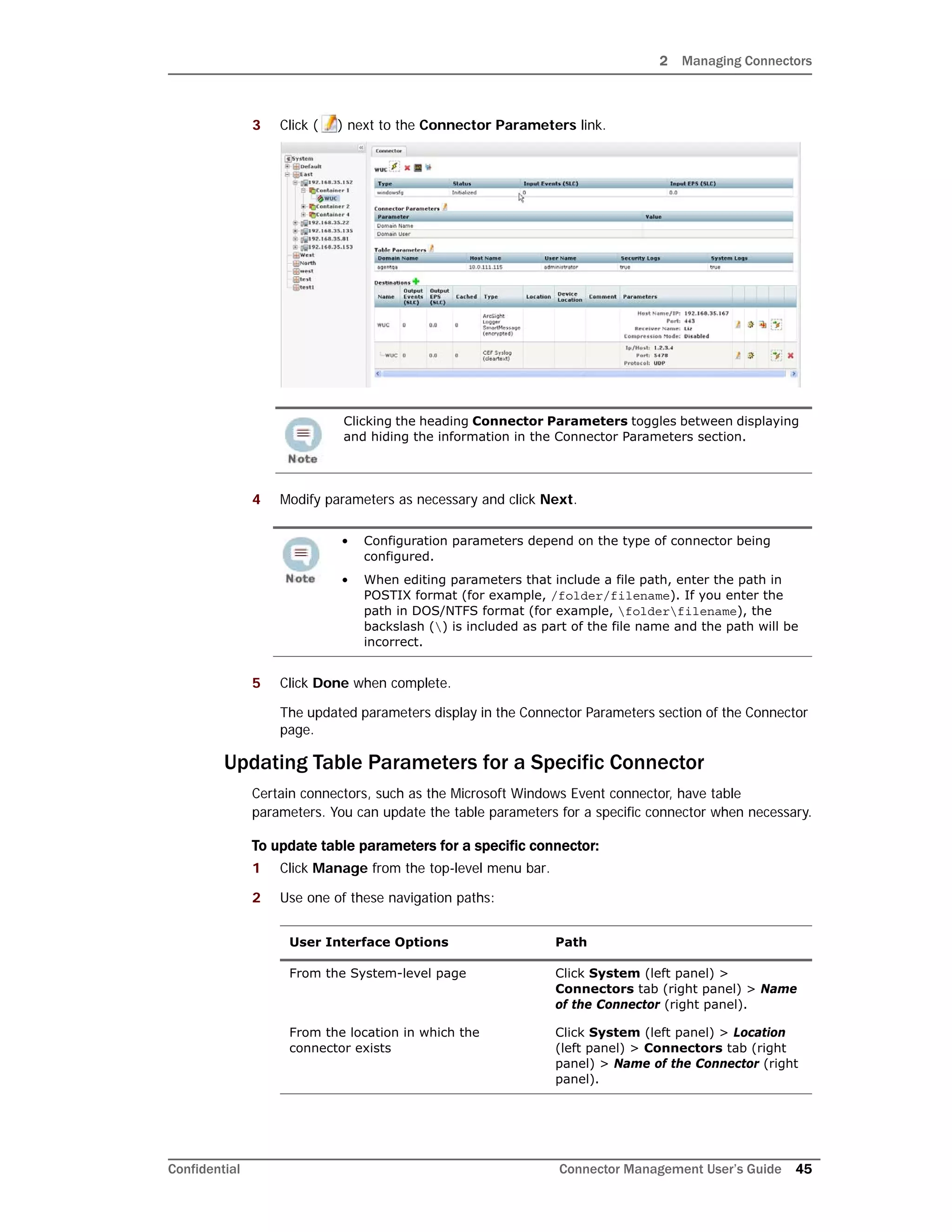
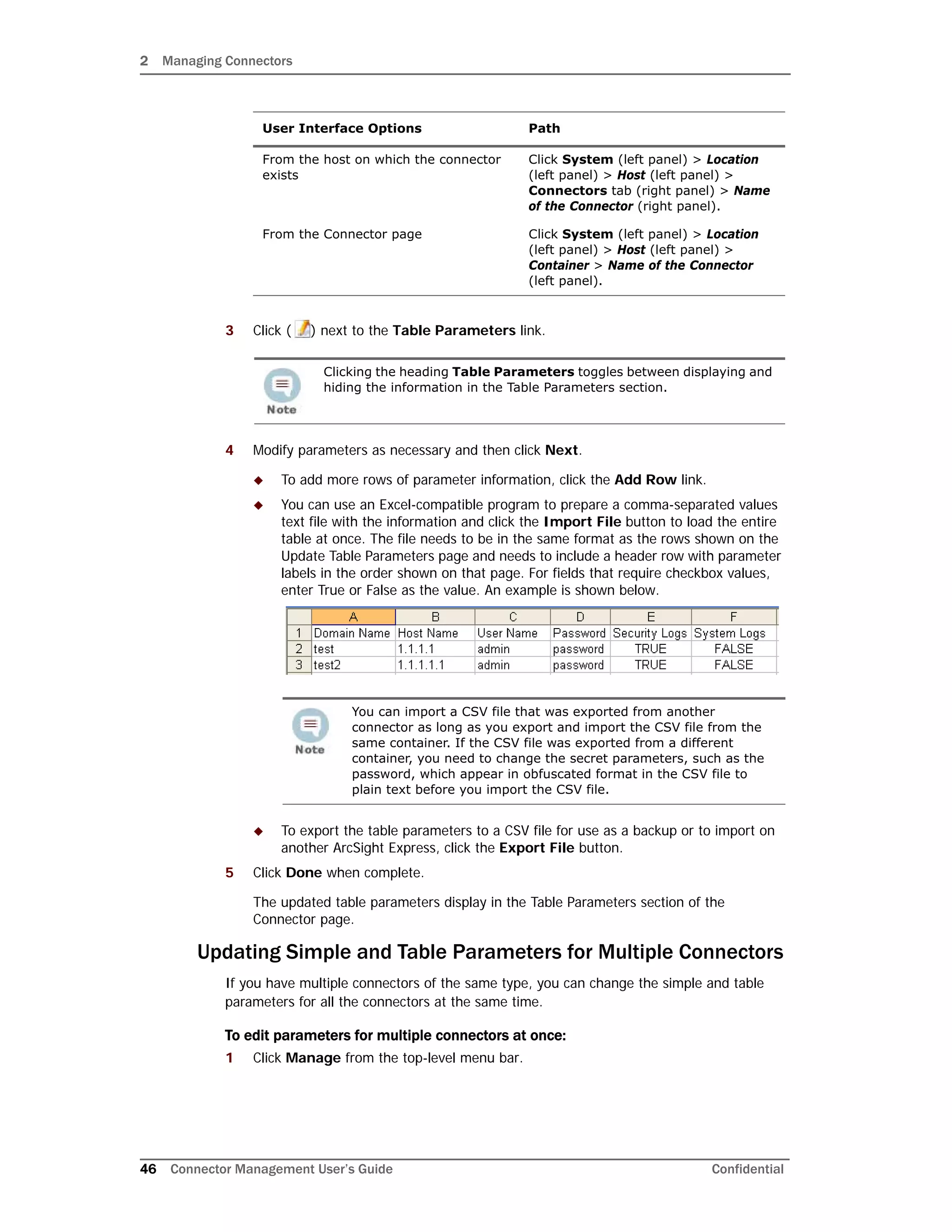
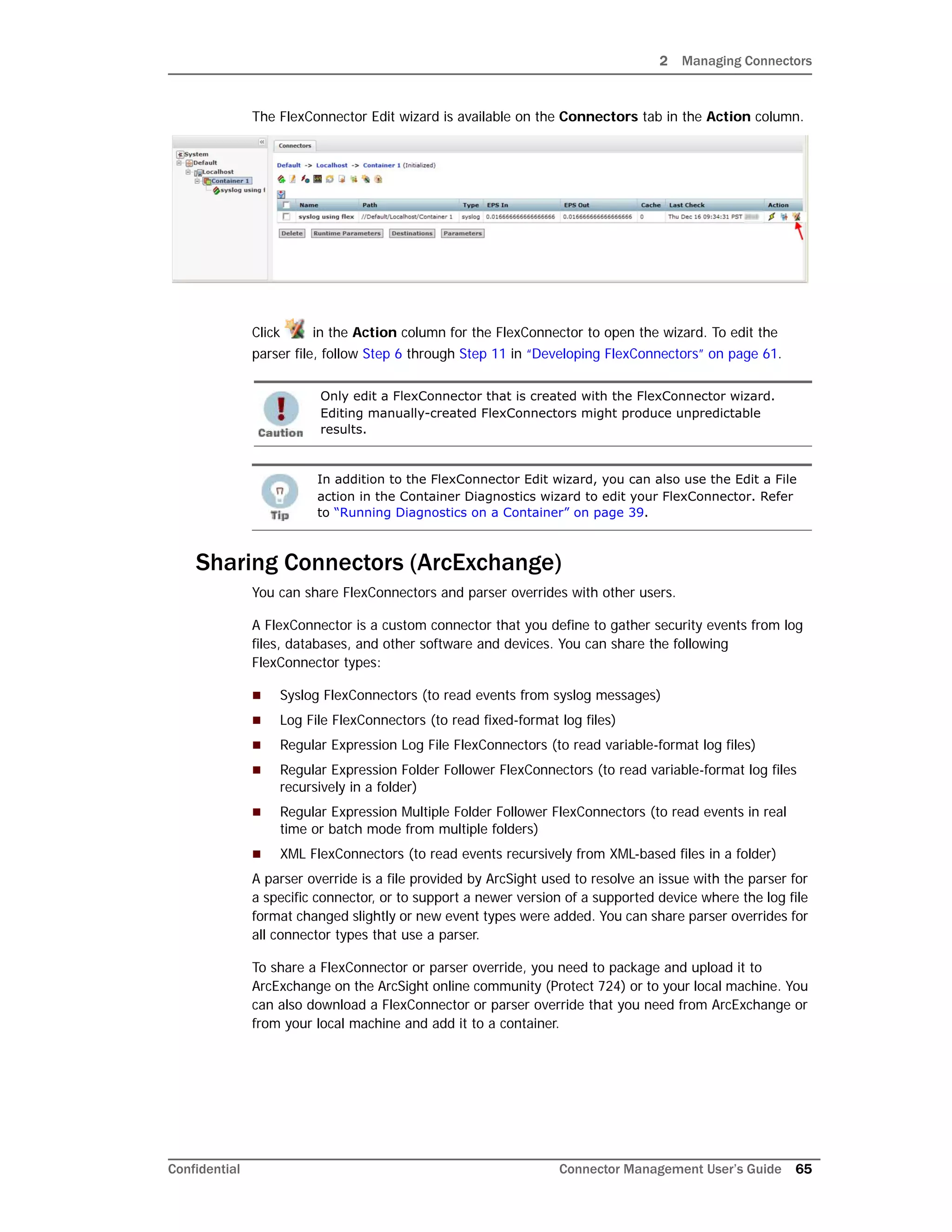
ArcSight Connector Management
ArcSight Express 4.0
with CORR-Engine
February 22, 2013
Copyright © 2013 Hewlett-Packard Development Company, L.P.
Confidential computer software. Valid license from HP required for possession, use or copying. Consistent
with FAR 12.211 and 12.212, Commercial Computer Software, Computer Software Documentation, and
Technical Data for Commercial Items are licensed to the U.S. Government under vendor's standard
commercial license.
The information contained herein is subject to change without notice. The only warranties for HP products
and services are set forth in the express warranty statements accompanying such products and services.
Nothing herein should be construed as constituting an additional warranty. HP shall not be liable for
technical or editorial errors or omissions contained herein.
Follow this link to see a complete statement of copyrights and acknowledgements:
http://www.hpenterprisesecurity.com/copyright
The network information used in the examples in this document (including IP addresses and hostnames) is
for illustration purposes only.
This document is confidential.
Contact Information
Revision History
Phone A list of phone numbers is available on the HP ArcSight Technical
Support page: http://www8.hp.com/us/en/software-
solutions/software.html?compURI=1345981#.URitMaVwpWI.
Support Web Site http://support.openview.hp.com
Protect 724 Community https://protect724.arcsight.com
Date Product Version Description
February 22,
2013
ArcSight Express 4.0 Connector Management module for ArcSight
Express.
Confidential Connector Management User’s Guide 3
Contents
Chapter 1: Overview ........................................................................................................... 7
Connector Management Overview ...................................................................................... 7
Connector Management on ArcSight Express ....................................................................... 7
Groups and Permissions ................................................................................................... 8
Chapter 2: Managing Connectors ........................................................................................ 9
Connector Overview ........................................................................................................ 9
Navigating the Manage Menu .......................................................................................... 10
Locations ..................................................................................................................... 11
Viewing All Locations ............................................................................................... 12
Viewing Hosts, Containers, and Connectors in a Location .............................................. 12
Adding a Location ................................................................................................... 12
Exporting and Importing a Remote Management Configuration ...................................... 13
Adding Locations and Hosts from a File ...................................................................... 14
Editing a Location ................................................................................................... 15
Deleting a Location .................................................................................................. 15
Adding Hosts to a Location ....................................................................................... 15
Hosts ........................................................................................................................... 15
Viewing All Hosts .................................................................................................... 15
Viewing Containers and Connectors on a Host ............................................................. 16
Adding a Host ......................................................................................................... 16
To add a host: .................................................................................................. 17
Scanning a Software-Type Host ................................................................................ 19
Deleting a Host ....................................................................................................... 20
Moving a Host to a Different Location ......................................................................... 20
Editing a Host ......................................................................................................... 21
Upgrading a Host Remotely ...................................................................................... 21
Adding a Container to a Host .................................................................................... 21
Containers ................................................................................................................... 21
Viewing All Containers ............................................................................................. 22
Viewing Connectors in a Container ............................................................................ 22
Adding a Container .................................................................................................. 23
Adding a Connector to a Container ............................................................................ 23
Editing a Container .................................................................................................. 23
Contents
4 Connector Management User’s Guide Confidential
Deleting a Container ................................................................................................ 24
Updating Container Properties .................................................................................. 25
Changing Container Credentials ................................................................................ 25
Enabling and Disabling FIPS on a Container ................................................................ 27
Enabling FIPS Suite B on a Container ................................................................... 28
Managing Certificates on a Container ......................................................................... 28
Adding CA Certificates on a Container .................................................................. 29
Removing CA Certificates from a Container .......................................................... 30
Adding a CA Certs File to a Container .................................................................. 31
Enabling or Disabling a Demo Certificate on a Container ......................................... 32
Adding Multiple Destination Certificates to a Container ........................................... 33
Viewing Certificates on a Container ..................................................................... 34
Resolving Invalid Certificate Errors ...................................................................... 35
Running a Command on a Container .......................................................................... 36
Upgrading a Container to a Specific Connector Version ................................................. 36
Viewing Container Logs ............................................................................................ 37
Deleting Container Logs ........................................................................................... 38
Running Logfu on a Container ................................................................................... 38
Running Diagnostics on a Container ........................................................................... 39
Connectors ................................................................................................................... 40
Viewing all Connectors ............................................................................................. 40
Adding a Connector ................................................................................................. 41
Editing Connector Parameters ................................................................................... 44
Updating Simple Parameters for a Specific Connector ............................................ 44
Updating Table Parameters for a Specific Connector .............................................. 45
Updating Simple and Table Parameters for Multiple Connectors ............................... 46
Managing Destinations ............................................................................................. 47
Adding a Primary Destination to a Specific Connector ............................................ 48
Adding a Failover Destination to a Specific Connector ............................................ 49
Adding a Primary or Failover Destination to Multiple Connectors .............................. 50
Removing Destinations ...................................................................................... 52
Re-Registering Destinations ............................................................................... 53
Editing Destination Parameters ........................................................................... 53
Editing Destination Runtime Parameters .............................................................. 55
Managing Alternate Configurations ...................................................................... 56
Sending a Command to a Destination .................................................................. 58
Removing a Connector ............................................................................................. 59
Sending a Command to a Connector .......................................................................... 60
Running Logfu on a Connector .................................................................................. 60
Changing the Network Interface Address for Events ..................................................... 61
Developing FlexConnectors ....................................................................................... 61
Editing FlexConnectors ............................................................................................ 64
Sharing Connectors (ArcExchange) ............................................................................ 65
Contents
Confidential Connector Management User’s Guide 5
Packaging and Uploading Connectors ................................................................... 66
Downloading Connectors .................................................................................... 68
Configuration Suggestions for Connector Types ................................................................. 70
Deploying FlexConnectors ........................................................................................ 70
Configuring the Check Point OPSEC NG Connector ....................................................... 71
Adding the MS SQL Server JDBC Driver ...................................................................... 73
Adding the MySQL JDBC Driver ................................................................................. 74
Chapter 3: Managing Repositories .................................................................................... 75
Overview ..................................................................................................................... 75
Logs Repository ............................................................................................................ 76
Uploading a File to the Logs Repository ...................................................................... 77
CA Certs Repository ....................................................................................................... 77
Uploading CA Certificates to the Repository ................................................................ 78
Removing CA Certificates from the Repository ............................................................. 78
UpgradeAUP Repository ................................................................................................. 78
About the AUP Upgrade Process ................................................................................ 79
Uploading an AUP Upgrade File to the Repository ........................................................ 79
Removing a Connector Upgrade from the Repository .................................................... 79
Content AUP Repository ................................................................................................. 80
Applying a New Content AUP .................................................................................... 80
Applying an Older Content AUP ................................................................................. 81
Remote Management AUP Repository ............................................................................... 81
Downloading Remote Management AUP Files .............................................................. 81
Uploading Remote Management AUP Files .................................................................. 82
Deleting Remote Management AUP Files ..................................................................... 82
Emergency Restore ....................................................................................................... 82
User-Defined Repositories .............................................................................................. 83
Creating a User-Defined Repository ........................................................................... 83
Retrieving Container Files ......................................................................................... 84
Uploading Files to a Repository ................................................................................. 85
Deleting a Repository .............................................................................................. 85
Updating Repository Settings .................................................................................... 86
Managing Files in a Repository .................................................................................. 86
Retrieving a File from the Repository ................................................................... 86
Uploading a File from the Repository ................................................................... 87
Pre-Defined Repositories ................................................................................................ 87
Settings for Backup Files .......................................................................................... 88
Settings for Map Files .............................................................................................. 88
Settings for Parser Overrides .................................................................................... 89
Settings for FlexConnector Files ................................................................................ 89
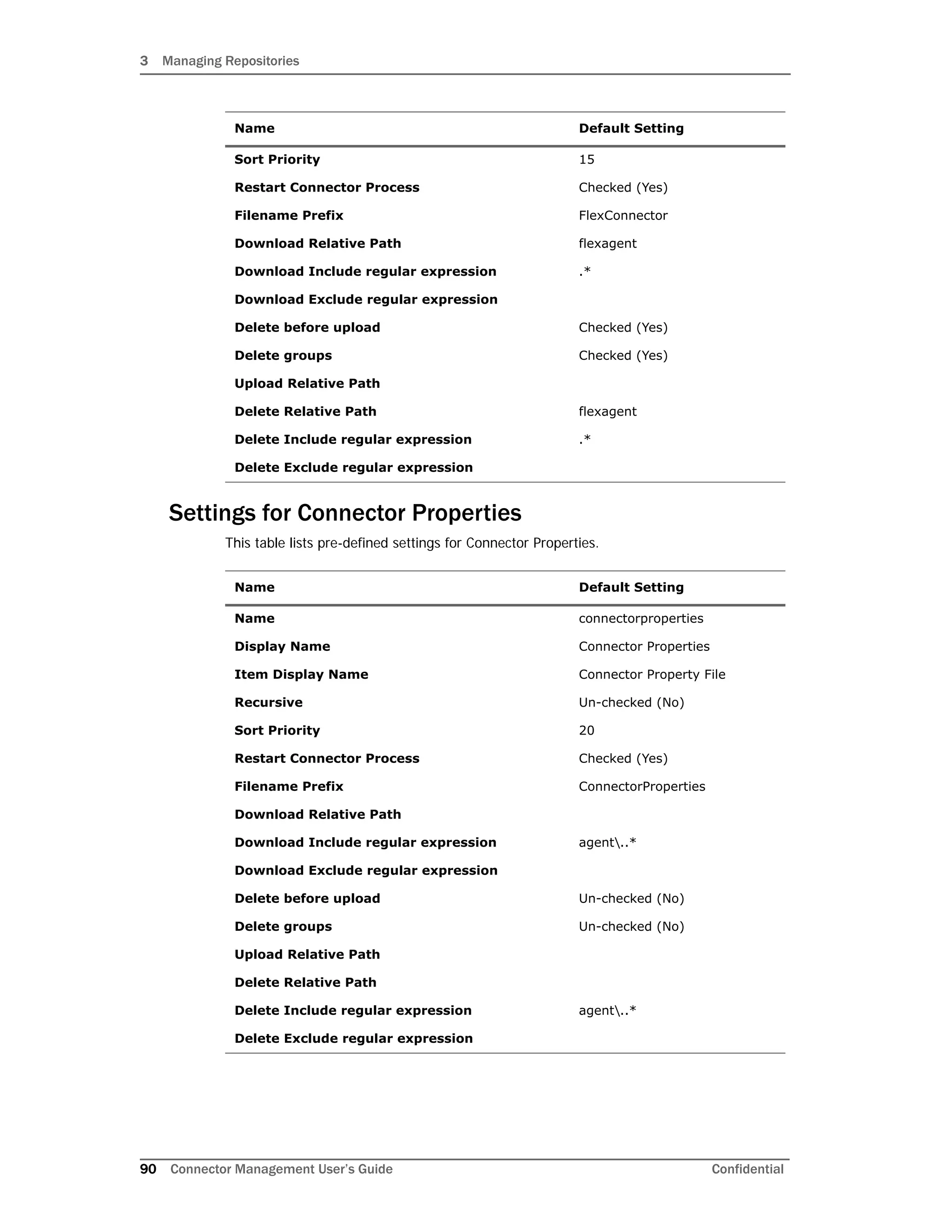
Settings for Connector Properties .............................................................................. 90
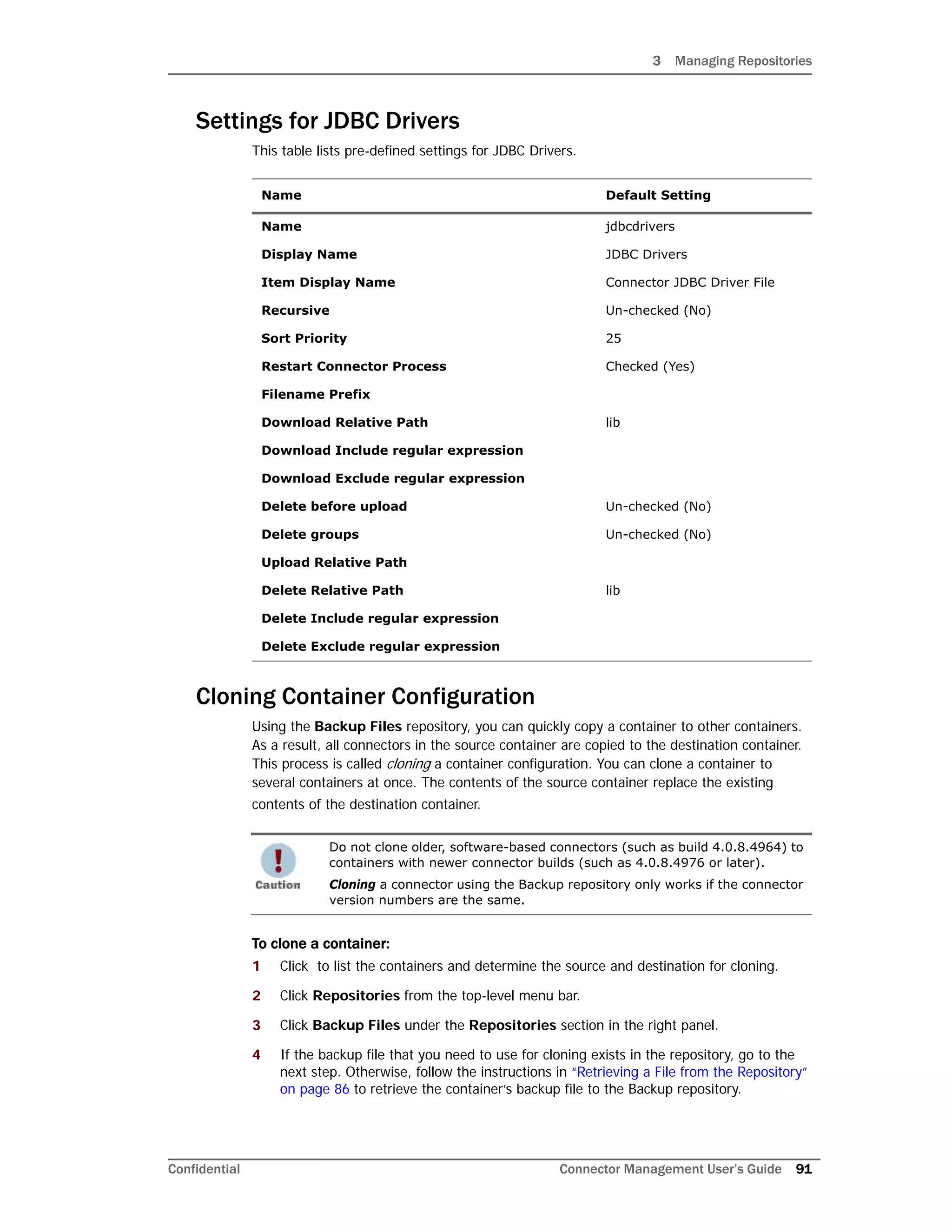
Settings for JDBC Drivers ......................................................................................... 91
Contents
6 Connector Management User’s Guide Confidential
Cloning Container Configuration ................................................................................ 91
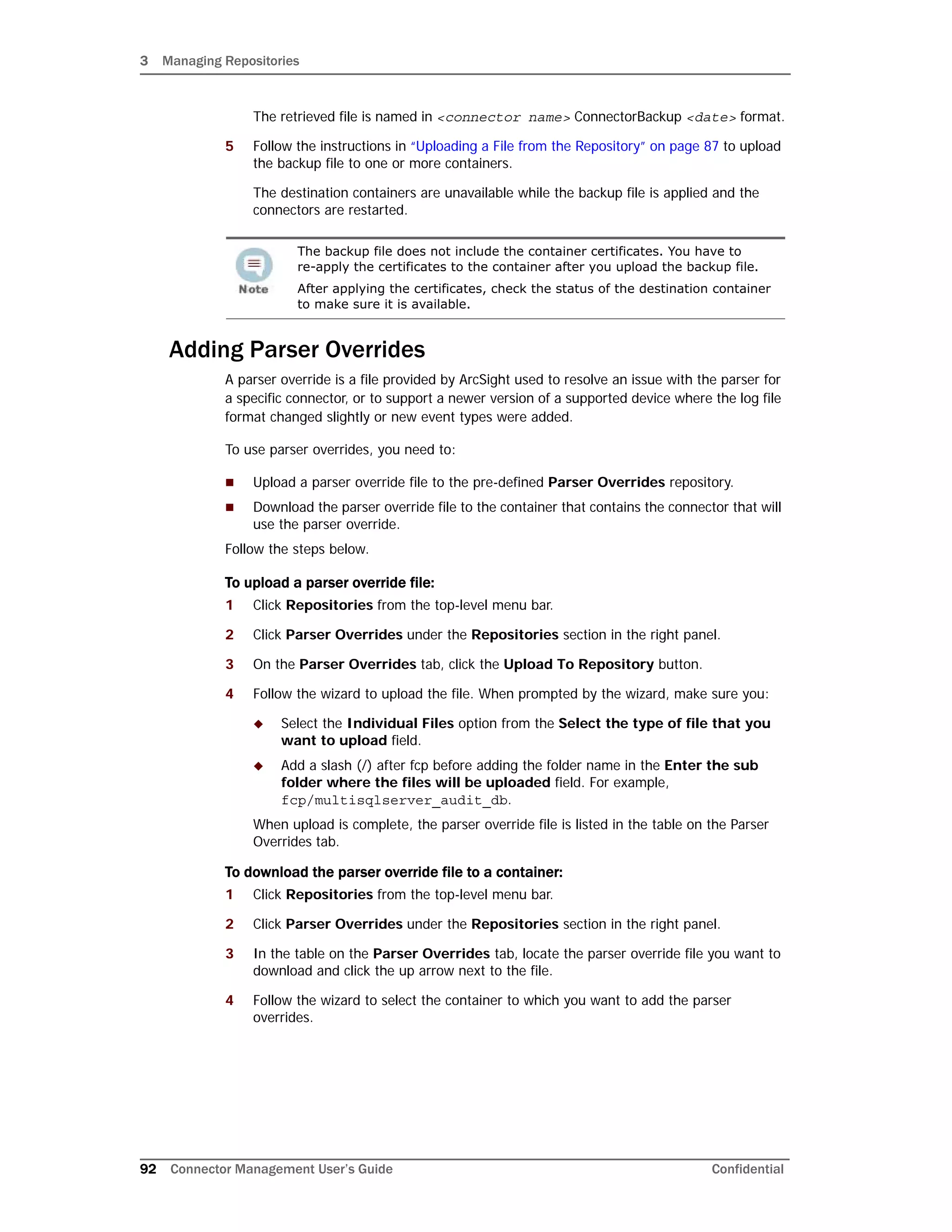
Adding Parser Overrides ........................................................................................... 92
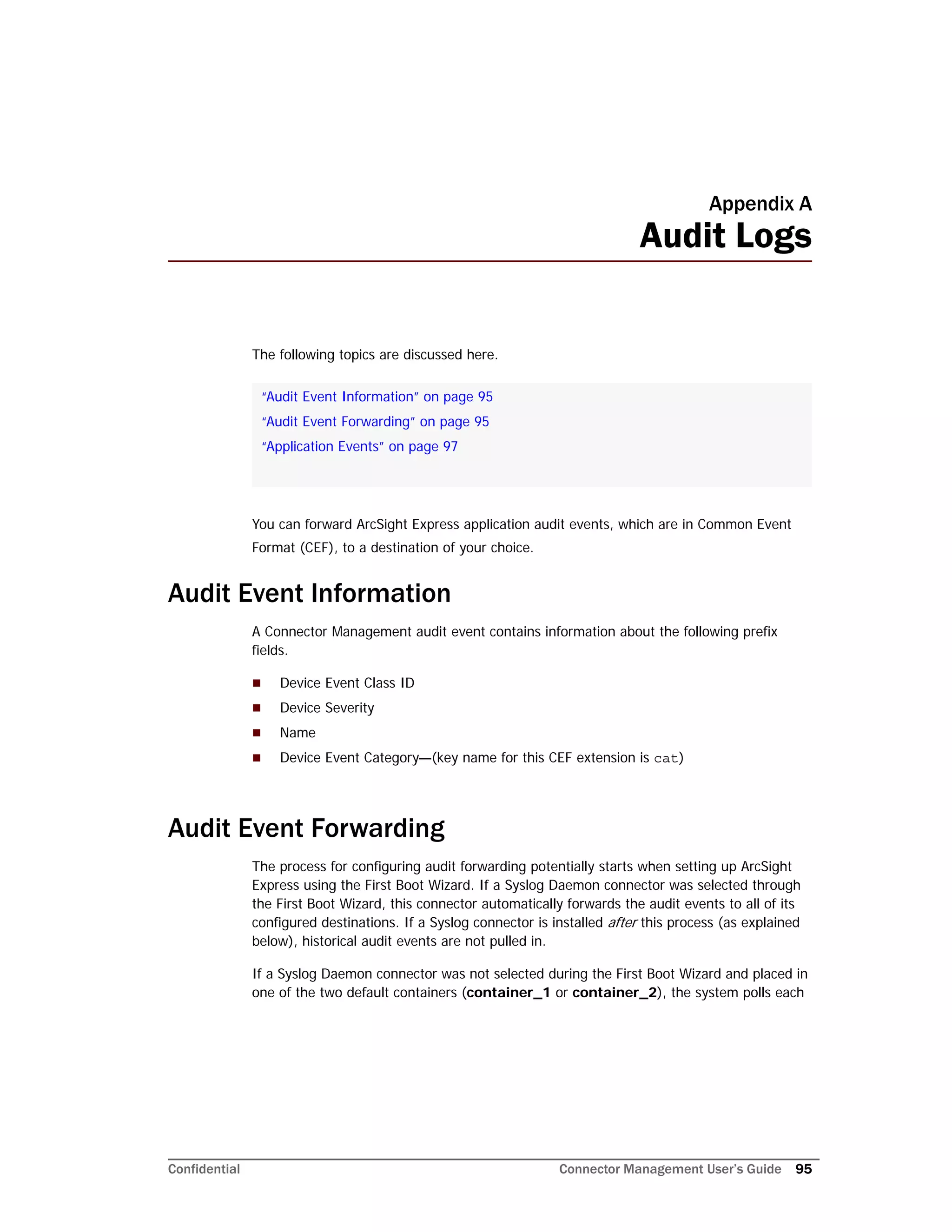
Appendix A: Audit Logs ..................................................................................................... 95
Audit Event Information ................................................................................................. 95
Audit Event Forwarding .................................................................................................. 95
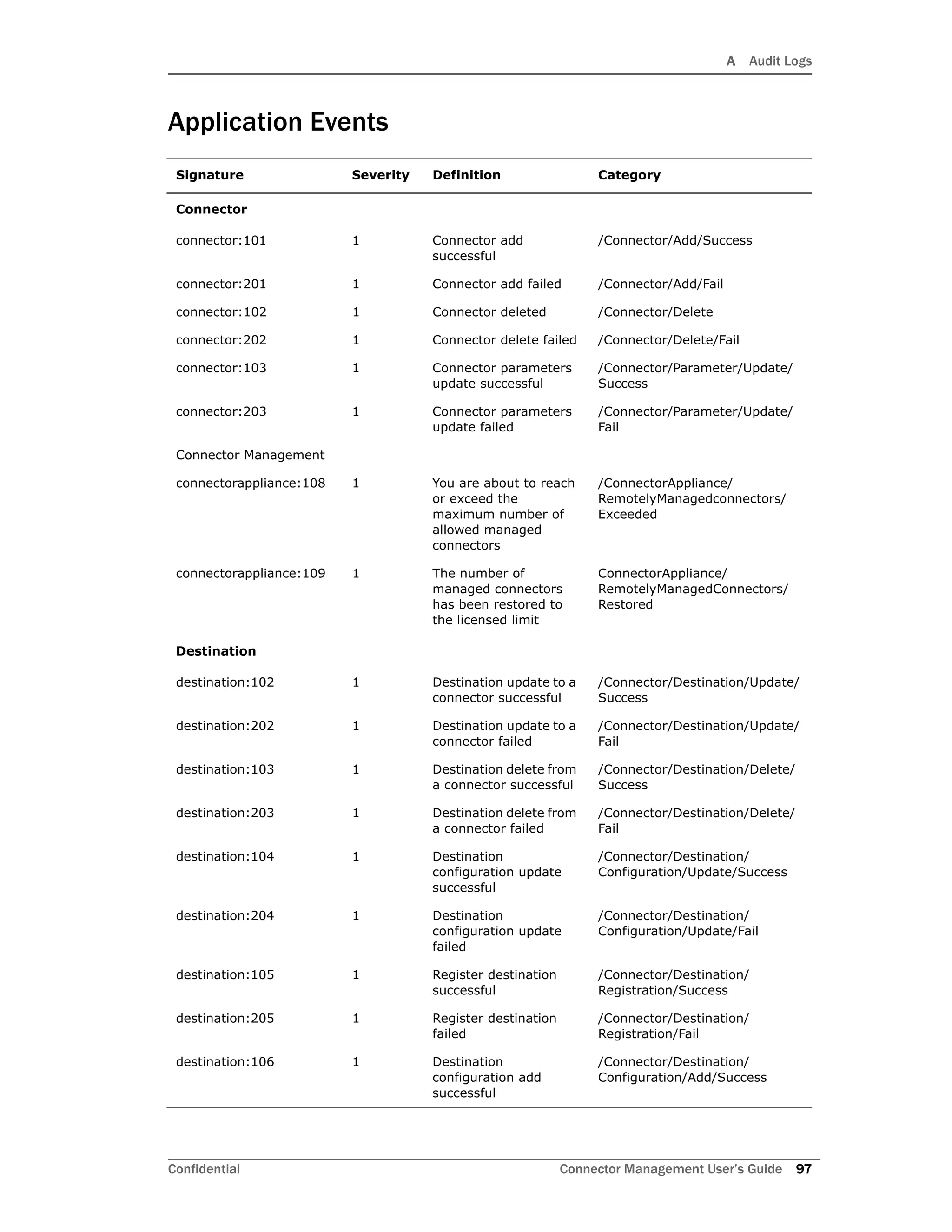
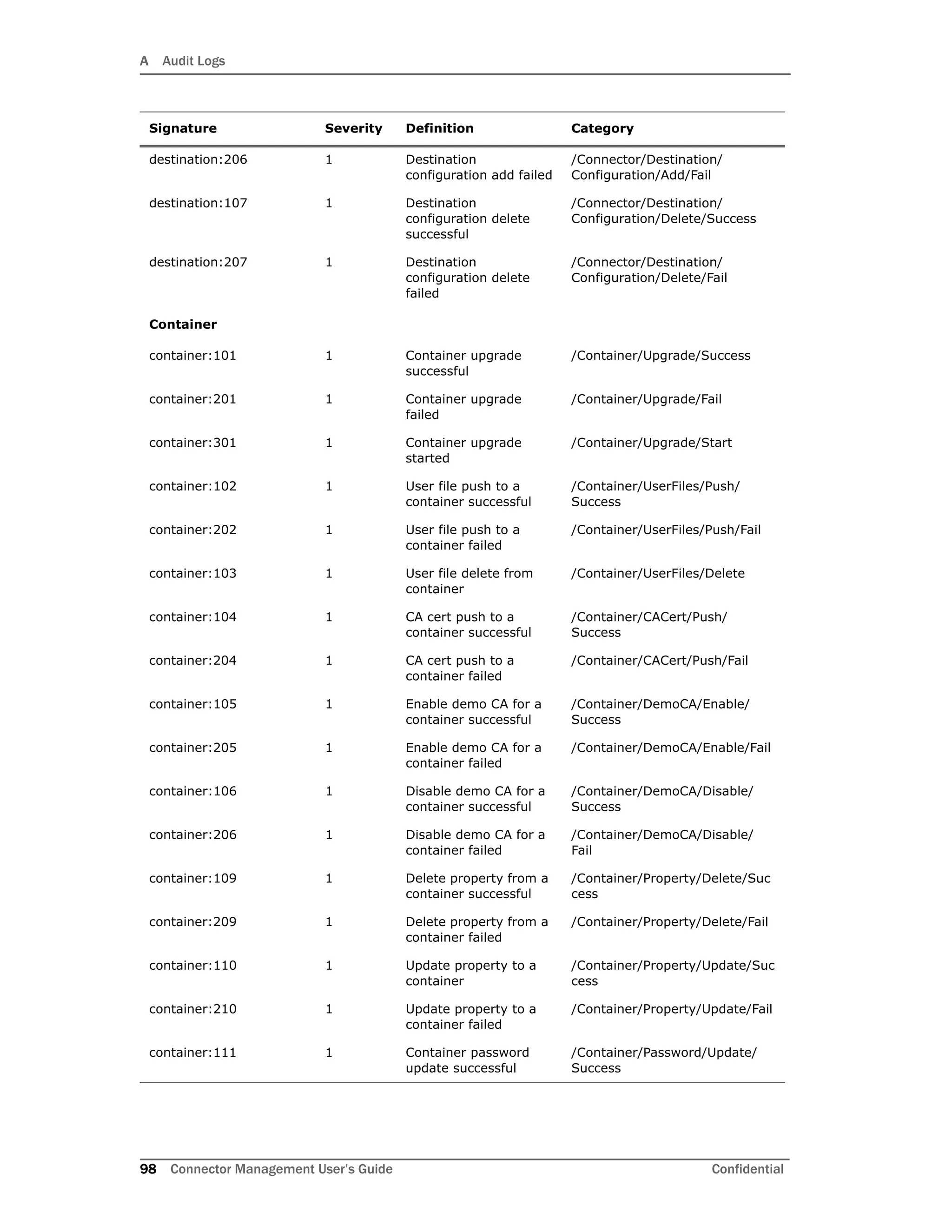
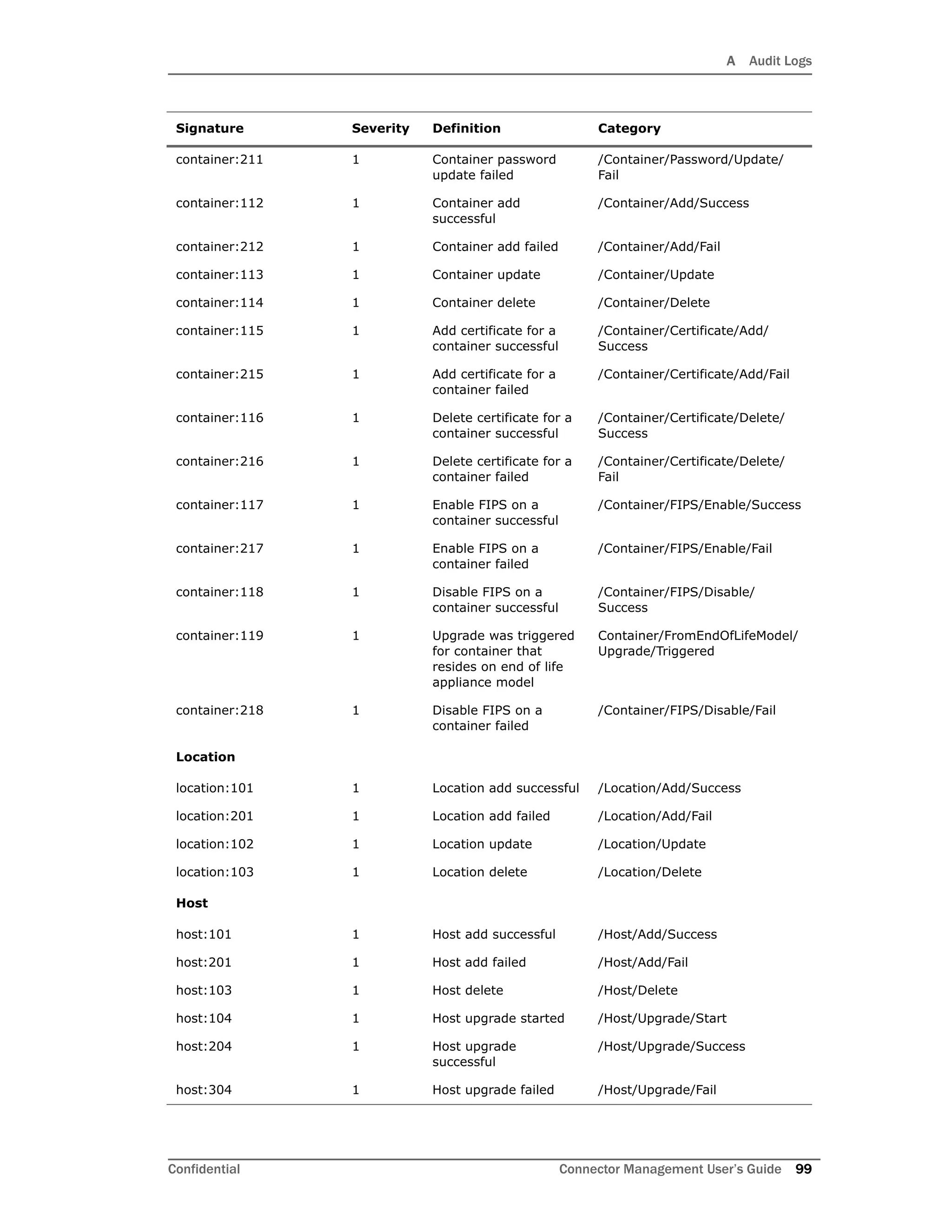
Application Events ......................................................................................................... 97
Appendix B: Special Configurations ................................................................................ 101
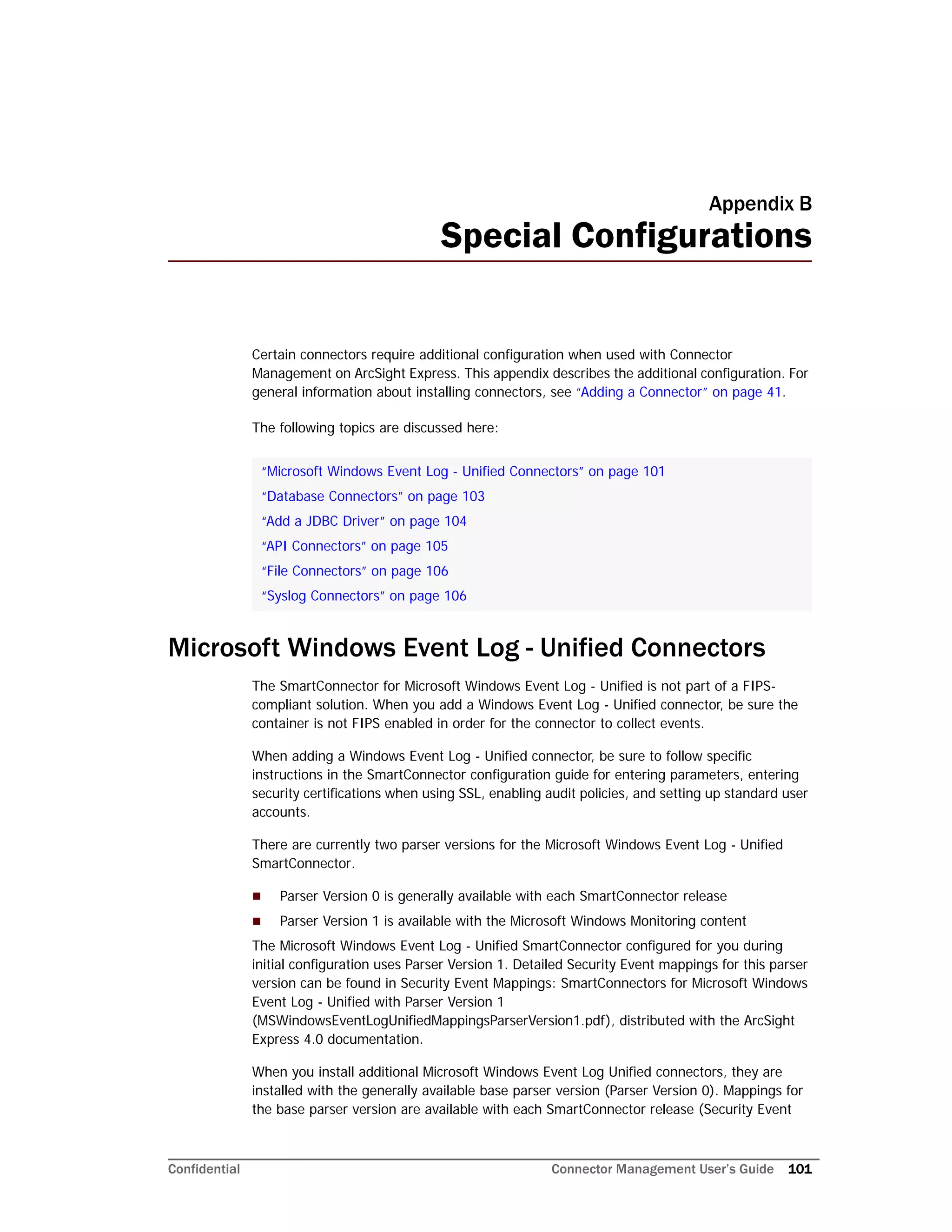
Microsoft Windows Event Log - Unified Connectors ............................................................101
Change Parser Version by Updating Container Properties .............................................102
SSL Authentication .................................................................................................103
Database Connectors ....................................................................................................103
Add a JDBC Driver ........................................................................................................104
API Connectors ............................................................................................................105
File Connectors ............................................................................................................106
Syslog Connectors ........................................................................................................106
Confidential Connector Management User’s Guide 7
Chapter 1
Overview
The following topics are covered here:
Connector Management Overview
The Connector Management feature allows management and configuration of connectors
available on the ArcSight Express appliance, on other ArcSight Connector Appliance
systems, or any software-based SmartConnectors running on remote machines in your
network.
Connectors are ArcSight software components that forward events from a wide variety of
devices and security event sources to ArcSight Express, and other ArcSight event collection
systems.
With Connector Management’s web-based user interface, you can:
 Configure, monitor, tune, and update connectors
 Perform bulk operations across all managed connectors
The ArcSight Express appliance comes pre-configured with two connectors you set up with
the First Boot Wizard: The Syslog Daemon and the Windows Unified Event Log
connectors. If you chose to skip the First Boot Wizard process, you can add connectors at a
later time. For instructions on adding connectors, see “Adding a Connector” on page 41.
There are certain connectors that require additional configuration when used with
Connector Management on ArcSight Express. For detailed instructions concerning these
connectors, see Appendix B‚ Special Configurations‚ on page 101.
Connector Management on ArcSight Express
Connector Management is one module in the ArcSight Express suite of products. The initial
view of Connector Management is from the Manage tab, which enables you to configure
and organize your connectors. For detailed instructions on working within the Manage
page, see “Navigating the Manage Menu” on page 10.
“Connector Management Overview” on page 7
“Connector Management on ArcSight Express” on page 7
“Groups and Permissions” on page 8
1 Overview
8 Connector Management User’s Guide Confidential
Groups and Permissions
If you wish to retain or change the group rights and permissions set for Connector
Management users, see the chapter titled “Editing Access Control Lists (ACLs)” in the
ArcSight Console User’s Guide.
Confidential Connector Management User’s Guide 9
Chapter 2
Managing Connectors
The following topics are discussed here.
Connector Overview
You can manage the configuration of the following types of connectors:
 Local (on-board) connectors: If present on the form factor you are using. For
example, you can install and manage local connectors on Connector Appliance
(hardware form factor), Logger appliance, and ArcSight Express appliance.
 Remote connectors: These connectors are either installed on Windows, Unix, Linux
systems on your network, or present as local connectors on a remote Connector
Appliance, Logger appliance, or Arcsight Express appliance.
A connector configuration consists of properties such as name and type, and a set of
parameters that customize how the connector works in a specific environment. Parameters
vary based on the type of connector; for example, a connector for a firewall has different
parameters than a connector that reads an intrusion detection system database.
Connectors operate within containers. Each container runs its own Java Virtual Machine
(JVM). Your maximum number on containers depends on your ArcSight Express license
agreement.
You can manage connectors of many types, including the following:
 File Connectors
 Database Connectors
 Scanner Connectors
 SNMP Connectors
 Syslog Connectors
 SNMP Connectors
“Connector Overview” on page 9
“Navigating the Manage Menu” on page 10
“Locations” on page 11
“Hosts” on page 15
“Containers” on page 21
“Connectors” on page 40
“Configuration Suggestions for Connector Types” on page 70
2 Managing Connectors
10 Connector Management User’s Guide Confidential
Individual software-based connectors are described in ArcSight documents specific to those
connectors, including the connector-specific configuration guides available with each
connector. You can also find general connector information in the SmartConnector User’s
Guide. All of these documents are available from the Protect 724 Community site
(https://protect724.arcsight.com/index.jspa).
There are certain connectors that require special configuration when used with Connector
Management on ArcSight Express. For more information, see Appendix B‚ Special
Configurations‚ on page 101.
Navigating the Manage Menu
The Manage menu enables you to configure and organize connectors. This section
describes the user interface elements and explains how to use them effectively.
Figure 2-1 Managing Connectors
The Connector tree (the left panel of the window shown in Figure 2-1) organizes
connectors into a hierarchy as follows:
Each connector you manage belongs to a container; each container belongs to a host; each
host belongs to a location; and, all locations belong to root of the System.
The connectors you manage are configured to automatically run as
services.
2 Managing Connectors
Confidential Connector Management User’s Guide 11
When you click on an upper-level user interface element in the left panel, the interface
displays elements lower in the hierarchy to it on the right panel. You can also perform
management operations on the elements displayed on the right side.
For example, System provides the root (top-level) view. When you click System, all
configured locations are listed in the left panel, as well as under the Locations tab in the
right panel. You can perform various management tasks, such as editing, deleting, or
adding a host, on those locations. In addition, all hosts, containers, and connectors on this
system are displayed in specific tabs in the right panel. Click the Hosts tab to view all hosts
on the system, and click Containers and Connectors to view the respective elements
and perform management operations on them. Similarly, if you select a host (from the left
panel), all containers and connectors configured on that host are displayed on the right
panel, as shown in the following figure.
On any user interface, you can perform three kinds of operations:
 A global operation—Listed on top of a user interface page; for example, you can
upload a CSV file of locations.
 A localized operation—An operation on a single element displayed on the user
interface page; for example, you can add a connector to a container by clicking the
icon in the Action column in the container’s row.
 A bulk operation—A single operation performed on multiple elements on the user
interface page; for example, you can upgrade multiple containers by selecting the
containers (click the box to the left of the container to select it) and clicking Upgrade
at the bottom of the page.
Locations
Location is a logical grouping of hosts. The grouping can be based on any suitable
abstraction—geographical, organizational, and so on. For example, you can group all hosts
in New York separately from hosts in San Francisco and label them as such. Similarly, you
can group a few machines under “Sales” and others under “Marketing”.
When a container is down or a host is unreachable, the system waits for it
to come online. There might be a delay of several minutes before the
connector tree (in the left panel) and the Container tab (in the right panel)
display.
• The icon refreshes a UI screen. This icon is available on the UI pages
when relevant.
• Click the column filter icon ( ) to display drop down lists of values on
which to filter each table column. Click the check box in the table header
to check or uncheck all check boxes in a single column.
• When processing user provided data, Connector Management wizards
“escape” some HTML-specific characters. Any other entered characters
are not “escaped” (or validated) and are used as entered.
2 Managing Connectors
12 Connector Management User’s Guide Confidential
A location can contain any number of hosts. A Default location is provided on a new
appliance by default.
You can view all locations on the system and view hosts, containers, and connectors in a
location. You can add, edit, and delete a location. You can also add hosts to a location. All
these procedures are described below.
Viewing All Locations
You can see all the locations that exist on the system.
To view all locations:
1 Click Manage from the top-level menu bar.
2 Click System in the left panel.
All existing locations display on the Locations tab in the right panel.
Viewing Hosts, Containers, and Connectors in a Location
You can see all the hosts, containers, and connectors that exist in a location.
To view hosts, containers, and connectors in a location:
1 Click Manage from the top-level menu bar.
2 Click the location (listed under System) from the left panel.
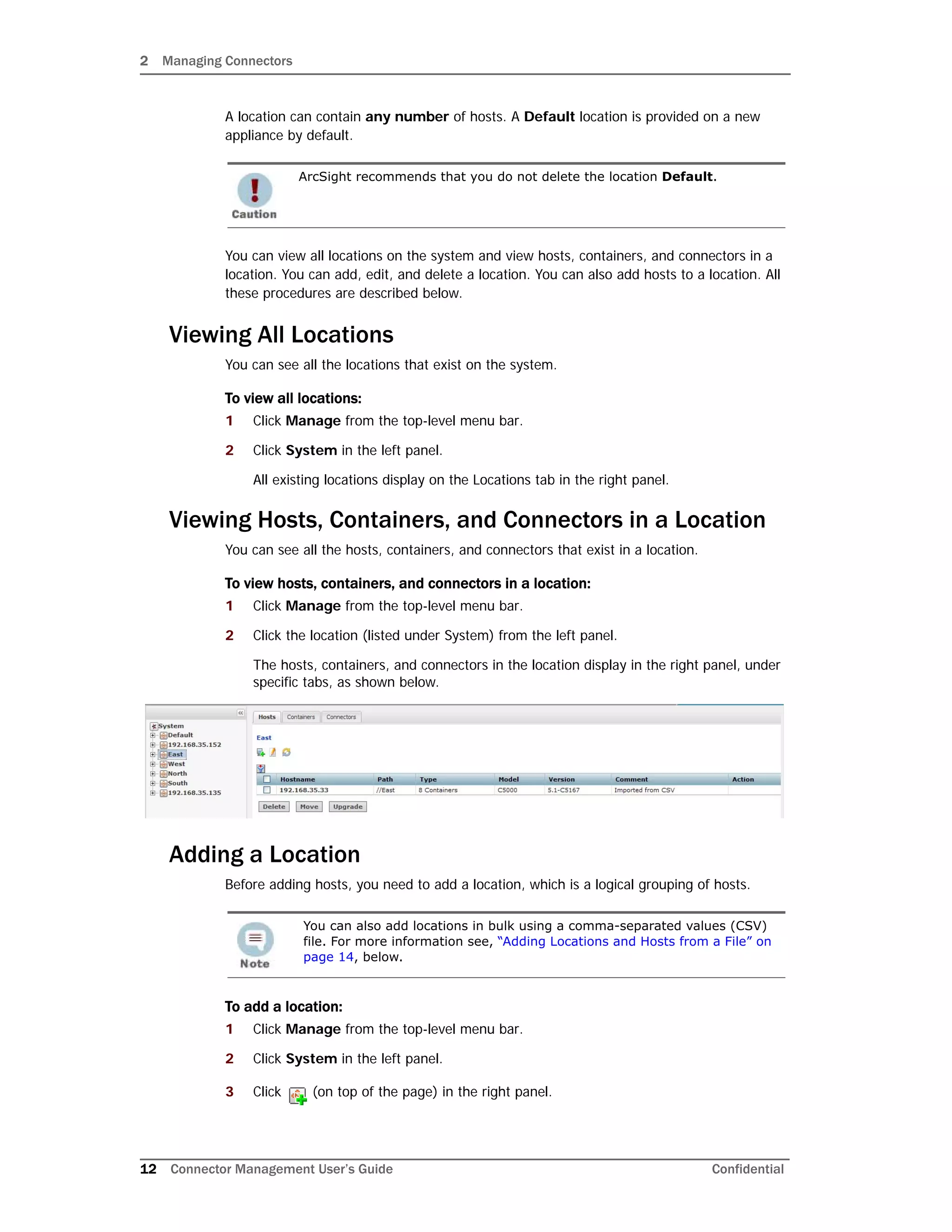
The hosts, containers, and connectors in the location display in the right panel, under
specific tabs, as shown below.
Adding a Location
Before adding hosts, you need to add a location, which is a logical grouping of hosts.
To add a location:
1 Click Manage from the top-level menu bar.
2 Click System in the left panel.
3 Click (on top of the page) in the right panel.
ArcSight recommends that you do not delete the location Default.
You can also add locations in bulk using a comma-separated values (CSV)
file. For more information see, “Adding Locations and Hosts from a File” on
page 14, below.
2 Managing Connectors
Confidential Connector Management User’s Guide 13
4 Enter the name of the new location and click Next.
5 Click Done.
Exporting and Importing a Remote Management
Configuration
You can create a backup of your complete remote management configuration settings on
Connector Management module, all remote software connectors, or any remote appliances
that are managed by the system—then import the configuration onto another or Connector
Management module of another ArcSight Express.
The remote management configuration is saved in AUP format in the Remote Management
AUP repository so you can download it to your local computer.
You cannot manage the same connectors using two appliances at the same time. Before
importing the remote management configuration to another Connector Management
module of ArcSight Express, you need to shut down the appliance from which you exported
the configuration.
To export the remote management configuration:
1 Click Manage from the top-level menu bar.
2 Click System in the left panel.
3 Click (on top of the page) in the right panel.
4 Follow the instructions in the Export Remotely Managed Host Wizard to export
the configuration. The remote host configuration is saved in AUP format in the Remote
Management AUP repository.
After you export the remote management configuration, you need to download it to your
local computer from the Remote Management AUP repository.
After you have exported the remote management configuration and have downloaded it to
your local computer, you can import the configuration to another appliance.
To import the remote management configuration:
1 On the appliance where you want to copy the remote management configuration, click
Manage from the top-level menu bar.
2 Click System in the left panel.
3 Click (on top of the page) in the right panel.
You can import the remote management configuration only on the same
appliance model as the one from which the configuration has been exported.
Importing the remote management configuration overwrites the current
remote management configuration on the appliance.
2 Managing Connectors
14 Connector Management User’s Guide Confidential
4 Follow the instructions in the wizard. When selecting the type of upload, choose Full
remote management (AUP format).
Adding Locations and Hosts from a File
To add hosts (and consequently, containers and connectors) in bulk, you can use a
comma-separated values (CSV) file. When you add a host, the containers (and connectors)
on the system are scanned automatically and the CA certificates from the containers that
reside on the host are retrieved. You can manage the containers on the hosts only if it can
authenticate using the certificates and the credentials. When the certificates are retrieved,
you are prompted to import them.
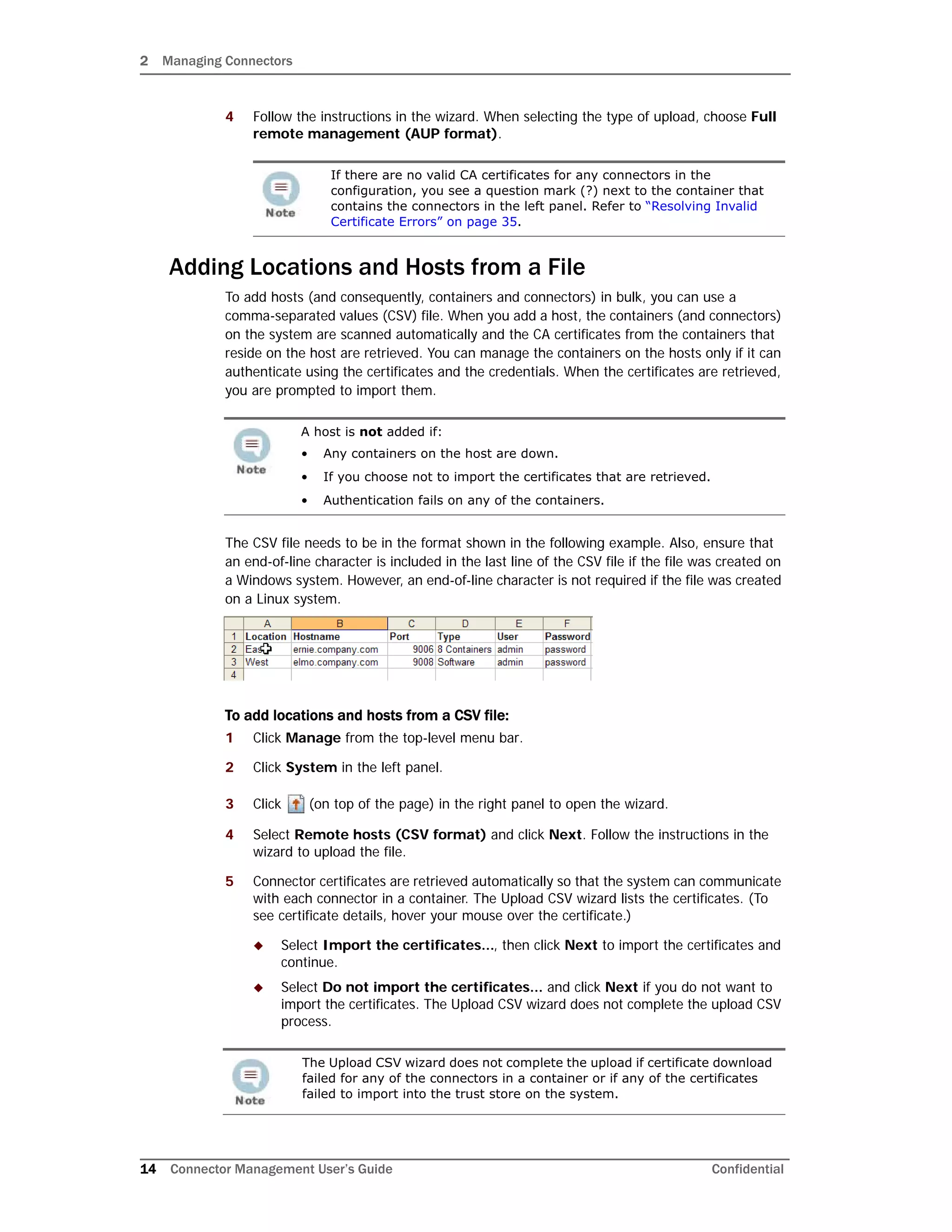
The CSV file needs to be in the format shown in the following example. Also, ensure that
an end-of-line character is included in the last line of the CSV file if the file was created on
a Windows system. However, an end-of-line character is not required if the file was created
on a Linux system.
To add locations and hosts from a CSV file:
1 Click Manage from the top-level menu bar.
2 Click System in the left panel.
3 Click (on top of the page) in the right panel to open the wizard.
4 Select Remote hosts (CSV format) and click Next. Follow the instructions in the
wizard to upload the file.
5 Connector certificates are retrieved automatically so that the system can communicate
with each connector in a container. The Upload CSV wizard lists the certificates. (To
see certificate details, hover your mouse over the certificate.)
 Select Import the certificates..., then click Next to import the certificates and
continue.
 Select Do not import the certificates... and click Next if you do not want to
import the certificates. The Upload CSV wizard does not complete the upload CSV
process.
If there are no valid CA certificates for any connectors in the
configuration, you see a question mark (?) next to the container that
contains the connectors in the left panel. Refer to “Resolving Invalid
Certificate Errors” on page 35.
A host is not added if:
• Any containers on the host are down.
• If you choose not to import the certificates that are retrieved.
• Authentication fails on any of the containers.
The Upload CSV wizard does not complete the upload if certificate download
failed for any of the connectors in a container or if any of the certificates
failed to import into the trust store on the system.
2 Managing Connectors
Confidential Connector Management User’s Guide 15
Editing a Location
You can edit the name of a location from the System-level page or from a specific Location
page.
To edit a location:
1 Click Manage from the top-level menu bar.
2 From the System-level page:
Click System (left panel) > Locations tab (right panel) > in the Action column.
From a specific Location page:
Click System (left panel) > Location > (on top of the page, in the right panel).
3 Enter the new name of the location and click Next.
4 Click Done.
Deleting a Location
When you delete a location, the hosts, containers, and connectors that it contains are also
deleted.
To delete a location:
1 Click Manage from the top-level menu bar.
2 Click System in the left panel.
3 Select the location you want to delete. You can select multiple locations.
4 Click Delete at the bottom of the page, in the right panel.
Adding Hosts to a Location
See “Adding a Host” on page 16.
Hosts
A host is a computer on a network, associated with an IP address, on which connectors are
installed. A host can be of three types:
 The Localhost (a local appliance, such as Connector Appliance). By default, Localhost
exists on a brand new appliance or on the Logger platform with an integrated
Connector Appliance, and contains a default number of containers, which are empty.
 A remotely-managed appliance.
 A software-type host, such as Arcsight Express, Windows, Linux, or UNIX system
running software-based connectors from ArcSight. A software-type host can contain
up to 20 containers.
You can view all hosts on the system, and view containers and connectors in a host. You
can add, scan, delete, and edit a host. You can move a host to a different location and
upgrade a host remotely. You can also add a container to a host. All these procedures are
described below.
Viewing All Hosts
You can see all the hosts you are managing.
2 Managing Connectors
16 Connector Management User’s Guide Confidential
To view all hosts:
1 Click Manage from the top-level menu bar.
2 Click System in the left pane. All hosts display on the Hosts tab in the right panel.
Viewing Containers and Connectors on a Host
You can see all the containers and connectors that exist on a host.
To view containers and connectors on a host:
1 Click Manage from the top-level menu bar.
2 In the left panel, click the location (under System) in which the host exists.
3 In the left panel, click the host to view the containers and connectors.
All containers display on the Containers tab and all connectors display on the
Connectors tab in the right panel.
Adding a Host
By default, a Localhost exists on ArcSight Express. However, Connector Management can
manage connectors installed on other appliances, and other systems such as Windows,
UNIX, or Linux. To manage remote connectors, you need to add the hosts on which those
connectors are running.
When you add a host, the system also attempts to retrieve the CA certificates from the
containers that reside on the host. Containers on the remote host can be managed only if
the system can authenticate using the certificates and the credentials. When the
certificates are retrieved, you are prompted to import them.
You can add hosts from the System-level page or from a specific Location page.
A host is not added if:
• Any containers on the host are down.
• If you choose not to import the certificates that are retrieved.
• Authentication fails on any of the containers.
You can also add locations and hosts using a comma-separated values
(CSV) file. For more information see, “Adding Locations and Hosts from a
File” on page 14.
2 Managing Connectors
Confidential Connector Management User’s Guide 17
Remote Connectors on a Software Host
Connector Management can manage connectors that are installed on a different computer
on your network. These types of connectors are remote connectors on a software-type
host, a category that includes ArcSight Express.
When you add a remote software-type host, it is scanned automatically for the
currently-running containers and the connectors associated with them. If additional
containers are added to the remote host after it has been added to the system, you need
to scan the host manually to detect the new containers. For information about scanning
software-type hosts, see “Scanning a Software-Type Host” on page 19.
To manage these software connectors, you need to perform steps on the software
connector that enable remote management.
To manage a remote connector:
1 Install the connector on the remote host as a service. Follow the instructions in the
connector’s configuration guide.
2 After completing the installation, open the file
/opt/arcsight/connector_x/current/user/agent/agent.properties on
the remote host and add these two properties:
remote.management.enabled=true
remote.management.listener.port=<9001>
The property remote.management.enabled configures the connector to be
managed remotely. The property remote.management.listener.port specifies
the port on which the connector receives commands from Connector Management.
3 Restart the connector service.
4 Continue by following the steps under To add a host, below.
To add a host:
1 Click Manage from the top-level menu bar.
2 From the System-level page, click System (left panel) > Locations tab (right panel)
> in the Action column.
From a specific Location page, click System (left panel) > Location (under which the
host exists) > (on top of the page, in the right panel).
• If port 9001 is already in use on the same host by another remotely
managed connector or by any other application, change this value to
any available port. ArcSight recommends a port in the range 9001 -
9020.
• If you want to manage more than one software connector on the
same host, you must specify sequential ports; for example, 9002,
9003, 9004.
2 Managing Connectors
18 Connector Management User’s Guide Confidential
3 On the Host Wizard form, shown below, enter values for the parameters listed in the
following table and then click Next.
4 Connector certificates are retrieved automatically so that the system can communicate
with each connector in a container. The Add Host wizard lists the certificates. (To see
certificate details, hover your mouse over the certificate.)
 Select Import the certificates..., then click Next to import the certificates and
add the host.
 Select Do not import the certificates... and click Next if you do not want to
import the certificates. Connector Management does not add the host.
Parameter Description
Hostname The hostname or IP address of the actual host.
Starting Port Each container on a host listens on a port. Specify the starting
port number. Subsequent containers will use subsequent ports.
User The user name that the system uses to connect to the host.
Ending Port By default, Connector Management scans port 9001 to port
9020 when adding a host. If you select software in the
Hardware Type field, you can specify the ending port number
(for example, 9003) to speed up the add host process.
Password The password for the user name you specify.
Comment A meaningful description for the host you are adding.
Hardware Type • If you want to manage connectors that reside on a remote
Connector Appliance, select the number of containers on
that host. A host can have up to 8 containers.
For the number of connectors applicable to each model type
and container specifics, see the ArcSight Appliance
Specifications document. This document is available at the
Protect 724 Community website at
https://protect724.arcsight.com
• If you want to remotely manage connectors running on
ArcSight Express, Windows, UNIX, or Linux system, select
Software.
The system can detect the presence of software-based
connectors on remote hosts using the Starting Port value
you specified earlier. The system scans up to 20 configurable
ports from the starting port to find the “listening”
connectors.
Software connectors require enablement on the connectors.
For more information, see “Remote Connectors on a
Software Host” on page 17.
Any found connectors are added into the host. For more
information, see “Scanning a Software-Type Host” on
page 19.
The Add Host wizard does not add the host if the certificate download failed
for any of the connectors in a container or if any of the certificates failed to
import into the trust store.
2 Managing Connectors
Confidential Connector Management User’s Guide 19
Scanning a Software-Type Host
Scanning a host enables the system to detect new or removed containers from a remote
software-type host such as ArcSight Express. When a software-type host is added for the
first time, it is scanned automatically for containers running at that time; however, to keep
this information up-to-date, you need to scan the host manually whenever you add
connectors to the remote host.
You can scan a host from the System-level page, a specific Location page, or a specific
Host page.
When you scan a host, the CA certificates from the containers that reside on the host are
retrieved. The containers on the remote host can be managed only if the system can
authenticate using the certificates and the credentials. When the certificates are retrieved,
you are prompted to import them.
To scan a host:
1 Click Manage from the top-level menu bar.
2 From the System-level page, click System (left panel) > Locations tab (right panel).
From a specific Location page, click System (left panel) > Location (under which the
host exists).
From a specific Host page, click System (left panel) > Location (under which the host
exists) > Host.
3 Click in the Action column for the host that you want to scan.
4 Click Next in the Host Scan wizard.
5 Enter values for the parameters in the following table, then click Next.
• You can scan only software-type hosts. See “Hosts” on page 15 for
information about software-type hosts.
• The connectors on a software-type host (such as ArcSight Express)
need to be configured for remote management. For steps on how to do
this, see “Remote Connectors on a Software Host” on page 17.
• A maximum of 20 connectors are scanned on port 9001 through 9020.
A host cannot be scanned (the scan fails) if:
• Any containers on the host are down.
• If you choose not to import the certificates that are retrieved.
• Authentication fails on any of the containers.
Parameter Description
Starting Port The port number on the host on which Connector Management
starts scanning for containers.
Ending Port The port number on the host on which Connector Management
ends scanning for containers.
User The user name that the system uses to authenticate with the
host.
2 Managing Connectors
20 Connector Management User’s Guide Confidential
6 Connector certificates are retrieved automatically so that the system can communicate
with each connector in a container. The Host Scan wizard lists the certificates. (To see
certificate details, hover your mouse over the certificate.)
 Select Import the certificates..., then click Next to import the certificates and
continue.
 Select Do not import the certificates... and click Next if you do not want to
import the certificates. The Host Scan wizard does not continue the scan.
Deleting a Host
When you delete a host, the containers and connectors that it contains are also deleted
from the system that is managing the host. You can delete a host from the System-level
page or from a specific Location page.
To delete a host:
1 Click Manage from the top-level menu bar.
2 From the System-level page, click System (left panel) > Hosts tab (right panel).
From a specific Location page, click System (left panel) > Location (under which the
host exists).
3 Select the host you want to delete. You can select multiple hosts.
4 Click Delete on the bottom of the page.
Moving a Host to a Different Location
When you move a host, the containers and connectors that it contains are also moved. You
can move a host from the System-level page or from a specific Location page.
To move a host:
1 Click Manage from the top-level menu bar.
2 From the System-level page, click System (left panel) > Hosts tab (right panel).
From a specific Location page, click System (left panel) > Location (under which the
host exists).
3 Select the host you want to move. You can select multiple hosts.
4 Click Move at the bottom of the page.
5 Follow the instructions in the Hosts Move wizard.
Password The password for the user name you provide.
The scan is not completed if the certificate download failed for any of
the connectors in a container or if any of the certificates failed to import
into the trust store.
Parameter Description
2 Managing Connectors
Confidential Connector Management User’s Guide 21
Editing a Host
You cannot edit a host, however, you can delete an existing host and add a new one (as
described in “Adding Hosts to a Location” on page 15) or move an existing host (as
described in “Moving a Host to a Different Location” on page 20).
Upgrading a Host Remotely
 You can upgrade a single remotely-managed Connector Appliance or several
remotely-managed Connector Appliances at the same time (in bulk).
Remotely upgrading a Connector Appliance is a two-step process.
To upgrade a Connector Appliance remotely:
1 Upload a Connector Appliance .aup upgrade file from the ArcSight Customer Support
site to the Upgrade AUP repository.
This step is only required if the version that you want to upgrade does not already
exist in the repository.
2 Push the .aup upgrade file to the remote Connector Appliances, as follows:
a Click Manage from the top-level menu bar.
b From the System-level page, click System (left panel) > Hosts tab (right panel).
From a specific Location page, click System (left panel) > Location (under which
the host exists).
c Select the host you want to upgrade. You can select multiple hosts.
d Click Upgrade at the bottom of the page.
e Follow the instructions in the upgrade wizard.
Adding a Container to a Host
See “Adding a Container” on page 23.
Containers
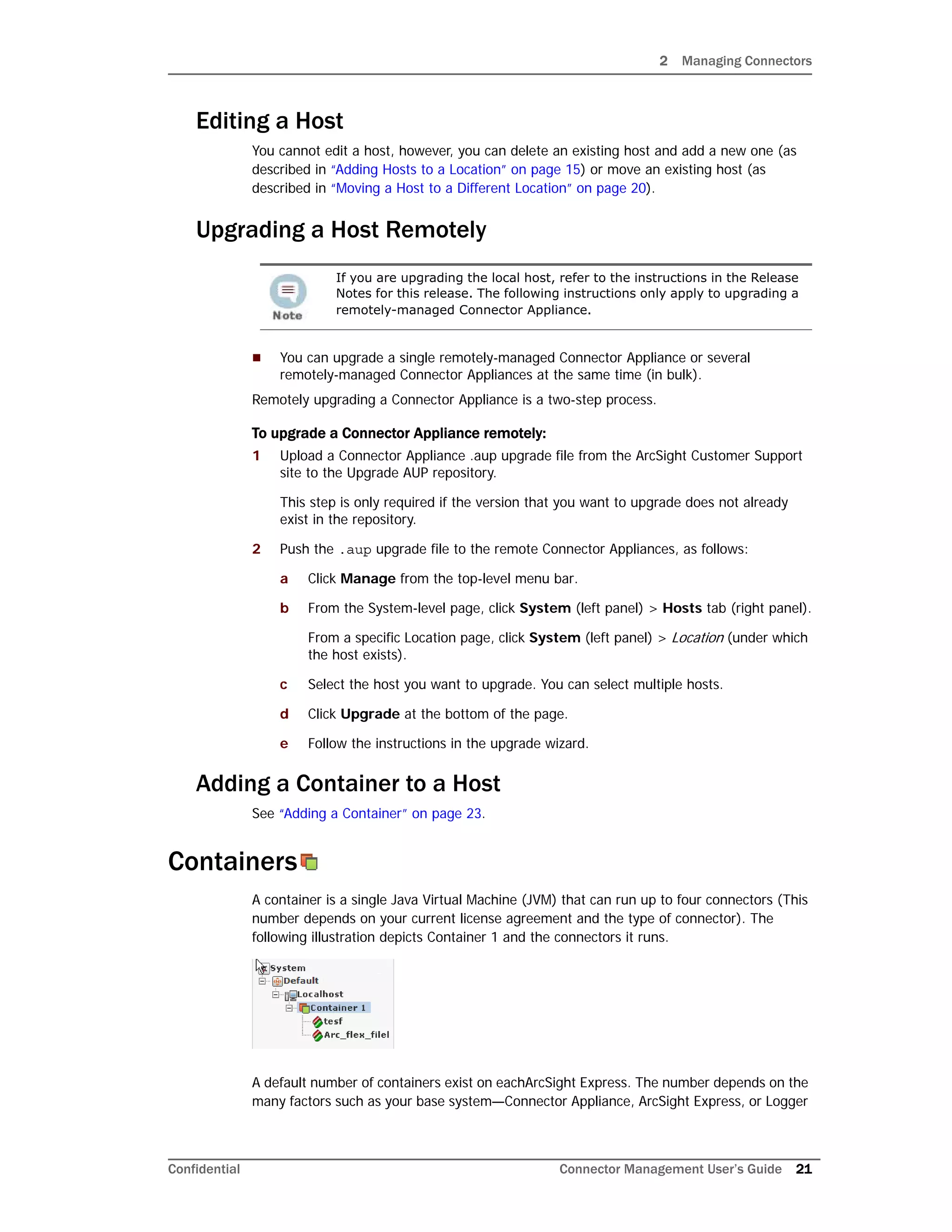
A container is a single Java Virtual Machine (JVM) that can run up to four connectors (This
number depends on your current license agreement and the type of connector). The
following illustration depicts Container 1 and the connectors it runs.
A default number of containers exist on eachArcSight Express. The number depends on the
many factors such as your base system—Connector Appliance, ArcSight Express, or Logger
If you are upgrading the local host, refer to the instructions in the Release
Notes for this release. The following instructions only apply to upgrading a
remotely-managed Connector Appliance.
2 Managing Connectors
22 Connector Management User’s Guide Confidential
appliance, and your current license agreement. Each container is identified with a label
(Container Name) and an associated port number (9001 or higher).
You can perform many operations on containers. You can view all containers on the system
and view the connectors in a container. You can add, delete, and edit a container. You can
update container properties and change container credentials. You can manage certificates
on a container, run a command on a container, and upgrade a container to a specific
connector version. You can also view and delete container logs and run the Logfu utility. All
these procedures are described below.
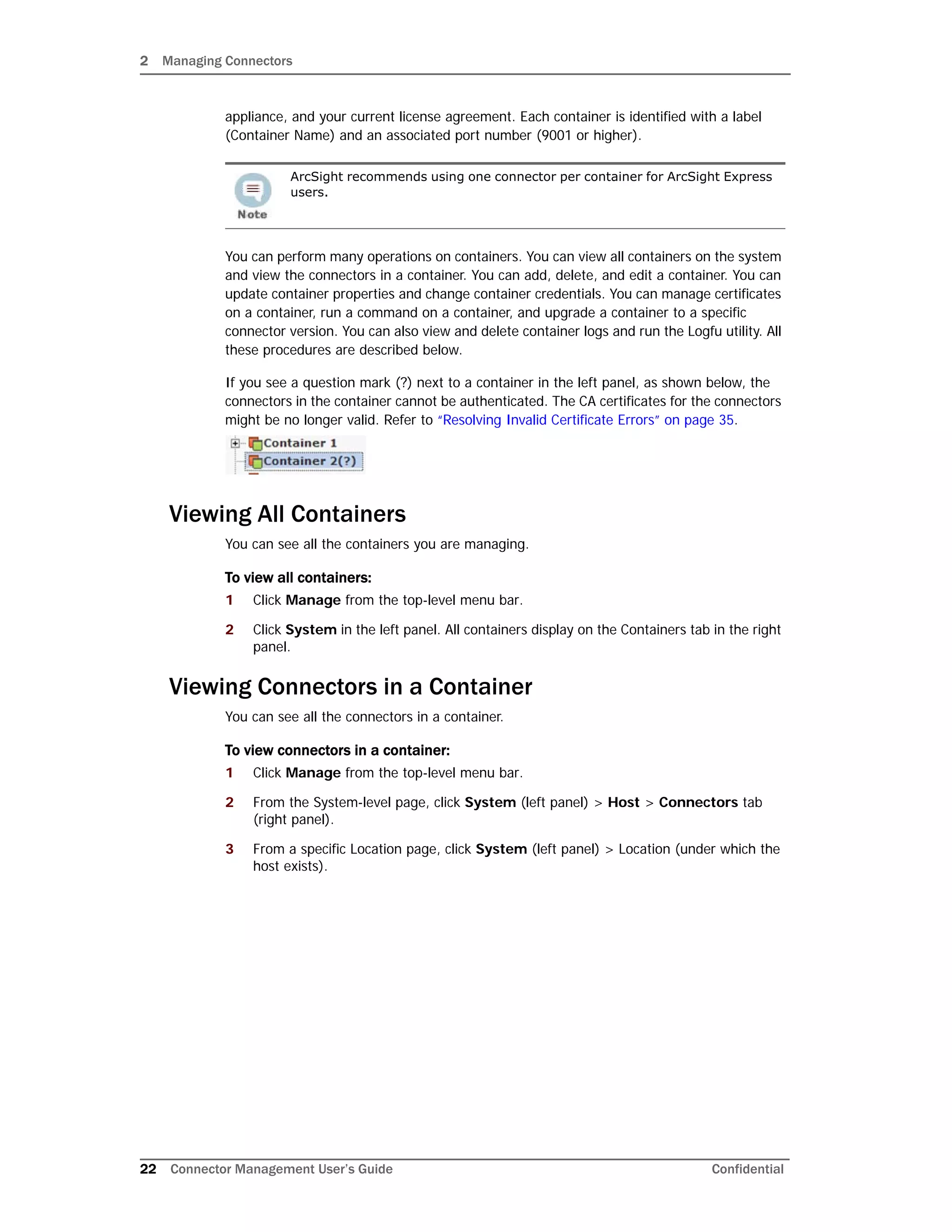
If you see a question mark (?) next to a container in the left panel, as shown below, the
connectors in the container cannot be authenticated. The CA certificates for the connectors
might be no longer valid. Refer to “Resolving Invalid Certificate Errors” on page 35.
Viewing All Containers
You can see all the containers you are managing.
To view all containers:
1 Click Manage from the top-level menu bar.
2 Click System in the left panel. All containers display on the Containers tab in the right
panel.
Viewing Connectors in a Container
You can see all the connectors in a container.
To view connectors in a container:
1 Click Manage from the top-level menu bar.
2 From the System-level page, click System (left panel) > Host > Connectors tab
(right panel).
3 From a specific Location page, click System (left panel) > Location (under which the
host exists).
ArcSight recommends using one connector per container for ArcSight Express
users.
2 Managing Connectors
Confidential Connector Management User’s Guide 23
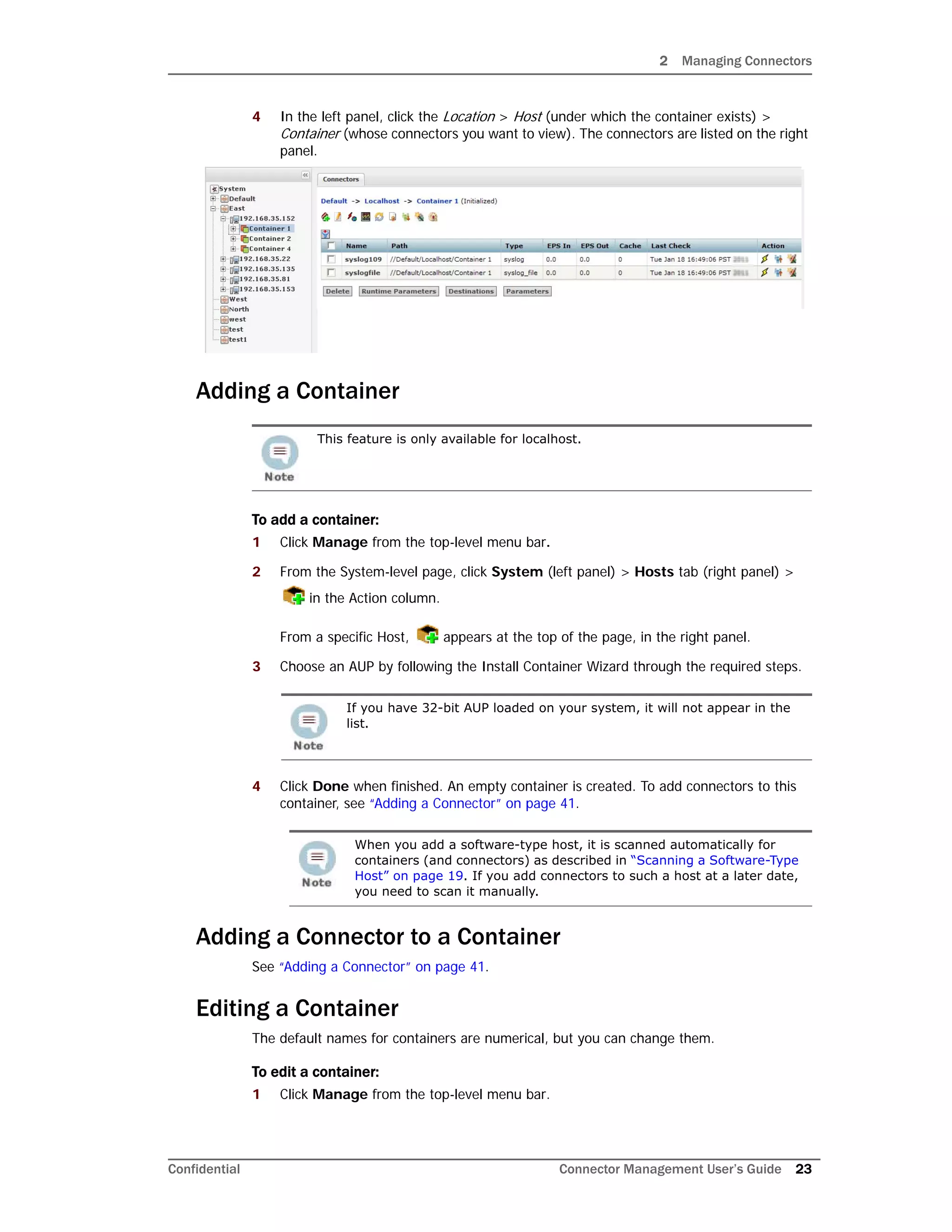
4 In the left panel, click the Location > Host (under which the container exists) >
Container (whose connectors you want to view). The connectors are listed on the right
panel.
Adding a Container
To add a container:
1 Click Manage from the top-level menu bar.
2 From the System-level page, click System (left panel) > Hosts tab (right panel) >
in the Action column.
From a specific Host, appears at the top of the page, in the right panel.
3 Choose an AUP by following the Install Container Wizard through the required steps.
4 Click Done when finished. An empty container is created. To add connectors to this
container, see “Adding a Connector” on page 41.
Adding a Connector to a Container
See “Adding a Connector” on page 41.
Editing a Container
The default names for containers are numerical, but you can change them.
To edit a container:
1 Click Manage from the top-level menu bar.
This feature is only available for localhost.
If you have 32-bit AUP loaded on your system, it will not appear in the
list.
When you add a software-type host, it is scanned automatically for
containers (and connectors) as described in “Scanning a Software-Type
Host” on page 19. If you add connectors to such a host at a later date,
you need to scan it manually.
2 Managing Connectors
24 Connector Management User’s Guide Confidential
2 Use one of these navigation paths:
3 Click in the Action column of the container whose name you want to change.
If you are on the specific Container page, is at the top of the page.
4 Enter the new name in the Name field and click Next.
5 Click Done.
Deleting a Container
You can delete containers from hosts that do not have a fixed number of containers, such
as ArcSight Express or any software-type host. All other hosts (such as a
remotely-managed Connector Appliance) have a fixed number of containers and cannot be
deleted.
When you delete a container, the connectors that it contains are also deleted.
To delete a container:
1 Click Manage from the top-level menu bar.
2 Use one of these navigation paths:
3 Select the container you want to delete. You can select multiple containers.
4 Click Delete.
User Interface Options Path
From the System-level page Click System (left panel) >
Containers tab (right panel).
From the location in which the
container exists
Click System (left panel) > Location
(left panel) > Containers tab (right
panel).
From the host on which the container
exists
Click System (left panel) > Location
(left panel) > Host (left panel) >
Containers tab (right panel).
From the Containers page Click System (left panel) > Location
(left panel) > Host (left panel).
User Interface Options Path
From the System-level page Click System (left panel) > Containers
tab (right panel).
From the location in which the
container exists
Click System (left panel) > Location (left
panel) > Containers tab (right panel).
From the host on which the
container exists
Click System (left panel) > Location (left
panel) > Host (left panel) > Containers
tab (right panel).
2 Managing Connectors
Confidential Connector Management User’s Guide 25
Updating Container Properties
You can update existing container properties (located in the agent.properties file),
delete them, or add new ones.
To update container properties:
1 Click Manage from the top-level menu bar.
2 Use one of these navigation paths:
3 Select the container whose properties you want to update. You can select multiple
containers.
4 Click Properties.
5 Follow the instructions in the wizard to update connector properties.
Changing Container Credentials
Each container has a user name and password associated with it. The default user name is
connector_user and the default password is change_me. For security reasons, it is
important to change these values before deploying the system in production.
To change container credentials:
1 Click Manage from the top-level menu bar.
2 Use one of these navigation paths:
User Interface Options Path
From the System-level page Click System (left panel) >
Containers tab (right panel).
From the location in which the
container exists
Click System (left panel) > Location
(left panel) > Containers tab (right
panel).
From the host on which the container
exists
Click System (left panel) > Location
(left panel) > Host (left panel) >
Containers tab (right panel).
When a property is removed, it is still visible until the container is
restarted.
User Interface Options Path
From the System-level page Click System (left panel) >
Containers tab (right panel).
From the location in which the
container exists
Click System (left panel) > Location
(left panel) > Containers tab (right
panel).
From the host on which the container
exists
Click System (left panel) > Location
(left panel) > Host (left panel) >
Containers tab (right panel).
2 Managing Connectors
26 Connector Management User’s Guide Confidential
3 Select the container whose credentials you want to update. You can select multiple
containers.
4 Click Credentials.
5 Follow the instructions in the wizard to update connector credentials.
This feature does not apply for containers managed by another Connector
Appliance, as that appliance will not be notified of the changes. If the local
system tries to communicate with the remote Connector Appliance, a
credentials error occurs.
2 Managing Connectors
Confidential Connector Management User’s Guide 27
Enabling and Disabling FIPS on a Container
FIPS mode is supported on local, remote, and software connectors running version 4.7.5 or
later, but certain connectors do not support FIPS mode. For information about which
connectors do not support FIPS mode, see the document Installing FIPS-Compliant
SmartConnectors, available on Protect 724. Before enabling FIPS on a container that
contains software connectors running as a service, review the caveats listed in that
document.
You can enable FIPS on a container. Any FIPS-compliant connector in that container (or
added later) will automatically communicate in FIPS mode. If the connector destination is
ArcSight Manager, Connector Management automatically imports the ArcSight Manager
certificate into its trust store and applies it to the container. However, if the connector
destination is Logger, the Logger certificate must be uploaded manually and applied to the
container.
A FIPS Suite B certificate is not retrieved automatically and must be uploaded manually,
regardless of the connector destination, as described in “Enabling FIPS Suite B on a
Container” on page 28.
To enable or disable FIPS mode on a container:
1 Click Manage from the top-level menu bar.
2 Use one of these navigation paths:
3 Select the container on which you want to enable or disable FIPS mode. You can select
multiple containers.
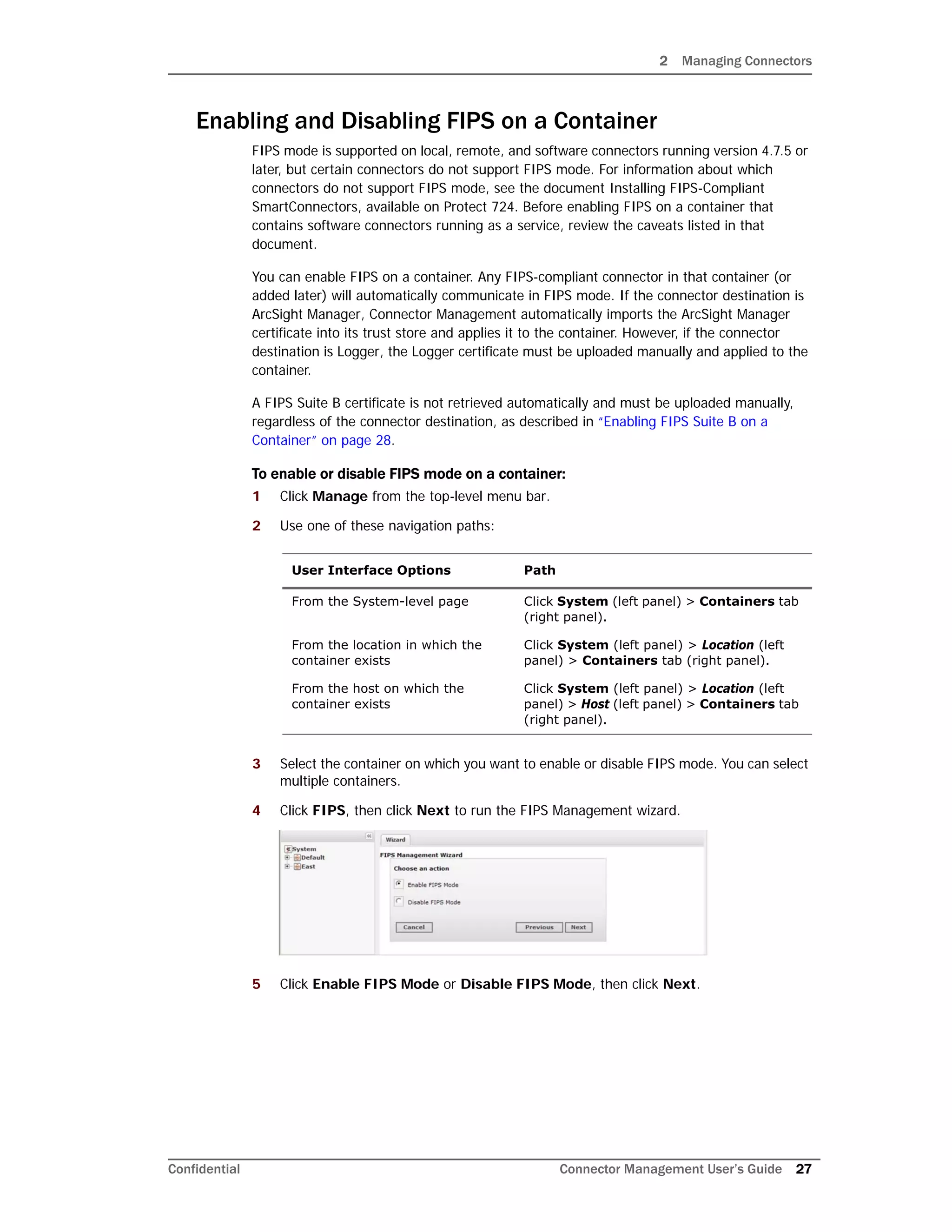
4 Click FIPS, then click Next to run the FIPS Management wizard.
5 Click Enable FIPS Mode or Disable FIPS Mode, then click Next.
User Interface Options Path
From the System-level page Click System (left panel) > Containers tab
(right panel).
From the location in which the
container exists
Click System (left panel) > Location (left
panel) > Containers tab (right panel).
From the host on which the
container exists
Click System (left panel) > Location (left
panel) > Host (left panel) > Containers tab
(right panel).
2 Managing Connectors
28 Connector Management User’s Guide Confidential
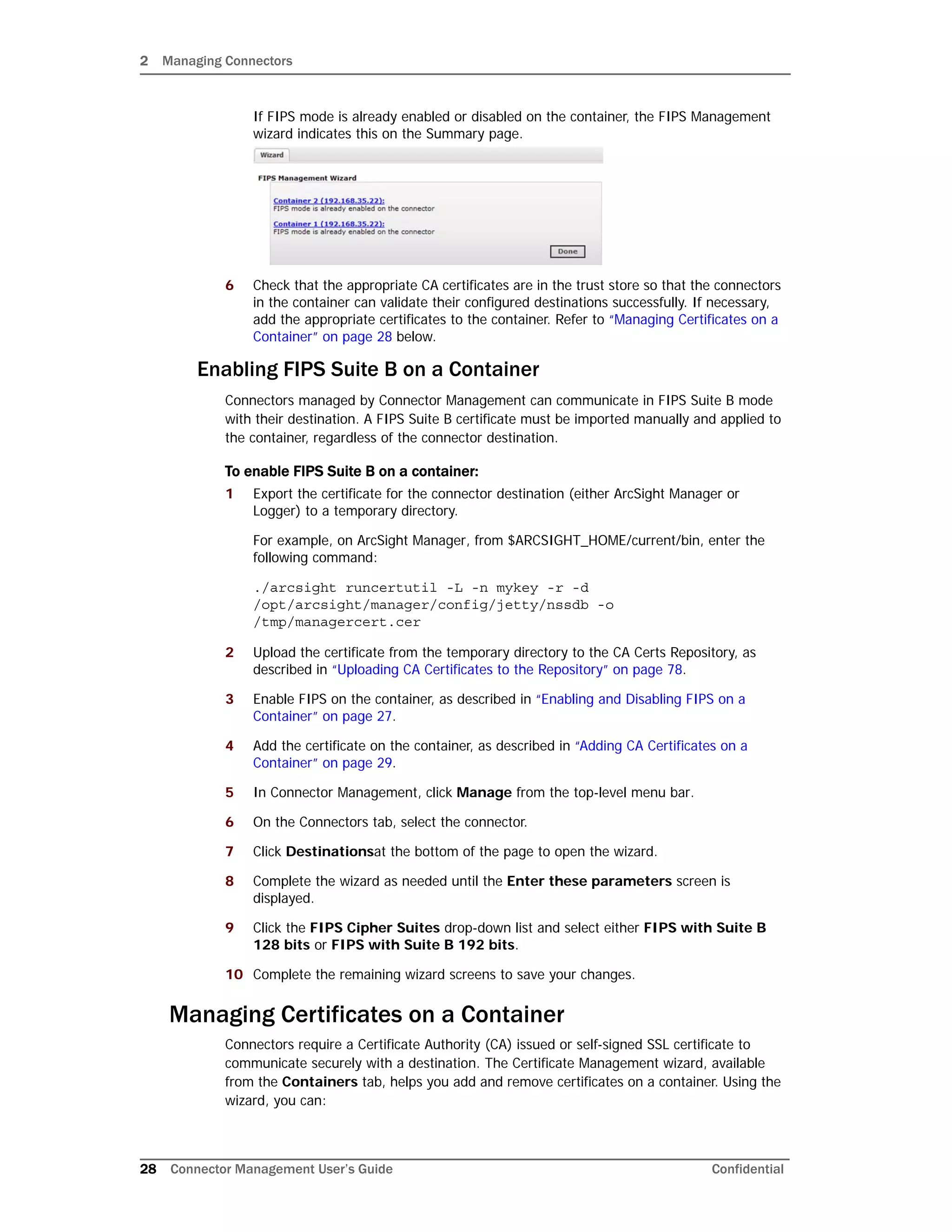
If FIPS mode is already enabled or disabled on the container, the FIPS Management
wizard indicates this on the Summary page.
6 Check that the appropriate CA certificates are in the trust store so that the connectors
in the container can validate their configured destinations successfully. If necessary,
add the appropriate certificates to the container. Refer to “Managing Certificates on a
Container” on page 28 below.
Enabling FIPS Suite B on a Container
Connectors managed by Connector Management can communicate in FIPS Suite B mode
with their destination. A FIPS Suite B certificate must be imported manually and applied to
the container, regardless of the connector destination.
To enable FIPS Suite B on a container:
1 Export the certificate for the connector destination (either ArcSight Manager or
Logger) to a temporary directory.
For example, on ArcSight Manager, from $ARCSIGHT_HOME/current/bin, enter the
following command:
./arcsight runcertutil -L -n mykey -r -d
/opt/arcsight/manager/config/jetty/nssdb -o
/tmp/managercert.cer
2 Upload the certificate from the temporary directory to the CA Certs Repository, as
described in “Uploading CA Certificates to the Repository” on page 78.
3 Enable FIPS on the container, as described in “Enabling and Disabling FIPS on a
Container” on page 27.
4 Add the certificate on the container, as described in “Adding CA Certificates on a
Container” on page 29.
5 In Connector Management, click Manage from the top-level menu bar.
6 On the Connectors tab, select the connector.
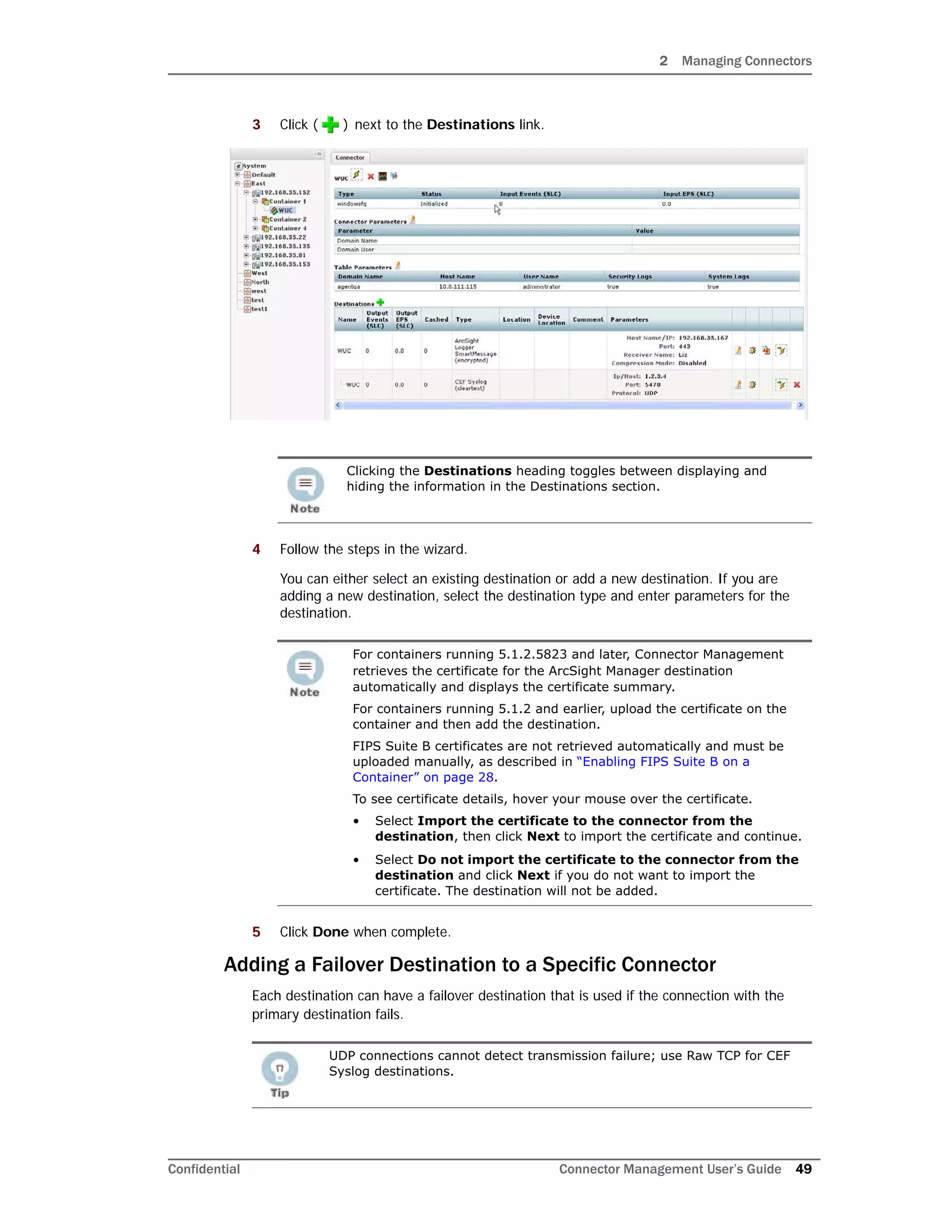
7 Click Destinationsat the bottom of the page to open the wizard.
8 Complete the wizard as needed until the Enter these parameters screen is
displayed.
9 Click the FIPS Cipher Suites drop-down list and select either FIPS with Suite B
128 bits or FIPS with Suite B 192 bits.
10 Complete the remaining wizard screens to save your changes.
Managing Certificates on a Container
Connectors require a Certificate Authority (CA) issued or self-signed SSL certificate to
communicate securely with a destination. The Certificate Management wizard, available
from the Containers tab, helps you add and remove certificates on a container. Using the
wizard, you can:
2 Managing Connectors
Confidential Connector Management User’s Guide 29
 Enable or disable a demo certificate on a container that is in non-FIPS mode only.
 Add a certificate on a container.
 Add certificates in bulk, enabling multiple containers at once.
 Add a CA Certs file on a container that is in non-FIPS mode only.
 Remove a certificate from a container.
From the Containers tab and the Connectors tab, you can view details about the
certificates applied to a container. See “Viewing Certificates on a Container” on page 34.
For information about resolving invalid certificates, see “Resolving Invalid Certificate Errors”
on page 35.
Adding CA Certificates on a Container
You can add a single CA certificate on a container that is in FIPS mode or non-FIPS mode.
Before you perform the following procedure, make sure the certificate you want to apply is
loaded in the CA Certs repository.
To apply a single CA certificate on a container:
1 Click Manage from the top-level menu bar.
2 Use one of these navigation paths:
3 Select the container to which you want to add the certificate. You can select multiple
containers.
4 Click Certificates, then click Next to run the Certificate Management wizard.
Whenever you enable or disable FIPS mode on a container, check that the
required certificates are present in the trust store and add them if
necessary.
Hover your mouse over a container name to see the type of certificate
applied to it. Click the icon to display a list of the certificates available
on the container.
User Interface Options Path
From the System-level page Click System (left panel) > Containers
tab (right panel).
From the location in which the
container exists
Click System (left panel) > Location (left
panel) > Containers tab (right panel).
From the host on which the
container exists
Click System (left panel) > Location (left
panel) > Host (left panel) > Containers
tab (right panel).
2 Managing Connectors
30 Connector Management User’s Guide Confidential
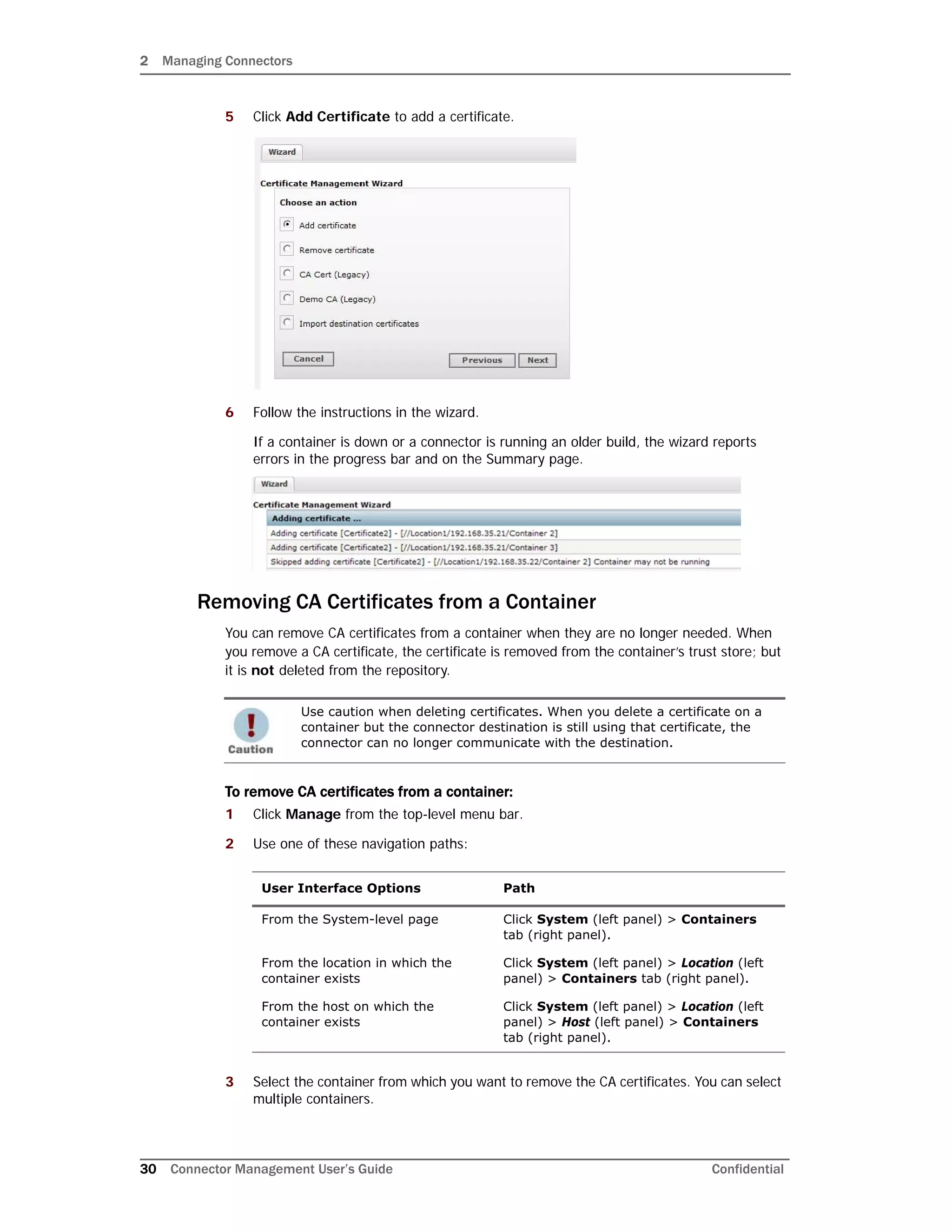
5 Click Add Certificate to add a certificate.
6 Follow the instructions in the wizard.
If a container is down or a connector is running an older build, the wizard reports
errors in the progress bar and on the Summary page.
Removing CA Certificates from a Container
You can remove CA certificates from a container when they are no longer needed. When
you remove a CA certificate, the certificate is removed from the container’s trust store; but
it is not deleted from the repository.
To remove CA certificates from a container:
1 Click Manage from the top-level menu bar.
2 Use one of these navigation paths:
3 Select the container from which you want to remove the CA certificates. You can select
multiple containers.
Use caution when deleting certificates. When you delete a certificate on a
container but the connector destination is still using that certificate, the
connector can no longer communicate with the destination.
User Interface Options Path
From the System-level page Click System (left panel) > Containers
tab (right panel).
From the location in which the
container exists
Click System (left panel) > Location (left
panel) > Containers tab (right panel).
From the host on which the
container exists
Click System (left panel) > Location (left
panel) > Host (left panel) > Containers
tab (right panel).
2 Managing Connectors
Confidential Connector Management User’s Guide 31
4 Click Certificate, then click Next to run the wizard.
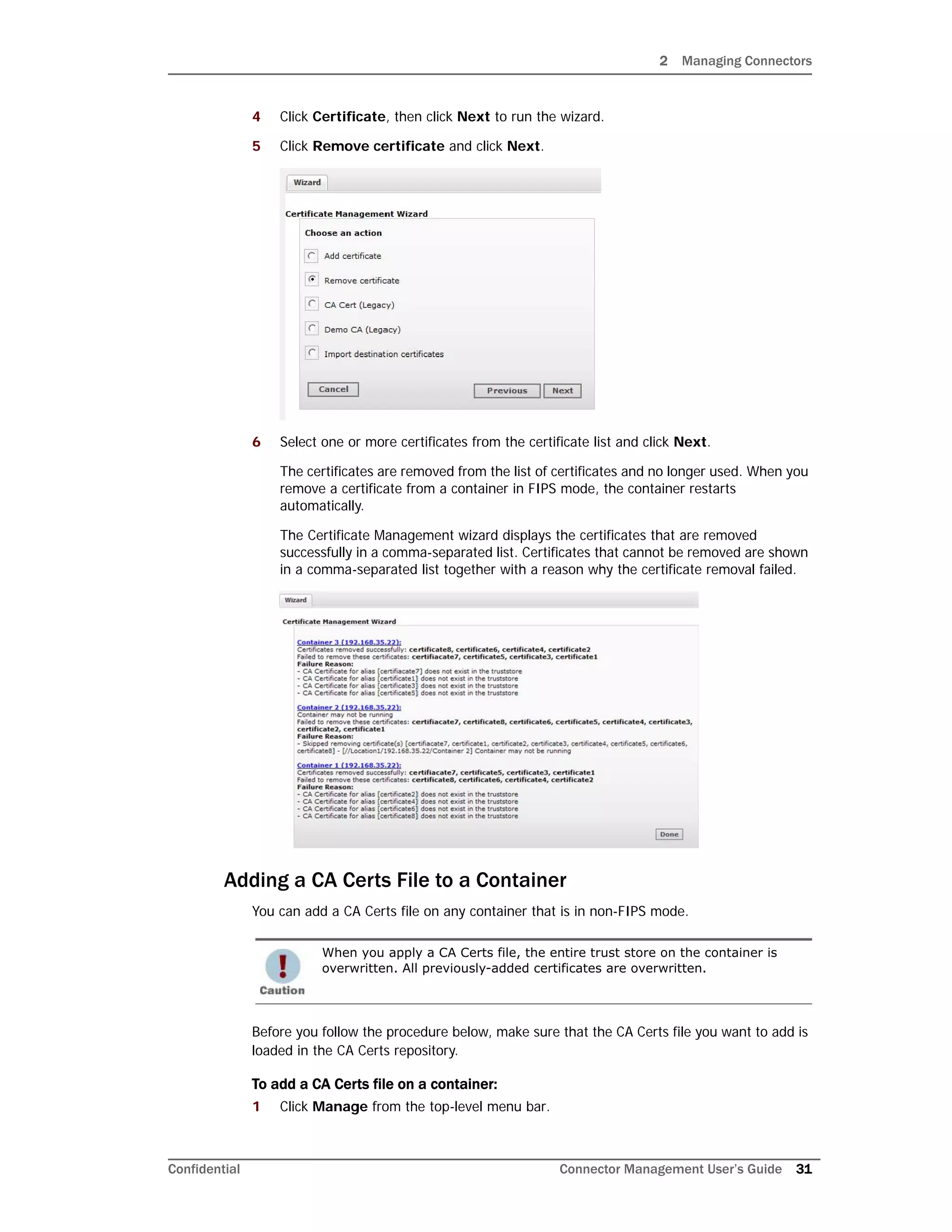
5 Click Remove certificate and click Next.
6 Select one or more certificates from the certificate list and click Next.
The certificates are removed from the list of certificates and no longer used. When you
remove a certificate from a container in FIPS mode, the container restarts
automatically.
The Certificate Management wizard displays the certificates that are removed
successfully in a comma-separated list. Certificates that cannot be removed are shown
in a comma-separated list together with a reason why the certificate removal failed.
Adding a CA Certs File to a Container
You can add a CA Certs file on any container that is in non-FIPS mode.
Before you follow the procedure below, make sure that the CA Certs file you want to add is
loaded in the CA Certs repository.
To add a CA Certs file on a container:
1 Click Manage from the top-level menu bar.
When you apply a CA Certs file, the entire trust store on the container is
overwritten. All previously-added certificates are overwritten.
2 Managing Connectors
32 Connector Management User’s Guide Confidential
2 Use one of these navigation paths:
3 Select the container to which you want to add the CA Certs file. You can select multiple
containers.
4 Click Certificates, then click Next to run the wizard.
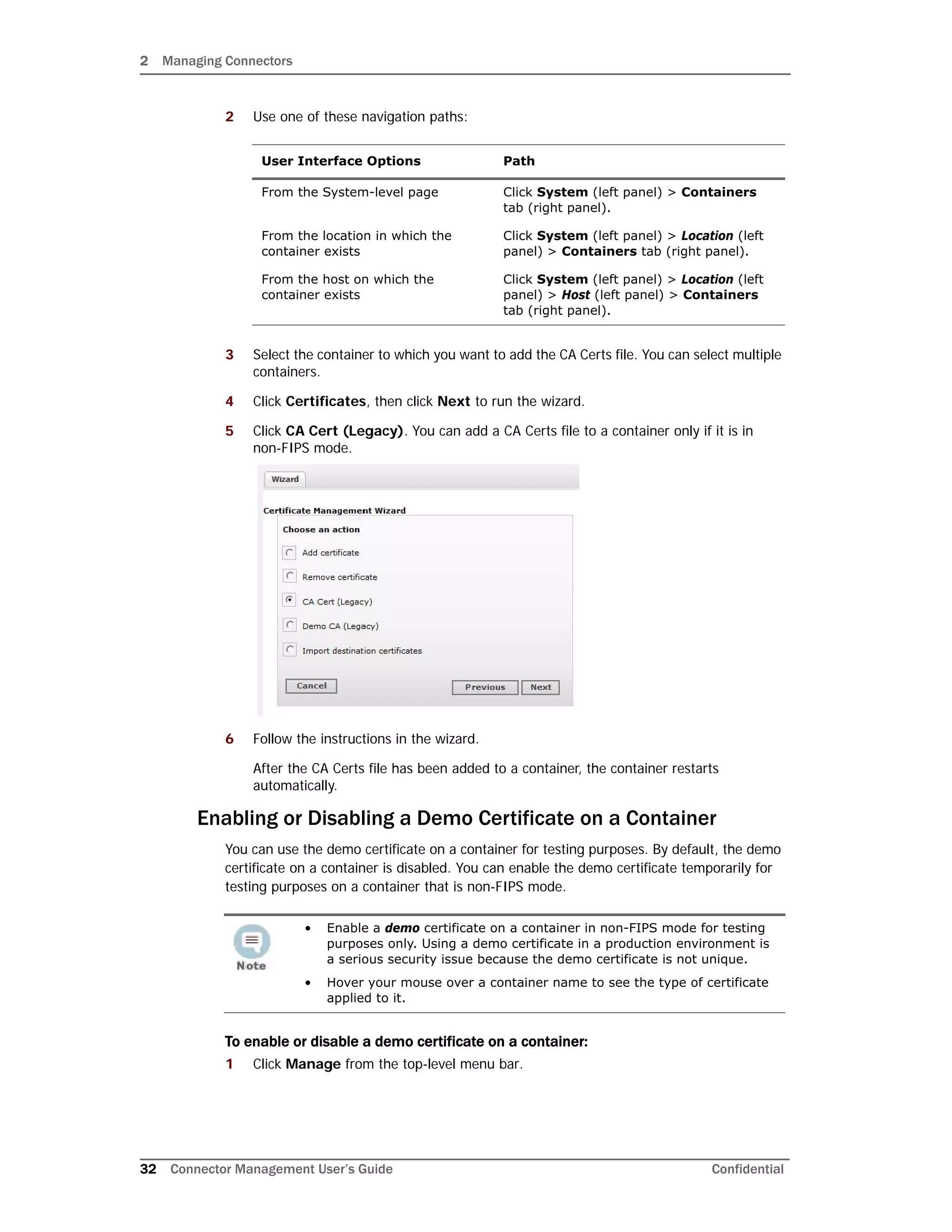
5 Click CA Cert (Legacy). You can add a CA Certs file to a container only if it is in
non-FIPS mode.
6 Follow the instructions in the wizard.
After the CA Certs file has been added to a container, the container restarts
automatically.
Enabling or Disabling a Demo Certificate on a Container
You can use the demo certificate on a container for testing purposes. By default, the demo
certificate on a container is disabled. You can enable the demo certificate temporarily for
testing purposes on a container that is non-FIPS mode.
To enable or disable a demo certificate on a container:
1 Click Manage from the top-level menu bar.
User Interface Options Path
From the System-level page Click System (left panel) > Containers
tab (right panel).
From the location in which the
container exists
Click System (left panel) > Location (left
panel) > Containers tab (right panel).
From the host on which the
container exists
Click System (left panel) > Location (left
panel) > Host (left panel) > Containers
tab (right panel).
• Enable a demo certificate on a container in non-FIPS mode for testing
purposes only. Using a demo certificate in a production environment is
a serious security issue because the demo certificate is not unique.
• Hover your mouse over a container name to see the type of certificate
applied to it.
2 Managing Connectors
Confidential Connector Management User’s Guide 33
2 Use one of these navigation paths:
3 Select the container to which you want to apply the demo certificate. You can select
multiple containers. All the containers need to be in non-FIPS mode.
4 Click Certificates, then click Next to run the Certificate Management wizard.
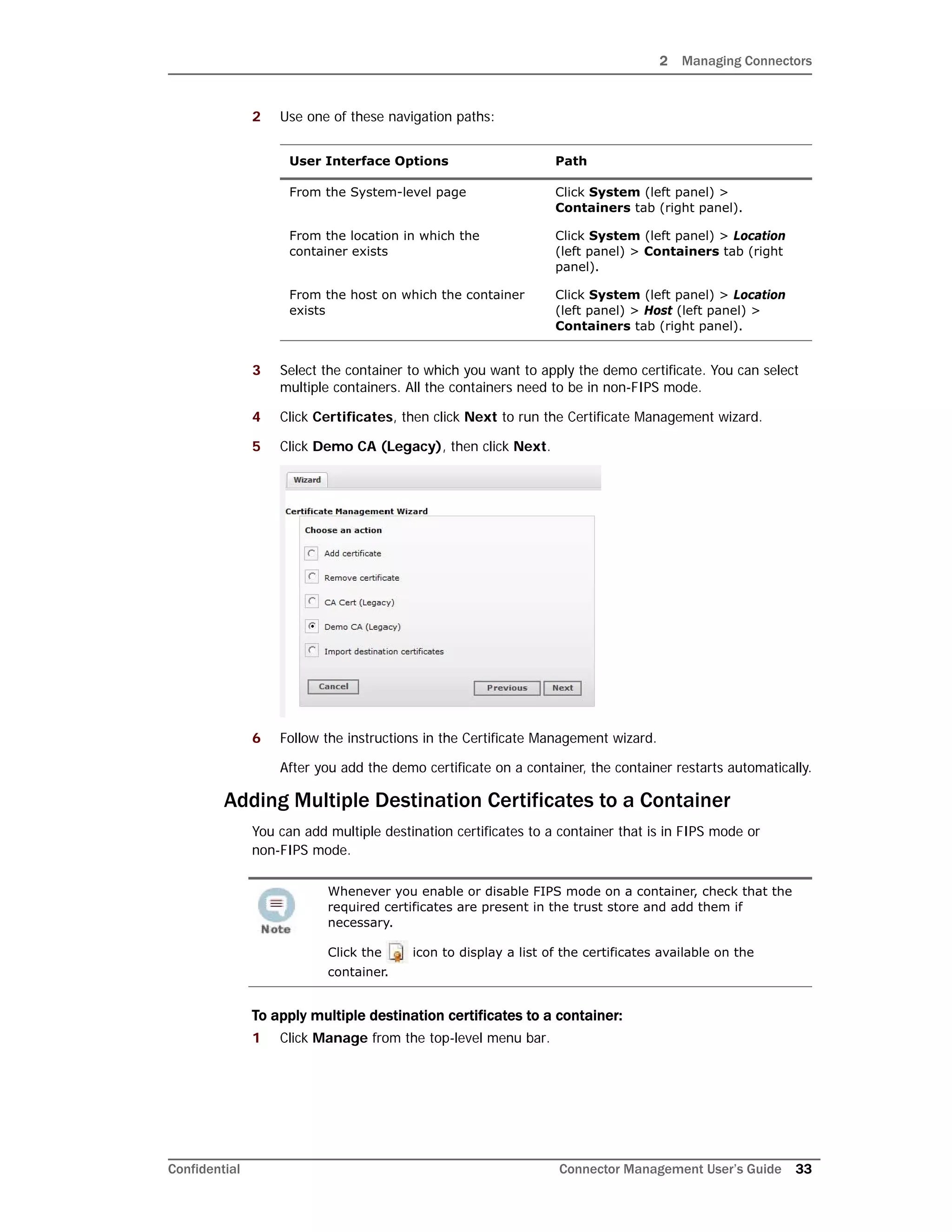
5 Click Demo CA (Legacy), then click Next.
6 Follow the instructions in the Certificate Management wizard.
After you add the demo certificate on a container, the container restarts automatically.
Adding Multiple Destination Certificates to a Container
You can add multiple destination certificates to a container that is in FIPS mode or
non-FIPS mode.
To apply multiple destination certificates to a container:
1 Click Manage from the top-level menu bar.
User Interface Options Path
From the System-level page Click System (left panel) >
Containers tab (right panel).
From the location in which the
container exists
Click System (left panel) > Location
(left panel) > Containers tab (right
panel).
From the host on which the container
exists
Click System (left panel) > Location
(left panel) > Host (left panel) >
Containers tab (right panel).
Whenever you enable or disable FIPS mode on a container, check that the
required certificates are present in the trust store and add them if
necessary.
Click the icon to display a list of the certificates available on the
container.
2 Managing Connectors
34 Connector Management User’s Guide Confidential
2 Use one of these navigation paths:
3 Select the container to which you want to add the certificates. You can select multiple
containers.
4 Click Certificates, then click Next to run the Certificate Management wizard.
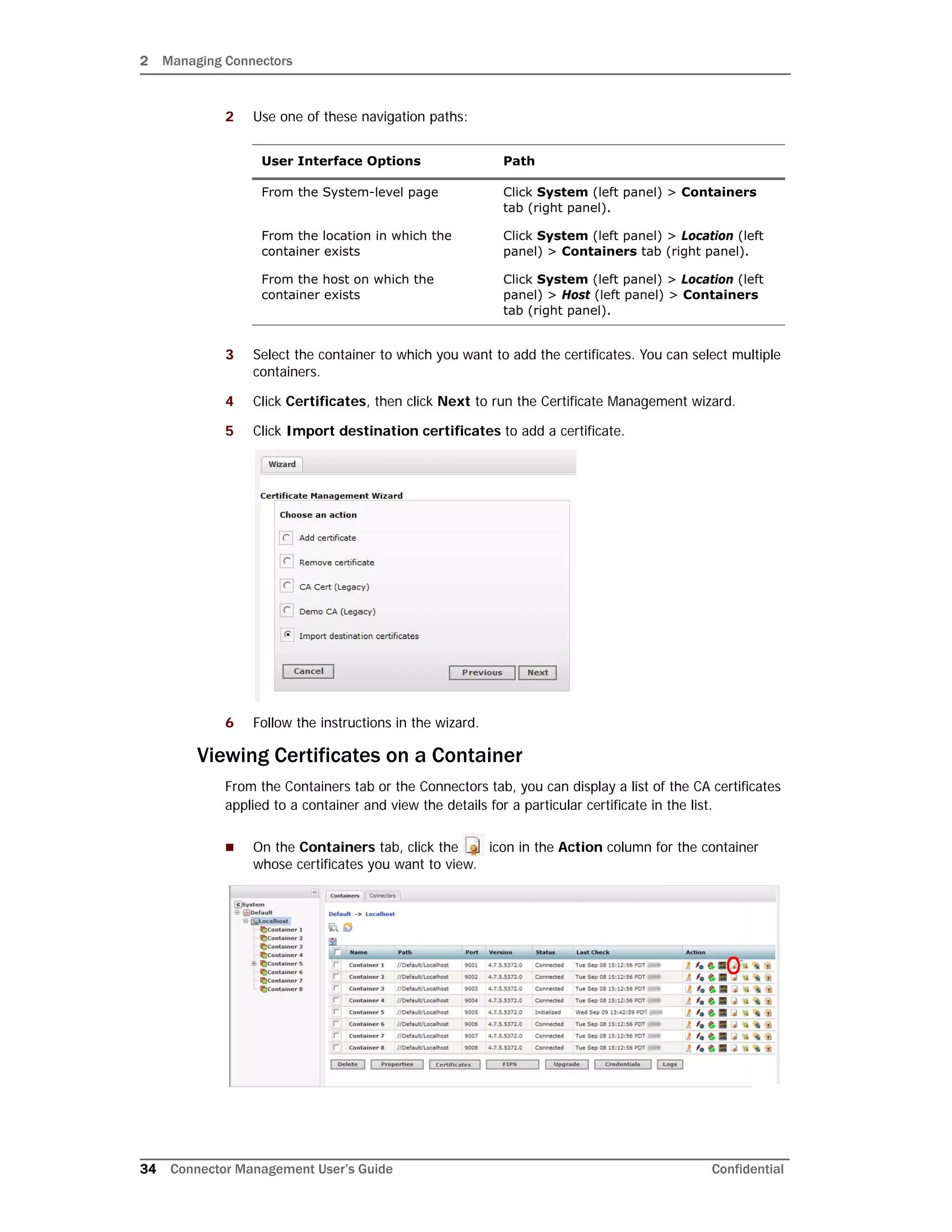
5 Click Import destination certificates to add a certificate.
6 Follow the instructions in the wizard.
Viewing Certificates on a Container
From the Containers tab or the Connectors tab, you can display a list of the CA certificates
applied to a container and view the details for a particular certificate in the list.
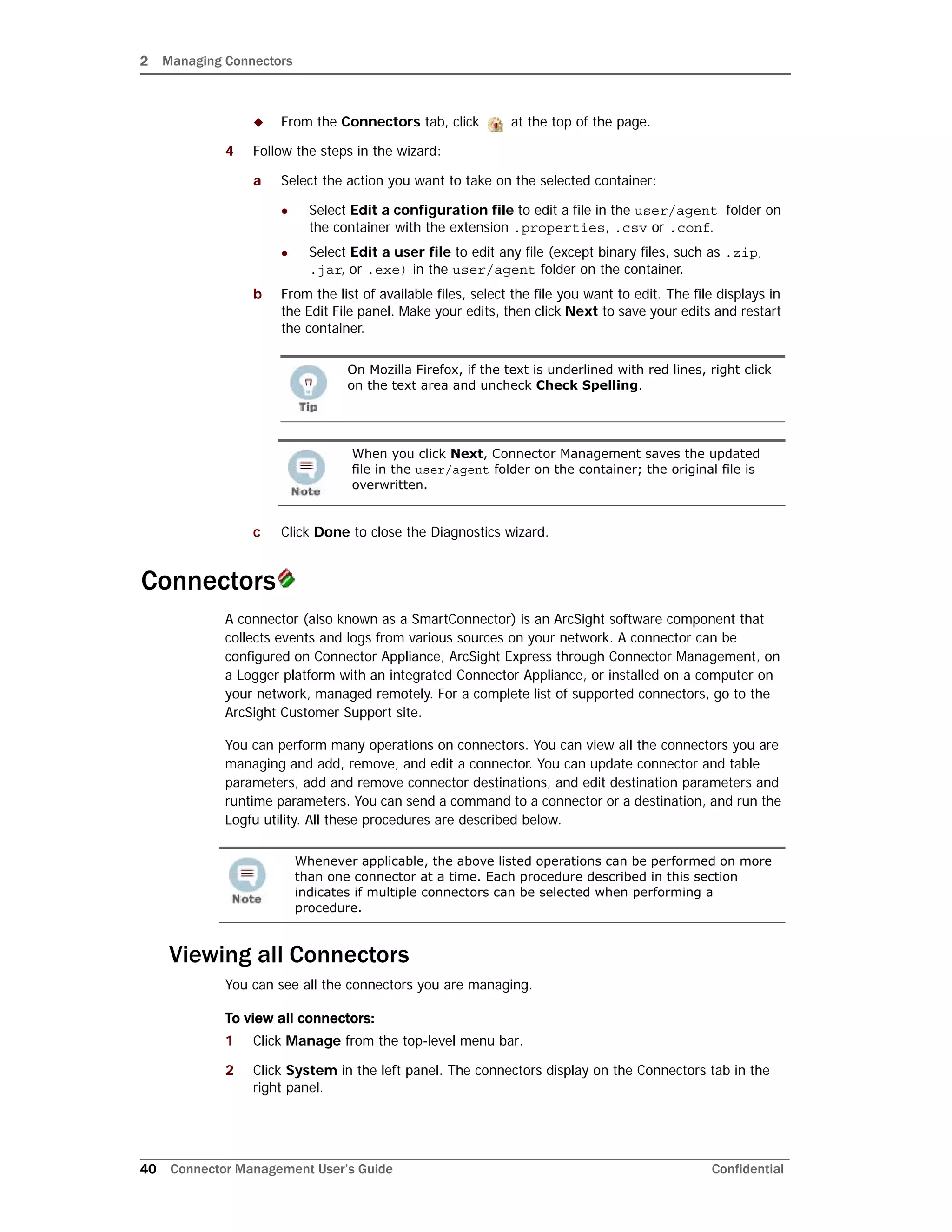
 On the Containers tab, click the icon in the Action column for the container
whose certificates you want to view.
User Interface Options Path
From the System-level page Click System (left panel) > Containers
tab (right panel).
From the location in which the
container exists
Click System (left panel) > Location (left
panel) > Containers tab (right panel).
From the host on which the
container exists
Click System (left panel) > Location (left
panel) > Host (left panel) > Containers
tab (right panel).
2 Managing Connectors
Confidential Connector Management User’s Guide 35
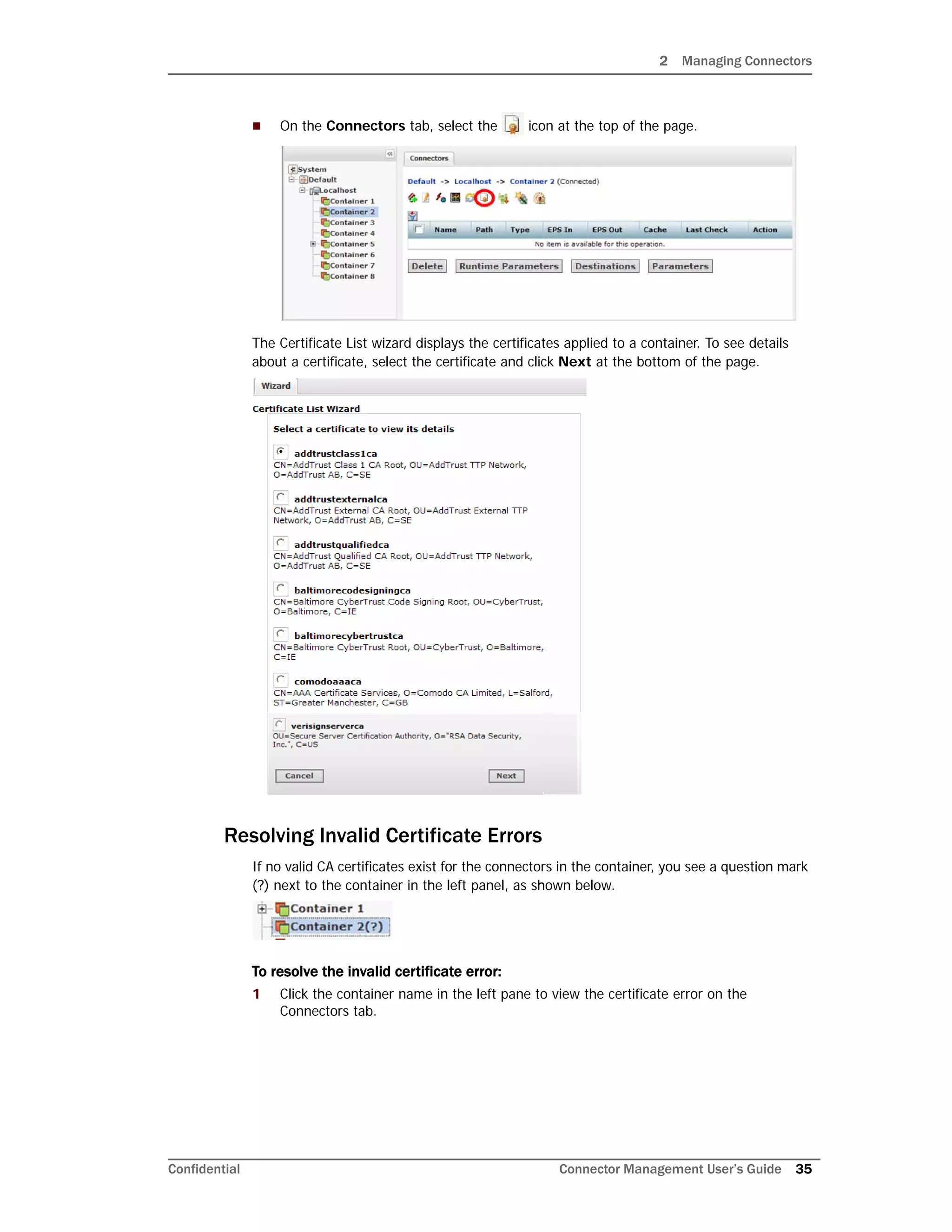
 On the Connectors tab, select the icon at the top of the page.
The Certificate List wizard displays the certificates applied to a container. To see details
about a certificate, select the certificate and click Next at the bottom of the page.
Resolving Invalid Certificate Errors
If no valid CA certificates exist for the connectors in the container, you see a question mark
(?) next to the container in the left panel, as shown below.
To resolve the invalid certificate error:
1 Click the container name in the left pane to view the certificate error on the
Connectors tab.
2 Managing Connectors
36 Connector Management User’s Guide Confidential
2 Click the icon to run the Certificate Download wizard.
3 Follow the instructions in the wizard to import the valid certificates.
Running a Command on a Container
You can run commands on a container to configure memory settings, pull an OPSEC
certificate, or restart the container.
To run a command on a container:
1 Click Manage from the top-level menu bar.
2 Use one of these navigation paths:
3 Click in the Action column of the container.
If you are on the specific Container page, is at the top of the page.
4 Select the command you want to run and click Next.
5 Enter values for the parameters that the user interface displays and click Done.
Upgrading a Container to a Specific Connector Version
All connectors in a container are upgraded to the version you select.
User Interface Options Path
From the System-level page Click System (left panel) >
Containers tab (right panel).
From the location in which the
container exists
Click System (left panel) > Location
(left panel) > Containers tab (right
panel).
From the host on which the container
exists
Click System (left panel) > Location
(left panel) > Host (left panel) >
Containers tab (right panel).
From the Container page Click System (left panel) > Location
(left panel) > Host (left panel) >
Container.
You can’t upgrade the same container more than once within a short period
of time. After you upgrade a container, wait at least 15 minutes before
upgrading it again.
2 Managing Connectors
Confidential Connector Management User’s Guide 37
To upgrade a container to a specific connector version:
1 Upload a connector build AUP from the ArcSight Customer Support site to the AUP
(Upgrade) repository.
This step is only required if the build does not already exist in the AUP (Upgrade)
repository.
2 Apply the connector build to a container, as follows:
a Click Manage from the top-level menu bar.
b Use one of these navigation paths:
c Select the container that you want to upgrade. You can select multiple containers
for a bulk upgrade.
d Click Upgrade.
e Select the version to which you want to upgrade the selected containers and click
Next.
Viewing Container Logs
You can retrieve and view the log files for a container. The log files are in .zip format.
To view container logs:
1 Load the logs to the Logs repository.
If the logs that you want to view are already in the Logs repository, skip this step.
a Click Manage from the top-level menu bar.
User Interface Options Path
From the System-level page Click System (left panel) >
Containers tab (right panel).
From the location in which the
container exists
Click System (left panel) > Location
(left panel) > Containers tab (right
panel).
From the host on which the
container exists
Click System (left panel) > Location
(left panel) > Host (left panel) >
Containers tab (right panel).
• On a slow network or when the system is under a particularly
heavy load, the upgrade might be interrupted by a session
timeout. To prevent this interruption, you can upload the .aup
file to a higher-performance system if one is available, then push
the result to the lower-performance system.
• If you are upgrading an empty container, the system creates a
temporary connector during the upgrade process. You can safely
ignore this temporary connector; it is deleted shortly after being
created.
• Empty containers can be upgraded from versions 5.1.2 and
after. Upgrading empty connectors is not supported in previous
versions.
2 Managing Connectors
38 Connector Management User’s Guide Confidential
b Use one of these navigation paths:
c Select the container whose logs you want to view. You can select multiple
containers.
d Click Logs.
The logs are loaded to the Logs repository. If you selected multiple containers, a
log file for each container is loaded.
2 Retrieve and view the logs:
a Click Setup > Repositories from the top-level menu bar.
b Click Logs.
c Click to retrieve the log files (in .zip format) you want to view.
Deleting Container Logs
To delete a container log file, click Setup > Repositories > Logs >from the top-level
menu bar. In the right panel, click next to the log files you want to delete.
Running Logfu on a Container
The Logfu utility is a diagnostic tool that parses ArcSight logs to generate an interactive
visual representation of the information contained within the logs.
When event flow problems occur (with a connector or the connected device), it is useful to
have a visual representation of what happened over time. You can use Logfu to analyze
this behavior.
To run Logfu on a container:
1 Click Manage from the top-level menu bar.
2 Use one of these navigation paths:
User Interface Options Path
From the System-level page Click System (left panel) >
Containers tab (right panel).
From the location in which the
container exists
Click System (left panel) > Location
(left panel) > Containers tab (right
panel).
From the host on which the container
exists
Click System (left panel) > Location
(left panel) > Host (left panel) >
Containers tab (right panel).
User Interface Options Path
From the System-level page Click System (left panel) >
Containers tab (right panel).
From the location in which the
container exists
Click System (left panel) > Location
(left panel) > Containers tab (right
panel).
2 Managing Connectors
Confidential Connector Management User’s Guide 39
3 Click in the Action column of the container. A separate window is displayed. If you
are on the specific Container page, is at the top of the page.
The system proceeds to retrieve and analyze system data logs. After this process is
complete, a group of panels appear in the window.
4 From the Group box, choose which type of data you would like to view. The Group
box lists all connectors within the chosen container, plus many other types of data
such as memory usage, and transport rates and logs.
Choose one of the Group box data points. Depending on which data point you chose,
a list of fields appears in the Field box below.
5 Choose a field to view. A graphic chart appears in the Chart box, providing rate and
time information. The key at the bottom of the Chart box defines the data points
mapped in the chart.
6 If you need to choose a different data point for analysis, click Reset Data.
Running Diagnostics on a Container
You can run certain diagnostics on a local or remote container. Currently, the Edit a File
diagnostic action only is available.
To run diagnostics on a container:
1 Click Manage from the top-level menu bar.
2 Use one of these navigation paths:
3 To open the Container Diagnostics wizard:
 From the Container tab, click in the Action column.
From the host on which the container
exists
Click System (left panel) > Location
(left panel) > Host (left panel) >
Containers tab (right panel).
From the Container page Click System (left panel) > Location
(left panel) > Host (left panel) >
Container (left panel).
User Interface Options Path
From the System-level page Click System (left panel) > Containers
tab (right panel).
From the location in which the
container exists
Click System (left panel) > Location (left
panel) > Containers tab (right panel).
From the host on which the
container exists
Click System (left panel) > Location (left
panel) > Host (left panel) > Containers
tab (right panel).
From the Container page Click System (left panel) > Location (left
panel) > Host (left panel) > Container (left
panel). The Connectors tab displays.
User Interface Options Path
2 Managing Connectors
40 Connector Management User’s Guide Confidential
 From the Connectors tab, click at the top of the page.
4 Follow the steps in the wizard:
a Select the action you want to take on the selected container:
 Select Edit a configuration file to edit a file in the user/agent folder on
the container with the extension .properties, .csv or .conf.
 Select Edit a user file to edit any file (except binary files, such as .zip,
.jar, or .exe) in the user/agent folder on the container.
b From the list of available files, select the file you want to edit. The file displays in
the Edit File panel. Make your edits, then click Next to save your edits and restart
the container.
c Click Done to close the Diagnostics wizard.
Connectors
A connector (also known as a SmartConnector) is an ArcSight software component that
collects events and logs from various sources on your network. A connector can be
configured on Connector Appliance, ArcSight Express through Connector Management, on
a Logger platform with an integrated Connector Appliance, or installed on a computer on
your network, managed remotely. For a complete list of supported connectors, go to the
ArcSight Customer Support site.
You can perform many operations on connectors. You can view all the connectors you are
managing and add, remove, and edit a connector. You can update connector and table
parameters, add and remove connector destinations, and edit destination parameters and
runtime parameters. You can send a command to a connector or a destination, and run the
Logfu utility. All these procedures are described below.
Viewing all Connectors
You can see all the connectors you are managing.
To view all connectors:
1 Click Manage from the top-level menu bar.
2 Click System in the left panel. The connectors display on the Connectors tab in the
right panel.
On Mozilla Firefox, if the text is underlined with red lines, right click
on the text area and uncheck Check Spelling.
When you click Next, Connector Management saves the updated
file in the user/agent folder on the container; the original file is
overwritten.
Whenever applicable, the above listed operations can be performed on more
than one connector at a time. Each procedure described in this section
indicates if multiple connectors can be selected when performing a
procedure.
2 Managing Connectors
Confidential Connector Management User’s Guide 41
Adding a Connector
Before you add a connector, review the following important information.
 Make sure that the container, host, and location to which you want to add the
connector exist on the system. If any of these elements do not exist, first create them
using procedures described in “Adding a Location” on page 12, “Adding a Host” on
page 16, and “Adding a Container” on page 23.
 Follow the configuration best practices described in “Configuration Suggestions for
Connector Types” on page 70.
If you are configuring the Check Point OPSEC NG Connector, see “Configuring the
Check Point OPSEC NG Connector” on page 71 and refer to the SmartConnector
Configuration Guide for Check Point OPSEC NG.
If you are configuring a database connector that requires the MS SQL Server Driver for
JDBC, follow instructions in “Adding the MS SQL Server JDBC Driver” on page 73.
 If you are adding a software-based connector, make sure that the username and
password for the connector match the username and password for the container to
which you are adding the connector. Refer to “Changing Container Credentials” on
page 25.
 For file-based FlexConnectors, make sure that an NFS Mount is established and a
repository is created on the system before you add the connector. In addition, when
entering the connector parameters, type the configuration file name without an
extension in the Configuration File field. The extension
.sdkrfilereader.properties is appended automatically.
 Certain connectors require special configuration when used with Connector
Management on ArcSight Express. For more information, see Appendix B‚ Special
Configurations‚ on page 101.
To add a Connector:
1 Click Manage from the top-level menu bar.
2 Use one of these navigation paths:
This connector type has special requirements concerning JDBC and
authentication setup. It is important that you refer to the
SmartConnector Configuration Guide for Microsoft SQL Server Multiple
Instance Audit DB for this important information before installing the
connector.
If you are adding a connector for the Check Point FW-1/VPN-1 system, see a
more detailed procedure in “Configuring the Check Point OPSEC NG
Connector” on page 71.
User Interface Options Path
From the System-level page Click System (left panel) >
Containers tab (right panel).
From the location in which the
container exists
Click System (left panel) > Location
(left panel) > Containers tab (right
panel).
2 Managing Connectors
42 Connector Management User’s Guide Confidential
3 Click in the Action column of the container to run the wizard to configure a
connector.
If you are on the specific Container page, is at the top of the page.
4 Select a connector type from the pull-down list of available types. Click Next.
5 Enter basic parameters for the connector. Parameters vary based on the connector
type. You can hover the mouse pointer over a field for more information. When all
fields have been entered, click Next.
For file-based connectors on Windows systems, specify the name of the CIFS mount
point you created for the connector, as shown in the following example. (You need to
specify /opt/mnt/CIFS_share_name.)
Some connectors include table parameters. For example, the Microsoft Windows Event
Log includes parameters for each host in the domain and one or more log types
(security, application, system, directory service, DNS, file replication, and so on). You
can import table parameters from a CSV file. See “Adding Locations and Hosts from a
File” on page 14 for the file format. You can import a CSV file that was exported from
another connector as long as you export and import the CSV file from the same
container. If the CSV file was exported from a different container, you need to change
From the host on which the container
exists
Click System (left panel) > Location
(left panel) > Host (left panel) >
Containers tab (right panel).
From the Container page Click System (left panel) > Location
(left panel) > Host (left panel) >
Container (left panel).
When entering parameters that include a file path, enter the path in
POSTIX format (for example, /folder/filename). If you enter the path
in DOS/NTFS format (for example, folderfilename), the backslash
() is included as part of the file name and the path will be incorrect.
User Interface Options Path
2 Managing Connectors
Confidential Connector Management User’s Guide 43
the secret parameters, such as the password, which appear in obfuscated format in
the CSV file to plain text before you import the CSV file.
6 Choose a primary destination for the connector and enter destination-specific
parameters on the following page(s), then click Next. Destinations can be:
 ArcSight Logger SmartMessage (encrypted)
 ArcSight Manager (encrypted)
 CEF Syslog (cleartext, that is, unencrypted)
7 Enter connector details:
8 Click Done.
For connectors that query Microsoft Active Directory to detect devices
(for example, Microsoft Windows Event Log - Unified), if the “Network
Security: LDAP Server Signing Requirements” policy is set to “Signing
Required” on the Domain Controller, Connector Management will be
unable to connect to the Active Directory or browse for devices. You see
an error when selecting Windows Host Browser as the connector
device browser type.
For detailed information about individual connector parameters, refer to
the specific ArcSight SmartConnector Configuration Guide for the type of
connector chosen. The configuration guide also describes how to set up
the source device for use with the connector.
For containers running 5.1.2.5823 and later, Connector Management
retrieves the ArcSight Manager certificate for the destination
automatically and displays the certificate summary.
For containers running 5.1.2 and earlier, upload the certificate on the
container and then add the destination.
FIPS Suite B certificates are not retrieved automatically and must be
uploaded manually, as described in “Enabling FIPS Suite B on a
Container” on page 28.
To see certificate details, hover your mouse over the certificate.
• Select Import the certificate to the connector from the
destination, then click Next to import the certificate and continue.
• Select Do not import the certificate to the connector from the
destination and click Next if you do not want to import the
certificate. The destination will not be added.
Parameter Description
Name A descriptive name for this connector.
Location The location of the connector (such as the hostname).
Device Location The location of the device that sends events to the connector.
Comment Additional comments.
Configuring a connector can take some time; the connector might
initially display Down while it is restarting.
2 Managing Connectors
44 Connector Management User’s Guide Confidential
Editing Connector Parameters
ArcSight supports a large number of connector types to gather security events from a
variety of sources, including syslog, log files, relational databases, and proprietary devices.
Accordingly, configuration parameters vary widely depending on the type of connector
being configured.
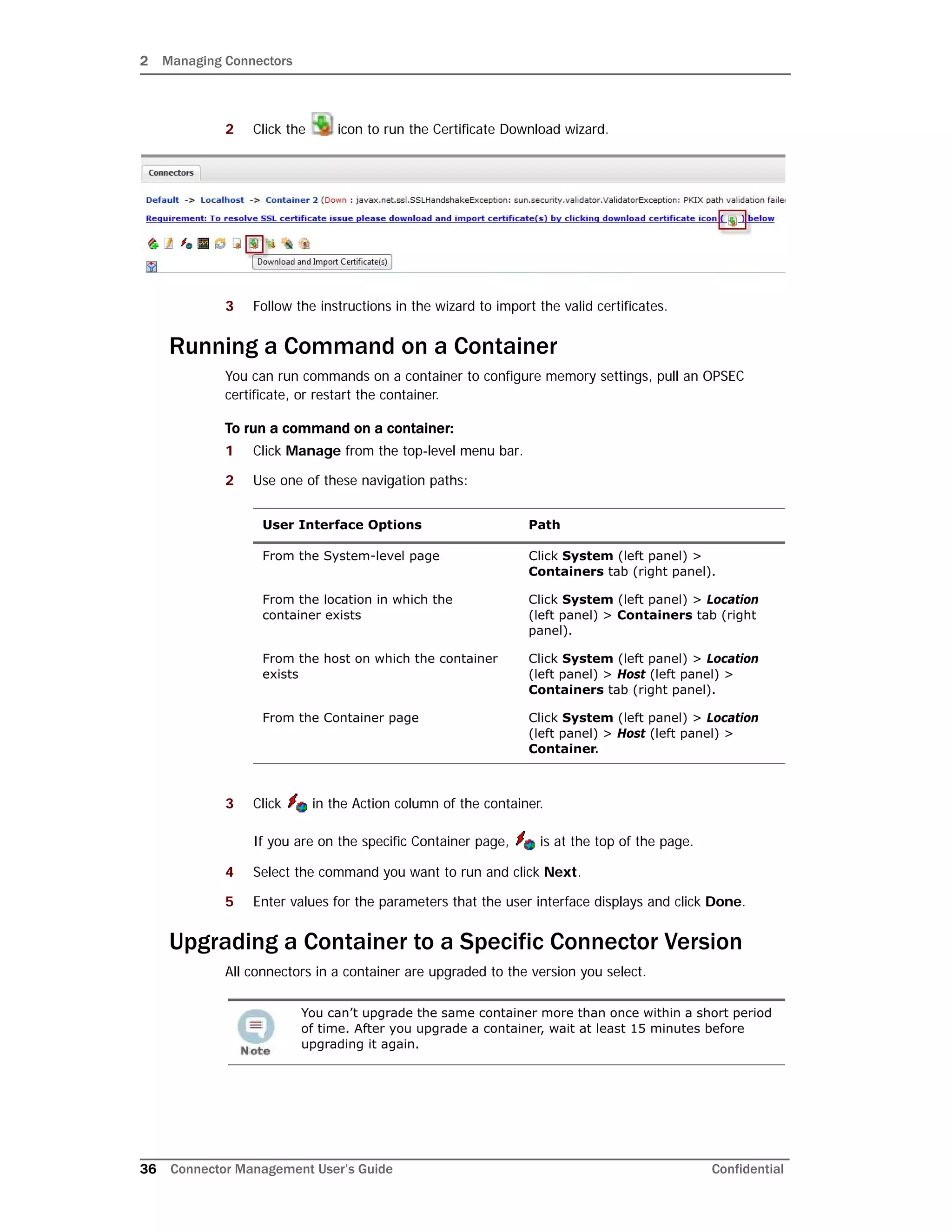
You can edit parameters (simple and table) for a specific connector or for multiple
connectors at the same time.
Updating Simple Parameters for a Specific Connector
The following procedure describes how to update simple parameters for a specific
connector. To update table parameters for a specific connector, see “Updating Table
Parameters for a Specific Connector” on page 45. To update both simple and table
parameters for multiple connectors at the same time, see “Updating Simple and Table
Parameters for Multiple Connectors” on page 46.
To update parameters for a specific connector:
1 Click Manage from the top-level menu bar.
2 Use one of these navigation paths:
User Interface Options Path
From the System-level page Click System (left panel) > Connectors
tab (right panel) > Name of the Connector
(right panel).
From the location in which the
connector exists
Click System (left panel) > Location (left
panel) > Connectors tab (right panel) >
Name of the Connector (right panel).
From the host on which the
connector exists
Click System (left panel) > Location (left
panel) > Host (left panel) > Connectors
tab (right panel) > Name of the Connector
(right panel).
From the Connector page Click System (left panel) > Location (left
panel) > Host (left panel) > Container >
Name of the Connector (left panel).
2 Managing Connectors
Confidential Connector Management User’s Guide 45
3 Click ( ) next to the Connector Parameters link.
4 Modify parameters as necessary and click Next.
5 Click Done when complete.
The updated parameters display in the Connector Parameters section of the Connector
page.
Updating Table Parameters for a Specific Connector
Certain connectors, such as the Microsoft Windows Event connector, have table
parameters. You can update the table parameters for a specific connector when necessary.
To update table parameters for a specific connector:
1 Click Manage from the top-level menu bar.
2 Use one of these navigation paths:
Clicking the heading Connector Parameters toggles between displaying
and hiding the information in the Connector Parameters section.
• Configuration parameters depend on the type of connector being
configured.
• When editing parameters that include a file path, enter the path in
POSTIX format (for example, /folder/filename). If you enter the
path in DOS/NTFS format (for example, folderfilename), the
backslash () is included as part of the file name and the path will be
incorrect.
User Interface Options Path
From the System-level page Click System (left panel) >
Connectors tab (right panel) > Name
of the Connector (right panel).
From the location in which the
connector exists
Click System (left panel) > Location
(left panel) > Connectors tab (right
panel) > Name of the Connector (right
panel).
2 Managing Connectors
46 Connector Management User’s Guide Confidential
3 Click ( ) next to the Table Parameters link.
4 Modify parameters as necessary and then click Next.
 To add more rows of parameter information, click the Add Row link.
 You can use an Excel-compatible program to prepare a comma-separated values
text file with the information and click the Import File button to load the entire
table at once. The file needs to be in the same format as the rows shown on the
Update Table Parameters page and needs to include a header row with parameter
labels in the order shown on that page. For fields that require checkbox values,
enter True or False as the value. An example is shown below.
 To export the table parameters to a CSV file for use as a backup or to import on
another ArcSight Express, click the Export File button.
5 Click Done when complete.
The updated table parameters display in the Table Parameters section of the
Connector page.
Updating Simple and Table Parameters for Multiple Connectors
If you have multiple connectors of the same type, you can change the simple and table
parameters for all the connectors at the same time.
To edit parameters for multiple connectors at once:
1 Click Manage from the top-level menu bar.
From the host on which the connector
exists
Click System (left panel) > Location
(left panel) > Host (left panel) >
Connectors tab (right panel) > Name
of the Connector (right panel).
From the Connector page Click System (left panel) > Location
(left panel) > Host (left panel) >
Container > Name of the Connector
(left panel).
Clicking the heading Table Parameters toggles between displaying and
hiding the information in the Table Parameters section.
You can import a CSV file that was exported from another
connector as long as you export and import the CSV file from the
same container. If the CSV file was exported from a different
container, you need to change the secret parameters, such as the
password, which appear in obfuscated format in the CSV file to
plain text before you import the CSV file.
User Interface Options Path
2 Managing Connectors
Confidential Connector Management User’s Guide 47
2 Use one of these navigation paths:
3 Select the connectors whose parameters you want to update.
4 Click Parameters.
5 Follow the instructions in the wizard.
 You can choose to modify the simple parameters for all the selected connectors at
once or modify the simple parameters per connector.
 If the connectors have table parameters, the table parameters are displayed so
that you can modify them. If you have many table parameters to modify for
multiple connectors, you can import the parameters from a CSV file (for
information about adding rows and CSV file format, see Step 3 on page 46). You
can also export the table parameters to a CSV file for use as a backup or to import
on another Connector Appliance.
Managing Destinations
Connectors can forward events to more than one destination, such as ArcSight Manager
and ArcSight Logger. You can assign one or more destinations per connector. You can
assign multiple destinations to a connector and specify a failover (alternate) destination in
the event that the primary destination fails.
The following procedures describe how to perform these actions on a specific connector or
for multiple connectors at the same time:
 Add a primary or failover destination
 Edit destination parameters and destination runtime parameters
 Remove destinations
 Re-register destinations
User Interface Options Path
From the System-level page Click System (left panel) > Connectors tab
(right panel).
From the location in which the
connector exists
Click System (left panel) > Location (left
panel) > Connectors tab (right panel).
From the host on which the
connector exists
Click System (left panel) > Location (left
panel) > Host (left panel) > Connectors tab
(right panel).
From the Connectors page Click System (left panel) > Location (left
panel) > Host (left panel) > Container (left
panel).
The connectors must be the same type; for example, you can change the
parameters for several syslog connectors at the same time; however,
you cannot change the parameters for several syslog and several SNMP
connectors at the same time.
When you update parameters for connectors that are of different
versions, the newer connectors might have additional parameters. In
this case, only the parameters that are the same for all connectors are
displayed for updating.
2 Managing Connectors
48 Connector Management User’s Guide Confidential
 Manage alternate configurations for a destination
 Send a command to a destination
Adding a Primary Destination to a Specific Connector
When you add a primary destination to a connector, you need to enter details for the
destination, such as the destination hostname and port used.
To add a primary destination to a connector:
1 Click Manage from the top-level menu bar.
2 Use one of these navigation paths:
• You cannot configure two connectors with the same ArcSight Manager
destination if the destination (connector) name and location used for
configuration is the same.
• Logger receivers do not support encrypted data.
• You cannot use the Edit button ( ) to change or add a connector
destination. Its purpose is to change destination parameters. To add a
new destination, remove the unwanted destination configuration ( )
and create a new one ( ).
User Interface Options Path
From the System-level page Click System (left panel) > Connectors
tab (right panel) > Name of the Connector
(right panel).
From the location in which the
connector exists
Click System (left panel) > Location (left
panel) > Connectors tab (right panel) >
Name of the Connector (right panel).
From the host on which the
connector exists
Click System (left panel) > Location (left
panel) > Host (left panel) > Connectors
tab (right panel) > Name of the Connector
(right panel).
From the Connector page Click System (left panel) > Location (left
panel) > Host (left panel) > Container >
Name of the Connector (left panel).
2 Managing Connectors
Confidential Connector Management User’s Guide 49
3 Click ( ) next to the Destinations link.
4 Follow the steps in the wizard.
You can either select an existing destination or add a new destination. If you are
adding a new destination, select the destination type and enter parameters for the
destination.
5 Click Done when complete.
Adding a Failover Destination to a Specific Connector
Each destination can have a failover destination that is used if the connection with the
primary destination fails.
Clicking the Destinations heading toggles between displaying and
hiding the information in the Destinations section.
For containers running 5.1.2.5823 and later, Connector Management
retrieves the certificate for the ArcSight Manager destination
automatically and displays the certificate summary.
For containers running 5.1.2 and earlier, upload the certificate on the
container and then add the destination.
FIPS Suite B certificates are not retrieved automatically and must be
uploaded manually, as described in “Enabling FIPS Suite B on a
Container” on page 28.
To see certificate details, hover your mouse over the certificate.
• Select Import the certificate to the connector from the
destination, then click Next to import the certificate and continue.
• Select Do not import the certificate to the connector from the
destination and click Next if you do not want to import the
certificate. The destination will not be added.
UDP connections cannot detect transmission failure; use Raw TCP for CEF
Syslog destinations.
2 Managing Connectors
50 Connector Management User’s Guide Confidential
To add a failover destination:
1 Click Manage from the top-level menu bar.
2 Use one of these navigation paths:
3 Click ( ) in the Destinations section to display the Add Connector Destination
wizard.
4 Follow the steps in the wizard to select from available destinations and enter the
destination details.
Adding a Primary or Failover Destination to Multiple Connectors
You can add a primary or failover destination to several connectors at the same time.
To add a primary or failover destination to more than one connector:
1 Click Manage from the top-level menu bar.
User Interface Options Path
From the System-level page Click System (left panel) > Connectors
tab (right panel) > Name of the Connector
(right panel).
From the location in which the
connector exists
Click System (left panel) > Location (left
panel) > Connectors tab (right panel) >
Name of the Connector (right panel).
From the host on which the
connector exists
Click System (left panel) > Location (left
panel) > Host (left panel) > Connectors
tab (right panel) > Name of the Connector
(right panel).
From the Connector page Click System (left panel) > Location (left
panel) > Host (left panel) > Container >
Name of the Connector (left panel).
For containers running 5.1.2.5823 and later, Connector Management
retrieves the ArcSight Manager certificate for the destination
automatically and displays the certificate summary.
For containers running 5.1.2 and earlier, upload the certificate on the
container and then add the destination.
FIPS Suite B certificates are not retrieved automatically and must be
uploaded manually, as described in “Enabling FIPS Suite B on a
Container” on page 28.
To see certificate details, hover your mouse over the certificate.
• Select Import the certificate to the connector from the
destination, then click Next to import the certificate and continue.
• Select Do not import the certificate to the connector from the
destination and click Next if you do not want to import the
certificate. The destination will not be added.
2 Managing Connectors
Confidential Connector Management User’s Guide 51
2 Use one of these navigation paths:
3 Select all connectors to which you want to assign a destination.
4 Click at the bottom of the page to open the wizard.
5 Select Add a destination and click Next.
6 Choose between a creating a new destination or selecting an existing destination, then
click Next.
If you choose to create a new destination, select the destination type and then
provide the destination parameters.
If you choose to select an existing destination, select a destination from the list.
7 Define the destination function by choosing between a primary or failover destination.
If you choose Primary destination, click Next to update the configuration.
If you choose Failover destination:
a Select the primary destination that applies to your failover.
b Click the check box in the table header to modify all of the displayed connectors.
c Click Next to update the configuration.
8 Click Done when complete.
User Interface Options Path
From the System-level page Click System (left panel) >
Connectors tab (right panel).
From the location in which the
connector exists
Click System (left panel) > Location
(left panel) > Connectors tab (right
panel).
From the host on which the connector
exists
Click System (left panel) > Location
(left panel) > Host (left panel) >
Connectors tab (right panel).
From the Connectors page Click System (left panel) > Location
(left panel) > Host (left panel) >
Container (left panel).
Connector Management retrieves the ArcSight Manager certificate for
the destination automatically and displays the certificate summary.
FIPS Suite B certificates are not retrieved automatically and must be
uploaded manually, as described in “Enabling FIPS Suite B on a
Container” on page 28.
To see certificate details, hover your mouse over the certificate.
• Select Import the certificate to the connector from
destination, then click Next to import the certificate and continue.
• Select Do not import the certificate to the connector from the
destination and click Next if you do not want to import the
certificate. The destination will not be added.
2 Managing Connectors
52 Connector Management User’s Guide Confidential
Removing Destinations
You can remove a destination from a connector at any time. The following procedures
describe how to remove a single destination from a specific connector and how to remove
multiple destinations from one or more connector.
To remove a single destination from a specific connector:
1 Click Manage from the top-level menu bar.
2 Use one of these navigation paths:
3 In the Destinations section, click for the destination you want to remove.
4 When prompted, confirm the removal.
To remove multiple destinations from one or more connector:
1 Click Manage from the top-level menu bar.
2 Use one of these navigation paths:
User Interface Options Path
From the System-level page Click System (left panel) > Connectors
tab (right panel) > Name of the Connector
(right panel).
From the location in which the
connector exists
Click System (left panel) > Location (left
panel) > Connectors tab (right panel) >
Name of the Connector (right panel).
From the host on which the
connector exists
Click System (left panel) > Location (left
panel) > Host (left panel) > Connectors
tab (right panel) > Name of the Connector
(right panel).
From the Connector page Click System (left panel) > Location (left
panel) > Host (left panel) > Container >
Name of the Connector (left panel).
The shows in the Destinations table only if more than one destination
is listed.
User Interface Options Path
From the System-level page Click System (left panel) > Connectors
tab (right panel).
From the location in which the
connector exists
Click System (left panel) > Location (left
panel) > Connectors tab (right panel).
From the host on which the
connector exists
Click System (left panel) > Location (left
panel) > Host (left panel) > Connectors
tab (right panel).
From the Connectors page Click System (left panel) > Location (left
panel) > Host (left panel) > Container
(left panel).
2 Managing Connectors
Confidential Connector Management User’s Guide 53
3 Select the connectors whose destinations you want to remove.
4 Click the Destinations button to open the wizard.
5 Select Remove destinations and click Next.
6 Follow the instructions in the wizard and click Done when complete.
Re-Registering Destinations
At certain times, you might need to re-register the destinations for one or more connector;
for example, after you upgrade ESM, or if a Logger appliance or ESM appliance becomes
unresponsive.
To re-register destinations for one or more connector:
1 Click Manage from the top-level menu bar.
2 Use one of these navigation paths:
3 Select the connectors whose destinations you want to re-register.
4 Click the Destinations button to open the wizard.
5 Select Re-register destinations and click Next.
6 Follow the instructions in the wizard and click Done when complete.
Editing Destination Parameters
The following procedures describe how to edit destination parameters for a specific
connector and how to edit destination parameters for multiple connectors at the same
time.
To edit destination parameters for a specific connector:
1 Click Manage from the top-level menu bar.
User Interface Options Path
From the System-level page Click System (left panel) >
Connectors tab (right panel).
From the location in which the
connector exists
Click System (left panel) > Location
(left panel) > Connectors tab (right
panel).
From the host on which the connector
exists
Click System (left panel) > Location
(left panel) > Host (left panel) >
Connectors tab (right panel).
From the Connectors page Click System (left panel) > Location
(left panel) > Host (left panel) >
Container (left panel).
You cannot change the connector type; however, you can remove the
unwanted connector configuration and create a new one.
2 Managing Connectors
54 Connector Management User’s Guide Confidential
2 Use one of these navigation paths:
3 In the Destinations section, click ( ) next to the destination you want to edit to
display the Edit Destination Parameters page.
4 Make your changes and click Next.
5 Click Done when complete.
To edit destination parameters for multiple connectors:
1 Click Manage from the top-level menu bar.
User Interface Options Path
From the System-level page Click System (left panel) > Connectors
tab (right panel) > Name of the Connector
(right panel).
From the location in which the
connector exists
Click System (left panel) > Location (left
panel) > Connectors tab (right panel) >
Name of the Connector (right panel).
From the host on which the
connector exists
Click System (left panel) > Location (left
panel) > Host (left panel) > Connectors
tab (right panel) > Name of the Connector
(right panel).
From the Connector page Click System (left panel) > Location (left
panel) > Host (left panel) > Container >
Name of the Connector (left panel).
You cannot use the Edit button ( ) to change or add a connector
destination. Its purpose is to change destination parameters. To add a
new destination, remove the unwanted destination ( ) and create a
new one ( ).
2 Managing Connectors
Confidential Connector Management User’s Guide 55
2 Use one of these navigation paths:
3 Select the connectors whose destination parameters you want to edit.
4 Click Destinations to open the wizard.
5 Select Edit a destination and click Next.
6 Follow the instructions in the wizard and click Done when complete.
Editing Destination Runtime Parameters
The runtime parameters for a destination enable you to specify advanced processing
options such as batching, time correction, and bandwidth control. All the parameters listed
in that table are not available for all destinations. The user interface automatically displays
the parameters valid for a destination.
The following procedures describe how to edit the runtime parameters for a specific
connector and how to edit the runtime parameters for multiple connectors at the same
time.
To edit destination runtime parameters for a specific connector:
1 Click Manage from the top-level menu bar.
2 Use one of these navigation paths:
User Interface Options Path
From the System-level page Click System (left panel) > Connectors
tab (right panel).
From the location in which the
connector exists
Click System (left panel) > Location (left
panel) > Connectors tab (right panel).
From the host on which the
connector exists
Click System (left panel) > Location (left
panel) > Host (left panel) > Connectors
tab (right panel).
From the Connectors page Click System (left panel) > Location (left
panel) > Host (left panel) > Container (left
panel).
User Interface Options Path
From the System-level page Click System (left panel) > Connectors
tab (right panel) > Name of the Connector
(right panel).
From the location in which the
connector exists
Click System (left panel) > Location (left
panel) > Connectors tab (right panel) >
Name of the Connector (right panel).
From the host on which the
connector exists
Click System (left panel) > Location (left
panel) > Host (left panel) > Connectors
tab (right panel) > Name of the Connector
(right panel).
From the Connector page Click System (left panel) > Location (left
panel) > Host (left panel) > Container >
Name of the Connector (left panel).
2 Managing Connectors
56 Connector Management User’s Guide Confidential
3 In the Destinations section, click next to the destination whose runtime
parameters you want to edit.
4 Click next to the alternate configuration that you want to edit.
If you have not set up alternate configurations, click next to the Default. For more
information about alternate configurations, see “Managing Alternate Configurations”
on page 56.
5 Specify or update values for the listed parameters and click Save.
To edit destination runtime parameters for multiple connectors at the same time:
1 Click Manage from the top-level menu bar.
2 Use one of these navigation paths:
3 Select the connectors whose destination runtime parameters you want to edit.
4 Click Runtime Parameters to open the wizard.
5 Follow these steps in the wizard to edit the runtime parameters:
a Select the destinations whose runtime parameters you want to modify.
b Select the configurations to be affected (default or alternate configurations).
c Select the group of parameters you want to modify (for example, batching, cache,
network, processing).
d Modify the parameters.
Managing Alternate Configurations
An alternate configuration is a set of runtime parameters that is used instead of the default
configuration during a specified portion of every day. For example, you might want to
specify different batching schemes (by severity or size) for different times of a day. You can
define more than one alternate configuration per destination and apply them to the
destination for different time ranges during the day. For example, you can define a
configuration for 8 am to 5 pm time range and another configuration for the 5 pm to 8 am
time range.
By default, a configuration labeled Default exists and is applied to a destination. Any
subsequent configurations you define are labeled Alternate#1, Alternate#2, and so on.
The default configuration is used if the time ranges specified for other alternate
User Interface Options Path
From the System-level page Click System (left panel) > Connectors tab
(right panel).
From the location in which the
connector exists
Click System (left panel) > Location (left
panel) > Connectors tab (right panel).
From the host on which the
connector exists
Click System (left panel) > Location (left
panel) > Host (left panel) > Connectors tab
(right panel).
From the Connectors page Click System (left panel) > Location (left
panel) > Host (left panel) > Container (left
panel).
2 Managing Connectors
Confidential Connector Management User’s Guide 57
configurations do not span 24 hours. For example, if you specify an alternate configuration,
Alternate#1 that is effective from 7 am to 8 pm, the Default configuration will be used
from 8 pm to 7 am (assuming that there are no other alternate configurations defined on
this system).
If you need to apply the same alternate configuration for multiple destinations, you need to
define an alternate configuration (with the same settings) for each of those destinations.
Defining a New Alternate Configuration
The process of defining a new alternate configuration includes first defining the
configuration, and then editing it to specify the time range for which that configuration is
effective.
To define an alternate configuration:
1 Click Manage from the top-level menu bar.
2 Use one of these navigation paths:
3 Click ( ) in the Destinations section.
4 Click Add.
5 Specify or update values for the listed parameters.
6 Scroll down to the end of the page and click Save.
If this is the first alternate configuration you defined, it is saved as Alternate#1.
Subsequent configurations are saved as Alternate#2, Alternate#3, and so on.
User Interface Options Path
From the System-level page Click System (left panel) >
Connectors tab (right panel) > Name
of the Connector (right panel).
From the location in which the
connector exists
Click System (left panel) > Location
(left panel) > Connectors tab (right
panel) > Name of the Connector (right
panel).
From the host on which the connector
exists
Click System (left panel) > Location
(left panel) > Host (left panel) >
Connectors tab (right panel) > Name
of the Connector (right panel).
From the Connector page Click System (left panel) > Location
(left panel) > Host (left panel) >
Container > Name of the Connector
(left panel).
2 Managing Connectors
58 Connector Management User’s Guide Confidential
To specify the time range for which the configuration you just defined is effective, edit
the configuration you just defined using the following procedure Editing an Alternate
Configuration below.
Editing an Alternate Configuration
In addition to editing an alternate configuration to change parameter values, you can edit it
to specify the time range for which it is effective.
To edit an alternate configuration:
1 Click Manage from the top-level menu bar.
2 Use one of these navigation paths:
3 Click ( ) in the Destinations section.
4 Select the alternate configuration that you want to edit and click ( ).
5 Specify or update values for the listed parameters, including the time range in the
From Hour/To Hour.
6 Scroll down to the end of the page and click Save.
Specifying a Time Range for an Alternate Configuration
See “Editing an Alternate Configuration” on page 58.
Editing Alternate Configurations in Bulk
If you need to update the same parameters in multiple alternate configurations, follow the
procedure described in “Editing Destination Runtime Parameters” on page 55.
Sending a Command to a Destination
You can send a command to a connector destination.
To send a command to a destination on a connector:
1 Click Manage from the top-level menu bar.
User Interface Options Path
From the System-level page Click System (left panel) >
Connectors tab (right panel) > Name
of the Connector (right panel).
From the location in which the
connector exists
Click System (left panel) > Location
(left panel) > Connectors tab (right
panel) > Name of the Connector (right
panel).
From the host on which the connector
exists
Click System (left panel) > Location
(left panel) > Host (left panel) >
Connectors tab (right panel) > Name
of the Connector (right panel).
From the Connector page Click System (left panel) > Location
(left panel) > Host (left panel) >
Container > Name of the Connector
(left panel).
2 Managing Connectors
Confidential Connector Management User’s Guide 59
2 Use one of these navigation paths:
3 Click ( ) in the Destinations section.
4 Select the command you want to run and click Next.
5 Enter values for the parameters that the user interface displays and click Finish.
Removing a Connector
To remove a Connector:
1 Click Manage from the top-level menu bar.
2 Use one of these navigation paths:
3 Select the connectors you want to delete. You can select multiple connectors.
4 Click Delete at the bottom of the page.
User Interface Options Path
From the System-level page Click System (left panel) >
Connectors tab (right panel) > Name
of the Connector (right panel).
From the location in which the
connector exists
Click System (left panel) > Location
(left panel) > Connectors tab (right
panel) > Name of the Connector (right
panel).
From the host on which the connector
exists
Click System (left panel) > Location
(left panel) > Host (left panel) >
Connectors tab (right panel) > Name
of the Connector (right panel).
From the Connector page Click System (left panel) > Location
(left panel) > Host (left panel) >
Container > Name of the Connector
(left panel).
After removing a connector, you need to reboot the system; otherwise, the
removed connector continues to forward events to its destination.
User Interface Options Path
From the System-level page Click System (left panel) >
Connectors tab (right panel).
From the location in which the
connector exists
Click System (left panel) > Location
(left panel) > Connectors tab (right
panel).
From the host on which the connector
exists
Click System (left panel) > Location
(left panel) > Host (left panel) >
Connectors tab (right panel).
2 Managing Connectors
60 Connector Management User’s Guide Confidential
5 Reboot the system.
Sending a Command to a Connector
You can send a command to a connector.
To send a command to a connector:
1 Click Manage from the top-level menu bar.
2 Use one of these navigation paths:
3 Click in the Action column for the connector.
If you are on a specific Connector page, is on top of the page.
4 From the Command Type drop-down list, select the command you want to send to
the connector.
5 Click Next.
Running Logfu on a Connector
Run Logfu on a connector to parse ArcSight logs and generate an interactive visual
representation of the information contained within the logs.
To run Logfu on a connector:
1 Click Manage from the top-level menu bar.
You can also delete a specific connector from its details page: Click System
(left panel) > Location (left panel) > Host (left panel) > Container >
Connector > at the top of the page.
User Interface Options Path
From the System-level page Click System (left panel) >
Connectors tab (right panel) > Name
of the Connector (right panel).
From the location in which the
connector exists
Click System (left panel) > Location
(left panel) > Connectors tab (right
panel) > Name of the Connector (right
panel).
From the host on which the connector
exists
Click System (left panel) > Location
(left panel) > Host (left panel) >
Connectors tab (right panel) > Name
of the Connector (right panel).
From the Connector page Click System (left panel) > Location
(left panel) > Host (left panel) >
Container > Name of the Connector
(left panel).
2 Managing Connectors
Confidential Connector Management User’s Guide 61
2 Use one of these navigation paths:
3 Click ( ) on top of the page. A separate window displays.
The system proceeds to retrieve and analyze system data logs. After this process is
complete, a group of panels appears in the window.
4 From the Group box, choose which type of data you would like to view. The Group
box lists all connectors within the chosen container, plus many other types of data
such as memory usage, and transport rates and logs.
Choose one of the Group box data points. Depending on which data point you
choose, a list of fields appears in the Field box below.
5 Choose a field to view. A graphic chart appears in the Chart box, providing rate and
time information. The key at the bottom of the Chart box defines the data points
mapped in the chart.
6 If you need to choose a different data point for analysis, click Reset Data.
Changing the Network Interface Address for Events
Connector Management has multiple network interfaces. By default, the connector
determines which network interface address is used for events displayed in the ArcSight
Console or Logger, but typically uses eth0.
To use a specific network interface address for events, add the parameter
connector.network.interface.name to the Connector’s agent.properties file.
For example, to use the IP address for eth1, specify the following parameter:
connector.network.interface.name=eth1
Developing FlexConnectors
FlexConnectors are custom SmartConnectors that can read and parse information from
third-party devices and map that information to ArcSight’s event schema.
Connector Management provides a FlexConnector Development wizard that lets you quickly
and easily develop a FlexConnector by creating a parser file, and enables you to test and
User Interface Options Path
From the System-level page Click System (left panel) >
Connectors tab (right panel) > Name
of the Connector (right panel).
From the location in which the
connector exists
Click System (left panel) > Location
(left panel) > Connectors tab (right
panel) > Name of the Connector (right
panel).
From the host on which the connector
exists
Click System (left panel) > Location
(left panel) > Host (left panel) >
Connectors tab (right panel) > Name
of the Connector (right panel).
From the Connector page Click System (left panel) > Location
(left panel) > Host (left panel) >
Container > Name of the Connector
(left panel).
2 Managing Connectors
62 Connector Management User’s Guide Confidential
package your new FlexConnector before deploying it. The wizard generates regular
expressions and provides event field mapping suggestions automatically so you do not
need to be an expert in regular expression authoring, parser syntax, or ArcSight event
schema.
Use the FlexConnector Development wizard to develop FlexConnectors for simple log files.
For complex log files, use the FlexConnector SDK (available from the ArcSight Customer
Support site).
To develop a FlexConnector:
1 Click Manage from the top-level menu bar.
2 Use one of these navigation paths to go to the Containers tab:
3 Click in the Action column of the container to which you want to add the
FlexConnector. When the FlexConnector Development wizard opens, click Next.
4 Provide the vendor and product name of the device for which you are creating a
FlexConnector, then click Next.
5 Select the data source type, then click Next:
 Select Syslog to create a Syslog FlexConnector to read events from Syslog
messages.
 Select File to create a FlexConnector to parse variable-format log files using
regular expressions (ArcSight FlexConnector Regex File) or to parse
variable-format log files in batch mode (ArcSight FlexConnector Folder Follower).
Currently, the FlexConnector Development wizard supports Regex Files,
Folder Follower, and Syslog (Daemon, File, Pipe) FlexConnectors only.
The FlexConnector Development wizard does not support the extra
processors property or multiple sub messages. If you need these features,
use the FlexConnector SDK to create your FlexConnector.
A FlexConnector that you develop with the FlexConnector Development
wizard might perform more slowly than an ArcSight SmartConnector.
User Interface Options Path
From the System-level page Click System (left panel) > Containers tab
(right panel).
From the location in which the
container exists
Click System (left panel) > Location (left
panel) > Containers tab (right panel).
From the host on which the
container exists
Click System (left panel) > Location (left
panel) > Host (left panel) > Containers tab
(right panel).
The device vendor and product name are required.
2 Managing Connectors
Confidential Connector Management User’s Guide 63
6 Upload a sample log file for the data source type you selected in the previous step,
then click Next.
7 The wizard finds the first unparsed line in the log file, generates a regular expression
to match and extract tokens from that line, and displays the suggested field mappings
for each extracted token in the Mappings table.
 To change the regular expression in the Regex box and recalculate the
mappings, edit the expression and then click the Recalculate button. You can
set the regular expression back to the suggested value by clicking the Reset
button.
 Field mappings that do not correspond directly to the extracted tokens in the
unparsed line of the log file are displayed in the Extra Mappings table. You can
change the Event Field and provide a token operation. To add a new Event Field,
click Add Row.
You can use extra mappings to:
 Remap an extracted token to a different Event Field in addition to the existing
mapping. For example, you can add an Event Field with the value $3 where
$3 is the third token in the list of suggested mappings.
 Map a modified token or combination of tokens to an Event Field. For
example, you can add an Event Field with the value __operation($1,$3).
 Map an Event Field to a constant string or integer. For example, you can add
an Event Field with the value __stringConstant(constant).
For a list of the token operations used when tokens are mapped to ArcSight event
fields, refer to the FlexConnector Developer’s Guide (available from the ArcSight
Customer Support site).
The mappings are displayed in descending order of probability (based
on ArcSight training data). You can change the mappings by selecting
from the list.
The percentage of parsed lines in the file is shown in the top right of
the panel. You can use this percentage to estimate where you are in
the log file. The percentage of unparsed lines skipped in the file is
also shown in the top right of the panel.
The wizard always contains an extra mapping for the Event Field
name, which maps all the words in the input log line. ArcSight
strongly recommends that you do not simply delete the name
Event Field but map it in either the Mappings or the Extra Mappings
table.
2 Managing Connectors
64 Connector Management User’s Guide Confidential
8 Click Next to save the mapping to the parser file and display the next unparsed line in
the log file.
After all unparsed lines in the log file have corresponding regular expressions and
mappings, the wizard displays the parser file for review.
9 Review the parser file and make changes, if necessary, directly in the Review Parser
File panel.
10 Click Next to save and package the parser file.
11 Choose how you want to deploy the FlexConnector:
 Select Deploy parser to existing connector in container and click Next to
use the parser file with an existing connector. Click Done to close the
FlexConnector wizard and re-display the Container tab.
 Select Add new connector to container and click Next to add the parser as a
new connector. Follow the steps to add the connector to the container.
You can share FlexConnectors with other users. See “Sharing Connectors (ArcExchange)”
on page 65.
Editing FlexConnectors
After you have developed a FlexConnector with the FlexConnector wizard and have
deployed it in a container, you can edit the FlexConnector to make changes to the parser
file when needed.
Click the Skip Line button to go to the next unparsed line in the log file
without saving the mapping.
Click the Skip to End button to go to the end of the log file without
processing any other lines and display the parser file for review.
Click the Previous button to go back to the previous line in the log file
and make changes if necessary. If you configured any mappings for the
previous line, the Previous button displays the configured mappings,
not the default mappings.
In Mozilla Firefox, if certain text in the Review Parser File panel is
underlined in red, you can disable Spell Check; Right-click in the panel
and click Check Spelling to remove the check mark.
The Deploy parser to existing connector in container option
displays only if the container already contains a connector of the
same type.
After deploying your FlexConnector, you can edit it any time from the
Connectors tab. See “Editing FlexConnectors” on page 64.
2 Managing Connectors
Confidential Connector Management User’s Guide 65
The FlexConnector Edit wizard is available on the Connectors tab in the Action column.
Click in the Action column for the FlexConnector to open the wizard. To edit the
parser file, follow Step 6 through Step 11 in “Developing FlexConnectors” on page 61.
Sharing Connectors (ArcExchange)
You can share FlexConnectors and parser overrides with other users.
A FlexConnector is a custom connector that you define to gather security events from log
files, databases, and other software and devices. You can share the following
FlexConnector types:
 Syslog FlexConnectors (to read events from syslog messages)
 Log File FlexConnectors (to read fixed-format log files)
 Regular Expression Log File FlexConnectors (to read variable-format log files)
 Regular Expression Folder Follower FlexConnectors (to read variable-format log files
recursively in a folder)
 Regular Expression Multiple Folder Follower FlexConnectors (to read events in real
time or batch mode from multiple folders)
 XML FlexConnectors (to read events recursively from XML-based files in a folder)
A parser override is a file provided by ArcSight used to resolve an issue with the parser for
a specific connector, or to support a newer version of a supported device where the log file
format changed slightly or new event types were added. You can share parser overrides for
all connector types that use a parser.
To share a FlexConnector or parser override, you need to package and upload it to
ArcExchange on the ArcSight online community (Protect 724) or to your local machine. You
can also download a FlexConnector or parser override that you need from ArcExchange or
from your local machine and add it to a container.
Only edit a FlexConnector that is created with the FlexConnector wizard.
Editing manually-created FlexConnectors might produce unpredictable
results.
In addition to the FlexConnector Edit wizard, you can also use the Edit a File
action in the Container Diagnostics wizard to edit your FlexConnector. Refer
to “Running Diagnostics on a Container” on page 39.
2 Managing Connectors
66 Connector Management User’s Guide Confidential
Packaging and Uploading Connectors
Before uploading your FlexConnector or parser override to Protect 724 or to your local
computer, you need to package it into a zip file, (called an AUP package) using the upload
wizard.
A FlexConnector AUP package contains the connector properties file, categorization file,
connector parameters, and a manifest file with all the metadata on the package required
for successful deployment. Metadata includes information about the AUP package, such as
the package type, connector type, connector description, and so on. You can create only
one AUP package per connector per device type. You can package a FlexConnector in Basic
or Advanced mode. In Basic mode:
 The wizard packages the FlexConnector properties file automatically. If the wizard
finds more than one properties file, you are prompted to select the file you want to
package.
 The wizard packages the categorization file automatically only if it can be determined
based on the device vendor and product information found in the properties file.
 The wizard does not package connector parameters. You are prompted to configure
the connector when it is downloaded and deployed.
In Advanced mode:
 The wizard packages the FlexConnector properties file automatically. If the wizard
finds more than one properties file, you are prompted to select the file you want to
package. (This is same as Basic mode.)
 The wizard packages the categorization file automatically if it can be determined based
on the device vendor and product information found in the properties file. If the
categorization file cannot be determined, you are prompted to select the
categorization file you want to package from the list of files found in the container.
 The wizard displays connector parameters so you can configure the parameters you
want to display and set the default values you want to provide during connector
deployment (download). The parameters you do not configure for display are
preconfigured with the current values and will not be displayed during connector
deployment.
A parser override package contains the parser override properties file and the manifest file
only.
Follow the steps below to package and upload a FlexConnector or parser override.
To package and upload a FlexConnector or parser override:
1 Click Manage from the top-level menu bar.
• To upload to ArcExchange, you must have a valid username and
password for Protect 724.
• Make sure that you have configured ArcSight Express network settings
under Setup > System Admin > Network and that the appliance can
communicate with the Protect 724 server.
2 Managing Connectors
Confidential Connector Management User’s Guide 67
2 Use one of these navigation paths:
3 Click at the top of the Connector page to open the upload wizard. (From the
Connectors page, select the connector in the right panel and click in the Action
column.)
4 Click Next and follow the steps in the wizard to:
a Select the type of AUP package you want to create for the selected connector.
Connector Management scans the container and displays the relevant files that
can be packaged.
b For a FlexConnector, select Basic to create a default package or select
Advanced to customize the package to meet your needs. For a description of
Basic and Advanced mode, refer to “Packaging and Uploading Connectors” on
page 66.
c If the connector contains several properties files, you are prompted to select the
properties file you want to package. Certain connectors, for example, syslog
connectors, can have more than one parser override folder, in this case, you are
prompted to select the folder you want to package.
d If you selected Advanced mode for a FlexConnector in Step b and the
categorization file cannot be determined, you are prompted to select the
categorization file you want to package from a list of files found in the container.
e If you selected Advanced mode for a FlexConnector in Step b, select the
configuration parameters you want to display when the connector is deployed and
then provide default values for these parameters. Parameters you do not select
are pre-configured with the current values.
User Interface Options Path
From the System-level page Click System (left panel) >
Connectors tab (right panel) > Name
of the Connector (right panel).
From the location in which the
connector exists
Click System (left panel) > Location
(left panel) > Connectors tab (right
panel) > Name of the Connector (right
panel).
From the host on which the connector
exists
Click System (left panel) > Location
(left panel) > Host (left panel) >
Connectors tab (right panel) > Name
of the Connector (right panel).
From the Connector page Click System (left panel) > Location
(left panel) > Host (left panel) >
Container > Name of the Connector
(left panel).
Categorization files are not packaged for parser overrides.
2 Managing Connectors
68 Connector Management User’s Guide Confidential
If any advanced connector parameters were previously modified from their
defaults, the wizard displays these parameters so that you can select which ones
you want to be configured automatically during deployment.
f Provide a description of the AUP package and instructions on how configure the
device used by the connector.
g Provide the vendor, product, and version of the device used by the connector.
If the wizard can determine the vendor, product, and version of the device, the
information is displayed in the fields provided. You can change the information to
meet your needs.
h Upload the created AUP package to ArcExchange or to your local machine.
Downloading Connectors
You can download a FlexConnector or parser override that is available from ArcExchange
on Protect 724 or from your local computer. You download a FlexConnector or parser
override directly to a container.
You can download only one FlexConnector per container using the download wizard.
However, there is no limit to the number of parser overrides you can download to a
container.
Follow the steps below to download a FlexConnector or parser override to a container.
To download to ArcExchange, you must have a valid username and password for Protect
724. Also, make sure that you have configured ArcSight Express network settings under
Setup > System Admin > Network and that the appliance can communicate with the
Protect 724 server.
To download a FlexConnector or parser override:
1 Click Manage from the top-level menu bar.
Configuration parameters are not displayed for parser overrides.
If the connector has table parameters, they are not displayed
during packaging. However, when the connector is downloaded to a
container, you will be prompted to provide values for all the table
parameters.
To upload the AUP package to ArcExchange, you must have a valid
username and password for Protect 724.
• When downloading a parser override to a container, the download
wizard overwrites any existing parser override with the same name in
the container without prompting for confirmation. To avoid overwriting
an existing parser override, send a Get Status command to the
existing parser override to check the parser information before you
download a new parser override. For information on sending a Get
Status command, refer to “Sending a Command to a Connector” on
page 60.
• ArcSight recommends that you back up the container to the Backup
Files repository before downloading a connector or parser override so
you can revert to the previous configuration if the download produces
unexpected results.
2 Managing Connectors
Confidential Connector Management User’s Guide 69
2 Go to the Containers page. Use one of these navigation paths:
3 In the right panel, select the container into which you want to download the
connector, and then click in the Action column to open the download wizard.
4 Click Next and follow the steps in the wizard to:
a Select whether you want to download the connector from ArcExchange on Protect
724 or from your local computer.
b Select the AUP package you want to download.
On Protect 724, you can search for a parser override or FlexConnector AUP
package using a keyword or a combination of keywords.
c For a FlexConnector, provide connector configuration parameters, if needed.
Preconfigured and advanced parameters are deployed automatically with the
values that were packaged; you are not prompted to configure these parameters.
The configurable parameters are displayed with suggested defaults, which you
can modify if necessary. The table parameters are displayed with no configured
values, you have to provide the values manually, as needed.
d Add or select a destination for the connector.
If you are downloading the connector to a container that has an existing
connector of the same type, you are not prompted for a destination.
The wizard copies the properties and categorization files to the appropriate locations and
also installs the zip file for the AUP package in the user/agent/deployedaups folder on
Connector Management to keep track of the deployment history.
After a successful download, the container is restarted automatically.
User Interface Options Path
From the System-level page Click System (left panel) >
Containers tab (right panel).
From the location in which the
container exists
Click System (left panel) > Location
(left panel) > Containers tab (right
panel).
From the host on which the container
exists
Click System (left panel) > Location
(left panel) > Host (left panel) >
Containers tab (right panel).
You can only download a parser override package to a container
that has a connector of the same type as the package.
You can download only one FlexConnector per container using the
download wizard. If the container already contains a FlexConnector
of the same type as the one you want to download, you can replace
the existing FlexConnector with the one you are downloading, but
you cannot create a new one.
To use memory efficiently, parser overrides for the Windows Unified
connector only load when the first event is received.
2 Managing Connectors
70 Connector Management User’s Guide Confidential
Configuration Suggestions for Connector Types
The following table provides configuration suggestions for different types of connectors.
Deploying FlexConnectors
FlexConnectors are custom connectors that are user-defined. FlexConnectors can be
hosted on the system if they are compatible with a Linux platform. ArcSight Express ships
with several prototype FlexConnectors, including:
 ArcSight FlexConnector File
 ArcSight FlexConnector ID-based Database
 ArcSight FlexConnector Multiple Database
 ArcSight FlexConnector Regular Expression File
Connector Type Effects of Limited Usage
Syslog connectors Due to the nature of UDP (the transport protocol typically used
by Syslog), these connectors can potentially lose events if the
configurable event rate is exceeded. This is because the
connector delays processing to match the event rate configured,
and while in this state, the UDP cache might fill and the
operating system drop UDP messages.
Note: ArcSight recommends that you do not use the Limit CPU
Usage option with these connectors because of the possibility
of event loss.
SNMP connectors Similar to Syslog connectors, when the event rate is limited on
SNMP connectors, they can potentially lose events. SNMP is also
typically UDP-based and has the same issues as Syslog.
Database
connectors
Because connectors follow the database tables, limiting the
event rate for database connectors can slow the operation of
other connectors. The result can be an event backlog sufficient
to delay the reporting of alerts by as much as minutes or hours.
However, no events will be lost, unless the database tables are
truncated. After the event burst is over, the connector might
eventually catch up with the database if the event rate does not
exceed the configured limit.
File connectors Similar to database connectors, file-based connectors follow
files and limiting their event rates causes an event backlog. This
can eventually force the connector to fall behind by as much as
minutes or hours, depending on the actual event rate. The
connectors might catch up if the event rate does not exceed the
configured rate.
Asset Scanner
connectors
All connectors on Connector Management run as a service (not
as an application). Therefore, asset scanner connectors running
on ArcSight Express are not supported in Interactive mode.
To run the asset scanner connector in Interactive mode, install
the connector on a standalone system and manage it as a
software-based connector.
Proprietary API
connectors
The behavior of these connectors depends on the particular API,
(for example, OPSEC behaves differently than PostOffice and
RDEP). But in most cases, there will be no event loss unless the
internal buffers and queues of the API implementation fill up.
These connectors work much like database or file connectors.
2 Managing Connectors
Confidential Connector Management User’s Guide 71
 ArcSight FlexConnector Regular Expression Folder File
 ArcSight FlexConnector Simple Network Management Protocol (SNMP)
 ArcSight FlexConnector Time-based Database
 ArcSight FlexConnector XML File
You can create and manage FlexConnectors using repositories. You can share
FlexConnectors with other ArcSight Express users. Refer to “Sharing Connectors
(ArcExchange)” on page 65.
For more information, consult the FlexConnector Developer’s Guide, available from ArcSight
Customer Support.
Configuring the Check Point OPSEC NG Connector
The Check Point FW-1/VPN-1 OPSEC NG connector can operate in clear channel or sslca
mode.
To configure a connector to operate in sslca mode
On the Check Point SmartDashboard:
1 Create an OPSEC Application Object using the Check Point SmartDashboard. You need
to provide these parameters when creating the application object.
After the object is created, note down the following information, which you will need
to provide when continuing configuration.
 SIC Name—DN string that you obtain after initializing communication as described
below.
 SIC Entity Name—Double-click the Check Point Gateway name in the
SmartDashboard to view its general properties. The SIC Entity Name is the SIC
string configured in the general properties window.
 Check Point IP address or hostname.
• This procedure is supported only for ArcSight connector release 4.6.2 or
later.
• A hostname is called an Application Object Name on Check Point. A
password is a Communication Activation Key on Check Point.
Parameter Description
Name A meaningful name for the application object you
are creating; for example, ArcSightLea-1.
This name is used to pull the OPSEC certificate in
the system.
Host The hostname of the ArcSight Express managing
the connector.
Client Entities Select LEA.
Secure Internal
Communication
If a DN string is not present, initialize the
communication by providing an activation key. The
activation key is used when the certificate is
pulled. This is the SIC Name.
Click Communication > Initialize.
2 Managing Connectors
72 Connector Management User’s Guide Confidential
2 Pull the Check Point certificate.
To do so, run the Pull OPSEC Certificate command on the container to which
you will be adding the connector. For detailed information about running a command
on a container, see “Running a Command on a Container” on page 36. You need to
provide this information when running the command:
If the certificate is pulled successfully, a message similar to this is displayed:
OPSEC SIC name (CN=ArcSightLea-1,0=cpfw1..5ad8cn) was retrieved
and stored in /opt/arcsight/<container
name>/current/user/agent/checkpoint/<name>. Certificate was
created successfully and written to "/opt/arcsight/<container
name>/current/user/agent/checkpoint/ArcSightLea-1.opsec.p12".
Note down the OPSEC SIC Name (CN=ArcSightLea-1,0=cpfw1..5ad8cn in the
above example) and the file name (ArcSightLea-1.opsec.p12 in the above
example).
3 Install Policy on the LEA client for the Check Point Gateway using the SmartDashboard.
On ArcSight Express:
4 Add a Check Point connector by following instructions described in “Adding a
Connector” on page 41. You need to provide the following information.
Parameter Description
Server
hostname or
IP address
The name or IP address of the Check Point server.
Application
object name
The OPSEC Application object name you specified in the
previous step. This parameter is case sensitive.
Password The activation key you entered when creating the OPSEC
application object in the previous step.
If the certificate is not pulled successfully, check to ensure that the
Application object name you specified is correct (including the case) and
the container on which you are running the command is up and
running.
Parameters Values to input
Type Check Point FW-1/VPN-1 OPSEC NG
Connection
Type
SSLCA
2 Managing Connectors
Confidential Connector Management User’s Guide 73
5 An error similar to the following is displayed.
-1:[X] Unable to connect to the Lea Server[10.0.101.185] -1:1
connection test failed!
Click the Ignore warnings check box. Click Next.
6 Continue to configure the rest of the connector. Go to Step 6 in “Adding a Connector”
on page 41.
Adding the MS SQL Server JDBC Driver
When you install and configure database connectors that use Microsoft SQL Server as the
database, a JDBC driver is required. This driver does not ship pre-installed on the system;
you need to install it before configuring database connectors on the appliance.
To install a JDBC Driver:
1 Download the MS SQL Server JDBC Driver to a computer that can access ArcSight
Express. You can download the driver from Microsoft at:
http://msdn.microsoft.com/en-us/sqlserver/aa937724
2 Run the setup program to install the driver.
3 Follow the instructions in “Uploading Files to a Repository” on page 85 to add the
sqljdbc.jar file.
The new driver file is added to the repository, as shown in the following example.
After you have installed the JDBC driver, you need to upload the driver file to the
containers that will contain the SQL Server database Connectors. Follow the
instructions in “Uploading a File from the Repository” on page 87.
After the driver file has been uploaded to a container, follow the instructions in “Adding
a Connector” on page 41 to add a connector that requires a JDBC driver.
Connector
Table
Parameters
Server IP: The IP address of the Check Point server.
Server Port: The port on the server that listens for SSLCA
connections. Use the default value 18184.
OPSEC SIC Name: The name you noted in Step 1.
OPSEC SSLCA File: The name you noted after pulling the
certificate in Step 2.
OPSEC Entity SIC Name: The name you noted in Step 1.
The name of the jar file may be different from that of some JDBC driver
versions. Different versions of the JDBC driver are required for different SQL
Server database versions; be sure to use the correct driver for your
database.
Parameters Values to input
2 Managing Connectors
74 Connector Management User’s Guide Confidential
Adding the MySQL JDBC Driver
When you install and configure database connectors that use MySQL as the database, a
JDBC driver is required. This driver does not ship pre-installed on the system; you need to
install it before configuring database connectors on the appliance.
To install a JDBC Driver:
1 Download the MySQL JDBC Driver to a computer that can access Connector
Management. You can download the driver from:
http://dev.mysql.com/downloads/connector/j/5.0.html
2 Extract the driver.
3 Follow the instructions in “Uploading Files to a Repository” on page 85 to add the
mysql-connector-java-x.x.x-bin.jar file.
The new driver file is added to the repository, as shown in the following example.
After you have installed the JDBC driver, you need to upload the driver file to the
containers that will contain the MySQL database Connectors. Follow the instructions in
“Uploading a File from the Repository” on page 87.
After the driver file has been uploaded to a container, follow the instructions in “Adding
a Connector” on page 41 to add a connector that requires a JDBC driver.
Confidential Connector Management User’s Guide 75
Chapter 3
Managing Repositories
The following topics are discussed here.
Overview
Certain management operations require a specific upgrade or content update (.enc) file,
or a certificate. Other operations such as viewing the logs require you to load the logs to a
Log repository. You can also maintain centralized repositories for files needed for connector
configuration and management.
“Overview” on page 75
“Logs Repository” on page 76
“CA Certs Repository” on page 77
“UpgradeAUP Repository” on page 78
“Content AUP Repository” on page 80
“Remote Management AUP Repository” on page 81
“Emergency Restore” on page 82
“User-Defined Repositories” on page 83
“Pre-Defined Repositories” on page 87
3 Managing Repositories
76 Connector Management User’s Guide Confidential
By default, a number of pre-defined repositories are provided. However, you can create
more repositories to suit your needs. The repositories you create are referred to as
user-defined repositories.
The following specific terms are used for repository functions.
 Retrieve Container Files copies a file from one or more connectors to the
repository.
 Upload to Repository sends a file from your local computer (the computer running
the browser) or a network host accessible from your local computer to the repository.
 Retrieve downloads a file from the repository to your local computer network.
 Upload copies a file from the repository to one or more connectors.
You can perform these operations using repositories:
 Manage logs in the Logs repository
 Manage CA certificates in the CA Certs repository
 Upgrade a connector using an upgrade file available in the Upgrade repository
 Apply a Content ArcSight Update Pack (AUP) on one or more connector
 Manage remote management configuration AUP files in the Remote Management AUP
repository
 Restore a container when it is damaged and irrecoverable
 Maintain centralized repositories of files for connector configuration and management
Logs Repository
When you want to view connector logs, you need to first Load the logs of the container
that contains the connector to the Logs repository, then Retrieve the logs to view them.
If a container contains more than one connector, logs for all connectors are
retrieved.
3 Managing Repositories
Confidential Connector Management User’s Guide 77
For information on loading, retrieving, and deleting the logs, see “Viewing Container Logs”
on page 37.
Uploading a File to the Logs Repository
Uploading a file into the Log repository is useful for sharing annotated log or other files
with other users. The file needs to be in .zip format.
To upload a file:
1 Click Repositories.
2 Click Logs from the left panel.
3 Click Upload from the right panel.
4 Enter the local file path or click Browse to select the file.
5 Click Submit to add the specified file to the repository or Cancel to quit.
CA Certs Repository
Connectors require a Certificate Authority (CA) issued or self-signed SSL certificate to
communicate securely with a destination. The CA Certs repository (shown below) enables
you to store CA Certs files (that contain one or multiple certificates) and single CA
certificates. When certificates are stored in the CA Certs repository, you can add the
certificates to a container so that the connectors in the container can validate their
configured destinations successfully.
To associate a CA certificate to a connector, you need to:
 Upload the CA certificate or CA Certs file to the CA Certs repository, as described
below.
 Add a CA certificate from the CA Certs repository to the container that contains the
connector, as described in “Managing Certificates on a Container” on page 28.
You can add a single certificate to a container that is in FIPS or non-FIPS
mode. You can only add a CA Certs file to a container that is in non-FIPS
mode.
3 Managing Repositories
78 Connector Management User’s Guide Confidential
Uploading CA Certificates to the Repository
You can upload a CA Certs file or a single certificate to the CA Certs repository.
To upload certificates to the repository:
1 Click Repositories.
2 Click CA Certs in the left panel.
3 Click Upload in the right panel.
4 Enter the local path for the CA Certs file or the certificate, or click Browse to select it.
Click Submit to add the specified CA Certs file or the certificate to the repository, or
Cancel to quit. The CA Certs Repositories tab shows all the CA Certs files and single
certificates that have been uploaded. The Type column shows CERTIFICATE for a single
certificate and CACERT for a CA Certs file.
Removing CA Certificates from the Repository
You can delete a CA Certs file or a single certificate from the repository. When you delete a
CA Certs file or a single certificate from the repository, it is deleted from the system.
To remove a certificate from the repository:
1 Click Repositories.
2 Click CA Certs in the left panel.
3 Identify the certificate or the CA Certs file you want to remove and click its associated
Remove button ( ).
UpgradeAUP Repository
The Upgrade AUP repository enables you to maintain a number of connector AUP
(upgrade) files. You can apply any of these AUP upgrade files to containers when you need
to upgrade to a specific version. As a result, all connectors in a container are upgraded to
the version you apply to the container.
This repository can also maintain upgrade files for upgrading remotely-managed Connector
Appliances.
Before you upload a single CA certificate, change the name of the certificate
on the local computer to a name that you can recognize easily. This helps
you distinguish the certificate when it is displayed in the Certificate
Management wizard.
When you delete a CA Certs file or a single certificate from the CA Certs
repository, containers are not affected; the connectors continue to use the
certificates, which are located in a trust store after being added to a
container. For information about adding a CA certificate to a container, see
“Managing Certificates on a Container” on page 28.
3 Managing Repositories
Confidential Connector Management User’s Guide 79
About the AUP Upgrade Process
To upgrade a connector or to upgrade a remotely-managed Connector Appliance, you need
to:
 Upload the appropriate .aup upgrade file to the Upgrade AUP repository, as described
below.
 Apply the .aup upgrade file from the Upgrade AUP repository to the container (see
“Upgrading a Container to a Specific Connector Version” on page 36) or to a remote
Connector Appliance (see “Upgrading a Host Remotely” on page 21).
Uploading an AUP Upgrade File to the Repository
To upload AUP upgrade files to the repository:
1 Download the upgrade AUP file for the connector or the remote Connector Appliance
from the ArcSight Customer Support site at http://support.openview.hp.com/ to the
computer that you use to connect to the browser-based interface.
2 From the computer to which you downloaded the upgrade file, log in to the
browser-based interface.
3 Click Repositories from the top-level menu bar.
4 Click UpgradeAUP from the left panel.
5 Click Upload from the right panel.
6 Click Browse and select the file you downloaded earlier.
7 Click Submit to add the specified file to the repository or click Cancel to quit.
8 If you want to apply this upgrade file, follow these instructions:
 For a container upgrade, see “Upgrading a Container to a Specific Connector
Version” on page 36.
 For a remotely-managed Connector Appliance upgrade, see “Upgrading a Host
Remotely” on page 21.
Removing a Connector Upgrade from the Repository
You can remove a connector upgrade file from the repository when you no longer need it.
When you remove a connector upgrade file from the repository, it is deleted from the
system.
To remove a Connector upgrade from the repository:
1 Click Repositories from the top-level menu bar.
2 Click UpgradeAUP from the left panel.
3 Locate the upgrade file that you want to delete and click the associated icon.
The process discussed in this section only applies to upgrading connectors
and to upgrading a remotely-managed Connector Appliance.
3 Managing Repositories
80 Connector Management User’s Guide Confidential
Content AUP Repository
ArcSight continuously develops new connector event categorization mappings, often called
content. This content is packaged in ArcSight Update Packs (AUP) files. All existing content
is included with major product releases, but it is possible to stay completely current by
receiving up-to-date, regular content updates through ArcSight announcements and the
Customer Support site. The AUP files are located under Content Subscription Downloads.
The ArcSight Content AUP feature enables you to apply an AUP file to applicable connector
destinations that you are managing. Only the event categorization information can be
applied to the connectors using this feature.
You can maintain a number of Content AUP files in the Content AUP repository. When an
AUP file with a version number higher than the ones already in the repository is loaded, it
is automatically pushed out to the connector destinations being managed. However, these
connectors or connector destinations are skipped:
 Connectors that are unavailable at the time of the AUP file push
 Connectors whose current version does not fall in the range of versions that the
Content AUP supports
 The ESM destination on a connector
 All destinations of a connector that have an ESM destination with the AUP Master flag
set to Yes
Also, when a new connector is added, the highest number Content AUP is pushed
automatically to its destinations.
Applying a New Content AUP
You can add a new content AUP file to the repository and push it automatically to all
applicable connectors
To apply a new Content AUP:
1 Download the new Content AUP version from the support site at
http://support.openview.hp.com/ to the computer that you use to connect to the
browser-based interface.
2 From the computer to which you downloaded the AUP file, log in to the browser-based
interface.
3 Click Repositories from the top-level menu bar.
4 Click Content AUP from the left panel.
5 Click Upload from the right panel.
6 Click Browse and select the file you downloaded earlier.
7 Click Submit to add the specified file to the repository and push it automatically to all
applicable connectors, or Cancel to quit.
You can verify the current Content AUP version on a connector by performing either of
these steps:
 Run the GetStatus command on the connector destination and check that the value
for aup[acp].version is the same as the AUP version you applied. For information
about running a command on a connector destination, see “Sending a Command to a
Destination” on page 58.
3 Managing Repositories
Confidential Connector Management User’s Guide 81
 Hover your mouse over a connector name to see the AUP version applied to all
destinations of that connector.
Applying an Older Content AUP
If you need to apply an older Content AUP from the Content AUP repository, delete all
versions newer than the one you want to apply in the repository. The latest version (of the
remaining AUP files) is pushed automatically to all applicable connectors.
To delete a Content AUP from the Content AUP repository:
1 Click Repositories from the top-level menu bar.
2 Click Content AUP from the left panel.
3 Locate the AUP file that you want to delete and click the associated icon. Repeat
for multiple files.
Remote Management AUP Repository
The Remote Management AUP repository stores AUP files that contain the remote
management configuration of an appliance (a snapshot of all the remote software
connectors and remote Connector Appliances that the appliance manages).
From the Remote Management AUP repository, you can:
 Download a Remote Management AUP file to your local computer (or network host
accessible from the local computer) so that you can import the remote management
configuration on another appliance.
 Upload Remote Management AUP files from your local computer (or network host
accessible from the local computer) to the repository for storage.
 Delete Remote Management AUP files you no longer need.
The following example shows the Remote Management AUP repository.
Downloading Remote Management AUP Files
After you export the remote management configuration of a Connector Appliance, you can
download the AUP file that contains the configuration to your local computer (or network
host accessible from the local computer) so that it can be imported on another appliance.
3 Managing Repositories
82 Connector Management User’s Guide Confidential
For information on exporting and importing the remote management configuration of an
appliance, refer to “Exporting and Importing a Remote Management Configuration” on
page 13.
To download a Remote Management AUP file to your local computer:
1 Click Repositories from the top-level menu bar.
2 Click Remote Management AUP from the left panel.
3 Locate the AUP file in the table and click next to the file to download it to your
local computer.
Uploading Remote Management AUP Files
You can upload remote management AUP files to the Remote Management AUP repository
for storage.
To upload a Remote Management AUP file to the repository:
1 Click Repositories from the top-level menu bar.
2 Click Remote Management AUP from the left panel.
3 Click the Upload button at the top of the page.
4 Click Browse and select the file you want to upload from the local computer (or
network host accessible from the local computer).
5 Click Submit to add the specified file to the repository.
Deleting Remote Management AUP Files
When a remote management AUP file is no longer up-to-date or needed, you can remove it
from the repository.
To delete a Remote Management AUP file:
1 Click Repositories from the top-level menu bar.
2 Click Remote Management AUP from the left panel.
3 Locate the AUP file that you want to delete and click the associated icon. Repeat
for multiple files.
Emergency Restore
The Container Restore wizard guides you through the process of restoring a modified
container. This feature is supported only for connectors and containers on the local host.
To restore a container:
1 Click Repositories from the top-level menu bar.
2 Click Emergency Restore from the left panel.
ArcSight recommends that you use this process only when a container is
severely damaged and is no longer available. The Emergency Restore process
deletes all information about that container and renders it empty. The
connector is restored to the AUP version that you select.
3 Managing Repositories
Confidential Connector Management User’s Guide 83
3 Follow the instructions in the Container Restore wizard.
4 Re-import the SSL certificate for the container. On the Manage tab, click the container
name in the left panel. On the Connectors tab in the right panel, click the icon to
run the Certificate Download wizard and import the valid certificate.
User-Defined Repositories
A user-defined repository is a user-named collection of settings that control upload and
download of particular files from connectors to the repository. Each repository uses a
specified path, relative to $ARCSIGHT_HOME/user/agent, for files to be uploaded or for
to download files. ArcSight connectors use a standard directory structure, so map files, for
example, are always found in $ARCSIGHT_HOME/user/agent, (that is, the root
directory, $ARCSIGHT_HOME, of the connector installation) in a folder called map/.
After they are created, user-defined repositories are listed on the left-side menu, under the
New Repository heading, and appear with the user-specified display name.
User-defined repositories are expected to be grouped by file type and purpose, such as log
files, certificate files, or map files. Each user-defined repository has a name, a display
name, and an item display name, which are defined under the Settings tab that appears
for user- or pre-defined repositories (for details about pre-defined repositories, see
“Pre-Defined Repositories” on page 87).
Files viewed in the user-defined repository can be bulk processed with specified connectors
and can be exchanged with the user’s browser host.
Creating a User-Defined Repository
You can create a new repository at any time.
To create a new user-defined repository:
1 Click Repositories from the top-level menu bar.
2 Click New Repository under the Repositories section in the left panel.
3 For the new repository, enter the parameters listed in the following table.
The repository requires correct directory paths. Your file will be applied to
the wrong directory if the entered path contains errors, such as extra
spaces or incorrect spellings. You can verify your directory paths by
accessing the Directory.txt file, which lists the directory structure for
every entered path. View the Directory.txt file by accessing your
container logs and finding the Directory.txt file.
Parameter Description
Name A unique name for the repository, typically based on the
type of files it contains.
Display Name The name that will be displayed on the left-side menu and
for tabs: Process names, View names, Settings for names.
Typically plural.
Item Display Name The name used to describe a single item.
Recursive Check to include sub-folders.
3 Managing Repositories
84 Connector Management User’s Guide Confidential
4 Click Save at the bottom of the page.
The new repository displays under the New Repository heading in the left-side
window panel.
Retrieving Container Files
The Retrieve Container Files button copies a file from one or more connectors to a
repository. The specific files that are retrieved depend on the settings of a repository.
To retrieve a container file:
1 Click Repositories from the top-level menu bar.
Sort Priority -1 by default
Restart Connector
Process
Check to restart the connector process after file operations.
Filename Prefix An identifying word that is included in the names of
retrieved files. For example, map files are identified by Map
in the file name:
localhost_Container_-1.Map-2009-04-06_12-22-25-607
.zip
Relative path
(Download)
The path for download, relative to $ARCSIGHT_HOME, for
example, user/agent/map or user/agent/flexagent.
Leave this field blank to specify files in $ARCSIGHT_HOME.
Note: The relative path is used for download only.
Include Regular
Expression
A description of filenames to include. Use .* to specify all
files. The following example selects properties files that
consist of map. followed by one or more digits, followed by
.properties:
map.[0-9]+.properties$
Exclude Regular
Expression
A description of filenames to exclude. The following
example excludes all files with a certain prefix or in the
agentdata folder.
(agentdata/|cwsapi_fileset_).*$
Delete Before Upload Check to delete earlier copies before upload.
CAUTION: If you check Delete Before Upload and do not
specify a Relative path (Upload), all files and folders in
current/user/agent will be deleted.
Delete Groups Whether to delete folders recursively in
$ARCSIGHT_HOME/user/agent/map directory.
Relative path (Upload) The path for upload, relative to
$ARCSIGHT_HOME/current/user/agent/flexagent/
<connectorname>
Delete Relative Path Whether the directory specified in Relative Path (Upload)
and its contents should be removed when a file is uploaded
from the repository.
Delete Include Regular
Expression
Typically the same as the Include Regular Expression.
Delete Exclude Regular
Expression
Typically the same as the Exclude Regular Expression.
Parameter Description
3 Managing Repositories
Confidential Connector Management User’s Guide 85
2 In the left panel, click the name of the repository to which you want to copy connector
files.
3 Click Retrieve Container Files in the right panel.
4 Follow the instructions in the Retrieve Container Files wizard.
Uploading Files to a Repository
The upload process copies files from your local computer to a repository.
To upload files to a repository:
1 Click Repositories from the top-level menu bar.
2 In the lower left panel (under Repositories), click the name of the repository to
which you want to upload files.
3 Click Upload To Repository from the right panel.
4 Follow the instructions in the Repository File Creation wizard.
Although you can select Repository zip file in the Select the type of file that you
want to upload page of the Repository File Creation wizard, ArcSight recommends
that you select Individual files to create a zip file with appropriate path information.
Be sure not to change the default sub-folder name lib in the Enter the sub folder
where the files will be uploaded page of the Repository File Creation wizard.
Deleting a Repository
You can delete user-defined repositories only.
To delete a repository:
1 Click Repositories from the top-level menu bar.
2 From the left panel, click the name of the repository you want to delete.
3 Click Remove Repository from the right panel.
3 Managing Repositories
86 Connector Management User’s Guide Confidential
Updating Repository Settings
The Settings tab displays the settings associated with the current repository. An example is
shown below. Most settings for pre-defined repositories are read-only; however, you can
update settings for user-defined repositories.
To update settings of a repository:
1 Click Repositories from the top-level menu bar.
2 In the left panel, click the name of the repository whose settings you want to update.
3 Click the Settings for Repository_Name tab from the right panel.
4 Update the settings.
5 Click Save at the bottom of the page.
Managing Files in a Repository
You can retrieve files in a repository (download files to your local computer network),
upload files to a repository, or remove files from a repository.
Retrieving a File from the Repository
To retrieve a file from the repository:
1 Click Repositories from the top-level menu bar.
Connectors require correct properties and proper files. Applying incorrect files,
including empty files or files with binary content, can prevent a connector
from functioning correctly.
It is possible to upload files with incorrect content, such as an empty .map
file. The system does not check or warn against such files. To ensure a
successful result, only upload known, correct files.
3 Managing Repositories
Confidential Connector Management User’s Guide 87
2 From the left panel, click the name of the repository in which the file exists.
3 Click from the right panel for the file that you want to retrieve.
4 Follow the file download instructions to copy the file to your local computer.
Uploading a File from the Repository
To upload a file from the repository:
1 Click Repositories from the top-level menu bar.
2 In the left panel, click the name of the repository in which the file exists.
3 In the right panel, click next for the file that you want to upload.
4 Follow the Upload Container Files wizard instructions to upload the file to the
containers of your choice.
5 Verify that the file was uploaded correctly:
 If you have SSH access to the connectors, connect to them and check the file
structure.
 Obtain the connector logs and check the contents of the Directory.txt file for
each connector.
Removing a File from the Repository
To remove a file from the repository:
1 Click Repositories from the top-level menu bar.
2 In the left panel, click the name of the repository in which the file exists.
3 In the right panel, click for the file that you want to delete.
Pre-Defined Repositories
You can define repositories for any connector-related files. As a convenience, the following
repositories are pre-defined.
 Backup Files: connector cloning (see “Cloning Container Configuration” on page 91).
 Map Files: enrich event data
 Parser Overrides: customize the parser (see “Adding Parser Overrides” on page 92)
 Flex Connector Files: user-designed connector deployment
 Connector Properties: agent.properties; subset of cloning
 JDBC Drivers: database connectors
To view the settings for a pre-defined repository, click the name of the repository and then
click the Settings tab in the right panel.
The following tables lists the settings for each pre-defined repository.
The settings for pre-defined repositories are read-only; to modify the
settings, click New Repository in the left panel to create a user-defined
repository and provide the settings you want to use.
3 Managing Repositories
88 Connector Management User’s Guide Confidential
Settings for Backup Files
This table lists pre-defined settings for backup files.
Settings for Map Files
This table lists pre-defined settings for map files.
Name Default Setting
Name backup
Display Name Backup Files
Item Display Name Backup File
Recursive Checked (Yes)
Sort Priority 0
Restart Connector Process Checked (Yes)
Filename Prefix ConnectorBackup
Download Relative Path
Download Include regular expression
Download Exclude regular expression (agentdata/|cwsapi_fileset_).*$
Delete before upload Checked (Yes)
Delete groups Checked (Yes)
Upload Relative Path
Delete Relative Path
Delete Include regular expression
Delete Exclude regular expression (agentdata/|cwsapi_fileset_).*$
Name Default Setting
Name map
Display Name Map Files
Item Display Name Map File
Recursive Un-checked (No)
Sort Priority 5
Restart Connector Process Un-checked (No)
Filename Prefix Map
Download Relative Path map
Download Include regular expression map.[0-9]+.properties$
Download Exclude regular expression
Delete before upload Checked (Yes)
3 Managing Repositories
Confidential Connector Management User’s Guide 89
Settings for Parser Overrides
This table lists pre-defined settings for parser overrides.
Settings for FlexConnector Files
This table lists pre-defined settings for FlexConnector files.
Delete groups Un-checked (No)
Upload Relative Path
Delete Relative Path map
Delete Include regular expression map.[0-9]+.properties$
Delete Exclude regular expression
Name Default Setting
Name parseroverrides
Display Name Parser Overrides
Item Display Name Parser Override
Recursive Checked (Yes)
Sort Priority 10
Restart Connector Process Checked (Yes)
Filename Prefix Parsers
Download Relative Path fcp
Download Include regular expression .*
Download Exclude regular expression
Delete before upload Checked (Yes)
Delete groups Checked (Yes)
Upload Relative Path
Delete Relative Path fcp
Delete Include regular expression .*
Delete Exclude regular expression
Name Default Setting
Name flexconnectors
Display Name Flex Connector Files
Item Display Name Flex Connector File
Recursive Checked (Yes)
Name Default Setting
3 Managing Repositories
90 Connector Management User’s Guide Confidential
Settings for Connector Properties
This table lists pre-defined settings for Connector Properties.
Sort Priority 15
Restart Connector Process Checked (Yes)
Filename Prefix FlexConnector
Download Relative Path flexagent
Download Include regular expression .*
Download Exclude regular expression
Delete before upload Checked (Yes)
Delete groups Checked (Yes)
Upload Relative Path
Delete Relative Path flexagent
Delete Include regular expression .*
Delete Exclude regular expression
Name Default Setting
Name connectorproperties
Display Name Connector Properties
Item Display Name Connector Property File
Recursive Un-checked (No)
Sort Priority 20
Restart Connector Process Checked (Yes)
Filename Prefix ConnectorProperties
Download Relative Path
Download Include regular expression agent..*
Download Exclude regular expression
Delete before upload Un-checked (No)
Delete groups Un-checked (No)
Upload Relative Path
Delete Relative Path
Delete Include regular expression agent..*
Delete Exclude regular expression
Name Default Setting
3 Managing Repositories
Confidential Connector Management User’s Guide 91
Settings for JDBC Drivers
This table lists pre-defined settings for JDBC Drivers.
Cloning Container Configuration
Using the Backup Files repository, you can quickly copy a container to other containers.
As a result, all connectors in the source container are copied to the destination container.
This process is called cloning a container configuration. You can clone a container to
several containers at once. The contents of the source container replace the existing
contents of the destination container.
To clone a container:
1 Click to list the containers and determine the source and destination for cloning.
2 Click Repositories from the top-level menu bar.
3 Click Backup Files under the Repositories section in the right panel.
4 If the backup file that you need to use for cloning exists in the repository, go to the
next step. Otherwise, follow the instructions in “Retrieving a File from the Repository”
on page 86 to retrieve the container’s backup file to the Backup repository.
Name Default Setting
Name jdbcdrivers
Display Name JDBC Drivers
Item Display Name Connector JDBC Driver File
Recursive Un-checked (No)
Sort Priority 25
Restart Connector Process Checked (Yes)
Filename Prefix
Download Relative Path lib
Download Include regular expression
Download Exclude regular expression
Delete before upload Un-checked (No)
Delete groups Un-checked (No)
Upload Relative Path
Delete Relative Path lib
Delete Include regular expression
Delete Exclude regular expression
Do not clone older, software-based connectors (such as build 4.0.8.4964) to
containers with newer connector builds (such as 4.0.8.4976 or later).
Cloning a connector using the Backup repository only works if the connector
version numbers are the same.
3 Managing Repositories
92 Connector Management User’s Guide Confidential
The retrieved file is named in <connector name> ConnectorBackup <date> format.
5 Follow the instructions in “Uploading a File from the Repository” on page 87 to upload
the backup file to one or more containers.
The destination containers are unavailable while the backup file is applied and the
connectors are restarted.
Adding Parser Overrides
A parser override is a file provided by ArcSight used to resolve an issue with the parser for
a specific connector, or to support a newer version of a supported device where the log file
format changed slightly or new event types were added.
To use parser overrides, you need to:
 Upload a parser override file to the pre-defined Parser Overrides repository.
 Download the parser override file to the container that contains the connector that will
use the parser override.
Follow the steps below.
To upload a parser override file:
1 Click Repositories from the top-level menu bar.
2 Click Parser Overrides under the Repositories section in the right panel.
3 On the Parser Overrides tab, click the Upload To Repository button.
4 Follow the wizard to upload the file. When prompted by the wizard, make sure you:
 Select the Individual Files option from the Select the type of file that you
want to upload field.
 Add a slash (/) after fcp before adding the folder name in the Enter the sub
folder where the files will be uploaded field. For example,
fcp/multisqlserver_audit_db.
When upload is complete, the parser override file is listed in the table on the Parser
Overrides tab.
To download the parser override file to a container:
1 Click Repositories from the top-level menu bar.
2 Click Parser Overrides under the Repositories section in the right panel.
3 In the table on the Parser Overrides tab, locate the parser override file you want to
download and click the up arrow next to the file.
4 Follow the wizard to select the container to which you want to add the parser
overrides.
The backup file does not include the container certificates. You have to
re-apply the certificates to the container after you upload the backup file.
After applying the certificates, check the status of the destination container
to make sure it is available.
3 Managing Repositories
Confidential Connector Management User’s Guide 93
When the wizard completes, the parser overrides will be deployed in the selected
container.
To verify that the parser override has been applied successfully, issue a Get Status
command to the connector. See “Sending a Command to a Destination” on page 58. In the
report that appears, check for the line starting with the text
ContentInputStreamOverrides.
You can download a parser override file from ArcExchange. For more
information, refer to “Sharing Connectors (ArcExchange)” on page 65.
3 Managing Repositories
94 Connector Management User’s Guide Confidential
Confidential Connector Management User’s Guide 95
Appendix A
Audit Logs
The following topics are discussed here.
You can forward ArcSight Express application audit events, which are in Common Event
Format (CEF), to a destination of your choice.
Audit Event Information
A Connector Management audit event contains information about the following prefix
fields.
 Device Event Class ID
 Device Severity
 Name
 Device Event Category—(key name for this CEF extension is cat)
Audit Event Forwarding
The process for configuring audit forwarding potentially starts when setting up ArcSight
Express using the First Boot Wizard. If a Syslog Daemon connector was selected through
the First Boot Wizard, this connector automatically forwards the audit events to all of its
configured destinations. If a Syslog connector is installed after this process (as explained
below), historical audit events are not pulled in.
If a Syslog Daemon connector was not selected during the First Boot Wizard and placed in
one of the two default containers (container_1 or container_2), the system polls each
“Audit Event Information” on page 95
“Audit Event Forwarding” on page 95
“Application Events” on page 97
A Audit Logs
96 Connector Management User’s Guide Confidential
container until a Syslog connector is found. If there is more than one Syslog connector on
the local host, it designates the first instance to forward audit events.
If a Syslog Daemon connector is not installed or configured on your local
machine, no audit event will be visible.
A Audit Logs
Confidential Connector Management User’s Guide 97
Application Events
Signature Severity Definition Category
Connector
connector:101 1 Connector add
successful
/Connector/Add/Success
connector:201 1 Connector add failed /Connector/Add/Fail
connector:102 1 Connector deleted /Connector/Delete
connector:202 1 Connector delete failed /Connector/Delete/Fail
connector:103 1 Connector parameters
update successful
/Connector/Parameter/Update/
Success
connector:203 1 Connector parameters
update failed
/Connector/Parameter/Update/
Fail
Connector Management
connectorappliance:108 1 You are about to reach
or exceed the
maximum number of
allowed managed
connectors
/ConnectorAppliance/
RemotelyManagedconnectors/
Exceeded
connectorappliance:109 1 The number of
managed connectors
has been restored to
the licensed limit
ConnectorAppliance/
RemotelyManagedConnectors/
Restored
Destination
destination:102 1 Destination update to a
connector successful
/Connector/Destination/Update/
Success
destination:202 1 Destination update to a
connector failed
/Connector/Destination/Update/
Fail
destination:103 1 Destination delete from
a connector successful
/Connector/Destination/Delete/
Success
destination:203 1 Destination delete from
a connector failed
/Connector/Destination/Delete/
Fail
destination:104 1 Destination
configuration update
successful
/Connector/Destination/
Configuration/Update/Success
destination:204 1 Destination
configuration update
failed
/Connector/Destination/
Configuration/Update/Fail
destination:105 1 Register destination
successful
/Connector/Destination/
Registration/Success
destination:205 1 Register destination
failed
/Connector/Destination/
Registration/Fail
destination:106 1 Destination
configuration add
successful
/Connector/Destination/
Configuration/Add/Success
A Audit Logs
98 Connector Management User’s Guide Confidential
destination:206 1 Destination
configuration add failed
/Connector/Destination/
Configuration/Add/Fail
destination:107 1 Destination
configuration delete
successful
/Connector/Destination/
Configuration/Delete/Success
destination:207 1 Destination
configuration delete
failed
/Connector/Destination/
Configuration/Delete/Fail
Container
container:101 1 Container upgrade
successful
/Container/Upgrade/Success
container:201 1 Container upgrade
failed
/Container/Upgrade/Fail
container:301 1 Container upgrade
started
/Container/Upgrade/Start
container:102 1 User file push to a
container successful
/Container/UserFiles/Push/
Success
container:202 1 User file push to a
container failed
/Container/UserFiles/Push/Fail
container:103 1 User file delete from
container
/Container/UserFiles/Delete
container:104 1 CA cert push to a
container successful
/Container/CACert/Push/
Success
container:204 1 CA cert push to a
container failed
/Container/CACert/Push/Fail
container:105 1 Enable demo CA for a
container successful
/Container/DemoCA/Enable/
Success
container:205 1 Enable demo CA for a
container failed
/Container/DemoCA/Enable/Fail
container:106 1 Disable demo CA for a
container successful
/Container/DemoCA/Disable/
Success
container:206 1 Disable demo CA for a
container failed
/Container/DemoCA/Disable/
Fail
container:109 1 Delete property from a
container successful
/Container/Property/Delete/Suc
cess
container:209 1 Delete property from a
container failed
/Container/Property/Delete/Fail
container:110 1 Update property to a
container
/Container/Property/Update/Suc
cess
container:210 1 Update property to a
container failed
/Container/Property/Update/Fail
container:111 1 Container password
update successful
/Container/Password/Update/
Success
Signature Severity Definition Category
A Audit Logs
Confidential Connector Management User’s Guide 99
container:211 1 Container password
update failed
/Container/Password/Update/
Fail
container:112 1 Container add
successful
/Container/Add/Success
container:212 1 Container add failed /Container/Add/Fail
container:113 1 Container update /Container/Update
container:114 1 Container delete /Container/Delete
container:115 1 Add certificate for a
container successful
/Container/Certificate/Add/
Success
container:215 1 Add certificate for a
container failed
/Container/Certificate/Add/Fail
container:116 1 Delete certificate for a
container successful
/Container/Certificate/Delete/
Success
container:216 1 Delete certificate for a
container failed
/Container/Certificate/Delete/
Fail
container:117 1 Enable FIPS on a
container successful
/Container/FIPS/Enable/Success
container:217 1 Enable FIPS on a
container failed
/Container/FIPS/Enable/Fail
container:118 1 Disable FIPS on a
container successful
/Container/FIPS/Disable/
Success
container:119 1 Upgrade was triggered
for container that
resides on end of life
appliance model
Container/FromEndOfLifeModel/
Upgrade/Triggered
container:218 1 Disable FIPS on a
container failed
/Container/FIPS/Disable/Fail
Location
location:101 1 Location add successful /Location/Add/Success
location:201 1 Location add failed /Location/Add/Fail
location:102 1 Location update /Location/Update
location:103 1 Location delete /Location/Delete
Host
host:101 1 Host add successful /Host/Add/Success
host:201 1 Host add failed /Host/Add/Fail
host:103 1 Host delete /Host/Delete
host:104 1 Host upgrade started /Host/Upgrade/Start
host:204 1 Host upgrade
successful
/Host/Upgrade/Success
host:304 1 Host upgrade failed /Host/Upgrade/Fail
Signature Severity Definition Category
A Audit Logs
100 Connector Management User’s Guide Confidential
Confidential Connector Management User’s Guide 101
Appendix B
Special Configurations
Certain connectors require additional configuration when used with Connector
Management on ArcSight Express. This appendix describes the additional configuration. For
general information about installing connectors, see “Adding a Connector” on page 41.
The following topics are discussed here:
Microsoft Windows Event Log - Unified Connectors
The SmartConnector for Microsoft Windows Event Log - Unified is not part of a FIPS-
compliant solution. When you add a Windows Event Log - Unified connector, be sure the
container is not FIPS enabled in order for the connector to collect events.
When adding a Windows Event Log - Unified connector, be sure to follow specific
instructions in the SmartConnector configuration guide for entering parameters, entering
security certifications when using SSL, enabling audit policies, and setting up standard user
accounts.
There are currently two parser versions for the Microsoft Windows Event Log - Unified
SmartConnector.
 Parser Version 0 is generally available with each SmartConnector release
 Parser Version 1 is available with the Microsoft Windows Monitoring content
The Microsoft Windows Event Log - Unified SmartConnector configured for you during
initial configuration uses Parser Version 1. Detailed Security Event mappings for this parser
version can be found in Security Event Mappings: SmartConnectors for Microsoft Windows
Event Log - Unified with Parser Version 1
(MSWindowsEventLogUnifiedMappingsParserVersion1.pdf), distributed with the ArcSight
Express 4.0 documentation.
When you install additional Microsoft Windows Event Log Unified connectors, they are
installed with the generally available base parser version (Parser Version 0). Mappings for
the base parser version are available with each SmartConnector release (Security Event
“Microsoft Windows Event Log - Unified Connectors” on page 101
“Database Connectors” on page 103
“Add a JDBC Driver” on page 104
“API Connectors” on page 105
“File Connectors” on page 106
“Syslog Connectors” on page 106
B Special Configurations
102 Connector Management User’s Guide Confidential
Mappings: SmartConnectors for Microsoft Windows Event Log) and can be found on
Protect 724, along with the SmartConnector configuration guide. You must use Parser
Version 1 if you want the default Windows Monitoring content to work. For details see the
SmartConnector Configuration Guide for Microsoft Windows Event Log - Unified, or
SmartConnector Configuration Guide for Microsoft Windows Security Events - Mappings.
Change Parser Version by Updating Container Properties
A parser is a SmartConnector component that specifies how to parse the information
contained in the device raw events, and how to map it to HP ArcSight security event
schema fields. Parsers can be in the form of property files, map files, or CSV files. Each
SmartConnector has its own parser or set of parsers.
Multiple parser versions lets each SmartConnector parse raw events in many different ways
to generate ArcSight security events with appropriate mappings. For the SmartConnector
for Microsoft Windows Event Log -- Unified, two parser versions are supported: Base Parser
and Parser Version 1. In this document, variations between the two parser versions are
highlighted in blue in the mappings tables. Values that are not used are indicated with a
dash (-).
With multiple parser versions:
 One SmartConnector build supports multiple parser versions.
 Users can configure their connectors to use the available parser versions of their
choice, depending on their event mapping requirements.
 Users can reconfigure connectors to use the appropriate parser version as needed.
Multiple parser versions currently are supported only for the SmartConnector for Microsoft
Windows Event Log -- Unified. This functionality is not supported for user-developed
ArcSight FlexConnectors.
Each SmartConnector has its own internal fcp.version parameter setting to represent
its current parser version. The default value for the fcp.version parameter is the base (or
default) parser version, which is Parser Version 0. Each SmartConnector can support a total
of 8 parser versions. The fcp.version parameter values range from 0 through 7. For the
Microsoft Windows Unified SmartConnector, parser versions 0 and 1 are supported.
Be sure that when you have content with new mappings, you change the parser version to
match that content.
To update container properties (located in the agent.properties file) to change the parser
version being used when mapping events:
1 Click Manage from the top-level menu bar.
2 Select a navigation path.
3 Select the container whose properties you want to update. You can select multiple
containers.
4 Click Properties.
The pre-bundled SmartConnector for Microsoft Windows Event Log - Unified
installed using the First Boot Wizard is installed with Parser Version 1. Any
Windows Event Log - Unified connectors you add using the connector
configuration wizard are installed with Parser Version 0 (the base parser).
B Special Configurations
Confidential Connector Management User’s Guide 103
5 Follow the instructions in the wizard to update connector properties.
The fcp.version parameter value 0 designates the base parser. To use parser 1,
change the fcp.version parameter value to 1. For example:
agents[0].fcp.version=1
SSL Authentication
If you choose to use SSL as the connection protocol, you will be required to add security
certificates for both the Windows Domain Controller Service and for the Active Directory
Server. Installing a valid certificate on a domain controller permits the LDAP service to
listen for, and automatically accept, SSL connections for both LDAP and global catalog
traffic. With the First Boot Wizard installation of the connector, the certificates are already
imported for you. If you add Windows Event Log - Unified connectors, see the
SmartConnector Configuration Guide for Microsoft Windows Event Log - Unified for
instructions.
Database Connectors
The following database connectors are available for installation with ArcSight Express:
 IBM SiteProtector DB*
 McAfee ePolicy Orchestrator DB*
 McAfee Vulnerability Manager DB*
 McAfee Network Security Manager DB*
 Microsoft SQL Server Audit Multiple Instance DB*
 Oracle Audit DB
 Symantec Endpoint Protection DB*
 Trend Micro Control Manager NG DB*
 Snort DB*
*These connectors extract events from an SQL Server or MySQL databases, which requires
a JDBC driver. See “Add a JDBC Driver” on page 104 for instructions.
At the least, all of these database connectors require the following information when being
added to ArcSight Express; some connectors require additional parameters, such as event
types or polling frequency.
Parameter Description
Database JDBC Driver If you are using an ODBC DRIVER, select
'sun.jdbc.odbc.JdbcOdbcDriver' driver. For JDBC
drivers, select the
'com.microsoft.sqlserver.jdbc.SQLServerDriver' driver.
If you are using an ODBC DRIVER, select
'sun.jdbc.odbc.JdbcOdbcDriver' driver. For JDBC
drivers, select the
'com.microsoft.sqlserver.jdbc.SQLServerDriver' driver.
B Special Configurations
104 Connector Management User’s Guide Confidential
Add a JDBC Driver
The IBM SiteProtector DB, McAfee ePolicy Orchestrator DB, McAfee Vulnerability Manager
DB, McAfee Network Security Manager DB, Microsoft SQL Server Audit Multiple Instance
DB, Symantec Endpoint Protection DB, and Trend Micro Control Manager NG DB connectors
extract events from a SQL Server database. For information about and to download the MS
SQL Server JDBC Driver, see:
http://msdn.microsoft.com/en-us/sqlserver/aa937724
The SmartConnector for Snort DB extracts events from a MySQL database. For information
about and to download the MySQL JDBC Driver, see:
http://dev.mysql.com/downloads/connector/j/5.0.html
After downloading and extracting the JDBC driver, upload the driver into the repository and
apply it to the appropriate container or containers, as follows:
1 From ArcSight Express, select Setup -> Repositories.
2 Select JDBC Drivers from the left pane and click the JDBC Drivers tab.
3 Click Upload to Repository.
4 From the Repository File Creation Wizard, select Individual Files, then click
Next.
5 Retain the default selection and click Next.
6 Click Upload and locate and select the .jar file you downloaded.
7 Click Submit to add the specified file to the repository and click Next to continue.
8 After adding all files you require, click Next.
Database URL If you are using an ODBC DRIVER, enter:
'jdbc:odbc:<ODBC Data Source Name>, where the
<ODBC Data Source Name> is the name of the ODBC
data source you just created. If you are using a JDBC
DRIVER, enter: 'jdbc:sqlserver://<MS SQL Server
Host Name or IP
Address>:1433;DatabaseName=<MS SQL Server
Database Name>,' substituting actual values for <MS
SQL Server Host Name or IP Address> and <MS SQL
Server Database Name>.
Database User Enter the login name of the database user with
appropriate privilege.
Database Password Enter the password for the SiteProtector Database
User.
Different versions of the JDBC driver are required for different SQL Server
database versions; be sure to use the correct driver for your database
version. The name of the jar file may be different for some JDBC driver
versions.
Parameter Description
B Special Configurations
Confidential Connector Management User’s Guide 105
9 In the Name field, enter a descriptive name for the zip file (JDBCdriver, for
example). Click Next.
10 Click Done to complete the process; the newly added file is displayed in the Name
field under Add Connector JDBC Driver File.
11 To apply the driver file, select the driver .zip file and click the up arrow to invoke the
Upload Container Files wizard. Click Next.
12 Select the container or containers into which the driver is to be uploaded; click Next.
13 Click Done to complete the process.
Configuration guides for the database connectors supported with ArcSight Express can be
found on the Protect 724 community. The individual configuration guides that provide
setup information and mappings for the applications listed below can be found on Protect
724:
 IBM SiteProtector DB
 McAfee ePolicy Orchestrator DB
 McAfee Vulnerability Manager DB (formerly FoundScan)
 McAfee Network Security Manager DB
 Microsoft SQL Server Multiple Instance Audit DB
 Oracle Audit DB
 Symantec Endpoint Protection DB
 Trend Micro Control Manager DB
 Snort DB
API Connectors
The following API connectors are available for installation with ArcSight Express. They
require a client and authentication credentials, as well as configuring the events types to be
sent to the connector by the device.
 Cisco Secure IPS SDEE
 Sourcefire Defense Center eStreamer
For Cisco Secure IPS SDEE, if you want the SmartConnector to validate the Cisco IPS
sensor's authentication certificate, you will need to obtain the authentication certificate
from the IPS sensor and import it to the appliance.
For Sourcefire Defense Center eStreamer, you will need to add an eStreamer client, create
an authentication certificate, and select event types to be sent to the connector.
See the individual configuration guides for these connectors for instructions.
Follow the instructions in "Uploading Certificates to the Repository" in the Connector
Management for ArcSight Express 4.0 User's Guide to import the trusted certificates to
ArcSight Express.
Configuration guides for the API connectors supported with ArcSight Express can be found
on the Protect 724 community. The individual configuration guides that provide setup
information and mappings for the applications listed below can be found on Protect 724:
 Cisco Secure IPS SDEE
B Special Configurations
106 Connector Management User’s Guide Confidential
 Sourcefire Defense Center eStreamer
File Connectors
File-based connectors use the Network File System (NFS) or the Common Internet File
System (CIFS).
The following File connector is available for installation with ArcSight Express:
 Blue Coat Proxy SG Multiple Server File
See the configuration guide for device setup, parameter configuration, and mappings
information for the SmartConnector for Blue Coat Proxy SG Multiple Server File.
File-based connectors use the Network File System (NFS) or the Common Internet File
System (CIFS). For the file-based connectors on a Windows system, a CIFS share needs to
be configured before you add the connectors.
For information on creating a CIFS Mount or an NFS Mount, see "Managing a Remote File
System" in the Connector Management for ArcSight Express 4.0 User's Guide.
Syslog Connectors
If you selected Syslog Daemon during initial installation with the First Boot Wizard, the
Syslog Daemon connector has already been installed.
You can add a Syslog File, Pipe, or Daemon connector in a new container. Syslog
connectors for the following devices are available with ArcSight Express:
 Cisco PIX/ASA Syslog
 Cisco IOS Router Syslog
 Juniper Network and Security Manager Syslog
 Juniper JUNOS Syslog
 UNIX OS Syslog
Be sure your device is set up to send syslog events. See your device documentation or the
SmartConnector Configuration Guide for device configuration information; the guide also
includes specific device mappings to ArcSight event fields as well as further information
needed for configuration if you are installing the Pipe or File connectors. Mappings in the
SmartConnector for UNIX OS Syslog configuration guide apply to all syslog connectors.
Specific mappings per device are documented in the configuration guide for the device.
Configuration guides for these syslog connectors supported with ArcSight Express can be
found on the Protect 724 community:
 Cisco PIX/ASA Syslog
 Cisco IOS Syslog
 Juniper JUNOS Syslog
 Juniper Network and Security Manager Syslog
 UNIX OS Syslog

Connector Management User's Guide for ArcSight Express v4.0

  • 1.
    User’s Guide ArcSight ConnectorManagement ArcSight Express 4.0 with CORR-Engine February 22, 2013
  • 2.
    Copyright © 2013Hewlett-Packard Development Company, L.P. Confidential computer software. Valid license from HP required for possession, use or copying. Consistent with FAR 12.211 and 12.212, Commercial Computer Software, Computer Software Documentation, and Technical Data for Commercial Items are licensed to the U.S. Government under vendor's standard commercial license. The information contained herein is subject to change without notice. The only warranties for HP products and services are set forth in the express warranty statements accompanying such products and services. Nothing herein should be construed as constituting an additional warranty. HP shall not be liable for technical or editorial errors or omissions contained herein. Follow this link to see a complete statement of copyrights and acknowledgements: http://www.hpenterprisesecurity.com/copyright The network information used in the examples in this document (including IP addresses and hostnames) is for illustration purposes only. This document is confidential. Contact Information Revision History Phone A list of phone numbers is available on the HP ArcSight Technical Support page: http://www8.hp.com/us/en/software- solutions/software.html?compURI=1345981#.URitMaVwpWI. Support Web Site http://support.openview.hp.com Protect 724 Community https://protect724.arcsight.com Date Product Version Description February 22, 2013 ArcSight Express 4.0 Connector Management module for ArcSight Express.
  • 3.
    Confidential Connector ManagementUser’s Guide 3 Contents Chapter 1: Overview ........................................................................................................... 7 Connector Management Overview ...................................................................................... 7 Connector Management on ArcSight Express ....................................................................... 7 Groups and Permissions ................................................................................................... 8 Chapter 2: Managing Connectors ........................................................................................ 9 Connector Overview ........................................................................................................ 9 Navigating the Manage Menu .......................................................................................... 10 Locations ..................................................................................................................... 11 Viewing All Locations ............................................................................................... 12 Viewing Hosts, Containers, and Connectors in a Location .............................................. 12 Adding a Location ................................................................................................... 12 Exporting and Importing a Remote Management Configuration ...................................... 13 Adding Locations and Hosts from a File ...................................................................... 14 Editing a Location ................................................................................................... 15 Deleting a Location .................................................................................................. 15 Adding Hosts to a Location ....................................................................................... 15 Hosts ........................................................................................................................... 15 Viewing All Hosts .................................................................................................... 15 Viewing Containers and Connectors on a Host ............................................................. 16 Adding a Host ......................................................................................................... 16 To add a host: .................................................................................................. 17 Scanning a Software-Type Host ................................................................................ 19 Deleting a Host ....................................................................................................... 20 Moving a Host to a Different Location ......................................................................... 20 Editing a Host ......................................................................................................... 21 Upgrading a Host Remotely ...................................................................................... 21 Adding a Container to a Host .................................................................................... 21 Containers ................................................................................................................... 21 Viewing All Containers ............................................................................................. 22 Viewing Connectors in a Container ............................................................................ 22 Adding a Container .................................................................................................. 23 Adding a Connector to a Container ............................................................................ 23 Editing a Container .................................................................................................. 23
  • 4.
    Contents 4 Connector ManagementUser’s Guide Confidential Deleting a Container ................................................................................................ 24 Updating Container Properties .................................................................................. 25 Changing Container Credentials ................................................................................ 25 Enabling and Disabling FIPS on a Container ................................................................ 27 Enabling FIPS Suite B on a Container ................................................................... 28 Managing Certificates on a Container ......................................................................... 28 Adding CA Certificates on a Container .................................................................. 29 Removing CA Certificates from a Container .......................................................... 30 Adding a CA Certs File to a Container .................................................................. 31 Enabling or Disabling a Demo Certificate on a Container ......................................... 32 Adding Multiple Destination Certificates to a Container ........................................... 33 Viewing Certificates on a Container ..................................................................... 34 Resolving Invalid Certificate Errors ...................................................................... 35 Running a Command on a Container .......................................................................... 36 Upgrading a Container to a Specific Connector Version ................................................. 36 Viewing Container Logs ............................................................................................ 37 Deleting Container Logs ........................................................................................... 38 Running Logfu on a Container ................................................................................... 38 Running Diagnostics on a Container ........................................................................... 39 Connectors ................................................................................................................... 40 Viewing all Connectors ............................................................................................. 40 Adding a Connector ................................................................................................. 41 Editing Connector Parameters ................................................................................... 44 Updating Simple Parameters for a Specific Connector ............................................ 44 Updating Table Parameters for a Specific Connector .............................................. 45 Updating Simple and Table Parameters for Multiple Connectors ............................... 46 Managing Destinations ............................................................................................. 47 Adding a Primary Destination to a Specific Connector ............................................ 48 Adding a Failover Destination to a Specific Connector ............................................ 49 Adding a Primary or Failover Destination to Multiple Connectors .............................. 50 Removing Destinations ...................................................................................... 52 Re-Registering Destinations ............................................................................... 53 Editing Destination Parameters ........................................................................... 53 Editing Destination Runtime Parameters .............................................................. 55 Managing Alternate Configurations ...................................................................... 56 Sending a Command to a Destination .................................................................. 58 Removing a Connector ............................................................................................. 59 Sending a Command to a Connector .......................................................................... 60 Running Logfu on a Connector .................................................................................. 60 Changing the Network Interface Address for Events ..................................................... 61 Developing FlexConnectors ....................................................................................... 61 Editing FlexConnectors ............................................................................................ 64 Sharing Connectors (ArcExchange) ............................................................................ 65
  • 5.
    Contents Confidential Connector ManagementUser’s Guide 5 Packaging and Uploading Connectors ................................................................... 66 Downloading Connectors .................................................................................... 68 Configuration Suggestions for Connector Types ................................................................. 70 Deploying FlexConnectors ........................................................................................ 70 Configuring the Check Point OPSEC NG Connector ....................................................... 71 Adding the MS SQL Server JDBC Driver ...................................................................... 73 Adding the MySQL JDBC Driver ................................................................................. 74 Chapter 3: Managing Repositories .................................................................................... 75 Overview ..................................................................................................................... 75 Logs Repository ............................................................................................................ 76 Uploading a File to the Logs Repository ...................................................................... 77 CA Certs Repository ....................................................................................................... 77 Uploading CA Certificates to the Repository ................................................................ 78 Removing CA Certificates from the Repository ............................................................. 78 UpgradeAUP Repository ................................................................................................. 78 About the AUP Upgrade Process ................................................................................ 79 Uploading an AUP Upgrade File to the Repository ........................................................ 79 Removing a Connector Upgrade from the Repository .................................................... 79 Content AUP Repository ................................................................................................. 80 Applying a New Content AUP .................................................................................... 80 Applying an Older Content AUP ................................................................................. 81 Remote Management AUP Repository ............................................................................... 81 Downloading Remote Management AUP Files .............................................................. 81 Uploading Remote Management AUP Files .................................................................. 82 Deleting Remote Management AUP Files ..................................................................... 82 Emergency Restore ....................................................................................................... 82 User-Defined Repositories .............................................................................................. 83 Creating a User-Defined Repository ........................................................................... 83 Retrieving Container Files ......................................................................................... 84 Uploading Files to a Repository ................................................................................. 85 Deleting a Repository .............................................................................................. 85 Updating Repository Settings .................................................................................... 86 Managing Files in a Repository .................................................................................. 86 Retrieving a File from the Repository ................................................................... 86 Uploading a File from the Repository ................................................................... 87 Pre-Defined Repositories ................................................................................................ 87 Settings for Backup Files .......................................................................................... 88 Settings for Map Files .............................................................................................. 88 Settings for Parser Overrides .................................................................................... 89 Settings for FlexConnector Files ................................................................................ 89 Settings for Connector Properties .............................................................................. 90 Settings for JDBC Drivers ......................................................................................... 91
  • 6.
    Contents 6 Connector ManagementUser’s Guide Confidential Cloning Container Configuration ................................................................................ 91 Adding Parser Overrides ........................................................................................... 92 Appendix A: Audit Logs ..................................................................................................... 95 Audit Event Information ................................................................................................. 95 Audit Event Forwarding .................................................................................................. 95 Application Events ......................................................................................................... 97 Appendix B: Special Configurations ................................................................................ 101 Microsoft Windows Event Log - Unified Connectors ............................................................101 Change Parser Version by Updating Container Properties .............................................102 SSL Authentication .................................................................................................103 Database Connectors ....................................................................................................103 Add a JDBC Driver ........................................................................................................104 API Connectors ............................................................................................................105 File Connectors ............................................................................................................106 Syslog Connectors ........................................................................................................106
  • 7.
    Confidential Connector ManagementUser’s Guide 7 Chapter 1 Overview The following topics are covered here: Connector Management Overview The Connector Management feature allows management and configuration of connectors available on the ArcSight Express appliance, on other ArcSight Connector Appliance systems, or any software-based SmartConnectors running on remote machines in your network. Connectors are ArcSight software components that forward events from a wide variety of devices and security event sources to ArcSight Express, and other ArcSight event collection systems. With Connector Management’s web-based user interface, you can:  Configure, monitor, tune, and update connectors  Perform bulk operations across all managed connectors The ArcSight Express appliance comes pre-configured with two connectors you set up with the First Boot Wizard: The Syslog Daemon and the Windows Unified Event Log connectors. If you chose to skip the First Boot Wizard process, you can add connectors at a later time. For instructions on adding connectors, see “Adding a Connector” on page 41. There are certain connectors that require additional configuration when used with Connector Management on ArcSight Express. For detailed instructions concerning these connectors, see Appendix B‚ Special Configurations‚ on page 101. Connector Management on ArcSight Express Connector Management is one module in the ArcSight Express suite of products. The initial view of Connector Management is from the Manage tab, which enables you to configure and organize your connectors. For detailed instructions on working within the Manage page, see “Navigating the Manage Menu” on page 10. “Connector Management Overview” on page 7 “Connector Management on ArcSight Express” on page 7 “Groups and Permissions” on page 8
  • 8.
    1 Overview 8 ConnectorManagement User’s Guide Confidential Groups and Permissions If you wish to retain or change the group rights and permissions set for Connector Management users, see the chapter titled “Editing Access Control Lists (ACLs)” in the ArcSight Console User’s Guide.
  • 9.
    Confidential Connector ManagementUser’s Guide 9 Chapter 2 Managing Connectors The following topics are discussed here. Connector Overview You can manage the configuration of the following types of connectors:  Local (on-board) connectors: If present on the form factor you are using. For example, you can install and manage local connectors on Connector Appliance (hardware form factor), Logger appliance, and ArcSight Express appliance.  Remote connectors: These connectors are either installed on Windows, Unix, Linux systems on your network, or present as local connectors on a remote Connector Appliance, Logger appliance, or Arcsight Express appliance. A connector configuration consists of properties such as name and type, and a set of parameters that customize how the connector works in a specific environment. Parameters vary based on the type of connector; for example, a connector for a firewall has different parameters than a connector that reads an intrusion detection system database. Connectors operate within containers. Each container runs its own Java Virtual Machine (JVM). Your maximum number on containers depends on your ArcSight Express license agreement. You can manage connectors of many types, including the following:  File Connectors  Database Connectors  Scanner Connectors  SNMP Connectors  Syslog Connectors  SNMP Connectors “Connector Overview” on page 9 “Navigating the Manage Menu” on page 10 “Locations” on page 11 “Hosts” on page 15 “Containers” on page 21 “Connectors” on page 40 “Configuration Suggestions for Connector Types” on page 70
  • 10.
    2 Managing Connectors 10Connector Management User’s Guide Confidential Individual software-based connectors are described in ArcSight documents specific to those connectors, including the connector-specific configuration guides available with each connector. You can also find general connector information in the SmartConnector User’s Guide. All of these documents are available from the Protect 724 Community site (https://protect724.arcsight.com/index.jspa). There are certain connectors that require special configuration when used with Connector Management on ArcSight Express. For more information, see Appendix B‚ Special Configurations‚ on page 101. Navigating the Manage Menu The Manage menu enables you to configure and organize connectors. This section describes the user interface elements and explains how to use them effectively. Figure 2-1 Managing Connectors The Connector tree (the left panel of the window shown in Figure 2-1) organizes connectors into a hierarchy as follows: Each connector you manage belongs to a container; each container belongs to a host; each host belongs to a location; and, all locations belong to root of the System. The connectors you manage are configured to automatically run as services.
  • 11.
    2 Managing Connectors ConfidentialConnector Management User’s Guide 11 When you click on an upper-level user interface element in the left panel, the interface displays elements lower in the hierarchy to it on the right panel. You can also perform management operations on the elements displayed on the right side. For example, System provides the root (top-level) view. When you click System, all configured locations are listed in the left panel, as well as under the Locations tab in the right panel. You can perform various management tasks, such as editing, deleting, or adding a host, on those locations. In addition, all hosts, containers, and connectors on this system are displayed in specific tabs in the right panel. Click the Hosts tab to view all hosts on the system, and click Containers and Connectors to view the respective elements and perform management operations on them. Similarly, if you select a host (from the left panel), all containers and connectors configured on that host are displayed on the right panel, as shown in the following figure. On any user interface, you can perform three kinds of operations:  A global operation—Listed on top of a user interface page; for example, you can upload a CSV file of locations.  A localized operation—An operation on a single element displayed on the user interface page; for example, you can add a connector to a container by clicking the icon in the Action column in the container’s row.  A bulk operation—A single operation performed on multiple elements on the user interface page; for example, you can upgrade multiple containers by selecting the containers (click the box to the left of the container to select it) and clicking Upgrade at the bottom of the page. Locations Location is a logical grouping of hosts. The grouping can be based on any suitable abstraction—geographical, organizational, and so on. For example, you can group all hosts in New York separately from hosts in San Francisco and label them as such. Similarly, you can group a few machines under “Sales” and others under “Marketing”. When a container is down or a host is unreachable, the system waits for it to come online. There might be a delay of several minutes before the connector tree (in the left panel) and the Container tab (in the right panel) display. • The icon refreshes a UI screen. This icon is available on the UI pages when relevant. • Click the column filter icon ( ) to display drop down lists of values on which to filter each table column. Click the check box in the table header to check or uncheck all check boxes in a single column. • When processing user provided data, Connector Management wizards “escape” some HTML-specific characters. Any other entered characters are not “escaped” (or validated) and are used as entered.
  • 12.
    2 Managing Connectors 12Connector Management User’s Guide Confidential A location can contain any number of hosts. A Default location is provided on a new appliance by default. You can view all locations on the system and view hosts, containers, and connectors in a location. You can add, edit, and delete a location. You can also add hosts to a location. All these procedures are described below. Viewing All Locations You can see all the locations that exist on the system. To view all locations: 1 Click Manage from the top-level menu bar. 2 Click System in the left panel. All existing locations display on the Locations tab in the right panel. Viewing Hosts, Containers, and Connectors in a Location You can see all the hosts, containers, and connectors that exist in a location. To view hosts, containers, and connectors in a location: 1 Click Manage from the top-level menu bar. 2 Click the location (listed under System) from the left panel. The hosts, containers, and connectors in the location display in the right panel, under specific tabs, as shown below. Adding a Location Before adding hosts, you need to add a location, which is a logical grouping of hosts. To add a location: 1 Click Manage from the top-level menu bar. 2 Click System in the left panel. 3 Click (on top of the page) in the right panel. ArcSight recommends that you do not delete the location Default. You can also add locations in bulk using a comma-separated values (CSV) file. For more information see, “Adding Locations and Hosts from a File” on page 14, below.
  • 13.
    2 Managing Connectors ConfidentialConnector Management User’s Guide 13 4 Enter the name of the new location and click Next. 5 Click Done. Exporting and Importing a Remote Management Configuration You can create a backup of your complete remote management configuration settings on Connector Management module, all remote software connectors, or any remote appliances that are managed by the system—then import the configuration onto another or Connector Management module of another ArcSight Express. The remote management configuration is saved in AUP format in the Remote Management AUP repository so you can download it to your local computer. You cannot manage the same connectors using two appliances at the same time. Before importing the remote management configuration to another Connector Management module of ArcSight Express, you need to shut down the appliance from which you exported the configuration. To export the remote management configuration: 1 Click Manage from the top-level menu bar. 2 Click System in the left panel. 3 Click (on top of the page) in the right panel. 4 Follow the instructions in the Export Remotely Managed Host Wizard to export the configuration. The remote host configuration is saved in AUP format in the Remote Management AUP repository. After you export the remote management configuration, you need to download it to your local computer from the Remote Management AUP repository. After you have exported the remote management configuration and have downloaded it to your local computer, you can import the configuration to another appliance. To import the remote management configuration: 1 On the appliance where you want to copy the remote management configuration, click Manage from the top-level menu bar. 2 Click System in the left panel. 3 Click (on top of the page) in the right panel. You can import the remote management configuration only on the same appliance model as the one from which the configuration has been exported. Importing the remote management configuration overwrites the current remote management configuration on the appliance.
  • 14.
    2 Managing Connectors 14Connector Management User’s Guide Confidential 4 Follow the instructions in the wizard. When selecting the type of upload, choose Full remote management (AUP format). Adding Locations and Hosts from a File To add hosts (and consequently, containers and connectors) in bulk, you can use a comma-separated values (CSV) file. When you add a host, the containers (and connectors) on the system are scanned automatically and the CA certificates from the containers that reside on the host are retrieved. You can manage the containers on the hosts only if it can authenticate using the certificates and the credentials. When the certificates are retrieved, you are prompted to import them. The CSV file needs to be in the format shown in the following example. Also, ensure that an end-of-line character is included in the last line of the CSV file if the file was created on a Windows system. However, an end-of-line character is not required if the file was created on a Linux system. To add locations and hosts from a CSV file: 1 Click Manage from the top-level menu bar. 2 Click System in the left panel. 3 Click (on top of the page) in the right panel to open the wizard. 4 Select Remote hosts (CSV format) and click Next. Follow the instructions in the wizard to upload the file. 5 Connector certificates are retrieved automatically so that the system can communicate with each connector in a container. The Upload CSV wizard lists the certificates. (To see certificate details, hover your mouse over the certificate.)  Select Import the certificates..., then click Next to import the certificates and continue.  Select Do not import the certificates... and click Next if you do not want to import the certificates. The Upload CSV wizard does not complete the upload CSV process. If there are no valid CA certificates for any connectors in the configuration, you see a question mark (?) next to the container that contains the connectors in the left panel. Refer to “Resolving Invalid Certificate Errors” on page 35. A host is not added if: • Any containers on the host are down. • If you choose not to import the certificates that are retrieved. • Authentication fails on any of the containers. The Upload CSV wizard does not complete the upload if certificate download failed for any of the connectors in a container or if any of the certificates failed to import into the trust store on the system.
  • 15.
    2 Managing Connectors ConfidentialConnector Management User’s Guide 15 Editing a Location You can edit the name of a location from the System-level page or from a specific Location page. To edit a location: 1 Click Manage from the top-level menu bar. 2 From the System-level page: Click System (left panel) > Locations tab (right panel) > in the Action column. From a specific Location page: Click System (left panel) > Location > (on top of the page, in the right panel). 3 Enter the new name of the location and click Next. 4 Click Done. Deleting a Location When you delete a location, the hosts, containers, and connectors that it contains are also deleted. To delete a location: 1 Click Manage from the top-level menu bar. 2 Click System in the left panel. 3 Select the location you want to delete. You can select multiple locations. 4 Click Delete at the bottom of the page, in the right panel. Adding Hosts to a Location See “Adding a Host” on page 16. Hosts A host is a computer on a network, associated with an IP address, on which connectors are installed. A host can be of three types:  The Localhost (a local appliance, such as Connector Appliance). By default, Localhost exists on a brand new appliance or on the Logger platform with an integrated Connector Appliance, and contains a default number of containers, which are empty.  A remotely-managed appliance.  A software-type host, such as Arcsight Express, Windows, Linux, or UNIX system running software-based connectors from ArcSight. A software-type host can contain up to 20 containers. You can view all hosts on the system, and view containers and connectors in a host. You can add, scan, delete, and edit a host. You can move a host to a different location and upgrade a host remotely. You can also add a container to a host. All these procedures are described below. Viewing All Hosts You can see all the hosts you are managing.
  • 16.
    2 Managing Connectors 16Connector Management User’s Guide Confidential To view all hosts: 1 Click Manage from the top-level menu bar. 2 Click System in the left pane. All hosts display on the Hosts tab in the right panel. Viewing Containers and Connectors on a Host You can see all the containers and connectors that exist on a host. To view containers and connectors on a host: 1 Click Manage from the top-level menu bar. 2 In the left panel, click the location (under System) in which the host exists. 3 In the left panel, click the host to view the containers and connectors. All containers display on the Containers tab and all connectors display on the Connectors tab in the right panel. Adding a Host By default, a Localhost exists on ArcSight Express. However, Connector Management can manage connectors installed on other appliances, and other systems such as Windows, UNIX, or Linux. To manage remote connectors, you need to add the hosts on which those connectors are running. When you add a host, the system also attempts to retrieve the CA certificates from the containers that reside on the host. Containers on the remote host can be managed only if the system can authenticate using the certificates and the credentials. When the certificates are retrieved, you are prompted to import them. You can add hosts from the System-level page or from a specific Location page. A host is not added if: • Any containers on the host are down. • If you choose not to import the certificates that are retrieved. • Authentication fails on any of the containers. You can also add locations and hosts using a comma-separated values (CSV) file. For more information see, “Adding Locations and Hosts from a File” on page 14.
  • 17.
    2 Managing Connectors ConfidentialConnector Management User’s Guide 17 Remote Connectors on a Software Host Connector Management can manage connectors that are installed on a different computer on your network. These types of connectors are remote connectors on a software-type host, a category that includes ArcSight Express. When you add a remote software-type host, it is scanned automatically for the currently-running containers and the connectors associated with them. If additional containers are added to the remote host after it has been added to the system, you need to scan the host manually to detect the new containers. For information about scanning software-type hosts, see “Scanning a Software-Type Host” on page 19. To manage these software connectors, you need to perform steps on the software connector that enable remote management. To manage a remote connector: 1 Install the connector on the remote host as a service. Follow the instructions in the connector’s configuration guide. 2 After completing the installation, open the file /opt/arcsight/connector_x/current/user/agent/agent.properties on the remote host and add these two properties: remote.management.enabled=true remote.management.listener.port=<9001> The property remote.management.enabled configures the connector to be managed remotely. The property remote.management.listener.port specifies the port on which the connector receives commands from Connector Management. 3 Restart the connector service. 4 Continue by following the steps under To add a host, below. To add a host: 1 Click Manage from the top-level menu bar. 2 From the System-level page, click System (left panel) > Locations tab (right panel) > in the Action column. From a specific Location page, click System (left panel) > Location (under which the host exists) > (on top of the page, in the right panel). • If port 9001 is already in use on the same host by another remotely managed connector or by any other application, change this value to any available port. ArcSight recommends a port in the range 9001 - 9020. • If you want to manage more than one software connector on the same host, you must specify sequential ports; for example, 9002, 9003, 9004.
  • 18.
    2 Managing Connectors 18Connector Management User’s Guide Confidential 3 On the Host Wizard form, shown below, enter values for the parameters listed in the following table and then click Next. 4 Connector certificates are retrieved automatically so that the system can communicate with each connector in a container. The Add Host wizard lists the certificates. (To see certificate details, hover your mouse over the certificate.)  Select Import the certificates..., then click Next to import the certificates and add the host.  Select Do not import the certificates... and click Next if you do not want to import the certificates. Connector Management does not add the host. Parameter Description Hostname The hostname or IP address of the actual host. Starting Port Each container on a host listens on a port. Specify the starting port number. Subsequent containers will use subsequent ports. User The user name that the system uses to connect to the host. Ending Port By default, Connector Management scans port 9001 to port 9020 when adding a host. If you select software in the Hardware Type field, you can specify the ending port number (for example, 9003) to speed up the add host process. Password The password for the user name you specify. Comment A meaningful description for the host you are adding. Hardware Type • If you want to manage connectors that reside on a remote Connector Appliance, select the number of containers on that host. A host can have up to 8 containers. For the number of connectors applicable to each model type and container specifics, see the ArcSight Appliance Specifications document. This document is available at the Protect 724 Community website at https://protect724.arcsight.com • If you want to remotely manage connectors running on ArcSight Express, Windows, UNIX, or Linux system, select Software. The system can detect the presence of software-based connectors on remote hosts using the Starting Port value you specified earlier. The system scans up to 20 configurable ports from the starting port to find the “listening” connectors. Software connectors require enablement on the connectors. For more information, see “Remote Connectors on a Software Host” on page 17. Any found connectors are added into the host. For more information, see “Scanning a Software-Type Host” on page 19. The Add Host wizard does not add the host if the certificate download failed for any of the connectors in a container or if any of the certificates failed to import into the trust store.
  • 19.
    2 Managing Connectors ConfidentialConnector Management User’s Guide 19 Scanning a Software-Type Host Scanning a host enables the system to detect new or removed containers from a remote software-type host such as ArcSight Express. When a software-type host is added for the first time, it is scanned automatically for containers running at that time; however, to keep this information up-to-date, you need to scan the host manually whenever you add connectors to the remote host. You can scan a host from the System-level page, a specific Location page, or a specific Host page. When you scan a host, the CA certificates from the containers that reside on the host are retrieved. The containers on the remote host can be managed only if the system can authenticate using the certificates and the credentials. When the certificates are retrieved, you are prompted to import them. To scan a host: 1 Click Manage from the top-level menu bar. 2 From the System-level page, click System (left panel) > Locations tab (right panel). From a specific Location page, click System (left panel) > Location (under which the host exists). From a specific Host page, click System (left panel) > Location (under which the host exists) > Host. 3 Click in the Action column for the host that you want to scan. 4 Click Next in the Host Scan wizard. 5 Enter values for the parameters in the following table, then click Next. • You can scan only software-type hosts. See “Hosts” on page 15 for information about software-type hosts. • The connectors on a software-type host (such as ArcSight Express) need to be configured for remote management. For steps on how to do this, see “Remote Connectors on a Software Host” on page 17. • A maximum of 20 connectors are scanned on port 9001 through 9020. A host cannot be scanned (the scan fails) if: • Any containers on the host are down. • If you choose not to import the certificates that are retrieved. • Authentication fails on any of the containers. Parameter Description Starting Port The port number on the host on which Connector Management starts scanning for containers. Ending Port The port number on the host on which Connector Management ends scanning for containers. User The user name that the system uses to authenticate with the host.
  • 20.
    2 Managing Connectors 20Connector Management User’s Guide Confidential 6 Connector certificates are retrieved automatically so that the system can communicate with each connector in a container. The Host Scan wizard lists the certificates. (To see certificate details, hover your mouse over the certificate.)  Select Import the certificates..., then click Next to import the certificates and continue.  Select Do not import the certificates... and click Next if you do not want to import the certificates. The Host Scan wizard does not continue the scan. Deleting a Host When you delete a host, the containers and connectors that it contains are also deleted from the system that is managing the host. You can delete a host from the System-level page or from a specific Location page. To delete a host: 1 Click Manage from the top-level menu bar. 2 From the System-level page, click System (left panel) > Hosts tab (right panel). From a specific Location page, click System (left panel) > Location (under which the host exists). 3 Select the host you want to delete. You can select multiple hosts. 4 Click Delete on the bottom of the page. Moving a Host to a Different Location When you move a host, the containers and connectors that it contains are also moved. You can move a host from the System-level page or from a specific Location page. To move a host: 1 Click Manage from the top-level menu bar. 2 From the System-level page, click System (left panel) > Hosts tab (right panel). From a specific Location page, click System (left panel) > Location (under which the host exists). 3 Select the host you want to move. You can select multiple hosts. 4 Click Move at the bottom of the page. 5 Follow the instructions in the Hosts Move wizard. Password The password for the user name you provide. The scan is not completed if the certificate download failed for any of the connectors in a container or if any of the certificates failed to import into the trust store. Parameter Description
  • 21.
    2 Managing Connectors ConfidentialConnector Management User’s Guide 21 Editing a Host You cannot edit a host, however, you can delete an existing host and add a new one (as described in “Adding Hosts to a Location” on page 15) or move an existing host (as described in “Moving a Host to a Different Location” on page 20). Upgrading a Host Remotely  You can upgrade a single remotely-managed Connector Appliance or several remotely-managed Connector Appliances at the same time (in bulk). Remotely upgrading a Connector Appliance is a two-step process. To upgrade a Connector Appliance remotely: 1 Upload a Connector Appliance .aup upgrade file from the ArcSight Customer Support site to the Upgrade AUP repository. This step is only required if the version that you want to upgrade does not already exist in the repository. 2 Push the .aup upgrade file to the remote Connector Appliances, as follows: a Click Manage from the top-level menu bar. b From the System-level page, click System (left panel) > Hosts tab (right panel). From a specific Location page, click System (left panel) > Location (under which the host exists). c Select the host you want to upgrade. You can select multiple hosts. d Click Upgrade at the bottom of the page. e Follow the instructions in the upgrade wizard. Adding a Container to a Host See “Adding a Container” on page 23. Containers A container is a single Java Virtual Machine (JVM) that can run up to four connectors (This number depends on your current license agreement and the type of connector). The following illustration depicts Container 1 and the connectors it runs. A default number of containers exist on eachArcSight Express. The number depends on the many factors such as your base system—Connector Appliance, ArcSight Express, or Logger If you are upgrading the local host, refer to the instructions in the Release Notes for this release. The following instructions only apply to upgrading a remotely-managed Connector Appliance.
  • 22.
    2 Managing Connectors 22Connector Management User’s Guide Confidential appliance, and your current license agreement. Each container is identified with a label (Container Name) and an associated port number (9001 or higher). You can perform many operations on containers. You can view all containers on the system and view the connectors in a container. You can add, delete, and edit a container. You can update container properties and change container credentials. You can manage certificates on a container, run a command on a container, and upgrade a container to a specific connector version. You can also view and delete container logs and run the Logfu utility. All these procedures are described below. If you see a question mark (?) next to a container in the left panel, as shown below, the connectors in the container cannot be authenticated. The CA certificates for the connectors might be no longer valid. Refer to “Resolving Invalid Certificate Errors” on page 35. Viewing All Containers You can see all the containers you are managing. To view all containers: 1 Click Manage from the top-level menu bar. 2 Click System in the left panel. All containers display on the Containers tab in the right panel. Viewing Connectors in a Container You can see all the connectors in a container. To view connectors in a container: 1 Click Manage from the top-level menu bar. 2 From the System-level page, click System (left panel) > Host > Connectors tab (right panel). 3 From a specific Location page, click System (left panel) > Location (under which the host exists). ArcSight recommends using one connector per container for ArcSight Express users.
  • 23.
    2 Managing Connectors ConfidentialConnector Management User’s Guide 23 4 In the left panel, click the Location > Host (under which the container exists) > Container (whose connectors you want to view). The connectors are listed on the right panel. Adding a Container To add a container: 1 Click Manage from the top-level menu bar. 2 From the System-level page, click System (left panel) > Hosts tab (right panel) > in the Action column. From a specific Host, appears at the top of the page, in the right panel. 3 Choose an AUP by following the Install Container Wizard through the required steps. 4 Click Done when finished. An empty container is created. To add connectors to this container, see “Adding a Connector” on page 41. Adding a Connector to a Container See “Adding a Connector” on page 41. Editing a Container The default names for containers are numerical, but you can change them. To edit a container: 1 Click Manage from the top-level menu bar. This feature is only available for localhost. If you have 32-bit AUP loaded on your system, it will not appear in the list. When you add a software-type host, it is scanned automatically for containers (and connectors) as described in “Scanning a Software-Type Host” on page 19. If you add connectors to such a host at a later date, you need to scan it manually.
  • 24.
    2 Managing Connectors 24Connector Management User’s Guide Confidential 2 Use one of these navigation paths: 3 Click in the Action column of the container whose name you want to change. If you are on the specific Container page, is at the top of the page. 4 Enter the new name in the Name field and click Next. 5 Click Done. Deleting a Container You can delete containers from hosts that do not have a fixed number of containers, such as ArcSight Express or any software-type host. All other hosts (such as a remotely-managed Connector Appliance) have a fixed number of containers and cannot be deleted. When you delete a container, the connectors that it contains are also deleted. To delete a container: 1 Click Manage from the top-level menu bar. 2 Use one of these navigation paths: 3 Select the container you want to delete. You can select multiple containers. 4 Click Delete. User Interface Options Path From the System-level page Click System (left panel) > Containers tab (right panel). From the location in which the container exists Click System (left panel) > Location (left panel) > Containers tab (right panel). From the host on which the container exists Click System (left panel) > Location (left panel) > Host (left panel) > Containers tab (right panel). From the Containers page Click System (left panel) > Location (left panel) > Host (left panel). User Interface Options Path From the System-level page Click System (left panel) > Containers tab (right panel). From the location in which the container exists Click System (left panel) > Location (left panel) > Containers tab (right panel). From the host on which the container exists Click System (left panel) > Location (left panel) > Host (left panel) > Containers tab (right panel).
  • 25.
    2 Managing Connectors ConfidentialConnector Management User’s Guide 25 Updating Container Properties You can update existing container properties (located in the agent.properties file), delete them, or add new ones. To update container properties: 1 Click Manage from the top-level menu bar. 2 Use one of these navigation paths: 3 Select the container whose properties you want to update. You can select multiple containers. 4 Click Properties. 5 Follow the instructions in the wizard to update connector properties. Changing Container Credentials Each container has a user name and password associated with it. The default user name is connector_user and the default password is change_me. For security reasons, it is important to change these values before deploying the system in production. To change container credentials: 1 Click Manage from the top-level menu bar. 2 Use one of these navigation paths: User Interface Options Path From the System-level page Click System (left panel) > Containers tab (right panel). From the location in which the container exists Click System (left panel) > Location (left panel) > Containers tab (right panel). From the host on which the container exists Click System (left panel) > Location (left panel) > Host (left panel) > Containers tab (right panel). When a property is removed, it is still visible until the container is restarted. User Interface Options Path From the System-level page Click System (left panel) > Containers tab (right panel). From the location in which the container exists Click System (left panel) > Location (left panel) > Containers tab (right panel). From the host on which the container exists Click System (left panel) > Location (left panel) > Host (left panel) > Containers tab (right panel).
  • 26.
    2 Managing Connectors 26Connector Management User’s Guide Confidential 3 Select the container whose credentials you want to update. You can select multiple containers. 4 Click Credentials. 5 Follow the instructions in the wizard to update connector credentials. This feature does not apply for containers managed by another Connector Appliance, as that appliance will not be notified of the changes. If the local system tries to communicate with the remote Connector Appliance, a credentials error occurs.
  • 27.
    2 Managing Connectors ConfidentialConnector Management User’s Guide 27 Enabling and Disabling FIPS on a Container FIPS mode is supported on local, remote, and software connectors running version 4.7.5 or later, but certain connectors do not support FIPS mode. For information about which connectors do not support FIPS mode, see the document Installing FIPS-Compliant SmartConnectors, available on Protect 724. Before enabling FIPS on a container that contains software connectors running as a service, review the caveats listed in that document. You can enable FIPS on a container. Any FIPS-compliant connector in that container (or added later) will automatically communicate in FIPS mode. If the connector destination is ArcSight Manager, Connector Management automatically imports the ArcSight Manager certificate into its trust store and applies it to the container. However, if the connector destination is Logger, the Logger certificate must be uploaded manually and applied to the container. A FIPS Suite B certificate is not retrieved automatically and must be uploaded manually, regardless of the connector destination, as described in “Enabling FIPS Suite B on a Container” on page 28. To enable or disable FIPS mode on a container: 1 Click Manage from the top-level menu bar. 2 Use one of these navigation paths: 3 Select the container on which you want to enable or disable FIPS mode. You can select multiple containers. 4 Click FIPS, then click Next to run the FIPS Management wizard. 5 Click Enable FIPS Mode or Disable FIPS Mode, then click Next. User Interface Options Path From the System-level page Click System (left panel) > Containers tab (right panel). From the location in which the container exists Click System (left panel) > Location (left panel) > Containers tab (right panel). From the host on which the container exists Click System (left panel) > Location (left panel) > Host (left panel) > Containers tab (right panel).
  • 28.
    2 Managing Connectors 28Connector Management User’s Guide Confidential If FIPS mode is already enabled or disabled on the container, the FIPS Management wizard indicates this on the Summary page. 6 Check that the appropriate CA certificates are in the trust store so that the connectors in the container can validate their configured destinations successfully. If necessary, add the appropriate certificates to the container. Refer to “Managing Certificates on a Container” on page 28 below. Enabling FIPS Suite B on a Container Connectors managed by Connector Management can communicate in FIPS Suite B mode with their destination. A FIPS Suite B certificate must be imported manually and applied to the container, regardless of the connector destination. To enable FIPS Suite B on a container: 1 Export the certificate for the connector destination (either ArcSight Manager or Logger) to a temporary directory. For example, on ArcSight Manager, from $ARCSIGHT_HOME/current/bin, enter the following command: ./arcsight runcertutil -L -n mykey -r -d /opt/arcsight/manager/config/jetty/nssdb -o /tmp/managercert.cer 2 Upload the certificate from the temporary directory to the CA Certs Repository, as described in “Uploading CA Certificates to the Repository” on page 78. 3 Enable FIPS on the container, as described in “Enabling and Disabling FIPS on a Container” on page 27. 4 Add the certificate on the container, as described in “Adding CA Certificates on a Container” on page 29. 5 In Connector Management, click Manage from the top-level menu bar. 6 On the Connectors tab, select the connector. 7 Click Destinationsat the bottom of the page to open the wizard. 8 Complete the wizard as needed until the Enter these parameters screen is displayed. 9 Click the FIPS Cipher Suites drop-down list and select either FIPS with Suite B 128 bits or FIPS with Suite B 192 bits. 10 Complete the remaining wizard screens to save your changes. Managing Certificates on a Container Connectors require a Certificate Authority (CA) issued or self-signed SSL certificate to communicate securely with a destination. The Certificate Management wizard, available from the Containers tab, helps you add and remove certificates on a container. Using the wizard, you can:
  • 29.
    2 Managing Connectors ConfidentialConnector Management User’s Guide 29  Enable or disable a demo certificate on a container that is in non-FIPS mode only.  Add a certificate on a container.  Add certificates in bulk, enabling multiple containers at once.  Add a CA Certs file on a container that is in non-FIPS mode only.  Remove a certificate from a container. From the Containers tab and the Connectors tab, you can view details about the certificates applied to a container. See “Viewing Certificates on a Container” on page 34. For information about resolving invalid certificates, see “Resolving Invalid Certificate Errors” on page 35. Adding CA Certificates on a Container You can add a single CA certificate on a container that is in FIPS mode or non-FIPS mode. Before you perform the following procedure, make sure the certificate you want to apply is loaded in the CA Certs repository. To apply a single CA certificate on a container: 1 Click Manage from the top-level menu bar. 2 Use one of these navigation paths: 3 Select the container to which you want to add the certificate. You can select multiple containers. 4 Click Certificates, then click Next to run the Certificate Management wizard. Whenever you enable or disable FIPS mode on a container, check that the required certificates are present in the trust store and add them if necessary. Hover your mouse over a container name to see the type of certificate applied to it. Click the icon to display a list of the certificates available on the container. User Interface Options Path From the System-level page Click System (left panel) > Containers tab (right panel). From the location in which the container exists Click System (left panel) > Location (left panel) > Containers tab (right panel). From the host on which the container exists Click System (left panel) > Location (left panel) > Host (left panel) > Containers tab (right panel).
  • 30.
    2 Managing Connectors 30Connector Management User’s Guide Confidential 5 Click Add Certificate to add a certificate. 6 Follow the instructions in the wizard. If a container is down or a connector is running an older build, the wizard reports errors in the progress bar and on the Summary page. Removing CA Certificates from a Container You can remove CA certificates from a container when they are no longer needed. When you remove a CA certificate, the certificate is removed from the container’s trust store; but it is not deleted from the repository. To remove CA certificates from a container: 1 Click Manage from the top-level menu bar. 2 Use one of these navigation paths: 3 Select the container from which you want to remove the CA certificates. You can select multiple containers. Use caution when deleting certificates. When you delete a certificate on a container but the connector destination is still using that certificate, the connector can no longer communicate with the destination. User Interface Options Path From the System-level page Click System (left panel) > Containers tab (right panel). From the location in which the container exists Click System (left panel) > Location (left panel) > Containers tab (right panel). From the host on which the container exists Click System (left panel) > Location (left panel) > Host (left panel) > Containers tab (right panel).
  • 31.
    2 Managing Connectors ConfidentialConnector Management User’s Guide 31 4 Click Certificate, then click Next to run the wizard. 5 Click Remove certificate and click Next. 6 Select one or more certificates from the certificate list and click Next. The certificates are removed from the list of certificates and no longer used. When you remove a certificate from a container in FIPS mode, the container restarts automatically. The Certificate Management wizard displays the certificates that are removed successfully in a comma-separated list. Certificates that cannot be removed are shown in a comma-separated list together with a reason why the certificate removal failed. Adding a CA Certs File to a Container You can add a CA Certs file on any container that is in non-FIPS mode. Before you follow the procedure below, make sure that the CA Certs file you want to add is loaded in the CA Certs repository. To add a CA Certs file on a container: 1 Click Manage from the top-level menu bar. When you apply a CA Certs file, the entire trust store on the container is overwritten. All previously-added certificates are overwritten.
  • 32.
    2 Managing Connectors 32Connector Management User’s Guide Confidential 2 Use one of these navigation paths: 3 Select the container to which you want to add the CA Certs file. You can select multiple containers. 4 Click Certificates, then click Next to run the wizard. 5 Click CA Cert (Legacy). You can add a CA Certs file to a container only if it is in non-FIPS mode. 6 Follow the instructions in the wizard. After the CA Certs file has been added to a container, the container restarts automatically. Enabling or Disabling a Demo Certificate on a Container You can use the demo certificate on a container for testing purposes. By default, the demo certificate on a container is disabled. You can enable the demo certificate temporarily for testing purposes on a container that is non-FIPS mode. To enable or disable a demo certificate on a container: 1 Click Manage from the top-level menu bar. User Interface Options Path From the System-level page Click System (left panel) > Containers tab (right panel). From the location in which the container exists Click System (left panel) > Location (left panel) > Containers tab (right panel). From the host on which the container exists Click System (left panel) > Location (left panel) > Host (left panel) > Containers tab (right panel). • Enable a demo certificate on a container in non-FIPS mode for testing purposes only. Using a demo certificate in a production environment is a serious security issue because the demo certificate is not unique. • Hover your mouse over a container name to see the type of certificate applied to it.
  • 33.
    2 Managing Connectors ConfidentialConnector Management User’s Guide 33 2 Use one of these navigation paths: 3 Select the container to which you want to apply the demo certificate. You can select multiple containers. All the containers need to be in non-FIPS mode. 4 Click Certificates, then click Next to run the Certificate Management wizard. 5 Click Demo CA (Legacy), then click Next. 6 Follow the instructions in the Certificate Management wizard. After you add the demo certificate on a container, the container restarts automatically. Adding Multiple Destination Certificates to a Container You can add multiple destination certificates to a container that is in FIPS mode or non-FIPS mode. To apply multiple destination certificates to a container: 1 Click Manage from the top-level menu bar. User Interface Options Path From the System-level page Click System (left panel) > Containers tab (right panel). From the location in which the container exists Click System (left panel) > Location (left panel) > Containers tab (right panel). From the host on which the container exists Click System (left panel) > Location (left panel) > Host (left panel) > Containers tab (right panel). Whenever you enable or disable FIPS mode on a container, check that the required certificates are present in the trust store and add them if necessary. Click the icon to display a list of the certificates available on the container.
  • 34.
    2 Managing Connectors 34Connector Management User’s Guide Confidential 2 Use one of these navigation paths: 3 Select the container to which you want to add the certificates. You can select multiple containers. 4 Click Certificates, then click Next to run the Certificate Management wizard. 5 Click Import destination certificates to add a certificate. 6 Follow the instructions in the wizard. Viewing Certificates on a Container From the Containers tab or the Connectors tab, you can display a list of the CA certificates applied to a container and view the details for a particular certificate in the list.  On the Containers tab, click the icon in the Action column for the container whose certificates you want to view. User Interface Options Path From the System-level page Click System (left panel) > Containers tab (right panel). From the location in which the container exists Click System (left panel) > Location (left panel) > Containers tab (right panel). From the host on which the container exists Click System (left panel) > Location (left panel) > Host (left panel) > Containers tab (right panel).
  • 35.
    2 Managing Connectors ConfidentialConnector Management User’s Guide 35  On the Connectors tab, select the icon at the top of the page. The Certificate List wizard displays the certificates applied to a container. To see details about a certificate, select the certificate and click Next at the bottom of the page. Resolving Invalid Certificate Errors If no valid CA certificates exist for the connectors in the container, you see a question mark (?) next to the container in the left panel, as shown below. To resolve the invalid certificate error: 1 Click the container name in the left pane to view the certificate error on the Connectors tab.
  • 36.
    2 Managing Connectors 36Connector Management User’s Guide Confidential 2 Click the icon to run the Certificate Download wizard. 3 Follow the instructions in the wizard to import the valid certificates. Running a Command on a Container You can run commands on a container to configure memory settings, pull an OPSEC certificate, or restart the container. To run a command on a container: 1 Click Manage from the top-level menu bar. 2 Use one of these navigation paths: 3 Click in the Action column of the container. If you are on the specific Container page, is at the top of the page. 4 Select the command you want to run and click Next. 5 Enter values for the parameters that the user interface displays and click Done. Upgrading a Container to a Specific Connector Version All connectors in a container are upgraded to the version you select. User Interface Options Path From the System-level page Click System (left panel) > Containers tab (right panel). From the location in which the container exists Click System (left panel) > Location (left panel) > Containers tab (right panel). From the host on which the container exists Click System (left panel) > Location (left panel) > Host (left panel) > Containers tab (right panel). From the Container page Click System (left panel) > Location (left panel) > Host (left panel) > Container. You can’t upgrade the same container more than once within a short period of time. After you upgrade a container, wait at least 15 minutes before upgrading it again.
  • 37.
    2 Managing Connectors ConfidentialConnector Management User’s Guide 37 To upgrade a container to a specific connector version: 1 Upload a connector build AUP from the ArcSight Customer Support site to the AUP (Upgrade) repository. This step is only required if the build does not already exist in the AUP (Upgrade) repository. 2 Apply the connector build to a container, as follows: a Click Manage from the top-level menu bar. b Use one of these navigation paths: c Select the container that you want to upgrade. You can select multiple containers for a bulk upgrade. d Click Upgrade. e Select the version to which you want to upgrade the selected containers and click Next. Viewing Container Logs You can retrieve and view the log files for a container. The log files are in .zip format. To view container logs: 1 Load the logs to the Logs repository. If the logs that you want to view are already in the Logs repository, skip this step. a Click Manage from the top-level menu bar. User Interface Options Path From the System-level page Click System (left panel) > Containers tab (right panel). From the location in which the container exists Click System (left panel) > Location (left panel) > Containers tab (right panel). From the host on which the container exists Click System (left panel) > Location (left panel) > Host (left panel) > Containers tab (right panel). • On a slow network or when the system is under a particularly heavy load, the upgrade might be interrupted by a session timeout. To prevent this interruption, you can upload the .aup file to a higher-performance system if one is available, then push the result to the lower-performance system. • If you are upgrading an empty container, the system creates a temporary connector during the upgrade process. You can safely ignore this temporary connector; it is deleted shortly after being created. • Empty containers can be upgraded from versions 5.1.2 and after. Upgrading empty connectors is not supported in previous versions.
  • 38.
    2 Managing Connectors 38Connector Management User’s Guide Confidential b Use one of these navigation paths: c Select the container whose logs you want to view. You can select multiple containers. d Click Logs. The logs are loaded to the Logs repository. If you selected multiple containers, a log file for each container is loaded. 2 Retrieve and view the logs: a Click Setup > Repositories from the top-level menu bar. b Click Logs. c Click to retrieve the log files (in .zip format) you want to view. Deleting Container Logs To delete a container log file, click Setup > Repositories > Logs >from the top-level menu bar. In the right panel, click next to the log files you want to delete. Running Logfu on a Container The Logfu utility is a diagnostic tool that parses ArcSight logs to generate an interactive visual representation of the information contained within the logs. When event flow problems occur (with a connector or the connected device), it is useful to have a visual representation of what happened over time. You can use Logfu to analyze this behavior. To run Logfu on a container: 1 Click Manage from the top-level menu bar. 2 Use one of these navigation paths: User Interface Options Path From the System-level page Click System (left panel) > Containers tab (right panel). From the location in which the container exists Click System (left panel) > Location (left panel) > Containers tab (right panel). From the host on which the container exists Click System (left panel) > Location (left panel) > Host (left panel) > Containers tab (right panel). User Interface Options Path From the System-level page Click System (left panel) > Containers tab (right panel). From the location in which the container exists Click System (left panel) > Location (left panel) > Containers tab (right panel).
  • 39.
    2 Managing Connectors ConfidentialConnector Management User’s Guide 39 3 Click in the Action column of the container. A separate window is displayed. If you are on the specific Container page, is at the top of the page. The system proceeds to retrieve and analyze system data logs. After this process is complete, a group of panels appear in the window. 4 From the Group box, choose which type of data you would like to view. The Group box lists all connectors within the chosen container, plus many other types of data such as memory usage, and transport rates and logs. Choose one of the Group box data points. Depending on which data point you chose, a list of fields appears in the Field box below. 5 Choose a field to view. A graphic chart appears in the Chart box, providing rate and time information. The key at the bottom of the Chart box defines the data points mapped in the chart. 6 If you need to choose a different data point for analysis, click Reset Data. Running Diagnostics on a Container You can run certain diagnostics on a local or remote container. Currently, the Edit a File diagnostic action only is available. To run diagnostics on a container: 1 Click Manage from the top-level menu bar. 2 Use one of these navigation paths: 3 To open the Container Diagnostics wizard:  From the Container tab, click in the Action column. From the host on which the container exists Click System (left panel) > Location (left panel) > Host (left panel) > Containers tab (right panel). From the Container page Click System (left panel) > Location (left panel) > Host (left panel) > Container (left panel). User Interface Options Path From the System-level page Click System (left panel) > Containers tab (right panel). From the location in which the container exists Click System (left panel) > Location (left panel) > Containers tab (right panel). From the host on which the container exists Click System (left panel) > Location (left panel) > Host (left panel) > Containers tab (right panel). From the Container page Click System (left panel) > Location (left panel) > Host (left panel) > Container (left panel). The Connectors tab displays. User Interface Options Path
  • 40.
    2 Managing Connectors 40Connector Management User’s Guide Confidential  From the Connectors tab, click at the top of the page. 4 Follow the steps in the wizard: a Select the action you want to take on the selected container:  Select Edit a configuration file to edit a file in the user/agent folder on the container with the extension .properties, .csv or .conf.  Select Edit a user file to edit any file (except binary files, such as .zip, .jar, or .exe) in the user/agent folder on the container. b From the list of available files, select the file you want to edit. The file displays in the Edit File panel. Make your edits, then click Next to save your edits and restart the container. c Click Done to close the Diagnostics wizard. Connectors A connector (also known as a SmartConnector) is an ArcSight software component that collects events and logs from various sources on your network. A connector can be configured on Connector Appliance, ArcSight Express through Connector Management, on a Logger platform with an integrated Connector Appliance, or installed on a computer on your network, managed remotely. For a complete list of supported connectors, go to the ArcSight Customer Support site. You can perform many operations on connectors. You can view all the connectors you are managing and add, remove, and edit a connector. You can update connector and table parameters, add and remove connector destinations, and edit destination parameters and runtime parameters. You can send a command to a connector or a destination, and run the Logfu utility. All these procedures are described below. Viewing all Connectors You can see all the connectors you are managing. To view all connectors: 1 Click Manage from the top-level menu bar. 2 Click System in the left panel. The connectors display on the Connectors tab in the right panel. On Mozilla Firefox, if the text is underlined with red lines, right click on the text area and uncheck Check Spelling. When you click Next, Connector Management saves the updated file in the user/agent folder on the container; the original file is overwritten. Whenever applicable, the above listed operations can be performed on more than one connector at a time. Each procedure described in this section indicates if multiple connectors can be selected when performing a procedure.
  • 41.
    2 Managing Connectors ConfidentialConnector Management User’s Guide 41 Adding a Connector Before you add a connector, review the following important information.  Make sure that the container, host, and location to which you want to add the connector exist on the system. If any of these elements do not exist, first create them using procedures described in “Adding a Location” on page 12, “Adding a Host” on page 16, and “Adding a Container” on page 23.  Follow the configuration best practices described in “Configuration Suggestions for Connector Types” on page 70. If you are configuring the Check Point OPSEC NG Connector, see “Configuring the Check Point OPSEC NG Connector” on page 71 and refer to the SmartConnector Configuration Guide for Check Point OPSEC NG. If you are configuring a database connector that requires the MS SQL Server Driver for JDBC, follow instructions in “Adding the MS SQL Server JDBC Driver” on page 73.  If you are adding a software-based connector, make sure that the username and password for the connector match the username and password for the container to which you are adding the connector. Refer to “Changing Container Credentials” on page 25.  For file-based FlexConnectors, make sure that an NFS Mount is established and a repository is created on the system before you add the connector. In addition, when entering the connector parameters, type the configuration file name without an extension in the Configuration File field. The extension .sdkrfilereader.properties is appended automatically.  Certain connectors require special configuration when used with Connector Management on ArcSight Express. For more information, see Appendix B‚ Special Configurations‚ on page 101. To add a Connector: 1 Click Manage from the top-level menu bar. 2 Use one of these navigation paths: This connector type has special requirements concerning JDBC and authentication setup. It is important that you refer to the SmartConnector Configuration Guide for Microsoft SQL Server Multiple Instance Audit DB for this important information before installing the connector. If you are adding a connector for the Check Point FW-1/VPN-1 system, see a more detailed procedure in “Configuring the Check Point OPSEC NG Connector” on page 71. User Interface Options Path From the System-level page Click System (left panel) > Containers tab (right panel). From the location in which the container exists Click System (left panel) > Location (left panel) > Containers tab (right panel).
  • 42.
    2 Managing Connectors 42Connector Management User’s Guide Confidential 3 Click in the Action column of the container to run the wizard to configure a connector. If you are on the specific Container page, is at the top of the page. 4 Select a connector type from the pull-down list of available types. Click Next. 5 Enter basic parameters for the connector. Parameters vary based on the connector type. You can hover the mouse pointer over a field for more information. When all fields have been entered, click Next. For file-based connectors on Windows systems, specify the name of the CIFS mount point you created for the connector, as shown in the following example. (You need to specify /opt/mnt/CIFS_share_name.) Some connectors include table parameters. For example, the Microsoft Windows Event Log includes parameters for each host in the domain and one or more log types (security, application, system, directory service, DNS, file replication, and so on). You can import table parameters from a CSV file. See “Adding Locations and Hosts from a File” on page 14 for the file format. You can import a CSV file that was exported from another connector as long as you export and import the CSV file from the same container. If the CSV file was exported from a different container, you need to change From the host on which the container exists Click System (left panel) > Location (left panel) > Host (left panel) > Containers tab (right panel). From the Container page Click System (left panel) > Location (left panel) > Host (left panel) > Container (left panel). When entering parameters that include a file path, enter the path in POSTIX format (for example, /folder/filename). If you enter the path in DOS/NTFS format (for example, folderfilename), the backslash () is included as part of the file name and the path will be incorrect. User Interface Options Path
  • 43.
    2 Managing Connectors ConfidentialConnector Management User’s Guide 43 the secret parameters, such as the password, which appear in obfuscated format in the CSV file to plain text before you import the CSV file. 6 Choose a primary destination for the connector and enter destination-specific parameters on the following page(s), then click Next. Destinations can be:  ArcSight Logger SmartMessage (encrypted)  ArcSight Manager (encrypted)  CEF Syslog (cleartext, that is, unencrypted) 7 Enter connector details: 8 Click Done. For connectors that query Microsoft Active Directory to detect devices (for example, Microsoft Windows Event Log - Unified), if the “Network Security: LDAP Server Signing Requirements” policy is set to “Signing Required” on the Domain Controller, Connector Management will be unable to connect to the Active Directory or browse for devices. You see an error when selecting Windows Host Browser as the connector device browser type. For detailed information about individual connector parameters, refer to the specific ArcSight SmartConnector Configuration Guide for the type of connector chosen. The configuration guide also describes how to set up the source device for use with the connector. For containers running 5.1.2.5823 and later, Connector Management retrieves the ArcSight Manager certificate for the destination automatically and displays the certificate summary. For containers running 5.1.2 and earlier, upload the certificate on the container and then add the destination. FIPS Suite B certificates are not retrieved automatically and must be uploaded manually, as described in “Enabling FIPS Suite B on a Container” on page 28. To see certificate details, hover your mouse over the certificate. • Select Import the certificate to the connector from the destination, then click Next to import the certificate and continue. • Select Do not import the certificate to the connector from the destination and click Next if you do not want to import the certificate. The destination will not be added. Parameter Description Name A descriptive name for this connector. Location The location of the connector (such as the hostname). Device Location The location of the device that sends events to the connector. Comment Additional comments. Configuring a connector can take some time; the connector might initially display Down while it is restarting.
  • 44.
    2 Managing Connectors 44Connector Management User’s Guide Confidential Editing Connector Parameters ArcSight supports a large number of connector types to gather security events from a variety of sources, including syslog, log files, relational databases, and proprietary devices. Accordingly, configuration parameters vary widely depending on the type of connector being configured. You can edit parameters (simple and table) for a specific connector or for multiple connectors at the same time. Updating Simple Parameters for a Specific Connector The following procedure describes how to update simple parameters for a specific connector. To update table parameters for a specific connector, see “Updating Table Parameters for a Specific Connector” on page 45. To update both simple and table parameters for multiple connectors at the same time, see “Updating Simple and Table Parameters for Multiple Connectors” on page 46. To update parameters for a specific connector: 1 Click Manage from the top-level menu bar. 2 Use one of these navigation paths: User Interface Options Path From the System-level page Click System (left panel) > Connectors tab (right panel) > Name of the Connector (right panel). From the location in which the connector exists Click System (left panel) > Location (left panel) > Connectors tab (right panel) > Name of the Connector (right panel). From the host on which the connector exists Click System (left panel) > Location (left panel) > Host (left panel) > Connectors tab (right panel) > Name of the Connector (right panel). From the Connector page Click System (left panel) > Location (left panel) > Host (left panel) > Container > Name of the Connector (left panel).
  • 45.
    2 Managing Connectors ConfidentialConnector Management User’s Guide 45 3 Click ( ) next to the Connector Parameters link. 4 Modify parameters as necessary and click Next. 5 Click Done when complete. The updated parameters display in the Connector Parameters section of the Connector page. Updating Table Parameters for a Specific Connector Certain connectors, such as the Microsoft Windows Event connector, have table parameters. You can update the table parameters for a specific connector when necessary. To update table parameters for a specific connector: 1 Click Manage from the top-level menu bar. 2 Use one of these navigation paths: Clicking the heading Connector Parameters toggles between displaying and hiding the information in the Connector Parameters section. • Configuration parameters depend on the type of connector being configured. • When editing parameters that include a file path, enter the path in POSTIX format (for example, /folder/filename). If you enter the path in DOS/NTFS format (for example, folderfilename), the backslash () is included as part of the file name and the path will be incorrect. User Interface Options Path From the System-level page Click System (left panel) > Connectors tab (right panel) > Name of the Connector (right panel). From the location in which the connector exists Click System (left panel) > Location (left panel) > Connectors tab (right panel) > Name of the Connector (right panel).
  • 46.
    2 Managing Connectors 46Connector Management User’s Guide Confidential 3 Click ( ) next to the Table Parameters link. 4 Modify parameters as necessary and then click Next.  To add more rows of parameter information, click the Add Row link.  You can use an Excel-compatible program to prepare a comma-separated values text file with the information and click the Import File button to load the entire table at once. The file needs to be in the same format as the rows shown on the Update Table Parameters page and needs to include a header row with parameter labels in the order shown on that page. For fields that require checkbox values, enter True or False as the value. An example is shown below.  To export the table parameters to a CSV file for use as a backup or to import on another ArcSight Express, click the Export File button. 5 Click Done when complete. The updated table parameters display in the Table Parameters section of the Connector page. Updating Simple and Table Parameters for Multiple Connectors If you have multiple connectors of the same type, you can change the simple and table parameters for all the connectors at the same time. To edit parameters for multiple connectors at once: 1 Click Manage from the top-level menu bar. From the host on which the connector exists Click System (left panel) > Location (left panel) > Host (left panel) > Connectors tab (right panel) > Name of the Connector (right panel). From the Connector page Click System (left panel) > Location (left panel) > Host (left panel) > Container > Name of the Connector (left panel). Clicking the heading Table Parameters toggles between displaying and hiding the information in the Table Parameters section. You can import a CSV file that was exported from another connector as long as you export and import the CSV file from the same container. If the CSV file was exported from a different container, you need to change the secret parameters, such as the password, which appear in obfuscated format in the CSV file to plain text before you import the CSV file. User Interface Options Path
  • 47.
    2 Managing Connectors ConfidentialConnector Management User’s Guide 47 2 Use one of these navigation paths: 3 Select the connectors whose parameters you want to update. 4 Click Parameters. 5 Follow the instructions in the wizard.  You can choose to modify the simple parameters for all the selected connectors at once or modify the simple parameters per connector.  If the connectors have table parameters, the table parameters are displayed so that you can modify them. If you have many table parameters to modify for multiple connectors, you can import the parameters from a CSV file (for information about adding rows and CSV file format, see Step 3 on page 46). You can also export the table parameters to a CSV file for use as a backup or to import on another Connector Appliance. Managing Destinations Connectors can forward events to more than one destination, such as ArcSight Manager and ArcSight Logger. You can assign one or more destinations per connector. You can assign multiple destinations to a connector and specify a failover (alternate) destination in the event that the primary destination fails. The following procedures describe how to perform these actions on a specific connector or for multiple connectors at the same time:  Add a primary or failover destination  Edit destination parameters and destination runtime parameters  Remove destinations  Re-register destinations User Interface Options Path From the System-level page Click System (left panel) > Connectors tab (right panel). From the location in which the connector exists Click System (left panel) > Location (left panel) > Connectors tab (right panel). From the host on which the connector exists Click System (left panel) > Location (left panel) > Host (left panel) > Connectors tab (right panel). From the Connectors page Click System (left panel) > Location (left panel) > Host (left panel) > Container (left panel). The connectors must be the same type; for example, you can change the parameters for several syslog connectors at the same time; however, you cannot change the parameters for several syslog and several SNMP connectors at the same time. When you update parameters for connectors that are of different versions, the newer connectors might have additional parameters. In this case, only the parameters that are the same for all connectors are displayed for updating.
  • 48.
    2 Managing Connectors 48Connector Management User’s Guide Confidential  Manage alternate configurations for a destination  Send a command to a destination Adding a Primary Destination to a Specific Connector When you add a primary destination to a connector, you need to enter details for the destination, such as the destination hostname and port used. To add a primary destination to a connector: 1 Click Manage from the top-level menu bar. 2 Use one of these navigation paths: • You cannot configure two connectors with the same ArcSight Manager destination if the destination (connector) name and location used for configuration is the same. • Logger receivers do not support encrypted data. • You cannot use the Edit button ( ) to change or add a connector destination. Its purpose is to change destination parameters. To add a new destination, remove the unwanted destination configuration ( ) and create a new one ( ). User Interface Options Path From the System-level page Click System (left panel) > Connectors tab (right panel) > Name of the Connector (right panel). From the location in which the connector exists Click System (left panel) > Location (left panel) > Connectors tab (right panel) > Name of the Connector (right panel). From the host on which the connector exists Click System (left panel) > Location (left panel) > Host (left panel) > Connectors tab (right panel) > Name of the Connector (right panel). From the Connector page Click System (left panel) > Location (left panel) > Host (left panel) > Container > Name of the Connector (left panel).
  • 49.
    2 Managing Connectors ConfidentialConnector Management User’s Guide 49 3 Click ( ) next to the Destinations link. 4 Follow the steps in the wizard. You can either select an existing destination or add a new destination. If you are adding a new destination, select the destination type and enter parameters for the destination. 5 Click Done when complete. Adding a Failover Destination to a Specific Connector Each destination can have a failover destination that is used if the connection with the primary destination fails. Clicking the Destinations heading toggles between displaying and hiding the information in the Destinations section. For containers running 5.1.2.5823 and later, Connector Management retrieves the certificate for the ArcSight Manager destination automatically and displays the certificate summary. For containers running 5.1.2 and earlier, upload the certificate on the container and then add the destination. FIPS Suite B certificates are not retrieved automatically and must be uploaded manually, as described in “Enabling FIPS Suite B on a Container” on page 28. To see certificate details, hover your mouse over the certificate. • Select Import the certificate to the connector from the destination, then click Next to import the certificate and continue. • Select Do not import the certificate to the connector from the destination and click Next if you do not want to import the certificate. The destination will not be added. UDP connections cannot detect transmission failure; use Raw TCP for CEF Syslog destinations.
  • 50.
    2 Managing Connectors 50Connector Management User’s Guide Confidential To add a failover destination: 1 Click Manage from the top-level menu bar. 2 Use one of these navigation paths: 3 Click ( ) in the Destinations section to display the Add Connector Destination wizard. 4 Follow the steps in the wizard to select from available destinations and enter the destination details. Adding a Primary or Failover Destination to Multiple Connectors You can add a primary or failover destination to several connectors at the same time. To add a primary or failover destination to more than one connector: 1 Click Manage from the top-level menu bar. User Interface Options Path From the System-level page Click System (left panel) > Connectors tab (right panel) > Name of the Connector (right panel). From the location in which the connector exists Click System (left panel) > Location (left panel) > Connectors tab (right panel) > Name of the Connector (right panel). From the host on which the connector exists Click System (left panel) > Location (left panel) > Host (left panel) > Connectors tab (right panel) > Name of the Connector (right panel). From the Connector page Click System (left panel) > Location (left panel) > Host (left panel) > Container > Name of the Connector (left panel). For containers running 5.1.2.5823 and later, Connector Management retrieves the ArcSight Manager certificate for the destination automatically and displays the certificate summary. For containers running 5.1.2 and earlier, upload the certificate on the container and then add the destination. FIPS Suite B certificates are not retrieved automatically and must be uploaded manually, as described in “Enabling FIPS Suite B on a Container” on page 28. To see certificate details, hover your mouse over the certificate. • Select Import the certificate to the connector from the destination, then click Next to import the certificate and continue. • Select Do not import the certificate to the connector from the destination and click Next if you do not want to import the certificate. The destination will not be added.
  • 51.
    2 Managing Connectors ConfidentialConnector Management User’s Guide 51 2 Use one of these navigation paths: 3 Select all connectors to which you want to assign a destination. 4 Click at the bottom of the page to open the wizard. 5 Select Add a destination and click Next. 6 Choose between a creating a new destination or selecting an existing destination, then click Next. If you choose to create a new destination, select the destination type and then provide the destination parameters. If you choose to select an existing destination, select a destination from the list. 7 Define the destination function by choosing between a primary or failover destination. If you choose Primary destination, click Next to update the configuration. If you choose Failover destination: a Select the primary destination that applies to your failover. b Click the check box in the table header to modify all of the displayed connectors. c Click Next to update the configuration. 8 Click Done when complete. User Interface Options Path From the System-level page Click System (left panel) > Connectors tab (right panel). From the location in which the connector exists Click System (left panel) > Location (left panel) > Connectors tab (right panel). From the host on which the connector exists Click System (left panel) > Location (left panel) > Host (left panel) > Connectors tab (right panel). From the Connectors page Click System (left panel) > Location (left panel) > Host (left panel) > Container (left panel). Connector Management retrieves the ArcSight Manager certificate for the destination automatically and displays the certificate summary. FIPS Suite B certificates are not retrieved automatically and must be uploaded manually, as described in “Enabling FIPS Suite B on a Container” on page 28. To see certificate details, hover your mouse over the certificate. • Select Import the certificate to the connector from destination, then click Next to import the certificate and continue. • Select Do not import the certificate to the connector from the destination and click Next if you do not want to import the certificate. The destination will not be added.
  • 52.
    2 Managing Connectors 52Connector Management User’s Guide Confidential Removing Destinations You can remove a destination from a connector at any time. The following procedures describe how to remove a single destination from a specific connector and how to remove multiple destinations from one or more connector. To remove a single destination from a specific connector: 1 Click Manage from the top-level menu bar. 2 Use one of these navigation paths: 3 In the Destinations section, click for the destination you want to remove. 4 When prompted, confirm the removal. To remove multiple destinations from one or more connector: 1 Click Manage from the top-level menu bar. 2 Use one of these navigation paths: User Interface Options Path From the System-level page Click System (left panel) > Connectors tab (right panel) > Name of the Connector (right panel). From the location in which the connector exists Click System (left panel) > Location (left panel) > Connectors tab (right panel) > Name of the Connector (right panel). From the host on which the connector exists Click System (left panel) > Location (left panel) > Host (left panel) > Connectors tab (right panel) > Name of the Connector (right panel). From the Connector page Click System (left panel) > Location (left panel) > Host (left panel) > Container > Name of the Connector (left panel). The shows in the Destinations table only if more than one destination is listed. User Interface Options Path From the System-level page Click System (left panel) > Connectors tab (right panel). From the location in which the connector exists Click System (left panel) > Location (left panel) > Connectors tab (right panel). From the host on which the connector exists Click System (left panel) > Location (left panel) > Host (left panel) > Connectors tab (right panel). From the Connectors page Click System (left panel) > Location (left panel) > Host (left panel) > Container (left panel).
  • 53.
    2 Managing Connectors ConfidentialConnector Management User’s Guide 53 3 Select the connectors whose destinations you want to remove. 4 Click the Destinations button to open the wizard. 5 Select Remove destinations and click Next. 6 Follow the instructions in the wizard and click Done when complete. Re-Registering Destinations At certain times, you might need to re-register the destinations for one or more connector; for example, after you upgrade ESM, or if a Logger appliance or ESM appliance becomes unresponsive. To re-register destinations for one or more connector: 1 Click Manage from the top-level menu bar. 2 Use one of these navigation paths: 3 Select the connectors whose destinations you want to re-register. 4 Click the Destinations button to open the wizard. 5 Select Re-register destinations and click Next. 6 Follow the instructions in the wizard and click Done when complete. Editing Destination Parameters The following procedures describe how to edit destination parameters for a specific connector and how to edit destination parameters for multiple connectors at the same time. To edit destination parameters for a specific connector: 1 Click Manage from the top-level menu bar. User Interface Options Path From the System-level page Click System (left panel) > Connectors tab (right panel). From the location in which the connector exists Click System (left panel) > Location (left panel) > Connectors tab (right panel). From the host on which the connector exists Click System (left panel) > Location (left panel) > Host (left panel) > Connectors tab (right panel). From the Connectors page Click System (left panel) > Location (left panel) > Host (left panel) > Container (left panel). You cannot change the connector type; however, you can remove the unwanted connector configuration and create a new one.
  • 54.
    2 Managing Connectors 54Connector Management User’s Guide Confidential 2 Use one of these navigation paths: 3 In the Destinations section, click ( ) next to the destination you want to edit to display the Edit Destination Parameters page. 4 Make your changes and click Next. 5 Click Done when complete. To edit destination parameters for multiple connectors: 1 Click Manage from the top-level menu bar. User Interface Options Path From the System-level page Click System (left panel) > Connectors tab (right panel) > Name of the Connector (right panel). From the location in which the connector exists Click System (left panel) > Location (left panel) > Connectors tab (right panel) > Name of the Connector (right panel). From the host on which the connector exists Click System (left panel) > Location (left panel) > Host (left panel) > Connectors tab (right panel) > Name of the Connector (right panel). From the Connector page Click System (left panel) > Location (left panel) > Host (left panel) > Container > Name of the Connector (left panel). You cannot use the Edit button ( ) to change or add a connector destination. Its purpose is to change destination parameters. To add a new destination, remove the unwanted destination ( ) and create a new one ( ).
  • 55.
    2 Managing Connectors ConfidentialConnector Management User’s Guide 55 2 Use one of these navigation paths: 3 Select the connectors whose destination parameters you want to edit. 4 Click Destinations to open the wizard. 5 Select Edit a destination and click Next. 6 Follow the instructions in the wizard and click Done when complete. Editing Destination Runtime Parameters The runtime parameters for a destination enable you to specify advanced processing options such as batching, time correction, and bandwidth control. All the parameters listed in that table are not available for all destinations. The user interface automatically displays the parameters valid for a destination. The following procedures describe how to edit the runtime parameters for a specific connector and how to edit the runtime parameters for multiple connectors at the same time. To edit destination runtime parameters for a specific connector: 1 Click Manage from the top-level menu bar. 2 Use one of these navigation paths: User Interface Options Path From the System-level page Click System (left panel) > Connectors tab (right panel). From the location in which the connector exists Click System (left panel) > Location (left panel) > Connectors tab (right panel). From the host on which the connector exists Click System (left panel) > Location (left panel) > Host (left panel) > Connectors tab (right panel). From the Connectors page Click System (left panel) > Location (left panel) > Host (left panel) > Container (left panel). User Interface Options Path From the System-level page Click System (left panel) > Connectors tab (right panel) > Name of the Connector (right panel). From the location in which the connector exists Click System (left panel) > Location (left panel) > Connectors tab (right panel) > Name of the Connector (right panel). From the host on which the connector exists Click System (left panel) > Location (left panel) > Host (left panel) > Connectors tab (right panel) > Name of the Connector (right panel). From the Connector page Click System (left panel) > Location (left panel) > Host (left panel) > Container > Name of the Connector (left panel).
  • 56.
    2 Managing Connectors 56Connector Management User’s Guide Confidential 3 In the Destinations section, click next to the destination whose runtime parameters you want to edit. 4 Click next to the alternate configuration that you want to edit. If you have not set up alternate configurations, click next to the Default. For more information about alternate configurations, see “Managing Alternate Configurations” on page 56. 5 Specify or update values for the listed parameters and click Save. To edit destination runtime parameters for multiple connectors at the same time: 1 Click Manage from the top-level menu bar. 2 Use one of these navigation paths: 3 Select the connectors whose destination runtime parameters you want to edit. 4 Click Runtime Parameters to open the wizard. 5 Follow these steps in the wizard to edit the runtime parameters: a Select the destinations whose runtime parameters you want to modify. b Select the configurations to be affected (default or alternate configurations). c Select the group of parameters you want to modify (for example, batching, cache, network, processing). d Modify the parameters. Managing Alternate Configurations An alternate configuration is a set of runtime parameters that is used instead of the default configuration during a specified portion of every day. For example, you might want to specify different batching schemes (by severity or size) for different times of a day. You can define more than one alternate configuration per destination and apply them to the destination for different time ranges during the day. For example, you can define a configuration for 8 am to 5 pm time range and another configuration for the 5 pm to 8 am time range. By default, a configuration labeled Default exists and is applied to a destination. Any subsequent configurations you define are labeled Alternate#1, Alternate#2, and so on. The default configuration is used if the time ranges specified for other alternate User Interface Options Path From the System-level page Click System (left panel) > Connectors tab (right panel). From the location in which the connector exists Click System (left panel) > Location (left panel) > Connectors tab (right panel). From the host on which the connector exists Click System (left panel) > Location (left panel) > Host (left panel) > Connectors tab (right panel). From the Connectors page Click System (left panel) > Location (left panel) > Host (left panel) > Container (left panel).
  • 57.
    2 Managing Connectors ConfidentialConnector Management User’s Guide 57 configurations do not span 24 hours. For example, if you specify an alternate configuration, Alternate#1 that is effective from 7 am to 8 pm, the Default configuration will be used from 8 pm to 7 am (assuming that there are no other alternate configurations defined on this system). If you need to apply the same alternate configuration for multiple destinations, you need to define an alternate configuration (with the same settings) for each of those destinations. Defining a New Alternate Configuration The process of defining a new alternate configuration includes first defining the configuration, and then editing it to specify the time range for which that configuration is effective. To define an alternate configuration: 1 Click Manage from the top-level menu bar. 2 Use one of these navigation paths: 3 Click ( ) in the Destinations section. 4 Click Add. 5 Specify or update values for the listed parameters. 6 Scroll down to the end of the page and click Save. If this is the first alternate configuration you defined, it is saved as Alternate#1. Subsequent configurations are saved as Alternate#2, Alternate#3, and so on. User Interface Options Path From the System-level page Click System (left panel) > Connectors tab (right panel) > Name of the Connector (right panel). From the location in which the connector exists Click System (left panel) > Location (left panel) > Connectors tab (right panel) > Name of the Connector (right panel). From the host on which the connector exists Click System (left panel) > Location (left panel) > Host (left panel) > Connectors tab (right panel) > Name of the Connector (right panel). From the Connector page Click System (left panel) > Location (left panel) > Host (left panel) > Container > Name of the Connector (left panel).
  • 58.
    2 Managing Connectors 58Connector Management User’s Guide Confidential To specify the time range for which the configuration you just defined is effective, edit the configuration you just defined using the following procedure Editing an Alternate Configuration below. Editing an Alternate Configuration In addition to editing an alternate configuration to change parameter values, you can edit it to specify the time range for which it is effective. To edit an alternate configuration: 1 Click Manage from the top-level menu bar. 2 Use one of these navigation paths: 3 Click ( ) in the Destinations section. 4 Select the alternate configuration that you want to edit and click ( ). 5 Specify or update values for the listed parameters, including the time range in the From Hour/To Hour. 6 Scroll down to the end of the page and click Save. Specifying a Time Range for an Alternate Configuration See “Editing an Alternate Configuration” on page 58. Editing Alternate Configurations in Bulk If you need to update the same parameters in multiple alternate configurations, follow the procedure described in “Editing Destination Runtime Parameters” on page 55. Sending a Command to a Destination You can send a command to a connector destination. To send a command to a destination on a connector: 1 Click Manage from the top-level menu bar. User Interface Options Path From the System-level page Click System (left panel) > Connectors tab (right panel) > Name of the Connector (right panel). From the location in which the connector exists Click System (left panel) > Location (left panel) > Connectors tab (right panel) > Name of the Connector (right panel). From the host on which the connector exists Click System (left panel) > Location (left panel) > Host (left panel) > Connectors tab (right panel) > Name of the Connector (right panel). From the Connector page Click System (left panel) > Location (left panel) > Host (left panel) > Container > Name of the Connector (left panel).
  • 59.
    2 Managing Connectors ConfidentialConnector Management User’s Guide 59 2 Use one of these navigation paths: 3 Click ( ) in the Destinations section. 4 Select the command you want to run and click Next. 5 Enter values for the parameters that the user interface displays and click Finish. Removing a Connector To remove a Connector: 1 Click Manage from the top-level menu bar. 2 Use one of these navigation paths: 3 Select the connectors you want to delete. You can select multiple connectors. 4 Click Delete at the bottom of the page. User Interface Options Path From the System-level page Click System (left panel) > Connectors tab (right panel) > Name of the Connector (right panel). From the location in which the connector exists Click System (left panel) > Location (left panel) > Connectors tab (right panel) > Name of the Connector (right panel). From the host on which the connector exists Click System (left panel) > Location (left panel) > Host (left panel) > Connectors tab (right panel) > Name of the Connector (right panel). From the Connector page Click System (left panel) > Location (left panel) > Host (left panel) > Container > Name of the Connector (left panel). After removing a connector, you need to reboot the system; otherwise, the removed connector continues to forward events to its destination. User Interface Options Path From the System-level page Click System (left panel) > Connectors tab (right panel). From the location in which the connector exists Click System (left panel) > Location (left panel) > Connectors tab (right panel). From the host on which the connector exists Click System (left panel) > Location (left panel) > Host (left panel) > Connectors tab (right panel).
  • 60.
    2 Managing Connectors 60Connector Management User’s Guide Confidential 5 Reboot the system. Sending a Command to a Connector You can send a command to a connector. To send a command to a connector: 1 Click Manage from the top-level menu bar. 2 Use one of these navigation paths: 3 Click in the Action column for the connector. If you are on a specific Connector page, is on top of the page. 4 From the Command Type drop-down list, select the command you want to send to the connector. 5 Click Next. Running Logfu on a Connector Run Logfu on a connector to parse ArcSight logs and generate an interactive visual representation of the information contained within the logs. To run Logfu on a connector: 1 Click Manage from the top-level menu bar. You can also delete a specific connector from its details page: Click System (left panel) > Location (left panel) > Host (left panel) > Container > Connector > at the top of the page. User Interface Options Path From the System-level page Click System (left panel) > Connectors tab (right panel) > Name of the Connector (right panel). From the location in which the connector exists Click System (left panel) > Location (left panel) > Connectors tab (right panel) > Name of the Connector (right panel). From the host on which the connector exists Click System (left panel) > Location (left panel) > Host (left panel) > Connectors tab (right panel) > Name of the Connector (right panel). From the Connector page Click System (left panel) > Location (left panel) > Host (left panel) > Container > Name of the Connector (left panel).
  • 61.
    2 Managing Connectors ConfidentialConnector Management User’s Guide 61 2 Use one of these navigation paths: 3 Click ( ) on top of the page. A separate window displays. The system proceeds to retrieve and analyze system data logs. After this process is complete, a group of panels appears in the window. 4 From the Group box, choose which type of data you would like to view. The Group box lists all connectors within the chosen container, plus many other types of data such as memory usage, and transport rates and logs. Choose one of the Group box data points. Depending on which data point you choose, a list of fields appears in the Field box below. 5 Choose a field to view. A graphic chart appears in the Chart box, providing rate and time information. The key at the bottom of the Chart box defines the data points mapped in the chart. 6 If you need to choose a different data point for analysis, click Reset Data. Changing the Network Interface Address for Events Connector Management has multiple network interfaces. By default, the connector determines which network interface address is used for events displayed in the ArcSight Console or Logger, but typically uses eth0. To use a specific network interface address for events, add the parameter connector.network.interface.name to the Connector’s agent.properties file. For example, to use the IP address for eth1, specify the following parameter: connector.network.interface.name=eth1 Developing FlexConnectors FlexConnectors are custom SmartConnectors that can read and parse information from third-party devices and map that information to ArcSight’s event schema. Connector Management provides a FlexConnector Development wizard that lets you quickly and easily develop a FlexConnector by creating a parser file, and enables you to test and User Interface Options Path From the System-level page Click System (left panel) > Connectors tab (right panel) > Name of the Connector (right panel). From the location in which the connector exists Click System (left panel) > Location (left panel) > Connectors tab (right panel) > Name of the Connector (right panel). From the host on which the connector exists Click System (left panel) > Location (left panel) > Host (left panel) > Connectors tab (right panel) > Name of the Connector (right panel). From the Connector page Click System (left panel) > Location (left panel) > Host (left panel) > Container > Name of the Connector (left panel).
  • 62.
    2 Managing Connectors 62Connector Management User’s Guide Confidential package your new FlexConnector before deploying it. The wizard generates regular expressions and provides event field mapping suggestions automatically so you do not need to be an expert in regular expression authoring, parser syntax, or ArcSight event schema. Use the FlexConnector Development wizard to develop FlexConnectors for simple log files. For complex log files, use the FlexConnector SDK (available from the ArcSight Customer Support site). To develop a FlexConnector: 1 Click Manage from the top-level menu bar. 2 Use one of these navigation paths to go to the Containers tab: 3 Click in the Action column of the container to which you want to add the FlexConnector. When the FlexConnector Development wizard opens, click Next. 4 Provide the vendor and product name of the device for which you are creating a FlexConnector, then click Next. 5 Select the data source type, then click Next:  Select Syslog to create a Syslog FlexConnector to read events from Syslog messages.  Select File to create a FlexConnector to parse variable-format log files using regular expressions (ArcSight FlexConnector Regex File) or to parse variable-format log files in batch mode (ArcSight FlexConnector Folder Follower). Currently, the FlexConnector Development wizard supports Regex Files, Folder Follower, and Syslog (Daemon, File, Pipe) FlexConnectors only. The FlexConnector Development wizard does not support the extra processors property or multiple sub messages. If you need these features, use the FlexConnector SDK to create your FlexConnector. A FlexConnector that you develop with the FlexConnector Development wizard might perform more slowly than an ArcSight SmartConnector. User Interface Options Path From the System-level page Click System (left panel) > Containers tab (right panel). From the location in which the container exists Click System (left panel) > Location (left panel) > Containers tab (right panel). From the host on which the container exists Click System (left panel) > Location (left panel) > Host (left panel) > Containers tab (right panel). The device vendor and product name are required.
  • 63.
    2 Managing Connectors ConfidentialConnector Management User’s Guide 63 6 Upload a sample log file for the data source type you selected in the previous step, then click Next. 7 The wizard finds the first unparsed line in the log file, generates a regular expression to match and extract tokens from that line, and displays the suggested field mappings for each extracted token in the Mappings table.  To change the regular expression in the Regex box and recalculate the mappings, edit the expression and then click the Recalculate button. You can set the regular expression back to the suggested value by clicking the Reset button.  Field mappings that do not correspond directly to the extracted tokens in the unparsed line of the log file are displayed in the Extra Mappings table. You can change the Event Field and provide a token operation. To add a new Event Field, click Add Row. You can use extra mappings to:  Remap an extracted token to a different Event Field in addition to the existing mapping. For example, you can add an Event Field with the value $3 where $3 is the third token in the list of suggested mappings.  Map a modified token or combination of tokens to an Event Field. For example, you can add an Event Field with the value __operation($1,$3).  Map an Event Field to a constant string or integer. For example, you can add an Event Field with the value __stringConstant(constant). For a list of the token operations used when tokens are mapped to ArcSight event fields, refer to the FlexConnector Developer’s Guide (available from the ArcSight Customer Support site). The mappings are displayed in descending order of probability (based on ArcSight training data). You can change the mappings by selecting from the list. The percentage of parsed lines in the file is shown in the top right of the panel. You can use this percentage to estimate where you are in the log file. The percentage of unparsed lines skipped in the file is also shown in the top right of the panel. The wizard always contains an extra mapping for the Event Field name, which maps all the words in the input log line. ArcSight strongly recommends that you do not simply delete the name Event Field but map it in either the Mappings or the Extra Mappings table.
  • 64.
    2 Managing Connectors 64Connector Management User’s Guide Confidential 8 Click Next to save the mapping to the parser file and display the next unparsed line in the log file. After all unparsed lines in the log file have corresponding regular expressions and mappings, the wizard displays the parser file for review. 9 Review the parser file and make changes, if necessary, directly in the Review Parser File panel. 10 Click Next to save and package the parser file. 11 Choose how you want to deploy the FlexConnector:  Select Deploy parser to existing connector in container and click Next to use the parser file with an existing connector. Click Done to close the FlexConnector wizard and re-display the Container tab.  Select Add new connector to container and click Next to add the parser as a new connector. Follow the steps to add the connector to the container. You can share FlexConnectors with other users. See “Sharing Connectors (ArcExchange)” on page 65. Editing FlexConnectors After you have developed a FlexConnector with the FlexConnector wizard and have deployed it in a container, you can edit the FlexConnector to make changes to the parser file when needed. Click the Skip Line button to go to the next unparsed line in the log file without saving the mapping. Click the Skip to End button to go to the end of the log file without processing any other lines and display the parser file for review. Click the Previous button to go back to the previous line in the log file and make changes if necessary. If you configured any mappings for the previous line, the Previous button displays the configured mappings, not the default mappings. In Mozilla Firefox, if certain text in the Review Parser File panel is underlined in red, you can disable Spell Check; Right-click in the panel and click Check Spelling to remove the check mark. The Deploy parser to existing connector in container option displays only if the container already contains a connector of the same type. After deploying your FlexConnector, you can edit it any time from the Connectors tab. See “Editing FlexConnectors” on page 64.
  • 65.
    2 Managing Connectors ConfidentialConnector Management User’s Guide 65 The FlexConnector Edit wizard is available on the Connectors tab in the Action column. Click in the Action column for the FlexConnector to open the wizard. To edit the parser file, follow Step 6 through Step 11 in “Developing FlexConnectors” on page 61. Sharing Connectors (ArcExchange) You can share FlexConnectors and parser overrides with other users. A FlexConnector is a custom connector that you define to gather security events from log files, databases, and other software and devices. You can share the following FlexConnector types:  Syslog FlexConnectors (to read events from syslog messages)  Log File FlexConnectors (to read fixed-format log files)  Regular Expression Log File FlexConnectors (to read variable-format log files)  Regular Expression Folder Follower FlexConnectors (to read variable-format log files recursively in a folder)  Regular Expression Multiple Folder Follower FlexConnectors (to read events in real time or batch mode from multiple folders)  XML FlexConnectors (to read events recursively from XML-based files in a folder) A parser override is a file provided by ArcSight used to resolve an issue with the parser for a specific connector, or to support a newer version of a supported device where the log file format changed slightly or new event types were added. You can share parser overrides for all connector types that use a parser. To share a FlexConnector or parser override, you need to package and upload it to ArcExchange on the ArcSight online community (Protect 724) or to your local machine. You can also download a FlexConnector or parser override that you need from ArcExchange or from your local machine and add it to a container. Only edit a FlexConnector that is created with the FlexConnector wizard. Editing manually-created FlexConnectors might produce unpredictable results. In addition to the FlexConnector Edit wizard, you can also use the Edit a File action in the Container Diagnostics wizard to edit your FlexConnector. Refer to “Running Diagnostics on a Container” on page 39.
  • 66.
    2 Managing Connectors 66Connector Management User’s Guide Confidential Packaging and Uploading Connectors Before uploading your FlexConnector or parser override to Protect 724 or to your local computer, you need to package it into a zip file, (called an AUP package) using the upload wizard. A FlexConnector AUP package contains the connector properties file, categorization file, connector parameters, and a manifest file with all the metadata on the package required for successful deployment. Metadata includes information about the AUP package, such as the package type, connector type, connector description, and so on. You can create only one AUP package per connector per device type. You can package a FlexConnector in Basic or Advanced mode. In Basic mode:  The wizard packages the FlexConnector properties file automatically. If the wizard finds more than one properties file, you are prompted to select the file you want to package.  The wizard packages the categorization file automatically only if it can be determined based on the device vendor and product information found in the properties file.  The wizard does not package connector parameters. You are prompted to configure the connector when it is downloaded and deployed. In Advanced mode:  The wizard packages the FlexConnector properties file automatically. If the wizard finds more than one properties file, you are prompted to select the file you want to package. (This is same as Basic mode.)  The wizard packages the categorization file automatically if it can be determined based on the device vendor and product information found in the properties file. If the categorization file cannot be determined, you are prompted to select the categorization file you want to package from the list of files found in the container.  The wizard displays connector parameters so you can configure the parameters you want to display and set the default values you want to provide during connector deployment (download). The parameters you do not configure for display are preconfigured with the current values and will not be displayed during connector deployment. A parser override package contains the parser override properties file and the manifest file only. Follow the steps below to package and upload a FlexConnector or parser override. To package and upload a FlexConnector or parser override: 1 Click Manage from the top-level menu bar. • To upload to ArcExchange, you must have a valid username and password for Protect 724. • Make sure that you have configured ArcSight Express network settings under Setup > System Admin > Network and that the appliance can communicate with the Protect 724 server.
  • 67.
    2 Managing Connectors ConfidentialConnector Management User’s Guide 67 2 Use one of these navigation paths: 3 Click at the top of the Connector page to open the upload wizard. (From the Connectors page, select the connector in the right panel and click in the Action column.) 4 Click Next and follow the steps in the wizard to: a Select the type of AUP package you want to create for the selected connector. Connector Management scans the container and displays the relevant files that can be packaged. b For a FlexConnector, select Basic to create a default package or select Advanced to customize the package to meet your needs. For a description of Basic and Advanced mode, refer to “Packaging and Uploading Connectors” on page 66. c If the connector contains several properties files, you are prompted to select the properties file you want to package. Certain connectors, for example, syslog connectors, can have more than one parser override folder, in this case, you are prompted to select the folder you want to package. d If you selected Advanced mode for a FlexConnector in Step b and the categorization file cannot be determined, you are prompted to select the categorization file you want to package from a list of files found in the container. e If you selected Advanced mode for a FlexConnector in Step b, select the configuration parameters you want to display when the connector is deployed and then provide default values for these parameters. Parameters you do not select are pre-configured with the current values. User Interface Options Path From the System-level page Click System (left panel) > Connectors tab (right panel) > Name of the Connector (right panel). From the location in which the connector exists Click System (left panel) > Location (left panel) > Connectors tab (right panel) > Name of the Connector (right panel). From the host on which the connector exists Click System (left panel) > Location (left panel) > Host (left panel) > Connectors tab (right panel) > Name of the Connector (right panel). From the Connector page Click System (left panel) > Location (left panel) > Host (left panel) > Container > Name of the Connector (left panel). Categorization files are not packaged for parser overrides.
  • 68.
    2 Managing Connectors 68Connector Management User’s Guide Confidential If any advanced connector parameters were previously modified from their defaults, the wizard displays these parameters so that you can select which ones you want to be configured automatically during deployment. f Provide a description of the AUP package and instructions on how configure the device used by the connector. g Provide the vendor, product, and version of the device used by the connector. If the wizard can determine the vendor, product, and version of the device, the information is displayed in the fields provided. You can change the information to meet your needs. h Upload the created AUP package to ArcExchange or to your local machine. Downloading Connectors You can download a FlexConnector or parser override that is available from ArcExchange on Protect 724 or from your local computer. You download a FlexConnector or parser override directly to a container. You can download only one FlexConnector per container using the download wizard. However, there is no limit to the number of parser overrides you can download to a container. Follow the steps below to download a FlexConnector or parser override to a container. To download to ArcExchange, you must have a valid username and password for Protect 724. Also, make sure that you have configured ArcSight Express network settings under Setup > System Admin > Network and that the appliance can communicate with the Protect 724 server. To download a FlexConnector or parser override: 1 Click Manage from the top-level menu bar. Configuration parameters are not displayed for parser overrides. If the connector has table parameters, they are not displayed during packaging. However, when the connector is downloaded to a container, you will be prompted to provide values for all the table parameters. To upload the AUP package to ArcExchange, you must have a valid username and password for Protect 724. • When downloading a parser override to a container, the download wizard overwrites any existing parser override with the same name in the container without prompting for confirmation. To avoid overwriting an existing parser override, send a Get Status command to the existing parser override to check the parser information before you download a new parser override. For information on sending a Get Status command, refer to “Sending a Command to a Connector” on page 60. • ArcSight recommends that you back up the container to the Backup Files repository before downloading a connector or parser override so you can revert to the previous configuration if the download produces unexpected results.
  • 69.
    2 Managing Connectors ConfidentialConnector Management User’s Guide 69 2 Go to the Containers page. Use one of these navigation paths: 3 In the right panel, select the container into which you want to download the connector, and then click in the Action column to open the download wizard. 4 Click Next and follow the steps in the wizard to: a Select whether you want to download the connector from ArcExchange on Protect 724 or from your local computer. b Select the AUP package you want to download. On Protect 724, you can search for a parser override or FlexConnector AUP package using a keyword or a combination of keywords. c For a FlexConnector, provide connector configuration parameters, if needed. Preconfigured and advanced parameters are deployed automatically with the values that were packaged; you are not prompted to configure these parameters. The configurable parameters are displayed with suggested defaults, which you can modify if necessary. The table parameters are displayed with no configured values, you have to provide the values manually, as needed. d Add or select a destination for the connector. If you are downloading the connector to a container that has an existing connector of the same type, you are not prompted for a destination. The wizard copies the properties and categorization files to the appropriate locations and also installs the zip file for the AUP package in the user/agent/deployedaups folder on Connector Management to keep track of the deployment history. After a successful download, the container is restarted automatically. User Interface Options Path From the System-level page Click System (left panel) > Containers tab (right panel). From the location in which the container exists Click System (left panel) > Location (left panel) > Containers tab (right panel). From the host on which the container exists Click System (left panel) > Location (left panel) > Host (left panel) > Containers tab (right panel). You can only download a parser override package to a container that has a connector of the same type as the package. You can download only one FlexConnector per container using the download wizard. If the container already contains a FlexConnector of the same type as the one you want to download, you can replace the existing FlexConnector with the one you are downloading, but you cannot create a new one. To use memory efficiently, parser overrides for the Windows Unified connector only load when the first event is received.
  • 70.
    2 Managing Connectors 70Connector Management User’s Guide Confidential Configuration Suggestions for Connector Types The following table provides configuration suggestions for different types of connectors. Deploying FlexConnectors FlexConnectors are custom connectors that are user-defined. FlexConnectors can be hosted on the system if they are compatible with a Linux platform. ArcSight Express ships with several prototype FlexConnectors, including:  ArcSight FlexConnector File  ArcSight FlexConnector ID-based Database  ArcSight FlexConnector Multiple Database  ArcSight FlexConnector Regular Expression File Connector Type Effects of Limited Usage Syslog connectors Due to the nature of UDP (the transport protocol typically used by Syslog), these connectors can potentially lose events if the configurable event rate is exceeded. This is because the connector delays processing to match the event rate configured, and while in this state, the UDP cache might fill and the operating system drop UDP messages. Note: ArcSight recommends that you do not use the Limit CPU Usage option with these connectors because of the possibility of event loss. SNMP connectors Similar to Syslog connectors, when the event rate is limited on SNMP connectors, they can potentially lose events. SNMP is also typically UDP-based and has the same issues as Syslog. Database connectors Because connectors follow the database tables, limiting the event rate for database connectors can slow the operation of other connectors. The result can be an event backlog sufficient to delay the reporting of alerts by as much as minutes or hours. However, no events will be lost, unless the database tables are truncated. After the event burst is over, the connector might eventually catch up with the database if the event rate does not exceed the configured limit. File connectors Similar to database connectors, file-based connectors follow files and limiting their event rates causes an event backlog. This can eventually force the connector to fall behind by as much as minutes or hours, depending on the actual event rate. The connectors might catch up if the event rate does not exceed the configured rate. Asset Scanner connectors All connectors on Connector Management run as a service (not as an application). Therefore, asset scanner connectors running on ArcSight Express are not supported in Interactive mode. To run the asset scanner connector in Interactive mode, install the connector on a standalone system and manage it as a software-based connector. Proprietary API connectors The behavior of these connectors depends on the particular API, (for example, OPSEC behaves differently than PostOffice and RDEP). But in most cases, there will be no event loss unless the internal buffers and queues of the API implementation fill up. These connectors work much like database or file connectors.
  • 71.
    2 Managing Connectors ConfidentialConnector Management User’s Guide 71  ArcSight FlexConnector Regular Expression Folder File  ArcSight FlexConnector Simple Network Management Protocol (SNMP)  ArcSight FlexConnector Time-based Database  ArcSight FlexConnector XML File You can create and manage FlexConnectors using repositories. You can share FlexConnectors with other ArcSight Express users. Refer to “Sharing Connectors (ArcExchange)” on page 65. For more information, consult the FlexConnector Developer’s Guide, available from ArcSight Customer Support. Configuring the Check Point OPSEC NG Connector The Check Point FW-1/VPN-1 OPSEC NG connector can operate in clear channel or sslca mode. To configure a connector to operate in sslca mode On the Check Point SmartDashboard: 1 Create an OPSEC Application Object using the Check Point SmartDashboard. You need to provide these parameters when creating the application object. After the object is created, note down the following information, which you will need to provide when continuing configuration.  SIC Name—DN string that you obtain after initializing communication as described below.  SIC Entity Name—Double-click the Check Point Gateway name in the SmartDashboard to view its general properties. The SIC Entity Name is the SIC string configured in the general properties window.  Check Point IP address or hostname. • This procedure is supported only for ArcSight connector release 4.6.2 or later. • A hostname is called an Application Object Name on Check Point. A password is a Communication Activation Key on Check Point. Parameter Description Name A meaningful name for the application object you are creating; for example, ArcSightLea-1. This name is used to pull the OPSEC certificate in the system. Host The hostname of the ArcSight Express managing the connector. Client Entities Select LEA. Secure Internal Communication If a DN string is not present, initialize the communication by providing an activation key. The activation key is used when the certificate is pulled. This is the SIC Name. Click Communication > Initialize.
  • 72.
    2 Managing Connectors 72Connector Management User’s Guide Confidential 2 Pull the Check Point certificate. To do so, run the Pull OPSEC Certificate command on the container to which you will be adding the connector. For detailed information about running a command on a container, see “Running a Command on a Container” on page 36. You need to provide this information when running the command: If the certificate is pulled successfully, a message similar to this is displayed: OPSEC SIC name (CN=ArcSightLea-1,0=cpfw1..5ad8cn) was retrieved and stored in /opt/arcsight/<container name>/current/user/agent/checkpoint/<name>. Certificate was created successfully and written to "/opt/arcsight/<container name>/current/user/agent/checkpoint/ArcSightLea-1.opsec.p12". Note down the OPSEC SIC Name (CN=ArcSightLea-1,0=cpfw1..5ad8cn in the above example) and the file name (ArcSightLea-1.opsec.p12 in the above example). 3 Install Policy on the LEA client for the Check Point Gateway using the SmartDashboard. On ArcSight Express: 4 Add a Check Point connector by following instructions described in “Adding a Connector” on page 41. You need to provide the following information. Parameter Description Server hostname or IP address The name or IP address of the Check Point server. Application object name The OPSEC Application object name you specified in the previous step. This parameter is case sensitive. Password The activation key you entered when creating the OPSEC application object in the previous step. If the certificate is not pulled successfully, check to ensure that the Application object name you specified is correct (including the case) and the container on which you are running the command is up and running. Parameters Values to input Type Check Point FW-1/VPN-1 OPSEC NG Connection Type SSLCA
  • 73.
    2 Managing Connectors ConfidentialConnector Management User’s Guide 73 5 An error similar to the following is displayed. -1:[X] Unable to connect to the Lea Server[10.0.101.185] -1:1 connection test failed! Click the Ignore warnings check box. Click Next. 6 Continue to configure the rest of the connector. Go to Step 6 in “Adding a Connector” on page 41. Adding the MS SQL Server JDBC Driver When you install and configure database connectors that use Microsoft SQL Server as the database, a JDBC driver is required. This driver does not ship pre-installed on the system; you need to install it before configuring database connectors on the appliance. To install a JDBC Driver: 1 Download the MS SQL Server JDBC Driver to a computer that can access ArcSight Express. You can download the driver from Microsoft at: http://msdn.microsoft.com/en-us/sqlserver/aa937724 2 Run the setup program to install the driver. 3 Follow the instructions in “Uploading Files to a Repository” on page 85 to add the sqljdbc.jar file. The new driver file is added to the repository, as shown in the following example. After you have installed the JDBC driver, you need to upload the driver file to the containers that will contain the SQL Server database Connectors. Follow the instructions in “Uploading a File from the Repository” on page 87. After the driver file has been uploaded to a container, follow the instructions in “Adding a Connector” on page 41 to add a connector that requires a JDBC driver. Connector Table Parameters Server IP: The IP address of the Check Point server. Server Port: The port on the server that listens for SSLCA connections. Use the default value 18184. OPSEC SIC Name: The name you noted in Step 1. OPSEC SSLCA File: The name you noted after pulling the certificate in Step 2. OPSEC Entity SIC Name: The name you noted in Step 1. The name of the jar file may be different from that of some JDBC driver versions. Different versions of the JDBC driver are required for different SQL Server database versions; be sure to use the correct driver for your database. Parameters Values to input
  • 74.
    2 Managing Connectors 74Connector Management User’s Guide Confidential Adding the MySQL JDBC Driver When you install and configure database connectors that use MySQL as the database, a JDBC driver is required. This driver does not ship pre-installed on the system; you need to install it before configuring database connectors on the appliance. To install a JDBC Driver: 1 Download the MySQL JDBC Driver to a computer that can access Connector Management. You can download the driver from: http://dev.mysql.com/downloads/connector/j/5.0.html 2 Extract the driver. 3 Follow the instructions in “Uploading Files to a Repository” on page 85 to add the mysql-connector-java-x.x.x-bin.jar file. The new driver file is added to the repository, as shown in the following example. After you have installed the JDBC driver, you need to upload the driver file to the containers that will contain the MySQL database Connectors. Follow the instructions in “Uploading a File from the Repository” on page 87. After the driver file has been uploaded to a container, follow the instructions in “Adding a Connector” on page 41 to add a connector that requires a JDBC driver.
  • 75.
    Confidential Connector ManagementUser’s Guide 75 Chapter 3 Managing Repositories The following topics are discussed here. Overview Certain management operations require a specific upgrade or content update (.enc) file, or a certificate. Other operations such as viewing the logs require you to load the logs to a Log repository. You can also maintain centralized repositories for files needed for connector configuration and management. “Overview” on page 75 “Logs Repository” on page 76 “CA Certs Repository” on page 77 “UpgradeAUP Repository” on page 78 “Content AUP Repository” on page 80 “Remote Management AUP Repository” on page 81 “Emergency Restore” on page 82 “User-Defined Repositories” on page 83 “Pre-Defined Repositories” on page 87
  • 76.
    3 Managing Repositories 76Connector Management User’s Guide Confidential By default, a number of pre-defined repositories are provided. However, you can create more repositories to suit your needs. The repositories you create are referred to as user-defined repositories. The following specific terms are used for repository functions.  Retrieve Container Files copies a file from one or more connectors to the repository.  Upload to Repository sends a file from your local computer (the computer running the browser) or a network host accessible from your local computer to the repository.  Retrieve downloads a file from the repository to your local computer network.  Upload copies a file from the repository to one or more connectors. You can perform these operations using repositories:  Manage logs in the Logs repository  Manage CA certificates in the CA Certs repository  Upgrade a connector using an upgrade file available in the Upgrade repository  Apply a Content ArcSight Update Pack (AUP) on one or more connector  Manage remote management configuration AUP files in the Remote Management AUP repository  Restore a container when it is damaged and irrecoverable  Maintain centralized repositories of files for connector configuration and management Logs Repository When you want to view connector logs, you need to first Load the logs of the container that contains the connector to the Logs repository, then Retrieve the logs to view them. If a container contains more than one connector, logs for all connectors are retrieved.
  • 77.
    3 Managing Repositories ConfidentialConnector Management User’s Guide 77 For information on loading, retrieving, and deleting the logs, see “Viewing Container Logs” on page 37. Uploading a File to the Logs Repository Uploading a file into the Log repository is useful for sharing annotated log or other files with other users. The file needs to be in .zip format. To upload a file: 1 Click Repositories. 2 Click Logs from the left panel. 3 Click Upload from the right panel. 4 Enter the local file path or click Browse to select the file. 5 Click Submit to add the specified file to the repository or Cancel to quit. CA Certs Repository Connectors require a Certificate Authority (CA) issued or self-signed SSL certificate to communicate securely with a destination. The CA Certs repository (shown below) enables you to store CA Certs files (that contain one or multiple certificates) and single CA certificates. When certificates are stored in the CA Certs repository, you can add the certificates to a container so that the connectors in the container can validate their configured destinations successfully. To associate a CA certificate to a connector, you need to:  Upload the CA certificate or CA Certs file to the CA Certs repository, as described below.  Add a CA certificate from the CA Certs repository to the container that contains the connector, as described in “Managing Certificates on a Container” on page 28. You can add a single certificate to a container that is in FIPS or non-FIPS mode. You can only add a CA Certs file to a container that is in non-FIPS mode.
  • 78.
    3 Managing Repositories 78Connector Management User’s Guide Confidential Uploading CA Certificates to the Repository You can upload a CA Certs file or a single certificate to the CA Certs repository. To upload certificates to the repository: 1 Click Repositories. 2 Click CA Certs in the left panel. 3 Click Upload in the right panel. 4 Enter the local path for the CA Certs file or the certificate, or click Browse to select it. Click Submit to add the specified CA Certs file or the certificate to the repository, or Cancel to quit. The CA Certs Repositories tab shows all the CA Certs files and single certificates that have been uploaded. The Type column shows CERTIFICATE for a single certificate and CACERT for a CA Certs file. Removing CA Certificates from the Repository You can delete a CA Certs file or a single certificate from the repository. When you delete a CA Certs file or a single certificate from the repository, it is deleted from the system. To remove a certificate from the repository: 1 Click Repositories. 2 Click CA Certs in the left panel. 3 Identify the certificate or the CA Certs file you want to remove and click its associated Remove button ( ). UpgradeAUP Repository The Upgrade AUP repository enables you to maintain a number of connector AUP (upgrade) files. You can apply any of these AUP upgrade files to containers when you need to upgrade to a specific version. As a result, all connectors in a container are upgraded to the version you apply to the container. This repository can also maintain upgrade files for upgrading remotely-managed Connector Appliances. Before you upload a single CA certificate, change the name of the certificate on the local computer to a name that you can recognize easily. This helps you distinguish the certificate when it is displayed in the Certificate Management wizard. When you delete a CA Certs file or a single certificate from the CA Certs repository, containers are not affected; the connectors continue to use the certificates, which are located in a trust store after being added to a container. For information about adding a CA certificate to a container, see “Managing Certificates on a Container” on page 28.
  • 79.
    3 Managing Repositories ConfidentialConnector Management User’s Guide 79 About the AUP Upgrade Process To upgrade a connector or to upgrade a remotely-managed Connector Appliance, you need to:  Upload the appropriate .aup upgrade file to the Upgrade AUP repository, as described below.  Apply the .aup upgrade file from the Upgrade AUP repository to the container (see “Upgrading a Container to a Specific Connector Version” on page 36) or to a remote Connector Appliance (see “Upgrading a Host Remotely” on page 21). Uploading an AUP Upgrade File to the Repository To upload AUP upgrade files to the repository: 1 Download the upgrade AUP file for the connector or the remote Connector Appliance from the ArcSight Customer Support site at http://support.openview.hp.com/ to the computer that you use to connect to the browser-based interface. 2 From the computer to which you downloaded the upgrade file, log in to the browser-based interface. 3 Click Repositories from the top-level menu bar. 4 Click UpgradeAUP from the left panel. 5 Click Upload from the right panel. 6 Click Browse and select the file you downloaded earlier. 7 Click Submit to add the specified file to the repository or click Cancel to quit. 8 If you want to apply this upgrade file, follow these instructions:  For a container upgrade, see “Upgrading a Container to a Specific Connector Version” on page 36.  For a remotely-managed Connector Appliance upgrade, see “Upgrading a Host Remotely” on page 21. Removing a Connector Upgrade from the Repository You can remove a connector upgrade file from the repository when you no longer need it. When you remove a connector upgrade file from the repository, it is deleted from the system. To remove a Connector upgrade from the repository: 1 Click Repositories from the top-level menu bar. 2 Click UpgradeAUP from the left panel. 3 Locate the upgrade file that you want to delete and click the associated icon. The process discussed in this section only applies to upgrading connectors and to upgrading a remotely-managed Connector Appliance.
  • 80.
    3 Managing Repositories 80Connector Management User’s Guide Confidential Content AUP Repository ArcSight continuously develops new connector event categorization mappings, often called content. This content is packaged in ArcSight Update Packs (AUP) files. All existing content is included with major product releases, but it is possible to stay completely current by receiving up-to-date, regular content updates through ArcSight announcements and the Customer Support site. The AUP files are located under Content Subscription Downloads. The ArcSight Content AUP feature enables you to apply an AUP file to applicable connector destinations that you are managing. Only the event categorization information can be applied to the connectors using this feature. You can maintain a number of Content AUP files in the Content AUP repository. When an AUP file with a version number higher than the ones already in the repository is loaded, it is automatically pushed out to the connector destinations being managed. However, these connectors or connector destinations are skipped:  Connectors that are unavailable at the time of the AUP file push  Connectors whose current version does not fall in the range of versions that the Content AUP supports  The ESM destination on a connector  All destinations of a connector that have an ESM destination with the AUP Master flag set to Yes Also, when a new connector is added, the highest number Content AUP is pushed automatically to its destinations. Applying a New Content AUP You can add a new content AUP file to the repository and push it automatically to all applicable connectors To apply a new Content AUP: 1 Download the new Content AUP version from the support site at http://support.openview.hp.com/ to the computer that you use to connect to the browser-based interface. 2 From the computer to which you downloaded the AUP file, log in to the browser-based interface. 3 Click Repositories from the top-level menu bar. 4 Click Content AUP from the left panel. 5 Click Upload from the right panel. 6 Click Browse and select the file you downloaded earlier. 7 Click Submit to add the specified file to the repository and push it automatically to all applicable connectors, or Cancel to quit. You can verify the current Content AUP version on a connector by performing either of these steps:  Run the GetStatus command on the connector destination and check that the value for aup[acp].version is the same as the AUP version you applied. For information about running a command on a connector destination, see “Sending a Command to a Destination” on page 58.
  • 81.
    3 Managing Repositories ConfidentialConnector Management User’s Guide 81  Hover your mouse over a connector name to see the AUP version applied to all destinations of that connector. Applying an Older Content AUP If you need to apply an older Content AUP from the Content AUP repository, delete all versions newer than the one you want to apply in the repository. The latest version (of the remaining AUP files) is pushed automatically to all applicable connectors. To delete a Content AUP from the Content AUP repository: 1 Click Repositories from the top-level menu bar. 2 Click Content AUP from the left panel. 3 Locate the AUP file that you want to delete and click the associated icon. Repeat for multiple files. Remote Management AUP Repository The Remote Management AUP repository stores AUP files that contain the remote management configuration of an appliance (a snapshot of all the remote software connectors and remote Connector Appliances that the appliance manages). From the Remote Management AUP repository, you can:  Download a Remote Management AUP file to your local computer (or network host accessible from the local computer) so that you can import the remote management configuration on another appliance.  Upload Remote Management AUP files from your local computer (or network host accessible from the local computer) to the repository for storage.  Delete Remote Management AUP files you no longer need. The following example shows the Remote Management AUP repository. Downloading Remote Management AUP Files After you export the remote management configuration of a Connector Appliance, you can download the AUP file that contains the configuration to your local computer (or network host accessible from the local computer) so that it can be imported on another appliance.
  • 82.
    3 Managing Repositories 82Connector Management User’s Guide Confidential For information on exporting and importing the remote management configuration of an appliance, refer to “Exporting and Importing a Remote Management Configuration” on page 13. To download a Remote Management AUP file to your local computer: 1 Click Repositories from the top-level menu bar. 2 Click Remote Management AUP from the left panel. 3 Locate the AUP file in the table and click next to the file to download it to your local computer. Uploading Remote Management AUP Files You can upload remote management AUP files to the Remote Management AUP repository for storage. To upload a Remote Management AUP file to the repository: 1 Click Repositories from the top-level menu bar. 2 Click Remote Management AUP from the left panel. 3 Click the Upload button at the top of the page. 4 Click Browse and select the file you want to upload from the local computer (or network host accessible from the local computer). 5 Click Submit to add the specified file to the repository. Deleting Remote Management AUP Files When a remote management AUP file is no longer up-to-date or needed, you can remove it from the repository. To delete a Remote Management AUP file: 1 Click Repositories from the top-level menu bar. 2 Click Remote Management AUP from the left panel. 3 Locate the AUP file that you want to delete and click the associated icon. Repeat for multiple files. Emergency Restore The Container Restore wizard guides you through the process of restoring a modified container. This feature is supported only for connectors and containers on the local host. To restore a container: 1 Click Repositories from the top-level menu bar. 2 Click Emergency Restore from the left panel. ArcSight recommends that you use this process only when a container is severely damaged and is no longer available. The Emergency Restore process deletes all information about that container and renders it empty. The connector is restored to the AUP version that you select.
  • 83.
    3 Managing Repositories ConfidentialConnector Management User’s Guide 83 3 Follow the instructions in the Container Restore wizard. 4 Re-import the SSL certificate for the container. On the Manage tab, click the container name in the left panel. On the Connectors tab in the right panel, click the icon to run the Certificate Download wizard and import the valid certificate. User-Defined Repositories A user-defined repository is a user-named collection of settings that control upload and download of particular files from connectors to the repository. Each repository uses a specified path, relative to $ARCSIGHT_HOME/user/agent, for files to be uploaded or for to download files. ArcSight connectors use a standard directory structure, so map files, for example, are always found in $ARCSIGHT_HOME/user/agent, (that is, the root directory, $ARCSIGHT_HOME, of the connector installation) in a folder called map/. After they are created, user-defined repositories are listed on the left-side menu, under the New Repository heading, and appear with the user-specified display name. User-defined repositories are expected to be grouped by file type and purpose, such as log files, certificate files, or map files. Each user-defined repository has a name, a display name, and an item display name, which are defined under the Settings tab that appears for user- or pre-defined repositories (for details about pre-defined repositories, see “Pre-Defined Repositories” on page 87). Files viewed in the user-defined repository can be bulk processed with specified connectors and can be exchanged with the user’s browser host. Creating a User-Defined Repository You can create a new repository at any time. To create a new user-defined repository: 1 Click Repositories from the top-level menu bar. 2 Click New Repository under the Repositories section in the left panel. 3 For the new repository, enter the parameters listed in the following table. The repository requires correct directory paths. Your file will be applied to the wrong directory if the entered path contains errors, such as extra spaces or incorrect spellings. You can verify your directory paths by accessing the Directory.txt file, which lists the directory structure for every entered path. View the Directory.txt file by accessing your container logs and finding the Directory.txt file. Parameter Description Name A unique name for the repository, typically based on the type of files it contains. Display Name The name that will be displayed on the left-side menu and for tabs: Process names, View names, Settings for names. Typically plural. Item Display Name The name used to describe a single item. Recursive Check to include sub-folders.
  • 84.
    3 Managing Repositories 84Connector Management User’s Guide Confidential 4 Click Save at the bottom of the page. The new repository displays under the New Repository heading in the left-side window panel. Retrieving Container Files The Retrieve Container Files button copies a file from one or more connectors to a repository. The specific files that are retrieved depend on the settings of a repository. To retrieve a container file: 1 Click Repositories from the top-level menu bar. Sort Priority -1 by default Restart Connector Process Check to restart the connector process after file operations. Filename Prefix An identifying word that is included in the names of retrieved files. For example, map files are identified by Map in the file name: localhost_Container_-1.Map-2009-04-06_12-22-25-607 .zip Relative path (Download) The path for download, relative to $ARCSIGHT_HOME, for example, user/agent/map or user/agent/flexagent. Leave this field blank to specify files in $ARCSIGHT_HOME. Note: The relative path is used for download only. Include Regular Expression A description of filenames to include. Use .* to specify all files. The following example selects properties files that consist of map. followed by one or more digits, followed by .properties: map.[0-9]+.properties$ Exclude Regular Expression A description of filenames to exclude. The following example excludes all files with a certain prefix or in the agentdata folder. (agentdata/|cwsapi_fileset_).*$ Delete Before Upload Check to delete earlier copies before upload. CAUTION: If you check Delete Before Upload and do not specify a Relative path (Upload), all files and folders in current/user/agent will be deleted. Delete Groups Whether to delete folders recursively in $ARCSIGHT_HOME/user/agent/map directory. Relative path (Upload) The path for upload, relative to $ARCSIGHT_HOME/current/user/agent/flexagent/ <connectorname> Delete Relative Path Whether the directory specified in Relative Path (Upload) and its contents should be removed when a file is uploaded from the repository. Delete Include Regular Expression Typically the same as the Include Regular Expression. Delete Exclude Regular Expression Typically the same as the Exclude Regular Expression. Parameter Description
  • 85.
    3 Managing Repositories ConfidentialConnector Management User’s Guide 85 2 In the left panel, click the name of the repository to which you want to copy connector files. 3 Click Retrieve Container Files in the right panel. 4 Follow the instructions in the Retrieve Container Files wizard. Uploading Files to a Repository The upload process copies files from your local computer to a repository. To upload files to a repository: 1 Click Repositories from the top-level menu bar. 2 In the lower left panel (under Repositories), click the name of the repository to which you want to upload files. 3 Click Upload To Repository from the right panel. 4 Follow the instructions in the Repository File Creation wizard. Although you can select Repository zip file in the Select the type of file that you want to upload page of the Repository File Creation wizard, ArcSight recommends that you select Individual files to create a zip file with appropriate path information. Be sure not to change the default sub-folder name lib in the Enter the sub folder where the files will be uploaded page of the Repository File Creation wizard. Deleting a Repository You can delete user-defined repositories only. To delete a repository: 1 Click Repositories from the top-level menu bar. 2 From the left panel, click the name of the repository you want to delete. 3 Click Remove Repository from the right panel.
  • 86.
    3 Managing Repositories 86Connector Management User’s Guide Confidential Updating Repository Settings The Settings tab displays the settings associated with the current repository. An example is shown below. Most settings for pre-defined repositories are read-only; however, you can update settings for user-defined repositories. To update settings of a repository: 1 Click Repositories from the top-level menu bar. 2 In the left panel, click the name of the repository whose settings you want to update. 3 Click the Settings for Repository_Name tab from the right panel. 4 Update the settings. 5 Click Save at the bottom of the page. Managing Files in a Repository You can retrieve files in a repository (download files to your local computer network), upload files to a repository, or remove files from a repository. Retrieving a File from the Repository To retrieve a file from the repository: 1 Click Repositories from the top-level menu bar. Connectors require correct properties and proper files. Applying incorrect files, including empty files or files with binary content, can prevent a connector from functioning correctly. It is possible to upload files with incorrect content, such as an empty .map file. The system does not check or warn against such files. To ensure a successful result, only upload known, correct files.
  • 87.
    3 Managing Repositories ConfidentialConnector Management User’s Guide 87 2 From the left panel, click the name of the repository in which the file exists. 3 Click from the right panel for the file that you want to retrieve. 4 Follow the file download instructions to copy the file to your local computer. Uploading a File from the Repository To upload a file from the repository: 1 Click Repositories from the top-level menu bar. 2 In the left panel, click the name of the repository in which the file exists. 3 In the right panel, click next for the file that you want to upload. 4 Follow the Upload Container Files wizard instructions to upload the file to the containers of your choice. 5 Verify that the file was uploaded correctly:  If you have SSH access to the connectors, connect to them and check the file structure.  Obtain the connector logs and check the contents of the Directory.txt file for each connector. Removing a File from the Repository To remove a file from the repository: 1 Click Repositories from the top-level menu bar. 2 In the left panel, click the name of the repository in which the file exists. 3 In the right panel, click for the file that you want to delete. Pre-Defined Repositories You can define repositories for any connector-related files. As a convenience, the following repositories are pre-defined.  Backup Files: connector cloning (see “Cloning Container Configuration” on page 91).  Map Files: enrich event data  Parser Overrides: customize the parser (see “Adding Parser Overrides” on page 92)  Flex Connector Files: user-designed connector deployment  Connector Properties: agent.properties; subset of cloning  JDBC Drivers: database connectors To view the settings for a pre-defined repository, click the name of the repository and then click the Settings tab in the right panel. The following tables lists the settings for each pre-defined repository. The settings for pre-defined repositories are read-only; to modify the settings, click New Repository in the left panel to create a user-defined repository and provide the settings you want to use.
  • 88.
    3 Managing Repositories 88Connector Management User’s Guide Confidential Settings for Backup Files This table lists pre-defined settings for backup files. Settings for Map Files This table lists pre-defined settings for map files. Name Default Setting Name backup Display Name Backup Files Item Display Name Backup File Recursive Checked (Yes) Sort Priority 0 Restart Connector Process Checked (Yes) Filename Prefix ConnectorBackup Download Relative Path Download Include regular expression Download Exclude regular expression (agentdata/|cwsapi_fileset_).*$ Delete before upload Checked (Yes) Delete groups Checked (Yes) Upload Relative Path Delete Relative Path Delete Include regular expression Delete Exclude regular expression (agentdata/|cwsapi_fileset_).*$ Name Default Setting Name map Display Name Map Files Item Display Name Map File Recursive Un-checked (No) Sort Priority 5 Restart Connector Process Un-checked (No) Filename Prefix Map Download Relative Path map Download Include regular expression map.[0-9]+.properties$ Download Exclude regular expression Delete before upload Checked (Yes)
  • 89.
    3 Managing Repositories ConfidentialConnector Management User’s Guide 89 Settings for Parser Overrides This table lists pre-defined settings for parser overrides. Settings for FlexConnector Files This table lists pre-defined settings for FlexConnector files. Delete groups Un-checked (No) Upload Relative Path Delete Relative Path map Delete Include regular expression map.[0-9]+.properties$ Delete Exclude regular expression Name Default Setting Name parseroverrides Display Name Parser Overrides Item Display Name Parser Override Recursive Checked (Yes) Sort Priority 10 Restart Connector Process Checked (Yes) Filename Prefix Parsers Download Relative Path fcp Download Include regular expression .* Download Exclude regular expression Delete before upload Checked (Yes) Delete groups Checked (Yes) Upload Relative Path Delete Relative Path fcp Delete Include regular expression .* Delete Exclude regular expression Name Default Setting Name flexconnectors Display Name Flex Connector Files Item Display Name Flex Connector File Recursive Checked (Yes) Name Default Setting
  • 90.
    3 Managing Repositories 90Connector Management User’s Guide Confidential Settings for Connector Properties This table lists pre-defined settings for Connector Properties. Sort Priority 15 Restart Connector Process Checked (Yes) Filename Prefix FlexConnector Download Relative Path flexagent Download Include regular expression .* Download Exclude regular expression Delete before upload Checked (Yes) Delete groups Checked (Yes) Upload Relative Path Delete Relative Path flexagent Delete Include regular expression .* Delete Exclude regular expression Name Default Setting Name connectorproperties Display Name Connector Properties Item Display Name Connector Property File Recursive Un-checked (No) Sort Priority 20 Restart Connector Process Checked (Yes) Filename Prefix ConnectorProperties Download Relative Path Download Include regular expression agent..* Download Exclude regular expression Delete before upload Un-checked (No) Delete groups Un-checked (No) Upload Relative Path Delete Relative Path Delete Include regular expression agent..* Delete Exclude regular expression Name Default Setting
  • 91.
    3 Managing Repositories ConfidentialConnector Management User’s Guide 91 Settings for JDBC Drivers This table lists pre-defined settings for JDBC Drivers. Cloning Container Configuration Using the Backup Files repository, you can quickly copy a container to other containers. As a result, all connectors in the source container are copied to the destination container. This process is called cloning a container configuration. You can clone a container to several containers at once. The contents of the source container replace the existing contents of the destination container. To clone a container: 1 Click to list the containers and determine the source and destination for cloning. 2 Click Repositories from the top-level menu bar. 3 Click Backup Files under the Repositories section in the right panel. 4 If the backup file that you need to use for cloning exists in the repository, go to the next step. Otherwise, follow the instructions in “Retrieving a File from the Repository” on page 86 to retrieve the container’s backup file to the Backup repository. Name Default Setting Name jdbcdrivers Display Name JDBC Drivers Item Display Name Connector JDBC Driver File Recursive Un-checked (No) Sort Priority 25 Restart Connector Process Checked (Yes) Filename Prefix Download Relative Path lib Download Include regular expression Download Exclude regular expression Delete before upload Un-checked (No) Delete groups Un-checked (No) Upload Relative Path Delete Relative Path lib Delete Include regular expression Delete Exclude regular expression Do not clone older, software-based connectors (such as build 4.0.8.4964) to containers with newer connector builds (such as 4.0.8.4976 or later). Cloning a connector using the Backup repository only works if the connector version numbers are the same.
  • 92.
    3 Managing Repositories 92Connector Management User’s Guide Confidential The retrieved file is named in <connector name> ConnectorBackup <date> format. 5 Follow the instructions in “Uploading a File from the Repository” on page 87 to upload the backup file to one or more containers. The destination containers are unavailable while the backup file is applied and the connectors are restarted. Adding Parser Overrides A parser override is a file provided by ArcSight used to resolve an issue with the parser for a specific connector, or to support a newer version of a supported device where the log file format changed slightly or new event types were added. To use parser overrides, you need to:  Upload a parser override file to the pre-defined Parser Overrides repository.  Download the parser override file to the container that contains the connector that will use the parser override. Follow the steps below. To upload a parser override file: 1 Click Repositories from the top-level menu bar. 2 Click Parser Overrides under the Repositories section in the right panel. 3 On the Parser Overrides tab, click the Upload To Repository button. 4 Follow the wizard to upload the file. When prompted by the wizard, make sure you:  Select the Individual Files option from the Select the type of file that you want to upload field.  Add a slash (/) after fcp before adding the folder name in the Enter the sub folder where the files will be uploaded field. For example, fcp/multisqlserver_audit_db. When upload is complete, the parser override file is listed in the table on the Parser Overrides tab. To download the parser override file to a container: 1 Click Repositories from the top-level menu bar. 2 Click Parser Overrides under the Repositories section in the right panel. 3 In the table on the Parser Overrides tab, locate the parser override file you want to download and click the up arrow next to the file. 4 Follow the wizard to select the container to which you want to add the parser overrides. The backup file does not include the container certificates. You have to re-apply the certificates to the container after you upload the backup file. After applying the certificates, check the status of the destination container to make sure it is available.
  • 93.
    3 Managing Repositories ConfidentialConnector Management User’s Guide 93 When the wizard completes, the parser overrides will be deployed in the selected container. To verify that the parser override has been applied successfully, issue a Get Status command to the connector. See “Sending a Command to a Destination” on page 58. In the report that appears, check for the line starting with the text ContentInputStreamOverrides. You can download a parser override file from ArcExchange. For more information, refer to “Sharing Connectors (ArcExchange)” on page 65.
  • 94.
    3 Managing Repositories 94Connector Management User’s Guide Confidential
  • 95.
    Confidential Connector ManagementUser’s Guide 95 Appendix A Audit Logs The following topics are discussed here. You can forward ArcSight Express application audit events, which are in Common Event Format (CEF), to a destination of your choice. Audit Event Information A Connector Management audit event contains information about the following prefix fields.  Device Event Class ID  Device Severity  Name  Device Event Category—(key name for this CEF extension is cat) Audit Event Forwarding The process for configuring audit forwarding potentially starts when setting up ArcSight Express using the First Boot Wizard. If a Syslog Daemon connector was selected through the First Boot Wizard, this connector automatically forwards the audit events to all of its configured destinations. If a Syslog connector is installed after this process (as explained below), historical audit events are not pulled in. If a Syslog Daemon connector was not selected during the First Boot Wizard and placed in one of the two default containers (container_1 or container_2), the system polls each “Audit Event Information” on page 95 “Audit Event Forwarding” on page 95 “Application Events” on page 97
  • 96.
    A Audit Logs 96Connector Management User’s Guide Confidential container until a Syslog connector is found. If there is more than one Syslog connector on the local host, it designates the first instance to forward audit events. If a Syslog Daemon connector is not installed or configured on your local machine, no audit event will be visible.
  • 97.
    A Audit Logs ConfidentialConnector Management User’s Guide 97 Application Events Signature Severity Definition Category Connector connector:101 1 Connector add successful /Connector/Add/Success connector:201 1 Connector add failed /Connector/Add/Fail connector:102 1 Connector deleted /Connector/Delete connector:202 1 Connector delete failed /Connector/Delete/Fail connector:103 1 Connector parameters update successful /Connector/Parameter/Update/ Success connector:203 1 Connector parameters update failed /Connector/Parameter/Update/ Fail Connector Management connectorappliance:108 1 You are about to reach or exceed the maximum number of allowed managed connectors /ConnectorAppliance/ RemotelyManagedconnectors/ Exceeded connectorappliance:109 1 The number of managed connectors has been restored to the licensed limit ConnectorAppliance/ RemotelyManagedConnectors/ Restored Destination destination:102 1 Destination update to a connector successful /Connector/Destination/Update/ Success destination:202 1 Destination update to a connector failed /Connector/Destination/Update/ Fail destination:103 1 Destination delete from a connector successful /Connector/Destination/Delete/ Success destination:203 1 Destination delete from a connector failed /Connector/Destination/Delete/ Fail destination:104 1 Destination configuration update successful /Connector/Destination/ Configuration/Update/Success destination:204 1 Destination configuration update failed /Connector/Destination/ Configuration/Update/Fail destination:105 1 Register destination successful /Connector/Destination/ Registration/Success destination:205 1 Register destination failed /Connector/Destination/ Registration/Fail destination:106 1 Destination configuration add successful /Connector/Destination/ Configuration/Add/Success
  • 98.
    A Audit Logs 98Connector Management User’s Guide Confidential destination:206 1 Destination configuration add failed /Connector/Destination/ Configuration/Add/Fail destination:107 1 Destination configuration delete successful /Connector/Destination/ Configuration/Delete/Success destination:207 1 Destination configuration delete failed /Connector/Destination/ Configuration/Delete/Fail Container container:101 1 Container upgrade successful /Container/Upgrade/Success container:201 1 Container upgrade failed /Container/Upgrade/Fail container:301 1 Container upgrade started /Container/Upgrade/Start container:102 1 User file push to a container successful /Container/UserFiles/Push/ Success container:202 1 User file push to a container failed /Container/UserFiles/Push/Fail container:103 1 User file delete from container /Container/UserFiles/Delete container:104 1 CA cert push to a container successful /Container/CACert/Push/ Success container:204 1 CA cert push to a container failed /Container/CACert/Push/Fail container:105 1 Enable demo CA for a container successful /Container/DemoCA/Enable/ Success container:205 1 Enable demo CA for a container failed /Container/DemoCA/Enable/Fail container:106 1 Disable demo CA for a container successful /Container/DemoCA/Disable/ Success container:206 1 Disable demo CA for a container failed /Container/DemoCA/Disable/ Fail container:109 1 Delete property from a container successful /Container/Property/Delete/Suc cess container:209 1 Delete property from a container failed /Container/Property/Delete/Fail container:110 1 Update property to a container /Container/Property/Update/Suc cess container:210 1 Update property to a container failed /Container/Property/Update/Fail container:111 1 Container password update successful /Container/Password/Update/ Success Signature Severity Definition Category
  • 99.
    A Audit Logs ConfidentialConnector Management User’s Guide 99 container:211 1 Container password update failed /Container/Password/Update/ Fail container:112 1 Container add successful /Container/Add/Success container:212 1 Container add failed /Container/Add/Fail container:113 1 Container update /Container/Update container:114 1 Container delete /Container/Delete container:115 1 Add certificate for a container successful /Container/Certificate/Add/ Success container:215 1 Add certificate for a container failed /Container/Certificate/Add/Fail container:116 1 Delete certificate for a container successful /Container/Certificate/Delete/ Success container:216 1 Delete certificate for a container failed /Container/Certificate/Delete/ Fail container:117 1 Enable FIPS on a container successful /Container/FIPS/Enable/Success container:217 1 Enable FIPS on a container failed /Container/FIPS/Enable/Fail container:118 1 Disable FIPS on a container successful /Container/FIPS/Disable/ Success container:119 1 Upgrade was triggered for container that resides on end of life appliance model Container/FromEndOfLifeModel/ Upgrade/Triggered container:218 1 Disable FIPS on a container failed /Container/FIPS/Disable/Fail Location location:101 1 Location add successful /Location/Add/Success location:201 1 Location add failed /Location/Add/Fail location:102 1 Location update /Location/Update location:103 1 Location delete /Location/Delete Host host:101 1 Host add successful /Host/Add/Success host:201 1 Host add failed /Host/Add/Fail host:103 1 Host delete /Host/Delete host:104 1 Host upgrade started /Host/Upgrade/Start host:204 1 Host upgrade successful /Host/Upgrade/Success host:304 1 Host upgrade failed /Host/Upgrade/Fail Signature Severity Definition Category
  • 100.
    A Audit Logs 100Connector Management User’s Guide Confidential
  • 101.
    Confidential Connector ManagementUser’s Guide 101 Appendix B Special Configurations Certain connectors require additional configuration when used with Connector Management on ArcSight Express. This appendix describes the additional configuration. For general information about installing connectors, see “Adding a Connector” on page 41. The following topics are discussed here: Microsoft Windows Event Log - Unified Connectors The SmartConnector for Microsoft Windows Event Log - Unified is not part of a FIPS- compliant solution. When you add a Windows Event Log - Unified connector, be sure the container is not FIPS enabled in order for the connector to collect events. When adding a Windows Event Log - Unified connector, be sure to follow specific instructions in the SmartConnector configuration guide for entering parameters, entering security certifications when using SSL, enabling audit policies, and setting up standard user accounts. There are currently two parser versions for the Microsoft Windows Event Log - Unified SmartConnector.  Parser Version 0 is generally available with each SmartConnector release  Parser Version 1 is available with the Microsoft Windows Monitoring content The Microsoft Windows Event Log - Unified SmartConnector configured for you during initial configuration uses Parser Version 1. Detailed Security Event mappings for this parser version can be found in Security Event Mappings: SmartConnectors for Microsoft Windows Event Log - Unified with Parser Version 1 (MSWindowsEventLogUnifiedMappingsParserVersion1.pdf), distributed with the ArcSight Express 4.0 documentation. When you install additional Microsoft Windows Event Log Unified connectors, they are installed with the generally available base parser version (Parser Version 0). Mappings for the base parser version are available with each SmartConnector release (Security Event “Microsoft Windows Event Log - Unified Connectors” on page 101 “Database Connectors” on page 103 “Add a JDBC Driver” on page 104 “API Connectors” on page 105 “File Connectors” on page 106 “Syslog Connectors” on page 106
  • 102.
    B Special Configurations 102Connector Management User’s Guide Confidential Mappings: SmartConnectors for Microsoft Windows Event Log) and can be found on Protect 724, along with the SmartConnector configuration guide. You must use Parser Version 1 if you want the default Windows Monitoring content to work. For details see the SmartConnector Configuration Guide for Microsoft Windows Event Log - Unified, or SmartConnector Configuration Guide for Microsoft Windows Security Events - Mappings. Change Parser Version by Updating Container Properties A parser is a SmartConnector component that specifies how to parse the information contained in the device raw events, and how to map it to HP ArcSight security event schema fields. Parsers can be in the form of property files, map files, or CSV files. Each SmartConnector has its own parser or set of parsers. Multiple parser versions lets each SmartConnector parse raw events in many different ways to generate ArcSight security events with appropriate mappings. For the SmartConnector for Microsoft Windows Event Log -- Unified, two parser versions are supported: Base Parser and Parser Version 1. In this document, variations between the two parser versions are highlighted in blue in the mappings tables. Values that are not used are indicated with a dash (-). With multiple parser versions:  One SmartConnector build supports multiple parser versions.  Users can configure their connectors to use the available parser versions of their choice, depending on their event mapping requirements.  Users can reconfigure connectors to use the appropriate parser version as needed. Multiple parser versions currently are supported only for the SmartConnector for Microsoft Windows Event Log -- Unified. This functionality is not supported for user-developed ArcSight FlexConnectors. Each SmartConnector has its own internal fcp.version parameter setting to represent its current parser version. The default value for the fcp.version parameter is the base (or default) parser version, which is Parser Version 0. Each SmartConnector can support a total of 8 parser versions. The fcp.version parameter values range from 0 through 7. For the Microsoft Windows Unified SmartConnector, parser versions 0 and 1 are supported. Be sure that when you have content with new mappings, you change the parser version to match that content. To update container properties (located in the agent.properties file) to change the parser version being used when mapping events: 1 Click Manage from the top-level menu bar. 2 Select a navigation path. 3 Select the container whose properties you want to update. You can select multiple containers. 4 Click Properties. The pre-bundled SmartConnector for Microsoft Windows Event Log - Unified installed using the First Boot Wizard is installed with Parser Version 1. Any Windows Event Log - Unified connectors you add using the connector configuration wizard are installed with Parser Version 0 (the base parser).
  • 103.
    B Special Configurations ConfidentialConnector Management User’s Guide 103 5 Follow the instructions in the wizard to update connector properties. The fcp.version parameter value 0 designates the base parser. To use parser 1, change the fcp.version parameter value to 1. For example: agents[0].fcp.version=1 SSL Authentication If you choose to use SSL as the connection protocol, you will be required to add security certificates for both the Windows Domain Controller Service and for the Active Directory Server. Installing a valid certificate on a domain controller permits the LDAP service to listen for, and automatically accept, SSL connections for both LDAP and global catalog traffic. With the First Boot Wizard installation of the connector, the certificates are already imported for you. If you add Windows Event Log - Unified connectors, see the SmartConnector Configuration Guide for Microsoft Windows Event Log - Unified for instructions. Database Connectors The following database connectors are available for installation with ArcSight Express:  IBM SiteProtector DB*  McAfee ePolicy Orchestrator DB*  McAfee Vulnerability Manager DB*  McAfee Network Security Manager DB*  Microsoft SQL Server Audit Multiple Instance DB*  Oracle Audit DB  Symantec Endpoint Protection DB*  Trend Micro Control Manager NG DB*  Snort DB* *These connectors extract events from an SQL Server or MySQL databases, which requires a JDBC driver. See “Add a JDBC Driver” on page 104 for instructions. At the least, all of these database connectors require the following information when being added to ArcSight Express; some connectors require additional parameters, such as event types or polling frequency. Parameter Description Database JDBC Driver If you are using an ODBC DRIVER, select 'sun.jdbc.odbc.JdbcOdbcDriver' driver. For JDBC drivers, select the 'com.microsoft.sqlserver.jdbc.SQLServerDriver' driver. If you are using an ODBC DRIVER, select 'sun.jdbc.odbc.JdbcOdbcDriver' driver. For JDBC drivers, select the 'com.microsoft.sqlserver.jdbc.SQLServerDriver' driver.
  • 104.
    B Special Configurations 104Connector Management User’s Guide Confidential Add a JDBC Driver The IBM SiteProtector DB, McAfee ePolicy Orchestrator DB, McAfee Vulnerability Manager DB, McAfee Network Security Manager DB, Microsoft SQL Server Audit Multiple Instance DB, Symantec Endpoint Protection DB, and Trend Micro Control Manager NG DB connectors extract events from a SQL Server database. For information about and to download the MS SQL Server JDBC Driver, see: http://msdn.microsoft.com/en-us/sqlserver/aa937724 The SmartConnector for Snort DB extracts events from a MySQL database. For information about and to download the MySQL JDBC Driver, see: http://dev.mysql.com/downloads/connector/j/5.0.html After downloading and extracting the JDBC driver, upload the driver into the repository and apply it to the appropriate container or containers, as follows: 1 From ArcSight Express, select Setup -> Repositories. 2 Select JDBC Drivers from the left pane and click the JDBC Drivers tab. 3 Click Upload to Repository. 4 From the Repository File Creation Wizard, select Individual Files, then click Next. 5 Retain the default selection and click Next. 6 Click Upload and locate and select the .jar file you downloaded. 7 Click Submit to add the specified file to the repository and click Next to continue. 8 After adding all files you require, click Next. Database URL If you are using an ODBC DRIVER, enter: 'jdbc:odbc:<ODBC Data Source Name>, where the <ODBC Data Source Name> is the name of the ODBC data source you just created. If you are using a JDBC DRIVER, enter: 'jdbc:sqlserver://<MS SQL Server Host Name or IP Address>:1433;DatabaseName=<MS SQL Server Database Name>,' substituting actual values for <MS SQL Server Host Name or IP Address> and <MS SQL Server Database Name>. Database User Enter the login name of the database user with appropriate privilege. Database Password Enter the password for the SiteProtector Database User. Different versions of the JDBC driver are required for different SQL Server database versions; be sure to use the correct driver for your database version. The name of the jar file may be different for some JDBC driver versions. Parameter Description
  • 105.
    B Special Configurations ConfidentialConnector Management User’s Guide 105 9 In the Name field, enter a descriptive name for the zip file (JDBCdriver, for example). Click Next. 10 Click Done to complete the process; the newly added file is displayed in the Name field under Add Connector JDBC Driver File. 11 To apply the driver file, select the driver .zip file and click the up arrow to invoke the Upload Container Files wizard. Click Next. 12 Select the container or containers into which the driver is to be uploaded; click Next. 13 Click Done to complete the process. Configuration guides for the database connectors supported with ArcSight Express can be found on the Protect 724 community. The individual configuration guides that provide setup information and mappings for the applications listed below can be found on Protect 724:  IBM SiteProtector DB  McAfee ePolicy Orchestrator DB  McAfee Vulnerability Manager DB (formerly FoundScan)  McAfee Network Security Manager DB  Microsoft SQL Server Multiple Instance Audit DB  Oracle Audit DB  Symantec Endpoint Protection DB  Trend Micro Control Manager DB  Snort DB API Connectors The following API connectors are available for installation with ArcSight Express. They require a client and authentication credentials, as well as configuring the events types to be sent to the connector by the device.  Cisco Secure IPS SDEE  Sourcefire Defense Center eStreamer For Cisco Secure IPS SDEE, if you want the SmartConnector to validate the Cisco IPS sensor's authentication certificate, you will need to obtain the authentication certificate from the IPS sensor and import it to the appliance. For Sourcefire Defense Center eStreamer, you will need to add an eStreamer client, create an authentication certificate, and select event types to be sent to the connector. See the individual configuration guides for these connectors for instructions. Follow the instructions in "Uploading Certificates to the Repository" in the Connector Management for ArcSight Express 4.0 User's Guide to import the trusted certificates to ArcSight Express. Configuration guides for the API connectors supported with ArcSight Express can be found on the Protect 724 community. The individual configuration guides that provide setup information and mappings for the applications listed below can be found on Protect 724:  Cisco Secure IPS SDEE
  • 106.
    B Special Configurations 106Connector Management User’s Guide Confidential  Sourcefire Defense Center eStreamer File Connectors File-based connectors use the Network File System (NFS) or the Common Internet File System (CIFS). The following File connector is available for installation with ArcSight Express:  Blue Coat Proxy SG Multiple Server File See the configuration guide for device setup, parameter configuration, and mappings information for the SmartConnector for Blue Coat Proxy SG Multiple Server File. File-based connectors use the Network File System (NFS) or the Common Internet File System (CIFS). For the file-based connectors on a Windows system, a CIFS share needs to be configured before you add the connectors. For information on creating a CIFS Mount or an NFS Mount, see "Managing a Remote File System" in the Connector Management for ArcSight Express 4.0 User's Guide. Syslog Connectors If you selected Syslog Daemon during initial installation with the First Boot Wizard, the Syslog Daemon connector has already been installed. You can add a Syslog File, Pipe, or Daemon connector in a new container. Syslog connectors for the following devices are available with ArcSight Express:  Cisco PIX/ASA Syslog  Cisco IOS Router Syslog  Juniper Network and Security Manager Syslog  Juniper JUNOS Syslog  UNIX OS Syslog Be sure your device is set up to send syslog events. See your device documentation or the SmartConnector Configuration Guide for device configuration information; the guide also includes specific device mappings to ArcSight event fields as well as further information needed for configuration if you are installing the Pipe or File connectors. Mappings in the SmartConnector for UNIX OS Syslog configuration guide apply to all syslog connectors. Specific mappings per device are documented in the configuration guide for the device. Configuration guides for these syslog connectors supported with ArcSight Express can be found on the Protect 724 community:  Cisco PIX/ASA Syslog  Cisco IOS Syslog  Juniper JUNOS Syslog  Juniper Network and Security Manager Syslog  UNIX OS Syslog