
Administrator Guide
Samsung Android 10 on Galaxy
Devices
September 18, 2020
Version: 6.3
Samsung Android 10 on Galaxy Devices Administrator Guide 2
Copyright Notice
Copyright © 2020 Samsung Electronics Co. Ltd. All rights reserved. Samsung is a registered trademark
of Samsung Electronics Co. Ltd. All brand, product, service names and logos are trademarks and/or
registered trademarks of their respective owners and are hereby recognized and acknowledged.
About this document
This document describes the enterprise guidance for the deployment of Samsung devices in
accordance with the Common Criteria-validated configuration. The document is intended for mobile
device administrators deploying Samsung devices.
Document Identification
Revision History
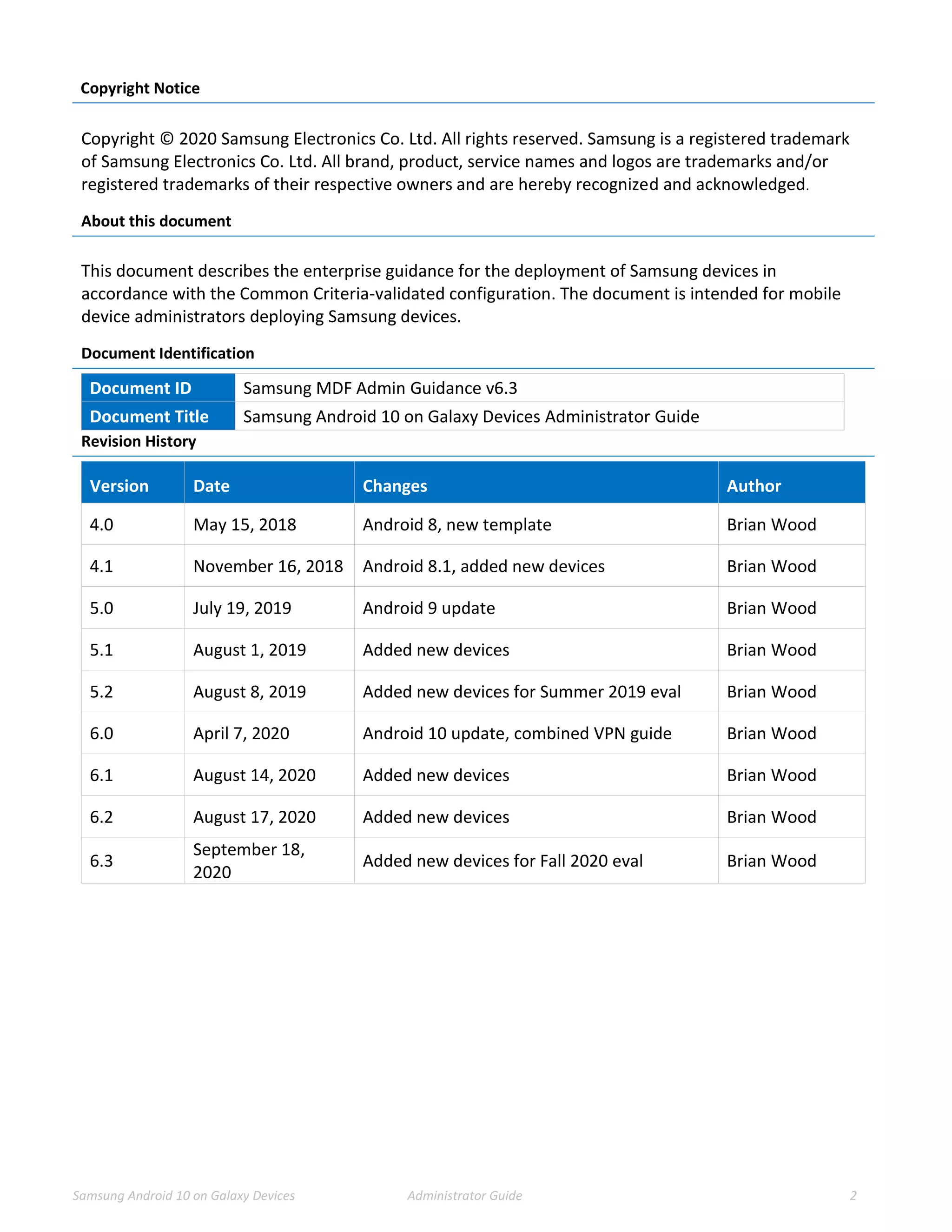
Document ID Samsung MDF Admin Guidance v6.3
Document Title Samsung Android 10 on Galaxy Devices Administrator Guide
Version Date Changes Author
4.0 May 15, 2018 Android 8, new template Brian Wood
4.1 November 16, 2018 Android 8.1, added new devices Brian Wood
5.0 July 19, 2019 Android 9 update Brian Wood
5.1 August 1, 2019 Added new devices Brian Wood
5.2 August 8, 2019 Added new devices for Summer 2019 eval Brian Wood
6.0 April 7, 2020 Android 10 update, combined VPN guide Brian Wood
6.1 August 14, 2020 Added new devices Brian Wood
6.2 August 17, 2020 Added new devices Brian Wood
6.3
September 18,
2020
Added new devices for Fall 2020 eval Brian Wood
Samsung Android 10 on Galaxy Devices Administrator Guide 3
Contents
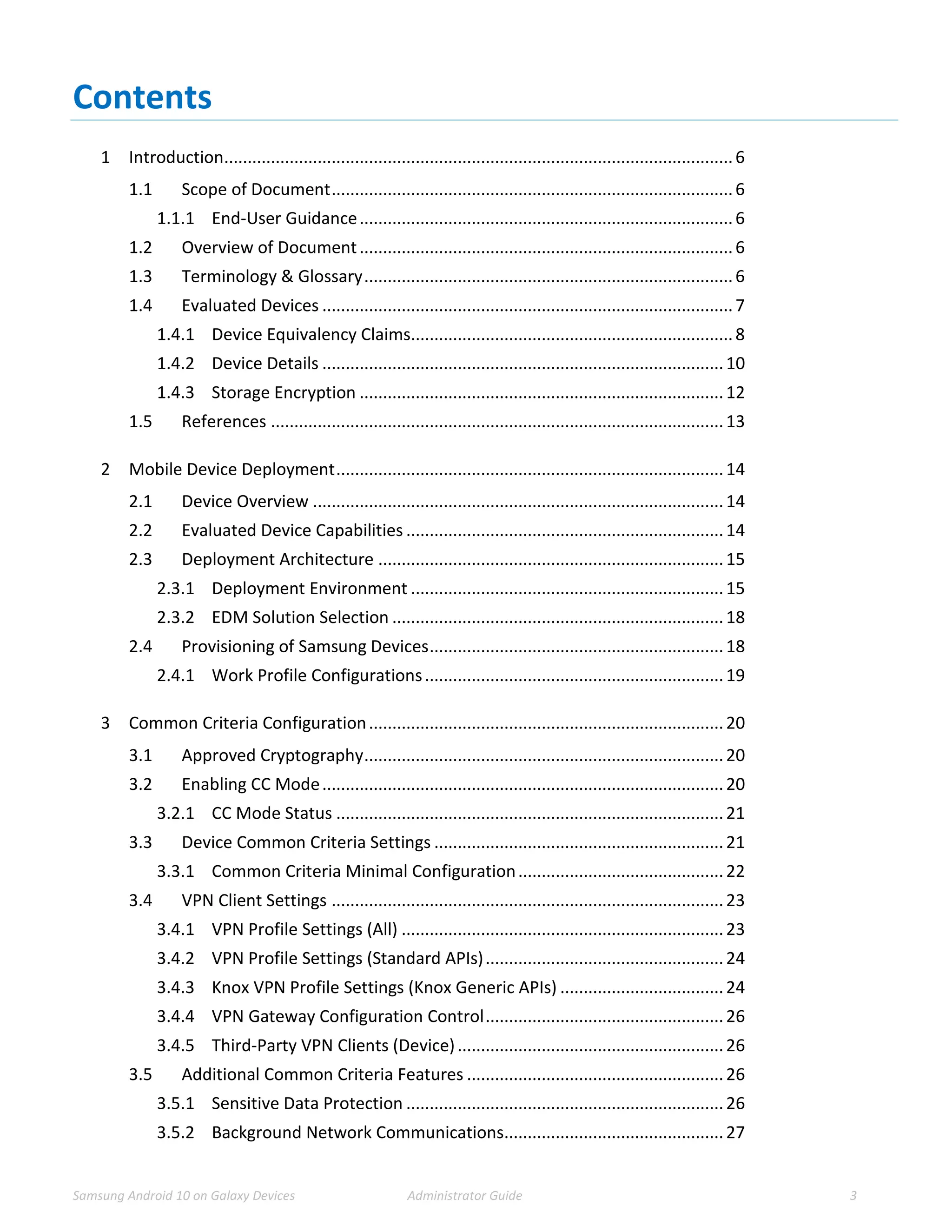
1 Introduction.............................................................................................................6
1.1 Scope of Document......................................................................................6
1.1.1 End-User Guidance................................................................................6
1.2 Overview of Document................................................................................6
1.3 Terminology & Glossary...............................................................................6
1.4 Evaluated Devices ........................................................................................7
1.4.1 Device Equivalency Claims.....................................................................8
1.4.2 Device Details ......................................................................................10
1.4.3 Storage Encryption ..............................................................................12
1.5 References .................................................................................................13
2 Mobile Device Deployment...................................................................................14
2.1 Device Overview ........................................................................................14
2.2 Evaluated Device Capabilities ....................................................................14
2.3 Deployment Architecture ..........................................................................15
2.3.1 Deployment Environment ...................................................................15
2.3.2 EDM Solution Selection .......................................................................18
2.4 Provisioning of Samsung Devices...............................................................18
2.4.1 Work Profile Configurations................................................................19
3 Common Criteria Configuration............................................................................20
3.1 Approved Cryptography.............................................................................20
3.2 Enabling CC Mode......................................................................................20
3.2.1 CC Mode Status ...................................................................................21
3.3 Device Common Criteria Settings ..............................................................21
3.3.1 Common Criteria Minimal Configuration............................................22
3.4 VPN Client Settings ....................................................................................23
3.4.1 VPN Profile Settings (All) .....................................................................23
3.4.2 VPN Profile Settings (Standard APIs)...................................................24
3.4.3 Knox VPN Profile Settings (Knox Generic APIs) ...................................24
3.4.4 VPN Gateway Configuration Control...................................................26
3.4.5 Third-Party VPN Clients (Device).........................................................26
3.5 Additional Common Criteria Features .......................................................26
3.5.1 Sensitive Data Protection ....................................................................26
3.5.2 Background Network Communications...............................................27
Samsung Android 10 on Galaxy Devices Administrator Guide 4
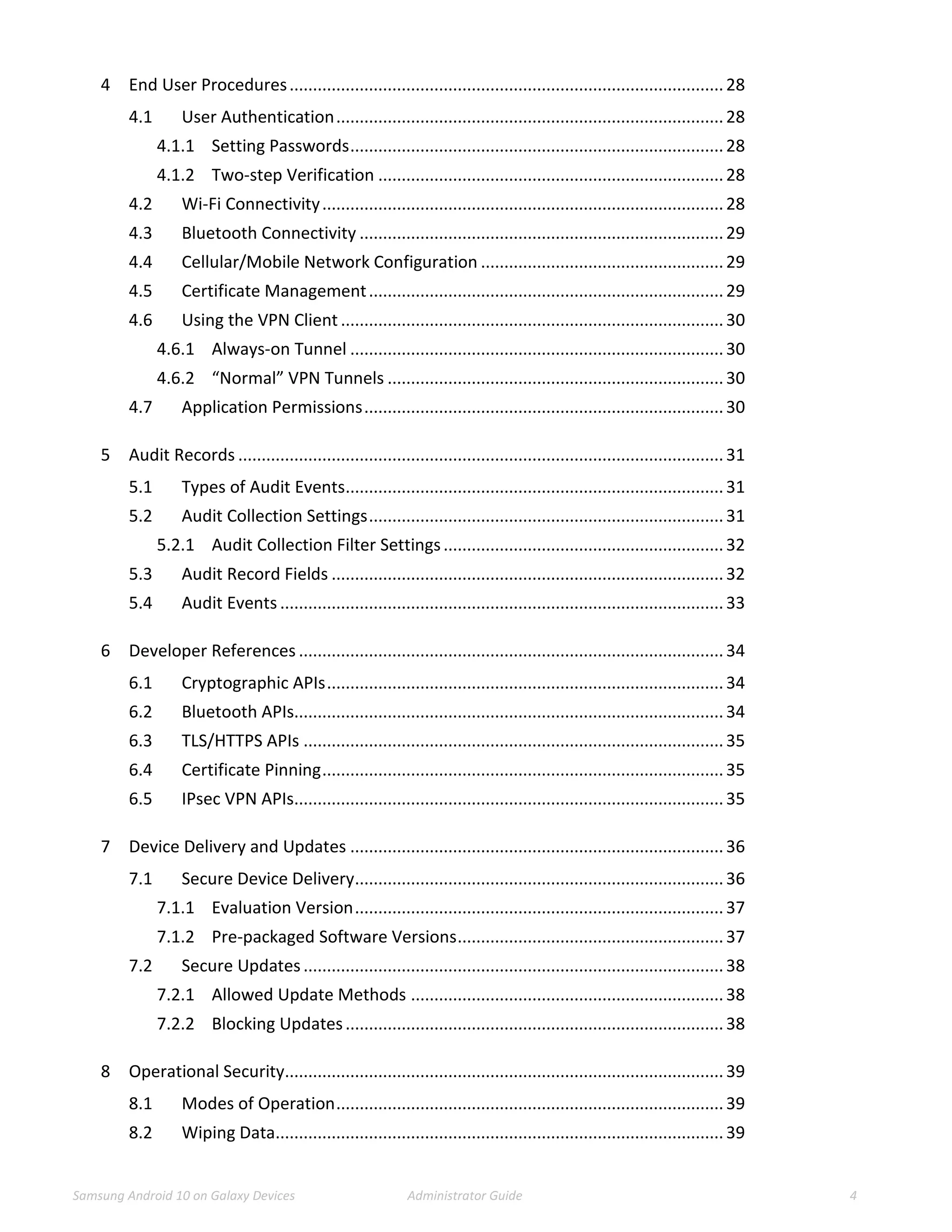
4 End User Procedures.............................................................................................28
4.1 User Authentication...................................................................................28
4.1.1 Setting Passwords................................................................................28
4.1.2 Two-step Verification ..........................................................................28
4.2 Wi-Fi Connectivity......................................................................................28
4.3 Bluetooth Connectivity ..............................................................................29
4.4 Cellular/Mobile Network Configuration ....................................................29
4.5 Certificate Management............................................................................29
4.6 Using the VPN Client ..................................................................................30
4.6.1 Always-on Tunnel ................................................................................30
4.6.2 “Normal” VPN Tunnels ........................................................................30
4.7 Application Permissions.............................................................................30
5 Audit Records ........................................................................................................31
5.1 Types of Audit Events.................................................................................31
5.2 Audit Collection Settings............................................................................31
5.2.1 Audit Collection Filter Settings............................................................32
5.3 Audit Record Fields ....................................................................................32
5.4 Audit Events ...............................................................................................33
6 Developer References ...........................................................................................34
6.1 Cryptographic APIs.....................................................................................34
6.2 Bluetooth APIs............................................................................................34
6.3 TLS/HTTPS APIs ..........................................................................................35
6.4 Certificate Pinning......................................................................................35
6.5 IPsec VPN APIs............................................................................................35
7 Device Delivery and Updates ................................................................................36
7.1 Secure Device Delivery...............................................................................36
7.1.1 Evaluation Version...............................................................................37
7.1.2 Pre-packaged Software Versions.........................................................37
7.2 Secure Updates..........................................................................................38
7.2.1 Allowed Update Methods ...................................................................38
7.2.2 Blocking Updates.................................................................................38
8 Operational Security..............................................................................................39
8.1 Modes of Operation...................................................................................39
8.2 Wiping Data................................................................................................39
Samsung Android 10 on Galaxy Devices Administrator Guide 5
8.2.1 Wiping the Device................................................................................40
8.2.2 Wiping the Work Profile......................................................................40
8.3 Additional Notes on Operational Security.................................................40
Samsung Android 10 on Galaxy Devices Administrator Guide 6
1 Introduction
1.1 Scope of Document
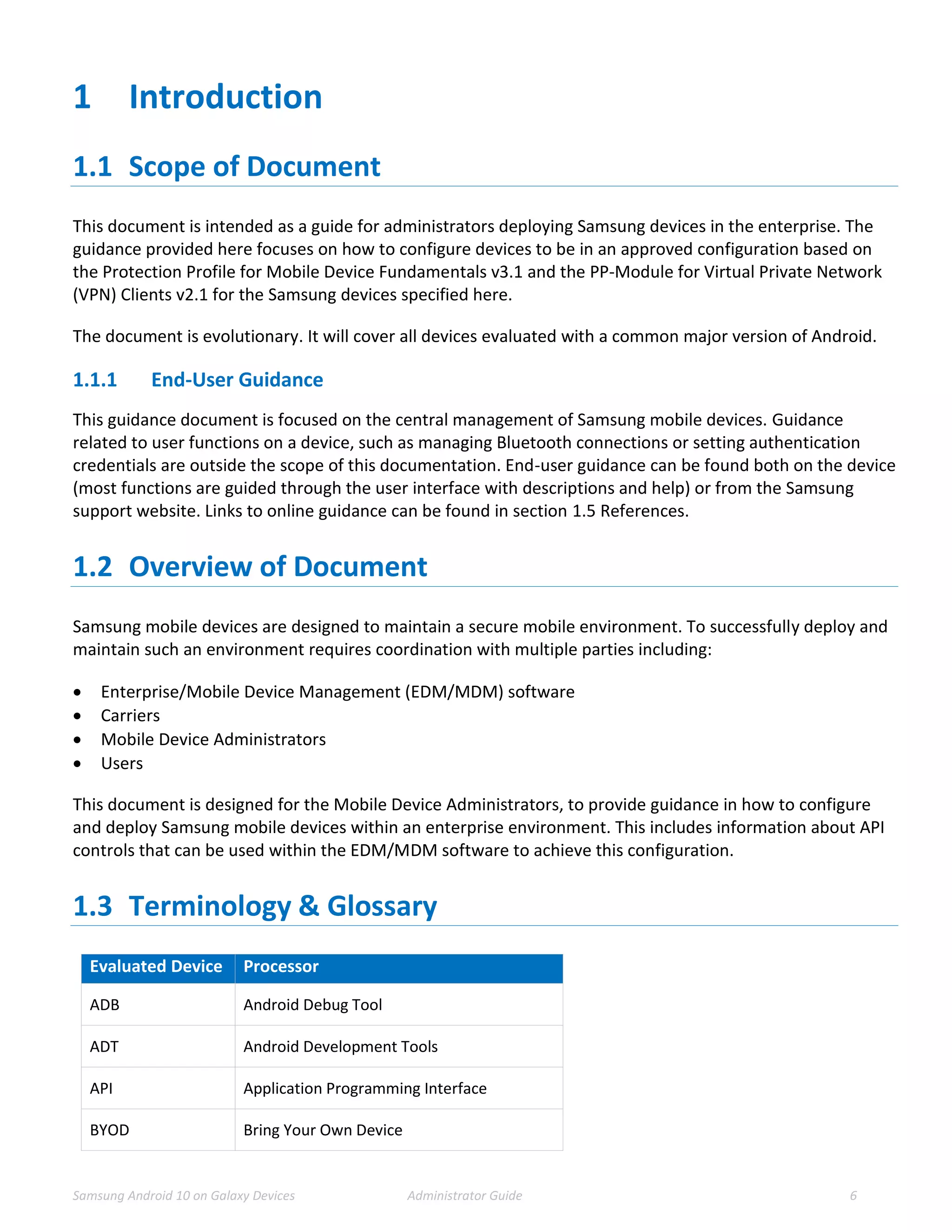
This document is intended as a guide for administrators deploying Samsung devices in the enterprise. The
guidance provided here focuses on how to configure devices to be in an approved configuration based on
the Protection Profile for Mobile Device Fundamentals v3.1 and the PP-Module for Virtual Private Network
(VPN) Clients v2.1 for the Samsung devices specified here.
The document is evolutionary. It will cover all devices evaluated with a common major version of Android.
1.1.1 End-User Guidance
This guidance document is focused on the central management of Samsung mobile devices. Guidance
related to user functions on a device, such as managing Bluetooth connections or setting authentication
credentials are outside the scope of this documentation. End-user guidance can be found both on the device
(most functions are guided through the user interface with descriptions and help) or from the Samsung
support website. Links to online guidance can be found in section 1.5 References.
1.2 Overview of Document
Samsung mobile devices are designed to maintain a secure mobile environment. To successfully deploy and
maintain such an environment requires coordination with multiple parties including:
 Enterprise/Mobile Device Management (EDM/MDM) software
 Carriers
 Mobile Device Administrators
 Users
This document is designed for the Mobile Device Administrators, to provide guidance in how to configure
and deploy Samsung mobile devices within an enterprise environment. This includes information about API
controls that can be used within the EDM/MDM software to achieve this configuration.
1.3 Terminology & Glossary
Evaluated Device Processor
ADB Android Debug Tool
ADT Android Development Tools
API Application Programming Interface
BYOD Bring Your Own Device
Samsung Android 10 on Galaxy Devices Administrator Guide 7
Evaluated Device Processor
CA Certificate Authority
COPE Corporately-Owned, Personally Enabled
EDM
MDM
Enterprise Device Management
Mobile Device Management
NOTE: EDM will be used for consistency
FBE File-Based Encryption
FOTA Firmware Over-the-Air
KPE Knox Platform for Enterprise
MDF
MDFPP
Mobile Device Fundamentals
Mobile Device Fundamentals Protection
Profile
ODE On-Device Encryption
SDK Software Development Kit
TLS Transport Layer Security
VPN Virtual Private Network
Table 1 - Acronyms
1.4 Evaluated Devices
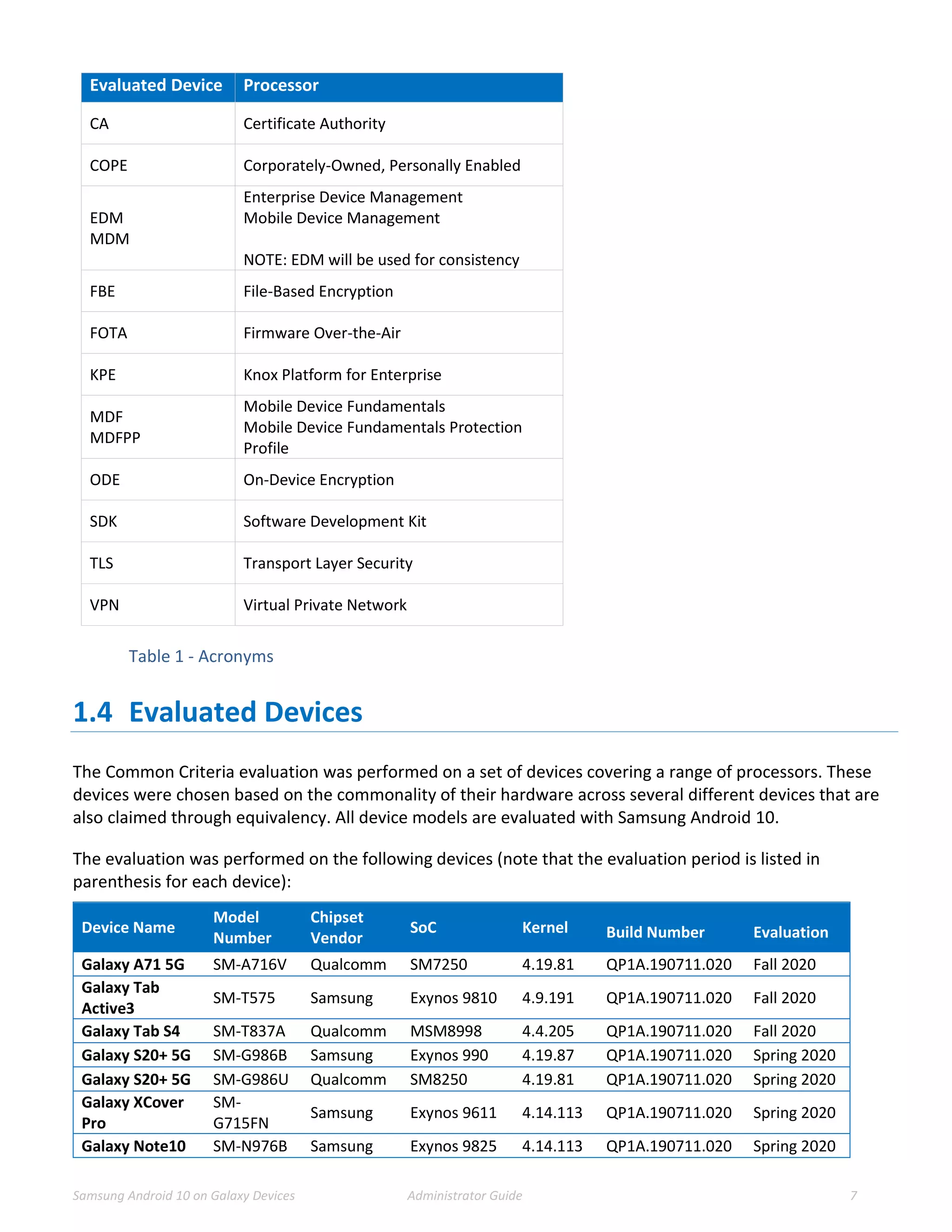
The Common Criteria evaluation was performed on a set of devices covering a range of processors. These
devices were chosen based on the commonality of their hardware across several different devices that are
also claimed through equivalency. All device models are evaluated with Samsung Android 10.
The evaluation was performed on the following devices (note that the evaluation period is listed in
parenthesis for each device):
Device Name
Model
Number
Chipset
Vendor
SoC Kernel Build Number Evaluation
Galaxy A71 5G SM-A716V Qualcomm SM7250 4.19.81 QP1A.190711.020 Fall 2020
Galaxy Tab
Active3
SM-T575 Samsung Exynos 9810 4.9.191 QP1A.190711.020 Fall 2020
Galaxy Tab S4 SM-T837A Qualcomm MSM8998 4.4.205 QP1A.190711.020 Fall 2020
Galaxy S20+ 5G SM-G986B Samsung Exynos 990 4.19.87 QP1A.190711.020 Spring 2020
Galaxy S20+ 5G SM-G986U Qualcomm SM8250 4.19.81 QP1A.190711.020 Spring 2020
Galaxy XCover
Pro
SM-
G715FN
Samsung Exynos 9611 4.14.113 QP1A.190711.020 Spring 2020
Galaxy Note10 SM-N976B Samsung Exynos 9825 4.14.113 QP1A.190711.020 Spring 2020
Samsung Android 10 on Galaxy Devices Administrator Guide 8
Galaxy S10e SM-G970F Samsung Exynos 9820 4.14.113 QP1A.190711.020 Spring 2020
Galaxy S10+ SM-G975U Qualcomm SM8150 4.14.117 QP1A.190711.020 Spring 2020
Galaxy Note9 SM-N960F Samsung Exynos 9810 4.9.118 QP1A.190711.020 Spring 2020
Galaxy Note9 SM-N960U Qualcomm SDM845 4.9.186 QP1A.190711.020 Spring 2020
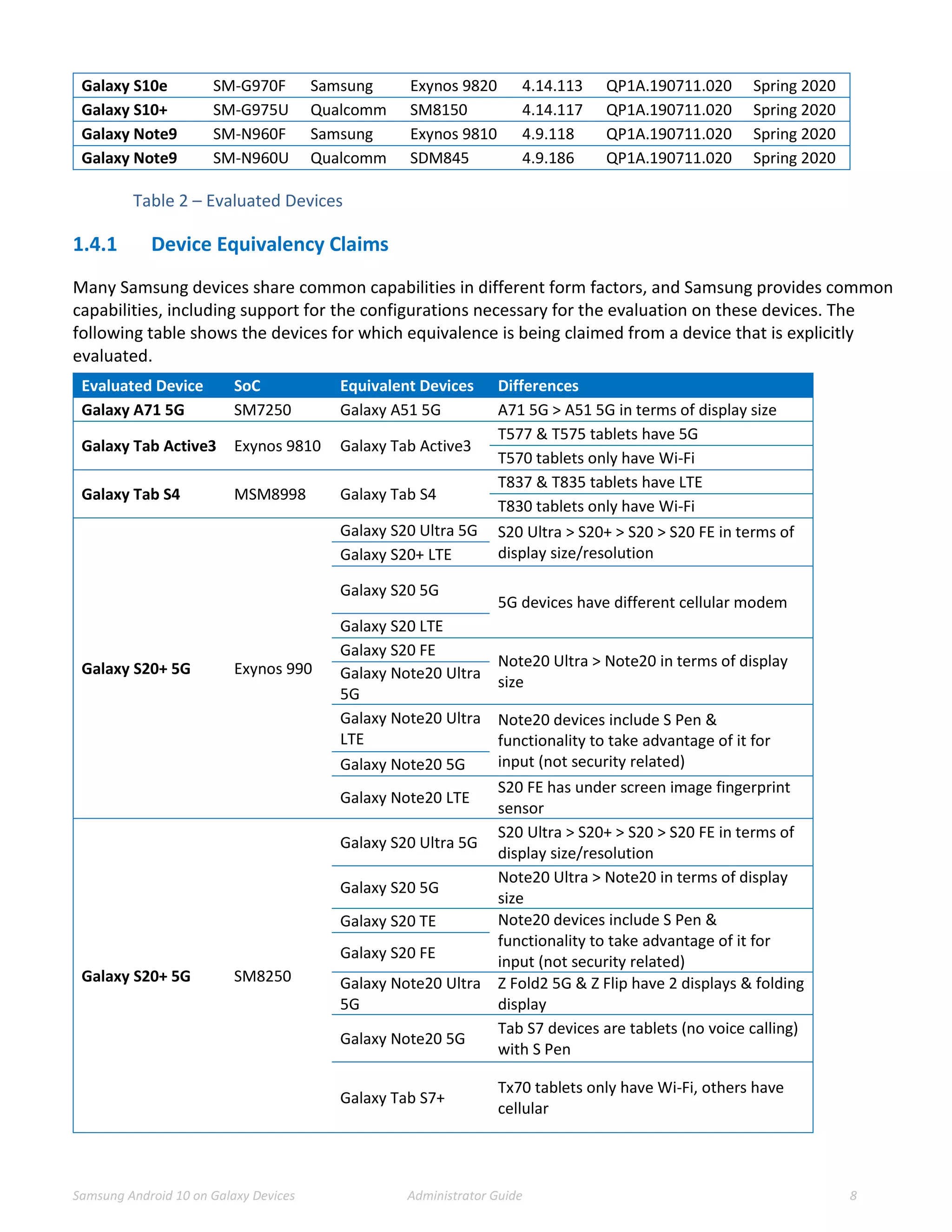
Table 2 – Evaluated Devices
1.4.1 Device Equivalency Claims
Many Samsung devices share common capabilities in different form factors, and Samsung provides common
capabilities, including support for the configurations necessary for the evaluation on these devices. The
following table shows the devices for which equivalence is being claimed from a device that is explicitly
evaluated.
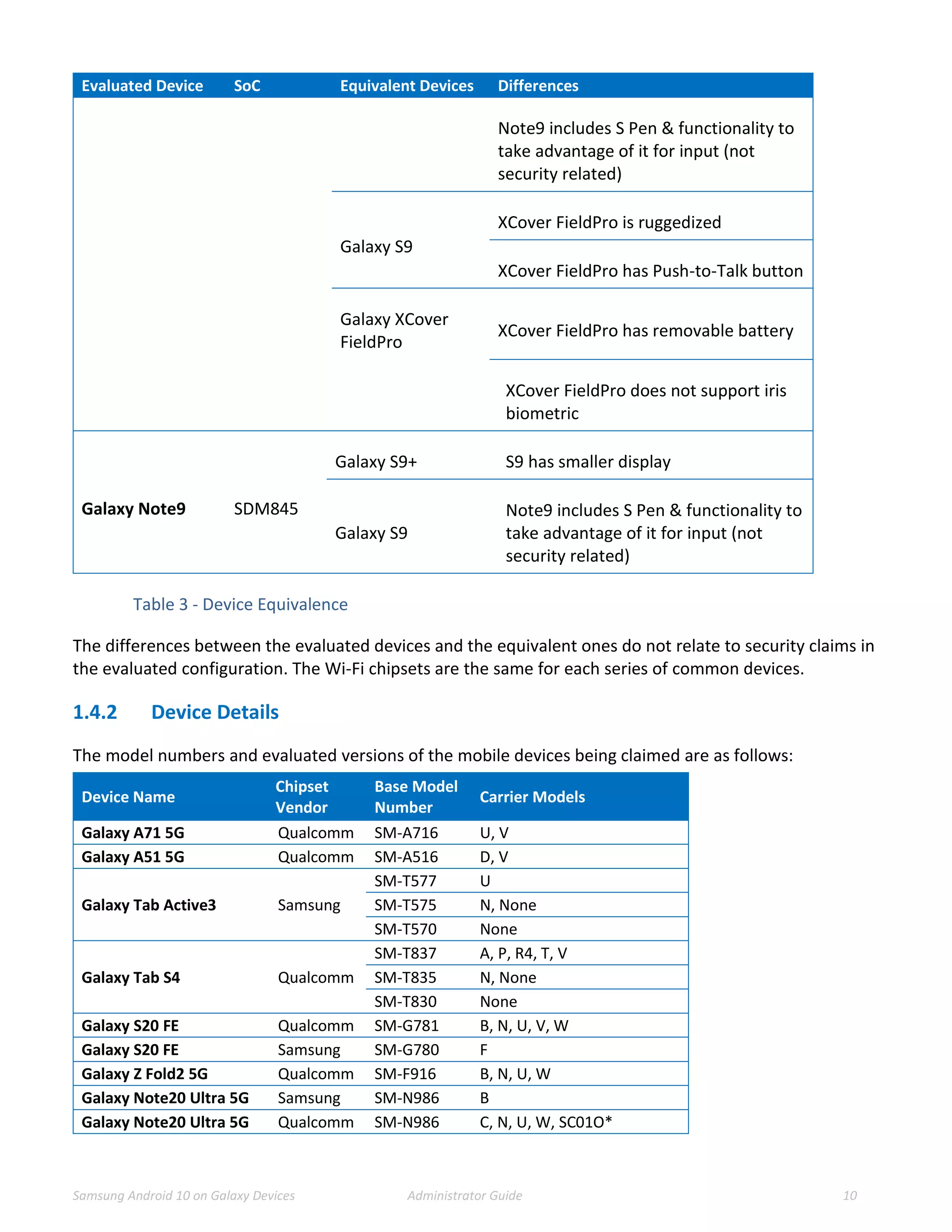
Evaluated Device SoC Equivalent Devices Differences
Galaxy A71 5G SM7250 Galaxy A51 5G A71 5G > A51 5G in terms of display size
Galaxy Tab Active3 Exynos 9810 Galaxy Tab Active3
T577 & T575 tablets have 5G
T570 tablets only have Wi-Fi
Galaxy Tab S4 MSM8998 Galaxy Tab S4
T837 & T835 tablets have LTE
T830 tablets only have Wi-Fi
Galaxy S20+ 5G Exynos 990
Galaxy S20 Ultra 5G S20 Ultra > S20+ > S20 > S20 FE in terms of
display size/resolution
Galaxy S20+ LTE
Galaxy S20 5G
5G devices have different cellular modem
Galaxy S20 LTE
Galaxy S20 FE
Note20 Ultra > Note20 in terms of display
size
Galaxy Note20 Ultra
5G
Galaxy Note20 Ultra
LTE
Note20 devices include S Pen &
functionality to take advantage of it for
input (not security related)
Galaxy Note20 5G
Galaxy Note20 LTE
S20 FE has under screen image fingerprint
sensor
Galaxy S20+ 5G SM8250
Galaxy S20 Ultra 5G
S20 Ultra > S20+ > S20 > S20 FE in terms of
display size/resolution
Galaxy S20 5G
Note20 Ultra > Note20 in terms of display
size
Galaxy S20 TE Note20 devices include S Pen &
functionality to take advantage of it for
input (not security related)
Galaxy S20 FE
Galaxy Note20 Ultra
5G
Z Fold2 5G & Z Flip have 2 displays & folding
display
Galaxy Note20 5G
Tab S7 devices are tablets (no voice calling)
with S Pen
Galaxy Tab S7+
Tx70 tablets only have Wi-Fi, others have
cellular
Samsung Android 10 on Galaxy Devices Administrator Guide 9
Evaluated Device SoC Equivalent Devices Differences
Galaxy Tab S7 Tab S7+ > Tab S7 in terms of display size
Galaxy Z Flip 5G
Tab S7+ & S20 FE has under screen image
fingerprint sensor
Galaxy Z Fold2 5G
Tab S7 & Z Flip 5G have power button
fingerprint sensor
Galaxy XCover Pro Exynos 9611 Galaxy A51
XCover Pro is ruggedized
XCover Pro has Push-to-Talk button
XCover Pro has removable battery
A51 has under screen image fingerprint
sensor
Galaxy Note10+
5G
Exynos 9825
Galaxy Note10+ Note10+ > Note10 in terms of display size
Galaxy Note10 5G
5G devices have different cellular modem
Galaxy Note10
Galaxy S10e Exynos 9820
Galaxy S10+
S10 & S10+ have ultrasonic fingerprint
sensor
Galaxy S10 5G S10+ > S10 > S10e in terms of display sizes
Galaxy S10 S10 5G has different cellular modem
Galaxy S10+ SM8150
Galaxy S10 5G
S10e, Fold & Z Flip have power button
image fingerprint sensor
Galaxy S10 S10 & S10e have smaller display sizes
Galaxy S10e 5G devices have different cellular modem
Galaxy Fold 5G Fold & Z Flip have 2 displays
Galaxy Fold Fold & Z Flip have folding display
Galaxy Z Flip Note10+ > Note10 in terms of display size
Galaxy Note10+ 5G
Note10 devices include S Pen &
functionality to take advantage of it for
input (not security related)
Galaxy Note10+ Tab S6 is tablet (no voice calling) with S Pen
Galaxy Note10
T867 & T865 tablets have LTE, T860 tablets
only have Wi-Fi
Galaxy Tab S6
Tab S6 has under screen image
fingerprint sensor
Galaxy Note9
Exynos
9810
Galaxy S9+
S9 & XCover FieldPro have smaller
displays
Samsung Android 10 on Galaxy Devices Administrator Guide 10
Evaluated Device SoC Equivalent Devices Differences
Note9 includes S Pen & functionality to
take advantage of it for input (not
security related)
Galaxy S9
XCover FieldPro is ruggedized
XCover FieldPro has Push-to-Talk button
Galaxy XCover
FieldPro
XCover FieldPro has removable battery
XCover FieldPro does not support iris
biometric
Galaxy Note9 SDM845
Galaxy S9+ S9 has smaller display
Galaxy S9
Note9 includes S Pen & functionality to
take advantage of it for input (not
security related)
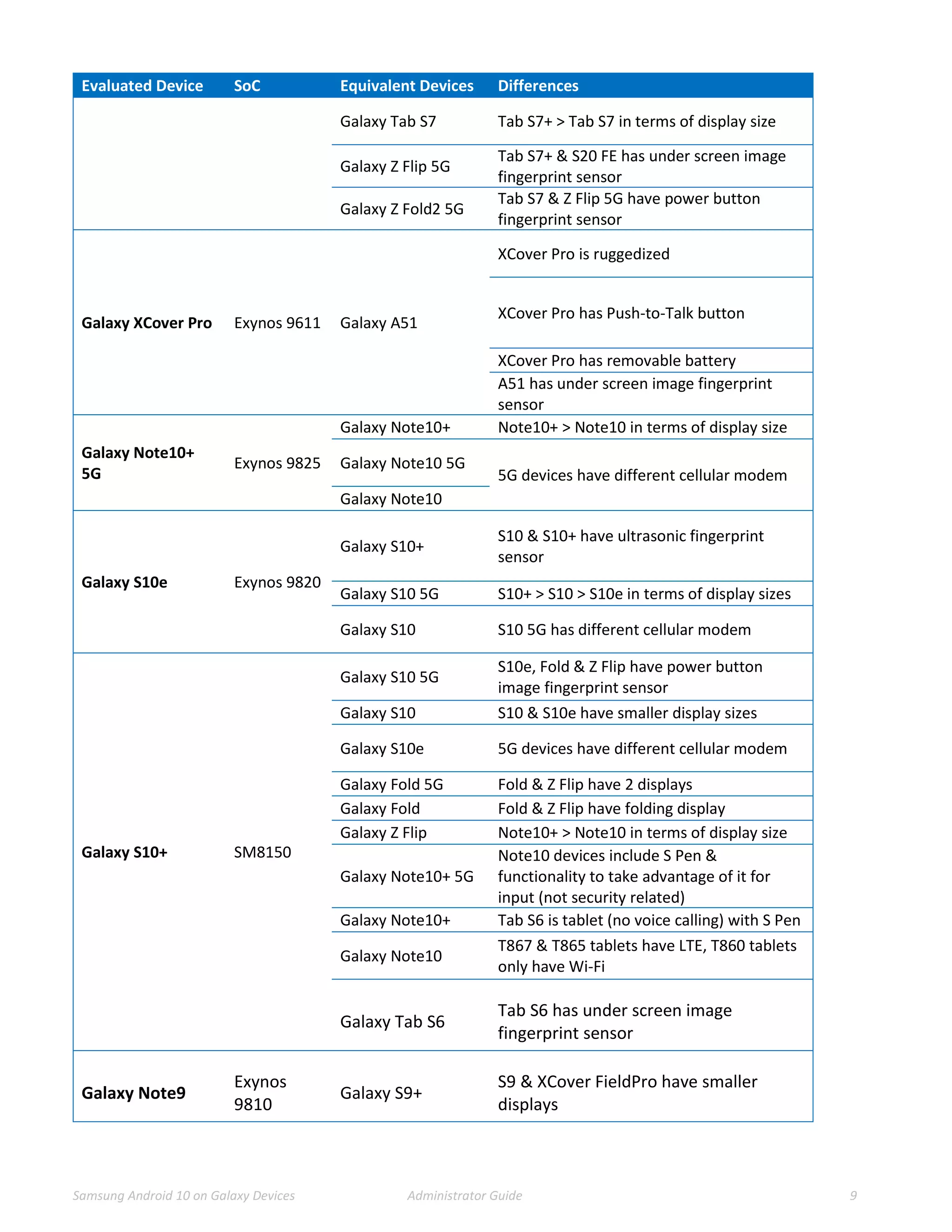
Table 3 - Device Equivalence
The differences between the evaluated devices and the equivalent ones do not relate to security claims in
the evaluated configuration. The Wi-Fi chipsets are the same for each series of common devices.
1.4.2 Device Details
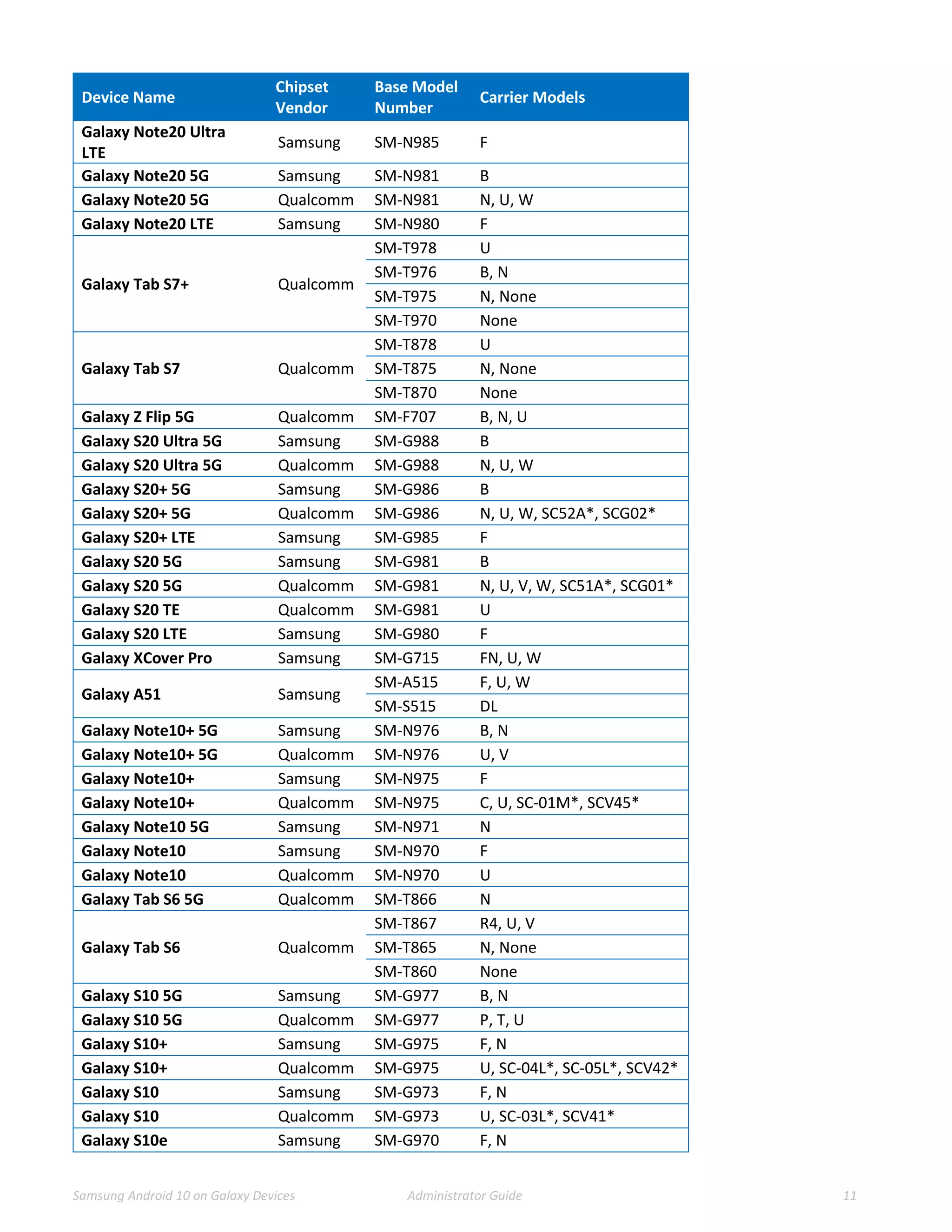
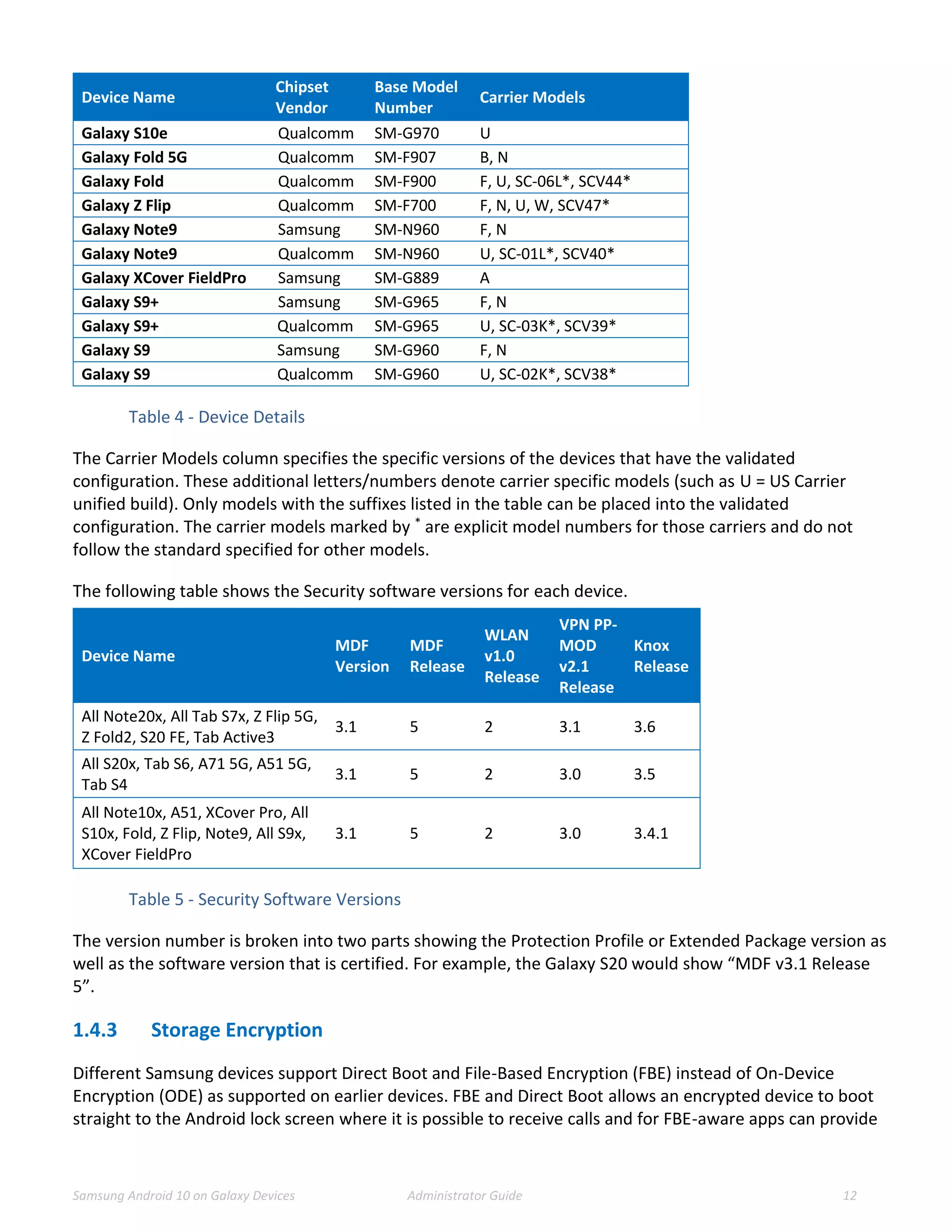
The model numbers and evaluated versions of the mobile devices being claimed are as follows:
Device Name
Chipset
Vendor
Base Model
Number
Carrier Models
Galaxy A71 5G Qualcomm SM-A716 U, V
Galaxy A51 5G Qualcomm SM-A516 D, V
Galaxy Tab Active3 Samsung
SM-T577 U
SM-T575 N, None
SM-T570 None
Galaxy Tab S4 Qualcomm
SM-T837 A, P, R4, T, V
SM-T835 N, None
SM-T830 None
Galaxy S20 FE Qualcomm SM-G781 B, N, U, V, W
Galaxy S20 FE Samsung SM-G780 F
Galaxy Z Fold2 5G Qualcomm SM-F916 B, N, U, W
Galaxy Note20 Ultra 5G Samsung SM-N986 B
Galaxy Note20 Ultra 5G Qualcomm SM-N986 C, N, U, W, SC01O*
Samsung Android 10 on Galaxy Devices Administrator Guide 11
Device Name
Chipset
Vendor
Base Model
Number
Carrier Models
Galaxy Note20 Ultra
LTE
Samsung SM-N985 F
Galaxy Note20 5G Samsung SM-N981 B
Galaxy Note20 5G Qualcomm SM-N981 N, U, W
Galaxy Note20 LTE Samsung SM-N980 F
Galaxy Tab S7+ Qualcomm
SM-T978 U
SM-T976 B, N
SM-T975 N, None
SM-T970 None
Galaxy Tab S7 Qualcomm
SM-T878 U
SM-T875 N, None
SM-T870 None
Galaxy Z Flip 5G Qualcomm SM-F707 B, N, U
Galaxy S20 Ultra 5G Samsung SM-G988 B
Galaxy S20 Ultra 5G Qualcomm SM-G988 N, U, W
Galaxy S20+ 5G Samsung SM-G986 B
Galaxy S20+ 5G Qualcomm SM-G986 N, U, W, SC52A*, SCG02*
Galaxy S20+ LTE Samsung SM-G985 F
Galaxy S20 5G Samsung SM-G981 B
Galaxy S20 5G Qualcomm SM-G981 N, U, V, W, SC51A*, SCG01*
Galaxy S20 TE Qualcomm SM-G981 U
Galaxy S20 LTE Samsung SM-G980 F
Galaxy XCover Pro Samsung SM-G715 FN, U, W
Galaxy A51 Samsung
SM-A515 F, U, W
SM-S515 DL
Galaxy Note10+ 5G Samsung SM-N976 B, N
Galaxy Note10+ 5G Qualcomm SM-N976 U, V
Galaxy Note10+ Samsung SM-N975 F
Galaxy Note10+ Qualcomm SM-N975 C, U, SC-01M*, SCV45*
Galaxy Note10 5G Samsung SM-N971 N
Galaxy Note10 Samsung SM-N970 F
Galaxy Note10 Qualcomm SM-N970 U
Galaxy Tab S6 5G Qualcomm SM-T866 N
Galaxy Tab S6 Qualcomm
SM-T867 R4, U, V
SM-T865 N, None
SM-T860 None
Galaxy S10 5G Samsung SM-G977 B, N
Galaxy S10 5G Qualcomm SM-G977 P, T, U
Galaxy S10+ Samsung SM-G975 F, N
Galaxy S10+ Qualcomm SM-G975 U, SC-04L*, SC-05L*, SCV42*
Galaxy S10 Samsung SM-G973 F, N
Galaxy S10 Qualcomm SM-G973 U, SC-03L*, SCV41*
Galaxy S10e Samsung SM-G970 F, N
Samsung Android 10 on Galaxy Devices Administrator Guide 12
Device Name
Chipset
Vendor
Base Model
Number
Carrier Models
Galaxy S10e Qualcomm SM-G970 U
Galaxy Fold 5G Qualcomm SM-F907 B, N
Galaxy Fold Qualcomm SM-F900 F, U, SC-06L*, SCV44*
Galaxy Z Flip Qualcomm SM-F700 F, N, U, W, SCV47*
Galaxy Note9 Samsung SM-N960 F, N
Galaxy Note9 Qualcomm SM-N960 U, SC-01L*, SCV40*
Galaxy XCover FieldPro Samsung SM-G889 A
Galaxy S9+ Samsung SM-G965 F, N
Galaxy S9+ Qualcomm SM-G965 U, SC-03K*, SCV39*
Galaxy S9 Samsung SM-G960 F, N
Galaxy S9 Qualcomm SM-G960 U, SC-02K*, SCV38*
Table 4 - Device Details
The Carrier Models column specifies the specific versions of the devices that have the validated
configuration. These additional letters/numbers denote carrier specific models (such as U = US Carrier
unified build). Only models with the suffixes listed in the table can be placed into the validated
configuration. The carrier models marked by * are explicit model numbers for those carriers and do not
follow the standard specified for other models.
The following table shows the Security software versions for each device.
Device Name
MDF
Version
MDF
Release
WLAN
v1.0
Release
VPN PP-
MOD
v2.1
Release
Knox
Release
All Note20x, All Tab S7x, Z Flip 5G,
Z Fold2, S20 FE, Tab Active3
3.1 5 2 3.1 3.6
All S20x, Tab S6, A71 5G, A51 5G,
Tab S4
3.1 5 2 3.0 3.5
All Note10x, A51, XCover Pro, All
S10x, Fold, Z Flip, Note9, All S9x,
XCover FieldPro
3.1 5 2 3.0 3.4.1
Table 5 - Security Software Versions
The version number is broken into two parts showing the Protection Profile or Extended Package version as
well as the software version that is certified. For example, the Galaxy S20 would show “MDF v3.1 Release
5”.
1.4.3 Storage Encryption
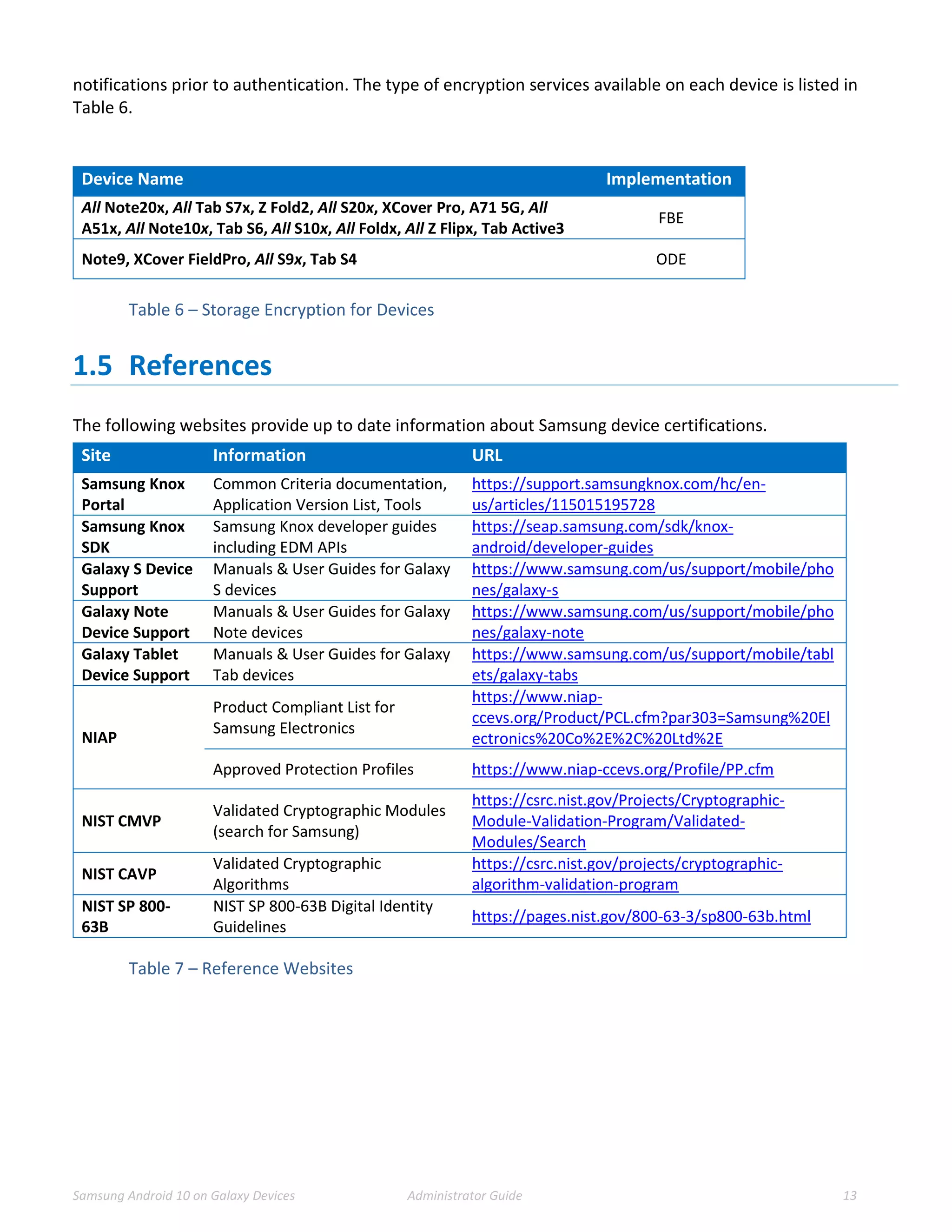
Different Samsung devices support Direct Boot and File-Based Encryption (FBE) instead of On-Device
Encryption (ODE) as supported on earlier devices. FBE and Direct Boot allows an encrypted device to boot
straight to the Android lock screen where it is possible to receive calls and for FBE-aware apps can provide
Samsung Android 10 on Galaxy Devices Administrator Guide 13
notifications prior to authentication. The type of encryption services available on each device is listed in
Table 6.
Device Name Implementation
All Note20x, All Tab S7x, Z Fold2, All S20x, XCover Pro, A71 5G, All
A51x, All Note10x, Tab S6, All S10x, All Foldx, All Z Flipx, Tab Active3
FBE
Note9, XCover FieldPro, All S9x, Tab S4 ODE
Table 6 – Storage Encryption for Devices
1.5 References
The following websites provide up to date information about Samsung device certifications.
Site Information URL
Samsung Knox
Portal
Common Criteria documentation,
Application Version List, Tools
https://support.samsungknox.com/hc/en-
us/articles/115015195728
Samsung Knox
SDK
Samsung Knox developer guides
including EDM APIs
https://seap.samsung.com/sdk/knox-
android/developer-guides
Galaxy S Device
Support
Manuals & User Guides for Galaxy
S devices
https://www.samsung.com/us/support/mobile/pho
nes/galaxy-s
Galaxy Note
Device Support
Manuals & User Guides for Galaxy
Note devices
https://www.samsung.com/us/support/mobile/pho
nes/galaxy-note
Galaxy Tablet
Device Support
Manuals & User Guides for Galaxy
Tab devices
https://www.samsung.com/us/support/mobile/tabl
ets/galaxy-tabs
NIAP
Product Compliant List for
Samsung Electronics
https://www.niap-
ccevs.org/Product/PCL.cfm?par303=Samsung%20El
ectronics%20Co%2E%2C%20Ltd%2E
Approved Protection Profiles https://www.niap-ccevs.org/Profile/PP.cfm
NIST CMVP
Validated Cryptographic Modules
(search for Samsung)
https://csrc.nist.gov/Projects/Cryptographic-
Module-Validation-Program/Validated-
Modules/Search
NIST CAVP
Validated Cryptographic
Algorithms
https://csrc.nist.gov/projects/cryptographic-
algorithm-validation-program
NIST SP 800-
63B
NIST SP 800-63B Digital Identity
Guidelines
https://pages.nist.gov/800-63-3/sp800-63b.html
Table 7 – Reference Websites
Samsung Android 10 on Galaxy Devices Administrator Guide 14
2 Mobile Device Deployment
2.1 Device Overview
The mobile device is a combination of hardware running an Android operating system with modifications
made to increase the level of security provided to end users and enterprises. The mobile device is intended
for use as part of an enterprise messaging solution providing mobile staff with enterprise connectivity. With
a focus on enterprise security, the mobile device also provides support for both IKEv1 and IKEv2 VPN
tunnels using both Pre-Shared Keys as well as certificates, providing flexibility based on the environment.
The mobile device combines with an EDM solution to enable the enterprise to watch, control and
administer all deployed mobile devices, across multiple service providers as well as facilitate secure
communications through a VPN tunnel. This partnership provides a secure mobile environment that can be
managed and controlled by the environment and reduce the risks that can be introduced when enabling
mobility in the enterprise, whether through a Bring-Your-Own-Device (BYOD) or a Corporate-Owned
deployment.
The Samsung Software Development Kit (SDK) builds on top of the existing Android security model by
expanding the current set of security configuration of options to over 600 configurable policies and
including additional security functionality such as application blacklisting. The ability to set these policies is
based on the capabilities of the EDM.
2.2 Evaluated Device Capabilities
The product provides a significant amount of security capabilities with the core capabilities being included
within the common criteria evaluation including:
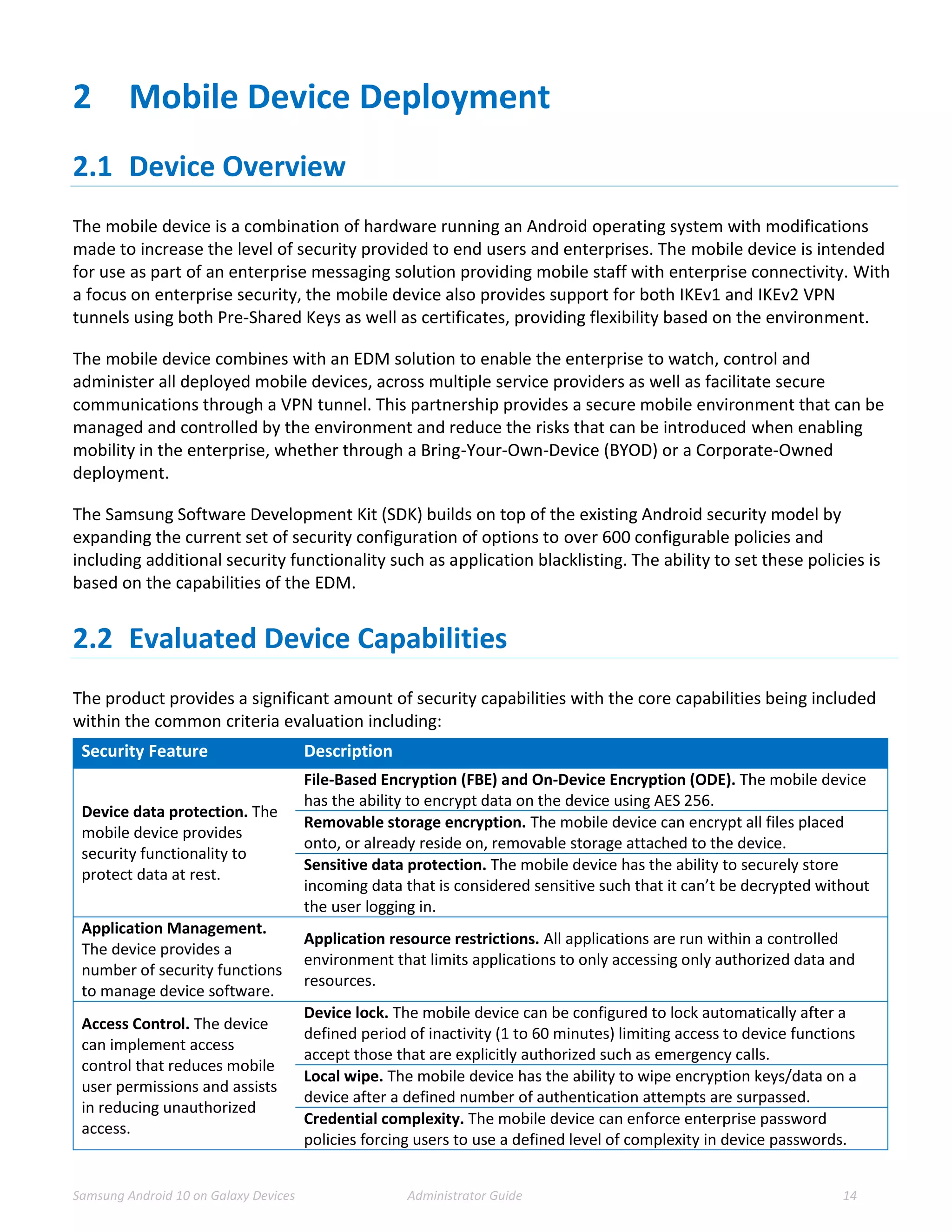
Security Feature Description
Device data protection. The
mobile device provides
security functionality to
protect data at rest.
File-Based Encryption (FBE) and On-Device Encryption (ODE). The mobile device
has the ability to encrypt data on the device using AES 256.
Removable storage encryption. The mobile device can encrypt all files placed
onto, or already reside on, removable storage attached to the device.
Sensitive data protection. The mobile device has the ability to securely store
incoming data that is considered sensitive such that it can’t be decrypted without
the user logging in.
Application Management.
The device provides a
number of security functions
to manage device software.
Application resource restrictions. All applications are run within a controlled
environment that limits applications to only accessing only authorized data and
resources.
Access Control. The device
can implement access
control that reduces mobile
user permissions and assists
in reducing unauthorized
access.
Device lock. The mobile device can be configured to lock automatically after a
defined period of inactivity (1 to 60 minutes) limiting access to device functions
accept those that are explicitly authorized such as emergency calls.
Local wipe. The mobile device has the ability to wipe encryption keys/data on a
device after a defined number of authentication attempts are surpassed.
Credential complexity. The mobile device can enforce enterprise password
policies forcing users to use a defined level of complexity in device passwords.
Samsung Android 10 on Galaxy Devices Administrator Guide 15
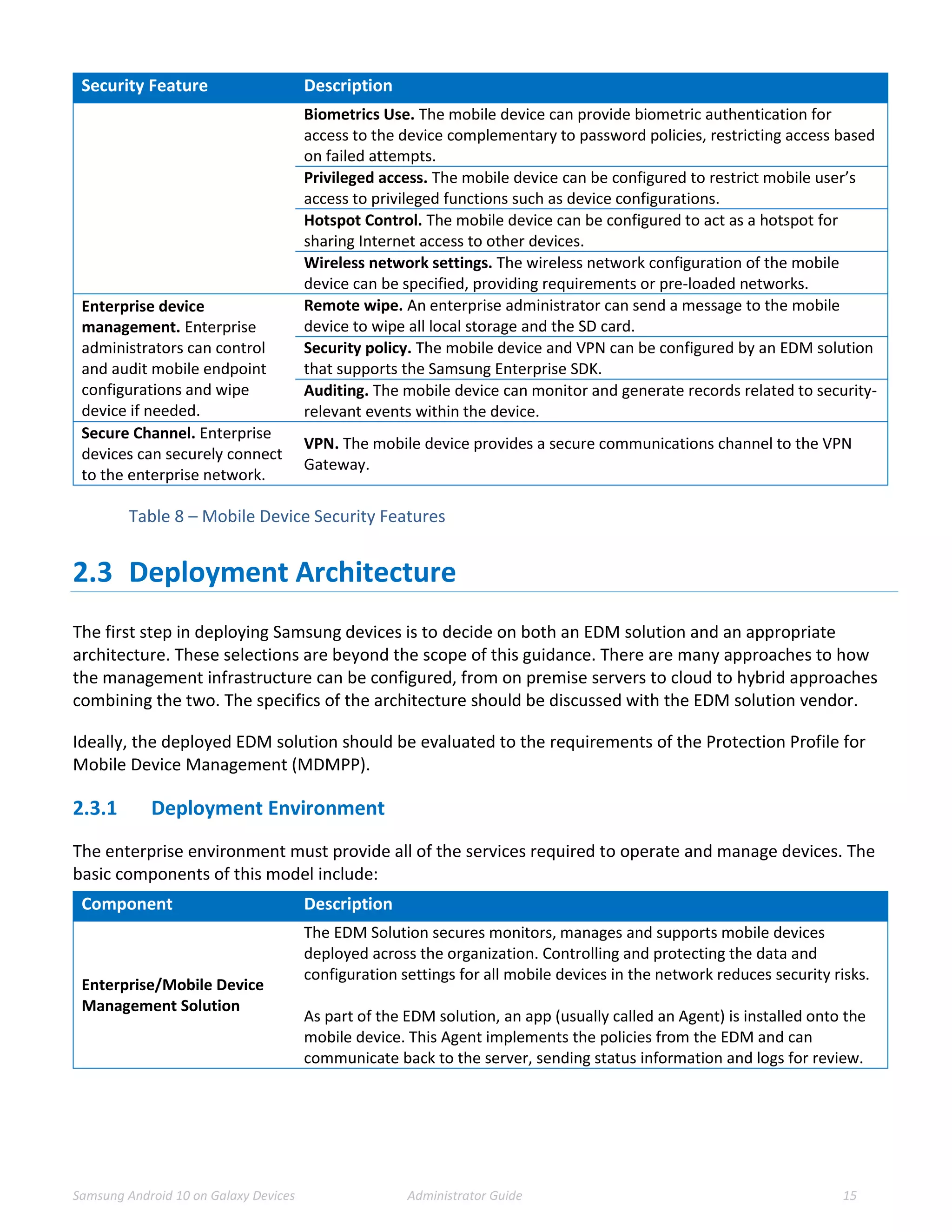
Security Feature Description
Biometrics Use. The mobile device can provide biometric authentication for
access to the device complementary to password policies, restricting access based
on failed attempts.
Privileged access. The mobile device can be configured to restrict mobile user’s
access to privileged functions such as device configurations.
Hotspot Control. The mobile device can be configured to act as a hotspot for
sharing Internet access to other devices.
Wireless network settings. The wireless network configuration of the mobile
device can be specified, providing requirements or pre-loaded networks.
Enterprise device
management. Enterprise
administrators can control
and audit mobile endpoint
configurations and wipe
device if needed.
Remote wipe. An enterprise administrator can send a message to the mobile
device to wipe all local storage and the SD card.
Security policy. The mobile device and VPN can be configured by an EDM solution
that supports the Samsung Enterprise SDK.
Auditing. The mobile device can monitor and generate records related to security-
relevant events within the device.
Secure Channel. Enterprise
devices can securely connect
to the enterprise network.
VPN. The mobile device provides a secure communications channel to the VPN
Gateway.
Table 8 – Mobile Device Security Features
2.3 Deployment Architecture
The first step in deploying Samsung devices is to decide on both an EDM solution and an appropriate
architecture. These selections are beyond the scope of this guidance. There are many approaches to how
the management infrastructure can be configured, from on premise servers to cloud to hybrid approaches
combining the two. The specifics of the architecture should be discussed with the EDM solution vendor.
Ideally, the deployed EDM solution should be evaluated to the requirements of the Protection Profile for
Mobile Device Management (MDMPP).
2.3.1 Deployment Environment
The enterprise environment must provide all of the services required to operate and manage devices. The
basic components of this model include:
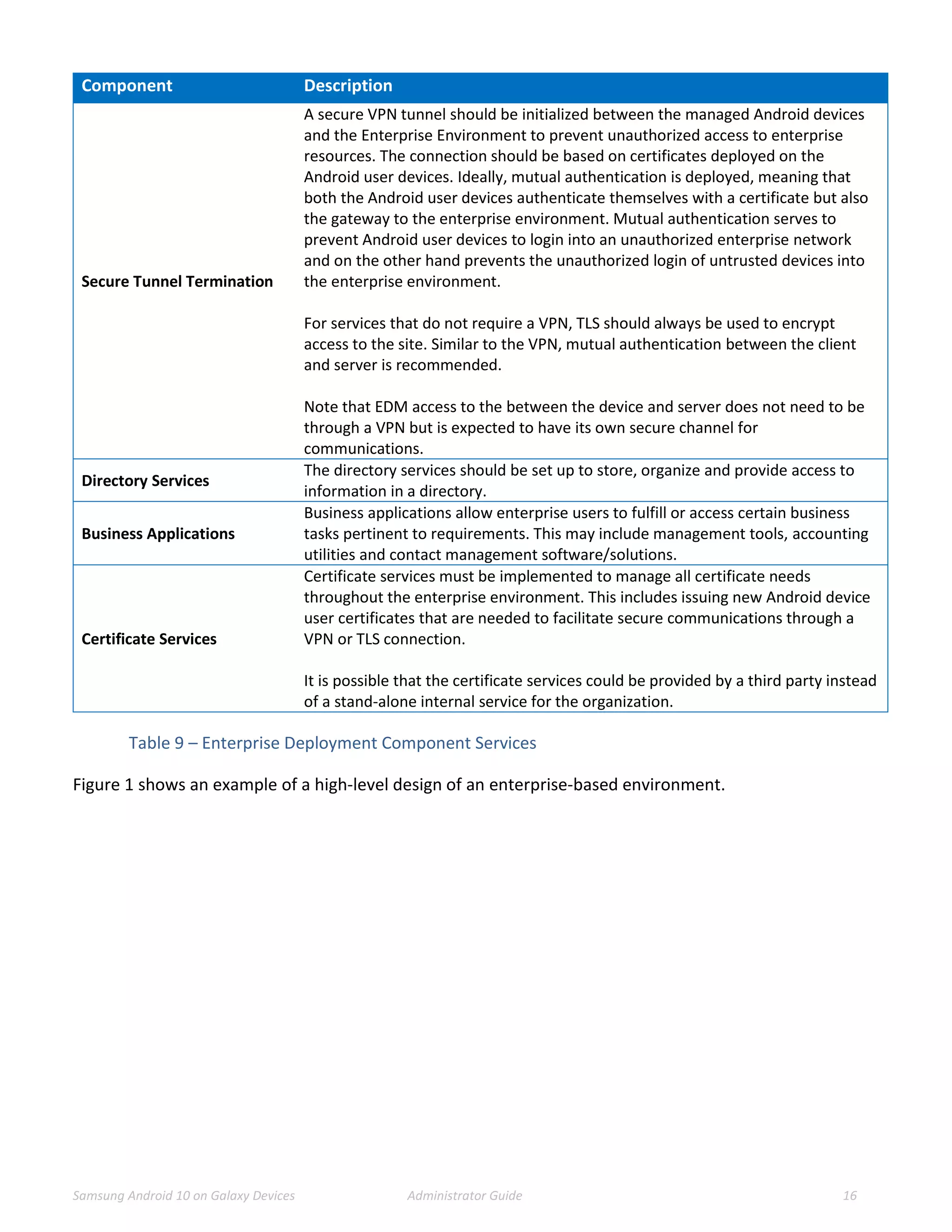
Component Description
Enterprise/Mobile Device
Management Solution
The EDM Solution secures monitors, manages and supports mobile devices
deployed across the organization. Controlling and protecting the data and
configuration settings for all mobile devices in the network reduces security risks.
As part of the EDM solution, an app (usually called an Agent) is installed onto the
mobile device. This Agent implements the policies from the EDM and can
communicate back to the server, sending status information and logs for review.
Samsung Android 10 on Galaxy Devices Administrator Guide 16
Component Description
Secure Tunnel Termination
A secure VPN tunnel should be initialized between the managed Android devices
and the Enterprise Environment to prevent unauthorized access to enterprise
resources. The connection should be based on certificates deployed on the
Android user devices. Ideally, mutual authentication is deployed, meaning that
both the Android user devices authenticate themselves with a certificate but also
the gateway to the enterprise environment. Mutual authentication serves to
prevent Android user devices to login into an unauthorized enterprise network
and on the other hand prevents the unauthorized login of untrusted devices into
the enterprise environment.
For services that do not require a VPN, TLS should always be used to encrypt
access to the site. Similar to the VPN, mutual authentication between the client
and server is recommended.
Note that EDM access to the between the device and server does not need to be
through a VPN but is expected to have its own secure channel for
communications.
Directory Services
The directory services should be set up to store, organize and provide access to
information in a directory.
Business Applications
Business applications allow enterprise users to fulfill or access certain business
tasks pertinent to requirements. This may include management tools, accounting
utilities and contact management software/solutions.
Certificate Services
Certificate services must be implemented to manage all certificate needs
throughout the enterprise environment. This includes issuing new Android device
user certificates that are needed to facilitate secure communications through a
VPN or TLS connection.
It is possible that the certificate services could be provided by a third party instead
of a stand-alone internal service for the organization.
Table 9 – Enterprise Deployment Component Services
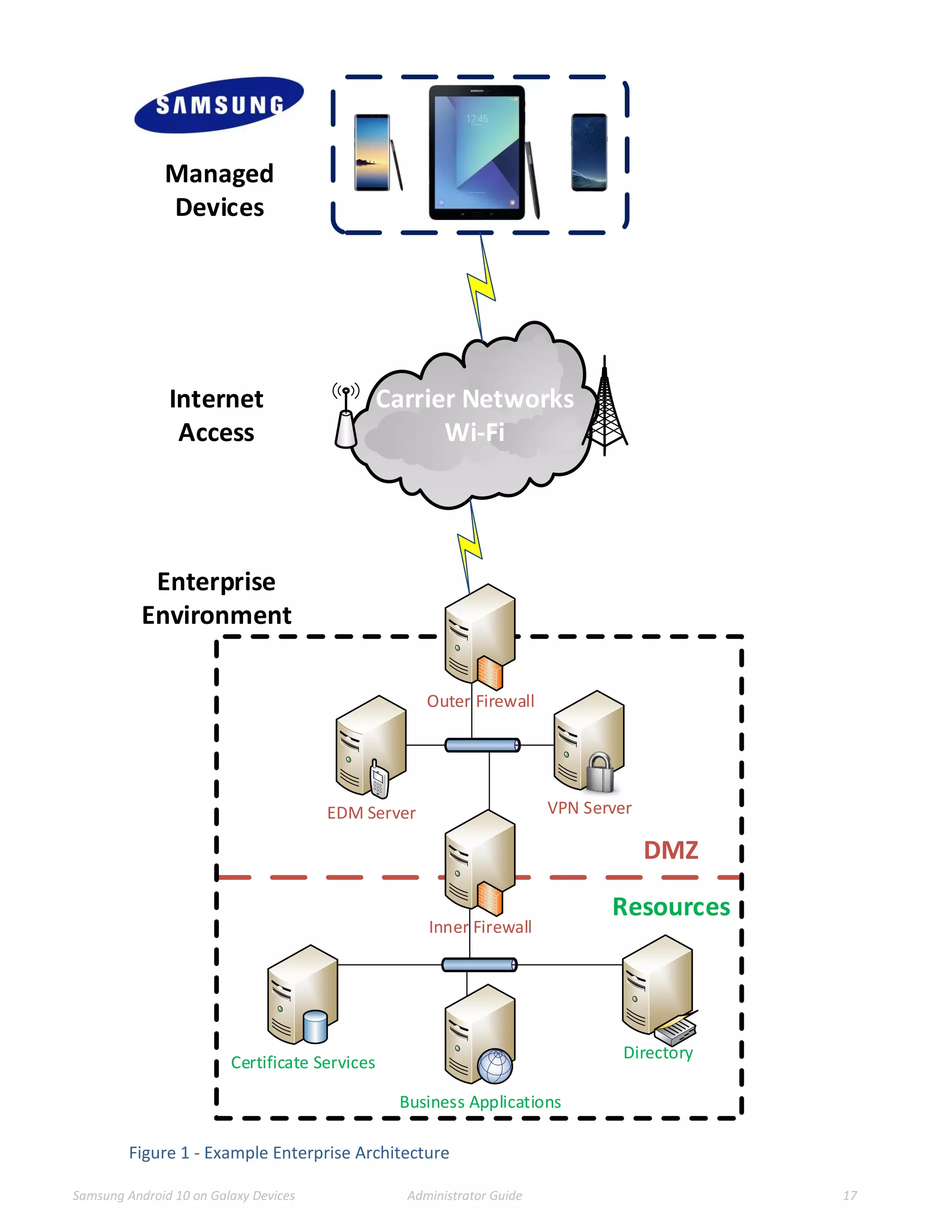
Figure 1 shows an example of a high-level design of an enterprise-based environment.
Samsung Android 10 on Galaxy Devices Administrator Guide 17
Directory
Outer Firewall
VPN Server
Carrier Networks
Wi-Fi
Managed
Devices
Internet
Access
EDM Server
Certificate Services
Inner Firewall
Business Applications
DMZ
Resources
Enterprise
Environment
Figure 1 - Example Enterprise Architecture
Samsung Android 10 on Galaxy Devices Administrator Guide 18
2.3.2 EDM Solution Selection
To manage the mobile devices, an EDM must be deployed. This EDM should support the Samsung Knox APIs
to enable the capabilities documented in this guide. The more complete the EDM vendor support, the more
capabilities can be controlled on the device.
To enable capabilities such as remote wipe of a device, the EDM must be placed within the Enterprise
environment such that it can communicate over the internet. This communication can be enabled with or
without a VPN, though it is normally recommended to have EDM traffic outside the VPN to ensure access is
most widely available to the device.
When selecting an EDM solution, care should be taken to ensure the ability to configure the Common
Criteria configuration. The Common Criteria Configuration section provides the specific information about
the Knox APIs that are necessary to support this configuration and can be used to check the compatibility of
the EDM solution with the needs of the Enterprise.
2.4 Provisioning of Samsung Devices
As noted above, the secure deployment of enterprise devices is reliant on many components beyond the
mobile device itself. It is expected that within the Enterprise environment the EDM solution and other
required services are securely installed and configured according to the security requirements of the
organization.
Once the EDM is installed and available, it is possible to begin provisioning end user devices. The
provisioning process will prepare the devices for a policy configuration to be deployed, enabling the device
to be placed into a Common Criteria configuration.
The mobile device must be enrolled with the EDM server to enable administration via the EDM. Enrollment
is accomplished by installing the EDM Agent application onto the device. There many methods and
configurations for doing this depending on the deployment scenario. The EDM documentation for
deployment should be followed.
Once a device has been enrolled to the EDM, other optional configurations may be set, depending on the
organization security policy. These are not required to place the device into a Common Criteria
configuration, but are best practices for mobile devices.
NOTE: Configurations that are included as part of the controls for the Common Criteria configuration are
not included here.
The following list provides some of the most common additional configuration items that may be done on a
mobile device:
 Install applications required for enterprise productivity
 Provision client certificates by either:
o Using the EDM server;
o Using the Android Development Tools (ADT) to manually push certificates to each device via USB
 Using the Android Debug Tool (ADB) required USB debugging to be enabled on the device
for provisioning of the certificates (it can be disabled once this operation is complete)
Samsung Android 10 on Galaxy Devices Administrator Guide 19
o Placing the certificates on a microSD card and import using the device user interface
o The certificates commonly deployed are:
 Enterprise CA certificate (used to validate the server certificates presented by the VPN
endpoint and reverse proxy)
 Wi-Fi client certificate (for authentication to an EAP-TLS Wi-Fi AP)
 VPN client certificate (for authentication to the enterprise VPN endpoint)
 SSL client certificate (for authentication to the reverse proxy for intranet services)
 Configure the VPN client to connect to the enterprise VPN endpoint
o Enable ‘Always-On’ VPN
 Configure the email client to connect to the enterprise server
2.4.1 Work Profile Configurations
Through the Knox Platform, Samsung devices include an integrated capability to configure the device for an
enterprise environment with Work Profile. A Work Profile can be configured for a whole device or with a
Work Profile container. When a Work Profile container is configured, it provides a segmented area on the
device that can have its own apps and data that is not accessible from the “normal” area (sometimes called
the “personal” side of the device). The Work Profile container can be used to separate different apps and
data, such as in a BYOD scenario where an enterprise could manage their own data in a separate Work
Profile container on the user’s device.
A Samsung device can be placed into an evaluated configuration both with and without a Work Profile
container being configured on the device. For organizations that do not need to segment the device, a
configuration can be used without creating a Work Profile container. For organizations that have a need for
data separation, a Work Profile can be created and still be in an evaluated configuration.
Samsung Android 10 on Galaxy Devices Administrator Guide 20
3 Common Criteria Configuration
This section of the guide will list the configuration settings that are reviewed as part of the Common Criteria
evaluation. Some of these settings are required for the device to be placed into a validated configuration
while others are optional and can be used at the discretion of the organization and the attendant security
policies.
3.1 Approved Cryptography
Part of the Common Criteria-evaluated configuration is the availability of approved cryptographic engines
for use by the system and applications. Samsung has chosen to utilize NIST-validated cryptographic
algorithms within the cryptographic modules on its devices for the Common Criteria configuration. These
algorithms are made available for use by applications installed on the device through the normal Android
Framework APIs.
Samsung provides the following cryptographic modules with NIST-validated algorithms on all the evaluated
devices:
 Samsung Kernel Cryptographic Module
 Samsung BoringSSL Cryptographic Module
 Samsung SCrypto Cryptographic Module
In addition, the following cryptographic modules with NIST-validated algorithms are available, depending on
the CPU:
 Samsung Flash Memory Protector (on devices with Samsung Exynos processors)
 QTI Inline Crypto Engine (on devices with Qualcomm Snapdragon processors)
All modules always run in a FIPS-validated mode. BoringSSL, for compatibility reasons, provides access to
non-FIPS algorithms. Developers should not utilize non-FIPS algorithms in a validated configuration (but
these are necessary to ensure functionality with many commercial services). Samsung integrates the
cryptographic modules directly into Android so they can be accessed by any app using the native Android
APIs. The APIs providing access to FIPS-validated algorithms are detailed in the section 6 Developer
References.
Note: It is possible that some applications will implement their own cryptography instead of relying on the
modules provided with the device. It is the responsibility of those vendors to validate their own
cryptography. Samsung recommends that developers utilize the cryptographic functions provided with the
device using the native Android APIs.
3.2 Enabling CC Mode
The Samsung devices listed in this document support a Common Criteria (CC) Mode. This CC Mode provides
feedback on whether or not the device meets the minimum required configuration according to the MDF
requirements.
Samsung Android 10 on Galaxy Devices Administrator Guide 21
While there are two methods for enabling CC Mode on a device, only the EDM-managed method will be
explained here.
NOTE: The CC Mode app is for testing and not intended as a deployment tool.
3.2.1 CC Mode Status
CC Mode has three possible states:
Status Description
Ready The conditions for CC Mode have not been met
Enabled CC Mode has been turned on
Disabled
CC Mode has been turned on but an integrity check
or self-test has failed (such as a FIPS 140-2 self-test)
Table 10 – CC Mode Status
The status of the CC Mode check is entered into the audit log through a series of entries about each of the
conditions necessary for CC Mode.
The CC Mode status can be seen by a user in Settings/About phone/Software Security Version. The only
status mark shown here is Disabled (an error has occurred); there is no shown status for any other state.
Note: It is unlikely a user will see the Disabled state as the failures necessary to meet this condition are such
that the device is unlikely to boot.
3.3 Device Common Criteria Settings
This section will lay out all the settings which are mandatory as part of the MDF-validated configuration.
The settings have been grouped into categories as well as marked with applicability based on the following
table.
Applicability Description
Device
These APIs are only applied to the device as a
whole and cannot be applied to the Work
Profile
All
These APIs can be applied to both the device
or the Work Profile
Work Profile
These APIs are only applicable to the Work
Profile
Knox
These APIs are applicable to the Knox
Platform for Enterprise (KPE) and can be
applied to the device or Work Profile
depending on the configuration
Table 11 – API Applicability
Samsung Android 10 on Galaxy Devices Administrator Guide 22
A Work Profile implements many of the same APIs as are available to the device (such as hardware state
configurations). Policies in Work Profile are tied specifically to the Work Profile as part of the Knox Platform
API configuration. All Knox APIs specified are part of the Knox Platform for Enterprise (KPE) set of APIs and
require a Knox Platform for Enterprise license to be used.
Note: While most of the APIs listed here are part of the Knox SDK, some APIs come from the Android Device
Management set. The APIs from native Android are italicized.
The settings have also been marked as mandatory or objective (or in the case of CC Mode, Always).
All the settings are included in the attached spreadsheet on the Device Settings worksheet.
Settings Table.xlsx
3.3.1 Common Criteria Minimal Configuration
To configure the device into the minimal evaluated configuration, all settings marked as Always and
Mandatory must be set. Once these have been set, the device configuration can be verified by reviewing the
audit records from the device boot.
The optional configuration settings can be used to meet the deployment needs of the organization. These
settings have been covered in the evaluation, but the specific settings of those items does not affect the
evaluated configuration.
The following settings must be configured via the EDM after CC Mode has been enabled:
1. Set Password Quality
2. Enable the Maximum Password Failure Wipe Policy
3. Enable SD Card Encryption
4. Enable CRL Checking
If biometrics are enabled, the following setting must be configured:
1. Disable Face Lock
The following settings must be configured via the device after CC Mode has been enabled:
1. Set a Password
2. Enable Secure Startup (only applicable for devices with ODE in Table 6 – Storage Encryption for Devices)
3. Enroll biometrics (if enabled)
To ensure overall control of the Common Criteria configuration, CC Mode cannot be disabled by an end user
except by performing a factory reset. It is possible to change the CC Mode status through the EDM; a user
can only turn off CC Mode by choosing to perform a factory reset.
Samsung Android 10 on Galaxy Devices Administrator Guide 23
3.3.1.1 Application White/Black Listing Settings
White/Black listing is done using the full name of the application (such as com.android.testingapp).
The application removal process will automatically clear data associated with the application stored in the
application directories. Data created or stored outside the application directories (such as photos by a
camera application or documents created by a word processor) will not be removed when the application is
uninstalled.
The method for configuring these lists is highly dependent on the EDM solution chosen. Please refer to the
EDM specific guidance on exactly how to set these policies.
Note: The Application White/Black lists will not have any impact on apps that are part of the system image.
Built-in apps can instead be Disabled.
3.4 VPN Client Settings
The device also includes an evaluated VPN client. There are two ways to configure the built-in VPN client,
depending on the needs of the organization, via the Standard APIs or via the Knox Generic VPN APIs.
The Standard APIs provide a basic set of functionality for a VPN client that is configured for the entire device
(all traffic would pass through this VPN profile).
The Knox Generic VPN APIs provide a highly flexible method for configuring VPNs that can include the ability
to control access to applications or groups of applications to specific tunnels. The Knox VPN framework can
be used to control tunnels both inside and outside the Work Profile, depending on where the VPN client is
installed (inside or outside the Work Profile). The Knox VPN framework can be used with the built-in
Samsung VPN client or with third-party VPN client vendors, depending on the needs of the organization.
The settings for configuring a VPN client profile can be found in the Settings Table spreadsheet on the VPN
Settings worksheet. The specific settings can be used for profiles that are compliant with the Common
Criteria configuration.
3.4.1 VPN Profile Settings (All)
3.4.1.1 Valid Certificate Types for IKEv1
The IPsec Xauth RSA setting only accepts RSA certificates for the tunnel. As long as the certificates are valid
(not expired, properly formatted, etc.) they can be used for the VPN configuration.
Note: It is possible to specify an ECDSA certificate that has been loaded into the system, but it cannot be
used to establish a connection to the gateway using IKEv1.
3.4.1.2 Valid Certificate Types for IKEv2
While the menu selection for the type of tunnel states IPsec IKEv2 RSA it is possible to utilize both RSA and
ECDSA certificates for the tunnel. As long as the certificates are valid (not expired, properly formatted, etc.)
they can be used for the VPN configuration.
Samsung Android 10 on Galaxy Devices Administrator Guide 24
3.4.1.3 Specifying a Strong Pre-Shared Key
A PSK (Pre-shared key) is like a password, a fixed string used to authenticate the VPN client to the VPN
gateway. Since the PSK does not change (or at least does not change often), a strong string should be
selected to protect against unauthorized access to the VPN by unknown clients.
The PSK can be entered in two forms: ASCII or HEX. All ASCII characters are supported. HEX keys must start
with “0x” as the first two characters entered. If those are the first two characters, the remaining entry will
be read as a HEX key. The maximum key size is 64 characters entered.
The PSK will be provided by the organization for entry (since this is something that must match the value on
the VPN Gateway). The PSK is recommended to be at least 22 characters long and if not HEX, a mix of letters
numbers and symbols.
3.4.2 VPN Profile Settings (Standard APIs)
3.4.2.1 Server Certificate for the Gateway
It is possible to specify a Server Certificate for the Gateway in the configuration of a VPN tunnel. This
certificate will override any certificate provided by the Gateway during the negotiation of the tunnel.
This certificate may be loaded through the UI or EDM. See the device User Guidance for more information
about loading certificates manually.
3.4.3 Knox VPN Profile Settings (Knox Generic APIs)
Configuring the VPN via Knox Generic VPN APIs has the benefit of allowing per-app routing to the VPN
client. For example, all container packages can be forced to go through one tunnel, while personal
applications are routed through another, or not at all.
The Knox VPN framework can be used with the built-in Samsung VPN client or with third-party VPN client
vendors, depending on the needs of the organization.
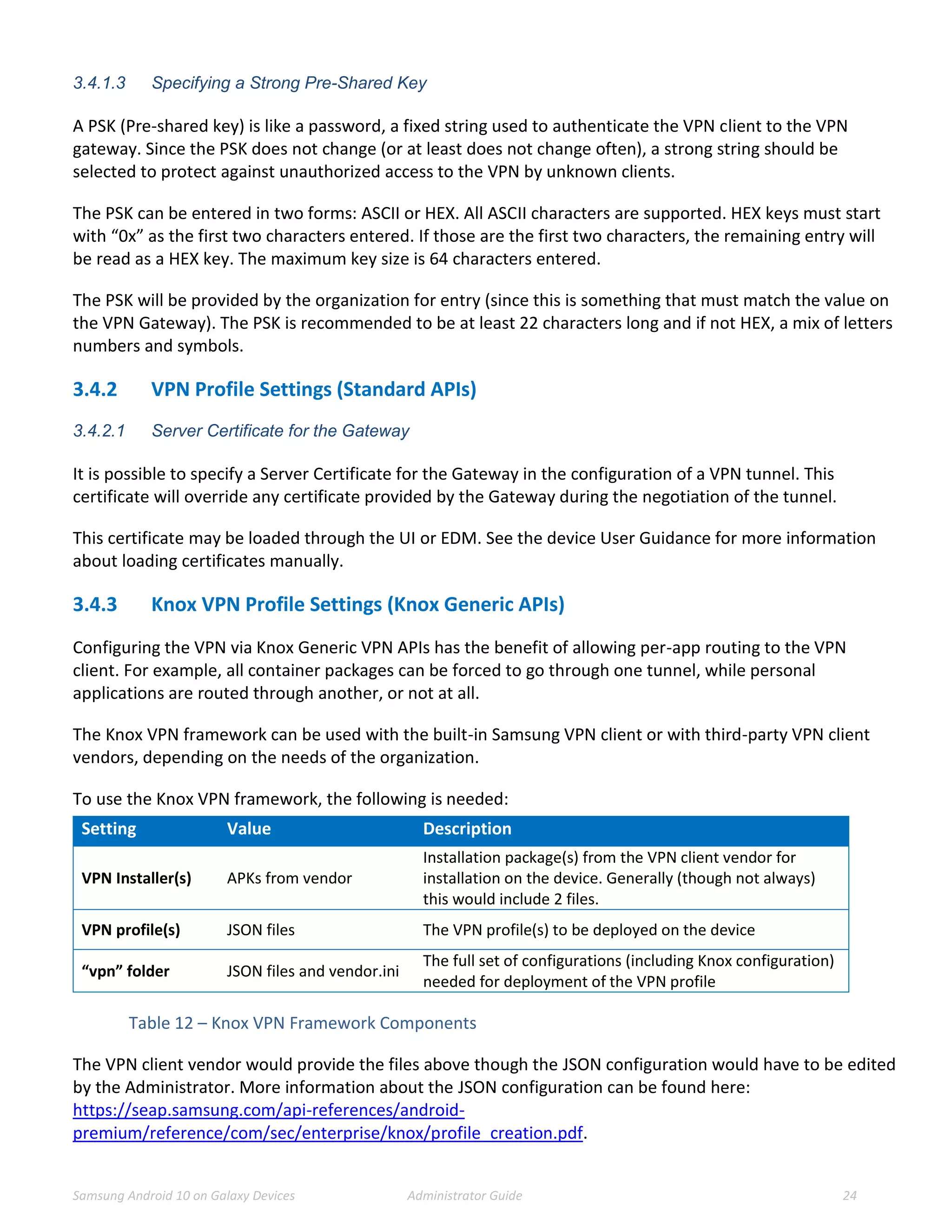
To use the Knox VPN framework, the following is needed:
Setting Value Description
VPN Installer(s) APKs from vendor
Installation package(s) from the VPN client vendor for
installation on the device. Generally (though not always)
this would include 2 files.
VPN profile(s) JSON files The VPN profile(s) to be deployed on the device
“vpn” folder JSON files and vendor.ini
The full set of configurations (including Knox configuration)
needed for deployment of the VPN profile
Table 12 – Knox VPN Framework Components
The VPN client vendor would provide the files above though the JSON configuration would have to be edited
by the Administrator. More information about the JSON configuration can be found here:
https://seap.samsung.com/api-references/android-
premium/reference/com/sec/enterprise/knox/profile_creation.pdf.
Samsung Android 10 on Galaxy Devices Administrator Guide 25
3.4.3.1 Samsung VPN Client Configuration for Knox VPN Profile
Using Knox Generic APIs requires installation of the Samsung Proxy APK on the device, which translates
configuration received through these APIs onto the underlying Samsung VPN client. The use of other Proxy
APKs could be used to support non-Samsung VPN clients (that is not covered here).
Note: Using the Samsung VPN APK will configure the Knox VPN Profile to point to the evaluated VPN client.
Provided the profile configuration string has been created as per the next section, the API flow for creating
and starting a VPN connection will be createVpnProfile() -> addPackagesToVpn() -> activateVpnProfile() API.
The API flow for removing a VPN profile will be activateVpnProfile() (De-activate it) -> removeVpnProfile()
API.
Note: When adding packages to a VPN profile, use User0 for the whole device and User10 or User100
(depending on the device) for the Work Profile.
3.4.3.2 JSON Configuration String
This is an example JSON file for the Knox VPN Client Profile.
{
"KNOX_VPN_PARAMETERS": {
"profile_attribute": {
"profileName": "ss1",
"host": "",
"isUserAuthEnabled": true,
"vpn_type": "ipsec",
"vpn_route_type": 1
},
"knox": {
"connectionType": "keepon",
"chaining_enabled": "-1",
"uidpid_search_enabled": "0"
},
"vendor": {
"basic": {
"autoretry": "1",
"username": "sampleu",
"password": “samplepw",
"authentication_type": "type",
"host": "111.111.111.111"
},
"ipsec_xauth_psk": {
"identifier": "test@sta.com",
"pre_shared_key": "example",
"dns_search_domains": [],
"dns_servers": [
"8.8.8.8"
],
"frwd_routes": [
"10.0.0.0/8"
]
},
"ipsec_xauth_rsa": {
"user_cert_alias": "",
"ca_cert_alias": "",
"server_cert_alias": "",
"dns_search_domains": [],
"dns_servers": [
"8.8.8.8"
],
"frwd_routes": [
"10.0.0.0/8"
]
},
"ipsec_ike2_psk": {
"identifier": "test@sta.com",
"pre_shared_key": "example",
"dns_search_domains": [],
"dns_servers": [
"8.8.8.8"
],
"frwd_routes": [
"10.0.0.0/8"
]
},
"ipsec_ike2_rsa": {
"user_cert_alias": "",
"ca_cert_alias": "",
"server_cert_alias": "",
"dns_search_domains": [],
"dns_servers": [
"8.8.8.8"
],
"frwd_routes": [
"10.0.0.0/8"
],
"ocsp_url": ""
}
}
}
}
Example Xauth-PSK JSON (Other configurations in gray)
Samsung Android 10 on Galaxy Devices Administrator Guide 26
3.4.3.3 Server Certificate for the Gateway
It is possible to specify a Server Certificate for the Gateway in the configuration of a VPN tunnel, by
providing the server_cert_alias string corresponding to a certificate previously installed into the keystore.
This certificate will override any certificate provided by the Gateway during the negotiation of the tunnel.
This certificate may be loaded through the UI or EDM. See the device User Guidance for more information
about loading certificates manually.
3.4.4 VPN Gateway Configuration Control
There are many configuration options for a VPN tunnel that only be configured from the gateway. The VPN
client will utilize these settings from the gateway configuration to construct the secure tunnel. The following
is a list of the settings that must be configured through the gateway:
 Encryption settings – while the VPN client will use FIPS validated encryption, the gateway will specify
which algorithms should be used.
 IKE Protocols & Authentication – the gateway specifies which IKE protocols authentication techniques
are required for establishing the connection. This includes requiring Main mode when IKEv1 is being
used.
 IPsec Session Key cryptoperiod – the gateway specifies the session key cryptoperiod and can be used to
configure periods under 1 hour in duration.
3.4.5 Third-Party VPN Clients (Device)
While Samsung devices come with a Common Criteria-certified VPN client, Enterprise customers may also
use a VPN client from a third party vendor. Android provides the public class android.net.VpnService for
third party vendors to build VPN clients that can be installed within Android.
These clients may contain additional capabilities beyond those provided by the built-in Android or Samsung
clients. VPN client software built using this interface may provide their own management interface outside
of that provided by Samsung.
3.5 Additional Common Criteria Features
3.5.1 Sensitive Data Protection
Samsung has added capabilities for Sensitive Data Protection. This feature is designed to allow applications
that run in the background and receive information to protect that information upon receipt. This feature is
provided as part of the device, but its use is dependent on applications having been written to the APIs
providing the capability. It is expected that this list will grow over time, but is currently limited to the
Samsung Email application contained within the Work Profile.
The API for Sensitive Data Protection exists for different Knox Platform configurations, but unless an
application has been written to the API, it will not take advantage of the Sensitive Data Protection function.
Samsung Android 10 on Galaxy Devices Administrator Guide 27
3.5.2 Background Network Communications
Samsung Android devices are usually configured by default to send anonymous usage data (including
location, device ID etc.) to Google and Samsung servers. This can be disabled through device settings and
will need to be enforced through procedural controls.
Samsung Android devices do not need to be associated with a Google account to operate as required within
the enterprise. For example, it is still possible to receive push notifications through Google Cloud Messaging.
Knox EDM APIs can be used to prevent users from signing in to these services (see EDM guidance).
Samsung Android 10 on Galaxy Devices Administrator Guide 28
4 End User Procedures
While the administrator can configure the device, the end user of the device will interact with the resulting
configuration. Specific instructions about procedures for an end user can be found in the support links in
section 1.5 References. There the user can specifically select their device and have tailored usage
instructions.
4.1 User Authentication
When allowed, a user will be able to enroll fingerprint or iris biometrics for use at the lock screen as an
alternative to entering a password. Detailed instructions for configuring these methods can be found under
the “Secure” or “Security” section of the guide for the specific device. Information about setting up the
Screen Lock, fingerprint and iris will be listed separately.
4.1.1 Setting Passwords
Passwords and biometrics are available (depending on the configuration) for use to prevent unauthorized
access to the device. A user must always have a password set for authentication, and this password should
never be shared with anyone. Recommendations for setting strong passwords can be found in NIST SP 800-
63B, section 5.1.1, Memorized Secrets.
4.1.2 Two-step Verification
When the Work Profile is configured for Two-step verification (also called multi-factor or hybrid
authentication), the user must provide both a biometric and password to login successfully. The user will
see a new option in the Screen Lock Type that will allow the user to configure both components of the
authentication credentials.
When the Two-step verification is selected, the user will be prompted to choose the first lock type, which
will be a Password. Once the password has been entered, the user will be prompted to enter a biometric
from those available for use (fingerprint or iris). If the biometric has not yet been registered, the user will be
prompted to re-enter the password before continuing to register the biometric.
The process for entering the password or registering a biometric in the same manner as when used
individually (specified in 4.1 User Authentication). The Two-step verification process provides a wizard to
register both components at once.
4.2 Wi-Fi Connectivity
While the administrator may pre-configure some Wi-Fi networks via the EDM, the user has local control
over the Wi-Fi connectivity of the device, including the ability to enable/disable Wi-Fi and to
connect/reconnect to networks. Detailed instructions for connecting to Wi-Fi networks can be found under
the “Connections” section of the guide for the specific device.
Samsung Android 10 on Galaxy Devices Administrator Guide 29
Wi-Fi connections can sometimes be dropped (such as when moving out of range). Generally, the device will
automatically reconnect to the network once in range, but when this does not happen, following the steps
used to establish a new connection by selecting the available network would start the reconnection. This
process will not require re-entry of any configuration information but will start the connection using the
configuration already stored.
4.3 Bluetooth Connectivity
When connecting your device to various other Bluetooth devices it is important to be sure they are properly
paired. Some peripherals have no interface for pairing (such as headphones or mice) while others do (such
as another smart device or your car). A key difference between these types of devices is whether
information can be transferred to them. For example, while you can talk or listen through a Bluetooth
headset, it does not store data. Connections to devices that support data transfer capabilities must always
be paired explicitly before any use of functionality between them.
Detailed instructions for pairing Bluetooth devices can be found under the “Connections” section of the user
guide for the specific device or in the Interactive Guide under “Connections -> Connect to Bluetooth
Devices”.
4.4 Cellular/Mobile Network Configuration
There may be times when it is necessary to limit the type of Cellular network(s) to which a device should be
allowed to connect. The device can be configured to connect to specific combinations of network modes
such as LTE, 3G and 2G. The specific options may be limited by a combination of the SIM and the carrier the
phone is connected to at any time (such as when roaming).
To change the network modes used to connect to the cellular network, the user can search for “Mobile
Networks” in the user guide. Inside the Mobile Networks settings, the new can select “Network Mode” and
choose from the available modes. In many cases the selections will have 2 or more modes with (auto
connect) specified; this means the device will connect to any of the listed modes to provide the best cellular
connection.
4.5 Certificate Management
While generally certificates would be managed through the EDM, it may be necessary for a user to update
the Trust Anchor database locally. A user is not able to change settings managed by the EDM, but is able to
add, remove or disable certificates outside the restrictions an EDM may enforce. Detailed instructions for
managing certificates locally can be found under the “Credential Storage” section of the user guide for the
specific device.
Samsung Android 10 on Galaxy Devices Administrator Guide 30
4.6 Using the VPN Client
4.6.1 Always-on Tunnel
When the device has a tunnel configured for Always-on VPN, all traffic will automatically go through this
tunnel, and if for some reason a connection for the tunnel cannot be made, no traffic will be allowed to
communicate off the device.
4.6.2 “Normal” VPN Tunnels
When VPN tunnels are configured and no tunnel is specified as Always-on, then the user must select the
tunnel to be used. The user will select the tunnel from those available at Settings/Connections/More
connection settings/VPN.
4.7 Application Permissions
Applications may request access to system services, such as location, to support the functionality of the
application. When an application is run for the first time, the user will be prompted to allow (or deny) access
to the service for the application. Some services may also have an option for allowing access only when the
application is running (preventing access when the application is not active on the screen). Unless a choice is
made to allow access one time only, the selection made by the user will be remembered across application
restarts.
These permissions can be managed on the device later in the Permission manager available at
Settings|Privacy|Permission manager. Here the permissions for each application can be checked and
modified as desired.
Samsung Android 10 on Galaxy Devices Administrator Guide 31
5 Audit Records
Auditing is enabled and events retrieved through the EDM. A Knox Platform for Enterprise license is
required in order to enable the collection of audit records.
Audit records are stored in a compressed format to minimize space and maximize the amount of records
that can be stored. When the allocated space is full, the oldest events will be overwritten so the most recent
as always maintained (circular logging/buffering). Notifications are sent to the EDM based on the log space
becoming full to warn before wrapping occurs.
The minimum amount of allocated space for audit storage is 10MB with a maximum of 50MB, depending on
the available free space when activated. There must be at least 200MB of free space when Auditing is
enabled (an error is returned to the EDM if not), and no more than 5% of free space will be used, up to the
maximum of 50MB. The allocated space is not adjusted after it is initially set.
Within the logging, it is also possible to filter the events that are written to the log.
One important note about the audit capabilities is that they are tied to being enrolled to a management
server (EDM). If the device is not enrolled there is no way to enable auditing, and when a device is
unenrolled, the audit records are deleted as part of the unenrollment process, so any events created
between the last review/upload and the unenrollment will be lost.
5.1 Types of Audit Events
There are three classes of audit events that can be logged, system and apps, kernel and IP tables. Each can
be controlled individually, so you can log just select classes of events. Kernel and IP table logging generates a
large amount of events, so care should be taken that the EDM collect the logs frequently if they are enabled
or the circular logging function could cause events to be overwritten and lost.
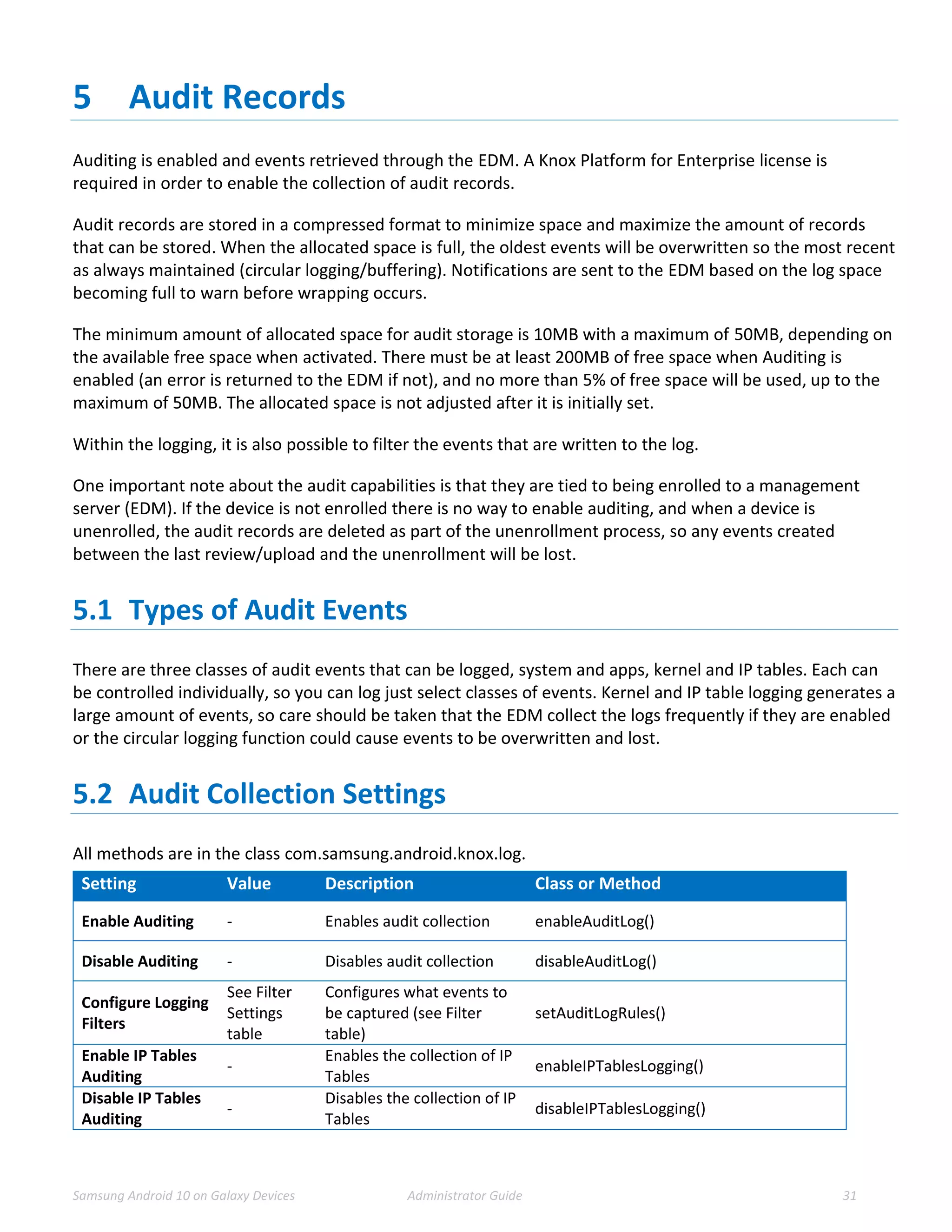
5.2 Audit Collection Settings
All methods are in the class com.samsung.android.knox.log.
Setting Value Description Class or Method
Enable Auditing - Enables audit collection enableAuditLog()
Disable Auditing - Disables audit collection disableAuditLog()
Configure Logging
Filters
See Filter
Settings
table
Configures what events to
be captured (see Filter
table)
setAuditLogRules()
Enable IP Tables
Auditing
-
Enables the collection of IP
Tables
enableIPTablesLogging()
Disable IP Tables
Auditing
-
Disables the collection of IP
Tables
disableIPTablesLogging()
Samsung Android 10 on Galaxy Devices Administrator Guide 32
Table 13 – Audit Settings
5.2.1 Audit Collection Filter Settings
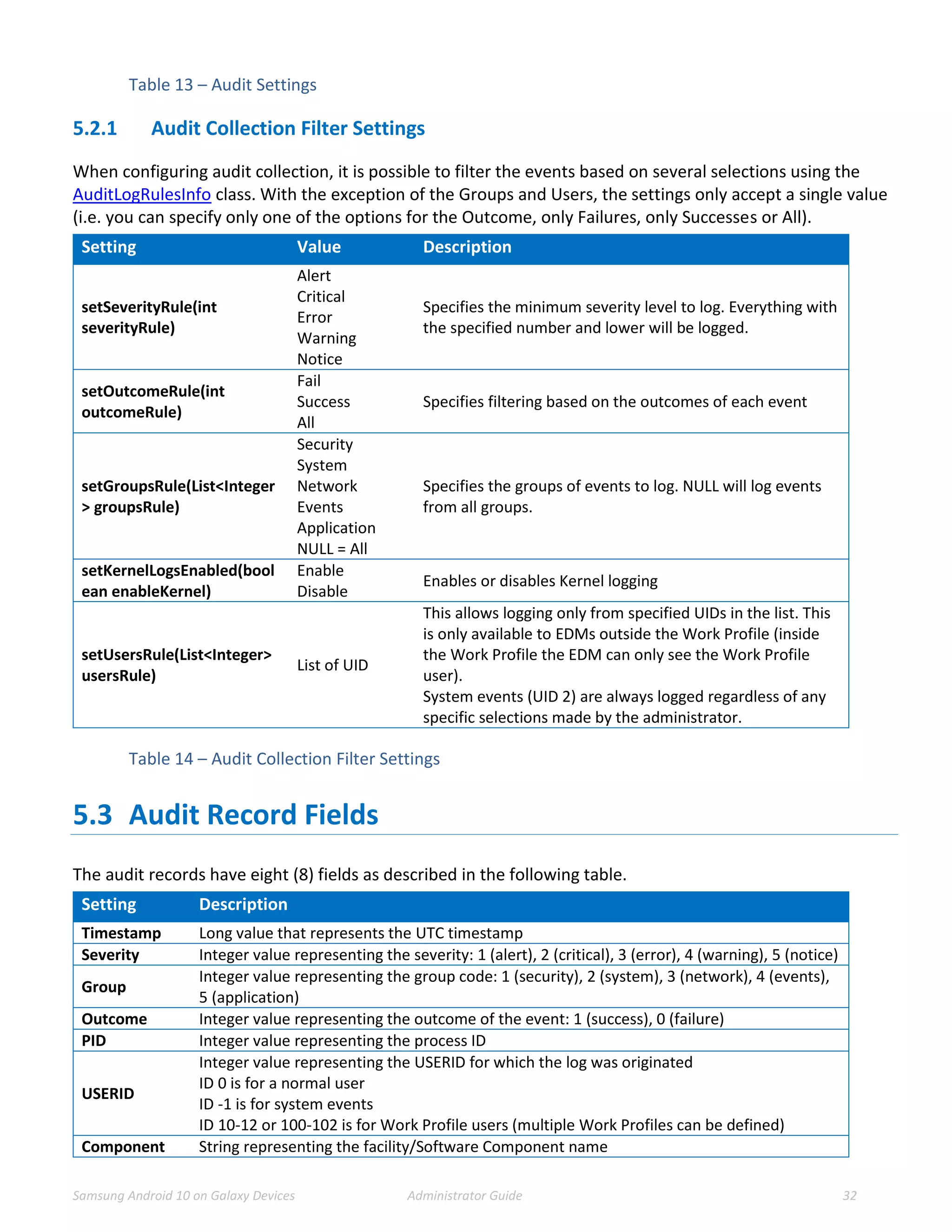
When configuring audit collection, it is possible to filter the events based on several selections using the
AuditLogRulesInfo class. With the exception of the Groups and Users, the settings only accept a single value
(i.e. you can specify only one of the options for the Outcome, only Failures, only Successes or All).
Setting Value Description
setSeverityRule(int
severityRule)
Alert
Critical
Error
Warning
Notice
Specifies the minimum severity level to log. Everything with
the specified number and lower will be logged.
setOutcomeRule(int
outcomeRule)
Fail
Success
All
Specifies filtering based on the outcomes of each event
setGroupsRule(List<Integer
> groupsRule)
Security
System
Network
Events
Application
NULL = All
Specifies the groups of events to log. NULL will log events
from all groups.
setKernelLogsEnabled(bool
ean enableKernel)
Enable
Disable
Enables or disables Kernel logging
setUsersRule(List<Integer>
usersRule)
List of UID
This allows logging only from specified UIDs in the list. This
is only available to EDMs outside the Work Profile (inside
the Work Profile the EDM can only see the Work Profile
user).
System events (UID 2) are always logged regardless of any
specific selections made by the administrator.
Table 14 – Audit Collection Filter Settings
5.3 Audit Record Fields
The audit records have eight (8) fields as described in the following table.
Setting Description
Timestamp Long value that represents the UTC timestamp
Severity Integer value representing the severity: 1 (alert), 2 (critical), 3 (error), 4 (warning), 5 (notice)
Group
Integer value representing the group code: 1 (security), 2 (system), 3 (network), 4 (events),
5 (application)
Outcome Integer value representing the outcome of the event: 1 (success), 0 (failure)
PID Integer value representing the process ID
USERID
Integer value representing the USERID for which the log was originated
ID 0 is for a normal user
ID -1 is for system events
ID 10-12 or 100-102 is for Work Profile users (multiple Work Profiles can be defined)
Component String representing the facility/Software Component name
Samsung Android 10 on Galaxy Devices Administrator Guide 33
Message Free-form message description of the event (generally a human-readable message)
Table 15 – Audit Fields
5.4 Audit Events
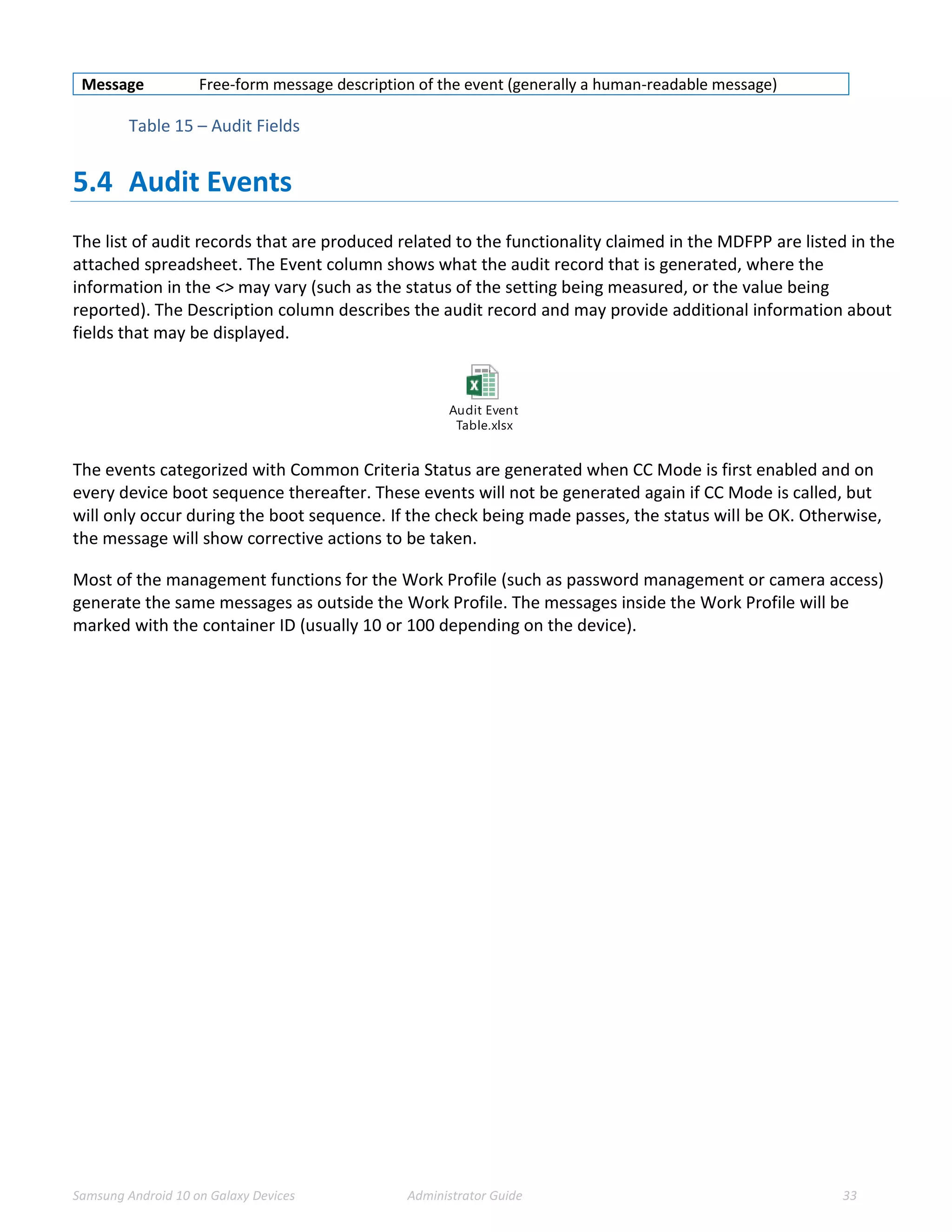
The list of audit records that are produced related to the functionality claimed in the MDFPP are listed in the
attached spreadsheet. The Event column shows what the audit record that is generated, where the
information in the <> may vary (such as the status of the setting being measured, or the value being
reported). The Description column describes the audit record and may provide additional information about
fields that may be displayed.
Audit Event
Table.xlsx
The events categorized with Common Criteria Status are generated when CC Mode is first enabled and on
every device boot sequence thereafter. These events will not be generated again if CC Mode is called, but
will only occur during the boot sequence. If the check being made passes, the status will be OK. Otherwise,
the message will show corrective actions to be taken.
Most of the management functions for the Work Profile (such as password management or camera access)
generate the same messages as outside the Work Profile. The messages inside the Work Profile will be
marked with the container ID (usually 10 or 100 depending on the device).
Samsung Android 10 on Galaxy Devices Administrator Guide 34
6 Developer References
6.1 Cryptographic APIs
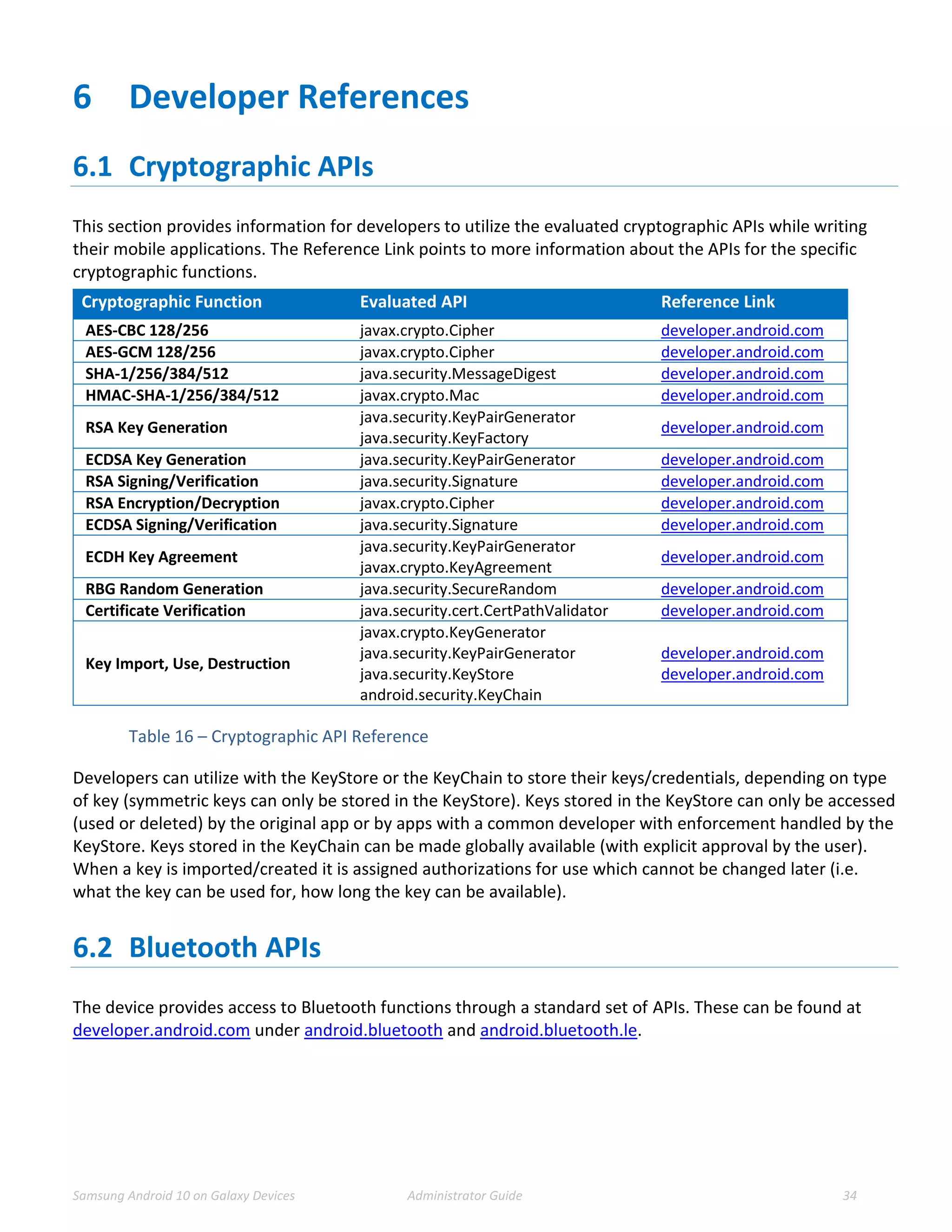
This section provides information for developers to utilize the evaluated cryptographic APIs while writing
their mobile applications. The Reference Link points to more information about the APIs for the specific
cryptographic functions.
Cryptographic Function Evaluated API Reference Link
AES-CBC 128/256 javax.crypto.Cipher developer.android.com
AES-GCM 128/256 javax.crypto.Cipher developer.android.com
SHA-1/256/384/512 java.security.MessageDigest developer.android.com
HMAC-SHA-1/256/384/512 javax.crypto.Mac developer.android.com
RSA Key Generation
java.security.KeyPairGenerator
java.security.KeyFactory
developer.android.com
ECDSA Key Generation java.security.KeyPairGenerator developer.android.com
RSA Signing/Verification java.security.Signature developer.android.com
RSA Encryption/Decryption javax.crypto.Cipher developer.android.com
ECDSA Signing/Verification java.security.Signature developer.android.com
ECDH Key Agreement
java.security.KeyPairGenerator
javax.crypto.KeyAgreement
developer.android.com
RBG Random Generation java.security.SecureRandom developer.android.com
Certificate Verification java.security.cert.CertPathValidator developer.android.com
Key Import, Use, Destruction
javax.crypto.KeyGenerator
java.security.KeyPairGenerator
java.security.KeyStore
android.security.KeyChain
developer.android.com
Table 16 – Cryptographic API Reference
Developers can utilize with the KeyStore or the KeyChain to store their keys/credentials, depending on type
of key (symmetric keys can only be stored in the KeyStore). Keys stored in the KeyStore can only be accessed
(used or deleted) by the original app or by apps with a common developer with enforcement handled by the
KeyStore. Keys stored in the KeyChain can be made globally available (with explicit approval by the user).
When a key is imported/created it is assigned authorizations for use which cannot be changed later (i.e.
what the key can be used for, how long the key can be available).
6.2 Bluetooth APIs
The device provides access to Bluetooth functions through a standard set of APIs. These can be found at
developer.android.com under android.bluetooth and android.bluetooth.le.
Samsung Android 10 on Galaxy Devices Administrator Guide 35
6.3 TLS/HTTPS APIs
The device provides access to TLS & HTTPS functions through a standard set of APIs. These can be found at
developer.android.com under javax.net.ssl.
6.4 Certificate Pinning
The device provides the ability for applications to utilize certificate pinning to lock the certificates accepted
when accessing web services to only those that are specifically expected. This must be done by the app and
is not something the user can set on their own. Information about configuring an app to utilize certificate
pinning can be found at developer.android.com under Network Security Configuration.
6.5 IPsec VPN APIs
The device provides the ability to configure IPsec VPN tunnels through a standard set of APIs. These can be
found at developer.android.com and at the Samsung Enterprise Alliance Program (SEAP).
Samsung Android 10 on Galaxy Devices Administrator Guide 36
7 Device Delivery and Updates
7.1 Secure Device Delivery
While a Samsung device requires initial configuration before it can be added to the enterprise environment,
it is also critical to ensure that the device is received prior to configuration in a secure manner, free from
tampering or modification.
It is very important that the devices to be deployed into the enterprise are obtained from reputable carriers
to reduce the likelihood that tampering of devices may occur.
Upon receipt, the boxes containing the device should have both a tracking label and two labels placed at
either end of the box to indicate whether the box has been opened prior to delivery. If these seals are
broken, do not accept the device and return it to your supplier.
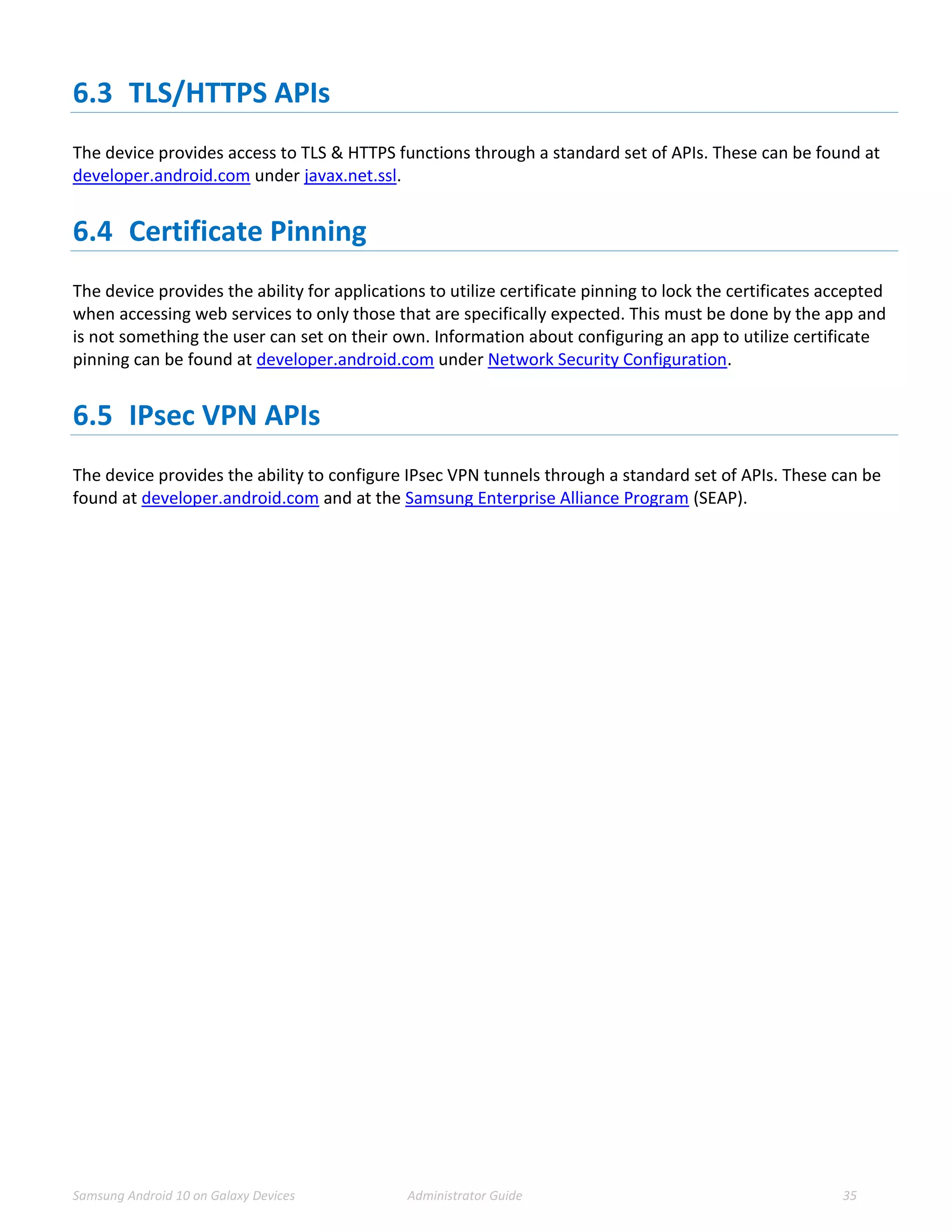
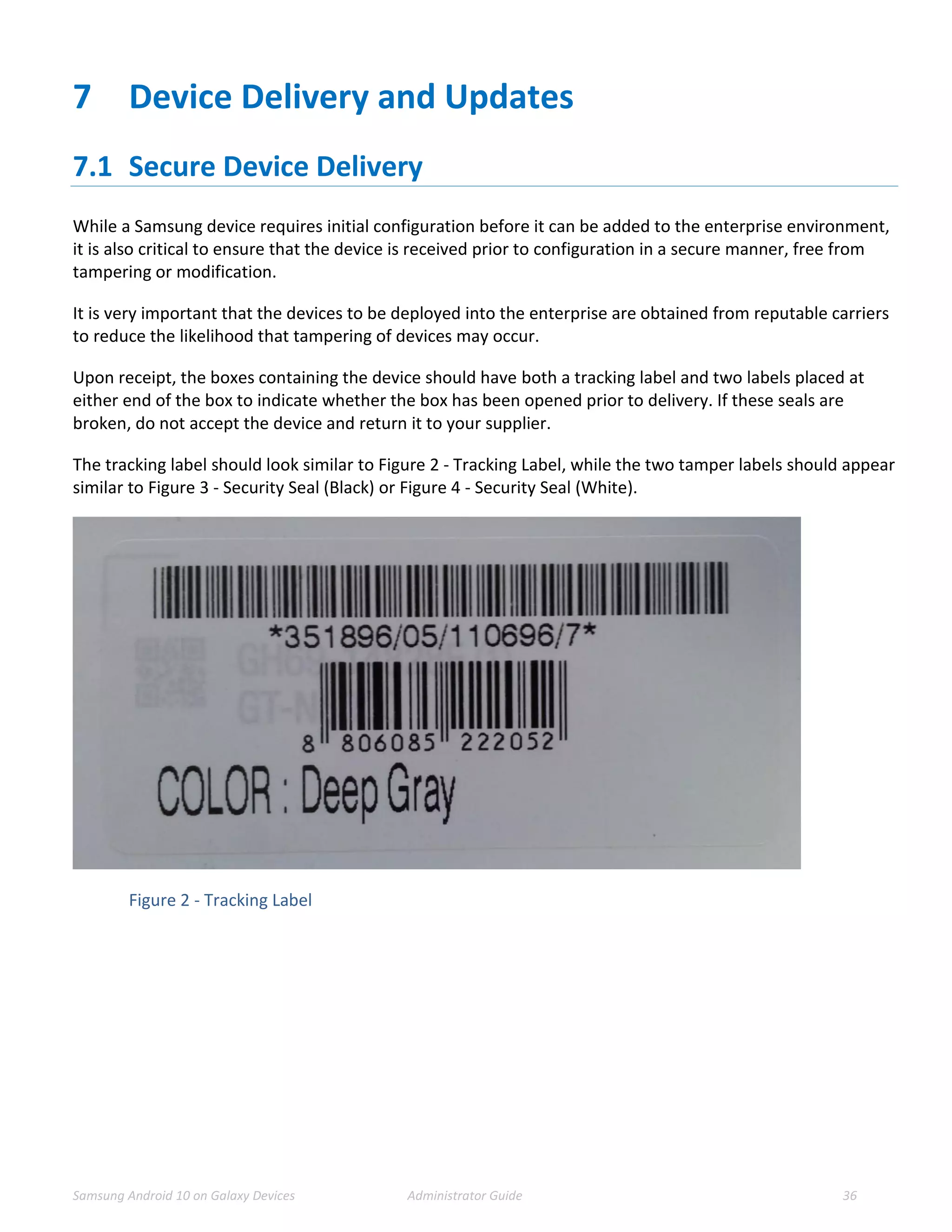
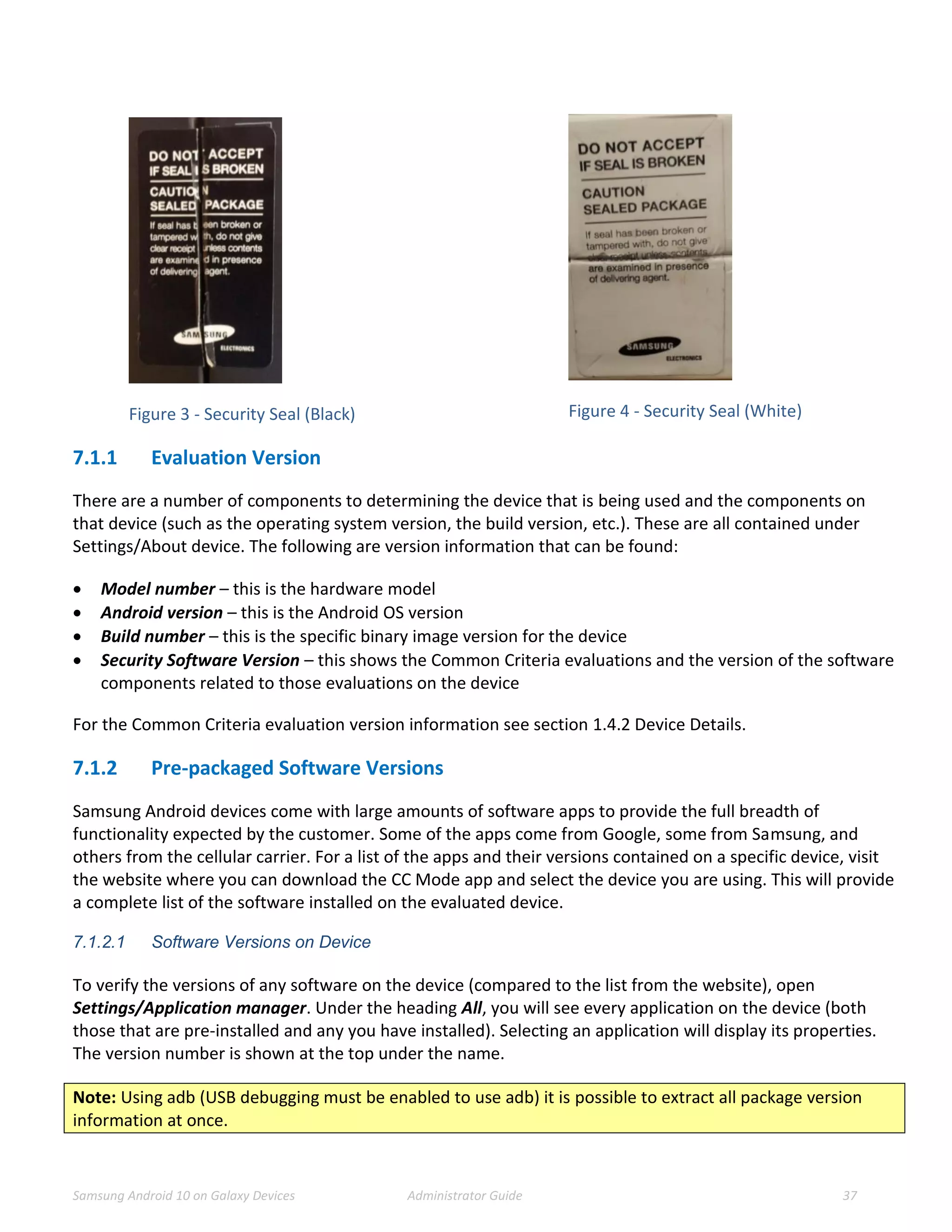
The tracking label should look similar to Figure 2 - Tracking Label, while the two tamper labels should appear
similar to Figure 3 - Security Seal (Black) or Figure 4 - Security Seal (White).
Figure 2 - Tracking Label
Samsung Android 10 on Galaxy Devices Administrator Guide 37
Figure 3 - Security Seal (Black) Figure 4 - Security Seal (White)
7.1.1 Evaluation Version
There are a number of components to determining the device that is being used and the components on
that device (such as the operating system version, the build version, etc.). These are all contained under
Settings/About device. The following are version information that can be found:
 Model number – this is the hardware model
 Android version – this is the Android OS version
 Build number – this is the specific binary image version for the device
 Security Software Version – this shows the Common Criteria evaluations and the version of the software
components related to those evaluations on the device
For the Common Criteria evaluation version information see section 1.4.2 Device Details.
7.1.2 Pre-packaged Software Versions
Samsung Android devices come with large amounts of software apps to provide the full breadth of
functionality expected by the customer. Some of the apps come from Google, some from Samsung, and
others from the cellular carrier. For a list of the apps and their versions contained on a specific device, visit
the website where you can download the CC Mode app and select the device you are using. This will provide
a complete list of the software installed on the evaluated device.
7.1.2.1 Software Versions on Device
To verify the versions of any software on the device (compared to the list from the website), open
Settings/Application manager. Under the heading All, you will see every application on the device (both
those that are pre-installed and any you have installed). Selecting an application will display its properties.
The version number is shown at the top under the name.
Note: Using adb (USB debugging must be enabled to use adb) it is possible to extract all package version
information at once.
Samsung Android 10 on Galaxy Devices Administrator Guide 38
7.2 Secure Updates
Once a device has been deployed, it may be desirable to accept updates to the software on the device to
take advantage of the latest and greatest features of Samsung Android. Updates are provided for devices as
determined by Samsung and the carriers based on many factors.
When updates are made available, they are signed by Samsung with a private key that is unique to the
device/carrier combination (i.e. a Galaxy S9 on Verizon will not have an update signed with the same key as
a Galaxy S9 on AT&T). The public key is embedded in the bootloader image, and is used to verify the
integrity and validity of the update package.
When updates are made available for a specific device (they are generally rolled out in phases across a
carrier network), the user will be prompted to download and install the update (see the User Guide for
more information about checking for, downloading and installing the update). The update package is
checked automatically for integrity and validity by the software on the device. If the check fails, the user is
informed that there were errors in the update and the update will not be installed.
7.2.1 Allowed Update Methods
When CC Mode is enabled, only FOTA updates can be installed on the device. Other methods for installing
updates (such as Recovery Mode or Samsung KIES) are blocked and cannot be used to update the firmware.
This provides insurance against local, physical attacks that could change the software unknowingly.
7.2.2 Blocking Updates
It is possible to block FOTA updates on a device by setting allowOTAUpgrade() to be false via the EDM. This
can be used either to freeze the software installed or to allow an organization time to test the update
before letting it roll out to the user community.
Samsung Android 10 on Galaxy Devices Administrator Guide 39
8 Operational Security
8.1 Modes of Operation
The mobile device can be operated in four different modes, depending on the role of the user accessing the
device:
 Administrator mode;
 User mode;
 Error mode; and
 Recovery mode
A device is considered to be in Administrator mode before it is delivered to the user. The device is prepared
and configured for deployment in the enterprise environment via the Samsung Enterprise SDK. The mobile
device administrators are trusted to follow and apply all administrator guidance in a trusted manner. An
unprivileged user will not have access to this mode of operation.
If an error or operational failure occurs during the transition from Administrator mode (causing the device
to enter the Error mode of operation) to User mode, the administrator should follow the guidance for the
EDM he failure and restore the device to normal operational abilities. If it is not possible to adequately
eliminate the error or operational failure, the device is not to be delivered to an end user and should be
returned to the supplier.
After the device is configured in accordance with the Common Criteria evaluated settings, the device is
ready for deployment to a user. When the user receives the device, only the TouchWiz user interface will be
visible and no further changes to the security configuration are possible. Once deployed to a user, the
device will be operating in User Mode. Within User Mode, the only security relevant functions accessible for
the user are ‘lock screen password protection’, ‘change of password’ and ‘local device wipe’. Typically, an
administrator will not access the device in this mode of operation.
The mobile device may also be placed into Recovery mode, bypassing the standard boot process and
allowing configuration changes to be made to the installation of Android. However, since this requires the
boot loader for the device to be unlocked and is therefore considered out of scope for this environment.
8.2 Wiping Data
The evaluated security configurations provide the ability to both locally or remotely wipe data Work Profile
level or both.
An enterprise initiated remote wipe command (for either the device or just the Work Profile, depending on
the configuration) occurs under the following conditions:
 The enterprise sends a remote wipe command to the device:
o when the device has been lost or stolen;
o in response to a reported incident;
Samsung Android 10 on Galaxy Devices Administrator Guide 40
o in an effort to resolve current mobile issues; and
o for other procedural reasons such as when an Android device end user leaves the organization.
8.2.1 Wiping the Device
The evaluated security configuration provides for a local and a remote wiping process of Android user
devices. This type of wipe works at the storage level and will wipe all data on the device. In a Work Profile
configuration, this will wipe all data including the Work Profile (as well as everything not in the Work
Profile). This type of wipe is available in all configurations.
The local wipe is manually initiated by the Android device user or after an exceeded number of incorrect
login attempts. The remote wipe process is in general remotely initiated by the Enterprise Device
Administrator via a remote wipe command.
8.2.2 Wiping the Work Profile
When a Work Profile has been created, it is also possible to wipe only the data stored in the Work Profile. A
wipe of the Work Profile data will remove the Work Profile, including apps and data, but it will not remove
anything outside the Work Profile. This process must be initiated remotely by the Enterprise Device
Administrator via a remote wipe Work Profile command.
The only way for a user to wipe the Work Profile is to unenroll the device from the control of the EDM.
When this is done the Work Profile, all data and apps as well as the EDM Agent will all be removed from the
device.
8.3 Additional Notes on Operational Security
Common Criteria Part 3 does require operational user guidance for the following:
 User-accessible functions and privileges that should be controlled in a secure processing environment,
including appropriate warnings.
 Secure usage of available interfaces.
 Security parameters of interfaces and functions under the control of the user and their secure values.
 Each type of security-relevant event relative to the user-accessible functions.
Administrators and users are considered to use a Samsung Enterprise device. As described in previous
sections of this document, the administrator is responsible for configuration and installation of the device.
The end user receives the device in an operational state where no further security configuration is possible.
The only user accessible user functions are ‘lock screen password protection’, ‘change of password’ and
‘local device wipe’.
The user is responsible to obey the provided user guidance and to not actively working against the
protection of the device data.
The mobile device Administrators are trusted to follow and apply all administrator guidance, including the
EDM guidance in a trusted manner.

Samsung mdf admin guide v6.3

  • 1.
     Administrator Guide Samsung Android10 on Galaxy Devices September 18, 2020 Version: 6.3
  • 2.
    Samsung Android 10on Galaxy Devices Administrator Guide 2 Copyright Notice Copyright © 2020 Samsung Electronics Co. Ltd. All rights reserved. Samsung is a registered trademark of Samsung Electronics Co. Ltd. All brand, product, service names and logos are trademarks and/or registered trademarks of their respective owners and are hereby recognized and acknowledged. About this document This document describes the enterprise guidance for the deployment of Samsung devices in accordance with the Common Criteria-validated configuration. The document is intended for mobile device administrators deploying Samsung devices. Document Identification Revision History Document ID Samsung MDF Admin Guidance v6.3 Document Title Samsung Android 10 on Galaxy Devices Administrator Guide Version Date Changes Author 4.0 May 15, 2018 Android 8, new template Brian Wood 4.1 November 16, 2018 Android 8.1, added new devices Brian Wood 5.0 July 19, 2019 Android 9 update Brian Wood 5.1 August 1, 2019 Added new devices Brian Wood 5.2 August 8, 2019 Added new devices for Summer 2019 eval Brian Wood 6.0 April 7, 2020 Android 10 update, combined VPN guide Brian Wood 6.1 August 14, 2020 Added new devices Brian Wood 6.2 August 17, 2020 Added new devices Brian Wood 6.3 September 18, 2020 Added new devices for Fall 2020 eval Brian Wood
  • 3.
    Samsung Android 10on Galaxy Devices Administrator Guide 3 Contents 1 Introduction.............................................................................................................6 1.1 Scope of Document......................................................................................6 1.1.1 End-User Guidance................................................................................6 1.2 Overview of Document................................................................................6 1.3 Terminology & Glossary...............................................................................6 1.4 Evaluated Devices ........................................................................................7 1.4.1 Device Equivalency Claims.....................................................................8 1.4.2 Device Details ......................................................................................10 1.4.3 Storage Encryption ..............................................................................12 1.5 References .................................................................................................13 2 Mobile Device Deployment...................................................................................14 2.1 Device Overview ........................................................................................14 2.2 Evaluated Device Capabilities ....................................................................14 2.3 Deployment Architecture ..........................................................................15 2.3.1 Deployment Environment ...................................................................15 2.3.2 EDM Solution Selection .......................................................................18 2.4 Provisioning of Samsung Devices...............................................................18 2.4.1 Work Profile Configurations................................................................19 3 Common Criteria Configuration............................................................................20 3.1 Approved Cryptography.............................................................................20 3.2 Enabling CC Mode......................................................................................20 3.2.1 CC Mode Status ...................................................................................21 3.3 Device Common Criteria Settings ..............................................................21 3.3.1 Common Criteria Minimal Configuration............................................22 3.4 VPN Client Settings ....................................................................................23 3.4.1 VPN Profile Settings (All) .....................................................................23 3.4.2 VPN Profile Settings (Standard APIs)...................................................24 3.4.3 Knox VPN Profile Settings (Knox Generic APIs) ...................................24 3.4.4 VPN Gateway Configuration Control...................................................26 3.4.5 Third-Party VPN Clients (Device).........................................................26 3.5 Additional Common Criteria Features .......................................................26 3.5.1 Sensitive Data Protection ....................................................................26 3.5.2 Background Network Communications...............................................27
  • 4.
    Samsung Android 10on Galaxy Devices Administrator Guide 4 4 End User Procedures.............................................................................................28 4.1 User Authentication...................................................................................28 4.1.1 Setting Passwords................................................................................28 4.1.2 Two-step Verification ..........................................................................28 4.2 Wi-Fi Connectivity......................................................................................28 4.3 Bluetooth Connectivity ..............................................................................29 4.4 Cellular/Mobile Network Configuration ....................................................29 4.5 Certificate Management............................................................................29 4.6 Using the VPN Client ..................................................................................30 4.6.1 Always-on Tunnel ................................................................................30 4.6.2 “Normal” VPN Tunnels ........................................................................30 4.7 Application Permissions.............................................................................30 5 Audit Records ........................................................................................................31 5.1 Types of Audit Events.................................................................................31 5.2 Audit Collection Settings............................................................................31 5.2.1 Audit Collection Filter Settings............................................................32 5.3 Audit Record Fields ....................................................................................32 5.4 Audit Events ...............................................................................................33 6 Developer References ...........................................................................................34 6.1 Cryptographic APIs.....................................................................................34 6.2 Bluetooth APIs............................................................................................34 6.3 TLS/HTTPS APIs ..........................................................................................35 6.4 Certificate Pinning......................................................................................35 6.5 IPsec VPN APIs............................................................................................35 7 Device Delivery and Updates ................................................................................36 7.1 Secure Device Delivery...............................................................................36 7.1.1 Evaluation Version...............................................................................37 7.1.2 Pre-packaged Software Versions.........................................................37 7.2 Secure Updates..........................................................................................38 7.2.1 Allowed Update Methods ...................................................................38 7.2.2 Blocking Updates.................................................................................38 8 Operational Security..............................................................................................39 8.1 Modes of Operation...................................................................................39 8.2 Wiping Data................................................................................................39
  • 5.
    Samsung Android 10on Galaxy Devices Administrator Guide 5 8.2.1 Wiping the Device................................................................................40 8.2.2 Wiping the Work Profile......................................................................40 8.3 Additional Notes on Operational Security.................................................40
  • 6.
    Samsung Android 10on Galaxy Devices Administrator Guide 6 1 Introduction 1.1 Scope of Document This document is intended as a guide for administrators deploying Samsung devices in the enterprise. The guidance provided here focuses on how to configure devices to be in an approved configuration based on the Protection Profile for Mobile Device Fundamentals v3.1 and the PP-Module for Virtual Private Network (VPN) Clients v2.1 for the Samsung devices specified here. The document is evolutionary. It will cover all devices evaluated with a common major version of Android. 1.1.1 End-User Guidance This guidance document is focused on the central management of Samsung mobile devices. Guidance related to user functions on a device, such as managing Bluetooth connections or setting authentication credentials are outside the scope of this documentation. End-user guidance can be found both on the device (most functions are guided through the user interface with descriptions and help) or from the Samsung support website. Links to online guidance can be found in section 1.5 References. 1.2 Overview of Document Samsung mobile devices are designed to maintain a secure mobile environment. To successfully deploy and maintain such an environment requires coordination with multiple parties including:  Enterprise/Mobile Device Management (EDM/MDM) software  Carriers  Mobile Device Administrators  Users This document is designed for the Mobile Device Administrators, to provide guidance in how to configure and deploy Samsung mobile devices within an enterprise environment. This includes information about API controls that can be used within the EDM/MDM software to achieve this configuration. 1.3 Terminology & Glossary Evaluated Device Processor ADB Android Debug Tool ADT Android Development Tools API Application Programming Interface BYOD Bring Your Own Device
  • 7.
    Samsung Android 10on Galaxy Devices Administrator Guide 7 Evaluated Device Processor CA Certificate Authority COPE Corporately-Owned, Personally Enabled EDM MDM Enterprise Device Management Mobile Device Management NOTE: EDM will be used for consistency FBE File-Based Encryption FOTA Firmware Over-the-Air KPE Knox Platform for Enterprise MDF MDFPP Mobile Device Fundamentals Mobile Device Fundamentals Protection Profile ODE On-Device Encryption SDK Software Development Kit TLS Transport Layer Security VPN Virtual Private Network Table 1 - Acronyms 1.4 Evaluated Devices The Common Criteria evaluation was performed on a set of devices covering a range of processors. These devices were chosen based on the commonality of their hardware across several different devices that are also claimed through equivalency. All device models are evaluated with Samsung Android 10. The evaluation was performed on the following devices (note that the evaluation period is listed in parenthesis for each device): Device Name Model Number Chipset Vendor SoC Kernel Build Number Evaluation Galaxy A71 5G SM-A716V Qualcomm SM7250 4.19.81 QP1A.190711.020 Fall 2020 Galaxy Tab Active3 SM-T575 Samsung Exynos 9810 4.9.191 QP1A.190711.020 Fall 2020 Galaxy Tab S4 SM-T837A Qualcomm MSM8998 4.4.205 QP1A.190711.020 Fall 2020 Galaxy S20+ 5G SM-G986B Samsung Exynos 990 4.19.87 QP1A.190711.020 Spring 2020 Galaxy S20+ 5G SM-G986U Qualcomm SM8250 4.19.81 QP1A.190711.020 Spring 2020 Galaxy XCover Pro SM- G715FN Samsung Exynos 9611 4.14.113 QP1A.190711.020 Spring 2020 Galaxy Note10 SM-N976B Samsung Exynos 9825 4.14.113 QP1A.190711.020 Spring 2020
  • 8.
    Samsung Android 10on Galaxy Devices Administrator Guide 8 Galaxy S10e SM-G970F Samsung Exynos 9820 4.14.113 QP1A.190711.020 Spring 2020 Galaxy S10+ SM-G975U Qualcomm SM8150 4.14.117 QP1A.190711.020 Spring 2020 Galaxy Note9 SM-N960F Samsung Exynos 9810 4.9.118 QP1A.190711.020 Spring 2020 Galaxy Note9 SM-N960U Qualcomm SDM845 4.9.186 QP1A.190711.020 Spring 2020 Table 2 – Evaluated Devices 1.4.1 Device Equivalency Claims Many Samsung devices share common capabilities in different form factors, and Samsung provides common capabilities, including support for the configurations necessary for the evaluation on these devices. The following table shows the devices for which equivalence is being claimed from a device that is explicitly evaluated. Evaluated Device SoC Equivalent Devices Differences Galaxy A71 5G SM7250 Galaxy A51 5G A71 5G > A51 5G in terms of display size Galaxy Tab Active3 Exynos 9810 Galaxy Tab Active3 T577 & T575 tablets have 5G T570 tablets only have Wi-Fi Galaxy Tab S4 MSM8998 Galaxy Tab S4 T837 & T835 tablets have LTE T830 tablets only have Wi-Fi Galaxy S20+ 5G Exynos 990 Galaxy S20 Ultra 5G S20 Ultra > S20+ > S20 > S20 FE in terms of display size/resolution Galaxy S20+ LTE Galaxy S20 5G 5G devices have different cellular modem Galaxy S20 LTE Galaxy S20 FE Note20 Ultra > Note20 in terms of display size Galaxy Note20 Ultra 5G Galaxy Note20 Ultra LTE Note20 devices include S Pen & functionality to take advantage of it for input (not security related) Galaxy Note20 5G Galaxy Note20 LTE S20 FE has under screen image fingerprint sensor Galaxy S20+ 5G SM8250 Galaxy S20 Ultra 5G S20 Ultra > S20+ > S20 > S20 FE in terms of display size/resolution Galaxy S20 5G Note20 Ultra > Note20 in terms of display size Galaxy S20 TE Note20 devices include S Pen & functionality to take advantage of it for input (not security related) Galaxy S20 FE Galaxy Note20 Ultra 5G Z Fold2 5G & Z Flip have 2 displays & folding display Galaxy Note20 5G Tab S7 devices are tablets (no voice calling) with S Pen Galaxy Tab S7+ Tx70 tablets only have Wi-Fi, others have cellular
  • 9.
    Samsung Android 10on Galaxy Devices Administrator Guide 9 Evaluated Device SoC Equivalent Devices Differences Galaxy Tab S7 Tab S7+ > Tab S7 in terms of display size Galaxy Z Flip 5G Tab S7+ & S20 FE has under screen image fingerprint sensor Galaxy Z Fold2 5G Tab S7 & Z Flip 5G have power button fingerprint sensor Galaxy XCover Pro Exynos 9611 Galaxy A51 XCover Pro is ruggedized XCover Pro has Push-to-Talk button XCover Pro has removable battery A51 has under screen image fingerprint sensor Galaxy Note10+ 5G Exynos 9825 Galaxy Note10+ Note10+ > Note10 in terms of display size Galaxy Note10 5G 5G devices have different cellular modem Galaxy Note10 Galaxy S10e Exynos 9820 Galaxy S10+ S10 & S10+ have ultrasonic fingerprint sensor Galaxy S10 5G S10+ > S10 > S10e in terms of display sizes Galaxy S10 S10 5G has different cellular modem Galaxy S10+ SM8150 Galaxy S10 5G S10e, Fold & Z Flip have power button image fingerprint sensor Galaxy S10 S10 & S10e have smaller display sizes Galaxy S10e 5G devices have different cellular modem Galaxy Fold 5G Fold & Z Flip have 2 displays Galaxy Fold Fold & Z Flip have folding display Galaxy Z Flip Note10+ > Note10 in terms of display size Galaxy Note10+ 5G Note10 devices include S Pen & functionality to take advantage of it for input (not security related) Galaxy Note10+ Tab S6 is tablet (no voice calling) with S Pen Galaxy Note10 T867 & T865 tablets have LTE, T860 tablets only have Wi-Fi Galaxy Tab S6 Tab S6 has under screen image fingerprint sensor Galaxy Note9 Exynos 9810 Galaxy S9+ S9 & XCover FieldPro have smaller displays
  • 10.
    Samsung Android 10on Galaxy Devices Administrator Guide 10 Evaluated Device SoC Equivalent Devices Differences Note9 includes S Pen & functionality to take advantage of it for input (not security related) Galaxy S9 XCover FieldPro is ruggedized XCover FieldPro has Push-to-Talk button Galaxy XCover FieldPro XCover FieldPro has removable battery XCover FieldPro does not support iris biometric Galaxy Note9 SDM845 Galaxy S9+ S9 has smaller display Galaxy S9 Note9 includes S Pen & functionality to take advantage of it for input (not security related) Table 3 - Device Equivalence The differences between the evaluated devices and the equivalent ones do not relate to security claims in the evaluated configuration. The Wi-Fi chipsets are the same for each series of common devices. 1.4.2 Device Details The model numbers and evaluated versions of the mobile devices being claimed are as follows: Device Name Chipset Vendor Base Model Number Carrier Models Galaxy A71 5G Qualcomm SM-A716 U, V Galaxy A51 5G Qualcomm SM-A516 D, V Galaxy Tab Active3 Samsung SM-T577 U SM-T575 N, None SM-T570 None Galaxy Tab S4 Qualcomm SM-T837 A, P, R4, T, V SM-T835 N, None SM-T830 None Galaxy S20 FE Qualcomm SM-G781 B, N, U, V, W Galaxy S20 FE Samsung SM-G780 F Galaxy Z Fold2 5G Qualcomm SM-F916 B, N, U, W Galaxy Note20 Ultra 5G Samsung SM-N986 B Galaxy Note20 Ultra 5G Qualcomm SM-N986 C, N, U, W, SC01O*
  • 11.
    Samsung Android 10on Galaxy Devices Administrator Guide 11 Device Name Chipset Vendor Base Model Number Carrier Models Galaxy Note20 Ultra LTE Samsung SM-N985 F Galaxy Note20 5G Samsung SM-N981 B Galaxy Note20 5G Qualcomm SM-N981 N, U, W Galaxy Note20 LTE Samsung SM-N980 F Galaxy Tab S7+ Qualcomm SM-T978 U SM-T976 B, N SM-T975 N, None SM-T970 None Galaxy Tab S7 Qualcomm SM-T878 U SM-T875 N, None SM-T870 None Galaxy Z Flip 5G Qualcomm SM-F707 B, N, U Galaxy S20 Ultra 5G Samsung SM-G988 B Galaxy S20 Ultra 5G Qualcomm SM-G988 N, U, W Galaxy S20+ 5G Samsung SM-G986 B Galaxy S20+ 5G Qualcomm SM-G986 N, U, W, SC52A*, SCG02* Galaxy S20+ LTE Samsung SM-G985 F Galaxy S20 5G Samsung SM-G981 B Galaxy S20 5G Qualcomm SM-G981 N, U, V, W, SC51A*, SCG01* Galaxy S20 TE Qualcomm SM-G981 U Galaxy S20 LTE Samsung SM-G980 F Galaxy XCover Pro Samsung SM-G715 FN, U, W Galaxy A51 Samsung SM-A515 F, U, W SM-S515 DL Galaxy Note10+ 5G Samsung SM-N976 B, N Galaxy Note10+ 5G Qualcomm SM-N976 U, V Galaxy Note10+ Samsung SM-N975 F Galaxy Note10+ Qualcomm SM-N975 C, U, SC-01M*, SCV45* Galaxy Note10 5G Samsung SM-N971 N Galaxy Note10 Samsung SM-N970 F Galaxy Note10 Qualcomm SM-N970 U Galaxy Tab S6 5G Qualcomm SM-T866 N Galaxy Tab S6 Qualcomm SM-T867 R4, U, V SM-T865 N, None SM-T860 None Galaxy S10 5G Samsung SM-G977 B, N Galaxy S10 5G Qualcomm SM-G977 P, T, U Galaxy S10+ Samsung SM-G975 F, N Galaxy S10+ Qualcomm SM-G975 U, SC-04L*, SC-05L*, SCV42* Galaxy S10 Samsung SM-G973 F, N Galaxy S10 Qualcomm SM-G973 U, SC-03L*, SCV41* Galaxy S10e Samsung SM-G970 F, N
  • 12.
    Samsung Android 10on Galaxy Devices Administrator Guide 12 Device Name Chipset Vendor Base Model Number Carrier Models Galaxy S10e Qualcomm SM-G970 U Galaxy Fold 5G Qualcomm SM-F907 B, N Galaxy Fold Qualcomm SM-F900 F, U, SC-06L*, SCV44* Galaxy Z Flip Qualcomm SM-F700 F, N, U, W, SCV47* Galaxy Note9 Samsung SM-N960 F, N Galaxy Note9 Qualcomm SM-N960 U, SC-01L*, SCV40* Galaxy XCover FieldPro Samsung SM-G889 A Galaxy S9+ Samsung SM-G965 F, N Galaxy S9+ Qualcomm SM-G965 U, SC-03K*, SCV39* Galaxy S9 Samsung SM-G960 F, N Galaxy S9 Qualcomm SM-G960 U, SC-02K*, SCV38* Table 4 - Device Details The Carrier Models column specifies the specific versions of the devices that have the validated configuration. These additional letters/numbers denote carrier specific models (such as U = US Carrier unified build). Only models with the suffixes listed in the table can be placed into the validated configuration. The carrier models marked by * are explicit model numbers for those carriers and do not follow the standard specified for other models. The following table shows the Security software versions for each device. Device Name MDF Version MDF Release WLAN v1.0 Release VPN PP- MOD v2.1 Release Knox Release All Note20x, All Tab S7x, Z Flip 5G, Z Fold2, S20 FE, Tab Active3 3.1 5 2 3.1 3.6 All S20x, Tab S6, A71 5G, A51 5G, Tab S4 3.1 5 2 3.0 3.5 All Note10x, A51, XCover Pro, All S10x, Fold, Z Flip, Note9, All S9x, XCover FieldPro 3.1 5 2 3.0 3.4.1 Table 5 - Security Software Versions The version number is broken into two parts showing the Protection Profile or Extended Package version as well as the software version that is certified. For example, the Galaxy S20 would show “MDF v3.1 Release 5”. 1.4.3 Storage Encryption Different Samsung devices support Direct Boot and File-Based Encryption (FBE) instead of On-Device Encryption (ODE) as supported on earlier devices. FBE and Direct Boot allows an encrypted device to boot straight to the Android lock screen where it is possible to receive calls and for FBE-aware apps can provide
  • 13.
    Samsung Android 10on Galaxy Devices Administrator Guide 13 notifications prior to authentication. The type of encryption services available on each device is listed in Table 6. Device Name Implementation All Note20x, All Tab S7x, Z Fold2, All S20x, XCover Pro, A71 5G, All A51x, All Note10x, Tab S6, All S10x, All Foldx, All Z Flipx, Tab Active3 FBE Note9, XCover FieldPro, All S9x, Tab S4 ODE Table 6 – Storage Encryption for Devices 1.5 References The following websites provide up to date information about Samsung device certifications. Site Information URL Samsung Knox Portal Common Criteria documentation, Application Version List, Tools https://support.samsungknox.com/hc/en- us/articles/115015195728 Samsung Knox SDK Samsung Knox developer guides including EDM APIs https://seap.samsung.com/sdk/knox- android/developer-guides Galaxy S Device Support Manuals & User Guides for Galaxy S devices https://www.samsung.com/us/support/mobile/pho nes/galaxy-s Galaxy Note Device Support Manuals & User Guides for Galaxy Note devices https://www.samsung.com/us/support/mobile/pho nes/galaxy-note Galaxy Tablet Device Support Manuals & User Guides for Galaxy Tab devices https://www.samsung.com/us/support/mobile/tabl ets/galaxy-tabs NIAP Product Compliant List for Samsung Electronics https://www.niap- ccevs.org/Product/PCL.cfm?par303=Samsung%20El ectronics%20Co%2E%2C%20Ltd%2E Approved Protection Profiles https://www.niap-ccevs.org/Profile/PP.cfm NIST CMVP Validated Cryptographic Modules (search for Samsung) https://csrc.nist.gov/Projects/Cryptographic- Module-Validation-Program/Validated- Modules/Search NIST CAVP Validated Cryptographic Algorithms https://csrc.nist.gov/projects/cryptographic- algorithm-validation-program NIST SP 800- 63B NIST SP 800-63B Digital Identity Guidelines https://pages.nist.gov/800-63-3/sp800-63b.html Table 7 – Reference Websites
  • 14.
    Samsung Android 10on Galaxy Devices Administrator Guide 14 2 Mobile Device Deployment 2.1 Device Overview The mobile device is a combination of hardware running an Android operating system with modifications made to increase the level of security provided to end users and enterprises. The mobile device is intended for use as part of an enterprise messaging solution providing mobile staff with enterprise connectivity. With a focus on enterprise security, the mobile device also provides support for both IKEv1 and IKEv2 VPN tunnels using both Pre-Shared Keys as well as certificates, providing flexibility based on the environment. The mobile device combines with an EDM solution to enable the enterprise to watch, control and administer all deployed mobile devices, across multiple service providers as well as facilitate secure communications through a VPN tunnel. This partnership provides a secure mobile environment that can be managed and controlled by the environment and reduce the risks that can be introduced when enabling mobility in the enterprise, whether through a Bring-Your-Own-Device (BYOD) or a Corporate-Owned deployment. The Samsung Software Development Kit (SDK) builds on top of the existing Android security model by expanding the current set of security configuration of options to over 600 configurable policies and including additional security functionality such as application blacklisting. The ability to set these policies is based on the capabilities of the EDM. 2.2 Evaluated Device Capabilities The product provides a significant amount of security capabilities with the core capabilities being included within the common criteria evaluation including: Security Feature Description Device data protection. The mobile device provides security functionality to protect data at rest. File-Based Encryption (FBE) and On-Device Encryption (ODE). The mobile device has the ability to encrypt data on the device using AES 256. Removable storage encryption. The mobile device can encrypt all files placed onto, or already reside on, removable storage attached to the device. Sensitive data protection. The mobile device has the ability to securely store incoming data that is considered sensitive such that it can’t be decrypted without the user logging in. Application Management. The device provides a number of security functions to manage device software. Application resource restrictions. All applications are run within a controlled environment that limits applications to only accessing only authorized data and resources. Access Control. The device can implement access control that reduces mobile user permissions and assists in reducing unauthorized access. Device lock. The mobile device can be configured to lock automatically after a defined period of inactivity (1 to 60 minutes) limiting access to device functions accept those that are explicitly authorized such as emergency calls. Local wipe. The mobile device has the ability to wipe encryption keys/data on a device after a defined number of authentication attempts are surpassed. Credential complexity. The mobile device can enforce enterprise password policies forcing users to use a defined level of complexity in device passwords.
  • 15.
    Samsung Android 10on Galaxy Devices Administrator Guide 15 Security Feature Description Biometrics Use. The mobile device can provide biometric authentication for access to the device complementary to password policies, restricting access based on failed attempts. Privileged access. The mobile device can be configured to restrict mobile user’s access to privileged functions such as device configurations. Hotspot Control. The mobile device can be configured to act as a hotspot for sharing Internet access to other devices. Wireless network settings. The wireless network configuration of the mobile device can be specified, providing requirements or pre-loaded networks. Enterprise device management. Enterprise administrators can control and audit mobile endpoint configurations and wipe device if needed. Remote wipe. An enterprise administrator can send a message to the mobile device to wipe all local storage and the SD card. Security policy. The mobile device and VPN can be configured by an EDM solution that supports the Samsung Enterprise SDK. Auditing. The mobile device can monitor and generate records related to security- relevant events within the device. Secure Channel. Enterprise devices can securely connect to the enterprise network. VPN. The mobile device provides a secure communications channel to the VPN Gateway. Table 8 – Mobile Device Security Features 2.3 Deployment Architecture The first step in deploying Samsung devices is to decide on both an EDM solution and an appropriate architecture. These selections are beyond the scope of this guidance. There are many approaches to how the management infrastructure can be configured, from on premise servers to cloud to hybrid approaches combining the two. The specifics of the architecture should be discussed with the EDM solution vendor. Ideally, the deployed EDM solution should be evaluated to the requirements of the Protection Profile for Mobile Device Management (MDMPP). 2.3.1 Deployment Environment The enterprise environment must provide all of the services required to operate and manage devices. The basic components of this model include: Component Description Enterprise/Mobile Device Management Solution The EDM Solution secures monitors, manages and supports mobile devices deployed across the organization. Controlling and protecting the data and configuration settings for all mobile devices in the network reduces security risks. As part of the EDM solution, an app (usually called an Agent) is installed onto the mobile device. This Agent implements the policies from the EDM and can communicate back to the server, sending status information and logs for review.
  • 16.
    Samsung Android 10on Galaxy Devices Administrator Guide 16 Component Description Secure Tunnel Termination A secure VPN tunnel should be initialized between the managed Android devices and the Enterprise Environment to prevent unauthorized access to enterprise resources. The connection should be based on certificates deployed on the Android user devices. Ideally, mutual authentication is deployed, meaning that both the Android user devices authenticate themselves with a certificate but also the gateway to the enterprise environment. Mutual authentication serves to prevent Android user devices to login into an unauthorized enterprise network and on the other hand prevents the unauthorized login of untrusted devices into the enterprise environment. For services that do not require a VPN, TLS should always be used to encrypt access to the site. Similar to the VPN, mutual authentication between the client and server is recommended. Note that EDM access to the between the device and server does not need to be through a VPN but is expected to have its own secure channel for communications. Directory Services The directory services should be set up to store, organize and provide access to information in a directory. Business Applications Business applications allow enterprise users to fulfill or access certain business tasks pertinent to requirements. This may include management tools, accounting utilities and contact management software/solutions. Certificate Services Certificate services must be implemented to manage all certificate needs throughout the enterprise environment. This includes issuing new Android device user certificates that are needed to facilitate secure communications through a VPN or TLS connection. It is possible that the certificate services could be provided by a third party instead of a stand-alone internal service for the organization. Table 9 – Enterprise Deployment Component Services Figure 1 shows an example of a high-level design of an enterprise-based environment.
  • 17.
    Samsung Android 10on Galaxy Devices Administrator Guide 17 Directory Outer Firewall VPN Server Carrier Networks Wi-Fi Managed Devices Internet Access EDM Server Certificate Services Inner Firewall Business Applications DMZ Resources Enterprise Environment Figure 1 - Example Enterprise Architecture
  • 18.
    Samsung Android 10on Galaxy Devices Administrator Guide 18 2.3.2 EDM Solution Selection To manage the mobile devices, an EDM must be deployed. This EDM should support the Samsung Knox APIs to enable the capabilities documented in this guide. The more complete the EDM vendor support, the more capabilities can be controlled on the device. To enable capabilities such as remote wipe of a device, the EDM must be placed within the Enterprise environment such that it can communicate over the internet. This communication can be enabled with or without a VPN, though it is normally recommended to have EDM traffic outside the VPN to ensure access is most widely available to the device. When selecting an EDM solution, care should be taken to ensure the ability to configure the Common Criteria configuration. The Common Criteria Configuration section provides the specific information about the Knox APIs that are necessary to support this configuration and can be used to check the compatibility of the EDM solution with the needs of the Enterprise. 2.4 Provisioning of Samsung Devices As noted above, the secure deployment of enterprise devices is reliant on many components beyond the mobile device itself. It is expected that within the Enterprise environment the EDM solution and other required services are securely installed and configured according to the security requirements of the organization. Once the EDM is installed and available, it is possible to begin provisioning end user devices. The provisioning process will prepare the devices for a policy configuration to be deployed, enabling the device to be placed into a Common Criteria configuration. The mobile device must be enrolled with the EDM server to enable administration via the EDM. Enrollment is accomplished by installing the EDM Agent application onto the device. There many methods and configurations for doing this depending on the deployment scenario. The EDM documentation for deployment should be followed. Once a device has been enrolled to the EDM, other optional configurations may be set, depending on the organization security policy. These are not required to place the device into a Common Criteria configuration, but are best practices for mobile devices. NOTE: Configurations that are included as part of the controls for the Common Criteria configuration are not included here. The following list provides some of the most common additional configuration items that may be done on a mobile device:  Install applications required for enterprise productivity  Provision client certificates by either: o Using the EDM server; o Using the Android Development Tools (ADT) to manually push certificates to each device via USB  Using the Android Debug Tool (ADB) required USB debugging to be enabled on the device for provisioning of the certificates (it can be disabled once this operation is complete)
  • 19.
    Samsung Android 10on Galaxy Devices Administrator Guide 19 o Placing the certificates on a microSD card and import using the device user interface o The certificates commonly deployed are:  Enterprise CA certificate (used to validate the server certificates presented by the VPN endpoint and reverse proxy)  Wi-Fi client certificate (for authentication to an EAP-TLS Wi-Fi AP)  VPN client certificate (for authentication to the enterprise VPN endpoint)  SSL client certificate (for authentication to the reverse proxy for intranet services)  Configure the VPN client to connect to the enterprise VPN endpoint o Enable ‘Always-On’ VPN  Configure the email client to connect to the enterprise server 2.4.1 Work Profile Configurations Through the Knox Platform, Samsung devices include an integrated capability to configure the device for an enterprise environment with Work Profile. A Work Profile can be configured for a whole device or with a Work Profile container. When a Work Profile container is configured, it provides a segmented area on the device that can have its own apps and data that is not accessible from the “normal” area (sometimes called the “personal” side of the device). The Work Profile container can be used to separate different apps and data, such as in a BYOD scenario where an enterprise could manage their own data in a separate Work Profile container on the user’s device. A Samsung device can be placed into an evaluated configuration both with and without a Work Profile container being configured on the device. For organizations that do not need to segment the device, a configuration can be used without creating a Work Profile container. For organizations that have a need for data separation, a Work Profile can be created and still be in an evaluated configuration.
  • 20.
    Samsung Android 10on Galaxy Devices Administrator Guide 20 3 Common Criteria Configuration This section of the guide will list the configuration settings that are reviewed as part of the Common Criteria evaluation. Some of these settings are required for the device to be placed into a validated configuration while others are optional and can be used at the discretion of the organization and the attendant security policies. 3.1 Approved Cryptography Part of the Common Criteria-evaluated configuration is the availability of approved cryptographic engines for use by the system and applications. Samsung has chosen to utilize NIST-validated cryptographic algorithms within the cryptographic modules on its devices for the Common Criteria configuration. These algorithms are made available for use by applications installed on the device through the normal Android Framework APIs. Samsung provides the following cryptographic modules with NIST-validated algorithms on all the evaluated devices:  Samsung Kernel Cryptographic Module  Samsung BoringSSL Cryptographic Module  Samsung SCrypto Cryptographic Module In addition, the following cryptographic modules with NIST-validated algorithms are available, depending on the CPU:  Samsung Flash Memory Protector (on devices with Samsung Exynos processors)  QTI Inline Crypto Engine (on devices with Qualcomm Snapdragon processors) All modules always run in a FIPS-validated mode. BoringSSL, for compatibility reasons, provides access to non-FIPS algorithms. Developers should not utilize non-FIPS algorithms in a validated configuration (but these are necessary to ensure functionality with many commercial services). Samsung integrates the cryptographic modules directly into Android so they can be accessed by any app using the native Android APIs. The APIs providing access to FIPS-validated algorithms are detailed in the section 6 Developer References. Note: It is possible that some applications will implement their own cryptography instead of relying on the modules provided with the device. It is the responsibility of those vendors to validate their own cryptography. Samsung recommends that developers utilize the cryptographic functions provided with the device using the native Android APIs. 3.2 Enabling CC Mode The Samsung devices listed in this document support a Common Criteria (CC) Mode. This CC Mode provides feedback on whether or not the device meets the minimum required configuration according to the MDF requirements.
  • 21.
    Samsung Android 10on Galaxy Devices Administrator Guide 21 While there are two methods for enabling CC Mode on a device, only the EDM-managed method will be explained here. NOTE: The CC Mode app is for testing and not intended as a deployment tool. 3.2.1 CC Mode Status CC Mode has three possible states: Status Description Ready The conditions for CC Mode have not been met Enabled CC Mode has been turned on Disabled CC Mode has been turned on but an integrity check or self-test has failed (such as a FIPS 140-2 self-test) Table 10 – CC Mode Status The status of the CC Mode check is entered into the audit log through a series of entries about each of the conditions necessary for CC Mode. The CC Mode status can be seen by a user in Settings/About phone/Software Security Version. The only status mark shown here is Disabled (an error has occurred); there is no shown status for any other state. Note: It is unlikely a user will see the Disabled state as the failures necessary to meet this condition are such that the device is unlikely to boot. 3.3 Device Common Criteria Settings This section will lay out all the settings which are mandatory as part of the MDF-validated configuration. The settings have been grouped into categories as well as marked with applicability based on the following table. Applicability Description Device These APIs are only applied to the device as a whole and cannot be applied to the Work Profile All These APIs can be applied to both the device or the Work Profile Work Profile These APIs are only applicable to the Work Profile Knox These APIs are applicable to the Knox Platform for Enterprise (KPE) and can be applied to the device or Work Profile depending on the configuration Table 11 – API Applicability
  • 22.
    Samsung Android 10on Galaxy Devices Administrator Guide 22 A Work Profile implements many of the same APIs as are available to the device (such as hardware state configurations). Policies in Work Profile are tied specifically to the Work Profile as part of the Knox Platform API configuration. All Knox APIs specified are part of the Knox Platform for Enterprise (KPE) set of APIs and require a Knox Platform for Enterprise license to be used. Note: While most of the APIs listed here are part of the Knox SDK, some APIs come from the Android Device Management set. The APIs from native Android are italicized. The settings have also been marked as mandatory or objective (or in the case of CC Mode, Always). All the settings are included in the attached spreadsheet on the Device Settings worksheet. Settings Table.xlsx 3.3.1 Common Criteria Minimal Configuration To configure the device into the minimal evaluated configuration, all settings marked as Always and Mandatory must be set. Once these have been set, the device configuration can be verified by reviewing the audit records from the device boot. The optional configuration settings can be used to meet the deployment needs of the organization. These settings have been covered in the evaluation, but the specific settings of those items does not affect the evaluated configuration. The following settings must be configured via the EDM after CC Mode has been enabled: 1. Set Password Quality 2. Enable the Maximum Password Failure Wipe Policy 3. Enable SD Card Encryption 4. Enable CRL Checking If biometrics are enabled, the following setting must be configured: 1. Disable Face Lock The following settings must be configured via the device after CC Mode has been enabled: 1. Set a Password 2. Enable Secure Startup (only applicable for devices with ODE in Table 6 – Storage Encryption for Devices) 3. Enroll biometrics (if enabled) To ensure overall control of the Common Criteria configuration, CC Mode cannot be disabled by an end user except by performing a factory reset. It is possible to change the CC Mode status through the EDM; a user can only turn off CC Mode by choosing to perform a factory reset.
  • 23.
    Samsung Android 10on Galaxy Devices Administrator Guide 23 3.3.1.1 Application White/Black Listing Settings White/Black listing is done using the full name of the application (such as com.android.testingapp). The application removal process will automatically clear data associated with the application stored in the application directories. Data created or stored outside the application directories (such as photos by a camera application or documents created by a word processor) will not be removed when the application is uninstalled. The method for configuring these lists is highly dependent on the EDM solution chosen. Please refer to the EDM specific guidance on exactly how to set these policies. Note: The Application White/Black lists will not have any impact on apps that are part of the system image. Built-in apps can instead be Disabled. 3.4 VPN Client Settings The device also includes an evaluated VPN client. There are two ways to configure the built-in VPN client, depending on the needs of the organization, via the Standard APIs or via the Knox Generic VPN APIs. The Standard APIs provide a basic set of functionality for a VPN client that is configured for the entire device (all traffic would pass through this VPN profile). The Knox Generic VPN APIs provide a highly flexible method for configuring VPNs that can include the ability to control access to applications or groups of applications to specific tunnels. The Knox VPN framework can be used to control tunnels both inside and outside the Work Profile, depending on where the VPN client is installed (inside or outside the Work Profile). The Knox VPN framework can be used with the built-in Samsung VPN client or with third-party VPN client vendors, depending on the needs of the organization. The settings for configuring a VPN client profile can be found in the Settings Table spreadsheet on the VPN Settings worksheet. The specific settings can be used for profiles that are compliant with the Common Criteria configuration. 3.4.1 VPN Profile Settings (All) 3.4.1.1 Valid Certificate Types for IKEv1 The IPsec Xauth RSA setting only accepts RSA certificates for the tunnel. As long as the certificates are valid (not expired, properly formatted, etc.) they can be used for the VPN configuration. Note: It is possible to specify an ECDSA certificate that has been loaded into the system, but it cannot be used to establish a connection to the gateway using IKEv1. 3.4.1.2 Valid Certificate Types for IKEv2 While the menu selection for the type of tunnel states IPsec IKEv2 RSA it is possible to utilize both RSA and ECDSA certificates for the tunnel. As long as the certificates are valid (not expired, properly formatted, etc.) they can be used for the VPN configuration.
  • 24.
    Samsung Android 10on Galaxy Devices Administrator Guide 24 3.4.1.3 Specifying a Strong Pre-Shared Key A PSK (Pre-shared key) is like a password, a fixed string used to authenticate the VPN client to the VPN gateway. Since the PSK does not change (or at least does not change often), a strong string should be selected to protect against unauthorized access to the VPN by unknown clients. The PSK can be entered in two forms: ASCII or HEX. All ASCII characters are supported. HEX keys must start with “0x” as the first two characters entered. If those are the first two characters, the remaining entry will be read as a HEX key. The maximum key size is 64 characters entered. The PSK will be provided by the organization for entry (since this is something that must match the value on the VPN Gateway). The PSK is recommended to be at least 22 characters long and if not HEX, a mix of letters numbers and symbols. 3.4.2 VPN Profile Settings (Standard APIs) 3.4.2.1 Server Certificate for the Gateway It is possible to specify a Server Certificate for the Gateway in the configuration of a VPN tunnel. This certificate will override any certificate provided by the Gateway during the negotiation of the tunnel. This certificate may be loaded through the UI or EDM. See the device User Guidance for more information about loading certificates manually. 3.4.3 Knox VPN Profile Settings (Knox Generic APIs) Configuring the VPN via Knox Generic VPN APIs has the benefit of allowing per-app routing to the VPN client. For example, all container packages can be forced to go through one tunnel, while personal applications are routed through another, or not at all. The Knox VPN framework can be used with the built-in Samsung VPN client or with third-party VPN client vendors, depending on the needs of the organization. To use the Knox VPN framework, the following is needed: Setting Value Description VPN Installer(s) APKs from vendor Installation package(s) from the VPN client vendor for installation on the device. Generally (though not always) this would include 2 files. VPN profile(s) JSON files The VPN profile(s) to be deployed on the device “vpn” folder JSON files and vendor.ini The full set of configurations (including Knox configuration) needed for deployment of the VPN profile Table 12 – Knox VPN Framework Components The VPN client vendor would provide the files above though the JSON configuration would have to be edited by the Administrator. More information about the JSON configuration can be found here: https://seap.samsung.com/api-references/android- premium/reference/com/sec/enterprise/knox/profile_creation.pdf.
  • 25.
    Samsung Android 10on Galaxy Devices Administrator Guide 25 3.4.3.1 Samsung VPN Client Configuration for Knox VPN Profile Using Knox Generic APIs requires installation of the Samsung Proxy APK on the device, which translates configuration received through these APIs onto the underlying Samsung VPN client. The use of other Proxy APKs could be used to support non-Samsung VPN clients (that is not covered here). Note: Using the Samsung VPN APK will configure the Knox VPN Profile to point to the evaluated VPN client. Provided the profile configuration string has been created as per the next section, the API flow for creating and starting a VPN connection will be createVpnProfile() -> addPackagesToVpn() -> activateVpnProfile() API. The API flow for removing a VPN profile will be activateVpnProfile() (De-activate it) -> removeVpnProfile() API. Note: When adding packages to a VPN profile, use User0 for the whole device and User10 or User100 (depending on the device) for the Work Profile. 3.4.3.2 JSON Configuration String This is an example JSON file for the Knox VPN Client Profile. { "KNOX_VPN_PARAMETERS": { "profile_attribute": { "profileName": "ss1", "host": "", "isUserAuthEnabled": true, "vpn_type": "ipsec", "vpn_route_type": 1 }, "knox": { "connectionType": "keepon", "chaining_enabled": "-1", "uidpid_search_enabled": "0" }, "vendor": { "basic": { "autoretry": "1", "username": "sampleu", "password": “samplepw", "authentication_type": "type", "host": "111.111.111.111" }, "ipsec_xauth_psk": { "identifier": "test@sta.com", "pre_shared_key": "example", "dns_search_domains": [], "dns_servers": [ "8.8.8.8" ], "frwd_routes": [ "10.0.0.0/8" ] }, "ipsec_xauth_rsa": { "user_cert_alias": "", "ca_cert_alias": "", "server_cert_alias": "", "dns_search_domains": [], "dns_servers": [ "8.8.8.8" ], "frwd_routes": [ "10.0.0.0/8" ] }, "ipsec_ike2_psk": { "identifier": "test@sta.com", "pre_shared_key": "example", "dns_search_domains": [], "dns_servers": [ "8.8.8.8" ], "frwd_routes": [ "10.0.0.0/8" ] }, "ipsec_ike2_rsa": { "user_cert_alias": "", "ca_cert_alias": "", "server_cert_alias": "", "dns_search_domains": [], "dns_servers": [ "8.8.8.8" ], "frwd_routes": [ "10.0.0.0/8" ], "ocsp_url": "" } } } } Example Xauth-PSK JSON (Other configurations in gray)
  • 26.
    Samsung Android 10on Galaxy Devices Administrator Guide 26 3.4.3.3 Server Certificate for the Gateway It is possible to specify a Server Certificate for the Gateway in the configuration of a VPN tunnel, by providing the server_cert_alias string corresponding to a certificate previously installed into the keystore. This certificate will override any certificate provided by the Gateway during the negotiation of the tunnel. This certificate may be loaded through the UI or EDM. See the device User Guidance for more information about loading certificates manually. 3.4.4 VPN Gateway Configuration Control There are many configuration options for a VPN tunnel that only be configured from the gateway. The VPN client will utilize these settings from the gateway configuration to construct the secure tunnel. The following is a list of the settings that must be configured through the gateway:  Encryption settings – while the VPN client will use FIPS validated encryption, the gateway will specify which algorithms should be used.  IKE Protocols & Authentication – the gateway specifies which IKE protocols authentication techniques are required for establishing the connection. This includes requiring Main mode when IKEv1 is being used.  IPsec Session Key cryptoperiod – the gateway specifies the session key cryptoperiod and can be used to configure periods under 1 hour in duration. 3.4.5 Third-Party VPN Clients (Device) While Samsung devices come with a Common Criteria-certified VPN client, Enterprise customers may also use a VPN client from a third party vendor. Android provides the public class android.net.VpnService for third party vendors to build VPN clients that can be installed within Android. These clients may contain additional capabilities beyond those provided by the built-in Android or Samsung clients. VPN client software built using this interface may provide their own management interface outside of that provided by Samsung. 3.5 Additional Common Criteria Features 3.5.1 Sensitive Data Protection Samsung has added capabilities for Sensitive Data Protection. This feature is designed to allow applications that run in the background and receive information to protect that information upon receipt. This feature is provided as part of the device, but its use is dependent on applications having been written to the APIs providing the capability. It is expected that this list will grow over time, but is currently limited to the Samsung Email application contained within the Work Profile. The API for Sensitive Data Protection exists for different Knox Platform configurations, but unless an application has been written to the API, it will not take advantage of the Sensitive Data Protection function.
  • 27.
    Samsung Android 10on Galaxy Devices Administrator Guide 27 3.5.2 Background Network Communications Samsung Android devices are usually configured by default to send anonymous usage data (including location, device ID etc.) to Google and Samsung servers. This can be disabled through device settings and will need to be enforced through procedural controls. Samsung Android devices do not need to be associated with a Google account to operate as required within the enterprise. For example, it is still possible to receive push notifications through Google Cloud Messaging. Knox EDM APIs can be used to prevent users from signing in to these services (see EDM guidance).
  • 28.
    Samsung Android 10on Galaxy Devices Administrator Guide 28 4 End User Procedures While the administrator can configure the device, the end user of the device will interact with the resulting configuration. Specific instructions about procedures for an end user can be found in the support links in section 1.5 References. There the user can specifically select their device and have tailored usage instructions. 4.1 User Authentication When allowed, a user will be able to enroll fingerprint or iris biometrics for use at the lock screen as an alternative to entering a password. Detailed instructions for configuring these methods can be found under the “Secure” or “Security” section of the guide for the specific device. Information about setting up the Screen Lock, fingerprint and iris will be listed separately. 4.1.1 Setting Passwords Passwords and biometrics are available (depending on the configuration) for use to prevent unauthorized access to the device. A user must always have a password set for authentication, and this password should never be shared with anyone. Recommendations for setting strong passwords can be found in NIST SP 800- 63B, section 5.1.1, Memorized Secrets. 4.1.2 Two-step Verification When the Work Profile is configured for Two-step verification (also called multi-factor or hybrid authentication), the user must provide both a biometric and password to login successfully. The user will see a new option in the Screen Lock Type that will allow the user to configure both components of the authentication credentials. When the Two-step verification is selected, the user will be prompted to choose the first lock type, which will be a Password. Once the password has been entered, the user will be prompted to enter a biometric from those available for use (fingerprint or iris). If the biometric has not yet been registered, the user will be prompted to re-enter the password before continuing to register the biometric. The process for entering the password or registering a biometric in the same manner as when used individually (specified in 4.1 User Authentication). The Two-step verification process provides a wizard to register both components at once. 4.2 Wi-Fi Connectivity While the administrator may pre-configure some Wi-Fi networks via the EDM, the user has local control over the Wi-Fi connectivity of the device, including the ability to enable/disable Wi-Fi and to connect/reconnect to networks. Detailed instructions for connecting to Wi-Fi networks can be found under the “Connections” section of the guide for the specific device.
  • 29.
    Samsung Android 10on Galaxy Devices Administrator Guide 29 Wi-Fi connections can sometimes be dropped (such as when moving out of range). Generally, the device will automatically reconnect to the network once in range, but when this does not happen, following the steps used to establish a new connection by selecting the available network would start the reconnection. This process will not require re-entry of any configuration information but will start the connection using the configuration already stored. 4.3 Bluetooth Connectivity When connecting your device to various other Bluetooth devices it is important to be sure they are properly paired. Some peripherals have no interface for pairing (such as headphones or mice) while others do (such as another smart device or your car). A key difference between these types of devices is whether information can be transferred to them. For example, while you can talk or listen through a Bluetooth headset, it does not store data. Connections to devices that support data transfer capabilities must always be paired explicitly before any use of functionality between them. Detailed instructions for pairing Bluetooth devices can be found under the “Connections” section of the user guide for the specific device or in the Interactive Guide under “Connections -> Connect to Bluetooth Devices”. 4.4 Cellular/Mobile Network Configuration There may be times when it is necessary to limit the type of Cellular network(s) to which a device should be allowed to connect. The device can be configured to connect to specific combinations of network modes such as LTE, 3G and 2G. The specific options may be limited by a combination of the SIM and the carrier the phone is connected to at any time (such as when roaming). To change the network modes used to connect to the cellular network, the user can search for “Mobile Networks” in the user guide. Inside the Mobile Networks settings, the new can select “Network Mode” and choose from the available modes. In many cases the selections will have 2 or more modes with (auto connect) specified; this means the device will connect to any of the listed modes to provide the best cellular connection. 4.5 Certificate Management While generally certificates would be managed through the EDM, it may be necessary for a user to update the Trust Anchor database locally. A user is not able to change settings managed by the EDM, but is able to add, remove or disable certificates outside the restrictions an EDM may enforce. Detailed instructions for managing certificates locally can be found under the “Credential Storage” section of the user guide for the specific device.
  • 30.
    Samsung Android 10on Galaxy Devices Administrator Guide 30 4.6 Using the VPN Client 4.6.1 Always-on Tunnel When the device has a tunnel configured for Always-on VPN, all traffic will automatically go through this tunnel, and if for some reason a connection for the tunnel cannot be made, no traffic will be allowed to communicate off the device. 4.6.2 “Normal” VPN Tunnels When VPN tunnels are configured and no tunnel is specified as Always-on, then the user must select the tunnel to be used. The user will select the tunnel from those available at Settings/Connections/More connection settings/VPN. 4.7 Application Permissions Applications may request access to system services, such as location, to support the functionality of the application. When an application is run for the first time, the user will be prompted to allow (or deny) access to the service for the application. Some services may also have an option for allowing access only when the application is running (preventing access when the application is not active on the screen). Unless a choice is made to allow access one time only, the selection made by the user will be remembered across application restarts. These permissions can be managed on the device later in the Permission manager available at Settings|Privacy|Permission manager. Here the permissions for each application can be checked and modified as desired.
  • 31.
    Samsung Android 10on Galaxy Devices Administrator Guide 31 5 Audit Records Auditing is enabled and events retrieved through the EDM. A Knox Platform for Enterprise license is required in order to enable the collection of audit records. Audit records are stored in a compressed format to minimize space and maximize the amount of records that can be stored. When the allocated space is full, the oldest events will be overwritten so the most recent as always maintained (circular logging/buffering). Notifications are sent to the EDM based on the log space becoming full to warn before wrapping occurs. The minimum amount of allocated space for audit storage is 10MB with a maximum of 50MB, depending on the available free space when activated. There must be at least 200MB of free space when Auditing is enabled (an error is returned to the EDM if not), and no more than 5% of free space will be used, up to the maximum of 50MB. The allocated space is not adjusted after it is initially set. Within the logging, it is also possible to filter the events that are written to the log. One important note about the audit capabilities is that they are tied to being enrolled to a management server (EDM). If the device is not enrolled there is no way to enable auditing, and when a device is unenrolled, the audit records are deleted as part of the unenrollment process, so any events created between the last review/upload and the unenrollment will be lost. 5.1 Types of Audit Events There are three classes of audit events that can be logged, system and apps, kernel and IP tables. Each can be controlled individually, so you can log just select classes of events. Kernel and IP table logging generates a large amount of events, so care should be taken that the EDM collect the logs frequently if they are enabled or the circular logging function could cause events to be overwritten and lost. 5.2 Audit Collection Settings All methods are in the class com.samsung.android.knox.log. Setting Value Description Class or Method Enable Auditing - Enables audit collection enableAuditLog() Disable Auditing - Disables audit collection disableAuditLog() Configure Logging Filters See Filter Settings table Configures what events to be captured (see Filter table) setAuditLogRules() Enable IP Tables Auditing - Enables the collection of IP Tables enableIPTablesLogging() Disable IP Tables Auditing - Disables the collection of IP Tables disableIPTablesLogging()
  • 32.
    Samsung Android 10on Galaxy Devices Administrator Guide 32 Table 13 – Audit Settings 5.2.1 Audit Collection Filter Settings When configuring audit collection, it is possible to filter the events based on several selections using the AuditLogRulesInfo class. With the exception of the Groups and Users, the settings only accept a single value (i.e. you can specify only one of the options for the Outcome, only Failures, only Successes or All). Setting Value Description setSeverityRule(int severityRule) Alert Critical Error Warning Notice Specifies the minimum severity level to log. Everything with the specified number and lower will be logged. setOutcomeRule(int outcomeRule) Fail Success All Specifies filtering based on the outcomes of each event setGroupsRule(List<Integer > groupsRule) Security System Network Events Application NULL = All Specifies the groups of events to log. NULL will log events from all groups. setKernelLogsEnabled(bool ean enableKernel) Enable Disable Enables or disables Kernel logging setUsersRule(List<Integer> usersRule) List of UID This allows logging only from specified UIDs in the list. This is only available to EDMs outside the Work Profile (inside the Work Profile the EDM can only see the Work Profile user). System events (UID 2) are always logged regardless of any specific selections made by the administrator. Table 14 – Audit Collection Filter Settings 5.3 Audit Record Fields The audit records have eight (8) fields as described in the following table. Setting Description Timestamp Long value that represents the UTC timestamp Severity Integer value representing the severity: 1 (alert), 2 (critical), 3 (error), 4 (warning), 5 (notice) Group Integer value representing the group code: 1 (security), 2 (system), 3 (network), 4 (events), 5 (application) Outcome Integer value representing the outcome of the event: 1 (success), 0 (failure) PID Integer value representing the process ID USERID Integer value representing the USERID for which the log was originated ID 0 is for a normal user ID -1 is for system events ID 10-12 or 100-102 is for Work Profile users (multiple Work Profiles can be defined) Component String representing the facility/Software Component name
  • 33.
    Samsung Android 10on Galaxy Devices Administrator Guide 33 Message Free-form message description of the event (generally a human-readable message) Table 15 – Audit Fields 5.4 Audit Events The list of audit records that are produced related to the functionality claimed in the MDFPP are listed in the attached spreadsheet. The Event column shows what the audit record that is generated, where the information in the <> may vary (such as the status of the setting being measured, or the value being reported). The Description column describes the audit record and may provide additional information about fields that may be displayed. Audit Event Table.xlsx The events categorized with Common Criteria Status are generated when CC Mode is first enabled and on every device boot sequence thereafter. These events will not be generated again if CC Mode is called, but will only occur during the boot sequence. If the check being made passes, the status will be OK. Otherwise, the message will show corrective actions to be taken. Most of the management functions for the Work Profile (such as password management or camera access) generate the same messages as outside the Work Profile. The messages inside the Work Profile will be marked with the container ID (usually 10 or 100 depending on the device).
  • 34.
    Samsung Android 10on Galaxy Devices Administrator Guide 34 6 Developer References 6.1 Cryptographic APIs This section provides information for developers to utilize the evaluated cryptographic APIs while writing their mobile applications. The Reference Link points to more information about the APIs for the specific cryptographic functions. Cryptographic Function Evaluated API Reference Link AES-CBC 128/256 javax.crypto.Cipher developer.android.com AES-GCM 128/256 javax.crypto.Cipher developer.android.com SHA-1/256/384/512 java.security.MessageDigest developer.android.com HMAC-SHA-1/256/384/512 javax.crypto.Mac developer.android.com RSA Key Generation java.security.KeyPairGenerator java.security.KeyFactory developer.android.com ECDSA Key Generation java.security.KeyPairGenerator developer.android.com RSA Signing/Verification java.security.Signature developer.android.com RSA Encryption/Decryption javax.crypto.Cipher developer.android.com ECDSA Signing/Verification java.security.Signature developer.android.com ECDH Key Agreement java.security.KeyPairGenerator javax.crypto.KeyAgreement developer.android.com RBG Random Generation java.security.SecureRandom developer.android.com Certificate Verification java.security.cert.CertPathValidator developer.android.com Key Import, Use, Destruction javax.crypto.KeyGenerator java.security.KeyPairGenerator java.security.KeyStore android.security.KeyChain developer.android.com developer.android.com Table 16 – Cryptographic API Reference Developers can utilize with the KeyStore or the KeyChain to store their keys/credentials, depending on type of key (symmetric keys can only be stored in the KeyStore). Keys stored in the KeyStore can only be accessed (used or deleted) by the original app or by apps with a common developer with enforcement handled by the KeyStore. Keys stored in the KeyChain can be made globally available (with explicit approval by the user). When a key is imported/created it is assigned authorizations for use which cannot be changed later (i.e. what the key can be used for, how long the key can be available). 6.2 Bluetooth APIs The device provides access to Bluetooth functions through a standard set of APIs. These can be found at developer.android.com under android.bluetooth and android.bluetooth.le.
  • 35.
    Samsung Android 10on Galaxy Devices Administrator Guide 35 6.3 TLS/HTTPS APIs The device provides access to TLS & HTTPS functions through a standard set of APIs. These can be found at developer.android.com under javax.net.ssl. 6.4 Certificate Pinning The device provides the ability for applications to utilize certificate pinning to lock the certificates accepted when accessing web services to only those that are specifically expected. This must be done by the app and is not something the user can set on their own. Information about configuring an app to utilize certificate pinning can be found at developer.android.com under Network Security Configuration. 6.5 IPsec VPN APIs The device provides the ability to configure IPsec VPN tunnels through a standard set of APIs. These can be found at developer.android.com and at the Samsung Enterprise Alliance Program (SEAP).
  • 36.
    Samsung Android 10on Galaxy Devices Administrator Guide 36 7 Device Delivery and Updates 7.1 Secure Device Delivery While a Samsung device requires initial configuration before it can be added to the enterprise environment, it is also critical to ensure that the device is received prior to configuration in a secure manner, free from tampering or modification. It is very important that the devices to be deployed into the enterprise are obtained from reputable carriers to reduce the likelihood that tampering of devices may occur. Upon receipt, the boxes containing the device should have both a tracking label and two labels placed at either end of the box to indicate whether the box has been opened prior to delivery. If these seals are broken, do not accept the device and return it to your supplier. The tracking label should look similar to Figure 2 - Tracking Label, while the two tamper labels should appear similar to Figure 3 - Security Seal (Black) or Figure 4 - Security Seal (White). Figure 2 - Tracking Label
  • 37.
    Samsung Android 10on Galaxy Devices Administrator Guide 37 Figure 3 - Security Seal (Black) Figure 4 - Security Seal (White) 7.1.1 Evaluation Version There are a number of components to determining the device that is being used and the components on that device (such as the operating system version, the build version, etc.). These are all contained under Settings/About device. The following are version information that can be found:  Model number – this is the hardware model  Android version – this is the Android OS version  Build number – this is the specific binary image version for the device  Security Software Version – this shows the Common Criteria evaluations and the version of the software components related to those evaluations on the device For the Common Criteria evaluation version information see section 1.4.2 Device Details. 7.1.2 Pre-packaged Software Versions Samsung Android devices come with large amounts of software apps to provide the full breadth of functionality expected by the customer. Some of the apps come from Google, some from Samsung, and others from the cellular carrier. For a list of the apps and their versions contained on a specific device, visit the website where you can download the CC Mode app and select the device you are using. This will provide a complete list of the software installed on the evaluated device. 7.1.2.1 Software Versions on Device To verify the versions of any software on the device (compared to the list from the website), open Settings/Application manager. Under the heading All, you will see every application on the device (both those that are pre-installed and any you have installed). Selecting an application will display its properties. The version number is shown at the top under the name. Note: Using adb (USB debugging must be enabled to use adb) it is possible to extract all package version information at once.
  • 38.
    Samsung Android 10on Galaxy Devices Administrator Guide 38 7.2 Secure Updates Once a device has been deployed, it may be desirable to accept updates to the software on the device to take advantage of the latest and greatest features of Samsung Android. Updates are provided for devices as determined by Samsung and the carriers based on many factors. When updates are made available, they are signed by Samsung with a private key that is unique to the device/carrier combination (i.e. a Galaxy S9 on Verizon will not have an update signed with the same key as a Galaxy S9 on AT&T). The public key is embedded in the bootloader image, and is used to verify the integrity and validity of the update package. When updates are made available for a specific device (they are generally rolled out in phases across a carrier network), the user will be prompted to download and install the update (see the User Guide for more information about checking for, downloading and installing the update). The update package is checked automatically for integrity and validity by the software on the device. If the check fails, the user is informed that there were errors in the update and the update will not be installed. 7.2.1 Allowed Update Methods When CC Mode is enabled, only FOTA updates can be installed on the device. Other methods for installing updates (such as Recovery Mode or Samsung KIES) are blocked and cannot be used to update the firmware. This provides insurance against local, physical attacks that could change the software unknowingly. 7.2.2 Blocking Updates It is possible to block FOTA updates on a device by setting allowOTAUpgrade() to be false via the EDM. This can be used either to freeze the software installed or to allow an organization time to test the update before letting it roll out to the user community.
  • 39.
    Samsung Android 10on Galaxy Devices Administrator Guide 39 8 Operational Security 8.1 Modes of Operation The mobile device can be operated in four different modes, depending on the role of the user accessing the device:  Administrator mode;  User mode;  Error mode; and  Recovery mode A device is considered to be in Administrator mode before it is delivered to the user. The device is prepared and configured for deployment in the enterprise environment via the Samsung Enterprise SDK. The mobile device administrators are trusted to follow and apply all administrator guidance in a trusted manner. An unprivileged user will not have access to this mode of operation. If an error or operational failure occurs during the transition from Administrator mode (causing the device to enter the Error mode of operation) to User mode, the administrator should follow the guidance for the EDM he failure and restore the device to normal operational abilities. If it is not possible to adequately eliminate the error or operational failure, the device is not to be delivered to an end user and should be returned to the supplier. After the device is configured in accordance with the Common Criteria evaluated settings, the device is ready for deployment to a user. When the user receives the device, only the TouchWiz user interface will be visible and no further changes to the security configuration are possible. Once deployed to a user, the device will be operating in User Mode. Within User Mode, the only security relevant functions accessible for the user are ‘lock screen password protection’, ‘change of password’ and ‘local device wipe’. Typically, an administrator will not access the device in this mode of operation. The mobile device may also be placed into Recovery mode, bypassing the standard boot process and allowing configuration changes to be made to the installation of Android. However, since this requires the boot loader for the device to be unlocked and is therefore considered out of scope for this environment. 8.2 Wiping Data The evaluated security configurations provide the ability to both locally or remotely wipe data Work Profile level or both. An enterprise initiated remote wipe command (for either the device or just the Work Profile, depending on the configuration) occurs under the following conditions:  The enterprise sends a remote wipe command to the device: o when the device has been lost or stolen; o in response to a reported incident;
  • 40.
    Samsung Android 10on Galaxy Devices Administrator Guide 40 o in an effort to resolve current mobile issues; and o for other procedural reasons such as when an Android device end user leaves the organization. 8.2.1 Wiping the Device The evaluated security configuration provides for a local and a remote wiping process of Android user devices. This type of wipe works at the storage level and will wipe all data on the device. In a Work Profile configuration, this will wipe all data including the Work Profile (as well as everything not in the Work Profile). This type of wipe is available in all configurations. The local wipe is manually initiated by the Android device user or after an exceeded number of incorrect login attempts. The remote wipe process is in general remotely initiated by the Enterprise Device Administrator via a remote wipe command. 8.2.2 Wiping the Work Profile When a Work Profile has been created, it is also possible to wipe only the data stored in the Work Profile. A wipe of the Work Profile data will remove the Work Profile, including apps and data, but it will not remove anything outside the Work Profile. This process must be initiated remotely by the Enterprise Device Administrator via a remote wipe Work Profile command. The only way for a user to wipe the Work Profile is to unenroll the device from the control of the EDM. When this is done the Work Profile, all data and apps as well as the EDM Agent will all be removed from the device. 8.3 Additional Notes on Operational Security Common Criteria Part 3 does require operational user guidance for the following:  User-accessible functions and privileges that should be controlled in a secure processing environment, including appropriate warnings.  Secure usage of available interfaces.  Security parameters of interfaces and functions under the control of the user and their secure values.  Each type of security-relevant event relative to the user-accessible functions. Administrators and users are considered to use a Samsung Enterprise device. As described in previous sections of this document, the administrator is responsible for configuration and installation of the device. The end user receives the device in an operational state where no further security configuration is possible. The only user accessible user functions are ‘lock screen password protection’, ‘change of password’ and ‘local device wipe’. The user is responsible to obey the provided user guidance and to not actively working against the protection of the device data. The mobile device Administrators are trusted to follow and apply all administrator guidance, including the EDM guidance in a trusted manner.