HP ArcSight ESM Command Center
Software Version: 6.9.0c
User's Guide
July, 2015
Legal Notices
Warranty
The only warranties for HP products and services are set forth in the express warranty statements accompanying such products
and services. Nothing herein should be construed as constituting an additional warranty. HP shall not be liable for technical or
editorial errors or omissions contained herein.
The information contained herein is subject to change without notice.
The network information used in the examples in this document (including IP addresses and hostnames) is for illustration
purposes only.
HP ArcSight products are highly flexible and function as you configure them. The accessibility, integrity, and confidentiality of
your data is your responsibility. Implement a comprehensive security strategy and follow good security practices.
This document is confidential.
Restricted Rights Legend
Confidential computer software. Valid license from HP required for possession, use or copying. Consistent with FAR 12.211
and 12.212, Commercial Computer Software, Computer Software Documentation, and Technical Data for Commercial Items
are licensed to the U.S. Government under vendor's standard commercial license.
Copyright Notice
© Copyright 2015 Hewlett-Packard Development Company, L.P.
Follow this link to see a complete statement of copyrights and acknowledgements:
http://www.hpenterprisesecurity.com/copyright
Support
Phone A list of phone numbers is available on the HP ArcSight Technical Support
Page: https://softwaresupport.hp.com/documents/10180/14684/esp-support-
contact-list
Support Web Site https://softwaresupport.hp.com
Protect 724 Community https://protect724.hp.com
Contact Information
HP ESM Command Center (6.9.0c) Page 2 of 262
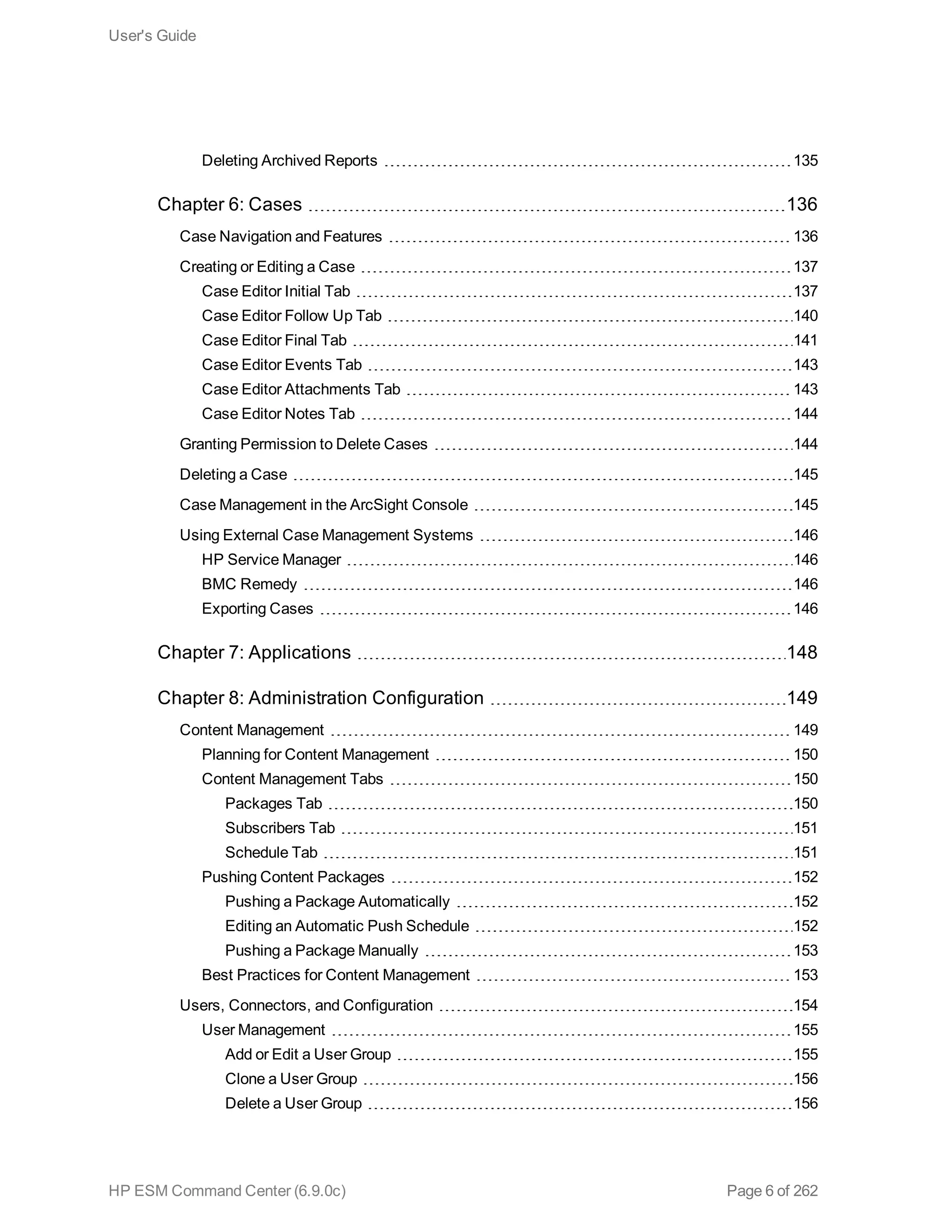
Contents
Chapter 1: Introduction 11
Starting the ESM Command Center 11
Configuring Your Browser 11
Launching ESM Command Center 11
Logging in to ESM Command Center 11
Basic Navigation 12
Using the Site Map 13
Monitoring Traffic Volume [BETA Feature] 13
Chapter 2: Viewing System Information 15
Managing Dashlets in the Dashboard Page 15
Adding a Data Monitor Dashlet to the Dashboards Page 15
Adding the My Cases Dashlet to the Dashboard Page 16
Adding My Dashboards to the Dashboard Page 17
Adding My Notifications to the Dashboards Page 18
Adding a Query Viewer to the Dashboards Page 19
Changing the Dashboards Layout 20
Managing Dashlets in the Dashboard Navigator Page 20
Changing the Location of a Dashlet 21
Changing the Background of a Dashlet 22
Showing and Hiding a Dashlet in a Dashboard 24
Specifying a Dashlet Chart Type 24
Specifying Animation and Auto-Refresh Rate for a Dashlet 26
Disabling a Data Monitor Dashlet 27
Accessing a Dashboard from a Dashlet 27
Chapter 3: Monitoring Events Through Active Channels 29
Viewing Events On an Active Channel 30
Viewing a Channel Condition Summary 32
Viewing the Event Priority for a Channel 33
Evaluate the Network Route of a Channel Event 34
About the Active Channel Header 38
Using the Active Channel Radar 39
HP ESM Command Center (6.9.0c) Page 3 of 262
Annotating an Event 40
Viewing Additional Event Information 42
Viewing Event Details 42
Viewing Event Annotation History 43
Viewing Event Payload 44
Managing Channels 45
Creating an Event Channel 45
Specifying Columns For Active Channel Event List 47
Specifying Filter Conditions for an Active Channel 48
Creating a Channel Based on an Event Attribute 53
Editing an Event Channel 55
Deleting an Event Channel 58
Adding an Event to a Case 58
Marking an Event as Reviewed 59
Visualizing an Event Graphically 60
Chapter 4: About Searching for Events 62
The Need to Search for Events 62
The Process of Searching for Events 62
Simple Query Example 63
Query Example Using a Chart 63
Elements of a Search Query 64
Query Expressions 64
Search Expressions 65
Keyword Search (Full-text Search) 65
Field-based Search 69
Searching IPv4 Addresses 72
Searching IPv6 Addresses 73
Search Operators 73
Time Range 74
Fieldsets 75
Creating Custom Fieldsets 76
Constraints 79
Using the Advanced Search Tool 88
Accessing Advanced Search 89
Nested Conditions 91
Alternate Views for Query Building in Advanced Search 93
Search Helper 94
User's Guide
HP ESM Command Center (6.9.0c) Page 4 of 262
Autocomplete 94
Search History 96
Search Operator History 96
Examples 96
Usage 96
Suggested Next Operators 96
Help 97
Searching for Events 97
Granting Access to Search Operations and Event Filters 99
Advanced Search Options 100
Searching Peers (Distributed Search) 100
Fields That Do Not Exist in Logger 5.3 SP1 and Later 101
Tuning Search Performance 103
Understanding the Search Results Display 103
User-defined Fields in Search Results 105
Viewing Search Results Using Fieldsets 106
Using the Histogram 106
Multi-line Data Display 108
Auto Updating Search Results 108
Chart Drill Down 108
Field Summary 110
Understanding Field Summary 110
Refining and Charting a Search from Field Summary 113
Exporting Search Results 114
Example PDF output 117
Scheduling an Export Operation 118
Saved Queries (Search Filters and Saved Searches) 118
Saving a Query 118
Using a Search Filter or a Saved Search 121
Predefined Search Filters 122
Indexing 129
Full-text Indexing (Keyword Indexing) 129
Field-based Indexing 129
Chapter 5: Using Reports 130
Running and Viewing Reports 130
Report Parameters 131
Archived Reports 134
User's Guide
HP ESM Command Center (6.9.0c) Page 5 of 262
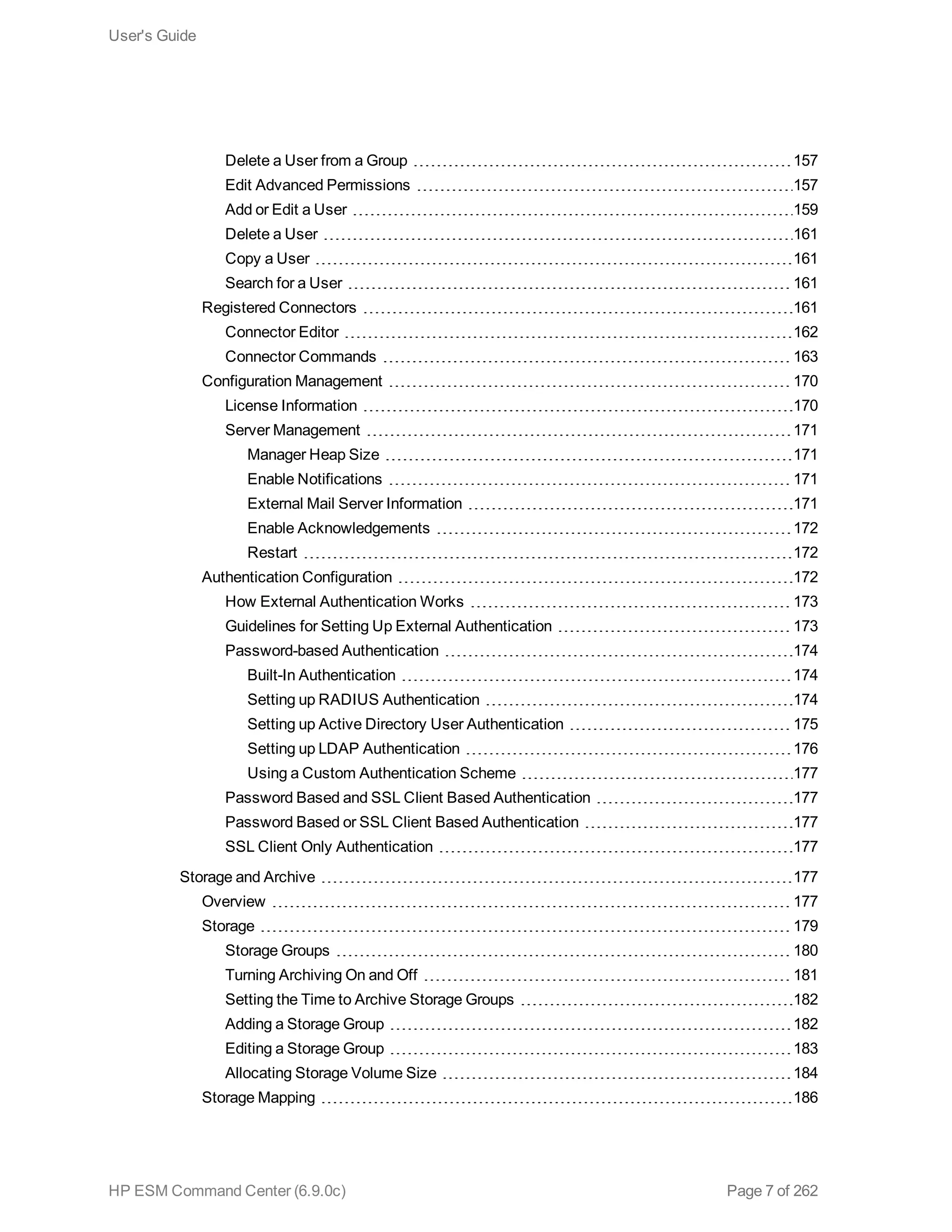
Deleting Archived Reports 135
Chapter 6: Cases 136
Case Navigation and Features 136
Creating or Editing a Case 137
Case Editor Initial Tab 137
Case Editor Follow Up Tab 140
Case Editor Final Tab 141
Case Editor Events Tab 143
Case Editor Attachments Tab 143
Case Editor Notes Tab 144
Granting Permission to Delete Cases 144
Deleting a Case 145
Case Management in the ArcSight Console 145
Using External Case Management Systems 146
HP Service Manager 146
BMC Remedy 146
Exporting Cases 146
Chapter 7: Applications 148
Chapter 8: Administration Configuration 149
Content Management 149
Planning for Content Management 150
Content Management Tabs 150
Packages Tab 150
Subscribers Tab 151
Schedule Tab 151
Pushing Content Packages 152
Pushing a Package Automatically 152
Editing an Automatic Push Schedule 152
Pushing a Package Manually 153
Best Practices for Content Management 153
Users, Connectors, and Configuration 154
User Management 155
Add or Edit a User Group 155
Clone a User Group 156
Delete a User Group 156
User's Guide
HP ESM Command Center (6.9.0c) Page 6 of 262
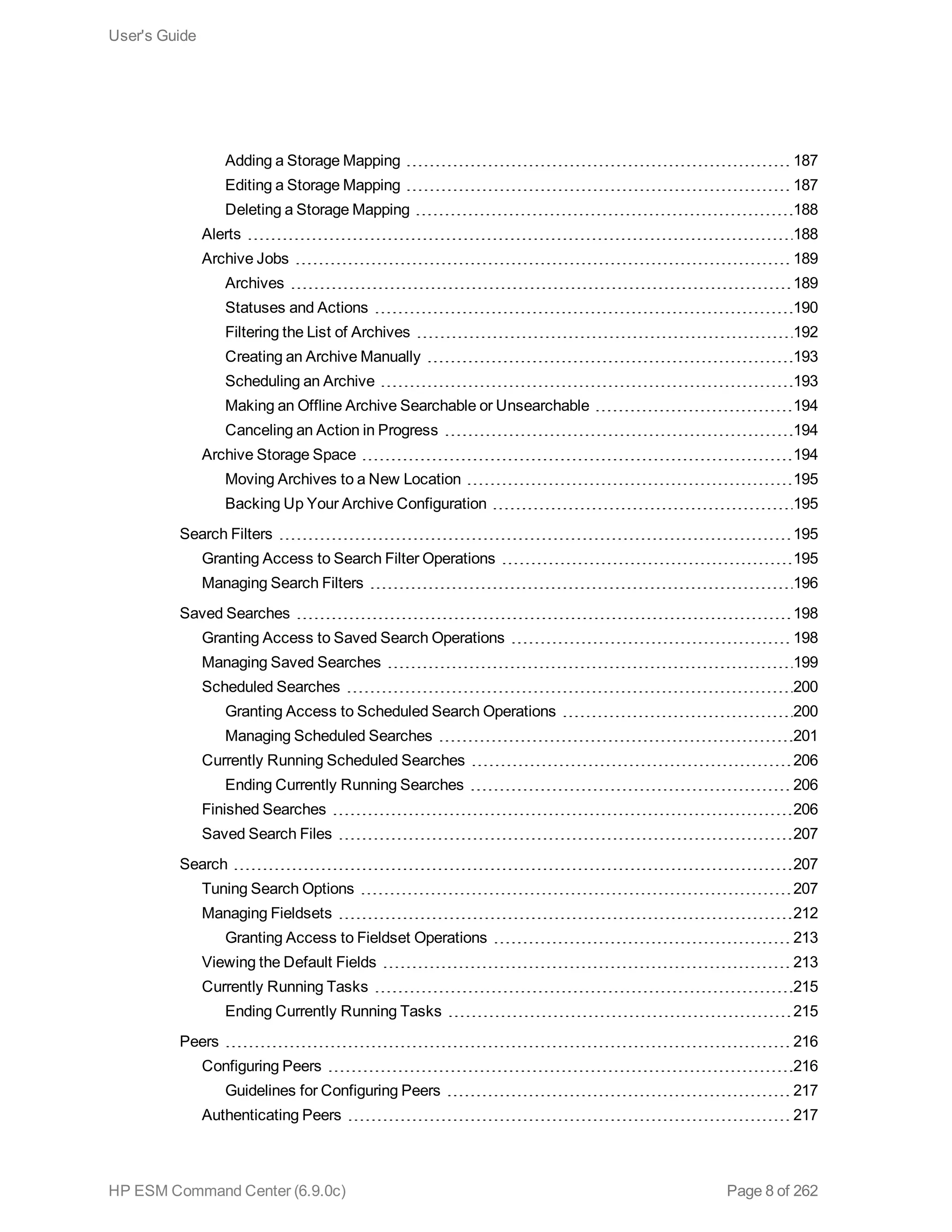
Delete a User from a Group 157
Edit Advanced Permissions 157
Add or Edit a User 159
Delete a User 161
Copy a User 161
Search for a User 161
Registered Connectors 161
Connector Editor 162
Connector Commands 163
Configuration Management 170
License Information 170
Server Management 171
Manager Heap Size 171
Enable Notifications 171
External Mail Server Information 171
Enable Acknowledgements 172
Restart 172
Authentication Configuration 172
How External Authentication Works 173
Guidelines for Setting Up External Authentication 173
Password-based Authentication 174
Built-In Authentication 174
Setting up RADIUS Authentication 174
Setting up Active Directory User Authentication 175
Setting up LDAP Authentication 176
Using a Custom Authentication Scheme 177
Password Based and SSL Client Based Authentication 177
Password Based or SSL Client Based Authentication 177
SSL Client Only Authentication 177
Storage and Archive 177
Overview 177
Storage 179
Storage Groups 180
Turning Archiving On and Off 181
Setting the Time to Archive Storage Groups 182
Adding a Storage Group 182
Editing a Storage Group 183
Allocating Storage Volume Size 184
Storage Mapping 186
User's Guide
HP ESM Command Center (6.9.0c) Page 7 of 262
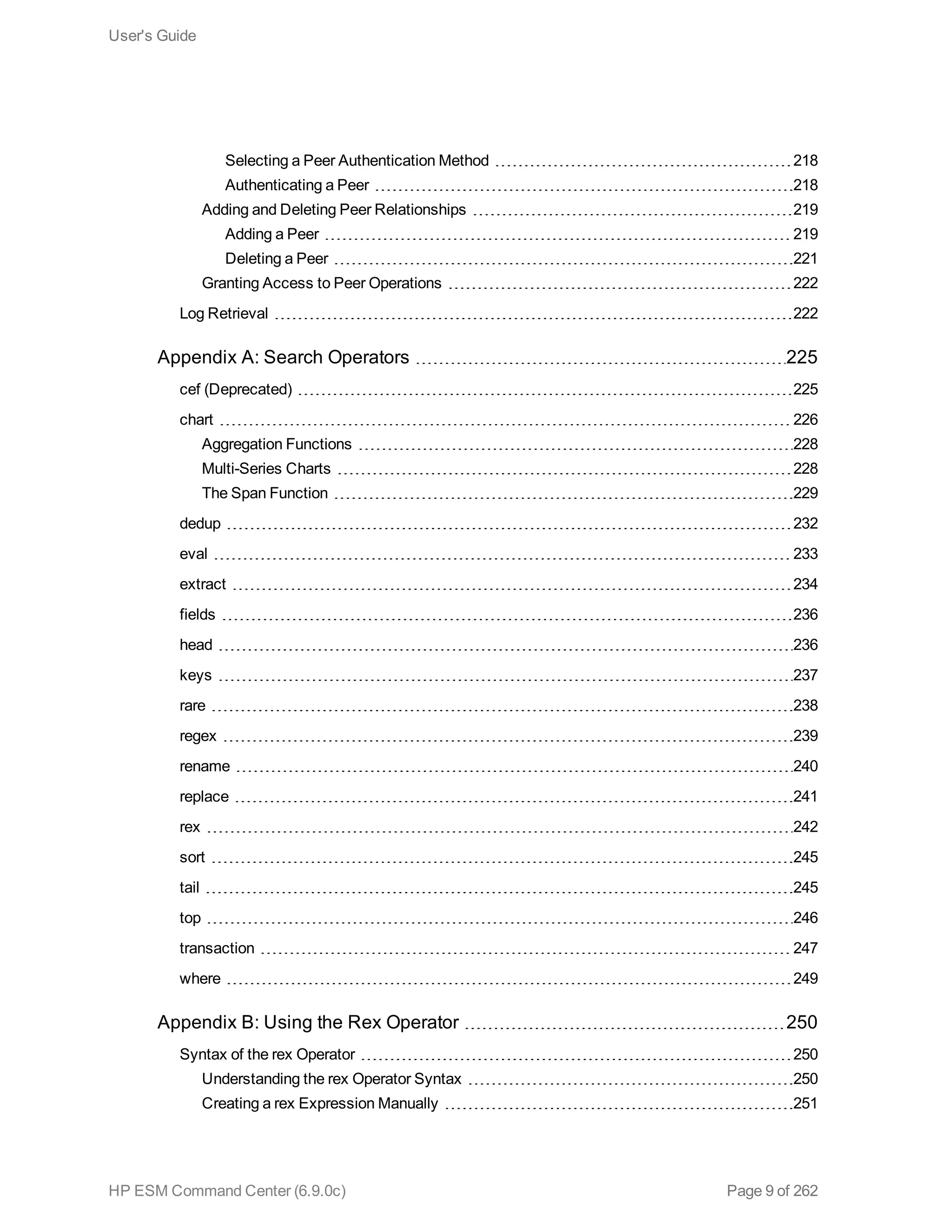
Adding a Storage Mapping 187
Editing a Storage Mapping 187
Deleting a Storage Mapping 188
Alerts 188
Archive Jobs 189
Archives 189
Statuses and Actions 190
Filtering the List of Archives 192
Creating an Archive Manually 193
Scheduling an Archive 193
Making an Offline Archive Searchable or Unsearchable 194
Canceling an Action in Progress 194
Archive Storage Space 194
Moving Archives to a New Location 195
Backing Up Your Archive Configuration 195
Search Filters 195
Granting Access to Search Filter Operations 195
Managing Search Filters 196
Saved Searches 198
Granting Access to Saved Search Operations 198
Managing Saved Searches 199
Scheduled Searches 200
Granting Access to Scheduled Search Operations 200
Managing Scheduled Searches 201
Currently Running Scheduled Searches 206
Ending Currently Running Searches 206
Finished Searches 206
Saved Search Files 207
Search 207
Tuning Search Options 207
Managing Fieldsets 212
Granting Access to Fieldset Operations 213
Viewing the Default Fields 213
Currently Running Tasks 215
Ending Currently Running Tasks 215
Peers 216
Configuring Peers 216
Guidelines for Configuring Peers 217
Authenticating Peers 217
User's Guide
HP ESM Command Center (6.9.0c) Page 8 of 262
Selecting a Peer Authentication Method 218
Authenticating a Peer 218
Adding and Deleting Peer Relationships 219
Adding a Peer 219
Deleting a Peer 221
Granting Access to Peer Operations 222
Log Retrieval 222
Appendix A: Search Operators 225
cef (Deprecated) 225
chart 226
Aggregation Functions 228
Multi-Series Charts 228
The Span Function 229
dedup 232
eval 233
extract 234
fields 236
head 236
keys 237
rare 238
regex 239
rename 240
replace 241
rex 242
sort 245
tail 245
top 246
transaction 247
where 249
Appendix B: Using the Rex Operator 250
Syntax of the rex Operator 250
Understanding the rex Operator Syntax 250
Creating a rex Expression Manually 251
User's Guide
HP ESM Command Center (6.9.0c) Page 9 of 262
Sample rex Expressions 252
Appendix C: Frequently Asked Questions 255
What happens if I'm investigating a channel that has event fields that are not supported in
Command Center? 255
Can I change the default start time and end time for an event channel? 255
What do I do if a channel is taking long to load? 256
How many channels can I have open at one time? 256
What fields are supported in Command Center channels? 256
Does Command Center support non-ASCII payload data? 256
How do I get my ArcSight Marketplace credentials? 257
Why are channels not current in a new ESM session? 257
Does the change to or from Daylight Savings Time effect an open active channel? 257
Send Documentation Feedback 258
Glossary 259
User's Guide
HP ESM Command Center (6.9.0c) Page 10 of 262
Chapter 1: Introduction
The ESM Command Center is a web-based user interface that enables you to perform many of the
functions found in the ArcSight Console.
l ESM Command Center provides dashboards, several kinds of searches, reports, case
management, notifications, and administrative functions for managing content, users, connectors,
storage, archives, search filters, saved searches, and peer configuration.
l It replaces the Management Console. If you used that console with a previous ESM release, switch
to the ESM Command Center.
l If you licensed the ArcSight Risk Insight integration, it appears on the Application tab and has its
own online help.
Starting the ESM Command Center
Configuring Your Browser
For best results, specify the same language for the browser as you did for the Manager. If the browser
allows you to select a priority language, select the same language defined by Manager.
Launching ESM Command Center
From a supported browser, go to https://<IP address>:8443/
Where <IP address> is the host name or IP address that you specified when you first configured ESM
Command Center.
Note: Host names with underscores do not work on IE, so use the IP address.
Logging in to ESM Command Center
After you have logged in, there is a logout link in the upper right corner of the window, under <user
name> menu.
General Prerequisites
HP ESM Command Center (6.9.0c) Page 11 of 262
l If the Manager is using FIPS, then configure your browser to use TLS.
l If you are using FIPS and SSL, use the runcertutil command on the Manager to export a client
certificate for the browser machine. If you are not using FIPS, export certificates with the
Keytoolgui command. Refer to the Administrator’s Guide for more information.
Logging in with Password Authentication
Log in with your User ID and password. Your user type controls which resources you have access to.
Logging in with SSL Authentication
Make sure you have exported a client certificate from an ArcSight Console. Specify the certificate to
use and click OK. When you get to the ArcSightESM Command Center user ID and Password screen,
just click Login without specifying anything.
Logging in with Password Authentication or SSL
To log in with an SSL certificate, make sure you have exported a client certificate from an ArcSight
Console machine. Specify the certificate to use, and click OK. When you get to the ESM Command
Center User ID and Password screen, just click Log in without specifying anything.
To log in with a user ID and password, click Cancel on the certificate dialog, then provide your user ID
and password on the User ID and Password screen.
Note: If you are using Microsoft Internet Explorer, and you import a certificate, you must always
use SSL (cancelling fails to load the page). If you do not import a certificate, you can only use
password authentication.
Logging in with Password Authentication and SSL
Make sure you have exported a client certificate from an ArcSight Console machine. Specify the
certificate to use and click OK. When you get to the User ID and Password screen, specify your User
ID and password.
Note: While logging into a Manager that has been configured to use Password-based or SSL
Client Based authentication, if you try to log in using a certificate and the login fails, all subsequent
attempts to use the username/password login will also fail during the same session. To work
around this, restart the browser and clear its cache.
Basic Navigation
Use the Dashboards, Events, Reports, Cases, Applications, Administration, Stats, and Notifications
links at the top of the display to go to those features. If you hover over most of those links, a menu of
included functions appears. The links in the upper right corner provide these special features:
l User: <Your User ID>
Use this link to add or update your name, contact information, role, department or notification
User's Guide
Chapter 1: Introduction
HP ESM Command Center (6.9.0c) Page 12 of 262
groups and change your password.
n Help
Click Help to get context-sensitive help for the page you are viewing.
The online help for integrated applications such as Risk Insight (if licensed) is separate. The help
for those applications is accessible from the Help link when you view the integrated application
from the Applications tab. Such help has its own appearance and navigation.
Hover over the Help link to see a list of options.
n What’s New — displays the online help system open to a list of new features in this release.
n Documentation — displays the main online documentation page, with a description of each book
and a table of contents in the left panel.
The online documentation navigation and controls are described in the online help itself, under
“FAQs About Online Help.”
n Online Support — takes you to the HP online support web site in a separate window.
n About — displays the current ESM product version number.
n Logout
Log out of the current session and display the login dialog. You can log in again or browse
elsewhere. If you leave the client idle for a period of time, you may need to log in again because of
an automatic security time-out.
l Stats: Displays Traffic Volume metrics as Events per Second and GB data per day.
l Site Map: Provides a mechanism to access ACC primary landing pages using keyboard-navigation
only.
To access any ESM document as an Adobe Acrobat PDF document, go to https://protect724.hp.com.
Using the Site Map
The Site Map link provides a mechanism to access ACC pages using keyboard-navigation only. The
Site Map link opens the Site Map page which displays a list of links to the primary landing pages in the
ESM Command Center.
Monitoring Traffic Volume [BETA Feature]
NOTE: The capability provided in this release is a Beta version of the traffic volume metrics
feature.
User's Guide
Chapter 1: Introduction
HP ESM Command Center (6.9.0c) Page 13 of 262
Command Center monitors the flow of traffic and storage, then presents this information as two
metrics:
l Avg EPS (per second): The average number of Events Per Second (EPS), which is calculated for
the past 30 days. Average EPS values are capture daily in a rolling 30 day window.
l Avg GB (per day): This is the average size of event data received per day, which is calculated for
the past 30 days. The disk usage, in GB, is capture for each day in a rolling 30 day window. The per
day GB values are summed and then divided by the number of days for which data is available
during that period of time.
A day is a full 24 hour period. Data from partial days are not used in the calculation. If there is less than
30 days of data available, then the values represents the averages for the number of days recorded.
There will be less than 30 days of data available when ESM is newly installed. Data older than 30 days
are not used in the calculations.
User's Guide
Chapter 1: Introduction
HP ESM Command Center (6.9.0c) Page 14 of 262
Chapter 2: Viewing System Information
Command Center provides two means of viewing system information: the Dashboard page and
Dashboard Navigator page. Information appears in these two pages in the form of dashlets.
From the Dashboard page, you can add any available dashlets while from the Dashboard Navigator
page you can view dashboards comprised of data monitor and query viewer dashlets. Unlike the
Dashboard page, dashboards in the Dashboard Navigator page cannot be modified since they originate
in the ArcSight Console.
Command Center opens in the Dashboard page. You can return to this page any time by clicking
Dashboards in the top menu bar.
Managing Dashlets in the Dashboard Page
The Dashboard page is where you monitor your workflow. By default, the Dashboard page displays the
My Cases and My Dashboards dashlets. The following Data Monitors dashlets, which are part of your
System Content, may also be displayed:
l Events by Vendor and Product
l Current Connector Status
l Security Alerts
l Top Alert Types
The My Cases, My Dashboards, and My Notifications dashlets provide workflow information while
Data Monitor and Query Viewer dashlets provide system information. You can customize the
Dashboard page by adding or removing any available system-monitoring and workflow-based dashlets.
Adding a Data Monitor Dashlet to the Dashboards
Page
About:
A data monitors dashlet can display information for events, filters, rules, and other types of information.
Note:
You can customize the look of a data monitor and query viewer dashlets in the Dashboard
Navigator page (see "Managing Dashlets in the Dashboard Navigator Page" on page 20).
Prerequisite:
HP ESM Command Center (6.9.0c) Page 15 of 262
l Create a data monitor in ArcSight Console.
See "Adding a Data Monitor to a Dashboard" in the ArcSight ESM User's Guide.
Procedure:
Location: Dashboards > Dashboard page
1. Click Add Content.
2. From the Add Content to Home popup, select Data Monitors .
3. Navigate to the data monitor folder containing the desired data monitor.
4. Select the desired data monitor in the Name column and then click Add Content.
5. Add any additional data monitors and then close the popup.
6. To change a data monitor view, make a selection from the available drop-down in the data monitor
title bar.
More:
l Command Center does not support data monitors based on query viewer data.
l Data monitors that are not supported:
n Event Graph Data Monitor
n Geographic Event Graph Data Monitor
n Hierarchy Map Data Monitor
n Last State Data Monitor
l Available data monitor views vary based on the data monitor type.
See Also:
l 101 Concepts for ArcSight ESM:
Chapter 7, "Correlation Evaluation" > "Data Monitors"
l ArcSight ConsoleUser's Guide:
Chapter 3, "Monitoring Events" > "Using Data Monitors"
Adding the My Cases Dashlet to the Dashboard Page
About:
User's Guide
Chapter 2: Viewing System Information
HP ESM Command Center (6.9.0c) Page 16 of 262
Cases track individual or multiple related events and export event data to third-party products. Cases
can standalone or integrated with a third-party case management system, such as HP Service
Manager or BMC Remedy.
A case contains information about an incident, usually with one or more events attached. Use cases to
track, investigate, and resolve events. Where cases are similar, you can copy events directly from one
case to another. You assign cases of interest to analysts, who can investigate and resolve them based
on severity and enterprise policies. You can also use rules to automatically open a case when certain
conditions are met.
You can assign cases to groups of users who receive a notification with access to the case and its
associated data. Those users can take action on the assigned case and specify other actions to be
taken, assign it to another user, or resolve the case.
Procedure:
Location: Dashboards > Dashboard page
1. Click Add Content.
2. From the Add Content to Home popup, select My Cases and then click Add Content.
ESM Command Center displays the cases assigned to you.
3. Close the popup.
More:
l The link in the My Cases dashlet title bar opens the Cases page where you can see the list of
cases, create new ones, and perform other functions. This is the same as selecting Cases from the
top menu bar.
l If you would like to add an existing case to your personal folder, go to the ArcSight Console, edit the
case, and then add yourself as the owner in the Assign section.
See Also:
l ESM Command Center User's Guide:
"Creating or Editing a Case" on page 137
l 101 Concepts for ArcSight ESM:
Chapter 6, "Workflow" > "Cases
l ArcSight Console User's Guide:
Chapter 17, "Case Management and Queries." - To create and edit cases in the ArcSight Console,
Adding My Dashboards to the Dashboard Page
About:
Dashboards display data gathered from data monitors or query viewers. Dashboards can display data
in a number of formats, including pie charts, bar charts, line charts, and tables, and you can rearrange
User's Guide
Chapter 2: Viewing System Information
HP ESM Command Center (6.9.0c) Page 17 of 262
and save the dashboard element display. You can edit the existing dashboards and create new ones
from the ArcSight Console
Procedure:
Location: Dashboards > Dashboard page
1. Click Add Content.
2. From the Add Content to Home popup, select Dashboards and then click Add Content.
ESM Command Center displays the list of dashboards that are in your personal folder.
More:
l You can also see the list of dashboards under Dashboards > Navigator, along with all the other
dashboards.
l Use the ArcSight Console to create dashboards and drag dashboards into your folder.
l The link in the My Dashboards widget title bar opens the Dashboard Navigator where you can see
the list of dashboards created in the ArcSight Console. This is the same as selecting Dashboards
> Navigator from the top menu bar.
l If you would like to add another dashboard to your personal folder, go to the ArcSight Console and
drag it into your folder.
See Also:
l ArcSight Command Center User's Guide:
"Viewing System Information" on page 15.
l ArcSight Console User’s Guide:
To create and edit dashboards, refer to Chapter 3,“Monitoring Events” > “Using Dashboards”
Adding My Notifications to the Dashboards Page
About:
Notifications and their content are created using rules configured with the Send Notification rule action.
Notifications come in the form of pending, undelivered, acknowledged, not acknowledged, resolved,
and informational.
Procedure:
Location: Dashboards > Dashboard page
1. Click Add Content.
2. From the Add Content to Home popup, select My Notifications and then click Add Content.
ESM Command Center displays the list of notifications that are in your personal folder.
User's Guide
Chapter 2: Viewing System Information
HP ESM Command Center (6.9.0c) Page 18 of 262
More:
l The link in the My Notifications dashlet title bar opens the Notifications page where all the
notifications are listed.
l You can also click the Notifications button in the upper right corner to open the Notifications page.
The number of pending notifications are indicated within a red circle.
l By default, the My Notifications dashlet is filtered by the Pending, Acknowledged and Resolved
statuses of the Notifications page.
l From the Notifications page you can:
n Adjust the filter that controls which notifications appear
n Acknowledge notifications
n Mark notifications as resolved
n Delete notifications
l Notifications are configured in the ArcSight Console. For more information, see the ArcSight
Console User’s Guide chapter, “Managing Notifications.”
Adding a Query Viewer to the Dashboards Page
About
A query viewer is a resource for defining and running SQL queries on other resources, such as trends,
assets, cases, connectors, and events. Each query viewer contains an SQL query along with other
logic for establishing and comparing baseline results, analyzing historical data to find patterns in
network activity, and performing drill-down investigations on a particular aspect of the results.
Procedure:
Location: Dashboards > Dashboard page
1. Click Add Content.
2. From the Add Content to Home popup, select Query Viewers.
3. Navigate to the query viewer folder containing the desired query viewer.
4. Select the desired query viewer in the Name column and then click Add Content.
5. Add any additional query viewers and then close the popup.
More:
Not all types of query viewers can be displayed on the Dashboard page. For an unsupported query
viewer, no data appears.
See Also:
User's Guide
Chapter 2: Viewing System Information
HP ESM Command Center (6.9.0c) Page 19 of 262
l ArcSight Console User’s Guide:
“Query Viewers”
Changing the Dashboards Layout
About:
Dashlets can appear in either one, two, or three columns.
Procedure:
Location: Dashboards > Dashboard page
l Click Change Layout and specify the number of columns to display.
More:
l You can reposition widgets using drag and drop.
Managing Dashlets in the Dashboard Navigator
Page
About:
The Dashboard Navigator page is where you can access ArcSight Console dashboards and view the
data monitor and query viewer dashlets for each dashboard. You can also edit where a dashlet appears
in a dashboard and what background is used for a dashlet. You can also remove dashlets from a
dashboard and specify in what format they presents data, such as pie charts, bar charts, line charts,
and tables.
For any dashlets with drilldowns, you can configure drilldowns using the ArcSight Console.
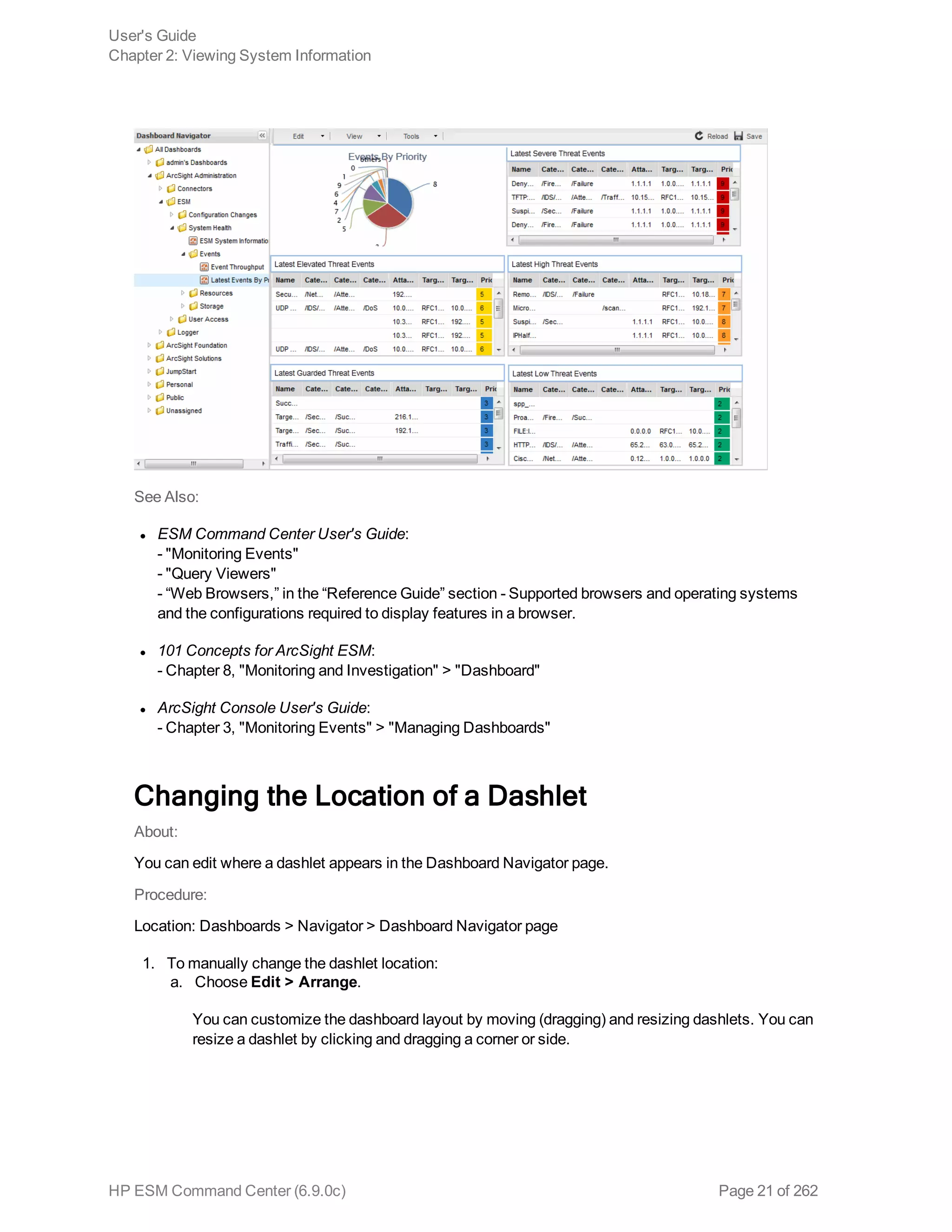
From the left navigation of the Dashboard Navigator page, you can expand a dashboard grouping in
order to choose the desired dashboard. The following graphic shows six dashlets from the Latest
Events By Priority dashboard.
User's Guide
Chapter 2: Viewing System Information
HP ESM Command Center (6.9.0c) Page 20 of 262
See Also:
l ESM Command Center User's Guide:
- "Monitoring Events"
- "Query Viewers"
- “Web Browsers,” in the “Reference Guide” section - Supported browsers and operating systems
and the configurations required to display features in a browser.
l 101 Concepts for ArcSight ESM:
- Chapter 8, "Monitoring and Investigation" > "Dashboard"
l ArcSight Console User's Guide:
- Chapter 3, "Monitoring Events" > "Managing Dashboards"
Changing the Location of a Dashlet
About:
You can edit where a dashlet appears in the Dashboard Navigator page.
Procedure:
Location: Dashboards > Navigator > Dashboard Navigator page
1. To manually change the dashlet location:
a. Choose Edit > Arrange.
You can customize the dashboard layout by moving (dragging) and resizing dashlets. You can
resize a dashlet by clicking and dragging a corner or side.
User's Guide
Chapter 2: Viewing System Information
HP ESM Command Center (6.9.0c) Page 21 of 262
b. Click Done Arranging from either the Edit menu or top menu bar.
c. Click Save in the upper right corner.
2. To automatically change the dashlet location:
a. Choose Edit > Auto Arrange.
Command Center arranges the dashlets alphabetically (left-to-right and top-to-bottom) in
equally-sized tiles.
b. Click Save in the upper right corner.
More:
You can also right click any dashlet and select Auto Arrange.
You can also right click any dashlet and select Save.
Changing the Background of a Dashlet
About:
You can replace a dashlet background with a new or existing one. You can also change the background
color or delete it.
Note:
Background edits that you apply to dashlets in the Dashboard Navigator page also appear for
these dashlets in the Home Dashboard page.
Procedure:
Location: Dashboards > Navigator > Dashboard Navigator page
1. To use a new background image for a dashlet:
a. Choose Edit > Upload New Background Image...
This option enables you to locate any JPG, GIF, PNG, or BMP file and select it as a
background image. It copies the file into the user’s folder.
The background image cannot be seen behind tables unless you select Transparent table,
under Choose Colors, in the next section.
b. Click Save in the upper right corner.
User's Guide
Chapter 2: Viewing System Information
HP ESM Command Center (6.9.0c) Page 22 of 262
2. To use and existing background image for a dashlet:
a. Choose Edit > Choose an Existing Background Image...
This option enables you to select any JPG, GIF, PNG, or BMP file that is already in the
system. For example, images in the user’s folder.
Click in the data entry field to see the ArcSight Resources folders.
The background image scales to fill the available space in the dashboard panel. That means
the image may appear stretched horizontally or vertically if the aspect ratio of the dashboard is
not the same as the image. Change the size of the window until the image looks correct.
b. Click Save in the upper right corner.
3. To color the dashlet background::
a. Choose Edit > Choose a Background Color...
b. Click Save in the upper right corner.
4. To remove the dashlet background:
a. Choose Edit > Clear Background...
Removes any image or color and restores the background to white.
b. Click Save in the upper right corner.
More:
You can also right click a dashlet in table format and then select Choose Colors. From the Choose
Colors popup, you can do the following:
l Foreground Color: Select a color from the palette to change the color of all the text in the table
unconditionally.
l Transparent table: Check this box if you have a background image selected for this dashboard and
you want it to show through this table. This affects the entire table’s background, regardless of any
conditional background color control settings.
l Conditional background color controls:
n Conditions for: Clear the field and select the pull-down menu. You can set the part of the table for
which the background color is set when the conditions are met. Table means any cell in the table.
n Color entire row: If the conditions are met, set the background color to the row on which you
right-clicked to get the Choose Colors dialog.
n Value: Clear the field and select the pull-down menu. Select the logical operator to use for
comparing the part of the table specified in Conditions For to the Value field to the right of the
operator. Then fill in the text to match.
n Background: Select a color from the pull-down menu to change the background color of the
User's Guide
Chapter 2: Viewing System Information
HP ESM Command Center (6.9.0c) Page 23 of 262
matching part of the table. For the parts of the table that match the conditions, a background color
overrides the transparent table option.
n + Add another condition: Click this to add another set of conditions for which you can select a
different background color.
Showing and Hiding a Dashlet in a Dashboard
About:
Command Center enables you to show and hide dashlets in a dashboard .
Procedure:
Location: Dashboards > Navigator > Dashboard Navigator page
1. From the View menu, click the check box for the desired dashlet.
2. Click Save in the top menu bar.
More:
Dashlets were defined when the dashboard was created in the ArcSight Console.
Unchecking a dashlet removes it from the current view, but does not delete it. You can check the box
again to include it in the view.
Save in the top menu bar is enabled when you change the dashboard, including simply resizing the
window. You can also save the dashboard by right clicking on any dashlet and then selecting Save.
Reload on the top menu bar reloads the last saved version of the dashboard.
See Also:
l ArcSight Console User's Guide:
Chapter 3, "Monitoring Events" > "Creating a Dashboard"
Specifying a Dashlet Chart Type
About:
Command Center enables you to specify the dashlet chart type.
Procedure:
Location: Dashboards > Navigator > Dashboard Navigator page
1. From the View menu, hover over the desired menu item and then select the desired chart type
from the extended menu.
2. Click Save in the top menu bar.
User's Guide
Chapter 2: Viewing System Information
HP ESM Command Center (6.9.0c) Page 24 of 262
More:
The available view options vary based on the dashlet type, and other selections made when it was
created in the ArcSight Console. They might show different kinds of charts, if the data monitor can be
displayed in those formats. Below are the possible data presentation formats.
Display
Format Description
Composite
Chart
Shows a combination of chart types, such as bars and lines on the same chart.
Bar Chart Shows data as a series of proportional bar elements and may include bar
segmentation to subdivide the data.
Applies to data monitors and query viewers.
Bar Chart
Table
A grid of proportional bar elements.
Applies to data monitors.
Horizontal
Bar Chart
Shows data as a series of proportional bar elements and may include bar
segmentation to subdivide the data. This format forces the bars to run left-to-right
rather than up-and-down.
Applies to data monitors and query viewers.
Pie Chart Shows data as a circle with proportional wedges for elements.
Applies to data monitors and query viewers.
Statistics
Chart
Overlays Moving Average data graphs on a data monitor, when multiple graphs are
present. Compare this display format to the Tiles format, which arranges individual-
graph monitors into fixed arrays.
Applies to data monitors.
Table Displays data as a grid.
Applies to data monitors and query viewers.
Stacking Bar
Chart
Shows data from a query viewer as a series of proportional bar elements and may
include bar segmentation to subdivide the data.
Priorities
Charts
Includes line, area, bar, scatter plot, stacking area, and stacking bar charts.
Tiles Arranges individual Moving Average data graphs into separate, fixed positions on a
data monitor, when multiple graphs are present. Compare this display format to
Statistics Chart.
Applies to data monitors.
User's Guide
Chapter 2: Viewing System Information
HP ESM Command Center (6.9.0c) Page 25 of 262
Display
Format Description
Geographical
Event Map
Shows a map of the world with lines connecting the origin and destination of each
event. You can zoom in and hover over individual events for details.
Applies to geographical event graphs.
Event Graph Displays the event endpoints like nodes on a spider web. You can hover over
individual events endpoints for details.
Applies to geographical event graphs.
 , continued
You can also right click any dashlet and select View As.
Dashlets were defined when the dashboard was created in the ArcSight Console.
Save is enabled when you change the dashboard, including simply resizing the window. You can also
save the dashboard by right clicking on any dashlet and then selecting Save.
Reload on the top menu bar reloads the last saved version of the dashboard.
See Also:
ArcSight ConsoleUser's Guide:
Chapter 3, "Monitoring Events" > "Creating a Dashboard"
Specifying Animation and Auto-Refresh Rate for a
Dashlet
About:
With animation enabled, pie and bar charts appear to quickly grow from zero to the current values as
the dashlet refreshes.
Procedure:
Location: Dashboards > Navigator > Dashboard Navigator page > Tools > Preferences
1. To enable animation for a dashlet, enable automatic refresh and set the refresh interval.
2. To auto-refresh dashlet data, enable automatic refresh and set the refresh interval.
3. Click Apply.
More:
User's Guide
Chapter 2: Viewing System Information
HP ESM Command Center (6.9.0c) Page 26 of 262
l You can auto-refresh a dashlet from every second up to every 300 seconds.
l The actual refresh rate might be slower than the refresh rate setting, depending on system
performance, high events per second, and the number of data monitors on the dashboard.
l The dashboard refresh rate is how often the dashboard reloads the underlying resources.
Resources may have their own rate at which they refresh their data cache, but the ArcSight
Command Center does not trigger each resource to refresh itself, it just reloads the dashboard
resources, picking up the resources’ current data caches. If a resource has not refreshed its data
when the dashboard asks for more, the dashboard gets the same data it got for the last refresh.
Disabling a Data Monitor Dashlet
About:
<< Why would a user want to disable a data monitor? >>
Procedure:
Location: Dashboards > Navigator > Dashboard Navigator page
l Right click a data monitor dashlet and then select Data Monitor > Disable Data Monitor.
The dashlet remains, but there is no data or chart in the view.
To enable the dashlet, right click the data monitor and then select Data Monitor > Enable.
More:
You cannot disable a query viewer dashlet.
See Also:
l ESM Command Center 101 Concepts for ArcSight ESM Command Center:
"Data Monitors" and "Dashboards"
l ArcSight Console User’s Guide:
“Reference Guide” for a detailed description of data monitors
l ESM Command Center User’s Guide:
"Using Data Monitors” to learn how to create data monitors
Accessing a Dashboard from a Dashlet
About:
From a dashlet, ESM Command Center enables you to drill down to other dashboards.
User's Guide
Chapter 2: Viewing System Information
HP ESM Command Center (6.9.0c) Page 27 of 262
Note:
If a dashlet has drilldown links to channels, reports, or query viewers, they do not appear in ESM
Command Center.
Procedure:
l Right click on a dashlet for which one or more drill downs have been configured and then select
Drilldown.
To return to the original dashlet, clickPrevious from the menu bar.
More:
If a dashlet has a drilldown configured, you can also double-click anywhere on that dashlet .
If there is more than one drilldown destination configured, double clicking displays the default. If the
default is not a dashboard and is not on the list, double clicking displays the first dashboard on the list.
(If you are on a geographical event graph, double clicking zooms in, so use the right click option and
then select Drilldown.
See Also:
l ArcSight Console User’s Guide:
Chapter 3, "Monitoring Events" > "Adding a Drilldown"
User's Guide
Chapter 2: Viewing System Information
HP ESM Command Center (6.9.0c) Page 28 of 262
Chapter 3: Monitoring Events Through
Active Channels
ESM Command Center recognizes Event channels. You can create, edit, or delete active channels
(Event Channels). Command Center provides the following channel and event functionality:
l To Channels:
Channel creation, editing, deleting: Event channels can be newly created with empty attributes
or created from an existing Active Channel. Channel attributes can be edited. You can change the
Name, Start Time, End Time, Timestamp displayed, Time Evaluation type, the Configured Filter,
and the Configured Field Set. You can also delete Channels.
Channel filtering: Event channels can be filtered using conditions based on fields, filters, assets,
and vulnerabilities.
Condition Summary: Performs like a channel filter, where a raw string represents the conditions
for the channel. This summary displays the filter conditions defined for a channel.
Header: Each active channel has a header section containing several features you can use to
understand the channel and manipulate associated event information.
Radar display: The radar consists of a bar chart overview of events on the active channel. It is
divided into time segments sorted by event end time, each segment representing groups of events
with the same end time.
l To Channel Events
Priority statistics: Rating events of a channel based on their priority.
Annotation: Annotating an event and viewing event annotation history
Payload summary: An event payload is the information carried in the body of the event's network
packet.
Adding an event to a case: While monitoring suspicious events, you can choose an event on an
active channel and add this event to an existing, locked case.
Reviewed flag: Mark an event as reviewed, which can be helpful in the investigation process.
Graphical Visualization: Through the use of widgets, you can view field information for events.
You can choose the type of field information to display and the range of events for which this
information should appear.
Event Search: Searching for events is done from the Events menu. See "About Searching for
HP ESM Command Center (6.9.0c) Page 29 of 262
Events" on page 62.
Viewing Events On an Active Channel
About:
Viewing events on an active channel is done from the Active Channel screen. From this screen, you
can also view related event information and perform functions using events.
Note:
l Some channels in Command Center may not be current when accessed in a new ESM
session. To ensure current event information, refresh the channel by clicking the stop and play
buttons.
l If an active channel is open when Daylight Savings Time goes into or out of effect, the active
channel will not reflect the correct start and end times until the channel is closed and re-
opened.
Procedure:
Location: Events menu > Active Channels > Active Channel - list screen > resource tree
1. Click Events > Active Channels.
2. Expand the appropriate active channel folder in the resource tree and then click the desired folder.
Channels associated with the folder appear in a table in the center of the screen, as seen in the
following typical view of active channels.
User's Guide
Chapter 3: Monitoring Events Through Active Channels
HP ESM Command Center (6.9.0c) Page 30 of 262
3. Click the Display Name link for the desired channel.
The Active Channel screen for the selected channel opens, displaying all the events for the
channel in the Event List tab. This is commonly known as the channel grid view.
If you have multiple channels open, these will appear in tabs, as seen in the following typical view
open channel tabs.
4. To add a specific field to the channel grid view, choose Customize > Fields.
User's Guide
Chapter 3: Monitoring Events Through Active Channels
HP ESM Command Center (6.9.0c) Page 31 of 262
n From the Select popup, select the desired field from the appropriate field set.
The Selected Fields list contains the fields that comprise the columns in the channel grid view.
You can click the left arrow button (! ) to remove any of these fields.
n Click OK.
The selected field appears as a column in the channel grid view, after the original columns.
5. To add the fields of a field set to the channel grid view, choose Customize > Field Set.
n From the Select popup, select the desired field set.
The Selected Fields list contains the fields that comprise the columns in the channel grid view.
You can click the left arrow button (! ) to remove any of these fields.
n Click OK.
The fields appear as columns in the channel grid view, after the original columns.
Columns for the channel grid view are originally specified during the creation or edit of a channel
(see "Specifying Columns For Active Channel Event List" on page 47).
Note:
l Some channels can be resource intensive, such as those with a time range of an hour or so. If a
channel takes long to load in a high-traffic environment, open this channels in the ArcSight
Console. To view a resource-intensive channel in ArcSight Command Center, narrow the time
range to 5 - 10 minutes to reduce the event volume.
l For optimum performance, limit open channels to 3 per browser, though ArcSight Command
Center can support up to 10 moderate-traffic channels or up to 15 light-traffic channels per
browser. Between ArcSight Command Center and ArcSight Console, ESM can support up to
25 open channels.
l ArcSight Command Center does not support custom columns in the Event List (Events menu >
Active Channels > Active Channel - list). If the Event Channel has Custom Columns
configured in Console, these will not appear in ACC.
Viewing a Channel Condition Summary
About:
A channel condition summary displays in a raw string represents the filter conditions for the channel.
The syntax is slightly different than that displayed in Configure Filter > Operations > Summary
when editing a channel or creating a new channel. However, the attributes and logic are the same.
Procedure:
User's Guide
Chapter 3: Monitoring Events Through Active Channels
HP ESM Command Center (6.9.0c) Page 32 of 262
1. Open the desired channel.
See "Viewing Events On an Active Channel" on page 30.
2. From the Active Channel screen, click Condition Summary.
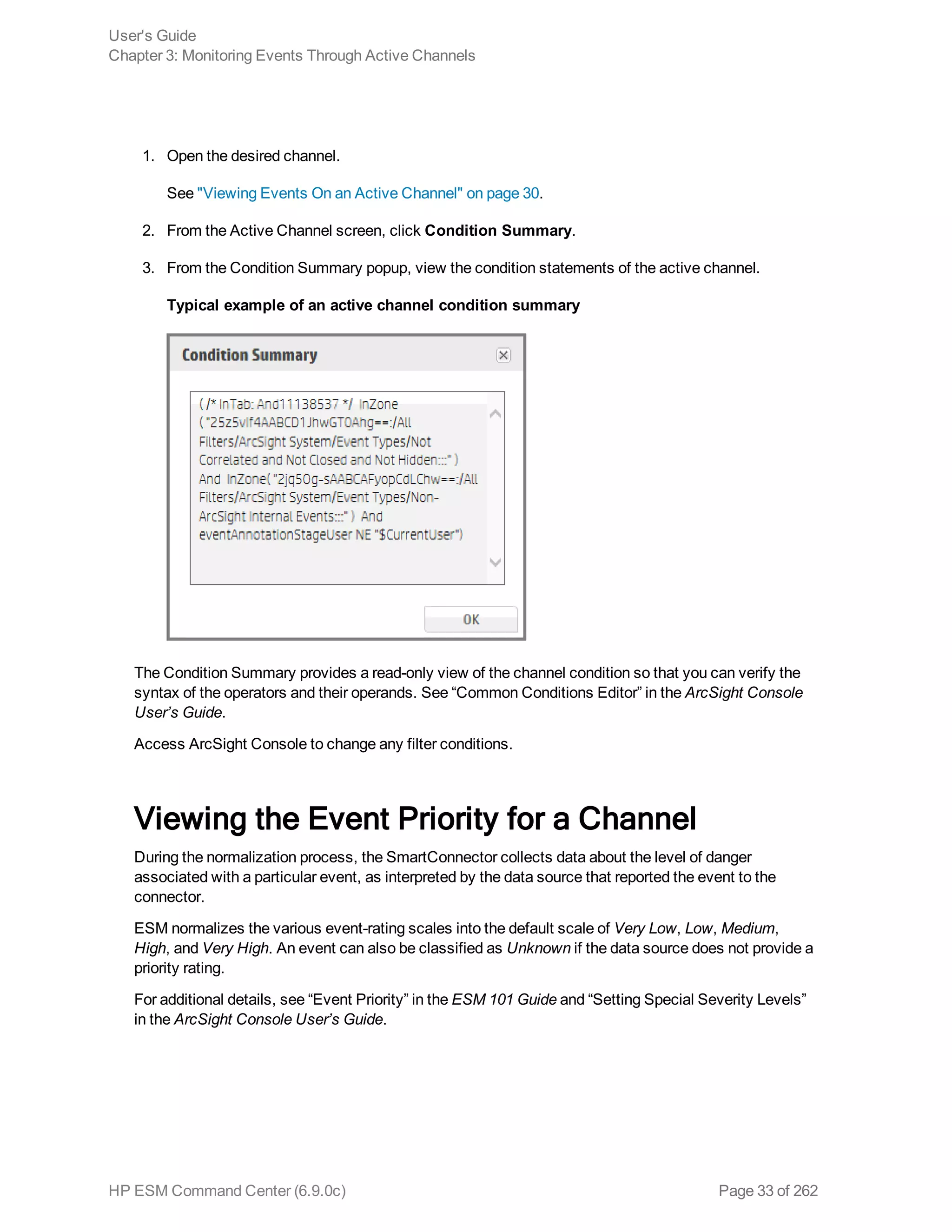
3. From the Condition Summary popup, view the condition statements of the active channel.
Typical example of an active channel condition summary
The Condition Summary provides a read-only view of the channel condition so that you can verify the
syntax of the operators and their operands. See “Common Conditions Editor” in the ArcSight Console
User’s Guide.
Access ArcSight Console to change any filter conditions.
Viewing the Event Priority for a Channel
During the normalization process, the SmartConnector collects data about the level of danger
associated with a particular event, as interpreted by the data source that reported the event to the
connector.
ESM normalizes the various event-rating scales into the default scale of Very Low, Low, Medium,
High, and Very High. An event can also be classified as Unknown if the data source does not provide a
priority rating.
For additional details, see “Event Priority” in the ESM 101 Guide and “Setting Special Severity Levels”
in the ArcSight Console User’s Guide.
User's Guide
Chapter 3: Monitoring Events Through Active Channels
HP ESM Command Center (6.9.0c) Page 33 of 262
1. Open the desired channel.
See "Viewing Events On an Active Channel" on page 30.
2. Click Priority Stats.
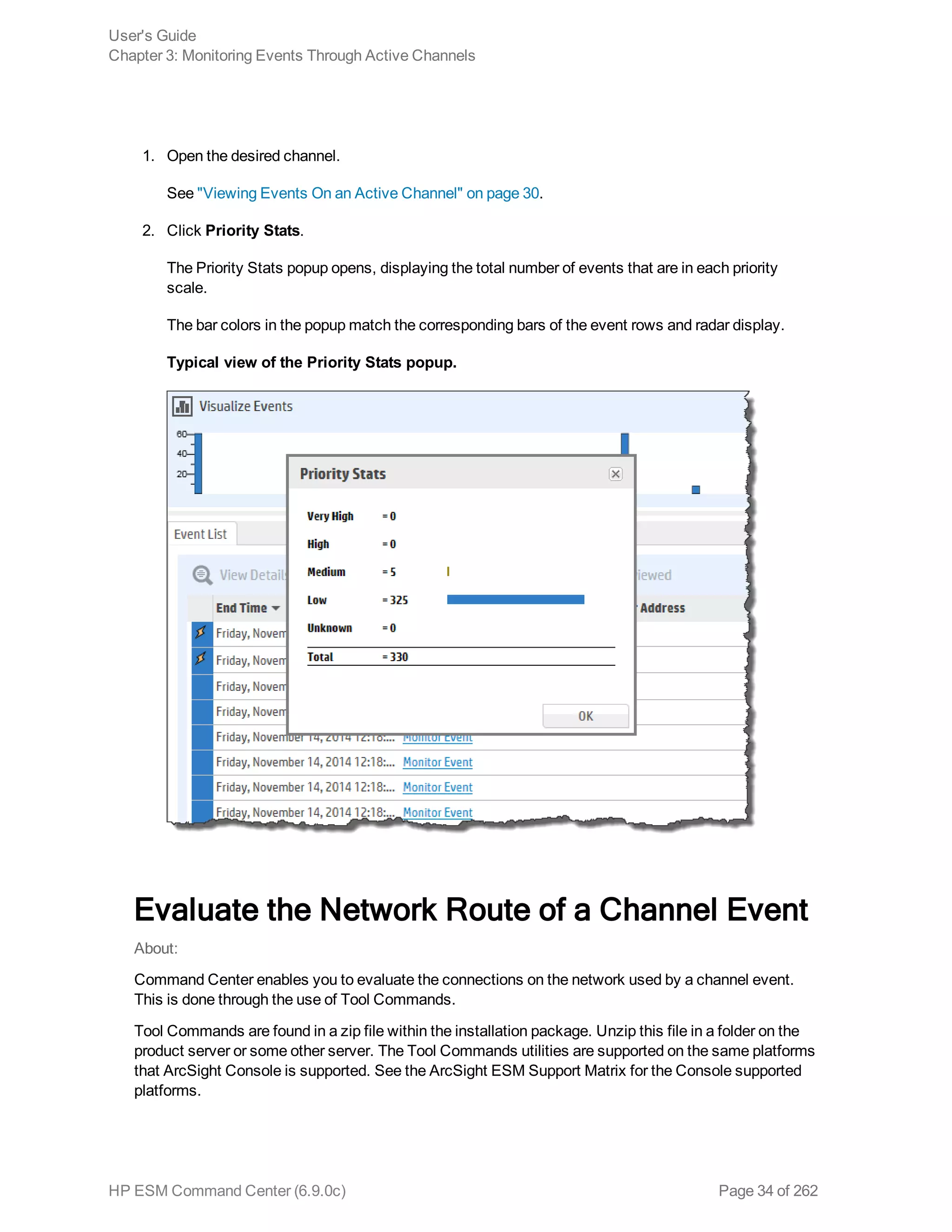
The Priority Stats popup opens, displaying the total number of events that are in each priority
scale.
The bar colors in the popup match the corresponding bars of the event rows and radar display.
Typical view of the Priority Stats popup.
Evaluate the Network Route of a Channel Event
About:
Command Center enables you to evaluate the connections on the network used by a channel event.
This is done through the use of Tool Commands.
Tool Commands are found in a zip file within the installation package. Unzip this file in a folder on the
product server or some other server. The Tool Commands utilities are supported on the same platforms
that ArcSight Console is supported. See the ArcSight ESM Support Matrix for the Console supported
platforms.
User's Guide
Chapter 3: Monitoring Events Through Active Channels
HP ESM Command Center (6.9.0c) Page 34 of 262
Traceroute: Shows the path from Command Center to the IP address of the selected channel event,
reporting the IP addresses of all routers in between.
Ping: Determines whether the IP address of a channel event is active. Tests and debugs a network by
sending a packet and waiting for a response.
Nmap (Network Mapper): This security scanner discovers hosts and services on a network, thus
creating a "map" of the network. To accomplish its goal, Nmap sends special packets to the target host
and then analyzes the responses.
Prerequisite:
l Check to see that the nmap utility is installed on the client. Open a terminal or command window
and type:
nmap --version.
If nmap is installed, the version will be returned. If you get an error indicating that the command is
not recognized, download and install the nmap binary from http://nmap.org.
Procedure:
1. Open the desired channel and view the associated events.
See "Viewing Events On an Active Channel" on page 30.
2. From the Active Channel screen > Event List tab, click the desired event link.
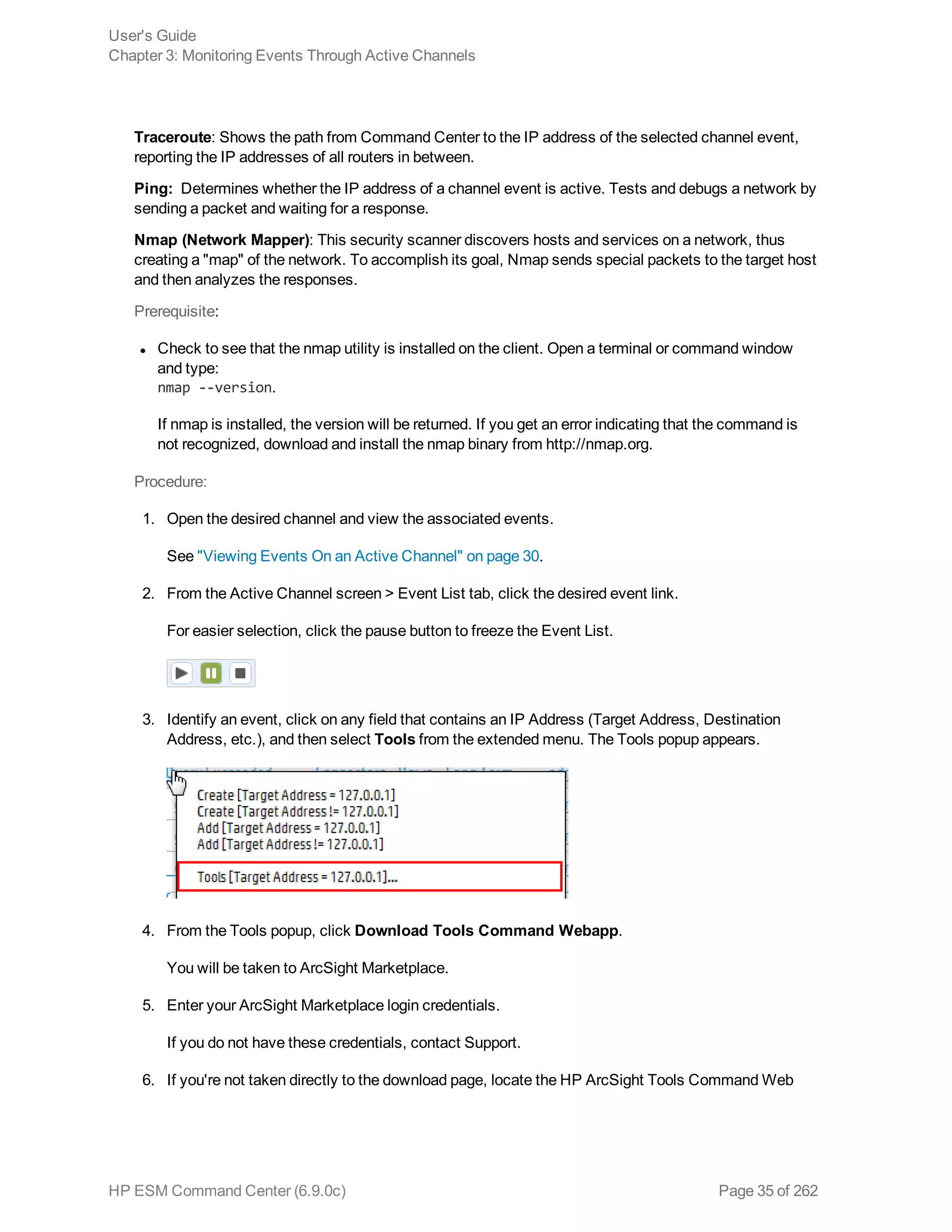
For easier selection, click the pause button to freeze the Event List.
3. Identify an event, click on any field that contains an IP Address (Target Address, Destination
Address, etc.), and then select Tools from the extended menu. The Tools popup appears.
4. From the Tools popup, click Download Tools Command Webapp.
You will be taken to ArcSight Marketplace.
5. Enter your ArcSight Marketplace login credentials.
If you do not have these credentials, contact Support.
6. If you're not taken directly to the download page, locate the HP ArcSight Tools Command Web
User's Guide
Chapter 3: Monitoring Events Through Active Channels
HP ESM Command Center (6.9.0c) Page 35 of 262
App download link for your specific operating system, and download the file to your local system.
Unpack the file (either unzip or untar).
7. Change these default properties values in of the self-signed certificate in the config.properties
file (ui-tools-command-win > config) :
Host name: localhost
Port: 3000
The authentication certificate is valid for ten years.
8. If you are on a Linux and Mac system, give root user execute permissions on the node directory.
chmod +x node
9. Start the Web App by running the command:
<download directory>/node app.js
10. To test the Web App, enter the URL from the config.properties file
(https://localhost:3000) in a web browser.
11. Specify the URL of the Tools Command panel and then click Set.
The URL is the one you specified in the config.properties file (https://localhost:3000).
12. Select the desired tool command or commands and then click Run.
The panel contains the results of the tool command. The panel displays within a tab by the same
name as the tool command.
Note: If your operating system does not provide Nmap, then download the utility.
13. To change the URL of the tool command panel, click the gear icon, re-enter the URL, and then
click Set.
14. To copy the contents of the tool command panel, click Select All in the tool command tab (or
select the text manually), and then copy and paste the content into the destination.
Note:
If you are using the Tool Commands utility with Internet Explorer and get the error "Content was
blocked because it was not signed by a valid security certificate", perform these steps to clear the
error:
User's Guide
Chapter 3: Monitoring Events Through Active Channels
HP ESM Command Center (6.9.0c) Page 36 of 262
1. In Internet Explorer, go to Internet options > Security Tab > Trusted Sites > Sites button.
2. In the Trusted Sites dialog, add the Tool Commands URL to the list Websites (Add button), then
click the Close button.
3. Click the OK button to close the Internet Options dialog.
4. Open the Tool Commands URL in a separate tab. When prompted, click "Continue to this
website".
5. Click on the Certificate Error icon in the browser address bar, then select View Certificates.
6. In the Certificate dialog > General tab, click the Install Certificate button.
7. In Certificate Import Wizard, click Next > Place all certificates in the following store > Trusted
Root Certification Authorities folder, and then click OK.
8. In the Security Warning dialog, click Yes . Close any open dialogs and return to Internet Explorer
by clicking OK.
9. In Internet Explorer, click Tools > Internet options. The Internet Options dialog opens.
10. Go to Advanced Tab and scroll to the end of the Settings list.
11. Uncheck the “Warn about certificate address mismatch*" setting, then click OK.
12. In Internet Explorer, reload the page to check the result. You should see the Tool Commands
Utility.
User's Guide
Chapter 3: Monitoring Events Through Active Channels
HP ESM Command Center (6.9.0c) Page 37 of 262
About the Active Channel Header
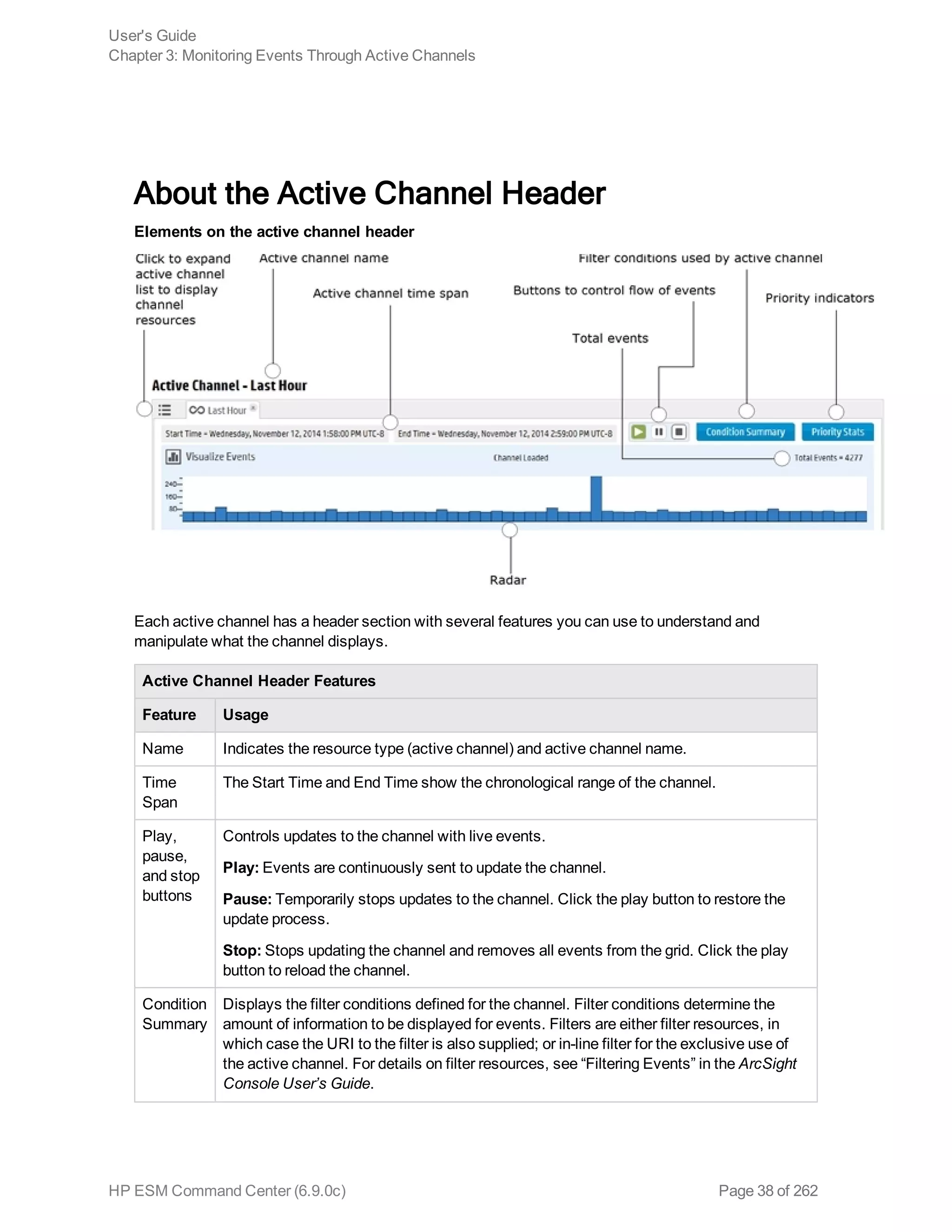
Elements on the active channel header
Each active channel has a header section with several features you can use to understand and
manipulate what the channel displays.
Active Channel Header Features
Feature Usage
Name Indicates the resource type (active channel) and active channel name.
Time
Span
The Start Time and End Time show the chronological range of the channel.
Play,
pause,
and stop
buttons
Controls updates to the channel with live events.
Play: Events are continuously sent to update the channel.
Pause: Temporarily stops updates to the channel. Click the play button to restore the
update process.
Stop: Stops updating the channel and removes all events from the grid. Click the play
button to reload the channel.
Condition
Summary
Displays the filter conditions defined for the channel. Filter conditions determine the
amount of information to be displayed for events. Filters are either filter resources, in
which case the URI to the filter is also supplied; or in-line filter for the exclusive use of
the active channel. For details on filter resources, see “Filtering Events” in the ArcSight
Console User’s Guide.
User's Guide
Chapter 3: Monitoring Events Through Active Channels
HP ESM Command Center (6.9.0c) Page 38 of 262
Active Channel Header Features
Feature Usage
Priority
Stats
Displays event priority statistic indicators and their corresponding event count.
For details about event priority scoring, see the topic, “Priority Calculations and Ratings”
in the Reference Guide section of the ArcSight Console User’s Guide.
Visualize
Events
button
Allows selection of up to four event fields (columns) on the channel to display in the
graphical format of widgets. The results are displayed in the "Visualize Events tab"
below.
Channel
status
Indicates status, for example, Channel Loaded.
Total
Events
The total number of events received in the timeframe.
Note: The event count function on active channels only reports live events, not replay
events. If you prefer to see a count of all events coming through during a particular
period, you should create a query viewer or report. If you want a count of only replay
events, the event count in a replay channel will provide an accurate count of all replay
events within a specific time window. Refer to the topics, “Building Reports” and “Query
Viewers” in the ArcSight Console User’s Guide.
Selected
Events
The events within a time segment selected on the radar. If a segment is not selected, the
value equals Total Events. See "Using the Active Channel Radar" below for details.
Radar
display
operation
A bar chart overview of events in the active channel. See "Using the Active Channel
Radar" below for details.
Event
Grid tab
Displays a grid view of incoming events.
Visualize
Events
tab
Created after you click Visualize Events and select the event fields (columns) to be
rendered in the graphical format of these widgets:
l Event Count
l Top 10 Row Chart for each selected event fields (up to four)
l Pie chart for the Priority event field
Using the Active Channel Radar
The radar consists of a bar chart overview of events on the active channel. It is divided into time
segments sorted by event end time, each segment representing groups of events with the same end
time.
User's Guide
Chapter 3: Monitoring Events Through Active Channels
HP ESM Command Center (6.9.0c) Page 39 of 262
The radar indicates the activity taking place in the entire channel, not just the current page. Its graphics
represent units of time horizontally, and numbers of events vertically representing Priority attribute-
value counts. The time and quantity scales in the graphic automatically adjust to accommodate the
scope of the channel. The broader the scope, the smaller the graphical units.
Use the radar to focus events on selected time segments.
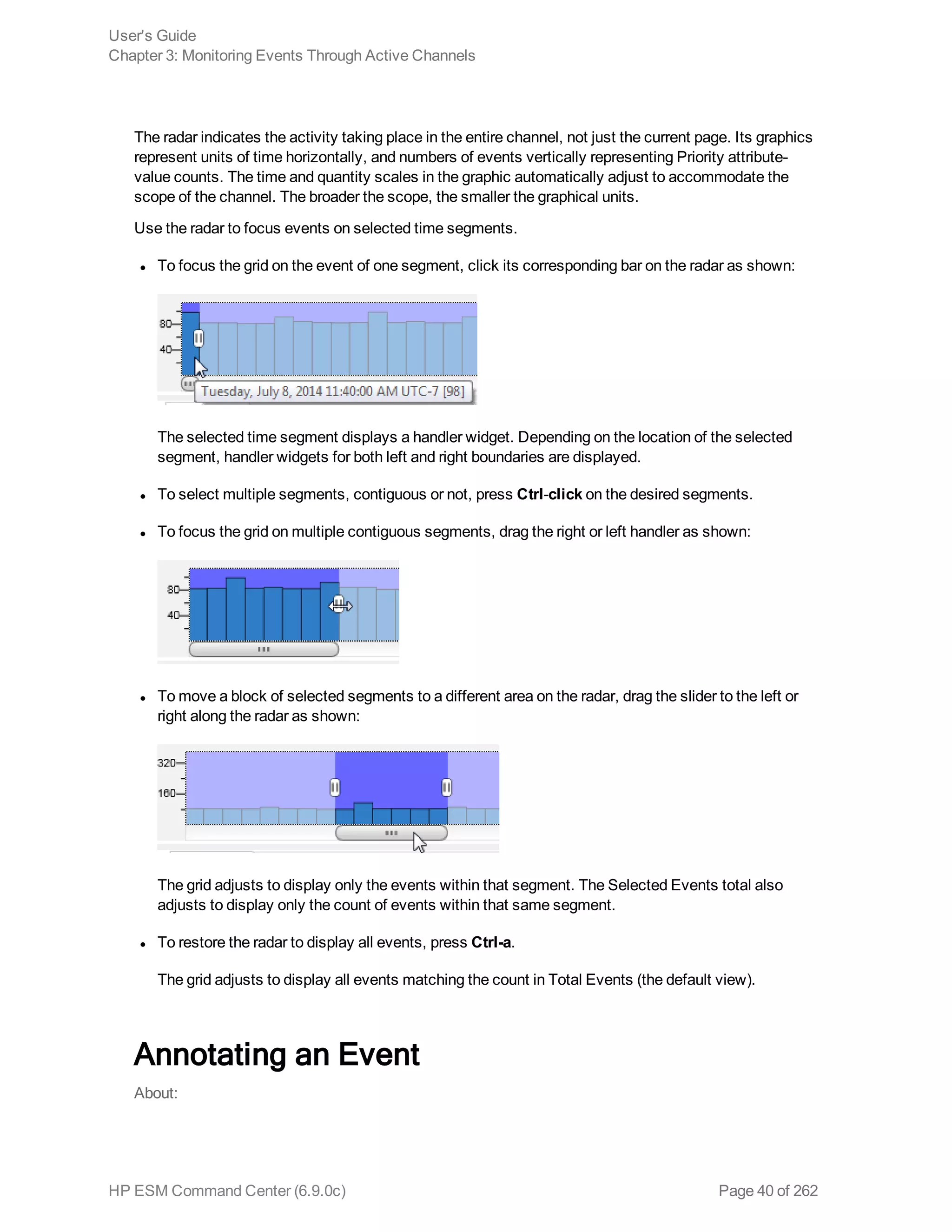
l To focus the grid on the event of one segment, click its corresponding bar on the radar as shown:
The selected time segment displays a handler widget. Depending on the location of the selected
segment, handler widgets for both left and right boundaries are displayed.
l To select multiple segments, contiguous or not, press Ctrl-click on the desired segments.
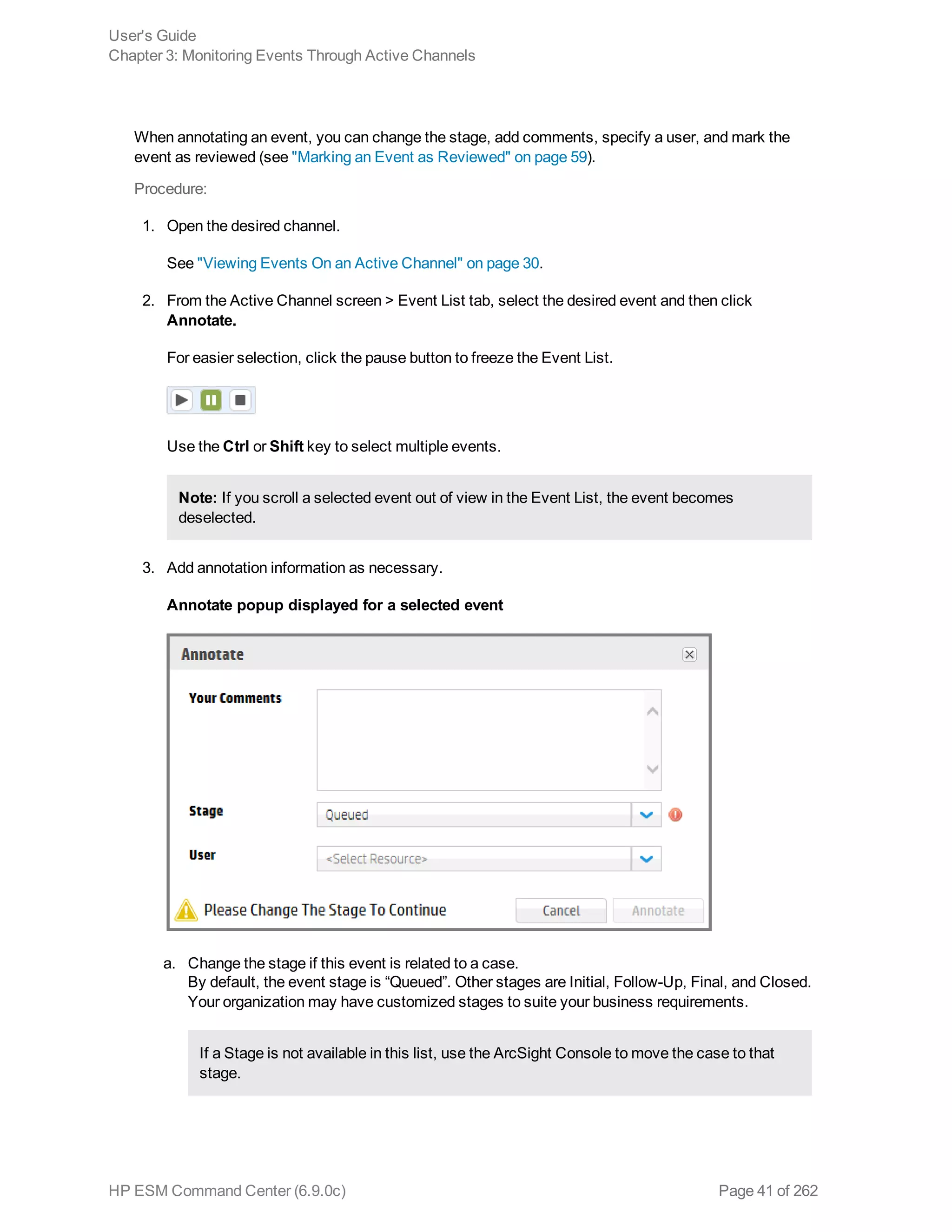
l To focus the grid on multiple contiguous segments, drag the right or left handler as shown:
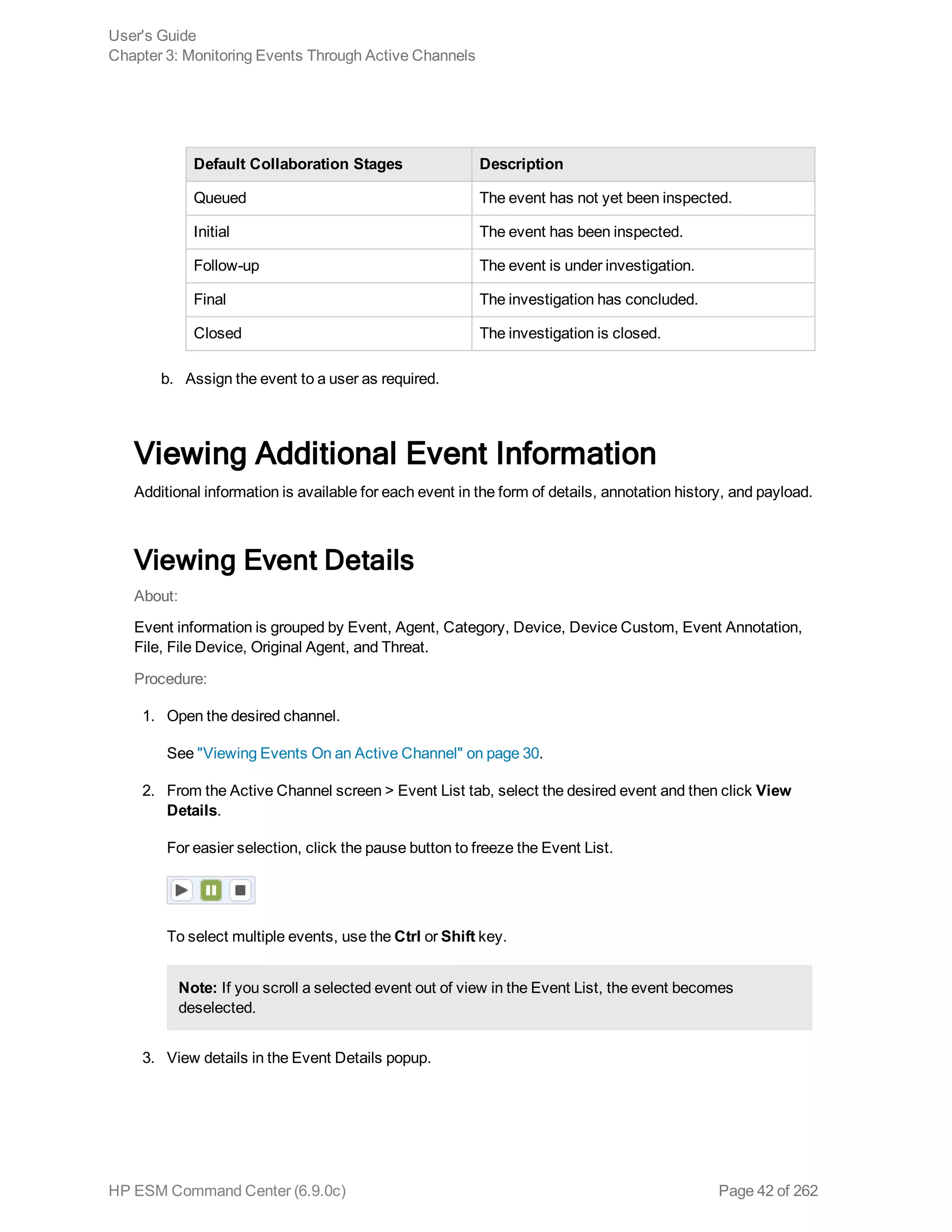
l To move a block of selected segments to a different area on the radar, drag the slider to the left or
right along the radar as shown:
The grid adjusts to display only the events within that segment. The Selected Events total also
adjusts to display only the count of events within that same segment.
l To restore the radar to display all events, press Ctrl-a.
The grid adjusts to display all events matching the count in Total Events (the default view).
Annotating an Event
About:
User's Guide
Chapter 3: Monitoring Events Through Active Channels
HP ESM Command Center (6.9.0c) Page 40 of 262
When annotating an event, you can change the stage, add comments, specify a user, and mark the
event as reviewed (see "Marking an Event as Reviewed" on page 59).
Procedure:
1. Open the desired channel.
See "Viewing Events On an Active Channel" on page 30.
2. From the Active Channel screen > Event List tab, select the desired event and then click
Annotate.
For easier selection, click the pause button to freeze the Event List.
Use the Ctrl or Shift key to select multiple events.
Note: If you scroll a selected event out of view in the Event List, the event becomes
deselected.
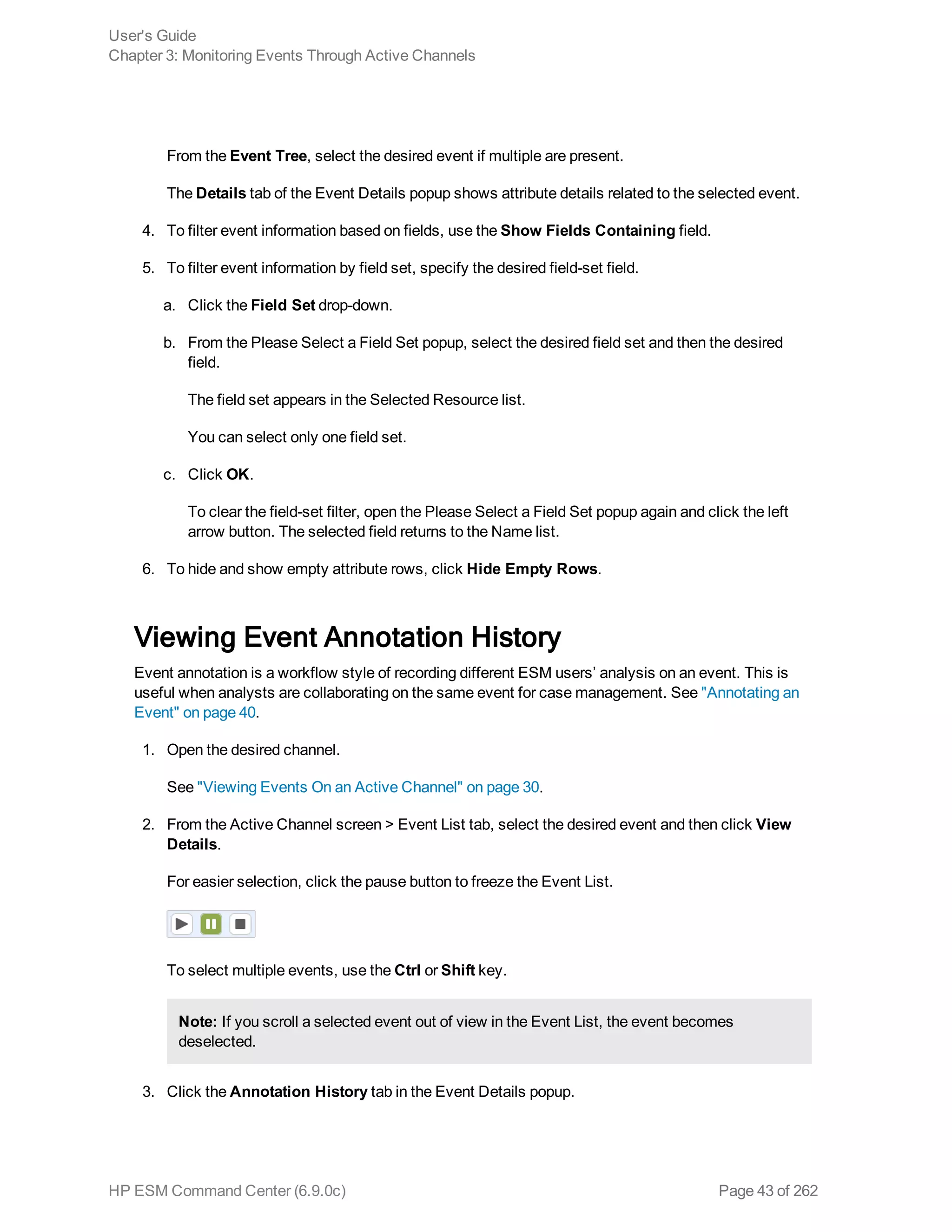
3. Add annotation information as necessary.
Annotate popup displayed for a selected event
a. Change the stage if this event is related to a case.
By default, the event stage is “Queued”. Other stages are Initial, Follow-Up, Final, and Closed.
Your organization may have customized stages to suite your business requirements.
If a Stage is not available in this list, use the ArcSight Console to move the case to that
stage.
User's Guide
Chapter 3: Monitoring Events Through Active Channels
HP ESM Command Center (6.9.0c) Page 41 of 262
Default Collaboration Stages Description
Queued The event has not yet been inspected.
Initial The event has been inspected.
Follow-up The event is under investigation.
Final The investigation has concluded.
Closed The investigation is closed.
b. Assign the event to a user as required.
Viewing Additional Event Information
Additional information is available for each event in the form of details, annotation history, and payload.
Viewing Event Details
About:
Event information is grouped by Event, Agent, Category, Device, Device Custom, Event Annotation,
File, File Device, Original Agent, and Threat.
Procedure:
1. Open the desired channel.
See "Viewing Events On an Active Channel" on page 30.
2. From the Active Channel screen > Event List tab, select the desired event and then click View
Details.
For easier selection, click the pause button to freeze the Event List.
To select multiple events, use the Ctrl or Shift key.
Note: If you scroll a selected event out of view in the Event List, the event becomes
deselected.
3. View details in the Event Details popup.
User's Guide
Chapter 3: Monitoring Events Through Active Channels
HP ESM Command Center (6.9.0c) Page 42 of 262
From the Event Tree, select the desired event if multiple are present.
The Details tab of the Event Details popup shows attribute details related to the selected event.
4. To filter event information based on fields, use the Show Fields Containing field.
5. To filter event information by field set, specify the desired field-set field.
a. Click the Field Set drop-down.
b. From the Please Select a Field Set popup, select the desired field set and then the desired
field.
The field set appears in the Selected Resource list.
You can select only one field set.
c. Click OK.
To clear the field-set filter, open the Please Select a Field Set popup again and click the left
arrow button. The selected field returns to the Name list.
6. To hide and show empty attribute rows, click Hide Empty Rows.
Viewing Event Annotation History
Event annotation is a workflow style of recording different ESM users’ analysis on an event. This is
useful when analysts are collaborating on the same event for case management. See "Annotating an
Event" on page 40.
1. Open the desired channel.
See "Viewing Events On an Active Channel" on page 30.
2. From the Active Channel screen > Event List tab, select the desired event and then click View
Details.
For easier selection, click the pause button to freeze the Event List.
To select multiple events, use the Ctrl or Shift key.
Note: If you scroll a selected event out of view in the Event List, the event becomes
deselected.
3. Click the Annotation History tab in the Event Details popup.
User's Guide
Chapter 3: Monitoring Events Through Active Channels
HP ESM Command Center (6.9.0c) Page 43 of 262
From the Event Tree, select the desired event if multiple are present.
“Hidden” appears in the Flags column if you specified “Flagged as Similar” for the event stage
name. This event is hidden from all but the assigned users.
“Is Reviewed” appears under Flags if you marked an event as reviewed (see "Marking an Event as
Reviewed" on page 59).
Viewing Event Payload
An event payload is the information carried in the body of the event's network packet, separate from the
packet's header data. See “Payload,” in the “Reference Guide” section of the ArcSight Console User’s
Guide.
1. Open the desired channel.
See "Viewing Events On an Active Channel" on page 30.
2. From the Active Channel screen > Event List tab, select the desired event and then click View
Details.
For easier selection, click the pause button to freeze the Event List.
To select multiple events, use the Ctrl or Shift key.
Note: If you scroll a selected event out of view in the Event List, the event becomes
deselected.
3. Click the Payload tab in the Event Details popup.
A preserved payload remains attached to the event.
When you download a payload to a desired location, the payload still remains attached to the
event.
Note: Command Center may not display non-ASCII payload data. Therefore, if the
Download Payload button is enabled, yet no data appears in the Event Details popup, click
Download Payload to download the data to a simple text editor, such as Notepad.
User's Guide
Chapter 3: Monitoring Events Through Active Channels
HP ESM Command Center (6.9.0c) Page 44 of 262
Managing Channels
You can create two types of event channels: One based on the attributes of an existing channel and
one created afresh.
CAUTION: It is possible for multiple users to edit channels and channel dependencies in both
Console and ESM Command Center at the same time. If another user changes a channel (or a
resource that a channel depends on) at the same time you do, you may see unexpected
information or behavior in Command Center. This is caused by information in your browser being
out of sync with the most recent change. If this happens, refresh the list (fieldset, channel, etc.)
using the refresh icon or close and reopen the popup to update the information.
Creating an Event Channel
About:
Create an event channel to monitor events on a network.
Procedure:
Location: Events menu > Active Channels > Active Channel - list screen > resource tree
1. Select the desired active channel folder.
2. Click New.
The New Channel popup opens.
3. Specify the channel name.
4. To specify the channel time attributes, refer to the following information:
Time
Attribute Usage
Start Time The relative or absolute time reference that begins the period to track events in the
channel. To specify the time expression, make a selection from the Start Time
drop-down menu.
Note: If a channel is open when Daylight Savings Time starts or ends, it does not
show the correct start time until you restart it.
For a list of possible time values see the Start Time: field pull-down menu.
User's Guide
Chapter 3: Monitoring Events Through Active Channels
HP ESM Command Center (6.9.0c) Page 45 of 262
Time
Attribute Usage
End Time The relative or absolute time that ends the period to actively track the events in
the channel. To specify the time expression, make a selection from the End Time
drop-down menu.
Notes:
n If a channel is open when Daylight Savings Time starts or ends, the live
channel does not show the correct start time until you restart it.
Use as
Timestamp
Choose the event-timing phase that best supports your analysis. End Time
represents the time the event ended, as reported by the device. Manager Receipt
Time is the recorded arrival time of an event at the ArcSight Manager.
Time
Evaluation
Choose whether the channel will be Continuously Evaluate (like $Now) to
show events that are qualified by Start and End times which are re-evaluated
constantly while the channel is running, or Snapshot to show only the events that
qualify when the channel is first run.
A channel set to Continuously evaluate is also known as a sliding channel, and
typically has its End Time option set to $Now.
Start Time
Period Description
$Now - 30m The current minute minus 30 minutes
$Now The current minute
$Now - 1h The current minute minus one hour
$Now - 1d The current minute minus one day
$Today Midnight (the beginning of the first minute) of the current day
$Today - 1d Midnight (the beginning of the first minute) of the current day minus one
day
$Today - 1w Midnight (the beginning of the first minute) of the current day minus one
week
Custom The day and time for the start time.
User's Guide
Chapter 3: Monitoring Events Through Active Channels
HP ESM Command Center (6.9.0c) Page 46 of 262
Start Time Unit Description
m (lowercase) Minutes (Do not confuse with ‘M’, meaning months.)
h Hours
d Days
w Weeks
M (uppercase) Months (Do not confuse with ‘m’, meaning minutes.)
5. To specify columns for the active channel grid view, click Configure Field Set.
See "Specifying Columns For Active Channel Event List" below.
6. To add a filter to the channel, click Configure Filter to add filter conditions in the Common
Conditions Editor (CCE).
See " Specifying Filter Conditions for an Active Channel" on the next page.
7. To validate the filter, choose Operations > Validate.
Command Center interactively checks condition statements as you add them. The validate option
checks the condition statements collectively to ensure operators are used correctly.
The Validate Filter popup appears with the status of the filter. If there is a violation, edit the filter
conditions.
8. To edit filter conditions, choose either Operations > Summary and make changes directly in the
SQL code, or right click the desired condition statement and make a selection form the extended
menu.
Specifying New Condition from the extension menu creates a condition, at the specified location,
that is in agreement with the selected condition.
9. Click Update Filter Configuration and then Save in the top half of the dialog box.
See Also:
"Creating a Channel Based on an Event Attribute" on page 53
Specifying Columns For Active Channel Event List
About:
The columns in the active channel Event List are based on the fields in a configured field set.
Prerequisite:
Create an event channel.
User's Guide
Chapter 3: Monitoring Events Through Active Channels
HP ESM Command Center (6.9.0c) Page 47 of 262
See "Creating a Channel Based on an Event Attribute" on page 53 or "Creating an Event Channel" on
page 45.
Procedure:
Location: Events menu > Active Channels > Active Channel - list screen > resource tree
1. Select the desired active channel folder.
Note: For a channel based on the attribute of an existing channel, Command Center stores
the channel in the "admin's Active Channel" folder, by default.
2. Do one of the following:
n Click New.
The New Channel popup opens.
n From the channel table, select the desired channel without clicking the Display Name link, and
then click Edit.
The Edit Channel popup opens.
3. Click Configure Field Set.
4. From the navigation folders on the bottom left, select the desired field set folder and then select
the desired field set from the Display Name column.
5. Click Update Field Set and then Save Channel.
Specifying Filter Conditions for an Active Channel
About:
You can specify filter conditions at channel creation or during a channel edit.
Prerequisite:
Create an event channel in order to edit filter conditions.
See "Creating an Event Channel" on page 45 or "Creating a Channel Based on an Event Attribute" on
page 53.
Procedure:
Location: Events menu > Active Channels > Active Channel - list screen > resource tree
1. Select the desired active channel folder.
Note: For a channel based on the attribute of an existing channel, Command Center stores
User's Guide
Chapter 3: Monitoring Events Through Active Channels
HP ESM Command Center (6.9.0c) Page 48 of 262
the channel in the "[user]'s Active Channel" folder, by default. NOTE: The [user] value is the
currently logged in username.
2. Do one of the following:
n Click New.
The New Channel popup opens.
n From the channel table, select the desired channel without clicking the Display Name link, and
then click Edit.
The Edit Channel popup opens.
3. Click Configure Filter.
The Common Conditions Editor (CCE) opens in the lower half of the popup, where you specify the
conditions for the channel filter. You can refine your view of a channel to show only the events you
want to see. For instance, suppose you have an active channel that includes both system and
non-system events, but you want to see only the non-system events. You can filter out the
system events.
From the CCE, Boolean logic is represented in a user-friendly manner, giving you the ability to
easily create conditions.
Since the filter is created within the channel, the filter works only for the channel.
To edit a Condition in the filter, double-click on the condition. The statement editor will appear in
the popup.
4. From the CCE, add a logical operator from the Logical Operator button area.
You must include an Operator if you create two or more condition statements in the filter. An
Operator is not required if the filter contains one condition statement only. Use the AND, OR, and
NOT operators to define the full condition statement.
Logical
Operator Name Use
{} New Event
Definition
Creates a new condition tree.
& AND The new condition has to occur in addition to existing
conditions.
User's Guide
Chapter 3: Monitoring Events Through Active Channels
HP ESM Command Center (6.9.0c) Page 49 of 262
Logical
Operator Name Use
|| OR Either the new condition or any existing conditions have to
occur.
!= NOT All but the new condition has to occur.
5. From the toolbar in the Configure Filter area, specify a condition.
Filter
Condition Description
Fields You can specify fields with particular values as part of conditions statements.
Filters A filter limits what events a channel displays. If the criteria of the condition are
met, the evaluation returns true or false. Events that do not meet the
condition or conditions are not evaluated further, but they are preserved in the
data store.
If there are existing filter conditions, you can tie them to the added filter
condition with a logical operator.
Assets Once assets are added to your network model, you can select them in order to
write conditions that help you analyze their role in the event traffic they
process. You can select an asset to add to filters as a new condition.
Asset conditions state whether your enterprise assets are targets or sources of
events. An asset condition states “if an event occurs and the selected asset is
the source or target, generate a correlation event.”
If there are existing filter conditions, you can tie them to the asset condition
with a logical operator. If AND is used, all the existing conditions and the asset
condition must occur in the event. If OR is used, either the existing conditions
or the asset condition must occur. If NOT is used, all but the asset condition
must occur.
Vulnerabilities Specify the conditions of any hardware, firmware, or software state that leaves
an asset open for potential exploitation.
If there are existing filter conditions, you can tie them to the vulnerability
condition with a logical operator. If AND is used, all the existing conditions and
the vulnerability condition must occur in the event. If OR is used, either the
existing conditions or the vulnerability condition must occur. If NOT is used, all
but the vulnerability condition must occur.
User's Guide
Chapter 3: Monitoring Events Through Active Channels
HP ESM Command Center (6.9.0c) Page 50 of 262
a. To specify a Field Condition, select the Current Filter node or position the cursor in the desired
location in the condition statements, click the Fields condition button , and then select the
desired field from the area at the bottom right.
You can use the Show Fields Containing field to locate a field. Start typing the name of the
field, and the list will be actively filtered based on the text entered. Select a field from the list
by double-clicking it in the field table.
Note: Field types of BitSet, Enumeration, IPv6Address, and MacAddress are not
supported in ACC. In addition, the Customer ID, Domain, Event Annotation Flags, and
Generator fields are not supported. None of these appear in the field table. You cannot
edit them in the Edit Channel popup. Certain fields, such as Event ID, have a limited set
of operators provided. You will see a reduce set of operators in the Operator drop-down,
compared to the Console.
b. Specify the field value in the Value field.
To change the field or operator, use the Field and Operator fields, respectively.
c. Click Apply Condition.
Starting with the addition of a logical operator, use the above steps to add any other field
conditions.
d. Click Update Filter Configuration.
e. To specify a Filter Condition, select a location in the condition statements list, and then click
the Filters condition button . Select the desired filter from the area at the bottom right.
f. Click Apply Condition to add the condition to the filter.
g. To specify an Asset Condition, select a location in the condition statements list, and then
click the Asset condition button . Select the desired asset from the area at the bottom right.
This list of Assets is larger than in console.
The value selected from the <xxx> Asset ID drop-down menu, the checkbox, the value
selected in the NULL/NOT NULL drop-down menu, and the Selected Resource group (under
the Asset Category, Asset, or Zones tab) work together to define the Asset Condition
statement. Selecting the checkbox enables the "is NULL" qualifier of the statement. When
enabled, it the statement evaluates whether the attribute does not exist in the Selected
Resource group. When the checkbox is not selected, the statement evaluates whether the
attribute value DOES exist.
User's Guide
Chapter 3: Monitoring Events Through Active Channels
HP ESM Command Center (6.9.0c) Page 51 of 262
Asset Condition filters select Events where the attribute you specified contains a value that is
also found in the:
- Asset Category (if you selected an item under the Asset Categories tab)
- Asset Group (if you selected an item under the Assets tab)
- Zone Group (if you selected an item under the Zones tab)
To create a condition that selects an individual Asset by its unique ID or name, use the Field
Condition and then specify the value directly.
h. Select an asset or group and then click Apply Condition.
i. Click Update Filter Configuration.
j. To specify a Vulnerability Condition, select a location in the condition statements list, and
then click the Vulnerability condition button . Select the desired vulnerability from the
area at the bottom right.
k. To include any assets in the filter that could be impacted by the selected vulnerability, select
the a value from the <xxx> Asset ID drop-down list (for example, Agent Asset ID).
Repeat this step for each condition statement you want to include in the channel filter.
6. To validate the filter, choose More Options: Operations > Validate.
Command Center interactively checks condition statements as you add them. The validate option
checks the condition statements collectively to ensure operators are used correctly.
The Validate Filter popup appears with the status of the filter. If there is a violation, edit the filter
conditions.
7. To edit filter conditions, right click the desired condition statement and then choose either Edit or
Remove.
This choice displays the appropriate work area at the bottom right.
8. To view the logic of the filter conditions, choose Operations > Summary.
9. Click Update Filter Configuration and then Save Channel in the top portion of the dialog box.
Note
When creating an Asset Filter, ESM Command Center will not display Assets (under the Assets tab)
that have the Asset Disabled flag set. You access this list in the New (or Edit) Channel pop up
> Configure Filter > Asset Filter Condition statement options.
You can create a Field condition statement for any field that stores an IP Address and then use the
InSubnet operator to evaluate the network (or network and subnet) portion of an IP address, rather than
User's Guide
Chapter 3: Monitoring Events Through Active Channels
HP ESM Command Center (6.9.0c) Page 52 of 262
a full IP address. When providing a value for the statement, use an asterisk (*) as the wild card. For
example, the following are valid values.
Pattern Description
1.1.1.* Using * as the wildcard to specify all addresses
within a block.
1.1.1.1 - 1.1.1.10 Explicitly define a range of IP addresses.
1.1.1.* - 1.1.2.* Using * as the wildcard to specify a range of
IP addresses in one or more blocks.
See Also:
"Editing an Event Channel" on page 55
Creating a Channel Based on an Event Attribute
About:
You can further investigate a channel event attribute by creating a new channel based on that attribute.
In addition to all the attributes of the originating channel, the new channel now collects greater detail on
the specified attribute.
Because Command Center only supports basic event fields, such as name, attacker address, target
address, target port, and priority, channel creation is limited to the attributes provided by these fields.
Note: If the channel that you are investigating originated in the ArcSight Console and contains
event fields not supported in Command Center, these unsupported event fields will not be lost and
can be viewed in the ArcSight Console.
Procedure:
1. Open the desired channel.
See "Viewing Events On an Active Channel" on page 30.
2. From the Active Channel screen > Event List tab, click the desired event link.
For easier selection, click the pause button to freeze the Event List.
3. Select the desired command from the extended menu.
User's Guide
Chapter 3: Monitoring Events Through Active Channels
HP ESM Command Center (6.9.0c) Page 53 of 262
A new view that is a subset of the main active channel is created. Note that the total events count
is less than the parent channel’s total.
Option Use
Create Channel
[attribute=value]
Show only those events in which the selected attribute matches the
value in the selected event.
Create Channel
[attribute!=value]
Show only those events in which the selected attribute does not match
the value in the selected event.
Add [attribute=value]
to Channel
Show only those events that match both the prior and new filter
elements.
Add [attribute!=value]
to Channel
Show only those events that do not match both the prior and new filter
elements.
4. To save the new channel, click Save As and do one the following in the Save Channel As dialog:
n Accept the default channel location - Specify the channel name and accept “admin’s Active
Channels” in the Location drop-down.
n Specify an alternate channel location - Specify the channel name, click the Location drop-
down and then make the appropriate selection from the Select popup.
Note: If you choose a folder that has a parent, you must first select the parent folder from
the left folder navigation and then select the child folder from the "Display Name" column.
Direct selection of a child folder is not supported. This design helps to simplify the
selection of a child folder that is multiple levels deep in a folder structure.
5. Click OK.
6. To view the new channel in the default folder, or alternative folder that you may have specified,
click the resource tree tab.
See Also:
"Editing an Event Channel" on the next page
"Creating an Event Channel" on page 45
User's Guide
Chapter 3: Monitoring Events Through Active Channels
HP ESM Command Center (6.9.0c) Page 54 of 262
Editing an Event Channel
About:
You can edit an event channel either created from an attribute of an existing channel or one created
afresh.
Procedure:
Location: Events menu > Active Channels > Active Channel - list screen > resource tree
Note: For a channel based on the attribute of an existing channel, Command Center stores the
channel in the "admin's Active Channel" folder, by default.
1. Select the desired active channel folder.
2. From the channel table, select the desired channel without clicking the Display Name link, and
then click Edit.
The Edit Channel popup opens.
User's Guide
Chapter 3: Monitoring Events Through Active Channels
HP ESM Command Center (6.9.0c) Page 55 of 262
3. To change the channel name and or time attributes, refer to the following information:
Time
Attribute Usage
Start Time The relative or absolute time reference that begins the period to track events in the
channel. To specify the time expression, make a selection from the Start Time
drop-down menu.
Note: If a channel is open when Daylight Savings Time starts or ends, it does not
show the correct start time until you restart it.
For a list of possible time values see the Start Time: field pull-down menu.
End Time The relative or absolute time that ends the period to actively track the events in
the channel. To specify the time expression, make a selection from the End Time
drop-down menu.
Notes:
n If a channel is open when Daylight Savings Time starts or ends, the live
channel does not show the correct start time until you restart it.
n If setting the End Time results in the message “Invalid end date for sliding
channel,” the channel is set to Continuous evaluation instead of Evaluate
once. Either re-set the End Time or change the Time Parameters option for the
channel to Continuous evaluation.
n Avoid creating an active channel that queries more than once per day.
Use as
Timestamp
Choose the event-timing phase that best supports your analysis. End Time
represents the time the event ended, as reported by the device. Manager Receipt
Time is the recorded arrival time of an event at the ArcSight Manager.
Time
Evaluation
Choose whether the channel will be Continuously Evaluate (like $Now) to
show events that are qualified by Start and End times which are re-evaluated
constantly while the channel is running, or Snapshot to show only the events that
qualify when the channel is first run.
A channel set to Continuously evaluate is also known as a sliding channel, and
typically has its End Time option set to $Now.
4.
Period Description
$Now The current minute
Current Period
User's Guide
Chapter 3: Monitoring Events Through Active Channels
HP ESM Command Center (6.9.0c) Page 56 of 262
Period Description
$Today Midnight (the beginning of the first minute) of the current day
$CurrentWeek Midnight of the previous Monday (or same as $Today if today is Monday)
$CurrentMonth Midnight on the first day of the current month
$CurrentYear Midnight on the first day of the current year
Current Period, continued
Unit Description
m (lowercase) Minutes (Do not confuse with ‘M’, meaning months.)
h Hours
d Days
w Weeks
M (uppercase) Months (Do not confuse with ‘m’, meaning minutes.)
Units
5. To specify columns for the active channel grid view, click Configure Field Set.
See "Specifying Columns For Active Channel Event List" on page 47.
6. To add a filter to the channel, click Configure Filter to add filter conditions in the Common
Conditions Editor (CCE).
See " Specifying Filter Conditions for an Active Channel" on page 48.
7. To validate the filter, choose Operations > Validate.
Command Center interactively checks condition statements as you add them. The validate option
checks the condition statements collectively to ensure operators are used correctly.
The Validate Filter popup appears with the status of the filter. If there is a violation, edit the filter
conditions.
8. To edit filter conditions, right click the desired condition statement and make a selection from the
extended menu.
Selecting a New Condition button creates a condition, at the specified location, that is in
agreement with the selected condition.
9. Click Update Filter Configuration and then Save Channel in the top half of the dialog box.
See Also:
User's Guide
Chapter 3: Monitoring Events Through Active Channels
HP ESM Command Center (6.9.0c) Page 57 of 262
l "Creating an Event Channel" on page 45
l "Creating a Channel Based on an Event Attribute" on page 53
Deleting an Event Channel
About:
You can delete an event channel either created from an attribute of an existing channel or one created
afresh.
Procedure:
Location: Events menu > Active Channels > Active Channel - list screen > resource tree
1. Click Events > Active Channels.
2. Expand the appropriate active channel folder in the resource tree and then click the desired folder.
Channels associated with the folder appear in a table in the center of the screen, as seen in the
following typical view of active channels.
3. Click in the row of the desired channel, without clicking on the Display Name link.
4. With the channel row highlighted, click Delete.
Adding an Event to a Case
About:
While monitoring suspicious events, you can choose an event on an active channel and add this event
to an existing, locked case.
Note: A case must be locked in order to edit it. This prevents other users from modifying the case
while you are adding an event.
On the channel, the events are available based on the retention period of the Default Storage Group
(see "Storage" on page 179).
Caution: Events added to a case are accessible in the context of that case to any user who has
permissions to view or edit the case. Even users who do not have permissions on the events
themselves have permissions to view full events in the context of a case to which they have
permissions.
Consider this when adding events to a case and setting access control lists (ACLs) on cases (see
"User Management" on page 155).
Procedure:
User's Guide
Chapter 3: Monitoring Events Through Active Channels
HP ESM Command Center (6.9.0c) Page 58 of 262
1. Open the desired channel.
See "Viewing Events On an Active Channel" on page 30.
2. From the Active Channel screen > Event List tab, select the desired event and then click Add to
Case.
For easier selection, click the pause button to freeze the Event List.
Use the Ctrl or Shift key to select multiple events.
Note: If you scroll a selected event out of view in the Event List, the event becomes
deselected.
3. From the popup, select the desired case from the appropriate case folder and then click OK.
4. To verify the events in the case, open the case in the Cases tab.
Marking an Event as Reviewed
Procedure:
1. Open the desired channel.
See "Viewing Events On an Active Channel" on page 30.
2. From the Active Channel screen > Event List tab, select the desired event and then click View
Details.
Click the pause button to freeze the Event List for easier selection.
Use the Ctrl or Shift key to select multiple events.
Note: If you scroll a selected event out of view in the Event List, the event becomes
deselected.
The “Is Reviewed” flag appears in the Annotation History tab of the Events Details popup.
User's Guide
Chapter 3: Monitoring Events Through Active Channels
HP ESM Command Center (6.9.0c) Page 59 of 262
Visualizing an Event Graphically
About:
Through the use of widgets, you can view field information for events. You can choose the type of field
information to display and the range of events for which this information should appear.
Note: Command Center can support only one visualization view per browser window session.
Procedure:
1. Open the desired channel.
See "Viewing Events On an Active Channel" on page 30.
2. From the Active Channel screen, click the pause button.
Pausing the channel event flow helps to ensure the proper selection of time intervals (buckets).
3. To select events over a specific period of time, make a selection from the Active Channel Radar.
See "Using the Active Channel Radar" on page 39.
Note: Command Center can accept a maximum of 100,000 events for visualization. Any
events in excess of this limit will cause event visualization to be disabled. In this case,
reduce the range of events on the Active Channel Radar. If a channel has too many events,
using the correct filter can reduce the amount of events and make visualization possible.
4. Click Visualize Events.
5. From the Select Fields to Visualize popup, specify the desired event field(s) and then click
Visualize Events.
The specified event fields are represented by widgets in the Visualize Events tab of the Active
Channel screen. A widget is in the form of a “Top 10 Row Chart”, or a pie chart for the Priority
event field. (The event fields are represented by columns in the Event List tab.)
The Event Count widget opens in addition to the other widget(s) you specify. The Event Count
widget is used to reduce the range of events for which you want to view information in the
specified widgets.
6. To select a range of events, drag the plus cursor (+) across the desired time range in the Event
Count widget.
User's Guide
Chapter 3: Monitoring Events Through Active Channels
HP ESM Command Center (6.9.0c) Page 60 of 262
The selected range appears between handles. Use these handles to change the event range.
Note: If the specified time range is very narrow and the number of events in this range is low,
the Event Count widget will be empty.
Click Reset All Filters to restore all open widgets to reflect the full range of events.
User's Guide
Chapter 3: Monitoring Events Through Active Channels
HP ESM Command Center (6.9.0c) Page 61 of 262
Chapter 4: About Searching for Events
This chapter describes how to search for specific events. It describes the methods available for
search, how to query for events, how to save a defined query, and the events that the query finds for
future use. This chapter also describes how to set up alerts to be notified when events matching the
criteria you specified are received.
The Need to Search for Events
When you want to analyze events matching specific criteria, include them in a report, or forward them
to another system, you need to search for them. To search for events, you create queries. The queries
you create can vary in complexity based on your needs. Queries can be simple search terms or they
can be complex enough to match events that include multiple IP addresses or ports, and that occurred
between specific time ranges from a specific storage group.
The Process of Searching for Events
The search process uses an optimized search language that allows you to specify multiple search
commands in a pipeline format. In addition, you can customize the display of search results, view
search results as charts, and so on.
To run a search, is to enter the keywords or information you are searching for (the query) in the Search
text box, select the time range, and click Go!
You can enter a simple keyword, such as, hostA.companyxyz.com or a complex query that includes
Boolean expressions, keywords, fields, and regular expressions. The system searches for data that
matches the criteria you specified and displays the results on the page where you entered your query.
The search results are displayed in a table and as a histogram as soon as they are returned, even if the
query has not finished scanning all data. For an example, see "Simple Query Example" on the next
page.
You can also add a chart to your search to display the most important information in a more meaningful
fashion. Charts are not displayed until all the data is returned. For an example, see "Query Example
Using a Chart" on the next page.
There are several convenient ways to enter a search query—Typing the query in the Search text box,
using the Search Builder tool to create a query, or using a previously saved query (referred to as a filter
or saved search).
When you type a query, the Search Helper provides suggestions and possible matches to help you
build the query expression. (See "Search Helper" on page 94 for more information.)
In addition to typing the query in the Search text box, you can do the following:
HP ESM Command Center (6.9.0c) Page 62 of 262
l Create queries by using the Advanced Search tool. For more information, see "Using the Advanced
Search Tool" on page 88.
l Save queries and use them later. For more information, see "Saved Queries (Search Filters and
Saved Searches)" on page 118.
l Create new queries from the predefined queries that come with your system. For more information,
see "Predefined Search Filters" on page 122
Although a search query can be as simple as a keyword, you will be better able to utilize the full
potential of the search operation if you are familiar with all the elements of a query, as described in the
next section, "Elements of a Search Query" on the next page.
Simple Query Example
This example query finds events containing the word “warning”.
Type the following query in the search box and then click Go!
warning
Query Example Using a Chart
Aggregated search operators such as chart, top, and rare generate charts of search results. This
example query finds events containing the word “warning” and charts the number of warnings for each
name.
Type the following query in the search box and then click Go!
warning | chart count by name
User's Guide
Chapter 4: About Searching for Events
HP ESM Command Center (6.9.0c) Page 63 of 262
For more information on the search operators, see "Search Operators" on page 225. For more
information on creating and using charts, see "Chart Drill Down" on page 108 and "Refining and
Charting a Search from Field Summary" on page 113.
Elements of a Search Query
A simple search query consists of these elements:
l Query expression
l Time range
l Fieldset
An advanced search query can also include constraints that limit the search to specific storage groups
and peers. For information about storage groups and peers, see "Storage" on page 179 and "Peers" on
page 216.
Query Expressions
A query expression is a set of conditions that are used to select events when a search is performed. An
expression can specify a very simple term to match such as “login” or an IP address; or it can be more
User's Guide
Chapter 4: About Searching for Events
HP ESM Command Center (6.9.0c) Page 64 of 262
complex enough to match events that include multiple IP addresses or ports, and that occurred
between specific time ranges from a specific storage group.
Specify the query in the Search text box by using the following syntax:
<Search Expression> | <Search Operators>
The query expression is evaluated from left to right in a pipeline fashion. First, events matching the
specified search expression are found. The search operator after the first pipe (“|”) character is then
applied to the matched events followed by the next search operator, and so on to further refine the
search results.
The search results table and the histogram display the events that match the query as they are found.
As additional events are matched, the search results table and the histogram are refreshed. Certain
search operators such as head and tail, require a query to finish running before search results can be
displayed.
l Search Expressions are described in "Search Expressions" below.
l Search Operators are described in "Search Operators" on page 73.
Search Expressions
The Search Expression section of the query uses fields to search for relevant data quickly and
efficiently. You can use a search expression to specify keywords to search for in the event text or to
search using field-based expressions in a Boolean format.
l "Keyword Search (Full-text Search)" below
l "Field-based Search" on page 69
Keyword Search (Full-text Search)
Keywords are simply the words you want to search for, such as failed, login, and so on. You can
specify multiple keywords in one query expression by using Boolean operators (AND, OR, or NOT)
between them. Boolean expressions can be nested; for example, (John OR Jane) AND Doe*. If you
need to search for the literal occurrence of AND, OR, or NOT (in upper-, lower-, or mixed case),
enclose them in double quotes (“”) so the search engine does not interpret them as operators. For
example, “and”, “Or”, and so on.
Note: Although the Boolean operators AND, OR, and NOT can be specified in upper-, lower-, or
mixed case when used as an operator, HP recommends that you use uppercase for ease of
reading the query.
Keep the following in mind when specifying keyword search expressions:
l Be sure to follow the requirements described in "Syntax Reference for Query Expressions" on
page 80.
User's Guide
Chapter 4: About Searching for Events
HP ESM Command Center (6.9.0c) Page 65 of 262
l Keyword search is not case sensitive.
l You cannot use the EventId field or any of the timestamps in a keyword search, because these are
generated fields, and not part of the actual event. To find events with a specific Event Id or a
specific timestamp, use a Field-based search instead. For example, instead of searching for
“4611686024177419642”, search for EventId=”4611686024177419642”.
l Use Boolean operators (AND, OR, or NOT) to connect multiple keywords. If no Boolean operator is
specified between two keywords, the AND operator is applied by default. Also, use the Boolean
operators to connect keywords to fields you specify.
l Use double quotes (“ ”) to enclose a single word for an exact match. Otherwise, the word is treated
as <search string>*. For example, to search for log, type “log”. If you type log (without the double
quotes), the search will match all words that begin with log; for example, log, logger, logging, and so
on.
l When specifying Boolean operators (AND, OR, or NOT) as keywords, enclose them in double
quotes (“ ”). For example, “AND”.
l Use the backslash () as an escape character for , “, and *. However, backslash will not escape
these characters if the keyword is enclosed in double quotes. For example, “logger” and logger
will match the same values—logger in both cases. Likewise, log*ger and “log*ger” will match the
same values—log*ger, in this case.
l The following table summarizes how special characters are treated in a keyword search.
User's Guide
Chapter 4: About Searching for Events
HP ESM Command Center (6.9.0c) Page 66 of 262
Character Usage
Space
Tab
Newline
,
;
(
)
[
]
{
}
“
|
*
You cannot specify keywords that contain the characters in the left column.
Therefore, to search for a phrase such as failed login, enter “failed” AND
“login”.
Note: * is a valid character for wildcard character searches.
User's Guide
Chapter 4: About Searching for Events
HP ESM Command Center (6.9.0c) Page 67 of 262
Character Usage
=
:
/

@
-
?
#
$
&
_
%
>
<
!
To specify a keyword that contains any of the characters in the left column, enclose
the keyword in double quotes (“ ”). You can also specify an asterisk (*) at the
end of the keyword for an exact match.
Examples:
n “C:directory”
n “result=failed”
User's Guide
Chapter 4: About Searching for Events
HP ESM Command Center (6.9.0c) Page 68 of 262
Character Usage
* You can use the wildcard character asterisk (*) to search for keywords, however, the
wildcard cannot be the leading character in the keyword. Therefore, the following
usage is valid:
n log*
n "log*"
n log*
n log*
n log*app
n log*app*app
However, the following usage is not valid:
n *log
n *log*app*
Field-based Search
You can search any field defined in the schema. A list of the schema fields, along with their field
descriptions is available from the Administration > Search > Default Fields tab.
For instructions on how to view the fields, see "Viewing the Default Fields " on page 213.
Note: Not all ESM event information is available for searching. To search for fields not included in
the Default Fields list, use the ArcSight Console through a query viewer. Refer to the Query
Viewers topic in the ArcSight User’s Console Guide.
You can specify multiple field conditions and also connect keywords to field conditions in a query
expression; when doing so, connect them with Boolean operators. For example, the following query
searches for events with keyword “failed” (without double quotes) or events with “name” fieldset to
“failed login” (lowercase only; without double quotes) and the message field not set to “success”
(lowercase only; without double quotes):
failed OR (name=“failed login” AND message!=“success”)
Note: If a query includes the Boolean operator OR and the metadata identifiers (discussed in
"Constraints" on page 79), the expression to be evaluated with OR must be enclosed in
parentheses, as shown in this example:
(success OR fail) _storageGroup IN [“Default Storage Group”]
User's Guide
Chapter 4: About Searching for Events
HP ESM Command Center (6.9.0c) Page 69 of 262
If the expression is not enclosed in parentheses, an error message is displayed.
The field operators you can use in a query expression are listed in the following table.
Note: In addition to these operators, you can use search operators, as discussed in "Search
Operators" on page 73.
Multiple field conditions can be specified in one query expression by using the listed operators between
them. The conditions can be nested; for example, (name=“John Doe” OR name=“Jane Doe”) AND
message!=“success”.
Any literal operator in the following list can be specified in upper-, lower-, or mixed case. To search for
these words as literals in events, enclose them in double quotes (“”). For example, message CONTAINS
“Between”.
Operator Example Notes
AND name=“Data List” AND
message=“Hello” AND
1.2.3.4
Valid for all data types.
OR (name=“TestEvent”
OR message=“Hello”)
AND type=2 AND
1.2.4.3
Valid for all data types.
NOT NOT name=“test 123” Valid for all data types.
!= destinationPort != 100
message!=“failed
login”
message!=failed*login
(* means wildcard)
“test”
message!=failed*login
(* is literal in this case)
Valid for all data types.
= bytesIn = 32
message=“failed login”
message=“failed*login”
(* means wildcard)
Valid for all data types.
The size of each field in the schema is predetermined. If
the string you are searching for is longer than the field-
length, you should use a STARTSWITH rather than an =
search, and include no more than the number of
characters in the field size. To determine the size of a
default field, see "Viewing the Default Fields " on
page 213.
Operators for field based search
User's Guide
Chapter 4: About Searching for Events
HP ESM Command Center (6.9.0c) Page 70 of 262
Operator Example Notes
>* bytesIn > 100 Valid for all data types.
* These operators evaluate the condition
lexicographically. For example, deviceHostName
BETWEEN AM AND EU searches for all devices whose
names start with AM, AMA, AMB, AN, AO, AP and so
on, up to EU. Therefore, any device whose name starts
with AK, AL, and so on is ignored. Similarly, devices with
names EUA, EUB, FA, GB, and so on will be ignored.
<* startTime <“$Now - 1d”
>=* endTime
>=“01/13/2009
07:07:21”
endTime
>=“2009/13/01
00:00:00 PDT”
endTime >=“Sep 10
2009 00:00:00 PDT”
<=* startTime <=“$Now -
1d”
IN* priority IN [2,5,4,3]
destinationAddress IN
[“10.0.20.40”,
“209.128.98.147”]
_deviceGroup IN
[“DM1”]
_storageGroup NOT
IN [“Internal Event
Storage Group”, “SG1”]
_peerLogger IN
[“192.0.2.10”,
“192.0.2.11”]
BETWEEN* priority BETWEEN 1
AND 5
STARTSWITH message
STARTSWITH “failed”
Valid for all String data types only.
To determine the data type of a field, see "Viewing the
Default Fields " on page 213.
ENDSWITH message ENDSWITH
“login”
Valid for all String data types only.
CONTAINS message CONTAINS
“foobar”
Valid for all String data types only.
Operators for field based search, continued
User's Guide
Chapter 4: About Searching for Events
HP ESM Command Center (6.9.0c) Page 71 of 262
Operator Example Notes
INSUBNET agentAddress
INSUBNET
“127.0.0.1-
127.0.0.100”
agentAddress
INSUBNET
“127.0.0.*”
agentAddress
INSUBNET
“127.*.*.*”
agentAddress
INSUBNET
“127.0.0.0/24”
IPv4 subnet addresses only.
For information on how to search for IPv6 addresses, see
"Searching IPv6 Addresses" on the next page.
NOTE: INSUBNET does not look at NULL addresses. If
you are looking for addresses that are in a subnet, it
works correctly. However, If you are looking for
addresses that are NOT in the subnet, look for NULL
addresses separately. For example, say (NOT
sourceAddress INSUBNET “<subnet>” or
sourceAddress is NULL) This way, the addresses that
might be null are handled specifically.
IS sessionId IS NULL
sessionId IS NOT
NULL
Valid for all data types.
IS NULL sourceUserId IS
NULL
Valid for all data types.
IS NOT NULL sourceUserId IS
NOT NULL
Valid for all data types.
Operators for field based search, continued
Guidelines for Field-based Search Expressions:
l By default, field-based search is case sensitive. You can change the sensitivity from the Field
Search Options section of the Administration > Search > Search Options tab. For more
information, see "Tuning Search Options" on page 207.
l For faster searches, follow the recommendations in "Tuning Search Performance" on page 103.
l A query expression (Field Search | Search Operators) is evaluated from left to right in pipeline
fashion.
l Other requirements and guidelines are listed in "Syntax Reference for Query Expressions" on
page 80.
Searching IPv4 Addresses
The following fields can contain IPv4 addresses. You can use any operator, including the INSUBNET
operator, to search these fields.
User's Guide
Chapter 4: About Searching for Events
HP ESM Command Center (6.9.0c) Page 72 of 262
agentAddress agt_mac_address
agt_trans_address destinationAddress
destinationMacAddress destinationTranslatedAddress
deviceAddress dvc_mac_address
dvc_trans_address f_dvc_address
f_dvc_trans_address o_agt_address
o_agt_mac_address o_agt_trans_address
sourceAddress sourceTranslatedAddress
IPv4 Address Fields
Example usage:
deviceAddress = 192.0.2.1
agentAddress INSUBNET “127.0.0.1-127.0.0.100”
Searching IPv6 Addresses
The following fields can contain IPv6 addresses. You can use any operator, except the INSUBNET
operator, to search these fields.
dvc_custom_ipv6_address1 dvc_custom_ipv6_address2
dvc_custom_ipv6_address3 dvc_custom_ipv6_address4
IPv6 Address Fields
Example usage:
dvc_custom_ipv6_address1 IS NULL
dvc_custom_ipv6_address3 IS NOT NULL
dvc_custom_ipv6_address4 = 2001:0DB8:85A3:0042:1000:8A2E:0370:7334
The search results will be simplified to display one zero instead of four zeroes where appropriate. For
example, the search results will display "2001:0DB8:AC10:FE01:0:0:0:0", instead of
"2001:0DB8:AC10:FE01:0000:0000:0000:0000".
Search Operators
Search Operators enable you to refine the data that matched the Field Search search filter. The rex
search operator is useful for syslog events (raw or unstructured data) or if you want to extract
information from a specific point in an event, such as the 15th character in an event. The other
operators, such as head, tail, top, rare, chart, sort, fields, and eval are applied to the fields you
specify or the information you extract using the rex operator. See "Search Operators" on page 225 for a
list of search operators and examples of how to use them.
User's Guide
Chapter 4: About Searching for Events
HP ESM Command Center (6.9.0c) Page 73 of 262
Time Range
The endTime timestamp indicates when the event occurred. A search query uses this time to search
for matching events.
A search operation requires you to specify the time range within which events would be searched. You
can select from many predefined time ranges or define a custom time range to suit your needs.
Predefined time range: When you select a predefined time range such as “Last 2 Hours” or “Today”,
the time range is relative to the current time. For example, if you select “Last 2 Hours” at 2:00:00 p.m.
on July 13th, events from 12:00:00 to 2:00:00 p.m. on July 13th will be searched. If you refresh your
search results at 5:00:00 p.m. on the same day, the time window is recalculated. Therefore, events that
match the specified criteria and occurred between 3:00:00 and 5:00:00 p.m. on July 13th are displayed.
Custom time range: You can specify a time range in a 24-hour format to suit your needs. For example,
a custom time range is:
Start: 8/13/2013 13:36:30
End: 8/13/2013 22:36:30
By default, the end time for a custom time range is the current time on your system and the start time is
two hours before the current time.
You can also use variables to specify custom time ranges. For example, a dynamic date range might
start at $Now - 2h (two hours ago) and end at $Now (the current time). The dynamic search is relative to
when the query is run. Scheduled search operations use this mechanism to search through newer
event data each time they are run.
The “Dynamic” field in the user interface enables you to specify the dynamic time, as shown in the
following figure:
Following is a typical example of a dynamic search that limits results to the last two hours of activity:
Start: $Now - 2h
End: $Now
The syntax for dynamic search is:
<current_period> [ +/- <units>]
Where <current_period>, such as $Now, either stands alone or is followed by either a plus (‘+’) or
minus (‘-’) and a number of units, such as 2h for two hours. The <current_period> always starts with a
‘$’ and consists of a word, case-sensitive, with no spaces, as shown in the following table. The <units>
portion, if given, consists of an integer and a single, case-sensitive letter, as shown in Units table.
Note: Use the <= and >= operators to narrow down the time range. Do not use = or !=.
User's Guide
Chapter 4: About Searching for Events
HP ESM Command Center (6.9.0c) Page 74 of 262
Period Description
$Now The current minute
$Today Midnight (the beginning of the first minute) of the current day
$CurrentWeek Midnight of the previous Monday (or same as $Today if today is Monday)
$CurrentMonth Midnight on the first day of the current month
$CurrentYear Midnight on the first day of the current year
Current Period
Unit Description
m (lowercase) Minutes (Do not confuse with ‘M’, meaning months.)
h Hours
d Days
w Weeks
M (uppercase) Months (Do not confuse with ‘m’, meaning minutes.)
Units
Fieldsets
By default, all administrators can view, create, and edit custom fieldsets. For other users, access to
this feature is controlled by user permissions. If you need access to this feature, ask your
administrator.
A fieldset determines the fields that are displayed in the search results for each event that matched a
search query. The system provides a number of predefined fieldsets. These fieldsets are for use when
searching from ArcSight Command Center. For information about field sets for ArcSight Console, refer
to the ArcSight Console User’s guide.
Note: The first time you open the search page in a new browser window the fieldsets lists are
hidden and you cannot select them. Run a short search to display the hidden options.
l To view the current list of available fieldsets, click the down arrow in the Fields dialog box. The
current System Fieldsets list is displayed.
l To see the fields included in each of the predefined fieldsets, click the (Customize Fieldset) icon.
l To view a list of fields that are included for each fieldset type, select the fieldset from the drop-down
User's Guide
Chapter 4: About Searching for Events
HP ESM Command Center (6.9.0c) Page 75 of 262
list and mouse over the Field’s label.
Note: Only fields available for matched events are displayed in a Search Results display (or
the exported file). Therefore, even if you select the All Fields fieldset, you might not see all
fields displayed in the search results.
l When you use a search operator that defines a new field, such as rex, rename, or eval, a new
column for each field is added to the currently selected display. These newly defined fields are
displayed by default. The User Defined Fields fieldset enables you to view only the newly defined
fields.
l The Raw Event fieldset displays the complete raw syslog event in a column called rawEvent, as
shown in the following figure. The event is formatted to fit in the column.
Note: To see the raw events in the rawEvent column, enable the Search Option, “Populate
rawEvent field for syslog events”. See "Tuning Search Options" on page 207 for more
information.
Although the Raw Event field is most applicable for syslog events, you can also display the raw event
associated with CEF events in the rawEvent column. To do so, make sure the connector that is
sending events to the system populates the rawEvent field with the raw event.
Creating Custom Fieldsets
You can also create your own fieldsets by selecting “Customize...” from the “Fields” drop-down menu.
The user interface offers a simple and intuitive way to select and move event fields you want to include
in a fieldset, as shown in the following figure.
User's Guide
Chapter 4: About Searching for Events
HP ESM Command Center (6.9.0c) Page 76 of 262
Use these buttons to create and edit a custom fieldset.
A wildcard field (“*”) is available in the Fields list when you create a custom fieldset. This field includes
all fields available in an event that are not individually listed in the custom fieldset definition. For
example, for the following custom fieldset definition, the search results will list the fields before the
asterisk (“*”) first, followed by any other fields in an event. Lastly, the deviceEventClassId and Name
fields will be listed.
Note: Fields beginning with scr_ are included in the list of fields available in the “Source” field
category, but if you include them in a custom fieldset, they will display no data. To view the values
in these fields, use the ArcSight Console.
You can save the custom fieldset or use it only for the current session.
User's Guide
Chapter 4: About Searching for Events
HP ESM Command Center (6.9.0c) Page 77 of 262
If you click OK, the fieldset appears in the Custom category. It is labeled as “Custom (not saved)” and
is not visible to other users. It will remain available to you for this session. Once you log out of the
current session, the temporary fieldset will be deleted. You can only have one temporary custom
fieldset at a time.
If you click Save, the fieldset appears under the Shared Fieldsets category and is visible and available
to the other users, as shown in the following figure. After a fieldset is saved, you can edit and delete it.
When saving a custom fieldset, you can specify it as the default for this system. If you do so, it is the
default fieldset for all users on that system.
Custom fieldsets
If do not select it as the default, the fieldset is used only for your search results and does not affect
other users connecting to the same system.
For information about deleting custom fieldsets, see "Managing Fieldsets" on page 212.
Fieldset selection is specific to a user’s interface. For example, UserA and UserB are connected to the
same manager and are using the default fieldset for search results display. UserA changes his
selection to a custom fieldset. This change will only affect UserA’s display; UserB will continue to see
the search results in the All Fields format.
The *user field, shown below, controls the display of fields defined by search operators (rex, rename,
extract, or eval) as well as the fields created when a parser is applied to an event. When *user is
included in the Selected Fields list of a custom fieldset, the created or defined fields are displayed.
User's Guide
Chapter 4: About Searching for Events
HP ESM Command Center (6.9.0c) Page 78 of 262
Constraints
Using constraints in a query can speed up a search operation as they limit the scope of data that needs
to be searched. Constraints enable you to limit a query to events from one or more of the following:
l Stored in particular storage groups
l Stored on specific peers
For example, you might want to search for events in the SG1 and SG2 storage groups on the local
system only.
For information about storage groups and peers, see "Storage" on page 179 and "Peers" on page 216.
Follow these guidelines when specifying constraints:
l Use the following operators to specify constraints in a search query expression:
Metadata Identifier Example
_storageGroup _storageGroup IN [“Internal Event Storage Group”, “SG1”]
_peerLogger _peerLogger IN [“192.0.2.10”, “192.0.2.11”]
l If a query includes the Boolean operator OR and metadata identifiers, the expression to be
evaluated with OR must be enclosed in parentheses, as shown in this example:
(success OR fail) _storageGroup IN [“Default Storage Group”]
If the expression to be evaluated with OR is not enclosed in parentheses, an error message is
displayed on the user interface screen.
l When specifying multiple groups in a constraint, ensure that the group names are enclosed in
square brackets; for example, _storageGroup IN [“SGA”, “SGB”].
User's Guide
Chapter 4: About Searching for Events
HP ESM Command Center (6.9.0c) Page 79 of 262
l You can apply constraints to a search query by:
n Typing the constraint in the Search text box.
Once you type “_s” (for storage group) or “_p” (for peer) in the Search text box, Search Helper
automatically provides a drop-down list of relevant terms and operators from which you can select.
Caution: If a search query contains constraints and a regular expression, make sure that the
constraints are specified before the regular expression. For example, _peerLogger IN
[“192.0.2.10”] name contains abc | REGEX=“:d31”
n Selecting Storage Groups or peers from the Advanced Search tool. (To access the Advanced
Search tool, click Advanced Search beneath the text box where you type the query.) For more
information about the Advanced Search, see "Using the Advanced Search Tool" on page 88.
n Syntax Reference for Query Expressions
To create valid and accurate query expressions, follow these requirements.
Beha
vior Full Text Search Field Search
Regular
Expression
Case
sensit
ivity
Insensitive
(Cannot be changed.)
Sensitive
(Can be changed using Tuning
options. See "Tuning Search Options"
on page 207.)
Insensitive
(Can be
changed
using
Tuning
options.
See
"Search
Operators"
on
page 225.)
Query Syntax Requirements
User's Guide
Chapter 4: About Searching for Events
HP ESM Command Center (6.9.0c) Page 80 of 262
Beha
vior Full Text Search Field Search
Regular
Expression
Esca
pe
chara
cter

Use to escape . You cannot escape
any other character.

Use to escape , “, and *.
Examples:
l name=logger (matches logger)
l name=logger* (matches logger*)

Use to
escape any
special
character.
Example:
To search
for a term
with the
character “[”
:
|REGEX=
“logger[”
Esca
ping
wildc
ard
chara
cter
Cannot search for *
Example:
log* is invalid
Can search for * by escaping the
character
name=log* is valid
Can search
for * by
escaping
the
character
Exact
Matc
h/Sea
rch
string
includ
es an
opera
tor or
a
speci
al
chara
cter
Enclose keyword in double quotes;
Otherwise, keyword treated as
keyword*.
Example:
log (matches log, logging, logger,
and so on)
“log” (matches only log)
Note: See the list of special
characters that cannot be searched
even when enclosed in double
quotes, later in this table.
Enclose value in double quotes
Example:
message=“failed login”
No special
requiremen
t.
Query Syntax Requirements, continued
User's Guide
Chapter 4: About Searching for Events
HP ESM Command Center (6.9.0c) Page 81 of 262
Beha
vior Full Text Search Field Search
Regular
Expression
Nesti
ng
(inclu
ding
paren
thetic
al
claus
es,
such
as (a
OR b)
AND
c
Allowed
l Use Boolean operators to
connect and nest keywords.
l Metadata identifiers (_
storageGroup and _peerLogger),
but can only appear at the top
level in a query expression). If
the query contains a regular
expression, the metadata
identifiers need to precede the
regular expression.
Allowed
l Use any operator listed in the
"Field-based Search" on page 69
section to connect and nest field
search expressions.
l Metadata identifiers (_
storageGroup and _peerLogger),
but can only appear at the top level
in a query expression
Multiple
regular
expressions
can be
specified in
one query
using this
syntax:
|REGEX=
“<REGEX
1>”
|REGEX=“<
REGEX2>”
|...
Query Syntax Requirements, continued
User's Guide
Chapter 4: About Searching for Events
HP ESM Command Center (6.9.0c) Page 82 of 262
Beha
vior Full Text Search Field Search
Regular
Expression
Opera
tors
Upper-, lower-, or mixed case
Boolean operators—AND, OR,
NOT. If an operator is not specified,
AND is used.
To search for literal operator AND,
OR, NOT, in an event, enclose them
in double quotes.
Example: “AND”, “or”, “Not”
Note: If a query includes the
Boolean operator OR and the
metadata identifiers (_storageGroup
and _peerLogger), the expression to
be evaluated with OR must be
enclosed in parentheses, as shown
in this example:
(success OR fail) _
storageGroup IN [“Default
Storage Group”]
Use any operator listed in the "Field-
based Search" on page 69 section.
l Unless a value is enclosed
between double quotes, a space
between values is interpreted as
an AND. For example,
name=John Doe is interpreted as
John AND Doe.
l If an operator is not specified
between multiple field
expressions, AND is used.
l To search for literal operator,
enclose the operator in double
quotes. Examples:
message STARTSWITH=“NOT”
message=“LOGIN DID NOT
SUCCEED”
l If a query includes the Boolean
operator OR and the metadata
identifiers (_storageGroup and _
peerLogger), the expression to be
evaluated with OR must be
enclosed in parentheses, as
shown in this example:
(success OR fail) _
storageGroup IN [“Default
Storage Group”]
| and the
operators
described in
"Search
Operators"
on
page 225.
Use this
operator to
AND
multiple
regular
expressions
in one query
expression.
Query Syntax Requirements, continued
User's Guide
Chapter 4: About Searching for Events
HP ESM Command Center (6.9.0c) Page 83 of 262
Beha
vior Full Text Search Field Search
Regular
Expression
Prima
ry
Delim
iters:
Spac
e
,
;
(
)
[
]
}
“
|
*
>
<
!
You can search for keywords
containing primary delimiters by
enclosing the keywords in double
quotes.
Example:
“John Doe”
“Name=John Doe”
“www.hp.com”
You can search for these characters.
Enclose value in double quotes if
value contains any of these
characters.
Example: name=“John*”
l Cannot
contain ^
in the
beginnin
g and $ 
at the
end as a
matchin
g
characte
r unless
the
regular
expressi
on you
specify
must
look for
an event
that
contains
only the
pattern
you are
specifyi
ng; for
exampl
e,
|REGEX=
“^test
$” will
search
for
events
containi
ng the
word
“test”
(without
quotes)
only.
l Special
regular
expressi
Query Syntax Requirements, continued
User's Guide
Chapter 4: About Searching for Events
HP ESM Command Center (6.9.0c) Page 84 of 262
Beha
vior Full Text Search Field Search
Regular
Expression
on
characte
rs such
as  and
? need
to be
escape
d.
Query Syntax Requirements, continued
User's Guide
Chapter 4: About Searching for Events
HP ESM Command Center (6.9.0c) Page 85 of 262
Beha
vior Full Text Search Field Search
Regular
Expression
Seco
ndary
Delim
iters:
=
.
:
/

@
-
?
#
$
&
_
%
You can also search for keywords
containing secondary delimiters
once you have configured the full-
text search options as described in
"Tuning Search Options" on
page 207.
Example: You can search for
hp.com in a URL
http://www.hp.com/apps by
specifying hp.com as the search
string.
You can search for these characters.
Enclose value in double quotes if
value contains any of these
characters.
Example: name=“John.”
l Cannot
contain ^
in the
beginnin
g and $ 
at the
end as a
matchin
g
characte
r unless
the
regular
expressi
on you
specify
must
look for
an event
that
contains
only the
pattern
you are
specifyi
ng; for
exampl
e,
|REGEX=
“^test
$” will
search
for
events
containi
ng the
word
“test”
(without
quotes)
only.
l Special
regular
expressi
Query Syntax Requirements, continued
User's Guide
Chapter 4: About Searching for Events
HP ESM Command Center (6.9.0c) Page 86 of 262
Beha
vior Full Text Search Field Search
Regular
Expression
on
characte
rs such
as  and
? need
to be
escape
d.
Synta
x
keyword1 boolean_operator
keyword2 boolean_operator
keyword3...
field_name operator field_value
(For instructions on how to view the
fields, see "Viewing the Default Fields
" on page 213. section.)
(List of operators in the "Field-based
Search" on page 69 section.)
|REGEX=
“<REGEX1>”
| REGEX=“
<REGEX2>”
|..
Tab
Newli
ne
{
“
*
Cannot search for these
characters.
Examples:
“John{Doe” is invalid
No restrictions.
Enclose special character in double
quotes. Escape the wildcard
character and double quotes.
Example:
name=“John* “Doe” (matches John*
“Doe)
No
restrictions.
Special
regular
expression
characters
such as (,),
[,], {,}, ", |,
and * need
to be
escaped.
Query Syntax Requirements, continued
User's Guide
Chapter 4: About Searching for Events
HP ESM Command Center (6.9.0c) Page 87 of 262
Beha
vior Full Text Search Field Search
Regular
Expression
Time
forma
t,
when
searc
hing
for
event
s that
occur
red at
a
partic
ular
time
No specific format. The query needs
to contain the exact timestamp
string. For example, “10:34:35”.
Note: The string cannot contain
spaces. For example, “Oct 19” is
invalid.
Use this format to specify a
timestamp in a query (including
double quotes):
“mm/dd/yyyy hh:mm:ss”
OR
“yyyy/mm/dd hh:mm:ss timezone”
OR
“MMM dd yyyy hh:mm:ss timezone”
where mm=month
dd=day
yyyy=year
hh=hour
mm=minutes
ss=seconds
timezone=EDT, CDT, MDT, PDT.
MMM=First three letters of a month’s
name; for example, Jan, Feb, Mar,
Sep, Oct, and so on.
Use the <= and >= operators to
narrow down the time range. Do not
use = or !=.
No
restrictions.
Wildc
ard
* Cannot be the leading character;
only a suffix or in between a
keyword.
Examples:
l *log is invalid
l log* is valid
l lo*g* is valid
* Can appear anywhere in the value.
Examples:
name=*log (searches for ablog, blog,
and so on.)
name=“*log”
name=*log
(both search for *log)
* Can
appear
anywhere.
Query Syntax Requirements, continued
Using the Advanced Search Tool
The Advanced Search tool is a Boolean-logic conditions editor that enables you to build search queries
quickly and accurately. The tool provides a visual representation of the conditions you are including in a
query. You can specify keywords, field-based conditions, and regular expressions using this tool. You
can also specify search constraints such as peers, device groups, and storage groups (see
"Constraints" on page 79). This section describes how to use the tool.
User's Guide
Chapter 4: About Searching for Events
HP ESM Command Center (6.9.0c) Page 88 of 262
Accessing Advanced Search
To display the Advanced Search tool:
1. Click Search to open the search page.
2. Click Advanced Search, below the Search text box, as shown in the following figure.
The Advanced Search dialog box is displayed, as follows:
To build a new search query in the Advanced Search tool:
1. Click Search to open the search page, and then click Advanced Search.
2. Select the Boolean operator that applies to the condition you are adding from the top of Advanced
Search dialog box. You can select these operators:
User's Guide
Chapter 4: About Searching for Events
HP ESM Command Center (6.9.0c) Page 89 of 262
Operator Meaning
AND
OR
NOT
3. If you want to load a search filter or a saved search, click the icon. Select the search filter or
the saved search from the displayed list and click Load+Close.
4. For more information, see "Saved Queries (Search Filters and Saved Searches)" on page 118 and
"Predefined Search Filters" on page 122.
5. To add a keyword (full-text search) or field condition:
a. Locate the field you want to add under the Name column.
To specify a keyword (full-text search), use the fullText field under the Name column, as
shown in the following figure.
b. Click the Operator column associated with the field, select the operator from the displayed list,
and press Enter.
c. Only operators applicable to a field are displayed in the list.
d. In the Condition column associated with the field, enter a value and press Enter.
User's Guide
Chapter 4: About Searching for Events
HP ESM Command Center (6.9.0c) Page 90 of 262
Note: To edit a condition, right-click on the condition for a drop-down menu that enables
you to edit, cut, copy, or delete the condition.
6. Repeat step 1 through step 5 until you have added all the conditions.
7. If your search query will also include a regular expression, type it in the Regex field.
8. If you want to constrain your search query to specific storage groups or peers, click the icon
next to the constraint category. Select the relevant groups and peers. (To select multiple groups,
hold the Ctrl-key down.)
The Peer constraint category is displayed only if peers are configured on your system.
If multiple values are selected for a constraint, those values are OR’ed together. For example, if
you specify peers A, B, C, the query will find events in peers A, B, or C.
For information about storage groups and peers, see "Storage" on page 179and "Peers" on
page 216.
9. Click Go! to save and run the query. The query is automatically displayed in the Search text box
and run.
To save the query without running it, click the icon. The Save query dialog box opens. For
more information, see "Saving a Query" on page 118.
Nested Conditions
You can create search queries with nested conditions in the Advanced Search dialog box. To do so,
click the operator under which you want to nest the next condition and add the condition as described in
"Accessing Advanced Search" on page 89.
For example, use the steps below to add the following query:
( ( agentAddress != 192.0.2.1 ) OR ( agentHostName STARTSWITH "as" AND
destinationAddress IS NULL ) )
User's Guide
Chapter 4: About Searching for Events
HP ESM Command Center (6.9.0c) Page 91 of 262
Nested conditions in the Advanced search dialog box
Adding a nested query:
1. Click Events > Event Search to open the search page, and then click Advanced Search.
2. Clear any current search. For example if AND ( ) is displayed under the current filter, right-click
AND ( ) and select Delete. Confirm the deletion.
3. Click the Current Filter and then click OR ( ) to add an OR clause to the query.
4. Click the OR in the query to define it. For the example, add the following:
n Name: agentAddress,
Operator: !=
Condition:192.0.2.1
n Click the OR in your query and then click AND ( ) to add a nested AND clause.
n Click the AND to define it. For the example, add the following:
n Name: agentHostName
Operator: STARTSWITH
Condition: as
n Name: destinationAddress
Operator: STARTSWITH
User's Guide
Chapter 4: About Searching for Events
HP ESM Command Center (6.9.0c) Page 92 of 262
Condition: as
5. Click GO! to run the query.
Alternate Views for Query Building in Advanced
Search
By default, the conditions are displayed in a tree view, as shown in the previous figures in this section.
You can change the view to a color-block scheme and adjust whether the fields you select are
displayed in the lower part of the screen or to the right of where conditions are displayed, as shown in
the following figure.
Vertical color block view for the query in as seen in the previous figure
To change views:
1. Click Events > Event Search to open the search page and select an open Search tab or open a
new tab.
2. Click Advanced Search to open the Advanced Search tool.
3. Click Display and select the view of your choice.
User's Guide
Chapter 4: About Searching for Events
HP ESM Command Center (6.9.0c) Page 93 of 262
Search Helper
Search Helper is a search-specific utility that automatically displays relevant information based on the
query currently entered in the Search text box.
Search Helper is available by default. If you do not want the Search Helper to display information
automatically, click the “Auto-open is ON” link (in the Search Helper window). The link toggles to “Auto-
open is OFF”. To access Search Helper on demand (once it has been turned off), click the down-arrow
button to the right of the Search text box.
Search Helper includes following the types of information:
l Autocomplete
l Search history
l Search operator history
l Examples
l Suggested next operators
l Help
Autocomplete
Note: Autocomplete is not available for Managed Security Service Provider (MSSP) users.
The autocomplete functionality provides full-text keywords and field suggestions based on the text
currently entered in the Search box. The suggestions enable you to select keywords, fields, field
values, search operators, or metadata terms from a list instead of typing them in, thus enabling you to
build a query expression more quickly.
User's Guide
Chapter 4: About Searching for Events
HP ESM Command Center (6.9.0c) Page 94 of 262
When you start typing, the suggestion list displays many types of entries. Event IDs and timestamps
are not supported by the autocomplete feature, so the dates, times, and Event IDs will not be included
in the suggestion list.
As you continue to type, the suggestions narrow to include only the relevant items.
l If you enter a field name, the suggestion list includes operators and possible field values.
l If you enter a pipe (|), the suggestion list displays operators.
l If you enter an underscore, the suggestion list displays metadata terms, such as _storageGroup or
_peerLogger.
l If you enter a keyword or a field value, the suggestion list displays a count.
l The count represents the number of values stored for a field. The count is dependent on many
factors and may not be exact. It does not indicate how many events might match the query. Many
factors determine the number of event matches, including the time range, search constraints, and
search operators for the query.
Note: Consider the following:
User's Guide
Chapter 4: About Searching for Events
HP ESM Command Center (6.9.0c) Page 95 of 262
n The autocomplete suggestions and counts are based on data stored on the local system
only. Peer data is not included.
n Autocomplete suggestions and counts are reset when the system restarts.
To use an autocomplete suggestion:
Click the suggestion to move it up to the Search box. Then click Go! to run that search or continue
typing in the search box to narrow your search further.
Search group filters (that restrict privileges on storage groups) are not enforced on the autocomplete
list. Therefore, the list includes keywords, fields, field values, and counts of events in storage groups to
which a user might not have privileges.
Search History
The search history displays recently run queries that match the currently entered search. Click a recent
query to run it again.
Search Operator History
Displays the fields used previously with the search operator that is currently typed in the Search text
box. The Search Operator History only displays if you have previously used the operator you have
currently typed to perform searches on this system. Click the operator to add it to your search.
Examples
Lists examples relevant to the latest query operator you have typed in the Search text box.
Usage
Provides the syntax for the search operator.
Suggested Next Operators
List of operators that generally follow the currently typed query. For example, if you type logger |, the
operators that often follow are rex, extract, or regex. Click one of the listed operators to append to the
currently typed query in the Search text box. This list saves you from guessing the next possible
operators and manually typing them in.
User's Guide
Chapter 4: About Searching for Events
HP ESM Command Center (6.9.0c) Page 96 of 262
Help
Provides context-sensitive help for the last-listed operator in the query that is currently typed in the
Search text box. Additionally, click the icon to launch the online Help.
Searching for Events
To search for events, you need the search operation permission and permissions to certain event
filters. If you cannot search or do not find the events you need, ask your administrator to grant you
access. For instructions on how to grant search access, see "Granting Access to Search Operations
and Event Filters" on page 99.
Note: Consider the following:
l The fields displayed in the search results vary based on the selected fieldset. The fields you
see may differ from the ones displayed in the documentation.
l Command Center Search enables you to search for events that have been stored in the
database. However, Active Channels enable you to view events as they come in, before they
are stored. During times of high event input, you may be able to view events in Active
Channels before they are available for search. Should this occur, wait a few minutes and try the
search again.
User's Guide
Chapter 4: About Searching for Events
HP ESM Command Center (6.9.0c) Page 97 of 262
To search for events:
1. Click Search to open the search page.
2. Use the following default values or change them to suit your needs:
a. Local Only: When peers have been configured for your system, the Local Only checkbox will
display. Local Only is checked by default. If you want to include peers in your search, uncheck
the Local Only checkbox. If you do not see this checkbox, no peers have been configured. For
information on adding peers, see "Configuring Peers" on page 216.
b. Time Range: By default, the query is run on the data received in the last two hours. Click the
drop-down list to select another predefined time range or specify a custom time range. For more
information about time ranges, see "Time Range" on page 74.
c. Fieldset: By default, all fields (All Fields) are displayed in the search results. However, you can
select another predefined fieldset or specify a customized fieldset. For more information about
fieldsets, see "Fieldsets" on page 75.
Note: This option is only displayed after you have run a search in this session.
3. Specify a query expression in the Search text box using one or more of the following methods.
Refer to "Query Expressions" on page 64 for information on how to create a valid query
expression.
a. Type the query expression in the Search text box. For information about building a query
expression, including lists of applicable operators, see "Elements of a Search Query" on
page 64.
b. When you type a query, Search Helper enables you to build the query expression by
automatically providing suggestions, possible matches, and applicable operators. See "Search
Helper" on page 94 for more information.
c. Use these guidelines to include various elements in a search query:
o To view the fields in the schema, see "Viewing the Default Fields " on page 213.
o Metadata terms (_storageGroupzo or _peerLogger)
Type “_s” (for storage group) or “_p” (for peers) in the Search text box to obtain a drop-down
list of constraint terms and operators.
For information about storage groups and peers, see "Storage" on page 179 and "Peers" on
page 216.
o
Note: If your query expression includes multiple storage groups to which search should
be constrained, make sure that the group names are enclosed in square brackets; for
User's Guide
Chapter 4: About Searching for Events
HP ESM Command Center (6.9.0c) Page 98 of 262
example, _storageGroup IN [“SGA”, “SGB”].
o Click Advanced Search. (See "Using the Advanced Search Tool" on page 88 for more
information.) Use this option to specify storage groups and peers to which the search should
be limited.
d. Click the icon to load a search filter or a saved search. Select the search filter or the saved
search from the displayed list and click Load+Close.
For more information, see "Saved Queries (Search Filters and Saved Searches)" on page 118
and "Predefined Search Filters" on page 122.
4. Click Go!
The search results are displayed in the bottom section of same screen in which you ran the
search. For more information about how search results are displayed and the various controls
available, see "Understanding the Search Results Display" on page 103.
5. You can save the search as a search filter or saved search. Click the icon to do so. For more
information, see "Saved Queries (Search Filters and Saved Searches)" on page 118.
Granting Access to Search Operations and Event
Filters
To perform local searches, a user must belong to a Logger Search Group with the “Search for events”
user right set to Yes.
To perform searches on peers and view the search results, a user needs to belong to these user groups
with the listed permissions:
l Logger Search Group with “Search for events on remote peers” user right set (checked).
l Logger Rights Group with the “View registered peers” user rights set (checked).
Access to the search feature is granted at the user group level. In addition to the search operation
permission, a user needs permissions to event filters to enable access to the appropriate events. By
default, Administrative users have access to all events, but other users might not have access to any
events.
To grant access to search events:
1. In the ArcSight Console, select a system filter or create a filter to provide access to the
appropriate events. For more information, refer to the Filtering Events section of the ArcSight
Console Guide.
User's Guide
Chapter 4: About Searching for Events
HP ESM Command Center (6.9.0c) Page 99 of 262
2. In ArcSight Command Center:
a. Create the user under a group. For more information on user groups and permissions, see
"User Management" on page 155.
b. Edit the Access Control List (ACL) for the group and add the filter you selected or created in
Step 1 to the Events tab in the ACL Editor.
c. Edit the Access Control List (ACL) for the group and add the following permission to the
Operations tab in the ACL Editor.
/All Permissions/ArcSight System/Search Operations/Search
For more information on editing access control lists (ACLs), granting or removing permissions
for events, and other permissions-related topics, refer to the ArcSight Console User's Guide
chapter, "Managing Users and Permissions."
Advanced Search Options
The advanced search options enable you to tune search operations to suit your environment. The
options are discussed in "Tuning Search Options" on page 207.
Searching Peers (Distributed Search)
By default, all administrators can view, create, and edit peers; and run searches on remote peers. For
other users, access to this feature is controlled by user permissions. If you need access to this feature,
ask your administrator. For instructions on how to grant access to peer operations, see "Granting
Access to Peer Operations" on page 222.
When you run a search query, by default, only your local system is searched for matching events.
However, when specifying a query, you can select an option to run the search on configured peers. You
can also select the peers to which the search should be constrained, as described in "Searching for
Events" on page 97.
Keep the following in mind when searching across peers:
l ESM 6.5c SP1 can peer with ESM 6.5c and Logger 5.3 SP1. Logger 6.0c can peer with ESM 6.5c,
Logger 6.0c, or Logger 5.3 SP1.
l Distributed searches for fields that do not exist in the peer are not supported.
l When searching Logger 5.3 SP1 peers, do not search fields that only exist in ESM 6.5c and later.
l When searching fields that do not exist in Logger 5.3 SP1, exclude 5.3 SP1 peers.
l To find out which fields are not supported when searching 5.3 SP1 peers, see "Fields That Do Not
User's Guide
Chapter 4: About Searching for Events
HP ESM Command Center (6.9.0c) Page 100 of 262
Exist in Logger 5.3 SP1 and Later" on the next page.
l When searching version 5.3 SP1 (or earlier) peer Loggers, you can search all Logger 5.3 SP1 fields.
For a list of those fields, refer to the documentation that came with your Logger, or to the
Configuration (or Configuration > Settings) > Search > Default Fields tab in your Logger.
When searching ESM 6.5c (and later) peers, you can search all ESM fields. For a list of those
fields, refer to the Administration > Search > Default Fields tab in ArcSight Command Center.
l Storage groups on peers must have identical names.
l Only storage groups with identical names are searched. If a peer does not have identical storage
group names, the search operation skips searching for events for those groups on those peers.
l If a peer becomes unavailable during a search operation, one of the following errors might be
displayed:
[Logger IP address] Error: Get Query Statistics
[Logger IP address] Error: Remote exception (does not authorize the request.
Please check if remote has relationship with your logger)
[Local Logger] Remote exception (Peer[IP address] is not available at this time)
These error messages can occur when the peer cannot be reached. Once the peer is reachable, run the
search again. The error messages might still display for a search in progress, even after the relationship
is restored. You can ignore the messages if they do not recur when you run a new distributed search.
Fields That Do Not Exist in Logger 5.3 SP1 and Later
The fields in the following table appear in the list of Default Fields provided in Command Center under
Administration > Search > Default Fields, but they do not exist in Logger 5.3 SP1 and later.
Therefore, they are not supported when searching Logger 5.3 SP1 (and later) peers.
agt_asset_id agt_descriptor_id agt_dns_domain agt_id
agt_mac_address agt_receipt_time agt_time_zone agt_trans_address
agt_trans_zone agt_version asset_criticality base_event_ids
cat_custom_format_
field
cat_descriptor_id cat_device_type cat_tuple_description
cef_others correlated_event_id crypto_signature customer
dest_asset_id dest_geo_country_
code
dest_geo_id dest_geo_latitude
dest_geo_location_info dest_geo_longitude dest_geo_postal_code dest_geo_region_code
dest_process_id dest_trans_port dest_trans_zone domain
User's Guide
Chapter 4: About Searching for Events
HP ESM Command Center (6.9.0c) Page 101 of 262
dvc_asset_id dvc_custom_floating_
point1
dvc_custom_floating_
point2
dvc_custom_floating_
point3
dvc_custom_floating_
point4
dvc_custom_ipv6_
address1
dvc_custom_ipv6_
address2
dvc_custom_ipv6_
address3
dvc_custom_ipv6_
address4
dvc_descriptor_id dvc_direction dvc_dns_domain
dvc_domain dvc_facility dvc_mac_address dvc_nt_domain
dvc_payload_id dvc_process_id dvc_process_name dvc_time_zone
dvc_trans_address dvc_trans_zone event_outcome f_dvc_address
f_dvc_asset_id f_dvc_descriptor_id f_dvc_dns_domain f_dvc_external_id
f_dvc_facility f_dvc_host_name f_dvc_inbound_
interface
f_dvc_mac_address
f_dvc_nt_domain f_dvc_outbound_
interface
f_dvc_process_name f_dvc_product
f_dvc_time_zone f_dvc_trans_address f_dvc_trans_zone f_dvc_vendor
f_dvc_version f_dvc_zone file_create_time file_hash
file_id file_modification_time file_permission file_size
file_type generator lbl_date1_label lbl_date2_label
lbl_descriptor_id lbl_floating_point1_
label
lbl_floating_point2_
label
lbl_floating_point3_
label
lbl_floating_point4_
label
lbl_ipv6_address1_
label
lbl_ipv6_address2_
label
lbl_ipv6_address3_
label
lbl_ipv6_address4_
label
lbl_number1_label lbl_number2_label lbl_number3_label
lbl_string1_label lbl_string2_label lbl_string3_label lbl_string4_label
lbl_string5_label lbl_string6_label locality manager_receipt_time
model_confidence o_agt_address o_agt_asset_id o_agt_descriptor_id
o_agt_dns_domain o_agt_host_name o_agt_id o_agt_mac_address
o_agt_nt_domain o_agt_time_zone o_agt_trans_address o_agt_trans_zone
o_agt_type o_agt_version o_agt_zone old_file_create_time
old_file_hash old_file_id old_file_modification_
time
old_file_name
User's Guide
Chapter 4: About Searching for Events
HP ESM Command Center (6.9.0c) Page 102 of 262
old_file_path old_file_permission old_file_size old_file_type
originator persistence raw_event reason
relevance request_cookies rule_thread_id severity
src_asset_id src_dns_domain src_geo_country_code src_geo_id
src_geo_latitude src_geo_location_info src_geo_longitude src_geo_postal_code
src_geo_region_code src_process_id src_trans_port src_trans_zone
Tuning Search Performance
Search performance depends on many factors and will vary from query to query. The amount of time it
takes to search depends on the size of the data set to be searched, the complexity of the query, and
whether the search is distributed across peers.
To optimize search performance, follow these recommendations:
l Avoid specifying a time range that results in a query that needs to scan multi-millions of events.
l Limit the search to specific storage groups and peers.
l Reduce other load on the system when your query needs to run, such as scheduled jobs, large
number of incoming events, and multiple reports being run.
l For more information on improving search performance, refer to the Logger Configuration and
Tuning: Best Practices technical note.
Understanding the Search Results Display
After you have initiated a search, the search results are displayed in the bottom section of the same
screen in which you ran the search.
While the search is in progress, the Go! button changes to Cancel—click Cancel to terminate a search
in progress. As the query runs, matching events are displayed as they are found. If you are sure the
partial search results contain the events you are looking for, you can cancel the search and avoid any
additional overhead. You can further process the displayed (partial) results; for example, export the
results, use the histogram to drill-down on the results, or click on any text in the Search Results to add
it to the query for further drill-down of the search results.
Note: If a query includes chartable operators such as chart, rare, or top, and you cancel the query,
a chart of the partial results is not displayed. Additionally, if a query includes the head, tail, or sort
operators, partial results are not generated.
User's Guide
Chapter 4: About Searching for Events
HP ESM Command Center (6.9.0c) Page 103 of 262
A search operation can take time when millions of events need to be searched. When the first screen of
events that match the specified conditions is available, the system automatically pauses the search
and displays the matched events. By default, 25 events are displayed on one screen. Event data is
categorized by field name with each field displayed as a separate column, as shown in the following
figure. For example, time when the event was received on the system (Event Time) is displayed under
Time (Event Time). Each event is also available in its raw form and can be viewed by clicking the icon
in the left most column.
To see all raw events, click All at the top of the Search Results display. To collapse raw events, click
None. The column width for each column is adjustable.
To see the next screen of events, click ; or to go to the last page. Once you are past the first
screen of events, you can click to go back to the previous screen; or to go to the first page.
To change the number of events displayed per screen, open the Events per Page drop down menu and
select the number of events to display.
The Search Results page displays a histogram that provides a graphical representation of the events
that match a search query. The distribution is based on the time range specified in the query. That is,
the X-axis represents event time and Y-axis represents the number of matching events, as shown in
the following figure.
You can drill-down to events in a specific time period by clicking the histogram bar representing the
time period. If you mouse over a bar in the histogram, the number of events scanned and number of
events matching the query and the time it took to run the search is displayed.
Below the histogram, events are shown in table form, one row per event. Terms that match your query
are highlighted in blue to make it easy to see why an event matched the query.
To view the raw event of a listed event, click the icon to the left of the matching event. You can also
view the Syslog raw events in a formatted column called rawEvent if you have enabled the “Populate
rawEvent field for syslog events” option on the Search Options page, as discussed in "Tuning Search
Options" on page 207. Also, see "Fieldsets" on page 75 to learn more about the rawEvent field.
User's Guide
Chapter 4: About Searching for Events
HP ESM Command Center (6.9.0c) Page 104 of 262
As you roll the mouse over other terms in the events table, they highlight in green. The user interface
allows you to drill-down into the displayed search results by clicking a green-highlighted term to add it to
the current query. For example, if you search for “login” and roll over the word “fail” in the search results,
“fail” will highlight in green. Click the word “fail” to change the query to “login AND fail.” You can also
highlight and copy text from any displayed column. This feature is handy when you need to copy an IP
address or a URL. (Highlight the term by scrolling over it. Then, right-click your mouse to display the
Copy option.) You can select any fields from the search results. Search results are sorted by receipt
time.
Use these keyboard shortcuts to select terms from the displayed search result columns or the raw
events to refine your search query:
l Click the term in search results to add the selected term to the search query, and rerun the search.
l Ctrl+click to replace the entire search query with <field name> + "CONTAINS" + <selected term>,
and rerun the search.
l Alt or Shift + click the term in search results to add NOT to the term, and rerun the query, thus
eliminating the events that match the term you selected.
l You can add multiple NOT conditions by holding the Alt key and selecting terms in search results.
When multiple conditions are added, they are joined by AND operators.
l You can combine Ctrl+Alt, (or Ctrl+Shift) to replace the search query with NOT + <field name> +
"CONTAINS" + <selected term>.
A Field Summary panel is displayed on the left side of the matched events. This section lists the fields
that occur in matching events and the number of unique values for each in those events. For more
information, see "Field Summary" on page 110.
User-defined Fields in Search Results
When a search query matches events that were received from a defined source type and were parsed
using a pre-defined or user-defined parser, the search results include a parser field, and may include
fields for the source type, and source, depending on the setting in the Search Options tab. For more
information, see "Tuning Search Options" on page 207.
The following table describes the purpose of these fields.
Field Description
parser Indicates whether an event was parsed or not, and which parser was used.
If the event was parsed, this field contains the name of the parser. If the event was not
parsed successfully, this field contains “Not parsed”. If no parser is defined for the source
type or if there is no source type, the field is blank.
User's Guide
Chapter 4: About Searching for Events
HP ESM Command Center (6.9.0c) Page 105 of 262
Field Description
source
type
The type of file from which the event was received, as defined on the Source Type page
(Configuration > Event Input > Source Types).
If no source type was applied when the event was received, this field is blank. You can
control whether this field is displayed from the Search Options tab.
source The name of the log file from which the event was received. For example,
/opt/mnt/testsoft/web_server.out.log.
If no source was applied when the event was received, this field is blank. You can control
whether this field is displayed from the Search Options tab.
User-defined fields are also created when a search query includes operators such as rex, extract,
and rename. See "Search Operators" on page 225 for information on these operators.
These fields are displayed as additional columns in the All Fields view (of the System Fieldsets). To
view only these columns, select User Defined Fieldsets from the System Fieldsets list.
Viewing Search Results Using Fieldsets
By default, the Search Results are displayed using the All Fields fieldset, which displays all fields
contained in an event. Once you select another fieldset, it becomes your default view until you change
it the next time. For a detailed discussion about fieldsets, see "Fieldsets" on page 75.
If you view the Search Results using the Raw Event fieldset, even though the rawEvent column
displays the raw event, this column is not added to the database and is not indexed. Therefore, you can
only run a keyword (full-text) or regular expression to search on the event.
Using the Histogram
Use the following guidelines to effectively and efficiently use histograms:
l Histogram of the matching events is generated automatically. You cannot disable it, however, you
can click to the upper-right corner of the histogram to hide it. To display a hidden histogram,
click the icon.
l Histogram is based on the device receipt time of the events (similar to search queries that also use
the device receipt time to search for events).
l The time distribution on the X-axis is determined automatically.
l You can mouse-over any histogram bar to view the number of matching events and the date and
time period that the bar represents.
l You can drill-down to events in a specific time period by clicking the bar on the histogram that
User's Guide
Chapter 4: About Searching for Events
HP ESM Command Center (6.9.0c) Page 106 of 262
represents that time period. The selected section is highlighted and the events matching that time
period are listed below the histogram. The histogram continues to display the distribution of all of the
matching events, as shown in the following figure. For example, if you select a bar that represents
11,004 events on 2/22/2010 from 12:25:49 a.m. to 12:26:49 a.m. in the following histogram, the
details of those events are listed below the histogram; however, the histogram displays all time
units and the associated bars. You can also select multiple consecutive bars on the histogram to
view matching events in all of the selected time units.
l To deselect a selected bar, click it.
l A histogram is progressively built and displayed as events match a search query. If the search
query needs to scan a large amount of data or a large time period, the histogram displayed initially
might refresh multiple times while the query is running. To view the complete (and final) histogram
of a search query, wait until the query has finished running (that is, the screen does not display the
circular “waiting” icon anymore).
l The time range on the X-axis might not match the time range specified in the search query because
the start and end times on the X-axis are determined by the event times of the first and last
matching events of the search query.
l The first one million matching events are plotted on the histogram. If a search query matches more
than one million events, an informational message is displayed on the screen.
l If you need to use the histogram view the results of a search query that matches more than one
million events, HP ArcSight suggests that you adjust the time range specified in your search query
so that fewer than one million are matched to obtain a complete and meaningful histogram.
Alternatively, use a pipeline operator such as top, head, or chart to further refine search results so
that the total number of hits is fewer than one million.
User's Guide
Chapter 4: About Searching for Events
HP ESM Command Center (6.9.0c) Page 107 of 262
Multi-line Data Display
An event message might span multiple lines separated by characters such as newline (n) or carriage
return (r). For example,
0x0000: 0000 0100 0000 0000 0000 0000 0000 0000 ................
0x0010: 0000 0000 0000 0000 0000 0000 0000 0000 ................
0x0020: 0000 0000 0000 0000 0000 0000 0000 ..............
The user interface displays such a message in the expected multi-line format and does not remove the
line separators and collapse the message into one line.
Auto Updating Search Results
The Auto Update feature executes the search over specified intervals, updating the search results if
new events match the query.
Depending on your needs, you can auto update the search results every:
l 30 seconds
l 60 seconds
l 2 minutes
l 5 minutes (default)
l 15 minutes
You can enable this option for a search operation before or after running it. Once you enable this option,
the setting persists for all search operations until you disable it.
To auto update search results:
1. Click Events > Event Search to open the search page.
2. Check the Auto Update box and select the refresh interval if different from the default, 5 minutes.
Note: The Auto Update checkbox is available only when search results are shown. It will be
available then, even if there were no hits.
Chart Drill Down
The chart drill down feature enables you to quickly filter down to events with specific field values.
Identify a value on a search results chart and click it to drill-down to events that match the value. For
User's Guide
Chapter 4: About Searching for Events
HP ESM Command Center (6.9.0c) Page 108 of 262
example, the following chart displays the names of fields that contain the word “warning”. One of these
fields has the name “ScheduledTask updated”. If you want to see events in “ScheduledTask updated”,
click the sixth column.
When you click on a chart value (a column, bar, or pie section), the existing search query is modified to
include the WHERE operator with the field name and value, and automatically rerun.
If you need to return to the original query from the drill-down screen, use the Back function of your
browser.
User's Guide
Chapter 4: About Searching for Events
HP ESM Command Center (6.9.0c) Page 109 of 262
Field Summary
If the Field Summary checkbox is marked, when a query is run the Field Summary panel lists the CEF
and non-CEF fields that occur in matching events and the number of unique values for each in those
events. This panel is only displayed for queries that do not generate charts. If a peer search is
performed, the summarized field values include counts from peers.
Granting Access to Field Summary Operations
Access to Summary Operations is granted at the user group level. Edit the Access Control List (ACL)
for the group and add the following permission to the Operations tab in the ACL Editor.
View Field Summary:
/All Permissions/ArcSight System/Summary Operations/Field Summary Read
For more information on user groups and permissions, see "User Management" on page 155. For more
information on editing access control lists (ACLs), granting or removing permissions for events, and
other permissions-related topics, refer to the ArcSight Console User's Guide chapter, "Managing Users
and Permissions."
Understanding Field Summary
The Field Summary panel can contain one or two sections depending on whether you mark the
Discover Fields checkbox. For both sections, by default, the top 10 values for each field are listed.
The Selected Fields section lists the CEF fields. By default, the Selected Fields list contains these
fields: destinationAddress, deviceProduct, deviceVendor, name, priority, and sourceAddress. You can
edit this list to suit your needs, as described in "To change the default Selected Fields list:" on
page 112.
The Field Summary feature can automatically discover non-CEF fields from a raw event. When this
box is checked, the Discovered Fields section lists the non-CEF fields discovered in raw events.
Note: The Discover Fields option is useful for events that have raw, unstructured (non-CEF) data,
such as events from a peer Logger.
User's Guide
Chapter 4: About Searching for Events
HP ESM Command Center (6.9.0c) Page 110 of 262
By default, the Field Summary and its Discover Fields options are disabled. If you need to enable the
Field Summary, with or without the Discover Fields option, for all searches on your system, change the
default values (“No”) on the Search Options page (Administration > Search > Search Options) to
the desired values for these options, as shown in the following figure.
However, if you need to use the Field Summary, with or without the Discover Fields option,
occasionally—not for all searches—you can enable the options for one-time use on the user interface
page from where you run the Search query. To do so, click the Field Summary and, optionally, the
Discover Fields checkbox above the Search text box before clicking Go! to run the query. Selecting
these options on the Search page overrides the setting for these options on the Search Options page.
Note: Setting these options to yes can impact search performance.
To auto-discover fields, the raw events must contain data in the “key=value” format, and none of these
characters can be the first character of the “value”: comma, space, tab, and semicolon. For each
“key=value” pair found in a raw event, a new field of the name “key” is created. The Field Summary
includes a summary of the values for all the new fields under the Discovered Fields section. The
discovered fields are assigned the type “String” by default. The auto-discovery capability works only if
at least 2,500 of the first 10,000 matching events contain “key=value” pairs. If this threshold is not met,
auto discovery is automatically turned off. However, this threshold does not apply if there are less than
10,000 matching events; in that case, fields are discovered regardless.
User's Guide
Chapter 4: About Searching for Events
HP ESM Command Center (6.9.0c) Page 111 of 262
You can drill-down on any of the listed fields or a specific value of the listed fields. For example, you
might want to view all events containing destinationAddress (specific field) or you might want to
view events of name “Report updated” (specific value in a field).
When you click one of the fields under Selected the Field Summary, various options become available.
The available options vary by field type. When field is the data type String (Text), you can choose the
following options Display events containing <field>, view the top 10, or view the values by time. When
field is the data type Number (Long, Integer or Double), you can also perform mathematical operations
such as average, min, and max. For more information about the available fields and data types, see
"Viewing the Default Fields " on page 213.
Every time you run a query or drill-down on a specific field or value, a new query using the newly
selected criteria is run and the Field Summary list is updated.
You can limit the search to a specific field or filter the listed fields by specifying a filter criteria in the
Search Filter text box located at the top of the Field Summary panel. For example, if you want to see
fields that begin with “de”, enter “de” in the Search Filter text box.
To go back to the default list, click the icon. You can sort the field list by Name or Count. To do so,
select the sort criteria from the drop-down menu.
To change the default Selected Fields list:
1. Click Events > Event Search to open the search page.
2. Define or update an existing custom fieldset to include fields you want the Selected Fields list to
contain. See "Fieldsets" on page 75 for information on creating custom fieldsets.
3. Select the custom fieldset you defined to view search results.
4. After running a search query, if you select a different fieldset, the Field Summary panel displays
the following message:
This message indicates that the fields listed in the Field Summary panel do not match the ones
specified in the newly selected fieldset. To display the fields specified in the new fieldset, click
Update now.
User's Guide
Chapter 4: About Searching for Events
HP ESM Command Center (6.9.0c) Page 112 of 262
Refining and Charting a Search from Field Summary
When you click a field in the Field Summary, a dialog box labeled <fieldname><number of values>
displays information about the field. From here, you can drill down to see more details and create a
chart of the search results.
To view field details from field summary:
1. Click Events > Event Search to open the search page.
2. Check the Field Summary checkbox and then run a search.
3. Click the field name in the Field Summary.
4. The<fieldname><number of values> dialog box displays the top ten field values.
5. Optionally, click a field value to append it to the query and rerun the search.
6. To create a chart of the search results, click one of the Chart on values, such as Values by time
or Top values.
7. The results display in a Result Chart and a Result Table.
User's Guide
Chapter 4: About Searching for Events
HP ESM Command Center (6.9.0c) Page 113 of 262
8. In the Result Chart, click Chart Settings to adjust the chart.
9. Enter a useful Chart Title.
n Select the Chart Type best suited to your data.
n Set the Display Limit. The highest valid value is 100.
10. In the Result Table, you can use navigation buttons to move forward and backward through list of
results, and refresh the search.
11. To create a PDF or CSV file containing the search results, click Export Results. For more
information, see "Exporting Search Results" below.
Exporting Search Results
You can export search results in these formats:
l PDF — Useful in generating printable output of the search results. The report includes a table of
search results and any charts generated for the results. Both raw (unstructured data) and CEF
(structured data) events, can be included in the exported report.
l CSV file — Useful for further analysis with other software applications. The report includes a table
of search results. Charts cannot be included in this format.
Data for the following time fields is exported in human-readable format: deviceReceiptTime, startTime,
endTime, agentReceiptTime. For example, 2014/03/21 20:22:09 PDT.
To export search results:
1. Click Events > Event Search to open the search page.
2. Run a search query.
3. Click Export Results in the top right-hand side of the search results screen.
4. Select from the following export options.
Option Description
Save to
local disk
The file is saved to a local system or it is sent to the browser for viewing or saving.
User's Guide
Chapter 4: About Searching for Events
HP ESM Command Center (6.9.0c) Page 114 of 262
Option Description
Save to
ArcSight
Command
Center
The file is written to local storage.
File
Format
CSV, for comma-separated values file.
PDF, for a report-style file that contains search results as charts and in tables.
Charts are only included in the PDF file if the search query contains an operator
that creates charts, such as chart, top, and so on.
Export file
name
(Available only when the “Export to remote location” option is selected)
Specify the name of the file to which events will be exported.
If a file of the specified name does not exist, it is created. If a file of the specified
name exists and the Overwrite box is not checked, an error is generated. If the
Overwrite box is checked, the existing file is overwritten.
You do not need to specify an extension. The extension .pdf or .csv is added for
you based on the file format you selected.
Title (Optional, available only when the File Format is “PDF”)
A meaningful name that appears on top of the PDF file. If no title is specified,
“Untitled” is included.
Fields A list of event fields that will be included in the exported file.
By default, all fields are included.
You can enter fields or edit the displayed fields by deselecting All Fields.
To export fields created as a result of rex, extract, rename, or eval operators, or
field created when a parser is applied to an event, ensure that *user is selected in
the Fields list.
User's Guide
Chapter 4: About Searching for Events
HP ESM Command Center (6.9.0c) Page 115 of 262
Option Description
Chart
Type (for
PDF only)
(Available only when a chart is available in search results)
Type of chart to include in the PDF file. You can select from:
Column, Bar, Pie, Area, Line, Stacked Column, Stacked Bar.
Note: If the Chart Type is different from the chart displayed on the Search Results
screen, the value selected for this option overrides the one shown in the screen.
Therefore, the exported PDF contains the chart you specify for this option and not
the one shown on the screen.
Chart
Result
Limit (for
PDF only)
(Available only when a chart is available in search results)
Number of unique values to plot. Default: 10
If the configured Chart Result Limit is less than the number of unique values for a
query, the top values equal to the Chart Result Limit are plotted. That is, if the
Chart Result Limit is 5 and 7 unique values are found, the top 5 values will be
plotted.
Include
Summary
Include an event count in the exported search results.
Include
only CEF
Events
Only include CEF events in the exported search results.
Include
base
events
(alerts
only)
Include base events for Alerts in the exported search results.
Rerun
query
Rerun query when exporting the results.
It may be significantly faster to leave the "Rerun query" box checked for some
types of log data—events for which the receive time is significantly different from
the actual time when the event occurred on the device.
Note: When the receipt time and end time differ significantly, the export may be
faster if you check this option.
Include
Base
Events
Include base events in the exported search results.
5. Click Export.
User's Guide
Chapter 4: About Searching for Events
HP ESM Command Center (6.9.0c) Page 116 of 262
Example PDF output
The following is an example of a generated in PDF format. The chart is displayed first, followed by a
table of matched events. All generated charts (including stacked charts) can be exported.
The example uses the Chart Type Pie, and the following query.
ESM | where name is not null | top name
User's Guide
Chapter 4: About Searching for Events
HP ESM Command Center (6.9.0c) Page 117 of 262
Scheduling an Export Operation
The time it takes to export search results is proportional to the number of events being exported.
Therefore, for a large number of events, HP recommends that you schedule the export operation to be
performed at a later time by saving the query and time parameters as a saved search, and then
scheduling a saved search job. For more information about saved search jobs, see "Scheduled
Searches" on page 200.
Saved Queries (Search Filters and Saved
Searches)
If you need to run the same search query regularly, you can save it as a search filter or as a saved
search. A search filter includes just the query expression. A saved search includes the specified time
range as well as the query.
Saved searches and search filters are displayed in the ArcSight Console and can be packaged for
distribution to peers.
By default, all administrators can view, create, and edit saved searches and search filters. For other
users, access to these features is controlled by user permissions. If you need access to search filters
or saved searches, ask your administrator.
For instructions on how to grant access to these features, see "Granting Access to Search Filter
Operations" on page 195 and "Granting Access to Saved Search Operations" on page 198.
For information about saved search Alerts, see "Scheduled Searches" on page 200.
Saving a Query
To save a query:
1. Define a query as described in "Searching for Events" on page 97 or "Using the Advanced Search
Tool" on page 88.
2. Click the Save icon ( ) and enter a name for the query in the Name field, as shown in the
following figure.
User's Guide
Chapter 4: About Searching for Events
HP ESM Command Center (6.9.0c) Page 118 of 262
3. In the Save as field, select whether to save this query as a Search Filter, or as a Saved Search, or
as a Dashboard panel.
4. Select Search Filter to save just the query.
5. Select Saved Search to save the time range along with the query.
Optionally, specify when to run the query by selecting Schedule it. If you mark schedule it, you
can save it as a Scheduled Search or a Scheduled Alert.
If the search query includes an aggregation operator such as chart or top, a third option to save the
query for a Dashboard panel is also displayed. If you select this option, you need to enter the
following parameters.
User's Guide
Chapter 4: About Searching for Events
HP ESM Command Center (6.9.0c) Page 119 of 262
Parameter Description
Title Enter a meaningful name for the panel that will be added to the Dashboard.
Saved
search
Select an existing saved search from the drop-down box that will be overwritten
with this query.
OR
Select “New saved search” to create a new saved search query. Enter the new
name in the text box.
Dashboard Select an existing Dashboard from the drop-down box to which the Search
Results panel will be added.
OR
Select “New dashboard” to add the Search Results panel to a new Dashboard.
Enter the name of the new Dashboard in the “Dashboard Name” field.
User's Guide
Chapter 4: About Searching for Events
HP ESM Command Center (6.9.0c) Page 120 of 262
Parameter Description
Panel type Select the type of panel:
n Chart—Displays search results in a chart form
n Table—Displays search results in a table form
n Chart and Table—Adds two panels, one for displaying search results in the
chart form and the other for displaying search results in the table form
Chart type Type of chart to display matching events. You can select from:
Column, Bar, Pie, Area, Line, Stacked Column, Stacked Bar.
Default: Column
Chart limit Only applicable to Search Result Chart panels.
Number of unique values to plot. Default: 10
6. Click Save.
7. If you selected Schedule it, a dialog box opens asking if you want to edit the schedule settings.
8. Click OK to edit them now or Cancel to edit them later.
Note: In some cases, the browser adds a message to this dialog box asking if you want to
prevent the page from creating additional dialogs. If you select this option, you might be
unable to proceed. In that case, close the browser and restart it.
9. Edit the scheduling options and then click Save. For more information about the Scheduled
Searches and the Schedule options, see "Scheduled Searches" on page 200.
Using a Search Filter or a Saved Search
The Load Search Filter/Saved Search interface enables you to quickly locate system filters, search
filters, and saved searches. Your system provides pre-defined search filters that you can select to run.
These are explained in "Predefined Search Filters" on the next page.
To use a search filter or a saved search:
1. Click Search to open the search page.
2. Click the Load a saved search filter icon ( ) to view a list of the available Search Filters and
User's Guide
Chapter 4: About Searching for Events
HP ESM Command Center (6.9.0c) Page 121 of 262
Saved Searches.
3. Open the tab for the list you want to display.
Click any column name to sort the information. To view details of a query, click its row. Details are
displayed in the text box below.
To load a search filter, select the system filter or search filter you want to use and click
Load+Close. The search filter rows display the search query.
To load a saved search, click the Saved Searches tab, select a search, and click Load+Close.
4. After you load the saved search or filter, you can edit it or run it like any other search. For
instructions, see "Searching for Events" on page 97.
Predefined Search Filters
Your system provides predefined search filters, known as System Search Filters. These filters define
queries for commonly searched events such as unsuccessful login attempts or the number of events
by source.
The following is a list of all system filters. The filters available on your system may vary.
Category Unified Query Search Filters
Login Status use
case
All Logins
Unsuccessful Logins
Successful Logins
System Filters
User's Guide
Chapter 4: About Searching for Events
HP ESM Command Center (6.9.0c) Page 122 of 262
Category Unified Query Search Filters
Failed Logins
Configuration Configuration Changes
Events use case High and Very High Severity Events
Event Counts by Source
Event Counts by Destination
Intrusion use
case
Malicious Code
Firewall use case Deny (Firewall Deny)
Drop (Firewall Drop)
Permit (Firewall Permit)
Network use case DHCP Lease Events
Port Links Up and Down
Protocol Links Up and Down
Connector
System
Status use case
CPU Utilization by Connector Host
Disk Utilization by Connector Host
Memory Utilization by Connector Host
UNIX Server use
case
CRON related events
IO Errors and Warnings
PAM and Sudo Messages
Password Changes
SAMBA Events
SSH Authentications
User and Group Additions
User and Group Deletions
System Filters, continued
User's Guide
Chapter 4: About Searching for Events
HP ESM Command Center (6.9.0c) Page 123 of 262
Category Unified Query Search Filters
Windows Events
use case
Account Added to Global Group
Account Added to Global Group (CEF)
Audit Policy Change
Audit Policy Change (CEF)
Change Password Attempt
Change Password Attempt (CEF)
Global Group Created
Global Group Created (CEF)
Logon Bad User Name or Password
Logon Bad User Name or Password (CEF)
Logon Local User
Logon Local User (CEF)
Logon Remote User
Logon Remote User (CEF)
Logon Unexpected Failure
Logon Unexpected Failure (CEF)
New Process Creation
New Process Creation (CEF)
Pre-Authentication Failure
Pre-Authentication Failure (CEF)
Special Privileges Assigned to New Logon
Special Privileges Assigned to New Logon (CEF)
User Account Changed
User Account Changed (CEF)
User Account Password Set
User Account Password Set (CEF)
Windows Events (CEF)
System Filters, continued
User's Guide
Chapter 4: About Searching for Events
HP ESM Command Center (6.9.0c) Page 124 of 262
Category Unified Query Search Filters
System Alerts The following search filters search for specific internal alert events.
Note: Although the System Alert search filters are displayed, they do not apply
to your system.
CPU Utilization Above 90 Percent
CPU Utilization Above 95 Percent
Disk Failure
Root Partition Below 10 Percent
Root Partition Below 5 Percent
Device Configuration Changes
Filter Configuration Changes
High CPU Temperature
Power Supply Failure
RAID Controller Issue
RAID Status Battery Failure
RAID Status Disk Failure
Storage Configuration Changes
Storage Group Usage Above 90 percent
Storage Group Usage Above 95 percent
Zero Events Incoming
Zero Events Outgoing
System Filters, continued
Category Unified Query Search Filters
Regular Expression Query Search
Filters
Login Status
use case
All Logins All Logins (Non-CEF)
All Logins (CEF format)
Unsuccessful Logins Unsuccessful Logins (Non-CEF)
Unsuccessful Logins (CEF format)
System Filters
User's Guide
Chapter 4: About Searching for Events
HP ESM Command Center (6.9.0c) Page 125 of 262
Category Unified Query Search Filters
Regular Expression Query Search
Filters
Successful Logins Successful Logins (Non-CEF)
Successful Logins (CEF format)
Failed Logins
Configuration Configuration Changes System configuration changes
(CEF format)
Events use
case
High and Very High Severity Events High and Very High Severity
CEF events
Event Counts by Source
Event Counts by Destination
All CEF events
Intrusion use
case
Malicious Code Malicious Code (CEF format)
Firewall use
case
Deny (Firewall Deny)
Drop (Firewall Drop)
Permit (Firewall Permit)
Network use
case
DHCP Lease Events
Port Links Up and Down
Protocol Links Up and Down
Connector
System
Status use
case
CPU Utilization by Connector Host
Disk Utilization by Connector Host
Memory Utilization by Connector Host
UNIX Server
use case
CRON related events
IO Errors and Warnings
PAM and Sudo Messages
System Filters, continued
User's Guide
Chapter 4: About Searching for Events
HP ESM Command Center (6.9.0c) Page 126 of 262
Category Unified Query Search Filters
Regular Expression Query Search
Filters
Password Changes
SAMBA Events
SSH Authentications
User and Group Additions
User and Group Deletions
Windows
Events
use case
Account Added to Global Group
Account Added to Global Group (CEF)
Audit Policy Change
Audit Policy Change (CEF)
Change Password Attempt
Change Password Attempt (CEF)
Global Group Created
Global Group Created (CEF)
Logon Bad User Name or Password
(CEF)
Logon Local User
Logon Local User (CEF)
Logon Remote User
Logon Remote User (CEF)
Logon Unexpected Failure
Logon Unexpected Failure (CEF)
New Process Creation
New Process Creation (CEF)
Pre-Authentication Failure
Pre-Authentication Failure (CEF)
System Filters, continued
User's Guide
Chapter 4: About Searching for Events
HP ESM Command Center (6.9.0c) Page 127 of 262
Category Unified Query Search Filters
Regular Expression Query Search
Filters
Special Privileges Assigned to New
Logon
Special Privileges Assigned to New
Logon (CEF)
User Account Changed
User Account Changed (CEF)
User Account Password Set
User Account Password Set (CEF)
Windows Events (CEF)
System
Alerts
The following search filters search for specific internal alert events, which are
written in CEF format to the Internal Storage Group. These search filters are
available in both search methods.
Note: Although these search filters are displayed they do not apply to the
following:
CPU Utilization Above 90 Percent CPU Utilization Above 90 Percent
CPU Utilization Above 95 Percent CPU Utilization Above 95 Percent
Disk Failure Disk Failure
Root Partition Below 10 Percent Root Partition Below 10 Percent
Root Partition Below 5 Percent Root Partition Below 5 Percent
Device Configuration Changes Device Configuration Changes
Filter Configuration Changes Filter Configuration Changes
High CPU Temperature High CPU Temperature
Bad Fan
Power Supply Failure Power Supply Failure
RAID Controller Issue RAID Controller Issue
RAID Status Battery Failure RAID Status Battery Failure
RAID Status Disk Failure RAID Status Disk Failure
Storage Configuration Changes Storage Configuration Changes
Storage Group Usage Above 90 percent Storage Group Usage Above 90 percent
System Filters, continued
User's Guide
Chapter 4: About Searching for Events
HP ESM Command Center (6.9.0c) Page 128 of 262
Category Unified Query Search Filters
Regular Expression Query Search
Filters
Storage Group Usage Above 95 percent Storage Group Usage Above 95 percent
Zero Events Incoming Zero Events Incoming
Zero Events Outgoing Zero Events Outgoing
System Filters, continued
Indexing
Events are indexed for full-text search and for field-based search. For full-text (keyword) search, each
event is tokenized and indexed. For field-based search, the event fields are indexed based on a
predetermined schema.
Full-text Indexing (Keyword Indexing)
For full-text indexing, each event received on the system is scanned and divided into keywords and
stored on the system. The full-text search options control the manner in which an event is tokenized as
described in "Tuning Search Options" on page 207.
Note: The eventId field and the DATETIME fields such as deviceReceiptTime and endTime are
not indexed and, therefore, are not available for full-text search. To search these fields, use a field-
based search.
Field-based Indexing
Field searches utilize the schema fields.
You can search any field defined in the schema. A list of the schema fields, along with their field
descriptions is available from the Administration> Search > Default Fields tab. For instructions on
how to view the fields, see "Viewing the Default Fields " on page 213.
Note: Not all ESM event information is available for searching. To search for fields not included in
the Default Fields list, use the ArcSight Console through a query viewer. Refer to the Query
Viewers topic in the ArcSight Console Guide.
User's Guide
Chapter 4: About Searching for Events
HP ESM Command Center (6.9.0c) Page 129 of 262
Chapter 5: Using Reports
The ArcSight ESM Command Center interface enables you to view the hierarchy of reports created in
the ArcSight Console, run them, and view the results.
To create a report to appear on this page, refer to the chapter “Building Reports,” in the ArcSight
Console User’s Guide. The reports available to you are organized in the tree in the left panel. Click the
group folders in the tree to open or close them. Click a folder to see a list of its reports in the right-hand
pane.
Running and Viewing Reports 130
Report Parameters 131
Archived Reports 134
Running and Viewing Reports
The reports that are available were created in the ArcSight Console. Refer to the ArcSight Console
User’s Guide for information on creating and managing reports.
To run and view a report:
1. Click Reports in the top menu bar.
2. Navigate to a report folder in the resource tree at the left.
3. Click a report folder to show a list of that folder’s reports in the right pane.
4. Select a report and click Run to run it with the default parameters and display the results.
For focused reports ( ), you can also click the report name to run it.
For regular reports ( ) you can click the report name to change the output parameters before you
run it. The report parameters dialog is described in "Report Parameters" on the next page.
If you have run reports recently you can select one from Reports > Recents.
Note: In ESM Command Center, if you have a report that is currently in the process of
generating and you select and run another report, it cancels the first report.
If you run a report that takes more than approximately 30 minutes to execute, ACC may
display a Manager Unresponsive error. The report continues to run on the server. You can
view the finished report in the Archives > Archives tab > reports tree > [user]'s Archive
HP ESM Command Center (6.9.0c) Page 130 of 262
Reports folder > Temporary Reports folder (the [user] string is the currently logged in
Username).
Report Parameters
For regular reports ( ) you can change the output parameters by double-clicking the report name. It
brings up a dialog that enables you to change selected parameters before running it.
Parameter Description
Basic Tab
Start Time To set a start time that overrides the one set in the query, specify a start time here.
For example, if you want all the report elements to report on events for the past 2 hours,
you can create a start-time parameter of $Now-2h, which sets both table and chart start
times to $Now-2h.
This setting is saved locally as part of the report definition, not as part of the original
query upon which the report is based.
End Time To set an end time that overrides the one set in the query, specify an end time here.
This setting is saved locally as part of the report definition, not as part of the original
query or trend upon which the report is based.
Other
options
The other options that might appear vary according to the report, for example you might
see License Type for licensing reports, or Row Limit, Filter By, or other options with
choices appropriate to the report.
Run as
User
Run the report as a particular user. From the drop-down menu, select the user name by
which you would like to run the report.
For example, this option would allow an administrator for an Managed Security Service
Provider (MSSP) to run report for a customer. The administrator would need write
permissions to the user.
Email Tab
User's Guide
Chapter 5: Using Reports
HP ESM Command Center (6.9.0c) Page 131 of 262
Parameter Description
Format Specify how the report is to be accessed by the recipient.
l Choose Send URL if you want to point users to the report. Use this option if the
report is large and is saved (archived) to a network-accessible location
You can provide URLs for all report formats: PDF, XLS, RTF, CSV, and HTML.
l Choose Attach Report if you want to send the report directly to the user's e-mail
box.
You can only attach PDF, XLS, RTF, and CSV report formats.
l Choose Attach Compressed Report if you want the PDF, XLS, RTF, or CSV
report to be compressed (zipped) first before mailing.
l If you want to display the report on the e-mail message body so that the recipient
immediately sees the report upon opening the e-mail, select Embed Report.
You can only embed CSV and HTML report formats.
Note: If you select an email format for an unsupported report format, the notification
automatically uses the URL.
Subject Specify the subject on the notification. Defaults to the report’s Name attribute (denoted
by $ReportName). If you want to use a customized subject, type the text either in
addition to the default or to replace the default entirely.
Addresses Send the report to one or more comma-separated or semicolon-separated e-mail
addresses. This option does not require the recipient to be an ArcSight Console user.
Note: The recipient will only see his or her e-mail address in the To field even if there
are multiple recipients for this report.
To You can have the report sent as email to one or more Console users.
From the drop-down menu, select the Console users to whom the report should be e-
mailed. The selection list is read from the Users resource.
The recipient will only see his or her user name in the To field even if there are multiple
recipients for this report.
Note: By default, an e-mail is sent even if the report is empty.
Archive
Tab
User's Guide
Chapter 5: Using Reports
HP ESM Command Center (6.9.0c) Page 132 of 262
Parameter Description
Save
Output to
Archive
Check this box to elect to save (archive) the report results. This enables you to retrieve
it later for viewing without having to re-run it. Reports that are run on demand are saved
on the Archives tab just like scheduled reports. If the Save Output option is chosen for
an on-demand report, the archived report has an expiration date of 6 months from the
time it was run (by default). If the Save Output option is not chosen for an on-demand
report, the report is maintained in the archive for one day only.
Archived reports can also be sent to a notification group after the scheduled report is
run.
For information on how to archive and maintain reports, see “Managing Reports” in the
ArcSight Console User’s Guide.
Folder Select a resource folder in which to archive this report.
Name By default the name of the report is ${Today}/${ReportName}, where Today is today’s
date/time and ReportName is the name given to the report when it was created. You
can type in an different name.
Expiration
Time
The report is archived until the date/time selected here, after which the archive is
deleted.
Presentation Tab
User's Guide
Chapter 5: Using Reports
HP ESM Command Center (6.9.0c) Page 133 of 262
Parameter Description
Format From the drop-down menu, select one of the following report output formats:
l pdf - Displays the report as an Adobe PDF file.
Note: In Internet Explorer, reports displayed in PDF are always on top. If you open
the Help > About dialog or another report parameters dialog, it might be partially
hidden by the PDF report. However, you can drag these dialogs out from under the
PDF report and they work normally.
l xls - Generates a Microsoft Excel file for tables and charts.
Note: XLS reports you run with Microsoft Excel 2002 might have page break format
problems (misalignments, column spillover) due to default page size settings in
Excel. To correct this problem, open the resulting XLS report in Excel, choose
File > Page Setup from the menus, change the paper size to Letter (instead of
Legal), and click OK to save your changes. The report has the appropriate page
break formatting. This problem does not occur in newer versions of Microsoft Excel.
Note: XLS report formats display speedometer charts as pie charts. This is a
known limitation in Microsoft Excel.
l rtf - Produces a rich-text format document.
l csv - Creates tabular data as a list of comma-separated values.
Note: Reports generated in CSV format are not the full equivalent of exports to
other formats like PDF or HTML. CSV format is useful for loading report data into a
spreadsheet for further manipulation. Since CSV is meant to contain tabular data,
only the table data of a report is normally useful. Therefore, ArcSight exports only
the table data portion of a report to CSV format, ignoring any other report information
such as charts or text, including report titles.
l html - Generates the report in HTML format.
Your selection affects your choice for e-mail formats.
Page Size From the drop-down menu, select a paper size.
Changing any of these defaults is optional.
For focused reports ( ), you cannot change the output parameters, so clicking on the report name runs
it.
Archived Reports
The archived report results that are available were archived in the ArcSight Console. Whenever you run
a report it is archived for six months. Refer to the ArcSight Console User’s Guide for information on
User's Guide
Chapter 5: Using Reports
HP ESM Command Center (6.9.0c) Page 134 of 262
archiving reports.
To show an archived report result:
1. Click Reports in the top menu bar.
2. Click the Archives tab.
3. Navigate to an archived-report folder in the resource tree at the left.
4. Click a folder to show a list of that folder’s archived reports in the right pane.
5. Click an archived report to highlight it.
6. Click Show to show the report results in the bottom pane.
Deleting Archived Reports
1. Click Reports in the top menu bar.
2. Click the Archives tab.
3. Navigate to an archived-report folder in the resource tree at the left.
4. Click a folder to show a list of that folder’s archived reports in the right pane.
5. Click an archived report to highlight it.
6. Click Delete to delete the archive.
User's Guide
Chapter 5: Using Reports
HP ESM Command Center (6.9.0c) Page 135 of 262
Chapter 6: Cases
Cases track individual or multiple related events and export event data to third-party products. Cases
can stand alone or integrate with a third-party case management system, such as HP Service Manager
or BMC Remedy.
A case contains information about an incident, usually with one or more events attached. Use cases to
track, investigate, and resolve events. you can assign cases of interest to analysts, who can
investigate and resolve them based on severity and enterprise policies. You can also use rules to
automatically open a case when certain conditions are met.
You can assign cases to groups of users who receive a notification with access to the case and its
associated data. Those users can take action on the assigned case and specify other actions to be
taken, assign it to another user, or resolve the case.
Case Navigation and Features 136
Creating or Editing a Case 137
Granting Permission to Delete Cases 144
Deleting a Case 145
Case Management in the ArcSight Console 145
Using External Case Management Systems 146
There are some case-related operations that you can do from the ArcSight Console. For more
information on cases, see the topic "Managing Cases" in the ArcSight Console User's Guide chapter,
"Case Management and Queries".
Case Navigation and Features
To view lists of cases, click Cases in the top menu bar.
View — Navigate the case tree, in the left panel, and click on any group to see a list of cases in that
group. A case group can have a maximum of 10,000 cases.
Customize the List — To add or remove the columns or fields displayed in the list, click the
Customize button in the upper right. corner of the case list.
Create or Edit — To create a new case or edit an existing one. See "Creating or Editing a Case" on the
next page.
Delete — Highlight a case and click the Delete button above the list. The case cannot be locked for
editing.
Add a note — Highlight a case and click the Add Note button above the list.
HP ESM Command Center (6.9.0c) Page 136 of 262
Lock for Editing — Highlight a case and click the Lock button above the list. Now no other user can
edit this case, and it cannot be deleted. Click Unlock when you are done.
Sort — You can sort the list by any column. Click on the column heading.
Creating or Editing a Case
1. Click Cases in the top menu bar.
2. In the resource tree at the left, navigate to the folder where you want to create a new case and
click New.
To edit an existing case, navigate to it and click on the case name to open the case editor,
described in the next topic. You can click up to three cases in this way to have the case editor
display them in three tabs in the lower half of the page. If you want to view another one, you have
to close one of the three: click the X in the tab.
The sections below describe the tabs and options available when creating or editing a case.
Case Editor Initial Tab
The fields on the Attributes subtab provide basic case information.
Attributes Subtab
Field Description
Case:
Name Specify a case name (required field).
Display ID This ID is assigned automatically when you create a case and save it. For imported
cases, it is provided by the external tracking system.
Ticket:
Ticket Type Select from a drop-down list that includes Internal, Client, and Incident types.
Stage Select the workflow stage of ticket; default selections include Queued, Initial,
Follow-Up, Final, and Closed.
Frequency Select how often the reported issue occurs. Values assigned are 0 (never or once), 1
(less than 10 times), 2 (10 to 15 times), 3 (15 times), 4 (more than 15)
Operational
Impact
Select the impact of the reported issue. Values assigned are 0 (no impact), 1 (no
immediate impact), 2 (low priority impact), 3 (high priority impact), 4 (immediate
impact)
User's Guide
Chapter 6: Cases
HP ESM Command Center (6.9.0c) Page 137 of 262
Attributes Subtab
Field Description
Security
Classification
Assign a value of 1 (Unclassified), 2 (Confidential), 3 (Secret), 4 (Top Secret)
Consequence
Severity
Assign a value of 0 (None), 1 (Insignificant), 2 (Marginal), 3 (Critical), 4
(Catastrophic)
Reporting
level
The level number is calculated by the system based on the other Ticket values
entered.
Incident Information:
Detection
Time
Automatically assigned based on the first event that is added to a case. Time is
based on the Manager’s system time. Once assigned, the value does not change
even if you add events or remove existing events.
Estimated
Start Time
Automatically assigned based on the Manager Receipt Time (MRT) of the oldest
event attached to the case, even if more recent events have been added to the case
prior to this oldest event. If you remove this oldest event from the case, Estimated
Start Time takes the MRT of the next oldest event in the case, and so on. If you
remove all events from the case, the field will be blank.
Estimated
Restore Time
This is a user-entry field to denote the date when the case is resolved. Select a
timestamp from the calendar popup.
Common
Resource ID Read-only field that shows the ID that the system assigned to this resource when it
was created.
External ID An identification string suitable for, and which can be referenced by, systems
outside ESM Command Center. Common applications of External IDs include
appropriate naming for Case and Asset resources that are tracked in common with
defect reporting or vulnerability-management systems. If your system interfaces
with a third-party incident tracking system, such as Remedy, enter an ID that
corresponds to that system. Your administrator can advise you on the correct values
for this field, if applicable.
Alias (Display
Name)
An optional alternate identification string used for referencing resources. If given,
this alias appears in place of the resource's name everywhere it may be seen. Your
administrator can advise you on the correct values for this field, if applicable.
If you use an alternate event naming scheme in your environment, enter an alias for
this resource here.
User's Guide
Chapter 6: Cases
HP ESM Command Center (6.9.0c) Page 138 of 262
Attributes Subtab
Field Description
Description Description of the resource.
You can use this field to communicate the purpose of this resource to other users.
For example, if this is a resource that leverages or depends on another resource (for
example, a query viewer or trend that uses an SQL query), this is a good place to
make note of that relationship.
Version ID The globally unique version ID for this resource. Version IDs are assigned when you
export a resource as part of a package, if the resource has changed.
Deprecated Toggle to indicate whether the resource is current or deprecated (obsolete).
Assign
Owner A user selected from the Users resource tree who should be notified about this
resource.
Notification
Groups
The user groups selected from the Users resource tree who should be notified about
this resource.
Parent
Groups
Parent Group Read-only field that shows the name and path to parent group of this resource.
Creation
Information
Created By Read-only field that shows the user who created this resource.
Creation
Time
Read-only field that shows the date/time when this resource was created or
imported and installed.
Last Update Information
Last Updated
By
Read-only field that shows the user who last updated the resource.
Last Update
Time
Read-only field that shows the date/time when this resource was last updated.
The fields on the Description subtab further describe a case.
Description Subtab
Field Description
Affected Services Text field allowing entry of up to 4000 characters.
Affected Elements Text field allowing entry of up to 4000 characters.
User's Guide
Chapter 6: Cases
HP ESM Command Center (6.9.0c) Page 139 of 262
Description Subtab
Field Description
Estimated Impact Text field allowing entry of up to 4000 characters.
Affected Sites Text field allowing entry of up to 4000 characters.
The fields on the Security Classification subtab describe the security classification for a case.
Field Description
Security Classification:
Attack Mechanism Selections include: P (Physical), O (Operational), I (Information), and U
(Unknown).
Attack Agent Selections include: I (Insider), C (Collaborative), O (Outsider), and U
(Unknown).
Incident Source 1 Editable text.
Incident Source 2 Editable text.
Vulnerability Selections include: D (Design), O (Operational), E (Operational
Environment), and U (Unknown).
Sensitivity Selections include: U (Unclassified), C (Confidential), S (Secret), and T
(Top Secret).
Associated Impact Selections include: A (Availability), C (Confidentiality), I (Integrity), and U
(Unknown).
Action Selections include: B (Block/Shutdown), M (Monitoring), and O (Other).
Security Classification Code:
Security
Classification Code
Value automatically calculated from other Security Classification field
entries.
Case Editor Follow Up Tab
The four fields on the Follow Up tab are free-form data entry fields that can take up to 4,000
characters. Use them to keep track of follow-up actions taken and planned.
User's Guide
Chapter 6: Cases
HP ESM Command Center (6.9.0c) Page 140 of 262
Case Editor Final Tab
The fields on the Attack Mechanism subtab provide final ticket resolution and reporting information for
the attack mechanism associated with a case.
Attack Mechanism Subtab
Field Description
Attack
Mechanism
Auto-populated from Security Classification tab. Possible values are P (Physical), O
(Operational), I (Informational), and U (Unknown).
Attack
Protocol
Text field allowing entry of up to 64 characters.
Attack OS Text field allowing entry of up to 64 characters.
Attack
Program
Text field allowing entry of up to 255 characters.
Attack
Time
Date field.
Actions
Target
Text field allowing entry of up to 4000 characters.
Attack
Service
Text field allowing entry of up to 4000 characters.
Attack
Impact
Text field allowing entry of up to 4000 characters.
Final
Report
Action
Text field allowing entry of up to 4000 characters.
Fields on the Attack Agent subtab provide ticket resolution and reporting information related to the
attack agent associated with a case.
Attack Agent Tab
Field Description
Attack
Agent
Auto-populated from Security Classification tab. Possible values are Insider,
Collaborative, Outsider, and Unknown.
Attack
Location Id
Text field allowing entry of up to 255 characters.
Attack Node Text field allowing entry of up to 4000 characters.
User's Guide
Chapter 6: Cases
HP ESM Command Center (6.9.0c) Page 141 of 262
Attack Agent Tab
Field Description
Attack
Address
Text field allowing entry of up to 4000 characters.
The fields on the Incident Information subtab provide final incident information associated with a
case.
Incident Information Tab
Field Description
Incident Source 1 Auto-populated from Security Classification tab.
Incident Source 2 Auto-populated from Security Classification tab.
Incident Source Address Text field allowing entry of up to 4000 characters.
The fields on the Vulnerability subtab provide final ticket resolution and reporting information related to
the vulnerabilities associated with a case.
Vulnerability Tab
Field Description
Vulnerability Auto-populated from Security Classification tab. Possible values are D (Design), O
(Operational), E (Operational Environment), and U (Unknown).
Vulnerability
Type 1
Selections include: Accidental or Intentional.
Vulnerability
Type 2
Selections include: EMI/RFI, Insertion of Data, Theft of Service, Unauthorized,
Probes, Root Compromise, DOS Attack, User Account, Virus, Illegal Worms,
Spams, Replay/Reroute, Wiretapping, Hardware/Software, Spoofing, and
Unknown/New.
Vulnerability
Evidence
Text field allowing entry of up to 4000 characters.
Vulnerability
Source
Text field allowing entry of up to 4000 characters.
Vulnerability
Data
Text field allowing entry of up to 4000 characters.
The fields on the Other subtab provide miscellaneous ticket resolution and final reporting information.
User's Guide
Chapter 6: Cases
HP ESM Command Center (6.9.0c) Page 142 of 262
Other Tab
Field Description
History Selections include: Known Occurrence and Unknown.
No Occurrences Specifies the number of occurrences..
Last Occurrence Time Enterable time or selector.
Resistance Selections include: High, Low, or Unknown.
Consequence Severity Auto-populated from Initial Attributes tab.
Sensitivity Auto-populated from Initial Attributes tab.
Recorded Data Text field allowing entry of up to 4000 characters.
Inspection Results Text field allowing entry of up to 4000 characters.
Conclusions Text field allowing entry of up to 4000 characters.
Case Editor Events Tab
The fields on the Events tab provide a list of the events included in a case.
Events Tab
Field Description
Event Tree Events auto-populated from events included in a case.
Remove Event Removes the highlighted event from the case.
Details tab Shows the value for every field in the event.
Show Fields
Containing
Filters the list of fields to only those that contain the value that you enter.
Field Set Select a field set to display. You define Field sets in the ArcSight Console.
Annotations Tab Shows all the annotations for the selected event. You annotate events from the
ArcSight Console.
To view event payloads use the ArcSight Console.
Case Editor Attachments Tab
The Attachments tab lists any attachments to the case, and provides options to:
User's Guide
Chapter 6: Cases
HP ESM Command Center (6.9.0c) Page 143 of 262
l Upload — Browse to and attach new items using a file browser.
Click Save in the lower right corner to save the attachment. You cannot view file content unless it is
saved. The value “Not Saved” appears in the Date Created field until you save it.
l Download — Download attached files to another location. You can only download saved
attachments.
l Detach — Remove the attached file from this list.
Once a file is attached to a case, anyone viewing the case can view details about the file and download
it.
If the case attachment was also added as a shared resource, the file is available in the ArcSight
Manager Files resource folders.
Case Editor Notes Tab
The Notes tab lists all the notes that have been added to this case, with the most recent note at the top
of the list. Select a note to highlight it and then you can perform the following actions:
Read a note — Click the Plus icon to read a note.
Add a Note — Click Add Note to open the Note dialog.
Delete a Note — Click Delete Note to delete a note you created. You cannot delete notes added by
the system or other users.
Save Changes — As soon as you add a note the Save Changes button activates.
Granting Permission to Delete Cases
By default, new user groups added under Custom User Groups are not allowed to delete cases. The
ability to delete cases is controlled by the permission, /All Permissions/ArcSight System/Case
Operations/Case Delete, set in the group’s Advanced Permissions on the Operations tab.
A user can belong to multiple groups. If at least one of those groups have permission to delete cases,
then the user will have the ability to do so; the permission to delete cases takes precedence.
User groups created in older releases (prior to ESM Command Center 6.5c SP1) carry over their legacy
permission to delete cases.
To grant or remove permission to delete cases:
1. Edit the user group.
2. Follow the instructions in "User Management" on page 155 to display the group’s Advanced
Permissions panel.
User's Guide
Chapter 6: Cases
HP ESM Command Center (6.9.0c) Page 144 of 262
3. On the Operations tab, grant or remove the /All Permissions/ArcSight System/Case
Operations/Case Delete permission as applicable.
4. If you are granting permission to delete cases:
a. Go to the Resources tab.
b. Locate the /All Cases/All Cases resource and check the R and W boxes.
Deleting a Case
Caution: Prior to deleting cases, decide if you want to preserve them after deletion. If so, add this
property (or ask an administrator to add it) in the server.properties file before deleting any
cases:
case.archive_ondelete.enabled=true
The archived deleted cases are stored as read-only snapshots for historical purposes in the
Manager’s archive/cases directory. The filename format of the archived case is
YYYY-MM-DD <deleted case name>.xml
For important details on changing properties files, refer to the topic, “Managing and Changing
Properties File Settings” under the “Configuration” section of the ESM Administrator’s Guide.
If you belong to a user group that is authorized to delete cases, you can delete a case. See "Granting
Permission to Delete Cases" on the previous page for related information.
Make sure to unlock the case before deleting it.
Case Management in the ArcSight Console
There are a number of additional features and functions you can perform with cases using the ArcSight
Console:
l Managing case groups
l Running case queries
l Copying event details from one existing case to another
l Showing event details for cases in channels
l Creating a channel for a case
l Including base events through a rule
User's Guide
Chapter 6: Cases
HP ESM Command Center (6.9.0c) Page 145 of 262
l Edit case by ID
l Running a simple report off of a case
Refer to the “Case Management and Queries” chapter of the ArcSight Console User’s Guide for more
information on these features.
Using External Case Management Systems
This topic describes a couple of external case management systems to which you can export cases,
and how to export them.
HP Service Manager
If you have the HP Service Manager, you can configure ESM Command Center to integrate with it
using the Enterprise System Connector for HP Service Manager. Then you can use HP Service
Manager to provide supplemental or alternative ticketing, tracking, and workflow support for security
event data.
The Enterprise System Connector for HP Service Manager transfers data from ESM Command Center
to HP Service Manager. The ArcSM connector can also be configured to update the ArcSight database
with HP Service Manager status. For more about the ArcSM connector, see the ArcSM documentation.
BMC Remedy
If you have the Remedy Action Request System, you can configure ESM Command Center to
integrate with it using an application called ArcRemedyClient. Then you can use Remedy to provide
supplemental or alternative ticketing, tracking, and workflow support for ESM Command Center
security event data.
ArcRemedyClient runs in the background as a service, transferring data from ESM Command Center
to Remedy. ArcRemedyClient can also be configured to update the ArcSight Database with Remedy
status. For more about the ArcRemedyClient, ask your HP Customer Service representative for
ArcSight products.
Exporting Cases
If you have an integration to an external case management system such as HP Service Manager, you
can export cases from the ESM Command Center as follows.
1. In the Navigation pane on the left, navigate to the case group that contains the cases you want to
export.
User's Guide
Chapter 6: Cases
HP ESM Command Center (6.9.0c) Page 146 of 262
2. Select the cases to export in the cases panel on the right.
3. Click the Export button at the top.
Cases are exported to the Manager as XML files and placed in the Manager’s archive/export
directory. The Case Editor displays a message informing you of a successful transfer. For information
on working with the case files, refer to the appropriate configuration guide for the external case
management system connector.
User's Guide
Chapter 6: Cases
HP ESM Command Center (6.9.0c) Page 147 of 262
Chapter 7: Applications
If you have licensed another application to integrate with ESM, its user interface appears on the
Applications tab.
When viewing an application on the Applications tab, you can access the application’s online help by
clicking the help link in the upper right corner of the ArcSight ESM Command Center window. Such
documentation is separate from the ESM Command Center online documentation.
For information on licensing an application contact your HP ArcSight representative.
HP ESM Command Center (6.9.0c) Page 148 of 262
Chapter 8: Administration Configuration
This chapter describes the features available in the Administration module, which enables you to
control administrative functions such as users, storage, connectors, and configuration. You can also
create and configure storage groups, event archives, search filters, saved searches, peers, and
retrieve logs.
This chapter includes information on the following areas of administration configuration:
Content Management 149
Users, Connectors, and Configuration 154
Storage and Archive 177
Search Filters 195
Saved Searches 198
Search 207
Peers 216
Log Retrieval 222
The Administration home page gives a high-level description of the available administrative features
and provides links to them. To access the administration home page, click Administration from the
menu bar.
Content Management
You must be an administrative user to access this feature.
You may have multiple ArcSight Managers deployed either hierarchically or in parallel across your
enterprise, in widely dispersed geographical locations. Using ArcSight ESM Command Center, you
can manage and synchronize custom content packages across all of these Managers. For example,
you have ArcSight Managers in San Francisco, London, and Tokyo. You update some rules on the
Tokyo Manager and can include those rules in a custom content package. Then, using Content
Management, you can synchronize the package to the ArcSight Managers in San Francisco and
London.
Synchronization of a custom content package can be performed either manually, at an administrator’s
command, or automatically, at regular scheduled intervals. Synchronizing packages from one ArcSight
Manager to another is also referred to as pushing. The Manager that is the source of custom packages
is called the publisher, and the peers receiving packages are called the subscribers.
HP ESM Command Center (6.9.0c) Page 149 of 262
Planning for Content Management
Before you can use Content Management, you must enable peers for each ArcSight Manager
participating in the content synchronization. Peer Managers are eligible to synchronize content through
ESM Command Center packages. See "Configuring Peers" on page 216 for more information.
Use the following guidelines to help you plan content management:
l You have a choice of designating only one Manager where content authoring, packaging, and
publishing are done; or you can distribute the responsibility among different peers.
l When creating packages for synchronization, make sure these packages are created in the
contentsync format.
Refer to the ArcSight Console User’s Guide topic on “Managing Packages” for detailed instructions.
Content Management Tabs
To access Content Management, click Administration > Content Management.
Tip: Custom content packages are created and managed on the ArcSight Console. For
information on creating and managing packages, see the “Managing Resources” chapter of the
ArcSight Console Guide, under “Managing Packages”.
Packages Tab
The Packages tab lists all custom content packages currently available for distribution. Each package
listed includes the following descriptors:
l Package: Name of the package.
l URI: Path indicating the location of the package file.
l Last Push: Date of the last package push.
l Push Status: Indicates the success or failure of the latest push attempt. (Click the link to view
details.)
l Follow Schedule: If selected, the package will be automatically pushed to subscribers at the
scheduled time.
l Description: Brief description of the package.
Click the header of the Package, URI, or Last Push columns to sort the tab contents by that column.
Click Refresh to show the first package in the table.
User's Guide
Chapter 8: Administration Configuration
HP ESM Command Center (6.9.0c) Page 150 of 262
Note: Not all custom content packages can be synchronized. For a list of eligible packages, refer
to “Managing Packages” in the ArcSight Console Guide.
Subscribers Tab
The Subscribers tab lists all peers to which packages may be pushed from this ArcSight Manager. By
default, subscribers must be of the same ESM Command Center version. Through a property setting,
you can configure your publisher to push packages to older subscribers. The oldest supported
subscriber is ESM Command Center 6.5c.
Note: The procedure provides the property name and value, however, you must refer to the
Configuration section of the ESM Command Center Administrator’s Guide for detailed steps on
editing the Manager’s server.properties file.
To configure a hierarchical publishing relationship with subscribers:
Add this property to the server.properties file in the publishing Manager:
contentsync.enforce.peer.version=false
This setting allows the publisher with the latest ESM Command Center version to publish to older
subscribers.
The list of subscribers includes the following descriptors:
l Subscriber: Host name of the subscriber. (Although Loggers may be enabled as peers, a Content
Management subscriber must be an ArcSight Manager.) Click a subscriber name to view the push
history of all packages pushed to that subscriber.
l Active: During a push, packages are pushed to all Active subscribers.
Tip: To push a package selectively (that is, to only some subscribers instead of all), ensure
that the Active checkbox is selected only for the subscribers to which you wish to push.
Click the header of the Subscribers column sort the tab contents by that column. Click Refresh to
refresh the page view.
Note: To enable peers, click the Peering link on the Subscribers tab.
Schedule Tab
The Schedule tab includes controls for setting automatic push intervals. If Follow Schedule for the
package is enabled on the Packages tab, the package push will be performed automatically at the
chosen interval. All packages (with Follow Schedule enabled) are pushed on a single schedule.
Select one of the following settings for a push schedule:
User's Guide
Chapter 8: Administration Configuration
HP ESM Command Center (6.9.0c) Page 151 of 262
l On/Off: If On, scheduled pushes for packages are enabled. If Off, the package will not be pushed
automatically, even to Active subscribers.
l Hourly: The push is performed on the hour (:00), or, if you specify minutes, at :15, :30, or :45
minutes past the hour.
l Daily: The push is performed once every 24 hours at the selected time.
l Weekly: The push is performed once every 7 days at the selected day and time.
Pushing Content Packages
You synchronize content across ArcSight Managers by the push process. Packages can be scheduled
for automatic pushes, or can be pushed manually. Pushing a package, either automatically or
manually, will overwrite the existing package on any Active subscribers.
Note: In order for a package to be pushed from an ArcSight Manager to a subscriber, both
Managers must be in the same mode (for example, FIPS to FIPS).
A pushed package will include any dependencies in the package.
Pushing a Package Automatically
Packages can be enabled for automatic pushes to all Active subscribers. All packages are pushed on a
single schedule.
To enable an automatic push:
1. Click Packages.
2. From the list of packages, select the package or packages to be pushed automatically.
3. Under Follow Schedule, ensure that the check box is enabled.
4. Click the Schedule tab.
5. Select On, and then choose settings for a date or time at which the package will be pushed.
At each scheduled date or time, all packages will be pushed to all Active subscribers.
Note: A package may not be pushed if it includes required features which are not enabled by the
license on the subscriber.
Editing an Automatic Push Schedule
You can edit your schedule for automatic package pushes.
User's Guide
Chapter 8: Administration Configuration
HP ESM Command Center (6.9.0c) Page 152 of 262
To edit the schedule for an automatic push:
1. Click Packages.
2. From the list of packages, select the package for which you wish to edit the schedule.
3. Click the Schedule tab.
4. Using the drop-down controls, edit the schedule as needed. (To disable a schedule, but keep its
settings, select Off.)
5. Click Save to save changes.
Pushing a Package Manually
Packages can be pushed manually to all Active subscribers. You may manually push only one package
at a time.
To push a package manually:
1. Click Packages.
2. From the list of packages, select the package to be pushed manually.
3. Click Push.
4. On the Push Package dialog, click OK to confirm the push. The package is pushed to all Active
subscribers.
Note: Once successfully pushed, a package is always installed on the subscriber, even if it is
not installed on the publishing Manager. To see the status or history updated, click Refresh.
Best Practices for Content Management
Content management is a powerful tool for ensuring that content is synchronized across multiple
ArcSight Managers. These best practices will help ensure that the tool is used effectively.
l Configure peers before using Content Management. Setting up peers is a prerequisite to using
the feature. Peering is automatically mutual, so a group of peers may be enabled from a single
Manager. Content Management is certified with up to five subscribers, with one additional Manager
as a publisher.
l Use only one Manager as a publisher. Since subscribers are defined as peers, any Manager
may be a publisher to other Managers. To preserve the integrity of packages, as part of your
workflow process, use one Manager as the publisher. The publisher would keep the definitive
version of each package and would never receive pushes from other Managers. Use all other
User's Guide
Chapter 8: Administration Configuration
HP ESM Command Center (6.9.0c) Page 153 of 262
ArcSight Managers as secondary sites. Secondary sites would receive the definitive packages
from the primary or master.
l Schedule automatic pushes prudently. Exercise caution when scheduling frequent automatic
package pushes. Package pushes overwrite the pushed packages on subscribers. For example, if
an automatic push occurs hourly, subscribers would receive packages (and have their own versions
overwritten) every hour.
l Retry failed pushes. Occasionally, an automatic or manual package push can fail. If a package
push fails, uninstall the package on the subscriber and then retry the push.
l Reduce network impact. Package pushing to multiple subscribers is performed in parallel. As a
result, heavy, simultaneous package pushing runs the risk of a network impact. Schedule or
perform manual pushes only during times when network demand is low.
l Audit events. Audit events are logged in several circumstances, which can make troubleshooting
easier. These circumstances include when a peer becomes a publisher or subscriber, a package is
pushed manually, a package push is scheduled, or after the success or failure of a push. For a
complete discussion of audit events, consult the ArcSight Console Guide.
l Backups. As with all critical, sensitive systems, run frequent backups on your ArcSight Managers
to ensure that their content can be easily restored, if necessary.
Tip: A push that fails may be rectified by setting larger values in server.properties.
n Some failed pushes which include Queries can return an error: Cache size for Queries
is insufficient to import this archive. This issue may be rectified by changing the
value in server.properties of resource.broker.cache.size.Query to 3000.
n A large package push may fail because of the value of archive.export.max.size. The
default value is 30000, but this value can be increased to accommodate large packages.
For more information on setting values in server.properties, see the ESM Administrator’s
Guide.
Users, Connectors, and Configuration
You must be an administrative user to access these features.
The panel on the left contains expandable bars for each of the Administrative features in this module.
When you click each function bar it expands to show the objects in this function that you can
administer. For example the User Management function shows the user group hierarchy.
User's Guide
Chapter 8: Administration Configuration
HP ESM Command Center (6.9.0c) Page 154 of 262
User Management
If it is not already expanded, click the User Management bar in the accordion panel to add, edit, or
remove users and user groups. The All Users list is divided into three groups:
l Administrators
l Custom User Groups
l Default User Groups
You can add and delete users and groups, and perform other user management functions.
Highlighting any group displays its members in the user panel to the right.
In general, when you are first getting started, create groups first. You can only create a new user in an
existing group.
Add or Edit a User Group
You can add a sub group to any group below the top level. To create or edit a user group, use the
following procedure:
1. To add a group: In the hierarchy tree on the left, right-click on the group to which you want to add a
new child group and select New Group.
To edit a group, highlight the group you want to edit and either right-click and select Edit or select
Edit Group at the top right of the group member list panel.
2. Enter a Name and a Description. The URI field specifies the hierarchical location of the group.
When adding a group, if you want the new group to be the child of a different group, abandon the
operation and add to the other group.
3. In the users box, Select Add to add users to this group. This is optional; you can add users later. If
you have not yet added any users to your system, see "Add or Edit a User" on page 159, and then
come back here to add them to groups.
n Select a user in one of the boxes and use the left or right arrow keys to move the user to the
other box. The users in the Selected Users box are members of the group.
n You can start typing in the data entry field above the Available Users box to filter the list of
available users. Click the X to the right of that field to clear it and restore the list of available
users.
n Use the double arrows (the top-most and bottom-most arrows) to send every user in the box to
the other box.
4. Click Save to save the group and return to the group page.
User's Guide
Chapter 8: Administration Configuration
HP ESM Command Center (6.9.0c) Page 155 of 262
Click Cancel to clear any field changes you have made and restore them to the way they were. To
close the edit/add panel, click anywhere in the tree view on the left.
After you add a user group, select the resources and actions to which this group has access. See "Edit
Advanced Permissions" on the next page.
Clone a User Group
You can create a copy of a user group using the Clone Group link. Clones are created within the same
parent group as the cloned group. You cannot move a group to another group.
You cannot clone the three main groups at the top level.
Cloning does not include any sub-groups that the cloned group had. It includes all users and other field
values.
1. Highlight the group you want to clone and either right-click and select Edit Group or select Edit
Group at the top right of the group member list panel.
2. Click the Clone Group link in the upper right corner of the Edit box. This creates a group with
“Copy_” prefix.
3. Change the Name and add a Description. The URI field specifies the hierarchical location of the
group. When adding a group, if you want the new group to be the child of a different group, abandon
this clone operation and clone an existing child of the other group.
4. In the users box, Select Add to add users to this group. This is optional; you can add users later.
By default a clone contains the same users as the group you are cloning.
n Select a user in the available Users box use the right arrow key to move the user to the Selected
Users box. The users in the Selected Users box are members of the group.
n To filter the list of available users, start typing in the data entry field above the Available Users
box. Click the X to the right of that field to clear it and restore the list of available users.
n Use the double arrows ( and ) to send every user in the box to the other box.
5. Click Save to save the group and return to the group page.
Click Cancel to clear any field changes you have made and restore them to the way they were.
Cancel does not cancel the operation.
To abandon a clone operation, click the Cancel button to reset all the fields, then click anywhere in the
tree view on the left to close the Clone panel.
Delete a User Group
To delete a group, right-click on the group and click Delete Group.
User's Guide
Chapter 8: Administration Configuration
HP ESM Command Center (6.9.0c) Page 156 of 262
l You cannot delete the three main groups at the top level.
l You cannot delete a group of which you are a member, or any of its parent groups.
Delete a User from a Group
There are two ways to delete a user from a group:
l Edit the user:
a. Select a user.
b. Scroll to the Groups box, at the bottom, and click the trash can icon to the right of the group from
which you want to remove this user.
c. Click Save to save the change.
l Edit the group:
a. Right-click the group and select Edit Group.
b. Scroll to the Users box and click the trash can icon to the right of the user you want to remove
from this group.
A user has to be a member of at least one group. If the trash-can icon is grayed out, add the user to
another group before deleting from this group.
Edit Advanced Permissions
For any user group, you can manage what objects and actions they can access, and who can edit that
group’s permissions. Right-click the group whose permissions you want to change and select Edit
Group.
For additional detailed information on editing access control lists (ACLs), granting or removing
permissions for resources, and other permissions-related topics, refer to the ArcSight Console User's
Guide chapter, "Managing Users and Permissions," and refer to the topic "Managing Resources and
Permissions."
Click Advanced Permissions at the top right of the Group Edit panel to specify access permissions
for this group. You can select the type of data for which you want to assign permissions from the tabs
at the top.
User's Guide
Chapter 8: Administration Configuration
HP ESM Command Center (6.9.0c) Page 157 of 262
The permission tab descriptions are as follows:
l Resources: The list in the window shows each resource group to which this user group has Read
(R) and Write (W) permission.
l Operations: The list shows each group of operations that this user group can perform.
l User Groups: The list shows each user group that has Read (R) and Write (W) permission on this
user group. That is, groups that can see or change this group.
l Events: The list shows event filters that control what events members of this user group can see.
You can create filters from the ArcSight Console.
l Sortable Field Set: The list shows the sets of sortable fields on which members of this user group
are allowed to sort when viewing channels.
To add another resource group to any of these tabs:
1. Select the resource category from the pull-down menu at the top of the Resources tab.
2. Click Add at the top of the tab.
3. Expand the resource group hierarchy to find the resource group to which you want to grant access.
4. Check the box to the left of that group.
5. Click OK.
6. Click Save.
To remove a resource or user group, uncheck both the Read and Write boxes and click Save.
User's Guide
Chapter 8: Administration Configuration
HP ESM Command Center (6.9.0c) Page 158 of 262
To remove an operation group, event filter, or sortable field set, click the trash can icon to the right of it
and click Save.
Permissions are recursive. Selecting a permission at the parent level causes its children to also take
effect, even though the child nodes selection boxes do not display a checkmark.
To add recursive permissions for a User Group:
1. Navigate to an existing user group and click Edit.
The Editing User Group screen displays information about the group.
2. Click Advanced Permissions.
The Advanced Permissions screen displays the currents permissions for that group.
3. Open the Operations tab and click Add.
The Permission Selector displays a list of available permissions.
4. Select ArcSight System > Search Filter Operations.
The parent permission, Search Filter Operations, makes its children, Search Filter Read, Search
Filter Write, effective.
Add or Edit a User
You create users within a user group below the All Users level. Use the following procedure to create a
new user.
1. In the hierarchy tree on the left, click on the group to which you want to add a user.
2. In the user window, click New User, at the top of the list.
To edit a user, click anywhere on the user’s row in the list.
The user details fields appear in the lower half of the list.
3. Optionally, fill in the Users Full Name.
User's Guide
Chapter 8: Administration Configuration
HP ESM Command Center (6.9.0c) Page 159 of 262
4. Optionally, you can change the user’s Status from Login Enabled to Login Disabled. Also see the
topic “Deactivating and Reactivating a User,” in the ArcSight Console User’s Guide.
5. Optionally supply an Email address of the proper form (n@n.n).
6. Create a User ID and Password. These two are the only fields that are required. For information
on password restrictions see the Administrator's Guide, chapter 2. “Configuration,” “Managing
Password Configuration,” and “password Character Sets.”
7. By default the External User ID is the same as the User ID. An external user ID might be relevant
if you have user accounts from other applications. If you are using PKCS#11 and CAC, change
the external ID to match the CAC Common Name.
8. Optionally, expand the Extended User Attributes box and specify the users Alias, Role (Title
and Department), and Phone numbers.
9. Choose a user Type from the drop-down menu. The user types are:
n Normal User: Has full privileges to use the Command Center and ArcSight Console client, and
all tools.
n Management Tool: Has only the privileges needed to run certain management tools used in
conjunction with network management products. This user cannot log in to any console. This
type it is designed for use by software applications.
n Archive Utility: Has only the privileges needed to run the archive command. (See “ArcSight
Commands” in the Administrator’s Guide.) This command refers to archives of resources, not
events. Access to resources is controlled through ACLs. This user type is for programs, not
people and cannot log in to a console.
n Forwarding Connector: Has only the privileges needed by the Forwarding Connector.
n Connector Installer: A user who can add SmartConnectors to the system.
n Web User: Has privileges to use the Command Center , but not the ArcSight Console.
The user types confer access permissions that supersede access permissions granted through
group membership. For example, If you add a Web User to an Administrative group, whose
members can normally log in to the ArcSight Console, The Web User cannot, because a Web
User can only access the Command Center.
10. Optionally, expand the Groups box and click Add to select other groups to which this user should
belong. Alternatively, you can edit a group and select users to be members.
11. Click Save to save this user and return to the group page.
Click Cancel to clear any field changes you have made and restore them to the way they were.
Cancel does not cancel the operation.
To Edit a user, click on the user entry in the list. The Edit operations are the same as when adding a
new user.
User's Guide
Chapter 8: Administration Configuration
HP ESM Command Center (6.9.0c) Page 160 of 262
To abandon an add or edit operation, click the Cancel button to reset all the fields, then click anywhere
in the tree view on the left to close the add/edit panel.
Delete a User
To delete a user:
1. Select the user group at the left in which the user appears, or All Users.
2. Select a user in the list on the right.
3. Click Delete User at the top.
Also see "Delete a User from a Group" on page 157.
Copy a User
To copy a user, select a user and click Copy User, at the top.
Use the copy function to create a new user. The login name is prefixed with “Copy_” but the user name
and all other attributes except the password are the same; you must reset the password. Edit the
attributes as specified in "Add or Edit a User" on page 159.
When you click Save, the system creates the new user.
This feature is useful for creating multiple users who have the same group memberships or other similar
attributes, without having to re-enter those attributes.
Search for a User
To search for users in the selected group by their user ID, begin to type the
user ID in the search field at the top left of the user list. As you type, the user list is filtered to only show
users whose User ID starts with the characters you have typed so far.
Click the X button to the right of the field to clear the search field and restore the user list.
Registered Connectors
Registered Connectors enables you to see a list of connectors on the left with their status. By default
it shows a summary chart of how many connectors are up and down.
Refresh the Connector Display
Use the Auto-Refresh button in the upper right corner of the page to set how often you want ESM
Command Center to refresh the Connector Status page. You can also refresh now. The Connector
Status page shows how many connectors are up or down. For information about each connector, click
on it in the tree at the left and look at the Connector Editor.
For more information on connectors, refer to the documentation for the individual connector.
User's Guide
Chapter 8: Administration Configuration
HP ESM Command Center (6.9.0c) Page 161 of 262
Connector Editor
Click a connector to see the connector editor. You can use the editor to view connector details, some of
which you can change. You can also send connector commands.
The connector editor shows connector details described in the following table. If you change any values
you can Save or Cancel your changes using the buttons at the bottom.
Field Description
Connector
Name The name of this connector is automatically populated with the name assigned during
connector Installation.
Status Possible statuses are Down, Running, Stopped, and Unknown.
Connector
Location
The location of this connector in the connector tree in the left panel.
Device
Location
Specify where the connected device is located.
Version The software version of the connector.
Comment Enter any text as required.
Model
Import User
Select a user from the pull-down menu.
Common (Fields common to all resources)
Resource
ID
The ID code for this connector resource.
Alias Enter an optional alternate identification string used for referencing resources within
ESM Command Center. If given, this alias appears in place of the resource's name
everywhere it may be seen.
Description Enter a text description of the configuration or other related information.
External ID Enter an identification string suitable for, and which can be referenced by, systems
outside ESM Command Center. Common applications of External IDs include
appropriate naming for Case and Asset resources that are tracked in common with
defect reporting or vulnerability-management systems. If your system interfaces with
a third-party incident tracking system, such as Remedy, enter an ID that corresponds
to that system.
Version ID You can enter a unique version ID for resources. For example, it is useful when
exporting or importing a package, if you do not want a newer resource to be overridden
by a older version.
User's Guide
Chapter 8: Administration Configuration
HP ESM Command Center (6.9.0c) Page 162 of 262
Field Description
Deprecated Check this box if you want to flag this connector resource as obsolete.
Create/Update Information
Created By The user who created this connector (logged-in user during connector installation).
Created on The date and time of connector installation.
Last
Updated by
The user who last updated this connector.
Last
Updated on
The date and time this connector was last updated.
Modification
Count
The number of times this connector has been changed since it was created or
installed.
Connector Commands
For some connectors you can issue basic event-flow-control commands, get their operational status, or
issue control commands to network devices through the connector.
Click the Send Commands button at the bottom of the connector Editor to select commands to send.
The button is grayed out if sending commands is not allowed or if the connector is down. Commands
available on this menu vary depending on which connector you are using.
The standard commands are described below.
Command Description
Status
Category
Get Status Provides a full report on the selected connector's current operational state.
Get Device
Status
Provides the status of the device that reports to the connector. (Currently only
available for the CiscoIDS/IPS SmartConnector.)
Agent Process Category
User's Guide
Chapter 8: Administration Configuration
HP ESM Command Center (6.9.0c) Page 163 of 262
Command Description
Restart Restarts a running connector.
Caution: Once a connector is terminated, connector commands cannot access it.
Therefore, a "restart" works only on a connector that is currently running. Sending a
restart command to a running connector terminates and restarts the connector.
Terminate Shuts down the connector and all processes the SmartConnector started.
Caution: Once a connector is terminated, connector commands (including connector
Process > Restart) cannot access it. The connector must be restarted manually from
the machine on which it is installed.
Event
Flow
Category
Pause Stops the connector from sending events to the ArcSight Manager.
Note: Events received from the target device are saved in the connector cache (even
though the connector is in the Pause state).
Stop Stops the connector from sending events to the Manager.
Caution: A Stop command causes the connector to drop all events, including events
stored in the connector cache.
Start Prompts the connector (previously in Stop or Pause state) to start sending events to
the Manager.
Network Category
Flush Name
Resolver
Cache
Clears cache for Network name resolver.
Get Name
Resolver
Cache
Gets cache for the Network name resolver.
Upgrade Category
User's Guide
Chapter 8: Administration Configuration
HP ESM Command Center (6.9.0c) Page 164 of 262
Command Description
Upgrade Launches a Command Parameters dialog for remote upgrade to newer versions of
connectors for managed assets.
Provide the version number of the connector to which you want to upgrade and a wait
time to verify that the upgrade completed successfully. (If the upgrade is not
successful, the system performs an automatic rollback to the previous version of the
connector.)
Click OK to start the upgrade.
See the “Managing SmartConnectors” chapter of the ArcSight Console User’s Guide
for prerequisites for the upgrade process and detailed information on how to upgrade
connectors.
Rollback
Upgrade
Launches a Command Parameters dialog for remote rollback of connector version to a
specified previous version. See the “Managing SmartConnectors” chapter of the
ArcSight Console User’s Guide for complete information.
Adjust Category
Rename
Mismatched
Override
Files
Enables you to remotely rename an connector parser override file whose version
stamp no longer matches the parser that it was intended to override. Renaming it
appends “.1” (or 2, or 3, if earlier numbers are in use), which stops the file from being
used.
The first parameter is a regular expression you can specify to match specific override
files (or blank, the default, for all). The second parameter is a Boolean where true, the
default, means restart the connecter if any files are renamed.
Note: Tech Support commands are provided for use primarily by Customer Support. Brief
descriptions of these Tech Support commands are provided for informational purposes, but these
commands are not intended for use by customers except as instructed by support.
Command Description
Tech Support Category
Get Support Info Gets logs and other feedback on connectors.
Get
‘agent.properties’
Shows the list of properties for the selected connector.
Get Upgrade Logs Get upgrade logs on connectors.
Get
‘agent.wrapper.conf’
Shows the wrapper configuration for the selected connector.
User's Guide
Chapter 8: Administration Configuration
HP ESM Command Center (6.9.0c) Page 165 of 262
Command Description
Get Configuration
XML File
Shows the XML configuration file for the selected connector.
Get Thread Dump Gets one thread dump for the selected connector.
Get Two Thread
Dumps...
Gets two thread dumps for the selected connector spaced by the time interval
specified. By comparing both thread dumps, Customer Support can
troubleshoot connectors with threads that are hanging for unknown reasons.
Get Heap Dump This generates a heap dump, if possible, which in some situations can be
useful to ArcSight to analyze problems. The destination ID is used as part of
the file name, the file is placed in the same directory as the connector's logs,
and normally only 10 such files are kept.
Get last N lines of
'agent.log'...
Shows an excerpt from the connector log file based on the number of lines
you specify. The default is 500 lines.
Get System
Properties
Shows system properties for the selected connector, including details on
variables such as Java runtime name, Java virtual machine (VM) version,
operating system name, paths for various Java components, paths for
ArcSight Home, user directories, user home, and so forth.
Enable Event Flow
Tracing...
Allows you to specify a component and fields to log for initiating an event flow
trace. The component should be chosen from the components listed in the
Get Status results.
Disable Event Flow
Tracing...
Disables event flow tracing on the selected component.
Get Event Flow
Tracing Log
When tracing is enabled on the selected connector, the connector logs data
about events it receives.
DNS Test This command takes one parameter, which is either a host name to resolve or
an IP address to reverse resolve. This is useful to see what results would
normally be expected for the name resolver component of the connector,
since it uses the same mechanism to do the lookup as the name resolver
uses.
Enable Map File
Logging
Directs the AgentNATProcessor component, which processes map files for
each event, to log what it is doing for each event. By default the last 100
events are logged.
Disable Map File
Logging
Directs the AgentNATProcessor to stop logging.
Get Collected Map
File Logging
Gets the collected log messages for the most recent events (100, by default),
which may help debug problems with why a map file is not operating as
expected.
The following commands provide access to connector component mapping and event categorization
for advanced users.
User's Guide
Chapter 8: Administration Configuration
HP ESM Command Center (6.9.0c) Page 166 of 262
Command Description
Mapping Category
Get Additional
Data Names
Returns a list of data names seen for each device vendor/product combination
since the connector started. For example:
Additional Data Names Seen:
Generic (no vendor/product):
test1 [3 times]
test11
test13 [2 times]
Vendor/product [vend/prod]:
test1
test10 [6 times]
By default, the command limits the list to show only the most recent 100 device
vendor/product combinations and the most recent 100 names for each.
Tip: You can change this limit by editing the connector property
agent.additionaldata.mapper.track.max.names in the file $ARCSIGHT_
HOME/ArcSightSmartAgents/current/user/agent/agent.properties on the
machine where the connector is installed. However, in most cases we recommend
keeping the defaults. If you do change a property setting such as this, restart the
connector.
If a data name is not a string, its data type is displayed in the list. If the connector
saw an additional data name more than once, the command output indicates the
number of times the name was seen.
Map Additional
Data Name...
Brings up a dialog where you can map an additional data name for the selected
connector.
For a generic mapping, you can leave the Device vendor and Device product
fields blank. For a specific mapping, fill in these fields with the appropriate vendor
and product names.
Typically, the Additional data name is one of the names shown in the Get
Additional Data Names output (but can be another name not on that list).
The ArcSight field must be a valid ArcSight event field.
Click OK to create the mapping.
Here is an example of the command output for a successful generic mapping:
Successfully mapped additional data name [test11] to event field
[message] for vendor/product []
User's Guide
Chapter 8: Administration Configuration
HP ESM Command Center (6.9.0c) Page 167 of 262
Command Description
A successful device vendor/product-specific mapping returns output similar to this:
Successfully mapped additional data name [test10] to event field
[message] for vendor/product [vend/prod]
If the additional data name has not been seen, the name is still mapped, but with a
warning like this:
Successfully mapped additional data name [foo] to event field
[deviceCustomString1] for vendor/product [vend/prod] (note that
additional data name [foo] has not been seen for vendor/product
[vend/prod])
If the ArcSight field is not valid, the error returned is similar to this:
Failed to map additional data name [bar] to event field [messages]
for vendor/product [vend/prod] (event field [messages] is unknown)
Unmap
Additional Data
Name...
Brings up a dialog where you can unmap an additional data name for the selected
connector.
To remove a generic mapping, you can leave the Device vendor and Device
product fields blank. To remove a specific mapping, fill in these fields with the
appropriate vendor and product names. The additional data name should be one
that was previously mapped for the specified device vendor and product
combination.
Click OK to un-map the data name.
Here is an example of the command output for a successful generic unmapping:
Successfully unmapped additional data name [test11] for
vendor/product []
A successful device vendor/product-specific unmapping returns output similar to
this:
Successfully unmapped additional data name [foo] for vendor/product
[vend/prod]
If the specified additional data name was not previously mapped, the output looks
like this:
Failed to unmap additional data name [foo] for vendor/product
[vend/prod] (not previously mapped)
User's Guide
Chapter 8: Administration Configuration
HP ESM Command Center (6.9.0c) Page 168 of 262
Command Description
Notes:
l One additional data name can be mapped to more than one ArcSight field for
the same device vendor/product combination, and in this case unmapping it
unmaps it from all ArcSight fields for that device vendor/product. This is an
unlikely scenario, however.
l The converse case, where multiple additional data names are mapped to the
same ArcSight field for the same device vendor/product combination, results in
the last mapping taking precedence over any previous mappings to that
ArcSight field for that device vendor/product. No warning is generated in this
case.
Categorizer/mapper Category
Reload custom
categorizations
There are several ways to set event category information for events. The least
common of these is to store custom categorization files (organized by vendor and
product) on the connector machine in the
user/agent/aup/acp/categorizer/current directory (or the
user/agent/acp/categorizer/current directory).
If such categorization files exist and have been changed, this command reloads
them without restarting the connector.
Reload custom
map files
Rescans and reloads map files in user/agent/map directory on the machine where
the connector is installed.
The map files are named in the form map.n.properties, where n is a number
starting with 0. Use this command to immediately apply the latest changes. Not all
connector setups include custom map files.
Caution: Map files are created on some connector machines to fulfill specific
needs. If you are not familiar with the categorizer/mapping setup of an
environment, we recommend that you do not use Reload commands.
Reload
external map
files
Re-scans and reloads external map files in the user/agent/extmap directory on
the machine where the connector is installed.
The map files are named in the form extmap.n.properties, where n is a number
starting with 0. Use this command to immediately apply the latest changes. Not all
connector setups include custom external map files.
Caution: External map files are created on some connector machines to fulfill
specific needs. If you are not familiar with them, we recommend that you do not
use Reload commands.
When results are to be returned, the command dialog expands to show progress, and then the results.
User's Guide
Chapter 8: Administration Configuration
HP ESM Command Center (6.9.0c) Page 169 of 262
Configuration Management
Configuration Management enables you to:
l View license information
l Set manager heap size
l Enable notifications and set your mail server
l Change the Manager authentication method and settings.
License Information
Your current license information appears in the upper part of the page.
To install a new license:
1. In the License File field, specify or browse to the lic or zip file containing the license you want to
upload.
2. Click Upload to upload a new license.
3. After uploading, the Command Center asks you if you want to Restart, which restarts certain
ArcSight server processes.
You can choose to restart later. If so, when you are ready, select Server Management in the
accordion panel under Configuration Management, and click Restart, at the bottom. You will
have to log in again.
If your license has completely expired and you cannot run Command Center, rerun the managersetup
command, as documented in the Installation and Configuration guide.
User's Guide
Chapter 8: Administration Configuration
HP ESM Command Center (6.9.0c) Page 170 of 262
If you get a new license that allows for additional event storage, for example for more than 8 TB of
space, the Maximum Size value on the Storage and Archive page might increase if you have that
much disk space available. If so, you can increase the Allocated Size to reflect the new maximum.
Server Management
Manager Heap Size
In the Manager Heap Size field, select one of the possible heap sizes from the pull-down list.
The Manager heap is a special area of memory, although the Manager uses some additional system
memory as well. The recommended heap size for production deployments is at least 8 GB. Smaller
amounts affect performance. It is important that the amount of physical memory available on the
system be significantly larger than the amount of heap allocated for the Manager, so that there is
additional space available for the operating system and for cache use.
After changing the heap, the Command Center asks you if you want to Restart, which restarts certain
ArcSight server processes.
You can choose to restart later. If so, when you are ready, select Server Management in the left panel
and click Restart, at the bottom. You will have to log in again.
Enable Notifications
Set up notification and specify notification recipients to receive system warnings. The importance of
this step is sometimes overlooked, leading to preventable system failures.
The following table describes parameters you can enter to set up mail server notification.
Parameter Description
From
Address
The e-mail address from where notification messages originate and are sent, appears
in the From field of notification messages
Error
Notification
Recipients
A comma-delimited list of e-mail addresses to notify of Manager errors and storage
warnings.
Preferred
Mail Server
Select whether the mail server is internal or external. Using the internal SMTP server
requires DNS to be set up correctly on the ArcSight Manager System. Using an
external SMTP server requires that the ArcSight Manager system be able to connect to
the host via port 25.
Choose whether your Preferred Mail Server is Internal or External. The internal mail server is built in.
External Mail Server Information
If your preferred mail server is external, you must supply this information.
Enter the name of your Outgoing Mail Server.
User's Guide
Chapter 8: Administration Configuration
HP ESM Command Center (6.9.0c) Page 171 of 262
If you check Use Internal Server as a Backup, it uses the mail server that is built in, if the external
mail server is not available.
Enable Acknowledgements
Enabling acknowledgements mean that notification recipients can reply to the email, and the reply (an
acknowledgement) goes to an email account that the Manager can access.
If you check Enable Acknowledgements, fill out the following parameter fields:
Parameter Description
Incoming
Mail
Server
The server host name that the Manager uses to receive notification confirmations.
Mail
Protocol
Either the Internet Message Access Protocol (IMAP) or Post Office Protocol V3
(POP3), which is used by the Manager to communicate with the Incoming Mail Server.
Account The user name that the Manager uses to login to the Incoming Mail Server.
Password The password that the Manager uses to login to the Incoming Mail Server.
Acknowledgements work in conjunction with acknowledgement settings set in the ArcSight Console
for wait-time settings and escalation. Depending on the severity of the notification, if the Manager does
not receive acknowledgement within the configured wait time, the notification is escalated. That is, a
notification is sent to someone else. Refer to “Changing Notification and Acknowledgement Settings”
in the “Managing Users and Permissions” chapter of the ArcSight Console User’s Guide.
Restart
When you make changes that require a restart, a dialog appears that enables you restart immediately.
If you choose to wait, you can restart later. Restart does not reboot the computer, it restarts selected
ArcSight server processes.
Click Restart at the bottom of the Server Management panel if you have made changes that require a
system restart.
When you click Restart, it asks if you are sure you wish to restart. If you click Yes, It issues the restart
command and your session loses its connection to the Manager. You can reconnect and log in again
after the restart has completed.
Authentication Configuration
In the Authentication Method field select the desired authentication method.
The authentication options enable you to select the type of authentication to use when logging into the
Manager.
User's Guide
Chapter 8: Administration Configuration
HP ESM Command Center (6.9.0c) Page 172 of 262
Caution: Consider the following:
l In order to use PKCS#11 authentication, you must select one of the SSL based authentication
methods.
l PKCS#11 authentication is not supported with Radius, LDAP and Active Directory
authentication methods.
See the appendix “Using the PKCS#11 Token‚” in the ESM Command Center Installation and
Configuration Guide Configuration Guide, for details on using a PKCS #11 token such as the
Common Access Card (CAC).
By default, the system uses its own, built-in authentication, but you can specify third party, external
authentication mechanisms, such as RADIUS Authentication, Microsoft Active Directory, LDAP, or a
custom JAAS plug-in configuration.
How External Authentication Works
The Manager uses the external authentication mechanism for authentication only, and not for
authorization or access control. That is, the external authenticator only validates the information that
users enter when they connect to the Manager by doing these checks:
l The password entered for a user name is valid.
l If groups are applicable to the mechanism in use, the user name is present in the groups that are
allowed to access ArcSight Manager.
Users who pass these checks are authenticated.
Once you select an external authentication mechanism, all user accounts, including those with
administrator privileges, are authenticated through it.
Guidelines for Setting Up External Authentication
Follow these guidelines when setting up an external authentication mechanism:
l Users connecting to the Manager must exist on the Manager.
l User accounts, including admin, must map to accounts on the external authenticator. If the
accounts do not map literally, you must configure internal to external ID mappings in the Manager.
l Users do not need to be configured in groups on the Manager even if they are configured in groups
on the external authenticator.
l If user groups are configured on the Manager, they do not need to map to the group structure
configured on the external authenticator.
User's Guide
Chapter 8: Administration Configuration
HP ESM Command Center (6.9.0c) Page 173 of 262
l Information entered to set up external authentication is not case sensitive.
l To restrict information users can access, set up Access Control Lists (ACLs) on the Manager.
Password-based Authentication
Password-based authentication requires users to enter their User ID and Password when logging in.
You can select the built-in authentication or external authentication.
Built-In Authentication
This is the default authentication when you do not specify a third party external authentication method.
If you selected this option, you are done.
Setting up RADIUS Authentication
To configure ArcSight Manager for RADIUS Authentication, choose RADIUS Authentication and
supply the following parameter values:
Parameter Description
Authentication
Protocol
Which authentication protocol is configured on your RADIUS server: PAP, CHAP,
MSCHAP, or MSCHAP2.
RADIUS
Server Host
Host name of the RADIUS server.
To specify multiple RADIUS servers for failover, enter comma-separated names of
those servers in this field.
For example, server1, server2, server3. If server1 is unavailable, server2 is
contacted, and if server2 is also unavailable, server3 is contacted.
RADIUS
Server Type
Type of RADIUS server:
l RSA Authentication Manager
l Generic RADIUS Server
l Safeword PremierAccess
RADIUS
Server Port
Specify the port on which the RADIUS server is running. The default is 1812.
RADIUS
Shared Secret
Specify the RADIUS shared secret string used to verify the authenticity and
integrity of the messages exchanged between the Manager and the RADIUS
server.
User's Guide
Chapter 8: Administration Configuration
HP ESM Command Center (6.9.0c) Page 174 of 262
Setting up Active Directory User Authentication
To authenticate users using a Microsoft Active Directory authentication server, choose Microsoft
Active Directory. Communication with the Active Directory server uses LDAP and optionally SSL.
The next panel prompts you for this information.
Parameter Description
Active
Directory
Server
Host name of the Active Directory Server.
Enable
SSL
Whether the Active Directory Server is using SSL. The default is True (SSL enabled on
the AD server).
No further SSL configuration is required for the AD server.
Whether you selected SSL earlier for communications with the Console is irrelevant.
Certificate type is set on the AD server side, not the manager.
Active
Directory
Port
Specify the port to use for the Active Directory Server. If the AD server is using SSL
(Enable SSL=true), use port 636. If SSL is not enabled on the AD server, use port 389.
Search
Base
Search base of the Active Directory domain; for example, DC=company, DC=com.
User DN Distinguished Name (DN) of an existing, valid user with read access to the Active
Directory. For example, CN=John Doe, CN=Users, DC=company, DC=com.
The CN of the user is the "Full Name," not the user name.
Password Domain password of the user specified earlier.
Allowed
User
Groups
Comma-separated list of Active Directory group names. Only users belonging to the
groups listed here will be allowed to log in.
You can enter group names with spaces.
Specify any user who exists in AD to test the server connection.
Specify the user name used to log in to the Manager and the External ID name to which it is mapped on
the AD server.
Configuring AD SSL
If you are using SSL between the Manager and your authentication server, you must ensure that the
server’s certificate is trusted in the Manager’s trust store <ARCSIGHT_
HOME>/jre/lib/security/cacerts, whether the authentication server is using self-signed or CA
certificates. For CA certificates, if the Certificate Authority (CA) that signed your server’s certificate is
already listed in cacerts, you do not need to do anything. Otherwise, obtain a root certificate from the
User's Guide
Chapter 8: Administration Configuration
HP ESM Command Center (6.9.0c) Page 175 of 262
CA and import it in your Manager’s cacerts using the keytoolgui utility. For more information on
importing certificates, see Understanding SSL Authentication in the Administrator’s Guide.
Setting up LDAP Authentication
The ArcSight Manager binds with an LDAP server using a simple bind. To authenticate users using an
LDAP authentication server, choose Simple LDAP Bind and click Next. The next panel prompts you
for this information.
Parameter Description
LDAP
Server
Host
Specify the host name of the LDAP Server.
Enable
SSL
Whether the LDAP Server is using SSL. The default is True (SSL enabled on the LDAP
server).
No further SSL configuration is required for the LDAP server.
Whether you selected SSL earlier for communications with the Console is irrelevant.
Certificate type is set on the LDAP server side, not the manager.
LDAP
Server
Port
Specify the port to use for the LDAP Server. If the LDAP server is using SSL (Enable
SSL=true), use port 636. If SSL is not enabled on the LDAP server, use port 389.
Specify any user who exists in LDAP to test the server connection.
Enter a valid Distinguished Name (DN) of a user (and that user’s password) that exists on the LDAP
server; for example, CN=John Doe, OU= Engineering, O=YourCompany. This information is used to
establish a connection to the LDAP server to test the validity of the information you entered in the
previous panel.
Note: LDAP groups are not supported. Therefore, you cannot allow or restrict logging into the
Manager based on LDAP groups.
If you configure your Manager to use LDAP authentication, ensure that you create users on the
Manager with their Distinguished Name (DN) information in the external ID field. For example,
CN=John Doe, OU= Engineering, O=YourCompany.
Specify the user name used to log in to the Manager and the External ID name to which it is mapped on
the LDAP server.
Configuring LDAP SSL
If you are using SSL between the Manager and your authentication server, you must ensure that the
server’s certificate is trusted in the Manager’s trust store <ARCSIGHT_
HOME>/jre/lib/security/cacerts, whether the authentication server is using self-signed or CA
certificates. For CA certificates, if the Certificate Authority (CA) that signed your server’s certificate is
already listed in cacerts, you do not need to do anything. Otherwise, obtain a root certificate from the
User's Guide
Chapter 8: Administration Configuration
HP ESM Command Center (6.9.0c) Page 176 of 262
CA and import it in your Manager’s cacerts using the keytoolgui utility. For more information on
importing certificates, see Understanding SSL Authentication in the Administrator’s Guide.
Using a Custom Authentication Scheme
From the Manager Setup Wizard, you can cChoose the Custom JAAS Plug-in Configuration option
if you want to use an authentication scheme that you have built. (Custom Authentication is not
supported from the ArcSight Command Center.) You must specify the authentication configuration in a
jaas.config file stored in the ArcSight Managerconfig directory.
Password Based and SSL Client Based Authentication
Your authentication will be based both upon the username and password combination as well as the
authentication of the client certificate by the Manager.
Note: Using PKCS#11 provider as your SSL Client Based authentication method within this option
is not currently supported.
Password Based or SSL Client Based Authentication
You can either use the username/password combination or the authentication of the client certificate by
the Manager (for example PKCS#11 token) to login if you select this option.
SSL Client Only Authentication
You will have to manually set up the authentication of the client certificate by the Manager. See the
Administrator’s Guide for details on how to do this.
You can either use a PKCS#11 Token or a client keystore to authenticate.
Storage and Archive
You must be an administrative user to access these features.
The Correlation Optimized Retention and Retrieval Engine (CORR-Engine) is a proprietary data
storage and retrieval framework that receives and processes events at high rates and performs high-
speed searches. You can access the CORR-Engine archive functions from the Administration menu
by clicking Storage and Archive.
Overview
Incoming events are stored in the CORR-Engine database for search and correlation analysis. By
default, all events are sent to the Default Storage Group, where they are retained for thirty days, after
which they are deleted. You can use the storage and archive functionality to send events from different
User's Guide
Chapter 8: Administration Configuration
HP ESM Command Center (6.9.0c) Page 177 of 262
connectors to different storage groups and configure the retention period of each storage group.
Additionally, you can archive the daily events from each storage group as needed, so that you can
retain all necessary events as long as needed. You can create one archive per day per storage group.
Events that are online in the CORR-engine are available for search and correlation analysis. Unless an
archive is created for them, events exist online in the CORR-Engine database only. Events remain
online in the CORR-Engine database until their retention period expires. Once events have passed their
retention period and are removed from CORR-engine database, one of two things might happen.
l If they have been archived, they will no longer be searchable, but will still be backed up in off-line
storage. These archives can be made searchable again, if necessary.
l If they have not been archived, they are permanently deleted.
The following figure depicts the flow of daily event archives over time.
In the figure above, events come in to event storage, on the left at the top. They are kept in the online
database until the limits of the retention period or space, and then deleted. As you archive daily events,
they are copied to the archive storage area, on the right. They remain in both locations online until their
retention period expires. After the retention period expires, archived events remain in offline storage.
All the daily events in online event storage, plus any offline archives that have been made searchable
are available for search and correlation analysis.
The Storage and Archive page includes four tabs:
User's Guide
Chapter 8: Administration Configuration
HP ESM Command Center (6.9.0c) Page 178 of 262
l "Storage" below — The Storage tab allows you to create and edit storage groups, set their retention
periods, specify the locations where event archives will be stored, and select the time for daily
archive jobs to run. Additionally, you can view and edit the allocated size of the storage volume from
here.
l "Storage Mapping" on page 186 — By default, all events are saved in the Default Storage Group.
This tab allows you to send events to different storage groups based on where they come from.
l "Alerts" on page 188 — Your system can email notifications to a user when event storage is
becoming too low. This tab allows you to configure the thresholds and recipients for these storage
alerts.
l " Archive Jobs" on page 189 — This tab provides a list of all events in the system as daily archives
for each storage group. From here, you can filter the list to find a particular day’s events and create
and manage the daily event archives for each storage group.
Note: Events that were not archived before their retention period expired are not displayed,
because the are no longer in the system and can not be made available.
Storage
Location: Administration menu > Storage and Archive > Storage tab
On the Storage tab, you can add and edit storage groups, view the current and maximum system
storage, increase the allocated size of the event storage volume, and set the time for archive jobs to
run.
The Maximum Size of the event storage volume, shown in the center, below the storage groups, is the
smaller of:
l The maximum size specified in the ESM license property,
logger.limit.maximum-capacity
l The value is calculated based on disk size and the reserved space
(Maximum Size = “Size of /opt/arcsight” x 0.9 – “System Storage” – “Event Archives”)
n The size of the /opt/Archive partition is controlled by the size of the disk drive.
n You set System Storage Size and Online Event Archive Size when you installed ESM.
Allocated Size refers to the amount of disk space actually set aside for the event storage volume.
(The text that appears if you hover over the question mark next to Allocated Size uses the word
“memory.” It should say “disk space.”) This is the value called Event Storage Size that is set on the
CORR-Engine Configuration panel of the Configuration Wizard, during installation. You can increase
this size, but you cannot make it smaller.
User's Guide
Chapter 8: Administration Configuration
HP ESM Command Center (6.9.0c) Page 179 of 262
If you get a new license that allows for additional event storage, it increases the Maximum Size value,
if you have that much disk space available. If so, you can increase the Allocated Size to reflect the
new maximum. So if you are licensed for 12 TB, and your hard disk is large enough, you can edit the
Allocated Size to be that large, and add or enlarge storage groups to take up the 12 TB Allocated Size.
Conversely, if you get a bigger hard drive and allocate that space to the/opt/arcsight partition, it
increases the Maximum Size value (at the next restart), if your license allows that much storage. If so,
you can increase the Allocated Size to reflect the new maximum.
You can add a maximum of four storage groups and expand them until they equal the Allocated Size. If
you need more space, increase the Allocated Size to equal the Maximum Size. Then increase the size
of one or more storage groups until the new Allocated Size is reached.
Storage Groups
You can have a maximum of six storage groups, two that come with your system, and four that you can
create.
User's Guide
Chapter 8: Administration Configuration
HP ESM Command Center (6.9.0c) Page 180 of 262
l Default Storage Group — By default, all incoming events are captured in the Default Storage Group.
Along with the incoming events, it also includes ESM internal health events and ESM internal
events. After installation, the size of this group does not fill available space. That is so that you
have room to create other groups. You can change storage group size, but you cannot make them
smaller than 5 GB.
l Internal Storage Group — The Internal Storage Group captures local system data. This storage
group supports the ability to peer with Loggers, which have an Internal Storage Group.
l User-created storage groups — You can add up to four storage groups and configure them as
needed.
Each storage group takes up part of the total allocated size of the storage volume. Therefore, the
combined storage group volume cannot exceed the total allocated storage volume. When determining
the size of a storage group, consider the total allocated storage size. For information on changing the
storage volume size, see "Allocating Storage Volume Size" on page 184.
Having different storage groups enables you to implement multiple retention policies, because each
storage group can have a different retention policy and storage mapping. Storage Mappings send
events from selected device groups or connectors to separate storage groups, and are covered in detail
in "Storage Mapping" on page 186.
By default, all incoming events are stored in the Default Storage Group. You can add new storage
groups and create storage mapping to send events from different device groups or connectors to any
storage group, except the Internal Storage Group.
For each storage group, you can define a maximum size and a retention period to retain events. Older
event archives are deleted from the storage group when they reach the age set as the retention period
or storage runs out of disk space, whichever comes first.
l If a day’s events have been archived when this deletion occurs, the daily archive will still be in the
Archive Jobs list, with the Offline status. A daily event archive will only be removed from the
Archive Jobs list if it has not been archived by the time its retention period expires or the storage
group exceeds the maximum size. For more information about archive jobs, see " Archive Jobs" on
page 189.
l Once events are older than the specified retention period, the oldest events are deleted at the next
retention cycle. The retention process triggers periodically, therefore, events might not be deleted
immediately when the retention period expires.
l If storage group space runs out, the oldest day’s events are deleted each day, even if they have yet
to reach retention age.
l If the number or size of daily events is high or your retention period is sufficiently long, you may run
out of disk space allocated for Event Storage before the oldest events reach the end of the retention
period. When the Event Storage size exceeds the maximum size limits, the events will be
immediately truncated. If that happens, the oldest events are deleted first.
Turning Archiving On and Off
You can enable and disable the archiving functionality from the Storage tab.
User's Guide
Chapter 8: Administration Configuration
HP ESM Command Center (6.9.0c) Page 181 of 262
Caution: It is not likely that you will ever need to archiving off. When you turn archiving off, no
event archives are created, and when the retention period expires, the event data is lost forever.
Turning it off turns it off for all storage groups regardless of any other settings.
Making copies of event data before the retention period expires is not useful. If ESM Command
Center does not create the archive, the necessary metadata is absent and restoring event data
backed up by other means does not work.
To turn archiving on or off:
1. Click Administration > Storage and Archive, and then open the Storage tab. The Storage tab
displays the current On/Off status on the Archiving button.
2. Click Status On to turn archiving off. Click Status Off to turn archiving on.
Setting the Time to Archive Storage Groups
You can set the hour of the day that scheduled archive jobs run. You should select a time when the load
on the system is lower.
To set the schedule time:
1. Click Administration > Storage and Archive, and then open the Storage tab. The Storage tab
displays the current Schedule Time.
2. Select the time that you want the Archive Jobs to run from the drop-down list.
The list of storage groups on the storage tabs includes a check-box for each group under Follow
Schedule. You can turn archiving off for individual storage groups by unchecking this box.
Caution: If you do not follow the archiving schedule, you are not archiving that group at all. All
events in that group older than the retention period are lost forever. The only circumstance under
which you would want to turn off archiving for a storage group is when the group is specifically set
up to collect event data that you will never need later.
Adding a Storage Group
HP ArcSight recommends that you create all four additional storage groups, so that you have five
storage groups available for event storage and one for internal system storage.
If you intend to use an NFS or CIFS mount point, ensure that the external storage point is mounted on
the machine on which the system is installed. See your operating system documentation for more
information. If you are using an appliance, create a NFS or CIFS mount point.
User's Guide
Chapter 8: Administration Configuration
HP ESM Command Center (6.9.0c) Page 182 of 262
To add a storage group:
1. Click Administration > Storage and Archive and then open the Storage tab. The Storage tab
displays the current storage groups.
2. Click New. The New Storage Group... dialog box opens.
3. Specify a Name for the storage group.
4. Specify the desired Retention Period.
The Retention Period is the number of days that your events are kept in event storage. After that,
they are deleted. To save events beyond this retention period, you must archive them.
5. Specify the Maximum Size for the storage group.
6. Mark the Follow Schedule check box to archive the storage group daily at a regular time. If you
decide not to archive daily, you can archive the storage group manually, or change the setting
later.
Note: If you do not turn archiving on for a storage group or archive it manually, events are
deleted when they reach the end of the retention period.
7. Specify the Archive Location. Event archives are saved to the specified directory. This can be a
path to a local directory or to a mount point on the machine on which the system is installed.
For appliances, choose the name of an NFS mount, CIFS mount, or SAN mount point for the
Mount Location field.
8. Click Save to add the storage group, or Cancel to exit without saving.
Editing a Storage Group
Once a storage group is created, it cannot be deleted and its name cannot be changed. However, you
can change its other attributes at any time.
Note: The combined Maximum Sizes of all storage groups cannot exceed the Allocated Size of
the Storage Volume. When increasing the size of storage groups, consider the Allocated Size of
the Storage Volume.
To edit (including resizing) a storage group:
1. Click Administration > Storage and Archive and then open the Storage tab. The Storage tab
displays the available storage groups.
2. Click the storage group you want to modify, and then click Edit. The Edit Storage Groups dialog
User's Guide
Chapter 8: Administration Configuration
HP ESM Command Center (6.9.0c) Page 183 of 262
box opens.
3. Change the desired parameters such as the retention period or the maximum size.
Archive locations can be changed anytime. However, if you change the archive location, the
archives that were created on the previously configured location cannot be moved to the new
location.
If you reduce the size of a storage group, and the new size is smaller than the current size,
archived events will be maintained in the archive location, and any events that have not been
archived are lost.
4. Click Save to store the changes, or Cancel to exit without saving.
Allocating Storage Volume Size
The Allocated Size, displayed on Storage and Archive tab, is the Storage Volume space available for
creating and extending Storage Groups. It is the current size of the Storage Volume. The Allocated Size
cannot exceed the Maximum Size of a Storage Volume. If the Allocated Size is less than the Maximum
Size, the difference is available for other data on the hard drive.
You can increase or decrease the Allocated Size. If a storage group reaches its maximum size, the
oldest events will be deleted as new events come into the system. To prevent this, first increase the
Allocated Size of the volume, and then use that newly allocated space to extend the storage groups'
size.
Storage allocations within the total storage volume are described in the following table.
Note: When allocating the total storage volume, the installation reserves about 10% of the total
User's Guide
Chapter 8: Administration Configuration
HP ESM Command Center (6.9.0c) Page 184 of 262
disk size for the operating system and installed software, by using the following formula:
MaximumSizeOfStorageVolume = TotalDiskSize * 0.9 - SystemStorageSize - EventArchiveSize
Storage
Area Size Purpose
System
Storage
Configured
during
installation,
can range from
3 GB to 500
GB.*
Includes static content and resources. There is no retention period; this
data is always retained.
You can see the Current size and the Maximum size at the bottom of
the "Storage" on page 179 tab.
If the current size reaches the configurable warning and error levels, and
you have configured "Alerts" on page 188, the system issues an email
warning that available space is getting low.
* Size is limited by smallest of 500 GB, the license limit, and the disk
size.
Event
Storage
Configured
during
installation,
can range from
10 GB to 8192
GB.*
Includes collected daily events that accumulate until the end of each
day’s retention period or until space runs out. At either point, the oldest
day’s events are deleted. If Event Storage space runs out, the oldest
day’s events are deleted each day, even if they have yet to reach
retention age.
These events can be in the Default Storage Group or in user-created
storage groups. You can save a copy of these events by archiving the
storage group. For more information, see "Creating an Archive
Manually" on page 193 and "Scheduling an Archive" on page 193).
If the used space reaches the configurable warning and error levels, and
you have configured "Alerts" on page 188, the system issues an email
warning that available space is getting low.
You can view and manage storage groups on the "Storage" on page 179
tab.
* Size is limited by smallest of 8 TB, the license limit, and the disk size.
User's Guide
Chapter 8: Administration Configuration
HP ESM Command Center (6.9.0c) Page 185 of 262
Storage
Area Size Purpose
Online
Event
Archives
200 GB* Includes daily events that have been archived (copied) from Event
Storage. By default, the archives are located under
/opt/arcsight/logger/data/archives. You can specify the
directory for each storage group.
You can manage the archives from the " Archive Jobs" on page 189 tab.
There is an audit event when it is too full to archive another day’s
events. Audit events are described in the ArcSight Console User’s
Guide, in the “Reference Guide” chapter, under “Audit Events.”
* This limit applies to the local file system only. If you use another file
system, there is no limit.
The instructions below describe how to increase the Allocated Size for the entire storage volume. If you
want to change the size of an individual storage group, see "Editing a Storage Group" on page 183.
To increase the Allocated Size:
1. Click Administration > Storage and Archive and then open the Storage tab.
The Storage tab displays the current Allocated Size.
2. Click the Edit link next to the Allocated Size.
3. Increase the allocation as necessary up to the Maximum Size. You cannot decrease it.
4. Click the Save link.
Storage Mapping
Note: Storage Mappings are equivalent to Storage Rules in Logger 5.3 SP1 and earlier.
Use this tab to create a mapping between connectors and storage groups. Doing so enables you to
store events from specific sources to a specific storage group.
User's Guide
Chapter 8: Administration Configuration
HP ESM Command Center (6.9.0c) Page 186 of 262
You can configure these storage groups with different retention policies, and thus retain event data
based on the source of incoming events. For example, all events from firewall devices can be subject
to a short retention period. To accomplish this, manually assign the firewall devices to a connector and
then create a storage mapping to map the connector to a storage group with the desired short retention
period.
Tip: Events that are not subject to any storage mapping are sent to the Default Storage Group.
Adding a Storage Mapping
The connector whose events you want to store must already exist before you create a storage
mapping.
Note: The number of storage mappings you can create is unlimited.
To add a storage mapping:
1. Click Administration > Storage and Archive and then open the Storage Mapping tab.
2. Click New in the Device Group section to add a new device group mapping or, click New in the
Connectors section to add a new connector mapping.
3. Select a storage group from the drop-down list. The storage groups must already be set up before
any storage mappings are added.
4. Select one or more connectors to associate with the specified storage group. You may associate
several connectors with a single storage group.
5. Click Save to add the new storage mapping.
Editing a Storage Mapping
You can edit an existing Storage Mapping or change its priority order at any time.
User's Guide
Chapter 8: Administration Configuration
HP ESM Command Center (6.9.0c) Page 187 of 262
To edit a storage mapping:
1. Click Administration > Storage and Archive and then open the Storage Mapping tab.
2. Find the storage mapping you want to edit and change the information.
3. Click Save to keep the changes or Reset to undo them.
Deleting a Storage Mapping
You can delete Storage Mappings that you no longer need or want.
To delete a storage mapping:
1. Click Administration > Storage and Archive and then open the Storage Mapping tab.
2. Find the storage mapping you want to delete and click Delete.
3. Click OK to confirm the delete.
Alerts
On the Alerts tab, you can add, edit, or remove email addresses of users to notify when any of the data
storage thresholds are crossed and when any archive processing operation fails.
You can configure the threshold for warning and error notifications in terms of percentage of used space
for both event and system storage.
Archives have a fixed warning threshold that triggers notification when the system attempts to add an
archive for which there is insufficient storage space.
To configure Alerts:
1. Click Administration > Storage and Archive and then open the Alerts tab.
2. Change the following settings as appropriate:
n Warning Threshold — When used space rises above this percentage, the system sends a
notification email. This percentage must be lower than the usage Error Threshold.
User's Guide
Chapter 8: Administration Configuration
HP ESM Command Center (6.9.0c) Page 188 of 262
n Error Threshold — When usage rises above this percentage, the system sends a notification
email.
n Send Warnings To — The email addresses to send a notification to when the Warning
Threshold is reached. Use a comma-delimited list.
n Send Errors To — The email addresses to send a notification to when the Error Threshold is
reached. Use a comma-delimited list.
3. Click Save at the bottom to save your changes.
Archive Jobs
The Archive Jobs page shows a list of each day’s events for each storage group as an archive job, and
indicates their status. The list displays the archive jobs still in Event Storage as well as the archives
that are only maintained in Archive Storage.
You can filter the list to display only the archive jobs you want to see. For more information about
archives, see "Archives" below.
When you mouse over an Archive Job, a small box appears showing archive details. These include the
date of the events collected in this archive, when the archive was last made searchable or
unsearchable, the event count, and the disk space.
Archives
Archives are directories that contain a copy of one day’s events. When the system creates an archive
copy of a day’s events (and their related indexing information), it creates a subdirectory containing that
day’s events in the archive storage directory that you configured for each group. The default archive
User's Guide
Chapter 8: Administration Configuration
HP ESM Command Center (6.9.0c) Page 189 of 262
location is under /opt/arcsight/logger/data/archives/<Storage Group ID>. For example, if the
Storage Group ID was 666 then the root directory would be
/opt/arcsight/logger/data/archives/666/.
The events exist both there in Archive Storage and in Event Storage until their retention date has
passed or until the storage location runs out of space, whichever comes first.
Events that have been archived remain available in event storage until they age out due to the
configured retention policy. Therefore, archived events continue to be searchable until they age out.
Archives that are still in Event Storage have the status “Online”.
When the retention date has passed for a particular day's events, the archive is removed from Event
Storage and is maintained in Archive Storage only, the status of the Archive changes to “Offline”.
Offline archives have been deleted from their storage group and are not included in search operations.
To include such events in search operations, you can make the archives searchable. When an archive
is made searchable, the events in it are included in searches, but the archive itself remains in the
archive storage.
Archiving daily events is optional. You can allow the daily event archives to be deleted at the end of the
retention period or when their storage group runs out of space. If you do not create the archive, events
are deleted at those points and cannot be recovered. Alternatively, you can archive daily events
manually or automatically at a scheduled time for each storage group.
ESM Command Center uses the manager receipt time of an event to determine its archival day. For
example, an event with timestamp of 11:55:00 p.m. on October 19 is received at 12:01:00 a.m. on
October 20 on the system. This event is archived in the archive directory created for October 20th and
not October 19th.
At the scheduled time, one archive directory per storage group is created at the location specified in the
storage group. Each archive directory contains events from 12:00:00 a.m. to 11:59:59 p.m. for a single
storage group.
If an archive directory is not created, either because you did not turn archiving on or because the
archive job failed, the daily events are deleted when they reach the retention period specified for the
storage group or when you run out of event storage space, whichever comes first.
If you need to save older events, consider these three tasks:
l Turn archiving on so that daily events are copied to an archive directory you can back up.
l Regularly back up the Archives Storage directories to another storage device.
l Delete older, offline archives as they are backed up, so that the archive area does not fill up.
For information on managing Archive storage space, see "Archive Storage Space " on page 194. For
information on managing Storage Group storage space, see "Storage" on page 179.
Statuses and Actions
Action buttons become available at the top of the list based on the job or jobs that you select.
The following table describes archive statues and available actions:
User's Guide
Chapter 8: Administration Configuration
HP ESM Command Center (6.9.0c) Page 190 of 262
Status Description
Available
Actions
Online This day’s events have been archived, that is, a copy of the events
has been stored in the Archive directory. The day’s events are still
available in Event Storage (online). As long as the day’s events
remain in event storage, they are available for search and analysis.
None.
Not
Scheduled
The archiving status is Off or the Follow Schedule check box is not
checked.
Events that are not archived will be deleted when they reach the
retention period age, so make sure to archive any days’ events that
you want to keep.
If you click Archive Now, the status changes to Archiving (In
progress).
If you click Archive on Schedule, the status changes to Scheduled.
(This button is not enabled unless the archiving status is On and the
Follow Schedule check box is checked.)
Archive:
l Archive
Now
l Archive on
Schedule
Scheduled    This day’s events are currently scheduled for automatic daily archival,
but have not reached the time when they are to be scheduled
archived. This includes today’s events, which are still being collected.
Cancel is available if scheduled archiving is enabled.
If you click Cancel, the status changes to Archiving (Cancelled) but
collection of events continues for that day and at midnight the status
changes to Not Scheduled.
If scheduled archiving is not enabled for the storage group, no action
is available.
Cancel
Offline This day’s events have been archived, but the events are only in
Archive Storage. These events are not available for analysis. They
are preserved until you delete them.
Click Make Searchable if you need access to the events. When you
no longer need access to the events, click Make Unsearchable.
There are about 193 GB of storage set aside for archives.
Make
Searchable/
Make
Unsearchable.
In
Progress
Any of several actions, including making searchable, making
unsearchable, and archiving, may be in progress.
If you click Cancel, the status changes as appropriate. For example,
if the action in progress is Archiving, and you click Cancel, the status
changes to Archiving (Cancelled).
Cancel
Made
Searchable
This archive is offline. The events are in still archive storage, but have
made searchable for analysis.
Make
Unsearchable.
User's Guide
Chapter 8: Administration Configuration
HP ESM Command Center (6.9.0c) Page 191 of 262
Filtering the List of Archives
The filters that you use to select the archives to display are to the left side of the screen. You can filter
the archives displayed in the list by date, storage group, or status.
To filter the list of archives:
1. Click Administration > Storage and Archive and then open the Archive Jobs tab.
2. Click the arrow next to the type of filter to hide or display the available filters.
3. Specify the dates of the archives you want to display.
n From — Display archives from this date forward.
n To — Display archives up to this date.
4. Select the storage groups you want to display. The content of this list varies based on the storage
groups on your system. Check the boxes to display archives for the desired storage groups.
Uncheck the boxes to hide archives you do not want to display.
5. Select the Statuses you want to display. There are several available statuses. Check the boxes to
display archives with the desired statuses. Uncheck the boxes to hide archives you do not want to
display.
n Status — This set of filter applies to Archived, Canceled, In Progress, and Failed archive jobs.
o Scheduled
o Not Scheduled
n Archived — This set of filters applies to daily event archives that have already had been copied
to an archive directory.
o Online
o Offline
o Made Searchable
n Cancelled — This set of filters displays actions that have the status “Canceled”.
o Archiving (cancelled)
o Make Searchable (cancelled)
o Make Unsearchable (cancelled)
n In Progress — This set of filters displays actions that have the status “In Progress”.
User's Guide
Chapter 8: Administration Configuration
HP ESM Command Center (6.9.0c) Page 192 of 262
o Archiving (in progress)
o Make Searchable (in progress)
o Make Unsearchable (in progress)
n Failed — This set of filters displays actions that have the status “Failed”.
o Archiving (failed)
o Make Searchable (failed)
o Make Unsearchable (failed)
6. Click Refresh to see the updated list.
Creating an Archive Manually
If you do not need a particular storage group to be archived on a daily basis, you can archive it
manually, as needed.
To create an archive:
1. Click Administration > Storage and Archive and then open the Archive Jobs tab.
2. Filter the list to find the date and storage group archive you want to add to archive storage archive.
3. Select the desired archive or archives. The action buttons available for your selection become
active.
4. Click Archive Now to create the archive.
Scheduling an Archive
If you want particular storage group to be archived on a daily basis, you can set it to run at the
scheduled time at any point. This option is only available if archiving is enabled. For information on how
to enable archiving, see "Turning Archiving On and Off" on page 181.
To schedule an archive:
1. Click Administration > Storage and Archive and then open the Archive Jobs tab.
2. Filter the list to find the date and storage group archive you want to archive on schedule.
3. Select the desired archive or archives. The action buttons available for your selection become
active.
4. Click Archive on Schedule to schedule the archive.
User's Guide
Chapter 8: Administration Configuration
HP ESM Command Center (6.9.0c) Page 193 of 262
Making an Offline Archive Searchable or Unsearchable
Once an archive is moved Offline, it is no longer available for searches. However, if you need to search
it you can make it searchable. When you finish searching, make it unsearchable again.
To make an archive searchable or unsearchable:
1. Click Administration > Storage and Archive and then open the Archive Jobs tab.
2. Filter the list to find the date and storage group archive you want to make searchable or
unsearchable.
3. Select the desired archive or archives. You can use Ctrl+Click or Shift+Click to select multiple
archives. The action buttons available for your selection become active.
4. Click Make Searchable or Make Unsearchable.
Canceling an Action in Progress
You can cancel an archive action in progress at any point.
To cancel an action:
1. Click Administration > Storage and Archive and then open the Archive Jobs tab.
2. Filter the list to find the archive or archives on which you want to cancel an action.
3. Select the desired archive or archives. The action buttons available for your selection become
active.
4. Click Cancel to cancel the action.
Archive Storage Space
When archive storage space is too full to allow addition of another day’s events, these things happen:
l An email to the notification list warns that there is no longer enough archive space.
l Scheduled archiving fails.
l You are unable to archive any jobs manually.
Since archives are ordinary directories containing a day’s events, it is easy to manage them using
ordinary file operations. You can keep space available by deleting older archives. Be sure to make them
unsearchable before you delete them. You may want to make a copy elsewhere (or redundant copies)
before deleting them.
User's Guide
Chapter 8: Administration Configuration
HP ESM Command Center (6.9.0c) Page 194 of 262
Deleting an archive directory does not remove it from the Archive Jobs list, but if you try to make a
deleted archive searchable, you get an error message. Copy the directory back and try again.
Moving Archives to a New Location
Archives are ordinary directories containing a day’s events. Use basic operating system file commands
to move the /opt/arcsight/logger/data/archives directories to another location, and to move
them back at a later point.
Backing Up Your Archive Configuration
Use basic operating system file commands to back up your archive files. For information on how to
back up your archive configuration data and recover it later, refer to the configbackup and
disasterrecovery sections in the “Administrative Commands” chapter of the ESM Administrator’s
Guide.
Search Filters
By default, all administrators can view, create, and edit search filters. For other users, access to this
feature is controlled by user permissions. If you need access to this feature, ask your administrator.
You can create search filters to save specific queries so that you can easily use them again. Search
filters are similar to saved searches. However, filters save the query only, while saved searches save
the time range information in addition to the query. The Search Filters page provides a convenient place
to manage search filters.
Granting Access to Search Filter Operations
Access to Search Filter Operations is granted at the user group level. Edit the Access Control List
(ACL) for the group and add the following permissions, as appropriate, to the Operations tab in the ACL
Editor.
To view, add, and edit search filters, a user needs the following permissions:
l View Search Filters:
/All Permissions/ArcSight System/Search Filter Operations/Search Filter Read
l Add or edit Search Filters:
/All Permissions/ArcSight System/Search Filter Operations/Search Filter Write
Note: The Search Filter Write permission requires the Search Filter Read permission. If you
want to give a user write permission, be sure to enable read permission as well.
User's Guide
Chapter 8: Administration Configuration
HP ESM Command Center (6.9.0c) Page 195 of 262
To load search filters from the Search page, a user needs the following
permissions:
l View Saved Searches:
/All Permissions/ArcSight System/Saved Search Operations/Saved Search Read
To save a search filter from the Search page, a user needs this additional
permission:
l Add or Edit Saved Searches:
/All Permissions/ArcSight System/Saved Search Operations/Saved Search Write
For more information on user groups and permissions, see "User Management" on page 155. For more
information on editing access control lists (ACLs), granting or removing permissions for events, and
other permissions-related topics, refer to the ArcSight Console User's Guide chapter, "Managing Users
and Permissions."
Managing Search Filters
Your system comes with a set of predefined search filters. For more information about these filters, see
"Predefined Search Filters" on page 122. You can add new filters and edit the existing ones from the
Search Filters page.
You can add a search filter here or directly from the Search tab. For information on how to save a
search filter from the Search tab, see "Saved Queries (Search Filters and Saved Searches)" on
page 118.
For information on how to use the search filters created on this tab, see "Using a Search Filter or a
Saved Search" on page 121.
To add a search filter:
1. Click Administration > Search Filters.
2. Click Add to display the Add Search Filter dialog box.
3. Enter a name for the new filter in the Name field. Filter names are case sensitive.
User's Guide
Chapter 8: Administration Configuration
HP ESM Command Center (6.9.0c) Page 196 of 262
Note: Non-administrator users cannot create search group filters.
4. Click Next.
5. Enter the query for the new filter.
n When you type a query, Search Helper enables you to quickly build a query expression by
automatically providing suggestions, possible matches, and applicable operators. See "Search
Helper" on page 94 for more information.
n Click Advanced Search to use the Search Builder Tool to create the query. For details about
using the Search Builder Tool, see "Using the Advanced Search Tool" on page 88.
6. Click Save.
The filter you created is displayed in the list of search filters.
To create a new search filter by copying an existing one:
1. Click Administration > Search Filters.
2. Locate the filter to copy from the list of search filters. Click the Copy icon ( ).
A new search filter with the name “Copy of <filtername>” is created.
3. Change the name of the search filter and edit the query for the new filter as necessary.
4. Click Save.
To edit a search filter:
1. Click Administration > Search Filters.
2. Find the search filter you want to edit and click the Edit icon ( ) on that row.
3. Change the information in the form and click Save.
To delete a search filter:
1. Click Administration > Search Filters.
2. Find the search filter you want to delete and click the Delete icon ( )
3. Confirm the delete.
User's Guide
Chapter 8: Administration Configuration
HP ESM Command Center (6.9.0c) Page 197 of 262
Saved Searches
A saved search, like a search filter, recalls a specific query. However, in addition to the query, a saved
search saves the time range and the fieldset to display in the search results. Saving the time range
supports scheduled searches and reports that run at a specific interval. For more information, see
"Scheduled Searches" on page 200.
Granting Access to Saved Search Operations
Access to Saved Search Operations is granted at the user group level. Edit the Access Control List
(ACL) for the group and add the following permissions, as appropriate, to the Operations tab in the ACL
Editor.
To view, add, and edit saved searches, a user needs the following permissions:
l View Saved Searches:
/All Permissions/ArcSight System/Saved Search Operations/Saved Search Read
l Add or Edit Saved Searches:
/All Permissions/ArcSight System/Saved Search Operations/Saved Search Write
Note: The Saved Search Write permission requires the Saved Search Read permission. If you
want to give a user write permission, be sure to enable read permission as well.
To load saved searches from the Search page, a user needs this additional
permission:
l View Search Filters:
/All Permissions/ArcSight System/Search Filter Operations/Search Filter Read
To save a search from the Search page, a user needs this additional permission:
l Add or edit Search Filters:
/All Permissions/ArcSight System/Search Filter Operations/Search Filter Write
To schedule a saved search from the Search page, a user needs these additional
permissions:
l View Scheduled Searches:
/All Permissions/ArcSight System/Scheduled Search Operations/Scheduled Search Read
l Add or Edit Scheduled Searches:
/All Permissions/ArcSight System/Scheduled Search Operations/Scheduled Search Write
User's Guide
Chapter 8: Administration Configuration
HP ESM Command Center (6.9.0c) Page 198 of 262
For more information on user groups and permissions, see "User Management" on page 155. For more
information on editing access control lists (ACLs), granting or removing permissions for events, and
other permissions-related topics, refer to the ArcSight Console User's Guide chapter, "Managing Users
and Permissions."
Managing Saved Searches
The Saved Searches tab displays all saved searches and supports adding, editing, and deleting saved
searches.
You can add a saved search here or directly from the Search tab. For information on how to save a
search from the Search tab, see "Saved Queries (Search Filters and Saved Searches)" on page 118.
For information on how to use the saved searches created on this tab, see "Using a Search Filter or a
Saved Search" on page 121.
To add a saved search:
1. Click Administration > Saved Searches and then open the Saved Searches tab.
2. Click Add and enter the following parameters:
Parameter Description
Name A name for this saved search. This name is used for exported output files, with the
date and time appended.
Start Time Absolute date and time of the earliest possible event. Alternatively, check
Dynamic to specify the start time relative to the time when the saved search job is
run.
End Time Absolute or dynamic date and time of the latest possible event, as described
above.
User's Guide
Chapter 8: Administration Configuration
HP ESM Command Center (6.9.0c) Page 199 of 262
Parameter Description
Query Enter a query in the text field, or select one or more filters from the Search Filter
list.
When you type a query, the Search Helper enables you to quickly build a query
expression by automatically providing suggestions, possible matches, and
applicable operators. See "Search Helper" on page 94 for more information.
Search
Filters
Select one or more filters from the Search Filter list, or enter a query in the text
field. The search filter(s) you select are used in the search.
Local
Search
Check this box to limit the saved search to the local system. If the Local Search
box is not checked, the saved search includes all peers.
3. Click Save to add the new saved search, or Cancel to quit.
To edit a saved search:
1. Click Administration > Saved Searches and then open the Saved Searches tab.
2. The Saved Searches tab displays the existing searches. Find the saved search you want to edit
and click the Edit icon ( ) on that row.
3. Change the information in the form and click Save.
To delete a saved search:
1. Click Administration > Saved Searches and then open the Saved Searches tab.
2. The Saved Searches tab displays the existing searches. Find the saved search you want to
delete.
3. Click the Delete icon ( ) and then confirm the deletion.
Scheduled Searches
By default, all administrators can view, create, and edit scheduled searches. For other users, access to
this feature is controlled by user permissions. If you need access to this feature, ask your
administrator.
Granting Access to Scheduled Search Operations
Access to Scheduled Search operations is granted at the user group level. Edit the Access Control List
(ACL) for the group and add the following permissions, as appropriate, to the Operations tab in the ACL
Editor.
User's Guide
Chapter 8: Administration Configuration
HP ESM Command Center (6.9.0c) Page 200 of 262
To view, add, and edit scheduled searches, a user needs the following permissions:
l View Scheduled Searches:
/All Permissions/ArcSight System/Scheduled Search Operations/Scheduled Search Read
l Add or Edit Scheduled Searches:
/All Permissions/ArcSight System/Scheduled Search Operations/Scheduled Search Write
Note: The Scheduled Search Write permission requires the Scheduled Search Read
permission. If you want to give a user write permission, be sure to enable read permission as
well.
For more information on user groups and permissions, see "User Management" on page 155. For more
information on editing access control lists (ACLs), granting or removing permissions for events, and
other permissions-related topics, refer to the ArcSight Console User's Guide chapter, "Managing Users
and Permissions."
Managing Scheduled Searches
You can schedule a saved search to be run at a later time. The Scheduled Searches tab displays the
currently scheduled searches. The results of a scheduled search are written to a file, as described in
"Saved Search Files" on page 207.
A scheduled Saved Search can be also configured to generate an alert. You can only schedule Alerts
from the ESM Command Center interface. For more information about scheduled Saved Search Alerts,
see "Managing Scheduled Searches" above.
Before you schedule a Saved Search, you must have created or saved at least one Saved Search. You
can schedule a saved search or an alert to run at any time.
To schedule a saved search:
1. Click Administration > Saved Searches and then open the Scheduled Searches tab.
2. Click Add. The screen shown below is displayed.
User's Guide
Chapter 8: Administration Configuration
HP ESM Command Center (6.9.0c) Page 201 of 262
3. Enter the following parameters:
Parameter Description
Name A name for this scheduled search job.
User's Guide
Chapter 8: Administration Configuration
HP ESM Command Center (6.9.0c) Page 202 of 262
Parameter Description
Schedule Choose Everyday or Days of Week from the first pulldown menu.
If Everyday, select Hour of Day or Every from the second pulldown menu. Enter
the hours (1-23) in the text box.
If Days of Week, enter the days (day 1 is Sunday) in the text box. Then choose
Hour of Day or Every from the second pulldown menu. Enter the hours (1-23) in the
second text box.
For example, to perform the search every day at 2 a.m., select Everyday in the
first pulldown menu, then choose Hour of Day from the second pulldown menu and
enter 2 in the text box. To perform the saved search every day at 2 a.m. and 3
p.m., enter 2,15 in the text box.
For another example, to perform the search Tuesdays and Thursdays at 10 p.m.,
select Days of Week from the first pulldown menu and enter 3,5 for days. Then
choose Hour of Day from the second pulldown menu and enter 22 in the text box.
Saved
Searches
Select from the list of saved searches. If none of the saved searches suit your
needs, click the Saved Searches tab (to the left of Scheduled Searches tab) to
save a new search. Then come back to this tab to schedule it.
For more information about defining a saved search query, see " Managing Saved
Searches" on page 199.
You can use Ctrl+Click to select and deselect one or more items from the list.
Note: When multiple saved searches are specified in one scheduled search job,
the resulting file contains the number of hits for each saved search and not the
actual events.
User's Guide
Chapter 8: Administration Configuration
HP ESM Command Center (6.9.0c) Page 203 of 262
Parameter Description
Export
Options
For the ESM Command Center appliance:
Select from one of these options:
n Export to remote location—The file is written to an NFS mount, a CIFS mount,
or a SAN system.
n Save to ESM Command Center—The file is saved to the ESM Command
Center’s onboard disk. If the file is saved locally, use the Saved Search Files
("Saved Search Files" on page 207) feature to access those files.
For the software version of ESM Command Center:
The option Save to ESM Command CenterArcSight Command Center is
preselected for you.
The search results are saved on the Saved Search Files tab. For more information,
see "Saved Search Files" on page 207.
File
Format
Select a format for the exported search results.
CSV, for comma-separated values file.
PDF, for a report-style file that contains search results as charts and in tables.
You must specify a title for the report in the Title field. If the search query contains
an operator that creates charts such as chart, top, and so on, charts are included
in the PDF file. In that case, you can also set the Chart Type and Chart Result
Limit fields. These fields are described later in this table.
Export
Directory
Name
For the ESM Command Center appliance, select the directory where the search
results will be exported from the pulldown menu.
By default all saved searches are stored in
/opt/arcsight/logger/userdata/logger/user/logger/data/savedsearch. To group your
searches in folders, indicate a subdirectory in which to store them.
If a directory of that name does not exist, it is created.
Title (Optional) Enter a title to appear at top of the PDF file. If no title is specified, the
default “Untitled” is used.
(This field becomes available when you select the PDF output format.)
User's Guide
Chapter 8: Administration Configuration
HP ESM Command Center (6.9.0c) Page 204 of 262
Parameter Description
Fields A list of event fields that will be included in the exported file. By default, all listed
fields are included.
You can enter fields or edit the displayed fields by deselecting All Fields.
Chart
Type (for
PDF only)
Type of chart to include in the PDF file. You can select from:
Column, Bar, Pie, Area, Line, Stacked Column, Stacked Bar.
Note: This option overrides the Chart Type displayed on the Search Results
screen.
(If the search query includes an operator that creates a chart, this field is
meaningful; otherwise, it is ignored.)
Chart
Result
Limit (for
PDF only)
The maximum number of unique values to include on the chart. The default is 10.
(If the search query includes an operator that creates a chart, this field is
meaningful; otherwise, it is ignored.)
If the configured Chart Result Limit is less than the number of unique values for a
query, the top values equal to the Chart Result Limit are plotted. That is, if the
Chart Result Limit is 5 and 7 unique values are found, the top 5 values will be
plotted.
Include
Summary
Check this box to include an event count with the saved search, or a total when
more than one saved search is specified.
Include
only CEF
Events
Check this box to include only Common Event Format (CEF) events. Uncheck the
box to include all events in the output. Non-CEF events may be found on peers
that are Loggers.
For more information about CEF, refer to Implementing ArcSight CEF. For a
downloadable a copy of this guide, search for ”ArcSight Common Event Format
(CEF) Guide” on the Protect 724 Community at https://protect724.arcsight.com.
4. Click Save to add the new scheduled search, or Cancel to quit.
5. Enable the Scheduled Search to run by clicking the Disabled icon ( ) at the end of the row. To
disable the search, click the Enabled icon ( ).
To edit a scheduled search:
1. Click Administration > Saved Searches and then open the Scheduled Searches tab.
2. Locate the scheduled search job you want to edit and click the Edit icon ( ) on that row.
User's Guide
Chapter 8: Administration Configuration
HP ESM Command Center (6.9.0c) Page 205 of 262
3. Change the parameters of the scheduled search job.
4. Click Save to update the scheduled search job, or Cancel to abandon your changes.
To delete a scheduled search:
1. Click Administration > Saved Searches and then open the Scheduled Searches tab.
2. Click Scheduled Searches in the right panel.
3. Locate the scheduled search you want to delete and click the Delete icon ( ) on that row.
4. Confirm the deletion by clicking OK, or click Cancel to retain the scheduled search job.
Currently Running Scheduled Searches
When a scheduled search is initiated, the Running Searches tab displays the currently running
scheduled search tasks. If no task is running, the list will be empty.
When a task finishes, its entry on the Running Searches tab is removed. The task entry is removed
upon page refresh, when you click Refresh or when you navigate away from this page and come back
to it.
To view running scheduled searches:
Click Administration > Saved Searches, and then open the Running Searches tab. The running
tasks are displayed.
Ending Currently Running Searches
If you need to end a Running Search task, follow the instructions in "Ending Currently Running Tasks"
on page 215.
Finished Searches
The completion status of searches that were scheduled to run is listed on the Finished Searches tab.
The entries are updated upon page refresh, when you click Refresh, or when you navigate away from
this page and come back to it.
User's Guide
Chapter 8: Administration Configuration
HP ESM Command Center (6.9.0c) Page 206 of 262
Saved Search Files
This tab displays links to the saved search results that were saved with the Saved Search Files
command. Saved Search Files can be retrieved (streamed to the browser) or deleted.
Saved Search Files
Access the saved search results:
1. Click Administration > Saved Searches and then open the Saved Search Files tab. The files
containing the search results are displayed.
2. To download and open a file, click a link in the Name column or click the Retrieve icon in the row.
Search
The Search screen enables you to tune advanced search options, view the schema, and end currently
running search tasks, and view and add parsers for specific log types.
For general search information, see "About Searching for Events" on page 62. For information on how
to grant search access, see "Granting Access to Search Operations and Event Filters" on page 99.
Tuning Search Options
You must be an administrative user to access this feature.
User's Guide
Chapter 8: Administration Configuration
HP ESM Command Center (6.9.0c) Page 207 of 262
The Search Options tab displays options that affect the search operation. You can set several different
types of search options, including options to support internationalization (i18n). The settings you select
apply to all users.
Note: Changing the default search options may affect search performance.
To change the search options:
1. Click Administration > Search, and then open the Search Options tab.
2. The following table lists the search options you can view and configure. Select the necessary
options and click Save.
Several of the options on this screen will require you to reboot the appliance/restart the system.
User's Guide
Chapter 8: Administration Configuration
HP ESM Command Center (6.9.0c) Page 208 of 262
Option Description
Field Search Option
Case
sensitive
Default: Yes
Controls whether to differentiate between upper- and lower-case characters
during a search. When this option is set to No, searching for "login" will find
"login," "Login," and "LOGIN".
You must reboot the Logger appliance/restart software Logger the system for
this change to take effect.
Notes:
n Case-sensitive search only applies to the local system. Peers will continue
to use case-insensitive search.
n Full-text search (keyword search) is case insensitive. You cannot change
its case sensitivity.
n Set this option to Yes to increase local query performance.
Full-text Search Options
Use primary
delimiters
Default: Yes
Controls whether primary delimiters are applied to an event when tokenizing it
for indexing. For information about Indexing, see "Indexing" on page 129.
A primary delimiter tokenizes an event for indexing. For example, an event
"john doe the first" is tokenized into "john" "doe" "the" "first" using the “space”
primary delimiter.
Users can search for keywords containing primary delimiters by enclosing the
keywords in double quotes.
Supported primary delimiters: space, tab, newline, comma, semi-colon, (, ), [, ],
{, }, “, |, *, >, <, !
User's Guide
Chapter 8: Administration Configuration
HP ESM Command Center (6.9.0c) Page 209 of 262
Option Description
Use
secondary
delimiters
Default: No
Controls whether secondary delimiters are applied to an event to further
tokenize a token created by a primary delimiter. Thus enabling searches that
can match a part of a primary token.
Users can search for keywords containing secondary delimiters by enclosing
the keywords in double quotes.
Supported secondary delimiters: =, . ,:, /, , @, -, ?, #, $, &, _, %
Regular Expression Search Options
Case
sensitive
Default: No
You must reboot the Logger appliance/restart software Logger the system for
this change to take effect.
See Case Sensitive in the Field Search Options, above.
Unicode case
sensitive
Default: No
Controls whether events in languages other than English are matched in a
case-sensitive way.
Caution: HP strongly recommends that you do not change this option.
You must reboot the Logger appliance/restart software Logger the system for
this change to take effect.
Check for
canonical
equality
Default: No
Controls whether events in languages other than English should be compared
using locale-specific algorithms.
Caution: HP strongly recommends that you do not change this option.
You must reboot the Logger appliance/restart software Logger the system for
this change to take effect.
Search Display Options
User's Guide
Chapter 8: Administration Configuration
HP ESM Command Center (6.9.0c) Page 210 of 262
Option Description
Populate
rawEvent
field for
syslog events
Default: No
For syslog events only, controls whether raw events are displayed in a column
called rawEvent, formatted by the Raw Event fieldset.
To view the raw events associated with CEF events, you must configure the
connector that sends the events to ESM to populate the rawEvent field.
Note: Even though the rawEvent column displays the raw event, this column is
not added to the database and is not indexed. Therefore, you can only run a
keyword (full-text) or regular expression search on the event.
Show Source
and
SourceType
fields
Default: No
Controls whether the Source and SourceType fields are included in the Field
Summary and query results.
You must reboot the Logger appliance/restart software Logger the system for
this change to take effect.
Note: Setting this option to Yes can impact query performance.
Field Summary Options
Use Field
Summary
Default: No
Controls whether the Field Summary panel is included in the search results by
default. This option can be overridden by using the Fields Summary check box
on the Search screen.
When you select this field, the Discover Fields option becomes available.
Discover
Fields
Default: No
Controls whether the Field Summary feature automatically detects non-CEF
fields in raw events. This option can be overridden by using the Discover Fields
check box on the Search screen.
This field is hidden if Use Field Summary is set to No.
The Discover Fields option is only useful for products that have unstructured
(non-CEF data), such as Logger 5.3 SP1.
Note: Setting this option to Yes can impact query performance.
User's Guide
Chapter 8: Administration Configuration
HP ESM Command Center (6.9.0c) Page 211 of 262
Managing Fieldsets
By default, all administrators can view, create, edit, and delete custom fieldsets. For other users,
access to this feature is controlled by user permissions. If you need access to this feature, ask your
administrator.
You can view both user-created and predefined fieldsets on the Fieldsets tab. You can delete the user-
created fieldsets from here. For information on how to add a fieldset, see "Fieldsets" on page 75.
Note: These fieldsets are for use when searching from ArcSight Command Center.
For information about field sets for ArcSight Console, refer to the ArcSight Console User’s guide
To delete a custom fieldset:
1. Click Administration > Search, and then open the Fieldsets tab.
2. Identify the fieldset you want to delete and click the Delete ( ) icon.
Note: You can only delete the fieldsets you create, and not the predefined ones available on
your system.
3. Confirm the deletion.
User's Guide
Chapter 8: Administration Configuration
HP ESM Command Center (6.9.0c) Page 212 of 262
Granting Access to Fieldset Operations
Access to Fieldset Operations is granted at the user group level. Edit the Access Control List (ACL) for
the group and add the following permissions, as appropriate, to the Operations tab in the ACL Editor.
To use a fieldset from the Search page, a user needs the following permissions:
l Search for events:
/All Permissions/ArcSight System/Search Operations/Search
l View Fieldsets:
/All Permissions/ArcSight System/Fieldset Operations/Fieldset Read
To create, edit and delete fieldsets, a user needs this additional permission:
l Add or edit Fieldsets:
/All Permissions/ArcSight System/Fieldset Operations/Fieldset Write
Note: The Fieldset Write permission requires the Fieldset Read permission and the Search
permission. If you want to give a user write permission, be sure to enable those permissions as
well.
For more information on user groups and permissions, see "User Management" on page 155. For more
information on editing access control lists (ACLs), granting or removing permissions for events, and
other permissions-related topics, refer to the ArcSight Console User's Guide chapter, "Managing Users
and Permissions."
Viewing the Default Fields
You must be an administrative user to access this feature.
The schema contains a set of predefined fields. A field-based search can only use fields in the schema.
The Default Fields tab displays the predefined fields included in the schema. It includes the Display
Name, Type, Length, and Field Name for each default field.
Note: The size of each field in the schema is predetermined. If the string you are searching for is
longer than the field length, use a STARTSWITH rather than an = search, and include no more
than the number of characters in the field size. For more information, see "Field-based Search" on
page 69.
User's Guide
Chapter 8: Administration Configuration
HP ESM Command Center (6.9.0c) Page 213 of 262
The Default fields tab display includes the database data type for each field. These data types map to
the ArcSight data types as indicated in the following table..
ArcSight
Data type
Type on
Default
Fields tab Notes
DATETIME DATETIME Includes Date, DateTime, and Timestamp.
NUMBER DOUBLE Includes dvc_custom_floating_point1, dvc_custom_floating_point2,
dvc_custom_floating_point3, and dvc_custom_floating_point4.
INTEGER Includes asset_criticality, dest_trans_port, dest_process_id, and so
on.
LONG Includes agentSeverity, locality, geo location, and so on.
IP Address LONG Includes IPv4 addresses.
MAC
Address
LONG Includes MAC addresses.
STRING TEXT Includes deviceVendor, deviceProduct, deviceVersion, and so on.
VARBINARY Includes IPv6 addresses.
For more information about ArcSight data types, refer to the reference section of the ArcSight Console
User’s guide.
To view the default schema fields:
1. Click Administration > Search, and then open the Default Fields tab.
2. The Default Fields tab displays the default fields. You can sort the fields by clicking the column
headers.
User's Guide
Chapter 8: Administration Configuration
HP ESM Command Center (6.9.0c) Page 214 of 262
Currently Running Tasks
You must be an administrative user to access this feature.
The Running Tasks tab displays the search tasks that are currently running. If no task is running, the
list will be empty. These tasks include searches initiated by any of the following operations.
l Manual search (Events > Event Search)
l Administration > Saved Searches > Scheduled Searches)
l Search export, with the “Rerun query” option checked (Events > Event Search > Export Results)
The table shows the session ID, the user who started the tasks, the date and time that the task started,
the number of hits, the number of scanned events, the elapsed time, and the query.
When a task finishes, its entry on the Running Tasks tab is removed. The task entry is removed upon
page refresh, when you click the Refresh button shown above or when you navigate away from this
page and come back to it.
To view running tasks:
Click Administration > Search, and then open the Running Tasks tab. Any tasks currently running
tasks are displayed.
Ending Currently Running Tasks
You might need to end a currently running task when it is taking too long to run, or appears to be stuck
and slowing overall performance.
To end running tasks:
1. Click Administration > Search, and then open the Running Tasks tab.
2. Select the task you want to end, and click the End ( ) icon.
User's Guide
Chapter 8: Administration Configuration
HP ESM Command Center (6.9.0c) Page 215 of 262
Peers
By default, all administrators can view, create, and edit peers; and run searches on peers. For other
users, access to this feature is controlled by user permissions. If you need access to this feature, ask
your administrator.
An ArcSight Manager can establish peer relationships with one or more Managers or Loggers to enable
distributed searches and Content Management. ArcSight Managers can send content to, or receive
content from, other Managers when they are in a peer relationship. To search other Managers or
Loggers or to use the Content Management feature, you must define one or more peers.
Note: Both Peering and Content Management are disabled if ESM is running in FIPS Suite B
Mode. The peer relationship feature is not supported in the ESM Express appliance.
When two systems peer with each other, one initiates the relationship. The initiator sends credentials
to authenticate itself to the target system. If the authentication succeeds, a peer relationship is
established between the two systems. For more information, see "Authenticating Peers" on the next
page.
Configuring Peers
The following steps are required to set up peer relationships.
Overview steps for configuring peers:
1. Determine which Manager or Logger will initiate the peer relationship. Manager or Logger A is the
initiator in this example, and Logger B is the target.
2. Decide on a peer authentication method, based on the information in "Selecting a Peer
Authentication Method" on page 218.
n To authenticate with a user name and password:
Determine which user name and password Manager or Logger A should to use to authenticate
itself when peering with B, or set up a user, as described in "Add or Edit a User" on page 159.
n To authenticate with an Authorization ID and Code:
On Manager or Logger B, generate an Authorization ID and Code for A to use to authenticate
itself when peering with B. For instructions, see "Authenticating a Peer" on page 218.
3. On Manager or Logger A, add the authentication information from B, as described in "Adding a
Peer" on page 219.
n If authenticating with a user name and password, use the user name and password that you
determined in the previous step.
User's Guide
Chapter 8: Administration Configuration
HP ESM Command Center (6.9.0c) Page 216 of 262
n If authenticating with an Authorization ID and Code, use the Authorization ID and Code that you
generated in the previous step.
Guidelines for Configuring Peers
Consider these guidelines when configuring peers:
l Refer to the Release Notes for the supported versions in peer relationships.
l The system time and date on each Manager or Logger in the peer relationship must be set correctly
for its time zone. HP recommends that you configure your system to synchronize its time with an
NTP server regularly.
l Peers cannot be edited, however you can delete and re-add a peer.
l When user name and password are used for authenticating to a remote peer, changes to the user
name and password after the peer relationship is established do not affect the relationship.
However, if you delete the peer relationship or it breaks for other reasons, you will need to provide
the changed credentials to re-establish the relationship.
l Users performing search operations on peers have the same privileges on the peer that they have
on the system that they are logged into.
l Peer log information is recorded in the log files in
/opt/arcsight/logger/current/arcsight/logger/logs
Authenticating Peers
Authentication happens only once, at the time the peer relationship is created. The authorization to use
peer services is implicit each time a remote system receives peer requests from a system that
previously authenticated as a peer.
You can authenticate a peer in one of two ways:
l Peer Authorization ID and Code — These credentials are generated on one Manager or Logger
and used on another to configure peering between the two. When generating the Authorization ID
and Code, enter the IP address of the Manager or Logger you will use to initiate peering in the Peer
Authorization page of the one you want to peer with. The IP address is used to generate a unique ID
and code that can be used only for peering from that address. Therefore, this method is more secure
than using a user name and password.
Note: HP ArcSight recommends using Peer Authorization ID and Code for authentication.
l User name and password — A user name and password already configured on the target system
is used for authentication.
User's Guide
Chapter 8: Administration Configuration
HP ESM Command Center (6.9.0c) Page 217 of 262
Note: This user must have the following permissions:
View registered peers:
/All Permissions/ArcSight System/Peer Operations/Peer Read/
Edit, save, and remove registered peers:
/All Permissions/ArcSight System/Peer Operations/Peer Write/
Selecting a Peer Authentication Method
l When using a user name and password to configure peering, you must use the user password for
local authentication, even if your system is configured to use LDAP or RADIUS authentication.
l If the peer Manager or Logger is configured for SSL Client authentication (CAC), you must configure
an Authorization ID and Code on the target Manager or Logger. You cannot use a user name and
password.
l FIPS-enabled systems are not limited to a specific authentication method.
Note: FIPS Suite B Mode is not supported for peering.
Authenticating a Peer
Use the following procedure to generate the Authorization ID and Code on the target Manager or Logger
with which you want to establish a peer relationship. (Manager or Logger B in the example in
"Configuring Peers" on page 216.) After that, use the ID and Code on the initiating Manager or Logger
when configuring the peer relationship. (Manager Logger A in that example.)
To generate the Authorization ID and Code:
1. Click Administration > Peers and then open the Peer Authorization tab.
2. In the Peer Authorization tab, click Add.
User's Guide
Chapter 8: Administration Configuration
HP ESM Command Center (6.9.0c) Page 218 of 262
3. Enter the hostname or IP address and port for the Manager or Logger you want to peer with this
system.
4. Click Save.
The authorization ID and authorization Code are displayed. Copy this information and use it on the
other Manager or Logger when adding this system as a peer.
5. Click Done to return to the Peer Authorization list.
Adding and Deleting Peer Relationships
The Peer Configuration tab displays the current peer relationships. From here, you can add and delete
peers.
Adding a Peer
Adding a peer creates a peer relationship between two Loggers, two ArcSight Managers, or a Logger
and a Manager. Once added, you can delete a peer, but you cannot edit it. See "Configuring Peers" on
page 216 for more information.
To add a peer:
1. Click Administration > Peers and then open the Peer Configuration tab.
2. Click Add and enter the following parameters.
Parameter Description
Peer Host
Name
Enter the target Manager or Logger’s hostname or IP address.
Peer Port 443, by default for Logger appliance.
For peering with a Manager, use the default port, 9000.
For peering with a Logger, use the configured port.
User's Guide
Chapter 8: Administration Configuration
HP ESM Command Center (6.9.0c) Page 219 of 262
Parameter Description
Peer Login
Credentials
Peer
Authorization
Credentials
Select Peer Login Credentials for password-based authentication.
OR
Select Peer Authorization Credentials to use an Authorization ID and Code.
n On systems using local or RADIUS authentication, you can use either
authentication method, although peer Authorization ID and Code are
recommended.
n On systems using SSL Client Authentication (CAC), Authorization ID and
Code is the only way to authenticate a peer. You cannot use a user name
and password.
n FIPS-enabled systems are not limited to a specific authentication method.
If you selected Peer Login Credentials...
Peer User
Name
Enter a user name already configured on the target system to use for
authentication.
This user must have the following permissions:
View registered peers:
/All Permissions/ArcSight System/Peer Operations/Peer Read/
Edit, save, and remove registered peers:
/All Permissions/ArcSight System/Peer Operations/Peer Write/
Peer
Password
Enter the password for the user specified in the Peer User Name field.
If you selected Peer Authorization Credentials...
Peer
Authorization
ID
Enter the authorization ID generated on the target Manager or Logger. (See "To
generate the Authorization ID and Code:" on page 218 for more information.)
Peer
Authorization
Code
Enter the authorization code generated on the target Manager or Logger. (See
"To generate the Authorization ID and Code:" on page 218 for more information.)
These fields need to be updated in rare circumstances.
User's Guide
Chapter 8: Administration Configuration
HP ESM Command Center (6.9.0c) Page 220 of 262
Parameter Description
External IP
Address
In most cases, the value in this field matches the IP address in your browser
when you logged into this system (the initiating Manager or Logger), and you do
not need to do anything.
However, if the IP address does not match that address, (for example, when the
Manager or Logger is behind a VPN concentrator), change the value to match
the IP address in your browser.
Local Port This should always be 9000.
In most cases, the value in this field matches the port in your browser when you
logged into this system (the initiating Manager or Logger), and you do not need
to do anything.
However, if the port here does not match the port in the IP address, (for
example, when the Manager or Logger is behind a VPN concentrator), change
the value to match the port in the IP address in your browser.
3. Click Save to add the new peer relationship, or Cancel to quit. The peer relationship is also added
on the peer.
Deleting a Peer
Deleting a peer removes the peer relationship between two Loggers or two ArcSight Managers, or a
Manager and a Logger. You can perform this process from either peer.
To delete a peer:
1. Click Administration > Peers and then open the Peer Configuration tab.
2. Locate the peer you want to delete the peer relationship to and click the Delete icon ( ) on that
row.
3. Confirm the deletion by clicking OK, or click Cancel to retain the relationship.
The peer relationship is deleted on both peers.
Note: Deleting the peer relationship will only delete this Manager's knowledge of the
relationship if the peer cannot be reached. Once the target system is reachable, you can log
into it and delete the peer relationship there.
User's Guide
Chapter 8: Administration Configuration
HP ESM Command Center (6.9.0c) Page 221 of 262
Granting Access to Peer Operations
Access to Peer Operations is granted at the user group level. Edit the Access Control List (ACL) for the
group and add the following permissions, as appropriate, to the Operations tab in the ACL Editor.
Note: Be sure to apply all appropriate permissions. For example:
l The Write permission requires the Read permission. If you want to give a user Peer Write
permission, be sure to enable Peer Read permission as well.
l The Search Remote permission requires the Search permission and the Peer Read permission.
If you want to give a user Search Remote permission, be sure to enable Search and Peer
Read.
To search for peers from the Search page, a user needs these permissions:
l Search for events:
/All Permissions/ArcSight System/Search Operations/Search
l Search for events on remote peers:
/All Permissions/ArcSight System/Peer Operations/Search Remote
To add and remove peers, a user needs these additional permissions:
l View registered peers:
/All Permissions/ArcSight System/Peer Operations/Peer Read
l Edit, save, and remove registered peers:
/All Permissions/ArcSight System/Peer Operations/Peer Write
For more information on user groups and permissions, see "User Management" on page 155. For more
information on editing access control lists (ACLs), granting or removing permissions for events, and
other permissions-related topics, refer to the ArcSight Console User's Guide chapter, "Managing Users
and Permissions."
Log Retrieval
You must be an administrative user to access this feature.
ESM records some audit and debug information, including details of any issues that occur. These
system logs (not be confused with the event logs), are like the "black box" on an airliner. If something
goes wrong, the logs can be helpful. Customer support may ask you to retrieve logs as part of an
incident investigation. If so, follow the steps below and provide the resulting .zip file to customer
support.
User's Guide
Chapter 8: Administration Configuration
HP ESM Command Center (6.9.0c) Page 222 of 262
When retrieving logs, you have the option to sanitize the log files by obfuscating the IP addresses,
hostnames, and email addresses. However, sanitizing adds extra time to log retrieval. Each sanitized
IP address, hostname, and email address is replaced by the symbols xxx.xxx.xxx.xxx (for IP
addresses), sanitized@email (for emails) and sanitized.host.name (for hostnames).
Retrieve Logs tab
To retrieve the system logs:
1. Click Administration > Log Retrieval.
2. Select the Log Retrieval options to use when creating the Log file.
n If you select Do not sanitize logs (fastest), then all IP addresses, hostnames and email
addresses will be kept in the log file.
n If you select Remove IP addresses, all IP addresses in the log will be obfuscated. You cannot
specify individual IP addresses.
n If you select Remove IP addresses, hostnames and email addresses, you must specify the
suffixes of the hostnames and email addresses in the text box.
Separate multiple suffixes with comma, space, or line-break. For example, to obfuscate all
hostnames and email addresses that end with hp.com and gmail.com, you could specify the
following:
hp.com, gmail.com
All IP addresses, hostnames, and email addresses with the specified suffixes will be
obfuscated. Specifying individual email addresses like name@hp.com is not supported.
Individual email addresses and their suffixes will be ignored. If a suffix is not provided, the
retrieval behavior is the same as selecting "Remove IP address".
3. Click Retrieve Logs. The page will display a progress bar while the logs are being retrieved.
User's Guide
Chapter 8: Administration Configuration
HP ESM Command Center (6.9.0c) Page 223 of 262
4. When the collection is complete, the system log files have been compressed into a single zip file.
A link to this file is displayed on the Log Retrieval page. Click the link to download the fie.
User's Guide
Chapter 8: Administration Configuration
HP ESM Command Center (6.9.0c) Page 224 of 262
Appendix A: Search Operators
This appendix describes the operators you can use in search queries you specify in the Search box
(Events > Event Search) and gives examples of their use.
This appendix provides information on the following search operators.
cef (Deprecated) 225
chart 226
dedup 232
eval 233
extract 234
fields 236
head 236
keys 237
rare 238
regex 239
rename 240
replace 241
rex 242
sort 245
tail 245
top 246
transaction 247
where 249
cef (Deprecated)
Prior to Logger 5.2, you needed to use the cef operator to extract CEF fields from CEF events that
matched the field search filter (the query portion before the first pipeline in the query expression) before
you could use other search operators to act upon those fields.
In most cases, you do not need to explicitly extract event fields using the CEF operator and then apply
other search operators to those fields. You can simply specify the event fields directly.
HP ESM Command Center (6.9.0c) Page 225 of 262
Note: If you run a peer search on Loggers, one of which is running v5.1 or earlier (in which CEF
was not deprecated), the query that does not contain CEF defined fields will run without any issues
in the circumstance when the query is initiated on a Logger running v5.2; however, if the query is
initiated on a v5.1 Logger, it will fail.
Extracts values for specified fields from matching CEF events. If an event is non-CEF, the field value
is set to NULL.
Usage:
...| cef <field1> <field2> <field3> ...
Notes:
If multiple fields are specified, separate each field name with a white space or a comma.
To identify the name of a CEF field, use the Search Builder tool (click Advanced Search under the
Search text box), which lists the names of all fields alphabetically.
The extracted fields are displayed as additional columns in the All Fields view (of the System
FieldSets). To view only the extracted columns, select User Defined Fieldsets from the System
Fieldsets list.
Example 1:
...| cef categorySignificance agentType
Example 2:
...| cef deviceEventCategory name
chart
Displays search results in a chart form of the specified fields.
Usage:
...| chart <field>
...| chart count by <field1> <field2> <field3> ...
[span [<time_field>]=<time_bucket>]
...| chart {{sum | avg | min | max | stdev} (<field>)}+ by <field1>, <field2>,
<field3> ...[span [<time_field>]= <time_bucket>]
...| chart {<function> (<field>)} as <new_column_name> by <field>
[span [<time_field>]=<time_bucket>]
User's Guide
Appendix A: Search Operators
HP ESM Command Center (6.9.0c) Page 226 of 262
where
<field>, <field1>, <field2> are the names of the field that you want to chart. The fields can be
either event fields available in the ESM Command Center schema or a user-defined fields created
using the rex or eval operator prior in the query.
Note: The specified fields must contain numeric values. If a field you specify is of the wrong data
type, you will receive an error message like the following: "The search cannot be run, there is an
error in your query: Invalid field type for field [field name].”
<time> is the bucket size for grouping events. Use d for day, h for hour, m for minute, s for seconds.
For example, 2h, 5d, 1m. (See Notes for details.)
<function> is one of these: count, sum, avg (or mean), min, max, stdev
<new_column_name> is the name you want to assign to the column in which the function’s results are
displayed. For example, Total.
Deprecated Usage:
The following deprecated usage contains “_count”. The recommended usage, as shown above, is
“count”.
...| chart _count by <field1> <field2> <field3> ...
Notes:
By default, a column chart is displayed. Other chart types you can select from: bar chart, line chart, pie
chart, area chart, stacked column, or stacked bar.
To change the chart settings (including its type), click to the upper right corner of the Result Chart
frame of the screen. You can change these settings:
- Title: Enter a meaningful title for the chart.
- Type: Column, Bar, Pie, Area, Line, Stacked column, Stacked Bar. The last two types create stacked
charts in which multiple values are plotted in a stack form. These charts are an alternate way of
representing multi-series charts, which are described below.
- Display Limit: Number of unique values to plot. Default: 10
If the configured Display Limit is less than the number of unique values for a query, the top values equal
to the specified Display Limit are plotted. That is, if the Display Limit is 5 and 7 unique values are found,
the top 5 values will be plotted.
All chart commands except “count by” accept only one field in the input. The specified field must
contain numeric values.
If multiple fields are specified, separate the field names with a white space or a comma.
The chart <field> command does not aggregate field values. It simply lists and charts each
occurrence of the values of the specified field. For example, chart sourcePort. However, when you
User's Guide
Appendix A: Search Operators
HP ESM Command Center (6.9.0c) Page 227 of 262
use an aggregation function such as count by, sum, avg (or mean), and so on, an aggregation of the
specified fields is performed and charted, as illustrated in "Example 1: " on page 230.
You can click on a charted value to quickly filter down to events with specific field values. For more
information, see "Chart Drill Down" on page 108.
Aggregation Functions
If an aggregation function such as count, sum, or avg is specified, a chart of the aggregated results is
displayed along with the tabular results of the aggregation operation in a Results Table. For example,
for the aggregation function sum(deviceCustomNumber1), the sum_deviceCustomNumber1 column in
the Results Table displays the sum of unique values of the deviceCustomNumber1 field. If this field had
two unique values 1 and 20, occurring 2 times each, the sum_deviceCustomNumber1 column displays
sum of those two values, as shown in the following figure:
Aggregation functions can only be used on numeric fields.
The mathematical operators avg and mean are identical.
You can include multiple functions in the same chart command. When doing so, separate each
function with a comma, as shown in this example:
...| chart count, sum(deviceCustomNumber3) by deviceEventClassId
When you include multiple functions, one column per function is displayed in the search Results Table.
The Results Chart, however, plots the chart for the field specified in the “by” clause.
You can use the “as new_column_name” clause to name any column resulting from the aggregation
functions, as shown in this example:
...| chart sum(deviceCustomNumber3) as TotalStorage, avg(deviceCustomNumber3) as
AverageStorage by deviceCustomNumber3
Once defined, the newly defined column can be used in the pipeline as any other field. For example,
...| chart sum(deviceCustomNumber3) as TotalStorage, avg(deviceCustomNumber3) as
AverageStorage by deviceCustomNumber3 | eval UpdatedStorage = TotalStorage + 100
When you export the search results of a chart operator, the newly defined column name (using the
chart function as new_column_name command) is preserved.
Multi-Series Charts
A multi-series chart can plot the values of multiple aggregation functions in a single chart.
User's Guide
Appendix A: Search Operators
HP ESM Command Center (6.9.0c) Page 228 of 262
If you include multiple aggregation functions in a chart command, ESM Command Center generates a
multi-series chart that plots the values of the specified aggregation functions along the Y-axis, as
illustrated in "Example 2: " on page 231. Multi-series charts can be any of the chart types except Pie
charts. For example, you can choose to plot a multi-series chart as a stacked chart — Stacked column
or Stacked Bar — in which multiple values are plotted in a stack form, as illustrated in "Example 3: " on
page 231.
The Span Function
In addition to grouping events by the ESM Command Center schema fields (or the ones defined by the
rex or eval operators), the span function provides an additional way to group events by a time field
(such as EventTime or deviceReceiptTime) and a time bucket. In the following example,
deviceReceiptTime is the time field and 5m (5 minutes) is the time bucket:
...| chart count by deviceEventCategory span (deviceReceiptTime) = 5m
If a time field is not specified for the span function, EventTime is used as the default. For example, the
following query uses EventTime by default:
...| chart count by deviceEventCategory span = 5m
By default, the chart command displays the first 10 unique values. If the span function creates more
than 10 unique groups, not all of them will be displayed. If you want to view all of the unique groups,
increase the Display Limit value under Chart Settings. (Click to the upper right corner of the Result
Chart frame of the screen.)
Grouping with span is useful in situations when you want to find out the number of occurrences in a
specific time span.
If you want to find out the total number of incoming bytes every 5 minutes on a device, you can specify
a span of 5m, as shown in this example:
...| chart sum(deviceCustomNumber1) span=5m
The above example assumes that deviceCustomNumber1 field provides the incoming bytes
information for these events.
The span field can be used for grouping in conjunction with or without the event fields that exist in ESM
Command Center schema or user-defined fields using the rex or eval operators. When a span field is
specified in conjunction with an event field, the unique sets of all those fields is used for grouping. The
following example uses deviceCustomNumber3 and deviceAddress in conjunction with span to find
out the number of events (using deviceCustomNumber3) from a specific source (using deviceAddress)
in one hour:
...| chart sum (deviceCustomNumber3) by deviceAddress span=1h
When span is included in a query, search results are grouped by the specified time bucket. For
example, if span=5m, the search results will contain one row for each 5-minute span. If there are no
events within a specific 5-minute span, that row will be empty.
User's Guide
Appendix A: Search Operators
HP ESM Command Center (6.9.0c) Page 229 of 262
Additionally, the span function assumes a 24-hour day, all year long. If span=1d or 24h, on the day of
daylight savings time change, the event time indicated by the span_eventTime field in the search
results will be different from the previous day by one hour. On the day when there are 23 hours in a day
(in March), the span bucket will still include events from the last 24 hours. Similarly, on the day when
there are 25 hours in the day (in November), the span bucket will include events from the last 24 hours.
The following example illustrates the span_eventTime field when the span time bucket is 1d and the
daylight savings times occurs on
March 9th, 2014 and November 2, 2014:
span_eventTime | avg_logins
3/6/2014 12am | 8
3/7/2014 12am | 10
3/8/2014 12am | 4
3/9/2014 1am | 6
3/15/2014 1am | 7
….
10/31/2011 1am | 4
11/1/2011 1am | 2
11/2/2011 12am | 5
11/3/2011 12am | 7
….
Example 1:
Use the default chart setting (Column Chart) to specify multiple fields. In this example, a count of
unique groups of deviceEventCategory and name fields is displayed and plotted.
... | chart count by deviceEventCategory name
User's Guide
Appendix A: Search Operators
HP ESM Command Center (6.9.0c) Page 230 of 262
Example 2:
Include average and sum in a chart command, to generate a multi-series chart that plots the values of
these functions along the Y-axis in a single chart.
In the following query, unique groups of deviceEventClassId and deviceEventCategory are plotted
along the X-axis, and the sum of deviceCustomNumber1 and average of deviceCustomNumber2 is
plotted along the Y-axis.
... | chart sum(deviceCustomNumber1), avg(deviceCustomNumber1) by
deviceEventClassId deviceEventCategory
Example 3:
Plot a multi-series chart as a stacked chart — Stacked column or Stacked Bar — in which multiple
values are plotted in a stack form, as shown in the following figure.
...|chart min(baseEventCount) sum(deviceCustomNumber1) AS Qiansum by bytesOut
User's Guide
Appendix A: Search Operators
HP ESM Command Center (6.9.0c) Page 231 of 262
dedup
Removes duplicate events from search results. That is, events that contain the same value in the
specified field. The first matching event is kept, and the subsequent events with the same value in the
specified field are removed.
Usage:
... | dedup [N] <field1>,<field2>, ... [keepevents=(true|false)] [keepempty=
(true|false)]
N is an optional number that specifies the number of duplicate events to keep. For example, “dedup 5
deviceEventClassId” will keep the first five events containing the same deviceEventClassId values for
each deviceEventClassId, and remove the events that match after the first five have been kept.
Default: 1.
field1, field2 is a field or a comma-separated field list whose values are compared to determine
duplicate events. If a field list is specified, the values of the unique sets of all those fields are used to
remove events. For example, if name and deviceCustomNumber1 are specified, and two events
contain “Network Usage - Outbound” and “2347896”, only the first event is kept in the search results.
keepevents specifies whether to set the fields specified in the field list to NULL or not. When this
option is set to True, the values are set to NULL and events are not removed from search results.
However, when this option is set to False, duplicate events are removed from the search results.
Default: False.
User's Guide
Appendix A: Search Operators
HP ESM Command Center (6.9.0c) Page 232 of 262
keepempty specifies whether to keep events in the search results whose specified fields contain NULL
values. When this option is set to True, events with NULL values are kept, however if this option is set
to False, events with NULL values are removed. Default: False.
Example 1:
To view events from unique devices:
... | dedup deviceAddress
Example 2:
To view unique deviceEventClassId events from unique devices:
... | dedup deviceEventClassId deviceAddress
Example 3:
To view the className in events with Java exceptions in the message field:
exception | <rex_expression> | dedup 5 className
In the above example, rex expression is not shown in detail however this expression extracts the class
name in a field called className, which the dedup operator acts upon.
eval
Displays events that match the resultant of the specified expression. The expression can be a
mathematical, string, or Boolean operation and is evaluated when the query is run. The resulting value
of the expression is assigned to a field name (as specified in the expression). Once a new field has
been defined by the eval operator in a query, this field can be used in the query for further refining the
search results (see Example #3 below, in which a new field “Plus” is defined by the eval operator; this
field is then used by the sort operator.)
Usage:
... | eval <expression>
<expression> is a mathematical, string, or Boolean operation; for example, total_bytes=bytesIn +
bytesOut.
Notes:
Typically, a cef or rex operator (to extract fields from matching events) precedes the eval operator, as
shown in the examples below. However, you can use the eval operator on a field that has been defined
by a previous eval operator in a query.
User's Guide
Appendix A: Search Operators
HP ESM Command Center (6.9.0c) Page 233 of 262
Example 1:
If the Category Behavior is “Communicate”, then assign the value “communicate” to a new field “cat”;
otherwise, assign the value “notCommunicate” to it.
_storageGroup IN [“Default Storage Group”] | cef categoryBehavior | eval cat=if
(categoryBehavior== “/Communicate”, “communicate”, “notCommunicate”)
Example 2:
Append the word, “END”, at the end of extracted event name. For example, if event name is “ESM
Command Center Internal Event”, after the eval operation it is “ESM Command Center Internal
EventEND” and is assigned to a new field, “fullname”.
logger | cef msg name | eval fullname=name + “END”
Example 3:
Add 100 to the value of bytesIn and assign it to a new field, “Plus”. Then, sort the values assigned to
“Plus” in ascending order.
_storageGroup IN [“Default Storage Group”] | cef bytesIn bytesOut name | eval
Plus=bytesIn +100 | sort Plus
extract
Extracts key value pairs from raw events.
Usage:
...| extract [pairdelim=“<delimiters>”] [kvdelim=“<delimiters>”] [maxchars=<n>]
fields=“key1,key2,key3...”
pairdelim is a delimiter (or a list of delimiters) that separates one key-value pair from another key-
value pair in an event. By default, semi colon, pipe, and comma (; | ,) are used.
kvdelim is a delimiter (or a list of delimiters) that separates a key from its value. By default, “=".
maxchars is the maximum number of characters in an event that would be scanned for extracting key
value pairs. By default, 10240.
fields is a key (or a list of comma-separated keys) whose values you want to display in the search
results. For example, if you want to display the Name Age, and Location values from this event:
Name:Jane | Age:30 | Location:LA
Then, extract the “Name”, “Age”, and “Location” keys and list them in the fields list.
User's Guide
Appendix A: Search Operators
HP ESM Command Center (6.9.0c) Page 234 of 262
Understanding how the operator works:
The key represents a field in the raw event and its value consists of the characters that appear after the
key until the next key in the event. The following raw event is used to illustrate the concept:
[Thu Jul 30 01:20:06 2009] [error] [client 69.63.180.245] PHP Warning: memcache_
pconnect() [<a href='function.memcache-pconnect'>function.memcache-pconnect</a>]:
Can't connect to 10.4.31.4:11211
To extract the URL from the above event, you can define these key-pair delimiters, which separate the
key-value pairs in the event:
Greater than sign (“>”)
Square bracket (“[“)
And, define this key delimiter, which separates the key from its value:
Equal to sign (“=")
Thus, the following command will extract the URL
... | extract pairdelim= “>[” kvdelim= “=" fields=“<a href”
The key value pairs in the event will be: [<a href='function.memcache-pconnect'>
The key in the event will be: <a href
The extracted URL will be: 'function.memcache-pconnect'
Notes:
This operator only works on raw events. That is, you cannot extract key value pairs from structured
data in CEF events or from fields defined by the rex operator. For raw CEF events, you can use the
CEF name as the fieldname.
You can specify the pairdelim and kvdelim delimiters in the extract operator command to extract
keys and their values. However, if you want to determine the key names that these delimiters will
generate, use the keys operator as described in "keys" on page 237. The keys operator can only be
used to determine keys; you cannot pipe those keys in the extract operator. That is, ...| keys |
extract fields=field1 is incorrect.
The keys specified in the fields list can be used further in the pipeline operations. For example, ...|
extract pairdelim= “|” kvdelim= “:” fields= “count” | top count
If none of the specified pairdelim characters exist in an event, the event is not parsed into key value
pairs. The whole event is skipped. Similarly, if the specified kvdelim does not exist, values are not
separated from the keys.
To specify double quotes (“) as the delimiter, enter it within the pair of double quotes with backslash()
as the escape character. For example, “=”|”. Similarly, use two backslashes to treat a backslash
character literally. For example, “”.
User's Guide
Appendix A: Search Operators
HP ESM Command Center (6.9.0c) Page 235 of 262
Example:
... | extract pairdelim= “|” kvdelim= “:” fields= “Name,Age,Location”
Extracts values from events in this format:
Name:Jane | Age:30 | Location:LA
fields
Includes or excludes specified fields from search results.
Usage:
... | fields ([(+ | -)] <field>)+
+ includes only the specified field or fields in the search results. This is the default.
- excludes only the specified field or fields from the search results.
Notes:
Typically, the <field> list contains event fields available in the ESM Command Center schema or user-
defined fields created using the rex operator prior in the query, as shown in the examples below.
However, fields might also be defined by other operators such as the eval operator.
The + and - can be used in the same expression when multiple fields are specified. For example, | fields
+ name - agentType
A complete field name must be specified for this operator; wildcard characters in a field name are not
supported.
When this operator is included in a query, select User Defined Fieldsets from the System Fieldsets
list to view the search results.
Example 1:
... | fields - agentType + categorySignificance
Example 2:
... | fields - name
head
Displays the first <N> lines of the search results.
User's Guide
Appendix A: Search Operators
HP ESM Command Center (6.9.0c) Page 236 of 262
Usage:
... | head [<N>]
<N> is the number of lines to display. Default: 10, if <N> is not specified.
Notes:
When this operator is included in a query, the search results are not previewable. That is, the query
must finish running before search results are displayed.
Example:
... | head
keys
Identifies keys in raw events based on the specified delimiters.
Usage:
... | keys [pairdelim= “<delimiters>”] [kvdelim= “<delimiters>”] [limit=<n>]
pairdelim is a delimiter (or a list of delimiters) that separates one key-value pair from another key-
value pair in an event. By default, semi colon, pipe, and comma (; | ,) are used.
kvdelim is a delimiter (or a list of delimiters) that separates a key from its value. By default, “=”.
limit is the maximum number of key value pairs to find. There is no default or maximum number for
this parameter.
Notes:
When searching across peers using the keys operator, the number of events returned when a search is
initiated on a Logger 5.3 SP1 (or earlier version) may not be the same as when the search is initiated on
Logger 6.0 or ArcSight Manager 6.5c (or later versions). This happens because of the updated schema.
Logger 6.0 and ESM 6.5c use the End Time for searches; Logger 5.3 SP1 and earlier used the Receipt
Time.
This operator only works on raw events. That is, you cannot identify key value pairs from CEF events
or fields defined by the rex operator.
Although this operator is not required to determine keys, it is recommended that you use it to first
determine the keys whose values you want to obtain using the extract operator. This operator returns
aggregated results. Therefore, the search results list the keys found in the matching events and their
counts.
User's Guide
Appendix A: Search Operators
HP ESM Command Center (6.9.0c) Page 237 of 262
The keys operator can only be used to determine keys; you cannot pipe those keys in the extract
operator. That is, | keys | extract fields=field1 is incorrect.
If a key value is blank (or null), it is ignored and not counted toward the number of hits.
For example, for the following event data:
Date=3/24/2014 | Drink=Lemonade
Date=3/23/2014 | Drink=
Date=3/22/2014 | Drink=Coffee
Search Query: keys pairdelim= “|” kvdelim= “=”
Search Result: Date, 3 hits and Drink, 2 hits
If none of the specified pairdelim characters exist in an event, the event is not parsed into key value
pairs. The whole event is skipped. Similarly, if the specified kvdelim does not exist, values are not
separated from the keys.
To specify double quotes (“) as the delimiter, enter it within the pair of double quotes with backslash()
as the escape character. For example, “=”|”. Similarly, use two backslashes to treat a backslash
character literally. For example, “”.
Example 1:
...| keys pairdelim= “|” kvdelim= “=”
Identifies keys (Date and Drink) in event of this format:
Date=3/24/2014 | Drink=Lemonade.
Example 2:
...| keys pairdelim= “,” kvdelim= “>=”
Identifies keys (Path and IPAddress) in the event of this format:
Path>c:usrlog, IPAddress=1.1.1.1
rare
Lists the search results in a tabular form of the least common values for the specified field. That is, the
values are listed from the lowest count value to the highest.
When multiple fields are specified, the count of unique sets of all those fields is listed from the lowest to
highest count.
Usage:
...| rare <field1> <field2> <field3> ...
User's Guide
Appendix A: Search Operators
HP ESM Command Center (6.9.0c) Page 238 of 262
Notes:
Typically, the <field> list contains event fields available in the ESM Command Center schema or user-
defined fields created using the rex or eval operators prior in the query, as shown in the examples
below. However, fields might also be defined by other operators such as the eval operator.
A chart of the search results is automatically generated when this operator is included in a query. You
can click on a charted value to quickly filter down to events with specific field values. For more
information, see "Chart Drill Down" on page 108.
If multiple fields are specified, separate the field names with a white space or a comma.
Example:
... | rare deviceEventCategory
regex
Selects events that match the specified regular expression.
Usage:
...| regex <regular_expression>
OR
...| regex <field> (=|!=) <regular_expression>
Notes:
Regular expression pattern matching is case insensitive.
The first usage (without a field name) is applied to the raw event. While the second usage (with a field
name), is applied to a specific field.
If you use the second usage (as shown above and in the Example #2 below), either specify an event
field that is available in the ESM Command Center schema or a user-defined field created using the rex
or eval operators.
Example 1:
... | regex “failure”
User's Guide
Appendix A: Search Operators
HP ESM Command Center (6.9.0c) Page 239 of 262
Example 2:
... | regex deviceEventCategory != “fan”
rename
Renames the specified field name.
Usage:
...| rename <field> as <new_name>
<field> is the name of an event field that is available in the ESM Command Center schema or a user-
defined field created using the rex or eval operator.
<new_name> is the new name you want to assign to the field.
Notes:
An additional column is added to the search results for each renamed field. The field with the original
name continues to be displayed in the search results in addition to the renamed field. For example, if
you rename deviceEventCategory to Category, two columns are displayed in the search results:
deviceEventCategory and Category.
You can include the wildcard character, *, in a field name. However, you must enclose the field that
contains a wildcard character in double quotes (“ ”). For example:
...| rename “*IPAddress” as “*Address”
- or -
...| rename “*IPAddress” as Address
If a field name includes a special character (such as _, a space, #, and so on), it should be included in
double quotes (“ ”) in the rename operator expression. For example:
...| rename src_ip as “Source IP Address”
If the resulting field of a rename operation includes a special character, it must be enclosed in double
quotes (“ ”) whenever you use it in the pipeline operator expression. For example,
...| rename src_ip as “Source IP Address” | top “Source IP Address”
The internal field names (that start with “_raw”) cannot be renamed.
The renamed fields are valid only for the duration of the query.
User's Guide
Appendix A: Search Operators
HP ESM Command Center (6.9.0c) Page 240 of 262
The resulting field of a rename operation is case sensitive. When using such a field in a search
operation, make sure that you the same case that was used to define the field.
When you export the search results of a search query that contains the rename expression, the
resulting file contains the renamed fields.
Example 1:
...| rename src_ip as IPAddress
Example 2:
...| rename src_ip as “Source IP Address”
replace
Replaces the specified string in the specified fields with the specified new string.
Usage:
<orig_str> with <new_str> [in <field_list>]
<orig_str> is the original string you want to replace. (See Notes for more details.)
<new_str> is the new string you want to replace with. (See Notes for more details.)
<field_list> is the optional, however highly recommended. See Notes for details.
Notes:
Even though the field list is optional for this command, HP strongly recommends that you specify the
fields on which the replace operator should act in this command.
If you skip the field list, the replace operator acts on the fields that have been either explicitly defined
using the cef, rex, and eval operators preceding the replace command, or any fields that were used
in other operator commands that preceded the replace operator command. For example, the replace
command acts on deviceEventCategory in all of the following cases and replaces all instances of
“EPS” with “Events”:
...| replace *EPS* with *Events* in deviceEventCategory
...| cef deviceEventCategory | replace *EPS* with *Events*
...| top deviceEventCategory | replace *EPS* with *Events*
An additional column of the same name is added to the search results for each field in which string is
replaced. The column with the original value continues to be displayed in the search results in addition
to the column with replaced values. For example, if you replace “err” with “Error” in the “message”
column, an additional “message” column is added to the search results that contains the modified
value.
User's Guide
Appendix A: Search Operators
HP ESM Command Center (6.9.0c) Page 241 of 262
If you want to replace the entire string, specify it in full (as it appears in the event). For example,
“192.168.35.3”.
If you want to replace a part of the string, include wildcard character (*) for the part that is not going to
change.
For example, if the original string (the string you want to replace) is “192.168*”, only the 192.168 part in
an event is replaced. The remaining string is preserved. As a result, if an event contains 192.168.35.3,
only the first two bytes are replaced. The rest (35.3) will be preserved. Similarly, if the event contains
192.168.DestIP, DestIP will be preserved. However, if the event contains the string 192.168, it will not
be replaced.
If both, the original and the new strings contain wildcard characters, the number of wildcard characters
in the original string must match the number of wildcard characters in the new string.
...| replace “*.168.*” with “*.XXX.*
If the original or the new string includes a special character such as / or ?, enclose the string in double
quotes (“ ”):
...| replace “/Monitor” with Error
You can replace multiple values for multiple fields in a single operation by separating each expression
with a comma (,). Note that you must specify the field list after specifying the “with” expression for all
values you want to replace, as shown in the following example:
...| replace "Arc*" with HP, "cpu:100" with EPS in deviceVendor, deviceEventClassId
The original string is case-insensitive. Therefore, the string “err” will replace an event that contains
“Err”.
Example 1:
Replace any occurrence of “a” with “b” but the characters preceding “a” and succeeding it are
preserved.
...| replace *a* with *b*
Example 2:
Replace any occurrence of “a” with “b” without retaining any characters preceding or succeeding “a”.
...| replace *a* with b in name
rex
Extracts (or capture) a value based on the specified regular expression or extract and substitute a value
based on the specified “sed” expression. The value can be from a previously specified field in the query
User's Guide
Appendix A: Search Operators
HP ESM Command Center (6.9.0c) Page 242 of 262
or a raw event message.
Usage:
... | rex <regular_expression containing a field name>
OR
... | rex field = <field> mode=sed “s/<string to be substituted>/<substitution
value>”
Understanding how extraction works:
When the value is extracted based on a regular expression, the extracted value is assigned to a field
name, which is specified as part of the regular expression. The syntax for defining the field name is
?<fieldname>, where fieldname is a string of alphanumeric characters. Using an underscore (“_”) is
not recommended.
We use the following event to illustrate the power of rex.
[Thu Jul 30 01:20:06 2009] [error] [client 69.63.180.245] PHP Warning: Can't connect to
10.4.31.4:11211
If you want to extract any IP address from the above event and assign it to a field called “IP_Address”,
you can simply specify the following rex expression:
| rex “(?<IPAddress>d{1,3}.d{1,3}.d{1,3}.d{1,3})”
However, if you wanted to extract the IP address after the word “client” from the following event and
assign it to a field called “SourceIP”, you will need to specify a start and end point for IP address
extraction so that the second IP address in the event is not captured. The starting point in this event
can be “[client” and the end point can be “]”. Thus, the rex expression will be:
| rex “[client (?<SourceIP>[^]]*)”
In this rex expression ?<SourceIP> is the field name defined to capture IP address and “client ”
specifies the text or point in the event AFTER which data will be extracted. The [^]]* expression will
match every character that is not a closing right bracket, therefore, for our example event, the
expression will match until the end of the first IP address and not the second IP address that appears
after the word “to”.
Understanding how substitution works:
When the rex operator is used in sed mode, you can substitute the values of extracted fields with the
values you specify. For example, if you are generating a report of events that contain credit card
numbers, you might want to substitute the credit card numbers to obfuscate the real numbers.
The substitution only occurs in the search results. The actual event is not changed.
User's Guide
Appendix A: Search Operators
HP ESM Command Center (6.9.0c) Page 243 of 262
In the following example, the credit card numbers in the CCN field are substituted with “xxxx”, thus
obfuscating sensitive data:
| rex field=CCN mode=sed “s/*/XXXX/g”
The “/g” at the end of the command indicates a global replace, that is, all occurrences of the specified
pattern will be replaced in all matching events. If “/g” is omitted, only the first occurrence of the
specified pattern in each event is replaced.
Multiple substitutions can be performed in a single command, as shown in the following example. In
this example, the word “Authentication” is substituted with “xxxx” globally (for all matching events), the
first byte of the agent address that start with “192” is substituted with “xxxx” and an IP address that
starts with “10” is substituted with “xxxx”.
| rex field=msg mode=sed “s/Authentication/xxxx/g” | rex field=agentAddress
mode=sed “s/192/xxxx/g” | rex field=dst mode=sed “s/10.*/xxxx/g”
Notes:
A detailed tutorial on the rex operator is available at "Using the Rex Operator" on page 250.
The extracted values are displayed as additional columns in the All Fields view (of the System
FieldSets). To view only the extracted columns, select User Defined Fieldsets from the System
Fieldsets list. In the above example, an additional column with heading “SourceIP” is added to the All
Fields view; IP address values extracted from events are listed in this column.
If you want to use other search operators such as fields, sort, chart, and so on to refine your search
results, you must first use this operator to extract those fields.
Example 1:
The following example extracts name and social security number from an event that contains data in
name:John ssn:123-45-6789 format and assigns them to Name and SSN fields:
... | rex “name: (?<Name>.*) ssn: (?<SSN>.*)”
Example 2:
The following example extracts URLs from events and displays the top 10 of the extracted URLs:
... | rex “http://(?<URL>[^ ]*)” | top URL
Example 3:
The following example substitutes the last four digits of social security numbers extracted in the first
event with XXXX:
... | rex field=SSN mode=sed “s/-d{4}/-XXXX/g”
User's Guide
Appendix A: Search Operators
HP ESM Command Center (6.9.0c) Page 244 of 262
sort
Sorts search results as specified by the sort criteria.
Usage:
... | sort [<N>] ((+ | -) field)+
+ Sort the results by specified fields in ascending order. This is the default.
- Sort the results by specified fields in descending order.
<N> Keep the top N results, where N can be a number between 1 and 10,000. Default: 10,000.
Notes:
Typically, the <field> list contains event fields available in the ESM Command Center schema or user-
defined fields created using the rex operator prior in the query, as shown in the examples below.
However, fields might also be defined by other operators such as the eval operator.
Sorting is based on the data type of the specified field.
When multiple fields are specified for a sort operation, the first field is used to sort the data. If there are
multiple same values after the first sort, the second field is used to sort within the same values,
followed by third field, and so on. For example, in the example below, first the matching events are
sorted by “cat” (device event category). If multiple events have the same “cat”, those events are further
sorted by “eventId”.
When multiple fields are specified, you can specify a different sort order for each field. For example, |
sort + deviceEventCategory - eventId.
If multiple fields are specified, separate the field names with a white space or a comma.
Sorting is case-sensitive. Therefore, “Error:105” will precede “error:105” in the sorted list (when sorted
in ascending order).
When a sort operator is included in a query, only the top 10,000 matches are displayed. This is a known
limitation and will be addressed in a future ESM Command Center release.
When this operator is included in a query, the search results are not previewable. That is, the query
must finish running before search results are displayed.
Example:
... | sort deviceEventCategory eventId
tail
Displays the last <N> lines of the search results.
User's Guide
Appendix A: Search Operators
HP ESM Command Center (6.9.0c) Page 245 of 262
Usage:
...| tail [<N>]
<N> is the number of lines to display. Default: 10, if <N> is not specified.
Notes:
When this operator is included in a query, the search results are not previewable. That is, the query
must finish running before search results are displayed.
Example:
... | tail 5
top
Lists the search results in a tabular form of the most common values for the specified field. That is, the
values are listed from the highest count value to the lowest.
Usage:
...| top [<n>] <field1> <field2> <field3> ...
<n> limits the matches to the top n values for the specified fields. Default: 10, if <N> is not specified.
Notes:
The fields can be either event fields available in the ESM Command Center schema or user-defined
fields created using the rex or eval operators prior in the query. If multiple fields are specified, separate
the field names with a white space or a comma.
When multiple fields are specified, the count of unique sets of all those fields is listed from the highest
to lowest count.
A chart of the search results is automatically generated when this operator is included in a query. You
can click on a charted value to quickly filter down to events with specific field values. For more
information, see "Chart Drill Down" on page 108.
To limit the matches to the top n values for the specified fields, specify a value for n. For example,
...| top 5 deviceEventCategory
Example 1:
... | top deviceEventCategory
User's Guide
Appendix A: Search Operators
HP ESM Command Center (6.9.0c) Page 246 of 262
Example 2:
... | top 5 categories
transaction
Groups events that have the same values in the specified fields.
Usage:
... | transaction <field1> <field2>... [maxevents=<number>] [maxspan=<number>
[s|m|h|d]] [maxpause=<number>[s|m|h|d]] [startswith=<reg_exp>] [endswith=<reg_exp>]
field1, field2 is a field or a comma-separated field list whose values are compared to determine
events to group. If a field list is specified, the values of the unique sets of all those fields are used to
determine events to group. For example, if host and portNum are specified, and two events contain
“hostA” and “8080”, the events are grouped in a transaction.
maxevents specifies the maximum number of events that can be part of a single transaction. For
example, if you specify 5, after 5 matching events have been found, additional events are not included
in the transaction. Default: 1000
maxspan specifies the limit on the duration of the transaction. That is, the difference in time between the
first event and all other events in a transaction will never be more than the specified maxspan limit. For
example, if you specify maxspan=30s, the event time of all events within the transaction will be at
most 30 seconds more than the event time of the first event in the transaction. Default: Unlimited
maxpause specifies the length of time by which consecutive events in a transaction can be apart. That
is, this option ensures that events in a single transaction are never more than the maxpause value from
the previous event in the transaction. Default: Unlimited
startswith specifies a regular expression that is used to recognize the beginning of a transaction. For
example, if a transaction operator includes startswith= “user [L|l]ogin”, all events are scanned for this
regular expression. When an event matches the regular expression, a transaction is created, and
subsequent events with matching fields are added to the transaction.
Note: The regular expression is applied to the raw event, not to a field in an event.
endswith specifies a regular expression that is used to recognize the end of an existing transaction.
That is, an existing transaction is completed when an event matches the specified “endswith” regular
expression. For example, if a transaction operator includes endswith= “[L|l]ogout”, any event being
added to a transaction is checked, and if the regular expression matches the event, the transaction is
completed.
Note: The regular expression is applied to the raw event, not to a field in an event.
User's Guide
Appendix A: Search Operators
HP ESM Command Center (6.9.0c) Page 247 of 262
Notes:
Several of the above options specify “conditions to end” a transaction. Therefore, when multiple “end
conditions” are specified in a transaction operator, the first end condition that occurs will end the
transaction even if the other conditions have not been satisfied yet. For example, if maxspan is reached
but maxevents has not been reached, or if the endswith regular expression is matched but maxevents
has not been reached.
Understanding how the transaction operator works:
A transaction is a set of events that contain the same values in the specified fields. The events may be
further filtered based on the options described above, such as maxspan, maxpause, and so on. In
addition to grouping events, the transaction operator adds these fields to each event: transactionid,
duration, and eventcount. These fields are displayed in the Search Results as separate columns.
A transactionid is assigned to each transaction when the transaction completes. Transaction IDs are
integers, assigned starting from 1 for the transactions (set of events) found in the current query. All
events in the same transaction will have the same transaction ID.
If an event does not belong to any transaction found in the current query, it is assigned the transaction
ID 0. For example, in a transaction operator with a startswith regular expression, if the first event in
the pipeline does not match the regular expression, that event is not part of the transaction, and is
assigned transaction ID 0.
The duration is the time in milliseconds of the duration of a transaction, which is the difference between
the event time of the last event in the transaction and the first event in the transaction. The duration
field for all events in a transaction is set to the duration value of the transaction.
The eventcount displays the number of events in a transaction.
Example 1:
To view source addresses accessed within a 5-minute duration:
... | transaction sourceAddress maxspan=5m
Example 2:
To group source addresses by source ports and view 5 events per group:
...| transaction sourceAddress sourcePort maxevents=5
Example 3:
To group users and URLs they accessed within a 10-minute duration:
... | transaction username startswith= “http://” maxspan=10m
Example 4:
To view login transactions from the same session ID and source address in a 1-hour duration:
User's Guide
Appendix A: Search Operators
HP ESM Command Center (6.9.0c) Page 248 of 262
... | transaction sessionID sourceAddress maxspan=1h startswith= “user [L|l]ogin”
where
Displays events that match the criteria specified in the “where” expression.
Usage:
...| where <expression>
<expression> can be any valid field-based query expression, as described in "Field-based Search" on
page 69.
Notes:
<expression> can only be a valid field-based query expression. Arithmetic expressions or functions
are not supported.
Example 1:
... | where eventId is NULL
Example 2:
... | where eventId=10006093313 OR deviceVersion CONTAINS “5.3.1.0.0”
Example 3:
... | where eventId >=10005985569 OR categories= “/Agent/Started”
User's Guide
Appendix A: Search Operators
HP ESM Command Center (6.9.0c) Page 249 of 262
Appendix B: Using the Rex Operator
The rex operator is a powerful operator that enables you to extract information that matches a specified
regular expression and assigns it to a field, whose field name you specify. You can also specify an
optional start point and an end point in the rex expression between which the information matching the
regular expression is searched.
This appendix describes the rex search operator in detail. It includes information on the following
topics.
Syntax of the rex Operator 250
Sample rex Expressions 252
When a rex expression is included in a search query, it must be preceded by a basic search query that
finds events from which the rex expression will extract information. For example:
failed | rex “(?<srcip>[^ ]d{1,3}.d{1,3}.d{1,3}.d{1,3})”
Syntax of the rex Operator
| rex “text1(?<field1>text2regex)”
text1 — The text or point in the event AFTER which information extraction begins. The default is the
beginning of the event.
text2 — The text or point in the event at which information extraction ends.
field1 — The name of the field to which the extracted information is assigned.
regex — The pattern (regular expression) used for matching information to be extracted between text1
and text2.
Note: If you are an experienced regular expression user, see the Note in the next section for a
quick understanding of how rex enables you to capture named input and reference it for further
processing.
Understanding the rex Operator Syntax
Extract all information AFTER text1 and until text2 that matches the specified regex (regular
expression) and assign TO field1.
l text1 and [text2] can be any points in an event — start and end of an event, specific string in an
event (even if the string is in the middle of a word in the event), a specific number of characters from
the start or end of an event, or a pattern.
HP ESM Command Center (6.9.0c) Page 250 of 262
l To specify the next space in the event as text2, enter [^ ].
This is interpreted as “not space.” Therefore, entering a “not” results in the capture to stop at the
point where the specified character, in this case, a space, is found in the event.
l To specify [text2] to be the end of the line, enter [^$].
This is interpreted as “not end of line.” Therefore, when an end-of-line in an event is encountered, the
capture will stop at that point. The [^$] usage only captures one character if it is not an end-of-line
character. However, by specifying [^$]* in a rex expression, the usage captures all characters until
end-of-line.
You can also specify .* to capture all characters in an event instead of [^$]. Examples in this
document, however, use [^$].
l Any extra spaces within the double quotes of the rex expression are treated literally.
l The characters that need to be escaped for rex expressions are the same as the ones for regular
expressions. Refer to a regular expressions document of your choice to obtain a complete list of
such characters.
l Information captured by a rex expression can be used for further processing in a subsequent rex
expression as illustrated in the following example in which an IP address is captured by the first rex
expression and the network ID (assuming the first three bytes of the IP address represent it) to
which the IP address belongs is extracted from the captured IP address:
logger | rex “(?<srcip>[^ ]d{1,3}.d{1,3}.d{1,3}.d{1,3})” | rex
field=srcip “(?<netid>d{1,3}.d{1,3}.d{1,3})”
Note: If you are an experienced regular expression user, you can interpret the rex expression
syntax as follows:
rex “(?<field1>regex)”
where the entire expression in the parentheses specifies a named capture. That is, the
captured group is assigned a name, which can be referenced later for further processing. For
example, in the following expression “srcip” is the name assigned to the capture.
failed | rex “(?<srcip>[^ ]d{1,3}.d{1,3}.d{1,3}.d{1,3})”
Once named, use “srcip” for further processing as follows:
failed | rex “(?<srcip>[^ ]d{1,3}.d{1,3}.d{1,3}.d{1,3})” | top srcip
Creating a rex Expression Manually
Start with a simple search that finds the events that contains the information in which you are
interested. Once the events are displayed, identify a common starting point in those events that
User's Guide
Appendix B: Using the Rex Operator
HP ESM Command Center (6.9.0c) Page 251 of 262
precedes the information.
For example, you are interested in extracting the client IP address, which always appears after the
word “[client” in the following event.
[Thu Jul 30 01:20:06 2009] [error] [client 69.63.180.245] PHP Warning: memcache_
pconnect() [<a href='function.memcache-pconnect'>function.memcache-pconnect</a>]:
Can't connect to 10.4.31.4:11211
Therefore, “[client” is the starting point. A good end point is the “]” after the last byte of the client IP
address. Now, we need to define the regular expression that will extract the IP address. Because in
this example, only the client IP address appears after the word “client”, we use “*” as the regular
expression, which means “extract everything”. (We could be more specific and use d{1,3}.d{1,3}
.d{1,3}.d{1,3} for the IP address.) We assign the extracted IP address to a field name
“clientIP”. We are almost ready to create a rex expression, except that we need to escape the “[” and “]”
characters in the expression. The escape character to use is “”.
Now, we are ready to create the rex expression to extract the IP address that appears after the word
“client” in the event shown above.
| rex “[client(?<clientip>[^]]*)”
Sample rex Expressions
This section contains several sample examples for extracting different types of information from an
event. The specificity of the information extracted increases with each example. Use these examples
as a starting point for creating rex expressions to suit your needs.
This event is used as an example to illustrate the information the following rex expressions will extract:
l Capture matching events from the left of the pipeline and assign them to the field, message. The
entire event is assigned to the “message” field.
| rex “(?<message>[^$]*)”
This expression extracts the entire event (as shown above), starting at the word “CEF:0”.
l Specifying the starting point as number of characters from the start of an event instead of a specific
character or word
| rex “[a-zA-Z0-9:.s]{16}(?<message>[^$]*)”
This expression starts extracting after 16 consecutive occurrences of the characters specified for
text1 — alphanumeric characters, colons, periods, or spaces. Although the first 16 characters of the
first event are “CEF:0|ArcSight|L”, the extraction does not begin at “ogger|5.3.0...” because the
pipeline character is not part of the characters we are matching, but this character is part of the
User's Guide
Appendix B: Using the Rex Operator
HP ESM Command Center (6.9.0c) Page 252 of 262
beginning of the event. Therefore, the first 16 consecutive occurrences are “Logger Internal “. As a
result, information starting at the word “Event”, is extracted from our example event.
l Extract a specified number of characters instead of specifying an end point such as the next space
or the end of the line
| rex “[a-zA-Z0-9:.s]{16}(?<message>[^$]{5})”
This expression only extracts the word “Event”. (See the previous sample rex expression for a
detailed explanation of the reason extraction begins at the word “Event”.)
l Extract everything after “CEF:0|” into a field, message. Then, pipe events for which the message
field is not null through another rex expression to extract the IP address contained in the matching
events and assign the IP addresses to another field, msgip. Only display events where msgip is not
null.
| rex “CEF:0|(?<message>[^$]*)” | where message is not null | rex “dvc=
(?<msgip>[^ ]d{1,3}.d{1,3}.d{1,3}.d{1,3})” | where msgip is not null
Note: The “: and =” characters do not need to be escaped; however, “|” must be escaped. The
characters that need to be escaped for rex expressions are the same as the ones for regular
expressions. Refer to a regular expressions document of your choice to obtain a complete list
of such characters.
This expression extracts the device IP address from the event.
The following rex examples use this event for illustration:
l Extract the first two IP addresses from an event and assign them to two different fields, IP1 and
IP2.
| rex “(?<IP1>[^$]d{1,3}.d{1,3}.d{1,3}.d{1,3})” | rex “d{1,3}.d{1,3}
.d{1,3}.d{1,3}(?<IP2>[^$]d{1,3}.d{1,3}.d{1,3}.d{1,3})”
This expression extracts the first and second IP addresses in the above event.
Because the two IP addresses are right after one another in this event, you can also specify the
extraction of the two IP addresses in a single rex expression as follows:
| rex “(?<IP1>[^$]d{1,3}.d{1,3}.d{1,3}.d{1,3})(?<IP2>[^$]d{1,3}.d{1,3}
.d{1,3}.d{1,3})”
Note: Do not specify a space in the above expression.
l Building on the previous example, add a new field called Ignore. Assign the value “Y” to this field if
User's Guide
Appendix B: Using the Rex Operator
HP ESM Command Center (6.9.0c) Page 253 of 262
the two IP addresses extracted in the previous example are the same and assign the value “N” if the
two IP addresses are different. Then, list the top IP1 and IP2 combinations for events for which
Ignore field is “N”.
| rex (?<IP1>[^$]d{1,3}.d{1,3}.d{1,3}.d{1,3})” | rex “d{1,3}.d{1,3}
.d{1,3}.d{1,3}(?<IP2>[^$]d{1,3}.d{1,3}.d{1,3}.d{1,3})” | eval
Ignore=if(IP1==IP2,“Y”,“N”) | where Ignore=“N” | top IP1 IP2
Note: The eval command uses double == to equate the two fields.
l Information captured by a rex expression can be used for further processing in a subsequent rex
expression as illustrated in the following example. The first IP address is captured by the first rex
expression and the network ID (assuming the first three bytes of the IP address represent it) to
which the IP address belongs is extracted from the captured IP address:
logger | rex “(?<srcip>[^ ]d{1,3}.d{1,3}.d{1,3}.d{1,3})” | rex field=srcip “(?<netid>d{1,3}.d{1,3}
.d{1,3})
The following rex example uses this event for illustration:
l Extract all URLs from events and generate a chart of the URL counts, excluding blank URLs
| rex “http://(?<customURL>[^ ]*)” | where customURL is not null | chart count
by customURL | sort - customURL
Note: Consider the following:
n The events contain the URL string in “http://” format.
n Meta character / needs to be enclosed in squarebrackets [] to be treated literally.
The following rex example uses this event for illustration:
l Extract the first word after the word “user” (one space after the word) or “user=”. The word “user” is
case-insensitive in this case and must be preceded by a space character. That is, words such as
“ruser” and “suser” should not be matched.
| rex “s[u|U][s|S][e|E][r|R][s|=](?<CustomUser>[^ ]*)”
User's Guide
Appendix B: Using the Rex Operator
HP ESM Command Center (6.9.0c) Page 254 of 262
Appendix C: Frequently Asked Questions
What happens if I'm investigating a channel that
has event fields that are not supported in
Command Center?
If the channel that you are investigating originated in the ArcSight Console and contains event fields not
supported in Command Center, these unsupported fields are not lost and can be viewed in the ArcSight
Console.
Related Topic:
"Creating an Event Channel" on page 45
Can I change the default start time and end time
for an event channel?
The default start and end times cannot be changed in Command Center. These changes have to be
made in the ArcSight Console. Command Center recognizes any changes you make to the default
times.
To change the default start time for new channels, edit the console.properties file in the <ArcSight_
Console_HOME>/ current/config directory. For example, add the this line...
console.channel.newChannel.defaultSubtractTime="$Now - 2h"
... to change the start time to two hours ago. For a list of possible time values see the Start Time: field
pull-down menu.
If setting the End Time results in the message “Invalid end date for sliding channel,” the channel is set
to Continuously evaluate instead of Evaluate once at attach time. Either re-set the End Time
or change the Time Parameters option for the channel to Continuously evaluate.
Avoid creating an active channel that queries more than once per day. For active channels that query
more than once per day, use Evaluate time parameters once at attach time instead of
Continuously evaluate. Better yet, use trends for these types of active channels.
Related Topic:
"Creating an Event Channel" on page 45
HP ESM Command Center (6.9.0c) Page 255 of 262
What do I do if a channel is taking long to load?
Some channels can be resource intensive, such as those with a time range of an hour or so. If a
channel takes long to load in a high-traffic environment, open this channels in the ArcSight Console. To
view a resource-intensive channel in Command Center, narrow the time range to 5 - 10 minutes to
reduce the event volume.
Related Topic:
"Viewing Events On an Active Channel" on page 30
How many channels can I have open at one
time?
For optimum performance, limit open channels to 3 per browser, though Command Center can support
up to 10 moderate-traffic channels or up to 15 light-traffic channels per browser. Between Command
Center and ArcSight Console, ESM can support up to 25 open channels.
Related Topic:
"Viewing Events On an Active Channel" on page 30
What fields are supported in Command Center
channels?
Command Center channels only support standard event fields, and not variable fields.
Related Topic:
"Viewing Events On an Active Channel" on page 30
Does Command Center support non-ASCII
payload data?
Command Center may not display non-ASCII payload data. Therefore, if the Download Payload
button is enabled, yet no data appears in the Event Details popup, click Download Payload to
download the data to a simple text editor, such as Notepad.
Related Topic:
"Viewing Event Payload" on page 44
User's Guide
Appendix C: Frequently Asked Questions
HP ESM Command Center (6.9.0c) Page 256 of 262
How do I get my ArcSight Marketplace
credentials?
Access to ArcSight Marketplace is necessary in order to download an app which enables you use Tool
Commands. To receive your ArcSight Marketplace credentials (user name and password), contact
ArcSight Support or your reseller.
Related Topic:
"Evaluate the Network Route of a Channel Event" on page 34
Why are channels not current in a new
ESM session?
Some channels in Command Center may not be current when accessed in a new ESM session. To
ensure current event information, refresh the channel by clicking the stop and play buttons.
Related Topic:
"Viewing Events On an Active Channel" on page 30
Does the change to or from Daylight Savings
Time effect an open active channel?
If an active channel is open when Daylight Savings Time goes into or out of effect, the active channel
will not reflect the correct start and end times until the channel is closed and reopened.
Related Topic:
"Viewing Events On an Active Channel" on page 30
User's Guide
Appendix C: Frequently Asked Questions
HP ESM Command Center (6.9.0c) Page 257 of 262
Send Documentation Feedback
If you have comments about this document, you can contact the documentation team by email. If an
email client is configured on this system, click the link above and an email window opens with the
following information in the subject line:
Feedback on User's Guide (ESM Command Center 6.9.0c)
Just add your feedback to the email and click send.
If no email client is available, copy the information above to a new message in a web mail client, and
send your feedback to arc-doc@hp.com.
We appreciate your feedback!
HP ESM Command Center (6.9.0c) Page 258 of 262
Glossary
A
Access Control List
Permission for viewing events is based on the user group Access Control List (ACL), which is
specified for the active channel filter.
Assets
This resource identifies any network endpoint with an IP address, MAC address, host name, or
external ID.
C
Channel
Like a channel tuned to a certain frequency on a television set, an active channel displays a
stream of information defined by parameters set in the active channel editor. A channel can be
further fine-tuned using in-line filters. The three types of channels are Live, Rules, and
Resources.
Common Conditions Editor
ESM has a Boolean logic editor, which is also referred to as the Common Conditions Editor
(CCE). If the criteria are met, the evaluation returns a Boolean true or false. All conditions
constructed by the CCE are expressions that consist of a value or variable on the left, an operator
(not, and, or), and a value on the right, for defining the conditions you use to help analyze
resources such as filters, rules, and reports.
Content
Resources such as dashboards, data monitors, active channels, cases and reports.
CORR Engine
The Correlation Optimized Retention and Retrieval (CORR) Engine is a proprietary data storage
and retrieval framework that receives and processes events at high rates, and performs high-
speed searches.
Correlation Engine
Evaluates each event with network model and vulnerability information to develop real-time threat
summaries. The Correlation Engine receives events from the CORR Engine.
D
Dashlet
A dashlet is a pane that can appear in the Home and Dashboard Navigator pages. It can present
information data monitor, query viewer, My Dashboards, My Cases, and My Notifications.
Data Monitors
Views that can be configured to report on events, filters, rules, and other data or information that
is of particular interest to you. You can create and edit data monitors in the ArcSight Console.
User's Guide
Glossary
HP ESM Command Center (6.9.0c) Page 259 of 262
E
Event
A logged occurrence or nonoccurrence (something did not happen) in an information system
(network, operating system, application, physical security system, or database) that took place
at some point in time. This activity is recorded in the ESM database. SmartConnectors parse
events into the ESM event schema, enabling ESM to prioritize, analyze, and correlate the events.
ESM can generate additional events due to, for example, correlation of multiple incoming events,
the non-occurrence of an expected event, and internal monitoring. Analysts use this processed
information to measure the security impact on their information system(s).
Event Inspector
Security center operators interpret events with the Event Inspector, and respond to events with
preset, automated actions.
F
Field Set
Limits the number of columns displayed for in an active channel grid anywhere event fields can be
selected, such as the Common Conditions Editor (CCE) and variables editors. A field set is an
index of certain field names that you can create and save so that you do not have to sift through
more than 400 event fields to get to the ones you want to use when monitoring and investigating,
or building content for a specific use case. Some field sets are sortable. Sortable field sets are
like other field sets, except that they are composed only of fields for which sort indexing has been
enabled, such as End Time, Name, Target Address, and Source Address.
M
Managed Security Service Provider (MSSP)
A company that manages and hosts the network security services for subscribing organizations.
Organizations using the services of an MSSP are known as tenants, since they are serviced
within the environment of the MSSP.
R
Resource
The logic used to process events using objects, which ESM manages. A resource defines the
properties, values, and relationships used to configure the functions ESM performs. Resources
can also be the output of a configuration that has been executed on events (such as archived
reports, or Pattern Discovery snapshots and patterns). Resources are used for displaying and
analyzing events, and contribute to generating additional events that are used internally by ESM
for correlation or administration.
S
Security Operations Center
A Security Operations Center (SOC) is a centralized unit that deals with security issues, on an
organizational and technical level. A SOC within a building or facility is a central location from
User's Guide
Glossary
HP ESM Command Center (6.9.0c) Page 260 of 262
where staff supervises the site, using data processing technology.
Sortable Field Set
Sortable field sets are like other field sets, except that they are composed only of fields for which
sort indexing has been enabled, such as End Time, Name, Target Address, and Source Address.
In active channel grid views, the names of sortable fields in column headers are underlined and
the Sort Column right-click command is enabled. Unsortable field headers are not underlined, and
the Sort Column feature is disabled.
U
Use Cases
Use cases are a way to view, configure, and transport specially developed sets of related
resources that address specific security issues and business requirements. Use cases are
currently available for ArcSight-created content only.
V
Vulnerability
Any hardware, firmware, or software state that leaves an asset open for potential exploitation.
The vulnerability resource is a series of directories that correspond to several popular authorities
that publish vulnerability descriptions, such as XS-Force, CVE, and Bugtraq. A vulnerability
description usually consists of a set of software and/or hardware that, if present in the targeted
system, could be exploited by an outside force. If a system meets all of the requirements
described in the vulnerability description, then it is said to expose that vulnerability. In most
network environments, vulnerabilities are detected and managed using a vulnerability scanner.
Vulnerability scans can also be used to populate the baseline network model, which you can then
enhance manually with ESM network modeling tools.
User's Guide
Glossary
HP ESM Command Center (6.9.0c) Page 261 of 262
Page 262 of 262HP ESM Command Center (6.9.0c)
User's Guide
Glossary

ESM_CommandCenterGuide_6.9.0.pdf

  • 1.
    HP ArcSight ESM CommandCenter Software Version: 6.9.0c User's Guide July, 2015
  • 2.
    Legal Notices Warranty The onlywarranties for HP products and services are set forth in the express warranty statements accompanying such products and services. Nothing herein should be construed as constituting an additional warranty. HP shall not be liable for technical or editorial errors or omissions contained herein. The information contained herein is subject to change without notice. The network information used in the examples in this document (including IP addresses and hostnames) is for illustration purposes only. HP ArcSight products are highly flexible and function as you configure them. The accessibility, integrity, and confidentiality of your data is your responsibility. Implement a comprehensive security strategy and follow good security practices. This document is confidential. Restricted Rights Legend Confidential computer software. Valid license from HP required for possession, use or copying. Consistent with FAR 12.211 and 12.212, Commercial Computer Software, Computer Software Documentation, and Technical Data for Commercial Items are licensed to the U.S. Government under vendor's standard commercial license. Copyright Notice © Copyright 2015 Hewlett-Packard Development Company, L.P. Follow this link to see a complete statement of copyrights and acknowledgements: http://www.hpenterprisesecurity.com/copyright Support Phone A list of phone numbers is available on the HP ArcSight Technical Support Page: https://softwaresupport.hp.com/documents/10180/14684/esp-support- contact-list Support Web Site https://softwaresupport.hp.com Protect 724 Community https://protect724.hp.com Contact Information HP ESM Command Center (6.9.0c) Page 2 of 262
  • 3.
    Contents Chapter 1: Introduction11 Starting the ESM Command Center 11 Configuring Your Browser 11 Launching ESM Command Center 11 Logging in to ESM Command Center 11 Basic Navigation 12 Using the Site Map 13 Monitoring Traffic Volume [BETA Feature] 13 Chapter 2: Viewing System Information 15 Managing Dashlets in the Dashboard Page 15 Adding a Data Monitor Dashlet to the Dashboards Page 15 Adding the My Cases Dashlet to the Dashboard Page 16 Adding My Dashboards to the Dashboard Page 17 Adding My Notifications to the Dashboards Page 18 Adding a Query Viewer to the Dashboards Page 19 Changing the Dashboards Layout 20 Managing Dashlets in the Dashboard Navigator Page 20 Changing the Location of a Dashlet 21 Changing the Background of a Dashlet 22 Showing and Hiding a Dashlet in a Dashboard 24 Specifying a Dashlet Chart Type 24 Specifying Animation and Auto-Refresh Rate for a Dashlet 26 Disabling a Data Monitor Dashlet 27 Accessing a Dashboard from a Dashlet 27 Chapter 3: Monitoring Events Through Active Channels 29 Viewing Events On an Active Channel 30 Viewing a Channel Condition Summary 32 Viewing the Event Priority for a Channel 33 Evaluate the Network Route of a Channel Event 34 About the Active Channel Header 38 Using the Active Channel Radar 39 HP ESM Command Center (6.9.0c) Page 3 of 262
  • 4.
    Annotating an Event40 Viewing Additional Event Information 42 Viewing Event Details 42 Viewing Event Annotation History 43 Viewing Event Payload 44 Managing Channels 45 Creating an Event Channel 45 Specifying Columns For Active Channel Event List 47 Specifying Filter Conditions for an Active Channel 48 Creating a Channel Based on an Event Attribute 53 Editing an Event Channel 55 Deleting an Event Channel 58 Adding an Event to a Case 58 Marking an Event as Reviewed 59 Visualizing an Event Graphically 60 Chapter 4: About Searching for Events 62 The Need to Search for Events 62 The Process of Searching for Events 62 Simple Query Example 63 Query Example Using a Chart 63 Elements of a Search Query 64 Query Expressions 64 Search Expressions 65 Keyword Search (Full-text Search) 65 Field-based Search 69 Searching IPv4 Addresses 72 Searching IPv6 Addresses 73 Search Operators 73 Time Range 74 Fieldsets 75 Creating Custom Fieldsets 76 Constraints 79 Using the Advanced Search Tool 88 Accessing Advanced Search 89 Nested Conditions 91 Alternate Views for Query Building in Advanced Search 93 Search Helper 94 User's Guide HP ESM Command Center (6.9.0c) Page 4 of 262
  • 5.
    Autocomplete 94 Search History96 Search Operator History 96 Examples 96 Usage 96 Suggested Next Operators 96 Help 97 Searching for Events 97 Granting Access to Search Operations and Event Filters 99 Advanced Search Options 100 Searching Peers (Distributed Search) 100 Fields That Do Not Exist in Logger 5.3 SP1 and Later 101 Tuning Search Performance 103 Understanding the Search Results Display 103 User-defined Fields in Search Results 105 Viewing Search Results Using Fieldsets 106 Using the Histogram 106 Multi-line Data Display 108 Auto Updating Search Results 108 Chart Drill Down 108 Field Summary 110 Understanding Field Summary 110 Refining and Charting a Search from Field Summary 113 Exporting Search Results 114 Example PDF output 117 Scheduling an Export Operation 118 Saved Queries (Search Filters and Saved Searches) 118 Saving a Query 118 Using a Search Filter or a Saved Search 121 Predefined Search Filters 122 Indexing 129 Full-text Indexing (Keyword Indexing) 129 Field-based Indexing 129 Chapter 5: Using Reports 130 Running and Viewing Reports 130 Report Parameters 131 Archived Reports 134 User's Guide HP ESM Command Center (6.9.0c) Page 5 of 262
  • 6.
    Deleting Archived Reports135 Chapter 6: Cases 136 Case Navigation and Features 136 Creating or Editing a Case 137 Case Editor Initial Tab 137 Case Editor Follow Up Tab 140 Case Editor Final Tab 141 Case Editor Events Tab 143 Case Editor Attachments Tab 143 Case Editor Notes Tab 144 Granting Permission to Delete Cases 144 Deleting a Case 145 Case Management in the ArcSight Console 145 Using External Case Management Systems 146 HP Service Manager 146 BMC Remedy 146 Exporting Cases 146 Chapter 7: Applications 148 Chapter 8: Administration Configuration 149 Content Management 149 Planning for Content Management 150 Content Management Tabs 150 Packages Tab 150 Subscribers Tab 151 Schedule Tab 151 Pushing Content Packages 152 Pushing a Package Automatically 152 Editing an Automatic Push Schedule 152 Pushing a Package Manually 153 Best Practices for Content Management 153 Users, Connectors, and Configuration 154 User Management 155 Add or Edit a User Group 155 Clone a User Group 156 Delete a User Group 156 User's Guide HP ESM Command Center (6.9.0c) Page 6 of 262
  • 7.
    Delete a Userfrom a Group 157 Edit Advanced Permissions 157 Add or Edit a User 159 Delete a User 161 Copy a User 161 Search for a User 161 Registered Connectors 161 Connector Editor 162 Connector Commands 163 Configuration Management 170 License Information 170 Server Management 171 Manager Heap Size 171 Enable Notifications 171 External Mail Server Information 171 Enable Acknowledgements 172 Restart 172 Authentication Configuration 172 How External Authentication Works 173 Guidelines for Setting Up External Authentication 173 Password-based Authentication 174 Built-In Authentication 174 Setting up RADIUS Authentication 174 Setting up Active Directory User Authentication 175 Setting up LDAP Authentication 176 Using a Custom Authentication Scheme 177 Password Based and SSL Client Based Authentication 177 Password Based or SSL Client Based Authentication 177 SSL Client Only Authentication 177 Storage and Archive 177 Overview 177 Storage 179 Storage Groups 180 Turning Archiving On and Off 181 Setting the Time to Archive Storage Groups 182 Adding a Storage Group 182 Editing a Storage Group 183 Allocating Storage Volume Size 184 Storage Mapping 186 User's Guide HP ESM Command Center (6.9.0c) Page 7 of 262
  • 8.
    Adding a StorageMapping 187 Editing a Storage Mapping 187 Deleting a Storage Mapping 188 Alerts 188 Archive Jobs 189 Archives 189 Statuses and Actions 190 Filtering the List of Archives 192 Creating an Archive Manually 193 Scheduling an Archive 193 Making an Offline Archive Searchable or Unsearchable 194 Canceling an Action in Progress 194 Archive Storage Space 194 Moving Archives to a New Location 195 Backing Up Your Archive Configuration 195 Search Filters 195 Granting Access to Search Filter Operations 195 Managing Search Filters 196 Saved Searches 198 Granting Access to Saved Search Operations 198 Managing Saved Searches 199 Scheduled Searches 200 Granting Access to Scheduled Search Operations 200 Managing Scheduled Searches 201 Currently Running Scheduled Searches 206 Ending Currently Running Searches 206 Finished Searches 206 Saved Search Files 207 Search 207 Tuning Search Options 207 Managing Fieldsets 212 Granting Access to Fieldset Operations 213 Viewing the Default Fields 213 Currently Running Tasks 215 Ending Currently Running Tasks 215 Peers 216 Configuring Peers 216 Guidelines for Configuring Peers 217 Authenticating Peers 217 User's Guide HP ESM Command Center (6.9.0c) Page 8 of 262
  • 9.
    Selecting a PeerAuthentication Method 218 Authenticating a Peer 218 Adding and Deleting Peer Relationships 219 Adding a Peer 219 Deleting a Peer 221 Granting Access to Peer Operations 222 Log Retrieval 222 Appendix A: Search Operators 225 cef (Deprecated) 225 chart 226 Aggregation Functions 228 Multi-Series Charts 228 The Span Function 229 dedup 232 eval 233 extract 234 fields 236 head 236 keys 237 rare 238 regex 239 rename 240 replace 241 rex 242 sort 245 tail 245 top 246 transaction 247 where 249 Appendix B: Using the Rex Operator 250 Syntax of the rex Operator 250 Understanding the rex Operator Syntax 250 Creating a rex Expression Manually 251 User's Guide HP ESM Command Center (6.9.0c) Page 9 of 262
  • 10.
    Sample rex Expressions252 Appendix C: Frequently Asked Questions 255 What happens if I'm investigating a channel that has event fields that are not supported in Command Center? 255 Can I change the default start time and end time for an event channel? 255 What do I do if a channel is taking long to load? 256 How many channels can I have open at one time? 256 What fields are supported in Command Center channels? 256 Does Command Center support non-ASCII payload data? 256 How do I get my ArcSight Marketplace credentials? 257 Why are channels not current in a new ESM session? 257 Does the change to or from Daylight Savings Time effect an open active channel? 257 Send Documentation Feedback 258 Glossary 259 User's Guide HP ESM Command Center (6.9.0c) Page 10 of 262
  • 11.
    Chapter 1: Introduction TheESM Command Center is a web-based user interface that enables you to perform many of the functions found in the ArcSight Console. l ESM Command Center provides dashboards, several kinds of searches, reports, case management, notifications, and administrative functions for managing content, users, connectors, storage, archives, search filters, saved searches, and peer configuration. l It replaces the Management Console. If you used that console with a previous ESM release, switch to the ESM Command Center. l If you licensed the ArcSight Risk Insight integration, it appears on the Application tab and has its own online help. Starting the ESM Command Center Configuring Your Browser For best results, specify the same language for the browser as you did for the Manager. If the browser allows you to select a priority language, select the same language defined by Manager. Launching ESM Command Center From a supported browser, go to https://<IP address>:8443/ Where <IP address> is the host name or IP address that you specified when you first configured ESM Command Center. Note: Host names with underscores do not work on IE, so use the IP address. Logging in to ESM Command Center After you have logged in, there is a logout link in the upper right corner of the window, under <user name> menu. General Prerequisites HP ESM Command Center (6.9.0c) Page 11 of 262
  • 12.
    l If theManager is using FIPS, then configure your browser to use TLS. l If you are using FIPS and SSL, use the runcertutil command on the Manager to export a client certificate for the browser machine. If you are not using FIPS, export certificates with the Keytoolgui command. Refer to the Administrator’s Guide for more information. Logging in with Password Authentication Log in with your User ID and password. Your user type controls which resources you have access to. Logging in with SSL Authentication Make sure you have exported a client certificate from an ArcSight Console. Specify the certificate to use and click OK. When you get to the ArcSightESM Command Center user ID and Password screen, just click Login without specifying anything. Logging in with Password Authentication or SSL To log in with an SSL certificate, make sure you have exported a client certificate from an ArcSight Console machine. Specify the certificate to use, and click OK. When you get to the ESM Command Center User ID and Password screen, just click Log in without specifying anything. To log in with a user ID and password, click Cancel on the certificate dialog, then provide your user ID and password on the User ID and Password screen. Note: If you are using Microsoft Internet Explorer, and you import a certificate, you must always use SSL (cancelling fails to load the page). If you do not import a certificate, you can only use password authentication. Logging in with Password Authentication and SSL Make sure you have exported a client certificate from an ArcSight Console machine. Specify the certificate to use and click OK. When you get to the User ID and Password screen, specify your User ID and password. Note: While logging into a Manager that has been configured to use Password-based or SSL Client Based authentication, if you try to log in using a certificate and the login fails, all subsequent attempts to use the username/password login will also fail during the same session. To work around this, restart the browser and clear its cache. Basic Navigation Use the Dashboards, Events, Reports, Cases, Applications, Administration, Stats, and Notifications links at the top of the display to go to those features. If you hover over most of those links, a menu of included functions appears. The links in the upper right corner provide these special features: l User: <Your User ID> Use this link to add or update your name, contact information, role, department or notification User's Guide Chapter 1: Introduction HP ESM Command Center (6.9.0c) Page 12 of 262
  • 13.
    groups and changeyour password. n Help Click Help to get context-sensitive help for the page you are viewing. The online help for integrated applications such as Risk Insight (if licensed) is separate. The help for those applications is accessible from the Help link when you view the integrated application from the Applications tab. Such help has its own appearance and navigation. Hover over the Help link to see a list of options. n What’s New — displays the online help system open to a list of new features in this release. n Documentation — displays the main online documentation page, with a description of each book and a table of contents in the left panel. The online documentation navigation and controls are described in the online help itself, under “FAQs About Online Help.” n Online Support — takes you to the HP online support web site in a separate window. n About — displays the current ESM product version number. n Logout Log out of the current session and display the login dialog. You can log in again or browse elsewhere. If you leave the client idle for a period of time, you may need to log in again because of an automatic security time-out. l Stats: Displays Traffic Volume metrics as Events per Second and GB data per day. l Site Map: Provides a mechanism to access ACC primary landing pages using keyboard-navigation only. To access any ESM document as an Adobe Acrobat PDF document, go to https://protect724.hp.com. Using the Site Map The Site Map link provides a mechanism to access ACC pages using keyboard-navigation only. The Site Map link opens the Site Map page which displays a list of links to the primary landing pages in the ESM Command Center. Monitoring Traffic Volume [BETA Feature] NOTE: The capability provided in this release is a Beta version of the traffic volume metrics feature. User's Guide Chapter 1: Introduction HP ESM Command Center (6.9.0c) Page 13 of 262
  • 14.
    Command Center monitorsthe flow of traffic and storage, then presents this information as two metrics: l Avg EPS (per second): The average number of Events Per Second (EPS), which is calculated for the past 30 days. Average EPS values are capture daily in a rolling 30 day window. l Avg GB (per day): This is the average size of event data received per day, which is calculated for the past 30 days. The disk usage, in GB, is capture for each day in a rolling 30 day window. The per day GB values are summed and then divided by the number of days for which data is available during that period of time. A day is a full 24 hour period. Data from partial days are not used in the calculation. If there is less than 30 days of data available, then the values represents the averages for the number of days recorded. There will be less than 30 days of data available when ESM is newly installed. Data older than 30 days are not used in the calculations. User's Guide Chapter 1: Introduction HP ESM Command Center (6.9.0c) Page 14 of 262
  • 15.
    Chapter 2: ViewingSystem Information Command Center provides two means of viewing system information: the Dashboard page and Dashboard Navigator page. Information appears in these two pages in the form of dashlets. From the Dashboard page, you can add any available dashlets while from the Dashboard Navigator page you can view dashboards comprised of data monitor and query viewer dashlets. Unlike the Dashboard page, dashboards in the Dashboard Navigator page cannot be modified since they originate in the ArcSight Console. Command Center opens in the Dashboard page. You can return to this page any time by clicking Dashboards in the top menu bar. Managing Dashlets in the Dashboard Page The Dashboard page is where you monitor your workflow. By default, the Dashboard page displays the My Cases and My Dashboards dashlets. The following Data Monitors dashlets, which are part of your System Content, may also be displayed: l Events by Vendor and Product l Current Connector Status l Security Alerts l Top Alert Types The My Cases, My Dashboards, and My Notifications dashlets provide workflow information while Data Monitor and Query Viewer dashlets provide system information. You can customize the Dashboard page by adding or removing any available system-monitoring and workflow-based dashlets. Adding a Data Monitor Dashlet to the Dashboards Page About: A data monitors dashlet can display information for events, filters, rules, and other types of information. Note: You can customize the look of a data monitor and query viewer dashlets in the Dashboard Navigator page (see "Managing Dashlets in the Dashboard Navigator Page" on page 20). Prerequisite: HP ESM Command Center (6.9.0c) Page 15 of 262
  • 16.
    l Create adata monitor in ArcSight Console. See "Adding a Data Monitor to a Dashboard" in the ArcSight ESM User's Guide. Procedure: Location: Dashboards > Dashboard page 1. Click Add Content. 2. From the Add Content to Home popup, select Data Monitors . 3. Navigate to the data monitor folder containing the desired data monitor. 4. Select the desired data monitor in the Name column and then click Add Content. 5. Add any additional data monitors and then close the popup. 6. To change a data monitor view, make a selection from the available drop-down in the data monitor title bar. More: l Command Center does not support data monitors based on query viewer data. l Data monitors that are not supported: n Event Graph Data Monitor n Geographic Event Graph Data Monitor n Hierarchy Map Data Monitor n Last State Data Monitor l Available data monitor views vary based on the data monitor type. See Also: l 101 Concepts for ArcSight ESM: Chapter 7, "Correlation Evaluation" > "Data Monitors" l ArcSight ConsoleUser's Guide: Chapter 3, "Monitoring Events" > "Using Data Monitors" Adding the My Cases Dashlet to the Dashboard Page About: User's Guide Chapter 2: Viewing System Information HP ESM Command Center (6.9.0c) Page 16 of 262
  • 17.
    Cases track individualor multiple related events and export event data to third-party products. Cases can standalone or integrated with a third-party case management system, such as HP Service Manager or BMC Remedy. A case contains information about an incident, usually with one or more events attached. Use cases to track, investigate, and resolve events. Where cases are similar, you can copy events directly from one case to another. You assign cases of interest to analysts, who can investigate and resolve them based on severity and enterprise policies. You can also use rules to automatically open a case when certain conditions are met. You can assign cases to groups of users who receive a notification with access to the case and its associated data. Those users can take action on the assigned case and specify other actions to be taken, assign it to another user, or resolve the case. Procedure: Location: Dashboards > Dashboard page 1. Click Add Content. 2. From the Add Content to Home popup, select My Cases and then click Add Content. ESM Command Center displays the cases assigned to you. 3. Close the popup. More: l The link in the My Cases dashlet title bar opens the Cases page where you can see the list of cases, create new ones, and perform other functions. This is the same as selecting Cases from the top menu bar. l If you would like to add an existing case to your personal folder, go to the ArcSight Console, edit the case, and then add yourself as the owner in the Assign section. See Also: l ESM Command Center User's Guide: "Creating or Editing a Case" on page 137 l 101 Concepts for ArcSight ESM: Chapter 6, "Workflow" > "Cases l ArcSight Console User's Guide: Chapter 17, "Case Management and Queries." - To create and edit cases in the ArcSight Console, Adding My Dashboards to the Dashboard Page About: Dashboards display data gathered from data monitors or query viewers. Dashboards can display data in a number of formats, including pie charts, bar charts, line charts, and tables, and you can rearrange User's Guide Chapter 2: Viewing System Information HP ESM Command Center (6.9.0c) Page 17 of 262
  • 18.
    and save thedashboard element display. You can edit the existing dashboards and create new ones from the ArcSight Console Procedure: Location: Dashboards > Dashboard page 1. Click Add Content. 2. From the Add Content to Home popup, select Dashboards and then click Add Content. ESM Command Center displays the list of dashboards that are in your personal folder. More: l You can also see the list of dashboards under Dashboards > Navigator, along with all the other dashboards. l Use the ArcSight Console to create dashboards and drag dashboards into your folder. l The link in the My Dashboards widget title bar opens the Dashboard Navigator where you can see the list of dashboards created in the ArcSight Console. This is the same as selecting Dashboards > Navigator from the top menu bar. l If you would like to add another dashboard to your personal folder, go to the ArcSight Console and drag it into your folder. See Also: l ArcSight Command Center User's Guide: "Viewing System Information" on page 15. l ArcSight Console User’s Guide: To create and edit dashboards, refer to Chapter 3,“Monitoring Events” > “Using Dashboards” Adding My Notifications to the Dashboards Page About: Notifications and their content are created using rules configured with the Send Notification rule action. Notifications come in the form of pending, undelivered, acknowledged, not acknowledged, resolved, and informational. Procedure: Location: Dashboards > Dashboard page 1. Click Add Content. 2. From the Add Content to Home popup, select My Notifications and then click Add Content. ESM Command Center displays the list of notifications that are in your personal folder. User's Guide Chapter 2: Viewing System Information HP ESM Command Center (6.9.0c) Page 18 of 262
  • 19.
    More: l The linkin the My Notifications dashlet title bar opens the Notifications page where all the notifications are listed. l You can also click the Notifications button in the upper right corner to open the Notifications page. The number of pending notifications are indicated within a red circle. l By default, the My Notifications dashlet is filtered by the Pending, Acknowledged and Resolved statuses of the Notifications page. l From the Notifications page you can: n Adjust the filter that controls which notifications appear n Acknowledge notifications n Mark notifications as resolved n Delete notifications l Notifications are configured in the ArcSight Console. For more information, see the ArcSight Console User’s Guide chapter, “Managing Notifications.” Adding a Query Viewer to the Dashboards Page About A query viewer is a resource for defining and running SQL queries on other resources, such as trends, assets, cases, connectors, and events. Each query viewer contains an SQL query along with other logic for establishing and comparing baseline results, analyzing historical data to find patterns in network activity, and performing drill-down investigations on a particular aspect of the results. Procedure: Location: Dashboards > Dashboard page 1. Click Add Content. 2. From the Add Content to Home popup, select Query Viewers. 3. Navigate to the query viewer folder containing the desired query viewer. 4. Select the desired query viewer in the Name column and then click Add Content. 5. Add any additional query viewers and then close the popup. More: Not all types of query viewers can be displayed on the Dashboard page. For an unsupported query viewer, no data appears. See Also: User's Guide Chapter 2: Viewing System Information HP ESM Command Center (6.9.0c) Page 19 of 262
  • 20.
    l ArcSight ConsoleUser’s Guide: “Query Viewers” Changing the Dashboards Layout About: Dashlets can appear in either one, two, or three columns. Procedure: Location: Dashboards > Dashboard page l Click Change Layout and specify the number of columns to display. More: l You can reposition widgets using drag and drop. Managing Dashlets in the Dashboard Navigator Page About: The Dashboard Navigator page is where you can access ArcSight Console dashboards and view the data monitor and query viewer dashlets for each dashboard. You can also edit where a dashlet appears in a dashboard and what background is used for a dashlet. You can also remove dashlets from a dashboard and specify in what format they presents data, such as pie charts, bar charts, line charts, and tables. For any dashlets with drilldowns, you can configure drilldowns using the ArcSight Console. From the left navigation of the Dashboard Navigator page, you can expand a dashboard grouping in order to choose the desired dashboard. The following graphic shows six dashlets from the Latest Events By Priority dashboard. User's Guide Chapter 2: Viewing System Information HP ESM Command Center (6.9.0c) Page 20 of 262
  • 21.
    See Also: l ESMCommand Center User's Guide: - "Monitoring Events" - "Query Viewers" - “Web Browsers,” in the “Reference Guide” section - Supported browsers and operating systems and the configurations required to display features in a browser. l 101 Concepts for ArcSight ESM: - Chapter 8, "Monitoring and Investigation" > "Dashboard" l ArcSight Console User's Guide: - Chapter 3, "Monitoring Events" > "Managing Dashboards" Changing the Location of a Dashlet About: You can edit where a dashlet appears in the Dashboard Navigator page. Procedure: Location: Dashboards > Navigator > Dashboard Navigator page 1. To manually change the dashlet location: a. Choose Edit > Arrange. You can customize the dashboard layout by moving (dragging) and resizing dashlets. You can resize a dashlet by clicking and dragging a corner or side. User's Guide Chapter 2: Viewing System Information HP ESM Command Center (6.9.0c) Page 21 of 262
  • 22.
    b. Click DoneArranging from either the Edit menu or top menu bar. c. Click Save in the upper right corner. 2. To automatically change the dashlet location: a. Choose Edit > Auto Arrange. Command Center arranges the dashlets alphabetically (left-to-right and top-to-bottom) in equally-sized tiles. b. Click Save in the upper right corner. More: You can also right click any dashlet and select Auto Arrange. You can also right click any dashlet and select Save. Changing the Background of a Dashlet About: You can replace a dashlet background with a new or existing one. You can also change the background color or delete it. Note: Background edits that you apply to dashlets in the Dashboard Navigator page also appear for these dashlets in the Home Dashboard page. Procedure: Location: Dashboards > Navigator > Dashboard Navigator page 1. To use a new background image for a dashlet: a. Choose Edit > Upload New Background Image... This option enables you to locate any JPG, GIF, PNG, or BMP file and select it as a background image. It copies the file into the user’s folder. The background image cannot be seen behind tables unless you select Transparent table, under Choose Colors, in the next section. b. Click Save in the upper right corner. User's Guide Chapter 2: Viewing System Information HP ESM Command Center (6.9.0c) Page 22 of 262
  • 23.
    2. To useand existing background image for a dashlet: a. Choose Edit > Choose an Existing Background Image... This option enables you to select any JPG, GIF, PNG, or BMP file that is already in the system. For example, images in the user’s folder. Click in the data entry field to see the ArcSight Resources folders. The background image scales to fill the available space in the dashboard panel. That means the image may appear stretched horizontally or vertically if the aspect ratio of the dashboard is not the same as the image. Change the size of the window until the image looks correct. b. Click Save in the upper right corner. 3. To color the dashlet background:: a. Choose Edit > Choose a Background Color... b. Click Save in the upper right corner. 4. To remove the dashlet background: a. Choose Edit > Clear Background... Removes any image or color and restores the background to white. b. Click Save in the upper right corner. More: You can also right click a dashlet in table format and then select Choose Colors. From the Choose Colors popup, you can do the following: l Foreground Color: Select a color from the palette to change the color of all the text in the table unconditionally. l Transparent table: Check this box if you have a background image selected for this dashboard and you want it to show through this table. This affects the entire table’s background, regardless of any conditional background color control settings. l Conditional background color controls: n Conditions for: Clear the field and select the pull-down menu. You can set the part of the table for which the background color is set when the conditions are met. Table means any cell in the table. n Color entire row: If the conditions are met, set the background color to the row on which you right-clicked to get the Choose Colors dialog. n Value: Clear the field and select the pull-down menu. Select the logical operator to use for comparing the part of the table specified in Conditions For to the Value field to the right of the operator. Then fill in the text to match. n Background: Select a color from the pull-down menu to change the background color of the User's Guide Chapter 2: Viewing System Information HP ESM Command Center (6.9.0c) Page 23 of 262
  • 24.
    matching part ofthe table. For the parts of the table that match the conditions, a background color overrides the transparent table option. n + Add another condition: Click this to add another set of conditions for which you can select a different background color. Showing and Hiding a Dashlet in a Dashboard About: Command Center enables you to show and hide dashlets in a dashboard . Procedure: Location: Dashboards > Navigator > Dashboard Navigator page 1. From the View menu, click the check box for the desired dashlet. 2. Click Save in the top menu bar. More: Dashlets were defined when the dashboard was created in the ArcSight Console. Unchecking a dashlet removes it from the current view, but does not delete it. You can check the box again to include it in the view. Save in the top menu bar is enabled when you change the dashboard, including simply resizing the window. You can also save the dashboard by right clicking on any dashlet and then selecting Save. Reload on the top menu bar reloads the last saved version of the dashboard. See Also: l ArcSight Console User's Guide: Chapter 3, "Monitoring Events" > "Creating a Dashboard" Specifying a Dashlet Chart Type About: Command Center enables you to specify the dashlet chart type. Procedure: Location: Dashboards > Navigator > Dashboard Navigator page 1. From the View menu, hover over the desired menu item and then select the desired chart type from the extended menu. 2. Click Save in the top menu bar. User's Guide Chapter 2: Viewing System Information HP ESM Command Center (6.9.0c) Page 24 of 262
  • 25.
    More: The available viewoptions vary based on the dashlet type, and other selections made when it was created in the ArcSight Console. They might show different kinds of charts, if the data monitor can be displayed in those formats. Below are the possible data presentation formats. Display Format Description Composite Chart Shows a combination of chart types, such as bars and lines on the same chart. Bar Chart Shows data as a series of proportional bar elements and may include bar segmentation to subdivide the data. Applies to data monitors and query viewers. Bar Chart Table A grid of proportional bar elements. Applies to data monitors. Horizontal Bar Chart Shows data as a series of proportional bar elements and may include bar segmentation to subdivide the data. This format forces the bars to run left-to-right rather than up-and-down. Applies to data monitors and query viewers. Pie Chart Shows data as a circle with proportional wedges for elements. Applies to data monitors and query viewers. Statistics Chart Overlays Moving Average data graphs on a data monitor, when multiple graphs are present. Compare this display format to the Tiles format, which arranges individual- graph monitors into fixed arrays. Applies to data monitors. Table Displays data as a grid. Applies to data monitors and query viewers. Stacking Bar Chart Shows data from a query viewer as a series of proportional bar elements and may include bar segmentation to subdivide the data. Priorities Charts Includes line, area, bar, scatter plot, stacking area, and stacking bar charts. Tiles Arranges individual Moving Average data graphs into separate, fixed positions on a data monitor, when multiple graphs are present. Compare this display format to Statistics Chart. Applies to data monitors. User's Guide Chapter 2: Viewing System Information HP ESM Command Center (6.9.0c) Page 25 of 262
  • 26.
    Display Format Description Geographical Event Map Showsa map of the world with lines connecting the origin and destination of each event. You can zoom in and hover over individual events for details. Applies to geographical event graphs. Event Graph Displays the event endpoints like nodes on a spider web. You can hover over individual events endpoints for details. Applies to geographical event graphs.  , continued You can also right click any dashlet and select View As. Dashlets were defined when the dashboard was created in the ArcSight Console. Save is enabled when you change the dashboard, including simply resizing the window. You can also save the dashboard by right clicking on any dashlet and then selecting Save. Reload on the top menu bar reloads the last saved version of the dashboard. See Also: ArcSight ConsoleUser's Guide: Chapter 3, "Monitoring Events" > "Creating a Dashboard" Specifying Animation and Auto-Refresh Rate for a Dashlet About: With animation enabled, pie and bar charts appear to quickly grow from zero to the current values as the dashlet refreshes. Procedure: Location: Dashboards > Navigator > Dashboard Navigator page > Tools > Preferences 1. To enable animation for a dashlet, enable automatic refresh and set the refresh interval. 2. To auto-refresh dashlet data, enable automatic refresh and set the refresh interval. 3. Click Apply. More: User's Guide Chapter 2: Viewing System Information HP ESM Command Center (6.9.0c) Page 26 of 262
  • 27.
    l You canauto-refresh a dashlet from every second up to every 300 seconds. l The actual refresh rate might be slower than the refresh rate setting, depending on system performance, high events per second, and the number of data monitors on the dashboard. l The dashboard refresh rate is how often the dashboard reloads the underlying resources. Resources may have their own rate at which they refresh their data cache, but the ArcSight Command Center does not trigger each resource to refresh itself, it just reloads the dashboard resources, picking up the resources’ current data caches. If a resource has not refreshed its data when the dashboard asks for more, the dashboard gets the same data it got for the last refresh. Disabling a Data Monitor Dashlet About: << Why would a user want to disable a data monitor? >> Procedure: Location: Dashboards > Navigator > Dashboard Navigator page l Right click a data monitor dashlet and then select Data Monitor > Disable Data Monitor. The dashlet remains, but there is no data or chart in the view. To enable the dashlet, right click the data monitor and then select Data Monitor > Enable. More: You cannot disable a query viewer dashlet. See Also: l ESM Command Center 101 Concepts for ArcSight ESM Command Center: "Data Monitors" and "Dashboards" l ArcSight Console User’s Guide: “Reference Guide” for a detailed description of data monitors l ESM Command Center User’s Guide: "Using Data Monitors” to learn how to create data monitors Accessing a Dashboard from a Dashlet About: From a dashlet, ESM Command Center enables you to drill down to other dashboards. User's Guide Chapter 2: Viewing System Information HP ESM Command Center (6.9.0c) Page 27 of 262
  • 28.
    Note: If a dashlethas drilldown links to channels, reports, or query viewers, they do not appear in ESM Command Center. Procedure: l Right click on a dashlet for which one or more drill downs have been configured and then select Drilldown. To return to the original dashlet, clickPrevious from the menu bar. More: If a dashlet has a drilldown configured, you can also double-click anywhere on that dashlet . If there is more than one drilldown destination configured, double clicking displays the default. If the default is not a dashboard and is not on the list, double clicking displays the first dashboard on the list. (If you are on a geographical event graph, double clicking zooms in, so use the right click option and then select Drilldown. See Also: l ArcSight Console User’s Guide: Chapter 3, "Monitoring Events" > "Adding a Drilldown" User's Guide Chapter 2: Viewing System Information HP ESM Command Center (6.9.0c) Page 28 of 262
  • 29.
    Chapter 3: MonitoringEvents Through Active Channels ESM Command Center recognizes Event channels. You can create, edit, or delete active channels (Event Channels). Command Center provides the following channel and event functionality: l To Channels: Channel creation, editing, deleting: Event channels can be newly created with empty attributes or created from an existing Active Channel. Channel attributes can be edited. You can change the Name, Start Time, End Time, Timestamp displayed, Time Evaluation type, the Configured Filter, and the Configured Field Set. You can also delete Channels. Channel filtering: Event channels can be filtered using conditions based on fields, filters, assets, and vulnerabilities. Condition Summary: Performs like a channel filter, where a raw string represents the conditions for the channel. This summary displays the filter conditions defined for a channel. Header: Each active channel has a header section containing several features you can use to understand the channel and manipulate associated event information. Radar display: The radar consists of a bar chart overview of events on the active channel. It is divided into time segments sorted by event end time, each segment representing groups of events with the same end time. l To Channel Events Priority statistics: Rating events of a channel based on their priority. Annotation: Annotating an event and viewing event annotation history Payload summary: An event payload is the information carried in the body of the event's network packet. Adding an event to a case: While monitoring suspicious events, you can choose an event on an active channel and add this event to an existing, locked case. Reviewed flag: Mark an event as reviewed, which can be helpful in the investigation process. Graphical Visualization: Through the use of widgets, you can view field information for events. You can choose the type of field information to display and the range of events for which this information should appear. Event Search: Searching for events is done from the Events menu. See "About Searching for HP ESM Command Center (6.9.0c) Page 29 of 262
  • 30.
    Events" on page 62. ViewingEvents On an Active Channel About: Viewing events on an active channel is done from the Active Channel screen. From this screen, you can also view related event information and perform functions using events. Note: l Some channels in Command Center may not be current when accessed in a new ESM session. To ensure current event information, refresh the channel by clicking the stop and play buttons. l If an active channel is open when Daylight Savings Time goes into or out of effect, the active channel will not reflect the correct start and end times until the channel is closed and re- opened. Procedure: Location: Events menu > Active Channels > Active Channel - list screen > resource tree 1. Click Events > Active Channels. 2. Expand the appropriate active channel folder in the resource tree and then click the desired folder. Channels associated with the folder appear in a table in the center of the screen, as seen in the following typical view of active channels. User's Guide Chapter 3: Monitoring Events Through Active Channels HP ESM Command Center (6.9.0c) Page 30 of 262
  • 31.
    3. Click theDisplay Name link for the desired channel. The Active Channel screen for the selected channel opens, displaying all the events for the channel in the Event List tab. This is commonly known as the channel grid view. If you have multiple channels open, these will appear in tabs, as seen in the following typical view open channel tabs. 4. To add a specific field to the channel grid view, choose Customize > Fields. User's Guide Chapter 3: Monitoring Events Through Active Channels HP ESM Command Center (6.9.0c) Page 31 of 262
  • 32.
    n From theSelect popup, select the desired field from the appropriate field set. The Selected Fields list contains the fields that comprise the columns in the channel grid view. You can click the left arrow button (! ) to remove any of these fields. n Click OK. The selected field appears as a column in the channel grid view, after the original columns. 5. To add the fields of a field set to the channel grid view, choose Customize > Field Set. n From the Select popup, select the desired field set. The Selected Fields list contains the fields that comprise the columns in the channel grid view. You can click the left arrow button (! ) to remove any of these fields. n Click OK. The fields appear as columns in the channel grid view, after the original columns. Columns for the channel grid view are originally specified during the creation or edit of a channel (see "Specifying Columns For Active Channel Event List" on page 47). Note: l Some channels can be resource intensive, such as those with a time range of an hour or so. If a channel takes long to load in a high-traffic environment, open this channels in the ArcSight Console. To view a resource-intensive channel in ArcSight Command Center, narrow the time range to 5 - 10 minutes to reduce the event volume. l For optimum performance, limit open channels to 3 per browser, though ArcSight Command Center can support up to 10 moderate-traffic channels or up to 15 light-traffic channels per browser. Between ArcSight Command Center and ArcSight Console, ESM can support up to 25 open channels. l ArcSight Command Center does not support custom columns in the Event List (Events menu > Active Channels > Active Channel - list). If the Event Channel has Custom Columns configured in Console, these will not appear in ACC. Viewing a Channel Condition Summary About: A channel condition summary displays in a raw string represents the filter conditions for the channel. The syntax is slightly different than that displayed in Configure Filter > Operations > Summary when editing a channel or creating a new channel. However, the attributes and logic are the same. Procedure: User's Guide Chapter 3: Monitoring Events Through Active Channels HP ESM Command Center (6.9.0c) Page 32 of 262
  • 33.
    1. Open thedesired channel. See "Viewing Events On an Active Channel" on page 30. 2. From the Active Channel screen, click Condition Summary. 3. From the Condition Summary popup, view the condition statements of the active channel. Typical example of an active channel condition summary The Condition Summary provides a read-only view of the channel condition so that you can verify the syntax of the operators and their operands. See “Common Conditions Editor” in the ArcSight Console User’s Guide. Access ArcSight Console to change any filter conditions. Viewing the Event Priority for a Channel During the normalization process, the SmartConnector collects data about the level of danger associated with a particular event, as interpreted by the data source that reported the event to the connector. ESM normalizes the various event-rating scales into the default scale of Very Low, Low, Medium, High, and Very High. An event can also be classified as Unknown if the data source does not provide a priority rating. For additional details, see “Event Priority” in the ESM 101 Guide and “Setting Special Severity Levels” in the ArcSight Console User’s Guide. User's Guide Chapter 3: Monitoring Events Through Active Channels HP ESM Command Center (6.9.0c) Page 33 of 262
  • 34.
    1. Open thedesired channel. See "Viewing Events On an Active Channel" on page 30. 2. Click Priority Stats. The Priority Stats popup opens, displaying the total number of events that are in each priority scale. The bar colors in the popup match the corresponding bars of the event rows and radar display. Typical view of the Priority Stats popup. Evaluate the Network Route of a Channel Event About: Command Center enables you to evaluate the connections on the network used by a channel event. This is done through the use of Tool Commands. Tool Commands are found in a zip file within the installation package. Unzip this file in a folder on the product server or some other server. The Tool Commands utilities are supported on the same platforms that ArcSight Console is supported. See the ArcSight ESM Support Matrix for the Console supported platforms. User's Guide Chapter 3: Monitoring Events Through Active Channels HP ESM Command Center (6.9.0c) Page 34 of 262
  • 35.
    Traceroute: Shows thepath from Command Center to the IP address of the selected channel event, reporting the IP addresses of all routers in between. Ping: Determines whether the IP address of a channel event is active. Tests and debugs a network by sending a packet and waiting for a response. Nmap (Network Mapper): This security scanner discovers hosts and services on a network, thus creating a "map" of the network. To accomplish its goal, Nmap sends special packets to the target host and then analyzes the responses. Prerequisite: l Check to see that the nmap utility is installed on the client. Open a terminal or command window and type: nmap --version. If nmap is installed, the version will be returned. If you get an error indicating that the command is not recognized, download and install the nmap binary from http://nmap.org. Procedure: 1. Open the desired channel and view the associated events. See "Viewing Events On an Active Channel" on page 30. 2. From the Active Channel screen > Event List tab, click the desired event link. For easier selection, click the pause button to freeze the Event List. 3. Identify an event, click on any field that contains an IP Address (Target Address, Destination Address, etc.), and then select Tools from the extended menu. The Tools popup appears. 4. From the Tools popup, click Download Tools Command Webapp. You will be taken to ArcSight Marketplace. 5. Enter your ArcSight Marketplace login credentials. If you do not have these credentials, contact Support. 6. If you're not taken directly to the download page, locate the HP ArcSight Tools Command Web User's Guide Chapter 3: Monitoring Events Through Active Channels HP ESM Command Center (6.9.0c) Page 35 of 262
  • 36.
    App download linkfor your specific operating system, and download the file to your local system. Unpack the file (either unzip or untar). 7. Change these default properties values in of the self-signed certificate in the config.properties file (ui-tools-command-win > config) : Host name: localhost Port: 3000 The authentication certificate is valid for ten years. 8. If you are on a Linux and Mac system, give root user execute permissions on the node directory. chmod +x node 9. Start the Web App by running the command: <download directory>/node app.js 10. To test the Web App, enter the URL from the config.properties file (https://localhost:3000) in a web browser. 11. Specify the URL of the Tools Command panel and then click Set. The URL is the one you specified in the config.properties file (https://localhost:3000). 12. Select the desired tool command or commands and then click Run. The panel contains the results of the tool command. The panel displays within a tab by the same name as the tool command. Note: If your operating system does not provide Nmap, then download the utility. 13. To change the URL of the tool command panel, click the gear icon, re-enter the URL, and then click Set. 14. To copy the contents of the tool command panel, click Select All in the tool command tab (or select the text manually), and then copy and paste the content into the destination. Note: If you are using the Tool Commands utility with Internet Explorer and get the error "Content was blocked because it was not signed by a valid security certificate", perform these steps to clear the error: User's Guide Chapter 3: Monitoring Events Through Active Channels HP ESM Command Center (6.9.0c) Page 36 of 262
  • 37.
    1. In InternetExplorer, go to Internet options > Security Tab > Trusted Sites > Sites button. 2. In the Trusted Sites dialog, add the Tool Commands URL to the list Websites (Add button), then click the Close button. 3. Click the OK button to close the Internet Options dialog. 4. Open the Tool Commands URL in a separate tab. When prompted, click "Continue to this website". 5. Click on the Certificate Error icon in the browser address bar, then select View Certificates. 6. In the Certificate dialog > General tab, click the Install Certificate button. 7. In Certificate Import Wizard, click Next > Place all certificates in the following store > Trusted Root Certification Authorities folder, and then click OK. 8. In the Security Warning dialog, click Yes . Close any open dialogs and return to Internet Explorer by clicking OK. 9. In Internet Explorer, click Tools > Internet options. The Internet Options dialog opens. 10. Go to Advanced Tab and scroll to the end of the Settings list. 11. Uncheck the “Warn about certificate address mismatch*" setting, then click OK. 12. In Internet Explorer, reload the page to check the result. You should see the Tool Commands Utility. User's Guide Chapter 3: Monitoring Events Through Active Channels HP ESM Command Center (6.9.0c) Page 37 of 262
  • 38.
    About the ActiveChannel Header Elements on the active channel header Each active channel has a header section with several features you can use to understand and manipulate what the channel displays. Active Channel Header Features Feature Usage Name Indicates the resource type (active channel) and active channel name. Time Span The Start Time and End Time show the chronological range of the channel. Play, pause, and stop buttons Controls updates to the channel with live events. Play: Events are continuously sent to update the channel. Pause: Temporarily stops updates to the channel. Click the play button to restore the update process. Stop: Stops updating the channel and removes all events from the grid. Click the play button to reload the channel. Condition Summary Displays the filter conditions defined for the channel. Filter conditions determine the amount of information to be displayed for events. Filters are either filter resources, in which case the URI to the filter is also supplied; or in-line filter for the exclusive use of the active channel. For details on filter resources, see “Filtering Events” in the ArcSight Console User’s Guide. User's Guide Chapter 3: Monitoring Events Through Active Channels HP ESM Command Center (6.9.0c) Page 38 of 262
  • 39.
    Active Channel HeaderFeatures Feature Usage Priority Stats Displays event priority statistic indicators and their corresponding event count. For details about event priority scoring, see the topic, “Priority Calculations and Ratings” in the Reference Guide section of the ArcSight Console User’s Guide. Visualize Events button Allows selection of up to four event fields (columns) on the channel to display in the graphical format of widgets. The results are displayed in the "Visualize Events tab" below. Channel status Indicates status, for example, Channel Loaded. Total Events The total number of events received in the timeframe. Note: The event count function on active channels only reports live events, not replay events. If you prefer to see a count of all events coming through during a particular period, you should create a query viewer or report. If you want a count of only replay events, the event count in a replay channel will provide an accurate count of all replay events within a specific time window. Refer to the topics, “Building Reports” and “Query Viewers” in the ArcSight Console User’s Guide. Selected Events The events within a time segment selected on the radar. If a segment is not selected, the value equals Total Events. See "Using the Active Channel Radar" below for details. Radar display operation A bar chart overview of events in the active channel. See "Using the Active Channel Radar" below for details. Event Grid tab Displays a grid view of incoming events. Visualize Events tab Created after you click Visualize Events and select the event fields (columns) to be rendered in the graphical format of these widgets: l Event Count l Top 10 Row Chart for each selected event fields (up to four) l Pie chart for the Priority event field Using the Active Channel Radar The radar consists of a bar chart overview of events on the active channel. It is divided into time segments sorted by event end time, each segment representing groups of events with the same end time. User's Guide Chapter 3: Monitoring Events Through Active Channels HP ESM Command Center (6.9.0c) Page 39 of 262
  • 40.
    The radar indicatesthe activity taking place in the entire channel, not just the current page. Its graphics represent units of time horizontally, and numbers of events vertically representing Priority attribute- value counts. The time and quantity scales in the graphic automatically adjust to accommodate the scope of the channel. The broader the scope, the smaller the graphical units. Use the radar to focus events on selected time segments. l To focus the grid on the event of one segment, click its corresponding bar on the radar as shown: The selected time segment displays a handler widget. Depending on the location of the selected segment, handler widgets for both left and right boundaries are displayed. l To select multiple segments, contiguous or not, press Ctrl-click on the desired segments. l To focus the grid on multiple contiguous segments, drag the right or left handler as shown: l To move a block of selected segments to a different area on the radar, drag the slider to the left or right along the radar as shown: The grid adjusts to display only the events within that segment. The Selected Events total also adjusts to display only the count of events within that same segment. l To restore the radar to display all events, press Ctrl-a. The grid adjusts to display all events matching the count in Total Events (the default view). Annotating an Event About: User's Guide Chapter 3: Monitoring Events Through Active Channels HP ESM Command Center (6.9.0c) Page 40 of 262
  • 41.
    When annotating anevent, you can change the stage, add comments, specify a user, and mark the event as reviewed (see "Marking an Event as Reviewed" on page 59). Procedure: 1. Open the desired channel. See "Viewing Events On an Active Channel" on page 30. 2. From the Active Channel screen > Event List tab, select the desired event and then click Annotate. For easier selection, click the pause button to freeze the Event List. Use the Ctrl or Shift key to select multiple events. Note: If you scroll a selected event out of view in the Event List, the event becomes deselected. 3. Add annotation information as necessary. Annotate popup displayed for a selected event a. Change the stage if this event is related to a case. By default, the event stage is “Queued”. Other stages are Initial, Follow-Up, Final, and Closed. Your organization may have customized stages to suite your business requirements. If a Stage is not available in this list, use the ArcSight Console to move the case to that stage. User's Guide Chapter 3: Monitoring Events Through Active Channels HP ESM Command Center (6.9.0c) Page 41 of 262
  • 42.
    Default Collaboration StagesDescription Queued The event has not yet been inspected. Initial The event has been inspected. Follow-up The event is under investigation. Final The investigation has concluded. Closed The investigation is closed. b. Assign the event to a user as required. Viewing Additional Event Information Additional information is available for each event in the form of details, annotation history, and payload. Viewing Event Details About: Event information is grouped by Event, Agent, Category, Device, Device Custom, Event Annotation, File, File Device, Original Agent, and Threat. Procedure: 1. Open the desired channel. See "Viewing Events On an Active Channel" on page 30. 2. From the Active Channel screen > Event List tab, select the desired event and then click View Details. For easier selection, click the pause button to freeze the Event List. To select multiple events, use the Ctrl or Shift key. Note: If you scroll a selected event out of view in the Event List, the event becomes deselected. 3. View details in the Event Details popup. User's Guide Chapter 3: Monitoring Events Through Active Channels HP ESM Command Center (6.9.0c) Page 42 of 262
  • 43.
    From the EventTree, select the desired event if multiple are present. The Details tab of the Event Details popup shows attribute details related to the selected event. 4. To filter event information based on fields, use the Show Fields Containing field. 5. To filter event information by field set, specify the desired field-set field. a. Click the Field Set drop-down. b. From the Please Select a Field Set popup, select the desired field set and then the desired field. The field set appears in the Selected Resource list. You can select only one field set. c. Click OK. To clear the field-set filter, open the Please Select a Field Set popup again and click the left arrow button. The selected field returns to the Name list. 6. To hide and show empty attribute rows, click Hide Empty Rows. Viewing Event Annotation History Event annotation is a workflow style of recording different ESM users’ analysis on an event. This is useful when analysts are collaborating on the same event for case management. See "Annotating an Event" on page 40. 1. Open the desired channel. See "Viewing Events On an Active Channel" on page 30. 2. From the Active Channel screen > Event List tab, select the desired event and then click View Details. For easier selection, click the pause button to freeze the Event List. To select multiple events, use the Ctrl or Shift key. Note: If you scroll a selected event out of view in the Event List, the event becomes deselected. 3. Click the Annotation History tab in the Event Details popup. User's Guide Chapter 3: Monitoring Events Through Active Channels HP ESM Command Center (6.9.0c) Page 43 of 262
  • 44.
    From the EventTree, select the desired event if multiple are present. “Hidden” appears in the Flags column if you specified “Flagged as Similar” for the event stage name. This event is hidden from all but the assigned users. “Is Reviewed” appears under Flags if you marked an event as reviewed (see "Marking an Event as Reviewed" on page 59). Viewing Event Payload An event payload is the information carried in the body of the event's network packet, separate from the packet's header data. See “Payload,” in the “Reference Guide” section of the ArcSight Console User’s Guide. 1. Open the desired channel. See "Viewing Events On an Active Channel" on page 30. 2. From the Active Channel screen > Event List tab, select the desired event and then click View Details. For easier selection, click the pause button to freeze the Event List. To select multiple events, use the Ctrl or Shift key. Note: If you scroll a selected event out of view in the Event List, the event becomes deselected. 3. Click the Payload tab in the Event Details popup. A preserved payload remains attached to the event. When you download a payload to a desired location, the payload still remains attached to the event. Note: Command Center may not display non-ASCII payload data. Therefore, if the Download Payload button is enabled, yet no data appears in the Event Details popup, click Download Payload to download the data to a simple text editor, such as Notepad. User's Guide Chapter 3: Monitoring Events Through Active Channels HP ESM Command Center (6.9.0c) Page 44 of 262
  • 45.
    Managing Channels You cancreate two types of event channels: One based on the attributes of an existing channel and one created afresh. CAUTION: It is possible for multiple users to edit channels and channel dependencies in both Console and ESM Command Center at the same time. If another user changes a channel (or a resource that a channel depends on) at the same time you do, you may see unexpected information or behavior in Command Center. This is caused by information in your browser being out of sync with the most recent change. If this happens, refresh the list (fieldset, channel, etc.) using the refresh icon or close and reopen the popup to update the information. Creating an Event Channel About: Create an event channel to monitor events on a network. Procedure: Location: Events menu > Active Channels > Active Channel - list screen > resource tree 1. Select the desired active channel folder. 2. Click New. The New Channel popup opens. 3. Specify the channel name. 4. To specify the channel time attributes, refer to the following information: Time Attribute Usage Start Time The relative or absolute time reference that begins the period to track events in the channel. To specify the time expression, make a selection from the Start Time drop-down menu. Note: If a channel is open when Daylight Savings Time starts or ends, it does not show the correct start time until you restart it. For a list of possible time values see the Start Time: field pull-down menu. User's Guide Chapter 3: Monitoring Events Through Active Channels HP ESM Command Center (6.9.0c) Page 45 of 262
  • 46.
    Time Attribute Usage End TimeThe relative or absolute time that ends the period to actively track the events in the channel. To specify the time expression, make a selection from the End Time drop-down menu. Notes: n If a channel is open when Daylight Savings Time starts or ends, the live channel does not show the correct start time until you restart it. Use as Timestamp Choose the event-timing phase that best supports your analysis. End Time represents the time the event ended, as reported by the device. Manager Receipt Time is the recorded arrival time of an event at the ArcSight Manager. Time Evaluation Choose whether the channel will be Continuously Evaluate (like $Now) to show events that are qualified by Start and End times which are re-evaluated constantly while the channel is running, or Snapshot to show only the events that qualify when the channel is first run. A channel set to Continuously evaluate is also known as a sliding channel, and typically has its End Time option set to $Now. Start Time Period Description $Now - 30m The current minute minus 30 minutes $Now The current minute $Now - 1h The current minute minus one hour $Now - 1d The current minute minus one day $Today Midnight (the beginning of the first minute) of the current day $Today - 1d Midnight (the beginning of the first minute) of the current day minus one day $Today - 1w Midnight (the beginning of the first minute) of the current day minus one week Custom The day and time for the start time. User's Guide Chapter 3: Monitoring Events Through Active Channels HP ESM Command Center (6.9.0c) Page 46 of 262
  • 47.
    Start Time UnitDescription m (lowercase) Minutes (Do not confuse with ‘M’, meaning months.) h Hours d Days w Weeks M (uppercase) Months (Do not confuse with ‘m’, meaning minutes.) 5. To specify columns for the active channel grid view, click Configure Field Set. See "Specifying Columns For Active Channel Event List" below. 6. To add a filter to the channel, click Configure Filter to add filter conditions in the Common Conditions Editor (CCE). See " Specifying Filter Conditions for an Active Channel" on the next page. 7. To validate the filter, choose Operations > Validate. Command Center interactively checks condition statements as you add them. The validate option checks the condition statements collectively to ensure operators are used correctly. The Validate Filter popup appears with the status of the filter. If there is a violation, edit the filter conditions. 8. To edit filter conditions, choose either Operations > Summary and make changes directly in the SQL code, or right click the desired condition statement and make a selection form the extended menu. Specifying New Condition from the extension menu creates a condition, at the specified location, that is in agreement with the selected condition. 9. Click Update Filter Configuration and then Save in the top half of the dialog box. See Also: "Creating a Channel Based on an Event Attribute" on page 53 Specifying Columns For Active Channel Event List About: The columns in the active channel Event List are based on the fields in a configured field set. Prerequisite: Create an event channel. User's Guide Chapter 3: Monitoring Events Through Active Channels HP ESM Command Center (6.9.0c) Page 47 of 262
  • 48.
    See "Creating aChannel Based on an Event Attribute" on page 53 or "Creating an Event Channel" on page 45. Procedure: Location: Events menu > Active Channels > Active Channel - list screen > resource tree 1. Select the desired active channel folder. Note: For a channel based on the attribute of an existing channel, Command Center stores the channel in the "admin's Active Channel" folder, by default. 2. Do one of the following: n Click New. The New Channel popup opens. n From the channel table, select the desired channel without clicking the Display Name link, and then click Edit. The Edit Channel popup opens. 3. Click Configure Field Set. 4. From the navigation folders on the bottom left, select the desired field set folder and then select the desired field set from the Display Name column. 5. Click Update Field Set and then Save Channel. Specifying Filter Conditions for an Active Channel About: You can specify filter conditions at channel creation or during a channel edit. Prerequisite: Create an event channel in order to edit filter conditions. See "Creating an Event Channel" on page 45 or "Creating a Channel Based on an Event Attribute" on page 53. Procedure: Location: Events menu > Active Channels > Active Channel - list screen > resource tree 1. Select the desired active channel folder. Note: For a channel based on the attribute of an existing channel, Command Center stores User's Guide Chapter 3: Monitoring Events Through Active Channels HP ESM Command Center (6.9.0c) Page 48 of 262
  • 49.
    the channel inthe "[user]'s Active Channel" folder, by default. NOTE: The [user] value is the currently logged in username. 2. Do one of the following: n Click New. The New Channel popup opens. n From the channel table, select the desired channel without clicking the Display Name link, and then click Edit. The Edit Channel popup opens. 3. Click Configure Filter. The Common Conditions Editor (CCE) opens in the lower half of the popup, where you specify the conditions for the channel filter. You can refine your view of a channel to show only the events you want to see. For instance, suppose you have an active channel that includes both system and non-system events, but you want to see only the non-system events. You can filter out the system events. From the CCE, Boolean logic is represented in a user-friendly manner, giving you the ability to easily create conditions. Since the filter is created within the channel, the filter works only for the channel. To edit a Condition in the filter, double-click on the condition. The statement editor will appear in the popup. 4. From the CCE, add a logical operator from the Logical Operator button area. You must include an Operator if you create two or more condition statements in the filter. An Operator is not required if the filter contains one condition statement only. Use the AND, OR, and NOT operators to define the full condition statement. Logical Operator Name Use {} New Event Definition Creates a new condition tree. & AND The new condition has to occur in addition to existing conditions. User's Guide Chapter 3: Monitoring Events Through Active Channels HP ESM Command Center (6.9.0c) Page 49 of 262
  • 50.
    Logical Operator Name Use ||OR Either the new condition or any existing conditions have to occur. != NOT All but the new condition has to occur. 5. From the toolbar in the Configure Filter area, specify a condition. Filter Condition Description Fields You can specify fields with particular values as part of conditions statements. Filters A filter limits what events a channel displays. If the criteria of the condition are met, the evaluation returns true or false. Events that do not meet the condition or conditions are not evaluated further, but they are preserved in the data store. If there are existing filter conditions, you can tie them to the added filter condition with a logical operator. Assets Once assets are added to your network model, you can select them in order to write conditions that help you analyze their role in the event traffic they process. You can select an asset to add to filters as a new condition. Asset conditions state whether your enterprise assets are targets or sources of events. An asset condition states “if an event occurs and the selected asset is the source or target, generate a correlation event.” If there are existing filter conditions, you can tie them to the asset condition with a logical operator. If AND is used, all the existing conditions and the asset condition must occur in the event. If OR is used, either the existing conditions or the asset condition must occur. If NOT is used, all but the asset condition must occur. Vulnerabilities Specify the conditions of any hardware, firmware, or software state that leaves an asset open for potential exploitation. If there are existing filter conditions, you can tie them to the vulnerability condition with a logical operator. If AND is used, all the existing conditions and the vulnerability condition must occur in the event. If OR is used, either the existing conditions or the vulnerability condition must occur. If NOT is used, all but the vulnerability condition must occur. User's Guide Chapter 3: Monitoring Events Through Active Channels HP ESM Command Center (6.9.0c) Page 50 of 262
  • 51.
    a. To specifya Field Condition, select the Current Filter node or position the cursor in the desired location in the condition statements, click the Fields condition button , and then select the desired field from the area at the bottom right. You can use the Show Fields Containing field to locate a field. Start typing the name of the field, and the list will be actively filtered based on the text entered. Select a field from the list by double-clicking it in the field table. Note: Field types of BitSet, Enumeration, IPv6Address, and MacAddress are not supported in ACC. In addition, the Customer ID, Domain, Event Annotation Flags, and Generator fields are not supported. None of these appear in the field table. You cannot edit them in the Edit Channel popup. Certain fields, such as Event ID, have a limited set of operators provided. You will see a reduce set of operators in the Operator drop-down, compared to the Console. b. Specify the field value in the Value field. To change the field or operator, use the Field and Operator fields, respectively. c. Click Apply Condition. Starting with the addition of a logical operator, use the above steps to add any other field conditions. d. Click Update Filter Configuration. e. To specify a Filter Condition, select a location in the condition statements list, and then click the Filters condition button . Select the desired filter from the area at the bottom right. f. Click Apply Condition to add the condition to the filter. g. To specify an Asset Condition, select a location in the condition statements list, and then click the Asset condition button . Select the desired asset from the area at the bottom right. This list of Assets is larger than in console. The value selected from the <xxx> Asset ID drop-down menu, the checkbox, the value selected in the NULL/NOT NULL drop-down menu, and the Selected Resource group (under the Asset Category, Asset, or Zones tab) work together to define the Asset Condition statement. Selecting the checkbox enables the "is NULL" qualifier of the statement. When enabled, it the statement evaluates whether the attribute does not exist in the Selected Resource group. When the checkbox is not selected, the statement evaluates whether the attribute value DOES exist. User's Guide Chapter 3: Monitoring Events Through Active Channels HP ESM Command Center (6.9.0c) Page 51 of 262
  • 52.
    Asset Condition filtersselect Events where the attribute you specified contains a value that is also found in the: - Asset Category (if you selected an item under the Asset Categories tab) - Asset Group (if you selected an item under the Assets tab) - Zone Group (if you selected an item under the Zones tab) To create a condition that selects an individual Asset by its unique ID or name, use the Field Condition and then specify the value directly. h. Select an asset or group and then click Apply Condition. i. Click Update Filter Configuration. j. To specify a Vulnerability Condition, select a location in the condition statements list, and then click the Vulnerability condition button . Select the desired vulnerability from the area at the bottom right. k. To include any assets in the filter that could be impacted by the selected vulnerability, select the a value from the <xxx> Asset ID drop-down list (for example, Agent Asset ID). Repeat this step for each condition statement you want to include in the channel filter. 6. To validate the filter, choose More Options: Operations > Validate. Command Center interactively checks condition statements as you add them. The validate option checks the condition statements collectively to ensure operators are used correctly. The Validate Filter popup appears with the status of the filter. If there is a violation, edit the filter conditions. 7. To edit filter conditions, right click the desired condition statement and then choose either Edit or Remove. This choice displays the appropriate work area at the bottom right. 8. To view the logic of the filter conditions, choose Operations > Summary. 9. Click Update Filter Configuration and then Save Channel in the top portion of the dialog box. Note When creating an Asset Filter, ESM Command Center will not display Assets (under the Assets tab) that have the Asset Disabled flag set. You access this list in the New (or Edit) Channel pop up > Configure Filter > Asset Filter Condition statement options. You can create a Field condition statement for any field that stores an IP Address and then use the InSubnet operator to evaluate the network (or network and subnet) portion of an IP address, rather than User's Guide Chapter 3: Monitoring Events Through Active Channels HP ESM Command Center (6.9.0c) Page 52 of 262
  • 53.
    a full IPaddress. When providing a value for the statement, use an asterisk (*) as the wild card. For example, the following are valid values. Pattern Description 1.1.1.* Using * as the wildcard to specify all addresses within a block. 1.1.1.1 - 1.1.1.10 Explicitly define a range of IP addresses. 1.1.1.* - 1.1.2.* Using * as the wildcard to specify a range of IP addresses in one or more blocks. See Also: "Editing an Event Channel" on page 55 Creating a Channel Based on an Event Attribute About: You can further investigate a channel event attribute by creating a new channel based on that attribute. In addition to all the attributes of the originating channel, the new channel now collects greater detail on the specified attribute. Because Command Center only supports basic event fields, such as name, attacker address, target address, target port, and priority, channel creation is limited to the attributes provided by these fields. Note: If the channel that you are investigating originated in the ArcSight Console and contains event fields not supported in Command Center, these unsupported event fields will not be lost and can be viewed in the ArcSight Console. Procedure: 1. Open the desired channel. See "Viewing Events On an Active Channel" on page 30. 2. From the Active Channel screen > Event List tab, click the desired event link. For easier selection, click the pause button to freeze the Event List. 3. Select the desired command from the extended menu. User's Guide Chapter 3: Monitoring Events Through Active Channels HP ESM Command Center (6.9.0c) Page 53 of 262
  • 54.
    A new viewthat is a subset of the main active channel is created. Note that the total events count is less than the parent channel’s total. Option Use Create Channel [attribute=value] Show only those events in which the selected attribute matches the value in the selected event. Create Channel [attribute!=value] Show only those events in which the selected attribute does not match the value in the selected event. Add [attribute=value] to Channel Show only those events that match both the prior and new filter elements. Add [attribute!=value] to Channel Show only those events that do not match both the prior and new filter elements. 4. To save the new channel, click Save As and do one the following in the Save Channel As dialog: n Accept the default channel location - Specify the channel name and accept “admin’s Active Channels” in the Location drop-down. n Specify an alternate channel location - Specify the channel name, click the Location drop- down and then make the appropriate selection from the Select popup. Note: If you choose a folder that has a parent, you must first select the parent folder from the left folder navigation and then select the child folder from the "Display Name" column. Direct selection of a child folder is not supported. This design helps to simplify the selection of a child folder that is multiple levels deep in a folder structure. 5. Click OK. 6. To view the new channel in the default folder, or alternative folder that you may have specified, click the resource tree tab. See Also: "Editing an Event Channel" on the next page "Creating an Event Channel" on page 45 User's Guide Chapter 3: Monitoring Events Through Active Channels HP ESM Command Center (6.9.0c) Page 54 of 262
  • 55.
    Editing an EventChannel About: You can edit an event channel either created from an attribute of an existing channel or one created afresh. Procedure: Location: Events menu > Active Channels > Active Channel - list screen > resource tree Note: For a channel based on the attribute of an existing channel, Command Center stores the channel in the "admin's Active Channel" folder, by default. 1. Select the desired active channel folder. 2. From the channel table, select the desired channel without clicking the Display Name link, and then click Edit. The Edit Channel popup opens. User's Guide Chapter 3: Monitoring Events Through Active Channels HP ESM Command Center (6.9.0c) Page 55 of 262
  • 56.
    3. To changethe channel name and or time attributes, refer to the following information: Time Attribute Usage Start Time The relative or absolute time reference that begins the period to track events in the channel. To specify the time expression, make a selection from the Start Time drop-down menu. Note: If a channel is open when Daylight Savings Time starts or ends, it does not show the correct start time until you restart it. For a list of possible time values see the Start Time: field pull-down menu. End Time The relative or absolute time that ends the period to actively track the events in the channel. To specify the time expression, make a selection from the End Time drop-down menu. Notes: n If a channel is open when Daylight Savings Time starts or ends, the live channel does not show the correct start time until you restart it. n If setting the End Time results in the message “Invalid end date for sliding channel,” the channel is set to Continuous evaluation instead of Evaluate once. Either re-set the End Time or change the Time Parameters option for the channel to Continuous evaluation. n Avoid creating an active channel that queries more than once per day. Use as Timestamp Choose the event-timing phase that best supports your analysis. End Time represents the time the event ended, as reported by the device. Manager Receipt Time is the recorded arrival time of an event at the ArcSight Manager. Time Evaluation Choose whether the channel will be Continuously Evaluate (like $Now) to show events that are qualified by Start and End times which are re-evaluated constantly while the channel is running, or Snapshot to show only the events that qualify when the channel is first run. A channel set to Continuously evaluate is also known as a sliding channel, and typically has its End Time option set to $Now. 4. Period Description $Now The current minute Current Period User's Guide Chapter 3: Monitoring Events Through Active Channels HP ESM Command Center (6.9.0c) Page 56 of 262
  • 57.
    Period Description $Today Midnight(the beginning of the first minute) of the current day $CurrentWeek Midnight of the previous Monday (or same as $Today if today is Monday) $CurrentMonth Midnight on the first day of the current month $CurrentYear Midnight on the first day of the current year Current Period, continued Unit Description m (lowercase) Minutes (Do not confuse with ‘M’, meaning months.) h Hours d Days w Weeks M (uppercase) Months (Do not confuse with ‘m’, meaning minutes.) Units 5. To specify columns for the active channel grid view, click Configure Field Set. See "Specifying Columns For Active Channel Event List" on page 47. 6. To add a filter to the channel, click Configure Filter to add filter conditions in the Common Conditions Editor (CCE). See " Specifying Filter Conditions for an Active Channel" on page 48. 7. To validate the filter, choose Operations > Validate. Command Center interactively checks condition statements as you add them. The validate option checks the condition statements collectively to ensure operators are used correctly. The Validate Filter popup appears with the status of the filter. If there is a violation, edit the filter conditions. 8. To edit filter conditions, right click the desired condition statement and make a selection from the extended menu. Selecting a New Condition button creates a condition, at the specified location, that is in agreement with the selected condition. 9. Click Update Filter Configuration and then Save Channel in the top half of the dialog box. See Also: User's Guide Chapter 3: Monitoring Events Through Active Channels HP ESM Command Center (6.9.0c) Page 57 of 262
  • 58.
    l "Creating anEvent Channel" on page 45 l "Creating a Channel Based on an Event Attribute" on page 53 Deleting an Event Channel About: You can delete an event channel either created from an attribute of an existing channel or one created afresh. Procedure: Location: Events menu > Active Channels > Active Channel - list screen > resource tree 1. Click Events > Active Channels. 2. Expand the appropriate active channel folder in the resource tree and then click the desired folder. Channels associated with the folder appear in a table in the center of the screen, as seen in the following typical view of active channels. 3. Click in the row of the desired channel, without clicking on the Display Name link. 4. With the channel row highlighted, click Delete. Adding an Event to a Case About: While monitoring suspicious events, you can choose an event on an active channel and add this event to an existing, locked case. Note: A case must be locked in order to edit it. This prevents other users from modifying the case while you are adding an event. On the channel, the events are available based on the retention period of the Default Storage Group (see "Storage" on page 179). Caution: Events added to a case are accessible in the context of that case to any user who has permissions to view or edit the case. Even users who do not have permissions on the events themselves have permissions to view full events in the context of a case to which they have permissions. Consider this when adding events to a case and setting access control lists (ACLs) on cases (see "User Management" on page 155). Procedure: User's Guide Chapter 3: Monitoring Events Through Active Channels HP ESM Command Center (6.9.0c) Page 58 of 262
  • 59.
    1. Open thedesired channel. See "Viewing Events On an Active Channel" on page 30. 2. From the Active Channel screen > Event List tab, select the desired event and then click Add to Case. For easier selection, click the pause button to freeze the Event List. Use the Ctrl or Shift key to select multiple events. Note: If you scroll a selected event out of view in the Event List, the event becomes deselected. 3. From the popup, select the desired case from the appropriate case folder and then click OK. 4. To verify the events in the case, open the case in the Cases tab. Marking an Event as Reviewed Procedure: 1. Open the desired channel. See "Viewing Events On an Active Channel" on page 30. 2. From the Active Channel screen > Event List tab, select the desired event and then click View Details. Click the pause button to freeze the Event List for easier selection. Use the Ctrl or Shift key to select multiple events. Note: If you scroll a selected event out of view in the Event List, the event becomes deselected. The “Is Reviewed” flag appears in the Annotation History tab of the Events Details popup. User's Guide Chapter 3: Monitoring Events Through Active Channels HP ESM Command Center (6.9.0c) Page 59 of 262
  • 60.
    Visualizing an EventGraphically About: Through the use of widgets, you can view field information for events. You can choose the type of field information to display and the range of events for which this information should appear. Note: Command Center can support only one visualization view per browser window session. Procedure: 1. Open the desired channel. See "Viewing Events On an Active Channel" on page 30. 2. From the Active Channel screen, click the pause button. Pausing the channel event flow helps to ensure the proper selection of time intervals (buckets). 3. To select events over a specific period of time, make a selection from the Active Channel Radar. See "Using the Active Channel Radar" on page 39. Note: Command Center can accept a maximum of 100,000 events for visualization. Any events in excess of this limit will cause event visualization to be disabled. In this case, reduce the range of events on the Active Channel Radar. If a channel has too many events, using the correct filter can reduce the amount of events and make visualization possible. 4. Click Visualize Events. 5. From the Select Fields to Visualize popup, specify the desired event field(s) and then click Visualize Events. The specified event fields are represented by widgets in the Visualize Events tab of the Active Channel screen. A widget is in the form of a “Top 10 Row Chart”, or a pie chart for the Priority event field. (The event fields are represented by columns in the Event List tab.) The Event Count widget opens in addition to the other widget(s) you specify. The Event Count widget is used to reduce the range of events for which you want to view information in the specified widgets. 6. To select a range of events, drag the plus cursor (+) across the desired time range in the Event Count widget. User's Guide Chapter 3: Monitoring Events Through Active Channels HP ESM Command Center (6.9.0c) Page 60 of 262
  • 61.
    The selected rangeappears between handles. Use these handles to change the event range. Note: If the specified time range is very narrow and the number of events in this range is low, the Event Count widget will be empty. Click Reset All Filters to restore all open widgets to reflect the full range of events. User's Guide Chapter 3: Monitoring Events Through Active Channels HP ESM Command Center (6.9.0c) Page 61 of 262
  • 62.
    Chapter 4: AboutSearching for Events This chapter describes how to search for specific events. It describes the methods available for search, how to query for events, how to save a defined query, and the events that the query finds for future use. This chapter also describes how to set up alerts to be notified when events matching the criteria you specified are received. The Need to Search for Events When you want to analyze events matching specific criteria, include them in a report, or forward them to another system, you need to search for them. To search for events, you create queries. The queries you create can vary in complexity based on your needs. Queries can be simple search terms or they can be complex enough to match events that include multiple IP addresses or ports, and that occurred between specific time ranges from a specific storage group. The Process of Searching for Events The search process uses an optimized search language that allows you to specify multiple search commands in a pipeline format. In addition, you can customize the display of search results, view search results as charts, and so on. To run a search, is to enter the keywords or information you are searching for (the query) in the Search text box, select the time range, and click Go! You can enter a simple keyword, such as, hostA.companyxyz.com or a complex query that includes Boolean expressions, keywords, fields, and regular expressions. The system searches for data that matches the criteria you specified and displays the results on the page where you entered your query. The search results are displayed in a table and as a histogram as soon as they are returned, even if the query has not finished scanning all data. For an example, see "Simple Query Example" on the next page. You can also add a chart to your search to display the most important information in a more meaningful fashion. Charts are not displayed until all the data is returned. For an example, see "Query Example Using a Chart" on the next page. There are several convenient ways to enter a search query—Typing the query in the Search text box, using the Search Builder tool to create a query, or using a previously saved query (referred to as a filter or saved search). When you type a query, the Search Helper provides suggestions and possible matches to help you build the query expression. (See "Search Helper" on page 94 for more information.) In addition to typing the query in the Search text box, you can do the following: HP ESM Command Center (6.9.0c) Page 62 of 262
  • 63.
    l Create queriesby using the Advanced Search tool. For more information, see "Using the Advanced Search Tool" on page 88. l Save queries and use them later. For more information, see "Saved Queries (Search Filters and Saved Searches)" on page 118. l Create new queries from the predefined queries that come with your system. For more information, see "Predefined Search Filters" on page 122 Although a search query can be as simple as a keyword, you will be better able to utilize the full potential of the search operation if you are familiar with all the elements of a query, as described in the next section, "Elements of a Search Query" on the next page. Simple Query Example This example query finds events containing the word “warning”. Type the following query in the search box and then click Go! warning Query Example Using a Chart Aggregated search operators such as chart, top, and rare generate charts of search results. This example query finds events containing the word “warning” and charts the number of warnings for each name. Type the following query in the search box and then click Go! warning | chart count by name User's Guide Chapter 4: About Searching for Events HP ESM Command Center (6.9.0c) Page 63 of 262
  • 64.
    For more informationon the search operators, see "Search Operators" on page 225. For more information on creating and using charts, see "Chart Drill Down" on page 108 and "Refining and Charting a Search from Field Summary" on page 113. Elements of a Search Query A simple search query consists of these elements: l Query expression l Time range l Fieldset An advanced search query can also include constraints that limit the search to specific storage groups and peers. For information about storage groups and peers, see "Storage" on page 179 and "Peers" on page 216. Query Expressions A query expression is a set of conditions that are used to select events when a search is performed. An expression can specify a very simple term to match such as “login” or an IP address; or it can be more User's Guide Chapter 4: About Searching for Events HP ESM Command Center (6.9.0c) Page 64 of 262
  • 65.
    complex enough tomatch events that include multiple IP addresses or ports, and that occurred between specific time ranges from a specific storage group. Specify the query in the Search text box by using the following syntax: <Search Expression> | <Search Operators> The query expression is evaluated from left to right in a pipeline fashion. First, events matching the specified search expression are found. The search operator after the first pipe (“|”) character is then applied to the matched events followed by the next search operator, and so on to further refine the search results. The search results table and the histogram display the events that match the query as they are found. As additional events are matched, the search results table and the histogram are refreshed. Certain search operators such as head and tail, require a query to finish running before search results can be displayed. l Search Expressions are described in "Search Expressions" below. l Search Operators are described in "Search Operators" on page 73. Search Expressions The Search Expression section of the query uses fields to search for relevant data quickly and efficiently. You can use a search expression to specify keywords to search for in the event text or to search using field-based expressions in a Boolean format. l "Keyword Search (Full-text Search)" below l "Field-based Search" on page 69 Keyword Search (Full-text Search) Keywords are simply the words you want to search for, such as failed, login, and so on. You can specify multiple keywords in one query expression by using Boolean operators (AND, OR, or NOT) between them. Boolean expressions can be nested; for example, (John OR Jane) AND Doe*. If you need to search for the literal occurrence of AND, OR, or NOT (in upper-, lower-, or mixed case), enclose them in double quotes (“”) so the search engine does not interpret them as operators. For example, “and”, “Or”, and so on. Note: Although the Boolean operators AND, OR, and NOT can be specified in upper-, lower-, or mixed case when used as an operator, HP recommends that you use uppercase for ease of reading the query. Keep the following in mind when specifying keyword search expressions: l Be sure to follow the requirements described in "Syntax Reference for Query Expressions" on page 80. User's Guide Chapter 4: About Searching for Events HP ESM Command Center (6.9.0c) Page 65 of 262
  • 66.
    l Keyword searchis not case sensitive. l You cannot use the EventId field or any of the timestamps in a keyword search, because these are generated fields, and not part of the actual event. To find events with a specific Event Id or a specific timestamp, use a Field-based search instead. For example, instead of searching for “4611686024177419642”, search for EventId=”4611686024177419642”. l Use Boolean operators (AND, OR, or NOT) to connect multiple keywords. If no Boolean operator is specified between two keywords, the AND operator is applied by default. Also, use the Boolean operators to connect keywords to fields you specify. l Use double quotes (“ ”) to enclose a single word for an exact match. Otherwise, the word is treated as <search string>*. For example, to search for log, type “log”. If you type log (without the double quotes), the search will match all words that begin with log; for example, log, logger, logging, and so on. l When specifying Boolean operators (AND, OR, or NOT) as keywords, enclose them in double quotes (“ ”). For example, “AND”. l Use the backslash () as an escape character for , “, and *. However, backslash will not escape these characters if the keyword is enclosed in double quotes. For example, “logger” and logger will match the same values—logger in both cases. Likewise, log*ger and “log*ger” will match the same values—log*ger, in this case. l The following table summarizes how special characters are treated in a keyword search. User's Guide Chapter 4: About Searching for Events HP ESM Command Center (6.9.0c) Page 66 of 262
  • 67.
    Character Usage Space Tab Newline , ; ( ) [ ] { } “ | * You cannotspecify keywords that contain the characters in the left column. Therefore, to search for a phrase such as failed login, enter “failed” AND “login”. Note: * is a valid character for wildcard character searches. User's Guide Chapter 4: About Searching for Events HP ESM Command Center (6.9.0c) Page 67 of 262
  • 68.
    Character Usage = : / @ - ? # $ & _ % > < ! To specifya keyword that contains any of the characters in the left column, enclose the keyword in double quotes (“ ”). You can also specify an asterisk (*) at the end of the keyword for an exact match. Examples: n “C:directory” n “result=failed” User's Guide Chapter 4: About Searching for Events HP ESM Command Center (6.9.0c) Page 68 of 262
  • 69.
    Character Usage * Youcan use the wildcard character asterisk (*) to search for keywords, however, the wildcard cannot be the leading character in the keyword. Therefore, the following usage is valid: n log* n "log*" n log* n log* n log*app n log*app*app However, the following usage is not valid: n *log n *log*app* Field-based Search You can search any field defined in the schema. A list of the schema fields, along with their field descriptions is available from the Administration > Search > Default Fields tab. For instructions on how to view the fields, see "Viewing the Default Fields " on page 213. Note: Not all ESM event information is available for searching. To search for fields not included in the Default Fields list, use the ArcSight Console through a query viewer. Refer to the Query Viewers topic in the ArcSight User’s Console Guide. You can specify multiple field conditions and also connect keywords to field conditions in a query expression; when doing so, connect them with Boolean operators. For example, the following query searches for events with keyword “failed” (without double quotes) or events with “name” fieldset to “failed login” (lowercase only; without double quotes) and the message field not set to “success” (lowercase only; without double quotes): failed OR (name=“failed login” AND message!=“success”) Note: If a query includes the Boolean operator OR and the metadata identifiers (discussed in "Constraints" on page 79), the expression to be evaluated with OR must be enclosed in parentheses, as shown in this example: (success OR fail) _storageGroup IN [“Default Storage Group”] User's Guide Chapter 4: About Searching for Events HP ESM Command Center (6.9.0c) Page 69 of 262
  • 70.
    If the expressionis not enclosed in parentheses, an error message is displayed. The field operators you can use in a query expression are listed in the following table. Note: In addition to these operators, you can use search operators, as discussed in "Search Operators" on page 73. Multiple field conditions can be specified in one query expression by using the listed operators between them. The conditions can be nested; for example, (name=“John Doe” OR name=“Jane Doe”) AND message!=“success”. Any literal operator in the following list can be specified in upper-, lower-, or mixed case. To search for these words as literals in events, enclose them in double quotes (“”). For example, message CONTAINS “Between”. Operator Example Notes AND name=“Data List” AND message=“Hello” AND 1.2.3.4 Valid for all data types. OR (name=“TestEvent” OR message=“Hello”) AND type=2 AND 1.2.4.3 Valid for all data types. NOT NOT name=“test 123” Valid for all data types. != destinationPort != 100 message!=“failed login” message!=failed*login (* means wildcard) “test” message!=failed*login (* is literal in this case) Valid for all data types. = bytesIn = 32 message=“failed login” message=“failed*login” (* means wildcard) Valid for all data types. The size of each field in the schema is predetermined. If the string you are searching for is longer than the field- length, you should use a STARTSWITH rather than an = search, and include no more than the number of characters in the field size. To determine the size of a default field, see "Viewing the Default Fields " on page 213. Operators for field based search User's Guide Chapter 4: About Searching for Events HP ESM Command Center (6.9.0c) Page 70 of 262
  • 71.
    Operator Example Notes >*bytesIn > 100 Valid for all data types. * These operators evaluate the condition lexicographically. For example, deviceHostName BETWEEN AM AND EU searches for all devices whose names start with AM, AMA, AMB, AN, AO, AP and so on, up to EU. Therefore, any device whose name starts with AK, AL, and so on is ignored. Similarly, devices with names EUA, EUB, FA, GB, and so on will be ignored. <* startTime <“$Now - 1d” >=* endTime >=“01/13/2009 07:07:21” endTime >=“2009/13/01 00:00:00 PDT” endTime >=“Sep 10 2009 00:00:00 PDT” <=* startTime <=“$Now - 1d” IN* priority IN [2,5,4,3] destinationAddress IN [“10.0.20.40”, “209.128.98.147”] _deviceGroup IN [“DM1”] _storageGroup NOT IN [“Internal Event Storage Group”, “SG1”] _peerLogger IN [“192.0.2.10”, “192.0.2.11”] BETWEEN* priority BETWEEN 1 AND 5 STARTSWITH message STARTSWITH “failed” Valid for all String data types only. To determine the data type of a field, see "Viewing the Default Fields " on page 213. ENDSWITH message ENDSWITH “login” Valid for all String data types only. CONTAINS message CONTAINS “foobar” Valid for all String data types only. Operators for field based search, continued User's Guide Chapter 4: About Searching for Events HP ESM Command Center (6.9.0c) Page 71 of 262
  • 72.
    Operator Example Notes INSUBNETagentAddress INSUBNET “127.0.0.1- 127.0.0.100” agentAddress INSUBNET “127.0.0.*” agentAddress INSUBNET “127.*.*.*” agentAddress INSUBNET “127.0.0.0/24” IPv4 subnet addresses only. For information on how to search for IPv6 addresses, see "Searching IPv6 Addresses" on the next page. NOTE: INSUBNET does not look at NULL addresses. If you are looking for addresses that are in a subnet, it works correctly. However, If you are looking for addresses that are NOT in the subnet, look for NULL addresses separately. For example, say (NOT sourceAddress INSUBNET “<subnet>” or sourceAddress is NULL) This way, the addresses that might be null are handled specifically. IS sessionId IS NULL sessionId IS NOT NULL Valid for all data types. IS NULL sourceUserId IS NULL Valid for all data types. IS NOT NULL sourceUserId IS NOT NULL Valid for all data types. Operators for field based search, continued Guidelines for Field-based Search Expressions: l By default, field-based search is case sensitive. You can change the sensitivity from the Field Search Options section of the Administration > Search > Search Options tab. For more information, see "Tuning Search Options" on page 207. l For faster searches, follow the recommendations in "Tuning Search Performance" on page 103. l A query expression (Field Search | Search Operators) is evaluated from left to right in pipeline fashion. l Other requirements and guidelines are listed in "Syntax Reference for Query Expressions" on page 80. Searching IPv4 Addresses The following fields can contain IPv4 addresses. You can use any operator, including the INSUBNET operator, to search these fields. User's Guide Chapter 4: About Searching for Events HP ESM Command Center (6.9.0c) Page 72 of 262
  • 73.
    agentAddress agt_mac_address agt_trans_address destinationAddress destinationMacAddressdestinationTranslatedAddress deviceAddress dvc_mac_address dvc_trans_address f_dvc_address f_dvc_trans_address o_agt_address o_agt_mac_address o_agt_trans_address sourceAddress sourceTranslatedAddress IPv4 Address Fields Example usage: deviceAddress = 192.0.2.1 agentAddress INSUBNET “127.0.0.1-127.0.0.100” Searching IPv6 Addresses The following fields can contain IPv6 addresses. You can use any operator, except the INSUBNET operator, to search these fields. dvc_custom_ipv6_address1 dvc_custom_ipv6_address2 dvc_custom_ipv6_address3 dvc_custom_ipv6_address4 IPv6 Address Fields Example usage: dvc_custom_ipv6_address1 IS NULL dvc_custom_ipv6_address3 IS NOT NULL dvc_custom_ipv6_address4 = 2001:0DB8:85A3:0042:1000:8A2E:0370:7334 The search results will be simplified to display one zero instead of four zeroes where appropriate. For example, the search results will display "2001:0DB8:AC10:FE01:0:0:0:0", instead of "2001:0DB8:AC10:FE01:0000:0000:0000:0000". Search Operators Search Operators enable you to refine the data that matched the Field Search search filter. The rex search operator is useful for syslog events (raw or unstructured data) or if you want to extract information from a specific point in an event, such as the 15th character in an event. The other operators, such as head, tail, top, rare, chart, sort, fields, and eval are applied to the fields you specify or the information you extract using the rex operator. See "Search Operators" on page 225 for a list of search operators and examples of how to use them. User's Guide Chapter 4: About Searching for Events HP ESM Command Center (6.9.0c) Page 73 of 262
  • 74.
    Time Range The endTimetimestamp indicates when the event occurred. A search query uses this time to search for matching events. A search operation requires you to specify the time range within which events would be searched. You can select from many predefined time ranges or define a custom time range to suit your needs. Predefined time range: When you select a predefined time range such as “Last 2 Hours” or “Today”, the time range is relative to the current time. For example, if you select “Last 2 Hours” at 2:00:00 p.m. on July 13th, events from 12:00:00 to 2:00:00 p.m. on July 13th will be searched. If you refresh your search results at 5:00:00 p.m. on the same day, the time window is recalculated. Therefore, events that match the specified criteria and occurred between 3:00:00 and 5:00:00 p.m. on July 13th are displayed. Custom time range: You can specify a time range in a 24-hour format to suit your needs. For example, a custom time range is: Start: 8/13/2013 13:36:30 End: 8/13/2013 22:36:30 By default, the end time for a custom time range is the current time on your system and the start time is two hours before the current time. You can also use variables to specify custom time ranges. For example, a dynamic date range might start at $Now - 2h (two hours ago) and end at $Now (the current time). The dynamic search is relative to when the query is run. Scheduled search operations use this mechanism to search through newer event data each time they are run. The “Dynamic” field in the user interface enables you to specify the dynamic time, as shown in the following figure: Following is a typical example of a dynamic search that limits results to the last two hours of activity: Start: $Now - 2h End: $Now The syntax for dynamic search is: <current_period> [ +/- <units>] Where <current_period>, such as $Now, either stands alone or is followed by either a plus (‘+’) or minus (‘-’) and a number of units, such as 2h for two hours. The <current_period> always starts with a ‘$’ and consists of a word, case-sensitive, with no spaces, as shown in the following table. The <units> portion, if given, consists of an integer and a single, case-sensitive letter, as shown in Units table. Note: Use the <= and >= operators to narrow down the time range. Do not use = or !=. User's Guide Chapter 4: About Searching for Events HP ESM Command Center (6.9.0c) Page 74 of 262
  • 75.
    Period Description $Now Thecurrent minute $Today Midnight (the beginning of the first minute) of the current day $CurrentWeek Midnight of the previous Monday (or same as $Today if today is Monday) $CurrentMonth Midnight on the first day of the current month $CurrentYear Midnight on the first day of the current year Current Period Unit Description m (lowercase) Minutes (Do not confuse with ‘M’, meaning months.) h Hours d Days w Weeks M (uppercase) Months (Do not confuse with ‘m’, meaning minutes.) Units Fieldsets By default, all administrators can view, create, and edit custom fieldsets. For other users, access to this feature is controlled by user permissions. If you need access to this feature, ask your administrator. A fieldset determines the fields that are displayed in the search results for each event that matched a search query. The system provides a number of predefined fieldsets. These fieldsets are for use when searching from ArcSight Command Center. For information about field sets for ArcSight Console, refer to the ArcSight Console User’s guide. Note: The first time you open the search page in a new browser window the fieldsets lists are hidden and you cannot select them. Run a short search to display the hidden options. l To view the current list of available fieldsets, click the down arrow in the Fields dialog box. The current System Fieldsets list is displayed. l To see the fields included in each of the predefined fieldsets, click the (Customize Fieldset) icon. l To view a list of fields that are included for each fieldset type, select the fieldset from the drop-down User's Guide Chapter 4: About Searching for Events HP ESM Command Center (6.9.0c) Page 75 of 262
  • 76.
    list and mouseover the Field’s label. Note: Only fields available for matched events are displayed in a Search Results display (or the exported file). Therefore, even if you select the All Fields fieldset, you might not see all fields displayed in the search results. l When you use a search operator that defines a new field, such as rex, rename, or eval, a new column for each field is added to the currently selected display. These newly defined fields are displayed by default. The User Defined Fields fieldset enables you to view only the newly defined fields. l The Raw Event fieldset displays the complete raw syslog event in a column called rawEvent, as shown in the following figure. The event is formatted to fit in the column. Note: To see the raw events in the rawEvent column, enable the Search Option, “Populate rawEvent field for syslog events”. See "Tuning Search Options" on page 207 for more information. Although the Raw Event field is most applicable for syslog events, you can also display the raw event associated with CEF events in the rawEvent column. To do so, make sure the connector that is sending events to the system populates the rawEvent field with the raw event. Creating Custom Fieldsets You can also create your own fieldsets by selecting “Customize...” from the “Fields” drop-down menu. The user interface offers a simple and intuitive way to select and move event fields you want to include in a fieldset, as shown in the following figure. User's Guide Chapter 4: About Searching for Events HP ESM Command Center (6.9.0c) Page 76 of 262
  • 77.
    Use these buttonsto create and edit a custom fieldset. A wildcard field (“*”) is available in the Fields list when you create a custom fieldset. This field includes all fields available in an event that are not individually listed in the custom fieldset definition. For example, for the following custom fieldset definition, the search results will list the fields before the asterisk (“*”) first, followed by any other fields in an event. Lastly, the deviceEventClassId and Name fields will be listed. Note: Fields beginning with scr_ are included in the list of fields available in the “Source” field category, but if you include them in a custom fieldset, they will display no data. To view the values in these fields, use the ArcSight Console. You can save the custom fieldset or use it only for the current session. User's Guide Chapter 4: About Searching for Events HP ESM Command Center (6.9.0c) Page 77 of 262
  • 78.
    If you clickOK, the fieldset appears in the Custom category. It is labeled as “Custom (not saved)” and is not visible to other users. It will remain available to you for this session. Once you log out of the current session, the temporary fieldset will be deleted. You can only have one temporary custom fieldset at a time. If you click Save, the fieldset appears under the Shared Fieldsets category and is visible and available to the other users, as shown in the following figure. After a fieldset is saved, you can edit and delete it. When saving a custom fieldset, you can specify it as the default for this system. If you do so, it is the default fieldset for all users on that system. Custom fieldsets If do not select it as the default, the fieldset is used only for your search results and does not affect other users connecting to the same system. For information about deleting custom fieldsets, see "Managing Fieldsets" on page 212. Fieldset selection is specific to a user’s interface. For example, UserA and UserB are connected to the same manager and are using the default fieldset for search results display. UserA changes his selection to a custom fieldset. This change will only affect UserA’s display; UserB will continue to see the search results in the All Fields format. The *user field, shown below, controls the display of fields defined by search operators (rex, rename, extract, or eval) as well as the fields created when a parser is applied to an event. When *user is included in the Selected Fields list of a custom fieldset, the created or defined fields are displayed. User's Guide Chapter 4: About Searching for Events HP ESM Command Center (6.9.0c) Page 78 of 262
  • 79.
    Constraints Using constraints ina query can speed up a search operation as they limit the scope of data that needs to be searched. Constraints enable you to limit a query to events from one or more of the following: l Stored in particular storage groups l Stored on specific peers For example, you might want to search for events in the SG1 and SG2 storage groups on the local system only. For information about storage groups and peers, see "Storage" on page 179 and "Peers" on page 216. Follow these guidelines when specifying constraints: l Use the following operators to specify constraints in a search query expression: Metadata Identifier Example _storageGroup _storageGroup IN [“Internal Event Storage Group”, “SG1”] _peerLogger _peerLogger IN [“192.0.2.10”, “192.0.2.11”] l If a query includes the Boolean operator OR and metadata identifiers, the expression to be evaluated with OR must be enclosed in parentheses, as shown in this example: (success OR fail) _storageGroup IN [“Default Storage Group”] If the expression to be evaluated with OR is not enclosed in parentheses, an error message is displayed on the user interface screen. l When specifying multiple groups in a constraint, ensure that the group names are enclosed in square brackets; for example, _storageGroup IN [“SGA”, “SGB”]. User's Guide Chapter 4: About Searching for Events HP ESM Command Center (6.9.0c) Page 79 of 262
  • 80.
    l You canapply constraints to a search query by: n Typing the constraint in the Search text box. Once you type “_s” (for storage group) or “_p” (for peer) in the Search text box, Search Helper automatically provides a drop-down list of relevant terms and operators from which you can select. Caution: If a search query contains constraints and a regular expression, make sure that the constraints are specified before the regular expression. For example, _peerLogger IN [“192.0.2.10”] name contains abc | REGEX=“:d31” n Selecting Storage Groups or peers from the Advanced Search tool. (To access the Advanced Search tool, click Advanced Search beneath the text box where you type the query.) For more information about the Advanced Search, see "Using the Advanced Search Tool" on page 88. n Syntax Reference for Query Expressions To create valid and accurate query expressions, follow these requirements. Beha vior Full Text Search Field Search Regular Expression Case sensit ivity Insensitive (Cannot be changed.) Sensitive (Can be changed using Tuning options. See "Tuning Search Options" on page 207.) Insensitive (Can be changed using Tuning options. See "Search Operators" on page 225.) Query Syntax Requirements User's Guide Chapter 4: About Searching for Events HP ESM Command Center (6.9.0c) Page 80 of 262
  • 81.
    Beha vior Full TextSearch Field Search Regular Expression Esca pe chara cter Use to escape . You cannot escape any other character. Use to escape , “, and *. Examples: l name=logger (matches logger) l name=logger* (matches logger*) Use to escape any special character. Example: To search for a term with the character “[” : |REGEX= “logger[” Esca ping wildc ard chara cter Cannot search for * Example: log* is invalid Can search for * by escaping the character name=log* is valid Can search for * by escaping the character Exact Matc h/Sea rch string includ es an opera tor or a speci al chara cter Enclose keyword in double quotes; Otherwise, keyword treated as keyword*. Example: log (matches log, logging, logger, and so on) “log” (matches only log) Note: See the list of special characters that cannot be searched even when enclosed in double quotes, later in this table. Enclose value in double quotes Example: message=“failed login” No special requiremen t. Query Syntax Requirements, continued User's Guide Chapter 4: About Searching for Events HP ESM Command Center (6.9.0c) Page 81 of 262
  • 82.
    Beha vior Full TextSearch Field Search Regular Expression Nesti ng (inclu ding paren thetic al claus es, such as (a OR b) AND c Allowed l Use Boolean operators to connect and nest keywords. l Metadata identifiers (_ storageGroup and _peerLogger), but can only appear at the top level in a query expression). If the query contains a regular expression, the metadata identifiers need to precede the regular expression. Allowed l Use any operator listed in the "Field-based Search" on page 69 section to connect and nest field search expressions. l Metadata identifiers (_ storageGroup and _peerLogger), but can only appear at the top level in a query expression Multiple regular expressions can be specified in one query using this syntax: |REGEX= “<REGEX 1>” |REGEX=“< REGEX2>” |... Query Syntax Requirements, continued User's Guide Chapter 4: About Searching for Events HP ESM Command Center (6.9.0c) Page 82 of 262
  • 83.
    Beha vior Full TextSearch Field Search Regular Expression Opera tors Upper-, lower-, or mixed case Boolean operators—AND, OR, NOT. If an operator is not specified, AND is used. To search for literal operator AND, OR, NOT, in an event, enclose them in double quotes. Example: “AND”, “or”, “Not” Note: If a query includes the Boolean operator OR and the metadata identifiers (_storageGroup and _peerLogger), the expression to be evaluated with OR must be enclosed in parentheses, as shown in this example: (success OR fail) _ storageGroup IN [“Default Storage Group”] Use any operator listed in the "Field- based Search" on page 69 section. l Unless a value is enclosed between double quotes, a space between values is interpreted as an AND. For example, name=John Doe is interpreted as John AND Doe. l If an operator is not specified between multiple field expressions, AND is used. l To search for literal operator, enclose the operator in double quotes. Examples: message STARTSWITH=“NOT” message=“LOGIN DID NOT SUCCEED” l If a query includes the Boolean operator OR and the metadata identifiers (_storageGroup and _ peerLogger), the expression to be evaluated with OR must be enclosed in parentheses, as shown in this example: (success OR fail) _ storageGroup IN [“Default Storage Group”] | and the operators described in "Search Operators" on page 225. Use this operator to AND multiple regular expressions in one query expression. Query Syntax Requirements, continued User's Guide Chapter 4: About Searching for Events HP ESM Command Center (6.9.0c) Page 83 of 262
  • 84.
    Beha vior Full TextSearch Field Search Regular Expression Prima ry Delim iters: Spac e , ; ( ) [ ] } “ | * > < ! You can search for keywords containing primary delimiters by enclosing the keywords in double quotes. Example: “John Doe” “Name=John Doe” “www.hp.com” You can search for these characters. Enclose value in double quotes if value contains any of these characters. Example: name=“John*” l Cannot contain ^ in the beginnin g and $  at the end as a matchin g characte r unless the regular expressi on you specify must look for an event that contains only the pattern you are specifyi ng; for exampl e, |REGEX= “^test $” will search for events containi ng the word “test” (without quotes) only. l Special regular expressi Query Syntax Requirements, continued User's Guide Chapter 4: About Searching for Events HP ESM Command Center (6.9.0c) Page 84 of 262
  • 85.
    Beha vior Full TextSearch Field Search Regular Expression on characte rs such as and ? need to be escape d. Query Syntax Requirements, continued User's Guide Chapter 4: About Searching for Events HP ESM Command Center (6.9.0c) Page 85 of 262
  • 86.
    Beha vior Full TextSearch Field Search Regular Expression Seco ndary Delim iters: = . : / @ - ? # $ & _ % You can also search for keywords containing secondary delimiters once you have configured the full- text search options as described in "Tuning Search Options" on page 207. Example: You can search for hp.com in a URL http://www.hp.com/apps by specifying hp.com as the search string. You can search for these characters. Enclose value in double quotes if value contains any of these characters. Example: name=“John.” l Cannot contain ^ in the beginnin g and $  at the end as a matchin g characte r unless the regular expressi on you specify must look for an event that contains only the pattern you are specifyi ng; for exampl e, |REGEX= “^test $” will search for events containi ng the word “test” (without quotes) only. l Special regular expressi Query Syntax Requirements, continued User's Guide Chapter 4: About Searching for Events HP ESM Command Center (6.9.0c) Page 86 of 262
  • 87.
    Beha vior Full TextSearch Field Search Regular Expression on characte rs such as and ? need to be escape d. Synta x keyword1 boolean_operator keyword2 boolean_operator keyword3... field_name operator field_value (For instructions on how to view the fields, see "Viewing the Default Fields " on page 213. section.) (List of operators in the "Field-based Search" on page 69 section.) |REGEX= “<REGEX1>” | REGEX=“ <REGEX2>” |.. Tab Newli ne { “ * Cannot search for these characters. Examples: “John{Doe” is invalid No restrictions. Enclose special character in double quotes. Escape the wildcard character and double quotes. Example: name=“John* “Doe” (matches John* “Doe) No restrictions. Special regular expression characters such as (,), [,], {,}, ", |, and * need to be escaped. Query Syntax Requirements, continued User's Guide Chapter 4: About Searching for Events HP ESM Command Center (6.9.0c) Page 87 of 262
  • 88.
    Beha vior Full TextSearch Field Search Regular Expression Time forma t, when searc hing for event s that occur red at a partic ular time No specific format. The query needs to contain the exact timestamp string. For example, “10:34:35”. Note: The string cannot contain spaces. For example, “Oct 19” is invalid. Use this format to specify a timestamp in a query (including double quotes): “mm/dd/yyyy hh:mm:ss” OR “yyyy/mm/dd hh:mm:ss timezone” OR “MMM dd yyyy hh:mm:ss timezone” where mm=month dd=day yyyy=year hh=hour mm=minutes ss=seconds timezone=EDT, CDT, MDT, PDT. MMM=First three letters of a month’s name; for example, Jan, Feb, Mar, Sep, Oct, and so on. Use the <= and >= operators to narrow down the time range. Do not use = or !=. No restrictions. Wildc ard * Cannot be the leading character; only a suffix or in between a keyword. Examples: l *log is invalid l log* is valid l lo*g* is valid * Can appear anywhere in the value. Examples: name=*log (searches for ablog, blog, and so on.) name=“*log” name=*log (both search for *log) * Can appear anywhere. Query Syntax Requirements, continued Using the Advanced Search Tool The Advanced Search tool is a Boolean-logic conditions editor that enables you to build search queries quickly and accurately. The tool provides a visual representation of the conditions you are including in a query. You can specify keywords, field-based conditions, and regular expressions using this tool. You can also specify search constraints such as peers, device groups, and storage groups (see "Constraints" on page 79). This section describes how to use the tool. User's Guide Chapter 4: About Searching for Events HP ESM Command Center (6.9.0c) Page 88 of 262
  • 89.
    Accessing Advanced Search Todisplay the Advanced Search tool: 1. Click Search to open the search page. 2. Click Advanced Search, below the Search text box, as shown in the following figure. The Advanced Search dialog box is displayed, as follows: To build a new search query in the Advanced Search tool: 1. Click Search to open the search page, and then click Advanced Search. 2. Select the Boolean operator that applies to the condition you are adding from the top of Advanced Search dialog box. You can select these operators: User's Guide Chapter 4: About Searching for Events HP ESM Command Center (6.9.0c) Page 89 of 262
  • 90.
    Operator Meaning AND OR NOT 3. Ifyou want to load a search filter or a saved search, click the icon. Select the search filter or the saved search from the displayed list and click Load+Close. 4. For more information, see "Saved Queries (Search Filters and Saved Searches)" on page 118 and "Predefined Search Filters" on page 122. 5. To add a keyword (full-text search) or field condition: a. Locate the field you want to add under the Name column. To specify a keyword (full-text search), use the fullText field under the Name column, as shown in the following figure. b. Click the Operator column associated with the field, select the operator from the displayed list, and press Enter. c. Only operators applicable to a field are displayed in the list. d. In the Condition column associated with the field, enter a value and press Enter. User's Guide Chapter 4: About Searching for Events HP ESM Command Center (6.9.0c) Page 90 of 262
  • 91.
    Note: To edita condition, right-click on the condition for a drop-down menu that enables you to edit, cut, copy, or delete the condition. 6. Repeat step 1 through step 5 until you have added all the conditions. 7. If your search query will also include a regular expression, type it in the Regex field. 8. If you want to constrain your search query to specific storage groups or peers, click the icon next to the constraint category. Select the relevant groups and peers. (To select multiple groups, hold the Ctrl-key down.) The Peer constraint category is displayed only if peers are configured on your system. If multiple values are selected for a constraint, those values are OR’ed together. For example, if you specify peers A, B, C, the query will find events in peers A, B, or C. For information about storage groups and peers, see "Storage" on page 179and "Peers" on page 216. 9. Click Go! to save and run the query. The query is automatically displayed in the Search text box and run. To save the query without running it, click the icon. The Save query dialog box opens. For more information, see "Saving a Query" on page 118. Nested Conditions You can create search queries with nested conditions in the Advanced Search dialog box. To do so, click the operator under which you want to nest the next condition and add the condition as described in "Accessing Advanced Search" on page 89. For example, use the steps below to add the following query: ( ( agentAddress != 192.0.2.1 ) OR ( agentHostName STARTSWITH "as" AND destinationAddress IS NULL ) ) User's Guide Chapter 4: About Searching for Events HP ESM Command Center (6.9.0c) Page 91 of 262
  • 92.
    Nested conditions inthe Advanced search dialog box Adding a nested query: 1. Click Events > Event Search to open the search page, and then click Advanced Search. 2. Clear any current search. For example if AND ( ) is displayed under the current filter, right-click AND ( ) and select Delete. Confirm the deletion. 3. Click the Current Filter and then click OR ( ) to add an OR clause to the query. 4. Click the OR in the query to define it. For the example, add the following: n Name: agentAddress, Operator: != Condition:192.0.2.1 n Click the OR in your query and then click AND ( ) to add a nested AND clause. n Click the AND to define it. For the example, add the following: n Name: agentHostName Operator: STARTSWITH Condition: as n Name: destinationAddress Operator: STARTSWITH User's Guide Chapter 4: About Searching for Events HP ESM Command Center (6.9.0c) Page 92 of 262
  • 93.
    Condition: as 5. ClickGO! to run the query. Alternate Views for Query Building in Advanced Search By default, the conditions are displayed in a tree view, as shown in the previous figures in this section. You can change the view to a color-block scheme and adjust whether the fields you select are displayed in the lower part of the screen or to the right of where conditions are displayed, as shown in the following figure. Vertical color block view for the query in as seen in the previous figure To change views: 1. Click Events > Event Search to open the search page and select an open Search tab or open a new tab. 2. Click Advanced Search to open the Advanced Search tool. 3. Click Display and select the view of your choice. User's Guide Chapter 4: About Searching for Events HP ESM Command Center (6.9.0c) Page 93 of 262
  • 94.
    Search Helper Search Helperis a search-specific utility that automatically displays relevant information based on the query currently entered in the Search text box. Search Helper is available by default. If you do not want the Search Helper to display information automatically, click the “Auto-open is ON” link (in the Search Helper window). The link toggles to “Auto- open is OFF”. To access Search Helper on demand (once it has been turned off), click the down-arrow button to the right of the Search text box. Search Helper includes following the types of information: l Autocomplete l Search history l Search operator history l Examples l Suggested next operators l Help Autocomplete Note: Autocomplete is not available for Managed Security Service Provider (MSSP) users. The autocomplete functionality provides full-text keywords and field suggestions based on the text currently entered in the Search box. The suggestions enable you to select keywords, fields, field values, search operators, or metadata terms from a list instead of typing them in, thus enabling you to build a query expression more quickly. User's Guide Chapter 4: About Searching for Events HP ESM Command Center (6.9.0c) Page 94 of 262
  • 95.
    When you starttyping, the suggestion list displays many types of entries. Event IDs and timestamps are not supported by the autocomplete feature, so the dates, times, and Event IDs will not be included in the suggestion list. As you continue to type, the suggestions narrow to include only the relevant items. l If you enter a field name, the suggestion list includes operators and possible field values. l If you enter a pipe (|), the suggestion list displays operators. l If you enter an underscore, the suggestion list displays metadata terms, such as _storageGroup or _peerLogger. l If you enter a keyword or a field value, the suggestion list displays a count. l The count represents the number of values stored for a field. The count is dependent on many factors and may not be exact. It does not indicate how many events might match the query. Many factors determine the number of event matches, including the time range, search constraints, and search operators for the query. Note: Consider the following: User's Guide Chapter 4: About Searching for Events HP ESM Command Center (6.9.0c) Page 95 of 262
  • 96.
    n The autocompletesuggestions and counts are based on data stored on the local system only. Peer data is not included. n Autocomplete suggestions and counts are reset when the system restarts. To use an autocomplete suggestion: Click the suggestion to move it up to the Search box. Then click Go! to run that search or continue typing in the search box to narrow your search further. Search group filters (that restrict privileges on storage groups) are not enforced on the autocomplete list. Therefore, the list includes keywords, fields, field values, and counts of events in storage groups to which a user might not have privileges. Search History The search history displays recently run queries that match the currently entered search. Click a recent query to run it again. Search Operator History Displays the fields used previously with the search operator that is currently typed in the Search text box. The Search Operator History only displays if you have previously used the operator you have currently typed to perform searches on this system. Click the operator to add it to your search. Examples Lists examples relevant to the latest query operator you have typed in the Search text box. Usage Provides the syntax for the search operator. Suggested Next Operators List of operators that generally follow the currently typed query. For example, if you type logger |, the operators that often follow are rex, extract, or regex. Click one of the listed operators to append to the currently typed query in the Search text box. This list saves you from guessing the next possible operators and manually typing them in. User's Guide Chapter 4: About Searching for Events HP ESM Command Center (6.9.0c) Page 96 of 262
  • 97.
    Help Provides context-sensitive helpfor the last-listed operator in the query that is currently typed in the Search text box. Additionally, click the icon to launch the online Help. Searching for Events To search for events, you need the search operation permission and permissions to certain event filters. If you cannot search or do not find the events you need, ask your administrator to grant you access. For instructions on how to grant search access, see "Granting Access to Search Operations and Event Filters" on page 99. Note: Consider the following: l The fields displayed in the search results vary based on the selected fieldset. The fields you see may differ from the ones displayed in the documentation. l Command Center Search enables you to search for events that have been stored in the database. However, Active Channels enable you to view events as they come in, before they are stored. During times of high event input, you may be able to view events in Active Channels before they are available for search. Should this occur, wait a few minutes and try the search again. User's Guide Chapter 4: About Searching for Events HP ESM Command Center (6.9.0c) Page 97 of 262
  • 98.
    To search forevents: 1. Click Search to open the search page. 2. Use the following default values or change them to suit your needs: a. Local Only: When peers have been configured for your system, the Local Only checkbox will display. Local Only is checked by default. If you want to include peers in your search, uncheck the Local Only checkbox. If you do not see this checkbox, no peers have been configured. For information on adding peers, see "Configuring Peers" on page 216. b. Time Range: By default, the query is run on the data received in the last two hours. Click the drop-down list to select another predefined time range or specify a custom time range. For more information about time ranges, see "Time Range" on page 74. c. Fieldset: By default, all fields (All Fields) are displayed in the search results. However, you can select another predefined fieldset or specify a customized fieldset. For more information about fieldsets, see "Fieldsets" on page 75. Note: This option is only displayed after you have run a search in this session. 3. Specify a query expression in the Search text box using one or more of the following methods. Refer to "Query Expressions" on page 64 for information on how to create a valid query expression. a. Type the query expression in the Search text box. For information about building a query expression, including lists of applicable operators, see "Elements of a Search Query" on page 64. b. When you type a query, Search Helper enables you to build the query expression by automatically providing suggestions, possible matches, and applicable operators. See "Search Helper" on page 94 for more information. c. Use these guidelines to include various elements in a search query: o To view the fields in the schema, see "Viewing the Default Fields " on page 213. o Metadata terms (_storageGroupzo or _peerLogger) Type “_s” (for storage group) or “_p” (for peers) in the Search text box to obtain a drop-down list of constraint terms and operators. For information about storage groups and peers, see "Storage" on page 179 and "Peers" on page 216. o Note: If your query expression includes multiple storage groups to which search should be constrained, make sure that the group names are enclosed in square brackets; for User's Guide Chapter 4: About Searching for Events HP ESM Command Center (6.9.0c) Page 98 of 262
  • 99.
    example, _storageGroup IN[“SGA”, “SGB”]. o Click Advanced Search. (See "Using the Advanced Search Tool" on page 88 for more information.) Use this option to specify storage groups and peers to which the search should be limited. d. Click the icon to load a search filter or a saved search. Select the search filter or the saved search from the displayed list and click Load+Close. For more information, see "Saved Queries (Search Filters and Saved Searches)" on page 118 and "Predefined Search Filters" on page 122. 4. Click Go! The search results are displayed in the bottom section of same screen in which you ran the search. For more information about how search results are displayed and the various controls available, see "Understanding the Search Results Display" on page 103. 5. You can save the search as a search filter or saved search. Click the icon to do so. For more information, see "Saved Queries (Search Filters and Saved Searches)" on page 118. Granting Access to Search Operations and Event Filters To perform local searches, a user must belong to a Logger Search Group with the “Search for events” user right set to Yes. To perform searches on peers and view the search results, a user needs to belong to these user groups with the listed permissions: l Logger Search Group with “Search for events on remote peers” user right set (checked). l Logger Rights Group with the “View registered peers” user rights set (checked). Access to the search feature is granted at the user group level. In addition to the search operation permission, a user needs permissions to event filters to enable access to the appropriate events. By default, Administrative users have access to all events, but other users might not have access to any events. To grant access to search events: 1. In the ArcSight Console, select a system filter or create a filter to provide access to the appropriate events. For more information, refer to the Filtering Events section of the ArcSight Console Guide. User's Guide Chapter 4: About Searching for Events HP ESM Command Center (6.9.0c) Page 99 of 262
  • 100.
    2. In ArcSightCommand Center: a. Create the user under a group. For more information on user groups and permissions, see "User Management" on page 155. b. Edit the Access Control List (ACL) for the group and add the filter you selected or created in Step 1 to the Events tab in the ACL Editor. c. Edit the Access Control List (ACL) for the group and add the following permission to the Operations tab in the ACL Editor. /All Permissions/ArcSight System/Search Operations/Search For more information on editing access control lists (ACLs), granting or removing permissions for events, and other permissions-related topics, refer to the ArcSight Console User's Guide chapter, "Managing Users and Permissions." Advanced Search Options The advanced search options enable you to tune search operations to suit your environment. The options are discussed in "Tuning Search Options" on page 207. Searching Peers (Distributed Search) By default, all administrators can view, create, and edit peers; and run searches on remote peers. For other users, access to this feature is controlled by user permissions. If you need access to this feature, ask your administrator. For instructions on how to grant access to peer operations, see "Granting Access to Peer Operations" on page 222. When you run a search query, by default, only your local system is searched for matching events. However, when specifying a query, you can select an option to run the search on configured peers. You can also select the peers to which the search should be constrained, as described in "Searching for Events" on page 97. Keep the following in mind when searching across peers: l ESM 6.5c SP1 can peer with ESM 6.5c and Logger 5.3 SP1. Logger 6.0c can peer with ESM 6.5c, Logger 6.0c, or Logger 5.3 SP1. l Distributed searches for fields that do not exist in the peer are not supported. l When searching Logger 5.3 SP1 peers, do not search fields that only exist in ESM 6.5c and later. l When searching fields that do not exist in Logger 5.3 SP1, exclude 5.3 SP1 peers. l To find out which fields are not supported when searching 5.3 SP1 peers, see "Fields That Do Not User's Guide Chapter 4: About Searching for Events HP ESM Command Center (6.9.0c) Page 100 of 262
  • 101.
    Exist in Logger5.3 SP1 and Later" on the next page. l When searching version 5.3 SP1 (or earlier) peer Loggers, you can search all Logger 5.3 SP1 fields. For a list of those fields, refer to the documentation that came with your Logger, or to the Configuration (or Configuration > Settings) > Search > Default Fields tab in your Logger. When searching ESM 6.5c (and later) peers, you can search all ESM fields. For a list of those fields, refer to the Administration > Search > Default Fields tab in ArcSight Command Center. l Storage groups on peers must have identical names. l Only storage groups with identical names are searched. If a peer does not have identical storage group names, the search operation skips searching for events for those groups on those peers. l If a peer becomes unavailable during a search operation, one of the following errors might be displayed: [Logger IP address] Error: Get Query Statistics [Logger IP address] Error: Remote exception (does not authorize the request. Please check if remote has relationship with your logger) [Local Logger] Remote exception (Peer[IP address] is not available at this time) These error messages can occur when the peer cannot be reached. Once the peer is reachable, run the search again. The error messages might still display for a search in progress, even after the relationship is restored. You can ignore the messages if they do not recur when you run a new distributed search. Fields That Do Not Exist in Logger 5.3 SP1 and Later The fields in the following table appear in the list of Default Fields provided in Command Center under Administration > Search > Default Fields, but they do not exist in Logger 5.3 SP1 and later. Therefore, they are not supported when searching Logger 5.3 SP1 (and later) peers. agt_asset_id agt_descriptor_id agt_dns_domain agt_id agt_mac_address agt_receipt_time agt_time_zone agt_trans_address agt_trans_zone agt_version asset_criticality base_event_ids cat_custom_format_ field cat_descriptor_id cat_device_type cat_tuple_description cef_others correlated_event_id crypto_signature customer dest_asset_id dest_geo_country_ code dest_geo_id dest_geo_latitude dest_geo_location_info dest_geo_longitude dest_geo_postal_code dest_geo_region_code dest_process_id dest_trans_port dest_trans_zone domain User's Guide Chapter 4: About Searching for Events HP ESM Command Center (6.9.0c) Page 101 of 262
  • 102.
    dvc_asset_id dvc_custom_floating_ point1 dvc_custom_floating_ point2 dvc_custom_floating_ point3 dvc_custom_floating_ point4 dvc_custom_ipv6_ address1 dvc_custom_ipv6_ address2 dvc_custom_ipv6_ address3 dvc_custom_ipv6_ address4 dvc_descriptor_id dvc_directiondvc_dns_domain dvc_domain dvc_facility dvc_mac_address dvc_nt_domain dvc_payload_id dvc_process_id dvc_process_name dvc_time_zone dvc_trans_address dvc_trans_zone event_outcome f_dvc_address f_dvc_asset_id f_dvc_descriptor_id f_dvc_dns_domain f_dvc_external_id f_dvc_facility f_dvc_host_name f_dvc_inbound_ interface f_dvc_mac_address f_dvc_nt_domain f_dvc_outbound_ interface f_dvc_process_name f_dvc_product f_dvc_time_zone f_dvc_trans_address f_dvc_trans_zone f_dvc_vendor f_dvc_version f_dvc_zone file_create_time file_hash file_id file_modification_time file_permission file_size file_type generator lbl_date1_label lbl_date2_label lbl_descriptor_id lbl_floating_point1_ label lbl_floating_point2_ label lbl_floating_point3_ label lbl_floating_point4_ label lbl_ipv6_address1_ label lbl_ipv6_address2_ label lbl_ipv6_address3_ label lbl_ipv6_address4_ label lbl_number1_label lbl_number2_label lbl_number3_label lbl_string1_label lbl_string2_label lbl_string3_label lbl_string4_label lbl_string5_label lbl_string6_label locality manager_receipt_time model_confidence o_agt_address o_agt_asset_id o_agt_descriptor_id o_agt_dns_domain o_agt_host_name o_agt_id o_agt_mac_address o_agt_nt_domain o_agt_time_zone o_agt_trans_address o_agt_trans_zone o_agt_type o_agt_version o_agt_zone old_file_create_time old_file_hash old_file_id old_file_modification_ time old_file_name User's Guide Chapter 4: About Searching for Events HP ESM Command Center (6.9.0c) Page 102 of 262
  • 103.
    old_file_path old_file_permission old_file_sizeold_file_type originator persistence raw_event reason relevance request_cookies rule_thread_id severity src_asset_id src_dns_domain src_geo_country_code src_geo_id src_geo_latitude src_geo_location_info src_geo_longitude src_geo_postal_code src_geo_region_code src_process_id src_trans_port src_trans_zone Tuning Search Performance Search performance depends on many factors and will vary from query to query. The amount of time it takes to search depends on the size of the data set to be searched, the complexity of the query, and whether the search is distributed across peers. To optimize search performance, follow these recommendations: l Avoid specifying a time range that results in a query that needs to scan multi-millions of events. l Limit the search to specific storage groups and peers. l Reduce other load on the system when your query needs to run, such as scheduled jobs, large number of incoming events, and multiple reports being run. l For more information on improving search performance, refer to the Logger Configuration and Tuning: Best Practices technical note. Understanding the Search Results Display After you have initiated a search, the search results are displayed in the bottom section of the same screen in which you ran the search. While the search is in progress, the Go! button changes to Cancel—click Cancel to terminate a search in progress. As the query runs, matching events are displayed as they are found. If you are sure the partial search results contain the events you are looking for, you can cancel the search and avoid any additional overhead. You can further process the displayed (partial) results; for example, export the results, use the histogram to drill-down on the results, or click on any text in the Search Results to add it to the query for further drill-down of the search results. Note: If a query includes chartable operators such as chart, rare, or top, and you cancel the query, a chart of the partial results is not displayed. Additionally, if a query includes the head, tail, or sort operators, partial results are not generated. User's Guide Chapter 4: About Searching for Events HP ESM Command Center (6.9.0c) Page 103 of 262
  • 104.
    A search operationcan take time when millions of events need to be searched. When the first screen of events that match the specified conditions is available, the system automatically pauses the search and displays the matched events. By default, 25 events are displayed on one screen. Event data is categorized by field name with each field displayed as a separate column, as shown in the following figure. For example, time when the event was received on the system (Event Time) is displayed under Time (Event Time). Each event is also available in its raw form and can be viewed by clicking the icon in the left most column. To see all raw events, click All at the top of the Search Results display. To collapse raw events, click None. The column width for each column is adjustable. To see the next screen of events, click ; or to go to the last page. Once you are past the first screen of events, you can click to go back to the previous screen; or to go to the first page. To change the number of events displayed per screen, open the Events per Page drop down menu and select the number of events to display. The Search Results page displays a histogram that provides a graphical representation of the events that match a search query. The distribution is based on the time range specified in the query. That is, the X-axis represents event time and Y-axis represents the number of matching events, as shown in the following figure. You can drill-down to events in a specific time period by clicking the histogram bar representing the time period. If you mouse over a bar in the histogram, the number of events scanned and number of events matching the query and the time it took to run the search is displayed. Below the histogram, events are shown in table form, one row per event. Terms that match your query are highlighted in blue to make it easy to see why an event matched the query. To view the raw event of a listed event, click the icon to the left of the matching event. You can also view the Syslog raw events in a formatted column called rawEvent if you have enabled the “Populate rawEvent field for syslog events” option on the Search Options page, as discussed in "Tuning Search Options" on page 207. Also, see "Fieldsets" on page 75 to learn more about the rawEvent field. User's Guide Chapter 4: About Searching for Events HP ESM Command Center (6.9.0c) Page 104 of 262
  • 105.
    As you rollthe mouse over other terms in the events table, they highlight in green. The user interface allows you to drill-down into the displayed search results by clicking a green-highlighted term to add it to the current query. For example, if you search for “login” and roll over the word “fail” in the search results, “fail” will highlight in green. Click the word “fail” to change the query to “login AND fail.” You can also highlight and copy text from any displayed column. This feature is handy when you need to copy an IP address or a URL. (Highlight the term by scrolling over it. Then, right-click your mouse to display the Copy option.) You can select any fields from the search results. Search results are sorted by receipt time. Use these keyboard shortcuts to select terms from the displayed search result columns or the raw events to refine your search query: l Click the term in search results to add the selected term to the search query, and rerun the search. l Ctrl+click to replace the entire search query with <field name> + "CONTAINS" + <selected term>, and rerun the search. l Alt or Shift + click the term in search results to add NOT to the term, and rerun the query, thus eliminating the events that match the term you selected. l You can add multiple NOT conditions by holding the Alt key and selecting terms in search results. When multiple conditions are added, they are joined by AND operators. l You can combine Ctrl+Alt, (or Ctrl+Shift) to replace the search query with NOT + <field name> + "CONTAINS" + <selected term>. A Field Summary panel is displayed on the left side of the matched events. This section lists the fields that occur in matching events and the number of unique values for each in those events. For more information, see "Field Summary" on page 110. User-defined Fields in Search Results When a search query matches events that were received from a defined source type and were parsed using a pre-defined or user-defined parser, the search results include a parser field, and may include fields for the source type, and source, depending on the setting in the Search Options tab. For more information, see "Tuning Search Options" on page 207. The following table describes the purpose of these fields. Field Description parser Indicates whether an event was parsed or not, and which parser was used. If the event was parsed, this field contains the name of the parser. If the event was not parsed successfully, this field contains “Not parsed”. If no parser is defined for the source type or if there is no source type, the field is blank. User's Guide Chapter 4: About Searching for Events HP ESM Command Center (6.9.0c) Page 105 of 262
  • 106.
    Field Description source type The typeof file from which the event was received, as defined on the Source Type page (Configuration > Event Input > Source Types). If no source type was applied when the event was received, this field is blank. You can control whether this field is displayed from the Search Options tab. source The name of the log file from which the event was received. For example, /opt/mnt/testsoft/web_server.out.log. If no source was applied when the event was received, this field is blank. You can control whether this field is displayed from the Search Options tab. User-defined fields are also created when a search query includes operators such as rex, extract, and rename. See "Search Operators" on page 225 for information on these operators. These fields are displayed as additional columns in the All Fields view (of the System Fieldsets). To view only these columns, select User Defined Fieldsets from the System Fieldsets list. Viewing Search Results Using Fieldsets By default, the Search Results are displayed using the All Fields fieldset, which displays all fields contained in an event. Once you select another fieldset, it becomes your default view until you change it the next time. For a detailed discussion about fieldsets, see "Fieldsets" on page 75. If you view the Search Results using the Raw Event fieldset, even though the rawEvent column displays the raw event, this column is not added to the database and is not indexed. Therefore, you can only run a keyword (full-text) or regular expression to search on the event. Using the Histogram Use the following guidelines to effectively and efficiently use histograms: l Histogram of the matching events is generated automatically. You cannot disable it, however, you can click to the upper-right corner of the histogram to hide it. To display a hidden histogram, click the icon. l Histogram is based on the device receipt time of the events (similar to search queries that also use the device receipt time to search for events). l The time distribution on the X-axis is determined automatically. l You can mouse-over any histogram bar to view the number of matching events and the date and time period that the bar represents. l You can drill-down to events in a specific time period by clicking the bar on the histogram that User's Guide Chapter 4: About Searching for Events HP ESM Command Center (6.9.0c) Page 106 of 262
  • 107.
    represents that timeperiod. The selected section is highlighted and the events matching that time period are listed below the histogram. The histogram continues to display the distribution of all of the matching events, as shown in the following figure. For example, if you select a bar that represents 11,004 events on 2/22/2010 from 12:25:49 a.m. to 12:26:49 a.m. in the following histogram, the details of those events are listed below the histogram; however, the histogram displays all time units and the associated bars. You can also select multiple consecutive bars on the histogram to view matching events in all of the selected time units. l To deselect a selected bar, click it. l A histogram is progressively built and displayed as events match a search query. If the search query needs to scan a large amount of data or a large time period, the histogram displayed initially might refresh multiple times while the query is running. To view the complete (and final) histogram of a search query, wait until the query has finished running (that is, the screen does not display the circular “waiting” icon anymore). l The time range on the X-axis might not match the time range specified in the search query because the start and end times on the X-axis are determined by the event times of the first and last matching events of the search query. l The first one million matching events are plotted on the histogram. If a search query matches more than one million events, an informational message is displayed on the screen. l If you need to use the histogram view the results of a search query that matches more than one million events, HP ArcSight suggests that you adjust the time range specified in your search query so that fewer than one million are matched to obtain a complete and meaningful histogram. Alternatively, use a pipeline operator such as top, head, or chart to further refine search results so that the total number of hits is fewer than one million. User's Guide Chapter 4: About Searching for Events HP ESM Command Center (6.9.0c) Page 107 of 262
  • 108.
    Multi-line Data Display Anevent message might span multiple lines separated by characters such as newline (n) or carriage return (r). For example, 0x0000: 0000 0100 0000 0000 0000 0000 0000 0000 ................ 0x0010: 0000 0000 0000 0000 0000 0000 0000 0000 ................ 0x0020: 0000 0000 0000 0000 0000 0000 0000 .............. The user interface displays such a message in the expected multi-line format and does not remove the line separators and collapse the message into one line. Auto Updating Search Results The Auto Update feature executes the search over specified intervals, updating the search results if new events match the query. Depending on your needs, you can auto update the search results every: l 30 seconds l 60 seconds l 2 minutes l 5 minutes (default) l 15 minutes You can enable this option for a search operation before or after running it. Once you enable this option, the setting persists for all search operations until you disable it. To auto update search results: 1. Click Events > Event Search to open the search page. 2. Check the Auto Update box and select the refresh interval if different from the default, 5 minutes. Note: The Auto Update checkbox is available only when search results are shown. It will be available then, even if there were no hits. Chart Drill Down The chart drill down feature enables you to quickly filter down to events with specific field values. Identify a value on a search results chart and click it to drill-down to events that match the value. For User's Guide Chapter 4: About Searching for Events HP ESM Command Center (6.9.0c) Page 108 of 262
  • 109.
    example, the followingchart displays the names of fields that contain the word “warning”. One of these fields has the name “ScheduledTask updated”. If you want to see events in “ScheduledTask updated”, click the sixth column. When you click on a chart value (a column, bar, or pie section), the existing search query is modified to include the WHERE operator with the field name and value, and automatically rerun. If you need to return to the original query from the drill-down screen, use the Back function of your browser. User's Guide Chapter 4: About Searching for Events HP ESM Command Center (6.9.0c) Page 109 of 262
  • 110.
    Field Summary If theField Summary checkbox is marked, when a query is run the Field Summary panel lists the CEF and non-CEF fields that occur in matching events and the number of unique values for each in those events. This panel is only displayed for queries that do not generate charts. If a peer search is performed, the summarized field values include counts from peers. Granting Access to Field Summary Operations Access to Summary Operations is granted at the user group level. Edit the Access Control List (ACL) for the group and add the following permission to the Operations tab in the ACL Editor. View Field Summary: /All Permissions/ArcSight System/Summary Operations/Field Summary Read For more information on user groups and permissions, see "User Management" on page 155. For more information on editing access control lists (ACLs), granting or removing permissions for events, and other permissions-related topics, refer to the ArcSight Console User's Guide chapter, "Managing Users and Permissions." Understanding Field Summary The Field Summary panel can contain one or two sections depending on whether you mark the Discover Fields checkbox. For both sections, by default, the top 10 values for each field are listed. The Selected Fields section lists the CEF fields. By default, the Selected Fields list contains these fields: destinationAddress, deviceProduct, deviceVendor, name, priority, and sourceAddress. You can edit this list to suit your needs, as described in "To change the default Selected Fields list:" on page 112. The Field Summary feature can automatically discover non-CEF fields from a raw event. When this box is checked, the Discovered Fields section lists the non-CEF fields discovered in raw events. Note: The Discover Fields option is useful for events that have raw, unstructured (non-CEF) data, such as events from a peer Logger. User's Guide Chapter 4: About Searching for Events HP ESM Command Center (6.9.0c) Page 110 of 262
  • 111.
    By default, theField Summary and its Discover Fields options are disabled. If you need to enable the Field Summary, with or without the Discover Fields option, for all searches on your system, change the default values (“No”) on the Search Options page (Administration > Search > Search Options) to the desired values for these options, as shown in the following figure. However, if you need to use the Field Summary, with or without the Discover Fields option, occasionally—not for all searches—you can enable the options for one-time use on the user interface page from where you run the Search query. To do so, click the Field Summary and, optionally, the Discover Fields checkbox above the Search text box before clicking Go! to run the query. Selecting these options on the Search page overrides the setting for these options on the Search Options page. Note: Setting these options to yes can impact search performance. To auto-discover fields, the raw events must contain data in the “key=value” format, and none of these characters can be the first character of the “value”: comma, space, tab, and semicolon. For each “key=value” pair found in a raw event, a new field of the name “key” is created. The Field Summary includes a summary of the values for all the new fields under the Discovered Fields section. The discovered fields are assigned the type “String” by default. The auto-discovery capability works only if at least 2,500 of the first 10,000 matching events contain “key=value” pairs. If this threshold is not met, auto discovery is automatically turned off. However, this threshold does not apply if there are less than 10,000 matching events; in that case, fields are discovered regardless. User's Guide Chapter 4: About Searching for Events HP ESM Command Center (6.9.0c) Page 111 of 262
  • 112.
    You can drill-downon any of the listed fields or a specific value of the listed fields. For example, you might want to view all events containing destinationAddress (specific field) or you might want to view events of name “Report updated” (specific value in a field). When you click one of the fields under Selected the Field Summary, various options become available. The available options vary by field type. When field is the data type String (Text), you can choose the following options Display events containing <field>, view the top 10, or view the values by time. When field is the data type Number (Long, Integer or Double), you can also perform mathematical operations such as average, min, and max. For more information about the available fields and data types, see "Viewing the Default Fields " on page 213. Every time you run a query or drill-down on a specific field or value, a new query using the newly selected criteria is run and the Field Summary list is updated. You can limit the search to a specific field or filter the listed fields by specifying a filter criteria in the Search Filter text box located at the top of the Field Summary panel. For example, if you want to see fields that begin with “de”, enter “de” in the Search Filter text box. To go back to the default list, click the icon. You can sort the field list by Name or Count. To do so, select the sort criteria from the drop-down menu. To change the default Selected Fields list: 1. Click Events > Event Search to open the search page. 2. Define or update an existing custom fieldset to include fields you want the Selected Fields list to contain. See "Fieldsets" on page 75 for information on creating custom fieldsets. 3. Select the custom fieldset you defined to view search results. 4. After running a search query, if you select a different fieldset, the Field Summary panel displays the following message: This message indicates that the fields listed in the Field Summary panel do not match the ones specified in the newly selected fieldset. To display the fields specified in the new fieldset, click Update now. User's Guide Chapter 4: About Searching for Events HP ESM Command Center (6.9.0c) Page 112 of 262
  • 113.
    Refining and Chartinga Search from Field Summary When you click a field in the Field Summary, a dialog box labeled <fieldname><number of values> displays information about the field. From here, you can drill down to see more details and create a chart of the search results. To view field details from field summary: 1. Click Events > Event Search to open the search page. 2. Check the Field Summary checkbox and then run a search. 3. Click the field name in the Field Summary. 4. The<fieldname><number of values> dialog box displays the top ten field values. 5. Optionally, click a field value to append it to the query and rerun the search. 6. To create a chart of the search results, click one of the Chart on values, such as Values by time or Top values. 7. The results display in a Result Chart and a Result Table. User's Guide Chapter 4: About Searching for Events HP ESM Command Center (6.9.0c) Page 113 of 262
  • 114.
    8. In theResult Chart, click Chart Settings to adjust the chart. 9. Enter a useful Chart Title. n Select the Chart Type best suited to your data. n Set the Display Limit. The highest valid value is 100. 10. In the Result Table, you can use navigation buttons to move forward and backward through list of results, and refresh the search. 11. To create a PDF or CSV file containing the search results, click Export Results. For more information, see "Exporting Search Results" below. Exporting Search Results You can export search results in these formats: l PDF — Useful in generating printable output of the search results. The report includes a table of search results and any charts generated for the results. Both raw (unstructured data) and CEF (structured data) events, can be included in the exported report. l CSV file — Useful for further analysis with other software applications. The report includes a table of search results. Charts cannot be included in this format. Data for the following time fields is exported in human-readable format: deviceReceiptTime, startTime, endTime, agentReceiptTime. For example, 2014/03/21 20:22:09 PDT. To export search results: 1. Click Events > Event Search to open the search page. 2. Run a search query. 3. Click Export Results in the top right-hand side of the search results screen. 4. Select from the following export options. Option Description Save to local disk The file is saved to a local system or it is sent to the browser for viewing or saving. User's Guide Chapter 4: About Searching for Events HP ESM Command Center (6.9.0c) Page 114 of 262
  • 115.
    Option Description Save to ArcSight Command Center Thefile is written to local storage. File Format CSV, for comma-separated values file. PDF, for a report-style file that contains search results as charts and in tables. Charts are only included in the PDF file if the search query contains an operator that creates charts, such as chart, top, and so on. Export file name (Available only when the “Export to remote location” option is selected) Specify the name of the file to which events will be exported. If a file of the specified name does not exist, it is created. If a file of the specified name exists and the Overwrite box is not checked, an error is generated. If the Overwrite box is checked, the existing file is overwritten. You do not need to specify an extension. The extension .pdf or .csv is added for you based on the file format you selected. Title (Optional, available only when the File Format is “PDF”) A meaningful name that appears on top of the PDF file. If no title is specified, “Untitled” is included. Fields A list of event fields that will be included in the exported file. By default, all fields are included. You can enter fields or edit the displayed fields by deselecting All Fields. To export fields created as a result of rex, extract, rename, or eval operators, or field created when a parser is applied to an event, ensure that *user is selected in the Fields list. User's Guide Chapter 4: About Searching for Events HP ESM Command Center (6.9.0c) Page 115 of 262
  • 116.
    Option Description Chart Type (for PDFonly) (Available only when a chart is available in search results) Type of chart to include in the PDF file. You can select from: Column, Bar, Pie, Area, Line, Stacked Column, Stacked Bar. Note: If the Chart Type is different from the chart displayed on the Search Results screen, the value selected for this option overrides the one shown in the screen. Therefore, the exported PDF contains the chart you specify for this option and not the one shown on the screen. Chart Result Limit (for PDF only) (Available only when a chart is available in search results) Number of unique values to plot. Default: 10 If the configured Chart Result Limit is less than the number of unique values for a query, the top values equal to the Chart Result Limit are plotted. That is, if the Chart Result Limit is 5 and 7 unique values are found, the top 5 values will be plotted. Include Summary Include an event count in the exported search results. Include only CEF Events Only include CEF events in the exported search results. Include base events (alerts only) Include base events for Alerts in the exported search results. Rerun query Rerun query when exporting the results. It may be significantly faster to leave the "Rerun query" box checked for some types of log data—events for which the receive time is significantly different from the actual time when the event occurred on the device. Note: When the receipt time and end time differ significantly, the export may be faster if you check this option. Include Base Events Include base events in the exported search results. 5. Click Export. User's Guide Chapter 4: About Searching for Events HP ESM Command Center (6.9.0c) Page 116 of 262
  • 117.
    Example PDF output Thefollowing is an example of a generated in PDF format. The chart is displayed first, followed by a table of matched events. All generated charts (including stacked charts) can be exported. The example uses the Chart Type Pie, and the following query. ESM | where name is not null | top name User's Guide Chapter 4: About Searching for Events HP ESM Command Center (6.9.0c) Page 117 of 262
  • 118.
    Scheduling an ExportOperation The time it takes to export search results is proportional to the number of events being exported. Therefore, for a large number of events, HP recommends that you schedule the export operation to be performed at a later time by saving the query and time parameters as a saved search, and then scheduling a saved search job. For more information about saved search jobs, see "Scheduled Searches" on page 200. Saved Queries (Search Filters and Saved Searches) If you need to run the same search query regularly, you can save it as a search filter or as a saved search. A search filter includes just the query expression. A saved search includes the specified time range as well as the query. Saved searches and search filters are displayed in the ArcSight Console and can be packaged for distribution to peers. By default, all administrators can view, create, and edit saved searches and search filters. For other users, access to these features is controlled by user permissions. If you need access to search filters or saved searches, ask your administrator. For instructions on how to grant access to these features, see "Granting Access to Search Filter Operations" on page 195 and "Granting Access to Saved Search Operations" on page 198. For information about saved search Alerts, see "Scheduled Searches" on page 200. Saving a Query To save a query: 1. Define a query as described in "Searching for Events" on page 97 or "Using the Advanced Search Tool" on page 88. 2. Click the Save icon ( ) and enter a name for the query in the Name field, as shown in the following figure. User's Guide Chapter 4: About Searching for Events HP ESM Command Center (6.9.0c) Page 118 of 262
  • 119.
    3. In theSave as field, select whether to save this query as a Search Filter, or as a Saved Search, or as a Dashboard panel. 4. Select Search Filter to save just the query. 5. Select Saved Search to save the time range along with the query. Optionally, specify when to run the query by selecting Schedule it. If you mark schedule it, you can save it as a Scheduled Search or a Scheduled Alert. If the search query includes an aggregation operator such as chart or top, a third option to save the query for a Dashboard panel is also displayed. If you select this option, you need to enter the following parameters. User's Guide Chapter 4: About Searching for Events HP ESM Command Center (6.9.0c) Page 119 of 262
  • 120.
    Parameter Description Title Entera meaningful name for the panel that will be added to the Dashboard. Saved search Select an existing saved search from the drop-down box that will be overwritten with this query. OR Select “New saved search” to create a new saved search query. Enter the new name in the text box. Dashboard Select an existing Dashboard from the drop-down box to which the Search Results panel will be added. OR Select “New dashboard” to add the Search Results panel to a new Dashboard. Enter the name of the new Dashboard in the “Dashboard Name” field. User's Guide Chapter 4: About Searching for Events HP ESM Command Center (6.9.0c) Page 120 of 262
  • 121.
    Parameter Description Panel typeSelect the type of panel: n Chart—Displays search results in a chart form n Table—Displays search results in a table form n Chart and Table—Adds two panels, one for displaying search results in the chart form and the other for displaying search results in the table form Chart type Type of chart to display matching events. You can select from: Column, Bar, Pie, Area, Line, Stacked Column, Stacked Bar. Default: Column Chart limit Only applicable to Search Result Chart panels. Number of unique values to plot. Default: 10 6. Click Save. 7. If you selected Schedule it, a dialog box opens asking if you want to edit the schedule settings. 8. Click OK to edit them now or Cancel to edit them later. Note: In some cases, the browser adds a message to this dialog box asking if you want to prevent the page from creating additional dialogs. If you select this option, you might be unable to proceed. In that case, close the browser and restart it. 9. Edit the scheduling options and then click Save. For more information about the Scheduled Searches and the Schedule options, see "Scheduled Searches" on page 200. Using a Search Filter or a Saved Search The Load Search Filter/Saved Search interface enables you to quickly locate system filters, search filters, and saved searches. Your system provides pre-defined search filters that you can select to run. These are explained in "Predefined Search Filters" on the next page. To use a search filter or a saved search: 1. Click Search to open the search page. 2. Click the Load a saved search filter icon ( ) to view a list of the available Search Filters and User's Guide Chapter 4: About Searching for Events HP ESM Command Center (6.9.0c) Page 121 of 262
  • 122.
    Saved Searches. 3. Openthe tab for the list you want to display. Click any column name to sort the information. To view details of a query, click its row. Details are displayed in the text box below. To load a search filter, select the system filter or search filter you want to use and click Load+Close. The search filter rows display the search query. To load a saved search, click the Saved Searches tab, select a search, and click Load+Close. 4. After you load the saved search or filter, you can edit it or run it like any other search. For instructions, see "Searching for Events" on page 97. Predefined Search Filters Your system provides predefined search filters, known as System Search Filters. These filters define queries for commonly searched events such as unsuccessful login attempts or the number of events by source. The following is a list of all system filters. The filters available on your system may vary. Category Unified Query Search Filters Login Status use case All Logins Unsuccessful Logins Successful Logins System Filters User's Guide Chapter 4: About Searching for Events HP ESM Command Center (6.9.0c) Page 122 of 262
  • 123.
    Category Unified QuerySearch Filters Failed Logins Configuration Configuration Changes Events use case High and Very High Severity Events Event Counts by Source Event Counts by Destination Intrusion use case Malicious Code Firewall use case Deny (Firewall Deny) Drop (Firewall Drop) Permit (Firewall Permit) Network use case DHCP Lease Events Port Links Up and Down Protocol Links Up and Down Connector System Status use case CPU Utilization by Connector Host Disk Utilization by Connector Host Memory Utilization by Connector Host UNIX Server use case CRON related events IO Errors and Warnings PAM and Sudo Messages Password Changes SAMBA Events SSH Authentications User and Group Additions User and Group Deletions System Filters, continued User's Guide Chapter 4: About Searching for Events HP ESM Command Center (6.9.0c) Page 123 of 262
  • 124.
    Category Unified QuerySearch Filters Windows Events use case Account Added to Global Group Account Added to Global Group (CEF) Audit Policy Change Audit Policy Change (CEF) Change Password Attempt Change Password Attempt (CEF) Global Group Created Global Group Created (CEF) Logon Bad User Name or Password Logon Bad User Name or Password (CEF) Logon Local User Logon Local User (CEF) Logon Remote User Logon Remote User (CEF) Logon Unexpected Failure Logon Unexpected Failure (CEF) New Process Creation New Process Creation (CEF) Pre-Authentication Failure Pre-Authentication Failure (CEF) Special Privileges Assigned to New Logon Special Privileges Assigned to New Logon (CEF) User Account Changed User Account Changed (CEF) User Account Password Set User Account Password Set (CEF) Windows Events (CEF) System Filters, continued User's Guide Chapter 4: About Searching for Events HP ESM Command Center (6.9.0c) Page 124 of 262
  • 125.
    Category Unified QuerySearch Filters System Alerts The following search filters search for specific internal alert events. Note: Although the System Alert search filters are displayed, they do not apply to your system. CPU Utilization Above 90 Percent CPU Utilization Above 95 Percent Disk Failure Root Partition Below 10 Percent Root Partition Below 5 Percent Device Configuration Changes Filter Configuration Changes High CPU Temperature Power Supply Failure RAID Controller Issue RAID Status Battery Failure RAID Status Disk Failure Storage Configuration Changes Storage Group Usage Above 90 percent Storage Group Usage Above 95 percent Zero Events Incoming Zero Events Outgoing System Filters, continued Category Unified Query Search Filters Regular Expression Query Search Filters Login Status use case All Logins All Logins (Non-CEF) All Logins (CEF format) Unsuccessful Logins Unsuccessful Logins (Non-CEF) Unsuccessful Logins (CEF format) System Filters User's Guide Chapter 4: About Searching for Events HP ESM Command Center (6.9.0c) Page 125 of 262
  • 126.
    Category Unified QuerySearch Filters Regular Expression Query Search Filters Successful Logins Successful Logins (Non-CEF) Successful Logins (CEF format) Failed Logins Configuration Configuration Changes System configuration changes (CEF format) Events use case High and Very High Severity Events High and Very High Severity CEF events Event Counts by Source Event Counts by Destination All CEF events Intrusion use case Malicious Code Malicious Code (CEF format) Firewall use case Deny (Firewall Deny) Drop (Firewall Drop) Permit (Firewall Permit) Network use case DHCP Lease Events Port Links Up and Down Protocol Links Up and Down Connector System Status use case CPU Utilization by Connector Host Disk Utilization by Connector Host Memory Utilization by Connector Host UNIX Server use case CRON related events IO Errors and Warnings PAM and Sudo Messages System Filters, continued User's Guide Chapter 4: About Searching for Events HP ESM Command Center (6.9.0c) Page 126 of 262
  • 127.
    Category Unified QuerySearch Filters Regular Expression Query Search Filters Password Changes SAMBA Events SSH Authentications User and Group Additions User and Group Deletions Windows Events use case Account Added to Global Group Account Added to Global Group (CEF) Audit Policy Change Audit Policy Change (CEF) Change Password Attempt Change Password Attempt (CEF) Global Group Created Global Group Created (CEF) Logon Bad User Name or Password Logon Bad User Name or Password (CEF) Logon Local User Logon Local User (CEF) Logon Remote User Logon Remote User (CEF) Logon Unexpected Failure Logon Unexpected Failure (CEF) New Process Creation New Process Creation (CEF) Pre-Authentication Failure Pre-Authentication Failure (CEF) System Filters, continued User's Guide Chapter 4: About Searching for Events HP ESM Command Center (6.9.0c) Page 127 of 262
  • 128.
    Category Unified QuerySearch Filters Regular Expression Query Search Filters Special Privileges Assigned to New Logon Special Privileges Assigned to New Logon (CEF) User Account Changed User Account Changed (CEF) User Account Password Set User Account Password Set (CEF) Windows Events (CEF) System Alerts The following search filters search for specific internal alert events, which are written in CEF format to the Internal Storage Group. These search filters are available in both search methods. Note: Although these search filters are displayed they do not apply to the following: CPU Utilization Above 90 Percent CPU Utilization Above 90 Percent CPU Utilization Above 95 Percent CPU Utilization Above 95 Percent Disk Failure Disk Failure Root Partition Below 10 Percent Root Partition Below 10 Percent Root Partition Below 5 Percent Root Partition Below 5 Percent Device Configuration Changes Device Configuration Changes Filter Configuration Changes Filter Configuration Changes High CPU Temperature High CPU Temperature Bad Fan Power Supply Failure Power Supply Failure RAID Controller Issue RAID Controller Issue RAID Status Battery Failure RAID Status Battery Failure RAID Status Disk Failure RAID Status Disk Failure Storage Configuration Changes Storage Configuration Changes Storage Group Usage Above 90 percent Storage Group Usage Above 90 percent System Filters, continued User's Guide Chapter 4: About Searching for Events HP ESM Command Center (6.9.0c) Page 128 of 262
  • 129.
    Category Unified QuerySearch Filters Regular Expression Query Search Filters Storage Group Usage Above 95 percent Storage Group Usage Above 95 percent Zero Events Incoming Zero Events Incoming Zero Events Outgoing Zero Events Outgoing System Filters, continued Indexing Events are indexed for full-text search and for field-based search. For full-text (keyword) search, each event is tokenized and indexed. For field-based search, the event fields are indexed based on a predetermined schema. Full-text Indexing (Keyword Indexing) For full-text indexing, each event received on the system is scanned and divided into keywords and stored on the system. The full-text search options control the manner in which an event is tokenized as described in "Tuning Search Options" on page 207. Note: The eventId field and the DATETIME fields such as deviceReceiptTime and endTime are not indexed and, therefore, are not available for full-text search. To search these fields, use a field- based search. Field-based Indexing Field searches utilize the schema fields. You can search any field defined in the schema. A list of the schema fields, along with their field descriptions is available from the Administration> Search > Default Fields tab. For instructions on how to view the fields, see "Viewing the Default Fields " on page 213. Note: Not all ESM event information is available for searching. To search for fields not included in the Default Fields list, use the ArcSight Console through a query viewer. Refer to the Query Viewers topic in the ArcSight Console Guide. User's Guide Chapter 4: About Searching for Events HP ESM Command Center (6.9.0c) Page 129 of 262
  • 130.
    Chapter 5: UsingReports The ArcSight ESM Command Center interface enables you to view the hierarchy of reports created in the ArcSight Console, run them, and view the results. To create a report to appear on this page, refer to the chapter “Building Reports,” in the ArcSight Console User’s Guide. The reports available to you are organized in the tree in the left panel. Click the group folders in the tree to open or close them. Click a folder to see a list of its reports in the right-hand pane. Running and Viewing Reports 130 Report Parameters 131 Archived Reports 134 Running and Viewing Reports The reports that are available were created in the ArcSight Console. Refer to the ArcSight Console User’s Guide for information on creating and managing reports. To run and view a report: 1. Click Reports in the top menu bar. 2. Navigate to a report folder in the resource tree at the left. 3. Click a report folder to show a list of that folder’s reports in the right pane. 4. Select a report and click Run to run it with the default parameters and display the results. For focused reports ( ), you can also click the report name to run it. For regular reports ( ) you can click the report name to change the output parameters before you run it. The report parameters dialog is described in "Report Parameters" on the next page. If you have run reports recently you can select one from Reports > Recents. Note: In ESM Command Center, if you have a report that is currently in the process of generating and you select and run another report, it cancels the first report. If you run a report that takes more than approximately 30 minutes to execute, ACC may display a Manager Unresponsive error. The report continues to run on the server. You can view the finished report in the Archives > Archives tab > reports tree > [user]'s Archive HP ESM Command Center (6.9.0c) Page 130 of 262
  • 131.
    Reports folder >Temporary Reports folder (the [user] string is the currently logged in Username). Report Parameters For regular reports ( ) you can change the output parameters by double-clicking the report name. It brings up a dialog that enables you to change selected parameters before running it. Parameter Description Basic Tab Start Time To set a start time that overrides the one set in the query, specify a start time here. For example, if you want all the report elements to report on events for the past 2 hours, you can create a start-time parameter of $Now-2h, which sets both table and chart start times to $Now-2h. This setting is saved locally as part of the report definition, not as part of the original query upon which the report is based. End Time To set an end time that overrides the one set in the query, specify an end time here. This setting is saved locally as part of the report definition, not as part of the original query or trend upon which the report is based. Other options The other options that might appear vary according to the report, for example you might see License Type for licensing reports, or Row Limit, Filter By, or other options with choices appropriate to the report. Run as User Run the report as a particular user. From the drop-down menu, select the user name by which you would like to run the report. For example, this option would allow an administrator for an Managed Security Service Provider (MSSP) to run report for a customer. The administrator would need write permissions to the user. Email Tab User's Guide Chapter 5: Using Reports HP ESM Command Center (6.9.0c) Page 131 of 262
  • 132.
    Parameter Description Format Specifyhow the report is to be accessed by the recipient. l Choose Send URL if you want to point users to the report. Use this option if the report is large and is saved (archived) to a network-accessible location You can provide URLs for all report formats: PDF, XLS, RTF, CSV, and HTML. l Choose Attach Report if you want to send the report directly to the user's e-mail box. You can only attach PDF, XLS, RTF, and CSV report formats. l Choose Attach Compressed Report if you want the PDF, XLS, RTF, or CSV report to be compressed (zipped) first before mailing. l If you want to display the report on the e-mail message body so that the recipient immediately sees the report upon opening the e-mail, select Embed Report. You can only embed CSV and HTML report formats. Note: If you select an email format for an unsupported report format, the notification automatically uses the URL. Subject Specify the subject on the notification. Defaults to the report’s Name attribute (denoted by $ReportName). If you want to use a customized subject, type the text either in addition to the default or to replace the default entirely. Addresses Send the report to one or more comma-separated or semicolon-separated e-mail addresses. This option does not require the recipient to be an ArcSight Console user. Note: The recipient will only see his or her e-mail address in the To field even if there are multiple recipients for this report. To You can have the report sent as email to one or more Console users. From the drop-down menu, select the Console users to whom the report should be e- mailed. The selection list is read from the Users resource. The recipient will only see his or her user name in the To field even if there are multiple recipients for this report. Note: By default, an e-mail is sent even if the report is empty. Archive Tab User's Guide Chapter 5: Using Reports HP ESM Command Center (6.9.0c) Page 132 of 262
  • 133.
    Parameter Description Save Output to Archive Checkthis box to elect to save (archive) the report results. This enables you to retrieve it later for viewing without having to re-run it. Reports that are run on demand are saved on the Archives tab just like scheduled reports. If the Save Output option is chosen for an on-demand report, the archived report has an expiration date of 6 months from the time it was run (by default). If the Save Output option is not chosen for an on-demand report, the report is maintained in the archive for one day only. Archived reports can also be sent to a notification group after the scheduled report is run. For information on how to archive and maintain reports, see “Managing Reports” in the ArcSight Console User’s Guide. Folder Select a resource folder in which to archive this report. Name By default the name of the report is ${Today}/${ReportName}, where Today is today’s date/time and ReportName is the name given to the report when it was created. You can type in an different name. Expiration Time The report is archived until the date/time selected here, after which the archive is deleted. Presentation Tab User's Guide Chapter 5: Using Reports HP ESM Command Center (6.9.0c) Page 133 of 262
  • 134.
    Parameter Description Format Fromthe drop-down menu, select one of the following report output formats: l pdf - Displays the report as an Adobe PDF file. Note: In Internet Explorer, reports displayed in PDF are always on top. If you open the Help > About dialog or another report parameters dialog, it might be partially hidden by the PDF report. However, you can drag these dialogs out from under the PDF report and they work normally. l xls - Generates a Microsoft Excel file for tables and charts. Note: XLS reports you run with Microsoft Excel 2002 might have page break format problems (misalignments, column spillover) due to default page size settings in Excel. To correct this problem, open the resulting XLS report in Excel, choose File > Page Setup from the menus, change the paper size to Letter (instead of Legal), and click OK to save your changes. The report has the appropriate page break formatting. This problem does not occur in newer versions of Microsoft Excel. Note: XLS report formats display speedometer charts as pie charts. This is a known limitation in Microsoft Excel. l rtf - Produces a rich-text format document. l csv - Creates tabular data as a list of comma-separated values. Note: Reports generated in CSV format are not the full equivalent of exports to other formats like PDF or HTML. CSV format is useful for loading report data into a spreadsheet for further manipulation. Since CSV is meant to contain tabular data, only the table data of a report is normally useful. Therefore, ArcSight exports only the table data portion of a report to CSV format, ignoring any other report information such as charts or text, including report titles. l html - Generates the report in HTML format. Your selection affects your choice for e-mail formats. Page Size From the drop-down menu, select a paper size. Changing any of these defaults is optional. For focused reports ( ), you cannot change the output parameters, so clicking on the report name runs it. Archived Reports The archived report results that are available were archived in the ArcSight Console. Whenever you run a report it is archived for six months. Refer to the ArcSight Console User’s Guide for information on User's Guide Chapter 5: Using Reports HP ESM Command Center (6.9.0c) Page 134 of 262
  • 135.
    archiving reports. To showan archived report result: 1. Click Reports in the top menu bar. 2. Click the Archives tab. 3. Navigate to an archived-report folder in the resource tree at the left. 4. Click a folder to show a list of that folder’s archived reports in the right pane. 5. Click an archived report to highlight it. 6. Click Show to show the report results in the bottom pane. Deleting Archived Reports 1. Click Reports in the top menu bar. 2. Click the Archives tab. 3. Navigate to an archived-report folder in the resource tree at the left. 4. Click a folder to show a list of that folder’s archived reports in the right pane. 5. Click an archived report to highlight it. 6. Click Delete to delete the archive. User's Guide Chapter 5: Using Reports HP ESM Command Center (6.9.0c) Page 135 of 262
  • 136.
    Chapter 6: Cases Casestrack individual or multiple related events and export event data to third-party products. Cases can stand alone or integrate with a third-party case management system, such as HP Service Manager or BMC Remedy. A case contains information about an incident, usually with one or more events attached. Use cases to track, investigate, and resolve events. you can assign cases of interest to analysts, who can investigate and resolve them based on severity and enterprise policies. You can also use rules to automatically open a case when certain conditions are met. You can assign cases to groups of users who receive a notification with access to the case and its associated data. Those users can take action on the assigned case and specify other actions to be taken, assign it to another user, or resolve the case. Case Navigation and Features 136 Creating or Editing a Case 137 Granting Permission to Delete Cases 144 Deleting a Case 145 Case Management in the ArcSight Console 145 Using External Case Management Systems 146 There are some case-related operations that you can do from the ArcSight Console. For more information on cases, see the topic "Managing Cases" in the ArcSight Console User's Guide chapter, "Case Management and Queries". Case Navigation and Features To view lists of cases, click Cases in the top menu bar. View — Navigate the case tree, in the left panel, and click on any group to see a list of cases in that group. A case group can have a maximum of 10,000 cases. Customize the List — To add or remove the columns or fields displayed in the list, click the Customize button in the upper right. corner of the case list. Create or Edit — To create a new case or edit an existing one. See "Creating or Editing a Case" on the next page. Delete — Highlight a case and click the Delete button above the list. The case cannot be locked for editing. Add a note — Highlight a case and click the Add Note button above the list. HP ESM Command Center (6.9.0c) Page 136 of 262
  • 137.
    Lock for Editing— Highlight a case and click the Lock button above the list. Now no other user can edit this case, and it cannot be deleted. Click Unlock when you are done. Sort — You can sort the list by any column. Click on the column heading. Creating or Editing a Case 1. Click Cases in the top menu bar. 2. In the resource tree at the left, navigate to the folder where you want to create a new case and click New. To edit an existing case, navigate to it and click on the case name to open the case editor, described in the next topic. You can click up to three cases in this way to have the case editor display them in three tabs in the lower half of the page. If you want to view another one, you have to close one of the three: click the X in the tab. The sections below describe the tabs and options available when creating or editing a case. Case Editor Initial Tab The fields on the Attributes subtab provide basic case information. Attributes Subtab Field Description Case: Name Specify a case name (required field). Display ID This ID is assigned automatically when you create a case and save it. For imported cases, it is provided by the external tracking system. Ticket: Ticket Type Select from a drop-down list that includes Internal, Client, and Incident types. Stage Select the workflow stage of ticket; default selections include Queued, Initial, Follow-Up, Final, and Closed. Frequency Select how often the reported issue occurs. Values assigned are 0 (never or once), 1 (less than 10 times), 2 (10 to 15 times), 3 (15 times), 4 (more than 15) Operational Impact Select the impact of the reported issue. Values assigned are 0 (no impact), 1 (no immediate impact), 2 (low priority impact), 3 (high priority impact), 4 (immediate impact) User's Guide Chapter 6: Cases HP ESM Command Center (6.9.0c) Page 137 of 262
  • 138.
    Attributes Subtab Field Description Security Classification Assigna value of 1 (Unclassified), 2 (Confidential), 3 (Secret), 4 (Top Secret) Consequence Severity Assign a value of 0 (None), 1 (Insignificant), 2 (Marginal), 3 (Critical), 4 (Catastrophic) Reporting level The level number is calculated by the system based on the other Ticket values entered. Incident Information: Detection Time Automatically assigned based on the first event that is added to a case. Time is based on the Manager’s system time. Once assigned, the value does not change even if you add events or remove existing events. Estimated Start Time Automatically assigned based on the Manager Receipt Time (MRT) of the oldest event attached to the case, even if more recent events have been added to the case prior to this oldest event. If you remove this oldest event from the case, Estimated Start Time takes the MRT of the next oldest event in the case, and so on. If you remove all events from the case, the field will be blank. Estimated Restore Time This is a user-entry field to denote the date when the case is resolved. Select a timestamp from the calendar popup. Common Resource ID Read-only field that shows the ID that the system assigned to this resource when it was created. External ID An identification string suitable for, and which can be referenced by, systems outside ESM Command Center. Common applications of External IDs include appropriate naming for Case and Asset resources that are tracked in common with defect reporting or vulnerability-management systems. If your system interfaces with a third-party incident tracking system, such as Remedy, enter an ID that corresponds to that system. Your administrator can advise you on the correct values for this field, if applicable. Alias (Display Name) An optional alternate identification string used for referencing resources. If given, this alias appears in place of the resource's name everywhere it may be seen. Your administrator can advise you on the correct values for this field, if applicable. If you use an alternate event naming scheme in your environment, enter an alias for this resource here. User's Guide Chapter 6: Cases HP ESM Command Center (6.9.0c) Page 138 of 262
  • 139.
    Attributes Subtab Field Description DescriptionDescription of the resource. You can use this field to communicate the purpose of this resource to other users. For example, if this is a resource that leverages or depends on another resource (for example, a query viewer or trend that uses an SQL query), this is a good place to make note of that relationship. Version ID The globally unique version ID for this resource. Version IDs are assigned when you export a resource as part of a package, if the resource has changed. Deprecated Toggle to indicate whether the resource is current or deprecated (obsolete). Assign Owner A user selected from the Users resource tree who should be notified about this resource. Notification Groups The user groups selected from the Users resource tree who should be notified about this resource. Parent Groups Parent Group Read-only field that shows the name and path to parent group of this resource. Creation Information Created By Read-only field that shows the user who created this resource. Creation Time Read-only field that shows the date/time when this resource was created or imported and installed. Last Update Information Last Updated By Read-only field that shows the user who last updated the resource. Last Update Time Read-only field that shows the date/time when this resource was last updated. The fields on the Description subtab further describe a case. Description Subtab Field Description Affected Services Text field allowing entry of up to 4000 characters. Affected Elements Text field allowing entry of up to 4000 characters. User's Guide Chapter 6: Cases HP ESM Command Center (6.9.0c) Page 139 of 262
  • 140.
    Description Subtab Field Description EstimatedImpact Text field allowing entry of up to 4000 characters. Affected Sites Text field allowing entry of up to 4000 characters. The fields on the Security Classification subtab describe the security classification for a case. Field Description Security Classification: Attack Mechanism Selections include: P (Physical), O (Operational), I (Information), and U (Unknown). Attack Agent Selections include: I (Insider), C (Collaborative), O (Outsider), and U (Unknown). Incident Source 1 Editable text. Incident Source 2 Editable text. Vulnerability Selections include: D (Design), O (Operational), E (Operational Environment), and U (Unknown). Sensitivity Selections include: U (Unclassified), C (Confidential), S (Secret), and T (Top Secret). Associated Impact Selections include: A (Availability), C (Confidentiality), I (Integrity), and U (Unknown). Action Selections include: B (Block/Shutdown), M (Monitoring), and O (Other). Security Classification Code: Security Classification Code Value automatically calculated from other Security Classification field entries. Case Editor Follow Up Tab The four fields on the Follow Up tab are free-form data entry fields that can take up to 4,000 characters. Use them to keep track of follow-up actions taken and planned. User's Guide Chapter 6: Cases HP ESM Command Center (6.9.0c) Page 140 of 262
  • 141.
    Case Editor FinalTab The fields on the Attack Mechanism subtab provide final ticket resolution and reporting information for the attack mechanism associated with a case. Attack Mechanism Subtab Field Description Attack Mechanism Auto-populated from Security Classification tab. Possible values are P (Physical), O (Operational), I (Informational), and U (Unknown). Attack Protocol Text field allowing entry of up to 64 characters. Attack OS Text field allowing entry of up to 64 characters. Attack Program Text field allowing entry of up to 255 characters. Attack Time Date field. Actions Target Text field allowing entry of up to 4000 characters. Attack Service Text field allowing entry of up to 4000 characters. Attack Impact Text field allowing entry of up to 4000 characters. Final Report Action Text field allowing entry of up to 4000 characters. Fields on the Attack Agent subtab provide ticket resolution and reporting information related to the attack agent associated with a case. Attack Agent Tab Field Description Attack Agent Auto-populated from Security Classification tab. Possible values are Insider, Collaborative, Outsider, and Unknown. Attack Location Id Text field allowing entry of up to 255 characters. Attack Node Text field allowing entry of up to 4000 characters. User's Guide Chapter 6: Cases HP ESM Command Center (6.9.0c) Page 141 of 262
  • 142.
    Attack Agent Tab FieldDescription Attack Address Text field allowing entry of up to 4000 characters. The fields on the Incident Information subtab provide final incident information associated with a case. Incident Information Tab Field Description Incident Source 1 Auto-populated from Security Classification tab. Incident Source 2 Auto-populated from Security Classification tab. Incident Source Address Text field allowing entry of up to 4000 characters. The fields on the Vulnerability subtab provide final ticket resolution and reporting information related to the vulnerabilities associated with a case. Vulnerability Tab Field Description Vulnerability Auto-populated from Security Classification tab. Possible values are D (Design), O (Operational), E (Operational Environment), and U (Unknown). Vulnerability Type 1 Selections include: Accidental or Intentional. Vulnerability Type 2 Selections include: EMI/RFI, Insertion of Data, Theft of Service, Unauthorized, Probes, Root Compromise, DOS Attack, User Account, Virus, Illegal Worms, Spams, Replay/Reroute, Wiretapping, Hardware/Software, Spoofing, and Unknown/New. Vulnerability Evidence Text field allowing entry of up to 4000 characters. Vulnerability Source Text field allowing entry of up to 4000 characters. Vulnerability Data Text field allowing entry of up to 4000 characters. The fields on the Other subtab provide miscellaneous ticket resolution and final reporting information. User's Guide Chapter 6: Cases HP ESM Command Center (6.9.0c) Page 142 of 262
  • 143.
    Other Tab Field Description HistorySelections include: Known Occurrence and Unknown. No Occurrences Specifies the number of occurrences.. Last Occurrence Time Enterable time or selector. Resistance Selections include: High, Low, or Unknown. Consequence Severity Auto-populated from Initial Attributes tab. Sensitivity Auto-populated from Initial Attributes tab. Recorded Data Text field allowing entry of up to 4000 characters. Inspection Results Text field allowing entry of up to 4000 characters. Conclusions Text field allowing entry of up to 4000 characters. Case Editor Events Tab The fields on the Events tab provide a list of the events included in a case. Events Tab Field Description Event Tree Events auto-populated from events included in a case. Remove Event Removes the highlighted event from the case. Details tab Shows the value for every field in the event. Show Fields Containing Filters the list of fields to only those that contain the value that you enter. Field Set Select a field set to display. You define Field sets in the ArcSight Console. Annotations Tab Shows all the annotations for the selected event. You annotate events from the ArcSight Console. To view event payloads use the ArcSight Console. Case Editor Attachments Tab The Attachments tab lists any attachments to the case, and provides options to: User's Guide Chapter 6: Cases HP ESM Command Center (6.9.0c) Page 143 of 262
  • 144.
    l Upload —Browse to and attach new items using a file browser. Click Save in the lower right corner to save the attachment. You cannot view file content unless it is saved. The value “Not Saved” appears in the Date Created field until you save it. l Download — Download attached files to another location. You can only download saved attachments. l Detach — Remove the attached file from this list. Once a file is attached to a case, anyone viewing the case can view details about the file and download it. If the case attachment was also added as a shared resource, the file is available in the ArcSight Manager Files resource folders. Case Editor Notes Tab The Notes tab lists all the notes that have been added to this case, with the most recent note at the top of the list. Select a note to highlight it and then you can perform the following actions: Read a note — Click the Plus icon to read a note. Add a Note — Click Add Note to open the Note dialog. Delete a Note — Click Delete Note to delete a note you created. You cannot delete notes added by the system or other users. Save Changes — As soon as you add a note the Save Changes button activates. Granting Permission to Delete Cases By default, new user groups added under Custom User Groups are not allowed to delete cases. The ability to delete cases is controlled by the permission, /All Permissions/ArcSight System/Case Operations/Case Delete, set in the group’s Advanced Permissions on the Operations tab. A user can belong to multiple groups. If at least one of those groups have permission to delete cases, then the user will have the ability to do so; the permission to delete cases takes precedence. User groups created in older releases (prior to ESM Command Center 6.5c SP1) carry over their legacy permission to delete cases. To grant or remove permission to delete cases: 1. Edit the user group. 2. Follow the instructions in "User Management" on page 155 to display the group’s Advanced Permissions panel. User's Guide Chapter 6: Cases HP ESM Command Center (6.9.0c) Page 144 of 262
  • 145.
    3. On theOperations tab, grant or remove the /All Permissions/ArcSight System/Case Operations/Case Delete permission as applicable. 4. If you are granting permission to delete cases: a. Go to the Resources tab. b. Locate the /All Cases/All Cases resource and check the R and W boxes. Deleting a Case Caution: Prior to deleting cases, decide if you want to preserve them after deletion. If so, add this property (or ask an administrator to add it) in the server.properties file before deleting any cases: case.archive_ondelete.enabled=true The archived deleted cases are stored as read-only snapshots for historical purposes in the Manager’s archive/cases directory. The filename format of the archived case is YYYY-MM-DD <deleted case name>.xml For important details on changing properties files, refer to the topic, “Managing and Changing Properties File Settings” under the “Configuration” section of the ESM Administrator’s Guide. If you belong to a user group that is authorized to delete cases, you can delete a case. See "Granting Permission to Delete Cases" on the previous page for related information. Make sure to unlock the case before deleting it. Case Management in the ArcSight Console There are a number of additional features and functions you can perform with cases using the ArcSight Console: l Managing case groups l Running case queries l Copying event details from one existing case to another l Showing event details for cases in channels l Creating a channel for a case l Including base events through a rule User's Guide Chapter 6: Cases HP ESM Command Center (6.9.0c) Page 145 of 262
  • 146.
    l Edit caseby ID l Running a simple report off of a case Refer to the “Case Management and Queries” chapter of the ArcSight Console User’s Guide for more information on these features. Using External Case Management Systems This topic describes a couple of external case management systems to which you can export cases, and how to export them. HP Service Manager If you have the HP Service Manager, you can configure ESM Command Center to integrate with it using the Enterprise System Connector for HP Service Manager. Then you can use HP Service Manager to provide supplemental or alternative ticketing, tracking, and workflow support for security event data. The Enterprise System Connector for HP Service Manager transfers data from ESM Command Center to HP Service Manager. The ArcSM connector can also be configured to update the ArcSight database with HP Service Manager status. For more about the ArcSM connector, see the ArcSM documentation. BMC Remedy If you have the Remedy Action Request System, you can configure ESM Command Center to integrate with it using an application called ArcRemedyClient. Then you can use Remedy to provide supplemental or alternative ticketing, tracking, and workflow support for ESM Command Center security event data. ArcRemedyClient runs in the background as a service, transferring data from ESM Command Center to Remedy. ArcRemedyClient can also be configured to update the ArcSight Database with Remedy status. For more about the ArcRemedyClient, ask your HP Customer Service representative for ArcSight products. Exporting Cases If you have an integration to an external case management system such as HP Service Manager, you can export cases from the ESM Command Center as follows. 1. In the Navigation pane on the left, navigate to the case group that contains the cases you want to export. User's Guide Chapter 6: Cases HP ESM Command Center (6.9.0c) Page 146 of 262
  • 147.
    2. Select thecases to export in the cases panel on the right. 3. Click the Export button at the top. Cases are exported to the Manager as XML files and placed in the Manager’s archive/export directory. The Case Editor displays a message informing you of a successful transfer. For information on working with the case files, refer to the appropriate configuration guide for the external case management system connector. User's Guide Chapter 6: Cases HP ESM Command Center (6.9.0c) Page 147 of 262
  • 148.
    Chapter 7: Applications Ifyou have licensed another application to integrate with ESM, its user interface appears on the Applications tab. When viewing an application on the Applications tab, you can access the application’s online help by clicking the help link in the upper right corner of the ArcSight ESM Command Center window. Such documentation is separate from the ESM Command Center online documentation. For information on licensing an application contact your HP ArcSight representative. HP ESM Command Center (6.9.0c) Page 148 of 262
  • 149.
    Chapter 8: AdministrationConfiguration This chapter describes the features available in the Administration module, which enables you to control administrative functions such as users, storage, connectors, and configuration. You can also create and configure storage groups, event archives, search filters, saved searches, peers, and retrieve logs. This chapter includes information on the following areas of administration configuration: Content Management 149 Users, Connectors, and Configuration 154 Storage and Archive 177 Search Filters 195 Saved Searches 198 Search 207 Peers 216 Log Retrieval 222 The Administration home page gives a high-level description of the available administrative features and provides links to them. To access the administration home page, click Administration from the menu bar. Content Management You must be an administrative user to access this feature. You may have multiple ArcSight Managers deployed either hierarchically or in parallel across your enterprise, in widely dispersed geographical locations. Using ArcSight ESM Command Center, you can manage and synchronize custom content packages across all of these Managers. For example, you have ArcSight Managers in San Francisco, London, and Tokyo. You update some rules on the Tokyo Manager and can include those rules in a custom content package. Then, using Content Management, you can synchronize the package to the ArcSight Managers in San Francisco and London. Synchronization of a custom content package can be performed either manually, at an administrator’s command, or automatically, at regular scheduled intervals. Synchronizing packages from one ArcSight Manager to another is also referred to as pushing. The Manager that is the source of custom packages is called the publisher, and the peers receiving packages are called the subscribers. HP ESM Command Center (6.9.0c) Page 149 of 262
  • 150.
    Planning for ContentManagement Before you can use Content Management, you must enable peers for each ArcSight Manager participating in the content synchronization. Peer Managers are eligible to synchronize content through ESM Command Center packages. See "Configuring Peers" on page 216 for more information. Use the following guidelines to help you plan content management: l You have a choice of designating only one Manager where content authoring, packaging, and publishing are done; or you can distribute the responsibility among different peers. l When creating packages for synchronization, make sure these packages are created in the contentsync format. Refer to the ArcSight Console User’s Guide topic on “Managing Packages” for detailed instructions. Content Management Tabs To access Content Management, click Administration > Content Management. Tip: Custom content packages are created and managed on the ArcSight Console. For information on creating and managing packages, see the “Managing Resources” chapter of the ArcSight Console Guide, under “Managing Packages”. Packages Tab The Packages tab lists all custom content packages currently available for distribution. Each package listed includes the following descriptors: l Package: Name of the package. l URI: Path indicating the location of the package file. l Last Push: Date of the last package push. l Push Status: Indicates the success or failure of the latest push attempt. (Click the link to view details.) l Follow Schedule: If selected, the package will be automatically pushed to subscribers at the scheduled time. l Description: Brief description of the package. Click the header of the Package, URI, or Last Push columns to sort the tab contents by that column. Click Refresh to show the first package in the table. User's Guide Chapter 8: Administration Configuration HP ESM Command Center (6.9.0c) Page 150 of 262
  • 151.
    Note: Not allcustom content packages can be synchronized. For a list of eligible packages, refer to “Managing Packages” in the ArcSight Console Guide. Subscribers Tab The Subscribers tab lists all peers to which packages may be pushed from this ArcSight Manager. By default, subscribers must be of the same ESM Command Center version. Through a property setting, you can configure your publisher to push packages to older subscribers. The oldest supported subscriber is ESM Command Center 6.5c. Note: The procedure provides the property name and value, however, you must refer to the Configuration section of the ESM Command Center Administrator’s Guide for detailed steps on editing the Manager’s server.properties file. To configure a hierarchical publishing relationship with subscribers: Add this property to the server.properties file in the publishing Manager: contentsync.enforce.peer.version=false This setting allows the publisher with the latest ESM Command Center version to publish to older subscribers. The list of subscribers includes the following descriptors: l Subscriber: Host name of the subscriber. (Although Loggers may be enabled as peers, a Content Management subscriber must be an ArcSight Manager.) Click a subscriber name to view the push history of all packages pushed to that subscriber. l Active: During a push, packages are pushed to all Active subscribers. Tip: To push a package selectively (that is, to only some subscribers instead of all), ensure that the Active checkbox is selected only for the subscribers to which you wish to push. Click the header of the Subscribers column sort the tab contents by that column. Click Refresh to refresh the page view. Note: To enable peers, click the Peering link on the Subscribers tab. Schedule Tab The Schedule tab includes controls for setting automatic push intervals. If Follow Schedule for the package is enabled on the Packages tab, the package push will be performed automatically at the chosen interval. All packages (with Follow Schedule enabled) are pushed on a single schedule. Select one of the following settings for a push schedule: User's Guide Chapter 8: Administration Configuration HP ESM Command Center (6.9.0c) Page 151 of 262
  • 152.
    l On/Off: IfOn, scheduled pushes for packages are enabled. If Off, the package will not be pushed automatically, even to Active subscribers. l Hourly: The push is performed on the hour (:00), or, if you specify minutes, at :15, :30, or :45 minutes past the hour. l Daily: The push is performed once every 24 hours at the selected time. l Weekly: The push is performed once every 7 days at the selected day and time. Pushing Content Packages You synchronize content across ArcSight Managers by the push process. Packages can be scheduled for automatic pushes, or can be pushed manually. Pushing a package, either automatically or manually, will overwrite the existing package on any Active subscribers. Note: In order for a package to be pushed from an ArcSight Manager to a subscriber, both Managers must be in the same mode (for example, FIPS to FIPS). A pushed package will include any dependencies in the package. Pushing a Package Automatically Packages can be enabled for automatic pushes to all Active subscribers. All packages are pushed on a single schedule. To enable an automatic push: 1. Click Packages. 2. From the list of packages, select the package or packages to be pushed automatically. 3. Under Follow Schedule, ensure that the check box is enabled. 4. Click the Schedule tab. 5. Select On, and then choose settings for a date or time at which the package will be pushed. At each scheduled date or time, all packages will be pushed to all Active subscribers. Note: A package may not be pushed if it includes required features which are not enabled by the license on the subscriber. Editing an Automatic Push Schedule You can edit your schedule for automatic package pushes. User's Guide Chapter 8: Administration Configuration HP ESM Command Center (6.9.0c) Page 152 of 262
  • 153.
    To edit theschedule for an automatic push: 1. Click Packages. 2. From the list of packages, select the package for which you wish to edit the schedule. 3. Click the Schedule tab. 4. Using the drop-down controls, edit the schedule as needed. (To disable a schedule, but keep its settings, select Off.) 5. Click Save to save changes. Pushing a Package Manually Packages can be pushed manually to all Active subscribers. You may manually push only one package at a time. To push a package manually: 1. Click Packages. 2. From the list of packages, select the package to be pushed manually. 3. Click Push. 4. On the Push Package dialog, click OK to confirm the push. The package is pushed to all Active subscribers. Note: Once successfully pushed, a package is always installed on the subscriber, even if it is not installed on the publishing Manager. To see the status or history updated, click Refresh. Best Practices for Content Management Content management is a powerful tool for ensuring that content is synchronized across multiple ArcSight Managers. These best practices will help ensure that the tool is used effectively. l Configure peers before using Content Management. Setting up peers is a prerequisite to using the feature. Peering is automatically mutual, so a group of peers may be enabled from a single Manager. Content Management is certified with up to five subscribers, with one additional Manager as a publisher. l Use only one Manager as a publisher. Since subscribers are defined as peers, any Manager may be a publisher to other Managers. To preserve the integrity of packages, as part of your workflow process, use one Manager as the publisher. The publisher would keep the definitive version of each package and would never receive pushes from other Managers. Use all other User's Guide Chapter 8: Administration Configuration HP ESM Command Center (6.9.0c) Page 153 of 262
  • 154.
    ArcSight Managers assecondary sites. Secondary sites would receive the definitive packages from the primary or master. l Schedule automatic pushes prudently. Exercise caution when scheduling frequent automatic package pushes. Package pushes overwrite the pushed packages on subscribers. For example, if an automatic push occurs hourly, subscribers would receive packages (and have their own versions overwritten) every hour. l Retry failed pushes. Occasionally, an automatic or manual package push can fail. If a package push fails, uninstall the package on the subscriber and then retry the push. l Reduce network impact. Package pushing to multiple subscribers is performed in parallel. As a result, heavy, simultaneous package pushing runs the risk of a network impact. Schedule or perform manual pushes only during times when network demand is low. l Audit events. Audit events are logged in several circumstances, which can make troubleshooting easier. These circumstances include when a peer becomes a publisher or subscriber, a package is pushed manually, a package push is scheduled, or after the success or failure of a push. For a complete discussion of audit events, consult the ArcSight Console Guide. l Backups. As with all critical, sensitive systems, run frequent backups on your ArcSight Managers to ensure that their content can be easily restored, if necessary. Tip: A push that fails may be rectified by setting larger values in server.properties. n Some failed pushes which include Queries can return an error: Cache size for Queries is insufficient to import this archive. This issue may be rectified by changing the value in server.properties of resource.broker.cache.size.Query to 3000. n A large package push may fail because of the value of archive.export.max.size. The default value is 30000, but this value can be increased to accommodate large packages. For more information on setting values in server.properties, see the ESM Administrator’s Guide. Users, Connectors, and Configuration You must be an administrative user to access these features. The panel on the left contains expandable bars for each of the Administrative features in this module. When you click each function bar it expands to show the objects in this function that you can administer. For example the User Management function shows the user group hierarchy. User's Guide Chapter 8: Administration Configuration HP ESM Command Center (6.9.0c) Page 154 of 262
  • 155.
    User Management If itis not already expanded, click the User Management bar in the accordion panel to add, edit, or remove users and user groups. The All Users list is divided into three groups: l Administrators l Custom User Groups l Default User Groups You can add and delete users and groups, and perform other user management functions. Highlighting any group displays its members in the user panel to the right. In general, when you are first getting started, create groups first. You can only create a new user in an existing group. Add or Edit a User Group You can add a sub group to any group below the top level. To create or edit a user group, use the following procedure: 1. To add a group: In the hierarchy tree on the left, right-click on the group to which you want to add a new child group and select New Group. To edit a group, highlight the group you want to edit and either right-click and select Edit or select Edit Group at the top right of the group member list panel. 2. Enter a Name and a Description. The URI field specifies the hierarchical location of the group. When adding a group, if you want the new group to be the child of a different group, abandon the operation and add to the other group. 3. In the users box, Select Add to add users to this group. This is optional; you can add users later. If you have not yet added any users to your system, see "Add or Edit a User" on page 159, and then come back here to add them to groups. n Select a user in one of the boxes and use the left or right arrow keys to move the user to the other box. The users in the Selected Users box are members of the group. n You can start typing in the data entry field above the Available Users box to filter the list of available users. Click the X to the right of that field to clear it and restore the list of available users. n Use the double arrows (the top-most and bottom-most arrows) to send every user in the box to the other box. 4. Click Save to save the group and return to the group page. User's Guide Chapter 8: Administration Configuration HP ESM Command Center (6.9.0c) Page 155 of 262
  • 156.
    Click Cancel toclear any field changes you have made and restore them to the way they were. To close the edit/add panel, click anywhere in the tree view on the left. After you add a user group, select the resources and actions to which this group has access. See "Edit Advanced Permissions" on the next page. Clone a User Group You can create a copy of a user group using the Clone Group link. Clones are created within the same parent group as the cloned group. You cannot move a group to another group. You cannot clone the three main groups at the top level. Cloning does not include any sub-groups that the cloned group had. It includes all users and other field values. 1. Highlight the group you want to clone and either right-click and select Edit Group or select Edit Group at the top right of the group member list panel. 2. Click the Clone Group link in the upper right corner of the Edit box. This creates a group with “Copy_” prefix. 3. Change the Name and add a Description. The URI field specifies the hierarchical location of the group. When adding a group, if you want the new group to be the child of a different group, abandon this clone operation and clone an existing child of the other group. 4. In the users box, Select Add to add users to this group. This is optional; you can add users later. By default a clone contains the same users as the group you are cloning. n Select a user in the available Users box use the right arrow key to move the user to the Selected Users box. The users in the Selected Users box are members of the group. n To filter the list of available users, start typing in the data entry field above the Available Users box. Click the X to the right of that field to clear it and restore the list of available users. n Use the double arrows ( and ) to send every user in the box to the other box. 5. Click Save to save the group and return to the group page. Click Cancel to clear any field changes you have made and restore them to the way they were. Cancel does not cancel the operation. To abandon a clone operation, click the Cancel button to reset all the fields, then click anywhere in the tree view on the left to close the Clone panel. Delete a User Group To delete a group, right-click on the group and click Delete Group. User's Guide Chapter 8: Administration Configuration HP ESM Command Center (6.9.0c) Page 156 of 262
  • 157.
    l You cannotdelete the three main groups at the top level. l You cannot delete a group of which you are a member, or any of its parent groups. Delete a User from a Group There are two ways to delete a user from a group: l Edit the user: a. Select a user. b. Scroll to the Groups box, at the bottom, and click the trash can icon to the right of the group from which you want to remove this user. c. Click Save to save the change. l Edit the group: a. Right-click the group and select Edit Group. b. Scroll to the Users box and click the trash can icon to the right of the user you want to remove from this group. A user has to be a member of at least one group. If the trash-can icon is grayed out, add the user to another group before deleting from this group. Edit Advanced Permissions For any user group, you can manage what objects and actions they can access, and who can edit that group’s permissions. Right-click the group whose permissions you want to change and select Edit Group. For additional detailed information on editing access control lists (ACLs), granting or removing permissions for resources, and other permissions-related topics, refer to the ArcSight Console User's Guide chapter, "Managing Users and Permissions," and refer to the topic "Managing Resources and Permissions." Click Advanced Permissions at the top right of the Group Edit panel to specify access permissions for this group. You can select the type of data for which you want to assign permissions from the tabs at the top. User's Guide Chapter 8: Administration Configuration HP ESM Command Center (6.9.0c) Page 157 of 262
  • 158.
    The permission tabdescriptions are as follows: l Resources: The list in the window shows each resource group to which this user group has Read (R) and Write (W) permission. l Operations: The list shows each group of operations that this user group can perform. l User Groups: The list shows each user group that has Read (R) and Write (W) permission on this user group. That is, groups that can see or change this group. l Events: The list shows event filters that control what events members of this user group can see. You can create filters from the ArcSight Console. l Sortable Field Set: The list shows the sets of sortable fields on which members of this user group are allowed to sort when viewing channels. To add another resource group to any of these tabs: 1. Select the resource category from the pull-down menu at the top of the Resources tab. 2. Click Add at the top of the tab. 3. Expand the resource group hierarchy to find the resource group to which you want to grant access. 4. Check the box to the left of that group. 5. Click OK. 6. Click Save. To remove a resource or user group, uncheck both the Read and Write boxes and click Save. User's Guide Chapter 8: Administration Configuration HP ESM Command Center (6.9.0c) Page 158 of 262
  • 159.
    To remove anoperation group, event filter, or sortable field set, click the trash can icon to the right of it and click Save. Permissions are recursive. Selecting a permission at the parent level causes its children to also take effect, even though the child nodes selection boxes do not display a checkmark. To add recursive permissions for a User Group: 1. Navigate to an existing user group and click Edit. The Editing User Group screen displays information about the group. 2. Click Advanced Permissions. The Advanced Permissions screen displays the currents permissions for that group. 3. Open the Operations tab and click Add. The Permission Selector displays a list of available permissions. 4. Select ArcSight System > Search Filter Operations. The parent permission, Search Filter Operations, makes its children, Search Filter Read, Search Filter Write, effective. Add or Edit a User You create users within a user group below the All Users level. Use the following procedure to create a new user. 1. In the hierarchy tree on the left, click on the group to which you want to add a user. 2. In the user window, click New User, at the top of the list. To edit a user, click anywhere on the user’s row in the list. The user details fields appear in the lower half of the list. 3. Optionally, fill in the Users Full Name. User's Guide Chapter 8: Administration Configuration HP ESM Command Center (6.9.0c) Page 159 of 262
  • 160.
    4. Optionally, youcan change the user’s Status from Login Enabled to Login Disabled. Also see the topic “Deactivating and Reactivating a User,” in the ArcSight Console User’s Guide. 5. Optionally supply an Email address of the proper form (n@n.n). 6. Create a User ID and Password. These two are the only fields that are required. For information on password restrictions see the Administrator's Guide, chapter 2. “Configuration,” “Managing Password Configuration,” and “password Character Sets.” 7. By default the External User ID is the same as the User ID. An external user ID might be relevant if you have user accounts from other applications. If you are using PKCS#11 and CAC, change the external ID to match the CAC Common Name. 8. Optionally, expand the Extended User Attributes box and specify the users Alias, Role (Title and Department), and Phone numbers. 9. Choose a user Type from the drop-down menu. The user types are: n Normal User: Has full privileges to use the Command Center and ArcSight Console client, and all tools. n Management Tool: Has only the privileges needed to run certain management tools used in conjunction with network management products. This user cannot log in to any console. This type it is designed for use by software applications. n Archive Utility: Has only the privileges needed to run the archive command. (See “ArcSight Commands” in the Administrator’s Guide.) This command refers to archives of resources, not events. Access to resources is controlled through ACLs. This user type is for programs, not people and cannot log in to a console. n Forwarding Connector: Has only the privileges needed by the Forwarding Connector. n Connector Installer: A user who can add SmartConnectors to the system. n Web User: Has privileges to use the Command Center , but not the ArcSight Console. The user types confer access permissions that supersede access permissions granted through group membership. For example, If you add a Web User to an Administrative group, whose members can normally log in to the ArcSight Console, The Web User cannot, because a Web User can only access the Command Center. 10. Optionally, expand the Groups box and click Add to select other groups to which this user should belong. Alternatively, you can edit a group and select users to be members. 11. Click Save to save this user and return to the group page. Click Cancel to clear any field changes you have made and restore them to the way they were. Cancel does not cancel the operation. To Edit a user, click on the user entry in the list. The Edit operations are the same as when adding a new user. User's Guide Chapter 8: Administration Configuration HP ESM Command Center (6.9.0c) Page 160 of 262
  • 161.
    To abandon anadd or edit operation, click the Cancel button to reset all the fields, then click anywhere in the tree view on the left to close the add/edit panel. Delete a User To delete a user: 1. Select the user group at the left in which the user appears, or All Users. 2. Select a user in the list on the right. 3. Click Delete User at the top. Also see "Delete a User from a Group" on page 157. Copy a User To copy a user, select a user and click Copy User, at the top. Use the copy function to create a new user. The login name is prefixed with “Copy_” but the user name and all other attributes except the password are the same; you must reset the password. Edit the attributes as specified in "Add or Edit a User" on page 159. When you click Save, the system creates the new user. This feature is useful for creating multiple users who have the same group memberships or other similar attributes, without having to re-enter those attributes. Search for a User To search for users in the selected group by their user ID, begin to type the user ID in the search field at the top left of the user list. As you type, the user list is filtered to only show users whose User ID starts with the characters you have typed so far. Click the X button to the right of the field to clear the search field and restore the user list. Registered Connectors Registered Connectors enables you to see a list of connectors on the left with their status. By default it shows a summary chart of how many connectors are up and down. Refresh the Connector Display Use the Auto-Refresh button in the upper right corner of the page to set how often you want ESM Command Center to refresh the Connector Status page. You can also refresh now. The Connector Status page shows how many connectors are up or down. For information about each connector, click on it in the tree at the left and look at the Connector Editor. For more information on connectors, refer to the documentation for the individual connector. User's Guide Chapter 8: Administration Configuration HP ESM Command Center (6.9.0c) Page 161 of 262
  • 162.
    Connector Editor Click aconnector to see the connector editor. You can use the editor to view connector details, some of which you can change. You can also send connector commands. The connector editor shows connector details described in the following table. If you change any values you can Save or Cancel your changes using the buttons at the bottom. Field Description Connector Name The name of this connector is automatically populated with the name assigned during connector Installation. Status Possible statuses are Down, Running, Stopped, and Unknown. Connector Location The location of this connector in the connector tree in the left panel. Device Location Specify where the connected device is located. Version The software version of the connector. Comment Enter any text as required. Model Import User Select a user from the pull-down menu. Common (Fields common to all resources) Resource ID The ID code for this connector resource. Alias Enter an optional alternate identification string used for referencing resources within ESM Command Center. If given, this alias appears in place of the resource's name everywhere it may be seen. Description Enter a text description of the configuration or other related information. External ID Enter an identification string suitable for, and which can be referenced by, systems outside ESM Command Center. Common applications of External IDs include appropriate naming for Case and Asset resources that are tracked in common with defect reporting or vulnerability-management systems. If your system interfaces with a third-party incident tracking system, such as Remedy, enter an ID that corresponds to that system. Version ID You can enter a unique version ID for resources. For example, it is useful when exporting or importing a package, if you do not want a newer resource to be overridden by a older version. User's Guide Chapter 8: Administration Configuration HP ESM Command Center (6.9.0c) Page 162 of 262
  • 163.
    Field Description Deprecated Checkthis box if you want to flag this connector resource as obsolete. Create/Update Information Created By The user who created this connector (logged-in user during connector installation). Created on The date and time of connector installation. Last Updated by The user who last updated this connector. Last Updated on The date and time this connector was last updated. Modification Count The number of times this connector has been changed since it was created or installed. Connector Commands For some connectors you can issue basic event-flow-control commands, get their operational status, or issue control commands to network devices through the connector. Click the Send Commands button at the bottom of the connector Editor to select commands to send. The button is grayed out if sending commands is not allowed or if the connector is down. Commands available on this menu vary depending on which connector you are using. The standard commands are described below. Command Description Status Category Get Status Provides a full report on the selected connector's current operational state. Get Device Status Provides the status of the device that reports to the connector. (Currently only available for the CiscoIDS/IPS SmartConnector.) Agent Process Category User's Guide Chapter 8: Administration Configuration HP ESM Command Center (6.9.0c) Page 163 of 262
  • 164.
    Command Description Restart Restartsa running connector. Caution: Once a connector is terminated, connector commands cannot access it. Therefore, a "restart" works only on a connector that is currently running. Sending a restart command to a running connector terminates and restarts the connector. Terminate Shuts down the connector and all processes the SmartConnector started. Caution: Once a connector is terminated, connector commands (including connector Process > Restart) cannot access it. The connector must be restarted manually from the machine on which it is installed. Event Flow Category Pause Stops the connector from sending events to the ArcSight Manager. Note: Events received from the target device are saved in the connector cache (even though the connector is in the Pause state). Stop Stops the connector from sending events to the Manager. Caution: A Stop command causes the connector to drop all events, including events stored in the connector cache. Start Prompts the connector (previously in Stop or Pause state) to start sending events to the Manager. Network Category Flush Name Resolver Cache Clears cache for Network name resolver. Get Name Resolver Cache Gets cache for the Network name resolver. Upgrade Category User's Guide Chapter 8: Administration Configuration HP ESM Command Center (6.9.0c) Page 164 of 262
  • 165.
    Command Description Upgrade Launchesa Command Parameters dialog for remote upgrade to newer versions of connectors for managed assets. Provide the version number of the connector to which you want to upgrade and a wait time to verify that the upgrade completed successfully. (If the upgrade is not successful, the system performs an automatic rollback to the previous version of the connector.) Click OK to start the upgrade. See the “Managing SmartConnectors” chapter of the ArcSight Console User’s Guide for prerequisites for the upgrade process and detailed information on how to upgrade connectors. Rollback Upgrade Launches a Command Parameters dialog for remote rollback of connector version to a specified previous version. See the “Managing SmartConnectors” chapter of the ArcSight Console User’s Guide for complete information. Adjust Category Rename Mismatched Override Files Enables you to remotely rename an connector parser override file whose version stamp no longer matches the parser that it was intended to override. Renaming it appends “.1” (or 2, or 3, if earlier numbers are in use), which stops the file from being used. The first parameter is a regular expression you can specify to match specific override files (or blank, the default, for all). The second parameter is a Boolean where true, the default, means restart the connecter if any files are renamed. Note: Tech Support commands are provided for use primarily by Customer Support. Brief descriptions of these Tech Support commands are provided for informational purposes, but these commands are not intended for use by customers except as instructed by support. Command Description Tech Support Category Get Support Info Gets logs and other feedback on connectors. Get ‘agent.properties’ Shows the list of properties for the selected connector. Get Upgrade Logs Get upgrade logs on connectors. Get ‘agent.wrapper.conf’ Shows the wrapper configuration for the selected connector. User's Guide Chapter 8: Administration Configuration HP ESM Command Center (6.9.0c) Page 165 of 262
  • 166.
    Command Description Get Configuration XMLFile Shows the XML configuration file for the selected connector. Get Thread Dump Gets one thread dump for the selected connector. Get Two Thread Dumps... Gets two thread dumps for the selected connector spaced by the time interval specified. By comparing both thread dumps, Customer Support can troubleshoot connectors with threads that are hanging for unknown reasons. Get Heap Dump This generates a heap dump, if possible, which in some situations can be useful to ArcSight to analyze problems. The destination ID is used as part of the file name, the file is placed in the same directory as the connector's logs, and normally only 10 such files are kept. Get last N lines of 'agent.log'... Shows an excerpt from the connector log file based on the number of lines you specify. The default is 500 lines. Get System Properties Shows system properties for the selected connector, including details on variables such as Java runtime name, Java virtual machine (VM) version, operating system name, paths for various Java components, paths for ArcSight Home, user directories, user home, and so forth. Enable Event Flow Tracing... Allows you to specify a component and fields to log for initiating an event flow trace. The component should be chosen from the components listed in the Get Status results. Disable Event Flow Tracing... Disables event flow tracing on the selected component. Get Event Flow Tracing Log When tracing is enabled on the selected connector, the connector logs data about events it receives. DNS Test This command takes one parameter, which is either a host name to resolve or an IP address to reverse resolve. This is useful to see what results would normally be expected for the name resolver component of the connector, since it uses the same mechanism to do the lookup as the name resolver uses. Enable Map File Logging Directs the AgentNATProcessor component, which processes map files for each event, to log what it is doing for each event. By default the last 100 events are logged. Disable Map File Logging Directs the AgentNATProcessor to stop logging. Get Collected Map File Logging Gets the collected log messages for the most recent events (100, by default), which may help debug problems with why a map file is not operating as expected. The following commands provide access to connector component mapping and event categorization for advanced users. User's Guide Chapter 8: Administration Configuration HP ESM Command Center (6.9.0c) Page 166 of 262
  • 167.
    Command Description Mapping Category GetAdditional Data Names Returns a list of data names seen for each device vendor/product combination since the connector started. For example: Additional Data Names Seen: Generic (no vendor/product): test1 [3 times] test11 test13 [2 times] Vendor/product [vend/prod]: test1 test10 [6 times] By default, the command limits the list to show only the most recent 100 device vendor/product combinations and the most recent 100 names for each. Tip: You can change this limit by editing the connector property agent.additionaldata.mapper.track.max.names in the file $ARCSIGHT_ HOME/ArcSightSmartAgents/current/user/agent/agent.properties on the machine where the connector is installed. However, in most cases we recommend keeping the defaults. If you do change a property setting such as this, restart the connector. If a data name is not a string, its data type is displayed in the list. If the connector saw an additional data name more than once, the command output indicates the number of times the name was seen. Map Additional Data Name... Brings up a dialog where you can map an additional data name for the selected connector. For a generic mapping, you can leave the Device vendor and Device product fields blank. For a specific mapping, fill in these fields with the appropriate vendor and product names. Typically, the Additional data name is one of the names shown in the Get Additional Data Names output (but can be another name not on that list). The ArcSight field must be a valid ArcSight event field. Click OK to create the mapping. Here is an example of the command output for a successful generic mapping: Successfully mapped additional data name [test11] to event field [message] for vendor/product [] User's Guide Chapter 8: Administration Configuration HP ESM Command Center (6.9.0c) Page 167 of 262
  • 168.
    Command Description A successfuldevice vendor/product-specific mapping returns output similar to this: Successfully mapped additional data name [test10] to event field [message] for vendor/product [vend/prod] If the additional data name has not been seen, the name is still mapped, but with a warning like this: Successfully mapped additional data name [foo] to event field [deviceCustomString1] for vendor/product [vend/prod] (note that additional data name [foo] has not been seen for vendor/product [vend/prod]) If the ArcSight field is not valid, the error returned is similar to this: Failed to map additional data name [bar] to event field [messages] for vendor/product [vend/prod] (event field [messages] is unknown) Unmap Additional Data Name... Brings up a dialog where you can unmap an additional data name for the selected connector. To remove a generic mapping, you can leave the Device vendor and Device product fields blank. To remove a specific mapping, fill in these fields with the appropriate vendor and product names. The additional data name should be one that was previously mapped for the specified device vendor and product combination. Click OK to un-map the data name. Here is an example of the command output for a successful generic unmapping: Successfully unmapped additional data name [test11] for vendor/product [] A successful device vendor/product-specific unmapping returns output similar to this: Successfully unmapped additional data name [foo] for vendor/product [vend/prod] If the specified additional data name was not previously mapped, the output looks like this: Failed to unmap additional data name [foo] for vendor/product [vend/prod] (not previously mapped) User's Guide Chapter 8: Administration Configuration HP ESM Command Center (6.9.0c) Page 168 of 262
  • 169.
    Command Description Notes: l Oneadditional data name can be mapped to more than one ArcSight field for the same device vendor/product combination, and in this case unmapping it unmaps it from all ArcSight fields for that device vendor/product. This is an unlikely scenario, however. l The converse case, where multiple additional data names are mapped to the same ArcSight field for the same device vendor/product combination, results in the last mapping taking precedence over any previous mappings to that ArcSight field for that device vendor/product. No warning is generated in this case. Categorizer/mapper Category Reload custom categorizations There are several ways to set event category information for events. The least common of these is to store custom categorization files (organized by vendor and product) on the connector machine in the user/agent/aup/acp/categorizer/current directory (or the user/agent/acp/categorizer/current directory). If such categorization files exist and have been changed, this command reloads them without restarting the connector. Reload custom map files Rescans and reloads map files in user/agent/map directory on the machine where the connector is installed. The map files are named in the form map.n.properties, where n is a number starting with 0. Use this command to immediately apply the latest changes. Not all connector setups include custom map files. Caution: Map files are created on some connector machines to fulfill specific needs. If you are not familiar with the categorizer/mapping setup of an environment, we recommend that you do not use Reload commands. Reload external map files Re-scans and reloads external map files in the user/agent/extmap directory on the machine where the connector is installed. The map files are named in the form extmap.n.properties, where n is a number starting with 0. Use this command to immediately apply the latest changes. Not all connector setups include custom external map files. Caution: External map files are created on some connector machines to fulfill specific needs. If you are not familiar with them, we recommend that you do not use Reload commands. When results are to be returned, the command dialog expands to show progress, and then the results. User's Guide Chapter 8: Administration Configuration HP ESM Command Center (6.9.0c) Page 169 of 262
  • 170.
    Configuration Management Configuration Managementenables you to: l View license information l Set manager heap size l Enable notifications and set your mail server l Change the Manager authentication method and settings. License Information Your current license information appears in the upper part of the page. To install a new license: 1. In the License File field, specify or browse to the lic or zip file containing the license you want to upload. 2. Click Upload to upload a new license. 3. After uploading, the Command Center asks you if you want to Restart, which restarts certain ArcSight server processes. You can choose to restart later. If so, when you are ready, select Server Management in the accordion panel under Configuration Management, and click Restart, at the bottom. You will have to log in again. If your license has completely expired and you cannot run Command Center, rerun the managersetup command, as documented in the Installation and Configuration guide. User's Guide Chapter 8: Administration Configuration HP ESM Command Center (6.9.0c) Page 170 of 262
  • 171.
    If you geta new license that allows for additional event storage, for example for more than 8 TB of space, the Maximum Size value on the Storage and Archive page might increase if you have that much disk space available. If so, you can increase the Allocated Size to reflect the new maximum. Server Management Manager Heap Size In the Manager Heap Size field, select one of the possible heap sizes from the pull-down list. The Manager heap is a special area of memory, although the Manager uses some additional system memory as well. The recommended heap size for production deployments is at least 8 GB. Smaller amounts affect performance. It is important that the amount of physical memory available on the system be significantly larger than the amount of heap allocated for the Manager, so that there is additional space available for the operating system and for cache use. After changing the heap, the Command Center asks you if you want to Restart, which restarts certain ArcSight server processes. You can choose to restart later. If so, when you are ready, select Server Management in the left panel and click Restart, at the bottom. You will have to log in again. Enable Notifications Set up notification and specify notification recipients to receive system warnings. The importance of this step is sometimes overlooked, leading to preventable system failures. The following table describes parameters you can enter to set up mail server notification. Parameter Description From Address The e-mail address from where notification messages originate and are sent, appears in the From field of notification messages Error Notification Recipients A comma-delimited list of e-mail addresses to notify of Manager errors and storage warnings. Preferred Mail Server Select whether the mail server is internal or external. Using the internal SMTP server requires DNS to be set up correctly on the ArcSight Manager System. Using an external SMTP server requires that the ArcSight Manager system be able to connect to the host via port 25. Choose whether your Preferred Mail Server is Internal or External. The internal mail server is built in. External Mail Server Information If your preferred mail server is external, you must supply this information. Enter the name of your Outgoing Mail Server. User's Guide Chapter 8: Administration Configuration HP ESM Command Center (6.9.0c) Page 171 of 262
  • 172.
    If you checkUse Internal Server as a Backup, it uses the mail server that is built in, if the external mail server is not available. Enable Acknowledgements Enabling acknowledgements mean that notification recipients can reply to the email, and the reply (an acknowledgement) goes to an email account that the Manager can access. If you check Enable Acknowledgements, fill out the following parameter fields: Parameter Description Incoming Mail Server The server host name that the Manager uses to receive notification confirmations. Mail Protocol Either the Internet Message Access Protocol (IMAP) or Post Office Protocol V3 (POP3), which is used by the Manager to communicate with the Incoming Mail Server. Account The user name that the Manager uses to login to the Incoming Mail Server. Password The password that the Manager uses to login to the Incoming Mail Server. Acknowledgements work in conjunction with acknowledgement settings set in the ArcSight Console for wait-time settings and escalation. Depending on the severity of the notification, if the Manager does not receive acknowledgement within the configured wait time, the notification is escalated. That is, a notification is sent to someone else. Refer to “Changing Notification and Acknowledgement Settings” in the “Managing Users and Permissions” chapter of the ArcSight Console User’s Guide. Restart When you make changes that require a restart, a dialog appears that enables you restart immediately. If you choose to wait, you can restart later. Restart does not reboot the computer, it restarts selected ArcSight server processes. Click Restart at the bottom of the Server Management panel if you have made changes that require a system restart. When you click Restart, it asks if you are sure you wish to restart. If you click Yes, It issues the restart command and your session loses its connection to the Manager. You can reconnect and log in again after the restart has completed. Authentication Configuration In the Authentication Method field select the desired authentication method. The authentication options enable you to select the type of authentication to use when logging into the Manager. User's Guide Chapter 8: Administration Configuration HP ESM Command Center (6.9.0c) Page 172 of 262
  • 173.
    Caution: Consider thefollowing: l In order to use PKCS#11 authentication, you must select one of the SSL based authentication methods. l PKCS#11 authentication is not supported with Radius, LDAP and Active Directory authentication methods. See the appendix “Using the PKCS#11 Token‚” in the ESM Command Center Installation and Configuration Guide Configuration Guide, for details on using a PKCS #11 token such as the Common Access Card (CAC). By default, the system uses its own, built-in authentication, but you can specify third party, external authentication mechanisms, such as RADIUS Authentication, Microsoft Active Directory, LDAP, or a custom JAAS plug-in configuration. How External Authentication Works The Manager uses the external authentication mechanism for authentication only, and not for authorization or access control. That is, the external authenticator only validates the information that users enter when they connect to the Manager by doing these checks: l The password entered for a user name is valid. l If groups are applicable to the mechanism in use, the user name is present in the groups that are allowed to access ArcSight Manager. Users who pass these checks are authenticated. Once you select an external authentication mechanism, all user accounts, including those with administrator privileges, are authenticated through it. Guidelines for Setting Up External Authentication Follow these guidelines when setting up an external authentication mechanism: l Users connecting to the Manager must exist on the Manager. l User accounts, including admin, must map to accounts on the external authenticator. If the accounts do not map literally, you must configure internal to external ID mappings in the Manager. l Users do not need to be configured in groups on the Manager even if they are configured in groups on the external authenticator. l If user groups are configured on the Manager, they do not need to map to the group structure configured on the external authenticator. User's Guide Chapter 8: Administration Configuration HP ESM Command Center (6.9.0c) Page 173 of 262
  • 174.
    l Information enteredto set up external authentication is not case sensitive. l To restrict information users can access, set up Access Control Lists (ACLs) on the Manager. Password-based Authentication Password-based authentication requires users to enter their User ID and Password when logging in. You can select the built-in authentication or external authentication. Built-In Authentication This is the default authentication when you do not specify a third party external authentication method. If you selected this option, you are done. Setting up RADIUS Authentication To configure ArcSight Manager for RADIUS Authentication, choose RADIUS Authentication and supply the following parameter values: Parameter Description Authentication Protocol Which authentication protocol is configured on your RADIUS server: PAP, CHAP, MSCHAP, or MSCHAP2. RADIUS Server Host Host name of the RADIUS server. To specify multiple RADIUS servers for failover, enter comma-separated names of those servers in this field. For example, server1, server2, server3. If server1 is unavailable, server2 is contacted, and if server2 is also unavailable, server3 is contacted. RADIUS Server Type Type of RADIUS server: l RSA Authentication Manager l Generic RADIUS Server l Safeword PremierAccess RADIUS Server Port Specify the port on which the RADIUS server is running. The default is 1812. RADIUS Shared Secret Specify the RADIUS shared secret string used to verify the authenticity and integrity of the messages exchanged between the Manager and the RADIUS server. User's Guide Chapter 8: Administration Configuration HP ESM Command Center (6.9.0c) Page 174 of 262
  • 175.
    Setting up ActiveDirectory User Authentication To authenticate users using a Microsoft Active Directory authentication server, choose Microsoft Active Directory. Communication with the Active Directory server uses LDAP and optionally SSL. The next panel prompts you for this information. Parameter Description Active Directory Server Host name of the Active Directory Server. Enable SSL Whether the Active Directory Server is using SSL. The default is True (SSL enabled on the AD server). No further SSL configuration is required for the AD server. Whether you selected SSL earlier for communications with the Console is irrelevant. Certificate type is set on the AD server side, not the manager. Active Directory Port Specify the port to use for the Active Directory Server. If the AD server is using SSL (Enable SSL=true), use port 636. If SSL is not enabled on the AD server, use port 389. Search Base Search base of the Active Directory domain; for example, DC=company, DC=com. User DN Distinguished Name (DN) of an existing, valid user with read access to the Active Directory. For example, CN=John Doe, CN=Users, DC=company, DC=com. The CN of the user is the "Full Name," not the user name. Password Domain password of the user specified earlier. Allowed User Groups Comma-separated list of Active Directory group names. Only users belonging to the groups listed here will be allowed to log in. You can enter group names with spaces. Specify any user who exists in AD to test the server connection. Specify the user name used to log in to the Manager and the External ID name to which it is mapped on the AD server. Configuring AD SSL If you are using SSL between the Manager and your authentication server, you must ensure that the server’s certificate is trusted in the Manager’s trust store <ARCSIGHT_ HOME>/jre/lib/security/cacerts, whether the authentication server is using self-signed or CA certificates. For CA certificates, if the Certificate Authority (CA) that signed your server’s certificate is already listed in cacerts, you do not need to do anything. Otherwise, obtain a root certificate from the User's Guide Chapter 8: Administration Configuration HP ESM Command Center (6.9.0c) Page 175 of 262
  • 176.
    CA and importit in your Manager’s cacerts using the keytoolgui utility. For more information on importing certificates, see Understanding SSL Authentication in the Administrator’s Guide. Setting up LDAP Authentication The ArcSight Manager binds with an LDAP server using a simple bind. To authenticate users using an LDAP authentication server, choose Simple LDAP Bind and click Next. The next panel prompts you for this information. Parameter Description LDAP Server Host Specify the host name of the LDAP Server. Enable SSL Whether the LDAP Server is using SSL. The default is True (SSL enabled on the LDAP server). No further SSL configuration is required for the LDAP server. Whether you selected SSL earlier for communications with the Console is irrelevant. Certificate type is set on the LDAP server side, not the manager. LDAP Server Port Specify the port to use for the LDAP Server. If the LDAP server is using SSL (Enable SSL=true), use port 636. If SSL is not enabled on the LDAP server, use port 389. Specify any user who exists in LDAP to test the server connection. Enter a valid Distinguished Name (DN) of a user (and that user’s password) that exists on the LDAP server; for example, CN=John Doe, OU= Engineering, O=YourCompany. This information is used to establish a connection to the LDAP server to test the validity of the information you entered in the previous panel. Note: LDAP groups are not supported. Therefore, you cannot allow or restrict logging into the Manager based on LDAP groups. If you configure your Manager to use LDAP authentication, ensure that you create users on the Manager with their Distinguished Name (DN) information in the external ID field. For example, CN=John Doe, OU= Engineering, O=YourCompany. Specify the user name used to log in to the Manager and the External ID name to which it is mapped on the LDAP server. Configuring LDAP SSL If you are using SSL between the Manager and your authentication server, you must ensure that the server’s certificate is trusted in the Manager’s trust store <ARCSIGHT_ HOME>/jre/lib/security/cacerts, whether the authentication server is using self-signed or CA certificates. For CA certificates, if the Certificate Authority (CA) that signed your server’s certificate is already listed in cacerts, you do not need to do anything. Otherwise, obtain a root certificate from the User's Guide Chapter 8: Administration Configuration HP ESM Command Center (6.9.0c) Page 176 of 262
  • 177.
    CA and importit in your Manager’s cacerts using the keytoolgui utility. For more information on importing certificates, see Understanding SSL Authentication in the Administrator’s Guide. Using a Custom Authentication Scheme From the Manager Setup Wizard, you can cChoose the Custom JAAS Plug-in Configuration option if you want to use an authentication scheme that you have built. (Custom Authentication is not supported from the ArcSight Command Center.) You must specify the authentication configuration in a jaas.config file stored in the ArcSight Managerconfig directory. Password Based and SSL Client Based Authentication Your authentication will be based both upon the username and password combination as well as the authentication of the client certificate by the Manager. Note: Using PKCS#11 provider as your SSL Client Based authentication method within this option is not currently supported. Password Based or SSL Client Based Authentication You can either use the username/password combination or the authentication of the client certificate by the Manager (for example PKCS#11 token) to login if you select this option. SSL Client Only Authentication You will have to manually set up the authentication of the client certificate by the Manager. See the Administrator’s Guide for details on how to do this. You can either use a PKCS#11 Token or a client keystore to authenticate. Storage and Archive You must be an administrative user to access these features. The Correlation Optimized Retention and Retrieval Engine (CORR-Engine) is a proprietary data storage and retrieval framework that receives and processes events at high rates and performs high- speed searches. You can access the CORR-Engine archive functions from the Administration menu by clicking Storage and Archive. Overview Incoming events are stored in the CORR-Engine database for search and correlation analysis. By default, all events are sent to the Default Storage Group, where they are retained for thirty days, after which they are deleted. You can use the storage and archive functionality to send events from different User's Guide Chapter 8: Administration Configuration HP ESM Command Center (6.9.0c) Page 177 of 262
  • 178.
    connectors to differentstorage groups and configure the retention period of each storage group. Additionally, you can archive the daily events from each storage group as needed, so that you can retain all necessary events as long as needed. You can create one archive per day per storage group. Events that are online in the CORR-engine are available for search and correlation analysis. Unless an archive is created for them, events exist online in the CORR-Engine database only. Events remain online in the CORR-Engine database until their retention period expires. Once events have passed their retention period and are removed from CORR-engine database, one of two things might happen. l If they have been archived, they will no longer be searchable, but will still be backed up in off-line storage. These archives can be made searchable again, if necessary. l If they have not been archived, they are permanently deleted. The following figure depicts the flow of daily event archives over time. In the figure above, events come in to event storage, on the left at the top. They are kept in the online database until the limits of the retention period or space, and then deleted. As you archive daily events, they are copied to the archive storage area, on the right. They remain in both locations online until their retention period expires. After the retention period expires, archived events remain in offline storage. All the daily events in online event storage, plus any offline archives that have been made searchable are available for search and correlation analysis. The Storage and Archive page includes four tabs: User's Guide Chapter 8: Administration Configuration HP ESM Command Center (6.9.0c) Page 178 of 262
  • 179.
    l "Storage" below— The Storage tab allows you to create and edit storage groups, set their retention periods, specify the locations where event archives will be stored, and select the time for daily archive jobs to run. Additionally, you can view and edit the allocated size of the storage volume from here. l "Storage Mapping" on page 186 — By default, all events are saved in the Default Storage Group. This tab allows you to send events to different storage groups based on where they come from. l "Alerts" on page 188 — Your system can email notifications to a user when event storage is becoming too low. This tab allows you to configure the thresholds and recipients for these storage alerts. l " Archive Jobs" on page 189 — This tab provides a list of all events in the system as daily archives for each storage group. From here, you can filter the list to find a particular day’s events and create and manage the daily event archives for each storage group. Note: Events that were not archived before their retention period expired are not displayed, because the are no longer in the system and can not be made available. Storage Location: Administration menu > Storage and Archive > Storage tab On the Storage tab, you can add and edit storage groups, view the current and maximum system storage, increase the allocated size of the event storage volume, and set the time for archive jobs to run. The Maximum Size of the event storage volume, shown in the center, below the storage groups, is the smaller of: l The maximum size specified in the ESM license property, logger.limit.maximum-capacity l The value is calculated based on disk size and the reserved space (Maximum Size = “Size of /opt/arcsight” x 0.9 – “System Storage” – “Event Archives”) n The size of the /opt/Archive partition is controlled by the size of the disk drive. n You set System Storage Size and Online Event Archive Size when you installed ESM. Allocated Size refers to the amount of disk space actually set aside for the event storage volume. (The text that appears if you hover over the question mark next to Allocated Size uses the word “memory.” It should say “disk space.”) This is the value called Event Storage Size that is set on the CORR-Engine Configuration panel of the Configuration Wizard, during installation. You can increase this size, but you cannot make it smaller. User's Guide Chapter 8: Administration Configuration HP ESM Command Center (6.9.0c) Page 179 of 262
  • 180.
    If you geta new license that allows for additional event storage, it increases the Maximum Size value, if you have that much disk space available. If so, you can increase the Allocated Size to reflect the new maximum. So if you are licensed for 12 TB, and your hard disk is large enough, you can edit the Allocated Size to be that large, and add or enlarge storage groups to take up the 12 TB Allocated Size. Conversely, if you get a bigger hard drive and allocate that space to the/opt/arcsight partition, it increases the Maximum Size value (at the next restart), if your license allows that much storage. If so, you can increase the Allocated Size to reflect the new maximum. You can add a maximum of four storage groups and expand them until they equal the Allocated Size. If you need more space, increase the Allocated Size to equal the Maximum Size. Then increase the size of one or more storage groups until the new Allocated Size is reached. Storage Groups You can have a maximum of six storage groups, two that come with your system, and four that you can create. User's Guide Chapter 8: Administration Configuration HP ESM Command Center (6.9.0c) Page 180 of 262
  • 181.
    l Default StorageGroup — By default, all incoming events are captured in the Default Storage Group. Along with the incoming events, it also includes ESM internal health events and ESM internal events. After installation, the size of this group does not fill available space. That is so that you have room to create other groups. You can change storage group size, but you cannot make them smaller than 5 GB. l Internal Storage Group — The Internal Storage Group captures local system data. This storage group supports the ability to peer with Loggers, which have an Internal Storage Group. l User-created storage groups — You can add up to four storage groups and configure them as needed. Each storage group takes up part of the total allocated size of the storage volume. Therefore, the combined storage group volume cannot exceed the total allocated storage volume. When determining the size of a storage group, consider the total allocated storage size. For information on changing the storage volume size, see "Allocating Storage Volume Size" on page 184. Having different storage groups enables you to implement multiple retention policies, because each storage group can have a different retention policy and storage mapping. Storage Mappings send events from selected device groups or connectors to separate storage groups, and are covered in detail in "Storage Mapping" on page 186. By default, all incoming events are stored in the Default Storage Group. You can add new storage groups and create storage mapping to send events from different device groups or connectors to any storage group, except the Internal Storage Group. For each storage group, you can define a maximum size and a retention period to retain events. Older event archives are deleted from the storage group when they reach the age set as the retention period or storage runs out of disk space, whichever comes first. l If a day’s events have been archived when this deletion occurs, the daily archive will still be in the Archive Jobs list, with the Offline status. A daily event archive will only be removed from the Archive Jobs list if it has not been archived by the time its retention period expires or the storage group exceeds the maximum size. For more information about archive jobs, see " Archive Jobs" on page 189. l Once events are older than the specified retention period, the oldest events are deleted at the next retention cycle. The retention process triggers periodically, therefore, events might not be deleted immediately when the retention period expires. l If storage group space runs out, the oldest day’s events are deleted each day, even if they have yet to reach retention age. l If the number or size of daily events is high or your retention period is sufficiently long, you may run out of disk space allocated for Event Storage before the oldest events reach the end of the retention period. When the Event Storage size exceeds the maximum size limits, the events will be immediately truncated. If that happens, the oldest events are deleted first. Turning Archiving On and Off You can enable and disable the archiving functionality from the Storage tab. User's Guide Chapter 8: Administration Configuration HP ESM Command Center (6.9.0c) Page 181 of 262
  • 182.
    Caution: It isnot likely that you will ever need to archiving off. When you turn archiving off, no event archives are created, and when the retention period expires, the event data is lost forever. Turning it off turns it off for all storage groups regardless of any other settings. Making copies of event data before the retention period expires is not useful. If ESM Command Center does not create the archive, the necessary metadata is absent and restoring event data backed up by other means does not work. To turn archiving on or off: 1. Click Administration > Storage and Archive, and then open the Storage tab. The Storage tab displays the current On/Off status on the Archiving button. 2. Click Status On to turn archiving off. Click Status Off to turn archiving on. Setting the Time to Archive Storage Groups You can set the hour of the day that scheduled archive jobs run. You should select a time when the load on the system is lower. To set the schedule time: 1. Click Administration > Storage and Archive, and then open the Storage tab. The Storage tab displays the current Schedule Time. 2. Select the time that you want the Archive Jobs to run from the drop-down list. The list of storage groups on the storage tabs includes a check-box for each group under Follow Schedule. You can turn archiving off for individual storage groups by unchecking this box. Caution: If you do not follow the archiving schedule, you are not archiving that group at all. All events in that group older than the retention period are lost forever. The only circumstance under which you would want to turn off archiving for a storage group is when the group is specifically set up to collect event data that you will never need later. Adding a Storage Group HP ArcSight recommends that you create all four additional storage groups, so that you have five storage groups available for event storage and one for internal system storage. If you intend to use an NFS or CIFS mount point, ensure that the external storage point is mounted on the machine on which the system is installed. See your operating system documentation for more information. If you are using an appliance, create a NFS or CIFS mount point. User's Guide Chapter 8: Administration Configuration HP ESM Command Center (6.9.0c) Page 182 of 262
  • 183.
    To add astorage group: 1. Click Administration > Storage and Archive and then open the Storage tab. The Storage tab displays the current storage groups. 2. Click New. The New Storage Group... dialog box opens. 3. Specify a Name for the storage group. 4. Specify the desired Retention Period. The Retention Period is the number of days that your events are kept in event storage. After that, they are deleted. To save events beyond this retention period, you must archive them. 5. Specify the Maximum Size for the storage group. 6. Mark the Follow Schedule check box to archive the storage group daily at a regular time. If you decide not to archive daily, you can archive the storage group manually, or change the setting later. Note: If you do not turn archiving on for a storage group or archive it manually, events are deleted when they reach the end of the retention period. 7. Specify the Archive Location. Event archives are saved to the specified directory. This can be a path to a local directory or to a mount point on the machine on which the system is installed. For appliances, choose the name of an NFS mount, CIFS mount, or SAN mount point for the Mount Location field. 8. Click Save to add the storage group, or Cancel to exit without saving. Editing a Storage Group Once a storage group is created, it cannot be deleted and its name cannot be changed. However, you can change its other attributes at any time. Note: The combined Maximum Sizes of all storage groups cannot exceed the Allocated Size of the Storage Volume. When increasing the size of storage groups, consider the Allocated Size of the Storage Volume. To edit (including resizing) a storage group: 1. Click Administration > Storage and Archive and then open the Storage tab. The Storage tab displays the available storage groups. 2. Click the storage group you want to modify, and then click Edit. The Edit Storage Groups dialog User's Guide Chapter 8: Administration Configuration HP ESM Command Center (6.9.0c) Page 183 of 262
  • 184.
    box opens. 3. Changethe desired parameters such as the retention period or the maximum size. Archive locations can be changed anytime. However, if you change the archive location, the archives that were created on the previously configured location cannot be moved to the new location. If you reduce the size of a storage group, and the new size is smaller than the current size, archived events will be maintained in the archive location, and any events that have not been archived are lost. 4. Click Save to store the changes, or Cancel to exit without saving. Allocating Storage Volume Size The Allocated Size, displayed on Storage and Archive tab, is the Storage Volume space available for creating and extending Storage Groups. It is the current size of the Storage Volume. The Allocated Size cannot exceed the Maximum Size of a Storage Volume. If the Allocated Size is less than the Maximum Size, the difference is available for other data on the hard drive. You can increase or decrease the Allocated Size. If a storage group reaches its maximum size, the oldest events will be deleted as new events come into the system. To prevent this, first increase the Allocated Size of the volume, and then use that newly allocated space to extend the storage groups' size. Storage allocations within the total storage volume are described in the following table. Note: When allocating the total storage volume, the installation reserves about 10% of the total User's Guide Chapter 8: Administration Configuration HP ESM Command Center (6.9.0c) Page 184 of 262
  • 185.
    disk size forthe operating system and installed software, by using the following formula: MaximumSizeOfStorageVolume = TotalDiskSize * 0.9 - SystemStorageSize - EventArchiveSize Storage Area Size Purpose System Storage Configured during installation, can range from 3 GB to 500 GB.* Includes static content and resources. There is no retention period; this data is always retained. You can see the Current size and the Maximum size at the bottom of the "Storage" on page 179 tab. If the current size reaches the configurable warning and error levels, and you have configured "Alerts" on page 188, the system issues an email warning that available space is getting low. * Size is limited by smallest of 500 GB, the license limit, and the disk size. Event Storage Configured during installation, can range from 10 GB to 8192 GB.* Includes collected daily events that accumulate until the end of each day’s retention period or until space runs out. At either point, the oldest day’s events are deleted. If Event Storage space runs out, the oldest day’s events are deleted each day, even if they have yet to reach retention age. These events can be in the Default Storage Group or in user-created storage groups. You can save a copy of these events by archiving the storage group. For more information, see "Creating an Archive Manually" on page 193 and "Scheduling an Archive" on page 193). If the used space reaches the configurable warning and error levels, and you have configured "Alerts" on page 188, the system issues an email warning that available space is getting low. You can view and manage storage groups on the "Storage" on page 179 tab. * Size is limited by smallest of 8 TB, the license limit, and the disk size. User's Guide Chapter 8: Administration Configuration HP ESM Command Center (6.9.0c) Page 185 of 262
  • 186.
    Storage Area Size Purpose Online Event Archives 200GB* Includes daily events that have been archived (copied) from Event Storage. By default, the archives are located under /opt/arcsight/logger/data/archives. You can specify the directory for each storage group. You can manage the archives from the " Archive Jobs" on page 189 tab. There is an audit event when it is too full to archive another day’s events. Audit events are described in the ArcSight Console User’s Guide, in the “Reference Guide” chapter, under “Audit Events.” * This limit applies to the local file system only. If you use another file system, there is no limit. The instructions below describe how to increase the Allocated Size for the entire storage volume. If you want to change the size of an individual storage group, see "Editing a Storage Group" on page 183. To increase the Allocated Size: 1. Click Administration > Storage and Archive and then open the Storage tab. The Storage tab displays the current Allocated Size. 2. Click the Edit link next to the Allocated Size. 3. Increase the allocation as necessary up to the Maximum Size. You cannot decrease it. 4. Click the Save link. Storage Mapping Note: Storage Mappings are equivalent to Storage Rules in Logger 5.3 SP1 and earlier. Use this tab to create a mapping between connectors and storage groups. Doing so enables you to store events from specific sources to a specific storage group. User's Guide Chapter 8: Administration Configuration HP ESM Command Center (6.9.0c) Page 186 of 262
  • 187.
    You can configurethese storage groups with different retention policies, and thus retain event data based on the source of incoming events. For example, all events from firewall devices can be subject to a short retention period. To accomplish this, manually assign the firewall devices to a connector and then create a storage mapping to map the connector to a storage group with the desired short retention period. Tip: Events that are not subject to any storage mapping are sent to the Default Storage Group. Adding a Storage Mapping The connector whose events you want to store must already exist before you create a storage mapping. Note: The number of storage mappings you can create is unlimited. To add a storage mapping: 1. Click Administration > Storage and Archive and then open the Storage Mapping tab. 2. Click New in the Device Group section to add a new device group mapping or, click New in the Connectors section to add a new connector mapping. 3. Select a storage group from the drop-down list. The storage groups must already be set up before any storage mappings are added. 4. Select one or more connectors to associate with the specified storage group. You may associate several connectors with a single storage group. 5. Click Save to add the new storage mapping. Editing a Storage Mapping You can edit an existing Storage Mapping or change its priority order at any time. User's Guide Chapter 8: Administration Configuration HP ESM Command Center (6.9.0c) Page 187 of 262
  • 188.
    To edit astorage mapping: 1. Click Administration > Storage and Archive and then open the Storage Mapping tab. 2. Find the storage mapping you want to edit and change the information. 3. Click Save to keep the changes or Reset to undo them. Deleting a Storage Mapping You can delete Storage Mappings that you no longer need or want. To delete a storage mapping: 1. Click Administration > Storage and Archive and then open the Storage Mapping tab. 2. Find the storage mapping you want to delete and click Delete. 3. Click OK to confirm the delete. Alerts On the Alerts tab, you can add, edit, or remove email addresses of users to notify when any of the data storage thresholds are crossed and when any archive processing operation fails. You can configure the threshold for warning and error notifications in terms of percentage of used space for both event and system storage. Archives have a fixed warning threshold that triggers notification when the system attempts to add an archive for which there is insufficient storage space. To configure Alerts: 1. Click Administration > Storage and Archive and then open the Alerts tab. 2. Change the following settings as appropriate: n Warning Threshold — When used space rises above this percentage, the system sends a notification email. This percentage must be lower than the usage Error Threshold. User's Guide Chapter 8: Administration Configuration HP ESM Command Center (6.9.0c) Page 188 of 262
  • 189.
    n Error Threshold— When usage rises above this percentage, the system sends a notification email. n Send Warnings To — The email addresses to send a notification to when the Warning Threshold is reached. Use a comma-delimited list. n Send Errors To — The email addresses to send a notification to when the Error Threshold is reached. Use a comma-delimited list. 3. Click Save at the bottom to save your changes. Archive Jobs The Archive Jobs page shows a list of each day’s events for each storage group as an archive job, and indicates their status. The list displays the archive jobs still in Event Storage as well as the archives that are only maintained in Archive Storage. You can filter the list to display only the archive jobs you want to see. For more information about archives, see "Archives" below. When you mouse over an Archive Job, a small box appears showing archive details. These include the date of the events collected in this archive, when the archive was last made searchable or unsearchable, the event count, and the disk space. Archives Archives are directories that contain a copy of one day’s events. When the system creates an archive copy of a day’s events (and their related indexing information), it creates a subdirectory containing that day’s events in the archive storage directory that you configured for each group. The default archive User's Guide Chapter 8: Administration Configuration HP ESM Command Center (6.9.0c) Page 189 of 262
  • 190.
    location is under/opt/arcsight/logger/data/archives/<Storage Group ID>. For example, if the Storage Group ID was 666 then the root directory would be /opt/arcsight/logger/data/archives/666/. The events exist both there in Archive Storage and in Event Storage until their retention date has passed or until the storage location runs out of space, whichever comes first. Events that have been archived remain available in event storage until they age out due to the configured retention policy. Therefore, archived events continue to be searchable until they age out. Archives that are still in Event Storage have the status “Online”. When the retention date has passed for a particular day's events, the archive is removed from Event Storage and is maintained in Archive Storage only, the status of the Archive changes to “Offline”. Offline archives have been deleted from their storage group and are not included in search operations. To include such events in search operations, you can make the archives searchable. When an archive is made searchable, the events in it are included in searches, but the archive itself remains in the archive storage. Archiving daily events is optional. You can allow the daily event archives to be deleted at the end of the retention period or when their storage group runs out of space. If you do not create the archive, events are deleted at those points and cannot be recovered. Alternatively, you can archive daily events manually or automatically at a scheduled time for each storage group. ESM Command Center uses the manager receipt time of an event to determine its archival day. For example, an event with timestamp of 11:55:00 p.m. on October 19 is received at 12:01:00 a.m. on October 20 on the system. This event is archived in the archive directory created for October 20th and not October 19th. At the scheduled time, one archive directory per storage group is created at the location specified in the storage group. Each archive directory contains events from 12:00:00 a.m. to 11:59:59 p.m. for a single storage group. If an archive directory is not created, either because you did not turn archiving on or because the archive job failed, the daily events are deleted when they reach the retention period specified for the storage group or when you run out of event storage space, whichever comes first. If you need to save older events, consider these three tasks: l Turn archiving on so that daily events are copied to an archive directory you can back up. l Regularly back up the Archives Storage directories to another storage device. l Delete older, offline archives as they are backed up, so that the archive area does not fill up. For information on managing Archive storage space, see "Archive Storage Space " on page 194. For information on managing Storage Group storage space, see "Storage" on page 179. Statuses and Actions Action buttons become available at the top of the list based on the job or jobs that you select. The following table describes archive statues and available actions: User's Guide Chapter 8: Administration Configuration HP ESM Command Center (6.9.0c) Page 190 of 262
  • 191.
    Status Description Available Actions Online Thisday’s events have been archived, that is, a copy of the events has been stored in the Archive directory. The day’s events are still available in Event Storage (online). As long as the day’s events remain in event storage, they are available for search and analysis. None. Not Scheduled The archiving status is Off or the Follow Schedule check box is not checked. Events that are not archived will be deleted when they reach the retention period age, so make sure to archive any days’ events that you want to keep. If you click Archive Now, the status changes to Archiving (In progress). If you click Archive on Schedule, the status changes to Scheduled. (This button is not enabled unless the archiving status is On and the Follow Schedule check box is checked.) Archive: l Archive Now l Archive on Schedule Scheduled    This day’s events are currently scheduled for automatic daily archival, but have not reached the time when they are to be scheduled archived. This includes today’s events, which are still being collected. Cancel is available if scheduled archiving is enabled. If you click Cancel, the status changes to Archiving (Cancelled) but collection of events continues for that day and at midnight the status changes to Not Scheduled. If scheduled archiving is not enabled for the storage group, no action is available. Cancel Offline This day’s events have been archived, but the events are only in Archive Storage. These events are not available for analysis. They are preserved until you delete them. Click Make Searchable if you need access to the events. When you no longer need access to the events, click Make Unsearchable. There are about 193 GB of storage set aside for archives. Make Searchable/ Make Unsearchable. In Progress Any of several actions, including making searchable, making unsearchable, and archiving, may be in progress. If you click Cancel, the status changes as appropriate. For example, if the action in progress is Archiving, and you click Cancel, the status changes to Archiving (Cancelled). Cancel Made Searchable This archive is offline. The events are in still archive storage, but have made searchable for analysis. Make Unsearchable. User's Guide Chapter 8: Administration Configuration HP ESM Command Center (6.9.0c) Page 191 of 262
  • 192.
    Filtering the Listof Archives The filters that you use to select the archives to display are to the left side of the screen. You can filter the archives displayed in the list by date, storage group, or status. To filter the list of archives: 1. Click Administration > Storage and Archive and then open the Archive Jobs tab. 2. Click the arrow next to the type of filter to hide or display the available filters. 3. Specify the dates of the archives you want to display. n From — Display archives from this date forward. n To — Display archives up to this date. 4. Select the storage groups you want to display. The content of this list varies based on the storage groups on your system. Check the boxes to display archives for the desired storage groups. Uncheck the boxes to hide archives you do not want to display. 5. Select the Statuses you want to display. There are several available statuses. Check the boxes to display archives with the desired statuses. Uncheck the boxes to hide archives you do not want to display. n Status — This set of filter applies to Archived, Canceled, In Progress, and Failed archive jobs. o Scheduled o Not Scheduled n Archived — This set of filters applies to daily event archives that have already had been copied to an archive directory. o Online o Offline o Made Searchable n Cancelled — This set of filters displays actions that have the status “Canceled”. o Archiving (cancelled) o Make Searchable (cancelled) o Make Unsearchable (cancelled) n In Progress — This set of filters displays actions that have the status “In Progress”. User's Guide Chapter 8: Administration Configuration HP ESM Command Center (6.9.0c) Page 192 of 262
  • 193.
    o Archiving (inprogress) o Make Searchable (in progress) o Make Unsearchable (in progress) n Failed — This set of filters displays actions that have the status “Failed”. o Archiving (failed) o Make Searchable (failed) o Make Unsearchable (failed) 6. Click Refresh to see the updated list. Creating an Archive Manually If you do not need a particular storage group to be archived on a daily basis, you can archive it manually, as needed. To create an archive: 1. Click Administration > Storage and Archive and then open the Archive Jobs tab. 2. Filter the list to find the date and storage group archive you want to add to archive storage archive. 3. Select the desired archive or archives. The action buttons available for your selection become active. 4. Click Archive Now to create the archive. Scheduling an Archive If you want particular storage group to be archived on a daily basis, you can set it to run at the scheduled time at any point. This option is only available if archiving is enabled. For information on how to enable archiving, see "Turning Archiving On and Off" on page 181. To schedule an archive: 1. Click Administration > Storage and Archive and then open the Archive Jobs tab. 2. Filter the list to find the date and storage group archive you want to archive on schedule. 3. Select the desired archive or archives. The action buttons available for your selection become active. 4. Click Archive on Schedule to schedule the archive. User's Guide Chapter 8: Administration Configuration HP ESM Command Center (6.9.0c) Page 193 of 262
  • 194.
    Making an OfflineArchive Searchable or Unsearchable Once an archive is moved Offline, it is no longer available for searches. However, if you need to search it you can make it searchable. When you finish searching, make it unsearchable again. To make an archive searchable or unsearchable: 1. Click Administration > Storage and Archive and then open the Archive Jobs tab. 2. Filter the list to find the date and storage group archive you want to make searchable or unsearchable. 3. Select the desired archive or archives. You can use Ctrl+Click or Shift+Click to select multiple archives. The action buttons available for your selection become active. 4. Click Make Searchable or Make Unsearchable. Canceling an Action in Progress You can cancel an archive action in progress at any point. To cancel an action: 1. Click Administration > Storage and Archive and then open the Archive Jobs tab. 2. Filter the list to find the archive or archives on which you want to cancel an action. 3. Select the desired archive or archives. The action buttons available for your selection become active. 4. Click Cancel to cancel the action. Archive Storage Space When archive storage space is too full to allow addition of another day’s events, these things happen: l An email to the notification list warns that there is no longer enough archive space. l Scheduled archiving fails. l You are unable to archive any jobs manually. Since archives are ordinary directories containing a day’s events, it is easy to manage them using ordinary file operations. You can keep space available by deleting older archives. Be sure to make them unsearchable before you delete them. You may want to make a copy elsewhere (or redundant copies) before deleting them. User's Guide Chapter 8: Administration Configuration HP ESM Command Center (6.9.0c) Page 194 of 262
  • 195.
    Deleting an archivedirectory does not remove it from the Archive Jobs list, but if you try to make a deleted archive searchable, you get an error message. Copy the directory back and try again. Moving Archives to a New Location Archives are ordinary directories containing a day’s events. Use basic operating system file commands to move the /opt/arcsight/logger/data/archives directories to another location, and to move them back at a later point. Backing Up Your Archive Configuration Use basic operating system file commands to back up your archive files. For information on how to back up your archive configuration data and recover it later, refer to the configbackup and disasterrecovery sections in the “Administrative Commands” chapter of the ESM Administrator’s Guide. Search Filters By default, all administrators can view, create, and edit search filters. For other users, access to this feature is controlled by user permissions. If you need access to this feature, ask your administrator. You can create search filters to save specific queries so that you can easily use them again. Search filters are similar to saved searches. However, filters save the query only, while saved searches save the time range information in addition to the query. The Search Filters page provides a convenient place to manage search filters. Granting Access to Search Filter Operations Access to Search Filter Operations is granted at the user group level. Edit the Access Control List (ACL) for the group and add the following permissions, as appropriate, to the Operations tab in the ACL Editor. To view, add, and edit search filters, a user needs the following permissions: l View Search Filters: /All Permissions/ArcSight System/Search Filter Operations/Search Filter Read l Add or edit Search Filters: /All Permissions/ArcSight System/Search Filter Operations/Search Filter Write Note: The Search Filter Write permission requires the Search Filter Read permission. If you want to give a user write permission, be sure to enable read permission as well. User's Guide Chapter 8: Administration Configuration HP ESM Command Center (6.9.0c) Page 195 of 262
  • 196.
    To load searchfilters from the Search page, a user needs the following permissions: l View Saved Searches: /All Permissions/ArcSight System/Saved Search Operations/Saved Search Read To save a search filter from the Search page, a user needs this additional permission: l Add or Edit Saved Searches: /All Permissions/ArcSight System/Saved Search Operations/Saved Search Write For more information on user groups and permissions, see "User Management" on page 155. For more information on editing access control lists (ACLs), granting or removing permissions for events, and other permissions-related topics, refer to the ArcSight Console User's Guide chapter, "Managing Users and Permissions." Managing Search Filters Your system comes with a set of predefined search filters. For more information about these filters, see "Predefined Search Filters" on page 122. You can add new filters and edit the existing ones from the Search Filters page. You can add a search filter here or directly from the Search tab. For information on how to save a search filter from the Search tab, see "Saved Queries (Search Filters and Saved Searches)" on page 118. For information on how to use the search filters created on this tab, see "Using a Search Filter or a Saved Search" on page 121. To add a search filter: 1. Click Administration > Search Filters. 2. Click Add to display the Add Search Filter dialog box. 3. Enter a name for the new filter in the Name field. Filter names are case sensitive. User's Guide Chapter 8: Administration Configuration HP ESM Command Center (6.9.0c) Page 196 of 262
  • 197.
    Note: Non-administrator userscannot create search group filters. 4. Click Next. 5. Enter the query for the new filter. n When you type a query, Search Helper enables you to quickly build a query expression by automatically providing suggestions, possible matches, and applicable operators. See "Search Helper" on page 94 for more information. n Click Advanced Search to use the Search Builder Tool to create the query. For details about using the Search Builder Tool, see "Using the Advanced Search Tool" on page 88. 6. Click Save. The filter you created is displayed in the list of search filters. To create a new search filter by copying an existing one: 1. Click Administration > Search Filters. 2. Locate the filter to copy from the list of search filters. Click the Copy icon ( ). A new search filter with the name “Copy of <filtername>” is created. 3. Change the name of the search filter and edit the query for the new filter as necessary. 4. Click Save. To edit a search filter: 1. Click Administration > Search Filters. 2. Find the search filter you want to edit and click the Edit icon ( ) on that row. 3. Change the information in the form and click Save. To delete a search filter: 1. Click Administration > Search Filters. 2. Find the search filter you want to delete and click the Delete icon ( ) 3. Confirm the delete. User's Guide Chapter 8: Administration Configuration HP ESM Command Center (6.9.0c) Page 197 of 262
  • 198.
    Saved Searches A savedsearch, like a search filter, recalls a specific query. However, in addition to the query, a saved search saves the time range and the fieldset to display in the search results. Saving the time range supports scheduled searches and reports that run at a specific interval. For more information, see "Scheduled Searches" on page 200. Granting Access to Saved Search Operations Access to Saved Search Operations is granted at the user group level. Edit the Access Control List (ACL) for the group and add the following permissions, as appropriate, to the Operations tab in the ACL Editor. To view, add, and edit saved searches, a user needs the following permissions: l View Saved Searches: /All Permissions/ArcSight System/Saved Search Operations/Saved Search Read l Add or Edit Saved Searches: /All Permissions/ArcSight System/Saved Search Operations/Saved Search Write Note: The Saved Search Write permission requires the Saved Search Read permission. If you want to give a user write permission, be sure to enable read permission as well. To load saved searches from the Search page, a user needs this additional permission: l View Search Filters: /All Permissions/ArcSight System/Search Filter Operations/Search Filter Read To save a search from the Search page, a user needs this additional permission: l Add or edit Search Filters: /All Permissions/ArcSight System/Search Filter Operations/Search Filter Write To schedule a saved search from the Search page, a user needs these additional permissions: l View Scheduled Searches: /All Permissions/ArcSight System/Scheduled Search Operations/Scheduled Search Read l Add or Edit Scheduled Searches: /All Permissions/ArcSight System/Scheduled Search Operations/Scheduled Search Write User's Guide Chapter 8: Administration Configuration HP ESM Command Center (6.9.0c) Page 198 of 262
  • 199.
    For more informationon user groups and permissions, see "User Management" on page 155. For more information on editing access control lists (ACLs), granting or removing permissions for events, and other permissions-related topics, refer to the ArcSight Console User's Guide chapter, "Managing Users and Permissions." Managing Saved Searches The Saved Searches tab displays all saved searches and supports adding, editing, and deleting saved searches. You can add a saved search here or directly from the Search tab. For information on how to save a search from the Search tab, see "Saved Queries (Search Filters and Saved Searches)" on page 118. For information on how to use the saved searches created on this tab, see "Using a Search Filter or a Saved Search" on page 121. To add a saved search: 1. Click Administration > Saved Searches and then open the Saved Searches tab. 2. Click Add and enter the following parameters: Parameter Description Name A name for this saved search. This name is used for exported output files, with the date and time appended. Start Time Absolute date and time of the earliest possible event. Alternatively, check Dynamic to specify the start time relative to the time when the saved search job is run. End Time Absolute or dynamic date and time of the latest possible event, as described above. User's Guide Chapter 8: Administration Configuration HP ESM Command Center (6.9.0c) Page 199 of 262
  • 200.
    Parameter Description Query Entera query in the text field, or select one or more filters from the Search Filter list. When you type a query, the Search Helper enables you to quickly build a query expression by automatically providing suggestions, possible matches, and applicable operators. See "Search Helper" on page 94 for more information. Search Filters Select one or more filters from the Search Filter list, or enter a query in the text field. The search filter(s) you select are used in the search. Local Search Check this box to limit the saved search to the local system. If the Local Search box is not checked, the saved search includes all peers. 3. Click Save to add the new saved search, or Cancel to quit. To edit a saved search: 1. Click Administration > Saved Searches and then open the Saved Searches tab. 2. The Saved Searches tab displays the existing searches. Find the saved search you want to edit and click the Edit icon ( ) on that row. 3. Change the information in the form and click Save. To delete a saved search: 1. Click Administration > Saved Searches and then open the Saved Searches tab. 2. The Saved Searches tab displays the existing searches. Find the saved search you want to delete. 3. Click the Delete icon ( ) and then confirm the deletion. Scheduled Searches By default, all administrators can view, create, and edit scheduled searches. For other users, access to this feature is controlled by user permissions. If you need access to this feature, ask your administrator. Granting Access to Scheduled Search Operations Access to Scheduled Search operations is granted at the user group level. Edit the Access Control List (ACL) for the group and add the following permissions, as appropriate, to the Operations tab in the ACL Editor. User's Guide Chapter 8: Administration Configuration HP ESM Command Center (6.9.0c) Page 200 of 262
  • 201.
    To view, add,and edit scheduled searches, a user needs the following permissions: l View Scheduled Searches: /All Permissions/ArcSight System/Scheduled Search Operations/Scheduled Search Read l Add or Edit Scheduled Searches: /All Permissions/ArcSight System/Scheduled Search Operations/Scheduled Search Write Note: The Scheduled Search Write permission requires the Scheduled Search Read permission. If you want to give a user write permission, be sure to enable read permission as well. For more information on user groups and permissions, see "User Management" on page 155. For more information on editing access control lists (ACLs), granting or removing permissions for events, and other permissions-related topics, refer to the ArcSight Console User's Guide chapter, "Managing Users and Permissions." Managing Scheduled Searches You can schedule a saved search to be run at a later time. The Scheduled Searches tab displays the currently scheduled searches. The results of a scheduled search are written to a file, as described in "Saved Search Files" on page 207. A scheduled Saved Search can be also configured to generate an alert. You can only schedule Alerts from the ESM Command Center interface. For more information about scheduled Saved Search Alerts, see "Managing Scheduled Searches" above. Before you schedule a Saved Search, you must have created or saved at least one Saved Search. You can schedule a saved search or an alert to run at any time. To schedule a saved search: 1. Click Administration > Saved Searches and then open the Scheduled Searches tab. 2. Click Add. The screen shown below is displayed. User's Guide Chapter 8: Administration Configuration HP ESM Command Center (6.9.0c) Page 201 of 262
  • 202.
    3. Enter thefollowing parameters: Parameter Description Name A name for this scheduled search job. User's Guide Chapter 8: Administration Configuration HP ESM Command Center (6.9.0c) Page 202 of 262
  • 203.
    Parameter Description Schedule ChooseEveryday or Days of Week from the first pulldown menu. If Everyday, select Hour of Day or Every from the second pulldown menu. Enter the hours (1-23) in the text box. If Days of Week, enter the days (day 1 is Sunday) in the text box. Then choose Hour of Day or Every from the second pulldown menu. Enter the hours (1-23) in the second text box. For example, to perform the search every day at 2 a.m., select Everyday in the first pulldown menu, then choose Hour of Day from the second pulldown menu and enter 2 in the text box. To perform the saved search every day at 2 a.m. and 3 p.m., enter 2,15 in the text box. For another example, to perform the search Tuesdays and Thursdays at 10 p.m., select Days of Week from the first pulldown menu and enter 3,5 for days. Then choose Hour of Day from the second pulldown menu and enter 22 in the text box. Saved Searches Select from the list of saved searches. If none of the saved searches suit your needs, click the Saved Searches tab (to the left of Scheduled Searches tab) to save a new search. Then come back to this tab to schedule it. For more information about defining a saved search query, see " Managing Saved Searches" on page 199. You can use Ctrl+Click to select and deselect one or more items from the list. Note: When multiple saved searches are specified in one scheduled search job, the resulting file contains the number of hits for each saved search and not the actual events. User's Guide Chapter 8: Administration Configuration HP ESM Command Center (6.9.0c) Page 203 of 262
  • 204.
    Parameter Description Export Options For theESM Command Center appliance: Select from one of these options: n Export to remote location—The file is written to an NFS mount, a CIFS mount, or a SAN system. n Save to ESM Command Center—The file is saved to the ESM Command Center’s onboard disk. If the file is saved locally, use the Saved Search Files ("Saved Search Files" on page 207) feature to access those files. For the software version of ESM Command Center: The option Save to ESM Command CenterArcSight Command Center is preselected for you. The search results are saved on the Saved Search Files tab. For more information, see "Saved Search Files" on page 207. File Format Select a format for the exported search results. CSV, for comma-separated values file. PDF, for a report-style file that contains search results as charts and in tables. You must specify a title for the report in the Title field. If the search query contains an operator that creates charts such as chart, top, and so on, charts are included in the PDF file. In that case, you can also set the Chart Type and Chart Result Limit fields. These fields are described later in this table. Export Directory Name For the ESM Command Center appliance, select the directory where the search results will be exported from the pulldown menu. By default all saved searches are stored in /opt/arcsight/logger/userdata/logger/user/logger/data/savedsearch. To group your searches in folders, indicate a subdirectory in which to store them. If a directory of that name does not exist, it is created. Title (Optional) Enter a title to appear at top of the PDF file. If no title is specified, the default “Untitled” is used. (This field becomes available when you select the PDF output format.) User's Guide Chapter 8: Administration Configuration HP ESM Command Center (6.9.0c) Page 204 of 262
  • 205.
    Parameter Description Fields Alist of event fields that will be included in the exported file. By default, all listed fields are included. You can enter fields or edit the displayed fields by deselecting All Fields. Chart Type (for PDF only) Type of chart to include in the PDF file. You can select from: Column, Bar, Pie, Area, Line, Stacked Column, Stacked Bar. Note: This option overrides the Chart Type displayed on the Search Results screen. (If the search query includes an operator that creates a chart, this field is meaningful; otherwise, it is ignored.) Chart Result Limit (for PDF only) The maximum number of unique values to include on the chart. The default is 10. (If the search query includes an operator that creates a chart, this field is meaningful; otherwise, it is ignored.) If the configured Chart Result Limit is less than the number of unique values for a query, the top values equal to the Chart Result Limit are plotted. That is, if the Chart Result Limit is 5 and 7 unique values are found, the top 5 values will be plotted. Include Summary Check this box to include an event count with the saved search, or a total when more than one saved search is specified. Include only CEF Events Check this box to include only Common Event Format (CEF) events. Uncheck the box to include all events in the output. Non-CEF events may be found on peers that are Loggers. For more information about CEF, refer to Implementing ArcSight CEF. For a downloadable a copy of this guide, search for ”ArcSight Common Event Format (CEF) Guide” on the Protect 724 Community at https://protect724.arcsight.com. 4. Click Save to add the new scheduled search, or Cancel to quit. 5. Enable the Scheduled Search to run by clicking the Disabled icon ( ) at the end of the row. To disable the search, click the Enabled icon ( ). To edit a scheduled search: 1. Click Administration > Saved Searches and then open the Scheduled Searches tab. 2. Locate the scheduled search job you want to edit and click the Edit icon ( ) on that row. User's Guide Chapter 8: Administration Configuration HP ESM Command Center (6.9.0c) Page 205 of 262
  • 206.
    3. Change theparameters of the scheduled search job. 4. Click Save to update the scheduled search job, or Cancel to abandon your changes. To delete a scheduled search: 1. Click Administration > Saved Searches and then open the Scheduled Searches tab. 2. Click Scheduled Searches in the right panel. 3. Locate the scheduled search you want to delete and click the Delete icon ( ) on that row. 4. Confirm the deletion by clicking OK, or click Cancel to retain the scheduled search job. Currently Running Scheduled Searches When a scheduled search is initiated, the Running Searches tab displays the currently running scheduled search tasks. If no task is running, the list will be empty. When a task finishes, its entry on the Running Searches tab is removed. The task entry is removed upon page refresh, when you click Refresh or when you navigate away from this page and come back to it. To view running scheduled searches: Click Administration > Saved Searches, and then open the Running Searches tab. The running tasks are displayed. Ending Currently Running Searches If you need to end a Running Search task, follow the instructions in "Ending Currently Running Tasks" on page 215. Finished Searches The completion status of searches that were scheduled to run is listed on the Finished Searches tab. The entries are updated upon page refresh, when you click Refresh, or when you navigate away from this page and come back to it. User's Guide Chapter 8: Administration Configuration HP ESM Command Center (6.9.0c) Page 206 of 262
  • 207.
    Saved Search Files Thistab displays links to the saved search results that were saved with the Saved Search Files command. Saved Search Files can be retrieved (streamed to the browser) or deleted. Saved Search Files Access the saved search results: 1. Click Administration > Saved Searches and then open the Saved Search Files tab. The files containing the search results are displayed. 2. To download and open a file, click a link in the Name column or click the Retrieve icon in the row. Search The Search screen enables you to tune advanced search options, view the schema, and end currently running search tasks, and view and add parsers for specific log types. For general search information, see "About Searching for Events" on page 62. For information on how to grant search access, see "Granting Access to Search Operations and Event Filters" on page 99. Tuning Search Options You must be an administrative user to access this feature. User's Guide Chapter 8: Administration Configuration HP ESM Command Center (6.9.0c) Page 207 of 262
  • 208.
    The Search Optionstab displays options that affect the search operation. You can set several different types of search options, including options to support internationalization (i18n). The settings you select apply to all users. Note: Changing the default search options may affect search performance. To change the search options: 1. Click Administration > Search, and then open the Search Options tab. 2. The following table lists the search options you can view and configure. Select the necessary options and click Save. Several of the options on this screen will require you to reboot the appliance/restart the system. User's Guide Chapter 8: Administration Configuration HP ESM Command Center (6.9.0c) Page 208 of 262
  • 209.
    Option Description Field SearchOption Case sensitive Default: Yes Controls whether to differentiate between upper- and lower-case characters during a search. When this option is set to No, searching for "login" will find "login," "Login," and "LOGIN". You must reboot the Logger appliance/restart software Logger the system for this change to take effect. Notes: n Case-sensitive search only applies to the local system. Peers will continue to use case-insensitive search. n Full-text search (keyword search) is case insensitive. You cannot change its case sensitivity. n Set this option to Yes to increase local query performance. Full-text Search Options Use primary delimiters Default: Yes Controls whether primary delimiters are applied to an event when tokenizing it for indexing. For information about Indexing, see "Indexing" on page 129. A primary delimiter tokenizes an event for indexing. For example, an event "john doe the first" is tokenized into "john" "doe" "the" "first" using the “space” primary delimiter. Users can search for keywords containing primary delimiters by enclosing the keywords in double quotes. Supported primary delimiters: space, tab, newline, comma, semi-colon, (, ), [, ], {, }, “, |, *, >, <, ! User's Guide Chapter 8: Administration Configuration HP ESM Command Center (6.9.0c) Page 209 of 262
  • 210.
    Option Description Use secondary delimiters Default: No Controlswhether secondary delimiters are applied to an event to further tokenize a token created by a primary delimiter. Thus enabling searches that can match a part of a primary token. Users can search for keywords containing secondary delimiters by enclosing the keywords in double quotes. Supported secondary delimiters: =, . ,:, /, , @, -, ?, #, $, &, _, % Regular Expression Search Options Case sensitive Default: No You must reboot the Logger appliance/restart software Logger the system for this change to take effect. See Case Sensitive in the Field Search Options, above. Unicode case sensitive Default: No Controls whether events in languages other than English are matched in a case-sensitive way. Caution: HP strongly recommends that you do not change this option. You must reboot the Logger appliance/restart software Logger the system for this change to take effect. Check for canonical equality Default: No Controls whether events in languages other than English should be compared using locale-specific algorithms. Caution: HP strongly recommends that you do not change this option. You must reboot the Logger appliance/restart software Logger the system for this change to take effect. Search Display Options User's Guide Chapter 8: Administration Configuration HP ESM Command Center (6.9.0c) Page 210 of 262
  • 211.
    Option Description Populate rawEvent field for syslogevents Default: No For syslog events only, controls whether raw events are displayed in a column called rawEvent, formatted by the Raw Event fieldset. To view the raw events associated with CEF events, you must configure the connector that sends the events to ESM to populate the rawEvent field. Note: Even though the rawEvent column displays the raw event, this column is not added to the database and is not indexed. Therefore, you can only run a keyword (full-text) or regular expression search on the event. Show Source and SourceType fields Default: No Controls whether the Source and SourceType fields are included in the Field Summary and query results. You must reboot the Logger appliance/restart software Logger the system for this change to take effect. Note: Setting this option to Yes can impact query performance. Field Summary Options Use Field Summary Default: No Controls whether the Field Summary panel is included in the search results by default. This option can be overridden by using the Fields Summary check box on the Search screen. When you select this field, the Discover Fields option becomes available. Discover Fields Default: No Controls whether the Field Summary feature automatically detects non-CEF fields in raw events. This option can be overridden by using the Discover Fields check box on the Search screen. This field is hidden if Use Field Summary is set to No. The Discover Fields option is only useful for products that have unstructured (non-CEF data), such as Logger 5.3 SP1. Note: Setting this option to Yes can impact query performance. User's Guide Chapter 8: Administration Configuration HP ESM Command Center (6.9.0c) Page 211 of 262
  • 212.
    Managing Fieldsets By default,all administrators can view, create, edit, and delete custom fieldsets. For other users, access to this feature is controlled by user permissions. If you need access to this feature, ask your administrator. You can view both user-created and predefined fieldsets on the Fieldsets tab. You can delete the user- created fieldsets from here. For information on how to add a fieldset, see "Fieldsets" on page 75. Note: These fieldsets are for use when searching from ArcSight Command Center. For information about field sets for ArcSight Console, refer to the ArcSight Console User’s guide To delete a custom fieldset: 1. Click Administration > Search, and then open the Fieldsets tab. 2. Identify the fieldset you want to delete and click the Delete ( ) icon. Note: You can only delete the fieldsets you create, and not the predefined ones available on your system. 3. Confirm the deletion. User's Guide Chapter 8: Administration Configuration HP ESM Command Center (6.9.0c) Page 212 of 262
  • 213.
    Granting Access toFieldset Operations Access to Fieldset Operations is granted at the user group level. Edit the Access Control List (ACL) for the group and add the following permissions, as appropriate, to the Operations tab in the ACL Editor. To use a fieldset from the Search page, a user needs the following permissions: l Search for events: /All Permissions/ArcSight System/Search Operations/Search l View Fieldsets: /All Permissions/ArcSight System/Fieldset Operations/Fieldset Read To create, edit and delete fieldsets, a user needs this additional permission: l Add or edit Fieldsets: /All Permissions/ArcSight System/Fieldset Operations/Fieldset Write Note: The Fieldset Write permission requires the Fieldset Read permission and the Search permission. If you want to give a user write permission, be sure to enable those permissions as well. For more information on user groups and permissions, see "User Management" on page 155. For more information on editing access control lists (ACLs), granting or removing permissions for events, and other permissions-related topics, refer to the ArcSight Console User's Guide chapter, "Managing Users and Permissions." Viewing the Default Fields You must be an administrative user to access this feature. The schema contains a set of predefined fields. A field-based search can only use fields in the schema. The Default Fields tab displays the predefined fields included in the schema. It includes the Display Name, Type, Length, and Field Name for each default field. Note: The size of each field in the schema is predetermined. If the string you are searching for is longer than the field length, use a STARTSWITH rather than an = search, and include no more than the number of characters in the field size. For more information, see "Field-based Search" on page 69. User's Guide Chapter 8: Administration Configuration HP ESM Command Center (6.9.0c) Page 213 of 262
  • 214.
    The Default fieldstab display includes the database data type for each field. These data types map to the ArcSight data types as indicated in the following table.. ArcSight Data type Type on Default Fields tab Notes DATETIME DATETIME Includes Date, DateTime, and Timestamp. NUMBER DOUBLE Includes dvc_custom_floating_point1, dvc_custom_floating_point2, dvc_custom_floating_point3, and dvc_custom_floating_point4. INTEGER Includes asset_criticality, dest_trans_port, dest_process_id, and so on. LONG Includes agentSeverity, locality, geo location, and so on. IP Address LONG Includes IPv4 addresses. MAC Address LONG Includes MAC addresses. STRING TEXT Includes deviceVendor, deviceProduct, deviceVersion, and so on. VARBINARY Includes IPv6 addresses. For more information about ArcSight data types, refer to the reference section of the ArcSight Console User’s guide. To view the default schema fields: 1. Click Administration > Search, and then open the Default Fields tab. 2. The Default Fields tab displays the default fields. You can sort the fields by clicking the column headers. User's Guide Chapter 8: Administration Configuration HP ESM Command Center (6.9.0c) Page 214 of 262
  • 215.
    Currently Running Tasks Youmust be an administrative user to access this feature. The Running Tasks tab displays the search tasks that are currently running. If no task is running, the list will be empty. These tasks include searches initiated by any of the following operations. l Manual search (Events > Event Search) l Administration > Saved Searches > Scheduled Searches) l Search export, with the “Rerun query” option checked (Events > Event Search > Export Results) The table shows the session ID, the user who started the tasks, the date and time that the task started, the number of hits, the number of scanned events, the elapsed time, and the query. When a task finishes, its entry on the Running Tasks tab is removed. The task entry is removed upon page refresh, when you click the Refresh button shown above or when you navigate away from this page and come back to it. To view running tasks: Click Administration > Search, and then open the Running Tasks tab. Any tasks currently running tasks are displayed. Ending Currently Running Tasks You might need to end a currently running task when it is taking too long to run, or appears to be stuck and slowing overall performance. To end running tasks: 1. Click Administration > Search, and then open the Running Tasks tab. 2. Select the task you want to end, and click the End ( ) icon. User's Guide Chapter 8: Administration Configuration HP ESM Command Center (6.9.0c) Page 215 of 262
  • 216.
    Peers By default, alladministrators can view, create, and edit peers; and run searches on peers. For other users, access to this feature is controlled by user permissions. If you need access to this feature, ask your administrator. An ArcSight Manager can establish peer relationships with one or more Managers or Loggers to enable distributed searches and Content Management. ArcSight Managers can send content to, or receive content from, other Managers when they are in a peer relationship. To search other Managers or Loggers or to use the Content Management feature, you must define one or more peers. Note: Both Peering and Content Management are disabled if ESM is running in FIPS Suite B Mode. The peer relationship feature is not supported in the ESM Express appliance. When two systems peer with each other, one initiates the relationship. The initiator sends credentials to authenticate itself to the target system. If the authentication succeeds, a peer relationship is established between the two systems. For more information, see "Authenticating Peers" on the next page. Configuring Peers The following steps are required to set up peer relationships. Overview steps for configuring peers: 1. Determine which Manager or Logger will initiate the peer relationship. Manager or Logger A is the initiator in this example, and Logger B is the target. 2. Decide on a peer authentication method, based on the information in "Selecting a Peer Authentication Method" on page 218. n To authenticate with a user name and password: Determine which user name and password Manager or Logger A should to use to authenticate itself when peering with B, or set up a user, as described in "Add or Edit a User" on page 159. n To authenticate with an Authorization ID and Code: On Manager or Logger B, generate an Authorization ID and Code for A to use to authenticate itself when peering with B. For instructions, see "Authenticating a Peer" on page 218. 3. On Manager or Logger A, add the authentication information from B, as described in "Adding a Peer" on page 219. n If authenticating with a user name and password, use the user name and password that you determined in the previous step. User's Guide Chapter 8: Administration Configuration HP ESM Command Center (6.9.0c) Page 216 of 262
  • 217.
    n If authenticatingwith an Authorization ID and Code, use the Authorization ID and Code that you generated in the previous step. Guidelines for Configuring Peers Consider these guidelines when configuring peers: l Refer to the Release Notes for the supported versions in peer relationships. l The system time and date on each Manager or Logger in the peer relationship must be set correctly for its time zone. HP recommends that you configure your system to synchronize its time with an NTP server regularly. l Peers cannot be edited, however you can delete and re-add a peer. l When user name and password are used for authenticating to a remote peer, changes to the user name and password after the peer relationship is established do not affect the relationship. However, if you delete the peer relationship or it breaks for other reasons, you will need to provide the changed credentials to re-establish the relationship. l Users performing search operations on peers have the same privileges on the peer that they have on the system that they are logged into. l Peer log information is recorded in the log files in /opt/arcsight/logger/current/arcsight/logger/logs Authenticating Peers Authentication happens only once, at the time the peer relationship is created. The authorization to use peer services is implicit each time a remote system receives peer requests from a system that previously authenticated as a peer. You can authenticate a peer in one of two ways: l Peer Authorization ID and Code — These credentials are generated on one Manager or Logger and used on another to configure peering between the two. When generating the Authorization ID and Code, enter the IP address of the Manager or Logger you will use to initiate peering in the Peer Authorization page of the one you want to peer with. The IP address is used to generate a unique ID and code that can be used only for peering from that address. Therefore, this method is more secure than using a user name and password. Note: HP ArcSight recommends using Peer Authorization ID and Code for authentication. l User name and password — A user name and password already configured on the target system is used for authentication. User's Guide Chapter 8: Administration Configuration HP ESM Command Center (6.9.0c) Page 217 of 262
  • 218.
    Note: This usermust have the following permissions: View registered peers: /All Permissions/ArcSight System/Peer Operations/Peer Read/ Edit, save, and remove registered peers: /All Permissions/ArcSight System/Peer Operations/Peer Write/ Selecting a Peer Authentication Method l When using a user name and password to configure peering, you must use the user password for local authentication, even if your system is configured to use LDAP or RADIUS authentication. l If the peer Manager or Logger is configured for SSL Client authentication (CAC), you must configure an Authorization ID and Code on the target Manager or Logger. You cannot use a user name and password. l FIPS-enabled systems are not limited to a specific authentication method. Note: FIPS Suite B Mode is not supported for peering. Authenticating a Peer Use the following procedure to generate the Authorization ID and Code on the target Manager or Logger with which you want to establish a peer relationship. (Manager or Logger B in the example in "Configuring Peers" on page 216.) After that, use the ID and Code on the initiating Manager or Logger when configuring the peer relationship. (Manager Logger A in that example.) To generate the Authorization ID and Code: 1. Click Administration > Peers and then open the Peer Authorization tab. 2. In the Peer Authorization tab, click Add. User's Guide Chapter 8: Administration Configuration HP ESM Command Center (6.9.0c) Page 218 of 262
  • 219.
    3. Enter thehostname or IP address and port for the Manager or Logger you want to peer with this system. 4. Click Save. The authorization ID and authorization Code are displayed. Copy this information and use it on the other Manager or Logger when adding this system as a peer. 5. Click Done to return to the Peer Authorization list. Adding and Deleting Peer Relationships The Peer Configuration tab displays the current peer relationships. From here, you can add and delete peers. Adding a Peer Adding a peer creates a peer relationship between two Loggers, two ArcSight Managers, or a Logger and a Manager. Once added, you can delete a peer, but you cannot edit it. See "Configuring Peers" on page 216 for more information. To add a peer: 1. Click Administration > Peers and then open the Peer Configuration tab. 2. Click Add and enter the following parameters. Parameter Description Peer Host Name Enter the target Manager or Logger’s hostname or IP address. Peer Port 443, by default for Logger appliance. For peering with a Manager, use the default port, 9000. For peering with a Logger, use the configured port. User's Guide Chapter 8: Administration Configuration HP ESM Command Center (6.9.0c) Page 219 of 262
  • 220.
    Parameter Description Peer Login Credentials Peer Authorization Credentials SelectPeer Login Credentials for password-based authentication. OR Select Peer Authorization Credentials to use an Authorization ID and Code. n On systems using local or RADIUS authentication, you can use either authentication method, although peer Authorization ID and Code are recommended. n On systems using SSL Client Authentication (CAC), Authorization ID and Code is the only way to authenticate a peer. You cannot use a user name and password. n FIPS-enabled systems are not limited to a specific authentication method. If you selected Peer Login Credentials... Peer User Name Enter a user name already configured on the target system to use for authentication. This user must have the following permissions: View registered peers: /All Permissions/ArcSight System/Peer Operations/Peer Read/ Edit, save, and remove registered peers: /All Permissions/ArcSight System/Peer Operations/Peer Write/ Peer Password Enter the password for the user specified in the Peer User Name field. If you selected Peer Authorization Credentials... Peer Authorization ID Enter the authorization ID generated on the target Manager or Logger. (See "To generate the Authorization ID and Code:" on page 218 for more information.) Peer Authorization Code Enter the authorization code generated on the target Manager or Logger. (See "To generate the Authorization ID and Code:" on page 218 for more information.) These fields need to be updated in rare circumstances. User's Guide Chapter 8: Administration Configuration HP ESM Command Center (6.9.0c) Page 220 of 262
  • 221.
    Parameter Description External IP Address Inmost cases, the value in this field matches the IP address in your browser when you logged into this system (the initiating Manager or Logger), and you do not need to do anything. However, if the IP address does not match that address, (for example, when the Manager or Logger is behind a VPN concentrator), change the value to match the IP address in your browser. Local Port This should always be 9000. In most cases, the value in this field matches the port in your browser when you logged into this system (the initiating Manager or Logger), and you do not need to do anything. However, if the port here does not match the port in the IP address, (for example, when the Manager or Logger is behind a VPN concentrator), change the value to match the port in the IP address in your browser. 3. Click Save to add the new peer relationship, or Cancel to quit. The peer relationship is also added on the peer. Deleting a Peer Deleting a peer removes the peer relationship between two Loggers or two ArcSight Managers, or a Manager and a Logger. You can perform this process from either peer. To delete a peer: 1. Click Administration > Peers and then open the Peer Configuration tab. 2. Locate the peer you want to delete the peer relationship to and click the Delete icon ( ) on that row. 3. Confirm the deletion by clicking OK, or click Cancel to retain the relationship. The peer relationship is deleted on both peers. Note: Deleting the peer relationship will only delete this Manager's knowledge of the relationship if the peer cannot be reached. Once the target system is reachable, you can log into it and delete the peer relationship there. User's Guide Chapter 8: Administration Configuration HP ESM Command Center (6.9.0c) Page 221 of 262
  • 222.
    Granting Access toPeer Operations Access to Peer Operations is granted at the user group level. Edit the Access Control List (ACL) for the group and add the following permissions, as appropriate, to the Operations tab in the ACL Editor. Note: Be sure to apply all appropriate permissions. For example: l The Write permission requires the Read permission. If you want to give a user Peer Write permission, be sure to enable Peer Read permission as well. l The Search Remote permission requires the Search permission and the Peer Read permission. If you want to give a user Search Remote permission, be sure to enable Search and Peer Read. To search for peers from the Search page, a user needs these permissions: l Search for events: /All Permissions/ArcSight System/Search Operations/Search l Search for events on remote peers: /All Permissions/ArcSight System/Peer Operations/Search Remote To add and remove peers, a user needs these additional permissions: l View registered peers: /All Permissions/ArcSight System/Peer Operations/Peer Read l Edit, save, and remove registered peers: /All Permissions/ArcSight System/Peer Operations/Peer Write For more information on user groups and permissions, see "User Management" on page 155. For more information on editing access control lists (ACLs), granting or removing permissions for events, and other permissions-related topics, refer to the ArcSight Console User's Guide chapter, "Managing Users and Permissions." Log Retrieval You must be an administrative user to access this feature. ESM records some audit and debug information, including details of any issues that occur. These system logs (not be confused with the event logs), are like the "black box" on an airliner. If something goes wrong, the logs can be helpful. Customer support may ask you to retrieve logs as part of an incident investigation. If so, follow the steps below and provide the resulting .zip file to customer support. User's Guide Chapter 8: Administration Configuration HP ESM Command Center (6.9.0c) Page 222 of 262
  • 223.
    When retrieving logs,you have the option to sanitize the log files by obfuscating the IP addresses, hostnames, and email addresses. However, sanitizing adds extra time to log retrieval. Each sanitized IP address, hostname, and email address is replaced by the symbols xxx.xxx.xxx.xxx (for IP addresses), sanitized@email (for emails) and sanitized.host.name (for hostnames). Retrieve Logs tab To retrieve the system logs: 1. Click Administration > Log Retrieval. 2. Select the Log Retrieval options to use when creating the Log file. n If you select Do not sanitize logs (fastest), then all IP addresses, hostnames and email addresses will be kept in the log file. n If you select Remove IP addresses, all IP addresses in the log will be obfuscated. You cannot specify individual IP addresses. n If you select Remove IP addresses, hostnames and email addresses, you must specify the suffixes of the hostnames and email addresses in the text box. Separate multiple suffixes with comma, space, or line-break. For example, to obfuscate all hostnames and email addresses that end with hp.com and gmail.com, you could specify the following: hp.com, gmail.com All IP addresses, hostnames, and email addresses with the specified suffixes will be obfuscated. Specifying individual email addresses like name@hp.com is not supported. Individual email addresses and their suffixes will be ignored. If a suffix is not provided, the retrieval behavior is the same as selecting "Remove IP address". 3. Click Retrieve Logs. The page will display a progress bar while the logs are being retrieved. User's Guide Chapter 8: Administration Configuration HP ESM Command Center (6.9.0c) Page 223 of 262
  • 224.
    4. When thecollection is complete, the system log files have been compressed into a single zip file. A link to this file is displayed on the Log Retrieval page. Click the link to download the fie. User's Guide Chapter 8: Administration Configuration HP ESM Command Center (6.9.0c) Page 224 of 262
  • 225.
    Appendix A: SearchOperators This appendix describes the operators you can use in search queries you specify in the Search box (Events > Event Search) and gives examples of their use. This appendix provides information on the following search operators. cef (Deprecated) 225 chart 226 dedup 232 eval 233 extract 234 fields 236 head 236 keys 237 rare 238 regex 239 rename 240 replace 241 rex 242 sort 245 tail 245 top 246 transaction 247 where 249 cef (Deprecated) Prior to Logger 5.2, you needed to use the cef operator to extract CEF fields from CEF events that matched the field search filter (the query portion before the first pipeline in the query expression) before you could use other search operators to act upon those fields. In most cases, you do not need to explicitly extract event fields using the CEF operator and then apply other search operators to those fields. You can simply specify the event fields directly. HP ESM Command Center (6.9.0c) Page 225 of 262
  • 226.
    Note: If yourun a peer search on Loggers, one of which is running v5.1 or earlier (in which CEF was not deprecated), the query that does not contain CEF defined fields will run without any issues in the circumstance when the query is initiated on a Logger running v5.2; however, if the query is initiated on a v5.1 Logger, it will fail. Extracts values for specified fields from matching CEF events. If an event is non-CEF, the field value is set to NULL. Usage: ...| cef <field1> <field2> <field3> ... Notes: If multiple fields are specified, separate each field name with a white space or a comma. To identify the name of a CEF field, use the Search Builder tool (click Advanced Search under the Search text box), which lists the names of all fields alphabetically. The extracted fields are displayed as additional columns in the All Fields view (of the System FieldSets). To view only the extracted columns, select User Defined Fieldsets from the System Fieldsets list. Example 1: ...| cef categorySignificance agentType Example 2: ...| cef deviceEventCategory name chart Displays search results in a chart form of the specified fields. Usage: ...| chart <field> ...| chart count by <field1> <field2> <field3> ... [span [<time_field>]=<time_bucket>] ...| chart {{sum | avg | min | max | stdev} (<field>)}+ by <field1>, <field2>, <field3> ...[span [<time_field>]= <time_bucket>] ...| chart {<function> (<field>)} as <new_column_name> by <field> [span [<time_field>]=<time_bucket>] User's Guide Appendix A: Search Operators HP ESM Command Center (6.9.0c) Page 226 of 262
  • 227.
    where <field>, <field1>, <field2>are the names of the field that you want to chart. The fields can be either event fields available in the ESM Command Center schema or a user-defined fields created using the rex or eval operator prior in the query. Note: The specified fields must contain numeric values. If a field you specify is of the wrong data type, you will receive an error message like the following: "The search cannot be run, there is an error in your query: Invalid field type for field [field name].” <time> is the bucket size for grouping events. Use d for day, h for hour, m for minute, s for seconds. For example, 2h, 5d, 1m. (See Notes for details.) <function> is one of these: count, sum, avg (or mean), min, max, stdev <new_column_name> is the name you want to assign to the column in which the function’s results are displayed. For example, Total. Deprecated Usage: The following deprecated usage contains “_count”. The recommended usage, as shown above, is “count”. ...| chart _count by <field1> <field2> <field3> ... Notes: By default, a column chart is displayed. Other chart types you can select from: bar chart, line chart, pie chart, area chart, stacked column, or stacked bar. To change the chart settings (including its type), click to the upper right corner of the Result Chart frame of the screen. You can change these settings: - Title: Enter a meaningful title for the chart. - Type: Column, Bar, Pie, Area, Line, Stacked column, Stacked Bar. The last two types create stacked charts in which multiple values are plotted in a stack form. These charts are an alternate way of representing multi-series charts, which are described below. - Display Limit: Number of unique values to plot. Default: 10 If the configured Display Limit is less than the number of unique values for a query, the top values equal to the specified Display Limit are plotted. That is, if the Display Limit is 5 and 7 unique values are found, the top 5 values will be plotted. All chart commands except “count by” accept only one field in the input. The specified field must contain numeric values. If multiple fields are specified, separate the field names with a white space or a comma. The chart <field> command does not aggregate field values. It simply lists and charts each occurrence of the values of the specified field. For example, chart sourcePort. However, when you User's Guide Appendix A: Search Operators HP ESM Command Center (6.9.0c) Page 227 of 262
  • 228.
    use an aggregationfunction such as count by, sum, avg (or mean), and so on, an aggregation of the specified fields is performed and charted, as illustrated in "Example 1: " on page 230. You can click on a charted value to quickly filter down to events with specific field values. For more information, see "Chart Drill Down" on page 108. Aggregation Functions If an aggregation function such as count, sum, or avg is specified, a chart of the aggregated results is displayed along with the tabular results of the aggregation operation in a Results Table. For example, for the aggregation function sum(deviceCustomNumber1), the sum_deviceCustomNumber1 column in the Results Table displays the sum of unique values of the deviceCustomNumber1 field. If this field had two unique values 1 and 20, occurring 2 times each, the sum_deviceCustomNumber1 column displays sum of those two values, as shown in the following figure: Aggregation functions can only be used on numeric fields. The mathematical operators avg and mean are identical. You can include multiple functions in the same chart command. When doing so, separate each function with a comma, as shown in this example: ...| chart count, sum(deviceCustomNumber3) by deviceEventClassId When you include multiple functions, one column per function is displayed in the search Results Table. The Results Chart, however, plots the chart for the field specified in the “by” clause. You can use the “as new_column_name” clause to name any column resulting from the aggregation functions, as shown in this example: ...| chart sum(deviceCustomNumber3) as TotalStorage, avg(deviceCustomNumber3) as AverageStorage by deviceCustomNumber3 Once defined, the newly defined column can be used in the pipeline as any other field. For example, ...| chart sum(deviceCustomNumber3) as TotalStorage, avg(deviceCustomNumber3) as AverageStorage by deviceCustomNumber3 | eval UpdatedStorage = TotalStorage + 100 When you export the search results of a chart operator, the newly defined column name (using the chart function as new_column_name command) is preserved. Multi-Series Charts A multi-series chart can plot the values of multiple aggregation functions in a single chart. User's Guide Appendix A: Search Operators HP ESM Command Center (6.9.0c) Page 228 of 262
  • 229.
    If you includemultiple aggregation functions in a chart command, ESM Command Center generates a multi-series chart that plots the values of the specified aggregation functions along the Y-axis, as illustrated in "Example 2: " on page 231. Multi-series charts can be any of the chart types except Pie charts. For example, you can choose to plot a multi-series chart as a stacked chart — Stacked column or Stacked Bar — in which multiple values are plotted in a stack form, as illustrated in "Example 3: " on page 231. The Span Function In addition to grouping events by the ESM Command Center schema fields (or the ones defined by the rex or eval operators), the span function provides an additional way to group events by a time field (such as EventTime or deviceReceiptTime) and a time bucket. In the following example, deviceReceiptTime is the time field and 5m (5 minutes) is the time bucket: ...| chart count by deviceEventCategory span (deviceReceiptTime) = 5m If a time field is not specified for the span function, EventTime is used as the default. For example, the following query uses EventTime by default: ...| chart count by deviceEventCategory span = 5m By default, the chart command displays the first 10 unique values. If the span function creates more than 10 unique groups, not all of them will be displayed. If you want to view all of the unique groups, increase the Display Limit value under Chart Settings. (Click to the upper right corner of the Result Chart frame of the screen.) Grouping with span is useful in situations when you want to find out the number of occurrences in a specific time span. If you want to find out the total number of incoming bytes every 5 minutes on a device, you can specify a span of 5m, as shown in this example: ...| chart sum(deviceCustomNumber1) span=5m The above example assumes that deviceCustomNumber1 field provides the incoming bytes information for these events. The span field can be used for grouping in conjunction with or without the event fields that exist in ESM Command Center schema or user-defined fields using the rex or eval operators. When a span field is specified in conjunction with an event field, the unique sets of all those fields is used for grouping. The following example uses deviceCustomNumber3 and deviceAddress in conjunction with span to find out the number of events (using deviceCustomNumber3) from a specific source (using deviceAddress) in one hour: ...| chart sum (deviceCustomNumber3) by deviceAddress span=1h When span is included in a query, search results are grouped by the specified time bucket. For example, if span=5m, the search results will contain one row for each 5-minute span. If there are no events within a specific 5-minute span, that row will be empty. User's Guide Appendix A: Search Operators HP ESM Command Center (6.9.0c) Page 229 of 262
  • 230.
    Additionally, the spanfunction assumes a 24-hour day, all year long. If span=1d or 24h, on the day of daylight savings time change, the event time indicated by the span_eventTime field in the search results will be different from the previous day by one hour. On the day when there are 23 hours in a day (in March), the span bucket will still include events from the last 24 hours. Similarly, on the day when there are 25 hours in the day (in November), the span bucket will include events from the last 24 hours. The following example illustrates the span_eventTime field when the span time bucket is 1d and the daylight savings times occurs on March 9th, 2014 and November 2, 2014: span_eventTime | avg_logins 3/6/2014 12am | 8 3/7/2014 12am | 10 3/8/2014 12am | 4 3/9/2014 1am | 6 3/15/2014 1am | 7 …. 10/31/2011 1am | 4 11/1/2011 1am | 2 11/2/2011 12am | 5 11/3/2011 12am | 7 …. Example 1: Use the default chart setting (Column Chart) to specify multiple fields. In this example, a count of unique groups of deviceEventCategory and name fields is displayed and plotted. ... | chart count by deviceEventCategory name User's Guide Appendix A: Search Operators HP ESM Command Center (6.9.0c) Page 230 of 262
  • 231.
    Example 2: Include averageand sum in a chart command, to generate a multi-series chart that plots the values of these functions along the Y-axis in a single chart. In the following query, unique groups of deviceEventClassId and deviceEventCategory are plotted along the X-axis, and the sum of deviceCustomNumber1 and average of deviceCustomNumber2 is plotted along the Y-axis. ... | chart sum(deviceCustomNumber1), avg(deviceCustomNumber1) by deviceEventClassId deviceEventCategory Example 3: Plot a multi-series chart as a stacked chart — Stacked column or Stacked Bar — in which multiple values are plotted in a stack form, as shown in the following figure. ...|chart min(baseEventCount) sum(deviceCustomNumber1) AS Qiansum by bytesOut User's Guide Appendix A: Search Operators HP ESM Command Center (6.9.0c) Page 231 of 262
  • 232.
    dedup Removes duplicate eventsfrom search results. That is, events that contain the same value in the specified field. The first matching event is kept, and the subsequent events with the same value in the specified field are removed. Usage: ... | dedup [N] <field1>,<field2>, ... [keepevents=(true|false)] [keepempty= (true|false)] N is an optional number that specifies the number of duplicate events to keep. For example, “dedup 5 deviceEventClassId” will keep the first five events containing the same deviceEventClassId values for each deviceEventClassId, and remove the events that match after the first five have been kept. Default: 1. field1, field2 is a field or a comma-separated field list whose values are compared to determine duplicate events. If a field list is specified, the values of the unique sets of all those fields are used to remove events. For example, if name and deviceCustomNumber1 are specified, and two events contain “Network Usage - Outbound” and “2347896”, only the first event is kept in the search results. keepevents specifies whether to set the fields specified in the field list to NULL or not. When this option is set to True, the values are set to NULL and events are not removed from search results. However, when this option is set to False, duplicate events are removed from the search results. Default: False. User's Guide Appendix A: Search Operators HP ESM Command Center (6.9.0c) Page 232 of 262
  • 233.
    keepempty specifies whetherto keep events in the search results whose specified fields contain NULL values. When this option is set to True, events with NULL values are kept, however if this option is set to False, events with NULL values are removed. Default: False. Example 1: To view events from unique devices: ... | dedup deviceAddress Example 2: To view unique deviceEventClassId events from unique devices: ... | dedup deviceEventClassId deviceAddress Example 3: To view the className in events with Java exceptions in the message field: exception | <rex_expression> | dedup 5 className In the above example, rex expression is not shown in detail however this expression extracts the class name in a field called className, which the dedup operator acts upon. eval Displays events that match the resultant of the specified expression. The expression can be a mathematical, string, or Boolean operation and is evaluated when the query is run. The resulting value of the expression is assigned to a field name (as specified in the expression). Once a new field has been defined by the eval operator in a query, this field can be used in the query for further refining the search results (see Example #3 below, in which a new field “Plus” is defined by the eval operator; this field is then used by the sort operator.) Usage: ... | eval <expression> <expression> is a mathematical, string, or Boolean operation; for example, total_bytes=bytesIn + bytesOut. Notes: Typically, a cef or rex operator (to extract fields from matching events) precedes the eval operator, as shown in the examples below. However, you can use the eval operator on a field that has been defined by a previous eval operator in a query. User's Guide Appendix A: Search Operators HP ESM Command Center (6.9.0c) Page 233 of 262
  • 234.
    Example 1: If theCategory Behavior is “Communicate”, then assign the value “communicate” to a new field “cat”; otherwise, assign the value “notCommunicate” to it. _storageGroup IN [“Default Storage Group”] | cef categoryBehavior | eval cat=if (categoryBehavior== “/Communicate”, “communicate”, “notCommunicate”) Example 2: Append the word, “END”, at the end of extracted event name. For example, if event name is “ESM Command Center Internal Event”, after the eval operation it is “ESM Command Center Internal EventEND” and is assigned to a new field, “fullname”. logger | cef msg name | eval fullname=name + “END” Example 3: Add 100 to the value of bytesIn and assign it to a new field, “Plus”. Then, sort the values assigned to “Plus” in ascending order. _storageGroup IN [“Default Storage Group”] | cef bytesIn bytesOut name | eval Plus=bytesIn +100 | sort Plus extract Extracts key value pairs from raw events. Usage: ...| extract [pairdelim=“<delimiters>”] [kvdelim=“<delimiters>”] [maxchars=<n>] fields=“key1,key2,key3...” pairdelim is a delimiter (or a list of delimiters) that separates one key-value pair from another key- value pair in an event. By default, semi colon, pipe, and comma (; | ,) are used. kvdelim is a delimiter (or a list of delimiters) that separates a key from its value. By default, “=". maxchars is the maximum number of characters in an event that would be scanned for extracting key value pairs. By default, 10240. fields is a key (or a list of comma-separated keys) whose values you want to display in the search results. For example, if you want to display the Name Age, and Location values from this event: Name:Jane | Age:30 | Location:LA Then, extract the “Name”, “Age”, and “Location” keys and list them in the fields list. User's Guide Appendix A: Search Operators HP ESM Command Center (6.9.0c) Page 234 of 262
  • 235.
    Understanding how theoperator works: The key represents a field in the raw event and its value consists of the characters that appear after the key until the next key in the event. The following raw event is used to illustrate the concept: [Thu Jul 30 01:20:06 2009] [error] [client 69.63.180.245] PHP Warning: memcache_ pconnect() [<a href='function.memcache-pconnect'>function.memcache-pconnect</a>]: Can't connect to 10.4.31.4:11211 To extract the URL from the above event, you can define these key-pair delimiters, which separate the key-value pairs in the event: Greater than sign (“>”) Square bracket (“[“) And, define this key delimiter, which separates the key from its value: Equal to sign (“=") Thus, the following command will extract the URL ... | extract pairdelim= “>[” kvdelim= “=" fields=“<a href” The key value pairs in the event will be: [<a href='function.memcache-pconnect'> The key in the event will be: <a href The extracted URL will be: 'function.memcache-pconnect' Notes: This operator only works on raw events. That is, you cannot extract key value pairs from structured data in CEF events or from fields defined by the rex operator. For raw CEF events, you can use the CEF name as the fieldname. You can specify the pairdelim and kvdelim delimiters in the extract operator command to extract keys and their values. However, if you want to determine the key names that these delimiters will generate, use the keys operator as described in "keys" on page 237. The keys operator can only be used to determine keys; you cannot pipe those keys in the extract operator. That is, ...| keys | extract fields=field1 is incorrect. The keys specified in the fields list can be used further in the pipeline operations. For example, ...| extract pairdelim= “|” kvdelim= “:” fields= “count” | top count If none of the specified pairdelim characters exist in an event, the event is not parsed into key value pairs. The whole event is skipped. Similarly, if the specified kvdelim does not exist, values are not separated from the keys. To specify double quotes (“) as the delimiter, enter it within the pair of double quotes with backslash() as the escape character. For example, “=”|”. Similarly, use two backslashes to treat a backslash character literally. For example, “”. User's Guide Appendix A: Search Operators HP ESM Command Center (6.9.0c) Page 235 of 262
  • 236.
    Example: ... | extractpairdelim= “|” kvdelim= “:” fields= “Name,Age,Location” Extracts values from events in this format: Name:Jane | Age:30 | Location:LA fields Includes or excludes specified fields from search results. Usage: ... | fields ([(+ | -)] <field>)+ + includes only the specified field or fields in the search results. This is the default. - excludes only the specified field or fields from the search results. Notes: Typically, the <field> list contains event fields available in the ESM Command Center schema or user- defined fields created using the rex operator prior in the query, as shown in the examples below. However, fields might also be defined by other operators such as the eval operator. The + and - can be used in the same expression when multiple fields are specified. For example, | fields + name - agentType A complete field name must be specified for this operator; wildcard characters in a field name are not supported. When this operator is included in a query, select User Defined Fieldsets from the System Fieldsets list to view the search results. Example 1: ... | fields - agentType + categorySignificance Example 2: ... | fields - name head Displays the first <N> lines of the search results. User's Guide Appendix A: Search Operators HP ESM Command Center (6.9.0c) Page 236 of 262
  • 237.
    Usage: ... | head[<N>] <N> is the number of lines to display. Default: 10, if <N> is not specified. Notes: When this operator is included in a query, the search results are not previewable. That is, the query must finish running before search results are displayed. Example: ... | head keys Identifies keys in raw events based on the specified delimiters. Usage: ... | keys [pairdelim= “<delimiters>”] [kvdelim= “<delimiters>”] [limit=<n>] pairdelim is a delimiter (or a list of delimiters) that separates one key-value pair from another key- value pair in an event. By default, semi colon, pipe, and comma (; | ,) are used. kvdelim is a delimiter (or a list of delimiters) that separates a key from its value. By default, “=”. limit is the maximum number of key value pairs to find. There is no default or maximum number for this parameter. Notes: When searching across peers using the keys operator, the number of events returned when a search is initiated on a Logger 5.3 SP1 (or earlier version) may not be the same as when the search is initiated on Logger 6.0 or ArcSight Manager 6.5c (or later versions). This happens because of the updated schema. Logger 6.0 and ESM 6.5c use the End Time for searches; Logger 5.3 SP1 and earlier used the Receipt Time. This operator only works on raw events. That is, you cannot identify key value pairs from CEF events or fields defined by the rex operator. Although this operator is not required to determine keys, it is recommended that you use it to first determine the keys whose values you want to obtain using the extract operator. This operator returns aggregated results. Therefore, the search results list the keys found in the matching events and their counts. User's Guide Appendix A: Search Operators HP ESM Command Center (6.9.0c) Page 237 of 262
  • 238.
    The keys operatorcan only be used to determine keys; you cannot pipe those keys in the extract operator. That is, | keys | extract fields=field1 is incorrect. If a key value is blank (or null), it is ignored and not counted toward the number of hits. For example, for the following event data: Date=3/24/2014 | Drink=Lemonade Date=3/23/2014 | Drink= Date=3/22/2014 | Drink=Coffee Search Query: keys pairdelim= “|” kvdelim= “=” Search Result: Date, 3 hits and Drink, 2 hits If none of the specified pairdelim characters exist in an event, the event is not parsed into key value pairs. The whole event is skipped. Similarly, if the specified kvdelim does not exist, values are not separated from the keys. To specify double quotes (“) as the delimiter, enter it within the pair of double quotes with backslash() as the escape character. For example, “=”|”. Similarly, use two backslashes to treat a backslash character literally. For example, “”. Example 1: ...| keys pairdelim= “|” kvdelim= “=” Identifies keys (Date and Drink) in event of this format: Date=3/24/2014 | Drink=Lemonade. Example 2: ...| keys pairdelim= “,” kvdelim= “>=” Identifies keys (Path and IPAddress) in the event of this format: Path>c:usrlog, IPAddress=1.1.1.1 rare Lists the search results in a tabular form of the least common values for the specified field. That is, the values are listed from the lowest count value to the highest. When multiple fields are specified, the count of unique sets of all those fields is listed from the lowest to highest count. Usage: ...| rare <field1> <field2> <field3> ... User's Guide Appendix A: Search Operators HP ESM Command Center (6.9.0c) Page 238 of 262
  • 239.
    Notes: Typically, the <field>list contains event fields available in the ESM Command Center schema or user- defined fields created using the rex or eval operators prior in the query, as shown in the examples below. However, fields might also be defined by other operators such as the eval operator. A chart of the search results is automatically generated when this operator is included in a query. You can click on a charted value to quickly filter down to events with specific field values. For more information, see "Chart Drill Down" on page 108. If multiple fields are specified, separate the field names with a white space or a comma. Example: ... | rare deviceEventCategory regex Selects events that match the specified regular expression. Usage: ...| regex <regular_expression> OR ...| regex <field> (=|!=) <regular_expression> Notes: Regular expression pattern matching is case insensitive. The first usage (without a field name) is applied to the raw event. While the second usage (with a field name), is applied to a specific field. If you use the second usage (as shown above and in the Example #2 below), either specify an event field that is available in the ESM Command Center schema or a user-defined field created using the rex or eval operators. Example 1: ... | regex “failure” User's Guide Appendix A: Search Operators HP ESM Command Center (6.9.0c) Page 239 of 262
  • 240.
    Example 2: ... |regex deviceEventCategory != “fan” rename Renames the specified field name. Usage: ...| rename <field> as <new_name> <field> is the name of an event field that is available in the ESM Command Center schema or a user- defined field created using the rex or eval operator. <new_name> is the new name you want to assign to the field. Notes: An additional column is added to the search results for each renamed field. The field with the original name continues to be displayed in the search results in addition to the renamed field. For example, if you rename deviceEventCategory to Category, two columns are displayed in the search results: deviceEventCategory and Category. You can include the wildcard character, *, in a field name. However, you must enclose the field that contains a wildcard character in double quotes (“ ”). For example: ...| rename “*IPAddress” as “*Address” - or - ...| rename “*IPAddress” as Address If a field name includes a special character (such as _, a space, #, and so on), it should be included in double quotes (“ ”) in the rename operator expression. For example: ...| rename src_ip as “Source IP Address” If the resulting field of a rename operation includes a special character, it must be enclosed in double quotes (“ ”) whenever you use it in the pipeline operator expression. For example, ...| rename src_ip as “Source IP Address” | top “Source IP Address” The internal field names (that start with “_raw”) cannot be renamed. The renamed fields are valid only for the duration of the query. User's Guide Appendix A: Search Operators HP ESM Command Center (6.9.0c) Page 240 of 262
  • 241.
    The resulting fieldof a rename operation is case sensitive. When using such a field in a search operation, make sure that you the same case that was used to define the field. When you export the search results of a search query that contains the rename expression, the resulting file contains the renamed fields. Example 1: ...| rename src_ip as IPAddress Example 2: ...| rename src_ip as “Source IP Address” replace Replaces the specified string in the specified fields with the specified new string. Usage: <orig_str> with <new_str> [in <field_list>] <orig_str> is the original string you want to replace. (See Notes for more details.) <new_str> is the new string you want to replace with. (See Notes for more details.) <field_list> is the optional, however highly recommended. See Notes for details. Notes: Even though the field list is optional for this command, HP strongly recommends that you specify the fields on which the replace operator should act in this command. If you skip the field list, the replace operator acts on the fields that have been either explicitly defined using the cef, rex, and eval operators preceding the replace command, or any fields that were used in other operator commands that preceded the replace operator command. For example, the replace command acts on deviceEventCategory in all of the following cases and replaces all instances of “EPS” with “Events”: ...| replace *EPS* with *Events* in deviceEventCategory ...| cef deviceEventCategory | replace *EPS* with *Events* ...| top deviceEventCategory | replace *EPS* with *Events* An additional column of the same name is added to the search results for each field in which string is replaced. The column with the original value continues to be displayed in the search results in addition to the column with replaced values. For example, if you replace “err” with “Error” in the “message” column, an additional “message” column is added to the search results that contains the modified value. User's Guide Appendix A: Search Operators HP ESM Command Center (6.9.0c) Page 241 of 262
  • 242.
    If you wantto replace the entire string, specify it in full (as it appears in the event). For example, “192.168.35.3”. If you want to replace a part of the string, include wildcard character (*) for the part that is not going to change. For example, if the original string (the string you want to replace) is “192.168*”, only the 192.168 part in an event is replaced. The remaining string is preserved. As a result, if an event contains 192.168.35.3, only the first two bytes are replaced. The rest (35.3) will be preserved. Similarly, if the event contains 192.168.DestIP, DestIP will be preserved. However, if the event contains the string 192.168, it will not be replaced. If both, the original and the new strings contain wildcard characters, the number of wildcard characters in the original string must match the number of wildcard characters in the new string. ...| replace “*.168.*” with “*.XXX.* If the original or the new string includes a special character such as / or ?, enclose the string in double quotes (“ ”): ...| replace “/Monitor” with Error You can replace multiple values for multiple fields in a single operation by separating each expression with a comma (,). Note that you must specify the field list after specifying the “with” expression for all values you want to replace, as shown in the following example: ...| replace "Arc*" with HP, "cpu:100" with EPS in deviceVendor, deviceEventClassId The original string is case-insensitive. Therefore, the string “err” will replace an event that contains “Err”. Example 1: Replace any occurrence of “a” with “b” but the characters preceding “a” and succeeding it are preserved. ...| replace *a* with *b* Example 2: Replace any occurrence of “a” with “b” without retaining any characters preceding or succeeding “a”. ...| replace *a* with b in name rex Extracts (or capture) a value based on the specified regular expression or extract and substitute a value based on the specified “sed” expression. The value can be from a previously specified field in the query User's Guide Appendix A: Search Operators HP ESM Command Center (6.9.0c) Page 242 of 262
  • 243.
    or a rawevent message. Usage: ... | rex <regular_expression containing a field name> OR ... | rex field = <field> mode=sed “s/<string to be substituted>/<substitution value>” Understanding how extraction works: When the value is extracted based on a regular expression, the extracted value is assigned to a field name, which is specified as part of the regular expression. The syntax for defining the field name is ?<fieldname>, where fieldname is a string of alphanumeric characters. Using an underscore (“_”) is not recommended. We use the following event to illustrate the power of rex. [Thu Jul 30 01:20:06 2009] [error] [client 69.63.180.245] PHP Warning: Can't connect to 10.4.31.4:11211 If you want to extract any IP address from the above event and assign it to a field called “IP_Address”, you can simply specify the following rex expression: | rex “(?<IPAddress>d{1,3}.d{1,3}.d{1,3}.d{1,3})” However, if you wanted to extract the IP address after the word “client” from the following event and assign it to a field called “SourceIP”, you will need to specify a start and end point for IP address extraction so that the second IP address in the event is not captured. The starting point in this event can be “[client” and the end point can be “]”. Thus, the rex expression will be: | rex “[client (?<SourceIP>[^]]*)” In this rex expression ?<SourceIP> is the field name defined to capture IP address and “client ” specifies the text or point in the event AFTER which data will be extracted. The [^]]* expression will match every character that is not a closing right bracket, therefore, for our example event, the expression will match until the end of the first IP address and not the second IP address that appears after the word “to”. Understanding how substitution works: When the rex operator is used in sed mode, you can substitute the values of extracted fields with the values you specify. For example, if you are generating a report of events that contain credit card numbers, you might want to substitute the credit card numbers to obfuscate the real numbers. The substitution only occurs in the search results. The actual event is not changed. User's Guide Appendix A: Search Operators HP ESM Command Center (6.9.0c) Page 243 of 262
  • 244.
    In the followingexample, the credit card numbers in the CCN field are substituted with “xxxx”, thus obfuscating sensitive data: | rex field=CCN mode=sed “s/*/XXXX/g” The “/g” at the end of the command indicates a global replace, that is, all occurrences of the specified pattern will be replaced in all matching events. If “/g” is omitted, only the first occurrence of the specified pattern in each event is replaced. Multiple substitutions can be performed in a single command, as shown in the following example. In this example, the word “Authentication” is substituted with “xxxx” globally (for all matching events), the first byte of the agent address that start with “192” is substituted with “xxxx” and an IP address that starts with “10” is substituted with “xxxx”. | rex field=msg mode=sed “s/Authentication/xxxx/g” | rex field=agentAddress mode=sed “s/192/xxxx/g” | rex field=dst mode=sed “s/10.*/xxxx/g” Notes: A detailed tutorial on the rex operator is available at "Using the Rex Operator" on page 250. The extracted values are displayed as additional columns in the All Fields view (of the System FieldSets). To view only the extracted columns, select User Defined Fieldsets from the System Fieldsets list. In the above example, an additional column with heading “SourceIP” is added to the All Fields view; IP address values extracted from events are listed in this column. If you want to use other search operators such as fields, sort, chart, and so on to refine your search results, you must first use this operator to extract those fields. Example 1: The following example extracts name and social security number from an event that contains data in name:John ssn:123-45-6789 format and assigns them to Name and SSN fields: ... | rex “name: (?<Name>.*) ssn: (?<SSN>.*)” Example 2: The following example extracts URLs from events and displays the top 10 of the extracted URLs: ... | rex “http://(?<URL>[^ ]*)” | top URL Example 3: The following example substitutes the last four digits of social security numbers extracted in the first event with XXXX: ... | rex field=SSN mode=sed “s/-d{4}/-XXXX/g” User's Guide Appendix A: Search Operators HP ESM Command Center (6.9.0c) Page 244 of 262
  • 245.
    sort Sorts search resultsas specified by the sort criteria. Usage: ... | sort [<N>] ((+ | -) field)+ + Sort the results by specified fields in ascending order. This is the default. - Sort the results by specified fields in descending order. <N> Keep the top N results, where N can be a number between 1 and 10,000. Default: 10,000. Notes: Typically, the <field> list contains event fields available in the ESM Command Center schema or user- defined fields created using the rex operator prior in the query, as shown in the examples below. However, fields might also be defined by other operators such as the eval operator. Sorting is based on the data type of the specified field. When multiple fields are specified for a sort operation, the first field is used to sort the data. If there are multiple same values after the first sort, the second field is used to sort within the same values, followed by third field, and so on. For example, in the example below, first the matching events are sorted by “cat” (device event category). If multiple events have the same “cat”, those events are further sorted by “eventId”. When multiple fields are specified, you can specify a different sort order for each field. For example, | sort + deviceEventCategory - eventId. If multiple fields are specified, separate the field names with a white space or a comma. Sorting is case-sensitive. Therefore, “Error:105” will precede “error:105” in the sorted list (when sorted in ascending order). When a sort operator is included in a query, only the top 10,000 matches are displayed. This is a known limitation and will be addressed in a future ESM Command Center release. When this operator is included in a query, the search results are not previewable. That is, the query must finish running before search results are displayed. Example: ... | sort deviceEventCategory eventId tail Displays the last <N> lines of the search results. User's Guide Appendix A: Search Operators HP ESM Command Center (6.9.0c) Page 245 of 262
  • 246.
    Usage: ...| tail [<N>] <N>is the number of lines to display. Default: 10, if <N> is not specified. Notes: When this operator is included in a query, the search results are not previewable. That is, the query must finish running before search results are displayed. Example: ... | tail 5 top Lists the search results in a tabular form of the most common values for the specified field. That is, the values are listed from the highest count value to the lowest. Usage: ...| top [<n>] <field1> <field2> <field3> ... <n> limits the matches to the top n values for the specified fields. Default: 10, if <N> is not specified. Notes: The fields can be either event fields available in the ESM Command Center schema or user-defined fields created using the rex or eval operators prior in the query. If multiple fields are specified, separate the field names with a white space or a comma. When multiple fields are specified, the count of unique sets of all those fields is listed from the highest to lowest count. A chart of the search results is automatically generated when this operator is included in a query. You can click on a charted value to quickly filter down to events with specific field values. For more information, see "Chart Drill Down" on page 108. To limit the matches to the top n values for the specified fields, specify a value for n. For example, ...| top 5 deviceEventCategory Example 1: ... | top deviceEventCategory User's Guide Appendix A: Search Operators HP ESM Command Center (6.9.0c) Page 246 of 262
  • 247.
    Example 2: ... |top 5 categories transaction Groups events that have the same values in the specified fields. Usage: ... | transaction <field1> <field2>... [maxevents=<number>] [maxspan=<number> [s|m|h|d]] [maxpause=<number>[s|m|h|d]] [startswith=<reg_exp>] [endswith=<reg_exp>] field1, field2 is a field or a comma-separated field list whose values are compared to determine events to group. If a field list is specified, the values of the unique sets of all those fields are used to determine events to group. For example, if host and portNum are specified, and two events contain “hostA” and “8080”, the events are grouped in a transaction. maxevents specifies the maximum number of events that can be part of a single transaction. For example, if you specify 5, after 5 matching events have been found, additional events are not included in the transaction. Default: 1000 maxspan specifies the limit on the duration of the transaction. That is, the difference in time between the first event and all other events in a transaction will never be more than the specified maxspan limit. For example, if you specify maxspan=30s, the event time of all events within the transaction will be at most 30 seconds more than the event time of the first event in the transaction. Default: Unlimited maxpause specifies the length of time by which consecutive events in a transaction can be apart. That is, this option ensures that events in a single transaction are never more than the maxpause value from the previous event in the transaction. Default: Unlimited startswith specifies a regular expression that is used to recognize the beginning of a transaction. For example, if a transaction operator includes startswith= “user [L|l]ogin”, all events are scanned for this regular expression. When an event matches the regular expression, a transaction is created, and subsequent events with matching fields are added to the transaction. Note: The regular expression is applied to the raw event, not to a field in an event. endswith specifies a regular expression that is used to recognize the end of an existing transaction. That is, an existing transaction is completed when an event matches the specified “endswith” regular expression. For example, if a transaction operator includes endswith= “[L|l]ogout”, any event being added to a transaction is checked, and if the regular expression matches the event, the transaction is completed. Note: The regular expression is applied to the raw event, not to a field in an event. User's Guide Appendix A: Search Operators HP ESM Command Center (6.9.0c) Page 247 of 262
  • 248.
    Notes: Several of theabove options specify “conditions to end” a transaction. Therefore, when multiple “end conditions” are specified in a transaction operator, the first end condition that occurs will end the transaction even if the other conditions have not been satisfied yet. For example, if maxspan is reached but maxevents has not been reached, or if the endswith regular expression is matched but maxevents has not been reached. Understanding how the transaction operator works: A transaction is a set of events that contain the same values in the specified fields. The events may be further filtered based on the options described above, such as maxspan, maxpause, and so on. In addition to grouping events, the transaction operator adds these fields to each event: transactionid, duration, and eventcount. These fields are displayed in the Search Results as separate columns. A transactionid is assigned to each transaction when the transaction completes. Transaction IDs are integers, assigned starting from 1 for the transactions (set of events) found in the current query. All events in the same transaction will have the same transaction ID. If an event does not belong to any transaction found in the current query, it is assigned the transaction ID 0. For example, in a transaction operator with a startswith regular expression, if the first event in the pipeline does not match the regular expression, that event is not part of the transaction, and is assigned transaction ID 0. The duration is the time in milliseconds of the duration of a transaction, which is the difference between the event time of the last event in the transaction and the first event in the transaction. The duration field for all events in a transaction is set to the duration value of the transaction. The eventcount displays the number of events in a transaction. Example 1: To view source addresses accessed within a 5-minute duration: ... | transaction sourceAddress maxspan=5m Example 2: To group source addresses by source ports and view 5 events per group: ...| transaction sourceAddress sourcePort maxevents=5 Example 3: To group users and URLs they accessed within a 10-minute duration: ... | transaction username startswith= “http://” maxspan=10m Example 4: To view login transactions from the same session ID and source address in a 1-hour duration: User's Guide Appendix A: Search Operators HP ESM Command Center (6.9.0c) Page 248 of 262
  • 249.
    ... | transactionsessionID sourceAddress maxspan=1h startswith= “user [L|l]ogin” where Displays events that match the criteria specified in the “where” expression. Usage: ...| where <expression> <expression> can be any valid field-based query expression, as described in "Field-based Search" on page 69. Notes: <expression> can only be a valid field-based query expression. Arithmetic expressions or functions are not supported. Example 1: ... | where eventId is NULL Example 2: ... | where eventId=10006093313 OR deviceVersion CONTAINS “5.3.1.0.0” Example 3: ... | where eventId >=10005985569 OR categories= “/Agent/Started” User's Guide Appendix A: Search Operators HP ESM Command Center (6.9.0c) Page 249 of 262
  • 250.
    Appendix B: Usingthe Rex Operator The rex operator is a powerful operator that enables you to extract information that matches a specified regular expression and assigns it to a field, whose field name you specify. You can also specify an optional start point and an end point in the rex expression between which the information matching the regular expression is searched. This appendix describes the rex search operator in detail. It includes information on the following topics. Syntax of the rex Operator 250 Sample rex Expressions 252 When a rex expression is included in a search query, it must be preceded by a basic search query that finds events from which the rex expression will extract information. For example: failed | rex “(?<srcip>[^ ]d{1,3}.d{1,3}.d{1,3}.d{1,3})” Syntax of the rex Operator | rex “text1(?<field1>text2regex)” text1 — The text or point in the event AFTER which information extraction begins. The default is the beginning of the event. text2 — The text or point in the event at which information extraction ends. field1 — The name of the field to which the extracted information is assigned. regex — The pattern (regular expression) used for matching information to be extracted between text1 and text2. Note: If you are an experienced regular expression user, see the Note in the next section for a quick understanding of how rex enables you to capture named input and reference it for further processing. Understanding the rex Operator Syntax Extract all information AFTER text1 and until text2 that matches the specified regex (regular expression) and assign TO field1. l text1 and [text2] can be any points in an event — start and end of an event, specific string in an event (even if the string is in the middle of a word in the event), a specific number of characters from the start or end of an event, or a pattern. HP ESM Command Center (6.9.0c) Page 250 of 262
  • 251.
    l To specifythe next space in the event as text2, enter [^ ]. This is interpreted as “not space.” Therefore, entering a “not” results in the capture to stop at the point where the specified character, in this case, a space, is found in the event. l To specify [text2] to be the end of the line, enter [^$]. This is interpreted as “not end of line.” Therefore, when an end-of-line in an event is encountered, the capture will stop at that point. The [^$] usage only captures one character if it is not an end-of-line character. However, by specifying [^$]* in a rex expression, the usage captures all characters until end-of-line. You can also specify .* to capture all characters in an event instead of [^$]. Examples in this document, however, use [^$]. l Any extra spaces within the double quotes of the rex expression are treated literally. l The characters that need to be escaped for rex expressions are the same as the ones for regular expressions. Refer to a regular expressions document of your choice to obtain a complete list of such characters. l Information captured by a rex expression can be used for further processing in a subsequent rex expression as illustrated in the following example in which an IP address is captured by the first rex expression and the network ID (assuming the first three bytes of the IP address represent it) to which the IP address belongs is extracted from the captured IP address: logger | rex “(?<srcip>[^ ]d{1,3}.d{1,3}.d{1,3}.d{1,3})” | rex field=srcip “(?<netid>d{1,3}.d{1,3}.d{1,3})” Note: If you are an experienced regular expression user, you can interpret the rex expression syntax as follows: rex “(?<field1>regex)” where the entire expression in the parentheses specifies a named capture. That is, the captured group is assigned a name, which can be referenced later for further processing. For example, in the following expression “srcip” is the name assigned to the capture. failed | rex “(?<srcip>[^ ]d{1,3}.d{1,3}.d{1,3}.d{1,3})” Once named, use “srcip” for further processing as follows: failed | rex “(?<srcip>[^ ]d{1,3}.d{1,3}.d{1,3}.d{1,3})” | top srcip Creating a rex Expression Manually Start with a simple search that finds the events that contains the information in which you are interested. Once the events are displayed, identify a common starting point in those events that User's Guide Appendix B: Using the Rex Operator HP ESM Command Center (6.9.0c) Page 251 of 262
  • 252.
    precedes the information. Forexample, you are interested in extracting the client IP address, which always appears after the word “[client” in the following event. [Thu Jul 30 01:20:06 2009] [error] [client 69.63.180.245] PHP Warning: memcache_ pconnect() [<a href='function.memcache-pconnect'>function.memcache-pconnect</a>]: Can't connect to 10.4.31.4:11211 Therefore, “[client” is the starting point. A good end point is the “]” after the last byte of the client IP address. Now, we need to define the regular expression that will extract the IP address. Because in this example, only the client IP address appears after the word “client”, we use “*” as the regular expression, which means “extract everything”. (We could be more specific and use d{1,3}.d{1,3} .d{1,3}.d{1,3} for the IP address.) We assign the extracted IP address to a field name “clientIP”. We are almost ready to create a rex expression, except that we need to escape the “[” and “]” characters in the expression. The escape character to use is “”. Now, we are ready to create the rex expression to extract the IP address that appears after the word “client” in the event shown above. | rex “[client(?<clientip>[^]]*)” Sample rex Expressions This section contains several sample examples for extracting different types of information from an event. The specificity of the information extracted increases with each example. Use these examples as a starting point for creating rex expressions to suit your needs. This event is used as an example to illustrate the information the following rex expressions will extract: l Capture matching events from the left of the pipeline and assign them to the field, message. The entire event is assigned to the “message” field. | rex “(?<message>[^$]*)” This expression extracts the entire event (as shown above), starting at the word “CEF:0”. l Specifying the starting point as number of characters from the start of an event instead of a specific character or word | rex “[a-zA-Z0-9:.s]{16}(?<message>[^$]*)” This expression starts extracting after 16 consecutive occurrences of the characters specified for text1 — alphanumeric characters, colons, periods, or spaces. Although the first 16 characters of the first event are “CEF:0|ArcSight|L”, the extraction does not begin at “ogger|5.3.0...” because the pipeline character is not part of the characters we are matching, but this character is part of the User's Guide Appendix B: Using the Rex Operator HP ESM Command Center (6.9.0c) Page 252 of 262
  • 253.
    beginning of theevent. Therefore, the first 16 consecutive occurrences are “Logger Internal “. As a result, information starting at the word “Event”, is extracted from our example event. l Extract a specified number of characters instead of specifying an end point such as the next space or the end of the line | rex “[a-zA-Z0-9:.s]{16}(?<message>[^$]{5})” This expression only extracts the word “Event”. (See the previous sample rex expression for a detailed explanation of the reason extraction begins at the word “Event”.) l Extract everything after “CEF:0|” into a field, message. Then, pipe events for which the message field is not null through another rex expression to extract the IP address contained in the matching events and assign the IP addresses to another field, msgip. Only display events where msgip is not null. | rex “CEF:0|(?<message>[^$]*)” | where message is not null | rex “dvc= (?<msgip>[^ ]d{1,3}.d{1,3}.d{1,3}.d{1,3})” | where msgip is not null Note: The “: and =” characters do not need to be escaped; however, “|” must be escaped. The characters that need to be escaped for rex expressions are the same as the ones for regular expressions. Refer to a regular expressions document of your choice to obtain a complete list of such characters. This expression extracts the device IP address from the event. The following rex examples use this event for illustration: l Extract the first two IP addresses from an event and assign them to two different fields, IP1 and IP2. | rex “(?<IP1>[^$]d{1,3}.d{1,3}.d{1,3}.d{1,3})” | rex “d{1,3}.d{1,3} .d{1,3}.d{1,3}(?<IP2>[^$]d{1,3}.d{1,3}.d{1,3}.d{1,3})” This expression extracts the first and second IP addresses in the above event. Because the two IP addresses are right after one another in this event, you can also specify the extraction of the two IP addresses in a single rex expression as follows: | rex “(?<IP1>[^$]d{1,3}.d{1,3}.d{1,3}.d{1,3})(?<IP2>[^$]d{1,3}.d{1,3} .d{1,3}.d{1,3})” Note: Do not specify a space in the above expression. l Building on the previous example, add a new field called Ignore. Assign the value “Y” to this field if User's Guide Appendix B: Using the Rex Operator HP ESM Command Center (6.9.0c) Page 253 of 262
  • 254.
    the two IPaddresses extracted in the previous example are the same and assign the value “N” if the two IP addresses are different. Then, list the top IP1 and IP2 combinations for events for which Ignore field is “N”. | rex (?<IP1>[^$]d{1,3}.d{1,3}.d{1,3}.d{1,3})” | rex “d{1,3}.d{1,3} .d{1,3}.d{1,3}(?<IP2>[^$]d{1,3}.d{1,3}.d{1,3}.d{1,3})” | eval Ignore=if(IP1==IP2,“Y”,“N”) | where Ignore=“N” | top IP1 IP2 Note: The eval command uses double == to equate the two fields. l Information captured by a rex expression can be used for further processing in a subsequent rex expression as illustrated in the following example. The first IP address is captured by the first rex expression and the network ID (assuming the first three bytes of the IP address represent it) to which the IP address belongs is extracted from the captured IP address: logger | rex “(?<srcip>[^ ]d{1,3}.d{1,3}.d{1,3}.d{1,3})” | rex field=srcip “(?<netid>d{1,3}.d{1,3} .d{1,3}) The following rex example uses this event for illustration: l Extract all URLs from events and generate a chart of the URL counts, excluding blank URLs | rex “http://(?<customURL>[^ ]*)” | where customURL is not null | chart count by customURL | sort - customURL Note: Consider the following: n The events contain the URL string in “http://” format. n Meta character / needs to be enclosed in squarebrackets [] to be treated literally. The following rex example uses this event for illustration: l Extract the first word after the word “user” (one space after the word) or “user=”. The word “user” is case-insensitive in this case and must be preceded by a space character. That is, words such as “ruser” and “suser” should not be matched. | rex “s[u|U][s|S][e|E][r|R][s|=](?<CustomUser>[^ ]*)” User's Guide Appendix B: Using the Rex Operator HP ESM Command Center (6.9.0c) Page 254 of 262
  • 255.
    Appendix C: FrequentlyAsked Questions What happens if I'm investigating a channel that has event fields that are not supported in Command Center? If the channel that you are investigating originated in the ArcSight Console and contains event fields not supported in Command Center, these unsupported fields are not lost and can be viewed in the ArcSight Console. Related Topic: "Creating an Event Channel" on page 45 Can I change the default start time and end time for an event channel? The default start and end times cannot be changed in Command Center. These changes have to be made in the ArcSight Console. Command Center recognizes any changes you make to the default times. To change the default start time for new channels, edit the console.properties file in the <ArcSight_ Console_HOME>/ current/config directory. For example, add the this line... console.channel.newChannel.defaultSubtractTime="$Now - 2h" ... to change the start time to two hours ago. For a list of possible time values see the Start Time: field pull-down menu. If setting the End Time results in the message “Invalid end date for sliding channel,” the channel is set to Continuously evaluate instead of Evaluate once at attach time. Either re-set the End Time or change the Time Parameters option for the channel to Continuously evaluate. Avoid creating an active channel that queries more than once per day. For active channels that query more than once per day, use Evaluate time parameters once at attach time instead of Continuously evaluate. Better yet, use trends for these types of active channels. Related Topic: "Creating an Event Channel" on page 45 HP ESM Command Center (6.9.0c) Page 255 of 262
  • 256.
    What do I doif a channel is taking long to load? Some channels can be resource intensive, such as those with a time range of an hour or so. If a channel takes long to load in a high-traffic environment, open this channels in the ArcSight Console. To view a resource-intensive channel in Command Center, narrow the time range to 5 - 10 minutes to reduce the event volume. Related Topic: "Viewing Events On an Active Channel" on page 30 How many channels can I have open at one time? For optimum performance, limit open channels to 3 per browser, though Command Center can support up to 10 moderate-traffic channels or up to 15 light-traffic channels per browser. Between Command Center and ArcSight Console, ESM can support up to 25 open channels. Related Topic: "Viewing Events On an Active Channel" on page 30 What fields are supported in Command Center channels? Command Center channels only support standard event fields, and not variable fields. Related Topic: "Viewing Events On an Active Channel" on page 30 Does Command Center support non-ASCII payload data? Command Center may not display non-ASCII payload data. Therefore, if the Download Payload button is enabled, yet no data appears in the Event Details popup, click Download Payload to download the data to a simple text editor, such as Notepad. Related Topic: "Viewing Event Payload" on page 44 User's Guide Appendix C: Frequently Asked Questions HP ESM Command Center (6.9.0c) Page 256 of 262
  • 257.
    How do Iget my ArcSight Marketplace credentials? Access to ArcSight Marketplace is necessary in order to download an app which enables you use Tool Commands. To receive your ArcSight Marketplace credentials (user name and password), contact ArcSight Support or your reseller. Related Topic: "Evaluate the Network Route of a Channel Event" on page 34 Why are channels not current in a new ESM session? Some channels in Command Center may not be current when accessed in a new ESM session. To ensure current event information, refresh the channel by clicking the stop and play buttons. Related Topic: "Viewing Events On an Active Channel" on page 30 Does the change to or from Daylight Savings Time effect an open active channel? If an active channel is open when Daylight Savings Time goes into or out of effect, the active channel will not reflect the correct start and end times until the channel is closed and reopened. Related Topic: "Viewing Events On an Active Channel" on page 30 User's Guide Appendix C: Frequently Asked Questions HP ESM Command Center (6.9.0c) Page 257 of 262
  • 258.
    Send Documentation Feedback Ifyou have comments about this document, you can contact the documentation team by email. If an email client is configured on this system, click the link above and an email window opens with the following information in the subject line: Feedback on User's Guide (ESM Command Center 6.9.0c) Just add your feedback to the email and click send. If no email client is available, copy the information above to a new message in a web mail client, and send your feedback to arc-doc@hp.com. We appreciate your feedback! HP ESM Command Center (6.9.0c) Page 258 of 262
  • 259.
    Glossary A Access Control List Permissionfor viewing events is based on the user group Access Control List (ACL), which is specified for the active channel filter. Assets This resource identifies any network endpoint with an IP address, MAC address, host name, or external ID. C Channel Like a channel tuned to a certain frequency on a television set, an active channel displays a stream of information defined by parameters set in the active channel editor. A channel can be further fine-tuned using in-line filters. The three types of channels are Live, Rules, and Resources. Common Conditions Editor ESM has a Boolean logic editor, which is also referred to as the Common Conditions Editor (CCE). If the criteria are met, the evaluation returns a Boolean true or false. All conditions constructed by the CCE are expressions that consist of a value or variable on the left, an operator (not, and, or), and a value on the right, for defining the conditions you use to help analyze resources such as filters, rules, and reports. Content Resources such as dashboards, data monitors, active channels, cases and reports. CORR Engine The Correlation Optimized Retention and Retrieval (CORR) Engine is a proprietary data storage and retrieval framework that receives and processes events at high rates, and performs high- speed searches. Correlation Engine Evaluates each event with network model and vulnerability information to develop real-time threat summaries. The Correlation Engine receives events from the CORR Engine. D Dashlet A dashlet is a pane that can appear in the Home and Dashboard Navigator pages. It can present information data monitor, query viewer, My Dashboards, My Cases, and My Notifications. Data Monitors Views that can be configured to report on events, filters, rules, and other data or information that is of particular interest to you. You can create and edit data monitors in the ArcSight Console. User's Guide Glossary HP ESM Command Center (6.9.0c) Page 259 of 262
  • 260.
    E Event A logged occurrenceor nonoccurrence (something did not happen) in an information system (network, operating system, application, physical security system, or database) that took place at some point in time. This activity is recorded in the ESM database. SmartConnectors parse events into the ESM event schema, enabling ESM to prioritize, analyze, and correlate the events. ESM can generate additional events due to, for example, correlation of multiple incoming events, the non-occurrence of an expected event, and internal monitoring. Analysts use this processed information to measure the security impact on their information system(s). Event Inspector Security center operators interpret events with the Event Inspector, and respond to events with preset, automated actions. F Field Set Limits the number of columns displayed for in an active channel grid anywhere event fields can be selected, such as the Common Conditions Editor (CCE) and variables editors. A field set is an index of certain field names that you can create and save so that you do not have to sift through more than 400 event fields to get to the ones you want to use when monitoring and investigating, or building content for a specific use case. Some field sets are sortable. Sortable field sets are like other field sets, except that they are composed only of fields for which sort indexing has been enabled, such as End Time, Name, Target Address, and Source Address. M Managed Security Service Provider (MSSP) A company that manages and hosts the network security services for subscribing organizations. Organizations using the services of an MSSP are known as tenants, since they are serviced within the environment of the MSSP. R Resource The logic used to process events using objects, which ESM manages. A resource defines the properties, values, and relationships used to configure the functions ESM performs. Resources can also be the output of a configuration that has been executed on events (such as archived reports, or Pattern Discovery snapshots and patterns). Resources are used for displaying and analyzing events, and contribute to generating additional events that are used internally by ESM for correlation or administration. S Security Operations Center A Security Operations Center (SOC) is a centralized unit that deals with security issues, on an organizational and technical level. A SOC within a building or facility is a central location from User's Guide Glossary HP ESM Command Center (6.9.0c) Page 260 of 262
  • 261.
    where staff supervisesthe site, using data processing technology. Sortable Field Set Sortable field sets are like other field sets, except that they are composed only of fields for which sort indexing has been enabled, such as End Time, Name, Target Address, and Source Address. In active channel grid views, the names of sortable fields in column headers are underlined and the Sort Column right-click command is enabled. Unsortable field headers are not underlined, and the Sort Column feature is disabled. U Use Cases Use cases are a way to view, configure, and transport specially developed sets of related resources that address specific security issues and business requirements. Use cases are currently available for ArcSight-created content only. V Vulnerability Any hardware, firmware, or software state that leaves an asset open for potential exploitation. The vulnerability resource is a series of directories that correspond to several popular authorities that publish vulnerability descriptions, such as XS-Force, CVE, and Bugtraq. A vulnerability description usually consists of a set of software and/or hardware that, if present in the targeted system, could be exploited by an outside force. If a system meets all of the requirements described in the vulnerability description, then it is said to expose that vulnerability. In most network environments, vulnerabilities are detected and managed using a vulnerability scanner. Vulnerability scans can also be used to populate the baseline network model, which you can then enhance manually with ESM network modeling tools. User's Guide Glossary HP ESM Command Center (6.9.0c) Page 261 of 262
  • 262.
    Page 262 of262HP ESM Command Center (6.9.0c) User's Guide Glossary