
Configuring Wordpress W3 Total
Cache
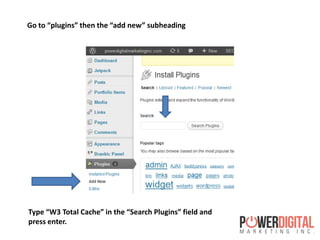
Go to “plugins” then the “add new” subheading
Type “W3 Total Cache” in the “Search Plugins” field and
press enter.
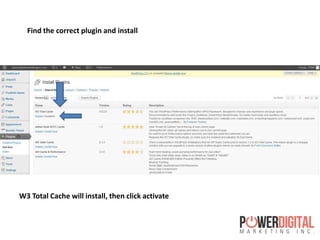
Find the correct plugin and install
W3 Total Cache will install, then click activate
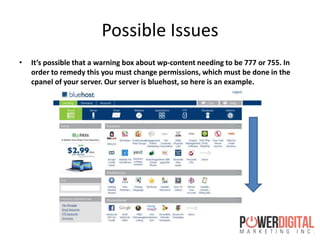
Possible Issues
• It’s possible that a warning box about wp-content needing to be 777 or 755. In
order to remedy this you must change permissions, which must be done in the
cpanel of your server. Our server is bluehost, so here is an example.
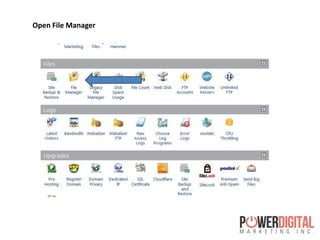
Open File Manager
Select the Document Root for Your Site
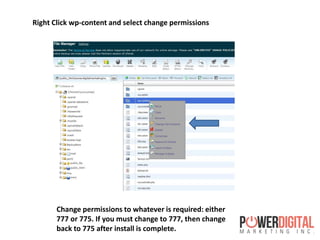
Right Click wp-content and select change permissions
Change permissions to whatever is required: either
777 or 775. If you must change to 777, then change
back to 775 after install is complete.
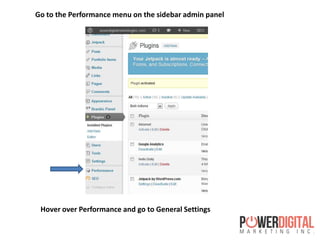
Go to the Performance menu on the sidebar admin panel
Hover over Performance and go to General Settings
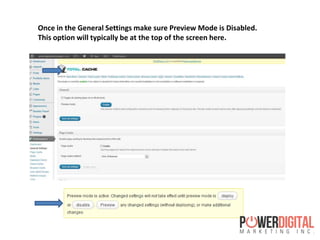
Once in the General Settings make sure Preview Mode is Disabled.
This option will typically be at the top of the screen here.
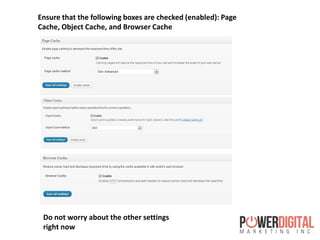
Ensure that the following boxes are checked (enabled): Page
Cache, Object Cache, and Browser Cache
Do not worry about the other settings
right now
Go to either the sidebar admin panel or the top of the W3 page and go to
Page Cache and the General section
Ensure the following options are enabled: “Cache Feeds:
site, categories, tags, comments”, “Cache SSL (https)
requests”, “Cache requests only for *your sitename]
hostname”, and “Don’t cache pages for logged in users”
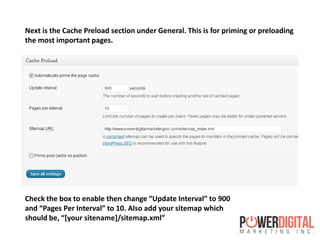
Next is the Cache Preload section under General. This is for priming or preloading
the most important pages.
Check the box to enable then change “Update Interval” to 900
and “Pages Per Interval” to 10. Also add your sitemap which
should be, “*your sitename+/sitemap.xml”
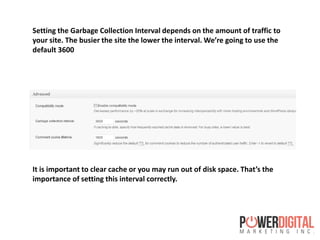
Setting the Garbage Collection Interval depends on the amount of traffic to
your site. The busier the site the lower the interval. We’re going to use the
default 3600
It is important to clear cache or you may run out of disk space. That’s the
importance of setting this interval correctly.
Now go to Browser Cache on the sidebar admin panel
Check the following options: ”, “Set Last-Modified
Header”, “Set Expires Header”, “Set Cache Control
Header”, “Set Entity Tag (eTag)”, “Set W3 Total Cache
Header”, “Enable HTTP (gzip) Compression”, “Prevent Caching
of Objects After Setting Change”
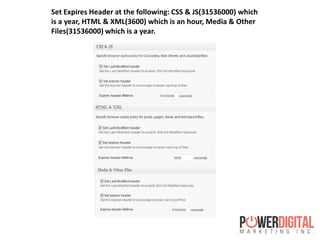
Set Expires Header at the following: CSS & JS(31536000) which
is a year, HTML & XML(3600) which is an hour, Media & Other
Files(31536000) which is a year.
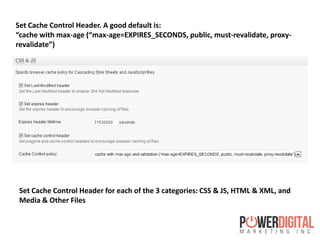
Set Cache Control Header. A good default is:
“cache with max-age (“max-age=EXPIRES_SECONDS, public, must-revalidate, proxy-
revalidate”)
Set Cache Control Header for each of the 3 categories: CSS & JS, HTML & XML, and
Media & Other Files
This guide didn’t touch on every aspect of W3 Total Cache but these settings will
help to greatly increase the speed of your site and pages.

Configuring Wordpress W3 Total Cache

  • 1.
  • 2.
    Go to “plugins”then the “add new” subheading Type “W3 Total Cache” in the “Search Plugins” field and press enter.
  • 3.
    Find the correctplugin and install W3 Total Cache will install, then click activate
  • 4.
    Possible Issues • It’spossible that a warning box about wp-content needing to be 777 or 755. In order to remedy this you must change permissions, which must be done in the cpanel of your server. Our server is bluehost, so here is an example.
  • 5.
  • 6.
    Select the DocumentRoot for Your Site
  • 7.
    Right Click wp-contentand select change permissions Change permissions to whatever is required: either 777 or 775. If you must change to 777, then change back to 775 after install is complete.
  • 8.
    Go to thePerformance menu on the sidebar admin panel Hover over Performance and go to General Settings
  • 9.
    Once in theGeneral Settings make sure Preview Mode is Disabled. This option will typically be at the top of the screen here.
  • 10.
    Ensure that thefollowing boxes are checked (enabled): Page Cache, Object Cache, and Browser Cache Do not worry about the other settings right now
  • 11.
    Go to eitherthe sidebar admin panel or the top of the W3 page and go to Page Cache and the General section Ensure the following options are enabled: “Cache Feeds: site, categories, tags, comments”, “Cache SSL (https) requests”, “Cache requests only for *your sitename] hostname”, and “Don’t cache pages for logged in users”
  • 12.
    Next is theCache Preload section under General. This is for priming or preloading the most important pages. Check the box to enable then change “Update Interval” to 900 and “Pages Per Interval” to 10. Also add your sitemap which should be, “*your sitename+/sitemap.xml”
  • 13.
    Setting the GarbageCollection Interval depends on the amount of traffic to your site. The busier the site the lower the interval. We’re going to use the default 3600 It is important to clear cache or you may run out of disk space. That’s the importance of setting this interval correctly.
  • 14.
    Now go toBrowser Cache on the sidebar admin panel Check the following options: ”, “Set Last-Modified Header”, “Set Expires Header”, “Set Cache Control Header”, “Set Entity Tag (eTag)”, “Set W3 Total Cache Header”, “Enable HTTP (gzip) Compression”, “Prevent Caching of Objects After Setting Change”
  • 15.
    Set Expires Headerat the following: CSS & JS(31536000) which is a year, HTML & XML(3600) which is an hour, Media & Other Files(31536000) which is a year.
  • 16.
    Set Cache ControlHeader. A good default is: “cache with max-age (“max-age=EXPIRES_SECONDS, public, must-revalidate, proxy- revalidate”) Set Cache Control Header for each of the 3 categories: CSS & JS, HTML & XML, and Media & Other Files
  • 17.
    This guide didn’ttouch on every aspect of W3 Total Cache but these settings will help to greatly increase the speed of your site and pages.