Operating Systems
133
Unit 7 : Operating Systems
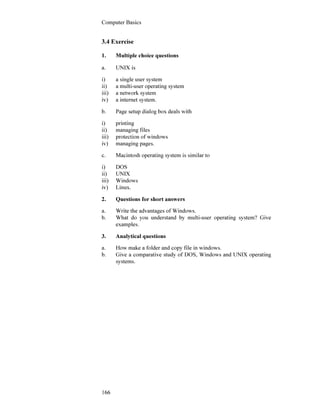
Introduction
An operating system consisting of a number of programs forms an
integral part of the computer system. It acts as an interface between
computer hardware and user programs. This unit consisting of three
Lessons. Introduces functions, types of operating systems and some
popular operating systems for microcomputers. Lesson 1 presents types
of operating systems and the services provided by them. The disk
operating system (DOS) introduced in 1981 is still in use for
microcomputers. Lesson 2 presents different functions of DOS and some
popular DOS commands. Some operating system providing graphical
user interface make computers friendlier to the users. Mac operating
system, Windows 3.11 and Windows 95 are examples of such systems.
Lesson 3 introduces Windows 3.11 (which runs under DOS) and UNIX
operating system.
Lesson 1 : Functions and Types
1.1 Learning Objective
On completion of this lesson you will be able to :
• describe functions and importance of operating systems
• identify different types of operating systems
• know the names of popular operating systems.
1.2 Operating System
An operating system is a software system. It acts as an interface between
a user of a computer and the computer hardware. The operating system
provides an environment in which a user may execute programs. The
main goal of an operating system is thus to make the computer system
convenient for users. A secondary goal is to make efficient use of the
computer hardware which provides the basic computing resources.
An operating system acts
as an interface between a
user and the computer
hardware.
Computer Basics
134
• • •
Figure: 7.1: Overview of a computer system.
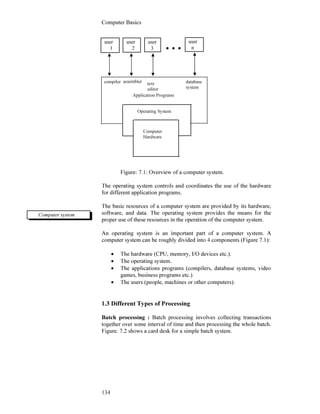
The operating system controls and coordinates the use of the hardware
for different application programs.
The basic resources of a computer system are provided by its hardware,
software, and data. The operating system provides the means for the
proper use of these resources in the operation of the computer system.
An operating system is an important part of a computer system. A
computer system can be roughly divided into 4 components (Figure 7.1):
• The hardware (CPU, memory, I/O devices etc.).
• The operating system.
• The applications programs (compilers, database systems, video
games, business programs etc.)
• The users (people, machines or other computers).
1.3 Different Types of Processing
Batch processing : Batch processing involves collecting transactions
together over some interval of time and then processing the whole batch.
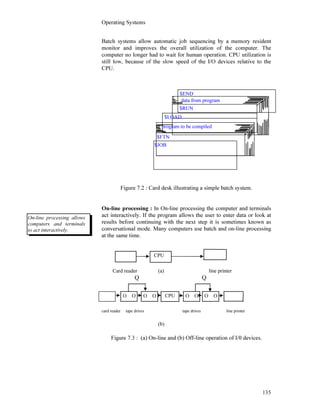
Figure. 7.2 shows a card desk for a simple batch system.
user
1
user
2
user
3
user
n
compiler assembler text
editor
database
system
Application Programs
Operating System
Computer
Hardware
Computer system
Operating Systems
135
$END
Batch systems allow automatic job sequencing by a memory resident
monitor and improves the overall utilization of the computer. The
computer no longer had to wait for human operation. CPU utilization is
still low, because of the slow speed of the I/O devices relative to the
CPU.
Figure 7.2 : Card desk illustrating a simple batch system.
On-line processing : In On-line processing the computer and terminals
act interactively. If the program allows the user to enter data or look at
results before continuing with the next step it is sometimes known as
conversational mode. Many computers use batch and on-line processing
at the same time.
Card reader (a) line printer
Q Q
card reader tape drives tape drives line printer
(b)
Figure 7.3 : (a) On-line and (b) Off-line operation of I/0 devices.
CPU
CPUΟ Ο Ο Ο Ο Ο Ο Ο
data from program
$RUN
$LOAD
program to be compiled
$FTN
$JOB
On-line processing allows
computers and terminals
to act interactively.
Computer Basics
136
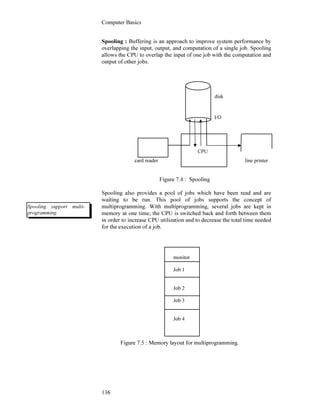
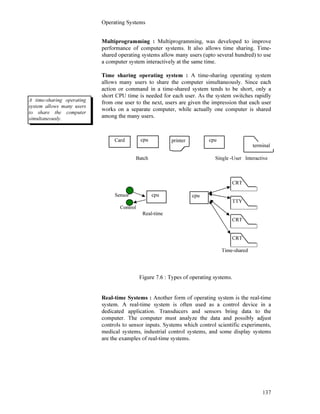
Spooling : Buffering is an approach to improve system performance by
overlapping the input, output, and computation of a single job. Spooling
allows the CPU to overlap the input of one job with the computation and
output of other jobs.
disk
I/O
card reader line printer
Figure 7.4 : Spooling
Spooling also provides a pool of jobs which have been read and are
waiting to be run. This pool of jobs supports the concept of
multiprogramming. With multiprogramming, several jobs are kept in
memory at one time; the CPU is switched back and forth between them
in order to increase CPU utilization and to decrease the total time needed
for the execution of a job.
Figure 7.5 : Memory layout for multiprogramming.
monitor
Job 1
Job 2
Job 3
Job 4
CPU
Spooling support multi-
programming.
Operating Systems
137
Multiprogramming : Multiprogramming, was developed to improve
performance of computer systems. It also allows time sharing. Time-
shared operating systems allow many users (upto several hundred) to use
a computer system interactively at the same time.
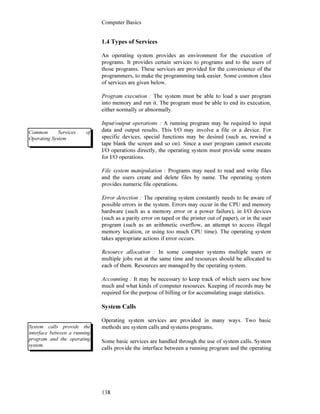
Time sharing operating system : A time-sharing operating system
allows many users to share the computer simultaneously. Since each
action or command in a time-shared system tends to be short, only a
short CPU time is needed for each user. As the system switches rapidly
from one user to the next, users are given the impression that each user
works on a separate computer, while actually one computer is shared
among the many users.
Batch Single -User Interactive
CRT
Sensor
TTY
Control
Real-time
CRT
CRT
Time-shared
Figure 7.6 : Types of operating systems.
Real-time Systems : Another form of operating system is the real-time
system. A real-time system is often used as a control device in a
dedicated application. Transducers and sensors bring data to the
computer. The computer must analyze the data and possibly adjust
controls to sensor inputs. Systems which control scientific experiments,
medical systems, industrial control systems, and some display systems
are the examples of real-time systems.
Card cpu cpu
cpu cpu
A time-sharing operating
system allows many users
to share the computer
simultaneously.
printer
terminal
terminal
Computer Basics
138
1.4 Types of Services
An operating system provides an environment for the execution of
programs. It provides certain services to programs and to the users of
those programs. These services are provided for the convenience of the
programmers, to make the programming task easier. Some common class
of services are given below.
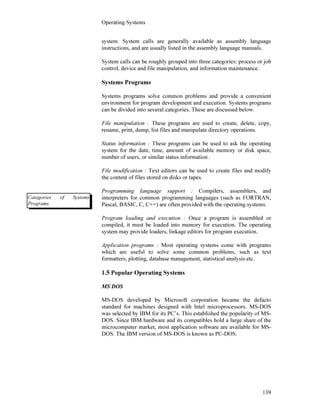
Program execution : The system must be able to load a user program
into memory and run it. The program must be able to end its execution,
either normally or abnormally.
Input/output operations : A running program may be required to input
data and output results. This I/O may involve a file or a device. For
specific devices, special functions may be desired (such as, rewind a
tape blank the screen and so on). Since a user program cannot execute
I/O operations directly, the operating system must provide some means
for I/O operations.
File system manipulation : Programs may need to read and write files
and the users create and delete files by name. The operating system
provides numeric file operations.
Error detection : The operating system constantly needs to be aware of
possible errors in the system. Errors may occur in the CPU and memory
hardware (such as a memory error or a power failure), in I/O devices
(such as a parity error on taped or the printer out of paper), or in the user
program (such as an arithmetic overflow, an attempt to access illegal
memory location, or using too much CPU time). The operating system
takes appropriate actions if error occurs.
Resource allocation : In some computer systems multiple users or
multiple jobs run at the same time and resources should be allocated to
each of them. Resources are managed by the operating system.
Accounting : It may be necessary to keep track of which users use how
much and what kinds of computer resources. Keeping of records may be
required for the purpose of billing or for accumulating usage statistics.
System Calls
Operating system services are provided in many ways. Two basic
methods are system calls and systems programs.
Some basic services are handled through the use of system calls. System
calls provide the interface between a running program and the operating
Common Services of
Operating System
System calls provide the
interface between a running
program and the operating
system.
Operating Systems
139
system. System calls are generally available as assembly language
instructions, and are usually listed in the assembly language manuals.
System calls can be roughly grouped into three categories: process or job
control, device and file manipulation, and information maintenance.
Systems Programs
Systems programs solve common problems and provide a convenient
environment for program development and execution. Systems programs
can be divided into several categories. These are discussed below.
File manipulation : These programs are used to create, delete, copy,
rename, print, dump, list files and manipulate directory operations.
Status information : These programs can be used to ask the operating
system for the date, time, amount of available memory or disk space,
number of users, or similar status information .
File modification : Text editors can be used to create files and modify
the content of files stored on disks or tapes.
Programming language support : Compilers, assemblers, and
interpreters for common programming languages (such as FORTRAN,
Pascal, BASIC, C, C++) are often provided with the operating systems.
Program loading and execution : Once a program is assembled or
compiled, it must be loaded into memory for execution. The operating
system may provide loaders, linkage editors for program execution.
Application programs : Most operating systems come with programs
which are useful to solve some common problems, such as text
formatters, plotting, database management, statistical analysis etc.
1.5 Popular Operating Systems
MS DOS
MS-DOS developed by Microsoft corporation became the defacto
standard for machines designed with Intel microprocessors. MS-DOS
was selected by IBM for its PC’s. This established the popularity of MS-
DOS. Since IBM hardware and its compatibles hold a large share of the
microcomputer market, most application software are available for MS-
DOS. The IBM version of MS-DOS is known as PC-DOS.
Catagories of Systems
Programs
Computer Basics
140
DOS is helpful to organize disks and use them efficiently. It helps to
create and manage files on disks, make copies of them or remove
unwanted files from the disks.
MS-DOS 5.0 comes equipped with a graphical user interface (GUI)
called the DOS Shell. This interface helps the user with everyday tasks
such as starting a program or formatting a floppy disk. With the GUI the
desired task can be easily selected and started with the mouse, by just
pointing to the item on the screen and clicking the mouse button.
The DOS shell also provides an overview of the contents of the hard disk
and floppy disk any time. Several programs can be started at once but
only one program runs at a time, the others are suspended. Now-a-days
use of MS DOS is very limited. Now every one use MS Windows for
their daily works.
Windows
Microsoft Windows 3.XX is an extension to the DOS operating system
and cannot run without DOS. Its is a graphical user interface whose
features extend far beyond those of the DOS Shell.
Microsoft released Windows in 1984. The goal of this graphical user
interface is to make the computer friendlier to the users. With Windows
applications and related files are presented as symbols (icons) on the
screen. Simply pressing a key or clicking the mouse activates a
command. Owing to the success of Windows, nearly every software
developer generates Windows-compatible versions of their programs.
Also Windows accessory programs are available to accomplish many
tasks within Windows itself. Windows permits multitasking whereby
several programs can be run at once.
Several versions of Windows are available. Windows7, Windows XP,
Windows 2000 is now very popular in every day works.
UNIX
It is a multi-user operating system for powerful 16-bit and 32-bit
machines. UNIX set the standard for multi-user systems for personal
computers. Developed at AT&T’s Bell Laboratories in USA, UNIX held
monopoly in the multi-user OS market for quite some time before other
operating systems were introduced. It was first written in the assembly
language. Later in 1973, it was rewritten in the ‘C’ language. This gave
it portability i.e., it could be run easily on different types of machines.
This is one important reason for the popularity of UNIX. There are
several implementation of this system.
DOS shell provides limited
graphical user interface.
Windows 3.XX offer
excellent graphical user
interface.
UNIX is a multi-user
operating system.
Operating Systems
141
1.6 Exercise
1. Multiple choice questions
a) An operating system is a program which acts as an interface
between
i) software and hardware
ii) a user and computer hardware
iii) a user and software
iv) system software and application software.
b) A computer system can be roughly divided into
i) 2 components
ii) 3 components
iii) 4 components
iv) 5 component.
c) The UNIX system, later in 1973, was rewritten in the
i) Pascal language
ii) C language
iii) Visual Basic
iv) Assembly language.
d) Microsoft first released windows in
i) 1980
ii) 1982
iii) 1984
iv) 1986.
2. Questions for short answers
a. Distinguish between batch processing and multiprogramming.
b. Name some operating systems for microcomputers.
c. What is Graphical user interface?
d. List some common operating system services.
2. Analytical questions
a. Explain the nature of real time system.
b. Discus the characteristics of Windows and UNIX.
c. Discus the common services provided by the operating system.
d. What are system calls and systems programs? Discuss the
categories of system programs.
Computer Basics
142
Lesson 2 : Disk Operating System
2.1 Learning Objective
On completion of this lesson you will be able to :
• know the functions of DOS
• distinguish between directories and files
• know some DOS commands
• know about DOS Shell.
2.2 Functions
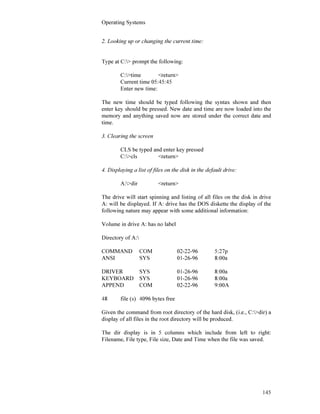
DOS is the shorthand for disk operating system. IBM or IBM compatible
computers use DOS. Microsoft Corporation has developed the MS-DOS.
It has the following functions:
• it organizes the flow of information between screen, keyboard
and memory.
• it keeps track of work and where it is stored.
• it runs a wide range of application programs.
DOS is usually stored on the hard disk inside the computer which also
stores other applications such as, word processing or accounting
programs. Application programs operate through DOS.
Disk and Drives
All work is stored in files, which are stored on disks. A computer usually
has a hard disk installed inside. Besides the hard disk, floppy disks are
also used in floppy disk drives. Each disk drive is identified by different
letters. The hard disk drive is conventionally known as drive C, and the
floppy disk drives as drive A, and drive B. The current drive in use as
indicated on the screen as the letter, followed by a colon (A: or C: for
example).
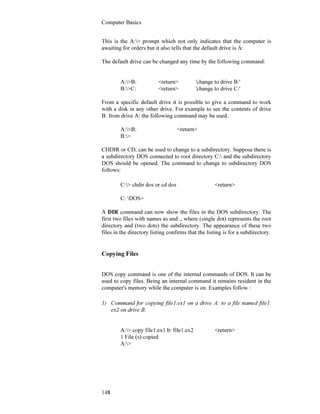
Directories
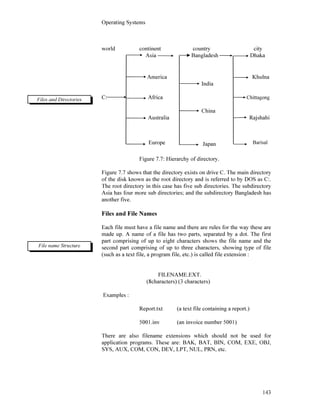
Files are organized on disk in directories. Each directory can contain
both files and other directories. DOS helps to organize work efficiently
by setting up a hierarchy of directories in the form of tree (shown in Fig.
7.7).
DOS is the shorthand for
disk operating system.
Disk and drives
Operating Systems
143
world continent country city
Asia Bangladesh Dhaka
America Khulna
India
C: Africa Chittagong
China
Australia Rajshahi
Figure 7.7: Hierarchy of directory.
Figure 7.7 shows that the directory exists on drive C. The main directory
of the disk known as the root directory and is referred to by DOS as C:.
The root directory in this case has five sub directories. The subdirectory
Asia has four more sub directories; and the subdirectory Bangladesh has
another five.
Files and File Names
Each file must have a file name and there are rules for the way these are
made up. A name of a file has two parts, separated by a dot. The first
part comprising of up to eight characters shows the file name and the
second part comprising of up to three characters, showing type of file
(such as a text file, a program file, etc.) is called file extension :
FILENAME.EXT.
(8characters) (3 characters)
Examples :
Report.txt (a text file containing a report.)
5001.inv (an invoice number 5001)
There are also filename extensions which should not be used for
application programs. These are: BAK, BAT, BIN, COM, EXE, OBJ,
SYS, AUX, COM, CON, DEV, LPT, NUL, PRN, etc.
Files and Directories
File name Structure
Europe Japan Barisal
Computer Basics
144
2.3 Classification of DOS Commands
There are two types of DOS commands:
Internal Commands
External Commands
Command.Com file of DOS has some commands which are called
internal commands and other commands are called external commands.
External commands use the following extensions : COM, EXE, BAT,
SYS etc.
Example of Internal commands:
CLS Del/Erase Mkdir/Md. Time
CD/Chdir Dir Path Ver
Copy Echo Prompt Type
Date Exit Ren Verify
Examples of external commands:
Append Format Print
Assign More Tree
Backup Replace Unformat
Diskcopy Restore Xcopy
Chkdsk Sort Share
Some DOS Commands
After starting the PC with its prompt A:> or C:> with the flashing of
hyphen (called cursor) it awaits orders from the user.
The step-by-step tutorial shown below may be followed to understand
some commands.
1) Looking up or changing the current date:
At the DOS prompt (A:> or C:> ) type the following:
C:>date <return>
Current date is 07-01-93
Enter new date (mm-dd-yy):
To change the date the new date should be typed following the exact
syntax shown above and the enter key should be pressed (shown by <
return> ). If no change is needed, then enter should be pressed.
Internal and external DOS
commands.
Explanation of some DOS
commands.
Operating Systems
145
2. Looking up or changing the current time:
Type at C:> prompt the following:
C:>time <return>
Current time 05:45:45
Enter new time:
The new time should be typed following the syntax shown and then
enter key should be pressed. New date and time are now loaded into the
memory and anything saved now are stored under the correct date and
time.
3. Clearing the screen
CLS be typed and enter key pressed
C:>cls <return>
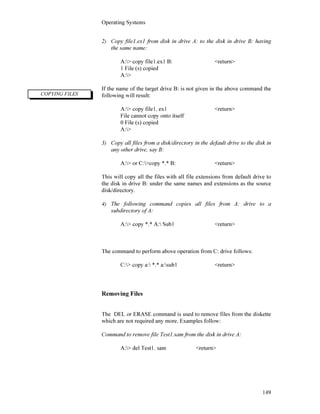
4. Displaying a list of files on the disk in the default drive:
A:>dir <return>
The drive will start spinning and listing of all files on the disk in drive
A: will be displayed. If A: drive has the DOS diskette the display of the
following nature may appear with some additional information:
Volume in drive A: has no label
Directory of A:
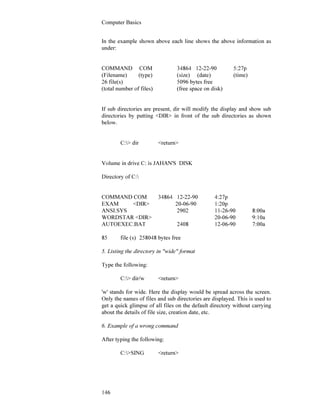
COMMAND COM 02-22-96 5:27p
ANSI SYS 01-26-96 8:00a
DRIVER SYS 01-26-96 8:00a
KEYBOARD SYS 01-26-96 8:00a
APPEND COM 02-22-96 9:00A
48 file (s) 4096 bytes free
Given the command from root directory of the hard disk, (i.e., C:>dir) a
display of all files in the root directory will be produced.
The dir display is in 5 columns which include from left to right:
Filename, File type, File size, Date and Time when the file was saved.
Computer Basics
146
In the example shown above each line shows the above information as
under:
COMMAND COM 34864 12-22-90 5:27p
(Filename) (type) (size) (date) (time)
26 file(s) 5096 bytes free
(total number of files) (free space on disk)
If sub directories are present, dir will modify the display and show sub
directories by putting <DIR> in front of the sub directories as shown
below.
C:> dir <return>
Volume in drive C: is JAHAN'S DISK
Directory of C:
COMMAND COM 34864 12-22-90 4:27p
EXAM <DIR> 20-06-90 1:20p
ANSI.SYS 2902 11-26-90 8:00a
WORDSTAR <DIR> 20-06-90 9:10a
AUTOEXEC.BAT 2408 12-06-90 7:00a
85 file (s) 258048 bytes free
5. Listing the directory in "wide" format
Type the following:
C:> dir/w <return>
'w' stands for wide. Here the display would be spread across the screen.
Only the names of files and sub directories are displayed. This is used to
get a quick glimpse of all files on the default directory without carrying
about the details of file size, creation date, etc.
6. Example of a wrong command
After typing the following:
C:>SING <return>
Operating Systems
147
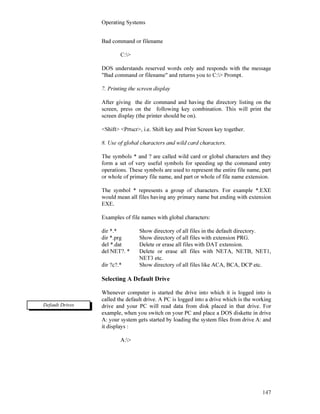
Bad command or filename
C:>
DOS understands reserved words only and responds with the message
"Bad command or filename" and returns you to C:> Prompt.
7. Printing the screen display
After giving the dir command and having the directory listing on the
screen, press on the following key combination. This will print the
screen display (the printer should be on).
<Shift> <Prtscr>, i.e. Shift key and Print Screen key together.
8. Use of global characters and wild card characters.
The symbols * and ? are called wild card or global characters and they
form a set of very useful symbols for speeding up the command entry
operations. These symbols are used to represent the entire file name, part
or whole of primary file name, and part or whole of file name extension.
The symbol * represents a group of characters. For example *.EXE
would mean all files having any primary name but ending with extension
EXE.
Examples of file names with global characters:
dir *.* Show directory of all files in the default directory.
dir *.prg Show directory of all files with extension PRG.
del *.dat Delete or erase all files with DAT extension.
del NET?. * Delete or erase all files with NETA, NETB, NET1,
NET3 etc.
dir ?c?.* Show directory of all files like ACA, BCA, DCP etc.
Selecting A Default Drive
Whenever computer is started the drive into which it is logged into is
called the default drive. A PC is logged into a drive which is the working
drive and your PC will read data from disk placed in that drive. For
example, when you switch on your PC and place a DOS diskette in drive
A: your system gets started by loading the system files from drive A: and
it displays :
A:>
Default Drives
Computer Basics
148
This is the A:> prompt which not only indicates that the computer is
awaiting for orders but it also tells that the default drive is A:
The default drive can be changed any time by the following command:
A:>B: <return> 'change to drive B:'
B:>C: <return> 'change to drive C:'
From a specific default drive it is possible to give a command to work
with a disk in any other drive. For example to see the contents of drive
B: from drive A: the following command may be used.
A:>B: <return>
B:>
CHDIR or CD, can be used to change to a subdirectory. Suppose there is
a subdirectory DOS connected to root directory C: and the subdirectory
DOS should be opened. The command to change to subdirectory DOS
follows:
C:> chdir dos or cd dos <return>
C: DOS>
A DIR command can now show the files in the DOS subdirectory. The
first two files with names as and.., where (single dot) represents the root
directory and (two dots) the subdirectory. The appearance of these two
files in the directory listing confirms that the listing is for a subdirectory.
Copying Files
DOS copy command is one of the internal commands of DOS. It can be
used to copy files. Being an internal command it remains resident in the
computer's memory while the computer is on. Examples follow :
1) Command for copying file1.ex1 on a drive A: to a file named file1.
ex2 on drive B:
A:> copy file1.ex1 b: file1.ex2 <return>
1 File (s) copied
A:>
Operating Systems
149
2) Copy file1.ex1 from disk in drive A: to the disk in drive B: having
the same name:
A:> copy file1.ex1 B: <return>
1 File (s) copied
A:>
If the name of the target drive B: is not given in the above command the
following will result:
A:> copy file1. ex1 <return>
File cannot copy onto itself
0 File (s) copied
A:>
3) Copy all files from a disk/directory in the default drive to the disk in
any other drive, say B:
A:> or C:>copy *.* B: <return>
This will copy all the files with all file extensions from default drive to
the disk in drive B: under the same names and extensions as the source
disk/directory.
4) The following command copies all files from A: drive to a
subdirectory of A:
A:> copy *.* A: Sub1 <return>
The command to perform above operation from C: drive follows:
C:> copy a: *.* a:sub1 <return>
Removing Files
The DEL or ERASE command is used to remove files from the diskette
which are not required any more. Examples follow:
Command to remove file Test1.sam from the disk in drive A:
A:> del Test1. sam <return>
COPYING FILES
Computer Basics
150
The same command from a drive other than A is :
C:> del a: Test1.sam <return>
A subdirectory can be removed from its parent directory only if the
subdirectory does not contain any file. This is a built-in safeguard
against accidental deletion of files. Also a subdirectory which is the
current directory can not be removed. For this reason a root directory
can not be removed. Examples follow:
Example of removing an empty subdirectory, the subdirectory has no
files. TEMP was created from the root directory.
C:> rmdir or rd TEMP <return>
Example of removing a subdirectory PROG containing files which are
no longer required:
C:> rd PROG <return>
Invalid path, not directory,
or directory not empty
C:>
Note that since the PROG directory has files it cannot be removed.
C:>del PROG <return>
ALL file in the directory will be deleted:
C:>
Now the empty PROG subdirectory can be removed by typing the
following command:
C:> rd PROG <return>
C:>
DOS shell
DOS Shell provides link between the users and DOS itself. This makes
DOS easier to use. To use DOS one has to type commands at a prompt
called the command prompt; DOS Shell however, bypasses this process.
Instead of having to type different commands for DOS, DOS Shell
displays different options on the screen. When the DOS SHELL is asked
to do something- such as to find a file DOS Shell refers to DOS for the
information, DOS then passes a message back to DOS Shell and the
information appears on the screen.
Removing Files
DOS shell
Operating Systems
151
2.4 Exercises
1. Multiple choice questions
a) The command to clear the screen is:
(i) dir
(ii) cls
(iii) clear
(iv) clean.
b) You can create a directory in MS DOS by using:
(i) the CD command
(ii) the dir command
(iii) the rename command
(iv) the md command.
2. Questions for short answers
a. What do you understand by DOS?
b. Write the difference between internal and external commands of
DOS.
c. What does the following commands do?
(i) MD, (ii) RD, (iii) Time, (iv) Ver, (v) Copy.
d) Point out the invalid DOS commands relating to sub directories.
(a) mkdir (b) make dir (c) md (d) rmdir (e) cd.
3. Analytical Questions
a. Write the major functions of DOS.
b. What does DOS Shell do?
Computer Basics
152
Lesson 3: Windows and UNIX Operating Systems
3.1 Learning Objective
On completion of this lesson you will be able to
• use Windows and its basic elements
• know about UNIX operating systems.
3.2 Windows Operating System
Windows system provides a popular way to use microcomputers.
Windows provide a graphical look for the computer. Windows programs
are shown as graphics and have menus that enable the users to see
options and manipulate information using a mouse. This is a relaxed way
of using a computer than the DOS command line.
When running Windows most of the work is done through windows or
work places on the screen. The Windows help to display different
windows on the screen simultaneously. Regardless of how many
windows can be seen on the screen at once, the user works in one
window at a time, and that window is called the active window.
Most Windows compatible programs provide similar looking Windows.
Once the basics of working with windows are understood it becomes
easy to learn new programs by using the same principle. The ins and outs
of Windows can be learnt by running the windows tutorials. The
Windows XP has been described below:
Icons
Icons are simply on-screen pictures representing files and other windows
elements. In Figure 7.8 has been shown Desktop Windows and other
program icons can be seen.
Menu Bars and Commands
Many windows contain menu bars with drop-down menus. These menus
contain choices called commands. Menus can be reverted either by
pointing with mouse or by using the Alt key along with the arrow keys
on the keyboard.
Sometimes choices will be displayed on the menus. This indicates that
something else needs to be done before the command can be executed.
For instance, a document cannot be saved until it is created.
Windows provides a popular
way to use microcomputers
Icons
Operating Systems
153
Some menu choices have keyboard shortcuts that will save a trip to the
menu bar. Keyboard shortcuts are often listed to the right of commands
on drop- down menus.
Dialog Boxes
Dialog boxes are windows' way of asking questions and collecting the
necessary information to complete tasks. Dialog boxes also give
information and issue progress reports. The page setup dialog box
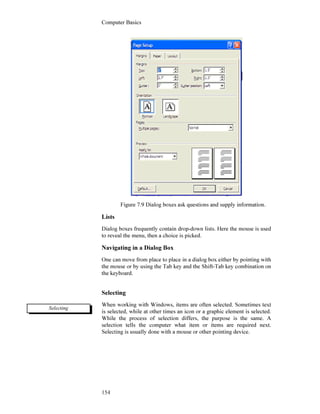
illustrated in Figure 7.9 is an example.
Buttons
A dialog box contains buttons of a variety of sizes and shapes. (Fig 7.9).
The OK and cancel rectangles at the bottom of the dialog box are
buttons. So are the small round option buttons near the top of it
(Margins, paper source, etc.). Pointing to these with the mouse and
pressing the right mouse button activates the choice.
Check Boxes
The box next to the words "Facing pages" in Figure 7.9 can be noticed.
This is a check box. Clicking here with your mouse works like a toggle
switch to alternately place and remove an x mark in the box. This is
another way to indicate the preferences.
Text Boxes
The margin measurements in Figure 7.9 are contained in text boxes.
Frequently, empty text boxes one presorted like these in which such
things as name, values, or other text can be typed. In this example,
default entries are printed, which can be changed by typing over them.
Dialog Boxes
Text Boxes
Buttons
Check Boxes
Text Boxes etc.
Check Boxes
Computer Basics
154
Figure 7.9 Dialog boxes ask questions and supply information.
Lists
Dialog boxes frequently contain drop-down lists. Here the mouse is used
to reveal the menu, then a choice is picked.
Navigating in a Dialog Box
One can move from place to place in a dialog box either by pointing with
the mouse or by using the Tab key and the Shift-Tab key combination on
the keyboard.
Selecting
When working with Windows, items are often selected. Sometimes text
is selected, while at other times an icon or a graphic element is selected.
While the process of selection differs, the purpose is the same. A
selection tells the computer what item or items are required next.
Selecting is usually done with a mouse or other pointing device.
Selecting
Operating Systems
155
Starting Windows
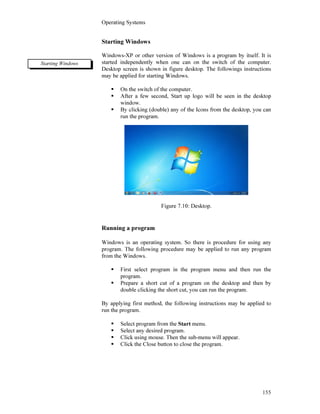
Windows-XP or other version of Windows is a program by itself. It is
started independently when one can on the switch of the computer.
Desktop screen is shown in figure desktop. The followings instructions
may be applied for starting Windows.
On the switch of the computer.
After a few second, Start up logo will be seen in the desktop
window.
By clicking (double) any of the Icons from the desktop, you can
run the program.
Figure 7.10: Desktop.
Running a program
Windows is an operating system. So there is procedure for using any
program. The following procedure may be applied to run any program
from the Windows.
First select program in the program menu and then run the
program.
Prepare a short cut of a program on the desktop and then by
double clicking the short cut, you can run the program.
By applying first method, the following instructions may be applied to
run the program.
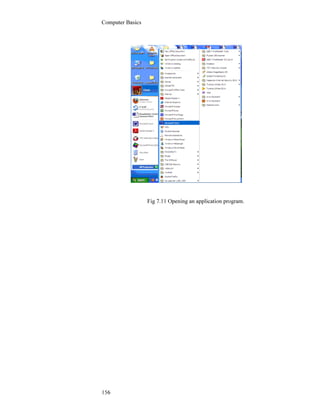
Select program from the Start menu.
Select any desired program.
Click using mouse. Then the sub-menu will appear.
Click the Close button to close the program.
Starting Windows
Computer Basics
156
Fig 7.11 Opening an application program.
Operating Systems
157
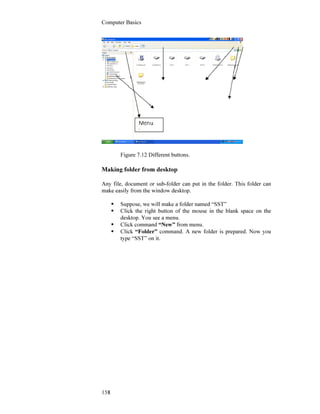
Control button of the Windows
Each Icon shown in the desktop represents each Window. Under this
Window, there are windows uses some buttons to control the program.
Using this button one can minimize, maximize, close, restore. These
buttons are called control button.
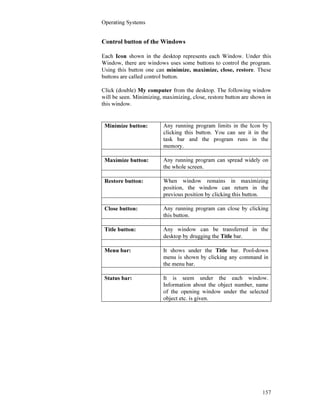
Click (double) My computer from the desktop. The following window
will be seen. Minimizing, maximizing, close, restore button are shown in
this window.
Minimize button: Any running program limits in the Icon by
clicking this button. You can see it in the
task bar and the program runs in the
memory.
Maximize button: Any running program can spread widely on
the whole screen.
Restore button: When window remains in maximizing
position, the window can return in the
previous position by clicking this button.
Close button: Any running program can close by clicking
this button.
Title button: Any window can be transferred in the
desktop by drugging the Title bar.
Menu bar: It shows under the Title bar. Pool-down
menu is shown by clicking any command in
the menu bar.
Status bar: It is seem under the each window.
Information about the object number, name
of the opening window under the selected
object etc. is given.
Computer Basics
158
Figure 7.12 Different buttons.
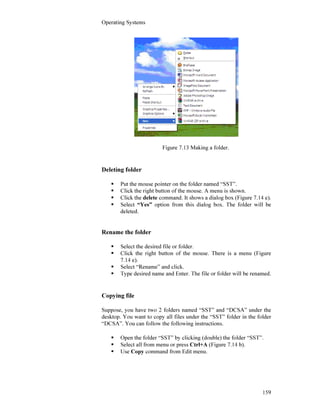
Making folder from desktop
Any file, document or sub-folder can put in the folder. This folder can
make easily from the window desktop.
Suppose, we will make a folder named “SST”
Click the right button of the mouse in the blank space on the
desktop. You see a menu.
Click command “New” from menu.
Click “Folder” command. A new folder is prepared. Now you
type “SST” on it.
Operating Systems
159
Figure 7.13 Making a folder.
Deleting folder
Put the mouse pointer on the folder named “SST”.
Click the right button of the mouse. A menu is shown.
Click the delete command. It shows a dialog box (Figure 7.14 e).
Select “Yes” option from this dialog box. The folder will be
deleted.
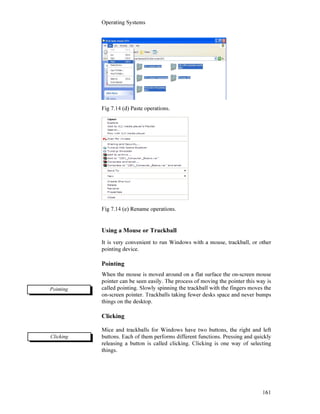
Rename the folder
Select the desired file or folder.
Click the right button of the mouse. There is a menu (Figure
7.14 e).
Select “Rename” and click.
Type desired name and Enter. The file or folder will be renamed.
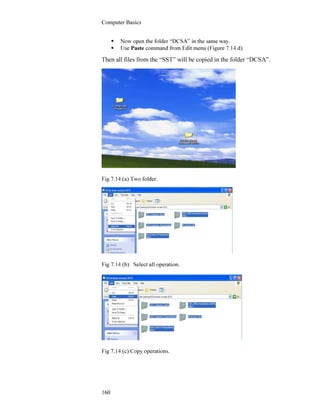
Copying file
Suppose, you have two 2 folders named “SST” and “DCSA” under the
desktop. You want to copy all files under the “SST” folder in the folder
“DCSA”. You can follow the following instructions.
Open the folder “SST” by clicking (double) the folder “SST”.
Select all from menu or press Ctrl+A (Figure 7.14 b).
Use Copy command from Edit menu.
Computer Basics
160
Now open the folder “DCSA” in the same way.
Use Paste command from Edit menu (Figure 7.14 d).
Then all files from the “SST” will be copied in the folder “DCSA”.
Fig 7.14 (a) Two folder.
Fig 7.14 (b) Select all operation.
Fig 7.14 (c) Copy operations.
Operating Systems
161
Fig 7.14 (d) Paste operations.
Fig 7.14 (e) Rename operations.
Using a Mouse or Trackball
It is very convenient to run Windows with a mouse, trackball, or other
pointing device.
Pointing
When the mouse is moved around on a flat surface the on-screen mouse
pointer can be seen easily. The process of moving the pointer this way is
called pointing. Slowly spinning the trackball with the fingers moves the
on-screen pointer. Trackballs taking fewer desks space and never bumps
things on the desktop.
Clicking
Mice and trackballs for Windows have two buttons, the right and left
buttons. Each of them performs different functions. Pressing and quickly
releasing a button is called clicking. Clicking is one way of selecting
things.
Pointing
Clicking
Computer Basics
162
Double-Clicking
Pressing and releasing a mouse button once is called clicking, doing it
twice quickly is called double-clicking. Double-clicking often causes
specific actions. For instance, double-clicking on the Microsoft word
program icon will run word. Double-clicking does different things at
different times. It is often a powerful and convenient shortcut.
Dragging
To move icons, windows and other things around on the screen, first the
item is pointed then while holding down the mouse button the mouse is
moved to the appropriate distance and direction. Releasing the button
completes the dragging. Some objects (like windows) can only be
dragged if a particular part of the object is pointed. The Windows can be
moved by dragging on the title bar.
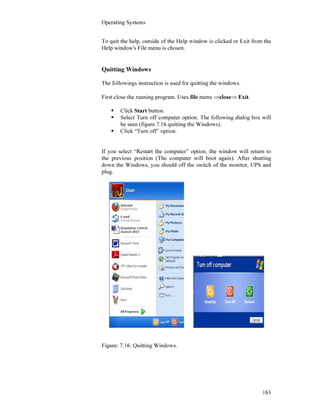
Getting on-line Windows help
To get help in Windows itself and Windows-compatible applications, the
F1 function key can be pressed. Or the Help menu on menu bar is used
to reveal available Help menu commands. A Help window like the one
in Figure 7.11 is displayed clicking on the Contents button, will reveal a
list of available help topics. Checking on a topic in the list reveals help
on the subject. The search button normally lets one type a specific topic
of interest or select it from a list. Back buttons take back to the previous
help topic. History buttons display a chronological list of help topics
displayed in the current session.
Fig 7.15: To get on-line help, press the function key or use the
Help Menu available in most windows.
Double-Clicking
Dragging
Getting on-line Windows
help
Operating Systems
163
To quit the help, outside of the Help window is clicked or Exit from the
Help window's File menu is chosen.
Quitting Windows
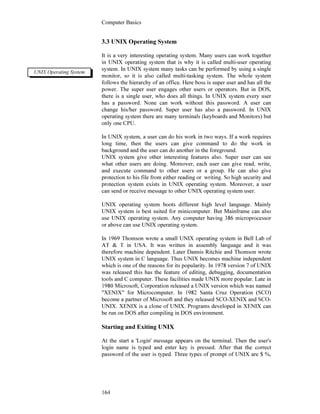
The followings instruction is used for quitting the windows.
First close the running program. Uses file menu ⇒close⇒ Exit.
Click Start button.
Select Turn off computer option. The following dialog box will
be seen (figure 7.16 quitting the Windows).
Click “Turn off” option.
If you select “Restart the computer” option, the window will return to
the previous position (The computer will boot again). After shutting
down the Windows, you should off the switch of the monitor, UPS and
plug.
Figure: 7.16: Quitting Windows.
Computer Basics
164
3.3 UNIX Operating System
It is a very interesting operating system. Many users can work together
in UNIX operating system that is why it is called multi-user operating
system. In UNIX system many tasks can be performed by using a single
monitor, so it is also called multi-tasking system. The whole system
follows the hierarchy of an office. Here boss is super user and has all the
power. The super user engages other users or operators. But in DOS,
there is a single user, who does all things. In UNIX system every user
has a password. None can work without this password. A user can
change his/her password. Super user has also a password. In UNIX
operating system there are many terminals (keyboards and Monitors) but
only one CPU.
In UNIX system, a user can do his work in two ways. If a work requires
long time, then the users can give command to do the work in
background and the user can do another in the foreground.
UNIX system give other interesting features also. Super user can see
what other users are doing. Moreover, each user can give read, write,
and execute command to other users or a group. He can also give
protection to his file from either reading or writing. So high security and
protection system exists in UNIX operating system. Moreover, a user
can send or receive message to other UNIX operating system user.
UNIX operating system boots different high level language. Mainly
UNIX system is best suited for minicomputer. But Mainframe can also
use UNIX operating system. Any computer having 386 microprocessor
or above can use UNIX operating system.
In 1969 Thomson wrote a small UNIX operating system in Bell Lab of
AT & T in USA. It was written in assembly language and it was
therefore machine dependent. Later Dannis Ritchie and Thomson wrote
UNIX system in C language. Thus UNIX becomes machine independent
which is one of the reasons for its popularity. In 1978 version 7 of UNIX
was released this has the feature of editing, debugging, documentation
tools and C computer. These facilities made UNIX more popular. Late in
1980 Microsoft, Corporation released a UNIX version which was named
"XENIX" for Microcomputer. In 1982 Santa Cruz Operation (SCO)
become a partner of Microsoft and they released SCO-XENIX and SCO-
UNIX. XENIX is a clone of UNIX. Programs developed in XENIX can
be run on DOS after compiling in DOS environment.
Starting and Exiting UNIX
At the start a 'Login' message appears on the terminal. Then the user's
login name is typed and enter key is pressed. After that the correct
password of the user is typed. Three types of prompt of UNIX are $ %,
UNIX Operating System
Operating Systems
165
#. The super user use # prompts for exiting. From % prompt, "logout" is
typed and enter key pressed for exiting,. To exit from the $ prompt exit
is typed and the enter key is pressed.
Some UNIX commands are give blow:
CD for changing directory
CLEAR for clearing screen
CAT for displaying a file
L
LS Like the DIR Commands of DOS
LC
DATE for displaying dates.
RM like the DEL / ERASE Command of DOS.
MKDIR Like the MD / MKDIR Command of DOS.
Computer Basics
166
3.4 Exercise
1. Multiple choice questions
a. UNIX is
i) a single user system
ii) a multi-user operating system
iii) a network system
iv) a internet system.
b. Page setup dialog box deals with
i) printing
ii) managing files
iii) protection of windows
iv) managing pages.
c. Macintosh operating system is similar to
i) DOS
ii) UNIX
iii) Windows
iv) Linux.
2. Questions for short answers
a. Write the advantages of Windows.
b. What do you understand by multi-user operating system? Give
examples.
3. Analytical questions
a. How make a folder and copy file in windows.
b. Give a comparative study of DOS, Windows and UNIX operating
systems.

computer Unit 7

  • 1.
    Operating Systems 133 Unit 7: Operating Systems Introduction An operating system consisting of a number of programs forms an integral part of the computer system. It acts as an interface between computer hardware and user programs. This unit consisting of three Lessons. Introduces functions, types of operating systems and some popular operating systems for microcomputers. Lesson 1 presents types of operating systems and the services provided by them. The disk operating system (DOS) introduced in 1981 is still in use for microcomputers. Lesson 2 presents different functions of DOS and some popular DOS commands. Some operating system providing graphical user interface make computers friendlier to the users. Mac operating system, Windows 3.11 and Windows 95 are examples of such systems. Lesson 3 introduces Windows 3.11 (which runs under DOS) and UNIX operating system. Lesson 1 : Functions and Types 1.1 Learning Objective On completion of this lesson you will be able to : • describe functions and importance of operating systems • identify different types of operating systems • know the names of popular operating systems. 1.2 Operating System An operating system is a software system. It acts as an interface between a user of a computer and the computer hardware. The operating system provides an environment in which a user may execute programs. The main goal of an operating system is thus to make the computer system convenient for users. A secondary goal is to make efficient use of the computer hardware which provides the basic computing resources. An operating system acts as an interface between a user and the computer hardware.
  • 2.
    Computer Basics 134 • •• Figure: 7.1: Overview of a computer system. The operating system controls and coordinates the use of the hardware for different application programs. The basic resources of a computer system are provided by its hardware, software, and data. The operating system provides the means for the proper use of these resources in the operation of the computer system. An operating system is an important part of a computer system. A computer system can be roughly divided into 4 components (Figure 7.1): • The hardware (CPU, memory, I/O devices etc.). • The operating system. • The applications programs (compilers, database systems, video games, business programs etc.) • The users (people, machines or other computers). 1.3 Different Types of Processing Batch processing : Batch processing involves collecting transactions together over some interval of time and then processing the whole batch. Figure. 7.2 shows a card desk for a simple batch system. user 1 user 2 user 3 user n compiler assembler text editor database system Application Programs Operating System Computer Hardware Computer system
  • 3.
    Operating Systems 135 $END Batch systemsallow automatic job sequencing by a memory resident monitor and improves the overall utilization of the computer. The computer no longer had to wait for human operation. CPU utilization is still low, because of the slow speed of the I/O devices relative to the CPU. Figure 7.2 : Card desk illustrating a simple batch system. On-line processing : In On-line processing the computer and terminals act interactively. If the program allows the user to enter data or look at results before continuing with the next step it is sometimes known as conversational mode. Many computers use batch and on-line processing at the same time. Card reader (a) line printer Q Q card reader tape drives tape drives line printer (b) Figure 7.3 : (a) On-line and (b) Off-line operation of I/0 devices. CPU CPUΟ Ο Ο Ο Ο Ο Ο Ο data from program $RUN $LOAD program to be compiled $FTN $JOB On-line processing allows computers and terminals to act interactively.
  • 4.
    Computer Basics 136 Spooling :Buffering is an approach to improve system performance by overlapping the input, output, and computation of a single job. Spooling allows the CPU to overlap the input of one job with the computation and output of other jobs. disk I/O card reader line printer Figure 7.4 : Spooling Spooling also provides a pool of jobs which have been read and are waiting to be run. This pool of jobs supports the concept of multiprogramming. With multiprogramming, several jobs are kept in memory at one time; the CPU is switched back and forth between them in order to increase CPU utilization and to decrease the total time needed for the execution of a job. Figure 7.5 : Memory layout for multiprogramming. monitor Job 1 Job 2 Job 3 Job 4 CPU Spooling support multi- programming.
  • 5.
    Operating Systems 137 Multiprogramming :Multiprogramming, was developed to improve performance of computer systems. It also allows time sharing. Time- shared operating systems allow many users (upto several hundred) to use a computer system interactively at the same time. Time sharing operating system : A time-sharing operating system allows many users to share the computer simultaneously. Since each action or command in a time-shared system tends to be short, only a short CPU time is needed for each user. As the system switches rapidly from one user to the next, users are given the impression that each user works on a separate computer, while actually one computer is shared among the many users. Batch Single -User Interactive CRT Sensor TTY Control Real-time CRT CRT Time-shared Figure 7.6 : Types of operating systems. Real-time Systems : Another form of operating system is the real-time system. A real-time system is often used as a control device in a dedicated application. Transducers and sensors bring data to the computer. The computer must analyze the data and possibly adjust controls to sensor inputs. Systems which control scientific experiments, medical systems, industrial control systems, and some display systems are the examples of real-time systems. Card cpu cpu cpu cpu A time-sharing operating system allows many users to share the computer simultaneously. printer terminal terminal
  • 6.
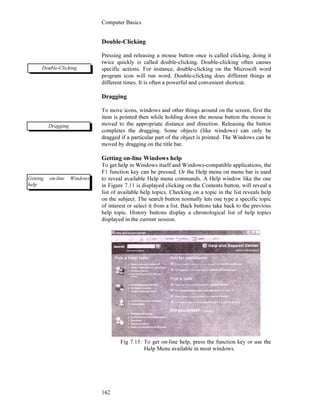
    Computer Basics 138 1.4 Typesof Services An operating system provides an environment for the execution of programs. It provides certain services to programs and to the users of those programs. These services are provided for the convenience of the programmers, to make the programming task easier. Some common class of services are given below. Program execution : The system must be able to load a user program into memory and run it. The program must be able to end its execution, either normally or abnormally. Input/output operations : A running program may be required to input data and output results. This I/O may involve a file or a device. For specific devices, special functions may be desired (such as, rewind a tape blank the screen and so on). Since a user program cannot execute I/O operations directly, the operating system must provide some means for I/O operations. File system manipulation : Programs may need to read and write files and the users create and delete files by name. The operating system provides numeric file operations. Error detection : The operating system constantly needs to be aware of possible errors in the system. Errors may occur in the CPU and memory hardware (such as a memory error or a power failure), in I/O devices (such as a parity error on taped or the printer out of paper), or in the user program (such as an arithmetic overflow, an attempt to access illegal memory location, or using too much CPU time). The operating system takes appropriate actions if error occurs. Resource allocation : In some computer systems multiple users or multiple jobs run at the same time and resources should be allocated to each of them. Resources are managed by the operating system. Accounting : It may be necessary to keep track of which users use how much and what kinds of computer resources. Keeping of records may be required for the purpose of billing or for accumulating usage statistics. System Calls Operating system services are provided in many ways. Two basic methods are system calls and systems programs. Some basic services are handled through the use of system calls. System calls provide the interface between a running program and the operating Common Services of Operating System System calls provide the interface between a running program and the operating system.
  • 7.
    Operating Systems 139 system. Systemcalls are generally available as assembly language instructions, and are usually listed in the assembly language manuals. System calls can be roughly grouped into three categories: process or job control, device and file manipulation, and information maintenance. Systems Programs Systems programs solve common problems and provide a convenient environment for program development and execution. Systems programs can be divided into several categories. These are discussed below. File manipulation : These programs are used to create, delete, copy, rename, print, dump, list files and manipulate directory operations. Status information : These programs can be used to ask the operating system for the date, time, amount of available memory or disk space, number of users, or similar status information . File modification : Text editors can be used to create files and modify the content of files stored on disks or tapes. Programming language support : Compilers, assemblers, and interpreters for common programming languages (such as FORTRAN, Pascal, BASIC, C, C++) are often provided with the operating systems. Program loading and execution : Once a program is assembled or compiled, it must be loaded into memory for execution. The operating system may provide loaders, linkage editors for program execution. Application programs : Most operating systems come with programs which are useful to solve some common problems, such as text formatters, plotting, database management, statistical analysis etc. 1.5 Popular Operating Systems MS DOS MS-DOS developed by Microsoft corporation became the defacto standard for machines designed with Intel microprocessors. MS-DOS was selected by IBM for its PC’s. This established the popularity of MS- DOS. Since IBM hardware and its compatibles hold a large share of the microcomputer market, most application software are available for MS- DOS. The IBM version of MS-DOS is known as PC-DOS. Catagories of Systems Programs
  • 8.
    Computer Basics 140 DOS ishelpful to organize disks and use them efficiently. It helps to create and manage files on disks, make copies of them or remove unwanted files from the disks. MS-DOS 5.0 comes equipped with a graphical user interface (GUI) called the DOS Shell. This interface helps the user with everyday tasks such as starting a program or formatting a floppy disk. With the GUI the desired task can be easily selected and started with the mouse, by just pointing to the item on the screen and clicking the mouse button. The DOS shell also provides an overview of the contents of the hard disk and floppy disk any time. Several programs can be started at once but only one program runs at a time, the others are suspended. Now-a-days use of MS DOS is very limited. Now every one use MS Windows for their daily works. Windows Microsoft Windows 3.XX is an extension to the DOS operating system and cannot run without DOS. Its is a graphical user interface whose features extend far beyond those of the DOS Shell. Microsoft released Windows in 1984. The goal of this graphical user interface is to make the computer friendlier to the users. With Windows applications and related files are presented as symbols (icons) on the screen. Simply pressing a key or clicking the mouse activates a command. Owing to the success of Windows, nearly every software developer generates Windows-compatible versions of their programs. Also Windows accessory programs are available to accomplish many tasks within Windows itself. Windows permits multitasking whereby several programs can be run at once. Several versions of Windows are available. Windows7, Windows XP, Windows 2000 is now very popular in every day works. UNIX It is a multi-user operating system for powerful 16-bit and 32-bit machines. UNIX set the standard for multi-user systems for personal computers. Developed at AT&T’s Bell Laboratories in USA, UNIX held monopoly in the multi-user OS market for quite some time before other operating systems were introduced. It was first written in the assembly language. Later in 1973, it was rewritten in the ‘C’ language. This gave it portability i.e., it could be run easily on different types of machines. This is one important reason for the popularity of UNIX. There are several implementation of this system. DOS shell provides limited graphical user interface. Windows 3.XX offer excellent graphical user interface. UNIX is a multi-user operating system.
  • 9.
    Operating Systems 141 1.6 Exercise 1.Multiple choice questions a) An operating system is a program which acts as an interface between i) software and hardware ii) a user and computer hardware iii) a user and software iv) system software and application software. b) A computer system can be roughly divided into i) 2 components ii) 3 components iii) 4 components iv) 5 component. c) The UNIX system, later in 1973, was rewritten in the i) Pascal language ii) C language iii) Visual Basic iv) Assembly language. d) Microsoft first released windows in i) 1980 ii) 1982 iii) 1984 iv) 1986. 2. Questions for short answers a. Distinguish between batch processing and multiprogramming. b. Name some operating systems for microcomputers. c. What is Graphical user interface? d. List some common operating system services. 2. Analytical questions a. Explain the nature of real time system. b. Discus the characteristics of Windows and UNIX. c. Discus the common services provided by the operating system. d. What are system calls and systems programs? Discuss the categories of system programs.
  • 10.
    Computer Basics 142 Lesson 2: Disk Operating System 2.1 Learning Objective On completion of this lesson you will be able to : • know the functions of DOS • distinguish between directories and files • know some DOS commands • know about DOS Shell. 2.2 Functions DOS is the shorthand for disk operating system. IBM or IBM compatible computers use DOS. Microsoft Corporation has developed the MS-DOS. It has the following functions: • it organizes the flow of information between screen, keyboard and memory. • it keeps track of work and where it is stored. • it runs a wide range of application programs. DOS is usually stored on the hard disk inside the computer which also stores other applications such as, word processing or accounting programs. Application programs operate through DOS. Disk and Drives All work is stored in files, which are stored on disks. A computer usually has a hard disk installed inside. Besides the hard disk, floppy disks are also used in floppy disk drives. Each disk drive is identified by different letters. The hard disk drive is conventionally known as drive C, and the floppy disk drives as drive A, and drive B. The current drive in use as indicated on the screen as the letter, followed by a colon (A: or C: for example). Directories Files are organized on disk in directories. Each directory can contain both files and other directories. DOS helps to organize work efficiently by setting up a hierarchy of directories in the form of tree (shown in Fig. 7.7). DOS is the shorthand for disk operating system. Disk and drives
  • 11.
    Operating Systems 143 world continentcountry city Asia Bangladesh Dhaka America Khulna India C: Africa Chittagong China Australia Rajshahi Figure 7.7: Hierarchy of directory. Figure 7.7 shows that the directory exists on drive C. The main directory of the disk known as the root directory and is referred to by DOS as C:. The root directory in this case has five sub directories. The subdirectory Asia has four more sub directories; and the subdirectory Bangladesh has another five. Files and File Names Each file must have a file name and there are rules for the way these are made up. A name of a file has two parts, separated by a dot. The first part comprising of up to eight characters shows the file name and the second part comprising of up to three characters, showing type of file (such as a text file, a program file, etc.) is called file extension : FILENAME.EXT. (8characters) (3 characters) Examples : Report.txt (a text file containing a report.) 5001.inv (an invoice number 5001) There are also filename extensions which should not be used for application programs. These are: BAK, BAT, BIN, COM, EXE, OBJ, SYS, AUX, COM, CON, DEV, LPT, NUL, PRN, etc. Files and Directories File name Structure Europe Japan Barisal
  • 12.
    Computer Basics 144 2.3 Classificationof DOS Commands There are two types of DOS commands: Internal Commands External Commands Command.Com file of DOS has some commands which are called internal commands and other commands are called external commands. External commands use the following extensions : COM, EXE, BAT, SYS etc. Example of Internal commands: CLS Del/Erase Mkdir/Md. Time CD/Chdir Dir Path Ver Copy Echo Prompt Type Date Exit Ren Verify Examples of external commands: Append Format Print Assign More Tree Backup Replace Unformat Diskcopy Restore Xcopy Chkdsk Sort Share Some DOS Commands After starting the PC with its prompt A:> or C:> with the flashing of hyphen (called cursor) it awaits orders from the user. The step-by-step tutorial shown below may be followed to understand some commands. 1) Looking up or changing the current date: At the DOS prompt (A:> or C:> ) type the following: C:>date <return> Current date is 07-01-93 Enter new date (mm-dd-yy): To change the date the new date should be typed following the exact syntax shown above and the enter key should be pressed (shown by < return> ). If no change is needed, then enter should be pressed. Internal and external DOS commands. Explanation of some DOS commands.
  • 13.
    Operating Systems 145 2. Lookingup or changing the current time: Type at C:> prompt the following: C:>time <return> Current time 05:45:45 Enter new time: The new time should be typed following the syntax shown and then enter key should be pressed. New date and time are now loaded into the memory and anything saved now are stored under the correct date and time. 3. Clearing the screen CLS be typed and enter key pressed C:>cls <return> 4. Displaying a list of files on the disk in the default drive: A:>dir <return> The drive will start spinning and listing of all files on the disk in drive A: will be displayed. If A: drive has the DOS diskette the display of the following nature may appear with some additional information: Volume in drive A: has no label Directory of A: COMMAND COM 02-22-96 5:27p ANSI SYS 01-26-96 8:00a DRIVER SYS 01-26-96 8:00a KEYBOARD SYS 01-26-96 8:00a APPEND COM 02-22-96 9:00A 48 file (s) 4096 bytes free Given the command from root directory of the hard disk, (i.e., C:>dir) a display of all files in the root directory will be produced. The dir display is in 5 columns which include from left to right: Filename, File type, File size, Date and Time when the file was saved.
  • 14.
    Computer Basics 146 In theexample shown above each line shows the above information as under: COMMAND COM 34864 12-22-90 5:27p (Filename) (type) (size) (date) (time) 26 file(s) 5096 bytes free (total number of files) (free space on disk) If sub directories are present, dir will modify the display and show sub directories by putting <DIR> in front of the sub directories as shown below. C:> dir <return> Volume in drive C: is JAHAN'S DISK Directory of C: COMMAND COM 34864 12-22-90 4:27p EXAM <DIR> 20-06-90 1:20p ANSI.SYS 2902 11-26-90 8:00a WORDSTAR <DIR> 20-06-90 9:10a AUTOEXEC.BAT 2408 12-06-90 7:00a 85 file (s) 258048 bytes free 5. Listing the directory in "wide" format Type the following: C:> dir/w <return> 'w' stands for wide. Here the display would be spread across the screen. Only the names of files and sub directories are displayed. This is used to get a quick glimpse of all files on the default directory without carrying about the details of file size, creation date, etc. 6. Example of a wrong command After typing the following: C:>SING <return>
  • 15.
    Operating Systems 147 Bad commandor filename C:> DOS understands reserved words only and responds with the message "Bad command or filename" and returns you to C:> Prompt. 7. Printing the screen display After giving the dir command and having the directory listing on the screen, press on the following key combination. This will print the screen display (the printer should be on). <Shift> <Prtscr>, i.e. Shift key and Print Screen key together. 8. Use of global characters and wild card characters. The symbols * and ? are called wild card or global characters and they form a set of very useful symbols for speeding up the command entry operations. These symbols are used to represent the entire file name, part or whole of primary file name, and part or whole of file name extension. The symbol * represents a group of characters. For example *.EXE would mean all files having any primary name but ending with extension EXE. Examples of file names with global characters: dir *.* Show directory of all files in the default directory. dir *.prg Show directory of all files with extension PRG. del *.dat Delete or erase all files with DAT extension. del NET?. * Delete or erase all files with NETA, NETB, NET1, NET3 etc. dir ?c?.* Show directory of all files like ACA, BCA, DCP etc. Selecting A Default Drive Whenever computer is started the drive into which it is logged into is called the default drive. A PC is logged into a drive which is the working drive and your PC will read data from disk placed in that drive. For example, when you switch on your PC and place a DOS diskette in drive A: your system gets started by loading the system files from drive A: and it displays : A:> Default Drives
  • 16.
    Computer Basics 148 This isthe A:> prompt which not only indicates that the computer is awaiting for orders but it also tells that the default drive is A: The default drive can be changed any time by the following command: A:>B: <return> 'change to drive B:' B:>C: <return> 'change to drive C:' From a specific default drive it is possible to give a command to work with a disk in any other drive. For example to see the contents of drive B: from drive A: the following command may be used. A:>B: <return> B:> CHDIR or CD, can be used to change to a subdirectory. Suppose there is a subdirectory DOS connected to root directory C: and the subdirectory DOS should be opened. The command to change to subdirectory DOS follows: C:> chdir dos or cd dos <return> C: DOS> A DIR command can now show the files in the DOS subdirectory. The first two files with names as and.., where (single dot) represents the root directory and (two dots) the subdirectory. The appearance of these two files in the directory listing confirms that the listing is for a subdirectory. Copying Files DOS copy command is one of the internal commands of DOS. It can be used to copy files. Being an internal command it remains resident in the computer's memory while the computer is on. Examples follow : 1) Command for copying file1.ex1 on a drive A: to a file named file1. ex2 on drive B: A:> copy file1.ex1 b: file1.ex2 <return> 1 File (s) copied A:>
  • 17.
    Operating Systems 149 2) Copyfile1.ex1 from disk in drive A: to the disk in drive B: having the same name: A:> copy file1.ex1 B: <return> 1 File (s) copied A:> If the name of the target drive B: is not given in the above command the following will result: A:> copy file1. ex1 <return> File cannot copy onto itself 0 File (s) copied A:> 3) Copy all files from a disk/directory in the default drive to the disk in any other drive, say B: A:> or C:>copy *.* B: <return> This will copy all the files with all file extensions from default drive to the disk in drive B: under the same names and extensions as the source disk/directory. 4) The following command copies all files from A: drive to a subdirectory of A: A:> copy *.* A: Sub1 <return> The command to perform above operation from C: drive follows: C:> copy a: *.* a:sub1 <return> Removing Files The DEL or ERASE command is used to remove files from the diskette which are not required any more. Examples follow: Command to remove file Test1.sam from the disk in drive A: A:> del Test1. sam <return> COPYING FILES
  • 18.
    Computer Basics 150 The samecommand from a drive other than A is : C:> del a: Test1.sam <return> A subdirectory can be removed from its parent directory only if the subdirectory does not contain any file. This is a built-in safeguard against accidental deletion of files. Also a subdirectory which is the current directory can not be removed. For this reason a root directory can not be removed. Examples follow: Example of removing an empty subdirectory, the subdirectory has no files. TEMP was created from the root directory. C:> rmdir or rd TEMP <return> Example of removing a subdirectory PROG containing files which are no longer required: C:> rd PROG <return> Invalid path, not directory, or directory not empty C:> Note that since the PROG directory has files it cannot be removed. C:>del PROG <return> ALL file in the directory will be deleted: C:> Now the empty PROG subdirectory can be removed by typing the following command: C:> rd PROG <return> C:> DOS shell DOS Shell provides link between the users and DOS itself. This makes DOS easier to use. To use DOS one has to type commands at a prompt called the command prompt; DOS Shell however, bypasses this process. Instead of having to type different commands for DOS, DOS Shell displays different options on the screen. When the DOS SHELL is asked to do something- such as to find a file DOS Shell refers to DOS for the information, DOS then passes a message back to DOS Shell and the information appears on the screen. Removing Files DOS shell
  • 19.
    Operating Systems 151 2.4 Exercises 1.Multiple choice questions a) The command to clear the screen is: (i) dir (ii) cls (iii) clear (iv) clean. b) You can create a directory in MS DOS by using: (i) the CD command (ii) the dir command (iii) the rename command (iv) the md command. 2. Questions for short answers a. What do you understand by DOS? b. Write the difference between internal and external commands of DOS. c. What does the following commands do? (i) MD, (ii) RD, (iii) Time, (iv) Ver, (v) Copy. d) Point out the invalid DOS commands relating to sub directories. (a) mkdir (b) make dir (c) md (d) rmdir (e) cd. 3. Analytical Questions a. Write the major functions of DOS. b. What does DOS Shell do?
  • 20.
    Computer Basics 152 Lesson 3:Windows and UNIX Operating Systems 3.1 Learning Objective On completion of this lesson you will be able to • use Windows and its basic elements • know about UNIX operating systems. 3.2 Windows Operating System Windows system provides a popular way to use microcomputers. Windows provide a graphical look for the computer. Windows programs are shown as graphics and have menus that enable the users to see options and manipulate information using a mouse. This is a relaxed way of using a computer than the DOS command line. When running Windows most of the work is done through windows or work places on the screen. The Windows help to display different windows on the screen simultaneously. Regardless of how many windows can be seen on the screen at once, the user works in one window at a time, and that window is called the active window. Most Windows compatible programs provide similar looking Windows. Once the basics of working with windows are understood it becomes easy to learn new programs by using the same principle. The ins and outs of Windows can be learnt by running the windows tutorials. The Windows XP has been described below: Icons Icons are simply on-screen pictures representing files and other windows elements. In Figure 7.8 has been shown Desktop Windows and other program icons can be seen. Menu Bars and Commands Many windows contain menu bars with drop-down menus. These menus contain choices called commands. Menus can be reverted either by pointing with mouse or by using the Alt key along with the arrow keys on the keyboard. Sometimes choices will be displayed on the menus. This indicates that something else needs to be done before the command can be executed. For instance, a document cannot be saved until it is created. Windows provides a popular way to use microcomputers Icons
  • 21.
    Operating Systems 153 Some menuchoices have keyboard shortcuts that will save a trip to the menu bar. Keyboard shortcuts are often listed to the right of commands on drop- down menus. Dialog Boxes Dialog boxes are windows' way of asking questions and collecting the necessary information to complete tasks. Dialog boxes also give information and issue progress reports. The page setup dialog box illustrated in Figure 7.9 is an example. Buttons A dialog box contains buttons of a variety of sizes and shapes. (Fig 7.9). The OK and cancel rectangles at the bottom of the dialog box are buttons. So are the small round option buttons near the top of it (Margins, paper source, etc.). Pointing to these with the mouse and pressing the right mouse button activates the choice. Check Boxes The box next to the words "Facing pages" in Figure 7.9 can be noticed. This is a check box. Clicking here with your mouse works like a toggle switch to alternately place and remove an x mark in the box. This is another way to indicate the preferences. Text Boxes The margin measurements in Figure 7.9 are contained in text boxes. Frequently, empty text boxes one presorted like these in which such things as name, values, or other text can be typed. In this example, default entries are printed, which can be changed by typing over them. Dialog Boxes Text Boxes Buttons Check Boxes Text Boxes etc. Check Boxes
  • 22.
    Computer Basics 154 Figure 7.9Dialog boxes ask questions and supply information. Lists Dialog boxes frequently contain drop-down lists. Here the mouse is used to reveal the menu, then a choice is picked. Navigating in a Dialog Box One can move from place to place in a dialog box either by pointing with the mouse or by using the Tab key and the Shift-Tab key combination on the keyboard. Selecting When working with Windows, items are often selected. Sometimes text is selected, while at other times an icon or a graphic element is selected. While the process of selection differs, the purpose is the same. A selection tells the computer what item or items are required next. Selecting is usually done with a mouse or other pointing device. Selecting
  • 23.
    Operating Systems 155 Starting Windows Windows-XPor other version of Windows is a program by itself. It is started independently when one can on the switch of the computer. Desktop screen is shown in figure desktop. The followings instructions may be applied for starting Windows. On the switch of the computer. After a few second, Start up logo will be seen in the desktop window. By clicking (double) any of the Icons from the desktop, you can run the program. Figure 7.10: Desktop. Running a program Windows is an operating system. So there is procedure for using any program. The following procedure may be applied to run any program from the Windows. First select program in the program menu and then run the program. Prepare a short cut of a program on the desktop and then by double clicking the short cut, you can run the program. By applying first method, the following instructions may be applied to run the program. Select program from the Start menu. Select any desired program. Click using mouse. Then the sub-menu will appear. Click the Close button to close the program. Starting Windows
  • 24.
    Computer Basics 156 Fig 7.11Opening an application program.
  • 25.
    Operating Systems 157 Control buttonof the Windows Each Icon shown in the desktop represents each Window. Under this Window, there are windows uses some buttons to control the program. Using this button one can minimize, maximize, close, restore. These buttons are called control button. Click (double) My computer from the desktop. The following window will be seen. Minimizing, maximizing, close, restore button are shown in this window. Minimize button: Any running program limits in the Icon by clicking this button. You can see it in the task bar and the program runs in the memory. Maximize button: Any running program can spread widely on the whole screen. Restore button: When window remains in maximizing position, the window can return in the previous position by clicking this button. Close button: Any running program can close by clicking this button. Title button: Any window can be transferred in the desktop by drugging the Title bar. Menu bar: It shows under the Title bar. Pool-down menu is shown by clicking any command in the menu bar. Status bar: It is seem under the each window. Information about the object number, name of the opening window under the selected object etc. is given.
  • 26.
    Computer Basics 158 Figure 7.12Different buttons. Making folder from desktop Any file, document or sub-folder can put in the folder. This folder can make easily from the window desktop. Suppose, we will make a folder named “SST” Click the right button of the mouse in the blank space on the desktop. You see a menu. Click command “New” from menu. Click “Folder” command. A new folder is prepared. Now you type “SST” on it.
  • 27.
    Operating Systems 159 Figure 7.13Making a folder. Deleting folder Put the mouse pointer on the folder named “SST”. Click the right button of the mouse. A menu is shown. Click the delete command. It shows a dialog box (Figure 7.14 e). Select “Yes” option from this dialog box. The folder will be deleted. Rename the folder Select the desired file or folder. Click the right button of the mouse. There is a menu (Figure 7.14 e). Select “Rename” and click. Type desired name and Enter. The file or folder will be renamed. Copying file Suppose, you have two 2 folders named “SST” and “DCSA” under the desktop. You want to copy all files under the “SST” folder in the folder “DCSA”. You can follow the following instructions. Open the folder “SST” by clicking (double) the folder “SST”. Select all from menu or press Ctrl+A (Figure 7.14 b). Use Copy command from Edit menu.
  • 28.
    Computer Basics 160 Now openthe folder “DCSA” in the same way. Use Paste command from Edit menu (Figure 7.14 d). Then all files from the “SST” will be copied in the folder “DCSA”. Fig 7.14 (a) Two folder. Fig 7.14 (b) Select all operation. Fig 7.14 (c) Copy operations.
  • 29.
    Operating Systems 161 Fig 7.14(d) Paste operations. Fig 7.14 (e) Rename operations. Using a Mouse or Trackball It is very convenient to run Windows with a mouse, trackball, or other pointing device. Pointing When the mouse is moved around on a flat surface the on-screen mouse pointer can be seen easily. The process of moving the pointer this way is called pointing. Slowly spinning the trackball with the fingers moves the on-screen pointer. Trackballs taking fewer desks space and never bumps things on the desktop. Clicking Mice and trackballs for Windows have two buttons, the right and left buttons. Each of them performs different functions. Pressing and quickly releasing a button is called clicking. Clicking is one way of selecting things. Pointing Clicking
  • 30.
    Computer Basics 162 Double-Clicking Pressing andreleasing a mouse button once is called clicking, doing it twice quickly is called double-clicking. Double-clicking often causes specific actions. For instance, double-clicking on the Microsoft word program icon will run word. Double-clicking does different things at different times. It is often a powerful and convenient shortcut. Dragging To move icons, windows and other things around on the screen, first the item is pointed then while holding down the mouse button the mouse is moved to the appropriate distance and direction. Releasing the button completes the dragging. Some objects (like windows) can only be dragged if a particular part of the object is pointed. The Windows can be moved by dragging on the title bar. Getting on-line Windows help To get help in Windows itself and Windows-compatible applications, the F1 function key can be pressed. Or the Help menu on menu bar is used to reveal available Help menu commands. A Help window like the one in Figure 7.11 is displayed clicking on the Contents button, will reveal a list of available help topics. Checking on a topic in the list reveals help on the subject. The search button normally lets one type a specific topic of interest or select it from a list. Back buttons take back to the previous help topic. History buttons display a chronological list of help topics displayed in the current session. Fig 7.15: To get on-line help, press the function key or use the Help Menu available in most windows. Double-Clicking Dragging Getting on-line Windows help
  • 31.
    Operating Systems 163 To quitthe help, outside of the Help window is clicked or Exit from the Help window's File menu is chosen. Quitting Windows The followings instruction is used for quitting the windows. First close the running program. Uses file menu ⇒close⇒ Exit. Click Start button. Select Turn off computer option. The following dialog box will be seen (figure 7.16 quitting the Windows). Click “Turn off” option. If you select “Restart the computer” option, the window will return to the previous position (The computer will boot again). After shutting down the Windows, you should off the switch of the monitor, UPS and plug. Figure: 7.16: Quitting Windows.
  • 32.
    Computer Basics 164 3.3 UNIXOperating System It is a very interesting operating system. Many users can work together in UNIX operating system that is why it is called multi-user operating system. In UNIX system many tasks can be performed by using a single monitor, so it is also called multi-tasking system. The whole system follows the hierarchy of an office. Here boss is super user and has all the power. The super user engages other users or operators. But in DOS, there is a single user, who does all things. In UNIX system every user has a password. None can work without this password. A user can change his/her password. Super user has also a password. In UNIX operating system there are many terminals (keyboards and Monitors) but only one CPU. In UNIX system, a user can do his work in two ways. If a work requires long time, then the users can give command to do the work in background and the user can do another in the foreground. UNIX system give other interesting features also. Super user can see what other users are doing. Moreover, each user can give read, write, and execute command to other users or a group. He can also give protection to his file from either reading or writing. So high security and protection system exists in UNIX operating system. Moreover, a user can send or receive message to other UNIX operating system user. UNIX operating system boots different high level language. Mainly UNIX system is best suited for minicomputer. But Mainframe can also use UNIX operating system. Any computer having 386 microprocessor or above can use UNIX operating system. In 1969 Thomson wrote a small UNIX operating system in Bell Lab of AT & T in USA. It was written in assembly language and it was therefore machine dependent. Later Dannis Ritchie and Thomson wrote UNIX system in C language. Thus UNIX becomes machine independent which is one of the reasons for its popularity. In 1978 version 7 of UNIX was released this has the feature of editing, debugging, documentation tools and C computer. These facilities made UNIX more popular. Late in 1980 Microsoft, Corporation released a UNIX version which was named "XENIX" for Microcomputer. In 1982 Santa Cruz Operation (SCO) become a partner of Microsoft and they released SCO-XENIX and SCO- UNIX. XENIX is a clone of UNIX. Programs developed in XENIX can be run on DOS after compiling in DOS environment. Starting and Exiting UNIX At the start a 'Login' message appears on the terminal. Then the user's login name is typed and enter key is pressed. After that the correct password of the user is typed. Three types of prompt of UNIX are $ %, UNIX Operating System
  • 33.
    Operating Systems 165 #. Thesuper user use # prompts for exiting. From % prompt, "logout" is typed and enter key pressed for exiting,. To exit from the $ prompt exit is typed and the enter key is pressed. Some UNIX commands are give blow: CD for changing directory CLEAR for clearing screen CAT for displaying a file L LS Like the DIR Commands of DOS LC DATE for displaying dates. RM like the DEL / ERASE Command of DOS. MKDIR Like the MD / MKDIR Command of DOS.
  • 34.
    Computer Basics 166 3.4 Exercise 1.Multiple choice questions a. UNIX is i) a single user system ii) a multi-user operating system iii) a network system iv) a internet system. b. Page setup dialog box deals with i) printing ii) managing files iii) protection of windows iv) managing pages. c. Macintosh operating system is similar to i) DOS ii) UNIX iii) Windows iv) Linux. 2. Questions for short answers a. Write the advantages of Windows. b. What do you understand by multi-user operating system? Give examples. 3. Analytical questions a. How make a folder and copy file in windows. b. Give a comparative study of DOS, Windows and UNIX operating systems.