By: Cashae An-Unique Vinson
 If   you don’t properly maintain your
 computer regular you will begin the
 experience problems with the hardware.

 Example:   hard disk starts to slow, problems
 with printer, keyboard and mouse may start
 acting sluggish, and monitor may act up
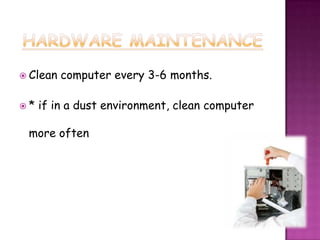
 Clean   computer every 3-6 months.

*   if in a dust environment, clean computer

 more often
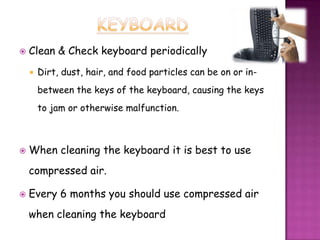
   Clean & Check keyboard periodically
       Dirt, dust, hair, and food particles can be on or in-
        between the keys of the keyboard, causing the keys
        to jam or otherwise malfunction.


   When cleaning the keyboard it is best to use
    compressed air.

   Every 6 months you should use compressed air
    when cleaning the keyboard
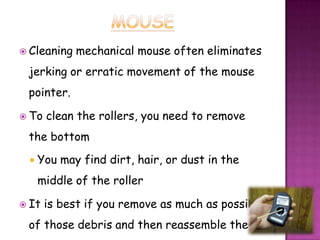
 Cleaning   mechanical mouse often eliminates
 jerking or erratic movement of the mouse
 pointer.

 To   clean the rollers, you need to remove
 the bottom
    You may find dirt, hair, or dust in the
     middle of the roller

 It   is best if you remove as much as possible
 of those debris and then reassemble the
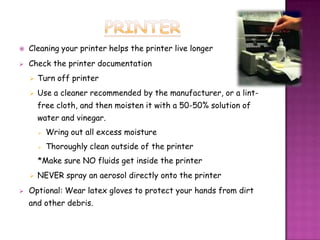
   Cleaning your printer helps the printer live longer
   Check the printer documentation
       Turn off printer
       Use a cleaner recommended by the manufacturer, or a lint-
        free cloth, and then moisten it with a 50-50% solution of
        water and vinegar.
           Wring out all excess moisture
           Thoroughly clean outside of the printer
        *Make sure NO fluids get inside the printer
       NEVER spray an aerosol directly onto the printer
   Optional: Wear latex gloves to protect your hands from dirt
    and other debris.
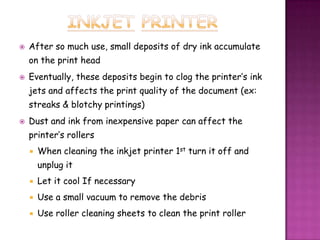
   After so much use, small deposits of dry ink accumulate
    on the print head
   Eventually, these deposits begin to clog the printer’s ink
    jets and affects the print quality of the document (ex:
    streaks & blotchy printings)
   Dust and ink from inexpensive paper can affect the
    printer’s rollers
       When cleaning the inkjet printer 1st turn it off and
        unplug it
       Let it cool If necessary
       Use a small vacuum to remove the debris
       Use roller cleaning sheets to clean the print roller
   Should be cleaned when print deteriorates or when you change the
    toner cartridge

   When you open the printer Do NOT touch anything shiny, it may be hot
    or contain a charge

   Use these maintenance tasks:

       Turn off printer & unplug printer (if warm let it cool & remove the
        paper trays and toners cartridge)

       Use a printer or good paint brush and a lint-free cloth to clean
        inside the toner opening

       Remove paper fragments

       Use a clean cloth to wipe up any spilled toner and dust

       Clean the roller, DO NOT touch the transfer (sponge) roller

       Replace the toner cartridge

Some laser printer contain corona wires, DO NOT brush or vacuum these
 Eventually   hardware components may be
 damaged and need to be changes, or output
 and production need to be increased.

 It   can be enhanced by upgrading various
 elements within the computer system
    Adding computer memory

    Updating the keyboard

    Updating the mouse
   A way to measure a computer’s power is by its capacity to
    remember.

   Hard drive can be compared to long-term memory and RAM
    (random access memory) is short-term memory.

   RAM is computer memory that is made up of small memory
    chips that form a memory module

       The modules are installed in the RAM slots on the
        motherboard of your computer

   RAM is TEMPORARY!

   While the computer is processing data, it reads and write to
    RAM

   When RAM fills up the computer continually goes to the hard
    drive to replace old data in RAM with new data

Computer maintenance

  • 1.
  • 2.
     If you don’t properly maintain your computer regular you will begin the experience problems with the hardware.  Example: hard disk starts to slow, problems with printer, keyboard and mouse may start acting sluggish, and monitor may act up
  • 3.
     Clean computer every 3-6 months. * if in a dust environment, clean computer more often
  • 4.
    Clean & Check keyboard periodically  Dirt, dust, hair, and food particles can be on or in- between the keys of the keyboard, causing the keys to jam or otherwise malfunction.  When cleaning the keyboard it is best to use compressed air.  Every 6 months you should use compressed air when cleaning the keyboard
  • 5.
     Cleaning mechanical mouse often eliminates jerking or erratic movement of the mouse pointer.  To clean the rollers, you need to remove the bottom  You may find dirt, hair, or dust in the middle of the roller  It is best if you remove as much as possible of those debris and then reassemble the
  • 6.
    Cleaning your printer helps the printer live longer  Check the printer documentation  Turn off printer  Use a cleaner recommended by the manufacturer, or a lint- free cloth, and then moisten it with a 50-50% solution of water and vinegar.  Wring out all excess moisture  Thoroughly clean outside of the printer *Make sure NO fluids get inside the printer  NEVER spray an aerosol directly onto the printer  Optional: Wear latex gloves to protect your hands from dirt and other debris.
  • 7.
    After so much use, small deposits of dry ink accumulate on the print head  Eventually, these deposits begin to clog the printer’s ink jets and affects the print quality of the document (ex: streaks & blotchy printings)  Dust and ink from inexpensive paper can affect the printer’s rollers  When cleaning the inkjet printer 1st turn it off and unplug it  Let it cool If necessary  Use a small vacuum to remove the debris  Use roller cleaning sheets to clean the print roller
  • 8.
    Should be cleaned when print deteriorates or when you change the toner cartridge  When you open the printer Do NOT touch anything shiny, it may be hot or contain a charge  Use these maintenance tasks:  Turn off printer & unplug printer (if warm let it cool & remove the paper trays and toners cartridge)  Use a printer or good paint brush and a lint-free cloth to clean inside the toner opening  Remove paper fragments  Use a clean cloth to wipe up any spilled toner and dust  Clean the roller, DO NOT touch the transfer (sponge) roller  Replace the toner cartridge Some laser printer contain corona wires, DO NOT brush or vacuum these
  • 9.
     Eventually hardware components may be damaged and need to be changes, or output and production need to be increased.  It can be enhanced by upgrading various elements within the computer system  Adding computer memory  Updating the keyboard  Updating the mouse
  • 10.
    A way to measure a computer’s power is by its capacity to remember.  Hard drive can be compared to long-term memory and RAM (random access memory) is short-term memory.  RAM is computer memory that is made up of small memory chips that form a memory module  The modules are installed in the RAM slots on the motherboard of your computer  RAM is TEMPORARY!  While the computer is processing data, it reads and write to RAM  When RAM fills up the computer continually goes to the hard drive to replace old data in RAM with new data