Operating Instructions
                                       Maintenance Guide


 1     Replacing Consumables and Maintenance Kit
 2     Cleaning and Adjusting the Printer
 3     Paper and Other Media
 4     Troubleshooting
 5     Appendix


For safe and correct use of this machine, please be sure to read the Safety Information in the
Setup Guide before you use it.
Introduction
This manual describes detailed instructions on the operation and notes about the use of this machine.
To get maximum versatility from this machine all operators are requested to read this manual carefully
and follow the instructions. Please keep this manual in a handy place near the machine.
Trademarks
Microsoft, Windows, and Windows NT are registered trademarks of Microsoft@
Corporation in the United States and/or other countries.
Other product names used herein are for identification purposes only and might
be trademarks of their respective companies. We disclaim any and all rights in-
volved with those marks.

Notes:
Some illustrations in this manual might be slightly different from the machine.
Certain options might not be available in some countries. For details, please con-
tact your sales or service representative.

Note
The proper names of the Windows operating systems are as follows:
• The product name of Windows® 95 is Microsoft® Windows® 95.
• The product name of Windows® 98 is Microsoft® Windows® 98.
• The product name of Windows® Me is Microsoft® Windows® Millennium
  Edition (Windows Me).
• The product names of Windows® 2000 are as follows:
  Microsoft® Windows® 2000 Advanced Server
  Microsoft® Windows® 2000 Server
  Microsoft® Windows® 2000 Professional
• The product names of Windows® XP are as follows:
  Microsoft® Windows® XP Professional
  Microsoft® Windows® XP Home Edition
• The product names of Windows NT ® 4.0 are as follows:
  Microsoft® Windows NT® Server 4.0
  Microsoft® Windows NT® Workstation 4.0


                                                                                     i
TABLE OF CONTENTS
     Trademarks..............................................................................................................i

     1. Replacing Consumables and Maintenance Kit
     Using the Screwdriver ........................................................................................... 1
     Replacing the Toner Cartridge ............................................................................. 2
     Detaching the SR770 (2 Tray Finisher) ................................................................ 5
     Opening and Closing the Duplex Reversal Unit ................................................. 6
     Replacing the Fuser Oil Unit.................................................................................7
     Replacing the Photoconductor Unit................................................................... 11
     Replacing the Development Unit........................................................................15
     Replacing the Fusing Unit...................................................................................19
     Replacing the Dustproof Filter ........................................................................... 22
     Replacing the Waste Toner Bottle......................................................................24
     Replacing the Paper Feed Rollers......................................................................26

     2. Cleaning and Adjusting the Printer
     Cautions to Take When Cleaning ....................................................................... 29
     Cleaning the Registration Roller ........................................................................30
     Cleaning the DustProof Glass ............................................................................31
     Adjusting the Color Registration........................................................................32
       Auto Adjust...............................................................................................................32
       Adjusting the Fuser for Thick Paper.........................................................................33
       Test Sheet Samples................................................................................................. 35
     Adjusting Image Density .....................................................................................36
     Adjusting Tray Registration................................................................................ 37

     3. Paper and Other Media
     Paper and Other Supported Media..................................................................... 39
       Paper Sizes.............................................................................................................. 39
     Paper Recommendations.................................................................................... 45
       Loading Paper.......................................................................................................... 45
       Storing Paper ........................................................................................................... 45
       Types of Paper and Other Media .............................................................................45
     Printable Area.......................................................................................................49
     Loading Paper ...................................................................................................... 50
       Loading Paper in Tray 1........................................................................................... 50
       Loading Paper in Tray 2 and the Optional Paper Feed Unit ....................................51
       Loading paper in Paper Bank PS470 (2000-sheet Large Capacity Tray) ................ 52
       If you load a paper size that is not selected automatically .......................................53
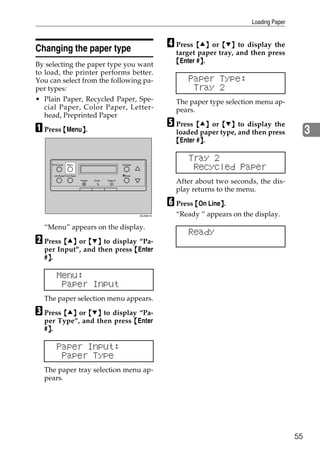
       Changing the paper type..........................................................................................55
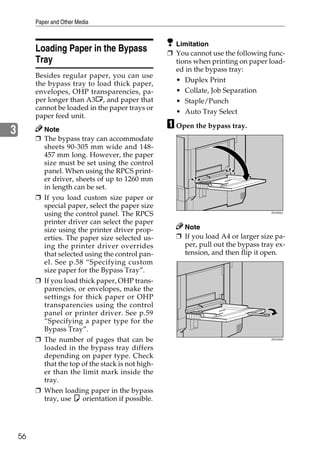
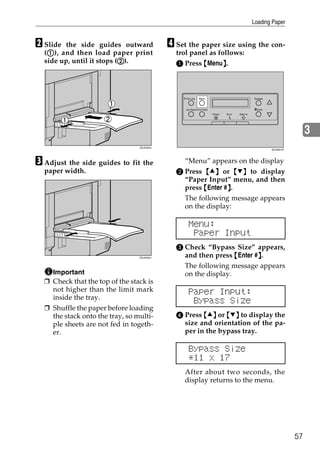
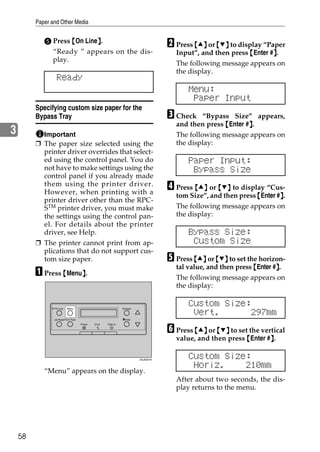
       Loading Paper in the Bypass Tray ........................................................................... 56


ii
4. Troubleshooting
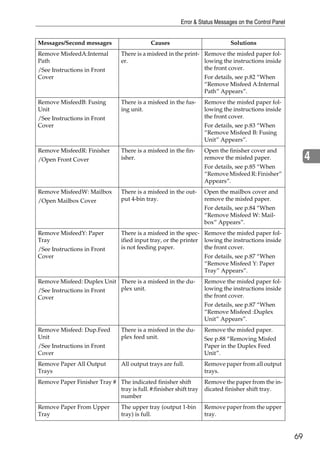
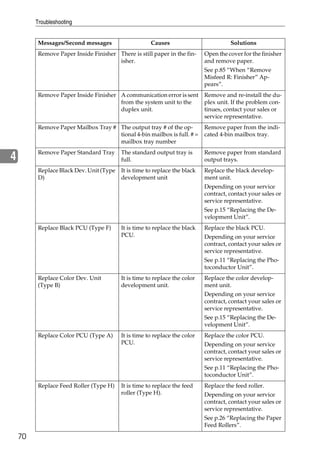
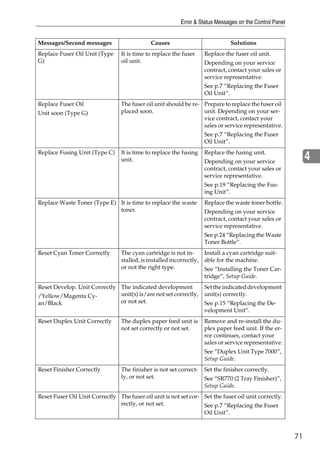
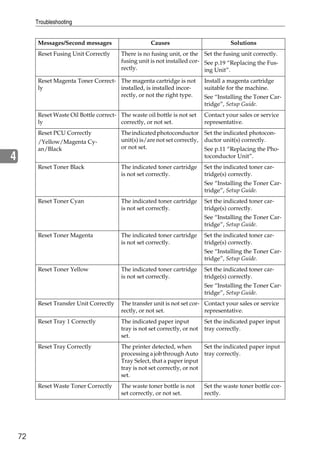
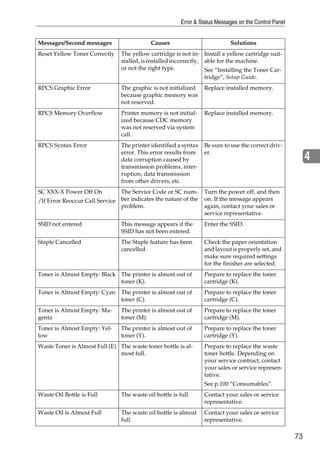
Error & Status Messages on the Control Panel ................................................61
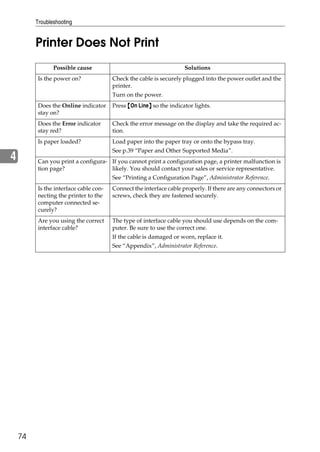
Printer Does Not Print ......................................................................................... 74
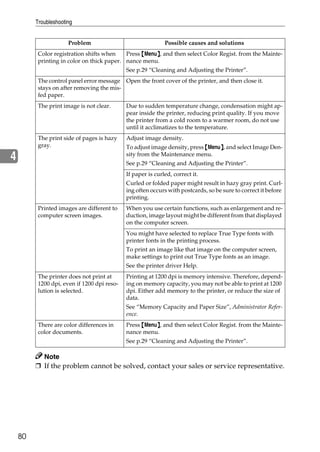
Other Printing Problems .....................................................................................77
Removing Misfed Paper ...................................................................................... 81
  Detaching the 2 Tray Finisher .................................................................................. 81
  Opening and Closing the Duplex Reversal Unit .......................................................81
  When “Remove Misfeed A:Internal Path” Appears .................................................. 82
  When “Remove Misfeed B: Fusing Unit” Appears ................................................... 83
  When “Remove Misfeed W: Mailbox” Appears ........................................................ 84
  When “Remove Misfeed R: Finisher” Appears......................................................... 85
  When “Remove Misfeed Y: Paper Tray” Appears....................................................87
  When “Remove Misfeed :Duplex Unit” Appears ...................................................... 87
  Removing Misfed Paper in the Duplex Feed Unit ....................................................88
Removing Jammed Staples ................................................................................ 91
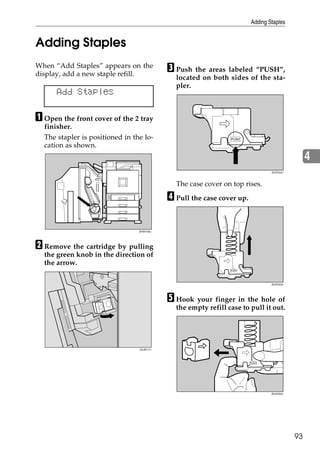
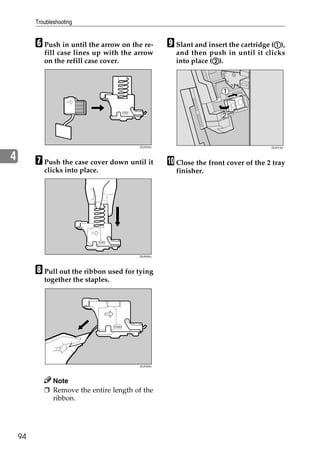
Adding Staples.....................................................................................................93
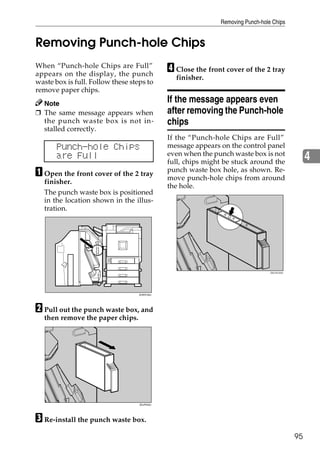
Removing Punch-hole Chips .............................................................................. 95
  If the message appears even after removing the Punch-hole chips ........................95

5. Appendix
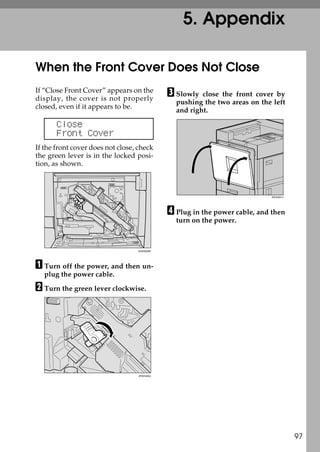
When the Front Cover Does Not Close.............................................................. 97
Moving and Transporting the Printer.................................................................98
 Moving the Printer .................................................................................................... 98
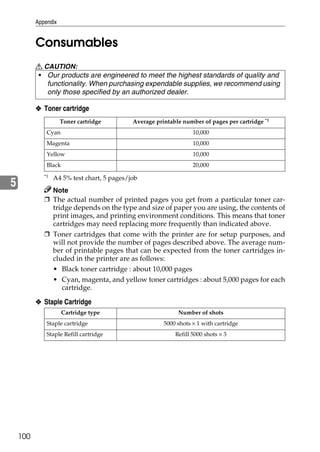
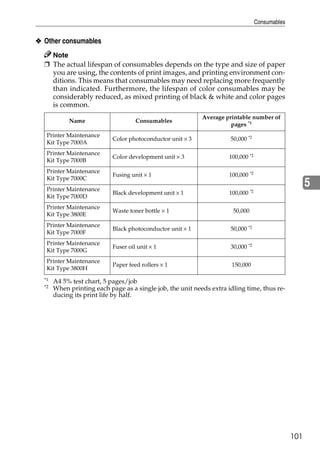
Consumables ..................................................................................................... 100
INDEX....................................................................................................... 102


                                                                                                                              iii
iv
1. Replacing Consumables
              and Maintenance Kit
Using the Screwdriver
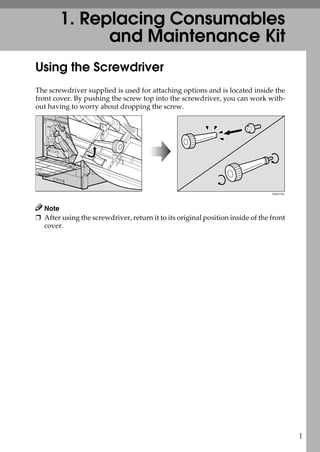
The screwdriver supplied is used for attaching options and is located inside the
front cover. By pushing the screw top into the screwdriver, you can work with-
out having to worry about dropping the screw.


                                                                                ZHXH170J


  Note
❒ After using the screwdriver, return it to its original position inside of the front
  cover.


                                                                                           1
Replacing Consumables and Maintenance Kit


        Replacing the Toner Cartridge
        R WARNING:                                  ❒ If cyan, magenta, or yellow toner
                                                      runs out, you can print in black
1       • Do not incinerate spilled toner
           or used toner. Toner dust is               and white mode using the black
           flammable and will ignite                  toner. Change the color mode set-
           when exposed to an open                    ting to “Black and White” from the
           flame. Disposal should take                printer driver.
           place at an authorized dealer            ❒ If black toner runs out, printing is
           or appropriate collection site.            not possible until the black toner
           If you dispose of used toner               cartridge is replaced.
           cartridges yourself, dispose
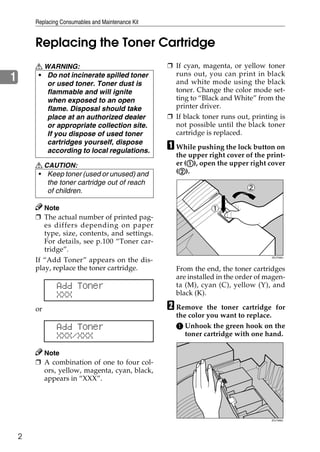
           according to local regulations.          A While pushing the lock button on
                                                      the upper right cover of the print-
        R CAUTION:                                        A
                                                      er (A), open the upper right cover
        • Keep toner (used or unused) and              B
                                                      (B).
           the toner cartridge out of reach
           of children.

          Note
        ❒ The actual number of printed pag-
          es differs depending on paper
          type, size, contents, and settings.
          For details, see p.100 “Toner car-
          tridge”.
                                                                                     ZDJT006J
        If “Add Toner” appears on the dis-
        play, replace the toner cartridge.            From the end, the toner cartridges
                                                      are installed in the order of magen-
                Add Toner                             ta (M), cyan (C), yellow (Y), and
                XXX                                   black (K).

        or                                          B Remove    the toner cartridge for
                                                      the color you want to replace.
                Add Toner                             A Unhook the green hook on the
                XXX/XXX                                  toner cartridge with one hand.

          Note
        ❒ A combination of one to four col-
          ors, yellow, magenta, cyan, black,
          appears in “XXX”.


                                                                                     ZDJT999J


    2
Replacing the Toner Cartridge


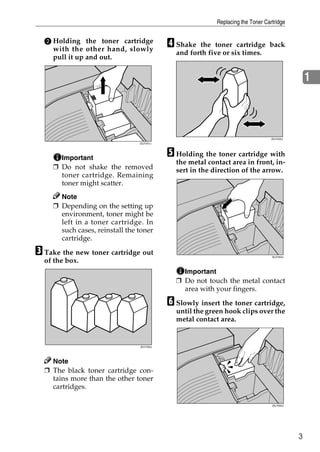
  B Holding the toner cartridge
    with the other hand, slowly
                                            D Shake  the toner cartridge back
                                              and forth five or six times.
    pull it up and out.


                                                                                                 1


                                                                                  ZDJT203J
                                 ZDJT201J


       Important
                                            E Holding the toner cartridge with
                                              the metal contact area in front, in-
     ❒ Do not shake the removed               sert in the direction of the arrow.
       toner cartridge. Remaining
       toner might scatter.
       Note
     ❒ Depending on the setting up
       environment, toner might be
       left in a toner cartridge. In
       such cases, reinstall the toner
       cartridge.

C Take the new toner cartridge out                                                ZDJT004J
  of the box.
                                                Important
                                              ❒ Do not touch the metal contact
                                                area with your fingers.

                                            F Slowly insert the toner cartridge,
                                              until the green hook clips over the
                                              metal contact area.


                                 ZDJT202J


    Note
  ❒ The black toner cartridge con-
    tains more than the other toner
    cartridges.

                                                                                  ZDJT005J


                                                                                             3
Replacing Consumables and Maintenance Kit


             Important
           ❒ Do not install and remove toner
             cartridges repeatedly. This
             could result in toner leak.
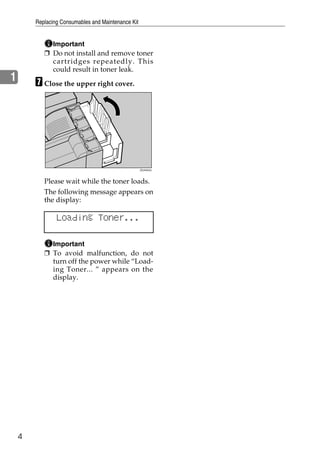
1       G Close the upper right cover.


                                                    ZDJH042J


           Please wait while the toner loads.
           The following message appears on
           the display:

                Loading Toner...

             Important
           ❒ To avoid malfunction, do not
             turn off the power while “Load-
             ing Toner... ” appears on the
             display.


    4
Detaching the SR770 (2 Tray Finisher)


Detaching the SR770 (2 Tray Finisher)
There are times when you may need             Important
to detach the 2 tray finisher from the
printer to remove misfed paper. This
                                            ❒ Be sure to attach the 2 tray fin-                1
                                              isher to the printer after closing
section describes how to detach the 2
                                              the duplex reversal unit. See p.6
tray finisher.
                                              “Opening and Closing the Du-
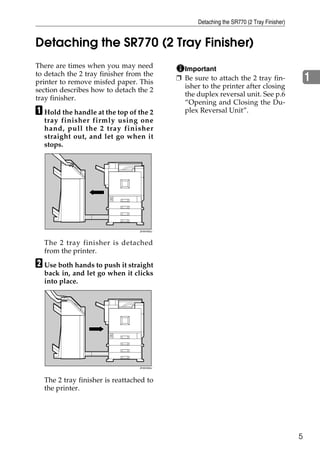
A Hold the handle at the top of the 2         plex Reversal Unit”.
  tray finisher firmly using one
  hand, pull the 2 tray finisher
  straight out, and let go when it
  stops.


                                 ZHXH450J


  The 2 tray finisher is detached
  from the printer.

B Use both hands to push it straight
  back in, and let go when it clicks
  into place.


                                 ZHXH350J


  The 2 tray finisher is reattached to
  the printer.


                                                                                           5
Replacing Consumables and Maintenance Kit


        Opening and Closing the Duplex Reversal
        Unit
1       There are times when you may need                          Note
        to detach the duplex reversal unit to
                                                                 ❒ You do not have to remove the
        remove misfed paper. This section
                                                                   external tray even if the 2 tray
        describes how to detach the duplex
                                                                   finisher is attached.
        reversal unit.
                                                                 The duplex reversal unit is
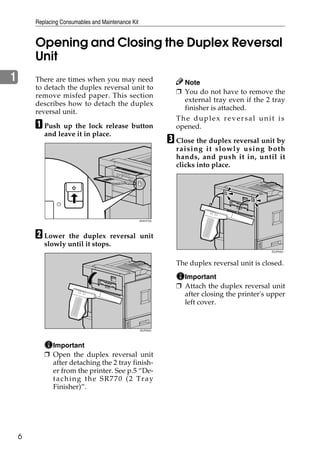
        A Push up the lock release button                        opened.
           and leave it in place.
                                                               C Close the duplex reversal unit by
                                                                 raising it slow ly u sing both
                                                                 hands, and push it in, until it
                                                                 clicks into place.


                                                    ZHXH770J


        B Lower   the duplex reversal unit
           slowly until it stops.
                                                                                                ZDJP205J


                                                                 The duplex reversal unit is closed.
                                                                   Important
                                                                 ❒ Attach the duplex reversal unit
                                                                   after closing the printer's upper
                                                                   left cover.


                                                    ZDJP204J


             Important
           ❒ Open the duplex reversal unit
             after detaching the 2 tray finish-
             er from the printer. See p.5 “De-
             taching the SR770 (2 Tray
             Finisher)”.


    6
Replacing the Fuser Oil Unit


Replacing the Fuser Oil Unit
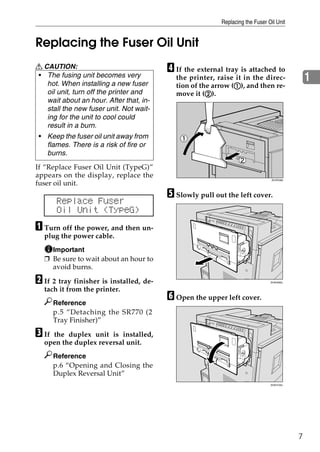
R CAUTION:                               D If the external tray is attached to
• The fusing unit becomes very
   hot. When installing a new fuser
                                           the printer, raise it in the direc-                 1
                                                              A
                                           tion of the arrow (A), and then re-
   oil unit, turn off the printer and                B
                                           move it (B).
   wait about an hour. After that, in-
   stall the new fuser unit. Not wait-
   ing for the unit to cool could
   result in a burn.
 • Keep the fuser oil unit away from
   flames. There is a risk of fire or
   burns.
If “Replace Fuser Oil Unit (TypeG)”
appears on the display, replace the
                                                                                ZDJP038J
fuser oil unit.
                                         E Slowly pull out the left cover.
       Replace Fuser
       Oil Unit (TypeG)
A Turn off the power, and then un-
  plug the power cable.
    Important
  ❒ Be sure to wait about an hour to
    avoid burns.

B If 2 tray finisher is installed, de-                                         ZHXH090J


  tach it from the printer.
       Reference
                                         F Open the upper left cover.
       p.5 “Detaching the SR770 (2
       Tray Finisher)”

C Ifthe duplex unit is installed,
  open the duplex reversal unit.
       Reference
       p.6 “Opening and Closing the
       Duplex Reversal Unit”
                                                                               ZHXH100J


                                                                                           7
Replacing Consumables and Maintenance Kit


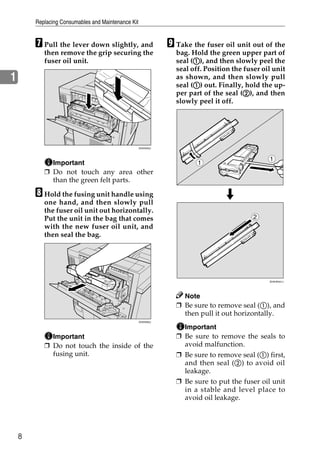
        G Pull the lever down slightly, and                    I Take the fuser oil unit out of the
           then remove the grip securing the                     bag. Hold the green upper part of
           fuser oil unit.                                             A
                                                                 seal (A), and then slowly peel the
                                                                 seal off. Position the fuser oil unit
1                                                                as shown, and then slowly pull
                                                                       A
                                                                 seal (A) out. Finally, hold the up-
                                                                                        B
                                                                 per part of the seal (B), and then
                                                                 slowly peel it off.


                                                    ZHXH033J


                                                                                                1
             Important                                                  1
           ❒ Do not touch any area other
             than the green felt parts.
        H Hold the fusing unit handle using
           one hand, and then slowly pull
           the fuser oil unit out horizontally.
           Put the unit in the bag that comes                                              2
           with the new fuser oil unit, and
           then seal the bag.


                                                                                                ZHXHK041J


                                                                   Note
                                                                 ❒ Be sure to remove seal (A), and
                                                                   then pull it out horizontally.
                                                    ZHXH050J

                                                                   Important
             Important                                           ❒ Be sure to remove the seals to
           ❒ Do not touch the inside of the                        avoid malfunction.
             fusing unit.                                        ❒ Be sure to remove seal (A) first,
                                                                   and then seal (B) to avoid oil
                                                                   leakage.
                                                                 ❒ Be sure to put the fuser oil unit
                                                                   in a stable and level place to
                                                                   avoid oil leakage.


    8
Replacing the Fuser Oil Unit


  ❒ After removing the seals, be
    careful not to let oil from oil-
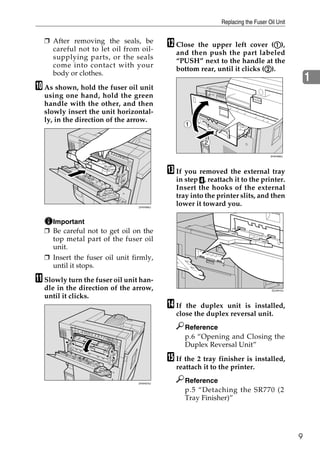
                                           L Close the upper left cover (A), A
                                             and then push the part labeled
    supplying parts, or the seals
                                             “PUSH” next to the handle at the
    come into contact with your
                                                                           B
                                             bottom rear, until it clicks (B).
    body or clothes.
                                                                                                 1
J As shown, hold the fuser oil unit
  using one hand, hold the green
  handle with the other, and then
  slowly insert the unit horizontal-
  ly, in the direction of the arrow.
                                                  1

                                                       2

                                                                                 ZHXH082J


                                           M If you removed the external tray
                                             in step D, reattach it to the printer.
                                             Insert the hooks of the external
                                             tray into the printer slits, and then
                                ZHXH060J
                                             lower it toward you.

    Important
  ❒ Be careful not to get oil on the
    top metal part of the fuser oil
    unit.
  ❒ Insert the fuser oil unit firmly,
    until it stops.

K Slowly turn the fuser oil unit han-
  dle in the direction of the arrow,                                              ZDJH010J

  until it clicks.
                                           N If the duplex unit is installed,
                                             close the duplex reversal unit.
                                                  Reference
                                                  p.6 “Opening and Closing the
                                                  Duplex Reversal Unit”

                                           O If the 2 tray finisher is installed,
                                             reattach it to the printer.

                                ZHXH070J
                                                  Reference
                                                  p.5 “Detaching the SR770 (2
                                                  Tray Finisher)”


                                                                                             9
Replacing Consumables and Maintenance Kit


         P Plug in the power cable, and then
            turn on the power.
              Note
1           ❒ If you dispose of used fuser oil
              unit by yourself, dispose ac-
              cording to local regulations.


    10
Replacing the Photoconductor Unit


Replacing the Photoconductor Unit
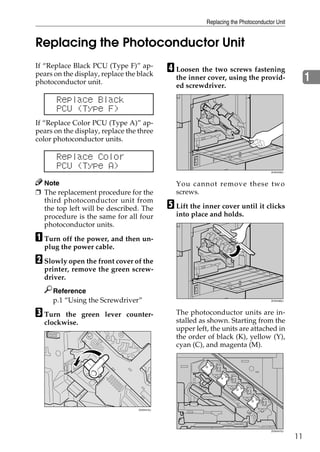
If “Replace Black PCU (Type F)” ap-
pears on the display, replace the black
                                             D Loosen the two screws fastening
photoconductor unit.
                                               the inner cover, using the provid-                   1
                                               ed screwdriver.

      Replace Black
      PCU (Type F)
If “Replace Color PCU (Type A)” ap-
pears on the display, replace the three
color photoconductor units.

      Replace Color
      PCU (Type A)
                                                                                    ZHXH430J


  Note                                         You cannot remove these two
❒ The replacement procedure for the            screws.
  third photoconductor unit from
  the top left will be described. The        E Lift the inner cover until it clicks
  procedure is the same for all four           into place and holds.
  photoconductor units.

A Turn off the power, and then un-
  plug the power cable.

B Slowly open the front cover of the
  printer, remove the green screw-
  driver.
     Reference
     p.1 “Using the Screwdriver”                                                    ZHXH460J


C Turn  the green lever counter-               The photoconductor units are in-
  clockwise.                                   stalled as shown. Starting from the
                                               upper left, the units are attached in
                                               the order of black (K), yellow (Y),
                                               cyan (C), and magenta (M).


                                  ZHXH410J


                                                                                    ZHXH470J

                                                                                               11
Replacing Consumables and Maintenance Kit


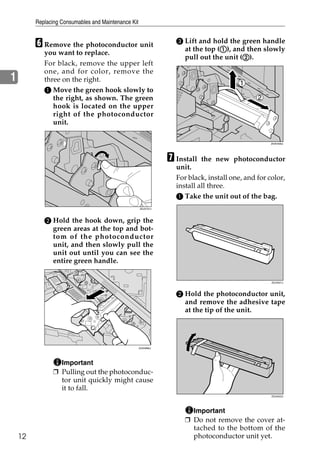
         F Remove the photoconductor unit                         C Lift and hold the green handle
                                                                                A
                                                                    at the top (A), and then slowly
            you want to replace.
                                                                                       B
                                                                    pull out the unit (B).
            For black, remove the upper left
            one, and for color, remove the
1           three on the right.
            A Move the green hook slowly to
               the right, as shown. The green
               hook is located on the upper
               right of the photoconductor
               unit.

                                                                                                   ZHXH490J


                                                                G Install  the new photoconductor
                                                                  unit.
                                                                  For black, install one, and for color,
                                                                  install all three.
                                                                  A Take the unit out of the bag.
                                                     ZDJX701J


            B Hold the hook down, grip the
              green areas at the top and bot-
              tom of the photoconductor
              unit, and then slowly pull the
              unit out until you can see the
              entire green handle.

                                                                                                   ZDJH221J


                                                                  B Hold the photoconductor unit,
                                                                    and remove the adhesive tape
                                                                    at the tip of the unit.


                                                     ZHXH890J


                  Important
                ❒ Pulling out the photoconduc-
                  tor unit quickly might cause
                  it to fall.
                                                                                                   ZDJH222J


                                                                       Important
                                                                     ❒ Do not remove the cover at-
                                                                       tached to the bottom of the
    12                                                                 photoconductor unit yet.
Replacing the Photoconductor Unit


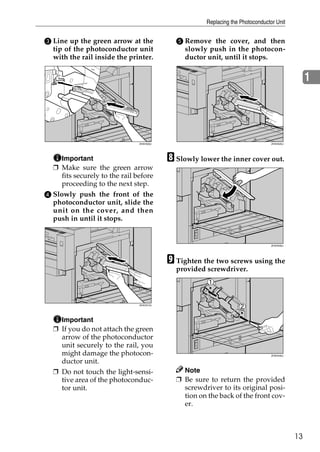
C Line up the green arrow at the            E Remove the cover, and then
  tip of the photoconductor unit              slowly push in the photocon-
  with the rail inside the printer.           ductor unit, until it stops.


                                                                                                 1


                               ZHXH500J                                          ZHXH520J


    Important                             H Slowly lower the inner cover out.
  ❒ Make sure the green arrow
    fits securely to the rail before
    proceeding to the next step.
D Slowly push the front of the
  photoconductor unit, slide the
  unit on the cover, and then
  push in until it stops.


                                                                                 ZHXH530J


                                          I Tighten the two screws using the
                                            provided screwdriver.


                               ZHXH510J


    Important
  ❒ If you do not attach the green
    arrow of the photoconductor
    unit securely to the rail, you
    might damage the photocon-                                                   ZHXH440J

    ductor unit.
  ❒ Do not touch the light-sensi-             Note
    tive area of the photoconduc-           ❒ Be sure to return the provided
    tor unit.                                 screwdriver to its original posi-
                                              tion on the back of the front cov-
                                              er.


                                                                                            13
Replacing Consumables and Maintenance Kit


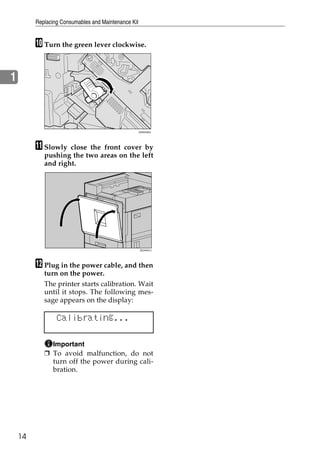
         J Turn the green lever clockwise.


1


                                                     ZHXH420J


         K Slowly   close the front cover by
            pushing the two areas on the left
            and right.


                                                     ZDJH041J


         L Plug in the power cable, and then
            turn on the power.
            The printer starts calibration. Wait
            until it stops. The following mes-
            sage appears on the display:

                 Calibrating...

              Important
            ❒ To avoid malfunction, do not
              turn off the power during cali-
              bration.


    14
Replacing the Development Unit


Replacing the Development Unit
If “Replace Black Dev. Unit(TypeD)”
appears on the display, replace the
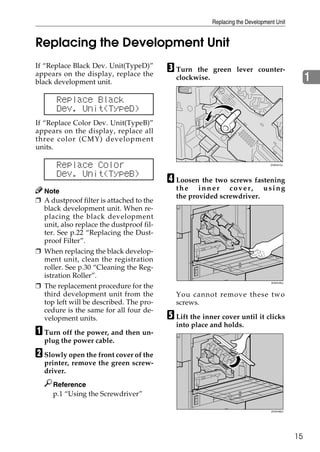
                                          C Turn  the green lever counter-
black development unit.
                                            clockwise.                                          1
      Replace Black
      Dev. Unit(TypeD)
If “Replace Color Dev. Unit(TypeB)”
appears on the display, replace all
three color (CMY) development
units.

      Replace Color                                                            ZHXH410J


      Dev. Unit(TypeB)
                                          D Loosen the two screws fastening
  Note                                      the inner cover, using
                                            the provided screwdriver.
❒ A dustproof filter is attached to the
  black development unit. When re-
  placing the black development
  unit, also replace the dustproof fil-
  ter. See p.22 “Replacing the Dust-
  proof Filter”.
❒ When replacing the black develop-
  ment unit, clean the registration
  roller. See p.30 “Cleaning the Reg-
  istration Roller”.
❒ The replacement procedure for the
                                                                                ZHXH430J


  third development unit from the           You cannot remove these two
  top left will be described. The pro-      screws.
  cedure is the same for all four de-
  velopment units.                        E Lift the inner cover until it clicks
                                            into place and holds.
A Turn off the power, and then un-
  plug the power cable.

B Slowly open the front cover of the
  printer, remove the green screw-
  driver.
     Reference
     p.1 “Using the Screwdriver”

                                                                                ZHXH460J


                                                                                           15
Replacing Consumables and Maintenance Kit


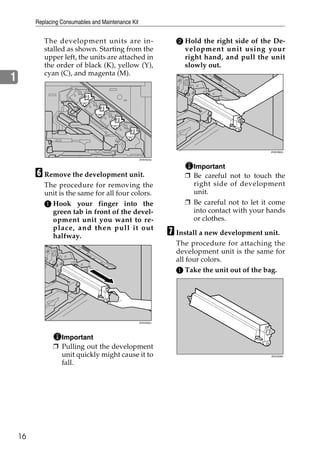
            The development units are in-                         B Hold the right side of the De-
            stalled as shown. Starting from the                     velopment unit using your
            upper left, the units are attached in                   right hand, and pull the unit
            the order of black (K), yellow (Y),                     slowly out.
            cyan (C), and magenta (M).
1


                                                                                               ZHXH560J


                                                     ZHXH540J


                                                                       Important
         F Remove the development unit.                              ❒ Be careful not to touch the
            The procedure for removing the                             right side of development
            unit is the same for all four colors.                      unit.
            A Hook your finger into the                              ❒ Be careful not to let it come
              green tab in front of the devel-                         into contact with your hands
              opment unit you want to re-                              or clothes.
              place, and then pull it out
              halfway.                                          G Install a new development unit.
                                                                  The procedure for attaching the
                                                                  development unit is the same for
                                                                  all four colors.
                                                                  A Take the unit out of the bag.


                                                     ZHXH550J


                  Important
                ❒ Pulling out the development
                  unit quickly might cause it to                                               ZDJH226J


                  fall.


    16
Replacing the Development Unit


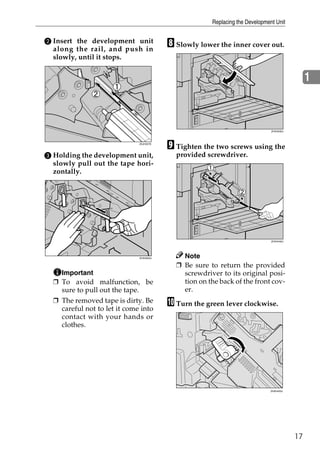
B Insert the development unit
  along the rail, and push in
                                         H Slowly lower the inner cover out.
  slowly, until it stops.


                                                                                              1


                                                                              ZHXH530J


                              ZDJH227E
                                         I Tighten the two screws using the
C Holding the development unit,            provided screwdriver.
  slowly pull out the tape hori-
  zontally.


                                                                              ZHXH440J


                              ZHXH620J       Note
                                           ❒ Be sure to return the provided
    Important                                screwdriver to its original posi-
  ❒ To avoid malfunction, be                 tion on the back of the front cov-
    sure to pull out the tape.               er.
  ❒ The removed tape is dirty. Be
    careful not to let it come into
                                         J Turn the green lever clockwise.
    contact with your hands or
    clothes.


                                                                             ZHXH420J


                                                                                         17
Replacing Consumables and Maintenance Kit


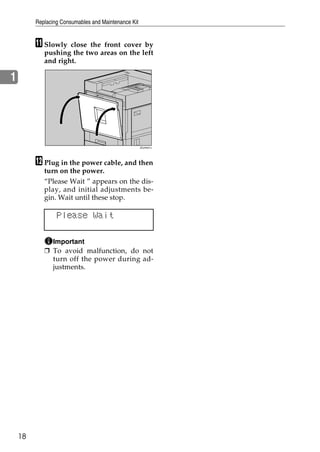
         K Slowly   close the front cover by
            pushing the two areas on the left
            and right.

1


                                                     ZDJH041J


         L Plug in the power cable, and then
            turn on the power.
            “Please Wait ” appears on the dis-
            play, and initial adjustments be-
            gin. Wait until these stop.

                 Please Wait

              Important
            ❒ To avoid malfunction, do not
              turn off the power during ad-
              justments.


    18
Replacing the Fusing Unit


Replacing the Fusing Unit
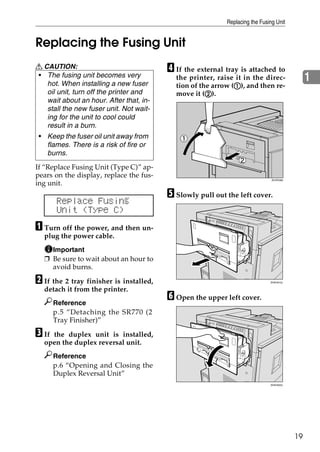
R CAUTION:                               D If the external tray is attached to
• The fusing unit becomes very
   hot. When installing a new fuser
                                           the printer, raise it in the direc-                1
                                                              A
                                           tion of the arrow (A), and then re-
   oil unit, turn off the printer and                B
                                           move it (B).
   wait about an hour. After that, in-
   stall the new fuser unit. Not wait-
   ing for the unit to cool could
   result in a burn.
 • Keep the fuser oil unit away from
   flames. There is a risk of fire or
   burns.
If “Replace Fusing Unit (Type C)” ap-
pears on the display, replace the fus-
                                                                              ZDJP038J
ing unit.
                                         E Slowly pull out the left cover.
       Replace Fusing
       Unit (Type C)
A Turn off the power, and then un-
  plug the power cable.
    Important
  ❒ Be sure to wait about an hour to
    avoid burns.

B If the 2 tray finisher is installed,                                       ZHXH010J


  detach it from the printer.
       Reference
                                         F Open the upper left cover.
       p.5 “Detaching the SR770 (2
       Tray Finisher)”

C Ifthe duplex unit is installed,
  open the duplex reversal unit.
       Reference
       p.6 “Opening and Closing the
       Duplex Reversal Unit”
                                                                             ZHXH020J


                                                                                         19
Replacing Consumables and Maintenance Kit


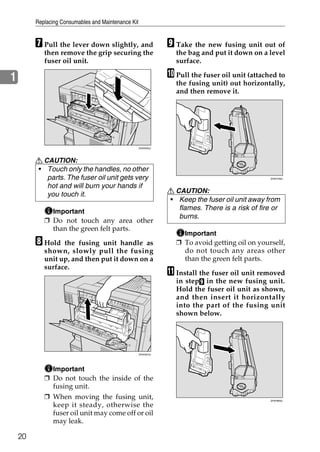
         G Pull the lever down slightly, and                    I Take the new fusing unit out of
            then remove the grip securing the                     the bag and put it down on a level
            fuser oil unit.                                       surface.

1                                                               J Pull the fuser oil unit (attached to
                                                                  the fusing unit) out horizontally,
                                                                  and then remove it.


                                                     ZHXH033J


         R CAUTION:
         • Touch only the handles, no other
            parts. The fuser oil unit gets very                                                  ZHXH790J

            hot and will burn your hands if
                                                                R CAUTION:
            you touch it.
                                                                • Keep the fuser oil unit away from
              Important
                                                                   flames. There is a risk of fire or
                                                                   burns.
            ❒ Do not touch any area other
              than the green felt parts.
                                                                    Important
         H Hold   the fusing unit handle as                       ❒ To avoid getting oil on yourself,
            shown, slowly pull the fusing                           do not touch any areas other
            unit up, and then put it down on a                      than the green felt parts.
            surface.
                                                                K Install the fuser oil unit removed
                                                                  in stepI in the new fusing unit.
                                                                  Hold the fuser oil unit as shown,
                                                                  and then insert it horizontally
                                                                  into the part of the fusing unit
                                                                  shown below.


                                                     ZHXH810J


              Important
            ❒ Do not touch the inside of the
              fusing unit.
            ❒ When moving the fusing unit,                                                       ZHXH800J

              keep it steady, otherwise the
              fuser oil unit may come off or oil
              may leak.

    20
Replacing the Fusing Unit


    Important                              O Close the upper left cover (A), A
  ❒ Be careful not to get oil on the         and then push the part labeled
    top metal part of the fuser oil          “PUSH” next to the handle at the
    unit.                                                                  B
                                             bottom rear, until it clicks (B).
  ❒ Insert the fuser oil unit firmly,                                                            1
    until it stops.

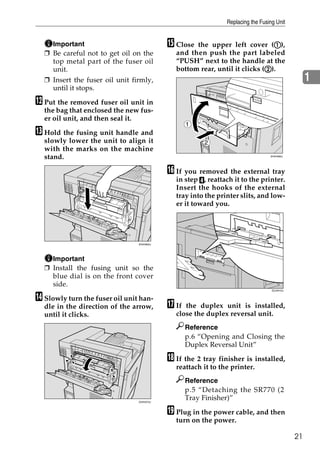
L Put the removed fuser oil unit in
  the bag that enclosed the new fus-
  er oil unit, and then seal it.
                                                  1
M Hold the fusing unit handle and
  slowly lower the unit to align it                    2
  with the marks on the machine
  stand.                                                                        ZHXH082J


                                           P If you removed the external tray
                                             in step D, reattach it to the printer.
                                             Insert the hooks of the external
                                             tray into the printer slits, and low-
                                             er it toward you.


                                ZHXH820J


    Important
  ❒ Install the fusing unit so the
    blue dial is on the front cover
    side.
                                                                                 ZDJH010J


N Slowly turn the fuser oil unit han-
  dle in the direction of the arrow,       Q If the duplex unit is installed,
  until it clicks.                           close the duplex reversal unit.
                                                  Reference
                                                  p.6 “Opening and Closing the
                                                  Duplex Reversal Unit”

                                           R If the 2 tray finisher is installed,
                                             reattach it to the printer.
                                                  Reference
                                                  p.5 “Detaching the SR770 (2
                                ZHXH070J
                                                  Tray Finisher)”

                                           S Plug in the power cable, and then
                                             turn on the power.

                                                                                            21
Replacing Consumables and Maintenance Kit


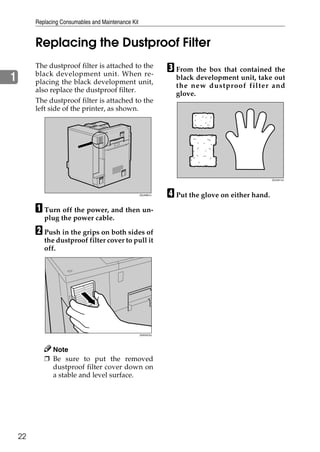
         Replacing the Dustproof Filter
         The dustproof filter is attached to the
         black development unit. When re-
                                                                C From the box that contained the
1        placing the black development unit,
                                                                  black development unit, take out
                                                                  the new dustproof filter and
         also replace the dustproof filter.
                                                                  glove.
         The dustproof filter is attached to the
         left side of the printer, as shown.


                                                                                                  ZDJH214J


                                                     ZDJH801J
                                                                D Put the glove on either hand.
         A Turn off the power, and then un-
            plug the power cable.

         B Push in the grips on both sides of
            the dustproof filter cover to pull it
            off.


                                                     ZHXH570J


              Note
            ❒ Be sure to put the removed
              dustproof filter cover down on
              a stable and level surface.


    22
Replacing the Dustproof Filter


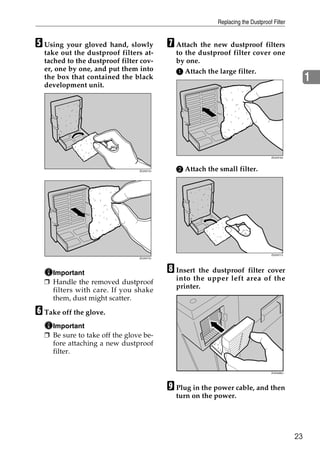
E Using your gloved hand, slowly           G Attach the new dustproof filters
  take out the dustproof filters at-         to the dustproof filter cover one
  tached to the dustproof filter cov-        by one.
  er, one by one, and put them into          A Attach the large filter.
  the box that contained the black                                                               1
  development unit.


                                                                                 ZDJH216J


                                ZDJH213J     B Attach the small filter.


                                                                                 ZDJH217J
                                ZDJH215J


    Important                              H Insert the dustproof filter cover
                                             into the upper left area of the
  ❒ Handle the removed dustproof
                                             printer.
    filters with care. If you shake
    them, dust might scatter.

F Take off the glove.
    Important
  ❒ Be sure to take off the glove be-
    fore attaching a new dustproof
    filter.

                                                                                 ZHXH580J


                                           I Plug in the power cable, and then
                                             turn on the power.


                                                                                            23
Replacing Consumables and Maintenance Kit


         Replacing the Waste Toner Bottle
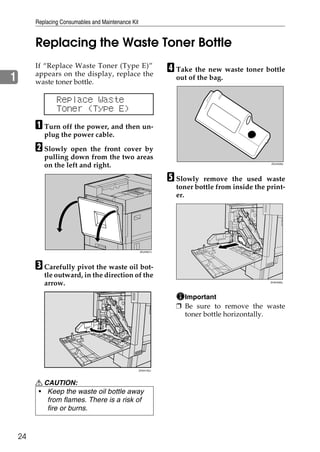
         If “Replace Waste Toner (Type E)”
         appears on the display, replace the
                                                                D Take the new waste toner bottle
1        waste toner bottle.
                                                                  out of the bag.


                 Replace Waste
                 Toner (Type E)
         A Turn off the power, and then un-
            plug the power cable.

         B Slowly    open the front cover by
            pulling down from the two areas
            on the left and right.                                                              ZDJH228J


                                                                E Slowly  remove the used waste
                                                                  toner bottle from inside the print-
                                                                  er.


                                                     ZDJH007J


         C Carefully pivot the waste oil bot-
            tle outward, in the direction of the
            arrow.                                                                              ZHXH590J


                                                                    Important
                                                                  ❒ Be sure to remove the waste
                                                                    toner bottle horizontally.


                                                     ZHXH150J


         R CAUTION:
         • Keep the waste oil bottle away
            from flames. There is a risk of
            fire or burns.


    24
Replacing the Waste Toner Bottle


F Remove the lid (A), and then put
                  A                        I Push it in until it stops.
  it in the position shown in the il-
              B
  lustration (B).

                                                                                                  1


                                                                                 ZHXH600J


                                ZDJH229J       Important
                                             ❒ Be sure to firmly insert the
G Put  the used waste toner bottle             waste toner bottle to avoid ton-
  into the bag that contained the              er leakage inside the printer.
  new waste toner bottle, and then
  seal the bag.                            J Slowly close the waste oil bottle
                                             in the direction of the arrow.
    Important
  ❒ Be sure to handle the bottle
    carefully so waste toner does
    not spill.

H Insert the new waste toner bottle
  as shown.


                                                                                 ZHXH160J


                                           K Slowly  close the front cover by
                                             pushing the two areas on the left
                                             and right.

                                ZHXH610J


                                                                                  ZDJH041J


                                           L Plug in the power cable, and then
                                             turn on the power.
                                                                                             25
Replacing Consumables and Maintenance Kit


         Replacing the Paper Feed Rollers
         If “Replace Feed Roller (Type H)” ap-
         pears on the display, replace all three
                                                     C Slowly   pull out all trays while
1        feed rollers.
                                                       lifting up a little.


                 Replace Feed
                 Roller (Type H)
           Note
         ❒ The following illustrations are ex-
           amples of replacing the paper feed
           rollers of Tray 1. The same proce-
           dure applies to other trays.                                             ZERH010E


         A Check the contents of the box.                Note
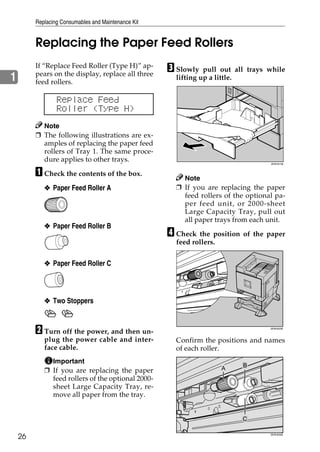
            ❖ Paper Feed Roller A                      ❒ If you are replacing the paper
                                                         feed rollers of the optional pa-
                                                         per feed unit, or 2000-sheet
                                                         Large Capacity Tray, pull out
                                                         all paper trays from each unit.
            ❖ Paper Feed Roller B
                                                     D Check the position of the paper
                                                       feed rollers.


            ❖ Paper Feed Roller C


            ❖ Two Stoppers


         B Turn off the power, and then un-                                         ZERH020E


            plug the power cable and inter-            Confirm the positions and names
            face cable.                                of each roller.
              Important
            ❒ If you are replacing the paper
              feed rollers of the optional 2000-
              sheet Large Capacity Tray, re-
              move all paper from the tray.


    26                                                                              ZERH030E
Replacing the Paper Feed Rollers


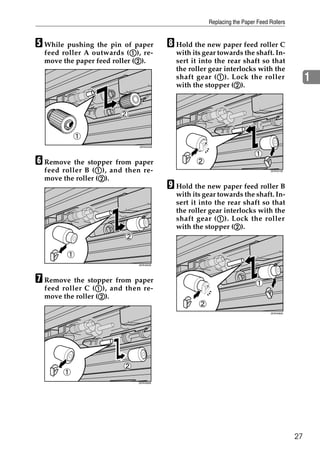
E While pushing the pin of paper         H Hold the new paper feed roller C
                            A
  feed roller A outwards (A), re-          with its gear towards the shaft. In-
                              B
  move the paper feed roller (B).          sert it into the rear shaft so that
                                           the roller gear interlocks with the
                                                         A
                                           shaft gear (A ). Lock the roller                   1
                                                              B
                                           with the stopper (B).


                              ZERH040E


F Remove the stopper   from paper
                  A
  feed roller B (A ), and then re-                                            ZERH070E


                   B
  move the roller (B).
                                         I Hold the new paper feed roller B
                                           with its gear towards the shaft. In-
                                           sert it into the rear shaft so that
                                           the roller gear interlocks with the
                                                         A
                                           shaft gear (A ). Lock the roller
                                                              B
                                           with the stopper (B).


                             ZERH050E


G Remove the stopper   from paper
                  A
  feed roller C (A ), and then re-
                   B
  move the roller (B).

                                                                              ZERH080E


                             ZERH060E


                                                                                         27
Replacing Consumables and Maintenance Kit


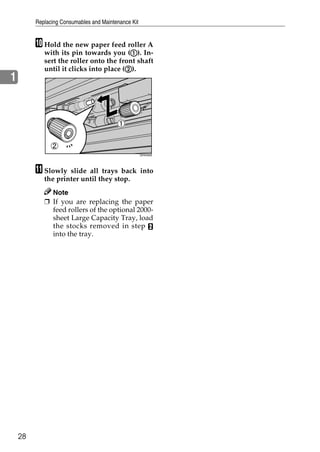
         J Hold the new paper feed roller A
                                         A
            with its pin towards you (A). In-
            sert the roller onto the front shaft
                                        B
            until it clicks into place (B).
1


                                                     ZERH090E


         K Slowly   slide all trays back into
            the printer until they stop.
              Note
            ❒ If you are replacing the paper
              feed rollers of the optional 2000-
              sheet Large Capacity Tray, load
              the stocks removed in step B
              into the tray.


    28
2. Cleaning and Adjusting the
                       Printer
Cautions to Take When Cleaning
R WARNING:
        • Do not remove any covers or screws other than those spec-
          ified in this manual. Some parts of the machine are at a high
          voltage and could give you an electric shock. Also, if the ma-
          chine has laser systems, direct (or indirect) reflected eye
          contact with the laser beam may cause serious eye damage.
          When the machine needs to be checked, adjusted, or re-
          paired, contact your service representative.
           • Do not take apart or attempt any modifications to this ma-
             chine. There is a risk of fire, electric shock, explosion or loss
             of sight. If the machine has laser systems, there is a risk of
             serious eye damage.

R CAUTION:
        • When removing misfed paper, do not touch the fusing section be-
           cause it could be very hot.

Clean the printer periodically to maintain print clarity.
Dry wipe the exterior using a soft cloth. If dry wiping is not enough, wipe using
a soft, wet cloth that is well wrung out. If you still cannot remove the stain or
grime, use a neutral detergent, then wipe over with a well wrung wet cloth, dry
wipe, and let it dry.
  Important
❒ To avoid deformation, discoloration, or cracking, do not use volatile chemi-
  cals, such as benzine and thinner, or spray insecticide on the printer.
❒ If there is dust or grime inside the printer, wipe it away using a clean, dry
  cloth.


                                                                                    29
Cleaning and Adjusting the Printer


         Cleaning the Registration Roller
         R CAUTION:                                      C Wipe around the registration roll-
         • The inside of the printer be-                   er by turning it and applying a
            comes very hot. To avoid burns,                soft damp cloth.
            do not touch parts labelled “hot
            surface”, otherwise it could
2           cause a burn.
         Clean the roller when replacing the
         black development unit.

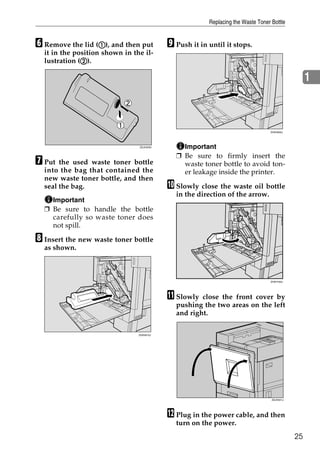
         A Turn off the power, and then un-
            plug the power cable.

         B Open the right cover as shown.                                               ZDJH704J


                                                             Important
                                                           ❒ Do not use chemical cleaners or
                                                             organic solvents such as thin-
                                                             ners or benzene.

                                                         D Close the right cover by pushing
                                                           the area labeled “PUSH”.

                                              ZDJH206J


            The registration roller is set as
            shown.


                                                                                        ZDJP708J


                                                         E Plug in the power cable, and then
                                                           turn on the power.

                                              ZDJH703J


    30
Cleaning the DustProof Glass


Cleaning the DustProof Glass
The dustproof glass may require
cleaning if white lines appear on
                                          C Slide the cleaning brush in and
                                            out slowly 8 to 10 times to clean
print.
                                            all four areas.
A Turn off the power, and then un-
  plug the power cable.                                                                        2
B Open the front cover, and then re-
  move the cleaning brush.


                                                                               ZDJP707J


                                              Important
                                            ❒ Do not insert the brush roughly.
                                              Doing so may damage the print-
                               ZHXH631J       er.

  There are four holes for cleaning       D Return the cleaning brush to its
  the dustproof glass.                      original position.

                                          E Plug in the power cable, and then
                                            turn on the power.


                               ZHXH640J


                                                                                          31
Cleaning and Adjusting the Printer


         Adjusting the Color Registration
         After moving the printer, printing on
         thick paper, or printing repeatedly for
                                                                                     D Confirm “Auto Adjust” appears,
                                                                                       and then press {Enter #}.
                                                                                                              }
         some time, color degradation may oc-
         cur. By performing color registration
         adjustment, you can restore optimum                                               Color Regist.:
2        print quality.                                                                    Auto Adjust
                                                                                     E Confirm   “Now” appears, and
         Auto Adjust                                                                   then press {Enter #}.
                                                                                                          }
         If documents show color degradation
         after the printer is moved, perform                                               Auto Adjust:
         automatic color adjustment.                                                       Now
         A Press {Menu}.
                      }                                                                The check message appears.

                                                                                           Press #
                                                                                           To Adjust
                                                                                     F Press {Enter #}.
                 On Line    Menu                                 Escape


                 Job Reset Form Feed                             #Enter
                                                                                                     }
                                       Power   Error   Data In
                                                                                       Automatic color adjustment be-
                                                                                       gins, and the following message
                                                                                       appears.

                                                                          ZDJS001N
                                                                                           Adjusting...
            “Menu” appears on the display.

         B Press    {U} or {T} to display                                                Important
            “Maintenance”, and then press                                              ❒ To avoid malfunction, do not
            {Enter #}.
                    }                                                                    turn off the power while “Ad-
                                                                                         justing... ” appears on the dis-
                   Menu:                                                                 play.
                    Maintenance                                                        Automatic color adjustment takes
                                                                                       about 50 seconds. A confirmation
            The maintenance menu appears.
                                                                                       message appears when complete.
         C Press {U} or {T} to display “Color
            Regist.”, and then press {Enter #}.
                                             }                                             Completed

                   Maintenance:                                                        Press {Enter #} to return to the col-
                                                                                                     }
                    Color Regist.                                                      or adjustment menu.

                                                                                           Color Regist.:
                                                                                           Auto Adjust
    32
Adjusting the Color Registration


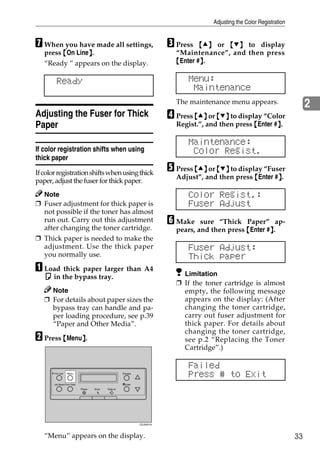
G When you have made all settings,                                         C Press   {U} or {T} to display
   press {On Line}.
                 }                                                           “Maintenance”, and then press
   “Ready ” appears on the display.                                          {Enter #}.
                                                                                     }

         Ready                                                                   Menu:
                                                                                  Maintenance
                                                                             The maintenance menu appears.                       2
Adjusting the Fuser for Thick                                              D Press {U} or {T} to display “Color
Paper                                                                        Regist.”, and then press {Enter #}.
                                                                                                              }

                                                                                 Maintenance:
If color registration shifts when using                                           Color Regist.
thick paper
If color registration shifts when using thick
                                                                           E Press {U} or {T} to display “Fuser
                                                                             Adjust”, and then press {Enter #}.
                                                                                                             }
paper, adjust the fuser for thick paper.
  Note                                                                           Color Regist.:
❒ Fuser adjustment for thick paper is                                            Fuser Adjust
  not possible if the toner has almost
  run out. Carry out this adjustment                                       F Make    sure “Thick Paper” ap-
  after changing the toner cartridge.                                        pears, and then press {Enter #}.
                                                                                                           }
❒ Thick paper is needed to make the
  adjustment. Use the thick paper                                                Fuser Adjust:
  you normally use.                                                              Thick paper
A Load thick paper larger than A4                                              Limitation
   K in the bypass tray.
                                                                             ❒ If the toner cartridge is almost
     Note                                                                      empty, the following message
   ❒ For details about paper sizes the                                         appears on the display: (After
     bypass tray can handle and pa-                                            changing the toner cartridge,
     per loading procedure, see p.39                                           carry out fuser adjustment for
     “Paper and Other Media”.                                                  thick paper. For details about
                                                                               changing the toner cartridge,
B Press {Menu}.
             }                                                                 see p.2 “Replacing the Toner
                                                                               Cartridge”.)

                                                                                 Failed
       On Line    Menu                                 Escape
                                                                                 Press # to Exit
       Job Reset Form Feed                             #Enter
                             Power   Error   Data In


                                                                ZDJS001N


   “Menu” appears on the display.                                                                                           33
Cleaning and Adjusting the Printer


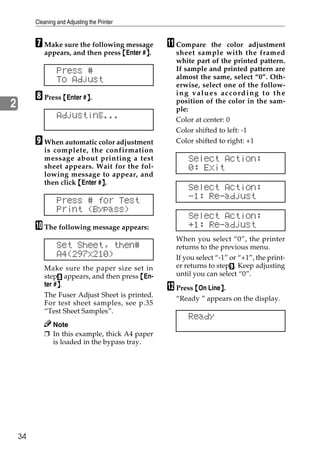
         G Make sure the following message       K Compare     the color adjustment
            appears, and then press {Enter #}.
                                            }      sheet sample with the framed
                                                   white part of the printed pattern.
                  Press #                          If sample and printed pattern are
                  To Adjust                        almost the same, select “0”. Oth-
                                                   erwise, select one of the follow-
         H Press {Enter #}.
                         }
                                                   ing values according to the
                                                   position of the color in the sam-
2                                                  ple:
                  Adjusting...                     Color at center: 0
                                                   Color shifted to left: -1
         I When automatic color adjustment         Color shifted to right: +1
            is complete, the confirmation
            message about printing a test              Select Action:
            sheet appears. Wait for the fol-           0: Exit
            lowing message to appear, and
            then click {Enter #}.
                               }
                                                       Select Action:
                  Press # for Test                     -1: Re-adjust
                  Print (Bypass)
                                                       Select Action:
         J The following message appears:              +1: Re-adjust
                                                   When you select “0”, the printer
                  Set Sheet, then#                 returns to the previous menu.
                  A4(297x210)                      If you select “-1” or “+1”, the print-
            Make sure the paper size set in        er returns to stepI. Keep adjusting
            stepH appears, and then press {En-     until you can select “0”.
                 }
            ter #}.
                                                 L Press {On Line}.
                                                                 }
            The Fuser Adjust Sheet is printed.
                                                   “Ready ” appears on the display.
            For test sheet samples, see p.35
            “Test Sheet Samples”.
                                                       Ready
              Note
            ❒ In this example, thick A4 paper
              is loaded in the bypass tray.


    34
Adjusting the Color Registration


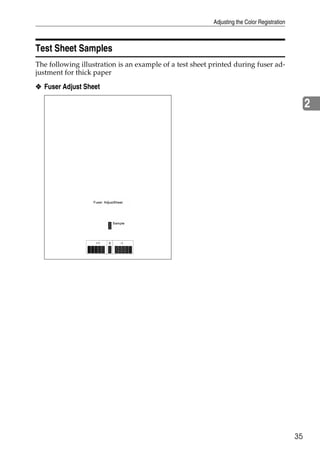
Test Sheet Samples
The following illustration is an example of a test sheet printed during fuser ad-
justment for thick paper

❖ Fuser Adjust Sheet

                                                                                                 2


                                                                                            35
Cleaning and Adjusting the Printer


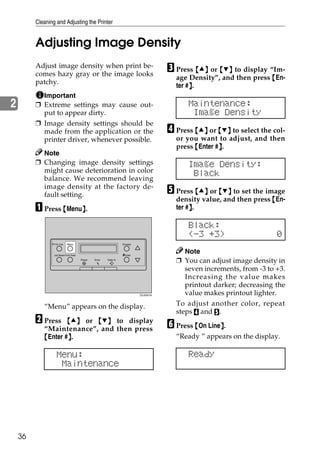
         Adjusting Image Density
         Adjust image density when print be-
         comes hazy gray or the image looks
                                                                                     C Press {U} or {T} to display “Im-
                                                                                       age Density”, and then press {En-
         patchy.
                                                                                            }
                                                                                       ter #}.
           Important
2        ❒ Extreme settings may cause out-                                                 Maintenance:
           put to appear dirty.                                                             Image Density
         ❒ Image density settings should be
           made from the application or the                                          D Press {U} or {T} to select the col-
           printer driver, whenever possible.                                          or you want to adjust, and then
                                                                                       press {Enter #}.
                                                                                                     }
           Note
         ❒ Changing image density settings                                                 Image Density:
           might cause deterioration in color                                               Black
           balance. We recommend leaving
           image density at the factory de-
           fault setting.                                                            E Press {U} or {T} to set the image
                                                                                       density value, and then press {En-
         A Press {Menu}.
                      }                                                                     }
                                                                                       ter #}.

                                                                                           Black:
                                                                                           (-3 +3)                     0
                 On Line    Menu                                 Escape


                 Job Reset Form Feed                             #Enter
                                                                                          Note
                                       Power   Error   Data In
                                                                                       ❒ You can adjust image density in
                                                                                          seven increments, from -3 to +3.
                                                                                          Increasing the value makes
                                                                                          printout darker; decreasing the
                                                                          ZDJS001N        value makes printout lighter.
            “Menu” appears on the display.                                             To adjust another color, repeat
                                                                                       steps D and E.
         B Press    {U} or {T} to display
                                                                                     F Press {On Line}.
                                                                                                     }
            “Maintenance”, and then press
            {Enter #}.
                    }                                                                  “Ready ” appears on the display.

                   Menu:                                                                   Ready
                    Maintenance


    36
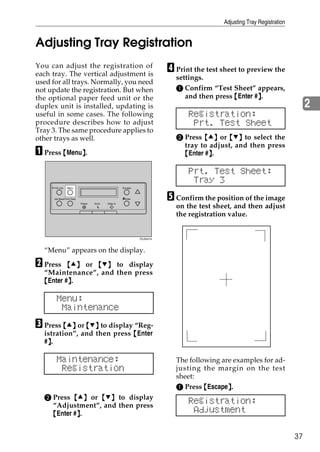
Adjusting Tray Registration


Adjusting Tray Registration
You can adjust the registration of
each tray. The vertical adjustment is
                                                                          D Print the test sheet to preview the
                                                                            settings.
used for all trays. Normally, you need
not update the registration. But when                                       A Confirm “Test Sheet” appears,
the optional paper feed unit or the                                            and then press {Enter #}.
                                                                                                      }
duplex unit is installed, updating is                                                                                         2
useful in some cases. The following                                             Registration:
procedure describes how to adjust                                                Prt. Test Sheet
Tray 3. The same procedure applies to
other trays as well.                                                        B Press {U} or {T} to select the
                                                                              tray to adjust, and then press
A Press {Menu}.
             }                                                                {Enter #}.
                                                                                      }

                                                                                Prt. Test Sheet:
                                                                                 Tray 3
      On Line    Menu                                 Escape


      Job Reset Form Feed
                            Power   Error   Data In
                                                      #Enter              E Confirm the position of the image
                                                                            on the test sheet, and then adjust
                                                                            the registration value.


                                                               ZDJS001N


  “Menu” appears on the display.

B Press   {U} or {T} to display
  “Maintenance”, and then press
  {Enter #}.
          }

        Menu:
         Maintenance
C Press {U} or {T} to display “Reg-
  istration”, and then press {Enter
   }
  #}.

        Maintenance:                                                        The following are examples for ad-
         Registration                                                       justing the margin on the test
                                                                            sheet:
                                                                            A Press {Escape}.
                                                                                            }
  B Press {U} or {T} to display
    “Adjustment”, and then press
                                                                                Registration:
    {Enter #}.
            }                                                                    Adjustment

                                                                                                                         37
Cleaning and Adjusting the Printer


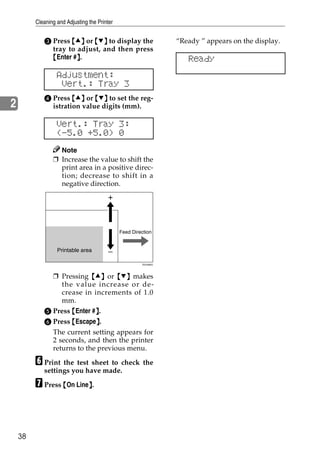
            C Press {U} or {T} to display the                     “Ready ” appears on the display.
              tray to adjust, and then press
              {Enter #}.
                      }                                              Ready
                  Adjustment:
                   Vert.: Tray 3
            D Press {U} or {T} to set the reg-
2             istration value digits (mm).

                  Vert.: Tray 3:
                  (-5.0 +5.0) 0
                  Note
                ❒ Increase the value to shift the
                  print area in a positive direc-
                  tion; decrease to shift in a
                  negative direction.


                                              Feed Direction


                  Printable area

                                                       ZDJX900J


              ❒ Pressing {U} or {T} makes
                 the value increase or de-
                 crease in increments of 1.0
                 mm.
            E Press {Enter #}.
                            }
            F Press {Escape}.
                            }
              The current setting appears for
              2 seconds, and then the printer
              returns to the previous menu.

         F Print the test sheet to check the
            settings you have made.

         G Press {On Line}.
                         }


    38
3. Paper and Other Media

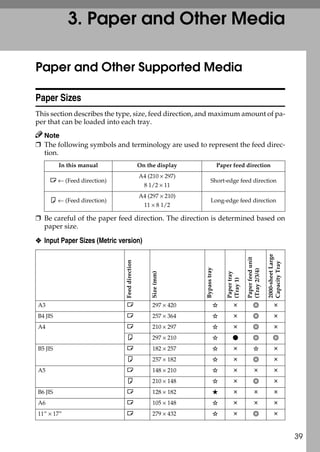
Paper and Other Supported Media

Paper Sizes
This section describes the type, size, feed direction, and maximum amount of pa-
per that can be loaded into each tray.
  Note
❒ The following symbols and terminology are used to represent the feed direc-
  tion.
         In this manual                        On the display                 Paper feed direction
                                               A4 (210 × 297)
     L ← (Feed direction)                                             Short-edge feed direction
                                                 8 1/2 × 11
                                               A4 (297 × 210)
     K ← (Feed direction)                                              Long-edge feed direction
                                                 11 × 8 1/2

❒ Be careful of the paper feed direction. The direction is determined based on
  paper size.

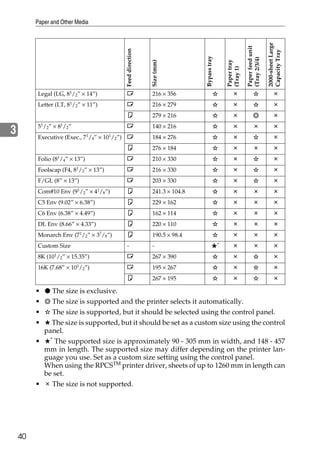
❖ Input Paper Sizes (Metric version)


                                                                                                                 2000-sheet Large
                                                                                               Paper feed unit
                              Feed direction


                                                                                                                 Capacity Tray
                                                                Bypass tray


                                                                                               (Tray 2/3/4)
                                                                                  Paper tray
                                                    Size (mm)


                                                                                  (Tray 1)


A3                            L                     297 × 420
B4 JIS                        L                     257 × 364
A4                            L                     210 × 297
                              K                     297 × 210
B5 JIS                        L                     182 × 257
                              K                     257 × 182
A5                            L                     148 × 210
                              K                     210 × 148
B6 JIS                        L                     128 × 182
A6                            L                     105 × 148
11” × 17”                     L                     279 × 432


                                                                                                                                    39
Paper and Other Media


                                                                                                                           2000-sheet Large
                                                                                                         Paper feed unit
                                         Feed direction


                                                                                                                           Capacity Tray
                                                                          Bypass tray


                                                                                                         (Tray 2/3/4)
                                                                                            Paper tray
                                                          Size (mm)


                                                                                            (Tray 1)
         Legal (LG, 81/2” × 14”)         L                216 × 356
         Letter (LT, 81/2” × 11”)        L                216 × 279
                                         K                279 × 216
         5 /2” × 8 /2”
             1    1
                                         L                140 × 216
3        Executive (Exec., 71/4” × 101/2”) L              184 × 276
                                         K                276 × 184
         Folio (81/4” × 13”)             L                210 × 330
         Foolscap (F4, 81/2” × 13”)      L                216 × 330
         F/GL (8” × 13”)                 L                203 × 330
         Com#10 Env (91/2” × 41/8”)      K                241.3 × 104.8
         C5 Env (9.02” × 6.38”)          K                229 × 162
         C6 Env (6.38” × 4.49”)          K                162 × 114
         DL Env (8.66” × 4.33”)          K                220 × 110
         Monarch Env (7 /2” × 3 /8”)
                             1      7
                                         K                190.5 × 98.4
         Custom Size                     -                -                             *


         8K (101/2” × 15.35”)            L                267 × 390
         16K (7.68” × 10 /2”)
                         1
                                         L                195 × 267
                                         K                267 × 195

         •    The size is exclusive.
         •    The size is supported and the printer selects it automatically.
         •    The size is supported, but it should be selected using the control panel.
         •    The size is supported, but it should be set as a custom size using the control
           panel.
             *
         •     The supported size is approximately 90 - 305 mm in width, and 148 - 457
           mm in length. The supported size may differ depending on the printer lan-
           guage you use. Set as a custom size setting using the control panel.
           When using the RPCSTM printer driver, sheets of up to 1260 mm in length can
           be set.
         •    The size is not supported.


    40
Paper and Other Supported Media


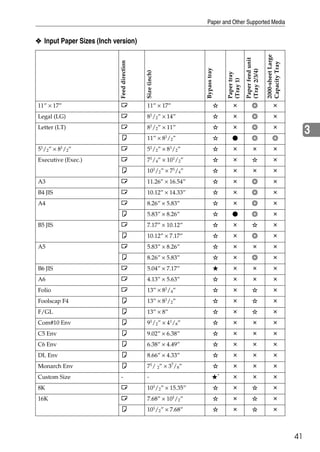
❖ Input Paper Sizes (Inch version)


                                                                                                                2000-sheet Large
                                                                                              Paper feed unit
                            Feed direction


                                                                                                                Capacity Tray
                                                               Bypass tray


                                                                                              (Tray 2/3/4)
                                             Size (inch)


                                                                                 Paper tray
                                                                                 (Tray 1)
11” × 17”                   L                11” × 17”
Legal (LG)                  L                81/2” × 14”
                            L                81/2” × 11”
Letter (LT)
                                                                                                                                        3
                            K                11” × 81/2”
51/2” × 81/2”               L                51/2” × 81/2”
Executive (Exec.)           L                71/4” × 101/2”
                            K                101/2” × 71/4”
A3                          L                11.26” × 16.54”
B4 JIS                      L                10.12” × 14.33”
A4                          L                8.26” × 5.83”
                            K                5.83” × 8.26”
B5 JIS                      L                7.17” × 10.12”
                            K                10.12” × 7.17”
A5                          L                5.83” × 8.26”
                            K                8.26” × 5.83”
B6 JIS                      L                5.04” × 7.17”
A6                          L                4.13” × 5.63”
Folio                       L                13” × 81/4”
Foolscap F4                 K                13” × 81/2”
F/GL                        K                13” × 8”
Com#10 Env                  K                91/2” × 41/8”
C5 Env                      K                9.02” × 6.38”
C6 Env                      K                6.38” × 4.49”
DL Env                      K                8.66” × 4.33”
Monarch Env                 K                71/ 2” × 37/8”
                                                                             *
Custom Size                 -                -
8K                          L                101/2” × 15.35”
16K                         L                7.68” × 101/2”
                            K                101/2” × 7.68”


                                                                                                                                   41
Paper and Other Media


         •    The size is exclusive.
         •    The size is supported, and the printer selects it automatically.
         •    The size is supported, but it should be selected using the control panel.
         •    The size is supported, but it should be set as a custom size using the control
           panel.
         •   * The supported size is approximately 3.5 - 12 inch in width, and 5.8 - 18 inch

           in length. The supported size may differ depending on the printer language
           you use. Set as a custom size setting using the control panel.
           When using the RPCS printer driver, sheets of up to 49.6 inch in length can be
           set.
3        •    The size is not supported.

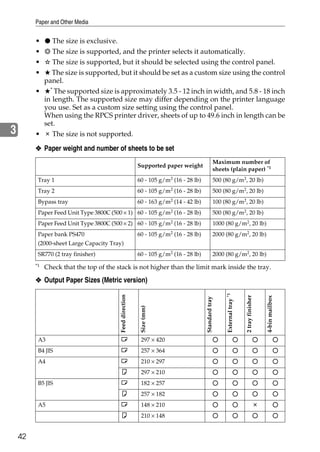
         ❖ Paper weight and number of sheets to be set
                                                                                                   Maximum number of
                                                          Supported paper weight
                                                                                                   sheets (plain paper) *1
          Tray 1                                          60 - 105 g/m2 (16 - 28 lb)               500 (80 g/m2, 20 lb)
          Tray 2                                          60 - 105 g/m2 (16 - 28 lb)               500 (80 g/m2, 20 lb)
          Bypass tray                                     60 - 163 g/m2 (14 - 42 lb)               100 (80 g/m2, 20 lb)
          Paper Feed Unit Type 3800C (500 × 1) 60 - 105 g/m2 (16 - 28 lb)                          500 (80 g/m2, 20 lb)
          Paper Feed Unit Type 3800C (500 × 2) 60 - 105 g/m2 (16 - 28 lb)                          1000 (80 g/m2, 20 lb)
          Paper bank PS470                                60 - 105 g/m2 (16 - 28 lb)               2000 (80 g/m2, 20 lb)
          (2000-sheet Large Capacity Tray)
          SR770 (2 tray finisher)                         60 - 105 g/m2 (16 - 28 lb)               2000 (80 g/m2, 20 lb)
         *1   Check that the top of the stack is not higher than the limit mark inside the tray.

         ❖ Output Paper Sizes (Metric version)
                                                                                                        External tray *1
                                         Feed direction


                                                                                                                           2 tray finisher


                                                                                                                                             4-bin mailbox
                                                                                       Standard tray
                                                           Size (mm)


          A3                              L                297 × 420
          B4 JIS                          L                257 × 364
          A4                              L                210 × 297
                                          K                297 × 210
          B5 JIS                          L                182 × 257
                                          K                257 × 182
          A5                              L                148 × 210
                                          K                210 × 148


    42
Paper and Other Supported Media


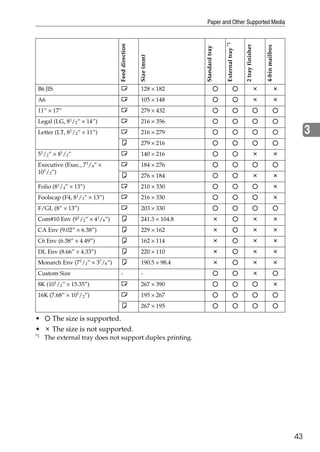
                                                                                             External tray *1
                                            Feed direction


                                                                                                                2 tray finisher


                                                                                                                                  4-bin mailbox
                                                                             Standard tray
                                                             Size (mm)
 B6 JIS                                     L                128 × 182
 A6                                         L                105 × 148
 11” × 17”                                  L                279 × 432
 Legal (LG,   81/   2”   × 14”)             L                216 × 356
 Letter (LT, 81/2” × 11”)                   L                216 × 279                                                                                 3
                                            K                279 × 216
 51/2” × 81/2”                              L                140 × 216
 Executive (Exec., 71/4” ×                  L                184 × 276
 101/2”)
                                            K                276 × 184
 Folio (81/4” × 13”)                        L                210 × 330
 Foolscap (F4, 81/2” × 13”)                 L                216 × 330
 F/GL (8” × 13”)                            L                203 × 330
 Com#10 Env (91/2” × 41/8”)                 K                241.3 × 104.8
 CA Env (9.02” × 6.38”)                     K                229 × 162
 C6 Env (6.38” × 4.49”)                     K                162 × 114
 DL Env (8.66” × 4.33”)                     K                220 × 110
 Monarch Env     (71/     2”   ×   37/8”)   K                190.5 × 98.4
 Custom Size                                -                -
 8K (101/2” × 15.35”)                       L                267 × 390
 16K (7.68” × 10 /2”)
                    1
                                            L                195 × 267
                                            K                267 × 195

•      The size is supported.
•      The size is not supported.
*1   The external tray does not support duplex printing.


                                                                                                                                                  43
Paper and Other Media


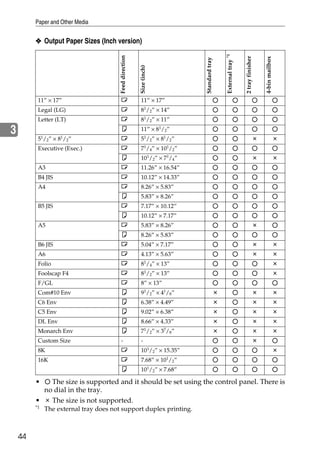
         ❖ Output Paper Sizes (Inch version)


                                                                                                External tray *1
                                            Feed direction


                                                                                                                   2 tray finisher


                                                                                                                                     4-bin mailbox
                                                                                Standard tray
                                                             Size (inch)
          11” × 17”                          L                11” × 17”
          Legal (LG)                         L                81/2” × 14”
          Letter (LT)                        L                81/2” × 11”

3                                            K                11” × 81/2”
          5 /2” × 8 /2”
              1        1
                                             L                51/2” × 81/2”
          Executive (Exec.)                  L                71/4” × 101/2”
                                             K                101/2” × 71/4”
          A3                                 L                11.26” × 16.54”
          B4 JIS                             L                10.12” × 14.33”
          A4                                 L                8.26” × 5.83”
                                             K                5.83” × 8.26”
          B5 JIS                             L                7.17” × 10.12”
                                             K                10.12” × 7.17”
          A5                                 L                5.83” × 8.26”
                                             K                8.26” × 5.83”
          B6 JIS                             L                5.04” × 7.17”
          A6                                 L                4.13” × 5.63”
          Folio                              L                81/4” × 13”
          Foolscap F4                        L                81/2” × 13”
          F/GL                               L                8” × 13”
          Com#10 Env                         K                91/2” × 41/8”
          C6 Env                             K                6.38” × 4.49”
          C5 Env                             K                9.02” × 6.38”
          DL Env                             K                8.66” × 4.33”
          Monarch Env                        K                71/2” × 37/8”
          Custom Size                        -                -
          8K                                 L                101/2” × 15.35”
          16K                                L                7.68” × 101/2”
                                             K                101/2” × 7.68”

         •   The size is supported and it should be set using the control panel. There is
           no dial in the tray.
         •   The size is not supported.
         *1
                  The external tray does not support duplex printing.


    44
Paper Recommendations


Paper Recommendations

Loading Paper
  Important
❒ Do not use ink-jet printer paper because it may stick to the fusing unit and
  cause a paper misfeed.
❒ When printing on OHP transparencies that have a print side, load them with
  the print side over on the bypass tray. Not taking this precaution may cause
  them to stick to the fusing unit and cause misfeeds.
                                                                                           3
❒ Print quality cannot be guaranteed if recommended paper is not used. For de-
  tails about recommended paper, contact your sales or service representative.
❒ Do not use paper that has already been printed onto by other printers.


Storing Paper
• Paper should always be stored properly. Improperly storing paper might re-
  sult in poor print quality, paper misfeeds, or printer damage. Recommenda-
  tions are as follows:
  • Avoid storing paper in humid areas.
  • Avoid exposing paper to direct sunlight.
  • Store paper on a flat surface.
• Keep open reams of paper in the packaging it came in.


Types of Paper and Other Media
❖ Plain Paper
  • Tray 1/2 can hold up to 500 sheets.
     Paper Feed Unit Type 3800C (500×1) can hold up to 500 sheets.
     Paper Feed Unit Type 3800C (500×2) can hold up to 1000 sheets.
     Paper Bank PS470 can hold up to 2000 sheets.
     Check that the top of the stack is not higher than the limit mark inside the
     tray.
  • The bypass tray can accommodate sheets 90-305 mm wide and 148-457
     mm long. However, the paper size must be set using the control panel.
     When using the RPCS printer driver, sheets of up to 1260 mm in length can
     be set.
  • When printing on the reverse side of plain paper that is already printed on,
     you should load it on the bypass tray and select [Plain (Duplex Backside)]
     from [Paper Type:] using the printer driver.


                                                                                      45
Paper and Other Media


         ❖ Thick Paper
           • Use the bypass tray
           • The bypass tray can hold up to 135 kg (163 g/m2) of paper weight. Print
              quality on thicker paper cannot be guaranteed.
           • Check that the top of the stack is not higher than the limit mark inside the tray.
           • When printing on thick paper, select thick paper mode using the printer
              driver.
           • When printing on the reverse side of plain paper that is already printed on,
              you should load it on the bypass tray and select [Thick (Duplex Backside)]
              from [Paper Type:] using the printer driver.
3
                 Note
               ❒ The number of sheets that can be set may vary depending on paper
                 thickness and type.

         ❖ OHP transparencies
           • When printing on OHP transparencies, use the bypass tray.
           • Load OHP transparencies on the tray with the print side over, otherwise
             they may stick to the fusing unit and cause a misfeed.
           • Remove unused OHP transparencies from the bypass tray after you are
             finished printing. They may stick together if left in the tray.
           • When printing on OHP transparencies, you should select the OHP trans-
             parency mode using the printer driver.
           • Check that the top of the stack is not higher than the limit mark inside the tray.
           • When printing multiple OHP transparencies, remove each sheet from the tray
             one by one before the next is printed out, or select [Slip Sheet] in the printer
             driver. For details about using “Slip Sheet”, see the printer driver Help.

         ❖ Envelopes
              Important
            ❒ Only envelopes A and B as shown below are supported.


                                                       Supported *1


                                                       Supported *1


                                                       Not supported


               *1
                    Misfeeds might also occur when using envelopes A and B depending on the
                    length and shape of the flaps.
    46
Paper Recommendations


• When printing on envelopes, use the bypass tray, and select [Thick Paper]
  as the paper type on the Paper Input menu on the control panel.
  See p.59 “Specifying a paper type for the Bypass Tray”.
• Specifications for envelopes are as follows:
                               Metric version               Inch version
                                              2
   Weight                       72 - 90 g/m                   19 - 24 lb

   Recommended weight      72 g/m 2, 114 × 162 mm        24 lb, 37/8” × 71/2”
   and size                      (C6 Env)                    (Monarch)

• You can load up to 10 envelopes (72 - 92 g/m2, 19 - 24 lb) in the bypass tray
  at the same time, without compressing them. Check the envelopes are not                3
  damp, and the top of the stack is not higher than the limit mark on the side
  guide.
• Check the print side is facing up when loading onto the bypass tray.
• When loading envelopes, be sure to unfold the flaps and position them op-
  posite to the paper feed direction.


• Make the printer driver setting for rotating the print image by 180 degrees.
  For details, see the printer driver Help.
• Check there is no air in the envelopes before loading.
• To get better print quality, it is recommended that you set the right, left,
  top, and bottom print margin, to at least 15 mm (0.6”) each.
• Do not print on both sides of envelopes.
• Load only one size and type of envelope at a time.
• Before loading envelopes, flatten leading edges (the side going into the
  printer) by pressing a pencil or ruler across them.
• Before loading envelopes, check they are rectangular in shape.
• Supported sizes for envelopes are listed on p.39 “Paper and Other Media”.


                                                                                    47
Paper and Other Media


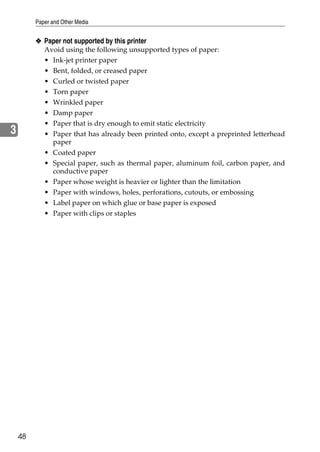
         ❖ Paper not supported by this printer
           Avoid using the following unsupported types of paper:
           • Ink-jet printer paper
           • Bent, folded, or creased paper
           • Curled or twisted paper
           • Torn paper
           • Wrinkled paper
           • Damp paper
           • Paper that is dry enough to emit static electricity
3          • Paper that has already been printed onto, except a preprinted letterhead
             paper
           • Coated paper
           • Special paper, such as thermal paper, aluminum foil, carbon paper, and
             conductive paper
           • Paper whose weight is heavier or lighter than the limitation
           • Paper with windows, holes, perforations, cutouts, or embossing
           • Label paper on which glue or base paper is exposed
           • Paper with clips or staples


    48
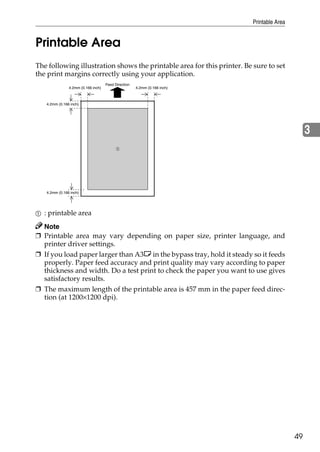
Printable Area


Printable Area
The following illustration shows the printable area for this printer. Be sure to set
the print margins correctly using your application.
                                     Feed Direction
                4.2mm (0.166 inch)                    4.2mm (0.166 inch)


    4.2mm (0.166 inch)


                                                                                                 3


    4.2mm (0.166 inch)


A   : printable area
  Note
❒ Printable area may vary depending on paper size, printer language, and
  printer driver settings.
❒ If you load paper larger than A3L in the bypass tray, hold it steady so it feeds
  properly. Paper feed accuracy and print quality may vary according to paper
  thickness and width. Do a test print to check the paper you want to use gives
  satisfactory results.
❒ The maximum length of the printable area is 457 mm in the paper feed direc-
  tion (at 1200×1200 dpi).


                                                                                            49
Paper and Other Media


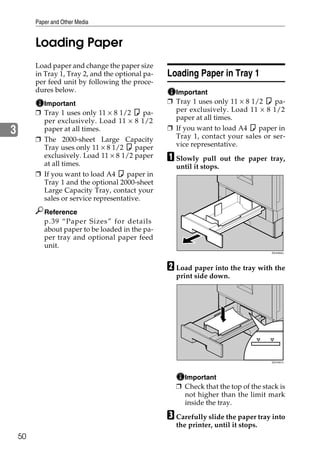
         Loading Paper
         Load paper and change the paper size
         in Tray 1, Tray 2, and the optional pa-   Loading Paper in Tray 1
         per feed unit by following the proce-
         dures below.                                Important
           Important                               ❒ Tray 1 uses only 11 × 8 1/2 K pa-
         ❒ Tray 1 uses only 11 × 8 1/2 K pa-         per exclusively. Load 11 × 8 1/2
           per exclusively. Load 11 × 8 1/2          paper at all times.
3          paper at all times.                     ❒ If you want to load A4 K paper in
         ❒ The 2000-sheet Large Capacity             Tray 1, contact your sales or ser-
           Tray uses only 11 × 8 1/2 K paper         vice representative.
           exclusively. Load 11 × 8 1/2 paper
           at all times.
                                                   A Slowly    pull out the paper tray,
                                                     until it stops.
         ❒ If you want to load A4 K paper in
           Tray 1 and the optional 2000-sheet
           Large Capacity Tray, contact your
           sales or service representative.
            Reference
            p.39 “Paper Sizes” for details
            about paper to be loaded in the pa-
            per tray and optional paper feed
            unit.
                                                                                    ZDJH003J


                                                   B Load paper into the tray with the
                                                     print side down.


                                                                                    ZDJY001J


                                                       Important
                                                     ❒ Check that the top of the stack is
                                                       not higher than the limit mark
                                                       inside the tray.

                                                   C Carefully slide the paper tray into
                                                     the printer, until it stops.
    50
Loading Paper


                                              B Press the side guide green le-
Loading Paper in Tray 2 and                          A
                                                ver (A), adjust the position of
the Optional Paper Feed Unit                    the guide by moving it in the
                                                                        B
                                                direction of the arrow (B).
Paper of different sizes can be loaded
in Tray 2 (standard) and the 500- and
1000-sheet paper feed units (optional)
by adjusting the positions of the side
and end guides.
This section describes loading paper
in Tray 2 (standard).
                                                                                              3
  Note
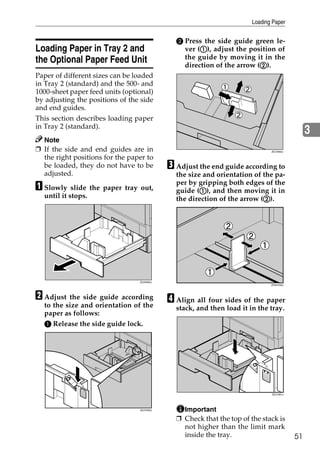
❒ If the side and end guides are in                                           ZDJY802J

  the right positions for the paper to
  be loaded, they do not have to be         C Adjust the end guide according to
  adjusted.                                   the size and orientation of the pa-
A Slowly slide the paper tray out,            per by gripping both edges of the
                                                      A
                                              guide (A), and then moving it in
  until it stops.                                                         B
                                              the direction of the arrow (B).


                                 ZDJH005J
                                                                              ZHXH760J


B Adjust the side guide according           D Align all four sides of the paper
  to the size and orientation of the          stack, and then load it in the tray.
  paper as follows:
  A Release the side guide lock.


                                                                              ZDJY901J


                                 ZDJY003J       Important
                                              ❒ Check that the top of the stack is
                                                not higher than the limit mark
                                                inside the tray.                         51
Paper and Other Media


         E Make sure the paper is fixed in           A Slowly    pull out the paper tray,
            place, and then lock the side              until it stops.
            guide.


3
                                                                                      ZDJY008J


                                                     B With the print side down, align
                                          ZDJY007J


         F Slowly slide the paper tray back            all four sides of the two paper
            until it stops.                            stacks, and then load them next to
                                                       each other in the tray. Each side
              Important                                has a limit of 1,000 sheets.
            ❒ Do not slide the paper tray in
              with force. If you do, the front
              and side guides might move.
            ❒ Be sure to adjust the side guides
              to the paper size, or misfeeds
              might occur.


         Loading paper in Paper Bank
         PS470 (2000-sheet Large                                                      ZDJY009J


         Capacity Tray)
                                                         Important
           Important                                   ❒ Align the paper and load the
                                                         stacks against the left and right
         ❒ The 2000-sheet Large Capacity
                                                         walls, or misfeeds might occur.
           Tray uses only 11 × 8 1/2 K paper
           exclusively. Load 11 × 8 1/2 paper          ❒ Check that the top of the stack is
           at all times.                                 not higher than the limit mark
                                                         inside the tray.
         ❒ If you want to load A4 K paper in
           the 2000-sheet Large Capacity
           Tray, contact your sales or service
                                                     C Slowly push in the paper tray un-
                                                       til it stops.
           representative.


    52
Loading Paper


If you load a paper size that is                                          B Press {U} or {T} to display “Paper
                                                                            Input”, and then press {Enter #}.
                                                                                                           }
not selected automatically
                                                                                Menu:
  Note                                                                           Paper Input
❒ Paper sizes not selected automati-
  cally are B4L, A4K, B5L, 71/4 ×                                           The paper selection menu appears.
  101/2L, 8 × 13L, 81/2 × 13L, 81/4
  × 13L, 8K (101/2 × 15.35)L, 16K
                                                                          C Press {U} or {T} to display “Tray
                                                                            Paper Size”, and then press {Enter #}.
                                                                                                                }
  (7.68 × 10 1 / 2 )L, 16K (10 1 / 2 ×
  7.68)K.
                                                                                Paper Input:                               3
  Reference                                                                      Tray Paper Size
  p.51 “Loading Paper in Tray 2 and
  the Optional Paper Feed Unit” for                                         The paper tray selection menu ap-
  details about how to load the pa-                                         pears.
  per
                                                                          D Press {U} or {T} to display the
  Important                                                                 target paper tray, and then press
❒ Tray 1 uses only 11 × 8 1/2 K pa-                                         {Enter #}.
                                                                                    }
  per exclusively. Load 11 × 8 1/2
  paper at all times.                                                           Tray Paper Size:
❒ Paper Bank PS470 uses only 11 × 8                                              Tray 2
   1/2 K paper exclusively. Load 11
                                                                            The paper size selection menu ap-
   × 8 1/2 paper at all times.
                                                                            pears.
❒ If you want to load A4 K paper in
   Tray 1 and the optional Paper Bank                                     E Press {U} or {T} to display the
   PS470, contact your sales or service                                     loaded paper size, and then press
   representative.                                                          {Enter #}.
                                                                                    }
This section uses Letter (81/2 × 11) L
as an example.                                                                  Tray 2 :
                                                                                 8 1/2 x 11
A Press {Menu}.
             }
                                                                            After about two seconds, the dis-
                                                                            play returns to the menu.

      On Line    Menu                                 Escape


      Job Reset Form Feed                             #Enter
                            Power   Error   Data In


                                                               ZDJS001N


  “Menu” appears on the display.


                                                                                                                      53
Paper and Other Media


         F Press {On Line}.
                         }                                                          J Press {U} or {T} to display the
            “Ready ” appears on the display.                                          target paper tray, and then press
                                                                                      {Enter #}.
                                                                                              }
                  Ready
                                                                                          Tray Paper Size:
                                                                                           Tray 2
            This completes the setting change.
                                                                                      The paper size selection menu ap-
              Important                                                               pears.
            ❒ After printing on a paper size
              that is not selected automatical-                                     K Press {U} or {T} to display “pAu-
                                                                                                                   p
3             ly, if you want to print on paper                                       to”, and then press {Enter #}.
                                                                                                                  }
              that is selected automatically
              again, reload the paper, proceed                                            Tray 2
              to step G, and return the setting                                           *Auto
              to “Auto”.
                                                                                      After about two seconds, the dis-
         G Press {Menu}.
                      }                                                               play returns to the menu.

                                                                                    L Press {On Line}.
                                                                                                    }
                                                                                      “Ready ” appears on the display.
                On Line    Menu                                 Escape


                Job Reset Form Feed                             #Enter
                                                                                          Ready
                                      Power   Error   Data In


                                                                         ZDJS001N


            “Menu” appears on the display.

         H Press {U} or {T} to display “Paper
            Input”, and then press {Enter #}.
                                           }

                  Menu:
                   Paper Input
            The paper selection menu appears.

         I Press {U} or {T} to display “Tray
            Paper Size”, and then press {Enter #}.
                                                }

                  Paper Input:
                   Tray Paper Size
            The paper tray selection menu ap-
            pears.


    54
Loading Paper


Changing the paper type                                                  D Press {U} or {T} to display the
                                                                           target paper tray, and then press
By selecting the paper type you want                                       {Enter #}.
                                                                                   }
to load, the printer performs better.
You can select from the following pa-                                          Paper Type:
per types:                                                                      Tray 2
• Plain Paper, Recycled Paper, Spe-                                        The paper type selection menu ap-
   cial Paper, Color Paper, Letter-                                        pears.
   head, Preprinted Paper

A Press {Menu}.                                                          E Press {U} or {T} to display the
             }                                                             loaded paper type, and then press           3
                                                                           {Enter #}.
                                                                                   }

                                                                               Tray 2
      On Line   Menu                                 Escape
                                                                                Recycled Paper
     Job Reset Form Feed                             #Enter
                           Power   Error   Data In
                                                                           After about two seconds, the dis-
                                                                           play returns to the menu.

                                                                         F Press {On Line}.
                                                                                         }
                                                              ZDJS001N     “Ready ” appears on the display.
  “Menu” appears on the display.
                                                                               Ready
B Press {U} or {T} to display “Pa-
  per Input”, and then press {Enter
   }
  #}.

       Menu:
        Paper Input
  The paper selection menu appears.

C Press {U} or {T} to display “Pa-
  per Type”, and then press {Enter
   }
  #}.

       Paper Input:
        Paper Type
  The paper tray selection menu ap-
  pears.


                                                                                                                  55
Paper and Other Media


                                                      Limitation
         Loading Paper in the Bypass                ❒ You cannot use the following func-
         Tray                                         tions when printing on paper load-
                                                      ed in the bypass tray:
         Besides regular paper, you can use
                                                      •   Duplex Print
         the bypass tray to load thick paper,
         envelopes, OHP transparencies, pa-           •   Collate, Job Separation
         per longer than A3L, and paper that          •   Staple/Punch
         cannot be loaded in the paper trays or
                                                      •   Auto Tray Select
         paper feed unit.
                                                    A Open the bypass tray.
3          Note
         ❒ The bypass tray can accommodate
           sheets 90-305 mm wide and 148-
           457 mm long. However, the paper
           size must be set using the control
           panel. When using the RPCS print-
           er driver, sheets of up to 1260 mm
           in length can be set.
         ❒ If you load custom size paper or
           special paper, select the paper size
           using the control panel. The RPCS                                        ZDJH202J


           printer driver can select the paper
           size using the printer driver prop-          Note
           erties. The paper size selected us-        ❒ If you load A4 or larger size pa-
           ing the printer driver overrides             per, pull out the bypass tray ex-
           that selected using the control pan-         tension, and then flip it open.
           el. See p.58 “Specifying custom
           size paper for the Bypass Tray”.
         ❒ If you load thick paper, OHP trans-
           parencies, or envelopes, make the
           settings for thick paper or OHP
           transparencies using the control
           panel or printer driver. See p.59
           “Specifying a paper type for the
           Bypass Tray”.
         ❒ The number of pages that can be                                          ZDJH203J


           loaded in the bypass tray differs
           depending on paper type. Check
           that the top of the stack is not high-
           er than the limit mark inside the
           tray.
         ❒ When loading paper in the bypass
           tray, use K orientation if possible.


    56
Loading Paper


B Slide  the side guides outward            D Set the paper size using the con-
   A
  (A ), and then load paper print             trol panel as follows:
                           B
  side up, until it stops (B).                A Press {Menu}.}


                                                 On Line    Menu                                 Escape


                                                 Job Reset Form Feed                             #Enter
                                                                       Power   Error   Data In


                                                                                                                          3
                                 ZDJH204J
                                                                                                          ZDJS001N


C Adjust the side guides to fit the             “Menu” appears on the display
  paper width.                                B Press {U} or {T} to display
                                                “Paper Input” menu, and then
                                                press {Enter #}.
                                                              }
                                                The following message appears
                                                on the display:

                                                   Menu:
                                                    Paper Input
                                              C Check “Bypass Size” appears,
                                 ZDJH205J       and then press {Enter #}.
                                                                       }
                                                The following message appears
    Important                                   on the display.
  ❒ Check that the top of the stack is
    not higher than the limit mark                 Paper Input:
    inside the tray.
                                                    Bypass Size
  ❒ Shuffle the paper before loading
    the stack onto the tray, so multi-        D Press {U} or {T} to display the
    ple sheets are not fed in togeth-           size and orientation of the pa-
    er.                                         per in the bypass tray.

                                                   Bypass Size
                                                   *11 x 17
                                                 After about two seconds, the
                                                 display returns to the menu.


                                                                                                                     57
Paper and Other Media


            E Press {On Line}.
                            }
                                                                                    B Press {U} or {T} to display “Paper
              “Ready ” appears on the dis-                                            Input”, and then press {Enter #}.
                                                                                                                     }
              play.
                                                                                      The following message appears on
                                                                                      the display.
                  Ready
                                                                                          Menu:
                                                                                           Paper Input
         Specifying custom size paper for the
         Bypass Tray                                                                C Check    “Bypass Size” appears,
                                                                                      and then press {Enter #}.
                                                                                                             }
3          Important                                                                  The following message appears on
         ❒ The paper size selected using the                                          the display:
           printer driver overrides that select-
           ed using the control panel. You do                                             Paper Input:
           not have to make settings using the                                             Bypass Size
           control panel if you already made
           them using the printer driver.
           However, when printing with a
                                                                                    D Press {U} or {T} to display “Cus-
                                                                                                                        }
                                                                                      tom Size”, and then press {Enter #}.
           printer driver other than the RPC-
           STM printer driver, you must make                                          The following message appears on
           the settings using the control pan-                                        the display:
           el. For details about the printer
           driver, see Help.                                                              Bypass Size:
         ❒ The printer cannot print from ap-                                               Custom Size
           plications that do not support cus-
           tom size paper.                                                          E Press {U} or {T} to set the horizon-
                                                                                      tal value, and then press {Enter #}.
                                                                                                                        }
         A Press {Menu}.
                      }
                                                                                      The following message appears on
                                                                                      the display:


                On Line    Menu                                 Escape
                                                                                          Custom Size:
                                                                                           Vert.       297mm
                Job Reset Form Feed                             #Enter


                                                                                    F Press {U} or {T} to set the vertical
                                      Power   Error   Data In


                                                                                      value, and then press {Enter #}.
                                                                                                                    }

                                                                         ZDJS001N
                                                                                          Custom Size:
                                                                                           Horiz.    210mm
            “Menu” appears on the display.
                                                                                      After about two seconds, the dis-
                                                                                      play returns to the menu.


    58
Loading Paper


G Press {On Line}.
                }                        A Press {Menu}.
                                                      }
  The following message appears on
  the display:

       Ready                                   On Line   Menu                                 Escape


                                              Job Reset Form Feed                             #Enter
                                                                    Power   Error   Data In


Specifying a paper type for the Bypass
Tray
By selecting the paper type you want
                                                                                                       ZDJS001N
                                                                                                                       3
to load, the printer performs better.      “Menu” appears on the display.
You can select from the following pa-
per types:                               B Press {U} or {T} to display “Paper
                                           Input”, and then press {Enter #}.
                                                                          }
• Plain Paper, Recycled Paper, Spe-
   cial Paper, Color Paper, Letter-        The following message appears on
   head, Preprinted Paper, OHP             the display:
   Transparencies, Thick Paper, Plain
   Paper (Duplex), Thick Paper (Du-             Menu:
   plex)                                         Paper Input
  Limitation
❒ You cannot use the following func-
                                         C Press {U} or {T} to display “Paper
                                           Type”, and then press {Enter #}.
                                                                         }
  tions when printing on paper load-
  ed in the bypass tray:                   The following message appears on
                                           the display:
  • Duplex Print
  • Collate, Job Separation                     Paper Input:
  • Staple, Punch                                Paper Type
  • Auto Tray Select
  Important
                                         D Press {U} or {T} to display “By-
                                                                              }
                                           pass Tray”, and then press {Enter #}.
❒ Be sure to select the paper type
                                           The following message appears on
  when you load labels, thick paper,
                                           the display:
  or OHP transparencies in the By-
  pass Tray.
                                                Paper Type:
  Note                                           Bypass Tray
❒ When printing labels, select thick
  paper as the paper type.


                                                                                                                  59
Paper and Other Media


         E Press {U} or {T} to display the
            target paper type, and then press
            {Enter #}.
                    }

                 Bypass Tray:
                 *Thick Paper
            After about two seconds, the dis-
            play returns to the menu.

         F Press {On Line}.
                         }
3           The following message appears on
            the display:

                 Ready


    60
4. Troubleshooting

Error & Status Messages on the Control
Panel
❖ Status Messages
Messages/Second messages                  Causes                          Solutions
Calibrating...                The printer is calibrating col-   Wait a while
                              or.
Energy Save Mode              In Energy Save Mode Level 2. No action required.
Hex Dump Mode                 In Hex Dump Mode.                 No action required.
Loading Toner...              The printer is loading toner.     Wait a while
Offline                       The printer is offline and can-   Press {On Line}.
                                                                              }
                              not print data.
Initializing... Please Wait   The printer is initializing the   Wait a while
                              development unit.
Printing...                   The printer is performing a       Wait a while
                              print job.
Processing...                 Print data is being processed.    Wait a while
Ready                         The default ready message.        No action required.
                              The printer is ready to use.
Resetting Job...              Job is being reset.               Wait a while
Waiting...                    The printer is waiting for the    Wait a while
                              next data to print.
Warming Up...                 The printer is warming up         Wait until the printer signals
                              and not ready.                    Ready.

❖ Alert Messages
Messages/Second messages                  Causes                          Solutions
Add Staples                   The stapler is out of staples.    Replace staples.
                              Job is not stapled.               See p.93 “Adding Staples”.
Add Toner/Yellow/Magen-       The printer is out of the indi-   Replace the toner cartridge of
ta/Cyan/Black                 cated toner(s).                   the indicated color(s).
                                                                See p.2 “Replacing the Toner
                                                                Cartridge”.
Add Toner Black               The printer is out of toner (K). Replace the toner cartridge
                                                               (K).
                                                                See p.2 “Replacing the Toner
                                                                Cartridge”.


                                                                                                 61
Troubleshooting


          Messages/Second messages                   Causes                           Solutions
          Add Toner Cyan                 The printer is out of toner (C). Replace the toner cartridge
                                                                          (C).
                                                                            See p.2 “Replacing the Toner
                                                                            Cartridge”.
          Add Toner Magenta              The printer is out of toner (M). Replace the toner cartridge
                                                                          (M).
                                                                            See p.2 “Replacing the Toner
                                                                            Cartridge”.
          Add Toner Yellow               The printer is out of toner (Y). Replace the toner cartridge
                                                                          (Y).
                                                                            See p.2 “Replacing the Toner
                                                                            Cartridge”.

4         Call Service: EC Power Off On A communication error sent       Turn the power off and then
                                         from the engine to the control- on. If the message appears
          /If Error Reoccur Call Service
                                         ler.                            again, contact your sales or
                                                                         service representative.
          Change Setting Tray #          The paper size and type set-       Load {paper size and type} pa-
          /Paper Size: Paper Type:       ting in the tray differs from      per in the selected feed direc-
                                         that of actual paper size and      tion into the tray, and then
                                         type in the tray.                  change the paper size and
                                                                            type using the control panel.
                                                                            Or, press {Form Feed}, and
                                                                                                  }
                                                                            then select the tray using the
                                                                            control panel.
                                                                            Or, press {Job Reset} to cancel
                                                                                                }
                                                                            the print job.
          Cannot check                   An attempt to check the radio To check the radio signal, se-
          Signal in Ad hoc               signal was made while the         lect Infrastructure in the com-
                                         communication mode was set munication mode settings.
                                         to [Ad hoc] in the interface set-
                                         tings.
          Close Duplex Unit Cover        The cover for the duplex unit      Close the cover for the duplex
                                         is open.                           unit.
          Close Finisher Front Cover     The front cover for the finisher   Close the front cover for the
                                         is open.                           finisher.
          Close Right Cover              The upper right cover (the         Close the upper right cover.
                                         cover for the toner cartridge)
                                         is open.
          Close Finisher Upper Cover     The finisher upper cover is        Close the upper cover for the
                                         open.                              finisher.
          Close Finisher Upper Cover     The paper entrance cover for       Close the upper entrance cov-
                                         the finisher is open.              er for the finisher.
          Close Front Cover              The front cover is open.           Close the front cover for the
                                                                            printer.


    62
Error & Status Messages on the Control Panel


Messages/Second messages                    Causes                           Solutions
Close Lower Right Cover         The right cover for the paper      Close the right cover for the
                                feed table/Large Capacity          paper feed table/Large Ca-
                                Tray is open.                      pacity Tray.
Close Mailbox Cover             The cover for the 4-bin mail-      Close the cover for the 4-bin
                                box is open.                       mailbox tray.
Close Right Cover               The right cover is open.           Close the right cover.
Close Upper Left Cover          The upper left cover (the cov-     Close the upper left cover.
                                er for the fusing unit) is open.
DHCP assigned                   An attempt to change the IP   Make the change after setting
Cannot change                   address, subnet mask or gate- DHCP to [Off].
                                way address was made while
                                DHCP was set to [On].
Driver Setting Error (Memo-     The printer identified a down- Verify paper memory size is                  4
ry)                             load error. This error may oc- specified with the driver set-
                                cur when the installed         ting.
                                memory amount is less than
                                the driver setting.
Duplex Cancelled                The setting of Duplex Print        (a) To print the image correct-
                                has been cancelled.                ly, add memory to the printer.
                                                                   (b) Be sure to use the correct
                                                                   paper.
Error: Enter 10 or 26 charac-   An ID with an invalid number       Enter the correct number of
ters                            of digits was entered for the      digits for the WEP key.
                                WEP key.
Error:Tray 1 Reset The Job      There is a problem with the        Reset the job, and then turn
/Then Power OffOn               current specified tray. The job    the printer Off, then back On.
                                cannot be processed.
Error:Tray 1 Form Feed       The printer identified the fail- Apply Form Feed from anoth-
/Or Job Reset Then Power Of- ure of the indicated paper       er tray or cancel the job, and
fOn                          tray. The job is not printed.    then switch your printer Off,
                                                              then back On. If the error con-
                                                              tinues, contact your sales or
                                                              service representative.
Exceeded Max. Pages (Col-       The printer identified a colla-    Add extra RAM.
late)                           tion page overflow error.
                                                                   Install the optional hard disk
                                                                   drive.
Exceeded Max. Stored Files      The maximum number of              Delete stored files.
                                stored files has been exceeded
                                during Sample Print of
                                Locked Print.
Exceeded Max. Stored Pages      The maximum number of        Reduce the number of pages
                                pages has been exceeded dur- to print.
                                ing Sample Print of Locked
                                Print


                                                                                                       63
Troubleshooting


          Messages/Second messages               Causes                         Solutions
          Hardware Problem DIMM       The printer identified a DIMM   Remove and re-install the
                                      sum value error.                DIMM correctly.
                                                                      Remove any dust under the
                                                                      DIMM.
                                                                      If the message appears again,
                                                                      contact your sales or service
                                                                      representative.
                                                                      See “Setting Up”, Setup Guide.
          Hardware Problem Ethernet   The printer identified an       Turn the power off, and then
                                      Ethernet error.                 on. If the message appears
                                                                      again, contact your sales or
                                                                      service representative.
          Hardware Problem Finisher   There is a problem with the     Turn the power off, and then
4                                     finisher.                       on. Remove and re-install the
                                                                      finisher correctly. If the mes-
                                                                      sage appears again, contact
                                                                      your sales or service represen-
                                                                      tative.
                                                                      See “SR770 (2 Tray Finisher)”,
                                                                      Setup Guide.
          Hardware Problem HDD        The printer identified a HDD    Turn the power off, and then
                                      board error.                    on.
                                                                      Remove and re-install the
                                                                      HDD board correctly.
                                                                      If the message appears again,
                                                                      contact your sales or service
                                                                      representative.
                                                                      See “Printer Hard Disk Type
                                                                      7000”, Setup Guide.


    64
Error & Status Messages on the Control Panel


Messages/Second messages               Causes                           Solutions
Hardware Problem IEEE1394   The printer identified an       Turn the power off, and then
                            IEEE1394 board error.           on.
                                                            Remove and re-install the
                                                            IEEE 1394 board correctly.
                                                            A Check the 1394 Interface
                                                                Unit Type 4510 is correctly
                                                                attached to the computer.
                                                            B Check the IEEE 1394 inter-
                                                                face cable is securely con-
                                                                nected.
                                                            C Unplug the IEEE 1394 in-
                                                                terface cable which is con-
                                                                nected to the printer.
                                                            D Restart the computer.
                                                                If the message appears
                                                                                                       4
                                                                even after executing above
                                                                operation, proceed to the
                                                                following steps.
                                                            E Execute the utility tool for
                                                                1394 Interface Unit Type
                                                                4510 that is stored in the
                                                                following path in the CD-
                                                                ROM labeled “Printer
                                                                Drivers and Utilities”:
                                                                UTILITY1394
                                                                    Important
                                                                ❒ For details about using
                                                                  the utility tool for
                                                                  IEEE1394, see the RE-
                                                                  ADME file in the same
                                                                  directory in the CD-
                                                                  ROM.
                                                            If the message appears again,
                                                            contact your sales or service
                                                            representative.
                                                            See “1394 Interface Unit Type
                                                            4510”, Setup Guide.
Hardware Problem NV-RAM     The printer identified a Mem- Turn the power off, and then
                            ory Switch (user account en-  on. Remove and re-install the
                            hance unit) error.            user account enhance unit cor-
                                                          rectly.
                                                            If the message appears again,
                                                            contact your sales or service
                                                            representative.
                                                            See “User Account Enhance
                                                            Unit TypeC”, Setup Guide.


                                                                                                  65
Troubleshooting


          Messages/Second messages                Causes                         Solutions
          Hardware Problem Option     The printer identified an op-    Turn the power off, and then
          RAM                         tional RAM error.                on.
                                                                       Remove and re-install the op-
                                                                       tional RAM.
                                                                       If the message appears again,
                                                                       contact your sales or service
                                                                       representative.
                                                                       See “Memory Unit TypeC
                                                                       (SDRAM Module)”, Setup
                                                                       Guide.
          Hardware Problem Parallel   There is a problem with the      If you use the parallel I/F, re-
          I/F                         parallel interface.              place the interface cable that
                                                                       caused the error. Turn the
4                                                                      power off, and then on. If the
                                                                       message appears again, con-
                                                                       tact your sales or service rep-
                                                                       resentative.
          Hardware Problem Staple     There is a misfeed in the fin-   Remove misfed paper. Turn
          Unit                        isher or a problem with the      the power off, and then on. If
                                      staple unit.                     the message appears again,
                                                                       contact your sales or service
                                                                       representative.
                                                                       See p.85 “When “Remove
                                                                       Misfeed R: Finisher” Ap-
                                                                       pears”.
                                                                       See p.91 “Removing Jammed
                                                                       Staples”.
          Hardware Problem Tray 1     There is a problem with the      Turn the power off, and then
                                      paper lift motor of Tray 1.      on. If the message appears
                                                                       again, contact your sales or
                                                                       service representative.
          Hardware Problem Tray 2     There is a problem with the      Turn the power off, and then
                                      paper lift motor of Tray 2.      on. If the message appears
                                                                       again, contact your sales or
                                                                       service representative.
          Hardware Problem Tray 3     There is a problem with the      Align paper and set it in the
                                      paper lift motor of Tray 3.      correct position in Tray 3.
                                                                       Turn the power off, and then
                                                                       on. If the message appears
                                                                       again, contact your sales or
                                                                       service representative.
          Hardware Problem Tray 4     There is a problem with the      Turn the power off, and then
                                      paper lift motor of Tray 4.      on. If the message appears
                                                                       again, contact your sales or
                                                                       service representative.


    66
Error & Status Messages on the Control Panel


Messages/Second messages                Causes                           Solutions
Hardware Problem             An error was detected in the    Turn the power off, and then
Wireless Board               802.11b interface unit or the   on. Remove and re-install the
                             Bluetooth interface unit.       802.11b interface unit or the
                                                             Bluetooth interface unit cor-
                                                             rectly. If the message appears
                                                             again, contact your sales or
                                                             service representative.
                                                             See “802.11b Interface Unit
                                                             Type A”, or “Bluetooth Unit
                                                             Type 2045”, Setup Guide.
Hardware Problem             The 802.11b interface unit or   Turn the power off, and then
Wireless Card                the Bluetooth interface unit    on. Remove and re-install the
                             could not be detected when      802.11b interface unit or the
                             the power was turned on.        Bluetooth interface unit cor-
                             The 802.11b interface card or   rectly. If the message appears             4
                             the Bluetooth interface card    again, contact your sales or
                             was removed after the power     service representative.
                             was turned on.                  See “802.11b Interface Unit
                             An error was detected in the    Type A”, or “Bluetooth Unit
                             802.11b interface card or the   Type 2045”, Setup Guide.
                             Bluetooth interface card.
Hardware Problem             An error was detected in the    Turn the power off, and then
USB                          USB 2.0 interface board.        on. Remove and re-install the
                                                             USB 2.0 interface board cor-
                                                             rectly. If the message appears
                                                             again, contact your sales or
                                                             service representative.
                                                             See “USB 2.0 Interface Board
                                                             Type A”, Setup Guide.
HDD Full                     The maximum HDD area size       Delete disused form /font
                             for form/font has been ex-      types.
                             ceeded.
                             An HDD overflow error oc-       Delete stored files, or reduce
                             curred during Sample Print or   the size of the Sample Print
                             Locked Print.                   file or Locked Print file.
HDD Not Installed            The user tried to print the     If you use the Locked Print
                             Locked Print data without the   feature, be sure you install
                             HDD installed.                  HDD. If the error continues,
                                                             contact your sales or service
                                                             representative.
I/O Buffer Overflow          The maximum size of the I/O     Increase the size of the I/O
                             buffer has been exceeded.       buffer through the I/F Setup.
Invalid Password Try Again   The password entered using      Enter the correct password us-
                             the control panel is not cor-   ing the control panel.
                             rect.


                                                                                                   67
Troubleshooting


          Messages/Second messages                Causes                            Solutions
          Load Correct Size Paper     The paper size setting in the     Load {paper size} paper in the
          /Press # To Continue        tray differs from that of the ac- selected feed direction into the
                                      tual paper size in the tray.      tray, and then change the pa-
                                                                        per size with the control pan-
                                                                        el.
                                                                          Or, press {Form Feed}, and se-
                                                                                                }
                                                                          lect the tray with the control
                                                                          panel.
                                                                          Or, press {Job Reset} to cancel
                                                                                              }
                                                                          the print job.
          Load Paper Tray #           The indicated tray is out of pa- Load paper into the indicated
                                      per. #: tray number              paper tray.
          Load Paper                  1:The printer received a re-        Change the setting of the indi-
4         /Paper Size: Paper Type:    quest for a paper type, or pa-      cated paper input tray, or
                                      per size not supported by           press {Job Reset}. Form Feed
                                                                                           }
                                      printer, and Tray Locking is        is not possible here.
                                      not applicable.
                                      2:The paper type and size
                                      loaded in the tray which the
                                      printer searched using Tray
                                      Locking is invalid for Duplex
                                      Print.
          Menu Protected Cannot       The menu is protected and the       Wait for two seconds until the
          Change                      setting cannot be changed.          previous display appears.
          No Files Exist              There are no files available for    Wait for two seconds until the
                                      Sample Print job or Locked          previous display appears.
                                      Print job.
          Paper Invalid for Du-       The printer detected the set-       Change the setting of the indi-
          plex:Tray#                  ting of the indicated tray is in-   cated paper input tray, or ap-
          /Change Setting or Form     valid for Duplex Tray. #: tray      ply Form Feed using another
          Feed                        number                              tray, or press {Job Reset}.
                                                                                                   }

          Punch-hole Chips are Full   The Punch Chips container is        Empty the punch waste box.
                                      full of punch chips.                See p.95 “Removing Punch-
                                                                          hole Chips”.
                                                                          If the message appears the
                                                                          punch waste box is not full, re-
                                                                          move the Punch-hole chips on
                                                                          the top of the punch waste
                                                                          box.
                                                                          See p.95 “If the message ap-
                                                                          pears even after removing the
                                                                          Punch-hole chips”.


    68
Error & Status Messages on the Control Panel


Messages/Second messages                     Causes                           Solutions
Remove MisfeedA:Internal         There is a misfeed in the print- Remove the misfed paper fol-
Path                             er.                              lowing the instructions inside
/See Instructions in Front                                        the front cover.
Cover                                                              For details, see p.82 “When
                                                                   “Remove Misfeed A:Internal
                                                                   Path” Appears”.
Remove MisfeedB: Fusing          There is a misfeed in the fus-    Remove the misfed paper fol-
Unit                             ing unit.                         lowing the instructions inside
/See Instructions in Front                                         the front cover.
Cover                                                              For details, see p.83 “When
                                                                   “Remove Misfeed B: Fusing
                                                                   Unit” Appears”.
Remove MisfeedR: Finisher        There is a misfeed in the fin-    Open the finisher cover and
/Open Front Cover                isher.                            remove the misfed paper.                  4
                                                                   For details, see p.85 “When
                                                                   “Remove Misfeed R: Finisher”
                                                                   Appears”.
Remove MisfeedW: Mailbox         There is a misfeed in the out-    Open the mailbox cover and
/Open Mailbox Cover              put 4-bin tray.                   remove the misfed paper.
                                                                   For details, see p.84 “When
                                                                   “Remove Misfeed W: Mail-
                                                                   box” Appears”.
Remove MisfeedY: Paper           There is a misfeed in the spec- Remove the misfed paper fol-
Tray                             ified input tray, or the printer lowing the instructions inside
/See Instructions in Front       is not feeding paper.            the front cover.
Cover                                                              For details, see p.87 “When
                                                                   “Remove Misfeed Y: Paper
                                                                   Tray” Appears”.
Remove Misfeed: Duplex Unit There is a misfeed in the du-          Remove the misfed paper fol-
/See Instructions in Front  plex unit.                             lowing the instructions inside
Cover                                                              the front cover.
                                                                   For details, see p.87 “When
                                                                   “Remove Misfeed :Duplex
                                                                   Unit” Appears”.
Remove Misfeed: Dup.Feed         There is a misfeed in the du-     Remove the misfed paper.
Unit                             plex feed unit.                   See p.88 “Removing Misfed
/See Instructions in Front                                         Paper in the Duplex Feed
Cover                                                              Unit”.
Remove Paper All Output          All output trays are full.        Remove paper from all output
Trays                                                              trays.
Remove Paper Finisher Tray # The indicated finisher shift          Remove the paper from the in-
                             tray is full. #:finisher shift tray   dicated finisher shift tray.
                             number
Remove Paper From Upper          The upper tray (output 1-bin      Remove paper from the upper
Tray                             tray) is full.                    tray.


                                                                                                        69
Troubleshooting


          Messages/Second messages                    Causes                          Solutions
          Remove Paper Inside Finisher There is still paper in the fin-     Open the cover for the finisher
                                       isher.                               and remove paper.
                                                                            See p.85 “When “Remove
                                                                            Misfeed R: Finisher” Ap-
                                                                            pears”.
          Remove Paper Inside Finisher A communication error is sent        Remove and re-install the du-
                                       from the system unit to the          plex unit. If the problem con-
                                       duplex unit.                         tinues, contact your sales or
                                                                            service representative.
          Remove Paper Mailbox Tray # The output tray # of the op-          Remove paper from the indi-
                                      tional 4-bin mailbox is full. # =     cated 4-bin mailbox tray.
                                      mailbox tray number
          Remove Paper Standard Tray      The standard output tray is       Remove paper from standard
4                                         full.                             output trays.
          Replace Black Dev. Unit (Type   It is time to replace the black   Replace the black develop-
          D)                              development unit                  ment unit.
                                                                            Depending on your service
                                                                            contract, contact your sales or
                                                                            service representative.
                                                                            See p.15 “Replacing the De-
                                                                            velopment Unit”.
          Replace Black PCU (Type F)      It is time to replace the black   Replace the black PCU.
                                          PCU.                              Depending on your service
                                                                            contract, contact your sales or
                                                                            service representative.
                                                                            See p.11 “Replacing the Pho-
                                                                            toconductor Unit”.
          Replace Color Dev. Unit         It is time to replace the color   Replace the color develop-
          (Type B)                        development unit.                 ment unit.
                                                                            Depending on your service
                                                                            contract, contact your sales or
                                                                            service representative.
                                                                            See p.15 “Replacing the De-
                                                                            velopment Unit”.
          Replace Color PCU (Type A)      It is time to replace the color   Replace the color PCU.
                                          PCU.                              Depending on your service
                                                                            contract, contact your sales or
                                                                            service representative.
                                                                            See p.11 “Replacing the Pho-
                                                                            toconductor Unit”.
          Replace Feed Roller (Type H)    It is time to replace the feed    Replace the feed roller.
                                          roller (Type H).                  Depending on your service
                                                                            contract, contact your sales or
                                                                            service representative.
                                                                            See p.26 “Replacing the Paper
                                                                            Feed Rollers”.

    70
Error & Status Messages on the Control Panel


Messages/Second messages                     Causes                            Solutions
Replace Fuser Oil Unit (Type     It is time to replace the fuser    Replace the fuser oil unit.
G)                               oil unit.                          Depending on your service
                                                                    contract, contact your sales or
                                                                    service representative.
                                                                    See p.7 “Replacing the Fuser
                                                                    Oil Unit”.
Replace Fuser Oil                The fuser oil unit should be re- Prepare to replace the fuser oil
Unit soon (Type G)               placed soon.                     unit. Depending on your ser-
                                                                  vice contract, contact your
                                                                  sales or service representative.
                                                                    See p.7 “Replacing the Fuser
                                                                    Oil Unit”.
Replace Fusing Unit (Type C)     It is time to replace the fusing   Replace the fusing unit.
                                 unit.                              Depending on your service
                                                                                                              4
                                                                    contract, contact your sales or
                                                                    service representative.
                                                                    See p.19 “Replacing the Fus-
                                                                    ing Unit”.
Replace Waste Toner (Type E) It is time to replace the waste        Replace the waste toner bottle.
                             toner.                                 Depending on your service
                                                                    contract, contact your sales or
                                                                    service representative.
                                                                    See p.24 “Replacing the Waste
                                                                    Toner Bottle”.
Reset Cyan Toner Correctly       The cyan cartridge is not in-      Install a cyan cartridge suit-
                                 stalled, is installed incorrectly, able for the machine.
                                 or not the right type.             See “Installing the Toner Car-
                                                                    tridge”, Setup Guide.
Reset Develop. Unit Correctly The indicated development             Set the indicated development
/Yellow/Magenta Cy-           unit(s) is/are not set correctly,     unit(s) correctly.
an/Black                      or not set.                           See p.15 “Replacing the De-
                                                                    velopment Unit”.
Reset Duplex Unit Correctly      The duplex paper feed unit is      Remove and re-install the du-
                                 not set correctly or not set.      plex paper feed unit. If the er-
                                                                    ror continues, contact your
                                                                    sales or service representative.
                                                                    See “Duplex Unit Type 7000”,
                                                                    Setup Guide.
Reset Finisher Correctly         The finisher is not set correct-   Set the finisher correctly.
                                 ly, or not set.                    See “SR770 (2 Tray Finisher)”,
                                                                    Setup Guide.
Reset Fuser Oil Unit Correctly The fuser oil unit is not set cor- Set the fuser oil unit correctly.
                               rectly, or not set.                See p.7 “Replacing the Fuser
                                                                  Oil Unit”.


                                                                                                         71
Troubleshooting


          Messages/Second messages                     Causes                            Solutions
          Reset Fusing Unit Correctly      There is no fusing unit, or the Set the fusing unit correctly.
                                           fusing unit is not installed cor- See p.19 “Replacing the Fus-
                                           rectly.                           ing Unit”.
          Reset Magenta Toner Correct- The magenta cartridge is not            Install a magenta cartridge
          ly                           installed, is installed incor-          suitable for the machine.
                                       rectly, or not the right type.          See “Installing the Toner Car-
                                                                               tridge”, Setup Guide.
          Reset Waste Oil Bottle correct- The waste oil bottle is not set      Contact your sales or service
          ly                              correctly, or not set.               representative.
          Reset PCU Correctly              The indicated photoconductor Set the indicated photocon-
          /Yellow/Magenta Cy-              unit(s) is/are not set correctly, ductor unit(s) correctly.
          an/Black                         or not set.                       See p.11 “Replacing the Pho-
4                                                                            toconductor Unit”.
          Reset Toner Black                The indicated toner cartridge       Set the indicated toner car-
                                           is not set correctly.               tridge(s) correctly.
                                                                               See “Installing the Toner Car-
                                                                               tridge”, Setup Guide.
          Reset Toner Cyan                 The indicated toner cartridge       Set the indicated toner car-
                                           is not set correctly.               tridge(s) correctly.
                                                                               See “Installing the Toner Car-
                                                                               tridge”, Setup Guide.
          Reset Toner Magenta              The indicated toner cartridge       Set the indicated toner car-
                                           is not set correctly.               tridge(s) correctly.
                                                                               See “Installing the Toner Car-
                                                                               tridge”, Setup Guide.
          Reset Toner Yellow               The indicated toner cartridge       Set the indicated toner car-
                                           is not set correctly.               tridge(s) correctly.
                                                                               See “Installing the Toner Car-
                                                                               tridge”, Setup Guide.
          Reset Transfer Unit Correctly    The transfer unit is not set cor- Contact your sales or service
                                           rectly, or not set.               representative.
          Reset Tray 1 Correctly           The indicated paper input           Set the indicated paper input
                                           tray is not set correctly, or not   tray correctly.
                                           set.
          Reset Tray Correctly             The printer detected, when          Set the indicated paper input
                                           processing a job through Auto       tray correctly.
                                           Tray Select, that a paper input
                                           tray is not set correctly, or not
                                           set.
          Reset Waste Toner Correctly      The waste toner bottle is not       Set the waste toner bottle cor-
                                           set correctly, or not set.          rectly.


    72
Error & Status Messages on the Control Panel


Messages/Second messages                    Causes                            Solutions
Reset Yellow Toner Correctly    The yellow cartridge is not in- Install a yellow cartridge suit-
                                stalled, is installed incorrectly, able for the machine.
                                or not the right type.             See “Installing the Toner Car-
                                                                   tridge”, Setup Guide.
RPCS Graphic Error              The graphic is not initialized    Replace installed memory.
                                because graphic memory was
                                not reserved.
RPCS Memory Overflow            Printer memory is not initial-    Replace installed memory.
                                ized because CDC memory
                                was not reserved via system
                                call.
RPCS Syntax Error               The printer identified a syntax   Be sure to use the correct driv-
                                error. This error results from    er.
                                data corruption caused by                                                    4
                                transmission problems, inter-
                                ruption, data transmission
                                from other drivers, etc.
SC XXX-X Power Off On          The Service Code or SC num-        Turn the power off, and then
/If Error Reoccur Call Service ber indicates the nature of the    on. If the message appears
                               problem.                           again, contact your sales or
                                                                  service representative.
SSID not entered                This message appears if the       Enter the SSID.
                                SSID has not been entered.
Staple Cancelled                The Staple feature has been       Check the paper orientation
                                cancelled.                        and layout is properly set, and
                                                                  make sure required settings
                                                                  for the finisher are selected.
Toner is Almost Empty: Black The printer is almost out of         Prepare to replace the toner
                             toner (K).                           cartridge (K).
Toner is Almost Empty: Cyan The printer is almost out of          Prepare to replace the toner
                            toner (C).                            cartridge (C).
Toner is Almost Empty: Ma-      The printer is almost out of      Prepare to replace the toner
genta                           toner (M).                        cartridge (M).
Toner is Almost Empty: Yel-     The printer is almost out of      Prepare to replace the toner
low                             toner (Y).                        cartridge (Y).
Waste Toner is Almost Full (E) The waste toner bottle is al-      Prepare to replace the waste
                               most full.                         toner bottle. Depending on
                                                                  your service contract, contact
                                                                  your sales or service represen-
                                                                  tative.
                                                                  See p.100 “Consumables”.
Waste Oil Bottle is Full        The waste oil bottle is full.     Contact your sales or service
                                                                  representative.
Waste Oil is Almost Full        The waste oil bottle is almost    Contact your sales or service
                                full.                             representative.

                                                                                                        73
Troubleshooting


         Printer Does Not Print
                Possible cause                                       Solutions
          Is the power on?              Check the cable is securely plugged into the power outlet and the
                                        printer.
                                        Turn on the power.
          Does the Online indicator     Press {On Line} so the indicator lights.
                                                      }
          stay on?
          Does the Error indicator      Check the error message on the display and take the required ac-
          stay red?                     tion.
          Is paper loaded?              Load paper into the paper tray or onto the bypass tray.
                                        See p.39 “Paper and Other Supported Media”.
4         Can you print a configura- If you cannot print a configuration page, a printer malfunction is
          tion page?                 likely. You should contact your sales or service representative.
                                        See “Printing a Configuration Page”, Administrator Reference.
          Is the interface cable con-   Connect the interface cable properly. If there are any connectors or
          necting the printer to the    screws, check they are fastened securely.
          computer connected se-
          curely?
          Are you using the correct     The type of interface cable you should use depends on the com-
          interface cable?              puter. Be sure to use the correct one.
                                        If the cable is damaged or worn, replace it.
                                        See “Appendix”, Administrator Reference.


    74
Printer Does Not Print


      Possible cause                                              Solutions
Is the Data In indicator         If it is not blinking or lit, data is not being received.
blinking or lit after starting
the print job?                   ❖ If the printer is connected to the computer using the in-
                                   terface cable
                                    Make sure the following printer port settings are correct:
                                    • For parallel port connection, port LPT1 or LPT2 should be
                                      set.
                                    • For IEEE 1394 (SCSI print) port connection, port 1394_00(n)
                                      *1
                                         should be set.
                                    *1
                                         (n) is the number of printers connected.
                                    • Windows 95/98/Me
                                         A Click [Start], point to [Settings], and then click [Printers].
                                         B Click to select the printer icon. Next, on the [File] menu,
                                            click [Properties].                                                    4
                                         C Click the [Details] tab.
                                         D Check the [Print to the following port] box to confirm that
                                            the correct port is selected.
                                    • Windows 2000
                                         A Click [Start], point to [Settings], and then click [Printers].
                                         B Click to select the icon of the printer. Next, on the [File]
                                            menu, click [Properties].
                                         C Click the [Port] tab.
                                         D Check the [Print to the following port] box to confirm the
                                            correct port is selected.
                                    • Windows XP
                                         A Access the [Printers and Faxes] window from [Start] on
                                            the taskbar.
                                         B Click to select the icon of the printer. Next, on the [File]
                                            menu, click [Properties].
                                         C Click the [Port] tab.
                                         D Check the [Print to the following port(s).] box to confirm
                                            that the correct port is selected.
                                    • Windows NT 4.0
                                         A Click [Start], point to [Settings], and then click [Printers].
                                         B Click to select the icon of the printer. Next, on the [File]
                                            menu, click [Properties].
                                         C Click the [Port] tab.
                                         D Check the [Print to the following port] box to confirm the
                                            correct port is selected.

                                 ❖ Network Connection
                                    Contact your network administrator.


                                                                                                              75
Troubleshooting


                Possible cause                                   Solutions
          When you use 1394 Inter-   A Check the 1394 Interface Unit Type 4510 is attached to the com-
          face Unit Type 4510           puter correctly.
                                     B Check the IEEE 1394 interface cable is connected securely.
                                     C Restart the computer.
                                        If the error occurs even after executing the above, proceed to
                                        the following steps.
                                     D Unplug the IEEE 1394 interface cable connected to the printer.
                                     E Execute the utility tool for 1394 Interface Unit Type 4510 is
                                        stored in the following path on the CD-ROM labeled “Printer
                                        Drivers and Utilities”.
                                        UTILITY1394
                                           Important
4                                       ❒ For details about using the utility tool for IEEE 1394, see the
                                          README file in the same directory on the CD-ROM.


    76
Other Printing Problems


Other Printing Problems
            Problem                                Possible causes and solutions
Black areas and lines are printed   • PCL 5c/PostScript 3
with an unnatural hue.                Select [CMY+K] for Gray Reproduction in the printer driv-
                                      er's [Advanced] dialog box under the [Print Quality] tab.
                                    • RPCS
                                      Select [CMY+K] for Gray Reproduction under the [Image
                                      Adjustments] tab in the printer driver's [Change Use Setting]
                                      dialog box.
Color documents are printed in      The printer driver is not set up for color printing.
black and white.                    • PCL 5c/PostScript 3
                                      Select [Color] for the Color/Black and White under the
                                      printer driver's [Setup] tab.                                            4
                                    • RPCS
                                      Select [Color] for the Color/Black and White under the
                                      printer driver's [Print Settings] tab.
                                    For details, see the printer driver Help.
                                    Some applications normally print color text as black and
                                    white.
Fine dot pattern does not print.    • PCL 5c/PostScript 3
                                      Change the [Dithering] setting in the [Advanced] dialog box
                                      under the printer driver's [Print Quality] tab.
                                    • RPCS
                                      Change the [Dithering] setting under the [Image Adjust-
                                      ments] tab in the [Change User Settings] dialog box under
                                      the [Print Quality] tab in the printer properties dialog box.
                                    For details, see the printer driver Help.
Images are cut off, or excess       You might be printing on paper that is smaller than the size
pages are printed.                  selected in the application. Use paper the same size as that
                                    selected in the application. If you cannot load paper of the
                                    correct size, use the reduction function to reduce the image,
                                    and then print.
                                    See the printer driver Help.


                                                                                                          77
Troubleshooting


                      Problem                               Possible causes and solutions
          It takes too much time to com-     Photographs and other data-rich pages take a long time for
          plete the print job.               the printer to process, so simply wait when printing such da-
                                             ta.
                                             Changing the following settings may help speed up printing.
                                             • PCL 5c
                                               Select [600 dpi] as the Resolution under the [Print Quality]
                                               tab in the printer properties dialog box.
                                             • PostScript 3
                                               Select [1200 dpi] or [600 dpi] as the Resolution under the
                                               [Print Quality] tab in the printer properties dialog box.
                                               Select [Fast] as the Gradation under the [Print Quality] tab
                                               in the printer properties dialog box.
                                               Select [Post Script(optimize for speed)] as the PostScript 3
                                               output format under the [PostScript] tab in the printer
4                                              properties dialog box.
                                             • RPCS
                                                           ×                ×
                                               Select [1200×600 dpi] or [600×600 dpi] as the Resolution un-
                                               der the [Image Adjustments] tab in the [Change User Settings]
                                               dialog box in the printer dialog box.
                                               Select [Speed] Print priority under the [Print Quality] tab in
                                               the printer properties dialog box.
                                             For details, see the printer driver Help.
                                             The data is so large or complex that it takes time to process.
                                             If the Data In indicator is blinking, data processing is in
                                             progress. Just wait until it resumes.
                                             If the “Warming Up... ” message appears on the display, the
                                             printer is warming up. Wait a while

                                                Note
                                             ❒ To maintain optimum quality, color adjustment is regu-
                                               larly executed during or after printing. Even if printing is
                                               not specified, color adjustment is sometimes executed au-
                                               tomatically while the power is on.
          It takes too much time to resume   The data is so large or complex that it takes time to process.
          printing.                          If the Data In indicator is blinking, data processing is in
                                             progress. Just wait until it resumes.
                                             The printer might be in Energy Saver mode. In this mode, the
                                             printer has to warm up before printing can start, and this
                                             takes time. To change how long it takes before the printer
                                             goes into Energy Saver mode or to disable Energy Saver
                                             mode, configure Energy Saver 1 or Energy Saver 2 in the Sys-
                                             tem menu.
          Multiple pages are fed through     Paper misfeeds occur frequently when the paper feed roller
          the printer at once.               is dirty. Contact your sales or service representative to re-
                                             place the paper feed roller.


    78
Other Printing Problems


            Problem                                Possible causes and solutions
Output are not delivered to the     When using the bypass tray, the size selected on the display
selected tray you require.          might be different from actual paper size. Select the correct
                                    paper size.
                                    See p.39 “Paper and Other Supported Media”.
                                    If you are using a Windows operating system, printer driver
                                    settings override those set using the control panel. Set the de-
                                    sired output tray using the printer driver.
                                    See the printer driver Help.
Paper misfeeds occur frequent-      Check the side guide of the paper tray is locked.
ly.                                 See p.39 “Paper and Other Supported Media”.
                                    Paper size and feed direction of paper in the Bypass Tray
                                    might not be the same as those selected using the control
                                    panel. Check the settings on the control panel, and load pa-
                                    per of the correct size and feed direction.
                                                                                                               4
                                    See p.39 “Paper and Other Supported Media”.
                                    Check the paper guide of the paper tray is attached properly.
Solid areas, lines, or text are  • PCL 5c/PostScript 3
shiny or glossy when printed as    Select [K(Black)] for Gray Reproduction in the printer
a mixture of cyan, magenta, yel-   driver's [Advanced] dialog box under the [Print Quality] tab.
low.                             • RPCS
                                   Select [K(Black)] for Gray Reproduction under the [Image
                                   Adjustments] tab in the printer driver's [Change Use Setting]
                                   dialog box.
Solid lines are printed as broken   • PCL 5c/PostScript 3
lines.                                Change the [Dithering] setting in the [Advanced] dialog box
                                      under the printer driver's [Print Quality] tab.
                                    • RPCS
                                      Change the [Dithering] setting under the [Image Adjust-
                                      ments] tab in the [Change User Settings] dialog box, under
                                      the [Print Quality] tab in the printer properties dialog box.
                                    For details, see the printer driver Help.
Some parts of the print image       Make the image density darker.
are not clear.                      To adjust image density, press {Menu} on the control panel,
                                                                        }
                                    and then select Image Density from the Maintenance menu.
The color of the printout is dif-   Toner based color settings under the printer driver produce
ferent from the color on the        unexpected printout colors.
computer display.
                                    Changing color settings using the printer driver produces
                                    unexpected printout colors.
                                    See the printer driver Help.
The image is printed in the         The feed direction you selected and the feed direction select-
wrong orientation.                  ed in Option Setup of the RPCS printer driver may be con-
                                    flicting. Make the proper settings.


                                                                                                          79
Troubleshooting


                      Problem                                Possible causes and solutions
          Color registration shifts when    Press {Menu}, and then select Color Regist. from the Mainte-
                                                       }
          printing in color on thick paper. nance menu.
                                             See p.29 “Cleaning and Adjusting the Printer”.
          The control panel error message Open the front cover of the printer, and then close it.
          stays on after removing the mis-
          fed paper.
          The print image is not clear.      Due to sudden temperature change, condensation might ap-
                                             pear inside the printer, reducing print quality. If you move
                                             the printer from a cold room to a warmer room, do not use
                                             until it acclimatizes to the temperature.
          The print side of pages is hazy    Adjust image density.
          gray.                              To adjust image density, press {Menu}, and select Image Den-
                                                                                 }
4                                            sity from the Maintenance menu.
                                             See p.29 “Cleaning and Adjusting the Printer”.
                                             If paper is curled, correct it.
                                             Curled or folded paper might result in hazy gray print. Curl-
                                             ing often occurs with postcards, so be sure to correct it before
                                             printing.
          Printed images are different to    When you use certain functions, such as enlargement and re-
          computer screen images.            duction, image layout might be different from that displayed
                                             on the computer screen.
                                             You might have selected to replace True Type fonts with
                                             printer fonts in the printing process.
                                             To print an image like that image on the computer screen,
                                             make settings to print out True Type fonts as an image.
                                             See the printer driver Help.
          The printer does not print at      Printing at 1200 dpi is memory intensive. Therefore, depend-
          1200 dpi, even if 1200 dpi reso-   ing on memory capacity, you may not be able to print at 1200
          lution is selected.                dpi. Either add memory to the printer, or reduce the size of
                                             data.
                                             See “Memory Capacity and Paper Size”, Administrator Refer-
                                             ence.
          There are color differences in     Press {Menu}, and then select Color Regist. from the Mainte-
                                                        }
          color documents.                   nance menu.
                                             See p.29 “Cleaning and Adjusting the Printer”.

           Note
         ❒ If the problem cannot be solved, contact your sales or service representative.


    80
Removing Misfed Paper


Removing Misfed Paper
If a paper misfeed occurs, an error
message appears indicating the loca-
                                            B Use both hands to push it straight
                                              back in, and let go when it clicks
tion of the misfed paper on the dis-
                                              into place.
play.

❖ Misfeed Recovery
  This printer has a misfeed recovery
  function that sends misfed paper
  to the standard tray or right cover.
  Usually, you can remove the mis-
  fed paper from one or other of
  these trays.
                                                                                               4
Detaching the 2 Tray Finisher                                                  ZHXH350J


                                              The 2 tray finisher is reattached to
There are times when you may need             the printer.
to detach the 2 tray finisher from the
printer to remove misfed paper. This            Important
section describes how to detach the 2         ❒ Attach the 2 tray finisher to the
tray finisher.                                  printer after closing the duplex
                                                reversal unit.
A Hold the handle at the top of the 2
  tray finisher firmly using one
  hand, pull the 2 tray finisher            Opening and Closing the
  straight out, and let go when it
  stops.
                                            Duplex Reversal Unit
                                            There are times when you may need
                                            to detach the duplex reversal unit to
                                            remove misfed paper. This section
                                            describes how to detach the duplex
                                            reversal unit.

                                            A Push up the lock release button
                                              and leave it in place.

                                 ZHXH450J


  The 2 tray finisher is detached
  from the printer.


                                                                               ZHXH770J


                                                                                          81
Troubleshooting


         B Slowly lower the duplex reversal           When “Remove Misfeed
            unit, until it stops.
                                                      A:Internal Path” Appears
                                                      A Open the    bottom-right cover by
                                                        pulling its lever.


                                           ZDJP204J


4             Important
            ❒ Open the duplex reversal unit
              after detaching the 2 tray finish-                                     ZDJH206J

              er from the printer.
              Note
                                                      B Move the blue lever up and down
                                                        to feed the misfed paper, and then
            ❒ You do not have to remove the             slowly pull out the paper.
              output tray, even if the 2 tray
              finisher is attached.
            The duplex reversal unit is
            opened.

         C Slowly close the duplex reversal
            unit by raising it using both
            hands, and push it in until it
            clicks into place.

                                                                                     ZHXH205J


                                                      C Close the right cover by pushing
                                                        the area labeled “PUSH”.


                                           ZDJP205J


            The duplex reversal unit is closed.
              Important
            ❒ Attach the duplex reversal unit
              after closing the upper left cover                                     ZDJP708J


              for the printer.


    82
Removing Misfed Paper


When “Remove Misfeed B:                     D Slowly  pull out the upper left
                                              cover for the printer.
Fusing Unit” Appears
R CAUTION:
• The inside of the machine be-
   comes very hot. Do not touch
   parts labelled “hot surface”.
   Touching a “hot surface” could
   result in a burn.

A If the 2 tray finisher is installed,                                        ZHXH010J

  detach it from the printer.
       Reference                            E Open the upper left cover.                      4
       p.81 “Detaching the 2 Tray Fin-
       isher”

B Ifthe duplex unit is installed,
  open the duplex reversal unit.
       Reference
       p.81 “Opening and Closing the
       Duplex Reversal Unit”

C If the output tray is attached to                                           ZHXH020J


  the printer, raise it in the direc-
                     A
  tion of the arrow (A), and then re-       F Turn the blue dial in the direction
            B
  move it (B).                                of the arrow to push out the mis-
                                              fed paper, and slowly pull out the
                                              paper.


                                 ZDJP038J


                                                                              ZHXH670J


                                                                                         83
Troubleshooting


              Important                               I If the duplex unit is installed,
            ❒ Always turn the blue dial in the          close the duplex reversal unit.
              direction of the arrow. If you
              turn it in the reverse direction,              Reference
              paper feeds into the printer,                  p.81 “Opening and Closing the
              making it difficult for you to                 Duplex Reversal Unit”
              take out.
                                                      J If the 2 tray finisher is installed,
            ❒ Do not pull out misfed paper.             reattach it to the printer.
              Use the blue dial to push it.
                                                             Reference
         G Close the upper left cover (A) and
                                       A                     p.81 “Detaching the 2 Tray Fin-
            push the part labeled “PUSH”                     isher”
            next to the handle at the bottom
                                            B
            rear, the back until it clicks (B).
4                                                     When “Remove Misfeed W:
                                                      Mailbox” Appears
                                                      A Slowly  open the mailbox cover
                                                         A
                                                        (A), and then pull out the misfed
                1                                              B
                                                        paper (B).

                           2

                                           ZHXH082J


         H If you removed the output tray in
            step C , reattach it to. Insert the
            hooks of the output tray into the
            printer slits, and then lower it to-
            ward you.
                                                                                       ZDJY207J


                                                      B Close the mailbox cover.


                                           ZDJH010J


    84
Removing Misfed Paper


When “Remove Misfeed R:                      B Open the top cover for the 2 tray
                                               finisher, and then slowly pull out
Finisher” Appears                              the misfed paper.

Open the top cover (A) and front cov-
er (B) of the 2 tray finisher, and then
remove the misfed paper.


                                                                                ZDJY208J


                                             C Close the top cover slowly.                      4
                                  ZDJP206J   D Open the front cover for the 2 tray
                                               finisher.
A Fold the output tray.                        Check to see if there is misfed pa-
  A Raise it vertically.                       per in areas A, B, C, and D.


                                                                  ZDJH016J


                                  ZHXH680J                                      ZDJP209J


  B Fold it over the printer top.            E Check area A of step D. Lift the le-
                                                    A
                                               ver (A), and then while holding it
                                               up with your hand, slowly pull
                                               out the misfed paper.


                                  ZHXH690J


                                                                                ZDJP210J


                                                                                           85
Troubleshooting


         F Slowly lower the lever to put it          K Close the front cover of the 2 tray
            back into place.                           finisher.

         G Check areas B and C of step D.              If the error message does not dis-
                                                       appear even after misfed paper is
            Lower the lever in the direction of
                                                       removed, detach the 2 tray finisher
                         A
            the arrows (A), and then slowly
                                                       from the printer to check for mis-
            pull out the misfed paper.
                                                       fed paper there.
                                                          Reference
                                                          p.81 “Detaching the 2 Tray Fin-
                                                          isher” for details about how to
                                                          detach/reattach the 2 tray fin-
                                                          isher from/to the printer

4                                                    L Put  the output tray back into
                                                       place.
                                          ZDJP211J
                                                       A Raise the tray.

         H Slowly lift the lever to put it back
            into place.

         I Check area D of step D. Lift the le-
            ver in the direction of the arrow
             A
            (A), and then slowly pull out the
            misfed paper.


                                                                                     ZHXH360J


                                                       B Lower it slowly.


                                          ZDJP212J


         J Slowly lower the lever to put it
            back into place.
                                                                                     ZHXH370J


    86
Removing Misfed Paper


When “Remove Misfeed Y:                     B Open the left cover of the duplex
                                              reversal unit, and then remove
Paper Tray” Appears                           the misfed paper. Do not pull the
                                              paper out forcefully.
A Open the lower right cover of the
  paper feed unit, and then pull out
  the misfed paper.


                                                                              ZHXH700J
                                                                                              4
                                              If you cannot remove the paper,
                                              proceed to step C.

                                            C Push up the lock release button of
                                 ZDJY209J


B Close the lower right cover of the          the duplex reversal unit, and then
  paper feed unit.                            hold it in place.


When “Remove Misfeed
:Duplex Unit” Appears
R CAUTION:
• The inside of the machine be-
   comes very hot. Do not touch
   parts labelled “hot surface”.
   Touching a “hot surface” could                                             ZHXH710J

   result in a burn.
                                            D Slowly lower the duplex reversal
A If the 2 tray finisher is installed,        unit until it stops, and remove the
  detach it from the printer.                 misfed paper.
     Reference
     p.81 “Detaching the 2 Tray Fin-
     isher”


                                                                              ZDJY212J


                                                                                         87
Troubleshooting


         E Slowly raise the duplex reversal           B Slowly open the front cover of the
            unit and insert until it clicks into        printer, remove the green screw-
            place. Raise the left cover, and            driver.
            then close it securely by pushing
            the area labeled “PUSH”.                       Reference
                                                           p.1 “Using the Screwdriver”

                                                      C Carefully pivot the waste oil bot-
                                                        tle outward, in the direction of the
                                                        arrow.


4                                          ZHXH720J


         Removing Misfed Paper in the
         Duplex Feed Unit                                                              ZHXH150J


         You can remove misfed paper from             R CAUTION:
         the duplex feed unit by following the        • Keep the waste oil bottle away
         procedure below.                                from flames. There is a risk of
                                                         fire or burns.
           Note
         ❒ When a paper misfeed occurs in
           the duplex feed unit, the printer
                                                      D Remove the screw fastening the
                                                        duplex feed unit using the pro-
           usually sends the misfed paper to
                                                        vided screwdriver.
           the right cover, so there is no need
           to execute this procedure. See p.82
           “When “Remove Misfeed A:Inter-
           nal Path” Appears”.
           Important
         ❒ Be sure to remove misfed paper by
           following the procedure below
           when the “Remove Misfeed: Dup.
           Feed Unit” message appears on
           the display.                                                                ZHXH320J


         A Turn off the power, and then un-             You will use this screw to refasten
            plug the power cable.                       the duplex feed unit later.


    88
Removing Misfed Paper


E Pinch the upper left area of the          H Close the duplex feed unit.
  duplex feed unit, and then slowly
  pull it halfway out.                      I Hold the duplex feed unit using both
                                              hands, place it on the vertical rail, and
                                              slide it slowly in until it stops.


                                 ZHXH780J


F Hold the duplex feed unit using                                                ZHXH290J
                                                                                                 4
  both hands, place it on the verti-          The vertical rail is in the position as
  cal rail, and slide it straight out.        shown.


                                 ZHXH650J
                                                                                 ZHXH300J


G Slowly place the duplex feed unit         J Refasten the duplex feed unit us-
  on the floor. Open it slowly, and           ing the provided screwdriver. Use
  remove the misfed paper.                    the screw removed in step D.


                                 ZHXH660J
                                                                                 ZHXH310J


    Important                                   Note
  ❒ Do not forcefully open the du-            ❒ Be sure to return the provided
    plex feed unit. It might damage             screwdriver to its original posi-
    the unit.                                   tion on the inside of the front
                                                cover.                                      89
Troubleshooting


         K Slowly close the waste oil bottle
            in the direction of the arrow.


                                             ZHXH160J


4        L Slowly   close the front cover by
            pushing the two areas on the left
            and right.


                                             ZDJH041J


         M Plug in the power cable, and then
            turn on the power.


    90
Removing Jammed Staples


Removing Jammed Staples
If “Add Staples” appears on the dis-
play, or the printer does not staple
                                            C Open the cartridge face plate to
                                              unlock it.
even after instructed, jammed staples
might be the cause.

      Add Staples

A Open the front cover of the 2 tray
  finisher.
  The stapler is positioned in the lo-
  cation as shown.                                                             ZDJP227J
                                                                                               4
                                            D Remove jammed staples.


                                 ZHXH730J


B Remove the cartridge by pulling                                              ZDJP228J

  the green knob in the direction of
  the arrow.                                E Close the cartridge face plate so it
                                              clicks into place.


                                 ZDJP217J


                                                                               ZDJP229J


                                                                                          91
Troubleshooting


         F Slant and insert the cartridge (A),
                                           A
            and then push in until it clicks
                        B
            into place (B).


                                         ZDJP218J


4        G Close the front cover of the 2 tray
            finisher.


    92
Adding Staples


Adding Staples
When “Add Staples” appears on the
display, add a new staple refill.
                                            C Push the areas labeled “PUSH”,
                                              located on both sides of the sta-
                                              pler.
      Add Staples

A Open the front cover of the 2 tray
  finisher.
  The stapler is positioned in the lo-
  cation as shown.
                                                                                                4
                                                                                ZDJP222J


                                              The case cover on top rises.

                                            D Pull the case cover up.

                                 ZHXH730J


B Remove the cartridge by pulling
  the green knob in the direction of
  the arrow.

                                                                                ZDJP223J


                                            E Hook your finger in the hole of
                                              the empty refill case to pull it out.


                                 ZDJP217J


                                                                                ZDJP224J


                                                                                           93
Troubleshooting


         F Push in until the arrow on the re-      I Slant and insert the cartridge (A),
                                                                                     A
            fill case lines up with the arrow        and then push in until it clicks
            on the refill case cover.                            B
                                                     into place (B).


                                        ZDJP225J                                   ZDJP218J


4        G Push the case cover down until it       J Close the front cover of the 2 tray
            clicks into place.                       finisher.


                                        ZDJP230J


         H Pull out the ribbon used for tying
            together the staples.


                                        ZDJP226J


              Note
            ❒ Remove the entire length of the
              ribbon.


    94
Removing Punch-hole Chips


Removing Punch-hole Chips
When “Punch-hole Chips are Full”
appears on the display, the punch
                                              D Close the front cover of the 2 tray
                                                finisher.
waste box is full. Follow these steps to
remove paper chips.
  Note
                                              If the message appears even
❒ The same message appears when               after removing the Punch-hole
  the punch waste box is not in-              chips
  stalled correctly.
                                              If the “Punch-hole Chips are Full”
       Punch-hole Chips                       message appears on the control panel
                                              even when the punch waste box is not
       are Full
                                              full, chips might be stuck around the
                                                                                               4
A Open the front cover of the 2 tray          punch waste box hole, as shown. Re-
                                              move punch-hole chips from around
  finisher.
                                              the hole.
  The punch waste box is positioned
  in the location shown in the illus-
  tration.


                                   ZHXH740J


B Pull out the punch waste box, and
  then remove the paper chips.


                                   ZDJP220J


C Re-install the punch waste box.
                                                                                          95
Troubleshooting


4


    96
5. Appendix

When the Front Cover Does Not Close
If “Close Front Cover” appears on the
display, the cover is not properly
                                              C Slowly  close the front cover by
                                                pushing the two areas on the left
closed, even if it appears to be.
                                                and right.

       Close
       Front Cover
If the front cover does not close, check
the green lever is in the locked posi-
tion, as shown.


                                                                             ZDJH041J


                                              D Plug in the power cable, and then
                                                turn on the power.


                                  ZHXH020N


A Turn off the power, and then un-
  plug the power cable.

B Turn the green lever clockwise.


                                   ZHXH420J


                                                                                        97
Appendix


         Moving and Transporting the Printer
         R CAUTION:
         • When moving the machine, each person should hold the handle on the
            sides, and lift slowly. Lifting carelessly or dropping it may cause injury.
          • When moving the printer, remember to unplug the power cord from the wall
            outlet to avoid fire or electric shock.
          • When pulling out the plug from the socket, grip the plug to avoid damaging
            the cord and causing fire or electric shock.

           Note
         ❒ The printer weighs approximately 85 kg.
         Protect the printer by using the original packaging when transporting.
           Important
5        ❒ Be sure to disconnect all cables from the printer before moving it.
         ❒ This printer is a piece of precision machinery. Take care to avoid damage dur-
           ing shipment.


         Moving the Printer
         R CAUTION:
         • When lifting the machine, use the inset grips on both sides. Otherwise the
            printer could break or cause injury if dropped.
          • Before moving the machine, unplug the power cord from the outlet. If the
            cord is unplugged forcefully, it could become damaged. Damaged plugs or
            cords can cause an electrical or fire hazard.

           Note
         ❒ The printer weighs approximately 85 kg.

         Moving the printer in the short distance

         A Be sure to check the following:
            • The power is turned off.
            • The power cable is unplugged from the wall outlet.
            • The interface cable is unplugged from the printer.

         B If you have installed external options, remove them.
         C Be sure to close the bypass tray and front cover.

    98
Moving and Transporting the Printer


D Lift the printer and move it horizontally to the place you want to install it.
  Important
❒ Be sure to move the printer horizontally. Moving the printer slowly prevents
  toner scattering.
❒ If the paper feed unit(s) is installed, detach it and move the printer separately.


                                                                                                   5


                                                                                              99
Appendix


          Consumables
          R CAUTION:
          • Our products are engineered to meet the highest standards of quality and
             functionality. When purchasing expendable supplies, we recommend using
             only those specified by an authorized dealer.

          ❖ Toner cartridge
                     Toner cartridge         Average printable number of pages per cartridge *1
              Cyan                                                 10,000
              Magenta                                              10,000
              Yellow                                               10,000
              Black                                                20,000
             *1
                  A4 5% test chart, 5 pages/job
5              Note
             ❒ The actual number of printed pages you get from a particular toner car-
               tridge depends on the type and size of paper you are using, the contents of
               print images, and printing environment conditions. This means that toner
               cartridges may need replacing more frequently than indicated above.
             ❒ Toner cartridges that come with the printer are for setup purposes, and
               will not provide the number of pages described above. The average num-
               ber of printable pages that can be expected from the toner cartridges in-
               cluded in the printer are as follows:
               • Black toner cartridge : about 10,000 pages
               • Cyan, magenta, and yellow toner cartridges : about 5,000 pages for each
                  cartridge.

          ❖ Staple Cartridge
                      Cartridge type                         Number of shots
              Staple cartridge                          5000 shots × 1 with cartridge
              Staple Refill cartridge                       Refill 5000 shots × 3


    100
Consumables


❖ Other consumables
    Note
  ❒ The actual lifespan of consumables depends on the type and size of paper
    you are using, the contents of print images, and printing environment con-
    ditions. This means that consumables may need replacing more frequently
    than indicated. Furthermore, the lifespan of color consumables may be
    considerably reduced, as mixed printing of black & white and color pages
    is common.
                                                            Average printable number of
            Name                     Consumables
                                                                      pages *1
   Printer Maintenance
                            Color photoconductor unit × 3             50,000 *2
   Kit Type 7000A
   Printer Maintenance
                            Color development unit × 3               100,000 *2
   Kit Type 7000B
   Printer Maintenance
                            Fusing unit × 1                          100,000 *2
   Kit Type 7000C
   Printer Maintenance
                                                                                                      5
                            Black development unit × 1               100,000 *2
   Kit Type 7000D
   Printer Maintenance
                            Waste toner bottle × 1                     50,000
   Kit Type 3800E
   Printer Maintenance
                            Black photoconductor unit × 1             50,000 *2
   Kit Type 7000F
   Printer Maintenance
                            Fuser oil unit × 1                        30,000 *2
   Kit Type 7000G
   Printer Maintenance
                            Paper feed rollers × 1                    150,000
   Kit Type 3800H
  *1
       A4 5% test chart, 5 pages/job
  *2   When printing each page as a single job, the unit needs extra idling time, thus re-
       ducing its print life by half.


                                                                                                101
INDEX
      A                                          M
      Adding Staples, 93                         messages, 61
      Adjusting Image Density, 36                Moving the Printer, 98
      Adjusting the Color Registration, 32
          Auto Adjust, 32                        O
      Adjusting Tray Registration, 37
                                                 OHP transparencies, 46
      Appendix, 97
                                                 Online indicator, 74
      B                                          Online key, 74
                                                 Opening and Closing the Duplex Reversal
      Bypass Tray                                 Unit, 6, 81
          Custom Size, 58                        Other Printing Problems, 77
          Paper Type, 59
                                                 P
      C
                                                 Paper and Other Media, 39
      Cleaning and Adjusting the Printer, 29     Paper Size, 39
      Cleaning the DustProof Glass, 31           Plain Paper, 45
      Cleaning the Registration Roller, 30       Printable Area, 49
      Color Adjustment                           Printer Does Not Print, 74
          Checking the Test Sheet, 35
      Consumables, 100                           R

      D                                          Remove Misfed Paper
                                                      Duplex Unit, 87
      Data In indicator, 75                           Finisher, 85
      Detaching the 2 Tray Finisher, 81               Fusing Unit, 83
      Detaching the SR770 (2 Tray Finisher), 5        Internal Path, 82
      Display panel, messages, 61                     Mailbox, 84
                                                      Paper Tray, 87
      E                                          Removing Jammed Staples, 91
                                                 Removing Misfed Paper, 81
      Envelopes, 46                              Removing Misfed Paper into the Duplex
      Error, 61                                   Feed Unit, 88
      Error indicator, 74                        Removing Punch-hole Chips, 95
                                                 Replacing Consumables and Maintenance Kit, 1
      L                                          Replacing the Development Unit, 15
      Loading Paper, 45, 50                      Replacing the Dustproof Filter, 22
          Optional Paper Feed Unit, 51           Replacing the Fuser Oil Unit, 7
          Tray 1, 50                             Replacing the Fusing Unit, 19
          Tray 2, 51                             Replacing the Photoconductor Unit, 11
      Loading paper                              Replacing the Toner Cartridge, 2
          Bypass Tray, 56                        Replacing the Waste Toner Bottle, 24
          Paper Bank PS470, 52
          paper size, 53
          paper type, 55


102
S
Screwdriver, 1
Storing Paper, 45

T
Thick Paper, 46
Toner Cartridge, 100
Troubleshooting, 61

W
When the Front Cover Does Not Close, 97


                                          103
104   EN   USA   G080-6920
Copyright © 2003
EN USA G080-6920

Cl7000%20 printer%20maintenance%20guide

  • 1.
    Operating Instructions Maintenance Guide 1 Replacing Consumables and Maintenance Kit 2 Cleaning and Adjusting the Printer 3 Paper and Other Media 4 Troubleshooting 5 Appendix For safe and correct use of this machine, please be sure to read the Safety Information in the Setup Guide before you use it.
  • 2.
    Introduction This manual describesdetailed instructions on the operation and notes about the use of this machine. To get maximum versatility from this machine all operators are requested to read this manual carefully and follow the instructions. Please keep this manual in a handy place near the machine.
  • 3.
    Trademarks Microsoft, Windows, andWindows NT are registered trademarks of Microsoft@ Corporation in the United States and/or other countries. Other product names used herein are for identification purposes only and might be trademarks of their respective companies. We disclaim any and all rights in- volved with those marks. Notes: Some illustrations in this manual might be slightly different from the machine. Certain options might not be available in some countries. For details, please con- tact your sales or service representative. Note The proper names of the Windows operating systems are as follows: • The product name of Windows® 95 is Microsoft® Windows® 95. • The product name of Windows® 98 is Microsoft® Windows® 98. • The product name of Windows® Me is Microsoft® Windows® Millennium Edition (Windows Me). • The product names of Windows® 2000 are as follows: Microsoft® Windows® 2000 Advanced Server Microsoft® Windows® 2000 Server Microsoft® Windows® 2000 Professional • The product names of Windows® XP are as follows: Microsoft® Windows® XP Professional Microsoft® Windows® XP Home Edition • The product names of Windows NT ® 4.0 are as follows: Microsoft® Windows NT® Server 4.0 Microsoft® Windows NT® Workstation 4.0 i
  • 4.
    TABLE OF CONTENTS Trademarks..............................................................................................................i 1. Replacing Consumables and Maintenance Kit Using the Screwdriver ........................................................................................... 1 Replacing the Toner Cartridge ............................................................................. 2 Detaching the SR770 (2 Tray Finisher) ................................................................ 5 Opening and Closing the Duplex Reversal Unit ................................................. 6 Replacing the Fuser Oil Unit.................................................................................7 Replacing the Photoconductor Unit................................................................... 11 Replacing the Development Unit........................................................................15 Replacing the Fusing Unit...................................................................................19 Replacing the Dustproof Filter ........................................................................... 22 Replacing the Waste Toner Bottle......................................................................24 Replacing the Paper Feed Rollers......................................................................26 2. Cleaning and Adjusting the Printer Cautions to Take When Cleaning ....................................................................... 29 Cleaning the Registration Roller ........................................................................30 Cleaning the DustProof Glass ............................................................................31 Adjusting the Color Registration........................................................................32 Auto Adjust...............................................................................................................32 Adjusting the Fuser for Thick Paper.........................................................................33 Test Sheet Samples................................................................................................. 35 Adjusting Image Density .....................................................................................36 Adjusting Tray Registration................................................................................ 37 3. Paper and Other Media Paper and Other Supported Media..................................................................... 39 Paper Sizes.............................................................................................................. 39 Paper Recommendations.................................................................................... 45 Loading Paper.......................................................................................................... 45 Storing Paper ........................................................................................................... 45 Types of Paper and Other Media .............................................................................45 Printable Area.......................................................................................................49 Loading Paper ...................................................................................................... 50 Loading Paper in Tray 1........................................................................................... 50 Loading Paper in Tray 2 and the Optional Paper Feed Unit ....................................51 Loading paper in Paper Bank PS470 (2000-sheet Large Capacity Tray) ................ 52 If you load a paper size that is not selected automatically .......................................53 Changing the paper type..........................................................................................55 Loading Paper in the Bypass Tray ........................................................................... 56 ii
  • 5.
    4. Troubleshooting Error &Status Messages on the Control Panel ................................................61 Printer Does Not Print ......................................................................................... 74 Other Printing Problems .....................................................................................77 Removing Misfed Paper ...................................................................................... 81 Detaching the 2 Tray Finisher .................................................................................. 81 Opening and Closing the Duplex Reversal Unit .......................................................81 When “Remove Misfeed A:Internal Path” Appears .................................................. 82 When “Remove Misfeed B: Fusing Unit” Appears ................................................... 83 When “Remove Misfeed W: Mailbox” Appears ........................................................ 84 When “Remove Misfeed R: Finisher” Appears......................................................... 85 When “Remove Misfeed Y: Paper Tray” Appears....................................................87 When “Remove Misfeed :Duplex Unit” Appears ...................................................... 87 Removing Misfed Paper in the Duplex Feed Unit ....................................................88 Removing Jammed Staples ................................................................................ 91 Adding Staples.....................................................................................................93 Removing Punch-hole Chips .............................................................................. 95 If the message appears even after removing the Punch-hole chips ........................95 5. Appendix When the Front Cover Does Not Close.............................................................. 97 Moving and Transporting the Printer.................................................................98 Moving the Printer .................................................................................................... 98 Consumables ..................................................................................................... 100 INDEX....................................................................................................... 102 iii
  • 6.
  • 7.
    1. Replacing Consumables and Maintenance Kit Using the Screwdriver The screwdriver supplied is used for attaching options and is located inside the front cover. By pushing the screw top into the screwdriver, you can work with- out having to worry about dropping the screw. ZHXH170J Note ❒ After using the screwdriver, return it to its original position inside of the front cover. 1
  • 8.
    Replacing Consumables andMaintenance Kit Replacing the Toner Cartridge R WARNING: ❒ If cyan, magenta, or yellow toner runs out, you can print in black 1 • Do not incinerate spilled toner or used toner. Toner dust is and white mode using the black flammable and will ignite toner. Change the color mode set- when exposed to an open ting to “Black and White” from the flame. Disposal should take printer driver. place at an authorized dealer ❒ If black toner runs out, printing is or appropriate collection site. not possible until the black toner If you dispose of used toner cartridge is replaced. cartridges yourself, dispose according to local regulations. A While pushing the lock button on the upper right cover of the print- R CAUTION: A er (A), open the upper right cover • Keep toner (used or unused) and B (B). the toner cartridge out of reach of children. Note ❒ The actual number of printed pag- es differs depending on paper type, size, contents, and settings. For details, see p.100 “Toner car- tridge”. ZDJT006J If “Add Toner” appears on the dis- play, replace the toner cartridge. From the end, the toner cartridges are installed in the order of magen- Add Toner ta (M), cyan (C), yellow (Y), and XXX black (K). or B Remove the toner cartridge for the color you want to replace. Add Toner A Unhook the green hook on the XXX/XXX toner cartridge with one hand. Note ❒ A combination of one to four col- ors, yellow, magenta, cyan, black, appears in “XXX”. ZDJT999J 2
  • 9.
    Replacing the TonerCartridge B Holding the toner cartridge with the other hand, slowly D Shake the toner cartridge back and forth five or six times. pull it up and out. 1 ZDJT203J ZDJT201J Important E Holding the toner cartridge with the metal contact area in front, in- ❒ Do not shake the removed sert in the direction of the arrow. toner cartridge. Remaining toner might scatter. Note ❒ Depending on the setting up environment, toner might be left in a toner cartridge. In such cases, reinstall the toner cartridge. C Take the new toner cartridge out ZDJT004J of the box. Important ❒ Do not touch the metal contact area with your fingers. F Slowly insert the toner cartridge, until the green hook clips over the metal contact area. ZDJT202J Note ❒ The black toner cartridge con- tains more than the other toner cartridges. ZDJT005J 3
  • 10.
    Replacing Consumables andMaintenance Kit Important ❒ Do not install and remove toner cartridges repeatedly. This could result in toner leak. 1 G Close the upper right cover. ZDJH042J Please wait while the toner loads. The following message appears on the display: Loading Toner... Important ❒ To avoid malfunction, do not turn off the power while “Load- ing Toner... ” appears on the display. 4
  • 11.
    Detaching the SR770(2 Tray Finisher) Detaching the SR770 (2 Tray Finisher) There are times when you may need Important to detach the 2 tray finisher from the printer to remove misfed paper. This ❒ Be sure to attach the 2 tray fin- 1 isher to the printer after closing section describes how to detach the 2 the duplex reversal unit. See p.6 tray finisher. “Opening and Closing the Du- A Hold the handle at the top of the 2 plex Reversal Unit”. tray finisher firmly using one hand, pull the 2 tray finisher straight out, and let go when it stops. ZHXH450J The 2 tray finisher is detached from the printer. B Use both hands to push it straight back in, and let go when it clicks into place. ZHXH350J The 2 tray finisher is reattached to the printer. 5
  • 12.
    Replacing Consumables andMaintenance Kit Opening and Closing the Duplex Reversal Unit 1 There are times when you may need Note to detach the duplex reversal unit to ❒ You do not have to remove the remove misfed paper. This section external tray even if the 2 tray describes how to detach the duplex finisher is attached. reversal unit. The duplex reversal unit is A Push up the lock release button opened. and leave it in place. C Close the duplex reversal unit by raising it slow ly u sing both hands, and push it in, until it clicks into place. ZHXH770J B Lower the duplex reversal unit slowly until it stops. ZDJP205J The duplex reversal unit is closed. Important ❒ Attach the duplex reversal unit after closing the printer's upper left cover. ZDJP204J Important ❒ Open the duplex reversal unit after detaching the 2 tray finish- er from the printer. See p.5 “De- taching the SR770 (2 Tray Finisher)”. 6
  • 13.
    Replacing the FuserOil Unit Replacing the Fuser Oil Unit R CAUTION: D If the external tray is attached to • The fusing unit becomes very hot. When installing a new fuser the printer, raise it in the direc- 1 A tion of the arrow (A), and then re- oil unit, turn off the printer and B move it (B). wait about an hour. After that, in- stall the new fuser unit. Not wait- ing for the unit to cool could result in a burn. • Keep the fuser oil unit away from flames. There is a risk of fire or burns. If “Replace Fuser Oil Unit (TypeG)” appears on the display, replace the ZDJP038J fuser oil unit. E Slowly pull out the left cover. Replace Fuser Oil Unit (TypeG) A Turn off the power, and then un- plug the power cable. Important ❒ Be sure to wait about an hour to avoid burns. B If 2 tray finisher is installed, de- ZHXH090J tach it from the printer. Reference F Open the upper left cover. p.5 “Detaching the SR770 (2 Tray Finisher)” C Ifthe duplex unit is installed, open the duplex reversal unit. Reference p.6 “Opening and Closing the Duplex Reversal Unit” ZHXH100J 7
  • 14.
    Replacing Consumables andMaintenance Kit G Pull the lever down slightly, and I Take the fuser oil unit out of the then remove the grip securing the bag. Hold the green upper part of fuser oil unit. A seal (A), and then slowly peel the seal off. Position the fuser oil unit 1 as shown, and then slowly pull A seal (A) out. Finally, hold the up- B per part of the seal (B), and then slowly peel it off. ZHXH033J 1 Important 1 ❒ Do not touch any area other than the green felt parts. H Hold the fusing unit handle using one hand, and then slowly pull the fuser oil unit out horizontally. Put the unit in the bag that comes 2 with the new fuser oil unit, and then seal the bag. ZHXHK041J Note ❒ Be sure to remove seal (A), and then pull it out horizontally. ZHXH050J Important Important ❒ Be sure to remove the seals to ❒ Do not touch the inside of the avoid malfunction. fusing unit. ❒ Be sure to remove seal (A) first, and then seal (B) to avoid oil leakage. ❒ Be sure to put the fuser oil unit in a stable and level place to avoid oil leakage. 8
  • 15.
    Replacing the FuserOil Unit ❒ After removing the seals, be careful not to let oil from oil- L Close the upper left cover (A), A and then push the part labeled supplying parts, or the seals “PUSH” next to the handle at the come into contact with your B bottom rear, until it clicks (B). body or clothes. 1 J As shown, hold the fuser oil unit using one hand, hold the green handle with the other, and then slowly insert the unit horizontal- ly, in the direction of the arrow. 1 2 ZHXH082J M If you removed the external tray in step D, reattach it to the printer. Insert the hooks of the external tray into the printer slits, and then ZHXH060J lower it toward you. Important ❒ Be careful not to get oil on the top metal part of the fuser oil unit. ❒ Insert the fuser oil unit firmly, until it stops. K Slowly turn the fuser oil unit han- dle in the direction of the arrow, ZDJH010J until it clicks. N If the duplex unit is installed, close the duplex reversal unit. Reference p.6 “Opening and Closing the Duplex Reversal Unit” O If the 2 tray finisher is installed, reattach it to the printer. ZHXH070J Reference p.5 “Detaching the SR770 (2 Tray Finisher)” 9
  • 16.
    Replacing Consumables andMaintenance Kit P Plug in the power cable, and then turn on the power. Note 1 ❒ If you dispose of used fuser oil unit by yourself, dispose ac- cording to local regulations. 10
  • 17.
    Replacing the PhotoconductorUnit Replacing the Photoconductor Unit If “Replace Black PCU (Type F)” ap- pears on the display, replace the black D Loosen the two screws fastening photoconductor unit. the inner cover, using the provid- 1 ed screwdriver. Replace Black PCU (Type F) If “Replace Color PCU (Type A)” ap- pears on the display, replace the three color photoconductor units. Replace Color PCU (Type A) ZHXH430J Note You cannot remove these two ❒ The replacement procedure for the screws. third photoconductor unit from the top left will be described. The E Lift the inner cover until it clicks procedure is the same for all four into place and holds. photoconductor units. A Turn off the power, and then un- plug the power cable. B Slowly open the front cover of the printer, remove the green screw- driver. Reference p.1 “Using the Screwdriver” ZHXH460J C Turn the green lever counter- The photoconductor units are in- clockwise. stalled as shown. Starting from the upper left, the units are attached in the order of black (K), yellow (Y), cyan (C), and magenta (M). ZHXH410J ZHXH470J 11
  • 18.
    Replacing Consumables andMaintenance Kit F Remove the photoconductor unit C Lift and hold the green handle A at the top (A), and then slowly you want to replace. B pull out the unit (B). For black, remove the upper left one, and for color, remove the 1 three on the right. A Move the green hook slowly to the right, as shown. The green hook is located on the upper right of the photoconductor unit. ZHXH490J G Install the new photoconductor unit. For black, install one, and for color, install all three. A Take the unit out of the bag. ZDJX701J B Hold the hook down, grip the green areas at the top and bot- tom of the photoconductor unit, and then slowly pull the unit out until you can see the entire green handle. ZDJH221J B Hold the photoconductor unit, and remove the adhesive tape at the tip of the unit. ZHXH890J Important ❒ Pulling out the photoconduc- tor unit quickly might cause it to fall. ZDJH222J Important ❒ Do not remove the cover at- tached to the bottom of the 12 photoconductor unit yet.
  • 19.
    Replacing the PhotoconductorUnit C Line up the green arrow at the E Remove the cover, and then tip of the photoconductor unit slowly push in the photocon- with the rail inside the printer. ductor unit, until it stops. 1 ZHXH500J ZHXH520J Important H Slowly lower the inner cover out. ❒ Make sure the green arrow fits securely to the rail before proceeding to the next step. D Slowly push the front of the photoconductor unit, slide the unit on the cover, and then push in until it stops. ZHXH530J I Tighten the two screws using the provided screwdriver. ZHXH510J Important ❒ If you do not attach the green arrow of the photoconductor unit securely to the rail, you might damage the photocon- ZHXH440J ductor unit. ❒ Do not touch the light-sensi- Note tive area of the photoconduc- ❒ Be sure to return the provided tor unit. screwdriver to its original posi- tion on the back of the front cov- er. 13
  • 20.
    Replacing Consumables andMaintenance Kit J Turn the green lever clockwise. 1 ZHXH420J K Slowly close the front cover by pushing the two areas on the left and right. ZDJH041J L Plug in the power cable, and then turn on the power. The printer starts calibration. Wait until it stops. The following mes- sage appears on the display: Calibrating... Important ❒ To avoid malfunction, do not turn off the power during cali- bration. 14
  • 21.
    Replacing the DevelopmentUnit Replacing the Development Unit If “Replace Black Dev. Unit(TypeD)” appears on the display, replace the C Turn the green lever counter- black development unit. clockwise. 1 Replace Black Dev. Unit(TypeD) If “Replace Color Dev. Unit(TypeB)” appears on the display, replace all three color (CMY) development units. Replace Color ZHXH410J Dev. Unit(TypeB) D Loosen the two screws fastening Note the inner cover, using the provided screwdriver. ❒ A dustproof filter is attached to the black development unit. When re- placing the black development unit, also replace the dustproof fil- ter. See p.22 “Replacing the Dust- proof Filter”. ❒ When replacing the black develop- ment unit, clean the registration roller. See p.30 “Cleaning the Reg- istration Roller”. ❒ The replacement procedure for the ZHXH430J third development unit from the You cannot remove these two top left will be described. The pro- screws. cedure is the same for all four de- velopment units. E Lift the inner cover until it clicks into place and holds. A Turn off the power, and then un- plug the power cable. B Slowly open the front cover of the printer, remove the green screw- driver. Reference p.1 “Using the Screwdriver” ZHXH460J 15
  • 22.
    Replacing Consumables andMaintenance Kit The development units are in- B Hold the right side of the De- stalled as shown. Starting from the velopment unit using your upper left, the units are attached in right hand, and pull the unit the order of black (K), yellow (Y), slowly out. cyan (C), and magenta (M). 1 ZHXH560J ZHXH540J Important F Remove the development unit. ❒ Be careful not to touch the The procedure for removing the right side of development unit is the same for all four colors. unit. A Hook your finger into the ❒ Be careful not to let it come green tab in front of the devel- into contact with your hands opment unit you want to re- or clothes. place, and then pull it out halfway. G Install a new development unit. The procedure for attaching the development unit is the same for all four colors. A Take the unit out of the bag. ZHXH550J Important ❒ Pulling out the development unit quickly might cause it to ZDJH226J fall. 16
  • 23.
    Replacing the DevelopmentUnit B Insert the development unit along the rail, and push in H Slowly lower the inner cover out. slowly, until it stops. 1 ZHXH530J ZDJH227E I Tighten the two screws using the C Holding the development unit, provided screwdriver. slowly pull out the tape hori- zontally. ZHXH440J ZHXH620J Note ❒ Be sure to return the provided Important screwdriver to its original posi- ❒ To avoid malfunction, be tion on the back of the front cov- sure to pull out the tape. er. ❒ The removed tape is dirty. Be careful not to let it come into J Turn the green lever clockwise. contact with your hands or clothes. ZHXH420J 17
  • 24.
    Replacing Consumables andMaintenance Kit K Slowly close the front cover by pushing the two areas on the left and right. 1 ZDJH041J L Plug in the power cable, and then turn on the power. “Please Wait ” appears on the dis- play, and initial adjustments be- gin. Wait until these stop. Please Wait Important ❒ To avoid malfunction, do not turn off the power during ad- justments. 18
  • 25.
    Replacing the FusingUnit Replacing the Fusing Unit R CAUTION: D If the external tray is attached to • The fusing unit becomes very hot. When installing a new fuser the printer, raise it in the direc- 1 A tion of the arrow (A), and then re- oil unit, turn off the printer and B move it (B). wait about an hour. After that, in- stall the new fuser unit. Not wait- ing for the unit to cool could result in a burn. • Keep the fuser oil unit away from flames. There is a risk of fire or burns. If “Replace Fusing Unit (Type C)” ap- pears on the display, replace the fus- ZDJP038J ing unit. E Slowly pull out the left cover. Replace Fusing Unit (Type C) A Turn off the power, and then un- plug the power cable. Important ❒ Be sure to wait about an hour to avoid burns. B If the 2 tray finisher is installed, ZHXH010J detach it from the printer. Reference F Open the upper left cover. p.5 “Detaching the SR770 (2 Tray Finisher)” C Ifthe duplex unit is installed, open the duplex reversal unit. Reference p.6 “Opening and Closing the Duplex Reversal Unit” ZHXH020J 19
  • 26.
    Replacing Consumables andMaintenance Kit G Pull the lever down slightly, and I Take the new fusing unit out of then remove the grip securing the the bag and put it down on a level fuser oil unit. surface. 1 J Pull the fuser oil unit (attached to the fusing unit) out horizontally, and then remove it. ZHXH033J R CAUTION: • Touch only the handles, no other parts. The fuser oil unit gets very ZHXH790J hot and will burn your hands if R CAUTION: you touch it. • Keep the fuser oil unit away from Important flames. There is a risk of fire or burns. ❒ Do not touch any area other than the green felt parts. Important H Hold the fusing unit handle as ❒ To avoid getting oil on yourself, shown, slowly pull the fusing do not touch any areas other unit up, and then put it down on a than the green felt parts. surface. K Install the fuser oil unit removed in stepI in the new fusing unit. Hold the fuser oil unit as shown, and then insert it horizontally into the part of the fusing unit shown below. ZHXH810J Important ❒ Do not touch the inside of the fusing unit. ❒ When moving the fusing unit, ZHXH800J keep it steady, otherwise the fuser oil unit may come off or oil may leak. 20
  • 27.
    Replacing the FusingUnit Important O Close the upper left cover (A), A ❒ Be careful not to get oil on the and then push the part labeled top metal part of the fuser oil “PUSH” next to the handle at the unit. B bottom rear, until it clicks (B). ❒ Insert the fuser oil unit firmly, 1 until it stops. L Put the removed fuser oil unit in the bag that enclosed the new fus- er oil unit, and then seal it. 1 M Hold the fusing unit handle and slowly lower the unit to align it 2 with the marks on the machine stand. ZHXH082J P If you removed the external tray in step D, reattach it to the printer. Insert the hooks of the external tray into the printer slits, and low- er it toward you. ZHXH820J Important ❒ Install the fusing unit so the blue dial is on the front cover side. ZDJH010J N Slowly turn the fuser oil unit han- dle in the direction of the arrow, Q If the duplex unit is installed, until it clicks. close the duplex reversal unit. Reference p.6 “Opening and Closing the Duplex Reversal Unit” R If the 2 tray finisher is installed, reattach it to the printer. Reference p.5 “Detaching the SR770 (2 ZHXH070J Tray Finisher)” S Plug in the power cable, and then turn on the power. 21
  • 28.
    Replacing Consumables andMaintenance Kit Replacing the Dustproof Filter The dustproof filter is attached to the black development unit. When re- C From the box that contained the 1 placing the black development unit, black development unit, take out the new dustproof filter and also replace the dustproof filter. glove. The dustproof filter is attached to the left side of the printer, as shown. ZDJH214J ZDJH801J D Put the glove on either hand. A Turn off the power, and then un- plug the power cable. B Push in the grips on both sides of the dustproof filter cover to pull it off. ZHXH570J Note ❒ Be sure to put the removed dustproof filter cover down on a stable and level surface. 22
  • 29.
    Replacing the DustproofFilter E Using your gloved hand, slowly G Attach the new dustproof filters take out the dustproof filters at- to the dustproof filter cover one tached to the dustproof filter cov- by one. er, one by one, and put them into A Attach the large filter. the box that contained the black 1 development unit. ZDJH216J ZDJH213J B Attach the small filter. ZDJH217J ZDJH215J Important H Insert the dustproof filter cover into the upper left area of the ❒ Handle the removed dustproof printer. filters with care. If you shake them, dust might scatter. F Take off the glove. Important ❒ Be sure to take off the glove be- fore attaching a new dustproof filter. ZHXH580J I Plug in the power cable, and then turn on the power. 23
  • 30.
    Replacing Consumables andMaintenance Kit Replacing the Waste Toner Bottle If “Replace Waste Toner (Type E)” appears on the display, replace the D Take the new waste toner bottle 1 waste toner bottle. out of the bag. Replace Waste Toner (Type E) A Turn off the power, and then un- plug the power cable. B Slowly open the front cover by pulling down from the two areas on the left and right. ZDJH228J E Slowly remove the used waste toner bottle from inside the print- er. ZDJH007J C Carefully pivot the waste oil bot- tle outward, in the direction of the arrow. ZHXH590J Important ❒ Be sure to remove the waste toner bottle horizontally. ZHXH150J R CAUTION: • Keep the waste oil bottle away from flames. There is a risk of fire or burns. 24
  • 31.
    Replacing the WasteToner Bottle F Remove the lid (A), and then put A I Push it in until it stops. it in the position shown in the il- B lustration (B). 1 ZHXH600J ZDJH229J Important ❒ Be sure to firmly insert the G Put the used waste toner bottle waste toner bottle to avoid ton- into the bag that contained the er leakage inside the printer. new waste toner bottle, and then seal the bag. J Slowly close the waste oil bottle in the direction of the arrow. Important ❒ Be sure to handle the bottle carefully so waste toner does not spill. H Insert the new waste toner bottle as shown. ZHXH160J K Slowly close the front cover by pushing the two areas on the left and right. ZHXH610J ZDJH041J L Plug in the power cable, and then turn on the power. 25
  • 32.
    Replacing Consumables andMaintenance Kit Replacing the Paper Feed Rollers If “Replace Feed Roller (Type H)” ap- pears on the display, replace all three C Slowly pull out all trays while 1 feed rollers. lifting up a little. Replace Feed Roller (Type H) Note ❒ The following illustrations are ex- amples of replacing the paper feed rollers of Tray 1. The same proce- dure applies to other trays. ZERH010E A Check the contents of the box. Note ❖ Paper Feed Roller A ❒ If you are replacing the paper feed rollers of the optional pa- per feed unit, or 2000-sheet Large Capacity Tray, pull out all paper trays from each unit. ❖ Paper Feed Roller B D Check the position of the paper feed rollers. ❖ Paper Feed Roller C ❖ Two Stoppers B Turn off the power, and then un- ZERH020E plug the power cable and inter- Confirm the positions and names face cable. of each roller. Important ❒ If you are replacing the paper feed rollers of the optional 2000- sheet Large Capacity Tray, re- move all paper from the tray. 26 ZERH030E
  • 33.
    Replacing the PaperFeed Rollers E While pushing the pin of paper H Hold the new paper feed roller C A feed roller A outwards (A), re- with its gear towards the shaft. In- B move the paper feed roller (B). sert it into the rear shaft so that the roller gear interlocks with the A shaft gear (A ). Lock the roller 1 B with the stopper (B). ZERH040E F Remove the stopper from paper A feed roller B (A ), and then re- ZERH070E B move the roller (B). I Hold the new paper feed roller B with its gear towards the shaft. In- sert it into the rear shaft so that the roller gear interlocks with the A shaft gear (A ). Lock the roller B with the stopper (B). ZERH050E G Remove the stopper from paper A feed roller C (A ), and then re- B move the roller (B). ZERH080E ZERH060E 27
  • 34.
    Replacing Consumables andMaintenance Kit J Hold the new paper feed roller A A with its pin towards you (A). In- sert the roller onto the front shaft B until it clicks into place (B). 1 ZERH090E K Slowly slide all trays back into the printer until they stop. Note ❒ If you are replacing the paper feed rollers of the optional 2000- sheet Large Capacity Tray, load the stocks removed in step B into the tray. 28
  • 35.
    2. Cleaning andAdjusting the Printer Cautions to Take When Cleaning R WARNING: • Do not remove any covers or screws other than those spec- ified in this manual. Some parts of the machine are at a high voltage and could give you an electric shock. Also, if the ma- chine has laser systems, direct (or indirect) reflected eye contact with the laser beam may cause serious eye damage. When the machine needs to be checked, adjusted, or re- paired, contact your service representative. • Do not take apart or attempt any modifications to this ma- chine. There is a risk of fire, electric shock, explosion or loss of sight. If the machine has laser systems, there is a risk of serious eye damage. R CAUTION: • When removing misfed paper, do not touch the fusing section be- cause it could be very hot. Clean the printer periodically to maintain print clarity. Dry wipe the exterior using a soft cloth. If dry wiping is not enough, wipe using a soft, wet cloth that is well wrung out. If you still cannot remove the stain or grime, use a neutral detergent, then wipe over with a well wrung wet cloth, dry wipe, and let it dry. Important ❒ To avoid deformation, discoloration, or cracking, do not use volatile chemi- cals, such as benzine and thinner, or spray insecticide on the printer. ❒ If there is dust or grime inside the printer, wipe it away using a clean, dry cloth. 29
  • 36.
    Cleaning and Adjustingthe Printer Cleaning the Registration Roller R CAUTION: C Wipe around the registration roll- • The inside of the printer be- er by turning it and applying a comes very hot. To avoid burns, soft damp cloth. do not touch parts labelled “hot surface”, otherwise it could 2 cause a burn. Clean the roller when replacing the black development unit. A Turn off the power, and then un- plug the power cable. B Open the right cover as shown. ZDJH704J Important ❒ Do not use chemical cleaners or organic solvents such as thin- ners or benzene. D Close the right cover by pushing the area labeled “PUSH”. ZDJH206J The registration roller is set as shown. ZDJP708J E Plug in the power cable, and then turn on the power. ZDJH703J 30
  • 37.
    Cleaning the DustProofGlass Cleaning the DustProof Glass The dustproof glass may require cleaning if white lines appear on C Slide the cleaning brush in and out slowly 8 to 10 times to clean print. all four areas. A Turn off the power, and then un- plug the power cable. 2 B Open the front cover, and then re- move the cleaning brush. ZDJP707J Important ❒ Do not insert the brush roughly. Doing so may damage the print- ZHXH631J er. There are four holes for cleaning D Return the cleaning brush to its the dustproof glass. original position. E Plug in the power cable, and then turn on the power. ZHXH640J 31
  • 38.
    Cleaning and Adjustingthe Printer Adjusting the Color Registration After moving the printer, printing on thick paper, or printing repeatedly for D Confirm “Auto Adjust” appears, and then press {Enter #}. } some time, color degradation may oc- cur. By performing color registration adjustment, you can restore optimum Color Regist.: 2 print quality. Auto Adjust E Confirm “Now” appears, and Auto Adjust then press {Enter #}. } If documents show color degradation after the printer is moved, perform Auto Adjust: automatic color adjustment. Now A Press {Menu}. } The check message appears. Press # To Adjust F Press {Enter #}. On Line Menu Escape Job Reset Form Feed #Enter } Power Error Data In Automatic color adjustment be- gins, and the following message appears. ZDJS001N Adjusting... “Menu” appears on the display. B Press {U} or {T} to display Important “Maintenance”, and then press ❒ To avoid malfunction, do not {Enter #}. } turn off the power while “Ad- justing... ” appears on the dis- Menu: play. Maintenance Automatic color adjustment takes about 50 seconds. A confirmation The maintenance menu appears. message appears when complete. C Press {U} or {T} to display “Color Regist.”, and then press {Enter #}. } Completed Maintenance: Press {Enter #} to return to the col- } Color Regist. or adjustment menu. Color Regist.: Auto Adjust 32
  • 39.
    Adjusting the ColorRegistration G When you have made all settings, C Press {U} or {T} to display press {On Line}. } “Maintenance”, and then press “Ready ” appears on the display. {Enter #}. } Ready Menu: Maintenance The maintenance menu appears. 2 Adjusting the Fuser for Thick D Press {U} or {T} to display “Color Paper Regist.”, and then press {Enter #}. } Maintenance: If color registration shifts when using Color Regist. thick paper If color registration shifts when using thick E Press {U} or {T} to display “Fuser Adjust”, and then press {Enter #}. } paper, adjust the fuser for thick paper. Note Color Regist.: ❒ Fuser adjustment for thick paper is Fuser Adjust not possible if the toner has almost run out. Carry out this adjustment F Make sure “Thick Paper” ap- after changing the toner cartridge. pears, and then press {Enter #}. } ❒ Thick paper is needed to make the adjustment. Use the thick paper Fuser Adjust: you normally use. Thick paper A Load thick paper larger than A4 Limitation K in the bypass tray. ❒ If the toner cartridge is almost Note empty, the following message ❒ For details about paper sizes the appears on the display: (After bypass tray can handle and pa- changing the toner cartridge, per loading procedure, see p.39 carry out fuser adjustment for “Paper and Other Media”. thick paper. For details about changing the toner cartridge, B Press {Menu}. } see p.2 “Replacing the Toner Cartridge”.) Failed On Line Menu Escape Press # to Exit Job Reset Form Feed #Enter Power Error Data In ZDJS001N “Menu” appears on the display. 33
  • 40.
    Cleaning and Adjustingthe Printer G Make sure the following message K Compare the color adjustment appears, and then press {Enter #}. } sheet sample with the framed white part of the printed pattern. Press # If sample and printed pattern are To Adjust almost the same, select “0”. Oth- erwise, select one of the follow- H Press {Enter #}. } ing values according to the position of the color in the sam- 2 ple: Adjusting... Color at center: 0 Color shifted to left: -1 I When automatic color adjustment Color shifted to right: +1 is complete, the confirmation message about printing a test Select Action: sheet appears. Wait for the fol- 0: Exit lowing message to appear, and then click {Enter #}. } Select Action: Press # for Test -1: Re-adjust Print (Bypass) Select Action: J The following message appears: +1: Re-adjust When you select “0”, the printer Set Sheet, then# returns to the previous menu. A4(297x210) If you select “-1” or “+1”, the print- Make sure the paper size set in er returns to stepI. Keep adjusting stepH appears, and then press {En- until you can select “0”. } ter #}. L Press {On Line}. } The Fuser Adjust Sheet is printed. “Ready ” appears on the display. For test sheet samples, see p.35 “Test Sheet Samples”. Ready Note ❒ In this example, thick A4 paper is loaded in the bypass tray. 34
  • 41.
    Adjusting the ColorRegistration Test Sheet Samples The following illustration is an example of a test sheet printed during fuser ad- justment for thick paper ❖ Fuser Adjust Sheet 2 35
  • 42.
    Cleaning and Adjustingthe Printer Adjusting Image Density Adjust image density when print be- comes hazy gray or the image looks C Press {U} or {T} to display “Im- age Density”, and then press {En- patchy. } ter #}. Important 2 ❒ Extreme settings may cause out- Maintenance: put to appear dirty. Image Density ❒ Image density settings should be made from the application or the D Press {U} or {T} to select the col- printer driver, whenever possible. or you want to adjust, and then press {Enter #}. } Note ❒ Changing image density settings Image Density: might cause deterioration in color Black balance. We recommend leaving image density at the factory de- fault setting. E Press {U} or {T} to set the image density value, and then press {En- A Press {Menu}. } } ter #}. Black: (-3 +3) 0 On Line Menu Escape Job Reset Form Feed #Enter Note Power Error Data In ❒ You can adjust image density in seven increments, from -3 to +3. Increasing the value makes printout darker; decreasing the ZDJS001N value makes printout lighter. “Menu” appears on the display. To adjust another color, repeat steps D and E. B Press {U} or {T} to display F Press {On Line}. } “Maintenance”, and then press {Enter #}. } “Ready ” appears on the display. Menu: Ready Maintenance 36
  • 43.
    Adjusting Tray Registration AdjustingTray Registration You can adjust the registration of each tray. The vertical adjustment is D Print the test sheet to preview the settings. used for all trays. Normally, you need not update the registration. But when A Confirm “Test Sheet” appears, the optional paper feed unit or the and then press {Enter #}. } duplex unit is installed, updating is 2 useful in some cases. The following Registration: procedure describes how to adjust Prt. Test Sheet Tray 3. The same procedure applies to other trays as well. B Press {U} or {T} to select the tray to adjust, and then press A Press {Menu}. } {Enter #}. } Prt. Test Sheet: Tray 3 On Line Menu Escape Job Reset Form Feed Power Error Data In #Enter E Confirm the position of the image on the test sheet, and then adjust the registration value. ZDJS001N “Menu” appears on the display. B Press {U} or {T} to display “Maintenance”, and then press {Enter #}. } Menu: Maintenance C Press {U} or {T} to display “Reg- istration”, and then press {Enter } #}. Maintenance: The following are examples for ad- Registration justing the margin on the test sheet: A Press {Escape}. } B Press {U} or {T} to display “Adjustment”, and then press Registration: {Enter #}. } Adjustment 37
  • 44.
    Cleaning and Adjustingthe Printer C Press {U} or {T} to display the “Ready ” appears on the display. tray to adjust, and then press {Enter #}. } Ready Adjustment: Vert.: Tray 3 D Press {U} or {T} to set the reg- 2 istration value digits (mm). Vert.: Tray 3: (-5.0 +5.0) 0 Note ❒ Increase the value to shift the print area in a positive direc- tion; decrease to shift in a negative direction. Feed Direction Printable area ZDJX900J ❒ Pressing {U} or {T} makes the value increase or de- crease in increments of 1.0 mm. E Press {Enter #}. } F Press {Escape}. } The current setting appears for 2 seconds, and then the printer returns to the previous menu. F Print the test sheet to check the settings you have made. G Press {On Line}. } 38
  • 45.
    3. Paper andOther Media Paper and Other Supported Media Paper Sizes This section describes the type, size, feed direction, and maximum amount of pa- per that can be loaded into each tray. Note ❒ The following symbols and terminology are used to represent the feed direc- tion. In this manual On the display Paper feed direction A4 (210 × 297) L ← (Feed direction) Short-edge feed direction 8 1/2 × 11 A4 (297 × 210) K ← (Feed direction) Long-edge feed direction 11 × 8 1/2 ❒ Be careful of the paper feed direction. The direction is determined based on paper size. ❖ Input Paper Sizes (Metric version) 2000-sheet Large Paper feed unit Feed direction Capacity Tray Bypass tray (Tray 2/3/4) Paper tray Size (mm) (Tray 1) A3 L 297 × 420 B4 JIS L 257 × 364 A4 L 210 × 297 K 297 × 210 B5 JIS L 182 × 257 K 257 × 182 A5 L 148 × 210 K 210 × 148 B6 JIS L 128 × 182 A6 L 105 × 148 11” × 17” L 279 × 432 39
  • 46.
    Paper and OtherMedia 2000-sheet Large Paper feed unit Feed direction Capacity Tray Bypass tray (Tray 2/3/4) Paper tray Size (mm) (Tray 1) Legal (LG, 81/2” × 14”) L 216 × 356 Letter (LT, 81/2” × 11”) L 216 × 279 K 279 × 216 5 /2” × 8 /2” 1 1 L 140 × 216 3 Executive (Exec., 71/4” × 101/2”) L 184 × 276 K 276 × 184 Folio (81/4” × 13”) L 210 × 330 Foolscap (F4, 81/2” × 13”) L 216 × 330 F/GL (8” × 13”) L 203 × 330 Com#10 Env (91/2” × 41/8”) K 241.3 × 104.8 C5 Env (9.02” × 6.38”) K 229 × 162 C6 Env (6.38” × 4.49”) K 162 × 114 DL Env (8.66” × 4.33”) K 220 × 110 Monarch Env (7 /2” × 3 /8”) 1 7 K 190.5 × 98.4 Custom Size - - * 8K (101/2” × 15.35”) L 267 × 390 16K (7.68” × 10 /2”) 1 L 195 × 267 K 267 × 195 • The size is exclusive. • The size is supported and the printer selects it automatically. • The size is supported, but it should be selected using the control panel. • The size is supported, but it should be set as a custom size using the control panel. * • The supported size is approximately 90 - 305 mm in width, and 148 - 457 mm in length. The supported size may differ depending on the printer lan- guage you use. Set as a custom size setting using the control panel. When using the RPCSTM printer driver, sheets of up to 1260 mm in length can be set. • The size is not supported. 40
  • 47.
    Paper and OtherSupported Media ❖ Input Paper Sizes (Inch version) 2000-sheet Large Paper feed unit Feed direction Capacity Tray Bypass tray (Tray 2/3/4) Size (inch) Paper tray (Tray 1) 11” × 17” L 11” × 17” Legal (LG) L 81/2” × 14” L 81/2” × 11” Letter (LT) 3 K 11” × 81/2” 51/2” × 81/2” L 51/2” × 81/2” Executive (Exec.) L 71/4” × 101/2” K 101/2” × 71/4” A3 L 11.26” × 16.54” B4 JIS L 10.12” × 14.33” A4 L 8.26” × 5.83” K 5.83” × 8.26” B5 JIS L 7.17” × 10.12” K 10.12” × 7.17” A5 L 5.83” × 8.26” K 8.26” × 5.83” B6 JIS L 5.04” × 7.17” A6 L 4.13” × 5.63” Folio L 13” × 81/4” Foolscap F4 K 13” × 81/2” F/GL K 13” × 8” Com#10 Env K 91/2” × 41/8” C5 Env K 9.02” × 6.38” C6 Env K 6.38” × 4.49” DL Env K 8.66” × 4.33” Monarch Env K 71/ 2” × 37/8” * Custom Size - - 8K L 101/2” × 15.35” 16K L 7.68” × 101/2” K 101/2” × 7.68” 41
  • 48.
    Paper and OtherMedia • The size is exclusive. • The size is supported, and the printer selects it automatically. • The size is supported, but it should be selected using the control panel. • The size is supported, but it should be set as a custom size using the control panel. • * The supported size is approximately 3.5 - 12 inch in width, and 5.8 - 18 inch in length. The supported size may differ depending on the printer language you use. Set as a custom size setting using the control panel. When using the RPCS printer driver, sheets of up to 49.6 inch in length can be set. 3 • The size is not supported. ❖ Paper weight and number of sheets to be set Maximum number of Supported paper weight sheets (plain paper) *1 Tray 1 60 - 105 g/m2 (16 - 28 lb) 500 (80 g/m2, 20 lb) Tray 2 60 - 105 g/m2 (16 - 28 lb) 500 (80 g/m2, 20 lb) Bypass tray 60 - 163 g/m2 (14 - 42 lb) 100 (80 g/m2, 20 lb) Paper Feed Unit Type 3800C (500 × 1) 60 - 105 g/m2 (16 - 28 lb) 500 (80 g/m2, 20 lb) Paper Feed Unit Type 3800C (500 × 2) 60 - 105 g/m2 (16 - 28 lb) 1000 (80 g/m2, 20 lb) Paper bank PS470 60 - 105 g/m2 (16 - 28 lb) 2000 (80 g/m2, 20 lb) (2000-sheet Large Capacity Tray) SR770 (2 tray finisher) 60 - 105 g/m2 (16 - 28 lb) 2000 (80 g/m2, 20 lb) *1 Check that the top of the stack is not higher than the limit mark inside the tray. ❖ Output Paper Sizes (Metric version) External tray *1 Feed direction 2 tray finisher 4-bin mailbox Standard tray Size (mm) A3 L 297 × 420 B4 JIS L 257 × 364 A4 L 210 × 297 K 297 × 210 B5 JIS L 182 × 257 K 257 × 182 A5 L 148 × 210 K 210 × 148 42
  • 49.
    Paper and OtherSupported Media External tray *1 Feed direction 2 tray finisher 4-bin mailbox Standard tray Size (mm) B6 JIS L 128 × 182 A6 L 105 × 148 11” × 17” L 279 × 432 Legal (LG, 81/ 2” × 14”) L 216 × 356 Letter (LT, 81/2” × 11”) L 216 × 279 3 K 279 × 216 51/2” × 81/2” L 140 × 216 Executive (Exec., 71/4” × L 184 × 276 101/2”) K 276 × 184 Folio (81/4” × 13”) L 210 × 330 Foolscap (F4, 81/2” × 13”) L 216 × 330 F/GL (8” × 13”) L 203 × 330 Com#10 Env (91/2” × 41/8”) K 241.3 × 104.8 CA Env (9.02” × 6.38”) K 229 × 162 C6 Env (6.38” × 4.49”) K 162 × 114 DL Env (8.66” × 4.33”) K 220 × 110 Monarch Env (71/ 2” × 37/8”) K 190.5 × 98.4 Custom Size - - 8K (101/2” × 15.35”) L 267 × 390 16K (7.68” × 10 /2”) 1 L 195 × 267 K 267 × 195 • The size is supported. • The size is not supported. *1 The external tray does not support duplex printing. 43
  • 50.
    Paper and OtherMedia ❖ Output Paper Sizes (Inch version) External tray *1 Feed direction 2 tray finisher 4-bin mailbox Standard tray Size (inch) 11” × 17” L 11” × 17” Legal (LG) L 81/2” × 14” Letter (LT) L 81/2” × 11” 3 K 11” × 81/2” 5 /2” × 8 /2” 1 1 L 51/2” × 81/2” Executive (Exec.) L 71/4” × 101/2” K 101/2” × 71/4” A3 L 11.26” × 16.54” B4 JIS L 10.12” × 14.33” A4 L 8.26” × 5.83” K 5.83” × 8.26” B5 JIS L 7.17” × 10.12” K 10.12” × 7.17” A5 L 5.83” × 8.26” K 8.26” × 5.83” B6 JIS L 5.04” × 7.17” A6 L 4.13” × 5.63” Folio L 81/4” × 13” Foolscap F4 L 81/2” × 13” F/GL L 8” × 13” Com#10 Env K 91/2” × 41/8” C6 Env K 6.38” × 4.49” C5 Env K 9.02” × 6.38” DL Env K 8.66” × 4.33” Monarch Env K 71/2” × 37/8” Custom Size - - 8K L 101/2” × 15.35” 16K L 7.68” × 101/2” K 101/2” × 7.68” • The size is supported and it should be set using the control panel. There is no dial in the tray. • The size is not supported. *1 The external tray does not support duplex printing. 44
  • 51.
    Paper Recommendations Paper Recommendations LoadingPaper Important ❒ Do not use ink-jet printer paper because it may stick to the fusing unit and cause a paper misfeed. ❒ When printing on OHP transparencies that have a print side, load them with the print side over on the bypass tray. Not taking this precaution may cause them to stick to the fusing unit and cause misfeeds. 3 ❒ Print quality cannot be guaranteed if recommended paper is not used. For de- tails about recommended paper, contact your sales or service representative. ❒ Do not use paper that has already been printed onto by other printers. Storing Paper • Paper should always be stored properly. Improperly storing paper might re- sult in poor print quality, paper misfeeds, or printer damage. Recommenda- tions are as follows: • Avoid storing paper in humid areas. • Avoid exposing paper to direct sunlight. • Store paper on a flat surface. • Keep open reams of paper in the packaging it came in. Types of Paper and Other Media ❖ Plain Paper • Tray 1/2 can hold up to 500 sheets. Paper Feed Unit Type 3800C (500×1) can hold up to 500 sheets. Paper Feed Unit Type 3800C (500×2) can hold up to 1000 sheets. Paper Bank PS470 can hold up to 2000 sheets. Check that the top of the stack is not higher than the limit mark inside the tray. • The bypass tray can accommodate sheets 90-305 mm wide and 148-457 mm long. However, the paper size must be set using the control panel. When using the RPCS printer driver, sheets of up to 1260 mm in length can be set. • When printing on the reverse side of plain paper that is already printed on, you should load it on the bypass tray and select [Plain (Duplex Backside)] from [Paper Type:] using the printer driver. 45
  • 52.
    Paper and OtherMedia ❖ Thick Paper • Use the bypass tray • The bypass tray can hold up to 135 kg (163 g/m2) of paper weight. Print quality on thicker paper cannot be guaranteed. • Check that the top of the stack is not higher than the limit mark inside the tray. • When printing on thick paper, select thick paper mode using the printer driver. • When printing on the reverse side of plain paper that is already printed on, you should load it on the bypass tray and select [Thick (Duplex Backside)] from [Paper Type:] using the printer driver. 3 Note ❒ The number of sheets that can be set may vary depending on paper thickness and type. ❖ OHP transparencies • When printing on OHP transparencies, use the bypass tray. • Load OHP transparencies on the tray with the print side over, otherwise they may stick to the fusing unit and cause a misfeed. • Remove unused OHP transparencies from the bypass tray after you are finished printing. They may stick together if left in the tray. • When printing on OHP transparencies, you should select the OHP trans- parency mode using the printer driver. • Check that the top of the stack is not higher than the limit mark inside the tray. • When printing multiple OHP transparencies, remove each sheet from the tray one by one before the next is printed out, or select [Slip Sheet] in the printer driver. For details about using “Slip Sheet”, see the printer driver Help. ❖ Envelopes Important ❒ Only envelopes A and B as shown below are supported. Supported *1 Supported *1 Not supported *1 Misfeeds might also occur when using envelopes A and B depending on the length and shape of the flaps. 46
  • 53.
    Paper Recommendations • Whenprinting on envelopes, use the bypass tray, and select [Thick Paper] as the paper type on the Paper Input menu on the control panel. See p.59 “Specifying a paper type for the Bypass Tray”. • Specifications for envelopes are as follows: Metric version Inch version 2 Weight 72 - 90 g/m 19 - 24 lb Recommended weight 72 g/m 2, 114 × 162 mm 24 lb, 37/8” × 71/2” and size (C6 Env) (Monarch) • You can load up to 10 envelopes (72 - 92 g/m2, 19 - 24 lb) in the bypass tray at the same time, without compressing them. Check the envelopes are not 3 damp, and the top of the stack is not higher than the limit mark on the side guide. • Check the print side is facing up when loading onto the bypass tray. • When loading envelopes, be sure to unfold the flaps and position them op- posite to the paper feed direction. • Make the printer driver setting for rotating the print image by 180 degrees. For details, see the printer driver Help. • Check there is no air in the envelopes before loading. • To get better print quality, it is recommended that you set the right, left, top, and bottom print margin, to at least 15 mm (0.6”) each. • Do not print on both sides of envelopes. • Load only one size and type of envelope at a time. • Before loading envelopes, flatten leading edges (the side going into the printer) by pressing a pencil or ruler across them. • Before loading envelopes, check they are rectangular in shape. • Supported sizes for envelopes are listed on p.39 “Paper and Other Media”. 47
  • 54.
    Paper and OtherMedia ❖ Paper not supported by this printer Avoid using the following unsupported types of paper: • Ink-jet printer paper • Bent, folded, or creased paper • Curled or twisted paper • Torn paper • Wrinkled paper • Damp paper • Paper that is dry enough to emit static electricity 3 • Paper that has already been printed onto, except a preprinted letterhead paper • Coated paper • Special paper, such as thermal paper, aluminum foil, carbon paper, and conductive paper • Paper whose weight is heavier or lighter than the limitation • Paper with windows, holes, perforations, cutouts, or embossing • Label paper on which glue or base paper is exposed • Paper with clips or staples 48
  • 55.
    Printable Area Printable Area Thefollowing illustration shows the printable area for this printer. Be sure to set the print margins correctly using your application. Feed Direction 4.2mm (0.166 inch) 4.2mm (0.166 inch) 4.2mm (0.166 inch) 3 4.2mm (0.166 inch) A : printable area Note ❒ Printable area may vary depending on paper size, printer language, and printer driver settings. ❒ If you load paper larger than A3L in the bypass tray, hold it steady so it feeds properly. Paper feed accuracy and print quality may vary according to paper thickness and width. Do a test print to check the paper you want to use gives satisfactory results. ❒ The maximum length of the printable area is 457 mm in the paper feed direc- tion (at 1200×1200 dpi). 49
  • 56.
    Paper and OtherMedia Loading Paper Load paper and change the paper size in Tray 1, Tray 2, and the optional pa- Loading Paper in Tray 1 per feed unit by following the proce- dures below. Important Important ❒ Tray 1 uses only 11 × 8 1/2 K pa- ❒ Tray 1 uses only 11 × 8 1/2 K pa- per exclusively. Load 11 × 8 1/2 per exclusively. Load 11 × 8 1/2 paper at all times. 3 paper at all times. ❒ If you want to load A4 K paper in ❒ The 2000-sheet Large Capacity Tray 1, contact your sales or ser- Tray uses only 11 × 8 1/2 K paper vice representative. exclusively. Load 11 × 8 1/2 paper at all times. A Slowly pull out the paper tray, until it stops. ❒ If you want to load A4 K paper in Tray 1 and the optional 2000-sheet Large Capacity Tray, contact your sales or service representative. Reference p.39 “Paper Sizes” for details about paper to be loaded in the pa- per tray and optional paper feed unit. ZDJH003J B Load paper into the tray with the print side down. ZDJY001J Important ❒ Check that the top of the stack is not higher than the limit mark inside the tray. C Carefully slide the paper tray into the printer, until it stops. 50
  • 57.
    Loading Paper B Press the side guide green le- Loading Paper in Tray 2 and A ver (A), adjust the position of the Optional Paper Feed Unit the guide by moving it in the B direction of the arrow (B). Paper of different sizes can be loaded in Tray 2 (standard) and the 500- and 1000-sheet paper feed units (optional) by adjusting the positions of the side and end guides. This section describes loading paper in Tray 2 (standard). 3 Note ❒ If the side and end guides are in ZDJY802J the right positions for the paper to be loaded, they do not have to be C Adjust the end guide according to adjusted. the size and orientation of the pa- A Slowly slide the paper tray out, per by gripping both edges of the A guide (A), and then moving it in until it stops. B the direction of the arrow (B). ZDJH005J ZHXH760J B Adjust the side guide according D Align all four sides of the paper to the size and orientation of the stack, and then load it in the tray. paper as follows: A Release the side guide lock. ZDJY901J ZDJY003J Important ❒ Check that the top of the stack is not higher than the limit mark inside the tray. 51
  • 58.
    Paper and OtherMedia E Make sure the paper is fixed in A Slowly pull out the paper tray, place, and then lock the side until it stops. guide. 3 ZDJY008J B With the print side down, align ZDJY007J F Slowly slide the paper tray back all four sides of the two paper until it stops. stacks, and then load them next to each other in the tray. Each side Important has a limit of 1,000 sheets. ❒ Do not slide the paper tray in with force. If you do, the front and side guides might move. ❒ Be sure to adjust the side guides to the paper size, or misfeeds might occur. Loading paper in Paper Bank PS470 (2000-sheet Large ZDJY009J Capacity Tray) Important Important ❒ Align the paper and load the stacks against the left and right ❒ The 2000-sheet Large Capacity walls, or misfeeds might occur. Tray uses only 11 × 8 1/2 K paper exclusively. Load 11 × 8 1/2 paper ❒ Check that the top of the stack is at all times. not higher than the limit mark inside the tray. ❒ If you want to load A4 K paper in the 2000-sheet Large Capacity Tray, contact your sales or service C Slowly push in the paper tray un- til it stops. representative. 52
  • 59.
    Loading Paper If youload a paper size that is B Press {U} or {T} to display “Paper Input”, and then press {Enter #}. } not selected automatically Menu: Note Paper Input ❒ Paper sizes not selected automati- cally are B4L, A4K, B5L, 71/4 × The paper selection menu appears. 101/2L, 8 × 13L, 81/2 × 13L, 81/4 × 13L, 8K (101/2 × 15.35)L, 16K C Press {U} or {T} to display “Tray Paper Size”, and then press {Enter #}. } (7.68 × 10 1 / 2 )L, 16K (10 1 / 2 × 7.68)K. Paper Input: 3 Reference Tray Paper Size p.51 “Loading Paper in Tray 2 and the Optional Paper Feed Unit” for The paper tray selection menu ap- details about how to load the pa- pears. per D Press {U} or {T} to display the Important target paper tray, and then press ❒ Tray 1 uses only 11 × 8 1/2 K pa- {Enter #}. } per exclusively. Load 11 × 8 1/2 paper at all times. Tray Paper Size: ❒ Paper Bank PS470 uses only 11 × 8 Tray 2 1/2 K paper exclusively. Load 11 The paper size selection menu ap- × 8 1/2 paper at all times. pears. ❒ If you want to load A4 K paper in Tray 1 and the optional Paper Bank E Press {U} or {T} to display the PS470, contact your sales or service loaded paper size, and then press representative. {Enter #}. } This section uses Letter (81/2 × 11) L as an example. Tray 2 : 8 1/2 x 11 A Press {Menu}. } After about two seconds, the dis- play returns to the menu. On Line Menu Escape Job Reset Form Feed #Enter Power Error Data In ZDJS001N “Menu” appears on the display. 53
  • 60.
    Paper and OtherMedia F Press {On Line}. } J Press {U} or {T} to display the “Ready ” appears on the display. target paper tray, and then press {Enter #}. } Ready Tray Paper Size: Tray 2 This completes the setting change. The paper size selection menu ap- Important pears. ❒ After printing on a paper size that is not selected automatical- K Press {U} or {T} to display “pAu- p 3 ly, if you want to print on paper to”, and then press {Enter #}. } that is selected automatically again, reload the paper, proceed Tray 2 to step G, and return the setting *Auto to “Auto”. After about two seconds, the dis- G Press {Menu}. } play returns to the menu. L Press {On Line}. } “Ready ” appears on the display. On Line Menu Escape Job Reset Form Feed #Enter Ready Power Error Data In ZDJS001N “Menu” appears on the display. H Press {U} or {T} to display “Paper Input”, and then press {Enter #}. } Menu: Paper Input The paper selection menu appears. I Press {U} or {T} to display “Tray Paper Size”, and then press {Enter #}. } Paper Input: Tray Paper Size The paper tray selection menu ap- pears. 54
  • 61.
    Loading Paper Changing thepaper type D Press {U} or {T} to display the target paper tray, and then press By selecting the paper type you want {Enter #}. } to load, the printer performs better. You can select from the following pa- Paper Type: per types: Tray 2 • Plain Paper, Recycled Paper, Spe- The paper type selection menu ap- cial Paper, Color Paper, Letter- pears. head, Preprinted Paper A Press {Menu}. E Press {U} or {T} to display the } loaded paper type, and then press 3 {Enter #}. } Tray 2 On Line Menu Escape Recycled Paper Job Reset Form Feed #Enter Power Error Data In After about two seconds, the dis- play returns to the menu. F Press {On Line}. } ZDJS001N “Ready ” appears on the display. “Menu” appears on the display. Ready B Press {U} or {T} to display “Pa- per Input”, and then press {Enter } #}. Menu: Paper Input The paper selection menu appears. C Press {U} or {T} to display “Pa- per Type”, and then press {Enter } #}. Paper Input: Paper Type The paper tray selection menu ap- pears. 55
  • 62.
    Paper and OtherMedia Limitation Loading Paper in the Bypass ❒ You cannot use the following func- Tray tions when printing on paper load- ed in the bypass tray: Besides regular paper, you can use • Duplex Print the bypass tray to load thick paper, envelopes, OHP transparencies, pa- • Collate, Job Separation per longer than A3L, and paper that • Staple/Punch cannot be loaded in the paper trays or • Auto Tray Select paper feed unit. A Open the bypass tray. 3 Note ❒ The bypass tray can accommodate sheets 90-305 mm wide and 148- 457 mm long. However, the paper size must be set using the control panel. When using the RPCS print- er driver, sheets of up to 1260 mm in length can be set. ❒ If you load custom size paper or special paper, select the paper size using the control panel. The RPCS ZDJH202J printer driver can select the paper size using the printer driver prop- Note erties. The paper size selected us- ❒ If you load A4 or larger size pa- ing the printer driver overrides per, pull out the bypass tray ex- that selected using the control pan- tension, and then flip it open. el. See p.58 “Specifying custom size paper for the Bypass Tray”. ❒ If you load thick paper, OHP trans- parencies, or envelopes, make the settings for thick paper or OHP transparencies using the control panel or printer driver. See p.59 “Specifying a paper type for the Bypass Tray”. ❒ The number of pages that can be ZDJH203J loaded in the bypass tray differs depending on paper type. Check that the top of the stack is not high- er than the limit mark inside the tray. ❒ When loading paper in the bypass tray, use K orientation if possible. 56
  • 63.
    Loading Paper B Slide the side guides outward D Set the paper size using the con- A (A ), and then load paper print trol panel as follows: B side up, until it stops (B). A Press {Menu}.} On Line Menu Escape Job Reset Form Feed #Enter Power Error Data In 3 ZDJH204J ZDJS001N C Adjust the side guides to fit the “Menu” appears on the display paper width. B Press {U} or {T} to display “Paper Input” menu, and then press {Enter #}. } The following message appears on the display: Menu: Paper Input C Check “Bypass Size” appears, ZDJH205J and then press {Enter #}. } The following message appears Important on the display. ❒ Check that the top of the stack is not higher than the limit mark Paper Input: inside the tray. Bypass Size ❒ Shuffle the paper before loading the stack onto the tray, so multi- D Press {U} or {T} to display the ple sheets are not fed in togeth- size and orientation of the pa- er. per in the bypass tray. Bypass Size *11 x 17 After about two seconds, the display returns to the menu. 57
  • 64.
    Paper and OtherMedia E Press {On Line}. } B Press {U} or {T} to display “Paper “Ready ” appears on the dis- Input”, and then press {Enter #}. } play. The following message appears on the display. Ready Menu: Paper Input Specifying custom size paper for the Bypass Tray C Check “Bypass Size” appears, and then press {Enter #}. } 3 Important The following message appears on ❒ The paper size selected using the the display: printer driver overrides that select- ed using the control panel. You do Paper Input: not have to make settings using the Bypass Size control panel if you already made them using the printer driver. However, when printing with a D Press {U} or {T} to display “Cus- } tom Size”, and then press {Enter #}. printer driver other than the RPC- STM printer driver, you must make The following message appears on the settings using the control pan- the display: el. For details about the printer driver, see Help. Bypass Size: ❒ The printer cannot print from ap- Custom Size plications that do not support cus- tom size paper. E Press {U} or {T} to set the horizon- tal value, and then press {Enter #}. } A Press {Menu}. } The following message appears on the display: On Line Menu Escape Custom Size: Vert. 297mm Job Reset Form Feed #Enter F Press {U} or {T} to set the vertical Power Error Data In value, and then press {Enter #}. } ZDJS001N Custom Size: Horiz. 210mm “Menu” appears on the display. After about two seconds, the dis- play returns to the menu. 58
  • 65.
    Loading Paper G Press{On Line}. } A Press {Menu}. } The following message appears on the display: Ready On Line Menu Escape Job Reset Form Feed #Enter Power Error Data In Specifying a paper type for the Bypass Tray By selecting the paper type you want ZDJS001N 3 to load, the printer performs better. “Menu” appears on the display. You can select from the following pa- per types: B Press {U} or {T} to display “Paper Input”, and then press {Enter #}. } • Plain Paper, Recycled Paper, Spe- cial Paper, Color Paper, Letter- The following message appears on head, Preprinted Paper, OHP the display: Transparencies, Thick Paper, Plain Paper (Duplex), Thick Paper (Du- Menu: plex) Paper Input Limitation ❒ You cannot use the following func- C Press {U} or {T} to display “Paper Type”, and then press {Enter #}. } tions when printing on paper load- ed in the bypass tray: The following message appears on the display: • Duplex Print • Collate, Job Separation Paper Input: • Staple, Punch Paper Type • Auto Tray Select Important D Press {U} or {T} to display “By- } pass Tray”, and then press {Enter #}. ❒ Be sure to select the paper type The following message appears on when you load labels, thick paper, the display: or OHP transparencies in the By- pass Tray. Paper Type: Note Bypass Tray ❒ When printing labels, select thick paper as the paper type. 59
  • 66.
    Paper and OtherMedia E Press {U} or {T} to display the target paper type, and then press {Enter #}. } Bypass Tray: *Thick Paper After about two seconds, the dis- play returns to the menu. F Press {On Line}. } 3 The following message appears on the display: Ready 60
  • 67.
    4. Troubleshooting Error &Status Messages on the Control Panel ❖ Status Messages Messages/Second messages Causes Solutions Calibrating... The printer is calibrating col- Wait a while or. Energy Save Mode In Energy Save Mode Level 2. No action required. Hex Dump Mode In Hex Dump Mode. No action required. Loading Toner... The printer is loading toner. Wait a while Offline The printer is offline and can- Press {On Line}. } not print data. Initializing... Please Wait The printer is initializing the Wait a while development unit. Printing... The printer is performing a Wait a while print job. Processing... Print data is being processed. Wait a while Ready The default ready message. No action required. The printer is ready to use. Resetting Job... Job is being reset. Wait a while Waiting... The printer is waiting for the Wait a while next data to print. Warming Up... The printer is warming up Wait until the printer signals and not ready. Ready. ❖ Alert Messages Messages/Second messages Causes Solutions Add Staples The stapler is out of staples. Replace staples. Job is not stapled. See p.93 “Adding Staples”. Add Toner/Yellow/Magen- The printer is out of the indi- Replace the toner cartridge of ta/Cyan/Black cated toner(s). the indicated color(s). See p.2 “Replacing the Toner Cartridge”. Add Toner Black The printer is out of toner (K). Replace the toner cartridge (K). See p.2 “Replacing the Toner Cartridge”. 61
  • 68.
    Troubleshooting Messages/Second messages Causes Solutions Add Toner Cyan The printer is out of toner (C). Replace the toner cartridge (C). See p.2 “Replacing the Toner Cartridge”. Add Toner Magenta The printer is out of toner (M). Replace the toner cartridge (M). See p.2 “Replacing the Toner Cartridge”. Add Toner Yellow The printer is out of toner (Y). Replace the toner cartridge (Y). See p.2 “Replacing the Toner Cartridge”. 4 Call Service: EC Power Off On A communication error sent Turn the power off and then from the engine to the control- on. If the message appears /If Error Reoccur Call Service ler. again, contact your sales or service representative. Change Setting Tray # The paper size and type set- Load {paper size and type} pa- /Paper Size: Paper Type: ting in the tray differs from per in the selected feed direc- that of actual paper size and tion into the tray, and then type in the tray. change the paper size and type using the control panel. Or, press {Form Feed}, and } then select the tray using the control panel. Or, press {Job Reset} to cancel } the print job. Cannot check An attempt to check the radio To check the radio signal, se- Signal in Ad hoc signal was made while the lect Infrastructure in the com- communication mode was set munication mode settings. to [Ad hoc] in the interface set- tings. Close Duplex Unit Cover The cover for the duplex unit Close the cover for the duplex is open. unit. Close Finisher Front Cover The front cover for the finisher Close the front cover for the is open. finisher. Close Right Cover The upper right cover (the Close the upper right cover. cover for the toner cartridge) is open. Close Finisher Upper Cover The finisher upper cover is Close the upper cover for the open. finisher. Close Finisher Upper Cover The paper entrance cover for Close the upper entrance cov- the finisher is open. er for the finisher. Close Front Cover The front cover is open. Close the front cover for the printer. 62
  • 69.
    Error & StatusMessages on the Control Panel Messages/Second messages Causes Solutions Close Lower Right Cover The right cover for the paper Close the right cover for the feed table/Large Capacity paper feed table/Large Ca- Tray is open. pacity Tray. Close Mailbox Cover The cover for the 4-bin mail- Close the cover for the 4-bin box is open. mailbox tray. Close Right Cover The right cover is open. Close the right cover. Close Upper Left Cover The upper left cover (the cov- Close the upper left cover. er for the fusing unit) is open. DHCP assigned An attempt to change the IP Make the change after setting Cannot change address, subnet mask or gate- DHCP to [Off]. way address was made while DHCP was set to [On]. Driver Setting Error (Memo- The printer identified a down- Verify paper memory size is 4 ry) load error. This error may oc- specified with the driver set- cur when the installed ting. memory amount is less than the driver setting. Duplex Cancelled The setting of Duplex Print (a) To print the image correct- has been cancelled. ly, add memory to the printer. (b) Be sure to use the correct paper. Error: Enter 10 or 26 charac- An ID with an invalid number Enter the correct number of ters of digits was entered for the digits for the WEP key. WEP key. Error:Tray 1 Reset The Job There is a problem with the Reset the job, and then turn /Then Power OffOn current specified tray. The job the printer Off, then back On. cannot be processed. Error:Tray 1 Form Feed The printer identified the fail- Apply Form Feed from anoth- /Or Job Reset Then Power Of- ure of the indicated paper er tray or cancel the job, and fOn tray. The job is not printed. then switch your printer Off, then back On. If the error con- tinues, contact your sales or service representative. Exceeded Max. Pages (Col- The printer identified a colla- Add extra RAM. late) tion page overflow error. Install the optional hard disk drive. Exceeded Max. Stored Files The maximum number of Delete stored files. stored files has been exceeded during Sample Print of Locked Print. Exceeded Max. Stored Pages The maximum number of Reduce the number of pages pages has been exceeded dur- to print. ing Sample Print of Locked Print 63
  • 70.
    Troubleshooting Messages/Second messages Causes Solutions Hardware Problem DIMM The printer identified a DIMM Remove and re-install the sum value error. DIMM correctly. Remove any dust under the DIMM. If the message appears again, contact your sales or service representative. See “Setting Up”, Setup Guide. Hardware Problem Ethernet The printer identified an Turn the power off, and then Ethernet error. on. If the message appears again, contact your sales or service representative. Hardware Problem Finisher There is a problem with the Turn the power off, and then 4 finisher. on. Remove and re-install the finisher correctly. If the mes- sage appears again, contact your sales or service represen- tative. See “SR770 (2 Tray Finisher)”, Setup Guide. Hardware Problem HDD The printer identified a HDD Turn the power off, and then board error. on. Remove and re-install the HDD board correctly. If the message appears again, contact your sales or service representative. See “Printer Hard Disk Type 7000”, Setup Guide. 64
  • 71.
    Error & StatusMessages on the Control Panel Messages/Second messages Causes Solutions Hardware Problem IEEE1394 The printer identified an Turn the power off, and then IEEE1394 board error. on. Remove and re-install the IEEE 1394 board correctly. A Check the 1394 Interface Unit Type 4510 is correctly attached to the computer. B Check the IEEE 1394 inter- face cable is securely con- nected. C Unplug the IEEE 1394 in- terface cable which is con- nected to the printer. D Restart the computer. If the message appears 4 even after executing above operation, proceed to the following steps. E Execute the utility tool for 1394 Interface Unit Type 4510 that is stored in the following path in the CD- ROM labeled “Printer Drivers and Utilities”: UTILITY1394 Important ❒ For details about using the utility tool for IEEE1394, see the RE- ADME file in the same directory in the CD- ROM. If the message appears again, contact your sales or service representative. See “1394 Interface Unit Type 4510”, Setup Guide. Hardware Problem NV-RAM The printer identified a Mem- Turn the power off, and then ory Switch (user account en- on. Remove and re-install the hance unit) error. user account enhance unit cor- rectly. If the message appears again, contact your sales or service representative. See “User Account Enhance Unit TypeC”, Setup Guide. 65
  • 72.
    Troubleshooting Messages/Second messages Causes Solutions Hardware Problem Option The printer identified an op- Turn the power off, and then RAM tional RAM error. on. Remove and re-install the op- tional RAM. If the message appears again, contact your sales or service representative. See “Memory Unit TypeC (SDRAM Module)”, Setup Guide. Hardware Problem Parallel There is a problem with the If you use the parallel I/F, re- I/F parallel interface. place the interface cable that caused the error. Turn the 4 power off, and then on. If the message appears again, con- tact your sales or service rep- resentative. Hardware Problem Staple There is a misfeed in the fin- Remove misfed paper. Turn Unit isher or a problem with the the power off, and then on. If staple unit. the message appears again, contact your sales or service representative. See p.85 “When “Remove Misfeed R: Finisher” Ap- pears”. See p.91 “Removing Jammed Staples”. Hardware Problem Tray 1 There is a problem with the Turn the power off, and then paper lift motor of Tray 1. on. If the message appears again, contact your sales or service representative. Hardware Problem Tray 2 There is a problem with the Turn the power off, and then paper lift motor of Tray 2. on. If the message appears again, contact your sales or service representative. Hardware Problem Tray 3 There is a problem with the Align paper and set it in the paper lift motor of Tray 3. correct position in Tray 3. Turn the power off, and then on. If the message appears again, contact your sales or service representative. Hardware Problem Tray 4 There is a problem with the Turn the power off, and then paper lift motor of Tray 4. on. If the message appears again, contact your sales or service representative. 66
  • 73.
    Error & StatusMessages on the Control Panel Messages/Second messages Causes Solutions Hardware Problem An error was detected in the Turn the power off, and then Wireless Board 802.11b interface unit or the on. Remove and re-install the Bluetooth interface unit. 802.11b interface unit or the Bluetooth interface unit cor- rectly. If the message appears again, contact your sales or service representative. See “802.11b Interface Unit Type A”, or “Bluetooth Unit Type 2045”, Setup Guide. Hardware Problem The 802.11b interface unit or Turn the power off, and then Wireless Card the Bluetooth interface unit on. Remove and re-install the could not be detected when 802.11b interface unit or the the power was turned on. Bluetooth interface unit cor- The 802.11b interface card or rectly. If the message appears 4 the Bluetooth interface card again, contact your sales or was removed after the power service representative. was turned on. See “802.11b Interface Unit An error was detected in the Type A”, or “Bluetooth Unit 802.11b interface card or the Type 2045”, Setup Guide. Bluetooth interface card. Hardware Problem An error was detected in the Turn the power off, and then USB USB 2.0 interface board. on. Remove and re-install the USB 2.0 interface board cor- rectly. If the message appears again, contact your sales or service representative. See “USB 2.0 Interface Board Type A”, Setup Guide. HDD Full The maximum HDD area size Delete disused form /font for form/font has been ex- types. ceeded. An HDD overflow error oc- Delete stored files, or reduce curred during Sample Print or the size of the Sample Print Locked Print. file or Locked Print file. HDD Not Installed The user tried to print the If you use the Locked Print Locked Print data without the feature, be sure you install HDD installed. HDD. If the error continues, contact your sales or service representative. I/O Buffer Overflow The maximum size of the I/O Increase the size of the I/O buffer has been exceeded. buffer through the I/F Setup. Invalid Password Try Again The password entered using Enter the correct password us- the control panel is not cor- ing the control panel. rect. 67
  • 74.
    Troubleshooting Messages/Second messages Causes Solutions Load Correct Size Paper The paper size setting in the Load {paper size} paper in the /Press # To Continue tray differs from that of the ac- selected feed direction into the tual paper size in the tray. tray, and then change the pa- per size with the control pan- el. Or, press {Form Feed}, and se- } lect the tray with the control panel. Or, press {Job Reset} to cancel } the print job. Load Paper Tray # The indicated tray is out of pa- Load paper into the indicated per. #: tray number paper tray. Load Paper 1:The printer received a re- Change the setting of the indi- 4 /Paper Size: Paper Type: quest for a paper type, or pa- cated paper input tray, or per size not supported by press {Job Reset}. Form Feed } printer, and Tray Locking is is not possible here. not applicable. 2:The paper type and size loaded in the tray which the printer searched using Tray Locking is invalid for Duplex Print. Menu Protected Cannot The menu is protected and the Wait for two seconds until the Change setting cannot be changed. previous display appears. No Files Exist There are no files available for Wait for two seconds until the Sample Print job or Locked previous display appears. Print job. Paper Invalid for Du- The printer detected the set- Change the setting of the indi- plex:Tray# ting of the indicated tray is in- cated paper input tray, or ap- /Change Setting or Form valid for Duplex Tray. #: tray ply Form Feed using another Feed number tray, or press {Job Reset}. } Punch-hole Chips are Full The Punch Chips container is Empty the punch waste box. full of punch chips. See p.95 “Removing Punch- hole Chips”. If the message appears the punch waste box is not full, re- move the Punch-hole chips on the top of the punch waste box. See p.95 “If the message ap- pears even after removing the Punch-hole chips”. 68
  • 75.
    Error & StatusMessages on the Control Panel Messages/Second messages Causes Solutions Remove MisfeedA:Internal There is a misfeed in the print- Remove the misfed paper fol- Path er. lowing the instructions inside /See Instructions in Front the front cover. Cover For details, see p.82 “When “Remove Misfeed A:Internal Path” Appears”. Remove MisfeedB: Fusing There is a misfeed in the fus- Remove the misfed paper fol- Unit ing unit. lowing the instructions inside /See Instructions in Front the front cover. Cover For details, see p.83 “When “Remove Misfeed B: Fusing Unit” Appears”. Remove MisfeedR: Finisher There is a misfeed in the fin- Open the finisher cover and /Open Front Cover isher. remove the misfed paper. 4 For details, see p.85 “When “Remove Misfeed R: Finisher” Appears”. Remove MisfeedW: Mailbox There is a misfeed in the out- Open the mailbox cover and /Open Mailbox Cover put 4-bin tray. remove the misfed paper. For details, see p.84 “When “Remove Misfeed W: Mail- box” Appears”. Remove MisfeedY: Paper There is a misfeed in the spec- Remove the misfed paper fol- Tray ified input tray, or the printer lowing the instructions inside /See Instructions in Front is not feeding paper. the front cover. Cover For details, see p.87 “When “Remove Misfeed Y: Paper Tray” Appears”. Remove Misfeed: Duplex Unit There is a misfeed in the du- Remove the misfed paper fol- /See Instructions in Front plex unit. lowing the instructions inside Cover the front cover. For details, see p.87 “When “Remove Misfeed :Duplex Unit” Appears”. Remove Misfeed: Dup.Feed There is a misfeed in the du- Remove the misfed paper. Unit plex feed unit. See p.88 “Removing Misfed /See Instructions in Front Paper in the Duplex Feed Cover Unit”. Remove Paper All Output All output trays are full. Remove paper from all output Trays trays. Remove Paper Finisher Tray # The indicated finisher shift Remove the paper from the in- tray is full. #:finisher shift tray dicated finisher shift tray. number Remove Paper From Upper The upper tray (output 1-bin Remove paper from the upper Tray tray) is full. tray. 69
  • 76.
    Troubleshooting Messages/Second messages Causes Solutions Remove Paper Inside Finisher There is still paper in the fin- Open the cover for the finisher isher. and remove paper. See p.85 “When “Remove Misfeed R: Finisher” Ap- pears”. Remove Paper Inside Finisher A communication error is sent Remove and re-install the du- from the system unit to the plex unit. If the problem con- duplex unit. tinues, contact your sales or service representative. Remove Paper Mailbox Tray # The output tray # of the op- Remove paper from the indi- tional 4-bin mailbox is full. # = cated 4-bin mailbox tray. mailbox tray number Remove Paper Standard Tray The standard output tray is Remove paper from standard 4 full. output trays. Replace Black Dev. Unit (Type It is time to replace the black Replace the black develop- D) development unit ment unit. Depending on your service contract, contact your sales or service representative. See p.15 “Replacing the De- velopment Unit”. Replace Black PCU (Type F) It is time to replace the black Replace the black PCU. PCU. Depending on your service contract, contact your sales or service representative. See p.11 “Replacing the Pho- toconductor Unit”. Replace Color Dev. Unit It is time to replace the color Replace the color develop- (Type B) development unit. ment unit. Depending on your service contract, contact your sales or service representative. See p.15 “Replacing the De- velopment Unit”. Replace Color PCU (Type A) It is time to replace the color Replace the color PCU. PCU. Depending on your service contract, contact your sales or service representative. See p.11 “Replacing the Pho- toconductor Unit”. Replace Feed Roller (Type H) It is time to replace the feed Replace the feed roller. roller (Type H). Depending on your service contract, contact your sales or service representative. See p.26 “Replacing the Paper Feed Rollers”. 70
  • 77.
    Error & StatusMessages on the Control Panel Messages/Second messages Causes Solutions Replace Fuser Oil Unit (Type It is time to replace the fuser Replace the fuser oil unit. G) oil unit. Depending on your service contract, contact your sales or service representative. See p.7 “Replacing the Fuser Oil Unit”. Replace Fuser Oil The fuser oil unit should be re- Prepare to replace the fuser oil Unit soon (Type G) placed soon. unit. Depending on your ser- vice contract, contact your sales or service representative. See p.7 “Replacing the Fuser Oil Unit”. Replace Fusing Unit (Type C) It is time to replace the fusing Replace the fusing unit. unit. Depending on your service 4 contract, contact your sales or service representative. See p.19 “Replacing the Fus- ing Unit”. Replace Waste Toner (Type E) It is time to replace the waste Replace the waste toner bottle. toner. Depending on your service contract, contact your sales or service representative. See p.24 “Replacing the Waste Toner Bottle”. Reset Cyan Toner Correctly The cyan cartridge is not in- Install a cyan cartridge suit- stalled, is installed incorrectly, able for the machine. or not the right type. See “Installing the Toner Car- tridge”, Setup Guide. Reset Develop. Unit Correctly The indicated development Set the indicated development /Yellow/Magenta Cy- unit(s) is/are not set correctly, unit(s) correctly. an/Black or not set. See p.15 “Replacing the De- velopment Unit”. Reset Duplex Unit Correctly The duplex paper feed unit is Remove and re-install the du- not set correctly or not set. plex paper feed unit. If the er- ror continues, contact your sales or service representative. See “Duplex Unit Type 7000”, Setup Guide. Reset Finisher Correctly The finisher is not set correct- Set the finisher correctly. ly, or not set. See “SR770 (2 Tray Finisher)”, Setup Guide. Reset Fuser Oil Unit Correctly The fuser oil unit is not set cor- Set the fuser oil unit correctly. rectly, or not set. See p.7 “Replacing the Fuser Oil Unit”. 71
  • 78.
    Troubleshooting Messages/Second messages Causes Solutions Reset Fusing Unit Correctly There is no fusing unit, or the Set the fusing unit correctly. fusing unit is not installed cor- See p.19 “Replacing the Fus- rectly. ing Unit”. Reset Magenta Toner Correct- The magenta cartridge is not Install a magenta cartridge ly installed, is installed incor- suitable for the machine. rectly, or not the right type. See “Installing the Toner Car- tridge”, Setup Guide. Reset Waste Oil Bottle correct- The waste oil bottle is not set Contact your sales or service ly correctly, or not set. representative. Reset PCU Correctly The indicated photoconductor Set the indicated photocon- /Yellow/Magenta Cy- unit(s) is/are not set correctly, ductor unit(s) correctly. an/Black or not set. See p.11 “Replacing the Pho- 4 toconductor Unit”. Reset Toner Black The indicated toner cartridge Set the indicated toner car- is not set correctly. tridge(s) correctly. See “Installing the Toner Car- tridge”, Setup Guide. Reset Toner Cyan The indicated toner cartridge Set the indicated toner car- is not set correctly. tridge(s) correctly. See “Installing the Toner Car- tridge”, Setup Guide. Reset Toner Magenta The indicated toner cartridge Set the indicated toner car- is not set correctly. tridge(s) correctly. See “Installing the Toner Car- tridge”, Setup Guide. Reset Toner Yellow The indicated toner cartridge Set the indicated toner car- is not set correctly. tridge(s) correctly. See “Installing the Toner Car- tridge”, Setup Guide. Reset Transfer Unit Correctly The transfer unit is not set cor- Contact your sales or service rectly, or not set. representative. Reset Tray 1 Correctly The indicated paper input Set the indicated paper input tray is not set correctly, or not tray correctly. set. Reset Tray Correctly The printer detected, when Set the indicated paper input processing a job through Auto tray correctly. Tray Select, that a paper input tray is not set correctly, or not set. Reset Waste Toner Correctly The waste toner bottle is not Set the waste toner bottle cor- set correctly, or not set. rectly. 72
  • 79.
    Error & StatusMessages on the Control Panel Messages/Second messages Causes Solutions Reset Yellow Toner Correctly The yellow cartridge is not in- Install a yellow cartridge suit- stalled, is installed incorrectly, able for the machine. or not the right type. See “Installing the Toner Car- tridge”, Setup Guide. RPCS Graphic Error The graphic is not initialized Replace installed memory. because graphic memory was not reserved. RPCS Memory Overflow Printer memory is not initial- Replace installed memory. ized because CDC memory was not reserved via system call. RPCS Syntax Error The printer identified a syntax Be sure to use the correct driv- error. This error results from er. data corruption caused by 4 transmission problems, inter- ruption, data transmission from other drivers, etc. SC XXX-X Power Off On The Service Code or SC num- Turn the power off, and then /If Error Reoccur Call Service ber indicates the nature of the on. If the message appears problem. again, contact your sales or service representative. SSID not entered This message appears if the Enter the SSID. SSID has not been entered. Staple Cancelled The Staple feature has been Check the paper orientation cancelled. and layout is properly set, and make sure required settings for the finisher are selected. Toner is Almost Empty: Black The printer is almost out of Prepare to replace the toner toner (K). cartridge (K). Toner is Almost Empty: Cyan The printer is almost out of Prepare to replace the toner toner (C). cartridge (C). Toner is Almost Empty: Ma- The printer is almost out of Prepare to replace the toner genta toner (M). cartridge (M). Toner is Almost Empty: Yel- The printer is almost out of Prepare to replace the toner low toner (Y). cartridge (Y). Waste Toner is Almost Full (E) The waste toner bottle is al- Prepare to replace the waste most full. toner bottle. Depending on your service contract, contact your sales or service represen- tative. See p.100 “Consumables”. Waste Oil Bottle is Full The waste oil bottle is full. Contact your sales or service representative. Waste Oil is Almost Full The waste oil bottle is almost Contact your sales or service full. representative. 73
  • 80.
    Troubleshooting Printer Does Not Print Possible cause Solutions Is the power on? Check the cable is securely plugged into the power outlet and the printer. Turn on the power. Does the Online indicator Press {On Line} so the indicator lights. } stay on? Does the Error indicator Check the error message on the display and take the required ac- stay red? tion. Is paper loaded? Load paper into the paper tray or onto the bypass tray. See p.39 “Paper and Other Supported Media”. 4 Can you print a configura- If you cannot print a configuration page, a printer malfunction is tion page? likely. You should contact your sales or service representative. See “Printing a Configuration Page”, Administrator Reference. Is the interface cable con- Connect the interface cable properly. If there are any connectors or necting the printer to the screws, check they are fastened securely. computer connected se- curely? Are you using the correct The type of interface cable you should use depends on the com- interface cable? puter. Be sure to use the correct one. If the cable is damaged or worn, replace it. See “Appendix”, Administrator Reference. 74
  • 81.
    Printer Does NotPrint Possible cause Solutions Is the Data In indicator If it is not blinking or lit, data is not being received. blinking or lit after starting the print job? ❖ If the printer is connected to the computer using the in- terface cable Make sure the following printer port settings are correct: • For parallel port connection, port LPT1 or LPT2 should be set. • For IEEE 1394 (SCSI print) port connection, port 1394_00(n) *1 should be set. *1 (n) is the number of printers connected. • Windows 95/98/Me A Click [Start], point to [Settings], and then click [Printers]. B Click to select the printer icon. Next, on the [File] menu, click [Properties]. 4 C Click the [Details] tab. D Check the [Print to the following port] box to confirm that the correct port is selected. • Windows 2000 A Click [Start], point to [Settings], and then click [Printers]. B Click to select the icon of the printer. Next, on the [File] menu, click [Properties]. C Click the [Port] tab. D Check the [Print to the following port] box to confirm the correct port is selected. • Windows XP A Access the [Printers and Faxes] window from [Start] on the taskbar. B Click to select the icon of the printer. Next, on the [File] menu, click [Properties]. C Click the [Port] tab. D Check the [Print to the following port(s).] box to confirm that the correct port is selected. • Windows NT 4.0 A Click [Start], point to [Settings], and then click [Printers]. B Click to select the icon of the printer. Next, on the [File] menu, click [Properties]. C Click the [Port] tab. D Check the [Print to the following port] box to confirm the correct port is selected. ❖ Network Connection Contact your network administrator. 75
  • 82.
    Troubleshooting Possible cause Solutions When you use 1394 Inter- A Check the 1394 Interface Unit Type 4510 is attached to the com- face Unit Type 4510 puter correctly. B Check the IEEE 1394 interface cable is connected securely. C Restart the computer. If the error occurs even after executing the above, proceed to the following steps. D Unplug the IEEE 1394 interface cable connected to the printer. E Execute the utility tool for 1394 Interface Unit Type 4510 is stored in the following path on the CD-ROM labeled “Printer Drivers and Utilities”. UTILITY1394 Important 4 ❒ For details about using the utility tool for IEEE 1394, see the README file in the same directory on the CD-ROM. 76
  • 83.
    Other Printing Problems OtherPrinting Problems Problem Possible causes and solutions Black areas and lines are printed • PCL 5c/PostScript 3 with an unnatural hue. Select [CMY+K] for Gray Reproduction in the printer driv- er's [Advanced] dialog box under the [Print Quality] tab. • RPCS Select [CMY+K] for Gray Reproduction under the [Image Adjustments] tab in the printer driver's [Change Use Setting] dialog box. Color documents are printed in The printer driver is not set up for color printing. black and white. • PCL 5c/PostScript 3 Select [Color] for the Color/Black and White under the printer driver's [Setup] tab. 4 • RPCS Select [Color] for the Color/Black and White under the printer driver's [Print Settings] tab. For details, see the printer driver Help. Some applications normally print color text as black and white. Fine dot pattern does not print. • PCL 5c/PostScript 3 Change the [Dithering] setting in the [Advanced] dialog box under the printer driver's [Print Quality] tab. • RPCS Change the [Dithering] setting under the [Image Adjust- ments] tab in the [Change User Settings] dialog box under the [Print Quality] tab in the printer properties dialog box. For details, see the printer driver Help. Images are cut off, or excess You might be printing on paper that is smaller than the size pages are printed. selected in the application. Use paper the same size as that selected in the application. If you cannot load paper of the correct size, use the reduction function to reduce the image, and then print. See the printer driver Help. 77
  • 84.
    Troubleshooting Problem Possible causes and solutions It takes too much time to com- Photographs and other data-rich pages take a long time for plete the print job. the printer to process, so simply wait when printing such da- ta. Changing the following settings may help speed up printing. • PCL 5c Select [600 dpi] as the Resolution under the [Print Quality] tab in the printer properties dialog box. • PostScript 3 Select [1200 dpi] or [600 dpi] as the Resolution under the [Print Quality] tab in the printer properties dialog box. Select [Fast] as the Gradation under the [Print Quality] tab in the printer properties dialog box. Select [Post Script(optimize for speed)] as the PostScript 3 output format under the [PostScript] tab in the printer 4 properties dialog box. • RPCS × × Select [1200×600 dpi] or [600×600 dpi] as the Resolution un- der the [Image Adjustments] tab in the [Change User Settings] dialog box in the printer dialog box. Select [Speed] Print priority under the [Print Quality] tab in the printer properties dialog box. For details, see the printer driver Help. The data is so large or complex that it takes time to process. If the Data In indicator is blinking, data processing is in progress. Just wait until it resumes. If the “Warming Up... ” message appears on the display, the printer is warming up. Wait a while Note ❒ To maintain optimum quality, color adjustment is regu- larly executed during or after printing. Even if printing is not specified, color adjustment is sometimes executed au- tomatically while the power is on. It takes too much time to resume The data is so large or complex that it takes time to process. printing. If the Data In indicator is blinking, data processing is in progress. Just wait until it resumes. The printer might be in Energy Saver mode. In this mode, the printer has to warm up before printing can start, and this takes time. To change how long it takes before the printer goes into Energy Saver mode or to disable Energy Saver mode, configure Energy Saver 1 or Energy Saver 2 in the Sys- tem menu. Multiple pages are fed through Paper misfeeds occur frequently when the paper feed roller the printer at once. is dirty. Contact your sales or service representative to re- place the paper feed roller. 78
  • 85.
    Other Printing Problems Problem Possible causes and solutions Output are not delivered to the When using the bypass tray, the size selected on the display selected tray you require. might be different from actual paper size. Select the correct paper size. See p.39 “Paper and Other Supported Media”. If you are using a Windows operating system, printer driver settings override those set using the control panel. Set the de- sired output tray using the printer driver. See the printer driver Help. Paper misfeeds occur frequent- Check the side guide of the paper tray is locked. ly. See p.39 “Paper and Other Supported Media”. Paper size and feed direction of paper in the Bypass Tray might not be the same as those selected using the control panel. Check the settings on the control panel, and load pa- per of the correct size and feed direction. 4 See p.39 “Paper and Other Supported Media”. Check the paper guide of the paper tray is attached properly. Solid areas, lines, or text are • PCL 5c/PostScript 3 shiny or glossy when printed as Select [K(Black)] for Gray Reproduction in the printer a mixture of cyan, magenta, yel- driver's [Advanced] dialog box under the [Print Quality] tab. low. • RPCS Select [K(Black)] for Gray Reproduction under the [Image Adjustments] tab in the printer driver's [Change Use Setting] dialog box. Solid lines are printed as broken • PCL 5c/PostScript 3 lines. Change the [Dithering] setting in the [Advanced] dialog box under the printer driver's [Print Quality] tab. • RPCS Change the [Dithering] setting under the [Image Adjust- ments] tab in the [Change User Settings] dialog box, under the [Print Quality] tab in the printer properties dialog box. For details, see the printer driver Help. Some parts of the print image Make the image density darker. are not clear. To adjust image density, press {Menu} on the control panel, } and then select Image Density from the Maintenance menu. The color of the printout is dif- Toner based color settings under the printer driver produce ferent from the color on the unexpected printout colors. computer display. Changing color settings using the printer driver produces unexpected printout colors. See the printer driver Help. The image is printed in the The feed direction you selected and the feed direction select- wrong orientation. ed in Option Setup of the RPCS printer driver may be con- flicting. Make the proper settings. 79
  • 86.
    Troubleshooting Problem Possible causes and solutions Color registration shifts when Press {Menu}, and then select Color Regist. from the Mainte- } printing in color on thick paper. nance menu. See p.29 “Cleaning and Adjusting the Printer”. The control panel error message Open the front cover of the printer, and then close it. stays on after removing the mis- fed paper. The print image is not clear. Due to sudden temperature change, condensation might ap- pear inside the printer, reducing print quality. If you move the printer from a cold room to a warmer room, do not use until it acclimatizes to the temperature. The print side of pages is hazy Adjust image density. gray. To adjust image density, press {Menu}, and select Image Den- } 4 sity from the Maintenance menu. See p.29 “Cleaning and Adjusting the Printer”. If paper is curled, correct it. Curled or folded paper might result in hazy gray print. Curl- ing often occurs with postcards, so be sure to correct it before printing. Printed images are different to When you use certain functions, such as enlargement and re- computer screen images. duction, image layout might be different from that displayed on the computer screen. You might have selected to replace True Type fonts with printer fonts in the printing process. To print an image like that image on the computer screen, make settings to print out True Type fonts as an image. See the printer driver Help. The printer does not print at Printing at 1200 dpi is memory intensive. Therefore, depend- 1200 dpi, even if 1200 dpi reso- ing on memory capacity, you may not be able to print at 1200 lution is selected. dpi. Either add memory to the printer, or reduce the size of data. See “Memory Capacity and Paper Size”, Administrator Refer- ence. There are color differences in Press {Menu}, and then select Color Regist. from the Mainte- } color documents. nance menu. See p.29 “Cleaning and Adjusting the Printer”. Note ❒ If the problem cannot be solved, contact your sales or service representative. 80
  • 87.
    Removing Misfed Paper RemovingMisfed Paper If a paper misfeed occurs, an error message appears indicating the loca- B Use both hands to push it straight back in, and let go when it clicks tion of the misfed paper on the dis- into place. play. ❖ Misfeed Recovery This printer has a misfeed recovery function that sends misfed paper to the standard tray or right cover. Usually, you can remove the mis- fed paper from one or other of these trays. 4 Detaching the 2 Tray Finisher ZHXH350J The 2 tray finisher is reattached to There are times when you may need the printer. to detach the 2 tray finisher from the printer to remove misfed paper. This Important section describes how to detach the 2 ❒ Attach the 2 tray finisher to the tray finisher. printer after closing the duplex reversal unit. A Hold the handle at the top of the 2 tray finisher firmly using one hand, pull the 2 tray finisher Opening and Closing the straight out, and let go when it stops. Duplex Reversal Unit There are times when you may need to detach the duplex reversal unit to remove misfed paper. This section describes how to detach the duplex reversal unit. A Push up the lock release button and leave it in place. ZHXH450J The 2 tray finisher is detached from the printer. ZHXH770J 81
  • 88.
    Troubleshooting B Slowly lower the duplex reversal When “Remove Misfeed unit, until it stops. A:Internal Path” Appears A Open the bottom-right cover by pulling its lever. ZDJP204J 4 Important ❒ Open the duplex reversal unit after detaching the 2 tray finish- ZDJH206J er from the printer. Note B Move the blue lever up and down to feed the misfed paper, and then ❒ You do not have to remove the slowly pull out the paper. output tray, even if the 2 tray finisher is attached. The duplex reversal unit is opened. C Slowly close the duplex reversal unit by raising it using both hands, and push it in until it clicks into place. ZHXH205J C Close the right cover by pushing the area labeled “PUSH”. ZDJP205J The duplex reversal unit is closed. Important ❒ Attach the duplex reversal unit after closing the upper left cover ZDJP708J for the printer. 82
  • 89.
    Removing Misfed Paper When“Remove Misfeed B: D Slowly pull out the upper left cover for the printer. Fusing Unit” Appears R CAUTION: • The inside of the machine be- comes very hot. Do not touch parts labelled “hot surface”. Touching a “hot surface” could result in a burn. A If the 2 tray finisher is installed, ZHXH010J detach it from the printer. Reference E Open the upper left cover. 4 p.81 “Detaching the 2 Tray Fin- isher” B Ifthe duplex unit is installed, open the duplex reversal unit. Reference p.81 “Opening and Closing the Duplex Reversal Unit” C If the output tray is attached to ZHXH020J the printer, raise it in the direc- A tion of the arrow (A), and then re- F Turn the blue dial in the direction B move it (B). of the arrow to push out the mis- fed paper, and slowly pull out the paper. ZDJP038J ZHXH670J 83
  • 90.
    Troubleshooting Important I If the duplex unit is installed, ❒ Always turn the blue dial in the close the duplex reversal unit. direction of the arrow. If you turn it in the reverse direction, Reference paper feeds into the printer, p.81 “Opening and Closing the making it difficult for you to Duplex Reversal Unit” take out. J If the 2 tray finisher is installed, ❒ Do not pull out misfed paper. reattach it to the printer. Use the blue dial to push it. Reference G Close the upper left cover (A) and A p.81 “Detaching the 2 Tray Fin- push the part labeled “PUSH” isher” next to the handle at the bottom B rear, the back until it clicks (B). 4 When “Remove Misfeed W: Mailbox” Appears A Slowly open the mailbox cover A (A), and then pull out the misfed 1 B paper (B). 2 ZHXH082J H If you removed the output tray in step C , reattach it to. Insert the hooks of the output tray into the printer slits, and then lower it to- ward you. ZDJY207J B Close the mailbox cover. ZDJH010J 84
  • 91.
    Removing Misfed Paper When“Remove Misfeed R: B Open the top cover for the 2 tray finisher, and then slowly pull out Finisher” Appears the misfed paper. Open the top cover (A) and front cov- er (B) of the 2 tray finisher, and then remove the misfed paper. ZDJY208J C Close the top cover slowly. 4 ZDJP206J D Open the front cover for the 2 tray finisher. A Fold the output tray. Check to see if there is misfed pa- A Raise it vertically. per in areas A, B, C, and D. ZDJH016J ZHXH680J ZDJP209J B Fold it over the printer top. E Check area A of step D. Lift the le- A ver (A), and then while holding it up with your hand, slowly pull out the misfed paper. ZHXH690J ZDJP210J 85
  • 92.
    Troubleshooting F Slowly lower the lever to put it K Close the front cover of the 2 tray back into place. finisher. G Check areas B and C of step D. If the error message does not dis- appear even after misfed paper is Lower the lever in the direction of removed, detach the 2 tray finisher A the arrows (A), and then slowly from the printer to check for mis- pull out the misfed paper. fed paper there. Reference p.81 “Detaching the 2 Tray Fin- isher” for details about how to detach/reattach the 2 tray fin- isher from/to the printer 4 L Put the output tray back into place. ZDJP211J A Raise the tray. H Slowly lift the lever to put it back into place. I Check area D of step D. Lift the le- ver in the direction of the arrow A (A), and then slowly pull out the misfed paper. ZHXH360J B Lower it slowly. ZDJP212J J Slowly lower the lever to put it back into place. ZHXH370J 86
  • 93.
    Removing Misfed Paper When“Remove Misfeed Y: B Open the left cover of the duplex reversal unit, and then remove Paper Tray” Appears the misfed paper. Do not pull the paper out forcefully. A Open the lower right cover of the paper feed unit, and then pull out the misfed paper. ZHXH700J 4 If you cannot remove the paper, proceed to step C. C Push up the lock release button of ZDJY209J B Close the lower right cover of the the duplex reversal unit, and then paper feed unit. hold it in place. When “Remove Misfeed :Duplex Unit” Appears R CAUTION: • The inside of the machine be- comes very hot. Do not touch parts labelled “hot surface”. Touching a “hot surface” could ZHXH710J result in a burn. D Slowly lower the duplex reversal A If the 2 tray finisher is installed, unit until it stops, and remove the detach it from the printer. misfed paper. Reference p.81 “Detaching the 2 Tray Fin- isher” ZDJY212J 87
  • 94.
    Troubleshooting E Slowly raise the duplex reversal B Slowly open the front cover of the unit and insert until it clicks into printer, remove the green screw- place. Raise the left cover, and driver. then close it securely by pushing the area labeled “PUSH”. Reference p.1 “Using the Screwdriver” C Carefully pivot the waste oil bot- tle outward, in the direction of the arrow. 4 ZHXH720J Removing Misfed Paper in the Duplex Feed Unit ZHXH150J You can remove misfed paper from R CAUTION: the duplex feed unit by following the • Keep the waste oil bottle away procedure below. from flames. There is a risk of fire or burns. Note ❒ When a paper misfeed occurs in the duplex feed unit, the printer D Remove the screw fastening the duplex feed unit using the pro- usually sends the misfed paper to vided screwdriver. the right cover, so there is no need to execute this procedure. See p.82 “When “Remove Misfeed A:Inter- nal Path” Appears”. Important ❒ Be sure to remove misfed paper by following the procedure below when the “Remove Misfeed: Dup. Feed Unit” message appears on the display. ZHXH320J A Turn off the power, and then un- You will use this screw to refasten plug the power cable. the duplex feed unit later. 88
  • 95.
    Removing Misfed Paper EPinch the upper left area of the H Close the duplex feed unit. duplex feed unit, and then slowly pull it halfway out. I Hold the duplex feed unit using both hands, place it on the vertical rail, and slide it slowly in until it stops. ZHXH780J F Hold the duplex feed unit using ZHXH290J 4 both hands, place it on the verti- The vertical rail is in the position as cal rail, and slide it straight out. shown. ZHXH650J ZHXH300J G Slowly place the duplex feed unit J Refasten the duplex feed unit us- on the floor. Open it slowly, and ing the provided screwdriver. Use remove the misfed paper. the screw removed in step D. ZHXH660J ZHXH310J Important Note ❒ Do not forcefully open the du- ❒ Be sure to return the provided plex feed unit. It might damage screwdriver to its original posi- the unit. tion on the inside of the front cover. 89
  • 96.
    Troubleshooting K Slowly close the waste oil bottle in the direction of the arrow. ZHXH160J 4 L Slowly close the front cover by pushing the two areas on the left and right. ZDJH041J M Plug in the power cable, and then turn on the power. 90
  • 97.
    Removing Jammed Staples RemovingJammed Staples If “Add Staples” appears on the dis- play, or the printer does not staple C Open the cartridge face plate to unlock it. even after instructed, jammed staples might be the cause. Add Staples A Open the front cover of the 2 tray finisher. The stapler is positioned in the lo- cation as shown. ZDJP227J 4 D Remove jammed staples. ZHXH730J B Remove the cartridge by pulling ZDJP228J the green knob in the direction of the arrow. E Close the cartridge face plate so it clicks into place. ZDJP217J ZDJP229J 91
  • 98.
    Troubleshooting F Slant and insert the cartridge (A), A and then push in until it clicks B into place (B). ZDJP218J 4 G Close the front cover of the 2 tray finisher. 92
  • 99.
    Adding Staples Adding Staples When“Add Staples” appears on the display, add a new staple refill. C Push the areas labeled “PUSH”, located on both sides of the sta- pler. Add Staples A Open the front cover of the 2 tray finisher. The stapler is positioned in the lo- cation as shown. 4 ZDJP222J The case cover on top rises. D Pull the case cover up. ZHXH730J B Remove the cartridge by pulling the green knob in the direction of the arrow. ZDJP223J E Hook your finger in the hole of the empty refill case to pull it out. ZDJP217J ZDJP224J 93
  • 100.
    Troubleshooting F Push in until the arrow on the re- I Slant and insert the cartridge (A), A fill case lines up with the arrow and then push in until it clicks on the refill case cover. B into place (B). ZDJP225J ZDJP218J 4 G Push the case cover down until it J Close the front cover of the 2 tray clicks into place. finisher. ZDJP230J H Pull out the ribbon used for tying together the staples. ZDJP226J Note ❒ Remove the entire length of the ribbon. 94
  • 101.
    Removing Punch-hole Chips RemovingPunch-hole Chips When “Punch-hole Chips are Full” appears on the display, the punch D Close the front cover of the 2 tray finisher. waste box is full. Follow these steps to remove paper chips. Note If the message appears even ❒ The same message appears when after removing the Punch-hole the punch waste box is not in- chips stalled correctly. If the “Punch-hole Chips are Full” Punch-hole Chips message appears on the control panel even when the punch waste box is not are Full full, chips might be stuck around the 4 A Open the front cover of the 2 tray punch waste box hole, as shown. Re- move punch-hole chips from around finisher. the hole. The punch waste box is positioned in the location shown in the illus- tration. ZHXH740J B Pull out the punch waste box, and then remove the paper chips. ZDJP220J C Re-install the punch waste box. 95
  • 102.
  • 103.
    5. Appendix When theFront Cover Does Not Close If “Close Front Cover” appears on the display, the cover is not properly C Slowly close the front cover by pushing the two areas on the left closed, even if it appears to be. and right. Close Front Cover If the front cover does not close, check the green lever is in the locked posi- tion, as shown. ZDJH041J D Plug in the power cable, and then turn on the power. ZHXH020N A Turn off the power, and then un- plug the power cable. B Turn the green lever clockwise. ZHXH420J 97
  • 104.
    Appendix Moving and Transporting the Printer R CAUTION: • When moving the machine, each person should hold the handle on the sides, and lift slowly. Lifting carelessly or dropping it may cause injury. • When moving the printer, remember to unplug the power cord from the wall outlet to avoid fire or electric shock. • When pulling out the plug from the socket, grip the plug to avoid damaging the cord and causing fire or electric shock. Note ❒ The printer weighs approximately 85 kg. Protect the printer by using the original packaging when transporting. Important 5 ❒ Be sure to disconnect all cables from the printer before moving it. ❒ This printer is a piece of precision machinery. Take care to avoid damage dur- ing shipment. Moving the Printer R CAUTION: • When lifting the machine, use the inset grips on both sides. Otherwise the printer could break or cause injury if dropped. • Before moving the machine, unplug the power cord from the outlet. If the cord is unplugged forcefully, it could become damaged. Damaged plugs or cords can cause an electrical or fire hazard. Note ❒ The printer weighs approximately 85 kg. Moving the printer in the short distance A Be sure to check the following: • The power is turned off. • The power cable is unplugged from the wall outlet. • The interface cable is unplugged from the printer. B If you have installed external options, remove them. C Be sure to close the bypass tray and front cover. 98
  • 105.
    Moving and Transportingthe Printer D Lift the printer and move it horizontally to the place you want to install it. Important ❒ Be sure to move the printer horizontally. Moving the printer slowly prevents toner scattering. ❒ If the paper feed unit(s) is installed, detach it and move the printer separately. 5 99
  • 106.
    Appendix Consumables R CAUTION: • Our products are engineered to meet the highest standards of quality and functionality. When purchasing expendable supplies, we recommend using only those specified by an authorized dealer. ❖ Toner cartridge Toner cartridge Average printable number of pages per cartridge *1 Cyan 10,000 Magenta 10,000 Yellow 10,000 Black 20,000 *1 A4 5% test chart, 5 pages/job 5 Note ❒ The actual number of printed pages you get from a particular toner car- tridge depends on the type and size of paper you are using, the contents of print images, and printing environment conditions. This means that toner cartridges may need replacing more frequently than indicated above. ❒ Toner cartridges that come with the printer are for setup purposes, and will not provide the number of pages described above. The average num- ber of printable pages that can be expected from the toner cartridges in- cluded in the printer are as follows: • Black toner cartridge : about 10,000 pages • Cyan, magenta, and yellow toner cartridges : about 5,000 pages for each cartridge. ❖ Staple Cartridge Cartridge type Number of shots Staple cartridge 5000 shots × 1 with cartridge Staple Refill cartridge Refill 5000 shots × 3 100
  • 107.
    Consumables ❖ Other consumables Note ❒ The actual lifespan of consumables depends on the type and size of paper you are using, the contents of print images, and printing environment con- ditions. This means that consumables may need replacing more frequently than indicated. Furthermore, the lifespan of color consumables may be considerably reduced, as mixed printing of black & white and color pages is common. Average printable number of Name Consumables pages *1 Printer Maintenance Color photoconductor unit × 3 50,000 *2 Kit Type 7000A Printer Maintenance Color development unit × 3 100,000 *2 Kit Type 7000B Printer Maintenance Fusing unit × 1 100,000 *2 Kit Type 7000C Printer Maintenance 5 Black development unit × 1 100,000 *2 Kit Type 7000D Printer Maintenance Waste toner bottle × 1 50,000 Kit Type 3800E Printer Maintenance Black photoconductor unit × 1 50,000 *2 Kit Type 7000F Printer Maintenance Fuser oil unit × 1 30,000 *2 Kit Type 7000G Printer Maintenance Paper feed rollers × 1 150,000 Kit Type 3800H *1 A4 5% test chart, 5 pages/job *2 When printing each page as a single job, the unit needs extra idling time, thus re- ducing its print life by half. 101
  • 108.
    INDEX A M Adding Staples, 93 messages, 61 Adjusting Image Density, 36 Moving the Printer, 98 Adjusting the Color Registration, 32 Auto Adjust, 32 O Adjusting Tray Registration, 37 OHP transparencies, 46 Appendix, 97 Online indicator, 74 B Online key, 74 Opening and Closing the Duplex Reversal Bypass Tray Unit, 6, 81 Custom Size, 58 Other Printing Problems, 77 Paper Type, 59 P C Paper and Other Media, 39 Cleaning and Adjusting the Printer, 29 Paper Size, 39 Cleaning the DustProof Glass, 31 Plain Paper, 45 Cleaning the Registration Roller, 30 Printable Area, 49 Color Adjustment Printer Does Not Print, 74 Checking the Test Sheet, 35 Consumables, 100 R D Remove Misfed Paper Duplex Unit, 87 Data In indicator, 75 Finisher, 85 Detaching the 2 Tray Finisher, 81 Fusing Unit, 83 Detaching the SR770 (2 Tray Finisher), 5 Internal Path, 82 Display panel, messages, 61 Mailbox, 84 Paper Tray, 87 E Removing Jammed Staples, 91 Removing Misfed Paper, 81 Envelopes, 46 Removing Misfed Paper into the Duplex Error, 61 Feed Unit, 88 Error indicator, 74 Removing Punch-hole Chips, 95 Replacing Consumables and Maintenance Kit, 1 L Replacing the Development Unit, 15 Loading Paper, 45, 50 Replacing the Dustproof Filter, 22 Optional Paper Feed Unit, 51 Replacing the Fuser Oil Unit, 7 Tray 1, 50 Replacing the Fusing Unit, 19 Tray 2, 51 Replacing the Photoconductor Unit, 11 Loading paper Replacing the Toner Cartridge, 2 Bypass Tray, 56 Replacing the Waste Toner Bottle, 24 Paper Bank PS470, 52 paper size, 53 paper type, 55 102
  • 109.
    S Screwdriver, 1 Storing Paper,45 T Thick Paper, 46 Toner Cartridge, 100 Troubleshooting, 61 W When the Front Cover Does Not Close, 97 103
  • 110.
    104 EN USA G080-6920
  • 111.
  • 112.