TRINITY INSTITUTE OF PROFESSIONAL STUDIES
Sector – 9, Dwarka Institutional Area, New Delhi-75
Affiliated Institution of G.G.S.IP.U, Delhi
B.COM(HONS.)
COMPUTER ACCOUNTING
SOFTWARE
Code: 888211
TALLY
BY:
PRERNA SEHGAL
ASSISTANT PROFESSOR
TRINITY INSTITUTE OF PROFESSIONAL STUDIES
Sector – 9, Dwarka Institutional Area, New Delhi-75
If we select Display > Accounts Books the menu shows the full patch picture.
The menu displays primary choices. Menu options are dependent on
activation of options. In some cases, you may find some options appearing as
grayed indicating that option is not active. The menu is a drill-down, on
selecting an option, if a sub-menu exists for the selected option, it would be
displayed. If next level sub-menu exists, it would appear below it – showing
the entire path at top of the menu. By selecting Quit – last option in each
menu (by pressing Esc key in keyboard) you can return to the upper level
menu.
GATEWAY OF TALLY MENU
TRINITY INSTITUTE OF PROFESSIONAL STUDIES
Sector – 9, Dwarka Institutional Area, New Delhi-75
To create a company, select Create company option from company info menu
that brings company creation screen
FIELDS OF COMPANY CREATION
This company creation screen wants the necessary and optional information
about the company. The necessary fields are Name of the company,
communication address , State name, Pin code, E-mail address, use Indian vat,
vat in, income tax number, local sales tax number, Currency symbol, maintain
the company type, financial year from, Book beginning from, Tally vault
password, use security control and base currency information. The option
field is Directory specification location. The above fields are arranged in group
wise information and also discussed sequentially.
CREATION OF COMPANY
TRINITY INSTITUTE OF PROFESSIONAL STUDIES
Sector – 9, Dwarka Institutional Area, New Delhi-75
SELECT COMPANY
In the button bar area you have the option F1: Select Cmp button.
You press the function key F1 means tally displayed the mentioned
screen
Choose which company you want to work Tally important fields are:
• Company Name: All the companies created are displayed.
• The Financial Year Information : Relating to the number of years
data present in the company (for example, 1-Apr-2015 to 31-Mar-
2016)
TRINITY INSTITUTE OF PROFESSIONAL STUDIES
Sector – 9, Dwarka Institutional Area, New Delhi-75
SELECT COMPANY
In the button bar area you have the option F1: Select Cmp button.
You press the function key F1 means tally displayed the mentioned
screen
Choose which company you want to work Tally important fields are:
• Company Name: All the companies created are displayed.
• The Financial Year Information : Relating to the number of years
data present in the company (for example, 1-Apr-2015 to 31-Mar-
2016)
TRINITY INSTITUTE OF PROFESSIONAL STUDIES
Sector – 9, Dwarka Institutional Area, New Delhi-75
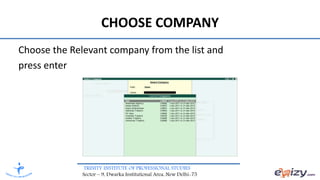
CHOOSE COMPANY
Choose the Relevant company from the list and
press enter
TRINITY INSTITUTE OF PROFESSIONAL STUDIES
Sector – 9, Dwarka Institutional Area, New Delhi-75
CHANGE ACCOUNTING PERIOD
In most countries, the books of accounts of a company are
maintained for a stipulated period like 12 months. This stipulated
period is referred to as the Financial Year. Tally automatically
considers 12 months from the date you give here as the Financial
Year .Press “Alt-F2” to change the period for which accounting is
to be done.
TRINITY INSTITUTE OF PROFESSIONAL STUDIES
Sector – 9, Dwarka Institutional Area, New Delhi-75
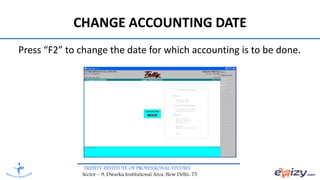
CHANGE ACCOUNTING DATE
Press “F2” to change the date for which accounting is to be done.
TRINITY INSTITUTE OF PROFESSIONAL STUDIES
Sector – 9, Dwarka Institutional Area, New Delhi-75
ALTERATION OF COMPANY
After save the company information or any other transaction you
are entered into the tally application we will be able to modify, at
any time, any information given whilst creating the company.
After pressing “Alt-F3”, the company info screen is displayed, in
which options for Altering company master data, backup etc are
seen (Alter).
TRINITY INSTITUTE OF PROFESSIONAL STUDIES
Sector – 9, Dwarka Institutional Area, New Delhi-75

COMPUTER ACCOUNTING SOFTWARE- TALLY

  • 1.
    TRINITY INSTITUTE OFPROFESSIONAL STUDIES Sector – 9, Dwarka Institutional Area, New Delhi-75 Affiliated Institution of G.G.S.IP.U, Delhi B.COM(HONS.) COMPUTER ACCOUNTING SOFTWARE Code: 888211 TALLY BY: PRERNA SEHGAL ASSISTANT PROFESSOR
  • 2.
    TRINITY INSTITUTE OFPROFESSIONAL STUDIES Sector – 9, Dwarka Institutional Area, New Delhi-75 If we select Display > Accounts Books the menu shows the full patch picture. The menu displays primary choices. Menu options are dependent on activation of options. In some cases, you may find some options appearing as grayed indicating that option is not active. The menu is a drill-down, on selecting an option, if a sub-menu exists for the selected option, it would be displayed. If next level sub-menu exists, it would appear below it – showing the entire path at top of the menu. By selecting Quit – last option in each menu (by pressing Esc key in keyboard) you can return to the upper level menu. GATEWAY OF TALLY MENU
  • 3.
    TRINITY INSTITUTE OFPROFESSIONAL STUDIES Sector – 9, Dwarka Institutional Area, New Delhi-75 To create a company, select Create company option from company info menu that brings company creation screen FIELDS OF COMPANY CREATION This company creation screen wants the necessary and optional information about the company. The necessary fields are Name of the company, communication address , State name, Pin code, E-mail address, use Indian vat, vat in, income tax number, local sales tax number, Currency symbol, maintain the company type, financial year from, Book beginning from, Tally vault password, use security control and base currency information. The option field is Directory specification location. The above fields are arranged in group wise information and also discussed sequentially. CREATION OF COMPANY
  • 4.
    TRINITY INSTITUTE OFPROFESSIONAL STUDIES Sector – 9, Dwarka Institutional Area, New Delhi-75 SELECT COMPANY In the button bar area you have the option F1: Select Cmp button. You press the function key F1 means tally displayed the mentioned screen Choose which company you want to work Tally important fields are: • Company Name: All the companies created are displayed. • The Financial Year Information : Relating to the number of years data present in the company (for example, 1-Apr-2015 to 31-Mar- 2016)
  • 5.
    TRINITY INSTITUTE OFPROFESSIONAL STUDIES Sector – 9, Dwarka Institutional Area, New Delhi-75 SELECT COMPANY In the button bar area you have the option F1: Select Cmp button. You press the function key F1 means tally displayed the mentioned screen Choose which company you want to work Tally important fields are: • Company Name: All the companies created are displayed. • The Financial Year Information : Relating to the number of years data present in the company (for example, 1-Apr-2015 to 31-Mar- 2016)
  • 6.
    TRINITY INSTITUTE OFPROFESSIONAL STUDIES Sector – 9, Dwarka Institutional Area, New Delhi-75 CHOOSE COMPANY Choose the Relevant company from the list and press enter
  • 7.
    TRINITY INSTITUTE OFPROFESSIONAL STUDIES Sector – 9, Dwarka Institutional Area, New Delhi-75 CHANGE ACCOUNTING PERIOD In most countries, the books of accounts of a company are maintained for a stipulated period like 12 months. This stipulated period is referred to as the Financial Year. Tally automatically considers 12 months from the date you give here as the Financial Year .Press “Alt-F2” to change the period for which accounting is to be done.
  • 8.
    TRINITY INSTITUTE OFPROFESSIONAL STUDIES Sector – 9, Dwarka Institutional Area, New Delhi-75 CHANGE ACCOUNTING DATE Press “F2” to change the date for which accounting is to be done.
  • 9.
    TRINITY INSTITUTE OFPROFESSIONAL STUDIES Sector – 9, Dwarka Institutional Area, New Delhi-75 ALTERATION OF COMPANY After save the company information or any other transaction you are entered into the tally application we will be able to modify, at any time, any information given whilst creating the company. After pressing “Alt-F3”, the company info screen is displayed, in which options for Altering company master data, backup etc are seen (Alter).
  • 10.
    TRINITY INSTITUTE OFPROFESSIONAL STUDIES Sector – 9, Dwarka Institutional Area, New Delhi-75