© 2016
AWS EC2 Classic
Configuration
AWS EC2 Classic Setup for VNS3
2016
© 2016
Table of Contents
2
Introduction 3
Step 1: EC2 Deployment Setup 9
Step 2: Launching a VNS3 Controller
Instance
12
VNS3 Configuration Document Links 14
© 2016
Requirements
3
© 2016
Requirements
4
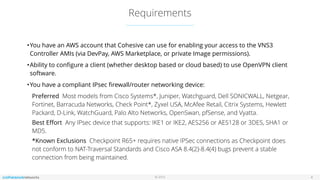
•You have an AWS account that Cohesive can use for enabling your access to the VNS3
Controller AMIs (via DevPay, AWS Marketplace, or private Image permissions).
•Ability to configure a client (whether desktop based or cloud based) to use OpenVPN client
software.
•You have a compliant IPsec firewall/router networking device:
Preferred  Most models from Cisco Systems*, Juniper, Watchguard, Dell SONICWALL, Netgear,
Fortinet, Barracuda Networks, Check Point*, Zyxel USA, McAfee Retail, Citrix Systems, Hewlett
Packard, D-Link, WatchGuard, Palo Alto Networks, OpenSwan, pfSense, and Vyatta.
Best Effort  Any IPsec device that supports: IKE1 or IKE2, AES256 or AES128 or 3DES, SHA1 or
MD5.
*Known Exclusions  Checkpoint R65+ requires native IPSec connections as Checkpoint does
not conform to NAT-Traversal Standards and Cisco ASA 8.4(2)-8.4(4) bugs prevent a stable
connection from being maintained.
© 2016
Getting Help with VNS3
5
Using VPC with VNS3 adds a layer of complexity. This guide covers a generic VNS3 setup.
If you need specific help with project planning, POCs, or audits, contact our professional
services team via sales@cohesive.net for details.
This guide uses Cisco’s Adaptive Security Device Controller UI. Setting up your IPsec
Extranet device may have a different user experience than what is shown here. All the
information entered in this guide will be same regardless of your UI or cmd line setup.


Please review the VNS3 Support Plans and Contacts before sending support inquiries.
© 2016
Firewall Considerations
6
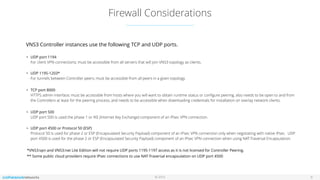
VNS3 Controller instances use the following TCP and UDP ports.

• UDP port 1194 

For client VPN connections; must be accessible from all servers that will join VNS3 topology as clients.

• UDP 1195-1203*

For tunnels between Controller peers; must be accessible from all peers in a given topology.
• TCP port 8000 

HTTPS admin interface; must be accessible from hosts where you will want to obtain runtime status or configure peering, also needs to be open to and from
the Controllers at least for the peering process, and needs to be accessible when downloading credentials for installation on overlay network clients.
• UDP port 500

UDP port 500 is used the phase 1 or IKE (Internet Key Exchange) component of an IPsec VPN connection.

• UDP port 4500 or Protocol 50 (ESP)

Protocol 50 is used for phase 2 or ESP (Encapsulated Security Payload) component of an IPsec VPN connection only when negotiating with native IPsec. UDP
port 4500 is used for the phase 2 or ESP (Encapsulated Security Payload) component of an IPsec VPN connection when using NAT-Traversal Encapsulation.
*VNS3:vpn and VNS3:net Lite Edition will not require UDP ports 1195-1197 access as it is not licensed for Controller Peering.
** Some public cloud providers require IPsec connections to use NAT-Traversal encapsulation on UDP port 4500
© 2016
Remote Support
7
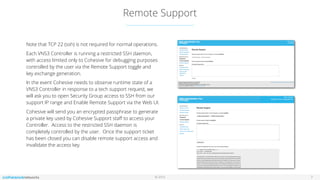
Note that TCP 22 (ssh) is not required for normal operations.
Each VNS3 Controller is running a restricted SSH daemon,
with access limited only to Cohesive for debugging purposes
controlled by the user via the Remote Support toggle and
key exchange generation.
In the event Cohesive needs to observe runtime state of a
VNS3 Controller in response to a tech support request, we
will ask you to open Security Group access to SSH from our
support IP range and Enable Remote Support via the Web UI.
Cohesive will send you an encrypted passphrase to generate
a private key used by Cohesive Support staff to access your
Controller. Access to the restricted SSH daemon is
completely controlled by the user. Once the support ticket
has been closed you can disable remote support access and
invalidate the access key.
© 2016
Sizing Considerations
8
Image Size and Architecture
VNS3 Controller Images are available as 64bit images to allow the greatest flexibility for your use-case. We
recommend Controller instances be launched with at least 512MB of RAM. Smaller sizes are supported but the
performance will depend on the use-case.
Clientpack Key Size
VNS3 Controllers currently generate 1024 bit keys for connecting the clients to the overlay network via the
“clientpacks”. Smaller or larger encryption keys can be provided upon request (from 64 bit to 2048 bit). Future
releases of VNS3 will provide the user control over key size and cipher during initialization and configuration.
© 2016
Step 1: EC2 Deployment Setup
9
© 2016
Set up the Amazon Security Groups via AWS Console
10
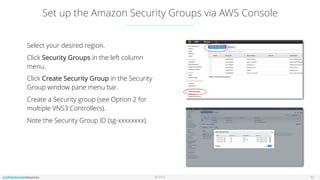
Select your desired region.
Click Security Groups in the left column
menu.
Click Create Security Group in the Security
Group window pane menu bar.
Create a Security group (see Option 2 for
multiple VNS3 Controllers).
Note the Security Group ID (sg-xxxxxxxx).
© 2016
EC2 Security Group Setup Option 1:
Default Group
11
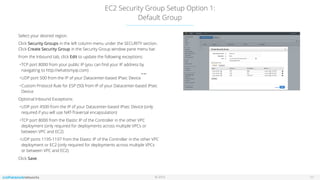
Select your desired region.
Click Security Groups in the left column menu under the SECURITY section.
Click Create Security Group in the Security Group window pane menu bar.
From the Inbound tab, click Edit to update the following exceptions:
•TCP port 8000 from your public IP (you can find your IP address by
navigating to http://whatismyip.com)
•UDP port 500 from the IP of your Datacenter-based IPsec Device
•Custom Protocol Rule for ESP (50) from IP of your Datacenter-based IPsec
Device
Optional Inbound Exceptions:
•UDP port 4500 from the IP of your Datacenter-based IPsec Device (only
required if you will use NAT-Traversal encapsulation)
•TCP port 8000 from the Elastic IP of the Controller in the other VPC
deployment (only required for deployments across multiple VPCs or
between VPC and EC2)
•UDP ports 1195-1197 from the Elastic IP of the Controller in the other VPC
deployment or EC2 (only required for deployments across multiple VPCs
or between VPC and EC2)
Click Save.
no vpc
© 2016
EC2 Security Group Setup Option 2:
Multiple Security Groups
12
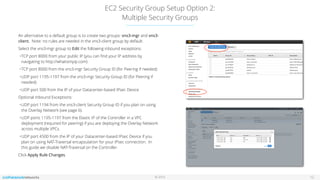
An alternative to a default group is to create two groups: vns3-mgr and vns3-
client. Note: no rules are needed in the vns3-client group by default.
Select the vns3-mgr group to Edit the following inbound exceptions:
•TCP port 8000 from your public IP (you can find your IP address by
navigating to http://whatismyip.com)
•TCP port 8000 from the vns3-mgr Security Group ID (for Peering if needed)
•UDP port 1195-1197 from the vns3-mgr Security Group ID (for Peering if
needed)
•UDP port 500 from the IP of your Datacenter-based IPsec Device
Optional Inbound Exceptions:
•UDP port 1194 from the vns3-client Security Group ID if you plan on using
the Overlay Network (see page 6).
•UDP ports 1195-1197 from the Elastic IP of the Controller in a VPC
deployment (required for peering) if you are deploying the Overlay Network
across multiple VPCs.
•UDP port 4500 from the IP of your Datacenter-based IPsec Device if you
plan on using NAT-Traversal encapsulation for your IPsec connection. In
this guide we disable NAT-Traversal on the Controller.
Click Apply Rule Changes.

© 2016
Step 2: Launching a VNS3 Controller Instance
13
© 2016
Launch a VNS3 Controller
14
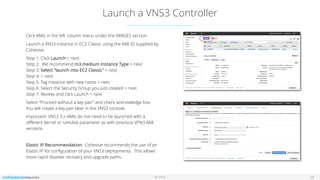
Click AMIs in the left column menu under the IMAGES section.
Launch a VNS3 instance in EC2 Classic using the AMI ID supplied by
Cohesive.
Step 1: Click Launch > next

Step 2: We recommend m3.medium Instance Type > next

Step 3: Select “launch into EC2 Classic” > next

Step 4: > next

Step 5: Tag Instance with new name > next

Step 6: Select the Security Group you just created > next

Step 7: Review, and click Launch > next
Select “Proceed without a key pair” and check acknowledge box.
You will create a key pair later in the VNS3 console.
Important: VNS3 3.x AMIs do not need to be launched with a
different kernel or ramdisk parameter as with previous VPN3 AMI
versions.
Elastic IP Recommendation: Cohesive recommends the use of an
Elastic IP for configuration of your VNS3 deployments. This allows
more rapid disaster recovery and upgrade paths.
© 2016
VNS3 Configuration Document Links
15
© 2016
VNS3 Configuration Document Links
16
VNS3 Product Resources - Documentation | Add-ons
VNS3 Configuration Instructions

Instructions and screenshots for configuring a VNS3 Controller in a single or multiple Controller topology. Specific steps include,
initializing a new Controller, generating clientpack keys, setting up peering, building IPsec tunnels, and connecting client servers to
the Overlay Network. 

VNS3 Administration Document

Covers the administration and operation of a configured VNS3 Controller. Additional detail is provided around the VNS3 Firewall,
all administration menu items, upgrade licenses, other routes and SNMP traps.

VNS3 Docker Instructions

Explains the value of the VNS3 3.5 Docker integration and covers uploading, allocating and exporting application containers.
VNS3 Troubleshooting

Troubleshooting document that provides explanation issues that are more commonly experienced with VNS3.


Cohesive Networks Support Docs: VNS3 Configuration for AWS EC2 Classic

  • 1.
    © 2016 AWS EC2Classic Configuration AWS EC2 Classic Setup for VNS3 2016
  • 2.
    © 2016 Table ofContents 2 Introduction 3 Step 1: EC2 Deployment Setup 9 Step 2: Launching a VNS3 Controller Instance 12 VNS3 Configuration Document Links 14
  • 3.
  • 4.
    © 2016 Requirements 4 •You havean AWS account that Cohesive can use for enabling your access to the VNS3 Controller AMIs (via DevPay, AWS Marketplace, or private Image permissions). •Ability to configure a client (whether desktop based or cloud based) to use OpenVPN client software. •You have a compliant IPsec firewall/router networking device: Preferred  Most models from Cisco Systems*, Juniper, Watchguard, Dell SONICWALL, Netgear, Fortinet, Barracuda Networks, Check Point*, Zyxel USA, McAfee Retail, Citrix Systems, Hewlett Packard, D-Link, WatchGuard, Palo Alto Networks, OpenSwan, pfSense, and Vyatta. Best Effort  Any IPsec device that supports: IKE1 or IKE2, AES256 or AES128 or 3DES, SHA1 or MD5. *Known Exclusions  Checkpoint R65+ requires native IPSec connections as Checkpoint does not conform to NAT-Traversal Standards and Cisco ASA 8.4(2)-8.4(4) bugs prevent a stable connection from being maintained.
  • 5.
    © 2016 Getting Helpwith VNS3 5 Using VPC with VNS3 adds a layer of complexity. This guide covers a generic VNS3 setup. If you need specific help with project planning, POCs, or audits, contact our professional services team via sales@cohesive.net for details. This guide uses Cisco’s Adaptive Security Device Controller UI. Setting up your IPsec Extranet device may have a different user experience than what is shown here. All the information entered in this guide will be same regardless of your UI or cmd line setup. 
 Please review the VNS3 Support Plans and Contacts before sending support inquiries.
  • 6.
    © 2016 Firewall Considerations 6 VNS3Controller instances use the following TCP and UDP ports.
 • UDP port 1194 
 For client VPN connections; must be accessible from all servers that will join VNS3 topology as clients.
 • UDP 1195-1203*
 For tunnels between Controller peers; must be accessible from all peers in a given topology. • TCP port 8000 
 HTTPS admin interface; must be accessible from hosts where you will want to obtain runtime status or configure peering, also needs to be open to and from the Controllers at least for the peering process, and needs to be accessible when downloading credentials for installation on overlay network clients. • UDP port 500
 UDP port 500 is used the phase 1 or IKE (Internet Key Exchange) component of an IPsec VPN connection.
 • UDP port 4500 or Protocol 50 (ESP)
 Protocol 50 is used for phase 2 or ESP (Encapsulated Security Payload) component of an IPsec VPN connection only when negotiating with native IPsec. UDP port 4500 is used for the phase 2 or ESP (Encapsulated Security Payload) component of an IPsec VPN connection when using NAT-Traversal Encapsulation. *VNS3:vpn and VNS3:net Lite Edition will not require UDP ports 1195-1197 access as it is not licensed for Controller Peering. ** Some public cloud providers require IPsec connections to use NAT-Traversal encapsulation on UDP port 4500
  • 7.
    © 2016 Remote Support 7 Notethat TCP 22 (ssh) is not required for normal operations. Each VNS3 Controller is running a restricted SSH daemon, with access limited only to Cohesive for debugging purposes controlled by the user via the Remote Support toggle and key exchange generation. In the event Cohesive needs to observe runtime state of a VNS3 Controller in response to a tech support request, we will ask you to open Security Group access to SSH from our support IP range and Enable Remote Support via the Web UI. Cohesive will send you an encrypted passphrase to generate a private key used by Cohesive Support staff to access your Controller. Access to the restricted SSH daemon is completely controlled by the user. Once the support ticket has been closed you can disable remote support access and invalidate the access key.
  • 8.
    © 2016 Sizing Considerations 8 ImageSize and Architecture VNS3 Controller Images are available as 64bit images to allow the greatest flexibility for your use-case. We recommend Controller instances be launched with at least 512MB of RAM. Smaller sizes are supported but the performance will depend on the use-case. Clientpack Key Size VNS3 Controllers currently generate 1024 bit keys for connecting the clients to the overlay network via the “clientpacks”. Smaller or larger encryption keys can be provided upon request (from 64 bit to 2048 bit). Future releases of VNS3 will provide the user control over key size and cipher during initialization and configuration.
  • 9.
    © 2016 Step 1:EC2 Deployment Setup 9
  • 10.
    © 2016 Set upthe Amazon Security Groups via AWS Console 10 Select your desired region. Click Security Groups in the left column menu. Click Create Security Group in the Security Group window pane menu bar. Create a Security group (see Option 2 for multiple VNS3 Controllers). Note the Security Group ID (sg-xxxxxxxx).
  • 11.
    © 2016 EC2 SecurityGroup Setup Option 1: Default Group 11 Select your desired region. Click Security Groups in the left column menu under the SECURITY section. Click Create Security Group in the Security Group window pane menu bar. From the Inbound tab, click Edit to update the following exceptions: •TCP port 8000 from your public IP (you can find your IP address by navigating to http://whatismyip.com) •UDP port 500 from the IP of your Datacenter-based IPsec Device •Custom Protocol Rule for ESP (50) from IP of your Datacenter-based IPsec Device Optional Inbound Exceptions: •UDP port 4500 from the IP of your Datacenter-based IPsec Device (only required if you will use NAT-Traversal encapsulation) •TCP port 8000 from the Elastic IP of the Controller in the other VPC deployment (only required for deployments across multiple VPCs or between VPC and EC2) •UDP ports 1195-1197 from the Elastic IP of the Controller in the other VPC deployment or EC2 (only required for deployments across multiple VPCs or between VPC and EC2) Click Save. no vpc
  • 12.
    © 2016 EC2 SecurityGroup Setup Option 2: Multiple Security Groups 12 An alternative to a default group is to create two groups: vns3-mgr and vns3- client. Note: no rules are needed in the vns3-client group by default. Select the vns3-mgr group to Edit the following inbound exceptions: •TCP port 8000 from your public IP (you can find your IP address by navigating to http://whatismyip.com) •TCP port 8000 from the vns3-mgr Security Group ID (for Peering if needed) •UDP port 1195-1197 from the vns3-mgr Security Group ID (for Peering if needed) •UDP port 500 from the IP of your Datacenter-based IPsec Device Optional Inbound Exceptions: •UDP port 1194 from the vns3-client Security Group ID if you plan on using the Overlay Network (see page 6). •UDP ports 1195-1197 from the Elastic IP of the Controller in a VPC deployment (required for peering) if you are deploying the Overlay Network across multiple VPCs. •UDP port 4500 from the IP of your Datacenter-based IPsec Device if you plan on using NAT-Traversal encapsulation for your IPsec connection. In this guide we disable NAT-Traversal on the Controller. Click Apply Rule Changes.

  • 13.
    © 2016 Step 2:Launching a VNS3 Controller Instance 13
  • 14.
    © 2016 Launch aVNS3 Controller 14 Click AMIs in the left column menu under the IMAGES section. Launch a VNS3 instance in EC2 Classic using the AMI ID supplied by Cohesive. Step 1: Click Launch > next
 Step 2: We recommend m3.medium Instance Type > next
 Step 3: Select “launch into EC2 Classic” > next
 Step 4: > next
 Step 5: Tag Instance with new name > next
 Step 6: Select the Security Group you just created > next
 Step 7: Review, and click Launch > next Select “Proceed without a key pair” and check acknowledge box. You will create a key pair later in the VNS3 console. Important: VNS3 3.x AMIs do not need to be launched with a different kernel or ramdisk parameter as with previous VPN3 AMI versions. Elastic IP Recommendation: Cohesive recommends the use of an Elastic IP for configuration of your VNS3 deployments. This allows more rapid disaster recovery and upgrade paths.
  • 15.
    © 2016 VNS3 ConfigurationDocument Links 15
  • 16.
    © 2016 VNS3 ConfigurationDocument Links 16 VNS3 Product Resources - Documentation | Add-ons VNS3 Configuration Instructions
 Instructions and screenshots for configuring a VNS3 Controller in a single or multiple Controller topology. Specific steps include, initializing a new Controller, generating clientpack keys, setting up peering, building IPsec tunnels, and connecting client servers to the Overlay Network. 
 VNS3 Administration Document
 Covers the administration and operation of a configured VNS3 Controller. Additional detail is provided around the VNS3 Firewall, all administration menu items, upgrade licenses, other routes and SNMP traps.
 VNS3 Docker Instructions
 Explains the value of the VNS3 3.5 Docker integration and covers uploading, allocating and exporting application containers. VNS3 Troubleshooting
 Troubleshooting document that provides explanation issues that are more commonly experienced with VNS3.