Salary Advance Workflow
Ifeanyi I Nwodo
(B.Eng, MCSN,OCA,OCP, MCPD,MCTS,OCJP)
07033798594, 08187693785 .
joshuasearch@live.com
http://www.facecompete.com
http://alvana.facecompete.com
http://sharepointbi.facecompete.com
This Article is a continuation of an online video that demonstrated how to create Custom list you can
view the video here or download it here
In this Article I will show you how to create a SharePoint Workflow based on a List. I will be using
the Advance Salary list I created in the video and will also be utilising the web application and its Site
collection URL I created in the tutorial. So let’s get started.
Scenario:
—Create a Salary Advance Work Flow by which employees can request Salary Advancement, request
mailed to accounts personnel, reply of either approved or rejected corresponded to employee—
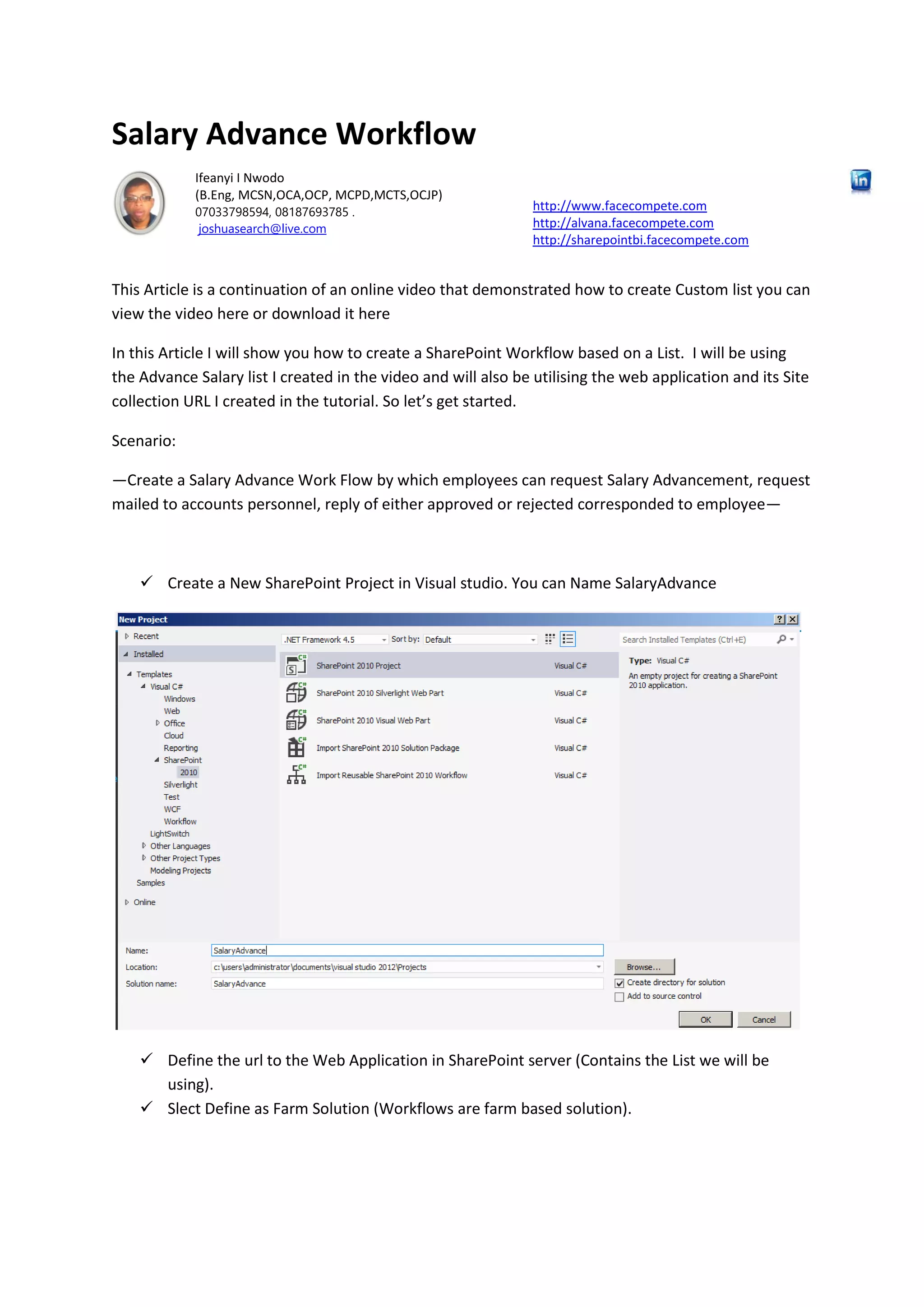
 Create a New SharePoint Project in Visual studio. You can Name SalaryAdvance
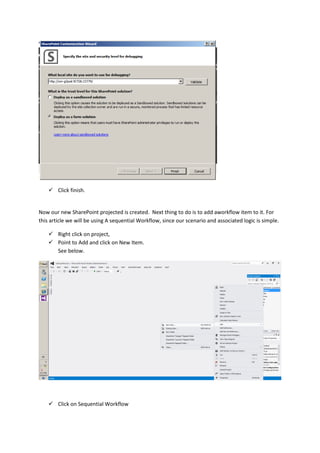
 Define the url to the Web Application in SharePoint server (Contains the List we will be
using).
 Slect Define as Farm Solution (Workflows are farm based solution).
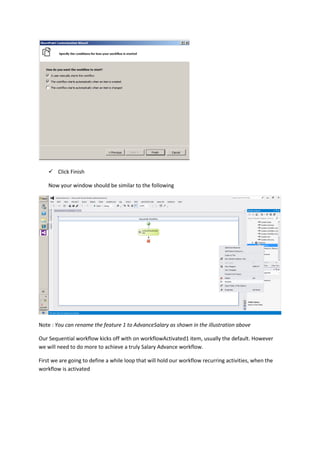
 Click finish.
Now our new SharePoint projected is created. Next thing to do is to add aworkflow item to it. For
this article we will be using A sequential Workflow, since our scenario and associated logic is simple.
 Right click on project,
 Point to Add and click on New Item.
See below.
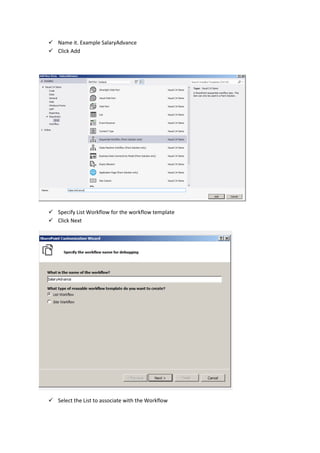
 Click on Sequential Workflow
 Name it. Example SalaryAdvance
 Click Add
 Specify List Workflow for the workflow template
 Click Next
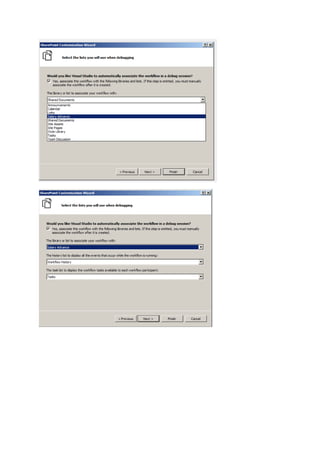
 Select the List to associate with the Workflow
 Click Finish
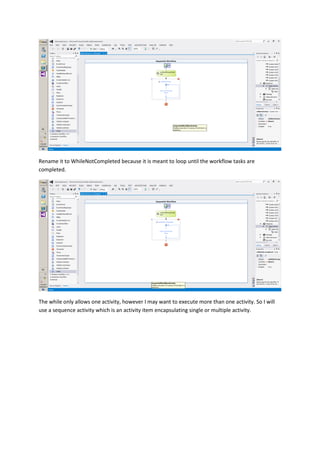
Now your window should be similar to the following
Note : You can rename the feature 1 to AdvanceSalary as shown in the illustration above
Our Sequential workflow kicks off with on workflowActivated1 item, usually the default. However
we will need to do more to achieve a truly Salary Advance workflow.
First we are going to define a while loop that will hold our workflow recurring activities, when the
workflow is activated
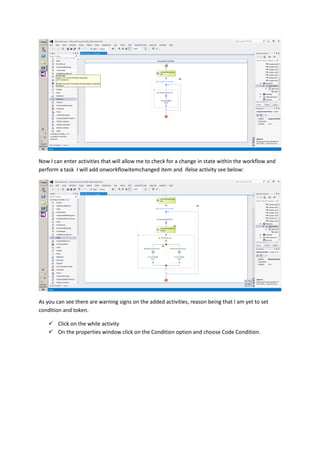
Rename it to WhileNotCompleted because it is meant to loop until the workflow tasks are
completed.
The while only allows one activity, however I may want to execute more than one activity. So I will
use a sequence activity which is an activity item encapsulating single or multiple activity.
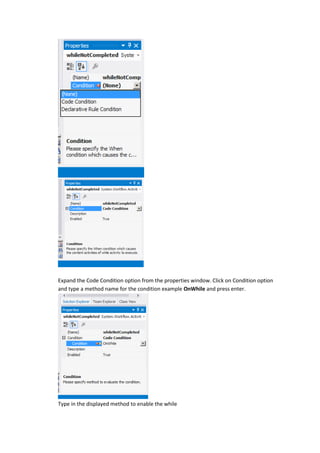
Now I can enter activities that will allow me to check for a change in state within the workflow and
perform a task I will add onworkflowitemchanged item and ifelse activity see below:
As you can see there are warning signs on the added activities, reason being that I am yet to set
condition and token.
 Click on the while activity
 On the properties window click on the Condition option and choose Code Condition.
Expand the Code Condition option from the properties window. Click on Condition option
and type a method name for the condition example OnWhile and press enter.
Type in the displayed method to enable the while
private void OnWhile(object sender, ConditionalEventArgs e)
{
e.Result = true;
}
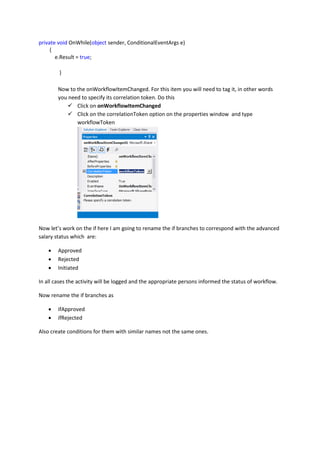
Now to the onWorkflowItemChanged. For this item you will need to tag it, in other words
you need to specify its correlation token. Do this
 Click on onWorkflowItemChanged
 Click on the correlationToken option on the properties window and type
workflowToken
Now let’s work on the if here I am going to rename the if branches to correspond with the advanced
salary status which are:
 Approved
 Rejected
 Initiated
In all cases the activity will be logged and the appropriate persons informed the status of workflow.
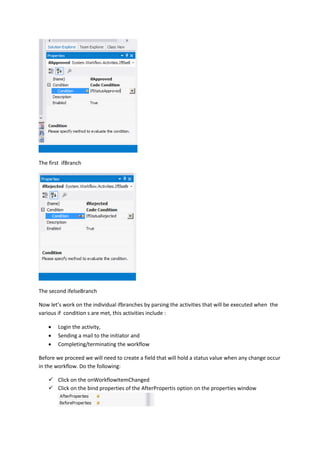
Now rename the if branches as
 ifApproved
 ifRejected
Also create conditions for them with similar names not the same ones.
The first ifBranch
The second ifelseBranch
Now let’s work on the individual ifbranches by parsing the activities that will be executed when the
various if condition s are met, this activities include :
 Login the activity,
 Sending a mail to the initiator and
 Completing/terminating the workflow
Before we proceed we will need to create a field that will hold a status value when any change occur
in the workflow. Do the following:
 Click on the onWorkflowItemChanged
 Click on the bind properties of the AfterPropertis option on the properties window
 On the resulting dialog box click bind to a new member(see below)
 Click create Field
 Click ok
 Repeat the same steps to create a field for the BeforeProperties.
With that achieved, it’s time to populate the if conditions methods and determine their result
based on the value of the Status. Open the IfStatusApproved method you created earlier for the
ifApproved ifelse branch and enter the following:
private void IfStatusApproved(object sender, ConditionalEventArgs e)
{
string status = onWorkflowItemChanged1_AfterProperties1["Status"].ToString();
if (status == "Approved")
{
e.Result = true;
}
else
{
e.Result = false;
}
}
 Repeat a Similar thing for the ifRejected Condition and apply the following:
private void IfStatusRejected(object sender, ConditionalEventArgs e)
{
string status = onWorkflowItemChanged1_AfterProperties1["Status"].ToString();
if (status == "Rejected")
{
e.Result = true;
}
else
{
e.Result = false;
}
}
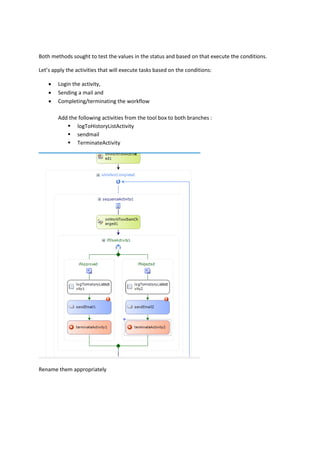
Both methods sought to test the values in the status and based on that execute the conditions.
Let’s apply the activities that will execute tasks based on the conditions:
 Login the activity,
 Sending a mail and
 Completing/terminating the workflow
Add the following activities from the tool box to both branches :
 logToHistoryListActivity
 sendmail
 TerminateActivity
Rename them appropriately
 Let’s add an ifelse branch that will be responsible for sending mail to the accounts
department when the workflow is initiated by an employee.
o Add an ifelse branch, rename it to ifInitiated, add a log activity history and send
email to it. Also add its correlation token and condition, you can use the method
name ifStatusInitiated, and as done above specify the content below for the
method.
private void ifStatusInitiated(object sender, ConditionalEventArgs e)
{
string status = onWorkflowItemChanged1_AfterProperties1["Status"].ToString();
if (status == "Initiated")
{
e.Result = true;
}
else
{
e.Result = false;
}
}
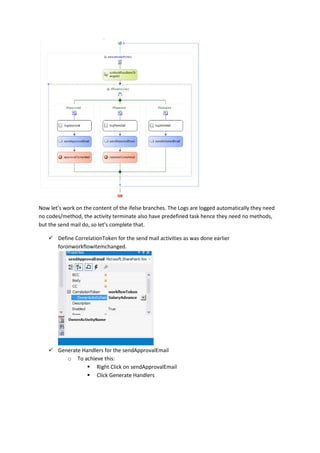
Your Workflow Design should look like:
Now let’s work on the content of the ifelse branches. The Logs are logged automatically they need
no codes/method, the activity terminate also have predefined task hence they need no methods,
but the send mail do, so let’s complete that.
 Define CorrelationToken for the send mail activities as was done earlier
foronworkflowitemchanged.
 Generate Handlers for the sendApprovalEmail
o To achieve this:
 Right Click on sendApprovalEmail
 Click Generate Handlers
 Type the following into the method:
private void sendApprovalEmail_MethodInvoking(object sender, EventArgs e)
{
//Create an Item object based on our List
SPListItem item = onWorkflowActivated1.WorkflowProperties.Item;
//get the Employee Field Colunm from our List
SPFieldUser assignedto = (SPFieldUser)item.Fields["Employee"];
//get the field value content of Accountant Clerk
SPFieldUserValue user =
(SPFieldUserValue)assignedto.GetFieldValue(item["Employee"].ToString());
//get the Requested Date Field Colunm from our List
SPFieldDateTime requestedDate = (SPFieldDateTime)item.Fields["Requested Date"];
//get the field value content of Requested Date
string rdt = requestedDate.GetFieldValue(item["Requested Date"].ToString()).ToString();
//get the Amount Field Colunm from our List
SPFieldCurrency amount = (SPFieldCurrency)item.Fields["Amount"];
//get the field value content of Amount
string amt = amount.GetFieldValue(item.Fields["Amount"].ToString()).ToString();
//get employee email, assign mail subject, and body
string assigneeEmail = user.User.Email;
sendApprovalEmail.To = assigneeEmail;
sendApprovalEmail.Subject = "Advance Salary Request Approved";
sendApprovalEmail.Body = "Salary Advance Request with ID " +
onWorkflowActivated1.WorkflowProperties.Item.ID.ToString() + ".n Requested Date :" + rdt +
".nn Amount Requested :"+amt+".nn Has been Approved.";
}
 Generate Handlers for the sendRejectedEmail
o To achieve this:
 Right Click on sendRejectedEmail
 Click Generate Handlers
 Type the following into the method:
private void sendRejectedEmail_MethodInvoking(object sender, EventArgs e)
{
//Create an Item object based on our List
SPListItem item = onWorkflowActivated1.WorkflowProperties.Item;
//get the Employee Field Colunm from our List
SPFieldUser assignedto = (SPFieldUser)item.Fields["Employee"];
//get the field value content of Accountant Clerk
SPFieldUserValue user =
(SPFieldUserValue)assignedto.GetFieldValue(item["Employee"].ToString());
//get the Requested Date Field Colunm from our List
SPFieldDateTime requestedDate = (SPFieldDateTime)item.Fields["Requested Date"];
//get the field value content of Requested Date
string rdt = requestedDate.GetFieldValue(item["Requested Date"].ToString()).ToString();
//get the Amount Field Colunm from our List
SPFieldCurrency amount = (SPFieldCurrency)item.Fields["Amount"];
//get the field value content of Amount
string amt = amount.GetFieldValue(item.Fields["Amount"].ToString()).ToString();
//get employee email, assign mail subject, and body
string assigneeEmail = user.User.Email;
sendApprovalEmail.To = assigneeEmail;
sendApprovalEmail.Subject = "Advance Salary Request Rejected";
sendApprovalEmail.Body = "Salary Advance Request with ID " +
onWorkflowActivated1.WorkflowProperties.Item.ID.ToString() + ".n Requested Date :" + rdt +
".nn Amount Requested :" + amt + ".nn Has been Rejected.";
}
 Also generate Handlers for the sendInitiatedEmail
o To achieve this:
 Right Click on sendInitiatedEmail
 Click Generate Handlers
 Type the following into the method:
private void sendInitiatedEmail_MethodInvoking(object sender, EventArgs e)
{
//Create an Item object based on our List
SPListItem item = onWorkflowActivated1.WorkflowProperties.Item;
//get the user Field Colunm from our List
SPFieldUser assignedto = (SPFieldUser)item.Fields["Accountant Clerk"];
//get the field content of Accountant Clerk
SPFieldUserValue user = (SPFieldUserValue)assignedto.GetFieldValue(item["Accountant
Clerk"].ToString());
string assigneeEmail = user.User.Email;
sendApprovalEmail.To = assigneeEmail;
sendApprovalEmail.Subject = " Salary Advance Request ";
sendApprovalEmail.Body = "Advance Salary Request <br/><br/>Request ID:" +
onWorkflowActivated1.WorkflowProperties.Item.ID;
}
That’s all. We can now build and deploy.
Simply right click on the project and choose build, repeat the same steps but choose deploy to
deploy it to the SharePoint server .see below.
From the Site collection features of our SharePoint server you can see our new feature running
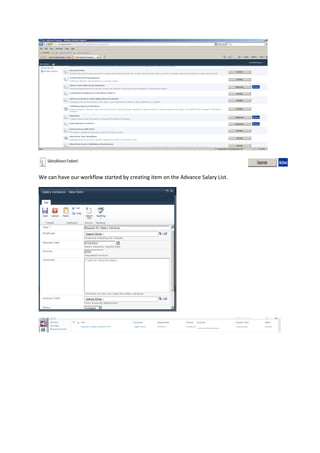
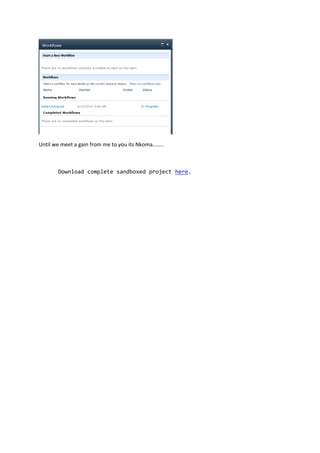
We can have our workflow started by creating item on the Advance Salary List.
Until we meet a gain from me to you its Nkoma……..
Download complete sandboxed project here.

Salary advanceworkflow

  • 1.
    Salary Advance Workflow IfeanyiI Nwodo (B.Eng, MCSN,OCA,OCP, MCPD,MCTS,OCJP) 07033798594, 08187693785 . joshuasearch@live.com http://www.facecompete.com http://alvana.facecompete.com http://sharepointbi.facecompete.com This Article is a continuation of an online video that demonstrated how to create Custom list you can view the video here or download it here In this Article I will show you how to create a SharePoint Workflow based on a List. I will be using the Advance Salary list I created in the video and will also be utilising the web application and its Site collection URL I created in the tutorial. So let’s get started. Scenario: —Create a Salary Advance Work Flow by which employees can request Salary Advancement, request mailed to accounts personnel, reply of either approved or rejected corresponded to employee—  Create a New SharePoint Project in Visual studio. You can Name SalaryAdvance  Define the url to the Web Application in SharePoint server (Contains the List we will be using).  Slect Define as Farm Solution (Workflows are farm based solution).
  • 2.
     Click finish. Nowour new SharePoint projected is created. Next thing to do is to add aworkflow item to it. For this article we will be using A sequential Workflow, since our scenario and associated logic is simple.  Right click on project,  Point to Add and click on New Item. See below.  Click on Sequential Workflow
  • 3.
     Name it.Example SalaryAdvance  Click Add  Specify List Workflow for the workflow template  Click Next  Select the List to associate with the Workflow
  • 5.
     Click Finish Nowyour window should be similar to the following Note : You can rename the feature 1 to AdvanceSalary as shown in the illustration above Our Sequential workflow kicks off with on workflowActivated1 item, usually the default. However we will need to do more to achieve a truly Salary Advance workflow. First we are going to define a while loop that will hold our workflow recurring activities, when the workflow is activated
  • 6.
    Rename it toWhileNotCompleted because it is meant to loop until the workflow tasks are completed. The while only allows one activity, however I may want to execute more than one activity. So I will use a sequence activity which is an activity item encapsulating single or multiple activity.
  • 7.
    Now I canenter activities that will allow me to check for a change in state within the workflow and perform a task I will add onworkflowitemchanged item and ifelse activity see below: As you can see there are warning signs on the added activities, reason being that I am yet to set condition and token.  Click on the while activity  On the properties window click on the Condition option and choose Code Condition.
  • 8.
    Expand the CodeCondition option from the properties window. Click on Condition option and type a method name for the condition example OnWhile and press enter. Type in the displayed method to enable the while
  • 9.
    private void OnWhile(objectsender, ConditionalEventArgs e) { e.Result = true; } Now to the onWorkflowItemChanged. For this item you will need to tag it, in other words you need to specify its correlation token. Do this  Click on onWorkflowItemChanged  Click on the correlationToken option on the properties window and type workflowToken Now let’s work on the if here I am going to rename the if branches to correspond with the advanced salary status which are:  Approved  Rejected  Initiated In all cases the activity will be logged and the appropriate persons informed the status of workflow. Now rename the if branches as  ifApproved  ifRejected Also create conditions for them with similar names not the same ones.
  • 10.
    The first ifBranch Thesecond ifelseBranch Now let’s work on the individual ifbranches by parsing the activities that will be executed when the various if condition s are met, this activities include :  Login the activity,  Sending a mail to the initiator and  Completing/terminating the workflow Before we proceed we will need to create a field that will hold a status value when any change occur in the workflow. Do the following:  Click on the onWorkflowItemChanged  Click on the bind properties of the AfterPropertis option on the properties window
  • 11.
     On theresulting dialog box click bind to a new member(see below)  Click create Field  Click ok  Repeat the same steps to create a field for the BeforeProperties. With that achieved, it’s time to populate the if conditions methods and determine their result based on the value of the Status. Open the IfStatusApproved method you created earlier for the ifApproved ifelse branch and enter the following: private void IfStatusApproved(object sender, ConditionalEventArgs e) { string status = onWorkflowItemChanged1_AfterProperties1["Status"].ToString(); if (status == "Approved") { e.Result = true; } else { e.Result = false; } }  Repeat a Similar thing for the ifRejected Condition and apply the following: private void IfStatusRejected(object sender, ConditionalEventArgs e) { string status = onWorkflowItemChanged1_AfterProperties1["Status"].ToString(); if (status == "Rejected") { e.Result = true; } else { e.Result = false; } }
  • 12.
    Both methods soughtto test the values in the status and based on that execute the conditions. Let’s apply the activities that will execute tasks based on the conditions:  Login the activity,  Sending a mail and  Completing/terminating the workflow Add the following activities from the tool box to both branches :  logToHistoryListActivity  sendmail  TerminateActivity Rename them appropriately
  • 13.
     Let’s addan ifelse branch that will be responsible for sending mail to the accounts department when the workflow is initiated by an employee. o Add an ifelse branch, rename it to ifInitiated, add a log activity history and send email to it. Also add its correlation token and condition, you can use the method name ifStatusInitiated, and as done above specify the content below for the method. private void ifStatusInitiated(object sender, ConditionalEventArgs e) { string status = onWorkflowItemChanged1_AfterProperties1["Status"].ToString(); if (status == "Initiated") { e.Result = true; } else { e.Result = false; } } Your Workflow Design should look like:
  • 14.
    Now let’s workon the content of the ifelse branches. The Logs are logged automatically they need no codes/method, the activity terminate also have predefined task hence they need no methods, but the send mail do, so let’s complete that.  Define CorrelationToken for the send mail activities as was done earlier foronworkflowitemchanged.  Generate Handlers for the sendApprovalEmail o To achieve this:  Right Click on sendApprovalEmail  Click Generate Handlers
  • 15.
     Type thefollowing into the method: private void sendApprovalEmail_MethodInvoking(object sender, EventArgs e) { //Create an Item object based on our List SPListItem item = onWorkflowActivated1.WorkflowProperties.Item; //get the Employee Field Colunm from our List SPFieldUser assignedto = (SPFieldUser)item.Fields["Employee"]; //get the field value content of Accountant Clerk SPFieldUserValue user = (SPFieldUserValue)assignedto.GetFieldValue(item["Employee"].ToString()); //get the Requested Date Field Colunm from our List SPFieldDateTime requestedDate = (SPFieldDateTime)item.Fields["Requested Date"]; //get the field value content of Requested Date string rdt = requestedDate.GetFieldValue(item["Requested Date"].ToString()).ToString(); //get the Amount Field Colunm from our List SPFieldCurrency amount = (SPFieldCurrency)item.Fields["Amount"]; //get the field value content of Amount string amt = amount.GetFieldValue(item.Fields["Amount"].ToString()).ToString(); //get employee email, assign mail subject, and body string assigneeEmail = user.User.Email; sendApprovalEmail.To = assigneeEmail; sendApprovalEmail.Subject = "Advance Salary Request Approved"; sendApprovalEmail.Body = "Salary Advance Request with ID " + onWorkflowActivated1.WorkflowProperties.Item.ID.ToString() + ".n Requested Date :" + rdt + ".nn Amount Requested :"+amt+".nn Has been Approved.";
  • 16.
    }  Generate Handlersfor the sendRejectedEmail o To achieve this:  Right Click on sendRejectedEmail  Click Generate Handlers  Type the following into the method: private void sendRejectedEmail_MethodInvoking(object sender, EventArgs e) { //Create an Item object based on our List SPListItem item = onWorkflowActivated1.WorkflowProperties.Item; //get the Employee Field Colunm from our List SPFieldUser assignedto = (SPFieldUser)item.Fields["Employee"]; //get the field value content of Accountant Clerk SPFieldUserValue user = (SPFieldUserValue)assignedto.GetFieldValue(item["Employee"].ToString()); //get the Requested Date Field Colunm from our List SPFieldDateTime requestedDate = (SPFieldDateTime)item.Fields["Requested Date"]; //get the field value content of Requested Date string rdt = requestedDate.GetFieldValue(item["Requested Date"].ToString()).ToString(); //get the Amount Field Colunm from our List SPFieldCurrency amount = (SPFieldCurrency)item.Fields["Amount"]; //get the field value content of Amount string amt = amount.GetFieldValue(item.Fields["Amount"].ToString()).ToString(); //get employee email, assign mail subject, and body string assigneeEmail = user.User.Email; sendApprovalEmail.To = assigneeEmail; sendApprovalEmail.Subject = "Advance Salary Request Rejected"; sendApprovalEmail.Body = "Salary Advance Request with ID " + onWorkflowActivated1.WorkflowProperties.Item.ID.ToString() + ".n Requested Date :" + rdt + ".nn Amount Requested :" + amt + ".nn Has been Rejected."; }  Also generate Handlers for the sendInitiatedEmail o To achieve this:  Right Click on sendInitiatedEmail  Click Generate Handlers  Type the following into the method:
  • 17.
    private void sendInitiatedEmail_MethodInvoking(objectsender, EventArgs e) { //Create an Item object based on our List SPListItem item = onWorkflowActivated1.WorkflowProperties.Item; //get the user Field Colunm from our List SPFieldUser assignedto = (SPFieldUser)item.Fields["Accountant Clerk"]; //get the field content of Accountant Clerk SPFieldUserValue user = (SPFieldUserValue)assignedto.GetFieldValue(item["Accountant Clerk"].ToString()); string assigneeEmail = user.User.Email; sendApprovalEmail.To = assigneeEmail; sendApprovalEmail.Subject = " Salary Advance Request "; sendApprovalEmail.Body = "Advance Salary Request <br/><br/>Request ID:" + onWorkflowActivated1.WorkflowProperties.Item.ID; } That’s all. We can now build and deploy. Simply right click on the project and choose build, repeat the same steps but choose deploy to deploy it to the SharePoint server .see below. From the Site collection features of our SharePoint server you can see our new feature running
  • 18.
    We can haveour workflow started by creating item on the Advance Salary List.
  • 19.
    Until we meeta gain from me to you its Nkoma…….. Download complete sandboxed project here.