Widgets, Plugins, CSS code
and other silly & fun things for your blog

George

Ju Garcia
http://www.coetail.com/jubonillagarcia/
twitter: @JuBonillaGarcia
Table of Contents
Explaining Terms

3

Share & Like Button

4

Formidable

5-7

Voki

8- 11

Cluster Maps

12

Chat Box

13

Flag Counter

14

Text Widget

15

Compfight

16

Css Code

17
Plugins- Applications that extend functionality of blog. (behind
the scenes)
Widgets- Representation of plugins. Widgets are always plugins.
Plugins aren’t all widgets
HTML Code- Structures content
CSS Code- Formats content
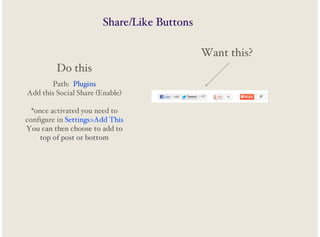
Share/Like Buttons
Want this?
Do this
Path: Plugins
Add this Social Share (Enable)
*once activated you need to
configure in Settings>Add This
You can then choose to add to
top of post or bottom
Formidable
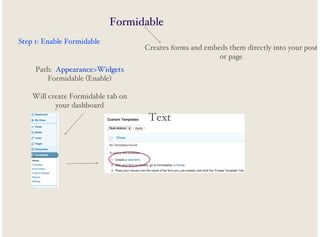
Step 1: Enable Formidable

Creates forms and embeds them directly into your post
or page

Path: Appearance>Widgets
Formidable (Enable)
Will create Formidable tab on
your dashboard

Text
Formidable
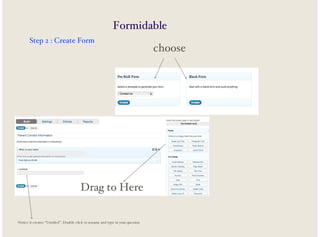
Step 2 : Create Form

Drag to Here
Notice it creates “Untitled”. Double click to rename and type in your question

choose
Formidable
Step 3: Save and Embed Form

Embedding your form:
When you are done click create to save and
create your form. Don’t worry about the
settings page you come to next. You are
done! Unless you want to get really techie
and play with the settings, which is quite
quite fun.

1- Notice form id Number
2- On your post, switch to html view
and type in your form id code where you
want
your form to go. In this case, you would type:
[formidable id=8]
Voki
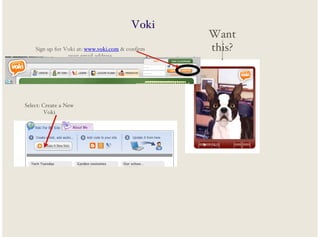
Sign up for Voki at: www.voki.com & confirm
your email address

Select: Create a New
Voki

Want
this?
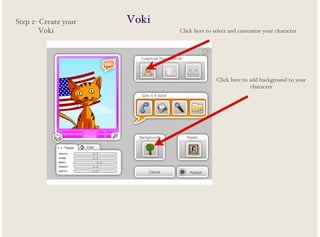
Step 2- Create your
Voki

Voki
Click here to select and customize your character

Click here to add background to your
character
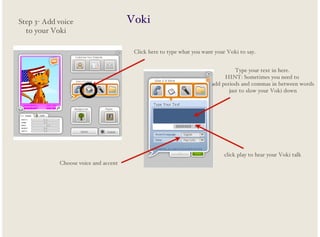
Step 3- Add voice
to your Voki

Voki
Click here to type what you want your Voki to say.
Type your text in here.
HINT: Sometimes you need to
add periods and commas in between words
just to slow your Voki down

click play to hear your Voki talk
Choose voice and accent
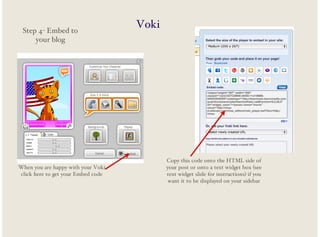
Step 4- Embed to
your blog

When you are happy with your Voki
click here to get your Embed code

Voki

Copy this code onto the HTML side of
your post or onto a text widget box (see
text widget slide for instructions) if you
want it to be displayed on your sidebar
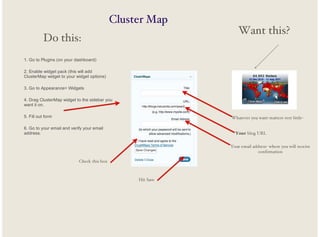
Cluster Map
Do this:

Want this?

1. Go to Plugins (on your dashboard)
2. Enable widget pack (this will add
ClusterMap widget to your widget options)
3. Go to Appearance> Widgets
4. Drag ClusterMap widget to the sidebar you
want it on.
5. Fill out form

Whatever you want-matters very little-

6. Go to your email and verify your email
address.

Your blog URL
Your email address- where you will receive
confirmation

Check this box

Hit Save
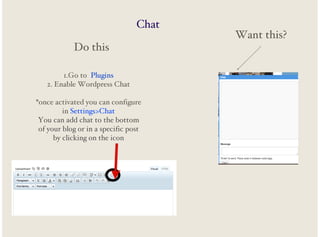
Chat
Do this
1.Go to Plugins
2. Enable Wordpress Chat
*once activated you can configure
in Settings>Chat
You can add chat to the bottom
of your blog or in a specific post
by clicking on the icon

Want this?
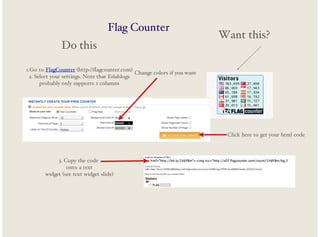
Flag Counter
Do this

Want this?

1.Go to FlagCounter (http://flagcounter.com)
Change colors if you want
2. Select your settings. Note that Edublogs
probably only supports 2 columns

Click here to get your html code

3. Copy the code
onto a text
widget (see text widget slide)
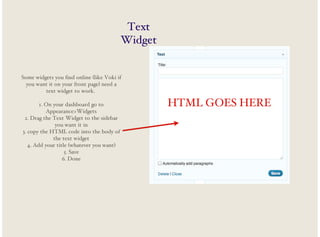
Text
Widget

Some widgets you find online (like Voki if
you want it on your front page) need a
text widget to work.
1. On your dashboard go to
Appearance>Widgets
2. Drag the Text Widget to the sidebar
you want it in
3. copy the HTML code into the body of
the text widget
4. Add your title (whatever you want)
5. Save
6. Done

HTML GOES HERE
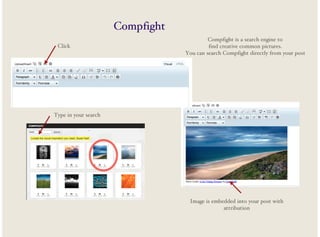
Compfight
Click

Compfight is a search engine to
find creative common pictures.
You can search Compfight directly from your post

Type in your search

Image is embedded into your post with
attribution
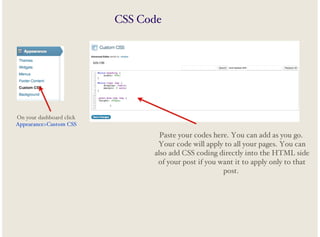
CSS Code

On your dashboard click
Appearance>Custom CSS

Paste your codes here. You can add as you go.
Your code will apply to all your pages. You can
also add CSS coding directly into the HTML side
of your post if you want it to apply only to that
post.
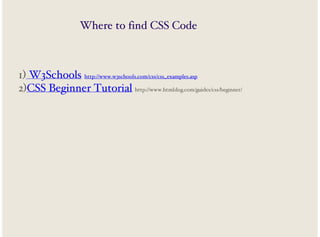
Where to find CSS Code

1) W3Schools http://www.w3schools.com/css/css_examples.asp
2)CSS Beginner Tutorial http://www.htmldog.com/guides/css/beginner/

CSS, Widgets & Plugins

  • 1.
    Widgets, Plugins, CSScode and other silly & fun things for your blog George Ju Garcia http://www.coetail.com/jubonillagarcia/ twitter: @JuBonillaGarcia
  • 2.
    Table of Contents ExplainingTerms 3 Share & Like Button 4 Formidable 5-7 Voki 8- 11 Cluster Maps 12 Chat Box 13 Flag Counter 14 Text Widget 15 Compfight 16 Css Code 17
  • 3.
    Plugins- Applications thatextend functionality of blog. (behind the scenes) Widgets- Representation of plugins. Widgets are always plugins. Plugins aren’t all widgets HTML Code- Structures content CSS Code- Formats content
  • 4.
    Share/Like Buttons Want this? Dothis Path: Plugins Add this Social Share (Enable) *once activated you need to configure in Settings>Add This You can then choose to add to top of post or bottom
  • 5.
    Formidable Step 1: EnableFormidable Creates forms and embeds them directly into your post or page Path: Appearance>Widgets Formidable (Enable) Will create Formidable tab on your dashboard Text
  • 6.
    Formidable Step 2 :Create Form Drag to Here Notice it creates “Untitled”. Double click to rename and type in your question choose
  • 7.
    Formidable Step 3: Saveand Embed Form Embedding your form: When you are done click create to save and create your form. Don’t worry about the settings page you come to next. You are done! Unless you want to get really techie and play with the settings, which is quite quite fun. 1- Notice form id Number 2- On your post, switch to html view and type in your form id code where you want your form to go. In this case, you would type: [formidable id=8]
  • 8.
    Voki Sign up forVoki at: www.voki.com & confirm your email address Select: Create a New Voki Want this?
  • 9.
    Step 2- Createyour Voki Voki Click here to select and customize your character Click here to add background to your character
  • 10.
    Step 3- Addvoice to your Voki Voki Click here to type what you want your Voki to say. Type your text in here. HINT: Sometimes you need to add periods and commas in between words just to slow your Voki down click play to hear your Voki talk Choose voice and accent
  • 11.
    Step 4- Embedto your blog When you are happy with your Voki click here to get your Embed code Voki Copy this code onto the HTML side of your post or onto a text widget box (see text widget slide for instructions) if you want it to be displayed on your sidebar
  • 12.
    Cluster Map Do this: Wantthis? 1. Go to Plugins (on your dashboard) 2. Enable widget pack (this will add ClusterMap widget to your widget options) 3. Go to Appearance> Widgets 4. Drag ClusterMap widget to the sidebar you want it on. 5. Fill out form Whatever you want-matters very little- 6. Go to your email and verify your email address. Your blog URL Your email address- where you will receive confirmation Check this box Hit Save
  • 13.
    Chat Do this 1.Go toPlugins 2. Enable Wordpress Chat *once activated you can configure in Settings>Chat You can add chat to the bottom of your blog or in a specific post by clicking on the icon Want this?
  • 14.
    Flag Counter Do this Wantthis? 1.Go to FlagCounter (http://flagcounter.com) Change colors if you want 2. Select your settings. Note that Edublogs probably only supports 2 columns Click here to get your html code 3. Copy the code onto a text widget (see text widget slide)
  • 15.
    Text Widget Some widgets youfind online (like Voki if you want it on your front page) need a text widget to work. 1. On your dashboard go to Appearance>Widgets 2. Drag the Text Widget to the sidebar you want it in 3. copy the HTML code into the body of the text widget 4. Add your title (whatever you want) 5. Save 6. Done HTML GOES HERE
  • 16.
    Compfight Click Compfight is asearch engine to find creative common pictures. You can search Compfight directly from your post Type in your search Image is embedded into your post with attribution
  • 17.
    CSS Code On yourdashboard click Appearance>Custom CSS Paste your codes here. You can add as you go. Your code will apply to all your pages. You can also add CSS coding directly into the HTML side of your post if you want it to apply only to that post.
  • 18.
    Where to findCSS Code 1) W3Schools http://www.w3schools.com/css/css_examples.asp 2)CSS Beginner Tutorial http://www.htmldog.com/guides/css/beginner/