Calico and Container
Rajesh Kumar
2
calicoctl container
Her e will t alk about cont ainer command use in
Calico
Displaying the help text for ‘calicoctl container’ commands
Run calicoct l cont ainer --help t o display t he f ollowing help menu f or t he
calicoct l cont ainer commands.
Usage:
calicoct l cont ainer add <CONTAI NER><I P>[--
int erf ace=<I NTERFACE>]
calicoct l cont ainer remove <CONTAI NER>
calicoct l cont ainer <CONTAI NER>ip (add| remove) <I P>[--
int erf ace=<I NTERFACE>]
calicoct l cont ainer <CONTAI NER>endpoint show
calicoct l cont ainer <CONTAI NER>prof ile (append| remove| set )
[<PROFI LES>...]
Descript ion:
Add or remove cont ainers t o calico net working, manage t heir I P
3
calicoctl container
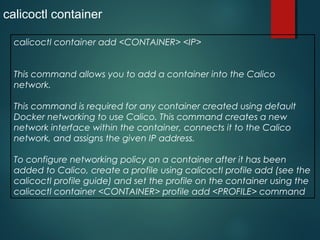
calicoctl container add <CONTAINER> <IP>
This command allows you to add a container into the Calico
network.
This command is required for any container created using default
Docker networking to use Calico. This command creates a new
network interface within the container, connects it to the Calico
network, and assigns the given IP address.
To configure networking policy on a container after it has been
added to Calico, create a profile using calicoctl profile add (see the
calicoctl profile guide) and set the profile on the container using the
calicoctl container <CONTAINER> profile add <PROFILE> command
4
calicoctl container
This command must be run as root and must be run on the specific
Calico node that hosts the container.
Command syntax:
calicoctl container add <CONTAINER> <IP> [--
interface=<INTERFACE>]
<CONTAINER>: The name or ID of the container.
<IP>: An IP address, IP version, or pool expressed as a CIDR prefix.
<INTERFACE>: The name to give to the interface in the container.
[default: eth1]
5
calicoctl container
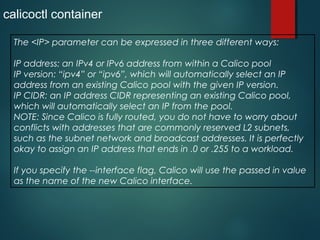
The <IP> parameter can be expressed in three different ways:
IP address: an IPv4 or IPv6 address from within a Calico pool
IP version: “ipv4” or “ipv6”, which will automatically select an IP
address from an existing Calico pool with the given IP version.
IP CIDR: an IP address CIDR representing an existing Calico pool,
which will automatically select an IP from the pool.
NOTE: Since Calico is fully routed, you do not have to worry about
conflicts with addresses that are commonly reserved L2 subnets,
such as the subnet network and broadcast addresses. It is perfectly
okay to assign an IP address that ends in .0 or .255 to a workload.
If you specify the --interface flag, Calico will use the passed in value
as the name of the new Calico interface.
6
calicoctl container
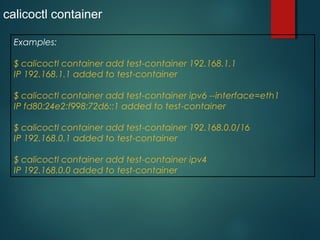
Examples:
$ calicoctl container add test-container 192.168.1.1
IP 192.168.1.1 added to test-container
$ calicoctl container add test-container ipv6 --interface=eth1
IP fd80:24e2:f998:72d6::1 added to test-container
$ calicoctl container add test-container 192.168.0.0/16
IP 192.168.0.1 added to test-container
$ calicoctl container add test-container ipv4
IP 192.168.0.0 added to test-container
7
calicoctl container
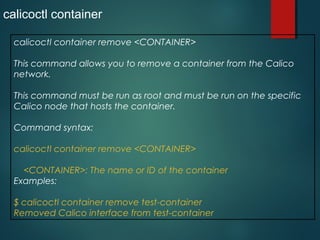
calicoctl container remove <CONTAINER>
This command allows you to remove a container from the Calico
network.
This command must be run as root and must be run on the specific
Calico node that hosts the container.
Command syntax:
calicoctl container remove <CONTAINER>
<CONTAINER>: The name or ID of the container
Examples:
$ calicoctl container remove test-container
Removed Calico interface from test-container
8
calicoctl container
calicoctl container <CONTAINER> ip add <IP>
This command allows you to add an IP address to a container that
has already been configured to use Calico networking with the
calicoctl container add command (see above).
Command syntax:
calicoctl container <CONTAINER> ip add <IP> [--
interface=<INTERFACE>]
Parameters:
<CONTAINER>: The name or ID of the container
<IP>: The IPv4 or IPv6 address to add.
--interface=<INTERFACE> The name to give to the interface in the
container
[default: eth1]
Thank You
Thank You

Calico and container

  • 1.
  • 2.
    2 calicoctl container Her ewill t alk about cont ainer command use in Calico Displaying the help text for ‘calicoctl container’ commands Run calicoct l cont ainer --help t o display t he f ollowing help menu f or t he calicoct l cont ainer commands. Usage: calicoct l cont ainer add <CONTAI NER><I P>[-- int erf ace=<I NTERFACE>] calicoct l cont ainer remove <CONTAI NER> calicoct l cont ainer <CONTAI NER>ip (add| remove) <I P>[-- int erf ace=<I NTERFACE>] calicoct l cont ainer <CONTAI NER>endpoint show calicoct l cont ainer <CONTAI NER>prof ile (append| remove| set ) [<PROFI LES>...] Descript ion: Add or remove cont ainers t o calico net working, manage t heir I P
  • 3.
    3 calicoctl container calicoctl containeradd <CONTAINER> <IP> This command allows you to add a container into the Calico network. This command is required for any container created using default Docker networking to use Calico. This command creates a new network interface within the container, connects it to the Calico network, and assigns the given IP address. To configure networking policy on a container after it has been added to Calico, create a profile using calicoctl profile add (see the calicoctl profile guide) and set the profile on the container using the calicoctl container <CONTAINER> profile add <PROFILE> command
  • 4.
    4 calicoctl container This commandmust be run as root and must be run on the specific Calico node that hosts the container. Command syntax: calicoctl container add <CONTAINER> <IP> [-- interface=<INTERFACE>] <CONTAINER>: The name or ID of the container. <IP>: An IP address, IP version, or pool expressed as a CIDR prefix. <INTERFACE>: The name to give to the interface in the container. [default: eth1]
  • 5.
    5 calicoctl container The <IP>parameter can be expressed in three different ways: IP address: an IPv4 or IPv6 address from within a Calico pool IP version: “ipv4” or “ipv6”, which will automatically select an IP address from an existing Calico pool with the given IP version. IP CIDR: an IP address CIDR representing an existing Calico pool, which will automatically select an IP from the pool. NOTE: Since Calico is fully routed, you do not have to worry about conflicts with addresses that are commonly reserved L2 subnets, such as the subnet network and broadcast addresses. It is perfectly okay to assign an IP address that ends in .0 or .255 to a workload. If you specify the --interface flag, Calico will use the passed in value as the name of the new Calico interface.
  • 6.
    6 calicoctl container Examples: $ calicoctlcontainer add test-container 192.168.1.1 IP 192.168.1.1 added to test-container $ calicoctl container add test-container ipv6 --interface=eth1 IP fd80:24e2:f998:72d6::1 added to test-container $ calicoctl container add test-container 192.168.0.0/16 IP 192.168.0.1 added to test-container $ calicoctl container add test-container ipv4 IP 192.168.0.0 added to test-container
  • 7.
    7 calicoctl container calicoctl containerremove <CONTAINER> This command allows you to remove a container from the Calico network. This command must be run as root and must be run on the specific Calico node that hosts the container. Command syntax: calicoctl container remove <CONTAINER> <CONTAINER>: The name or ID of the container Examples: $ calicoctl container remove test-container Removed Calico interface from test-container
  • 8.
    8 calicoctl container calicoctl container<CONTAINER> ip add <IP> This command allows you to add an IP address to a container that has already been configured to use Calico networking with the calicoctl container add command (see above). Command syntax: calicoctl container <CONTAINER> ip add <IP> [-- interface=<INTERFACE>] Parameters: <CONTAINER>: The name or ID of the container <IP>: The IPv4 or IPv6 address to add. --interface=<INTERFACE> The name to give to the interface in the container [default: eth1]
  • 9.
  • 10.