Build, Test and Extend Integrated Workflows
• Understand building and testing Workflows
• Understand how to use complex logic in Workflows
• Understand how to use custom Workflow activities
Goals
Build, Test and Extend Integrated Workflows
• Flow control and exception management in workflows
• Using arguments and variables in workflows
• Creating custom workflows and workflow activities
• Building and debugging workflows
Lesson Plan
Build, Test and Extend Integrated Workflows
• Containers
• Sequence - https://msdn.microsoft.com/en-us/library/gg983473(v=vs.110).aspx
• Flowchart - https://msdn.microsoft.com/en-us/library/gg983474(v=vs.110).aspx
• State Machine - https://msdn.microsoft.com/en-us/library/ee264171(v=vs.110).aspx
• Parallel Activity - not “true” parallelism
• Pick Activity
• Every branch is executed.
• When one branch completes, the others are canceled.
• Great for approval scenarios
Flow Control
Build, Test and Extend Integrated Workflows
• Workflows can have errors too
• Use a TryCatch activity to catch errors
• Throw
• Throw with Message
• Rethrow
• Why use catch and what happens if you don’t?
• Catch exceptions if you want to handle it in code. i.e. retry logic
• Don’t catch or rethrow if you want the workflow instance to abort
• If the workflow includes a persist, you can fix the issue and restart
Exception Management
Build, Test and Extend Integrated Workflows
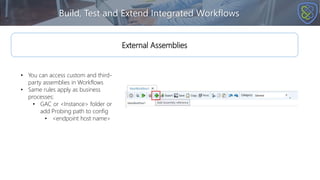
• You can access custom and third-
party assemblies in Workflows
• Same rules apply as business
processes:
• GAC or <Instance> folder or
add Probing path to config
• <endpoint host name>
External Assemblies
Build, Test and Extend Integrated Workflows
• Messages are manipulated mostly in the same manner as business processes:
• Transform Message
• Transform XML
• Code Steps – C#, C# Class, JavaScript, VB
• Assign activity
Message Processing
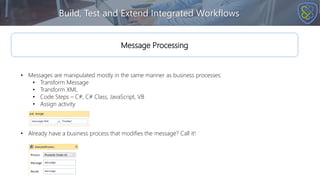
• Already have a business process that modifies the message? Call it!
Build, Test and Extend Integrated Workflows
• Workflows in Neuron ESB have a default set of arguments:
• Normal Workflow:
• message
• configuration
• environmentVariables
• Request-Reply Workflow:
• request
• reply
• configuration
• environmentVariables
• Correlated Workflow:
• message
• configuration
• environmentVariables
• You should not add additional arguments! They will be ignored
• You can add variables at any scope:
• Any type (i.e. Container, ESBMessage, string, XmlDocument, custom classes…)
Arguments and Variables
Creating Workflows with Arguments and Variables : Demo
Purpose:
To familiarize users with workflows, arguments and variables in the Neuron ESB Explorer
Objectives:
To acquaint users with aspects of workflows:
• Create a normal workflow
• Arguments of a workflow
• Creating and using variables in a workflow
Build, Test and Extend Integrated Workflows
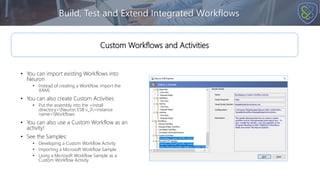
• You can import existing Workflows into
Neuron
• Instead of creating a Workflow, import the
XAML
• You can also create Custom Activities
• Put the assembly into the <install
directory>Neuron ESB v_3<instance
name>Workflows
• You can also use a Custom Workflow as an
activity!
• See the Samples:
• Developing a Custom Workflow Activity
• Importing a Microsoft Workflow Sample
• Using a Microsoft Workflow Sample as a
Custom Workflow Activity
Custom Workflows and Activities
Build, Test and Extend Integrated Workflows
• Start with a container – usually Sequence
• Add Activities
• Each activity has a different set of properties – some are visible on the designer, most are in the property grid
• Optionally test with the workflow tester
• No debugger in the Workflow Designer
• Apply and “Deploy”
Building Workflows
Build, Test and Extend Integrated Workflows
• There is no debugger, so how do you debug?
• WriteLine – outputs to Output window at design time and application group log file at runtime
• Write to Event Log – Application event log
• How to use the tester with singleton and long-running transactions?
• For each Receive Activity will display a new Edit Test Message dialog box for you to set the new incoming message
and any necessary message properties
Debugging Workflows
Build, Test and Extend Integrated Workflows : Lab
Purpose:
Acquaint users with creating a simple workflow definition
Objectives:
• Creating a Workflow
• Testing the Workflow at Design Time
Build, Test and Extend Integrated Workflows
Review
• A workflow definition requires a container in which to add workflow activities
• Workflows can reference external assemblies and use them as part of a workflow definition
• Variables can be created in workflow definitions to make storing information for later use easier
• Workflow definitions do not have a debugger associated with them

Build, Test and Extend Integrated Workflows 3.7

  • 1.
    Build, Test andExtend Integrated Workflows
  • 2.
    Build, Test andExtend Integrated Workflows • Understand building and testing Workflows • Understand how to use complex logic in Workflows • Understand how to use custom Workflow activities Goals
  • 3.
    Build, Test andExtend Integrated Workflows • Flow control and exception management in workflows • Using arguments and variables in workflows • Creating custom workflows and workflow activities • Building and debugging workflows Lesson Plan
  • 4.
    Build, Test andExtend Integrated Workflows • Containers • Sequence - https://msdn.microsoft.com/en-us/library/gg983473(v=vs.110).aspx • Flowchart - https://msdn.microsoft.com/en-us/library/gg983474(v=vs.110).aspx • State Machine - https://msdn.microsoft.com/en-us/library/ee264171(v=vs.110).aspx • Parallel Activity - not “true” parallelism • Pick Activity • Every branch is executed. • When one branch completes, the others are canceled. • Great for approval scenarios Flow Control
  • 5.
    Build, Test andExtend Integrated Workflows • Workflows can have errors too • Use a TryCatch activity to catch errors • Throw • Throw with Message • Rethrow • Why use catch and what happens if you don’t? • Catch exceptions if you want to handle it in code. i.e. retry logic • Don’t catch or rethrow if you want the workflow instance to abort • If the workflow includes a persist, you can fix the issue and restart Exception Management
  • 6.
    Build, Test andExtend Integrated Workflows • You can access custom and third- party assemblies in Workflows • Same rules apply as business processes: • GAC or <Instance> folder or add Probing path to config • <endpoint host name> External Assemblies
  • 7.
    Build, Test andExtend Integrated Workflows • Messages are manipulated mostly in the same manner as business processes: • Transform Message • Transform XML • Code Steps – C#, C# Class, JavaScript, VB • Assign activity Message Processing • Already have a business process that modifies the message? Call it!
  • 8.
    Build, Test andExtend Integrated Workflows • Workflows in Neuron ESB have a default set of arguments: • Normal Workflow: • message • configuration • environmentVariables • Request-Reply Workflow: • request • reply • configuration • environmentVariables • Correlated Workflow: • message • configuration • environmentVariables • You should not add additional arguments! They will be ignored • You can add variables at any scope: • Any type (i.e. Container, ESBMessage, string, XmlDocument, custom classes…) Arguments and Variables
  • 9.
    Creating Workflows withArguments and Variables : Demo Purpose: To familiarize users with workflows, arguments and variables in the Neuron ESB Explorer Objectives: To acquaint users with aspects of workflows: • Create a normal workflow • Arguments of a workflow • Creating and using variables in a workflow
  • 10.
    Build, Test andExtend Integrated Workflows • You can import existing Workflows into Neuron • Instead of creating a Workflow, import the XAML • You can also create Custom Activities • Put the assembly into the <install directory>Neuron ESB v_3<instance name>Workflows • You can also use a Custom Workflow as an activity! • See the Samples: • Developing a Custom Workflow Activity • Importing a Microsoft Workflow Sample • Using a Microsoft Workflow Sample as a Custom Workflow Activity Custom Workflows and Activities
  • 11.
    Build, Test andExtend Integrated Workflows • Start with a container – usually Sequence • Add Activities • Each activity has a different set of properties – some are visible on the designer, most are in the property grid • Optionally test with the workflow tester • No debugger in the Workflow Designer • Apply and “Deploy” Building Workflows
  • 12.
    Build, Test andExtend Integrated Workflows • There is no debugger, so how do you debug? • WriteLine – outputs to Output window at design time and application group log file at runtime • Write to Event Log – Application event log • How to use the tester with singleton and long-running transactions? • For each Receive Activity will display a new Edit Test Message dialog box for you to set the new incoming message and any necessary message properties Debugging Workflows
  • 13.
    Build, Test andExtend Integrated Workflows : Lab Purpose: Acquaint users with creating a simple workflow definition Objectives: • Creating a Workflow • Testing the Workflow at Design Time
  • 14.
    Build, Test andExtend Integrated Workflows Review • A workflow definition requires a container in which to add workflow activities • Workflows can reference external assemblies and use them as part of a workflow definition • Variables can be created in workflow definitions to make storing information for later use easier • Workflow definitions do not have a debugger associated with them

Editor's Notes

  • #3 The goals of this lesson are to provide the user with an understanding of how to build and test workflow definitions, as well as understand how to use complex logic and custom workflow activities.
  • #4 The lesion has been broken into four sections to make the information presented easier to understand. The sections that we will be covering are Flow control and exception management in workflows Using arguments and variables in workflows Creating custom workflows and workflow activities Building and debugging workflows
  • #5 Flow control is important in a workflow to determine what is the appropriate actions to take and when to take them in accordance with business requirements. Workflows use containers to encapsulate all workflow activities. While sequence is the default container, often times you will find that flowchart is a more preferable option as if models the workflow visually in a more appealing way, and allows access to flow control activities that the other containers do not, such as flow decision and flow case. As workflows are single threaded the parallel activity is not true parallelism, as it only uses task parallelism with activities that are asynchronous such as send or delay. The pick activity is another flow control activity that allows you to setup branches of activities, with the first to complete being the only one that is recognized. All other branches are cancelled. Again this is not true parallelism and requires activities that are asynchronous to work properly.
  • #6 As with business processes (as discussed in the Building Complex Business Processes presentation) workflows can encounter errors and it is important to structure them in such a way that they anticipate and handle these errors. The TryCatch activity is great for this as it mimics the functionality of a try catch block in .NET code, allowing the user to catch errors and run workflow activities to capture and alert based on those errors. However, keep in mind when using the TryCatch activity that if you need to workflow to abort on error, so that it can be resumed from it’s last persist point you will need to rethrow the error.
  • #7 When using workflows sometimes you will want to reference external assemblies, and make use of the functionality that they provide. This can be accomplished by adding a reference to the assembly to the workflow definition. Like with business processes (as discussed in the Building Complex Business Processes presentation) the external assembly either needs to be in the GAC, the Neuron ESB instance folder, or the probing path in the endpoint host config file needs to be updated with the location of the external assembly.
  • #8 Just like in business processes (as discussed in the Building Complex Business Processes presentation) messages in workflow definitions can be manipulated and altered. Workflow activities such as transform message, transform xml, and the language editors all allow you to transform or alter the message in a variety of ways. It is also important to keep in mind that if you have a business process that already performs functionality that you wish to use in a workflow there is no need to re-create it. Simply call that business process using the execute process workflow activity.
  • #9 Every workflow has a default set of arguments that provide access to certain aspects of Neuron ESB. For example in a normal workflow the message coming in is set to the argument variable message, while the Neuron ESB configuration is set to the argument variable configuration. While it is possible to add arguments to the workflow definition, they will be ignored and serve no purpose. Additionally unlike in a business process, workflow definitions have state and therefore allow you to create variables that can be used to store information.
  • #11 If the provided workflow activities do not meet your needs, it is possible to create custom workflow activities using the Activity Designer Library template project in Visual Studio. Custom actitivties created in this way need to have their assemblies put into the <install directory>\Neuron ESB v_3\<instance name>\Workflows folder. Additionally if you already have a workflow that was created in Microsoft Workflow Foundation, you can import the XAML for that workflow as a custom activity step. C:\Program Files\Neudesic\Neuron ESB v3\Default\..\Samples\Workflows\SampleDataActivityLibrary C:\Program Files\Neudesic\Neuron ESB v3\Default\..\Samples\Workflows C:\Program Files\Neudesic\Neuron ESB v3\Default\..\Samples\Workflows
  • #12 Workflow definitions begin with a container, inside of which you can place any number of activities to build out the business logic that you are trying to create. Once you have your workflow definition built out you can test it in the same way you would a business process (as discussed in the Introduction to Business Processes presentation) using the Test button on the Workflow Designer. Unfortunately, as workflow definitions are built on top of the Microsoft Workflow Foundation, it is not possible to debug them. When the workflow definition is working as you intend it to, you can deploy it for use (which we cover in the Workflow Hosting and Tracking presentation).
  • #13 Since there is no debugger for workflow definitions, how then do you debug them? The easiest way to do so is to use the WriteLine activity as it will output information to the output window at design time, allowing you to see what is happening inside your workflow, and to the application group log file at runtime. Alternatively you can also use the Write to Event Log activity which will write information to the application event log, though this is a bit more convoluted for design time debugging. If you are working with a correlated (singleton pattern) workflow, or a correlated send and receive (long-running transaction (both of which are discussed in detail in the Workflow Patterns and Correlation presentation) the tester will provide you a new Edit Test Message window every time that it come across the ReceiveMessage activity.