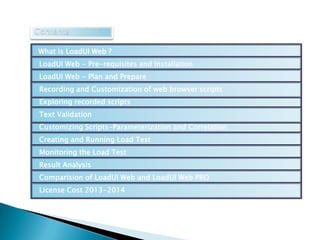
What is LoadUI Web ?
LoadUI Web - Pre-requisites and Installation
LoadUI Web - Plan and Prepare
Recording and Customization of web browser scripts
Exploring recorded scripts
Text Validation

Customizing Scripts-Parameterization and Correlation
Creating and Running Load Test

Monitoring the Load Test
Result Analysis
Comparision of LoadUI Web and LoadUI Web PRO
License Cost 2013-2014




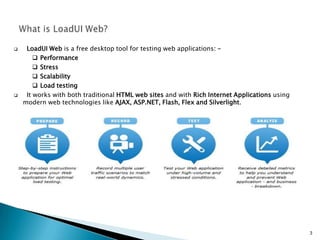
LoadUI Web is a free desktop tool for testing web applications:  Performance
 Stress
 Scalability
 Load testing
It works with both traditional HTML web sites and with Rich Internet Applications using
modern web technologies like AJAX, ASP.NET, Flash, Flex and Silverlight.

3









Pre-requisites: System requirements for LoadUIWeb
Software
Microsoft Windows (Service Pack 2 or later), XP, 2003, Vista 32 and 64 bit versions
Hardware
2 GB of RAM on Windows 7, Windows Vista and later operating systems.
700 MB of hard disk space for installation.
1-2 GB of free disk space to run large projects.
1280 × 1024 or higher display resolution.
Installation: While the basic version is free, it requires license to be used for LoadUI Web
PRO. Please use the link provided below to download the freeware tool
http://loaduiweb.org/downloads/download-loaduiweb.html
Then follow the instructions provided on the site.



Installation:
Install the .exe file downloaded from the link and follow the onscreen instructions provided
the to complete the installation.
.

4
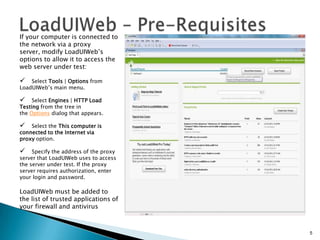
If your computer is connected to
the network via a proxy
server, modify LoadUIWeb’s
options to allow it to access the
web server under test:



Select Tools | Options from
LoadUIWeb’s main menu.



Select Engines | HTTP Load
Testing from the tree in
the Options dialog that appears.



Select the This computer is
connected to the Internet via
proxy option.



Specify the address of the proxy
server that LoadUIWeb uses to access
the server under test. If the proxy
server requires authorization, enter
your login and password.

LoadUIWeb must be added to
the list of trusted applications of
your firewall and antivirus

5
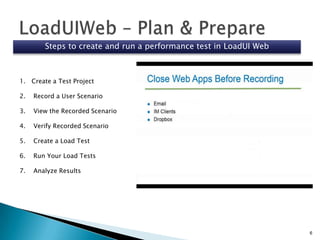
Steps to create and run a performance test in LoadUI Web

1. Create a Test Project
2.

Record a User Scenario

3.

View the Recorded Scenario

4.

Verify Recorded Scenario

5.

Create a Load Test

6.

Run Your Load Tests

7.

Analyze Results

6
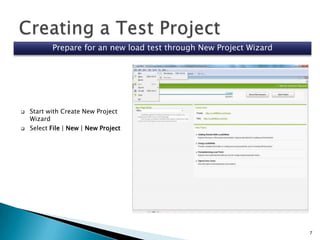
Prepare for an new load test through New Project Wizard





Start with Create New Project
Wizard
Select File | New | New Project

7
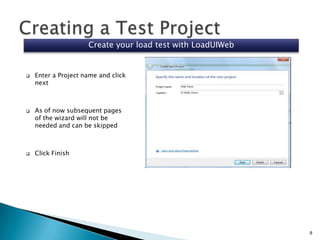
Create your load test with LoadUIWeb







Enter a Project name and click
next

As of now subsequent pages
of the wizard will not be
needed and can be skipped

Click Finish

8
Test Project







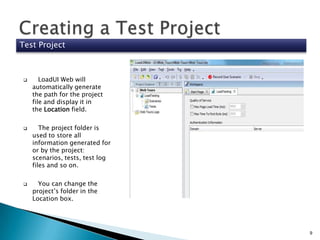
LoadUI Web will
automatically generate
the path for the project
file and display it in
the Location field.
The project folder is
used to store all
information generated for
or by the project:
scenarios, tests, test log
files and so on.
You can change the
project’s folder in the
Location box.

9
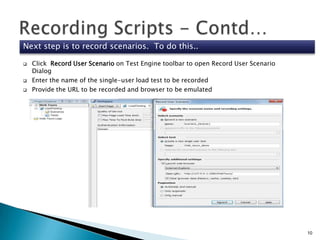
Next step is to record scenarios. To do this..





Click Record User Scenario on Test Engine toolbar to open Record User Scenario
Dialog
Enter the name of the single-user load test to be recorded
Provide the URL to be recorded and browser to be emulated

10
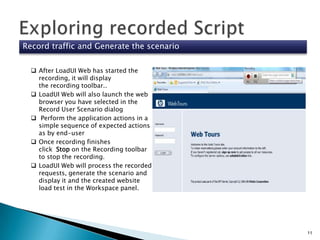
Record traffic and Generate the scenario
 After LoadUI Web has started the
recording, it will display
the recording toolbar..
 LoadUI Web will also launch the web
browser you have selected in the
Record User Scenario dialog
 Perform the application actions in a
simple sequence of expected actions
as by end-user
 Once recording finishes
click Stop on the Recording toolbar
to stop the recording.
 LoadUI Web will process the recorded
requests, generate the scenario and
display it and the created website
load test in the Workspace panel.

11
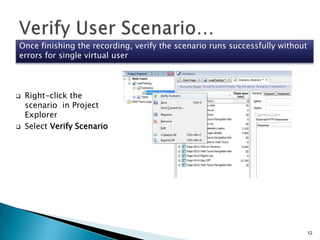
Once finishing the recording, verify the scenario runs successfully without
errors for single virtual user





Right-click the
scenario in Project
Explorer
Select Verify Scenario

12
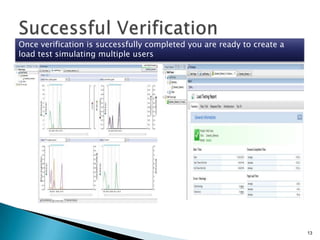
Once verification is successfully completed you are ready to create a
load test simulating multiple users

13
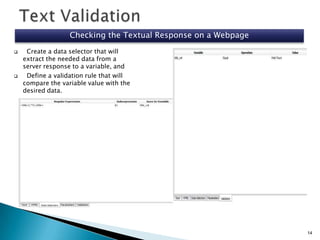
Checking the Textual Response on a Webpage




Create a data selector that will
extract the needed data from a
server response to a variable, and
Define a validation rule that will
compare the variable value with the
desired data.

14
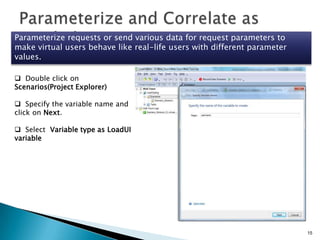
Parameterize requests or send various data for request parameters to
make virtual users behave like real-life users with different parameter
values.
 Double click on
Scenarios(Project Explorer)
 Specify the variable name and
click on Next.

 Select Variable type as LoadUI
variable

15
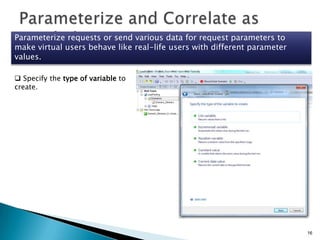
Parameterize requests or send various data for request parameters to
make virtual users behave like real-life users with different parameter
values.
 Specify the type of variable to
create.

16
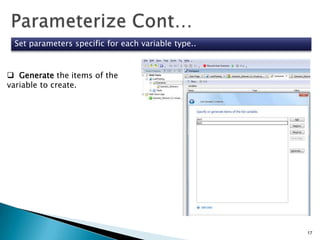
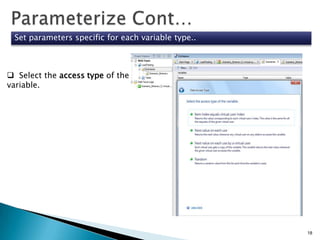
Set parameters specific for each variable type..

 Generate the items of the
variable to create.

17
Set parameters specific for each variable type..

 Select the access type of the
variable.

18
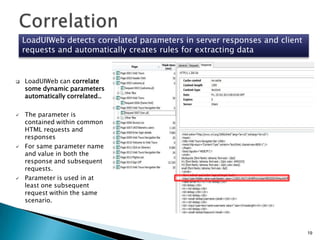
LoadUIWeb detects correlated parameters in server responses and client
requests and automatically creates rules for extracting data









LoadUIWeb can correlate
some dynamic parameters
automatically correlated..
The parameter is
contained within common
HTML requests and
responses
For same parameter name
and value in both the
response and subsequent
requests.
Parameter is used in at
least one subsequent
request within the same
scenario.

19
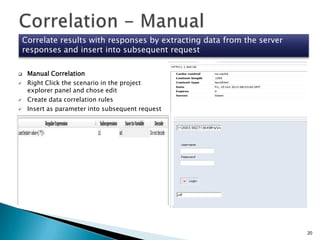
Correlate results with responses by extracting data from the server
responses and insert into subsequent request






Manual Correlation
Right Click the scenario in the project
explorer panel and chose edit
Create data correlation rules
Insert as parameter into subsequent request

20
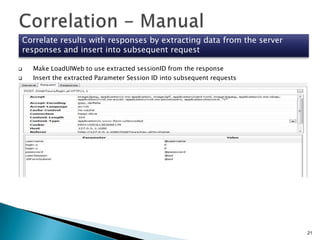
Correlate results with responses by extracting data from the server
responses and insert into subsequent request



Make LoadUIWeb to use extracted sessionID from the response
Insert the extracted Parameter Session ID into subsequent requests

21
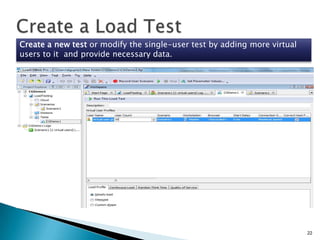
Create a new test or modify the single-user test by adding more virtual
users to it and provide necessary data.

22
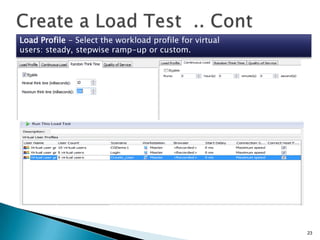
Load Profile - Select the workload profile for virtual
users: steady, stepwise ramp-up or custom.

23
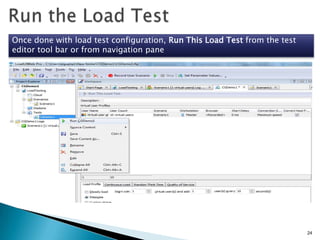
Once done with load test configuration, Run This Load Test from the test
editor tool bar or from navigation pane

24
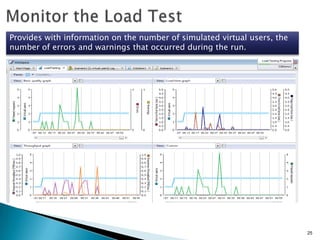
Provides with information on the number of simulated virtual users, the
number of errors and warnings that occurred during the run.

25
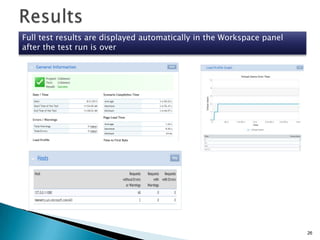
Full test results are displayed automatically in the Workspace panel
after the test run is over

26
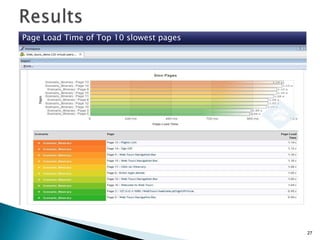
Page Load Time of Top 10 slowest pages

27
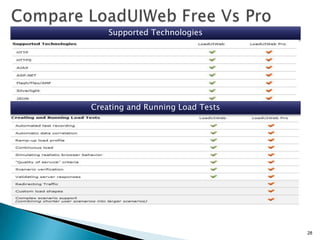
Supported Technologies

Creating and Running Load Tests

28
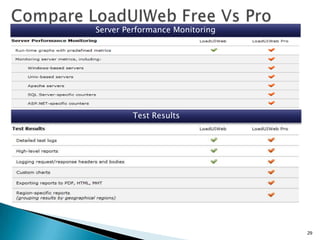
Server Performance Monitoring

Test Results

29
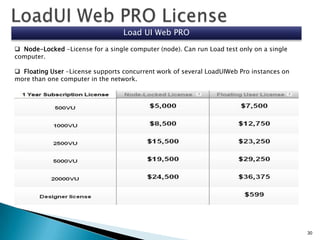
Load UI Web PRO
 Node-Locked -License for a single computer (node). Can run Load test only on a single
computer.
 Floating User -License supports concurrent work of several LoadUIWeb Pro instances on
more than one computer in the network.

30
Guided by: Hemant Lal
Created by:
Milind Rupchandani
Vishal Parekh
Elveera Menezes
Chirag Shah
Harsh Bhartiya
Sayli Pawar
LoadUI web performance testing tool

LoadUI web performance testing tool

  • 2.
    What is LoadUIWeb ? LoadUI Web - Pre-requisites and Installation LoadUI Web - Plan and Prepare Recording and Customization of web browser scripts Exploring recorded scripts Text Validation Customizing Scripts-Parameterization and Correlation Creating and Running Load Test Monitoring the Load Test Result Analysis Comparision of LoadUI Web and LoadUI Web PRO License Cost 2013-2014
  • 3.
      LoadUI Web isa free desktop tool for testing web applications:  Performance  Stress  Scalability  Load testing It works with both traditional HTML web sites and with Rich Internet Applications using modern web technologies like AJAX, ASP.NET, Flash, Flex and Silverlight. 3
  • 4.
         Pre-requisites: System requirementsfor LoadUIWeb Software Microsoft Windows (Service Pack 2 or later), XP, 2003, Vista 32 and 64 bit versions Hardware 2 GB of RAM on Windows 7, Windows Vista and later operating systems. 700 MB of hard disk space for installation. 1-2 GB of free disk space to run large projects. 1280 × 1024 or higher display resolution. Installation: While the basic version is free, it requires license to be used for LoadUI Web PRO. Please use the link provided below to download the freeware tool http://loaduiweb.org/downloads/download-loaduiweb.html Then follow the instructions provided on the site.  Installation: Install the .exe file downloaded from the link and follow the onscreen instructions provided the to complete the installation. . 4
  • 5.
    If your computeris connected to the network via a proxy server, modify LoadUIWeb’s options to allow it to access the web server under test:  Select Tools | Options from LoadUIWeb’s main menu.  Select Engines | HTTP Load Testing from the tree in the Options dialog that appears.  Select the This computer is connected to the Internet via proxy option.  Specify the address of the proxy server that LoadUIWeb uses to access the server under test. If the proxy server requires authorization, enter your login and password. LoadUIWeb must be added to the list of trusted applications of your firewall and antivirus 5
  • 6.
    Steps to createand run a performance test in LoadUI Web 1. Create a Test Project 2. Record a User Scenario 3. View the Recorded Scenario 4. Verify Recorded Scenario 5. Create a Load Test 6. Run Your Load Tests 7. Analyze Results 6
  • 7.
    Prepare for annew load test through New Project Wizard   Start with Create New Project Wizard Select File | New | New Project 7
  • 8.
    Create your loadtest with LoadUIWeb    Enter a Project name and click next As of now subsequent pages of the wizard will not be needed and can be skipped Click Finish 8
  • 9.
    Test Project    LoadUI Webwill automatically generate the path for the project file and display it in the Location field. The project folder is used to store all information generated for or by the project: scenarios, tests, test log files and so on. You can change the project’s folder in the Location box. 9
  • 10.
    Next step isto record scenarios. To do this..    Click Record User Scenario on Test Engine toolbar to open Record User Scenario Dialog Enter the name of the single-user load test to be recorded Provide the URL to be recorded and browser to be emulated 10
  • 11.
    Record traffic andGenerate the scenario  After LoadUI Web has started the recording, it will display the recording toolbar..  LoadUI Web will also launch the web browser you have selected in the Record User Scenario dialog  Perform the application actions in a simple sequence of expected actions as by end-user  Once recording finishes click Stop on the Recording toolbar to stop the recording.  LoadUI Web will process the recorded requests, generate the scenario and display it and the created website load test in the Workspace panel. 11
  • 12.
    Once finishing therecording, verify the scenario runs successfully without errors for single virtual user   Right-click the scenario in Project Explorer Select Verify Scenario 12
  • 13.
    Once verification issuccessfully completed you are ready to create a load test simulating multiple users 13
  • 14.
    Checking the TextualResponse on a Webpage   Create a data selector that will extract the needed data from a server response to a variable, and Define a validation rule that will compare the variable value with the desired data. 14
  • 15.
    Parameterize requests orsend various data for request parameters to make virtual users behave like real-life users with different parameter values.  Double click on Scenarios(Project Explorer)  Specify the variable name and click on Next.  Select Variable type as LoadUI variable 15
  • 16.
    Parameterize requests orsend various data for request parameters to make virtual users behave like real-life users with different parameter values.  Specify the type of variable to create. 16
  • 17.
    Set parameters specificfor each variable type..  Generate the items of the variable to create. 17
  • 18.
    Set parameters specificfor each variable type..  Select the access type of the variable. 18
  • 19.
    LoadUIWeb detects correlatedparameters in server responses and client requests and automatically creates rules for extracting data     LoadUIWeb can correlate some dynamic parameters automatically correlated.. The parameter is contained within common HTML requests and responses For same parameter name and value in both the response and subsequent requests. Parameter is used in at least one subsequent request within the same scenario. 19
  • 20.
    Correlate results withresponses by extracting data from the server responses and insert into subsequent request     Manual Correlation Right Click the scenario in the project explorer panel and chose edit Create data correlation rules Insert as parameter into subsequent request 20
  • 21.
    Correlate results withresponses by extracting data from the server responses and insert into subsequent request   Make LoadUIWeb to use extracted sessionID from the response Insert the extracted Parameter Session ID into subsequent requests 21
  • 22.
    Create a newtest or modify the single-user test by adding more virtual users to it and provide necessary data. 22
  • 23.
    Load Profile -Select the workload profile for virtual users: steady, stepwise ramp-up or custom. 23
  • 24.
    Once done withload test configuration, Run This Load Test from the test editor tool bar or from navigation pane 24
  • 25.
    Provides with informationon the number of simulated virtual users, the number of errors and warnings that occurred during the run. 25
  • 26.
    Full test resultsare displayed automatically in the Workspace panel after the test run is over 26
  • 27.
    Page Load Timeof Top 10 slowest pages 27
  • 28.
  • 29.
  • 30.
    Load UI WebPRO  Node-Locked -License for a single computer (node). Can run Load test only on a single computer.  Floating User -License supports concurrent work of several LoadUIWeb Pro instances on more than one computer in the network. 30
  • 31.
    Guided by: HemantLal Created by: Milind Rupchandani Vishal Parekh Elveera Menezes Chirag Shah Harsh Bhartiya Sayli Pawar