Bring Me to Life
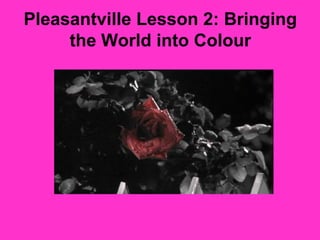
Pleasantville Lesson 2: Bringing
     the World into Colour
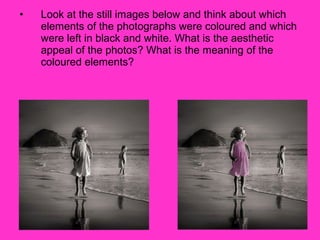
•   Look at the still images below and think about which
    elements of the photographs were coloured and which
    were left in black and white. What is the aesthetic
    appeal of the photos? What is the meaning of the
    coloured elements?
•   Choose a black and white image from
    the internet that appeals to you.
•   Using Photoshop carefully choose one or
    two elements to turn to colour.
•   Under your image write a paragraph
    explaining why you chose the elements
    you did. What does your picture mean
    now?
How to do it:
•  Go to google and search “black and white”, then go to
   photos. Choose a photo and save it to your documents
   folder.
•  Open Photoshop elements and open your photo
•  Click on the colour box to choose the first colour you
   want to work with
•  Click on the magic wand tool and highlight the area
   you want to colour.
•  Next click on the paintbrush tool
•  Change the opacity (at the top of the screen) to 50%
•  Start “colouring over” the elements of the black and
   white photograph you wish to change.
•  It is helpful to zoom in to the parts of the photo you are
   changing to get the best effect.

Bring me to life

  • 1.
  • 2.
    Pleasantville Lesson 2:Bringing the World into Colour
  • 3.
    Look at the still images below and think about which elements of the photographs were coloured and which were left in black and white. What is the aesthetic appeal of the photos? What is the meaning of the coloured elements?
  • 4.
    Choose a black and white image from the internet that appeals to you. • Using Photoshop carefully choose one or two elements to turn to colour. • Under your image write a paragraph explaining why you chose the elements you did. What does your picture mean now?
  • 5.
    How to doit: • Go to google and search “black and white”, then go to photos. Choose a photo and save it to your documents folder. • Open Photoshop elements and open your photo • Click on the colour box to choose the first colour you want to work with • Click on the magic wand tool and highlight the area you want to colour. • Next click on the paintbrush tool • Change the opacity (at the top of the screen) to 50% • Start “colouring over” the elements of the black and white photograph you wish to change. • It is helpful to zoom in to the parts of the photo you are changing to get the best effect.