Using Boolean Logic with
Internet Research
How to search effectively
with more relevant results.
Using search parameters
• Many people doing research have the tendency
to jump onto Google and simply type in a few
keywords.
• There are effective ways to use Google to
narrow down your searches to what you
specifically need:
– Advanced Search
– Boolean Logic
Advanced Search
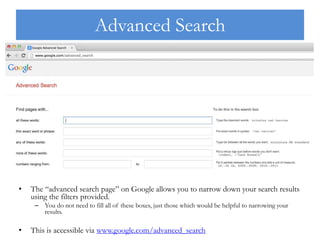
• The “advanced search page” on Google allows you to narrow down your search results
using the filters provided.
– You do not need to fill all of these boxes, just those which would be helpful to narrowing your
results.
• This is accessible via www.google.com/advanced_search
Boolean Logic
• Boolean logic uses operators to narrow your search. This
emphasizes the importance of finding relevant
information to your particular area of research. It allows
you to decrease the overall quantity of search results, and
increase the number of relevant results.
• You can use the following search parameters to narrow
your research:
– Search for an exact phrase
– Exclude a word
– Search within a domain
– Search for pages similar to a URL
– Search for linked terms
– Search for either term
Search for an exact phrase
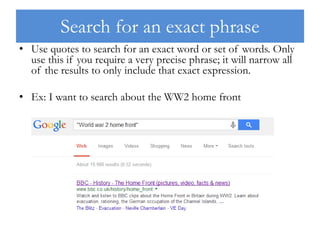
• Use quotes to search for an exact word or set of words. Only
use this if you require a very precise phrase; it will narrow all
of the results to only include that exact expression.
• Ex: I want to search about the WW2 home front
Exclude a word
• Add a dash (-) before a word to exclude it from all search results.
– e.g., to search for the speed of a jaguar (the car, but not the cat) enter:
jaguar speed -cat
• This can also be used to exclude specific websites by adding -
site:website.com to the search
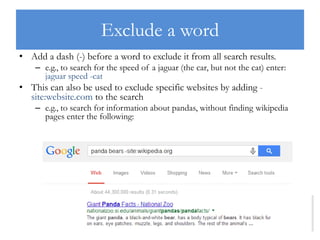
– e.g., to search for information about pandas, without finding wikipedia
pages enter the following:
Search within a domain
• You can search for results from a particular website using
(site:) in the query.
• E.g., I want to find the term dates for Ibstock Place School so
I type term dates site:ibstockplaceschool.co.uk
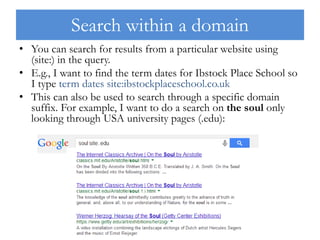
• This can also be used to search through a specific domain
suffix. For example, I want to do a search on the soul only
looking through USA university pages (.edu):
Search for pages similar to a URL
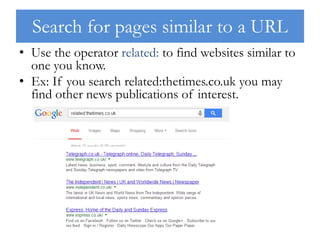
• Use the operator related: to find websites similar to
one you know.
• Ex: If you search related:thetimes.co.uk you may
find other news publications of interest.
Search for linked terms
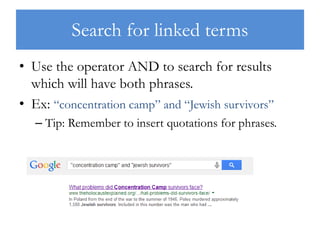
• Use the operator AND to search for results
which will have both phrases.
• Ex: “concentration camp” and “Jewish survivors”
– Tip: Remember to insert quotations for phrases.
Search for either term
• To search for results which may have just one of several
words use the operator OR.
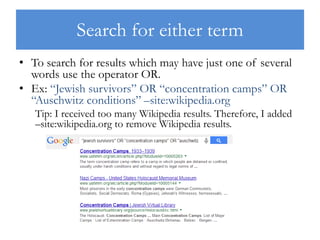
• Ex: “Jewish survivors” OR “concentration camps” OR
“Auschwitz conditions” –site:wikipedia.org
Tip: I received too many Wikipedia results. Therefore, I added
–site:wikipedia.org to remove Wikipedia results.

Boolean Logic with Google

  • 1.
    Using Boolean Logicwith Internet Research How to search effectively with more relevant results.
  • 2.
    Using search parameters •Many people doing research have the tendency to jump onto Google and simply type in a few keywords. • There are effective ways to use Google to narrow down your searches to what you specifically need: – Advanced Search – Boolean Logic
  • 3.
    Advanced Search • The“advanced search page” on Google allows you to narrow down your search results using the filters provided. – You do not need to fill all of these boxes, just those which would be helpful to narrowing your results. • This is accessible via www.google.com/advanced_search
  • 4.
    Boolean Logic • Booleanlogic uses operators to narrow your search. This emphasizes the importance of finding relevant information to your particular area of research. It allows you to decrease the overall quantity of search results, and increase the number of relevant results. • You can use the following search parameters to narrow your research: – Search for an exact phrase – Exclude a word – Search within a domain – Search for pages similar to a URL – Search for linked terms – Search for either term
  • 5.
    Search for anexact phrase • Use quotes to search for an exact word or set of words. Only use this if you require a very precise phrase; it will narrow all of the results to only include that exact expression. • Ex: I want to search about the WW2 home front
  • 6.
    Exclude a word •Add a dash (-) before a word to exclude it from all search results. – e.g., to search for the speed of a jaguar (the car, but not the cat) enter: jaguar speed -cat • This can also be used to exclude specific websites by adding - site:website.com to the search – e.g., to search for information about pandas, without finding wikipedia pages enter the following:
  • 7.
    Search within adomain • You can search for results from a particular website using (site:) in the query. • E.g., I want to find the term dates for Ibstock Place School so I type term dates site:ibstockplaceschool.co.uk • This can also be used to search through a specific domain suffix. For example, I want to do a search on the soul only looking through USA university pages (.edu):
  • 8.
    Search for pagessimilar to a URL • Use the operator related: to find websites similar to one you know. • Ex: If you search related:thetimes.co.uk you may find other news publications of interest.
  • 9.
    Search for linkedterms • Use the operator AND to search for results which will have both phrases. • Ex: “concentration camp” and “Jewish survivors” – Tip: Remember to insert quotations for phrases.
  • 10.
    Search for eitherterm • To search for results which may have just one of several words use the operator OR. • Ex: “Jewish survivors” OR “concentration camps” OR “Auschwitz conditions” –site:wikipedia.org Tip: I received too many Wikipedia results. Therefore, I added –site:wikipedia.org to remove Wikipedia results.