SAP CRM Functional
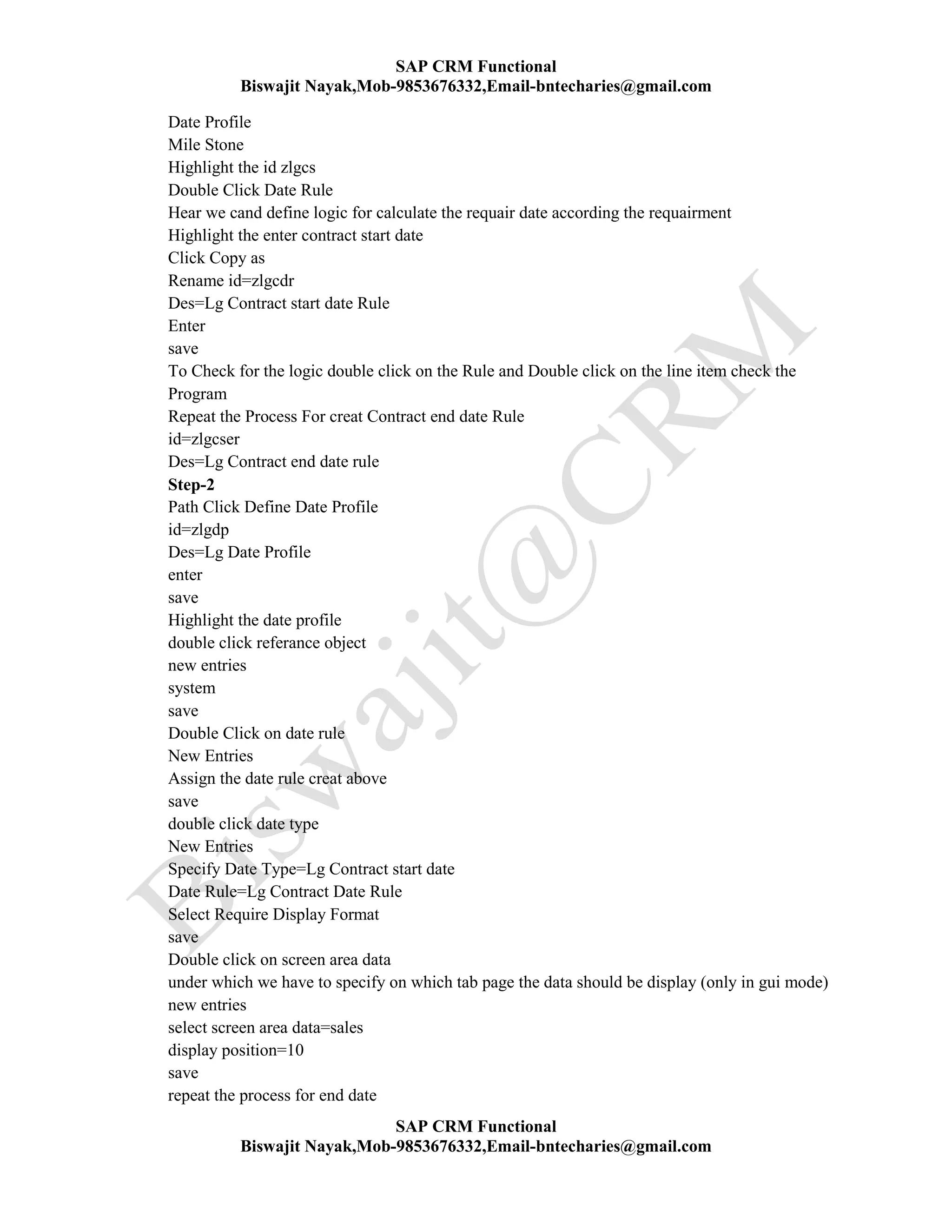
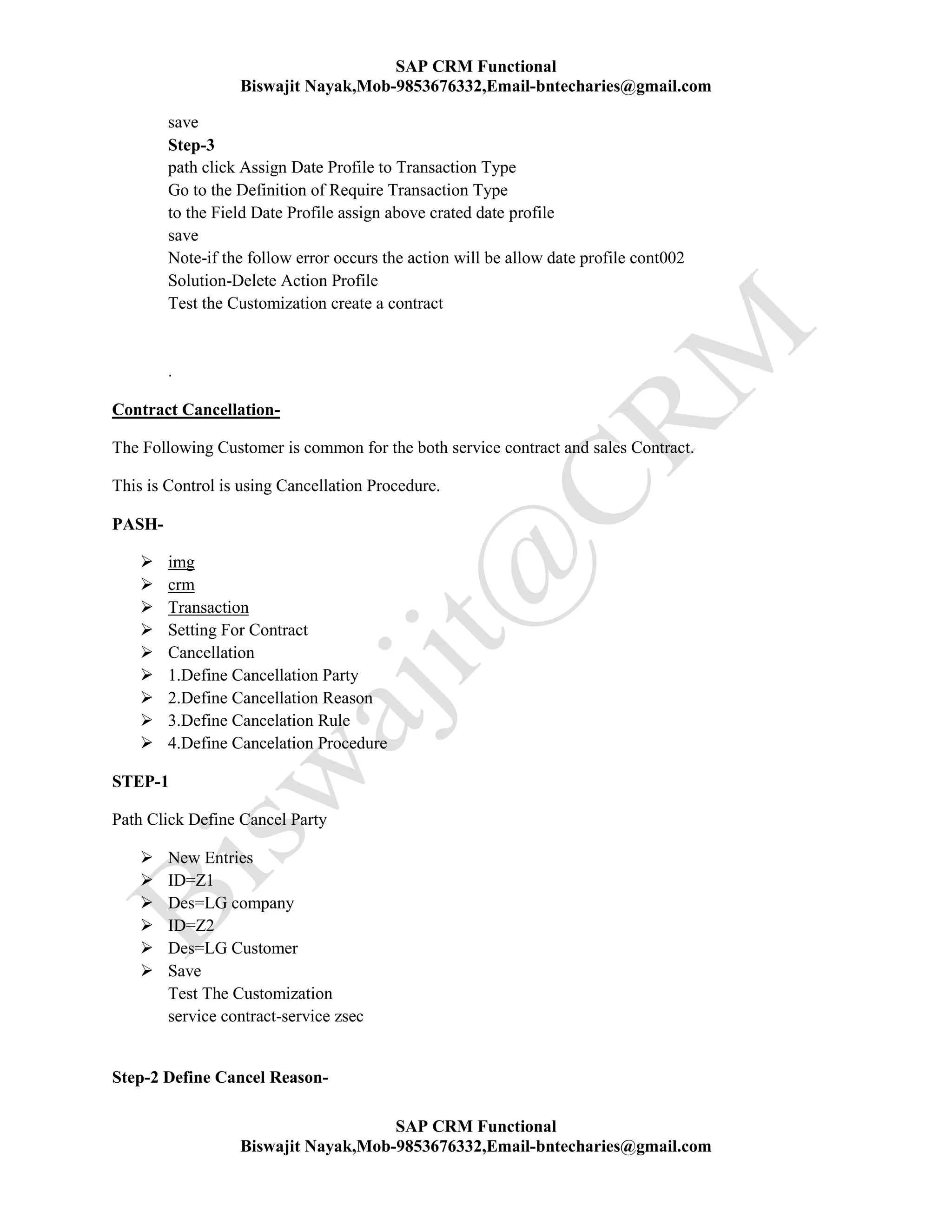
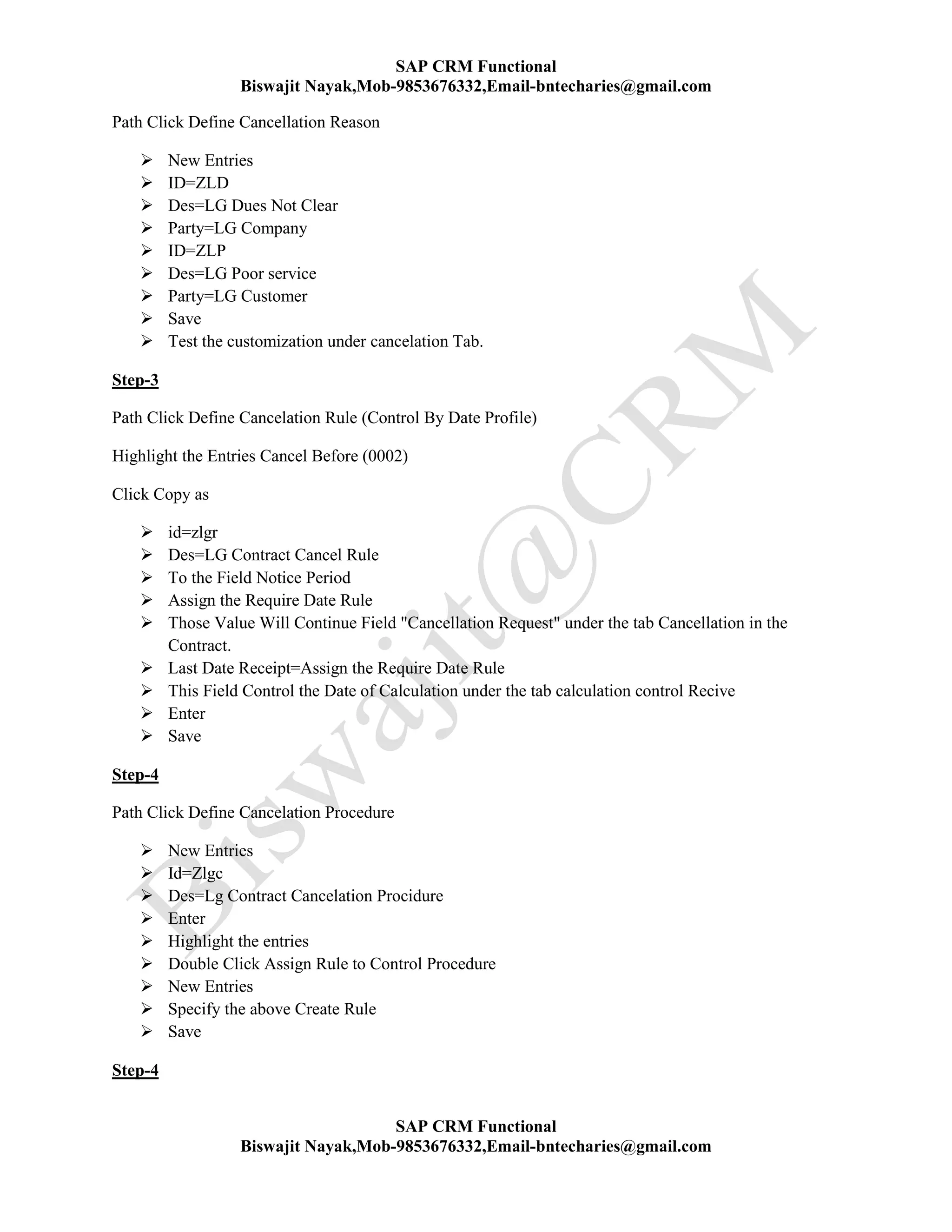
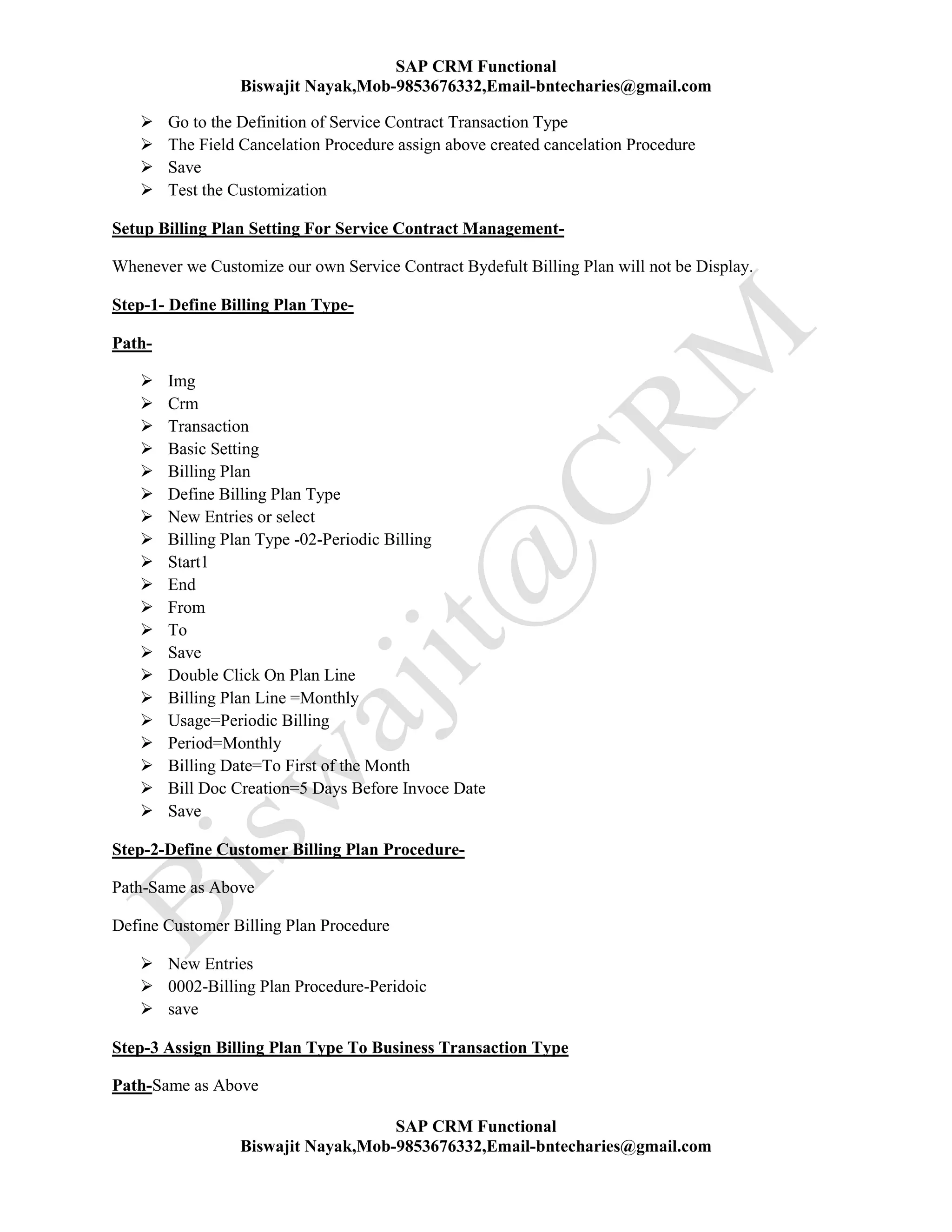
Biswajit Nayak,Mob-9853676332,Email-bntecharies@gmail.com
SAP CRM Functional
Biswajit Nayak,Mob-9853676332,Email-bntecharies@gmail.com
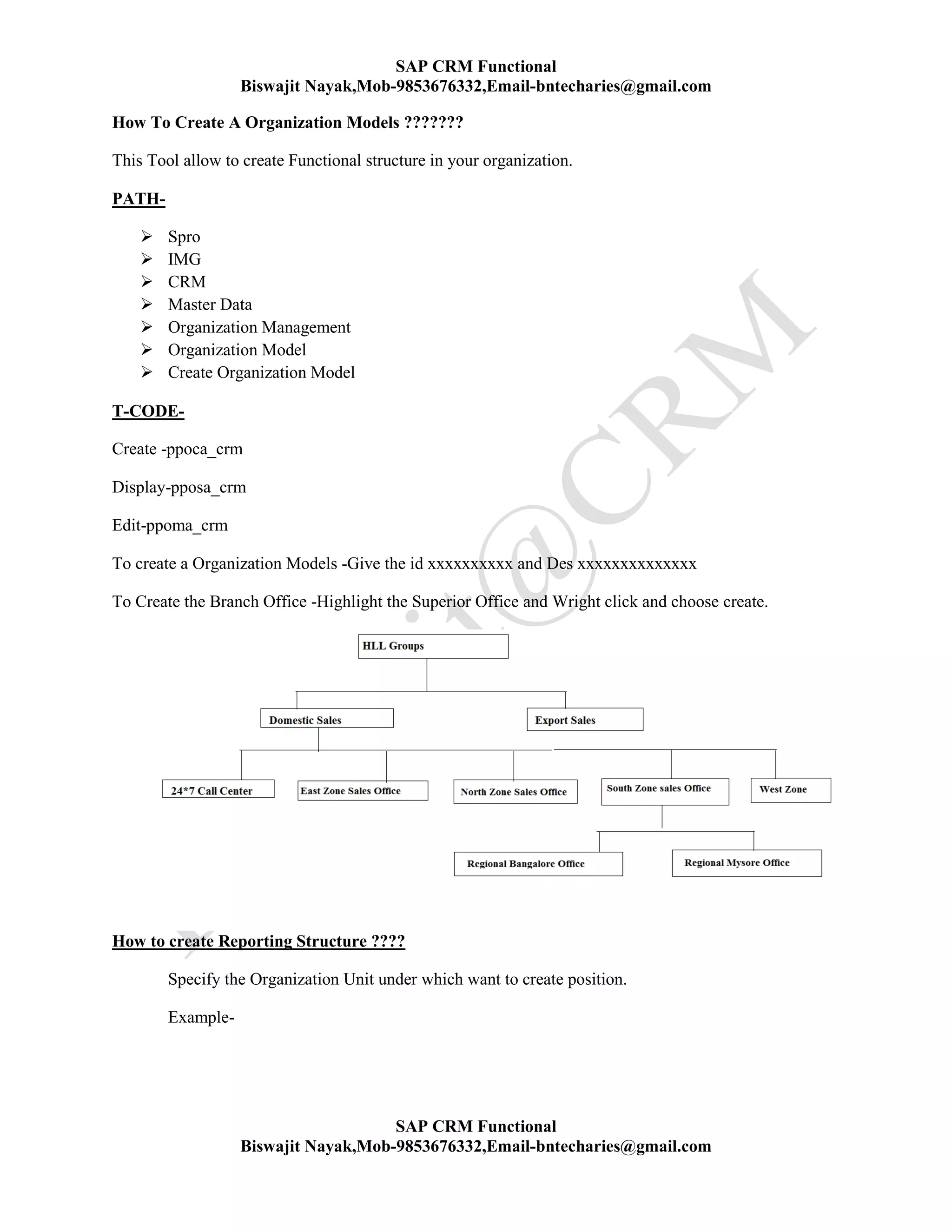
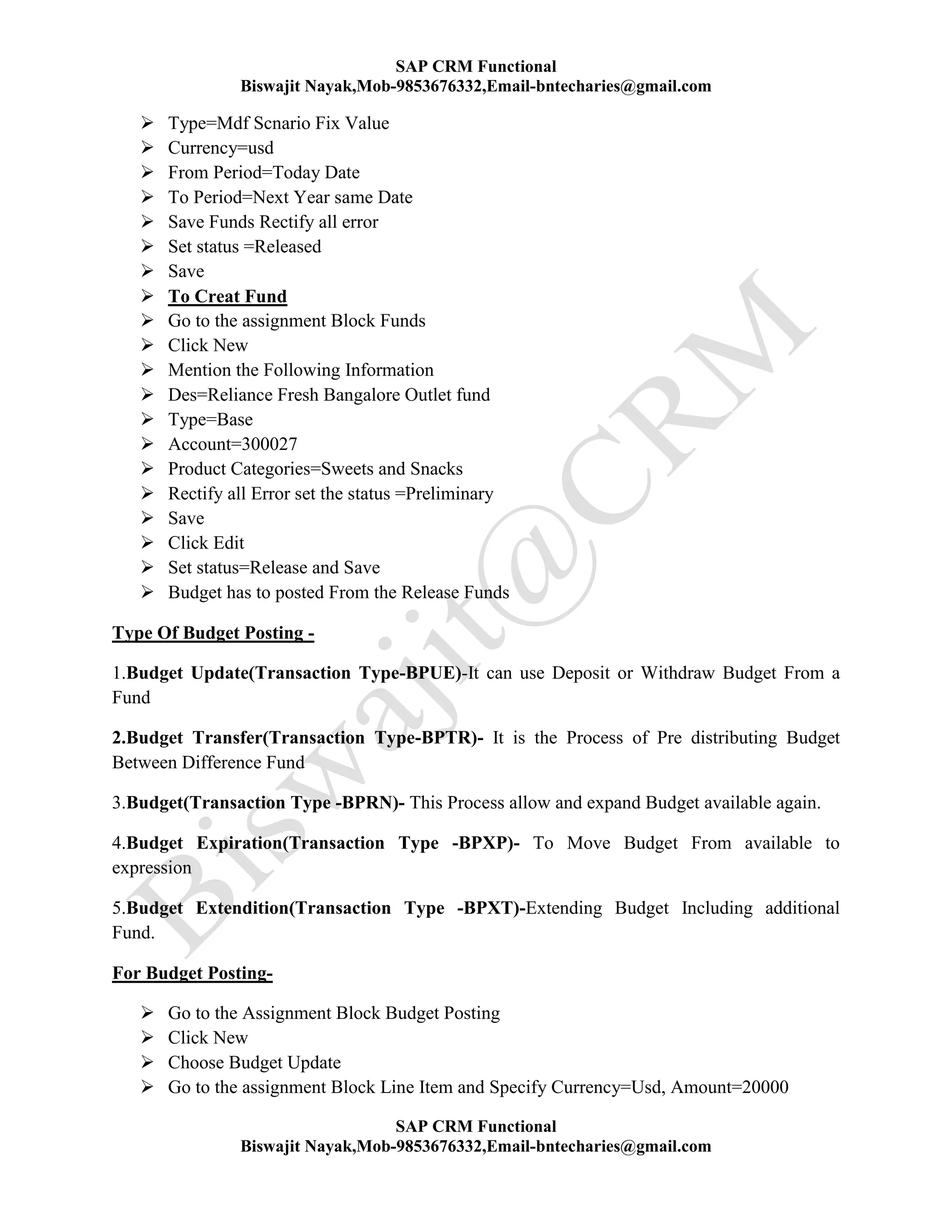
How To Create A Organization Models ???????
This Tool allow to create Functional structure in your organization.
PATH-
 Spro
 IMG
 CRM
 Master Data
 Organization Management
 Organization Model
 Create Organization Model
T-CODE-
Create -ppoca_crm
Display-pposa_crm
Edit-ppoma_crm
To create a Organization Models -Give the id xxxxxxxxxx and Des xxxxxxxxxxxxxx
To Create the Branch Office -Highlight the Superior Office and Wright click and choose create.
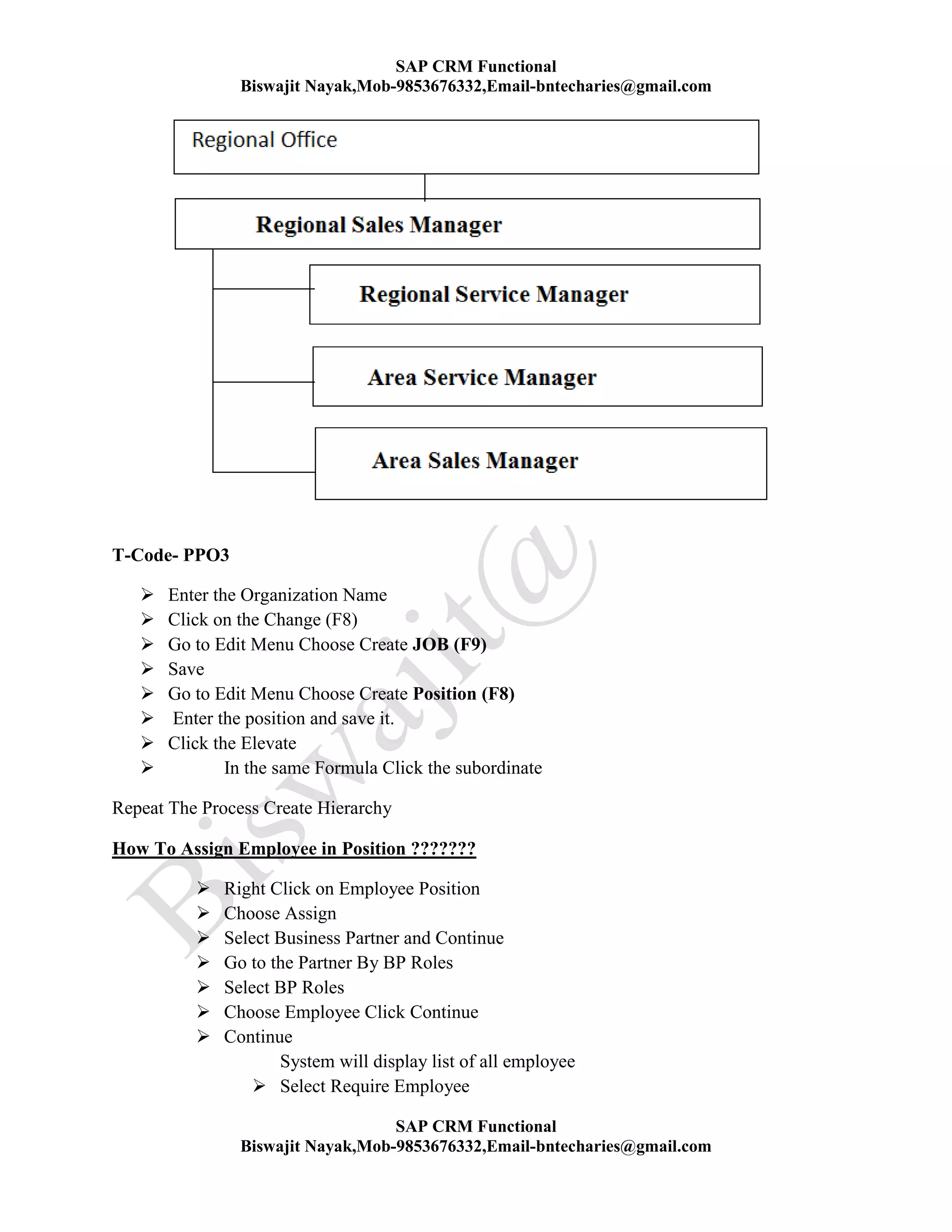
How to create Reporting Structure ????
Specify the Organization Unit under which want to create position.
Example-
SAP CRM Functional
Biswajit Nayak,Mob-9853676332,Email-bntecharies@gmail.com
SAP CRM Functional
Biswajit Nayak,Mob-9853676332,Email-bntecharies@gmail.com
T-Code- PPO3
 Enter the Organization Name
 Click on the Change (F8)
 Go to Edit Menu Choose Create JOB (F9)
 Save
 Go to Edit Menu Choose Create Position (F8)
 Enter the position and save it.
 Click the Elevate
 In the same Formula Click the subordinate
Repeat The Process Create Hierarchy
How To Assign Employee in Position ???????
 Right Click on Employee Position
 Choose Assign
 Select Business Partner and Continue
 Go to the Partner By BP Roles
 Select BP Roles
 Choose Employee Click Continue
 Continue
System will display list of all employee
 Select Require Employee
SAP CRM Functional
Biswajit Nayak,Mob-9853676332,Email-bntecharies@gmail.com
SAP CRM Functional
Biswajit Nayak,Mob-9853676332,Email-bntecharies@gmail.com
 Continue
Repeats the Process for all position
Day-3
Sales Area-
sales Area is a Combination Of Sales Organization, Distribution Channels and Division.
Example- Domestic Sales Organization, Export sales Organization and Service Organization.
Distribution Channels -
This Channels is Mainly defined to take care of different types of sales in sales organization . A
medium through which products and service reach in customer.
Example- Wholesaler, Retailer , Dealer
Division-
Can Be Define as a Product Line Of the Company
Ex-Soap, Toothpaste ,Shampoo etc..........
Maintaining Distribution Chanel and Chanel List of the sales Organization .................
PATH-
 SPRO
 Customer Relationship Managements
 Master Data
 Organization Managements
 Division Setting
 Define Division
Distribution Channels-
PATH-
 SPRO
 Customer Relationship Managements
 Organization Managements
 Organization Data For Sales Scenario
 Define Combination Of Distribution Channels and Division
 New Entries
SAP CRM Functional
Biswajit Nayak,Mob-9853676332,Email-bntecharies@gmail.com
SAP CRM Functional
Biswajit Nayak,Mob-9853676332,Email-bntecharies@gmail.com
Creating a Tupel-
Combination of Distribution Chanel and Division is Called Tupel.
PATH-
 Spro
 Customer Relationship Management
 Organizational Management
 Organization Data For Sales Scenario
 Define Combination Of Distribution Chanel and Division
 New Entries
Creating A General Attribute-
T-Code-(OOATTRCUST)
Step-1 - Creating a Attribute
Step-2- Assign Attribute to Scenario
Step-3- Assign object
 Highlight the scenario
 Double Click on Attribute
 Select Division and Click copy icon
ID= ZHLD
Des-Hll Division
 Press Enter and Save
 Double Click on Attribute/Scenario
 Click New Entries
 Assign the Scenario and Attribute
 Save
 Double Click on Objects Type
 Click New Entries
 Assign scenario=sale, Attribute= Zhld, Object= O
 Save
Test The Customization
Business Transaction
Business Transaction is a Documents in which we can proceed information about an activity occured at
particular time
Prospect
SAP CRM Functional
Biswajit Nayak,Mob-9853676332,Email-bntecharies@gmail.com
SAP CRM Functional
Biswajit Nayak,Mob-9853676332,Email-bntecharies@gmail.com
Lead- It is a Business Transaction its Record information about prospects
Sales Agreements-Term and Condition
Sales Contract-
Quotation
Sales Order
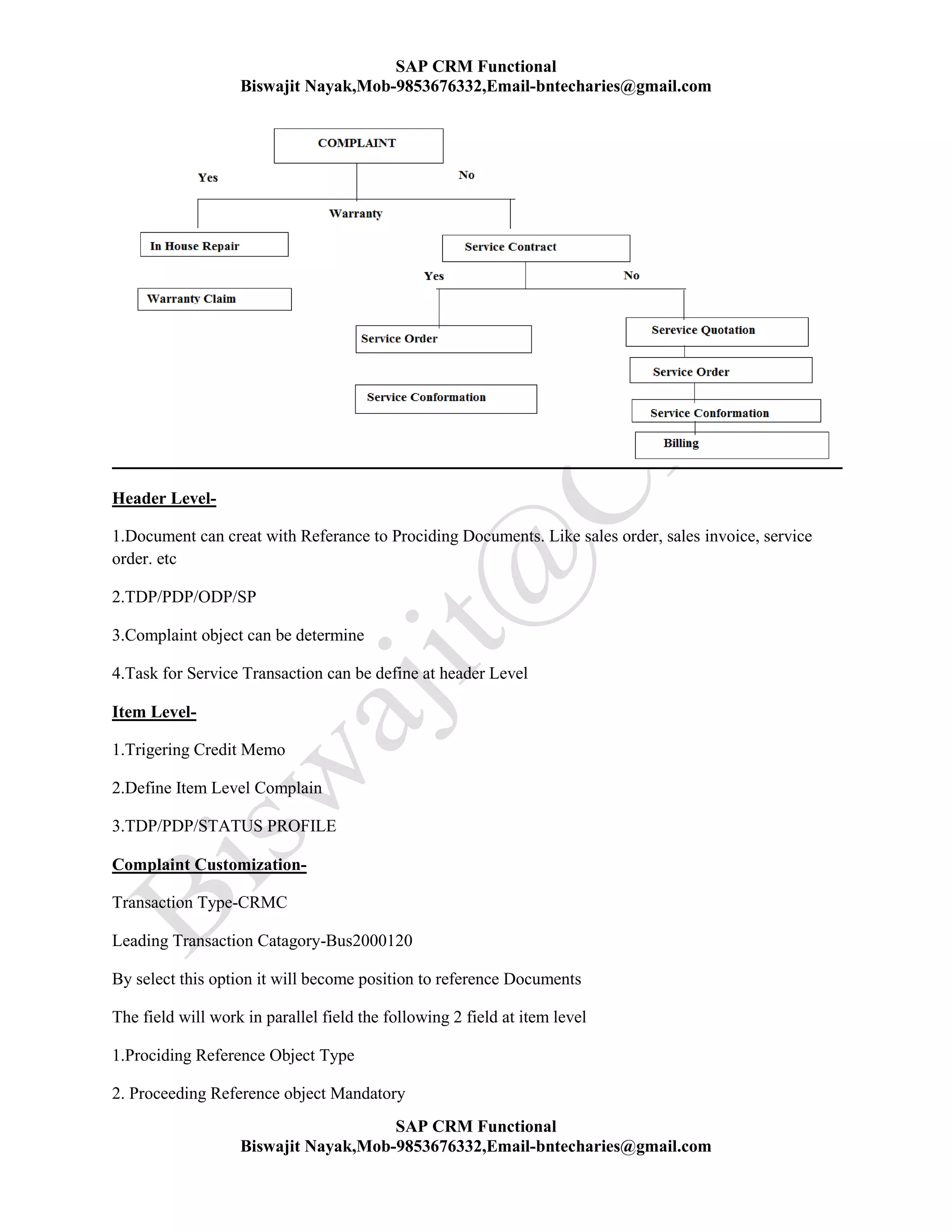
Complaint
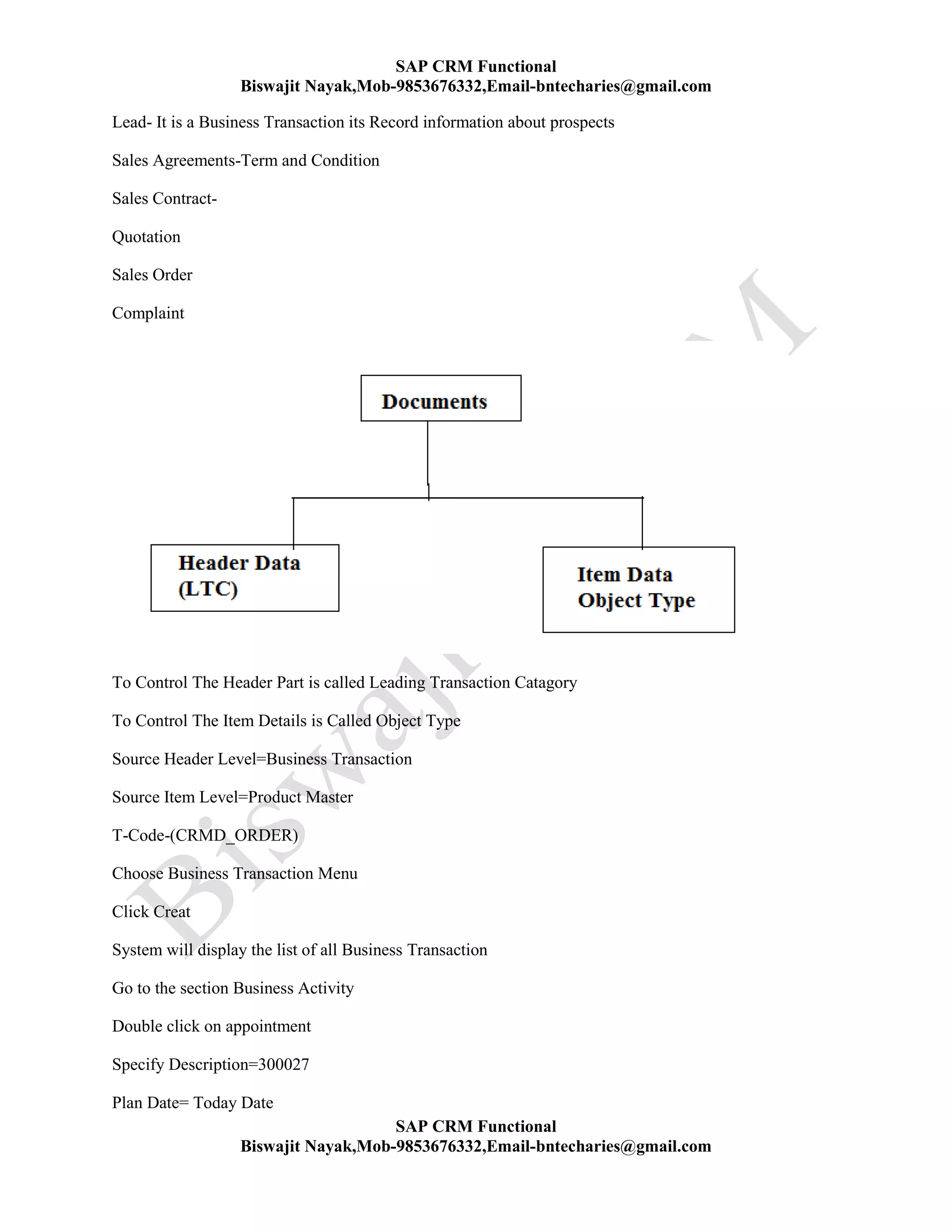
To Control The Header Part is called Leading Transaction Catagory
To Control The Item Details is Called Object Type
Source Header Level=Business Transaction
Source Item Level=Product Master
T-Code-(CRMD_ORDER)
Choose Business Transaction Menu
Click Creat
System will display the list of all Business Transaction
Go to the section Business Activity
Double click on appointment
Specify Description=300027
Plan Date= Today Date
SAP CRM Functional
Biswajit Nayak,Mob-9853676332,Email-bntecharies@gmail.com
SAP CRM Functional
Biswajit Nayak,Mob-9853676332,Email-bntecharies@gmail.com
Time=11am
Activity Partner=300027
Person Responsbility=451
Location= Hyderabad
Priority=Very High
Goal=Arise Intrest
Go to the address Tab
Mentain the requair address detail wheree appointment will be held
go to the data tab
click for the date
Go to the Tab question
complete the answer and click on the save option
Go to the text tab
where we can write free text
go to the partner tabn
Functionality of Business Transaction
 Spro
 img
 crm
 Transaction
 Basic Setting
 Define Transaction Type
From path click Define Transaction Type
Transaction type Description
1003 Task
AG Quotation
TA Talesales
SLAT Sales Order Template
SAP CRM Functional
Biswajit Nayak,Mob-9853676332,Email-bntecharies@gmail.com
SAP CRM Functional
Biswajit Nayak,Mob-9853676332,Email-bntecharies@gmail.com
Qctr Quantity Contract
VCTR Vlaue Contract
OPPT Oppertunity
SC Service Contract
SRVO Service Order
Repa Inhouse Repair Managements
CRMC Warenty Claim
CLMA Warenty Claim
In-house Repair-
using this field we can manipulate the Date and Times
1- Commitment date is not allow to system will ignore the delivery date and time agreement in contracts
2- Only agree delivery time is considered
if this option is selected the company should be the payer delivery time maintai8n in this contracts
3-Head of agree delivary time or new calculation
if this option is sel;ected system will calculate the new delivary date from the date of order certain
4- End of Delivary time
If this optiion is selected goods delivary date calculated according to such as possible
No Change Documents-
it is the history which record information about the change in the business Transaction from the time of
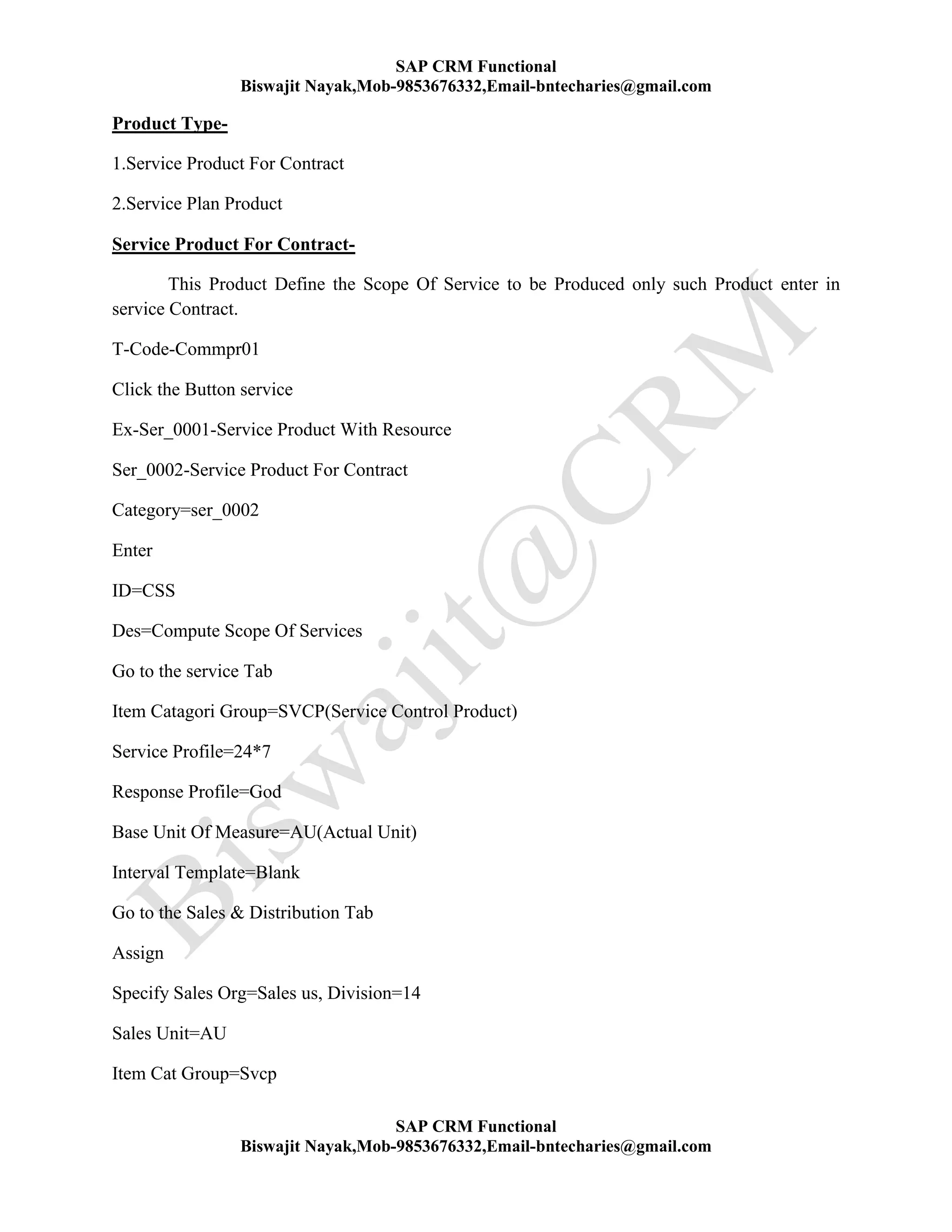
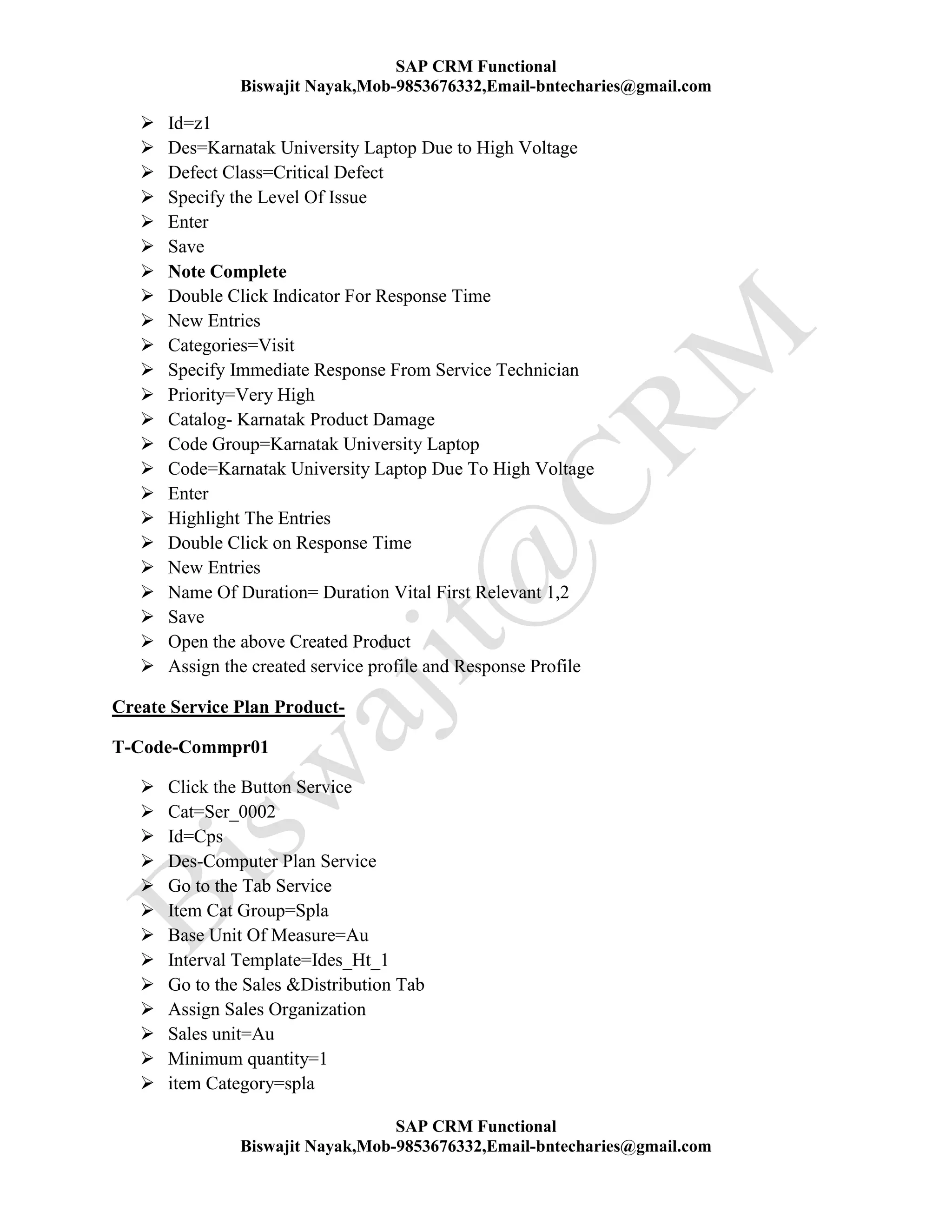
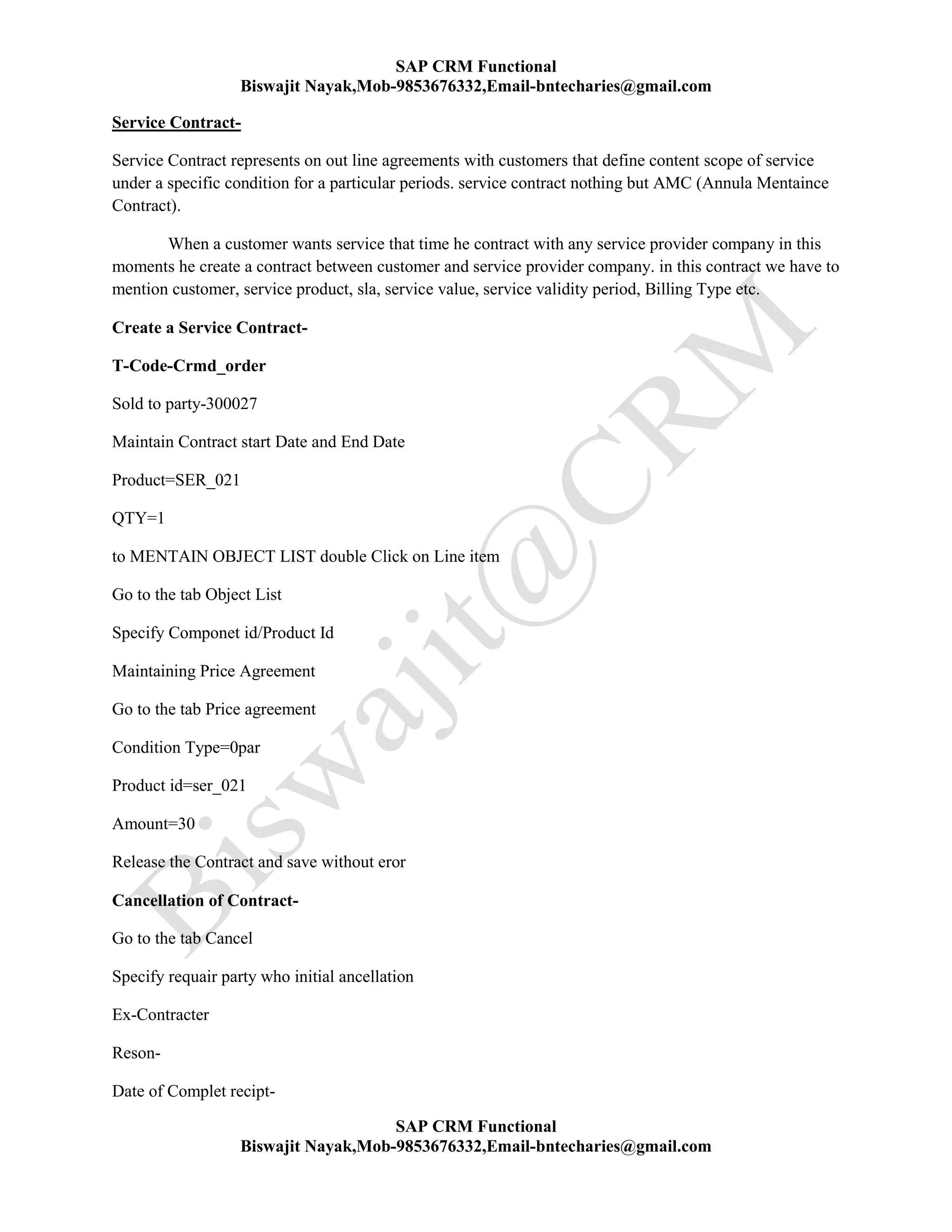
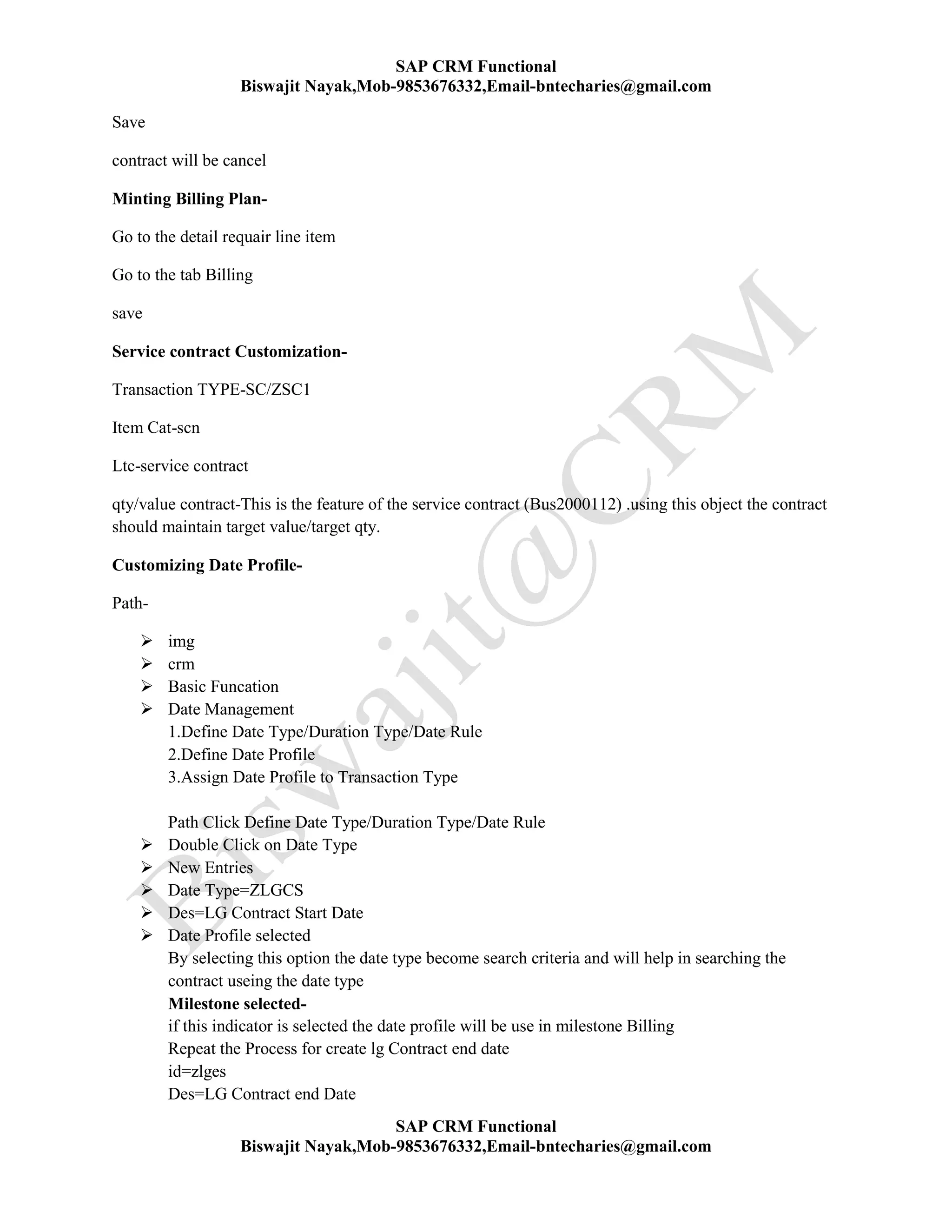
current time
Partner Determination Procidure-
it is use to determine Related partner function from Business Partner to Business Trnasaction.
Path-
 Img
 crm
 Basic Function
 Partner Processing
SAP CRM Functional
Biswajit Nayak,Mob-9853676332,Email-bntecharies@gmail.com
SAP CRM Functional
Biswajit Nayak,Mob-9853676332,Email-bntecharies@gmail.com
1. Define Partner Function
2.Define Access sequency
3.Define Partner Determination Procidure
Step-1 Define Access sequence
Step-2 Define Pdp and assign Access sequence
Step-3 Assign pdp to Requair Business Transaction
Step-1 Define Access sequence
Path click Define Access sequence
 New Entries
 id=zlgas
 Des= Lg Access Sequency
 Enter
 Highlight the Access sequency for sold to party
 Double Click on Individual Access
 New Entries
Batch seq=10
Dialog Seq=10
Source= Current Partner
Select the indicater Maping Defination For Partner
Allow Incorrect source-This indicater will be selected only the source will specified organisation
data . Because if we selected the defination of transaction type pdp will process fast before odp is
excuted (which will Responsible for determining the organisation data). By selecting this
indicater until the organisation data is determine system will stop processing the Access
sequency.
Alternative Follow Access-
it is selected if source is available . System wait processing Current Access sequence will be
allow.
Determination Of Business Partner-
it is selected only if source is specified that organization data during the process system. When a
Cross user id Assign to Position in such case system has to identify the Bp Records to whome the
user id is map. That is Control By this Field.
Partner Function source=Blank
Function Category source=Activity Partner
CRM
2.Access sequence for Contact Person-
Id=Zlg2
Des=Lg Access seq for Contact person
Highlight t he Access seq
Double Click Individual Access
New Entries
SAP CRM Functional
Biswajit Nayak,Mob-9853676332,Email-bntecharies@gmail.com
SAP CRM Functional
Biswajit Nayak,Mob-9853676332,Email-bntecharies@gmail.com
Batch seq=10
Dialog Seq=10
Source=Business Partner Relationship
Partner Function=Sold To Party
Save
Step-2 Define Pdp and assign Access sequence
Path Click Define Partner Determination Procedure
New Entries
ID=ZLGPDP
Des= Lg Pdp
Enter
Save
Highlight Pdp
Double Click on Procedure user
New Entries
Specify=sales(Leading Transaction Category)
Specify the Ltc and Item Object Type . so that this Partner Determination Procedure can
be use only though Business Transaction Which are using The sale Leading Transaction Category
and Object type.
Highlight sales
Double Click Partner Function
New Entries
Partner Function=Sold TO Party (crm)
Block entry interface
If we selected this option the end-user can not edit the data for same partner Function.
No of Occurrence (Lowest)-1
No Of Occurrence (Highest)-9999
The Field specify minimum and Maximum number in Business Transaction.
Access sequence=Assign the Above created Access sequence
Determination= Recurring.
User Interface setting-
Hear we Control the Partner Function to be display on the Header screen under general Tab.
(Maximum 4 Partner Function can be Disply in General Tab)
Display Variant-By using this optin we can control the name and address of the partner Function
to be display inside the Field.
Step-3 Assign pdp to Require Business Transaction
Go the the Require Business Transaction and assign the pdp.
Test the Customization.
Ex-Create a Quotation and Determine sold to party/Contact Person.
Status Profile
SAP CRM Functional
Biswajit Nayak,Mob-9853676332,Email-bntecharies@gmail.com
SAP CRM Functional
Biswajit Nayak,Mob-9853676332,Email-bntecharies@gmail.com
Status Message indicate current status in Business Transaction. Every Business Object
Have own Status In Particular Point Of Time.
Business Transaction (Bus2000115) Sales
Open
In Process
To Be Release
Release
Complete
Business Transaction (Bus2000111) Opportunity
Lead to Customer called Oppertunity
Ex-Bank Loan
1.Appointment
2.Collect Document
3.Submitting Document
4.Verifying
5.Approve
6.Reject
In the Definition of status Profile we have to specify
1.List Of Message display
2.Sequency in which there message display
3.Initial Message to Be Display
4.Controling the Movements
Status Profiles are Two Types
1. System Define
2.User Define
Every Business Object Create with system define message this can be over write by
Assigning user define status message.
Creating a Status Profile-(T-CodeCRMBS02)
 New Entries
 id=zlgsp
 Des=Lg Status Profile
 Mentain Language=EN
 Go to the Detail Profile
Specify the Following Data------------
SAP CRM Functional
Biswajit Nayak,Mob-9853676332,Email-bntecharies@gmail.com
SAP CRM Functional
Biswajit Nayak,Mob-9853676332,Email-bntecharies@gmail.com
How To Mention Long Text-
 Place the Curser Require Msg
 Click the Button Long Text
 Mention Require Text
 Click Back
 Save
To specify with which Business The status profile be use.
Business Object Status Object
BP Business Partner
Transaction Header Crm Order Header
Transaction Item Crm Order Item
Product Product Master
Select CRMORDER HEADER
Which specify LG Status Profile can be use Header Level of the Business Transaction
Go to the Requair Business Transaction and assign the Status Profile
Save
Test The Customization
Organization Data Profile-
Rule-1
In This Rule we have to specify the Organization data to determine without value
Sales Organization ?
To Determine above data system wise from the help of Common attribute available in Both .That
is BP Record and Organization Model.
Country ???
Pin ???
SAP CRM Functional
Biswajit Nayak,Mob-9853676332,Email-bntecharies@gmail.com
SAP CRM Functional
Biswajit Nayak,Mob-9853676332,Email-bntecharies@gmail.com
when a Transaction is created after BP Id is entered system will record Business Organization
Data and Determine the Value.
Then system will goes to the organization model and start from root object to Bottom
Object. It will search for standard data. Whenever match the value those value determine to
Business Transaction.
Rule-2
This Rule also called as a Hard Coated Rules. This Rule is use which organization information
should be Determine in Business Transaction.
1. We have to specify organization data to be determine the value
2. Common attribute consider should specify along the value
PATH-
 SPRO
 IMG
 CRM
 MASTER DATA
 ORGANISATIONAL MANAGEMENT
 ORGANISATION DATA DETERMINATION
 WIZARD FOR ORGANISATION DATA DETERMINATION
 CREAT DETERMINATION RULE FROM ORGANISATION MODEL
Step-1
Create Determination Rule from organization Model (Rule-1)
Step-2
Create organization Data Profile and assign the Rule (Rule-2)
Step-3
Assign the Odp to Require Transaction Type
Step-1
Create Determination Rule from organization Model (Rule-1)
 Path Click Create Determination Rule from organization Model
 Click Continue
SAP CRM Functional
Biswajit Nayak,Mob-9853676332,Email-bntecharies@gmail.com
SAP CRM Functional
Biswajit Nayak,Mob-9853676332,Email-bntecharies@gmail.com
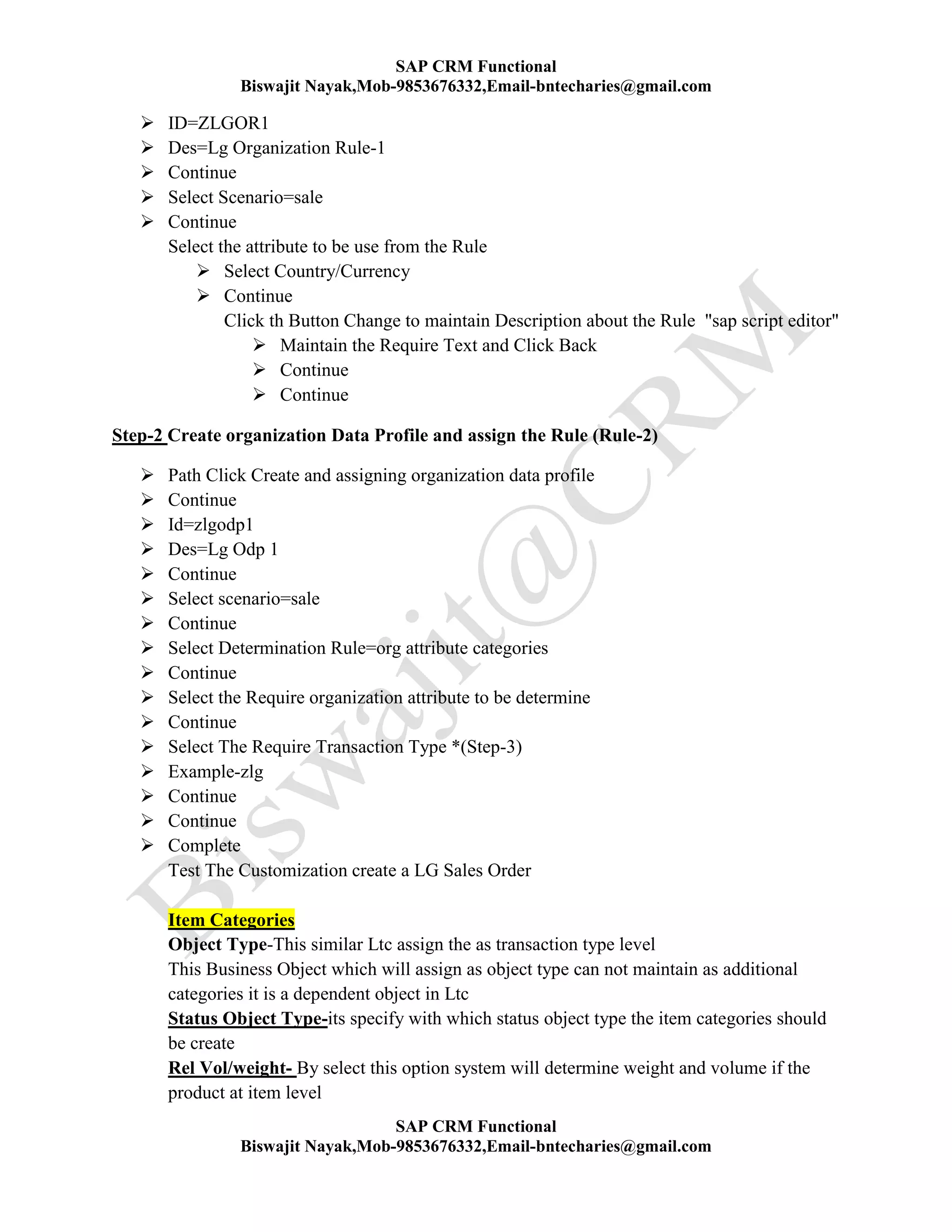
 ID=ZLGOR1
 Des=Lg Organization Rule-1
 Continue
 Select Scenario=sale
 Continue
Select the attribute to be use from the Rule
 Select Country/Currency
 Continue
Click th Button Change to maintain Description about the Rule "sap script editor"
 Maintain the Require Text and Click Back
 Continue
 Continue
Step-2 Create organization Data Profile and assign the Rule (Rule-2)
 Path Click Create and assigning organization data profile
 Continue
 Id=zlgodp1
 Des=Lg Odp 1
 Continue
 Select scenario=sale
 Continue
 Select Determination Rule=org attribute categories
 Continue
 Select the Require organization attribute to be determine
 Continue
 Select The Require Transaction Type *(Step-3)
 Example-zlg
 Continue
 Continue
 Complete
Test The Customization create a LG Sales Order
Item Categories
Object Type-This similar Ltc assign the as transaction type level
This Business Object which will assign as object type can not maintain as additional
categories it is a dependent object in Ltc
Status Object Type-its specify with which status object type the item categories should
be create
Rel Vol/weight- By select this option system will determine weight and volume if the
product at item level
SAP CRM Functional
Biswajit Nayak,Mob-9853676332,Email-bntecharies@gmail.com
SAP CRM Functional
Biswajit Nayak,Mob-9853676332,Email-bntecharies@gmail.com
Ex-Create a Sales Order
sold to party=300027
Product=Ht-1000
qty=1
Enter
Double Click on Line item
Go to the shipping Tab
Check the product weight and volume
Usage Object-if the Product is sold in unique Feature.
Ex-when we will sold a car we are ,mentaing temporary Registration Number . such item
called object. when we sale the Product without Registration called Product.
Copy Control
It is a Mechanism which is use to create document from current Document. The system will copy
data from current document to Next Document. as it is Both as Header Level and Item Level.
This is control By the component called Copy Control.
Ex- Create a Quotation
Sold To Party=300027
Product=HT-1000
Quantity=1
Set The Status =Released
Save The Quotation without any Error Under Change Mode.
From Tool Bar Click Create Follow Transaction
Select Sales and Tale Sales
Select Quotation
Click Copy Icon
A Documents link will established between quotation and Tale sales. This Information
can View by Click on Document Flow Button
Note-It is Mandatory the Current Document should be save without any eror for Creating
Follow-up Transaction. This icon is Control by establishing the Copy Control.
Process-
SAP CRM Functional
Biswajit Nayak,Mob-9853676332,Email-bntecharies@gmail.com
SAP CRM Functional
Biswajit Nayak,Mob-9853676332,Email-bntecharies@gmail.com
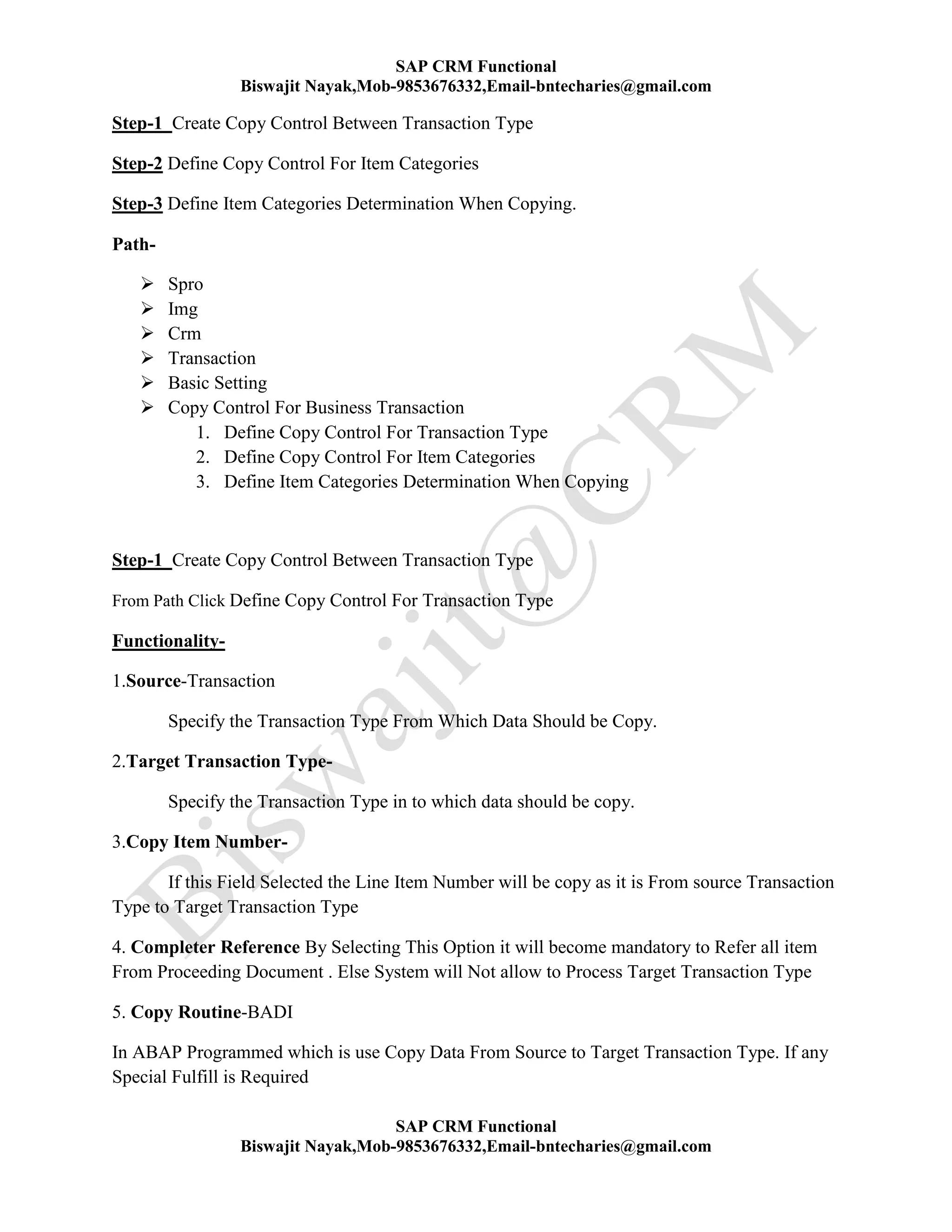
Step-1 Create Copy Control Between Transaction Type
Step-2 Define Copy Control For Item Categories
Step-3 Define Item Categories Determination When Copying.
Path-
 Spro
 Img
 Crm
 Transaction
 Basic Setting
 Copy Control For Business Transaction
1. Define Copy Control For Transaction Type
2. Define Copy Control For Item Categories
3. Define Item Categories Determination When Copying
Step-1 Create Copy Control Between Transaction Type
From Path Click Define Copy Control For Transaction Type
Functionality-
1.Source-Transaction
Specify the Transaction Type From Which Data Should be Copy.
2.Target Transaction Type-
Specify the Transaction Type in to which data should be copy.
3.Copy Item Number-
If this Field Selected the Line Item Number will be copy as it is From source Transaction
Type to Target Transaction Type
4. Completer Reference By Selecting This Option it will become mandatory to Refer all item
From Proceeding Document . Else System will Not allow to Process Target Transaction Type
5. Copy Routine-BADI
In ABAP Programmed which is use Copy Data From Source to Target Transaction Type. If any
Special Fulfill is Required
SAP CRM Functional
Biswajit Nayak,Mob-9853676332,Email-bntecharies@gmail.com
SAP CRM Functional
Biswajit Nayak,Mob-9853676332,Email-bntecharies@gmail.com
6.Copy Price Agreement-
If this Field is selected system will copy Price Data From Source Transaction to Target
Transaction
7. Copy Po Data-
This is use for cost of Company . Generally this information is quotation and Tale sales by
selecting this options.
Step-2 Define Copy Control For Item Categories
From Path Click Define Copy Control For Item Categories
Functionality-
1.Source Categories- Specify the item categories From which data to be copy
2.Target Item Categories- Specify the item Categories to which data to be copy
3.Copy Routine-BADI
4.Copy Condition-
This Field Control How to Copy Price data From Source to Transaction Item Categories
Option Available-
1. Do Not Copy Condition
2. Copy all Condition
3. Only Copy Manual Condition
4. Copy Condition
5.Reexplode Structure /Free Goods-
if item having sub item is enter in source Transaction Type and when it is copy Target
Transaction Type how it should be display and whether it should be display . Maintain or with
sub item
6.Process Flow-
This option is use how to copy price data (Internet Pricing Configuration)
1. 7. Define Copy Control For Item Categories
SAP CRM Functional
Biswajit Nayak,Mob-9853676332,Email-bntecharies@gmail.com
SAP CRM Functional
Biswajit Nayak,Mob-9853676332,Email-bntecharies@gmail.com
7.Fix- By selecting this option instead of Determination schedule line for the Current
Documents. Schedule line data will be Copy as it is Proceeding.
8.Copy Po Data- Similar to step-1
9.General Product Master data again-
By selecting this option instead of Copy product master data as it is Source to target
items. System will re determine product master data again.
10. Condition Copier Type- it Control, How to copy pricing value from source item to target
item . (ABAP Programe)
11. Copy survey Copy Camp gain- This is use between Lead and oppertunity information will
copy from source to target item.
Step-3 Define Item Categories Determination When Copying.
Source Item Categories +Target Transaction Type=Target Item Categories
Customer Interaction Center-
Interaction Center Role-
To work in Interaction Center the Following PFCG Role will be included in the user
details.
 Go to the user Detail (T-Code-SU01)
 Go to the Tab Role
 Assign the Pfcg Role-(SAP_CRM_UIU_IC_AGENT)
 Save
 Log in to the web ui under IC Agent Role
Process-
Step-1 Account Identification Number-
When Customer call to Call Center agent for any query First of all the Calling Customer
should be identified . This Process is Called Account Identification Process
Ex- Specify A/c ID=300027
Click the Button Search Account
Click the Button Conformed
SAP CRM Functional
Biswajit Nayak,Mob-9853676332,Email-bntecharies@gmail.com
SAP CRM Functional
Biswajit Nayak,Mob-9853676332,Email-bntecharies@gmail.com
The Name will appear it means interaction started. Whatever transaction that we creat
from now to till the button end is clicked all interaction will belong to the conformed account
To Conformed Contact Person Detail go to the assignemnt block as contact person and
click the Linked Conformed.
Step-2 Account Overview -
This Help Call Center Agent in Knowing more details about the callers system will open
BP Master Record for the identified account
 Click A/C overview & Check for the BP Detail
 Click icon scratch pad to record the instant interaction
Ex-Problem With My Laptop
Click Close
Click the work Center Interaction Record which allow to create different Transaction
according to customer interaction.
Importing scratch pad information
Clicked the Button Import Scratch Pad
Creating Default Transaction-
Under the section Business Activity
specify Reason=Customer Complain
Priority=Very High
Save
Step-3 Interaction Record-
When ever any account is called to our call center that information will be recorded like the
purpose of calling etc. will be created in the system with the help of interaction Record.
A. Scratch Pad- An electronic note pad which allow call center agent to note down
information quickly & allow to copy the same information in to any transaction. The
Information in the scratch pad will be available till the session end.
B. Default Business Transaction-
We Can assign as default Business Transaction for the interaction Record
.Step-4 Interaction History-
It will Record all the interaction for all Customer . Hear we can display interaction History of the
Conformed Account for the last 15/30 Days.
 Again conformed the account =300027
SAP CRM Functional
Biswajit Nayak,Mob-9853676332,Email-bntecharies@gmail.com
SAP CRM Functional
Biswajit Nayak,Mob-9853676332,Email-bntecharies@gmail.com
 Click Work Center History
 Specify the Require search Criteria
 Click Search
 Check For the Display
 Click the work center index
 Check for the data available
Step-5 Index
This is only work center which will have work center Group linked called index.. It will mention
the list of Business Transaction and other application to which the ic agent is having access.
Customizing Work Center (Index)-
 Go to the Definition Of Business Role- IC_AGENT
 Double Click of Adjust work Center Group Link
 Check or Uncheck the indicator in menu and visible for the Require Logical Link
 Test The Customization
Define Account Identification Profile-
By Define this profile we can Control the type of A/C like -B2B,B2C customer to be search and
created by ic-agent.
Path-
 Spro
 Img
 Crm
 IC Web Client
 Master Data
 Define A/C Identification Profile
(T-Code-CRMC_IC_BPPROFX)
 Highlight Mix
 Click Copy Icon
 id=zlgmix A/c
 Des=LG Mix A/c Identification Profile
 Scenario=Specify the Require Scenario .Ex-B2B,B2C, Mix
 Ex-Mix
 Go to the Section Filter
 Specify Default Value
 A/C Role=Specify the Require BP Role
 If this Filed is Blank its search the Multiple Role
SAP CRM Functional
Biswajit Nayak,Mob-9853676332,Email-bntecharies@gmail.com
SAP CRM Functional
Biswajit Nayak,Mob-9853676332,Email-bntecharies@gmail.com
 Select Indicator Find Contact person Automatically
 Go to the section A/c Create
 we can specify default detail whose a/c will be created by ic agent partner
catagory
 Org Group=Define no Role
 Similar to Contact Person
 enter
 save
 Go to the Definition of Business role ic_agent
 Double Click Assign Function Profile
 Highlight BPINDENT_MULTIPLE
 Delete and save
 New Entries
 Specify Profile Id= LG Mix A/c
 Enter and Save
 Test the Customization
Define Business Transaction Profile
Path
 Spro
 Img
 Crm
 Ic Web Client
 Business Transaction
 Define Business Transaction Profile
This Profile control which Business Transaction will be Default in the Interaction Record
 New Entries
 Id=ZLGBTP
 Des=Lg Business Transaction Profile
 Transaction Type=AG
 Save
 Double Click Dependent Business Transaction
 New Entries
 Lead, Oppt,Opsm,AG,TA,CRMC,
 Save
Assign this Profile TO Business Role
 T-Code-(crmc_ui_profile)
 Go to the Defination of Business Role IC_AGENT
 Doubel Click assign Function Profile
SAP CRM Functional
Biswajit Nayak,Mob-9853676332,Email-bntecharies@gmail.com
SAP CRM Functional
Biswajit Nayak,Mob-9853676332,Email-bntecharies@gmail.com
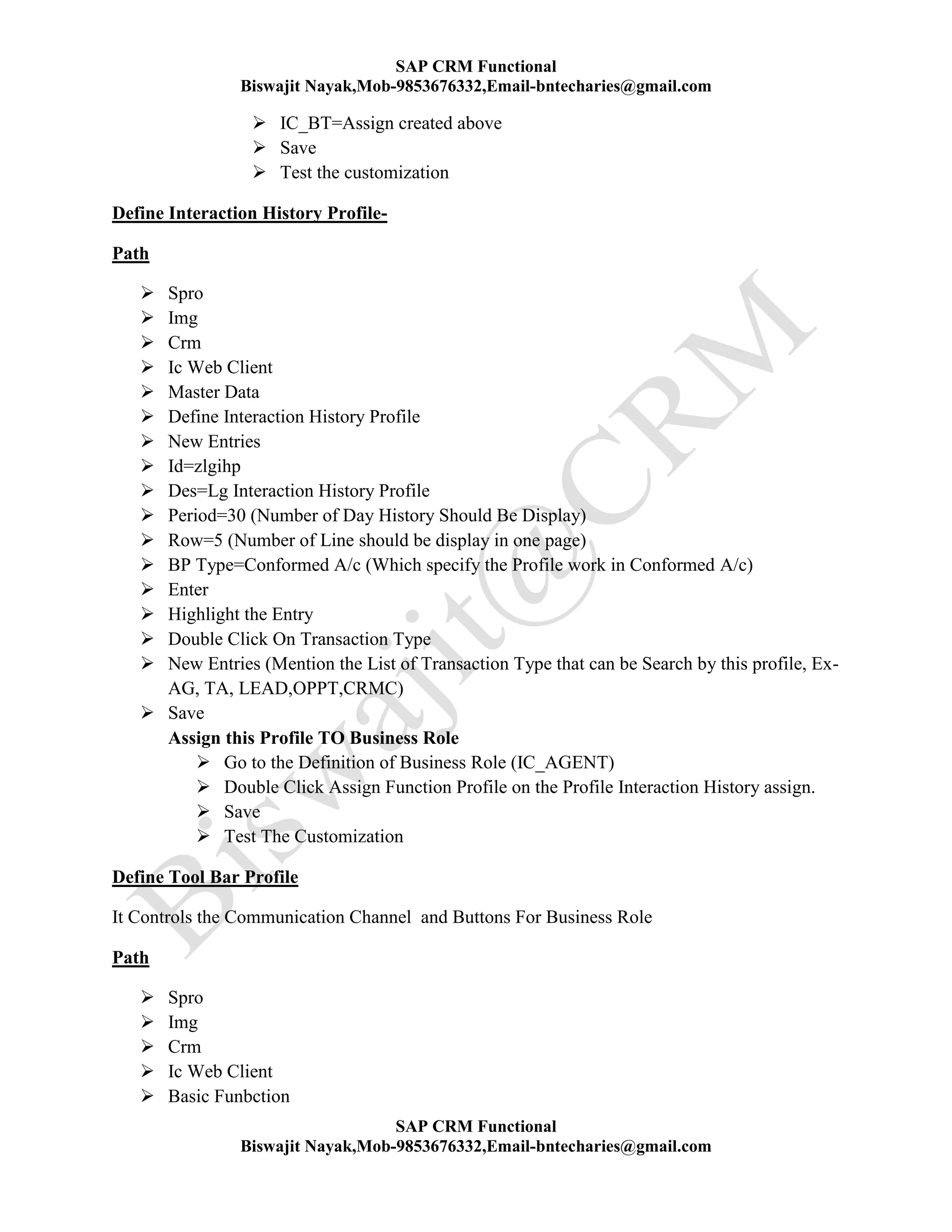
 IC_BT=Assign created above
 Save
 Test the customization
Define Interaction History Profile-
Path
 Spro
 Img
 Crm
 Ic Web Client
 Master Data
 Define Interaction History Profile
 New Entries
 Id=zlgihp
 Des=Lg Interaction History Profile
 Period=30 (Number of Day History Should Be Display)
 Row=5 (Number of Line should be display in one page)
 BP Type=Conformed A/c (Which specify the Profile work in Conformed A/c)
 Enter
 Highlight the Entry
 Double Click On Transaction Type
 New Entries (Mention the List of Transaction Type that can be Search by this profile, Ex-
AG, TA, LEAD,OPPT,CRMC)
 Save
Assign this Profile TO Business Role
 Go to the Definition of Business Role (IC_AGENT)
 Double Click Assign Function Profile on the Profile Interaction History assign.
 Save
 Test The Customization
Define Tool Bar Profile
It Controls the Communication Channel and Buttons For Business Role
Path
 Spro
 Img
 Crm
 Ic Web Client
 Basic Funbction
SAP CRM Functional
Biswajit Nayak,Mob-9853676332,Email-bntecharies@gmail.com
SAP CRM Functional
Biswajit Nayak,Mob-9853676332,Email-bntecharies@gmail.com
 Communication Channel
 Define Tool Bar Profile
T-Code (CRMC_IC_TLBPROF)
 New Entries
 Id=Zlgtlbp
 Des=Lg Tool Bar Profle
 Select The Requair Communication Channel
 Ex-Generic Button/Telephonic Button/Layout Button
 Double Click on Generic Button
 New Entries
Accept 1 Text & Icon
Reject 2 Text & Icon
Double Click on Telephonic Layout Button
New Entries
Select (Conforance,Dial,Diap Pad, End, Hold, Next Call) Buttons
Give Position to all the Buttons
Display=Text & Icon
Double Click on Chart Layout Button
Select (Cancel, Log on, Log off, Reset, Reject) Buttons
Give Position to all the Buttons
Display=Text & Icon
Double Click on E-Mail Layout Button
Select (Cancel, Log on, Log off, Reset, Reject) Buttons
Give Position to all the Buttons
Assign this Profile TO Business Role
 Go to the Definition of Business Role (IC_AGENT)
Double Click Assign Function Profile on the Profile WBAR assign and save
Test the Customization
Define Script Profile-
Script is nothing but a questioners whenever agent are promoting their products they will
use the questioners as script in crm ic.
Path
 Spro
 Img
 Crm
 Ic Web Client
 Basic Function
 Define Script Profile
SAP CRM Functional
Biswajit Nayak,Mob-9853676332,Email-bntecharies@gmail.com
SAP CRM Functional
Biswajit Nayak,Mob-9853676332,Email-bntecharies@gmail.com
 New Entries
 ID=ZLGSP
 Des=Lg Script Profile
 Highlight the Entry and Double Click on Script Folder
 Select (Help Desk, Sample Script_
 save
Assign this Profile TO Business Role
 Go to the Definition of Business Role (IC_AGENT)
Double Click Assign Function Profile on the Profile script assign and save
Test the Customization
Marketing
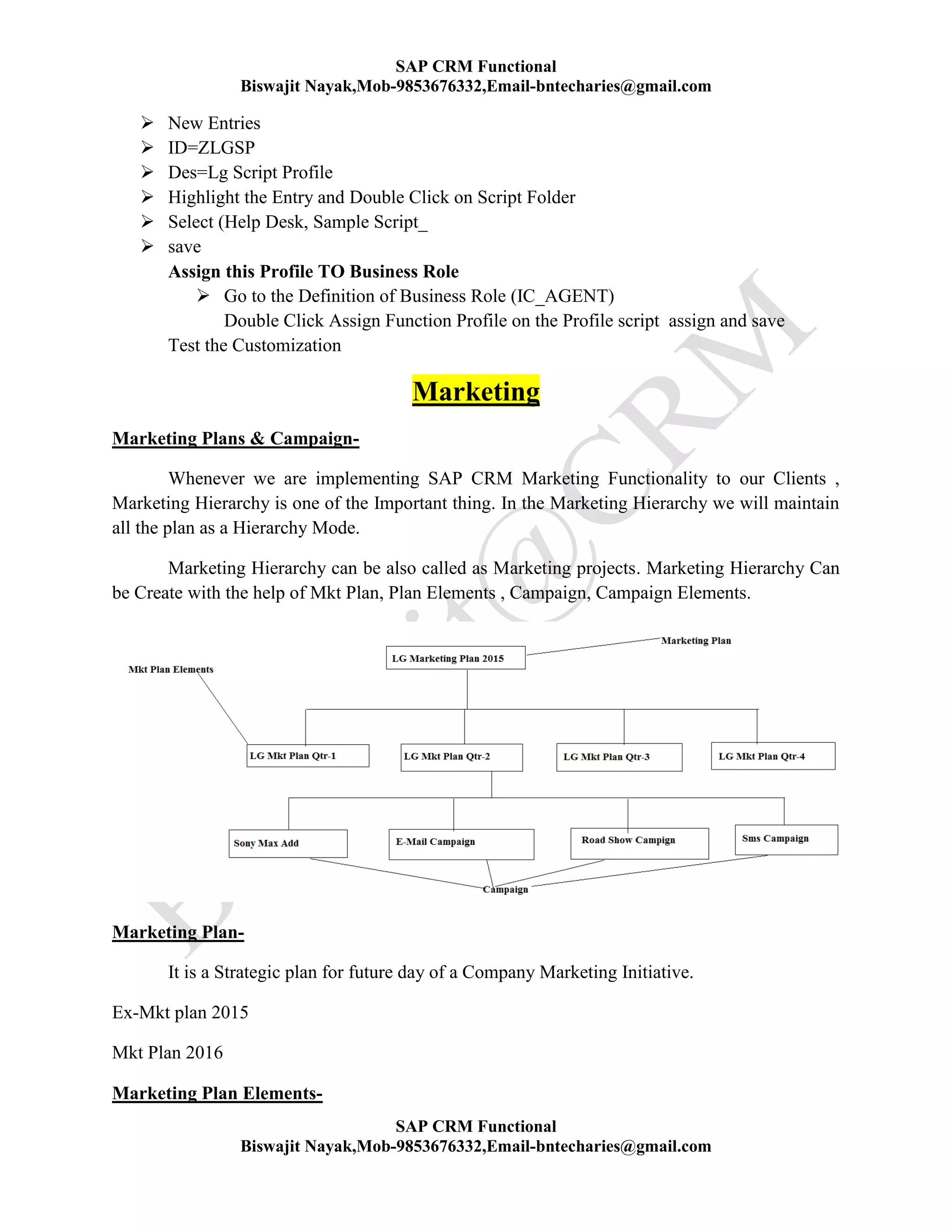
Marketing Plans & Campaign-
Whenever we are implementing SAP CRM Marketing Functionality to our Clients ,
Marketing Hierarchy is one of the Important thing. In the Marketing Hierarchy we will maintain
all the plan as a Hierarchy Mode.
Marketing Hierarchy can be also called as Marketing projects. Marketing Hierarchy Can
be Create with the help of Mkt Plan, Plan Elements , Campaign, Campaign Elements.
Marketing Plan-
It is a Strategic plan for future day of a Company Marketing Initiative.
Ex-Mkt plan 2015
Mkt Plan 2016
Marketing Plan Elements-
SAP CRM Functional
Biswajit Nayak,Mob-9853676332,Email-bntecharies@gmail.com
SAP CRM Functional
Biswajit Nayak,Mob-9853676332,Email-bntecharies@gmail.com
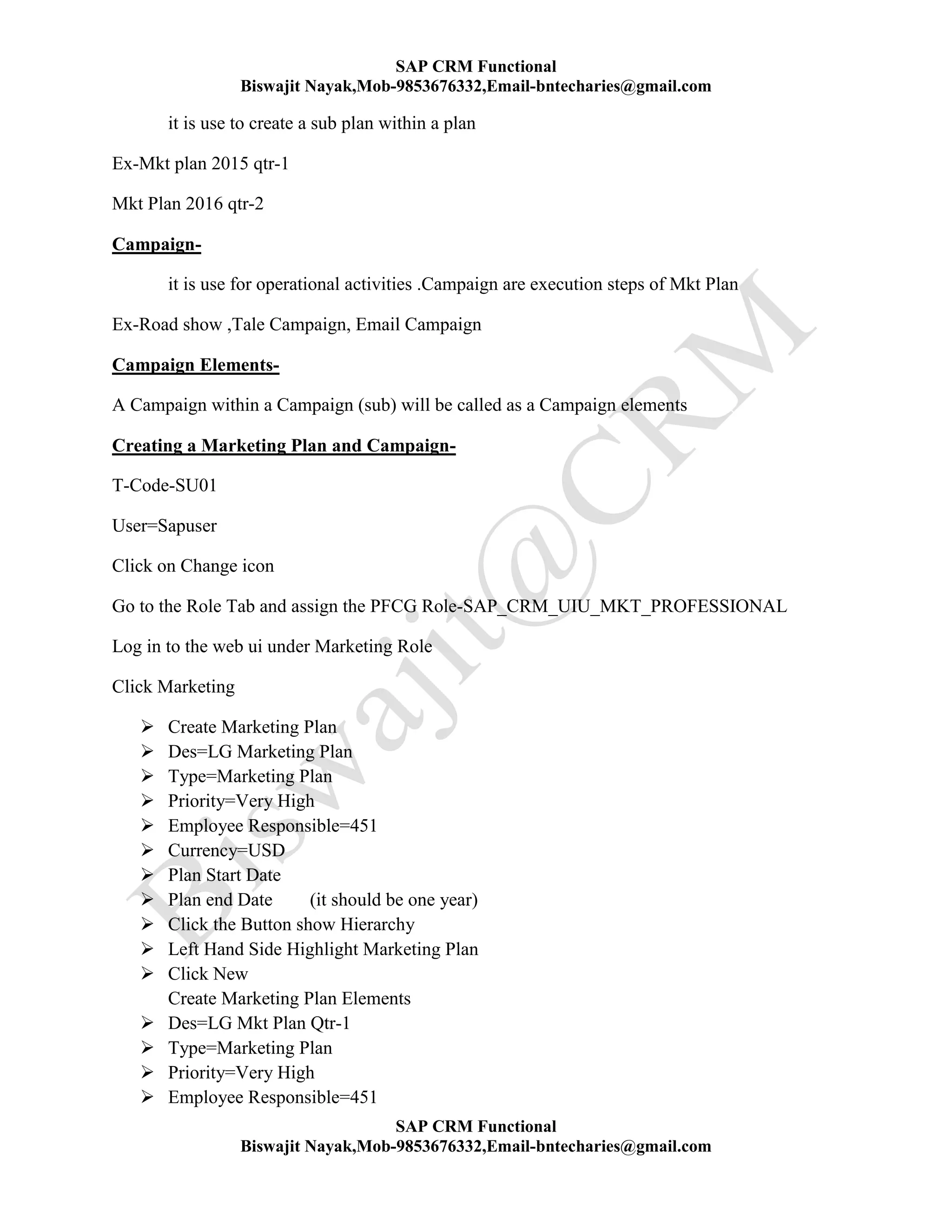
it is use to create a sub plan within a plan
Ex-Mkt plan 2015 qtr-1
Mkt Plan 2016 qtr-2
Campaign-
it is use for operational activities .Campaign are execution steps of Mkt Plan
Ex-Road show ,Tale Campaign, Email Campaign
Campaign Elements-
A Campaign within a Campaign (sub) will be called as a Campaign elements
Creating a Marketing Plan and Campaign-
T-Code-SU01
User=Sapuser
Click on Change icon
Go to the Role Tab and assign the PFCG Role-SAP_CRM_UIU_MKT_PROFESSIONAL
Log in to the web ui under Marketing Role
Click Marketing
 Create Marketing Plan
 Des=LG Marketing Plan
 Type=Marketing Plan
 Priority=Very High
 Employee Responsible=451
 Currency=USD
 Plan Start Date
 Plan end Date (it should be one year)
 Click the Button show Hierarchy
 Left Hand Side Highlight Marketing Plan
 Click New
Create Marketing Plan Elements
 Des=LG Mkt Plan Qtr-1
 Type=Marketing Plan
 Priority=Very High
 Employee Responsible=451
SAP CRM Functional
Biswajit Nayak,Mob-9853676332,Email-bntecharies@gmail.com
SAP CRM Functional
Biswajit Nayak,Mob-9853676332,Email-bntecharies@gmail.com
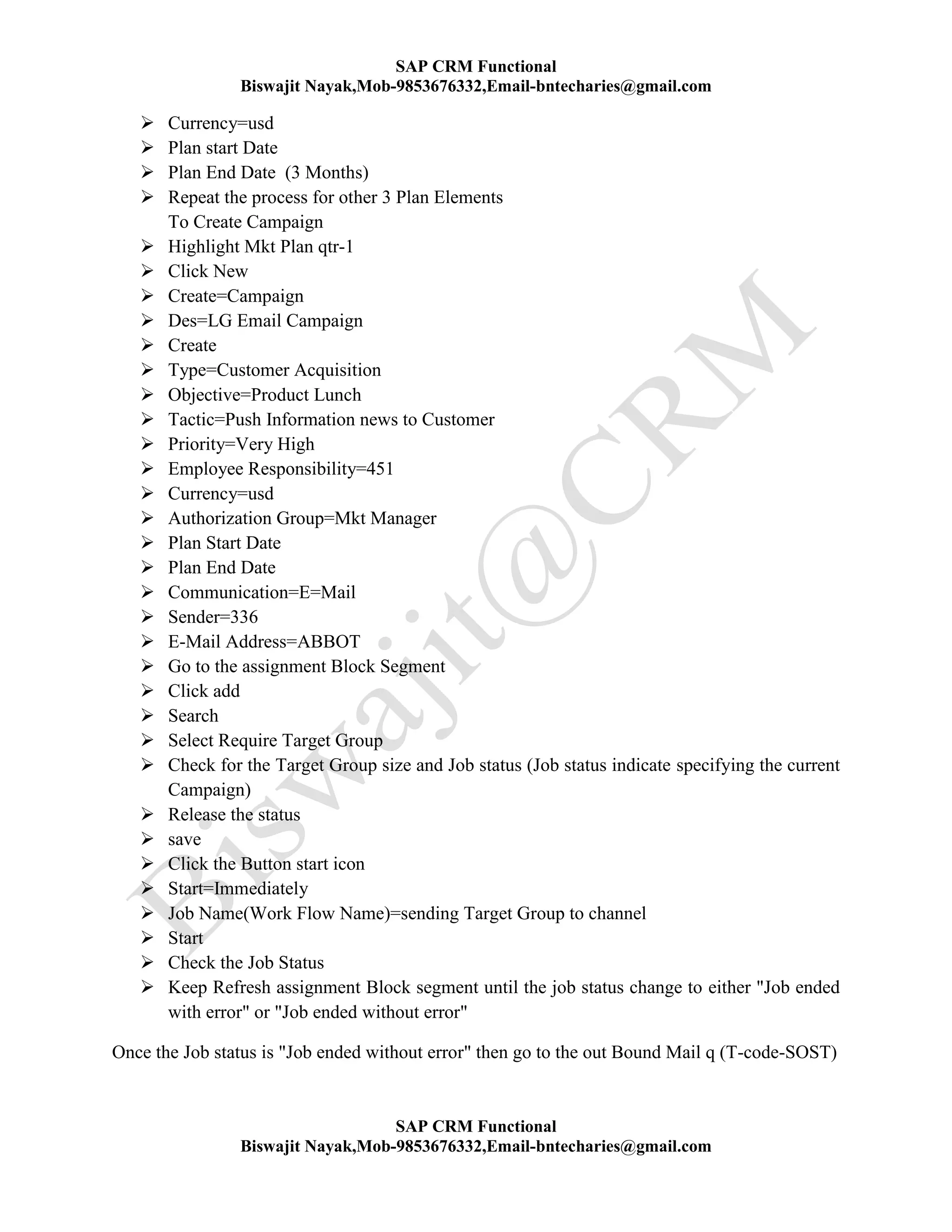
 Currency=usd
 Plan start Date
 Plan End Date (3 Months)
 Repeat the process for other 3 Plan Elements
To Create Campaign
 Highlight Mkt Plan qtr-1
 Click New
 Create=Campaign
 Des=LG Email Campaign
 Create
 Type=Customer Acquisition
 Objective=Product Lunch
 Tactic=Push Information news to Customer
 Priority=Very High
 Employee Responsibility=451
 Currency=usd
 Authorization Group=Mkt Manager
 Plan Start Date
 Plan End Date
 Communication=E=Mail
 Sender=336
 E-Mail Address=ABBOT
 Go to the assignment Block Segment
 Click add
 Search
 Select Require Target Group
 Check for the Target Group size and Job status (Job status indicate specifying the current
Campaign)
 Release the status
 save
 Click the Button start icon
 Start=Immediately
 Job Name(Work Flow Name)=sending Target Group to channel
 Start
 Check the Job Status
 Keep Refresh assignment Block segment until the job status change to either "Job ended
with error" or "Job ended without error"
Once the Job status is "Job ended without error" then go to the out Bound Mail q (T-code-SOST)
SAP CRM Functional
Biswajit Nayak,Mob-9853676332,Email-bntecharies@gmail.com
SAP CRM Functional
Biswajit Nayak,Mob-9853676332,Email-bntecharies@gmail.com
Check for the entry Document. To Check detail Highlight the Entry click icon Display
Document.
If the Job status specify Job Ended without eror Go to the T-code(SLG1)
Click Execute
Expand the Require Entry
Double Click Problem Class Other
Check the details
Functional Consultant Role in Mkt Scenario-
Customizing Marketing Plan-
PATH-
 SPRO
 IMG
 CRM
 MARKETING
 MARKETING PLAN AND CAMPAIGN MANAGEMENT
 Basic Data
 Define Type/Objective/Tactics
 New Entries
 ID
 DES=
 Category=Marketing Plan
 Save
 Test the Customization
Customizing Priority-
Path-
 SPRO
 IMG
 CRM
 MARKETING
 MARKETING PLAN AND CAMPAIGN MANAGEMENT
 Basic Data
 Define Priority For Marketing Projects
 New Entries
SAP CRM Functional
Biswajit Nayak,Mob-9853676332,Email-bntecharies@gmail.com
SAP CRM Functional
Biswajit Nayak,Mob-9853676332,Email-bntecharies@gmail.com
 slno=1
 LG Very High
 Very High
 Save
 Test the Customization
Define Authorization Group-
Path-
 SPRO
 IMG
 CRM
 MARKETING
 MARKETING PLAN AND CAMPAIGN MANAGEMENT
 General Setting
 Define Authorization Group
 New Entries
 ID=zlm
 DES=LG Sales Manager
 Save
 Test the Customization
Define Campaign-
Marketing Plan can be Executed Through Campaign. Campaign is an operational activity
of Marketing Plan.
PATH-
 SPRO
 IMG
 CRM
 MARKETING
 MARKETING PLAN AND CAMPAIGN MANAGEMENT
 Basic Data
 Define Type/Objective/Tactics
 New Entries
 ID
 DES=
 Category=Campaign
 Save
SAP CRM Functional
Biswajit Nayak,Mob-9853676332,Email-bntecharies@gmail.com
SAP CRM Functional
Biswajit Nayak,Mob-9853676332,Email-bntecharies@gmail.com
 Test the Customization
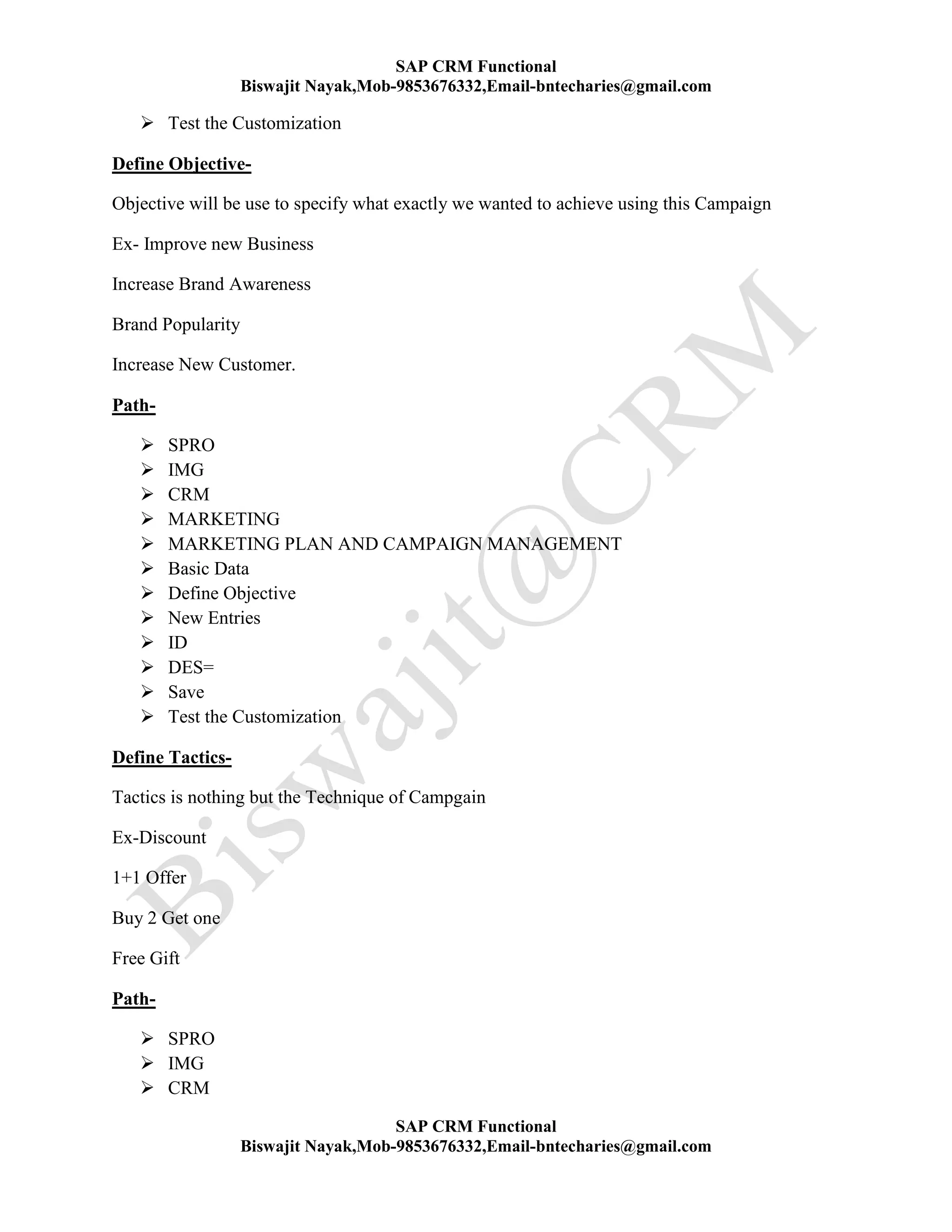
Define Objective-
Objective will be use to specify what exactly we wanted to achieve using this Campaign
Ex- Improve new Business
Increase Brand Awareness
Brand Popularity
Increase New Customer.
Path-
 SPRO
 IMG
 CRM
 MARKETING
 MARKETING PLAN AND CAMPAIGN MANAGEMENT
 Basic Data
 Define Objective
 New Entries
 ID
 DES=
 Save
 Test the Customization
Define Tactics-
Tactics is nothing but the Technique of Campgain
Ex-Discount
1+1 Offer
Buy 2 Get one
Free Gift
Path-
 SPRO
 IMG
 CRM
SAP CRM Functional
Biswajit Nayak,Mob-9853676332,Email-bntecharies@gmail.com
SAP CRM Functional
Biswajit Nayak,Mob-9853676332,Email-bntecharies@gmail.com
 MARKETING
 MARKETING PLAN AND CAMPAIGN MANAGEMENT
 Basic Data
 Define Tactics
 New Entries
 ID
 DES=
 Save
 Test the Customization
Assign Objective &Tactics and Campaign-
 SPRO
 IMG
 CRM
 MARKETING
 MARKETING PLAN AND CAMPAIGN MANAGEMENT
 Basic Data
 Define Type/Objective/Tactics
 Highlight Campagin
 Double Click on Objective
 New Entries
 Assign the above creat Objective
 Highlight Objective
 Double Click Tactics
 New Entries
 Assign the above created Tactics
 Save
 Test the Customization
Define Communication Chanel-
This is use in campaign for made of communication like -e-mail, sms etc........
Path-
 img
 crm
 marketing
 Marketing plan and Campaign Managements
 Campaign Execution
 Define Communication Medium
SAP CRM Functional
Biswajit Nayak,Mob-9853676332,Email-bntecharies@gmail.com
SAP CRM Functional
Biswajit Nayak,Mob-9853676332,Email-bntecharies@gmail.com
 Select E-mail and Click copy as
 Rename the Id =zhpe
 Des=Hp E-mai
 Select Telephone and Click Copy as
 Rename id=ZHPT
 Des=HP Telephone
 save
 Test the customization
Customize sender Address for E-Mail-
Path-
 img
 crm
 marketing
 Marketing plan and Campaign Managements
 Personalize Mail
 Maintain sender address to E-mail
 New Entries
 ID=ZHP
 Des=hppromotionteam@hp.com
 Save
 Test the Customization
Customize Mail Form-
 Log in to web ui under Marketing Role
 Click on Marketing Work Center
 Create-Mail Form
 Id=zhpmf
 Des=HP Mail Form
 Subject=5% Discount on Every Booking
 Language=En
 Usage=Internet Mail(HTML)
 Attribute Context=Z_IDES_MKT
 Go to the Mail Body
 Dear (Click Button Attribute)
System will Display the List of all Business Partner Record Field
Select Person First Name
Click Insert
Enter
SAP CRM Functional
Biswajit Nayak,Mob-9853676332,Email-bntecharies@gmail.com
SAP CRM Functional
Biswajit Nayak,Mob-9853676332,Email-bntecharies@gmail.com
We are Happy to informe you that our company has Lunched (Clicked the Button
Attribute) Select Person Gender
Click insert
Enter
Product . Please Visit your nearest store or please click the following Link(Click the
Button Hyperlink)
Specify Url=WWW.HP.COM
Des=Product Web site
Click insert
save
Click the Button Test and send Preview
Specify Email=abc@gmail.com
Bp=100
Click the Button Preview
Check for the Details
Click the Button Test send
Execute T-Code=SOST For the Details
Test the Customization Create a campaign
BP Segmentation-
The People to whom we are targeting through campaign is called Segmentation. Segmentation is
a Group of Targeted People . Bp segment is one of the important topic in Marketing.
BP Segmentation can be Create in 3 way
1. Create a Segment with already exit Bp
2. While Creating new Bp we will assign the New Segment
3. While Up Loading Mass Bp (Huge) In to Crm system
1. Create a Segment with already exit Bp-
Profile set- Whenever you create any segment all the segment will store one folder . That Folder
is called Profile set.
Profile- Profile is a Characteristic of a segment
Segment- Segment is a Group of BP
Target Group- The segment which you are targeting through this campaign currently will be set
as target group.
SAP CRM Functional
Biswajit Nayak,Mob-9853676332,Email-bntecharies@gmail.com
SAP CRM Functional
Biswajit Nayak,Mob-9853676332,Email-bntecharies@gmail.com
Path-
Web ui(Mkt Pro)-Marketing (wc)-Create-Segment
Profile set=Ford Profile set
Usage=Campgain
Profile- US,NY 0 CAMPAGIN
US,WA 0 CAMPGAIN
US,TX 0 CAMPGAIN
Select US,NY0 CAMPAGIN and Click on Target Group
Automatically the same name name new Target Group will Be Created
Click the Target Group (US,NY)
Go to the Business section and assign
COUNTRY=US
CITY=NY
Search for=Person
search all the BP
Select all the Bp which you want to assign and click on Choose
save
Test the Customization Create Campaigns
2. While Creating new Bp we will assign the New Segment-
Step-1 Create Marketing Attribute
Step-2 Create Attribute set and assign attribute
Step-3 Create Data source and assign Attribute set
Step-4 Create Attribute List and Assign Data source
Step-5 Create BP and Assign the Attribute Set
Step-6 Create Target Group use segment Tool
SAP CRM Functional
Biswajit Nayak,Mob-9853676332,Email-bntecharies@gmail.com
SAP CRM Functional
Biswajit Nayak,Mob-9853676332,Email-bntecharies@gmail.com
Step-1 Create Marketing Attribute (T-Code-CRMD_PROF_CHAR)
 Click Create Attribute icon
 ID=ZINCOME
 Format=Character
 Number of Character =10
 Multiple Value selected
 A=<25000
 B=>25000<50000
 C=>50000
 Save (Only Once)
Step-2 Create Attribute set and assign attribute-T-code-CRMD_PROF_TEMPL
 Click Attribute set Icon
 ID=ZLG ATTRIBUTE SET
 Des=LG Bp attribute set
 Select the Possible BP Categories
 Assign above create attribute
 Save
Step-3 Create Data source and assign Attribute set- T-Code-CRMD_MKTDS
 Click Create Data source
 Segment Object=BP
 Origin Type=Attribute Set
 Attribute set=LG BP Attribute set (Step-2)
Step-4 Create Attribute List and Assign Data source- T-Code-CRMD_MKTDS
 Create Attribute List Icon
 Des=LG BP Attribute List
 Categories=Campaign Execution
 Usage id=Campaign
 Segment Object=BP
 Enter
 Click Assign Data source icon
 Select above create Attribute set
 Continue
 Expand Attribute set (LG Attribute set)
 Select all Attribute
SAP CRM Functional
Biswajit Nayak,Mob-9853676332,Email-bntecharies@gmail.com
SAP CRM Functional
Biswajit Nayak,Mob-9853676332,Email-bntecharies@gmail.com
 save
Step-5 Create BP and Assign the Attribute Set-
Create a Bp and Click the Tab Marketing Attribute
Attribute set=Lg Bp Attribute set
Click the button assign attribute set
Scrold down the attribute section
Double Click Field Attribute Value
Select Requaire Value
Ex->50000
Continue
Save the Bp
Repeat the Process for other Bp
Step-6 Create Target Group use segment Tool- T-code-CRMD_MKTSEG
From the stage area Click the button Create Profile set-Campaign execute -Campaign
Des=LG BP Profile set
Continue
Assign attribute list Create above
LG BP Attribute list
Bydefult Attribute not Display Value (Filter)
To create Filter Right Click Attribute -Choose Create Filter-select all Filter
Continue
To Create Profile Hold the Require Filter in Mouse and Drag and Drop in the stage area
By using this option we can create a Profile
Right Click on Profile-choose Build Target Group
To see the detail of the Target Group-
SAP CRM Functional
Biswajit Nayak,Mob-9853676332,Email-bntecharies@gmail.com
SAP CRM Functional
Biswajit Nayak,Mob-9853676332,Email-bntecharies@gmail.com
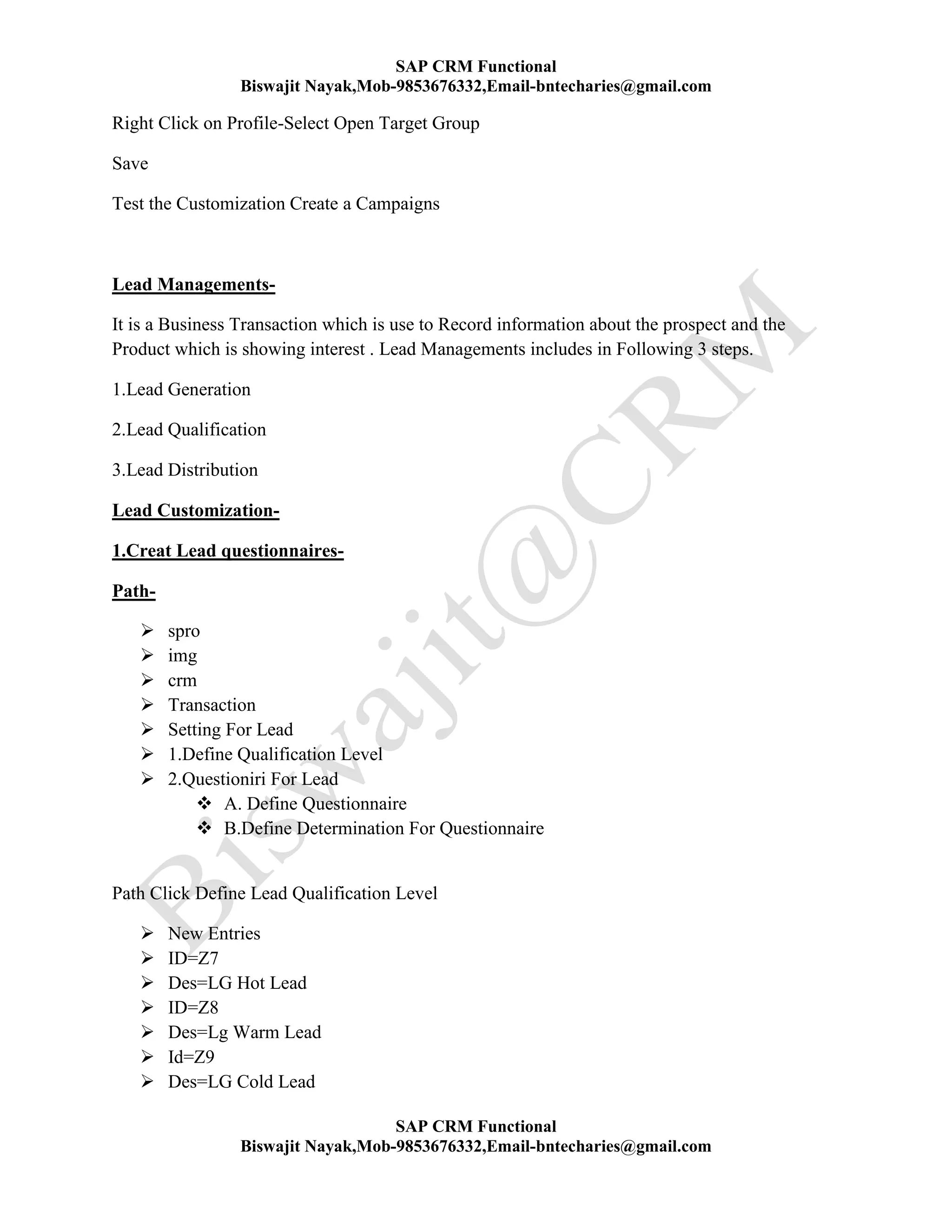
Right Click on Profile-Select Open Target Group
Save
Test the Customization Create a Campaigns
Lead Managements-
It is a Business Transaction which is use to Record information about the prospect and the
Product which is showing interest . Lead Managements includes in Following 3 steps.
1.Lead Generation
2.Lead Qualification
3.Lead Distribution
Lead Customization-
1.Creat Lead questionnaires-
Path-
 spro
 img
 crm
 Transaction
 Setting For Lead
 1.Define Qualification Level
 2.Questioniri For Lead
 A. Define Questionnaire
 B.Define Determination For Questionnaire
Path Click Define Lead Qualification Level
 New Entries
 ID=Z7
 Des=LG Hot Lead
 ID=Z8
 Des=Lg Warm Lead
 Id=Z9
 Des=LG Cold Lead
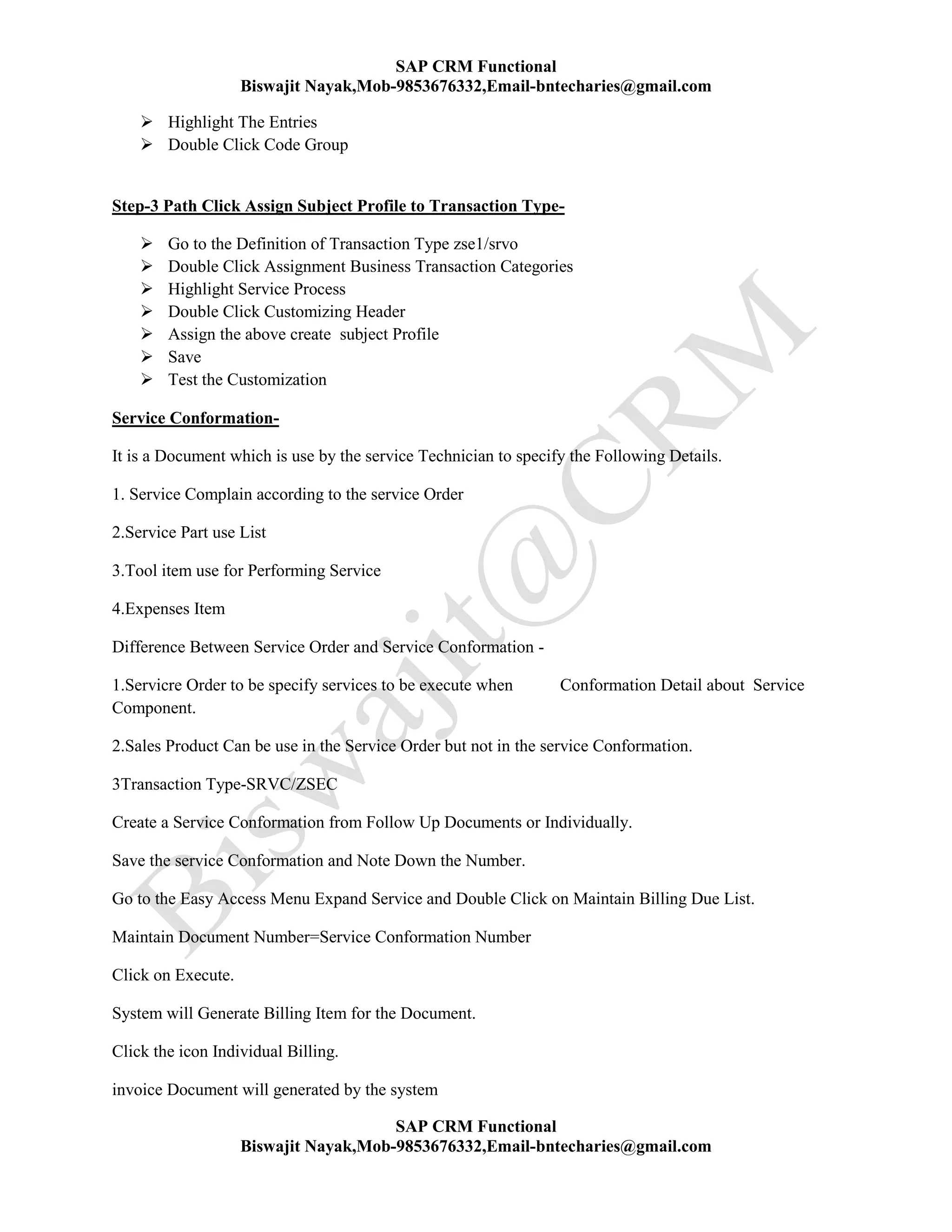
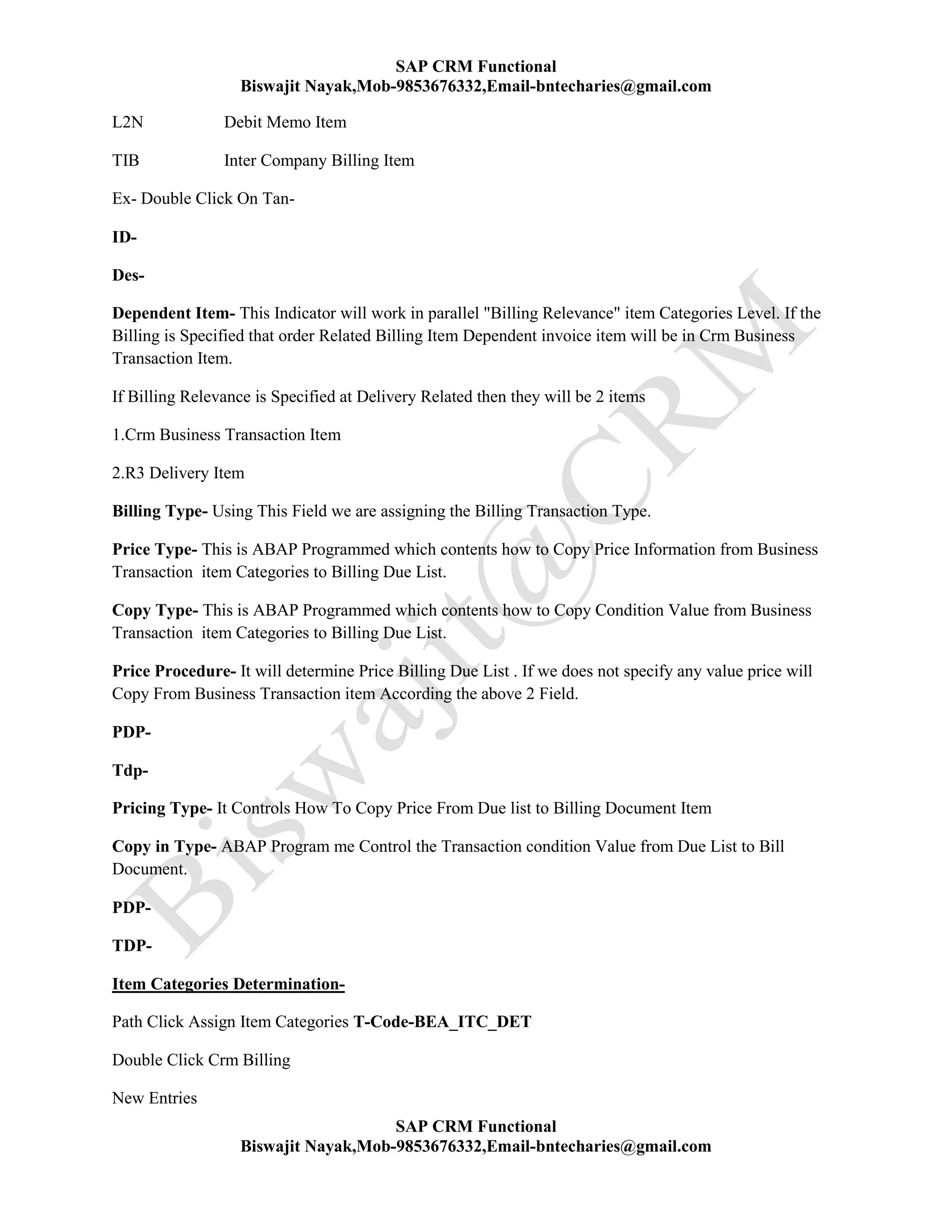
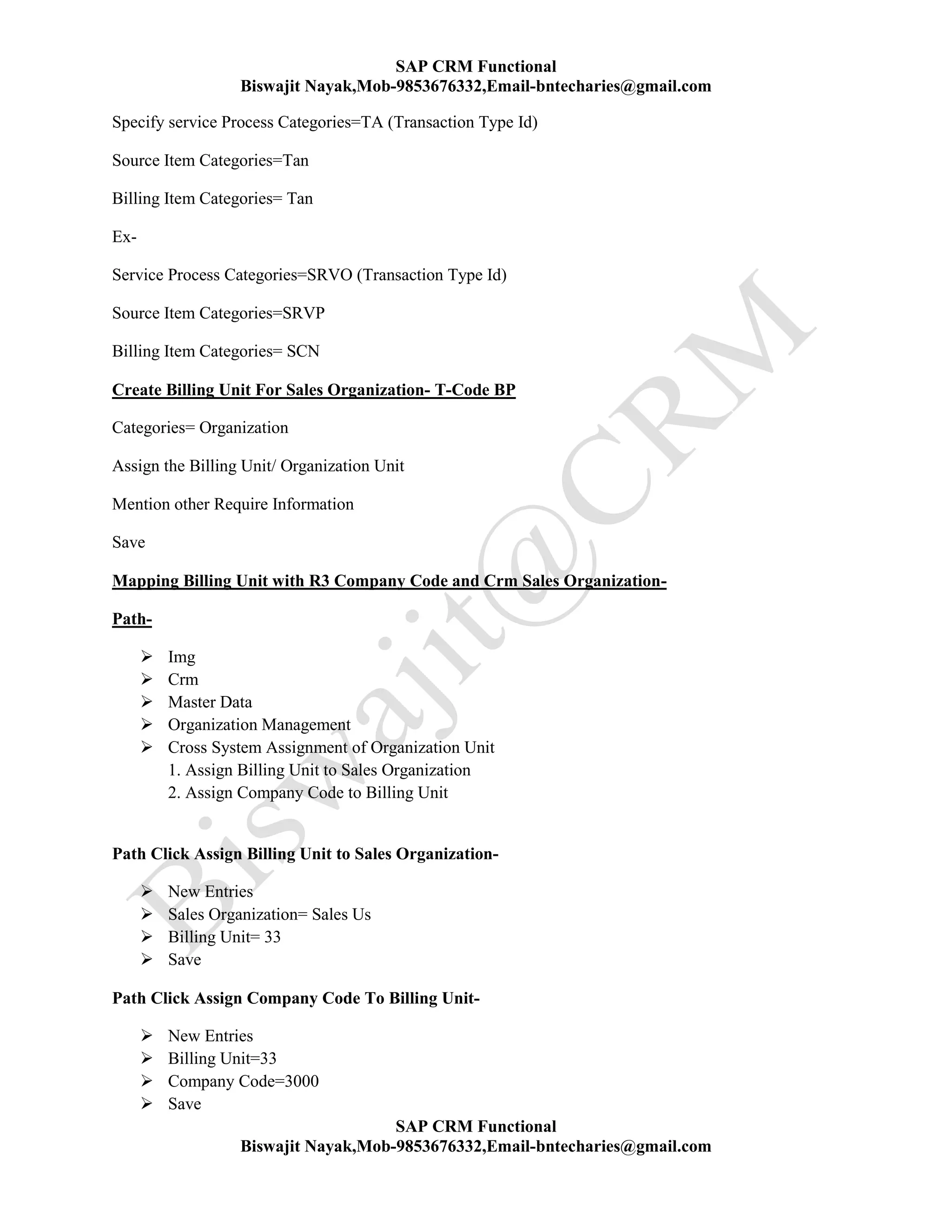
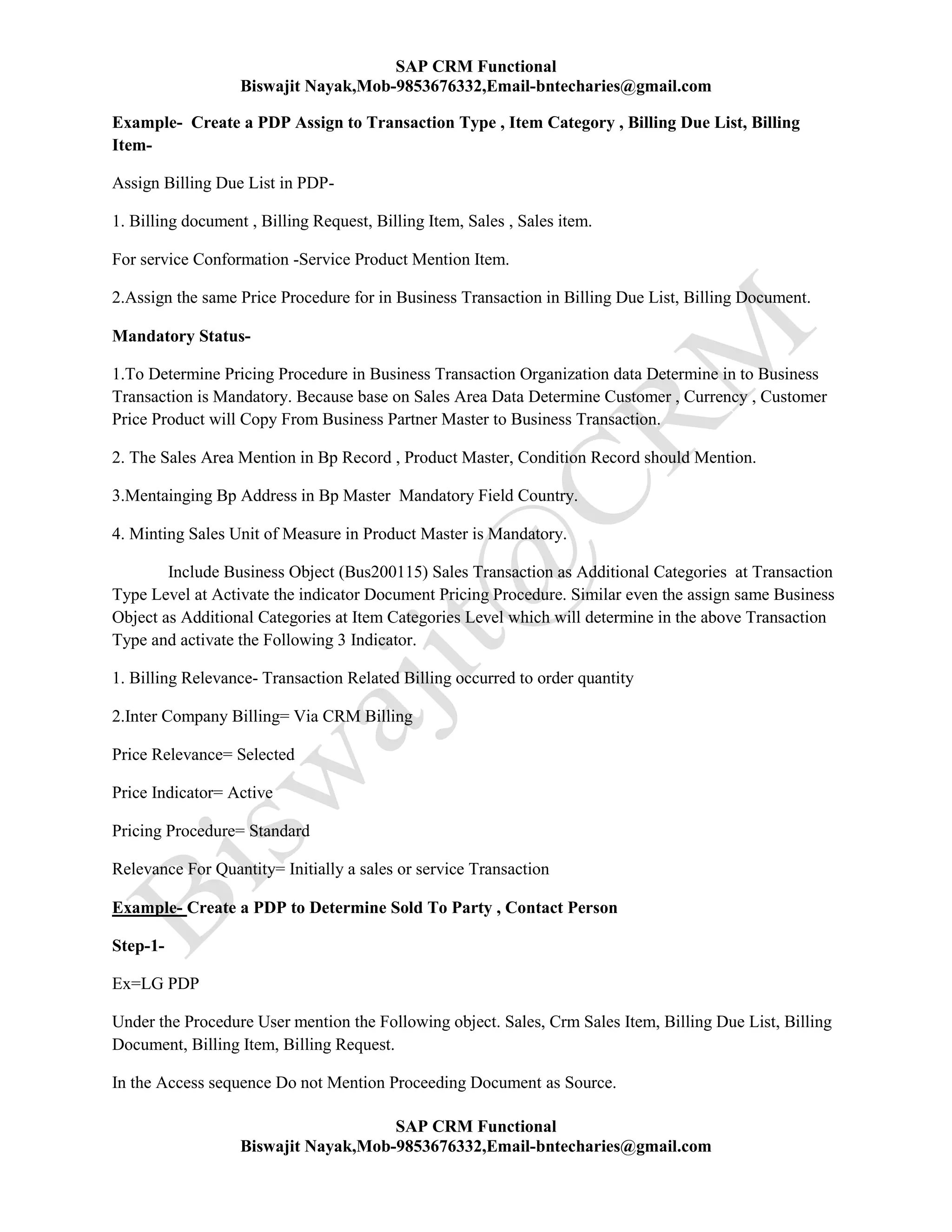
SAP CRM Functional
Biswajit Nayak,Mob-9853676332,Email-bntecharies@gmail.com
SAP CRM Functional
Biswajit Nayak,Mob-9853676332,Email-bntecharies@gmail.com
 save
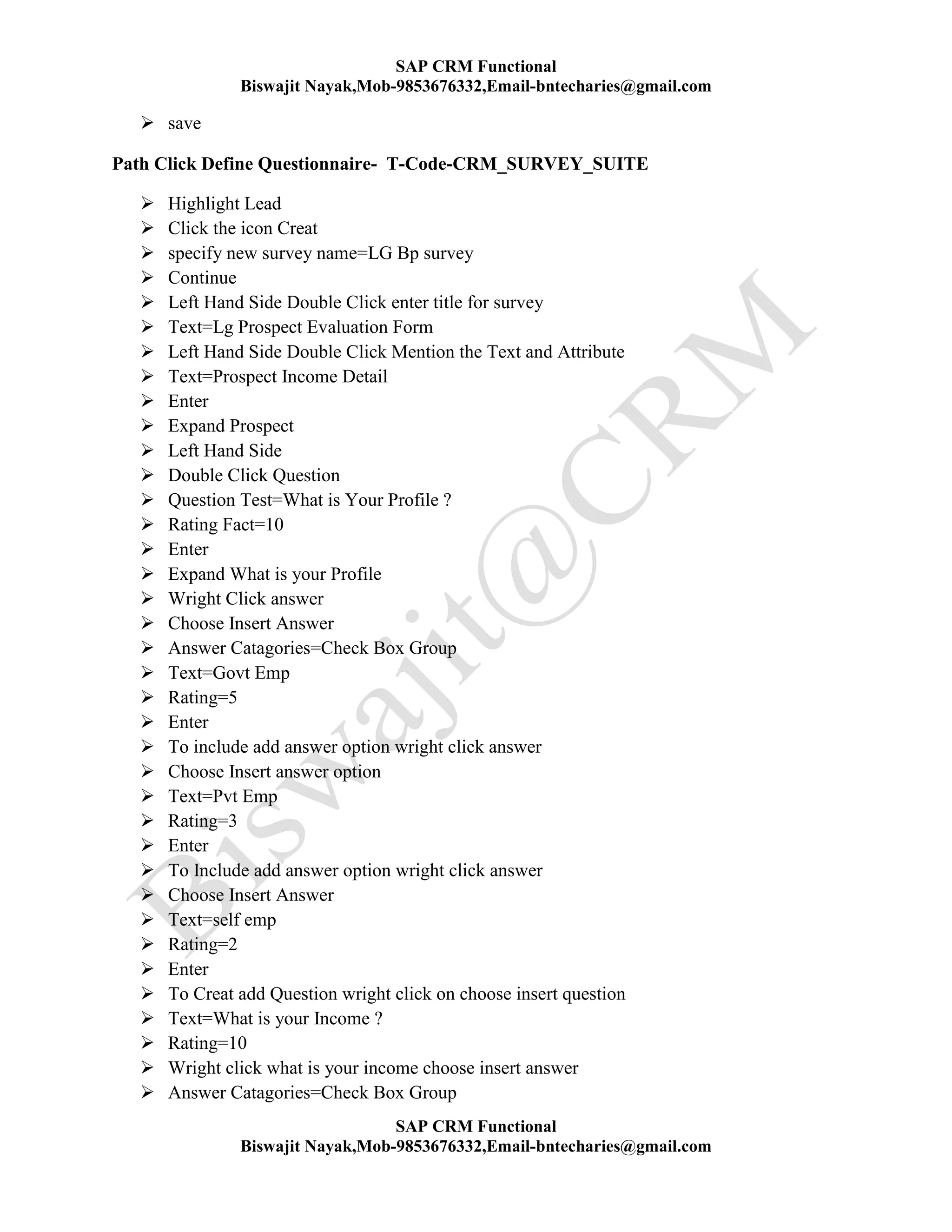
Path Click Define Questionnaire- T-Code-CRM_SURVEY_SUITE
 Highlight Lead
 Click the icon Creat
 specify new survey name=LG Bp survey
 Continue
 Left Hand Side Double Click enter title for survey
 Text=Lg Prospect Evaluation Form
 Left Hand Side Double Click Mention the Text and Attribute
 Text=Prospect Income Detail
 Enter
 Expand Prospect
 Left Hand Side
 Double Click Question
 Question Test=What is Your Profile ?
 Rating Fact=10
 Enter
 Expand What is your Profile
 Wright Click answer
 Choose Insert Answer
 Answer Catagories=Check Box Group
 Text=Govt Emp
 Rating=5
 Enter
 To include add answer option wright click answer
 Choose Insert answer option
 Text=Pvt Emp
 Rating=3
 Enter
 To Include add answer option wright click answer
 Choose Insert Answer
 Text=self emp
 Rating=2
 Enter
 To Creat add Question wright click on choose insert question
 Text=What is your Income ?
 Rating=10
 Wright click what is your income choose insert answer
 Answer Catagories=Check Box Group
SAP CRM Functional
Biswajit Nayak,Mob-9853676332,Email-bntecharies@gmail.com
SAP CRM Functional
Biswajit Nayak,Mob-9853676332,Email-bntecharies@gmail.com
 Text=<25k
 Repeate the Process including other option
 Save
 Des=LG Bp survey Form
 Continue
 Go one step Back
 Highlight the Question
 Click on Active icon
Path Click Define Determination questionnaire
 New Entries
 id=zlgbp
 Transaction type=Lead
 Des=LG Bp survey
 Assign above create question
 Check the indicator activate
 save
Path Assign qualification Level to question
 New Entries
 specify the above creat question=Lg Bp Survey
 enter
 Highlight the Entries
 Double Click qualification Level
 New Entries
 Qualification Level=L Cold Lead
 Minimum Percent=10
 L Warm Lead=25
 L Hot Lead=45
 Enter
 save
 Test the Customization creating Lead
Define Lead origin/Lead Group/Priority-
Path-
 img
 crm
 Transaction
 setting For Lead
SAP CRM Functional
Biswajit Nayak,Mob-9853676332,Email-bntecharies@gmail.com
SAP CRM Functional
Biswajit Nayak,Mob-9853676332,Email-bntecharies@gmail.com

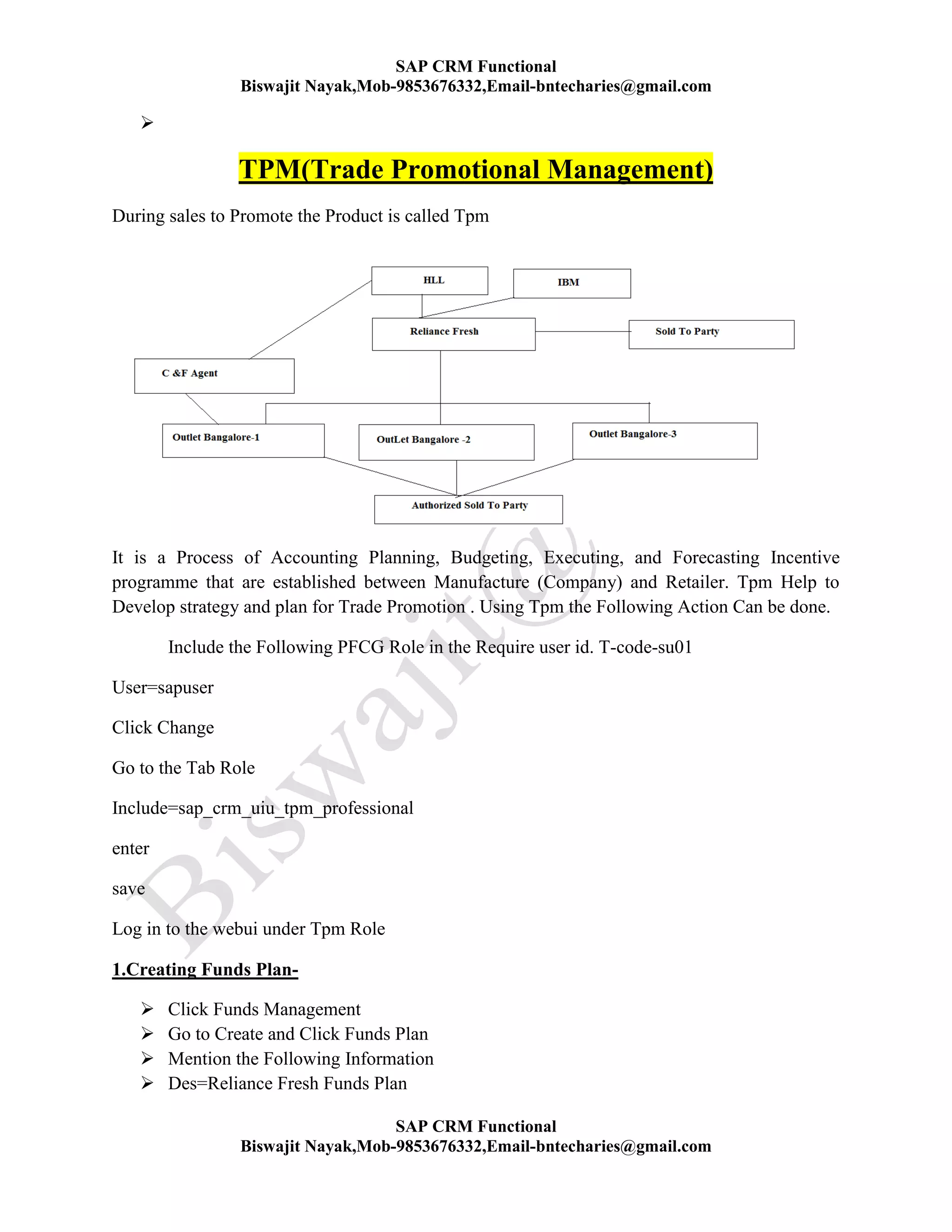
TPM(Trade Promotional Management)
During sales to Promote the Product is called Tpm
It is a Process of Accounting Planning, Budgeting, Executing, and Forecasting Incentive
programme that are established between Manufacture (Company) and Retailer. Tpm Help to
Develop strategy and plan for Trade Promotion . Using Tpm the Following Action Can be done.
Include the Following PFCG Role in the Require user id. T-code-su01
User=sapuser
Click Change
Go to the Tab Role
Include=sap_crm_uiu_tpm_professional
enter
save
Log in to the webui under Tpm Role
1.Creating Funds Plan-
 Click Funds Management
 Go to Create and Click Funds Plan
 Mention the Following Information
 Des=Reliance Fresh Funds Plan
SAP CRM Functional
Biswajit Nayak,Mob-9853676332,Email-bntecharies@gmail.com
SAP CRM Functional
Biswajit Nayak,Mob-9853676332,Email-bntecharies@gmail.com
 Type=Mdf Scnario Fix Value
 Currency=usd
 From Period=Today Date
 To Period=Next Year same Date
 Save Funds Rectify all error
 Set status =Released
 Save
 To Creat Fund
 Go to the assignment Block Funds
 Click New
 Mention the Following Information
 Des=Reliance Fresh Bangalore Outlet fund
 Type=Base
 Account=300027
 Product Categories=Sweets and Snacks
 Rectify all Error set the status =Preliminary
 Save
 Click Edit
 Set status=Release and Save
 Budget has to posted From the Release Funds
Type Of Budget Posting -
1.Budget Update(Transaction Type-BPUE)-It can use Deposit or Withdraw Budget From a
Fund
2.Budget Transfer(Transaction Type-BPTR)- It is the Process of Pre distributing Budget
Between Difference Fund
3.Budget(Transaction Type -BPRN)- This Process allow and expand Budget available again.
4.Budget Expiration(Transaction Type -BPXP)- To Move Budget From available to
expression
5.Budget Extendition(Transaction Type -BPXT)-Extending Budget Including additional
Fund.
For Budget Posting-
 Go to the Assignment Block Budget Posting
 Click New
 Choose Budget Update
 Go to the assignment Block Line Item and Specify Currency=Usd, Amount=20000
SAP CRM Functional
Biswajit Nayak,Mob-9853676332,Email-bntecharies@gmail.com
SAP CRM Functional
Biswajit Nayak,Mob-9853676332,Email-bntecharies@gmail.com
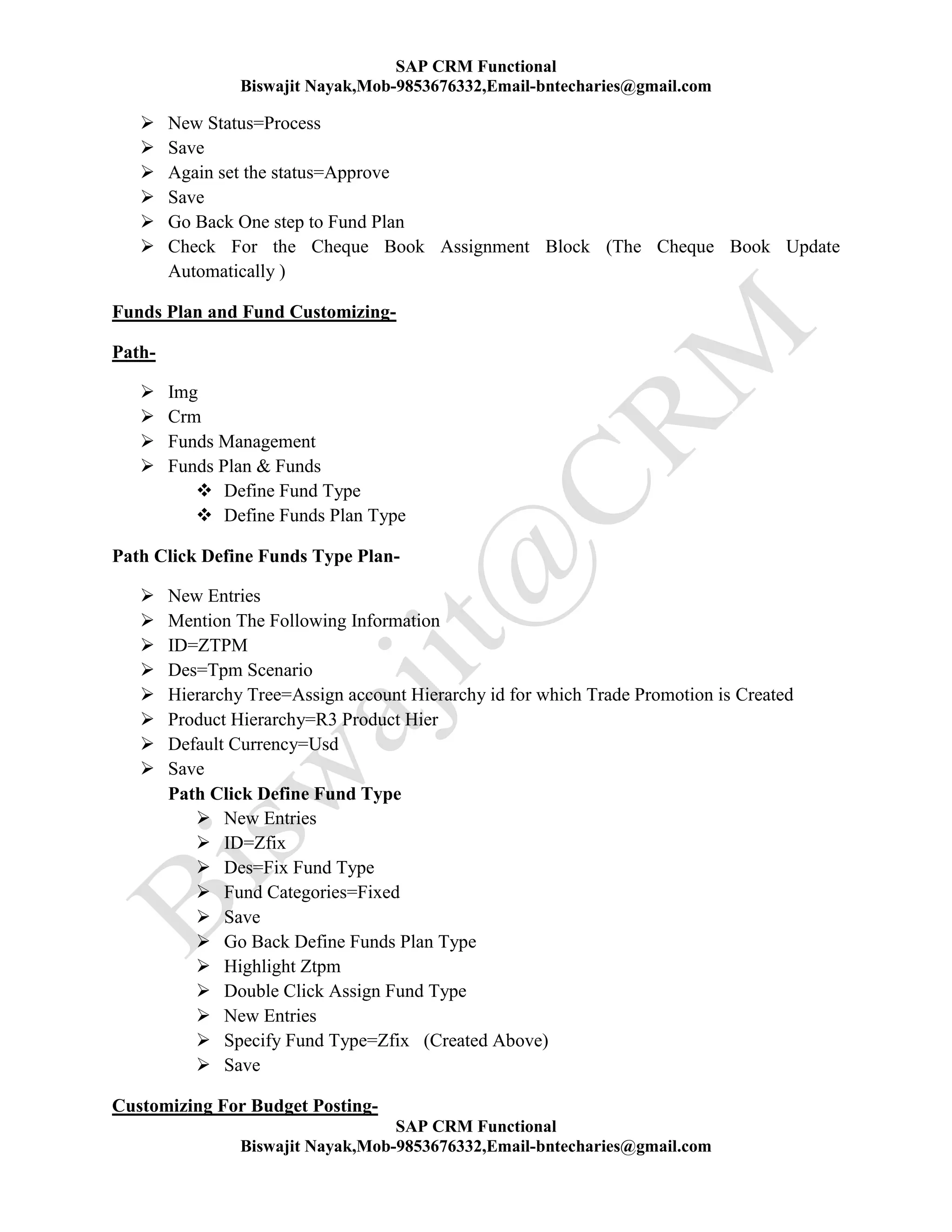
 New Status=Process
 Save
 Again set the status=Approve
 Save
 Go Back One step to Fund Plan
 Check For the Cheque Book Assignment Block (The Cheque Book Update
Automatically )
Funds Plan and Fund Customizing-
Path-
 Img
 Crm
 Funds Management
 Funds Plan & Funds
 Define Fund Type
 Define Funds Plan Type
Path Click Define Funds Type Plan-
 New Entries
 Mention The Following Information
 ID=ZTPM
 Des=Tpm Scenario
 Hierarchy Tree=Assign account Hierarchy id for which Trade Promotion is Created
 Product Hierarchy=R3 Product Hier
 Default Currency=Usd
 Save
Path Click Define Fund Type
 New Entries
 ID=Zfix
 Des=Fix Fund Type
 Fund Categories=Fixed
 Save
 Go Back Define Funds Plan Type
 Highlight Ztpm
 Double Click Assign Fund Type
 New Entries
 Specify Fund Type=Zfix (Created Above)
 Save
Customizing For Budget Posting-
SAP CRM Functional
Biswajit Nayak,Mob-9853676332,Email-bntecharies@gmail.com
SAP CRM Functional
Biswajit Nayak,Mob-9853676332,Email-bntecharies@gmail.com
Path-
 Img
 Crm
 Funds Managements
 Budget Posting
1.Define Number Range For Budget Posing
2.Assignment Funds Managements Avc Profile
Path Click .Assignment Funds Managements Avc Profile
Check For the Following Entries
Transaction Type-BPUE
Avc Profile-0100
Define Avc Profile-
Path-
 Img
 Crm
 Funds Management
 Availability Control
1.Define Availability Check Rule
2.Define Availability Control Tolerance Profile
3.Define AVC Profile
Path Click Define Availability Check Rule
New Entries
id=Budget
Pre check=Classification of Rule
Des=Check Rule For Budget
Highlight the Entries
Double Key Consumable Key Figure.
New Entries
Specifies Value=Budget, Expensed
save
SAP CRM Functional
Biswajit Nayak,Mob-9853676332,Email-bntecharies@gmail.com
SAP CRM Functional
Biswajit Nayak,Mob-9853676332,Email-bntecharies@gmail.com
Path click Define Availability Control Tolerance Profile
New Entries
ID=zstd
Des=warn if not avliable
Currency=usd
Highlight Entries
Double Click Message Type
New Entries
Specify Message Type=Warn
Highlight Entries
Double Click Tolerance Limit
Percentage=90
Save
Path Click Define AVC Profile
id =
Des=
Level=Fund
Assign Avc Check Role and Avc Tolerance Profile (above Created)
Save
Account Planning-
This Functionality Brand Promote to Meet Account Objective
Process-
1. Plan over sales Target & Budget (Bo System)
2.Crm system Received sales Target
3.Plan sales Figure & Promote by Account in Crm
SAP CRM Functional
Biswajit Nayak,Mob-9853676332,Email-bntecharies@gmail.com
SAP CRM Functional
Biswajit Nayak,Mob-9853676332,Email-bntecharies@gmail.com
4.Bi system Received Plan Data
5.CRM System Assignment Price Condition
6.R3 System Received Price Condition
Account Hierarchy-
This allow to Map Complex Organization Structure Of BP
Ex-Check of Retail Outlet
Creating Account Hierarchy-
 Log in to Tpm in web ui
 Click Master Data
 Click Create Account Hierarchy
 Select Hierarchy Crm
 Mention The Following Data
 id=zrg
 Des=Reliance Group of Company
 Highlight the Node
 Click the Button New Node
 Id-Zrf
 Des=Reliance Group Of Companies
 Highlight the Node
 Click the Button New Node
 ID=ZRF
 Des=Reliance Fresh Organization
 Highlight Reliance Fresh Organization
 Click New Node
 Id=zbr
 Des=Reliance Fresh Bangalore
 Click New Node
 id=zynk
 Des=Reliance Fresh Yelhanka
 Again Highlight Reliance Fresh Bangalore
 Click New Node
 Id=zrk
 Des=Reliance Fresh Koramangala
 Highlight Reliance Fresh Bangalore
 Go to the Assignment Block Account id=300027
 Enter
SAP CRM Functional
Biswajit Nayak,Mob-9853676332,Email-bntecharies@gmail.com
SAP CRM Functional
Biswajit Nayak,Mob-9853676332,Email-bntecharies@gmail.com
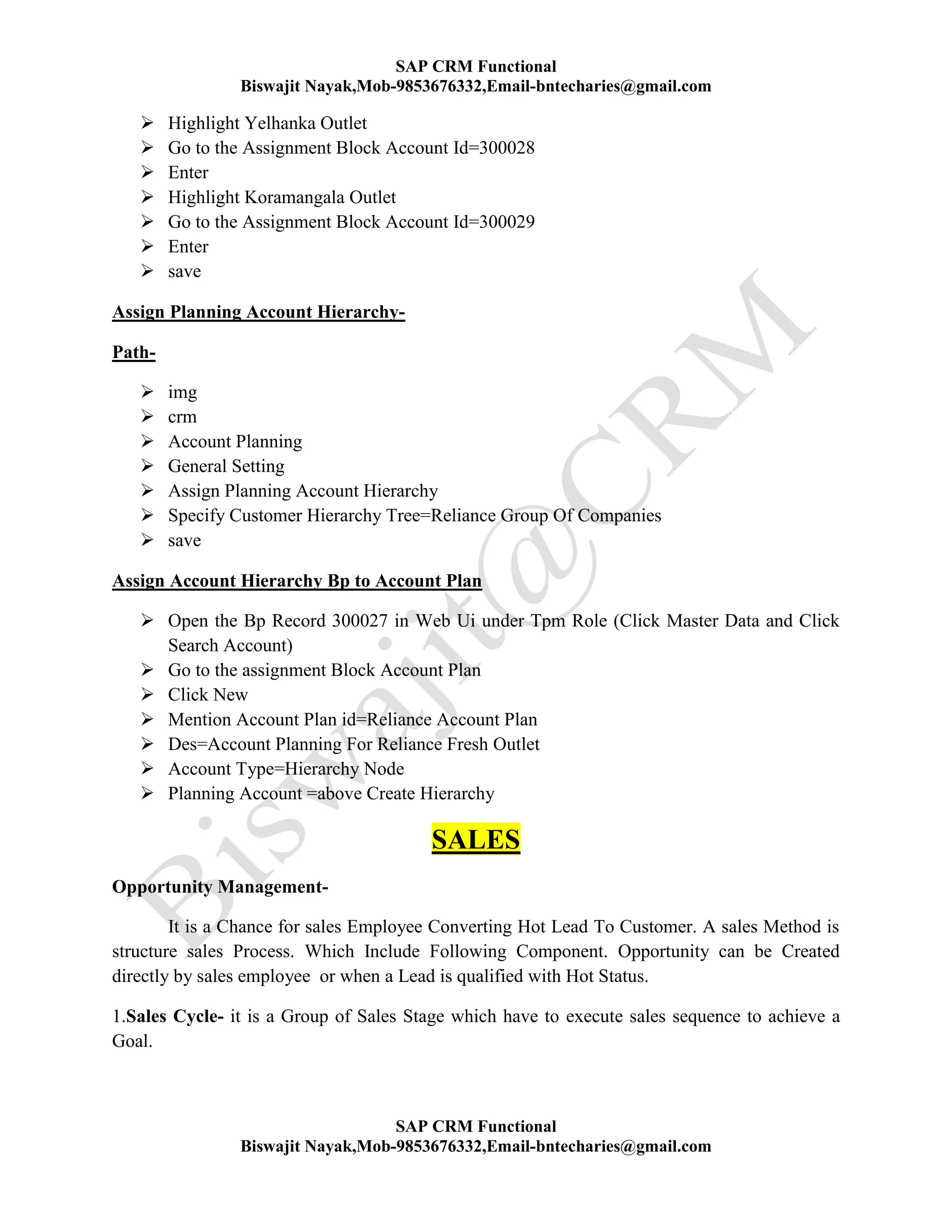
 Highlight Yelhanka Outlet
 Go to the Assignment Block Account Id=300028
 Enter
 Highlight Koramangala Outlet
 Go to the Assignment Block Account Id=300029
 Enter
 save
Assign Planning Account Hierarchy-
Path-
 img
 crm
 Account Planning
 General Setting
 Assign Planning Account Hierarchy
 Specify Customer Hierarchy Tree=Reliance Group Of Companies
 save
Assign Account Hierarchy Bp to Account Plan
 Open the Bp Record 300027 in Web Ui under Tpm Role (Click Master Data and Click
Search Account)
 Go to the assignment Block Account Plan
 Click New
 Mention Account Plan id=Reliance Account Plan
 Des=Account Planning For Reliance Fresh Outlet
 Account Type=Hierarchy Node
 Planning Account =above Create Hierarchy
SALES
Opportunity Management-
It is a Chance for sales Employee Converting Hot Lead To Customer. A sales Method is
structure sales Process. Which Include Following Component. Opportunity can be Created
directly by sales employee or when a Lead is qualified with Hot Status.
1.Sales Cycle- it is a Group of Sales Stage which have to execute sales sequence to achieve a
Goal.
SAP CRM Functional
Biswajit Nayak,Mob-9853676332,Email-bntecharies@gmail.com
SAP CRM Functional
Biswajit Nayak,Mob-9853676332,Email-bntecharies@gmail.com
2.Buying Center-We Can Record information about the people in Buying Process along with
the attribute.
3.Compitation Analysis-it allow to mention information of competition product.
(strength/weakness)
4.Oppertunity Assessment- A predefine question which can be help full for the sales
Representative for taking a "to go/Do not Go" Decision.
5. Sales Assistance-it is like a sales Diary which allow to Record plan and complete activity.
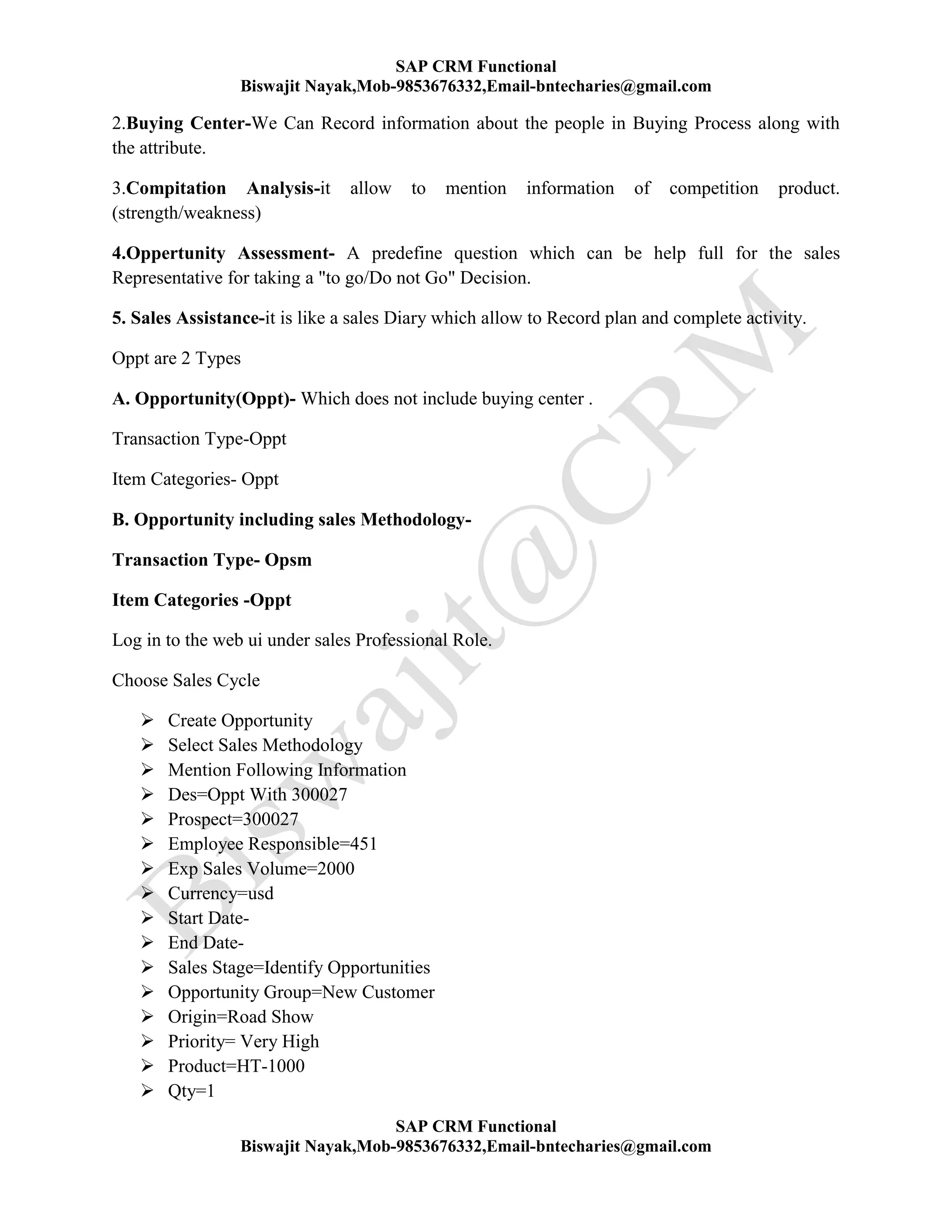
Oppt are 2 Types
A. Opportunity(Oppt)- Which does not include buying center .
Transaction Type-Oppt
Item Categories- Oppt
B. Opportunity including sales Methodology-
Transaction Type- Opsm
Item Categories -Oppt
Log in to the web ui under sales Professional Role.
Choose Sales Cycle
 Create Opportunity
 Select Sales Methodology
 Mention Following Information
 Des=Oppt With 300027
 Prospect=300027
 Employee Responsible=451
 Exp Sales Volume=2000
 Currency=usd
 Start Date-
 End Date-
 Sales Stage=Identify Opportunities
 Opportunity Group=New Customer
 Origin=Road Show
 Priority= Very High
 Product=HT-1000
 Qty=1
SAP CRM Functional
Biswajit Nayak,Mob-9853676332,Email-bntecharies@gmail.com
SAP CRM Functional
Biswajit Nayak,Mob-9853676332,Email-bntecharies@gmail.com
 Mention Buying Center Information-
 Go to the assignment Block Contact
 Click New
 Mention The Require Contact Person Bp Id
 Ex-400294
 Enter
 Mention the Require Attribute of that contact Person. To Add additional information
click new
 Repeat The Process
 Back
 Go to the Assignment Block Contact Relationship
 Click New
 Specify Contact Person 1=
 Relationship Type= is a Friend of
 Contact 2 = Decisions Maker
 Click New
 Repeat the Process other People add above
 Click Back
 Maintaining Computation Information-
 Go to the assignment Block Contact
 Click New
 Id=572
 Enter
 Mention strength/weakness
 Click New
 Repeat the Process including ad Competition
 Back
 Maintaining Opportunity Assessment-
 Go to the assessment Block Assessment
 Click Exit Question
 Mention the Require Answer.
 Save
 Back
 Sales Assesment-
 From Tool Bar Choose More-Sales Assistance
 activity are inter related with sales stage.
 Highlight Activity Gather information customer
 Click Activity
 Click Back
 Go to the Plan Activity Assignment Block channel for the information
SAP CRM Functional
Biswajit Nayak,Mob-9853676332,Email-bntecharies@gmail.com
SAP CRM Functional
Biswajit Nayak,Mob-9853676332,Email-bntecharies@gmail.com
 Save
 Go to the assignment Block Action
 Check for action Definition Executed
 "Gather information on customer"
 When employee Responsibility log in he can see this task on home page after complete
 "Task to be complete"
 Save
 Immediate the activity disappear from the plan activity assignment Block on appear in a
Completed Activity List.
Define Sales Cycle and Sales Stage-
Path-
 Img
 crm
 Transaction
 Setting For Opportunities
 Define sales Cycle and sales stage
 1.Define Sales Cycle
 2.Define Sales Stage
 3. Assign Sales Cycle to Sales Stage
Step-1 Path Click Define Sales Cycle
 New Entries
 ID=zm
 Des=Axix Sales Cycle
 Save
Step-2
Path Click Define Sales Stage-
 New Entries
 Id=z5
 Des=Axis Appointment
 Id=z6
 Des=Axis Document Collected
 Id=z7
 Des=Axis Document Submitted
 Id=z8
 Des=Axis Document Verification
 Id=z9
 Des=Axis Decision
SAP CRM Functional
Biswajit Nayak,Mob-9853676332,Email-bntecharies@gmail.com
SAP CRM Functional
Biswajit Nayak,Mob-9853676332,Email-bntecharies@gmail.com
 Save
 Step-3
 Path Click Assign sales Cycle to Sales Stage
 New Entries
 ZM-Z5,Z6,Z7,Z8,Z9
 Seq=10,20,30,40,50,60
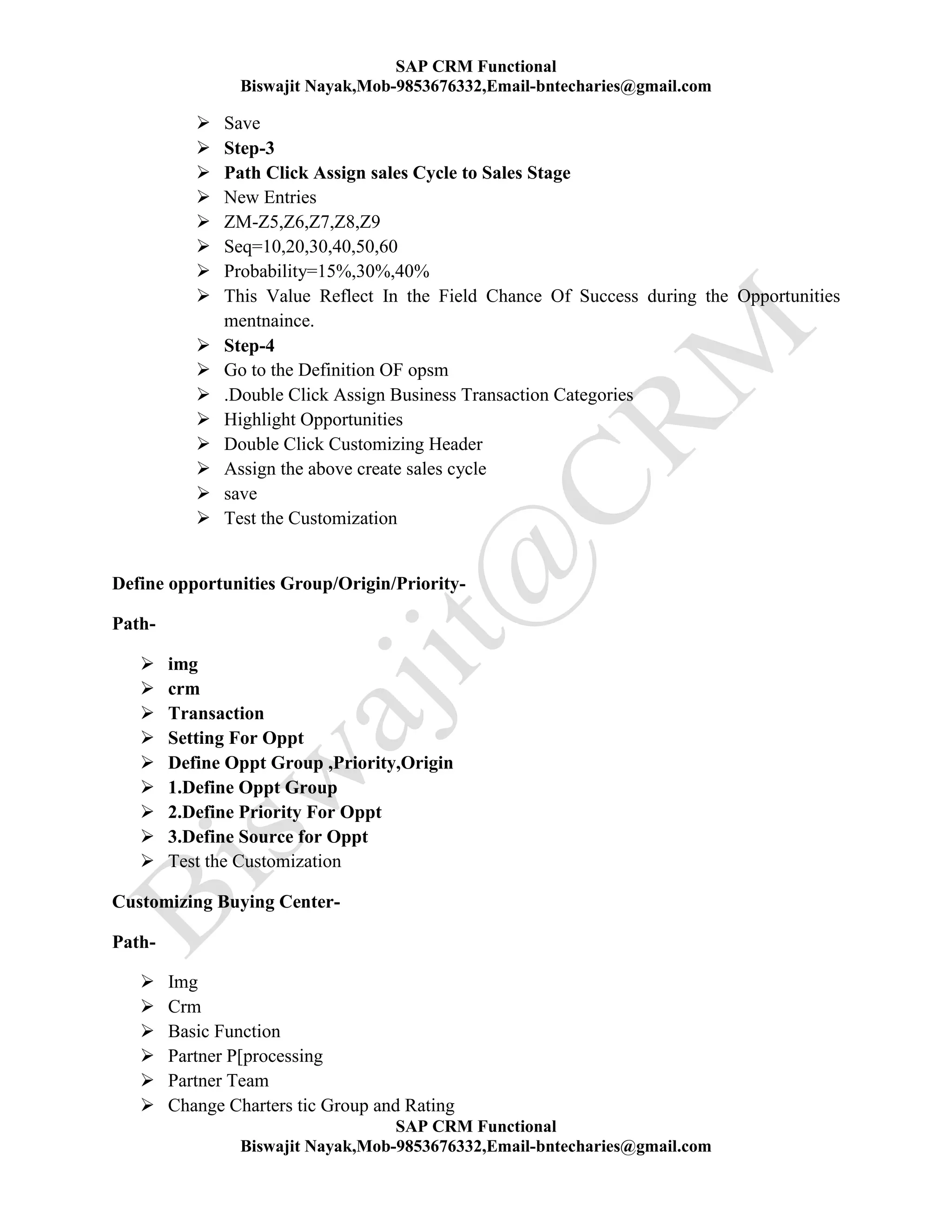
 Probability=15%,30%,40%
 This Value Reflect In the Field Chance Of Success during the Opportunities
mentnaince.
 Step-4
 Go to the Definition OF opsm
 .Double Click Assign Business Transaction Categories
 Highlight Opportunities
 Double Click Customizing Header
 Assign the above create sales cycle
 save
 Test the Customization
Define opportunities Group/Origin/Priority-
Path-
 img
 crm
 Transaction
 Setting For Oppt
 Define Oppt Group ,Priority,Origin
 1.Define Oppt Group
 2.Define Priority For Oppt
 3.Define Source for Oppt
 Test the Customization
Customizing Buying Center-
Path-
 Img
 Crm
 Basic Function
 Partner P[processing
 Partner Team
 Change Charters tic Group and Rating
SAP CRM Functional
Biswajit Nayak,Mob-9853676332,Email-bntecharies@gmail.com
SAP CRM Functional
Biswajit Nayak,Mob-9853676332,Email-bntecharies@gmail.com
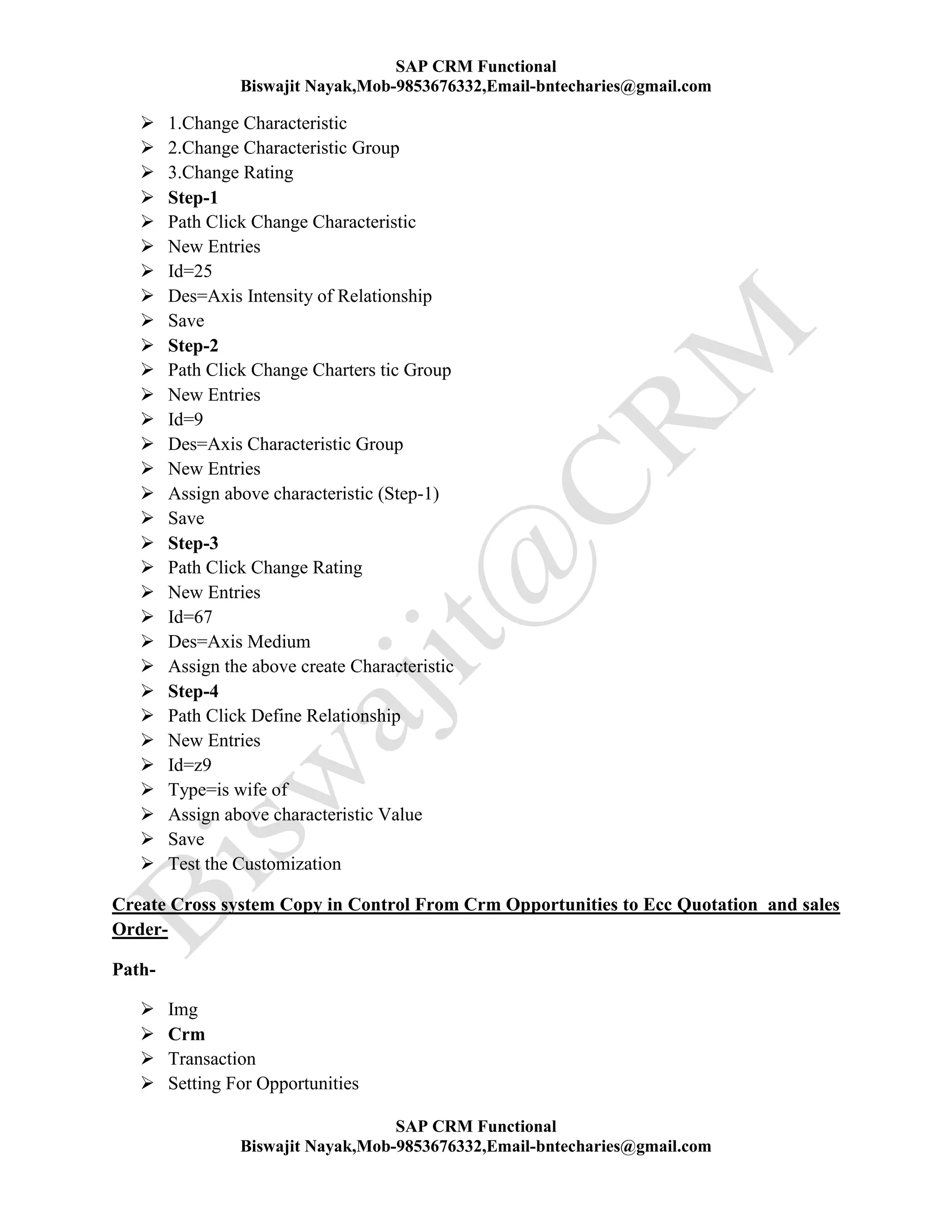
 1.Change Characteristic
 2.Change Characteristic Group
 3.Change Rating
 Step-1
 Path Click Change Characteristic
 New Entries
 Id=25
 Des=Axis Intensity of Relationship
 Save
 Step-2
 Path Click Change Charters tic Group
 New Entries
 Id=9
 Des=Axis Characteristic Group
 New Entries
 Assign above characteristic (Step-1)
 Save
 Step-3
 Path Click Change Rating
 New Entries
 Id=67
 Des=Axis Medium
 Assign the above create Characteristic
 Step-4
 Path Click Define Relationship
 New Entries
 Id=z9
 Type=is wife of
 Assign above characteristic Value
 Save
 Test the Customization
Create Cross system Copy in Control From Crm Opportunities to Ecc Quotation and sales
Order-
Path-
 Img
 Crm
 Transaction
 Setting For Opportunities
SAP CRM Functional
Biswajit Nayak,Mob-9853676332,Email-bntecharies@gmail.com
SAP CRM Functional
Biswajit Nayak,Mob-9853676332,Email-bntecharies@gmail.com
 Cross system Copy Control Opportunities
 1. Cross System Copying of Transaction Type
 2. Cross System Copying og item Categories
 Path Click Cross System Copying of Transaction Type
 New Entries
 Transaction Type-Opsm
 Sales Document-qt
 Save
 Path Click Cross System Copying og item Categories
 New Entries
 Source Categories- Oppt
 Sales Document=qt
 Item Categories= Agn
Cross system Copying Control can be established Between Crm Opportunities and R3
Systems.
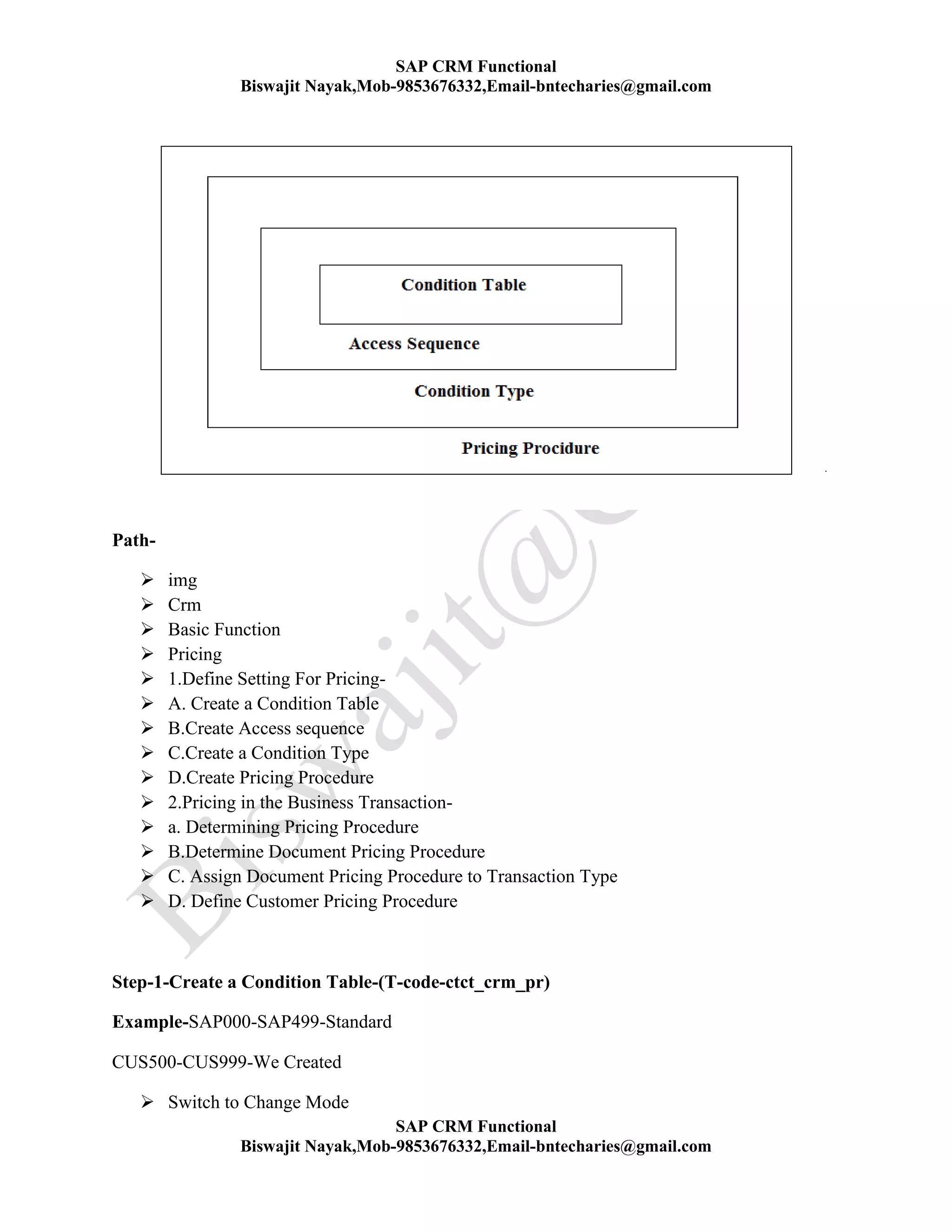
Pricing Procedure-
Step-1-Create a Condition Table
Step-2-Create Access sequence
Step-3-Create a Condition Type
Step-4-Create Pricing Procedure
Step-5-Determining Pricing Procedure
Step-6 Create Condition Mentaiance Group
Step-7-Mentainign Group Context Mentaiance (Gmc)
SAP CRM Functional
Biswajit Nayak,Mob-9853676332,Email-bntecharies@gmail.com
SAP CRM Functional
Biswajit Nayak,Mob-9853676332,Email-bntecharies@gmail.com
Path-
 img
 Crm
 Basic Function
 Pricing
 1.Define Setting For Pricing-
 A. Create a Condition Table
 B.Create Access sequence
 C.Create a Condition Type
 D.Create Pricing Procedure
 2.Pricing in the Business Transaction-
 a. Determining Pricing Procedure
 B.Determine Document Pricing Procedure
 C. Assign Document Pricing Procedure to Transaction Type
 D. Define Customer Pricing Procedure
Step-1-Create a Condition Table-(T-code-ctct_crm_pr)
Example-SAP000-SAP499-Standard
CUS500-CUS999-We Created
 Switch to Change Mode
SAP CRM Functional
Biswajit Nayak,Mob-9853676332,Email-bntecharies@gmail.com
SAP CRM Functional
Biswajit Nayak,Mob-9853676332,Email-bntecharies@gmail.com
 New Entries
 Specify Condition Table=Cus510
 Description=LG Sales Product Generic Table
 From the select Field Section
 Highlight sales org
 Click the Button Move to Right
 Repeate the process include another field Product
 Save the Table as Local Object
 Check the Button activate Condition Table
 Check the Indicator active
 Create a Customer specfic Discount Table-
 Table-Cus511
 Des=LG Customer specfic Discount Table
 Include the Following Field
Sales Org
Sold To Party
Product
Save
Step-2-Create Access sequence-(T-code-Access_seq_crm_pr)
System will Display the List of all Access Sequence (Download From R3/ Data Create in Crm)
Note-Id will be Preferred by alphabetic .if it belong to R3 system .If the id is Numerical digit
then it created in Crm System.
Switch to Change Mode
 New Entries
 Id=Zlg7
 Des=LG Service Product Price Access Sequence
 Enter
 Highlight the Access Sequence
 Double Click on Access
 New Entries
 Access=10
 Table=Cus510 (Step-1)
 Exclusion Condition- Selected
By select this option once the valid Condition is Identified system will go to out of
Sequence in the Process Next Access Sequence.
SAP CRM Functional
Biswajit Nayak,Mob-9853676332,Email-bntecharies@gmail.com
SAP CRM Functional
Biswajit Nayak,Mob-9853676332,Email-bntecharies@gmail.com
Requirement any Special Require to be Fulfill before Pricing the Valid Condition
Record. BADI(Business ADD iNN) ABAP Code Can be Mention
 Enter
 Highlight the Entries
 Double Click Field
 To Generate database Technique
 Save
 Rep[eate the Process Create Access Seq zlg8.
Step-3 Defining Condition Type- (T-code-Prc_Condtype_crm)
Condition Type will Process Condition Record.
Crm Price Condition Description R3 Price Condition
0PR0 Product Price PR00
0K04 Product Discount K004
0K07 Customer Specific Discount K007
0K05 Customer Specific Material Discount K005
0KF0 Freight Charge Calculation KF00
0NRA Calculated Free Goods Price NARB
0RB0 Absolute Discount RB00
OTTE(Single) Tax Calculation UT01 TO UT06
Functionality of Condition-
 Go to the Definition of PR00
 Application=CRM
 Usage=PR
 Condition Type-
 ID=
 Des=
 Access Seq= We have to Assign the Access sequence Created above.
 Data Record Source-
 it specifies the Pricing Method is been used for Calculating Prices
 Condition Class-
SAP CRM Functional
Biswajit Nayak,Mob-9853676332,Email-bntecharies@gmail.com
SAP CRM Functional
Biswajit Nayak,Mob-9853676332,Email-bntecharies@gmail.com
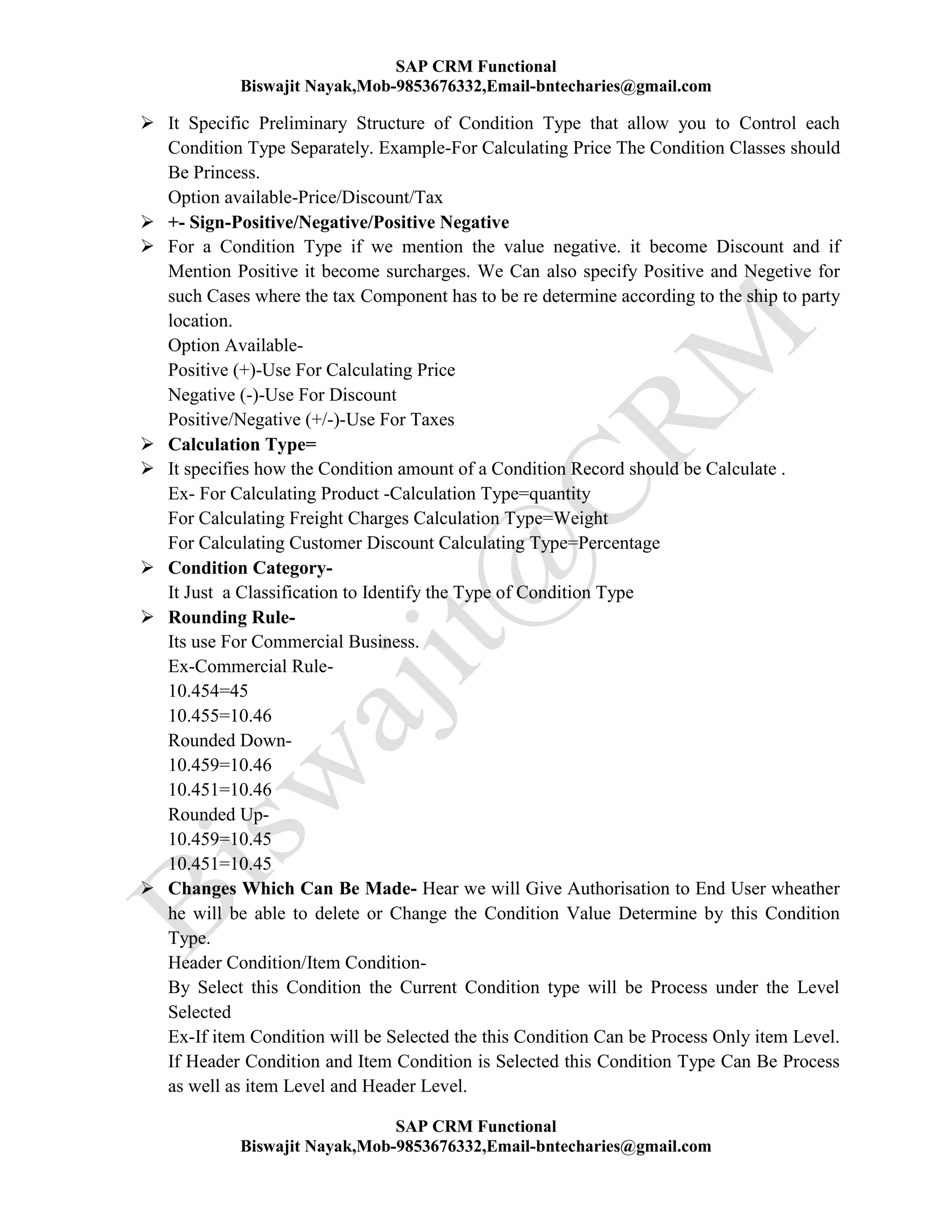
 It Specific Preliminary Structure of Condition Type that allow you to Control each
Condition Type Separately. Example-For Calculating Price The Condition Classes should
Be Princess.
Option available-Price/Discount/Tax
 +- Sign-Positive/Negative/Positive Negative
 For a Condition Type if we mention the value negative. it become Discount and if
Mention Positive it become surcharges. We Can also specify Positive and Negetive for
such Cases where the tax Component has to be re determine according to the ship to party
location.
Option Available-
Positive (+)-Use For Calculating Price
Negative (-)-Use For Discount
Positive/Negative (+/-)-Use For Taxes
 Calculation Type=
 It specifies how the Condition amount of a Condition Record should be Calculate .
Ex- For Calculating Product -Calculation Type=quantity
For Calculating Freight Charges Calculation Type=Weight
For Calculating Customer Discount Calculating Type=Percentage
 Condition Category-
It Just a Classification to Identify the Type of Condition Type
 Rounding Rule-
Its use For Commercial Business.
Ex-Commercial Rule-
10.454=45
10.455=10.46
Rounded Down-
10.459=10.46
10.451=10.46
Rounded Up-
10.459=10.45
10.451=10.45
 Changes Which Can Be Made- Hear we will Give Authorisation to End User wheather
he will be able to delete or Change the Condition Value Determine by this Condition
Type.
Header Condition/Item Condition-
By Select this Condition the Current Condition type will be Process under the Level
Selected
Ex-If item Condition will be Selected the this Condition Can be Process Only item Level.
If Header Condition and Item Condition is Selected this Condition Type Can Be Process
as well as item Level and Header Level.
SAP CRM Functional
Biswajit Nayak,Mob-9853676332,Email-bntecharies@gmail.com
SAP CRM Functional
Biswajit Nayak,Mob-9853676332,Email-bntecharies@gmail.com
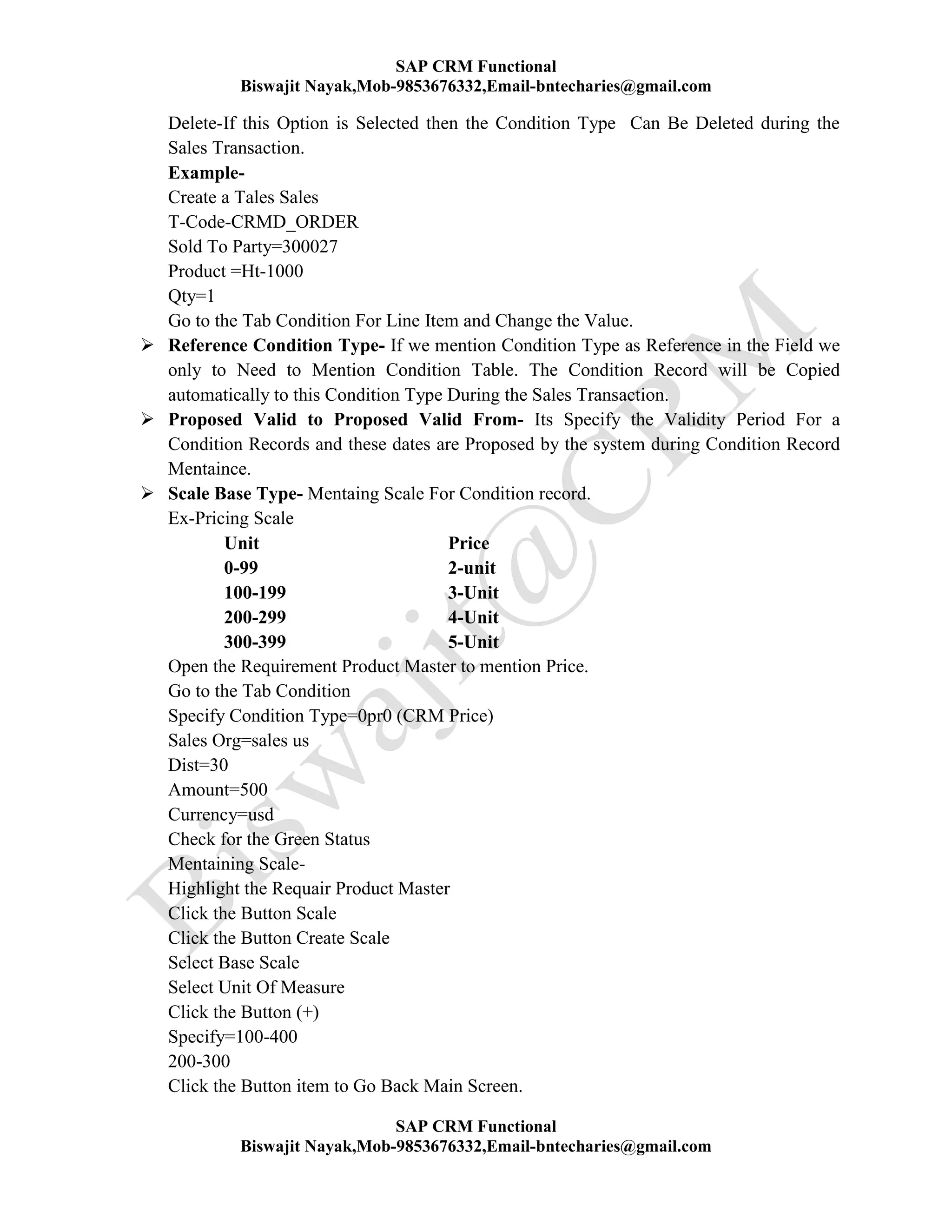
Delete-If this Option is Selected then the Condition Type Can Be Deleted during the
Sales Transaction.
Example-
Create a Tales Sales
T-Code-CRMD_ORDER
Sold To Party=300027
Product =Ht-1000
Qty=1
Go to the Tab Condition For Line Item and Change the Value.
 Reference Condition Type- If we mention Condition Type as Reference in the Field we
only to Need to Mention Condition Table. The Condition Record will be Copied
automatically to this Condition Type During the Sales Transaction.
 Proposed Valid to Proposed Valid From- Its Specify the Validity Period For a
Condition Records and these dates are Proposed by the system during Condition Record
Mentaince.
 Scale Base Type- Mentaing Scale For Condition record.
Ex-Pricing Scale
Unit Price
0-99 2-unit
100-199 3-Unit
200-299 4-Unit
300-399 5-Unit
Open the Requirement Product Master to mention Price.
Go to the Tab Condition
Specify Condition Type=0pr0 (CRM Price)
Sales Org=sales us
Dist=30
Amount=500
Currency=usd
Check for the Green Status
Mentaining Scale-
Highlight the Requair Product Master
Click the Button Scale
Click the Button Create Scale
Select Base Scale
Select Unit Of Measure
Click the Button (+)
Specify=100-400
200-300
Click the Button item to Go Back Main Screen.
SAP CRM Functional
Biswajit Nayak,Mob-9853676332,Email-bntecharies@gmail.com
SAP CRM Functional
Biswajit Nayak,Mob-9853676332,Email-bntecharies@gmail.com
 Currency Conversion- By select this option Bp Currency Will Counted
according the Condition record Ceremony then it will copy in Business
Transaction. Else Bp Currency is copy in to Business Transaction First.
 Accruals- If this Indicator is Selected the Result of Condition type will be
Consider as Rebate Accruals.
 Holiday-By selecting this option any Holiday Mention in System
 Inter Company Billing Condition Type-By Selecting This Option the Condition
Type can be Process for internal organization which fall in the same Company
Code.
Create Condition Type-
 Highlight the Condition Type-0pr0
 Click Copy as
 Rename id=zlgp=Lg Price
 Access seq=Assign above created
 save
 Create another Condition Type-
 Highlight the Condition Type 0k05
 Click Copy as
 Rename id=ZLGD=LG Material Discount
 Access seq=assign above created
 Save
Step-4-Create Pricing Procedure- (T-Code-PRC_PRICPROC_CRM)
Functionality Of Pricing Procedure-
The Sequence which Condition Type will be Place.Play Very Important role in the
Calculate in Net Value and a Final Amount for a Business Transaction. The Following
Sequence should be use.
Gross Price-Discount=Net Value+Sur Charges=Final Amount
 Level of Counter- This Option Like Serial Number For the Condition Type
 Usage-Its Specify the way which is Condition type will be Process
 Condition Type-Assign Condition Type Create above.
 Pricing Procedure-Condition Type Description
 From/to-This Field indicator From which Field Number to Which Field Number
subtotal should be calculated.
 Manual Condition- System Can determine Condition Type Automatically or
user can do Manually during Business Transaction Processing. If This Option is
Not selected the Condition Type will process by the system automatically else it
has to enter manually.
 Mandatory-If this option is selected then it will become mandatory to Process the
Condition Type.
SAP CRM Functional
Biswajit Nayak,Mob-9853676332,Email-bntecharies@gmail.com
SAP CRM Functional
Biswajit Nayak,Mob-9853676332,Email-bntecharies@gmail.com
 Statically-If this option is selected the Condition Value is not Conceder for
Statically.
 Subtotal- We have to specify data table in to which the condition value for
Condition type should be Given.
 Calculation/Base/Condition Formula-A Single condition Type we can mention
maximum up to 3 different user exit.
 Print-An ABAP Code Conform which data should Print under Condition Tab.
 Mandatory-if a Condition type the Indicator mandatory is Delete how the system
should react on Error Message or Warning Message.
New Entries
Id=zlgpp
Des=LG Pricing Procedure
Enter
Highlight Pricing Procedure
Double Click Control Data
New Entries
Level=10
Count=0(Blank)
Usage=Pr(Pricing)
CTYPE= Assign above Create Condition Type
Level=20
From=10-19
Level=30
Usage=pr
Level=40
From=30-39
save
Formula-
Gross Price
(-)Discount
....................................
Net Value
(+) Surcharges
...............................
Net Value without Tax
(+) Tax
...................................
Final Amount
SAP CRM Functional
Biswajit Nayak,Mob-9853676332,Email-bntecharies@gmail.com
SAP CRM Functional
Biswajit Nayak,Mob-9853676332,Email-bntecharies@gmail.com
Step-5-Determining Pricing Procedure
Its Depend upon the Following 5 Components.
Formula-
Sales Organization +Division + Distribution +Doc Price Procedure +Customer Pricing
Procedure=Determination Pricing Procedure.
To know which Pricing Procedure Determine with Business Transaction in the above create
Tale Sales at the Header Level-
Go to the Tab Price
Check the Field Pricing Procedure.
Step-6 Create Condition Mentaince Group-
Path-
 Img
 Crm
 Master Data
 Condition and Condition Technic Basic
1.Creat Mentaince Group
2.Define Mentaince Group For Context
From Path Click Create Mentaince Group
 New Entries
 Id=zlgpg
 Des=LG Price Group
 Enter
 Highlight The Entries
 Double Click Condition Mentaince Group
 New Entries
 Counter=10
 Application=crm
 Usage=PR
 Condition Table=(Assign step-1 )
 Condition Type=(Assign Step-3)
 Des=LG Pricing Procedure
SAP CRM Functional
Biswajit Nayak,Mob-9853676332,Email-bntecharies@gmail.com
SAP CRM Functional
Biswajit Nayak,Mob-9853676332,Email-bntecharies@gmail.com
 Go Back One Step
 Create one New
 New Entries
 Id=zlgdg
 Des=LG Discount Group
 Highlight Group
 Double Click Condition Mentaince Group
 New Entries
 Counter=10
 Application=Crm
 Usage=Pr
 Condition Table=(Assign Step-1)
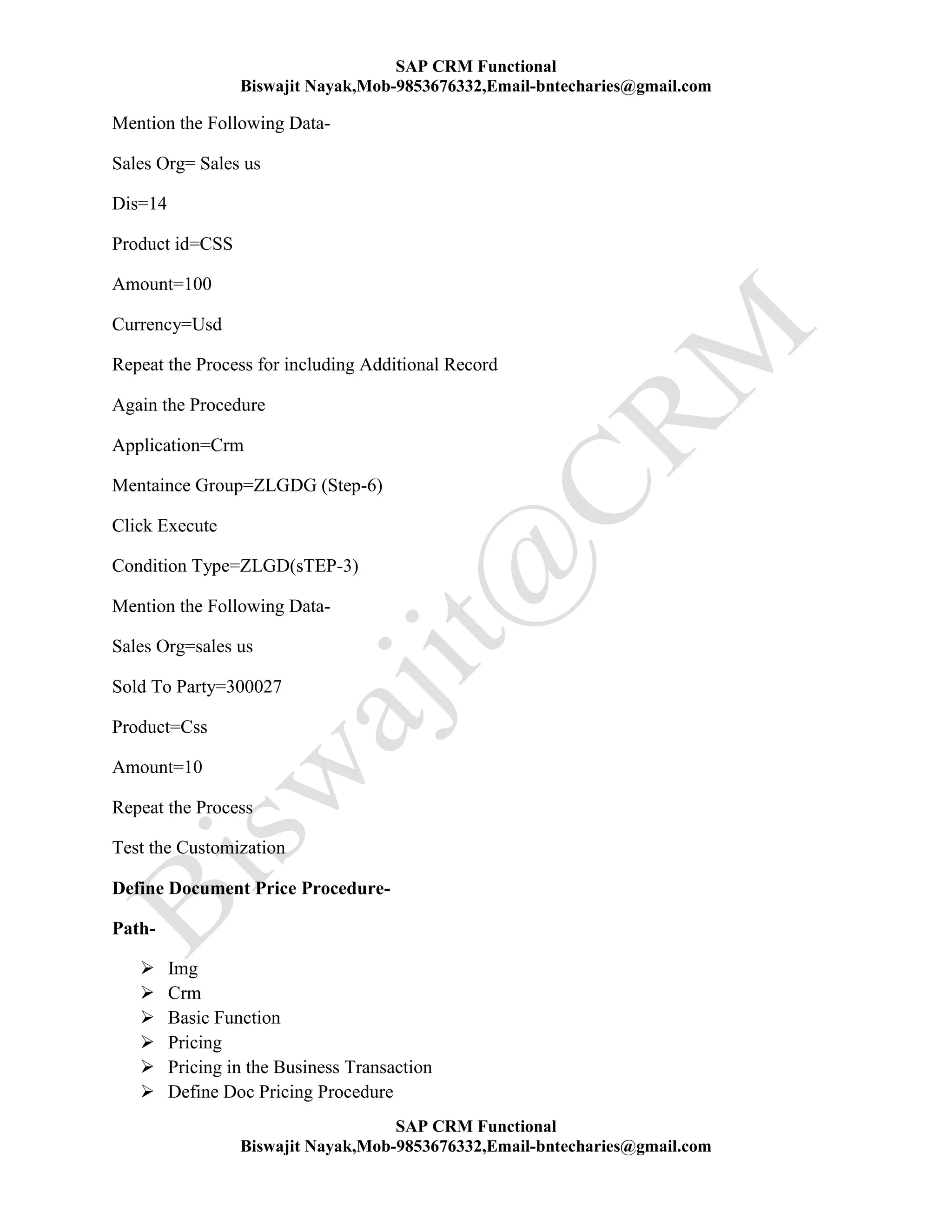
 Condition Type=(Assign Step-3)
 Save
Step-7 Mantling Group Context Maintaince
Path-
 Img
 Crm
 Master Data
 Condition and Condition Technic
 Condition Technic Basis
 Define Mentaince Group For Context
 Specify Work Area=GCM
 Continue
 New Entries
 Assign the above Create Group (Step-6)
 Save
Create Condition Record-
Path-
Easy Access Menu-Master Data-Double Click Mention Condition
Application=Crm
Mentaince Group=ZLGPG
Click Execute
Specify Condition Type=zlgp(Created in Step-5)
SAP CRM Functional
Biswajit Nayak,Mob-9853676332,Email-bntecharies@gmail.com
SAP CRM Functional
Biswajit Nayak,Mob-9853676332,Email-bntecharies@gmail.com
Mention the Following Data-
Sales Org= Sales us
Dis=14
Product id=CSS
Amount=100
Currency=Usd
Repeat the Process for including Additional Record
Again the Procedure
Application=Crm
Mentaince Group=ZLGDG (Step-6)
Click Execute
Condition Type=ZLGD(sTEP-3)
Mention the Following Data-
Sales Org=sales us
Sold To Party=300027
Product=Css
Amount=10
Repeat the Process
Test the Customization
Define Document Price Procedure-
Path-
 Img
 Crm
 Basic Function
 Pricing
 Pricing in the Business Transaction
 Define Doc Pricing Procedure
SAP CRM Functional
Biswajit Nayak,Mob-9853676332,Email-bntecharies@gmail.com
SAP CRM Functional
Biswajit Nayak,Mob-9853676332,Email-bntecharies@gmail.com
 New Entries
 Doc Price Procedure=#
 Des=Lg Pricing Procedure
 enter
 Save
 Click Continue
 Assign the Doc Pricing Procedure to the Req Transaction Type Under Additional
Category sales we are Maintaining Doc Pricing Procedure
 Save
 Test the Customization
Defining Customer Pricing Procedure-
Path-
 Img
 Crm
 Basic Function
 Pricing
 Pricing in the Business Transaction
 Defining Customer Pricing Procedure
 New Entries
 Customer Pricing Procedure=x
 Des=LG Cust Pricing Procedure
 Enter
 Save and Click continue to Customizing Request
 Assign the Customer Pricing Procedure in BP Under Sales Area Data and the Under the
Billing Tab.
 Save and Test the Customization.
Service
SAP CRM Functional
Biswajit Nayak,Mob-9853676332,Email-bntecharies@gmail.com
SAP CRM Functional
Biswajit Nayak,Mob-9853676332,Email-bntecharies@gmail.com
Product Type-
1.Service Product For Contract
2.Service Plan Product
Service Product For Contract-
This Product Define the Scope Of Service to be Produced only such Product enter in
service Contract.
T-Code-Commpr01
Click the Button service
Ex-Ser_0001-Service Product With Resource
Ser_0002-Service Product For Contract
Category=ser_0002
Enter
ID=CSS
Des=Compute Scope Of Services
Go to the service Tab
Item Catagori Group=SVCP(Service Control Product)
Service Profile=24*7
Response Profile=God
Base Unit Of Measure=AU(Actual Unit)
Interval Template=Blank
Go to the Sales & Distribution Tab
Assign
Specify Sales Org=Sales us, Division=14
Sales Unit=AU
Item Cat Group=Svcp
SAP CRM Functional
Biswajit Nayak,Mob-9853676332,Email-bntecharies@gmail.com
SAP CRM Functional
Biswajit Nayak,Mob-9853676332,Email-bntecharies@gmail.com
Save
Define Service Level Agreements(SLA){Service Profile/Response Profile}-
Path- (T-Code-crmd_serv_sla)
 Eam
 Service
 Mention Availability Response Time
 Go to the Change Mode
 New Entries
 ID=ZKSP
 Des=Karnatak service Profile
 Select the all indicator Catalog/Priority/Code Subject/Code Group
 Note-----------------
 Path-
 img
 Crm
 Transaction
 setting For Complaint
 Setting For Subject
 Define Code Group Profile
 New Entries
 ID=Z9
 Des=Karnatak Product Damage
 Catalog Catagories=Overview Of Damage
 Specify the Type of Problems
 Keyward=KPD
 Enter
 Save
 Highlight The Catalog
 Double Click on Code Group (Its specify Product Type)
 New Entries
 Id=z1
 Des=Karnatak University Laptop
 Status=Released
 Enter
 Save
 Highlight The Code Group
 Double Click On Code (Its specify Reason For The Problems)
 New Entries
SAP CRM Functional
Biswajit Nayak,Mob-9853676332,Email-bntecharies@gmail.com
SAP CRM Functional
Biswajit Nayak,Mob-9853676332,Email-bntecharies@gmail.com
 Id=z1
 Des=Karnatak University Laptop Due to High Voltage
 Defect Class=Critical Defect
 Specify the Level Of Issue
 Enter
 Save
 Note Complete
 Double Click Indicator For Response Time
 New Entries
 Categories=Visit
 Specify Immediate Response From Service Technician
 Priority=Very High
 Catalog- Karnatak Product Damage
 Code Group=Karnatak University Laptop
 Code=Karnatak University Laptop Due To High Voltage
 Enter
 Highlight The Entries
 Double Click on Response Time
 New Entries
 Name Of Duration= Duration Vital First Relevant 1,2
 Save
 Open the above Created Product
 Assign the created service profile and Response Profile
Create Service Plan Product-
T-Code-Commpr01
 Click the Button Service
 Cat=Ser_0002
 Id=Cps
 Des-Computer Plan Service
 Go to the Tab Service
 Item Cat Group=Spla
 Base Unit Of Measure=Au
 Interval Template=Ides_Ht_1
 Go to the Sales &Distribution Tab
 Assign Sales Organization
 Sales unit=Au
 Minimum quantity=1
 item Category=spla
SAP CRM Functional
Biswajit Nayak,Mob-9853676332,Email-bntecharies@gmail.com
SAP CRM Functional
Biswajit Nayak,Mob-9853676332,Email-bntecharies@gmail.com
 save
Define Interval Template-
Path- T-Code(crmd_serv_cycle)
 Service
 Mention service Interval Templates
 Switch to Change Mode
 New Entries
 Id=Zkit
 Des=Karnatak Interval Template
 Service Plan Type=Time Base
 Schedule Type=Cyclical
 Enter
 Highlight the Template
 Double Click Service Interval Template
 New Entries
 Item NO-1
 Inter Value=10
 Time Unit-Days
 Transaction TTemp-200410
 Save
 Open the service Plan Product and Assign the Interval Templates
Create a warranty Products
T-Code-Commpr01
 Click the Button Warranty
 Specify Catagories=WTYCAT002
 Enter
 ID=CWP
 Des=Computer warranty Product
 Type=specify Classification of warranty
1.Vendor warranty
2. Customer warranty
 Type=Customer warranty
 Warranty Basis=Time Dependent
 A/C indication-This Field Control how to past warranty claim value to the cons
General/Ledger Account
 A/c Indicator=Warranty
SAP CRM Functional
Biswajit Nayak,Mob-9853676332,Email-bntecharies@gmail.com
SAP CRM Functional
Biswajit Nayak,Mob-9853676332,Email-bntecharies@gmail.com
 Date Profile=It Control Date Calculation for warranty periods(Date Profile
warranty Processing)
 Warranty Period=2 Year
 Start Date=warranty start
 Start Date Rule=Purchase Date Object
 End Date Type=Warranty end
 End Date Rule=warranty start +waRRANTY PERIOD
 ENTER
 Save
 Assign the warranty Product to ibase or Material
I Base-(install Base)-
IBASE & Objects-
i base & Objects are CRM Specfic Master Data. where we will capture all the information about the
Products to Customer which is Requair for service Process.
SAP ECC SAP CRM
Equipments IBASE
Objects
Equipments Creation Process in ECC-
As soon as Delivery and Billing is completed for a Crm sales order (which is replicated from CRM To
ECC) then every line item of sales order will get created as Equipments in ECC.
When they created Equipments they will updates Following information for the Products.
1. Spare Parts which are Going to cover under service
2. They will updated all the warranty information
3. All serialized Information
4. Sales Area and Partner Information
Equipments will get replicated to crm as objects. when equipments is replicated ibase is created
automatically by system. equipments will get replicated by mw.
CRM Process-
IBASE Managements in sap crm enables the representations of objects installed customer side .For every
customer a unique ibase will created .
OBJECTS-
SAP CRM Functional
Biswajit Nayak,Mob-9853676332,Email-bntecharies@gmail.com
SAP CRM Functional
Biswajit Nayak,Mob-9853676332,Email-bntecharies@gmail.com
Objects is a unique instance of a Products..Objects which can be use to represents globally unique
tangible or intangible objects that a Company sale or service for .
Example-
]Hyundai company will manufacture Lakhs of I20 Cars in a Years . In this case I20 is the Products in Crm
.when any car is sold to customer it will be created as Equipments in Ecc and They also capture lot of
information Like Engine No, Chassis No, Body no, Registration No along with warranty information
Components-.
When Ever if any ibase is created we will assign tangible or intangibe products.(such as Pc is A Tangible
and OS is a Intangible )
IBASE-
I base created manually in crm (if standalone) or can be replicated from ecc .
i base haveing 2 levels Data.
1. Header
2. Components
Install Base Header Details/Components Details-
In the Header Level we will mention lot of details like name, address, BP, Service Contracts, Warranty
etc.
In the Components Level we will mentions Products information such as Tangible, Intangible & Objects
warranty information of components .
Creat i Base- (GUI/WEB UI)
Creat-IB51
EDIT-IB52
DISPLAY-IB53
Catagory=01
Enter
Ext id-OSMU
Des=osmania i base
enter
Click the icon address
SAP CRM Functional
Biswajit Nayak,Mob-9853676332,Email-bntecharies@gmail.com
SAP CRM Functional
Biswajit Nayak,Mob-9853676332,Email-bntecharies@gmail.com
Service Contract-
Service Contract represents on out line agreements with customers that define content scope of service
under a specific condition for a particular periods. service contract nothing but AMC (Annula Mentaince
Contract).
When a customer wants service that time he contract with any service provider company in this
moments he create a contract between customer and service provider company. in this contract we have to
mention customer, service product, sla, service value, service validity period, Billing Type etc.
Create a Service Contract-
T-Code-Crmd_order
Sold to party-300027
Maintain Contract start Date and End Date
Product=SER_021
QTY=1
to MENTAIN OBJECT LIST double Click on Line item
Go to the tab Object List
Specify Componet id/Product Id
Maintaining Price Agreement
Go to the tab Price agreement
Condition Type=0par
Product id=ser_021
Amount=30
Release the Contract and save without eror
Cancellation of Contract-
Go to the tab Cancel
Specify requair party who initial ancellation
Ex-Contracter
Reson-
Date of Complet recipt-
SAP CRM Functional
Biswajit Nayak,Mob-9853676332,Email-bntecharies@gmail.com
SAP CRM Functional
Biswajit Nayak,Mob-9853676332,Email-bntecharies@gmail.com
Save
contract will be cancel
Minting Billing Plan-
Go to the detail requair line item
Go to the tab Billing
save
Service contract Customization-
Transaction TYPE-SC/ZSC1
Item Cat-scn
Ltc-service contract
qty/value contract-This is the feature of the service contract (Bus2000112) .using this object the contract
should maintain target value/target qty.
Customizing Date Profile-
Path-
 img
 crm
 Basic Funcation
 Date Management
1.Define Date Type/Duration Type/Date Rule
2.Define Date Profile
3.Assign Date Profile to Transaction Type
Path Click Define Date Type/Duration Type/Date Rule
 Double Click on Date Type
 New Entries
 Date Type=ZLGCS
 Des=LG Contract Start Date
 Date Profile selected
By selecting this option the date type become search criteria and will help in searching the
contract useing the date type
Milestone selected-
if this indicator is selected the date profile will be use in milestone Billing
Repeat the Process for create lg Contract end date
id=zlges
Des=LG Contract end Date
SAP CRM Functional
Biswajit Nayak,Mob-9853676332,Email-bntecharies@gmail.com
SAP CRM Functional
Biswajit Nayak,Mob-9853676332,Email-bntecharies@gmail.com
Date Profile
Mile Stone
Highlight the id zlgcs
Double Click Date Rule
Hear we cand define logic for calculate the requair date according the requairment
Highlight the enter contract start date
Click Copy as
Rename id=zlgcdr
Des=Lg Contract start date Rule
Enter
save
To Check for the logic double click on the Rule and Double click on the line item check the
Program
Repeat the Process For creat Contract end date Rule
id=zlgcser
Des=Lg Contract end date rule
Step-2
Path Click Define Date Profile
id=zlgdp
Des=Lg Date Profile
enter
save
Highlight the date profile
double click referance object
new entries
system
save
Double Click on date rule
New Entries
Assign the date rule creat above
save
double click date type
New Entries
Specify Date Type=Lg Contract start date
Date Rule=Lg Contract Date Rule
Select Require Display Format
save
Double click on screen area data
under which we have to specify on which tab page the data should be display (only in gui mode)
new entries
select screen area data=sales
display position=10
save
repeat the process for end date
SAP CRM Functional
Biswajit Nayak,Mob-9853676332,Email-bntecharies@gmail.com
SAP CRM Functional
Biswajit Nayak,Mob-9853676332,Email-bntecharies@gmail.com
save
Step-3
path click Assign Date Profile to Transaction Type
Go to the Definition of Require Transaction Type
to the Field Date Profile assign above crated date profile
save
Note-if the follow error occurs the action will be allow date profile cont002
Solution-Delete Action Profile
Test the Customization create a contract
.
Contract Cancellation-
The Following Customer is common for the both service contract and sales Contract.
This is Control is using Cancellation Procedure.
PASH-
 img
 crm
 Transaction
 Setting For Contract
 Cancellation
 1.Define Cancellation Party
 2.Define Cancellation Reason
 3.Define Cancelation Rule
 4.Define Cancelation Procedure
STEP-1
Path Click Define Cancel Party
 New Entries
 ID=Z1
 Des=LG company
 ID=Z2
 Des=LG Customer
 Save
Test The Customization
service contract-service zsec
Step-2 Define Cancel Reason-
SAP CRM Functional
Biswajit Nayak,Mob-9853676332,Email-bntecharies@gmail.com
SAP CRM Functional
Biswajit Nayak,Mob-9853676332,Email-bntecharies@gmail.com
Path Click Define Cancellation Reason
 New Entries
 ID=ZLD
 Des=LG Dues Not Clear
 Party=LG Company
 ID=ZLP
 Des=LG Poor service
 Party=LG Customer
 Save
 Test the customization under cancelation Tab.
Step-3
Path Click Define Cancelation Rule (Control By Date Profile)
Highlight the Entries Cancel Before (0002)
Click Copy as
 id=zlgr
 Des=LG Contract Cancel Rule
 To the Field Notice Period
 Assign the Require Date Rule
 Those Value Will Continue Field "Cancellation Request" under the tab Cancellation in the
Contract.
 Last Date Receipt=Assign the Require Date Rule
 This Field Control the Date of Calculation under the tab calculation control Recive
 Enter
 Save
Step-4
Path Click Define Cancelation Procedure
 New Entries
 Id=Zlgc
 Des=Lg Contract Cancelation Procidure
 Enter
 Highlight the entries
 Double Click Assign Rule to Control Procedure
 New Entries
 Specify the above Create Rule
 Save
Step-4
SAP CRM Functional
Biswajit Nayak,Mob-9853676332,Email-bntecharies@gmail.com
SAP CRM Functional
Biswajit Nayak,Mob-9853676332,Email-bntecharies@gmail.com
 Go to the Definition of Service Contract Transaction Type
 The Field Cancelation Procedure assign above created cancelation Procedure
 Save
 Test the Customization
Setup Billing Plan Setting For Service Contract Management-
Whenever we Customize our own Service Contract Bydefult Billing Plan will not be Display.
Step-1- Define Billing Plan Type-
Path-
 Img
 Crm
 Transaction
 Basic Setting
 Billing Plan
 Define Billing Plan Type
 New Entries or select
 Billing Plan Type -02-Periodic Billing
 Start1
 End
 From
 To
 Save
 Double Click On Plan Line
 Billing Plan Line =Monthly
 Usage=Periodic Billing
 Period=Monthly
 Billing Date=To First of the Month
 Bill Doc Creation=5 Days Before Invoce Date
 Save
Step-2-Define Customer Billing Plan Procedure-
Path-Same as Above
Define Customer Billing Plan Procedure
 New Entries
 0002-Billing Plan Procedure-Peridoic
 save
Step-3 Assign Billing Plan Type To Business Transaction Type
Path-Same as Above
SAP CRM Functional
Biswajit Nayak,Mob-9853676332,Email-bntecharies@gmail.com
SAP CRM Functional
Biswajit Nayak,Mob-9853676332,Email-bntecharies@gmail.com
 Assign Billing Plan Type To Business Transaction Type
 New Entries
 Billing Plan Proc=0002
 Transaction Type=Zsec
 Billing Plan Type=02
 Save
Service Order-Managements-
Whenever service is Performed a Service Order will be Created . Once after Product is sold to
Those equipment(Object) service is to be provided . While service is provided we will creat service order
Transaction. in another way we can say service order is not a Job Order for a service Technician. In
service order we have ti Mention 5 Items.
1. Service Item(Service Product)(Srvp)
2. Service Spare Item(SRVM)
This Product Inform to Technician Which service spare Part in the service Process. This Product
can assign service Contract Item.
product type=material
Item Categories-SRVM
3. Sales Item(Sales Product Item)(SRVS)
This Product service Process use to sales to Require Part
This Product is Delivery separate to customer
ATP Can be Process for each sales item
Using Middleware this item Trigger Logistic In R3
Product Type=Material
Item Categories=SRVS
4. Tools Item (Srvt)
It is a Item that is use during service process.
A. Individual Tool-
A Tool that can be unique identification by a serial number on id.
B.Material Tool-A Tool that is only manage quantity only which can not be identify unique.
Ex-screw Driver
Product Type=Material
Item Categories=SRVP
5. Expenses Item-Its specify the additional customer that paid by Technician.
Ex-Hotel Bill
Product Type=Material
Item Categories=SRVE
Create s Service Order- (T-Code-Crmd_order)
 Go to the Categories service Process
 Double Click Service Process zse1
 Des=Service Order For 300027
 Emp Respons-451
SAP CRM Functional
Biswajit Nayak,Mob-9853676332,Email-bntecharies@gmail.com
SAP CRM Functional
Biswajit Nayak,Mob-9853676332,Email-bntecharies@gmail.com
 Componet=Service Contract Component id
 Product=Ser_021
 Qty=1
 Priority=Very High
 Subject=No Power Supply to Computer
 Mentain Requair start Date and End Date
 Problem =Description
 To MENTAIN iTEM dATA
 Click the Buttom Item Details
 Mentain Requair Spare Parts
 Go to the Tab Assignment
 Specify Planning Details
 Total Duration=To Completer Service
 Save the Order without any Order.
Defining Subject Profile-
Path-
 img
 Crm
 Transaction
 Setting For Complaint
 Setting For Subject
 1.Define Code GroupProfile
 2.Define subject Profile
 3.Assign subject Profile to Transaction Type
Step-1- Define Code Group Profile-
path click Define Code Group Profile-
 Double Click Catalog
 New Entries
 ID=Z9
 Des=Karnataka Product Damage
 Catalog Categories=Overview Of Damage
 Specify the Type of Problems
 Keyword=KPD
 Enter
 Save
 Highlight The Catalog
 Double Click on Code Group (Its specify Product Type)
 New Entries
 Id=z1
SAP CRM Functional
Biswajit Nayak,Mob-9853676332,Email-bntecharies@gmail.com
SAP CRM Functional
Biswajit Nayak,Mob-9853676332,Email-bntecharies@gmail.com
 Des=Karnatak University Laptop
 Status=Released
 Enter
 Save
 Highlight The Code Group
 Double Click On Code (Its specify Reason For The Problems)
 New Entries
 Id=z1
 Des=Karnatak University Laptop Due to High Voltage
 Defect Class=Critical Defect
 Specify the Level Of Issue
 Enter
 Save
 Double Click on Defect Code Group Profile
 New Entries
 id=z1
 Des=Karnatak Code Group Profile
 Enter
 Save
 Highlight Code Group Profile
 Double Click Code Group Profile
 New Entries
 Assign above create Code Group
Step-2 Define Subject Profile-
Path Click Define subject Profile
 New Entries
 Id=zksp
 Des=Karnatak Subject Profile
 Subject Profile Catagories=Service
 Enter
 Save
 Highlight Subject Profile
 Double Click Code Group Profile to subject Profile
 New Entries
 Catlog-KDP
 Code Group Profile=Karnatak Code Group Profile
 Level=Level 1
 Enter
 Save
SAP CRM Functional
Biswajit Nayak,Mob-9853676332,Email-bntecharies@gmail.com
SAP CRM Functional
Biswajit Nayak,Mob-9853676332,Email-bntecharies@gmail.com
 Highlight The Entries
 Double Click Code Group
Step-3 Path Click Assign Subject Profile to Transaction Type-
 Go to the Definition of Transaction Type zse1/srvo
 Double Click Assignment Business Transaction Categories
 Highlight Service Process
 Double Click Customizing Header
 Assign the above create subject Profile
 Save
 Test the Customization
Service Conformation-
It is a Document which is use by the service Technician to specify the Following Details.
1. Service Complain according to the service Order
2.Service Part use List
3.Tool item use for Performing Service
4.Expenses Item
Difference Between Service Order and Service Conformation -
1.Servicre Order to be specify services to be execute when Conformation Detail about Service
Component.
2.Sales Product Can be use in the Service Order but not in the service Conformation.
3Transaction Type-SRVC/ZSEC
Create a Service Conformation from Follow Up Documents or Individually.
Save the service Conformation and Note Down the Number.
Go to the Easy Access Menu Expand Service and Double Click on Maintain Billing Due List.
Maintain Document Number=Service Conformation Number
Click on Execute.
System will Generate Billing Item for the Document.
Click the icon Individual Billing.
invoice Document will generated by the system
SAP CRM Functional
Biswajit Nayak,Mob-9853676332,Email-bntecharies@gmail.com
SAP CRM Functional
Biswajit Nayak,Mob-9853676332,Email-bntecharies@gmail.com
Save.
Service Conformation Customization order and Service Billing-
Step-1-Input Processing
Step-2-Billing Due List
Step-3-Output Processing
Step-1-Input Processing-
System will Consider the Business Transaction which are Relevant for Billing. It will Check for item
Categories to the Indicator "Billing Relevance"
Step-2-Billing Due List
All Billable item will be Collected a pool Called Billing Due list and will be called as Billing Document
Item. After the item process in Billing in Due List tehy will Transfer the item Level in the Billing Due
header data will pick from Transaction Type Established Between Business Transaction and Billing
Document. After the invoice is Generated in Billing duelist.
Path For Billing Customization-
 Spro
 Img
 Crm
 Billing
 Number Range
 Define Number Range For Billing Document
 Define Billing Relevance For Item Categories
 Define Copy in
 Define Billing Types
 Define Billing Item Categories
 Item Categories Determination
Billing Document have the Following Structure.
Header Data-(Control By Billing Types)
Item Data-(Control By Billing Item Categories)
1. Define Number Range For Billing Document
T-Code-BEABILLDOC_SNRO
Specify application=Crm Billing
SAP CRM Functional
Biswajit Nayak,Mob-9853676332,Email-bntecharies@gmail.com
SAP CRM Functional
Biswajit Nayak,Mob-9853676332,Email-bntecharies@gmail.com
Change Internal (Similar To Bp Number Range)
2. Define Billing Relevance For Item Categories-
Path Click Define Billing Relevance of item Categories from the Corresponding item Categories
Go to the Details Tan
Specify the Billing Relevance =Transaction Related Billing
Option Available-
A. Not Relevant For Billing-
If this option is selected the item categories not be Collect in Billing Due List. Pool.
B. External-
If this option is Specify Billing Item will Transfer to sap on system when Billing will Generate.
Transaction Related Order Billing-
If this Option is Selected Billing will base on Order quantity
Transaction Related Billing Occurred to Delivery Quantity-
If this option is selected Billing in Crm base on 2 items.
1.Crm Order Item
2. R3 Delivery Item
Functionality Of Billing Types-
This Component Controls Header Level of Billing Document.
Path Click Define Billing Types T-Code-BEA_BTY
Double Click on Crm Billing
Ex- F2 Sales Invoice
F2SV Service Invoice
G2 Credit Memo
IB Inter Company Billing
L2 Debit Memo
Double Click on F2-
SAP CRM Functional
Biswajit Nayak,Mob-9853676332,Email-bntecharies@gmail.com
SAP CRM Functional
Biswajit Nayak,Mob-9853676332,Email-bntecharies@gmail.com
Id=
Des=
Billing Categories- Hear we have to specify the Classification of Billing Document when using .
Option Available-
1.Cust Billing Document
2.Proforma
3.Inter Company Billing
4 Claim Statement
Number Range Internal-
Item Increment- it Control Line item In Billing Document
PDP-
TDP-
Action Profile- its Assign to Trigger Follow -up Activity
Pricing Procedure- its specify which Pricing Procedure to Be Determine
A/c Determination Type- This Field Control Posting of Invoice to the Corresponding Backend Fico
System
Copy Price Procedure- If the above Field Price Procedure is Not Mention then select this indicator. so
that instead of Re determine Price at Invoice Level price Information will be Copy in Business
Transaction.
No Automatic Transfer- If this Indicator is Select invoice A/c Automatically to Revenue A/c
Relevant For Analysis-By selecting this option
Functionality Of Billing Item Categories-
Double Click on Crm Billing-
Ex- Standard Item Categories-
TAN Sales Bill Item Categories
SCN Service Bill Item Categories
G2N Credit Memo Item
SAP CRM Functional
Biswajit Nayak,Mob-9853676332,Email-bntecharies@gmail.com
SAP CRM Functional
Biswajit Nayak,Mob-9853676332,Email-bntecharies@gmail.com
L2N Debit Memo Item
TIB Inter Company Billing Item
Ex- Double Click On Tan-
ID-
Des-
Dependent Item- This Indicator will work in parallel "Billing Relevance" item Categories Level. If the
Billing is Specified that order Related Billing Item Dependent invoice item will be in Crm Business
Transaction Item.
If Billing Relevance is Specified at Delivery Related then they will be 2 items
1.Crm Business Transaction Item
2.R3 Delivery Item
Billing Type- Using This Field we are assigning the Billing Transaction Type.
Price Type- This is ABAP Programmed which contents how to Copy Price Information from Business
Transaction item Categories to Billing Due List.
Copy Type- This is ABAP Programmed which contents how to Copy Condition Value from Business
Transaction item Categories to Billing Due List.
Price Procedure- It will determine Price Billing Due List . If we does not specify any value price will
Copy From Business Transaction item According the above 2 Field.
PDP-
Tdp-
Pricing Type- It Controls How To Copy Price From Due list to Billing Document Item
Copy in Type- ABAP Program me Control the Transaction condition Value from Due List to Bill
Document.
PDP-
TDP-
Item Categories Determination-
Path Click Assign Item Categories T-Code-BEA_ITC_DET
Double Click Crm Billing
New Entries
SAP CRM Functional
Biswajit Nayak,Mob-9853676332,Email-bntecharies@gmail.com
SAP CRM Functional
Biswajit Nayak,Mob-9853676332,Email-bntecharies@gmail.com
Specify service Process Categories=TA (Transaction Type Id)
Source Item Categories=Tan
Billing Item Categories= Tan
Ex-
Service Process Categories=SRVO (Transaction Type Id)
Source Item Categories=SRVP
Billing Item Categories= SCN
Create Billing Unit For Sales Organization- T-Code BP
Categories= Organization
Assign the Billing Unit/ Organization Unit
Mention other Require Information
Save
Mapping Billing Unit with R3 Company Code and Crm Sales Organization-
Path-
 Img
 Crm
 Master Data
 Organization Management
 Cross System Assignment of Organization Unit
1. Assign Billing Unit to Sales Organization
2. Assign Company Code to Billing Unit
Path Click Assign Billing Unit to Sales Organization-
 New Entries
 Sales Organization= Sales Us
 Billing Unit= 33
 Save
Path Click Assign Company Code To Billing Unit-
 New Entries
 Billing Unit=33
 Company Code=3000
 Save
SAP CRM Functional
Biswajit Nayak,Mob-9853676332,Email-bntecharies@gmail.com
SAP CRM Functional
Biswajit Nayak,Mob-9853676332,Email-bntecharies@gmail.com
Example- Create a PDP Assign to Transaction Type , Item Category , Billing Due List, Billing
Item-
Assign Billing Due List in PDP-
1. Billing document , Billing Request, Billing Item, Sales , Sales item.
For service Conformation -Service Product Mention Item.
2.Assign the same Price Procedure for in Business Transaction in Billing Due List, Billing Document.
Mandatory Status-
1.To Determine Pricing Procedure in Business Transaction Organization data Determine in to Business
Transaction is Mandatory. Because base on Sales Area Data Determine Customer , Currency , Customer
Price Product will Copy From Business Partner Master to Business Transaction.
2. The Sales Area Mention in Bp Record , Product Master, Condition Record should Mention.
3.Mentainging Bp Address in Bp Master Mandatory Field Country.
4. Minting Sales Unit of Measure in Product Master is Mandatory.
Include Business Object (Bus200115) Sales Transaction as Additional Categories at Transaction
Type Level at Activate the indicator Document Pricing Procedure. Similar even the assign same Business
Object as Additional Categories at Item Categories Level which will determine in the above Transaction
Type and activate the Following 3 Indicator.
1. Billing Relevance- Transaction Related Billing occurred to order quantity
2.Inter Company Billing= Via CRM Billing
Price Relevance= Selected
Price Indicator= Active
Pricing Procedure= Standard
Relevance For Quantity= Initially a sales or service Transaction
Example- Create a PDP to Determine Sold To Party , Contact Person
Step-1-
Ex=LG PDP
Under the Procedure User mention the Following object. Sales, Crm Sales Item, Billing Due List, Billing
Document, Billing Item, Billing Request.
In the Access sequence Do not Mention Proceeding Document as Source.
SAP CRM Functional
Biswajit Nayak,Mob-9853676332,Email-bntecharies@gmail.com
SAP CRM Functional
Biswajit Nayak,Mob-9853676332,Email-bntecharies@gmail.com
Step-2- Create Pricing Procedure-
Ex-LG Pricing Procedure
1.Assign the Pricing Procedure in Business Transaction Type-F2 and Above Created PDP
2.Go to the Definition Of Billing Item Categories
Ex-Tan under the section Billing Due List
Specify Pricing Procedure=LG Pricing Procedure
PDP=LG PDP
Under the section Billing Document PDP=LG PDP
Save
Check the definition F2 Indicator-"No Automatic transfer to Account " is Selected
Create Tales Sales
Sold To Party=300027
Product=Ht-1000
Qty=1
Save without any Error
Note Down The Documents Number to Generate Invoice
Go to the Easy Access Menu-Expand Sales -Billing-Double Click Mention Billing Due List
Specify Document Number =Transaction Number (Noted Above)
T-Code-/BEA/CRMB01
Click Execute
Highlight the Ta Document
Click the Button Individual Billing
Billing Doc will be Display
Check for the Data and save
If the Following Error Occurs "No Data Find"
Go to the Following Path
SAP CRM Functional
Biswajit Nayak,Mob-9853676332,Email-bntecharies@gmail.com
SAP CRM Functional
Biswajit Nayak,Mob-9853676332,Email-bntecharies@gmail.com
Easy Access Menu-Sales-Billing-Release Billing Due List
T-Code-/BEA/CRMB02
Specify Doc No=Ta no
Click Execute
If the Following errors occur "No Data Found for Criteria"
Go to the Billing Analog
Easy access Menu- Sales -Billing-Analysis incomplete enter of Billing Due List
Specify Doc No=Ta No
Click Execute
Highlight the Entries
Click Display Flag
If Following Errors Occurs "No Data Found"
T-Code-SLG1
Analysis application Log screen will be open
Click Execute
.
Complaint
SAP CRM Functional
Biswajit Nayak,Mob-9853676332,Email-bntecharies@gmail.com
SAP CRM Functional
Biswajit Nayak,Mob-9853676332,Email-bntecharies@gmail.com
Header Level-
1.Document can creat with Referance to Prociding Documents. Like sales order, sales invoice, service
order. etc
2.TDP/PDP/ODP/SP
3.Complaint object can be determine
4.Task for Service Transaction can be define at header Level
Item Level-
1.Trigering Credit Memo
2.Define Item Level Complain
3.TDP/PDP/STATUS PROFILE
Complaint Customization-
Transaction Type-CRMC
Leading Transaction Catagory-Bus2000120
By select this option it will become position to reference Documents
The field will work in parallel field the following 2 field at item level
1.Prociding Reference Object Type
2. Proceeding Reference object Mandatory
SAP CRM Functional
Biswajit Nayak,Mob-9853676332,Email-bntecharies@gmail.com
SAP CRM Functional
Biswajit Nayak,Mob-9853676332,Email-bntecharies@gmail.com
Additional Category-sales
Under which we have to specify documents Pricing Procedure .
Additional Category-Service Process (Bus2000120)
Under wh have to specify
Item Category-Complaint item (comp)
Object Type-Customer Complaint Item
Proceeding Reference Object Type-
By select this options Proceeding Mandatory .it will become to create which reference Proceeding
Documents.
End-user Roles In Complaint Managements-
1. Create a Complaint with reference to service order or Billing Documents (Invoice)
2. Either In-house or onsite Repair Transaction can be created and service conformation also can be
created.
3. A Credit Memo can be created to adjust that money paid earlier.
Functional Consultant Role In Complaint Managements-
1. Customize own Complaint Transaction Type or In-house Repair Transaction Type
2. Define Item Category and Determine For above Transaction Type
3. Customize warranty Determination Profile and assign to Complaint Managements.
4. Customize On site Repair & Warranty Claim transaction
5. Set up Copy Control between Complaint and In-house Repair Managements/On site Repair
Managements.
Step-1
Customize our Own Transaction Type
1. LG Complaint
2. LG In-house Repair
3. LG Onsite Repair
4. Warranty Claim
In House Repair- Service Technician will perform service in Organization Place Only
On Site Repair- on site repair is providing service at customer place only
Warranty Claim- When Ever customer is getting service with validity warranty period to accounting
purpose warranty claim can be created.
SAP CRM Functional
Biswajit Nayak,Mob-9853676332,Email-bntecharies@gmail.com
SAP CRM Functional
Biswajit Nayak,Mob-9853676332,Email-bntecharies@gmail.com
1. Creat a Complaint when any defect on product/service
2. Service Technician Will creat In House Repair with the reference to the Complaint
Open Complaint-open follow up Transaction-click on In House Repair
If Customer does not have any warranty or no service Contract then he has to get the paid service.
Ex- I Base-
Component-
No warranty is assigned + No Service Contract
Business Process (End user )-
1. End user will create a complaint for Customer 300029, Component is 3525 and he will check if
any warranty or Contract is available
2. If There is No warranty /No Contract then he will create a service quotation and submit to
customer. Based upon customer conformation he will create service order then subsequently
service Conformation.
Some Time service quotation is optional .if that is the case service order will be created
from complaint.
Functional Consultant Role-
Complaint-service quotation
service quotation-service order
End User Role-
1. Create a Complaint Transaction
2. Check warranty is available . if warranty is available check in house repair ,Order
subsequently warranty claim
3. if there is No validity warranty check whether service contract is avliable or not
4. If service Contract is available then create service order from complaint & service
conformation subsequently
5. When There is no warranty & Service Contract then create service quotation
subsequently service order and Conformation.
Standard Transaction Type-In house Repair (Repa)
Standard Item Categories -In House Repair item (Repa)

Biswajit crm

  • 1.
    SAP CRM Functional BiswajitNayak,Mob-9853676332,Email-bntecharies@gmail.com SAP CRM Functional Biswajit Nayak,Mob-9853676332,Email-bntecharies@gmail.com How To Create A Organization Models ??????? This Tool allow to create Functional structure in your organization. PATH-  Spro  IMG  CRM  Master Data  Organization Management  Organization Model  Create Organization Model T-CODE- Create -ppoca_crm Display-pposa_crm Edit-ppoma_crm To create a Organization Models -Give the id xxxxxxxxxx and Des xxxxxxxxxxxxxx To Create the Branch Office -Highlight the Superior Office and Wright click and choose create. How to create Reporting Structure ???? Specify the Organization Unit under which want to create position. Example-
  • 2.
    SAP CRM Functional BiswajitNayak,Mob-9853676332,Email-bntecharies@gmail.com SAP CRM Functional Biswajit Nayak,Mob-9853676332,Email-bntecharies@gmail.com T-Code- PPO3  Enter the Organization Name  Click on the Change (F8)  Go to Edit Menu Choose Create JOB (F9)  Save  Go to Edit Menu Choose Create Position (F8)  Enter the position and save it.  Click the Elevate  In the same Formula Click the subordinate Repeat The Process Create Hierarchy How To Assign Employee in Position ???????  Right Click on Employee Position  Choose Assign  Select Business Partner and Continue  Go to the Partner By BP Roles  Select BP Roles  Choose Employee Click Continue  Continue System will display list of all employee  Select Require Employee
  • 3.
    SAP CRM Functional BiswajitNayak,Mob-9853676332,Email-bntecharies@gmail.com SAP CRM Functional Biswajit Nayak,Mob-9853676332,Email-bntecharies@gmail.com  Continue Repeats the Process for all position Day-3 Sales Area- sales Area is a Combination Of Sales Organization, Distribution Channels and Division. Example- Domestic Sales Organization, Export sales Organization and Service Organization. Distribution Channels - This Channels is Mainly defined to take care of different types of sales in sales organization . A medium through which products and service reach in customer. Example- Wholesaler, Retailer , Dealer Division- Can Be Define as a Product Line Of the Company Ex-Soap, Toothpaste ,Shampoo etc.......... Maintaining Distribution Chanel and Chanel List of the sales Organization ................. PATH-  SPRO  Customer Relationship Managements  Master Data  Organization Managements  Division Setting  Define Division Distribution Channels- PATH-  SPRO  Customer Relationship Managements  Organization Managements  Organization Data For Sales Scenario  Define Combination Of Distribution Channels and Division  New Entries
  • 4.
    SAP CRM Functional BiswajitNayak,Mob-9853676332,Email-bntecharies@gmail.com SAP CRM Functional Biswajit Nayak,Mob-9853676332,Email-bntecharies@gmail.com Creating a Tupel- Combination of Distribution Chanel and Division is Called Tupel. PATH-  Spro  Customer Relationship Management  Organizational Management  Organization Data For Sales Scenario  Define Combination Of Distribution Chanel and Division  New Entries Creating A General Attribute- T-Code-(OOATTRCUST) Step-1 - Creating a Attribute Step-2- Assign Attribute to Scenario Step-3- Assign object  Highlight the scenario  Double Click on Attribute  Select Division and Click copy icon ID= ZHLD Des-Hll Division  Press Enter and Save  Double Click on Attribute/Scenario  Click New Entries  Assign the Scenario and Attribute  Save  Double Click on Objects Type  Click New Entries  Assign scenario=sale, Attribute= Zhld, Object= O  Save Test The Customization Business Transaction Business Transaction is a Documents in which we can proceed information about an activity occured at particular time Prospect
  • 5.
    SAP CRM Functional BiswajitNayak,Mob-9853676332,Email-bntecharies@gmail.com SAP CRM Functional Biswajit Nayak,Mob-9853676332,Email-bntecharies@gmail.com Lead- It is a Business Transaction its Record information about prospects Sales Agreements-Term and Condition Sales Contract- Quotation Sales Order Complaint To Control The Header Part is called Leading Transaction Catagory To Control The Item Details is Called Object Type Source Header Level=Business Transaction Source Item Level=Product Master T-Code-(CRMD_ORDER) Choose Business Transaction Menu Click Creat System will display the list of all Business Transaction Go to the section Business Activity Double click on appointment Specify Description=300027 Plan Date= Today Date
  • 6.
    SAP CRM Functional BiswajitNayak,Mob-9853676332,Email-bntecharies@gmail.com SAP CRM Functional Biswajit Nayak,Mob-9853676332,Email-bntecharies@gmail.com Time=11am Activity Partner=300027 Person Responsbility=451 Location= Hyderabad Priority=Very High Goal=Arise Intrest Go to the address Tab Mentain the requair address detail wheree appointment will be held go to the data tab click for the date Go to the Tab question complete the answer and click on the save option Go to the text tab where we can write free text go to the partner tabn Functionality of Business Transaction  Spro  img  crm  Transaction  Basic Setting  Define Transaction Type From path click Define Transaction Type Transaction type Description 1003 Task AG Quotation TA Talesales SLAT Sales Order Template
  • 7.
    SAP CRM Functional BiswajitNayak,Mob-9853676332,Email-bntecharies@gmail.com SAP CRM Functional Biswajit Nayak,Mob-9853676332,Email-bntecharies@gmail.com Qctr Quantity Contract VCTR Vlaue Contract OPPT Oppertunity SC Service Contract SRVO Service Order Repa Inhouse Repair Managements CRMC Warenty Claim CLMA Warenty Claim In-house Repair- using this field we can manipulate the Date and Times 1- Commitment date is not allow to system will ignore the delivery date and time agreement in contracts 2- Only agree delivery time is considered if this option is selected the company should be the payer delivery time maintai8n in this contracts 3-Head of agree delivary time or new calculation if this option is sel;ected system will calculate the new delivary date from the date of order certain 4- End of Delivary time If this optiion is selected goods delivary date calculated according to such as possible No Change Documents- it is the history which record information about the change in the business Transaction from the time of current time Partner Determination Procidure- it is use to determine Related partner function from Business Partner to Business Trnasaction. Path-  Img  crm  Basic Function  Partner Processing
  • 8.
    SAP CRM Functional BiswajitNayak,Mob-9853676332,Email-bntecharies@gmail.com SAP CRM Functional Biswajit Nayak,Mob-9853676332,Email-bntecharies@gmail.com 1. Define Partner Function 2.Define Access sequency 3.Define Partner Determination Procidure Step-1 Define Access sequence Step-2 Define Pdp and assign Access sequence Step-3 Assign pdp to Requair Business Transaction Step-1 Define Access sequence Path click Define Access sequence  New Entries  id=zlgas  Des= Lg Access Sequency  Enter  Highlight the Access sequency for sold to party  Double Click on Individual Access  New Entries Batch seq=10 Dialog Seq=10 Source= Current Partner Select the indicater Maping Defination For Partner Allow Incorrect source-This indicater will be selected only the source will specified organisation data . Because if we selected the defination of transaction type pdp will process fast before odp is excuted (which will Responsible for determining the organisation data). By selecting this indicater until the organisation data is determine system will stop processing the Access sequency. Alternative Follow Access- it is selected if source is available . System wait processing Current Access sequence will be allow. Determination Of Business Partner- it is selected only if source is specified that organization data during the process system. When a Cross user id Assign to Position in such case system has to identify the Bp Records to whome the user id is map. That is Control By this Field. Partner Function source=Blank Function Category source=Activity Partner CRM 2.Access sequence for Contact Person- Id=Zlg2 Des=Lg Access seq for Contact person Highlight t he Access seq Double Click Individual Access New Entries
  • 9.
    SAP CRM Functional BiswajitNayak,Mob-9853676332,Email-bntecharies@gmail.com SAP CRM Functional Biswajit Nayak,Mob-9853676332,Email-bntecharies@gmail.com Batch seq=10 Dialog Seq=10 Source=Business Partner Relationship Partner Function=Sold To Party Save Step-2 Define Pdp and assign Access sequence Path Click Define Partner Determination Procedure New Entries ID=ZLGPDP Des= Lg Pdp Enter Save Highlight Pdp Double Click on Procedure user New Entries Specify=sales(Leading Transaction Category) Specify the Ltc and Item Object Type . so that this Partner Determination Procedure can be use only though Business Transaction Which are using The sale Leading Transaction Category and Object type. Highlight sales Double Click Partner Function New Entries Partner Function=Sold TO Party (crm) Block entry interface If we selected this option the end-user can not edit the data for same partner Function. No of Occurrence (Lowest)-1 No Of Occurrence (Highest)-9999 The Field specify minimum and Maximum number in Business Transaction. Access sequence=Assign the Above created Access sequence Determination= Recurring. User Interface setting- Hear we Control the Partner Function to be display on the Header screen under general Tab. (Maximum 4 Partner Function can be Disply in General Tab) Display Variant-By using this optin we can control the name and address of the partner Function to be display inside the Field. Step-3 Assign pdp to Require Business Transaction Go the the Require Business Transaction and assign the pdp. Test the Customization. Ex-Create a Quotation and Determine sold to party/Contact Person. Status Profile
  • 10.
    SAP CRM Functional BiswajitNayak,Mob-9853676332,Email-bntecharies@gmail.com SAP CRM Functional Biswajit Nayak,Mob-9853676332,Email-bntecharies@gmail.com Status Message indicate current status in Business Transaction. Every Business Object Have own Status In Particular Point Of Time. Business Transaction (Bus2000115) Sales Open In Process To Be Release Release Complete Business Transaction (Bus2000111) Opportunity Lead to Customer called Oppertunity Ex-Bank Loan 1.Appointment 2.Collect Document 3.Submitting Document 4.Verifying 5.Approve 6.Reject In the Definition of status Profile we have to specify 1.List Of Message display 2.Sequency in which there message display 3.Initial Message to Be Display 4.Controling the Movements Status Profiles are Two Types 1. System Define 2.User Define Every Business Object Create with system define message this can be over write by Assigning user define status message. Creating a Status Profile-(T-CodeCRMBS02)  New Entries  id=zlgsp  Des=Lg Status Profile  Mentain Language=EN  Go to the Detail Profile Specify the Following Data------------
  • 11.
    SAP CRM Functional BiswajitNayak,Mob-9853676332,Email-bntecharies@gmail.com SAP CRM Functional Biswajit Nayak,Mob-9853676332,Email-bntecharies@gmail.com How To Mention Long Text-  Place the Curser Require Msg  Click the Button Long Text  Mention Require Text  Click Back  Save To specify with which Business The status profile be use. Business Object Status Object BP Business Partner Transaction Header Crm Order Header Transaction Item Crm Order Item Product Product Master Select CRMORDER HEADER Which specify LG Status Profile can be use Header Level of the Business Transaction Go to the Requair Business Transaction and assign the Status Profile Save Test The Customization Organization Data Profile- Rule-1 In This Rule we have to specify the Organization data to determine without value Sales Organization ? To Determine above data system wise from the help of Common attribute available in Both .That is BP Record and Organization Model. Country ??? Pin ???
  • 12.
    SAP CRM Functional BiswajitNayak,Mob-9853676332,Email-bntecharies@gmail.com SAP CRM Functional Biswajit Nayak,Mob-9853676332,Email-bntecharies@gmail.com when a Transaction is created after BP Id is entered system will record Business Organization Data and Determine the Value. Then system will goes to the organization model and start from root object to Bottom Object. It will search for standard data. Whenever match the value those value determine to Business Transaction. Rule-2 This Rule also called as a Hard Coated Rules. This Rule is use which organization information should be Determine in Business Transaction. 1. We have to specify organization data to be determine the value 2. Common attribute consider should specify along the value PATH-  SPRO  IMG  CRM  MASTER DATA  ORGANISATIONAL MANAGEMENT  ORGANISATION DATA DETERMINATION  WIZARD FOR ORGANISATION DATA DETERMINATION  CREAT DETERMINATION RULE FROM ORGANISATION MODEL Step-1 Create Determination Rule from organization Model (Rule-1) Step-2 Create organization Data Profile and assign the Rule (Rule-2) Step-3 Assign the Odp to Require Transaction Type Step-1 Create Determination Rule from organization Model (Rule-1)  Path Click Create Determination Rule from organization Model  Click Continue
  • 13.
    SAP CRM Functional BiswajitNayak,Mob-9853676332,Email-bntecharies@gmail.com SAP CRM Functional Biswajit Nayak,Mob-9853676332,Email-bntecharies@gmail.com  ID=ZLGOR1  Des=Lg Organization Rule-1  Continue  Select Scenario=sale  Continue Select the attribute to be use from the Rule  Select Country/Currency  Continue Click th Button Change to maintain Description about the Rule "sap script editor"  Maintain the Require Text and Click Back  Continue  Continue Step-2 Create organization Data Profile and assign the Rule (Rule-2)  Path Click Create and assigning organization data profile  Continue  Id=zlgodp1  Des=Lg Odp 1  Continue  Select scenario=sale  Continue  Select Determination Rule=org attribute categories  Continue  Select the Require organization attribute to be determine  Continue  Select The Require Transaction Type *(Step-3)  Example-zlg  Continue  Continue  Complete Test The Customization create a LG Sales Order Item Categories Object Type-This similar Ltc assign the as transaction type level This Business Object which will assign as object type can not maintain as additional categories it is a dependent object in Ltc Status Object Type-its specify with which status object type the item categories should be create Rel Vol/weight- By select this option system will determine weight and volume if the product at item level
  • 14.
    SAP CRM Functional BiswajitNayak,Mob-9853676332,Email-bntecharies@gmail.com SAP CRM Functional Biswajit Nayak,Mob-9853676332,Email-bntecharies@gmail.com Ex-Create a Sales Order sold to party=300027 Product=Ht-1000 qty=1 Enter Double Click on Line item Go to the shipping Tab Check the product weight and volume Usage Object-if the Product is sold in unique Feature. Ex-when we will sold a car we are ,mentaing temporary Registration Number . such item called object. when we sale the Product without Registration called Product. Copy Control It is a Mechanism which is use to create document from current Document. The system will copy data from current document to Next Document. as it is Both as Header Level and Item Level. This is control By the component called Copy Control. Ex- Create a Quotation Sold To Party=300027 Product=HT-1000 Quantity=1 Set The Status =Released Save The Quotation without any Error Under Change Mode. From Tool Bar Click Create Follow Transaction Select Sales and Tale Sales Select Quotation Click Copy Icon A Documents link will established between quotation and Tale sales. This Information can View by Click on Document Flow Button Note-It is Mandatory the Current Document should be save without any eror for Creating Follow-up Transaction. This icon is Control by establishing the Copy Control. Process-
  • 15.
    SAP CRM Functional BiswajitNayak,Mob-9853676332,Email-bntecharies@gmail.com SAP CRM Functional Biswajit Nayak,Mob-9853676332,Email-bntecharies@gmail.com Step-1 Create Copy Control Between Transaction Type Step-2 Define Copy Control For Item Categories Step-3 Define Item Categories Determination When Copying. Path-  Spro  Img  Crm  Transaction  Basic Setting  Copy Control For Business Transaction 1. Define Copy Control For Transaction Type 2. Define Copy Control For Item Categories 3. Define Item Categories Determination When Copying Step-1 Create Copy Control Between Transaction Type From Path Click Define Copy Control For Transaction Type Functionality- 1.Source-Transaction Specify the Transaction Type From Which Data Should be Copy. 2.Target Transaction Type- Specify the Transaction Type in to which data should be copy. 3.Copy Item Number- If this Field Selected the Line Item Number will be copy as it is From source Transaction Type to Target Transaction Type 4. Completer Reference By Selecting This Option it will become mandatory to Refer all item From Proceeding Document . Else System will Not allow to Process Target Transaction Type 5. Copy Routine-BADI In ABAP Programmed which is use Copy Data From Source to Target Transaction Type. If any Special Fulfill is Required
  • 16.
    SAP CRM Functional BiswajitNayak,Mob-9853676332,Email-bntecharies@gmail.com SAP CRM Functional Biswajit Nayak,Mob-9853676332,Email-bntecharies@gmail.com 6.Copy Price Agreement- If this Field is selected system will copy Price Data From Source Transaction to Target Transaction 7. Copy Po Data- This is use for cost of Company . Generally this information is quotation and Tale sales by selecting this options. Step-2 Define Copy Control For Item Categories From Path Click Define Copy Control For Item Categories Functionality- 1.Source Categories- Specify the item categories From which data to be copy 2.Target Item Categories- Specify the item Categories to which data to be copy 3.Copy Routine-BADI 4.Copy Condition- This Field Control How to Copy Price data From Source to Transaction Item Categories Option Available- 1. Do Not Copy Condition 2. Copy all Condition 3. Only Copy Manual Condition 4. Copy Condition 5.Reexplode Structure /Free Goods- if item having sub item is enter in source Transaction Type and when it is copy Target Transaction Type how it should be display and whether it should be display . Maintain or with sub item 6.Process Flow- This option is use how to copy price data (Internet Pricing Configuration) 1. 7. Define Copy Control For Item Categories
  • 17.
    SAP CRM Functional BiswajitNayak,Mob-9853676332,Email-bntecharies@gmail.com SAP CRM Functional Biswajit Nayak,Mob-9853676332,Email-bntecharies@gmail.com 7.Fix- By selecting this option instead of Determination schedule line for the Current Documents. Schedule line data will be Copy as it is Proceeding. 8.Copy Po Data- Similar to step-1 9.General Product Master data again- By selecting this option instead of Copy product master data as it is Source to target items. System will re determine product master data again. 10. Condition Copier Type- it Control, How to copy pricing value from source item to target item . (ABAP Programe) 11. Copy survey Copy Camp gain- This is use between Lead and oppertunity information will copy from source to target item. Step-3 Define Item Categories Determination When Copying. Source Item Categories +Target Transaction Type=Target Item Categories Customer Interaction Center- Interaction Center Role- To work in Interaction Center the Following PFCG Role will be included in the user details.  Go to the user Detail (T-Code-SU01)  Go to the Tab Role  Assign the Pfcg Role-(SAP_CRM_UIU_IC_AGENT)  Save  Log in to the web ui under IC Agent Role Process- Step-1 Account Identification Number- When Customer call to Call Center agent for any query First of all the Calling Customer should be identified . This Process is Called Account Identification Process Ex- Specify A/c ID=300027 Click the Button Search Account Click the Button Conformed
  • 18.
    SAP CRM Functional BiswajitNayak,Mob-9853676332,Email-bntecharies@gmail.com SAP CRM Functional Biswajit Nayak,Mob-9853676332,Email-bntecharies@gmail.com The Name will appear it means interaction started. Whatever transaction that we creat from now to till the button end is clicked all interaction will belong to the conformed account To Conformed Contact Person Detail go to the assignemnt block as contact person and click the Linked Conformed. Step-2 Account Overview - This Help Call Center Agent in Knowing more details about the callers system will open BP Master Record for the identified account  Click A/C overview & Check for the BP Detail  Click icon scratch pad to record the instant interaction Ex-Problem With My Laptop Click Close Click the work Center Interaction Record which allow to create different Transaction according to customer interaction. Importing scratch pad information Clicked the Button Import Scratch Pad Creating Default Transaction- Under the section Business Activity specify Reason=Customer Complain Priority=Very High Save Step-3 Interaction Record- When ever any account is called to our call center that information will be recorded like the purpose of calling etc. will be created in the system with the help of interaction Record. A. Scratch Pad- An electronic note pad which allow call center agent to note down information quickly & allow to copy the same information in to any transaction. The Information in the scratch pad will be available till the session end. B. Default Business Transaction- We Can assign as default Business Transaction for the interaction Record .Step-4 Interaction History- It will Record all the interaction for all Customer . Hear we can display interaction History of the Conformed Account for the last 15/30 Days.  Again conformed the account =300027
  • 19.
    SAP CRM Functional BiswajitNayak,Mob-9853676332,Email-bntecharies@gmail.com SAP CRM Functional Biswajit Nayak,Mob-9853676332,Email-bntecharies@gmail.com  Click Work Center History  Specify the Require search Criteria  Click Search  Check For the Display  Click the work center index  Check for the data available Step-5 Index This is only work center which will have work center Group linked called index.. It will mention the list of Business Transaction and other application to which the ic agent is having access. Customizing Work Center (Index)-  Go to the Definition Of Business Role- IC_AGENT  Double Click of Adjust work Center Group Link  Check or Uncheck the indicator in menu and visible for the Require Logical Link  Test The Customization Define Account Identification Profile- By Define this profile we can Control the type of A/C like -B2B,B2C customer to be search and created by ic-agent. Path-  Spro  Img  Crm  IC Web Client  Master Data  Define A/C Identification Profile (T-Code-CRMC_IC_BPPROFX)  Highlight Mix  Click Copy Icon  id=zlgmix A/c  Des=LG Mix A/c Identification Profile  Scenario=Specify the Require Scenario .Ex-B2B,B2C, Mix  Ex-Mix  Go to the Section Filter  Specify Default Value  A/C Role=Specify the Require BP Role  If this Filed is Blank its search the Multiple Role
  • 20.
    SAP CRM Functional BiswajitNayak,Mob-9853676332,Email-bntecharies@gmail.com SAP CRM Functional Biswajit Nayak,Mob-9853676332,Email-bntecharies@gmail.com  Select Indicator Find Contact person Automatically  Go to the section A/c Create  we can specify default detail whose a/c will be created by ic agent partner catagory  Org Group=Define no Role  Similar to Contact Person  enter  save  Go to the Definition of Business role ic_agent  Double Click Assign Function Profile  Highlight BPINDENT_MULTIPLE  Delete and save  New Entries  Specify Profile Id= LG Mix A/c  Enter and Save  Test the Customization Define Business Transaction Profile Path  Spro  Img  Crm  Ic Web Client  Business Transaction  Define Business Transaction Profile This Profile control which Business Transaction will be Default in the Interaction Record  New Entries  Id=ZLGBTP  Des=Lg Business Transaction Profile  Transaction Type=AG  Save  Double Click Dependent Business Transaction  New Entries  Lead, Oppt,Opsm,AG,TA,CRMC,  Save Assign this Profile TO Business Role  T-Code-(crmc_ui_profile)  Go to the Defination of Business Role IC_AGENT  Doubel Click assign Function Profile
  • 21.
    SAP CRM Functional BiswajitNayak,Mob-9853676332,Email-bntecharies@gmail.com SAP CRM Functional Biswajit Nayak,Mob-9853676332,Email-bntecharies@gmail.com  IC_BT=Assign created above  Save  Test the customization Define Interaction History Profile- Path  Spro  Img  Crm  Ic Web Client  Master Data  Define Interaction History Profile  New Entries  Id=zlgihp  Des=Lg Interaction History Profile  Period=30 (Number of Day History Should Be Display)  Row=5 (Number of Line should be display in one page)  BP Type=Conformed A/c (Which specify the Profile work in Conformed A/c)  Enter  Highlight the Entry  Double Click On Transaction Type  New Entries (Mention the List of Transaction Type that can be Search by this profile, Ex- AG, TA, LEAD,OPPT,CRMC)  Save Assign this Profile TO Business Role  Go to the Definition of Business Role (IC_AGENT)  Double Click Assign Function Profile on the Profile Interaction History assign.  Save  Test The Customization Define Tool Bar Profile It Controls the Communication Channel and Buttons For Business Role Path  Spro  Img  Crm  Ic Web Client  Basic Funbction
  • 22.
    SAP CRM Functional BiswajitNayak,Mob-9853676332,Email-bntecharies@gmail.com SAP CRM Functional Biswajit Nayak,Mob-9853676332,Email-bntecharies@gmail.com  Communication Channel  Define Tool Bar Profile T-Code (CRMC_IC_TLBPROF)  New Entries  Id=Zlgtlbp  Des=Lg Tool Bar Profle  Select The Requair Communication Channel  Ex-Generic Button/Telephonic Button/Layout Button  Double Click on Generic Button  New Entries Accept 1 Text & Icon Reject 2 Text & Icon Double Click on Telephonic Layout Button New Entries Select (Conforance,Dial,Diap Pad, End, Hold, Next Call) Buttons Give Position to all the Buttons Display=Text & Icon Double Click on Chart Layout Button Select (Cancel, Log on, Log off, Reset, Reject) Buttons Give Position to all the Buttons Display=Text & Icon Double Click on E-Mail Layout Button Select (Cancel, Log on, Log off, Reset, Reject) Buttons Give Position to all the Buttons Assign this Profile TO Business Role  Go to the Definition of Business Role (IC_AGENT) Double Click Assign Function Profile on the Profile WBAR assign and save Test the Customization Define Script Profile- Script is nothing but a questioners whenever agent are promoting their products they will use the questioners as script in crm ic. Path  Spro  Img  Crm  Ic Web Client  Basic Function  Define Script Profile
  • 23.
    SAP CRM Functional BiswajitNayak,Mob-9853676332,Email-bntecharies@gmail.com SAP CRM Functional Biswajit Nayak,Mob-9853676332,Email-bntecharies@gmail.com  New Entries  ID=ZLGSP  Des=Lg Script Profile  Highlight the Entry and Double Click on Script Folder  Select (Help Desk, Sample Script_  save Assign this Profile TO Business Role  Go to the Definition of Business Role (IC_AGENT) Double Click Assign Function Profile on the Profile script assign and save Test the Customization Marketing Marketing Plans & Campaign- Whenever we are implementing SAP CRM Marketing Functionality to our Clients , Marketing Hierarchy is one of the Important thing. In the Marketing Hierarchy we will maintain all the plan as a Hierarchy Mode. Marketing Hierarchy can be also called as Marketing projects. Marketing Hierarchy Can be Create with the help of Mkt Plan, Plan Elements , Campaign, Campaign Elements. Marketing Plan- It is a Strategic plan for future day of a Company Marketing Initiative. Ex-Mkt plan 2015 Mkt Plan 2016 Marketing Plan Elements-
  • 24.
    SAP CRM Functional BiswajitNayak,Mob-9853676332,Email-bntecharies@gmail.com SAP CRM Functional Biswajit Nayak,Mob-9853676332,Email-bntecharies@gmail.com it is use to create a sub plan within a plan Ex-Mkt plan 2015 qtr-1 Mkt Plan 2016 qtr-2 Campaign- it is use for operational activities .Campaign are execution steps of Mkt Plan Ex-Road show ,Tale Campaign, Email Campaign Campaign Elements- A Campaign within a Campaign (sub) will be called as a Campaign elements Creating a Marketing Plan and Campaign- T-Code-SU01 User=Sapuser Click on Change icon Go to the Role Tab and assign the PFCG Role-SAP_CRM_UIU_MKT_PROFESSIONAL Log in to the web ui under Marketing Role Click Marketing  Create Marketing Plan  Des=LG Marketing Plan  Type=Marketing Plan  Priority=Very High  Employee Responsible=451  Currency=USD  Plan Start Date  Plan end Date (it should be one year)  Click the Button show Hierarchy  Left Hand Side Highlight Marketing Plan  Click New Create Marketing Plan Elements  Des=LG Mkt Plan Qtr-1  Type=Marketing Plan  Priority=Very High  Employee Responsible=451
  • 25.
    SAP CRM Functional BiswajitNayak,Mob-9853676332,Email-bntecharies@gmail.com SAP CRM Functional Biswajit Nayak,Mob-9853676332,Email-bntecharies@gmail.com  Currency=usd  Plan start Date  Plan End Date (3 Months)  Repeat the process for other 3 Plan Elements To Create Campaign  Highlight Mkt Plan qtr-1  Click New  Create=Campaign  Des=LG Email Campaign  Create  Type=Customer Acquisition  Objective=Product Lunch  Tactic=Push Information news to Customer  Priority=Very High  Employee Responsibility=451  Currency=usd  Authorization Group=Mkt Manager  Plan Start Date  Plan End Date  Communication=E=Mail  Sender=336  E-Mail Address=ABBOT  Go to the assignment Block Segment  Click add  Search  Select Require Target Group  Check for the Target Group size and Job status (Job status indicate specifying the current Campaign)  Release the status  save  Click the Button start icon  Start=Immediately  Job Name(Work Flow Name)=sending Target Group to channel  Start  Check the Job Status  Keep Refresh assignment Block segment until the job status change to either "Job ended with error" or "Job ended without error" Once the Job status is "Job ended without error" then go to the out Bound Mail q (T-code-SOST)
  • 26.
    SAP CRM Functional BiswajitNayak,Mob-9853676332,Email-bntecharies@gmail.com SAP CRM Functional Biswajit Nayak,Mob-9853676332,Email-bntecharies@gmail.com Check for the entry Document. To Check detail Highlight the Entry click icon Display Document. If the Job status specify Job Ended without eror Go to the T-code(SLG1) Click Execute Expand the Require Entry Double Click Problem Class Other Check the details Functional Consultant Role in Mkt Scenario- Customizing Marketing Plan- PATH-  SPRO  IMG  CRM  MARKETING  MARKETING PLAN AND CAMPAIGN MANAGEMENT  Basic Data  Define Type/Objective/Tactics  New Entries  ID  DES=  Category=Marketing Plan  Save  Test the Customization Customizing Priority- Path-  SPRO  IMG  CRM  MARKETING  MARKETING PLAN AND CAMPAIGN MANAGEMENT  Basic Data  Define Priority For Marketing Projects  New Entries
  • 27.
    SAP CRM Functional BiswajitNayak,Mob-9853676332,Email-bntecharies@gmail.com SAP CRM Functional Biswajit Nayak,Mob-9853676332,Email-bntecharies@gmail.com  slno=1  LG Very High  Very High  Save  Test the Customization Define Authorization Group- Path-  SPRO  IMG  CRM  MARKETING  MARKETING PLAN AND CAMPAIGN MANAGEMENT  General Setting  Define Authorization Group  New Entries  ID=zlm  DES=LG Sales Manager  Save  Test the Customization Define Campaign- Marketing Plan can be Executed Through Campaign. Campaign is an operational activity of Marketing Plan. PATH-  SPRO  IMG  CRM  MARKETING  MARKETING PLAN AND CAMPAIGN MANAGEMENT  Basic Data  Define Type/Objective/Tactics  New Entries  ID  DES=  Category=Campaign  Save
  • 28.
    SAP CRM Functional BiswajitNayak,Mob-9853676332,Email-bntecharies@gmail.com SAP CRM Functional Biswajit Nayak,Mob-9853676332,Email-bntecharies@gmail.com  Test the Customization Define Objective- Objective will be use to specify what exactly we wanted to achieve using this Campaign Ex- Improve new Business Increase Brand Awareness Brand Popularity Increase New Customer. Path-  SPRO  IMG  CRM  MARKETING  MARKETING PLAN AND CAMPAIGN MANAGEMENT  Basic Data  Define Objective  New Entries  ID  DES=  Save  Test the Customization Define Tactics- Tactics is nothing but the Technique of Campgain Ex-Discount 1+1 Offer Buy 2 Get one Free Gift Path-  SPRO  IMG  CRM
  • 29.
    SAP CRM Functional BiswajitNayak,Mob-9853676332,Email-bntecharies@gmail.com SAP CRM Functional Biswajit Nayak,Mob-9853676332,Email-bntecharies@gmail.com  MARKETING  MARKETING PLAN AND CAMPAIGN MANAGEMENT  Basic Data  Define Tactics  New Entries  ID  DES=  Save  Test the Customization Assign Objective &Tactics and Campaign-  SPRO  IMG  CRM  MARKETING  MARKETING PLAN AND CAMPAIGN MANAGEMENT  Basic Data  Define Type/Objective/Tactics  Highlight Campagin  Double Click on Objective  New Entries  Assign the above creat Objective  Highlight Objective  Double Click Tactics  New Entries  Assign the above created Tactics  Save  Test the Customization Define Communication Chanel- This is use in campaign for made of communication like -e-mail, sms etc........ Path-  img  crm  marketing  Marketing plan and Campaign Managements  Campaign Execution  Define Communication Medium
  • 30.
    SAP CRM Functional BiswajitNayak,Mob-9853676332,Email-bntecharies@gmail.com SAP CRM Functional Biswajit Nayak,Mob-9853676332,Email-bntecharies@gmail.com  Select E-mail and Click copy as  Rename the Id =zhpe  Des=Hp E-mai  Select Telephone and Click Copy as  Rename id=ZHPT  Des=HP Telephone  save  Test the customization Customize sender Address for E-Mail- Path-  img  crm  marketing  Marketing plan and Campaign Managements  Personalize Mail  Maintain sender address to E-mail  New Entries  ID=ZHP  Des=hppromotionteam@hp.com  Save  Test the Customization Customize Mail Form-  Log in to web ui under Marketing Role  Click on Marketing Work Center  Create-Mail Form  Id=zhpmf  Des=HP Mail Form  Subject=5% Discount on Every Booking  Language=En  Usage=Internet Mail(HTML)  Attribute Context=Z_IDES_MKT  Go to the Mail Body  Dear (Click Button Attribute) System will Display the List of all Business Partner Record Field Select Person First Name Click Insert Enter
  • 31.
    SAP CRM Functional BiswajitNayak,Mob-9853676332,Email-bntecharies@gmail.com SAP CRM Functional Biswajit Nayak,Mob-9853676332,Email-bntecharies@gmail.com We are Happy to informe you that our company has Lunched (Clicked the Button Attribute) Select Person Gender Click insert Enter Product . Please Visit your nearest store or please click the following Link(Click the Button Hyperlink) Specify Url=WWW.HP.COM Des=Product Web site Click insert save Click the Button Test and send Preview Specify Email=abc@gmail.com Bp=100 Click the Button Preview Check for the Details Click the Button Test send Execute T-Code=SOST For the Details Test the Customization Create a campaign BP Segmentation- The People to whom we are targeting through campaign is called Segmentation. Segmentation is a Group of Targeted People . Bp segment is one of the important topic in Marketing. BP Segmentation can be Create in 3 way 1. Create a Segment with already exit Bp 2. While Creating new Bp we will assign the New Segment 3. While Up Loading Mass Bp (Huge) In to Crm system 1. Create a Segment with already exit Bp- Profile set- Whenever you create any segment all the segment will store one folder . That Folder is called Profile set. Profile- Profile is a Characteristic of a segment Segment- Segment is a Group of BP Target Group- The segment which you are targeting through this campaign currently will be set as target group.
  • 32.
    SAP CRM Functional BiswajitNayak,Mob-9853676332,Email-bntecharies@gmail.com SAP CRM Functional Biswajit Nayak,Mob-9853676332,Email-bntecharies@gmail.com Path- Web ui(Mkt Pro)-Marketing (wc)-Create-Segment Profile set=Ford Profile set Usage=Campgain Profile- US,NY 0 CAMPAGIN US,WA 0 CAMPGAIN US,TX 0 CAMPGAIN Select US,NY0 CAMPAGIN and Click on Target Group Automatically the same name name new Target Group will Be Created Click the Target Group (US,NY) Go to the Business section and assign COUNTRY=US CITY=NY Search for=Person search all the BP Select all the Bp which you want to assign and click on Choose save Test the Customization Create Campaigns 2. While Creating new Bp we will assign the New Segment- Step-1 Create Marketing Attribute Step-2 Create Attribute set and assign attribute Step-3 Create Data source and assign Attribute set Step-4 Create Attribute List and Assign Data source Step-5 Create BP and Assign the Attribute Set Step-6 Create Target Group use segment Tool
  • 33.
    SAP CRM Functional BiswajitNayak,Mob-9853676332,Email-bntecharies@gmail.com SAP CRM Functional Biswajit Nayak,Mob-9853676332,Email-bntecharies@gmail.com Step-1 Create Marketing Attribute (T-Code-CRMD_PROF_CHAR)  Click Create Attribute icon  ID=ZINCOME  Format=Character  Number of Character =10  Multiple Value selected  A=<25000  B=>25000<50000  C=>50000  Save (Only Once) Step-2 Create Attribute set and assign attribute-T-code-CRMD_PROF_TEMPL  Click Attribute set Icon  ID=ZLG ATTRIBUTE SET  Des=LG Bp attribute set  Select the Possible BP Categories  Assign above create attribute  Save Step-3 Create Data source and assign Attribute set- T-Code-CRMD_MKTDS  Click Create Data source  Segment Object=BP  Origin Type=Attribute Set  Attribute set=LG BP Attribute set (Step-2) Step-4 Create Attribute List and Assign Data source- T-Code-CRMD_MKTDS  Create Attribute List Icon  Des=LG BP Attribute List  Categories=Campaign Execution  Usage id=Campaign  Segment Object=BP  Enter  Click Assign Data source icon  Select above create Attribute set  Continue  Expand Attribute set (LG Attribute set)  Select all Attribute
  • 34.
    SAP CRM Functional BiswajitNayak,Mob-9853676332,Email-bntecharies@gmail.com SAP CRM Functional Biswajit Nayak,Mob-9853676332,Email-bntecharies@gmail.com  save Step-5 Create BP and Assign the Attribute Set- Create a Bp and Click the Tab Marketing Attribute Attribute set=Lg Bp Attribute set Click the button assign attribute set Scrold down the attribute section Double Click Field Attribute Value Select Requaire Value Ex->50000 Continue Save the Bp Repeat the Process for other Bp Step-6 Create Target Group use segment Tool- T-code-CRMD_MKTSEG From the stage area Click the button Create Profile set-Campaign execute -Campaign Des=LG BP Profile set Continue Assign attribute list Create above LG BP Attribute list Bydefult Attribute not Display Value (Filter) To create Filter Right Click Attribute -Choose Create Filter-select all Filter Continue To Create Profile Hold the Require Filter in Mouse and Drag and Drop in the stage area By using this option we can create a Profile Right Click on Profile-choose Build Target Group To see the detail of the Target Group-
  • 35.
    SAP CRM Functional BiswajitNayak,Mob-9853676332,Email-bntecharies@gmail.com SAP CRM Functional Biswajit Nayak,Mob-9853676332,Email-bntecharies@gmail.com Right Click on Profile-Select Open Target Group Save Test the Customization Create a Campaigns Lead Managements- It is a Business Transaction which is use to Record information about the prospect and the Product which is showing interest . Lead Managements includes in Following 3 steps. 1.Lead Generation 2.Lead Qualification 3.Lead Distribution Lead Customization- 1.Creat Lead questionnaires- Path-  spro  img  crm  Transaction  Setting For Lead  1.Define Qualification Level  2.Questioniri For Lead  A. Define Questionnaire  B.Define Determination For Questionnaire Path Click Define Lead Qualification Level  New Entries  ID=Z7  Des=LG Hot Lead  ID=Z8  Des=Lg Warm Lead  Id=Z9  Des=LG Cold Lead
  • 36.
    SAP CRM Functional BiswajitNayak,Mob-9853676332,Email-bntecharies@gmail.com SAP CRM Functional Biswajit Nayak,Mob-9853676332,Email-bntecharies@gmail.com  save Path Click Define Questionnaire- T-Code-CRM_SURVEY_SUITE  Highlight Lead  Click the icon Creat  specify new survey name=LG Bp survey  Continue  Left Hand Side Double Click enter title for survey  Text=Lg Prospect Evaluation Form  Left Hand Side Double Click Mention the Text and Attribute  Text=Prospect Income Detail  Enter  Expand Prospect  Left Hand Side  Double Click Question  Question Test=What is Your Profile ?  Rating Fact=10  Enter  Expand What is your Profile  Wright Click answer  Choose Insert Answer  Answer Catagories=Check Box Group  Text=Govt Emp  Rating=5  Enter  To include add answer option wright click answer  Choose Insert answer option  Text=Pvt Emp  Rating=3  Enter  To Include add answer option wright click answer  Choose Insert Answer  Text=self emp  Rating=2  Enter  To Creat add Question wright click on choose insert question  Text=What is your Income ?  Rating=10  Wright click what is your income choose insert answer  Answer Catagories=Check Box Group
  • 37.
    SAP CRM Functional BiswajitNayak,Mob-9853676332,Email-bntecharies@gmail.com SAP CRM Functional Biswajit Nayak,Mob-9853676332,Email-bntecharies@gmail.com  Text=<25k  Repeate the Process including other option  Save  Des=LG Bp survey Form  Continue  Go one step Back  Highlight the Question  Click on Active icon Path Click Define Determination questionnaire  New Entries  id=zlgbp  Transaction type=Lead  Des=LG Bp survey  Assign above create question  Check the indicator activate  save Path Assign qualification Level to question  New Entries  specify the above creat question=Lg Bp Survey  enter  Highlight the Entries  Double Click qualification Level  New Entries  Qualification Level=L Cold Lead  Minimum Percent=10  L Warm Lead=25  L Hot Lead=45  Enter  save  Test the Customization creating Lead Define Lead origin/Lead Group/Priority- Path-  img  crm  Transaction  setting For Lead
  • 38.
    SAP CRM Functional BiswajitNayak,Mob-9853676332,Email-bntecharies@gmail.com SAP CRM Functional Biswajit Nayak,Mob-9853676332,Email-bntecharies@gmail.com  TPM(Trade Promotional Management) During sales to Promote the Product is called Tpm It is a Process of Accounting Planning, Budgeting, Executing, and Forecasting Incentive programme that are established between Manufacture (Company) and Retailer. Tpm Help to Develop strategy and plan for Trade Promotion . Using Tpm the Following Action Can be done. Include the Following PFCG Role in the Require user id. T-code-su01 User=sapuser Click Change Go to the Tab Role Include=sap_crm_uiu_tpm_professional enter save Log in to the webui under Tpm Role 1.Creating Funds Plan-  Click Funds Management  Go to Create and Click Funds Plan  Mention the Following Information  Des=Reliance Fresh Funds Plan
  • 39.
    SAP CRM Functional BiswajitNayak,Mob-9853676332,Email-bntecharies@gmail.com SAP CRM Functional Biswajit Nayak,Mob-9853676332,Email-bntecharies@gmail.com  Type=Mdf Scnario Fix Value  Currency=usd  From Period=Today Date  To Period=Next Year same Date  Save Funds Rectify all error  Set status =Released  Save  To Creat Fund  Go to the assignment Block Funds  Click New  Mention the Following Information  Des=Reliance Fresh Bangalore Outlet fund  Type=Base  Account=300027  Product Categories=Sweets and Snacks  Rectify all Error set the status =Preliminary  Save  Click Edit  Set status=Release and Save  Budget has to posted From the Release Funds Type Of Budget Posting - 1.Budget Update(Transaction Type-BPUE)-It can use Deposit or Withdraw Budget From a Fund 2.Budget Transfer(Transaction Type-BPTR)- It is the Process of Pre distributing Budget Between Difference Fund 3.Budget(Transaction Type -BPRN)- This Process allow and expand Budget available again. 4.Budget Expiration(Transaction Type -BPXP)- To Move Budget From available to expression 5.Budget Extendition(Transaction Type -BPXT)-Extending Budget Including additional Fund. For Budget Posting-  Go to the Assignment Block Budget Posting  Click New  Choose Budget Update  Go to the assignment Block Line Item and Specify Currency=Usd, Amount=20000
  • 40.
    SAP CRM Functional BiswajitNayak,Mob-9853676332,Email-bntecharies@gmail.com SAP CRM Functional Biswajit Nayak,Mob-9853676332,Email-bntecharies@gmail.com  New Status=Process  Save  Again set the status=Approve  Save  Go Back One step to Fund Plan  Check For the Cheque Book Assignment Block (The Cheque Book Update Automatically ) Funds Plan and Fund Customizing- Path-  Img  Crm  Funds Management  Funds Plan & Funds  Define Fund Type  Define Funds Plan Type Path Click Define Funds Type Plan-  New Entries  Mention The Following Information  ID=ZTPM  Des=Tpm Scenario  Hierarchy Tree=Assign account Hierarchy id for which Trade Promotion is Created  Product Hierarchy=R3 Product Hier  Default Currency=Usd  Save Path Click Define Fund Type  New Entries  ID=Zfix  Des=Fix Fund Type  Fund Categories=Fixed  Save  Go Back Define Funds Plan Type  Highlight Ztpm  Double Click Assign Fund Type  New Entries  Specify Fund Type=Zfix (Created Above)  Save Customizing For Budget Posting-
  • 41.
    SAP CRM Functional BiswajitNayak,Mob-9853676332,Email-bntecharies@gmail.com SAP CRM Functional Biswajit Nayak,Mob-9853676332,Email-bntecharies@gmail.com Path-  Img  Crm  Funds Managements  Budget Posting 1.Define Number Range For Budget Posing 2.Assignment Funds Managements Avc Profile Path Click .Assignment Funds Managements Avc Profile Check For the Following Entries Transaction Type-BPUE Avc Profile-0100 Define Avc Profile- Path-  Img  Crm  Funds Management  Availability Control 1.Define Availability Check Rule 2.Define Availability Control Tolerance Profile 3.Define AVC Profile Path Click Define Availability Check Rule New Entries id=Budget Pre check=Classification of Rule Des=Check Rule For Budget Highlight the Entries Double Key Consumable Key Figure. New Entries Specifies Value=Budget, Expensed save
  • 42.
    SAP CRM Functional BiswajitNayak,Mob-9853676332,Email-bntecharies@gmail.com SAP CRM Functional Biswajit Nayak,Mob-9853676332,Email-bntecharies@gmail.com Path click Define Availability Control Tolerance Profile New Entries ID=zstd Des=warn if not avliable Currency=usd Highlight Entries Double Click Message Type New Entries Specify Message Type=Warn Highlight Entries Double Click Tolerance Limit Percentage=90 Save Path Click Define AVC Profile id = Des= Level=Fund Assign Avc Check Role and Avc Tolerance Profile (above Created) Save Account Planning- This Functionality Brand Promote to Meet Account Objective Process- 1. Plan over sales Target & Budget (Bo System) 2.Crm system Received sales Target 3.Plan sales Figure & Promote by Account in Crm
  • 43.
    SAP CRM Functional BiswajitNayak,Mob-9853676332,Email-bntecharies@gmail.com SAP CRM Functional Biswajit Nayak,Mob-9853676332,Email-bntecharies@gmail.com 4.Bi system Received Plan Data 5.CRM System Assignment Price Condition 6.R3 System Received Price Condition Account Hierarchy- This allow to Map Complex Organization Structure Of BP Ex-Check of Retail Outlet Creating Account Hierarchy-  Log in to Tpm in web ui  Click Master Data  Click Create Account Hierarchy  Select Hierarchy Crm  Mention The Following Data  id=zrg  Des=Reliance Group of Company  Highlight the Node  Click the Button New Node  Id-Zrf  Des=Reliance Group Of Companies  Highlight the Node  Click the Button New Node  ID=ZRF  Des=Reliance Fresh Organization  Highlight Reliance Fresh Organization  Click New Node  Id=zbr  Des=Reliance Fresh Bangalore  Click New Node  id=zynk  Des=Reliance Fresh Yelhanka  Again Highlight Reliance Fresh Bangalore  Click New Node  Id=zrk  Des=Reliance Fresh Koramangala  Highlight Reliance Fresh Bangalore  Go to the Assignment Block Account id=300027  Enter
  • 44.
    SAP CRM Functional BiswajitNayak,Mob-9853676332,Email-bntecharies@gmail.com SAP CRM Functional Biswajit Nayak,Mob-9853676332,Email-bntecharies@gmail.com  Highlight Yelhanka Outlet  Go to the Assignment Block Account Id=300028  Enter  Highlight Koramangala Outlet  Go to the Assignment Block Account Id=300029  Enter  save Assign Planning Account Hierarchy- Path-  img  crm  Account Planning  General Setting  Assign Planning Account Hierarchy  Specify Customer Hierarchy Tree=Reliance Group Of Companies  save Assign Account Hierarchy Bp to Account Plan  Open the Bp Record 300027 in Web Ui under Tpm Role (Click Master Data and Click Search Account)  Go to the assignment Block Account Plan  Click New  Mention Account Plan id=Reliance Account Plan  Des=Account Planning For Reliance Fresh Outlet  Account Type=Hierarchy Node  Planning Account =above Create Hierarchy SALES Opportunity Management- It is a Chance for sales Employee Converting Hot Lead To Customer. A sales Method is structure sales Process. Which Include Following Component. Opportunity can be Created directly by sales employee or when a Lead is qualified with Hot Status. 1.Sales Cycle- it is a Group of Sales Stage which have to execute sales sequence to achieve a Goal.
  • 45.
    SAP CRM Functional BiswajitNayak,Mob-9853676332,Email-bntecharies@gmail.com SAP CRM Functional Biswajit Nayak,Mob-9853676332,Email-bntecharies@gmail.com 2.Buying Center-We Can Record information about the people in Buying Process along with the attribute. 3.Compitation Analysis-it allow to mention information of competition product. (strength/weakness) 4.Oppertunity Assessment- A predefine question which can be help full for the sales Representative for taking a "to go/Do not Go" Decision. 5. Sales Assistance-it is like a sales Diary which allow to Record plan and complete activity. Oppt are 2 Types A. Opportunity(Oppt)- Which does not include buying center . Transaction Type-Oppt Item Categories- Oppt B. Opportunity including sales Methodology- Transaction Type- Opsm Item Categories -Oppt Log in to the web ui under sales Professional Role. Choose Sales Cycle  Create Opportunity  Select Sales Methodology  Mention Following Information  Des=Oppt With 300027  Prospect=300027  Employee Responsible=451  Exp Sales Volume=2000  Currency=usd  Start Date-  End Date-  Sales Stage=Identify Opportunities  Opportunity Group=New Customer  Origin=Road Show  Priority= Very High  Product=HT-1000  Qty=1
  • 46.
    SAP CRM Functional BiswajitNayak,Mob-9853676332,Email-bntecharies@gmail.com SAP CRM Functional Biswajit Nayak,Mob-9853676332,Email-bntecharies@gmail.com  Mention Buying Center Information-  Go to the assignment Block Contact  Click New  Mention The Require Contact Person Bp Id  Ex-400294  Enter  Mention the Require Attribute of that contact Person. To Add additional information click new  Repeat The Process  Back  Go to the Assignment Block Contact Relationship  Click New  Specify Contact Person 1=  Relationship Type= is a Friend of  Contact 2 = Decisions Maker  Click New  Repeat the Process other People add above  Click Back  Maintaining Computation Information-  Go to the assignment Block Contact  Click New  Id=572  Enter  Mention strength/weakness  Click New  Repeat the Process including ad Competition  Back  Maintaining Opportunity Assessment-  Go to the assessment Block Assessment  Click Exit Question  Mention the Require Answer.  Save  Back  Sales Assesment-  From Tool Bar Choose More-Sales Assistance  activity are inter related with sales stage.  Highlight Activity Gather information customer  Click Activity  Click Back  Go to the Plan Activity Assignment Block channel for the information
  • 47.
    SAP CRM Functional BiswajitNayak,Mob-9853676332,Email-bntecharies@gmail.com SAP CRM Functional Biswajit Nayak,Mob-9853676332,Email-bntecharies@gmail.com  Save  Go to the assignment Block Action  Check for action Definition Executed  "Gather information on customer"  When employee Responsibility log in he can see this task on home page after complete  "Task to be complete"  Save  Immediate the activity disappear from the plan activity assignment Block on appear in a Completed Activity List. Define Sales Cycle and Sales Stage- Path-  Img  crm  Transaction  Setting For Opportunities  Define sales Cycle and sales stage  1.Define Sales Cycle  2.Define Sales Stage  3. Assign Sales Cycle to Sales Stage Step-1 Path Click Define Sales Cycle  New Entries  ID=zm  Des=Axix Sales Cycle  Save Step-2 Path Click Define Sales Stage-  New Entries  Id=z5  Des=Axis Appointment  Id=z6  Des=Axis Document Collected  Id=z7  Des=Axis Document Submitted  Id=z8  Des=Axis Document Verification  Id=z9  Des=Axis Decision
  • 48.
    SAP CRM Functional BiswajitNayak,Mob-9853676332,Email-bntecharies@gmail.com SAP CRM Functional Biswajit Nayak,Mob-9853676332,Email-bntecharies@gmail.com  Save  Step-3  Path Click Assign sales Cycle to Sales Stage  New Entries  ZM-Z5,Z6,Z7,Z8,Z9  Seq=10,20,30,40,50,60  Probability=15%,30%,40%  This Value Reflect In the Field Chance Of Success during the Opportunities mentnaince.  Step-4  Go to the Definition OF opsm  .Double Click Assign Business Transaction Categories  Highlight Opportunities  Double Click Customizing Header  Assign the above create sales cycle  save  Test the Customization Define opportunities Group/Origin/Priority- Path-  img  crm  Transaction  Setting For Oppt  Define Oppt Group ,Priority,Origin  1.Define Oppt Group  2.Define Priority For Oppt  3.Define Source for Oppt  Test the Customization Customizing Buying Center- Path-  Img  Crm  Basic Function  Partner P[processing  Partner Team  Change Charters tic Group and Rating
  • 49.
    SAP CRM Functional BiswajitNayak,Mob-9853676332,Email-bntecharies@gmail.com SAP CRM Functional Biswajit Nayak,Mob-9853676332,Email-bntecharies@gmail.com  1.Change Characteristic  2.Change Characteristic Group  3.Change Rating  Step-1  Path Click Change Characteristic  New Entries  Id=25  Des=Axis Intensity of Relationship  Save  Step-2  Path Click Change Charters tic Group  New Entries  Id=9  Des=Axis Characteristic Group  New Entries  Assign above characteristic (Step-1)  Save  Step-3  Path Click Change Rating  New Entries  Id=67  Des=Axis Medium  Assign the above create Characteristic  Step-4  Path Click Define Relationship  New Entries  Id=z9  Type=is wife of  Assign above characteristic Value  Save  Test the Customization Create Cross system Copy in Control From Crm Opportunities to Ecc Quotation and sales Order- Path-  Img  Crm  Transaction  Setting For Opportunities
  • 50.
    SAP CRM Functional BiswajitNayak,Mob-9853676332,Email-bntecharies@gmail.com SAP CRM Functional Biswajit Nayak,Mob-9853676332,Email-bntecharies@gmail.com  Cross system Copy Control Opportunities  1. Cross System Copying of Transaction Type  2. Cross System Copying og item Categories  Path Click Cross System Copying of Transaction Type  New Entries  Transaction Type-Opsm  Sales Document-qt  Save  Path Click Cross System Copying og item Categories  New Entries  Source Categories- Oppt  Sales Document=qt  Item Categories= Agn Cross system Copying Control can be established Between Crm Opportunities and R3 Systems. Pricing Procedure- Step-1-Create a Condition Table Step-2-Create Access sequence Step-3-Create a Condition Type Step-4-Create Pricing Procedure Step-5-Determining Pricing Procedure Step-6 Create Condition Mentaiance Group Step-7-Mentainign Group Context Mentaiance (Gmc)
  • 51.
    SAP CRM Functional BiswajitNayak,Mob-9853676332,Email-bntecharies@gmail.com SAP CRM Functional Biswajit Nayak,Mob-9853676332,Email-bntecharies@gmail.com Path-  img  Crm  Basic Function  Pricing  1.Define Setting For Pricing-  A. Create a Condition Table  B.Create Access sequence  C.Create a Condition Type  D.Create Pricing Procedure  2.Pricing in the Business Transaction-  a. Determining Pricing Procedure  B.Determine Document Pricing Procedure  C. Assign Document Pricing Procedure to Transaction Type  D. Define Customer Pricing Procedure Step-1-Create a Condition Table-(T-code-ctct_crm_pr) Example-SAP000-SAP499-Standard CUS500-CUS999-We Created  Switch to Change Mode
  • 52.
    SAP CRM Functional BiswajitNayak,Mob-9853676332,Email-bntecharies@gmail.com SAP CRM Functional Biswajit Nayak,Mob-9853676332,Email-bntecharies@gmail.com  New Entries  Specify Condition Table=Cus510  Description=LG Sales Product Generic Table  From the select Field Section  Highlight sales org  Click the Button Move to Right  Repeate the process include another field Product  Save the Table as Local Object  Check the Button activate Condition Table  Check the Indicator active  Create a Customer specfic Discount Table-  Table-Cus511  Des=LG Customer specfic Discount Table  Include the Following Field Sales Org Sold To Party Product Save Step-2-Create Access sequence-(T-code-Access_seq_crm_pr) System will Display the List of all Access Sequence (Download From R3/ Data Create in Crm) Note-Id will be Preferred by alphabetic .if it belong to R3 system .If the id is Numerical digit then it created in Crm System. Switch to Change Mode  New Entries  Id=Zlg7  Des=LG Service Product Price Access Sequence  Enter  Highlight the Access Sequence  Double Click on Access  New Entries  Access=10  Table=Cus510 (Step-1)  Exclusion Condition- Selected By select this option once the valid Condition is Identified system will go to out of Sequence in the Process Next Access Sequence.
  • 53.
    SAP CRM Functional BiswajitNayak,Mob-9853676332,Email-bntecharies@gmail.com SAP CRM Functional Biswajit Nayak,Mob-9853676332,Email-bntecharies@gmail.com Requirement any Special Require to be Fulfill before Pricing the Valid Condition Record. BADI(Business ADD iNN) ABAP Code Can be Mention  Enter  Highlight the Entries  Double Click Field  To Generate database Technique  Save  Rep[eate the Process Create Access Seq zlg8. Step-3 Defining Condition Type- (T-code-Prc_Condtype_crm) Condition Type will Process Condition Record. Crm Price Condition Description R3 Price Condition 0PR0 Product Price PR00 0K04 Product Discount K004 0K07 Customer Specific Discount K007 0K05 Customer Specific Material Discount K005 0KF0 Freight Charge Calculation KF00 0NRA Calculated Free Goods Price NARB 0RB0 Absolute Discount RB00 OTTE(Single) Tax Calculation UT01 TO UT06 Functionality of Condition-  Go to the Definition of PR00  Application=CRM  Usage=PR  Condition Type-  ID=  Des=  Access Seq= We have to Assign the Access sequence Created above.  Data Record Source-  it specifies the Pricing Method is been used for Calculating Prices  Condition Class-
  • 54.
    SAP CRM Functional BiswajitNayak,Mob-9853676332,Email-bntecharies@gmail.com SAP CRM Functional Biswajit Nayak,Mob-9853676332,Email-bntecharies@gmail.com  It Specific Preliminary Structure of Condition Type that allow you to Control each Condition Type Separately. Example-For Calculating Price The Condition Classes should Be Princess. Option available-Price/Discount/Tax  +- Sign-Positive/Negative/Positive Negative  For a Condition Type if we mention the value negative. it become Discount and if Mention Positive it become surcharges. We Can also specify Positive and Negetive for such Cases where the tax Component has to be re determine according to the ship to party location. Option Available- Positive (+)-Use For Calculating Price Negative (-)-Use For Discount Positive/Negative (+/-)-Use For Taxes  Calculation Type=  It specifies how the Condition amount of a Condition Record should be Calculate . Ex- For Calculating Product -Calculation Type=quantity For Calculating Freight Charges Calculation Type=Weight For Calculating Customer Discount Calculating Type=Percentage  Condition Category- It Just a Classification to Identify the Type of Condition Type  Rounding Rule- Its use For Commercial Business. Ex-Commercial Rule- 10.454=45 10.455=10.46 Rounded Down- 10.459=10.46 10.451=10.46 Rounded Up- 10.459=10.45 10.451=10.45  Changes Which Can Be Made- Hear we will Give Authorisation to End User wheather he will be able to delete or Change the Condition Value Determine by this Condition Type. Header Condition/Item Condition- By Select this Condition the Current Condition type will be Process under the Level Selected Ex-If item Condition will be Selected the this Condition Can be Process Only item Level. If Header Condition and Item Condition is Selected this Condition Type Can Be Process as well as item Level and Header Level.
  • 55.
    SAP CRM Functional BiswajitNayak,Mob-9853676332,Email-bntecharies@gmail.com SAP CRM Functional Biswajit Nayak,Mob-9853676332,Email-bntecharies@gmail.com Delete-If this Option is Selected then the Condition Type Can Be Deleted during the Sales Transaction. Example- Create a Tales Sales T-Code-CRMD_ORDER Sold To Party=300027 Product =Ht-1000 Qty=1 Go to the Tab Condition For Line Item and Change the Value.  Reference Condition Type- If we mention Condition Type as Reference in the Field we only to Need to Mention Condition Table. The Condition Record will be Copied automatically to this Condition Type During the Sales Transaction.  Proposed Valid to Proposed Valid From- Its Specify the Validity Period For a Condition Records and these dates are Proposed by the system during Condition Record Mentaince.  Scale Base Type- Mentaing Scale For Condition record. Ex-Pricing Scale Unit Price 0-99 2-unit 100-199 3-Unit 200-299 4-Unit 300-399 5-Unit Open the Requirement Product Master to mention Price. Go to the Tab Condition Specify Condition Type=0pr0 (CRM Price) Sales Org=sales us Dist=30 Amount=500 Currency=usd Check for the Green Status Mentaining Scale- Highlight the Requair Product Master Click the Button Scale Click the Button Create Scale Select Base Scale Select Unit Of Measure Click the Button (+) Specify=100-400 200-300 Click the Button item to Go Back Main Screen.
  • 56.
    SAP CRM Functional BiswajitNayak,Mob-9853676332,Email-bntecharies@gmail.com SAP CRM Functional Biswajit Nayak,Mob-9853676332,Email-bntecharies@gmail.com  Currency Conversion- By select this option Bp Currency Will Counted according the Condition record Ceremony then it will copy in Business Transaction. Else Bp Currency is copy in to Business Transaction First.  Accruals- If this Indicator is Selected the Result of Condition type will be Consider as Rebate Accruals.  Holiday-By selecting this option any Holiday Mention in System  Inter Company Billing Condition Type-By Selecting This Option the Condition Type can be Process for internal organization which fall in the same Company Code. Create Condition Type-  Highlight the Condition Type-0pr0  Click Copy as  Rename id=zlgp=Lg Price  Access seq=Assign above created  save  Create another Condition Type-  Highlight the Condition Type 0k05  Click Copy as  Rename id=ZLGD=LG Material Discount  Access seq=assign above created  Save Step-4-Create Pricing Procedure- (T-Code-PRC_PRICPROC_CRM) Functionality Of Pricing Procedure- The Sequence which Condition Type will be Place.Play Very Important role in the Calculate in Net Value and a Final Amount for a Business Transaction. The Following Sequence should be use. Gross Price-Discount=Net Value+Sur Charges=Final Amount  Level of Counter- This Option Like Serial Number For the Condition Type  Usage-Its Specify the way which is Condition type will be Process  Condition Type-Assign Condition Type Create above.  Pricing Procedure-Condition Type Description  From/to-This Field indicator From which Field Number to Which Field Number subtotal should be calculated.  Manual Condition- System Can determine Condition Type Automatically or user can do Manually during Business Transaction Processing. If This Option is Not selected the Condition Type will process by the system automatically else it has to enter manually.  Mandatory-If this option is selected then it will become mandatory to Process the Condition Type.
  • 57.
    SAP CRM Functional BiswajitNayak,Mob-9853676332,Email-bntecharies@gmail.com SAP CRM Functional Biswajit Nayak,Mob-9853676332,Email-bntecharies@gmail.com  Statically-If this option is selected the Condition Value is not Conceder for Statically.  Subtotal- We have to specify data table in to which the condition value for Condition type should be Given.  Calculation/Base/Condition Formula-A Single condition Type we can mention maximum up to 3 different user exit.  Print-An ABAP Code Conform which data should Print under Condition Tab.  Mandatory-if a Condition type the Indicator mandatory is Delete how the system should react on Error Message or Warning Message. New Entries Id=zlgpp Des=LG Pricing Procedure Enter Highlight Pricing Procedure Double Click Control Data New Entries Level=10 Count=0(Blank) Usage=Pr(Pricing) CTYPE= Assign above Create Condition Type Level=20 From=10-19 Level=30 Usage=pr Level=40 From=30-39 save Formula- Gross Price (-)Discount .................................... Net Value (+) Surcharges ............................... Net Value without Tax (+) Tax ................................... Final Amount
  • 58.
    SAP CRM Functional BiswajitNayak,Mob-9853676332,Email-bntecharies@gmail.com SAP CRM Functional Biswajit Nayak,Mob-9853676332,Email-bntecharies@gmail.com Step-5-Determining Pricing Procedure Its Depend upon the Following 5 Components. Formula- Sales Organization +Division + Distribution +Doc Price Procedure +Customer Pricing Procedure=Determination Pricing Procedure. To know which Pricing Procedure Determine with Business Transaction in the above create Tale Sales at the Header Level- Go to the Tab Price Check the Field Pricing Procedure. Step-6 Create Condition Mentaince Group- Path-  Img  Crm  Master Data  Condition and Condition Technic Basic 1.Creat Mentaince Group 2.Define Mentaince Group For Context From Path Click Create Mentaince Group  New Entries  Id=zlgpg  Des=LG Price Group  Enter  Highlight The Entries  Double Click Condition Mentaince Group  New Entries  Counter=10  Application=crm  Usage=PR  Condition Table=(Assign step-1 )  Condition Type=(Assign Step-3)  Des=LG Pricing Procedure
  • 59.
    SAP CRM Functional BiswajitNayak,Mob-9853676332,Email-bntecharies@gmail.com SAP CRM Functional Biswajit Nayak,Mob-9853676332,Email-bntecharies@gmail.com  Go Back One Step  Create one New  New Entries  Id=zlgdg  Des=LG Discount Group  Highlight Group  Double Click Condition Mentaince Group  New Entries  Counter=10  Application=Crm  Usage=Pr  Condition Table=(Assign Step-1)  Condition Type=(Assign Step-3)  Save Step-7 Mantling Group Context Maintaince Path-  Img  Crm  Master Data  Condition and Condition Technic  Condition Technic Basis  Define Mentaince Group For Context  Specify Work Area=GCM  Continue  New Entries  Assign the above Create Group (Step-6)  Save Create Condition Record- Path- Easy Access Menu-Master Data-Double Click Mention Condition Application=Crm Mentaince Group=ZLGPG Click Execute Specify Condition Type=zlgp(Created in Step-5)
  • 60.
    SAP CRM Functional BiswajitNayak,Mob-9853676332,Email-bntecharies@gmail.com SAP CRM Functional Biswajit Nayak,Mob-9853676332,Email-bntecharies@gmail.com Mention the Following Data- Sales Org= Sales us Dis=14 Product id=CSS Amount=100 Currency=Usd Repeat the Process for including Additional Record Again the Procedure Application=Crm Mentaince Group=ZLGDG (Step-6) Click Execute Condition Type=ZLGD(sTEP-3) Mention the Following Data- Sales Org=sales us Sold To Party=300027 Product=Css Amount=10 Repeat the Process Test the Customization Define Document Price Procedure- Path-  Img  Crm  Basic Function  Pricing  Pricing in the Business Transaction  Define Doc Pricing Procedure
  • 61.
    SAP CRM Functional BiswajitNayak,Mob-9853676332,Email-bntecharies@gmail.com SAP CRM Functional Biswajit Nayak,Mob-9853676332,Email-bntecharies@gmail.com  New Entries  Doc Price Procedure=#  Des=Lg Pricing Procedure  enter  Save  Click Continue  Assign the Doc Pricing Procedure to the Req Transaction Type Under Additional Category sales we are Maintaining Doc Pricing Procedure  Save  Test the Customization Defining Customer Pricing Procedure- Path-  Img  Crm  Basic Function  Pricing  Pricing in the Business Transaction  Defining Customer Pricing Procedure  New Entries  Customer Pricing Procedure=x  Des=LG Cust Pricing Procedure  Enter  Save and Click continue to Customizing Request  Assign the Customer Pricing Procedure in BP Under Sales Area Data and the Under the Billing Tab.  Save and Test the Customization. Service
  • 62.
    SAP CRM Functional BiswajitNayak,Mob-9853676332,Email-bntecharies@gmail.com SAP CRM Functional Biswajit Nayak,Mob-9853676332,Email-bntecharies@gmail.com Product Type- 1.Service Product For Contract 2.Service Plan Product Service Product For Contract- This Product Define the Scope Of Service to be Produced only such Product enter in service Contract. T-Code-Commpr01 Click the Button service Ex-Ser_0001-Service Product With Resource Ser_0002-Service Product For Contract Category=ser_0002 Enter ID=CSS Des=Compute Scope Of Services Go to the service Tab Item Catagori Group=SVCP(Service Control Product) Service Profile=24*7 Response Profile=God Base Unit Of Measure=AU(Actual Unit) Interval Template=Blank Go to the Sales & Distribution Tab Assign Specify Sales Org=Sales us, Division=14 Sales Unit=AU Item Cat Group=Svcp
  • 63.
    SAP CRM Functional BiswajitNayak,Mob-9853676332,Email-bntecharies@gmail.com SAP CRM Functional Biswajit Nayak,Mob-9853676332,Email-bntecharies@gmail.com Save Define Service Level Agreements(SLA){Service Profile/Response Profile}- Path- (T-Code-crmd_serv_sla)  Eam  Service  Mention Availability Response Time  Go to the Change Mode  New Entries  ID=ZKSP  Des=Karnatak service Profile  Select the all indicator Catalog/Priority/Code Subject/Code Group  Note-----------------  Path-  img  Crm  Transaction  setting For Complaint  Setting For Subject  Define Code Group Profile  New Entries  ID=Z9  Des=Karnatak Product Damage  Catalog Catagories=Overview Of Damage  Specify the Type of Problems  Keyward=KPD  Enter  Save  Highlight The Catalog  Double Click on Code Group (Its specify Product Type)  New Entries  Id=z1  Des=Karnatak University Laptop  Status=Released  Enter  Save  Highlight The Code Group  Double Click On Code (Its specify Reason For The Problems)  New Entries
  • 64.
    SAP CRM Functional BiswajitNayak,Mob-9853676332,Email-bntecharies@gmail.com SAP CRM Functional Biswajit Nayak,Mob-9853676332,Email-bntecharies@gmail.com  Id=z1  Des=Karnatak University Laptop Due to High Voltage  Defect Class=Critical Defect  Specify the Level Of Issue  Enter  Save  Note Complete  Double Click Indicator For Response Time  New Entries  Categories=Visit  Specify Immediate Response From Service Technician  Priority=Very High  Catalog- Karnatak Product Damage  Code Group=Karnatak University Laptop  Code=Karnatak University Laptop Due To High Voltage  Enter  Highlight The Entries  Double Click on Response Time  New Entries  Name Of Duration= Duration Vital First Relevant 1,2  Save  Open the above Created Product  Assign the created service profile and Response Profile Create Service Plan Product- T-Code-Commpr01  Click the Button Service  Cat=Ser_0002  Id=Cps  Des-Computer Plan Service  Go to the Tab Service  Item Cat Group=Spla  Base Unit Of Measure=Au  Interval Template=Ides_Ht_1  Go to the Sales &Distribution Tab  Assign Sales Organization  Sales unit=Au  Minimum quantity=1  item Category=spla
  • 65.
    SAP CRM Functional BiswajitNayak,Mob-9853676332,Email-bntecharies@gmail.com SAP CRM Functional Biswajit Nayak,Mob-9853676332,Email-bntecharies@gmail.com  save Define Interval Template- Path- T-Code(crmd_serv_cycle)  Service  Mention service Interval Templates  Switch to Change Mode  New Entries  Id=Zkit  Des=Karnatak Interval Template  Service Plan Type=Time Base  Schedule Type=Cyclical  Enter  Highlight the Template  Double Click Service Interval Template  New Entries  Item NO-1  Inter Value=10  Time Unit-Days  Transaction TTemp-200410  Save  Open the service Plan Product and Assign the Interval Templates Create a warranty Products T-Code-Commpr01  Click the Button Warranty  Specify Catagories=WTYCAT002  Enter  ID=CWP  Des=Computer warranty Product  Type=specify Classification of warranty 1.Vendor warranty 2. Customer warranty  Type=Customer warranty  Warranty Basis=Time Dependent  A/C indication-This Field Control how to past warranty claim value to the cons General/Ledger Account  A/c Indicator=Warranty
  • 66.
    SAP CRM Functional BiswajitNayak,Mob-9853676332,Email-bntecharies@gmail.com SAP CRM Functional Biswajit Nayak,Mob-9853676332,Email-bntecharies@gmail.com  Date Profile=It Control Date Calculation for warranty periods(Date Profile warranty Processing)  Warranty Period=2 Year  Start Date=warranty start  Start Date Rule=Purchase Date Object  End Date Type=Warranty end  End Date Rule=warranty start +waRRANTY PERIOD  ENTER  Save  Assign the warranty Product to ibase or Material I Base-(install Base)- IBASE & Objects- i base & Objects are CRM Specfic Master Data. where we will capture all the information about the Products to Customer which is Requair for service Process. SAP ECC SAP CRM Equipments IBASE Objects Equipments Creation Process in ECC- As soon as Delivery and Billing is completed for a Crm sales order (which is replicated from CRM To ECC) then every line item of sales order will get created as Equipments in ECC. When they created Equipments they will updates Following information for the Products. 1. Spare Parts which are Going to cover under service 2. They will updated all the warranty information 3. All serialized Information 4. Sales Area and Partner Information Equipments will get replicated to crm as objects. when equipments is replicated ibase is created automatically by system. equipments will get replicated by mw. CRM Process- IBASE Managements in sap crm enables the representations of objects installed customer side .For every customer a unique ibase will created . OBJECTS-
  • 67.
    SAP CRM Functional BiswajitNayak,Mob-9853676332,Email-bntecharies@gmail.com SAP CRM Functional Biswajit Nayak,Mob-9853676332,Email-bntecharies@gmail.com Objects is a unique instance of a Products..Objects which can be use to represents globally unique tangible or intangible objects that a Company sale or service for . Example- ]Hyundai company will manufacture Lakhs of I20 Cars in a Years . In this case I20 is the Products in Crm .when any car is sold to customer it will be created as Equipments in Ecc and They also capture lot of information Like Engine No, Chassis No, Body no, Registration No along with warranty information Components-. When Ever if any ibase is created we will assign tangible or intangibe products.(such as Pc is A Tangible and OS is a Intangible ) IBASE- I base created manually in crm (if standalone) or can be replicated from ecc . i base haveing 2 levels Data. 1. Header 2. Components Install Base Header Details/Components Details- In the Header Level we will mention lot of details like name, address, BP, Service Contracts, Warranty etc. In the Components Level we will mentions Products information such as Tangible, Intangible & Objects warranty information of components . Creat i Base- (GUI/WEB UI) Creat-IB51 EDIT-IB52 DISPLAY-IB53 Catagory=01 Enter Ext id-OSMU Des=osmania i base enter Click the icon address
  • 68.
    SAP CRM Functional BiswajitNayak,Mob-9853676332,Email-bntecharies@gmail.com SAP CRM Functional Biswajit Nayak,Mob-9853676332,Email-bntecharies@gmail.com Service Contract- Service Contract represents on out line agreements with customers that define content scope of service under a specific condition for a particular periods. service contract nothing but AMC (Annula Mentaince Contract). When a customer wants service that time he contract with any service provider company in this moments he create a contract between customer and service provider company. in this contract we have to mention customer, service product, sla, service value, service validity period, Billing Type etc. Create a Service Contract- T-Code-Crmd_order Sold to party-300027 Maintain Contract start Date and End Date Product=SER_021 QTY=1 to MENTAIN OBJECT LIST double Click on Line item Go to the tab Object List Specify Componet id/Product Id Maintaining Price Agreement Go to the tab Price agreement Condition Type=0par Product id=ser_021 Amount=30 Release the Contract and save without eror Cancellation of Contract- Go to the tab Cancel Specify requair party who initial ancellation Ex-Contracter Reson- Date of Complet recipt-
  • 69.
    SAP CRM Functional BiswajitNayak,Mob-9853676332,Email-bntecharies@gmail.com SAP CRM Functional Biswajit Nayak,Mob-9853676332,Email-bntecharies@gmail.com Save contract will be cancel Minting Billing Plan- Go to the detail requair line item Go to the tab Billing save Service contract Customization- Transaction TYPE-SC/ZSC1 Item Cat-scn Ltc-service contract qty/value contract-This is the feature of the service contract (Bus2000112) .using this object the contract should maintain target value/target qty. Customizing Date Profile- Path-  img  crm  Basic Funcation  Date Management 1.Define Date Type/Duration Type/Date Rule 2.Define Date Profile 3.Assign Date Profile to Transaction Type Path Click Define Date Type/Duration Type/Date Rule  Double Click on Date Type  New Entries  Date Type=ZLGCS  Des=LG Contract Start Date  Date Profile selected By selecting this option the date type become search criteria and will help in searching the contract useing the date type Milestone selected- if this indicator is selected the date profile will be use in milestone Billing Repeat the Process for create lg Contract end date id=zlges Des=LG Contract end Date
  • 70.
    SAP CRM Functional BiswajitNayak,Mob-9853676332,Email-bntecharies@gmail.com SAP CRM Functional Biswajit Nayak,Mob-9853676332,Email-bntecharies@gmail.com Date Profile Mile Stone Highlight the id zlgcs Double Click Date Rule Hear we cand define logic for calculate the requair date according the requairment Highlight the enter contract start date Click Copy as Rename id=zlgcdr Des=Lg Contract start date Rule Enter save To Check for the logic double click on the Rule and Double click on the line item check the Program Repeat the Process For creat Contract end date Rule id=zlgcser Des=Lg Contract end date rule Step-2 Path Click Define Date Profile id=zlgdp Des=Lg Date Profile enter save Highlight the date profile double click referance object new entries system save Double Click on date rule New Entries Assign the date rule creat above save double click date type New Entries Specify Date Type=Lg Contract start date Date Rule=Lg Contract Date Rule Select Require Display Format save Double click on screen area data under which we have to specify on which tab page the data should be display (only in gui mode) new entries select screen area data=sales display position=10 save repeat the process for end date
  • 71.
    SAP CRM Functional BiswajitNayak,Mob-9853676332,Email-bntecharies@gmail.com SAP CRM Functional Biswajit Nayak,Mob-9853676332,Email-bntecharies@gmail.com save Step-3 path click Assign Date Profile to Transaction Type Go to the Definition of Require Transaction Type to the Field Date Profile assign above crated date profile save Note-if the follow error occurs the action will be allow date profile cont002 Solution-Delete Action Profile Test the Customization create a contract . Contract Cancellation- The Following Customer is common for the both service contract and sales Contract. This is Control is using Cancellation Procedure. PASH-  img  crm  Transaction  Setting For Contract  Cancellation  1.Define Cancellation Party  2.Define Cancellation Reason  3.Define Cancelation Rule  4.Define Cancelation Procedure STEP-1 Path Click Define Cancel Party  New Entries  ID=Z1  Des=LG company  ID=Z2  Des=LG Customer  Save Test The Customization service contract-service zsec Step-2 Define Cancel Reason-
  • 72.
    SAP CRM Functional BiswajitNayak,Mob-9853676332,Email-bntecharies@gmail.com SAP CRM Functional Biswajit Nayak,Mob-9853676332,Email-bntecharies@gmail.com Path Click Define Cancellation Reason  New Entries  ID=ZLD  Des=LG Dues Not Clear  Party=LG Company  ID=ZLP  Des=LG Poor service  Party=LG Customer  Save  Test the customization under cancelation Tab. Step-3 Path Click Define Cancelation Rule (Control By Date Profile) Highlight the Entries Cancel Before (0002) Click Copy as  id=zlgr  Des=LG Contract Cancel Rule  To the Field Notice Period  Assign the Require Date Rule  Those Value Will Continue Field "Cancellation Request" under the tab Cancellation in the Contract.  Last Date Receipt=Assign the Require Date Rule  This Field Control the Date of Calculation under the tab calculation control Recive  Enter  Save Step-4 Path Click Define Cancelation Procedure  New Entries  Id=Zlgc  Des=Lg Contract Cancelation Procidure  Enter  Highlight the entries  Double Click Assign Rule to Control Procedure  New Entries  Specify the above Create Rule  Save Step-4
  • 73.
    SAP CRM Functional BiswajitNayak,Mob-9853676332,Email-bntecharies@gmail.com SAP CRM Functional Biswajit Nayak,Mob-9853676332,Email-bntecharies@gmail.com  Go to the Definition of Service Contract Transaction Type  The Field Cancelation Procedure assign above created cancelation Procedure  Save  Test the Customization Setup Billing Plan Setting For Service Contract Management- Whenever we Customize our own Service Contract Bydefult Billing Plan will not be Display. Step-1- Define Billing Plan Type- Path-  Img  Crm  Transaction  Basic Setting  Billing Plan  Define Billing Plan Type  New Entries or select  Billing Plan Type -02-Periodic Billing  Start1  End  From  To  Save  Double Click On Plan Line  Billing Plan Line =Monthly  Usage=Periodic Billing  Period=Monthly  Billing Date=To First of the Month  Bill Doc Creation=5 Days Before Invoce Date  Save Step-2-Define Customer Billing Plan Procedure- Path-Same as Above Define Customer Billing Plan Procedure  New Entries  0002-Billing Plan Procedure-Peridoic  save Step-3 Assign Billing Plan Type To Business Transaction Type Path-Same as Above
  • 74.
    SAP CRM Functional BiswajitNayak,Mob-9853676332,Email-bntecharies@gmail.com SAP CRM Functional Biswajit Nayak,Mob-9853676332,Email-bntecharies@gmail.com  Assign Billing Plan Type To Business Transaction Type  New Entries  Billing Plan Proc=0002  Transaction Type=Zsec  Billing Plan Type=02  Save Service Order-Managements- Whenever service is Performed a Service Order will be Created . Once after Product is sold to Those equipment(Object) service is to be provided . While service is provided we will creat service order Transaction. in another way we can say service order is not a Job Order for a service Technician. In service order we have ti Mention 5 Items. 1. Service Item(Service Product)(Srvp) 2. Service Spare Item(SRVM) This Product Inform to Technician Which service spare Part in the service Process. This Product can assign service Contract Item. product type=material Item Categories-SRVM 3. Sales Item(Sales Product Item)(SRVS) This Product service Process use to sales to Require Part This Product is Delivery separate to customer ATP Can be Process for each sales item Using Middleware this item Trigger Logistic In R3 Product Type=Material Item Categories=SRVS 4. Tools Item (Srvt) It is a Item that is use during service process. A. Individual Tool- A Tool that can be unique identification by a serial number on id. B.Material Tool-A Tool that is only manage quantity only which can not be identify unique. Ex-screw Driver Product Type=Material Item Categories=SRVP 5. Expenses Item-Its specify the additional customer that paid by Technician. Ex-Hotel Bill Product Type=Material Item Categories=SRVE Create s Service Order- (T-Code-Crmd_order)  Go to the Categories service Process  Double Click Service Process zse1  Des=Service Order For 300027  Emp Respons-451
  • 75.
    SAP CRM Functional BiswajitNayak,Mob-9853676332,Email-bntecharies@gmail.com SAP CRM Functional Biswajit Nayak,Mob-9853676332,Email-bntecharies@gmail.com  Componet=Service Contract Component id  Product=Ser_021  Qty=1  Priority=Very High  Subject=No Power Supply to Computer  Mentain Requair start Date and End Date  Problem =Description  To MENTAIN iTEM dATA  Click the Buttom Item Details  Mentain Requair Spare Parts  Go to the Tab Assignment  Specify Planning Details  Total Duration=To Completer Service  Save the Order without any Order. Defining Subject Profile- Path-  img  Crm  Transaction  Setting For Complaint  Setting For Subject  1.Define Code GroupProfile  2.Define subject Profile  3.Assign subject Profile to Transaction Type Step-1- Define Code Group Profile- path click Define Code Group Profile-  Double Click Catalog  New Entries  ID=Z9  Des=Karnataka Product Damage  Catalog Categories=Overview Of Damage  Specify the Type of Problems  Keyword=KPD  Enter  Save  Highlight The Catalog  Double Click on Code Group (Its specify Product Type)  New Entries  Id=z1
  • 76.
    SAP CRM Functional BiswajitNayak,Mob-9853676332,Email-bntecharies@gmail.com SAP CRM Functional Biswajit Nayak,Mob-9853676332,Email-bntecharies@gmail.com  Des=Karnatak University Laptop  Status=Released  Enter  Save  Highlight The Code Group  Double Click On Code (Its specify Reason For The Problems)  New Entries  Id=z1  Des=Karnatak University Laptop Due to High Voltage  Defect Class=Critical Defect  Specify the Level Of Issue  Enter  Save  Double Click on Defect Code Group Profile  New Entries  id=z1  Des=Karnatak Code Group Profile  Enter  Save  Highlight Code Group Profile  Double Click Code Group Profile  New Entries  Assign above create Code Group Step-2 Define Subject Profile- Path Click Define subject Profile  New Entries  Id=zksp  Des=Karnatak Subject Profile  Subject Profile Catagories=Service  Enter  Save  Highlight Subject Profile  Double Click Code Group Profile to subject Profile  New Entries  Catlog-KDP  Code Group Profile=Karnatak Code Group Profile  Level=Level 1  Enter  Save
  • 77.
    SAP CRM Functional BiswajitNayak,Mob-9853676332,Email-bntecharies@gmail.com SAP CRM Functional Biswajit Nayak,Mob-9853676332,Email-bntecharies@gmail.com  Highlight The Entries  Double Click Code Group Step-3 Path Click Assign Subject Profile to Transaction Type-  Go to the Definition of Transaction Type zse1/srvo  Double Click Assignment Business Transaction Categories  Highlight Service Process  Double Click Customizing Header  Assign the above create subject Profile  Save  Test the Customization Service Conformation- It is a Document which is use by the service Technician to specify the Following Details. 1. Service Complain according to the service Order 2.Service Part use List 3.Tool item use for Performing Service 4.Expenses Item Difference Between Service Order and Service Conformation - 1.Servicre Order to be specify services to be execute when Conformation Detail about Service Component. 2.Sales Product Can be use in the Service Order but not in the service Conformation. 3Transaction Type-SRVC/ZSEC Create a Service Conformation from Follow Up Documents or Individually. Save the service Conformation and Note Down the Number. Go to the Easy Access Menu Expand Service and Double Click on Maintain Billing Due List. Maintain Document Number=Service Conformation Number Click on Execute. System will Generate Billing Item for the Document. Click the icon Individual Billing. invoice Document will generated by the system
  • 78.
    SAP CRM Functional BiswajitNayak,Mob-9853676332,Email-bntecharies@gmail.com SAP CRM Functional Biswajit Nayak,Mob-9853676332,Email-bntecharies@gmail.com Save. Service Conformation Customization order and Service Billing- Step-1-Input Processing Step-2-Billing Due List Step-3-Output Processing Step-1-Input Processing- System will Consider the Business Transaction which are Relevant for Billing. It will Check for item Categories to the Indicator "Billing Relevance" Step-2-Billing Due List All Billable item will be Collected a pool Called Billing Due list and will be called as Billing Document Item. After the item process in Billing in Due List tehy will Transfer the item Level in the Billing Due header data will pick from Transaction Type Established Between Business Transaction and Billing Document. After the invoice is Generated in Billing duelist. Path For Billing Customization-  Spro  Img  Crm  Billing  Number Range  Define Number Range For Billing Document  Define Billing Relevance For Item Categories  Define Copy in  Define Billing Types  Define Billing Item Categories  Item Categories Determination Billing Document have the Following Structure. Header Data-(Control By Billing Types) Item Data-(Control By Billing Item Categories) 1. Define Number Range For Billing Document T-Code-BEABILLDOC_SNRO Specify application=Crm Billing
  • 79.
    SAP CRM Functional BiswajitNayak,Mob-9853676332,Email-bntecharies@gmail.com SAP CRM Functional Biswajit Nayak,Mob-9853676332,Email-bntecharies@gmail.com Change Internal (Similar To Bp Number Range) 2. Define Billing Relevance For Item Categories- Path Click Define Billing Relevance of item Categories from the Corresponding item Categories Go to the Details Tan Specify the Billing Relevance =Transaction Related Billing Option Available- A. Not Relevant For Billing- If this option is selected the item categories not be Collect in Billing Due List. Pool. B. External- If this option is Specify Billing Item will Transfer to sap on system when Billing will Generate. Transaction Related Order Billing- If this Option is Selected Billing will base on Order quantity Transaction Related Billing Occurred to Delivery Quantity- If this option is selected Billing in Crm base on 2 items. 1.Crm Order Item 2. R3 Delivery Item Functionality Of Billing Types- This Component Controls Header Level of Billing Document. Path Click Define Billing Types T-Code-BEA_BTY Double Click on Crm Billing Ex- F2 Sales Invoice F2SV Service Invoice G2 Credit Memo IB Inter Company Billing L2 Debit Memo Double Click on F2-
  • 80.
    SAP CRM Functional BiswajitNayak,Mob-9853676332,Email-bntecharies@gmail.com SAP CRM Functional Biswajit Nayak,Mob-9853676332,Email-bntecharies@gmail.com Id= Des= Billing Categories- Hear we have to specify the Classification of Billing Document when using . Option Available- 1.Cust Billing Document 2.Proforma 3.Inter Company Billing 4 Claim Statement Number Range Internal- Item Increment- it Control Line item In Billing Document PDP- TDP- Action Profile- its Assign to Trigger Follow -up Activity Pricing Procedure- its specify which Pricing Procedure to Be Determine A/c Determination Type- This Field Control Posting of Invoice to the Corresponding Backend Fico System Copy Price Procedure- If the above Field Price Procedure is Not Mention then select this indicator. so that instead of Re determine Price at Invoice Level price Information will be Copy in Business Transaction. No Automatic Transfer- If this Indicator is Select invoice A/c Automatically to Revenue A/c Relevant For Analysis-By selecting this option Functionality Of Billing Item Categories- Double Click on Crm Billing- Ex- Standard Item Categories- TAN Sales Bill Item Categories SCN Service Bill Item Categories G2N Credit Memo Item
  • 81.
    SAP CRM Functional BiswajitNayak,Mob-9853676332,Email-bntecharies@gmail.com SAP CRM Functional Biswajit Nayak,Mob-9853676332,Email-bntecharies@gmail.com L2N Debit Memo Item TIB Inter Company Billing Item Ex- Double Click On Tan- ID- Des- Dependent Item- This Indicator will work in parallel "Billing Relevance" item Categories Level. If the Billing is Specified that order Related Billing Item Dependent invoice item will be in Crm Business Transaction Item. If Billing Relevance is Specified at Delivery Related then they will be 2 items 1.Crm Business Transaction Item 2.R3 Delivery Item Billing Type- Using This Field we are assigning the Billing Transaction Type. Price Type- This is ABAP Programmed which contents how to Copy Price Information from Business Transaction item Categories to Billing Due List. Copy Type- This is ABAP Programmed which contents how to Copy Condition Value from Business Transaction item Categories to Billing Due List. Price Procedure- It will determine Price Billing Due List . If we does not specify any value price will Copy From Business Transaction item According the above 2 Field. PDP- Tdp- Pricing Type- It Controls How To Copy Price From Due list to Billing Document Item Copy in Type- ABAP Program me Control the Transaction condition Value from Due List to Bill Document. PDP- TDP- Item Categories Determination- Path Click Assign Item Categories T-Code-BEA_ITC_DET Double Click Crm Billing New Entries
  • 82.
    SAP CRM Functional BiswajitNayak,Mob-9853676332,Email-bntecharies@gmail.com SAP CRM Functional Biswajit Nayak,Mob-9853676332,Email-bntecharies@gmail.com Specify service Process Categories=TA (Transaction Type Id) Source Item Categories=Tan Billing Item Categories= Tan Ex- Service Process Categories=SRVO (Transaction Type Id) Source Item Categories=SRVP Billing Item Categories= SCN Create Billing Unit For Sales Organization- T-Code BP Categories= Organization Assign the Billing Unit/ Organization Unit Mention other Require Information Save Mapping Billing Unit with R3 Company Code and Crm Sales Organization- Path-  Img  Crm  Master Data  Organization Management  Cross System Assignment of Organization Unit 1. Assign Billing Unit to Sales Organization 2. Assign Company Code to Billing Unit Path Click Assign Billing Unit to Sales Organization-  New Entries  Sales Organization= Sales Us  Billing Unit= 33  Save Path Click Assign Company Code To Billing Unit-  New Entries  Billing Unit=33  Company Code=3000  Save
  • 83.
    SAP CRM Functional BiswajitNayak,Mob-9853676332,Email-bntecharies@gmail.com SAP CRM Functional Biswajit Nayak,Mob-9853676332,Email-bntecharies@gmail.com Example- Create a PDP Assign to Transaction Type , Item Category , Billing Due List, Billing Item- Assign Billing Due List in PDP- 1. Billing document , Billing Request, Billing Item, Sales , Sales item. For service Conformation -Service Product Mention Item. 2.Assign the same Price Procedure for in Business Transaction in Billing Due List, Billing Document. Mandatory Status- 1.To Determine Pricing Procedure in Business Transaction Organization data Determine in to Business Transaction is Mandatory. Because base on Sales Area Data Determine Customer , Currency , Customer Price Product will Copy From Business Partner Master to Business Transaction. 2. The Sales Area Mention in Bp Record , Product Master, Condition Record should Mention. 3.Mentainging Bp Address in Bp Master Mandatory Field Country. 4. Minting Sales Unit of Measure in Product Master is Mandatory. Include Business Object (Bus200115) Sales Transaction as Additional Categories at Transaction Type Level at Activate the indicator Document Pricing Procedure. Similar even the assign same Business Object as Additional Categories at Item Categories Level which will determine in the above Transaction Type and activate the Following 3 Indicator. 1. Billing Relevance- Transaction Related Billing occurred to order quantity 2.Inter Company Billing= Via CRM Billing Price Relevance= Selected Price Indicator= Active Pricing Procedure= Standard Relevance For Quantity= Initially a sales or service Transaction Example- Create a PDP to Determine Sold To Party , Contact Person Step-1- Ex=LG PDP Under the Procedure User mention the Following object. Sales, Crm Sales Item, Billing Due List, Billing Document, Billing Item, Billing Request. In the Access sequence Do not Mention Proceeding Document as Source.
  • 84.
    SAP CRM Functional BiswajitNayak,Mob-9853676332,Email-bntecharies@gmail.com SAP CRM Functional Biswajit Nayak,Mob-9853676332,Email-bntecharies@gmail.com Step-2- Create Pricing Procedure- Ex-LG Pricing Procedure 1.Assign the Pricing Procedure in Business Transaction Type-F2 and Above Created PDP 2.Go to the Definition Of Billing Item Categories Ex-Tan under the section Billing Due List Specify Pricing Procedure=LG Pricing Procedure PDP=LG PDP Under the section Billing Document PDP=LG PDP Save Check the definition F2 Indicator-"No Automatic transfer to Account " is Selected Create Tales Sales Sold To Party=300027 Product=Ht-1000 Qty=1 Save without any Error Note Down The Documents Number to Generate Invoice Go to the Easy Access Menu-Expand Sales -Billing-Double Click Mention Billing Due List Specify Document Number =Transaction Number (Noted Above) T-Code-/BEA/CRMB01 Click Execute Highlight the Ta Document Click the Button Individual Billing Billing Doc will be Display Check for the Data and save If the Following Error Occurs "No Data Find" Go to the Following Path
  • 85.
    SAP CRM Functional BiswajitNayak,Mob-9853676332,Email-bntecharies@gmail.com SAP CRM Functional Biswajit Nayak,Mob-9853676332,Email-bntecharies@gmail.com Easy Access Menu-Sales-Billing-Release Billing Due List T-Code-/BEA/CRMB02 Specify Doc No=Ta no Click Execute If the Following errors occur "No Data Found for Criteria" Go to the Billing Analog Easy access Menu- Sales -Billing-Analysis incomplete enter of Billing Due List Specify Doc No=Ta No Click Execute Highlight the Entries Click Display Flag If Following Errors Occurs "No Data Found" T-Code-SLG1 Analysis application Log screen will be open Click Execute . Complaint
  • 86.
    SAP CRM Functional BiswajitNayak,Mob-9853676332,Email-bntecharies@gmail.com SAP CRM Functional Biswajit Nayak,Mob-9853676332,Email-bntecharies@gmail.com Header Level- 1.Document can creat with Referance to Prociding Documents. Like sales order, sales invoice, service order. etc 2.TDP/PDP/ODP/SP 3.Complaint object can be determine 4.Task for Service Transaction can be define at header Level Item Level- 1.Trigering Credit Memo 2.Define Item Level Complain 3.TDP/PDP/STATUS PROFILE Complaint Customization- Transaction Type-CRMC Leading Transaction Catagory-Bus2000120 By select this option it will become position to reference Documents The field will work in parallel field the following 2 field at item level 1.Prociding Reference Object Type 2. Proceeding Reference object Mandatory
  • 87.
    SAP CRM Functional BiswajitNayak,Mob-9853676332,Email-bntecharies@gmail.com SAP CRM Functional Biswajit Nayak,Mob-9853676332,Email-bntecharies@gmail.com Additional Category-sales Under which we have to specify documents Pricing Procedure . Additional Category-Service Process (Bus2000120) Under wh have to specify Item Category-Complaint item (comp) Object Type-Customer Complaint Item Proceeding Reference Object Type- By select this options Proceeding Mandatory .it will become to create which reference Proceeding Documents. End-user Roles In Complaint Managements- 1. Create a Complaint with reference to service order or Billing Documents (Invoice) 2. Either In-house or onsite Repair Transaction can be created and service conformation also can be created. 3. A Credit Memo can be created to adjust that money paid earlier. Functional Consultant Role In Complaint Managements- 1. Customize own Complaint Transaction Type or In-house Repair Transaction Type 2. Define Item Category and Determine For above Transaction Type 3. Customize warranty Determination Profile and assign to Complaint Managements. 4. Customize On site Repair & Warranty Claim transaction 5. Set up Copy Control between Complaint and In-house Repair Managements/On site Repair Managements. Step-1 Customize our Own Transaction Type 1. LG Complaint 2. LG In-house Repair 3. LG Onsite Repair 4. Warranty Claim In House Repair- Service Technician will perform service in Organization Place Only On Site Repair- on site repair is providing service at customer place only Warranty Claim- When Ever customer is getting service with validity warranty period to accounting purpose warranty claim can be created.
  • 88.
    SAP CRM Functional BiswajitNayak,Mob-9853676332,Email-bntecharies@gmail.com SAP CRM Functional Biswajit Nayak,Mob-9853676332,Email-bntecharies@gmail.com 1. Creat a Complaint when any defect on product/service 2. Service Technician Will creat In House Repair with the reference to the Complaint Open Complaint-open follow up Transaction-click on In House Repair If Customer does not have any warranty or no service Contract then he has to get the paid service. Ex- I Base- Component- No warranty is assigned + No Service Contract Business Process (End user )- 1. End user will create a complaint for Customer 300029, Component is 3525 and he will check if any warranty or Contract is available 2. If There is No warranty /No Contract then he will create a service quotation and submit to customer. Based upon customer conformation he will create service order then subsequently service Conformation. Some Time service quotation is optional .if that is the case service order will be created from complaint. Functional Consultant Role- Complaint-service quotation service quotation-service order End User Role- 1. Create a Complaint Transaction 2. Check warranty is available . if warranty is available check in house repair ,Order subsequently warranty claim 3. if there is No validity warranty check whether service contract is avliable or not 4. If service Contract is available then create service order from complaint & service conformation subsequently 5. When There is no warranty & Service Contract then create service quotation subsequently service order and Conformation. Standard Transaction Type-In house Repair (Repa) Standard Item Categories -In House Repair item (Repa)