Augmented Reality
Tina Coffey
Instructional Technology Resource Teacher
Roanoke County Schools
Email: tcoffey@rcs.k12.va.us
Blog: http://tcoffey.edublogs.org
Twitter: elemitrt
Meg Swecker
Coordinator of Technology Integration
Roanoke County Schools
Email: mswecker@rcs.k12.va.us
Blog: http://mswecker.edublogs.org
Twitter: mswecker
What is it?
Using devices with cameras, a person can “scan” a real life,
tangible object and see digital information overlaid on top if it.
Augmented Reality Vocabulary Explained
• Aura: the magic thing that pops up when you hold your device over
something
• Marker or trigger image: the tangible picture you scan
Roanoke County’s Vision
21st Century Skills:
◦ Collaboration
◦ Communication
◦ Critical Thinking
◦ Creativity
Types of Augmented Reality
Marker Based
• QR Codes
• Markers
Markerless
Location Based
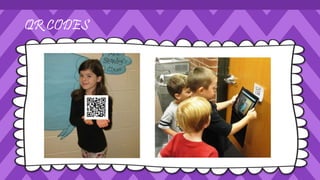
QR Codes
QR CODES
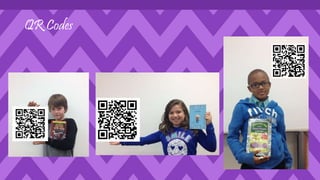
QR Codes
QR CODES
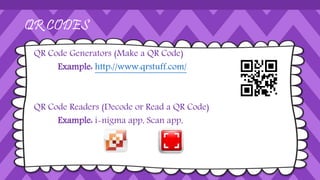
QR Code Generators (Make a QR Code)
Example: http://www.qrstuff.com/
QR Code Readers (Decode or Read a QR Code)
Example: i-nigma app, Scan app,
Marker Based AR Apps
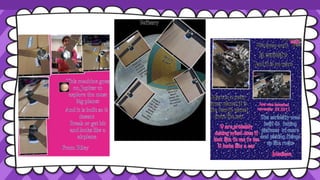
Spacecraft 3D
Mars in a Minute: How Hard Is It to Land Curiosity on Mars?
Spacecraft 3D
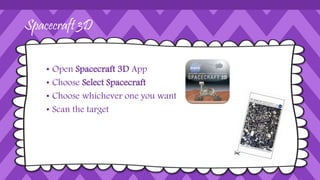
• Open Spacecraft 3D App
• Choose Select Spacecraft
• Choose whichever one you want
• Scan the target
ColAR Mix
• Color a ColAR picture
• Open ColAR Mix App
• Press play (green triangle)
• Scan the coloring sheet
ColAr Ideas
• Food Chains
• Life Cycles
• Writing Prompts
• Cells
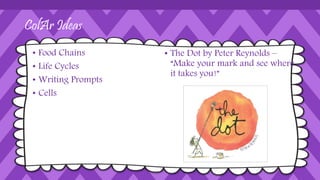
• The Dot by Peter Reynolds –
“Make your mark and see where
it takes you!”
Flashcards (Space)
• Open AR Space App
• Choose Get Started
• Scan a planet card
• Tap the screen to focus (if needed)
• Tap the i to hear info about the
planet
Flashcards (Shapes)
• Open AR Shapes and Colors App
• Choose Get Started
• Scan a flashcard
• Tap the screen to focus (if needed)
Flashcards (Alphabet)
• Open AR Flashcards App
• Tap Get Started
• Scan ABC or Dinosaur cards
• Tap the screen to focus (if
needed)
Arloon Geometry
• Open Geometry App
• Choose Learn
• Choose a shape
• Tap on the eye icon
• Tap on the Arloon Card
• Scan the target
Arloon Anatomy
• Open Anatomy App
• Choose Learn
• Choose a system
• Tap on the Eye
• Tap on the Arloon Card
• Scan the target
Beyond Planet Earth
• Open Beyond App
• Tap Start
• Scan a target
• Tap More to learn about the
object.
• Tap collect to save the Aura
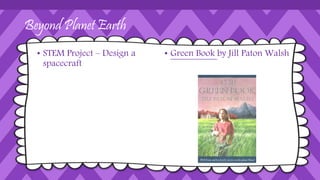
Beyond Planet Earth
• STEM Project – Design a
spacecraft
• Green Book by Jill Paton Walsh
Freedom Stories
• Open the FreedomStories app
• Make sure your volume is on
• Scan the target
Plickers
• Login to Plickers website to set up your class --
https://www.plickers.com/
• Open the Plickers app
• Login
• Choose your class
• Create a question
• Have students hold up cards with the correct answer on top.
• Scan the audience
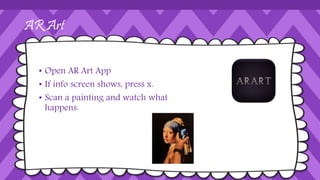
AR Art
• Open AR Art App
• If info screen shows, press x.
• Scan a painting and watch what
happens.
Markerless
DisneyNature Explore
• Open DisneyNature App
• Turn up the volume
• Choose an Animal on left
• Choose an Activity on right
• Follow the directions
Location Based
Peak Scanner
• Open Peak Scanner App
• Calibrate it
• Hold it up at the mountains
• When one shows in the middle
of the viewfinder, you will see its
name.
StarWalk Apps
• Open StarWalk App
Teacher and Student Created Auras
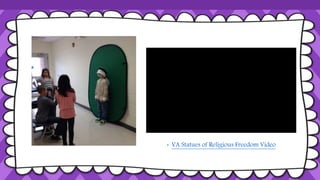
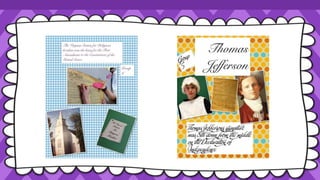
• VA Statues of Religious
Freedom Video
• VA Statues of Religious Freedom Video
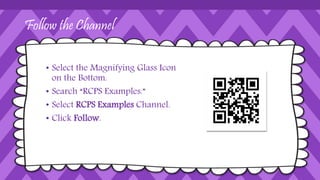
Follow the Channel
• Select the Magnifying Glass Icon
on the Bottom.
• Search “RCPS Examples.”
• Select RCPS Examples Channel.
• Click Follow.
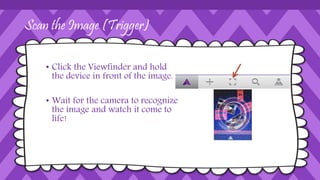
Scan the Image (Trigger)
• Click the Viewfinder and hold
the device in front of the image.
• Wait for the camera to recognize
the image and watch it come to
life!
Make You Own Auras
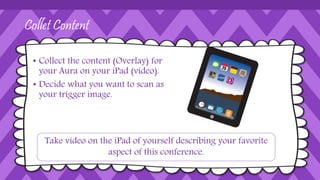
Collet Content
• Collect the content (Overlay) for
your Aura on your iPad (video).
• Decide what you want to scan as
your trigger image.
Take video on the iPad of yourself describing your favorite
aspect of this conference.
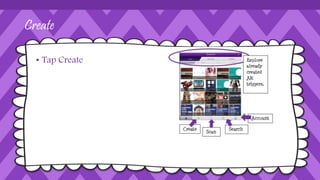
Create
• Tap Create
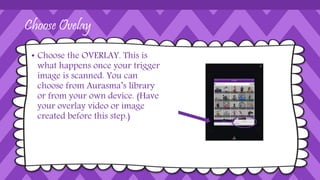
Choose Ovelay
• Choose the OVERLAY. This is
what happens once your trigger
image is scanned. You can
choose from Aurasma’s library
or from your own device. (Have
your overlay video or image
created before this step.)
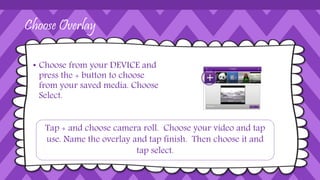
Choose Overlay
• Choose from your DEVICE and
press the + button to choose
from your saved media. Choose
Select.
Tap + and choose camera roll. Choose your video and tap
use. Name the overlay and tap finish. Then choose it and
tap select.
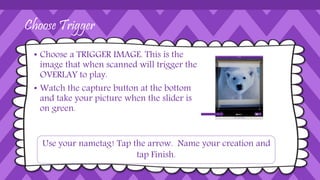
Choose Trigger
• Choose a TRIGGER IMAGE. This is the
image that when scanned will trigger the
OVERLAY to play.
• Watch the capture button at the bottom
and take your picture when the slider is
on green.
Use your nametag! Tap the arrow. Name your creation and
tap Finish.
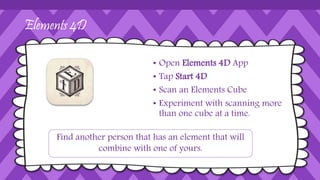
Elements 4D
• Open Elements 4D App
• Tap Start 4D
• Scan an Elements Cube
• Experiment with scanning more
than one cube at a time.
Find another person that has an element that will
combine with one of yours.

Other Cool AR Apps
• Amazing Space Journey
• Star and Planet Finder
• Tortoise and the Hare
• Cybershape Quest
• Anatomy 4D
• Lunch Rush
• Magic Mirror
Download
Presentation and other
resources here:
http://tinyurl.com/RCPSAR
Augmented Reality
Meg Swecker
Coordinator of Technology Integration
Roanoke County Schools
Email: mswecker@rcs.k12.va.us
Blog: http://mswecker.edublogs.org
Twitter: mswecker
Tina Coffey
Instructional Technology Resource Teacher
Roanoke County Schools
Email: tcoffey@rcs.k12.va.us
Blog: http://tcoffey.edublogs.org
Twitter: elemitrt

Augmented Reality RCPS

  • 1.
    Augmented Reality Tina Coffey InstructionalTechnology Resource Teacher Roanoke County Schools Email: tcoffey@rcs.k12.va.us Blog: http://tcoffey.edublogs.org Twitter: elemitrt Meg Swecker Coordinator of Technology Integration Roanoke County Schools Email: mswecker@rcs.k12.va.us Blog: http://mswecker.edublogs.org Twitter: mswecker
  • 2.
    What is it? Usingdevices with cameras, a person can “scan” a real life, tangible object and see digital information overlaid on top if it. Augmented Reality Vocabulary Explained • Aura: the magic thing that pops up when you hold your device over something • Marker or trigger image: the tangible picture you scan
  • 4.
    Roanoke County’s Vision 21stCentury Skills: ◦ Collaboration ◦ Communication ◦ Critical Thinking ◦ Creativity
  • 5.
    Types of AugmentedReality Marker Based • QR Codes • Markers Markerless Location Based
  • 6.
  • 7.
  • 8.
  • 9.
    QR CODES QR CodeGenerators (Make a QR Code) Example: http://www.qrstuff.com/ QR Code Readers (Decode or Read a QR Code) Example: i-nigma app, Scan app,
  • 10.
  • 11.
    Spacecraft 3D Mars ina Minute: How Hard Is It to Land Curiosity on Mars?
  • 12.
    Spacecraft 3D • OpenSpacecraft 3D App • Choose Select Spacecraft • Choose whichever one you want • Scan the target
  • 15.
    ColAR Mix • Colora ColAR picture • Open ColAR Mix App • Press play (green triangle) • Scan the coloring sheet
  • 16.
    ColAr Ideas • FoodChains • Life Cycles • Writing Prompts • Cells • The Dot by Peter Reynolds – “Make your mark and see where it takes you!”
  • 17.
    Flashcards (Space) • OpenAR Space App • Choose Get Started • Scan a planet card • Tap the screen to focus (if needed) • Tap the i to hear info about the planet
  • 18.
    Flashcards (Shapes) • OpenAR Shapes and Colors App • Choose Get Started • Scan a flashcard • Tap the screen to focus (if needed)
  • 19.
    Flashcards (Alphabet) • OpenAR Flashcards App • Tap Get Started • Scan ABC or Dinosaur cards • Tap the screen to focus (if needed)
  • 20.
    Arloon Geometry • OpenGeometry App • Choose Learn • Choose a shape • Tap on the eye icon • Tap on the Arloon Card • Scan the target
  • 21.
    Arloon Anatomy • OpenAnatomy App • Choose Learn • Choose a system • Tap on the Eye • Tap on the Arloon Card • Scan the target
  • 22.
    Beyond Planet Earth •Open Beyond App • Tap Start • Scan a target • Tap More to learn about the object. • Tap collect to save the Aura
  • 23.
    Beyond Planet Earth •STEM Project – Design a spacecraft • Green Book by Jill Paton Walsh
  • 24.
    Freedom Stories • Openthe FreedomStories app • Make sure your volume is on • Scan the target
  • 25.
    Plickers • Login toPlickers website to set up your class -- https://www.plickers.com/ • Open the Plickers app • Login • Choose your class • Create a question • Have students hold up cards with the correct answer on top. • Scan the audience
  • 26.
    AR Art • OpenAR Art App • If info screen shows, press x. • Scan a painting and watch what happens.
  • 27.
  • 28.
    DisneyNature Explore • OpenDisneyNature App • Turn up the volume • Choose an Animal on left • Choose an Activity on right • Follow the directions
  • 29.
  • 30.
    Peak Scanner • OpenPeak Scanner App • Calibrate it • Hold it up at the mountains • When one shows in the middle of the viewfinder, you will see its name.
  • 31.
  • 32.
    Teacher and StudentCreated Auras
  • 33.
    • VA Statuesof Religious Freedom Video • VA Statues of Religious Freedom Video
  • 35.
    Follow the Channel •Select the Magnifying Glass Icon on the Bottom. • Search “RCPS Examples.” • Select RCPS Examples Channel. • Click Follow.
  • 36.
    Scan the Image(Trigger) • Click the Viewfinder and hold the device in front of the image. • Wait for the camera to recognize the image and watch it come to life!
  • 37.
  • 38.
    Collet Content • Collectthe content (Overlay) for your Aura on your iPad (video). • Decide what you want to scan as your trigger image. Take video on the iPad of yourself describing your favorite aspect of this conference.
  • 39.
  • 40.
    Choose Ovelay • Choosethe OVERLAY. This is what happens once your trigger image is scanned. You can choose from Aurasma’s library or from your own device. (Have your overlay video or image created before this step.)
  • 41.
    Choose Overlay • Choosefrom your DEVICE and press the + button to choose from your saved media. Choose Select. Tap + and choose camera roll. Choose your video and tap use. Name the overlay and tap finish. Then choose it and tap select.
  • 42.
    Choose Trigger • Choosea TRIGGER IMAGE. This is the image that when scanned will trigger the OVERLAY to play. • Watch the capture button at the bottom and take your picture when the slider is on green. Use your nametag! Tap the arrow. Name your creation and tap Finish.
  • 43.
    Elements 4D • OpenElements 4D App • Tap Start 4D • Scan an Elements Cube • Experiment with scanning more than one cube at a time. Find another person that has an element that will combine with one of yours.
  • 44.
    Other Cool ARApps • Amazing Space Journey • Star and Planet Finder • Tortoise and the Hare • Cybershape Quest • Anatomy 4D • Lunch Rush • Magic Mirror
  • 45.
    Download Presentation and other resourceshere: http://tinyurl.com/RCPSAR Augmented Reality Meg Swecker Coordinator of Technology Integration Roanoke County Schools Email: mswecker@rcs.k12.va.us Blog: http://mswecker.edublogs.org Twitter: mswecker Tina Coffey Instructional Technology Resource Teacher Roanoke County Schools Email: tcoffey@rcs.k12.va.us Blog: http://tcoffey.edublogs.org Twitter: elemitrt

Editor's Notes

  • #35 Green Screen/Aurasma: Tina and Julie