Monthly Web Chat with
Calvin O’Driscoll
July 3, 2012
Agenda
• GoToMeeting housekeeping
• Overview of purchase orders (advanced features).

• Demonstration of purchase orders (advanced features).
• Q&A
Housekeeping
• During the Webinar, all attendees will be muted and placed in listen
only mode. This is to eliminate issues with background noise, which
causes feedback to all callers.

• If you have a question, please enter it in the chat/question window
and we will answer promptly during the Q&A session.
Purchase Order
CREATING PURCHASE ORDERS AUTOMATICALLY:
• Purchase Orders can be created automatically from:
• Current requisitions
• Reorder quantities in Inventory Control
• Active sales orders in Order Entry.
Purchase Order
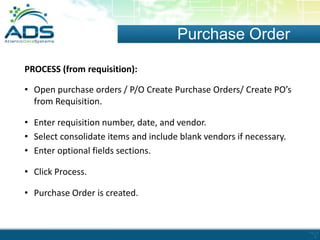
PROCESS (from requisition):
• Open purchase orders / P/O Create Purchase Orders/ Create PO’s
from Requisition.
• Enter requisition number, date, and vendor.
• Select consolidate items and include blank vendors if necessary.
• Enter optional fields sections.
• Click Process.
• Purchase Order is created.
Purchase Order
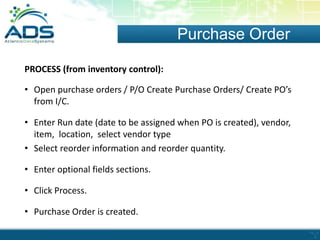
PROCESS (from inventory control):
• Open purchase orders / P/O Create Purchase Orders/ Create PO’s
from I/C.
• Enter Run date (date to be assigned when PO is created), vendor,
item, location, select vendor type
• Select reorder information and reorder quantity.
• Enter optional fields sections.
• Click Process.
• Purchase Order is created.
Purchase Order
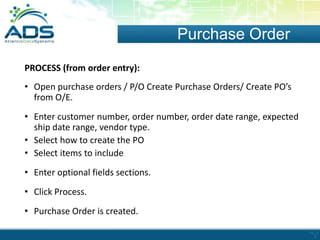
PROCESS (from order entry):
• Open purchase orders / P/O Create Purchase Orders/ Create PO’s
from O/E.
• Enter customer number, order number, order date range, expected
ship date range, vendor type.
• Select how to create the PO
• Select items to include
• Enter optional fields sections.
• Click Process.
• Purchase Order is created.
Purchase Order
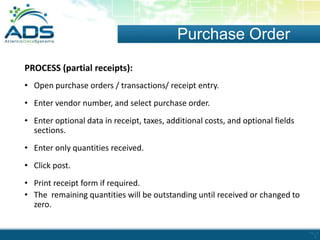
PROCESS (partial receipts):
• Open purchase orders / transactions/ receipt entry.
• Enter vendor number, and select purchase order.
• Enter optional data in receipt, taxes, additional costs, and optional fields
sections.
• Enter only quantities received.
• Click post.
• Print receipt form if required.
• The remaining quantities will be outstanding until received or changed to
zero.
Purchase Order
PURCHASE ORDERS TYPES:
• Four major types of purchase orders: Active, Standing, Future and Blanket
Orders.
• ACTIVE - Purchase Order is processed immediately.
• STANDING - Purchase Order is a recurring purchase order that only has
to be entered once.
• FUTURE - Purchase Order is one to be activated and filled sometime in
the future.

• BLANKET - Purchase Order is one that contains a specified total
amount for a vendor.
Q&A
Contact Details:
Jackie Snow, ERP Consultant
(709) 726 – 8347 ext. 402
jackie.snow@atlanticdatasystems.com
For support:
support@atlanticdatasystems.com

Atlantic DataSystems: Sage Web Chat for Purchase Orders Advanced

  • 1.
    Monthly Web Chatwith Calvin O’Driscoll July 3, 2012
  • 2.
    Agenda • GoToMeeting housekeeping •Overview of purchase orders (advanced features). • Demonstration of purchase orders (advanced features). • Q&A
  • 3.
    Housekeeping • During theWebinar, all attendees will be muted and placed in listen only mode. This is to eliminate issues with background noise, which causes feedback to all callers. • If you have a question, please enter it in the chat/question window and we will answer promptly during the Q&A session.
  • 4.
    Purchase Order CREATING PURCHASEORDERS AUTOMATICALLY: • Purchase Orders can be created automatically from: • Current requisitions • Reorder quantities in Inventory Control • Active sales orders in Order Entry.
  • 5.
    Purchase Order PROCESS (fromrequisition): • Open purchase orders / P/O Create Purchase Orders/ Create PO’s from Requisition. • Enter requisition number, date, and vendor. • Select consolidate items and include blank vendors if necessary. • Enter optional fields sections. • Click Process. • Purchase Order is created.
  • 6.
    Purchase Order PROCESS (frominventory control): • Open purchase orders / P/O Create Purchase Orders/ Create PO’s from I/C. • Enter Run date (date to be assigned when PO is created), vendor, item, location, select vendor type • Select reorder information and reorder quantity. • Enter optional fields sections. • Click Process. • Purchase Order is created.
  • 7.
    Purchase Order PROCESS (fromorder entry): • Open purchase orders / P/O Create Purchase Orders/ Create PO’s from O/E. • Enter customer number, order number, order date range, expected ship date range, vendor type. • Select how to create the PO • Select items to include • Enter optional fields sections. • Click Process. • Purchase Order is created.
  • 8.
    Purchase Order PROCESS (partialreceipts): • Open purchase orders / transactions/ receipt entry. • Enter vendor number, and select purchase order. • Enter optional data in receipt, taxes, additional costs, and optional fields sections. • Enter only quantities received. • Click post. • Print receipt form if required. • The remaining quantities will be outstanding until received or changed to zero.
  • 9.
    Purchase Order PURCHASE ORDERSTYPES: • Four major types of purchase orders: Active, Standing, Future and Blanket Orders. • ACTIVE - Purchase Order is processed immediately. • STANDING - Purchase Order is a recurring purchase order that only has to be entered once. • FUTURE - Purchase Order is one to be activated and filled sometime in the future. • BLANKET - Purchase Order is one that contains a specified total amount for a vendor.
  • 10.
  • 11.
    Contact Details: Jackie Snow,ERP Consultant (709) 726 – 8347 ext. 402 jackie.snow@atlanticdatasystems.com For support: support@atlanticdatasystems.com