Web 102: Intro to CSS
Outline
• Review of HTML Elements
• What is CSS?
• What can you do with CSS?
• CSS Selectors
• Cascading Selectors
• Pseudo Classes
• Linking your CSS file
Learning Outcomes
• Basic understanding of web design with HTML
& CSS
• Create a simple web page using HTML and CSS
• Style images on a web page
• Basic page layout techniques
What is CSS?
• Cascading Style Sheets.
• Used with HTML to style the page.
• Defines the visual representation of the
content.
• Example
– colour, margins, borders, backgrounds, position in
the page.
HTML Recap
• Hyper Text Markup Language
• A markup language for describing web
documents (web pages).
• HTML documents are described by HTML tags
• Each HTML tag describes different document
content
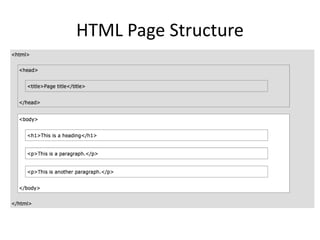
HTML Page Structure
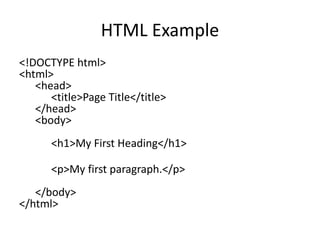
HTML Example
<!DOCTYPE html>
<html>
<head>
<title>Page Title</title>
</head>
<body>
<h1>My First Heading</h1>
<p>My first paragraph.</p>
</body>
</html>
HTML Tags
• Keywords (tag names) surrounded by angle
brackets:
– <tagname>content</tagname>
• Usually come in pairs like <p> and </p>
• The first tag in a pair is the start tag, the
second tag is the end tag
• The end tag is written like the start tag, but
with a slash before the tag name
What makes a website?
• HTML: structure of a website
• CSS: presentation
• CSS works in conjunction with HTML
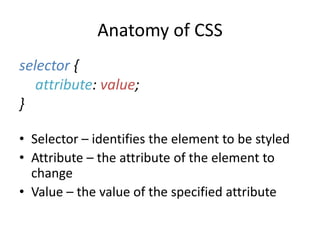
Anatomy of CSS
• Selector – identifies the element to be styled
• Attribute – the attribute of the element to
change
• Value – the value of the specified attribute
selector {
attribute: value;
}
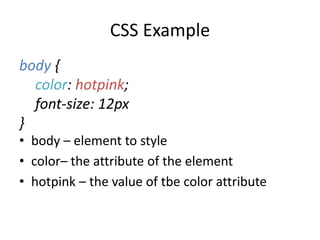
CSS Example
• body – element to style
• color– the attribute of the element
• hotpink – the value of tbe color attribute
body {
color: hotpink;
font-size: 12px
}
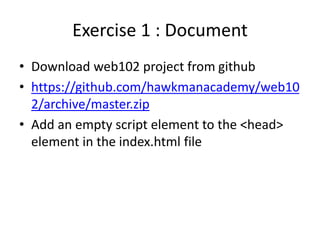
Exercise 1 : Document
• Download web102 project from github
• https://github.com/hawkmanacademy/web10
2/archive/master.zip
• Add an empty script element to the <head>
element in the index.html file
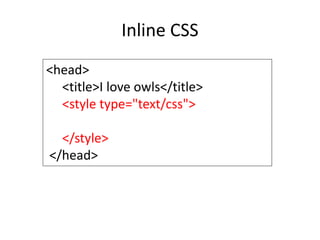
Inline CSS
<head>
<title>I love owls</title>
<style type="text/css">
</style>
</head>
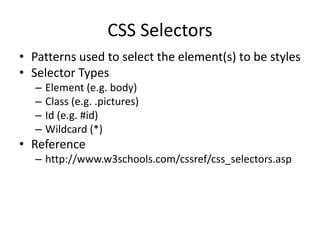
CSS Selectors
• Patterns used to select the element(s) to be styles
• Selector Types
– Element (e.g. body)
– Class (e.g. .pictures)
– Id (e.g. #id)
– Wildcard (*)
• Reference
– http://www.w3schools.com/cssref/css_selectors.asp
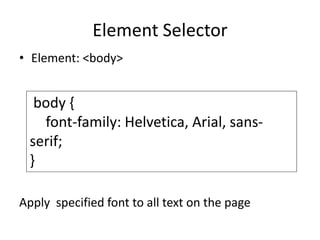
Element Selector
body {
font-family: Helvetica, Arial, sans-
serif;
}
• Element: <body>
Apply specified font to all text on the page
Element Selector
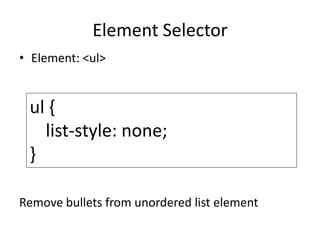
ul {
list-style: none;
}
• Element: <ul>
Remove bullets from unordered list element
Element Selector
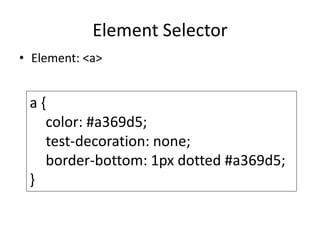
a {
color: #a369d5;
test-decoration: none;
border-bottom: 1px dotted #a369d5;
}
• Element: <a>
Class Selectors
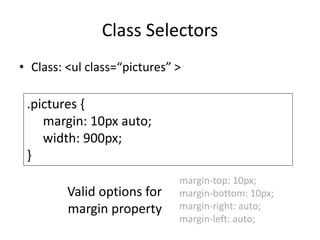
.pictures {
margin: 10px auto;
width: 900px;
}
• Class: <ul class=“pictures” >
margin-top: 10px;
margin-bottom: 10px;
margin-right: auto;
margin-left: auto;
Valid options for
margin property
ID Selector
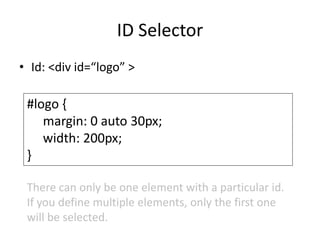
#logo {
margin: 0 auto 30px;
width: 200px;
}
• Id: <div id=“logo” >
There can only be one element with a particular id.
If you define multiple elements, only the first one
will be selected.
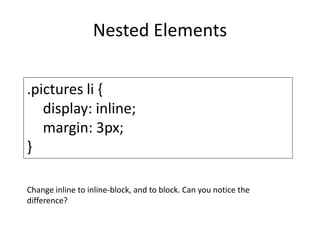
Nested Elements
.pictures li {
display: inline;
margin: 3px;
}
Change inline to inline-block, and to block. Can you notice the
difference?
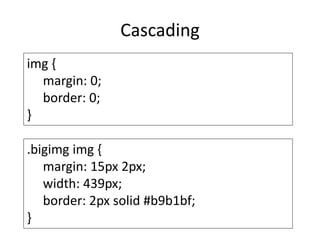
Cascading
img {
margin: 0;
border: 0;
}
.bigimg img {
margin: 15px 2px;
width: 439px;
border: 2px solid #b9b1bf;
}
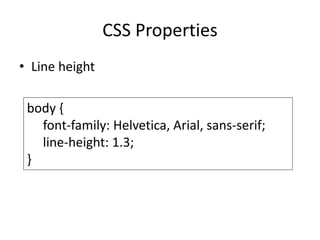
CSS Properties
• Line height
body {
font-family: Helvetica, Arial, sans-serif;
line-height: 1.3;
}
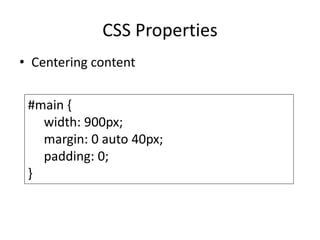
CSS Properties
• Centering content
#main {
width: 900px;
margin: 0 auto 40px;
padding: 0;
}
CSS Properties
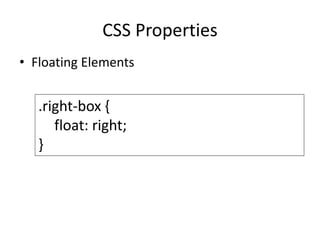
• Floating Elements
.right-box {
float: right;
}
CSS Styling Tricks
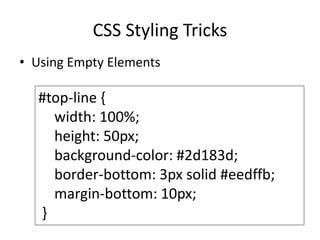
• Using Empty Elements
#top-line {
width: 100%;
height: 50px;
background-color: #2d183d;
border-bottom: 3px solid #eedffb;
margin-bottom: 10px;
}
CSS Styling Tricks
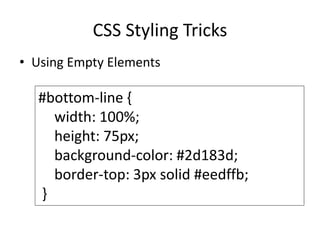
• Using Empty Elements
#bottom-line {
width: 100%;
height: 75px;
background-color: #2d183d;
border-top: 3px solid #eedffb;
}
CSS Styling Tricks
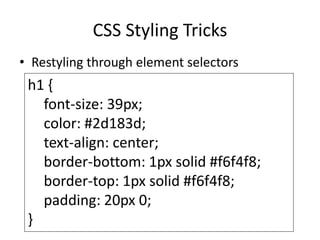
• Restyling through element selectors
h1 {
font-size: 39px;
color: #2d183d;
text-align: center;
border-bottom: 1px solid #f6f4f8;
border-top: 1px solid #f6f4f8;
padding: 20px 0;
}
CSS Styling Tricks
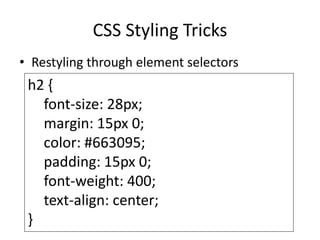
• Restyling through element selectors
h2 {
font-size: 28px;
margin: 15px 0;
color: #663095;
padding: 15px 0;
font-weight: 400;
text-align: center;
}
CSS Styling Tricks
• Restyling through element selectors
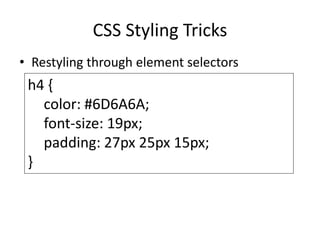
h4 {
color: #6D6A6A;
font-size: 19px;
padding: 27px 25px 15px;
}
CSS Styling Tricks
• Restyling through element selectors
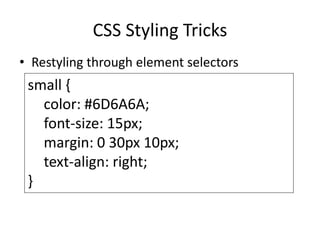
small {
color: #6D6A6A;
font-size: 15px;
margin: 0 30px 10px;
text-align: right;
}
CSS Styling Tricks
• Restyling through element selectors
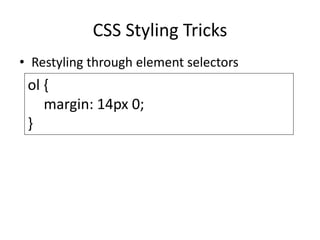
ol {
margin: 14px 0;
}
CSS Styling Tricks
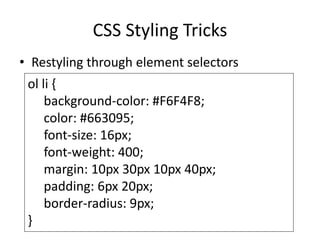
• Restyling through element selectors
ol li {
background-color: #F6F4F8;
color: #663095;
font-size: 16px;
font-weight: 400;
margin: 10px 30px 10px 40px;
padding: 6px 20px;
border-radius: 9px;
}
More CSS Styling Tricks
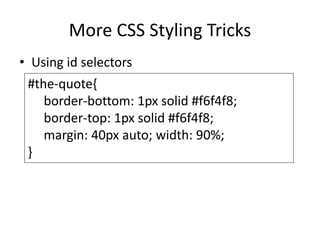
• Using id selectors
#the-quote{
border-bottom: 1px solid #f6f4f8;
border-top: 1px solid #f6f4f8;
margin: 40px auto; width: 90%;
}
More CSS Styling Tricks
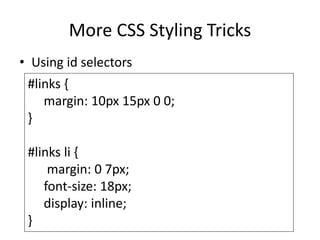
• Using id selectors
#links {
margin: 10px 15px 0 0;
}
#links li {
margin: 0 7px;
font-size: 18px;
display: inline;
}
More CSS Styling Tricks
• Using id selectors
#text-block {
height: 370px;
}
More CSS Styling Tricks
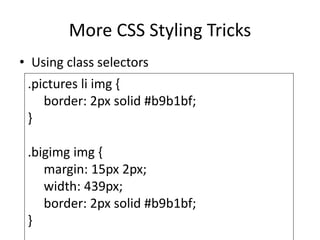
• Using class selectors
.pictures li img {
border: 2px solid #b9b1bf;
}
.bigimg img {
margin: 15px 2px;
width: 439px;
border: 2px solid #b9b1bf;
}
More CSS Styling Tricks
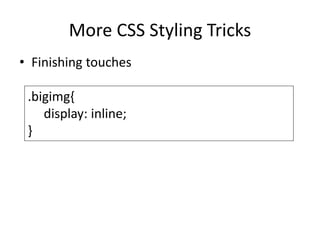
• Finishing touches
.bigimg{
display: inline;
}
Questions?
Further Reading
• CSS Reference
– https://developer.mozilla.org/en-
US/docs/Web/CSS/Reference?redirectlocale=en-
US&redirectslug=CSS%2FCSS_Reference
• CSS Pseudo Classes
– https://developer.mozilla.org/en-
US/docs/Web/CSS/Pseudo-classes
• CSS Zen Garden
– http://www.csszengarden.com/
• W3Schools
– http://www.w3schools.com/css/default.asp

Web 102 INtro to CSS

  • 1.
  • 2.
    Outline • Review ofHTML Elements • What is CSS? • What can you do with CSS? • CSS Selectors • Cascading Selectors • Pseudo Classes • Linking your CSS file
  • 3.
    Learning Outcomes • Basicunderstanding of web design with HTML & CSS • Create a simple web page using HTML and CSS • Style images on a web page • Basic page layout techniques
  • 4.
    What is CSS? •Cascading Style Sheets. • Used with HTML to style the page. • Defines the visual representation of the content. • Example – colour, margins, borders, backgrounds, position in the page.
  • 5.
    HTML Recap • HyperText Markup Language • A markup language for describing web documents (web pages). • HTML documents are described by HTML tags • Each HTML tag describes different document content
  • 6.
  • 7.
    HTML Example <!DOCTYPE html> <html> <head> <title>PageTitle</title> </head> <body> <h1>My First Heading</h1> <p>My first paragraph.</p> </body> </html>
  • 8.
    HTML Tags • Keywords(tag names) surrounded by angle brackets: – <tagname>content</tagname> • Usually come in pairs like <p> and </p> • The first tag in a pair is the start tag, the second tag is the end tag • The end tag is written like the start tag, but with a slash before the tag name
  • 9.
    What makes awebsite? • HTML: structure of a website • CSS: presentation • CSS works in conjunction with HTML
  • 10.
    Anatomy of CSS •Selector – identifies the element to be styled • Attribute – the attribute of the element to change • Value – the value of the specified attribute selector { attribute: value; }
  • 11.
    CSS Example • body– element to style • color– the attribute of the element • hotpink – the value of tbe color attribute body { color: hotpink; font-size: 12px }
  • 12.
    Exercise 1 :Document • Download web102 project from github • https://github.com/hawkmanacademy/web10 2/archive/master.zip • Add an empty script element to the <head> element in the index.html file
  • 13.
    Inline CSS <head> <title>I loveowls</title> <style type="text/css"> </style> </head>
  • 14.
    CSS Selectors • Patternsused to select the element(s) to be styles • Selector Types – Element (e.g. body) – Class (e.g. .pictures) – Id (e.g. #id) – Wildcard (*) • Reference – http://www.w3schools.com/cssref/css_selectors.asp
  • 15.
    Element Selector body { font-family:Helvetica, Arial, sans- serif; } • Element: <body> Apply specified font to all text on the page
  • 16.
    Element Selector ul { list-style:none; } • Element: <ul> Remove bullets from unordered list element
  • 17.
    Element Selector a { color:#a369d5; test-decoration: none; border-bottom: 1px dotted #a369d5; } • Element: <a>
  • 18.
    Class Selectors .pictures { margin:10px auto; width: 900px; } • Class: <ul class=“pictures” > margin-top: 10px; margin-bottom: 10px; margin-right: auto; margin-left: auto; Valid options for margin property
  • 19.
    ID Selector #logo { margin:0 auto 30px; width: 200px; } • Id: <div id=“logo” > There can only be one element with a particular id. If you define multiple elements, only the first one will be selected.
  • 20.
    Nested Elements .pictures li{ display: inline; margin: 3px; } Change inline to inline-block, and to block. Can you notice the difference?
  • 21.
    Cascading img { margin: 0; border:0; } .bigimg img { margin: 15px 2px; width: 439px; border: 2px solid #b9b1bf; }
  • 22.
    CSS Properties • Lineheight body { font-family: Helvetica, Arial, sans-serif; line-height: 1.3; }
  • 23.
    CSS Properties • Centeringcontent #main { width: 900px; margin: 0 auto 40px; padding: 0; }
  • 24.
    CSS Properties • FloatingElements .right-box { float: right; }
  • 25.
    CSS Styling Tricks •Using Empty Elements #top-line { width: 100%; height: 50px; background-color: #2d183d; border-bottom: 3px solid #eedffb; margin-bottom: 10px; }
  • 26.
    CSS Styling Tricks •Using Empty Elements #bottom-line { width: 100%; height: 75px; background-color: #2d183d; border-top: 3px solid #eedffb; }
  • 27.
    CSS Styling Tricks •Restyling through element selectors h1 { font-size: 39px; color: #2d183d; text-align: center; border-bottom: 1px solid #f6f4f8; border-top: 1px solid #f6f4f8; padding: 20px 0; }
  • 28.
    CSS Styling Tricks •Restyling through element selectors h2 { font-size: 28px; margin: 15px 0; color: #663095; padding: 15px 0; font-weight: 400; text-align: center; }
  • 29.
    CSS Styling Tricks •Restyling through element selectors h4 { color: #6D6A6A; font-size: 19px; padding: 27px 25px 15px; }
  • 30.
    CSS Styling Tricks •Restyling through element selectors small { color: #6D6A6A; font-size: 15px; margin: 0 30px 10px; text-align: right; }
  • 31.
    CSS Styling Tricks •Restyling through element selectors ol { margin: 14px 0; }
  • 32.
    CSS Styling Tricks •Restyling through element selectors ol li { background-color: #F6F4F8; color: #663095; font-size: 16px; font-weight: 400; margin: 10px 30px 10px 40px; padding: 6px 20px; border-radius: 9px; }
  • 33.
    More CSS StylingTricks • Using id selectors #the-quote{ border-bottom: 1px solid #f6f4f8; border-top: 1px solid #f6f4f8; margin: 40px auto; width: 90%; }
  • 34.
    More CSS StylingTricks • Using id selectors #links { margin: 10px 15px 0 0; } #links li { margin: 0 7px; font-size: 18px; display: inline; }
  • 35.
    More CSS StylingTricks • Using id selectors #text-block { height: 370px; }
  • 36.
    More CSS StylingTricks • Using class selectors .pictures li img { border: 2px solid #b9b1bf; } .bigimg img { margin: 15px 2px; width: 439px; border: 2px solid #b9b1bf; }
  • 37.
    More CSS StylingTricks • Finishing touches .bigimg{ display: inline; }
  • 38.
  • 39.
    Further Reading • CSSReference – https://developer.mozilla.org/en- US/docs/Web/CSS/Reference?redirectlocale=en- US&redirectslug=CSS%2FCSS_Reference • CSS Pseudo Classes – https://developer.mozilla.org/en- US/docs/Web/CSS/Pseudo-classes • CSS Zen Garden – http://www.csszengarden.com/ • W3Schools – http://www.w3schools.com/css/default.asp

Editor's Notes

  • #8 The DOCTYPE declaration defines the document type to be HTML The text between <html> and </html> describes an HTML document The text between <head> and </head> provides information about the document The text between <title> and </title> provides a title for the document The text between <body> and </body> describes the visible page content The text between <h1> and </h1> describes a heading The text between <p> and </p> describes a paragraph Using this description, a web browser can display a document with a heading and a paragraph.
  • #21 display specifies how the elements are displayed. li is a block element. By changing its display property, we make sure that it displays as an inline element.
  • #22 display specifies how the elements are displayed. li is a block element. By changing its display property, we make sure that it displays as an inline element.
  • #24 To achieve centering of a container, we must define its width. If you remove the width property you will notice that it won’t be in the center of the page.
  • #25 To achieve centering of a container, we must define its width. If you remove the width property you will notice that it won’t be in the center of the page.
  • #26 Sometimes to make the design of our page look nicer, we might add empty elements. Like <div id="top-line"></div>
  • #27 Let’s also style the bottom of our page in a similar way
  • #33 font-weight is the thickness of displayed text text-align horizontal alignment of a text element
  • #34 font-weight is the thickness of displayed text text-align horizontal alignment of a text element
  • #35 font-weight is the thickness of displayed text text-align horizontal alignment of a text element
  • #36 font-weight is the thickness of displayed text text-align horizontal alignment of a text element
  • #37 font-weight is the thickness of displayed text text-align horizontal alignment of a text element
  • #38 font-weight is the thickness of displayed text text-align horizontal alignment of a text element
  • #39 font-weight is the thickness of displayed text text-align horizontal alignment of a text element