Apple Watch
WatchKit: Initial Impressions
Created by Anna Dovnar
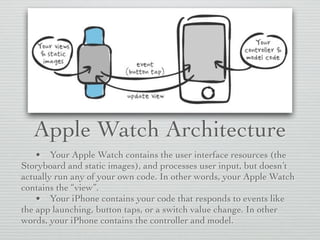
Apple Watch Architecture
• Your Apple Watch contains the user interface resources (the
Storyboard and static images), and processes user input, but doesn’t
actually run any of your own code. In other words, your Apple Watch
contains the “view”.
• Your iPhone contains your code that responds to events like
the app launching, button taps, or a switch value change. In other
words, your iPhone contains the controller and model.
The cool thing is this
communication between the
Apple Watch and the
iPhone works automatically,
behind the scenes
App Anatomy
Interface Navigation Styles
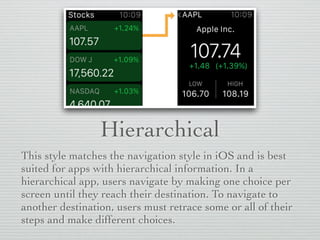
Hierarchical
This style matches the navigation style in iOS and is best
suited for apps with hierarchical information. In a
hierarchical app, users navigate by making one choice per
screen until they reach their destination. To navigate to
another destination, users must retrace some or all of their
steps and make different choices.
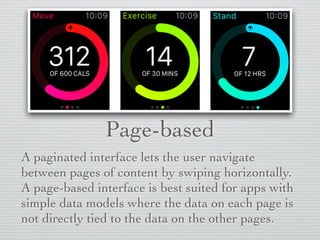
Page-based
A paginated interface lets the user navigate
between pages of content by swiping horizontally.
A page-based interface is best suited for apps with
simple data models where the data on each page is
not directly tied to the data on the other pages.
You cannot combine hierarchical and page-
based interface styles. At design time, you
must choose the style that best suits your
app’s content and design for that style.
App Anatomy
User Interactions
• Action-based events
• Gestures
• Vertical swipes scroll the current screen.
• Horizontal swipes display the previous or next page in a page-based interface.
• Left edge swipes navigate back to the parent interface.
• Apple Watch
• Force Touch
• The Digital Crown
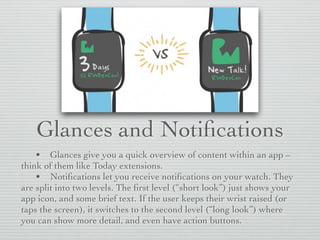
Glances and Notifications
• Glances give you a quick overview of content within an app –
think of them like Today extensions.
• Notifications let you receive notifications on your watch. They
are split into two levels. The first level (“short look”) just shows your
app icon, and some brief text. If the user keeps their wrist raised (or
taps the screen), it switches to the second level (“long look”) where
you can show more detail, and even have action buttons.
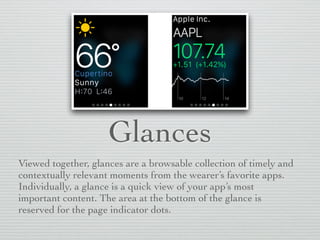
Glances
Viewed together, glances are a browsable collection of timely and
contextually relevant moments from the wearer’s favorite apps.
Individually, a glance is a quick view of your app’s most
important content. The area at the bottom of the glance is
reserved for the page indicator dots.
Glances are:
• Template-based
• Not scrollable
• Associated with a single action
• Optional
• Action-based events
• Gestures
• Vertical swipes scroll the current screen.
• Horizontal swipes display the previous or next page in a page-based interface.
• Left edge swipes navigate back to the parent interface.
• Apple Watch
• Force Touch
• The Digital Crown
Notifications
short-look and long-look interfaces
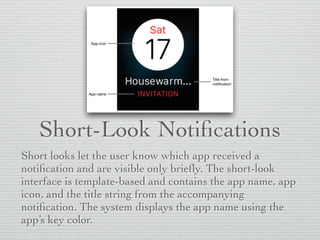
Short-Look Notifications
Short looks let the user know which app received a
notification and are visible only briefly. The short-look
interface is template-based and contains the app name, app
icon, and the title string from the accompanying
notification. The system displays the app name using the
app’s key color.
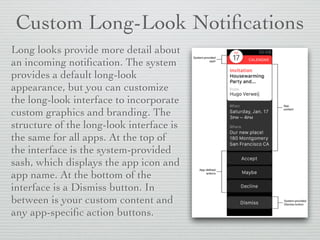
Custom Long-Look Notifications
Long looks provide more detail about
an incoming notification. The system
provides a default long-look
appearance, but you can customize
the long-look interface to incorporate
custom graphics and branding. The
structure of the long-look interface is
the same for all apps. At the top of
the interface is the system-provided
sash, which displays the app icon and
app name. At the bottom of the
interface is a Dismiss button. In
between is your custom content and
any app-specific action buttons.
• Provide a static interface and, optionally, provide
a dynamic interface
• Add up to four custom action buttons
• Configure the sash color to match your branding
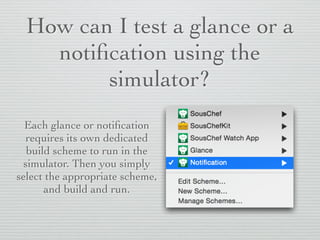
How can I test a glance or a
notification using the
simulator?
Each glance or notification
requires its own dedicated
build scheme to run in the
simulator. Then you simply
select the appropriate scheme,
and build and run.
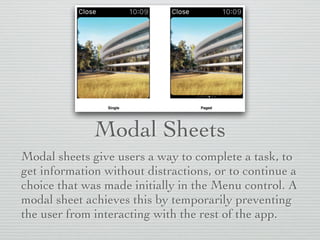
Modal Sheets
Modal sheets give users a way to complete a task, to
get information without distractions, or to continue a
choice that was made initially in the Menu control. A
modal sheet achieves this by temporarily preventing
the user from interacting with the rest of the app.
• Do not add a separate close button in the body of
your content
• Provide an accept button for tasks that require
acceptance
• Keep modal tasks simple
Layout
General Guidelines
• Limit the number of side-by-side controls in your
interface
• Use the full width of the screen
• Use left alignment
• Make text buttons full width
• Use the context menu to present secondary
actions
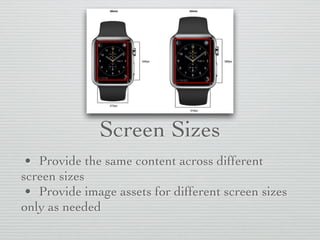
Screen Sizes
• Provide the same content across different
screen sizes
• Provide image assets for different screen sizes
only as needed
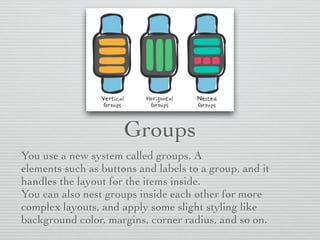
Groups
You use a new system called groups. A
elements such as buttons and labels to a group, and it
handles the layout for the items inside.
You can also nest groups inside each other for more
complex layouts, and apply some slight styling like
background color, margins, corner radius, and so on.
Color and
Typography
Color
• Use black for your app’s background color
• Use your app’s key color for branding or status
• Use high contrast colors for text
• Avoid using color as the only way to show
interactivity
• Be aware of color blindness
• Research how your use of color might be perceived
in other countries and cultures
Color and
Typography
Typography
• Always use Dynamic Type
• Automatic adjustments to letter spacing and line height for every font size
• The ability to specify different text styles for semantically distinct blocks of text, such as Body,
Footnote, or Headline
• Text that responds appropriately to changes the user makes to text size settings (including
accessibility text sizes)
• Use the built-in text styles whenever possible
• Use a single font throughout your app
• When you specify system font sizes manually,
choose the font based on the point size
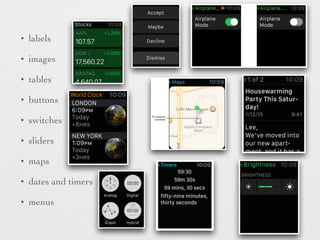
UI Elements
• labels
• images
• tables
• buttons
• switches
• sliders
• maps
• dates and timers
• menus
Watch faces are not supported yet!
How to: A starters guide for app development on Apple Watch

How to: A starters guide for app development on Apple Watch

  • 1.
    Apple Watch WatchKit: InitialImpressions Created by Anna Dovnar
  • 2.
    Apple Watch Architecture •Your Apple Watch contains the user interface resources (the Storyboard and static images), and processes user input, but doesn’t actually run any of your own code. In other words, your Apple Watch contains the “view”. • Your iPhone contains your code that responds to events like the app launching, button taps, or a switch value change. In other words, your iPhone contains the controller and model.
  • 3.
    The cool thingis this communication between the Apple Watch and the iPhone works automatically, behind the scenes
  • 4.
  • 5.
    Hierarchical This style matchesthe navigation style in iOS and is best suited for apps with hierarchical information. In a hierarchical app, users navigate by making one choice per screen until they reach their destination. To navigate to another destination, users must retrace some or all of their steps and make different choices.
  • 6.
    Page-based A paginated interfacelets the user navigate between pages of content by swiping horizontally. A page-based interface is best suited for apps with simple data models where the data on each page is not directly tied to the data on the other pages.
  • 7.
    You cannot combinehierarchical and page- based interface styles. At design time, you must choose the style that best suits your app’s content and design for that style.
  • 8.
  • 9.
    • Action-based events •Gestures • Vertical swipes scroll the current screen. • Horizontal swipes display the previous or next page in a page-based interface. • Left edge swipes navigate back to the parent interface. • Apple Watch • Force Touch • The Digital Crown
  • 10.
    Glances and Notifications •Glances give you a quick overview of content within an app – think of them like Today extensions. • Notifications let you receive notifications on your watch. They are split into two levels. The first level (“short look”) just shows your app icon, and some brief text. If the user keeps their wrist raised (or taps the screen), it switches to the second level (“long look”) where you can show more detail, and even have action buttons.
  • 11.
    Glances Viewed together, glancesare a browsable collection of timely and contextually relevant moments from the wearer’s favorite apps. Individually, a glance is a quick view of your app’s most important content. The area at the bottom of the glance is reserved for the page indicator dots.
  • 12.
    Glances are: • Template-based •Not scrollable • Associated with a single action • Optional
  • 13.
    • Action-based events •Gestures • Vertical swipes scroll the current screen. • Horizontal swipes display the previous or next page in a page-based interface. • Left edge swipes navigate back to the parent interface. • Apple Watch • Force Touch • The Digital Crown
  • 14.
  • 15.
    Short-Look Notifications Short lookslet the user know which app received a notification and are visible only briefly. The short-look interface is template-based and contains the app name, app icon, and the title string from the accompanying notification. The system displays the app name using the app’s key color.
  • 16.
    Custom Long-Look Notifications Longlooks provide more detail about an incoming notification. The system provides a default long-look appearance, but you can customize the long-look interface to incorporate custom graphics and branding. The structure of the long-look interface is the same for all apps. At the top of the interface is the system-provided sash, which displays the app icon and app name. At the bottom of the interface is a Dismiss button. In between is your custom content and any app-specific action buttons.
  • 17.
    • Provide astatic interface and, optionally, provide a dynamic interface • Add up to four custom action buttons • Configure the sash color to match your branding
  • 18.
    How can Itest a glance or a notification using the simulator? Each glance or notification requires its own dedicated build scheme to run in the simulator. Then you simply select the appropriate scheme, and build and run.
  • 19.
    Modal Sheets Modal sheetsgive users a way to complete a task, to get information without distractions, or to continue a choice that was made initially in the Menu control. A modal sheet achieves this by temporarily preventing the user from interacting with the rest of the app.
  • 20.
    • Do notadd a separate close button in the body of your content • Provide an accept button for tasks that require acceptance • Keep modal tasks simple
  • 21.
  • 22.
    • Limit thenumber of side-by-side controls in your interface • Use the full width of the screen • Use left alignment • Make text buttons full width • Use the context menu to present secondary actions
  • 23.
    Screen Sizes • Providethe same content across different screen sizes • Provide image assets for different screen sizes only as needed
  • 24.
    Groups You use anew system called groups. A elements such as buttons and labels to a group, and it handles the layout for the items inside. You can also nest groups inside each other for more complex layouts, and apply some slight styling like background color, margins, corner radius, and so on.
  • 25.
  • 26.
    • Use blackfor your app’s background color • Use your app’s key color for branding or status • Use high contrast colors for text • Avoid using color as the only way to show interactivity • Be aware of color blindness • Research how your use of color might be perceived in other countries and cultures
  • 27.
  • 28.
    • Always useDynamic Type • Automatic adjustments to letter spacing and line height for every font size • The ability to specify different text styles for semantically distinct blocks of text, such as Body, Footnote, or Headline • Text that responds appropriately to changes the user makes to text size settings (including accessibility text sizes) • Use the built-in text styles whenever possible • Use a single font throughout your app • When you specify system font sizes manually, choose the font based on the point size
  • 29.
  • 30.
    • labels • images •tables • buttons • switches • sliders • maps • dates and timers • menus
  • 31.
    Watch faces arenot supported yet!