Basic Microsoft
Presentation Skills
An Overview on How to Create
Effective Presentations
GRADE 11- HUMMS
Microsoft
Microsoft is a leading global vendor of computer software;
hardware for computer, mobile and gaming systems; and
cloud services.
• •In this presentation, we will discuss the
fundamental skills needed to create a basic
Microsoft PowerPoint presentation. This includes
planning, creating slides, adding content, and
finalizing your presentation.
1. Define Your Purpose: Identify the main
message you want to convey.
2. Know Your Audience: Understand who
they are and what they need to know.
3. Outline Your Content: Draft a rough
outline of the topics you want to cover.
Planning Your Presentation
Creating Slides
1. Title Slide: Include the title, your name,
and date.
2. Agenda Slide: Outline the main points
you will cover.
3. Content Slides: Create a slide for each
point in your outline.
Step 1
Use bullet points, paragraphs, and titles.
TEXT
Step 2
Insert relevant images
IMAGES
Step 3
Present data visually
CHART AND GRAPHS
Step 4
Use for diagrams and flowcharts
Smart Art
Adding
Content
Design and
Formatting
Design and
Formatting
•1. Themes: Apply a consistent
theme.
•2. Fonts: Use readable fonts
and sizes.
•3. Colors: Choose an
appealing color scheme.
•4. Transitions: Add transitions
to enhance flow.
Finalizing Your Presentation
•1. Review: Check
for errors.
•2. Practice: Rehearse
your presentation.
•3. Save: Save your presentation
in multiple locations.
Conclusion
•Creating an effective PowerPoint presentation
involves careful planning, design, and practice.
By following these basic steps, you can create
presentations that are both informative and
visually appealing.
HOW TO USE MICROSOFT
PRESENTATION
Introduction to PowerPoint
- PowerPoint is a presentation program
developed by Microsoft.
- It is used to create slideshows
composed of text, graphics, and other
objects.
Starting PowerPoint
- Open PowerPoint from your start menu or
applications folder.
- Choose a blank presentation or select a
template to get started.
Creating a
Presentation
•- Title Slide: Start with a title slide that
includes the presentation title, your
name, and the date.
•- Adding Slides: Click on the 'New Slide'
button to add new slides.
•- Inserting Content: Add text, images,
charts, and other content to your slides
using the ribbon toolbar.
Adding and Formatting
Text
•- Text Boxes: Click on the text box icon to
add text boxes to your slides.
•- Formatting Text: Use the font, size, color,
and style options in the ribbon to format
your text.
Inserting Images and Graphics
- Images: Click on the 'Insert' tab and
select 'Pictures' to add images from your
computer.
- Graphics: Use the 'Shapes,' 'Icons,' and
'SmartArt' options to add graphical
elements to your slides.
Creating Charts
and Tables
• Charts: Use the 'Insert' tab to add
charts. Choose from various chart
types like bar, line, pie, etc.
• Tables: Click on the 'Table' option in
the 'Insert' tab to add tables to
organize data.
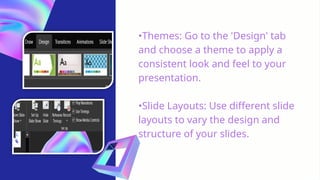
•Themes: Go to the 'Design' tab
and choose a theme to apply a
consistent look and feel to your
presentation.
•Slide Layouts: Use different slide
layouts to vary the design and
structure of your slides.
Applying
Themes
and Design
Adding Transitions and
Animations
•- Transitions: Click on the 'Transitions'
tab to add slide transitions. Choose
how one slide changes to the next.
•- Animations: Use the 'Animations' tab
to add animations to text and objects
on your slides.
Reviewing and Practicing
•- Review: Use the 'Review' tab
to check spelling and
grammar.
•- Practice: Rehearse your
presentation using the 'Slide
Show' tab to ensure smooth
delivery.
Saving and Sharing
•- Save: Click on 'File' and select
'Save As' to save your
presentation. Save in multiple
locations for backup.
•- Share: Use the 'Share' button
to email your presentation or
save it to a cloud service like
OneDrive.
GRADE 11-HUMMS
THANK YOU FOR LISTENING

angelappt basic microsoft presentation.pptx

  • 1.
    Basic Microsoft Presentation Skills AnOverview on How to Create Effective Presentations GRADE 11- HUMMS
  • 2.
    Microsoft Microsoft is aleading global vendor of computer software; hardware for computer, mobile and gaming systems; and cloud services. • •In this presentation, we will discuss the fundamental skills needed to create a basic Microsoft PowerPoint presentation. This includes planning, creating slides, adding content, and finalizing your presentation.
  • 3.
    1. Define YourPurpose: Identify the main message you want to convey. 2. Know Your Audience: Understand who they are and what they need to know. 3. Outline Your Content: Draft a rough outline of the topics you want to cover. Planning Your Presentation
  • 4.
    Creating Slides 1. TitleSlide: Include the title, your name, and date. 2. Agenda Slide: Outline the main points you will cover. 3. Content Slides: Create a slide for each point in your outline.
  • 5.
    Step 1 Use bulletpoints, paragraphs, and titles. TEXT Step 2 Insert relevant images IMAGES Step 3 Present data visually CHART AND GRAPHS Step 4 Use for diagrams and flowcharts Smart Art Adding Content
  • 6.
  • 7.
    Design and Formatting •1. Themes:Apply a consistent theme. •2. Fonts: Use readable fonts and sizes. •3. Colors: Choose an appealing color scheme. •4. Transitions: Add transitions to enhance flow.
  • 8.
    Finalizing Your Presentation •1.Review: Check for errors. •2. Practice: Rehearse your presentation. •3. Save: Save your presentation in multiple locations.
  • 9.
    Conclusion •Creating an effectivePowerPoint presentation involves careful planning, design, and practice. By following these basic steps, you can create presentations that are both informative and visually appealing.
  • 10.
    HOW TO USEMICROSOFT PRESENTATION
  • 11.
    Introduction to PowerPoint -PowerPoint is a presentation program developed by Microsoft. - It is used to create slideshows composed of text, graphics, and other objects.
  • 12.
    Starting PowerPoint - OpenPowerPoint from your start menu or applications folder. - Choose a blank presentation or select a template to get started.
  • 13.
    Creating a Presentation •- TitleSlide: Start with a title slide that includes the presentation title, your name, and the date. •- Adding Slides: Click on the 'New Slide' button to add new slides. •- Inserting Content: Add text, images, charts, and other content to your slides using the ribbon toolbar.
  • 14.
    Adding and Formatting Text •-Text Boxes: Click on the text box icon to add text boxes to your slides. •- Formatting Text: Use the font, size, color, and style options in the ribbon to format your text.
  • 15.
    Inserting Images andGraphics - Images: Click on the 'Insert' tab and select 'Pictures' to add images from your computer. - Graphics: Use the 'Shapes,' 'Icons,' and 'SmartArt' options to add graphical elements to your slides.
  • 16.
    Creating Charts and Tables •Charts: Use the 'Insert' tab to add charts. Choose from various chart types like bar, line, pie, etc. • Tables: Click on the 'Table' option in the 'Insert' tab to add tables to organize data.
  • 17.
    •Themes: Go tothe 'Design' tab and choose a theme to apply a consistent look and feel to your presentation. •Slide Layouts: Use different slide layouts to vary the design and structure of your slides. Applying Themes and Design
  • 18.
    Adding Transitions and Animations •-Transitions: Click on the 'Transitions' tab to add slide transitions. Choose how one slide changes to the next. •- Animations: Use the 'Animations' tab to add animations to text and objects on your slides.
  • 19.
    Reviewing and Practicing •-Review: Use the 'Review' tab to check spelling and grammar. •- Practice: Rehearse your presentation using the 'Slide Show' tab to ensure smooth delivery.
  • 20.
    Saving and Sharing •-Save: Click on 'File' and select 'Save As' to save your presentation. Save in multiple locations for backup. •- Share: Use the 'Share' button to email your presentation or save it to a cloud service like OneDrive.
  • 21.