





Storing Information on the device
Internal Storage on the device

• You can save files directly on the device's internal storage
• By default, files saved to the internal storage are private to
  your application and other applications cannot access them
  (nor can the user).
• When the user uninstalls your application, these files are
  removed.
Usage:

• Call openFileOutput() with the name of the file and the
  operating mode. This returns aFileOutputStream
• Write to the file with write()
• Close the stream with close()
External Storage

• Every Android-compatible device supports a shared "external
  storage" that you can use to save files
• Files saved to the external storage are world-readable and can
  be modified by the user
Usage:

• Checking media availability :Using getExternalStorageState()
• If you're using API Level 8 or greater,
  use getExternalCacheDir() to open a File
• If you're using API Level 7 or lower,
  use getExternalStorageDirectory() to open a File
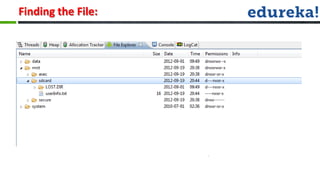
Finding the File:
Animation in Android
Animation

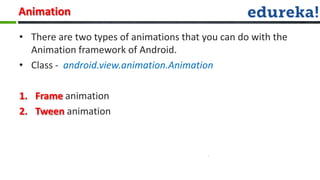
• There are two types of animations that you can do with the
  Animation framework of Android.
• Class - android.view.animation.Animation

1. Frame animation
2. Tween animation
Frame animation

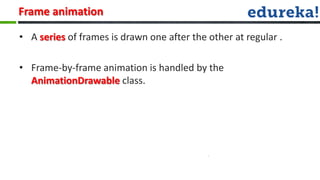
• A series of frames is drawn one after the other at regular .

• Frame-by-frame animation is handled by the
  AnimationDrawable class.
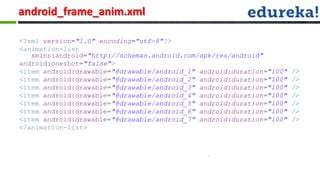
android_frame_anim.xml

<?xml version="1.0" encoding="utf-8"?>
<animation-list
   xmlns:android="http://schemas.android.com/apk/res/android"
android:oneshot="false">
<item android:drawable="@drawable/android_1" android:duration="100"   />
<item android:drawable="@drawable/android_2" android:duration="100"   />
<item android:drawable="@drawable/android_3" android:duration="100"   />
<item android:drawable="@drawable/android_4" android:duration="100"   />
<item android:drawable="@drawable/android_5" android:duration="100"   />
<item android:drawable="@drawable/android_6" android:duration="100"   />
<item android:drawable="@drawable/android_7" android:duration="100"   />
</animation-list>
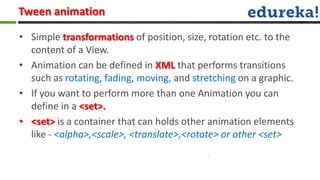
Tween animation

• Simple transformations of position, size, rotation etc. to the
  content of a View.
• Animation can be defined in XML that performs transitions
  such as rotating, fading, moving, and stretching on a graphic.
• If you want to perform more than one Animation you can
  define in a <set>.
• <set> is a container that can holds other animation elements
  like - <alpha>,<scale>, <translate>,<rotate> or other <set>
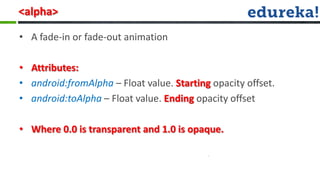
<alpha>

• A fade-in or fade-out animation

• Attributes:
• android:fromAlpha – Float value. Starting opacity offset.
• android:toAlpha – Float value. Ending opacity offset

• Where 0.0 is transparent and 1.0 is opaque.
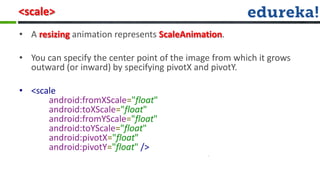
<scale>
• A resizing animation represents ScaleAnimation.

• You can specify the center point of the image from which it grows
  outward (or inward) by specifying pivotX and pivotY.

• <scale
      android:fromXScale="float"
      android:toXScale="float"
      android:fromYScale="float"
      android:toYScale="float"
      android:pivotX="float"
      android:pivotY="float" />
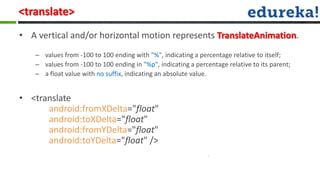
<translate>
• A vertical and/or horizontal motion represents TranslateAnimation.
   – values from -100 to 100 ending with "%", indicating a percentage relative to itself;
   – values from -100 to 100 ending in "%p", indicating a percentage relative to its parent;
   – a float value with no suffix, indicating an absolute value.


• <translate
      android:fromXDelta="float"
      android:toXDelta="float"
      android:fromYDelta="float"
      android:toYDelta="float" />
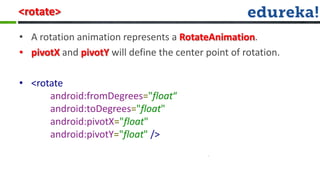
<rotate>

• A rotation animation represents a RotateAnimation.
• pivotX and pivotY will define the center point of rotation.

• <rotate
      android:fromDegrees="float“
      android:toDegrees="float"
      android:pivotX="float"
      android:pivotY="float" />
Async Task
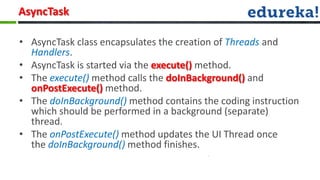
AsyncTask

• AsyncTask class encapsulates the creation of Threads and
  Handlers.
• AsyncTask is started via the execute() method.
• The execute() method calls the doInBackground() and
  onPostExecute() method.
• The doInBackground() method contains the coding instruction
  which should be performed in a background (separate)
  thread.
• The onPostExecute() method updates the UI Thread once
  the doInBackground() method finishes.
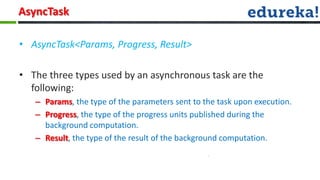
AsyncTask

• AsyncTask<Params, Progress, Result>

• The three types used by an asynchronous task are the
  following:
   – Params, the type of the parameters sent to the task upon execution.
   – Progress, the type of the progress units published during the
     background computation.
   – Result, the type of the result of the background computation.
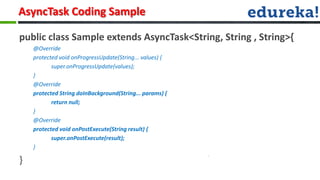
AsyncTask Coding Sample

public class Sample extends AsyncTask<String, String , String>{
    @Override
    protected void onProgressUpdate(String... values) {
           super.onProgressUpdate(values);
    }
    @Override
    protected String doInBackground(String... params) {
           return null;
    }
    @Override
    protected void onPostExecute(String result) {
           super.onPostExecute(result);
    }

}
Canvas
Canvas

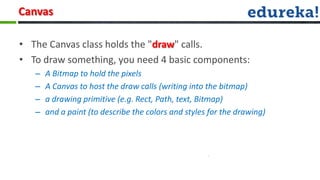
• The Canvas class holds the "draw" calls.
• To draw something, you need 4 basic components:
   –   A Bitmap to hold the pixels
   –   A Canvas to host the draw calls (writing into the bitmap)
   –   a drawing primitive (e.g. Rect, Path, text, Bitmap)
   –   and a paint (to describe the colors and styles for the drawing)
Paint and Path
Paint

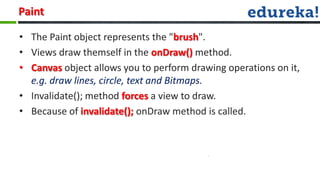
• The Paint object represents the "brush".
• Views draw themself in the onDraw() method.
• Canvas object allows you to perform drawing operations on it,
  e.g. draw lines, circle, text and Bitmaps.
• Invalidate(); method forces a view to draw.
• Because of invalidate(); onDraw method is called.
Properties

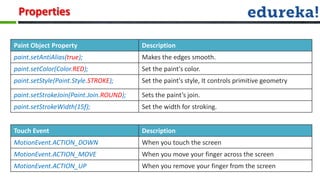
Paint Object Property                    Description
paint.setAntiAlias(true);                Makes the edges smooth.
paint.setColor(Color.RED);               Set the paint's color.
paint.setStyle(Paint.Style.STROKE);      Set the paint's style, It controls primitive geometry

paint.setStrokeJoin(Paint.Join.ROUND);   Sets the paint’s join.
paint.setStrokeWidth(15f);               Set the width for stroking.


Touch Event                              Description
MotionEvent.ACTION_DOWN                  When you touch the screen
MotionEvent.ACTION_MOVE                  When you move your finger across the screen
MotionEvent.ACTION_UP                    When you remove your finger from the screen
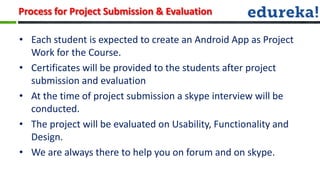
Process for Project Submission & Evaluation

• Each student is expected to create an Android App as Project
  Work for the Course.
• Certificates will be provided to the students after project
  submission and evaluation
• At the time of project submission a skype interview will be
  conducted.
• The project will be evaluated on Usability, Functionality and
  Design.
• We are always there to help you on forum and on skype.
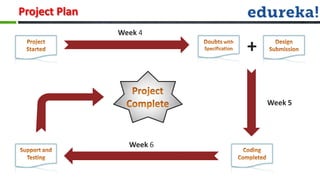
Project Plan
               Week 4

                          +

                              Week 5


                 Week 6
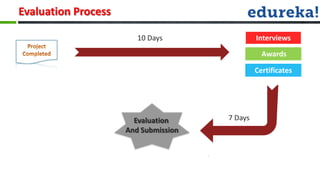
Evaluation Process

                        10 Days                Interviews
                                                 Awards

                                               Certificates


                       Evaluation     7 Days
                     And Submission
•Q & A..?
Android webinar class_4

Android webinar class_4

  • 1.
  • 2.
    Internal Storage onthe device • You can save files directly on the device's internal storage • By default, files saved to the internal storage are private to your application and other applications cannot access them (nor can the user). • When the user uninstalls your application, these files are removed.
  • 3.
    Usage: • Call openFileOutput()with the name of the file and the operating mode. This returns aFileOutputStream • Write to the file with write() • Close the stream with close()
  • 4.
    External Storage • EveryAndroid-compatible device supports a shared "external storage" that you can use to save files • Files saved to the external storage are world-readable and can be modified by the user
  • 5.
    Usage: • Checking mediaavailability :Using getExternalStorageState() • If you're using API Level 8 or greater, use getExternalCacheDir() to open a File • If you're using API Level 7 or lower, use getExternalStorageDirectory() to open a File
  • 6.
  • 7.
  • 8.
    Animation • There aretwo types of animations that you can do with the Animation framework of Android. • Class - android.view.animation.Animation 1. Frame animation 2. Tween animation
  • 9.
    Frame animation • Aseries of frames is drawn one after the other at regular . • Frame-by-frame animation is handled by the AnimationDrawable class.
  • 10.
    android_frame_anim.xml <?xml version="1.0" encoding="utf-8"?> <animation-list xmlns:android="http://schemas.android.com/apk/res/android" android:oneshot="false"> <item android:drawable="@drawable/android_1" android:duration="100" /> <item android:drawable="@drawable/android_2" android:duration="100" /> <item android:drawable="@drawable/android_3" android:duration="100" /> <item android:drawable="@drawable/android_4" android:duration="100" /> <item android:drawable="@drawable/android_5" android:duration="100" /> <item android:drawable="@drawable/android_6" android:duration="100" /> <item android:drawable="@drawable/android_7" android:duration="100" /> </animation-list>
  • 11.
    Tween animation • Simpletransformations of position, size, rotation etc. to the content of a View. • Animation can be defined in XML that performs transitions such as rotating, fading, moving, and stretching on a graphic. • If you want to perform more than one Animation you can define in a <set>. • <set> is a container that can holds other animation elements like - <alpha>,<scale>, <translate>,<rotate> or other <set>
  • 12.
    <alpha> • A fade-inor fade-out animation • Attributes: • android:fromAlpha – Float value. Starting opacity offset. • android:toAlpha – Float value. Ending opacity offset • Where 0.0 is transparent and 1.0 is opaque.
  • 13.
    <scale> • A resizinganimation represents ScaleAnimation. • You can specify the center point of the image from which it grows outward (or inward) by specifying pivotX and pivotY. • <scale android:fromXScale="float" android:toXScale="float" android:fromYScale="float" android:toYScale="float" android:pivotX="float" android:pivotY="float" />
  • 14.
    <translate> • A verticaland/or horizontal motion represents TranslateAnimation. – values from -100 to 100 ending with "%", indicating a percentage relative to itself; – values from -100 to 100 ending in "%p", indicating a percentage relative to its parent; – a float value with no suffix, indicating an absolute value. • <translate android:fromXDelta="float" android:toXDelta="float" android:fromYDelta="float" android:toYDelta="float" />
  • 15.
    <rotate> • A rotationanimation represents a RotateAnimation. • pivotX and pivotY will define the center point of rotation. • <rotate android:fromDegrees="float“ android:toDegrees="float" android:pivotX="float" android:pivotY="float" />
  • 16.
  • 17.
    AsyncTask • AsyncTask classencapsulates the creation of Threads and Handlers. • AsyncTask is started via the execute() method. • The execute() method calls the doInBackground() and onPostExecute() method. • The doInBackground() method contains the coding instruction which should be performed in a background (separate) thread. • The onPostExecute() method updates the UI Thread once the doInBackground() method finishes.
  • 18.
    AsyncTask • AsyncTask<Params, Progress,Result> • The three types used by an asynchronous task are the following: – Params, the type of the parameters sent to the task upon execution. – Progress, the type of the progress units published during the background computation. – Result, the type of the result of the background computation.
  • 19.
    AsyncTask Coding Sample publicclass Sample extends AsyncTask<String, String , String>{ @Override protected void onProgressUpdate(String... values) { super.onProgressUpdate(values); } @Override protected String doInBackground(String... params) { return null; } @Override protected void onPostExecute(String result) { super.onPostExecute(result); } }
  • 20.
  • 21.
    Canvas • The Canvasclass holds the "draw" calls. • To draw something, you need 4 basic components: – A Bitmap to hold the pixels – A Canvas to host the draw calls (writing into the bitmap) – a drawing primitive (e.g. Rect, Path, text, Bitmap) – and a paint (to describe the colors and styles for the drawing)
  • 22.
  • 23.
    Paint • The Paintobject represents the "brush". • Views draw themself in the onDraw() method. • Canvas object allows you to perform drawing operations on it, e.g. draw lines, circle, text and Bitmaps. • Invalidate(); method forces a view to draw. • Because of invalidate(); onDraw method is called.
  • 24.
    Properties Paint Object Property Description paint.setAntiAlias(true); Makes the edges smooth. paint.setColor(Color.RED); Set the paint's color. paint.setStyle(Paint.Style.STROKE); Set the paint's style, It controls primitive geometry paint.setStrokeJoin(Paint.Join.ROUND); Sets the paint’s join. paint.setStrokeWidth(15f); Set the width for stroking. Touch Event Description MotionEvent.ACTION_DOWN When you touch the screen MotionEvent.ACTION_MOVE When you move your finger across the screen MotionEvent.ACTION_UP When you remove your finger from the screen
  • 25.
    Process for ProjectSubmission & Evaluation • Each student is expected to create an Android App as Project Work for the Course. • Certificates will be provided to the students after project submission and evaluation • At the time of project submission a skype interview will be conducted. • The project will be evaluated on Usability, Functionality and Design. • We are always there to help you on forum and on skype.
  • 26.
    Project Plan Week 4 + Week 5 Week 6
  • 27.
    Evaluation Process 10 Days Interviews Awards Certificates Evaluation 7 Days And Submission
  • 28.

Editor's Notes

  • #3 such as development toolkits for other programming languages, and can write and contribute their own plug-in modules.
  • #9 such as development toolkits for other programming languages, and can write and contribute their own plug-in modules.
  • #10 such as development toolkits for other programming languages, and can write and contribute their own plug-in modules.
  • #11 such as development toolkits for other programming languages, and can write and contribute their own plug-in modules.
  • #12 such as development toolkits for other programming languages, and can write and contribute their own plug-in modules.
  • #13 such as development toolkits for other programming languages, and can write and contribute their own plug-in modules.
  • #14 such as development toolkits for other programming languages, and can write and contribute their own plug-in modules.
  • #15 such as development toolkits for other programming languages, and can write and contribute their own plug-in modules.
  • #16 such as development toolkits for other programming languages, and can write and contribute their own plug-in modules.
  • #18 AsyncTask class encapsulates the creation of Threads and Handlers. An AsyncTask is started via the execute() method.The execute() method calls the doInBackground() and the onPostExecute() method.The doInBackground() method contains the coding instruction which should be performed in a background thread. This method runs automatically in a separate Thread.The onPostExecute() method synchronize itself again with the user interface thread and allows to update it. This method is called by the framework once the doInBackground() method finishes.To use AsyncTask you must subclass it. AsyncTask uses generics and varargs. The parameters are the following AsyncTask &lt;TypeOfVarArgParams , ProgressValue , ResultValue&gt; .TypeOfVarArgParams is passed into the doInBackground() method as input, ProgressValue is used for progress information and ResultValue must be returned from doInBackground() method and is passed toonPostExecute() as parameter.
  • #19 AsyncTask class encapsulates the creation of Threads and Handlers. An AsyncTask is started via the execute() method.The execute() method calls the doInBackground() and the onPostExecute() method.The doInBackground() method contains the coding instruction which should be performed in a background thread. This method runs automatically in a separate Thread.The onPostExecute() method synchronize itself again with the user interface thread and allows to update it. This method is called by the framework once the doInBackground() method finishes.To use AsyncTask you must subclass it. AsyncTask uses generics and varargs. The parameters are the following AsyncTask &lt;TypeOfVarArgParams , ProgressValue , ResultValue&gt; .TypeOfVarArgParams is passed into the doInBackground() method as input, ProgressValue is used for progress information and ResultValue must be returned from doInBackground() method and is passed toonPostExecute() as parameter.
  • #20 AsyncTask class encapsulates the creation of Threads and Handlers. An AsyncTask is started via the execute() method.The execute() method calls the doInBackground() and the onPostExecute() method.The doInBackground() method contains the coding instruction which should be performed in a background thread. This method runs automatically in a separate Thread.The onPostExecute() method synchronize itself again with the user interface thread and allows to update it. This method is called by the framework once the doInBackground() method finishes.To use AsyncTask you must subclass it. AsyncTask uses generics and varargs. The parameters are the following AsyncTask &lt;TypeOfVarArgParams , ProgressValue , ResultValue&gt; .TypeOfVarArgParams is passed into the doInBackground() method as input, ProgressValue is used for progress information and ResultValue must be returned from doInBackground() method and is passed toonPostExecute() as parameter.
  • #22 AsyncTask class encapsulates the creation of Threads and Handlers. An AsyncTask is started via the execute() method.The execute() method calls the doInBackground() and the onPostExecute() method.The doInBackground() method contains the coding instruction which should be performed in a background thread. This method runs automatically in a separate Thread.The onPostExecute() method synchronize itself again with the user interface thread and allows to update it. This method is called by the framework once the doInBackground() method finishes.To use AsyncTask you must subclass it. AsyncTask uses generics and varargs. The parameters are the following AsyncTask &lt;TypeOfVarArgParams , ProgressValue , ResultValue&gt; .TypeOfVarArgParams is passed into the doInBackground() method as input, ProgressValue is used for progress information and ResultValue must be returned from doInBackground() method and is passed toonPostExecute() as parameter.
  • #24 such as development toolkits for other programming languages, and can write and contribute their own plug-in modules.
  • #25 such as development toolkits for other programming languages, and can write and contribute their own plug-in modules.