


Android UI Tips & Tricks
Shem Magnezi
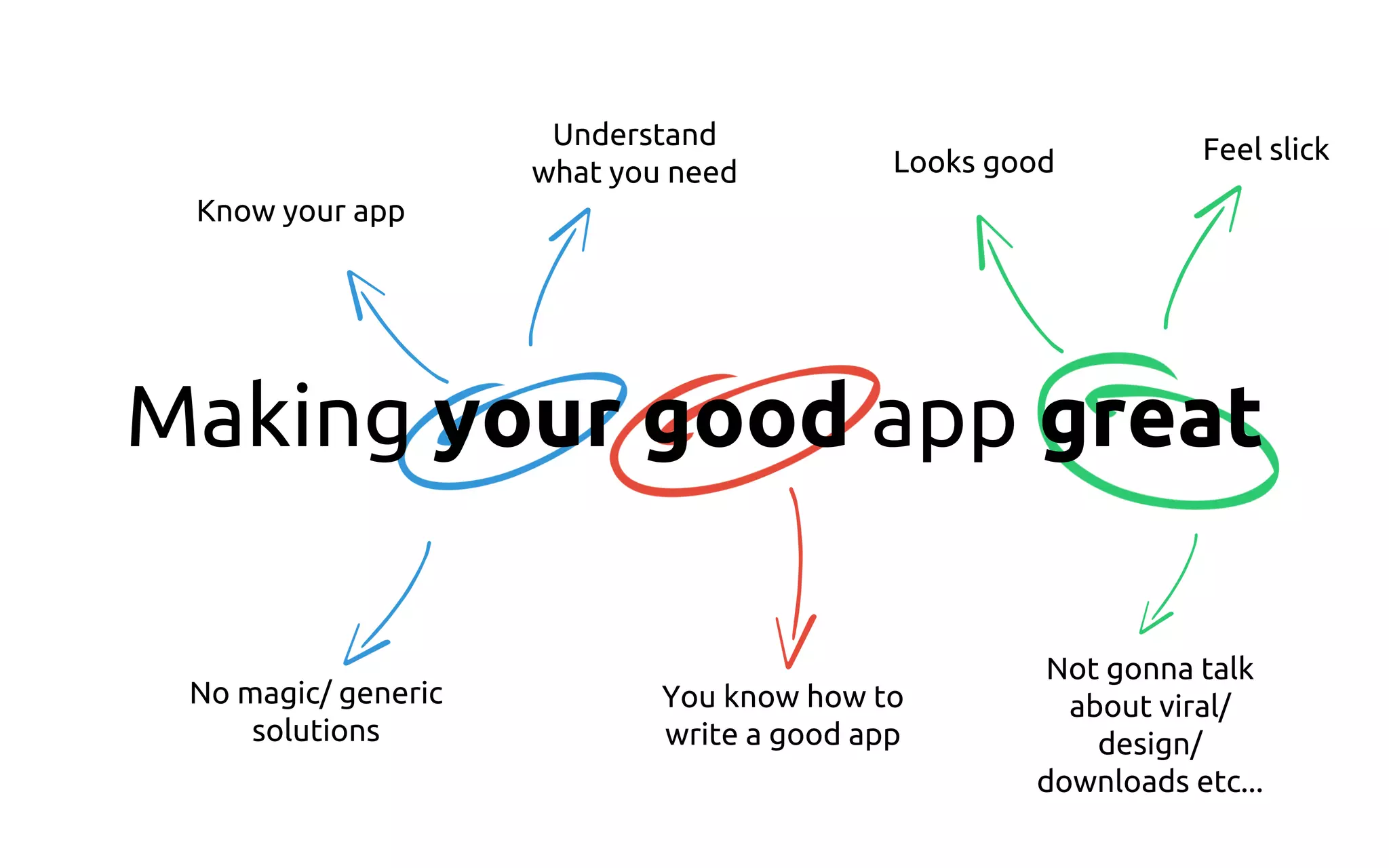
Making your good app great
Know your app
Understand
what you need
No magic/ generic
solutions
You know how to
write a good app
Looks good Feel slick
Not gonna talk
about viral/
design/
downloads etc...
Agenda
● Working with images
● Bring your views into life with animations
● Upgrade your lists views
Working with images
Cache Cache Cache
● Use cache for performance
● Be careful not using too much memory
Images in memory
Bitmap memory size:
Bitmap.getWidth() * Bitmap.getHeight() * Bitmap.config
Determine how much the bitmap gonna take:
Image.width * Image.height * Options.config / Options.sampleSize
Determine your cache size
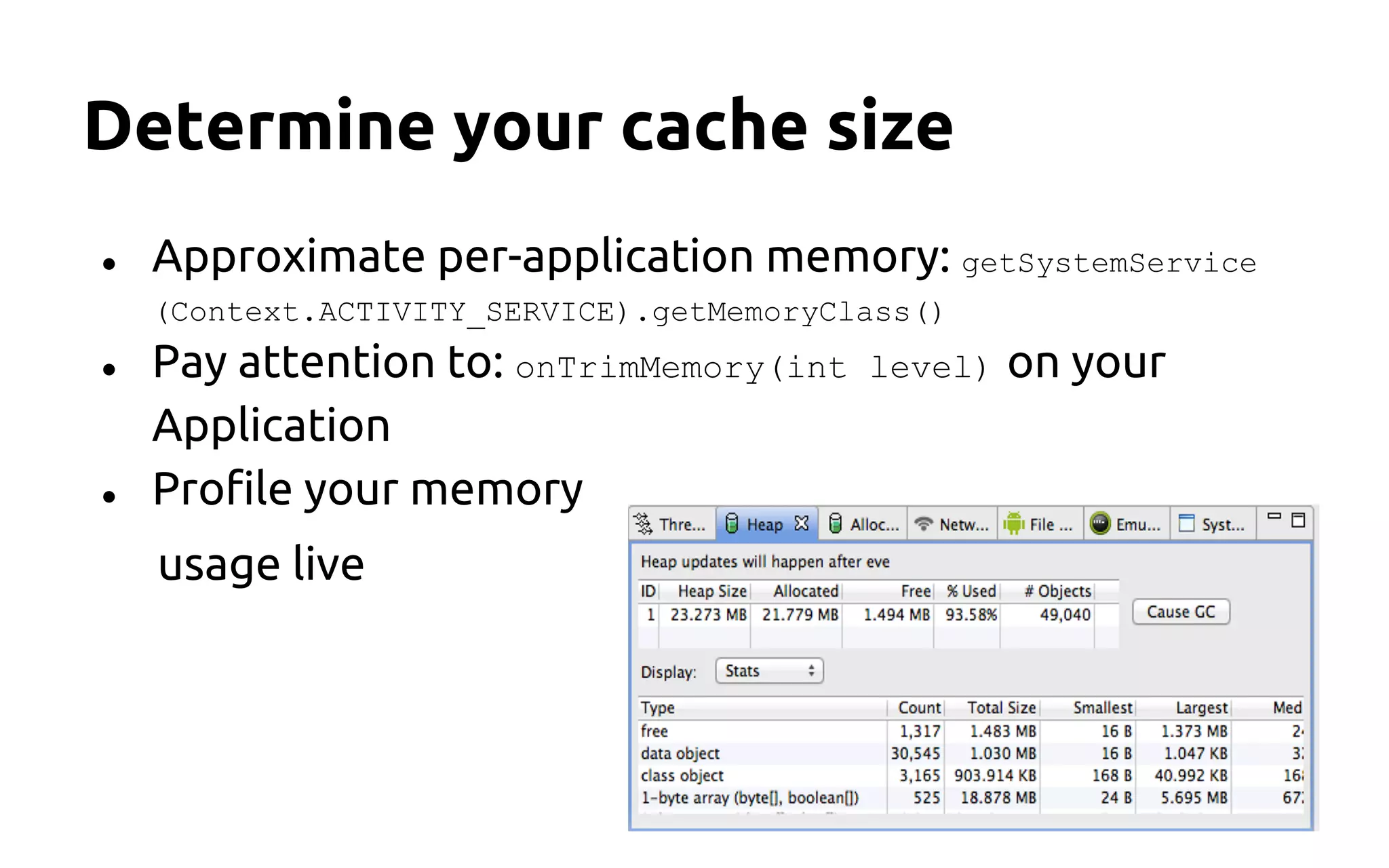
● Approximate per-application memory: getSystemService
(Context.ACTIVITY_SERVICE).getMemoryClass()
● Pay attention to: onTrimMemory(int level) on your
Application
● Profile your memory
usage live
Loading the proper image type
For small image views work with thumbnails:
MediaStore.Images.Thumbnails.getThumbnail(
..., int kind, ...)
MINI_KIND: 512 x 384
MICRO_KIND: 96 x 96
Sample size
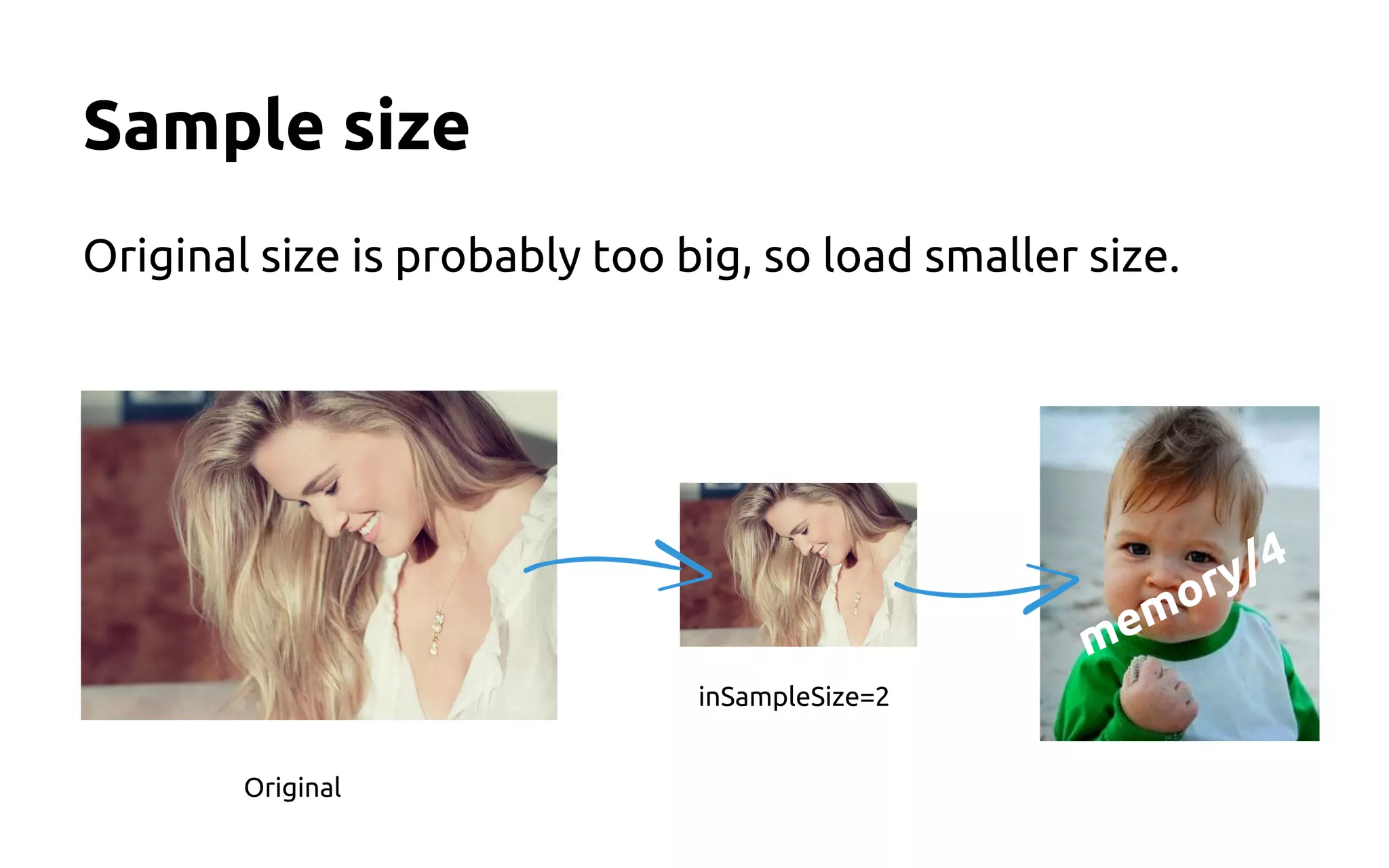
Original size is probably too big, so load smaller size.
Original
inSampleSize=2
memory/4
Determine the right sample size
● Get the original image size using: options.
inJustDecodeBounds = true;
● Get the view that gonna present the image
● Find the minimum sample_size so:
○ image.width / sample_size > view.width
○ image.height / sample_size > view.height
○ it also prefer that sample_size will be power of 2 for faster/
easier decoding
Find your view size
Sometimes your view size is 0 (cause is not yet drawn), so
you should wait until the system will draw it:
view.getViewTreeObserver().addOnGlobalLayoutListener(
new OnGlobalLayoutListener() {
public void onGlobalLayout() {
//load image for the right size
}
});
}
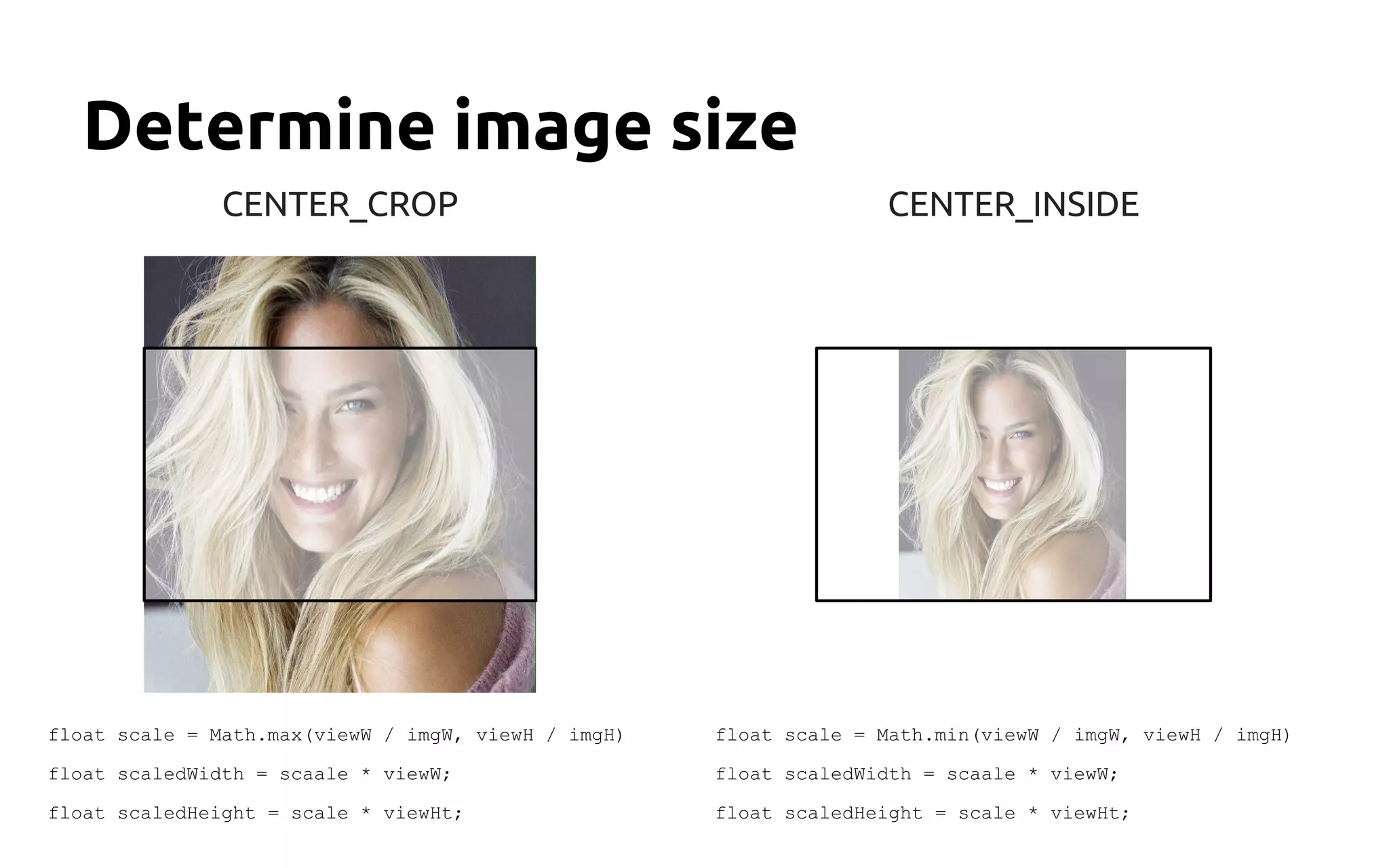
Determine image size
CENTER_CROP
float scale = Math.max(viewW / imgW, viewH / imgH)
float scaledWidth = scaale * viewW;
float scaledHeight = scale * viewHt;
CENTER_INSIDE
float scale = Math.min(viewW / imgW, viewH / imgH)
float scaledWidth = scaale * viewW;
float scaledHeight = scale * viewHt;
Make your cache a bit smarter
get(Item image, Size size) {
cached = getImage(image);
if (cached != null) {
if (cached.size >= size) {
//saved time!
} else {
//maybe display a lower
//resolution until loading
//the full image
}
} else {
//photo not in cache, but we
//did our best
}
}
put(Item image, Size size) {
if (size < MICRO_KIND_SIZE) {
//load micro kind thumbnail
} else if (size < MINI_KIND_SIZE) {
//load mini kind thumbnail
} else {
//read the full image with the
//right sample size
}
}
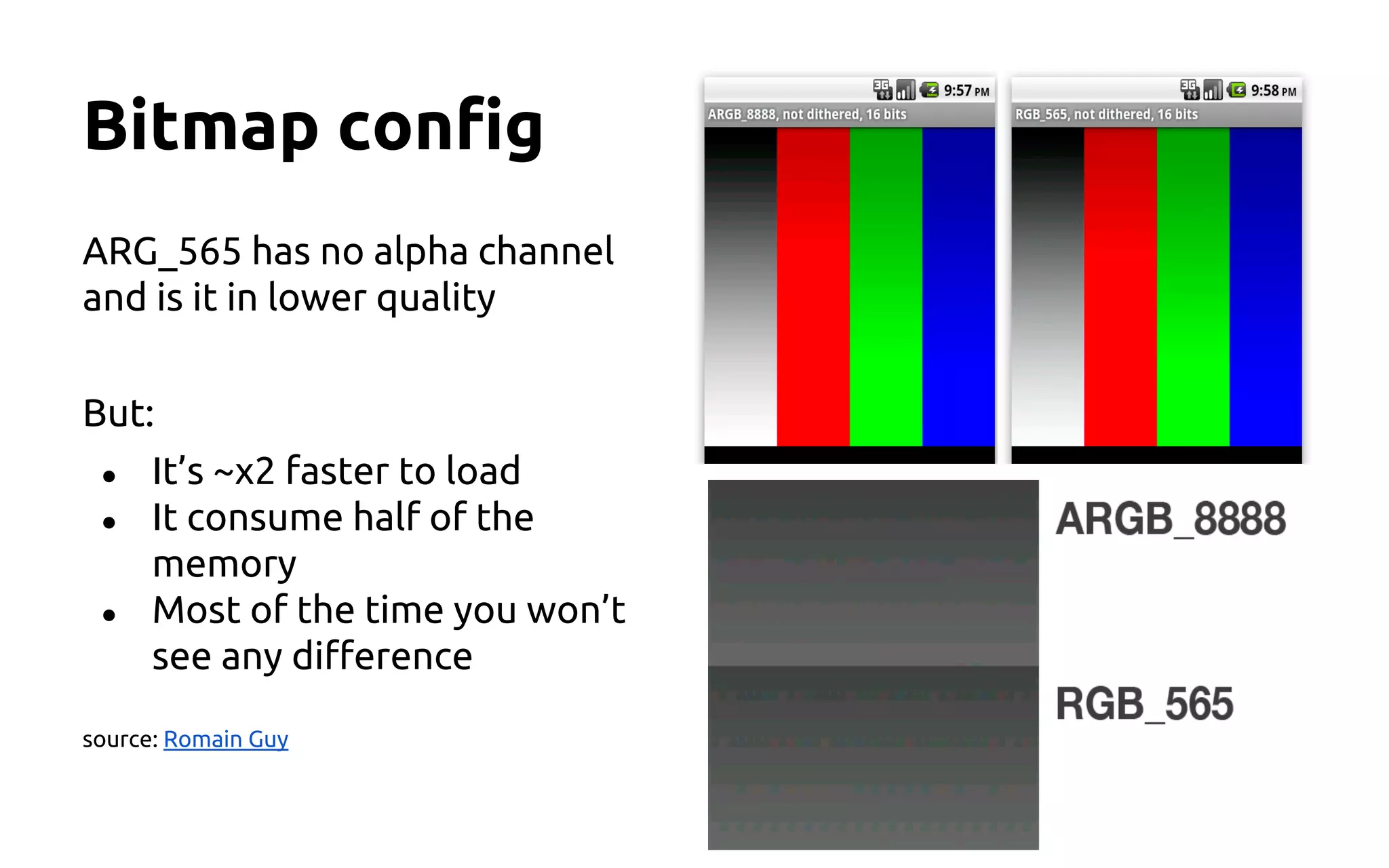
Bitmap config
ARG_565 has no alpha channel
and is it in lower quality
But:
● It’s ~x2 faster to load
● It consume half of the
memory
● Most of the time you won’t
see any difference
source: Romain Guy
Animations
Interpolator
Sometimes you can use interpolator instead of
couple of sequenced animations.
For example, the built-in bounce animation on
android.
Between-activities animations
Set activity style:
<item name="android:windowBackground">@android:color/transparent</item>
When moving to this activity:
startActivity(intent);
overridePendingTransition(0, 0);
Do the animation:
ViewTreeObserver observer = animationImage.getViewTreeObserver();
observer.addOnPreDrawListener(new ViewTreeObserver.OnPreDrawListener() {
public boolean onPreDraw() {
animationImage.getViewTreeObserver().removeOnPreDrawListener(this);
runEnterAnimation(back, startBounds);
}
});
Pre drawer listener?
Very useful for animations!
● Create enter animation to your activity
● Create animation to your view when it’s
added to the screen
● Animate list items when the list changes
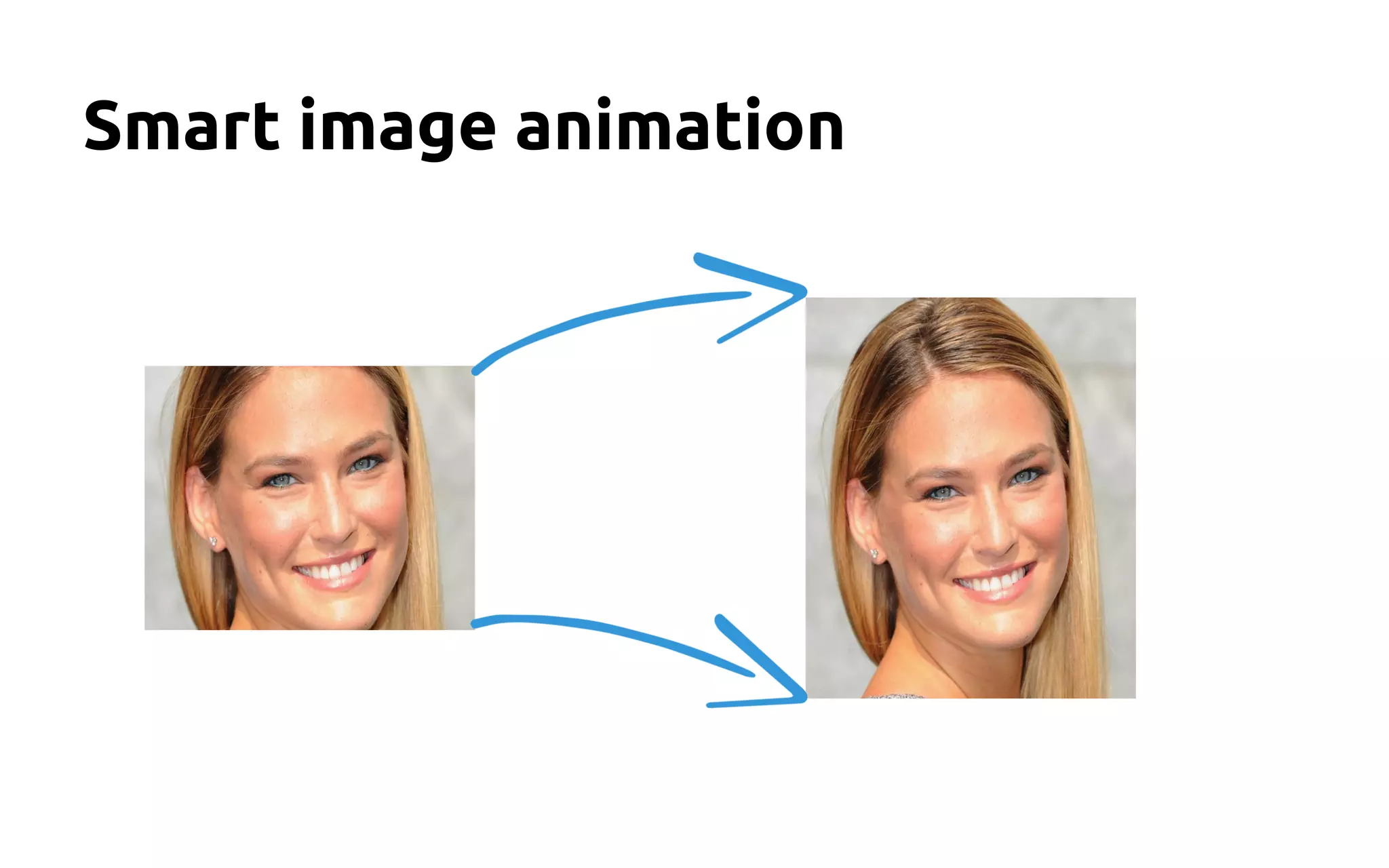
Smart image animation
Case #1
Scaling animation for the image view:
ObjectAnimator.ofFloat(image_1, "scaleY", 1, 1.5
f);
<ImageView
android:id="@+id/image_1"
android:layout_width="225dp"
android:layout_height="150dp"
android:scaleType="centerCrop"
/>
When animating the
view there is no re-
layout and the image
not preserving it’s
scale type
Case #2
Use a frame and do a reverse scaling to the inner
image:
<RelativeLayout android:id="@+id/image_2"
android:layout_width="225dp"
android:layout_height="150dp">
<ImageView android:id="@+id/inner_image"
android:layout_width="225dp"
android:layout_height="300dp"
android:layout_marginTop="-75dp"
android:layout_marginBottom="-75dp"/>
</RelativeLayout>
anim.playTogether(
ObjectAnimator.ofFloat(image_2, "scaleY", 1, 1.5f),
ObjectAnimator.ofFloat(inner, "scaleY", 1f, 0.6666f));
● Lots of
calculations
● The animation is
not linear
● Need an extra
view
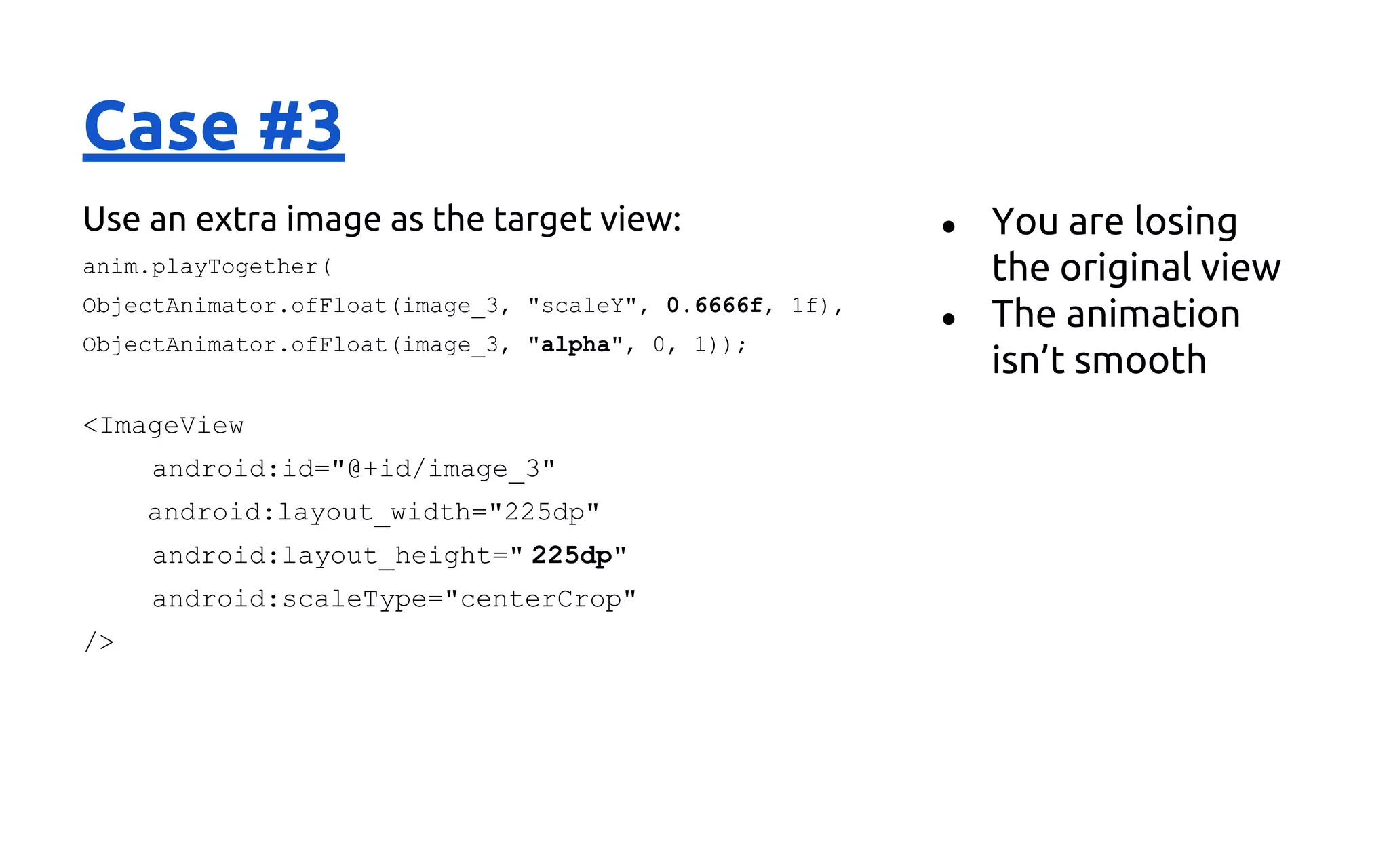
Case #3
Use an extra image as the target view:
anim.playTogether(
ObjectAnimator.ofFloat(image_3, "scaleY", 0.6666f, 1f),
ObjectAnimator.ofFloat(image_3, "alpha", 0, 1));
<ImageView
android:id="@+id/image_3"
android:layout_width="225dp"
android:layout_height=" 225dp"
android:scaleType="centerCrop"
/>
● You are losing
the original view
● The animation
isn’t smooth
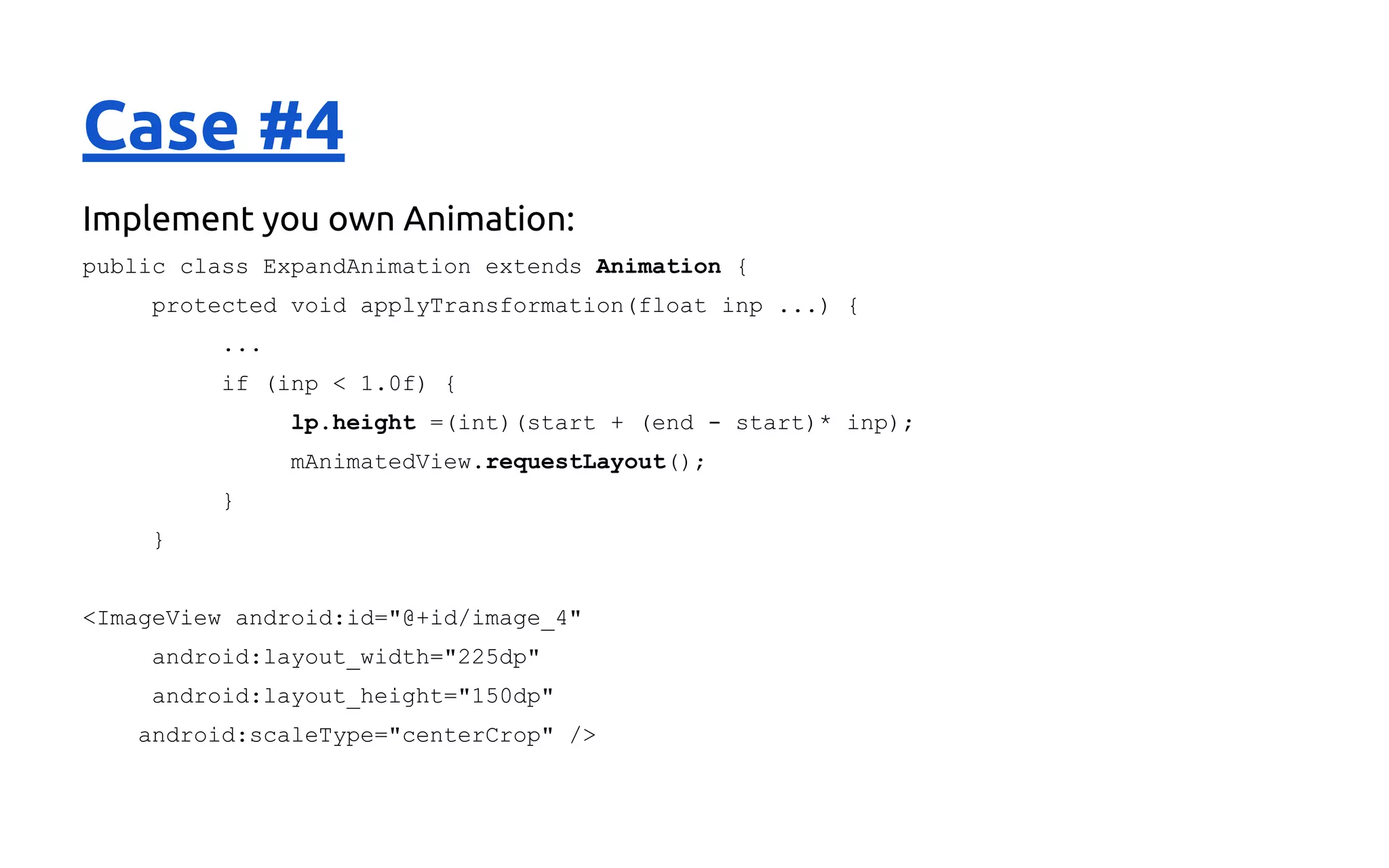
Case #4
Implement you own Animation:
public class ExpandAnimation extends Animation {
protected void applyTransformation(float inp ...) {
...
if (inp < 1.0f) {
lp.height =(int)(start + (end - start)* inp);
mAnimatedView.requestLayout();
}
}
<ImageView android:id="@+id/image_4"
android:layout_width="225dp"
android:layout_height="150dp"
android:scaleType="centerCrop" />
Working with Lists
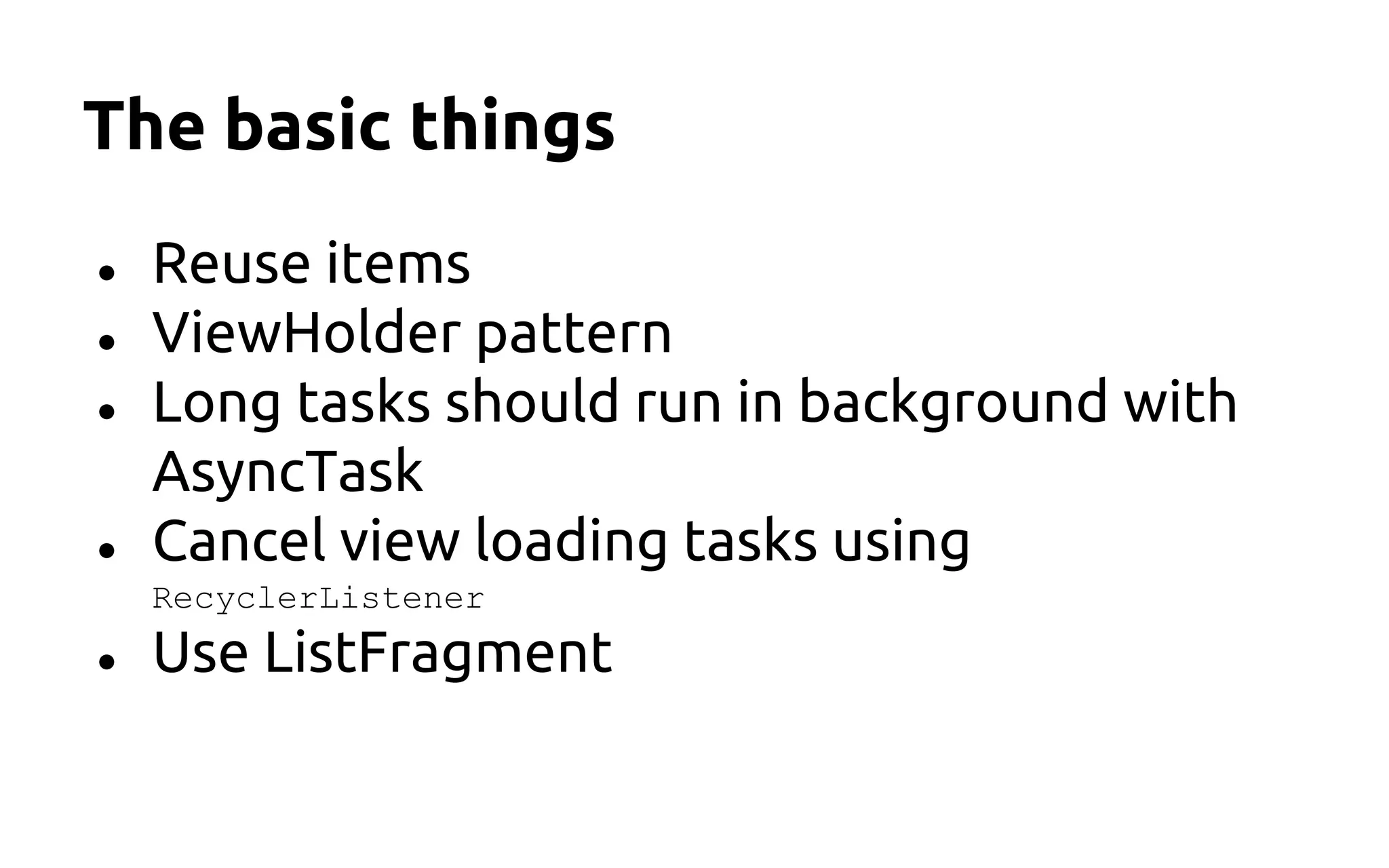
The basic things
● Reuse items
● ViewHolder pattern
● Long tasks should run in background with
AsyncTask
● Cancel view loading tasks using
RecyclerListener
● Use ListFragment
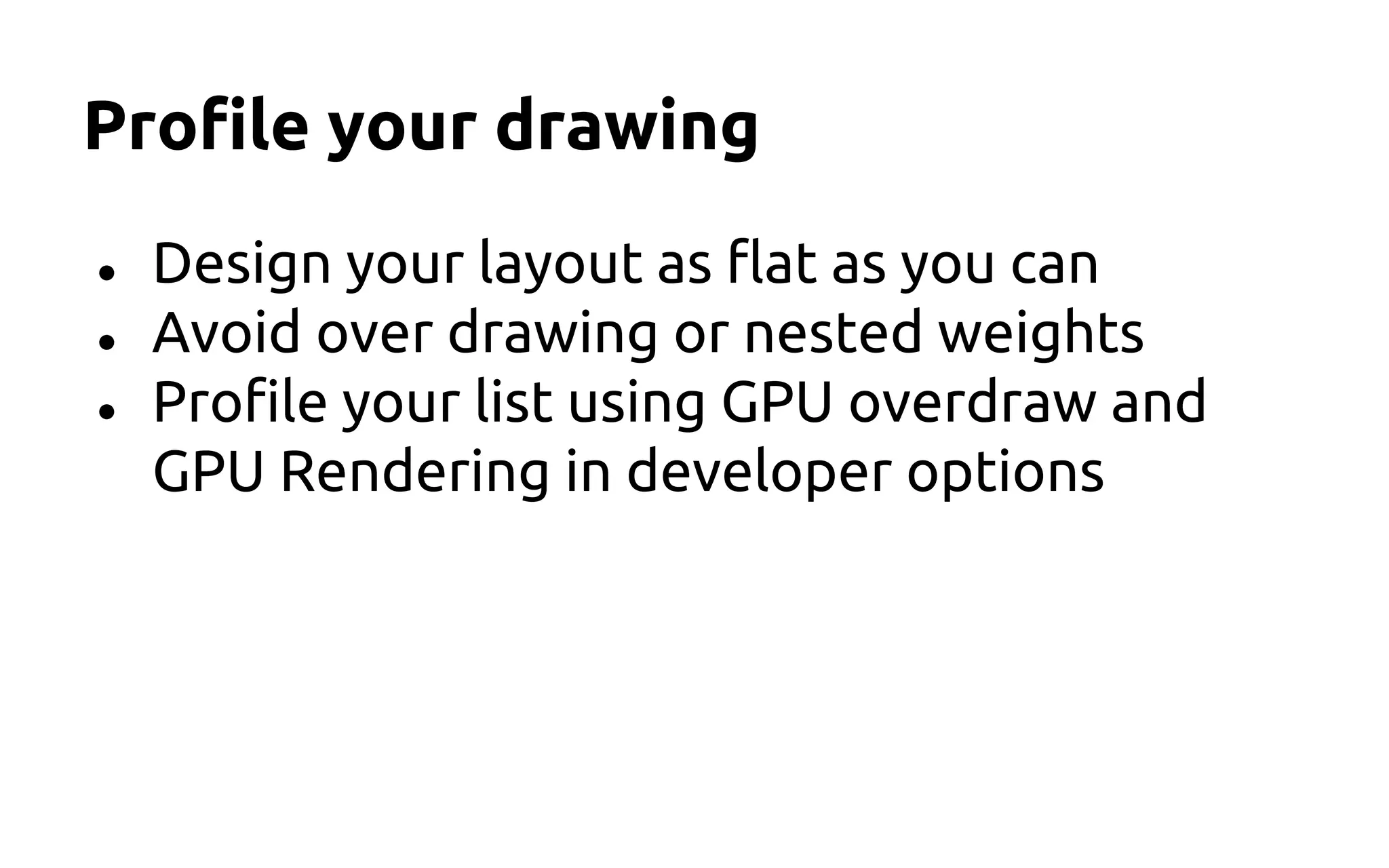
Profile your drawing
● Design your layout as flat as you can
● Avoid over drawing or nested weights
● Profile your list using GPU overdraw and
GPU Rendering in developer options
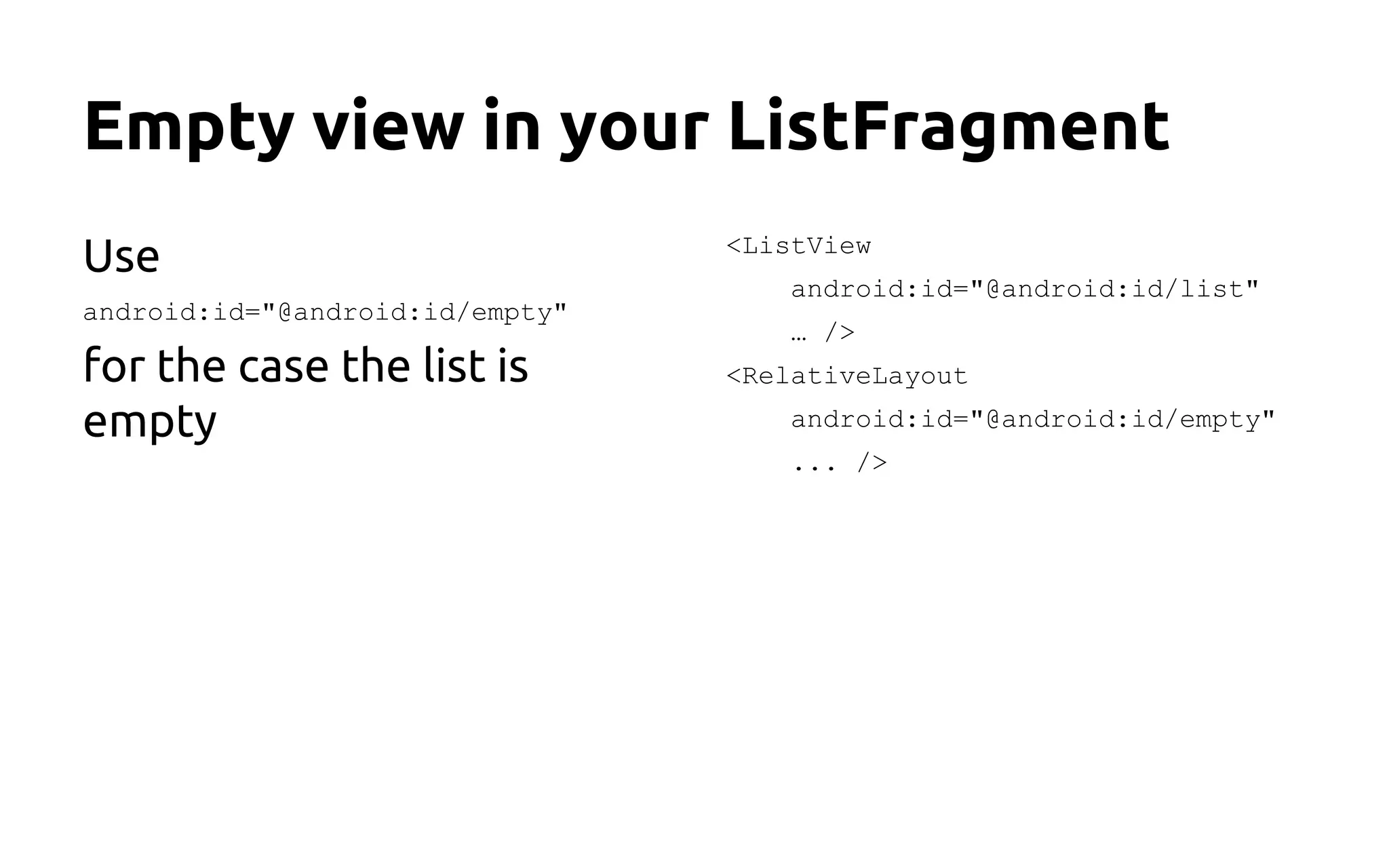
Empty view in your ListFragment
Use
android:id="@android:id/empty"
for the case the list is
empty
<ListView
android:id="@android:id/list"
… />
<RelativeLayout
android:id="@android:id/empty"
... />
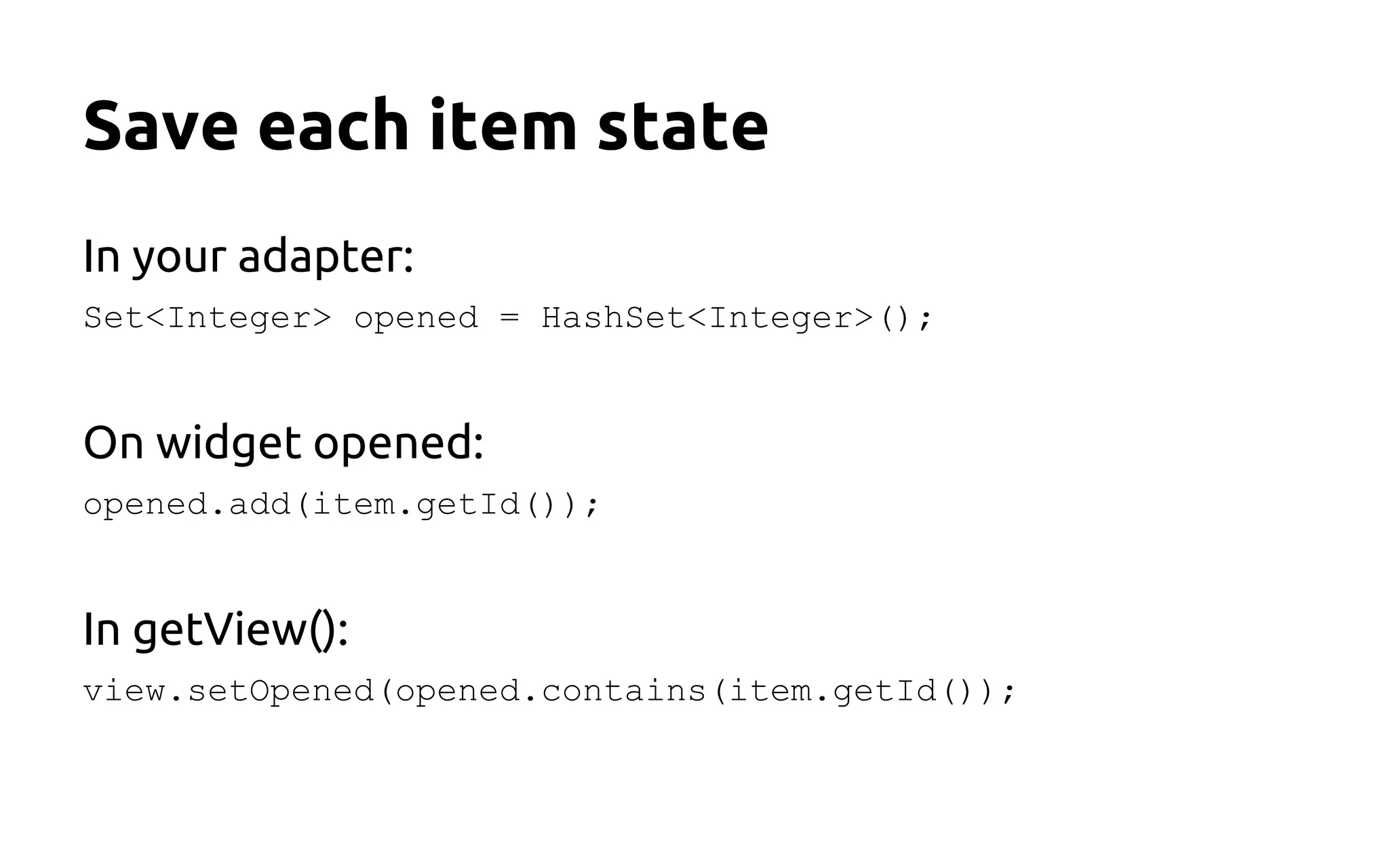
Save each item state
In your adapter:
Set<Integer> opened = HashSet<Integer>();
On widget opened:
opened.add(item.getId());
In getView():
view.setOpened(opened.contains(item.getId());
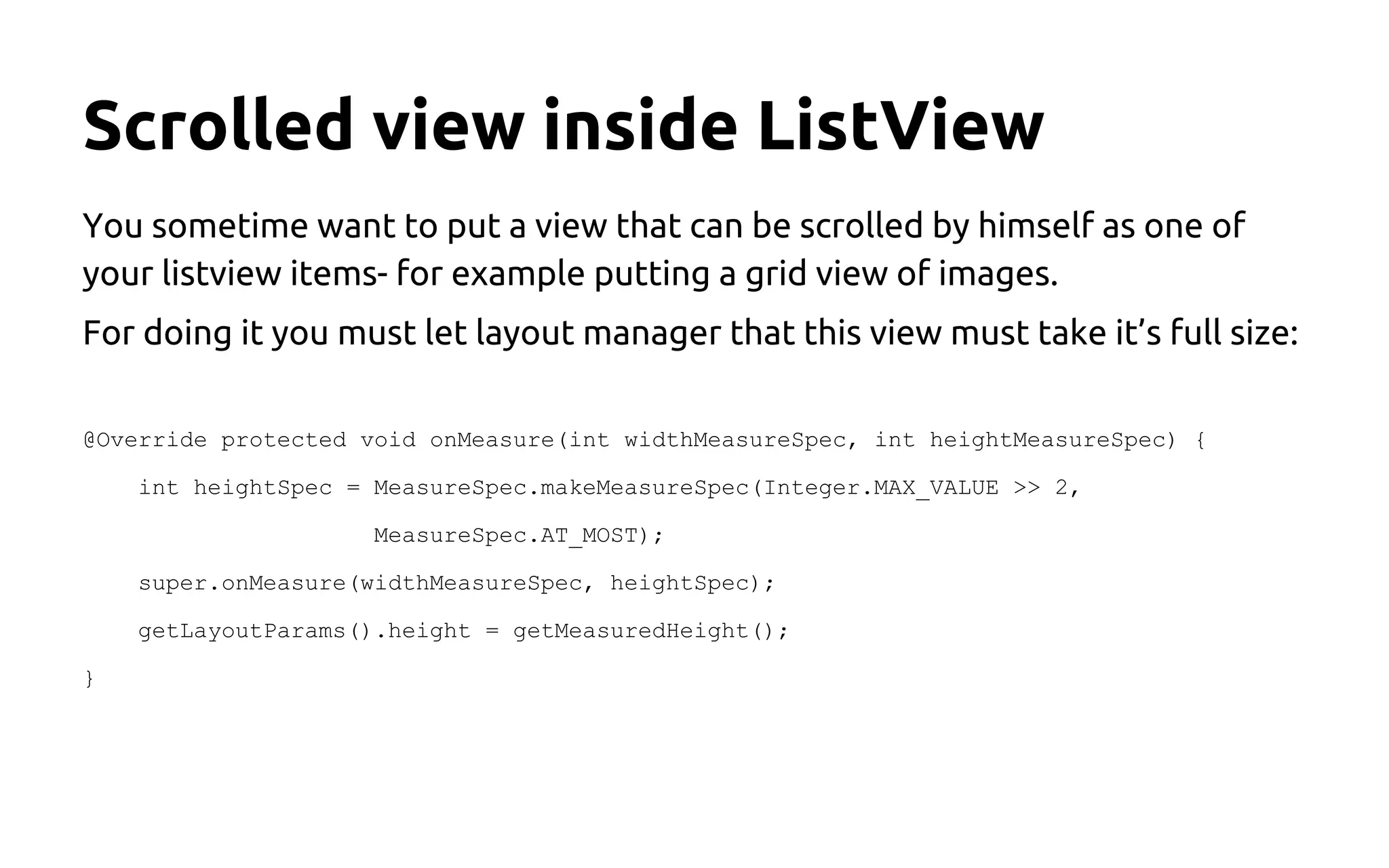
Scrolled view inside ListView
You sometime want to put a view that can be scrolled by himself as one of
your listview items- for example putting a grid view of images.
For doing it you must let layout manager that this view must take it’s full size:
@Override protected void onMeasure(int widthMeasureSpec, int heightMeasureSpec) {
int heightSpec = MeasureSpec.makeMeasureSpec(Integer.MAX_VALUE >> 2,
MeasureSpec.AT_MOST);
super.onMeasure(widthMeasureSpec, heightSpec);
getLayoutParams().height = getMeasuredHeight();
}
source: stackoverflow.com
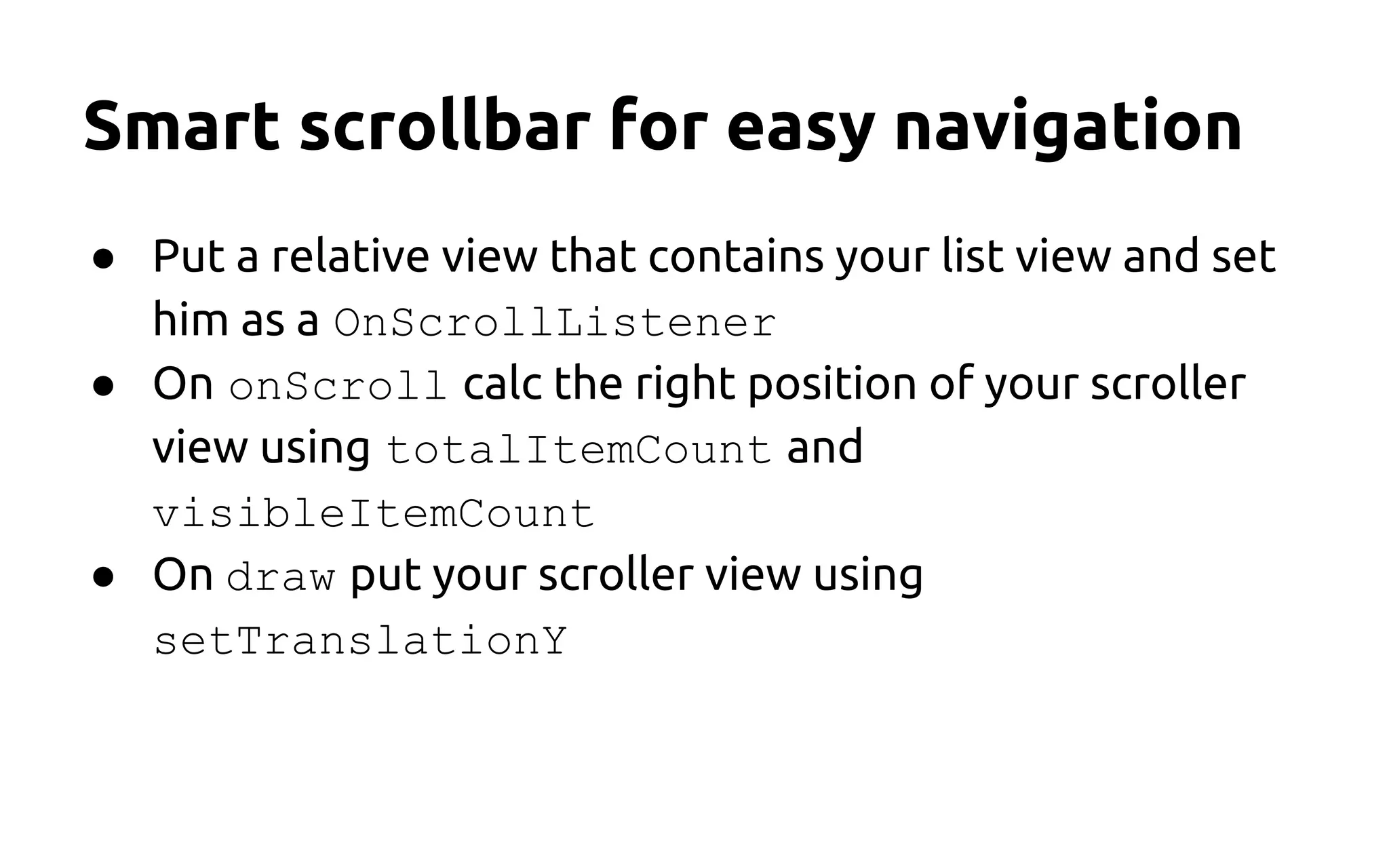
Smart scrollbar for easy navigation
● Put a relative view that contains your list view and set
him as a OnScrollListener
● On onScroll calc the right position of your scroller
view using totalItemCount and
visibleItemCount
● On draw put your scroller view using
setTranslationY
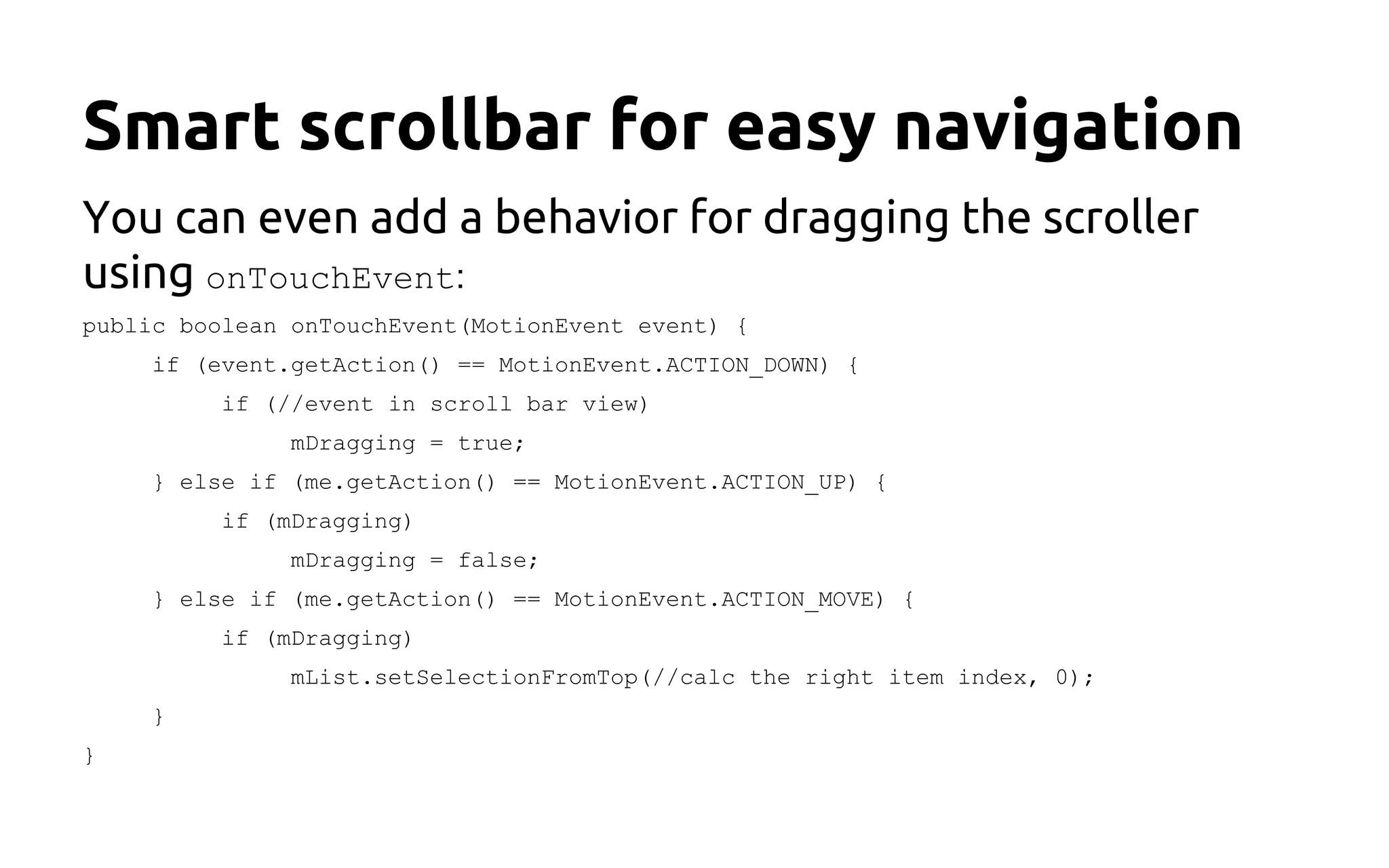
Smart scrollbar for easy navigation
You can even add a behavior for dragging the scroller
using onTouchEvent:
public boolean onTouchEvent(MotionEvent event) {
if (event.getAction() == MotionEvent.ACTION_DOWN) {
if (//event in scroll bar view)
mDragging = true;
} else if (me.getAction() == MotionEvent.ACTION_UP) {
if (mDragging)
mDragging = false;
} else if (me.getAction() == MotionEvent.ACTION_MOVE) {
if (mDragging)
mList.setSelectionFromTop(//calc the right item index, 0);
}
}
smagnezi8@gmail.com
Thank you.

Android ui tips & tricks

  • 1.
    Android UI Tips& Tricks Shem Magnezi
  • 2.
    Making your goodapp great Know your app Understand what you need No magic/ generic solutions You know how to write a good app Looks good Feel slick Not gonna talk about viral/ design/ downloads etc...
  • 3.
    Agenda ● Working withimages ● Bring your views into life with animations ● Upgrade your lists views
  • 4.
  • 5.
    Cache Cache Cache ●Use cache for performance ● Be careful not using too much memory
  • 6.
    Images in memory Bitmapmemory size: Bitmap.getWidth() * Bitmap.getHeight() * Bitmap.config Determine how much the bitmap gonna take: Image.width * Image.height * Options.config / Options.sampleSize
  • 7.
    Determine your cachesize ● Approximate per-application memory: getSystemService (Context.ACTIVITY_SERVICE).getMemoryClass() ● Pay attention to: onTrimMemory(int level) on your Application ● Profile your memory usage live
  • 8.
    Loading the properimage type For small image views work with thumbnails: MediaStore.Images.Thumbnails.getThumbnail( ..., int kind, ...) MINI_KIND: 512 x 384 MICRO_KIND: 96 x 96
  • 9.
    Sample size Original sizeis probably too big, so load smaller size. Original inSampleSize=2 memory/4
  • 10.
    Determine the rightsample size ● Get the original image size using: options. inJustDecodeBounds = true; ● Get the view that gonna present the image ● Find the minimum sample_size so: ○ image.width / sample_size > view.width ○ image.height / sample_size > view.height ○ it also prefer that sample_size will be power of 2 for faster/ easier decoding
  • 11.
    Find your viewsize Sometimes your view size is 0 (cause is not yet drawn), so you should wait until the system will draw it: view.getViewTreeObserver().addOnGlobalLayoutListener( new OnGlobalLayoutListener() { public void onGlobalLayout() { //load image for the right size } }); }
  • 12.
    Determine image size CENTER_CROP floatscale = Math.max(viewW / imgW, viewH / imgH) float scaledWidth = scaale * viewW; float scaledHeight = scale * viewHt; CENTER_INSIDE float scale = Math.min(viewW / imgW, viewH / imgH) float scaledWidth = scaale * viewW; float scaledHeight = scale * viewHt;
  • 13.
    Make your cachea bit smarter get(Item image, Size size) { cached = getImage(image); if (cached != null) { if (cached.size >= size) { //saved time! } else { //maybe display a lower //resolution until loading //the full image } } else { //photo not in cache, but we //did our best } } put(Item image, Size size) { if (size < MICRO_KIND_SIZE) { //load micro kind thumbnail } else if (size < MINI_KIND_SIZE) { //load mini kind thumbnail } else { //read the full image with the //right sample size } }
  • 14.
    Bitmap config ARG_565 hasno alpha channel and is it in lower quality But: ● It’s ~x2 faster to load ● It consume half of the memory ● Most of the time you won’t see any difference source: Romain Guy
  • 15.
  • 16.
    Interpolator Sometimes you canuse interpolator instead of couple of sequenced animations. For example, the built-in bounce animation on android.
  • 17.
    Between-activities animations Set activitystyle: <item name="android:windowBackground">@android:color/transparent</item> When moving to this activity: startActivity(intent); overridePendingTransition(0, 0); Do the animation: ViewTreeObserver observer = animationImage.getViewTreeObserver(); observer.addOnPreDrawListener(new ViewTreeObserver.OnPreDrawListener() { public boolean onPreDraw() { animationImage.getViewTreeObserver().removeOnPreDrawListener(this); runEnterAnimation(back, startBounds); } });
  • 18.
    Pre drawer listener? Veryuseful for animations! ● Create enter animation to your activity ● Create animation to your view when it’s added to the screen ● Animate list items when the list changes
  • 19.
  • 20.
    Case #1 Scaling animationfor the image view: ObjectAnimator.ofFloat(image_1, "scaleY", 1, 1.5 f); <ImageView android:id="@+id/image_1" android:layout_width="225dp" android:layout_height="150dp" android:scaleType="centerCrop" /> When animating the view there is no re- layout and the image not preserving it’s scale type
  • 21.
    Case #2 Use aframe and do a reverse scaling to the inner image: <RelativeLayout android:id="@+id/image_2" android:layout_width="225dp" android:layout_height="150dp"> <ImageView android:id="@+id/inner_image" android:layout_width="225dp" android:layout_height="300dp" android:layout_marginTop="-75dp" android:layout_marginBottom="-75dp"/> </RelativeLayout> anim.playTogether( ObjectAnimator.ofFloat(image_2, "scaleY", 1, 1.5f), ObjectAnimator.ofFloat(inner, "scaleY", 1f, 0.6666f)); ● Lots of calculations ● The animation is not linear ● Need an extra view
  • 22.
    Case #3 Use anextra image as the target view: anim.playTogether( ObjectAnimator.ofFloat(image_3, "scaleY", 0.6666f, 1f), ObjectAnimator.ofFloat(image_3, "alpha", 0, 1)); <ImageView android:id="@+id/image_3" android:layout_width="225dp" android:layout_height=" 225dp" android:scaleType="centerCrop" /> ● You are losing the original view ● The animation isn’t smooth
  • 23.
    Case #4 Implement youown Animation: public class ExpandAnimation extends Animation { protected void applyTransformation(float inp ...) { ... if (inp < 1.0f) { lp.height =(int)(start + (end - start)* inp); mAnimatedView.requestLayout(); } } <ImageView android:id="@+id/image_4" android:layout_width="225dp" android:layout_height="150dp" android:scaleType="centerCrop" />
  • 24.
  • 25.
    The basic things ●Reuse items ● ViewHolder pattern ● Long tasks should run in background with AsyncTask ● Cancel view loading tasks using RecyclerListener ● Use ListFragment
  • 26.
    Profile your drawing ●Design your layout as flat as you can ● Avoid over drawing or nested weights ● Profile your list using GPU overdraw and GPU Rendering in developer options
  • 27.
    Empty view inyour ListFragment Use android:id="@android:id/empty" for the case the list is empty <ListView android:id="@android:id/list" … /> <RelativeLayout android:id="@android:id/empty" ... />
  • 28.
    Save each itemstate In your adapter: Set<Integer> opened = HashSet<Integer>(); On widget opened: opened.add(item.getId()); In getView(): view.setOpened(opened.contains(item.getId());
  • 29.
    Scrolled view insideListView You sometime want to put a view that can be scrolled by himself as one of your listview items- for example putting a grid view of images. For doing it you must let layout manager that this view must take it’s full size: @Override protected void onMeasure(int widthMeasureSpec, int heightMeasureSpec) { int heightSpec = MeasureSpec.makeMeasureSpec(Integer.MAX_VALUE >> 2, MeasureSpec.AT_MOST); super.onMeasure(widthMeasureSpec, heightSpec); getLayoutParams().height = getMeasuredHeight(); } source: stackoverflow.com
  • 30.
    Smart scrollbar foreasy navigation ● Put a relative view that contains your list view and set him as a OnScrollListener ● On onScroll calc the right position of your scroller view using totalItemCount and visibleItemCount ● On draw put your scroller view using setTranslationY
  • 31.
    Smart scrollbar foreasy navigation You can even add a behavior for dragging the scroller using onTouchEvent: public boolean onTouchEvent(MotionEvent event) { if (event.getAction() == MotionEvent.ACTION_DOWN) { if (//event in scroll bar view) mDragging = true; } else if (me.getAction() == MotionEvent.ACTION_UP) { if (mDragging) mDragging = false; } else if (me.getAction() == MotionEvent.ACTION_MOVE) { if (mDragging) mList.setSelectionFromTop(//calc the right item index, 0); } }
  • 32.