Location, Media and Notification
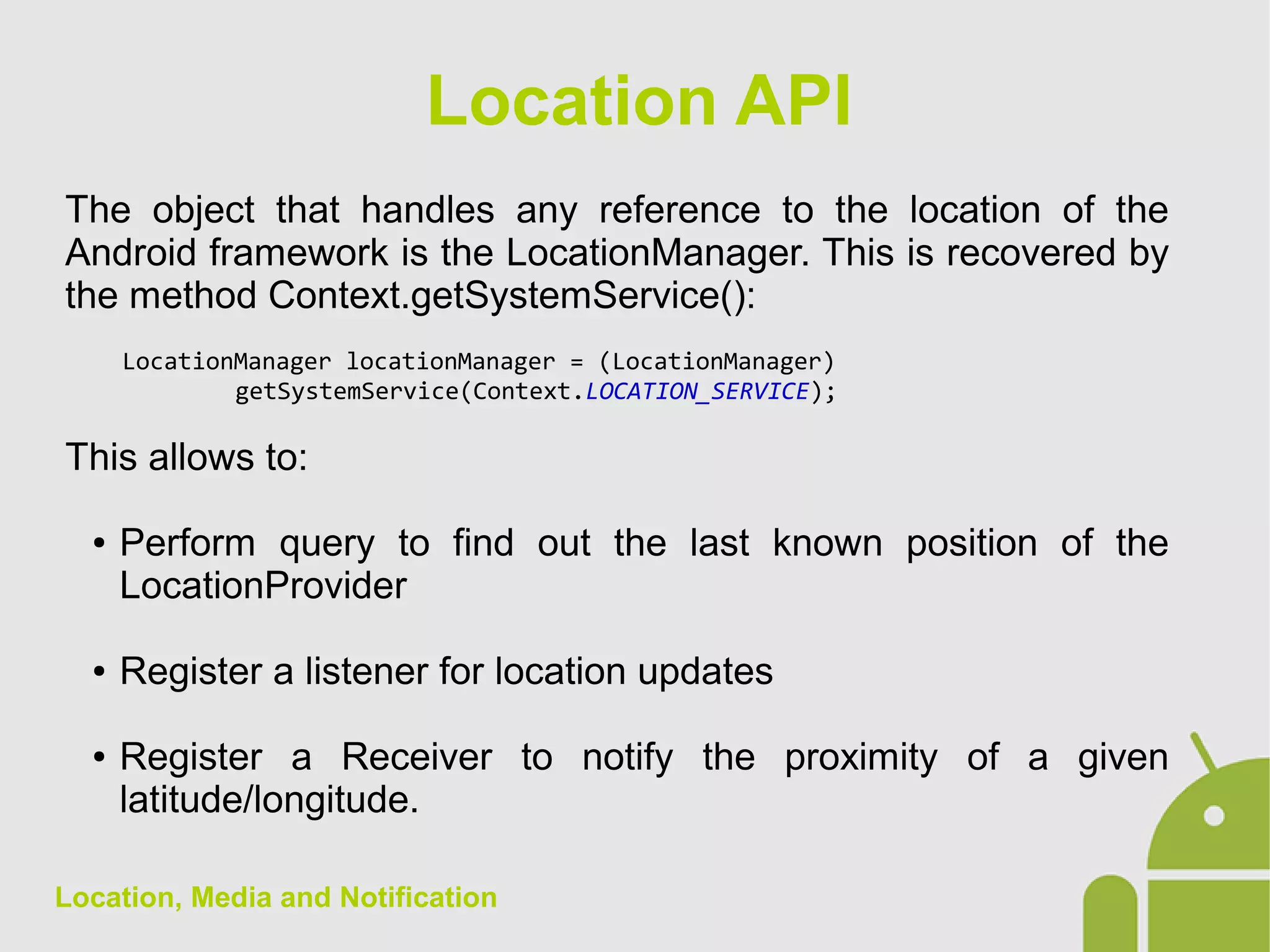
The object that handles any reference to the location of the
Android framework is the LocationManager. This is recovered by
the method Context.getSystemService():
LocationManager locationManager = (LocationManager)
getSystemService(Context.LOCATION_SERVICE);
This allows to:
● Perform query to find out the last known position of the
LocationProvider
● Register a listener for location updates
● Register a Receiver to notify the proximity of a given
latitude/longitude.
Location API
Location, Media and Notification
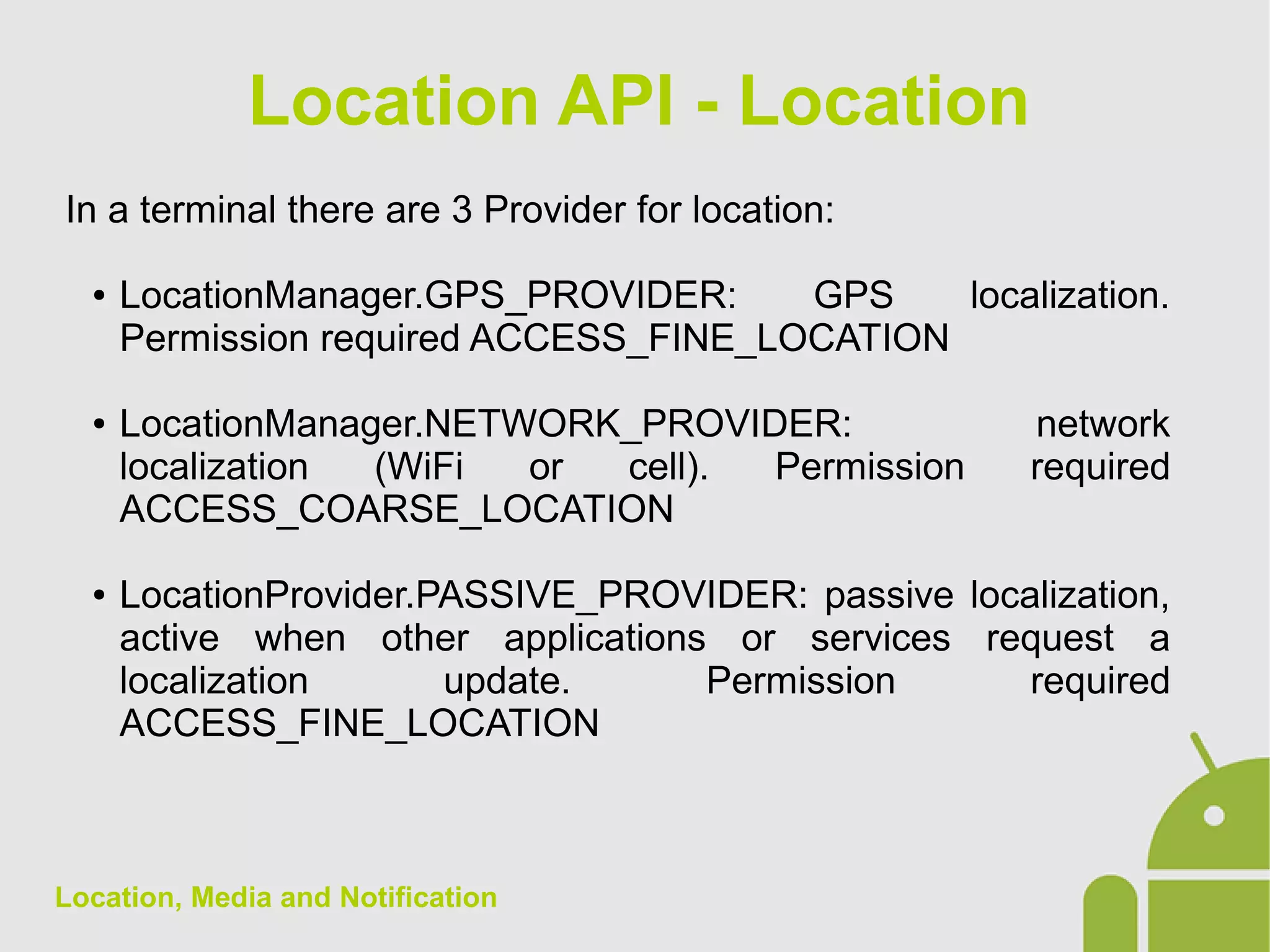
In a terminal there are 3 Provider for location:
● LocationManager.GPS_PROVIDER: GPS localization.
Permission required ACCESS_FINE_LOCATION
● LocationManager.NETWORK_PROVIDER: network
localization (WiFi or cell). Permission required
ACCESS_COARSE_LOCATION
● LocationProvider.PASSIVE_PROVIDER: passive localization,
active when other applications or services request a
localization update. Permission required
ACCESS_FINE_LOCATION
Location API - Location
Location, Media and Notification
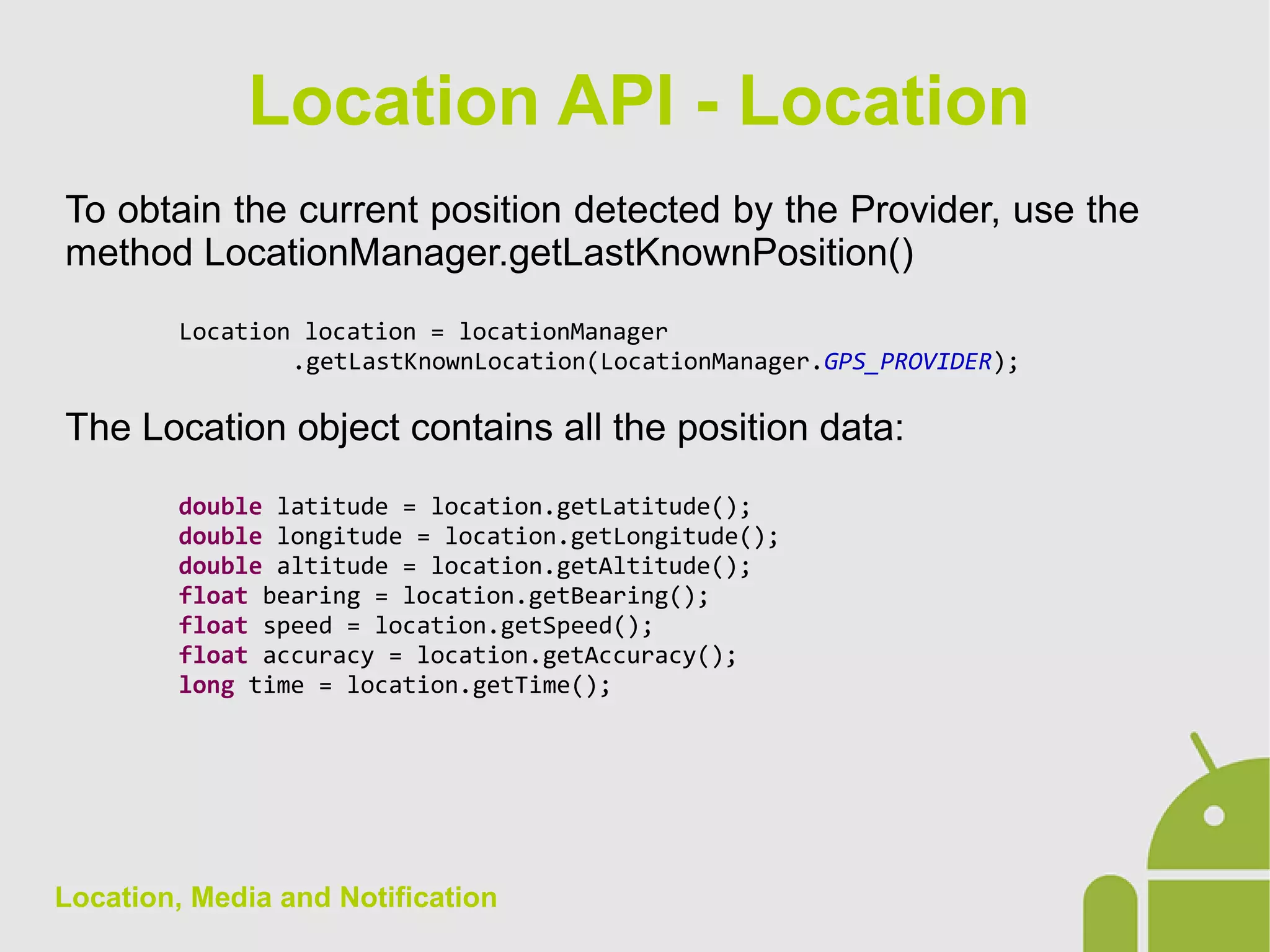
To obtain the current position detected by the Provider, use the
method LocationManager.getLastKnownPosition()
Location location = locationManager
.getLastKnownLocation(LocationManager.GPS_PROVIDER);
The Location object contains all the position data:
double latitude = location.getLatitude();
double longitude = location.getLongitude();
double altitude = location.getAltitude();
float bearing = location.getBearing();
float speed = location.getSpeed();
float accuracy = location.getAccuracy();
long time = location.getTime();
Location API - Location
Location, Media and Notification
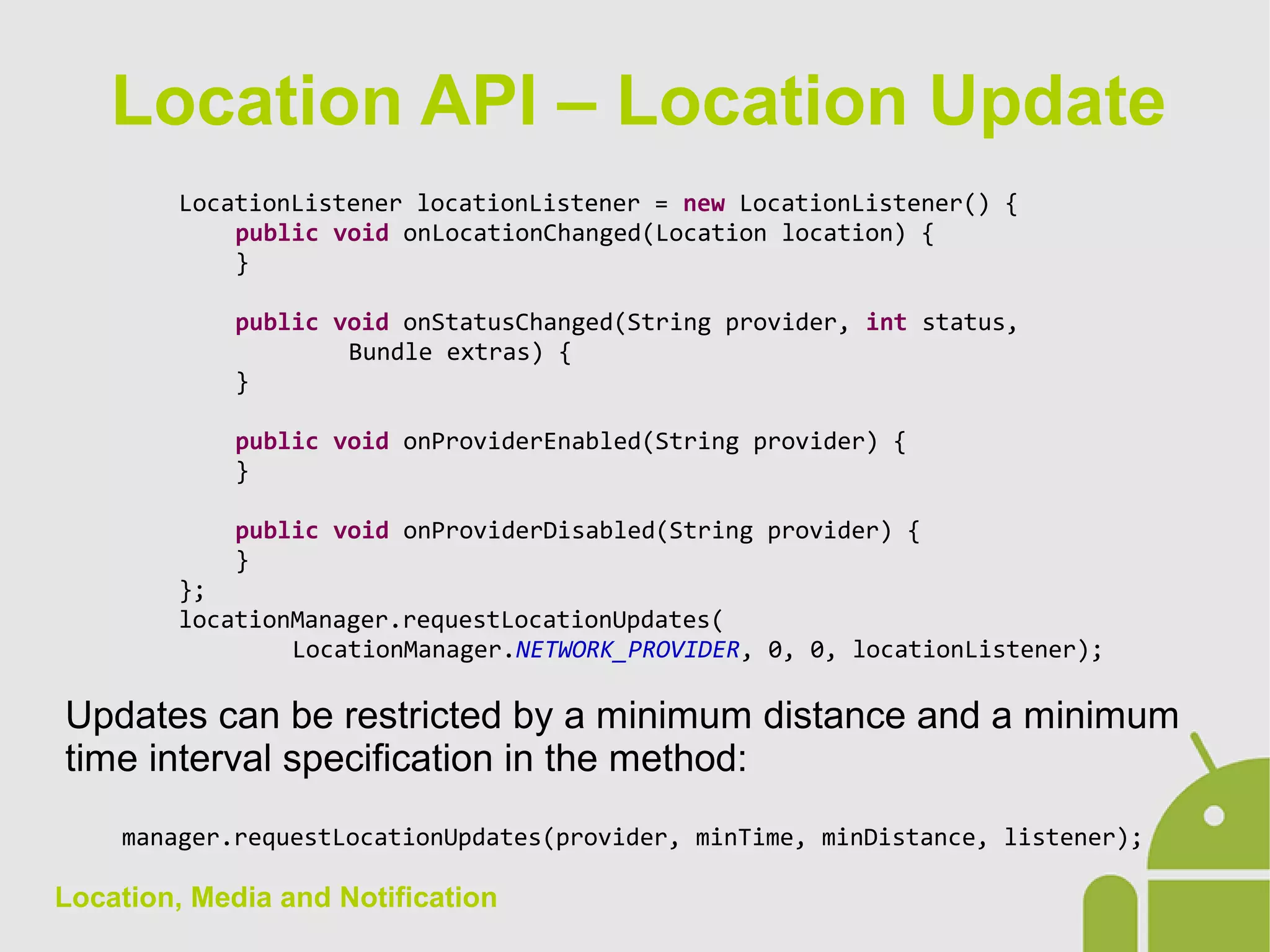
LocationListener locationListener = new LocationListener() {
public void onLocationChanged(Location location) {
}
public void onStatusChanged(String provider, int status,
Bundle extras) {
}
public void onProviderEnabled(String provider) {
}
public void onProviderDisabled(String provider) {
}
};
locationManager.requestLocationUpdates(
LocationManager.NETWORK_PROVIDER, 0, 0, locationListener);
Updates can be restricted by a minimum distance and a minimum
time interval specification in the method:
manager.requestLocationUpdates(provider, minTime, minDistance, listener);
Location API – Location Update
Location, Media and Notification
The object used for playing Audio and Video is the MediaPlayer.
After indicating to the player the source of the media content,
using the method MediaPlayer.setDataSource(), you must specify
how to prepare the content:
● MediaPlayer.prepare(): for local sources (no need of
background operations)
● MediaPlayer.prepareAsync(): for remote contents (you need
an external connection, so long running operation to play
them).
After preparing, the MediaPlayer.start() methos is called.
Media
Location, Media and Notification
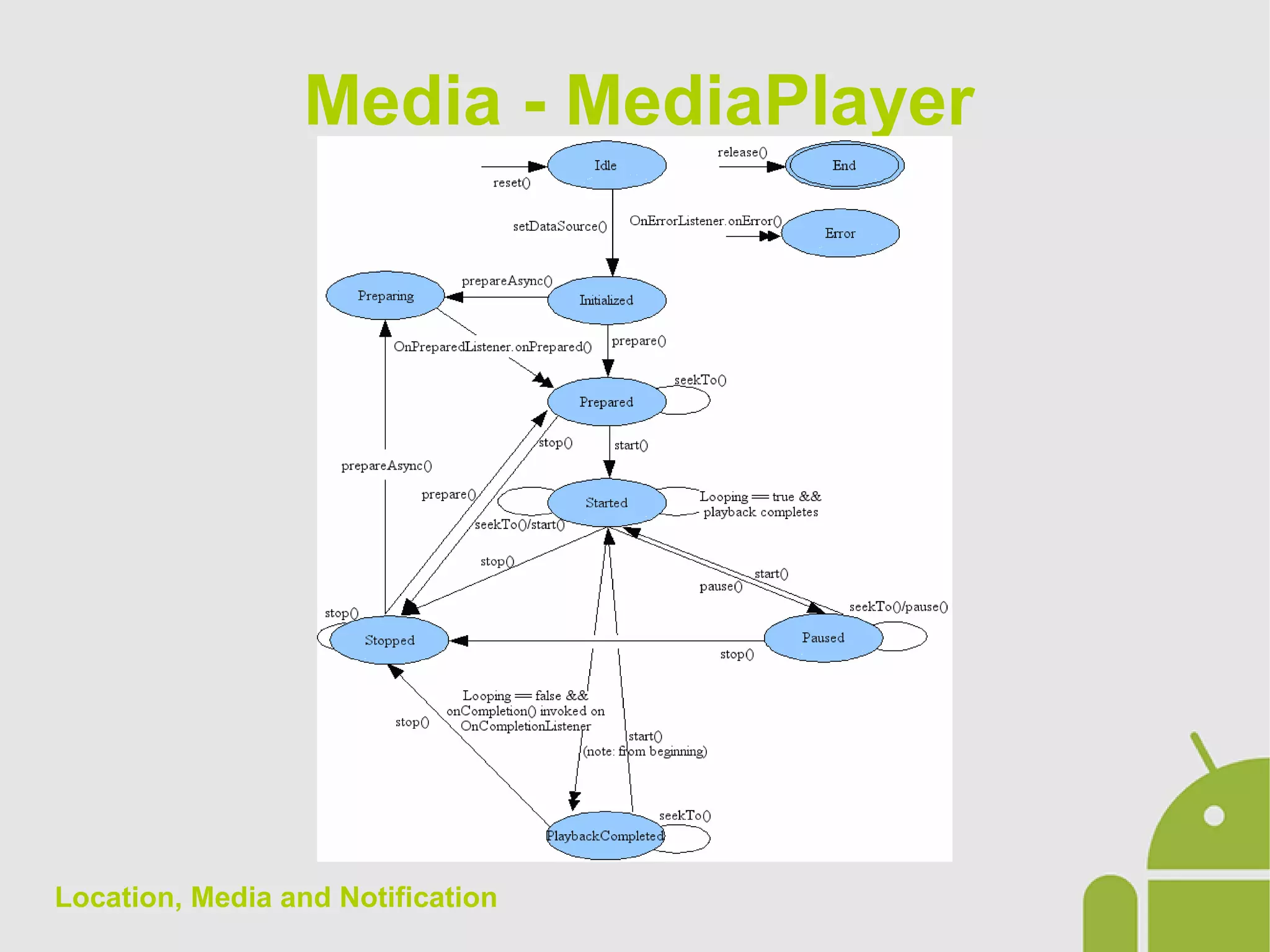
Media - MediaPlayer
Location, Media and Notification
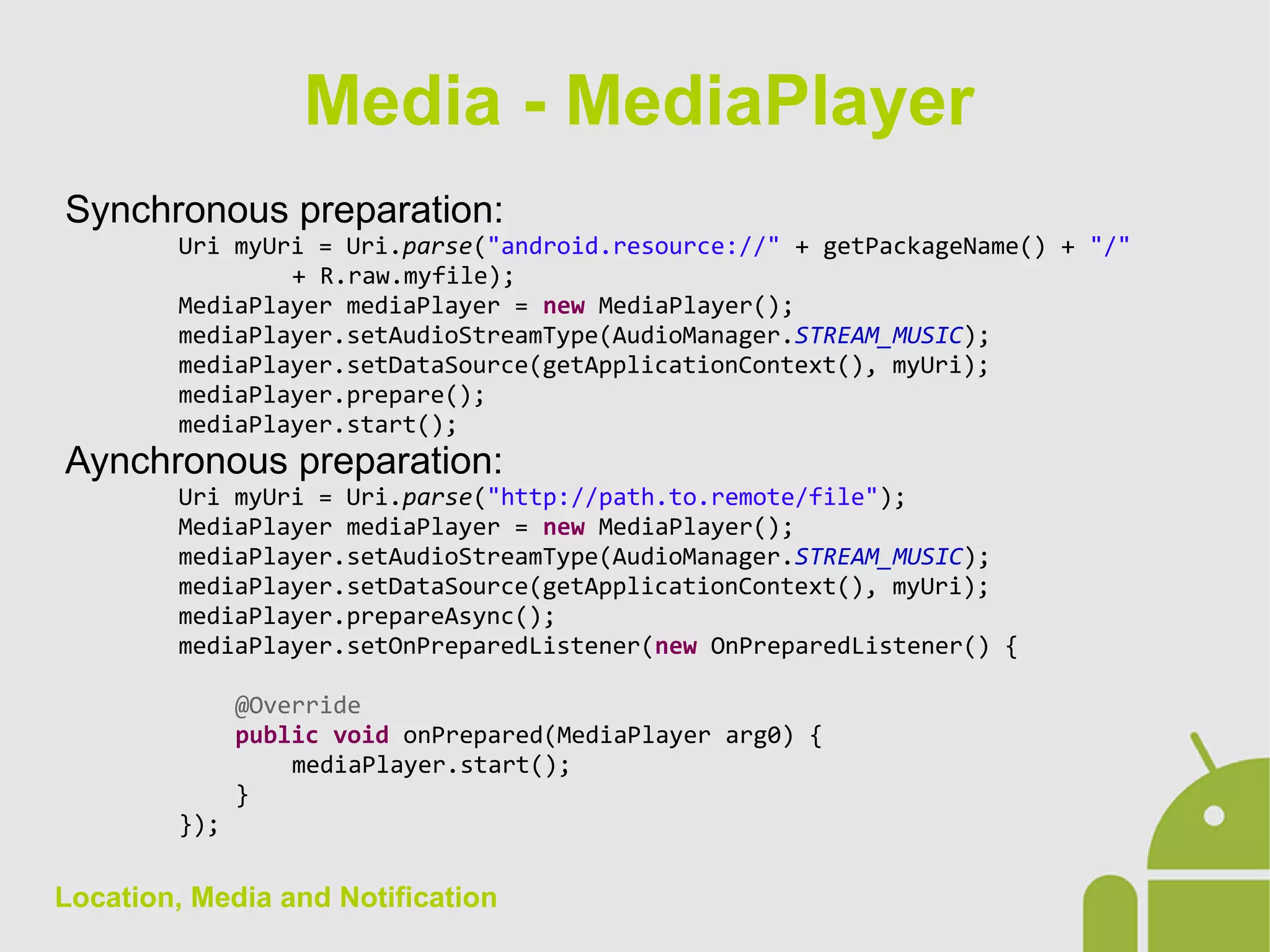
Synchronous preparation:
Uri myUri = Uri.parse("android.resource://" + getPackageName() + "/"
+ R.raw.myfile);
MediaPlayer mediaPlayer = new MediaPlayer();
mediaPlayer.setAudioStreamType(AudioManager.STREAM_MUSIC);
mediaPlayer.setDataSource(getApplicationContext(), myUri);
mediaPlayer.prepare();
mediaPlayer.start();
Aynchronous preparation:
Uri myUri = Uri.parse("http://path.to.remote/file");
MediaPlayer mediaPlayer = new MediaPlayer();
mediaPlayer.setAudioStreamType(AudioManager.STREAM_MUSIC);
mediaPlayer.setDataSource(getApplicationContext(), myUri);
mediaPlayer.prepareAsync();
mediaPlayer.setOnPreparedListener(new OnPreparedListener() {
@Override
public void onPrepared(MediaPlayer arg0) {
mediaPlayer.start();
}
});
Media - MediaPlayer
Location, Media and Notification
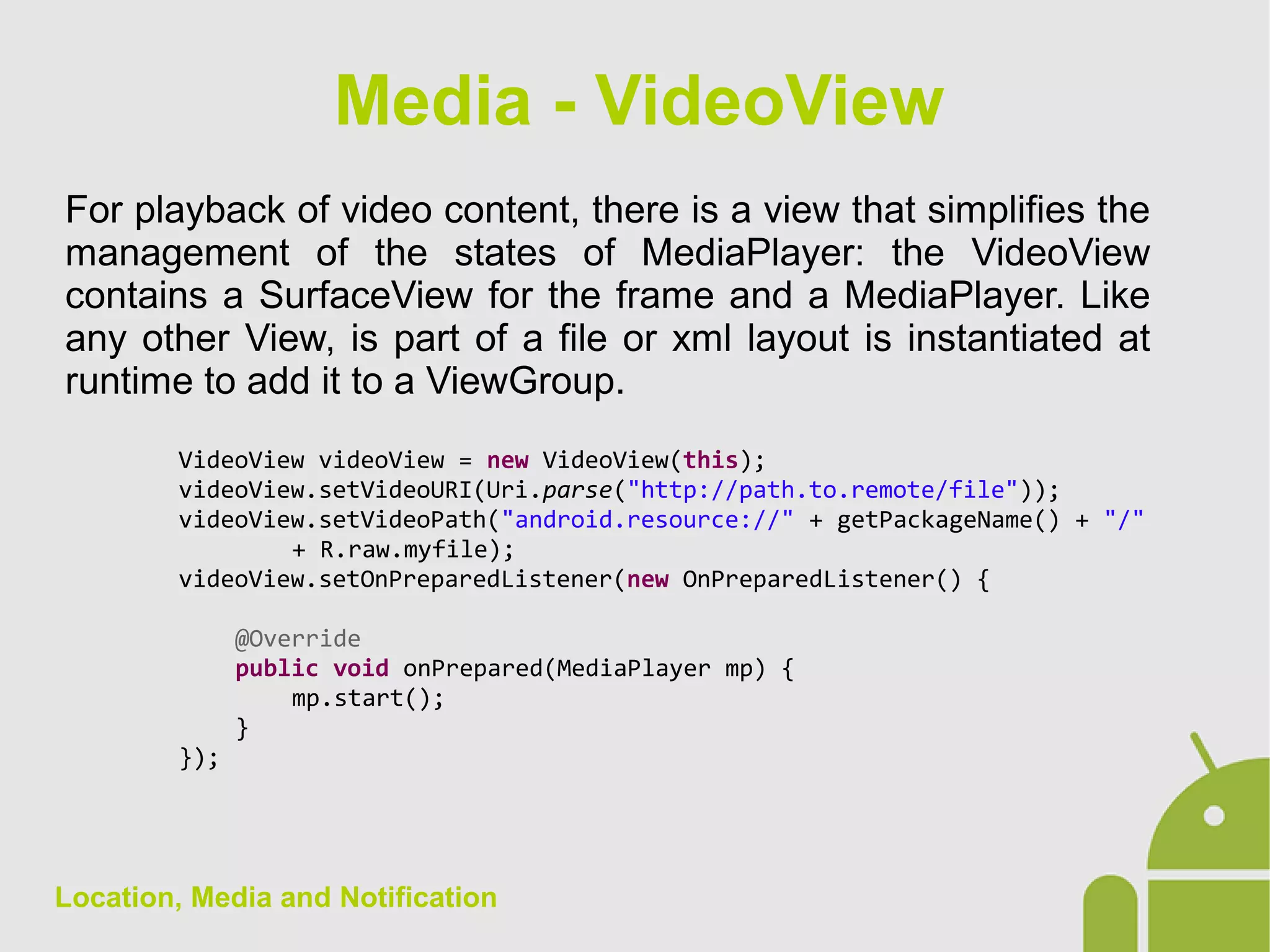
For playback of video content, there is a view that simplifies the
management of the states of MediaPlayer: the VideoView
contains a SurfaceView for the frame and a MediaPlayer. Like
any other View, is part of a file or xml layout is instantiated at
runtime to add it to a ViewGroup.
VideoView videoView = new VideoView(this);
videoView.setVideoURI(Uri.parse("http://path.to.remote/file"));
videoView.setVideoPath("android.resource://" + getPackageName() + "/"
+ R.raw.myfile);
videoView.setOnPreparedListener(new OnPreparedListener() {
@Override
public void onPrepared(MediaPlayer mp) {
mp.start();
}
});
Media - VideoView
Location, Media and Notification
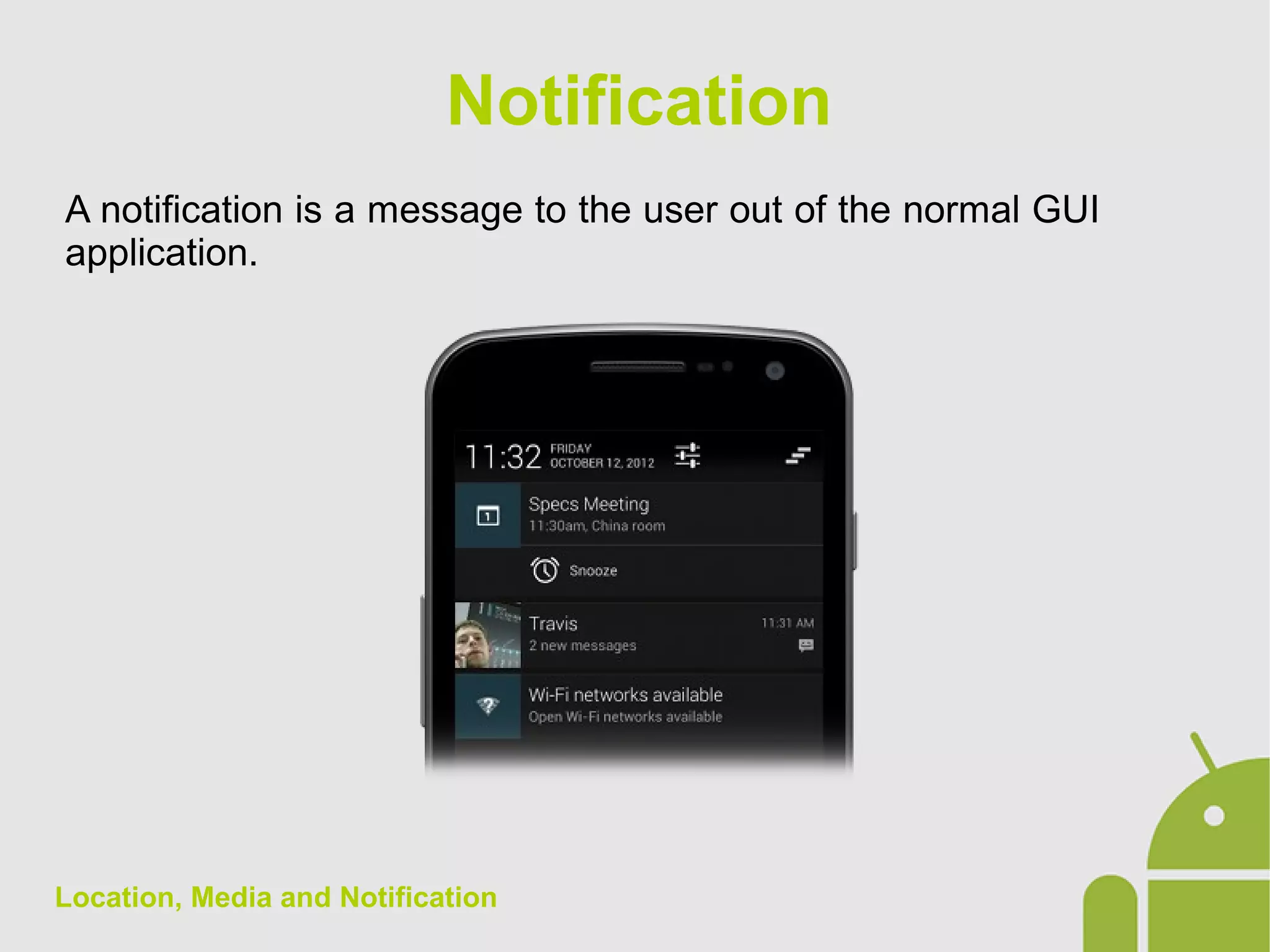
A notification is a message to the user out of the normal GUI
application.
Notification
Location, Media and Notification
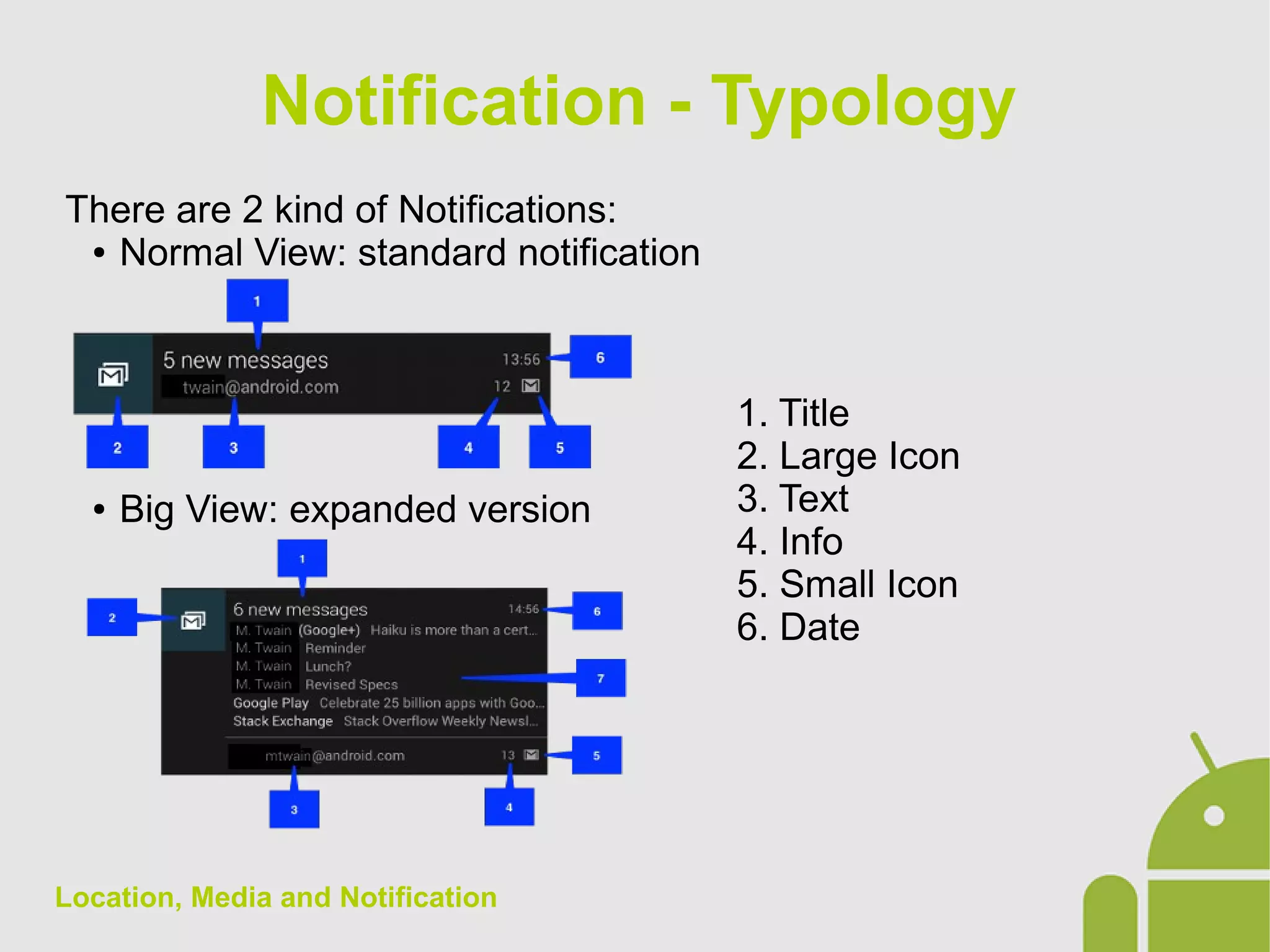
There are 2 kind of Notifications:
● Normal View: standard notification
● Big View: expanded version
Notification - Typology
1. Title
2. Large Icon
3. Text
4. Info
5. Small Icon
6. Date
Location, Media and Notification
You can create an Notification object with
NotificationCompat.Builder. The Notification is then passed to
NotificationManager.
To create a Notification You must specify:
● NotificationCompat.Builder.setSmallIcon()
● NotificationCompat.Builder.setTitle()
● NotificationCompat.Builder.setContentText()
The other methods are optional. You need to specify the action
to perform in case the user clicksthe Notification with
NotificationCompat.Builder.setContentIntent()
Notification - Creation
Location, Media and Notification
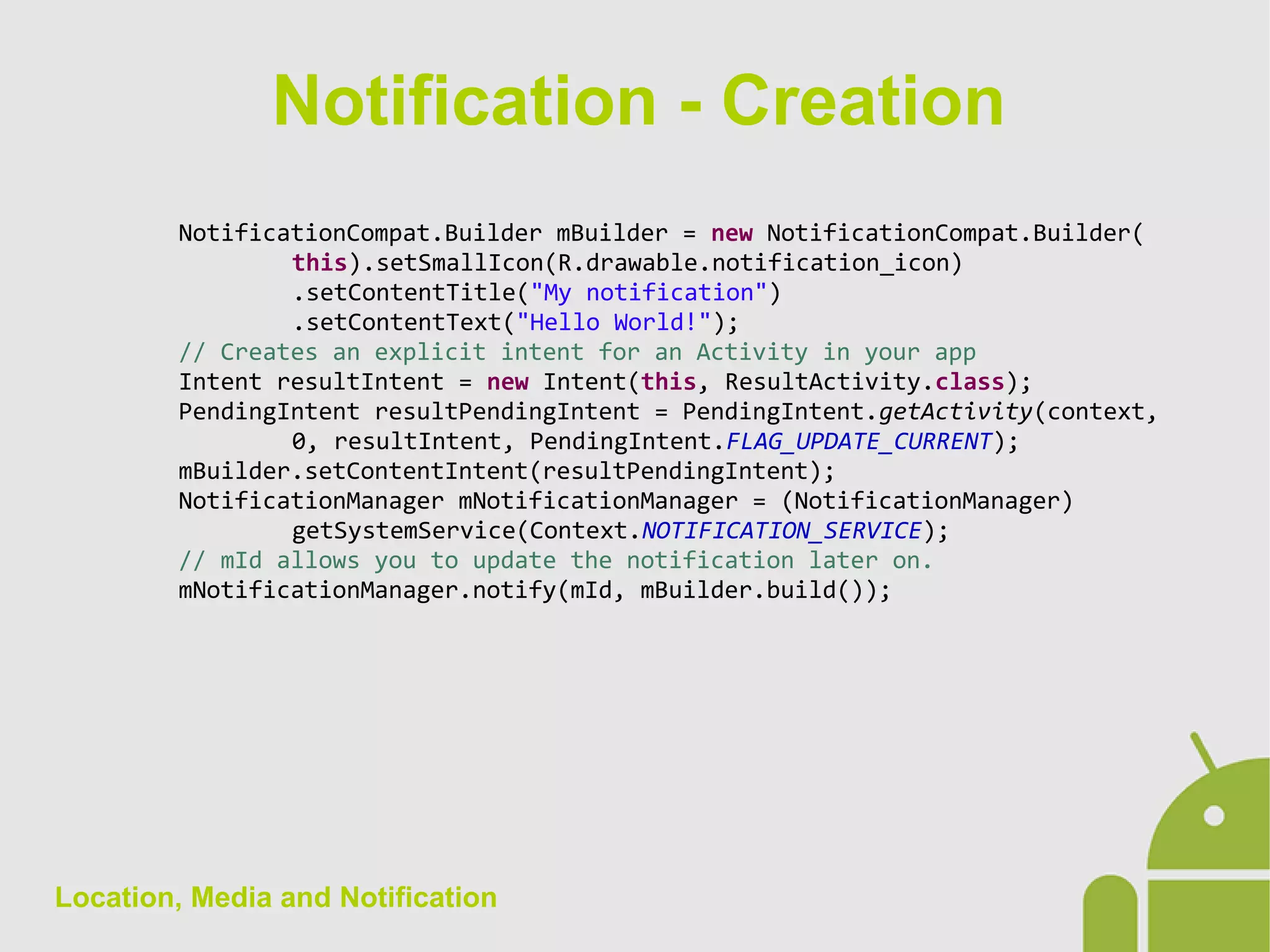
NotificationCompat.Builder mBuilder = new NotificationCompat.Builder(
this).setSmallIcon(R.drawable.notification_icon)
.setContentTitle("My notification")
.setContentText("Hello World!");
// Creates an explicit intent for an Activity in your app
Intent resultIntent = new Intent(this, ResultActivity.class);
PendingIntent resultPendingIntent = PendingIntent.getActivity(context,
0, resultIntent, PendingIntent.FLAG_UPDATE_CURRENT);
mBuilder.setContentIntent(resultPendingIntent);
NotificationManager mNotificationManager = (NotificationManager)
getSystemService(Context.NOTIFICATION_SERVICE);
// mId allows you to update the notification later on.
mNotificationManager.notify(mId, mBuilder.build());
Notification - Creation
Location, Media and Notification
NotificationCompat.Builder mBuilder = new NotificationCompat.Builder(
this).setSmallIcon(R.drawable.notification_icon)
.setContentTitle("Event tracker")
.setContentText("Events received");
NotificationCompat.InboxStyle inboxStyle = new
NotificationCompat.InboxStyle();
String[] events = new String[6];
// Sets a title for the Inbox style big view
inboxStyle.setBigContentTitle("Event tracker details:");
// Moves events into the big view
for (int i = 0; i < events.length; i++) {
inboxStyle.addLine(events[i]);
}
// Moves the big view style object into the notification object.
mBuilder.setStyle(inBoxStyle);
Notification – Big Style
Location, Media and Notification
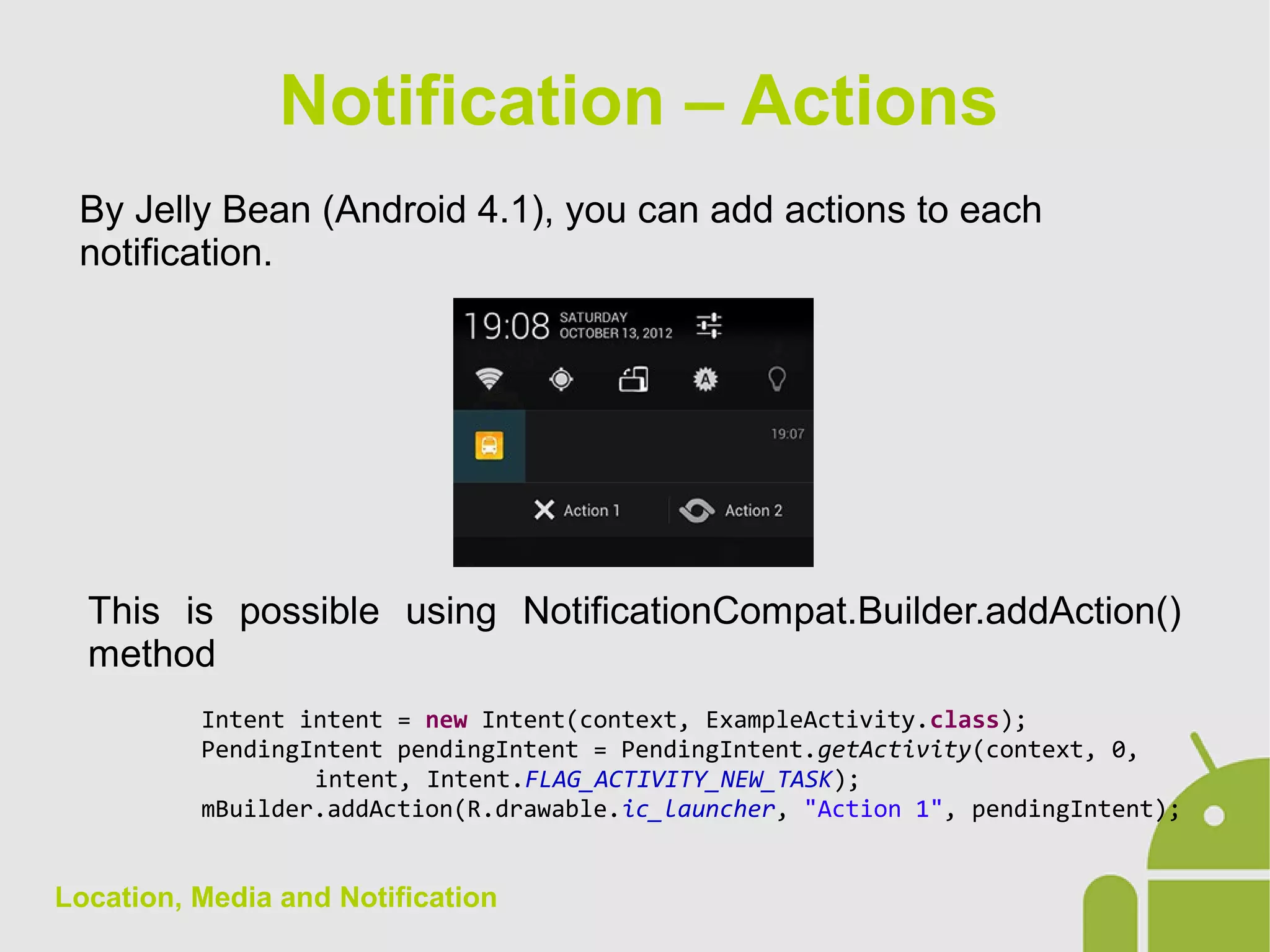
By Jelly Bean (Android 4.1), you can add actions to each
notification.
Notification – Actions
This is possible using NotificationCompat.Builder.addAction()
method
Intent intent = new Intent(context, ExampleActivity.class);
PendingIntent pendingIntent = PendingIntent.getActivity(context, 0,
intent, Intent.FLAG_ACTIVITY_NEW_TASK);
mBuilder.addAction(R.drawable.ic_launcher, "Action 1", pendingIntent);
Location, Media and Notification
The GCM (Google Cloud Messaging) is a service that allows you
to communicate remotely to the client of the key-value pairs data
that can be displayed as a notification to the user. The cliant can
use these messages in other ways.
The implementation of GCM requires a server side as well as
the client.
For the implementation of the client the Google Play Services
must be imported into the project as a library.
Notification – GCM
Location, Media and Notification
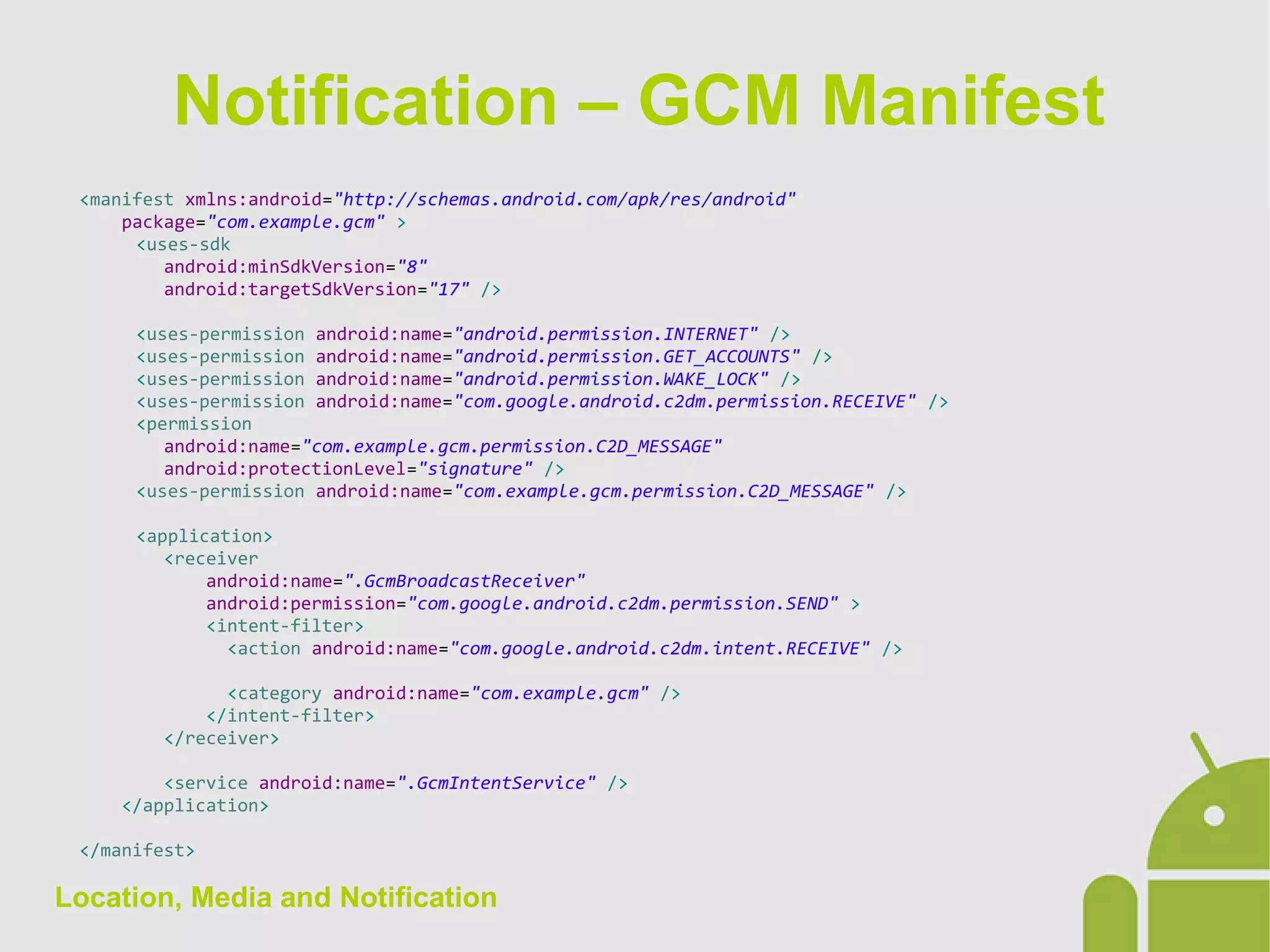
<manifest xmlns:android="http://schemas.android.com/apk/res/android"
package="com.example.gcm" >
<uses-sdk
android:minSdkVersion="8"
android:targetSdkVersion="17" />
<uses-permission android:name="android.permission.INTERNET" />
<uses-permission android:name="android.permission.GET_ACCOUNTS" />
<uses-permission android:name="android.permission.WAKE_LOCK" />
<uses-permission android:name="com.google.android.c2dm.permission.RECEIVE" />
<permission
android:name="com.example.gcm.permission.C2D_MESSAGE"
android:protectionLevel="signature" />
<uses-permission android:name="com.example.gcm.permission.C2D_MESSAGE" />
<application>
<receiver
android:name=".GcmBroadcastReceiver"
android:permission="com.google.android.c2dm.permission.SEND" >
<intent-filter>
<action android:name="com.google.android.c2dm.intent.RECEIVE" />
<category android:name="com.example.gcm" />
</intent-filter>
</receiver>
<service android:name=".GcmIntentService" />
</application>
</manifest>
Notification – GCM Manifest
Location, Media and Notification
Before performing any of the GCM, it is necessary to verify that
Google Play Services are present on the device with the
GooglePlayServicesUtil.IsGooglePlayServicesAvailable() utility
class.
If they are not present, the user must download them from
Google Play. A already pre-filled Dialog with everything you need
is available with the method
GooglePlayServicesUtil.getErrorDialog().
If Google Play Services are available you can proceed with the
flow that provides for the registration on the Google server and
then on the implementation of the server side using a code
called registrationId.
Notification – GCM GPS check
Location, Media and Notification
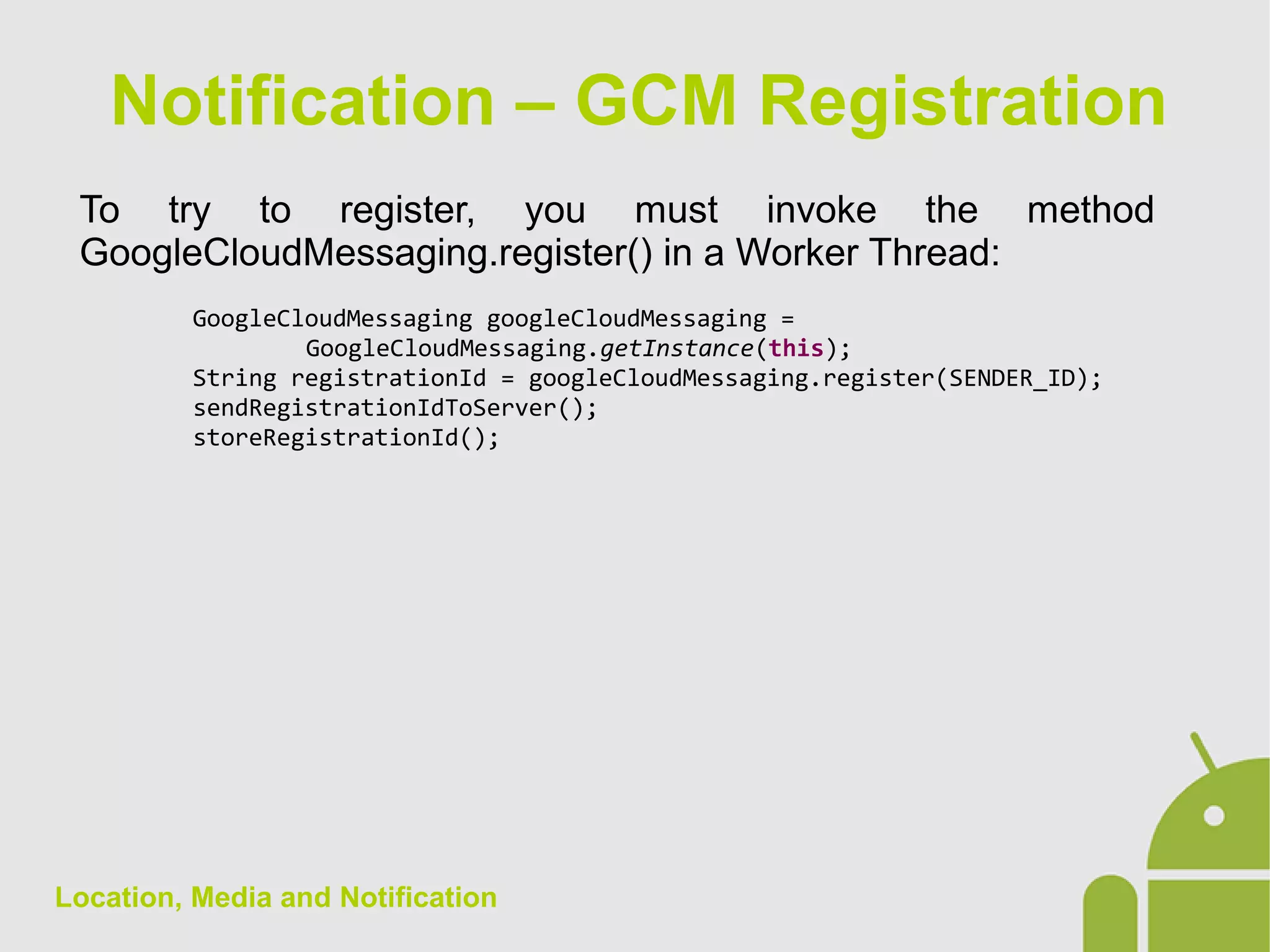
To try to register, you must invoke the method
GoogleCloudMessaging.register() in a Worker Thread:
GoogleCloudMessaging googleCloudMessaging =
GoogleCloudMessaging.getInstance(this);
String registrationId = googleCloudMessaging.register(SENDER_ID);
sendRegistrationIdToServer();
storeRegistrationId();
Notification – GCM Registration
Location, Media and Notification
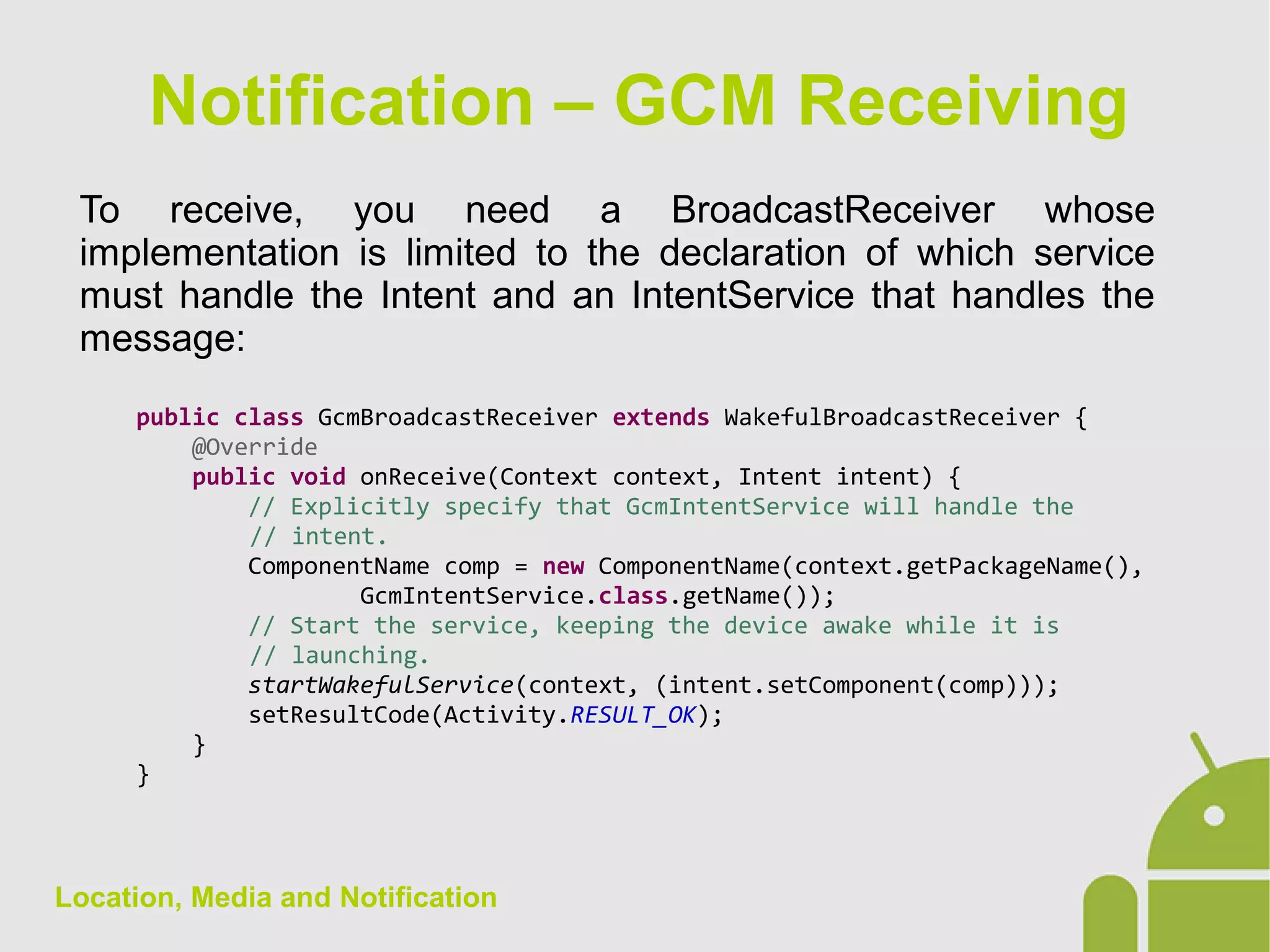
To receive, you need a BroadcastReceiver whose
implementation is limited to the declaration of which service
must handle the Intent and an IntentService that handles the
message:
public class GcmBroadcastReceiver extends WakefulBroadcastReceiver {
@Override
public void onReceive(Context context, Intent intent) {
// Explicitly specify that GcmIntentService will handle the
// intent.
ComponentName comp = new ComponentName(context.getPackageName(),
GcmIntentService.class.getName());
// Start the service, keeping the device awake while it is
// launching.
startWakefulService(context, (intent.setComponent(comp)));
setResultCode(Activity.RESULT_OK);
}
}
Notification – GCM Receiving
Location, Media and Notification
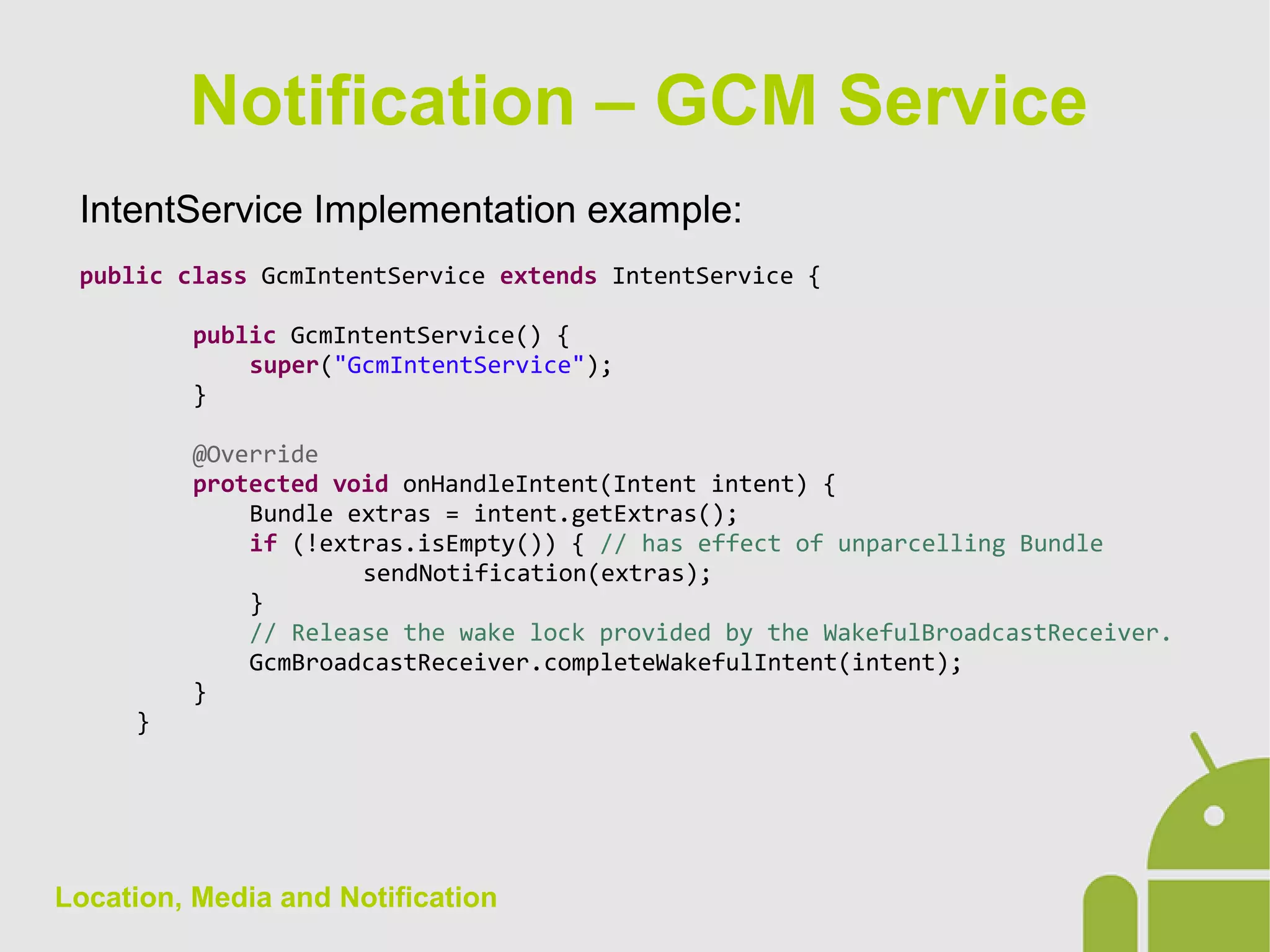
IntentService Implementation example:
public class GcmIntentService extends IntentService {
public GcmIntentService() {
super("GcmIntentService");
}
@Override
protected void onHandleIntent(Intent intent) {
Bundle extras = intent.getExtras();
if (!extras.isEmpty()) { // has effect of unparcelling Bundle
sendNotification(extras);
}
// Release the wake lock provided by the WakefulBroadcastReceiver.
GcmBroadcastReceiver.completeWakefulIntent(intent);
}
}
Notification – GCM Service

Android App Development - 14 location, media and notifications

  • 1.
    Location, Media andNotification
  • 2.
    Location, Media andNotification The object that handles any reference to the location of the Android framework is the LocationManager. This is recovered by the method Context.getSystemService(): LocationManager locationManager = (LocationManager) getSystemService(Context.LOCATION_SERVICE); This allows to: ● Perform query to find out the last known position of the LocationProvider ● Register a listener for location updates ● Register a Receiver to notify the proximity of a given latitude/longitude. Location API
  • 3.
    Location, Media andNotification In a terminal there are 3 Provider for location: ● LocationManager.GPS_PROVIDER: GPS localization. Permission required ACCESS_FINE_LOCATION ● LocationManager.NETWORK_PROVIDER: network localization (WiFi or cell). Permission required ACCESS_COARSE_LOCATION ● LocationProvider.PASSIVE_PROVIDER: passive localization, active when other applications or services request a localization update. Permission required ACCESS_FINE_LOCATION Location API - Location
  • 4.
    Location, Media andNotification To obtain the current position detected by the Provider, use the method LocationManager.getLastKnownPosition() Location location = locationManager .getLastKnownLocation(LocationManager.GPS_PROVIDER); The Location object contains all the position data: double latitude = location.getLatitude(); double longitude = location.getLongitude(); double altitude = location.getAltitude(); float bearing = location.getBearing(); float speed = location.getSpeed(); float accuracy = location.getAccuracy(); long time = location.getTime(); Location API - Location
  • 5.
    Location, Media andNotification LocationListener locationListener = new LocationListener() { public void onLocationChanged(Location location) { } public void onStatusChanged(String provider, int status, Bundle extras) { } public void onProviderEnabled(String provider) { } public void onProviderDisabled(String provider) { } }; locationManager.requestLocationUpdates( LocationManager.NETWORK_PROVIDER, 0, 0, locationListener); Updates can be restricted by a minimum distance and a minimum time interval specification in the method: manager.requestLocationUpdates(provider, minTime, minDistance, listener); Location API – Location Update
  • 6.
    Location, Media andNotification The object used for playing Audio and Video is the MediaPlayer. After indicating to the player the source of the media content, using the method MediaPlayer.setDataSource(), you must specify how to prepare the content: ● MediaPlayer.prepare(): for local sources (no need of background operations) ● MediaPlayer.prepareAsync(): for remote contents (you need an external connection, so long running operation to play them). After preparing, the MediaPlayer.start() methos is called. Media
  • 7.
    Location, Media andNotification Media - MediaPlayer
  • 8.
    Location, Media andNotification Synchronous preparation: Uri myUri = Uri.parse("android.resource://" + getPackageName() + "/" + R.raw.myfile); MediaPlayer mediaPlayer = new MediaPlayer(); mediaPlayer.setAudioStreamType(AudioManager.STREAM_MUSIC); mediaPlayer.setDataSource(getApplicationContext(), myUri); mediaPlayer.prepare(); mediaPlayer.start(); Aynchronous preparation: Uri myUri = Uri.parse("http://path.to.remote/file"); MediaPlayer mediaPlayer = new MediaPlayer(); mediaPlayer.setAudioStreamType(AudioManager.STREAM_MUSIC); mediaPlayer.setDataSource(getApplicationContext(), myUri); mediaPlayer.prepareAsync(); mediaPlayer.setOnPreparedListener(new OnPreparedListener() { @Override public void onPrepared(MediaPlayer arg0) { mediaPlayer.start(); } }); Media - MediaPlayer
  • 9.
    Location, Media andNotification For playback of video content, there is a view that simplifies the management of the states of MediaPlayer: the VideoView contains a SurfaceView for the frame and a MediaPlayer. Like any other View, is part of a file or xml layout is instantiated at runtime to add it to a ViewGroup. VideoView videoView = new VideoView(this); videoView.setVideoURI(Uri.parse("http://path.to.remote/file")); videoView.setVideoPath("android.resource://" + getPackageName() + "/" + R.raw.myfile); videoView.setOnPreparedListener(new OnPreparedListener() { @Override public void onPrepared(MediaPlayer mp) { mp.start(); } }); Media - VideoView
  • 10.
    Location, Media andNotification A notification is a message to the user out of the normal GUI application. Notification
  • 11.
    Location, Media andNotification There are 2 kind of Notifications: ● Normal View: standard notification ● Big View: expanded version Notification - Typology 1. Title 2. Large Icon 3. Text 4. Info 5. Small Icon 6. Date
  • 12.
    Location, Media andNotification You can create an Notification object with NotificationCompat.Builder. The Notification is then passed to NotificationManager. To create a Notification You must specify: ● NotificationCompat.Builder.setSmallIcon() ● NotificationCompat.Builder.setTitle() ● NotificationCompat.Builder.setContentText() The other methods are optional. You need to specify the action to perform in case the user clicksthe Notification with NotificationCompat.Builder.setContentIntent() Notification - Creation
  • 13.
    Location, Media andNotification NotificationCompat.Builder mBuilder = new NotificationCompat.Builder( this).setSmallIcon(R.drawable.notification_icon) .setContentTitle("My notification") .setContentText("Hello World!"); // Creates an explicit intent for an Activity in your app Intent resultIntent = new Intent(this, ResultActivity.class); PendingIntent resultPendingIntent = PendingIntent.getActivity(context, 0, resultIntent, PendingIntent.FLAG_UPDATE_CURRENT); mBuilder.setContentIntent(resultPendingIntent); NotificationManager mNotificationManager = (NotificationManager) getSystemService(Context.NOTIFICATION_SERVICE); // mId allows you to update the notification later on. mNotificationManager.notify(mId, mBuilder.build()); Notification - Creation
  • 14.
    Location, Media andNotification NotificationCompat.Builder mBuilder = new NotificationCompat.Builder( this).setSmallIcon(R.drawable.notification_icon) .setContentTitle("Event tracker") .setContentText("Events received"); NotificationCompat.InboxStyle inboxStyle = new NotificationCompat.InboxStyle(); String[] events = new String[6]; // Sets a title for the Inbox style big view inboxStyle.setBigContentTitle("Event tracker details:"); // Moves events into the big view for (int i = 0; i < events.length; i++) { inboxStyle.addLine(events[i]); } // Moves the big view style object into the notification object. mBuilder.setStyle(inBoxStyle); Notification – Big Style
  • 15.
    Location, Media andNotification By Jelly Bean (Android 4.1), you can add actions to each notification. Notification – Actions This is possible using NotificationCompat.Builder.addAction() method Intent intent = new Intent(context, ExampleActivity.class); PendingIntent pendingIntent = PendingIntent.getActivity(context, 0, intent, Intent.FLAG_ACTIVITY_NEW_TASK); mBuilder.addAction(R.drawable.ic_launcher, "Action 1", pendingIntent);
  • 16.
    Location, Media andNotification The GCM (Google Cloud Messaging) is a service that allows you to communicate remotely to the client of the key-value pairs data that can be displayed as a notification to the user. The cliant can use these messages in other ways. The implementation of GCM requires a server side as well as the client. For the implementation of the client the Google Play Services must be imported into the project as a library. Notification – GCM
  • 17.
    Location, Media andNotification <manifest xmlns:android="http://schemas.android.com/apk/res/android" package="com.example.gcm" > <uses-sdk android:minSdkVersion="8" android:targetSdkVersion="17" /> <uses-permission android:name="android.permission.INTERNET" /> <uses-permission android:name="android.permission.GET_ACCOUNTS" /> <uses-permission android:name="android.permission.WAKE_LOCK" /> <uses-permission android:name="com.google.android.c2dm.permission.RECEIVE" /> <permission android:name="com.example.gcm.permission.C2D_MESSAGE" android:protectionLevel="signature" /> <uses-permission android:name="com.example.gcm.permission.C2D_MESSAGE" /> <application> <receiver android:name=".GcmBroadcastReceiver" android:permission="com.google.android.c2dm.permission.SEND" > <intent-filter> <action android:name="com.google.android.c2dm.intent.RECEIVE" /> <category android:name="com.example.gcm" /> </intent-filter> </receiver> <service android:name=".GcmIntentService" /> </application> </manifest> Notification – GCM Manifest
  • 18.
    Location, Media andNotification Before performing any of the GCM, it is necessary to verify that Google Play Services are present on the device with the GooglePlayServicesUtil.IsGooglePlayServicesAvailable() utility class. If they are not present, the user must download them from Google Play. A already pre-filled Dialog with everything you need is available with the method GooglePlayServicesUtil.getErrorDialog(). If Google Play Services are available you can proceed with the flow that provides for the registration on the Google server and then on the implementation of the server side using a code called registrationId. Notification – GCM GPS check
  • 19.
    Location, Media andNotification To try to register, you must invoke the method GoogleCloudMessaging.register() in a Worker Thread: GoogleCloudMessaging googleCloudMessaging = GoogleCloudMessaging.getInstance(this); String registrationId = googleCloudMessaging.register(SENDER_ID); sendRegistrationIdToServer(); storeRegistrationId(); Notification – GCM Registration
  • 20.
    Location, Media andNotification To receive, you need a BroadcastReceiver whose implementation is limited to the declaration of which service must handle the Intent and an IntentService that handles the message: public class GcmBroadcastReceiver extends WakefulBroadcastReceiver { @Override public void onReceive(Context context, Intent intent) { // Explicitly specify that GcmIntentService will handle the // intent. ComponentName comp = new ComponentName(context.getPackageName(), GcmIntentService.class.getName()); // Start the service, keeping the device awake while it is // launching. startWakefulService(context, (intent.setComponent(comp))); setResultCode(Activity.RESULT_OK); } } Notification – GCM Receiving
  • 21.
    Location, Media andNotification IntentService Implementation example: public class GcmIntentService extends IntentService { public GcmIntentService() { super("GcmIntentService"); } @Override protected void onHandleIntent(Intent intent) { Bundle extras = intent.getExtras(); if (!extras.isEmpty()) { // has effect of unparcelling Bundle sendNotification(extras); } // Release the wake lock provided by the WakefulBroadcastReceiver. GcmBroadcastReceiver.completeWakefulIntent(intent); } } Notification – GCM Service