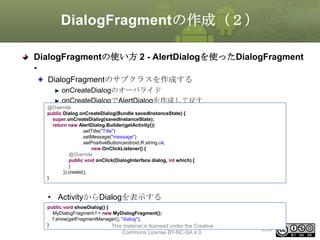
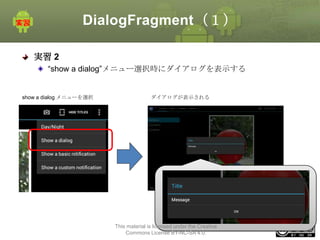
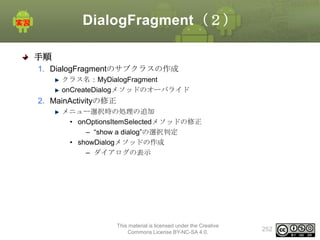
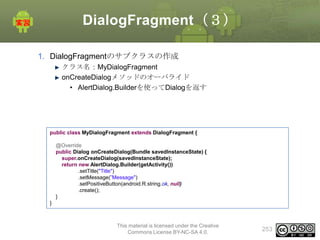
Androidタブレット
アプリケーション入門
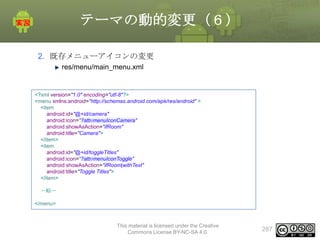
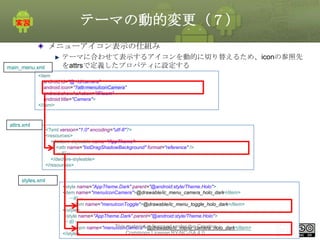
1. トレーニング概要
トレーニングの目的
トレーニングの目的
Androidのバージョン情報
ユーザ視点でのAndroidのバージョンごとに追加された機能について

Androidタブレット開発新機能
開発者視点での新機能について
チュートリアル

タブレットアプリケーションの作成
実習を通して以下の機能を実装しタブレットアプリケーション開発の実装方
法を習得する
• Action Bar, System Bar
• Fragment
• Notification
• Configuration対応

This material is licensed under the Creative
Commons License BY-NC-SA 4.0.

2
受講するにあたって必要なスキル
トレーニングを受講するにあたり、以下のスキルが必須となる
Java 言語の経験があること
演習では、実際に Java でプログラミングを行う
基本的な Java の言語仕様について理解していれば問題ない

Eclipse を使用した経験があること
演習では、Eclipse を使用してプログラミングを実施する
基本的な Eclipse の使用方法について理解していれば問題ない

OESF公認Androidアプリケーション開発入門コースを受講済または同等
のスキルを有する
Androidアプリケーションの基礎的なスキルを有する
複数画面からなる簡単なアプリケーション作成ができる

This material is licensed under the Creative
Commons License BY-NC-SA 4.0.

3
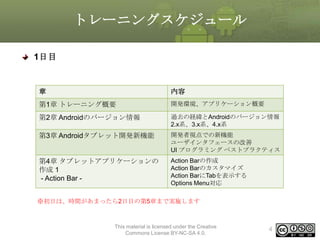
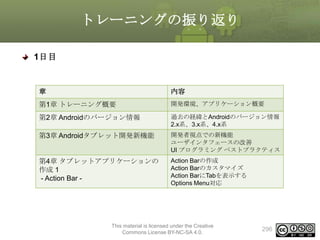
トレーニングスケジュール
1日目

章

内容

第1章 トレーニング概要

開発環境、アプリケーション概要

第2章 Androidのバージョン情報

過去の経緯とAndroidのバージョン情報
2.x系、3.x系、4.x系

第3章 Androidタブレット開発新機能

開発者視点での新機能
ユーザインタフェースの改善
UI プログラミング ベストプラクティス

第4章 タブレットアプリケーションの
作成 1
- Action Bar -

Action Barの作成
Action Barのカスタマイズ
Action BarにTabを表示する
Options Menu対応

※初日は、時間があまったら2日目の第5章まで実施します

This material is licensed under the Creative
Commons License BY-NC-SA 4.0.

4
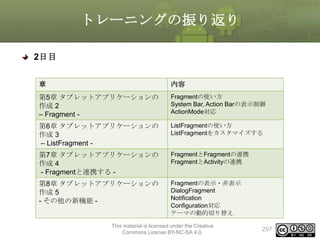
トレーニングスケジュール
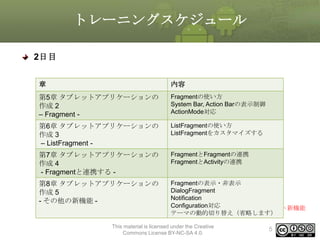
2日目
章

内容

第5章 タブレットアプリケーションの
作成 2
– Fragment -

Fragmentの使い方
System Bar, Action Barの表示制御
ActionMode対応

第6章 タブレットアプリケーションの
作成 3
– ListFragment -

ListFragmentの使い方
ListFragmentをカスタマイズする

第7章 タブレットアプリケーションの
作成 4
- Fragmentと連携する -

FragmentとFragmentの連携
FragmentとActivityの連携

第8章 タブレットアプリケーションの
作成 5
- その他の新機能 -

Fragmentの表示・非表示
DialogFragment
Notification
※「第8章 タブレットアプリケーションの作成 Configuration対応
5のテーマの動的切り替え」はタブレット新機能
テーマの動的切り替え(省略します)
を使わないため本トレーニングでは省略します
This material is licensed under the Creative
Commons License BY-NC-SA 4.0.

5
概要
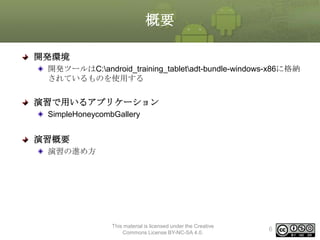
開発環境
開発ツールはC:android_training_tabletadt-bundle-windows-x86に格納
されているものを使用する

演習で用いるアプリケーション
SimpleHoneycombGallery

演習概要
演習の進め方

This material is licensed under the Creative
Commons License BY-NC-SA 4.0.

6
開発環境
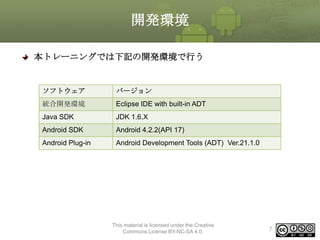
本トレーニングでは下記の開発環境で行う

ソフトウェア

バージョン

統合開発環境

Eclipse IDE with built-in ADT

Java SDK

JDK 1.6.X

Android SDK

Android 4.2.2(API 17)

Android Plug-in

Android Development Tools (ADT) Ver.21.1.0

This material is licensed under the Creative
Commons License BY-NC-SA 4.0.

7
演習概要
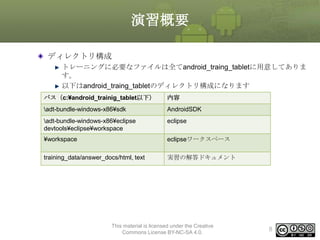
ディレクトリ構成
トレーニングに必要なファイルは全てandroid_traing_tabletに用意してありま
す。
以下はandroid_traing_tabletのディレクトリ構成になります
パス(c:¥android_trainig_tablet以下)

内容

adt-bundle-windows-x86¥sdk

AndroidSDK

adt-bundle-windows-x86¥eclipse
devtools¥eclipse¥workspace

eclipse

¥workspace

eclipseワークスペース

training_data/answer_docs/html, text

実習の解答ドキュメント

This material is licensed under the Creative
Commons License BY-NC-SA 4.0.

8
2. Androidのバージョン情報
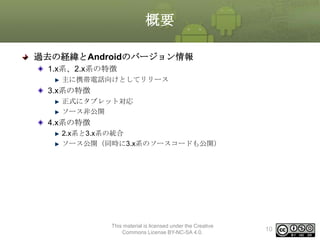
概要
過去の経緯とAndroidのバージョン情報
1.x系、2.x系の特徴
主に携帯電話向けとしてリリース

3.x系の特徴
正式にタブレット対応
ソース非公開

4.x系の特徴
2.x系と3.x系の統合
ソース公開(同時に3.x系のソースコードも公開)

This material is licensed under the Creative
Commons License BY-NC-SA 4.0.

10
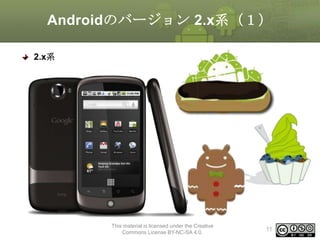
Androidのバージョン 2.x系(1)
2.x系

This material is licensed under the Creative
Commons License BY-NC-SA 4.0.

11
Androidのバージョン 2.x系(2)
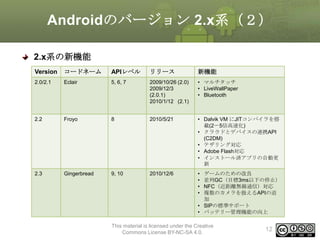
2.x系の新機能
Version

コードネーム

APIレベル

リリース

新機能

2.0/2.1

Eclair

5, 6, 7

2009/10/26 (2.0)
2009/12/3
(2.0.1)
2010/1/12 (2.1)

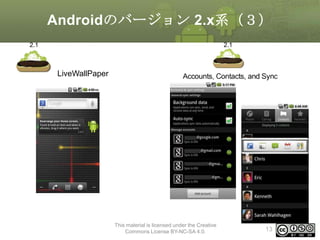
• マルチタッチ
• LiveWallPaper
• Bluetooth

2.2

Froyo

8

2010/5/21

• Dalvik VM にJITコンパイラを搭
載(2〜5倍高速化)
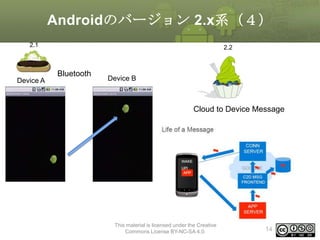
• クラウドとデバイスの連携API
(C2DM)
• テザリング対応
• Adobe Flash対応
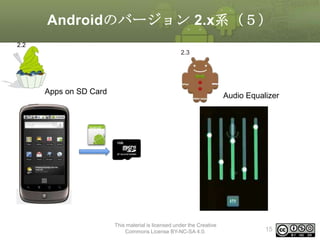
• インストール済アプリの自動更
新

2.3

Gingerbread

9, 10

2010/12/6

•
•
•
•

ゲームのための改良
並列GC(目標3ms以下の停止)
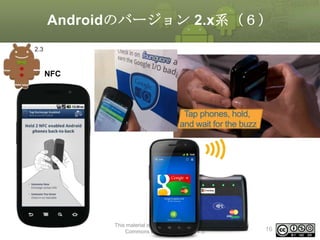
NFC(近距離無線通信)対応
複数のカメラを扱えるAPIの追
加
• SIPの標準サポート
• バッテリー管理機能の向上

This material is licensed under the Creative
Commons License BY-NC-SA 4.0.

12
Androidのバージョン 2.x系(3)
2.1

2.1

LiveWallPaper

This material is licensed under the Creative
Commons License BY-NC-SA 4.0.

13
Androidのバージョン 2.x系(4)
2.1

Device A

2.2

Bluetooth

Device B

Cloud to Device Message

This material is licensed under the Creative
Commons License BY-NC-SA 4.0.

14
Androidのバージョン 2.x系(5)
2.2
2.3

Apps on SD Card

Audio Equalizer

This material is licensed under the Creative
Commons License BY-NC-SA 4.0.

15
Androidのバージョン 2.x系(6)
2.3

NFC

This material is licensed under the Creative
Commons License BY-NC-SA 4.0.

16
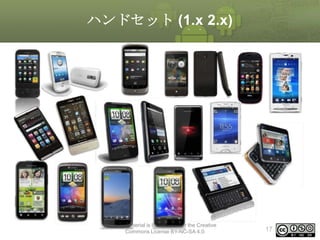
ハンドセット (1.x 2.x)

This material is licensed under the Creative
Commons License BY-NC-SA 4.0.

17
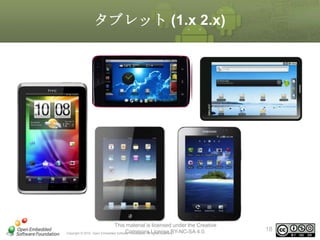
タブレット (1.x 2.x)

This material is licensed under the Creative
Commons rights reserved.
Copyright © 2010, Open Embedded Software Foundation, All License BY-NC-SA 4.0.

18
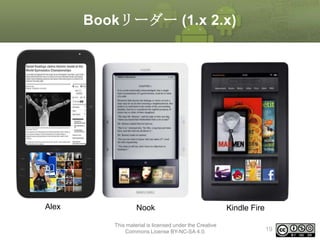
Bookリーダー (1.x 2.x)

Alex

Nook
This material is licensed under the Creative
Commons License BY-NC-SA 4.0.

Kindle Fire
19
ノートPC (1.x 2.x)

dynabook AZ

Compaq Airlife 100

This material is licensed under the Creative
Commons License BY-NC-SA 4.0.

20
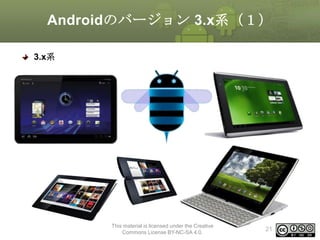
Androidのバージョン 3.x系(1)
3.x系

This material is licensed under the Creative
Commons License BY-NC-SA 4.0.

21
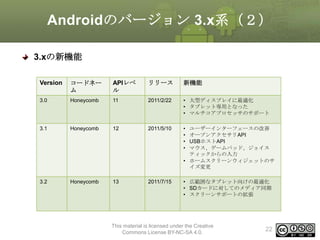
Androidのバージョン 3.x系(2)
3.xの新機能
Version

コードネー
ム

APIレベ
ル

リリース

新機能

3.0

Honeycomb

11

2011/2/22

• 大型ディスプレイに最適化
• タブレット専用となった
• マルチコアプロセッサのサポート

3.1

Honeycomb

12

2011/5/10

•
•
•
•

3.2

Honeycomb

13

2011/7/15

• 広範囲なタブレット向けの最適化
• SDカードに対してのメディア同期
• スクリーンサポートの拡張

ユーザーインターフェースの改善
オープンアクセサリAPI
USBホストAPI
マウス、ゲームパッド、ジョイス
ティックからの入力
• ホームスクリーンウィジェットのサ
イズ変更

This material is licensed under the Creative
Commons License BY-NC-SA 4.0.

22
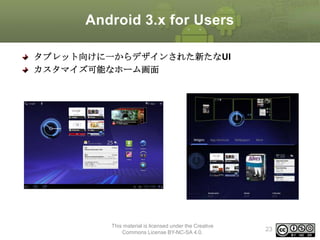
Android 3.x for Users
タブレット向けに一からデザインされた新たなUI
カスタマイズ可能なホーム画面

This material is licensed under the Creative
Commons License BY-NC-SA 4.0.

23
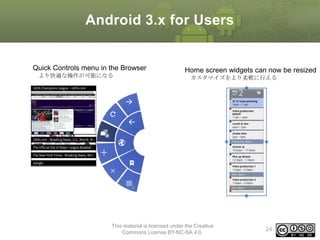
Android 3.x for Users

Quick Controls menu in the Browser
より快適な操作が可能になる

Home screen widgets can now be resized
カスタマイズをより柔軟に行える

This material is licensed under the Creative
Commons License BY-NC-SA 4.0.

24
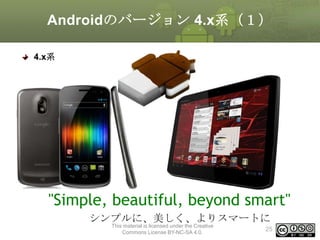
Androidのバージョン 4.x系(1)
4.x系

"Simple, beautiful, beyond smart"
シンプルに、美しく、よりスマートに
This material is licensed under the Creative
Commons License BY-NC-SA 4.0.

25
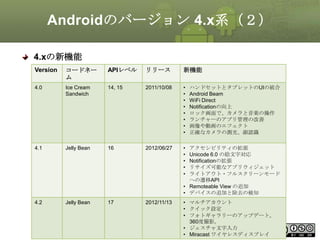
Androidのバージョン 4.x系(2)
4.xの新機能
Version

コードネー
ム

APIレベル

リリース

新機能

4.0

Ice Cream
Sandwich

14, 15

2011/10/08

•
•
•
•
•
•
•
•

4.1

Jelly Bean

16

2012/06/27

•
•
•
•
•

4.2

Jelly Bean

17

ハンドセットとタブレットのUIの統合
Android Beam
WiFi Direct
Notificationの向上
ロック画面で、カメラと音楽の操作
ランチャーのアプリ管理の改善
画像や動画のエフェクト
正確なカメラの測光、顔認識

アクセシビリティの拡張
Unicode 6.0 の絵文字対応
Notificationの拡張
リサイズ可能なアプリウィジェット
ライトアウト・フルスクリーンモード
への遷移API
• Remoteable View の追加
• デバイスの追加と除去の検知

• マルチアカウント
• クイック設定
• フォトギャラリーのアップデート。
360度撮影。
This material is licensed under•the Creative
ジェスチャ文字入力
26
Commons License BY-NC-SA 4.0.
• Miracast ワイヤレスディスプレイ
2012/11/13
Androidのバージョン 4.x系(3)
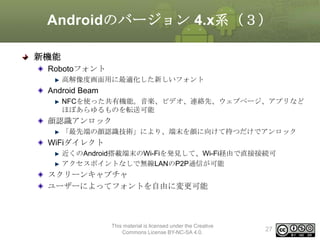
新機能
Robotoフォント
高解像度画面用に最適化した新しいフォント

Android Beam
NFCを使った共有機能。音楽、ビデオ、連絡先、ウェブページ、アプリなど
ほぼあらゆるものを転送可能

顔認識アンロック
「最先端の顔認識技術」により、端末を顔に向けて持つだけでアンロック

WiFiダイレクト
近くのAndroid搭載端末のWi-Fiを発見して、Wi-Fi経由で直接接続可
アクセスポイントなしで無線LANのP2P通信が可能

スクリーンキャプチャ
ユーザーによってフォントを自由に変更可能

This material is licensed under the Creative
Commons License BY-NC-SA 4.0.

27
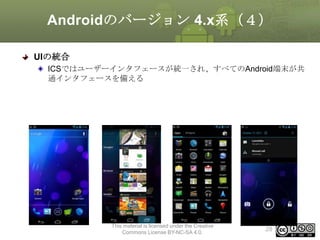
Androidのバージョン 4.x系(4)
UIの統合
ICSではユーザーインタフェースが統一され、すべてのAndroid端末が共
通インタフェースを備える

This material is licensed under the Creative
Commons License BY-NC-SA 4.0.

28
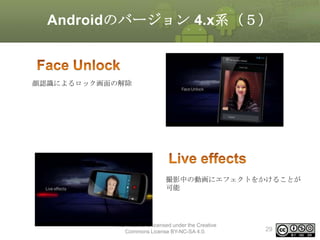
Androidのバージョン 4.x系(5)

顔認識によるロック画面の解除

撮影中の動画にエフェクトをかけることが
可能

This material is licensed under the Creative
Commons License BY-NC-SA 4.0.

29
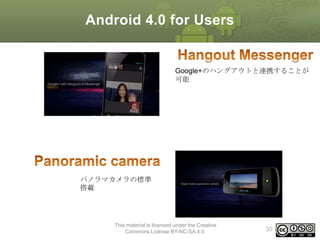
Android 4.0 for Users

Google+のハングアウトと連携することが
可能

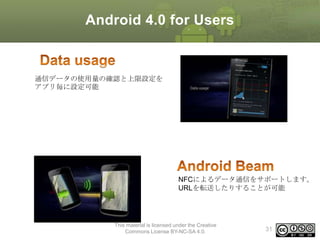
パノラマカメラの標準
搭載

This material is licensed under the Creative
Commons License BY-NC-SA 4.0.

30
Android 4.0 for Users

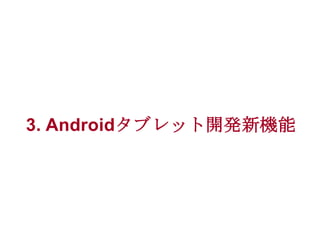
通信データの使用量の確認と上限設定を
アプリ毎に設定可能

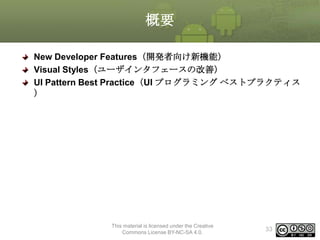
NFCによるデータ通信をサポートします。
URLを転送したりすることが可能

This material is licensed under the Creative
Commons License BY-NC-SA 4.0.

31
3. Androidタブレット開発新機能
概要
New Developer Features(開発者向け新機能)
Visual Styles(ユーザインタフェースの改善)
UI Pattern Best Practice(UI プログラミング ベストプラクティス
)

This material is licensed under the Creative
Commons License BY-NC-SA 4.0.

33
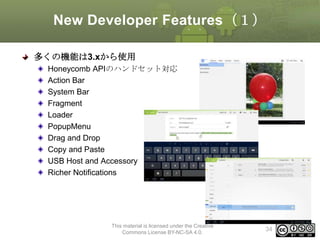
New Developer Features(1)
多くの機能は3.xから使用
Honeycomb APIのハンドセット対応
Action Bar
System Bar
Fragment
Loader
PopupMenu
Drag and Drop
Copy and Paste
USB Host and Accessory
Richer Notifications

This material is licensed under the Creative
Commons License BY-NC-SA 4.0.

34
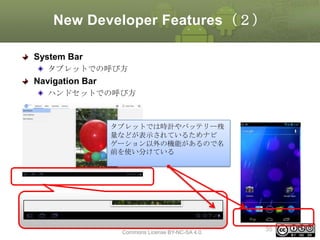
New Developer Features(2)
System Bar
タブレットでの呼び方

Navigation Bar
ハンドセットでの呼び方

タブレットでは時計やバッテリー残
量などが表示されているためナビ
ゲーション以外の機能があるので名
前を使い分けている

This material is licensed under the Creative
Commons License BY-NC-SA 4.0.

35
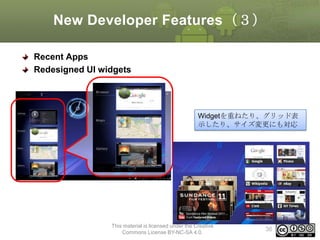
New Developer Features(3)
Recent Apps
Redesigned UI widgets

Widgetを重ねたり、グリッド表
示したり、サイズ変更にも対応

This material is licensed under the Creative
Commons License BY-NC-SA 4.0.

36
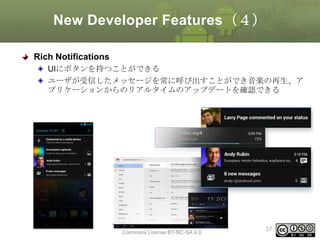
New Developer Features(4)
Rich Notifications
UIにボタンを持つことができる
ユーザが受信したメッセージを常に呼び出すことができ音楽の再生、ア
プリケーションからのリアルタイムのアップデートを確認できる

This material is licensed under the Creative
Commons License BY-NC-SA 4.0.

37
New Developer Features(5)
ActionBar、Fragment、Loader、PopupMenu、Drag and Drop...

This material is licensed under the Creative
Commons License BY-NC-SA 4.0.

38
Visual Style
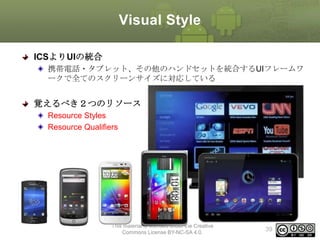
ICSよりUIの統合
携帯電話・タブレット、その他のハンドセットを統合するUIフレームワ
ークで全てのスクリーンサイズに対応している

覚えるべき2つのリソース
Resource Styles
Resource Qualifiers

This material is licensed under the Creative
Commons License BY-NC-SA 4.0.

39
Resource Styles(1)
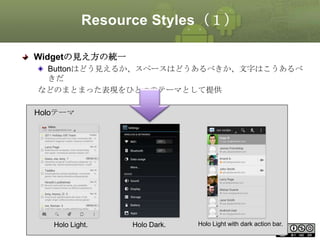
Widgetの見え方の統一
Buttonはどう見えるか、スペースはどうあるべきか、文字はこうあるべ
きだ
などのまとまった表現をひとつのテーマとして提供
Holoテーマ

Holo Light.

Holo Dark.

Holo Light with dark action bar.
40

This material is licensed under the Creative Commons License BY-NC-SA 4.0.
Resource Styles(2)
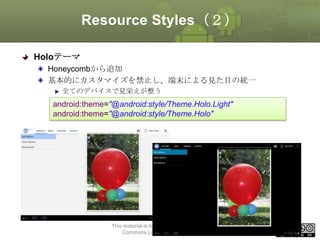
Holoテーマ
Honeycombから追加
基本的にカスタマイズを禁止し、端末による見た目の統一
全てのデバイスで見栄えが整う

android:theme="@android:style/Theme.Holo.Light"
android:theme="@android:style/Theme.Holo"

This material is licensed under the Creative
Commons License BY-NC-SA 4.0.

41
Resource Styles(3)
DeviceDefault
端末固有のテーマとしてICSから登場
OEMメーカのカスタマイズテーマ
android:theme="@android:style/Theme.DeviceDefault"

This material is licensed under the Creative
Commons License BY-NC-SA 4.0.

42
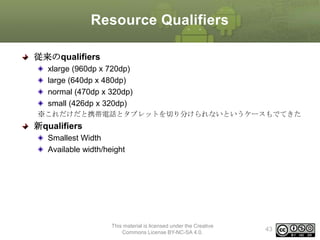
Resource Qualifiers
従来のqualifiers
xlarge (960dp x 720dp)
large (640dp x 480dp)
normal (470dp x 320dp)
small (426dp x 320dp)
※これだけだと携帯電話とタブレットを切り分けられないというケースもでてきた

新qualifiers
Smallest Width
Available width/height

This material is licensed under the Creative
Commons License BY-NC-SA 4.0.

43
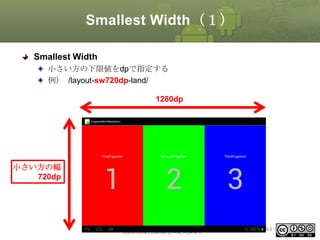
Smallest Width(1)
Smallest Width
小さい方の下限値をdpで指定する
例) /layout-sw720dp-land/
1280dp

小さい方の幅
720dp

This material is licensed under the Creative
Commons License BY-NC-SA 4.0.

44
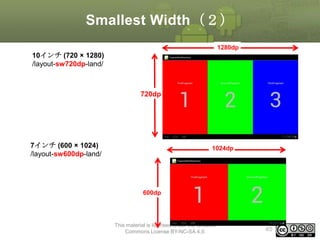
Smallest Width(2)
1280dp

10インチ (720 × 1280)
/layout-sw720dp-land/

720dp

7インチ (600 × 1024)
/layout-sw600dp-land/

1024dp

600dp

This material is licensed under the Creative
Commons License BY-NC-SA 4.0.

45
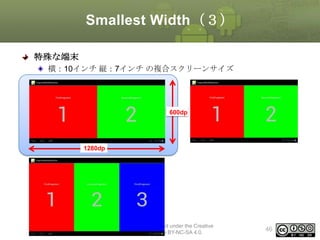
Smallest Width(3)
特殊な端末
横:10インチ 縦:7インチ の複合スクリーンサイズ

600dp

1280dp

This material is licensed under the Creative
Commons License BY-NC-SA 4.0.

46
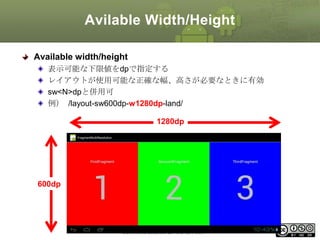
Avilable Width/Height
Available width/height
表示可能な下限値をdpで指定する
レイアウトが使用可能な正確な幅、高さが必要なときに有効
sw<N>dpと併用可
例) /layout-sw600dp-w1280dp-land/
1280dp

600dp

This material is licensed under the Creative
Commons License BY-NC-SA 4.0.

47
UI Patterns Best Practices
UI Pattern
Honeycomb以降に追加されたUI機能の実装におけるベストプラクティス
Action Bar
Multi-Pane Layouts

This material is licensed under the Creative
Commons License BY-NC-SA 4.0.

48
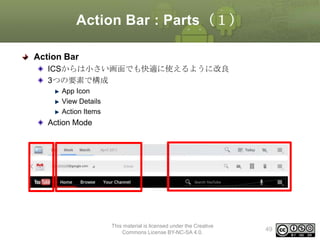
Action Bar : Parts(1)
Action Bar
ICSからは小さい画面でも快適に使えるように改良
3つの要素で構成
App Icon
View Details
Action Items

Action Mode

This material is licensed under the Creative
Commons License BY-NC-SA 4.0.

49
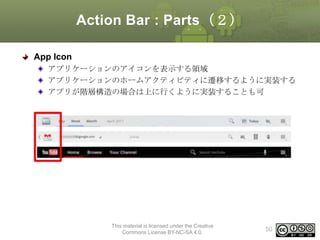
Action Bar : Parts(2)
App Icon
アプリケーションのアイコンを表示する領域
アプリケーションのホームアクティビティに遷移するように実装する
アプリが階層構造の場合は上に行くように実装することも可

This material is licensed under the Creative
Commons License BY-NC-SA 4.0.

50
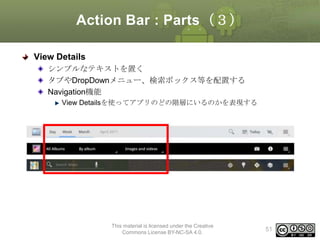
Action Bar : Parts(3)
View Details
シンプルなテキストを置く
タブやDropDownメニュー、検索ボックス等を配置する
Navigation機能
View Detailsを使ってアプリのどの階層にいるのかを表現する

This material is licensed under the Creative
Commons License BY-NC-SA 4.0.

51
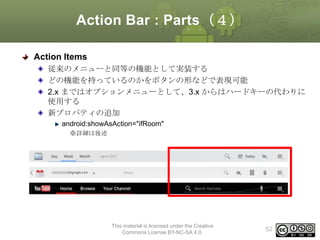
Action Bar : Parts(4)
Action Items
従来のメニューと同等の機能として実装する
どの機能を持っているのかをボタンの形などで表現可能
2.x まではオプションメニューとして、3.x からはハードキーの代わりに
使用する
新プロパティの追加
android:showAsAction="ifRoom"
※詳細は後述

This material is licensed under the Creative
Commons License BY-NC-SA 4.0.

52
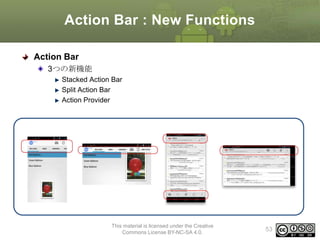
Action Bar : New Functions
Action Bar
3つの新機能
Stacked Action Bar
Split Action Bar
Action Provider

This material is licensed under the Creative
Commons License BY-NC-SA 4.0.

53
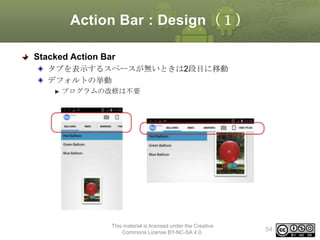
Action Bar : Design(1)
Stacked Action Bar
タブを表示するスペースが無いときは2段目に移動
デフォルトの挙動
プログラムの改修は不要

This material is licensed under the Creative
Commons License BY-NC-SA 4.0.

54
Action Bar : Design(2)
Split Action Bar
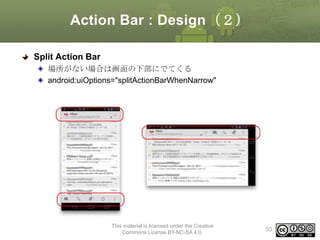
場所がない場合は画面の下部にでてくる
android:uiOptions="splitActionBarWhenNarrow"

This material is licensed under the Creative
Commons License BY-NC-SA 4.0.

55
Action Bar : Menu(1)
Action Provider
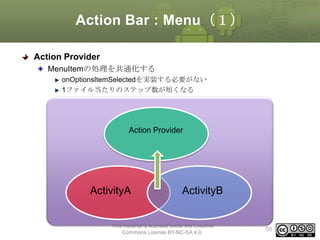
MenuItemの処理を共通化する
onOptionsItemSelectedを実装する必要がない
1ファイル当たりのステップ数が短くなる

Action Provider

ActivityA

ActivityB

This material is licensed under the Creative
Commons License BY-NC-SA 4.0.

56
Action Bar : Menu(2)
Action Provider
実装方法
ActionProviderのサブクラスを作成する
メニューの表示は以下の2つの方法がある
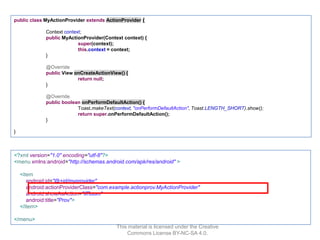
• menuリソースにandroid:actionProviderClassプロパティを追加
• onCreateOptionsMenuメソッドのオーバライド

This material is licensed under the Creative
Commons License BY-NC-SA 4.0.

57
public class MyActionProvider extends ActionProvider {
Context context;
public MyActionProvider(Context context) {
super(context);
this.context = context;
}
@Override
public View onCreateActionView() {
return null;
}
@Override
public boolean onPerformDefaultAction() {
Toast.makeText(context, "onPerformDefaultAction", Toast.LENGTH_SHORT).show();
return super.onPerformDefaultAction();
}
}

<?xml version="1.0" encoding="utf-8"?>
<menu xmlns:android="http://schemas.android.com/apk/res/android" >
<item
android:id="@+id/myprovider"
android:actionProviderClass="com.example.actionprov.MyActionProvider"
android:showAsAction="ifRoom"
android:title="Prov">
</item>
</menu>
This material is licensed under the Creative
Commons License BY-NC-SA 4.0.
Action Bar : Menu(3)
Action Provider
長所
処理の共通化により管理がしやすい
Activityにロジックを記述する必要がない

短所
ICS以降のため、下位互換できない
Activityで定義しているメソッド、変数にアクセス出来ない
MenuItem単位でActionProviderクラスが必要になるためファイルの総数は増
加する

This material is licensed under the Creative
Commons License BY-NC-SA 4.0.

59
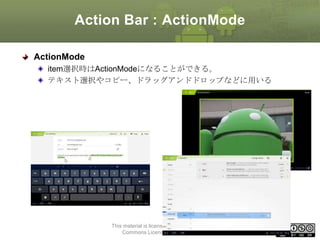
Action Bar : ActionMode
ActionMode
item選択時はActionModeになることができる。
テキスト選択やコピー、ドラッグアンドドロップなどに用いる

This material is licensed under the Creative
Commons License BY-NC-SA 4.0.

60
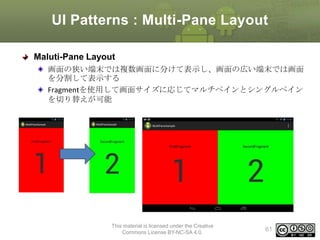
UI Patterns : Multi-Pane Layout
Maluti-Pane Layout
画面の狭い端末では複数画面に分けて表示し、画面の広い端末では画面
を分割して表示する
Fragmentを使用して画面サイズに応じてマルチペインとシングルペイン
を切り替えが可能

This material is licensed under the Creative
Commons License BY-NC-SA 4.0.

61
Fragment(1)
Fragment
Multi-Paneを実現させるために導入された仕組み
独自のライフサイクルを持っている
Activityに書いていたコードロジックをFragmentに移動する
ActivityはFragmentだけをもつコンテナになる
画面サイズの違うものにはFragmentを再利用することでロジックレベルの対
応をしなくてよい

向き対応も可
レイアウトが変わってもFragmentは変わらないので柔軟な対応ができる

レイアウトはディレクトリでResource Qualifiers利用する
layout-port
layout-land
layout-sw600dp

This material is licensed under the Creative
Commons License BY-NC-SA 4.0.

62
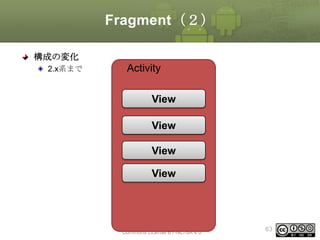
Fragment(2)
構成の変化
2.x系まで

Activity
View
View
View
View

This material is licensed under the Creative
Commons License BY-NC-SA 4.0.

63
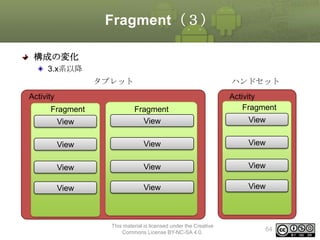
Fragment(3)
構成の変化
3.x系以降
タブレット

ハンドセット

Activity
Fragment

Activity
Fragment

View

Fragment
View

View

View

View

View

View

View

View

View

View

This material is licensed under the Creative
Commons License BY-NC-SA 4.0.

View

64
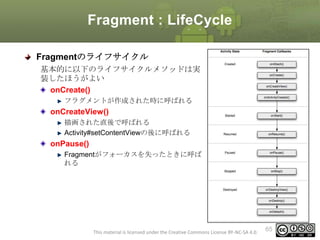
Fragment : LifeCycle
Fragmentのライフサイクル
基本的に以下のライフサイクルメソッドは実
装したほうがよい
onCreate()
フラグメントが作成された時に呼ばれる

onCreateView()
描画された直後で呼ばれる
Activity#setContentViewの後に呼ばれる

onPause()
Fragmentがフォーカスを失ったときに呼ば
れる

This material is licensed under the Creative Commons License BY-NC-SA 4.0.

65
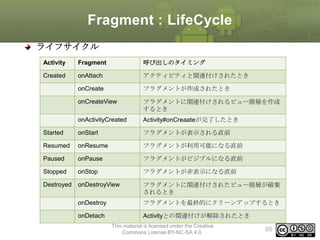
Fragment : LifeCycle
ライフサイクル
Activity

Fragment

呼び出しのタイミング

Created

onAttach

アクティビティと関連付けされたとき

onCreate

フラグメントが作成されたとき

onCreateView

フラグメントに関連付けされるビュー階層を作成
するとき

onActivityCreated

Activity#onCreaateが完了したとき

Started

onStart

フラグメントが表示される直前

Resumed

onResume

フラグメントが利用可能になる直前

Paused

onPause

フラグメントがビジブルになる直前

Stopped

onStop

フラグメントが非表示になる直前

Destroyed

onDestroyView

フラグメントに関連付けされたビュー階層が破棄
されるとき

onDestroy

フラグメントを最終的にクリーンアップするとき

onDetach

Activityとの関連付けが解除されたとき
This material is licensed under the Creative
Commons License BY-NC-SA 4.0.

66
Multi-Pane Layout :
Implementation(1)
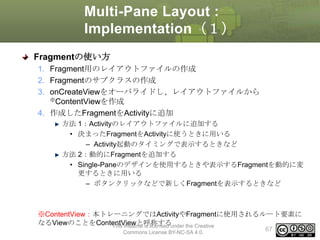
Fragmentの使い方
1. Fragment用のレイアウトファイルの作成
2. Fragmentのサブクラスの作成
3. onCreateViewをオーバライドし、レイアウトファイルから
※ContentViewを作成
4. 作成したFragmentをActivityに追加
方法 1:Activityのレイアウトファイルに追加する
• 決まったFragmentをActivityに使うときに用いる
– Activity起動のタイミングで表示するときなど
方法 2:動的にFragmentを追加する
• Single-Paneのデザインを使用するときや表示するFragmentを動的に変
更するときに用いる
– ボタンクリックなどで新しくFragmentを表示するときなど

※ContentView:本トレーニングではActivityやFragmentに使用されるルート要素に
なるViewのことをContentViewと呼称するunder the Creative
This material is licensed
Commons License BY-NC-SA 4.0.

67
Multi-Pane Layout :
Implementation(2)
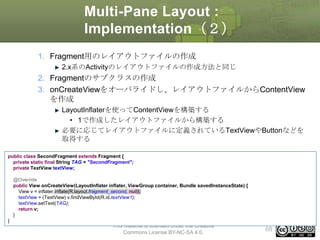
1. Fragment用のレイアウトファイルの作成
2.x系のActivityのレイアウトファイルの作成方法と同じ

2. Fragmentのサブクラスの作成
3. onCreateViewをオーバライドし、レイアウトファイルからContentView
を作成
LayoutInflaterを使ってContentViewを構築する
• 1で作成したレイアウトファイルから構築する
必要に応じてレイアウトファイルに定義されているTextViewやButtonなどを
取得する
public class SecondFragment extends Fragment {
private static final String TAG = "SecondFragment";
private TextView textView;
@Override
public View onCreateView(LayoutInflater inflater, ViewGroup container, Bundle savedInstanceState) {
View v = inflater.inflate(R.layout.fragment_second, null);
textView = (TextView) v.findViewById(R.id.textView1);
textView.setText(TAG);
return v;
}
}

This material is licensed under the Creative
Commons License BY-NC-SA 4.0.

68
Multi-Pane Layout :
Implementation(3)
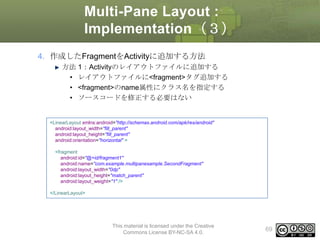
4. 作成したFragmentをActivityに追加する方法
方法 1:Activityのレイアウトファイルに追加する
• レイアウトファイルに<fragment>タグ追加する
• <fragment>のname属性にクラス名を指定する
• ソースコードを修正する必要はない

<LinearLayout xmlns:android="http://schemas.android.com/apk/res/android"
android:layout_width="fill_parent"
android:layout_height="fill_parent"
android:orientation="horizontal" >
<fragment
android:id="@+id/fragment1"
android:name="com.example.multipanesample.SecondFragment"
android:layout_width="0dp"
android:layout_height="match_parent"
android:layout_weight="1" />
</LinearLayout>

This material is licensed under the Creative
Commons License BY-NC-SA 4.0.

69
Multi-Pane Layout :
Implementation(4)
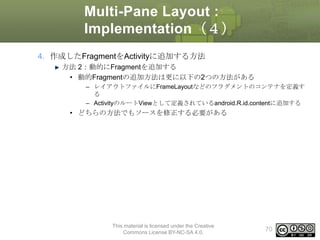
4. 作成したFragmentをActivityに追加する方法
方法 2:動的にFragmentを追加する
• 動的Fragmentの追加方法は更に以下の2つの方法がある
– レイアウトファイルにFrameLayoutなどのフラグメントのコンテナを定義す
る
– ActivityのルートViewとして定義されているandroid.R.id.contentに追加する

• どちらの方法でもソースを修正する必要がある

This material is licensed under the Creative
Commons License BY-NC-SA 4.0.

70
Multi-Pane Layout :
Implementation(5)
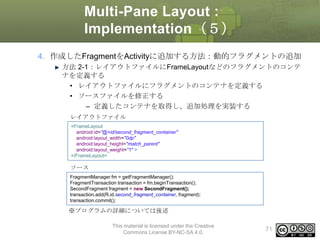
4. 作成したFragmentをActivityに追加する方法:動的フラグメントの追加
方法 2-1:レイアウトファイルにFrameLayoutなどのフラグメントのコンテ
ナを定義する
• レイアウトファイルにフラグメントのコンテナを定義する
• ソースファイルを修正する
– 定義したコンテナを取得し、追加処理を実装する
レイアウトファイル
<FrameLayout
android:id="@+id/second_fragment_container"
android:layout_width="0dp"
android:layout_height="match_parent"
android:layout_weight="1" >
</FrameLayout>

ソース
FragmentManager fm = getFragmentManager();
FragmentTransaction transaction = fm.beginTransaction();
SecondFragment fragment = new SecondFragment();
transaction.add(R.id.second_fragment_container, fragment);
transaction.commit();

※プログラムの詳細については後述
This material is licensed under the Creative
Commons License BY-NC-SA 4.0.

71
Multi-Pane Layout :
Implementation(6)
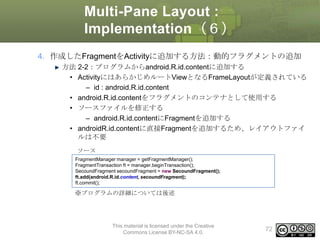
4. 作成したFragmentをActivityに追加する方法:動的フラグメントの追加
方法 2-2:プログラムからandroid.R.id.contentに追加する
• ActivityにはあらかじめルートViewとなるFrameLayoutが定義されている
– id : android.R.id.content
• android.R.id.contentをフラグメントのコンテナとして使用する
• ソースファイルを修正する
– android.R.id.contentにFragmentを追加する
• androidR.id.contentに直接Fragmentを追加するため、レイアウトファイ
ルは不要
ソース
FragmentManager manager = getFragmentManager();
FragmentTransaction ft = manager.beginTransaction();
SecoundFragment secoundFragment = new SecoundFragment();
ft.add(android.R.id.content, secoundFragment);
ft.commit();

※プログラムの詳細については後述

This material is licensed under the Creative
Commons License BY-NC-SA 4.0.

72
Multi-Pane Layout :
Implementation(7)
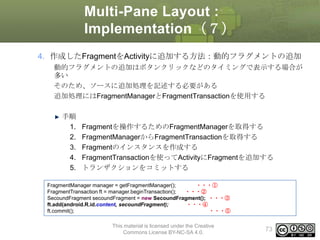
4. 作成したFragmentをActivityに追加する方法:動的フラグメントの追加
動的フラグメントの追加はボタンクリックなどのタイミングで表示する場合が
多い
そのため、ソースに追加処理を記述する必要がある
追加処理にはFragmentManagerとFragmentTransactionを使用する

手順
1.
2.
3.
4.
5.

Fragmentを操作するためのFragmentManagerを取得する
FragmentManagerからFragmentTransactionを取得する
Fragmentのインスタンスを作成する
FragmentTransactionを使ってActivityにFragmentを追加する
トランザクションをコミットする

FragmentManager manager = getFragmentManager();
・・・①
FragmentTransaction ft = manager.beginTransaction();
・・・②
SecoundFragment secoundFragment = new SecoundFragment(); ・・・③
ft.add(android.R.id.content, secoundFragment);
・・・④
ft.commit();
・・・⑤
This material is licensed under the Creative
Commons License BY-NC-SA 4.0.

73
Multi-Pane Layout :
Implementation(8)
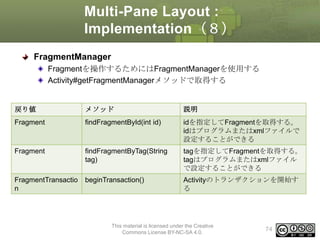
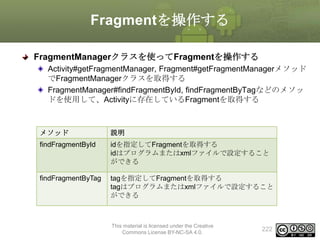
FragmentManager
Fragmentを操作するためにはFragmentManagerを使用する
Activity#getFragmentManagerメソッドで取得する

戻り値

メソッド

説明

Fragment

findFragmentById(int id)

idを指定してFragmentを取得する。
idはプログラムまたはxmlファイルで
設定することができる

Fragment

findFragmentByTag(String
tag)

tagを指定してFragmentを取得する。
tagはプログラムまたはxmlファイル
で設定することができる

FragmentTransactio
n

beginTransaction()

Activityのトランザクションを開始す
る

This material is licensed under the Creative
Commons License BY-NC-SA 4.0.

74
Multi-Pane Layout : Implementation(
9)
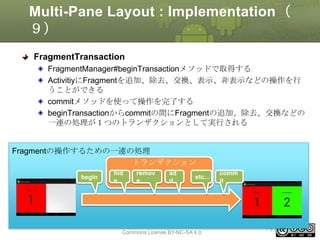
FragmentTransaction
FragmentManager#beginTransactionメソッドで取得する
ActivitiyにFragmentを追加、除去、交換、表示、非表示などの操作を行
うことができる
commitメソッドを使って操作を完了する
beginTransactionからcommitの間にFragmentの追加、除去、交換などの
一連の処理が1つのトランザクションとして実行される

Fragmentの操作するための一連の処理
トランザクション
begin

hid
e

remov
e

ad
d

etc...

This material is licensed under the Creative
Commons License BY-NC-SA 4.0.

comm
it

75
Multi-Pane Layout :
Implementation(10)
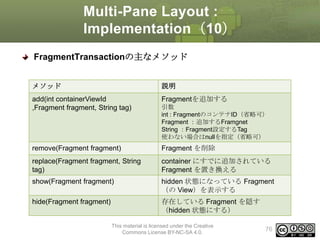
FragmentTransactionの主なメソッド
メソッド

説明

add(int containerViewId
,Fragment fragment, String tag)

Fragmentを追加する

remove(Fragment fragment)

Fragment を削除

replace(Fragment fragment, String
tag)

container にすでに追加されている
Fragment を置き換える

show(Fragment fragment)

hidden 状態になっている Fragment
(の View)を表示する

hide(Fragment fragment)

存在している Fragment を隠す
(hidden 状態にする)

引数
int : FragmentのコンテナID(省略可)
Fragment :追加するFramgnet
String :Fragment設定するTag
使わない場合はnullを指定(省略可)

This material is licensed under the Creative
Commons License BY-NC-SA 4.0.

76
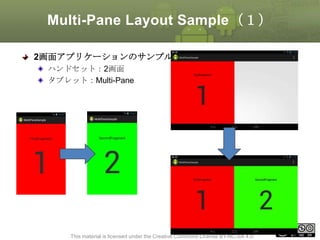
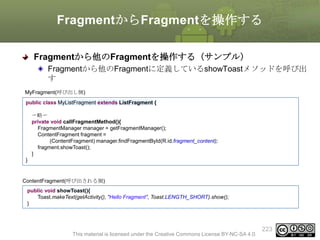
Multi-Pane Layout Sample(1)
2画面アプリケーションのサンプル
ハンドセット:2画面
タブレット:Multi-Pane

77
This material is licensed under the Creative Commons License BY-NC-SA 4.0.
Multi-Pane Layout Sample(2)
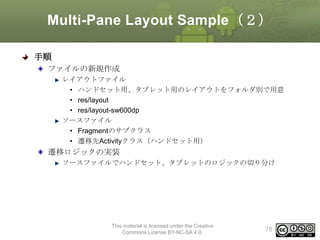
手順
ファイルの新規作成
レイアウトファイル
• ハンドセット用、タブレット用のレイアウトをフォルダ別で用意
• res/layout
• res/layout-sw600dp
ソースファイル
• Fragmentのサブクラス
• 遷移先Activityクラス(ハンドセット用)

遷移ロジックの実装
ソースファイルでハンドセット、タブレットのロジックの切り分け

This material is licensed under the Creative
Commons License BY-NC-SA 4.0.

78
Multi-Pane Layout Sample(3)
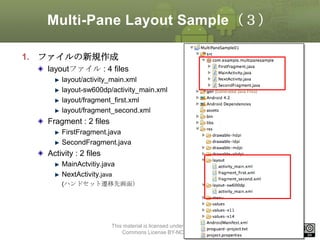
1. ファイルの新規作成
layoutファイル : 4 files
layout/activity_main.xml
layout-sw600dp/activity_main.xml
layout/fragment_first.xml
layout/fragment_second.xml

Fragment : 2 files
FirstFragment.java
SecondFragment.java

Activity : 2 files
MainActvitiy.java
NextActivity.java
(ハンドセット遷移先画面)

This material is licensed under the Creative
Commons License BY-NC-SA 4.0.

79
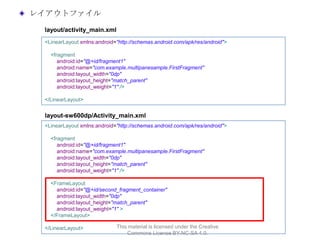
レイアウトファイル
layout/activity_main.xml
<LinearLayout xmlns:android="http://schemas.android.com/apk/res/android">
<fragment
android:id="@+id/fragment1"
android:name="com.example.multipanesample.FirstFragment"
android:layout_width="0dp"
android:layout_height="match_parent"
android:layout_weight="1" />
</LinearLayout>

layout-sw600dp/Activity_main.xml
<LinearLayout xmlns:android="http://schemas.android.com/apk/res/android">
<fragment
android:id="@+id/fragment1"
android:name="com.example.multipanesample.FirstFragment"
android:layout_width="0dp"
android:layout_height="match_parent"
android:layout_weight="1" />
<FrameLayout
android:id="@+id/second_fragment_container"
android:layout_width="0dp"
android:layout_height="match_parent"
android:layout_weight="1" >
</FrameLayout>
</LinearLayout>

This material is licensed under the Creative
Commons License BY-NC-SA 4.0.
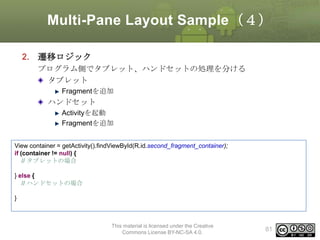
Multi-Pane Layout Sample(4)
2. 遷移ロジック
プログラム側でタブレット、ハンドセットの処理を分ける
タブレット
Fragmentを追加

ハンドセット
Activityを起動
Fragmentを追加
View container = getActivity().findViewById(R.id.second_fragment_container);
if (container != null) {
// タブレットの場合
} else {
// ハンドセットの場合
}

This material is licensed under the Creative
Commons License BY-NC-SA 4.0.

81
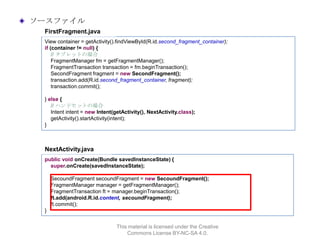
ソースファイル
FirstFragment.java
View container = getActivity().findViewById(R.id.second_fragment_container);
if (container != null) {
// タブレットの場合
FragmentManager fm = getFragmentManager();
FragmentTransaction transaction = fm.beginTransaction();
SecondFragment fragment = new SecondFragment();
transaction.add(R.id.second_fragment_container, fragment);
transaction.commit();
} else {
// ハンドセットの場合
Intent intent = new Intent(getActivity(), NextActivity.class);
getActivity().startActivity(intent);
}

NextActivity.java
public void onCreate(Bundle savedInstanceState) {
super.onCreate(savedInstanceState);
SecoundFragment secoundFragment = new SecoundFragment();
FragmentManager manager = getFragmentManager();
FragmentTransaction ft = manager.beginTransaction();
ft.add(android.R.id.content, secoundFragment);
ft.commit();
}
This material is licensed under the Creative
Commons License BY-NC-SA 4.0.
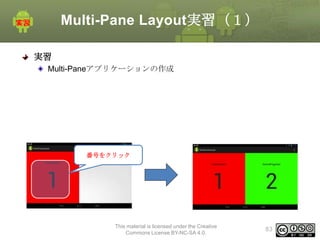
Multi-Pane Layout実習(1)
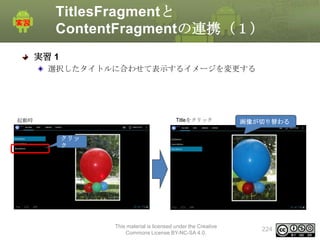
実習
Multi-Paneアプリケーションの作成

番号をクリック

This material is licensed under the Creative
Commons License BY-NC-SA 4.0.

83
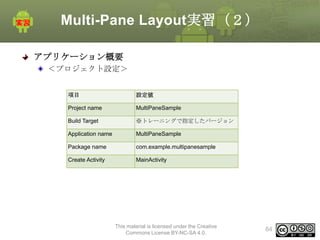
Multi-Pane Layout実習(2)
アプリケーション概要
<プロジェクト設定>
項目

設定値

Project name

MultiPaneSample

Build Target

※トレーニングで指定したバージョン

Application name

MultiPaneSample

Package name

com.example.multipanesample

Create Activity

MainActivity

This material is licensed under the Creative
Commons License BY-NC-SA 4.0.

84
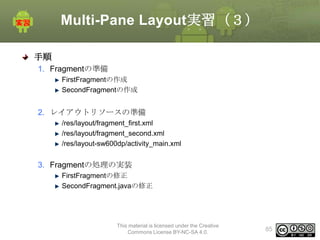
Multi-Pane Layout実習(3)
手順
1. Fragmentの準備
FirstFragmentの作成
SecondFragmentの作成

2. レイアウトリソースの準備
/res/layout/fragment_first.xml
/res/layout/fragment_second.xml
/res/layout-sw600dp/activity_main.xml

3. Fragmentの処理の実装
FirstFragmentの修正
SecondFragment.javaの修正

This material is licensed under the Creative
Commons License BY-NC-SA 4.0.

85
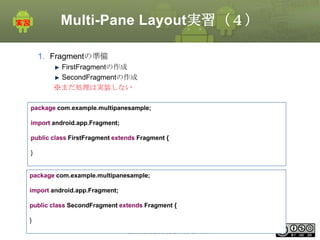
Multi-Pane Layout実習(4)
1. Fragmentの準備
FirstFragmentの作成
SecondFragmentの作成
※まだ処理は実装しない
package com.example.multipanesample;

import android.app.Fragment;
public class FirstFragment extends Fragment {
}

package com.example.multipanesample;
import android.app.Fragment;
public class SecondFragment extends Fragment {

}
This material is licensed under the Creative
Commons License BY-NC-SA 4.0.

86
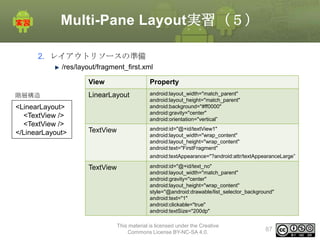
Multi-Pane Layout実習(5)
2. レイアウトリソースの準備
/res/layout/fragment_first.xml
View

Property

階層構造

LinearLayout

<LinearLayout>
<TextView />
<TextView />
</LinearLayout>

android:layout_width="match_parent"
android:layout_height="match_parent"
android:background="#ff0000"
android:gravity="center"
android:orientation="vertical”

TextView

android:id="@+id/textView1"
android:layout_width="wrap_content"
android:layout_height="wrap_content"
android:text="FirstFragment"
android:textAppearance="?android:attr/textAppearanceLarge”

TextView

android:id="@+id/text_no"
android:layout_width="match_parent"
android:gravity="center"
android:layout_height="wrap_content"
style="@android:drawable/list_selector_background"
android:text="1"
android:clickable="true"
android:textSize="200dp"
This material is licensed under the Creative
Commons License BY-NC-SA 4.0.

87
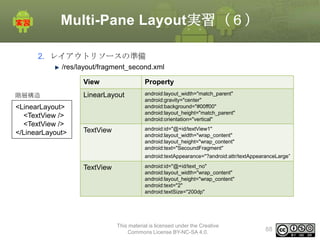
Multi-Pane Layout実習(6)
2. レイアウトリソースの準備
/res/layout/fragment_second.xml
View

Property

階層構造

LinearLayout

<LinearLayout>
<TextView />
<TextView />
</LinearLayout>

android:layout_width="match_parent"
android:gravity="center"
android:background="#00ff00"
android:layout_height="match_parent"
android:orientation="vertical"

TextView

android:id="@+id/textView1"
android:layout_width="wrap_content"
android:layout_height="wrap_content"
android:text="SecoundFragment"
android:textAppearance="?android:attr/textAppearanceLarge”

TextView

android:id="@+id/text_no"
android:layout_width="wrap_content"
android:layout_height="wrap_content"
android:text="2"
android:textSize="200dp"

This material is licensed under the Creative
Commons License BY-NC-SA 4.0.

88
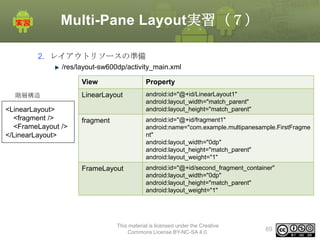
Multi-Pane Layout実習(7)
2. レイアウトリソースの準備
/res/layout-sw600dp/activity_main.xml
View
階層構造

<LinearLayout>
<fragment />
<FrameLayout />
</LinearLayout>

Property

LinearLayout

android:id="@+id/LinearLayout1"
android:layout_width="match_parent"
android:layout_height="match_parent"

fragment

android:id="@+id/fragment1"
android:name="com.example.multipanesample.FirstFragme
nt"
android:layout_width="0dp"
android:layout_height="match_parent"
android:layout_weight="1"

FrameLayout

android:id="@+id/second_fragment_container"
android:layout_width="0dp"
android:layout_height="match_parent"
android:layout_weight="1"

This material is licensed under the Creative
Commons License BY-NC-SA 4.0.

89
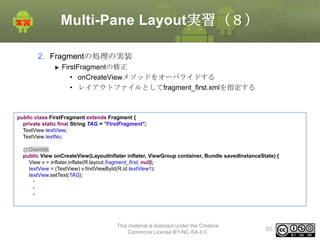
Multi-Pane Layout実習(8)
2. Fragmentの処理の実装
FirstFragmentの修正
• onCreateViewメソッドをオーバライドする
• レイアウトファイルとしてfragment_first.xmlを指定する

public class FirstFragment extends Fragment {
private static final String TAG = "FirstFragment";
TextView textView;
TextView textNo;
@Override
public View onCreateView(LayoutInflater inflater, ViewGroup container, Bundle savedInstanceState) {
View v = inflater.inflate(R.layout.fragment_first, null);
textView = (TextView) v.findViewById(R.id.textView1);
textView.setText(TAG);

・
・
・

This material is licensed under the Creative
Commons License BY-NC-SA 4.0.

90
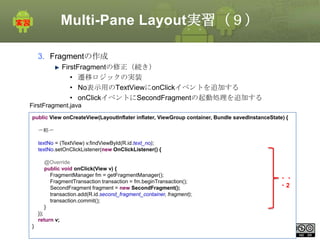
Multi-Pane Layout実習(9)
3. Fragmentの作成
FirstFragmentの修正(続き)
• 遷移ロジックの実装
• No表示用のTextViewにonClickイベントを追加する
• onClickイベントにSecondFragmentの起動処理を追加する
FirstFragment.java
public View onCreateView(LayoutInflater inflater, ViewGroup container, Bundle savedInstanceState) {
〜略〜
textNo = (TextView) v.findViewById(R.id.text_no);
textNo.setOnClickListener(new OnClickListener() {
@Override
public void onClick(View v) {
FragmentManager fm = getFragmentManager();
FragmentTransaction transaction = fm.beginTransaction();
SecondFragment fragment = new SecondFragment();
transaction.add(R.id.second_fragment_container, fragment);
transaction.commit();
}

・・
・2

});
return v;

}

This material is licensed under the Creative
Commons License BY-NC-SA 4.0.

91
Multi-Pane Layout実習(10)
3. Fragmentの作成
SecondFragmentの修正
• onCreateViewメソッドをオーバライドする
• レイアウトファイルとしてfragment_second.xmlを指定する

public class SecondFragment extends Fragment {
private static final String TAG = "SecondFragment";
private TextView textView;
@Override
public View onCreateView(LayoutInflater inflater, ViewGroup container, Bundle savedInstanceState) {
Log.v(TAG, new Throwable().getStackTrace()[0].getMethodName());
View v = inflater.inflate(R.layout.fragment_second, container, false);
textView = (TextView) v.findViewById(R.id.textView1);
textView.setText(TAG);
return v;
}
}

This material is licensed under the Creative
Commons License BY-NC-SA 4.0.

92
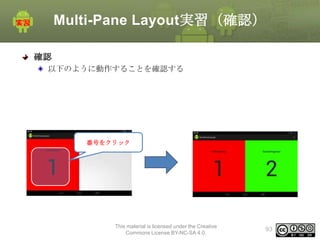
Multi-Pane Layout実習(確認)
確認
以下のように動作することを確認する

番号をクリック

This material is licensed under the Creative
Commons License BY-NC-SA 4.0.

93
Multi-Pane Layout実習(解答)
解答
別ドキュメント参照

This material is licensed under the Creative
Commons License BY-NC-SA 4.0.

94
Multi-Pane Layout実習[補足]
実習 [補足 1]
ハンドセット対応にする
ハンドセット:2画面
タブレット:Multi-Pane

This material is licensed under the Creative
Commons License BY-NC-SA 4.0.

95
Multi-Pane Layout実習[補足](解
答)
解答
別ドキュメント参照

This material is licensed under the Creative
Commons License BY-NC-SA 4.0.

96
4. タブレットアプリケーションの作
成
アプリケーション概要
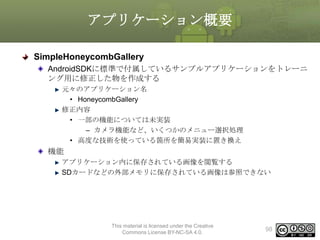
SimpleHoneycombGallery
AndroidSDKに標準で付属しているサンプルアプリケーションをトレーニ
ング用に修正した物を作成する
元々のアプリケーション名
• HoneycombGallery
修正内容
• 一部の機能については未実装
– カメラ機能など、いくつかのメニュー選択処理
• 高度な技術を使っている箇所を簡易実装に置き換え

機能
アプリケーション内に保存されている画像を閲覧する
SDカードなどの外部メモリに保存されている画像は参照できない

This material is licensed under the Creative
Commons License BY-NC-SA 4.0.

98
ステップアップ手順(1)
5つのStepでアプリケーションを完成させる
Step 1 Action Bar
Action Barの作成
Action Barのカスタマイズ
Action Itemsの作成

Step 4 Fragmentの連携
FragmentとFragmentの連携
FragmentとActivityの連携

Step 5 その他の機能拡張
Step 2 Fragment
ContentFragmentの追加
System Bar, Action Barの表示
制御
ActionMode対応

Step 3 ListFragment
ListFragmentを使ってタイト
ル一覧を表示する
ListFragmentをカスタマイズ
する

Fragmentの表示・非表示
DialogFragment
Notification
Configuration対応
テーマの動的切り替え
※テーマの動的切り替えはタブレット新機
能を使わないため本トレーニングでは省略
する
各自持ち帰り課題とし資料を参考に仕上げ
ること

This material is licensed under the Creative Commons License BY-NC-SA 4.0.

99
ステップアップ手順(2)
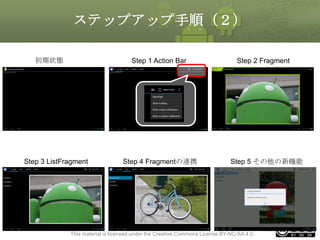
初期状態

Step 1 Action Bar

Step 3 ListFragment

Step 4 Fragmentの連携

Step 2 Fragment

Step 5 その他の新機能

This material is licensed under the Creative Commons License BY-NC-SA 4.0.

100
画面構成
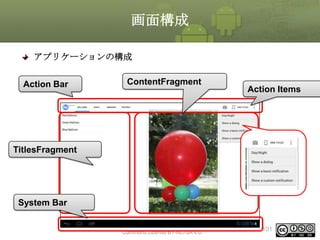
アプリケーションの構成
Action Bar

ContentFragment

Action Items

TitlesFragment

System Bar
This material is licensed under the Creative
Commons License BY-NC-SA 4.0.

101
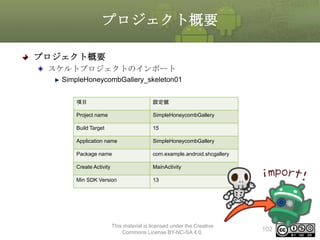
プロジェクト概要
プロジェクト概要
スケルトプロジェクトのインポート
SimpleHoneycombGallery_skeleton01
項目

設定値

Project name

SimpleHoneycombGallery

Build Target

15

Application name

SimpleHoneycombGallery

Package name

com.example.android.shcgallery

Create Activity

MainActivity

Min SDK Version

13

This material is licensed under the Creative
Commons License BY-NC-SA 4.0.

102
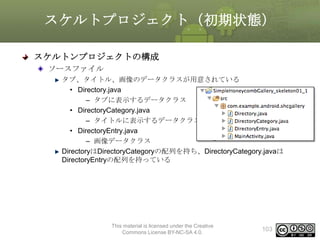
スケルトプロジェクト(初期状態)
スケルトンプロジェクトの構成
ソースファイル
タブ、タイトル、画像のデータクラスが用意されている
• Directory.java
– タブに表示するデータクラス
• DirectoryCategory.java
– タイトルに表示するデータクラス
• DirectoryEntry.java
– 画像データクラス
DirectoryはDirectoryCategoryの配列を持ち、DirectoryCategory.javaは
DirectoryEntryの配列を持っている

This material is licensed under the Creative
Commons License BY-NC-SA 4.0.

103
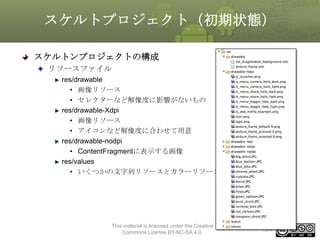
スケルトプロジェクト(初期状態)
スケルトンプロジェクトの構成
リソースファイル
res/drawable
• 画像リソース
• セレクターなど解像度に影響がないもの
res/drawable-Xdpi
• 画像リソース
• アイコンなど解像度に合わせて用意
res/drawable-nodpi
• ContentFragmentに表示する画像
res/values
• いくつかの文字列リソースとカラーリソース

This material is licensed under the Creative
Commons License BY-NC-SA 4.0.

104
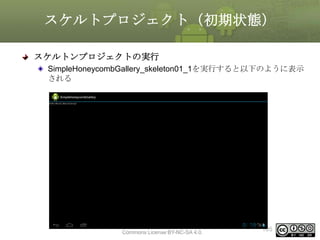
スケルトプロジェクト(初期状態)
スケルトンプロジェクトの実行
SimpleHoneycombGallery_skeleton01_1を実行すると以下のように表示
される

This material is licensed under the Creative
Commons License BY-NC-SA 4.0.

105
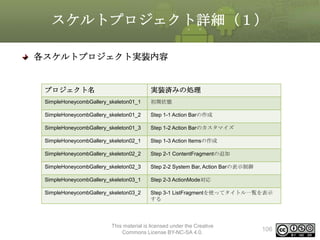
スケルトプロジェクト詳細(1)
各スケルトプロジェクト実装内容

プロジェクト名

実装済みの処理

SimpleHoneycombGallery_skeleton01_1

初期状態

SimpleHoneycombGallery_skeleton01_2

Step 1-1 Action Barの作成

SimpleHoneycombGallery_skeleton01_3

Step 1-2 Action Barのカスタマイズ

SimpleHoneycombGallery_skeleton02_1

Step 1-3 Action Itemsの作成

SimpleHoneycombGallery_skeleton02_2

Step 2-1 ContentFragmentの追加

SimpleHoneycombGallery_skeleton02_3

Step 2-2 System Bar, Action Barの表示制御

SimpleHoneycombGallery_skeleton03_1

Step 2-3 ActionMode対応

SimpleHoneycombGallery_skeleton03_2

Step 3-1 ListFragmentを使ってタイトル一覧を表示
する

This material is licensed under the Creative
Commons License BY-NC-SA 4.0.

106
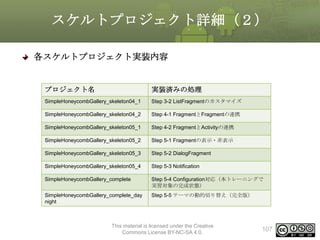
スケルトプロジェクト詳細(2)
各スケルトプロジェクト実装内容

プロジェクト名

実装済みの処理

SimpleHoneycombGallery_skeleton04_1

Step 3-2 ListFragmentのカスタマイズ

SimpleHoneycombGallery_skeleton04_2

Step 4-1 FragmentとFragmentの連携

SimpleHoneycombGallery_skeleton05_1

Step 4-2 FragmentとActivityの連携

SimpleHoneycombGallery_skeleton05_2

Step 5-1 Fragmentの表示・非表示

SimpleHoneycombGallery_skeleton05_3

Step 5-2 DialogFragment

SimpleHoneycombGallery_skeleton05_4

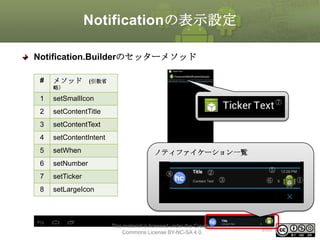
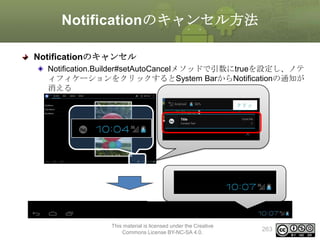
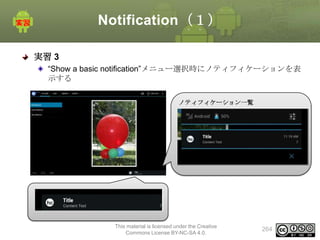
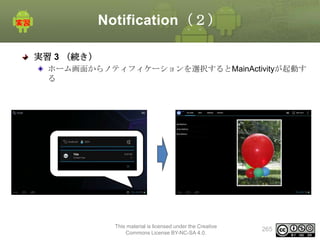
Step 5-3 Notification

SimpleHoneycombGallery_complete

Step 5-4 Configuration対応(本トレーニングで
実習対象の完成状態)

SimpleHoneycombGallery_complete_day
night

Step 5-5 テーマの動的切り替え(完全版)

This material is licensed under the Creative
Commons License BY-NC-SA 4.0.

107
タブレットアプリケーションの
作成1
Action Bar
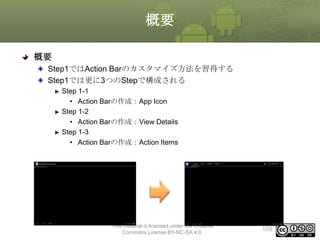
概要
概要
Step1ではAction Barのカスタマイズ方法を習得する
Step1では更に3つのStepで構成される
Step 1-1
• Action Barの作成:App Icon
Step 1-2
• Action Barの作成:View Details
Step 1-3
• Action Barの作成:Action Items

This material is licensed under the Creative
Commons License BY-NC-SA 4.0.

109
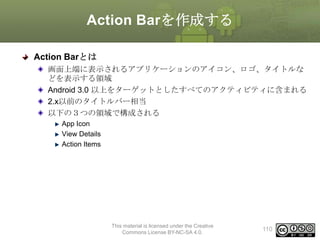
Action Barを作成する
Action Barとは
画面上端に表示されるアプリケーションのアイコン、ロゴ、タイトルな
どを表示する領域
Android 3.0 以上をターゲットとしたすべてのアクティビティに含まれる
2.x以前のタイトルバー相当
以下の3つの領域で構成される
App Icon
View Details
Action Items

This material is licensed under the Creative
Commons License BY-NC-SA 4.0.

110
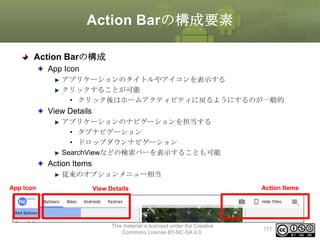
Action Barの構成要素
Action Barの構成
App Icon
アプリケーションのタイトルやアイコンを表示する
クリックすることが可能
• クリック後はホームアクティビティに戻るようにするのが一般的

View Details
アプリケーションのナビゲーションを担当する
• タブナビゲーション
• ドロップダウンナビゲーション
SearchViewなどの検索バーを表示することも可能

Action Items
従来のオプションメニュー相当
App Icon

View Details

This material is licensed under the Creative
Commons License BY-NC-SA 4.0.

Action Items

111
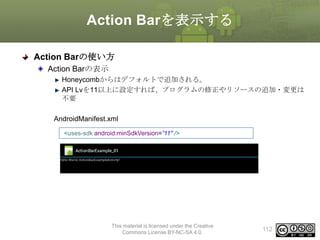
Action Barを表示する
Action Barの使い方
Action Barの表示
Honeycombからはデフォルトで追加される。
API Lvを11以上に設定すれば、プログラムの修正やリソースの追加・変更は
不要
AndroidManifest.xml
<uses-sdk android:minSdkVersion=”11" />

This material is licensed under the Creative
Commons License BY-NC-SA 4.0.

112
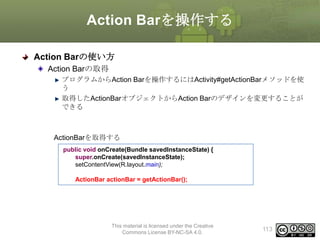
Action Barを操作する
Action Barの使い方
Action Barの取得
プログラムからAction Barを操作するにはActivity#getActionBarメソッドを使
う
取得したActionBarオブジェクトからAction Barのデザインを変更することが
できる

ActionBarを取得する
public void onCreate(Bundle savedInstanceState) {
super.onCreate(savedInstanceState);
setContentView(R.layout.main);
ActionBar actionBar = getActionBar();

This material is licensed under the Creative
Commons License BY-NC-SA 4.0.

113
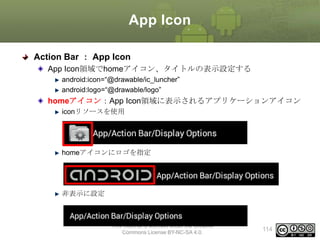
App Icon
Action Bar : App Icon
App Icon領域でhomeアイコン、タイトルの表示設定する
android:icon=“@drawable/ic_luncher”
android:logo=“@drawable/logo”

homeアイコン:App Icon領域に表示されるアプリケーションアイコン
iconリソースを使用

homeアイコンにロゴを指定

非表示に設定

This material is licensed under the Creative
Commons License BY-NC-SA 4.0.

114
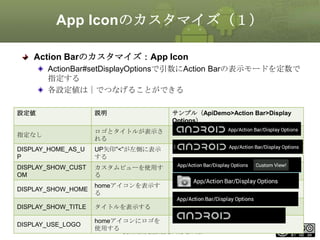
App Iconのカスタマイズ(1)
Action Barのカスタマイズ:App Icon
ActionBar#setDisplayOptionsで引数にAction Barの表示モードを定数で
指定する
各設定値は|でつなげることができる
設定値

説明

サンプル(ApiDemo>Action Bar>Display
Options)

指定なし

ロゴとタイトルが表示さ
れる

DISPLAY_HOME_AS_U
P

UP矢印”<”が左側に表示
する

DISPLAY_SHOW_CUST
OM

カスタムビューを使用す
る

DISPLAY_SHOW_HOME

homeアイコンを表示す
る

DISPLAY_SHOW_TITLE

タイトルを表示する

DISPLAY_USE_LOGO

homeアイコンにロゴを
This
使用する material is licensed under the Creative
Commons License BY-NC-SA 4.0.

115
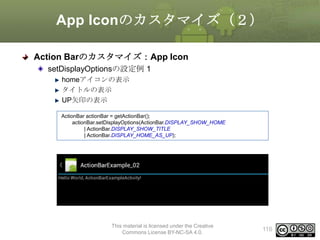
App Iconのカスタマイズ(2)
Action Barのカスタマイズ:App Icon
setDisplayOptionsの設定例 1
homeアイコンの表示
タイトルの表示
UP矢印の表示
ActionBar actionBar = getActionBar();
actionBar.setDisplayOptions(ActionBar.DISPLAY_SHOW_HOME
| ActionBar.DISPLAY_SHOW_TITLE
| ActionBar.DISPLAY_HOME_AS_UP);

This material is licensed under the Creative
Commons License BY-NC-SA 4.0.

116
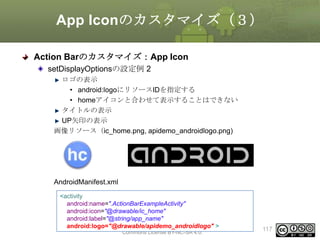
App Iconのカスタマイズ(3)
Action Barのカスタマイズ:App Icon
setDisplayOptionsの設定例 2
ロゴの表示
• android:logoにリソースIDを指定する
• homeアイコンと合わせて表示することはできない
タイトルの表示
UP矢印の表示
画像リソース(ic_home.png, apidemo_androidlogo.png)

AndroidManifest.xml
<activity
android:name=".ActionBarExampleActivity"
android:icon="@drawable/ic_home"
android:label="@string/app_name"
This material is licensed under the Creative
android:logo="@drawable/apidemo_androidlogo" >
Commons License BY-NC-SA 4.0.

117
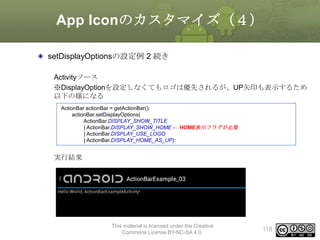
App Iconのカスタマイズ(4)
setDisplayOptionsの設定例 2 続き
Activityソース
※DisplayOptionを設定しなくてもロゴは優先されるが、UP矢印も表示するため
以下の様になる
ActionBar actionBar = getActionBar();
actionBar.setDisplayOptions(
ActionBar.DISPLAY_SHOW_TITLE
| ActionBar.DISPLAY_SHOW_HOME ← HOME表示フラグが必要
| ActionBar.DISPLAY_USE_LOGO
| ActionBar.DISPLAY_HOME_AS_UP);

実行結果

This material is licensed under the Creative
Commons License BY-NC-SA 4.0.

118
App Iconのカスタマイズ(5)
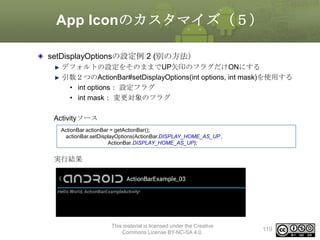
setDisplayOptionsの設定例 2 (別の方法)
デフォルトの設定をそのままでUP矢印のフラグだけONにする
引数2つのActionBar#setDisplayOptions(int options, int mask)を使用する
• int options: 設定フラグ
• int mask: 変更対象のフラグ

Activityソース
ActionBar actionBar = getActionBar();
actionBar.setDisplayOptions(ActionBar.DISPLAY_HOME_AS_UP ,
ActionBar.DISPLAY_HOME_AS_UP);

実行結果

This material is licensed under the Creative
Commons License BY-NC-SA 4.0.

119
Action Barの作成:App Icon(
1)
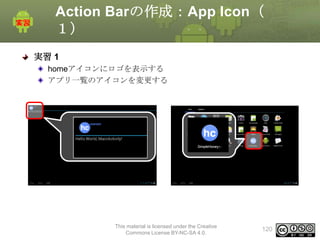
実習 1
homeアイコンにロゴを表示する
アプリ一覧のアイコンを変更する

This material is licensed under the Creative
Commons License BY-NC-SA 4.0.

120
Action Barの作成:App Icon(
2)
手順
1. AndroidManifest.xmlの修正
アプリアイコンとロゴの設定

2. MainActivityの修正
Action Barの表示設定

This material is licensed under the Creative
Commons License BY-NC-SA 4.0.

121
Action Barの作成:App Icon(
3)
1. AndroidManifest.xmlの修正
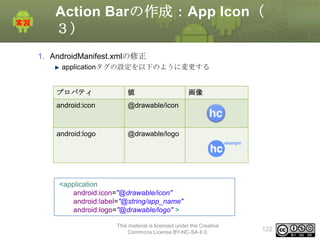
applicationタグの設定を以下のように変更する

プロパティ

値

android:icon

@drawable/icon

android:logo

画像

@drawable/logo

<application
android:icon="@drawable/icon"
android:label="@string/app_name"
android:logo="@drawable/logo" >
This material is licensed under the Creative
Commons License BY-NC-SA 4.0.

122
Action Barの作成:App Icon(
4)
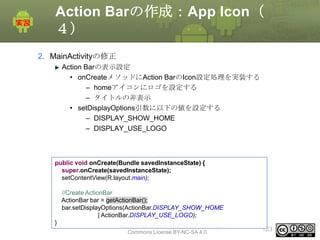
2. MainActivityの修正
Action Barの表示設定
• onCreateメソッドにAction BarのIcon設定処理を実装する
– homeアイコンにロゴを設定する
– タイトルの非表示
• setDisplayOptions引数に以下の値を設定する
– DISPLAY_SHOW_HOME
– DISPLAY_USE_LOGO

public void onCreate(Bundle savedInstanceState) {
super.onCreate(savedInstanceState);
setContentView(R.layout.main);
//Create ActionBar
ActionBar bar = getActionBar();
bar.setDisplayOptions(ActionBar.DISPLAY_SHOW_HOME
| ActionBar.DISPLAY_USE_LOGO);
}

This material is licensed under the Creative
Commons License BY-NC-SA 4.0.

123
Action Barの作成:App Icon(
確認)
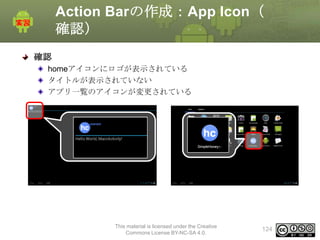
確認
homeアイコンにロゴが表示されている
タイトルが表示されていない
アプリ一覧のアイコンが変更されている

This material is licensed under the Creative
Commons License BY-NC-SA 4.0.

124
Action Barの作成:App Icon(
解答)
解答
別ドキュメント参照

This material is licensed under the Creative
Commons License BY-NC-SA 4.0.

125
View Details
Action Barのカスタマイズ: View Details
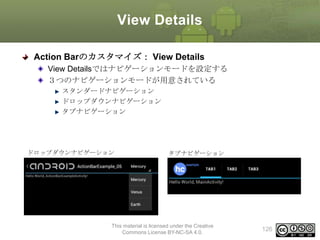
View Detailsではナビゲーションモードを設定する
3つのナビゲーションモードが用意されている
スタンダードナビゲーション
ドロップダウンナビゲーション
タブナビゲーション

ドロップダウンナビゲーション

タブナビゲーション

This material is licensed under the Creative
Commons License BY-NC-SA 4.0.

126
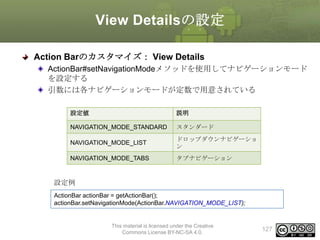
View Detailsの設定
Action Barのカスタマイズ: View Details
ActionBar#setNavigationModeメソッドを使用してナビゲーションモード
を設定する
引数には各ナビゲーションモードが定数で用意されている
設定値

説明

NAVIGATION_MODE_STANDARD

スタンダード

NAVIGATION_MODE_LIST

ドロップダウンナビゲーショ
ン

NAVIGATION_MODE_TABS

タブナビゲーション

設定例
ActionBar actionBar = getActionBar();
actionBar.setNavigationMode(ActionBar.NAVIGATION_MODE_LIST);

This material is licensed under the Creative
Commons License BY-NC-SA 4.0.

127
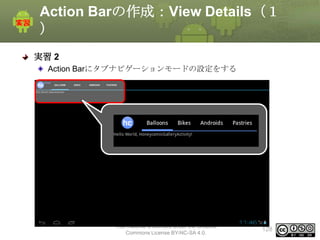
Action Barの作成:View Details(1
)
実習 2
Action Barにタブナビゲーションモードの設定をする

This material is licensed under the Creative
Commons License BY-NC-SA 4.0.

128
Action Barの作成:View Details
(2)
手順
1. MainActivityの修正
1. ActivityにTabListenerを実装する
2. タブナビゲーションモードを設定する
3. Action Barにタブを追加する
• Tabオブジェクトを生成
• Tabオブジェクトの表示テキストの設定
• Tabオブジェクトに選択時のイベントリスナをセット

This material is licensed under the Creative
Commons License BY-NC-SA 4.0.

129
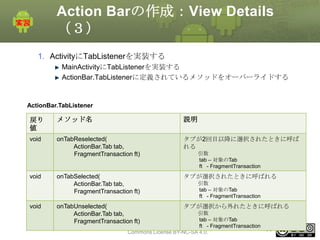
Action Barの作成:View Details
(3)
1. ActivityにTabListenerを実装する
MainActivityにTabListenerを実装する
ActionBar.TabListenerに定義されているメソッドをオーバーライドする

ActionBar.TabListener

戻り
値

メソッド名

説明

void

onTabReselected(
ActionBar.Tab tab,
FragmentTransaction ft)

タブが2回目以降に選択されたときに呼ば
れる

onTabSelected(
ActionBar.Tab tab,
FragmentTransaction ft)

タブが選択されたときに呼ばれる

onTabUnselected(
ActionBar.Tab tab,
FragmentTransaction ft)

タブが選択から外れたときに呼ばれる

void

void

引数
tab – 対象のTab
ft - FragmentTransaction
引数
tab – 対象のTab
ft - FragmentTransaction

引数
tab – 対象のTab
This material is licensed under the Creative
ft - FragmentTransaction
130
Commons License BY-NC-SA 4.0.
Action Barの作成:View Details
(4)
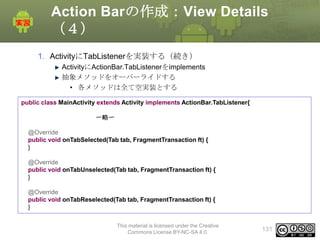
1. ActivityにTabListenerを実装する(続き)
ActivityにActionBar.TabListenerをimplements
抽象メソッドをオーバーライドする
• 各メソッドは全て空実装とする
public class MainActivity extends Activity implements ActionBar.TabListener{
〜略〜
@Override
public void onTabSelected(Tab tab, FragmentTransaction ft) {
}
@Override
public void onTabUnselected(Tab tab, FragmentTransaction ft) {
}
@Override
public void onTabReselected(Tab tab, FragmentTransaction ft) {
}
This material is licensed under the Creative
Commons License BY-NC-SA 4.0.

131
Action Barの作成:View Details
(5)
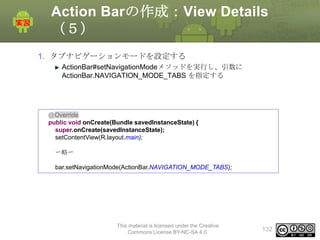
1. タブナビゲーションモードを設定する
ActionBar#setNavigationModeメソッドを実行し、引数に
ActionBar.NAVIGATION_MODE_TABS を指定する

@Override
public void onCreate(Bundle savedInstanceState) {
super.onCreate(savedInstanceState);
setContentView(R.layout.main);
〜略〜
bar.setNavigationMode(ActionBar.NAVIGATION_MODE_TABS);

This material is licensed under the Creative
Commons License BY-NC-SA 4.0.

132
Action Barの作成:View Details
(6)
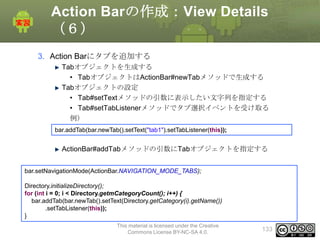
3. Action Barにタブを追加する
Tabオブジェクトを生成する
• TabオブジェクトはActionBar#newTabメソッドで生成する
Tabオブジェクトの設定
• Tab#setTextメソッドの引数に表示したい文字列を指定する
• Tab#setTabListenerメソッドでタブ選択イベントを受け取る
例)
bar.addTab(bar.newTab().setText("tab1").setTabListener(this));

ActionBar#addTabメソッドの引数にTabオブジェクトを指定する
bar.setNavigationMode(ActionBar.NAVIGATION_MODE_TABS);
Directory.initializeDirectory();
for (int i = 0; i < Directory.getmCategoryCount(); i++) {
bar.addTab(bar.newTab().setText(Directory.getCategory(i).getName())
.setTabListener(this));
}
This material is licensed under the Creative
Commons License BY-NC-SA 4.0.

133
Action Barの作成:View Details(
確認)
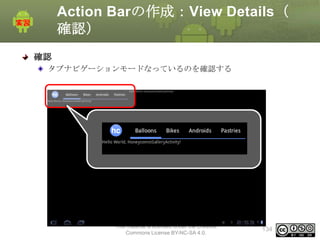
確認
タブナビゲーションモードなっているのを確認する

This material is licensed under the Creative
Commons License BY-NC-SA 4.0.

134
Action Barの作成:View Details(解
答)
解答
別ドキュメント参照

This material is licensed under the Creative
Commons License BY-NC-SA 4.0.

135
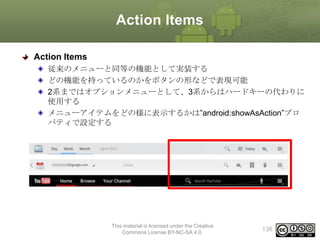
Action Items
Action Items
従来のメニューと同等の機能として実装する
どの機能を持っているのかをボタンの形などで表現可能
2系まではオプションメニューとして、3系からはハードキーの代わりに
使用する
メニューアイテムをどの様に表示するかは”android:showAsAction”プロ
パティで設定する

This material is licensed under the Creative
Commons License BY-NC-SA 4.0.

136
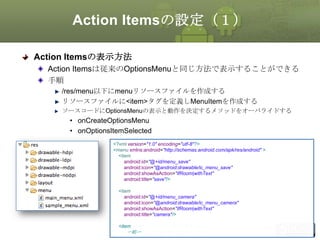
Action Itemsの設定(1)
Action Itemsの表示方法
Action Itemsは従来のOptionsMenuと同じ方法で表示することができる
手順
/res/menu以下にmenuリソースファイルを作成する
リソースファイルに<item>タグを定義しMenuItemを作成する
ソースコードにOptionsMenuの表示と動作を決定するメソッドをオーバライドする

• onCreateOptionsMenu
• onOptionsItemSelected
<?xml version="1.0" encoding="utf-8"?>
<menu xmlns:android="http://schemas.android.com/apk/res/android" >
<item
android:id="@+id/menu_save"
android:icon="@android:drawable/ic_menu_save"
android:showAsAction="ifRoom|withText"
android:title="save"/>
<item
android:id="@+id/menu_camera"
android:icon="@android:drawable/ic_menu_camera"
android:showAsAction="ifRoom|withText"
android:title="camera"/>

This material is licensed under the Creative
<item
〜略〜
Commons License BY-NC-SA 4.0.

137
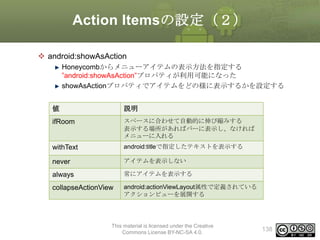
Action Itemsの設定(2)
 android:showAsAction
Honeycombからメニューアイテムの表示方法を指定する
”android:showAsAction”プロパティが利用可能になった
showAsActionプロパティでアイテムをどの様に表示するかを設定する
値

説明

ifRoom

スペースに合わせて自動的に伸び縮みする
表示する場所があればバーに表示し、なければ
メニューに入れる

withText

android:titleで指定したテキストを表示する

never

アイテムを表示しない

always

常にアイテムを表示する

collapseActionView

android:actionViewLayout属性で定義されている
アクションビューを展開する

This material is licensed under the Creative
Commons License BY-NC-SA 4.0.

138
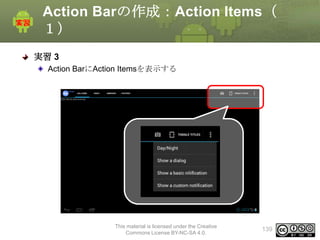
Action Barの作成:Action Items(
1)
実習 3
Action BarにAction Itemsを表示する

This material is licensed under the Creative
Commons License BY-NC-SA 4.0.

139
Action Barの作成:Action Items(
2)
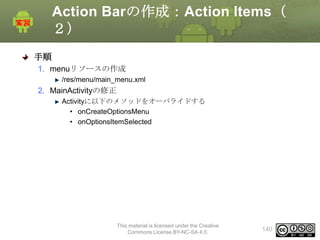
手順
1. menuリソースの作成
/res/menu/main_menu.xml

2. MainActivityの修正
Activityに以下のメソッドをオーバライドする
• onCreateOptionsMenu
• onOptionsItemSelected

This material is licensed under the Creative
Commons License BY-NC-SA 4.0.

140
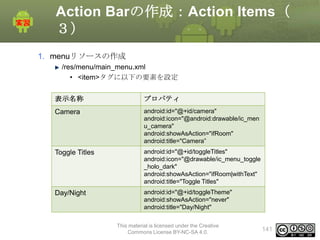
Action Barの作成:Action Items(
3)
1. menuリソースの作成
/res/menu/main_menu.xml
• <item>タグに以下の要素を設定
表示名称

プロパティ

Camera

android:id="@+id/camera"
android:icon="@android:drawable/ic_men
u_camera"
android:showAsAction="ifRoom"
android:title="Camera”

Toggle Titles

android:id="@+id/toggleTitles"
android:icon="@drawable/ic_menu_toggle
_holo_dark"
android:showAsAction="ifRoom|withText"
android:title="Toggle Titles"

Day/Night

android:id="@+id/toggleTheme"
android:showAsAction="never"
android:title="Day/Night"
This material is licensed under the Creative
Commons License BY-NC-SA 4.0.

141
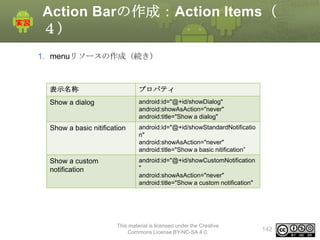
Action Barの作成:Action Items(
4)
1. menuリソースの作成(続き)

表示名称

プロパティ

Show a dialog

android:id="@+id/showDialog"
android:showAsAction="never"
android:title="Show a dialog"

Show a basic nitification

android:id="@+id/showStandardNotificatio
n"
android:showAsAction="never"
android:title="Show a basic nitification”

Show a custom
notification

android:id="@+id/showCustomNotification
"
android:showAsAction="never"
android:title="Show a custom notification"

This material is licensed under the Creative
Commons License BY-NC-SA 4.0.

142
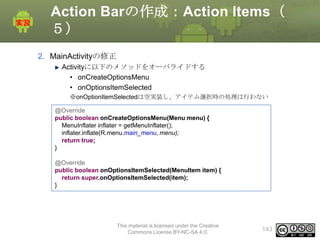
Action Barの作成:Action Items(
5)
2. MainActivityの修正
Activityに以下のメソッドをオーバライドする
• onCreateOptionsMenu
• onOptionsItemSelected
※onOptionItemSelectedは空実装し、アイテム選択時の処理は行わない
@Override
public boolean onCreateOptionsMenu(Menu menu) {
MenuInflater inflater = getMenuInflater();
inflater.inflate(R.menu.main_menu, menu);
return true;
}

@Override
public boolean onOptionsItemSelected(MenuItem item) {
return super.onOptionsItemSelected(item);
}

This material is licensed under the Creative
Commons License BY-NC-SA 4.0.

143
Action Barの作成:Action Items(
確認)
確認
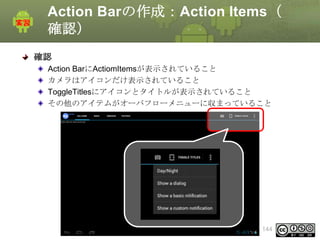
Action BarにActiomItemsが表示されていること
カメラはアイコンだけ表示されていること
ToggleTitlesにアイコンとタイトルが表示されていること
その他のアイテムがオーバフローメニューに収まっていること

This material is licensed under the Creative
Commons License BY-NC-SA 4.0.

144
Action Barの作成:Action Items(
解答)
解答
別ドキュメント参照

This material is licensed under the Creative
Commons License BY-NC-SA 4.0.

145
5. タブレットアプリケーションの作成2
Fragment
概要
概要
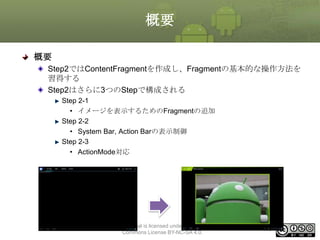
Step2ではContentFragmentを作成し、Fragmentの基本的な操作方法を
習得する
Step2はさらに3つのStepで構成される
Step 2-1
• イメージを表示するためのFragmentの追加
Step 2-2
• System Bar, Action Barの表示制御
Step 2-3
• ActionMode対応

This material is licensed under the Creative
Commons License BY-NC-SA 4.0.

147
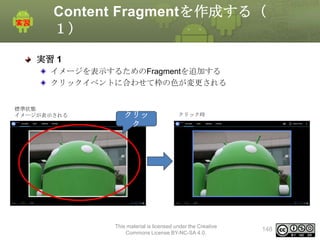
Content Fragmentを作成する(
1)
実習 1
イメージを表示するためのFragmentを追加する
クリックイベントに合わせて枠の色が変更される
標準状態
イメージが表示される

クリッ
ク

クリック時

This material is licensed under the Creative
Commons License BY-NC-SA 4.0.

148
Content Fragmentを作成する(
2)
手順
1. Fragmentに使用するレイアウトファイルの作成
2. Fragmentの作成
3. main.xmlの修正

This material is licensed under the Creative
Commons License BY-NC-SA 4.0.

149
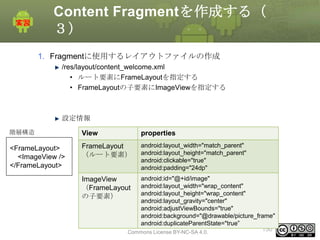
Content Fragmentを作成する(
3)
1. Fragmentに使用するレイアウトファイルの作成
/res/layout/content_welcome.xml
• ルート要素にFrameLayoutを指定する
• FrameLayoutの子要素にImageViewを指定する

設定情報
階層構造

View

properties

<FrameLayout>
<ImageView />
</FrameLayout>

FrameLayout
(ルート要素)

android:layout_width="match_parent"
android:layout_height="match_parent"
android:clickable="true"
android:padding="24dp"

android:id="@+id/image"
android:layout_width="wrap_content"
android:layout_height="wrap_content"
android:layout_gravity="center"
android:adjustViewBounds="true"
android:background="@drawable/picture_frame"
android:duplicateParentState="true”
This material is licensed under the Creative
150
Commons License BY-NC-SA 4.0.

ImageView
(FrameLayout
の子要素)
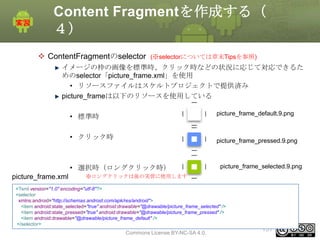
Content Fragmentを作成する(
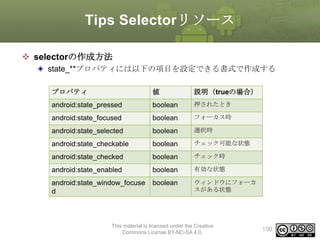
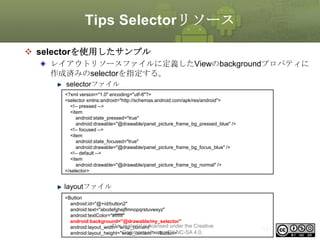
4)
 ContentFragmentのselector

(※selectorについては章末Tipsを参照)

イメージの枠の画像を標準時、クリック時などの状況に応じて対応できるた
めのselector「picture_frame.xml」を使用
• リソースファイルはスケルトプロジェクトで提供済み
picture_frameは以下のリソースを使用している
picture_frame_default.9.png

• 標準時
• クリック時

picture_frame_pressed.9.png

• 選択時(ロングクリック時)
picture_frame.xml

picture_frame_selected.9.png

※ロングクリックは後の実習に使用します

<?xml version="1.0" encoding="utf-8"?>
<selector
xmlns:android="http://schemas.android.com/apk/res/android">
<item android:state_selected="true" android:drawable="@drawable/picture_frame_selected" />
<item android:state_pressed="true" android:drawable="@drawable/picture_frame_pressed" />
<item android:drawable="@drawable/picture_frame_default" />
</selector>
This material is licensed under the Creative

Commons License BY-NC-SA 4.0.

151
Content Fragmentを作成する(
5)
2. Fragmentの作成
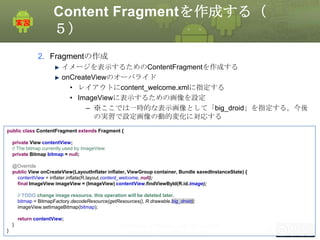
イメージを表示するためのContentFragmentを作成する
onCreateViewのオーバライド
• レイアウトにcontent_welcome.xmlに指定する
• ImageViewに表示するための画像を設定
– ※ここでは一時的な表示画像として「big_droid」を指定する。今後
の実習で設定画像の動的変化に対応する
public class ContentFragment extends Fragment {
private View contentView;
// The bitmap currently used by ImageView
private Bitmap bitmap = null;
@Override
public View onCreateView(LayoutInflater inflater, ViewGroup container, Bundle savedInstanceState) {
contentView = inflater.inflate(R.layout.content_welcome, null);
final ImageView imageView = (ImageView) contentView.findViewById(R.id.image);
// TODO change image resource. this operation will be deleted later.
bitmap = BitmapFactory.decodeResource(getResources(), R.drawable.big_droid);
imageView.setImageBitmap(bitmap);
return contentView;
}
}

This material is licensed under the Creative
Commons License BY-NC-SA 4.0.

152
Content Fragmentを作成する(
6)
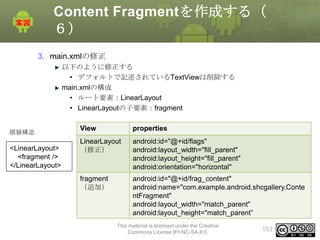
3. main.xmlの修正
以下のように修正する
• デフォルトで記述されているTextViewは削除する
main.xmlの構成
• ルート要素:LinearLayout
• LinearLayoutの子要素:fragment
階層構造

<LinearLayout>
<fragment />
</LinearLayout>

View

properties

LinearLayout
(修正)

android:id="@+id/flags"
android:layout_width="fill_parent"
android:layout_height="fill_parent"
android:orientation="horizontal"

fragment
(追加)

android:id="@+id/frag_content"
android:name="com.example.android.shcgallery.Conte
ntFragment"
android:layout_width="match_parent"
android:layout_height="match_parent”
This material is licensed under the Creative
Commons License BY-NC-SA 4.0.

153
Content Fragmentを作成する(
確認)
確認
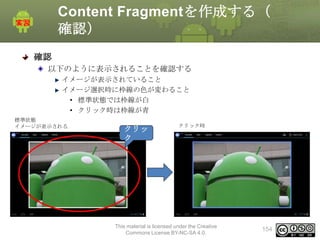
以下のように表示されることを確認する
イメージが表示されていること
イメージ選択時に枠線の色が変わること
• 標準状態では枠線が白
• クリック時は枠線が青
標準状態
イメージが表示される

クリッ
ク

クリック時

This material is licensed under the Creative
Commons License BY-NC-SA 4.0.

154
Content Fragmentを作成する(解
答)
解答
別ドキュメント参照

This material is licensed under the Creative
Commons License BY-NC-SA 4.0.

155
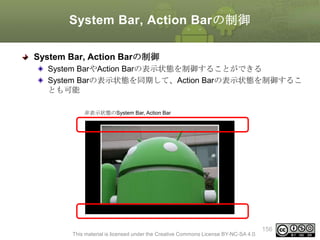
System Bar, Action Barの制御
System BarやAction Barの表示状態を制御することができる
System Barの表示状態を同期して、Action Barの表示状態を制御するこ
とも可能
非表示状態のSystem Bar, Action Bar

This material is licensed under the Creative Commons License BY-NC-SA 4.0.

156
System Barの制御(1)
System Barの表示状態を制御する
View#setSystemUiVisibilityメソッドを使って、System Barの表示状態を
制御する
setSystemUiVisibilityの引数にSystem Barの定義済の表示状態定数を使い
、表示、非表示を設定する
メソッド
戻り
値

メソッド

説明

void

setSystemUiVisibility (int
visibility)

System Barの表示状態を制御す
る
引数
•
int visibility 表示定数

引数に指定する定数
定数

説明

STATUS_BAR_VISIBLE

表示

STATUS_BAR_HIDDEN

非表示

This material is licensed under the Creative Commons License BY-NC-SA 4.0.

157
System Barの制御(2)
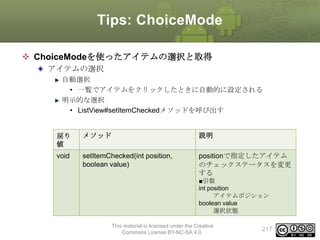
 表示状態定数Tips
API Level 14より、STATUS_BAR_VISIBLE、STATUS_BAR_HIDDENは
非推奨となっています。
API Level 14以降では以下の定数を使用します
STATUS_BAR_VISIBLE → SYSTEM_UI_FLAG_VISIBLE
STATUS_BAR_HIDDEN → SYSTEM_UI_FLAG_LOW_PROFILE
※本トレーニングでどちらの値を使用するかは講師の指示に従ってください

定数

説明

STATUS_BAR_VISIBLE

表示(API Level 14より非推
奨)

STATUS_BAR_HIDDEN

非表示(API Level 14より非推
奨)

SYSTEM_UI_FLAG_VISIBLE

表示

SYSTEM_UI_FLAG_LOW_PR
OFILE

非表示(アイコンが”・”にな
る)

This material is licensed under the Creative Commons License BY-NC-SA 4.0.

158
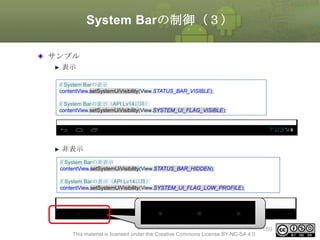
System Barの制御(3)
サンプル
表示
// System Barの表示
contentView.setSystemUiVisibility(View.STATUS_BAR_VISIBLE);
// System Barの表示(API Lv14以降)
contentView.setSystemUiVisibility(View.SYSTEM_UI_FLAG_VISIBLE);

非表示
// System Barの非表示
contentView.setSystemUiVisibility(View.STATUS_BAR_HIDDEN);
// System Barの表示(API Lv14以降)
contentView.setSystemUiVisibility(View.SYSTEM_UI_FLAG_LOW_PROFILE);

This material is licensed under the Creative Commons License BY-NC-SA 4.0.

159
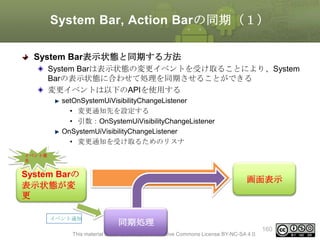
System Bar, Action Barの同期(1)
System Bar表示状態と同期する方法
System Barは表示状態の変更イベントを受け取ることにより、System
Barの表示状態に合わせて処理を同期させることができる
変更イベントは以下のAPIを使用する
setOnSystemUiVisibilityChangeListener
• 変更通知先を設定する
• 引数:OnSystemUiVisibilityChangeListener
OnSystemUiVisibilityChangeListener
• 変更通知を受け取るためのリスナ
イベント発
生

System Barの
表示状態が変
更
イベント通知

画面表示

同期処理

This material is licensed under the Creative Commons License BY-NC-SA 4.0.

160
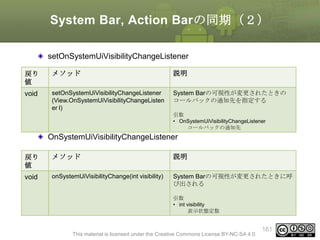
System Bar, Action Barの同期(2)
setOnSystemUiVisibilityChangeListener
戻り
値

メソッド

説明

void

setOnSystemUiVisibilityChangeListener
(View.OnSystemUiVisibilityChangeListen
er l)

System Barの可視性が変更されたときの
コールバックの通知先を指定する
引数
• OnSystemUiVisibilityChangeListener
コールバックの通知先

OnSystemUiVisibilityChangeListener
戻り
値

メソッド

説明

void

onSystemUiVisibilityChange(int visibility)

System Barの可視性が変更されたときに呼
び出される
引数
• int visibility
表示状態定数

This material is licensed under the Creative Commons License BY-NC-SA 4.0.

161
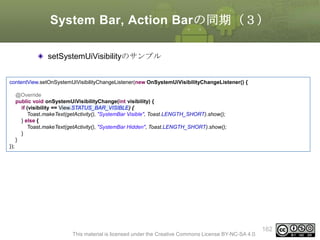
System Bar, Action Barの同期(3)
setSystemUiVisibilityのサンプル
contentView.setOnSystemUiVisibilityChangeListener(new OnSystemUiVisibilityChangeListener() {
@Override
public void onSystemUiVisibilityChange(int visibility) {
if (visibility == View.STATUS_BAR_VISIBLE) {
Toast.makeText(getActivity(), "SystemBar Visible", Toast.LENGTH_SHORT).show();
} else {
Toast.makeText(getActivity(), "SystemBar Hidden", Toast.LENGTH_SHORT).show();
}
}

});

This material is licensed under the Creative Commons License BY-NC-SA 4.0.

162
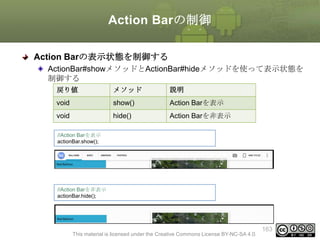
Action Barの制御
Action Barの表示状態を制御する
ActionBar#showメソッドとActionBar#hideメソッドを使って表示状態を
制御する
戻り値

メソッド

説明

void

show()

Action Barを表示

void

hide()

Action Barを非表示

//Action Barを表示
actionBar.show();

//Action Barを非表示
actionBar.hide();

This material is licensed under the Creative Commons License BY-NC-SA 4.0.

163
System Bar, Action Barの制御
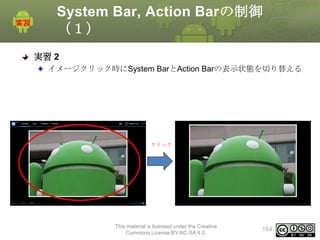
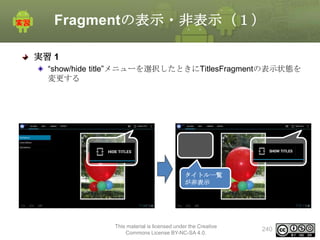
(1)
実習 2
イメージクリック時にSystem BarとAction Barの表示状態を切り替える

クリック

This material is licensed under the Creative
Commons License BY-NC-SA 4.0.

164
System Bar, Action Barの制御
(2)
手順
ContentFragmentの修正
onCreateViewの修正
• System Bar表示制御
• System Barの表示状態と同期してAction Barの表示状態を制御

This material is licensed under the Creative
Commons License BY-NC-SA 4.0.

165
System Bar, Action Barの制御
(3)
ContentFragmentの修正
System Bar表示制御
• イメージクリック時にSystem Barの表示、非表示を切り替える

contentView.setOnClickListener(new OnClickListener() {
@Override
public void onClick(View v) {
if (contentView.getSystemUiVisibility() == View.STATUS_BAR_VISIBLE) {
contentView.setSystemUiVisibility(View.STATUS_BAR_HIDDEN);
} else {
contentView.setSystemUiVisibility(View.STATUS_BAR_VISIBLE);
}
}
});

This material is licensed under the Creative
Commons License BY-NC-SA 4.0.

166
System Bar, Action Barの制御
(4)
ContentFragmentの修正
System Barの表示状態と同期してAction Barの表示状態を制御
• FragmentにsetOnSystemUiVisibilityChangeListenerをセット
• onSystemUiVisibilityChangeメソッド内でSystem Barの状態に応じて、
Action Barの表示、非表示を切り替える
final Activity activity = getActivity();
contentView.setOnSystemUiVisibilityChangeListener(new OnSystemUiVisibilityChangeListener() {
@Override
public void onSystemUiVisibilityChange(int visibility) {
ActionBar actionBar = activity.getActionBar();
if (actionBar != null) {
if (visibility == View.STATUS_BAR_VISIBLE) {
actionBar.show();
} else {
actionBar.hide();
}
}
}
});
This material is licensed under the Creative
Commons License BY-NC-SA 4.0.

167
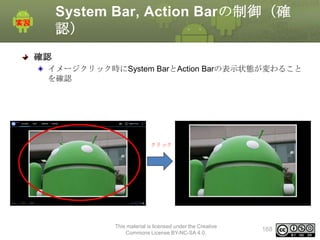
System Bar, Action Barの制御(確
認)
確認
イメージクリック時にSystem BarとAction Barの表示状態が変わること
を確認

クリック

This material is licensed under the Creative
Commons License BY-NC-SA 4.0.

168
System Bar, Action Barの制御(解
答)
解答
別ドキュメント参照

This material is licensed under the Creative
Commons License BY-NC-SA 4.0.

169
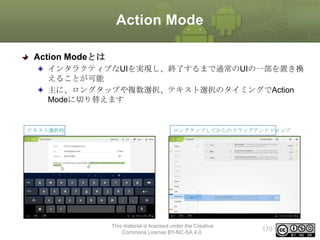
Action Mode
Action Modeとは
インタラクティブなUIを実現し、終了するまで通常のUIの一部を置き換
えることが可能
主に、ロングタップや複数選択、テキスト選択のタイミングでAction
Modeに切り替えます

テキスト選択時

ロングタップしてからのドラッグアンドドロップ

This material is licensed under the Creative
Commons License BY-NC-SA 4.0.

170
Action Modeの設定(1)
Action Modeの使い方
ActionMode.Callbackインタフェースを実装する
タイトルや表示アイテムの設定
アイテム選択時の処理
Action Mode終了時の処理

Action Mode開始のメソッドを呼び出す
Action ModeのUIに切り替わる
メニューアイテムの選択や、キャンセルなどのタイミングでAction
Modeを終了する

This material is licensed under the Creative
Commons License BY-NC-SA 4.0.

171
Action Modeの設定(2)
ActionMode.Callbackインタフェースを実装する
Action Mode時のメニューリソースを用意する
• /res/menu/[任意のリソース名].xml
Action Mode時のイベントを受け取るためのインタフェース
主に以下のような処理を実装する
• Action Mode時に表示するタイトルやアイテムを組み立てる
• アイテム選択時の処理を実装する
• Action Modeが終了した時の処理を実装する
ActionMode.Callbackの定義

戻り
値

メソッド

説明

boolean

onCreateActionMode(ActionMode mode, Menu
menu)

Action Modeが新しく作成されるときに呼ばれる
Action Mode用のメニューを作成し、通常はtrueを
返す

boolean

onPrepareActionMode(ActionMode mode, Menu
menu)

表示中のアイテムやタイトルのデータなどを更新
する必要があるときに呼び出される。

boolean

onActionItemClicked(ActionMode mode, MenuItem
item)

Action Modeのアイテムがクリックされたときに呼
び出される

void

onDestroyActionMode(ActionMode mode)licensed under the Creative
Action Modeが破棄される時に呼び出される
This material is
172
Commons License BY-NC-SA 4.0.
Action Modeの設定(3)
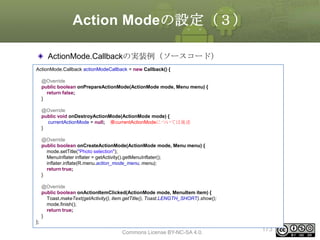
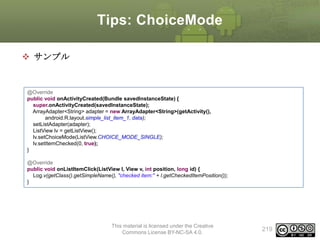
ActionMode.Callbackの実装例(ソースコード)
ActionMode.Callback actionModeCallback = new Callback() {
@Override
public boolean onPrepareActionMode(ActionMode mode, Menu menu) {
return false;
}
@Override
public void onDestroyActionMode(ActionMode mode) {
currentActionMode = null; ※currentActionModeについては後述
}
@Override
public boolean onCreateActionMode(ActionMode mode, Menu menu) {
mode.setTitle("Photo selection");
MenuInflater inflater = getActivity().getMenuInflater();
inflater.inflate(R.menu.action_mode_menu, menu);
return true;
}
@Override
public boolean onActionItemClicked(ActionMode mode, MenuItem item) {
Toast.makeText(getActivity(), item.getTitle(), Toast.LENGTH_SHORT).show();
mode.finish();
return true;
}
};

This material is licensed under the Creative
Commons License BY-NC-SA 4.0.

173
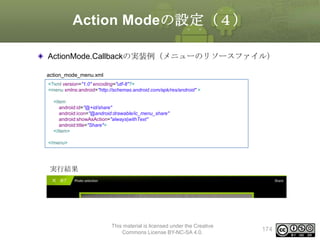
Action Modeの設定(4)
ActionMode.Callbackの実装例(メニューのリソースファイル)
action_mode_menu.xml
<?xml version="1.0" encoding="utf-8"?>
<menu xmlns:android="http://schemas.android.com/apk/res/android" >
<item
android:id="@+id/share"
android:icon="@android:drawable/ic_menu_share"
android:showAsAction="always|withText"
android:title="Share">
</item>
</menu>

実行結果

This material is licensed under the Creative
Commons License BY-NC-SA 4.0.

174
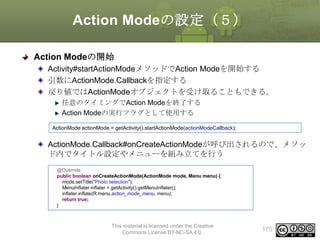
Action Modeの設定(5)
Action Modeの開始
Activity#startActionModeメソッドでAction Modeを開始する
引数にActionMode.Callbackを指定する
戻り値ではActionModeオブジェクトを受け取ることもできる。
任意のタイミングでAction Modeを終了する
Action Modeの実行フラグとして使用する
ActionMode actionMode = getActivity().startActionMode(actionModeCallback);

ActionMode.Callback#onCreateActionModeが呼び出されるので、メソッ
ド内でタイトル設定やメニューを組み立てを行う
@Override
public boolean onCreateActionMode(ActionMode mode, Menu menu) {
mode.setTitle("Photo selection");
MenuInflater inflater = getActivity().getMenuInflater();
inflater.inflate(R.menu.action_mode_menu, menu);
return true;
}

This material is licensed under the Creative
Commons License BY-NC-SA 4.0.

175
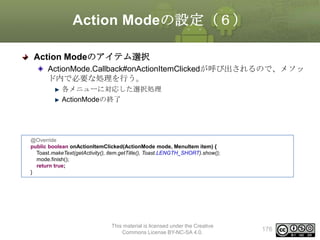
Action Modeの設定(6)
Action Modeのアイテム選択
ActionMode.Callback#onActionItemClickedが呼び出されるので、メソッ
ド内で必要な処理を行う。
各メニューに対応した選択処理
ActionModeの終了

@Override
public boolean onActionItemClicked(ActionMode mode, MenuItem item) {
Toast.makeText(getActivity(), item.getTitle(), Toast.LENGTH_SHORT).show();
mode.finish();
return true;
}

This material is licensed under the Creative
Commons License BY-NC-SA 4.0.

176
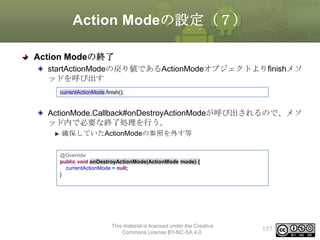
Action Modeの設定(7)
Action Modeの終了
startActionModeの戻り値であるActionModeオブジェクトよりfinishメソ
ッドを呼び出す
currentActionMode.finish();

ActionMode.Callback#onDestroyActionModeが呼び出されるので、メソ
ッド内で必要な終了処理を行う。
確保していたActionModeの参照を外す等
@Override
public void onDestroyActionMode(ActionMode mode) {
currentActionMode = null;
}

This material is licensed under the Creative
Commons License BY-NC-SA 4.0.

177
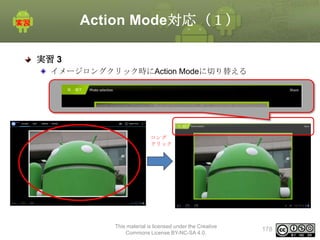
Action Mode対応(1)
実習 3
イメージロングクリック時にAction Modeに切り替える

ロング
クリック

This material is licensed under the Creative
Commons License BY-NC-SA 4.0.

178
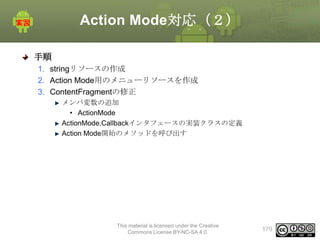
Action Mode対応(2)
手順
1. stringリソースの作成
2. Action Mode用のメニューリソースを作成
3. ContentFragmentの修正
メンバ変数の追加
• ActionMode
ActionMode.Callbackインタフェースの実装クラスの定義
Action Mode開始のメソッドを呼び出す

This material is licensed under the Creative
Commons License BY-NC-SA 4.0.

179
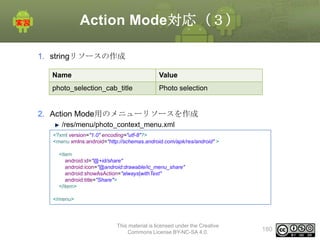
Action Mode対応(3)
1. stringリソースの作成
Name

Value

photo_selection_cab_title

Photo selection

2. Action Mode用のメニューリソースを作成
/res/menu/photo_context_menu.xml
<?xml version="1.0" encoding="utf-8"?>
<menu xmlns:android="http://schemas.android.com/apk/res/android" >
<item
android:id="@+id/share"
android:icon="@android:drawable/ic_menu_share"
android:showAsAction="always|withText"
android:title="Share">
</item>
</menu>

This material is licensed under the Creative
Commons License BY-NC-SA 4.0.

180
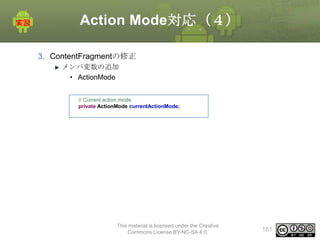
Action Mode対応(4)
3. ContentFragmentの修正
メンバ変数の追加
• ActionMode
// Current action mode
private ActionMode currentActionMode;

This material is licensed under the Creative
Commons License BY-NC-SA 4.0.

181
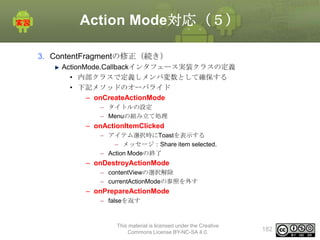
Action Mode対応(5)
3. ContentFragmentの修正(続き)
ActionMode.Callbackインタフェース実装クラスの定義
• 内部クラスで定義しメンバ変数として確保する
• 下記メソッドのオーバライド
– onCreateActionMode
– タイトルの設定
– Menuの組み立て処理

– onActionItemClicked
– アイテム選択時にToastを表示する
– メッセージ:Share item selected.
– Action Modeの終了

– onDestroyActionMode
– contentViewの選択解除
– currentActionModeの参照を外す

– onPrepareActionMode
– falseを返す

This material is licensed under the Creative
Commons License BY-NC-SA 4.0.

182
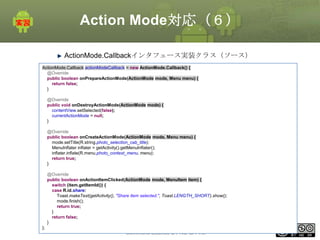
Action Mode対応(6)
ActionMode.Callbackインタフェース実装クラス(ソース)
ActionMode.Callback actionModeCallback = new ActionMode.Callback() {
@Override
public boolean onPrepareActionMode(ActionMode mode, Menu menu) {
return false;
}
@Override
public void onDestroyActionMode(ActionMode mode) {
contentView.setSelected(false);
currentActionMode = null;
}
@Override
public boolean onCreateActionMode(ActionMode mode, Menu menu) {
mode.setTitle(R.string.photo_selection_cab_title);
MenuInflater inflater = getActivity().getMenuInflater();
inflater.inflate(R.menu.photo_context_menu, menu);
return true;
}
@Override
public boolean onActionItemClicked(ActionMode mode, MenuItem item) {
switch (item.getItemId()) {
case R.id.share:
Toast.makeText(getActivity(), "Share item selected.", Toast.LENGTH_SHORT).show();
mode.finish();
return true;
}
return false;
}
};

This material is licensed under the Creative
Commons License BY-NC-SA 4.0.

183
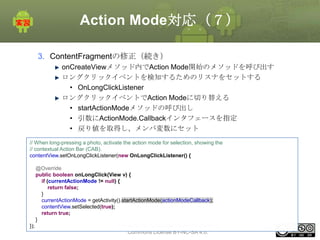
Action Mode対応(7)
3. ContentFragmentの修正(続き)
onCreateViewメソッド内でAction Mode開始のメソッドを呼び出す
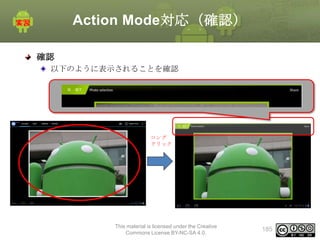
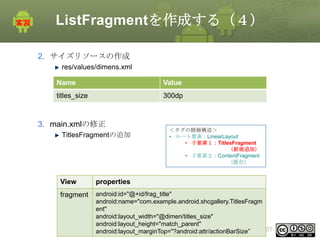
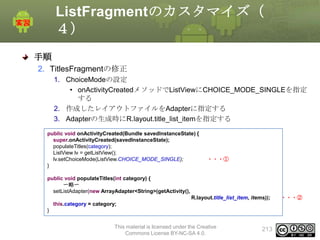
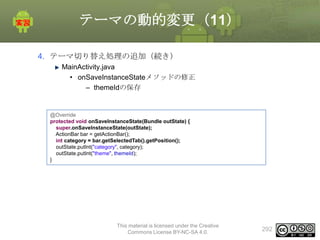
ロングクリックイベントを検知するためのリスナをセットする
• OnLongClickListener
ロングクリックイベントでAction Modeに切り替える
• startActionModeメソッドの呼び出し
• 引数にActionMode.Callbackインタフェースを指定
• 戻り値を取得し、メンバ変数にセット
// When long-pressing a photo, activate the action mode for selection, showing the
// contextual Action Bar (CAB).
contentView.setOnLongClickListener(new OnLongClickListener() {
@Override
public boolean onLongClick(View v) {
if (currentActionMode != null) {
return false;
}
currentActionMode = getActivity().startActionMode(actionModeCallback);
contentView.setSelected(true);
return true;
}
This material is licensed under the Creative
});
Commons License BY-NC-SA 4.0.

184
Action Mode対応(確認)
確認
以下のように表示されることを確認

ロング
クリック

This material is licensed under the Creative
Commons License BY-NC-SA 4.0.

185
Action Mode対応(解答)
解答
別ドキュメント参照

This material is licensed under the Creative
Commons License BY-NC-SA 4.0.

186
Tips Selectorリソース
 selectorとは
クリック時や選択時、標準状態などの状態に応じて画像やリソースを自
動的に変更する機能を持ったリソースファイル
selectorを使えば以下の状態を自動的に変更することができる
Androidで使用されているデフォルトのButtonの場合
通常時
• フォーカスがあたってない(normal)
• フォーカスがあたっている(selected)
• クリック(pressed)
使用不可
• フォーカスがあたっていない(disable)
• フォーカスがあたっている(disable_focused)

disable

disable_focused normal

pressed

This material is licensed under the Creative
Commons License BY-NC-SA 4.0.

selected
187
Tips Selectorリソース
 selectorの使い方
res/drawable以下に状態ごとにリソースの対応付けを定義したxmlファイ
ルを作成する
colorプロパティやdrawableプロパティを指定し、状態ごとのリソースの
対応付け設定する
作成したselectorをViewのbackgroundプロパティに設定する

This material is licensed under the Creative
Commons License BY-NC-SA 4.0.

188
Tips Selectorリソース
 selectorの作成方法
selectorタグを作成し、itemタグに状態に応じたリソースを定義する
Viewの状態はitemタグのandroid:state_**プロパティで設定する
android:drawableに設定したいリソースを定義する
selectorは以下の書式で作成する
ルートノードに<selector>を指定する
子ノードに<item>を指定する
• 必要に応じてプロパティを設定する
<?xml version="1.0" encoding="utf-8"?>
<selector xmlns:android="http://schemas.android.com/apk/res/android" >
<item
android:color="hex_color"
android:state_pressed=["true" | "false"]
android:state_focused=["true" | "false"]
android:state_selected=["true" | "false"]
android:state_checkable=["true" | "false"]
android:state_checked=["true" | "false"]
android:state_enabled=["true" | "false"]
android:state_window_focused=["true" | "false"] />

</selector>

This material is licensed under the Creative
Commons License BY-NC-SA 4.0.

189
Tips Selectorリソース
 selectorの作成方法
state_**プロパティには以下の項目を設定できる書式で作成する
プロパティ

値

説明(trueの場合)

android:state_pressed

boolean

押されたとき

android:state_focused

boolean

フォーカス時

android:state_selected

boolean

選択時

android:state_checkable

boolean

チェック可能な状態

android:state_checked

boolean

チェック時

android:state_enabled

boolean

有効な状態

android:state_window_focuse
d

boolean

ウィンドウにフォーカ
スがある状態

This material is licensed under the Creative
Commons License BY-NC-SA 4.0.

190
Tips Selectorリソース
 selectorを使用したサンプル
レイアウトリソースファイルに定義したViewのbackgroundプロパティに
作成済みのselectorを指定する。
selectorファイル
<?xml version="1.0" encoding="utf-8"?>
<selector xmlns:android="http://schemas.android.com/apk/res/android">
<!-- pressed -->
<item
android:state_pressed="true"
android:drawable="@drawable/panel_picture_frame_bg_pressed_blue" />
<!-- focused -->
<item
android:state_focused="true"
android:drawable="@drawable/panel_picture_frame_bg_focus_blue" />
<!-- default -->
<item
android:drawable="@drawable/panel_picture_frame_bg_normal" />
</selector>

layoutファイル
<Button
android:id="@+id/button2"
android:text="abcdefghejflmnopqrstuvwxyz"
android:textColor="#ffffff"
android:background="@drawable/my_selector"
This material is licensed under the Creative
android:layout_width="wrap_content"
Commons License BY-NC-SA 4.0.
android:layout_height="wrap_content"></Button>

191
6. タブレットアプリケーションの作成
3
ListFragment
概要
概要
Step3ではListFragmentの使い方について習得する
Step3は更に2つのStepで構成される
Step 3-1
• ListFragmentを使ってタイトル一覧を表示する
Step 3-2
• ListFragmentをカスタマイズする

This material is licensed under the Creative
Commons License BY-NC-SA 4.0.

193
ListFragment
ListFragmentとは
一覧表示用に特化したFragment
内部にListViewを持ったレイアウトが設定されているので、専用のレイ
アウトファイルを必要としない
プログレスバーの表示機能が標準で備わっている

This material is licensed under the Creative
Commons License BY-NC-SA 4.0.

194
ListFragmentの作成(1)
ListFragmentを作成する
1. ListFragmentのサブクラスを作成する
2. 一覧に表示するデータを準備する
3. ListFragmentはデフォルトでListViewを持ったレイアウトを使用するた
め初期化はonActivityCreatedメソッドで行う
1. Adapterの作成
2. Adapterのセット
• Fragment#setListAdapterメソッドを使用する

4. 作成したFragmentをActivityのレイアウトファイルに追加

This material is licensed under the Creative
Commons License BY-NC-SA 4.0.

195
ListFragmentの作成(2)
MyListFragment.java
public class MyListFragment extends ListFragment {

・・・1

private String[] data = {“a”, “b”, “c”, “d”, “e”}; ・・・2
@Override
public void onActivityCreated(Bundle savedInstanceState) { ・・・3
super.onActivityCreate(savedInstanceState);
ArrayAdapter<String> adapter = new ArrayAdapter<String>( ・・・3−1
getActivity(), android.R.layout.simple_list_item_1, data);
setListAdapter(adapter);
・・・3−2
}
}

main.xml
<?xml version="1.0" encoding="utf-8"?>
<LinearLayout xmlns:android="http://schemas.android.com/apk/res/android"
android:layout_width="fill_parent"
android:layout_height="fill_parent"
android:orientation="vertical" >
<fragment
android:name="com.example.listfragment.MyListFragment"
android:id=”@+id/fragment_list"
android:layout_width="match_parent"
android:layout_height="wrap_content" />
</LinearLayout>

This material is licensed under the Creative
Commons License BY-NC-SA 4.0.

196
ListFragmentの作成(3)
サンプル
public class MyListFragment extends ListFragment {
private String[] data = {"a", "b", "c", "d", "e"};
@Override
public void onActivityCreated(Bundle savedInstanceState) {
super.onActivityCreate(savedInstanceState);
ArrayAdapter<String> adapter = new ArrayAdapter<String>(
getActivity(), android.R.layout.simple_list_item_1, data);
setListAdapter(adapter);
}
}

This material is licensed under the Creative
Commons License BY-NC-SA 4.0.

197
ListFragmentを作成する(1)
実習 1
タイトルを表示するためのTitlesFragmentを追加する

This material is licensed under the Creative
Commons License BY-NC-SA 4.0.

198
ListFragmentを作成する(2)
手順
1. ListFragmentのサブクラスを作成する
クラス名:TitlesFragment
onActivityCreatedのオーバライド
Adapterの作成
Adapterのセット

2. サイズリソースの作成
dimens.xml

3. main.xmlの修正
TitlesFragmentの追加

This material is licensed under the Creative
Commons License BY-NC-SA 4.0.

199
ListFragmentを作成する(3)
1. ListFragmentのサブクラスを作成する
クラス名:TitlesFragment
onActivityCreatedのオーバライド
Adapterの作成、Adapterのセット
public class TitlesFragment extends ListFragment {
private int category = 0;
@Override
public void onActivityCreated(Bundle savedInstanceState) {
super.onActivityCreated(savedInstanceState);
populateTitles(category);
}

public void populateTitles(int category) {
DirectoryCategory cat = Directory.getCategory(category);
String[] items = new String[cat.getEntryCount()];
for(int i = 0; i < cat.getEntryCount(); i++){
items[i] = cat.getEntry(i).getName();
}
setListAdapter(new ArrayAdapter<String>(getActivity(),
android.R.layout.simple_list_item_1, items));
this.category = category;
}
}

This material is licensed under the Creative
Commons License BY-NC-SA 4.0.

200
ListFragmentを作成する(4)
2. サイズリソースの作成
res/values/dimens.xml

Name

Value

titles_size

300dp

3. main.xmlの修正
TitlesFragmentの追加

<タグの階層構造>
• ルート要素:LinearLayout
• 子要素1:TitlesFragment
(新規追加)
• 子要素2:ContentFragment
(既存)

View

properties

fragment

android:id="@+id/frag_title"
android:name="com.example.android.shcgallery.TitlesFragm
ent"
android:layout_width="@dimen/titles_size"
android:layout_height="match_parent"
This material is licensed under the Creative
201
android:layout_marginTop="?android:attr/actionBarSize”
Commons License BY-NC-SA 4.0.
ListFragmentを作成する(確認
)
確認
タイトルを表示するためのTitlesFragmentが表示されていること

This material is licensed under the Creative
Commons License BY-NC-SA 4.0.

202
ListFragmentを作成する(解答
)
解答
別ドキュメント参照

This material is licensed under the Creative
Commons License BY-NC-SA 4.0.

203
ListFragmentのカスタマイズ(1)
ListFragmentをカスタマイズする
行のレイアウトをカスタマイズする
行のレイアウトファイルを用意し一覧表示情報をカスタマイズすることがで
きる
1行に表示できる情報を増やすことができる

ListFragmentが使うレイアウトをカスタマイズする
ListFragmentはonCreateViewでデフォルトのレイアウトにしたがって
ListViewを作成しているが、onCreateViewをオーバライドし、独自のレイア
ウトに差し替えることも可能カスタマイズ例)
ListViewの他に以下のViewを追加
• TextView
• Button
• CheckBox

This material is licensed under the Creative Commons License BY-NC-SA 4.0.

204
ListFragmentのカスタマイズ(2)
例) 行のレイアウトをカスタマイズする
手順
• 行用のレイアウトファイルを作成
• 作成したレイアウトファイルをAdapterのコンストラクタに指定する

<?xml version="1.0" encoding="utf-8"?>
<TextView
xmlns:android="http://schemas.android.com/apk/res/android"
android:padding="10dp"
android:gravity="bottom"
android:layout_width="match_parent"
android:layout_height="match_parent"
android:textAppearance="?android:attr/textAppearanceMedium"
android:background="?android:attr/activatedBackgroundIndicator">
</TextView>

ルート要素がTextView
なのでカスタムアダプタ
は使わない

セレクタを指定
• クリック時、標準、選
択時などの状態に合わ
せ背景色を変更

ChoiceModeを設定する

public void onActivityCreated(Bundle savedInstanceState) {
super.onActivityCreated(savedInstanceState);
getListView().setChoiceMode(ListView.CHOICE_MODE_SINGLE);
ArrayAdapter<String> adapter = new ArrayAdapter<String>(
getActivity(), R.layout.title_list_item, data);
setListAdapter(adapter);
205
}

This material is licensed under the Creative Commons License BY-NC-SA 4.0.
ListFragmentのカスタマイズ(3)
例)行のレイアウトをカスタマイズする(続き)
実行結果

選択時に背景色が青くな
る

This material is licensed under the Creative Commons License BY-NC-SA 4.0.

206
ListFragmentのカスタマイズ(4)
例)ListFragmentのレイアウトをカスタマイズする
手順
• ListFragment用のレイアウトファイルを作成
– ListViewのidを@android:id/listに設定する
※内容は次ページ参照

• レイアウトファイルをインフレートしたViewをonCreateViewで返す

public View onCreateView(LayoutInflater inflater, ViewGroup container,
Bundle savedInstanceState) {
return inflater.inflate(R.layout.list, null);
}

This material is licensed under the Creative Commons License BY-NC-SA 4.0.

207
ListFragmentのカスタマイズ(5)
<?xml version="1.0" encoding="utf-8"?>
<LinearLayout xmlns:android="http://schemas.android.com/apk/res/android"
android:layout_width="match_parent"
android:layout_height="match_parent"
android:orientation="vertical" >
<TextView
android:id="@+id/textView1"
android:layout_width="wrap_content"
android:layout_height="wrap_content"
android:text="Large Text"
android:textAppearance="?android:attr/textAppearanceLarge" />
<Button
android:id="@+id/button1"
android:layout_width="wrap_content"
android:layout_height="wrap_content"
android:text="Button" />
<CheckBox
android:id="@+id/checkBox1"
android:layout_width="wrap_content"
android:layout_height="wrap_content"
android:text="CheckBox" />
<ListView
android:id="@android:id/list"
android:layout_width="match_parent"
android:layout_height="wrap_content" >
</ListView>
</LinearLayout>

This material is licensed under the Creative
Commons License BY-NC-SA 4.0.

208
ListFragmentのカスタマイズ(6)
ListFragmentのレイアウトをカスタマイズする
実行結果

This material is licensed under the Creative Commons License BY-NC-SA 4.0.

209
ListFragmentのカスタマイズ(
1)
実習 2
一覧表示の行のレイアウトをカスタマイズする

起動時

Titleを選択

クリック

選択状態が維持される

This material is licensed under the Creative
Commons License BY-NC-SA 4.0.

210
ListFragmentのカスタマイズ(
2)
手順
1. 行のレイアウトファイルの作成
title_list_item.xml

2. TitlesFragmentの修正
ChoiceModeの設定
作成したレイアウトファイルをAdapterに指定する
※ChoiceModeについては章末Tipsを参照

This material is licensed under the Creative
Commons License BY-NC-SA 4.0.

211
ListFragmentのカスタマイズ(
3)
手順
1. 行のレイアウトファイルの作成
title_list_item.xml

<?xml version="1.0" encoding="utf-8"?>
<TextView
xmlns:android="http://schemas.android.com/apk/res/android"
android:padding="10dp"
android:gravity="bottom"
android:layout_width="match_parent"
android:layout_height="match_parent"
android:textAppearance="?android:attr/textAppearanceMedium"
android:background="?android:attr/activatedBackgroundIndicator">
</TextView>

This material is licensed under the Creative
Commons License BY-NC-SA 4.0.

212
ListFragmentのカスタマイズ(
4)
手順
2. TitlesFragmentの修正
1. ChoiceModeの設定
• onActivityCreatedメソッドでListViewにCHOICE_MODE_SINGLEを指定
する
2. 作成したレイアウトファイルをAdapterに指定する
3. Adapterの生成時にR.layout.title_list_itemを指定する
public void onActivityCreated(Bundle savedInstanceState) {
super.onActivityCreated(savedInstanceState);
populateTitles(category);
ListView lv = getListView();
lv.setChoiceMode(ListView.CHOICE_MODE_SINGLE);
}

・・・①

public void populateTitles(int category) {
〜略〜
setListAdapter(new ArrayAdapter<String>(getActivity(),
R.layout.title_list_item, items));
this.category = category;
}
This material is licensed under the Creative
Commons License BY-NC-SA 4.0.

213

・・・②
ListFragmentのカスタマイズ(
確認)
確認
以下のように表示されること

起動時

Titleを選択

クリック

選択状態が維持される

This material is licensed under the Creative
Commons License BY-NC-SA 4.0.

214
ListFragmentのカスタマイズ(
解答)
解答
別ドキュメント参照

This material is licensed under the Creative
Commons License BY-NC-SA 4.0.

215
Tips: ChoiceMode
 ChoiceMode
ListView#setChoiceModeを使ってアイテムを選択したときの振る舞いを
設定することができます
ChoiceModeには以下のモードが用意されています

MODE

説明

CHOICE_MODE_NONE

選択したアイテムの状態を確保
しない

CHOICE_MODE_SINGLE

選択したアイテムの状態を1つ
だけ確保する

CHOICE_MODE_MULTIPLE

選択したアイテムの状態を複数
確保する

This material is licensed under the Creative
Commons License BY-NC-SA 4.0.

216
Tips: ChoiceMode
 ChoiceModeを使ったアイテムの選択と取得
アイテムの選択
自動選択
• 一覧でアイテムをクリックしたときに自動的に設定される
明示的な選択
• ListView#setItemCheckedメソッドを呼び出す

戻り
値

メソッド

説明

void

setItemChecked(int position,
boolean value)

positionで指定したアイテム
のチェックステータスを変更
する
■引数
int position
アイテムポジション
boolean value
選択状態

This material is licensed under the Creative
Commons License BY-NC-SA 4.0.

217
Tips: ChoiceMode
 ChoiceModeを使ったアイテムの選択と取得(続き)
選択アイテムの取得
選択したアイテムを取得するために以下のメソッドが用意されている

戻り値

メソッド

説明

int

getCheckedItemPosition()

選択したアイテムのポジションを取得

int

getCheckedItemCount()

選択したアイテムの数を取得

long[]

getCheckedItemIds()

選択したアイテムのIDをまとめて取得

SparseBooleanArra
y

getCheckedItemPositions()

選択したアイテムのポジションをまと
めて取得

This material is licensed under the Creative
Commons License BY-NC-SA 4.0.

218
Tips: ChoiceMode
 サンプル

@Override
public void onActivityCreated(Bundle savedInstanceState) {
super.onActivityCreated(savedInstanceState);
ArrayAdapter<String> adapter = new ArrayAdapter<String>(getActivity(),
android.R.layout.simple_list_item_1, data);
setListAdapter(adapter);
ListView lv = getListView();
lv.setChoiceMode(ListView.CHOICE_MODE_SINGLE);
lv.setItemChecked(0, true);
}
@Override
public void onListItemClick(ListView l, View v, int position, long id) {
Log.v(getClass().getSimpleName(), "checked item:" + l.getCheckedItemPosition());
}

This material is licensed under the Creative
Commons License BY-NC-SA 4.0.

219
7. タブレットアプリケーションの作成
4
Fragmentと連携する
概要
概要
Step4ではFragmentの連携方法について習得する
Step4はさらに2つのStepで構成される
Step 4-1
• FragmentとFragmentの連携
Step 4-2
• FragmentとActivityの連携

This material is licensed under the Creative
Commons License BY-NC-SA 4.0.

221
Fragmentを操作する
FragmentManagerクラスを使ってFragmentを操作する
Activity#getFragmentManager, Fragment#getFragmentManagerメソッド
でFragmentManagerクラスを取得する
FragmentManager#findFragmentById, findFragmentByTagなどのメソッ
ドを使用して、Activityに存在しているFragmentを取得する

メソッド

説明

findFragmentById

idを指定してFragmentを取得する
idはプログラムまたはxmlファイルで設定すること
ができる

findFragmentByTag

tagを指定してFragmentを取得する
tagはプログラムまたはxmlファイルで設定すること
ができる

This material is licensed under the Creative
Commons License BY-NC-SA 4.0.

222
FragmentからFragmentを操作する
Fragmentから他のFragmentを操作する(サンプル)
Fragmentから他のFragmentに定義しているshowToastメソッドを呼び出
す
MyFragment(呼び出し側)
public class MyListFragment extends ListFragment {
〜略〜
private void callFragmentMethod(){
FragmentManager manager = getFragmentManager();
ContentFragment fragment =
(ContentFragment) manager.findFragmentById(R.id.fragment_content);
fragment.showToast();
}
}

ContentFragment(呼び出される側)
public void showToast(){
Toast.makeText(getActivity(), "Hello Fragment", Toast.LENGTH_SHORT).show();
}

This material is licensed under the Creative Commons License BY-NC-SA 4.0.

223
TitlesFragmentと
ContentFragmentの連携(1)
実習 1
選択したタイトルに合わせて表示するイメージを変更する

起動時

Titleをクリック

画像が切り替わる

クリッ
ク

This material is licensed under the Creative
Commons License BY-NC-SA 4.0.

224
TitlesFragmentと
ContentFragmentの連携(2)
手順
1. ContentFragmentの修正
画像の表示切り替えの処理を追加
• updateContentAndRecycleBitmapメソッドの追加

2. TitlesFragmentの修正
初期状態の設定
• メンバ変数の追加
• onActivityCreatedメソッドの修正
タイトルをクリックしたときの処理を追加
• selectPositionメソッドの追加
• onListItemClickメソッドの追加
• updateImageメソッドの追加

This material is licensed under the Creative
Commons License BY-NC-SA 4.0.

225
TitlesFragmentと
ContentFragmentの連携(3)
1. ContentFragmentの修正
画像の表示切り替えの処理を追加
• onCreateViewで一時的な画像処理の記述を削除
• updateContentAndRecycleBitmapメソッドの追加
onCreateView
削除

// TODO change image resource. this operation will be deleted later.
bitmap = BitmapFactory.decodeResource(getResources(), R.drawable.big_droid);
imageView.setImageBitmap(bitmap);

updateContentAndRecycleBitmap
void updateContentAndRecycleBitmap(int category, int position) {
if (currentActionMode != null) {
currentActionMode.finish();
}
if (bitmap != null) {
bitmap.recycle();
}
// Get the bitmap that needs to be drawn and update the ImageView
bitmap = Directory.getCategory(category).getEntry(position).getBitmap(getResources());
((ImageView) getView().findViewById(R.id.image)).setImageBitmap(bitmap);
}

This material is licensed under the Creative
Commons License BY-NC-SA 4.0.

226
TitlesFragmentと
ContentFragmentの連携(4)
2. TitlesFragmentの修正
初期状態の設定
1. メンバ変数の追加
– private int currentPosition

2. onActivityCreatedメソッドの修正
– selectPositionの呼び出し
public class TitlesFragment extends ListFragment {
private int category = 0;
private int currentPosition = 0;
・・・①
@Override
public void onActivityCreated(Bundle savedInstanceState) {
super.onActivityCreated(savedInstanceState);
populateTitles(category);
ListView lv = getListView();
lv.setChoiceMode(ListView.CHOICE_MODE_SINGLE);
selectPosition(currentPosition);
・・・②
}

This material is licensed under the Creative
Commons License BY-NC-SA 4.0.

227
TitlesFragmentと
ContentFragmentの連携(5)
2. TitlesFragmentの修正(続き)
タイトルをクリックしたときの処理を追加
• selectPositionメソッドの追加
• onListItemClickメソッドの追加
• updateImageメソッドの追加
public void selectPosition(int position) {
ListView lv = getListView();
lv.setItemChecked(position, true);
updateImage(position);
}
@Override
public void onListItemClick(ListView l, View v, int position, long id) {
updateImage(position);
}
private void updateImage(int position) {
ContentFragment frag =
(ContentFragment)getFragmentManager().findFragmentById(R.id.frag_content);
frag.updateContentAndRecycleBitmap(category, position);
currentPosition = position;
This currentPosition);
Log.v("TitlesFragment", "current position:" + material is licensed under the Creative
Commons License BY-NC-SA 4.0.
}

228
TitlesFragmentと
ContentFragmentの連携(確認
)
確認
選択したタイトルに合わせて表示するイメージが変更されること

起動時

Titleをクリック

画像が切り替わる

クリッ
ク

This material is licensed under the Creative
Commons License BY-NC-SA 4.0.

229
TitlesFragmentと
ContentFragmentの連携(解答
)
解答
別ドキュメント参照

This material is licensed under the Creative
Commons License BY-NC-SA 4.0.

230
ActivityからFragmentを操作する
ActivityからFragmentを操作する(サンプル)
Fragment間の操作と同様の手順でActivityからFragmentを操作すること
ができる
例)
ActivityからFragmentに定義しているshowToastメソッドを呼び出す
Activity
public class ListFragmentSampleActivity extends Activity {
〜略〜
private void callFragmentMethod(){
FragmentManager manager = getFragmentManager();
MyListFragment fragment =
(MyListFragment) manager.findFragmentById(R.id.fragment_list);
fragment.showToast();
}

}

MyListFragment
public void showToast(){
Toast.makeText(getActivity(), "Hello Fragment", Toast.LENGTH_SHORT).show();
This material is licensed under the Creative
}
Commons License BY-NC-SA 4.0.

231
Tab選択対応(1)
実習 2
Tabの切り替えに応じてTitlesFragmentの一覧表示アイテムを切り替える
タブをクリック

This material is licensed under the Creative
Commons License BY-NC-SA 4.0.

232
Tab選択対応(2)
手順
MainActivityの修正
TitlesFragmentと連携する

This material is licensed under the Creative
Commons License BY-NC-SA 4.0.

233
Tab選択対応(3)
MainActivityの修正
TitlesFragmentと連携する
タブ選択時に変更をTitleFragmentに通知する
• onTabSelectedメソッドに処理を追加

@Override
public void onTabSelected(Tab tab, FragmentTransaction ft) {
TitlesFragment titleFrag =
(TitlesFragment) getFragmentManager().findFragmentById(R.id.frag_title);
titleFrag.populateTitles(tab.getPosition());
titleFrag.selectPosition(0);
}

This material is licensed under the Creative
Commons License BY-NC-SA 4.0.

234
Tab選択対応(確認)
確認
Tabの切り替えに応じてTitlesFragmentの一覧表示アイテムが切り替わる
こと
タブをクリック

This material is licensed under the Creative
Commons License BY-NC-SA 4.0.

235
Tab選択対応(解答)
解答
別ドキュメント参照

This material is licensed under the Creative
Commons License BY-NC-SA 4.0.

236
8. タブレットアプリケーションの作成
5
その他の新機能
概要
概要
Step5ではその他の新機能について習得する
Step5はさらに5つStepから構成される
Step 5-1
• Fragmentの表示・非表示
Step 5-2
• DialogFragment
Step 5-3
• Notification
Step 5-4
• Configuration対応
Step 5-5
• テーマの動的切り替え
※Step 5-5はタブレット新機能を使わないため本トレーニングでは省略する
各自持ち帰り課題とし資料を参考に仕上げること

This material is licensed under the Creative
Commons License BY-NC-SA 4.0.

238
Fragmentの表示・非表示
Fragmentを隠す
FragmentTransactionを使いFragmentの表示・非表示を操作するための
メソッドを呼び出す
操作完了後にcommitを実行する
メソッド

説明

show(Fragment fragment)

引数に指定したFragmentを表示する

hide(Fragment fragment)

引数に指定したFragmentを非表示にする

FragmentManager fm = getFragmentManager();
TitlesFragment f = (TitlesFragment)fm.findFragmentById(R.id.frag_title);
FragmentTransaction ft = fm.beginTransaction();
if(f.isHidden()){
ft.show(f);
}else{
ft.hide(f);
}
ft.commit();

This material is licensed under the Creative
Commons License BY-NC-SA 4.0.

239
Fragmentの表示・非表示(1)
実習 1
“show/hide title”メニューを選択したときにTitlesFragmentの表示状態を
変更する

タイトル一覧
が非表示

This material is licensed under the Creative
Commons License BY-NC-SA 4.0.

240
Fragmentの表示・非表示(2)
手順
MainActivityの修正
メンバ変数追加
• private String[] toggleLabels = {"Show Titles", "Hide Titles"};
• private int labelIndex = 1;
メニュー選択時の処理の追加
1. onOptionsItemSelectedメソッドの修正
1. “show/hide title”の選択判定
2. toggleVisibleTitlesメソッドの作成
1. タイトル一覧の表示・非表示
3. onPrepareOptionsMenuメソッドのオーバライド
– メニュータイトルの文字列の変更

This material is licensed under the Creative
Commons License BY-NC-SA 4.0.

241
Fragmentの表示・非表示(3)
MainActivityの修正
メンバ変数追加
• String[] toggleLabels;
– メニュータイトル用の文字列配列
• int labelIndex
– 参照中のメニュータイトル配列の要素番号

public class MainActivity extends Activity implements ActionBar.TabListener {
private String[] toggleLabels = {"Show Titles", "Hide Titles"};
private int labelIndex = 1;

This material is licensed under the Creative
Commons License BY-NC-SA 4.0.

242
Fragmentの表示・非表示(4)
MainActivityの修正
メニュー選択時の処理の追加
1. onOptionsItemSelectedメソッドの修正
– “show/hide title”の選択判定
public boolean onOptionsItemSelected(MenuItem item) {
switch (item.getItemId()) {
case R.id.toggleTitles:
toggleVisibleTitles();
return true;

・・・①

}
return super.onOptionsItemSelected(item);
}

This material is licensed under the Creative
Commons License BY-NC-SA 4.0.

243
Fragmentの表示・非表示(5)
MainActivityの修正
メニュー選択時の処理の追加 (続き)
2. toggleVisibleTitlesメソッドの作成
– タイトル一覧の表示・非表示
private void toggleVisibleTitles() {
labelIndex = 1 - labelIndex;
Log.v("MainActivity", "[toggleVisibleTitles] labelIndex:" + labelIndex);
FragmentManager fm = getFragmentManager();
TitlesFragment f = (TitlesFragment)fm.findFragmentById(R.id.frag_title);
FragmentTransaction ft = fm.beginTransaction();
if(f.isHidden()){
ft.show(f);
}else{
ft.hide(f);
}
ft.commit();
invalidateOptionsMenu();
}

This material is licensed under the Creative
Commons License BY-NC-SA 4.0.

244
Fragmentの表示・非表示(6)
MainActivityの修正
メニュー選択時の処理の追加 (続き)
3. onPrepareOptionsMenuメソッドのオーバライド
– メニュータイトルの文字列の変更
@Override
public boolean onPrepareOptionsMenu(Menu menu) {
menu.getItem(1).setTitle(toggleLabels[labelIndex]);
return true;
}

This material is licensed under the Creative
Commons License BY-NC-SA 4.0.

245
Fragmentの表示・非表示(確認
)
確認
以下のように表示されること

タイトル一覧
が非表示

This material is licensed under the Creative
Commons License BY-NC-SA 4.0.

246
Fragmentの表示・非表示(解答
)
解答
別ドキュメント参照

This material is licensed under the Creative
Commons License BY-NC-SA 4.0.

247
DialogFragment
DialogFragment
API Level 3.0以降からDialog用のFragmentとしてDialogFragmentが提供
されている
DialogFragmentを使うことでFragmentのライフサイクルに合わせた処理
を実装することができる

Dialogの一例
標準

タイトルなし

This material is licensed under the Creative
Commons License BY-NC-SA 4.0.

フレームなし

248
DialogFragmentの作成(1)
DialogFragmentの使い方 – レイアウトリソースを使用した方法 DialogFragmentのサブクラスを作成する
onCreateViewのオーバライド
onCreateViewでは表示したダイアログのレイアウトをインフレとする
public class MyDialogFragment extends DialogFragment {

@Override
public View onCreateView(LayoutInflater inflater, ViewGroup container,
Bundle savedInstanceState) {
return inflater.inflate(R.layout.fragment_dialog, null);
}
}

Activityでダイアログを表示する
サブクラスのインスタンスを生成
DialogFragment#showメソッドの呼び出し
public void showDialog() {
MyDialogFragment f = new MyDialogFragment();
f.show(getFragmentManager(), "dialog");
}

This material is licensed under the Creative
Commons License BY-NC-SA 4.0.

249
DialogFragmentの作成(2)
DialogFragmentの使い方 2 - AlertDialogを使ったDialogFragment
DialogFragmentのサブクラスを作成する
onCreateDialogのオーバライド
onCreateDialogでAlertDialogを作成して戻す
@Override
public Dialog onCreateDialog(Bundle savedInstanceState) {
super.onCreateDialog(savedInstanceState);
return new AlertDialog.Builder(getActivity())
.setTitle("Title")
.setMessage("message")
.setPositiveButton(android.R.string.ok,
new OnClickListener() {
@Override
public void onClick(DialogInterface dialog, int which) {
}
}).create();
}

• ActivityからDialogを表示する
public void showDialog() {
MyDialogFragment f = new MyDialogFragment();
f.show(getFragmentManager(), "dialog");
}
This material is licensed under the Creative

Commons License BY-NC-SA 4.0.

250
DialogFragment(1)
実習 2
“show a dialog”メニュー選択時にダイアログを表示する

show a dialog メニューを選択

ダイアログが表示される

This material is licensed under the Creative
Commons License BY-NC-SA 4.0.

251
DialogFragment(2)
手順
1. DialogFragmentのサブクラスの作成
クラス名:MyDialogFragment
onCreateDialogメソッドのオーバライド

2. MainActivityの修正
メニュー選択時の処理の追加
• onOptionsItemSelectedメソッドの修正
– “show a dialog”の選択判定
• showDialogメソッドの作成
– ダイアログの表示

This material is licensed under the Creative
Commons License BY-NC-SA 4.0.

252
DialogFragment(3)
1. DialogFragmentのサブクラスの作成
クラス名:MyDialogFragment
onCreateDialogメソッドのオーバライド
• AlertDialog.Builderを使ってDialogを返す

public class MyDialogFragment extends DialogFragment {
@Override
public Dialog onCreateDialog(Bundle savedInstanceState) {
super.onCreateDialog(savedInstanceState);
return new AlertDialog.Builder(getActivity())
.setTitle("Title")
.setMessage(”Message")
.setPositiveButton(android.R.string.ok, null)
.create();
}

}

This material is licensed under the Creative
Commons License BY-NC-SA 4.0.

253
DialogFragment(4)
2. MainActivityの修正
メニュー選択時の処理の追加
• onOptionsItemSelectedメソッドの修正
– “show a dialog”の選択判定
• showDialogメソッドの作成
– ダイアログの表示
onOptionsItemSelected
public boolean onOptionsItemSelected(MenuItem item) {
switch (item.getItemId()) {
case R.id.showDialog:
showDialog();
return true;
showDialog
private void showDialog() {
MyDialogFragment f = new MyDialogFragment();
f.show(getFragmentManager(), "dialog");
}
This material is licensed under the Creative
Commons License BY-NC-SA 4.0.

254
DialogFragment(確認)
確認
以下のように表示されること

show a dialog メニューを選択

ダイアログが表示される

This material is licensed under the Creative
Commons License BY-NC-SA 4.0.

255
DialogFragment(解答)
解答
別ドキュメント参照

This material is licensed under the Creative
Commons License BY-NC-SA 4.0.

256
New Notification
Notification
ステータスバー、システムバーに一定時間情報を表示するための機能
ハンドセット
• ステータスバーに表示

タブレット
• システムバーに表示

This material is licensed under the Creative
Commons License BY-NC-SA 4.0.

257
Notification新機能
Notification新機能
Notificationレイアウトのカスタマイズが可能
Notification用のレイアウトリソースを用意し、ボタンなどのUIを配置できる

Notification一覧画面よりフリック動作で一覧から削除できる
大きなアイコンを表示可
通知数の表示対応

This material is licensed under the Creative
Commons License BY-NC-SA 4.0.

258
Notificationの実装方法(1)
Notificationの実装方法の改善
Android3.0以降はNotification.Builderクラスが提供された
2.x系まではNotificationの表示に複雑な手順を要していたが、
Notification.Builderを使うことで解消された
2.x系まで
• 規則性のない引数やAPIの呼び出しが必要
3.0以降
• 対応するデータのセッターメソッドを使用する

Notificationの表示は従来通りNotificationManagerを使用する

2.x系のNotificationの表示方法
NotificationManager nm = (NotificationManager) getSystemService(Context.NOTIFICATION_SERVICE);
Notification notification = new Notification(R.drawable.icon,
"Ticker Text", System.currentTimeMillis());
PendingIntent pendingIntent = PendingIntent.getActivity(this, 0,
new Intent(this,MainActivity.class), 0);
notification.setLatestEventInfo(this, "Title", ”Content Text", pendingIntent);
nm.notify(0,notification);

This material is licensed under the Creative
Commons License BY-NC-SA 4.0.

259
Notificationの実装方法(2)
Notification.Builderを使ったNotificationの作成方法
手順
1.
2.
3.
4.

NotificationManagerの取得
PendingIntentの生成
コンストラクタを使用して、Notification.Builderの生成
必要な情報をセットする
• アイコン、タイトル、ティッカーテキスト、PendingIntentなど
5. NotificationManagerを使用してNotificationを表示する
• 第2引数にNotification.Builder#getNotificationメソッドで取得した
notificationオブジェクトを指定する
※ API Lv 16 ( android 4.2)以降からBuilder#build()に変更
3.0以降のNotificationの表示方法
NotificationManager nm = (NotificationManager)getSystemService(NOTIFICATION_SERVICE); ・・・①
PendingIntent pendingIntent = PendingIntent.getActivity(this, 0,
・・・②
new Intent(this,MainActivity.class), 0);
Notification.Builder builder = new Notification.Builder(this) ・・・③
.setSmallIcon(R.drawable.ic_launcher)
.setTicker("Ticker Text")
.setContentIntent(pendingIntent)
・・・④
.setContentTitle("Title")
.setContentText("Content Text");
This ・・・⑤ is licensed under the Creative
material
nm.notify(0, builder.getNotification());

Commons License BY-NC-SA 4.0.

260
Notificationのサンプル
Notificationのサンプル

LargeIconを使用した場合

This material is licensed under the Creative
Commons License BY-NC-SA 4.0.

261
Notificationの表示設定
Notification.Builderのセッターメソッド
#

メソッド

(引数省

略)

1

setSmallIcon

2

setContentTitle

3

setContentText

4

setContentIntent

5

setWhen

6

setNumber

7

setTicker

8

⑦

ノティファイケーション一覧
⑧

⑤

②

setLargeIcon

This material is licensed under the Creative
Commons License BY-NC-SA 4.0.

③

⑥

262

①
Notificationのキャンセル方法
Notificationのキャンセル
Notification.Builder#setAutoCancelメソッドで引数にtrueを設定し、ノテ
ィフィケーションをクリックするとSystem BarからNotificationの通知が
消える
クリッ
ク

This material is licensed under the Creative
Commons License BY-NC-SA 4.0.

263
Notification(1)
実習 3
“Show a basic notification”メニュー選択時にノティフィケーションを表
示する
ノティフィケーション一覧

This material is licensed under the Creative
Commons License BY-NC-SA 4.0.

264
Notification(2)
実習 3 (続き)
ホーム画面からノティフィケーションを選択するとMainActivityが起動す
る

This material is licensed under the Creative
Commons License BY-NC-SA 4.0.

265
Notification(3)
手順
1. MainActivityの修正
メニュー選択処理
ノティフィケーションの表示処理

2. AndroidManifest.xmlの修正
ランチモードを”singleTop”に設定

This material is licensed under the Creative
Commons License BY-NC-SA 4.0.

266
Notification(4)
1. MainActivityの修正
メニュー選択処理
• notificationメソッドの呼び出し
public boolean onOptionsItemSelected(MenuItem item) {
switch (item.getItemId()) {
case R.id.showStandardNotification:
notification();
break;

ノティフィケーションの表示処理
• notificationメソッドの作成
private void notification() {
NotificationManager nm = (NotificationManager) getSystemService(NOTIFICATION_SERVICE);
PendingIntent pendingIntent = PendingIntent.getActivity(this, 0, new Intent(this,
MainActivity.class), 0);
Notification.Builder builder = new Notification.Builder(this)
.setSmallIcon(R.drawable.ic_stat_notify_example)
.setAutoCancel(true)
.setNumber(7)
.setContentIntent(pendingIntent)
.setContentText("Content Text")
.setContentTitle("Title");
nm.notify(0, builder.getNotification()); ※ android 4.2以降は非推奨警告が表示されるが無視する
}

This material is licensed under the Creative
Commons License BY-NC-SA 4.0.

267
Notification(5)
1. MainActivityの修正(続き)
notificationの設定情報
項目

値 (スケルトンプロジェクトで提供
済)

Title

R.string.app_name

ContentTitle

R.string.notification_text

Number

7

SmallIcon

ic_stat_notify_example

PendingIntent

MainActivityの起動

This material is licensed under the Creative
Commons License BY-NC-SA 4.0.

268
Notification(6)
2. AndroidManifest.xmlの修正
ランチモードを”singleTop”に設定
• MainActivityの多重起動を制御するため
<activity
android:name=".MainActivity"
android:launchMode="singleTop"
android:label="@string/app_name" >

This material is licensed under the Creative
Commons License BY-NC-SA 4.0.

269
Notification(確認)
確認 1
以下のように表示されること

ノティフィケーション一覧

This material is licensed under the Creative
Commons License BY-NC-SA 4.0.

270
Notification(確認2)
確認 2
ホーム画面からノティフィケーションを選択するとMainActivityが起動す
ること

This material is licensed under the Creative
Commons License BY-NC-SA 4.0.

271
Notification(解答)
解答
別ドキュメント参照

This material is licensed under the Creative
Commons License BY-NC-SA 4.0.

272
Configuration対応
Configuration対応
画面の向きに合わせてレイアウトリソースを使い分ける
タブレット対応になってから、縦、横で専用のレイアウトを用意したほ
うがよい
共通のレイアウトリソースを使うと画面の表示情報が狭すぎたりなどユーザ
ビリティが下がるケースがでてくる
portrait
landscape

縦長で見辛い

回転

This material is licensed under the Creative
Commons License BY-NC-SA 4.0.

273
Configuration対応:Resource
Qualifiers
画面の向きに合わせたリソースを用意する
Resource Qualifiersを指定して、画面の向きに合わせたレイアウトを用
意する
layout-port:縦画面用のレイアウトファイルを配置する
layout-land:横画面用のレイアウトファイルを配置する

回転

This material is licensed under the Creative
Commons License BY-NC-SA 4.0.

274
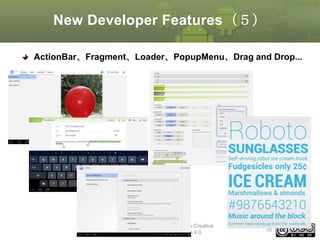
Configuration対応(1)
実習 4
画面の向きに合わせたレイアウト対応

縦画面用のレイアウトファイルを読み込み、
直前のデータが選択状態になっている

回転

This material is licensed under the Creative
Commons License BY-NC-SA 4.0.

275
Configuration対応(2)
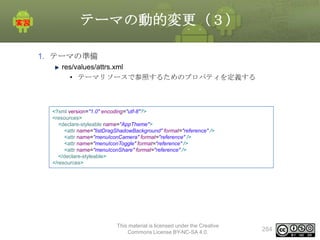
手順
1. TitlesFragmentの修正
onSaveInstanceStateメソッドの追加
onActivityCreatedの修正

2. MainActivityの修正
onSaveInstanceStateメソッドの追加
onCreateの修正

3. 縦画面用のレイアウトリソースファイルを新規作成
/res/layout-port/main.xml

This material is licensed under the Creative
Commons License BY-NC-SA 4.0.

276
Configuration対応(3)
1. TitlesFragmentの修正
onSaveInstanceStateメソッドの追加
• 回転時に直前の表示データを保存する
@Override
public void onSaveInstanceState(Bundle outState) {
super.onSaveInstanceState(outState);
outState.putInt("listPosition", currentPosition);
outState.putInt("category", category);
}

onActivityCreatedの修正
• 回転後に直前に表示データを復帰する
public void onActivityCreated(Bundle savedInstanceState) {
super.onActivityCreated(savedInstanceState);
// Current position should survive screen rotations.
if (savedInstanceState != null) {
category = savedInstanceState.getInt("category");
currentPosition = savedInstanceState.getInt("listPosition");
}
This material is licensed under the Creative
Commons License BY-NC-SA 4.0.

277
Configuration対応(4)
2. MainActivityの修正
onSaveInstanceStateメソッドの追加
• 回転時に直前の表示データを保存する
@Override
protected void onSaveInstanceState(Bundle outState) {
super.onSaveInstanceState(outState);
ActionBar bar = getActionBar();
int category = bar.getSelectedTab().getPosition();
outState.putInt("category", category);
}

onCreateの修正
• 回転後に直前に表示データを復帰する
– onCreateの一番最後に追加
if (savedInstanceState != null) {
int category = savedInstanceState.getInt("category");
bar.selectTab(bar.getTabAt(category));
}

This material is licensed under the Creative
Commons License BY-NC-SA 4.0.

278
Configuration対応(5)
3. 縦画面用のレイアウトリソースファイルを新規作成
/res/layout-port/main.xml

<?xml version="1.0" encoding="utf-8"?>
<LinearLayout xmlns:android="http://schemas.android.com/apk/res/android"
android:id="@+id/flags"
android:layout_width="fill_parent"
android:layout_height="fill_parent"
android:orientation="vertical" >
<fragment class="com.example.android.shcgallery.TitlesFragment"
android:id="@+id/frag_title"
android:layout_marginTop="?android:attr/actionBarSize"
android:layout_width="match_parent"
android:layout_height="@dimen/titles_size"/>
<fragment
android:id="@+id/frag_content"
android:name="com.example.android.shcgallery.ContentFragment"
android:layout_width="match_parent"
android:layout_height="match_parent" />
</LinearLayout>
This material is licensed under the Creative
Commons License BY-NC-SA 4.0.

279
Configuration対応(確認)
確認
画面の向きに合わせたレイアウト対応

縦画面用のレイアウトファイルを読み込み、
直前のデータが選択状態になっている

回転

This material is licensed under the Creative
Commons License BY-NC-SA 4.0.

280
Configuration対応(解答)
解答
別ドキュメント参照

This material is licensed under the Creative
Commons License BY-NC-SA 4.0.

281
テーマの動的変更(1)
実習 5
テーマの動的変更
Day/Nightメニュー選択時にテーマを切り替える処理を追加
テーマに合わせてメニューアイコンも変更される

起動時はAppTheme.Light

AppTheme.Darkに切り替わる

This material is licensed under the Creative
Commons License BY-NC-SA 4.0.

282
テーマの動的変更(2)
手順
1. テーマの準備
res/values/attrs.xml
res/values/styles.xml

2. 既存メニューアイコンの変更
res/menu/main_menu.xml

3. Activityにテーマの適用
AndroidManifest.xml

4. テーマ切り替え処理の追加
MainActivity.java

This material is licensed under the Creative
Commons License BY-NC-SA 4.0.

283
テーマの動的変更(3)
1. テーマの準備
res/values/attrs.xml
• テーマリソースで参照するためのプロパティを定義する

<?xml version="1.0" encoding="utf-8"?>
<resources>
<declare-styleable name="AppTheme">
<attr name="listDragShadowBackground" format="reference" />
<attr name="menuIconCamera" format="reference" />
<attr name="menuIconToggle" format="reference" />
<attr name="menuIconShare" format="reference" />
</declare-styleable>
</resources>

This material is licensed under the Creative
Commons License BY-NC-SA 4.0.

284
テーマの動的変更(4)
1. テーマの準備
res/values/styles.xml
• Action Bar、Activityのテーマを用意し、attrs.xmlで定義したプロパティ
を設定する
<?xml version="1.0" encoding="utf-8"?>
<resources>
<style name="ActionBar" parent="@android:style/Widget.Holo.ActionBar" />
<style name="ActionBar.Light" parent="@style/ActionBar">
<item name="android:background">@color/actionbar_background_light</item>
</style>
<style name="ActionBar.Dark" parent="@style/ActionBar">
<item name="android:background">@color/actionbar_background_dark</item>
</style>
<style name="AppTheme.Light" parent="@android:style/Theme.Holo.Light">
<item name="android:actionBarStyle">@style/ActionBar.Light</item>
<item name="android:windowActionBarOverlay">true</item>
<item name="listDragShadowBackground">@android:color/background_light</item>
<item name="menuIconCamera">@drawable/ic_menu_camera_holo_light</item>
<item name="menuIconToggle">@drawable/ic_menu_toggle_holo_light</item>
<item name="menuIconShare">@drawable/ic_menu_share_holo_light</item>
</style>
<style name="AppTheme.Dark" parent="@android:style/Theme.Holo">
<item name="android:actionBarStyle">@style/ActionBar.Dark</item>
<item name="android:windowActionBarOverlay">true</item>
<item name="listDragShadowBackground">@android:color/background_dark</item>
<item name="menuIconCamera">@drawable/ic_menu_camera_holo_dark</item>
<item name="menuIconToggle">@drawable/ic_menu_toggle_holo_dark</item>
<item name="menuIconShare">@drawable/ic_menu_share_holo_dark</item>
</style>
This material is licensed under the Creative
</resources>

Commons License BY-NC-SA 4.0.

285
テーマの動的変更(5)
attrs.xml
<?xml version="1.0" encoding="utf-8"?>
<resources>
<declare-styleable name="AppTheme">
<attr name="listDragShadowBackground" format="reference" />
<attr name="menuIconCamera" format="reference" />
<attr name="menuIconToggle" format="reference" />
<attr name="menuIconShare" format="reference" />
</declare-styleable>
</resources>

styles.xml
<style name="AppTheme.Dark" parent="@android:style/Theme.Holo">
<item name="android:actionBarStyle">@style/ActionBar.Dark</item>
attrs.xmlで定義したプロパティを設定する
<item name="android:windowActionBarOverlay">true</item>
<item name="listDragShadowBackground">@android:color/background_dark</item>
<item name="menuIconCamera">@drawable/ic_menu_camera_holo_dark</item>
<item name="menuIconToggle">@drawable/ic_menu_toggle_holo_dark</item>
<item name="menuIconShare">@drawable/ic_menu_share_holo_dark</item>
</style>

This material is licensed under the Creative
Commons License BY-NC-SA 4.0.

286
テーマの動的変更(6)
2. 既存メニューアイコンの変更
res/menu/main_menu.xml

<?xml version="1.0" encoding="utf-8"?>
<menu xmlns:android="http://schemas.android.com/apk/res/android" >
<item
android:id="@+id/camera"
android:icon="?attr/menuIconCamera"
android:showAsAction="ifRoom"
android:title="Camera">
</item>
<item
android:id="@+id/toggleTitles"
android:icon="?attr/menuIconToggle"
android:showAsAction="ifRoom|withText"
android:title="Toggle Titles">
</item>
〜略〜
</menu>

This material is licensed under the Creative
Commons License BY-NC-SA 4.0.

287
テーマの動的変更(7)
メニューアイコン表示の仕組み
main_menu.xml

テーマに合わせて表示するアイコンを動的に切り替えるため、iconの参照先
をattrsで定義したプロパティに設定する

<item
android:id="@+id/camera"
android:icon="?attr/menuIconCamera"
android:showAsAction="ifRoom"
android:title="Camera">
</item>

attrs.xml

<?xml version="1.0" encoding="utf-8"?>
<resources>
<declare-styleable name="AppTheme">
<attr name="listDragShadowBackground" format="reference" />

〜略〜
</declare-styleable>
</resources>

styles.xml
<style name="AppTheme.Dark" parent="@android:style/Theme.Holo">
<item name="menuIconCamera">@drawable/ic_menu_camera_holo_dark</item>

〜略〜
<item name="menuIconToggle">@drawable/ic_menu_toggle_holo_dark</item>
</style>
<style name="AppTheme.Dark" parent="@android:style/Theme.Holo">

〜略〜
This material is licensed under the Creative
<item name="menuIconCamera">@drawable/ic_menu_camera_holo_dark</item>
Commons License BY-NC-SA 4.0.
</style>

288
テーマの動的変更(8)
3. Activityにテーマの適用
AndroidManifest.xml
• <application>タグにthemeを追加

<application
android:icon="@drawable/icon"
android:label="@string/app_name"
android:logo="@drawable/logo"
android:theme="@style/AppTheme.Light" >

This material is licensed under the Creative
Commons License BY-NC-SA 4.0.

289
テーマの動的変更(9)
4. テーマ切り替え処理の追加
MainActivity.java
• メニュー選択にテーマの切り替え処理を追加する
• メンバ変数の追加
– themeId
public class MainActivity extends Activity implements ActionBar.TabListener {
private String[] toggleLabels = { "Show Titles", "Hide Titles" };
private int labelIndex = 1;
private int themeId = -1;

• onOptionsItemSelectedメソッドの修正
public boolean onOptionsItemSelected(MenuItem item) {
switch (item.getItemId()) {
case R.id.toggleTheme:
if (themeId == R.style.AppTheme_Dark) {
themeId = R.style.AppTheme_Light;
} else {
themeId = R.style.AppTheme_Dark;
}
this.recreate();
return true;
This material is licensed under the Creative
〜略〜
Commons License BY-NC-SA 4.0.

290
テーマの動的変更(10)
4. テーマ切り替え処理の追加(続き)
MainActivity.java
• onCreateメソッドの修正
– setContentViewの直前にテーマをセットする処理の追加

public void onCreate(Bundle savedInstanceState) {
super.onCreate(savedInstanceState);
if (savedInstanceState != null
&& savedInstanceState.getInt("theme", -1) != -1) {
themeId = savedInstanceState.getInt("theme");
this.setTheme(themeId);
}
setContentView(R.layout.main);

〜略〜

This material is licensed under the Creative
Commons License BY-NC-SA 4.0.

291
テーマの動的変更(11)
4. テーマ切り替え処理の追加(続き)
MainActivity.java
• onSaveInstanceStateメソッドの修正
– themeIdの保存

@Override
protected void onSaveInstanceState(Bundle outState) {
super.onSaveInstanceState(outState);
ActionBar bar = getActionBar();
int category = bar.getSelectedTab().getPosition();
outState.putInt("category", category);
outState.putInt("theme", themeId);
}

This material is licensed under the Creative
Commons License BY-NC-SA 4.0.

292
テーマの動的変更(確認)
確認
以下のように表示されること

起動時はAppTheme.Light

AppTheme.Darkに切り替わる

This material is licensed under the Creative
Commons License BY-NC-SA 4.0.

293
テーマの動的変更(解答)
解答
別ドキュメント参照

This material is licensed under the Creative
Commons License BY-NC-SA 4.0.

294
まとめ
トレーニングの振り返り
1日目

章

内容

第1章 トレーニング概要

開発環境、アプリケーション概要

第2章 Androidのバージョン情報

過去の経緯とAndroidのバージョン情報
2.x系、3.x系、4.x系

第3章 Androidタブレット開発新機能

開発者視点での新機能
ユーザインタフェースの改善
UI プログラミング ベストプラクティス

第4章 タブレットアプリケーションの
作成 1
- Action Bar -

Action Barの作成
Action Barのカスタマイズ
Action BarにTabを表示する
Options Menu対応

This material is licensed under the Creative
Commons License BY-NC-SA 4.0.

296
トレーニングの振り返り
2日目
章

内容

第5章 タブレットアプリケーションの
作成 2
– Fragment -

Fragmentの使い方
System Bar, Action Barの表示制御
ActionMode対応

第6章 タブレットアプリケーションの
作成 3
– ListFragment -

ListFragmentの使い方
ListFragmentをカスタマイズする

第7章 タブレットアプリケーションの
作成 4
- Fragmentと連携する -

FragmentとFragmentの連携
FragmentとActivityの連携

第8章 タブレットアプリケーションの
作成 5
- その他の新機能 -

Fragmentの表示・非表示
DialogFragment
Notification
Configuration対応
テーマの動的切り替え

This material is licensed under the Creative
Commons License BY-NC-SA 4.0.

297
Androidに関する情報提供元
書籍
タイトル

著者

Google Android プログラミング入門 江川 崇

出版社
…他

アスキー・
メディアワークス

Android Hacks

株式会社ブリリア
ン トサービス

オライリー

Android UI Cookbook for 4.0 ICS

あんざい ゆき

インプレスジャパン

入門 Android 2 プログラミング

Mark Murphy

翔泳社

図解 Androidプラットフォーム開発
入門

橋爪香織
小林明大 …他

技術評論社

This material is licensed under the Creative
Commons License BY-NC-SA 4.0.

298
Androidに関する情報提供元
インターネット
技術資料・ツール・ソース
Android
Developers
• http://developer.android.com/index.html
Open Handset Alliance
• http://www.openhandsetalliance.com/

コミュニティ
Android‐SDK‐Japan
• https://groups.google.com/group/android-sdk-japan
Android Developers
• http://groups.google.com/group/android-developers

This material is licensed under the Creative
Commons License BY-NC-SA 4.0.

299
OESF公認Androidトレーニング
アプリケーション開発
Anroidプログラミング入門(★☆☆☆☆)
Anroidアプリケーション開発入門(難易度:★★☆☆☆)
Anroidアプリケーション開発応用(★★★★☆)
Android応用 WebAPI開発(★★★★★)
Android応用 タブレットアプリケーション開発入門(★★★★☆)

組み込み
Android組み込み開発 基礎コース - Armadillo-440 編 –

This material is licensed under the Creative
Commons License BY-NC-SA 4.0.

300
Anroidプログラミング入門
基本的なアプリケーション開発に必要なプログラミング技術を習得する
ユーザインタフェースの使い方や画面遷移の仕方
NextActivity

MainActivity

RequestCode:12
3

ResultCode:RESULT_OK

NextActivity2
ダイアログ表示
From
Result
Request

RequestCode:456

ResultCode
RESULT_OK
RESULT_CANCEL

or

RESULT_OK
RESULT_CANCEL

This material is licensed under the Creative
Commons License BY-NC-SA 4.0.

or

Result Cancel

301
Anroidアプリケーション開発入門
Androidの基本的な知識から本格的なアプリケーション開発

インターネットからRSS
フィードを取得する

メニュー
画面

インターネッ
ト

データベースに
RSSフィードを登
録

データベース

データベースからRSS
フィードを検索
データベースへ登録
が完了した後、ダイ
アログを表示する
一覧画面
一覧表示ボタンをク
リックする
This material is licensed under the Creative
Commons License BY-NC-SA 4.0.

詳細画面
一覧データを
選択する
302
Anroidアプリケーション開発応用
入門編で作成したアプリケーションに手を加え、より快適なものに仕上
げる
Activityのタスク管理やプロファイリングなど開発における高度なサイド
技術の習得

This material is licensed under the Creative
Commons License BY-NC-SA 4.0.

303
Android応用 WebAPI開発
非同期処理、プロセス間通信など開発において重要で難易度の高い技術
の習得
GAEサーバを使用した動画ダウンロードアプリケーションの開発

This material is licensed under the Creative
Commons License BY-NC-SA 4.0.

304
Androidタブレット開発コース
Androidタブレット開発コース
タブレット基本的な知識、新機能、開発手法のベストプラクティスの習
得

This material is licensed under the Creative
Commons License BY-NC-SA 4.0.

305
Android組み込み開発 基礎コース
- Armadillo-440 編 –
Armdillo-440を使ったシリアルデバイスアプリケーション作成
シリアル

Armadillo-440 ACアダプ クロスケーブル
タ
( Android 2.2)

給電用USB

開発用
PC

読み取ったコードは3番で
す

USB-RS232C
変換ケーブル
USB

Grid OnputⓇ

G2スキャナ

RS232C

LANケーブル

②Toast表示

①メニューをタッ
チ!
メニューの写真に
グリッドマークを
This material is licensed under the Creative
埋め込んだメニュー
Commons License BY-NC-SA 4.0.

③

306
本ドキュメントは株式会社リーディング・エッジ社が作成して
います。

http://www.leadinge.co.jp/

このドキュメントの内容の一部は、Google が作成、提供しているコンテンツをベースに変更したもので、クリエイティブ・コモンズの表示 3.0 ライセンスに記載の条件に
従って使用しています。

This material is licensed under the Creative Commons License BY-NC-SA 4.0.

307

Androidタブレットアプリケーション開発入門