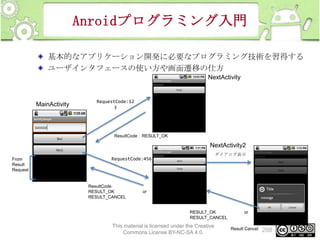
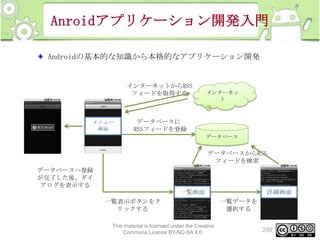
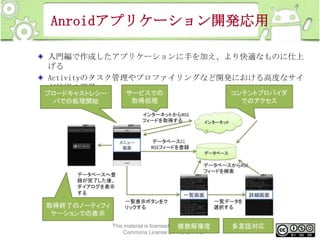
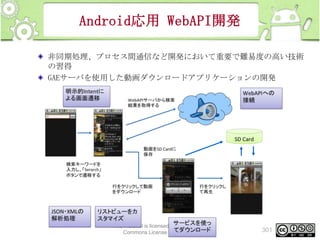
Android プログラミング入門
トレーニングの目的
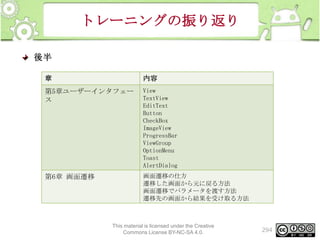
Androidアプリケーション開発に必要な基本的なプログラミング知
識を身につける。
演習を通して、アプリケーション開発を体験する

注意事項
本トレーニングは同じ資料で1日コース、2日コースを行います。
1日コースではトレーニングの一部を省略します

This material is licensed under the Creative
Commons License BY-NC-SA 4.0.

2
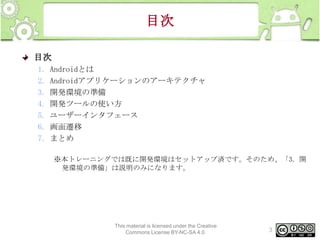
目次
目次
1.
2.
3.
4.
5.
6.
7.

Androidとは
Androidアプリケーションのアーキテクチャ
開発環境の準備
開発ツールの使い方
ユーザーインタフェース
画面遷移
まとめ
※本トレーニングでは既に開発環境はセットアップ済です。そのため、「3. 開
発環境の準備」は説明のみになります。

This material is licensed under the Creative
Commons License BY-NC-SA 4.0.

3
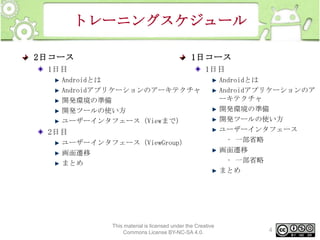
トレーニングスケジュール
2日コース

1日コース

1日目

1日目

Androidとは
Androidアプリケーションのアーキテクチャ
開発環境の準備
開発ツールの使い方
ユーザーインタフェース(Viewまで)

2日目
ユーザーインタフェース(ViewGroup)
画面遷移
まとめ

This material is licensed under the Creative
Commons License BY-NC-SA 4.0.

Androidとは
Androidアプリケーションのア
ーキテクチャ
開発環境の準備
開発ツールの使い方
ユーザーインタフェース
• 一部省略
画面遷移
• 一部省略
まとめ

4
受講するにあたって必要なスキル
何かしらのプログラミング言語での開発経験があること
下記の条件があるとより理解度が上がります
オブジェクト指向の基本的な知識
Java開発経験
Eclipse使用経験

This material is licensed under the Creative
Commons License BY-NC-SA 4.0.

5
開発環境
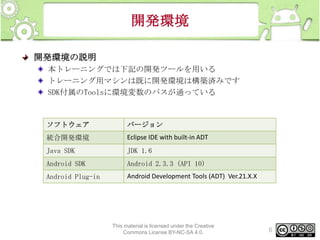
開発環境の説明
本トレーニングでは下記の開発ツールを用いる
トレーニング用マシンは既に開発環境は構築済みです
SDK付属のToolsに環境変数のパスが通っている

ソフトウェア

バージョン

統合開発環境

Eclipse IDE with built-in ADT

Java SDK

JDK 1.6

Android SDK

Android 2.3.3 (API 10)

Android Plug-in

Android Development Tools (ADT) Ver.21.X.X

This material is licensed under the Creative
Commons License BY-NC-SA 4.0.

6
開発環境
開発環境の説明
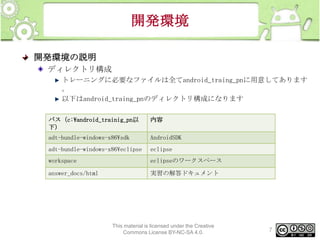
ディレクトリ構成
トレーニングに必要なファイルは全てandroid_traing_pnに用意してあります
。
以下はandroid_traing_pnのディレクトリ構成になります
パス(c:¥android_trainig_pn以
下)

内容

adt-bundle-windows-x86¥sdk

AndroidSDK

adt-bundle-windows-x86¥eclipse

eclipse

workspace

eclipseのワークスペース

answer_docs/html

実習の解答ドキュメント

This material is licensed under the Creative
Commons License BY-NC-SA 4.0.

7
演習の進め方
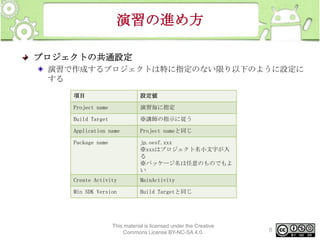
プロジェクトの共通設定
演習で作成するプロジェクトは特に指定のない限り以下のように設定に
する
項目

設定値

Project name

演習毎に指定

Build Target

※講師の指示に従う

Application name

Project nameと同じ

Package name

jp.oesf.xxx
※xxxはプロジェクト名小文字が入
る
※パッケージ名は任意のものでもよ
い

Create Activity

MainActivity

Min SDK Version

Build Targetと同じ

This material is licensed under the Creative
Commons License BY-NC-SA 4.0.

8
1. Androidとは
概要
Androidとは
開発に必要なもの
アプリケーション開発の流れ
アプリケーションの紹介

This material is licensed under the Creative
Commons License BY-NC-SA 4.0.

10
Androidとは
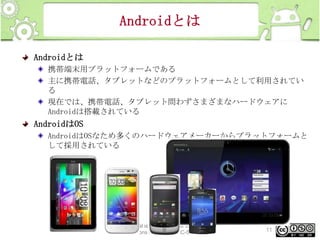
Androidとは
携帯端末用プラットフォームである
主に携帯電話、タブレットなどのプラットフォームとして利用されてい
る
現在では、携帯電話、タブレット問わずさまざまなハードウェアに
Androidは搭載されている

AndroidはOS
AndroidはOSなため多くのハードウェアメーカーからプラットフォームと
して採用されている

This material is licensed under the Creative
Commons License BY-NC-SA 4.0.

11
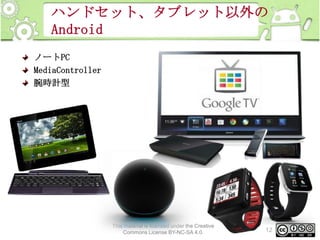
ハンドセット、タブレット以外の
Android
ノートPC
MediaController
腕時計型

This material is licensed under the Creative
Commons License BY-NC-SA 4.0.

12
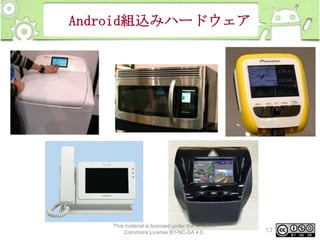
Android組込みハードウェア

This material is licensed under the Creative
Commons License BY-NC-SA 4.0.

13
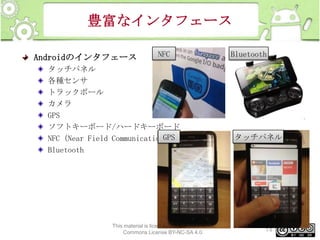
豊富なインタフェース
Androidのインタフェース

NFC

タッチパネル
各種センサ
トラックボール
カメラ
GPS
ソフトキーボード/ハードキーボード
GPS
NFC(Near Field Communication)
Bluetooth

This material is licensed under the Creative
Commons License BY-NC-SA 4.0.

Bluetooth

タッチパネル

14
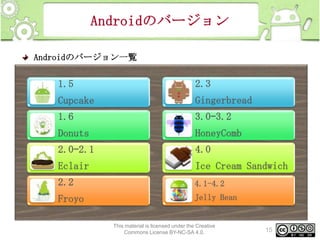
Androidのバージョン
Androidのバージョン一覧

1.5

2.3

Cupcake

Gingerbread

1.6

3.0–3.2

Donuts

HoneyComb

2.0–2.1

4.0

Eclair

Ice Cream Sandwich

2.2

4.1-4.2

Froyo

Jelly Bean

This material is licensed under the Creative
Commons License BY-NC-SA 4.0.

15
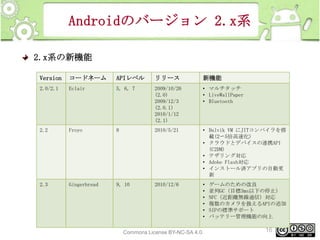
Androidのバージョン 2.x系
2.x系の新機能
Version

コードネーム

APIレベル

リリース

新機能

2.0/2.1

Eclair

5, 6, 7

2009/10/26
(2.0)
2009/12/3
(2.0.1)
2010/1/12
(2.1)

• マルチタッチ
• LiveWallPaper
• Bluetooth

2.2

Froyo

8

2010/5/21

• Dalvik VM にJITコンパイラを搭
載(2〜5倍高速化)
• クラウドとデバイスの連携API
(C2DM)
• テザリング対応
• Adobe Flash対応
• インストール済アプリの自動更
新

2.3

Gingerbread

9, 10

2010/12/6

•
•
•
•
•
•

ゲームのための改良
並列GC(目標3ms以下の停止)
NFC(近距離無線通信)対応
複数のカメラを扱えるAPIの追加
SIPの標準サポート
バッテリー管理機能の向上

This material is licensed under the Creative
Commons License BY-NC-SA 4.0.

16
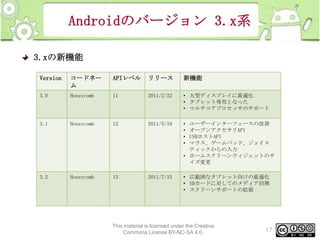
Androidのバージョン 3.x系
3.xの新機能
Version

コードネー
ム

APIレベル

リリース

新機能

3.0

Honeycomb

11

2011/2/22

• 大型ディスプレイに最適化
• タブレット専用となった
• マルチコアプロセッサのサポート

3.1

Honeycomb

12

2011/5/10

•
•
•
•

3.2

Honeycomb

13

2011/7/15

• 広範囲なタブレット向けの最適化
• SDカードに対してのメディア同期
• スクリーンサポートの拡張

ユーザーインターフェースの改善
オープンアクセサリAPI
USBホストAPI
マウス、ゲームパッド、ジョイス
ティックからの入力
• ホームスクリーンウィジェットのサ
イズ変更

This material is licensed under the Creative
Commons License BY-NC-SA 4.0.

17
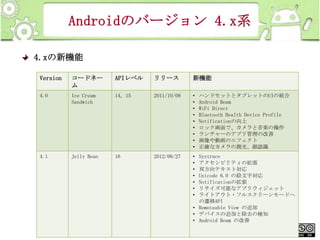
Androidのバージョン 4.x系
4.xの新機能
Version

コードネー
ム

APIレベル

リリース

新機能

4.0

Ice Cream
Sandwich

14, 15

2011/10/08

•
•
•
•
•
•
•
•
•

4.1

Jelly Bean

16

2012/06/27

•
•
•
•
•
•
•

ハンドセットとタブレットのUIの統合
Android Beam
WiFi Direct
Bluetooth Health Device Profile
Notificationの向上
ロック画面で、カメラと音楽の操作
ランチャーのアプリ管理の改善
画像や動画のエフェクト
正確なカメラの測光、顔認識

Systrace
アクセシビリティの拡張
双方向テキスト対応
Unicode 6.0 の絵文字対応
Notificationの拡張
リサイズ可能なアプリウィジェット
ライトアウト・フルスクリーンモードへ
の遷移API
• Remoteable View の追加
• デバイスの追加と除去の検知
• Android Beam の改善
This material is licensed under the Creative
18
Commons License BY-NC-SA 4.0.
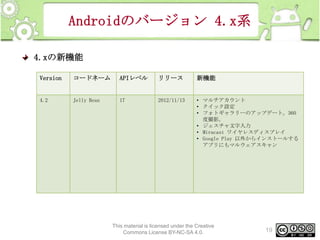
Androidのバージョン 4.x系
4.xの新機能
Version

コードネーム

APIレベル

リリース

新機能

4.2

Jelly Bean

17

2012/11/13

• マルチアカウント
• クイック設定
• フォトギャラリーのアップデート。360
度撮影。
• ジェスチャ文字入力
• Miracast ワイヤレスディスプレイ
• Google Play 以外からインストールする
アプリにもマルウェアスキャン

This material is licensed under the Creative
Commons License BY-NC-SA 4.0.

19
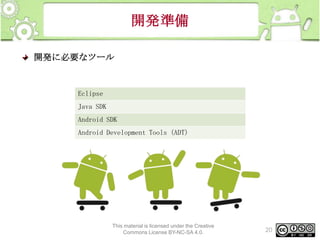
開発準備
開発に必要なツール

Eclipse
Java SDK
Android SDK
Android Development Tools (ADT)

This material is licensed under the Creative
Commons License BY-NC-SA 4.0.

20
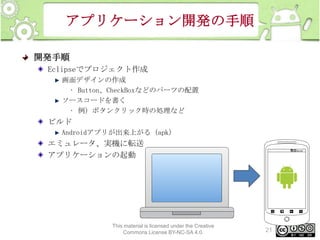
アプリケーション開発の手順
開発手順
Eclipseでプロジェクト作成
画面デザインの作成
• Button、CheckBoxなどのパーツの配置
ソースコードを書く
• 例)ボタンクリック時の処理など

ビルド
Androidアプリが出来上がる(apk)

エミュレータ、実機に転送
アプリケーションの起動

This material is licensed under the Creative
Commons License BY-NC-SA 4.0.

21
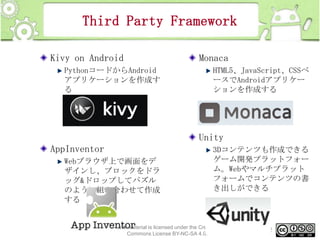
Third Party Framework
Kivy on Android
PythonコードからAndroid
アプリケーションを作成す
る

Monaca
HTML5、JavaScript、CSSベ
ースでAndroidアプリケー
ションを作成する

Unity
AppInventor
Webブラウザ上で画面をデ
ザインし、ブロックをドラ
ッグ&ドロップしてパズル
のように組み合わせて作成
する

3Dコンテンツも作成できる
ゲーム開発プラットフォー
ム。Webやマルチプラット
フォームでコンテンツの書
き出しができる

This material is licensed under the Creative
Commons License BY-NC-SA 4.0.

22
Third Party IDE
IntelliJ IDEA

AIDE

JetBrains社が開発した、
Java言語など多言語対応の
統合開発環境

Android上でAndroidアプ
リケーションの開発を行
えるIDE

This material is licensed under the Creative
Commons License BY-NC-SA 4.0.

23
Androidアプリケーションにの種類
Androidアプリケーションの種類
従来のハンドセットをターゲット
タブレット対応のアプリケーション
Webサービスと連携
特定のハードや機能に特化したアプリケーション
ICS以降のアプリも既にリリース
Android Marketのアプリケーション

This material is licensed under the Creative
Commons License BY-NC-SA 4.0.

24
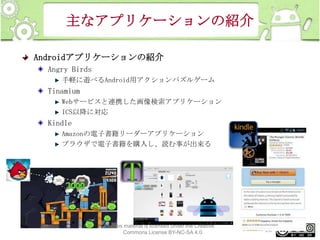
主なアプリケーションの紹介
Androidアプリケーションの紹介
Angry Birds
手軽に遊べるAndroid用アクションパズルゲーム

Tinamium
Webサービスと連携した画像検索アプリケーション
ICS以降に対応

Kindle
Amazonの電子書籍リーダーアプリケーション
ブラウザで電子書籍を購入し、読む事が出来る

This material is licensed under the Creative
Commons License BY-NC-SA 4.0.

25
Android Market
Android Market
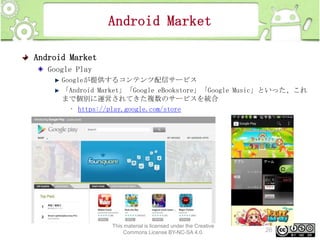
Google Play
Googleが提供するコンテンツ配信サービス
「Android Market」「Google eBookstore」「Google Music」といった、これ
まで個別に運営されてきた複数のサービスを統合
• https://play.google.com/store

This material is licensed under the Creative
Commons License BY-NC-SA 4.0.

26
Third Party Market
Third Party Market
Amazon Appstore for Android
米Amazon.comが、Androidアプリを販売
するアプリ市場

DeployGate
開発中のアプリケーション配信サービス
。
主に開発メンバーに対してテスト版アプ
リをリモートで提供することが目的

Handster
ホワイトレーベルのプラットフォームと
ブランドのアプリケーションストアを提
供するアプリ市場

M-trix Market
Androidアプリの成人向けコンテンツ専
用ストア

This material is licensed under the Creative
Commons License BY-NC-SA 4.0.

27
Androidの構成要素(1)
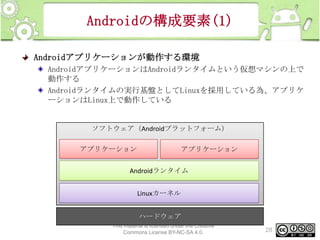
Androidアプリケーションが動作する環境
AndroidアプリケーションはAndroidランタイムという仮想マシンの上で
動作する
Androidランタイムの実行基盤としてLinuxを採用している為、アプリケ
ーションはLinux上で動作している

ソフトウェア(Androidプラットフォーム)
アプリケーション

アプリケーション

Androidランタイム

Linuxカーネル
ハードウェア
This material is licensed under the Creative
Commons License BY-NC-SA 4.0.

28
Androidの構成要素(2)
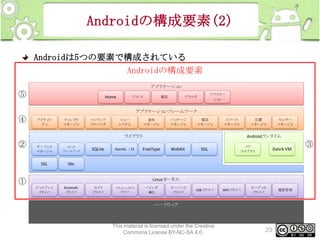
Androidは5つの要素で構成されている
Androidの構成要素
アプリ
ケーショ
ン

⑤

Home

アド
レス

電話

アプリ
ケー
ショ
ン

ブラウザ

アプリ
ケーショ
ンフレームワーク

④

アクティ
ビ
ティ

ウィ ウ
ンド
マネージャ

コンテンツ
プロバイダ

ビュー
システム

通知
マネージャ

パッ
ケージ
マネージャ

電話
マネージャ

リ
ソース
マネージャ

位置
マネージャ

ラ ブラ
イ リ

②

サーフェ
ス
マネージャ

メ ア
ディ
フ
レームワーク

SSL

センサー
マネージャ

Androidラ イ
ンタ ム

libc

SQLite

OpenGL |ES

FreeType

WebKit

SGL

コア
ライブラリ

Dalvik VM

Linuxカ
ーネル

①
ディ
スプレイ
ド
ライバ

Bluetooth
ド
ライバ

カメ
ラ
ド
ライバ

フ ッ
ラ シュメ
モリ
ド イ
ラ バ

バインダ
(
IRC)

キーパッ
ド
ド
ライバ

USBド
ライバ

WiFiド
ライバ

オーディ
オ
ド
ライバ

ハード ア
ウェ

This material is licensed under the Creative
Commons License BY-NC-SA 4.0.

29

電源管理

③
Androidの構成要素(3)
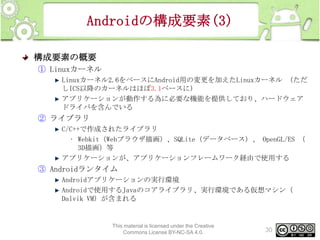
構成要素の概要
① Linuxカーネル
Linuxカーネル2.6をベースにAndroid用の変更を加えたLinuxカーネル (ただ
しICS以降のカーネルはほぼ3.1ベースに)
アプリケーションが動作する為に必要な機能を提供しており、ハードウェア
ドライバを含んでいる

② ライブラリ
C/C++で作成されたライブラリ
• Webkit(Webブラウザ描画)、SQLite(データベース)、 OpenGL/ES (
3D描画)等
アプリケーションが、アプリケーションフレームワーク経由で使用する

③ Androidランタイム
Androidアプリケーションの実行環境
Androidで使用するJavaのコアライブラリ、実行環境である仮想マシン(
Dalvik VM)が含まれる

This material is licensed under the Creative
Commons License BY-NC-SA 4.0.

30
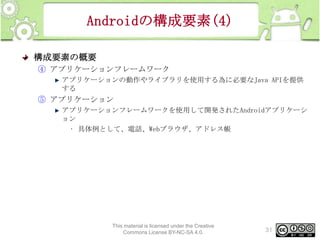
Androidの構成要素(4)
構成要素の概要
④ アプリケーションフレームワーク
アプリケーションの動作やライブラリを使用する為に必要なJava APIを提供
する

⑤ アプリケーション
アプリケーションフレームワークを使用して開発されたAndroidアプリケーシ
ョン
• 具体例として、電話、Webブラウザ、アドレス帳

This material is licensed under the Creative
Commons License BY-NC-SA 4.0.

31
この章のまとめ
まとめ
Androidとは
携帯端末用プラットフォームである
主に携帯電話、タブレットなどのプラットフォームとして利用されている
現在では、携帯電話、タブレット問わずさまざまなハードウェアにAndroidは
搭載されている
AndroidはOSなため多くのハードウェアメーカーからプラットフォームとして
採用されている

開発に必要なもの
Eclipse
Java SDK
Android SDK
Android Development Tools (ADT)

アプリケーション開発の流れ

This material is licensed under the Creative
Commons License BY-NC-SA 4.0.

32
この章のまとめ
まとめ (続き)
アプリケーション開発の流れ
Eclipseでプロジェクト作成
• 画面デザインの作成
– Button、CheckBoxなどのパーツの配置
• ソースコードを書く
– 例)ボタンクリック時の処理など
ビルド
• Androidアプリが出来上がる(apk)
エミュレータ、実機に転送
アプリケーションの起動

This material is licensed under the Creative
Commons License BY-NC-SA 4.0.

33
2. Androidアプリケーションの
アーキテクチャ
概要
Activity
View
Intent
ライフサイクル

This material is licensed under the Creative
Commons License BY-NC-SA 4.0.

35
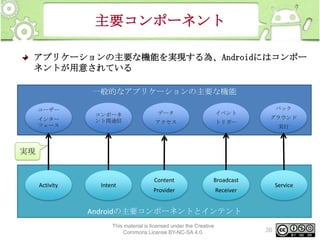
主要コンポーネント
アプリケーションの主要な機能を実現する為、Androidにはコンポー
ネントが用意されている
一般的なアプリケーションの主要な機能
ユーザー
インター
フェース

コンポーネ
ント間通信

データ

イベント

アクセス

トリガー

バック
グラウンド
実行

実現

Activity

Intent

Content

Broadcast

Provider

Receiver

Service

Androidの主要コンポーネントとインテント
This material is licensed under the Creative
Commons License BY-NC-SA 4.0.

36
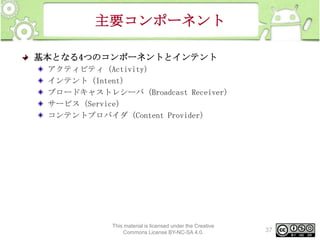
主要コンポーネント
基本となる4つのコンポーネントとインテント
アクティビティ(Activity)
インテント(Intent)
ブロードキャストレシーバ(Broadcast Receiver)
サービス(Service)
コンテントプロバイダ(Content Provider)

This material is licensed under the Creative
Commons License BY-NC-SA 4.0.

37
アクティビティ
アクティビティとは?
Androidアプリケーションの画面は、アクティビティの上にボタン、チェ
ックボックス等の部品を配置し、 画面を作成する
基本的に1画面は1つのアクティビティで構成する
アクティビティは実行中、一時停止といった状態を持っている

This material is licensed under the Creative
Commons License BY-NC-SA 4.0.

38
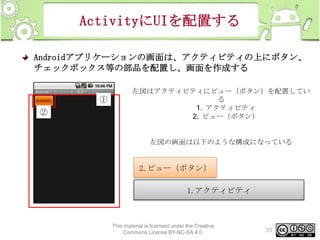
ActivityにUIを配置する
Androidアプリケーションの画面は、アクティビティの上にボタン、
チェックボックス等の部品を配置し、画面を作成する

①

②

左図はアクティビティにビュー(ボタン)を配置してい
る
1. アクティビティ
2. ビュー(ボタン)

左図の画面は以下のような構成になっている

2.ビュー(ボタン)
1.アクティビティ

This material is licensed under the Creative
Commons License BY-NC-SA 4.0.

39
アクティビティとイベント
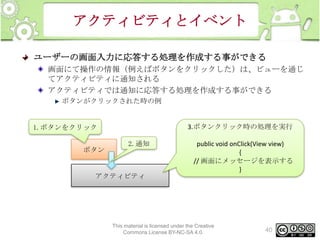
ユーザーの画面入力に応答する処理を作成する事ができる
画面にて操作の情報(例えばボタンをクリックした)は、ビューを通じ
てアクティビティに通知される
アクティビティでは通知に応答する処理を作成する事ができる
ボタンがクリックされた時の例

1.ボタンをクリック
ボタン

3.ボタンクリック時の処理を実行
2.通知

アクティビティ

public void onClick(View view)
{
// 画面にメッセージを表示する
}

This material is licensed under the Creative
Commons License BY-NC-SA 4.0.

40
アクティビティと画面の関係
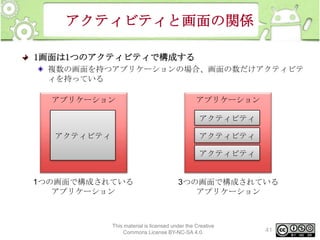
1画面は1つのアクティビティで構成する
複数の画面を持つアプリケーションの場合、画面の数だけアクティビテ
ィを持っている

アプリケーション

アプリケーション
アクティビティ

アクティビティ

アクティビティ

アクティビティ

1つの画面で構成されている
アプリケーション

3つの画面で構成されている
アプリケーション

This material is licensed under the Creative
Commons License BY-NC-SA 4.0.

41
アクティビティ表示の仕組み
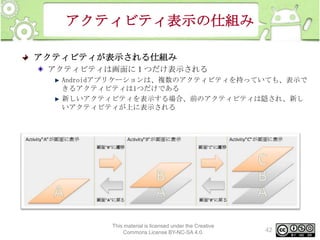
アクティビティが表示される仕組み
アクティビティは画面に1つだけ表示される
Androidアプリケーションは、複数のアクティビティを持っていても、表示で
きるアクティビティは1つだけである
新しいアクティビティを表示する場合、前のアクティビティは隠され、新し
いアクティビティが上に表示される

This material is licensed under the Creative
Commons License BY-NC-SA 4.0.

42
アクティビティの状態
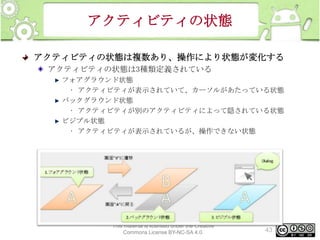
アクティビティの状態は複数あり、操作により状態が変化する
アクティビティの状態は3種類定義されている
フォアグラウンド状態
• アクティビティが表示されていて、カーソルがあたっている状態
バックグラウンド状態
• アクティビティが別のアクティビティによって隠されている状態
ビジブル状態
• アクティビティが表示されているが、操作できない状態

This material is licensed under the Creative
Commons License BY-NC-SA 4.0.

43
アクティビティの種類
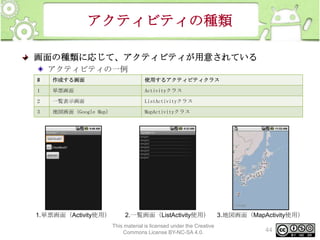
画面の種類に応じて、アクティビティが用意されている
アクティビティの一例
#

作成する画面

使用するアクティビティクラス

1

単票画面

Activityクラス

2

一覧表示画面

ListActivityクラス

3

地図画面(Google Map)

MapActivityクラス

1.単票画面(Activity使用)

2.一覧画面(ListActivity使用)
This material is licensed under the Creative
Commons License BY-NC-SA 4.0.

3.地図画面(MapActivity使用)

44
ビュー
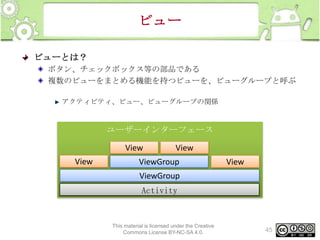
ビューとは?
ボタン、チェックボックス等の部品である
複数のビューをまとめる機能を持つビューを、ビューグループと呼ぶ
アクティビティ、ビュー、ビューグループの関係

ユーザーインターフェース
View
View

View

ViewGroup

View

ViewGroup
Activity

This material is licensed under the Creative
Commons License BY-NC-SA 4.0.

45
代表的なビュー
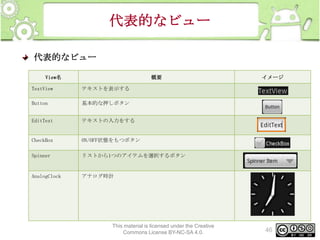
代表的なビュー
View名

概要

TextView

テキストを表示する

Button

基本的な押しボタン

EditText

テキストの入力をする

CheckBox

ON/OFF状態をもつボタン

Spinner

リストから1つのアイテムを選択するボタン

AnalogClock

イメージ

アナログ時計

This material is licensed under the Creative
Commons License BY-NC-SA 4.0.

46
代表的なビューグループ
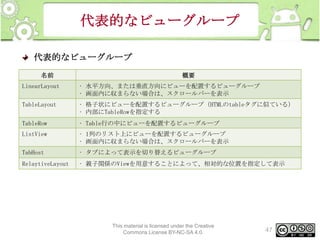
代表的なビューグループ
名前

概要

LinearLayout

• 水平方向、または垂直方向にビューを配置するビューグループ
• 画面内に収まらない場合は、スクロールバーを表示

TableLayout

• 格子状にビューを配置するビューグループ(HTMLのtableタグに似ている)
• 内部にTableRowを指定する

TableRow

• Table行の中にビューを配置するビューグループ

ListView

• 1列のリスト上にビューを配置するビューグループ
• 画面内に収まらない場合は、スクロールバーを表示

TabHost

• タブによって表示を切り替えるビューグループ

RelaytiveLayout

• 親子関係のViewを用意することによって、相対的な位置を指定して表示

This material is licensed under the Creative
Commons License BY-NC-SA 4.0.

47
カスタムビュー
独自のビューを作成できる(カスタムビュー)
カスタムビューは3種類の方法で作成できる
既存のビューを拡張して作成する
• 既存ビューに機能追加したい場合に有効な手段
基底クラス(android.view.View)を継承して作成する
• まったく新しいビューを作成したい場合にとる手段
• 最も自由にビューの開発が可能
• 一から実装になる為、基底クラスに関する深い知識が必要
既存のビューや、ビューグループを組み合わせて、新たなビューを作成する

■詳細はAndroid Developersの開発ガイドを参照
http://developer.android.com/intl/ja/guide/topics/ui/custom-components.html

This material is licensed under the Creative
Commons License BY-NC-SA 4.0.

48
インテント
インテントとは?
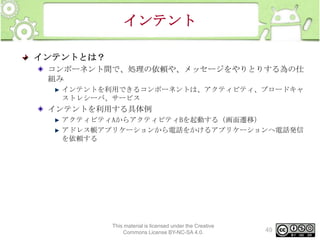
コンポーネント間で、処理の依頼や、メッセージをやりとりする為の仕
組み
インテントを利用できるコンポーネントは、アクティビティ、ブロードキャ
ストレシーバ、サービス

インテントを利用する具体例
アクティビティAからアクティビティBを起動する(画面遷移)
アドレス帳アプリケーションから電話をかけるアプリケーションへ電話発信
を依頼する

This material is licensed under the Creative
Commons License BY-NC-SA 4.0.

49
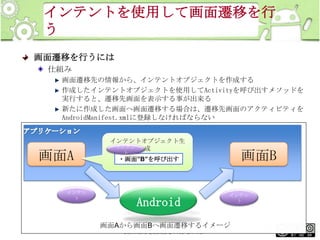
インテント
インテントにより、コンポーネントを呼び出すには
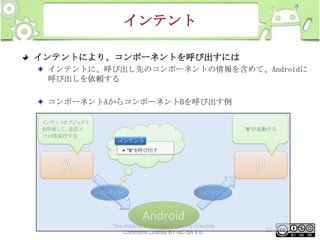
インテントに、呼び出し先のコンポーネントの情報を含めて、Androidに
呼び出しを依頼する
コンポーネントAからコンポーネントBを呼び出す例
イ
ンテント
オブジェ
クト
を作成し 送信メ
て、
ソッ を実行する
ド

"B"が起動する

インテント
• "B"を呼び出す

イ
ンテント

イ
ンテント

Android
This material is licensed under the Creative
Commons License BY-NC-SA 4.0.

50
明示的インテント
インテントの使い方には、明示的なインテントと暗黙的なインテン
トの2つの使い方がある
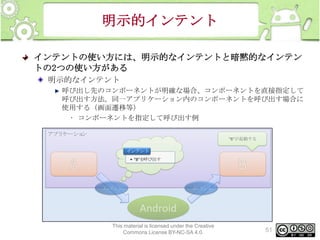
明示的なインテント
呼び出し先のコンポーネントが明確な場合、コンポーネントを直接指定して
呼び出す方法。同一アプリケーション内のコンポーネントを呼び出す場合に
使用する(画面遷移等)
• コンポーネントを指定して呼び出す例
アプリ
ケーショ
ン
"B"が起動する

インテント
• "B"を呼び出す

イ
ンテント

イ
ンテント

Android
This material is licensed under the Creative
Commons License BY-NC-SA 4.0.

51
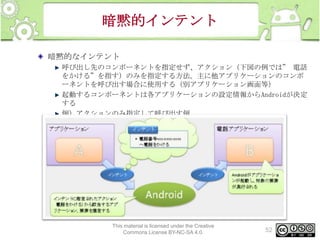
暗黙的インテント
暗黙的なインテント
呼び出し先のコンポーネントを指定せず、アクション(下図の例では” 電話
をかける”を指す)のみを指定する方法。主に他アプリケーションのコンポ
ーネントを呼び出す場合に使用する(別アプリケーション画面等)
起動するコンポーネントは各アプリケーションの設定情報からAndroidが決定
する
例)アクションのみ指定して呼び出す例

This material is licensed under the Creative
Commons License BY-NC-SA 4.0.

52
暗黙的インテント
暗黙的なインテント(続き)
暗黙的なインテントを使用すると、Androidに含まれているアプリケーション
と連携して、以下の事ができる
• 電話アプリケーション
– 指定した番号のダイヤルウィンドウを開く
• アドレス帳アプリケーション
– アドレス帳のリストを表示する
– アドレス帳の中から1つのアドレス情報を表示する
– 指定のアドレス情報を編集する
• Webブラウザ
– 指定したURLアドレスのWebサイトをブラウザで表示する

This material is licensed under the Creative
Commons License BY-NC-SA 4.0.

53
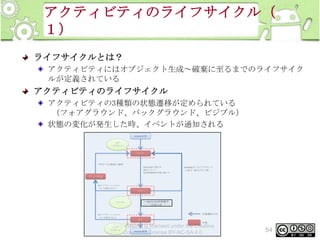
アクティビティのライフサイクル(
1)
ライフサイクルとは?
アクティビティにはオブジェクト生成~破棄に至るまでのライフサイク
ルが定義されている

アクティビティのライフサイクル
アクティビティの3種類の状態遷移が定められている
(フォアグラウンド、バックグラウンド、ビジブル)
状態の変化が発生した時、イベントが通知される
Activity起動
フ ア
ォ
グラ
ウンド

実行中

・
"戻る"で元画面に復帰
・
他Activityの割込み
・
端末スリ
ープ
・
長時間無操作状態が続いた

・
Activityがフ アグラ
ォ
ウンド

に表示(
戻るボタ
ン等)

プ
ロセス破棄

・
他アプリ
ケーショ
ンから
メ を
モリ 要求さ
れる

一時停止

ビジブル

・
他アプリ
ケーショ
ンから
メ を
モリ 要求さ
れる

・ ・Activityが非表示
他Activityの割込み
・
長時間無操作状態が続いた
になった

状態遷移方向
終了
状態

This material is licensed under the Creative
Activity破棄
Commons License BY-NC-SA 4.0.

バッ
ク
グラ
ウンド

54
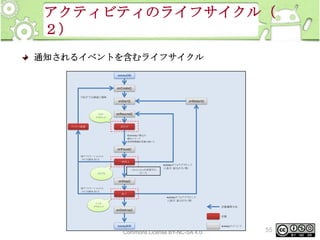
アクティビティのライフサイクル(
2)
通知されるイベントを含むライフサイクル
Activity起動

onCreate()
・
"戻る"で元画面に復帰

onStart()

フ ア
ォ
グラ
ウンド

プ
ロセス破棄

onRestart()

onResume()

実行中
・
他Activityの割込み
・
端末スリ
ープ
・
長時間無操作状態が続いた

onPause()
・
他アプリ
ケーショ
ンから
メ を
モリ 要求さ
れる

一時停止
・
Activityがフ アグラ
ォ
ウンド

ビジブル

・ ・Activityが非表示に
他Activityの割込み
なった
・
長時間無操作状態が続いた

に表示(
戻るボタ
ン等)

onStop()
・
他アプリ
ケーショ
ンから
メ を
モリ 要求さ
れる

終了
・
Activityがフ アグラ
ォ
ウンド

に表示(
戻るボタ
ン等)
バッ
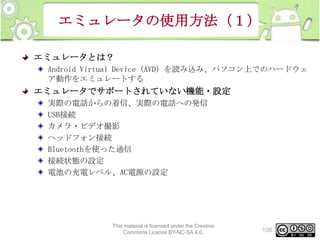
ク
グラ
ウンド

状態遷移方向

onDestroy()
状態
Activity破棄
This material is licensed under the Creative
Commons License BY-NC-SA 4.0.

Activityのイ
ベント

55
アクティビティのライフサイクル(
3)
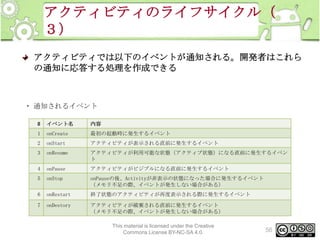
アクティビティでは以下のイベントが通知される。開発者はこれら
の通知に応答する処理を作成できる

・ 通知されるイベント
#

イベント名

内容

1

onCreate

最初の起動時に発生するイベント

2

onStart

アクティビティが表示される直前に発生するイベント

3

onResume

アクティビティが利用可能な状態(アクティブ状態)になる直前に発生するイベン
ト

4

onPause

アクティビティがビジブルになる直前に発生するイベント

5

onStop

onPauseの後、Activityが非表示の状態になった場合に発生するイベント
(メモリ不足の際、イベントが発生しない場合がある)

6

onRestart

終了状態のアクティビティが再度表示される際に発生するイベント

7

onDestory

アクティビティが破棄される直前に発生するイベント
(メモリ不足の際、イベントが発生しない場合がある)
This material is licensed under the Creative
Commons License BY-NC-SA 4.0.

56
アクティビティのライフサイクル(
4)
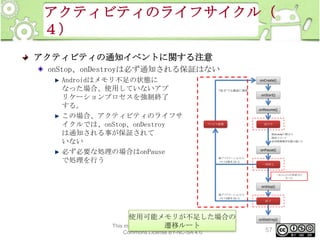
アクティビティの通知イベントに関する注意
onStop、onDestroyは必ず通知される保証はない
Androidはメモリ不足の状態に
なった場合、使用していないアプ
リケーションプロセスを強制終了
する。
この場合、アクティビティのライフサ
イクルでは、onStop、onDestroy
は通知される事が保証されて
いない
必ず必要な処理の場合はonPause
で処理を行う

onCreate()
・
"戻る"で元画面に復帰

onStart()

onResume()

プロセス破棄

実行中
・
他Activityの割込み
・
端末スリ
ープ
・
長時間無操作状態が続いた

onPause()
・
他アプリ
ケーショ
ンから
メ を
モリ 要求さ
れる

一時停止
・ ・Activityが非表示に
他Activityの割込み
なった
・
長時間無操作状態が続いた

onStop()
・
他アプリ
ケーショ
ンから
メ を
モリ 要求さ
れる

使用可能メモリが不足した場合の
This material is licensed under the Creative
遷移ルート
Commons License BY-NC-SA 4.0.

終了

onDestroy()

57
この章のまとめ
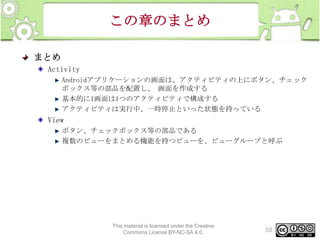
まとめ
Activity
Androidアプリケーションの画面は、アクティビティの上にボタン、チェック
ボックス等の部品を配置し、 画面を作成する
基本的に1画面は1つのアクティビティで構成する
アクティビティは実行中、一時停止といった状態を持っている

View
ボタン、チェックボックス等の部品である
複数のビューをまとめる機能を持つビューを、ビューグループと呼ぶ

This material is licensed under the Creative
Commons License BY-NC-SA 4.0.

58
この章のまとめ
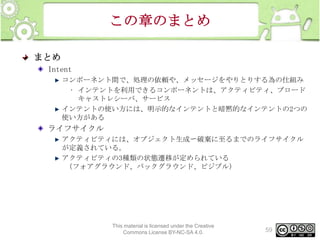
まとめ
Intent
コンポーネント間で、処理の依頼や、メッセージをやりとりする為の仕組み
• インテントを利用できるコンポーネントは、アクティビティ、ブロード
キャストレシーバ、サービス
インテントの使い方には、明示的なインテントと暗黙的なインテントの2つの
使い方がある

ライフサイクル
アクティビティには、オブジェクト生成〜破棄に至るまでのライフサイクル
が定義されている。
アクティビティの3種類の状態遷移が定められている
(フォアグラウンド、バックグラウンド、ビジブル)

This material is licensed under the Creative
Commons License BY-NC-SA 4.0.

59
3. 開発環境の準備
概要
開発環境の構築
別ドキュメント「開発環境の構築」を参照

エミュレータの作成
別ドキュメント「エミュレータの作成」を参照

環境変数の登録
別ドキュメント「環境変数の登録」を参照

This material is licensed under the Creative
Commons License BY-NC-SA 4.0.

61
4. 開発ツールの使い方
概要
HelloWorldアプリケーションの作成を通じて、開発ツールの操作方
法を習得する
Android Development Tools(ADT)
エミュレータ、 Android Virtual Device (AVD)
Dalvik Debug Monitor Services (DDMS)

This material is licensed under the Creative
Commons License BY-NC-SA 4.0.

63
ADT
Android Development Tools(ADT)とは?
AndroidアプリケーションをEclipseで開発する為のPlug-in

ADTが提供する機能
Androidプロジェクトの作成
Androidアプリケーションの実行・デバッグ
リソースファイルの作成支援
リソースファイルについては本節で解説

This material is licensed under the Creative
Commons License BY-NC-SA 4.0.

64
Hello Worldの表示
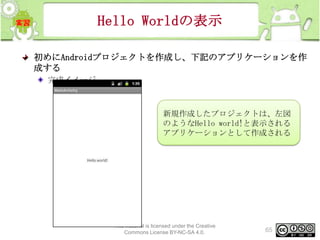
初めにAndroidプロジェクトを作成し、下記のアプリケーションを作
成する
完成イメージ

新規作成したプロジェクトは、左図
のようなHello world!と表示される
アプリケーションとして作成される

This material is licensed under the Creative
Commons License BY-NC-SA 4.0.

65
プロジェクトの作成(1)
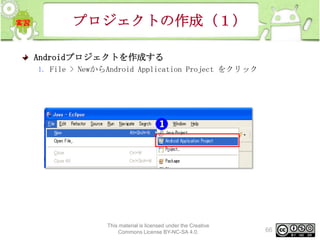
Androidプロジェクトを作成する
1. File > NewからAndroid Application Project をクリック

This material is licensed under the Creative
Commons License BY-NC-SA 4.0.

66
プロジェクトの作成(2)
2. [New Android Application]画面の設定
Apllication の設定情報を以下にし、Nextボタンをクリック

Propertiesの各項目に以下を入力する
項目

設定値

Application
Name

HelloWorld

Project Name

HelloWorld

Package Name

jp.oesf.tutori
al

Minimum Required SDK

API 10

Target SDK

API 10

Compile
This material is licensed under the Creative
Commons License BY-NC-SA 4.0.

With

Theme

67

API 10
None
プロジェクトの作成(3)
3. [New Android Application]画面の設定
Create Custom launcher iconのチェックを外し、Nextボタンをクリック

チェックを外す

This material is licensed under the Creative
Commons License BY-NC-SA 4.0.

68
プロジェクトの作成(4)
4. [Create Activity]画面の設定
Create Activityにチェックし、Blank Activityを選択後にNextボタンをクリ
ックする

This material is licensed under the Creative
Commons License BY-NC-SA 4.0.

69
プロジェクトの作成(5)
5. [New Blank Activity]画面の設定
Finishボタンをクリックする

This material is licensed under the Creative
Commons License BY-NC-SA 4.0.

70
アプリケーションの実行
6. Android Projectが生成され、下図(上)のように表示される
7. Package ExplorerからHelloWorldプロジェクトを選択し、右クリックし
、[Run As]-[Android Application]を選択する

This material is licensed under the Creative
Commons License BY-NC-SA 4.0.

71
実行画面の確認
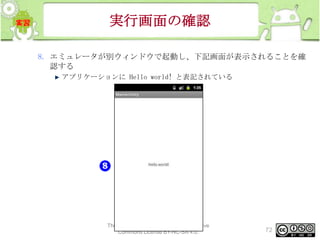
8. エミュレータが別ウィンドウで起動し、下記画面が表示されることを確
認する
アプリケーションに Hello world! と表記されている

This material is licensed under the Creative
Commons License BY-NC-SA 4.0.

72
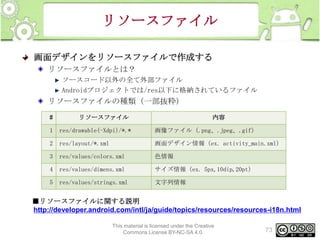
リソースファイル
画面デザインをリソースファイルで作成する
リソースファイルとは?
ソースコード以外の全て外部ファイル
Androidプロジェクトでは/res以下に格納されているファイル

リソースファイルの種類(一部抜粋)
#

リソースファイル

内容

1

res/drawable(-Xdpi)/*.*

画像ファイル(.png、.jpeg、.gif)

2

res/layout/*.xml

画面デザイン情報(ex. activity_main.xml)

3

res/values/colors.xml

色情報

4

res/values/dimens.xml

サイズ情報(ex. 5px,10dip,20pt)

5

res/values/strings.xml

文字列情報

■リソースファイルに関する説明
http://developer.android.com/intl/ja/guide/topics/resources/resources-i18n.html
This material is licensed under the Creative
Commons License BY-NC-SA 4.0.

73
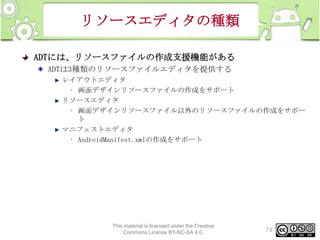
リソースエディタの種類
ADTには、リソースファイルの作成支援機能がある
ADTは3種類のリソースファイルエディタを提供する
レイアウトエディタ
• 画面デザインリソースファイルの作成をサポート
リソースエディタ
• 画面デザインリソースファイル以外のリソースファイルの作成をサポー
ト
マニフェストエディタ
• AndroidManifest.xmlの作成をサポート

This material is licensed under the Creative
Commons License BY-NC-SA 4.0.

74
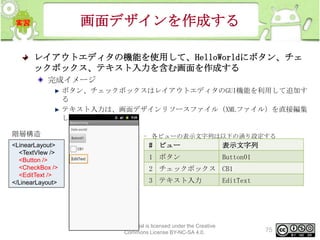
画面デザインを作成する
レイアウトエディタの機能を使用して、HelloWorldにボタン、チェ
ックボックス、テキスト入力を含む画面を作成する
完成イメージ
ボタン、チェックボックスはレイアウトエディタのGUI機能を利用して追加す
る
テキスト入力は、画面デザインリソースファイル(XMLファイル)を直接編集
して追加する

階層構造
<LinearLayout>
<TextVIew />
<Button />
<CheckBox />
<EditText />
</LinearLayout>

– 各ビューの表示文字列は以下の通り設定する

# ビュー

表示文字列

1 ボタン

Button01

2 チェックボックス CB1
3 テキスト入力

This material is licensed under the Creative
Commons License BY-NC-SA 4.0.

EditText

75
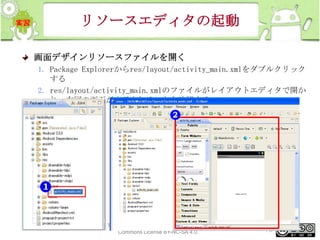
リソースエディタの起動
画面デザインリソースファイルを開く
1. Package Explorerからres/layout/activity_main.xmlをダブルクリック
する
2. res/layout/activity_main.xmlのファイルがレイアウトエディタで開か
れ、右図の画面が表示されることを確認する

This material is licensed under the Creative
Commons License BY-NC-SA 4.0.

76
Viewを追加する
レイアウトエディタのGraphical Layoutタブで、画面デザインにボ
タン、チェックボックスを追加する
1. [Form Widgets]からButtonを選択し、スクリーン上にドラッグ&ドロッ
プする
2. 右図のようにボタンが表示される
3. 同様に、 [Form Widgets]からCheckBoxをスクリーン上にドラッグ&ド
ロップし、表示されることを確認する

ドラッグ&ドロッ
プ
This material is licensed under the Creative
Commons License BY-NC-SA 4.0.

77
Viewの表示テキストを変更する
4. スクリーン上のCheckBoxを選択し、Propertiesビュー上でTextプロパテ
ィを CheckBox から CB1 に変更する
5. 同様にButtonのTextプロパティをButton01に変更する
6. Package ExplorerからHelloWorldプロジェクトを選択し、右クリックし
、[Run As]-[Android Application]を選択する
• ※Propertiesビューの表示方法
• Window>ShowView>Other>General>properties

This material is licensed under the Creative
Commons License BY-NC-SA 4.0.

78
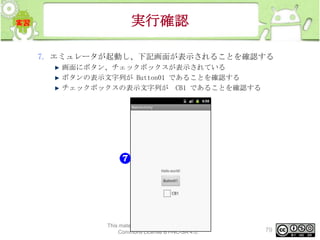
実行確認
7. エミュレータが起動し、下記画面が表示されることを確認する
画面にボタン、チェックボックスが表示されている
ボタンの表示文字列が Button01 であることを確認する
チェックボックスの表示文字列が CB1 であることを確認する

This material is licensed under the Creative
Commons License BY-NC-SA 4.0.

79
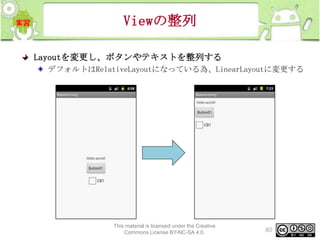
Viewの整列
Layoutを変更し、ボタンやテキストを整列する
デフォルトはRelativeLayoutになっている為、LinearLayoutに変更する

This material is licensed under the Creative
Commons License BY-NC-SA 4.0.

80
Viewの整列(LinearLayout対応
)
LinearLayoutに変更する
1. プレビュー画面上で右クリックし、[Change Layout]を選択
2. New Layout Type を LinearLayout(Vertical)に変更

This material is licensed under the Creative
Commons License BY-NC-SA 4.0.

81
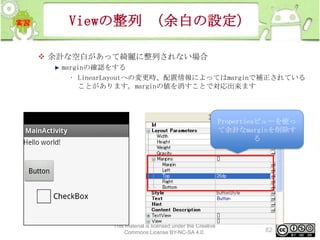
Viewの整列 (余白の設定)
 余計な空白があって綺麗に整列されない場合
marginの確認をする
• LinearLayoutへの変更時、配置情報によってはmarginで補正されている
ことがあります。marginの値を消すことで対応出来ます

Propertiesビューを使っ
て余計なmarginを削除す
る

This material is licensed under the Creative
Commons License BY-NC-SA 4.0.

82
実行確認
3. Package ExplorerからHelloWorldプロジェクトを選択し、右クリック
[Run As]-[Android Application]を選択する
4. エミュレータが起動し、画面デザインが変更されたことを確認する
• ボタンやテキストが垂直方向に配置されているか

This material is licensed under the Creative
Commons License BY-NC-SA 4.0.

83
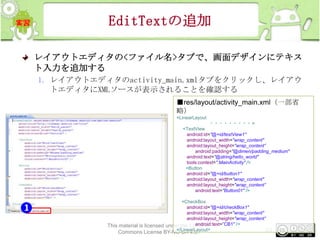
EditTextの追加
レイアウトエディタの<ファイル名>タブで、画面デザインにテキス
ト入力を追加する
1. レイアウトエディタのactivity_main.xmlタブをクリックし、レイアウ
トエディタにXMLソースが表示されることを確認する
■res/layout/activity_main.xml(一部省
略)
<LinearLayout

・・・・・・・・・ >
<TextView
android:id="@+id/textView1"
android:layout_width="wrap_content"
android:layout_height="wrap_content”
android:padding="@dimen/padding_medium"
android:text="@string/hello_world"
tools:context=".MainActivity" />
<Button
android:id="@+id/button1"
android:layout_width="wrap_content"
android:layout_height="wrap_content”
android:text="Button01" />
<CheckBox
android:id="@+id/checkBox1"
android:layout_width="wrap_content"
android:layout_height="wrap_content”
android:text=”CB1" />
This material is licensed under the Creative
</LinearLayout>
84

Commons License BY-NC-SA 4.0.
XMLエディタからEditTextを追加
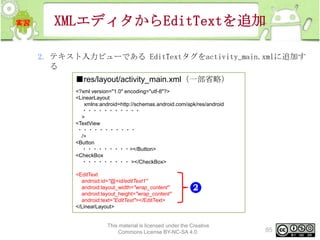
2. テキスト入力ビューである EditTextタグをactivity_main.xmlに追加す
る
■res/layout/activity_main.xml(一部省略)
<?xml version="1.0" encoding="utf-8"?>
<LinearLayout
xmlns:android=http://schemas.android.com/apk/res/android
・・・・・・・・・・・
>
<TextView
・・・・・・・・・・・
/>
<Button
・・・・・・・・・></Button>
<CheckBox
・・・・・・・・・ ></CheckBox>
<EditText
android:id="@+id/editText1"
android:layout_width="wrap_content"
android:layout_height="wrap_content"
android:text="EditText"></EditText>
</LinearLayout>

This material is licensed under the Creative
Commons License BY-NC-SA 4.0.

85
画面プレビューの確認
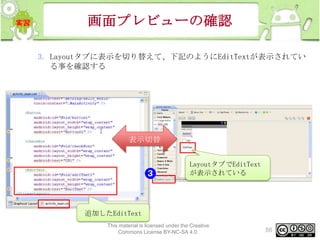
3. Layoutタブに表示を切り替えて、下記のようにEditTextが表示されてい
る事を確認する

表示切替
LayoutタブでEditText
が表示されている

追加したEditText
This material is licensed under the Creative
Commons License BY-NC-SA 4.0.

86
実行確認
4. Package ExplorerからHelloWorldプロジェクトを選択し、右クリック
[Run As]-[Android Application]を選択する
5. エミュレータが起動し、右画面が表示されることを確認する
• テキスト入力が表示されている
• テキスト入力の表示文字列が EditText である

This material is licensed under the Creative
Commons License BY-NC-SA 4.0.

87
リソースファイルの仕組み(1)
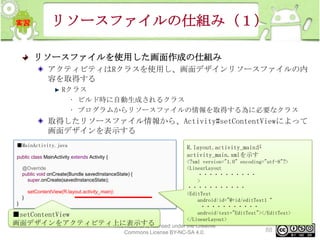
リソースファイルを使用した画面作成の仕組み
アクティビティはRクラスを使用し、画面デザインリソースファイルの内
容を取得する
Rクラス
• ビルド時に自動生成されるクラス
• プログラムからリソースファイルの情報を取得する為に必要なクラス

取得したリソースファイル情報から、Activity#setContentViewによって
画面デザインを表示する
■MainActivity.java
public class MainActivity extends Activity {

R.layout.activity_mainが
activity_main.xmlを示す

<?xml version="1.0" encoding="utf-8"?>
@Override
<LinearLayout
public void onCreate(Bundle savedInstanceState) {
・・・・・・・・・・・
super.onCreate(savedInstanceState);
>
・・・・・・・・・・・
setContentView(R.layout.activity_main);
<EditText
}
android:id="@+id/editText1“
}
・・・・・・・・・・・
android:text="EditText"></EditText>
■setContentView
</LinearLayout>
画面デザインをアクティビティ上に表示する
This material is licensed under the Creative
88
Commons License BY-NC-SA 4.0.
リソースファイルの仕組み(2)
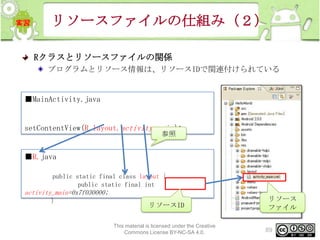
Rクラスとリソースファイルの関係
プログラムとリソース情報は、リソースIDで関連付けられている

■MainActivity.java

setContentView(R.layout.activity_main);
参照

■R.java
public static final class layout {
public static final int

activity_main=0x7f030000;
}

リソースID
This material is licensed under the Creative
Commons License BY-NC-SA 4.0.

リソース
ファイル
89
デザイン以外のリソースを使用す
る
HelloWorldに追加したボタンの表示文字列 Button01を Hello
Button に変更する
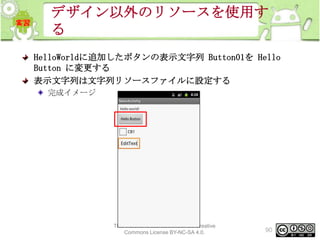
表示文字列は文字列リソースファイルに設定する
完成イメージ

This material is licensed under the Creative
Commons License BY-NC-SA 4.0.

90
文字レスリソースの定義
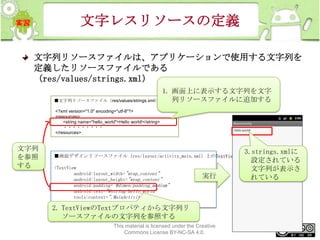
文字列リソースファイルは、アプリケーションで使用する文字列を
定義したリソースファイルである
(res/values/strings.xml)
■文字列リソースファイル(res/values/strings.xml)

1. 画面上に表示する文字列を文字
列リソースファイルに追加する

<?xml version="1.0" encoding="utf-8"?>
<resources>
<string name="hello_world">Hello world!</string>
・・・・・・・・・
</resources>

文字列
を参照
する

■画面デザインリソースファイル(res/layout/activity_main.xml)上のTextView
<TextView
android:layout_width="wrap_content"
android:layout_height="wrap_content"
android:padding="@dimen/padding_medium"
android:text="@string/hello_world"
tools:context=".MainActivity" />

実行

3.strings.xmlに
設定されている
文字列が表示さ
れている

2. TextViewのTextプロパティから文字列リ
ソースファイルの文字列を参照する
This material is licensed under the Creative
Commons License BY-NC-SA 4.0.

91
文字列リソースの追加(1)
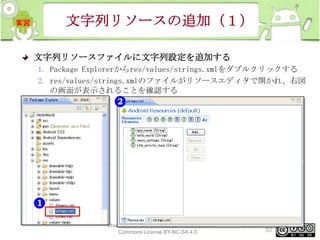
文字列リソースファイルに文字列設定を追加する
1. Package Explorerからres/values/strings.xmlをダブルクリックする
2. res/values/strings.xmlのファイルがリソースエディタで開かれ、右図
の画面が表示されることを確認する

This material is licensed under the Creative
Commons License BY-NC-SA 4.0.

92
文字列リソースの追加(2)
3. Resourcesタブの[Add…]ボタンをクリックし、追加要素の選択画面を表
示する
4. 選択画面から、String を選択し、[OK] ボタンをクリックする

This material is licensed under the Creative
Commons License BY-NC-SA 4.0.

93
文字列リソースの追加(3)
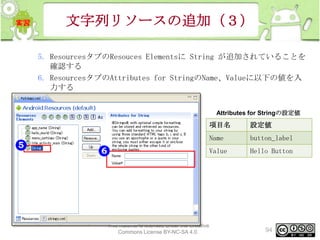
5. ResourcesタブのResouces Elementsに String が追加されていることを
確認する
6. ResourcesタブのAttributes for StringのName、Valueに以下の値を入
力する
Attributes for Stringの設定値

項目名

Name

button_label

Value

This material is licensed under the Creative
Commons License BY-NC-SA 4.0.

設定値

Hello Button

94
文字列リソースの追加(4)
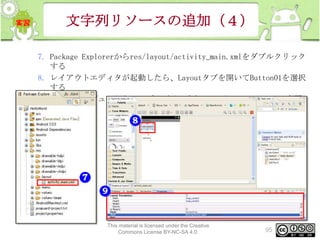
7. Package Explorerからres/layout/activity_main.xmlをダブルクリック
する
8. レイアウトエディタが起動したら、Layoutタブを開いてButton01を選択
する
9. PropertiesビューからTextプロパティを@string/button_label に変更
する

This material is licensed under the Creative
Commons License BY-NC-SA 4.0.

95
文字列リソースの追加(5)
10.Package ExplorerからHelloWorldプロジェクトを選択し、右クリック
[Run As]-[Android Application]を選択する
11.エミュレータが起動し、右画面が表示されることを確認する
ボタンの表示文字列が Hello Button になっている

This material is licensed under the Creative
Commons License BY-NC-SA 4.0.

96
マニフェストファイルを変更する
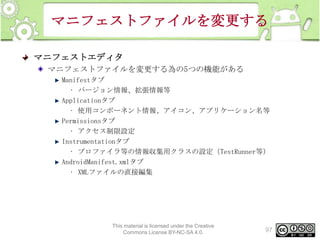
マニフェストエディタ
マニフェストファイルを変更する為の5つの機能がある
Manifestタブ
• バージョン情報、拡張情報等
Applicationタブ
• 使用コンポーネント情報、アイコン、アプリケーション名等
Permissionsタブ
• アクセス制限設定
Instrumentationタブ
• プロファイラ等の情報収集用クラスの設定(TestRunner等)
AndroidManifest.xmlタブ
• XMLファイルの直接編集

This material is licensed under the Creative
Commons License BY-NC-SA 4.0.

97
マニフェストファイルとは
マニフェストファイルとは?
AndroidManifest.xml(アプリケーションに1つ存在)
アプリケーションに関する以下の情報を定義する
アプリケーションのアイコン、タイトルの設定
使用するコンポーネント(Activity、Service等)の定義
コンポーネントの振る舞いに関する定義
アプリケーションのアクセス制限設定
ライブラリの使用設定

■マニフェストファイルに関する説明
http://developer.android.com/intl/ja/guide/topics/manifest/manifest-intro.html

This material is licensed under the Creative
Commons License BY-NC-SA 4.0.

98
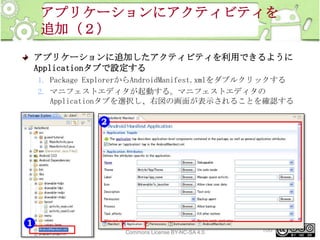
アプリケーションにアクティビティを
追加(1)
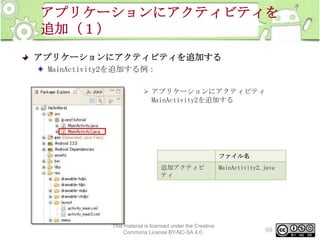
アプリケーションにアクティビティを追加する
MainActivity2を追加する例:
 アプリケーションにアクティビティ
MainActivity2を追加する

ファイル名
追加アクティビ
ティ

This material is licensed under the Creative
Commons License BY-NC-SA 4.0.

MainActivity2.java

99
アプリケーションにアクティビティを
追加(2)
アプリケーションに追加したアクティビティを利用できるように
Applicationタブで設定する
1. Package ExplorerからAndroidManifest.xmlをダブルクリックする
2. マニフェストエディタが起動する。マニフェストエディタの
Applicationタブを選択し、右図の画面が表示されることを確認する

This material is licensed under the Creative
Commons License BY-NC-SA 4.0.

100
アプリケーションにアクティビティを
追加(3)
3. Application Nodesの[Add…]ボタンをクリックし、追加要素の選択画面
を表示する
4. 選択画面から Activity を選択し、[OK]ボタンをクリックする

This material is licensed under the Creative
Commons License BY-NC-SA 4.0.

101
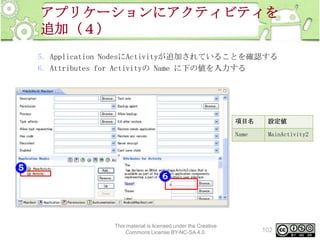
アプリケーションにアクティビティを
追加(4)
5. Application NodesにActivityが追加されていることを確認する
6. Attributes for Activityの Name に下の値を入力する

項目名
Name

This material is licensed under the Creative
Commons License BY-NC-SA 4.0.

設定値
MainActivity2

102
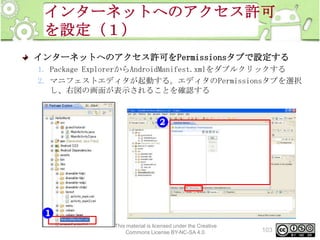
インターネットへのアクセス許可
を設定(1)
インターネットへのアクセス許可をPermissionsタブで設定する
1. Package ExplorerからAndroidManifest.xmlをダブルクリックする
2. マニフェストエディタが起動する。エディタのPermissionsタブを選択
し、右図の画面が表示されることを確認する

This material is licensed under the Creative
Commons License BY-NC-SA 4.0.

103
インターネットへのアクセス許可を
設定(2)
3. Permissionsの[Add…]ボタンをクリックし、追加要素の選択画面を表示
する
4. 選択画面から Uses Permission を選択し、[OK]ボタンをクリックする

This material is licensed under the Creative
Commons License BY-NC-SA 4.0.

104
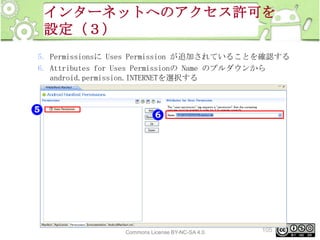
インターネットへのアクセス許可を
設定(3)
5. Permissionsに Uses Permission が追加されていることを確認する
6. Attributes for Uses Permissionの Name のプルダウンから
android.permission.INTERNETを選択する

This material is licensed under the Creative
Commons License BY-NC-SA 4.0.

105
エミュレータの使用方法(1)
エミュレータとは?
Android Virtual Device(AVD)を読み込み、パソコン上でのハードウェ
ア動作をエミュレートする

エミュレータでサポートされていない機能・設定
実際の電話からの着信、実際の電話への発信
USB接続
カメラ・ビデオ撮影
ヘッドフォン接続
Bluetoothを使った通信
接続状態の設定
電池の充電レベル、AC電源の設定

This material is licensed under the Creative
Commons License BY-NC-SA 4.0.

106
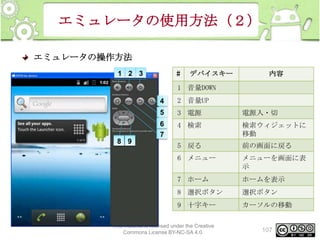
エミュレータの使用方法(2)
エミュレータの操作方法
#

1 2 3

デバイスキー

内容

1 音量DOWN
4

5

3 電源

電源入・切

6
7

4 検索

検索ウィジェットに
移動

5 戻る

前の画面に戻る

6 メニュー

メニューを画面に表
示

7 ホーム

ホームを表示

8 選択ボタン

選択ボタン

9 十字キー

8 9

2 音量UP

カーソルの移動

This material is licensed under the Creative
Commons License BY-NC-SA 4.0.

107
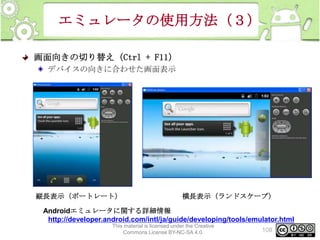
エミュレータの使用方法(3)
画面向きの切り替え(Ctrl + F11)
デバイスの向きに合わせた画面表示

縦長表示(ポートレート)

横長表示(ランドスケープ)

Androidエミュレータに関する詳細情報
http://developer.android.com/intl/ja/guide/developing/tools/emulator.html
This material is licensed under the Creative
Commons License BY-NC-SA 4.0.

108
デバッグツールの使用方法
ADT
Eclipseのデバッグ機能がAndroidアプリケーション開発で利用できる
ブレークポイント
ステップ実行

Dalvik Debug Monitor Services(DDMS)
Android SDK同梱のデバッグツール
以下の機能がある
モニタリング
エミュレータ操作
エミュレータ・ハードウェア内の情報取得

This material is licensed under the Creative
Commons License BY-NC-SA 4.0.

109
DDMSの使用方法
DDMSを起動する
EclipseからDDMSを利用する
Eclipseのメニュー[Window]から[Open Perspective]-[DDMS]を選択する
EclipseのDDMSパースペクティブ

This material is licensed under the Creative
Commons License BY-NC-SA 4.0.

110
DDMSのデバッグ機能
DDMSのデバッグ機能
モニタリング
アプリケーションが出力するログの参照
リソース使用状況の参照

エミュレータへのデータ送信
電話発信
SMS送信
位置情報送信

スクリーンショットの取得
プロセス管理
ガベージコレクション実行
プロセス停止

ファイル操作

This material is licensed under the Creative
Commons License BY-NC-SA 4.0.

111
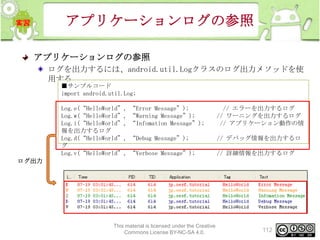
アプリケーションログの参照
アプリケーションログの参照
ログを出力するには、android.util.Logクラスのログ出力メソッドを使
用する
■サンプルコード
import android.util.Log;
Log.e(“HelloWorld”,
Log.w(“HelloWorld”,
Log.i(“HelloWorld”,
報を出力するログ
Log.d(“HelloWorld”,
グ
Log.v(“HelloWorld”,

“Error Message”);
“Warning Message”);
“Infomation Message”);

// エラーを出力するログ
// ワーニングを出力するログ
// アプリケーション動作の情

“Debug Message”);

// デバッグ情報を出力するロ

“Verbose Message”);

// 詳細情報を出力するログ

ログ出力

This material is licensed under the Creative
Commons License BY-NC-SA 4.0.

112
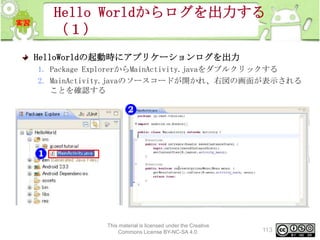
Hello Worldからログを出力する
(1)
HelloWorldの起動時にアプリケーションログを出力
1. Package ExplorerからMainActivity.javaをダブルクリックする
2. MainActivity.javaのソースコードが開かれ、右図の画面が表示される
ことを確認する

This material is licensed under the Creative
Commons License BY-NC-SA 4.0.

113
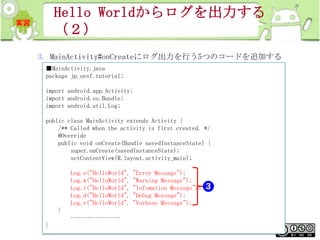
Hello Worldからログを出力する
(2)
3. MainActivity#onCreateにログ出力を行う5つのコードを追加する
■MainActivity.java
package jp.oesf.tutorial;
import android.app.Activity;
import android.os.Bundle;
import android.util.Log;
public class MainActivity extends Activity {
/** Called when the activity is first created. */
@Override
public void onCreate(Bundle savedInstanceState) {
super.onCreate(savedInstanceState);
setContentView(R.layout.activity_main);
Log.e("HelloWorld",
Log.w("HelloWorld",
Log.i("HelloWorld",
Log.d("HelloWorld",
Log.v("HelloWorld",

"Error Message");
"Warning Message");
"Infomation Message");
"Debug Message");
"Verbose Message");

}
……………………

}

This material is licensed under the Creative
Commons License BY-NC-SA 4.0.

114
Hello Worldからログを出力する
(3)
4. Package ExplorerからHelloWorldプロジェクトを選択し、右クリック
[Run As]-[Android Application]を選択する
5. エミュレータが起動し、右画面が表示されることを確認する

This material is licensed under the Creative
Commons License BY-NC-SA 4.0.

115
Hello Worldからログを出力する
(4)
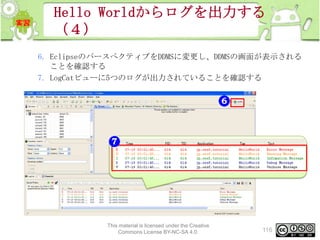
6. EclipseのパースぺクティブをDDMSに変更し、DDMSの画面が表示される
ことを確認する
7. LogCatビューに5つのログが出力されていることを確認する

This material is licensed under the Creative
Commons License BY-NC-SA 4.0.

116
この章のまとめ
まとめ(1/2)
Android Development Tools(ADT)
AndroidアプリケーションをEclipseで開発する為のPlug-in
Eclipseのデバッグ機能がAndroidアプリケーション開発で利用できる
• ブレークポイント
• ステップ実行
以下の機能がある
• Androidプロジェクトの作成
• Androidアプリケーションの実行・デバッグ
• リソースファイルの作成支援
– ADTは3種類のリソースファイルエディタを提供する

This material is licensed under the Creative
Commons License BY-NC-SA 4.0.

117
この章のまとめ
まとめ(2/2)
エミュレータ、 Android Virtual Device (AVD)
Android Virtual Device(AVD)を読み込み、パソコン上でのハードウェア動
作をエミュレートする

Dalvik Debug Monitor Services (DDMS)
Android SDK同梱のデバッグツール
以下の機能がある
• モニタリング
• エミュレータ操作
• エミュレータ・ハードウェア内の情報取得

This material is licensed under the Creative
Commons License BY-NC-SA 4.0.

118
5. ユーザーインタフェース
概要
本章では以下の内容について学習します
View

※1日コースでは(*)は省略します

TextView (*)
EditText (*)
Button
CheckBox
ImageView
ProgressBar
WebView

View Group
LinearLayout
FrameLayout (*)
RelativeLayout (*)

OptionMenu
Toast
AlertDialog (*)
まとめ課題 (*)

This material is licensed under the Creative
Commons License BY-NC-SA 4.0.

120
View
Viewとは
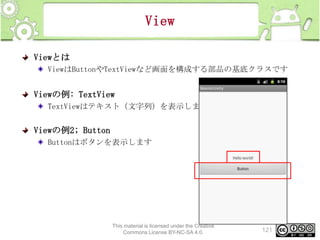
ViewはButtonやTextViewなど画面を構成する部品の基底クラスです

Viewの例: TextView
TextViewはテキスト(文字列)を表示します

Viewの例2; Button
Buttonはボタンを表示します

This material is licensed under the Creative
Commons License BY-NC-SA 4.0.

121
TextView(1)
TextViewとは
TextView は文字通り「テキスト(文字列)を表示する為のクラス」です
。文字列のサイズや文字列のカラーなど変更する事が可能

TextViewにテキストを表示する
[Hello,Android!!]とテキストを表示しましょう

This material is licensed under the Creative
Commons License BY-NC-SA 4.0.

122
TextView(2)
TextViewの追加
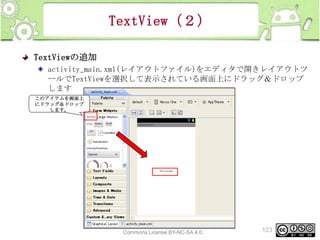
activity_main.xml(レイアウトファイル)をエディタで開きレイアウトツ
ールでTextViewを選択して表示されている画面上にドラッグ&ドロップ
します
このアイテムを画面上
にドラッグ&ドロップ
します。

This material is licensed under the Creative
Commons License BY-NC-SA 4.0.

123
TextView(3)
Stringリソースの追加
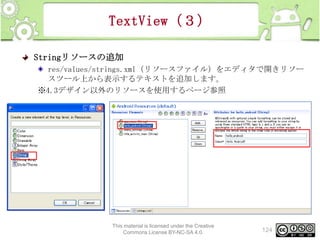
res/values/strings.xml(リソースファイル)をエディタで開きリソー
スツール上から表示するテキストを追加します。
※4.3デザイン以外のリソースを使用するページ参照

This material is licensed under the Creative
Commons License BY-NC-SA 4.0.

124
TextView(4)
配置したTextViewへ初期表示テキストを定義
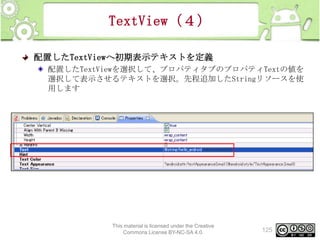
配置したTextViewを選択して、プロパティタブのプロパティTextの値を
選択して表示させるテキストを選択。先程追加したStringリソースを使
用します

This material is licensed under the Creative
Commons License BY-NC-SA 4.0.

125
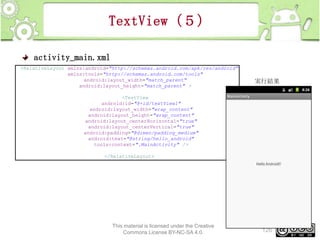
TextView(5)
activity_main.xml
<RelativeLayout xmlns:android="http://schemas.android.com/apk/res/android"
xmlns:tools="http://schemas.android.com/tools"
android:layout_width="match_parent"
android:layout_height="match_parent" >

実行結果

<TextView
android:id="@+id/textView1"
android:layout_width="wrap_content"
android:layout_height="wrap_content"
android:layout_centerHorizontal="true"
android:layout_centerVertical="true"
android:padding="@dimen/padding_medium"
android:text="@string/hello_android"
tools:context=".MainActivity" />

</RelativeLayout>

This material is licensed under the Creative
Commons License BY-NC-SA 4.0.

126
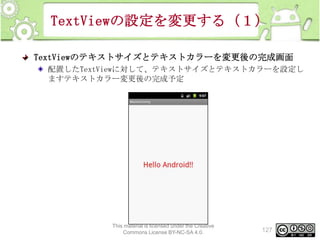
TextViewの設定を変更する(1)
TextViewのテキストサイズとテキストカラーを変更後の完成画面
配置したTextViewに対して、テキストサイズとテキストカラーを設定し
ますテキストカラー変更後の完成予定

This material is licensed under the Creative
Commons License BY-NC-SA 4.0.

127
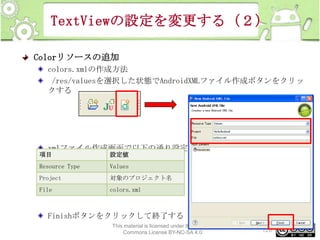
TextViewの設定を変更する(2)
Colorリソースの追加
colors.xmlの作成方法
/res/valuesを選択した状態でAndroidXMLファイル作成ボタンをクリッ
クする

xmlファイル作成画面で以下の通り設定

項目

設定値

Resource Type

Values

Project

対象のプロジェクト名

File

colors.xml

Finishボタンをクリックして終了する
This material is licensed under the Creative
Commons License BY-NC-SA 4.0.

128
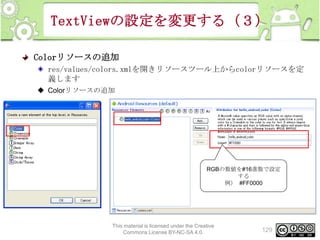
TextViewの設定を変更する(3)
Colorリソースの追加
res/values/colors.xmlを開きリソースツール上からcolorリソースを定
義します
◆ Colorリソースの追加

RGBの数値を#16進数で設定
する
例) #FF0000

This material is licensed under the Creative
Commons License BY-NC-SA 4.0.

129
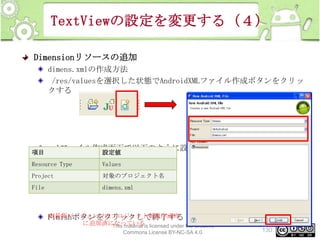
TextViewの設定を変更する(4)
Dimensionリソースの追加
dimens.xmlの作成方法
/res/valuesを選択した状態でAndroidXMLファイル作成ボタンをクリッ
クする

項目

xmlファイル作成画面で以下のように設定する
設定値

Resource Type

Values

Project

対象のプロジェクト名

File

dimens.xml

※最新バージョンではプロジェクト新規作成時
Finishボタンをクリックして終了する

に追加済になっているis licensed under the Creative
This material
Commons License BY-NC-SA 4.0.

130
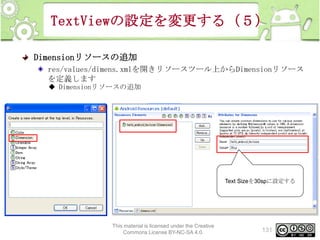
TextViewの設定を変更する(5)
Dimensionリソースの追加
res/values/dimens.xmlを開きリソースツール上からDimensionリソース
を定義します
◆ Dimensionリソースの追加

Text Sizeを30spに設定する

This material is licensed under the Creative
Commons License BY-NC-SA 4.0.

131
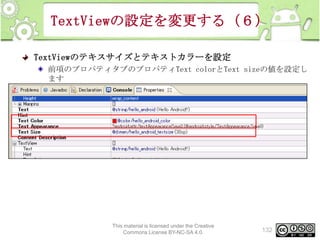
TextViewの設定を変更する(6)
TextViewのテキスサイズとテキストカラーを設定
前項のプロパティタブのプロパティText colorとText sizeの値を設定し
ます

This material is licensed under the Creative
Commons License BY-NC-SA 4.0.

132
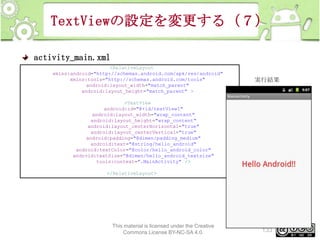
TextViewの設定を変更する(7)
activity_main.xml
<RelativeLayout
xmlns:android="http://schemas.android.com/apk/res/android"
xmlns:tools="http://schemas.android.com/tools"
android:layout_width="match_parent"
android:layout_height="match_parent" >

実行結果

<TextView
android:id="@+id/textView1"
android:layout_width="wrap_content"
android:layout_height="wrap_content"
android:layout_centerHorizontal="true"
android:layout_centerVertical="true"
android:padding="@dimen/padding_medium"
android:text="@string/hello_android"
android:textColor="@color/hello_android_color"
android:textSize=”@dimen/hello_android_textsize"
tools:context=".MainActivity" />
</RelativeLayout>

This material is licensed under the Creative
Commons License BY-NC-SA 4.0.

133
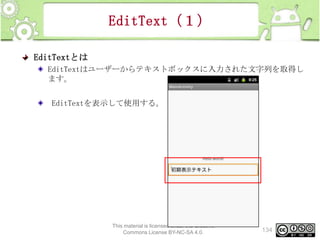
EditText(1)
EditTextとは
EditTextはユーザーからテキストボックスに入力された文字列を取得し
ます。
EditTextを表示して使用する。

This material is licensed under the Creative
Commons License BY-NC-SA 4.0.

134
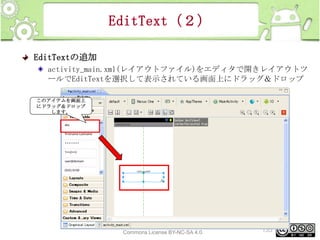
EditText(2)
EditTextの追加
activity_main.xml(レイアウトファイル)をエディタで開きレイアウトツ
ールでEditTextを選択して表示されている画面上にドラッグ&ドロップ
このアイテムを画面上
にドラッグ&ドロップ
します。

This material is licensed under the Creative
Commons License BY-NC-SA 4.0.

135
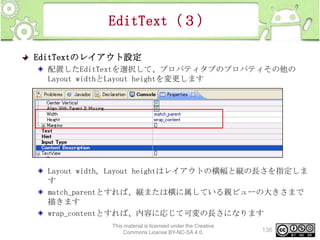
EditText(3)
EditTextのレイアウト設定
配置したEditTextを選択して、プロパティタブのプロパティその他の
Layout widthとLayout heightを変更します

Layout width, Layout heightはレイアウトの横幅と縦の長さを指定しま
す
match_parentとすれば、縦または横に属している親ビューの大きさまで
描きます
wrap_contentとすれば、内容に応じて可変の長さになります
This material is licensed under the Creative
Commons License BY-NC-SA 4.0.

136
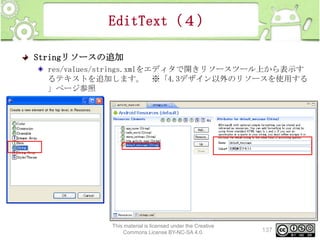
EditText(4)
Stringリソースの追加
res/values/strings.xmlをエディタで開きリソースツール上から表示す
るテキストを追加します。 ※「4.3デザイン以外のリソースを使用する
」ページ参照

This material is licensed under the Creative
Commons License BY-NC-SA 4.0.

137
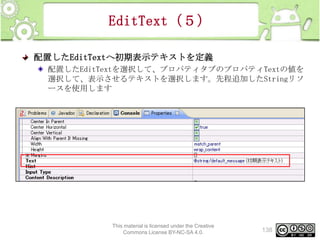
EditText(5)
配置したEditTextへ初期表示テキストを定義
配置したEditTextを選択して、プロパティタブのプロパティTextの値を
選択して、表示させるテキストを選択します。先程追加したStringリソ
ースを使用します

This material is licensed under the Creative
Commons License BY-NC-SA 4.0.

138
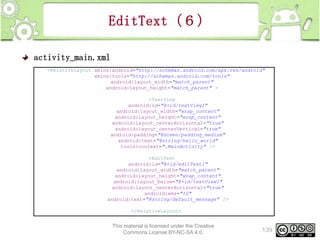
EditText(6)
activity_main.xml
<RelativeLayout xmlns:android="http://schemas.android.com/apk/res/android"
xmlns:tools="http://schemas.android.com/tools"
android:layout_width="match_parent"
android:layout_height="match_parent" >
<TextView
android:id="@+id/textView1"
android:layout_width="wrap_content"
android:layout_height="wrap_content"
android:layout_centerHorizontal="true"
android:layout_centerVertical="true"
android:padding="@dimen/padding_medium"
android:text="@string/hello_world"
tools:context=".MainActivity" />
<EditText
android:id="@+id/editText1"
android:layout_width="match_parent"
android:layout_height="wrap_content"
android:layout_below="@+id/textView1"
android:layout_centerHorizontal="true"
android:ems="10"
android:text="@string/default_message" />
</RelativeLayout>

This material is licensed under the Creative
Commons License BY-NC-SA 4.0.

139
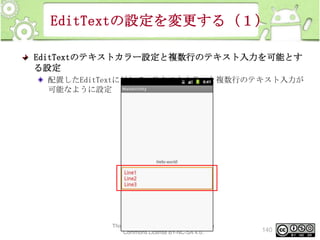
EditTextの設定を変更する(1)
EditTextのテキストカラー設定と複数行のテキスト入力を可能とす
る設定
配置したEditTextに対して、テキストカラーと複数行のテキスト入力が
可能なように設定

This material is licensed under the Creative
Commons License BY-NC-SA 4.0.

140
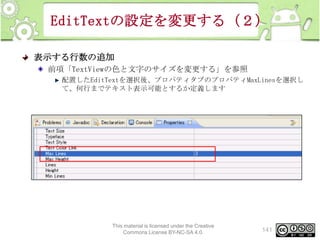
EditTextの設定を変更する(2)
表示する行数の追加
前項「TextViewの色と文字のサイズを変更する」を参照
配置したEditTextを選択後、プロパティタブのプロパティMaxLinesを選択し
て、何行までテキスト表示可能とするか定義します

This material is licensed under the Creative
Commons License BY-NC-SA 4.0.

141
EditTextの設定を変更する(3)
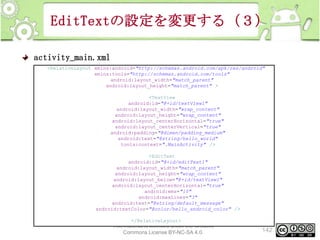
activity_main.xml
<RelativeLayout xmlns:android="http://schemas.android.com/apk/res/android"
xmlns:tools="http://schemas.android.com/tools"
android:layout_width="match_parent"
android:layout_height="match_parent" >
<TextView
android:id="@+id/textView1"
android:layout_width="wrap_content"
android:layout_height="wrap_content"
android:layout_centerHorizontal="true"
android:layout_centerVertical="true"
android:padding="@dimen/padding_medium"
android:text="@string/hello_world"
tools:context=".MainActivity" />
<EditText
android:id="@+id/editText1"
android:layout_width="match_parent"
android:layout_height="wrap_content"
android:layout_below="@+id/textView1"
android:layout_centerHorizontal="true"
android:ems="10"
android:maxLines="3"
android:text="@string/default_message"
android:textColor="@color/hello_android_color" />
</RelativeLayout>

This material is licensed under the Creative
Commons License BY-NC-SA 4.0.

142
Button(1)
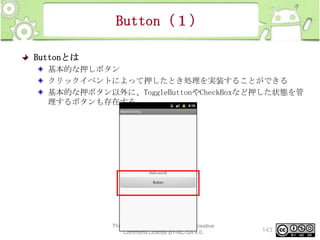
Buttonとは
基本的な押しボタン
クリックイベントによって押したとき処理を実装することができる
基本的な押ボタン以外に、ToggleButtonやCheckBoxなど押した状態を管
理するボタンも存在する

This material is licensed under the Creative
Commons License BY-NC-SA 4.0.

143
Button(2)
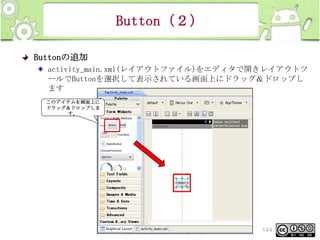
Buttonの追加
activity_main.xml(レイアウトファイル)をエディタで開きレイアウトツ
ールでButtonを選択して表示されている画面上にドラッグ&ドロップし
ます
このアイテムを画面上に
ドラッグ&ドロップしま
す。

This material is licensed under the Creative
Commons License BY-NC-SA 4.0.

144
Button(3)
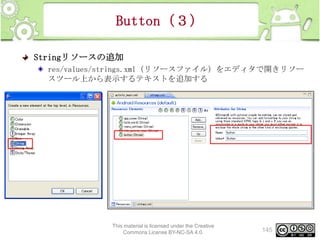
Stringリソースの追加
res/values/strings.xml(リソースファイル)をエディタで開きリソー
スツール上から表示するテキストを追加する

This material is licensed under the Creative
Commons License BY-NC-SA 4.0.

145
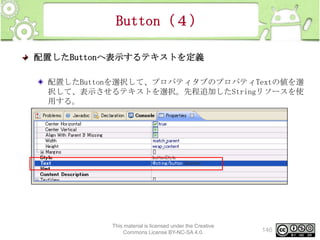
Button(4)
配置したButtonへ表示するテキストを定義
配置したButtonを選択して、プロパティタブのプロパティTextの値を選
択して、表示させるテキストを選択。先程追加したStringリソースを使
用する。

This material is licensed under the Creative
Commons License BY-NC-SA 4.0.

146
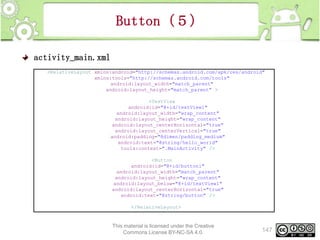
Button(5)
activity_main.xml
<RelativeLayout xmlns:android="http://schemas.android.com/apk/res/android"
xmlns:tools="http://schemas.android.com/tools"
android:layout_width="match_parent"
android:layout_height="match_parent" >
<TextView
android:id="@+id/textView1"
android:layout_width="wrap_content"
android:layout_height="wrap_content"
android:layout_centerHorizontal="true"
android:layout_centerVertical="true"
android:padding="@dimen/padding_medium"
android:text="@string/hello_world"
tools:context=".MainActivity" />
<Button
android:id="@+id/button1"
android:layout_width="match_parent"
android:layout_height="wrap_content"
android:layout_below="@+id/textView1"
android:layout_centerHorizontal="true"
android:text="@string/button" />
</RelativeLayout>

This material is licensed under the Creative
Commons License BY-NC-SA 4.0.

147
Buttonのクリックイベントを取得(
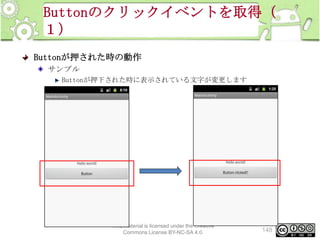
1)
Buttonが押された時の動作
サンプル
Buttonが押下された時に表示されている文字が変更します

This material is licensed under the Creative
Commons License BY-NC-SA 4.0.

148
Buttonのクリックイベントを取得(
2)
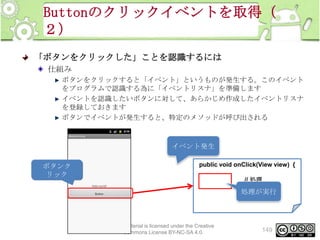
「ボタンをクリックした」ことを認識するには
仕組み
ボタンをクリックすると「イベント」というものが発生する。このイベント
をプログラムで認識する為に「イベントリスナ」を準備します
イベントを認識したいボタンに対して、あらかじめ作成したイベントリスナ
を登録しておきます
ボタンでイベントが発生すると、特定のメソッドが呼び出される

イベント発生
ボタンク
リック

public void onClick(View view) {
// 処理

処理が実行
}

This material is licensed under the Creative
Commons License BY-NC-SA 4.0.

149
Buttonのクリックイベントを取得(
3)
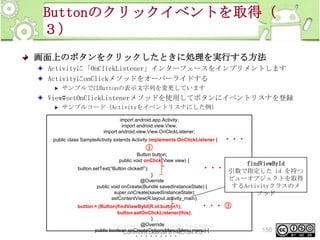
画面上のボタンをクリックしたときに処理を実行する方法
Activityに「OnClickListener」インターフェースをインプリメントします
ActivityにonClickメソッドをオーバーライドする
サンプルではButtonの表示文字列を変更しています

View#setOnClickListenerメソッドを使用してボタンにイベントリスナを登録
サンプルコード(Activityをイベントリスナにした例)
import android.app.Activity;
import android.view.View;
import android.view.View.OnClickListener;
public class SampleActivity extends Activity implements OnClickListener {

・・・

①
Button button;
public void onClick(View view) {
button.setText(“Button clicked!”);

findViewById

・・・ ②
引数で指定した id を持つ

}
@Override
public void onCreate(Bundle savedInstanceState) {
super.onCreate(savedInstanceState);
setContentView(R.layout.activity_main);

button = (Button)findViewById(R.id.button1);
・・・
button.setOnClickListener(this);
}
@Override
This material is licensed under the Creative
public boolean onCreateOptionsMenu(Menu menu) {
Commons License BY-NC-SA 4.0.
・・・・・・・・・

ビューオブジェクトを取得
するActivityクラスのメ
ソッド

③

150
Buttonのクリックイベントを取得(
4)
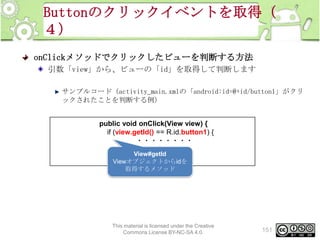
onClickメソッドでクリックしたビューを判断する方法
引数「view」から、ビューの「id」を取得して判断します
サンプルコード(activity_main.xmlの「android:id=@+id/button1」がクリ
ックされたことを判断する例)
public void onClick(View view) {
if (view.getId() == R.id.button1) {
・・・・・・・・
}
View#getId
}
Viewオブジェクトからidを
取得するメソッド

This material is licensed under the Creative
Commons License BY-NC-SA 4.0.

151
Buttonクリック実習(1)
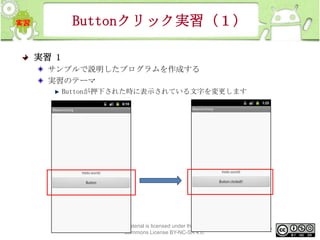
実習 1
サンプルで説明したプログラムを作成する
実習のテーマ
Buttonが押下された時に表示されている文字を変更します

This material is licensed under the Creative
Commons License BY-NC-SA 4.0.

152
Buttonクリック実習(2)
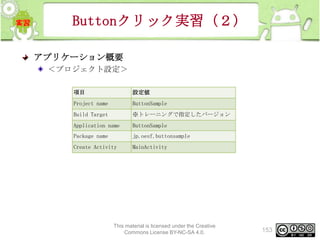
アプリケーション概要
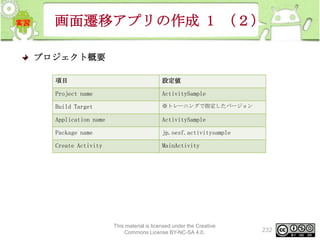
<プロジェクト設定>
項目

設定値

Project name

ButtonSample

Build Target

※トレーニングで指定したバージョン

Application name

ButtonSample

Package name

jp.oesf.buttonsample

Create Activity

MainActivity

This material is licensed under the Creative
Commons License BY-NC-SA 4.0.

153
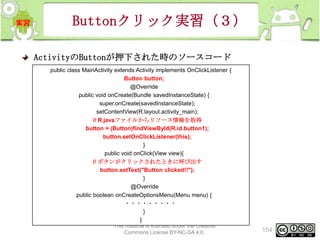
Buttonクリック実習(3)
ActivityのButtonが押下された時のソースコード
public class MainActivity extends Activity implements OnClickListener {
Button button;
@Override
public void onCreate(Bundle savedInstanceState) {
super.onCreate(savedInstanceState);
setContentView(R.layout.activity_main);
// R.javaファイルからリソース情報を取得
button = (Button)findViewById(R.id.button1);
button.setOnClickListener(this);
}
public void onClick(View view){
// ボタンがクリックされたときに呼び出す
button.setText("Button clicked!!");
}
@Override
public boolean onCreateOptionsMenu(Menu menu) {
・・・・・・・・・
}
}
This material is licensed under the Creative
Commons License BY-NC-SA 4.0.

154
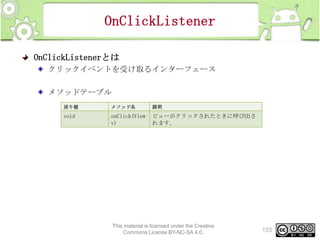
OnClickListener
OnClickListenerとは
クリックイベントを受け取るインターフェース
メソッドテーブル
戻り値

メソッド名

説明

void

onClick(View
v)

ビューがクリックされたときに呼び出さ
れます。

This material is licensed under the Creative
Commons License BY-NC-SA 4.0.

155
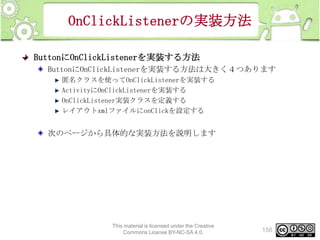
OnClickListenerの実装方法
ButtonにOnClickListenerを実装する方法
ButtonにOnClickListenerを実装する方法は大きく4つあります
匿名クラスを使ってOnClickListenerを実装する
ActivityにOnClickListenerを実装する
OnClickListener実装クラスを定義する
レイアウトxmlファイルにonClickを設定する

次のページから具体的な実装方法を説明します

This material is licensed under the Creative
Commons License BY-NC-SA 4.0.

156
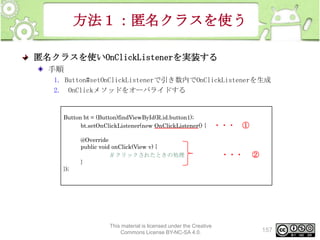
方法1:匿名クラスを使う
匿名クラスを使いOnClickListenerを実装する
手順
1. Button#setOnClickListenerで引き数内でOnClickListenerを生成
2. OnClickメソッドをオーバライドする

Button bt = (Button)findViewById(R.id.button1);
bt.setOnClickListener(new OnClickListener() {
@Override
public void onClick(View v) {
// クリックされたときの処理
}

・・・

①

・・・

②

});

This material is licensed under the Creative
Commons License BY-NC-SA 4.0.

157
方法2:Activityに
OnClickListenerを実装する
ActivityにOnClickListenerを実装する
手順
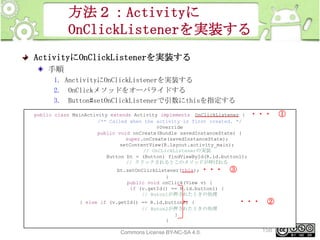
1. AnctivityにOnClickListenerを実装する
2. OnClickメソッドをオーバライドする
3. Button#setOnClickListenerで引数にthisを指定する
public class MainActivity extends Activity implements OnClickListener {
/** Called when the activity is first created. */
@Override
public void onCreate(Bundle savedInstanceState) {
super.onCreate(savedInstanceState);
setContentView(R.layout.activity_main);
// OnCLickListenerの実装
Button bt = (Button) findViewById(R.id.button1);
// クリックされるとこのメソッドが呼ばれる
bt.setOnClickListener(this); ・・・
}
public void onClick(View v) {
if (v.getId() == R.id.button1) {
// Buton1が押されたときの処理
} else if (v.getId() == R.id.button2) {
// Buton2が押されたときの処理
}
}

This material is licensed under the Creative
Commons License BY-NC-SA 4.0.

・・・

③

・・・

②

158

①
方法3:OnClickListener実装クラ
スを定義する
OnClickListenerに実装クラスを定義①
手順
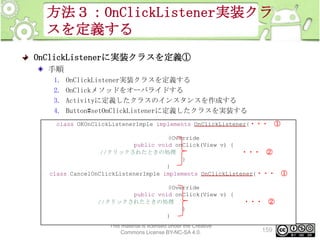
1.
2.
3.
4.

OnClickListener実装クラスを定義する
OnClickメソッドをオーバライドする
Activityに定義したクラスのインスタンスを作成する
Button#setOnClickListenerに定義したクラスを実装する

class OKOnClickListenerImple implements OnClickListener{・・・

①

@Override
public void onClick(View v) {
//クリックされたときの処理
・・・ ②
}
}
class CancelOnClickListenerImple implements OnClickListener{・・・
@Override
public void onClick(View v) {
//クリックされたときの処理
}
}
This material is licensed under the Creative
Commons License BY-NC-SA 4.0.

・・・ ②

159

①
方法3:OnClickListener実装クラ
スを定義する
OnClickListenerに実装クラスを定義②
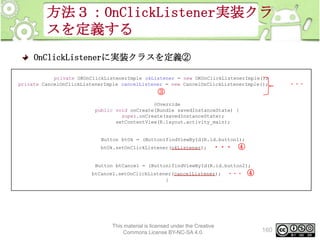
private OKOnClickListenerImple okListener = new OKOnClickListenerImple();
private CancelOnClickListenerImple cancelListener = new CancelOnClickListenerImple();

③
@Override
public void onCreate(Bundle savedInstanceState) {
super.onCreate(savedInstanceState);
setContentView(R.layout.activity_main);

Button btOk = (Button)findViewById(R.id.button1);
btOk.setOnClickListener(okListener);

・・・ ④

Button btCancel = (Button)findViewById(R.id.button2);
btCancel.setOnClickListener(cancelListener);
}

This material is licensed under the Creative
Commons License BY-NC-SA 4.0.

・・・

④

160

・・・
方法4:レイアウトファイルに定義
する
レイアウトxmlファイルにOnClickListenerを設定する
手順
1. レイアウトxmlのonClickに呼び出したいメソッド名を設定します
<Button
android:id="@+id/button1"
android:layout_width="wrap_content"
android:layout_height="wrap_content"
android:layout_below="@+id/textView1"
android:layout_centerHorizontal="true"
android:text="Button"
android:onClick=“onClickButton1” >
</Button>

・・・ ①

2. Activityに1で設定したメソッドを実装します
• 引数にViewを指定する
public void onClickButton1(View v){ ・・・
//Buton01が押されたときの処理
}

This material is licensed under the Creative
Commons License BY-NC-SA 4.0.

②

161
CheckBox(1)
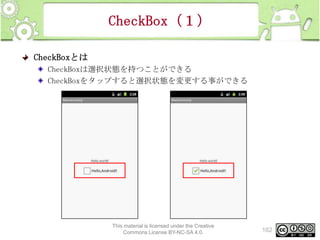
CheckBoxとは
CheckBoxは選択状態を持つことができる
CheckBoxをタップすると選択状態を変更する事ができる

This material is licensed under the Creative
Commons License BY-NC-SA 4.0.

162
CheckBox(2)
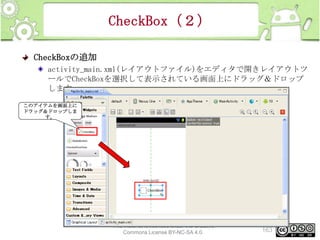
CheckBoxの追加
activity_main.xml(レイアウトファイル)をエディタで開きレイアウトツ
ールでCheckBoxを選択して表示されている画面上にドラッグ&ドロップ
します
このアイテムを画面上に
ドラッグ&ドロップしま
す。

This material is licensed under the Creative
Commons License BY-NC-SA 4.0.

163
CheckBox(3)
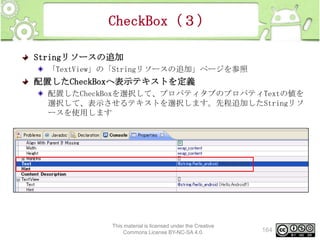
Stringリソースの追加
「TextView」の「Stringリソースの追加」ページを参照

配置したCheckBoxへ表示テキストを定義
配置したCheckBoxを選択して、プロパティタブのプロパティTextの値を
選択して、表示させるテキストを選択します。先程追加したStringリソ
ースを使用します

This material is licensed under the Creative
Commons License BY-NC-SA 4.0.

164
CheckBox(4)
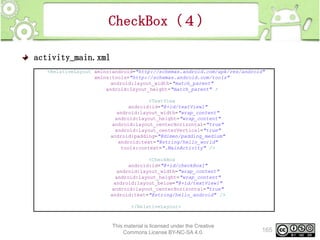
activity_main.xml
<RelativeLayout xmlns:android="http://schemas.android.com/apk/res/android"
xmlns:tools="http://schemas.android.com/tools"
android:layout_width="match_parent"
android:layout_height="match_parent" >
<TextView
android:id="@+id/textView1"
android:layout_width="wrap_content"
android:layout_height="wrap_content"
android:layout_centerHorizontal="true"
android:layout_centerVertical="true"
android:padding="@dimen/padding_medium"
android:text="@string/hello_world"
tools:context=".MainActivity" />
<CheckBox
android:id="@+id/checkBox1"
android:layout_width="wrap_content"
android:layout_height="wrap_content"
android:layout_below="@+id/textView1"
android:layout_centerHorizontal="true"
android:text="@string/hello_android" />
</RelativeLayout>

This material is licensed under the Creative
Commons License BY-NC-SA 4.0.

165
CheckBoxのチェック状態を取得する
(1)
チェック状態の取得方法
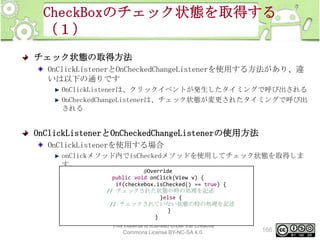
OnClickListenerとOnCheckedChangeListenerを使用する方法があり、違
いは以下の通りです
OnClickListenerは、クリックイベントが発生したタイミングで呼び出される
OnCheckedChangeListenerは、チェック状態が変更されたタイミングで呼び出
される

OnClickListenerとOnCheckedChangeListenerの使用方法
OnClickListenerを使用する場合
onClickメソッド内でisCheckedメソッドを使用してチェック状態を取得しま
す。
@Override
public void onClick(View v) {
if(checkebox.isChecked() == true) {
// チェックされた状態の時の処理を記述
}else {
// チェックされていない状態の時の処理を記述
}
}
This material is licensed under the Creative
Commons License BY-NC-SA 4.0.

166
CheckBoxのチェック状態を取得する
(2)
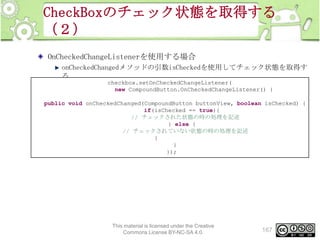
OnCheckedChangeListenerを使用する場合
onCheckedChangedメソッドの引数isCheckedを使用してチェック状態を取得す
る
checkbox.setOnCheckedChangeListener(
new CompoundButton.OnCheckedChangeListener() {

public void onCheckedChanged(CompoundButton buttonView, boolean isChecked) {
if(isChecked == true){
// チェックされた状態の時の処理を記述
} else {
// チェックされていない状態の時の処理を記述
}
}
});

This material is licensed under the Creative
Commons License BY-NC-SA 4.0.

167
ImageView(1)
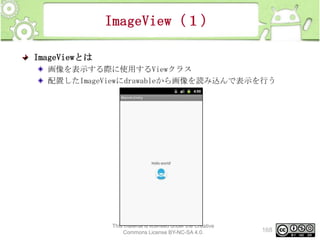
ImageViewとは
画像を表示する際に使用するViewクラス
配置したImageViewにdrawableから画像を読み込んで表示を行う

This material is licensed under the Creative
Commons License BY-NC-SA 4.0.

168
ImageView(2)
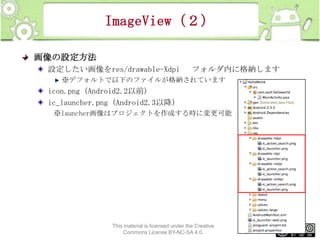
画像の設定方法
設定したい画像をres/drawable-Xdpi

フォルダ内に格納します

※デフォルトで以下のファイルが格納されています

icon.png (Android2.2以前)
ic_launcher.png (Android2.3以降)
※launcher画像はプロジェクトを作成する時に変更可能

This material is licensed under the Creative
Commons License BY-NC-SA 4.0.

169
ImageView(3)
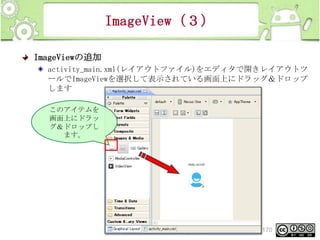
ImageViewの追加
activity_main.xml(レイアウトファイル)をエディタで開きレイアウトツ
ールでImageViewを選択して表示されている画面上にドラッグ&ドロップ
します
このアイテムを
画面上にドラッ
グ&ドロップし
ます。

This material is licensed under the Creative
Commons License BY-NC-SA 4.0.

170
ImageView(4)
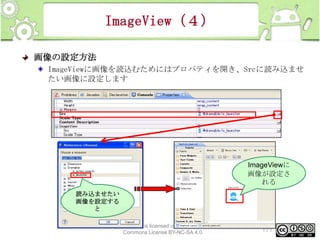
画像の設定方法
ImageViewに画像を読込むためにはプロパティを開き、Srcに読み込ませ
たい画像に設定します

ImageViewに
画像が設定さ
れる
読み込ませたい
画像を設定する
と
This material is licensed under the Creative
Commons License BY-NC-SA 4.0.

171
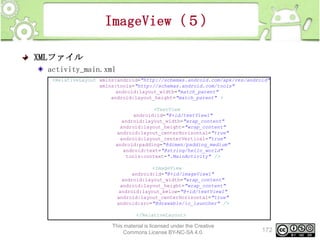
ImageView(5)
XMLファイル
activity_main.xml
<RelativeLayout xmlns:android="http://schemas.android.com/apk/res/android"
xmlns:tools="http://schemas.android.com/tools"
android:layout_width="match_parent"
android:layout_height="match_parent" >
<TextView
android:id="@+id/textView1"
android:layout_width="wrap_content"
android:layout_height="wrap_content"
android:layout_centerHorizontal="true"
android:layout_centerVertical="true"
android:padding="@dimen/padding_medium"
android:text="@string/hello_world"
tools:context=".MainActivity" />
<ImageView
android:id="@+id/imageView1"
android:layout_width="wrap_content"
android:layout_height="wrap_content"
android:layout_below="@+id/textView1"
android:layout_centerHorizontal="true"
android:src="@drawable/ic_launcher" />
</RelativeLayout>

This material is licensed under the Creative
Commons License BY-NC-SA 4.0.

172
ProgressBar(1)
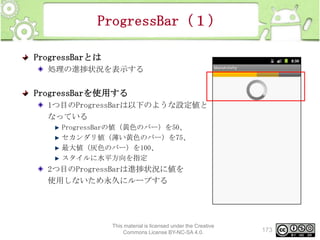
ProgressBarとは
処理の進捗状況を表示する

ProgressBarを使用する
1つ目のProgressBarは以下のような設定値と
なっている
ProgressBarの値(黄色のバー)を50、
セカンダリ値(薄い黄色のバー)を75、
最大値(灰色のバー)を100、
スタイルに水平方向を指定

2つ目のProgressBarは進捗状況に値を
使用しないため永久にループする

This material is licensed under the Creative
Commons License BY-NC-SA 4.0.

173
ProgressBar(2)
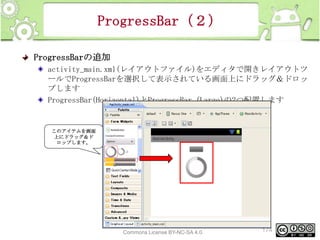
ProgressBarの追加
activity_main.xml(レイアウトファイル)をエディタで開きレイアウトツ
ールでProgressBarを選択して表示されている画面上にドラッグ&ドロッ
プします
ProgressBar(Horizontal)とProgressBar (Large)の2つ配置します

このアイテムを画面
上にドラッグ&ド
ロップします。

This material is licensed under the Creative
Commons License BY-NC-SA 4.0.

174
ProgressBar(3)
ProgressBarのレイアウト設定
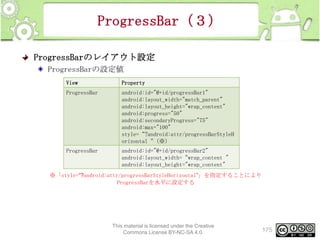
ProgressBarの設定値
View

Property

ProgressBar

android:id="@+id/progressBar1"
android:layout_width="match_parent"
android:layout_height="wrap_content"
android:progress="50"
android:secondaryProgress="75"
android:max="100"
style=“?android:attr/progressBarStyleH
orizontal“(※)

ProgressBar

android:id="@+id/progressBar2"
android:layout_width=“wrap_content "
android:layout_height="wrap_content"

※「style=“?android:attr/progressBarStyleHorizontal”」を指定することにより
ProgressBarを水平に設定する

This material is licensed under the Creative
Commons License BY-NC-SA 4.0.

175
ProgressBar(4)
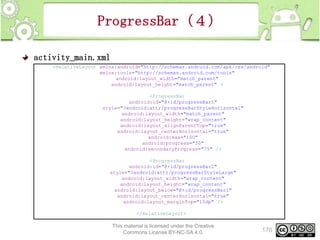
activity_main.xml
<RelativeLayout xmlns:android="http://schemas.android.com/apk/res/android"
xmlns:tools="http://schemas.android.com/tools"
android:layout_width="match_parent"
android:layout_height="match_parent" >
<ProgressBar
android:id="@+id/progressBar1"
style="?android:attr/progressBarStyleHorizontal"
android:layout_width="match_parent"
android:layout_height="wrap_content"
android:layout_alignParentTop="true"
android:layout_centerHorizontal="true"
android:max="100"
android:progress="50"
android:secondaryProgress="75" />
<ProgressBar
android:id="@+id/progressBar2"
style="?android:attr/progressBarStyleLarge"
android:layout_width="wrap_content"
android:layout_height="wrap_content"
android:layout_below="@+id/progressBar1"
android:layout_centerHorizontal="true"
android:layout_marginTop="10dp" />
</RelativeLayout>

This material is licensed under the Creative
Commons License BY-NC-SA 4.0.

176
WebView(1)
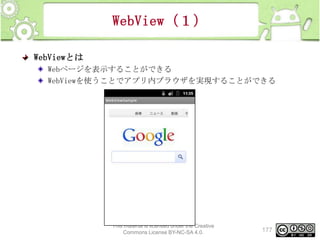
WebViewとは
Webページを表示することができる
WebViewを使うことでアプリ内ブラウザを実現することができる

This material is licensed under the Creative
Commons License BY-NC-SA 4.0.

177
WebView(2)
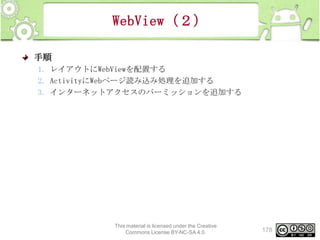
手順
1. レイアウトにWebViewを配置する
2. ActivityにWebページ読み込み処理を追加する
3. インターネットアクセスのパーミッションを追加する

This material is licensed under the Creative
Commons License BY-NC-SA 4.0.

178
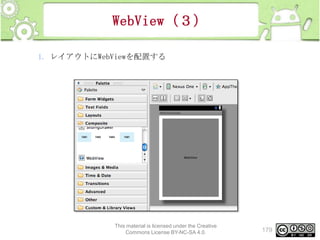
WebView(3)
1. レイアウトにWebViewを配置する

This material is licensed under the Creative
Commons License BY-NC-SA 4.0.

179
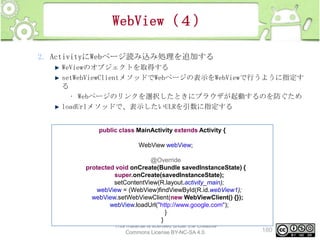
WebView(4)
2. ActivityにWebページ読み込み処理を追加する
WeViewのオブジェクトを取得する
setWebViewClientメソッドでWebページの表示をWebViewで行うように指定す
る
• Webページのリンクを選択したときにブラウザが起動するのを防ぐため
loadUrlメソッドで、表示したいULRを引数に指定する

public class MainActivity extends Activity {
WebView webView;

@Override
protected void onCreate(Bundle savedInstanceState) {
super.onCreate(savedInstanceState);
setContentView(R.layout.activity_main);
webView = (WebView)findViewById(R.id.webView1);
webView.setWebViewClient(new WebViewClient() {});
webView.loadUrl("http://www.google.com");
}
}
This material is licensed under the Creative
Commons License BY-NC-SA 4.0.

180
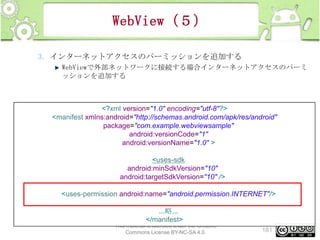
WebView(5)
3. インターネットアクセスのパーミッションを追加する
WebViewで外部ネットワークに接続する場合インターネットアクセスのパーミ
ッションを追加する

<?xml version="1.0" encoding="utf-8"?>
<manifest xmlns:android="http://schemas.android.com/apk/res/android"
package="com.example.webviewsample"
android:versionCode="1"
android:versionName="1.0" >
<uses-sdk
android:minSdkVersion="10"
android:targetSdkVersion="10" />
<uses-permission android:name="android.permission.INTERNET"/>
...略...
</manifest>
This material is licensed under the Creative
Commons License BY-NC-SA 4.0.

181
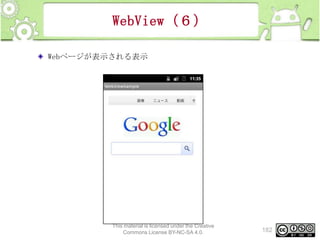
WebView(6)
Webページが表示される表示

This material is licensed under the Creative
Commons License BY-NC-SA 4.0.

182
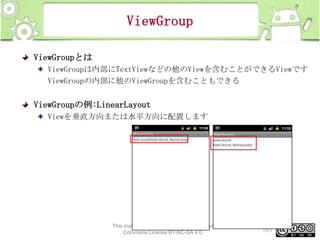
ViewGroup
ViewGroupとは
ViewGroupは内部にTextViewなどの他のViewを含むことができるViewです
ViewGroupの内部に他のViewGroupを含むこともできる

ViewGroupの例:LinearLayout
Viewを垂直方向または水平方向に配置します

This material is licensed under the Creative
Commons License BY-NC-SA 4.0.

183
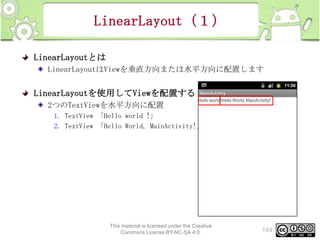
LinearLayout(1)
LinearLayoutとは
LinearLayoutはViewを垂直方向または水平方向に配置します

LinearLayoutを使用してViewを配置する
2つのTextViewを水平方向に配置
1. TextView 「Hello world !」
2. TextView 「Hello World, MainActivity!」

This material is licensed under the Creative
Commons License BY-NC-SA 4.0.

184
LinearLayout(2)
LinearLayoutの変更方法
デフォルトはRelativeLayoutになっている為、LinearLayoutに変更しま
す
プレビュー画面上で右クリックし、[Change Layout]を選択
New Layout Type を LinearLayout(horizontal)に変更

This material is licensed under the Creative
Commons License BY-NC-SA 4.0.

185
LinearLayout(3)
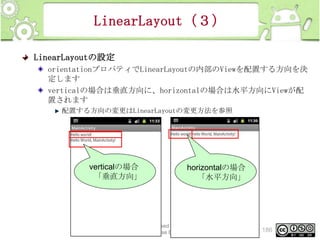
LinearLayoutの設定
orientationプロパティでLinearLayoutの内部のViewを配置する方向を決
定します
verticalの場合は垂直方向に、horizontalの場合は水平方向にViewが配
置されます
配置する方向の変更はLinearLayoutの変更方法を参照

verticalの場合
「垂直方向」

horizontalの場合
「水平方向」

This material is licensed under the Creative
Commons License BY-NC-SA 4.0.

186
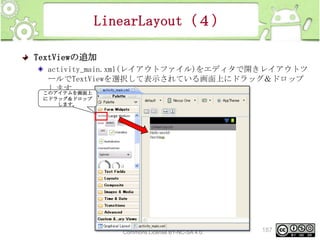
LinearLayout(4)
TextViewの追加
activity_main.xml(レイアウトファイル)をエディタで開きレイアウトツ
ールでTextViewを選択して表示されている画面上にドラッグ&ドロップ
します
このアイテムを画面上
にドラッグ&ドロップ
します。

This material is licensed under the Creative
Commons License BY-NC-SA 4.0.

187
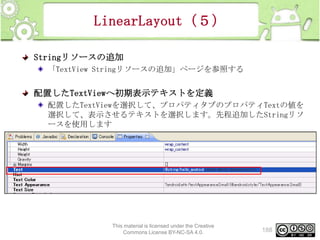
LinearLayout(5)
Stringリソースの追加
「TextView Stringリソースの追加」ページを参照する

配置したTextViewへ初期表示テキストを定義
配置したTextViewを選択して、プロパティタブのプロパティTextの値を
選択して、表示させるテキストを選択します。先程追加したStringリソ
ースを使用します

This material is licensed under the Creative
Commons License BY-NC-SA 4.0.

188
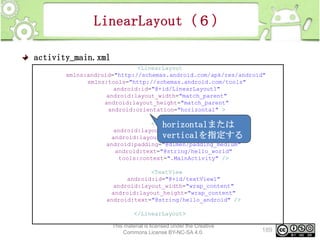
LinearLayout(6)
activity_main.xml
<LinearLayout
xmlns:android="http://schemas.android.com/apk/res/android"
xmlns:tools="http://schemas.android.com/tools"
android:id="@+id/LinearLayout1"
android:layout_width="match_parent"
android:layout_height="match_parent"
android:orientation="horizontal" >
<TextView
horizontalまたは
android:layout_width="wrap_content"
verticalを指定する
android:layout_height="wrap_content"
android:padding="@dimen/padding_medium"
android:text="@string/hello_world"
tools:context=".MainActivity" />
<TextView
android:id="@+id/textView1"
android:layout_width="wrap_content"
android:layout_height="wrap_content"
android:text="@string/hello_android" />
</LinearLayout>
This material is licensed under the Creative
Commons License BY-NC-SA 4.0.

189
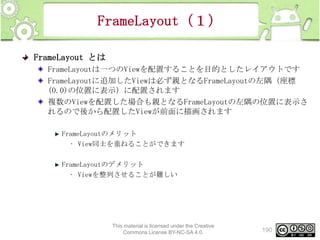
FrameLayout(1)
FrameLayout とは
FrameLayoutは一つのViewを配置することを目的としたレイアウトです
FrameLayoutに追加したViewは必ず親となるFrameLayoutの左隅(座標
(0.0)の位置に表示)に配置されます
複数のViewを配置した場合も親となるFrameLayoutの左隅の位置に表示さ
れるので後から配置したViewが前面に描画されます
FrameLayoutのメリット
• View同士を重ねることができます
FrameLayoutのデメリット
• Viewを整列させることが難しい

This material is licensed under the Creative
Commons License BY-NC-SA 4.0.

190
FrameLayout(2)
FrameLayoutの変更方法
プレビュー画面上で右クリックし、[Change Layout]を選択
New Layout Type を FrameLayoutに変更

This material is licensed under the Creative
Commons License BY-NC-SA 4.0.

191
FrameLayout(3)
FrameLayoutにViewを追加する
[/res/layout/activity_main.xml]を開きViewsリストから配置したい
Viewを選択し画面上にドラッグ&ドロップします

画面上にドラッグ&ドロッ
プ
今回はTextViewを選択しま
す

This material is licensed under the Creative
Commons License BY-NC-SA 4.0.

192
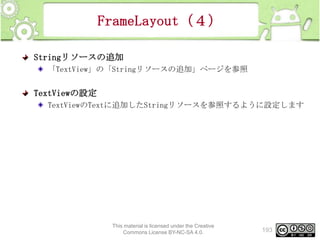
FrameLayout(4)
Stringリソースの追加
「TextView」の「Stringリソースの追加」ページを参照

TextViewの設定
TextViewのTextに追加したStringリソースを参照するように設定します

This material is licensed under the Creative
Commons License BY-NC-SA 4.0.

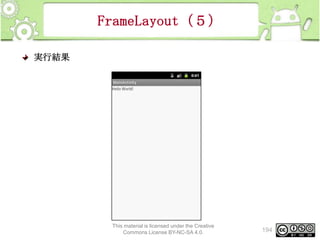
193
FrameLayout(5)
実行結果

This material is licensed under the Creative
Commons License BY-NC-SA 4.0.

194
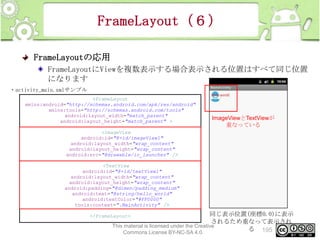
FrameLayout(6)
FrameLayoutの応用
FrameLayoutにViewを複数表示する場合表示される位置はすべて同じ位置
になります
・activity_main.xmlサンプル
<FrameLayout
xmlns:android="http://schemas.android.com/apk/res/android"
xmlns:tools="http://schemas.android.com/tools"
android:layout_width="match_parent"
android:layout_height="match_parent" >

ImageViewとTextViewが
重なっている

<ImageView
android:id="@+id/imageView1"
android:layout_width="wrap_content"
android:layout_height="wrap_content"
android:src="@drawable/ic_launcher" />
<TextView
android:id="@+id/textView1"
android:layout_width="wrap_content"
android:layout_height="wrap_content"
android:padding="@dimen/padding_medium"
android:text="@string/hello_world"
android:textColor="#FF0000"
tools:context=".MainActivity" />

同じ表示位置(座標0.0)に表示
されるため重なって表示され
This material is licensed under the Creative
る 195
Commons License BY-NC-SA 4.0.

</FrameLayout>
RelativeLayout(1)
RelativeLayout とは
RelativeLayoutはView(親)の位置を決め、その位置を元にView(子)
の位置を相対的(Relative)に指定する構成方法です
相対的に参照されるView(親)は 参照するView(子)よりも先に定義
しなくてはいけません
RelativeLayoutのメリット
• 基準となるView(親)の位置を変更するとView(親)を基準として配置
したView(子)の位置も自動的に変更されます
RelativeLayoutのデメリット
• 基準となっているView(親)を削除することができなくなります
※自動追加されるコードは親との位置関係と、自由な座標を補正するための
margin(余白)が設定されています。marginが自動設定されていると、整列
しづらいため削除する必要があります
This material is licensed under the Creative
Commons License BY-NC-SA 4.0.

196
RelativeLayout(2)
RelativeLayoutの追加方法
RelativeLayoutプロジェクトを新規作成した直後の状態で、既に
activity_main.xmlに追加されています

This material is licensed under the Creative
Commons License BY-NC-SA 4.0.

197
RelativeLayout(3)
RelativeLayoutの追加方法
RelativeLayout上に親となるボタンを配置し、緑枠に子要素のボタンを
配置します
親要素

親要素を基準に子要素
を配置

相対に配置する位置のレ
イアウトが表示される

子要素
This material is licensed under the Creative
Commons License BY-NC-SA 4.0.

198
RelativeLayout(4)
RelativeLayoutの追加方法
子要素を配置することで、自動的に相対的な位置を指定するコードが書
かれています

レイアウトエディタに設定した
コードが書かれている。

This material is licensed under the Creative
Commons License BY-NC-SA 4.0.

199
RelativeLayout(5)
RelativeLayoutにViewを配置する
基準となる中ボタンを配置します
・中ボタンのプロパティ
プロパティ

説明

android:layout_centerInParent=
"true"

指定したViewを画面の中心に配置
する

画面中央に表示させたい場合は、下記の様にレイアウトエ
ディタで点線の中心に合わせ、ドラッグ&ドロップする

This material is licensed under the Creative
Commons License BY-NC-SA 4.0.

200
RelativeLayout(6)
RelativeLayoutにViewを配置する①
中を基準として上、下を相対的に配置します

・上ボタンのプロパティ
プロパティ

説明

android:layout_above="@+id/cente
r"

基準となるViewの上に表示します

android:layout_alignLeft="@+id/c
enter"

指定したViewの左側の境界に合わせ
て整列します

・下ボタンのプロパティ
プロパティ

説明

android:layout_below="@+id/cente
r"

基準となるViewの下に表示します

android:layout_alignRight="@+id/
center"

指定したViewの右側の境界に合わせ
て整列します

This material is licensed under the Creative
Commons License BY-NC-SA 4.0.

201
RelativeLayout(7)
RelativeLayoutにViewを配置する① xmlの説明
<RelativeLayout xmlns:android="http://schemas.android.com/apk/res/android"
xmlns:tools="http://schemas.android.com/tools"
android:layout_width="match_parent"
android:layout_height="match_parent"
android:padding="20dp" >

<Button
android:id="@+id/center"
android:layout_width="100dp"
android:layout_height="100dp"
android:layout_centerInParent="true"
android:text="@string/center" />

中ボタン

<Button
android:id="@+id/under"
android:layout_width="50dp"
android:layout_height="50dp"
android:layout_below="@+id/center"
android:layout_alignRight="@+id/center"
android:text="@string/under" />

下ボタン

<Button
android:id="@+id/avobe"
android:layout_width="50dp"
android:layout_height="50dp"
android:layout_above="@+id/center"
android:layout_alignLeft="@+id/center"
android:text="@string/avobe" />

上ボタン

This material is licensed under the Creative
</RelativeLayout>
Commons License BY-NC-SA 4.0.

202
RelativeLayout(8)
RelativeLayoutにViewを配置する②
中を基準として左、右を相対的に配置します
・左ボタンのプロパティ
プロパティ

説明

android:layout_toLeftOf="@+id/cente
r"

基準となるViewの左側に表示します

android:layout_alignBottom="@+id/ce
nter"

指定したViewの下側の境界に合わせて
整列します

・右ボタンのプロパティ
プロパティ

説明

android:layout_toRightOf="@+id/center
"

基準となるViewの右側に表示します

android:layout_alignTop="@+id/center"

指定したViewの上側の境界に合わせ
て整列します

This material is licensed under the Creative
Commons License BY-NC-SA 4.0.

203
RelativeLayout(9)
RelativeLayoutにViewを配置する② xmlの説明
<RelativeLayout xmlns:android="http://schemas.android.com/apk/res/android"
xmlns:tools="http://schemas.android.com/tools"
android:layout_width="match_parent"
android:layout_height="match_parent"
android:padding="20dp" >
<Button
android:id="@+id/center"
android:layout_width="100dp"
android:layout_height="100dp"
android:layout_centerInParent="true"
android:text="@string/center" />

中ボタン

<Button
android:id="@+id/left"
android:layout_width="50dp"
android:layout_height="50dp"
android:layout_toLeftOf="@+id/center"
android:layout_alignBottom="@+id/center"
android:text="@string/left" />

左ボタン

<Button
android:id="@+id/right"
android:layout_width="50dp"
android:layout_height="50dp"
android:layout_toRightOf="@+id/center"
android:layout_alignTop="@+id/center"
android:text="@string/right" />

右ボタン

This material is licensed under the Creative
Commons License BY-NC-SA 4.0.

204
RelativeLayout(10)
RelativeLayoutにViewを配置する③
下を基準として下下を相対的に配置します
・下下ボタンのプロパティ
プロパティ

説明

android:layout_below="@+id/under
"

基準となるViewの下に表示します

android:layout_alignLeft="@+id/u
nder"

指定したViewの左側の境界に合わせて整列し
ます

android:layout_alignRight="@+id/
under"

指定したViewの右側の境界に合わせて整列し
ます

「中」を基準にして直接「下下」の位置を指定することはできません。
「中」を基準に「下」ボタンを相対指定し位置を決め、「下」を基準に相対位置指定します。
This material is licensed under the Creative
Commons License BY-NC-SA 4.0.

205
RelativeLayout(11)
RelativeLayoutにViewを配置する③ xmlの説明
<RelativeLayout xmlns:android="http://schemas.android.com/apk/res/android"
xmlns:tools="http://schemas.android.com/tools"
android:layout_width="match_parent"
android:layout_height="match_parent"
android:padding="20dp" >
<Button android:id="@+id/center"
android:layout_width="100dp"
android:layout_height="100dp"
android:layout_centerInParent="true"
android:text="@string/center" />

中ボタン

<Button android:id="@+id/under"
android:layout_width="50dp"
android:layout_height="50dp"
android:layout_alignRight="@+id/center"
android:layout_below="@+id/center"
android:text="@string/under" />

下ボタン

<Button android:id="@+id/under2"
android:layout_width="50dp"
android:layout_height="50dp"
android:layout_alignRight="@+id/under"
android:layout_alignLeft="@+id/under"
android:layout_below="@+id/under"
android:text="@string/under2" />

下下ボタン

This material is licensed under the Creative
Commons License BY-NC-SA 4.0.

206
OptionMenu(1)
OptionMenuとは
端末やエミュレータの「MENU」ボタンを押すことで表示されるメニュー
です
「MENU」ボタンを押すとメニューが表示されます

This material is licensed under the Creative
Commons License BY-NC-SA 4.0.

207
OptionMenu(2)
OptionMenu用の「menu」フォルダの追加
OptionMenu用のxmlファイル(レイアウトファイル)を「res/menu/」フ
ォルダ以下に新規作成する必要があります
※プロジェクトの新規作成オプションで自動作成することも可能

This material is licensed under the Creative
Commons License BY-NC-SA 4.0.

208
OptionMenu(3)
OptionMenu用のレイアウトファイルの追加
「res/menu/」フォルダを新規作成する
menuフォルダを選択している状態でAndroidXML作成ボタンをクリックす
る

項目

xml作成画面で設定値を変更する
設定値

Resource Type

Menu

Project

対象のプロジェクト名

File

activity_main.xml

This material is licensed under the Creative
Commons License BY-NC-SA 4.0.

209
OptionMenu(4)
OptionMenuの項目の追加
activity_main.xmlをエディタで開き、リソースツールでOptionMenuに表
示する項目Item を追加します

This material is licensed under the Creative
Commons License BY-NC-SA 4.0.

210
OptionMenu(5)
OptionMenuへ初期表示テキストを定義
activity_main.xmlをエディタで開き、Titleの値を選択して、表示させ
るテキストを選択します
先程追加したStringリソースを使用します

This material is licensed under the Creative
Commons License BY-NC-SA 4.0.

211
OptionMenu(6)
activity_main.xml
<menu xmlns:android="http://schemas.android.com/apk/res/android" >

<item
android:id="@+id/item1"
android:title="@string/hello_android">
</item>
</menu>

This material is licensed under the Creative
Commons License BY-NC-SA 4.0.

212
OptionMenu(7)
ActivityのonCreateOptionsMenuメソッドにコードを追加
ActivityのonCreateOptionsMenuメソッドをオーバーライドし、
OptionMenu初期化のコードを追加します
import android.os.Bundle;
import android.app.Activity;
import android.view.Menu;
import android.view.MenuInflater;
public class MainActivity extends Activity {
@Override
public void onCreate(Bundle savedInstanceState) {
super.onCreate(savedInstanceState);
setContentView(R.layout.activity_main);
}
@Override
public boolean onCreateOptionsMenu(Menu menu) {
MenuInflater manuInflater = getMenuInflater();
manuInflater.inflate(R.menu.activity_main, menu);
return true;
}
※最新バージョンではプロジェクト新規作成時に追加済みになっている
}
This material is licensed under the Creative
Commons License BY-NC-SA 4.0.

213
OptionMenu(8)
ActivityのonOptionsItemsSelectedメソッドにコードを追加
メニューを選択したときの処理を記述します
@Override
public boolean onOptionsItemSelected(MenuItem item) {
//メニュー選択時の処理を記述
return true;
}

This material is licensed under the Creative
Commons License BY-NC-SA 4.0.

214
Toast(1)
Toastとは
Toastは短いメッセージを数秒間表示します。メッセージは数秒後に自動
的に消えます。なお、Toastが表示されている間も画面を操作可能です
サービスなどUIのないコンポーネントで利用すると便利

Toastを表示して使用する
「Hello,Android!!」とToastを表示します

This material is licensed under the Creative
Commons License BY-NC-SA 4.0.

215
Toast(2)
Toastの実装
以下の2つのメソッドのうちどちらかを利用する
public static Toast makeText (Context context, CharSequence text, int
duration)
public static Toast makeText (Context context, int resId, int
duration)
• context: コンテキスト
• text:表示させるテキスト
• resId:表示させるテキストのリソースID
• duration: Toast.LENGTH_SHORT (短時間)か Toast.LENGTH_LONG(長
時間)

上記2メソッドの戻り値に対してToast#showメソッドを実行すると表示さ
サンプルコード
れる

Toast.makeText(this, “TEST", Toast.LENGTH_SHORT).show();
Toast.makeText(this, R.string.test, Toast.LENGTH_LONG).show();

This material is licensed under the Creative
Commons License BY-NC-SA 4.0.

216
Toast(3)
Toastサンプル
public class ToastTestActivity extends Activity {
/** Called when the activity is first created. */
@Override
public void onCreate(Bundle savedInstanceState) {
super.onCreate(savedInstanceState);
setContentView(R.layout.main);
Toast.makeText(this, "Hello,Android!!", Toast.LENGTH_LONG).show();
}
}

This material is licensed under the Creative
Commons License BY-NC-SA 4.0.

217
AlertDialog(1)
AlertDialogとは
メッセージとボタンを表示することができるダイアログボックスです

This material is licensed under the Creative
Commons License BY-NC-SA 4.0.

218
AlertDialog(2)
AlertDialogの特徴
AlertDialogでは、以下のUIで構成されています
Dialogパーツ
①
②
1.
2.
3.
4.
5.
6.

アイコン
Titleテキスト
MessageText
PositiveButton
NeutralButton
NegativeButton

③
④⑤⑥

This material is licensed under the Creative
Commons License BY-NC-SA 4.0.

219
AlertDialog(3)
AlertDialogのサンプル
AlertDialogのOKをクリックするとToastを表示します
サンプル
Activityを起動するとAlertDialogを表示します
AlertDialog内のボタンをクリックするとToastを表示します

Buttonをクリック

This material is licensed under the Creative
Commons License BY-NC-SA 4.0.

220
AlertDialog(4)
AlertDialogの使い方
AlertDialogはAlertDialog.Builderを使って表示します
表示内容に対応するデータのセッターメソッドを使用してDialogのどこに何
を表示するかを設定します
各ボタンの設定はDialogInterface.OnClickListenerを使ってボタンのクリッ
クイベントを取得します

This material is licensed under the Creative
Commons License BY-NC-SA 4.0.

221
AlertDialog(5)
AlertDialog.Builderのセッターメソッド
#

メソッド

①

(引数省

②

略)

1

setIcon

2

setTitle

3

setMessage

4

setPositiveButton

5

setNeutralButton

6

setNegativeButton

③
④⑤⑥

This material is licensed under the Creative
Commons License BY-NC-SA 4.0.

222
AlertDialog(6)
AlertDialogサンプル
AlertDialog.Builder builder = new AlertDialog.Builder(this);
// アイコン
builder.setIcon(R.drawable.ic_launcher);
// タイトル
builder.setTitle("Title");
// メッセージ
builder.setMessage("Message");
// クリックイベントの設定
builder.setPositiveButton("OK", new DialogInterface.OnClickListener() {
@Override
public void onClick(DialogInterface dialog, int which) {
Toast.makeText(MainActivity.this, "Hello, Android!!",
Toast.LENGTH_LONG).show();
}
});
builder.setNegativeButton("Cancel", null);
builder.setNeutralButton("Neutral", null);
// AlertDialogを表示します。
builder.show();
This material is licensed under the Creative
Commons License BY-NC-SA 4.0.

223
まとめ課題
実習 (制限時間 45分)
•
•
•

OptionMenuの「Alert」ボタンをタップ後、AlertDialogを起動させ
る
AlertDialogの「OK」ボタンクリック時に、Toastを表示する
 メッセージ:OK
AlertDialogの「Cancel」ボタンクリック時に、Toastを表示する
 メッセージ:CANCEL

Toastにて「OK」と表示

OK

Cancel
Toastにて「CANCEL」と
表示

OptionMenuはエミュレーター
のmenuボタンをタップして表
示

This material is licensed under the Creative
Commons License BY-NC-SA 4.0.

224
まとめ課題
解答
解答ドキュメント参照

This material is licensed under the Creative
Commons License BY-NC-SA 4.0.

225
6. 画面遷移
概要

本章では以下の内容について学習します※1日コースでは(*)は省略します
画面遷移の仕方
遷移した画面から元に戻る方法 (*)
画面遷移でパラメータを渡す方法 (*)
遷移先の画面から結果を受け取る方法 (*)
まとめ課題 (*)

This material is licensed under the Creative
Commons License BY-NC-SA 4.0.

227
インテントを使用して画面遷移を行
う
画面遷移を行うには
仕組み
画面遷移先の情報から、インテントオブジェクトを作成する
作成したインテントオブジェクトを使用してActivityを呼び出すメソッドを
実行すると、遷移先画面を表示する事が出来る
新たに作成した画面へ画面遷移する場合は、遷移先画面のアクティビティを
AndroidManifest.xmlに登録しなければならない

画面A
インテン
ト

インテントオブジェクト生
インテン
成

画面B

ト

・画面”B”を呼び出す

Android

インテン
ト

This material is licensed under the Creative
画面Aから画面Bへ画面遷移するイメージ
Commons License BY-NC-SA 4.0.

228
画面遷移の仕方(1)
インテントを使用して、画面遷移を行う方法
1. インテントオブジェクトを作成する
Intentの引数に、遷移元(自画面 の)アクティビティのオブジェクト、遷移
先アクティビティのクラス情報を与えて生成する

2. Activity#startActivityメソッドを実行する。メソッドの引数には1.で
作成したIntentオブジェクトを与える
サンプルソース(MainActivityからNextActivityに遷移する例)
import android.app.Activity;
import android.view.View;
import android.view.View.OnClickListener;
import android.content.Intent;
public class MainActivity extends Activity implements OnClickListener {
...略...
public void onClick(View view) {
Intent intent = new Intent(this,NextActivity.class);

startActivity(intent);

・・・ ①
・・・ ②

}
This material is licensed under the Creative
}
Commons License BY-NC-SA 4.0.

229
画面遷移の仕方(2)
追加した画面をAndroidManifest.xmlの設定に追加する
追加した画面をアプリケーションから利用できるようにするには
AndroidManifest.xmlへ設定をする
設定方法は" 「4.開発ツールの使い方」- アプリケーションにアクティビテ
ィを追加"を参照

AndroidManifest.xmlへの設定を行わなかった場合、画面遷移実行時にエ
ラーが発生する
サンプルコード(NextActivityをAndroidManifest.xmlに追加する場合)
<?xml version="1.0" encoding="utf-8"?>
<manifest xmlns:android="http://schemas.android.com/apk/res/android"
package="jp.oesf.activitysample"
android:versionCode="1"
android:versionName="1.0">
<application android:icon="@drawable/icon" android:label="@string/app_name">
<activity android:name=".MainActivity"
android:label="@string/app_name">
<intent-filter>
<action android:name="android.intent.action.MAIN" />
<category android:name="android.intent.category.LAUNCHER" />
</intent-filter>
</activity>
<activity android:name=".NextActivity">
</activity>
</application>
This <uses-sdk is licensed under the Creative
material android:minSdkVersion="7" />
</manifest>
Commons License BY-NC-SA 4.0.

NextActivityクラス
の設定を追加する

230
画面遷移アプリの作成 1 (1)
実習 1
実習のテーマ
メイン画面の「next」ボタンを押した時、次の画面へ遷移する処理を作成す
る

Next
クリッ
ク

画面遷移する

This material is licensed under the Creative
Commons License BY-NC-SA 4.0.

231
画面遷移アプリの作成 1 (2)
プロジェクト概要
項目

設定値

Project name

ActivitySample

Build Target

※トレーニングで指定したバージョン

Application name

ActivitySample

Package name

jp.oesf.activitysample

Create Activity

MainActivity

This material is licensed under the Creative
Commons License BY-NC-SA 4.0.

232
画面遷移アプリの作成 1 (3)
手順
1.
2.
3.
4.
5.
6.

遷移先画面のリソースファイルを作成する
遷移先画面のデザインを作成する
遷移先画面のアクティビティクラスを作成する
MainActivityの画面デザインを変更する
MainActivityに画面遷移処理の追加する
AndroidManifestファイルにNextActivityを追加する

This material is licensed under the Creative
Commons License BY-NC-SA 4.0.

233
画面遷移アプリの作成 1 (4)
1. 遷移先画面のリソースファイルを作成する
1.
2.
3.
4.

res/layoutフォルダを選択する
AndroidXMLファイル作成ボタンをクリックする
ファイル名に「activity_next.xml」を指定する
Finishボタンをクリック
Layout、Menu、Valuesなどリ
ソースの種類を選択できる

「activity_next.xml」と入力

This material is licensed under the Creative
Commons License BY-NC-SA 4.0.

234
画面遷移アプリの作成 1 (5)
2. 遷移先画面のデザインを作成する
遷移先画面に配置するビューのプロパティに以下の値を設定する
階層構造

<LinearLayout>
<TextView />
</LinearLayout>

activity_next.xml
View

Property

LinearLayout

android:layout_width=“match_parent
”
android:layout_height=“match_paren
t”
android:orientation="vertical"

TextView

android:id=“@+id/text_message”
android:layout_width=“wrap_content
”
android:layout_height=“wrap_conten
t”
android:text=“@string/next_activit
y”
value

string.xml
name
next

Next

next_activity

NextActivity

This material is licensed under the Creative
Commons License BY-NC-SA 4.0.

235
画面遷移アプリの作成 1 (6)
3. 遷移先画面のアクティビティクラスを作成する
Eclipseのメニュー[File]から[new]-[Class]を選択する

This material is licensed under the Creative
Commons License BY-NC-SA 4.0.

236
画面遷移アプリの作成 1 (7)
Packageにクラスを作成するパッケージ、Nameに作成するアクティビティクラ
ス名を入力する
SuperClassに「android.app.Activity」クラスか、Activityクラスのサブク
ラスを設定する。作成する画面に応じて、Activityクラスを選択する
Finishボタンを押す

Activityを追加するため、
SuperClassに
「android.app.Activity」を設定

This material is licensed under the Creative
Commons License BY-NC-SA 4.0.

237
画面遷移アプリの作成 1 (8)
3. 遷移先画面のアクティビティクラスを作成する(続き)
1. 追加したアクティビティクラスにActivity#onCreateメソッドを実装する
2. Activity#onCreateメソッドで、親クラスのonCreateメソッドを実行する
3. 親クラスのonCreateメソッド実行後、Activity#setContentViewメソッドを
実行
• ビューを表示する。
• Activity#setContentViewメソッドの引数は追加したレイアウトxmlをR
クラスから取得し、設定する
public class NextActivity extends Activity {
@Override
protected void onCreate(Bundle savedInstanceState) {
super.onCreate(savedInstanceState);
setContentView(R.layout.activity_next);
}
}

・・・ ①
・・・ ②
・・・ ③

This material is licensed under the Creative
Commons License BY-NC-SA 4.0.

238
画面遷移アプリの作成 1 (9)
4. MainActivityの画面デザインを変更する
初期状態で作成されているRelativeLayoutをLinearLayoutに変更する
• OutlineViewからRelativeLayoutを右クリック
• Change Layoutを選択
• LinearLayoutを選択

This material is licensed under the Creative
Commons License BY-NC-SA 4.0.

239
画面遷移アプリの作成 1 (10)
4. MainActivityの画面デザインを変更する(続き)
Buttonを配置する
画面に配置するビューのプロパティに以下の値を設定する
階層構造

<LinearLayout>
<Button />
</LinearLayout>

activity_main.xml

View

Property

LinearLayout

android:id="@+id/LinearLayout1"
android:layout_width="match_parent"
android:layout_height="match_parent"
android:orientation="vertical"

Button

android:id="@+id/next_button"
android:layout_width="match_parent"
android:layout_height="wrap_content"
android:text="@string/next"
android:onClick="onClickNextButton"

This material is licensed under the Creative
Commons License BY-NC-SA 4.0.

240
画面遷移アプリの作成 1 (11)
5. MainActivityに画面遷移処理の追加する
1. インテントオブジェクトを作成する
2. Activity#startActivityメソッドを実行する
3. onCreateOptionsMenuメソッドを削除する

public class MainActivity extends Activity {
@Override
public void onCreate(Bundle savedInstanceState) {
super.onCreate(savedInstanceState);
setContentView(R.layout.activity_main);
}
public void onClickNextButton(View v){

・・・ ①
・・・ ②

Intent intent = new Intent(this, NextActivity.class);
startActivity(intent);
}
}

This material is licensed under the Creative
Commons License BY-NC-SA 4.0.

241
画面遷移アプリの作成 1 (12)
6. AndroidManifestファイルにNextActivityを追加する
1. applicationタグ内にactivityタグを追加

<application
android:icon="@drawable/ic_launcher"
android:label="@string/app_name"
android:theme="@style/AppTheme" >
<activity
android:name=".MainActivity"
android:label="@string/title_activity_main" >
<intent-filter>
<action android:name="android.intent.action.MAIN" />
<category android:name="android.intent.category.LAUNCHER" />
</intent-filter>
</activity>
<activity android:name="NextActivity"></activity>
</application>

This material is licensed under the Creative
Commons License BY-NC-SA 4.0.

242
画面遷移アプリの作成

(確認)

確認
メイン画面の「next」ボタンを押した時、次の画面へ遷移する処理を作
成する
Next
クリッ
ク

画面遷移する

This material is licensed under the Creative
Commons License BY-NC-SA 4.0.

243
画面遷移アプリの作成 1 (解答
1)
解答
MainActivity.java
package jp.oesf.activitysample;
import android.app.Activity;
import android.content.Intent;
import android.os.Bundle;
import android.view.View;
import android.widget.EditText;
public class MainActivity extends Activity {
@Override
public void onCreate(Bundle savedInstanceState) {
super.onCreate(savedInstanceState);
setContentView(R.layout.activity_main);
}
public void onClickNextButton(View v){

・・・ ①
・・・ ②

Intent intent = new Intent(this, NextActivity.class);
startActivity(intent);

}
}
This material is licensed under the Creative
Commons License BY-NC-SA 4.0.

244
画面遷移アプリの作成 1 (解答
2)
解答
NextActivity.java
package jp.oesf.activitysample;
import android.app.Activity;
import android.os.Bundle;
public class NextActivity extends Activity {
@Override
protected void onCreate(Bundle savedInstanceState) {
super.onCreate(savedInstanceState);
setContentView(R.layout.activity_next);
}
}

This material is licensed under the Creative
Commons License BY-NC-SA 4.0.

245
画面遷移アプリの作成 1 (解答
3)
解答
activity_main.xml
<LinearLayout xmlns:android="http://schemas.android.com/apk/res/android"
xmlns:tools="http://schemas.android.com/tools"
android:id="@+id/LinearLayout1"
android:layout_width="match_parent"
android:layout_height="match_parent"
android:orientation="vertical" >
<Button
android:id="@+id/next_button"
android:layout_width="match_parent"
android:layout_height="wrap_content"
android:onClick="onClickNextButton"
android:text="@string/next" />
</LinearLayout>

This material is licensed under the Creative
Commons License BY-NC-SA 4.0.

246
画面遷移アプリの作成 1 (解答
4)
解答
activity_next.xml
<?xml version="1.0" encoding="utf-8"?>
<LinearLayout xmlns:android="http://schemas.android.com/apk/res/android"
android:layout_width="match_parent"
android:layout_height="match_parent"
android:orientation="vertical" >
<TextView
android:id="@+id/text_message"
android:layout_width="wrap_content"
android:layout_height="wrap_content"
android:text="@string/next_activity" />
</LinearLayout>

This material is licensed under the Creative
Commons License BY-NC-SA 4.0.

247
画面遷移アプリの作成 1 (解答
5)
解答
strings.xml
<resources>
<string name="app_name">ActivitySample</string>
<string name="menu_settings">Settings</string>
<string name="title_activity_main">MainActivity</string>
<string name="next">Next</string>
<string name="next_activity">NextActivity</string>
</resources>

This material is licensed under the Creative
Commons License BY-NC-SA 4.0.

248
画面遷移アプリの作成 1 (解答
6)
解答
AndroidManifest.xml
<application
android:icon="@drawable/ic_launcher"
android:label="@string/app_name"
android:theme="@style/AppTheme" >
<activity
android:name=".MainActivity"
android:label="@string/title_activity_main" >
<intent-filter>
<action android:name="android.intent.action.MAIN" />
<category android:name="android.intent.category.LAUNCHER" />
</intent-filter>
</activity>
<activity android:name="NextActivity"></activity>
</application>

This material is licensed under the Creative
Commons License BY-NC-SA 4.0.

249
Activityの終了方法
Activityを終了する
Activityを終了するにはActivity#finishメソッドを呼び出す
public void onClickFinishButton(View v){
finish();
}

This material is licensed under the Creative
Commons License BY-NC-SA 4.0.

250
画面遷移アプリの作成 2 (1)
実習2
前回の実習で作成したプログラムに遷移画面のActivityを終了する処理
を追加する

クリック

Finishボタンを押すと画
面が終了し起動時の
Activityが表示される

This material is licensed under the Creative
Commons License BY-NC-SA 4.0.

251
画面遷移アプリの作成 2 (2)
手順
1. リソースファイルを変更する
2. NextActivityにActivity終了処理の追加

This material is licensed under the Creative
Commons License BY-NC-SA 4.0.

252
画面遷移アプリの作成 2 (3)
1. リソースファイルを変更する
activity_next.xmlに以下の値を追加する
階層構造

<LinearLayout>
<TextView />
<Button />
</LinearLayout>

View

Property

Button

android:layout_width=“match_parent”
android:layout_height=“wrap_content
”
android:text=“@string/finish”
android:onClick=“onClickFinishButton
”

strings.xmlに以下の値を追加する
name
finish

value
Finish

用途
「Finish」ボタンに表示する文字
列

This material is licensed under the Creative
Commons License BY-NC-SA 4.0.

253
画面遷移アプリの作成 2 (4)
2. NextActivityにActivity終了処理の追加
onClickFinishButtonメソッドを追加する
Activity#finishメソッドを呼び出し、終了処理を追加する
public void onClickFinishButton(View v){
finish();
}

This material is licensed under the Creative
Commons License BY-NC-SA 4.0.

254
画面遷移アプリの作成 2 (確認
)
確認
FinishボタンをクリックしたらNextActivityが終了することを確認する

クリック

Finishボタンを押すと画
面が終了し起動時の
Activityが表示される

This material is licensed under the Creative
Commons License BY-NC-SA 4.0.

255
画面遷移アプリの作成 2 (解答
1)
解答
NextActivity.java
package jp.oesf.activitysample;
import android.app.Activity;
import android.os.Bundle;
import android.view.View;
public class NextActivity extends Activity {
@Override
protected void onCreate(Bundle savedInstanceState) {
super.onCreate(savedInstanceState);
setContentView(R.layout.activity_next);
}
public void onClickFinishButton(View v){
finish();
}
}

This material is licensed under the Creative
Commons License BY-NC-SA 4.0.

256
画面遷移アプリの作成 2 (解答
2)
解答
activity_next.xml
<?xml version="1.0" encoding="utf-8"?>
<LinearLayout xmlns:android="http://schemas.android.com/apk/res/android"
android:layout_width="match_parent"
android:layout_height="match_parent"
android:orientation="vertical" >
<TextView
android:id="@+id/text_message"
android:layout_width="wrap_content"
android:layout_height="wrap_content"
android:text="@string/next_activity" />
<Button
android:id="@+id/button1"
android:layout_width="match_parent"
android:layout_height="wrap_content"
android:onClick="onClickFinishButton"
android:text="@string/finish" />
</LinearLayout>

This material is licensed under the Creative
Commons License BY-NC-SA 4.0.

257
画面遷移アプリの作成 2 (解答
3)
解答
strings.xml
<resources>
<string name="app_name">ActivitySample</string>
<string name="menu_settings">Settings</string>
<string name="title_activity_main">MainActivity</string>
<string name="next">Next</string>
<string name="next_activity">NextActivity</string>
<string name="finish">Finish</string>
</resources>

This material is licensed under the Creative
Commons License BY-NC-SA 4.0.

258
画面連系
アクティビティ間でパラメータを受け渡すには
仕組み
アクティビティ間でパラメータを受け渡すには、画面遷移の際に作成する
Intentオブジェクトに受け渡したいパラメータを設定する
パラメータはキー、値の組み合わせで作成する
遷移先画面は、アクティビティのメソッドを使用して送付されたIntentオブ
ジェクトを取得し、起動元画面がパラメータを設定する際に使用したキーを
使用して、Intentオブジェクトから値を取得する
アクティビティA

インテントにパラメータ
(キーと値)を詰める
インテン
インテン
ト
ト

アプリケーション

インテン
ト

アクティビティB

インテン
ト

Android
This material is licensed under the Creative
Commons License BY-NC-SA 4.0.

• インテントからパラ
メータを取得する
• パラメータのキーを指
定して値を取り出す

259
起動元画面でパラメータを渡す
インテントを使用してパラメータを受け渡す方法
起動元アクティビティ
1. 起動元アクティビティでIntentオブジェクトを生成する
2. IntentオブジェクトにIntent#putExtraメソッドを使用してパラメータを追
加する
• パラメータは「キー、値」のセットで設定する
3. Activity#startActivityメソッドを使用して、起動先アクティビティを呼び
出す
public void onClickNextButton(View v){

・・・1
サンプルコード(起動元アクティビティ)
Intent intent = new Intent(this,NextActivity.class);

・・・2
intent.putExtra("message", “Android”);
・・・3
startActivity(intent);
}

This material is licensed under the Creative
Commons License BY-NC-SA 4.0.

260
遷移画面でパラメータを受け取る
インテントからパラメーターを受け取る方法
起動されたアクティビティで、Activity#getIntentメソッドを使用して、イ
ンテントオブジェクトを取得する
データの型に応じたIntent#getExtraメソッドを使用して、Intentオブジェク
トに格納されているパラメータを取得する
• Integer型 ・・・ getIntegerExtra
• Long型
・・・ getLongExtra
• String型 ・・・ getStringExtra
サンプルコード(onCreateでパラメータを取得する例)
public class NextActivity extends Activity {
・・・・・・・・
@Override
public void onCreate(Bundle savedInstanceState) {
Intent intent = getIntent();
・・・1
String message = intent.getStringExtra(”message”);
・・・2
}
}

This material is licensed under the Creative
Commons License BY-NC-SA 4.0.

261
画面遷移アプリの作成 3 (1)
実習3
前回作成したプログラムにパラメーターの受け渡し処理を追加する
EditTextに入力された文字列を表示するプログラム

This material is licensed under the Creative
Commons License BY-NC-SA 4.0.

262
画面遷移アプリの作成 3 (2)
手順
1. activity_main.xmlの画面デザインを変更する
2. MainActivityにIntentにデータを格納する処理の追加
3. NextActivityにIntentからデータを取得する処理の追加

This material is licensed under the Creative
Commons License BY-NC-SA 4.0.

263
画面遷移アプリの作成 3 (4)
1. activity_main.xmlの画面デザインを変更する
EditTextを追加する

activity_main.xml

View

Property

EditText

android:id="@+id/edit_message"
android:layout_width="match_parent"
android:layout_height="wrap_content"

階層構造

<LinearLayout>
<EditText />
<Button />
</LinearLayout>

This material is licensed under the Creative
Commons License BY-NC-SA 4.0.

264
画面遷移アプリの作成 3 (5)
2. MainActivityにIntentにデータを格納する処理の追加
Main画面からNext画面へデータを渡す
MainActivity
public void onClickNextButton(View v){
EditText editMessage = (EditText)findViewById(R.id.edit_message);
Intent intent = new Intent(this, NextActivity.class);
intent.putExtra("message", editMessage.getText().toString());
startActivity(intent);
}

3. NextActivityにIntentからデータを取得する処理の追加
Intentからデータ取得
NextActivity#onCreate
protected void onCreate(Bundle savedInstanceState) {
super.onCreate(savedInstanceState);
setContentView(R.layout.activity_next);
Intent intent = getIntent();
String message = intent.getStringExtra("message");
TextView textView = (TextView)findViewById(R.id.text_message);
textView.setText(message);
}
This material is licensed under the Creative
Commons License BY-NC-SA 4.0.

265
画面遷移アプリの作成 3 (確認
)
確認
EditTextに入力した文字列がNextActivityで表示されているのを確認す
る

This material is licensed under the Creative
Commons License BY-NC-SA 4.0.

266
画面遷移アプリの作成 3 (解答
1)
解答
MainActivtiy.java
package jp.oesf.activitysample;
import android.app.Activity;
import android.content.Intent;
import android.os.Bundle;
import android.view.View;
import android.widget.EditText;
public class MainActivity extends Activity {
@Override
public void onCreate(Bundle savedInstanceState) {
super.onCreate(savedInstanceState);
setContentView(R.layout.activity_main);
}
public void onClickNextButton(View v){
EditText editMessage = (EditText)findViewById(R.id.edit_message);
Intent intent = new Intent(this, NextActivity.class);
intent.putExtra("message", editMessage.getText().toString());
startActivity(intent);
}
}
This material is licensed under the Creative
Commons License BY-NC-SA 4.0.

267
画面遷移アプリの作成 3 (解答
2)
解答
NextActivity.java
package jp.oesf.activitysample;
import android.app.Activity;
import android.content.Intent;
import android.os.Bundle;
import android.view.View;
import android.widget.TextView;
public class NextActivity extends Activity {
@Override
protected void onCreate(Bundle savedInstanceState) {
super.onCreate(savedInstanceState);
setContentView(R.layout.activity_next);
Intent intent = getIntent();
String message = intent.getStringExtra("message");
TextView textView = (TextView)findViewById(R.id.text_message);
textView.setText(message);
}
public void onClickFinishButton(View v){
finish();
}
This material is licensed under the Creative
}
Commons License BY-NC-SA 4.0.

268
画面遷移アプリの作成 3 (解答
3)
解答
activity_main.xml
<LinearLayout xmlns:android="http://schemas.android.com/apk/res/android"
xmlns:tools="http://schemas.android.com/tools"
android:id="@+id/LinearLayout1"
android:layout_width="match_parent"
android:layout_height="match_parent"
android:orientation="vertical" >
<EditText
android:id="@+id/edit_message"
android:layout_width="match_parent"
android:layout_height="wrap_content"
>
</EditText>
<Button
android:id="@+id/next_button"
android:layout_width="match_parent"
android:layout_height="wrap_content"
android:onClick="onClickNextButton"
android:text="@string/next" />
</LinearLayout>

This material is licensed under the Creative
Commons License BY-NC-SA 4.0.

269
Activity終了時に値を受け取る(1
)
遷移先のActivityの実行結果を受け取る
startActivityForResultメソッドを使ってActivityを起動する
対象のActivityが終了したときにonActivityResultメソッドが呼ばれる
onActivity Resultの引数のRequestCodeとResultCodeを使い、対象の
Activityがどのように終了したかを判定する
必要に応じて第3引数のIntentを使ってデータのやり取りをする
メソッド
startActivityForResult (Intent
intent, int requestCode)

説明
起動したアクティビティからの実行結果を受け取るこ
とができる
■引数
• Intent :インテント
• int : Activityの識別子に使う

onActivityResult (int requestCode, startActivityForResultを指定して起動したActivity
int resultCode, Intent data)
が終了したときに呼び出される
■引数
• int : 起動時に指定した識別子
• int : 終了コード
This material is licensed under the Creative
270
• Intent: 終了時に必要に応じて結果データを格納
Commons License BY-NC-SA 4.0.
Activity終了時に値を受け取る(2
)
RequestCodeとResultCode
Activityの実行結果を識別するために以下の2つのコードを送信、取得す
ることができる

対象

説明

RequestCode

起動したアクティビティからの実行結果を受け取
るこ
とで、どのアクティビティからの起動なのかを識
別す
るコード

ResultCode

処理の結果コード int型の値が戻り値となる。実
行
結果によって返す結果コードを変化させるなどし
て使
用する
This material is licensed under the Creative
Commons License BY-NC-SA 4.0.

271
実行結果を受け取る仕組み
遷移先のActivityの実行結果を受け取る
仕組み
遷移先にRequestCodeを渡すにはstartActivityForResult メソッドの引数に
RequestCodeを格納する
遷移元のアクティビティに実行結果を渡す場合はsetResult メソッドの引数
にResultCodeを格納する
RequestCode、ResultCodeを取得するにはonActivityResult メソッドで取得
する
3

4 • アクティビティBのResult

コードとrequestCodeを取
得
アクティビティA

アプリケーション
アクティビティB

アクティビ
ティ終了通知

1
startActivityForResult()
にIntentとrequestCodeを
格納

アクティビ
ティ終了

インテン
ト

インテン
ト

2

• アクティビティB終
了時にResultコード
を返す

• アクティビティBが起動す
る

Android

This material is licensed under the Creative
Commons License BY-NC-SA 4.0.

272
実行結果を受け取る方法(起動
Activity)
Activityの処理結果を取得する
startActivityForResultを使って遷移先Activityを起動する
public void startActivityForResult (Intent intent, int requestCode)
• intentへ起動したいActivityをセットする
• requestCodeはonActivityResultの第1引数になる

遷移元のActivityに以下のメソッドを実装する
protected void onActivityResult (int requestCode, int resultCode,
Intent data)
• requestCodeにはstartActivityForResultの第2引数に指定した値が入る
• resultCodeとdataにはsetResultの引数に指定した値が入る
サンプルコード
public void onClickNextButton(View v) {
Intent intent = new Intent(this, NextActivity.class);
startActivityForResult(intent, 123);
}

@Override
protected void onActivityResult(int requestCode, int resultCode, Intent data) {
Log.d(TAG, "requestCode = " + requestCode);
Log.d(TAG, "resultCode = " + resultCode);
}
This material is licensed under the Creative
273
Commons License BY-NC-SA 4.0.
実行結果を受け取る方法(遷移先
Activity)
Activityの処理結果を取得する
遷移先のActivityに以下のメソッドを使用する
public final void setResult (int resultCode, Intent data)
– ※第2引数のIntentは省略可

• resultCodeとdataにonActivityResultの対応する引数へ渡したい値をセ
ットする
• resultCodeはRESULT_CANCELEDやRESULT_OK等の結果コードを指定する
• 必要に応じてIntentに値を設定する

サンプルコード
public void onClickFinishButton(View v) {
setResult(RESULT_OK);
finish();
}

This material is licensed under the Creative
Commons License BY-NC-SA 4.0.

274
Activity終了コードについて
Activityに定義されている定数
Activityクラスにはデフォルトの定数が定義されている。下記は主に使
用される定数
処理結果で用いる値は、独自で定義した戻り値を返すことも可能
定義

値

public static final int
RESULT_CANCELED
public static final int RESULT_OK

This material is licensed under the Creative
Commons License BY-NC-SA 4.0.

0
-1

275
画面遷移アプリの作成 4 (1)
実習4
前回作成したプログラムを修正する
遷移先のActivityから実行結果を取得する

This material is licensed under the Creative
Commons License BY-NC-SA 4.0.

276
画面遷移アプリの作成 4 (2)
手順
1. MainActivityの修正
startActivityForResultを使った画面の起動処理
requestCodeの指定
実行結果を受け取る処理の追加

2. NextActivityの修正
実行結果を返す処理の追加
• setResultメソッドを使ってResultCodeを設定する

This material is licensed under the Creative
Commons License BY-NC-SA 4.0.

277
画面遷移アプリの作成 4 (3)
1. MainActivityの修正
startActivityForResultを使った画面の起動処理
requestCodeの指定
実行結果を受け取る処理の追加
public void onClickNextButton(View v) {
EditText editMessage = (EditText) findViewById(R.id.edit_message);
Intent intent = new Intent(this, NextActivity.class);
intent.putExtra("message", editMessage.getText().toString());
startActivityForResult(intent, 123);
}
@Override
protected void onActivityResult(int requestCode, int resultCode, Intent data) {
Log.d("MainActivity", "requestCode = " + requestCode);
Log.d("MainActivity", "resultCode = " + resultCode);
}

This material is licensed under the Creative
Commons License BY-NC-SA 4.0.

278
画面遷移アプリの作成 4 (4)
2. NextActivityの修正
実行結果を返す処理の追加
• setResultメソッドを使ってResultCodeを設定する
public void onClickFinishButton(View v){
setResult(RESULT_OK);
finish();
}

This material is licensed under the Creative
Commons License BY-NC-SA 4.0.

279
画面遷移アプリの作成 4 (確認
)
確認
遷移先のActivityから実行結果がログに出力されていることを確認する

This material is licensed under the Creative
Commons License BY-NC-SA 4.0.

280
画面遷移アプリの作成 4 (解答
1)
解答
MainActivtiy.java
package jp.oesf.activitysample;
public class MainActivity extends Activity {
@Override
public void onCreate(Bundle savedInstanceState) {
super.onCreate(savedInstanceState);
setContentView(R.layout.activity_main);
}
public void onClickNextButton(View v) {
EditText editMessage = (EditText) findViewById(R.id.edit_message);
Intent intent = new Intent(this, NextActivity.class);
intent.putExtra("message", editMessage.getText().toString());
startActivityForResult(intent, 123);
}
@Override
protected void onActivityResult(int requestCode, int resultCode, Intent data) {
Log.d("MainActivity", "requestCode = " + requestCode);
Log.d("MainActivity", "resultCode = " + resultCode);
}
}

This material is licensed under the Creative
Commons License BY-NC-SA 4.0.

281
画面遷移アプリの作成 4 (解答
2)
解答
NextActivtiy.java
package jp.oesf.activitysample;
import android.app.Activity;
import android.content.Intent;
import android.os.Bundle;
import android.view.View;
import android.widget.TextView;
public class NextActivity extends Activity {
@Override
protected void onCreate(Bundle savedInstanceState) {
super.onCreate(savedInstanceState);
setContentView(R.layout.activity_next);
Intent intent = getIntent();
String message = intent.getStringExtra("message");
TextView textView = (TextView)findViewById(R.id.text_message);
textView.setText(message);
}
public void onClickFinishButton(View v){
setResult(RESULT_OK);
finish();
}
}
This material is licensed under the Creative
Commons License BY-NC-SA 4.0.

282
まとめ課題
実習 (制限時間 前回までの実習による修正:20分 スクラッチ:60
分)
以下のようなアプリケーションを作成する
MainActivity

NextActivity

RequestCode:12
3

ResultCode:RESULT_OK

NextActivity2
ダイアログ表示
From
Result
Request

RequestCode:456

ResultCode
RESULT_OK
RESULT_CANCEL

or

RESULT_OK
RESULT_CANCEL

This material is licensed under the Creative
Commons License BY-NC-SA 4.0.

or

Result Cancel

283
まとめ課題
動作例

From:遷移先名「NextActivity2」が表
示
Result:ダイアログ結果「-1」が表示
Request:requestCode「456」が表示

This material is licensed under the Creative
Commons License BY-NC-SA 4.0.

284
まとめ課題
アプリケーション概要
「Next」or「Next2」ボタンクリック時にRequestCodeを指定して
Activityを起動する
RequestCode
• NextActivity :123
• NextActivity2 :456

起動したActivityはResultCodeを指定して終了する
ResultCode
• NextActivity : RESULT_OK
• NextActivity2 : AlertDialogで選択したボタンで以下の値を返す
– 「OK」を選択:RESULT_OK
– 「Cancel」を選択:RESULT_CANCEL

起動元Activityに以下の情報を表示する
表示情報
• From:起動したActivity名
• Result:ResultCode
• Request:RequestCode licensed under the Creative
This material is
Commons License BY-NC-SA 4.0.

285
まとめ課題
解答
解答ドキュメント参照

This material is licensed under the Creative
Commons License BY-NC-SA 4.0.

286
まとめ課題2
実習 (制限時間 60分)
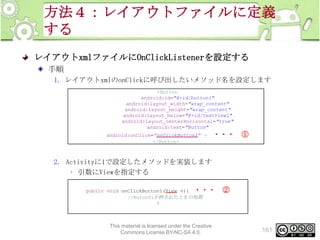
以下のようなアプリケーションを作成する
NextActivity

MainActivity

Intent:
NextActivity

NextActivity2

Intent:NextActivity2

This material is licensed under the Creative
Commons License BY-NC-SA 4.0.

287
まとめ課題2
動作例

遷
移
先
「NextActivity2」
Toastで表示

名

This material is licensed under the Creative
Commons License BY-NC-SA 4.0.

288
まとめ課題2
アプリケーション概要
まとめ課題に以下の処理を追加する
SetResultの第二引数 Intentを使用し遷移先のActivity名を取得する
onActivityResultの第三引数 Intentを使用し遷移先のActivity名を受け取る
受け取ったActivity名をToastで表示する
• 表示するタイミングは遷移元Activityに戻ってきた時に行う

This material is licensed under the Creative
Commons License BY-NC-SA 4.0.

289
まとめ課題2
解答
解答ドキュメント参照

This material is licensed under the Creative
Commons License BY-NC-SA 4.0.

290
この章のまとめ
まとめ
画面遷移を行うには
画面遷移先の情報から、インテントオブジェクトを作成する
Activity#startActivity(Intent intent)で画面遷移することができる
新たに作成したActivityはAndroidManifest.xmlに登録しなければならない

アクティビティ間でパラメータを受け渡すには
インテントオブジェクトに受け渡したいパラメータを設定する
パラメータはキー、値の組み合わせで作成する
遷移先画面は、Intentオブジェクトを取得し、キーを使用して、Intentオブ
ジェクトから値を取得する

This material is licensed under the Creative
Commons License BY-NC-SA 4.0.

291
まとめ
トレーニングの振り返り
前半
章

内容

第1章 Androidとは

Androidとは
開発に必要なもの
アプリケーション開発の流れ
アプリケーションの紹介

第2章 Androidアプリケーション
のアーキテクチャ

Activity
View
Intent
ライフサイクル

第3章 開発環境の準備

インストールする開発ツール
各開発ツールのインストール方法
エミュレータの準備
環境変数の設定

ADTでアプリケーションを作成する
画面デザインを作成する
デザイン以外のリソースを使用する
マニフェストファイルを変更する
エミュレータの使用方法
デバッグツールの使用方法
This material is licensed under the Creative

第4章 開発ツールの使い方

Commons License BY-NC-SA 4.0.

293
トレーニングの振り返り
後半
章

内容

第5章ユーザーインタフェー
ス

View
TextView
EditText
Button
CheckBox
ImageView
ProgressBar
ViewGroup
OptionMenu
Toast
AlertDialog

第6章 画面遷移

画面遷移の仕方
遷移した画面から元に戻る方法
画面遷移でパラメータを渡す方法
遷移先の画面から結果を受け取る方法

This material is licensed under the Creative
Commons License BY-NC-SA 4.0.

294
Androidに関する情報提供元
書籍
タイトル

著者

Google Android プログラミング入門 江川 崇
他

出版社
…

アスキー・
メディアワークス

Android Hacks

株式会社ブリ
リアン トサー
ビス

オライリー

Android UI Cookbook for 4.0 ICS

あんざい ゆき

インプレスジャパン

入門 Android 2 プログラミング

Mark Murphy

翔泳社

図解 Androidプラットフォーム開発
入門

橋爪香織、
小林明大、…
他

技術評論社

This material is licensed under the Creative
Commons License BY-NC-SA 4.0.

295
Androidに関する情報提供元
インターネット
技術資料・ツール・ソース
Android
Developers
• http://developer.android.com/index.html
Open Handset Alliance
• http://www.openhandsetalliance.com/

コミュニティ
Android‐SDK‐Japan
• https://groups.google.com/group/android-sdk-japan
Android Developers
• http://groups.google.com/group/android-developers

This material is licensed under the Creative
Commons License BY-NC-SA 4.0.

296
OESF公認Androidトレーニング
アプリケーション開発
Anroidプログラミング入門(初級)
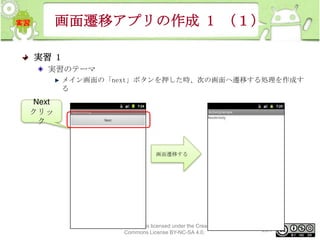
Anroidアプリケーション開発入門(初級〜中級)
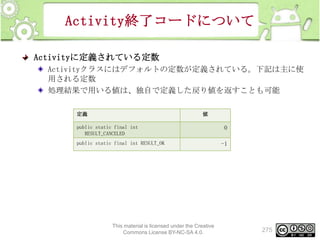
Anroidアプリケーション開発応用(中級〜上級)
Android応用 WebAPI開発(上級)
Android応用 タブレットアプリケーション開発入門(中級〜上級)

組み込み
Android組み込み開発 基礎コース - Armadillo-440 編 –

This material is licensed under the Creative
Commons License BY-NC-SA 4.0.

297
Anroidプログラミング入門
基本的なアプリケーション開発に必要なプログラミング技術を習得する
ユーザインタフェースの使い方や画面遷移の仕方
NextActivity

MainActivity

RequestCode:12
3

ResultCode:RESULT_OK

NextActivity2
ダイアログ表示
From
Result
Request

RequestCode:456

ResultCode
RESULT_OK
RESULT_CANCEL

or

RESULT_OK
RESULT_CANCEL

This material is licensed under the Creative
Commons License BY-NC-SA 4.0.

or

Result Cancel

298
Anroidアプリケーション開発入門
Androidの基本的な知識から本格的なアプリケーション開発

インターネットからRSS
フィードを取得する

メニュー
画面

インターネッ
ト

データベースに
RSSフィードを登録
データベース

データベースからRSS
フィードを検索
データベースへ登録
が完了した後、ダイ
アログを表示する
一覧画面
一覧表示ボタンをク
リックする
This material is licensed under the Creative
Commons License BY-NC-SA 4.0.

詳細画面
一覧データを
選択する

299
Anroidアプリケーション開発応用
入門編で作成したアプリケーションに手を加え、より快適なものに仕上
げる
Activityのタスク管理やプロファイリングなど開発における高度なサイ
ド技術の習得

This material is licensed under the Creative
Commons License BY-NC-SA 4.0.

300
Android応用 WebAPI開発
非同期処理、プロセス間通信など開発において重要で難易度の高い技術
の習得
GAEサーバを使用した動画ダウンロードアプリケーションの開発

This material is licensed under the Creative
Commons License BY-NC-SA 4.0.

301
Androidタブレット開発コース
Androidタブレット開発コース
タブレット基本的な知識、新機能、開発手法のベストプラクティスの習
得

This material is licensed under the Creative
Commons License BY-NC-SA 4.0.

302
Android組み込み開発 基礎コース
- Armadillo-440 編 –
Armdillo-440を使ったシリアルデバイスアプリケーション作成
シリアル

クロスケーブル
Armadillo-440 ACアダプ
タ
( Android 2.2)

給電用USB

開発用
PC

読み取ったコードは3番
です

USB-RS232C
変換ケーブル
USB

Grid OnputⓇ

G2スキャナ

RS232C

LANケーブル

②Toast表示

①メニューをタッ
チ!
メニューの写真に
グリッドマークを
This material is licensed under the Creative
Commons License BY-NC-SA 4.0.
埋め込んだメニュー

③

303
次のトレーニングコースのためのス
テップアップ
プログラミング入門の上位コース
Androidアプリケーション応用
Android応用WebAPI

覚えておくべき知識
データベース
ListView

※上位コースにステップアップするには次ページ以降の資料を参考にし、技
術を習得しておくことを推奨します
This material is licensed under the Creative
Commons License BY-NC-SA 4.0.

304
[補足資料]覚えておくべき知識
1
- データベース -
データベースの全件検索と一覧表示
データベース(SQLite)を操作するには
Androidは標準でSQLiteというデータベースがサポートされている
AndroidからSQLiteを操作するには下記のクラスを使用する
SQLiteOpenHelperクラス
• データベースを作成する
• テーブルを作成する
• データベースとの接続(オープン)、切断(クローズ)を行う
SQLiteDatabaseクラス
• テーブルの検索、追加、更新、削除を行う
• 指定のSQLを実行する

This material is licensed under the Creative
Commons License BY-NC-SA 4.0.

306
データベースの全件検索と一覧表示
データベースからデータ検索を行う処理の全体像

This material is licensed under the Creative
Commons License BY-NC-SA 4.0.

307
データベースにテーブルを作成する
SQLiteOpenHelperを使用してデータベースを作成するには
仕組み
データベースを作成するには、SQLiteOpenHelperクラスを継承するサブクラ
スを作成しなければならない
作成したサブクラスのコンストラクタでSQLiteOpenHelperクラスのコンスト
ラクタを実行する事によりSQLiteのデータベースファイルが作成される
データベースファイルが既に存在する場合、2回目以降のコンストラクタが実
行されてもファイルが作成されない。ファイルが存在しない場合のみデータ
ベースファイルが作成される

This material is licensed under the Creative
Commons License BY-NC-SA 4.0.

308
データベースにテーブルを作成する
SQLiteOpenHelperを使用してテーブルを作成するには
仕組み
SQLiteOpenHelperを使用してデータベースが作成された時、onCreateメソッ
ドが実行される
onCreateメソッド内でテーブルを作成するSQLを実行することにより、テーブ
ルを作成する事が出来る
SQLを実行するためには、SQLiteDatabaseオブジェクトが必要である
• SQLiteDatabaseオブジェクトはSQLiteOpenHelper#onCreateで与えられ
るため、与えられたSQLiteDatabaseオブジェクトを使用してSQLを実行
する

This material is licensed under the Creative
Commons License BY-NC-SA 4.0.

309
データベースにテーブルを作成する
SQLiteOpenHelperを使用してデータベース、テーブルを作成する方
法
1. SQLiteOpenHelperクラスのサブクラスを作成する
2. 作成したクラスのコンストラクタでSQLiteOpenHelperクラスのコンスト
ラクタを実行し、データベースを作成する
3. SQLiteOpenHelper が定める2つのメソッドを実装する
onCreate : テーブルを作成する処理を実装するメソッド
onUpgrade : テーブル定義を更新する処理を実装するメソッド
• 上記メソッドはSQLiteOpenHelperで実装が義務付けられているため、実
装していない場合はコンパイルエラーになる

4. SQLiteOpenHelper#onCreateを使用して、テーブルを生成するSQL文
(CREATE TABLE文)を実行する
SQL文の実行方法
• テーブルを生成するSQL文の文字列を作成する
• onCreateメソッド第一引数 SQLiteDatabase database のexecSQLメソッ
ドにSQL文の文字列を与え、実行する
This material is licensed under the Creative
Commons License BY-NC-SA 4.0.

310
データベースにテーブルを作成する
サンプルコード
サンプルコードでは、サブクラス
import android.content.Context;
名を「SampleSQLiteOpenHelper」
import android.database.sqlite.SQLiteDatabase;
import android.database.sqlite.SQLiteOpenHelper; としている
import android.util.Log;
public class SampleSQLiteOpenHelper extends SQLiteOpenHelper {
・・・1
public SampleSQLiteOpenHelper(Context context) {
// データベースを作成する(データベース名は「 SAMPLE_DATABASE 」)
・・・2
super(context, “SAMPLE_DATABASE”, null,1);
}

サンプルコードでは、コン
// テーブルを作成する処理を実装するメソッド
ストラクタ第4引数は1を固
@Override
定で設定する

・・・3
public void onCreate(SQLiteDatabase database) {
// CREATE TABLE文を実行
database.execSQL(“CREATE TABLE SAMPLE_TABLE(_id INTEGER,name TEXT);”);
}
// テーブル定義を更新する処理を実装するメソッド
@Override
public void onUpgrade(SQLiteDatabase database, int oldVersion, int newVersion) {
・・・4
}
}
This material is licensed under the Creative
Commons License BY-NC-SA 4.0.

311
データベースからデータを操作する
データベースからデータを操作するには
仕組み
データベースからデータの操作をするにはSQLiteDatabaseオブジェクトが必
要である
SQLiteDatabaseに用意されているメソッドを実行する事で操作することが出
来ます
SQLiteDatabaseオブジェクトは、SQLiteOpenHelperのメソッドで取得する。
用途によってSQLiteDatabaseの取得メソッドが2種類存在する
• getReadableDatabase ・・・ 読込専用のSQLiteDatabaseオブジェクト
を取得する
– 検索のみ実行する場合に使用する
• getWritableDatabase ・・・ 書込可能のSQLiteDatabaseオブジェクト
を取得する
– テーブルへの書き込み処理を実行する場合に使用する
• 検索のみを実行する場合は、getReadableDatabaseメソッドを使用する

This material is licensed under the Creative
Commons License BY-NC-SA 4.0.

312
データベースからデータを操作する
SQLiteDatabaseクラスは、下記のような操作系のメソッドを提供する。これ
らメソッドを使用することで、データベースの情報を取得・更新することが
できる
表. SQLiteDatabaseの代表的なメソッドと概
要
メソッド

説明

query()

データを検索する

insert()

データを登録する

update()

データを更新する

delete()

データを削除する

execSQL()

任意のSQL文を実行してデータを操作する

■SQLiteDatabaseに関する詳細はAndroid Developersのリファレンスを参照
http://developer.android.com/intl/ja/reference/android/database/sqlite/SQLiteDatabase.html

This material is licensed under the Creative
Commons License BY-NC-SA 4.0.

313
[補足資料]覚えておくべき知識
2
- ListView -
ListViewの使い方
ListViewとは
ListViewはデータをリスト形式で表示するためのビューグループです
ListViewを使用するときは画面デザインと行デザインの2つのリソースフ
ァイルが必要
リスト形式で表示

画面デザイン

行デザイン

This material is licensed under the Creative
Commons License BY-NC-SA 4.0.

315
ListViewの使い方
ListViewはアイテム内のレイアウトを変更することも可能です

This material is licensed under the Creative
Commons License BY-NC-SA 4.0.

316
ListViewにデータを表示する
Adapterとは
ListViewなどのデータを一覧形式で表示するViewGroupのインタフェース
としてAdapterクラスが用意されています
Adapterによってデータ1件分を表示するViewを組み立てる役割を担当し
ています
データとViewの繋
ぎ役をします

Adapter

データ

表示するViewを組み立てます
This material is licensed under the Creative
Commons License BY-NC-SA 4.0.

317
ListViewにデータを表示する
Viewの組み立ての仕組み
Adapterはデータとビューの連携を担っており、表示すべきビューをデー
タから組み立てるのが役割です
データ1件分をどのようなView構造で表示するかを決定するのがgetView
メソッドです
getViewメソッド
getViewメソッドは、新しいデータが表示されるタイミングで呼び出されます
ListViewの場合、画面をスクロールして、画面外から新しいデータが表示さ
れるタイミングで呼び出されます
戻り値

メソッド名

View

getView (int position, View contentView, ViewGroup parent)

This material is licensed under the Creative
Commons License BY-NC-SA 4.0.

318
ListViewにデータを表示する
ArrayAdapter
Androidにはデータの管理方法に適したAdapterクラスが複数用意されて
います
ArrayAdapterクラスは配列やListなどのデータ形式を管理するのに適し
たAdapterです
ArrayAdapter<T>( Context context,
int textViewResourceId,
T[] objects)

ArrayAdapterのコンストラクタ
引数

説明

Context context

クラスのオブジェクトを指定します。

int textViewResourceId

行レイアウトのリソースIDを指定します。

T[] objects

表示データ配列のオブジェクト を指定

This material is licensed under the Creative
Commons License BY-NC-SA 4.0.

319
本ドキュメントは株式会社リーディング・エッジ社が作成して
います。

http://www.leadinge.co.jp/

このドキュメントの内容の一部は、Google が作成、提供しているコンテンツをベースに変更したもので、クリエイティブ・コモンズの表示 3.0 ライセンスに記載の条件に
従って使用しています。

This material is licensed under the Creative
Commons License BY-NC-SA 4.0.

Androidプログラミング入門