Alpha Tech Program
            Trainer Kit
Program Objectives


•   Remove fear
•   Simple and fun
•   Operate
•   Connect to the Internet
•   Create documents, worksheets, presentations
•   Write and send email
•   Safety on internet
•   Digital multimedia
•   Educational Software
Module 1: Computer Basics
Lesson      Title
Lesson 1    Introduction
Lesson 2    Terminology
Lesson 3    Performance and Features
Lesson 4    Operating Systems


Lesson 1: Outline
Lesson 1 Introduction to Computers
           Main parts
           Start and shut down
           Keyboard.
           Mouse
Introduction To Computers

• Jargon definition :
A computer is a programmable machine that receives
input, stores and manipulates data, and provides output
in a useful format.
(source: wikipedia.com)

• Simple definition:
Machine that performs tasks automatically
(source: Dewang sir)
Use

•   Create Documents
•   Create Spreadsheets
•   Create Presentations
•   Surf the web
•   Send Email
•   Chat
•   View pictures, music, video
•   Play games
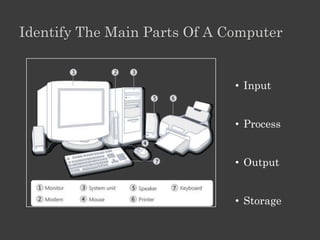
Identify The Main Parts Of A Computer


                              • Input


                              • Process


                              • Output


                              • Storage
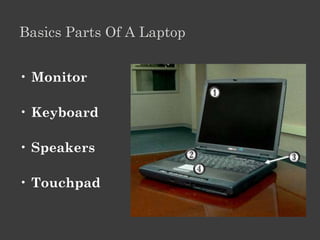
Basics Parts Of A Laptop


• Monitor

• Keyboard

• Speakers

• Touchpad
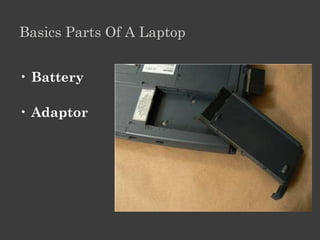
Basics Parts Of A Laptop


• Battery

• Adaptor
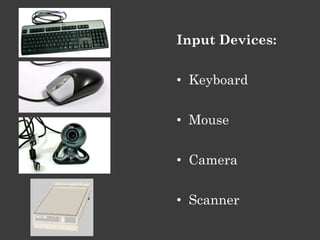
Input Devices:


• Keyboard


• Mouse

• Camera

• Scanner
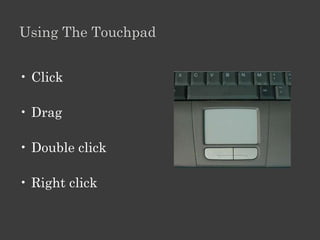
Using The Touchpad


• Click

• Drag

• Double click

• Right click
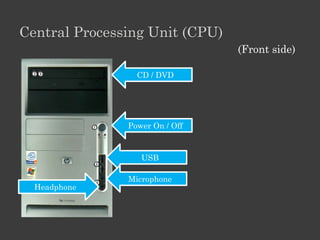
Central Processing Unit (CPU)
                                (Front side)

                 CD / DVD


               Power On / Off


                  USB

               Microphone
  Headphone
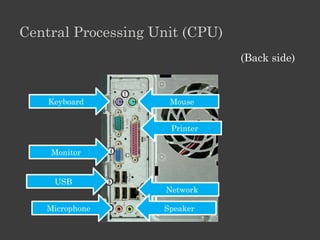
Central Processing Unit (CPU)
                                (Back side)


    Keyboard         Mouse


                     Printer


    Monitor


     USB
                    Network

   Microphone       Speaker
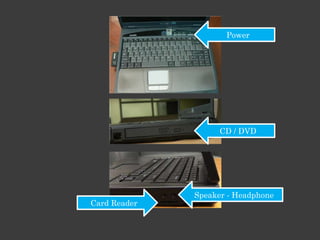
Power


                    CD / DVD


              Speaker - Headphone
Card Reader
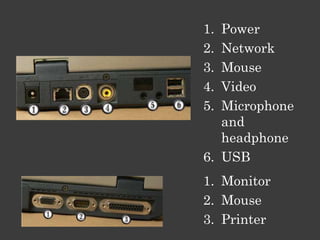
1. Power
2. Network
3. Mouse
4. Video
5. Microphone
   and
   headphone
6. USB
1. Monitor
2. Mouse
3. Printer
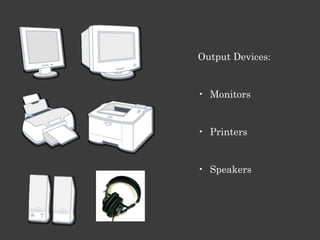
Output Devices:


• Monitors


• Printers


• Speakers
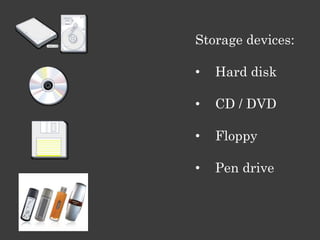
Storage devices:

•   Hard disk

•   CD / DVD

•   Floppy

•   Pen drive
Role Play

• Steps to start a computer
• Steps to shutdown a computer
Practice: Keyboard & Mouse

•http://www.bbc.co.uk/webwi
 se/abbeg/abbeg.shtml
Computer Basics:

•http://www.multiurl.com/l/7
 NB
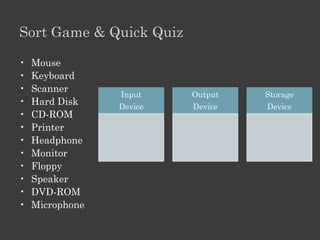
Sort Game & Quick Quiz

•   Mouse
•   Keyboard
•   Scanner
                 Input    Output   Storage
•   Hard Disk    Device   Device   Device
•   CD-ROM
•   Printer
•   Headphone
•   Monitor
•   Floppy
•   Speaker
•   DVD-ROM
•   Microphone
Lesson 1: Outline

Lesson 1 Introduction to Computers

         Main parts

         Start and shut down

         Keyboard.

         Mouse
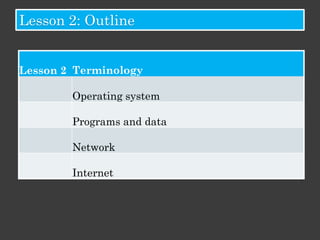
Lesson 2: Outline


Lesson 2 Terminology

        Operating system

        Programs and data

        Network

        Internet
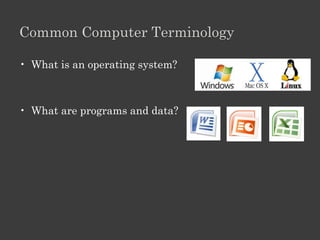
Common Computer Terminology

• What is an operating system?


• What are programs and data?
Game

• Narrator
• Actor
• Enabler
(Source: Whose Line is it Anyway)
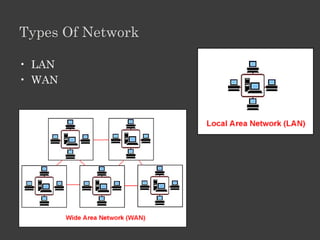
Types Of Network

• LAN
• WAN
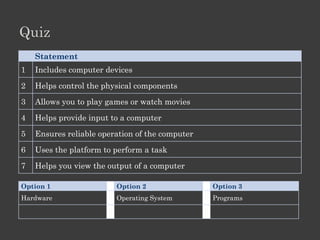
Quiz
    Statement
1   Includes computer devices

2   Helps control the physical components

3   Allows you to play games or watch movies

4   Helps provide input to a computer

5   Ensures reliable operation of the computer
6   Uses the platform to perform a task

7   Helps you view the output of a computer

Option 1                 Option 2                Option 3
Hardware                 Operating System        Programs
Lesson 2: Outline


Lesson 2 Terminology

        Operating system

        Programs and data

        Network

        Internet
Lesson 3: Outline

Performance

Types of computers.

Role of memory.
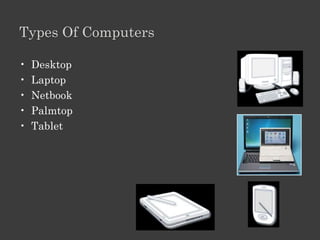
Types Of Computers

•   Desktop
•   Laptop
•   Netbook
•   Palmtop
•   Tablet
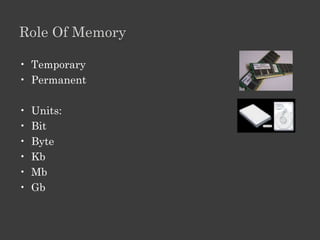
Role Of Memory

• Temporary
• Permanent

•   Units:
•   Bit
•   Byte
•   Kb
•   Mb
•   Gb
Quiz
Question 1
Which of the following features are true of laptops as compared
with desktop computers?
Select all answers that apply.
They generally cost more for similar hardware.
They consume less power.
They are good travel companions.
They are easier to upgrade.

Question 2
Which of the following are true statements about RAM?
Select all answers that apply.
The amount affects the computer’s performance.
Its contents are permanent.
It has lower data-retrieval speed compared with storage memory.
It stores active data and programs.
Lesson 3: Outline

Performance

Types of computers.

Role of memory.
Lesson 4: Outline

Computer Operating Systems
Functions
Interface.
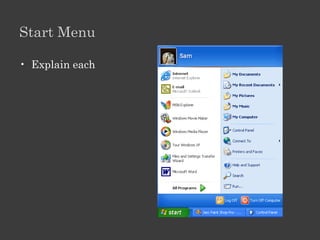
Start menu
Windows XP interface
Files and folders
Practice
Functions Of Operating System.

•   Provides a user interface
•   Provides utilities to configure your system
•   Helps manage computer resources
•   Helps secure data by controlling user access to a
    computer
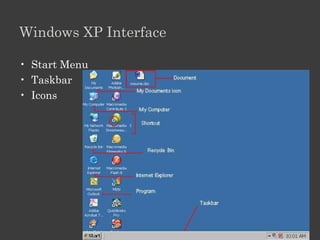
Windows XP Interface

• Start Menu
• Taskbar
• Icons
Start Menu

• Explain each
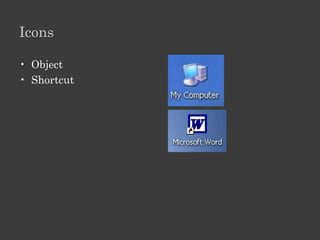
Icons

• Object
• Shortcut
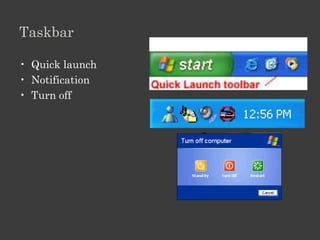
Taskbar

• Quick launch
• Notification
• Turn off
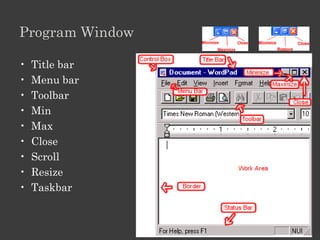
Program Window

•   Title bar
•   Menu bar
•   Toolbar
•   Min
•   Max
•   Close
•   Scroll
•   Resize
•   Taskbar
Settings

• Set time
• Set date
• Set desktop wallpaper
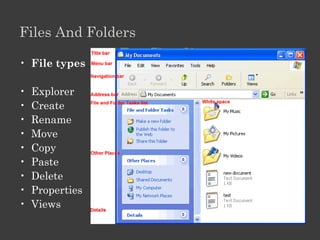
Files And Folders

• File types

•   Explorer
•   Create
•   Rename
•   Move
•   Copy
•   Paste
•   Delete
•   Properties
•   Views
File

• Create a document using Microsoft Word

• New
• Save as practice file on desktop
Folder

• Open Windows Explorer.
• In D Drive
• Create Training folder, open it.
• Create Materials folder
• View details of folder
• Rename Materials folder to Resources
• Move file from desktop to Resources folder using copy
  and paste
• Delete file from desktop
Summary

• How’s how format
Module 2: Internet Basics

Lesson 1 The Internet
        Use
        Connection
        Features


Lesson 2 The World Wide Web
        Components
        Web addresses
        Browser
        Search
Uses Of Internet

•   Find information
•   Communication
•   Sharing
•   Shopping
•   Banking
•   Play Games
•   Listen to Music
•   Watch movies
Connect To The Internet
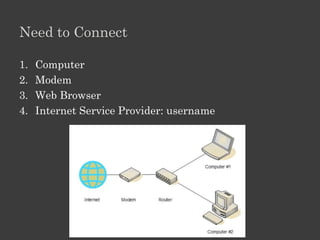
Need to Connect

1.   Computer
2.   Modem
3.   Web Browser
4.   Internet Service Provider: username
Types Of Connections

• Broadband
• Dialup

• Pros / cons

•   Cost
•   Speed
•   Connectivity: always on / connect
•   Stability
•   Cable/ wireless
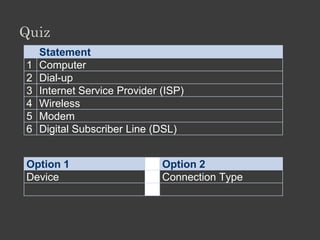
Quiz
    Statement
1   Computer
2   Dial-up
3   Internet Service Provider (ISP)
4   Wireless
5   Modem
6   Digital Subscriber Line (DSL)


Option 1                      Option 2
Device                        Connection Type
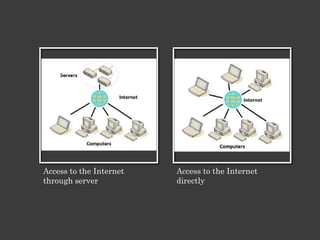
Access to the Internet   Access to the Internet
through server           directly
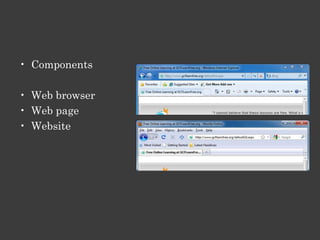
• Components

• Web browser
• Web page
• Website
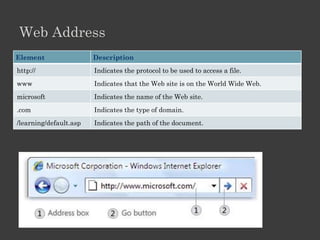
Web Address
Element                 Description
http://                 Indicates the protocol to be used to access a file.
www                     Indicates that the Web site is on the World Wide Web.
microsoft               Indicates the name of the Web site.
.com                    Indicates the type of domain.
/learning/default.asp   Indicates the path of the document.
Domains

•   .com
•   .edu / .ac
•   .net
•   .org
•   .info
•   .museum
•   .gov
•   .in
Use A Browser

•   Address bar
•   Navigation
•   Link
•   Search
•   Bookmark
•   History
Plugins


•   Flash
•   Pdf
•   Video
•   java
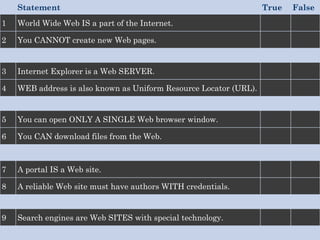
Statement                                                      True   False
1   World Wide Web IS a part of the Internet.

2   You CANNOT create new Web pages.


3   Internet Explorer is a Web SERVER.

4   WEB address is also known as Uniform Resource Locator (URL).


5   You can open ONLY A SINGLE Web browser window.

6   You CAN download files from the Web.


7   A portal IS a Web site.

8   A reliable Web site must have authors WITH credentials.


9   Search engines are Web SITES with special technology.
Module 3: Communication On Internet

Lesson 1 E-mail
         Create an Account
         Write and send e-mail
         Manage e-mail


Lesson 2 Instant messaging
         Write and send IM
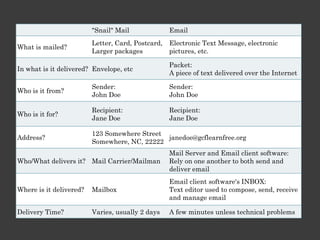
How Email Works
How Email Works

• Desktop based: Email client “MS Outlook”
• Internet based: Gmail / Yahoo
"Snail" Mail              Email
                         Letter, Card, Postcard,   Electronic Text Message, electronic
What is mailed?
                         Larger packages           pictures, etc.

                                                   Packet:
In what is it delivered? Envelope, etc
                                                   A piece of text delivered over the Internet

                         Sender:                   Sender:
Who is it from?
                         John Doe                  John Doe

                         Recipient:                Recipient:
Who is it for?
                         Jane Doe                  Jane Doe

                         123 Somewhere Street
Address?                                      janedoe@gcflearnfree.org
                         Somewhere, NC, 22222
                                                   Mail Server and Email client software:
Who/What delivers it? Mail Carrier/Mailman         Rely on one another to both send and
                                                   deliver email
                                                   Email client software's INBOX:
Where is it delivered?   Mailbox                   Text editor used to compose, send, receive
                                                   and manage email

Delivery Time?           Varies, usually 2 days    A few minutes unless technical problems
Create An Account In Gmail
Write And Send Email
• Send an email to one teacher in the group
• Write in not more than three lines your experience of
  creating an email account
Use Your Email Account To

• Display a list of received messages.
• Read the message.
• Create new messages.
• Reply to, forward, and delete messages.
• "Attach" files (called attachments) to messages you
  send.
• Save the attachments you receive.
Manage Emails

• Folders / labels
• Flags
• Attachments
Etiqutte

• Email Do's
• Do include a descriptive subject line
• Keep it short

• Email Don'ts
• Don't ignore spelling and grammar mistakes
  Don't bother with excessive formatting
  Don't use excessive punctuation
  Don’t use CAPITAL LETTERS
• Don't use emoticons like:
• :-) = happy :-( = sad ;-) = wink :-o = shocked
Lesson 2: Instant Messaging

•   For instant messaging you need:
•   IM service
•   IM software.
•   Sign up for a free account
•   Determine a user name and password.
•   Ready to go.

• Google talk
• MSN messenger
• Yahoo messenger
Features

• Create a contact list (buddy list).

• Add, Edit or Delete people from your contact list.

• Know who in your contact list is online at any time.

• Send and receive messages from those in your contact
  list.

• Functions may include: chat, voice, video
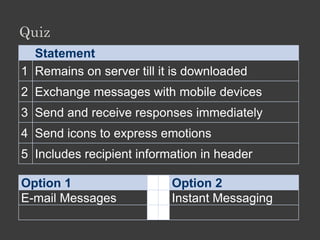
Quiz
  Statement
1 Remains on server till it is downloaded
2 Exchange messages with mobile devices
3 Send and receive responses immediately
4 Send icons to express emotions
5 Includes recipient information in header

Option 1                   Option 2
E-mail Messages            Instant Messaging
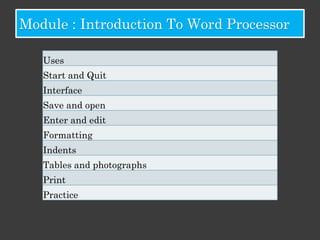
Module 4: Introduction To Word Processor

   Uses
   Start and Quit
   Interface
   Save and open
   Enter and edit
   Formatting
   Indents
   Tables and photographs
   Print
   Practice
Start And Quit

• Start
• Start menu / shortcut

• Quit
• Close button / exit from menu
Components Of User Interface

•   Title bar
•   Menu bar
•   Toolbars
•   Font, Paragraph, Styles and Editing
•   Min, Max, Close
•   Scroll, Resize
Save And Open A Document

•   Save
•   Save as
•   Other versions
•   Pdf

• Create new document
• Open from folder
• Open from pen-drive / CD
Enter And Edit Text

•   Insert
•   Delete
•   Select
•   Copy
•   Paste
•   drag and drop

• Create a letter to your Unit Head
• Report of training you are undergoing
Formatting

•   Font Size, Style, Colour
•   Bold Italic Underline
•   Alignment
•   Hyperlink
•   Spacing: character, line, paragraph
Edit Letter

•   Use indents
•   Bullet / numbering
•   Spelling and grammar check
•   Word count
Insert Table, Photographs

• Pictures
• Table
Printing

• Page setting
   – Paper
   – Margin
   – Orientation
• Print preview
• Print
Practice

• Create greeting card
• Welcome students to the new academic year
Online

   • Google Translate
 • Google Transliteration


        Offline

• Microsoft Language Tools
GOOGLE TRANSLATE

•   Open any Browser
•   Translate.google.com
•   Select language(Both From & To)
•   Type or Paste any document in it
•   Click Translate button
•   Listen
•   Read Phonetically
•   Use
GOOGLE TRANSLITERATION


•   Open any Browser
•   www.google.com/transliterate
•   Select language & give space
•   Use of Formatting toolbar
•   Use it by copying
Microsoft Language Tools

•   Open any Browser
•   bhashaindia.com
•   Go to Tools
•   Select language(Hindi or Gujarati)
•   Download it
•   Open MS Office, Notepad, or WordPad
•   Select Language from Taskbar
•   Start Using it
Module 5: Introduction To Spreadsheets

Uses
Start and Quit
Interface
Save and open
Cell, worksheet, workbook
Enter and edit
Formatting
Currency Unit (Rs), Date
Functions
Data series, auto-fill
Print
Practice
Start And Quit

• Start
• Start menu / shortcut

• Quit
• Close button / exit from menu
Components Of User Interface

•   Title bar & Menu bar
•   Toolbars
•   Alignment, Number, Styles, Cells and Editing
•   Min, Max, Close, Scroll, Resize
Save And Open A Worksheet

• Save
• Save as
• Other versions

• Create new spreadsheet
• Open from folder
• Open from pen-drive / CD
Cell, Worksheet, Workbook

• Insertion point
• Cell handle
Enter And Edit Text

•   Insert
•   Delete
•   Select
•   Copy
•   Paste
•   Drag and drop

• Create a grade card for Class Test
• Marks, highest, average
Formatting

•   Font Size, Style, Colour
•   Cell shading
•   Bold Italic Underline
•   Number format (text, number, date, currency)
•   Alignment
•   Hyperlink
•   Spacing: character, line, paragraph
Edit Grade Card

• Use functions
• Data series
• Auto-fill
Printing

• Page setting
   – Paper
   – Margin
   – Orientation
• Print preview
• Print
Practice

• Create Grade card for Final Exam
• Include marks from class test, unit test and finals
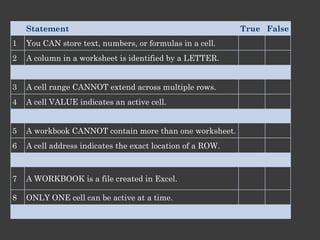
Statement                                               True False
1   You CAN store text, numbers, or formulas in a cell.
2   A column in a worksheet is identified by a LETTER.


3   A cell range CANNOT extend across multiple rows.
4   A cell VALUE indicates an active cell.


5   A workbook CANNOT contain more than one worksheet.
6   A cell address indicates the exact location of a ROW.


7   A WORKBOOK is a file created in Excel.

8   ONLY ONE cell can be active at a time.
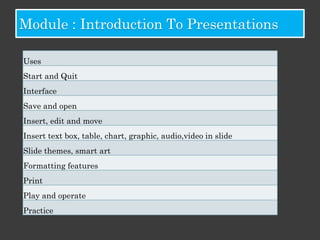
Module 6: Introduction To Presentations

Uses
Start and Quit
Interface
Save and open
Insert, edit and move
Insert text box, table, chart, graphic, audio,video in slide
Slide themes, smart art
Formatting features
Print
Play and operate
Practice
Start And Quit

• Start
• Start menu / shortcut

• Quit
• Close button / exit from menu
Components Of User Interface

•   Title bar & Menu bar
•   Toolbars
•   Slides, Font, Paragraph, Drawing and Editing
•   Min, Max, Close, Scroll, Resize
Save And Open A Presentation

• Save
• Save as
• Other versions

• Create new presentation
• Open from folder
• Open from pen-drive / CD
Slides

• Insert
• Edit
• Move
Insert

•   Text box
•   Table
•   Chart
•   Graphic
•   Audio – video

• Create a slideshow about where you live
• Slide theme
• Smart art
Formatting

• Text
   – Font Size, Style, Colour
   – Bold Italic Underline
   – Alignment
   – Hyperlink
   – Spacing: character, line, paragraph

• Object
  – shading / border
  – layout
Printing

• Page setting
   – Paper
   – Margin
   – Orientation
• Print preview
• Print
Play And Operate

• Slide transition
• Animation
Practice

• Create Photo album
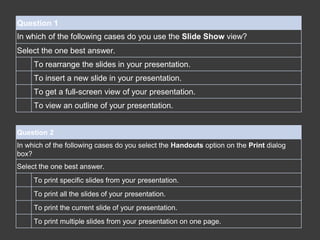
Question 1
In which of the following cases do you use the Slide Show view?
Select the one best answer.
     To rearrange the slides in your presentation.
     To insert a new slide in your presentation.
     To get a full-screen view of your presentation.
     To view an outline of your presentation.


Question 2
In which of the following cases do you select the Handouts option on the Print dialog
box?
Select the one best answer.
     To print specific slides from your presentation.
     To print all the slides of your presentation.
     To print the current slide of your presentation.
     To print multiple slides from your presentation on one page.
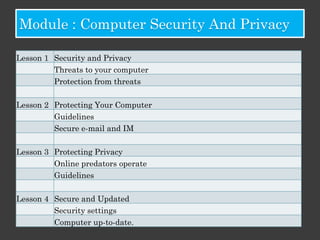
Module 7: Computer Security And Privacy

Lesson 1 Security and Privacy
         Threats to your computer
         Protection from threats

Lesson 2 Protecting Your Computer
         Guidelines
         Secure e-mail and IM

Lesson 3 Protecting Privacy
         Online predators operate
         Guidelines

Lesson 4 Secure and Updated
         Security settings
         Computer up-to-date.
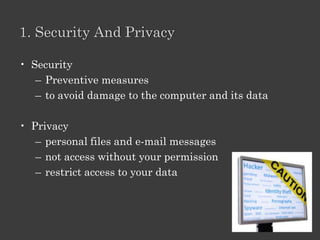
1. Security And Privacy

• Security
   – Preventive measures
   – to avoid damage to the computer and its data

• Privacy
   – personal files and e-mail messages
   – not access without your permission
   – restrict access to your data
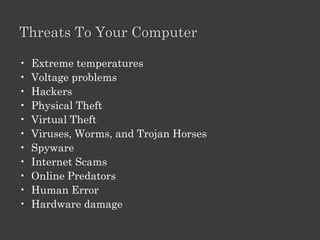
Threats To Your Computer

•   Extreme temperatures
•   Voltage problems
•   Hackers
•   Physical Theft
•   Virtual Theft
•   Viruses, Worms, and Trojan Horses
•   Spyware
•   Internet Scams
•   Online Predators
•   Human Error
•   Hardware damage
Protection From Threats

•   Backing up data
•   Installing computers in secure locations
•   Controlling operating environment
•   Surge protection and line conditioning
•   Uninterruptible Power Supply (UPS)
•   Data Storage in Safe Locations
•   Virus and Spyware Protection
•   Firewall
•   Protecting hardware
2. Protecting Your Computer
Guidelines

•   Set a username and password
•   Use hard-to-guess passwords
•   Keep passwords secure
•   Lock your computer
•   Install protective software
•   Encrypt data
•   Back up data
•   Keep your computer updated
•   Clear history, cache, cookies
Tips For Strong Password

• Don't use the same password for each account.
• Use a longer password.
• Include numbers, symbols and uppercase-
  lowercase letters
• Never use personal information
• Avoid using predictable patterns such as
  "susan123".
• Random passwords are the strongest.
• For example, "H=jNp2#" can be remembered as
  "HARRY = jessica NOKIA paris 2 #"
Secure E-mail And Chat

•   Avoid opening e-mail with attachments
•   Do not respond to junk mail
•   Do not respond to unsolicited commercial mail
•   Protect yourself from phishing
•   Chat with known people only
•   Do not open attachments received over IM
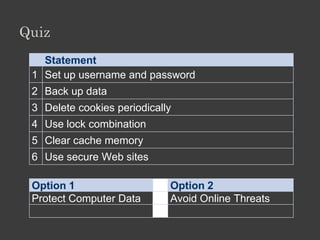
Quiz
   Statement
 1 Set up username and password
 2 Back up data
 3 Delete cookies periodically
 4 Use lock combination
 5 Clear cache memory
 6 Use secure Web sites

 Option 1                    Option 2
 Protect Computer Data       Avoid Online Threats
3. Protecting Privacy

• Protect Your Identity
• Regular Backups of data
• Update system Security Regularly
• Run Virus Scans Daily
• Use Antispyware
• Filter E-mail Messages from Unknown/Anonymous
  Senders
• Encrypt Sensitive E-mail Messages, If Possible
Explain How Online Predators Operate.

• Online predators
   – Unknown people who meet over internet and
     misuse it to lure young individuals into
     inappropriate or dangerous relationships
• target children, especially adolescents
   – establish a relationship of trust and intimacy
   – gain the attention
• Target adults
   – for financial exploitation
• contact through chat rooms, instant messaging, e-mail
• assume a fake identity
Guidelines

•   Know how predators behave
•   Be suspicious about gifts offered over the Internet
•   Educate your family about online safety measures
•   Tell your family not to give out personal information
•   Guide children when they visit Web sites
•   Be aware of the Web sites that your children visit
•   Block access to inappropriate Web sites
•   Monitor chat activities on your computer
•   Instruct children to leave unpleasant Web sites
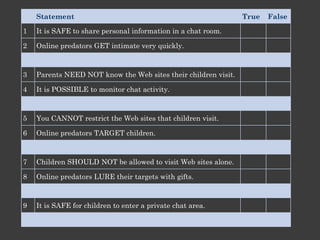
Statement                                                   True   False

1   It is SAFE to share personal information in a chat room.

2   Online predators GET intimate very quickly.


3   Parents NEED NOT know the Web sites their children visit.

4   It is POSSIBLE to monitor chat activity.


5   You CANNOT restrict the Web sites that children visit.

6   Online predators TARGET children.


7   Children SHOULD NOT be allowed to visit Web sites alone.

8   Online predators LURE their targets with gifts.


9   It is SAFE for children to enter a private chat area.
4. Secure And Updated
Security Settings On Computer.

• Internet properties
• Firewall
• Updates
Computer Up-to-date.

• System updates
• Antivirus updates
• Security patches
Module 8: E-ethics

Explain intellectual property and copyright as they apply to computing.
Identify acts of copyright violation and the measures to prevent those acts.


  Johnson’s 3 P’s of Technology Ethics:

    •   Privacy - I will protect my privacy and respect the privacy of
        others.
    •   Property - I will protect my property and respect the property of
        others.
    •   a(P)propriate Use - I will use technology in constructive ways and
        in ways which do not break the rules of my family, church, school,
        or government.

  Doug Johnson, Director of Media and Technology for the Mankato (MN)
  Public Schools
Intellectual Property

• Owner has exclusive rights to control the use of the
  material to:
  – Copy, reproduce, or distribute the property.
  – Share or sell the rights to the property.
  – Give away the rights to the property for free.
Copyright Violation

• Plagiarism
• Inappropriate-use and piracy
   – Music
   – Software
   – Logo
• Unauthorized access
Copyright Prevention

• Legal use
   – Using copyrighted material for educational
     purposes
   – Sharing links instead of downloaded material
   – Using copyrighted material with the copyright
     owner's permission
• Copyright Crossword
• Note:
• For the next session, please bring your:
   – mobile phone with cable, software
   – Portable media player with cable, software
Module 9: Digital Multimedia
Lesson 1   Digital Technology
           Benefits
           Features


Lesson 2   Digital Audio
           Characteristics
           Recording, copying, and converting
           Practice
           Features of speech technologies


Lesson 3   Digital Video
           Characteristics
           Editing and formats
           Practice
           Features


Lesson 4   Digital Photography
           Benefits, features and working
           Edit and manage
           Practice
           Different types of printers
Benefits Of Digital Technology
• Audio and Video Players
    • MP3 players, CD players, and DVD players play audio or video
    • MP3 format reduces file size


• Cell phone / Smart phone
    • a wireless phone
    • connect to the Internet,
    • check your e-mail
    • download songs and games
    • take pictures,
    • record short video clips
    • play music and games
    • transmit pictures and videos
• Portable video game system
   – Similar to computer
   – Play from hard-disk
   – Transfer audio video images to disk
   – Listen to audio
   – Watch movies

• Personal Digital Assistant
   – a handheld computer
   – a personal organizer
   – address book, task list, and calculator.
   – connect it to the Internet
   – play multimedia files
• Digital Camera
  – stores images digitally on a memory card or a mini
    hard disk
  – print images directly to a digital printer.

• Digital Video Cameras
  – record both video and audio
  – Store in a digital format on card or DVD or hard
    disk

• Webcam
  – captures images
  – Transmits images across the Internet
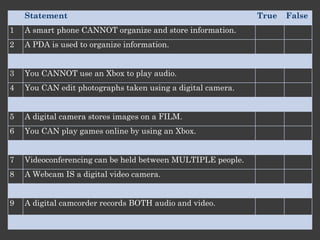
Statement                                                True   False
1   A smart phone CANNOT organize and store information.
2   A PDA is used to organize information.


3   You CANNOT use an Xbox to play audio.
4   You CAN edit photographs taken using a digital camera.


5   A digital camera stores images on a FILM.
6   You CAN play games online by using an Xbox.


7   Videoconferencing can be held between MULTIPLE people.
8   A Webcam IS a digital video camera.


9   A digital camcorder records BOTH audio and video.
Characteristics Of Digital Audio.
• It can be compressed
• It can be edited
• Can be streamed

• Wave (WAV):
  – developed for Microsoft Windows® 95
  – Large size audio files
• MPEG Audio Layer 3 (MP3):
  – developed by Motion Picture Expert Group
  – compression of audio and video for digital distribution.
  – smaller than WAV files.
• Windows Media® Audio (WMA):
  – developed by Microsoft for digital audio files.
Recording, Copying

• Recording and storing audio files in a digital format is
  called digital recording
• copying audio to a recordable CD or DVD is referred to
  as burning
• Audio can be stored in hard disk, CD, DVD, pen drive,
  portable player
• Requirements for recording:
   – Microphone
   – CD or DVD writer
   – Software
Converting

•   Conversion Software
•   Compression
•   Size
•   Player type: CD player, computer, portable player
Speech Technologies.

• Speech recognition allows you to communicate with a
  computer by using only your voice to enter text and to
  issue commands.
• microphone, a sound card, and speech recognition
  software
• interact with various programs
Create An Audio Piece

• Audio: (panchtantra: turtle and rabbit)
• (other ideas: instrumental karaoke lallaby, carols,
  pronunciation guide, bird calls)

• Choose a story.
• Use voice recorder to record it / download from a source
• Import it into software for editing (Audacity)
• Edit flaws like (pauses, umms, etc.)
• Find music that represents the theme and mood of the
  story
• Store and share
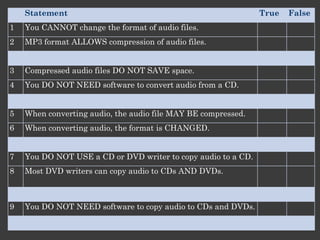
Statement                                                  True   False
1   You CANNOT change the format of audio files.
2   MP3 format ALLOWS compression of audio files.


3   Compressed audio files DO NOT SAVE space.
4   You DO NOT NEED software to convert audio from a CD.


5   When converting audio, the audio file MAY BE compressed.
6   When converting audio, the format is CHANGED.


7   You DO NOT USE a CD or DVD writer to copy audio to a CD.
8   Most DVD writers can copy audio to CDs AND DVDs.


9   You DO NOT NEED software to copy audio to CDs and DVDs.
• Note:
• For the next session, please bring your:
   – Digital video camera with cable, software
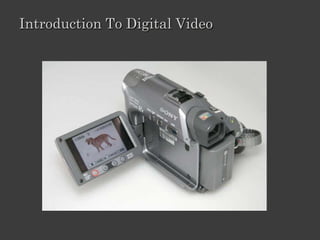
Introduction To Digital Video
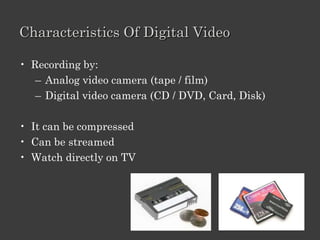
Characteristics Of Digital Video

• Recording by:
   – Analog video camera (tape / film)
   – Digital video camera (CD / DVD, Card, Disk)

• It can be compressed
• Can be streamed
• Watch directly on TV
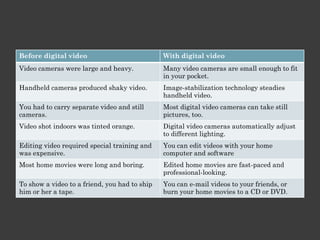
Before digital video                           With digital video
Video cameras were large and heavy.            Many video cameras are small enough to fit
                                               in your pocket.
Handheld cameras produced shaky video.         Image-stabilization technology steadies
                                               handheld video.
You had to carry separate video and still      Most digital video cameras can take still
cameras.                                       pictures, too.
Video shot indoors was tinted orange.          Digital video cameras automatically adjust
                                               to different lighting.
Editing video required special training and    You can edit videos with your home
was expensive.                                 computer and software
Most home movies were long and boring.         Edited home movies are fast-paced and
                                               professional-looking.
To show a video to a friend, you had to ship   You can e-mail videos to your friends, or
him or her a tape.                             burn your home movies to a CD or DVD.
Editing and Output Formats

• Editing
   – titles and background music
   – Cut or remove certain scenes
   – special effects
   – brightness, contrast, and color.
   – Subtitles / transcript
• Formats
   – .wmv
   – .mov
   – .mpeg
   – .vcd
Web Video Technologies.

• Streaming: real-time, stored
• Downloading
• Web-conferencing
Create A Video

• Video: (volcano / germination of seed)
• Other ideas:
   – http://kids.discovery.com/games/pompeii/pompeii.html
   – concept: germination, volcano, earthquake, solar
      system, DNA
   – visit to zoo pre-brief
• Use camcorder to record it / download from a source
• Import into software for editing (Windows Movie Maker)
• Edit pieces, cut unwanted portion, merge portions from
  different videos
• Add text, gestures, voice, props, pictures, music
• Store and share
Summary

• Benefits of video in classroom
• develop greater critical literacy skills by comparing
  television or movie segments with own creations
• view difficult, dangerous or expensive experiments or
  activities (recorded with specialists)
• assist in the introduction of disabled students into
  mainstream classes
• show skills that are quicker to learn by observation
  (e.g. sewing a French seam)
• record and analyze student or teacher presentations
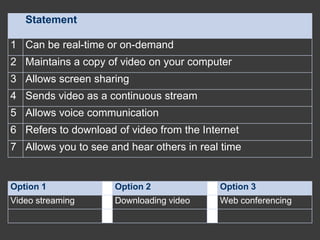
Statement

1 Can be real-time or on-demand
2 Maintains a copy of video on your computer
3 Allows screen sharing
4 Sends video as a continuous stream
5 Allows voice communication
6 Refers to download of video from the Internet
7 Allows you to see and hear others in real time


Option 1             Option 2              Option 3
Video streaming      Downloading video     Web conferencing
• Note:
• For the next session, please bring your:
   – Digital camera with cable, software
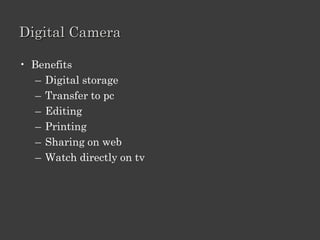
Digital Camera

• Benefits
   – Digital storage
   – Transfer to pc
   – Editing
   – Printing
   – Sharing on web
   – Watch directly on tv
Introduction To Digital Photography
Digital Camera

• Features
   – Resolution: Megapixel
   – lens : zoom
   – Lcd screen
Edit digital images

•   transfer pictures to a computer
•   edit pictures
•   photo editing software
•   remove the red-eye
•   adjusting the brightness, contrast, or color
•   crop, resize, and print
•   adding special effects
•   change the backgrounds
•   add text
Manage digital images

• manage your image library
• sort and organize your picture collection
• compressing and fine tuning pictures

•   Formats
•   .jpeg
•   .gif
•   .png
•   .bmp
Printers

• Consumer printers
   – Inkjet: liquid ink, paper
   – Laser: powder ink, paper
   – Photo: dye, photo paper
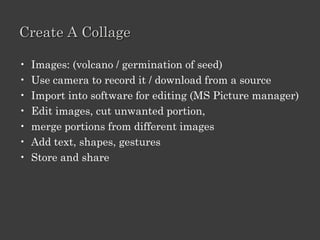
Create A Collage

•   Images: (volcano / germination of seed)
•   Use camera to record it / download from a source
•   Import into software for editing (MS Picture manager)
•   Edit images, cut unwanted portion,
•   merge portions from different images
•   Add text, shapes, gestures
•   Store and share
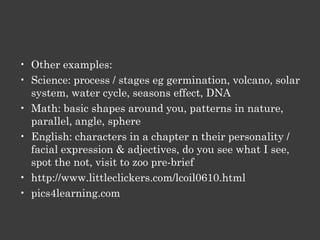
• Other examples:
• Science: process / stages eg germination, volcano, solar
  system, water cycle, seasons effect, DNA
• Math: basic shapes around you, patterns in nature,
  parallel, angle, sphere
• English: characters in a chapter n their personality /
  facial expression & adjectives, do you see what I see,
  spot the not, visit to zoo pre-brief
• http://www.littleclickers.com/lcoil0610.html
• pics4learning.com
SUMMARY

• Book: Instructional Media and Technology for
  Learning
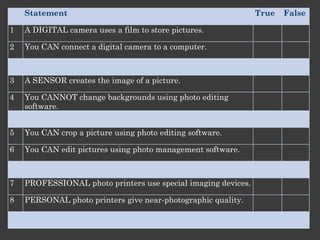
Statement                                                  True   False

1   A DIGITAL camera uses a film to store pictures.

2   You CAN connect a digital camera to a computer.


3   A SENSOR creates the image of a picture.

4   You CANNOT change backgrounds using photo editing
    software.


5   You CAN crop a picture using photo editing software.

6   You CAN edit pictures using photo management software.


7   PROFESSIONAL photo printers use special imaging devices.

8   PERSONAL photo printers give near-photographic quality.
Module 10: Educational Software

Desktop Based Software
•   Describe some of its uses
•   Install a program
•   Start and Quit a program
•   Identify main components of the user interface
•   Perform basic tasks

• Tutorial: Eureka / ILFS
• Reference: Encarta
• Practice: Mind spark

Alphatech 2011-12

  • 1.
  • 2.
    Program Objectives • Remove fear • Simple and fun • Operate • Connect to the Internet • Create documents, worksheets, presentations • Write and send email • Safety on internet • Digital multimedia • Educational Software
  • 3.
    Module 1: ComputerBasics Lesson Title Lesson 1 Introduction Lesson 2 Terminology Lesson 3 Performance and Features Lesson 4 Operating Systems Lesson 1: Outline Lesson 1 Introduction to Computers Main parts Start and shut down Keyboard. Mouse
  • 4.
    Introduction To Computers •Jargon definition : A computer is a programmable machine that receives input, stores and manipulates data, and provides output in a useful format. (source: wikipedia.com) • Simple definition: Machine that performs tasks automatically (source: Dewang sir)
  • 5.
    Use • Create Documents • Create Spreadsheets • Create Presentations • Surf the web • Send Email • Chat • View pictures, music, video • Play games
  • 6.
    Identify The MainParts Of A Computer • Input • Process • Output • Storage
  • 7.
    Basics Parts OfA Laptop • Monitor • Keyboard • Speakers • Touchpad
  • 8.
    Basics Parts OfA Laptop • Battery • Adaptor
  • 9.
    Input Devices: • Keyboard •Mouse • Camera • Scanner
  • 10.
    Using The Touchpad •Click • Drag • Double click • Right click
  • 11.
    Central Processing Unit(CPU) (Front side) CD / DVD Power On / Off USB Microphone Headphone
  • 12.
    Central Processing Unit(CPU) (Back side) Keyboard Mouse Printer Monitor USB Network Microphone Speaker
  • 13.
    Power CD / DVD Speaker - Headphone Card Reader
  • 14.
    1. Power 2. Network 3.Mouse 4. Video 5. Microphone and headphone 6. USB 1. Monitor 2. Mouse 3. Printer
  • 15.
    Output Devices: • Monitors •Printers • Speakers
  • 16.
    Storage devices: • Hard disk • CD / DVD • Floppy • Pen drive
  • 17.
    Role Play • Stepsto start a computer • Steps to shutdown a computer
  • 18.
    Practice: Keyboard &Mouse •http://www.bbc.co.uk/webwi se/abbeg/abbeg.shtml
  • 19.
  • 20.
    Sort Game &Quick Quiz • Mouse • Keyboard • Scanner Input Output Storage • Hard Disk Device Device Device • CD-ROM • Printer • Headphone • Monitor • Floppy • Speaker • DVD-ROM • Microphone
  • 21.
    Lesson 1: Outline Lesson1 Introduction to Computers Main parts Start and shut down Keyboard. Mouse
  • 22.
    Lesson 2: Outline Lesson2 Terminology Operating system Programs and data Network Internet
  • 23.
    Common Computer Terminology •What is an operating system? • What are programs and data?
  • 25.
    Game • Narrator • Actor •Enabler (Source: Whose Line is it Anyway)
  • 26.
  • 28.
    Quiz Statement 1 Includes computer devices 2 Helps control the physical components 3 Allows you to play games or watch movies 4 Helps provide input to a computer 5 Ensures reliable operation of the computer 6 Uses the platform to perform a task 7 Helps you view the output of a computer Option 1 Option 2 Option 3 Hardware Operating System Programs
  • 29.
    Lesson 2: Outline Lesson2 Terminology Operating system Programs and data Network Internet
  • 30.
    Lesson 3: Outline Performance Typesof computers. Role of memory.
  • 31.
    Types Of Computers • Desktop • Laptop • Netbook • Palmtop • Tablet
  • 32.
    Role Of Memory •Temporary • Permanent • Units: • Bit • Byte • Kb • Mb • Gb
  • 33.
    Quiz Question 1 Which ofthe following features are true of laptops as compared with desktop computers? Select all answers that apply. They generally cost more for similar hardware. They consume less power. They are good travel companions. They are easier to upgrade. Question 2 Which of the following are true statements about RAM? Select all answers that apply. The amount affects the computer’s performance. Its contents are permanent. It has lower data-retrieval speed compared with storage memory. It stores active data and programs.
  • 34.
    Lesson 3: Outline Performance Typesof computers. Role of memory.
  • 35.
    Lesson 4: Outline ComputerOperating Systems Functions Interface. Start menu Windows XP interface Files and folders Practice
  • 36.
    Functions Of OperatingSystem. • Provides a user interface • Provides utilities to configure your system • Helps manage computer resources • Helps secure data by controlling user access to a computer
  • 37.
    Windows XP Interface •Start Menu • Taskbar • Icons
  • 38.
  • 39.
  • 40.
    Taskbar • Quick launch •Notification • Turn off
  • 41.
    Program Window • Title bar • Menu bar • Toolbar • Min • Max • Close • Scroll • Resize • Taskbar
  • 42.
    Settings • Set time •Set date • Set desktop wallpaper
  • 43.
    Files And Folders •File types • Explorer • Create • Rename • Move • Copy • Paste • Delete • Properties • Views
  • 44.
    File • Create adocument using Microsoft Word • New • Save as practice file on desktop
  • 45.
    Folder • Open WindowsExplorer. • In D Drive • Create Training folder, open it. • Create Materials folder • View details of folder • Rename Materials folder to Resources • Move file from desktop to Resources folder using copy and paste • Delete file from desktop
  • 46.
  • 47.
    Module 2: InternetBasics Lesson 1 The Internet Use Connection Features Lesson 2 The World Wide Web Components Web addresses Browser Search
  • 48.
    Uses Of Internet • Find information • Communication • Sharing • Shopping • Banking • Play Games • Listen to Music • Watch movies
  • 49.
  • 50.
    Need to Connect 1. Computer 2. Modem 3. Web Browser 4. Internet Service Provider: username
  • 51.
    Types Of Connections •Broadband • Dialup • Pros / cons • Cost • Speed • Connectivity: always on / connect • Stability • Cable/ wireless
  • 52.
    Quiz Statement 1 Computer 2 Dial-up 3 Internet Service Provider (ISP) 4 Wireless 5 Modem 6 Digital Subscriber Line (DSL) Option 1 Option 2 Device Connection Type
  • 53.
    Access to theInternet Access to the Internet through server directly
  • 54.
    • Components • Webbrowser • Web page • Website
  • 55.
    Web Address Element Description http:// Indicates the protocol to be used to access a file. www Indicates that the Web site is on the World Wide Web. microsoft Indicates the name of the Web site. .com Indicates the type of domain. /learning/default.asp Indicates the path of the document.
  • 56.
    Domains • .com • .edu / .ac • .net • .org • .info • .museum • .gov • .in
  • 58.
    Use A Browser • Address bar • Navigation • Link • Search • Bookmark • History
  • 59.
    Plugins • Flash • Pdf • Video • java
  • 61.
    Statement True False 1 World Wide Web IS a part of the Internet. 2 You CANNOT create new Web pages. 3 Internet Explorer is a Web SERVER. 4 WEB address is also known as Uniform Resource Locator (URL). 5 You can open ONLY A SINGLE Web browser window. 6 You CAN download files from the Web. 7 A portal IS a Web site. 8 A reliable Web site must have authors WITH credentials. 9 Search engines are Web SITES with special technology.
  • 62.
    Module 3: CommunicationOn Internet Lesson 1 E-mail Create an Account Write and send e-mail Manage e-mail Lesson 2 Instant messaging Write and send IM
  • 63.
  • 64.
    How Email Works •Desktop based: Email client “MS Outlook” • Internet based: Gmail / Yahoo
  • 65.
    "Snail" Mail Email Letter, Card, Postcard, Electronic Text Message, electronic What is mailed? Larger packages pictures, etc. Packet: In what is it delivered? Envelope, etc A piece of text delivered over the Internet Sender: Sender: Who is it from? John Doe John Doe Recipient: Recipient: Who is it for? Jane Doe Jane Doe 123 Somewhere Street Address? janedoe@gcflearnfree.org Somewhere, NC, 22222 Mail Server and Email client software: Who/What delivers it? Mail Carrier/Mailman Rely on one another to both send and deliver email Email client software's INBOX: Where is it delivered? Mailbox Text editor used to compose, send, receive and manage email Delivery Time? Varies, usually 2 days A few minutes unless technical problems
  • 66.
    Create An AccountIn Gmail Write And Send Email • Send an email to one teacher in the group • Write in not more than three lines your experience of creating an email account
  • 67.
    Use Your EmailAccount To • Display a list of received messages. • Read the message. • Create new messages. • Reply to, forward, and delete messages. • "Attach" files (called attachments) to messages you send. • Save the attachments you receive.
  • 68.
    Manage Emails • Folders/ labels • Flags • Attachments
  • 69.
    Etiqutte • Email Do's •Do include a descriptive subject line • Keep it short • Email Don'ts • Don't ignore spelling and grammar mistakes Don't bother with excessive formatting Don't use excessive punctuation Don’t use CAPITAL LETTERS • Don't use emoticons like: • :-) = happy :-( = sad ;-) = wink :-o = shocked
  • 70.
    Lesson 2: InstantMessaging • For instant messaging you need: • IM service • IM software. • Sign up for a free account • Determine a user name and password. • Ready to go. • Google talk • MSN messenger • Yahoo messenger
  • 71.
    Features • Create acontact list (buddy list). • Add, Edit or Delete people from your contact list. • Know who in your contact list is online at any time. • Send and receive messages from those in your contact list. • Functions may include: chat, voice, video
  • 72.
    Quiz Statement 1Remains on server till it is downloaded 2 Exchange messages with mobile devices 3 Send and receive responses immediately 4 Send icons to express emotions 5 Includes recipient information in header Option 1 Option 2 E-mail Messages Instant Messaging
  • 73.
    Module 4: IntroductionTo Word Processor Uses Start and Quit Interface Save and open Enter and edit Formatting Indents Tables and photographs Print Practice
  • 74.
    Start And Quit •Start • Start menu / shortcut • Quit • Close button / exit from menu
  • 75.
    Components Of UserInterface • Title bar • Menu bar • Toolbars • Font, Paragraph, Styles and Editing • Min, Max, Close • Scroll, Resize
  • 76.
    Save And OpenA Document • Save • Save as • Other versions • Pdf • Create new document • Open from folder • Open from pen-drive / CD
  • 77.
    Enter And EditText • Insert • Delete • Select • Copy • Paste • drag and drop • Create a letter to your Unit Head • Report of training you are undergoing
  • 78.
    Formatting • Font Size, Style, Colour • Bold Italic Underline • Alignment • Hyperlink • Spacing: character, line, paragraph
  • 79.
    Edit Letter • Use indents • Bullet / numbering • Spelling and grammar check • Word count
  • 80.
  • 81.
    Printing • Page setting – Paper – Margin – Orientation • Print preview • Print
  • 82.
    Practice • Create greetingcard • Welcome students to the new academic year
  • 83.
    Online • Google Translate • Google Transliteration Offline • Microsoft Language Tools
  • 84.
    GOOGLE TRANSLATE • Open any Browser • Translate.google.com • Select language(Both From & To) • Type or Paste any document in it • Click Translate button • Listen • Read Phonetically • Use
  • 85.
    GOOGLE TRANSLITERATION • Open any Browser • www.google.com/transliterate • Select language & give space • Use of Formatting toolbar • Use it by copying
  • 86.
    Microsoft Language Tools • Open any Browser • bhashaindia.com • Go to Tools • Select language(Hindi or Gujarati) • Download it • Open MS Office, Notepad, or WordPad • Select Language from Taskbar • Start Using it
  • 87.
    Module 5: IntroductionTo Spreadsheets Uses Start and Quit Interface Save and open Cell, worksheet, workbook Enter and edit Formatting Currency Unit (Rs), Date Functions Data series, auto-fill Print Practice
  • 88.
    Start And Quit •Start • Start menu / shortcut • Quit • Close button / exit from menu
  • 89.
    Components Of UserInterface • Title bar & Menu bar • Toolbars • Alignment, Number, Styles, Cells and Editing • Min, Max, Close, Scroll, Resize
  • 90.
    Save And OpenA Worksheet • Save • Save as • Other versions • Create new spreadsheet • Open from folder • Open from pen-drive / CD
  • 91.
    Cell, Worksheet, Workbook •Insertion point • Cell handle
  • 92.
    Enter And EditText • Insert • Delete • Select • Copy • Paste • Drag and drop • Create a grade card for Class Test • Marks, highest, average
  • 93.
    Formatting • Font Size, Style, Colour • Cell shading • Bold Italic Underline • Number format (text, number, date, currency) • Alignment • Hyperlink • Spacing: character, line, paragraph
  • 94.
    Edit Grade Card •Use functions • Data series • Auto-fill
  • 95.
    Printing • Page setting – Paper – Margin – Orientation • Print preview • Print
  • 96.
    Practice • Create Gradecard for Final Exam • Include marks from class test, unit test and finals
  • 97.
    Statement True False 1 You CAN store text, numbers, or formulas in a cell. 2 A column in a worksheet is identified by a LETTER. 3 A cell range CANNOT extend across multiple rows. 4 A cell VALUE indicates an active cell. 5 A workbook CANNOT contain more than one worksheet. 6 A cell address indicates the exact location of a ROW. 7 A WORKBOOK is a file created in Excel. 8 ONLY ONE cell can be active at a time.
  • 98.
    Module 6: IntroductionTo Presentations Uses Start and Quit Interface Save and open Insert, edit and move Insert text box, table, chart, graphic, audio,video in slide Slide themes, smart art Formatting features Print Play and operate Practice
  • 99.
    Start And Quit •Start • Start menu / shortcut • Quit • Close button / exit from menu
  • 100.
    Components Of UserInterface • Title bar & Menu bar • Toolbars • Slides, Font, Paragraph, Drawing and Editing • Min, Max, Close, Scroll, Resize
  • 101.
    Save And OpenA Presentation • Save • Save as • Other versions • Create new presentation • Open from folder • Open from pen-drive / CD
  • 102.
  • 103.
    Insert • Text box • Table • Chart • Graphic • Audio – video • Create a slideshow about where you live • Slide theme • Smart art
  • 104.
    Formatting • Text – Font Size, Style, Colour – Bold Italic Underline – Alignment – Hyperlink – Spacing: character, line, paragraph • Object – shading / border – layout
  • 105.
    Printing • Page setting – Paper – Margin – Orientation • Print preview • Print
  • 106.
    Play And Operate •Slide transition • Animation
  • 107.
  • 108.
    Question 1 In whichof the following cases do you use the Slide Show view? Select the one best answer. To rearrange the slides in your presentation. To insert a new slide in your presentation. To get a full-screen view of your presentation. To view an outline of your presentation. Question 2 In which of the following cases do you select the Handouts option on the Print dialog box? Select the one best answer. To print specific slides from your presentation. To print all the slides of your presentation. To print the current slide of your presentation. To print multiple slides from your presentation on one page.
  • 109.
    Module 7: ComputerSecurity And Privacy Lesson 1 Security and Privacy Threats to your computer Protection from threats Lesson 2 Protecting Your Computer Guidelines Secure e-mail and IM Lesson 3 Protecting Privacy Online predators operate Guidelines Lesson 4 Secure and Updated Security settings Computer up-to-date.
  • 110.
    1. Security AndPrivacy • Security – Preventive measures – to avoid damage to the computer and its data • Privacy – personal files and e-mail messages – not access without your permission – restrict access to your data
  • 111.
    Threats To YourComputer • Extreme temperatures • Voltage problems • Hackers • Physical Theft • Virtual Theft • Viruses, Worms, and Trojan Horses • Spyware • Internet Scams • Online Predators • Human Error • Hardware damage
  • 112.
    Protection From Threats • Backing up data • Installing computers in secure locations • Controlling operating environment • Surge protection and line conditioning • Uninterruptible Power Supply (UPS) • Data Storage in Safe Locations • Virus and Spyware Protection • Firewall • Protecting hardware
  • 113.
  • 114.
    Guidelines • Set a username and password • Use hard-to-guess passwords • Keep passwords secure • Lock your computer • Install protective software • Encrypt data • Back up data • Keep your computer updated • Clear history, cache, cookies
  • 115.
    Tips For StrongPassword • Don't use the same password for each account. • Use a longer password. • Include numbers, symbols and uppercase- lowercase letters • Never use personal information • Avoid using predictable patterns such as "susan123". • Random passwords are the strongest. • For example, "H=jNp2#" can be remembered as "HARRY = jessica NOKIA paris 2 #"
  • 116.
    Secure E-mail AndChat • Avoid opening e-mail with attachments • Do not respond to junk mail • Do not respond to unsolicited commercial mail • Protect yourself from phishing • Chat with known people only • Do not open attachments received over IM
  • 117.
    Quiz Statement 1 Set up username and password 2 Back up data 3 Delete cookies periodically 4 Use lock combination 5 Clear cache memory 6 Use secure Web sites Option 1 Option 2 Protect Computer Data Avoid Online Threats
  • 118.
    3. Protecting Privacy •Protect Your Identity • Regular Backups of data • Update system Security Regularly • Run Virus Scans Daily • Use Antispyware • Filter E-mail Messages from Unknown/Anonymous Senders • Encrypt Sensitive E-mail Messages, If Possible
  • 119.
    Explain How OnlinePredators Operate. • Online predators – Unknown people who meet over internet and misuse it to lure young individuals into inappropriate or dangerous relationships • target children, especially adolescents – establish a relationship of trust and intimacy – gain the attention • Target adults – for financial exploitation • contact through chat rooms, instant messaging, e-mail • assume a fake identity
  • 120.
    Guidelines • Know how predators behave • Be suspicious about gifts offered over the Internet • Educate your family about online safety measures • Tell your family not to give out personal information • Guide children when they visit Web sites • Be aware of the Web sites that your children visit • Block access to inappropriate Web sites • Monitor chat activities on your computer • Instruct children to leave unpleasant Web sites
  • 121.
    Statement True False 1 It is SAFE to share personal information in a chat room. 2 Online predators GET intimate very quickly. 3 Parents NEED NOT know the Web sites their children visit. 4 It is POSSIBLE to monitor chat activity. 5 You CANNOT restrict the Web sites that children visit. 6 Online predators TARGET children. 7 Children SHOULD NOT be allowed to visit Web sites alone. 8 Online predators LURE their targets with gifts. 9 It is SAFE for children to enter a private chat area.
  • 122.
  • 123.
    Security Settings OnComputer. • Internet properties • Firewall • Updates
  • 124.
    Computer Up-to-date. • Systemupdates • Antivirus updates • Security patches
  • 125.
    Module 8: E-ethics Explainintellectual property and copyright as they apply to computing. Identify acts of copyright violation and the measures to prevent those acts. Johnson’s 3 P’s of Technology Ethics: • Privacy - I will protect my privacy and respect the privacy of others. • Property - I will protect my property and respect the property of others. • a(P)propriate Use - I will use technology in constructive ways and in ways which do not break the rules of my family, church, school, or government. Doug Johnson, Director of Media and Technology for the Mankato (MN) Public Schools
  • 126.
    Intellectual Property • Ownerhas exclusive rights to control the use of the material to: – Copy, reproduce, or distribute the property. – Share or sell the rights to the property. – Give away the rights to the property for free.
  • 127.
    Copyright Violation • Plagiarism •Inappropriate-use and piracy – Music – Software – Logo • Unauthorized access
  • 128.
    Copyright Prevention • Legaluse – Using copyrighted material for educational purposes – Sharing links instead of downloaded material – Using copyrighted material with the copyright owner's permission
  • 129.
  • 130.
    • Note: • Forthe next session, please bring your: – mobile phone with cable, software – Portable media player with cable, software
  • 131.
    Module 9: DigitalMultimedia Lesson 1 Digital Technology Benefits Features Lesson 2 Digital Audio Characteristics Recording, copying, and converting Practice Features of speech technologies Lesson 3 Digital Video Characteristics Editing and formats Practice Features Lesson 4 Digital Photography Benefits, features and working Edit and manage Practice Different types of printers
  • 132.
    Benefits Of DigitalTechnology • Audio and Video Players • MP3 players, CD players, and DVD players play audio or video • MP3 format reduces file size • Cell phone / Smart phone • a wireless phone • connect to the Internet, • check your e-mail • download songs and games • take pictures, • record short video clips • play music and games • transmit pictures and videos
  • 133.
    • Portable videogame system – Similar to computer – Play from hard-disk – Transfer audio video images to disk – Listen to audio – Watch movies • Personal Digital Assistant – a handheld computer – a personal organizer – address book, task list, and calculator. – connect it to the Internet – play multimedia files
  • 134.
    • Digital Camera – stores images digitally on a memory card or a mini hard disk – print images directly to a digital printer. • Digital Video Cameras – record both video and audio – Store in a digital format on card or DVD or hard disk • Webcam – captures images – Transmits images across the Internet
  • 135.
    Statement True False 1 A smart phone CANNOT organize and store information. 2 A PDA is used to organize information. 3 You CANNOT use an Xbox to play audio. 4 You CAN edit photographs taken using a digital camera. 5 A digital camera stores images on a FILM. 6 You CAN play games online by using an Xbox. 7 Videoconferencing can be held between MULTIPLE people. 8 A Webcam IS a digital video camera. 9 A digital camcorder records BOTH audio and video.
  • 136.
    Characteristics Of DigitalAudio. • It can be compressed • It can be edited • Can be streamed • Wave (WAV): – developed for Microsoft Windows® 95 – Large size audio files • MPEG Audio Layer 3 (MP3): – developed by Motion Picture Expert Group – compression of audio and video for digital distribution. – smaller than WAV files. • Windows Media® Audio (WMA): – developed by Microsoft for digital audio files.
  • 137.
    Recording, Copying • Recordingand storing audio files in a digital format is called digital recording • copying audio to a recordable CD or DVD is referred to as burning • Audio can be stored in hard disk, CD, DVD, pen drive, portable player • Requirements for recording: – Microphone – CD or DVD writer – Software
  • 138.
    Converting • Conversion Software • Compression • Size • Player type: CD player, computer, portable player
  • 139.
    Speech Technologies. • Speechrecognition allows you to communicate with a computer by using only your voice to enter text and to issue commands. • microphone, a sound card, and speech recognition software • interact with various programs
  • 140.
    Create An AudioPiece • Audio: (panchtantra: turtle and rabbit) • (other ideas: instrumental karaoke lallaby, carols, pronunciation guide, bird calls) • Choose a story. • Use voice recorder to record it / download from a source • Import it into software for editing (Audacity) • Edit flaws like (pauses, umms, etc.) • Find music that represents the theme and mood of the story • Store and share
  • 141.
    Statement True False 1 You CANNOT change the format of audio files. 2 MP3 format ALLOWS compression of audio files. 3 Compressed audio files DO NOT SAVE space. 4 You DO NOT NEED software to convert audio from a CD. 5 When converting audio, the audio file MAY BE compressed. 6 When converting audio, the format is CHANGED. 7 You DO NOT USE a CD or DVD writer to copy audio to a CD. 8 Most DVD writers can copy audio to CDs AND DVDs. 9 You DO NOT NEED software to copy audio to CDs and DVDs.
  • 142.
    • Note: • Forthe next session, please bring your: – Digital video camera with cable, software
  • 143.
  • 144.
    Characteristics Of DigitalVideo • Recording by: – Analog video camera (tape / film) – Digital video camera (CD / DVD, Card, Disk) • It can be compressed • Can be streamed • Watch directly on TV
  • 145.
    Before digital video With digital video Video cameras were large and heavy. Many video cameras are small enough to fit in your pocket. Handheld cameras produced shaky video. Image-stabilization technology steadies handheld video. You had to carry separate video and still Most digital video cameras can take still cameras. pictures, too. Video shot indoors was tinted orange. Digital video cameras automatically adjust to different lighting. Editing video required special training and You can edit videos with your home was expensive. computer and software Most home movies were long and boring. Edited home movies are fast-paced and professional-looking. To show a video to a friend, you had to ship You can e-mail videos to your friends, or him or her a tape. burn your home movies to a CD or DVD.
  • 146.
    Editing and OutputFormats • Editing – titles and background music – Cut or remove certain scenes – special effects – brightness, contrast, and color. – Subtitles / transcript • Formats – .wmv – .mov – .mpeg – .vcd
  • 147.
    Web Video Technologies. •Streaming: real-time, stored • Downloading • Web-conferencing
  • 148.
    Create A Video •Video: (volcano / germination of seed) • Other ideas: – http://kids.discovery.com/games/pompeii/pompeii.html – concept: germination, volcano, earthquake, solar system, DNA – visit to zoo pre-brief • Use camcorder to record it / download from a source • Import into software for editing (Windows Movie Maker) • Edit pieces, cut unwanted portion, merge portions from different videos • Add text, gestures, voice, props, pictures, music • Store and share
  • 149.
    Summary • Benefits ofvideo in classroom • develop greater critical literacy skills by comparing television or movie segments with own creations • view difficult, dangerous or expensive experiments or activities (recorded with specialists) • assist in the introduction of disabled students into mainstream classes • show skills that are quicker to learn by observation (e.g. sewing a French seam) • record and analyze student or teacher presentations
  • 150.
    Statement 1 Can bereal-time or on-demand 2 Maintains a copy of video on your computer 3 Allows screen sharing 4 Sends video as a continuous stream 5 Allows voice communication 6 Refers to download of video from the Internet 7 Allows you to see and hear others in real time Option 1 Option 2 Option 3 Video streaming Downloading video Web conferencing
  • 151.
    • Note: • Forthe next session, please bring your: – Digital camera with cable, software
  • 152.
    Digital Camera • Benefits – Digital storage – Transfer to pc – Editing – Printing – Sharing on web – Watch directly on tv
  • 153.
  • 154.
    Digital Camera • Features – Resolution: Megapixel – lens : zoom – Lcd screen
  • 155.
    Edit digital images • transfer pictures to a computer • edit pictures • photo editing software • remove the red-eye • adjusting the brightness, contrast, or color • crop, resize, and print • adding special effects • change the backgrounds • add text
  • 156.
    Manage digital images •manage your image library • sort and organize your picture collection • compressing and fine tuning pictures • Formats • .jpeg • .gif • .png • .bmp
  • 157.
    Printers • Consumer printers – Inkjet: liquid ink, paper – Laser: powder ink, paper – Photo: dye, photo paper
  • 158.
    Create A Collage • Images: (volcano / germination of seed) • Use camera to record it / download from a source • Import into software for editing (MS Picture manager) • Edit images, cut unwanted portion, • merge portions from different images • Add text, shapes, gestures • Store and share
  • 159.
    • Other examples: •Science: process / stages eg germination, volcano, solar system, water cycle, seasons effect, DNA • Math: basic shapes around you, patterns in nature, parallel, angle, sphere • English: characters in a chapter n their personality / facial expression & adjectives, do you see what I see, spot the not, visit to zoo pre-brief • http://www.littleclickers.com/lcoil0610.html • pics4learning.com
  • 160.
    SUMMARY • Book: InstructionalMedia and Technology for Learning
  • 161.
    Statement True False 1 A DIGITAL camera uses a film to store pictures. 2 You CAN connect a digital camera to a computer. 3 A SENSOR creates the image of a picture. 4 You CANNOT change backgrounds using photo editing software. 5 You CAN crop a picture using photo editing software. 6 You CAN edit pictures using photo management software. 7 PROFESSIONAL photo printers use special imaging devices. 8 PERSONAL photo printers give near-photographic quality.
  • 162.
    Module 10: EducationalSoftware Desktop Based Software • Describe some of its uses • Install a program • Start and Quit a program • Identify main components of the user interface • Perform basic tasks • Tutorial: Eureka / ILFS • Reference: Encarta • Practice: Mind spark

Editor's Notes

  • #2 Course OverviewIntro: Livebinder, MultiurlPlay a game call “getting to know you”Pass the smiley ball to one person randomlyPerson speaks name, first thing that comes to my mind when I hear the word “computer”Begin by doing this yourself, then pass it to someone
  • #5 First the jargon definitionThe simple definitionDistribute the “Glossary”.doc from trainee material
  • #7 Terms hardware, software, liveware
  • #8 MonitorThe monitor, which resembles a television screen, is where the computer displays text and pictures. KeyboardThe keyboard is a piece of hardware that resembles a typewriter keyboard. It is one of the primary ways you communicate with the computer and enter data. SpeakersSpeakers are usually small and built into the screen or the body of the laptop. In the image, the example laptop has speakers in the body, or laptop casing. The speakers allow you to hear computer sounds, audio streamed from the Internet, CDs and DVDs, and more.TouchpadOn a laptop, a touchpad is a substitute for the mouse. Move your finger on the touchpad to move around the screen and select text and objects. The buttons below the touchpad operate like mouse buttons.
  • #9 MonitorThe monitor, which resembles a television screen, is where the computer displays text and pictures. KeyboardThe keyboard is a piece of hardware that resembles a typewriter keyboard. It is one of the primary ways you communicate with the computer and enter data. SpeakersSpeakers are usually small and built into the screen or the body of the laptop. In the image, the example laptop has speakers in the body, or laptop casing. The speakers allow you to hear computer sounds, audio streamed from the Internet, CDs and DVDs, and more.TouchpadOn a laptop, a touchpad is a substitute for the mouse. Move your finger on the touchpad to move around the screen and select text and objects. The buttons below the touchpad operate like mouse buttons.
  • #11 Click. Select an object on the screen by pressing the left button down with your index finger and then release the button.Drag an object on the screen by pressing and holding down the left button with your index finger while moving another finger on the touchpad. When the object is where you want it, release the button. To double-click, rapidly press and release the left button with your index finger. To right-click, press and release the right button with your middle finger.
  • #12 Distribute “Parts of PC-1”
  • #13 Distribute “Parts of PC-2”
  • #16 Monitor: LCD, CRTPrinter: Inkjet, laserSpeaker: Table, Headset
  • #18 Learners suggest you act as they say
  • #32 SizePortableCostUsabilityBatteryTouch
  • #37 http://www.wvschools.com/harrisoncounty/msoffice/computer.htm
  • #44 doc: Word or WordPad documenttxt: Notepad text filexls: Excel spreadsheethtm or html: HTML file (web page) ppt: PowerPoint presentation
  • #50 Distribute “Module2_Glossary.doc”
  • #74 Inquire and let ideas pop outIf Word 2007: Use videos from:http://www.gcflearnfree.org/computer/topic.aspx?id=140&tab=videos
  • #76 Distribute Module4_Glossary
  • #99 Uses
  • #111 Distribute Module7-8_Glossary, internet safety cheatsheet
  • #130 Copyright Crossword from trainee material
  • #163 Components: Menus, Toolbars, Functions, FeaturesBasic Tasks: Search, print, save, navigate, unique features
  • #164 Components: Menus, Toolbars, Functions, FeaturesBasic Tasks: Search, print, save, navigate, unique features