Computer Science 203 V 2.0  Review Slides For Final Exam
Notes to Students These slides are meant to be a guide to studying  Technology in Action,  Chapters 3 to 11. Please review chapters 1 - 3 on your own. Be advised that other material will be covered including topics covered in lectures and topics covered in labs including MS Office procedures. Good luck and it was good working with you.
Instant Messaging Real-time text-based conversations Set up a list of contacts Buddy list Contacts must be online IM software detects presence  Example: AOL Instant Messenger
Voice over Internet Protocol VoIP  - The Internet as a means to place phone calls Uses technology similar to  e-mail to send  voice data digitally  Requires a microphone an Internet connection A  VoIP provider Services differ Free services require an account on both ends Paid services connect phone to computer Cable and DSL providers offer phone through broadband WiFi IP phones  call through Internet hotspots and wireless networks
Weblogs (blogs) Known as blogs Available to the public Simple to create, read, and manage Entries listed on a single page Most recent entry at the top Searchable Some are personal Many are focused on a topic
Podcasts Video blog (vlog) – entries are video clips Podcasts – compressed audio/video files distributed on the Internet RSS (Really Simple Syndication) technology allows constant updates for subscribers Podcasts are all over the Web  Requires “aggregator” software to gather podcasts Requires media player software to play them Simple to create and attach RSS files
Webcasts and Wikis Webcasts  broadcast audio/visual files but are not updated use  streaming  media A  wiki  is a Web site that allows anyone to change its content  Wikis  provide an excellent source for collaborative writing  Unlike blogs,  wikis  can be edited for a  “common” opinion
Social Networking Social networking   sites like  Facebook.com Members share common interests Members communicate by voice, chat, instant message, video, and blogs  Members create personalized profiles  Growth has been explosive  Risks must be recognized and reduced
Web Entertainment Multimedia: Involves forms of media and text Graphics Audio Video Streaming audio and video Plug-in
Conducting Business  Over the Internet E-Commerce: Electronic commerce Business-to-consumer (B2C) Business-to-business (B2B) Consumer-to-consumer (C2C) Secure transactions B2B E-commerce Manufacturer Suppliers Retailer
Online Annoyances Spam – electronic junk mail Pop-ups – intrusive advertising Cookies – tracking user’s browsing habits Spyware – programs that collect data from a user’s computer Malware -  software that has a malicious intent  Phishing and Hoaxes – Ruses to fool and maybe steal from users
Phishing and Hoaxes Phishing is a phony communication Attempts to scam someone into sending vital information Hoaxes are attempts to scam people into sending money, or join a chain letter Identity Theft
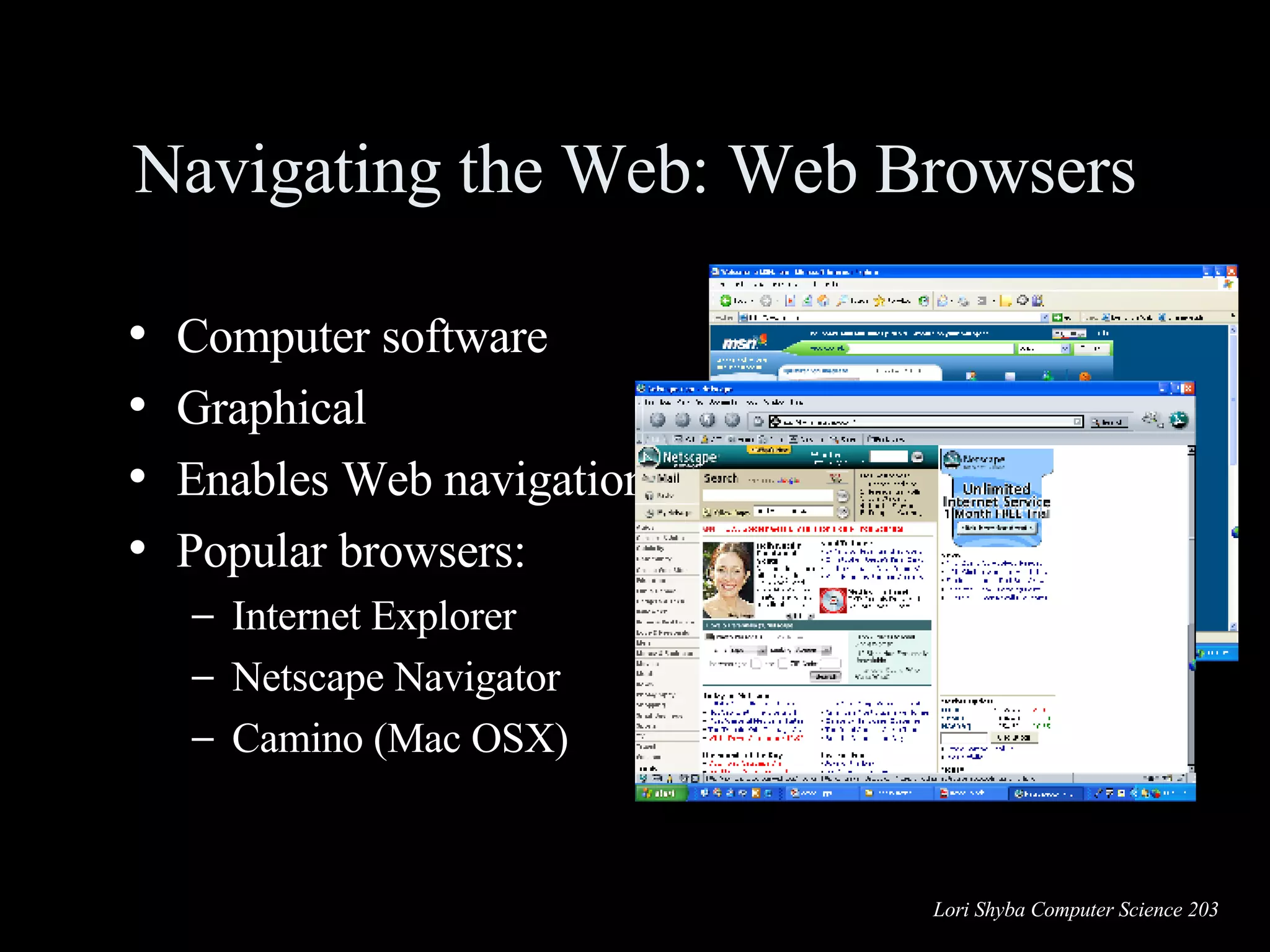
Navigating the Web: Web Browsers Computer software Graphical Enables Web navigation Popular browsers: Internet Explorer Netscape Navigator Camino (Mac OSX)
Browser Toolbars
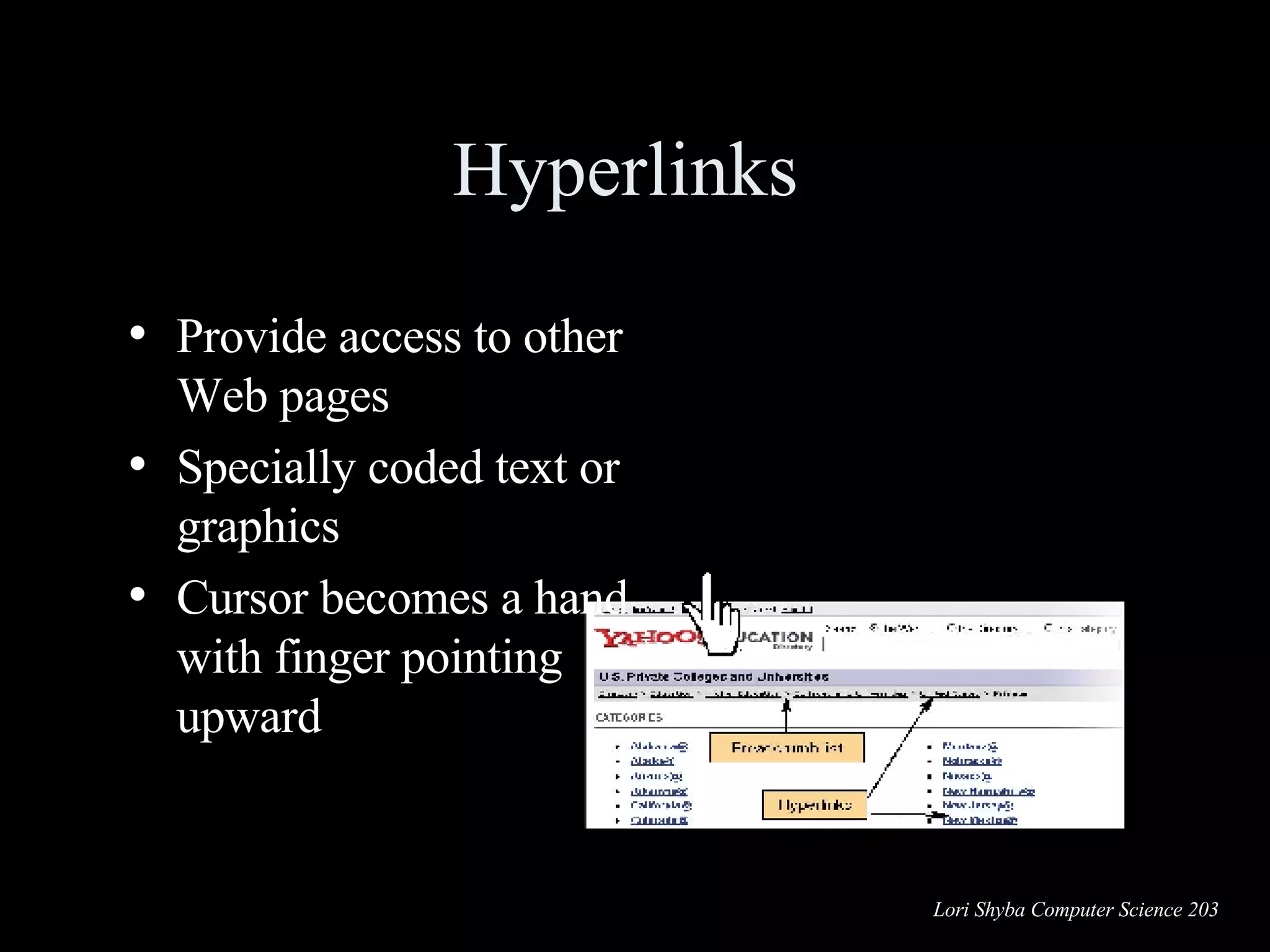
Hyperlinks  Provide access to other Web pages Specially coded text or graphics Cursor becomes a hand with finger pointing upward
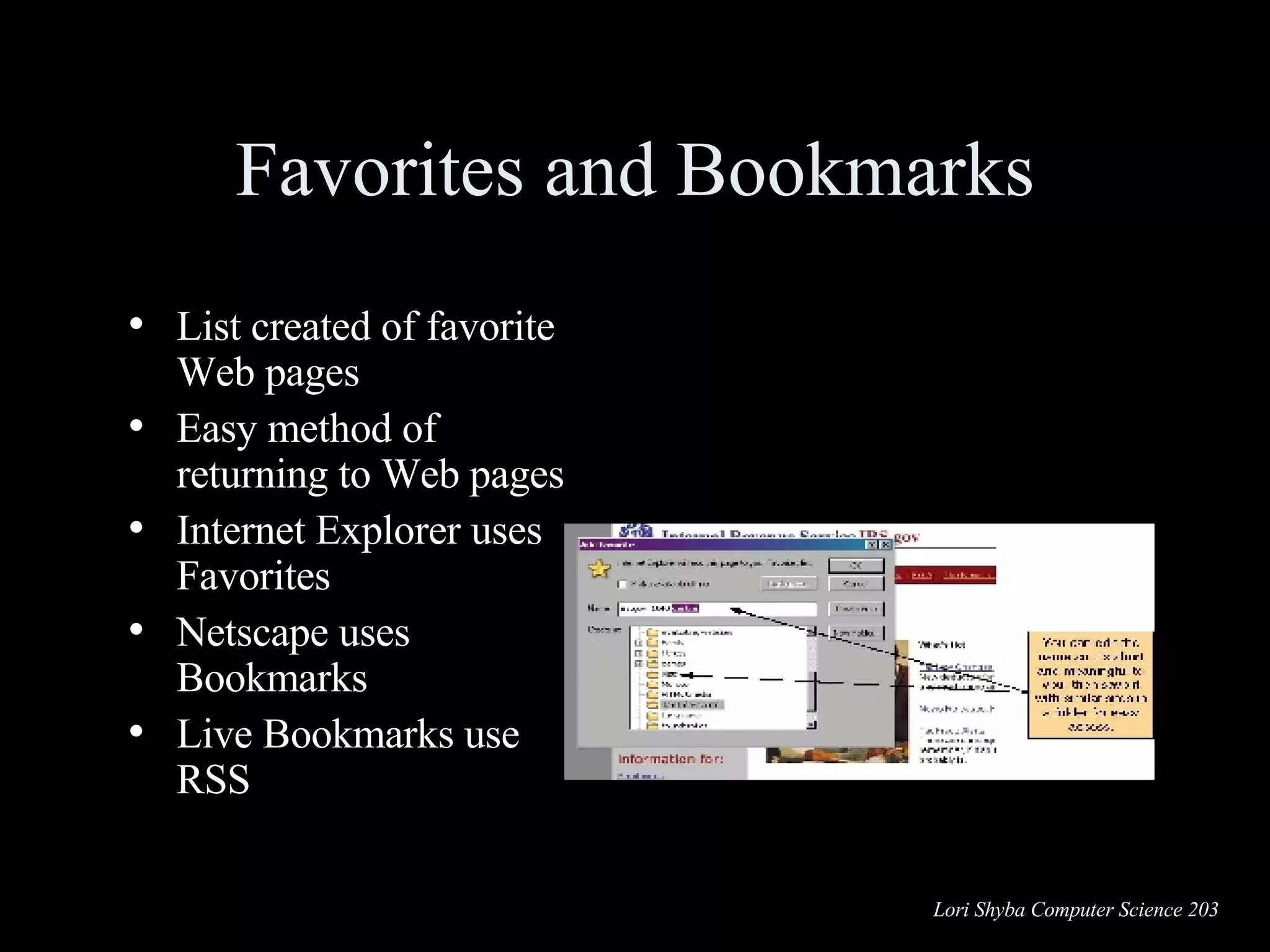
Favorites and Bookmarks List created of favorite Web pages Easy method of returning to Web pages Internet Explorer uses Favorites Netscape uses Bookmarks Live Bookmarks use RSS
Tabbed Browsing Found on Firefox and Safari browsers  Not available on Internet Explorer Multiple pages in same browser window
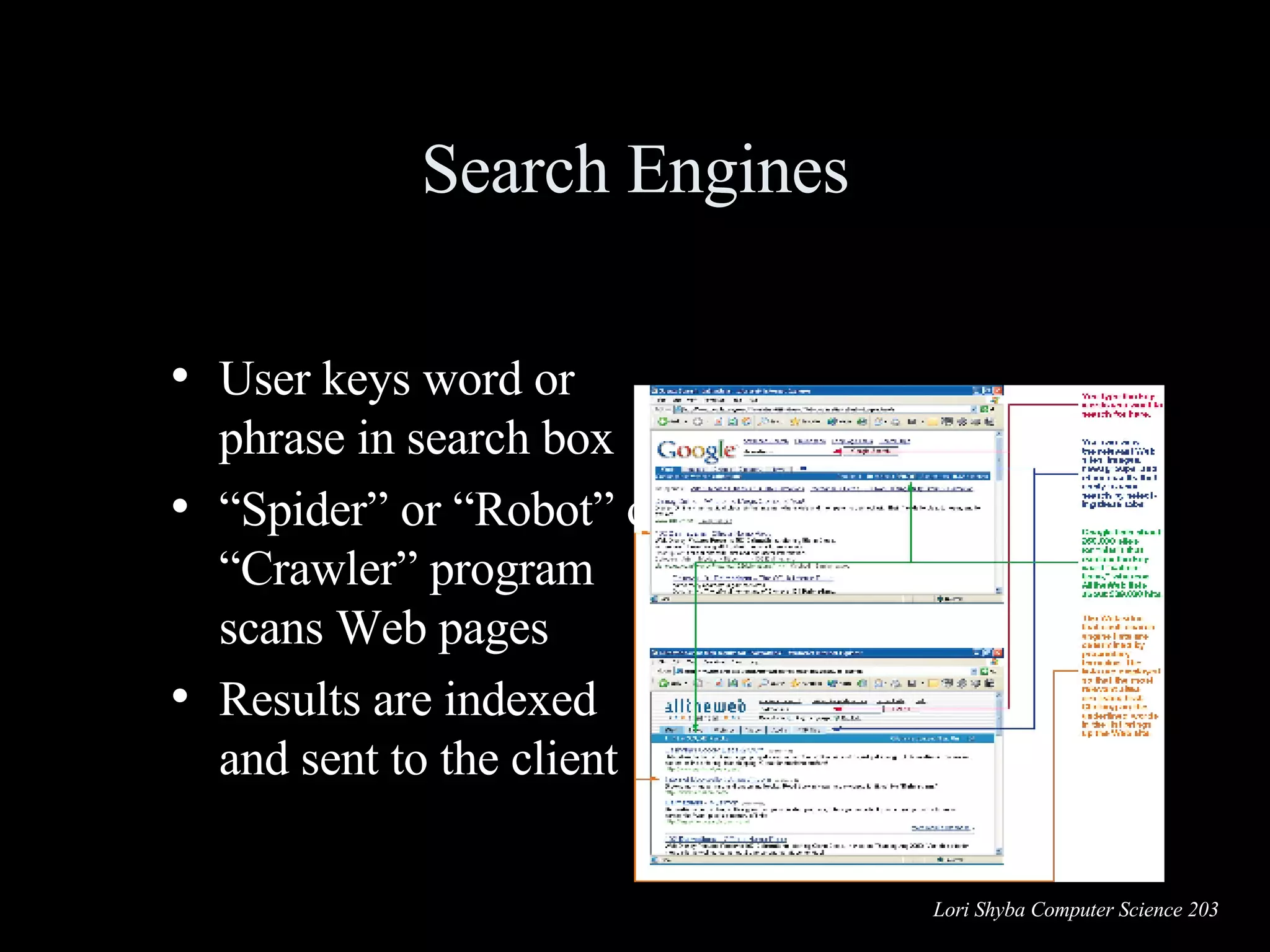
Search Engines User keys word or phrase in search box “ Spider” or “Robot” or “Crawler” program scans Web pages Results are indexed and sent to the client
Evaluating Web Sites Who is the author of the article or Web site sponsor? What audience is the site geared toward? Is the site biased? Is the information current? Are links available?
The Internet: The Basics Origin of the Internet The Internet vs. the Web Clients and servers Connecting to the Internet
Comparing Internet Connection Options 500 Kbps 100 Kbps Satellite 4 Mbps 500 Kbps Cable 1.5 Mbps 1.5 Mbps DSL (SDSL) 1 Mbps 300 Kbps DSL (ADSL) 56 Kbps 56 Kbps Dial-Up Maximum  Download Data Transfer Rate (approximate) Maximum  Upload Data Transfer Rate (approximate) Connection Option
The Origin of the Internet ARPANET: Advanced Research Projects Agency Network Funded by the U.S. government in the 1960s Allowed computers at leading universities and research organizations to communicate with each other over great distances
The Web The Web is a part of the Internet distinguished by: common communication protocols TCP/IP and HTML special links (called  hyperlinks )  Web invented in 1989 by Tim Berners-Lee 1993, National Center for Supercomputing Applications releases the Mosaic browser  Developers of Mosaic release Netscape (1994) Netscape is beginning of Web’s major growth
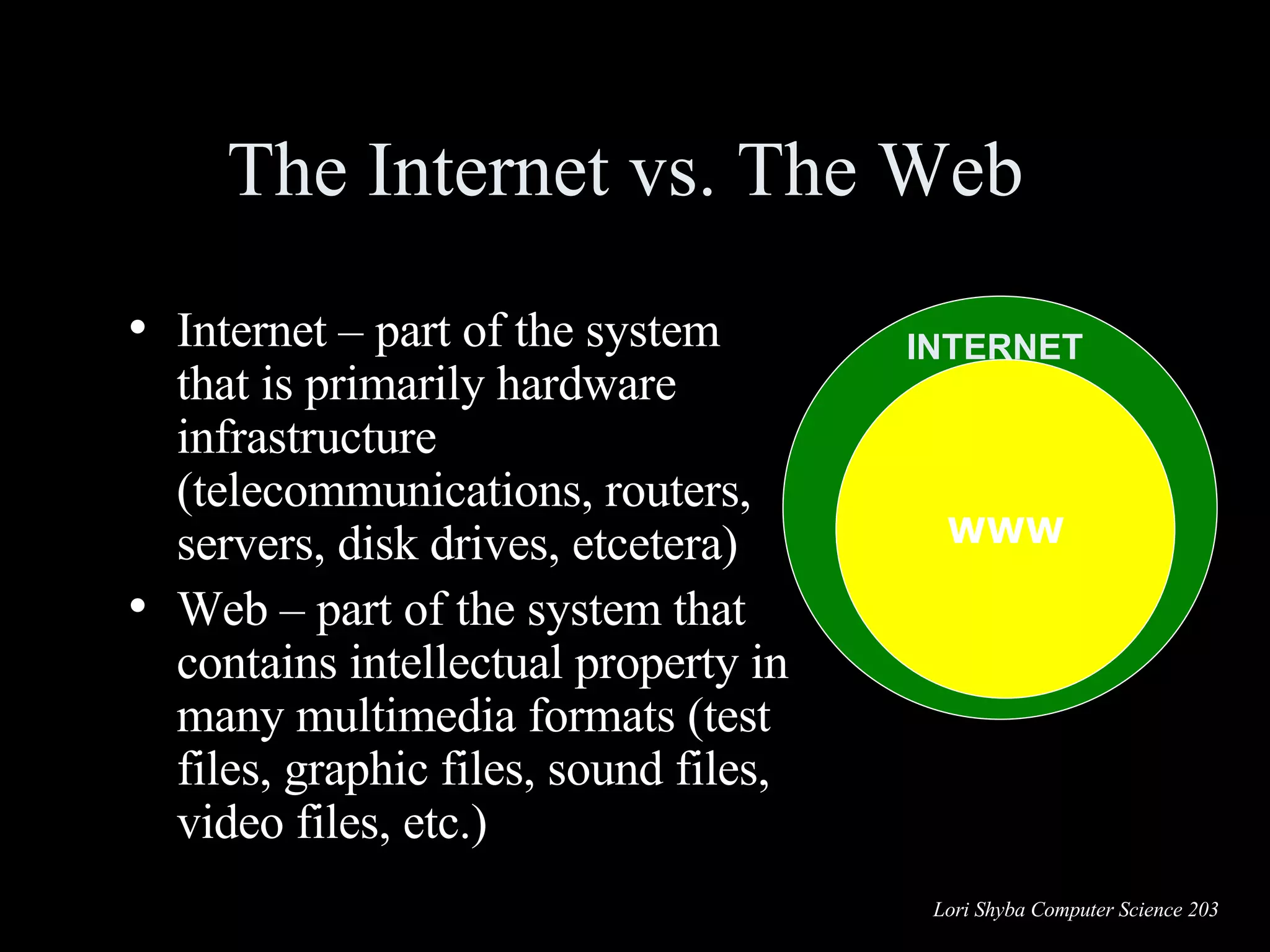
The Internet vs. The Web  Internet – part of the system that is primarily hardware infrastructure (telecommunications, routers, servers, disk drives, etcetera) Web – part of the system that contains intellectual property in many multimedia formats (test files, graphic files, sound files, video files, etc.) INTERNET WWW
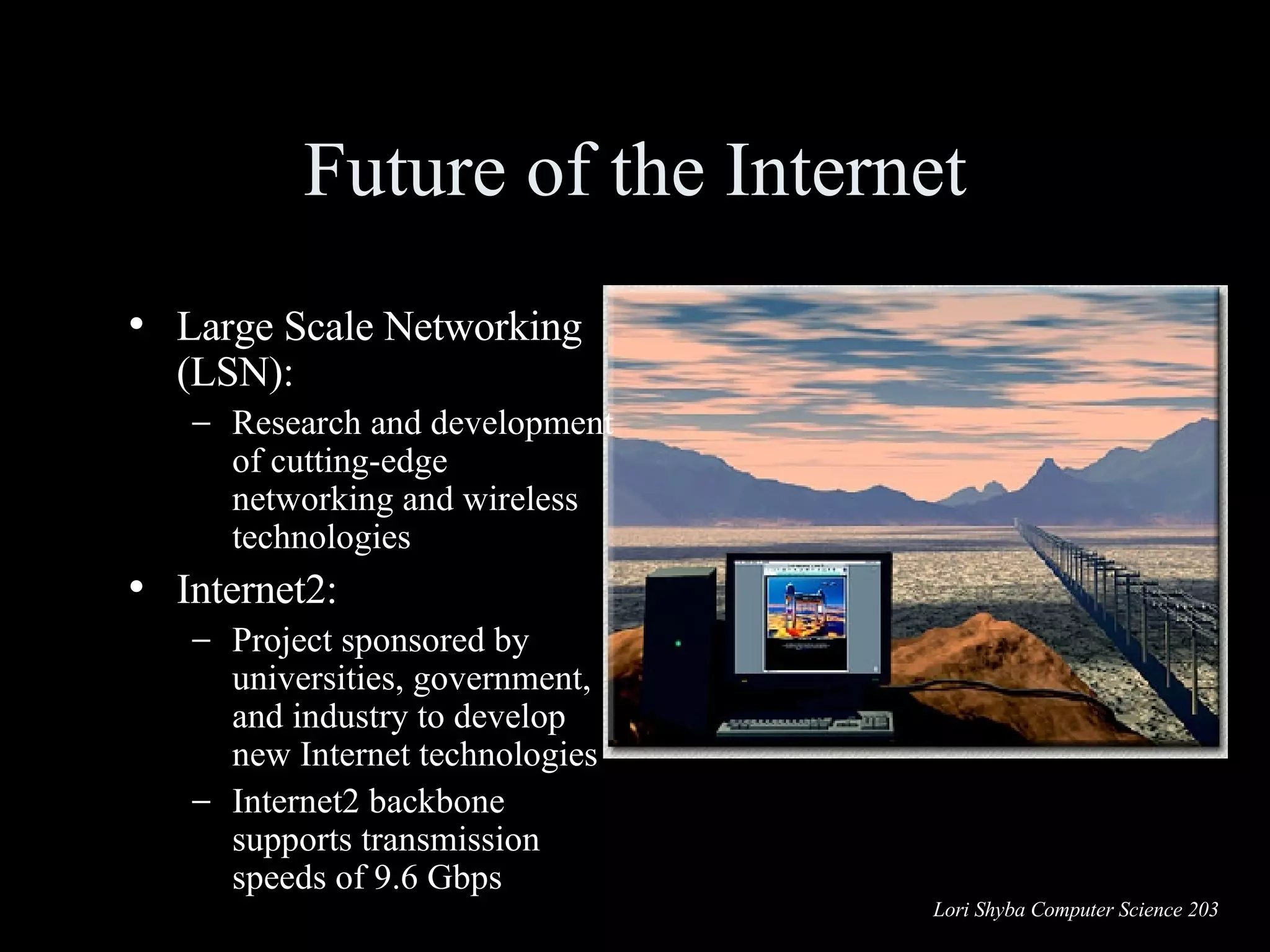
Future of the Internet Large Scale Networking (LSN): Research and development of cutting-edge networking and wireless technologies Internet2: Project sponsored by universities, government, and industry to develop new Internet technologies Internet2 backbone supports transmission speeds of 9.6 Gbps
Software  A set of instructions that tells the computer what to do Two main types of software System software Application software System Software Application Software
System Software vs.  Application Software System Software Coordinates instructions between software and hardware Includes Operating system Utility programs Application Software Programs used to complete tasks Includes Productivity software Specialty software Entertainment software Educational and reference Software Personal software
Productivity Software Word processing programs Spreadsheet programs Presentation programs Database   programs Personal information manager programs Programs that enable you to perform tasks  required in home, school, and business
Used to create and edit written documents Features include Quick and easy editing Variety of formatting options Graphics  Templates  Examples Corel WordPerfect Microsoft Word Word Processing Software Sammy the WonderDog Word Processor Features Click to view Insert Graphics Create Tables Insert Excel Spreadsheets Use Templates
Spreadsheet Software Used to perform calculations and numerical analyses Features include Worksheets with cells Values, formulas, and functions Automatic recalculation Examples Lotus 1-2-3 Microsoft Excel Spreadsheet Features   Click to view Charts  Formulas  Functions  Labels  Values  Columns  Rows  Cell  Range of cells Worksheet
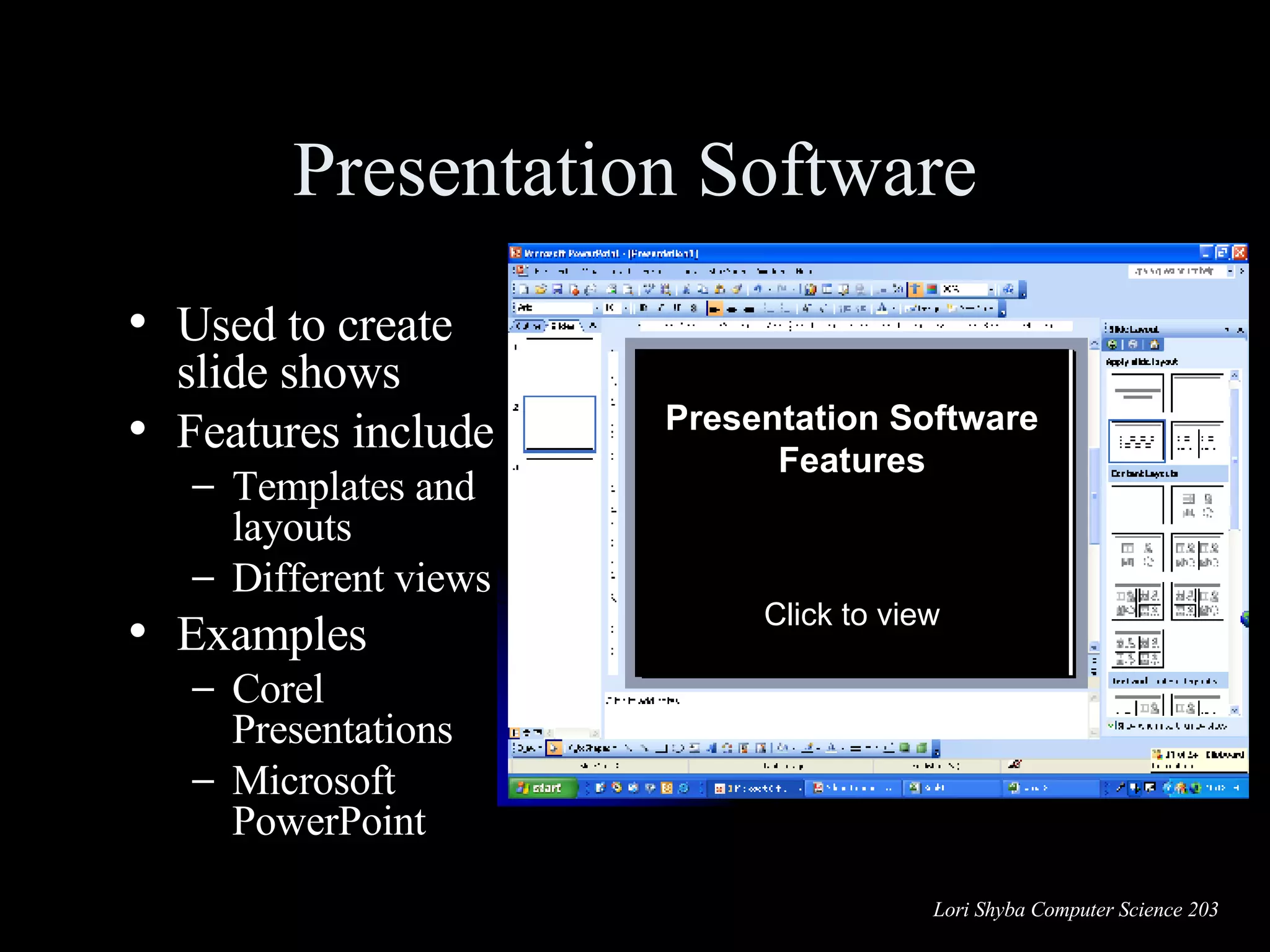
Presentation Software Used to create slide shows Features include Templates and layouts Different views Examples Corel Presentations Microsoft PowerPoint Presentation Software Features Click to view Slide Show View  Background  Bulleted Text  Graphics  Slide Title  Speaker Notes  Work Area Task Pane Slide/Outline View
Database Software Used as a complex electronic filing system  Features include Ability to group, sort, and retrieve data and generate reports Organized into fields, records, and tables Examples Corel  Paradox Microsoft  Access Productivity Software Tools Wizards Step-by-step guides to help you complete a task
Productivity Software Tools Templates redesigned forms included with software
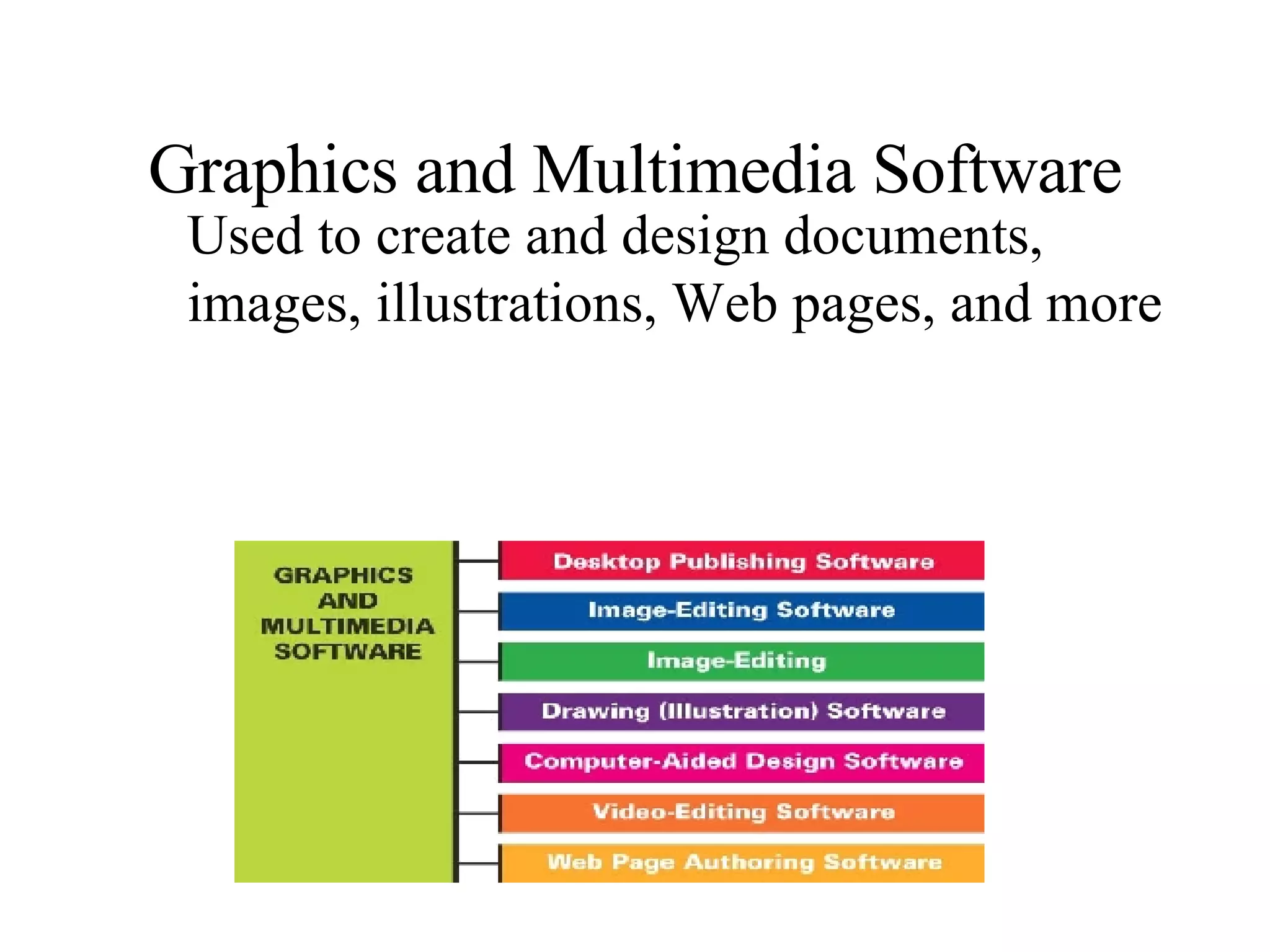
Graphics and Multimedia Software Used to create and design documents, images, illustrations, Web pages, and more
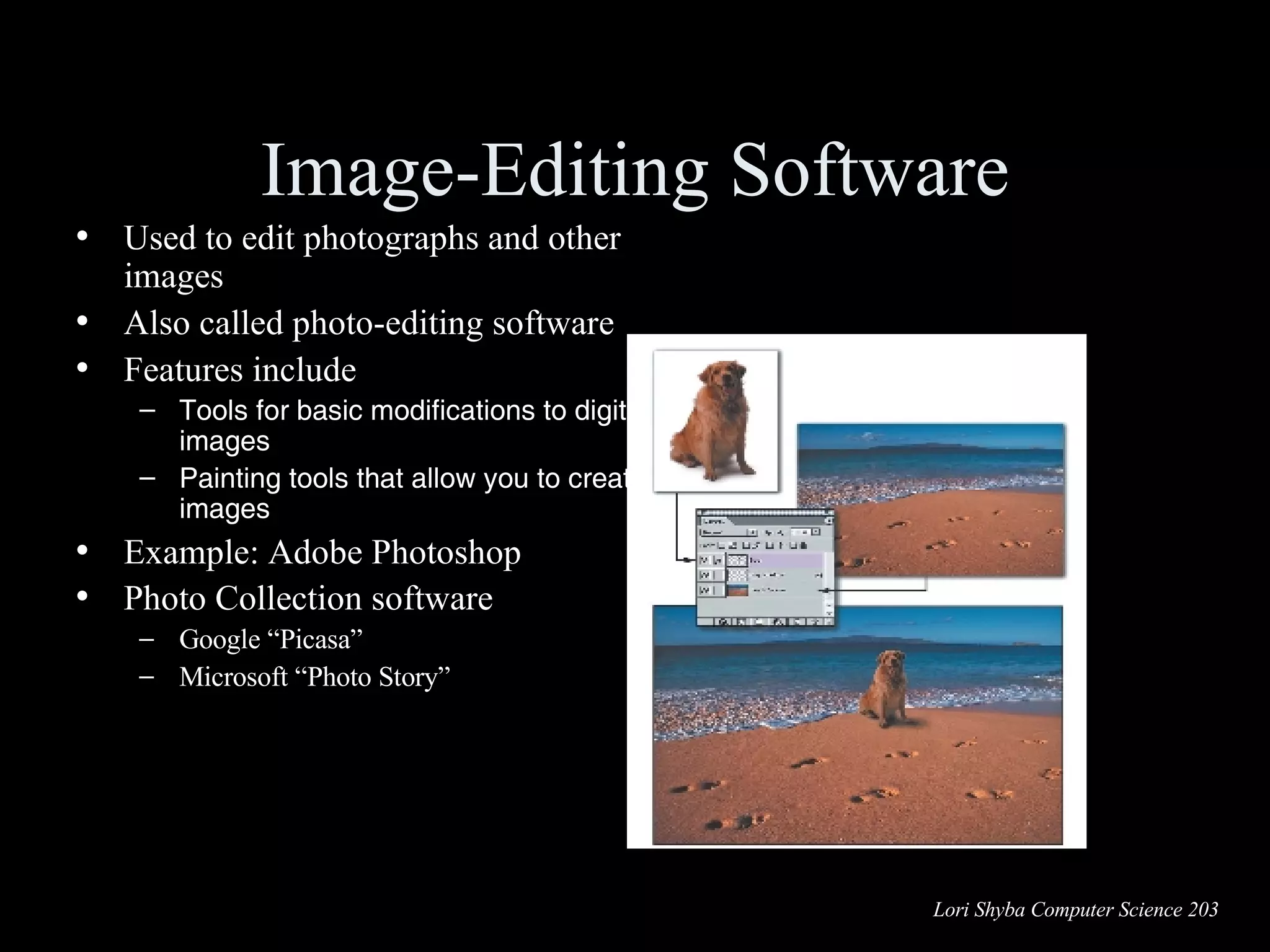
Image-Editing Software Used to edit photographs and other images Also called photo-editing software Features include Tools for basic modifications to digital images  Painting tools that allow you to create images  Example: Adobe Photoshop Photo Collection software   Google “Picasa” Microsoft “Photo Story”
Digital Audio Software MP3: Audio compression format Software allows you to record, rip, and burn files Also allows you to perform format conversion
Video-Editing Software Used to edit digital videos Features include Special effects Transitions Narration/voiceover Overlays Examples Adobe Premiere Microsoft Movie Maker
Entertainment Software Designed to provide users with entertainment Categories include Action and Adventure Driving Puzzles and strategy Role-playing Card-playing Simulation  Virtual reality
Educational and Reference Software Educational Software Provides instruction or training Types include K-12 education Skills Test preparation Course management  Reference Software Sources of reference Types include Atlases, dictionaries, thesauri, encyclopedias  Medical and legal references
Drawing Software Used to create and edit Two-dimensional drawings Technical diagrams Animations Geometric shapes Also referred to as illustration software Examples Adobe Illustrator Microsoft Visio Bit-mapped programs  MS-Paint
Desktop Publishing Software Used to arrange text and graphics for publications Features include Text formatting File importing Graphics tools Web publishing Example:  QuarkXPress
Web Page Authoring Software Used to design Web pages: knowing HTML is not necessary Features include Wizards and templates Reference materials Example Macromedia Dreamweaver Office Applications HTML authoring capabilities
System Software Operating systems Control computer functions: Hardware  Memory  Application programs System maintenance Provide user interface System utilities Programs that perform computer housekeeping tasks: Manage system resources Improve efficiency Virus prevention
Single-User Operating Systems Single-task systems Perform one task at a time PDAs: Pocket PC Palm OS Windows Mobile MS-DOS Multitask systems Perform simultaneous tasks Windows MAC OS Linux
Multiuser Operating Systems  Known as network operating systems Allow access to the computer system by more than one user Manage user requests Systems include: UNIX Novell Netware Windows Server 2003
Desktop Operating Systems Operating system combined with the processor is known as a platform Microsoft Windows / Intel Apple Macintosh / Motorola Desktop operating systems include: Microsoft Windows MAC OS UNIX Linux
What the Operating System Does Provides user interface Manages the CPU Manages memory Manages hardware Coordinates application software with the CPU
The User Interface Enables you to interact with the computer Types of interfaces: Command-driven interface Menu-driven interface Graphical user interface Command-driven Menu-driven Graphical
Starting the Computer The Boot Process Step 1:  The basic input/output system (BIOS) is activated Step 2:  A Power-on self-test (POST) checks attached hardware Step 3:  The operating system loads into memory Step 4:  Configuration and customization settings are checked   1 2 3 4
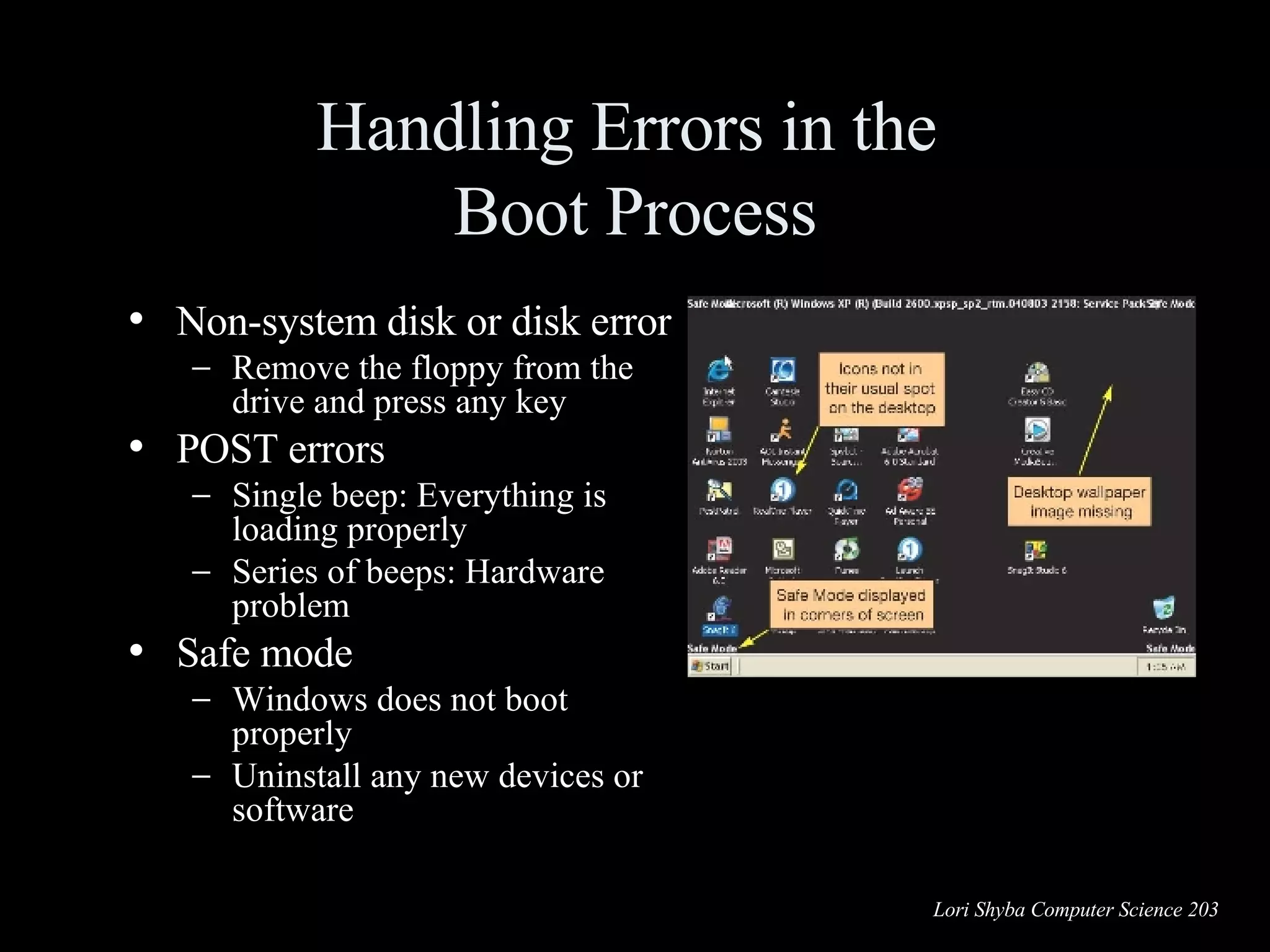
Handling Errors in the  Boot Process Non-system disk or disk error Remove the floppy from the drive and press any key POST errors Single beep: Everything is loading properly Series of beeps: Hardware problem Safe mode Windows does not boot properly Uninstall any new devices or software
File Management The operating system provides an organizational structure to the computer’s contents Hierarchical structure of directories: Drives Folders Subfolders Files
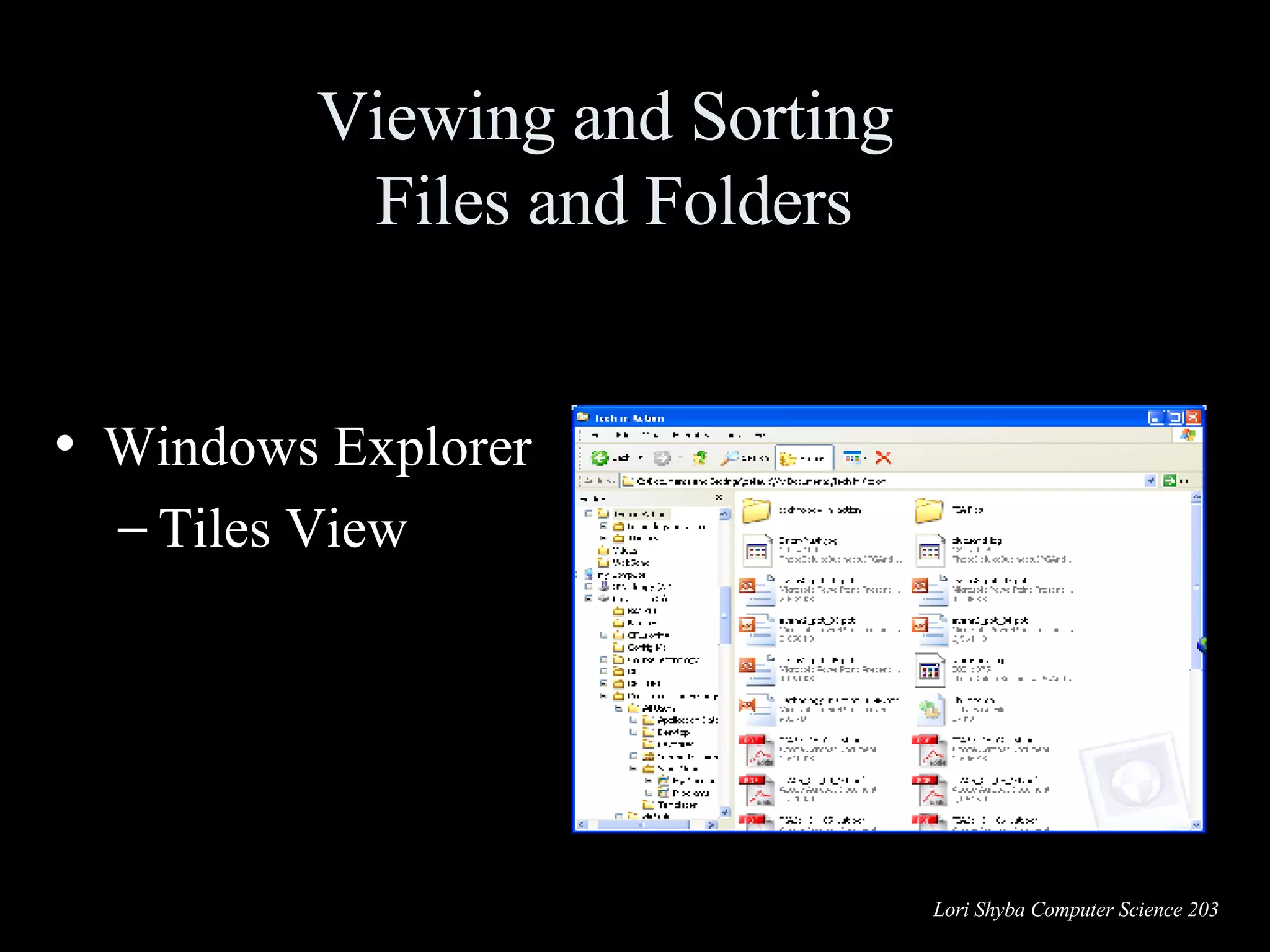
Viewing and Sorting  Files and Folders Windows Explorer Tiles View
Viewing and Sorting  Files and Folders Windows Explorer   Icon view
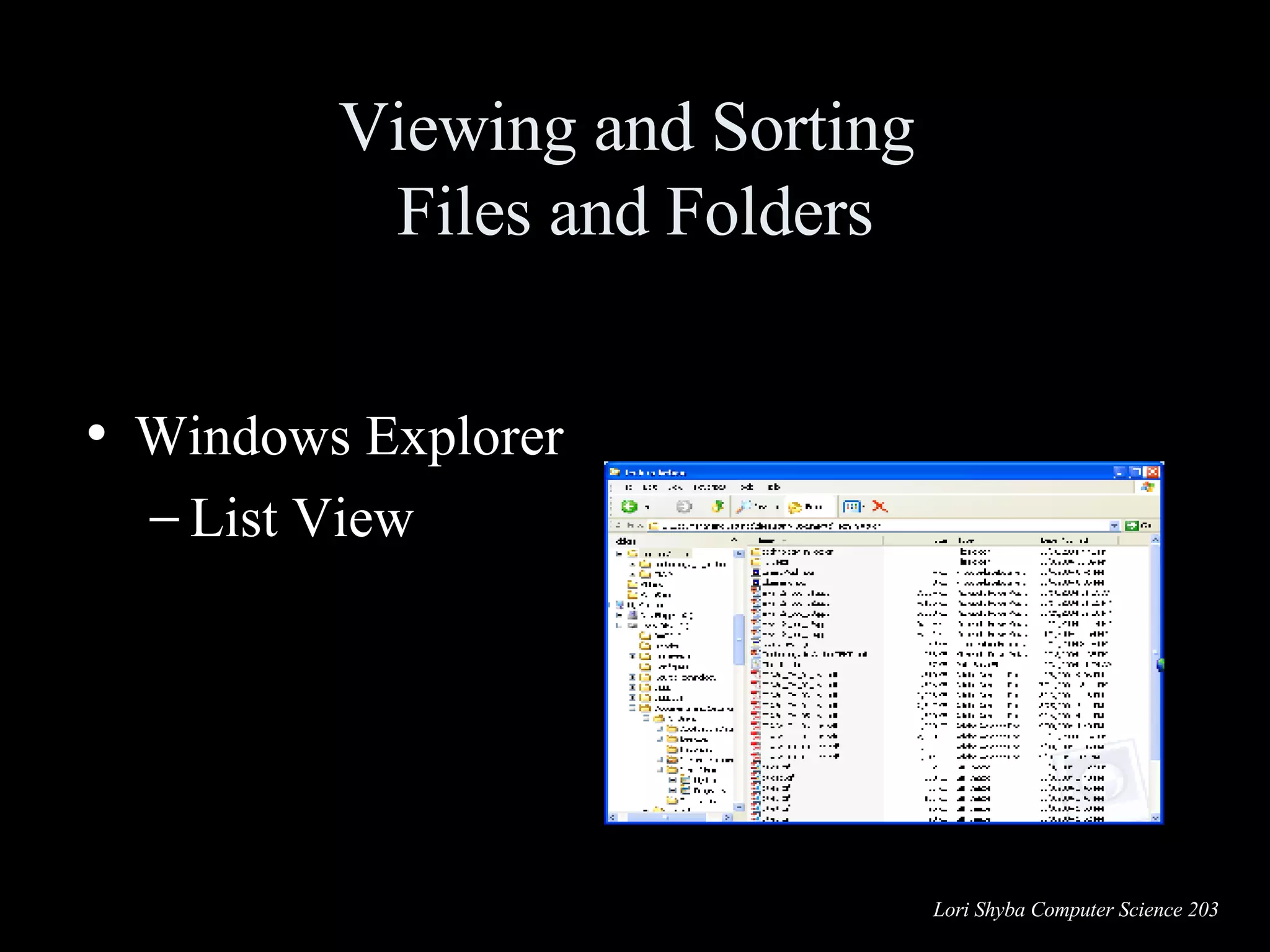
Viewing and Sorting  Files and Folders Windows Explorer   List View
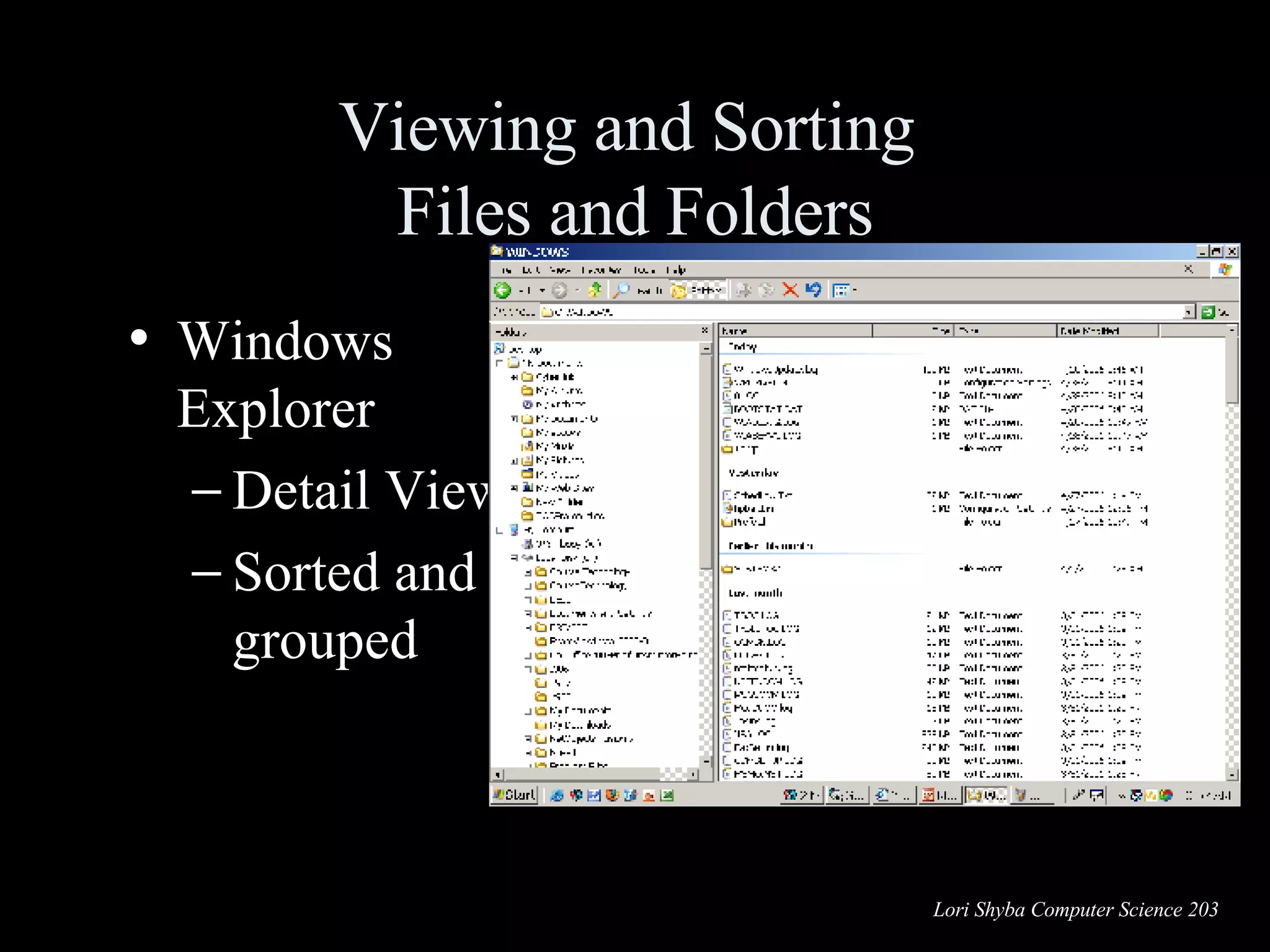
Viewing and Sorting  Files and Folders Windows Explorer Detail View Sorted and grouped
Naming Files Filename: Name assigned plus filename extension only characters not legal in filenames are:  \   ⁄   :   *   ?   &quot;   <   >   ¦ all others are allowed Bioreport .doc or Bio   report .doc
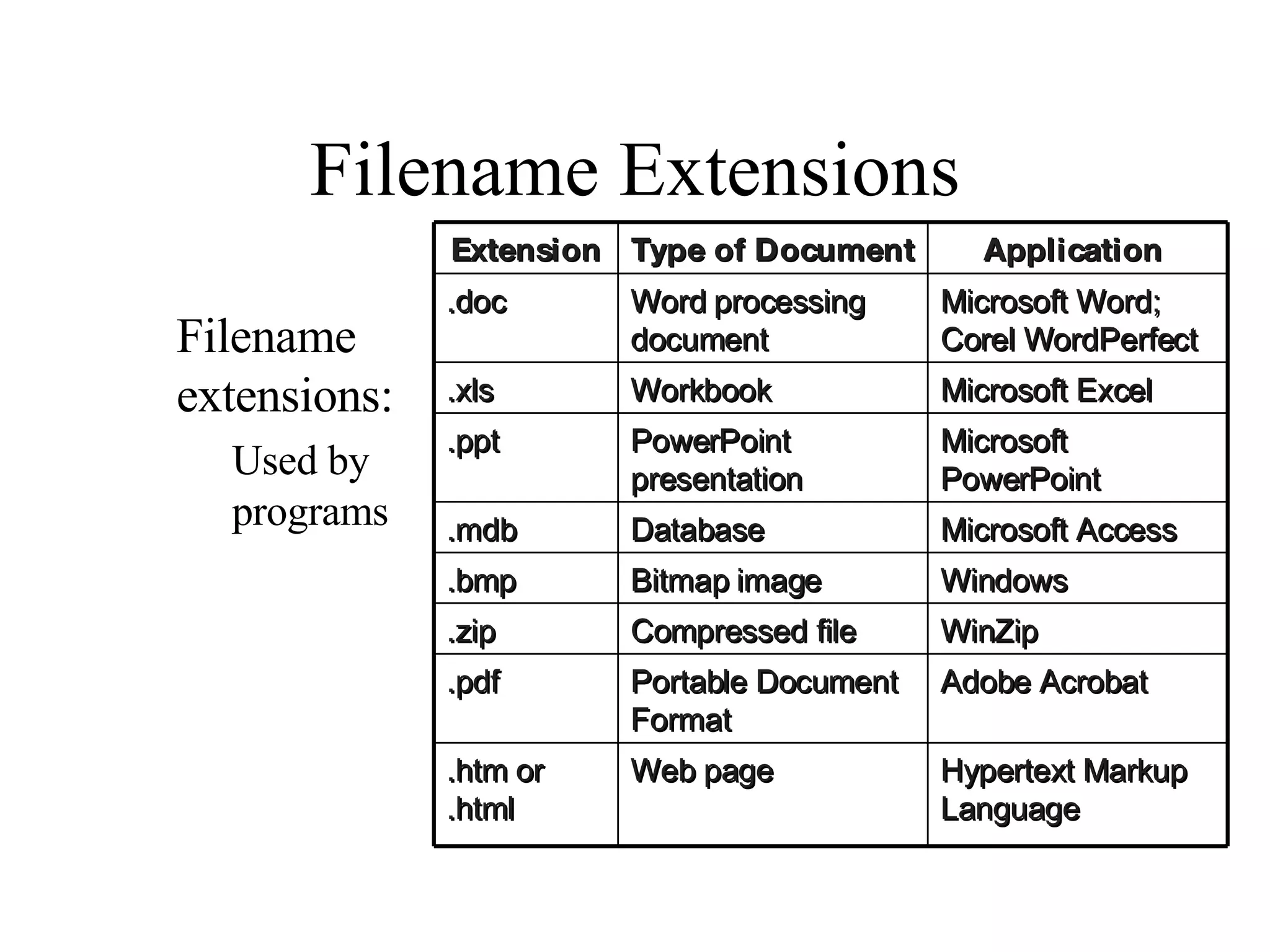
Filename Extensions Filename extensions: Used by programs Application  Type of Document Extension  Hypertext Markup Language Web page .htm or .html Adobe Acrobat Portable Document Format .pdf WinZip Compressed file .zip Windows Bitmap image .bmp Microsoft Access Database .mdb Microsoft PowerPoint PowerPoint presentation .ppt Microsoft Excel Workbook .xls Microsoft Word; Corel WordPerfect Word processing document .doc
File path File path Location of the file C: Tech in Action\TIA Pics\ \My Documents\ dotmatrix.gif Drive  Primary folder  Secondary folders  Filename
Add or Remove Programs Installation wizard Uninstall wizard: Do not delete programs
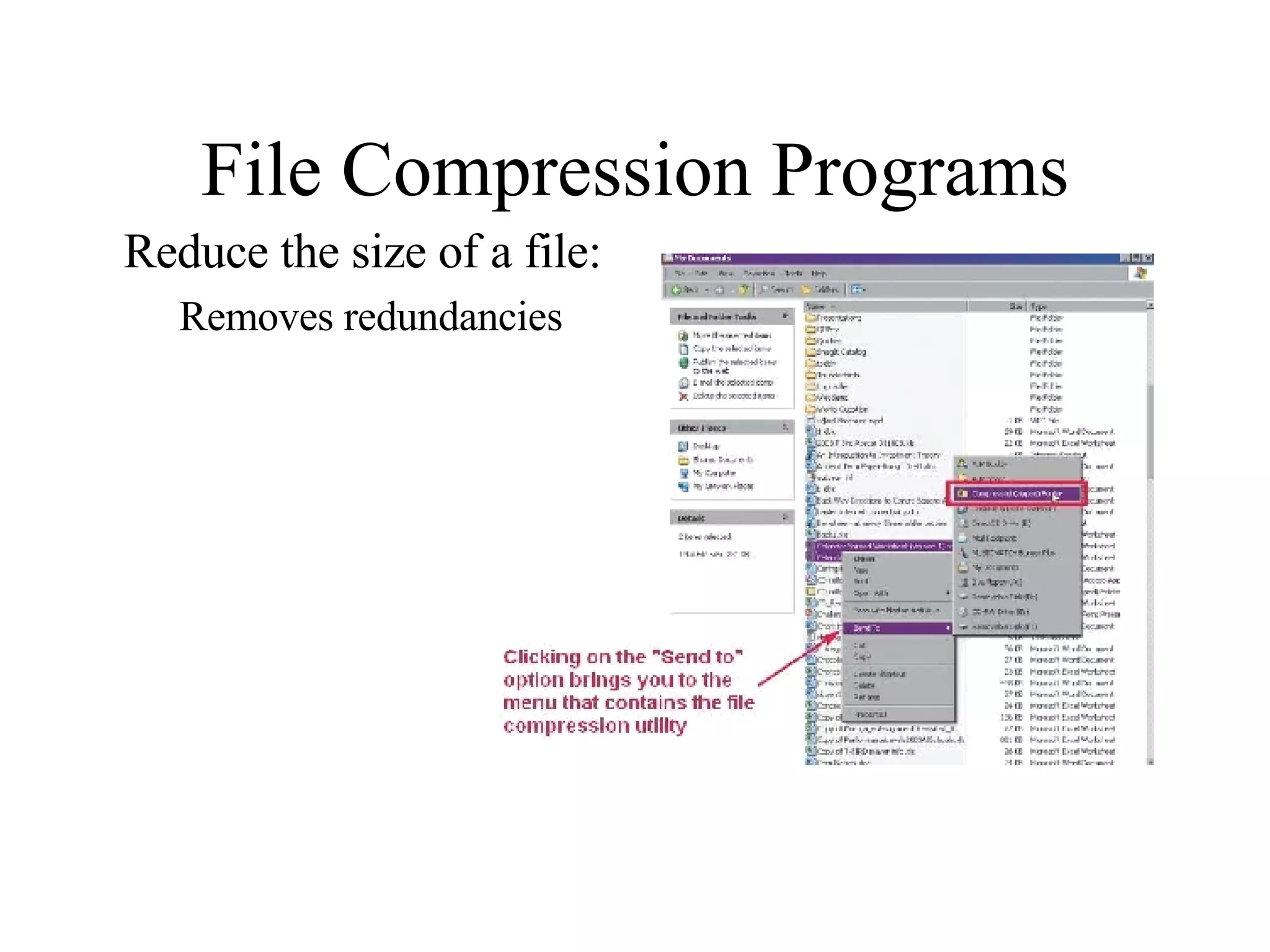
File Compression Programs Reduce the size of a file: Removes redundancies
Evaluating the CPU How does the CPU work? Control unit Arithmetic logic unit (ALU) Machine cycle: Instruction Cycle Fetch Decode Execution Cycle Execute Store  Speed: MHz GHz
How Much Ram is Needed? RAM for System Software RAM for Productivity Software RAM for Entertainment RAM for Graphics Programs 128 MB MS Picture It! Graphics 64 MB Windows Media Player Entertainment Software 128 MB MS Office Pro Productivity Software 128 MB Windows XP System Software
Evaluating Storage Types of storage devices: Hard drive Floppy drive Zip disk drive CD/DVD Flash memory Nonvolatile storage
The Hard Disk Drive Storage capacity up to 500 GB Access time is measured in milliseconds Data transfer rate is measured in megabits or megabytes per second Spindle speed is measured in revolutions per minute (rpm)
How a Hard Disk Works Composed of several coated platters stacked  on a spindle Data saved to the disk: pattern of magnetized spots – Spots = 1 – Spaces = 0 Between platters are read/write heads that read and write magnetized data Spots are translated  into data Platters   Read/write   head Access   arms
Portable Storage Gives us the ability to move data from one computer to another Types of portable storage devices: Floppy disk: Capacity 1.44 MB Zip disk: Capacity 100 MB to 750 MB CD-R, CD-RW, DVD-R, DVD-RW: Capacity 700 MB to 9.4 GB Flash drive: Capacity 32 MB to 1 GB Flash memory Card: Up to 4 GB
Optical Storage Optical media: CD-ROM CD-R CD-RW DVD-ROM DVD-R DVD-RW Laser Pits scatter laser light  equaling a 1 Nonpitted area reflects laser light equaling a 0
Video Cards Process binary data into images Contain memory known as video RAM (VRAM) Control the number of colors a monitor can display (bit depth) Standard VGA 4 bits 16 colors True color (SVGA) 24 bits 16 million colors
Monitors  Things to consider: Types: CRT or LCD Size: 15, 17, 19, or 21 inch Resolution: Increasing resolution allows more to be displayed Dot pitch: .31mm or less  Refresh rate: 75 Hz or higher
Evaluating Ports Ports are used to connect peripheral devices to the computer Things to consider: Devices you want to use Ports needed for the devices
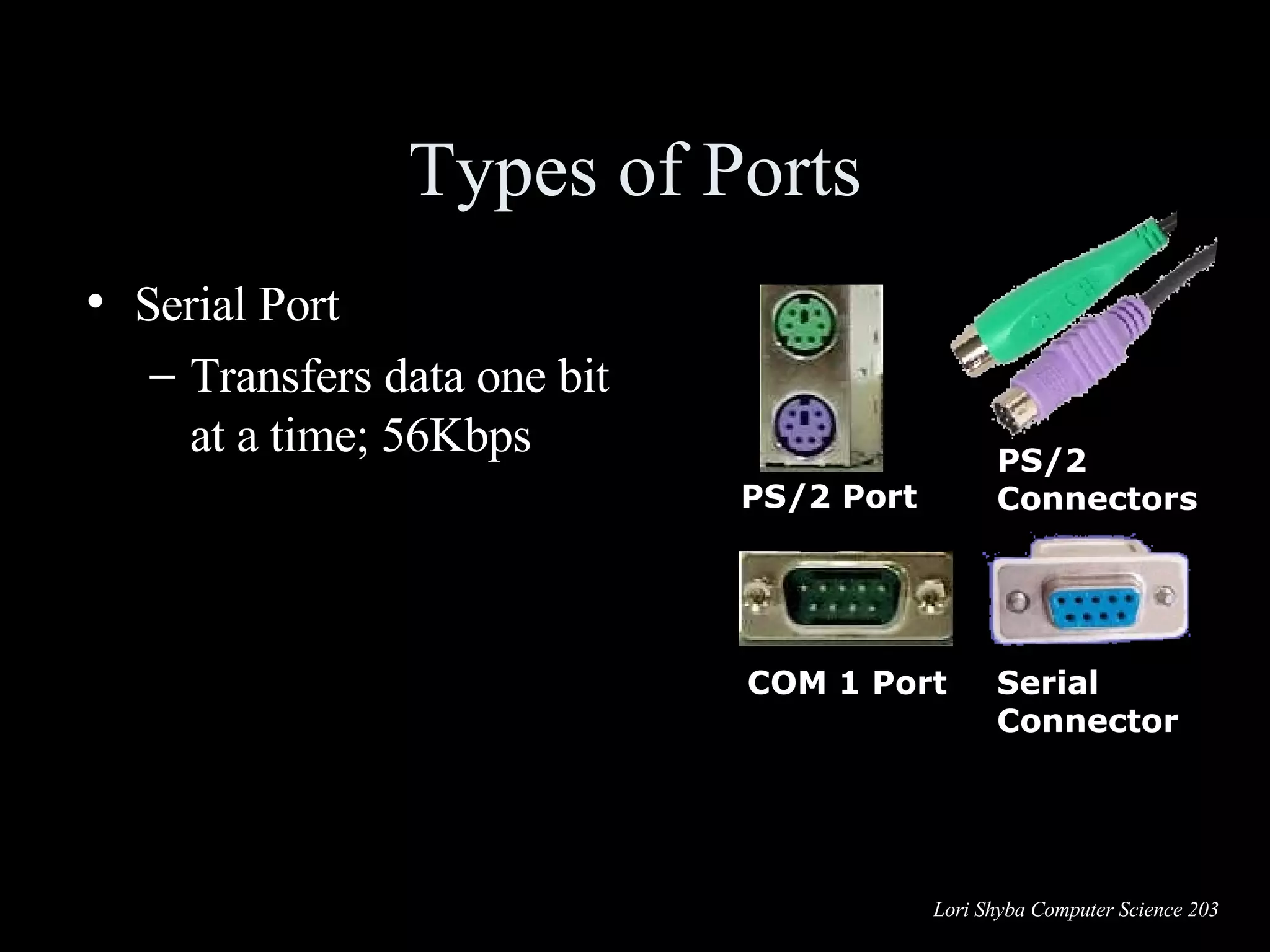
Types of Ports Serial Port Transfers data one bit at a time; 56Kbps PS/2 Port COM 1 Port PS/2 Connectors Serial Connector
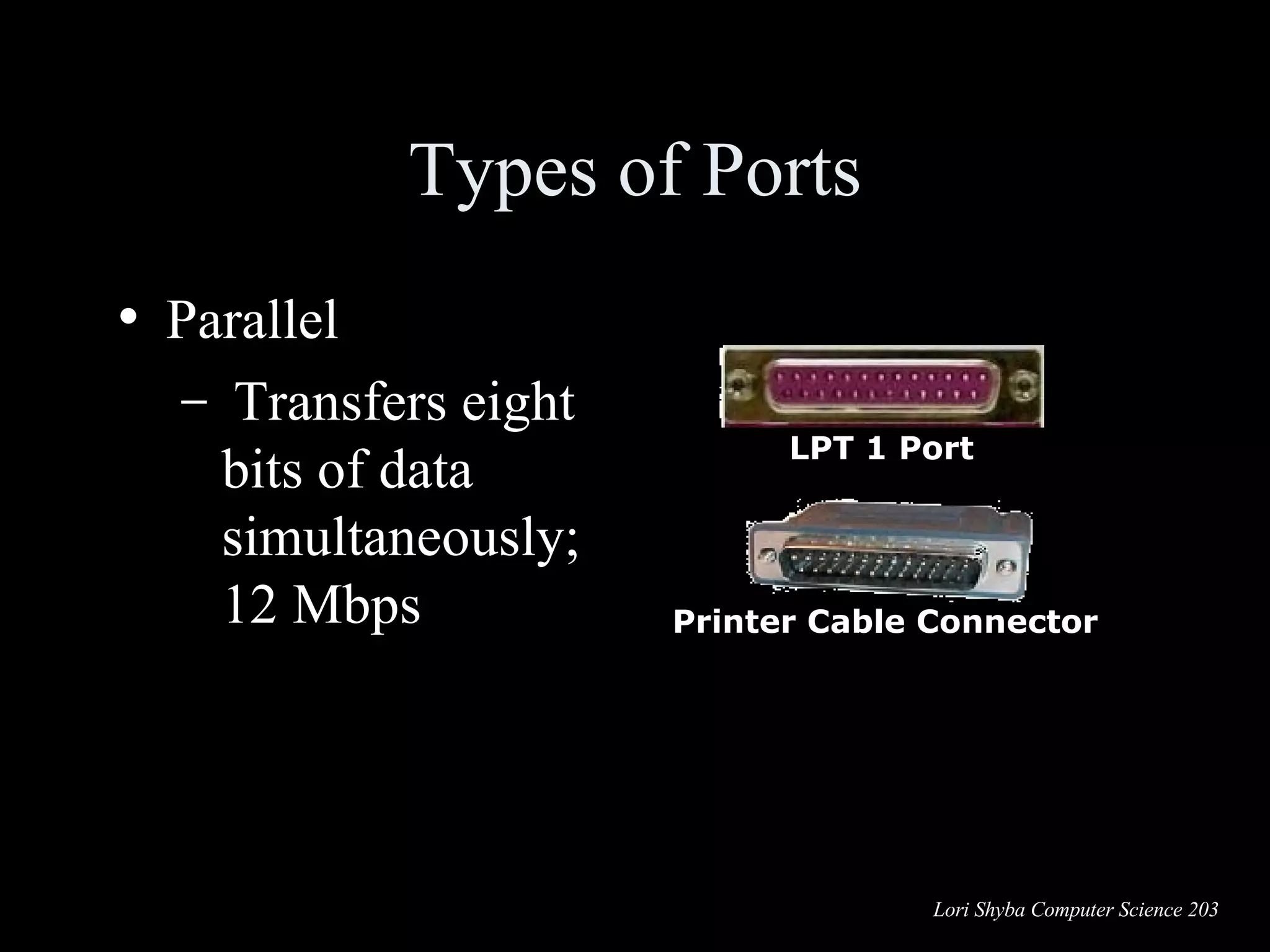
Types of Ports Parallel Transfers eight bits of data simultaneously; 12 Mbps  LPT 1 Port Printer Cable Connector
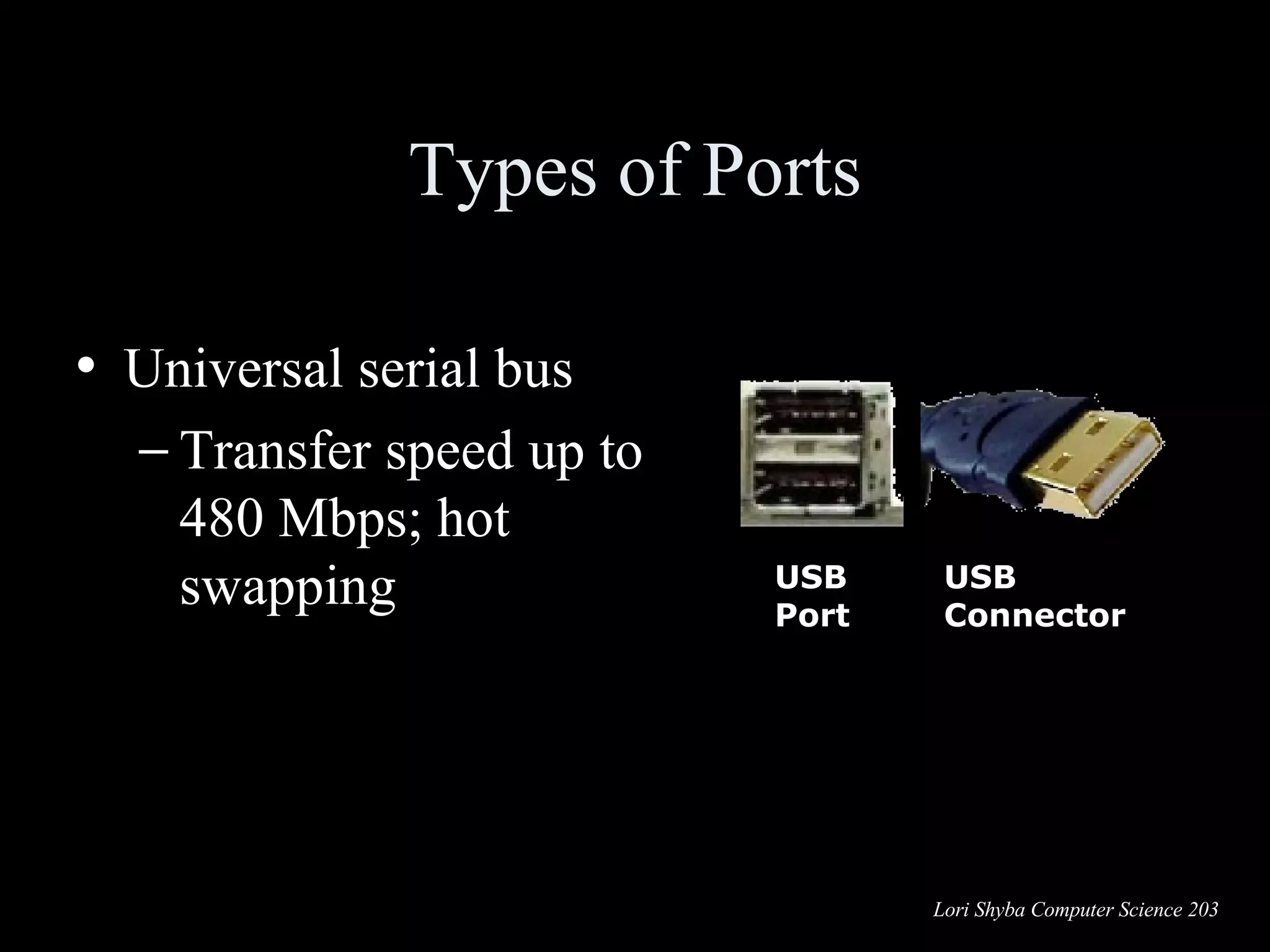
Types of Ports Universal serial bus  Transfer speed up to 480 Mbps; hot swapping USB Port USB Connector
Types of Ports FireWire Transfer rate of 400 Mbps; Digital cameras Newer FireWire 800 is fastest  Available only on the Apple Mac FireWire Port FireWire Connector
Types of Ports Ethernet Transfer rate of 100 Mbps; connects computers to networks Ethernet Port Ethernet jack
Types of Ports IrDA Transfer rate of 4 Mbps; Uses infrared light waves IrDA
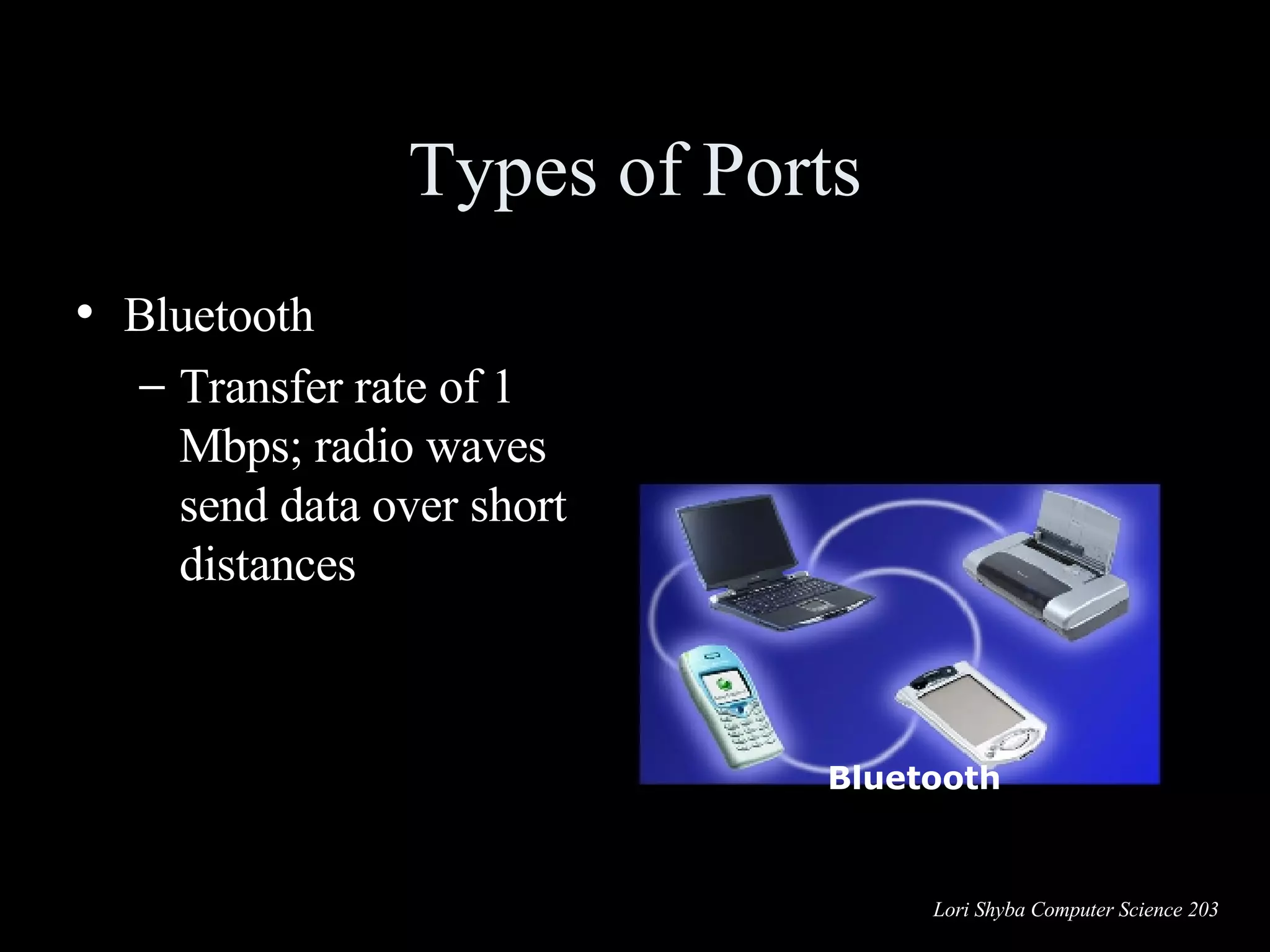
Types of Ports Bluetooth Transfer rate of 1 Mbps; radio waves send data over short distances Bluetooth
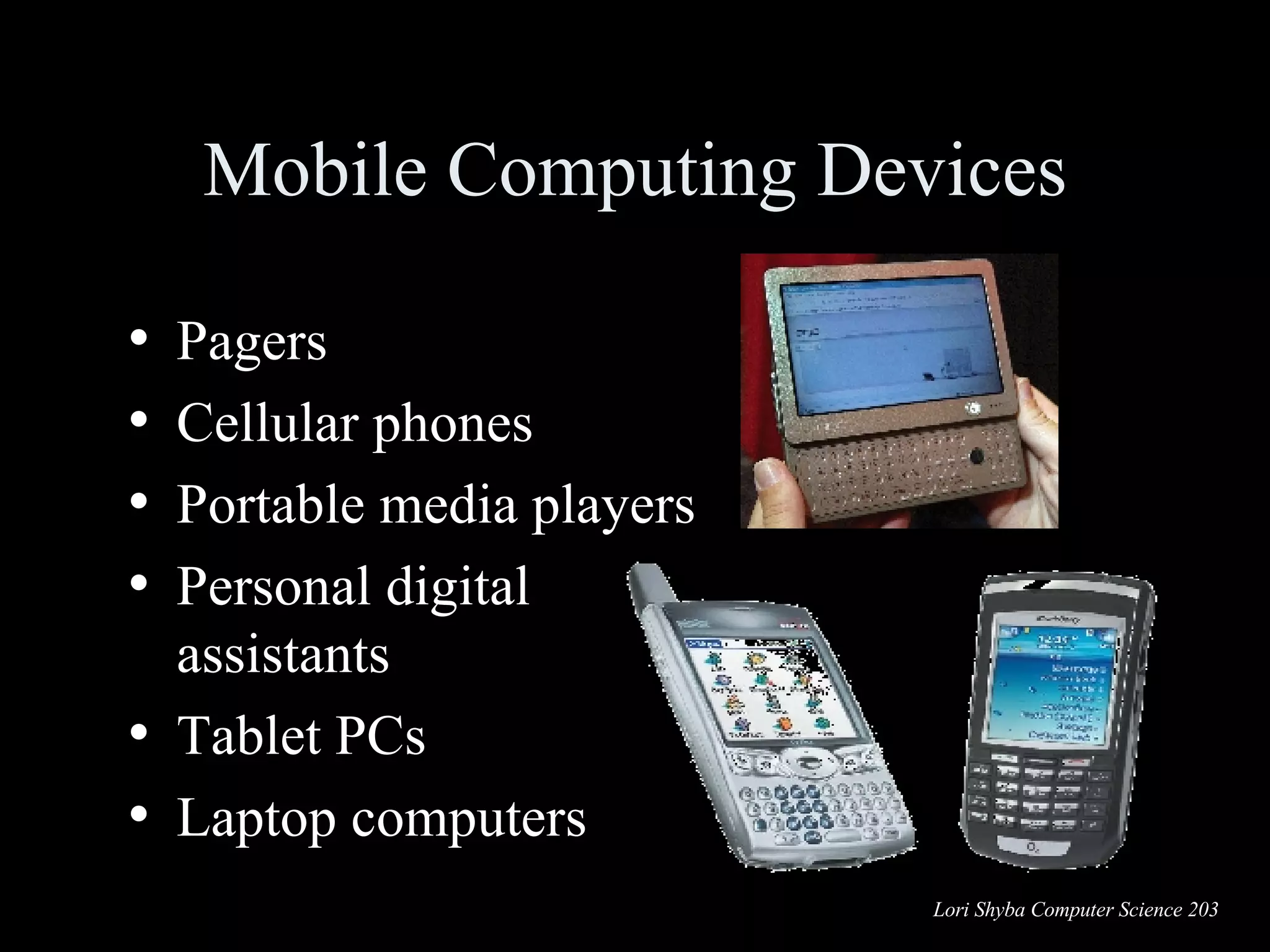
Mobile Computing Devices Pagers Cellular phones Portable media players Personal digital assistants Tablet PCs Laptop computers
Cell Phone Hardware Microprocessor (CPU): Coordinates data between components Runs the operating system Memory: ROM stores the operating system Internal memory chips store: Contact data  Ring tones Images Small application programs  Microprocessor  Memory
Cell Phone Hardware Input devices: Microphone Keypad Graffiti pad Touch-screen Digital camera Output devices: Speaker LCD display Microphone   Keypad   LCD   display   Speaker
Cell Phone Internet Connectivity Wireless Internet service provider Maximum speeds of 200 to 300 Kbps Micro-browser software EDGE  and  EVDO  standards Difficult to display Web pages on small screen Checking e-mail is a popular feature  Special “push” technology delivers e-mail to a cell phone
Portable Media Players MP3:  Format for storing music Portable media player (PMP): A small device that stores and plays music Storage space determines the number of songs stored: Memory chips 64 MB to 256 MB Hard drive up to 40 GB Sampling rate also affects number of songs stored
PMP Ethical Issues Is it illegal to download MP3 files? MP3.com: Song files are on a public server Permission is given by the artist or recording company to place the files on the server A fee is paid to download a file. Napster: A file exchange site Song files were borrowed from users’ computers (peer-to-peer [P2P] sharing) Sued for copyright infringement
Podcasting Distributing nonmusic MP3 files over the Internet Podcasts can be information, books on tape audio plays, etc. People can listen when they wish iPod  synchronization  transfers new content.
Small devices that store digital information Known as palm computers or handhelds PDA hardware includes: CPU Operating system Storage capabilities Input/output devices Ports  Personal Digital Assistants (PDAs)
PDA Input and Output Devices Input devices Touch-screen with stylus Keyboards: On-screen Integrated Folding Digital cameras Output devices LCD displays: Grayscale Color
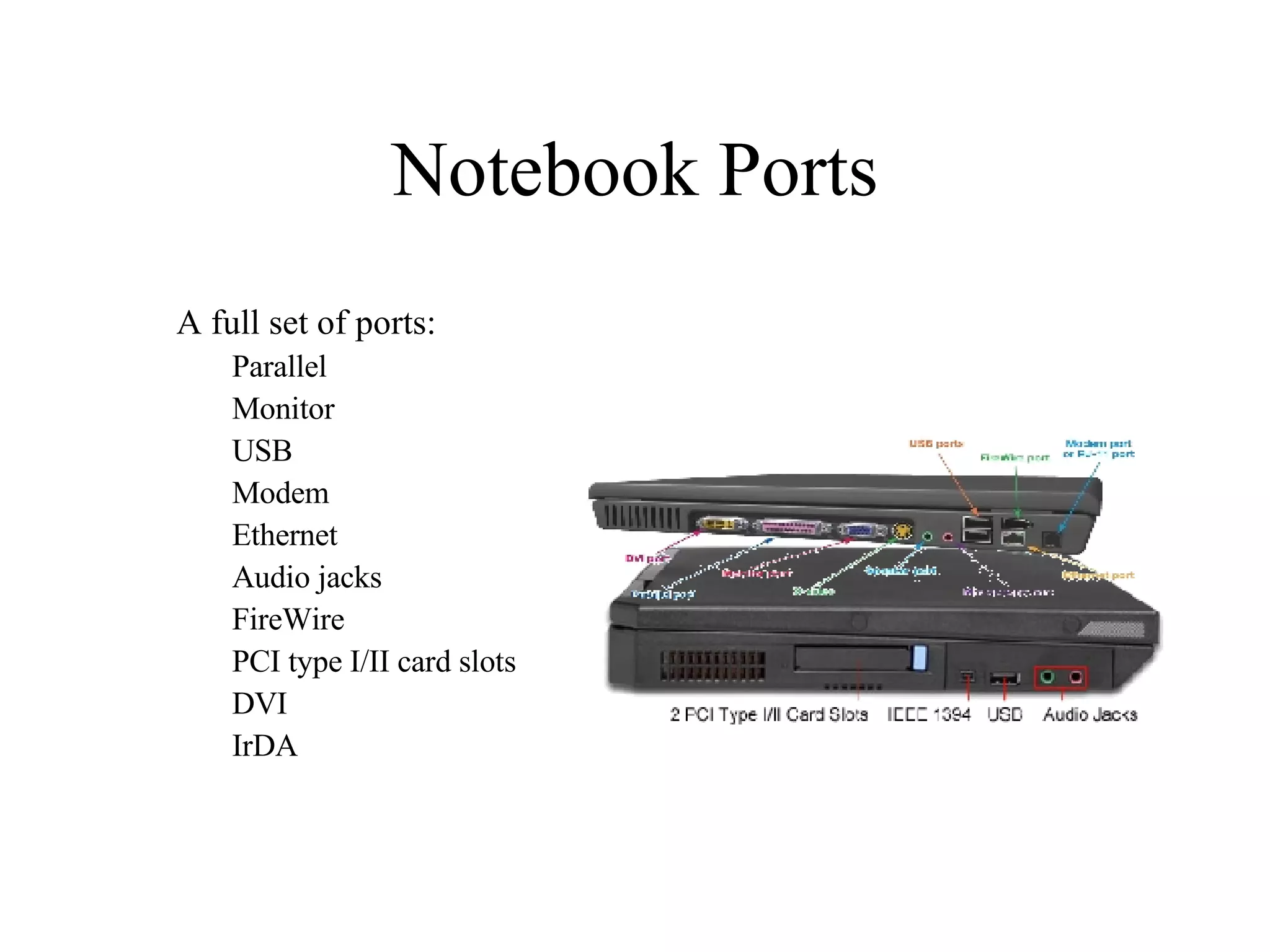
Notebook Ports A full set of ports: Parallel Monitor USB Modem Ethernet Audio jacks FireWire PCI type I/II card slots DVI IrDA
Binary Language Computers work in binary language Consists of two numbers: 0 and 1 Everything a computer does is broken down into a series of 0s and 1s Switches: Devices inside the computer that can be flipped between these two states: 1 or 0, on or off
Switches Nonmechanical devices in computers that open and close circuits Types of electrical switches: Vacuum tubes Transistors: Semiconductors  Integrated circuits Vacuum Tube Transistors Integrated Circuits
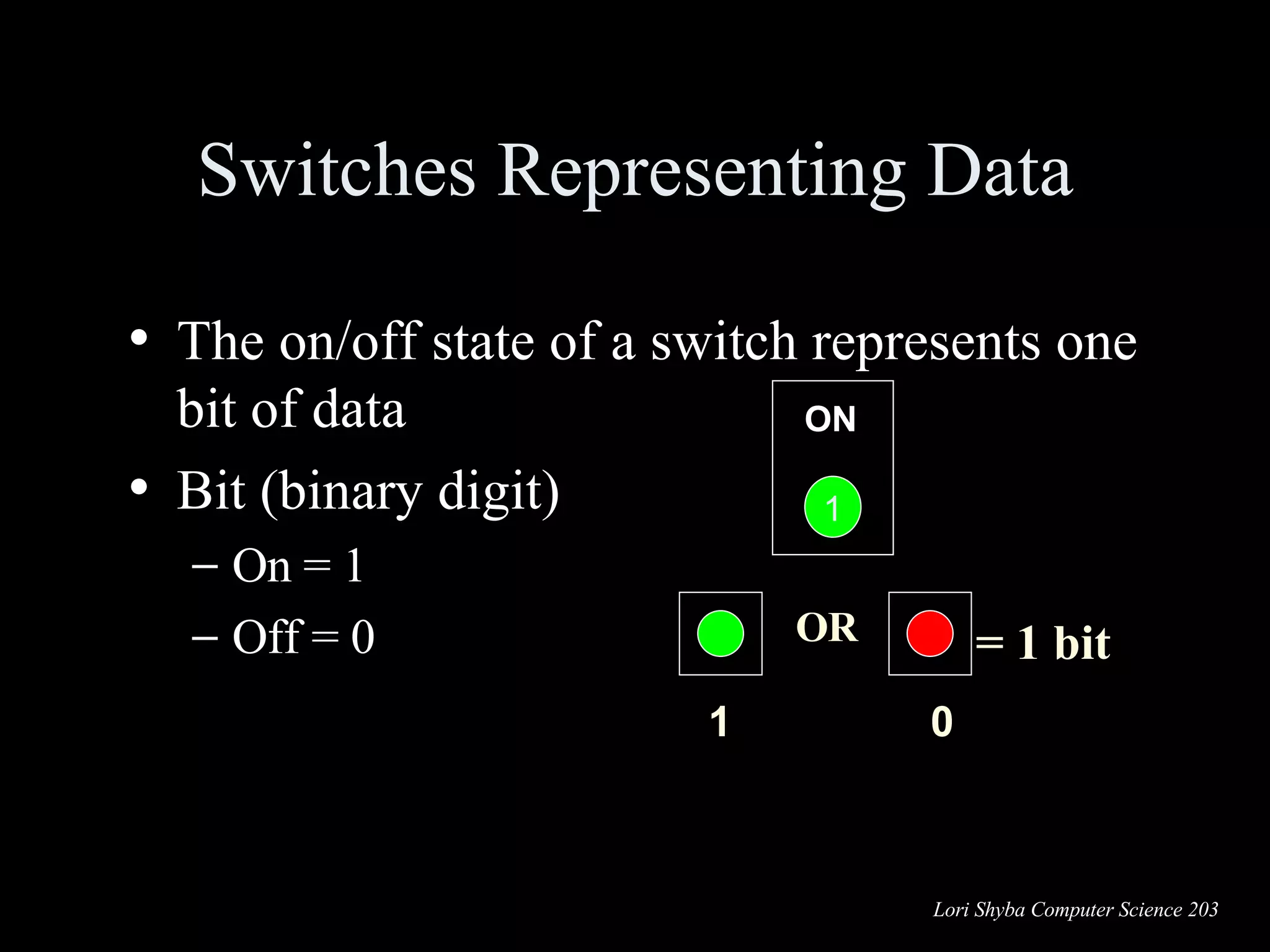
The on/off state of a switch represents one bit of data Bit (binary digit) On = 1 Off = 0 Switches Representing Data 0 1 OR = 1 bit OFF 0 ON 1
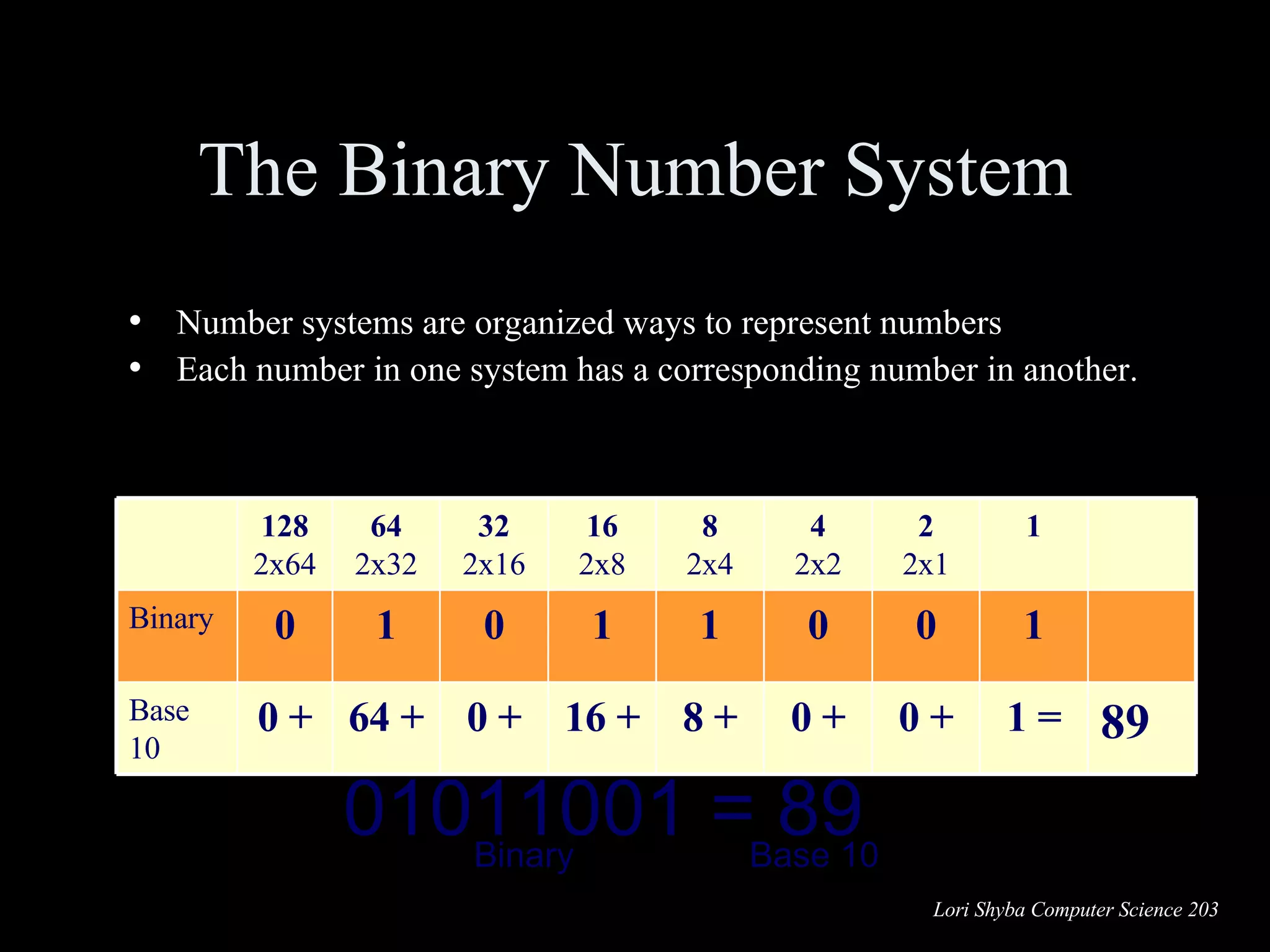
The Binary Number System Describes a number as powers of 2 Also referred to as base 2 numbering system Used to represent  every  piece of data stored in a computer: all of the numbers, letters, and instructions
The Binary Number System Number systems are organized ways to represent numbers Each number in one system has a corresponding number in another. 01011001 = 89 Binary  Base 10 89 1 = 0 + 0 + 8 + 16 + 0 + 64 + 0 + Base 10 1 0 0 1 1 0 1 0 Binary 1 2 2x1 4 2x2 8 2x4 16 2x8 32 2x16 64 2x32 128 2x64
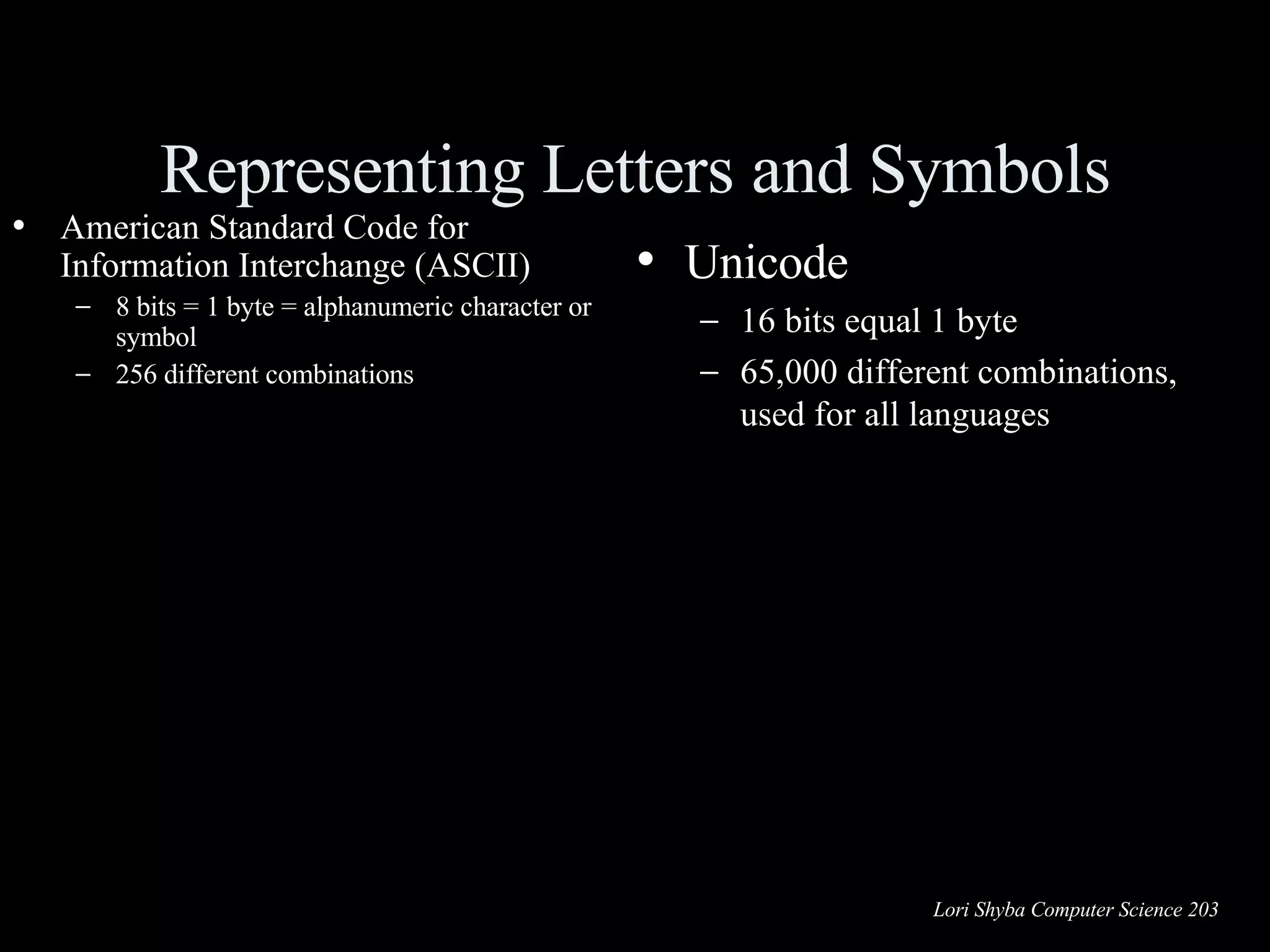
Representing Letters and Symbols American Standard Code for Information Interchange (ASCII) 8 bits = 1 byte = alphanumeric character or symbol 256 different combinations Unicode 16 bits equal 1 byte 65,000 different combinations, used for all languages 01100001 = a 01000001 = A 00100011 = # 01101101 = m ASCII
The CPU:  Processing Digital Information The CPU is the brains of the computer Different types of CPUs Intel and AMD chips: Used in most Windows-based PCs Apple systems use different CPU design Differentiating CPUs Processing power Clock speed and cache
The System Clock Located on the motherboard Controls the CPU’s processing cycles Clock cycle Pulse or tick  Clock speed Number of pulses per second Measured in hertz (Hz)
The Control Unit Manages the switches inside the CPU Is programmed by CPU designers to remember the sequence of processing stages for that CPU  Moves each switch to its correct setting (on or off)  Then performs the work of that stage
The Arithmetic Logic Unit (ALU) Part of the CPU designed to perform mathematical operations (addition, subtraction, multiplication, division, etc.) Also performs logical OR, AND, and NOT operations Is fed data from the CPU registers Word size: Number of bits a computer can work with at a time
Cache Memory Small amount of memory located on the CPU chip or near it Stores recent or frequently used instructions and data Used for quick access by the CPU Different levels of cache
RAM: The Next Level of  Temporary Storage Volatile: When you turn off your computer, the data is erased Several kinds of RAM exist Each type of RAM has a different design Some types work at much faster speeds  Some transfer data more quickly
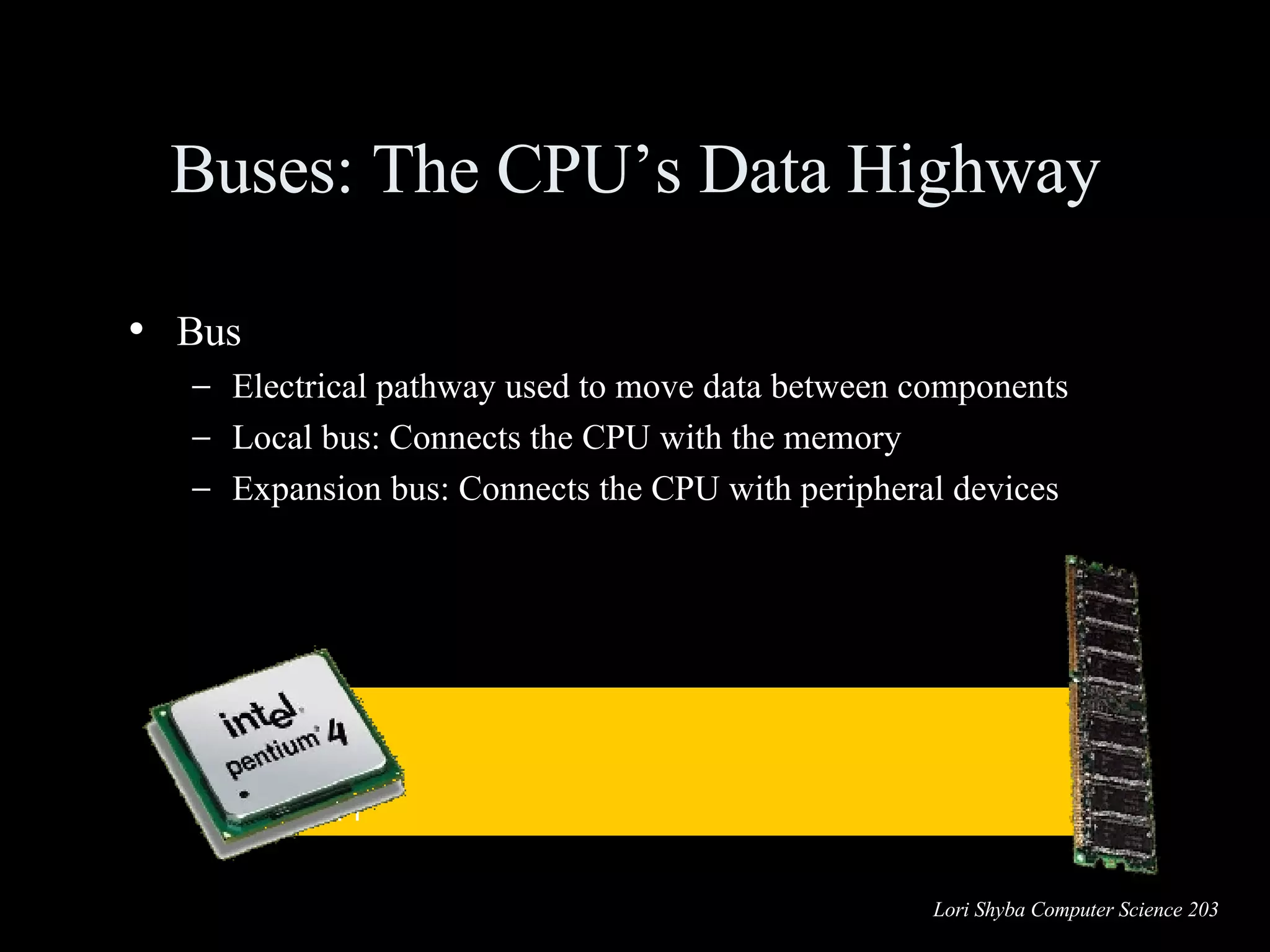
Bus Electrical pathway used to move data between components Local bus: Connects the CPU with the memory Expansion bus: Connects the CPU with peripheral devices Buses: The CPU’s Data Highway 01100010 01110011 01001000 00100111
Bus Performance Bus clock speed Rate of speed data moves from one location to another Measured in MHz (millions of clock cycles per second) Bus width The number of bits of data moved on a bus at any one time Measured in bits 16 bits 32 bits
Moore’s Law Number of transistors on a CPU will double every 18 months First chip had 29,000 transistors Pentium chip 169,000,000 transistors Moore’s Law has been accurate for more than 40 years Law has remained accurate into the 21st century
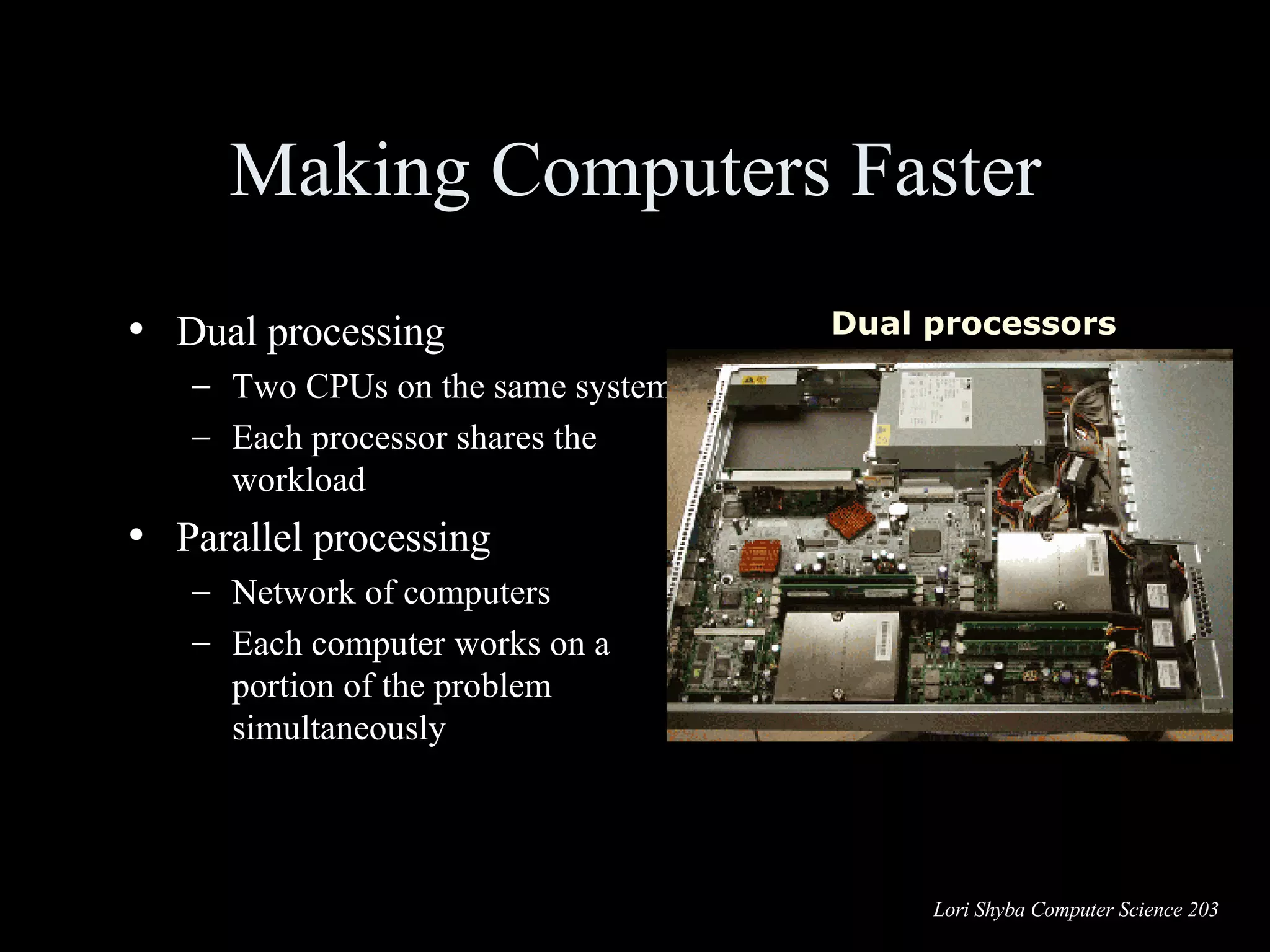
Making Computers Faster Dual processing Two CPUs on the same system Each processor shares the workload Parallel processing Network of computers Each computer works on a portion of the problem simultaneously Dual processors
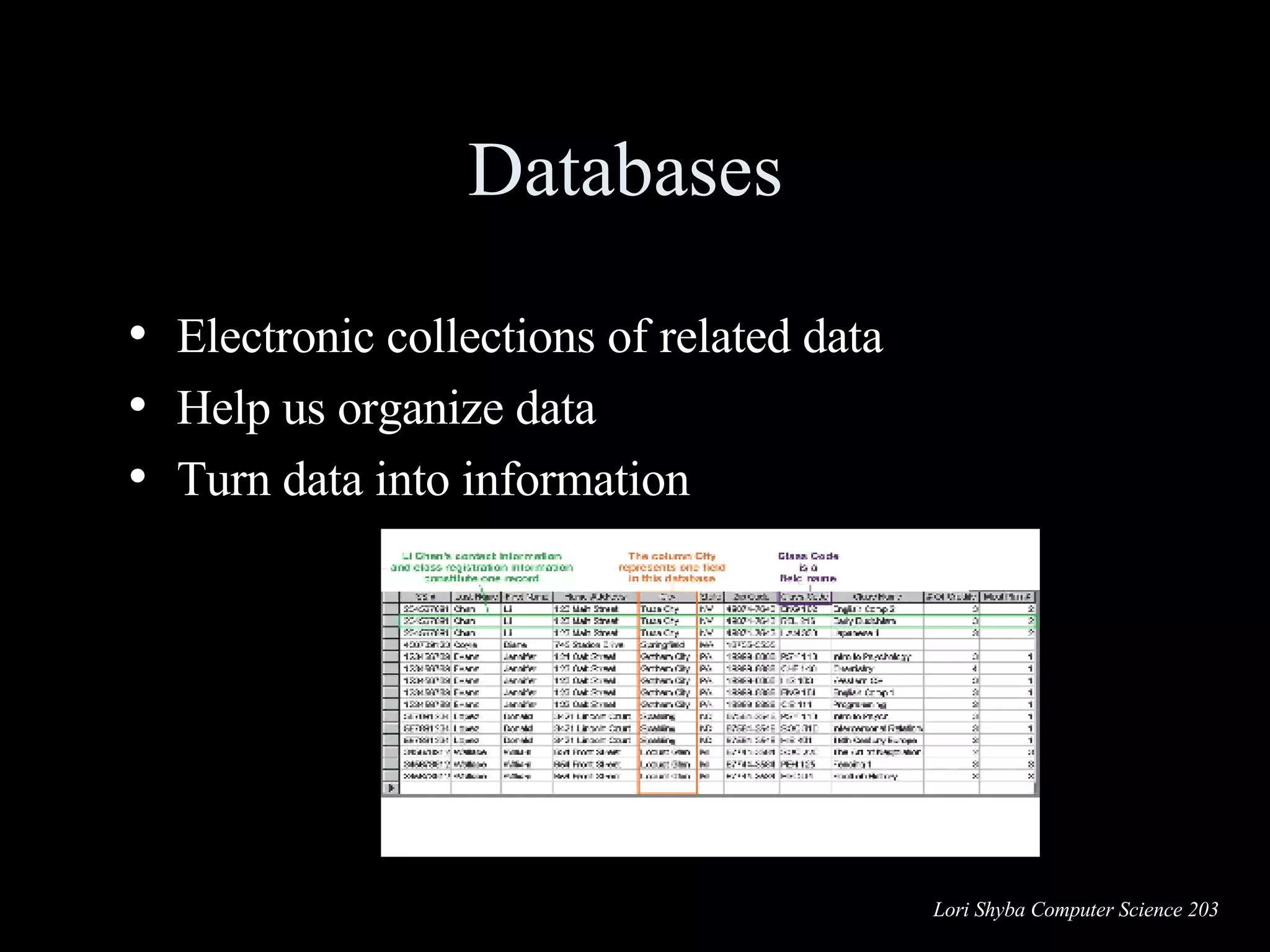
Databases  Electronic collections of related data Help us organize data Turn data into information
Advantages of Using Databases Store and retrieve large quantities of information Enable information sharing Provide data centralization Promote data integrity Allow for flexible use of data
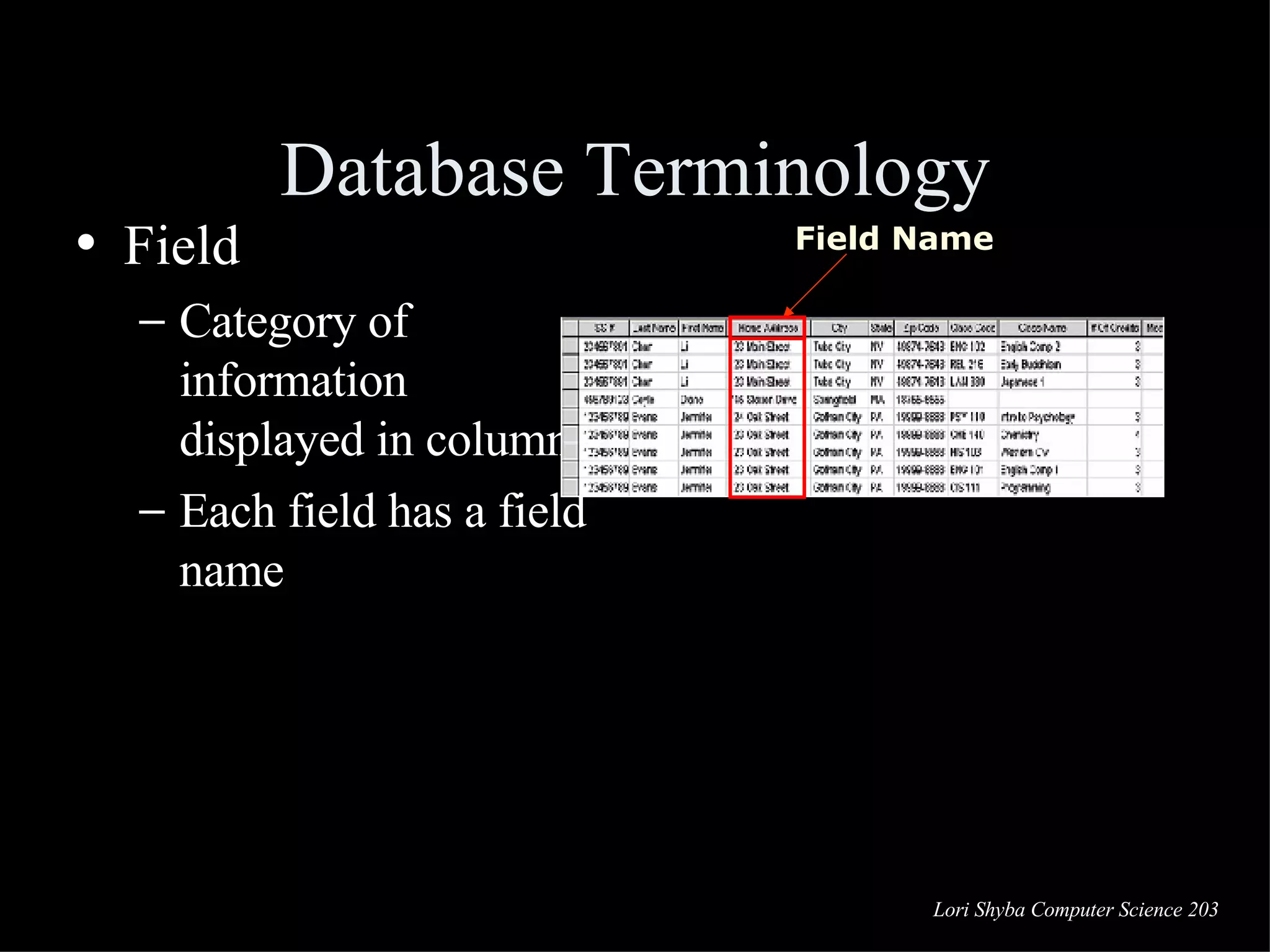
Database Terminology Field Category of information displayed in columns Each field has a field name Field Name
Database Terminology Data types Text Numeric Computational Date Memo Object Hyperlink
Database Terminology Record A group of related fields Record
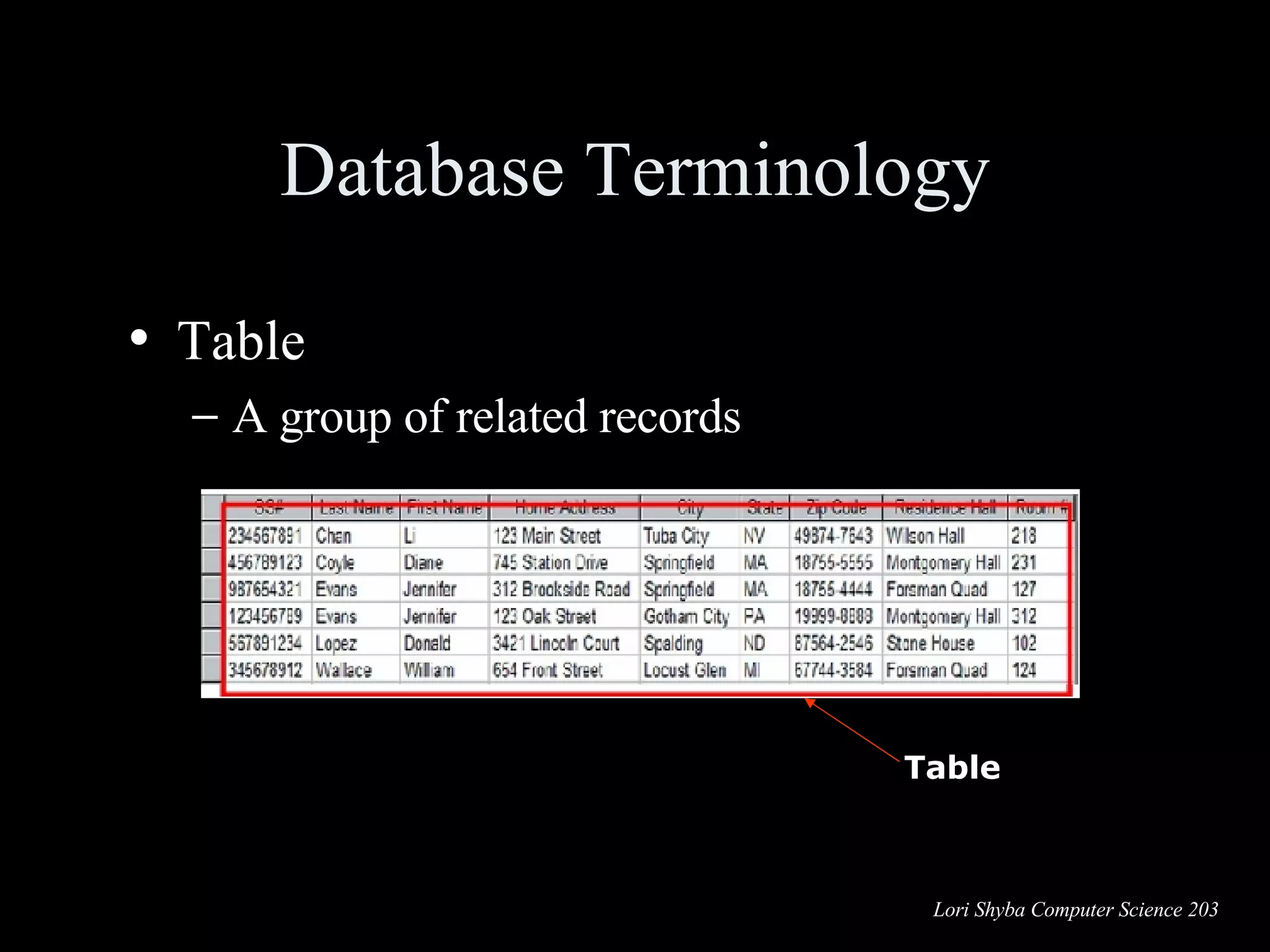
Database Terminology Table A group of related records Table
Database Terminology Primary key A field value unique to a record Primary Key
Database Types Relational databases Organize data in a table Link tables to each other through their primary keys Object-oriented databases Stores data in objects Handles unstructured data Multidimensional databases Stores data in multiple dimensions Can easily be customized Process data much faster
Database Management Systems (DBMS) Application software designed to capture and analyze data Four main operations of a DBMS are: Creating databases and entering data Viewing and sorting data Extracting data Outputting data
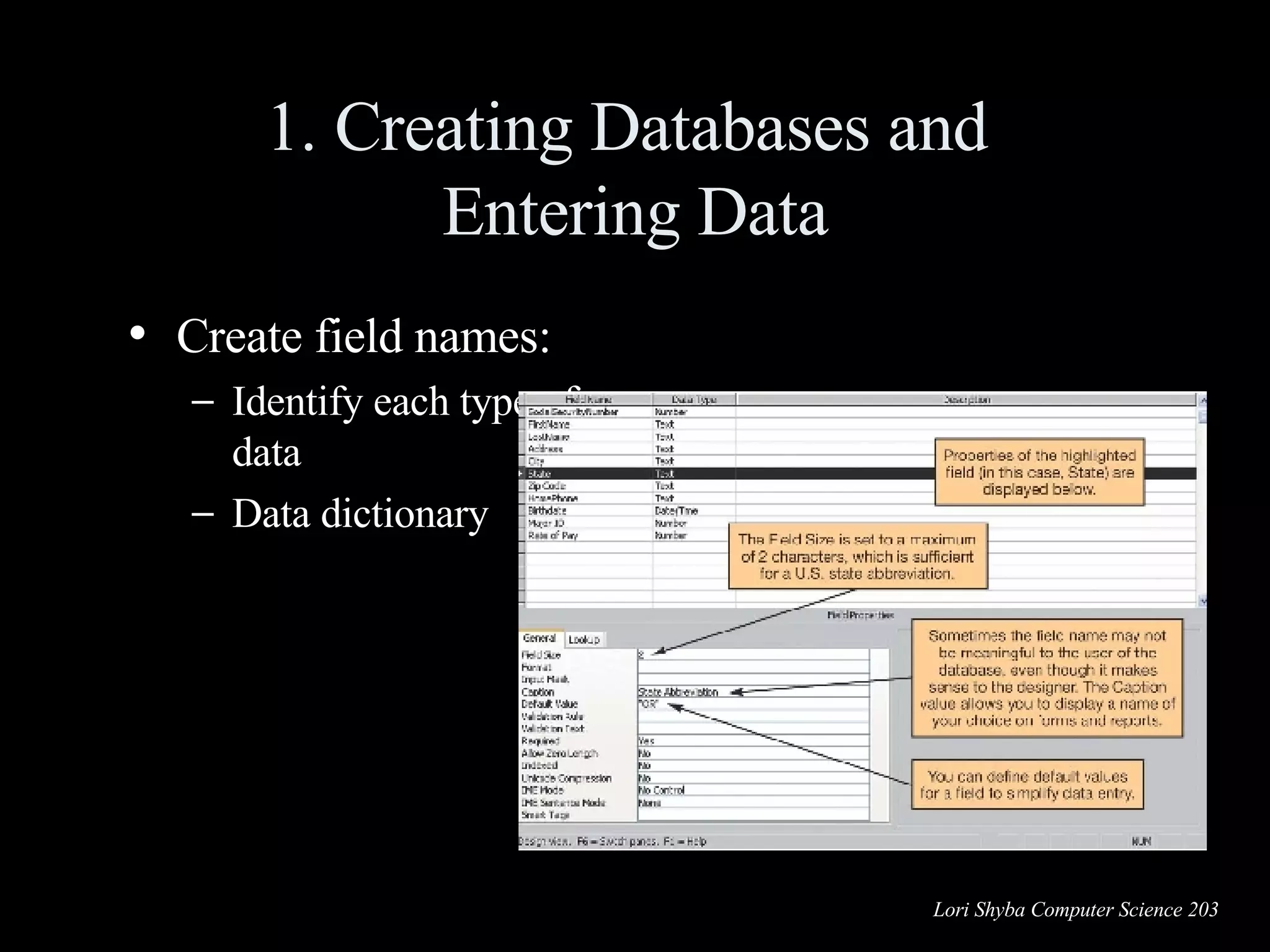
1. Creating Databases and  Entering Data Create field names: Identify each type of data Data dictionary
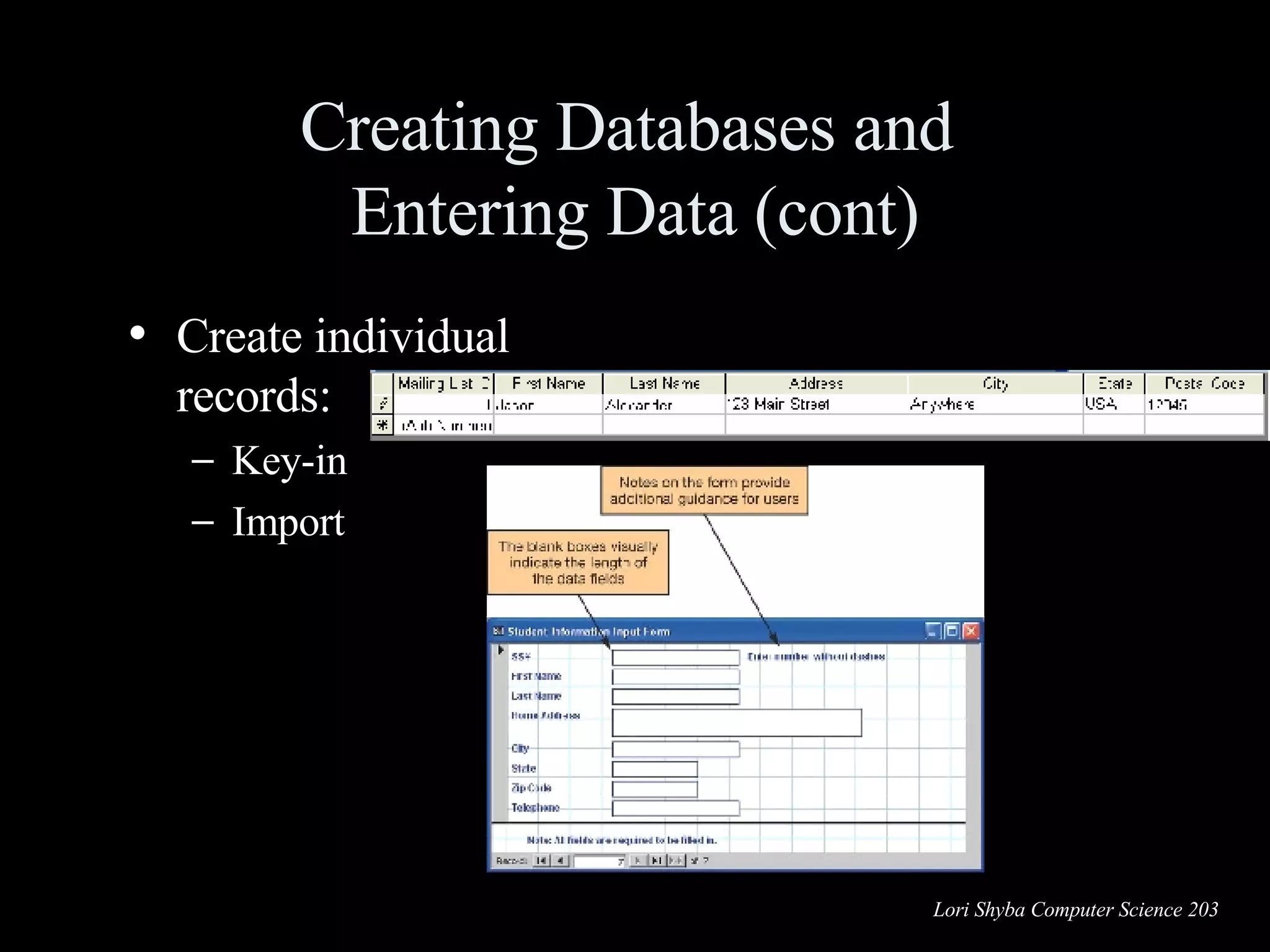
Creating Databases and  Entering Data (cont) Create individual records: Key-in Import
Data Validation Validation  Process of ensuring data entered into the database is correct (or at least reasonable) and complete Validation rules Range check Completeness check Consistency check Alphabetic/numeric checks
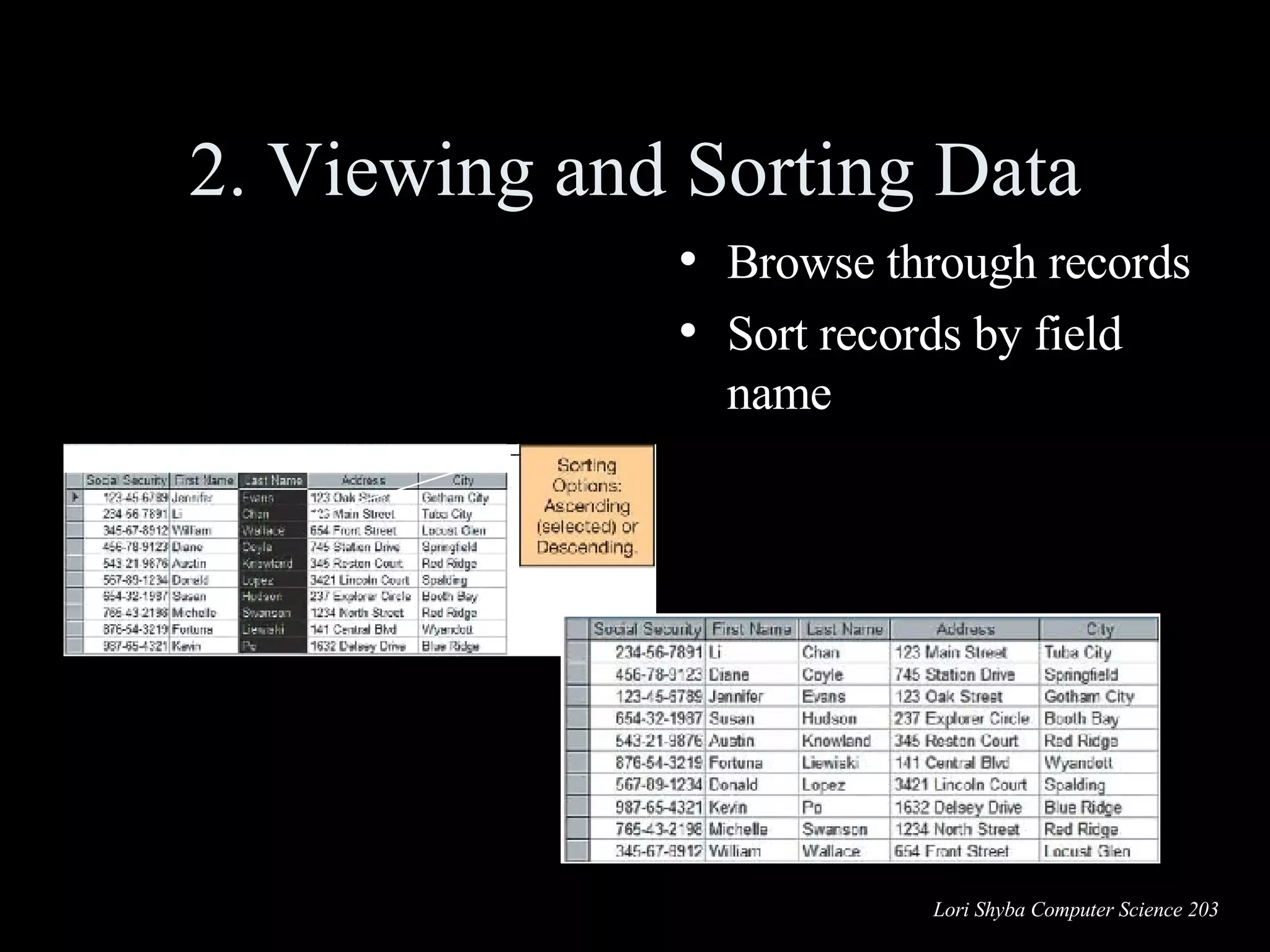
2. Viewing and Sorting Data Browse through records Sort records by field name Before sort After sort
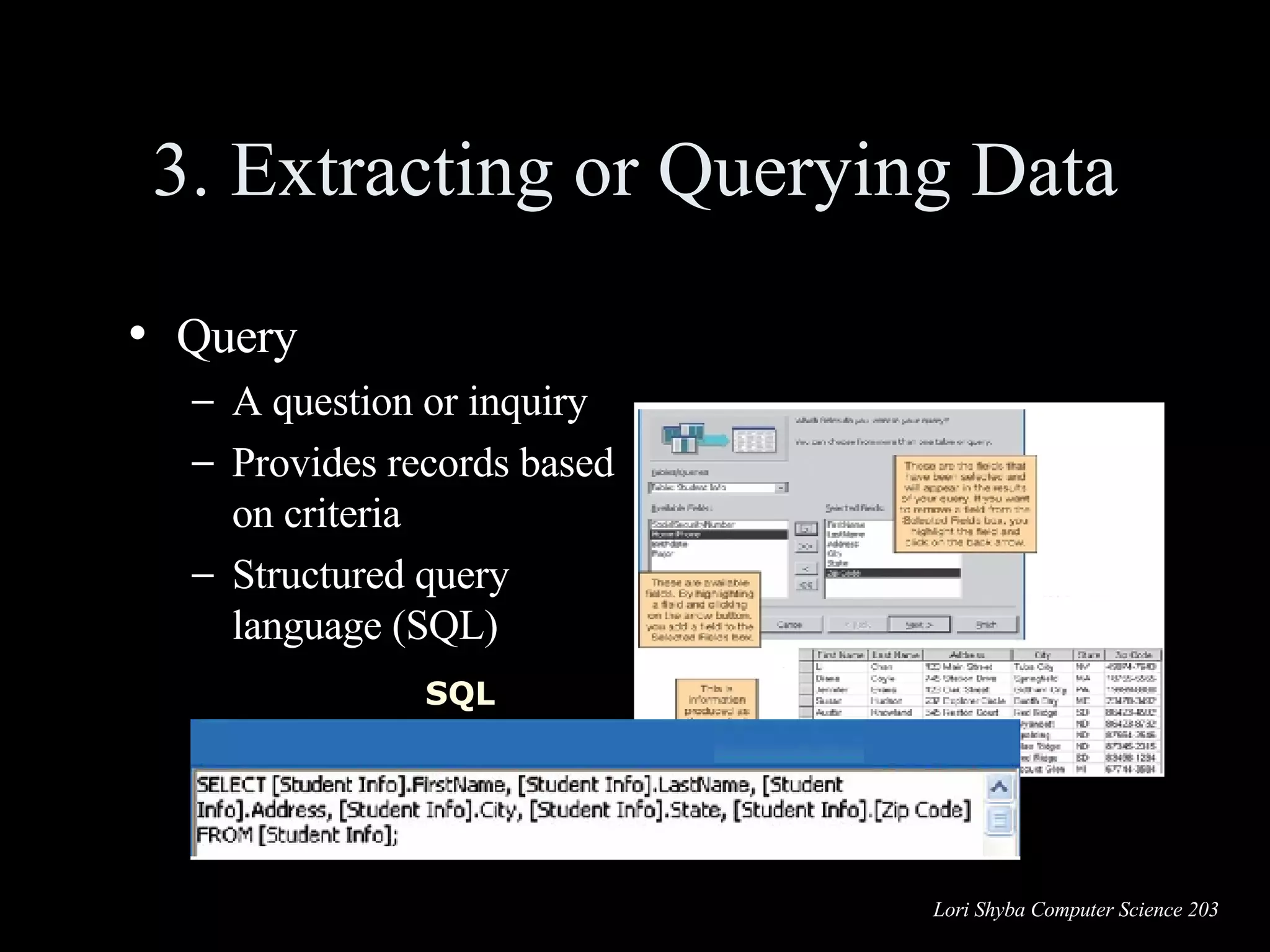
3. Extracting or Querying Data Query  A question or inquiry Provides records based on criteria Structured query language (SQL) SQL
4. Outputting Data Reports: Printed Summary data reports Export data
Relational Database Operations Relational databases organize data into tables based on logical groupings Relationships are links between tables with related data Common fields between tables need to exist Normalization of data (recording data once) reduces data redundancy
Data Storage Data warehouses A large scale repository of data Organizes all the data related to an organization Data is organized by subject
Source data Internal  sources Company databases, etc. External  sources  Suppliers, vendors, etc. Customers or Web site visitors  Clickstream data Populating Data Warehouses
Data staging Extract data from source Reformat the data Store the data Software programs/procedures created to extract the data and to reformat it for storage Data Staging
Small slices of data Data of a single department Data Marts
Data Warehouse
Managing Data:  Information Systems Information systems Software-based solutions used to gather and analyze information Functions performed by information systems include Acquiring data Processing data into information Storing data Providing output options
Information Systems Categories Office support Transaction processing Management  Decision support
Office Support Systems (OSS) Assist employees in day-to-day tasks Improve communications Microsoft Office
Transaction Processing Systems (TPS) Keeps track of everyday business activities Batch processing Real-time processing
Management Information Systems (MIS) Provides timely and accurate information for managers to make business decisions Detail report: Transactions that occur during a period of time Summary report: Consolidate detailed data Exception report: Show unusual conditions
Decision Support Systems (DSS) Help managers develop solutions for specific problems
Data Mining Process by which data are analyzed and investigated Objective is to spot patterns or trends within the data
Data Mining Methods Classification Define data classes Estimation Assign a value to data Affinity grouping or association rules Determine which data goes together Clustering Organize data into subgroups Description and visualization Provides a clear picture of what is happening

Review. Version 2.0

  • 1.
    Computer Science 203V 2.0 Review Slides For Final Exam
  • 2.
    Notes to StudentsThese slides are meant to be a guide to studying Technology in Action, Chapters 3 to 11. Please review chapters 1 - 3 on your own. Be advised that other material will be covered including topics covered in lectures and topics covered in labs including MS Office procedures. Good luck and it was good working with you.
  • 3.
    Instant Messaging Real-timetext-based conversations Set up a list of contacts Buddy list Contacts must be online IM software detects presence Example: AOL Instant Messenger
  • 4.
    Voice over InternetProtocol VoIP - The Internet as a means to place phone calls Uses technology similar to e-mail to send voice data digitally Requires a microphone an Internet connection A VoIP provider Services differ Free services require an account on both ends Paid services connect phone to computer Cable and DSL providers offer phone through broadband WiFi IP phones call through Internet hotspots and wireless networks
  • 5.
    Weblogs (blogs) Knownas blogs Available to the public Simple to create, read, and manage Entries listed on a single page Most recent entry at the top Searchable Some are personal Many are focused on a topic
  • 6.
    Podcasts Video blog(vlog) – entries are video clips Podcasts – compressed audio/video files distributed on the Internet RSS (Really Simple Syndication) technology allows constant updates for subscribers Podcasts are all over the Web Requires “aggregator” software to gather podcasts Requires media player software to play them Simple to create and attach RSS files
  • 7.
    Webcasts and WikisWebcasts broadcast audio/visual files but are not updated use streaming media A wiki is a Web site that allows anyone to change its content Wikis provide an excellent source for collaborative writing Unlike blogs, wikis can be edited for a “common” opinion
  • 8.
    Social Networking Socialnetworking sites like Facebook.com Members share common interests Members communicate by voice, chat, instant message, video, and blogs Members create personalized profiles Growth has been explosive Risks must be recognized and reduced
  • 9.
    Web Entertainment Multimedia:Involves forms of media and text Graphics Audio Video Streaming audio and video Plug-in
  • 10.
    Conducting Business Over the Internet E-Commerce: Electronic commerce Business-to-consumer (B2C) Business-to-business (B2B) Consumer-to-consumer (C2C) Secure transactions B2B E-commerce Manufacturer Suppliers Retailer
  • 11.
    Online Annoyances Spam– electronic junk mail Pop-ups – intrusive advertising Cookies – tracking user’s browsing habits Spyware – programs that collect data from a user’s computer Malware - software that has a malicious intent Phishing and Hoaxes – Ruses to fool and maybe steal from users
  • 12.
    Phishing and HoaxesPhishing is a phony communication Attempts to scam someone into sending vital information Hoaxes are attempts to scam people into sending money, or join a chain letter Identity Theft
  • 13.
    Navigating the Web:Web Browsers Computer software Graphical Enables Web navigation Popular browsers: Internet Explorer Netscape Navigator Camino (Mac OSX)
  • 14.
  • 15.
    Hyperlinks Provideaccess to other Web pages Specially coded text or graphics Cursor becomes a hand with finger pointing upward
  • 16.
    Favorites and BookmarksList created of favorite Web pages Easy method of returning to Web pages Internet Explorer uses Favorites Netscape uses Bookmarks Live Bookmarks use RSS
  • 17.
    Tabbed Browsing Foundon Firefox and Safari browsers Not available on Internet Explorer Multiple pages in same browser window
  • 18.
    Search Engines Userkeys word or phrase in search box “ Spider” or “Robot” or “Crawler” program scans Web pages Results are indexed and sent to the client
  • 19.
    Evaluating Web SitesWho is the author of the article or Web site sponsor? What audience is the site geared toward? Is the site biased? Is the information current? Are links available?
  • 20.
    The Internet: TheBasics Origin of the Internet The Internet vs. the Web Clients and servers Connecting to the Internet
  • 21.
    Comparing Internet ConnectionOptions 500 Kbps 100 Kbps Satellite 4 Mbps 500 Kbps Cable 1.5 Mbps 1.5 Mbps DSL (SDSL) 1 Mbps 300 Kbps DSL (ADSL) 56 Kbps 56 Kbps Dial-Up Maximum Download Data Transfer Rate (approximate) Maximum Upload Data Transfer Rate (approximate) Connection Option
  • 22.
    The Origin ofthe Internet ARPANET: Advanced Research Projects Agency Network Funded by the U.S. government in the 1960s Allowed computers at leading universities and research organizations to communicate with each other over great distances
  • 23.
    The Web TheWeb is a part of the Internet distinguished by: common communication protocols TCP/IP and HTML special links (called hyperlinks ) Web invented in 1989 by Tim Berners-Lee 1993, National Center for Supercomputing Applications releases the Mosaic browser Developers of Mosaic release Netscape (1994) Netscape is beginning of Web’s major growth
  • 24.
    The Internet vs.The Web Internet – part of the system that is primarily hardware infrastructure (telecommunications, routers, servers, disk drives, etcetera) Web – part of the system that contains intellectual property in many multimedia formats (test files, graphic files, sound files, video files, etc.) INTERNET WWW
  • 25.
    Future of theInternet Large Scale Networking (LSN): Research and development of cutting-edge networking and wireless technologies Internet2: Project sponsored by universities, government, and industry to develop new Internet technologies Internet2 backbone supports transmission speeds of 9.6 Gbps
  • 26.
    Software Aset of instructions that tells the computer what to do Two main types of software System software Application software System Software Application Software
  • 27.
    System Software vs. Application Software System Software Coordinates instructions between software and hardware Includes Operating system Utility programs Application Software Programs used to complete tasks Includes Productivity software Specialty software Entertainment software Educational and reference Software Personal software
  • 28.
    Productivity Software Wordprocessing programs Spreadsheet programs Presentation programs Database programs Personal information manager programs Programs that enable you to perform tasks required in home, school, and business
  • 29.
    Used to createand edit written documents Features include Quick and easy editing Variety of formatting options Graphics Templates Examples Corel WordPerfect Microsoft Word Word Processing Software Sammy the WonderDog Word Processor Features Click to view Insert Graphics Create Tables Insert Excel Spreadsheets Use Templates
  • 30.
    Spreadsheet Software Usedto perform calculations and numerical analyses Features include Worksheets with cells Values, formulas, and functions Automatic recalculation Examples Lotus 1-2-3 Microsoft Excel Spreadsheet Features Click to view Charts Formulas Functions Labels Values Columns Rows Cell Range of cells Worksheet
  • 31.
    Presentation Software Usedto create slide shows Features include Templates and layouts Different views Examples Corel Presentations Microsoft PowerPoint Presentation Software Features Click to view Slide Show View Background Bulleted Text Graphics Slide Title Speaker Notes Work Area Task Pane Slide/Outline View
  • 32.
    Database Software Usedas a complex electronic filing system Features include Ability to group, sort, and retrieve data and generate reports Organized into fields, records, and tables Examples Corel Paradox Microsoft Access Productivity Software Tools Wizards Step-by-step guides to help you complete a task
  • 33.
    Productivity Software ToolsTemplates redesigned forms included with software
  • 34.
    Graphics and MultimediaSoftware Used to create and design documents, images, illustrations, Web pages, and more
  • 35.
    Image-Editing Software Usedto edit photographs and other images Also called photo-editing software Features include Tools for basic modifications to digital images Painting tools that allow you to create images Example: Adobe Photoshop Photo Collection software Google “Picasa” Microsoft “Photo Story”
  • 36.
    Digital Audio SoftwareMP3: Audio compression format Software allows you to record, rip, and burn files Also allows you to perform format conversion
  • 37.
    Video-Editing Software Usedto edit digital videos Features include Special effects Transitions Narration/voiceover Overlays Examples Adobe Premiere Microsoft Movie Maker
  • 38.
    Entertainment Software Designedto provide users with entertainment Categories include Action and Adventure Driving Puzzles and strategy Role-playing Card-playing Simulation Virtual reality
  • 39.
    Educational and ReferenceSoftware Educational Software Provides instruction or training Types include K-12 education Skills Test preparation Course management Reference Software Sources of reference Types include Atlases, dictionaries, thesauri, encyclopedias Medical and legal references
  • 40.
    Drawing Software Usedto create and edit Two-dimensional drawings Technical diagrams Animations Geometric shapes Also referred to as illustration software Examples Adobe Illustrator Microsoft Visio Bit-mapped programs MS-Paint
  • 41.
    Desktop Publishing SoftwareUsed to arrange text and graphics for publications Features include Text formatting File importing Graphics tools Web publishing Example: QuarkXPress
  • 42.
    Web Page AuthoringSoftware Used to design Web pages: knowing HTML is not necessary Features include Wizards and templates Reference materials Example Macromedia Dreamweaver Office Applications HTML authoring capabilities
  • 43.
    System Software Operatingsystems Control computer functions: Hardware Memory Application programs System maintenance Provide user interface System utilities Programs that perform computer housekeeping tasks: Manage system resources Improve efficiency Virus prevention
  • 44.
    Single-User Operating SystemsSingle-task systems Perform one task at a time PDAs: Pocket PC Palm OS Windows Mobile MS-DOS Multitask systems Perform simultaneous tasks Windows MAC OS Linux
  • 45.
    Multiuser Operating Systems Known as network operating systems Allow access to the computer system by more than one user Manage user requests Systems include: UNIX Novell Netware Windows Server 2003
  • 46.
    Desktop Operating SystemsOperating system combined with the processor is known as a platform Microsoft Windows / Intel Apple Macintosh / Motorola Desktop operating systems include: Microsoft Windows MAC OS UNIX Linux
  • 47.
    What the OperatingSystem Does Provides user interface Manages the CPU Manages memory Manages hardware Coordinates application software with the CPU
  • 48.
    The User InterfaceEnables you to interact with the computer Types of interfaces: Command-driven interface Menu-driven interface Graphical user interface Command-driven Menu-driven Graphical
  • 49.
    Starting the ComputerThe Boot Process Step 1: The basic input/output system (BIOS) is activated Step 2: A Power-on self-test (POST) checks attached hardware Step 3: The operating system loads into memory Step 4: Configuration and customization settings are checked 1 2 3 4
  • 50.
    Handling Errors inthe Boot Process Non-system disk or disk error Remove the floppy from the drive and press any key POST errors Single beep: Everything is loading properly Series of beeps: Hardware problem Safe mode Windows does not boot properly Uninstall any new devices or software
  • 51.
    File Management Theoperating system provides an organizational structure to the computer’s contents Hierarchical structure of directories: Drives Folders Subfolders Files
  • 52.
    Viewing and Sorting Files and Folders Windows Explorer Tiles View
  • 53.
    Viewing and Sorting Files and Folders Windows Explorer Icon view
  • 54.
    Viewing and Sorting Files and Folders Windows Explorer List View
  • 55.
    Viewing and Sorting Files and Folders Windows Explorer Detail View Sorted and grouped
  • 56.
    Naming Files Filename:Name assigned plus filename extension only characters not legal in filenames are: \   ⁄   :   *   ?   &quot;   <   >   ¦ all others are allowed Bioreport .doc or Bio report .doc
  • 57.
    Filename Extensions Filenameextensions: Used by programs Application Type of Document Extension Hypertext Markup Language Web page .htm or .html Adobe Acrobat Portable Document Format .pdf WinZip Compressed file .zip Windows Bitmap image .bmp Microsoft Access Database .mdb Microsoft PowerPoint PowerPoint presentation .ppt Microsoft Excel Workbook .xls Microsoft Word; Corel WordPerfect Word processing document .doc
  • 58.
    File path Filepath Location of the file C: Tech in Action\TIA Pics\ \My Documents\ dotmatrix.gif Drive Primary folder Secondary folders Filename
  • 59.
    Add or RemovePrograms Installation wizard Uninstall wizard: Do not delete programs
  • 60.
    File Compression ProgramsReduce the size of a file: Removes redundancies
  • 61.
    Evaluating the CPUHow does the CPU work? Control unit Arithmetic logic unit (ALU) Machine cycle: Instruction Cycle Fetch Decode Execution Cycle Execute Store Speed: MHz GHz
  • 62.
    How Much Ramis Needed? RAM for System Software RAM for Productivity Software RAM for Entertainment RAM for Graphics Programs 128 MB MS Picture It! Graphics 64 MB Windows Media Player Entertainment Software 128 MB MS Office Pro Productivity Software 128 MB Windows XP System Software
  • 63.
    Evaluating Storage Typesof storage devices: Hard drive Floppy drive Zip disk drive CD/DVD Flash memory Nonvolatile storage
  • 64.
    The Hard DiskDrive Storage capacity up to 500 GB Access time is measured in milliseconds Data transfer rate is measured in megabits or megabytes per second Spindle speed is measured in revolutions per minute (rpm)
  • 65.
    How a HardDisk Works Composed of several coated platters stacked on a spindle Data saved to the disk: pattern of magnetized spots – Spots = 1 – Spaces = 0 Between platters are read/write heads that read and write magnetized data Spots are translated into data Platters Read/write head Access arms
  • 66.
    Portable Storage Givesus the ability to move data from one computer to another Types of portable storage devices: Floppy disk: Capacity 1.44 MB Zip disk: Capacity 100 MB to 750 MB CD-R, CD-RW, DVD-R, DVD-RW: Capacity 700 MB to 9.4 GB Flash drive: Capacity 32 MB to 1 GB Flash memory Card: Up to 4 GB
  • 67.
    Optical Storage Opticalmedia: CD-ROM CD-R CD-RW DVD-ROM DVD-R DVD-RW Laser Pits scatter laser light equaling a 1 Nonpitted area reflects laser light equaling a 0
  • 68.
    Video Cards Processbinary data into images Contain memory known as video RAM (VRAM) Control the number of colors a monitor can display (bit depth) Standard VGA 4 bits 16 colors True color (SVGA) 24 bits 16 million colors
  • 69.
    Monitors Thingsto consider: Types: CRT or LCD Size: 15, 17, 19, or 21 inch Resolution: Increasing resolution allows more to be displayed Dot pitch: .31mm or less Refresh rate: 75 Hz or higher
  • 70.
    Evaluating Ports Portsare used to connect peripheral devices to the computer Things to consider: Devices you want to use Ports needed for the devices
  • 71.
    Types of PortsSerial Port Transfers data one bit at a time; 56Kbps PS/2 Port COM 1 Port PS/2 Connectors Serial Connector
  • 72.
    Types of PortsParallel Transfers eight bits of data simultaneously; 12 Mbps LPT 1 Port Printer Cable Connector
  • 73.
    Types of PortsUniversal serial bus Transfer speed up to 480 Mbps; hot swapping USB Port USB Connector
  • 74.
    Types of PortsFireWire Transfer rate of 400 Mbps; Digital cameras Newer FireWire 800 is fastest Available only on the Apple Mac FireWire Port FireWire Connector
  • 75.
    Types of PortsEthernet Transfer rate of 100 Mbps; connects computers to networks Ethernet Port Ethernet jack
  • 76.
    Types of PortsIrDA Transfer rate of 4 Mbps; Uses infrared light waves IrDA
  • 77.
    Types of PortsBluetooth Transfer rate of 1 Mbps; radio waves send data over short distances Bluetooth
  • 78.
    Mobile Computing DevicesPagers Cellular phones Portable media players Personal digital assistants Tablet PCs Laptop computers
  • 79.
    Cell Phone HardwareMicroprocessor (CPU): Coordinates data between components Runs the operating system Memory: ROM stores the operating system Internal memory chips store: Contact data Ring tones Images Small application programs Microprocessor Memory
  • 80.
    Cell Phone HardwareInput devices: Microphone Keypad Graffiti pad Touch-screen Digital camera Output devices: Speaker LCD display Microphone Keypad LCD display Speaker
  • 81.
    Cell Phone InternetConnectivity Wireless Internet service provider Maximum speeds of 200 to 300 Kbps Micro-browser software EDGE and EVDO standards Difficult to display Web pages on small screen Checking e-mail is a popular feature Special “push” technology delivers e-mail to a cell phone
  • 82.
    Portable Media PlayersMP3: Format for storing music Portable media player (PMP): A small device that stores and plays music Storage space determines the number of songs stored: Memory chips 64 MB to 256 MB Hard drive up to 40 GB Sampling rate also affects number of songs stored
  • 83.
    PMP Ethical IssuesIs it illegal to download MP3 files? MP3.com: Song files are on a public server Permission is given by the artist or recording company to place the files on the server A fee is paid to download a file. Napster: A file exchange site Song files were borrowed from users’ computers (peer-to-peer [P2P] sharing) Sued for copyright infringement
  • 84.
    Podcasting Distributing nonmusicMP3 files over the Internet Podcasts can be information, books on tape audio plays, etc. People can listen when they wish iPod synchronization transfers new content.
  • 85.
    Small devices thatstore digital information Known as palm computers or handhelds PDA hardware includes: CPU Operating system Storage capabilities Input/output devices Ports Personal Digital Assistants (PDAs)
  • 86.
    PDA Input andOutput Devices Input devices Touch-screen with stylus Keyboards: On-screen Integrated Folding Digital cameras Output devices LCD displays: Grayscale Color
  • 87.
    Notebook Ports Afull set of ports: Parallel Monitor USB Modem Ethernet Audio jacks FireWire PCI type I/II card slots DVI IrDA
  • 88.
    Binary Language Computerswork in binary language Consists of two numbers: 0 and 1 Everything a computer does is broken down into a series of 0s and 1s Switches: Devices inside the computer that can be flipped between these two states: 1 or 0, on or off
  • 89.
    Switches Nonmechanical devicesin computers that open and close circuits Types of electrical switches: Vacuum tubes Transistors: Semiconductors Integrated circuits Vacuum Tube Transistors Integrated Circuits
  • 90.
    The on/off stateof a switch represents one bit of data Bit (binary digit) On = 1 Off = 0 Switches Representing Data 0 1 OR = 1 bit OFF 0 ON 1
  • 91.
    The Binary NumberSystem Describes a number as powers of 2 Also referred to as base 2 numbering system Used to represent every piece of data stored in a computer: all of the numbers, letters, and instructions
  • 92.
    The Binary NumberSystem Number systems are organized ways to represent numbers Each number in one system has a corresponding number in another. 01011001 = 89 Binary Base 10 89 1 = 0 + 0 + 8 + 16 + 0 + 64 + 0 + Base 10 1 0 0 1 1 0 1 0 Binary 1 2 2x1 4 2x2 8 2x4 16 2x8 32 2x16 64 2x32 128 2x64
  • 93.
    Representing Letters andSymbols American Standard Code for Information Interchange (ASCII) 8 bits = 1 byte = alphanumeric character or symbol 256 different combinations Unicode 16 bits equal 1 byte 65,000 different combinations, used for all languages 01100001 = a 01000001 = A 00100011 = # 01101101 = m ASCII
  • 94.
    The CPU: Processing Digital Information The CPU is the brains of the computer Different types of CPUs Intel and AMD chips: Used in most Windows-based PCs Apple systems use different CPU design Differentiating CPUs Processing power Clock speed and cache
  • 95.
    The System ClockLocated on the motherboard Controls the CPU’s processing cycles Clock cycle Pulse or tick Clock speed Number of pulses per second Measured in hertz (Hz)
  • 96.
    The Control UnitManages the switches inside the CPU Is programmed by CPU designers to remember the sequence of processing stages for that CPU Moves each switch to its correct setting (on or off) Then performs the work of that stage
  • 97.
    The Arithmetic LogicUnit (ALU) Part of the CPU designed to perform mathematical operations (addition, subtraction, multiplication, division, etc.) Also performs logical OR, AND, and NOT operations Is fed data from the CPU registers Word size: Number of bits a computer can work with at a time
  • 98.
    Cache Memory Smallamount of memory located on the CPU chip or near it Stores recent or frequently used instructions and data Used for quick access by the CPU Different levels of cache
  • 99.
    RAM: The NextLevel of Temporary Storage Volatile: When you turn off your computer, the data is erased Several kinds of RAM exist Each type of RAM has a different design Some types work at much faster speeds Some transfer data more quickly
  • 100.
    Bus Electrical pathwayused to move data between components Local bus: Connects the CPU with the memory Expansion bus: Connects the CPU with peripheral devices Buses: The CPU’s Data Highway 01100010 01110011 01001000 00100111
  • 101.
    Bus Performance Busclock speed Rate of speed data moves from one location to another Measured in MHz (millions of clock cycles per second) Bus width The number of bits of data moved on a bus at any one time Measured in bits 16 bits 32 bits
  • 102.
    Moore’s Law Numberof transistors on a CPU will double every 18 months First chip had 29,000 transistors Pentium chip 169,000,000 transistors Moore’s Law has been accurate for more than 40 years Law has remained accurate into the 21st century
  • 103.
    Making Computers FasterDual processing Two CPUs on the same system Each processor shares the workload Parallel processing Network of computers Each computer works on a portion of the problem simultaneously Dual processors
  • 104.
    Databases Electroniccollections of related data Help us organize data Turn data into information
  • 105.
    Advantages of UsingDatabases Store and retrieve large quantities of information Enable information sharing Provide data centralization Promote data integrity Allow for flexible use of data
  • 106.
    Database Terminology FieldCategory of information displayed in columns Each field has a field name Field Name
  • 107.
    Database Terminology Datatypes Text Numeric Computational Date Memo Object Hyperlink
  • 108.
    Database Terminology RecordA group of related fields Record
  • 109.
    Database Terminology TableA group of related records Table
  • 110.
    Database Terminology Primarykey A field value unique to a record Primary Key
  • 111.
    Database Types Relationaldatabases Organize data in a table Link tables to each other through their primary keys Object-oriented databases Stores data in objects Handles unstructured data Multidimensional databases Stores data in multiple dimensions Can easily be customized Process data much faster
  • 112.
    Database Management Systems(DBMS) Application software designed to capture and analyze data Four main operations of a DBMS are: Creating databases and entering data Viewing and sorting data Extracting data Outputting data
  • 113.
    1. Creating Databasesand Entering Data Create field names: Identify each type of data Data dictionary
  • 114.
    Creating Databases and Entering Data (cont) Create individual records: Key-in Import
  • 115.
    Data Validation Validation Process of ensuring data entered into the database is correct (or at least reasonable) and complete Validation rules Range check Completeness check Consistency check Alphabetic/numeric checks
  • 116.
    2. Viewing andSorting Data Browse through records Sort records by field name Before sort After sort
  • 117.
    3. Extracting orQuerying Data Query A question or inquiry Provides records based on criteria Structured query language (SQL) SQL
  • 118.
    4. Outputting DataReports: Printed Summary data reports Export data
  • 119.
    Relational Database OperationsRelational databases organize data into tables based on logical groupings Relationships are links between tables with related data Common fields between tables need to exist Normalization of data (recording data once) reduces data redundancy
  • 120.
    Data Storage Datawarehouses A large scale repository of data Organizes all the data related to an organization Data is organized by subject
  • 121.
    Source data Internal sources Company databases, etc. External sources Suppliers, vendors, etc. Customers or Web site visitors Clickstream data Populating Data Warehouses
  • 122.
    Data staging Extractdata from source Reformat the data Store the data Software programs/procedures created to extract the data and to reformat it for storage Data Staging
  • 123.
    Small slices ofdata Data of a single department Data Marts
  • 124.
  • 125.
    Managing Data: Information Systems Information systems Software-based solutions used to gather and analyze information Functions performed by information systems include Acquiring data Processing data into information Storing data Providing output options
  • 126.
    Information Systems CategoriesOffice support Transaction processing Management Decision support
  • 127.
    Office Support Systems(OSS) Assist employees in day-to-day tasks Improve communications Microsoft Office
  • 128.
    Transaction Processing Systems(TPS) Keeps track of everyday business activities Batch processing Real-time processing
  • 129.
    Management Information Systems(MIS) Provides timely and accurate information for managers to make business decisions Detail report: Transactions that occur during a period of time Summary report: Consolidate detailed data Exception report: Show unusual conditions
  • 130.
    Decision Support Systems(DSS) Help managers develop solutions for specific problems
  • 131.
    Data Mining Processby which data are analyzed and investigated Objective is to spot patterns or trends within the data
  • 132.
    Data Mining MethodsClassification Define data classes Estimation Assign a value to data Affinity grouping or association rules Determine which data goes together Clustering Organize data into subgroups Description and visualization Provides a clear picture of what is happening