Convergence Center Client
             User and Administration Guide


             3Com® Convergence Applications Suite
             System Release 7.2


http://www.3com.com/


Part Number 900-0411-01
Published October 2006
3Com Corporation   Copyright © 2006, 3Com Corporation. All rights reserved. No part of this documentation may be
350 Campus Drive   reproduced in any form or by any means or used to make any derivative work (such as translation,
                   transformation, or adaptation) without written permission from 3Com Corporation.
Marlborough, MA
01752-3064         3Com Corporation reserves the right to revise this documentation and to make changes in content from
                   time to time without obligation on the part of 3Com Corporation to provide notification of such revision
                   or change.
                   3Com Corporation provides this documentation without warranty of any kind, either implied or
                   expressed, including, but not limited to, the implied warranties of merchantability and fitness for a
                   particular purpose. 3Com may make improvements or changes in the product(s) and/or the program(s)
                   described in this documentation at any time.
                   UNITED STATES GOVERNMENT LEGENDS:
                   If you are a United States government agency, then this documentation and the software described herein
                   are provided to you subject to the following:
                   United States Government Legend: All technical data and computer software is commercial in nature
                   and developed solely at private expense. Software is delivered as Commercial Computer Software as
                   defined in DFARS 252.227-7014 (June 1995) or as a commercial item as defined in FAR 2.101(a) and as
                   such is provided with only such rights as are provided in 3Com’s standard commercial license for the
                   Software. Technical data is provided with limited rights only as provided in DFAR 252.227-7015 (Nov
                   1995) or FAR 52.227-14 (June 1987), whichever is applicable. You agree not to remove or deface any
                   portion of any legend provided on any licensed program or documentation contained in, or delivered to
                   you in conjunction with guide.
                   Unless otherwise indicated, 3Com registered trademarks are registered in the United States and may or
                   may not be registered in other countries.
                   3Com and the 3Com logo are registered trademarks of 3Com Corporation. VCX is a trademark of 3Com
                   Corporation.
                   Other brand and product names may be registered trademarks or trademarks of their respective holders.
CONTENTS

    ABOUT THIS GUIDE
    Conventions 9
       Notices 9
       Text 10
    Related Documentation   10
    Comments 11


1   3COM CONVERGENCE CENTER CLIENT OVERVIEW
    What is the 3Com Convergence Center Client? 13
    System Requirements 14
       Microsoft Windows Requirements 14
       Hardware Compatibility 15
    3Com Convergence Center Client Components 15
    3Com Convergence Center Client Attributes 18


2   BASIC SETUP AND USE
    Before You Start 19
    Starting the 3Com Convergence Center Client   21
       Configuring Your Friendly Name 23
       Modifying the SIP Settings 23
    Setting up Voice Mail and the Buddy List 24
    Changing Your Password 24
    Signing in 24
    Signing out 25
    Closing and Exiting 25


3   USING THE BUDDY LIST
          Buddy with VoIP Phone Number    27
          Buddy with PSTN Phone Number     28
    Adding a Buddy 28
4


           Buddy Status 30
        Deleting a Buddy 31
        Editing Buddy Properties 32
        Contacting a Buddy and Starting a Communication Session   33
        Controlling Who Can See Your Presence 34
           Allowing Anyone to See Your Presence 34
           Specifying Who Can See Your Presence 35
        Setting Your Current Presence Status 35
               System-controlled Statuses 36
        Creating and Managing a Category 36
               Unfiled Category 36
           Creating a Category 37
           Renaming a Category 37
           Deleting a Category 38


    4   MAKING AND RECEIVING MULTIMEDIA CALLS
        What is a Multimedia Call? 39
           Voice 40
           Video 40
           Desktop Sharing 40
        Making a Call 41
           Voice Call 42
           Adding Video to a Call 44
           Adding Desktop Sharing to a Call   45
           Sending Instant Messages 46
        Answering a Call 47
        Ending a Call 48
        Placing a Call on Hold 48
        Using Call Waiting 48
        Call Functions 49
           Unattended Call Transfer 49
               From the Buddy List 49
               From the Call window 50
           Attended Call Transfer 50
           Conference in to Call 51
               From the Buddy List 51
               From the Call window 52
5


       Parking a Call   54


4   USING TOOLS AND UTILITIES
    Using the 3Com Phone Panel 55
       Making a 3Com Phone Call 56
       Answering a 3Com Phone Call 57
       Ending a 3 Com Phone Call 57
    Using the Contact List 58
       Adding a Contact 58
       Managing Contacts 59
       Importing Contacts 61
       Exporting Contacts 63
       Uploading Contacts to the Contact List Server 63
       Placing a Call from the Contact List 63
       Working with Contacts 64
           Sorting Contact Information 65
           Filtering Contact Information 65
    Using the Call Log 65
    Monitoring Active Sessions 67
    Managing the Extension Status 67
       Do Not Disturb 68
       Forward To Voice Mail 68
       Forward To Number 69
       Local Presence Status 69
           System-controlled Statuses 70
    Launching the 3Com IP Conferencing Module 71


5   CHECKING MESSAGES
    Message Status Bar Features 73
           Voice Mail Features 73
           Missed Call Features 73
    Setting up Voice Mail 74
    Managing Your Voice Mail 75
       Accessing Voice Mail via the Attendant 75
       Accessing the IP Messaging Web Page 76
           Number of Voice Mail Messages 77
    Managing Your Missed Calls 77
6


           Accessing Missed Calls on the Call Log    77
              Number of New Missed Calls 78


    6   INSTANT MESSAGING
        Sending a Message while a Call is in Progress 80
        Sending a Message to a Buddy 81
        Starting a Voice Call from the Instant Message Window   82
        Receiving and Responding to Instant Messages 83
        Using Instant Messaging to See Who is in a Conference   83


    7   ADMINISTRATIVE SETUP
        User Accounts 85
        Auto-Configuration 85
           Group XML File 86
           Location of the Auto-Configuration Files 87
           Auto-Configuration Usage 87
        Tuning Audio Settings 88
        Optional Settings 88
           Configuring the Auto-Configuration Settings 89
           Configuring the Call Settings 90
           Configuring the Contact List Settings 91
           Configuring the Messaging Server Settings 91
           Configuring the Presence Settings 91
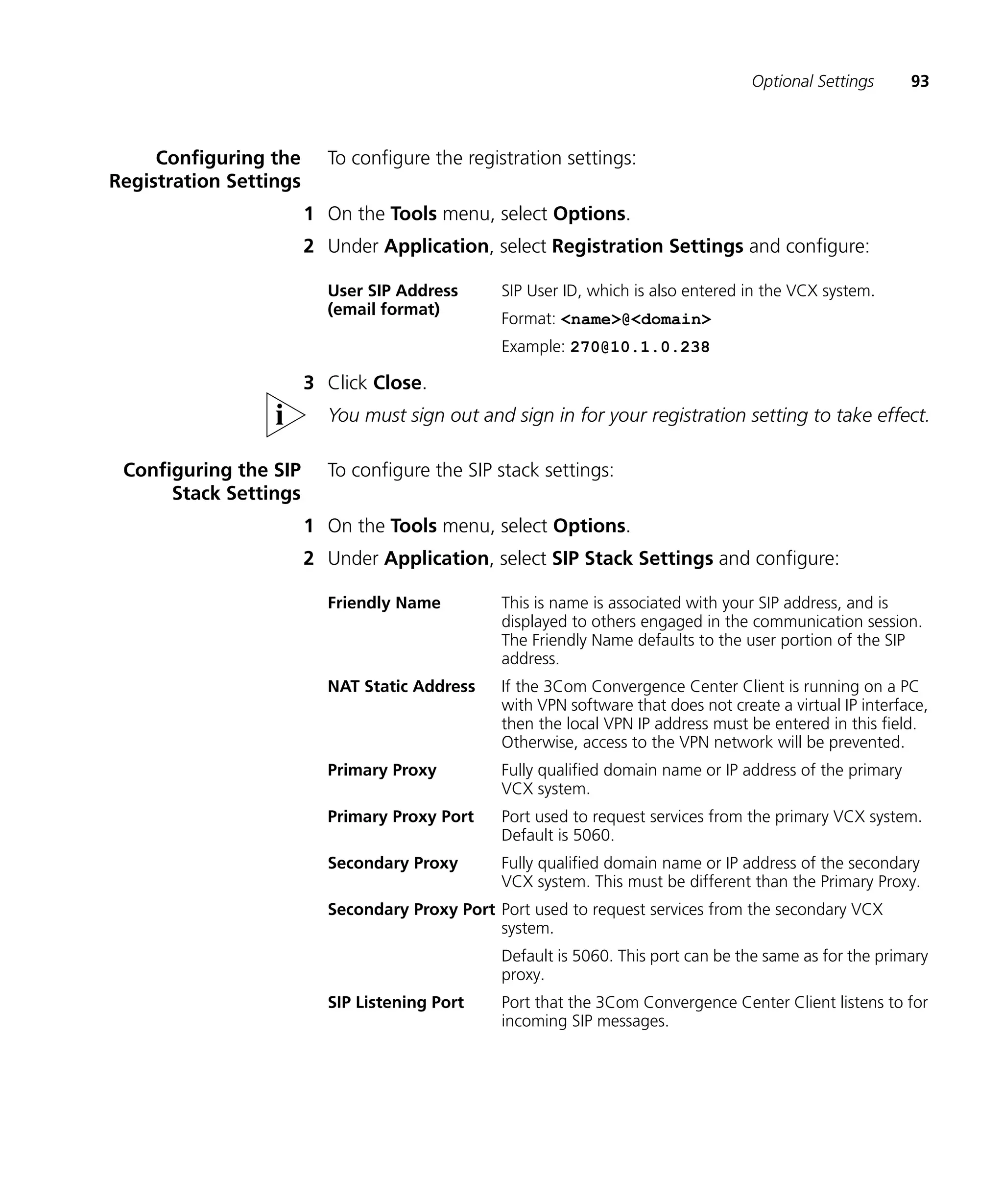
           Configuring the Registration Settings 93
           Configuring the SIP Stack Settings 93
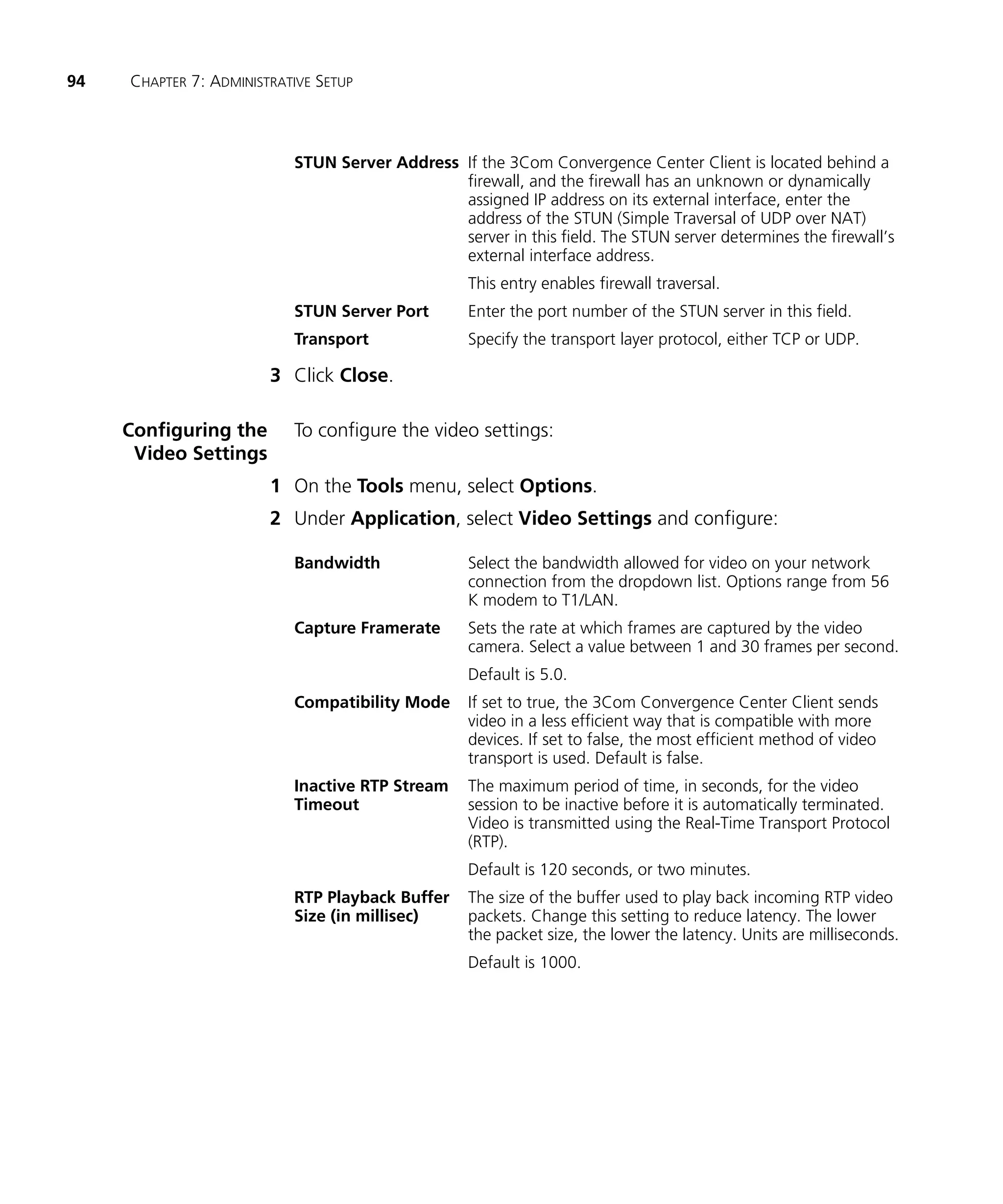
           Configuring the Video Settings 94
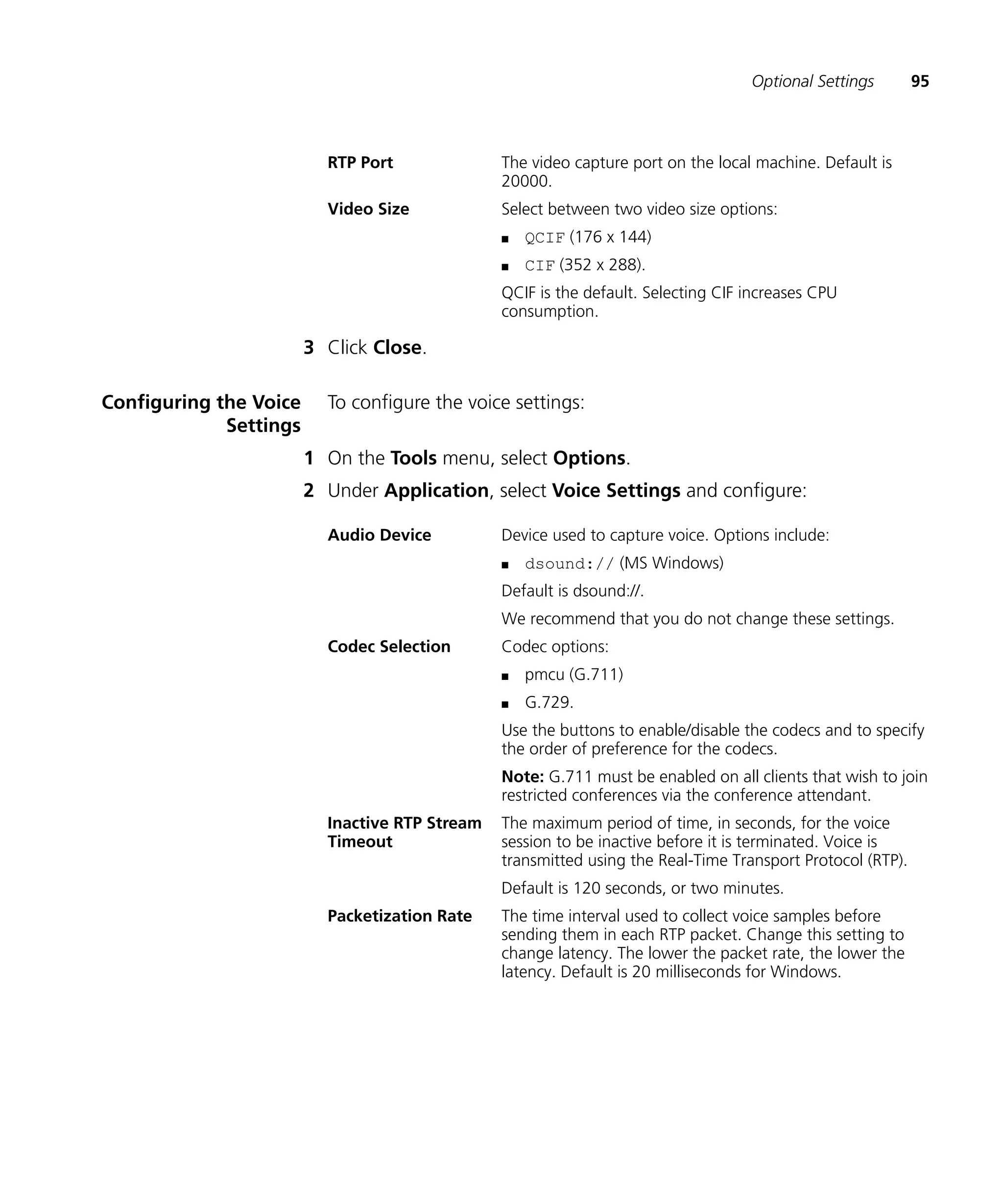
           Configuring the Voice Settings 95


    8   OBTAINING SUPPORT FOR YOUR PRODUCT
        Register Your Product 97
        Purchase Value-Added Services 97
        Troubleshoot Online 98
        Access Software Downloads 98
        Telephone Technical Support and Repair      98
        Contact Us 99
7


8   ACKNOWLEDGEMENT OF THIRD PARTY SOFTWARE
    Supplementary Copyright Information   101
    Acknowledgements 101
    Availability of Source Code 102


    GLOSSARY


    INDEX
8
ABOUT THIS GUIDE


                        This document explains, for both system administrators and general
                        users, how to set up and use the 3Com® Convergence Center Client.

                        This guide is for both system administrators and general users. Users of
                        this document should have some knowledge of telecommunications and
                        IP telephony technology.

                        Release Notes are issued with some products. If the information in the
                        release notes differs from the information in this guide, follow the
                        instructions in the release notes.


Conventions             This section describes notice, text, and figure conventions.

              Notices   Table 1 lists notice icons.
                        Table 1 Notice Icon Descriptions

                        Icon         Notice Type        Description
                                     Information note   Information that describes important features or
                                                        instructions

                                     Caution            Information that alerts you to potential loss of
                                                        data or potential damage to an application,
                                                        system, or device
                                     Warning            Information that alerts you to potential personal
                                                        injury
10   ABOUT THIS GUIDE


                 Text   Table 2 lists text conventions.
                        Table 2 Text Convention Descriptions

                        Convention             Description
                        Screen displays        This typeface represents information as it appears on the
                                               screen.
                        Commands               The word “command” means that you must enter the
                                               command exactly as shown and then press Return or
                                               Enter. Commands appear in bold. Example:
                                                   To remove the IP address, enter the following
                                                   command:
                                                   SETDefault !0 -IP NETaddr = 0.0.0.0
                        Words in italics       Italics are used to:
                                               n   Emphasize a point.
                                               n   Denote a new term at the place where it is defined in
                                                   the text.
                                               n   Identify menu names, menu commands, and software
                                                   button names. Examples:
                                                   From the Help menu, select Contents.
                                                   Click OK.


Related                 These 3Com documents contain additional information about the
Documentation           products in this release that are a part of or support the 3Com
                        Convergence Application Suite.

                        The following documents are a part of the VCX IP Telephony Module:
                        n   VCX Installation and Maintenance Guide
                        n   VCX Administration Guide
                        n   VCX Basic Telephone Quick Reference Guide
                        n   VCX Business Telephone Quick Reference Guide
                        n   VCX Manager’s Telephone Quick Reference Guide
                        n   VCX Basic Telephone Guide
                        n   VCX Business Telephone Guide
                        n   VCX Manager’s Telephone Guide
                        n   VCX Security Guide
                        n   VCX Feature Codes for Analog Telephones Quick Reference Guide
Comments        11


           The following documents are a part of the IP Messaging Module:
           n   IP Messaging Module Product Overview
           n   IP Messaging Module Quick Reference Guide - 3Com Native Interface
           n   IP Messaging Module User Guide - 3Com Native Interface
           n   IP Messaging Module Quick Reference Guide - Traditional Interface
           n   IP Messaging Module User Guide - Traditional Interface
           n   IP Messaging Module Operations and System Administration Guide
           n   E-Mail Reader Application Quick Start Guide

           The following documents are a part of the IP Conferencing Module:
           n   IP Conferencing Module Installation Guide
           n   IP Conferencing Module User Guide
           n   IP Conferencing Module Administration Guide
           n   3Com Convergence Center Client User and Administration Guide

           The following documents provide information on products that support
           this release:
           n   Enterprise Management Suite User Guide
           n   Enterprise Management Suite Getting Started Guide
           n   V7111 Analog Media Gateway Fast Track Installation Guide
           n   V7111 Analog Media Gateway User Guide
           n   V6000 Analog Media Gateway Fast Track Installation Guide
           n   V6000 Analog Media Gateway User Guide
           n   V7122 Digital Media Gateway Fast Track Installation Guide
           n   V6100 Digital Media Gateway Fast Track Installation Guide
           n   V7122 and V6100 Digital Media Gateway User Guide


Comments   Send e-mail comments about this guide or about any Voice product
           documentation to:
           VOICE_Techcomm_comments@3com.com

           Include the following information with your comments:
           n   Document title
12   ABOUT THIS GUIDE


                        n   Document part number (found on the front page)
                        n   Page number
                        n   Your name and organization (optional)

                        Example:

                        Convergence Center Client User and Administration Guide
                        System Release 7.0
                        Part Number 900-0351-01
                        Page 25

                        Please address all questions regarding 3Com software to your authorized
                        3Com representative.
3COM CONVERGENCE CENTER
   1               CLIENT OVERVIEW


                   This chapter introduces you to the 3Com Convergence Center Client and
                   describes the system requirements necessary to run it. The following
                   topics are included in this chapter:
                   n   What is the 3Com Convergence Center Client?
                   n   System Requirements
                   n   3Com Convergence Center Client Components
                   n   3Com Convergence Center Client Attributes


What is the 3Com   The 3Com Convergence Center Client is a Java-based application that
Convergence        allows real-time communication using the Session Initiation Protocol (SIP).
Center Client?     With the 3Com Convergence Center Client, you can make voice calls
                   from your PC to other computers or to telephones on the public switched
                   telephone network (PSTN). You can add video to the conversation,
                   exchange instant messages, and share desktops. You can also hold
                   multi-party conferences, sharing voice, video and other applications in a
                   collaborative environment.

                   The 3Com Convergence Center Client can be installed on computers
                   with Windows 2000 and XP operating systems.

                   Here are some of the things you can do using the 3Com Convergence
                   Center Client:
                   n   Create a Buddy List of your friends and co-workers who use the VCX
                       system.
                   n   See when your buddies are online and available, then call them or
                       send them instant messages.
                   n   Have a video/voice conversation using your computer microphone,
                       speakers, and camera.
14       CHAPTER 1: 3COM CONVERGENCE CENTER CLIENT OVERVIEW


                              n   Click to migrate from one media (such as voice) to another (such as
                                  video).
                              n   Start a desktop sharing session and optionally take command of
                                  another person’s desktop.
                              n   Participate in multi-party conferences which include voice, video,
                                  instant messaging, and desktop sharing services.
                              n   Drag and drop your buddies into a conference.
                              n   Display multiple participants during a video conference.
                              n   Display your own, local video window.
                              n   Control a 3Com desktop phone.
                              n   Keep track of your contacts using the Contact List.
                              n   Use the Call Log to view the most recent calls you have placed and
                                  received.
                              n   Receive Caller ID messages.
                              n   Enter touch tones using the integrated dial pad.
                              n   Quickly and easily connect to the voice mail system in order to listen to
                                  your messages.
                              n   Receive notification of missed calls and new voice mail messages.
                              n   Call handling features:
                                  n   call transfer;
                                  n   call hold;
                                  n   call forward;
                                  n   call park;
                                  n   call waiting.


System                        These are the minimum hardware and software requirements:
Requirements

     Microsoft Windows        For Microsoft Windows, the minimum requirements are:
          Requirements        n   Microsoft Windows 2000, XP Home or Professional
                              n   256 MB RAM
                              n   Without video: Intel Pentium III 750 MHz or higher;
3Com Convergence Center Client Components     15


                      n   With video: or Intel Pentium III 1 GHz or higher.

         Hardware     The 3Com Convergence Center Client is compatible with the following
      Compatibility   hardware components:
                      n   Full duplex sound card and associated software driver
                      n   Microphone and headset
                      n   USB web camera supporting Common Intermediate Format (CIF) or
                          Quarter Common Intermediate Format (QCIF)
                      n   Recommended web cameras:
                          n   Logitech QuickCam Pro 3000
                          n   Logitech QuickCam Pro 4000
                          n   Logitech ClickSmart 510.


3Com Convergence      The 3Com Convergence Center Client has the following components:
Center Client
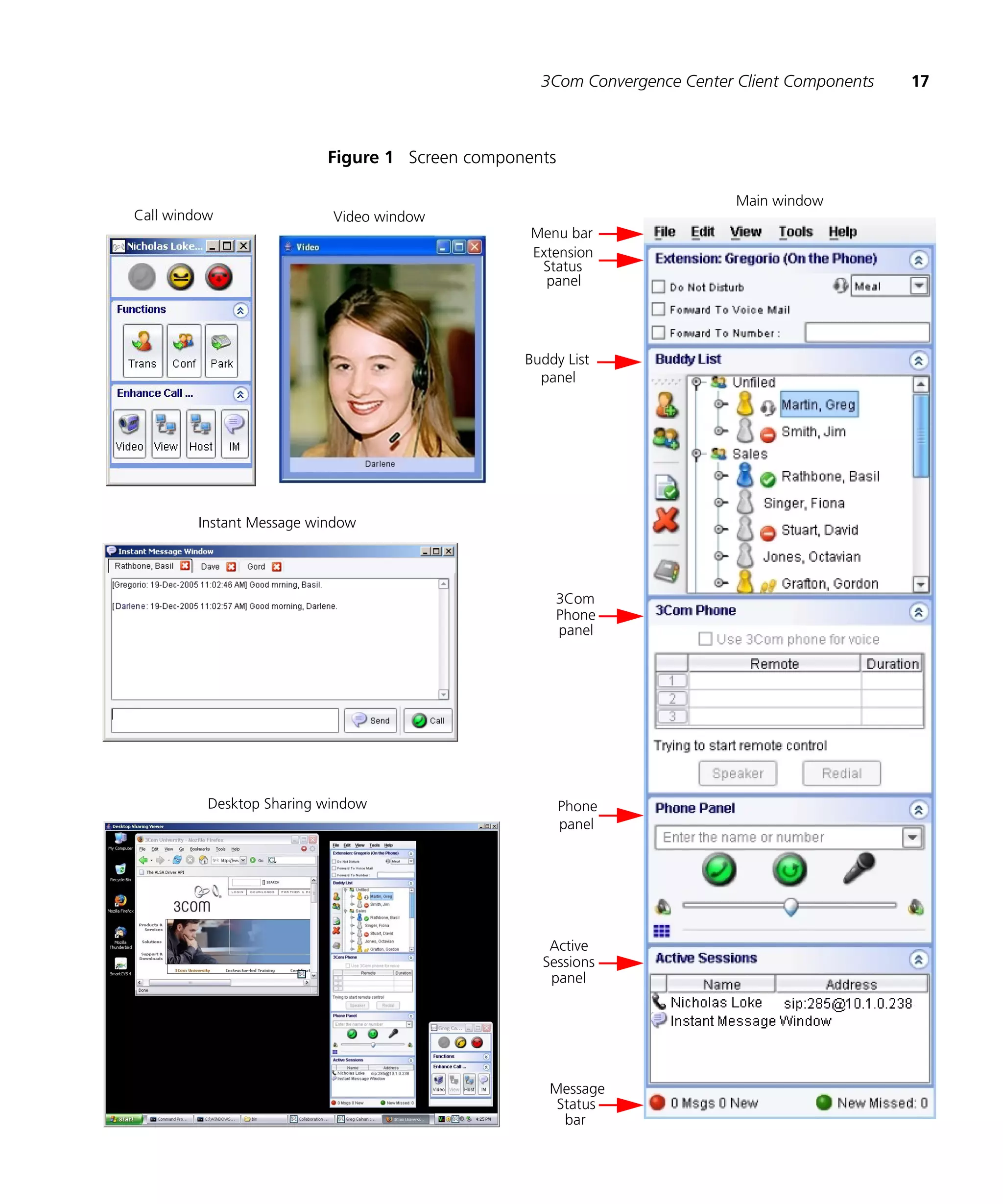
Components            Main window Use the Main window to manage your calls, contacts,
                      and messages. The Main window provides the following features:

                      n   Menu bar — Use it to access the File, View, Tools, and Help menus.
                      n   Extension Status panel — Use it to set your forwarding options and
                          online presence status.
                      n   Buddy List panel — Use it to track the online presence status of your
                          friends and co-workers. If your buddies are available, you can call
                          them or send them instant messages directly from the Buddy List.
                      n   3Com Phone panel — Use it to control a 3Com desktop SIP phone
                          using the 3Com Convergence Center Client.
                      n   Phone panel — Use it to dial numbers and control the speaker (mute
                          and volume). The Phone panel includes an integrated telephone
                          dialpad.
                      n   Active Sessions panel — Lists all active media sessions (voice, video,
                          desktop sharing, and Instant Messaging). Open a media session
                          window by clicking an item in the list.
                      n   Message Status bar — Indicates how many voice mails you have and
                          whether you have missed any calls. Provides direct access to your voice
                          mail mailbox, the IP Messaging web page, and the Call Log.
16   CHAPTER 1: 3COM CONVERGENCE CENTER CLIENT OVERVIEW


                          Call window The Call window appears when you place or receive a
                          call. It provides the following features:

                          n   Call buttons — Use these to answer or terminate a call, or to place a
                              call on hold.
                          n   Function buttons — Use these to transfer a call, add conference
                              participants to a call, or park a call in order to pick it up at a different
                              location.
                          n   Enhance Call buttons — Use these to enhance a voice call with video,
                              desktop sharing, or instant messages.

                          Video window Displays images of one or more people engaged in the
                          call, along with their friendly names. You can also display your own image
                          in the window.

                          Desktop Sharing window Displays an image of the host’s desktop.

                          Instant Message window Displays a record of instant messages
                          exchanged between you and other users. Multiple IM sessions are
                          supported (each session has a separate tab).
3Com Convergence Center Client Components   17


                          Figure 1 Screen components

                                                                         Main window
Call window                Video window
                                                 Menu bar
                                                 Extension
                                                  Status
                                                   panel


                                                Buddy List
                                                  panel


        Instant Message window


                                                    3Com
                                                    Phone
                                                    panel


          Desktop Sharing window                       Phone
                                                       panel


                                                   Active
                                                  Sessions
                                                   panel


                                                   Message
                                                    Status
                                                     bar
18   CHAPTER 1: 3COM CONVERGENCE CENTER CLIENT OVERVIEW


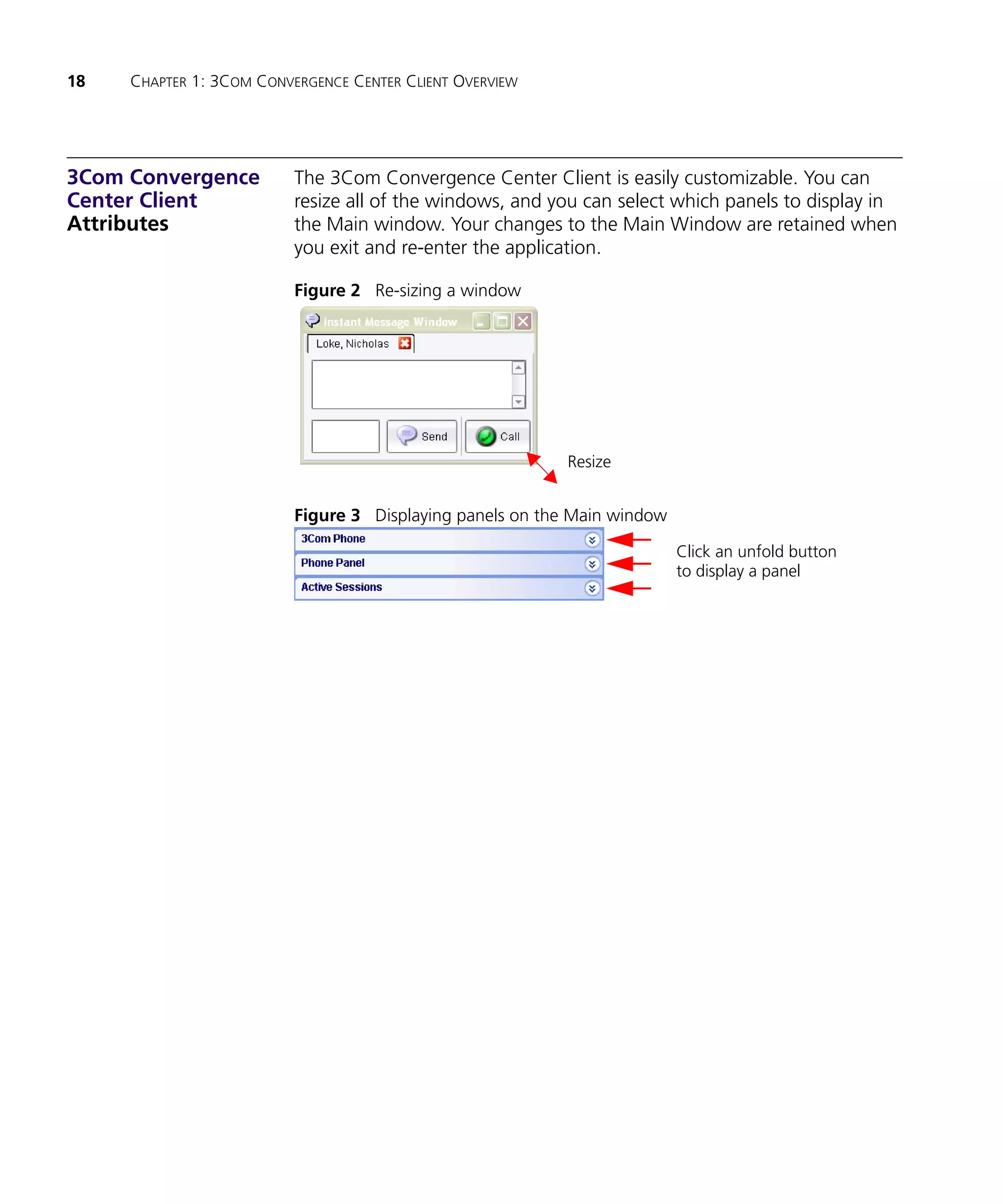
3Com Convergence          The 3Com Convergence Center Client is easily customizable. You can
Center Client             resize all of the windows, and you can select which panels to display in
Attributes                the Main window. Your changes to the Main Window are retained when
                          you exit and re-enter the application.

                          Figure 2 Re-sizing a window


                                                          Resize


                          Figure 3 Displaying panels on the Main window

                                                                          Click an unfold button
                                                                          to display a panel
BASIC SETUP AND USE
   2
                     This chapter describes the information you need to collect before you can
                     use the 3Com Convergence Center Client. It also describes how to
                     perform basic tasks such as signing in and out and includes the following
                     topics:
                     n   Before You Start
                     n   Starting the 3Com Convergence Center Client
                     n   Setting up Voice Mail and the Buddy List
                     n   Changing Your Password
                     n   Signing in
                     n   Signing out
                     n   Closing and Exiting


Before You Start     Before you can use the 3Com Convergence Center Client, you must do
                     the following:
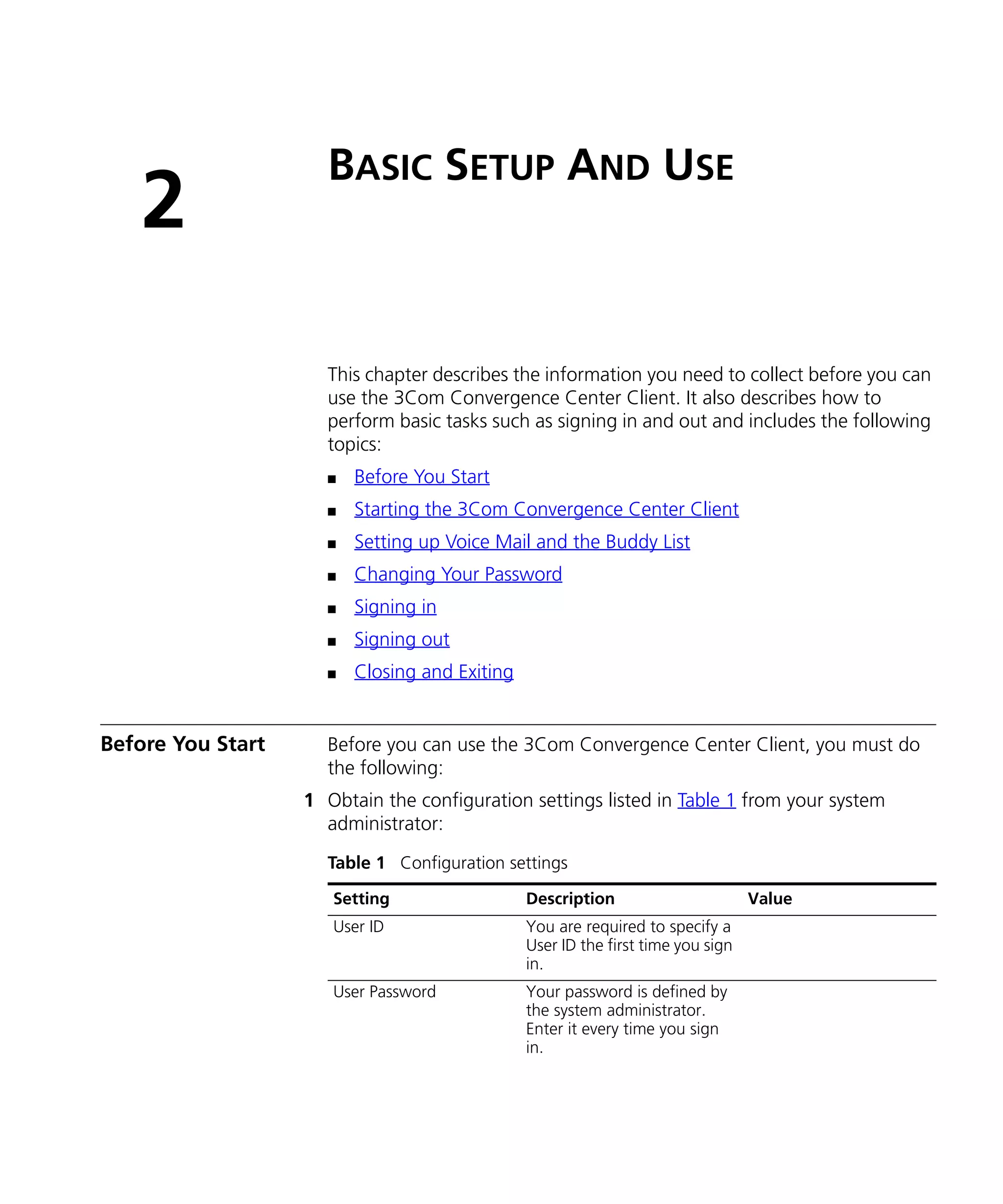
                   1 Obtain the configuration settings listed in Table 1 from your system
                     administrator:
                     Table 1 Configuration settings

                      Setting                  Description                       Value
                      User ID                  You are required to specify a
                                               User ID the first time you sign
                                               in.
                      User Password            Your password is defined by
                                               the system administrator.
                                               Enter it every time you sign
                                               in.
20   CHAPTER 2: BASIC SETUP AND USE


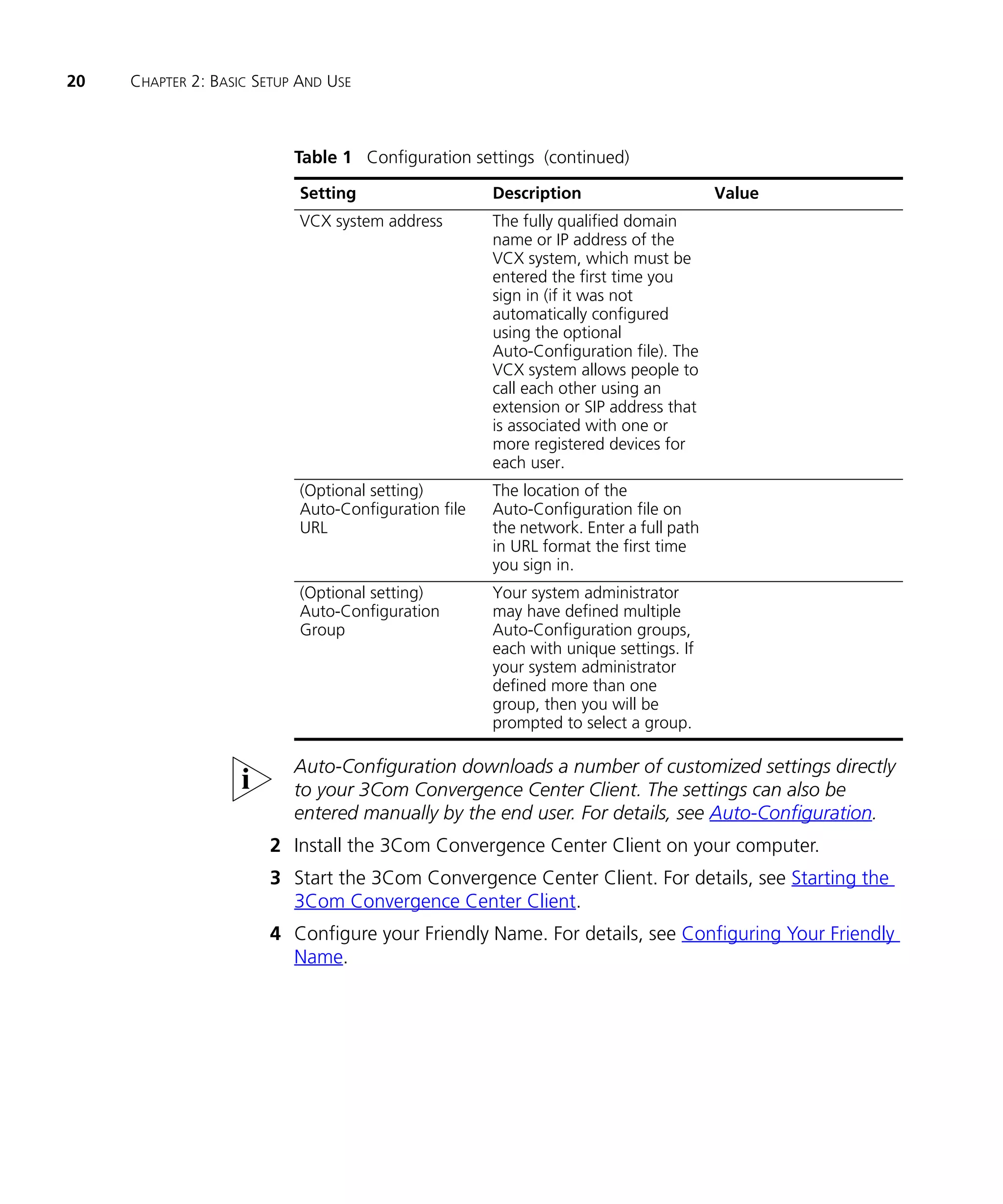
                           Table 1 Configuration settings (continued)

                            Setting                   Description                      Value
                            VCX system address        The fully qualified domain
                                                      name or IP address of the
                                                      VCX system, which must be
                                                      entered the first time you
                                                      sign in (if it was not
                                                      automatically configured
                                                      using the optional
                                                      Auto-Configuration file). The
                                                      VCX system allows people to
                                                      call each other using an
                                                      extension or SIP address that
                                                      is associated with one or
                                                      more registered devices for
                                                      each user.
                            (Optional setting)        The location of the
                            Auto-Configuration file   Auto-Configuration file on
                            URL                       the network. Enter a full path
                                                      in URL format the first time
                                                      you sign in.
                            (Optional setting)        Your system administrator
                            Auto-Configuration        may have defined multiple
                            Group                     Auto-Configuration groups,
                                                      each with unique settings. If
                                                      your system administrator
                                                      defined more than one
                                                      group, then you will be
                                                      prompted to select a group.

                           Auto-Configuration downloads a number of customized settings directly
                           to your 3Com Convergence Center Client. The settings can also be
                           entered manually by the end user. For details, see Auto-Configuration.
                       2 Install the 3Com Convergence Center Client on your computer.
                       3 Start the 3Com Convergence Center Client. For details, see Starting the
                         3Com Convergence Center Client.
                       4 Configure your Friendly Name. For details, see Configuring Your Friendly
                         Name.
Starting the 3Com Convergence Center Client   21


Starting the 3Com     To start the 3Com Convergence Center Client in Windows:
Convergence           The first time you start the application, you will be prompted to enter the
Center Client         full range of settings. The next time you start, you will be prompted to
                      enter a limited range of settings.

                      Launch the application:
                      n   From the desktop, select the 3Com Convergence Center Client launch
                          icon.
                          — or —
                      n   From the Start menu (Windows), select 3Com Convergence Center
                          Client.
                      If the 3Com Convergence Center Client fails to start, contact your system
                      administrator to ensure that the application has been correctly installed
                      on your computer.
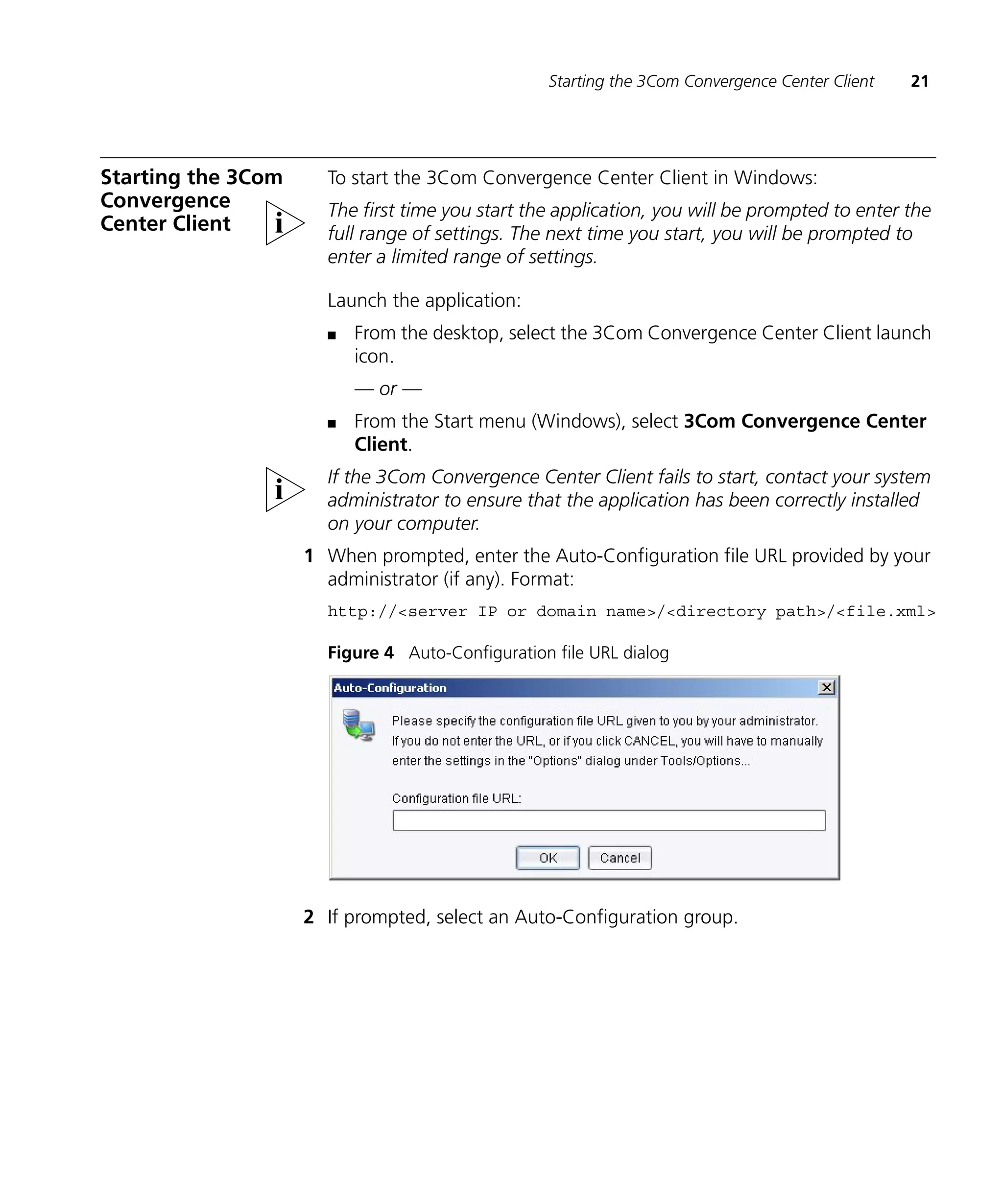
                    1 When prompted, enter the Auto-Configuration file URL provided by your
                      administrator (if any). Format:
                      http://<server IP or domain name>/<directory path>/<file.xml>

                      Figure 4 Auto-Configuration file URL dialog


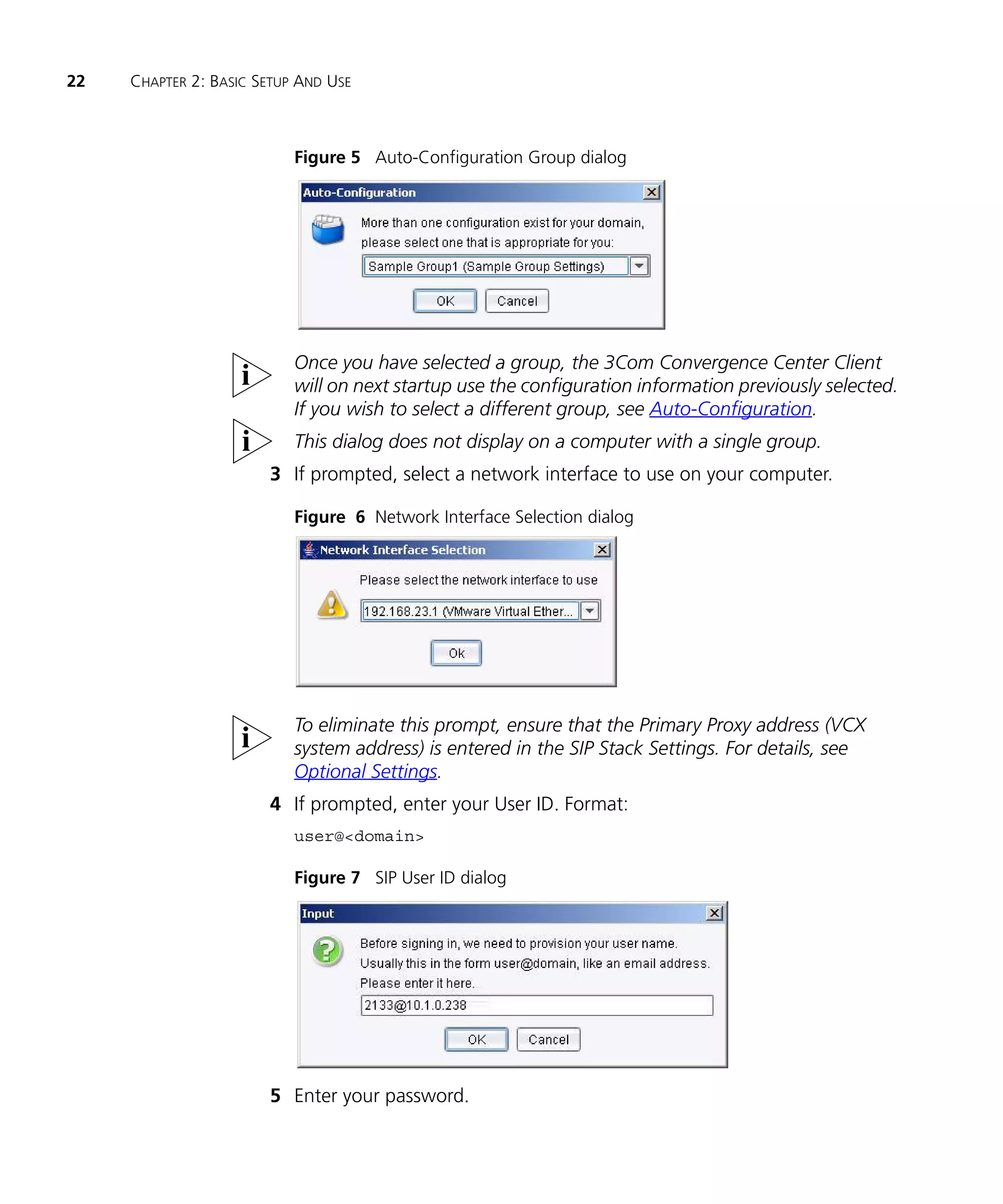
                    2 If prompted, select an Auto-Configuration group.
22   CHAPTER 2: BASIC SETUP AND USE


                           Figure 5 Auto-Configuration Group dialog


                           Once you have selected a group, the 3Com Convergence Center Client
                           will on next startup use the configuration information previously selected.
                           If you wish to select a different group, see Auto-Configuration.
                           This dialog does not display on a computer with a single group.
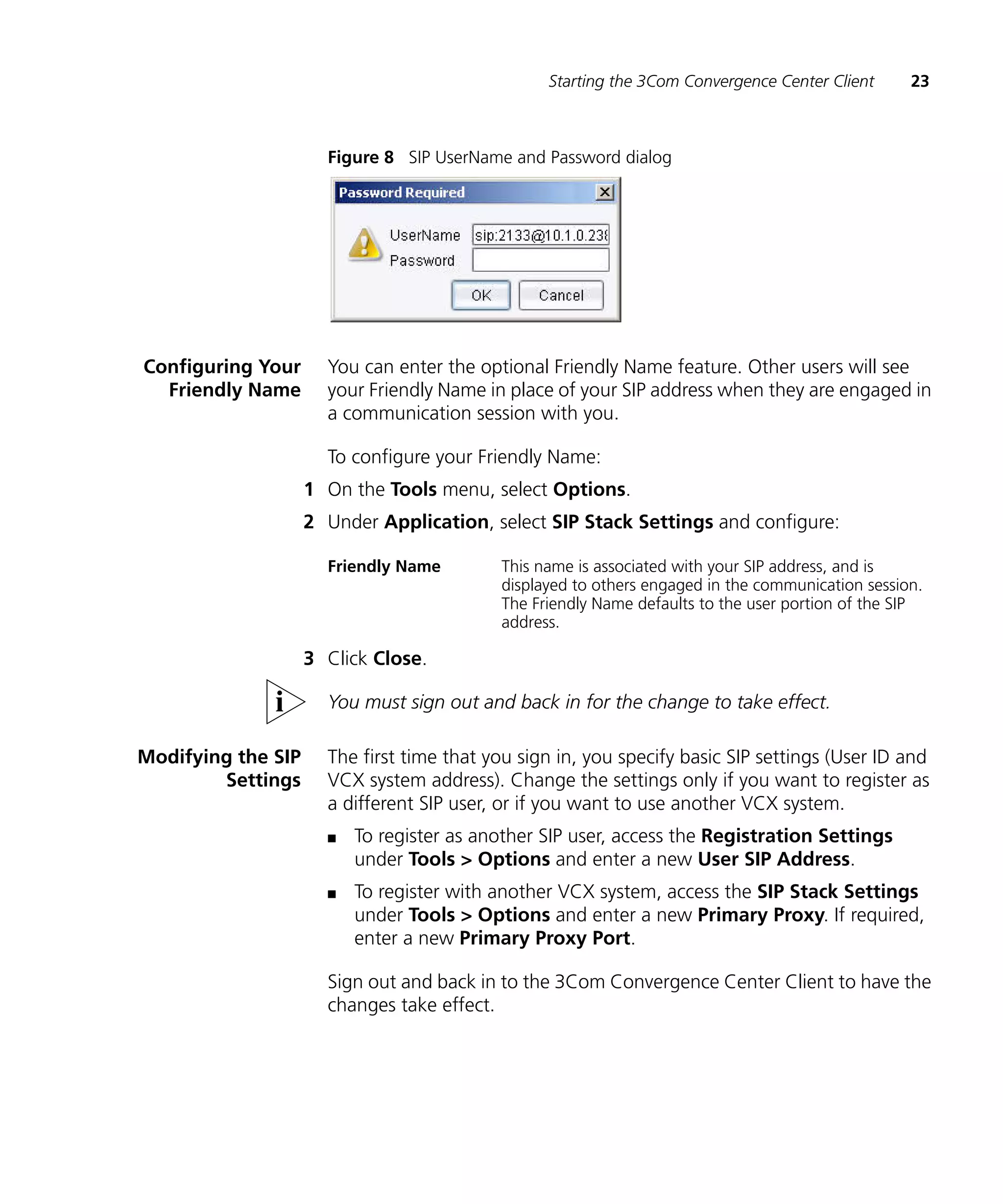
                       3 If prompted, select a network interface to use on your computer.

                           Figure 6 Network Interface Selection dialog


                           To eliminate this prompt, ensure that the Primary Proxy address (VCX
                           system address) is entered in the SIP Stack Settings. For details, see
                           Optional Settings.
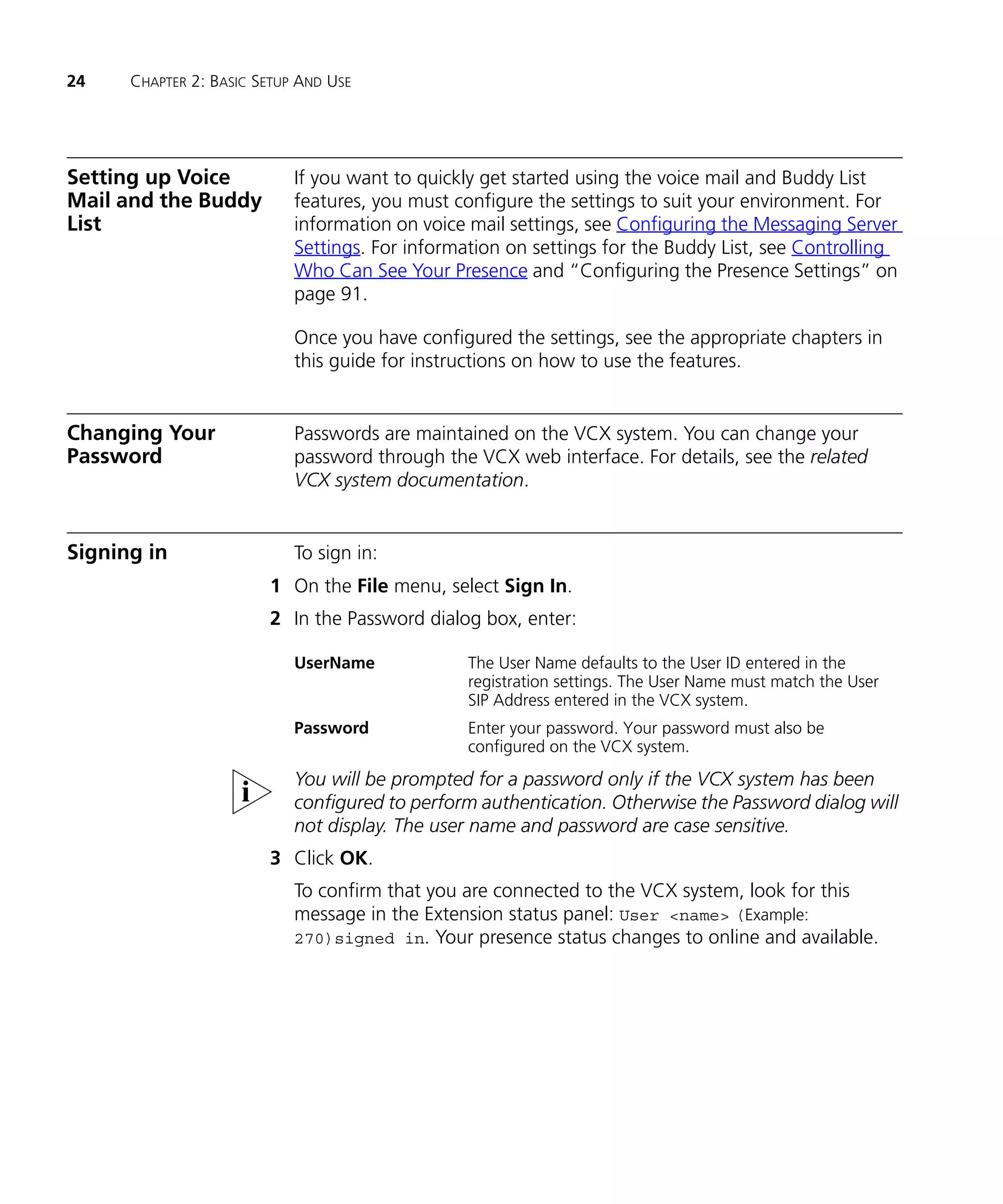
                       4 If prompted, enter your User ID. Format:
                           user@<domain>

                           Figure 7 SIP User ID dialog


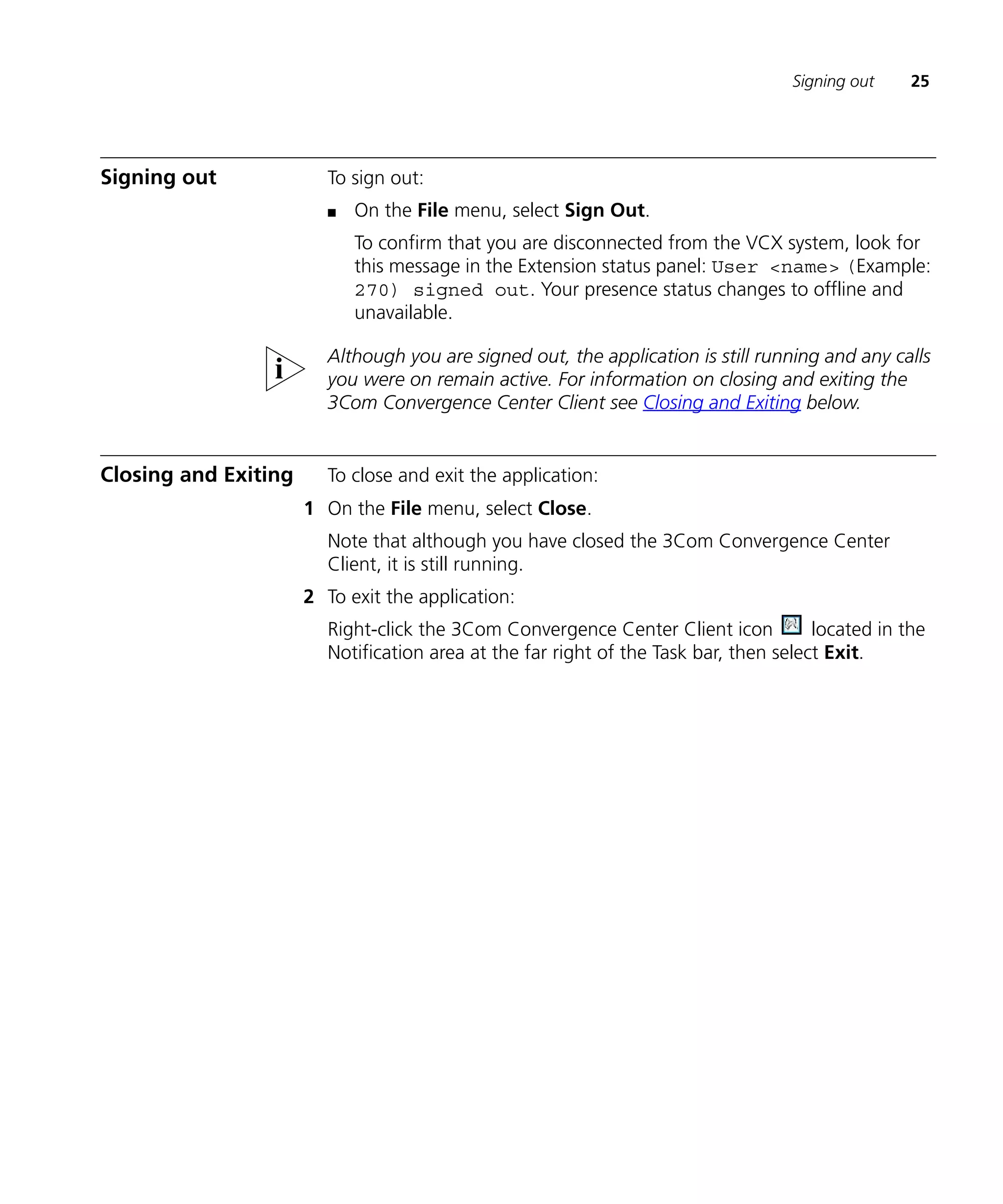
                       5 Enter your password.
Starting the 3Com Convergence Center Client      23


                      Figure 8 SIP UserName and Password dialog


Configuring Your      You can enter the optional Friendly Name feature. Other users will see
  Friendly Name       your Friendly Name in place of your SIP address when they are engaged in
                      a communication session with you.

                      To configure your Friendly Name:
                    1 On the Tools menu, select Options.
                    2 Under Application, select SIP Stack Settings and configure:

                      Friendly Name        This name is associated with your SIP address, and is
                                           displayed to others engaged in the communication session.
                                           The Friendly Name defaults to the user portion of the SIP
                                           address.

                    3 Click Close.

                      You must sign out and back in for the change to take effect.

Modifying the SIP     The first time that you sign in, you specify basic SIP settings (User ID and
        Settings      VCX system address). Change the settings only if you want to register as
                      a different SIP user, or if you want to use another VCX system.
                      n   To register as another SIP user, access the Registration Settings
                          under Tools > Options and enter a new User SIP Address.
                      n   To register with another VCX system, access the SIP Stack Settings
                          under Tools > Options and enter a new Primary Proxy. If required,
                          enter a new Primary Proxy Port.

                      Sign out and back in to the 3Com Convergence Center Client to have the
                      changes take effect.
24    CHAPTER 2: BASIC SETUP AND USE


Setting up Voice            If you want to quickly get started using the voice mail and Buddy List
Mail and the Buddy          features, you must configure the settings to suit your environment. For
List                        information on voice mail settings, see Configuring the Messaging Server
                            Settings. For information on settings for the Buddy List, see Controlling
                            Who Can See Your Presence and “Configuring the Presence Settings” on
                            page 91.

                            Once you have configured the settings, see the appropriate chapters in
                            this guide for instructions on how to use the features.


Changing Your               Passwords are maintained on the VCX system. You can change your
Password                    password through the VCX web interface. For details, see the related
                            VCX system documentation.


Signing in                  To sign in:
                        1 On the File menu, select Sign In.
                        2 In the Password dialog box, enter:

                            UserName             The User Name defaults to the User ID entered in the
                                                 registration settings. The User Name must match the User
                                                 SIP Address entered in the VCX system.
                            Password             Enter your password. Your password must also be
                                                 configured on the VCX system.
                            You will be prompted for a password only if the VCX system has been
                            configured to perform authentication. Otherwise the Password dialog will
                            not display. The user name and password are case sensitive.
                        3 Click OK.
                            To confirm that you are connected to the VCX system, look for this
                            message in the Extension status panel: User <name> (Example:
                            270)signed in. Your presence status changes to online and available.
Signing out    25


Signing out             To sign out:
                        n   On the File menu, select Sign Out.
                            To confirm that you are disconnected from the VCX system, look for
                            this message in the Extension status panel: User <name> (Example:
                            270) signed out. Your presence status changes to offline and
                            unavailable.

                        Although you are signed out, the application is still running and any calls
                        you were on remain active. For information on closing and exiting the
                        3Com Convergence Center Client see Closing and Exiting below.


Closing and Exiting     To close and exit the application:
                      1 On the File menu, select Close.
                        Note that although you have closed the 3Com Convergence Center
                        Client, it is still running.
                      2 To exit the application:
                        Right-click the 3Com Convergence Center Client icon           located in the
                        Notification area at the far right of the Task bar, then select Exit.
26   CHAPTER 2: BASIC SETUP AND USE
USING THE BUDDY LIST
3
    This chapter describes the Buddy List and includes the following topics:
    n   Adding a Buddy
    n   Deleting a Buddy
    n   Editing Buddy Properties
    n   Contacting a Buddy and Starting a Communication Session
    n   Controlling Who Can See Your Presence
    n   Setting Your Current Presence Status
    n   Creating and Managing a Category

    What is the Buddy List?

    The Buddy List consists of contacts that you frequently call. Different call
    features are available for your buddies, depending on the types of
    contact numbers they have (VoIP and/or regular PSTN).

    Buddy with VoIP Phone Number
    If a buddy has a VoIP Phone number (SIP address), you can:
    n   send instant messages to the buddy
    n   initiate a voice call to the buddy, and then, if the buddy is using the IP
        3Com Convergence Center Client, add video and desktop sharing to
        the conversation
    n   track the buddy's online presence status (with his permission) for all
        SIP devices that share the same VoIP Phone number.
28   CHAPTER 3: USING THE BUDDY LIST


                           Buddy with PSTN Phone Number

                           If a buddy has one or more regular PSTN phone numbers (home,
                           business, mobile, or other), you can select a number and initiate a voice
                           call.

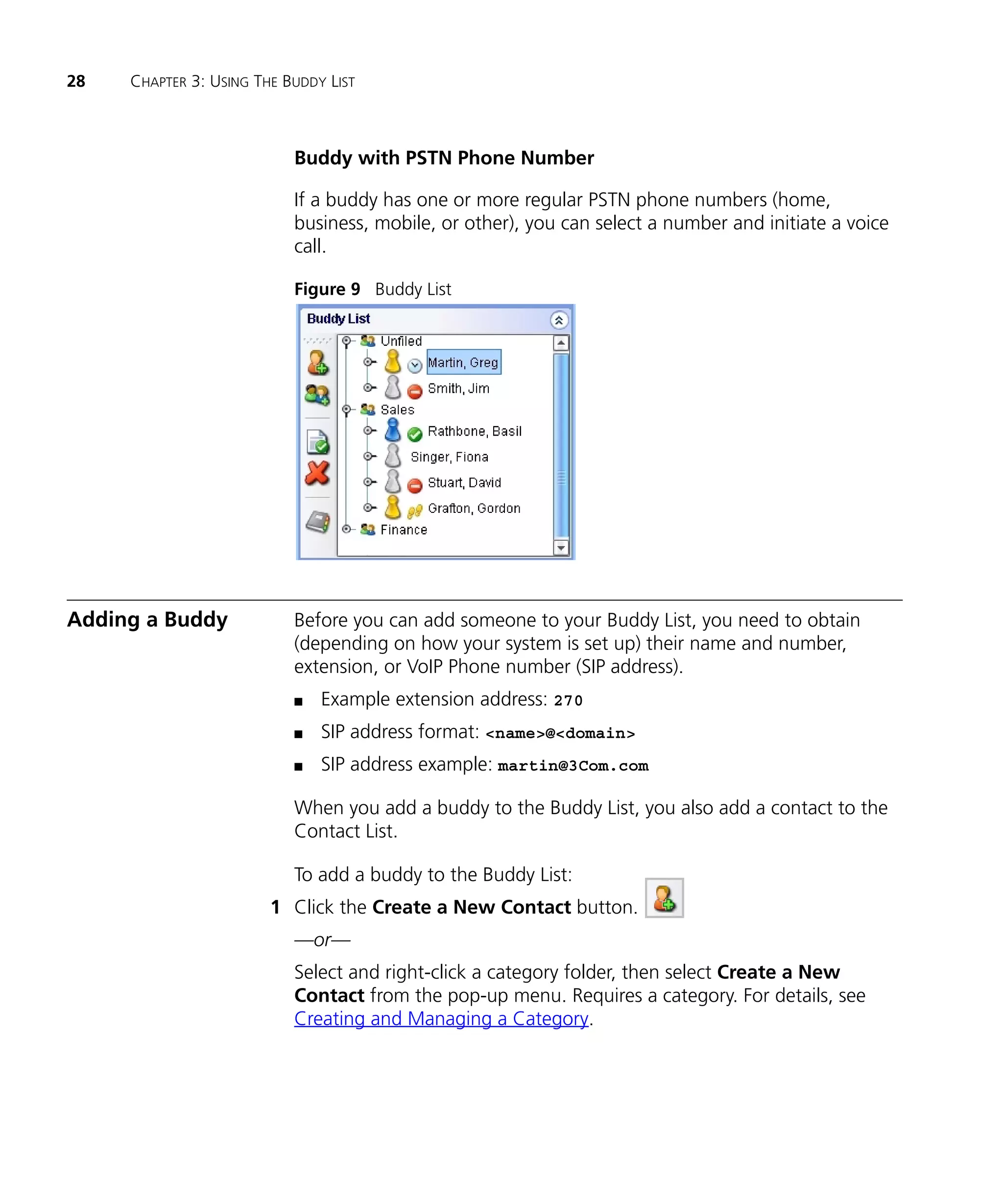
                           Figure 9 Buddy List


Adding a Buddy             Before you can add someone to your Buddy List, you need to obtain
                           (depending on how your system is set up) their name and number,
                           extension, or VoIP Phone number (SIP address).
                           n   Example extension address: 270
                           n   SIP address format: <name>@<domain>
                           n   SIP address example: martin@3Com.com

                           When you add a buddy to the Buddy List, you also add a contact to the
                           Contact List.

                           To add a buddy to the Buddy List:
                        1 Click the Create a New Contact button.
                           —or—
                           Select and right-click a category folder, then select Create a New
                           Contact from the pop-up menu. Requires a category. For details, see
                           Creating and Managing a Category.
Adding a Buddy      29


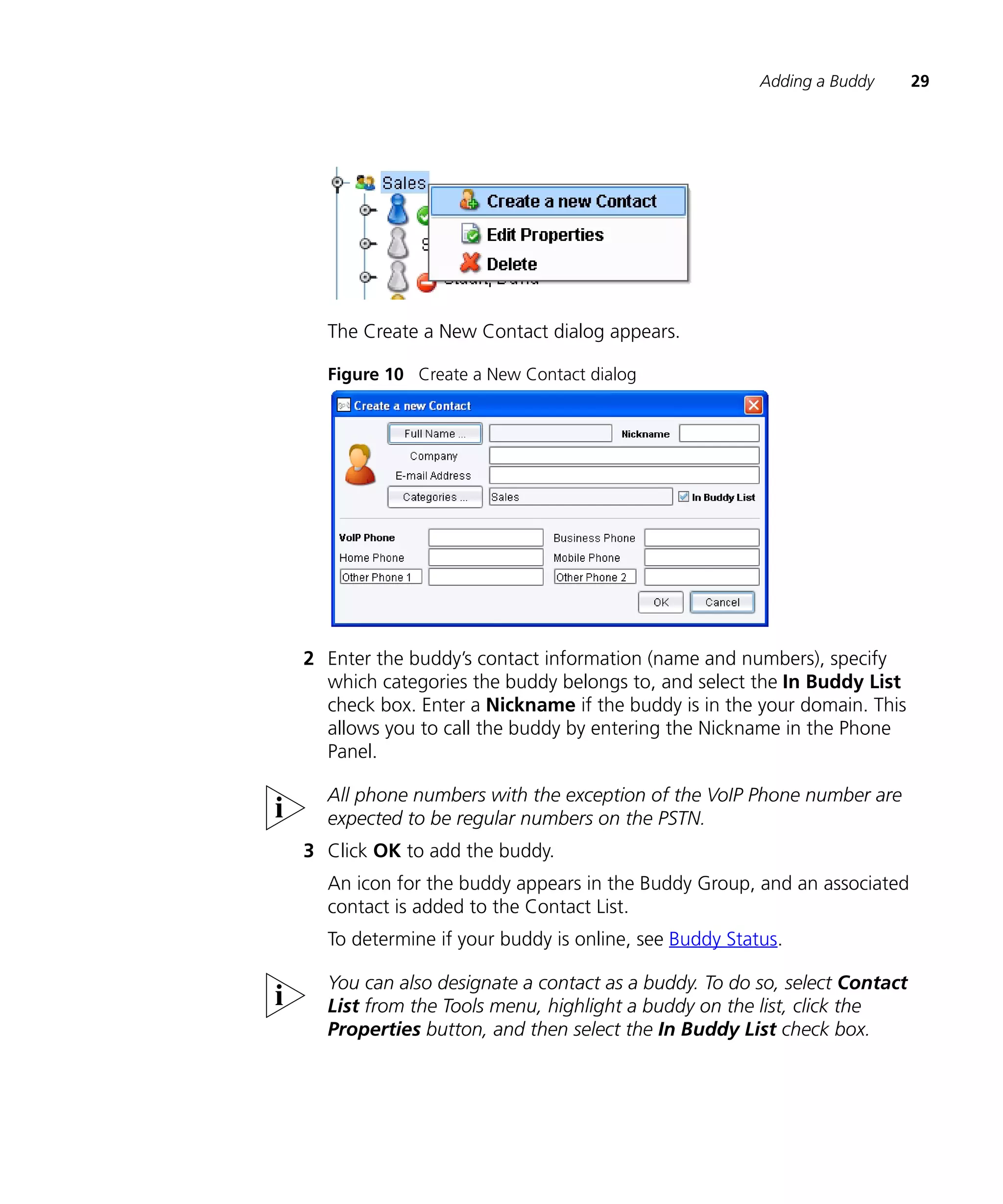
  The Create a New Contact dialog appears.

  Figure 10 Create a New Contact dialog


2 Enter the buddy’s contact information (name and numbers), specify
  which categories the buddy belongs to, and select the In Buddy List
  check box. Enter a Nickname if the buddy is in the your domain. This
  allows you to call the buddy by entering the Nickname in the Phone
  Panel.

  All phone numbers with the exception of the VoIP Phone number are
  expected to be regular numbers on the PSTN.
3 Click OK to add the buddy.
  An icon for the buddy appears in the Buddy Group, and an associated
  contact is added to the Contact List.
  To determine if your buddy is online, see Buddy Status.

  You can also designate a contact as a buddy. To do so, select Contact
  List from the Tools menu, highlight a buddy on the list, click the
  Properties button, and then select the In Buddy List check box.
30   CHAPTER 3: USING THE BUDDY LIST


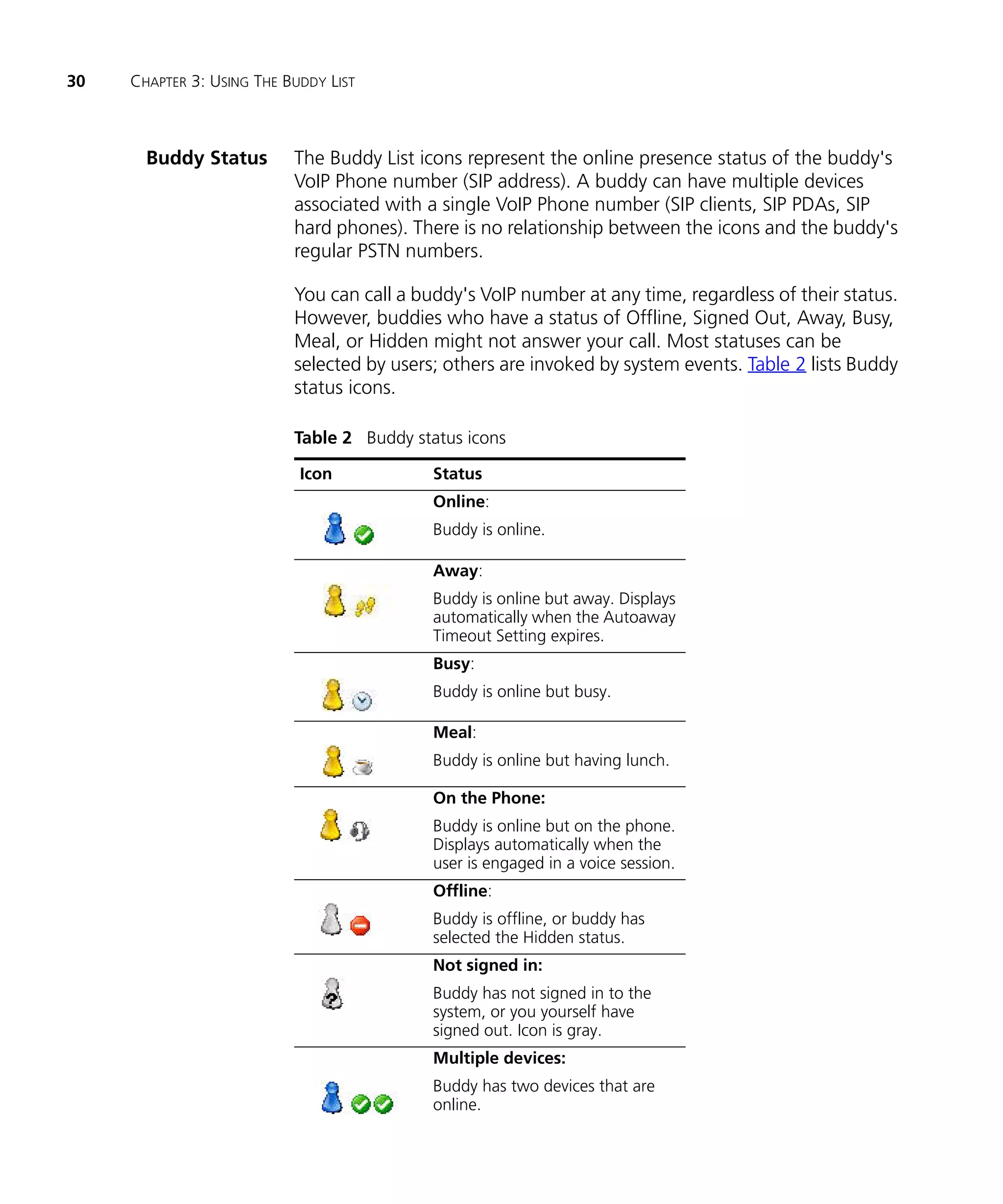
       Buddy Status        The Buddy List icons represent the online presence status of the buddy's
                           VoIP Phone number (SIP address). A buddy can have multiple devices
                           associated with a single VoIP Phone number (SIP clients, SIP PDAs, SIP
                           hard phones). There is no relationship between the icons and the buddy's
                           regular PSTN numbers.

                           You can call a buddy's VoIP number at any time, regardless of their status.
                           However, buddies who have a status of Offline, Signed Out, Away, Busy,
                           Meal, or Hidden might not answer your call. Most statuses can be
                           selected by users; others are invoked by system events. Table 2 lists Buddy
                           status icons.

                           Table 2 Buddy status icons

                            Icon            Status
                                            Online:
                                            Buddy is online.

                                            Away:
                                            Buddy is online but away. Displays
                                            automatically when the Autoaway
                                            Timeout Setting expires.
                                            Busy:
                                            Buddy is online but busy.

                                            Meal:
                                            Buddy is online but having lunch.

                                            On the Phone:
                                            Buddy is online but on the phone.
                                            Displays automatically when the
                                            user is engaged in a voice session.
                                            Offline:
                                            Buddy is offline, or buddy has
                                            selected the Hidden status.
                                            Not signed in:
                                            Buddy has not signed in to the
                                            system, or you yourself have
                                            signed out. Icon is gray.
                                            Multiple devices:
                                            Buddy has two devices that are
                                            online.
Deleting a Buddy   31


                     Table 2 Buddy status icons (continued)
                                      Multiple devices:
                                      Buddy is online. One device is
                                      online, the other is offline.

                                      Multiple devices:
                                      Buddy is online and on the phone.
                                      One other device is online.

                                      Multiple devices:
                                      Buddy is online and on the phone.
                                      The other device is offline.


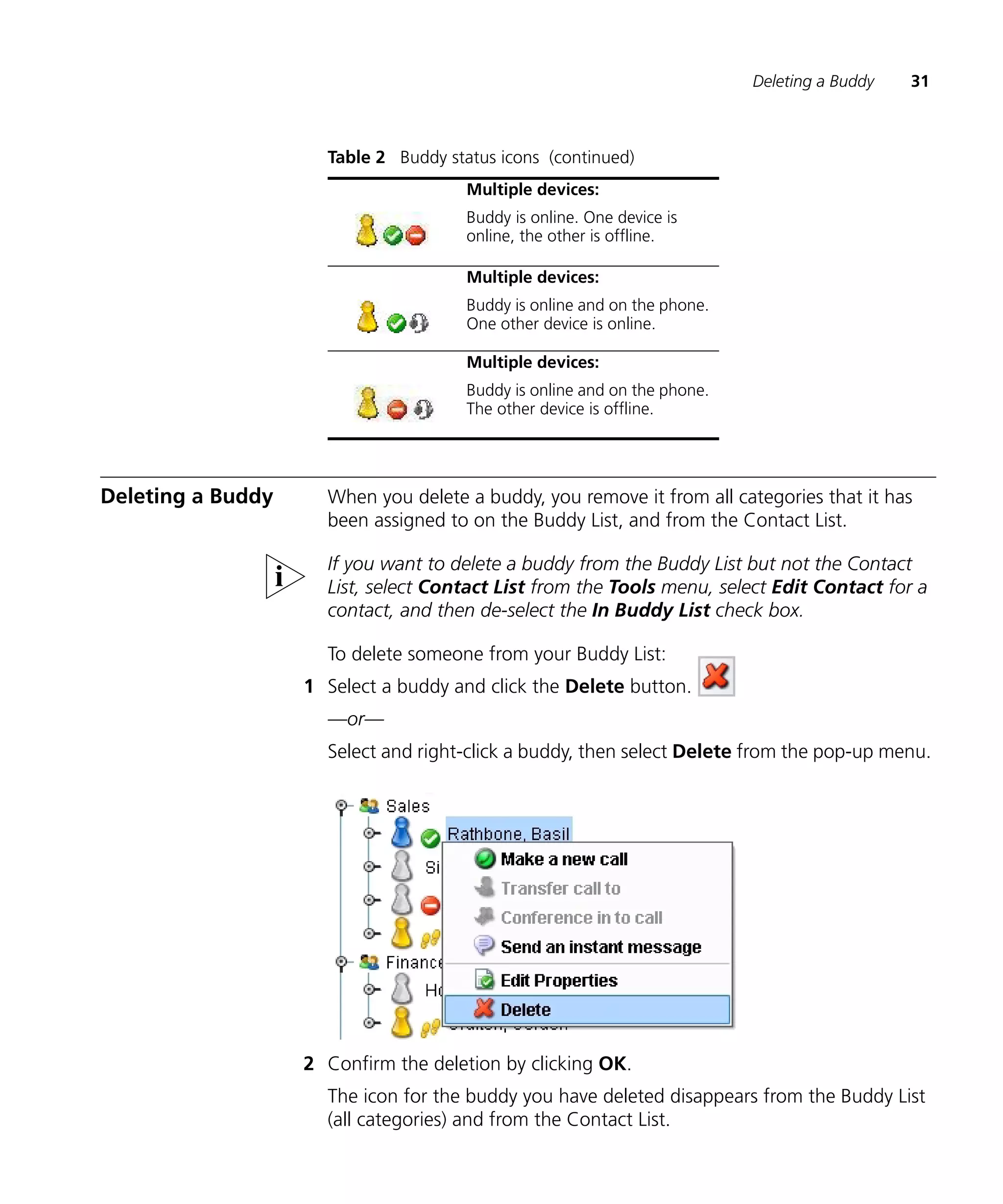
Deleting a Buddy     When you delete a buddy, you remove it from all categories that it has
                     been assigned to on the Buddy List, and from the Contact List.

                     If you want to delete a buddy from the Buddy List but not the Contact
                     List, select Contact List from the Tools menu, select Edit Contact for a
                     contact, and then de-select the In Buddy List check box.

                     To delete someone from your Buddy List:
                   1 Select a buddy and click the Delete button.
                     —or—
                     Select and right-click a buddy, then select Delete from the pop-up menu.


                   2 Confirm the deletion by clicking OK.
                     The icon for the buddy you have deleted disappears from the Buddy List
                     (all categories) and from the Contact List.
32   CHAPTER 3: USING THE BUDDY LIST


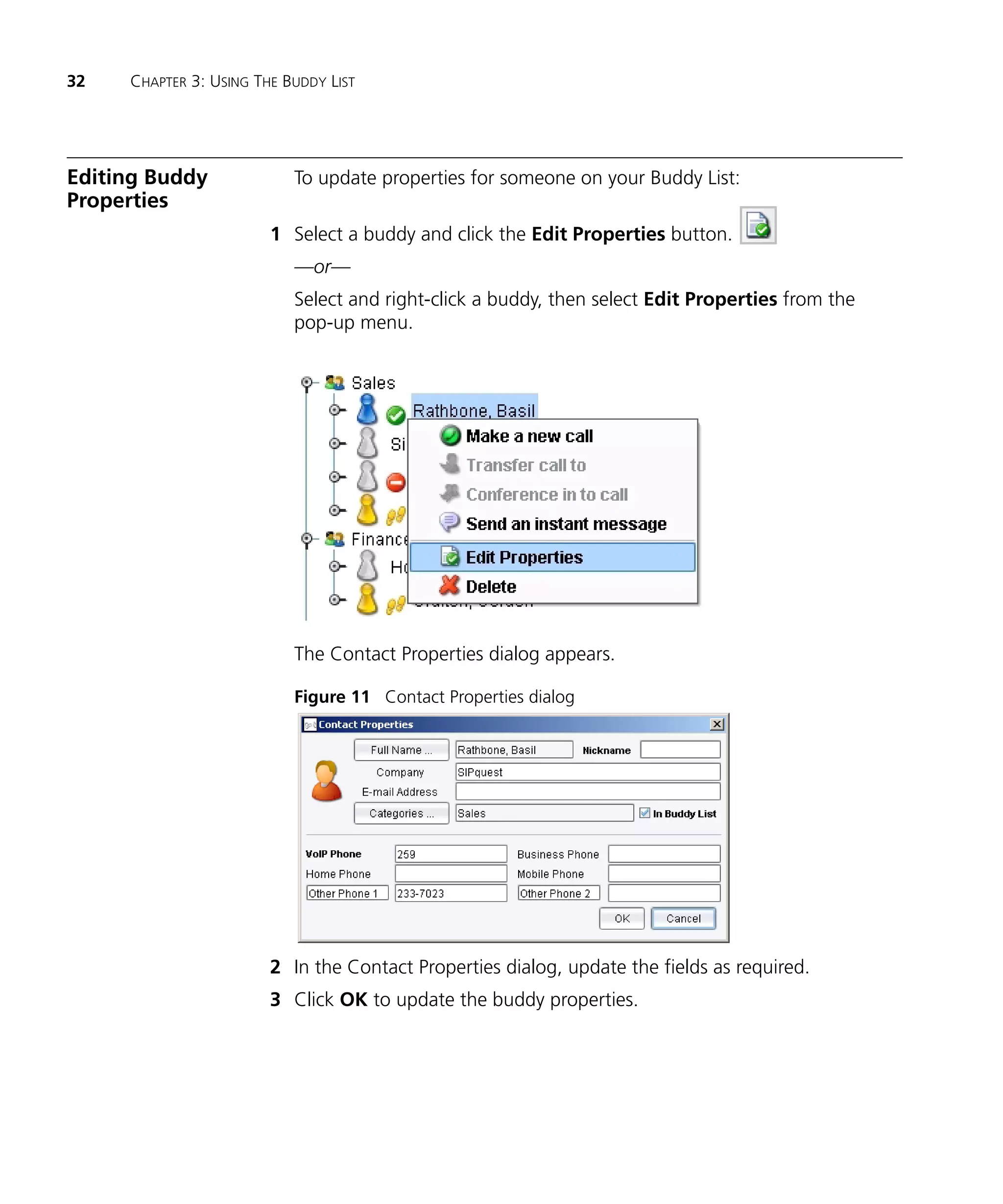
Editing Buddy              To update properties for someone on your Buddy List:
Properties
                        1 Select a buddy and click the Edit Properties button.
                           —or—
                           Select and right-click a buddy, then select Edit Properties from the
                           pop-up menu.


                           The Contact Properties dialog appears.

                           Figure 11 Contact Properties dialog


                        2 In the Contact Properties dialog, update the fields as required.
                        3 Click OK to update the buddy properties.
Contacting a Buddy and Starting a Communication Session             33


Contacting a Buddy      You can contact one of your buddies in order to start a voice conversation
and Starting a          or an send instant messages. You can add video and desktop sharing to a
Communication           voice conversation (VoIP only).
Session
                        To initiate a communication session with a buddy:
                        n   On the Buddy List, double-click the buddy to call the buddy’s VoIP
                            Phone number.
                        —or—
                     1 On the Buddy List, expand the list of phones for the buddy you want to
                       call.
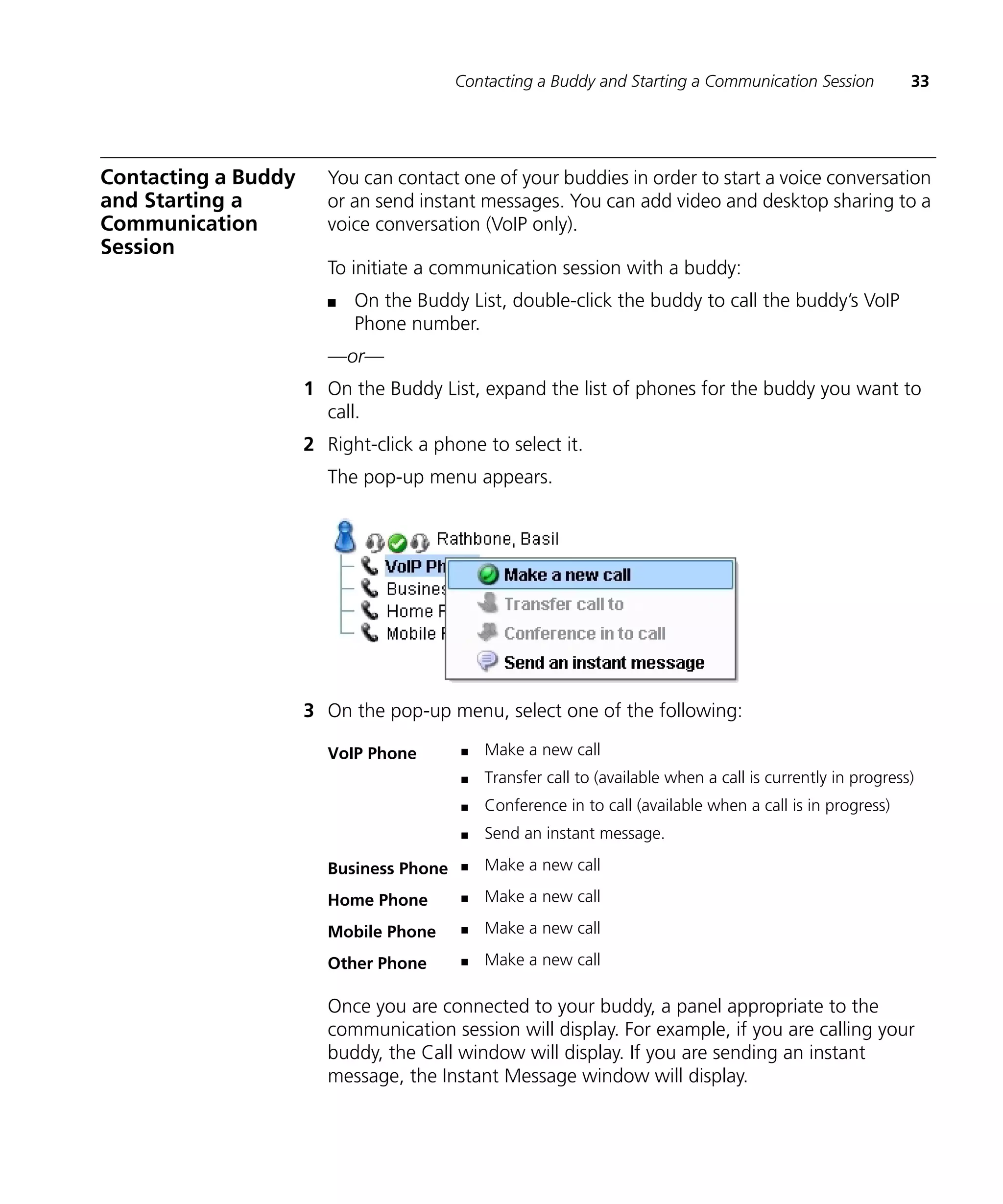
                     2 Right-click a phone to select it.
                        The pop-up menu appears.


                     3 On the pop-up menu, select one of the following:

                        VoIP Phone       n   Make a new call
                                         n   Transfer call to (available when a call is currently in progress)
                                         n   Conference in to call (available when a call is in progress)
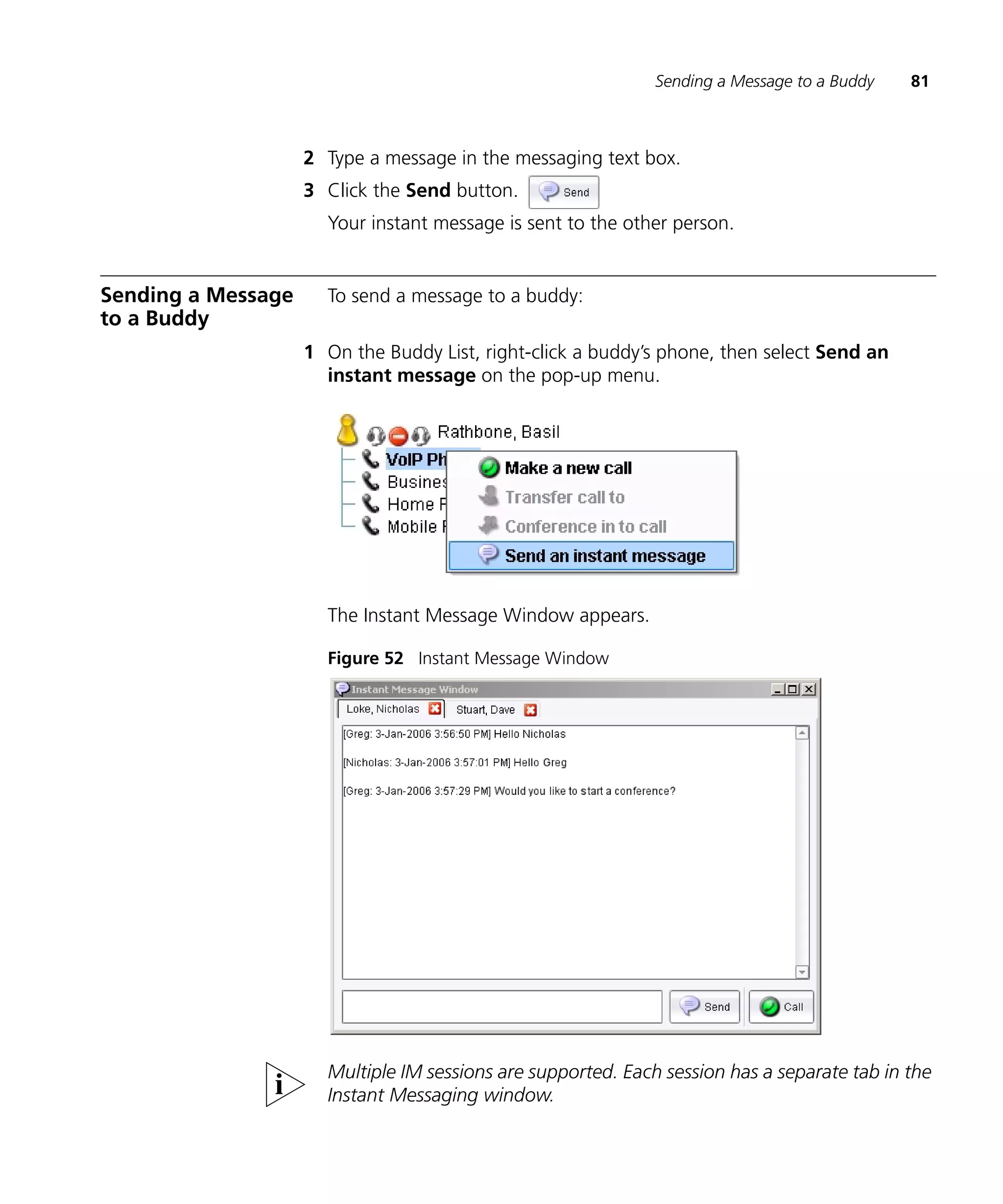
                                         n   Send an instant message.

                        Business Phone   n   Make a new call

                        Home Phone       n   Make a new call

                        Mobile Phone     n   Make a new call

                        Other Phone      n   Make a new call

                        Once you are connected to your buddy, a panel appropriate to the
                        communication session will display. For example, if you are calling your
                        buddy, the Call window will display. If you are sending an instant
                        message, the Instant Message window will display.
34   CHAPTER 3: USING THE BUDDY LIST


Controlling Who            Presence is a term used to describe your availability. Once you sign in,
Can See Your               your buddies see that you are online. After you sign out, your buddies see
Presence                   that you are offline and unavailable. You can also alter your status while
                           you are signed in; for details, see Setting Your Current Presence Status.

                           You can specify which buddies are allowed see your presence.
                           Alternatively, you can allow anyone who adds you to their Buddy List to
                           see your presence.

 Allowing Anyone to        To allow anyone who adds you to their Buddy List to see your presence:
   See Your Presence
                        1 On the Tools menu, select Options.
                           The Options screen appears.
                        2 Under Application, select Presence Settings.
                        3 In the Accept All Subscriptions list box, select True.

                           If the network is using the Presence capabilities of the 3Com IP
                           Conferencing Module, Accept All Subscriptions must be set to True.
                           Anyone who adds you to their Buddy List will be able to see your online
                           status after you grant them permission. For more information on granting
                           permission, see “Using the Access Control List” in the 3Com IP
                           Conferencing Module User Guide.
                        4 Click Close.

                           If the network is not using the presence capabilities of the 3Com IP
                           Conferencing Module (Accept All Subscriptions is set to False) and a user
                           who is not on the Allow or Deny List wants to see your status, then a
                           dialog will pop up asking whether you want that user to see your
                           presence. If you select yes, the user will be added to the Allow List. If you
                           select no, the user will be added to the Deny List.

                           When Accept All Subscriptions is set to True, users who add you to their
                           Buddy List will not be added to your Allow List, but will be able to see
                           your presence.
Setting Your Current Presence Status   35


 Specifying Who Can      To specify which buddies are allowed to see your presence:
   See Your Presence
                         For installations not using presence services from a 3Com IP Conferencing
                         Module, use the steps below.
                       1 On the Tools menu, select Options.
                         The Options screen appears.
                       2 Under Application, select Presence Settings.
                       3 Highlight the Subscription Privacy text box and select the customizer
                         icon.
                         The Subscription Privacy dialog appears.
                       4 In the Subscription Privacy dialog, use the Allow and Deny buttons to
                         move your buddies between the Allow List and the Deny List.
                         n   Buddies on the Allow List can see your status.
                         n   Buddies on the Deny List cannot see your status.
                       5 Click OK, then click Close.


Setting Your             While you are signed in, you can control your presence status. Your
Current Presence         buddies can see your current status by looking at their own Buddy List.
Status                   For details regarding the status indicators, see Buddy Status.

                         To manually set your current presence status:
                         n   In the Extension Status panel, select one of the following from the
                             status list box:
                             n   Available (default status when you sign in)
                             n   Busy
                             n   Meal
                             n   Hidden.

                         Your presence status icon is changed to reflect your new status.

                         Busy icon example:

                         To allow calls, set your status to Available. To allow calls but indicate that
                         you will not respond to them, set your status to Busy, Away, or Meal.
36   CHAPTER 3: USING THE BUDDY LIST


                           If you choose a status of Hidden, you will appear to other users as if you
                           are offline, but you will remain online and be able to perform all regular
                           tasks.

                           If you sign out with a status other than Available, that status will be your
                           status when you sign back in. You may want to use this feature to sign in
                           with a status of Hidden, check you mail, and sign out, all without letting
                           your buddies know that you have been online.

                           System-controlled Statuses
                           The system automatically controls your On the Phone and Autoaway
                           status.

                           n         When you are engaged in a media session that includes audio,
                               the system sets your presence status to On the Phone. When you
                               terminate all media sessions, the system returns your status to
                               Available.

                           n        If you are online but away from your computer, your status will
                               change to Away when the autoaway timer expires (10 minutes by
                               default). See Configuring the Presence Settings to change the
                               Autoaway Timeout Setting.


Creating and               If you have a large number of buddies, you can manage them more easily
Managing a                 by adding them to a category. For example, you can create a category
Category                   called Sales and then add all of your company’s salespeople to it. You can
                           also add a single buddy to multiple categories. For example a sales
                           executive may belong to two categories, “Sales” and “Management.”

                           Unfiled Category

                           By default, the Buddy List contains one category which cannot be deleted
                           or renamed — the “Unfiled” category. Your buddies can be placed here
                           before being moved to customized categories. Also, if you delete a
                           category, the buddies contained in it are automatically moved to the
                           Unfiled category.
Creating and Managing a Category      37


 Creating a Category     To create a category folder:
                       1 Click the Create a New Category button.
                         The Create a New Category Input dialog appears.

                         Figure 12 Create a New Category Input dialog


                       2 Enter the new category Name, then click OK.
                       3 A folder for the category appears in the Buddy List.

                         You can move a buddy from one category to another, or add a buddy to
                         multiple Categories. To do so, see Editing Buddy Properties.

Renaming a Category      To rename a category:
                       1 Select a category and click the Edit Properties button.
                         —or—
                         Select and right-click a category, then select Edit Properties from the
                         pop-up menu.


                         The Category Properties dialog appears.
38   CHAPTER 3: USING THE BUDDY LIST


                           Figure 13 Category Properties dialog


                        2 In the Category Properties dialog, type a new name.
                        3 Click OK.

 Deleting a Category       To delete a category:
                        1 Select a category and click the Delete button.
                           —or—
                           Select and right-click a category, then select Delete from the pop-up
                           menu.


                           When you delete a category, the buddies contained in it are reassigned to
                           the “Unfiled” category. The Unfiled category cannot be deleted.
                        2 Confirm the deletion by clicking Yes.
                           The category you have deleted disappears from the Buddy List.
MAKING AND RECEIVING
   4               MULTIMEDIA CALLS


                   This chapter describes how to work with multimedia and includes the
                   following topics:
                   n   What is a Multimedia Call?
                   n   Making a Call
                   n   Answering a Call
                   n   Ending a Call
                   n   Placing a Call on Hold
                   n   Using Call Waiting
                   n   Call Functions


What is a          A “multimedia call” is a term used to describe the range of dynamic,
Multimedia Call?   interactive communication options available in the 3Com Convergence
                   Center Client. A multimedia session can include any combination of
                   voice, video, desktop sharing, and instant messaging. The
                   communication options available to you depend on those you purchased.

                   You can only engage in one multimedia session — either a point-to-point
                   call or a conference — at a time.

                   Multimedia sessions always start with a voice call. Once the voice call is
                   established, video and desktop sharing can be added.
40    CHAPTER 4: MAKING AND RECEIVING MULTIMEDIA CALLS


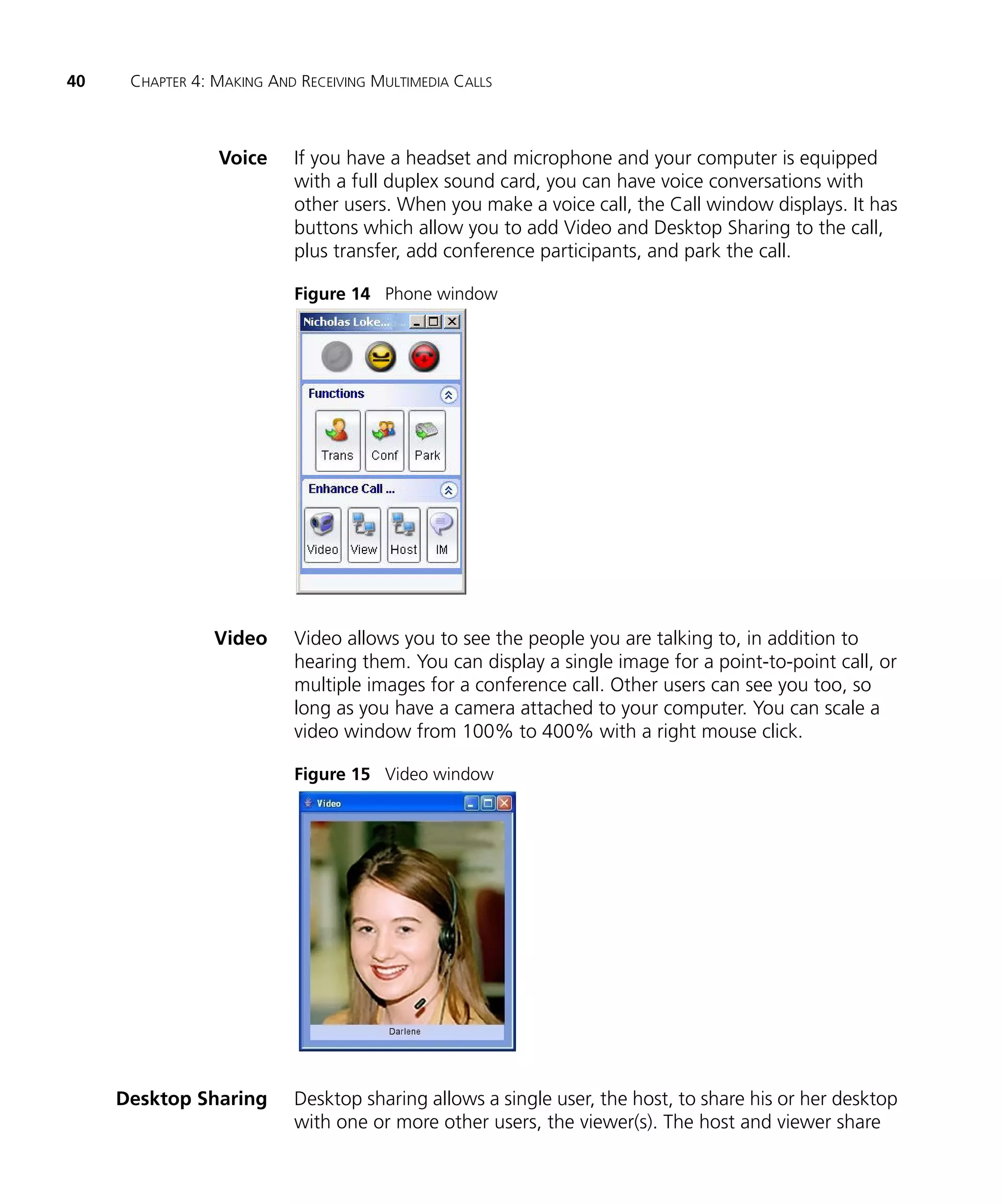
                 Voice     If you have a headset and microphone and your computer is equipped
                           with a full duplex sound card, you can have voice conversations with
                           other users. When you make a voice call, the Call window displays. It has
                           buttons which allow you to add Video and Desktop Sharing to the call,
                           plus transfer, add conference participants, and park the call.

                           Figure 14 Phone window


                 Video     Video allows you to see the people you are talking to, in addition to
                           hearing them. You can display a single image for a point-to-point call, or
                           multiple images for a conference call. Other users can see you too, so
                           long as you have a camera attached to your computer. You can scale a
                           video window from 100% to 400% with a right mouse click.

                           Figure 15 Video window


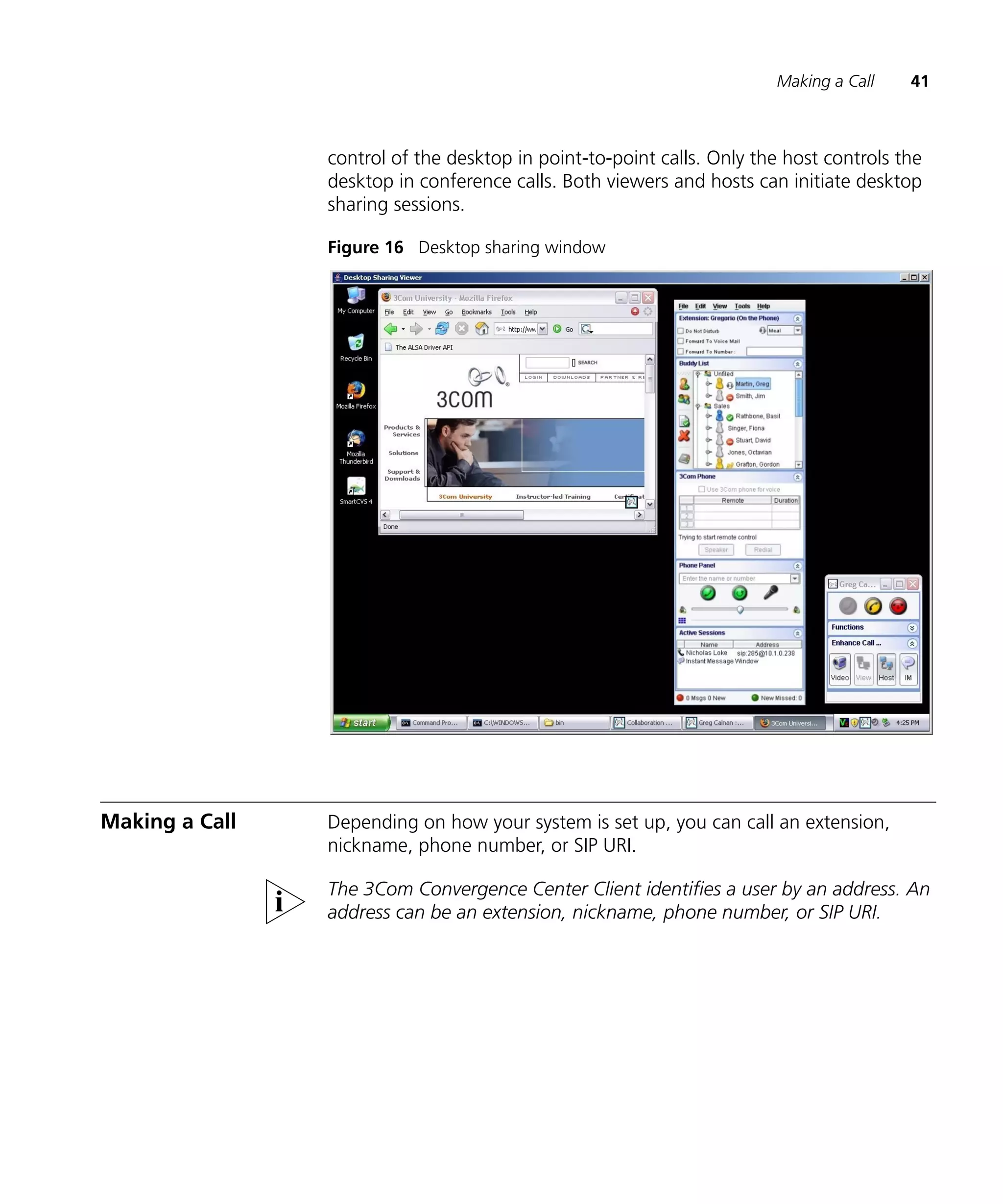
     Desktop Sharing       Desktop sharing allows a single user, the host, to share his or her desktop
                           with one or more other users, the viewer(s). The host and viewer share
Making a Call    41


                control of the desktop in point-to-point calls. Only the host controls the
                desktop in conference calls. Both viewers and hosts can initiate desktop
                sharing sessions.

                Figure 16 Desktop sharing window


Making a Call   Depending on how your system is set up, you can call an extension,
                nickname, phone number, or SIP URI.

                The 3Com Convergence Center Client identifies a user by an address. An
                address can be an extension, nickname, phone number, or SIP URI.
42   CHAPTER 4: MAKING AND RECEIVING MULTIMEDIA CALLS


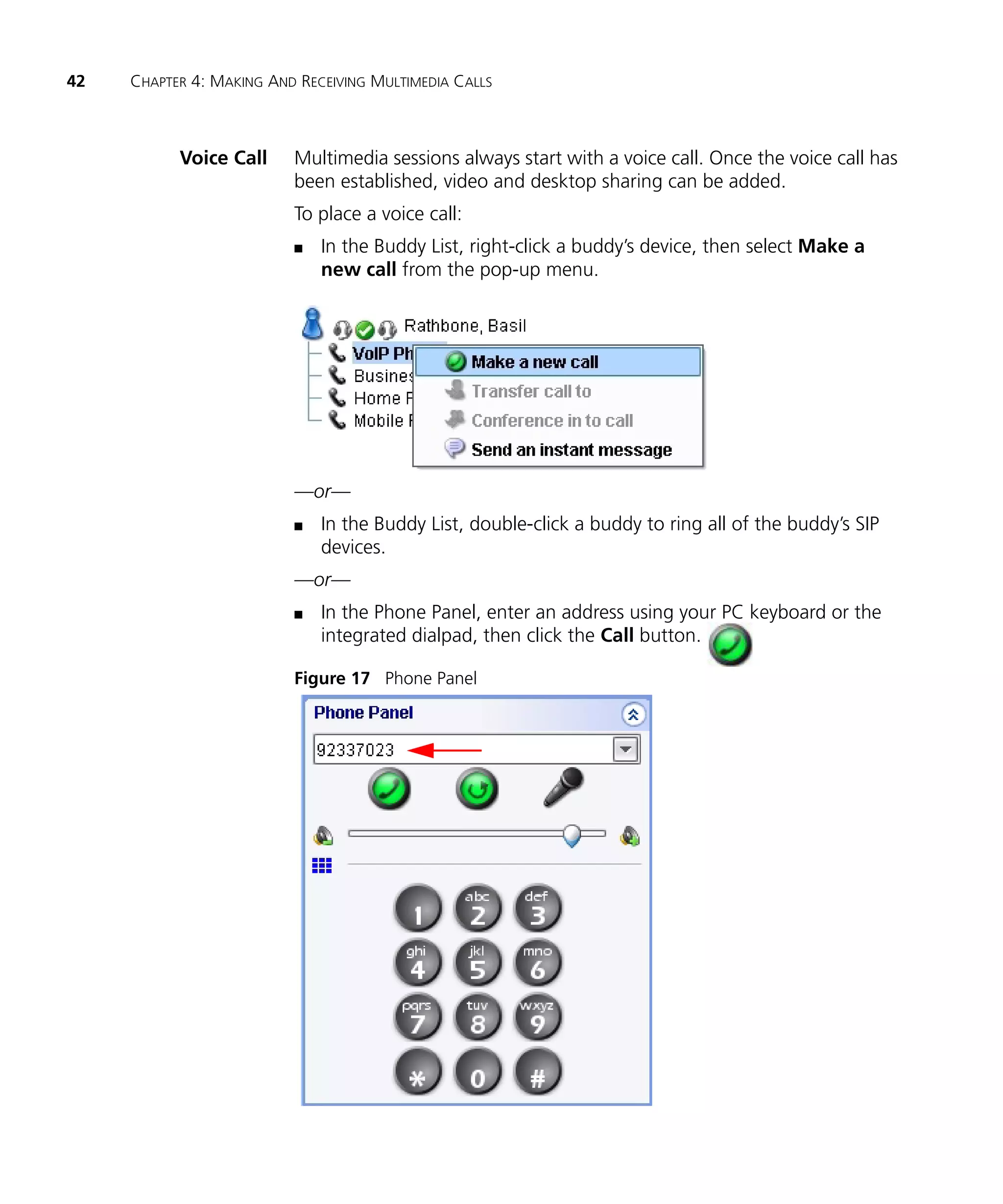
           Voice Call     Multimedia sessions always start with a voice call. Once the voice call has
                          been established, video and desktop sharing can be added.
                          To place a voice call:
                          n   In the Buddy List, right-click a buddy’s device, then select Make a
                              new call from the pop-up menu.


                          —or—
                          n   In the Buddy List, double-click a buddy to ring all of the buddy’s SIP
                              devices.
                          —or—
                          n   In the Phone Panel, enter an address using your PC keyboard or the
                              integrated dialpad, then click the Call button.

                          Figure 17 Phone Panel
Making a Call   43


An address can be an extension, nickname, phone number, or SIP URI.

You can use the integrated dialpad to respond to interactive voice
response (IVR) prompts while the call is ongoing.
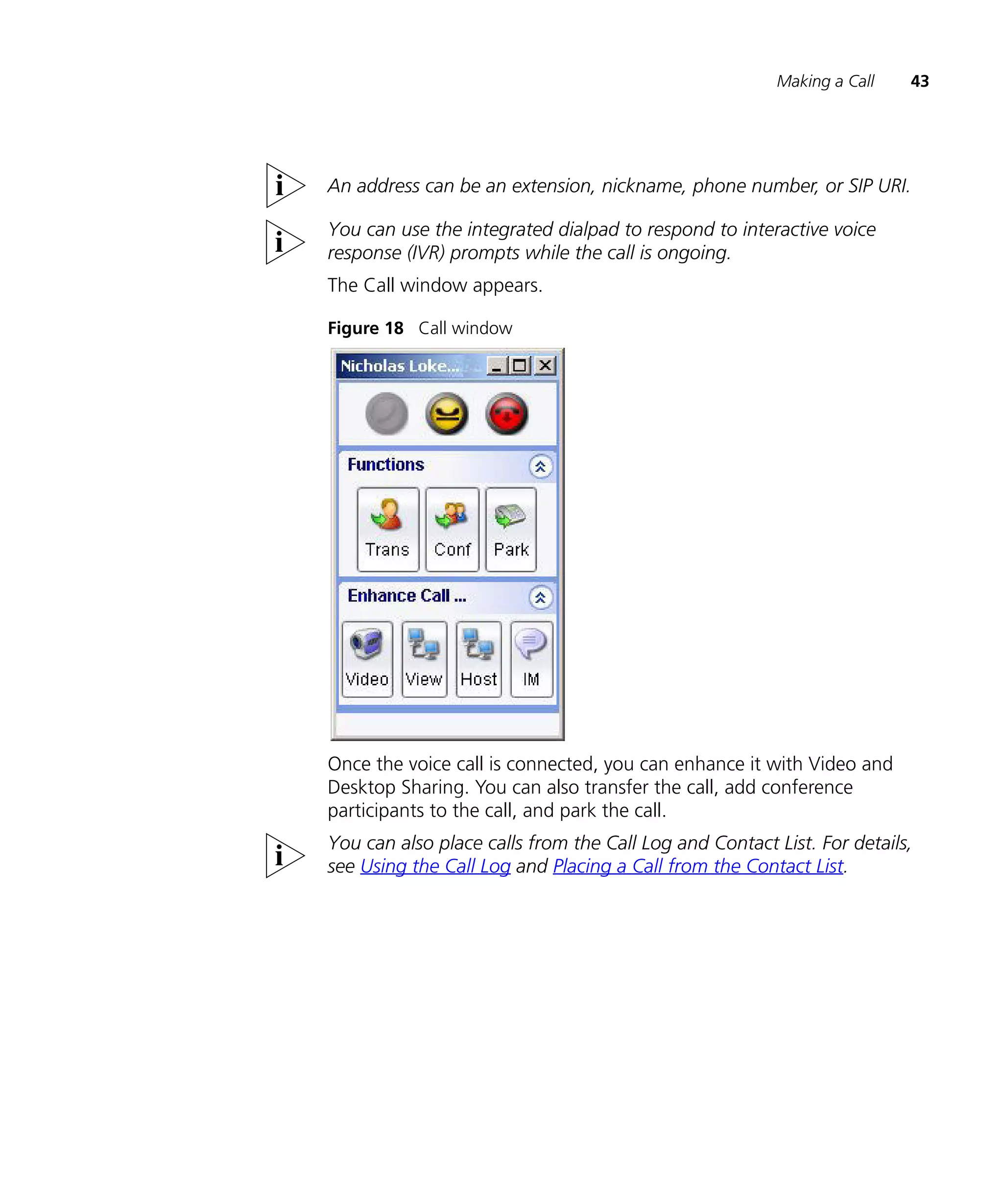
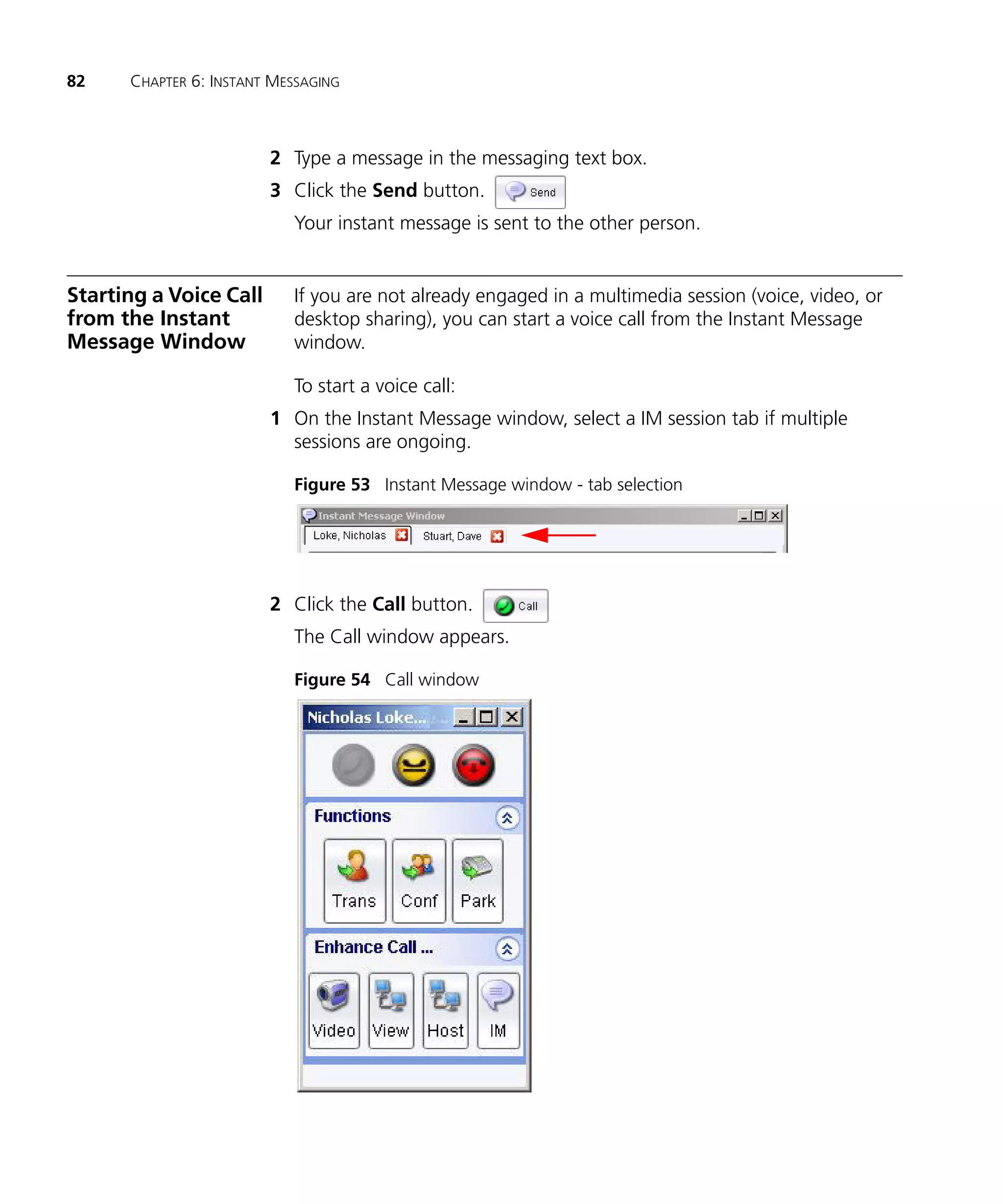
The Call window appears.

Figure 18 Call window


Once the voice call is connected, you can enhance it with Video and
Desktop Sharing. You can also transfer the call, add conference
participants to the call, and park the call.
You can also place calls from the Call Log and Contact List. For details,
see Using the Call Log and Placing a Call from the Contact List.
44      CHAPTER 4: MAKING AND RECEIVING MULTIMEDIA CALLS


     Adding Video to a       To add video to a voice call:
                  Call
                          1 In the Call window, click the Video button.

                             Figure 19 Call window - Video button


                             “Changing Media ...” appears at the bottom of the Call Window.


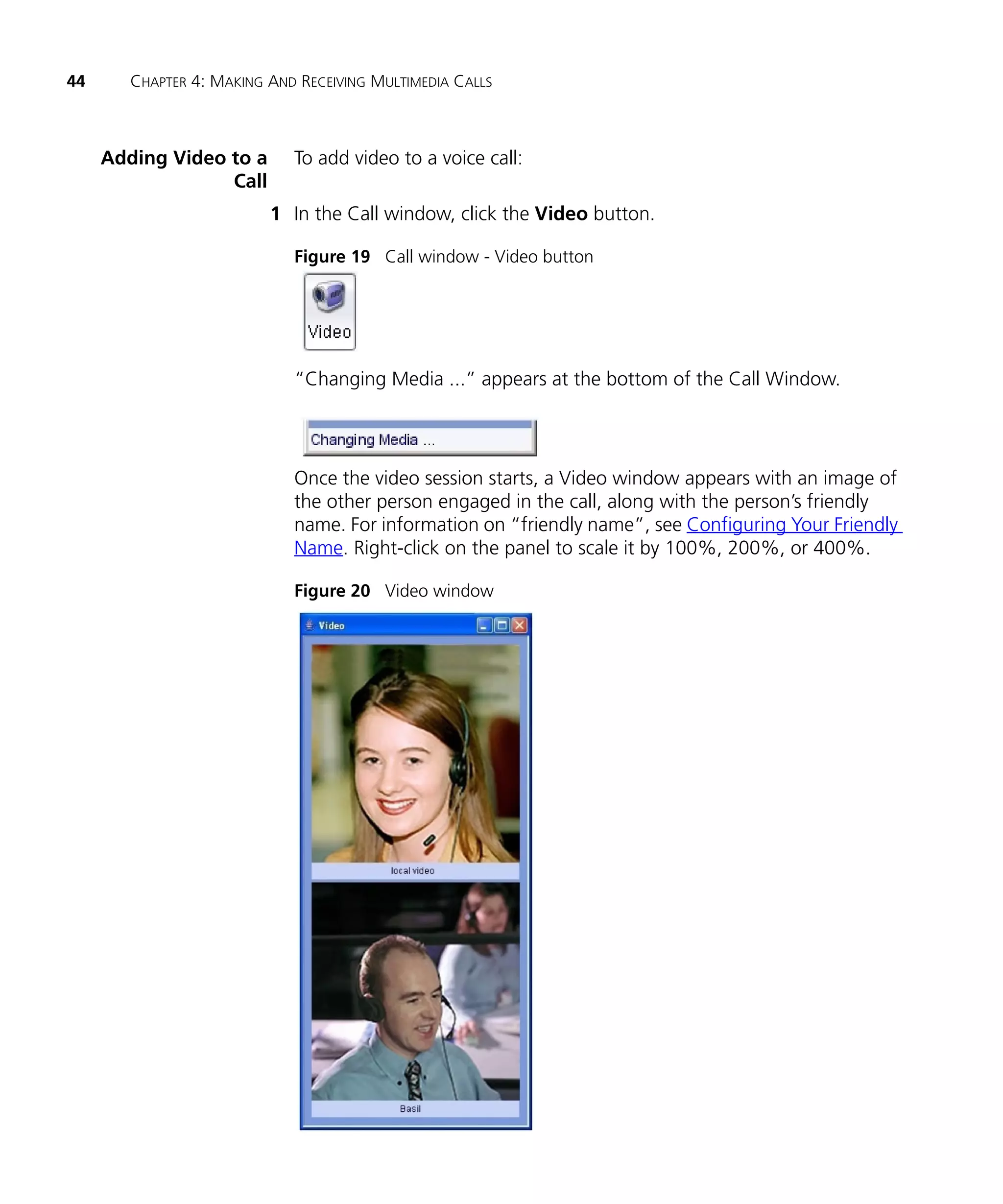
                             Once the video session starts, a Video window appears with an image of
                             the other person engaged in the call, along with the person’s friendly
                             name. For information on “friendly name”, see Configuring Your Friendly
                             Name. Right-click on the panel to scale it by 100%, 200%, or 400%.

                             Figure 20 Video window
Making a Call     45


                    2 Optionally, select View > Show Local Video to display your own image
                      in the Video window.

                      If the other party does not support video, the following message will
                      appear at the bottom of the Call window: “Video stopped by remote
                      party.”

Adding Desktop        To add desktop sharing to a voice call:
Sharing to a Call     n   In the Call window, click either the View or Host button.

                      Figure 21 Call window - View / Host buttons


                      “Changing Media ...” appears at the bottom of the Call Window.


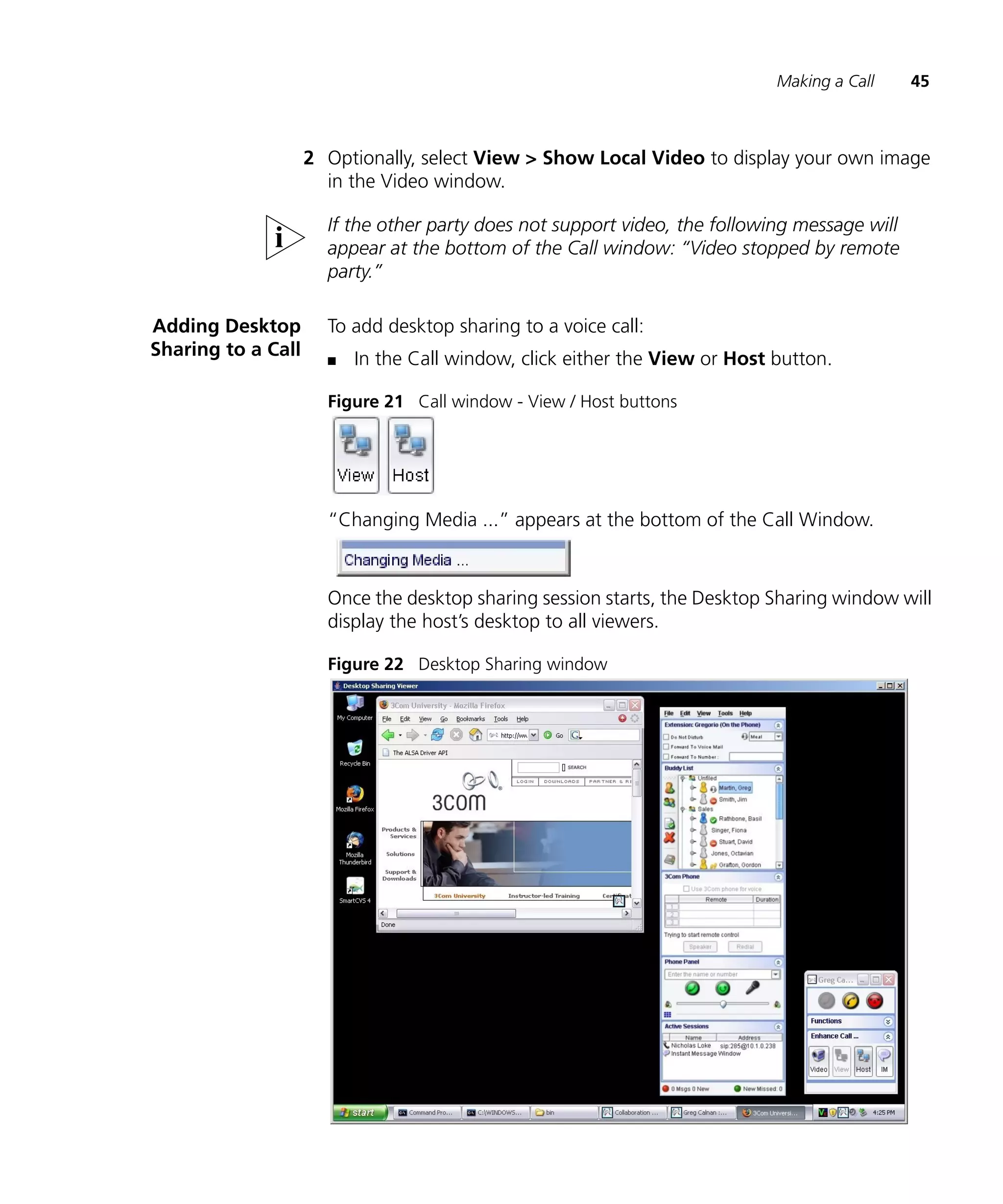
                      Once the desktop sharing session starts, the Desktop Sharing window will
                      display the host’s desktop to all viewers.

                      Figure 22 Desktop Sharing window
46   CHAPTER 4: MAKING AND RECEIVING MULTIMEDIA CALLS


                          The host and viewer share control of the desktop in point-to-point calls.
                          Only the host controls the desktop in conference calls.

                          You can initiate a desktop sharing session as a host or a viewer. Be aware
                          that if you accept a call from a viewer, the viewer will see your hosted
                          desktop.

                          If the other party does not support desktop sharing, the following
                          message will appear at the bottom of the Call window: “Desktop Sharing
                          stopped by remote party.”

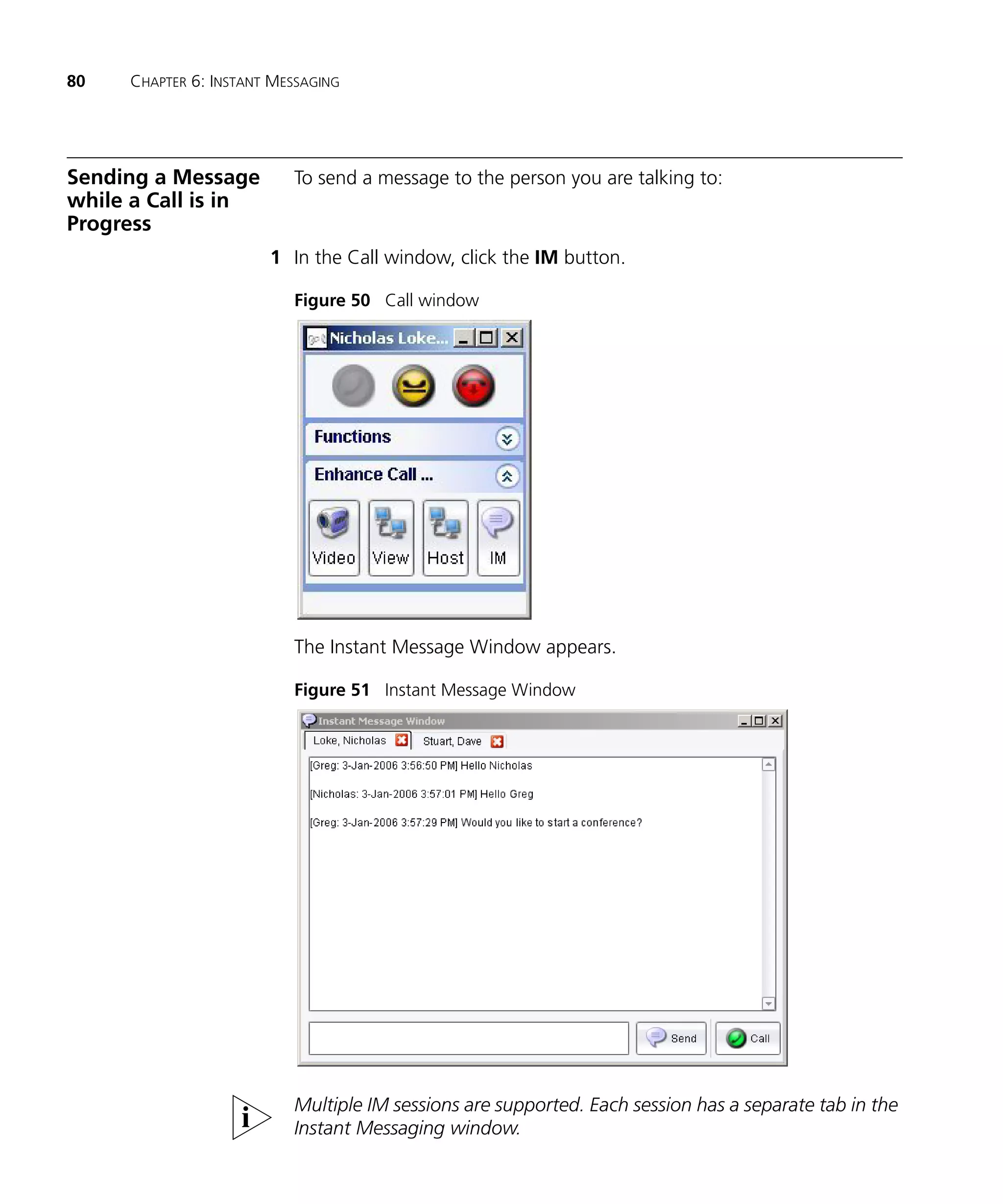
     Sending Instant      To send an instant message while a voice call is in progress:
          Messages
                       1 In the Call window, click the IM button.

                          Figure 23 Call window - IM button


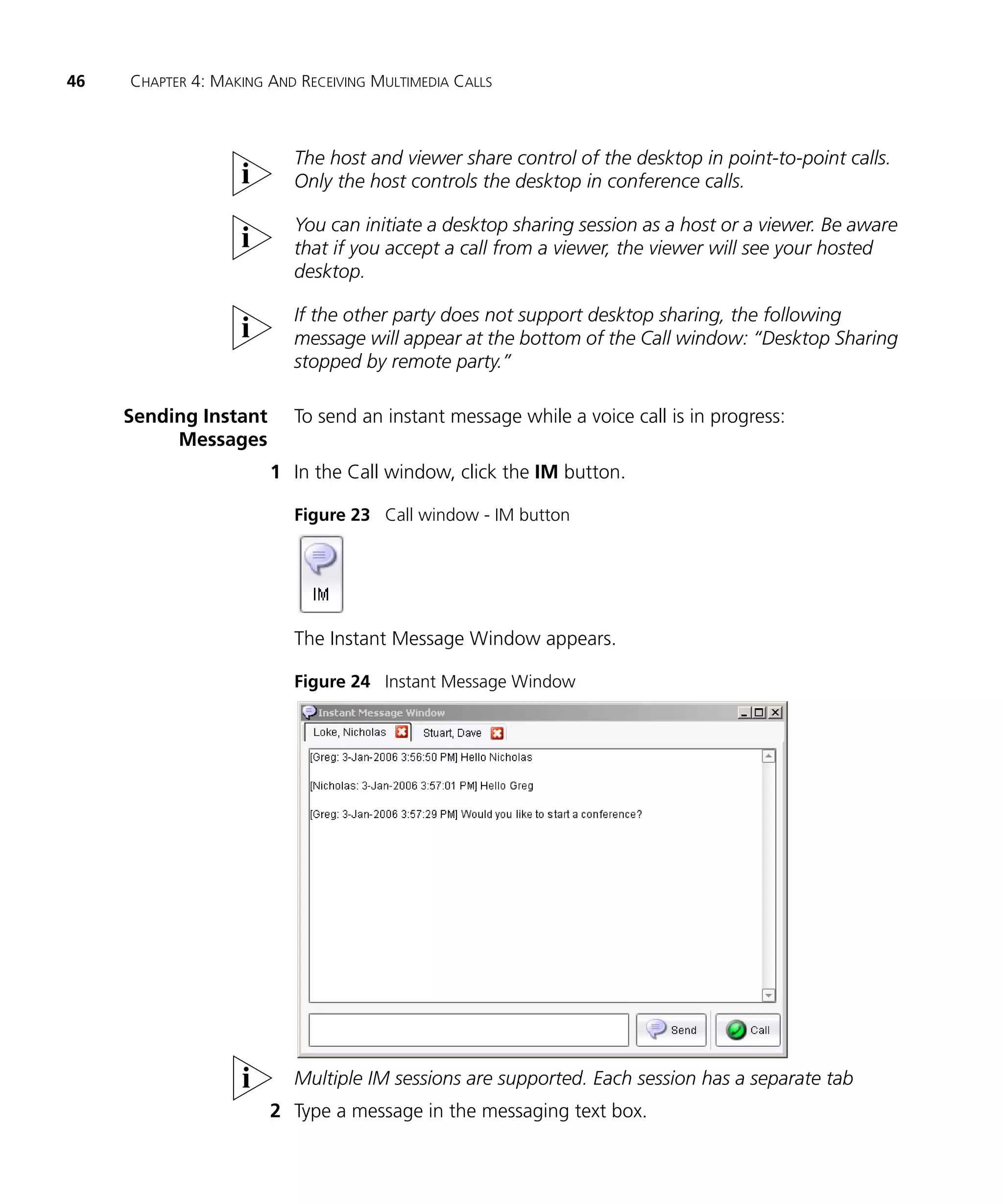
                          The Instant Message Window appears.

                          Figure 24 Instant Message Window


                          Multiple IM sessions are supported. Each session has a separate tab
                       2 Type a message in the messaging text box.
Answering a Call    47


                   3 Click the Send button.
                     Your instant message is sent to the other person engaged in the call.

                     Unlike video and desktop sharing, you are not obligated to be in a voice
                     call to send an instant message. For example, you can send an IM directly
                     to a buddy. See Sending a Message to a Buddy.


Answering a Call     To accept a voice call:
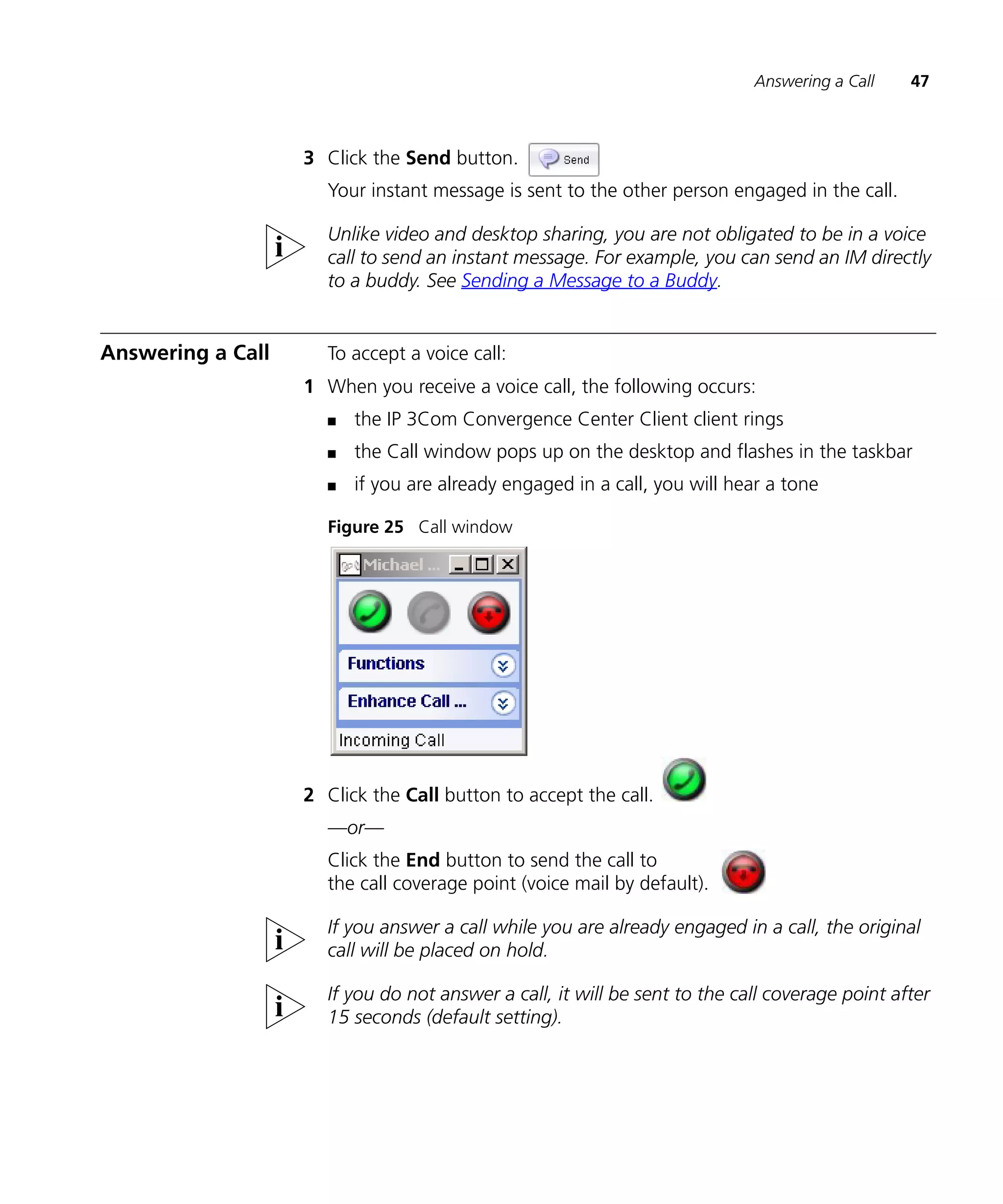
                   1 When you receive a voice call, the following occurs:
                     n   the IP 3Com Convergence Center Client client rings
                     n   the Call window pops up on the desktop and flashes in the taskbar
                     n   if you are already engaged in a call, you will hear a tone

                     Figure 25 Call window


                   2 Click the Call button to accept the call.
                     —or—
                     Click the End button to send the call to
                     the call coverage point (voice mail by default).

                     If you answer a call while you are already engaged in a call, the original
                     call will be placed on hold.

                     If you do not answer a call, it will be sent to the call coverage point after
                     15 seconds (default setting).
48    CHAPTER 4: MAKING AND RECEIVING MULTIMEDIA CALLS


Ending a Call              To end a call that is in progress:
                           n   In the Call window, click the End button.

                           The End button closes all media (voice, video, and desktop sharing) for
                           the communication session.


Placing a Call on          You can place a call on hold for any reason, including to answer another
Hold                       call.

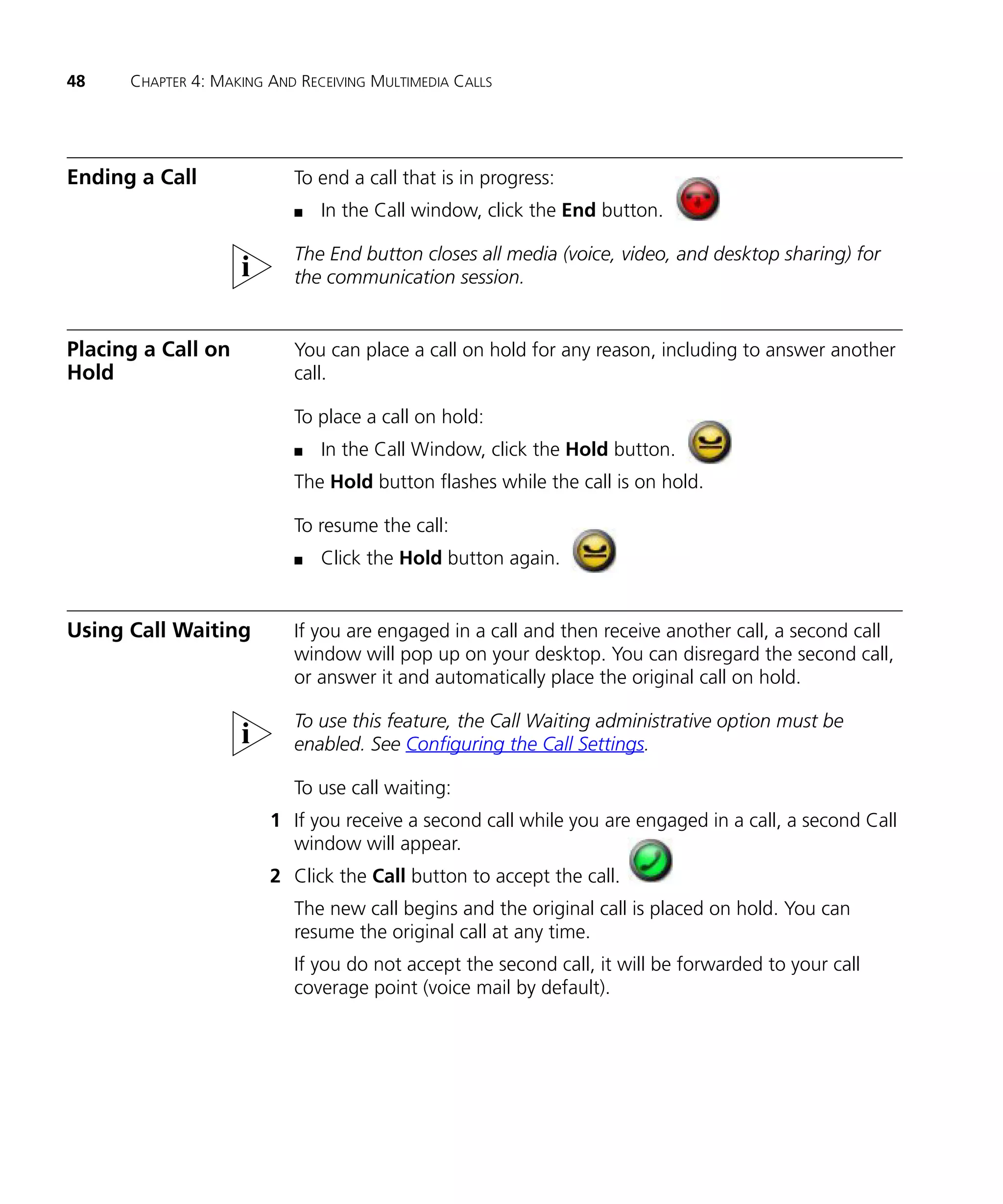
                           To place a call on hold:
                           n   In the Call Window, click the Hold button.
                           The Hold button flashes while the call is on hold.

                           To resume the call:
                           n   Click the Hold button again.


Using Call Waiting         If you are engaged in a call and then receive another call, a second call
                           window will pop up on your desktop. You can disregard the second call,
                           or answer it and automatically place the original call on hold.

                           To use this feature, the Call Waiting administrative option must be
                           enabled. See Configuring the Call Settings.

                           To use call waiting:
                        1 If you receive a second call while you are engaged in a call, a second Call
                          window will appear.
                        2 Click the Call button to accept the call.
                           The new call begins and the original call is placed on hold. You can
                           resume the original call at any time.
                           If you do not accept the second call, it will be forwarded to your call
                           coverage point (voice mail by default).
Call Functions   49


Call Functions         The following call functions are available:
                       n   Unattended Call Transfer—allows you to transfer a call without
                           consulting the other party.
                       n   Attended Call Transfer—allows you to place the call on hold and
                           consult with the other party before transferring the call.
                       n   Conference in to Call—allows you to redirect a user to an Ad Hoc
                           conference.
                       n   Call Park—allows you to temporarily park a call and pick it up at a
                           different location.

     Unattended Call   When you perform an unattended or “blind” call transfer, you send the
            Transfer   call to someone else without consulting them.

                       This feature is available from the Buddy List or the Call window.

                       From the Buddy List

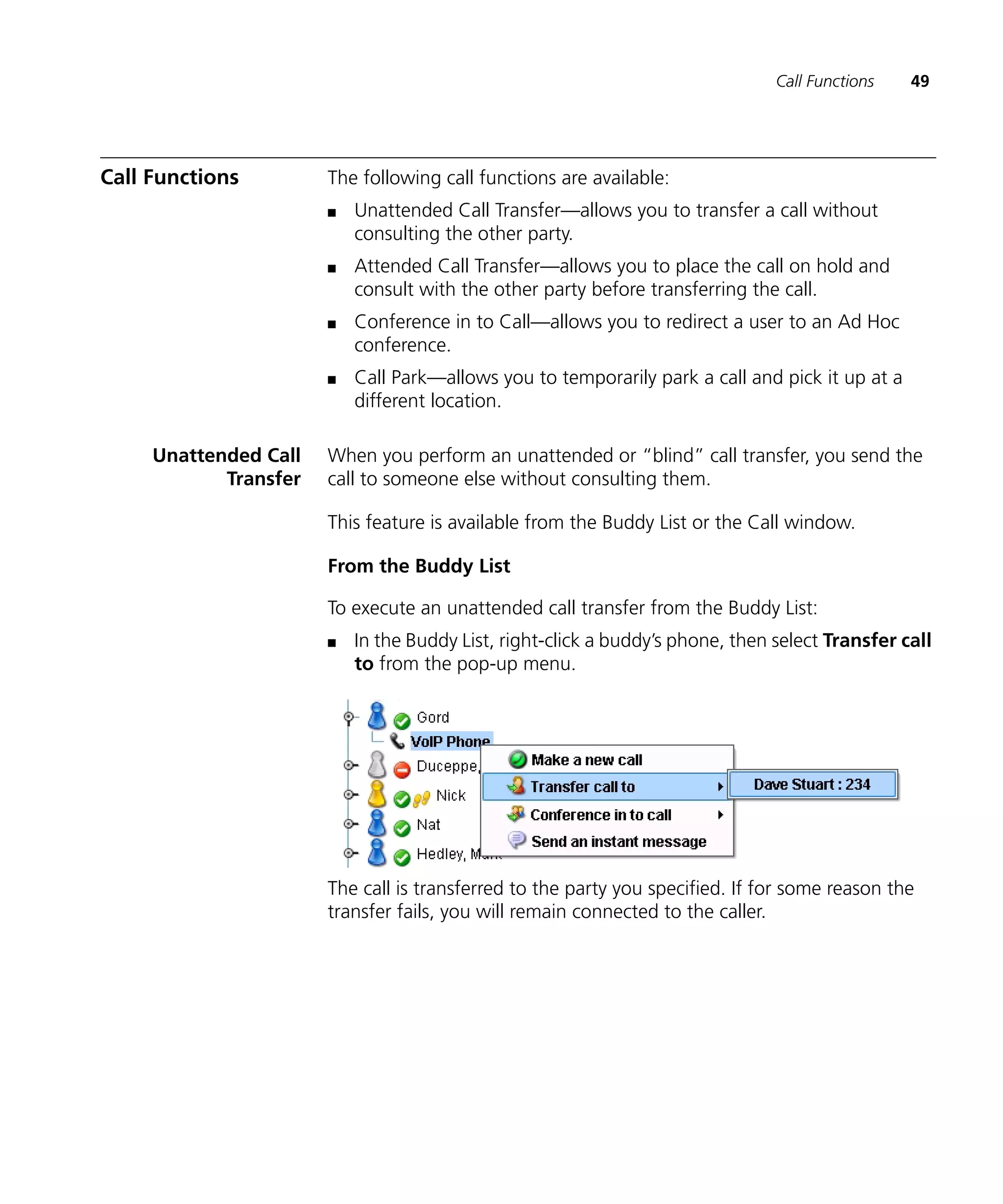
                       To execute an unattended call transfer from the Buddy List:
                       n   In the Buddy List, right-click a buddy’s phone, then select Transfer call
                           to from the pop-up menu.


                       The call is transferred to the party you specified. If for some reason the
                       transfer fails, you will remain connected to the caller.
50   CHAPTER 4: MAKING AND RECEIVING MULTIMEDIA CALLS


                          From the Call window

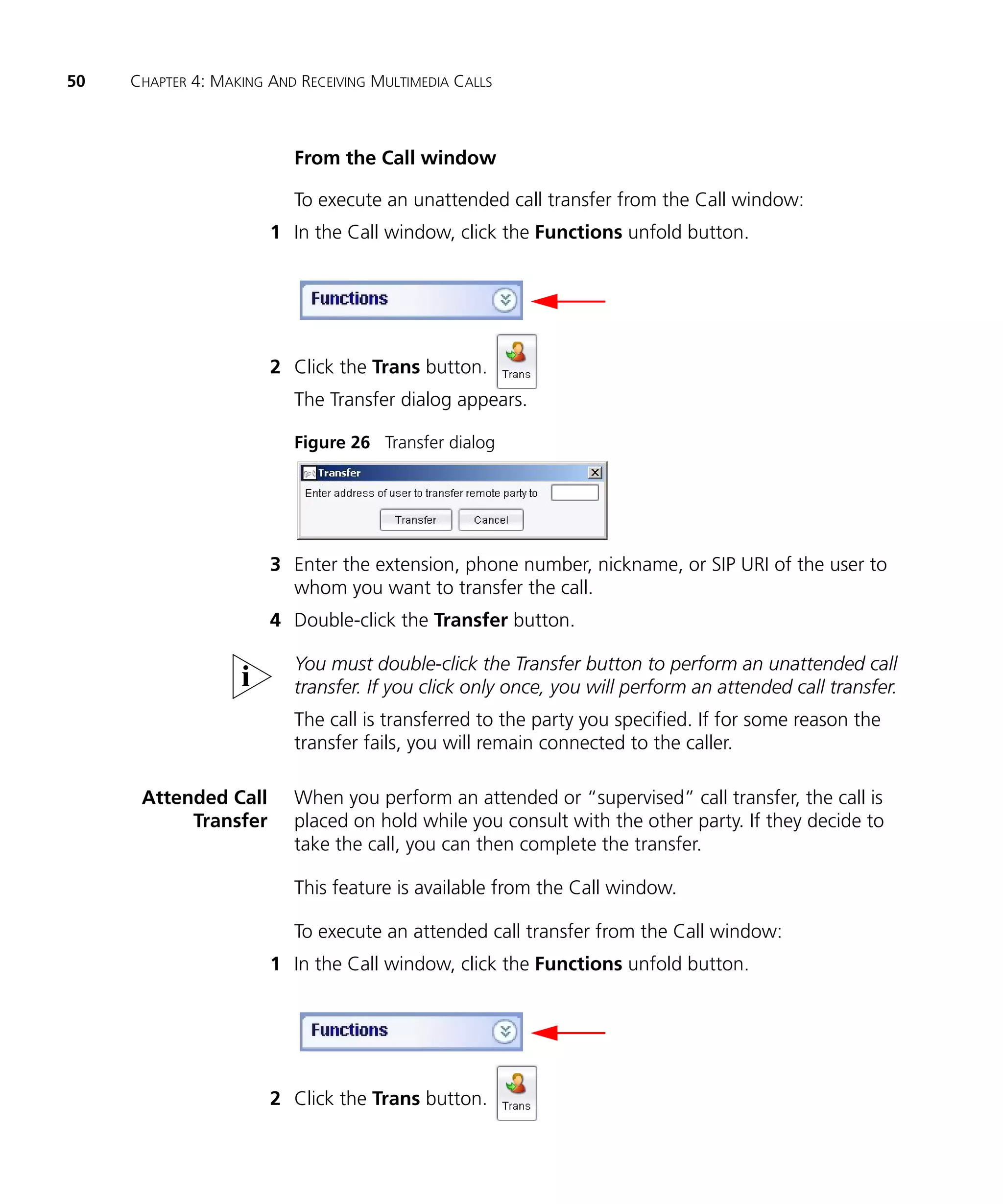
                          To execute an unattended call transfer from the Call window:
                       1 In the Call window, click the Functions unfold button.


                       2 Click the Trans button.
                          The Transfer dialog appears.

                          Figure 26 Transfer dialog


                       3 Enter the extension, phone number, nickname, or SIP URI of the user to
                         whom you want to transfer the call.
                       4 Double-click the Transfer button.

                          You must double-click the Transfer button to perform an unattended call
                          transfer. If you click only once, you will perform an attended call transfer.
                          The call is transferred to the party you specified. If for some reason the
                          transfer fails, you will remain connected to the caller.

      Attended Call       When you perform an attended or “supervised” call transfer, the call is
           Transfer       placed on hold while you consult with the other party. If they decide to
                          take the call, you can then complete the transfer.

                          This feature is available from the Call window.

                          To execute an attended call transfer from the Call window:
                       1 In the Call window, click the Functions unfold button.


                       2 Click the Trans button.
Call Functions   51


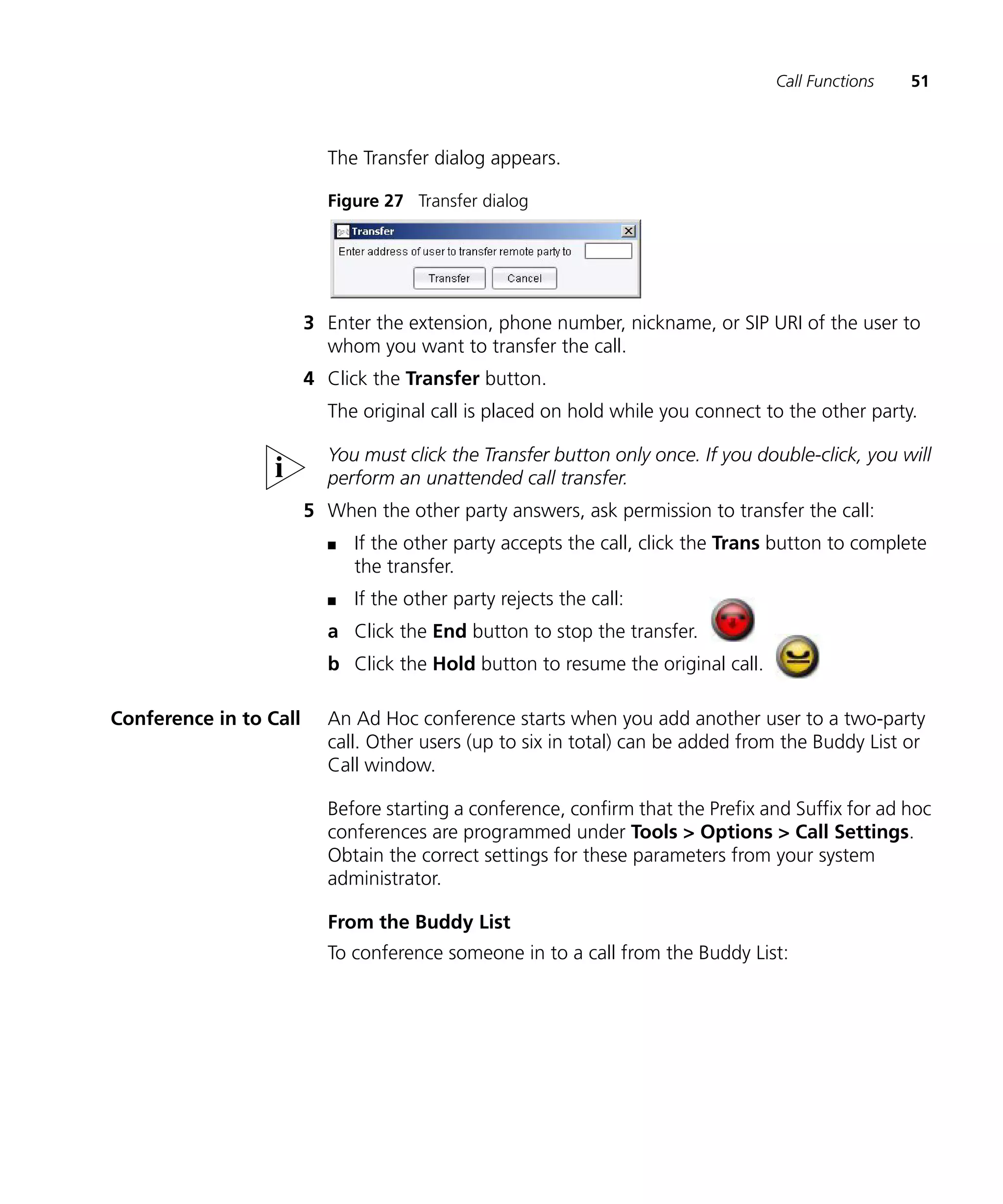
                          The Transfer dialog appears.

                          Figure 27 Transfer dialog


                        3 Enter the extension, phone number, nickname, or SIP URI of the user to
                          whom you want to transfer the call.
                        4 Click the Transfer button.
                          The original call is placed on hold while you connect to the other party.

                          You must click the Transfer button only once. If you double-click, you will
                          perform an unattended call transfer.
                        5 When the other party answers, ask permission to transfer the call:
                          n   If the other party accepts the call, click the Trans button to complete
                              the transfer.
                          n   If the other party rejects the call:
                          a Click the End button to stop the transfer.
                          b Click the Hold button to resume the original call.

Conference in to Call     An Ad Hoc conference starts when you add another user to a two-party
                          call. Other users (up to six in total) can be added from the Buddy List or
                          Call window.

                          Before starting a conference, confirm that the Prefix and Suffix for ad hoc
                          conferences are programmed under Tools > Options > Call Settings.
                          Obtain the correct settings for these parameters from your system
                          administrator.

                          From the Buddy List
                          To conference someone in to a call from the Buddy List:
52   CHAPTER 4: MAKING AND RECEIVING MULTIMEDIA CALLS


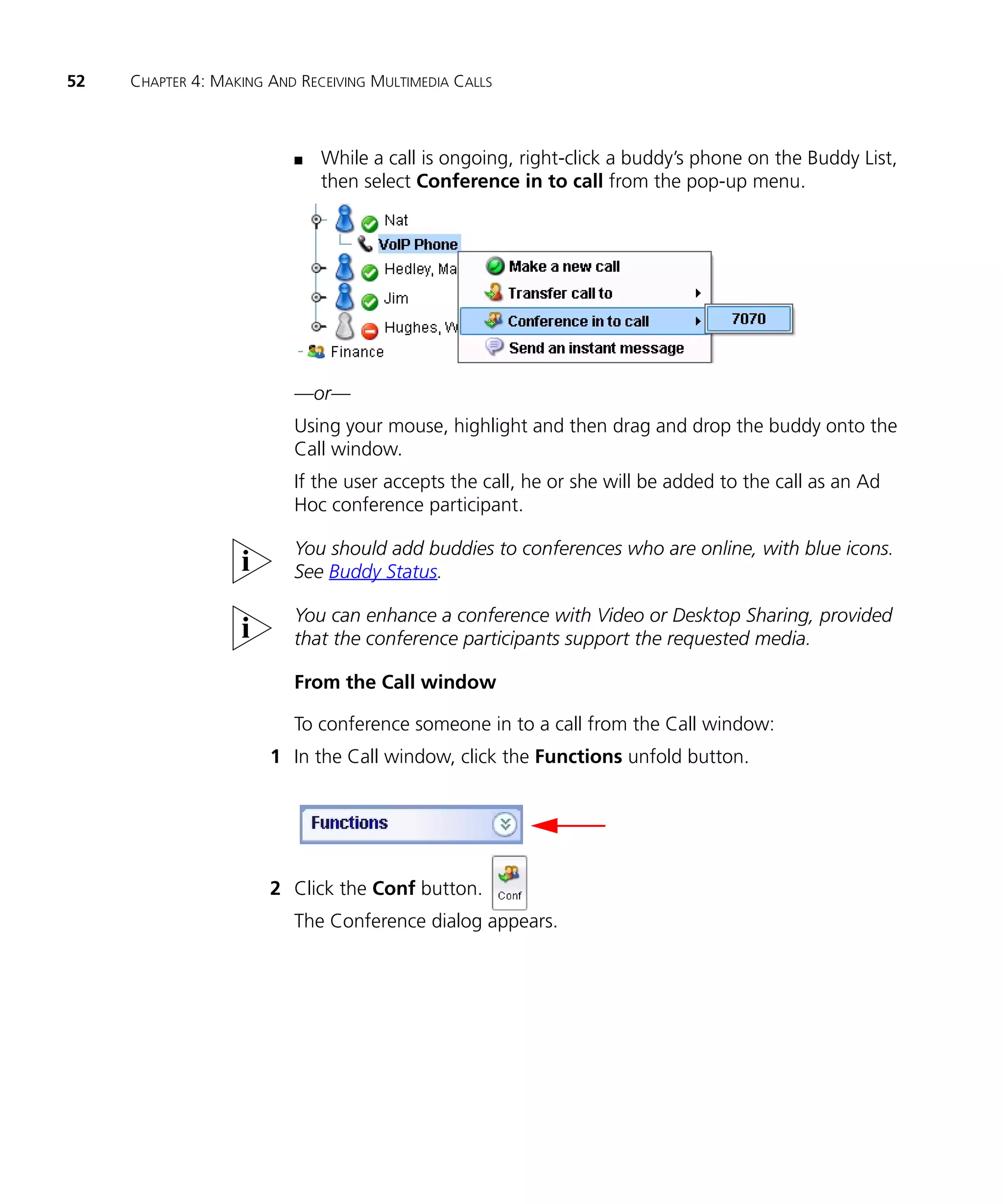
                          n   While a call is ongoing, right-click a buddy’s phone on the Buddy List,
                              then select Conference in to call from the pop-up menu.


                          —or—
                          Using your mouse, highlight and then drag and drop the buddy onto the
                          Call window.
                          If the user accepts the call, he or she will be added to the call as an Ad
                          Hoc conference participant.

                          You should add buddies to conferences who are online, with blue icons.
                          See Buddy Status.

                          You can enhance a conference with Video or Desktop Sharing, provided
                          that the conference participants support the requested media.

                          From the Call window

                          To conference someone in to a call from the Call window:
                       1 In the Call window, click the Functions unfold button.


                       2 Click the Conf button.
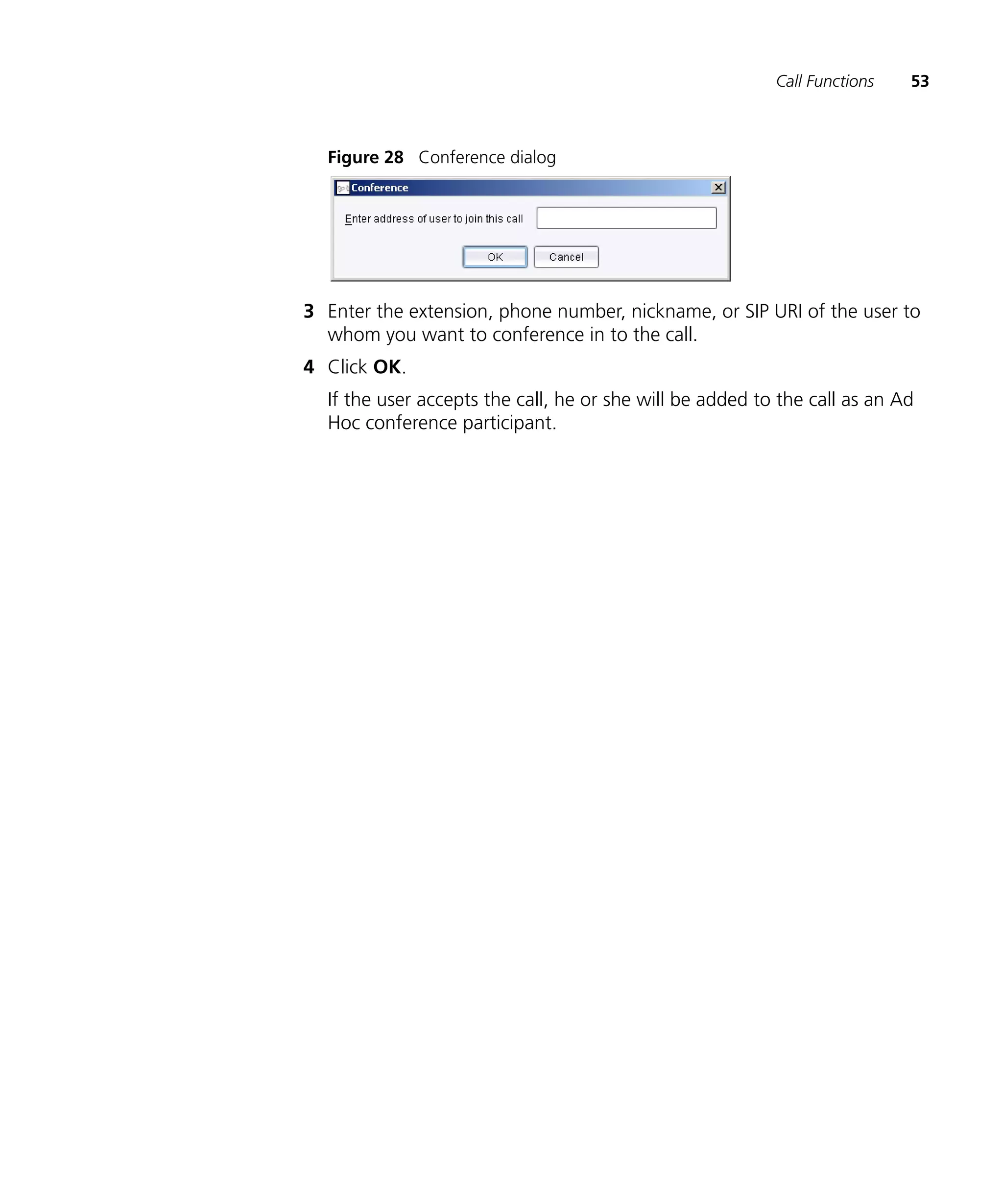
                          The Conference dialog appears.
Call Functions   53


  Figure 28 Conference dialog


3 Enter the extension, phone number, nickname, or SIP URI of the user to
  whom you want to conference in to the call.
4 Click OK.
  If the user accepts the call, he or she will be added to the call as an Ad
  Hoc conference participant.
54   CHAPTER 4: MAKING AND RECEIVING MULTIMEDIA CALLS


      Parking a Call      You can temporarily park a call and pick it up at a different location by
                          entering a system-assigned ID code.

                          This feature is available from the Call window.

                          To park a call from the Call window:
                       1 In the Call window, click the Functions unfold button.


                       2 Click the Park button.
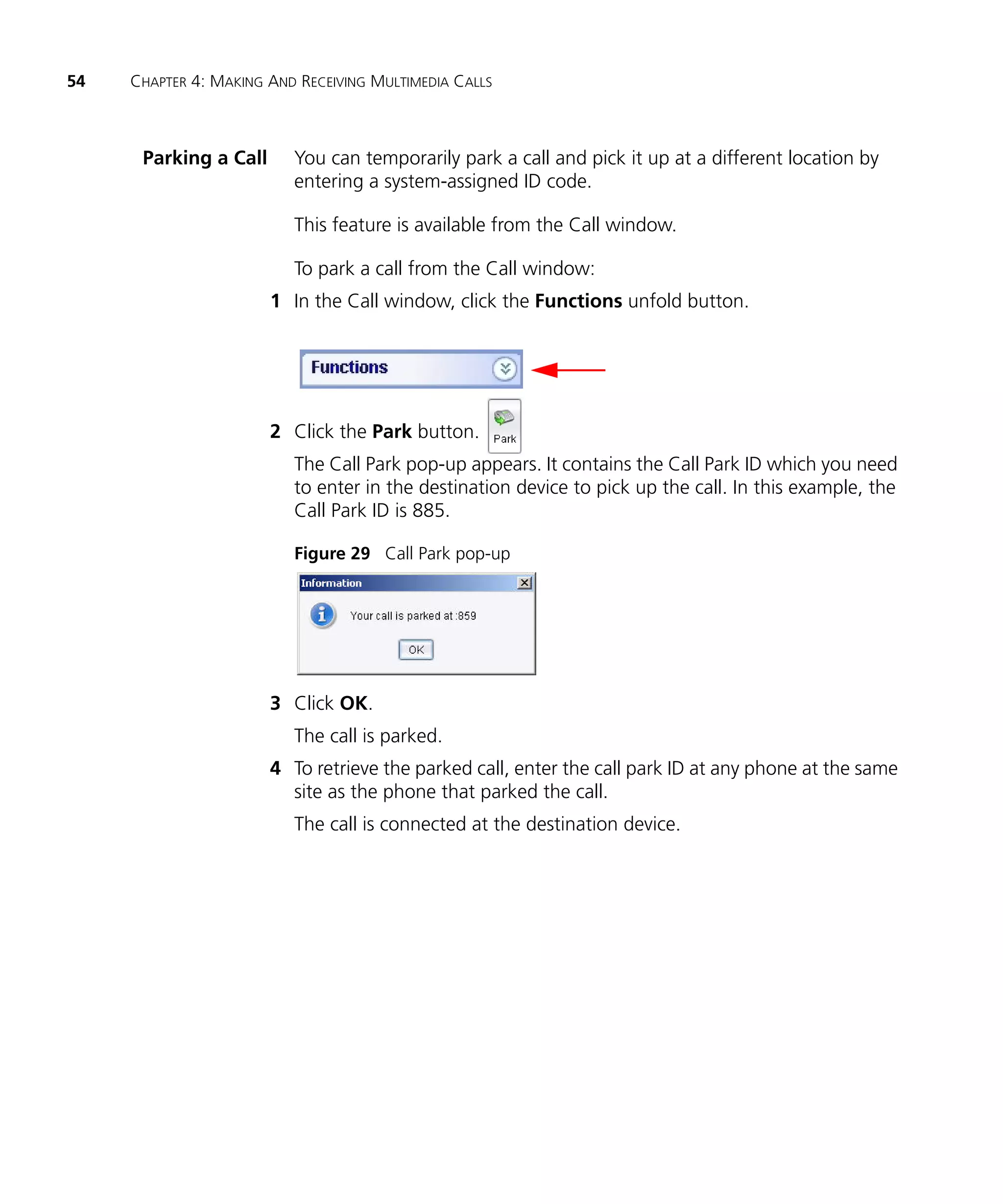
                          The Call Park pop-up appears. It contains the Call Park ID which you need
                          to enter in the destination device to pick up the call. In this example, the
                          Call Park ID is 885.

                          Figure 29 Call Park pop-up


                       3 Click OK.
                          The call is parked.
                       4 To retrieve the parked call, enter the call park ID at any phone at the same
                         site as the phone that parked the call.
                          The call is connected at the destination device.
USING TOOLS AND UTILITIES
   4
                 The 3Com Convergence Center Client includes handy tools and utilities
                 that help you manage your work environment. The tools and utilities are
                 described below.
                 n   The Companion Phone feature allows you to control your desktop
                     3Com phone.
                 n   The Contact List provides an easy way to keep track of your contacts.
                 n   The Call Log keeps track of your incoming and outgoing calls.
                 n   Extension controls such as Do Not Disturb, Call Forward, and Forward
                     to Voice Mail.
                 This chapter describes the tools and utilities available and includes the
                 following topics:
                 n   Using the 3Com Phone Panel
                 n   Using the Contact List
                 n   Using the Call Log
                 n   Monitoring Active Sessions
                 n   Managing the Extension Status
                 n   Launching the 3Com IP Conferencing Module


Using the 3Com   The Companion Phone feature allows you to control a 3Com desktop SIP
Phone Panel      phone using the 3Com Convergence Center Client. You can answer
                 incoming calls, and place outgoing voice calls without having to manually
                 pick-up the phone.

                 To display the 3Com Phone controls:
                 n   Click the 3Com Phone panel unfold button.
56   CHAPTER 4: USING TOOLS AND UTILITIES


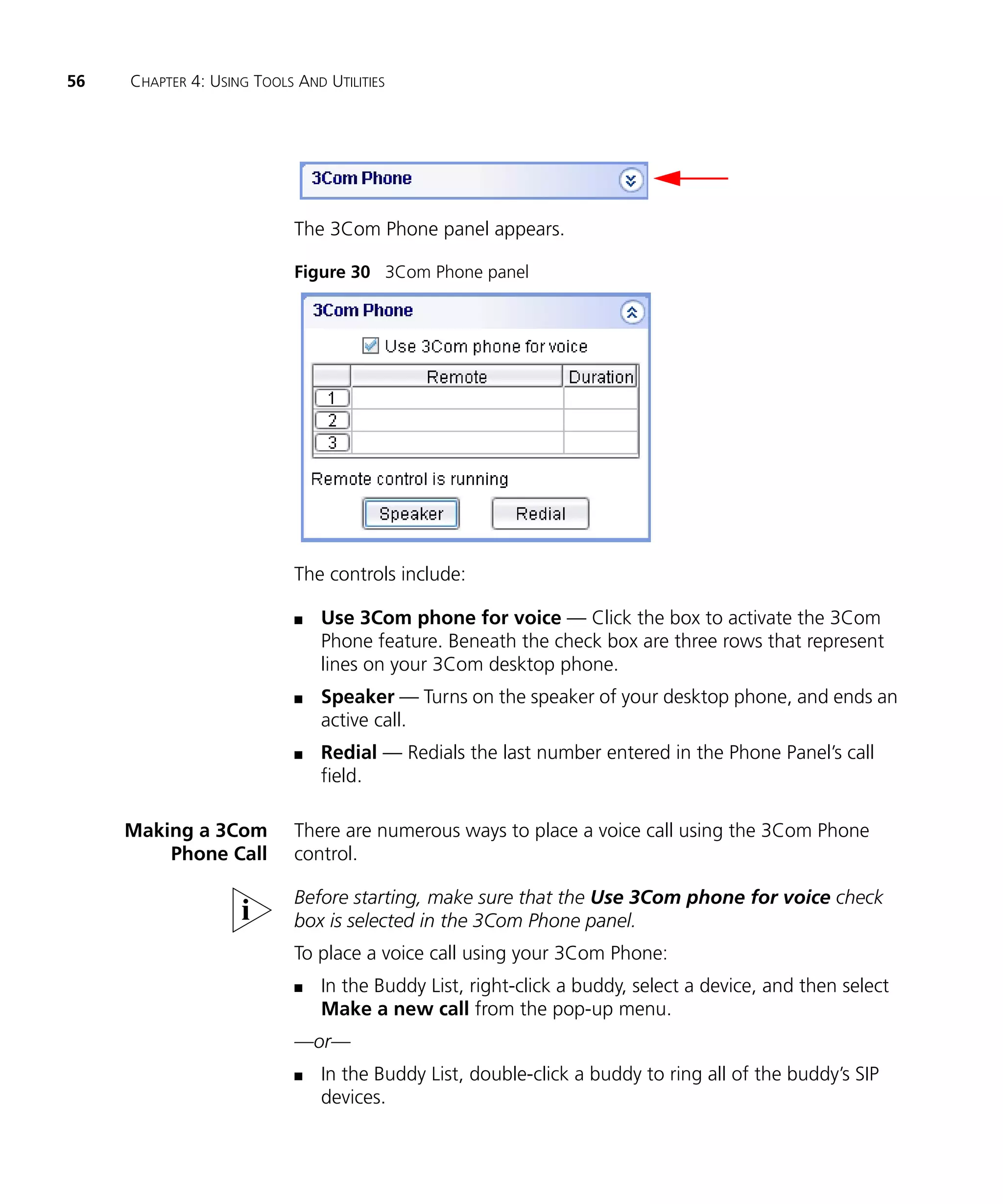
                            The 3Com Phone panel appears.

                            Figure 30 3Com Phone panel


                            The controls include:

                            n   Use 3Com phone for voice — Click the box to activate the 3Com
                                Phone feature. Beneath the check box are three rows that represent
                                lines on your 3Com desktop phone.
                            n   Speaker — Turns on the speaker of your desktop phone, and ends an
                                active call.
                            n   Redial — Redials the last number entered in the Phone Panel’s call
                                field.

     Making a 3Com          There are numerous ways to place a voice call using the 3Com Phone
         Phone Call         control.

                            Before starting, make sure that the Use 3Com phone for voice check
                            box is selected in the 3Com Phone panel.
                            To place a voice call using your 3Com Phone:
                            n   In the Buddy List, right-click a buddy, select a device, and then select
                                Make a new call from the pop-up menu.
                            —or—
                            n   In the Buddy List, double-click a buddy to ring all of the buddy’s SIP
                                devices.
Using the 3Com Phone Panel   57


                    —or—
                    n   In the Call Log, double-click the number you want to call.
                    —or—
                    n   In the Contact List, double-click a contact, then select the number
                        and prefix you want to use.
                    —or—
                    n   In the Phone Panel, enter an address using your PC keyboard or the
                        integrated dialpad, then click the Call button.

                    An address can be an extension, nickname, name, phone number, or SIP
                    URI.

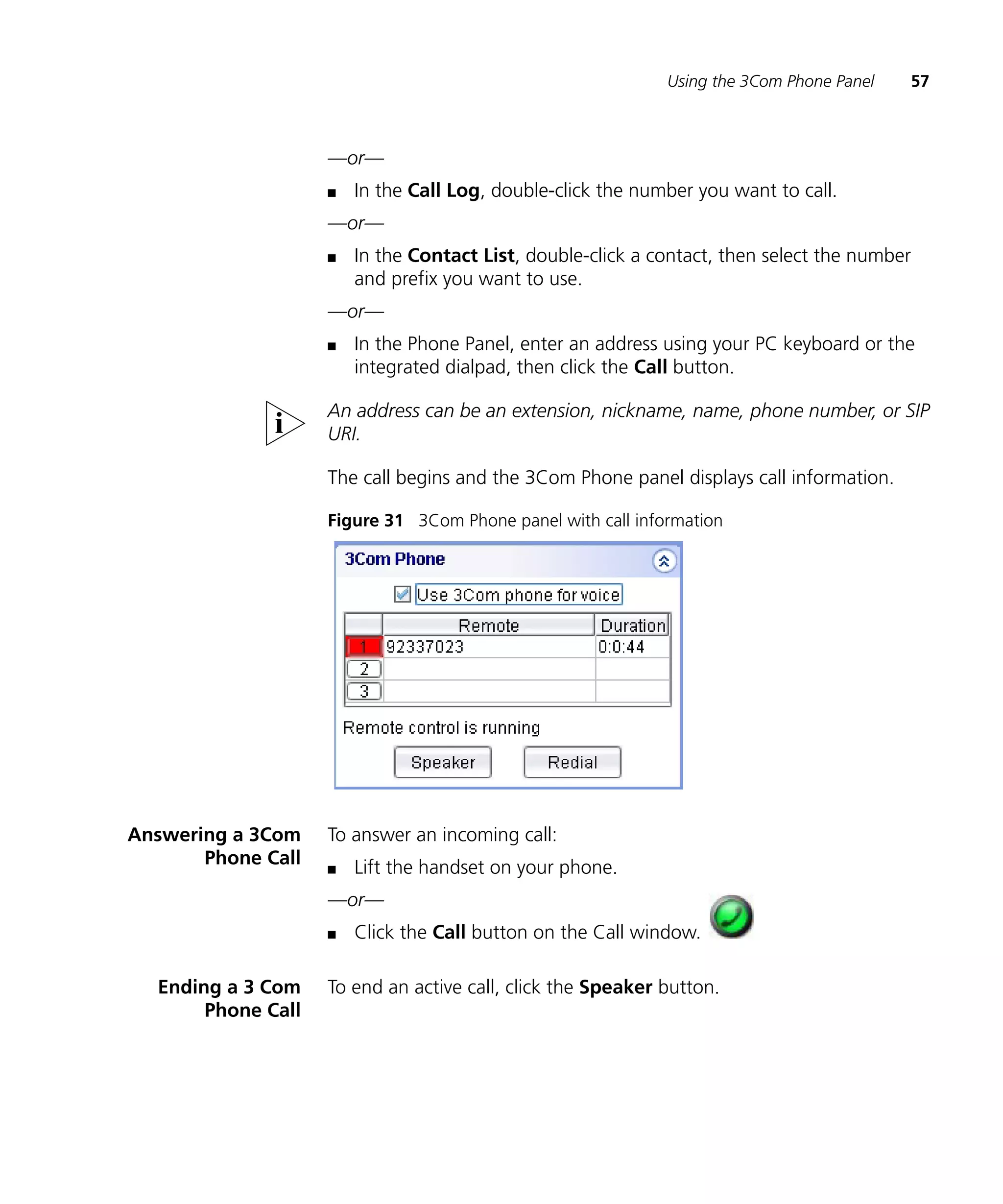
                    The call begins and the 3Com Phone panel displays call information.

                    Figure 31 3Com Phone panel with call information


Answering a 3Com    To answer an incoming call:
       Phone Call   n   Lift the handset on your phone.
                    —or—
                    n   Click the Call button on the Call window.

  Ending a 3 Com    To end an active call, click the Speaker button.
       Phone Call
58     CHAPTER 4: USING TOOLS AND UTILITIES


Using the Contact             The Contact List allows you to manage your contact information. You can
List                          sort and edit the information in the list, and directly place calls to contacts
                              in the list. You can add new contacts to the list manually, or you can
                              import existing contacts from Microsoft Outlook and Outlook Express.
                              You can also export the contents of the Contact List for use in other
                              applications such as Microsoft Excel.

     Adding a Contact         To manually add a contact:
                          1 On the Tools menu, select Contact List.
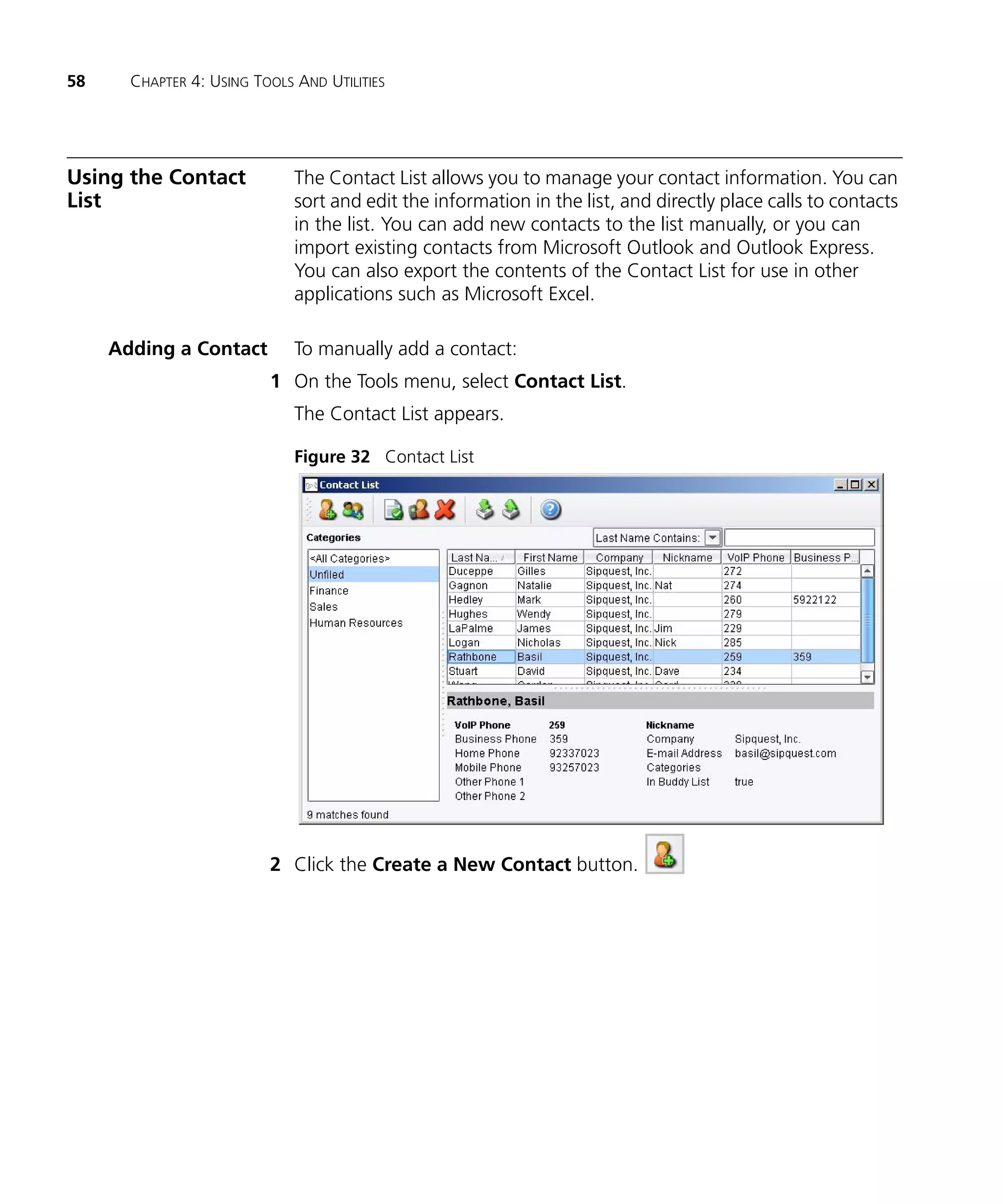
                              The Contact List appears.

                              Figure 32 Contact List


                          2 Click the Create a New Contact button.
Using the Contact List    59


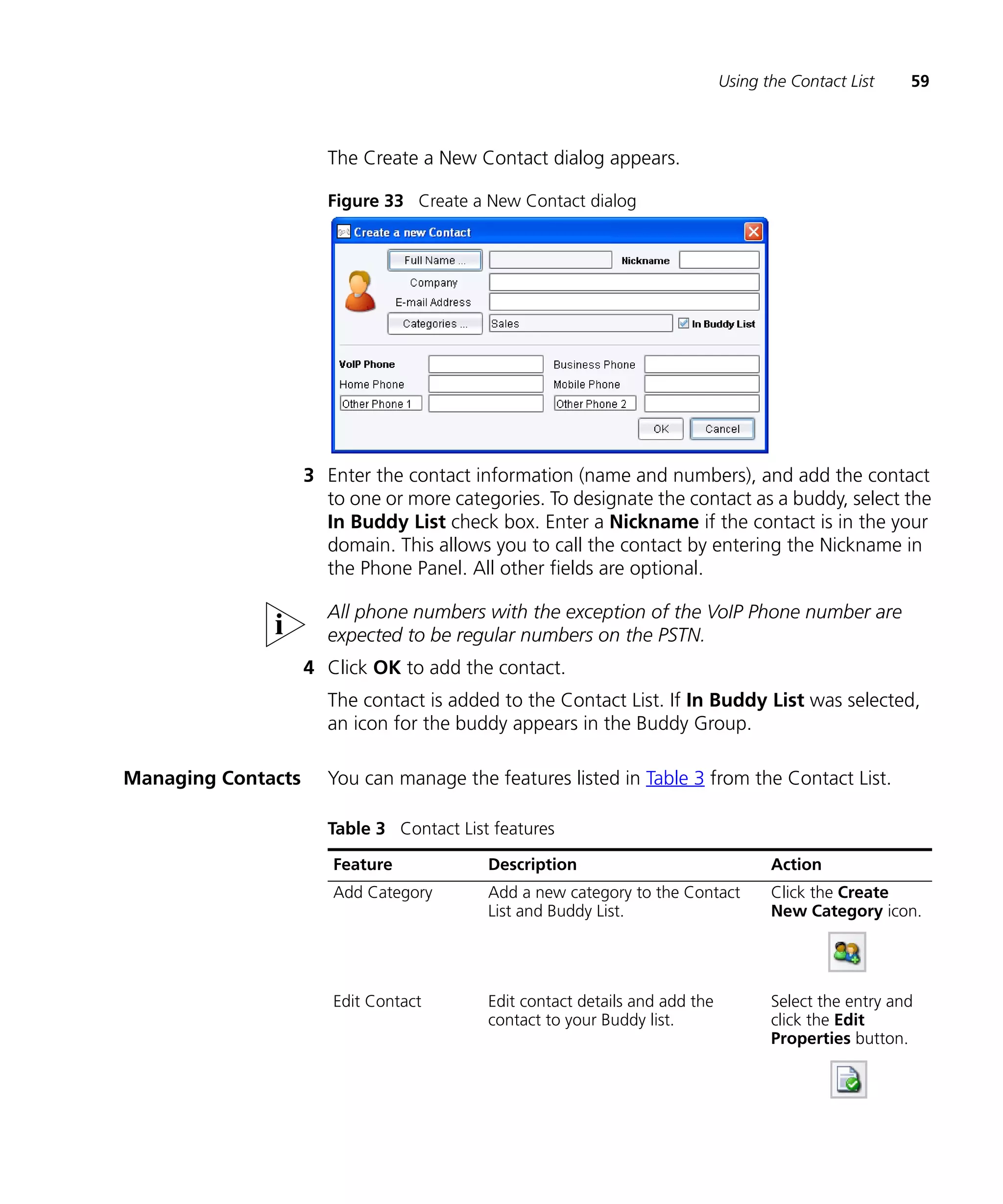
                      The Create a New Contact dialog appears.

                      Figure 33 Create a New Contact dialog


                    3 Enter the contact information (name and numbers), and add the contact
                      to one or more categories. To designate the contact as a buddy, select the
                      In Buddy List check box. Enter a Nickname if the contact is in the your
                      domain. This allows you to call the contact by entering the Nickname in
                      the Phone Panel. All other fields are optional.

                      All phone numbers with the exception of the VoIP Phone number are
                      expected to be regular numbers on the PSTN.
                    4 Click OK to add the contact.
                      The contact is added to the Contact List. If In Buddy List was selected,
                      an icon for the buddy appears in the Buddy Group.

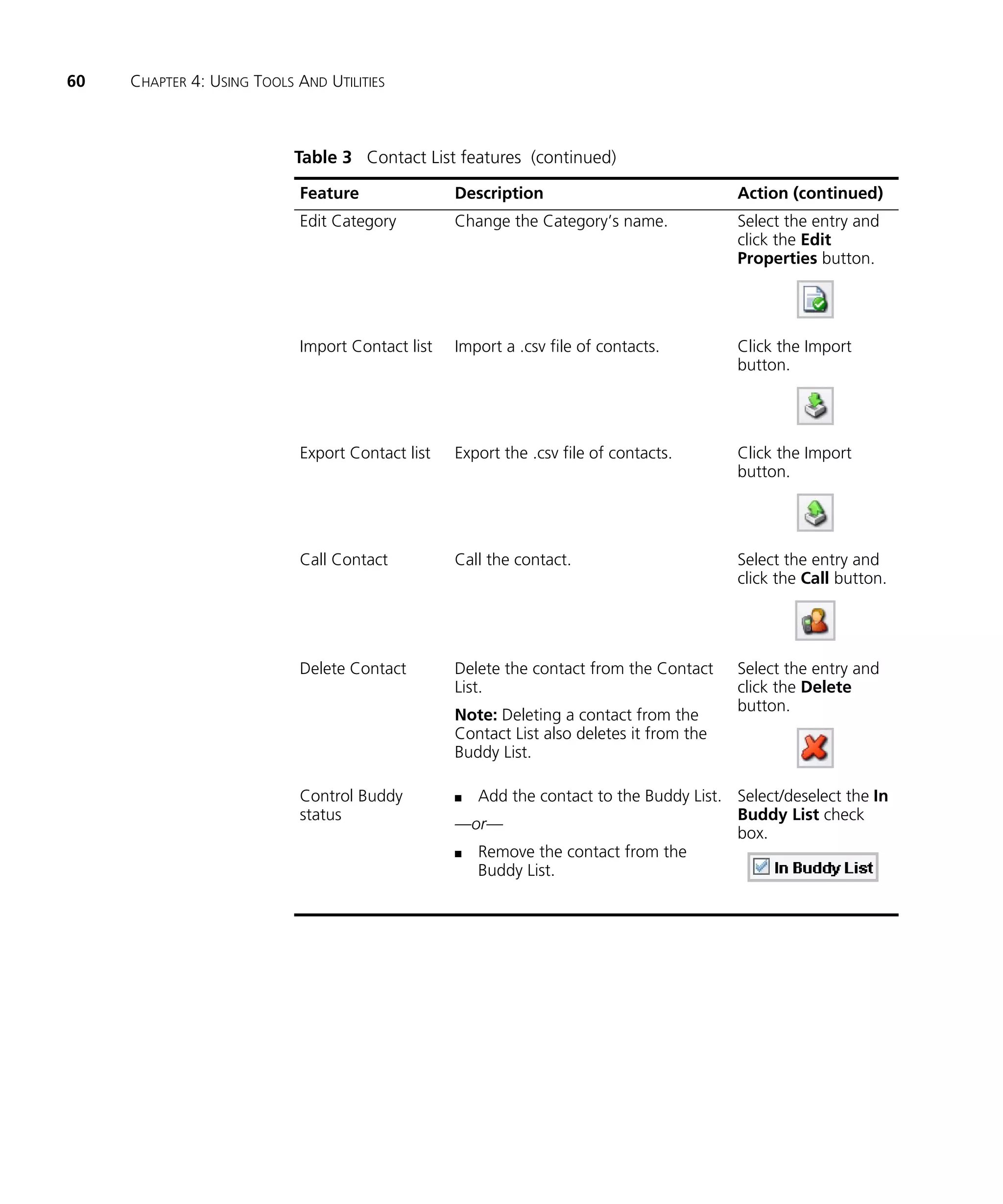
Managing Contacts     You can manage the features listed in Table 3 from the Contact List.

                      Table 3 Contact List features

                       Feature            Description                               Action
                       Add Category       Add a new category to the Contact         Click the Create
                                          List and Buddy List.                      New Category icon.


                       Edit Contact       Edit contact details and add the          Select the entry and
                                          contact to your Buddy list.               click the Edit
                                                                                    Properties button.
60   CHAPTER 4: USING TOOLS AND UTILITIES


                            Table 3 Contact List features (continued)

                            Feature               Description                             Action (continued)
                            Edit Category         Change the Category’s name.             Select the entry and
                                                                                          click the Edit
                                                                                          Properties button.


                            Import Contact list   Import a .csv file of contacts.         Click the Import
                                                                                          button.


                            Export Contact list   Export the .csv file of contacts.       Click the Import
                                                                                          button.


                            Call Contact          Call the contact.                       Select the entry and
                                                                                          click the Call button.


                            Delete Contact        Delete the contact from the Contact     Select the entry and
                                                  List.                                   click the Delete
                                                                                          button.
                                                  Note: Deleting a contact from the
                                                  Contact List also deletes it from the
                                                  Buddy List.

                            Control Buddy         n Add the contact to the Buddy List. Select/deselect the In
                            status                                                     Buddy List check
                                                  —or—
                                                                                       box.
                                                  n Remove the contact from the
                                                    Buddy List.
Using the Contact List   61


Importing Contacts     You can import contacts (address book .csv files) from Microsoft Outlook
                       and Outlook Express. You can also create your own .csv file. To determine
                       the format that you need to follow, add a few contacts to the client and
                       export the resulting file. See Exporting Contacts.

                       To import contacts:
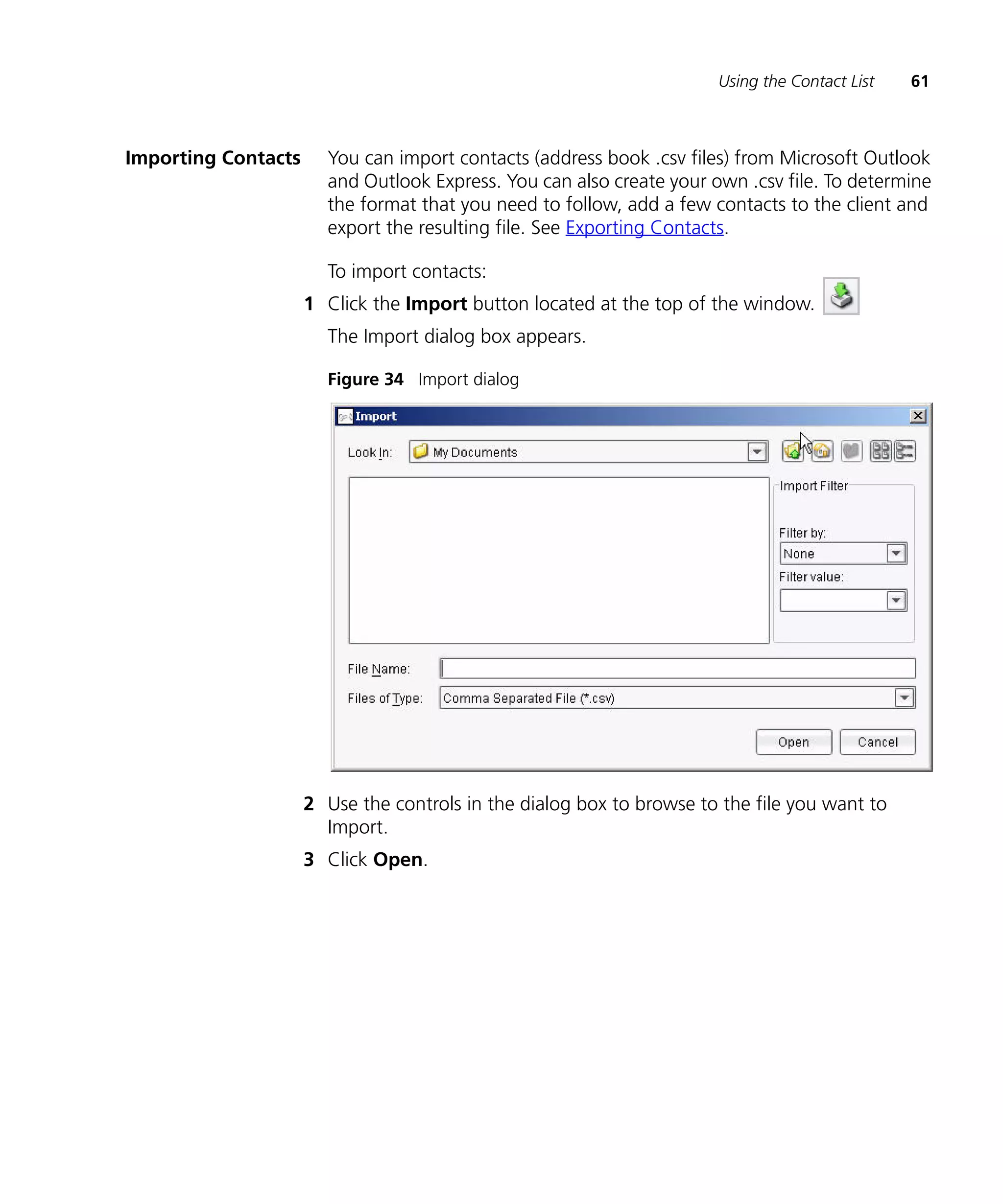
                     1 Click the Import button located at the top of the window.
                       The Import dialog box appears.

                       Figure 34 Import dialog


                     2 Use the controls in the dialog box to browse to the file you want to
                       Import.
                     3 Click Open.
62   CHAPTER 4: USING TOOLS AND UTILITIES


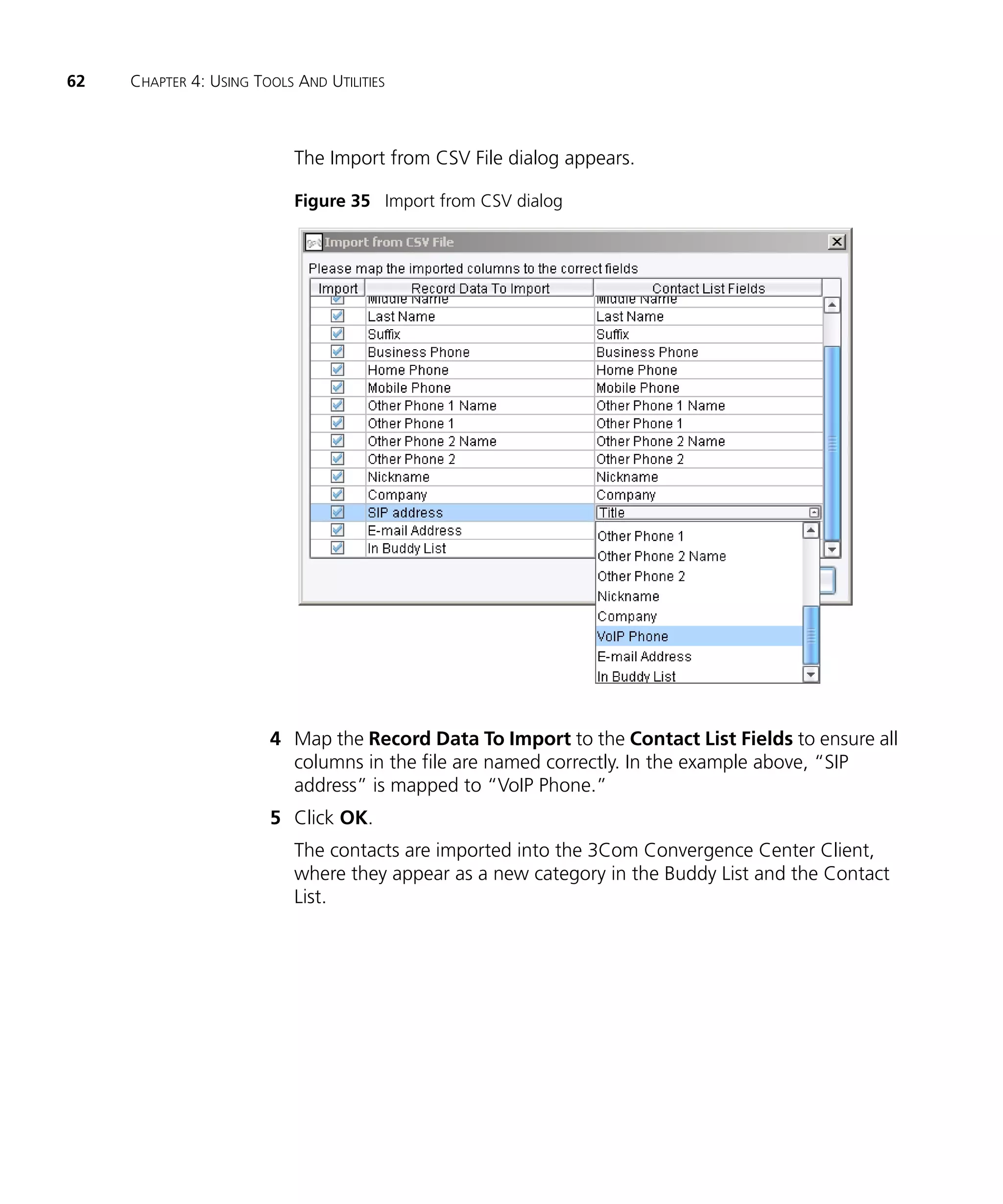
                            The Import from CSV File dialog appears.

                            Figure 35 Import from CSV dialog


                        4 Map the Record Data To Import to the Contact List Fields to ensure all
                          columns in the file are named correctly. In the example above, “SIP
                          address” is mapped to “VoIP Phone.”
                        5 Click OK.
                            The contacts are imported into the 3Com Convergence Center Client,
                            where they appear as a new category in the Buddy List and the Contact
                            List.
Using the Contact List    63


Exporting Contacts       You can export your contact information so that it can be used in other
                         applications.

                         To export your contacts:

                       1 Click the Export button located at the top of the window.
                         The Export dialog box appears.
                       2 Enter a file name.
                       3 Browse to the location you want to export the file to.
                       4 Click Export.
                         The file is exported as a .csv file.

Uploading Contacts       If the 3Com Convergence Center Client is implemented as part of the
 to the Contact List     Enterprise Mobility Solution (EMS), you can upload your contact
             Server      information to the Contact List server (Mobility Gateway). After doing
                         this, you can then download the contact information to other clients.

                         Before using the feature, ensure that the Contact List Server Location is
                         programmed in the Contact List Settings. For details, see Optional
                         Settings.

                         To upload your contacts to the Contact List Server:

                       1 Click the Upload button located at the top of the window.
                         The file is uploaded to the Contact List server (Mobility Gateway). You
                         may now download the file to another client application.

 Placing a Call from     You can place a call to a contact directly from the Contact List.
    the Contact List
                         To place a call to a contact:

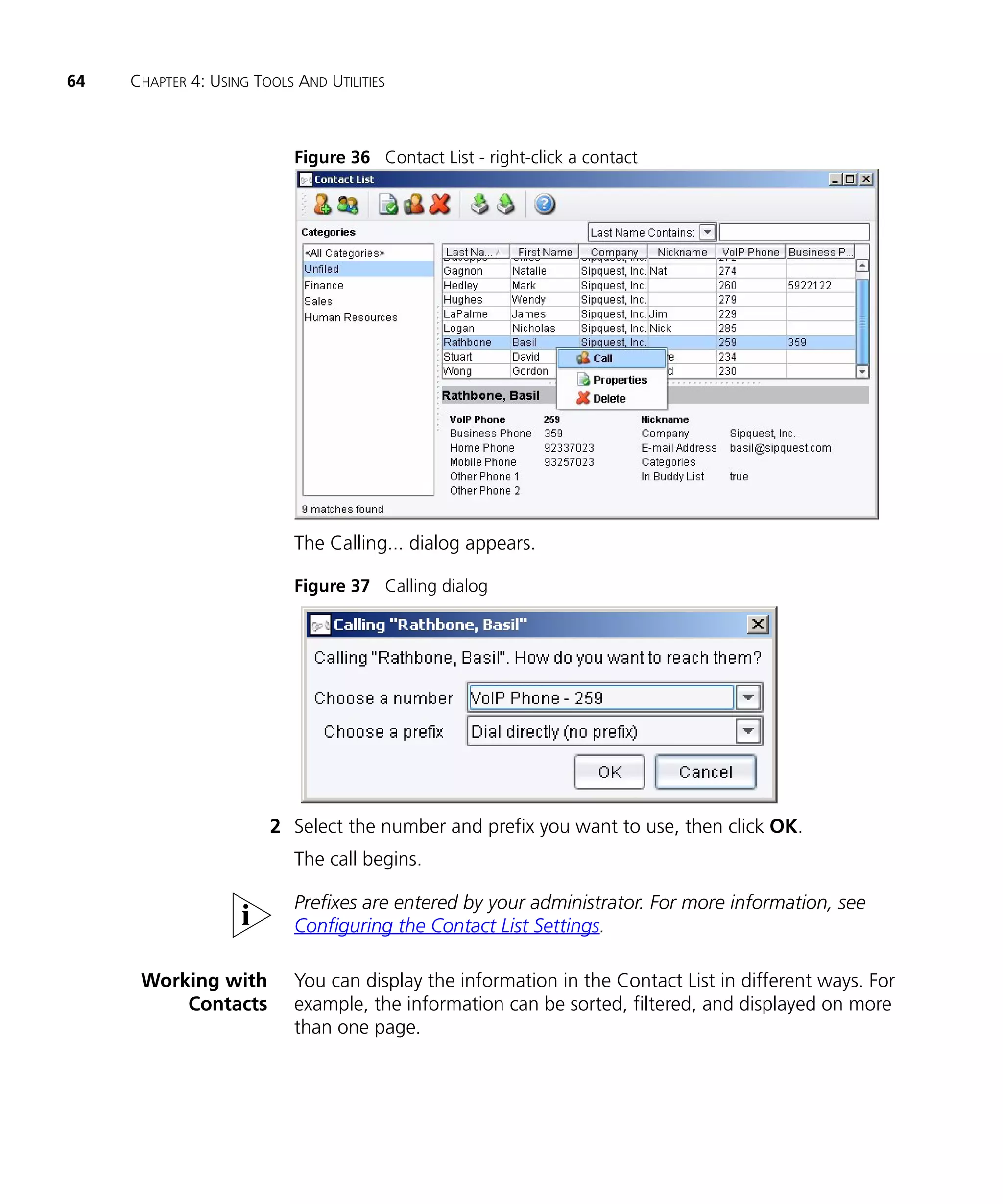
                       1 Select the contact and click the Call icon.
                         —or—
                         Right-click the contact, then select Call from the pop-up menu.
64   CHAPTER 4: USING TOOLS AND UTILITIES


                            Figure 36 Contact List - right-click a contact


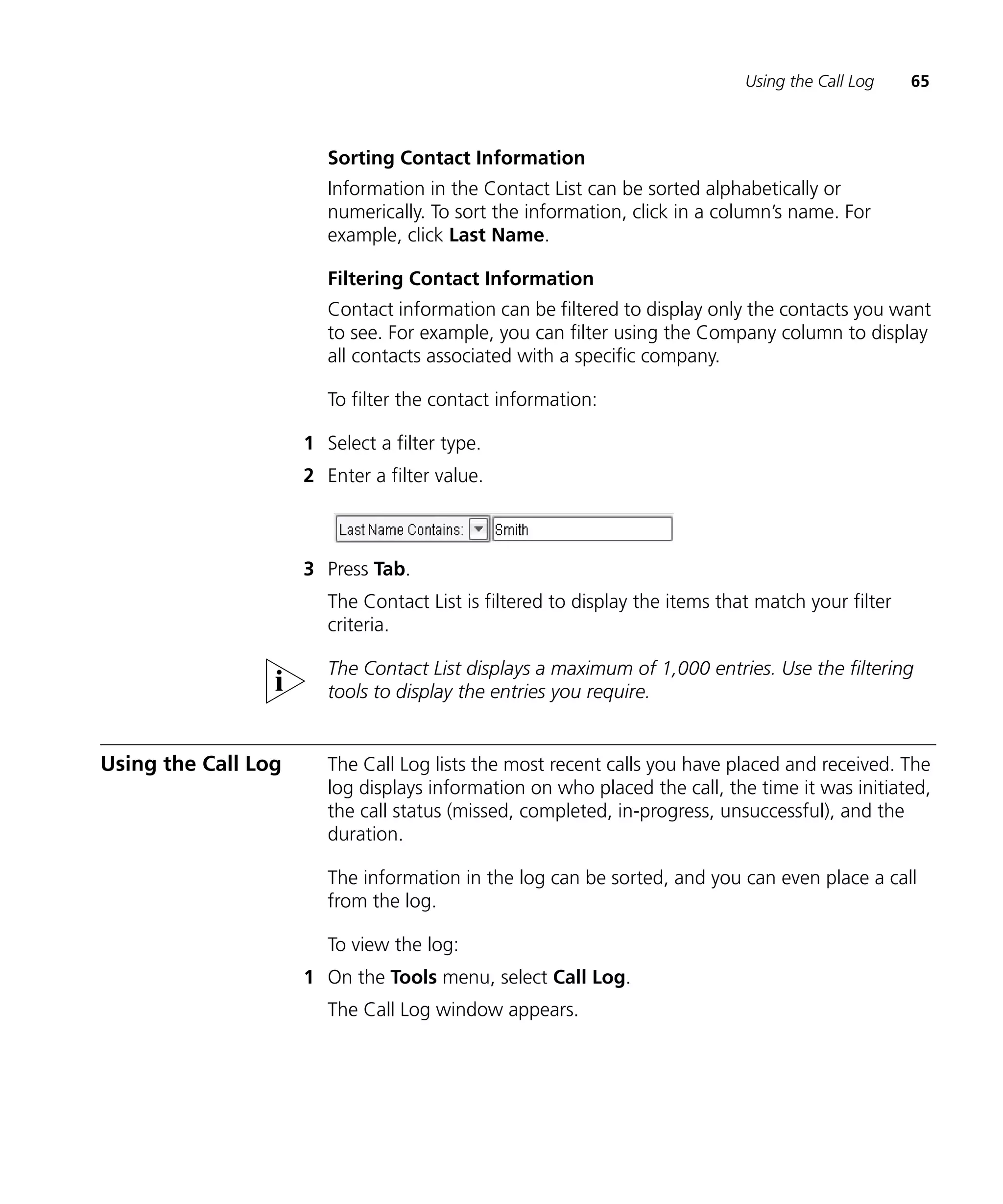
                            The Calling... dialog appears.

                            Figure 37 Calling dialog


                        2 Select the number and prefix you want to use, then click OK.
                            The call begins.

                            Prefixes are entered by your administrator. For more information, see
                            Configuring the Contact List Settings.

      Working with          You can display the information in the Contact List in different ways. For
          Contacts          example, the information can be sorted, filtered, and displayed on more
                            than one page.
Using the Call Log    65


                        Sorting Contact Information
                        Information in the Contact List can be sorted alphabetically or
                        numerically. To sort the information, click in a column’s name. For
                        example, click Last Name.

                        Filtering Contact Information
                        Contact information can be filtered to display only the contacts you want
                        to see. For example, you can filter using the Company column to display
                        all contacts associated with a specific company.

                        To filter the contact information:

                     1 Select a filter type.
                     2 Enter a filter value.


                     3 Press Tab.
                        The Contact List is filtered to display the items that match your filter
                        criteria.

                        The Contact List displays a maximum of 1,000 entries. Use the filtering
                        tools to display the entries you require.


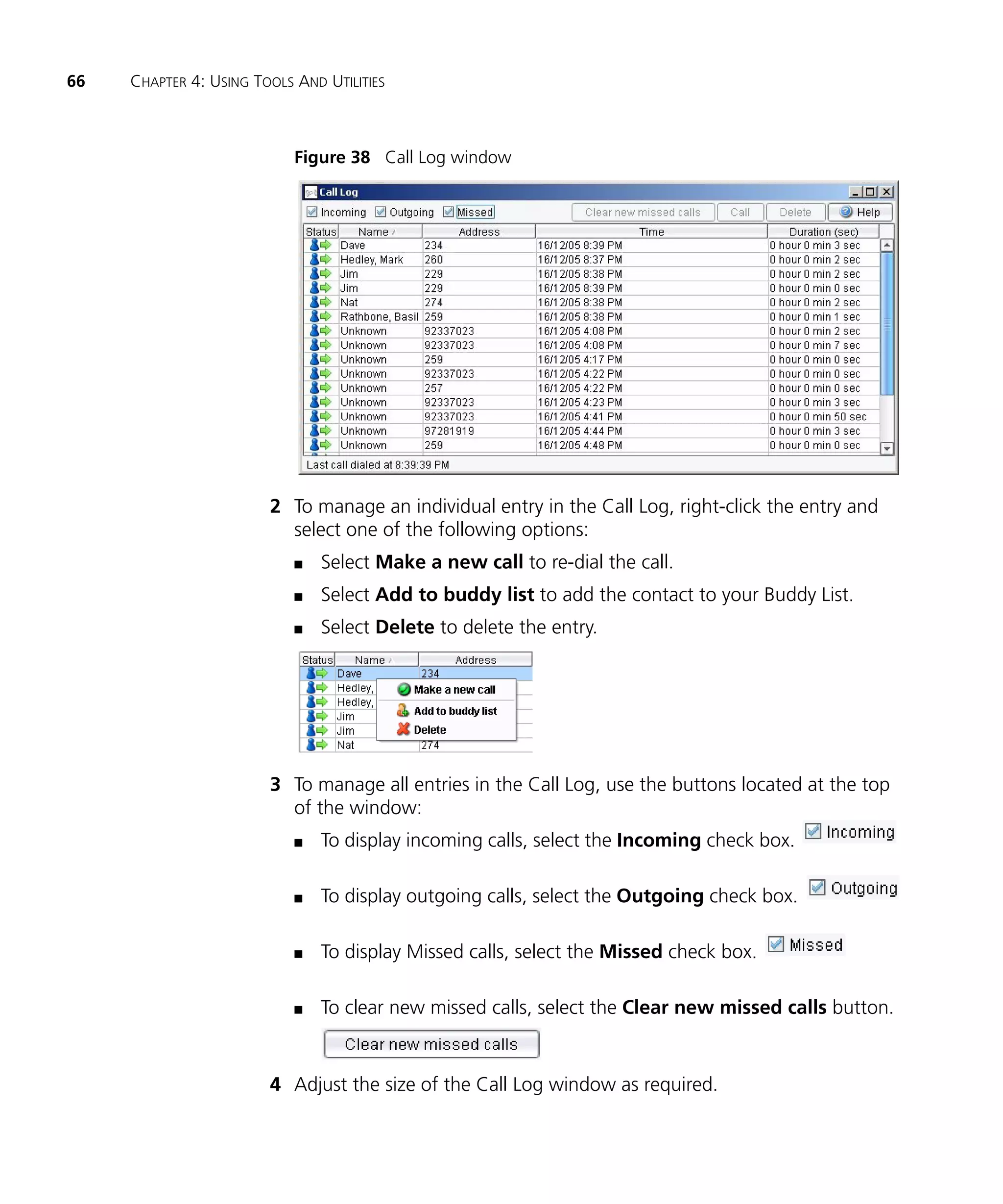
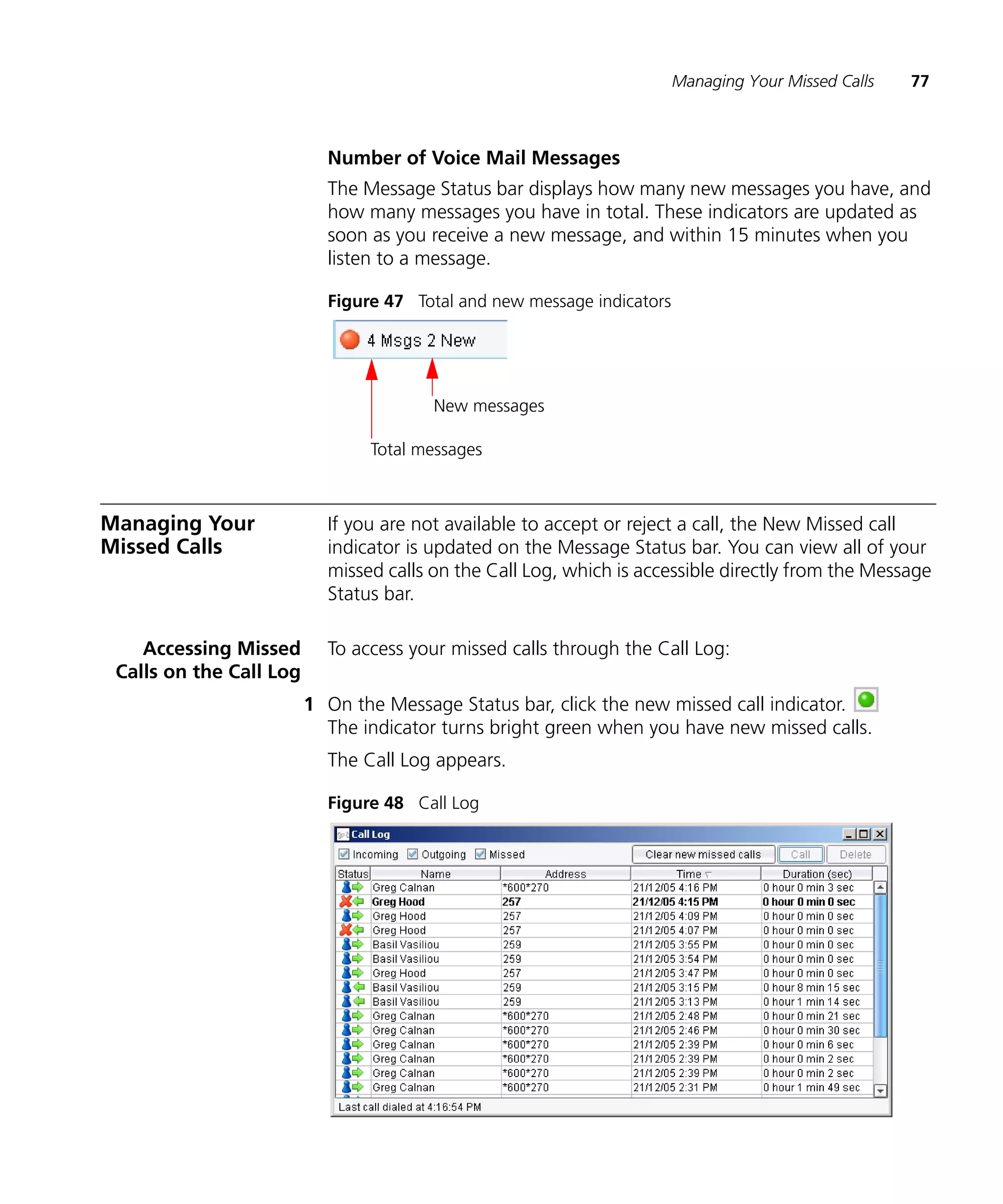
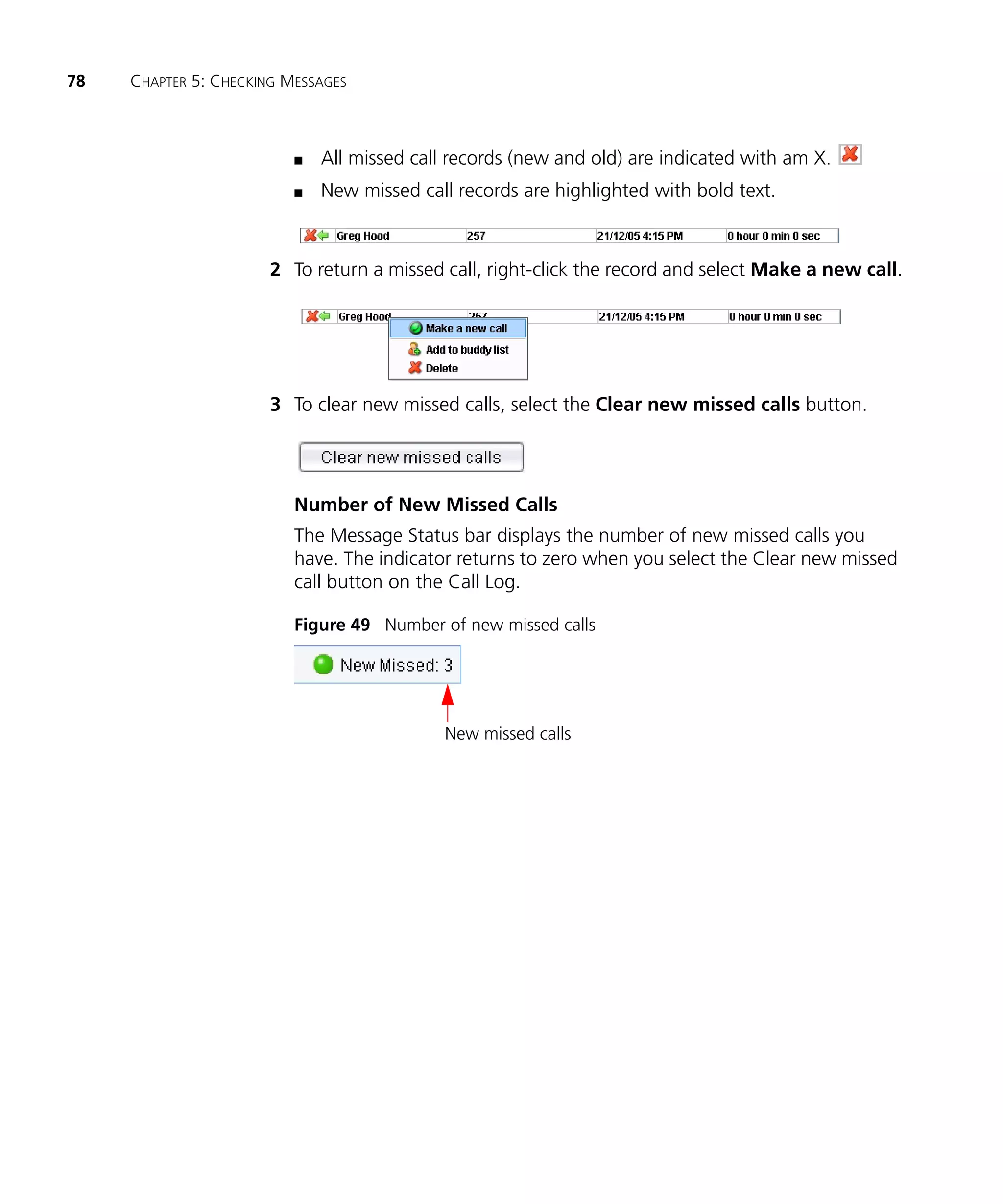
Using the Call Log      The Call Log lists the most recent calls you have placed and received. The
                        log displays information on who placed the call, the time it was initiated,
                        the call status (missed, completed, in-progress, unsuccessful), and the
                        duration.

                        The information in the log can be sorted, and you can even place a call
                        from the log.

                        To view the log:
                     1 On the Tools menu, select Call Log.
                        The Call Log window appears.
66   CHAPTER 4: USING TOOLS AND UTILITIES


                            Figure 38 Call Log window


                        2 To manage an individual entry in the Call Log, right-click the entry and
                          select one of the following options:
                            n   Select Make a new call to re-dial the call.
                            n   Select Add to buddy list to add the contact to your Buddy List.
                            n   Select Delete to delete the entry.


                        3 To manage all entries in the Call Log, use the buttons located at the top
                          of the window:
                            n   To display incoming calls, select the Incoming check box.

                            n   To display outgoing calls, select the Outgoing check box.

                            n   To display Missed calls, select the Missed check box.

                            n   To clear new missed calls, select the Clear new missed calls button.


                        4 Adjust the size of the Call Log window as required.
Monitoring Active Sessions    67


                      By default, the Call Log is limited to 20 entries for each of incoming and
                      outgoing calls. You can change the Call Log size under Tools > Options
                      > Call Settings. You may enter a value between 10 and 99.


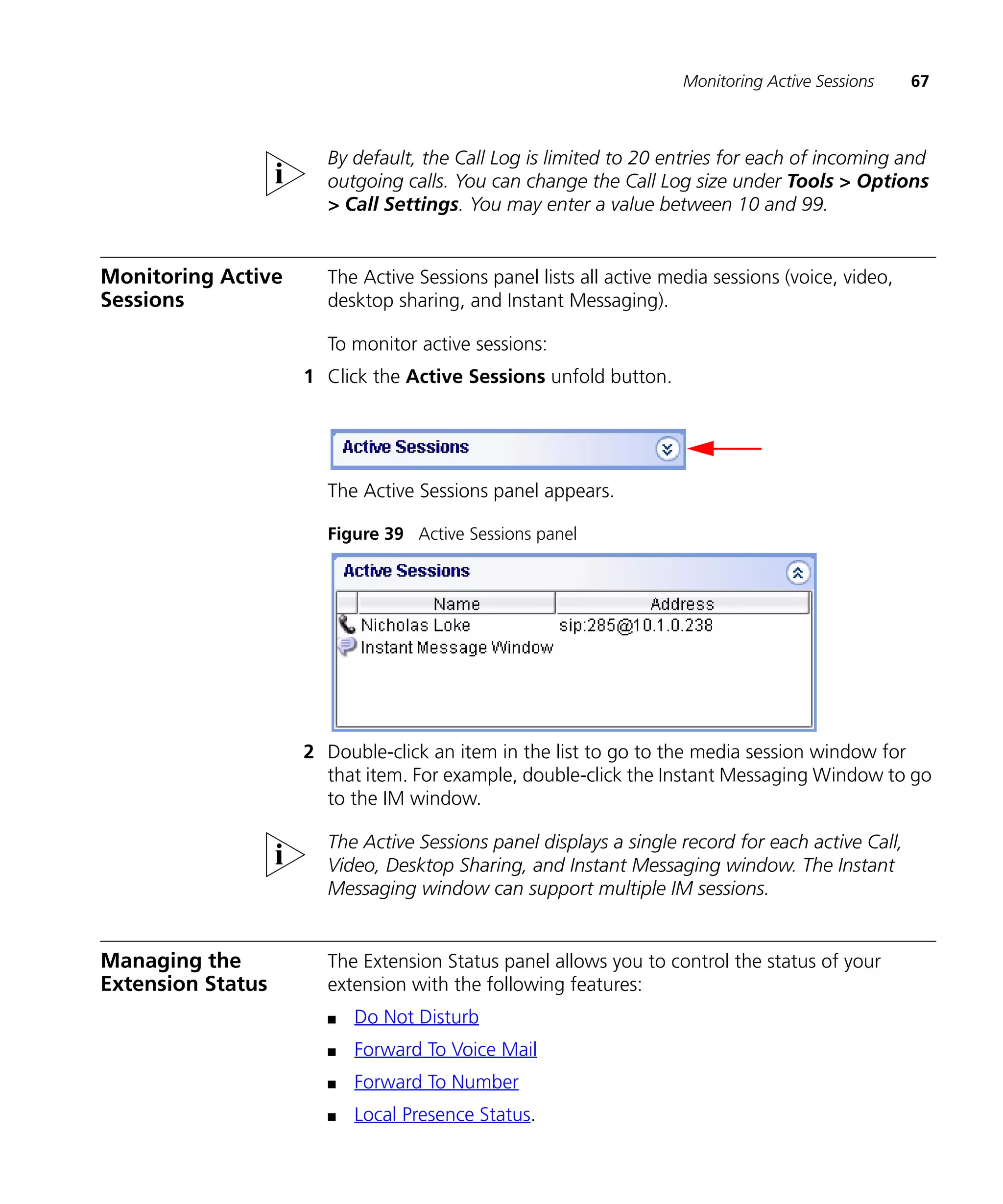
Monitoring Active     The Active Sessions panel lists all active media sessions (voice, video,
Sessions              desktop sharing, and Instant Messaging).

                      To monitor active sessions:
                    1 Click the Active Sessions unfold button.


                      The Active Sessions panel appears.

                      Figure 39 Active Sessions panel


                    2 Double-click an item in the list to go to the media session window for
                      that item. For example, double-click the Instant Messaging Window to go
                      to the IM window.

                      The Active Sessions panel displays a single record for each active Call,
                      Video, Desktop Sharing, and Instant Messaging window. The Instant
                      Messaging window can support multiple IM sessions.


Managing the          The Extension Status panel allows you to control the status of your
Extension Status      extension with the following features:
                      n   Do Not Disturb
                      n   Forward To Voice Mail
                      n   Forward To Number
                      n   Local Presence Status.
68     CHAPTER 4: USING TOOLS AND UTILITIES


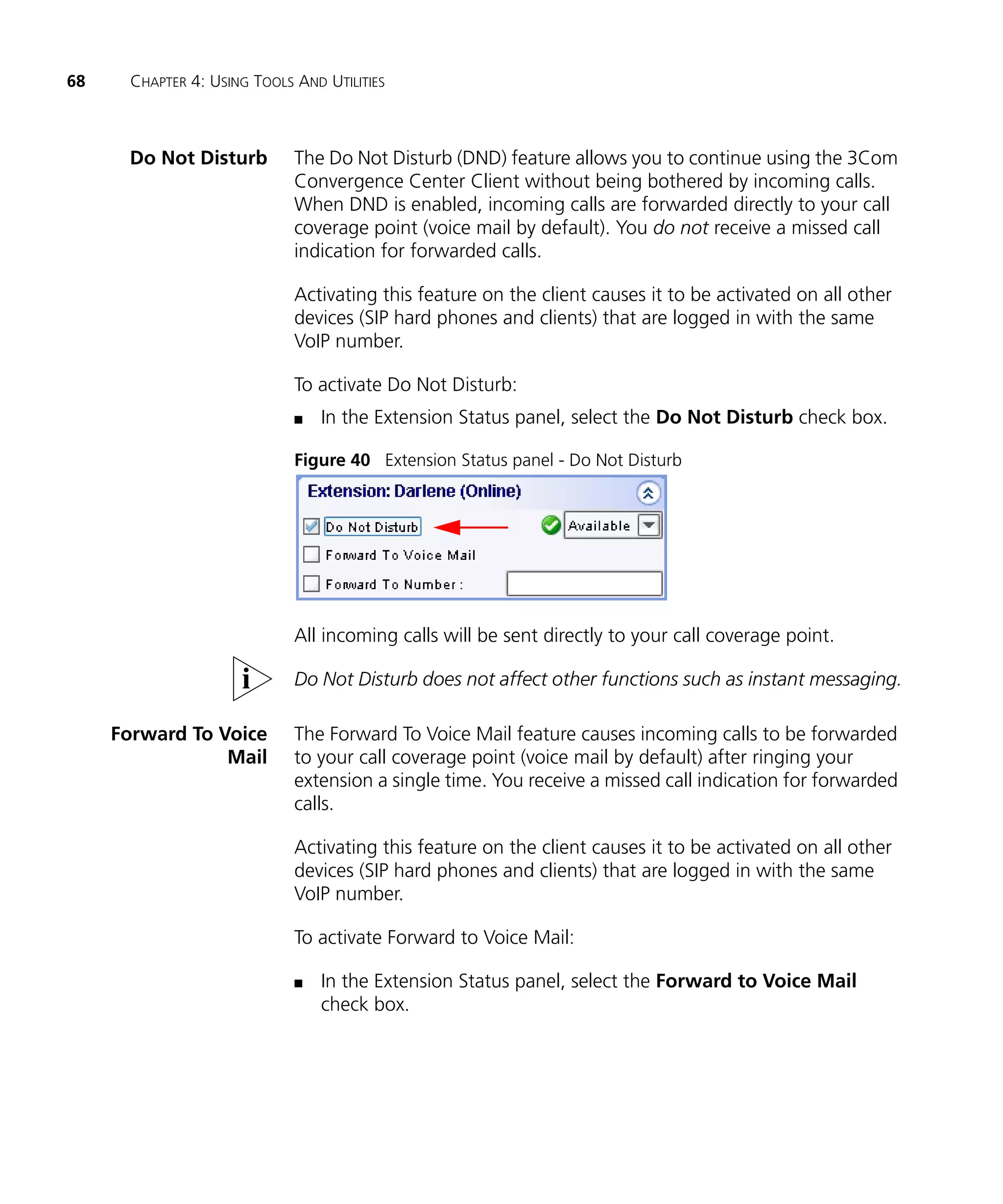
      Do Not Disturb          The Do Not Disturb (DND) feature allows you to continue using the 3Com
                              Convergence Center Client without being bothered by incoming calls.
                              When DND is enabled, incoming calls are forwarded directly to your call
                              coverage point (voice mail by default). You do not receive a missed call
                              indication for forwarded calls.

                              Activating this feature on the client causes it to be activated on all other
                              devices (SIP hard phones and clients) that are logged in with the same
                              VoIP number.

                              To activate Do Not Disturb:
                              n   In the Extension Status panel, select the Do Not Disturb check box.

                              Figure 40 Extension Status panel - Do Not Disturb


                              All incoming calls will be sent directly to your call coverage point.

                              Do Not Disturb does not affect other functions such as instant messaging.

     Forward To Voice         The Forward To Voice Mail feature causes incoming calls to be forwarded
                 Mail         to your call coverage point (voice mail by default) after ringing your
                              extension a single time. You receive a missed call indication for forwarded
                              calls.

                              Activating this feature on the client causes it to be activated on all other
                              devices (SIP hard phones and clients) that are logged in with the same
                              VoIP number.

                              To activate Forward to Voice Mail:

                              n   In the Extension Status panel, select the Forward to Voice Mail
                                  check box.
Managing the Extension Status      69


                          Figure 41 Extension Status panel - Forward To Voice Mail


                          All incoming calls will be sent to your call coverage point after ringing
                          your extension once.

 Forward To Number        The Forward To Number feature causes incoming calls to be forwarded to
                          a number you have defined after ringing your extension a single time.
                          You receive a missed call indication for forwarded calls.

                          Activating this feature on the client causes it to be activated on all other
                          devices (SIP hard phones and clients) that are logged in with the same
                          VoIP number.

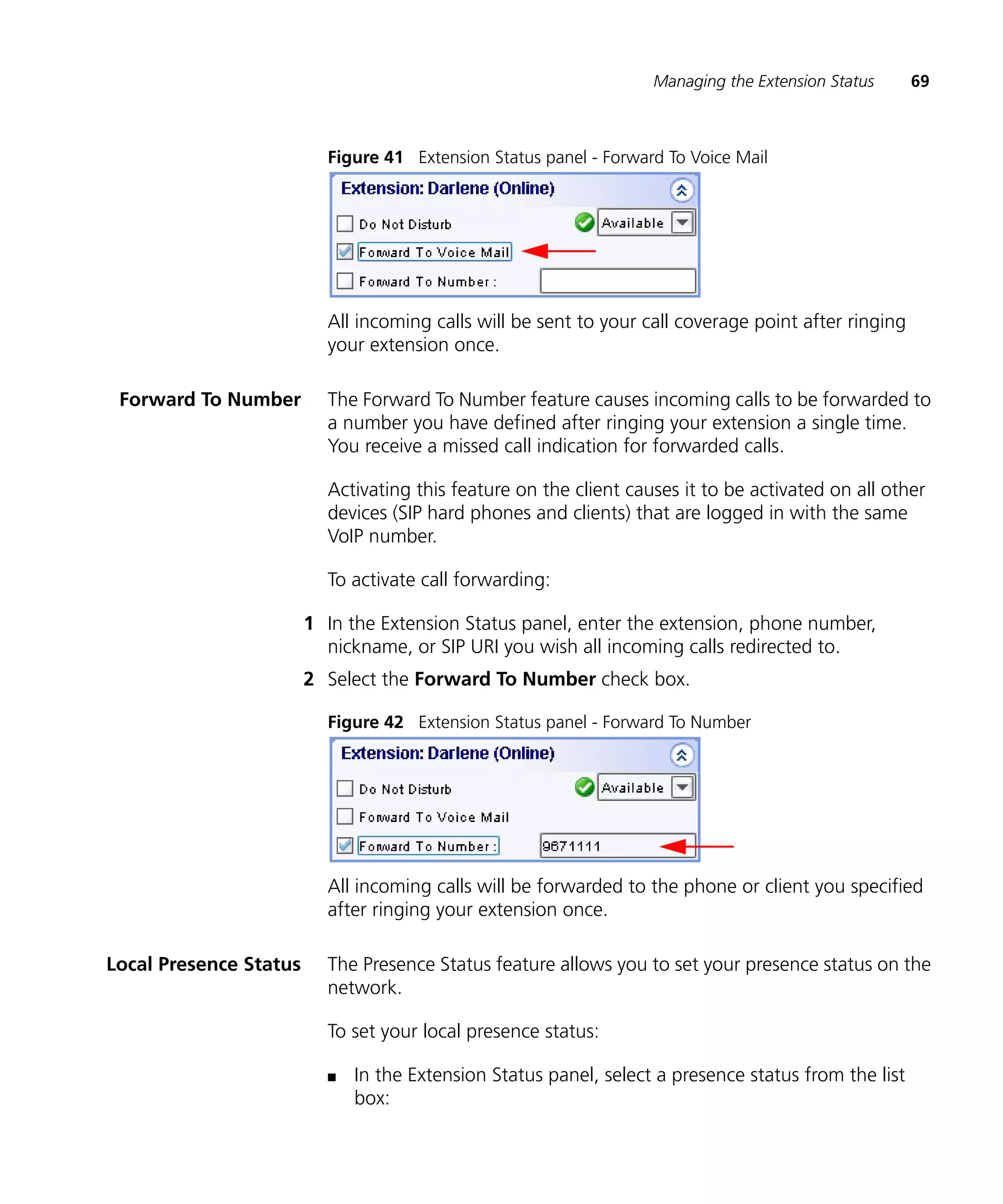
                          To activate call forwarding:

                        1 In the Extension Status panel, enter the extension, phone number,
                          nickname, or SIP URI you wish all incoming calls redirected to.
                        2 Select the Forward To Number check box.

                          Figure 42 Extension Status panel - Forward To Number


                          All incoming calls will be forwarded to the phone or client you specified
                          after ringing your extension once.

Local Presence Status     The Presence Status feature allows you to set your presence status on the
                          network.

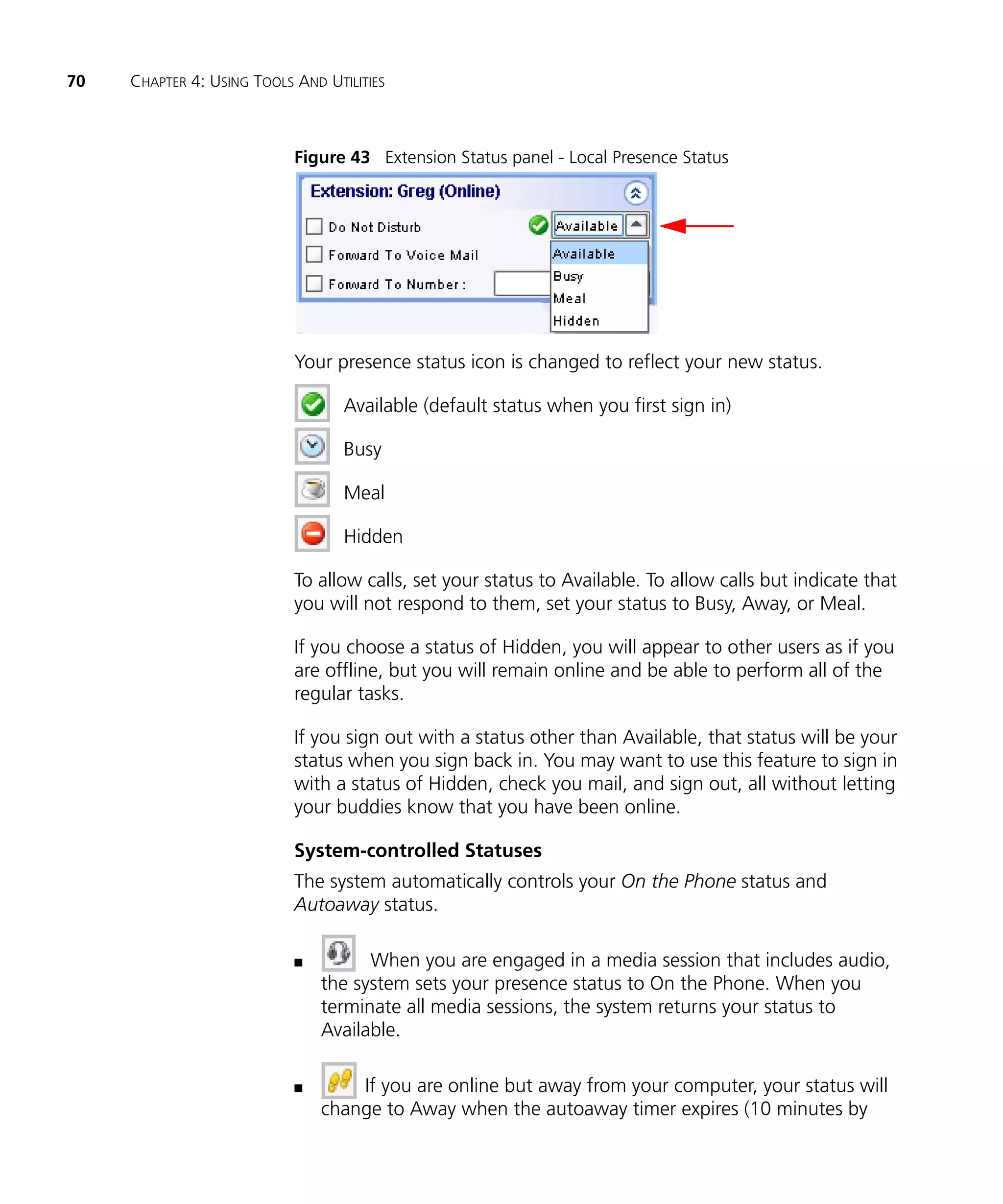
                          To set your local presence status:

                          n   In the Extension Status panel, select a presence status from the list
                              box:
70   CHAPTER 4: USING TOOLS AND UTILITIES


                            Figure 43 Extension Status panel - Local Presence Status


                            Your presence status icon is changed to reflect your new status.

                                   Available (default status when you first sign in)

                                   Busy

                                   Meal

                                   Hidden

                            To allow calls, set your status to Available. To allow calls but indicate that
                            you will not respond to them, set your status to Busy, Away, or Meal.

                            If you choose a status of Hidden, you will appear to other users as if you
                            are offline, but you will remain online and be able to perform all of the
                            regular tasks.

                            If you sign out with a status other than Available, that status will be your
                            status when you sign back in. You may want to use this feature to sign in
                            with a status of Hidden, check you mail, and sign out, all without letting
                            your buddies know that you have been online.

                            System-controlled Statuses
                            The system automatically controls your On the Phone status and
                            Autoaway status.

                            n         When you are engaged in a media session that includes audio,
                                the system sets your presence status to On the Phone. When you
                                terminate all media sessions, the system returns your status to
                                Available.

                            n       If you are online but away from your computer, your status will
                                change to Away when the autoaway timer expires (10 minutes by
Launching the 3Com IP Conferencing Module   71


                  default). See Configuring the Presence Settings to change the
                  Autoaway Timout Setting.


Launching the   You can configure the Tools > Conferences & Presence command to
3Com IP         launch the 3Com IP Conferencing Module. For more information, see
Conferencing    Conferences Web URL in Configuring the Call Settings.
Module
72   CHAPTER 4: USING TOOLS AND UTILITIES
CHECKING MESSAGES
   5
                     This chapter describes how to check the status of your voice mail and
                     monitor your missed calls. It includes the following topics:
                     n   Message Status Bar Features
                     n   Setting up Voice Mail
                     n   Managing Your Voice Mail
                     n   Managing Your Missed Calls


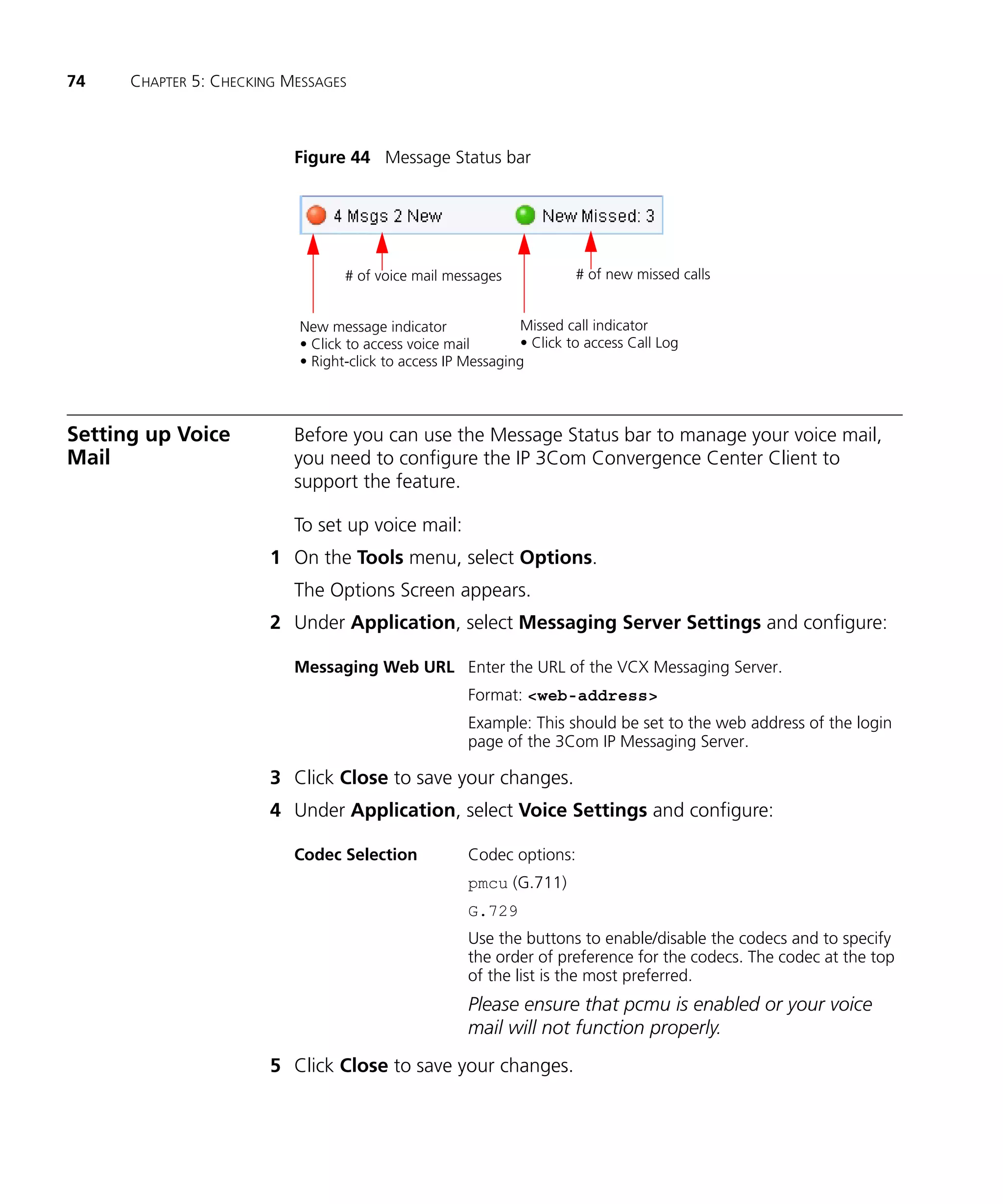
Message Status Bar   The Message Status bar is located at the bottom of the IP 3Com
Features             Convergence Center Client main window. It provides the following
                     features:

                     Voice Mail Features
                     n   New message indicator
                     n   Number of messages in mailbox
                     n   Direct access to voice mail attendant
                     n   Direct access to IP Messaging web page

                     Missed Call Features
                     n   Missed call indicator
                     n   Direct access to call log
74    CHAPTER 5: CHECKING MESSAGES


                           Figure 44 Message Status bar


                                  # of voice mail messages              # of new missed calls


                           New message indicator               Missed call indicator
                           • Click to access voice mail        • Click to access Call Log
                           • Right-click to access IP Messaging


Setting up Voice           Before you can use the Message Status bar to manage your voice mail,
Mail                       you need to configure the IP 3Com Convergence Center Client to
                           support the feature.

                           To set up voice mail:
                        1 On the Tools menu, select Options.
                           The Options Screen appears.
                        2 Under Application, select Messaging Server Settings and configure:

                           Messaging Web URL Enter the URL of the VCX Messaging Server.
                                                      Format: <web-address>
                                                      Example: This should be set to the web address of the login
                                                      page of the 3Com IP Messaging Server.

                        3 Click Close to save your changes.
                        4 Under Application, select Voice Settings and configure:

                           Codec Selection            Codec options:
                                                      pmcu (G.711)
                                                      G.729
                                                      Use the buttons to enable/disable the codecs and to specify
                                                      the order of preference for the codecs. The codec at the top
                                                      of the list is the most preferred.
                                                      Please ensure that pcmu is enabled or your voice
                                                      mail will not function properly.
                        5 Click Close to save your changes.
Managing Your Voice Mail   75


Managing Your             The Message Status bar is continually updated with the status of your
Voice Mail                voice mail account. As soon as you launch the 3Com Convergence
                          Center Client and sign in to the VCX system, the system automatically
                          registers with the messaging server. The Message Status bar then displays
                          information related to your voice mail account. When you receive a new
                          message, the message indicator flashes red. When you listen to, delete,
                          or save a message, the message count changes.

                          You can access the voice mail system directly from the Message Status
                          bar. Two access options are provided—the voice mail attendant, where
                          you can listen to your messages, and the IP Messaging web page, where
                          you can manage your voice mail account.

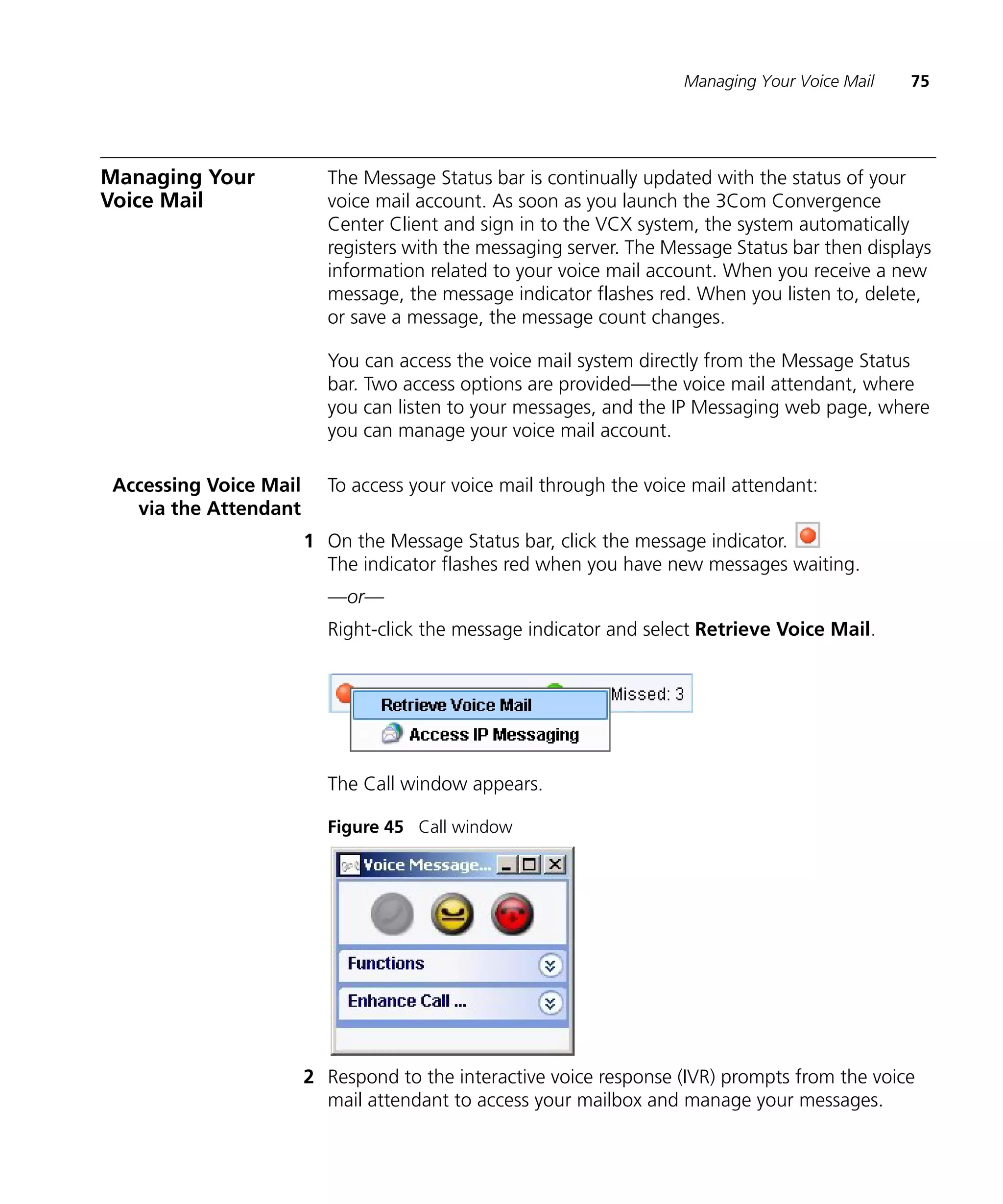
 Accessing Voice Mail     To access your voice mail through the voice mail attendant:
   via the Attendant
                        1 On the Message Status bar, click the message indicator.
                          The indicator flashes red when you have new messages waiting.
                          —or—
                          Right-click the message indicator and select Retrieve Voice Mail.


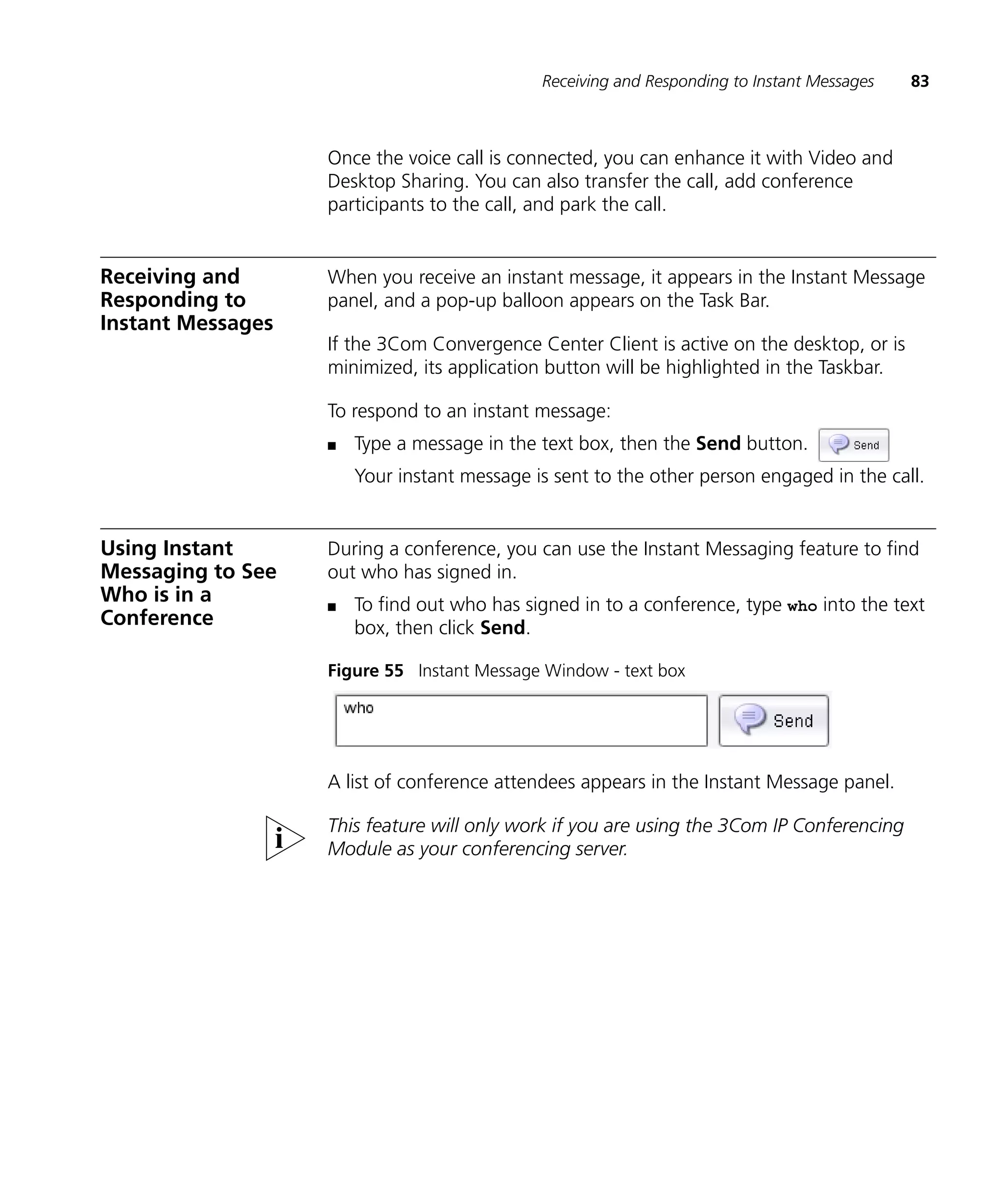
                          The Call window appears.

                          Figure 45 Call window


                        2 Respond to the interactive voice response (IVR) prompts from the voice
                          mail attendant to access your mailbox and manage your messages.
76   CHAPTER 5: CHECKING MESSAGES


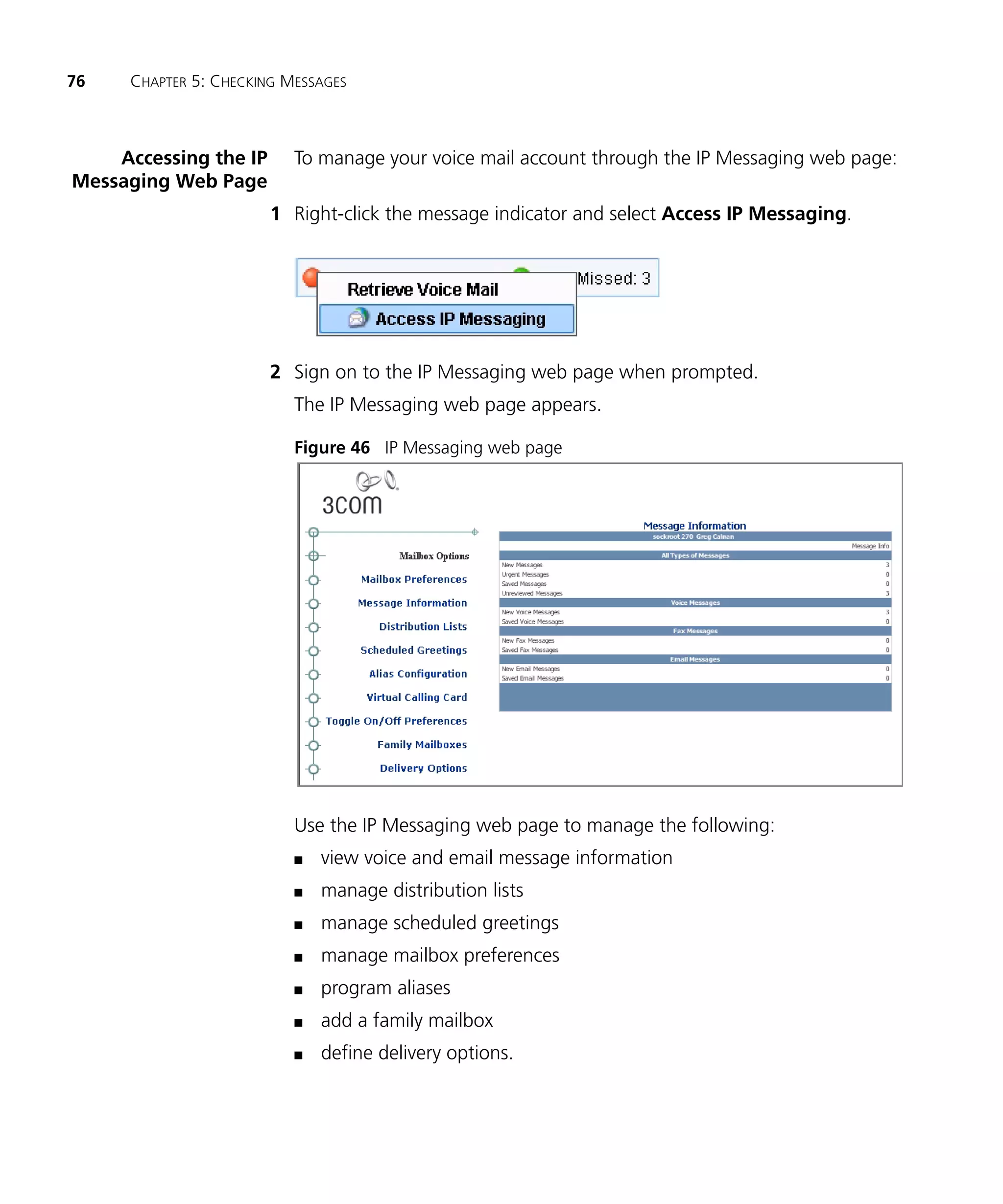
    Accessing the IP      To manage your voice mail account through the IP Messaging web page:
Messaging Web Page
                       1 Right-click the message indicator and select Access IP Messaging.


                       2 Sign on to the IP Messaging web page when prompted.
                          The IP Messaging web page appears.

                          Figure 46 IP Messaging web page


                          Use the IP Messaging web page to manage the following:
                          n   view voice and email message information
                          n   manage distribution lists
                          n   manage scheduled greetings
                          n   manage mailbox preferences
                          n   program aliases
                          n   add a family mailbox
                          n   define delivery options.
Managing Your Missed Calls   77


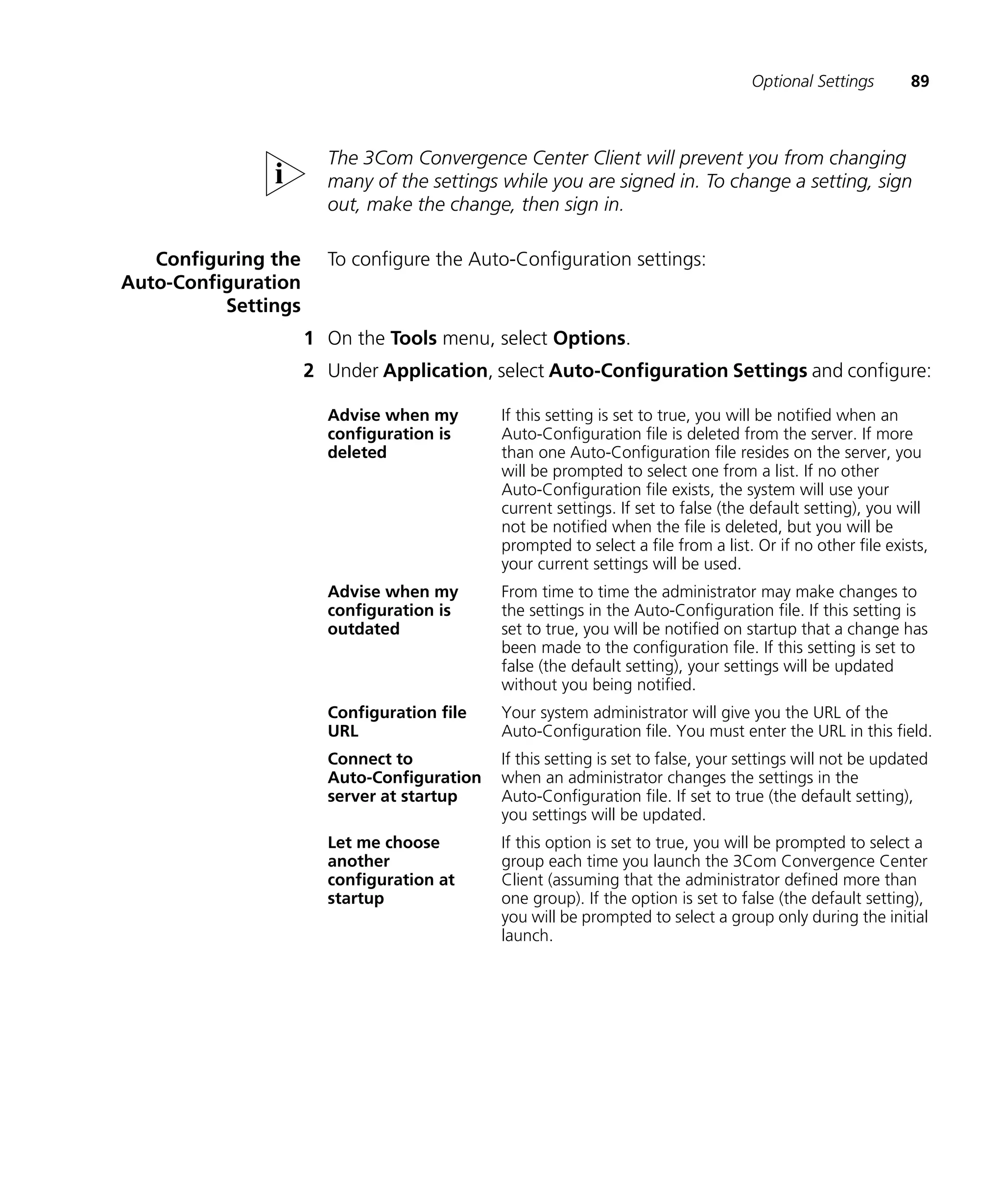
                           Number of Voice Mail Messages
                           The Message Status bar displays how many new messages you have, and
                           how many messages you have in total. These indicators are updated as
                           soon as you receive a new message, and within 15 minutes when you
                           listen to a message.

                           Figure 47 Total and new message indicators


                                        New messages

                                Total messages


Managing Your              If you are not available to accept or reject a call, the New Missed call
Missed Calls               indicator is updated on the Message Status bar. You can view all of your
                           missed calls on the Call Log, which is accessible directly from the Message
                           Status bar.

    Accessing Missed       To access your missed calls through the Call Log:
 Calls on the Call Log
                         1 On the Message Status bar, click the new missed call indicator.
                           The indicator turns bright green when you have new missed calls.
                           The Call Log appears.

                           Figure 48 Call Log
78   CHAPTER 5: CHECKING MESSAGES


                          n   All missed call records (new and old) are indicated with am X.
                          n   New missed call records are highlighted with bold text.


                       2 To return a missed call, right-click the record and select Make a new call.


                       3 To clear new missed calls, select the Clear new missed calls button.


                          Number of New Missed Calls
                          The Message Status bar displays the number of new missed calls you
                          have. The indicator returns to zero when you select the Clear new missed
                          call button on the Call Log.

                          Figure 49 Number of new missed calls


                                             New missed calls
INSTANT MESSAGING
6
    You can use the 3Com Convergence Center Client to send instant
    messages to an extension, phone number, SIP URI, or to users in your
    Buddy List. The instant messaging panel displays a record of messages
    you have exchanged.
    This chapter includes the following topics:
    n   Sending a Message while a Call is in Progress
    n   Sending a Message to a Buddy
    n   Starting a Voice Call from the Instant Message Window
    n   Receiving and Responding to Instant Messages
    n   Using Instant Messaging to See Who is in a Conference
80   CHAPTER 6: INSTANT MESSAGING


Sending a Message         To send a message to the person you are talking to:
while a Call is in
Progress
                       1 In the Call window, click the IM button.

                          Figure 50 Call window


                          The Instant Message Window appears.

                          Figure 51 Instant Message Window


                          Multiple IM sessions are supported. Each session has a separate tab in the
                          Instant Messaging window.
Sending a Message to a Buddy   81


                    2 Type a message in the messaging text box.
                    3 Click the Send button.
                      Your instant message is sent to the other person.


Sending a Message     To send a message to a buddy:
to a Buddy
                    1 On the Buddy List, right-click a buddy’s phone, then select Send an
                      instant message on the pop-up menu.


                      The Instant Message Window appears.

                      Figure 52 Instant Message Window


                      Multiple IM sessions are supported. Each session has a separate tab in the
                      Instant Messaging window.
82    CHAPTER 6: INSTANT MESSAGING


                        2 Type a message in the messaging text box.
                        3 Click the Send button.
                           Your instant message is sent to the other person.


Starting a Voice Call      If you are not already engaged in a multimedia session (voice, video, or
from the Instant           desktop sharing), you can start a voice call from the Instant Message
Message Window             window.

                           To start a voice call:
                        1 On the Instant Message window, select a IM session tab if multiple
                          sessions are ongoing.

                           Figure 53 Instant Message window - tab selection


                        2 Click the Call button.
                           The Call window appears.

                           Figure 54 Call window
Receiving and Responding to Instant Messages   83


                   Once the voice call is connected, you can enhance it with Video and
                   Desktop Sharing. You can also transfer the call, add conference
                   participants to the call, and park the call.


Receiving and      When you receive an instant message, it appears in the Instant Message
Responding to      panel, and a pop-up balloon appears on the Task Bar.
Instant Messages
                   If the 3Com Convergence Center Client is active on the desktop, or is
                   minimized, its application button will be highlighted in the Taskbar.

                   To respond to an instant message:
                   n   Type a message in the text box, then the Send button.
                       Your instant message is sent to the other person engaged in the call.


Using Instant      During a conference, you can use the Instant Messaging feature to find
Messaging to See   out who has signed in.
Who is in a        n   To find out who has signed in to a conference, type who into the text
Conference             box, then click Send.

                   Figure 55 Instant Message Window - text box


                   A list of conference attendees appears in the Instant Message panel.

                   This feature will only work if you are using the 3Com IP Conferencing
                   Module as your conferencing server.
84   CHAPTER 6: INSTANT MESSAGING
ADMINISTRATIVE SETUP
   7
                     This chapter describes the administrative setup and includes the following
                     topics:
                     n   User Accounts
                     n   Auto-Configuration
                     n   Tuning Audio Settings
                     n   Optional Settings


User Accounts        To use the 3Com Convergence Center Client with a VCX system, a user
                     account is required on the VCX system. A user account consists of these
                     items:
                     n   User ID (must also be entered in the 3Com Convergence Center
                         Client)
                     n   Password (must also be entered in the 3Com Convergence Center
                         Client).

                     The system administrator is responsible for configuring user accounts on
                     the VCX system.

                     User accounts created on the VCX system are automatically created on
                     the 3Com IP Conferencing Module.


Auto-Configuration   The Auto-Configuration feature allows the system administrator to
                     preconfigure the user settings. The settings are downloaded to the user’s
                     computer when the user signs in.

                     Auto-Configuration relies on two XML files: “Master” and “Group.”
86   CHAPTER 7: ADMINISTRATIVE SETUP


                           If the Auto-Configuration feature is not used, each user’s settings must
                           be configured manually by the user or system administrator. For details,
                           see Optional Settings.
                           Users enter the URL for the location of the Master XML file when they
                           sign in. The contents of the Master XML file may result in the users being
                           prompted to select a group that is associated with a Group XML file
                           containing unique settings.

                           Auto-Configuration supports one Master XML file.

                           To configure the Master XML file:
                        1 Open the Master XML file in a text editor.
                        2 For each desired group, add a line with the following variables:
                           n   group name = The name of the group that appears to users. For
                               example, “sales”.
                           n   id = The unique identifier of the group. The ID links the Master XML
                               file to a Group XML file. If the Master XML file is “config.xml” and the
                               “ID is “group1,” then the associated Group XML file must be named
                               “config-group1.xml.” The “-” is mandatory.
                           n   description = (Optional) Description of the group that appears to users
                               in brackets following the group name.
                           n   modifydate = Whenever a Group XML file is updated, its modification
                               date must be updated. Format: <yyyymmdd>
                           n   modifyuser = (Optional) Name of the person who created or modified
                               this record.
                        3 Save the Master XML file on a server that is accessible to users.
                          File name format: <Master.xml>
                        4 Add and save the associated Group XML files. See below.

     Group XML File        An administrator can create separate group files to assign different
                           settings for each group. For example, the settings for the “Boston” group
                           might be different than those of the “Chicago” group. Each group listed
                           in the Master XML file requires a Group XML file. The Group XML file
                           contains unique settings that are automatically downloaded to the 3Com
                           Convergence Center Client. Within the application, these settings are
                           available under Tools > Options.
Auto-Configuration    87


                        As a minimum, Auto-Configuration requires one Group XML file.

                      1 Open the Group XML file in a text editor.
                      2 For each setting, two variables (<value> and <readonly>) can be edited.
                        Others are provided for informational purposes only. Setting variables:
                        n   setting class = Do not edit. This variable equates to the application
                            name. Each application has multiple settings.
                        n   datatype = Do not edit. This is the data type (integer, string boolean,
                            etc.) of the variable.
                        n   id = Do not edit. This variable equates to the setting name.
                        n   value = Editable. Possible values are listed in the file.
                        n   readonly = Editable. If “False” is entered, users can update the setting.
                            If “True” is entered, users cannot update the setting.
                      3 Save the Group XML file on a server that is accessible to users.
                        File name format: <Master-Group.xml>

    Location of the     During installation of the 3Com Convergence Center Client, the
Auto-Configuration      Auto-Configuration files are copied to the following location:
              Files     C:Program Files3Com Convergence Center
                        Clientconfig-examples

                        The system administrator must customize these files, place them on a
                        web server, and inform users of their location.

Auto-Configuration      To enable users to download customized settings using the
            Usage       Auto-Configuration feature, the system administrator should inform
                        them of the location of the Master XML file (Auto-Configuration URL),
                        plus the name of the Auto-Configuration Group that they should use.
                        Typically, this information is provided in an e-mail along with each user’s
                        User ID and Password.

                        Format of Auto-Configuration URL:

                        http://<server IP or domain name>/<directory
                        path>/<master.xml>

                        For more information concerning user sign-in requirements, see Basic
                        Setup And Use.
88    CHAPTER 7: ADMINISTRATIVE SETUP


Tuning Audio                If during a call you are told that your voice is either too loud or can't be
Settings                    heard, or if you have difficulty hearing others, you will have to adjust your
                            audio settings. After you are done with the call, you can use the
                            Microsoft Windows Audio controls to adjust the volume, balance, bass,
                            and treble settings for sounds played during a call when using the 3Com
                            Convergence Center Client. You can also use the Sound Hardware Test
                            Wizard.

                            Instructions for using the Sound Hardware Test Wizard can be found in
                            the 3Com Convergence Center Client Help.

                            To display the help:
                            n   On the Help Menu, choose Tune Audio.

                            Figure 56 Tune Audio Help


                            The Help Topic appears.


Optional Settings           Unless otherwise specified, the optional settings are intended for use by
                            the system administrator. Updating some optional settings may cause the
                            3Com Convergence Center Client to become disconnected from the VCX
                            system. The following settings can be configured:
                            n   Configuring the Auto-Configuration Settings
                            n   Configuring the Call Settings
                            n   Configuring the Contact List Settings
                            n   Configuring the Messaging Server Settings
                            n   Configuring the Presence Settings
                            n   Configuring the Registration Settings
                            n   Configuring the SIP Stack Settings
                            n   Configuring the Video Settings
                            n   Configuring the Voice Settings
Optional Settings        89


                       The 3Com Convergence Center Client will prevent you from changing
                       many of the settings while you are signed in. To change a setting, sign
                       out, make the change, then sign in.

   Configuring the     To configure the Auto-Configuration settings:
Auto-Configuration
          Settings
                     1 On the Tools menu, select Options.
                     2 Under Application, select Auto-Configuration Settings and configure:

                       Advise when my       If this setting is set to true, you will be notified when an
                       configuration is     Auto-Configuration file is deleted from the server. If more
                       deleted              than one Auto-Configuration file resides on the server, you
                                            will be prompted to select one from a list. If no other
                                            Auto-Configuration file exists, the system will use your
                                            current settings. If set to false (the default setting), you will
                                            not be notified when the file is deleted, but you will be
                                            prompted to select a file from a list. Or if no other file exists,
                                            your current settings will be used.
                       Advise when my       From time to time the administrator may make changes to
                       configuration is     the settings in the Auto-Configuration file. If this setting is
                       outdated             set to true, you will be notified on startup that a change has
                                            been made to the configuration file. If this setting is set to
                                            false (the default setting), your settings will be updated
                                            without you being notified.
                       Configuration file   Your system administrator will give you the URL of the
                       URL                  Auto-Configuration file. You must enter the URL in this field.
                       Connect to           If this setting is set to false, your settings will not be updated
                       Auto-Configuration   when an administrator changes the settings in the
                       server at startup    Auto-Configuration file. If set to true (the default setting),
                                            you settings will be updated.
                       Let me choose        If this option is set to true, you will be prompted to select a
                       another              group each time you launch the 3Com Convergence Center
                       configuration at     Client (assuming that the administrator defined more than
                       startup              one group). If the option is set to false (the default setting),
                                            you will be prompted to select a group only during the initial
                                            launch.
90    CHAPTER 7: ADMINISTRATIVE SETUP


                            New configuration       Although the administrator can choose to lock (read only
                            overwrites r/w          access) certain settings, other settings can be changed (have
                            settings                read/write access). If set to true, this setting will allow your
                                                    settings to be overwritten by any changed settings in the
                                                    Auto-Configuration file. If set to false (the default setting)
                                                    your settings will not be overwritten.
                            Server connection       The amount of time the 3Com Convergence Center Client
                            timeout (in             will spend attempting to connect to the server containing
                            milliseconds)           the Auto-Configuration file before it times out. The default is
                                                    10,000 milliseconds (10 seconds).

                         3 Click Close.

 Configuring the Call       To configure the call settings:
            Settings
                         1 On the Tools menu, select Options.
                         2 Under Application, select Call Settings and configure:

                            Automatically accept If set to true, the system prompts the user to accept or reject
                            media changes        media being added to an active communication session. If
                                                 set to false (default), the system will prompt the user to
                                                 accept media changes.
                            Conferences and         Enter the web URL of the 3Com IP Conferencing Module.
                            Presence Web URL        When users select the Tools > Conferences & Presence
                                                    command, the 3Com IP Conferencing Module will launch.
                            Enable call waiting     If set to true, you will be notified of incoming calls when you
                                                    are engaged in a call. If set to false, you will not be notified
                                                    and the caller will be forwarded to the call coverage point
                                                    (voice mail by default).
                            Enable voice when       If set to true, voice will be enabled when you start video
                            video is selected       communication sessions. If set to false, only video will be
                                                    enabled when you start video communication sessions.
                            Number of calls in log Specify the maximum number of the most recent calls that
                                                   the 3Com Convergence Center Client will log for each of
                                                   incoming and outgoing calls. Default is 20. You may enter a
                                                   value between 10 and 99.
                            Prefix for ad-hoc       Enter the prefix for the last part of the user name portion of
                            conferences             the conference SIP URI. This value must match the Ad-hoc
                                                    conference user name prefix configured on the 3Com IP
                                                    Conferencing Module.
                            Suffix for ad-hoc       Enter the suffix for the last part of the user name portion of
                            conferences             the conference SIP URI. This value must match the Ad-hoc
                                                    conference user name suffix configured on the 3Com IP
                                                    Conferencing Module.

                         3 Click Close.
Optional Settings      91


    Configuring the       To configure the Contact List settings:
Contact List Settings
                        1 On the Tools menu, select Options.
                        2 Under Application, select Contact List Settings and configure:
                          Contact List Server   If the 3Com Convergence Center Client is implemented as
                          Location              part of the Enterprise Mobility Solution (EMS), enter the path
                                                that enables the user’s contact list to be uploaded to the
                                                Mobility Gateway. The path must be entered in URL format.
                                                Example:
                                                http://sip.sipquest.com:8080/SQMobilityGW/b
                                                uddyupload.jsp
                          Phone Prefixes        Enter the phone prefixes to be used when making calls from
                                                the Contact List. You can enter more than one prefix. For
                                                example: 9, 613, 514

                        3 Click Close.

   Configuring the        To configure the messaging server settings:
  Messaging Server
          Settings
                        1 On the Tools menu, select Options.
                        2 Under Application, select Messaging Server Settings and configure:

                          Messaging Web URL Enter the URL of the IP Messaging Server.
                                                Format: <web-address>
                                                Example:
                                                http://vcx1.demo.com/admin/WebProvisioning.
                                                php

                        3 Click Close.

     Configuring the      To configure the presence settings:
   Presence Settings
                        1 On the Tools menu, select Options.
                        2 Under Application, select Presence Settings and configure:
92   CHAPTER 7: ADMINISTRATIVE SETUP


                           Accept All             If set to true, other users can see your presence status
                           Subscriptions          whenever they request it. Set to true for all implementations
                                                  that use the Presence services provided by the 3Com IP
                                                  Conferencing Module.
                                                  If set to false, you will be prompted to allow/deny your
                                                  presence status to other users when they add you to their
                                                  Buddy List. If you allow a user to see your presence, he or
                                                  she will be added to your Allow List. If you do not allow a
                                                  user to see your presence, he will be added to your Deny
                                                  List.
                                                  When Accept All Subscriptions is set to true, the Subscription
                                                  Privacy lists are ignored and users who add you to their
                                                  Buddy List will see your presence even though they will not
                                                  be automatically added to the Subscription Privacy Allow
                                                  List.
                           Autoaway Timeout       When this timer expires, your presence status will change to
                           Setting                Away. The default is 10 minutes.
                           Presence Server URI    Enter the SIP URI of the Presence Service on the 3Com IP
                                                  Conferencing Module (if using).
                                                  Format: <domain>:<port>;direct=true
                                                  Example: sip:10.1.0.239:5063;direct=true
                                                  Remove the direct=true statement for small office/home
                                                  office (SOHO) implementations. Include the statement for all
                                                  other implementations.
                           Subscription Privacy Use the Subscription Privacy dialog to move users between
                                                the Allow List and the Deny List. Users on the Allow List can
                                                detect your presence; users on the Deny List cannot detect
                                                your presence. The combined lists are sometimes referred to
                                                as the Access Control List (ACL).
                                                  Users are added to the ACL when:
                                                  n   You allow them see your presence when they request it.
                                                  n   When you manually add them in the Subscription Privacy
                                                      text box.
                                                  When Accept All Subscriptions is set to true, the Subscription
                                                  Privacy lists are ignored and users who add you to their
                                                  Buddy List will even though they will not be automatically
                                                  added to the Subscription Privacy Allow List.
                           Subscription Timeout The period of time, in seconds, that users observing your
                                                presence must re-subscribe for updated presence status.
                                                Default is 3,600 seconds, or one hour. We recommend that
                                                you do not change this setting.

                        3 Click Close.

                           You must sign out and sign in for your presence settings to take effect.
Optional Settings      93


     Configuring the      To configure the registration settings:
Registration Settings
                        1 On the Tools menu, select Options.
                        2 Under Application, select Registration Settings and configure:

                          User SIP Address      SIP User ID, which is also entered in the VCX system.
                          (email format)
                                                Format: <name>@<domain>
                                                Example: 270@10.1.0.238

                        3 Click Close.
                          You must sign out and sign in for your registration setting to take effect.

 Configuring the SIP      To configure the SIP stack settings:
      Stack Settings
                        1 On the Tools menu, select Options.
                        2 Under Application, select SIP Stack Settings and configure:

                          Friendly Name         This is name is associated with your SIP address, and is
                                                displayed to others engaged in the communication session.
                                                The Friendly Name defaults to the user portion of the SIP
                                                address.
                          NAT Static Address    If the 3Com Convergence Center Client is running on a PC
                                                with VPN software that does not create a virtual IP interface,
                                                then the local VPN IP address must be entered in this field.
                                                Otherwise, access to the VPN network will be prevented.
                          Primary Proxy         Fully qualified domain name or IP address of the primary
                                                VCX system.
                          Primary Proxy Port    Port used to request services from the primary VCX system.
                                                Default is 5060.
                          Secondary Proxy       Fully qualified domain name or IP address of the secondary
                                                VCX system. This must be different than the Primary Proxy.
                          Secondary Proxy Port Port used to request services from the secondary VCX
                                               system.
                                                Default is 5060. This port can be the same as for the primary
                                                proxy.
                          SIP Listening Port    Port that the 3Com Convergence Center Client listens to for
                                                incoming SIP messages.
94   CHAPTER 7: ADMINISTRATIVE SETUP


                           STUN Server Address If the 3Com Convergence Center Client is located behind a
                                               firewall, and the firewall has an unknown or dynamically
                                               assigned IP address on its external interface, enter the
                                               address of the STUN (Simple Traversal of UDP over NAT)
                                               server in this field. The STUN server determines the firewall’s
                                               external interface address.
                                                   This entry enables firewall traversal.
                           STUN Server Port        Enter the port number of the STUN server in this field.
                           Transport               Specify the transport layer protocol, either TCP or UDP.

                        3 Click Close.

     Configuring the       To configure the video settings:
      Video Settings
                        1 On the Tools menu, select Options.
                        2 Under Application, select Video Settings and configure:

                           Bandwidth               Select the bandwidth allowed for video on your network
                                                   connection from the dropdown list. Options range from 56
                                                   K modem to T1/LAN.
                           Capture Framerate       Sets the rate at which frames are captured by the video
                                                   camera. Select a value between 1 and 30 frames per second.
                                                   Default is 5.0.
                           Compatibility Mode      If set to true, the 3Com Convergence Center Client sends
                                                   video in a less efficient way that is compatible with more
                                                   devices. If set to false, the most efficient method of video
                                                   transport is used. Default is false.
                           Inactive RTP Stream     The maximum period of time, in seconds, for the video
                           Timeout                 session to be inactive before it is automatically terminated.
                                                   Video is transmitted using the Real-Time Transport Protocol
                                                   (RTP).
                                                   Default is 120 seconds, or two minutes.
                           RTP Playback Buffer     The size of the buffer used to play back incoming RTP video
                           Size (in millisec)      packets. Change this setting to reduce latency. The lower
                                                   the packet size, the lower the latency. Units are milliseconds.
                                                   Default is 1000.
Optional Settings        95


                          RTP Port              The video capture port on the local machine. Default is
                                                20000.
                          Video Size            Select between two video size options:
                                                n   QCIF (176 x 144)
                                                n   CIF (352 x 288).
                                                QCIF is the default. Selecting CIF increases CPU
                                                consumption.

                        3 Click Close.

Configuring the Voice     To configure the voice settings:
             Settings
                        1 On the Tools menu, select Options.
                        2 Under Application, select Voice Settings and configure:

                          Audio Device          Device used to capture voice. Options include:
                                                n   dsound:// (MS Windows)
                                                Default is dsound://.
                                                We recommend that you do not change these settings.
                          Codec Selection       Codec options:
                                                n   pmcu (G.711)
                                                n   G.729.
                                                Use the buttons to enable/disable the codecs and to specify
                                                the order of preference for the codecs.
                                                Note: G.711 must be enabled on all clients that wish to join
                                                restricted conferences via the conference attendant.
                          Inactive RTP Stream   The maximum period of time, in seconds, for the voice
                          Timeout               session to be inactive before it is terminated. Voice is
                                                transmitted using the Real-Time Transport Protocol (RTP).
                                                Default is 120 seconds, or two minutes.
                          Packetization Rate    The time interval used to collect voice samples before
                                                sending them in each RTP packet. Change this setting to
                                                change latency. The lower the packet rate, the lower the
                                                latency. Default is 20 milliseconds for Windows.
96   CHAPTER 7: ADMINISTRATIVE SETUP


                           RTP Playback Buffer   The size of the buffer used to play back incoming RTP audio
                           Size                  packets. Change this setting to reduce latency. The lower
                                                 the packet size, the lower the latency. Units are milliseconds.
                                                 Default is 80.
                           RTP Port              The audio capture port on the local machine.
                                                 Default is 8000.

                        3 Click Close.
8            OBTAINING SUPPORT FOR YOUR
                PRODUCT


Register Your   Warranty and other service benefits start from the date of purchase, so it
Product         is important to register your product quickly to ensure you get full use of
                the warranty and other service benefits available to you.

                Warranty and other service benefits are enabled through product
                registration. Register your product at http://eSupport.3com.com/.
                3Com eSupport services are based on accounts that you create or have
                authorization to access. First time users must apply for a user name and
                password that provides access to a number of eSupport features
                including Product Registration, Repair Services, and Service Request. If
                you have trouble registering your product, please contact 3Com Global
                Services for assistance.


Purchase        To enhance response times or extend warranty benefits, contact 3Com or
Value-Added     your authorized 3Com reseller. Value-added services like 3Com ExpressSM
Services        and GuardianSM can include 24x7 telephone technical support, software
                upgrades, onsite assistance or advance hardware replacement.
                Experienced engineers are available to manage your installation with
                minimal disruption to your network. Expert assessment and
                implementation services are offered to fill resource gaps and ensure the
                success of your networking projects. More information on 3Com
                maintenance and Professional Services is available at
                http://www.3com.com/

                Contact your authorized 3Com reseller or 3Com for a complete list of the
                value-added services available in your area.
98   APPENDIX 8: OBTAINING SUPPORT FOR YOUR PRODUCT


Troubleshoot               You will find support tools posted on the 3Com web site at
Online                     http://www.3com.com/

                           3Com Knowledgebase helps you troubleshoot 3Com products. This
                           query-based interactive tool is located at
                           http://knowledgebase.3com.com and contains thousands of technical
                           solutions written by 3Com support engineers.


Access Software            Software Updates are the bug fix / maintenance releases for the version
Downloads                  of software initially purchased with the product. In order to access these
                           Software Updates you must first register your product on the 3Com web
                           site at http://eSupport.3com.com/

                           First time users will need to apply for a user name and password. A link to
                           software downloads can be found at http://eSupport.3com.com/, or
                           under the Product Support heading at http://www.3com.com/

                           Software Upgrades are the software releases that follow the software
                           version included with your original product. In order to access upgrades
                           and related documentation you must first purchase a service contract
                           from 3Com or your reseller.


Telephone Technical        To enable telephone support and other service benefits, you must first
Support and Repair         register your product at http://eSupport.3com.com/

                           Warranty and other service benefits start from the date of purchase, so it
                           is important to register your product quickly to ensure you get full use of
                           the warranty and other service benefits available to you.

                           When you contact 3Com for assistance, please have the following
                           information ready:

                           n   Product model name, part number, and serial number
                           n   Proof of purchase, if you have not pre-registered your product
                           n   A list of system hardware and software, including revision level
                           n   Diagnostic error messages
                           n   Details about recent configuration changes, if applicable
Contact Us    99


                              To send a product directly to 3Com for repair, you must first obtain a
                              return authorization number (RMA). Products sent to 3Com, without
                              authorization numbers clearly marked on the outside of the package, will
                              be returned to the sender unopened, at the sender’s expense. If your
                              product is registered and under warranty, you can obtain an RMA
                              number online at http://eSupport.3com.com/. First time users will
                              need to apply for a user name and password.


Contact Us                    3Com offers telephone, e-mail and internet access to technical support
                              and repair services. To access these services for your region, use the
                              appropriate telephone number, URL or e-mail address from the list below.

                              Telephone numbers are correct at the time of publication. Find a current
                              directory of contact information posted on the 3Com web site at
                              http://csoweb4.3com.com/contactus/


Country                       Telephone Number           Country                 Telephone Number
Asia, Pacific Rim Telephone Technical Support and Repair
Australia                     1 800 678 515              Philippines             1235 61 266 2602 or
Hong Kong                     800 933 486                                        1800 1 888 9469
India                         +61 2 9424 5179 or         P.R. of China           800 810 3033
                              000800 650 1111            Singapore               800 6161 463
Indonesia                     001 803 61009              S. Korea                080 333 3308
Japan                         00531 616 439 or           Taiwan                  00801 611 261
                              03 3507 5984               Thailand                001 800 611 2000
Malaysia                      1800 801 777
New Zealand                   0800 446 398
Pakistan                      +61 2 9937 5083
You can also obtain support in this region using the following e-mail: apr_technical_support@3com.com
Or request a repair authorization number (RMA) by fax using this number:         + 65 543 6348
Europe, Middle East, and Africa Telephone Technical Support and Repair
From anywhere in these        +44 (0)1442 435529
regions, call:
From the following countries, you may use the numbers shown:
100     APPENDIX 8: OBTAINING SUPPORT FOR YOUR PRODUCT


Country                        Telephone Number            Country               Telephone Number
Austria                        01 7956 7124                Luxembourg            342 0808128
Belgium                        070 700 770                 Netherlands           0900 777 7737
Denmark                        7010 7289                   Norway                815 33 047
Finland                        01080 2783                  Poland                00800 441 1357
France                         0825 809 622                Portugal              707 200 123
Germany                        01805 404 747               South Africa          0800 995 014
Hungary                        06800 12813                 Spain                 9 021 60455
Ireland                        1407 3387                   Sweden                07711 14453
Israel                         1800 945 3794               Switzerland           08488 50112
Italy                          199 161346                  U.K.                  0870 909 3266
You can also obtain support in this region using the following URL:
http://emea.3com.com/support/email.html


Latin America Telephone Technical Support and Repair
Antigua                        1 800 988 2112              Guatemala             AT&T +800 998 2112
Argentina                      0 810 444 3COM              Haiti                 57 1 657 0888
Aruba                          1 800 998 2112              Honduras              AT&T +800 998 2112
Bahamas                        1 800 998 2112              Jamaica               1 800 998 2112
Barbados                       1 800 998 2112              Martinique            571 657 0888
Belize                         52 5 201 0010               Mexico                01 800 849CARE
Bermuda                        1 800 998 2112              Nicaragua             AT&T +800 998 2112
Bonaire                        1 800 998 2112              Panama                AT&T +800 998 2112
Brazil                         0800 13 3COM                Paraguay              54 11 4894 1888
Cayman                         1 800 998 2112              Peru                  AT&T +800 998 2112
Chile                          AT&T +800 998 2112          Puerto Rico           1 800 998 2112
Colombia                       AT&T +800 998 2112          Salvador              AT&T +800 998 2112
Costa Rica                     AT&T +800 998 2112          Trinidad and Tobago   1 800 998 2112
Curacao                        1 800 998 2112              Uruguay               AT&T +800 998 2112
Ecuador                        AT&T +800 998 2112          Venezuela             AT&T +800 998 2112
Dominican Republic             AT&T +800 998 2112          Virgin Islands        57 1 657 0888
You can also obtain support in this region using the following:
Spanish speakers, enter the URL:
http://lat.3com.com/lat/support/form.html
Portuguese speakers, enter the URL:
http://lat.3com.com/br/support/form.html
English speakers in Latin America should send e-mail to:
lat_support_anc@3com.com

US and Canada Telephone Technical Support and Repair
                               1 800 876 3266
ACKNOWLEDGEMENT OF
   8                   THIRD PARTY SOFTWARE


                       This 3Com product contains integrated third–party software. This chapter
                       acknowledges this third–party software.
                       n    Supplementary Copyright Information.
                       n    Acknowledgements
                       n    Availability of Source Code


Supplementary          n    Java 2 Platform Standard Edition (J2SE) Software Development Kit (SDK) (previously named the JDK).
Copyright              n    Java Media Framework (JMF).

Information            Copyright © 2003 Sun Microsystems, Inc. All Rights Reserved.

                       Redistribution and use in source and binary forms, with or without modification, are permitted provided that
                       the following conditions are met:
                   1   Redistribution of source code must retain the above copyright notice, this list of conditions and the following
                       disclaimer.
                   2   Redistribution in binary form must reproduce the above copyright notice, this list of conditions and the
                       following disclaimer in the documentation and/or other materials provided with the distribution.
                   3   Neither the name of Sun Microsystems, Inc. or the names of contributors may be used to endorse or promote
                       products derived from this software without specific prior written permission.
                       This software is provided "AS IS," without a warranty of any kind. ALL EXPRESS OR IMPLIED CONDITIONS,
                       REPRESENTATIONS AND WARRANTIES, INCLUDING ANY IMPLIED WARRANTY OF MERCHANTABILITY, FITNESS
                       FOR A PARTICULAR PURPOSE OR NON-INFRINGEMENT, ARE HEREBY EXCLUDED. SUN MICROSYSTEMS, INC.
                       ("SUN") AND ITS LICENSORS SHALL NOT BE LIABLE FOR ANY DAMAGES SUFFERED BY LICENSEE AS A RESULT
                       OF USING, MODIFYING OR DISTRIBUTING THIS SOFTWARE OR ITS DERIVATIVES. IN NO EVENT WILL SUN OR
                       ITS LICENSORS BE LIABLE FOR ANY LOST REVENUE, PROFIT OR DATA, OR FOR DIRECT, INDIRECT, SPECIAL,
                       CONSEQUENTIAL, INCIDENTAL OR PUNITIVE DAMAGES, HOWEVER CAUSED AND REGARDLESS OF THE
                       THEORY OF LIABILITY, ARISING OUT OF THE USE OF OR INABILITY TO USE THIS SOFTWARE, EVEN IF SUN HAS
                       BEEN ADVISED OF THE POSSIBILITY OF SUCH DAMAGES.
                   4   You acknowledge that this software is not designed, licensed or intended for use in the design, construction,
                       operation or maintenance of any nuclear facility.


Acknowledgements       This product incorporates code from the NIST-SIP project. See https://jain-sip.dev.java.net/

                       This product includes integrated and appropriately licensed Alloy Look&Feel code Copyright © 2001-2003
                       INCORS GmbH - All rights reserved.
102   CHAPTER 8: ACKNOWLEDGEMENT OF THIRD PARTY SOFTWARE


Availability of            This 3Com product incorporates the Netbeans platform code from version 3.5 of the Netbeans open source
                           project which is covered under the SUN public license as noted in
Source Code                http://www.netbeans.org/about/legal/license.html. The Netbeans platform is a subset of the Netbeans IDE. As
                           of the writing of this document, source code for version 3.5 of the Netbeans IDE can be downloaded from
                           http://www.netbeans.org/download/release35/night/build200306022350/NetBeansIDE-release35-src.tar.gz.
GLOSSARY


     CODEC     Coder-Decoder. Transforms analog voice into digital bit stream and
               vice-versa.

      DHCP     Dynamic Host Control Protocol. Dynamically assigns IP addresses to
               network devices such as workstations IP phones and gateways. DHCP
               allows you to move network devices from one subnet to another
               without administrative attention.

      DTMF     Dual Tone Multi Frequency. The paired, high- and low-frequency tones
               which make up touch tone dialing.

      ENUM     E.164 Number Mapping. A protocol that maps telephone numbers
               (E.164 numbers) to URLs, making it possible to converge the PSTN and
               the Internet.

   Gateway     The server that connects the VoIP network with analog phones, PBXs
               and PSTN trunks.

      H.323    An ITU standard for transmitting audio, video and data conferencing
               over IP-based networks. The H.323 standard recognizes the following
               endpoints in the network: H.323 terminals, gatekeepers, MCUs, and
               gateways.

       HTTP    Hypertext Transfer Protocol. The protocol used by Web browsers and
               Web servers to transfer files, such as text and graphic files.

  IP Address   An identifier for a computer or device on a TCP/IP network. An IP
               address is a 32-bit numeric address written as four numbers separated
               by periods. Each number can be zero to 255.

MAC address    Media Access Control address. A hardware address that uniquely
               identifies each node of a network.

        MIB    Management Information Base. A database of objects that can be
               monitored by an SNMP network manager.
104   GLOSSARY


                 MySQL   Database used to store and access provisioning system and subscriber
                         feature data.

                   NAT   Network Address Translation.

                   PBX   Private Branch Exchange. Privately-owned central switching office.

        Proxy Server     An intermediate device that receives SIP requests from a client and then
                         initiates requests on the client's behalf.

                  PSTN   Public Switched Telephone Network. PSTN refers to the local telephone
                         company.

           RTP/RTCP      Real-time Transport Protocol/Real-time Control Protocol. An IETF
                         specification for audio and video signal management. Allows
                         applications to synchronize and spoil audio and video information. RTP
                         connections are established between DAP servers across the Internet
                         after voice has been converted to IP format.

                 SNMP    Simple Network Management Protocol. A set of protocols for managing
                         networks. SNMP works by sending messages to different parts of a
                         network. SNMP-compliant devices, called agents, store data about
                         themselves in Management Information Bases (MIBs) and return this
                         data to the SNMP requesters.

                  STUN   Simple Traversal of UDP Through Network Address Translation.

                   TCP   Transmission Control Protocol. One of the main protocols in TCP/IP
                         networks. TCP guarantees delivery of data and also guarantees that
                         packets will be delivered in the same order in which they were sent.

                  UDP    User Datagram Protocol. A connectionless protocol that, like TCP, runs
                         on top of IP networks. Unlike TCP, UDP provides very few error recovery
                         services, offering instead a direct way to send and receive datagrams
                         over an IP network. It is used primarily for broadcasting messages over
                         a network.
INDEX


                                                  contacting a buddy 33
Numbers                                           controlling presence 34
3Com Phone panel 15, 55, 56                       deleting a buddy 31
                                                  managing a buddy 32
                                               Buddy List panel 15, 27
A
Active Sessions panel 15, 67
administrative setup                           C
    auto-configuration 85                      Call buttons 16
    auto-configuration settings 89             Call Log
    call settings 90                                managing 65
    contact list settings 91                        missed call indicator 77
    messaging server settings 91                    viewing 65
    overview 85                                call park 54
    presence settings 91                       call settings 90
    registration settings 93                   call transfer
    SIP stack settings 93                           attended 50
    user accounts 85                                unattended 49
    video settings 94                          calls
    voice settings 95                               calling a number 41
application, exiting 25                             calling a SIP URI 41
Audio settings, tuning 88                           ending a call 48
auto-configuration                                  placing on hold 48
    overview 85                                     using call waiting 48
    settings 89                                client features
                                                    components 15
                                                    system requirements 14
B                                              conference in to call 51
basic operation                                Contact List
    exiting 25                                      adding a contact 58
    signing in 24                                   exporting contacts 63
    signing out 25                                  importing contacts 61
basic setup                                         managing contacts 59
    changing the password 24                        placing a call from 63
    configuring the registration settings 23        settings 91
    preconditions 19                                uploading contacts 63
    selecting a network interface 22
Buddy Category
    creating 36                                D
    deleting 38                                Do Not Disturb 68
    renaming 37
Buddy List
    adding a buddy 28                          E
    buddy status 30                            Enhance Call buttons 16
106     INDEX


Extension Status functions                                    attended 50
    Do Not Disturb 68                                         unattended 49
    Forward To Number 69                                  using call waiting 48
    Forward to Voice Mail 68                              video overview 40
    local presence status 35, 69                          voice overview 40
Extension Status panel 15, 67                           MWI (Message Waiting Indication)
                                                          configuring 74
                                                          server URI 74
F                                                         voice mail attendant 74
Forward To Number 69                                      web URL 74
Forward to Voice Mail 68
Function buttons 16
                                                        O
                                                        overview
I                                                          administrative setup 85
instant messaging                                          basic setup 19
    overview 79                                            instant messaging 79
    receiving a message 83                                 multimedia 39
    seeing who is in a conference 83
    sending a message to a buddy 81
    sending a message while a call is in progress 46,   P
      80                                                park a call 54
    starting a voice call from the IM window 82         password 24
IP Messaging web page 76                                Phone panel 15
                                                        presence
                                                            allowing others to see your presence 34
L                                                           local presence status 35, 69
licenses                                                    overview 34
    acknowledgements 101                                    specifying who can see your presence 35
    supplementary copyright information 101             presence settings 91
                                                        privacy settings 34

M
Message Status bar 15, 73                               R
Message Waiting Indication (MWI) 74                     registration settings 93
messaging server settings 91                                configuring 23
messaging web URL 91
missed calls
   accessing via Call Log 77                            S
   checking status 77                                   selecting a network interface 22
missed messages 77                                      setting your presence status 35, 69
multimedia 39                                           signing in 24
   adding desktop sharing to a call 45                  signing out 25
   calling a number 41                                  SIP (Session Initiation Protocol) 13
   calling a SIP URI 41                                 SIP stack settings 93
   conferencing in to call 51                           source code, availability 102
   desktop sharing overview 40                          status of buddies 30
   ending a call 48                                     subscription privacy 34
   parking a call 54                                    system requirements 14
   placing a voice call 42
   placing calls on hold 48
   sending an instant message 46, 80                    T
   transferring a call                                  third party software
U   107


    acknowledgements 101
    supplementary copyright information 101
tools
    Active Sessions panel 67
    Extension Status panel 67
    using the 3Com Phone panel 56
    using the Call Log 65
    using the Contact List 58
tuning audio settings 88


U
user account 85


V
video settings 94
voice mail
    accessing the IP Messaging web page 76
    accessing via the attendant 75
    checking status 75
    configuring MWI 74
    number of messages 77
voice settings 95


X
XML files, Master and Group 85
108   INDEX

3com_Convergence center client_7.2_user_guide

  • 1.
    Convergence Center Client User and Administration Guide 3Com® Convergence Applications Suite System Release 7.2 http://www.3com.com/ Part Number 900-0411-01 Published October 2006
  • 2.
    3Com Corporation Copyright © 2006, 3Com Corporation. All rights reserved. No part of this documentation may be 350 Campus Drive reproduced in any form or by any means or used to make any derivative work (such as translation, transformation, or adaptation) without written permission from 3Com Corporation. Marlborough, MA 01752-3064 3Com Corporation reserves the right to revise this documentation and to make changes in content from time to time without obligation on the part of 3Com Corporation to provide notification of such revision or change. 3Com Corporation provides this documentation without warranty of any kind, either implied or expressed, including, but not limited to, the implied warranties of merchantability and fitness for a particular purpose. 3Com may make improvements or changes in the product(s) and/or the program(s) described in this documentation at any time. UNITED STATES GOVERNMENT LEGENDS: If you are a United States government agency, then this documentation and the software described herein are provided to you subject to the following: United States Government Legend: All technical data and computer software is commercial in nature and developed solely at private expense. Software is delivered as Commercial Computer Software as defined in DFARS 252.227-7014 (June 1995) or as a commercial item as defined in FAR 2.101(a) and as such is provided with only such rights as are provided in 3Com’s standard commercial license for the Software. Technical data is provided with limited rights only as provided in DFAR 252.227-7015 (Nov 1995) or FAR 52.227-14 (June 1987), whichever is applicable. You agree not to remove or deface any portion of any legend provided on any licensed program or documentation contained in, or delivered to you in conjunction with guide. Unless otherwise indicated, 3Com registered trademarks are registered in the United States and may or may not be registered in other countries. 3Com and the 3Com logo are registered trademarks of 3Com Corporation. VCX is a trademark of 3Com Corporation. Other brand and product names may be registered trademarks or trademarks of their respective holders.
  • 3.
    CONTENTS ABOUT THIS GUIDE Conventions 9 Notices 9 Text 10 Related Documentation 10 Comments 11 1 3COM CONVERGENCE CENTER CLIENT OVERVIEW What is the 3Com Convergence Center Client? 13 System Requirements 14 Microsoft Windows Requirements 14 Hardware Compatibility 15 3Com Convergence Center Client Components 15 3Com Convergence Center Client Attributes 18 2 BASIC SETUP AND USE Before You Start 19 Starting the 3Com Convergence Center Client 21 Configuring Your Friendly Name 23 Modifying the SIP Settings 23 Setting up Voice Mail and the Buddy List 24 Changing Your Password 24 Signing in 24 Signing out 25 Closing and Exiting 25 3 USING THE BUDDY LIST Buddy with VoIP Phone Number 27 Buddy with PSTN Phone Number 28 Adding a Buddy 28
  • 4.
    4 Buddy Status 30 Deleting a Buddy 31 Editing Buddy Properties 32 Contacting a Buddy and Starting a Communication Session 33 Controlling Who Can See Your Presence 34 Allowing Anyone to See Your Presence 34 Specifying Who Can See Your Presence 35 Setting Your Current Presence Status 35 System-controlled Statuses 36 Creating and Managing a Category 36 Unfiled Category 36 Creating a Category 37 Renaming a Category 37 Deleting a Category 38 4 MAKING AND RECEIVING MULTIMEDIA CALLS What is a Multimedia Call? 39 Voice 40 Video 40 Desktop Sharing 40 Making a Call 41 Voice Call 42 Adding Video to a Call 44 Adding Desktop Sharing to a Call 45 Sending Instant Messages 46 Answering a Call 47 Ending a Call 48 Placing a Call on Hold 48 Using Call Waiting 48 Call Functions 49 Unattended Call Transfer 49 From the Buddy List 49 From the Call window 50 Attended Call Transfer 50 Conference in to Call 51 From the Buddy List 51 From the Call window 52
  • 5.
    5 Parking a Call 54 4 USING TOOLS AND UTILITIES Using the 3Com Phone Panel 55 Making a 3Com Phone Call 56 Answering a 3Com Phone Call 57 Ending a 3 Com Phone Call 57 Using the Contact List 58 Adding a Contact 58 Managing Contacts 59 Importing Contacts 61 Exporting Contacts 63 Uploading Contacts to the Contact List Server 63 Placing a Call from the Contact List 63 Working with Contacts 64 Sorting Contact Information 65 Filtering Contact Information 65 Using the Call Log 65 Monitoring Active Sessions 67 Managing the Extension Status 67 Do Not Disturb 68 Forward To Voice Mail 68 Forward To Number 69 Local Presence Status 69 System-controlled Statuses 70 Launching the 3Com IP Conferencing Module 71 5 CHECKING MESSAGES Message Status Bar Features 73 Voice Mail Features 73 Missed Call Features 73 Setting up Voice Mail 74 Managing Your Voice Mail 75 Accessing Voice Mail via the Attendant 75 Accessing the IP Messaging Web Page 76 Number of Voice Mail Messages 77 Managing Your Missed Calls 77
  • 6.
    6 Accessing Missed Calls on the Call Log 77 Number of New Missed Calls 78 6 INSTANT MESSAGING Sending a Message while a Call is in Progress 80 Sending a Message to a Buddy 81 Starting a Voice Call from the Instant Message Window 82 Receiving and Responding to Instant Messages 83 Using Instant Messaging to See Who is in a Conference 83 7 ADMINISTRATIVE SETUP User Accounts 85 Auto-Configuration 85 Group XML File 86 Location of the Auto-Configuration Files 87 Auto-Configuration Usage 87 Tuning Audio Settings 88 Optional Settings 88 Configuring the Auto-Configuration Settings 89 Configuring the Call Settings 90 Configuring the Contact List Settings 91 Configuring the Messaging Server Settings 91 Configuring the Presence Settings 91 Configuring the Registration Settings 93 Configuring the SIP Stack Settings 93 Configuring the Video Settings 94 Configuring the Voice Settings 95 8 OBTAINING SUPPORT FOR YOUR PRODUCT Register Your Product 97 Purchase Value-Added Services 97 Troubleshoot Online 98 Access Software Downloads 98 Telephone Technical Support and Repair 98 Contact Us 99
  • 7.
    7 8 ACKNOWLEDGEMENT OF THIRD PARTY SOFTWARE Supplementary Copyright Information 101 Acknowledgements 101 Availability of Source Code 102 GLOSSARY INDEX
  • 8.
  • 9.
    ABOUT THIS GUIDE This document explains, for both system administrators and general users, how to set up and use the 3Com® Convergence Center Client. This guide is for both system administrators and general users. Users of this document should have some knowledge of telecommunications and IP telephony technology. Release Notes are issued with some products. If the information in the release notes differs from the information in this guide, follow the instructions in the release notes. Conventions This section describes notice, text, and figure conventions. Notices Table 1 lists notice icons. Table 1 Notice Icon Descriptions Icon Notice Type Description Information note Information that describes important features or instructions Caution Information that alerts you to potential loss of data or potential damage to an application, system, or device Warning Information that alerts you to potential personal injury
  • 10.
    10 ABOUT THIS GUIDE Text Table 2 lists text conventions. Table 2 Text Convention Descriptions Convention Description Screen displays This typeface represents information as it appears on the screen. Commands The word “command” means that you must enter the command exactly as shown and then press Return or Enter. Commands appear in bold. Example: To remove the IP address, enter the following command: SETDefault !0 -IP NETaddr = 0.0.0.0 Words in italics Italics are used to: n Emphasize a point. n Denote a new term at the place where it is defined in the text. n Identify menu names, menu commands, and software button names. Examples: From the Help menu, select Contents. Click OK. Related These 3Com documents contain additional information about the Documentation products in this release that are a part of or support the 3Com Convergence Application Suite. The following documents are a part of the VCX IP Telephony Module: n VCX Installation and Maintenance Guide n VCX Administration Guide n VCX Basic Telephone Quick Reference Guide n VCX Business Telephone Quick Reference Guide n VCX Manager’s Telephone Quick Reference Guide n VCX Basic Telephone Guide n VCX Business Telephone Guide n VCX Manager’s Telephone Guide n VCX Security Guide n VCX Feature Codes for Analog Telephones Quick Reference Guide
  • 11.
    Comments 11 The following documents are a part of the IP Messaging Module: n IP Messaging Module Product Overview n IP Messaging Module Quick Reference Guide - 3Com Native Interface n IP Messaging Module User Guide - 3Com Native Interface n IP Messaging Module Quick Reference Guide - Traditional Interface n IP Messaging Module User Guide - Traditional Interface n IP Messaging Module Operations and System Administration Guide n E-Mail Reader Application Quick Start Guide The following documents are a part of the IP Conferencing Module: n IP Conferencing Module Installation Guide n IP Conferencing Module User Guide n IP Conferencing Module Administration Guide n 3Com Convergence Center Client User and Administration Guide The following documents provide information on products that support this release: n Enterprise Management Suite User Guide n Enterprise Management Suite Getting Started Guide n V7111 Analog Media Gateway Fast Track Installation Guide n V7111 Analog Media Gateway User Guide n V6000 Analog Media Gateway Fast Track Installation Guide n V6000 Analog Media Gateway User Guide n V7122 Digital Media Gateway Fast Track Installation Guide n V6100 Digital Media Gateway Fast Track Installation Guide n V7122 and V6100 Digital Media Gateway User Guide Comments Send e-mail comments about this guide or about any Voice product documentation to: VOICE_Techcomm_comments@3com.com Include the following information with your comments: n Document title
  • 12.
    12 ABOUT THIS GUIDE n Document part number (found on the front page) n Page number n Your name and organization (optional) Example: Convergence Center Client User and Administration Guide System Release 7.0 Part Number 900-0351-01 Page 25 Please address all questions regarding 3Com software to your authorized 3Com representative.
  • 13.
    3COM CONVERGENCE CENTER 1 CLIENT OVERVIEW This chapter introduces you to the 3Com Convergence Center Client and describes the system requirements necessary to run it. The following topics are included in this chapter: n What is the 3Com Convergence Center Client? n System Requirements n 3Com Convergence Center Client Components n 3Com Convergence Center Client Attributes What is the 3Com The 3Com Convergence Center Client is a Java-based application that Convergence allows real-time communication using the Session Initiation Protocol (SIP). Center Client? With the 3Com Convergence Center Client, you can make voice calls from your PC to other computers or to telephones on the public switched telephone network (PSTN). You can add video to the conversation, exchange instant messages, and share desktops. You can also hold multi-party conferences, sharing voice, video and other applications in a collaborative environment. The 3Com Convergence Center Client can be installed on computers with Windows 2000 and XP operating systems. Here are some of the things you can do using the 3Com Convergence Center Client: n Create a Buddy List of your friends and co-workers who use the VCX system. n See when your buddies are online and available, then call them or send them instant messages. n Have a video/voice conversation using your computer microphone, speakers, and camera.
  • 14.
    14 CHAPTER 1: 3COM CONVERGENCE CENTER CLIENT OVERVIEW n Click to migrate from one media (such as voice) to another (such as video). n Start a desktop sharing session and optionally take command of another person’s desktop. n Participate in multi-party conferences which include voice, video, instant messaging, and desktop sharing services. n Drag and drop your buddies into a conference. n Display multiple participants during a video conference. n Display your own, local video window. n Control a 3Com desktop phone. n Keep track of your contacts using the Contact List. n Use the Call Log to view the most recent calls you have placed and received. n Receive Caller ID messages. n Enter touch tones using the integrated dial pad. n Quickly and easily connect to the voice mail system in order to listen to your messages. n Receive notification of missed calls and new voice mail messages. n Call handling features: n call transfer; n call hold; n call forward; n call park; n call waiting. System These are the minimum hardware and software requirements: Requirements Microsoft Windows For Microsoft Windows, the minimum requirements are: Requirements n Microsoft Windows 2000, XP Home or Professional n 256 MB RAM n Without video: Intel Pentium III 750 MHz or higher;
  • 15.
    3Com Convergence CenterClient Components 15 n With video: or Intel Pentium III 1 GHz or higher. Hardware The 3Com Convergence Center Client is compatible with the following Compatibility hardware components: n Full duplex sound card and associated software driver n Microphone and headset n USB web camera supporting Common Intermediate Format (CIF) or Quarter Common Intermediate Format (QCIF) n Recommended web cameras: n Logitech QuickCam Pro 3000 n Logitech QuickCam Pro 4000 n Logitech ClickSmart 510. 3Com Convergence The 3Com Convergence Center Client has the following components: Center Client Components Main window Use the Main window to manage your calls, contacts, and messages. The Main window provides the following features: n Menu bar — Use it to access the File, View, Tools, and Help menus. n Extension Status panel — Use it to set your forwarding options and online presence status. n Buddy List panel — Use it to track the online presence status of your friends and co-workers. If your buddies are available, you can call them or send them instant messages directly from the Buddy List. n 3Com Phone panel — Use it to control a 3Com desktop SIP phone using the 3Com Convergence Center Client. n Phone panel — Use it to dial numbers and control the speaker (mute and volume). The Phone panel includes an integrated telephone dialpad. n Active Sessions panel — Lists all active media sessions (voice, video, desktop sharing, and Instant Messaging). Open a media session window by clicking an item in the list. n Message Status bar — Indicates how many voice mails you have and whether you have missed any calls. Provides direct access to your voice mail mailbox, the IP Messaging web page, and the Call Log.
  • 16.
    16 CHAPTER 1: 3COM CONVERGENCE CENTER CLIENT OVERVIEW Call window The Call window appears when you place or receive a call. It provides the following features: n Call buttons — Use these to answer or terminate a call, or to place a call on hold. n Function buttons — Use these to transfer a call, add conference participants to a call, or park a call in order to pick it up at a different location. n Enhance Call buttons — Use these to enhance a voice call with video, desktop sharing, or instant messages. Video window Displays images of one or more people engaged in the call, along with their friendly names. You can also display your own image in the window. Desktop Sharing window Displays an image of the host’s desktop. Instant Message window Displays a record of instant messages exchanged between you and other users. Multiple IM sessions are supported (each session has a separate tab).
  • 17.
    3Com Convergence CenterClient Components 17 Figure 1 Screen components Main window Call window Video window Menu bar Extension Status panel Buddy List panel Instant Message window 3Com Phone panel Desktop Sharing window Phone panel Active Sessions panel Message Status bar
  • 18.
    18 CHAPTER 1: 3COM CONVERGENCE CENTER CLIENT OVERVIEW 3Com Convergence The 3Com Convergence Center Client is easily customizable. You can Center Client resize all of the windows, and you can select which panels to display in Attributes the Main window. Your changes to the Main Window are retained when you exit and re-enter the application. Figure 2 Re-sizing a window Resize Figure 3 Displaying panels on the Main window Click an unfold button to display a panel
  • 19.
    BASIC SETUP ANDUSE 2 This chapter describes the information you need to collect before you can use the 3Com Convergence Center Client. It also describes how to perform basic tasks such as signing in and out and includes the following topics: n Before You Start n Starting the 3Com Convergence Center Client n Setting up Voice Mail and the Buddy List n Changing Your Password n Signing in n Signing out n Closing and Exiting Before You Start Before you can use the 3Com Convergence Center Client, you must do the following: 1 Obtain the configuration settings listed in Table 1 from your system administrator: Table 1 Configuration settings Setting Description Value User ID You are required to specify a User ID the first time you sign in. User Password Your password is defined by the system administrator. Enter it every time you sign in.
  • 20.
    20 CHAPTER 2: BASIC SETUP AND USE Table 1 Configuration settings (continued) Setting Description Value VCX system address The fully qualified domain name or IP address of the VCX system, which must be entered the first time you sign in (if it was not automatically configured using the optional Auto-Configuration file). The VCX system allows people to call each other using an extension or SIP address that is associated with one or more registered devices for each user. (Optional setting) The location of the Auto-Configuration file Auto-Configuration file on URL the network. Enter a full path in URL format the first time you sign in. (Optional setting) Your system administrator Auto-Configuration may have defined multiple Group Auto-Configuration groups, each with unique settings. If your system administrator defined more than one group, then you will be prompted to select a group. Auto-Configuration downloads a number of customized settings directly to your 3Com Convergence Center Client. The settings can also be entered manually by the end user. For details, see Auto-Configuration. 2 Install the 3Com Convergence Center Client on your computer. 3 Start the 3Com Convergence Center Client. For details, see Starting the 3Com Convergence Center Client. 4 Configure your Friendly Name. For details, see Configuring Your Friendly Name.
  • 21.
    Starting the 3ComConvergence Center Client 21 Starting the 3Com To start the 3Com Convergence Center Client in Windows: Convergence The first time you start the application, you will be prompted to enter the Center Client full range of settings. The next time you start, you will be prompted to enter a limited range of settings. Launch the application: n From the desktop, select the 3Com Convergence Center Client launch icon. — or — n From the Start menu (Windows), select 3Com Convergence Center Client. If the 3Com Convergence Center Client fails to start, contact your system administrator to ensure that the application has been correctly installed on your computer. 1 When prompted, enter the Auto-Configuration file URL provided by your administrator (if any). Format: http://<server IP or domain name>/<directory path>/<file.xml> Figure 4 Auto-Configuration file URL dialog 2 If prompted, select an Auto-Configuration group.
  • 22.
    22 CHAPTER 2: BASIC SETUP AND USE Figure 5 Auto-Configuration Group dialog Once you have selected a group, the 3Com Convergence Center Client will on next startup use the configuration information previously selected. If you wish to select a different group, see Auto-Configuration. This dialog does not display on a computer with a single group. 3 If prompted, select a network interface to use on your computer. Figure 6 Network Interface Selection dialog To eliminate this prompt, ensure that the Primary Proxy address (VCX system address) is entered in the SIP Stack Settings. For details, see Optional Settings. 4 If prompted, enter your User ID. Format: user@<domain> Figure 7 SIP User ID dialog 5 Enter your password.
  • 23.
    Starting the 3ComConvergence Center Client 23 Figure 8 SIP UserName and Password dialog Configuring Your You can enter the optional Friendly Name feature. Other users will see Friendly Name your Friendly Name in place of your SIP address when they are engaged in a communication session with you. To configure your Friendly Name: 1 On the Tools menu, select Options. 2 Under Application, select SIP Stack Settings and configure: Friendly Name This name is associated with your SIP address, and is displayed to others engaged in the communication session. The Friendly Name defaults to the user portion of the SIP address. 3 Click Close. You must sign out and back in for the change to take effect. Modifying the SIP The first time that you sign in, you specify basic SIP settings (User ID and Settings VCX system address). Change the settings only if you want to register as a different SIP user, or if you want to use another VCX system. n To register as another SIP user, access the Registration Settings under Tools > Options and enter a new User SIP Address. n To register with another VCX system, access the SIP Stack Settings under Tools > Options and enter a new Primary Proxy. If required, enter a new Primary Proxy Port. Sign out and back in to the 3Com Convergence Center Client to have the changes take effect.
  • 24.
    24 CHAPTER 2: BASIC SETUP AND USE Setting up Voice If you want to quickly get started using the voice mail and Buddy List Mail and the Buddy features, you must configure the settings to suit your environment. For List information on voice mail settings, see Configuring the Messaging Server Settings. For information on settings for the Buddy List, see Controlling Who Can See Your Presence and “Configuring the Presence Settings” on page 91. Once you have configured the settings, see the appropriate chapters in this guide for instructions on how to use the features. Changing Your Passwords are maintained on the VCX system. You can change your Password password through the VCX web interface. For details, see the related VCX system documentation. Signing in To sign in: 1 On the File menu, select Sign In. 2 In the Password dialog box, enter: UserName The User Name defaults to the User ID entered in the registration settings. The User Name must match the User SIP Address entered in the VCX system. Password Enter your password. Your password must also be configured on the VCX system. You will be prompted for a password only if the VCX system has been configured to perform authentication. Otherwise the Password dialog will not display. The user name and password are case sensitive. 3 Click OK. To confirm that you are connected to the VCX system, look for this message in the Extension status panel: User <name> (Example: 270)signed in. Your presence status changes to online and available.
  • 25.
    Signing out 25 Signing out To sign out: n On the File menu, select Sign Out. To confirm that you are disconnected from the VCX system, look for this message in the Extension status panel: User <name> (Example: 270) signed out. Your presence status changes to offline and unavailable. Although you are signed out, the application is still running and any calls you were on remain active. For information on closing and exiting the 3Com Convergence Center Client see Closing and Exiting below. Closing and Exiting To close and exit the application: 1 On the File menu, select Close. Note that although you have closed the 3Com Convergence Center Client, it is still running. 2 To exit the application: Right-click the 3Com Convergence Center Client icon located in the Notification area at the far right of the Task bar, then select Exit.
  • 26.
    26 CHAPTER 2: BASIC SETUP AND USE
  • 27.
    USING THE BUDDYLIST 3 This chapter describes the Buddy List and includes the following topics: n Adding a Buddy n Deleting a Buddy n Editing Buddy Properties n Contacting a Buddy and Starting a Communication Session n Controlling Who Can See Your Presence n Setting Your Current Presence Status n Creating and Managing a Category What is the Buddy List? The Buddy List consists of contacts that you frequently call. Different call features are available for your buddies, depending on the types of contact numbers they have (VoIP and/or regular PSTN). Buddy with VoIP Phone Number If a buddy has a VoIP Phone number (SIP address), you can: n send instant messages to the buddy n initiate a voice call to the buddy, and then, if the buddy is using the IP 3Com Convergence Center Client, add video and desktop sharing to the conversation n track the buddy's online presence status (with his permission) for all SIP devices that share the same VoIP Phone number.
  • 28.
    28 CHAPTER 3: USING THE BUDDY LIST Buddy with PSTN Phone Number If a buddy has one or more regular PSTN phone numbers (home, business, mobile, or other), you can select a number and initiate a voice call. Figure 9 Buddy List Adding a Buddy Before you can add someone to your Buddy List, you need to obtain (depending on how your system is set up) their name and number, extension, or VoIP Phone number (SIP address). n Example extension address: 270 n SIP address format: <name>@<domain> n SIP address example: martin@3Com.com When you add a buddy to the Buddy List, you also add a contact to the Contact List. To add a buddy to the Buddy List: 1 Click the Create a New Contact button. —or— Select and right-click a category folder, then select Create a New Contact from the pop-up menu. Requires a category. For details, see Creating and Managing a Category.
  • 29.
    Adding a Buddy 29 The Create a New Contact dialog appears. Figure 10 Create a New Contact dialog 2 Enter the buddy’s contact information (name and numbers), specify which categories the buddy belongs to, and select the In Buddy List check box. Enter a Nickname if the buddy is in the your domain. This allows you to call the buddy by entering the Nickname in the Phone Panel. All phone numbers with the exception of the VoIP Phone number are expected to be regular numbers on the PSTN. 3 Click OK to add the buddy. An icon for the buddy appears in the Buddy Group, and an associated contact is added to the Contact List. To determine if your buddy is online, see Buddy Status. You can also designate a contact as a buddy. To do so, select Contact List from the Tools menu, highlight a buddy on the list, click the Properties button, and then select the In Buddy List check box.
  • 30.
    30 CHAPTER 3: USING THE BUDDY LIST Buddy Status The Buddy List icons represent the online presence status of the buddy's VoIP Phone number (SIP address). A buddy can have multiple devices associated with a single VoIP Phone number (SIP clients, SIP PDAs, SIP hard phones). There is no relationship between the icons and the buddy's regular PSTN numbers. You can call a buddy's VoIP number at any time, regardless of their status. However, buddies who have a status of Offline, Signed Out, Away, Busy, Meal, or Hidden might not answer your call. Most statuses can be selected by users; others are invoked by system events. Table 2 lists Buddy status icons. Table 2 Buddy status icons Icon Status Online: Buddy is online. Away: Buddy is online but away. Displays automatically when the Autoaway Timeout Setting expires. Busy: Buddy is online but busy. Meal: Buddy is online but having lunch. On the Phone: Buddy is online but on the phone. Displays automatically when the user is engaged in a voice session. Offline: Buddy is offline, or buddy has selected the Hidden status. Not signed in: Buddy has not signed in to the system, or you yourself have signed out. Icon is gray. Multiple devices: Buddy has two devices that are online.
  • 31.
    Deleting a Buddy 31 Table 2 Buddy status icons (continued) Multiple devices: Buddy is online. One device is online, the other is offline. Multiple devices: Buddy is online and on the phone. One other device is online. Multiple devices: Buddy is online and on the phone. The other device is offline. Deleting a Buddy When you delete a buddy, you remove it from all categories that it has been assigned to on the Buddy List, and from the Contact List. If you want to delete a buddy from the Buddy List but not the Contact List, select Contact List from the Tools menu, select Edit Contact for a contact, and then de-select the In Buddy List check box. To delete someone from your Buddy List: 1 Select a buddy and click the Delete button. —or— Select and right-click a buddy, then select Delete from the pop-up menu. 2 Confirm the deletion by clicking OK. The icon for the buddy you have deleted disappears from the Buddy List (all categories) and from the Contact List.
  • 32.
    32 CHAPTER 3: USING THE BUDDY LIST Editing Buddy To update properties for someone on your Buddy List: Properties 1 Select a buddy and click the Edit Properties button. —or— Select and right-click a buddy, then select Edit Properties from the pop-up menu. The Contact Properties dialog appears. Figure 11 Contact Properties dialog 2 In the Contact Properties dialog, update the fields as required. 3 Click OK to update the buddy properties.
  • 33.
    Contacting a Buddyand Starting a Communication Session 33 Contacting a Buddy You can contact one of your buddies in order to start a voice conversation and Starting a or an send instant messages. You can add video and desktop sharing to a Communication voice conversation (VoIP only). Session To initiate a communication session with a buddy: n On the Buddy List, double-click the buddy to call the buddy’s VoIP Phone number. —or— 1 On the Buddy List, expand the list of phones for the buddy you want to call. 2 Right-click a phone to select it. The pop-up menu appears. 3 On the pop-up menu, select one of the following: VoIP Phone n Make a new call n Transfer call to (available when a call is currently in progress) n Conference in to call (available when a call is in progress) n Send an instant message. Business Phone n Make a new call Home Phone n Make a new call Mobile Phone n Make a new call Other Phone n Make a new call Once you are connected to your buddy, a panel appropriate to the communication session will display. For example, if you are calling your buddy, the Call window will display. If you are sending an instant message, the Instant Message window will display.
  • 34.
    34 CHAPTER 3: USING THE BUDDY LIST Controlling Who Presence is a term used to describe your availability. Once you sign in, Can See Your your buddies see that you are online. After you sign out, your buddies see Presence that you are offline and unavailable. You can also alter your status while you are signed in; for details, see Setting Your Current Presence Status. You can specify which buddies are allowed see your presence. Alternatively, you can allow anyone who adds you to their Buddy List to see your presence. Allowing Anyone to To allow anyone who adds you to their Buddy List to see your presence: See Your Presence 1 On the Tools menu, select Options. The Options screen appears. 2 Under Application, select Presence Settings. 3 In the Accept All Subscriptions list box, select True. If the network is using the Presence capabilities of the 3Com IP Conferencing Module, Accept All Subscriptions must be set to True. Anyone who adds you to their Buddy List will be able to see your online status after you grant them permission. For more information on granting permission, see “Using the Access Control List” in the 3Com IP Conferencing Module User Guide. 4 Click Close. If the network is not using the presence capabilities of the 3Com IP Conferencing Module (Accept All Subscriptions is set to False) and a user who is not on the Allow or Deny List wants to see your status, then a dialog will pop up asking whether you want that user to see your presence. If you select yes, the user will be added to the Allow List. If you select no, the user will be added to the Deny List. When Accept All Subscriptions is set to True, users who add you to their Buddy List will not be added to your Allow List, but will be able to see your presence.
  • 35.
    Setting Your CurrentPresence Status 35 Specifying Who Can To specify which buddies are allowed to see your presence: See Your Presence For installations not using presence services from a 3Com IP Conferencing Module, use the steps below. 1 On the Tools menu, select Options. The Options screen appears. 2 Under Application, select Presence Settings. 3 Highlight the Subscription Privacy text box and select the customizer icon. The Subscription Privacy dialog appears. 4 In the Subscription Privacy dialog, use the Allow and Deny buttons to move your buddies between the Allow List and the Deny List. n Buddies on the Allow List can see your status. n Buddies on the Deny List cannot see your status. 5 Click OK, then click Close. Setting Your While you are signed in, you can control your presence status. Your Current Presence buddies can see your current status by looking at their own Buddy List. Status For details regarding the status indicators, see Buddy Status. To manually set your current presence status: n In the Extension Status panel, select one of the following from the status list box: n Available (default status when you sign in) n Busy n Meal n Hidden. Your presence status icon is changed to reflect your new status. Busy icon example: To allow calls, set your status to Available. To allow calls but indicate that you will not respond to them, set your status to Busy, Away, or Meal.
  • 36.
    36 CHAPTER 3: USING THE BUDDY LIST If you choose a status of Hidden, you will appear to other users as if you are offline, but you will remain online and be able to perform all regular tasks. If you sign out with a status other than Available, that status will be your status when you sign back in. You may want to use this feature to sign in with a status of Hidden, check you mail, and sign out, all without letting your buddies know that you have been online. System-controlled Statuses The system automatically controls your On the Phone and Autoaway status. n When you are engaged in a media session that includes audio, the system sets your presence status to On the Phone. When you terminate all media sessions, the system returns your status to Available. n If you are online but away from your computer, your status will change to Away when the autoaway timer expires (10 minutes by default). See Configuring the Presence Settings to change the Autoaway Timeout Setting. Creating and If you have a large number of buddies, you can manage them more easily Managing a by adding them to a category. For example, you can create a category Category called Sales and then add all of your company’s salespeople to it. You can also add a single buddy to multiple categories. For example a sales executive may belong to two categories, “Sales” and “Management.” Unfiled Category By default, the Buddy List contains one category which cannot be deleted or renamed — the “Unfiled” category. Your buddies can be placed here before being moved to customized categories. Also, if you delete a category, the buddies contained in it are automatically moved to the Unfiled category.
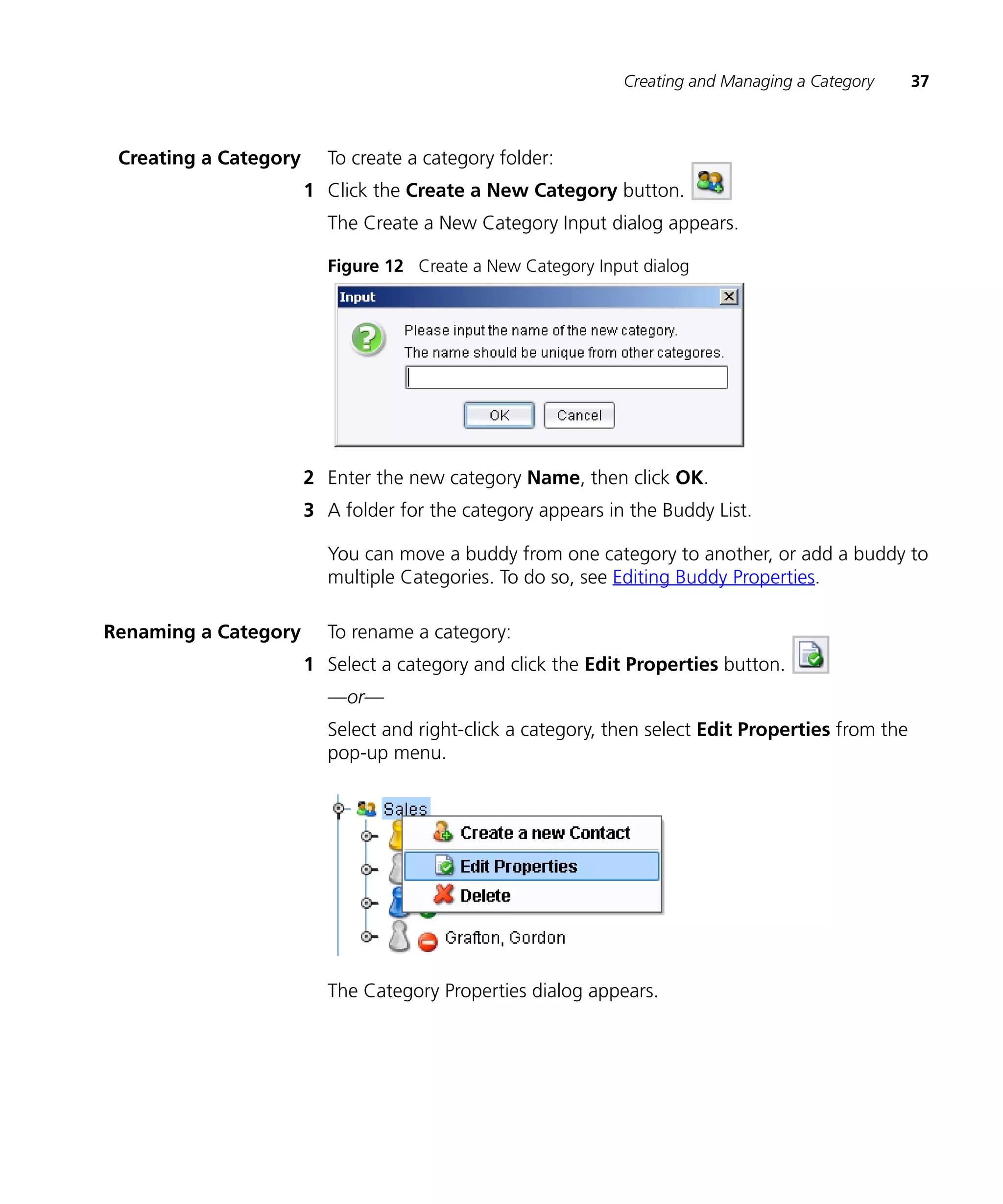
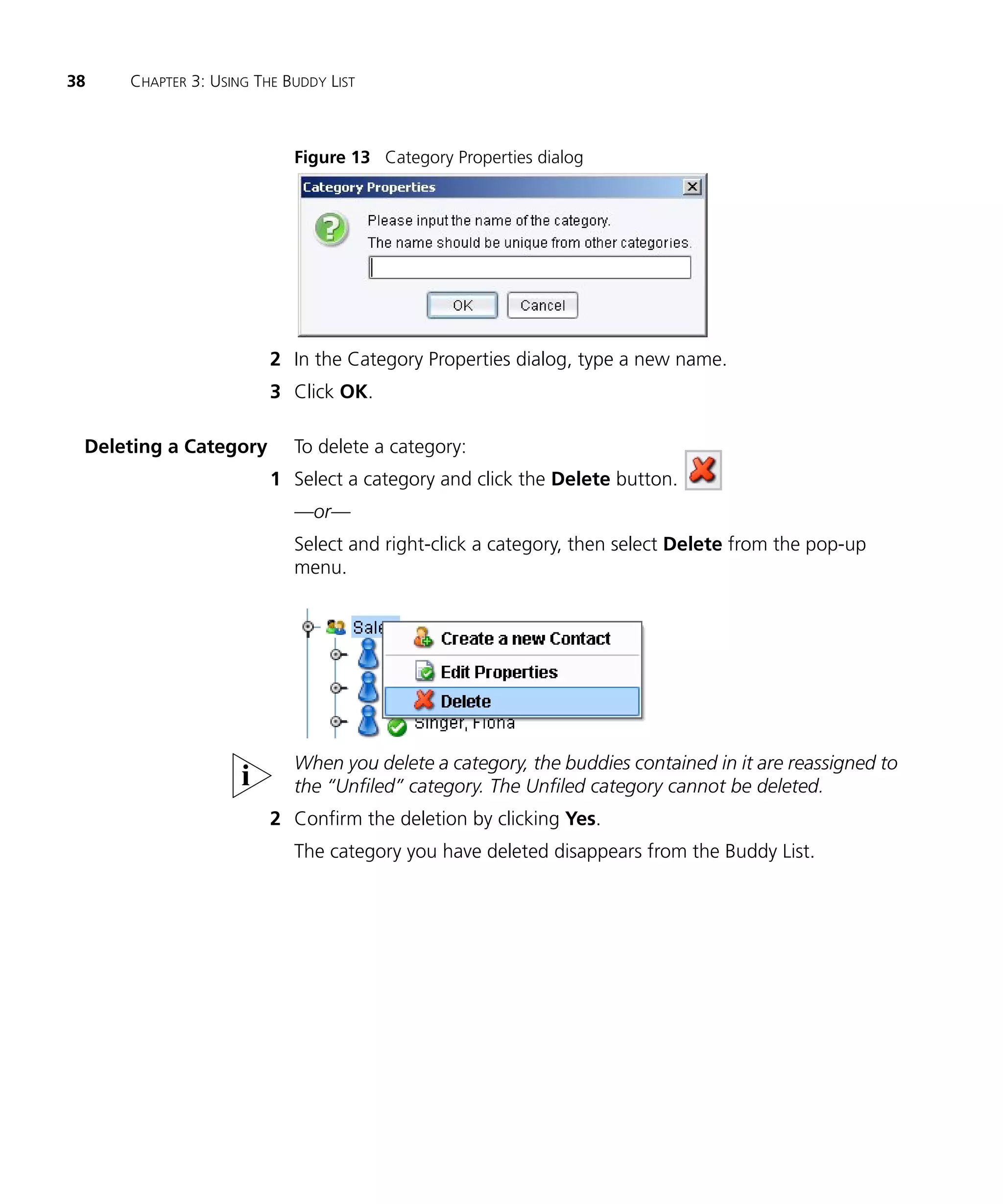
  • 37.
    Creating and Managinga Category 37 Creating a Category To create a category folder: 1 Click the Create a New Category button. The Create a New Category Input dialog appears. Figure 12 Create a New Category Input dialog 2 Enter the new category Name, then click OK. 3 A folder for the category appears in the Buddy List. You can move a buddy from one category to another, or add a buddy to multiple Categories. To do so, see Editing Buddy Properties. Renaming a Category To rename a category: 1 Select a category and click the Edit Properties button. —or— Select and right-click a category, then select Edit Properties from the pop-up menu. The Category Properties dialog appears.
  • 38.
    38 CHAPTER 3: USING THE BUDDY LIST Figure 13 Category Properties dialog 2 In the Category Properties dialog, type a new name. 3 Click OK. Deleting a Category To delete a category: 1 Select a category and click the Delete button. —or— Select and right-click a category, then select Delete from the pop-up menu. When you delete a category, the buddies contained in it are reassigned to the “Unfiled” category. The Unfiled category cannot be deleted. 2 Confirm the deletion by clicking Yes. The category you have deleted disappears from the Buddy List.
  • 39.
    MAKING AND RECEIVING 4 MULTIMEDIA CALLS This chapter describes how to work with multimedia and includes the following topics: n What is a Multimedia Call? n Making a Call n Answering a Call n Ending a Call n Placing a Call on Hold n Using Call Waiting n Call Functions What is a A “multimedia call” is a term used to describe the range of dynamic, Multimedia Call? interactive communication options available in the 3Com Convergence Center Client. A multimedia session can include any combination of voice, video, desktop sharing, and instant messaging. The communication options available to you depend on those you purchased. You can only engage in one multimedia session — either a point-to-point call or a conference — at a time. Multimedia sessions always start with a voice call. Once the voice call is established, video and desktop sharing can be added.
  • 40.
    40 CHAPTER 4: MAKING AND RECEIVING MULTIMEDIA CALLS Voice If you have a headset and microphone and your computer is equipped with a full duplex sound card, you can have voice conversations with other users. When you make a voice call, the Call window displays. It has buttons which allow you to add Video and Desktop Sharing to the call, plus transfer, add conference participants, and park the call. Figure 14 Phone window Video Video allows you to see the people you are talking to, in addition to hearing them. You can display a single image for a point-to-point call, or multiple images for a conference call. Other users can see you too, so long as you have a camera attached to your computer. You can scale a video window from 100% to 400% with a right mouse click. Figure 15 Video window Desktop Sharing Desktop sharing allows a single user, the host, to share his or her desktop with one or more other users, the viewer(s). The host and viewer share
  • 41.
    Making a Call 41 control of the desktop in point-to-point calls. Only the host controls the desktop in conference calls. Both viewers and hosts can initiate desktop sharing sessions. Figure 16 Desktop sharing window Making a Call Depending on how your system is set up, you can call an extension, nickname, phone number, or SIP URI. The 3Com Convergence Center Client identifies a user by an address. An address can be an extension, nickname, phone number, or SIP URI.
  • 42.
    42 CHAPTER 4: MAKING AND RECEIVING MULTIMEDIA CALLS Voice Call Multimedia sessions always start with a voice call. Once the voice call has been established, video and desktop sharing can be added. To place a voice call: n In the Buddy List, right-click a buddy’s device, then select Make a new call from the pop-up menu. —or— n In the Buddy List, double-click a buddy to ring all of the buddy’s SIP devices. —or— n In the Phone Panel, enter an address using your PC keyboard or the integrated dialpad, then click the Call button. Figure 17 Phone Panel
  • 43.
    Making a Call 43 An address can be an extension, nickname, phone number, or SIP URI. You can use the integrated dialpad to respond to interactive voice response (IVR) prompts while the call is ongoing. The Call window appears. Figure 18 Call window Once the voice call is connected, you can enhance it with Video and Desktop Sharing. You can also transfer the call, add conference participants to the call, and park the call. You can also place calls from the Call Log and Contact List. For details, see Using the Call Log and Placing a Call from the Contact List.
  • 44.
    44 CHAPTER 4: MAKING AND RECEIVING MULTIMEDIA CALLS Adding Video to a To add video to a voice call: Call 1 In the Call window, click the Video button. Figure 19 Call window - Video button “Changing Media ...” appears at the bottom of the Call Window. Once the video session starts, a Video window appears with an image of the other person engaged in the call, along with the person’s friendly name. For information on “friendly name”, see Configuring Your Friendly Name. Right-click on the panel to scale it by 100%, 200%, or 400%. Figure 20 Video window
  • 45.
    Making a Call 45 2 Optionally, select View > Show Local Video to display your own image in the Video window. If the other party does not support video, the following message will appear at the bottom of the Call window: “Video stopped by remote party.” Adding Desktop To add desktop sharing to a voice call: Sharing to a Call n In the Call window, click either the View or Host button. Figure 21 Call window - View / Host buttons “Changing Media ...” appears at the bottom of the Call Window. Once the desktop sharing session starts, the Desktop Sharing window will display the host’s desktop to all viewers. Figure 22 Desktop Sharing window
  • 46.
    46 CHAPTER 4: MAKING AND RECEIVING MULTIMEDIA CALLS The host and viewer share control of the desktop in point-to-point calls. Only the host controls the desktop in conference calls. You can initiate a desktop sharing session as a host or a viewer. Be aware that if you accept a call from a viewer, the viewer will see your hosted desktop. If the other party does not support desktop sharing, the following message will appear at the bottom of the Call window: “Desktop Sharing stopped by remote party.” Sending Instant To send an instant message while a voice call is in progress: Messages 1 In the Call window, click the IM button. Figure 23 Call window - IM button The Instant Message Window appears. Figure 24 Instant Message Window Multiple IM sessions are supported. Each session has a separate tab 2 Type a message in the messaging text box.
  • 47.
    Answering a Call 47 3 Click the Send button. Your instant message is sent to the other person engaged in the call. Unlike video and desktop sharing, you are not obligated to be in a voice call to send an instant message. For example, you can send an IM directly to a buddy. See Sending a Message to a Buddy. Answering a Call To accept a voice call: 1 When you receive a voice call, the following occurs: n the IP 3Com Convergence Center Client client rings n the Call window pops up on the desktop and flashes in the taskbar n if you are already engaged in a call, you will hear a tone Figure 25 Call window 2 Click the Call button to accept the call. —or— Click the End button to send the call to the call coverage point (voice mail by default). If you answer a call while you are already engaged in a call, the original call will be placed on hold. If you do not answer a call, it will be sent to the call coverage point after 15 seconds (default setting).
  • 48.
    48 CHAPTER 4: MAKING AND RECEIVING MULTIMEDIA CALLS Ending a Call To end a call that is in progress: n In the Call window, click the End button. The End button closes all media (voice, video, and desktop sharing) for the communication session. Placing a Call on You can place a call on hold for any reason, including to answer another Hold call. To place a call on hold: n In the Call Window, click the Hold button. The Hold button flashes while the call is on hold. To resume the call: n Click the Hold button again. Using Call Waiting If you are engaged in a call and then receive another call, a second call window will pop up on your desktop. You can disregard the second call, or answer it and automatically place the original call on hold. To use this feature, the Call Waiting administrative option must be enabled. See Configuring the Call Settings. To use call waiting: 1 If you receive a second call while you are engaged in a call, a second Call window will appear. 2 Click the Call button to accept the call. The new call begins and the original call is placed on hold. You can resume the original call at any time. If you do not accept the second call, it will be forwarded to your call coverage point (voice mail by default).
  • 49.
    Call Functions 49 Call Functions The following call functions are available: n Unattended Call Transfer—allows you to transfer a call without consulting the other party. n Attended Call Transfer—allows you to place the call on hold and consult with the other party before transferring the call. n Conference in to Call—allows you to redirect a user to an Ad Hoc conference. n Call Park—allows you to temporarily park a call and pick it up at a different location. Unattended Call When you perform an unattended or “blind” call transfer, you send the Transfer call to someone else without consulting them. This feature is available from the Buddy List or the Call window. From the Buddy List To execute an unattended call transfer from the Buddy List: n In the Buddy List, right-click a buddy’s phone, then select Transfer call to from the pop-up menu. The call is transferred to the party you specified. If for some reason the transfer fails, you will remain connected to the caller.
  • 50.
    50 CHAPTER 4: MAKING AND RECEIVING MULTIMEDIA CALLS From the Call window To execute an unattended call transfer from the Call window: 1 In the Call window, click the Functions unfold button. 2 Click the Trans button. The Transfer dialog appears. Figure 26 Transfer dialog 3 Enter the extension, phone number, nickname, or SIP URI of the user to whom you want to transfer the call. 4 Double-click the Transfer button. You must double-click the Transfer button to perform an unattended call transfer. If you click only once, you will perform an attended call transfer. The call is transferred to the party you specified. If for some reason the transfer fails, you will remain connected to the caller. Attended Call When you perform an attended or “supervised” call transfer, the call is Transfer placed on hold while you consult with the other party. If they decide to take the call, you can then complete the transfer. This feature is available from the Call window. To execute an attended call transfer from the Call window: 1 In the Call window, click the Functions unfold button. 2 Click the Trans button.
  • 51.
    Call Functions 51 The Transfer dialog appears. Figure 27 Transfer dialog 3 Enter the extension, phone number, nickname, or SIP URI of the user to whom you want to transfer the call. 4 Click the Transfer button. The original call is placed on hold while you connect to the other party. You must click the Transfer button only once. If you double-click, you will perform an unattended call transfer. 5 When the other party answers, ask permission to transfer the call: n If the other party accepts the call, click the Trans button to complete the transfer. n If the other party rejects the call: a Click the End button to stop the transfer. b Click the Hold button to resume the original call. Conference in to Call An Ad Hoc conference starts when you add another user to a two-party call. Other users (up to six in total) can be added from the Buddy List or Call window. Before starting a conference, confirm that the Prefix and Suffix for ad hoc conferences are programmed under Tools > Options > Call Settings. Obtain the correct settings for these parameters from your system administrator. From the Buddy List To conference someone in to a call from the Buddy List:
  • 52.
    52 CHAPTER 4: MAKING AND RECEIVING MULTIMEDIA CALLS n While a call is ongoing, right-click a buddy’s phone on the Buddy List, then select Conference in to call from the pop-up menu. —or— Using your mouse, highlight and then drag and drop the buddy onto the Call window. If the user accepts the call, he or she will be added to the call as an Ad Hoc conference participant. You should add buddies to conferences who are online, with blue icons. See Buddy Status. You can enhance a conference with Video or Desktop Sharing, provided that the conference participants support the requested media. From the Call window To conference someone in to a call from the Call window: 1 In the Call window, click the Functions unfold button. 2 Click the Conf button. The Conference dialog appears.
  • 53.
    Call Functions 53 Figure 28 Conference dialog 3 Enter the extension, phone number, nickname, or SIP URI of the user to whom you want to conference in to the call. 4 Click OK. If the user accepts the call, he or she will be added to the call as an Ad Hoc conference participant.
  • 54.
    54 CHAPTER 4: MAKING AND RECEIVING MULTIMEDIA CALLS Parking a Call You can temporarily park a call and pick it up at a different location by entering a system-assigned ID code. This feature is available from the Call window. To park a call from the Call window: 1 In the Call window, click the Functions unfold button. 2 Click the Park button. The Call Park pop-up appears. It contains the Call Park ID which you need to enter in the destination device to pick up the call. In this example, the Call Park ID is 885. Figure 29 Call Park pop-up 3 Click OK. The call is parked. 4 To retrieve the parked call, enter the call park ID at any phone at the same site as the phone that parked the call. The call is connected at the destination device.
  • 55.
    USING TOOLS ANDUTILITIES 4 The 3Com Convergence Center Client includes handy tools and utilities that help you manage your work environment. The tools and utilities are described below. n The Companion Phone feature allows you to control your desktop 3Com phone. n The Contact List provides an easy way to keep track of your contacts. n The Call Log keeps track of your incoming and outgoing calls. n Extension controls such as Do Not Disturb, Call Forward, and Forward to Voice Mail. This chapter describes the tools and utilities available and includes the following topics: n Using the 3Com Phone Panel n Using the Contact List n Using the Call Log n Monitoring Active Sessions n Managing the Extension Status n Launching the 3Com IP Conferencing Module Using the 3Com The Companion Phone feature allows you to control a 3Com desktop SIP Phone Panel phone using the 3Com Convergence Center Client. You can answer incoming calls, and place outgoing voice calls without having to manually pick-up the phone. To display the 3Com Phone controls: n Click the 3Com Phone panel unfold button.
  • 56.
    56 CHAPTER 4: USING TOOLS AND UTILITIES The 3Com Phone panel appears. Figure 30 3Com Phone panel The controls include: n Use 3Com phone for voice — Click the box to activate the 3Com Phone feature. Beneath the check box are three rows that represent lines on your 3Com desktop phone. n Speaker — Turns on the speaker of your desktop phone, and ends an active call. n Redial — Redials the last number entered in the Phone Panel’s call field. Making a 3Com There are numerous ways to place a voice call using the 3Com Phone Phone Call control. Before starting, make sure that the Use 3Com phone for voice check box is selected in the 3Com Phone panel. To place a voice call using your 3Com Phone: n In the Buddy List, right-click a buddy, select a device, and then select Make a new call from the pop-up menu. —or— n In the Buddy List, double-click a buddy to ring all of the buddy’s SIP devices.
  • 57.
    Using the 3ComPhone Panel 57 —or— n In the Call Log, double-click the number you want to call. —or— n In the Contact List, double-click a contact, then select the number and prefix you want to use. —or— n In the Phone Panel, enter an address using your PC keyboard or the integrated dialpad, then click the Call button. An address can be an extension, nickname, name, phone number, or SIP URI. The call begins and the 3Com Phone panel displays call information. Figure 31 3Com Phone panel with call information Answering a 3Com To answer an incoming call: Phone Call n Lift the handset on your phone. —or— n Click the Call button on the Call window. Ending a 3 Com To end an active call, click the Speaker button. Phone Call
  • 58.
    58 CHAPTER 4: USING TOOLS AND UTILITIES Using the Contact The Contact List allows you to manage your contact information. You can List sort and edit the information in the list, and directly place calls to contacts in the list. You can add new contacts to the list manually, or you can import existing contacts from Microsoft Outlook and Outlook Express. You can also export the contents of the Contact List for use in other applications such as Microsoft Excel. Adding a Contact To manually add a contact: 1 On the Tools menu, select Contact List. The Contact List appears. Figure 32 Contact List 2 Click the Create a New Contact button.
  • 59.
    Using the ContactList 59 The Create a New Contact dialog appears. Figure 33 Create a New Contact dialog 3 Enter the contact information (name and numbers), and add the contact to one or more categories. To designate the contact as a buddy, select the In Buddy List check box. Enter a Nickname if the contact is in the your domain. This allows you to call the contact by entering the Nickname in the Phone Panel. All other fields are optional. All phone numbers with the exception of the VoIP Phone number are expected to be regular numbers on the PSTN. 4 Click OK to add the contact. The contact is added to the Contact List. If In Buddy List was selected, an icon for the buddy appears in the Buddy Group. Managing Contacts You can manage the features listed in Table 3 from the Contact List. Table 3 Contact List features Feature Description Action Add Category Add a new category to the Contact Click the Create List and Buddy List. New Category icon. Edit Contact Edit contact details and add the Select the entry and contact to your Buddy list. click the Edit Properties button.
  • 60.
    60 CHAPTER 4: USING TOOLS AND UTILITIES Table 3 Contact List features (continued) Feature Description Action (continued) Edit Category Change the Category’s name. Select the entry and click the Edit Properties button. Import Contact list Import a .csv file of contacts. Click the Import button. Export Contact list Export the .csv file of contacts. Click the Import button. Call Contact Call the contact. Select the entry and click the Call button. Delete Contact Delete the contact from the Contact Select the entry and List. click the Delete button. Note: Deleting a contact from the Contact List also deletes it from the Buddy List. Control Buddy n Add the contact to the Buddy List. Select/deselect the In status Buddy List check —or— box. n Remove the contact from the Buddy List.
  • 61.
    Using the ContactList 61 Importing Contacts You can import contacts (address book .csv files) from Microsoft Outlook and Outlook Express. You can also create your own .csv file. To determine the format that you need to follow, add a few contacts to the client and export the resulting file. See Exporting Contacts. To import contacts: 1 Click the Import button located at the top of the window. The Import dialog box appears. Figure 34 Import dialog 2 Use the controls in the dialog box to browse to the file you want to Import. 3 Click Open.
  • 62.
    62 CHAPTER 4: USING TOOLS AND UTILITIES The Import from CSV File dialog appears. Figure 35 Import from CSV dialog 4 Map the Record Data To Import to the Contact List Fields to ensure all columns in the file are named correctly. In the example above, “SIP address” is mapped to “VoIP Phone.” 5 Click OK. The contacts are imported into the 3Com Convergence Center Client, where they appear as a new category in the Buddy List and the Contact List.
  • 63.
    Using the ContactList 63 Exporting Contacts You can export your contact information so that it can be used in other applications. To export your contacts: 1 Click the Export button located at the top of the window. The Export dialog box appears. 2 Enter a file name. 3 Browse to the location you want to export the file to. 4 Click Export. The file is exported as a .csv file. Uploading Contacts If the 3Com Convergence Center Client is implemented as part of the to the Contact List Enterprise Mobility Solution (EMS), you can upload your contact Server information to the Contact List server (Mobility Gateway). After doing this, you can then download the contact information to other clients. Before using the feature, ensure that the Contact List Server Location is programmed in the Contact List Settings. For details, see Optional Settings. To upload your contacts to the Contact List Server: 1 Click the Upload button located at the top of the window. The file is uploaded to the Contact List server (Mobility Gateway). You may now download the file to another client application. Placing a Call from You can place a call to a contact directly from the Contact List. the Contact List To place a call to a contact: 1 Select the contact and click the Call icon. —or— Right-click the contact, then select Call from the pop-up menu.
  • 64.
    64 CHAPTER 4: USING TOOLS AND UTILITIES Figure 36 Contact List - right-click a contact The Calling... dialog appears. Figure 37 Calling dialog 2 Select the number and prefix you want to use, then click OK. The call begins. Prefixes are entered by your administrator. For more information, see Configuring the Contact List Settings. Working with You can display the information in the Contact List in different ways. For Contacts example, the information can be sorted, filtered, and displayed on more than one page.
  • 65.
    Using the CallLog 65 Sorting Contact Information Information in the Contact List can be sorted alphabetically or numerically. To sort the information, click in a column’s name. For example, click Last Name. Filtering Contact Information Contact information can be filtered to display only the contacts you want to see. For example, you can filter using the Company column to display all contacts associated with a specific company. To filter the contact information: 1 Select a filter type. 2 Enter a filter value. 3 Press Tab. The Contact List is filtered to display the items that match your filter criteria. The Contact List displays a maximum of 1,000 entries. Use the filtering tools to display the entries you require. Using the Call Log The Call Log lists the most recent calls you have placed and received. The log displays information on who placed the call, the time it was initiated, the call status (missed, completed, in-progress, unsuccessful), and the duration. The information in the log can be sorted, and you can even place a call from the log. To view the log: 1 On the Tools menu, select Call Log. The Call Log window appears.
  • 66.
    66 CHAPTER 4: USING TOOLS AND UTILITIES Figure 38 Call Log window 2 To manage an individual entry in the Call Log, right-click the entry and select one of the following options: n Select Make a new call to re-dial the call. n Select Add to buddy list to add the contact to your Buddy List. n Select Delete to delete the entry. 3 To manage all entries in the Call Log, use the buttons located at the top of the window: n To display incoming calls, select the Incoming check box. n To display outgoing calls, select the Outgoing check box. n To display Missed calls, select the Missed check box. n To clear new missed calls, select the Clear new missed calls button. 4 Adjust the size of the Call Log window as required.
  • 67.
    Monitoring Active Sessions 67 By default, the Call Log is limited to 20 entries for each of incoming and outgoing calls. You can change the Call Log size under Tools > Options > Call Settings. You may enter a value between 10 and 99. Monitoring Active The Active Sessions panel lists all active media sessions (voice, video, Sessions desktop sharing, and Instant Messaging). To monitor active sessions: 1 Click the Active Sessions unfold button. The Active Sessions panel appears. Figure 39 Active Sessions panel 2 Double-click an item in the list to go to the media session window for that item. For example, double-click the Instant Messaging Window to go to the IM window. The Active Sessions panel displays a single record for each active Call, Video, Desktop Sharing, and Instant Messaging window. The Instant Messaging window can support multiple IM sessions. Managing the The Extension Status panel allows you to control the status of your Extension Status extension with the following features: n Do Not Disturb n Forward To Voice Mail n Forward To Number n Local Presence Status.
  • 68.
    68 CHAPTER 4: USING TOOLS AND UTILITIES Do Not Disturb The Do Not Disturb (DND) feature allows you to continue using the 3Com Convergence Center Client without being bothered by incoming calls. When DND is enabled, incoming calls are forwarded directly to your call coverage point (voice mail by default). You do not receive a missed call indication for forwarded calls. Activating this feature on the client causes it to be activated on all other devices (SIP hard phones and clients) that are logged in with the same VoIP number. To activate Do Not Disturb: n In the Extension Status panel, select the Do Not Disturb check box. Figure 40 Extension Status panel - Do Not Disturb All incoming calls will be sent directly to your call coverage point. Do Not Disturb does not affect other functions such as instant messaging. Forward To Voice The Forward To Voice Mail feature causes incoming calls to be forwarded Mail to your call coverage point (voice mail by default) after ringing your extension a single time. You receive a missed call indication for forwarded calls. Activating this feature on the client causes it to be activated on all other devices (SIP hard phones and clients) that are logged in with the same VoIP number. To activate Forward to Voice Mail: n In the Extension Status panel, select the Forward to Voice Mail check box.
  • 69.
    Managing the ExtensionStatus 69 Figure 41 Extension Status panel - Forward To Voice Mail All incoming calls will be sent to your call coverage point after ringing your extension once. Forward To Number The Forward To Number feature causes incoming calls to be forwarded to a number you have defined after ringing your extension a single time. You receive a missed call indication for forwarded calls. Activating this feature on the client causes it to be activated on all other devices (SIP hard phones and clients) that are logged in with the same VoIP number. To activate call forwarding: 1 In the Extension Status panel, enter the extension, phone number, nickname, or SIP URI you wish all incoming calls redirected to. 2 Select the Forward To Number check box. Figure 42 Extension Status panel - Forward To Number All incoming calls will be forwarded to the phone or client you specified after ringing your extension once. Local Presence Status The Presence Status feature allows you to set your presence status on the network. To set your local presence status: n In the Extension Status panel, select a presence status from the list box:
  • 70.
    70 CHAPTER 4: USING TOOLS AND UTILITIES Figure 43 Extension Status panel - Local Presence Status Your presence status icon is changed to reflect your new status. Available (default status when you first sign in) Busy Meal Hidden To allow calls, set your status to Available. To allow calls but indicate that you will not respond to them, set your status to Busy, Away, or Meal. If you choose a status of Hidden, you will appear to other users as if you are offline, but you will remain online and be able to perform all of the regular tasks. If you sign out with a status other than Available, that status will be your status when you sign back in. You may want to use this feature to sign in with a status of Hidden, check you mail, and sign out, all without letting your buddies know that you have been online. System-controlled Statuses The system automatically controls your On the Phone status and Autoaway status. n When you are engaged in a media session that includes audio, the system sets your presence status to On the Phone. When you terminate all media sessions, the system returns your status to Available. n If you are online but away from your computer, your status will change to Away when the autoaway timer expires (10 minutes by
  • 71.
    Launching the 3ComIP Conferencing Module 71 default). See Configuring the Presence Settings to change the Autoaway Timout Setting. Launching the You can configure the Tools > Conferences & Presence command to 3Com IP launch the 3Com IP Conferencing Module. For more information, see Conferencing Conferences Web URL in Configuring the Call Settings. Module
  • 72.
    72 CHAPTER 4: USING TOOLS AND UTILITIES
  • 73.
    CHECKING MESSAGES 5 This chapter describes how to check the status of your voice mail and monitor your missed calls. It includes the following topics: n Message Status Bar Features n Setting up Voice Mail n Managing Your Voice Mail n Managing Your Missed Calls Message Status Bar The Message Status bar is located at the bottom of the IP 3Com Features Convergence Center Client main window. It provides the following features: Voice Mail Features n New message indicator n Number of messages in mailbox n Direct access to voice mail attendant n Direct access to IP Messaging web page Missed Call Features n Missed call indicator n Direct access to call log
  • 74.
    74 CHAPTER 5: CHECKING MESSAGES Figure 44 Message Status bar # of voice mail messages # of new missed calls New message indicator Missed call indicator • Click to access voice mail • Click to access Call Log • Right-click to access IP Messaging Setting up Voice Before you can use the Message Status bar to manage your voice mail, Mail you need to configure the IP 3Com Convergence Center Client to support the feature. To set up voice mail: 1 On the Tools menu, select Options. The Options Screen appears. 2 Under Application, select Messaging Server Settings and configure: Messaging Web URL Enter the URL of the VCX Messaging Server. Format: <web-address> Example: This should be set to the web address of the login page of the 3Com IP Messaging Server. 3 Click Close to save your changes. 4 Under Application, select Voice Settings and configure: Codec Selection Codec options: pmcu (G.711) G.729 Use the buttons to enable/disable the codecs and to specify the order of preference for the codecs. The codec at the top of the list is the most preferred. Please ensure that pcmu is enabled or your voice mail will not function properly. 5 Click Close to save your changes.
  • 75.
    Managing Your VoiceMail 75 Managing Your The Message Status bar is continually updated with the status of your Voice Mail voice mail account. As soon as you launch the 3Com Convergence Center Client and sign in to the VCX system, the system automatically registers with the messaging server. The Message Status bar then displays information related to your voice mail account. When you receive a new message, the message indicator flashes red. When you listen to, delete, or save a message, the message count changes. You can access the voice mail system directly from the Message Status bar. Two access options are provided—the voice mail attendant, where you can listen to your messages, and the IP Messaging web page, where you can manage your voice mail account. Accessing Voice Mail To access your voice mail through the voice mail attendant: via the Attendant 1 On the Message Status bar, click the message indicator. The indicator flashes red when you have new messages waiting. —or— Right-click the message indicator and select Retrieve Voice Mail. The Call window appears. Figure 45 Call window 2 Respond to the interactive voice response (IVR) prompts from the voice mail attendant to access your mailbox and manage your messages.
  • 76.
    76 CHAPTER 5: CHECKING MESSAGES Accessing the IP To manage your voice mail account through the IP Messaging web page: Messaging Web Page 1 Right-click the message indicator and select Access IP Messaging. 2 Sign on to the IP Messaging web page when prompted. The IP Messaging web page appears. Figure 46 IP Messaging web page Use the IP Messaging web page to manage the following: n view voice and email message information n manage distribution lists n manage scheduled greetings n manage mailbox preferences n program aliases n add a family mailbox n define delivery options.
  • 77.
    Managing Your MissedCalls 77 Number of Voice Mail Messages The Message Status bar displays how many new messages you have, and how many messages you have in total. These indicators are updated as soon as you receive a new message, and within 15 minutes when you listen to a message. Figure 47 Total and new message indicators New messages Total messages Managing Your If you are not available to accept or reject a call, the New Missed call Missed Calls indicator is updated on the Message Status bar. You can view all of your missed calls on the Call Log, which is accessible directly from the Message Status bar. Accessing Missed To access your missed calls through the Call Log: Calls on the Call Log 1 On the Message Status bar, click the new missed call indicator. The indicator turns bright green when you have new missed calls. The Call Log appears. Figure 48 Call Log
  • 78.
    78 CHAPTER 5: CHECKING MESSAGES n All missed call records (new and old) are indicated with am X. n New missed call records are highlighted with bold text. 2 To return a missed call, right-click the record and select Make a new call. 3 To clear new missed calls, select the Clear new missed calls button. Number of New Missed Calls The Message Status bar displays the number of new missed calls you have. The indicator returns to zero when you select the Clear new missed call button on the Call Log. Figure 49 Number of new missed calls New missed calls
  • 79.
    INSTANT MESSAGING 6 You can use the 3Com Convergence Center Client to send instant messages to an extension, phone number, SIP URI, or to users in your Buddy List. The instant messaging panel displays a record of messages you have exchanged. This chapter includes the following topics: n Sending a Message while a Call is in Progress n Sending a Message to a Buddy n Starting a Voice Call from the Instant Message Window n Receiving and Responding to Instant Messages n Using Instant Messaging to See Who is in a Conference
  • 80.
    80 CHAPTER 6: INSTANT MESSAGING Sending a Message To send a message to the person you are talking to: while a Call is in Progress 1 In the Call window, click the IM button. Figure 50 Call window The Instant Message Window appears. Figure 51 Instant Message Window Multiple IM sessions are supported. Each session has a separate tab in the Instant Messaging window.
  • 81.
    Sending a Messageto a Buddy 81 2 Type a message in the messaging text box. 3 Click the Send button. Your instant message is sent to the other person. Sending a Message To send a message to a buddy: to a Buddy 1 On the Buddy List, right-click a buddy’s phone, then select Send an instant message on the pop-up menu. The Instant Message Window appears. Figure 52 Instant Message Window Multiple IM sessions are supported. Each session has a separate tab in the Instant Messaging window.
  • 82.
    82 CHAPTER 6: INSTANT MESSAGING 2 Type a message in the messaging text box. 3 Click the Send button. Your instant message is sent to the other person. Starting a Voice Call If you are not already engaged in a multimedia session (voice, video, or from the Instant desktop sharing), you can start a voice call from the Instant Message Message Window window. To start a voice call: 1 On the Instant Message window, select a IM session tab if multiple sessions are ongoing. Figure 53 Instant Message window - tab selection 2 Click the Call button. The Call window appears. Figure 54 Call window
  • 83.
    Receiving and Respondingto Instant Messages 83 Once the voice call is connected, you can enhance it with Video and Desktop Sharing. You can also transfer the call, add conference participants to the call, and park the call. Receiving and When you receive an instant message, it appears in the Instant Message Responding to panel, and a pop-up balloon appears on the Task Bar. Instant Messages If the 3Com Convergence Center Client is active on the desktop, or is minimized, its application button will be highlighted in the Taskbar. To respond to an instant message: n Type a message in the text box, then the Send button. Your instant message is sent to the other person engaged in the call. Using Instant During a conference, you can use the Instant Messaging feature to find Messaging to See out who has signed in. Who is in a n To find out who has signed in to a conference, type who into the text Conference box, then click Send. Figure 55 Instant Message Window - text box A list of conference attendees appears in the Instant Message panel. This feature will only work if you are using the 3Com IP Conferencing Module as your conferencing server.
  • 84.
    84 CHAPTER 6: INSTANT MESSAGING
  • 85.
    ADMINISTRATIVE SETUP 7 This chapter describes the administrative setup and includes the following topics: n User Accounts n Auto-Configuration n Tuning Audio Settings n Optional Settings User Accounts To use the 3Com Convergence Center Client with a VCX system, a user account is required on the VCX system. A user account consists of these items: n User ID (must also be entered in the 3Com Convergence Center Client) n Password (must also be entered in the 3Com Convergence Center Client). The system administrator is responsible for configuring user accounts on the VCX system. User accounts created on the VCX system are automatically created on the 3Com IP Conferencing Module. Auto-Configuration The Auto-Configuration feature allows the system administrator to preconfigure the user settings. The settings are downloaded to the user’s computer when the user signs in. Auto-Configuration relies on two XML files: “Master” and “Group.”
  • 86.
    86 CHAPTER 7: ADMINISTRATIVE SETUP If the Auto-Configuration feature is not used, each user’s settings must be configured manually by the user or system administrator. For details, see Optional Settings. Users enter the URL for the location of the Master XML file when they sign in. The contents of the Master XML file may result in the users being prompted to select a group that is associated with a Group XML file containing unique settings. Auto-Configuration supports one Master XML file. To configure the Master XML file: 1 Open the Master XML file in a text editor. 2 For each desired group, add a line with the following variables: n group name = The name of the group that appears to users. For example, “sales”. n id = The unique identifier of the group. The ID links the Master XML file to a Group XML file. If the Master XML file is “config.xml” and the “ID is “group1,” then the associated Group XML file must be named “config-group1.xml.” The “-” is mandatory. n description = (Optional) Description of the group that appears to users in brackets following the group name. n modifydate = Whenever a Group XML file is updated, its modification date must be updated. Format: <yyyymmdd> n modifyuser = (Optional) Name of the person who created or modified this record. 3 Save the Master XML file on a server that is accessible to users. File name format: <Master.xml> 4 Add and save the associated Group XML files. See below. Group XML File An administrator can create separate group files to assign different settings for each group. For example, the settings for the “Boston” group might be different than those of the “Chicago” group. Each group listed in the Master XML file requires a Group XML file. The Group XML file contains unique settings that are automatically downloaded to the 3Com Convergence Center Client. Within the application, these settings are available under Tools > Options.
  • 87.
    Auto-Configuration 87 As a minimum, Auto-Configuration requires one Group XML file. 1 Open the Group XML file in a text editor. 2 For each setting, two variables (<value> and <readonly>) can be edited. Others are provided for informational purposes only. Setting variables: n setting class = Do not edit. This variable equates to the application name. Each application has multiple settings. n datatype = Do not edit. This is the data type (integer, string boolean, etc.) of the variable. n id = Do not edit. This variable equates to the setting name. n value = Editable. Possible values are listed in the file. n readonly = Editable. If “False” is entered, users can update the setting. If “True” is entered, users cannot update the setting. 3 Save the Group XML file on a server that is accessible to users. File name format: <Master-Group.xml> Location of the During installation of the 3Com Convergence Center Client, the Auto-Configuration Auto-Configuration files are copied to the following location: Files C:Program Files3Com Convergence Center Clientconfig-examples The system administrator must customize these files, place them on a web server, and inform users of their location. Auto-Configuration To enable users to download customized settings using the Usage Auto-Configuration feature, the system administrator should inform them of the location of the Master XML file (Auto-Configuration URL), plus the name of the Auto-Configuration Group that they should use. Typically, this information is provided in an e-mail along with each user’s User ID and Password. Format of Auto-Configuration URL: http://<server IP or domain name>/<directory path>/<master.xml> For more information concerning user sign-in requirements, see Basic Setup And Use.
  • 88.
    88 CHAPTER 7: ADMINISTRATIVE SETUP Tuning Audio If during a call you are told that your voice is either too loud or can't be Settings heard, or if you have difficulty hearing others, you will have to adjust your audio settings. After you are done with the call, you can use the Microsoft Windows Audio controls to adjust the volume, balance, bass, and treble settings for sounds played during a call when using the 3Com Convergence Center Client. You can also use the Sound Hardware Test Wizard. Instructions for using the Sound Hardware Test Wizard can be found in the 3Com Convergence Center Client Help. To display the help: n On the Help Menu, choose Tune Audio. Figure 56 Tune Audio Help The Help Topic appears. Optional Settings Unless otherwise specified, the optional settings are intended for use by the system administrator. Updating some optional settings may cause the 3Com Convergence Center Client to become disconnected from the VCX system. The following settings can be configured: n Configuring the Auto-Configuration Settings n Configuring the Call Settings n Configuring the Contact List Settings n Configuring the Messaging Server Settings n Configuring the Presence Settings n Configuring the Registration Settings n Configuring the SIP Stack Settings n Configuring the Video Settings n Configuring the Voice Settings
  • 89.
    Optional Settings 89 The 3Com Convergence Center Client will prevent you from changing many of the settings while you are signed in. To change a setting, sign out, make the change, then sign in. Configuring the To configure the Auto-Configuration settings: Auto-Configuration Settings 1 On the Tools menu, select Options. 2 Under Application, select Auto-Configuration Settings and configure: Advise when my If this setting is set to true, you will be notified when an configuration is Auto-Configuration file is deleted from the server. If more deleted than one Auto-Configuration file resides on the server, you will be prompted to select one from a list. If no other Auto-Configuration file exists, the system will use your current settings. If set to false (the default setting), you will not be notified when the file is deleted, but you will be prompted to select a file from a list. Or if no other file exists, your current settings will be used. Advise when my From time to time the administrator may make changes to configuration is the settings in the Auto-Configuration file. If this setting is outdated set to true, you will be notified on startup that a change has been made to the configuration file. If this setting is set to false (the default setting), your settings will be updated without you being notified. Configuration file Your system administrator will give you the URL of the URL Auto-Configuration file. You must enter the URL in this field. Connect to If this setting is set to false, your settings will not be updated Auto-Configuration when an administrator changes the settings in the server at startup Auto-Configuration file. If set to true (the default setting), you settings will be updated. Let me choose If this option is set to true, you will be prompted to select a another group each time you launch the 3Com Convergence Center configuration at Client (assuming that the administrator defined more than startup one group). If the option is set to false (the default setting), you will be prompted to select a group only during the initial launch.
  • 90.
    90 CHAPTER 7: ADMINISTRATIVE SETUP New configuration Although the administrator can choose to lock (read only overwrites r/w access) certain settings, other settings can be changed (have settings read/write access). If set to true, this setting will allow your settings to be overwritten by any changed settings in the Auto-Configuration file. If set to false (the default setting) your settings will not be overwritten. Server connection The amount of time the 3Com Convergence Center Client timeout (in will spend attempting to connect to the server containing milliseconds) the Auto-Configuration file before it times out. The default is 10,000 milliseconds (10 seconds). 3 Click Close. Configuring the Call To configure the call settings: Settings 1 On the Tools menu, select Options. 2 Under Application, select Call Settings and configure: Automatically accept If set to true, the system prompts the user to accept or reject media changes media being added to an active communication session. If set to false (default), the system will prompt the user to accept media changes. Conferences and Enter the web URL of the 3Com IP Conferencing Module. Presence Web URL When users select the Tools > Conferences & Presence command, the 3Com IP Conferencing Module will launch. Enable call waiting If set to true, you will be notified of incoming calls when you are engaged in a call. If set to false, you will not be notified and the caller will be forwarded to the call coverage point (voice mail by default). Enable voice when If set to true, voice will be enabled when you start video video is selected communication sessions. If set to false, only video will be enabled when you start video communication sessions. Number of calls in log Specify the maximum number of the most recent calls that the 3Com Convergence Center Client will log for each of incoming and outgoing calls. Default is 20. You may enter a value between 10 and 99. Prefix for ad-hoc Enter the prefix for the last part of the user name portion of conferences the conference SIP URI. This value must match the Ad-hoc conference user name prefix configured on the 3Com IP Conferencing Module. Suffix for ad-hoc Enter the suffix for the last part of the user name portion of conferences the conference SIP URI. This value must match the Ad-hoc conference user name suffix configured on the 3Com IP Conferencing Module. 3 Click Close.
  • 91.
    Optional Settings 91 Configuring the To configure the Contact List settings: Contact List Settings 1 On the Tools menu, select Options. 2 Under Application, select Contact List Settings and configure: Contact List Server If the 3Com Convergence Center Client is implemented as Location part of the Enterprise Mobility Solution (EMS), enter the path that enables the user’s contact list to be uploaded to the Mobility Gateway. The path must be entered in URL format. Example: http://sip.sipquest.com:8080/SQMobilityGW/b uddyupload.jsp Phone Prefixes Enter the phone prefixes to be used when making calls from the Contact List. You can enter more than one prefix. For example: 9, 613, 514 3 Click Close. Configuring the To configure the messaging server settings: Messaging Server Settings 1 On the Tools menu, select Options. 2 Under Application, select Messaging Server Settings and configure: Messaging Web URL Enter the URL of the IP Messaging Server. Format: <web-address> Example: http://vcx1.demo.com/admin/WebProvisioning. php 3 Click Close. Configuring the To configure the presence settings: Presence Settings 1 On the Tools menu, select Options. 2 Under Application, select Presence Settings and configure:
  • 92.
    92 CHAPTER 7: ADMINISTRATIVE SETUP Accept All If set to true, other users can see your presence status Subscriptions whenever they request it. Set to true for all implementations that use the Presence services provided by the 3Com IP Conferencing Module. If set to false, you will be prompted to allow/deny your presence status to other users when they add you to their Buddy List. If you allow a user to see your presence, he or she will be added to your Allow List. If you do not allow a user to see your presence, he will be added to your Deny List. When Accept All Subscriptions is set to true, the Subscription Privacy lists are ignored and users who add you to their Buddy List will see your presence even though they will not be automatically added to the Subscription Privacy Allow List. Autoaway Timeout When this timer expires, your presence status will change to Setting Away. The default is 10 minutes. Presence Server URI Enter the SIP URI of the Presence Service on the 3Com IP Conferencing Module (if using). Format: <domain>:<port>;direct=true Example: sip:10.1.0.239:5063;direct=true Remove the direct=true statement for small office/home office (SOHO) implementations. Include the statement for all other implementations. Subscription Privacy Use the Subscription Privacy dialog to move users between the Allow List and the Deny List. Users on the Allow List can detect your presence; users on the Deny List cannot detect your presence. The combined lists are sometimes referred to as the Access Control List (ACL). Users are added to the ACL when: n You allow them see your presence when they request it. n When you manually add them in the Subscription Privacy text box. When Accept All Subscriptions is set to true, the Subscription Privacy lists are ignored and users who add you to their Buddy List will even though they will not be automatically added to the Subscription Privacy Allow List. Subscription Timeout The period of time, in seconds, that users observing your presence must re-subscribe for updated presence status. Default is 3,600 seconds, or one hour. We recommend that you do not change this setting. 3 Click Close. You must sign out and sign in for your presence settings to take effect.
  • 93.
    Optional Settings 93 Configuring the To configure the registration settings: Registration Settings 1 On the Tools menu, select Options. 2 Under Application, select Registration Settings and configure: User SIP Address SIP User ID, which is also entered in the VCX system. (email format) Format: <name>@<domain> Example: 270@10.1.0.238 3 Click Close. You must sign out and sign in for your registration setting to take effect. Configuring the SIP To configure the SIP stack settings: Stack Settings 1 On the Tools menu, select Options. 2 Under Application, select SIP Stack Settings and configure: Friendly Name This is name is associated with your SIP address, and is displayed to others engaged in the communication session. The Friendly Name defaults to the user portion of the SIP address. NAT Static Address If the 3Com Convergence Center Client is running on a PC with VPN software that does not create a virtual IP interface, then the local VPN IP address must be entered in this field. Otherwise, access to the VPN network will be prevented. Primary Proxy Fully qualified domain name or IP address of the primary VCX system. Primary Proxy Port Port used to request services from the primary VCX system. Default is 5060. Secondary Proxy Fully qualified domain name or IP address of the secondary VCX system. This must be different than the Primary Proxy. Secondary Proxy Port Port used to request services from the secondary VCX system. Default is 5060. This port can be the same as for the primary proxy. SIP Listening Port Port that the 3Com Convergence Center Client listens to for incoming SIP messages.
  • 94.
    94 CHAPTER 7: ADMINISTRATIVE SETUP STUN Server Address If the 3Com Convergence Center Client is located behind a firewall, and the firewall has an unknown or dynamically assigned IP address on its external interface, enter the address of the STUN (Simple Traversal of UDP over NAT) server in this field. The STUN server determines the firewall’s external interface address. This entry enables firewall traversal. STUN Server Port Enter the port number of the STUN server in this field. Transport Specify the transport layer protocol, either TCP or UDP. 3 Click Close. Configuring the To configure the video settings: Video Settings 1 On the Tools menu, select Options. 2 Under Application, select Video Settings and configure: Bandwidth Select the bandwidth allowed for video on your network connection from the dropdown list. Options range from 56 K modem to T1/LAN. Capture Framerate Sets the rate at which frames are captured by the video camera. Select a value between 1 and 30 frames per second. Default is 5.0. Compatibility Mode If set to true, the 3Com Convergence Center Client sends video in a less efficient way that is compatible with more devices. If set to false, the most efficient method of video transport is used. Default is false. Inactive RTP Stream The maximum period of time, in seconds, for the video Timeout session to be inactive before it is automatically terminated. Video is transmitted using the Real-Time Transport Protocol (RTP). Default is 120 seconds, or two minutes. RTP Playback Buffer The size of the buffer used to play back incoming RTP video Size (in millisec) packets. Change this setting to reduce latency. The lower the packet size, the lower the latency. Units are milliseconds. Default is 1000.
  • 95.
    Optional Settings 95 RTP Port The video capture port on the local machine. Default is 20000. Video Size Select between two video size options: n QCIF (176 x 144) n CIF (352 x 288). QCIF is the default. Selecting CIF increases CPU consumption. 3 Click Close. Configuring the Voice To configure the voice settings: Settings 1 On the Tools menu, select Options. 2 Under Application, select Voice Settings and configure: Audio Device Device used to capture voice. Options include: n dsound:// (MS Windows) Default is dsound://. We recommend that you do not change these settings. Codec Selection Codec options: n pmcu (G.711) n G.729. Use the buttons to enable/disable the codecs and to specify the order of preference for the codecs. Note: G.711 must be enabled on all clients that wish to join restricted conferences via the conference attendant. Inactive RTP Stream The maximum period of time, in seconds, for the voice Timeout session to be inactive before it is terminated. Voice is transmitted using the Real-Time Transport Protocol (RTP). Default is 120 seconds, or two minutes. Packetization Rate The time interval used to collect voice samples before sending them in each RTP packet. Change this setting to change latency. The lower the packet rate, the lower the latency. Default is 20 milliseconds for Windows.
  • 96.
    96 CHAPTER 7: ADMINISTRATIVE SETUP RTP Playback Buffer The size of the buffer used to play back incoming RTP audio Size packets. Change this setting to reduce latency. The lower the packet size, the lower the latency. Units are milliseconds. Default is 80. RTP Port The audio capture port on the local machine. Default is 8000. 3 Click Close.
  • 97.
    8 OBTAINING SUPPORT FOR YOUR PRODUCT Register Your Warranty and other service benefits start from the date of purchase, so it Product is important to register your product quickly to ensure you get full use of the warranty and other service benefits available to you. Warranty and other service benefits are enabled through product registration. Register your product at http://eSupport.3com.com/. 3Com eSupport services are based on accounts that you create or have authorization to access. First time users must apply for a user name and password that provides access to a number of eSupport features including Product Registration, Repair Services, and Service Request. If you have trouble registering your product, please contact 3Com Global Services for assistance. Purchase To enhance response times or extend warranty benefits, contact 3Com or Value-Added your authorized 3Com reseller. Value-added services like 3Com ExpressSM Services and GuardianSM can include 24x7 telephone technical support, software upgrades, onsite assistance or advance hardware replacement. Experienced engineers are available to manage your installation with minimal disruption to your network. Expert assessment and implementation services are offered to fill resource gaps and ensure the success of your networking projects. More information on 3Com maintenance and Professional Services is available at http://www.3com.com/ Contact your authorized 3Com reseller or 3Com for a complete list of the value-added services available in your area.
  • 98.
    98 APPENDIX 8: OBTAINING SUPPORT FOR YOUR PRODUCT Troubleshoot You will find support tools posted on the 3Com web site at Online http://www.3com.com/ 3Com Knowledgebase helps you troubleshoot 3Com products. This query-based interactive tool is located at http://knowledgebase.3com.com and contains thousands of technical solutions written by 3Com support engineers. Access Software Software Updates are the bug fix / maintenance releases for the version Downloads of software initially purchased with the product. In order to access these Software Updates you must first register your product on the 3Com web site at http://eSupport.3com.com/ First time users will need to apply for a user name and password. A link to software downloads can be found at http://eSupport.3com.com/, or under the Product Support heading at http://www.3com.com/ Software Upgrades are the software releases that follow the software version included with your original product. In order to access upgrades and related documentation you must first purchase a service contract from 3Com or your reseller. Telephone Technical To enable telephone support and other service benefits, you must first Support and Repair register your product at http://eSupport.3com.com/ Warranty and other service benefits start from the date of purchase, so it is important to register your product quickly to ensure you get full use of the warranty and other service benefits available to you. When you contact 3Com for assistance, please have the following information ready: n Product model name, part number, and serial number n Proof of purchase, if you have not pre-registered your product n A list of system hardware and software, including revision level n Diagnostic error messages n Details about recent configuration changes, if applicable
  • 99.
    Contact Us 99 To send a product directly to 3Com for repair, you must first obtain a return authorization number (RMA). Products sent to 3Com, without authorization numbers clearly marked on the outside of the package, will be returned to the sender unopened, at the sender’s expense. If your product is registered and under warranty, you can obtain an RMA number online at http://eSupport.3com.com/. First time users will need to apply for a user name and password. Contact Us 3Com offers telephone, e-mail and internet access to technical support and repair services. To access these services for your region, use the appropriate telephone number, URL or e-mail address from the list below. Telephone numbers are correct at the time of publication. Find a current directory of contact information posted on the 3Com web site at http://csoweb4.3com.com/contactus/ Country Telephone Number Country Telephone Number Asia, Pacific Rim Telephone Technical Support and Repair Australia 1 800 678 515 Philippines 1235 61 266 2602 or Hong Kong 800 933 486 1800 1 888 9469 India +61 2 9424 5179 or P.R. of China 800 810 3033 000800 650 1111 Singapore 800 6161 463 Indonesia 001 803 61009 S. Korea 080 333 3308 Japan 00531 616 439 or Taiwan 00801 611 261 03 3507 5984 Thailand 001 800 611 2000 Malaysia 1800 801 777 New Zealand 0800 446 398 Pakistan +61 2 9937 5083 You can also obtain support in this region using the following e-mail: apr_technical_support@3com.com Or request a repair authorization number (RMA) by fax using this number: + 65 543 6348 Europe, Middle East, and Africa Telephone Technical Support and Repair From anywhere in these +44 (0)1442 435529 regions, call: From the following countries, you may use the numbers shown:
  • 100.
    100 APPENDIX 8: OBTAINING SUPPORT FOR YOUR PRODUCT Country Telephone Number Country Telephone Number Austria 01 7956 7124 Luxembourg 342 0808128 Belgium 070 700 770 Netherlands 0900 777 7737 Denmark 7010 7289 Norway 815 33 047 Finland 01080 2783 Poland 00800 441 1357 France 0825 809 622 Portugal 707 200 123 Germany 01805 404 747 South Africa 0800 995 014 Hungary 06800 12813 Spain 9 021 60455 Ireland 1407 3387 Sweden 07711 14453 Israel 1800 945 3794 Switzerland 08488 50112 Italy 199 161346 U.K. 0870 909 3266 You can also obtain support in this region using the following URL: http://emea.3com.com/support/email.html Latin America Telephone Technical Support and Repair Antigua 1 800 988 2112 Guatemala AT&T +800 998 2112 Argentina 0 810 444 3COM Haiti 57 1 657 0888 Aruba 1 800 998 2112 Honduras AT&T +800 998 2112 Bahamas 1 800 998 2112 Jamaica 1 800 998 2112 Barbados 1 800 998 2112 Martinique 571 657 0888 Belize 52 5 201 0010 Mexico 01 800 849CARE Bermuda 1 800 998 2112 Nicaragua AT&T +800 998 2112 Bonaire 1 800 998 2112 Panama AT&T +800 998 2112 Brazil 0800 13 3COM Paraguay 54 11 4894 1888 Cayman 1 800 998 2112 Peru AT&T +800 998 2112 Chile AT&T +800 998 2112 Puerto Rico 1 800 998 2112 Colombia AT&T +800 998 2112 Salvador AT&T +800 998 2112 Costa Rica AT&T +800 998 2112 Trinidad and Tobago 1 800 998 2112 Curacao 1 800 998 2112 Uruguay AT&T +800 998 2112 Ecuador AT&T +800 998 2112 Venezuela AT&T +800 998 2112 Dominican Republic AT&T +800 998 2112 Virgin Islands 57 1 657 0888 You can also obtain support in this region using the following: Spanish speakers, enter the URL: http://lat.3com.com/lat/support/form.html Portuguese speakers, enter the URL: http://lat.3com.com/br/support/form.html English speakers in Latin America should send e-mail to: lat_support_anc@3com.com US and Canada Telephone Technical Support and Repair 1 800 876 3266
  • 101.
    ACKNOWLEDGEMENT OF 8 THIRD PARTY SOFTWARE This 3Com product contains integrated third–party software. This chapter acknowledges this third–party software. n Supplementary Copyright Information. n Acknowledgements n Availability of Source Code Supplementary n Java 2 Platform Standard Edition (J2SE) Software Development Kit (SDK) (previously named the JDK). Copyright n Java Media Framework (JMF). Information Copyright © 2003 Sun Microsystems, Inc. All Rights Reserved. Redistribution and use in source and binary forms, with or without modification, are permitted provided that the following conditions are met: 1 Redistribution of source code must retain the above copyright notice, this list of conditions and the following disclaimer. 2 Redistribution in binary form must reproduce the above copyright notice, this list of conditions and the following disclaimer in the documentation and/or other materials provided with the distribution. 3 Neither the name of Sun Microsystems, Inc. or the names of contributors may be used to endorse or promote products derived from this software without specific prior written permission. This software is provided "AS IS," without a warranty of any kind. ALL EXPRESS OR IMPLIED CONDITIONS, REPRESENTATIONS AND WARRANTIES, INCLUDING ANY IMPLIED WARRANTY OF MERCHANTABILITY, FITNESS FOR A PARTICULAR PURPOSE OR NON-INFRINGEMENT, ARE HEREBY EXCLUDED. SUN MICROSYSTEMS, INC. ("SUN") AND ITS LICENSORS SHALL NOT BE LIABLE FOR ANY DAMAGES SUFFERED BY LICENSEE AS A RESULT OF USING, MODIFYING OR DISTRIBUTING THIS SOFTWARE OR ITS DERIVATIVES. IN NO EVENT WILL SUN OR ITS LICENSORS BE LIABLE FOR ANY LOST REVENUE, PROFIT OR DATA, OR FOR DIRECT, INDIRECT, SPECIAL, CONSEQUENTIAL, INCIDENTAL OR PUNITIVE DAMAGES, HOWEVER CAUSED AND REGARDLESS OF THE THEORY OF LIABILITY, ARISING OUT OF THE USE OF OR INABILITY TO USE THIS SOFTWARE, EVEN IF SUN HAS BEEN ADVISED OF THE POSSIBILITY OF SUCH DAMAGES. 4 You acknowledge that this software is not designed, licensed or intended for use in the design, construction, operation or maintenance of any nuclear facility. Acknowledgements This product incorporates code from the NIST-SIP project. See https://jain-sip.dev.java.net/ This product includes integrated and appropriately licensed Alloy Look&Feel code Copyright © 2001-2003 INCORS GmbH - All rights reserved.
  • 102.
    102 CHAPTER 8: ACKNOWLEDGEMENT OF THIRD PARTY SOFTWARE Availability of This 3Com product incorporates the Netbeans platform code from version 3.5 of the Netbeans open source project which is covered under the SUN public license as noted in Source Code http://www.netbeans.org/about/legal/license.html. The Netbeans platform is a subset of the Netbeans IDE. As of the writing of this document, source code for version 3.5 of the Netbeans IDE can be downloaded from http://www.netbeans.org/download/release35/night/build200306022350/NetBeansIDE-release35-src.tar.gz.
  • 103.
    GLOSSARY CODEC Coder-Decoder. Transforms analog voice into digital bit stream and vice-versa. DHCP Dynamic Host Control Protocol. Dynamically assigns IP addresses to network devices such as workstations IP phones and gateways. DHCP allows you to move network devices from one subnet to another without administrative attention. DTMF Dual Tone Multi Frequency. The paired, high- and low-frequency tones which make up touch tone dialing. ENUM E.164 Number Mapping. A protocol that maps telephone numbers (E.164 numbers) to URLs, making it possible to converge the PSTN and the Internet. Gateway The server that connects the VoIP network with analog phones, PBXs and PSTN trunks. H.323 An ITU standard for transmitting audio, video and data conferencing over IP-based networks. The H.323 standard recognizes the following endpoints in the network: H.323 terminals, gatekeepers, MCUs, and gateways. HTTP Hypertext Transfer Protocol. The protocol used by Web browsers and Web servers to transfer files, such as text and graphic files. IP Address An identifier for a computer or device on a TCP/IP network. An IP address is a 32-bit numeric address written as four numbers separated by periods. Each number can be zero to 255. MAC address Media Access Control address. A hardware address that uniquely identifies each node of a network. MIB Management Information Base. A database of objects that can be monitored by an SNMP network manager.
  • 104.
    104 GLOSSARY MySQL Database used to store and access provisioning system and subscriber feature data. NAT Network Address Translation. PBX Private Branch Exchange. Privately-owned central switching office. Proxy Server An intermediate device that receives SIP requests from a client and then initiates requests on the client's behalf. PSTN Public Switched Telephone Network. PSTN refers to the local telephone company. RTP/RTCP Real-time Transport Protocol/Real-time Control Protocol. An IETF specification for audio and video signal management. Allows applications to synchronize and spoil audio and video information. RTP connections are established between DAP servers across the Internet after voice has been converted to IP format. SNMP Simple Network Management Protocol. A set of protocols for managing networks. SNMP works by sending messages to different parts of a network. SNMP-compliant devices, called agents, store data about themselves in Management Information Bases (MIBs) and return this data to the SNMP requesters. STUN Simple Traversal of UDP Through Network Address Translation. TCP Transmission Control Protocol. One of the main protocols in TCP/IP networks. TCP guarantees delivery of data and also guarantees that packets will be delivered in the same order in which they were sent. UDP User Datagram Protocol. A connectionless protocol that, like TCP, runs on top of IP networks. Unlike TCP, UDP provides very few error recovery services, offering instead a direct way to send and receive datagrams over an IP network. It is used primarily for broadcasting messages over a network.
  • 105.
    INDEX contacting a buddy 33 Numbers controlling presence 34 3Com Phone panel 15, 55, 56 deleting a buddy 31 managing a buddy 32 Buddy List panel 15, 27 A Active Sessions panel 15, 67 administrative setup C auto-configuration 85 Call buttons 16 auto-configuration settings 89 Call Log call settings 90 managing 65 contact list settings 91 missed call indicator 77 messaging server settings 91 viewing 65 overview 85 call park 54 presence settings 91 call settings 90 registration settings 93 call transfer SIP stack settings 93 attended 50 user accounts 85 unattended 49 video settings 94 calls voice settings 95 calling a number 41 application, exiting 25 calling a SIP URI 41 Audio settings, tuning 88 ending a call 48 auto-configuration placing on hold 48 overview 85 using call waiting 48 settings 89 client features components 15 system requirements 14 B conference in to call 51 basic operation Contact List exiting 25 adding a contact 58 signing in 24 exporting contacts 63 signing out 25 importing contacts 61 basic setup managing contacts 59 changing the password 24 placing a call from 63 configuring the registration settings 23 settings 91 preconditions 19 uploading contacts 63 selecting a network interface 22 Buddy Category creating 36 D deleting 38 Do Not Disturb 68 renaming 37 Buddy List adding a buddy 28 E buddy status 30 Enhance Call buttons 16
  • 106.
    106 INDEX Extension Status functions attended 50 Do Not Disturb 68 unattended 49 Forward To Number 69 using call waiting 48 Forward to Voice Mail 68 video overview 40 local presence status 35, 69 voice overview 40 Extension Status panel 15, 67 MWI (Message Waiting Indication) configuring 74 server URI 74 F voice mail attendant 74 Forward To Number 69 web URL 74 Forward to Voice Mail 68 Function buttons 16 O overview I administrative setup 85 instant messaging basic setup 19 overview 79 instant messaging 79 receiving a message 83 multimedia 39 seeing who is in a conference 83 sending a message to a buddy 81 sending a message while a call is in progress 46, P 80 park a call 54 starting a voice call from the IM window 82 password 24 IP Messaging web page 76 Phone panel 15 presence allowing others to see your presence 34 L local presence status 35, 69 licenses overview 34 acknowledgements 101 specifying who can see your presence 35 supplementary copyright information 101 presence settings 91 privacy settings 34 M Message Status bar 15, 73 R Message Waiting Indication (MWI) 74 registration settings 93 messaging server settings 91 configuring 23 messaging web URL 91 missed calls accessing via Call Log 77 S checking status 77 selecting a network interface 22 missed messages 77 setting your presence status 35, 69 multimedia 39 signing in 24 adding desktop sharing to a call 45 signing out 25 calling a number 41 SIP (Session Initiation Protocol) 13 calling a SIP URI 41 SIP stack settings 93 conferencing in to call 51 source code, availability 102 desktop sharing overview 40 status of buddies 30 ending a call 48 subscription privacy 34 parking a call 54 system requirements 14 placing a voice call 42 placing calls on hold 48 sending an instant message 46, 80 T transferring a call third party software
  • 107.
    U 107 acknowledgements 101 supplementary copyright information 101 tools Active Sessions panel 67 Extension Status panel 67 using the 3Com Phone panel 56 using the Call Log 65 using the Contact List 58 tuning audio settings 88 U user account 85 V video settings 94 voice mail accessing the IP Messaging web page 76 accessing via the attendant 75 checking status 75 configuring MWI 74 number of messages 77 voice settings 95 X XML files, Master and Group 85
  • 108.
    108 INDEX