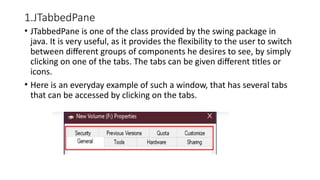
1.JTabbedPane
• JTabbedPane isone of the class provided by the swing package in
java. It is very useful, as it provides the flexibility to the user to switch
between different groups of components he desires to see, by simply
clicking on one of the tabs. The tabs can be given different titles or
icons.
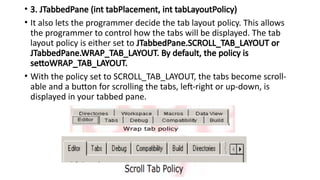
• Here is an everyday example of such a window, that has several tabs
that can be accessed by clicking on the tabs.
4.
• Constructors
1. JTabbedPane( )
The constructor JTabbedPane ( ) creates an empty TabbedPane. When
we use the constructor JTabbedPane ( ), it creates the pane without any
specification for its placement. So the tab is placed on its default place
that is TOP.
• 2. JTabbedPane (int tabPlacement)
This constructor creates an empty TabbedPane. It provides the privilege
to decide the direction or place for the pane. The placement is done
when the direction is specified using JTabbedPane.TOP,
JTabbedPane.BOTTOM, JTabbedPane.LEFT, or JTabbedPane.RIGHT.
5.
• 3. JTabbedPane(int tabPlacement, int tabLayoutPolicy)
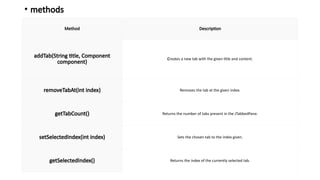
• It also lets the programmer decide the tab layout policy. This allows
the programmer to control how the tabs will be displayed. The tab
layout policy is either set to JTabbedPane.SCROLL_TAB_LAYOUT or
JTabbedPane.WRAP_TAB_LAYOUT. By default, the policy is
settoWRAP_TAB_LAYOUT.
• With the policy set to SCROLL_TAB_LAYOUT, the tabs become scroll-
able and a button for scrolling the tabs, left-right or up-down, is
displayed in your tabbed pane.
6.
• methods
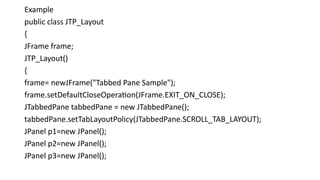
Method Description
addTab(Stringtitle, Component
component)
Creates a new tab with the given title and content.
removeTabAt(int index) Removes the tab at the given index.
getTabCount() Returns the number of tabs present in the JTabbedPane.
setSelectedIndex(int index) Sets the chosen tab to the index given.
getSelectedIndex() Returns the index of the currently selected tab.
7.
Example
public class JTP_Layout
{
JFrameframe;
JTP_Layout()
{
frame= newJFrame("Tabbed Pane Sample");
frame.setDefaultCloseOperation(JFrame.EXIT_ON_CLOSE);
JTabbedPane tabbedPane = new JTabbedPane();
tabbedPane.setTabLayoutPolicy(JTabbedPane.SCROLL_TAB_LAYOUT);
JPanel p1=new JPanel();
JPanel p2=new JPanel();
JPanel p3=new JPanel();
2.JScrollPane
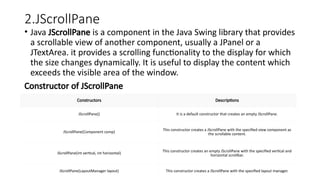
• Java JScrollPaneis a component in the Java Swing library that provides
a scrollable view of another component, usually a JPanel or a
JTextArea. it provides a scrolling functionality to the display for which
the size changes dynamically. It is useful to display the content which
exceeds the visible area of the window.
Constructor of JScrollPane
Constructors Descriptions
JScrollPane() It is a default constructor that creates an empty JScrollPane.
JScrollPane(Component comp) This constructor creates a JScrollPane with the specified view component as
the scrollable content.
JScrollPane(int vertical, int horizontal) This constructor creates an empty JScrollPane with the specified vertical and
horizontal scrollbar.
JScrollPane(LayoutManager layout) This constructor creates a JScrollPane with the specified layout manager.
10.
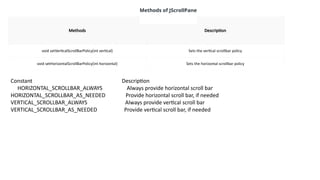
Methods Description
void setVerticalScrollBarPolicy(intvertical) Sets the vertical scrollbar policy
void setHorizontalScrollBarPolicy(int horizontal) Sets the horizontal scrollbar policy
Methods of JScrollPane
Constant Description
HORIZONTAL_SCROLLBAR_ALWAYS Always provide horizontal scroll bar
HORIZONTAL_SCROLLBAR_AS_NEEDED Provide horizontal scroll bar, if needed
VERTICAL_SCROLLBAR_ALWAYS Always provide vertical scroll bar
VERTICAL_SCROLLBAR_AS_NEEDED Provide vertical scroll bar, if needed
11.
• public classSimpleJScrollPaneExample {
• public static void main(String[] args) {
• JFrame frame = new JFrame("Simple JScrollPane Example");
• frame.setDefaultCloseOperation(JFrame.EXIT_ON_CLOSE);
• frame.setSize(300, 200);
• JPanel panel = new JPanel();
• panel.setLayout(new BoxLayout(panel, BoxLayout.Y_AXIS));
• for (int i = 1; i <= 50; i++) {
• JLabel label = new JLabel("Label " + i);
• panel.add(label);
• }
• JScrollPane scrollPane = new JScrollPane(panel);
• frame.add(scrollPane);
• frame.setVisible(true);
• }
• }
• // Optional: Set scroll bar policies explicitly
• // scrollPane.setVerticalScrollBarPolicy(JScrollPane.VERTICAL_SCROLLBAR_ALWAYS);
• // scrollPane.setHorizontalScrollBarPolicy(JScrollPane.HORIZONTAL_SCROLLBAR_ALWAYS);
12.
3.JTable
• The JTableclass is a part of Java Swing Package and is generally used
to display or edit two-dimensional data that is having both rows and
columns. It is similar to a spreadsheet. This arranges data in a tabular
form.
Constructors in JTable:
• JTable(): A table is created with empty cells.
• JTable(int rows, int cols): Creates a table of size rows * cols.
• JTable(Object[][] data, Object []Column): A table is created with the
specified name where []Column defines the column names.
13.
• Methods inJTable:
• addColumn(TableColumn []column) : adds a column at the end of the
JTable.
• clearSelection() : Selects all the selected rows and columns.
• editCellAt(int row, int col) : edits the intersecting cell of the column
number col and row number row programmatically, if the given
indices are valid and the corresponding cell is editable.
• setValueAt(Object value, int row, int col) : Sets the cell value as 'value'
for the position row, col in the JTable.
14.
• Example
public classJTableExamples
{
JFrame f;
JTable j;
JTableExamples()
{
f = new JFrame();
f.setTitle("JTable Example");
String[] columnNames = { "Name", "Roll Number", "Department" };
String[][] data = {
{ "Kundan Kumar Jha", "4031", "CSE" },
{ "Anand Jha", "6014", "IT" }
};
15.
j = newJTable(data, columnNames);
j.setBounds(30, 40, 200, 300);
JScrollPane sp = new JScrollPane(j);
f.add(sp);
f.setSize(500, 200);
f.setVisible(true);
}
public static void main(String[] args)
{
new JTableExamples();
}
}
16.
4.JSlider
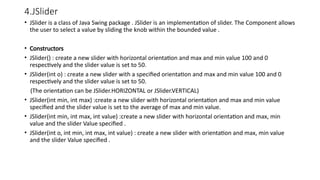
• JSlider isa class of Java Swing package . JSlider is an implementation of slider. The Component allows
the user to select a value by sliding the knob within the bounded value .
• Constructors
• JSlider() : create a new slider with horizontal orientation and max and min value 100 and 0
respectively and the slider value is set to 50.
• JSlider(int o) : create a new slider with a specified orientation and max and min value 100 and 0
respectively and the slider value is set to 50.
(The orientation can be JSlider.HORIZONTAL or JSlider.VERTICAL)
• JSlider(int min, int max) :create a new slider with horizontal orientation and max and min value
specified and the slider value is set to the average of max and min value.
• JSlider(int min, int max, int value) :create a new slider with horizontal orientation and max, min
value and the slider Value specified .
• JSlider(int o, int min, int max, int value) : create a new slider with orientation and max, min value
and the slider Value specified .
17.
• Methods
• setOrientation(intn) : sets the orientation of the slider to the specified value
• setValue( int v) : sets the value of the slider to the specified value
• setPaintTicks(boolean b) : the boolean value determines whether the ticks are painted on the slider or not
• setPaintTrack(boolean b) : the boolean value determines whether the track are painted on the slider or not
• setMajorTickSpacing(int n) : sets the spacing for major ticks .
• setMinorTickSpacing(int n) : sets the spacing for minor ticks .
• setFont(Font f) : set the font of the text for the slider
• setMaximum(int m) : set the maximum value for the slider
• setMinimum(int m) : sets the minimum value for the slider
• setPaintLabels(Boolean b): sets the labels are painted or not .
18.
• Example
import javax.swing.*;
publicclass sliderDemo {
public static void main(String[] args) {
f JFrame frame = new JFrame("JSlider Demo");
// create a slider
JSlider slider = new JSlider(JSlider.HORIZONTAL, 0, 40, 10);
slider.setMinorTickSpacing(5);
slider.setMajorTickSpacing(20);
slider.setPaintTrack(true);
slider.setPaintTicks(true);
slider.setPaintLabels(true);
frame.setLayout(new FlowLayout());
frame.setDefaultCloseOperation(JFrame.EXIT_ON_CLOSE);
frame.setSize(300, 200);
frame.add(slider);
frame.setVisible(true);
}
}
19.
5.JProgressBar
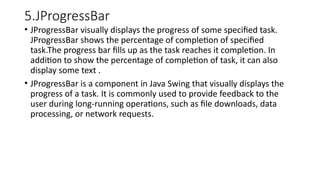
• JProgressBar visuallydisplays the progress of some specified task.
JProgressBar shows the percentage of completion of specified
task.The progress bar fills up as the task reaches it completion. In
addition to show the percentage of completion of task, it can also
display some text .
• JProgressBar is a component in Java Swing that visually displays the
progress of a task. It is commonly used to provide feedback to the
user during long-running operations, such as file downloads, data
processing, or network requests.
20.
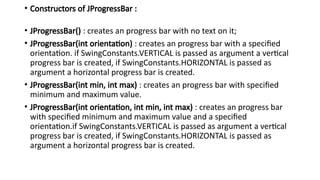
• Constructors ofJProgressBar :
• JProgressBar() : creates an progress bar with no text on it;
• JProgressBar(int orientation) : creates an progress bar with a specified
orientation. if SwingConstants.VERTICAL is passed as argument a vertical
progress bar is created, if SwingConstants.HORIZONTAL is passed as
argument a horizontal progress bar is created.
• JProgressBar(int min, int max) : creates an progress bar with specified
minimum and maximum value.
• JProgressBar(int orientation, int min, int max) : creates an progress bar
with specified minimum and maximum value and a specified
orientation.if SwingConstants.VERTICAL is passed as argument a vertical
progress bar is created, if SwingConstants.HORIZONTAL is passed as
argument a horizontal progress bar is created.
21.
• Methods
• intgetMaximum() : returns the progress bar's maximum value.
• int getMinimum() : returns the progress bar's minimum value.
• String getString() : get the progress bar's string representation of current value.
• void setMaximum(int n) : sets the progress bar's maximum value to the value
n.
• void setMinimum(int n) : sets the progress bar's minimum value to the value n.
• setValue(int n): Sets the current value of the progress bar, which updates the
visual representation of progress. This value should be within the defined
minimum and maximum range.
• setString(String s): Sets the custom text to be displayed on the progress bar.
• setStringPainted(boolean b): Determines whether a textual representation of
the progress (e.g., "50%") is displayed on the progress bar.
22.
• Example
public classProgressBarExample
{
public static void main(String[] args)
{
JFrame frame = new JFrame("JProgressBar Example");
frame.setDefaultCloseOperation(JFrame.EXIT_ON_CLOSE);
frame.setSize(400, 200);
JProgressBar progressBar = new JProgressBar(0, 100); // Min: 0, Max: 100
progressBar.setValue(0); // Initial progress
progressBar.setStringPainted(true); // Display percentage text
frame.add(progressBar);
frame.setVisible(true);
}
}
23.
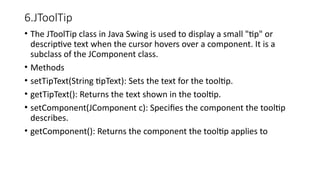
6.JToolTip
• The JToolTipclass in Java Swing is used to display a small "tip" or
descriptive text when the cursor hovers over a component. It is a
subclass of the JComponent class.
• Methods
• setTipText(String tipText): Sets the text for the tooltip.
• getTipText(): Returns the text shown in the tooltip.
• setComponent(JComponent c): Specifies the component the tooltip
describes.
• getComponent(): Returns the component the tooltip applies to
24.
• Example
public classToolTipExample extends JFrame
{
public ToolTipExample()
{
setTitle("JToolTip Example");
setDefaultCloseOperation(JFrame.EXIT_ON_CLOSE);
JButton button = new JButton("Hover Over Me");
button.setToolTipText("This is a simple tooltip."); // Setting the tooltip text
add(button);
setSize(300, 200);
setVisible(true);
}
public static void main(String[] args) {
new ToolTipExample();
}
}
25.
7.JTree
• The JTreeclass in Java Swing is a graphical user interface component used
to display hierarchical data in a tree-like structure. It allows users to
visualize and interact with data organized into parent-child relationships.
• It is used to display hierarchical data which is in a particular order.
Constructors
• Jtree () – A constructor has the same name as the class name and it does
not have any return value. It creates a simple model for class JTree.
• JTree (Object value[]) – In this case, an object is passéd through the
constructor. All the objects passed are the child of the root node which is
represented at a lower level than the root node.
• Jtree (TreeNode root) – Here the root node is TreeNode which is built
according to the commands given. All the child notes will fall under the root
node TreeNode.
26.
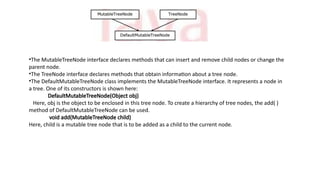
•The MutableTreeNode interfacedeclares methods that can insert and remove child nodes or change the
parent node.
•The TreeNode interface declares methods that obtain information about a tree node.
•The DefaultMutableTreeNode class implements the MutableTreeNode interface. It represents a node in
a tree. One of its constructors is shown here:
DefaultMutableTreeNode(Object obj)
Here, obj is the object to be enclosed in this tree node. To create a hierarchy of tree nodes, the add( )
method of DefaultMutableTreeNode can be used.
void add(MutableTreeNode child)
Here, child is a mutable tree node that is to be added as a child to the current node.
8.JDialog
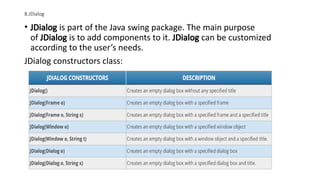
• JDialog ispart of the Java swing package. The main purpose
of JDialog is to add components to it. JDialog can be customized
according to the user’s needs.
JDialog constructors class:
29.
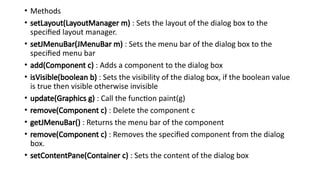
• Methods
• setLayout(LayoutManagerm) : Sets the layout of the dialog box to the
specified layout manager.
• setJMenuBar(JMenuBar m) : Sets the menu bar of the dialog box to the
specified menu bar
• add(Component c) : Adds a component to the dialog box
• isVisible(boolean b) : Sets the visibility of the dialog box, if the boolean value
is true then visible otherwise invisible
• update(Graphics g) : Call the function paint(g)
• remove(Component c) : Delete the component c
• getJMenuBar() : Returns the menu bar of the component
• remove(Component c) : Removes the specified component from the dialog
box.
• setContentPane(Container c) : Sets the content of the dialog box
30.
• Example
import javax.swing.*
publicclass JDialogSyntax
{
public static void main (String[] args)
{
JFrame f=new JFrame("Dialog Demo");
JDialog stest = new JDialog(f,"Dialog window");
stest.setVisible(true);
stest.setSize(300,300);
stest.setLocation(800,40);
f.setDefaultCloseOperation(JDialog.DISPOSE ON CLOSE);
}
}
31.
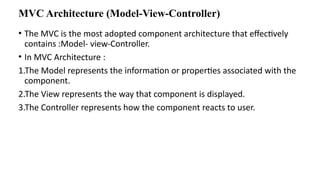
MVC Architecture (Model-View-Controller)
•The MVC is the most adopted component architecture that effectively
contains :Model- view-Controller.
• In MVC Architecture :
1.The Model represents the information or properties associated with the
component.
2.The View represents the way that component is displayed.
3.The Controller represents how the component reacts to user.
32.
MVC Architecture (Model-View-Controller)
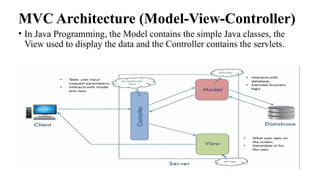
•In Java Programming, the Model contains the simple Java classes, the
View used to display the data and the Controller contains the servlets.
33.
MVC Architecture (Model-View-Controller)
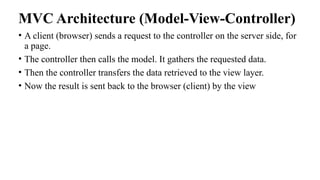
•A client (browser) sends a request to the controller on the server side, for
a page.
• The controller then calls the model. It gathers the requested data.
• Then the controller transfers the data retrieved to the view layer.
• Now the result is sent back to the browser (client) by the view
![tabbedPane.setBounds(50,50,200,200);
tabbedPane.add("One",p1);
tabbedPane.add("Two",p2);
tabbedPane.add("Three",p3);
frame.add(tabbedPane, BorderLayout.CENTER);
frame.setSize(400, 150);
frame.setVisible(true);
}
public static void main(String args[])
{
new JTP_Layout();
}
}](https://image.slidesharecdn.com/swingadvancedcomponents-251219050947-f12068da/85/Advanced-Java-Programming-Swing-Advanced-Components-pptx-8-320.jpg)
![• public class SimpleJScrollPaneExample {
• public static void main(String[] args) {
• JFrame frame = new JFrame("Simple JScrollPane Example");
• frame.setDefaultCloseOperation(JFrame.EXIT_ON_CLOSE);
• frame.setSize(300, 200);
• JPanel panel = new JPanel();
• panel.setLayout(new BoxLayout(panel, BoxLayout.Y_AXIS));
• for (int i = 1; i <= 50; i++) {
• JLabel label = new JLabel("Label " + i);
• panel.add(label);
• }
• JScrollPane scrollPane = new JScrollPane(panel);
• frame.add(scrollPane);
• frame.setVisible(true);
• }
• }
• // Optional: Set scroll bar policies explicitly
• // scrollPane.setVerticalScrollBarPolicy(JScrollPane.VERTICAL_SCROLLBAR_ALWAYS);
• // scrollPane.setHorizontalScrollBarPolicy(JScrollPane.HORIZONTAL_SCROLLBAR_ALWAYS);](https://image.slidesharecdn.com/swingadvancedcomponents-251219050947-f12068da/85/Advanced-Java-Programming-Swing-Advanced-Components-pptx-11-320.jpg)
![3.JTable
• The JTable class is a part of Java Swing Package and is generally used
to display or edit two-dimensional data that is having both rows and
columns. It is similar to a spreadsheet. This arranges data in a tabular
form.
Constructors in JTable:
• JTable(): A table is created with empty cells.
• JTable(int rows, int cols): Creates a table of size rows * cols.
• JTable(Object[][] data, Object []Column): A table is created with the
specified name where []Column defines the column names.](https://image.slidesharecdn.com/swingadvancedcomponents-251219050947-f12068da/85/Advanced-Java-Programming-Swing-Advanced-Components-pptx-12-320.jpg)
![• Methods in JTable:
• addColumn(TableColumn []column) : adds a column at the end of the
JTable.
• clearSelection() : Selects all the selected rows and columns.
• editCellAt(int row, int col) : edits the intersecting cell of the column
number col and row number row programmatically, if the given
indices are valid and the corresponding cell is editable.
• setValueAt(Object value, int row, int col) : Sets the cell value as 'value'
for the position row, col in the JTable.](https://image.slidesharecdn.com/swingadvancedcomponents-251219050947-f12068da/85/Advanced-Java-Programming-Swing-Advanced-Components-pptx-13-320.jpg)
![• Example
public class JTableExamples
{
JFrame f;
JTable j;
JTableExamples()
{
f = new JFrame();
f.setTitle("JTable Example");
String[] columnNames = { "Name", "Roll Number", "Department" };
String[][] data = {
{ "Kundan Kumar Jha", "4031", "CSE" },
{ "Anand Jha", "6014", "IT" }
};](https://image.slidesharecdn.com/swingadvancedcomponents-251219050947-f12068da/85/Advanced-Java-Programming-Swing-Advanced-Components-pptx-14-320.jpg)
![j = new JTable(data, columnNames);
j.setBounds(30, 40, 200, 300);
JScrollPane sp = new JScrollPane(j);
f.add(sp);
f.setSize(500, 200);
f.setVisible(true);
}
public static void main(String[] args)
{
new JTableExamples();
}
}](https://image.slidesharecdn.com/swingadvancedcomponents-251219050947-f12068da/85/Advanced-Java-Programming-Swing-Advanced-Components-pptx-15-320.jpg)

![• Example
import javax.swing.*;
public class sliderDemo {
public static void main(String[] args) {
f JFrame frame = new JFrame("JSlider Demo");
// create a slider
JSlider slider = new JSlider(JSlider.HORIZONTAL, 0, 40, 10);
slider.setMinorTickSpacing(5);
slider.setMajorTickSpacing(20);
slider.setPaintTrack(true);
slider.setPaintTicks(true);
slider.setPaintLabels(true);
frame.setLayout(new FlowLayout());
frame.setDefaultCloseOperation(JFrame.EXIT_ON_CLOSE);
frame.setSize(300, 200);
frame.add(slider);
frame.setVisible(true);
}
}](https://image.slidesharecdn.com/swingadvancedcomponents-251219050947-f12068da/85/Advanced-Java-Programming-Swing-Advanced-Components-pptx-18-320.jpg)
![• Example
public class ProgressBarExample
{
public static void main(String[] args)
{
JFrame frame = new JFrame("JProgressBar Example");
frame.setDefaultCloseOperation(JFrame.EXIT_ON_CLOSE);
frame.setSize(400, 200);
JProgressBar progressBar = new JProgressBar(0, 100); // Min: 0, Max: 100
progressBar.setValue(0); // Initial progress
progressBar.setStringPainted(true); // Display percentage text
frame.add(progressBar);
frame.setVisible(true);
}
}](https://image.slidesharecdn.com/swingadvancedcomponents-251219050947-f12068da/85/Advanced-Java-Programming-Swing-Advanced-Components-pptx-22-320.jpg)
![• Example
public class ToolTipExample extends JFrame
{
public ToolTipExample()
{
setTitle("JToolTip Example");
setDefaultCloseOperation(JFrame.EXIT_ON_CLOSE);
JButton button = new JButton("Hover Over Me");
button.setToolTipText("This is a simple tooltip."); // Setting the tooltip text
add(button);
setSize(300, 200);
setVisible(true);
}
public static void main(String[] args) {
new ToolTipExample();
}
}](https://image.slidesharecdn.com/swingadvancedcomponents-251219050947-f12068da/85/Advanced-Java-Programming-Swing-Advanced-Components-pptx-24-320.jpg)
![7.JTree
• The JTree class in Java Swing is a graphical user interface component used
to display hierarchical data in a tree-like structure. It allows users to
visualize and interact with data organized into parent-child relationships.
• It is used to display hierarchical data which is in a particular order.
Constructors
• Jtree () – A constructor has the same name as the class name and it does
not have any return value. It creates a simple model for class JTree.
• JTree (Object value[]) – In this case, an object is passéd through the
constructor. All the objects passed are the child of the root node which is
represented at a lower level than the root node.
• Jtree (TreeNode root) – Here the root node is TreeNode which is built
according to the commands given. All the child notes will fall under the root
node TreeNode.](https://image.slidesharecdn.com/swingadvancedcomponents-251219050947-f12068da/85/Advanced-Java-Programming-Swing-Advanced-Components-pptx-25-320.jpg)
![public class Example
{
JFrame f;
Example()
{
f=new JFrame();
DefaultMutableTreeNode country=new DefaultMutableTreeNode("India");
DefaultMutableTreeNode state=new DefaultMutableTreeNode("States");
country.add(state);
DefaultMutableTreeNode wb=new DefaultMutableTreeNode("West Bengal");
DefaultMutableTreeNode del=new DefaultMutableTreeNode("Delhi");
DefaultMutableTreeNode ap=new DefaultMutableTreeNode("Andhra Pradesh");
DefaultMutableTreeNode tn=new DefaultMutableTreeNode("Tamil Nadu");
state.add(wb); state.add(del); state.add(ap); state.add(tn);
JTree jt=new JTree(state);
f.add(jt);
f.setSize(200,200);
f.setVisible(true);
}
public static void main(String[] args)
{new Example();}}](https://image.slidesharecdn.com/swingadvancedcomponents-251219050947-f12068da/85/Advanced-Java-Programming-Swing-Advanced-Components-pptx-27-320.jpg)
![• Example
import javax.swing.*
public class JDialogSyntax
{
public static void main (String[] args)
{
JFrame f=new JFrame("Dialog Demo");
JDialog stest = new JDialog(f,"Dialog window");
stest.setVisible(true);
stest.setSize(300,300);
stest.setLocation(800,40);
f.setDefaultCloseOperation(JDialog.DISPOSE ON CLOSE);
}
}](https://image.slidesharecdn.com/swingadvancedcomponents-251219050947-f12068da/85/Advanced-Java-Programming-Swing-Advanced-Components-pptx-30-320.jpg)