Aarti Narang
Jaskiran Kaur
 Upneet Kaur
A  swing is the primary JAVA GUI widget
  toolkit , an API for providing a GUI for java
  programs.

 Itwas developed to provide a more
  sophisticated set of GUI components Other
  than in AWT package.

 Supports more powerful and flexible
  components that provides advanced and
  pluggable look and feel.
   Platform independent
   Model –View-Controller
   Extensible
   Customizable
   Configurable
   Light weight UI
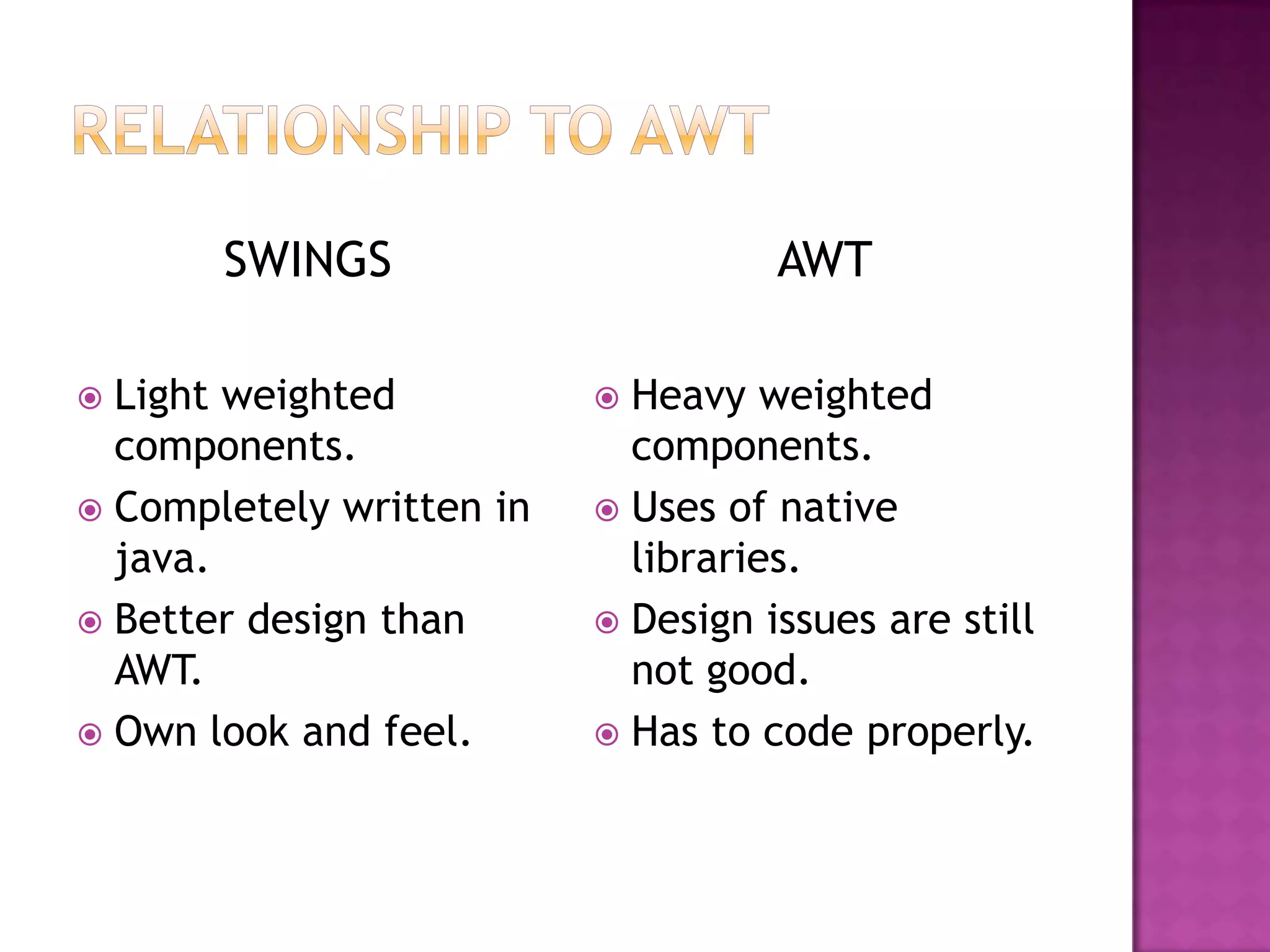
SWINGS                       AWT

 Light weighted           Heavy weighted
  components.               components.
 Completely written in    Uses of native
  java.                     libraries.
 Better design than       Design issues are still
  AWT.                      not good.
 Own look and feel.       Has to code properly.
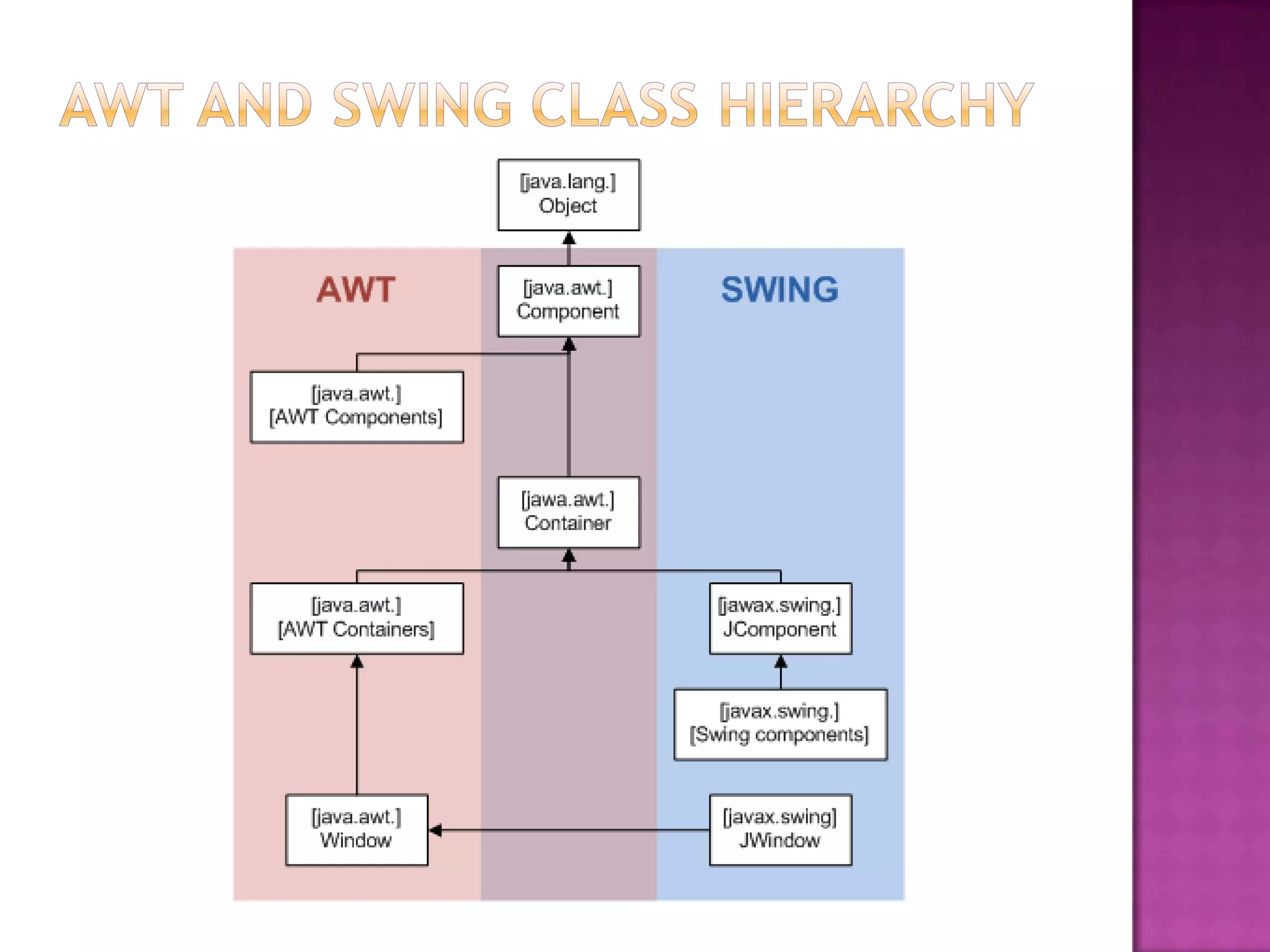
 Java.awt.*
 Javax.swing.*


 Javax : hierarchy of packages and set of
 “light weight” components for platform-
 independent rich GUI components.
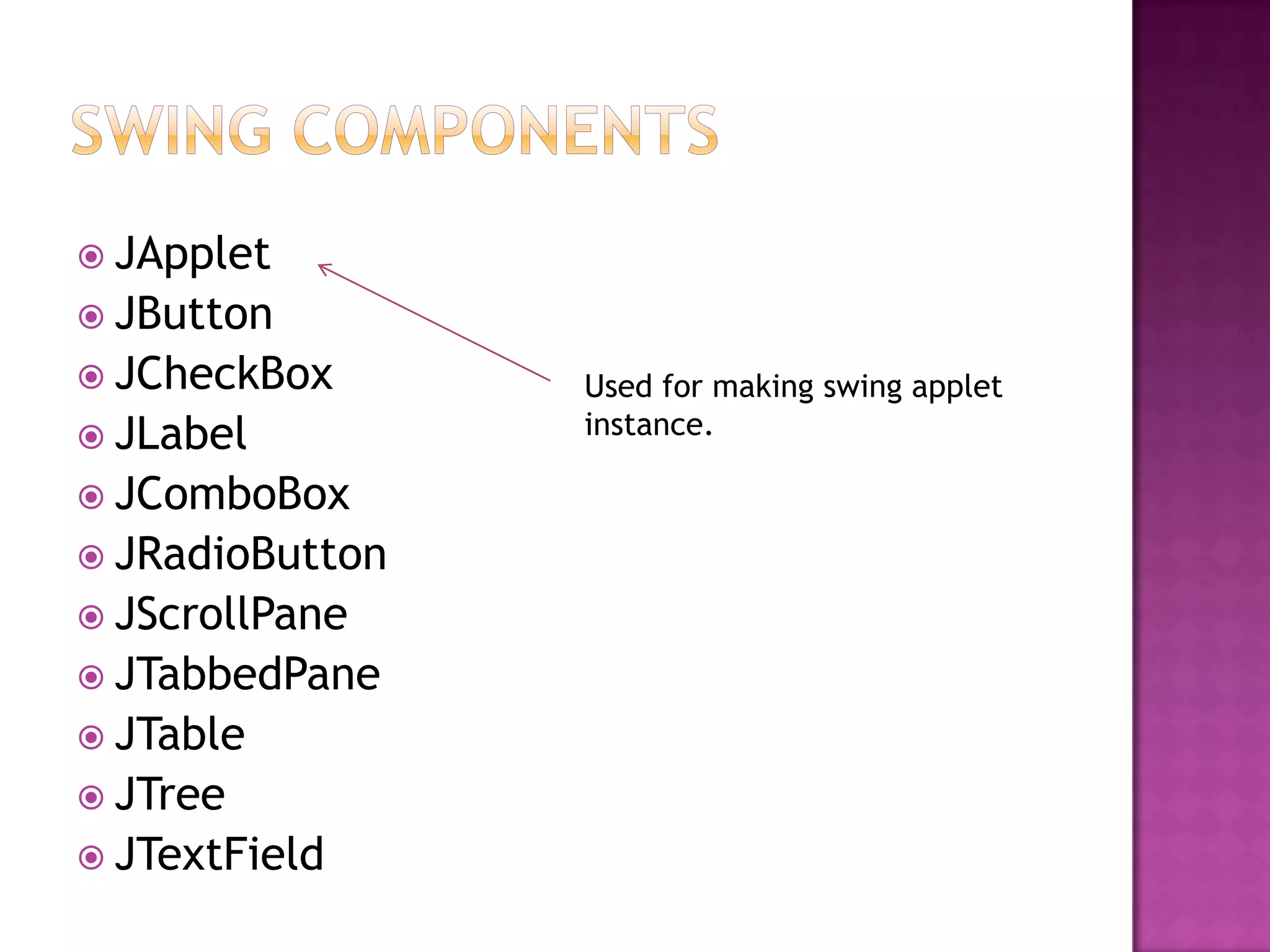
 JApplet
 JButton
 JCheckBox      Used for making swing applet
 JLabel         instance.

 JComboBox
 JRadioButton
 JScrollPane
 JTabbedPane
 JTable
 JTree
 JTextField
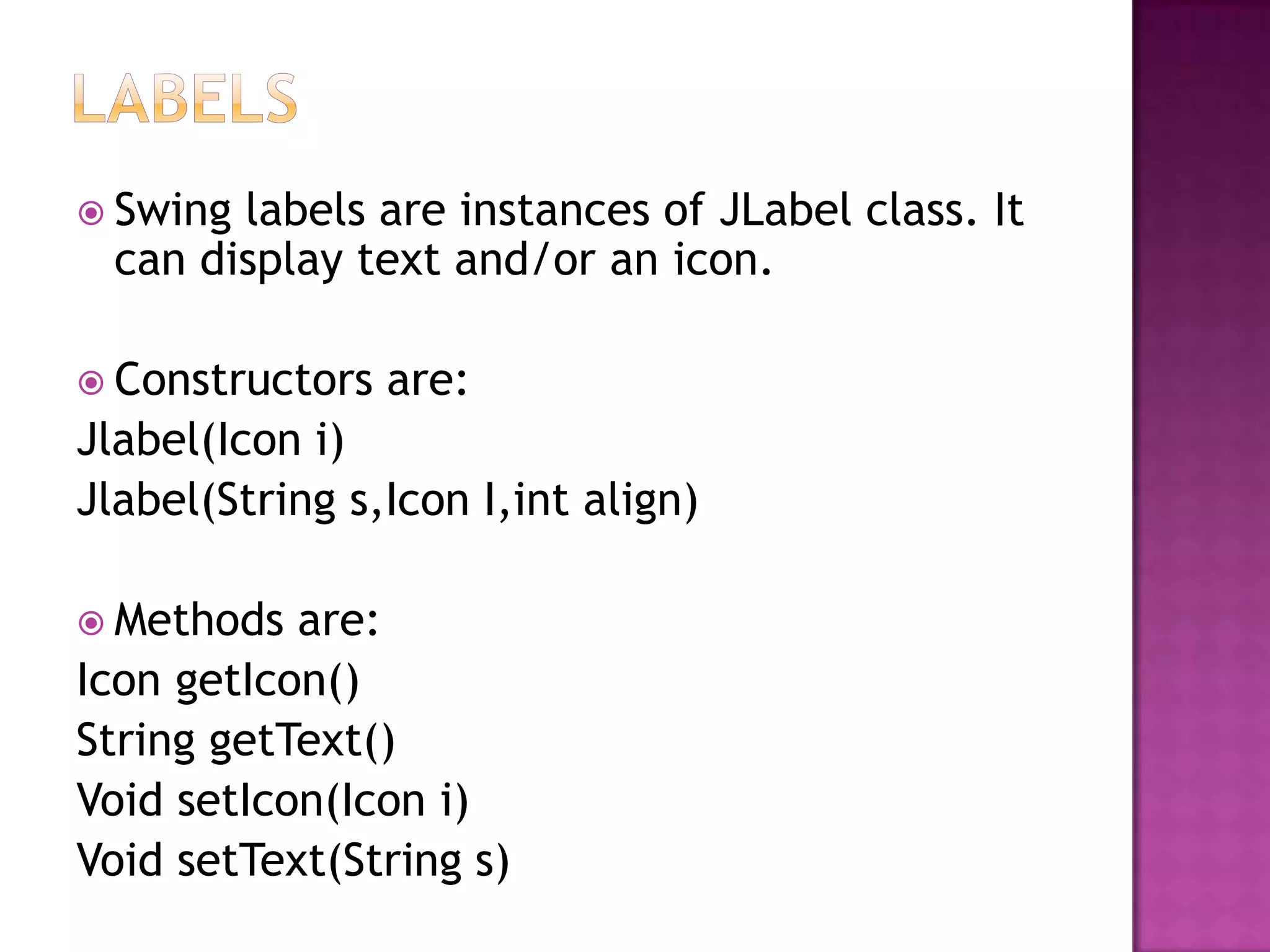
 Swing labels are instances of JLabel class. It
  can display text and/or an icon.

 Constructors   are:
Jlabel(Icon i)
Jlabel(String s,Icon I,int align)

 Methods  are:
Icon getIcon()
String getText()
Void setIcon(Icon i)
Void setText(String s)
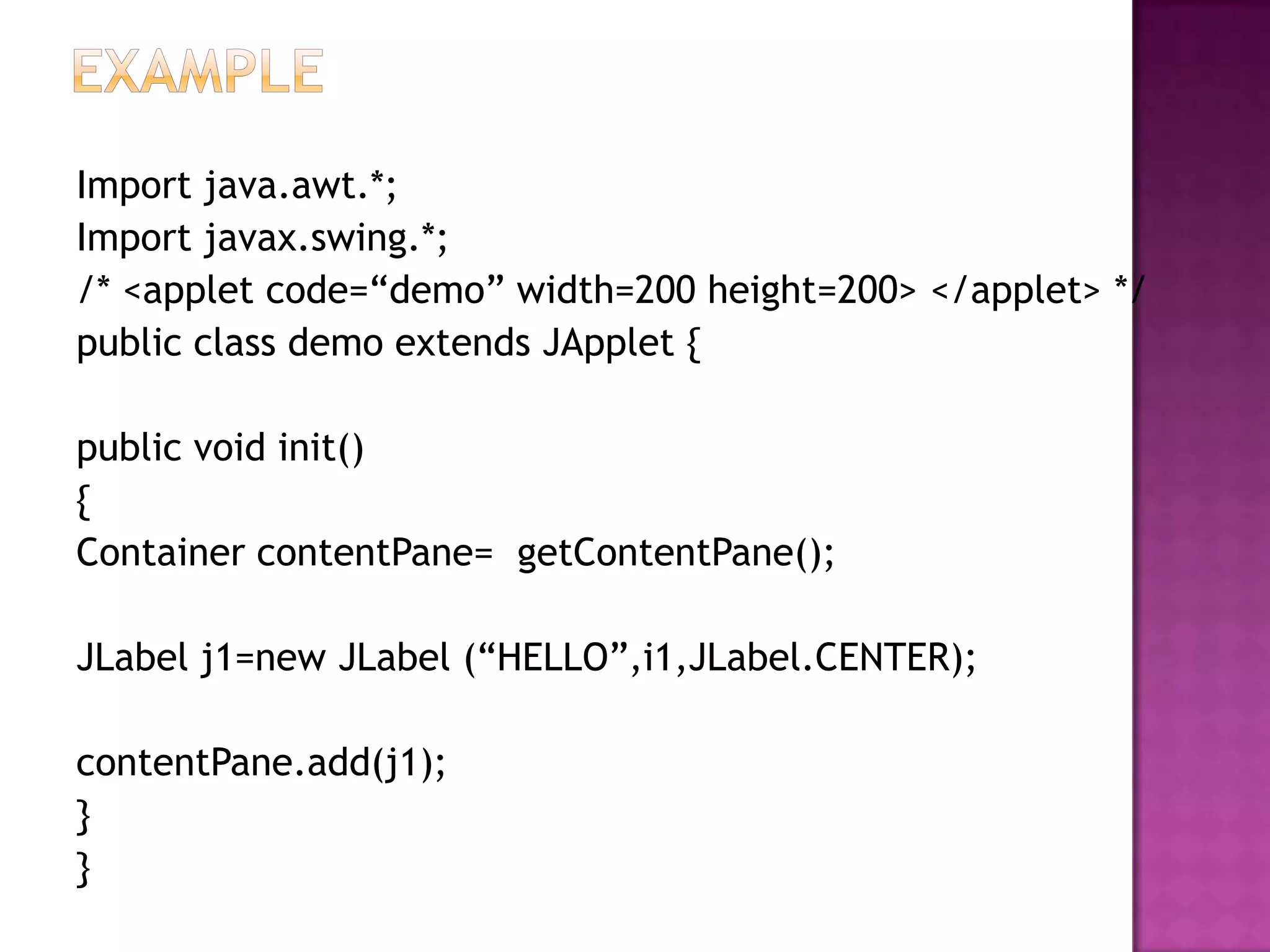
Import java.awt.*;
Import javax.swing.*;
/* <applet code=“demo” width=200 height=200> </applet> */
public class demo extends JApplet {

public void init()
{
Container contentPane= getContentPane();

JLabel j1=new JLabel (“HELLO”,i1,JLabel.CENTER);

contentPane.add(j1);
}
}
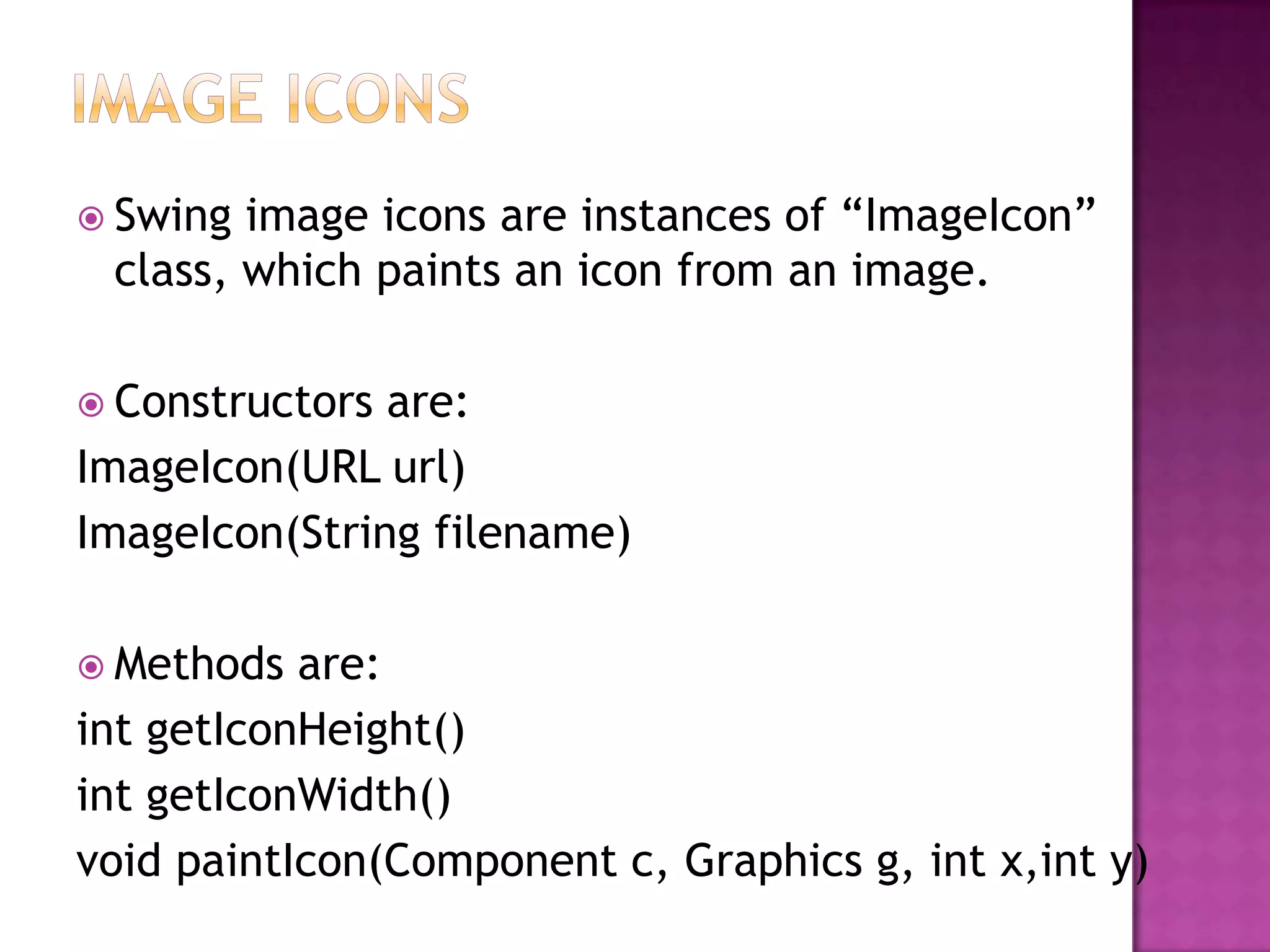
 Swing image icons are instances of “ImageIcon”
 class, which paints an icon from an image.

 Constructors are:
ImageIcon(URL url)
ImageIcon(String filename)

 Methods  are:
int getIconHeight()
int getIconWidth()
void paintIcon(Component c, Graphics g, int x,int y)
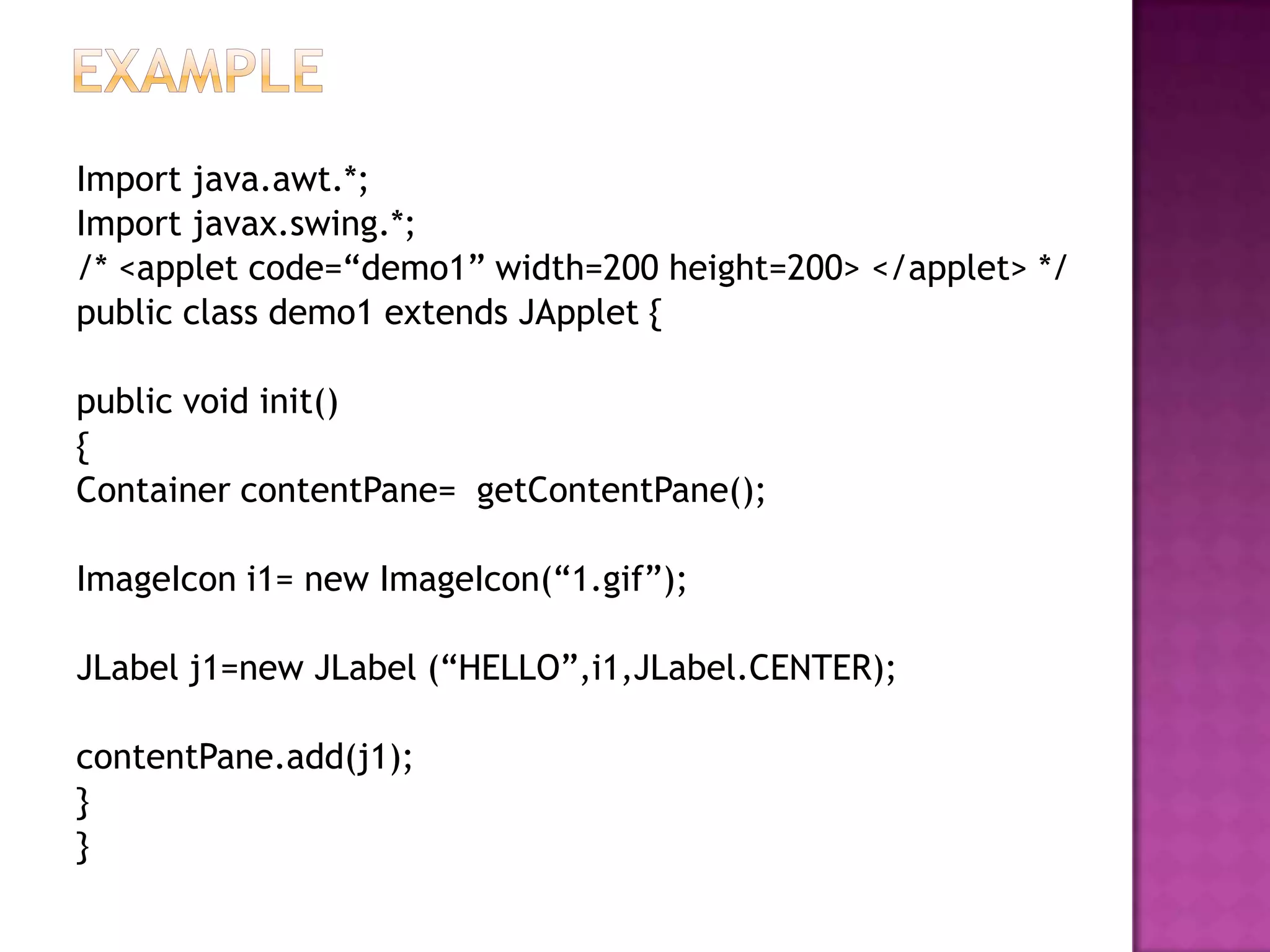
Import java.awt.*;
Import javax.swing.*;
/* <applet code=“demo1” width=200 height=200> </applet> */
public class demo1 extends JApplet {

public void init()
{
Container contentPane= getContentPane();

ImageIcon i1= new ImageIcon(“1.gif”);

JLabel j1=new JLabel (“HELLO”,i1,JLabel.CENTER);

contentPane.add(j1);
}
}
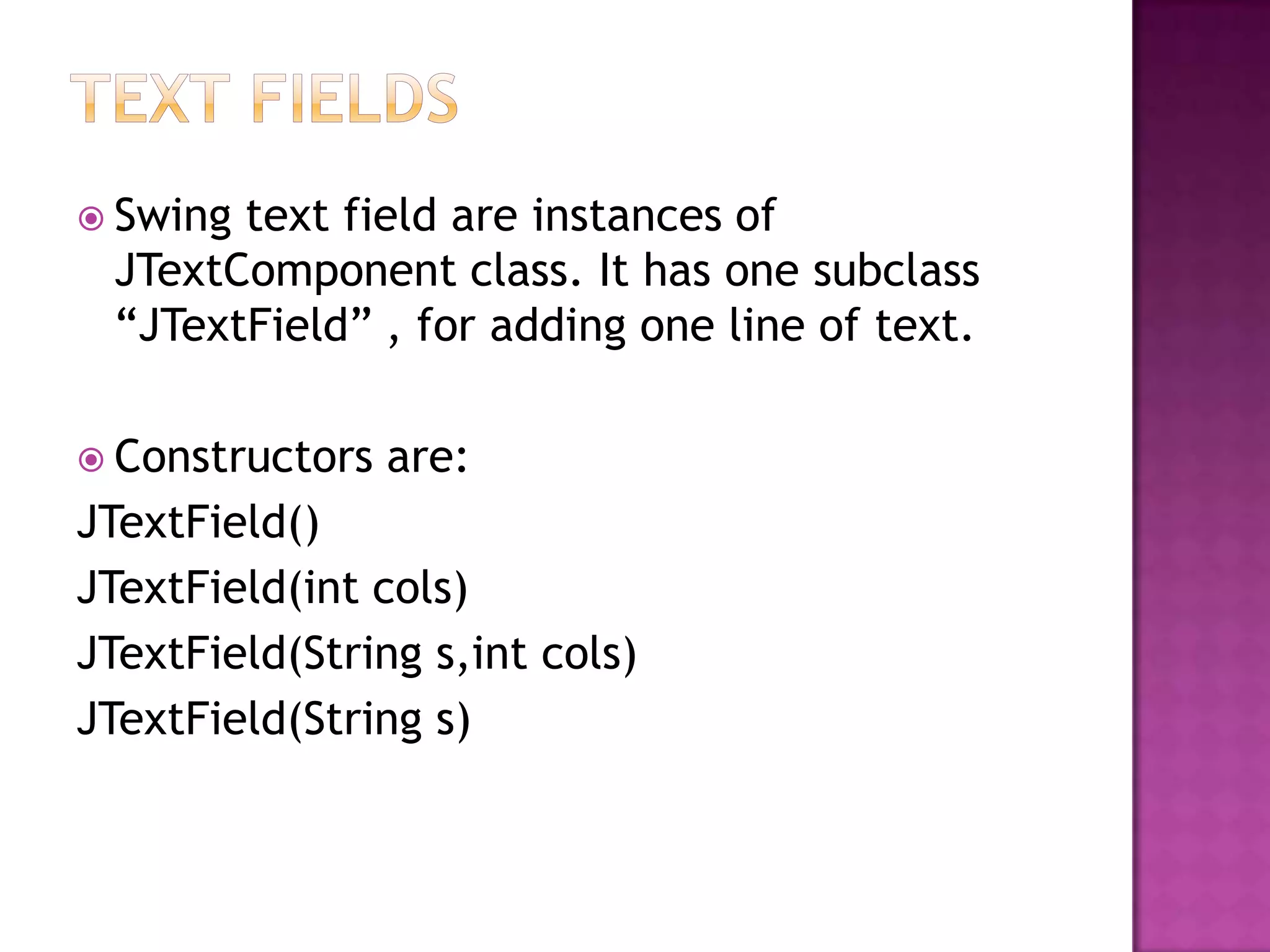
 Swingtext field are instances of
 JTextComponent class. It has one subclass
 “JTextField” , for adding one line of text.

 Constructors   are:
JTextField()
JTextField(int cols)
JTextField(String s,int cols)
JTextField(String s)
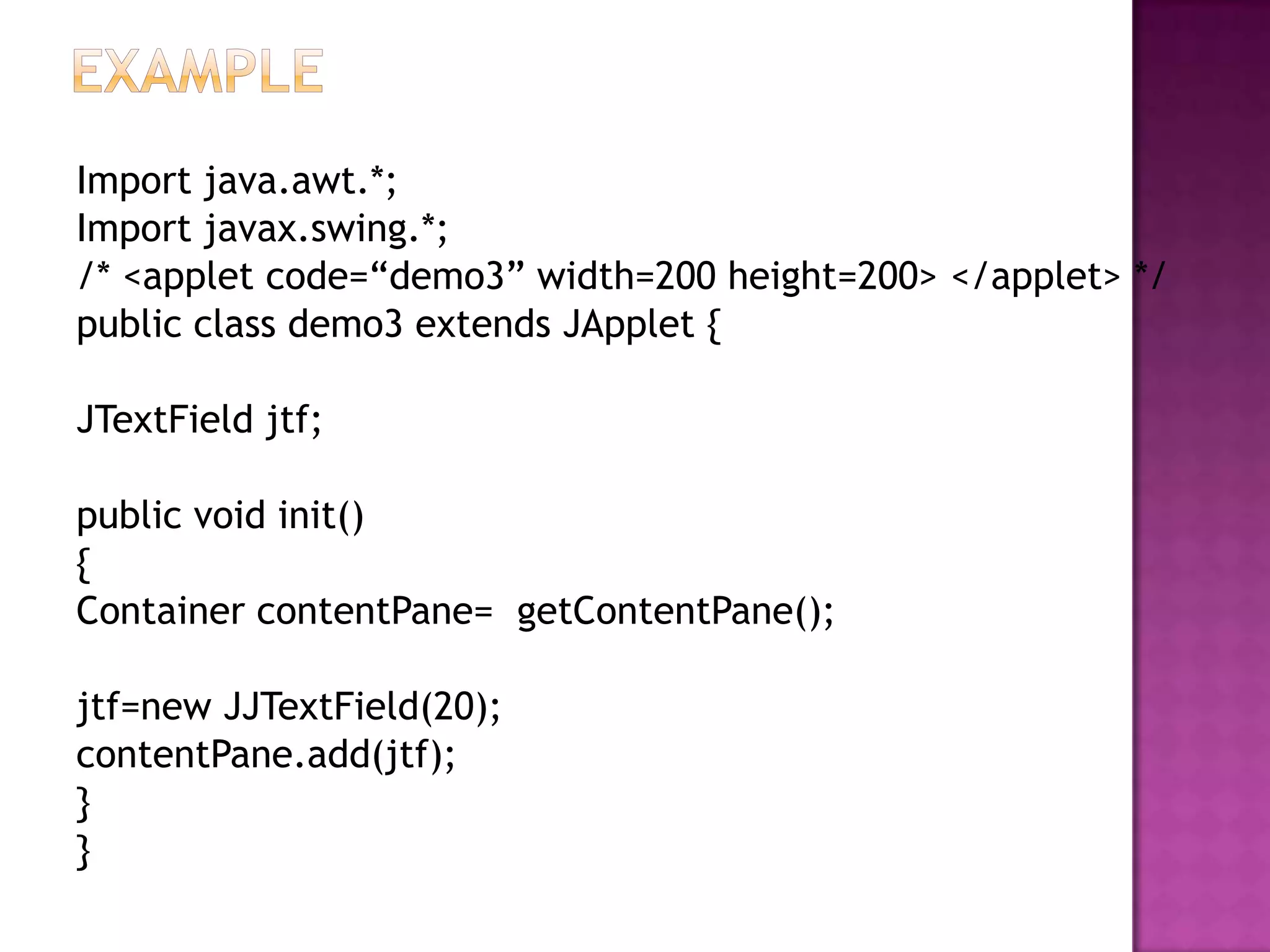
Import java.awt.*;
Import javax.swing.*;
/* <applet code=“demo3” width=200 height=200> </applet> */
public class demo3 extends JApplet {

JTextField jtf;

public void init()
{
Container contentPane= getContentPane();

jtf=new JJTextField(20);
contentPane.add(jtf);
}
}
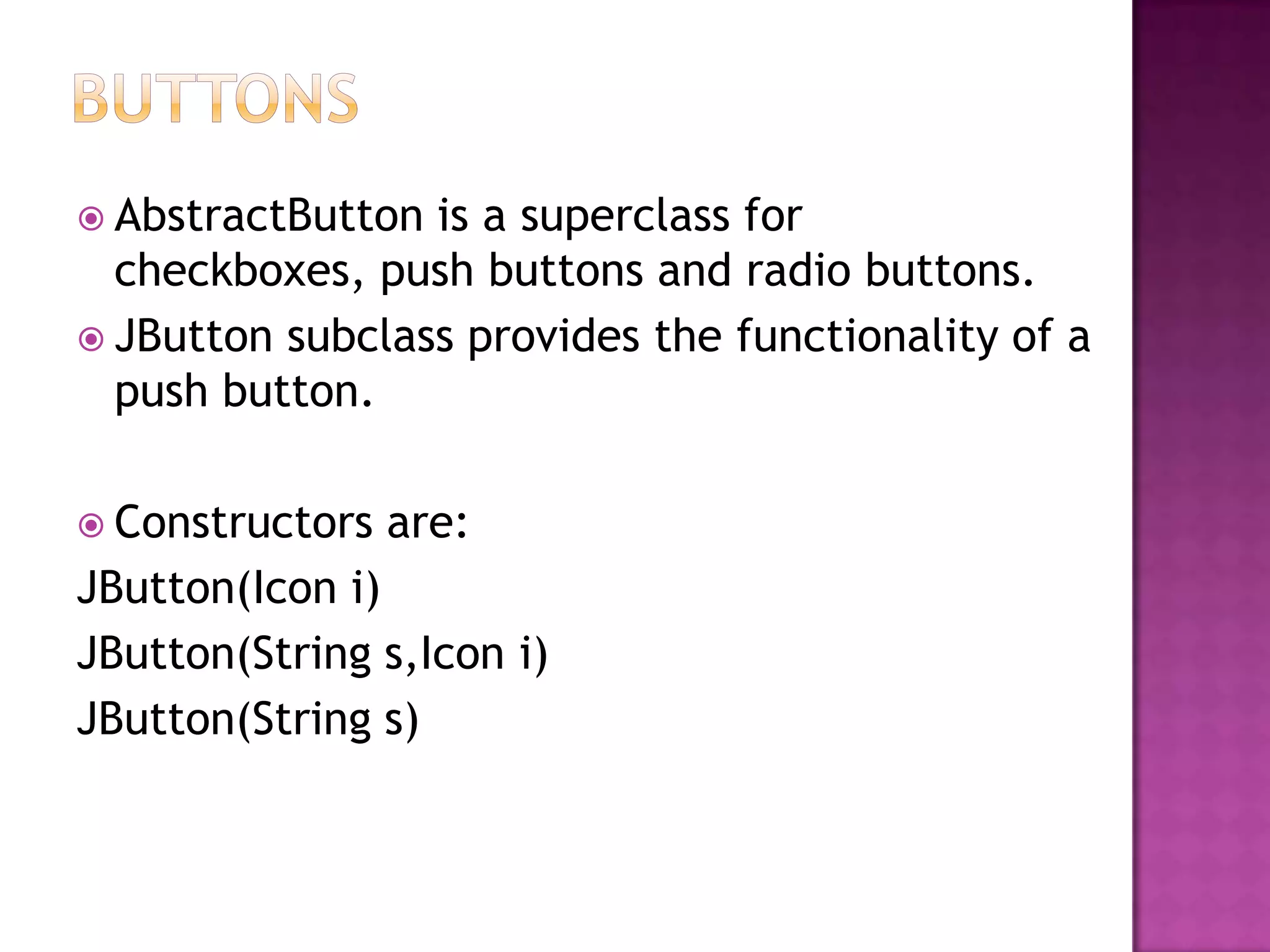
 AbstractButton is a superclass for
  checkboxes, push buttons and radio buttons.
 JButton subclass provides the functionality of a
  push button.

 Constructors   are:
JButton(Icon i)
JButton(String s,Icon i)
JButton(String s)
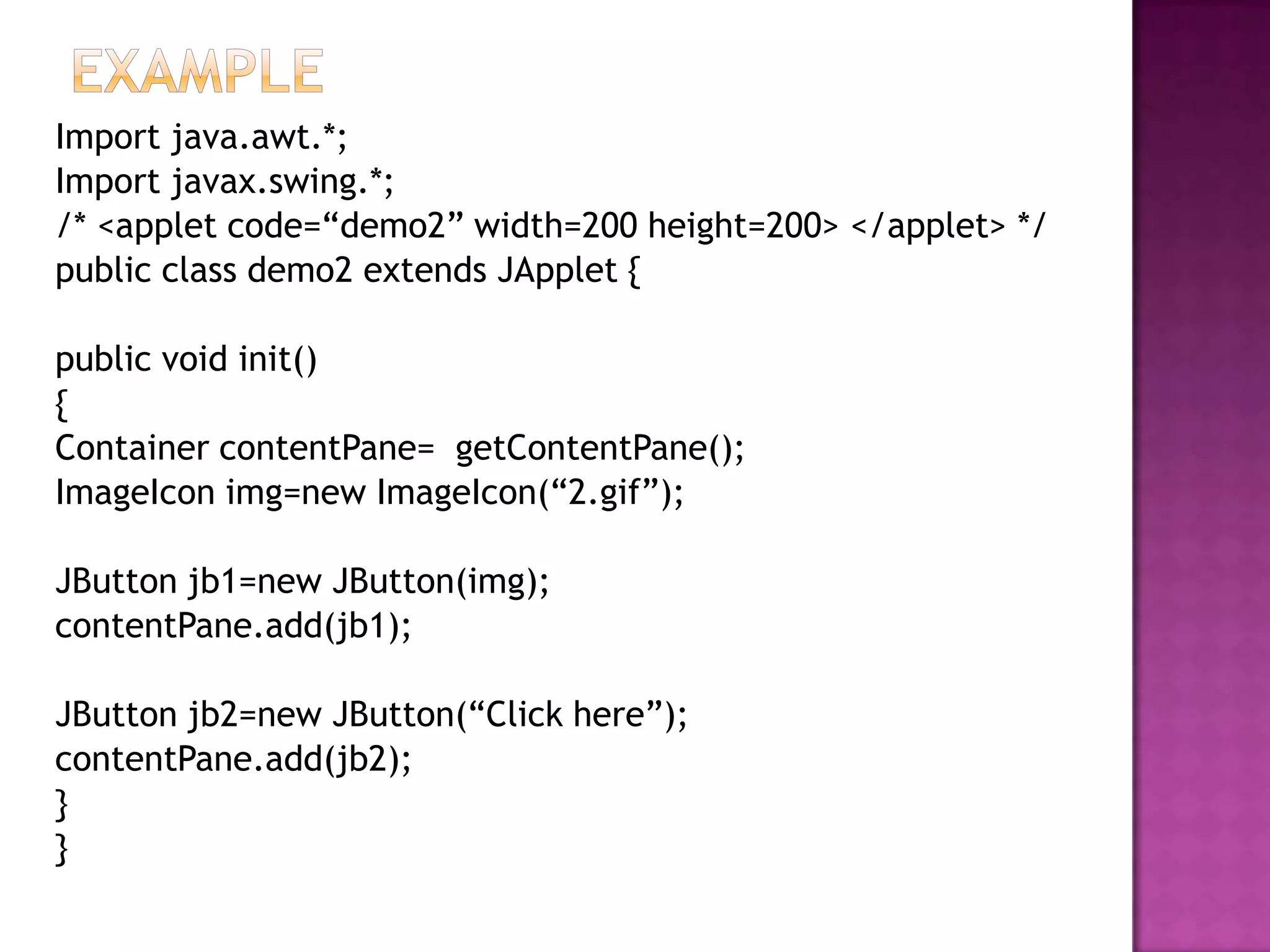
Import java.awt.*;
Import javax.swing.*;
/* <applet code=“demo2” width=200 height=200> </applet> */
public class demo2 extends JApplet {

public void init()
{
Container contentPane= getContentPane();
ImageIcon img=new ImageIcon(“2.gif”);

JButton jb1=new JButton(img);
contentPane.add(jb1);

JButton jb2=new JButton(“Click here”);
contentPane.add(jb2);
}
}
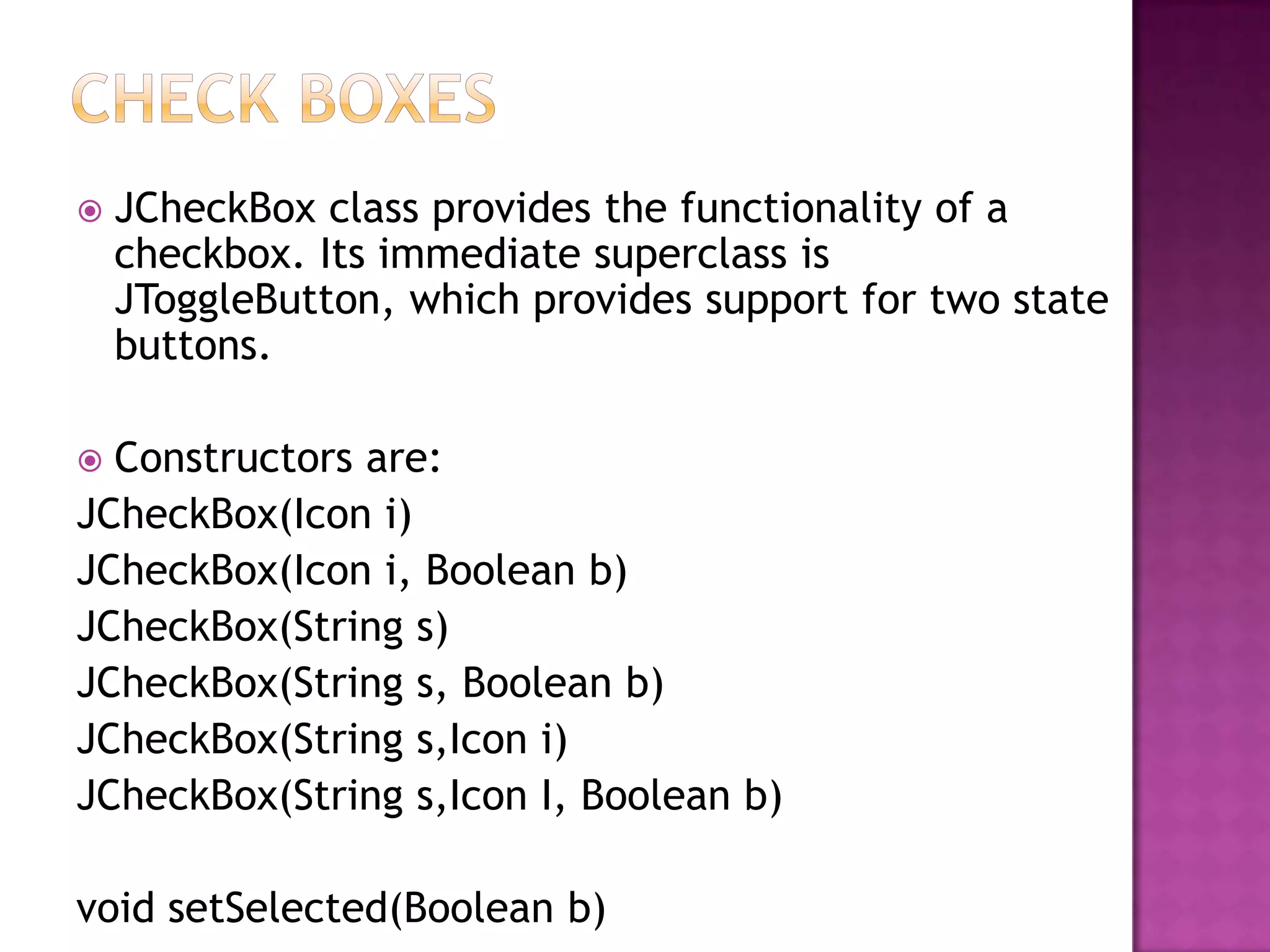
   JCheckBox class provides the functionality of a
    checkbox. Its immediate superclass is
    JToggleButton, which provides support for two state
    buttons.

 Constructors are:
JCheckBox(Icon i)
JCheckBox(Icon i, Boolean b)
JCheckBox(String s)
JCheckBox(String s, Boolean b)
JCheckBox(String s,Icon i)
JCheckBox(String s,Icon I, Boolean b)

void setSelected(Boolean b)
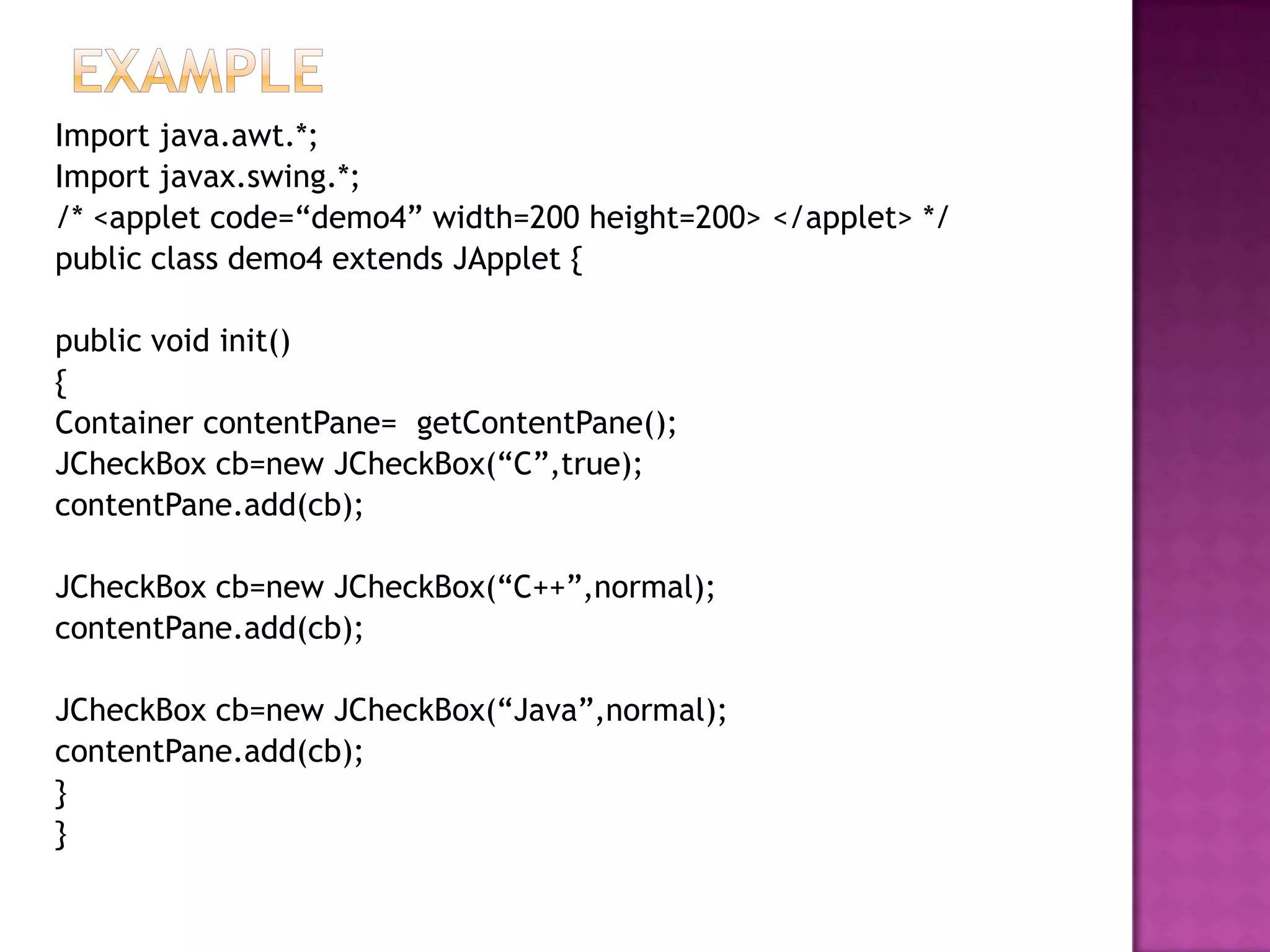
Import java.awt.*;
Import javax.swing.*;
/* <applet code=“demo4” width=200 height=200> </applet> */
public class demo4 extends JApplet {

public void init()
{
Container contentPane= getContentPane();
JCheckBox cb=new JCheckBox(“C”,true);
contentPane.add(cb);

JCheckBox cb=new JCheckBox(“C++”,normal);
contentPane.add(cb);

JCheckBox cb=new JCheckBox(“Java”,normal);
contentPane.add(cb);
}
}
 Radio  buttons are supported by JRadioButton
  class, a subclass of AbstractButton.
 Constructors are same as of checkboxes.


 Radio
      buttons must be grouped into one set, so
 we use “ButtonGroup” class.

void add(AbstractButton b)
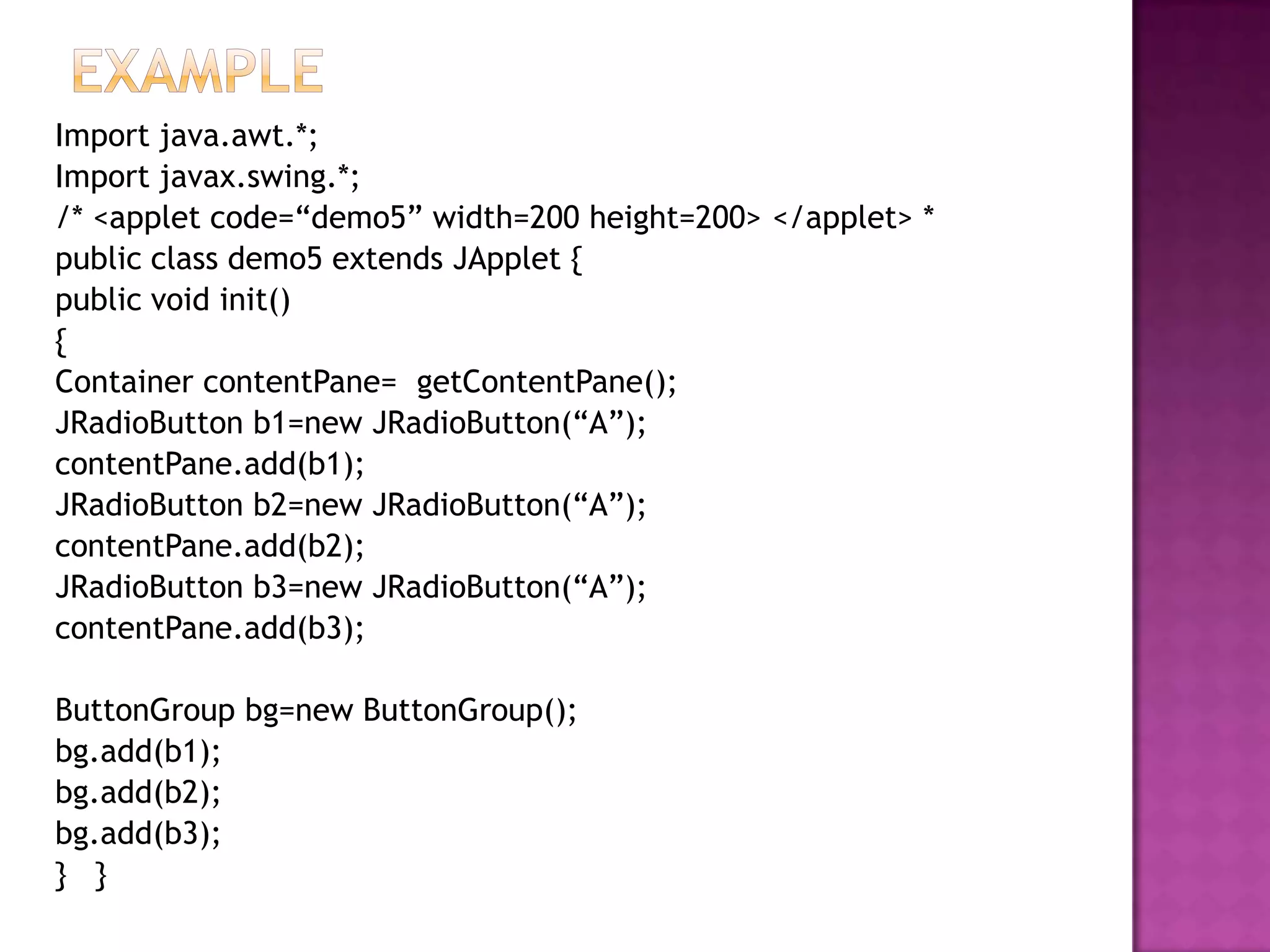
Import java.awt.*;
Import javax.swing.*;
/* <applet code=“demo5” width=200 height=200> </applet> *
public class demo5 extends JApplet {
public void init()
{
Container contentPane= getContentPane();
JRadioButton b1=new JRadioButton(“A”);
contentPane.add(b1);
JRadioButton b2=new JRadioButton(“A”);
contentPane.add(b2);
JRadioButton b3=new JRadioButton(“A”);
contentPane.add(b3);

ButtonGroup bg=new ButtonGroup();
bg.add(b1);
bg.add(b2);
bg.add(b3);
} }
   A tabbed pane is a component that appears as a group of
    folders in a file cabinet. Each folder has title and is
    selected one at a time.
   Tabbed panes are encapsulated by JTabbedPane class.

void addTab(String str, Component comp)

Procedure to use tabbed pane is:

    Create a JTabbedPane object.
    Call addtab() to add a tab to pane(title, and its
    component for each tab).
    Repeat step 2 for each tab.
   Add tabbed pane to content pane of applet.
   Define subclasses for tabs.
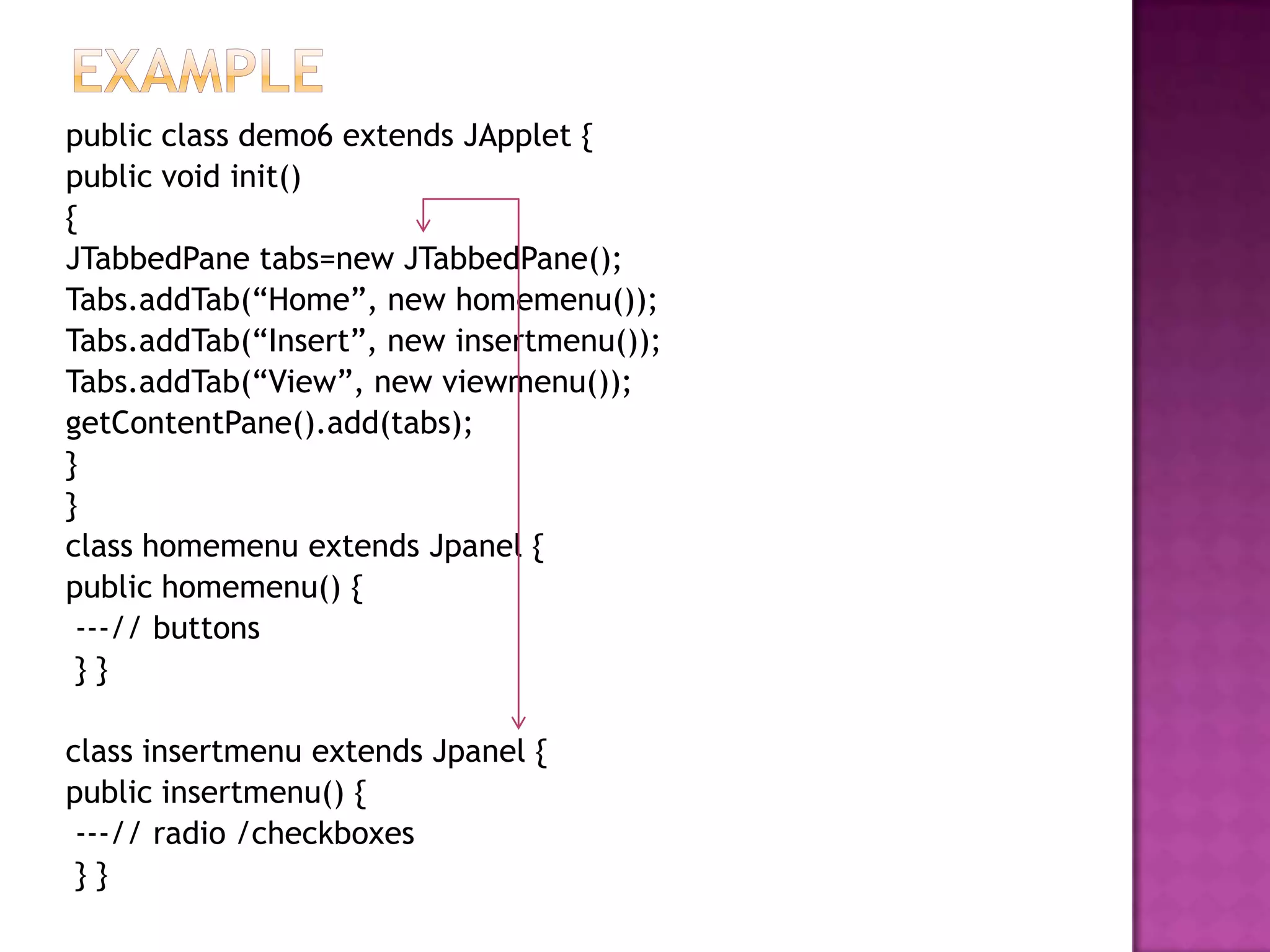
public class demo6 extends JApplet {
public void init()
{
JTabbedPane tabs=new JTabbedPane();
Tabs.addTab(“Home”, new homemenu());
Tabs.addTab(“Insert”, new insertmenu());
Tabs.addTab(“View”, new viewmenu());
getContentPane().add(tabs);
}
}
class homemenu extends Jpanel {
public homemenu() {
 ---// buttons
 }}

class insertmenu extends Jpanel {
public insertmenu() {
 ---// radio /checkboxes
 }}
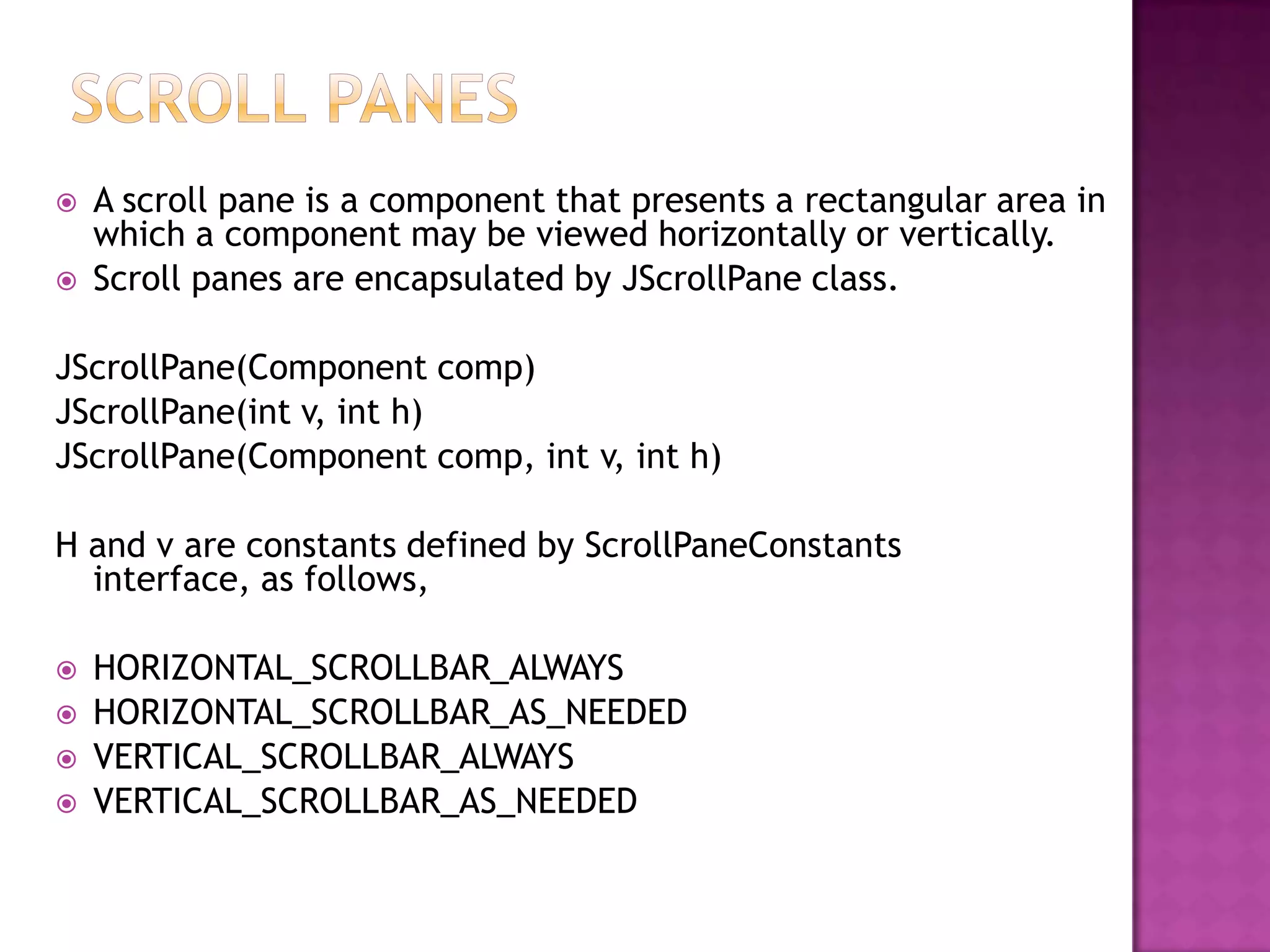
   A scroll pane is a component that presents a rectangular area in
    which a component may be viewed horizontally or vertically.
   Scroll panes are encapsulated by JScrollPane class.

JScrollPane(Component comp)
JScrollPane(int v, int h)
JScrollPane(Component comp, int v, int h)

H and v are constants defined by ScrollPaneConstants
  interface, as follows,

   HORIZONTAL_SCROLLBAR_ALWAYS
   HORIZONTAL_SCROLLBAR_AS_NEEDED
   VERTICAL_SCROLLBAR_ALWAYS
   VERTICAL_SCROLLBAR_AS_NEEDED
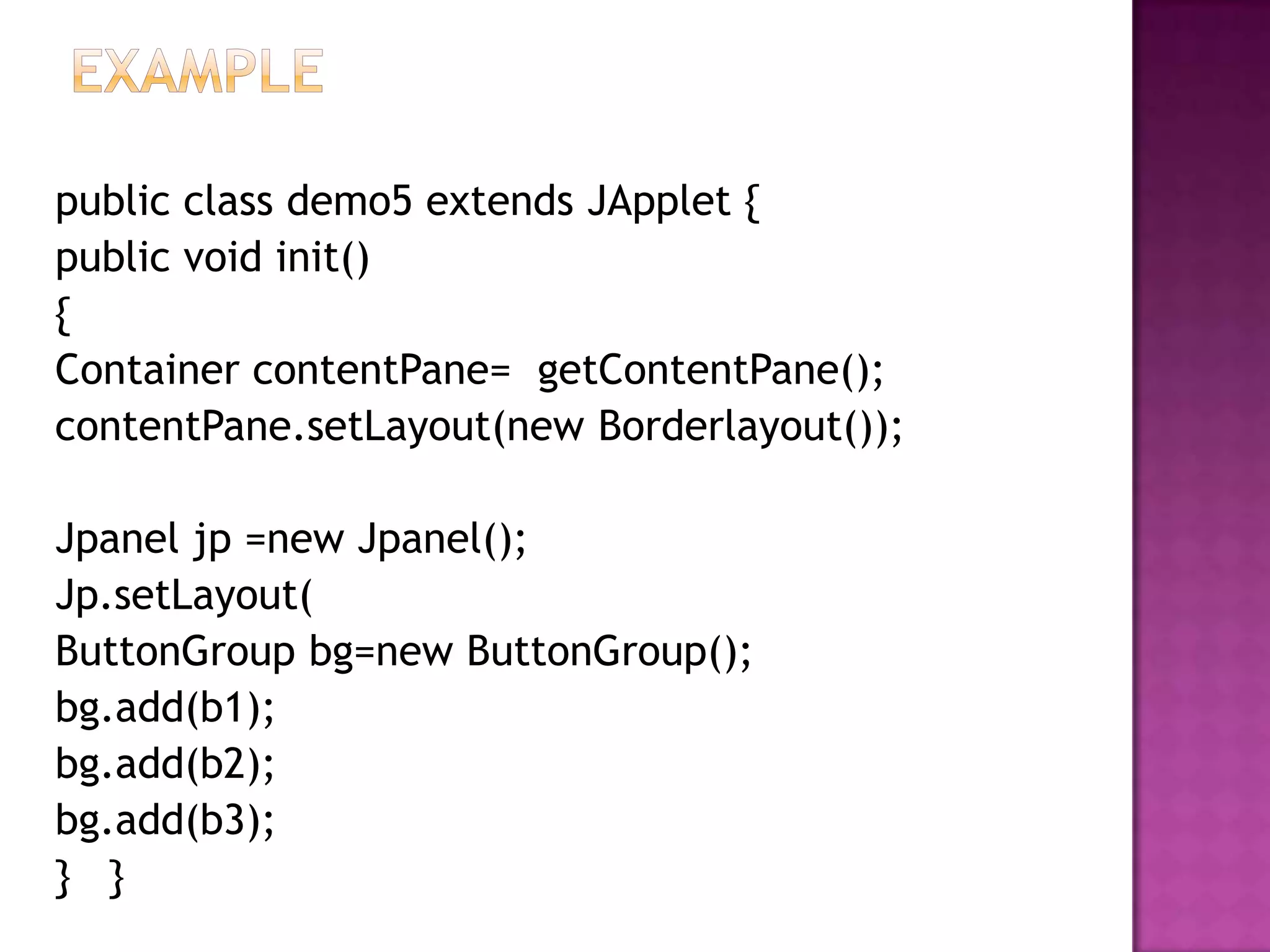
public class demo5 extends JApplet {
public void init()
{
Container contentPane= getContentPane();
contentPane.setLayout(new Borderlayout());

Jpanel jp =new Jpanel();
Jp.setLayout(
ButtonGroup bg=new ButtonGroup();
bg.add(b1);
bg.add(b2);
bg.add(b3);
} }
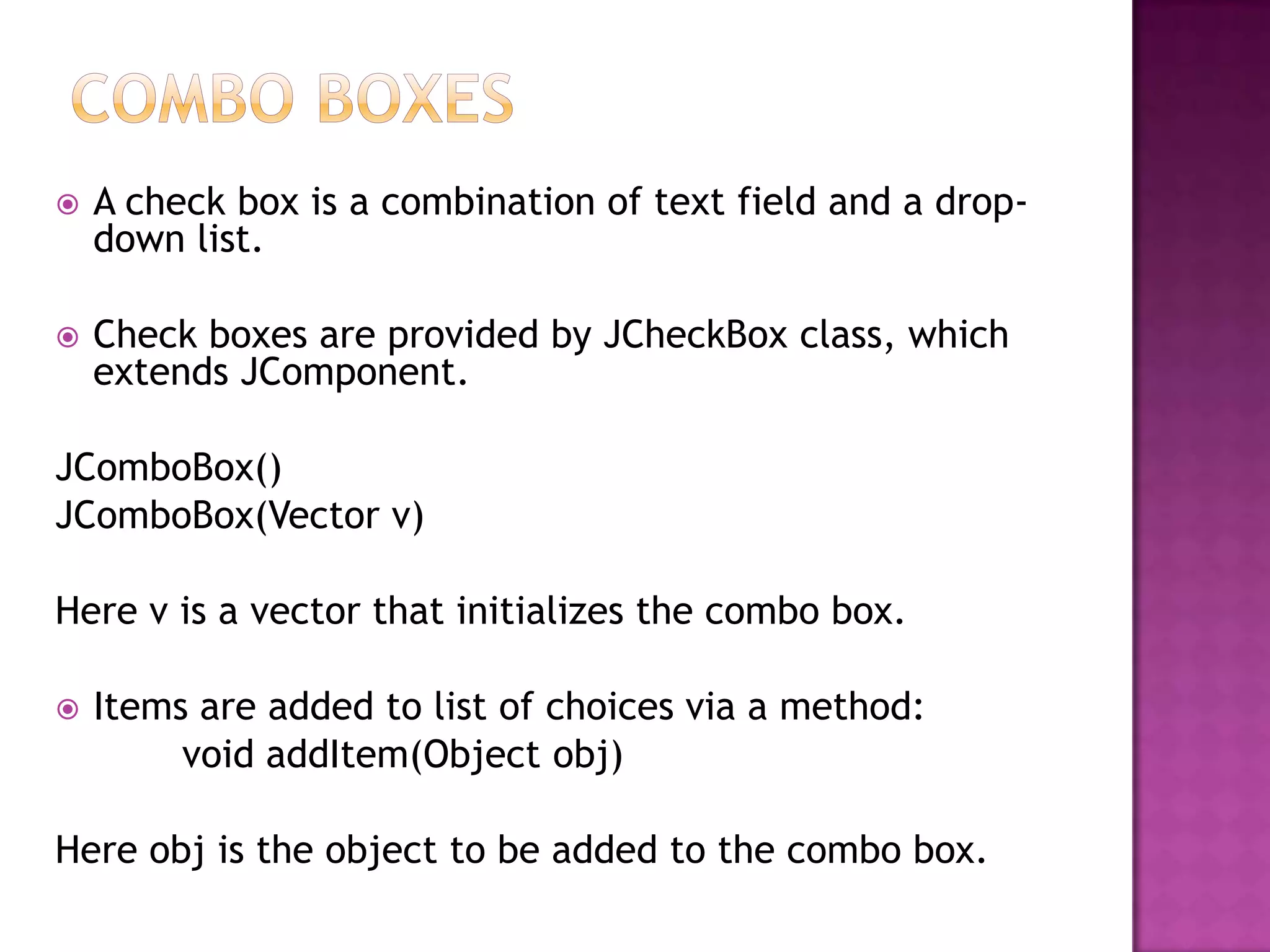
   A check box is a combination of text field and a drop-
    down list.

   Check boxes are provided by JCheckBox class, which
    extends JComponent.

JComboBox()
JComboBox(Vector v)

Here v is a vector that initializes the combo box.

   Items are added to list of choices via a method:
         void addItem(Object obj)

Here obj is the object to be added to the combo box.
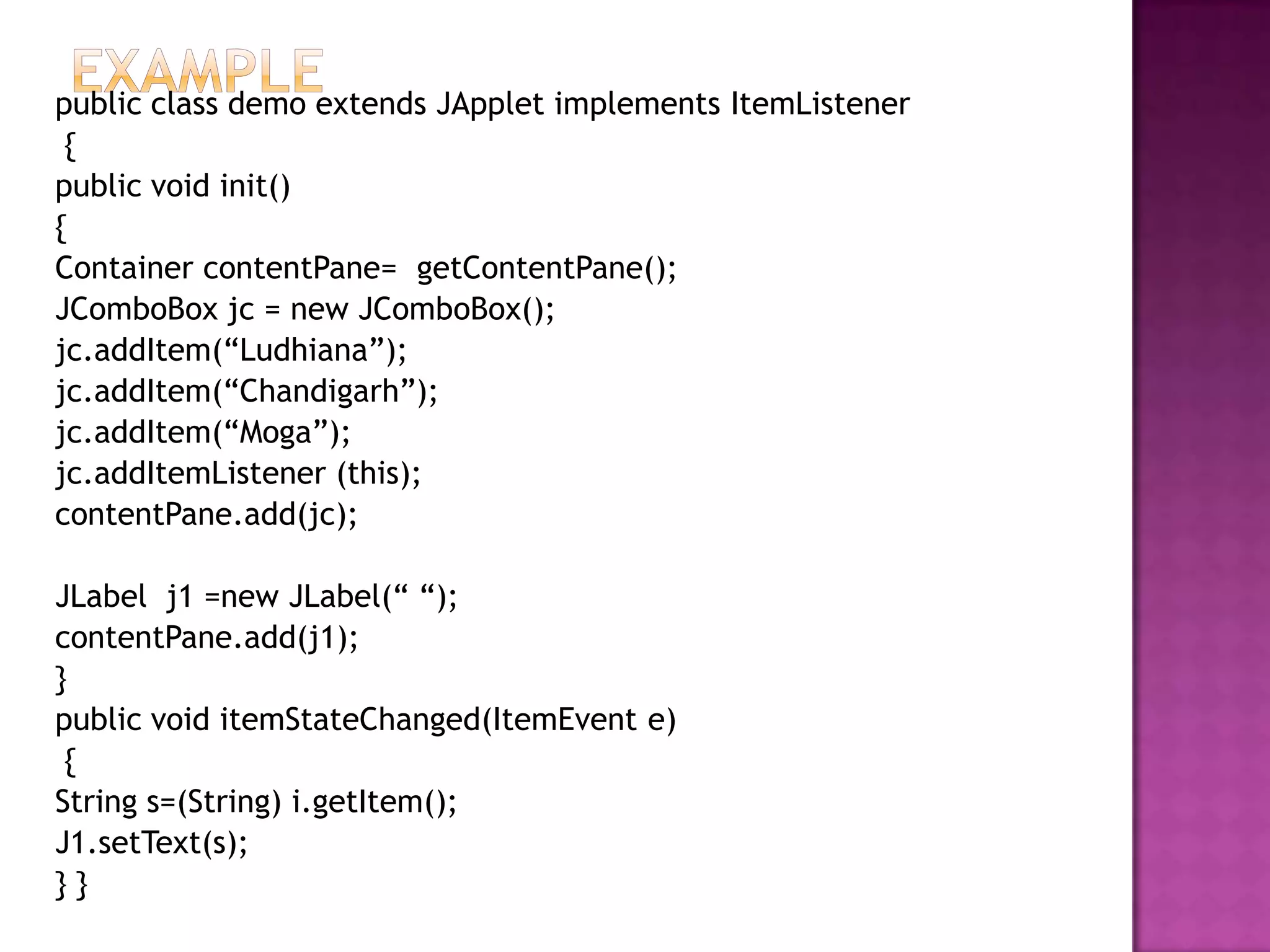
public class demo extends JApplet implements ItemListener
 {
public void init()
{
Container contentPane= getContentPane();
JComboBox jc = new JComboBox();
jc.addItem(“Ludhiana”);
jc.addItem(“Chandigarh”);
jc.addItem(“Moga”);
jc.addItemListener (this);
contentPane.add(jc);

JLabel j1 =new JLabel(“ “);
contentPane.add(j1);
}
public void itemStateChanged(ItemEvent e)
 {
String s=(String) i.getItem();
J1.setText(s);
}}
Swings

Swings

  • 1.
  • 2.
    A swingis the primary JAVA GUI widget toolkit , an API for providing a GUI for java programs.  Itwas developed to provide a more sophisticated set of GUI components Other than in AWT package.  Supports more powerful and flexible components that provides advanced and pluggable look and feel.
  • 3.
    Platform independent  Model –View-Controller  Extensible  Customizable  Configurable  Light weight UI
  • 4.
    SWINGS AWT  Light weighted  Heavy weighted components. components.  Completely written in  Uses of native java. libraries.  Better design than  Design issues are still AWT. not good.  Own look and feel.  Has to code properly.
  • 6.
     Java.awt.*  Javax.swing.* Javax : hierarchy of packages and set of “light weight” components for platform- independent rich GUI components.
  • 7.
     JApplet  JButton JCheckBox Used for making swing applet  JLabel instance.  JComboBox  JRadioButton  JScrollPane  JTabbedPane  JTable  JTree  JTextField
  • 8.
     Swing labelsare instances of JLabel class. It can display text and/or an icon.  Constructors are: Jlabel(Icon i) Jlabel(String s,Icon I,int align)  Methods are: Icon getIcon() String getText() Void setIcon(Icon i) Void setText(String s)
  • 9.
    Import java.awt.*; Import javax.swing.*; /*<applet code=“demo” width=200 height=200> </applet> */ public class demo extends JApplet { public void init() { Container contentPane= getContentPane(); JLabel j1=new JLabel (“HELLO”,i1,JLabel.CENTER); contentPane.add(j1); } }
  • 10.
     Swing imageicons are instances of “ImageIcon” class, which paints an icon from an image.  Constructors are: ImageIcon(URL url) ImageIcon(String filename)  Methods are: int getIconHeight() int getIconWidth() void paintIcon(Component c, Graphics g, int x,int y)
  • 11.
    Import java.awt.*; Import javax.swing.*; /*<applet code=“demo1” width=200 height=200> </applet> */ public class demo1 extends JApplet { public void init() { Container contentPane= getContentPane(); ImageIcon i1= new ImageIcon(“1.gif”); JLabel j1=new JLabel (“HELLO”,i1,JLabel.CENTER); contentPane.add(j1); } }
  • 12.
     Swingtext fieldare instances of JTextComponent class. It has one subclass “JTextField” , for adding one line of text.  Constructors are: JTextField() JTextField(int cols) JTextField(String s,int cols) JTextField(String s)
  • 13.
    Import java.awt.*; Import javax.swing.*; /*<applet code=“demo3” width=200 height=200> </applet> */ public class demo3 extends JApplet { JTextField jtf; public void init() { Container contentPane= getContentPane(); jtf=new JJTextField(20); contentPane.add(jtf); } }
  • 14.
     AbstractButton isa superclass for checkboxes, push buttons and radio buttons.  JButton subclass provides the functionality of a push button.  Constructors are: JButton(Icon i) JButton(String s,Icon i) JButton(String s)
  • 15.
    Import java.awt.*; Import javax.swing.*; /*<applet code=“demo2” width=200 height=200> </applet> */ public class demo2 extends JApplet { public void init() { Container contentPane= getContentPane(); ImageIcon img=new ImageIcon(“2.gif”); JButton jb1=new JButton(img); contentPane.add(jb1); JButton jb2=new JButton(“Click here”); contentPane.add(jb2); } }
  • 16.
    JCheckBox class provides the functionality of a checkbox. Its immediate superclass is JToggleButton, which provides support for two state buttons.  Constructors are: JCheckBox(Icon i) JCheckBox(Icon i, Boolean b) JCheckBox(String s) JCheckBox(String s, Boolean b) JCheckBox(String s,Icon i) JCheckBox(String s,Icon I, Boolean b) void setSelected(Boolean b)
  • 17.
    Import java.awt.*; Import javax.swing.*; /*<applet code=“demo4” width=200 height=200> </applet> */ public class demo4 extends JApplet { public void init() { Container contentPane= getContentPane(); JCheckBox cb=new JCheckBox(“C”,true); contentPane.add(cb); JCheckBox cb=new JCheckBox(“C++”,normal); contentPane.add(cb); JCheckBox cb=new JCheckBox(“Java”,normal); contentPane.add(cb); } }
  • 18.
     Radio buttons are supported by JRadioButton class, a subclass of AbstractButton.  Constructors are same as of checkboxes.  Radio buttons must be grouped into one set, so we use “ButtonGroup” class. void add(AbstractButton b)
  • 19.
    Import java.awt.*; Import javax.swing.*; /*<applet code=“demo5” width=200 height=200> </applet> * public class demo5 extends JApplet { public void init() { Container contentPane= getContentPane(); JRadioButton b1=new JRadioButton(“A”); contentPane.add(b1); JRadioButton b2=new JRadioButton(“A”); contentPane.add(b2); JRadioButton b3=new JRadioButton(“A”); contentPane.add(b3); ButtonGroup bg=new ButtonGroup(); bg.add(b1); bg.add(b2); bg.add(b3); } }
  • 20.
    A tabbed pane is a component that appears as a group of folders in a file cabinet. Each folder has title and is selected one at a time.  Tabbed panes are encapsulated by JTabbedPane class. void addTab(String str, Component comp) Procedure to use tabbed pane is:  Create a JTabbedPane object.  Call addtab() to add a tab to pane(title, and its component for each tab).  Repeat step 2 for each tab.  Add tabbed pane to content pane of applet.  Define subclasses for tabs.
  • 21.
    public class demo6extends JApplet { public void init() { JTabbedPane tabs=new JTabbedPane(); Tabs.addTab(“Home”, new homemenu()); Tabs.addTab(“Insert”, new insertmenu()); Tabs.addTab(“View”, new viewmenu()); getContentPane().add(tabs); } } class homemenu extends Jpanel { public homemenu() { ---// buttons }} class insertmenu extends Jpanel { public insertmenu() { ---// radio /checkboxes }}
  • 22.
    A scroll pane is a component that presents a rectangular area in which a component may be viewed horizontally or vertically.  Scroll panes are encapsulated by JScrollPane class. JScrollPane(Component comp) JScrollPane(int v, int h) JScrollPane(Component comp, int v, int h) H and v are constants defined by ScrollPaneConstants interface, as follows,  HORIZONTAL_SCROLLBAR_ALWAYS  HORIZONTAL_SCROLLBAR_AS_NEEDED  VERTICAL_SCROLLBAR_ALWAYS  VERTICAL_SCROLLBAR_AS_NEEDED
  • 23.
    public class demo5extends JApplet { public void init() { Container contentPane= getContentPane(); contentPane.setLayout(new Borderlayout()); Jpanel jp =new Jpanel(); Jp.setLayout( ButtonGroup bg=new ButtonGroup(); bg.add(b1); bg.add(b2); bg.add(b3); } }
  • 24.
    A check box is a combination of text field and a drop- down list.  Check boxes are provided by JCheckBox class, which extends JComponent. JComboBox() JComboBox(Vector v) Here v is a vector that initializes the combo box.  Items are added to list of choices via a method: void addItem(Object obj) Here obj is the object to be added to the combo box.
  • 25.
    public class demoextends JApplet implements ItemListener { public void init() { Container contentPane= getContentPane(); JComboBox jc = new JComboBox(); jc.addItem(“Ludhiana”); jc.addItem(“Chandigarh”); jc.addItem(“Moga”); jc.addItemListener (this); contentPane.add(jc); JLabel j1 =new JLabel(“ “); contentPane.add(j1); } public void itemStateChanged(ItemEvent e) { String s=(String) i.getItem(); J1.setText(s); }}