Jeff Wisniewski
Darlene Fichter
       CIL2012
 Login or buddy up!
   Interface old and new
   Filters and advanced segments
   Goals and funnels
   Events and alerts
   Tracking non-HTML files
   Creating and using filters and advanced segments
   Tracking outbound links


                  SEE THEN DO
Important

 Filters are destructive, advanced segments
  are not

 TIP: Create a backup, non filtered profile of
          your data for safekeeping
 Why might you want to exclude IPs
  from your analytics? You want report
  on traffic that excludes devices from
  within your libraries.

 This could include staff
  devices, publicly accessible
  devices, or both.
1. Click Filter Manager from the Analytics Settings
   page.
2. Enter a Filter Name for this filter.
3. For Filter Type choose Predefined.
4. Select Exclude all traffic from an IP
   address.
5. Enter the IP and click Save.
1. Click Filter Manager from the Analytics Settings
     page.
2.   Enter a Filter Name for this filter.
3.   For Filter Type choose Custom filter and choose
     Exclude.
4.   Under Filter Field choose Visitor IP address
     from the dropdown menu.
5.   Paste the regular expression code into the Filter
     Pattern field.
6.   Click Save
Must enter using Regular Expressions
"In computing, regular expression provides a
     concise and flexible means for "matching"
(specifying and recognizing) strings of numbers or
   text, such as particular characters, words, or
           patterns of characters.“ Wikipedia
^136.142.(1.([2-9]|[1-9][0-9]|1([0-9][0-
9])|2([0-4][0-9]|5[0-5]))|(([2-9]|[1-2][0-
9]|3[0-4]).([0-9]|[1-9][0-9]|1([0-9][0-
9])|2([0-4][0-9]|5[0-5])))|35.([0-9]|1[0-
2]))$
 Google has a form-based tool for generating
  regular expressions for ranges of IPs

 www.google.com/support/googleanalytics/b
  in /answer.py?answer=55572

       http://tinyurl.com/ip-cil
 Have multiple ranges?

  Rerun the tool with the additional
   range(s)
  Put them all together: separate each
   expression it generates with the pipe
   symbol, i.e. |
  Paste into your filter
    Advanced segments are non-destructive;
    they create distinct VIEWS of your data
 Several predefined advanced segments are
  available out of the box

 Can create custom ones

 You can work with up to a total of four
  segments at a time
 Create an advanced segment that
  compares iPad user behavior versus
  desktop user behavior
   Advanced segments apply throughout a profile.

   If you keep the segment(s) active, they’re visible in
    all of the different reports available to you in GA.
 View more or less content,
 Use the different or same keywords to find
  your site,
 Stay on your site longer duration or not
  than other visitors and so on.
1. Define segment
2. Create statement
3. Combine statements
 Once you’re in your website’s profile, go
  to:
  Standard Reporting tab >
        Advanced Segments >
         New Custom Segment for Desktop
   Create second advanced segment
   Save
   Click to activate both
   View reports
 A “goal” is the page which a visitor
  reaches once they have completed a
  desired action, such as a registration or
  download.
 A “funnel” is the pages they need to visit
  on the way to a goal. Can include up to
  10.
 EXAMPLE: Library legislative history
  course sign up


                                      Computers in Libraries 2012
1. Name the goal.
2. Choose whether or you want the goal to
   be active (on) now
3. Choose a type of goal.
   Most library scenario goals will probably fall
    under the “URL Destination” type, meaning the
    goal is to get the user to a specific place, in this
    case the “thank you for registering” page.


                                               Computers in Libraries 2012
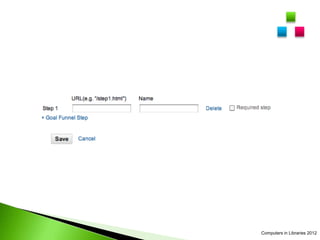
4. Enter the URL for the goal page
5. Under “Goal Funnel” click yes
6. On the following page add the URL(s) of
   the page(s) along the path a user would
   take to get from the homepage all the
   way through to the thank you page.


                                     Computers in Libraries 2012
 Exact match has to be EXACTLY the same
  as the URL….even leading or trailing
  spaces will cause it to fail


                                  Computers in Libraries 2012
Computers in Libraries 2012
 Use event tracking to track:
 Any Flash-driven element: a Flash
  website or movie player
 Embedded AJAX page elements
 Page gadgets
 File downloads
Two ways:

Virtual pageview
     artificially inflates pageview numbers

Event tracking
Five components:
     Categories
     Actions
     Labels
     Values
     Implicit count
 Category: A category is the root level of
  Event Tracking Some sample categories
  are "Videos" and ”PDFs".

 Action: An action is a descriptor for a
  particular event.
   Label: A label is an optional

   Value: A value is a numerical variable
    that you can assign to any event that
    you've assigned to a category.

   Implicit Count: The implicit count is a
    count of the number of interactions with
    an event category.
<a href="#"
onClick="_gaq.push(['_trackEvent', 'Guides', 'Dow
nload', 'Intro to Genealogy
Research']);”>Download the guide</a>


    Category = Guides
    Action = Download
    Label = Intro to Genealogy Research
 Appear under Content > Events
1. Insert some code into the <head> of the
  page(s) on which you want to track outbound
  links:

   <script type="text/javascript">
    function recordOutboundLink(link, category, action) {
      _gat._getTrackerByName()._trackEvent(category, action);
      setTimeout('document.location = "' + link.href + '"', 100);
    }
   </script>


                                                                    Computers in Libraries 2012
2. Tag the specific link(s) you want to track so that
   the activity will be recorded in GA using a
   javascript onClick statement:

                         your link


<a href="http://www.example.com"
    onClick="recordOutboundLink(this, 'Outbound
    Links', 'example.com');return false;">


        the category     the link label


                                                  Computers in Libraries 2012
 Google calls these Intelligence
   Any referrals from a local news site that recently
    wrote about your library?

   A class confirmation page has been generated X
    times, class nearly full

   Page views of your 404 page go up by X
    %...what’s wrong?
 Admin >
   Profiles >
     Assets >
         Custom Alerts >
           Create New Alert
   Alert name

   Apply to: Alerts can be cross profile if you
    choose

   Period: Frequency at which the alert can be
    generated (Day, Week, Month).

   Send me an email?
   Set up your mobile phone

   Alert Conditions

   Alert me when

   Click Create Alert
 Traffic >
  Search >
   Overview >
       Keyword >
        Cloud
 Improve the speed, improve the
  outcomes
Advanced Google Analytics

Advanced Google Analytics

  • 1.
  • 3.
     Login orbuddy up!
  • 5.
    Interface old and new  Filters and advanced segments  Goals and funnels  Events and alerts  Tracking non-HTML files  Creating and using filters and advanced segments  Tracking outbound links SEE THEN DO
  • 7.
    Important  Filters aredestructive, advanced segments are not TIP: Create a backup, non filtered profile of your data for safekeeping
  • 9.
     Why mightyou want to exclude IPs from your analytics? You want report on traffic that excludes devices from within your libraries.  This could include staff devices, publicly accessible devices, or both.
  • 10.
    1. Click FilterManager from the Analytics Settings page. 2. Enter a Filter Name for this filter. 3. For Filter Type choose Predefined. 4. Select Exclude all traffic from an IP address. 5. Enter the IP and click Save.
  • 13.
    1. Click FilterManager from the Analytics Settings page. 2. Enter a Filter Name for this filter. 3. For Filter Type choose Custom filter and choose Exclude. 4. Under Filter Field choose Visitor IP address from the dropdown menu. 5. Paste the regular expression code into the Filter Pattern field. 6. Click Save
  • 14.
    Must enter usingRegular Expressions
  • 15.
    "In computing, regularexpression provides a concise and flexible means for "matching" (specifying and recognizing) strings of numbers or text, such as particular characters, words, or patterns of characters.“ Wikipedia
  • 16.
  • 17.
     Google hasa form-based tool for generating regular expressions for ranges of IPs  www.google.com/support/googleanalytics/b in /answer.py?answer=55572 http://tinyurl.com/ip-cil
  • 19.
     Have multipleranges?  Rerun the tool with the additional range(s)  Put them all together: separate each expression it generates with the pipe symbol, i.e. |  Paste into your filter
  • 20.
    Advanced segments are non-destructive; they create distinct VIEWS of your data
  • 21.
     Several predefinedadvanced segments are available out of the box  Can create custom ones  You can work with up to a total of four segments at a time
  • 22.
     Create anadvanced segment that compares iPad user behavior versus desktop user behavior
  • 23.
    Advanced segments apply throughout a profile.  If you keep the segment(s) active, they’re visible in all of the different reports available to you in GA.
  • 24.
     View moreor less content,  Use the different or same keywords to find your site,  Stay on your site longer duration or not than other visitors and so on.
  • 25.
    1. Define segment 2.Create statement 3. Combine statements
  • 26.
     Once you’rein your website’s profile, go to:  Standard Reporting tab >  Advanced Segments >  New Custom Segment for Desktop
  • 31.
    Create second advanced segment  Save  Click to activate both  View reports
  • 34.
     A “goal”is the page which a visitor reaches once they have completed a desired action, such as a registration or download.  A “funnel” is the pages they need to visit on the way to a goal. Can include up to 10.  EXAMPLE: Library legislative history course sign up Computers in Libraries 2012
  • 35.
    1. Name thegoal. 2. Choose whether or you want the goal to be active (on) now 3. Choose a type of goal.  Most library scenario goals will probably fall under the “URL Destination” type, meaning the goal is to get the user to a specific place, in this case the “thank you for registering” page. Computers in Libraries 2012
  • 36.
    4. Enter theURL for the goal page 5. Under “Goal Funnel” click yes 6. On the following page add the URL(s) of the page(s) along the path a user would take to get from the homepage all the way through to the thank you page. Computers in Libraries 2012
  • 37.
     Exact matchhas to be EXACTLY the same as the URL….even leading or trailing spaces will cause it to fail Computers in Libraries 2012
  • 38.
  • 39.
  • 40.
  • 41.
  • 42.
  • 43.
     Use eventtracking to track:  Any Flash-driven element: a Flash website or movie player  Embedded AJAX page elements  Page gadgets  File downloads
  • 44.
    Two ways: Virtual pageview artificially inflates pageview numbers Event tracking
  • 45.
    Five components:  Categories  Actions  Labels  Values  Implicit count
  • 46.
     Category: Acategory is the root level of Event Tracking Some sample categories are "Videos" and ”PDFs".  Action: An action is a descriptor for a particular event.
  • 47.
    Label: A label is an optional  Value: A value is a numerical variable that you can assign to any event that you've assigned to a category.  Implicit Count: The implicit count is a count of the number of interactions with an event category.
  • 48.
    <a href="#" onClick="_gaq.push(['_trackEvent', 'Guides','Dow nload', 'Intro to Genealogy Research']);”>Download the guide</a>  Category = Guides  Action = Download  Label = Intro to Genealogy Research
  • 49.
     Appear underContent > Events
  • 52.
    1. Insert somecode into the <head> of the page(s) on which you want to track outbound links: <script type="text/javascript"> function recordOutboundLink(link, category, action) { _gat._getTrackerByName()._trackEvent(category, action); setTimeout('document.location = "' + link.href + '"', 100); } </script> Computers in Libraries 2012
  • 53.
    2. Tag thespecific link(s) you want to track so that the activity will be recorded in GA using a javascript onClick statement: your link <a href="http://www.example.com" onClick="recordOutboundLink(this, 'Outbound Links', 'example.com');return false;"> the category the link label Computers in Libraries 2012
  • 54.
     Google callsthese Intelligence
  • 55.
    Any referrals from a local news site that recently wrote about your library?  A class confirmation page has been generated X times, class nearly full  Page views of your 404 page go up by X %...what’s wrong?
  • 56.
     Admin >  Profiles >  Assets >  Custom Alerts >  Create New Alert
  • 58.
    Alert name  Apply to: Alerts can be cross profile if you choose  Period: Frequency at which the alert can be generated (Day, Week, Month).  Send me an email?
  • 59.
    Set up your mobile phone  Alert Conditions  Alert me when  Click Create Alert
  • 61.
     Traffic >  Search >  Overview >  Keyword >  Cloud
  • 64.
     Improve thespeed, improve the outcomes