Advanced Features of SMART


         Linda Rush

      http://www.rush2knowledge.com
         Presentation ID: 122235
         Presentation Title: Advanced Features of the SMART Board
         Track: Technology Application
         Date: 2/8/2012
         Time: 11:30-1:00
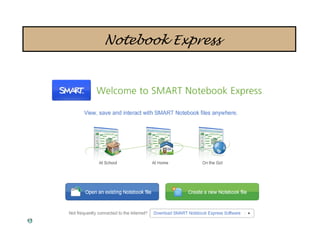
Notebook Express
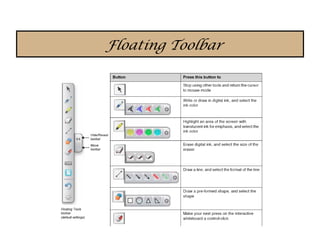
Floating Toolbar
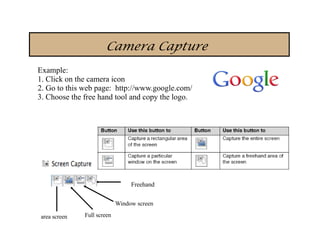
Camera Capture
Example:
1. Click on the camera icon
2. Go to this web page: http://www.google.com/
3. Choose the free hand tool and copy the logo.


                                 Freehand

                            Window screen

area screen   Full screen
Page Recording

Page recording makes a movie of everything you
write or do on a page. This is excellent for having in
case a student was absent or for substitutes. It only
records what is done on that page without sound. It
also uses very little memory.

1. Click on the

2. Click on page recording and click record.

3. Use the pen to write a sentence.

4. Stop recording.
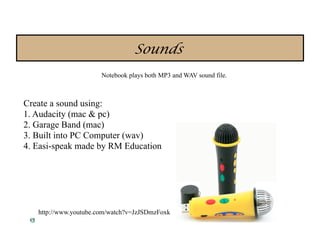
Sounds
                       Notebook plays both MP3 and WAV sound file.


Create a sound using:
1. Audacity (mac & pc)
2. Garage Band (mac)
3. Built into PC Computer (wav)
4. Easi-speak made by RM Education


                                                                     dao

   http://www.youtube.com/watch?v=JzJSDmzFoxk
Attaching sound


You can attach sound files including: sound effects,
songs, and conversations.
               Follow these steps:

1. In the work area, right-click the object to which you want to attach a
sound file and select sound from the pop-up menu that appears.
2. Click browse, to open the Insert Sound window, find a sound file, select it
and then click open.
3. Click the play button in the Insert Sound dialog box to preview the sound.
Discovery assets
Smartboard Notebook can import avi, mpeg, or mov movie files. The default setting is to make
a copy of the movie so if you transfer your Smartboard file to another computer or email it, the
movie is embedded. The downside is the file becomes a large file.

                                       Movie Directions:

   Here is how you can download video clips from unitedstreaming

   1. Login to www.discoveryeducation.com
   2. Search and find your video
   3. Choose a segment
   4. Choose download type: Quicktime, Window Media Player, MP4
      Flash can be embedded and play from the work area.
   5. Open up Notebook and drag video into attachment tab.
   6. Use a picture as an object. Drop down and link to a current attachment.
   7. Choose the paperclip icon
   8. Click and your movie opens as a pop-up window.
Printing options
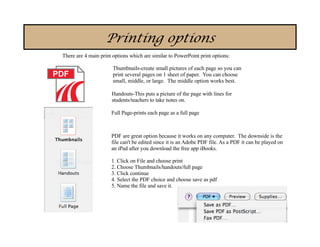
There are 4 main print options which are similar to PowerPoint print options:

                       Thumbnails-create small pictures of each page so you can
                       print several pages on 1 sheet of paper. You can choose
                       small, middle, or large. The middle option works best.

                      Handouts-This puts a picture of the page with lines for
                      students/teachers to take notes on.

                      Full Page-prints each page as a full page


                      PDF are great option because it works on any computer. The downside is the
                      file can't be edited since it is an Adobe PDF file. As a PDF it can be played on
                      an iPad after you download the free app iBooks.

                      1. Click on File and choose print
                      2. Choose Thumbnails/handouts/full page
                      3. Click continue
                      4. Select the PDF choice and choose save as pdf
                      5. Name the file and save it.
My Gallery

To add an item to your My Content folder, drag the item from the work area, the Page Sorter, or the
Gallery to the My Content folder in the Gallery

To import files into My Content from any location on your computer, including pictures you transfer
from a digital camera or download
1. Select the Gallery Actions icon to the right of the Search icon. A popup menu appears.
2. Select Add Other Files to My Content from the popup menu to open the Add to My Content
window.
3. In the Add to My Content window, browse to and select the file you want to add.
4. Click the Open button.

You can add subfolders to My Content and add keywords to a My Content items.

You can also Export as a Collection File.
Attachments

The attachment tab allows you to put your files on that lesson or
topic. This means you can have your Word Study Guide, Movie
clip, PowerPoint, sound effects, files and songs along with other
Smartboard lesson. Just drag and drop.
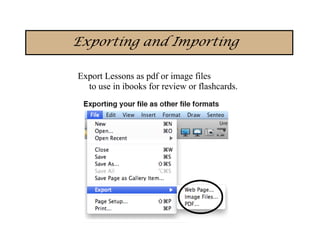
Exporting and Importing

Export Lessons as pdf or image files
  to use in ibooks for review or flashcards.
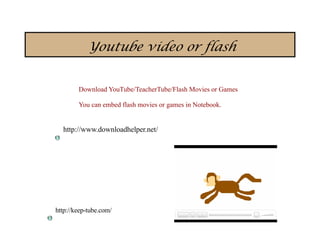
Youtube video or flash


        Download YouTube/TeacherTube/Flash Movies or Games

        You can embed flash movies or games in Notebook.


  http://www.downloadhelper.net/


http://keep-tube.com/
Downloading flash from websites

             Downloading a flash file using Firefox

             1. Go to tools
             2. Page information
             3. Go to the tab - media
             4. Look for .swf file
             5. Right click and "save as"
             6. Drag and drop into notebook file or insert flash file.


http://www.time-for-time.com/swf/myclox.swf
                                                      http://www.crickweb.co.uk/
Tutorials
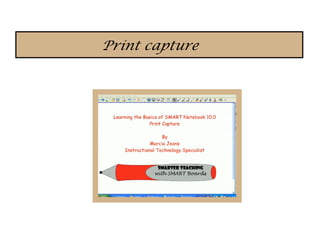
Print capture
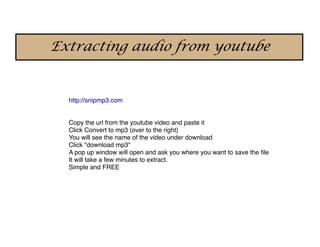
Extracting audio from youtube


  http://snipmp3.com


  Copy the url from the youtube video and paste it
  Click Convert to mp3 (over to the right)
  You will see the name of the video under download
  Click "download mp3"
  A pop up window will open and ask you where you want to save the file
  It will take a few minutes to extract.
  Simple and FREE
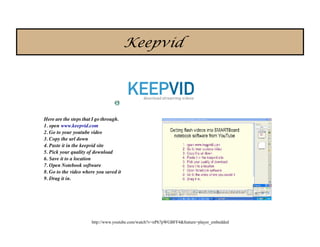
Keepvid


Here are the steps that I go through.
1. open www.keepvid.com
2. Go to your youtube video
3. Copy the url down
4. Paste it in the keepvid site
5. Pick your quality of download
6. Save it to a location
7. Open Notebook software
8. Go to the video where you saved it
9. Drag it in.


                      http://www.youtube.com/watch?v=nPh7pWGBFF4&feature=player_embedded
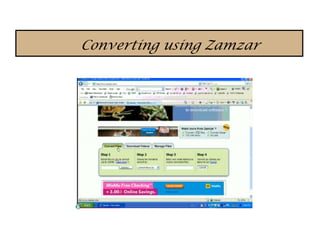
Converting using Zamzar
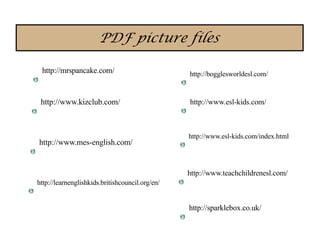
PDF picture files

 http://mrspancake.com/                          http://bogglesworldesl.com/


 http://www.kizclub.com/                         http://www.esl-kids.com/


                                                 http://www.esl-kids.com/index.html
http://www.mes-english.com/


                                                 http://www.teachchildrenesl.com/
http://learnenglishkids.britishcouncil.org/en/


                                                 http://sparklebox.co.uk/
Advanced Features of SMART -  TCEA 2012

Advanced Features of SMART - TCEA 2012

  • 1.
    Advanced Features ofSMART Linda Rush http://www.rush2knowledge.com Presentation ID: 122235 Presentation Title: Advanced Features of the SMART Board Track: Technology Application Date: 2/8/2012 Time: 11:30-1:00
  • 2.
  • 3.
  • 4.
    Camera Capture Example: 1. Clickon the camera icon 2. Go to this web page: http://www.google.com/ 3. Choose the free hand tool and copy the logo. Freehand Window screen area screen Full screen
  • 5.
    Page Recording Page recordingmakes a movie of everything you write or do on a page. This is excellent for having in case a student was absent or for substitutes. It only records what is done on that page without sound. It also uses very little memory. 1. Click on the 2. Click on page recording and click record. 3. Use the pen to write a sentence. 4. Stop recording.
  • 6.
    Sounds Notebook plays both MP3 and WAV sound file. Create a sound using: 1. Audacity (mac & pc) 2. Garage Band (mac) 3. Built into PC Computer (wav) 4. Easi-speak made by RM Education dao http://www.youtube.com/watch?v=JzJSDmzFoxk
  • 7.
    Attaching sound You canattach sound files including: sound effects, songs, and conversations. Follow these steps: 1. In the work area, right-click the object to which you want to attach a sound file and select sound from the pop-up menu that appears. 2. Click browse, to open the Insert Sound window, find a sound file, select it and then click open. 3. Click the play button in the Insert Sound dialog box to preview the sound.
  • 8.
    Discovery assets Smartboard Notebookcan import avi, mpeg, or mov movie files. The default setting is to make a copy of the movie so if you transfer your Smartboard file to another computer or email it, the movie is embedded. The downside is the file becomes a large file. Movie Directions: Here is how you can download video clips from unitedstreaming 1. Login to www.discoveryeducation.com 2. Search and find your video 3. Choose a segment 4. Choose download type: Quicktime, Window Media Player, MP4 Flash can be embedded and play from the work area. 5. Open up Notebook and drag video into attachment tab. 6. Use a picture as an object. Drop down and link to a current attachment. 7. Choose the paperclip icon 8. Click and your movie opens as a pop-up window.
  • 9.
    Printing options There are4 main print options which are similar to PowerPoint print options: Thumbnails-create small pictures of each page so you can print several pages on 1 sheet of paper. You can choose small, middle, or large. The middle option works best. Handouts-This puts a picture of the page with lines for students/teachers to take notes on. Full Page-prints each page as a full page PDF are great option because it works on any computer. The downside is the file can't be edited since it is an Adobe PDF file. As a PDF it can be played on an iPad after you download the free app iBooks. 1. Click on File and choose print 2. Choose Thumbnails/handouts/full page 3. Click continue 4. Select the PDF choice and choose save as pdf 5. Name the file and save it.
  • 10.
    My Gallery To addan item to your My Content folder, drag the item from the work area, the Page Sorter, or the Gallery to the My Content folder in the Gallery To import files into My Content from any location on your computer, including pictures you transfer from a digital camera or download 1. Select the Gallery Actions icon to the right of the Search icon. A popup menu appears. 2. Select Add Other Files to My Content from the popup menu to open the Add to My Content window. 3. In the Add to My Content window, browse to and select the file you want to add. 4. Click the Open button. You can add subfolders to My Content and add keywords to a My Content items. You can also Export as a Collection File.
  • 11.
    Attachments The attachment taballows you to put your files on that lesson or topic. This means you can have your Word Study Guide, Movie clip, PowerPoint, sound effects, files and songs along with other Smartboard lesson. Just drag and drop.
  • 12.
    Exporting and Importing ExportLessons as pdf or image files to use in ibooks for review or flashcards.
  • 13.
    Youtube video orflash Download YouTube/TeacherTube/Flash Movies or Games You can embed flash movies or games in Notebook. http://www.downloadhelper.net/ http://keep-tube.com/
  • 14.
    Downloading flash fromwebsites Downloading a flash file using Firefox 1. Go to tools 2. Page information 3. Go to the tab - media 4. Look for .swf file 5. Right click and "save as" 6. Drag and drop into notebook file or insert flash file. http://www.time-for-time.com/swf/myclox.swf http://www.crickweb.co.uk/
  • 15.
  • 16.
  • 17.
    Extracting audio fromyoutube http://snipmp3.com Copy the url from the youtube video and paste it Click Convert to mp3 (over to the right) You will see the name of the video under download Click "download mp3" A pop up window will open and ask you where you want to save the file It will take a few minutes to extract. Simple and FREE
  • 18.
    Keepvid Here are thesteps that I go through. 1. open www.keepvid.com 2. Go to your youtube video 3. Copy the url down 4. Paste it in the keepvid site 5. Pick your quality of download 6. Save it to a location 7. Open Notebook software 8. Go to the video where you saved it 9. Drag it in. http://www.youtube.com/watch?v=nPh7pWGBFF4&feature=player_embedded
  • 19.
  • 20.
    PDF picture files http://mrspancake.com/ http://bogglesworldesl.com/ http://www.kizclub.com/ http://www.esl-kids.com/ http://www.esl-kids.com/index.html http://www.mes-english.com/ http://www.teachchildrenesl.com/ http://learnenglishkids.britishcouncil.org/en/ http://sparklebox.co.uk/