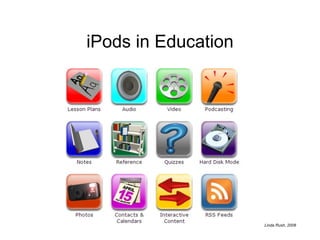
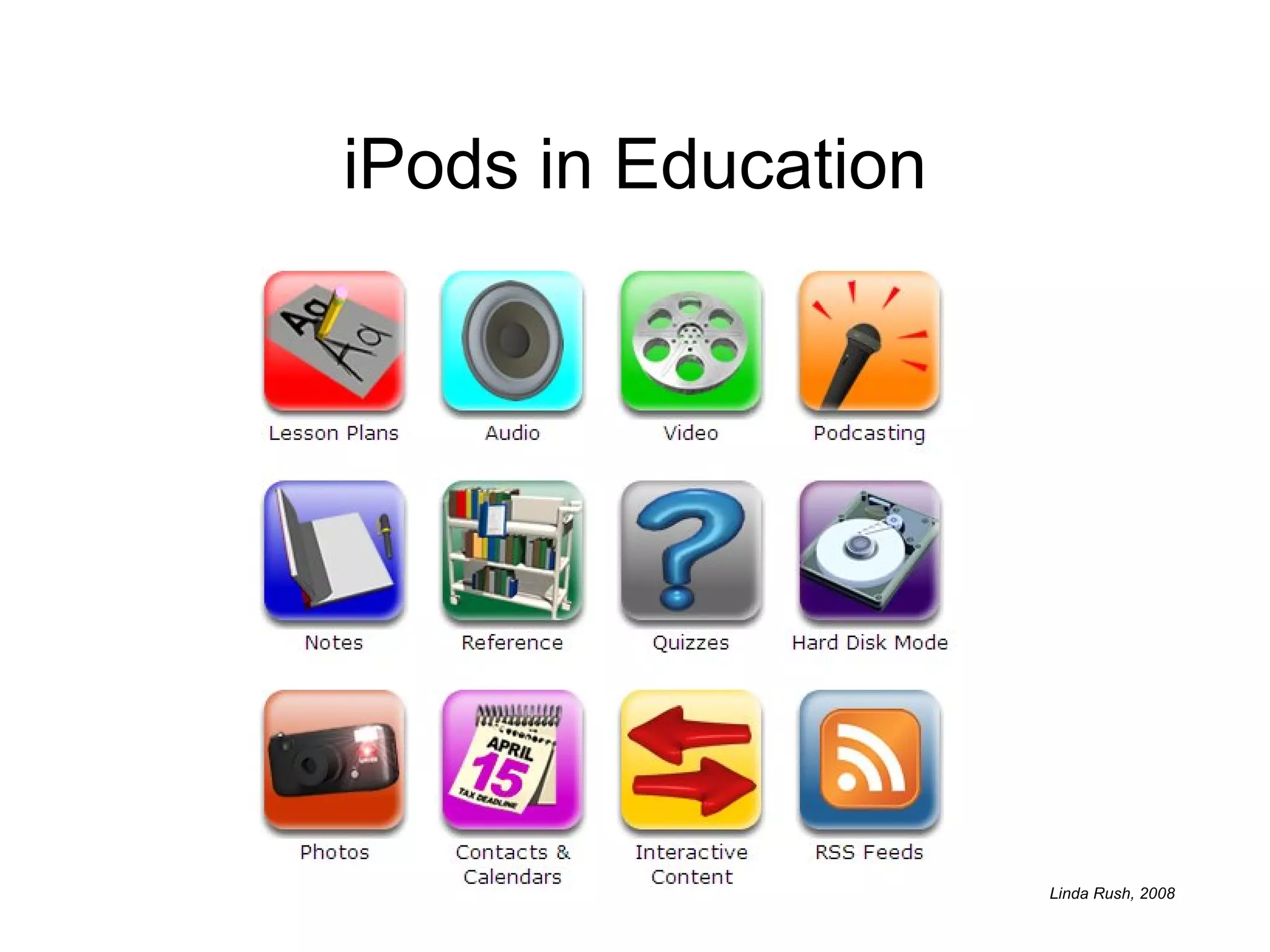
iPods in Education
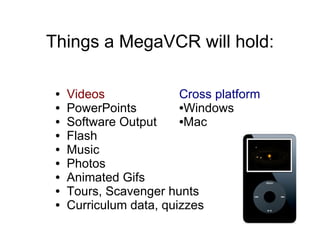
Things a MegaVCR will hold: Videos PowerPoints Software Output Flash Music Photos Animated Gifs Tours, Scavenger hunts Curriculum data, quizzes Cross platform Windows Mac
Educational Podcasts
Recommended Audio Stories
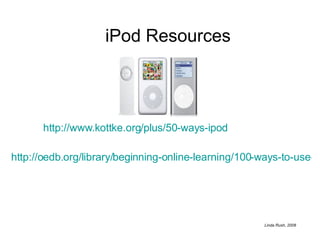
http://www.kottke.org/plus/50-ways-ipod http://oedb.org/library/beginning-online-learning/100-ways-to-use-your-ipod-to-learn-and-study-better iPod Resources
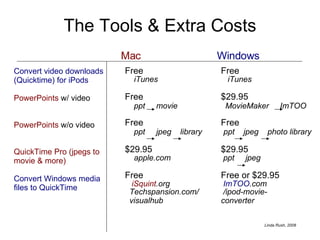
The Tools & Extra Costs Mac Windows Free Free iTunes   iTunes Free $29.95 ppt  movie   MovieMaker  ImTOO Free Free ppt  jpeg  library   ppt  jpeg  photo library $29.95 $29.95  apple.com  ppt  jpeg Free Free or $29.95 iSquint .org   ImTOO .com    Techspansion.com/   /ipod-movie- visualhub converter   Convert video downloads (Quicktime) for iPods PowerPoints  w/ video PowerPoints  w/o video QuickTime Pro (jpegs to movie & more) Convert Windows media files to QuickTime
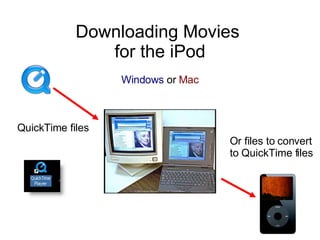
Downloading Movies  for the iPod Windows  or  Mac QuickTime files  Or files to convert to QuickTime files
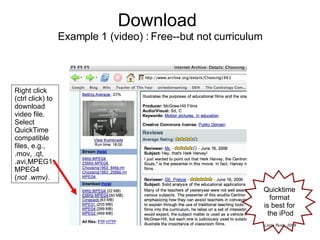
Download   Example 1 (video) : Free--but not curriculum Right click (ctrl click) to download video file.  Select QuickTime compatible files, e.g., .mov, .qt, .avi,MPEG1, MPEG4  ( not .wmv). Quicktime  format  is best for  the iPod
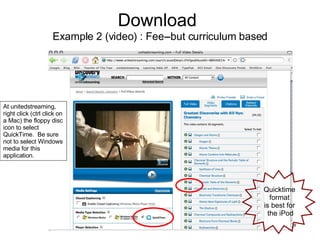
Download   Example 2 (video) : Fee--but curriculum based At unitedstreaming, right click (ctrl click on a Mac) the floppy disc icon to select QuickTime.  Be sure not to select Windows media for this application. Quicktime  format  is best for  the iPod
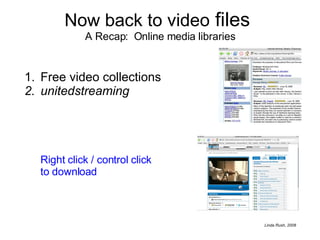
Now back to video  files  A Recap:  Online media libraries Free video collections unitedstreaming Right click / control click  to download
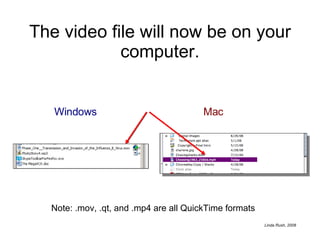
The video file will now be on your computer. Windows Mac Note: .mov, .qt, and .mp4 are all QuickTime formats
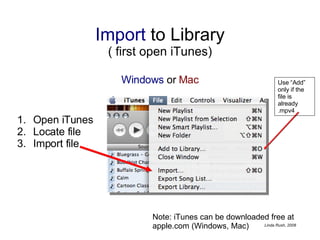
Import  to Library ( first open iTunes) Windows  or  Mac Open iTunes Locate file Import file Note: iTunes can be downloaded free at apple.com (Windows, Mac) Use “Add” only if the file is already .mpv4
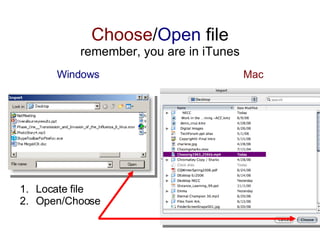
Choose / Open  file remember, you are in iTunes Windows   Mac Locate file Open/Choose
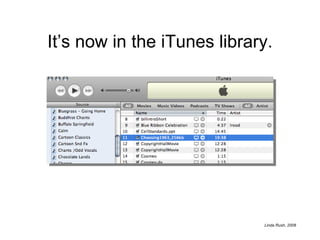
It’s now in the iTunes library.
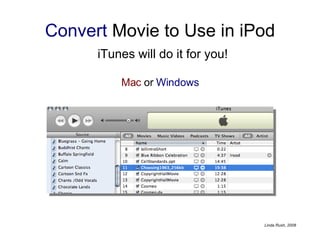
Convert  Movie to Use in iPod   iTunes will do it for you! Mac  or  Windows
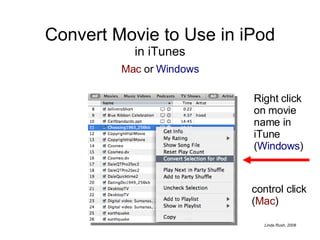
Convert Movie to Use in iPod in iTunes Mac  or  Windows Right click on movie name in iTune ( Windows ) control click ( Mac )
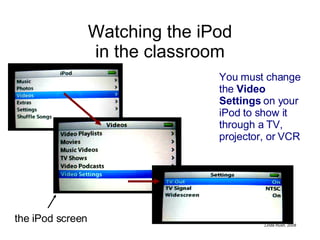
Watching the iPod in the classroom You must change the  Video Settings  on your iPod to show it through a TV, projector, or VCR the iPod screen
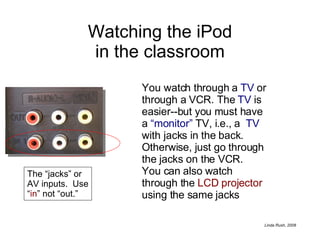
Watching the iPod in the classroom You watch through a  TV  or through a VCR. The  TV  is easier--but you must have a  “monitor”  TV, i.e., a  TV  with jacks in the back.  Otherwise, just go through the jacks on the VCR. You can also watch through the  LCD projector  using the same jacks The “jacks” or AV inputs.  Use “ in ” not “out.”
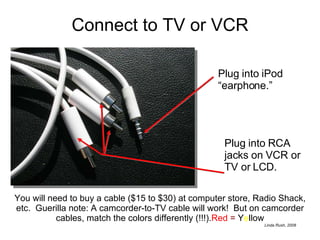
Connect to TV or VCR Plug into iPod “earphone.” Plug into RCA jacks on VCR or TV or LCD. You will need to buy a cable ($15 to $30) at computer store, Radio Shack, etc.  Guerilla note: A camcorder-to-TV cable will work!  But on camcorder cables, match the colors differently (!!!). Red   =  Y e llow
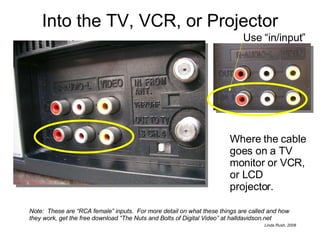
Into the TV, VCR, or Projector Where the cable goes on a TV monitor or VCR, or LCD projector. Use “in/input” Note:  These are “RCA female” inputs.  For more detail on what these things are called and how they work, get the free download “The Nuts and Bolts of Digital Video” at halldavidson.net
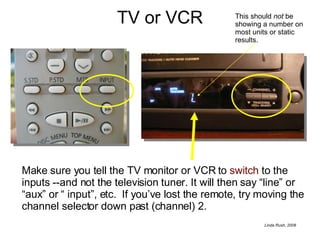
TV or VCR Make sure you tell the TV monitor or VCR to  switch  to the inputs --and not the television tuner. It will then say “line” or “aux” or “ input”, etc.  If you’ve lost the remote, try moving the channel selector down past (channel) 2. This should  not  be showing a number on most units or static results.
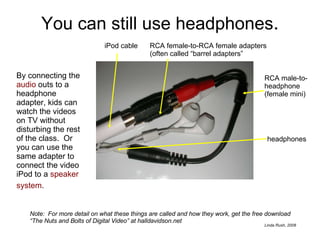
You can still use headphones . By connecting the  audio  outs to a headphone adapter, kids can watch the videos on TV without disturbing the rest of the class.  Or you can use the same adapter to connect the video iPod to a  speaker system .   Note:  For more detail on what these things are called and how they work, get the free download “The Nuts and Bolts of Digital Video” at halldavidson.net iPod cable RCA male-to-headphone (female mini) headphones RCA female-to-RCA female adapters (often called “barrel adapters”
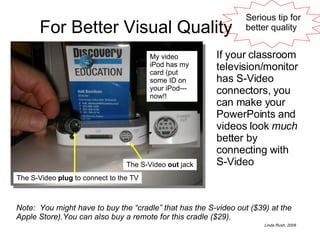
For Better Visual Quality If your classroom television/monitor has S-Video connectors, you can make your PowerPoints and videos look  much  better by connecting with S-Video The S-Video  out  jack The S-Video  plug  to connect to the TV My video iPod has my card (put some ID on your iPod---now!! Serious tip for  better quality Note:  You might have to buy the “cradle” that has the S-video out ($39) at the Apple Store).You can also buy a remote for this cradle ($29).
Now, something besides videos in the iPod! PowerPoints , Windows  media  files, Google Earth tours, flash, KidPix projects, software output, and more!  Let’s start with the hard one:  PowerPoints . There are two kinds of  PowerPoint  presentations: without videos  with videos   And two ways to do it: convert to photos  convert to movies
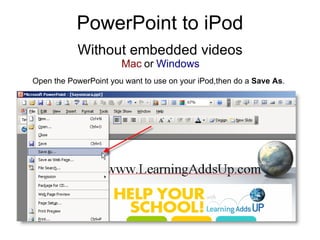
PowerPoint to iPod Open the PowerPoint you want to use on your iPod,then do a  Save As . Without embedded videos Mac  or  Windows
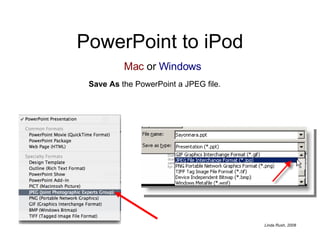
PowerPoint to iPod Save As  the PowerPoint a JPEG file. Mac  or  Windows
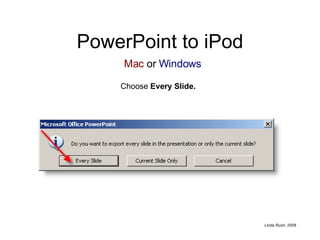
PowerPoint to iPod Choose  Every Slide. Mac  or  Windows
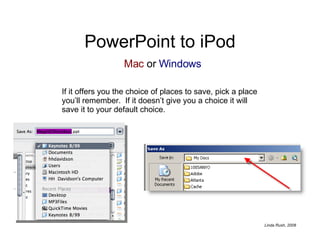
PowerPoint to iPod If it offers you the choice of places to save, pick a place you’ll remember.  If it doesn’t give you a choice it will save it to your default choice. Mac  or  Windows
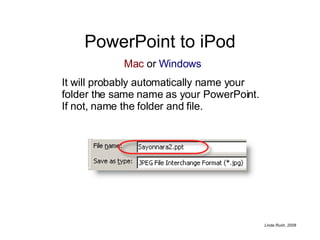
PowerPoint to iPod It will probably automatically name your folder the same name as your PowerPoint.  If not, name the folder and file. Mac  or  Windows
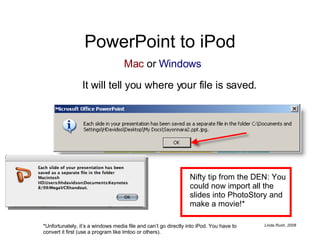
PowerPoint to iPod It will tell you where your file is saved. Nifty tip from the DEN: You could now import all the slides into PhotoStory and make a movie!* *Unfortunately, it’s a windows media file and can’t go directly into iPod. You have to convert it first (use a program like Imtoo or others). Mac  or  Windows
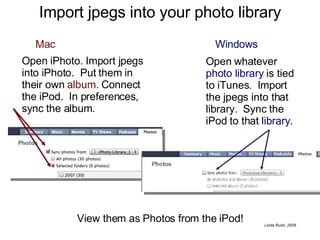
Import jpegs into your photo library Windows Open whatever  photo library  is tied to iTunes.  Import the jpegs into that library.  Sync the iPod to that  library . Open iPhoto. Import jpegs into iPhoto.  Put them in their own  album.  Connect the iPod.  In preferences, sync the album. Mac View them as Photos from the iPod!
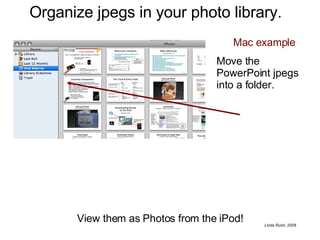
Organize jpegs in your photo library.  Move the PowerPoint jpegs into a folder. Mac example View them as Photos from the iPod!
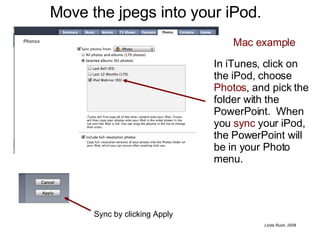
Move the jpegs into your iPod.  Mac example Sync by clicking Apply In iTunes, click on the iPod, choose  Photos , and pick the folder with the PowerPoint.  When you  sync  your iPod, the PowerPoint will be in your Photo menu.
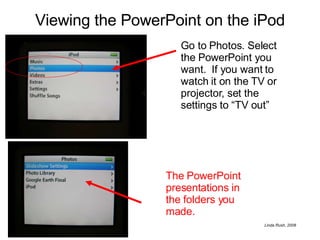
Viewing the PowerPoint on the iPod The PowerPoint presentations in the folders you made. Go to Photos. Select the PowerPoint you want.  If you want to watch it on the TV or projector, set the settings to “TV out”
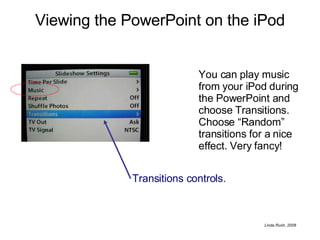
Viewing the PowerPoint on the iPod Transitions controls.  You can play music from your iPod during the PowerPoint and choose Transitions.  Choose “Random” transitions for a nice effect. Very fancy!
PowerPoint to Movie Windows Do it with  MovieMaker  (free) Do it with   QuickTime Pro   ($29) With embedded  videos! Windows* There are two different ways to move your PowerPoints with embedded videos into the iPod.  The easiest way  is 1); the most versatile way is 2): Method 1 Do it this way!
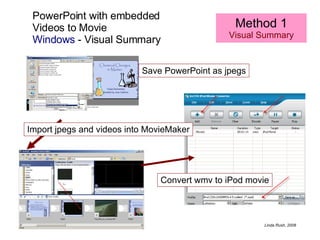
PowerPoint to Movie Windows  - replacing the embedded videos Embedded videos will drop out of Windows  PowerPoints  when you save them as  jpegs .  For example, a PowerPoint with embedded  unitedstreaming  videos will not have the videos.  To insert videos into the iPod PowerPoint, do this Download  the videos in Windows Media format Save  PowerPoint slides as jpegs I mport  stills and videos into MovieMaker Re-assemble  the slides in order and insert the videos Save  movie (it’s a wmv. file now) Convert  movie to iPod format with IMToo ($29) Now your iPod will play the  PowerPoint movie  with videos included! Note:  You can add transitions and music in MovieMaker.. Method 1 Windows*
PowerPoint with embedded  Videos to Movie Windows  - Visual Summary Method 1 Visual Summary Save PowerPoint as jpegs Import jpegs and videos into MovieMaker Convert wmv to iPod movie
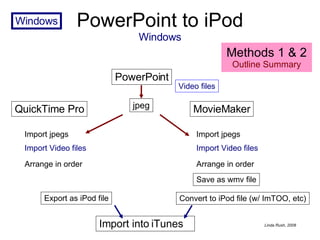
PowerPoint to iPod Windows Import into iTunes  PowerPoint jpeg QuickTime Pro MovieMaker Video files Import Video files Save as wmv file Import jpegs Arrange in order Import Video files Import jpegs Arrange in order Export as iPod file Convert to iPod file (w/ ImTOO, etc) Methods 1 & 2  Outline Summary Windows
PowerPoint to Movie Mac It is a simple, one keystroke process on a  Mac .  (Mac’s win this one.) With embedded  videos !
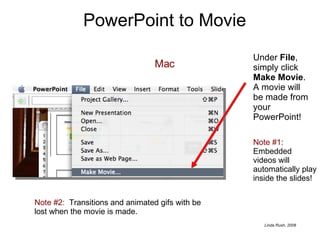
PowerPoint to Movie Mac Under  File , simply click  Make Movie .  A movie will be made from your PowerPoint! Note #1 :  Embedded videos will automatically play inside the slides! Note #2:   Transitions and animated gifs with be lost when the movie is made.
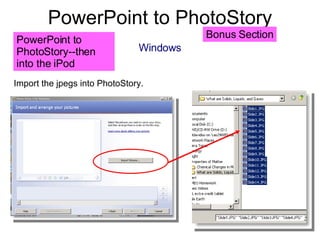
PowerPoint to PhotoStory Windows PowerPoint to PhotoStory--then into the iPod  Import the jpegs into PhotoStory. Bonus Section
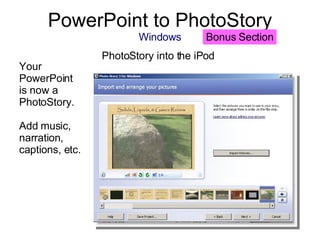
PowerPoint to PhotoStory Windows PhotoStory into the iPod  Your PowerPoint is now a PhotoStory. Add music, narration, captions, etc. Bonus Section
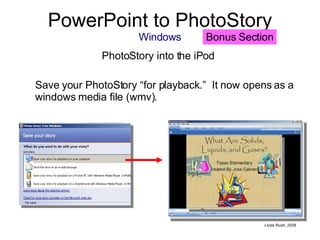
PowerPoint to PhotoStory Windows PhotoStory into the iPod  Save your PhotoStory “for playback.”  It now opens as a windows media file (wmv). Bonus Section
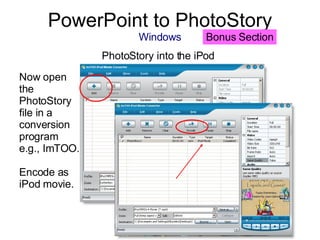
PowerPoint to PhotoStory Windows PhotoStory into the iPod  Now open the PhotoStory file in a conversion program e.g., ImTOO. Encode as iPod movie. Bonus Section
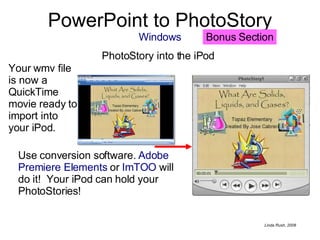
PowerPoint to PhotoStory Windows PhotoStory into the iPod  Your wmv file is now a QuickTime movie ready to import into your iPod.  Use conversion software.  Adobe Premiere Elements  or  ImTOO  will do it!  Your iPod can hold your PhotoStories! Bonus Section

I Pod In Education

  • 1.
  • 2.
    Things a MegaVCRwill hold: Videos PowerPoints Software Output Flash Music Photos Animated Gifs Tours, Scavenger hunts Curriculum data, quizzes Cross platform Windows Mac
  • 3.
  • 4.
  • 5.
  • 6.
    The Tools &Extra Costs Mac Windows Free Free iTunes iTunes Free $29.95 ppt movie MovieMaker ImTOO Free Free ppt jpeg library ppt jpeg photo library $29.95 $29.95 apple.com ppt jpeg Free Free or $29.95 iSquint .org ImTOO .com Techspansion.com/ /ipod-movie- visualhub converter Convert video downloads (Quicktime) for iPods PowerPoints w/ video PowerPoints w/o video QuickTime Pro (jpegs to movie & more) Convert Windows media files to QuickTime
  • 7.
    Downloading Movies for the iPod Windows or Mac QuickTime files Or files to convert to QuickTime files
  • 8.
    Download Example 1 (video) : Free--but not curriculum Right click (ctrl click) to download video file. Select QuickTime compatible files, e.g., .mov, .qt, .avi,MPEG1, MPEG4 ( not .wmv). Quicktime format is best for the iPod
  • 9.
    Download Example 2 (video) : Fee--but curriculum based At unitedstreaming, right click (ctrl click on a Mac) the floppy disc icon to select QuickTime. Be sure not to select Windows media for this application. Quicktime format is best for the iPod
  • 10.
    Now back tovideo files A Recap: Online media libraries Free video collections unitedstreaming Right click / control click to download
  • 11.
    The video filewill now be on your computer. Windows Mac Note: .mov, .qt, and .mp4 are all QuickTime formats
  • 12.
    Import toLibrary ( first open iTunes) Windows or Mac Open iTunes Locate file Import file Note: iTunes can be downloaded free at apple.com (Windows, Mac) Use “Add” only if the file is already .mpv4
  • 13.
    Choose / Open file remember, you are in iTunes Windows Mac Locate file Open/Choose
  • 14.
    It’s now inthe iTunes library.
  • 15.
    Convert Movieto Use in iPod iTunes will do it for you! Mac or Windows
  • 16.
    Convert Movie toUse in iPod in iTunes Mac or Windows Right click on movie name in iTune ( Windows ) control click ( Mac )
  • 17.
    Watching the iPodin the classroom You must change the Video Settings on your iPod to show it through a TV, projector, or VCR the iPod screen
  • 18.
    Watching the iPodin the classroom You watch through a TV or through a VCR. The TV is easier--but you must have a “monitor” TV, i.e., a TV with jacks in the back. Otherwise, just go through the jacks on the VCR. You can also watch through the LCD projector using the same jacks The “jacks” or AV inputs. Use “ in ” not “out.”
  • 19.
    Connect to TVor VCR Plug into iPod “earphone.” Plug into RCA jacks on VCR or TV or LCD. You will need to buy a cable ($15 to $30) at computer store, Radio Shack, etc. Guerilla note: A camcorder-to-TV cable will work! But on camcorder cables, match the colors differently (!!!). Red = Y e llow
  • 20.
    Into the TV,VCR, or Projector Where the cable goes on a TV monitor or VCR, or LCD projector. Use “in/input” Note: These are “RCA female” inputs. For more detail on what these things are called and how they work, get the free download “The Nuts and Bolts of Digital Video” at halldavidson.net
  • 21.
    TV or VCRMake sure you tell the TV monitor or VCR to switch to the inputs --and not the television tuner. It will then say “line” or “aux” or “ input”, etc. If you’ve lost the remote, try moving the channel selector down past (channel) 2. This should not be showing a number on most units or static results.
  • 22.
    You can stilluse headphones . By connecting the audio outs to a headphone adapter, kids can watch the videos on TV without disturbing the rest of the class. Or you can use the same adapter to connect the video iPod to a speaker system . Note: For more detail on what these things are called and how they work, get the free download “The Nuts and Bolts of Digital Video” at halldavidson.net iPod cable RCA male-to-headphone (female mini) headphones RCA female-to-RCA female adapters (often called “barrel adapters”
  • 23.
    For Better VisualQuality If your classroom television/monitor has S-Video connectors, you can make your PowerPoints and videos look much better by connecting with S-Video The S-Video out jack The S-Video plug to connect to the TV My video iPod has my card (put some ID on your iPod---now!! Serious tip for better quality Note: You might have to buy the “cradle” that has the S-video out ($39) at the Apple Store).You can also buy a remote for this cradle ($29).
  • 24.
    Now, something besidesvideos in the iPod! PowerPoints , Windows media files, Google Earth tours, flash, KidPix projects, software output, and more! Let’s start with the hard one: PowerPoints . There are two kinds of PowerPoint presentations: without videos with videos And two ways to do it: convert to photos convert to movies
  • 25.
    PowerPoint to iPodOpen the PowerPoint you want to use on your iPod,then do a Save As . Without embedded videos Mac or Windows
  • 26.
    PowerPoint to iPodSave As the PowerPoint a JPEG file. Mac or Windows
  • 27.
    PowerPoint to iPodChoose Every Slide. Mac or Windows
  • 28.
    PowerPoint to iPodIf it offers you the choice of places to save, pick a place you’ll remember. If it doesn’t give you a choice it will save it to your default choice. Mac or Windows
  • 29.
    PowerPoint to iPodIt will probably automatically name your folder the same name as your PowerPoint. If not, name the folder and file. Mac or Windows
  • 30.
    PowerPoint to iPodIt will tell you where your file is saved. Nifty tip from the DEN: You could now import all the slides into PhotoStory and make a movie!* *Unfortunately, it’s a windows media file and can’t go directly into iPod. You have to convert it first (use a program like Imtoo or others). Mac or Windows
  • 31.
    PowerPoint to iPodIt will tell you where your file is saved. Nifty tip from the DEN: You could now import all the slides into PhotoStory and make a movie!* *Unfortunately, it’s a windows media file and can’t go directly into iPod. You have to convert it first (use a program like Imtoo or others). Mac or Windows
  • 32.
    Import jpegs intoyour photo library Windows Open whatever photo library is tied to iTunes. Import the jpegs into that library. Sync the iPod to that library . Open iPhoto. Import jpegs into iPhoto. Put them in their own album. Connect the iPod. In preferences, sync the album. Mac View them as Photos from the iPod!
  • 33.
    Organize jpegs inyour photo library. Move the PowerPoint jpegs into a folder. Mac example View them as Photos from the iPod!
  • 34.
    Move the jpegsinto your iPod. Mac example Sync by clicking Apply In iTunes, click on the iPod, choose Photos , and pick the folder with the PowerPoint. When you sync your iPod, the PowerPoint will be in your Photo menu.
  • 35.
    Viewing the PowerPointon the iPod The PowerPoint presentations in the folders you made. Go to Photos. Select the PowerPoint you want. If you want to watch it on the TV or projector, set the settings to “TV out”
  • 36.
    Viewing the PowerPointon the iPod Transitions controls. You can play music from your iPod during the PowerPoint and choose Transitions. Choose “Random” transitions for a nice effect. Very fancy!
  • 37.
    PowerPoint to MovieWindows Do it with MovieMaker (free) Do it with QuickTime Pro ($29) With embedded videos! Windows* There are two different ways to move your PowerPoints with embedded videos into the iPod. The easiest way is 1); the most versatile way is 2): Method 1 Do it this way!
  • 38.
    PowerPoint to MovieWindows - replacing the embedded videos Embedded videos will drop out of Windows PowerPoints when you save them as jpegs . For example, a PowerPoint with embedded unitedstreaming videos will not have the videos. To insert videos into the iPod PowerPoint, do this Download the videos in Windows Media format Save PowerPoint slides as jpegs I mport stills and videos into MovieMaker Re-assemble the slides in order and insert the videos Save movie (it’s a wmv. file now) Convert movie to iPod format with IMToo ($29) Now your iPod will play the PowerPoint movie with videos included! Note: You can add transitions and music in MovieMaker.. Method 1 Windows*
  • 39.
    PowerPoint with embedded Videos to Movie Windows - Visual Summary Method 1 Visual Summary Save PowerPoint as jpegs Import jpegs and videos into MovieMaker Convert wmv to iPod movie
  • 40.
    PowerPoint to iPodWindows Import into iTunes PowerPoint jpeg QuickTime Pro MovieMaker Video files Import Video files Save as wmv file Import jpegs Arrange in order Import Video files Import jpegs Arrange in order Export as iPod file Convert to iPod file (w/ ImTOO, etc) Methods 1 & 2 Outline Summary Windows
  • 41.
    PowerPoint to MovieMac It is a simple, one keystroke process on a Mac . (Mac’s win this one.) With embedded videos !
  • 42.
    PowerPoint to MovieMac Under File , simply click Make Movie . A movie will be made from your PowerPoint! Note #1 : Embedded videos will automatically play inside the slides! Note #2: Transitions and animated gifs with be lost when the movie is made.
  • 43.
    PowerPoint to PhotoStoryWindows PowerPoint to PhotoStory--then into the iPod Import the jpegs into PhotoStory. Bonus Section
  • 44.
    PowerPoint to PhotoStoryWindows PhotoStory into the iPod Your PowerPoint is now a PhotoStory. Add music, narration, captions, etc. Bonus Section
  • 45.
    PowerPoint to PhotoStoryWindows PhotoStory into the iPod Save your PhotoStory “for playback.” It now opens as a windows media file (wmv). Bonus Section
  • 46.
    PowerPoint to PhotoStoryWindows PhotoStory into the iPod Now open the PhotoStory file in a conversion program e.g., ImTOO. Encode as iPod movie. Bonus Section
  • 47.
    PowerPoint to PhotoStoryWindows PhotoStory into the iPod Your wmv file is now a QuickTime movie ready to import into your iPod. Use conversion software. Adobe Premiere Elements or ImTOO will do it! Your iPod can hold your PhotoStories! Bonus Section