Security Management User Administration and System Security
Security Management Outline User Management Users Groups Account and password management LDAP Authentication Uses Typical Configuration Security Policy Login page Auditing Security at the CLI
User Management
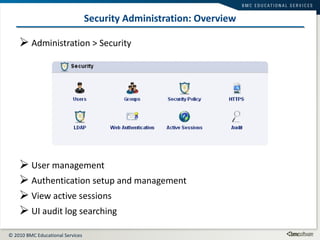
Security Administration: Overview Administration > Security User management Authentication setup and management View active sessions UI audit log searching
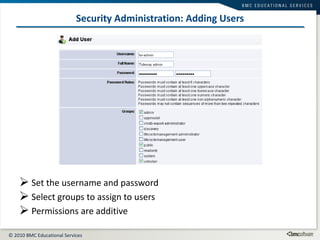
Security Administration: Adding Users Set the username and password Select groups to assign to users Permissions are additive
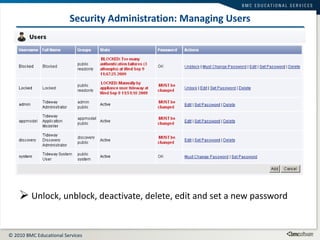
Security Administration: Managing Users Unlock, unblock, deactivate, delete, edit and set a new password
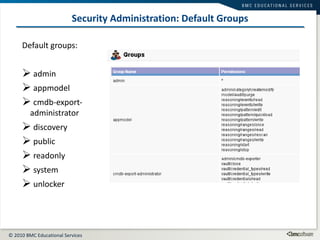
Security Administration: Default Groups Default groups: admin  appmodel cmdb-export-administrator discovery public readonly system unlocker
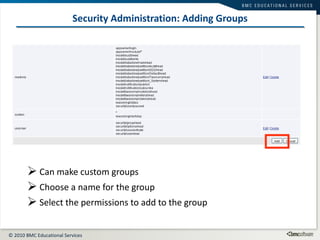
Security Administration: Adding Groups Can make custom groups Choose a name for the group Select the permissions to add to the group
LDAP Integration
LDAP Why Use It? Configuring a large number of Atrium Discovery UI users can be tedious and error prone Most organisations already have a LDAP capable authentication   system
LDAP Authentication Requirements Supported LDAP Capabilities and Systems Official support for Microsoft AD and SunONE DS Also will work with other LDAP servers (eg Novell) May (optionally) support client side certificate authentication Commissioning Tasks Configure Foundation’s connection to your LDAP system Map LDAP defined groups to Atrium Discovery groups
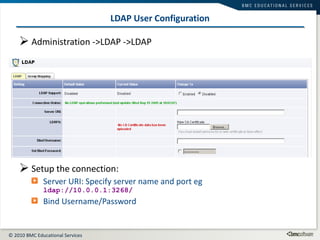
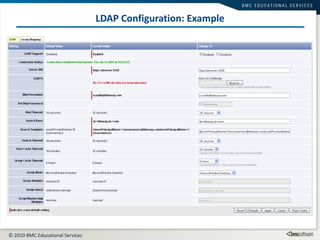
LDAP User Configuration Administration ->LDAP ->LDAP Setup the connection: Server URI: Specify server name and port eg ldap://10.0.0.1:3268/ Bind Username/Password
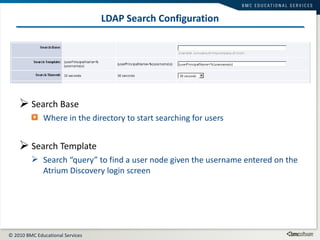
LDAP Search Configuration Search Base Where in the directory to start searching for users Search Template Search “query” to find a user node given the username entered on the Atrium Discovery login screen
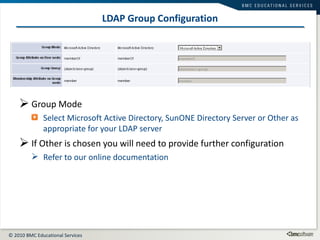
LDAP Group Configuration Group Mode Select Microsoft Active Directory, SunONE Directory Server or Other as appropriate for your LDAP server If Other is chosen you will need to provide further configuration Refer to our online documentation
LDAP Configuration: Example
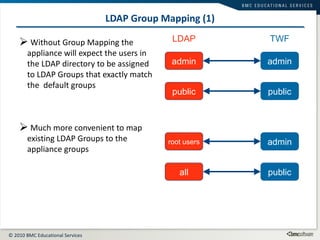
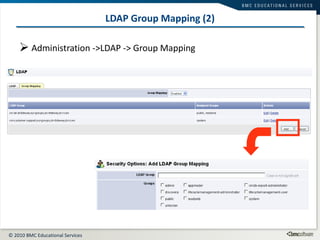
LDAP Group Mapping (1) Without Group Mapping the appliance will expect the users in the LDAP directory to be assigned to LDAP Groups that exactly match the  default groups Much more convenient to map existing LDAP Groups to the appliance groups admin public admin public TWF LDAP admin public root users all
LDAP Group Mapping (2) Administration ->LDAP -> Group Mapping
Security Policy
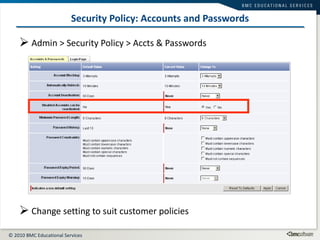
Security Policy: Accounts and Passwords Admin > Security Policy > Accts & Passwords Change setting to suit customer policies
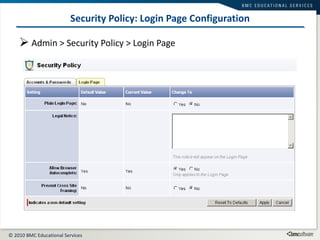
Security Policy: Login Page Configuration Admin > Security Policy > Login Page
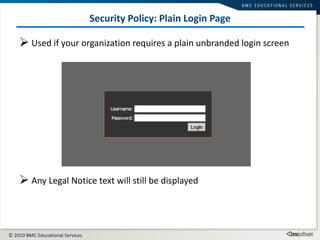
Security Policy: Plain Login Page Used if your organization requires a plain unbranded login screen Any Legal Notice text will still be displayed
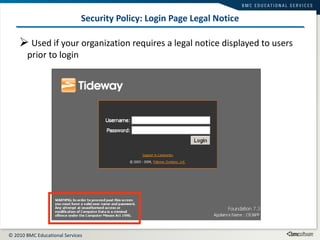
Security Policy: Login Page Legal Notice Used if your organization requires a legal notice displayed to users prior to login
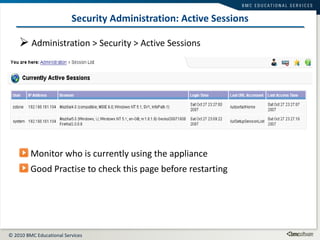
Security Administration: Active Sessions Administration > Security > Active Sessions Monitor who is currently using the appliance Good Practise to check this page before restarting
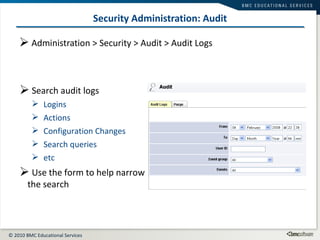
Security Administration: Audit Administration > Security > Audit > Audit Logs Search audit logs Logins Actions Configuration Changes Search queries etc Use the form to help narrow the search
UI Accounts at the CLI
Security Warning The appliance CLI accounts should be treated as a root level account Keep knowledge of the password to a minimum of people Comply with your organisation’s policy on root or super user passwords Change the password when people leave the team
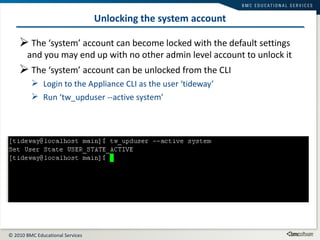
Unlocking the system account The ‘system’ account can become locked with the default settings and you may end up with no other admin level account to unlock it The ‘system’ account can be unlocked from the CLI Login to the Appliance CLI as the user ‘tideway’ Run ‘tw_upduser --active system’
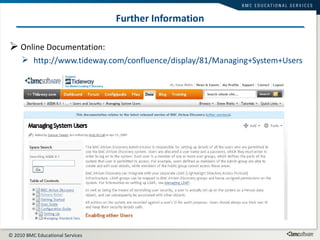
Online Documentation: http://www.tideway.com/confluence/display/81/Managing+System+Users Further Information Tideway Foundation Version 7.2 Documentation Title
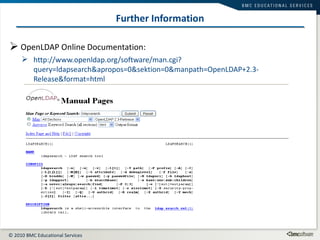
OpenLDAP Online Documentation: http://www.openldap.org/software/man.cgi?query=ldapsearch&apropos=0&sektion=0&manpath=OpenLDAP+2.3-Release&format=html Further Information Tideway Foundation Version 7.2 Documentation Title
Security Management Exercises

Addmi 06-security mgmt

  • 1.
    Security Management UserAdministration and System Security
  • 2.
    Security Management OutlineUser Management Users Groups Account and password management LDAP Authentication Uses Typical Configuration Security Policy Login page Auditing Security at the CLI
  • 3.
  • 4.
    Security Administration: OverviewAdministration > Security User management Authentication setup and management View active sessions UI audit log searching
  • 5.
    Security Administration: AddingUsers Set the username and password Select groups to assign to users Permissions are additive
  • 6.
    Security Administration: ManagingUsers Unlock, unblock, deactivate, delete, edit and set a new password
  • 7.
    Security Administration: DefaultGroups Default groups: admin appmodel cmdb-export-administrator discovery public readonly system unlocker
  • 8.
    Security Administration: AddingGroups Can make custom groups Choose a name for the group Select the permissions to add to the group
  • 9.
  • 10.
    LDAP Why UseIt? Configuring a large number of Atrium Discovery UI users can be tedious and error prone Most organisations already have a LDAP capable authentication system
  • 11.
    LDAP Authentication RequirementsSupported LDAP Capabilities and Systems Official support for Microsoft AD and SunONE DS Also will work with other LDAP servers (eg Novell) May (optionally) support client side certificate authentication Commissioning Tasks Configure Foundation’s connection to your LDAP system Map LDAP defined groups to Atrium Discovery groups
  • 12.
    LDAP User ConfigurationAdministration ->LDAP ->LDAP Setup the connection: Server URI: Specify server name and port eg ldap://10.0.0.1:3268/ Bind Username/Password
  • 13.
    LDAP Search ConfigurationSearch Base Where in the directory to start searching for users Search Template Search “query” to find a user node given the username entered on the Atrium Discovery login screen
  • 14.
    LDAP Group ConfigurationGroup Mode Select Microsoft Active Directory, SunONE Directory Server or Other as appropriate for your LDAP server If Other is chosen you will need to provide further configuration Refer to our online documentation
  • 15.
  • 16.
    LDAP Group Mapping(1) Without Group Mapping the appliance will expect the users in the LDAP directory to be assigned to LDAP Groups that exactly match the default groups Much more convenient to map existing LDAP Groups to the appliance groups admin public admin public TWF LDAP admin public root users all
  • 17.
    LDAP Group Mapping(2) Administration ->LDAP -> Group Mapping
  • 18.
  • 19.
    Security Policy: Accountsand Passwords Admin > Security Policy > Accts & Passwords Change setting to suit customer policies
  • 20.
    Security Policy: LoginPage Configuration Admin > Security Policy > Login Page
  • 21.
    Security Policy: PlainLogin Page Used if your organization requires a plain unbranded login screen Any Legal Notice text will still be displayed
  • 22.
    Security Policy: LoginPage Legal Notice Used if your organization requires a legal notice displayed to users prior to login
  • 23.
    Security Administration: ActiveSessions Administration > Security > Active Sessions Monitor who is currently using the appliance Good Practise to check this page before restarting
  • 24.
    Security Administration: AuditAdministration > Security > Audit > Audit Logs Search audit logs Logins Actions Configuration Changes Search queries etc Use the form to help narrow the search
  • 25.
  • 26.
    Security Warning Theappliance CLI accounts should be treated as a root level account Keep knowledge of the password to a minimum of people Comply with your organisation’s policy on root or super user passwords Change the password when people leave the team
  • 27.
    Unlocking the systemaccount The ‘system’ account can become locked with the default settings and you may end up with no other admin level account to unlock it The ‘system’ account can be unlocked from the CLI Login to the Appliance CLI as the user ‘tideway’ Run ‘tw_upduser --active system’
  • 28.
    Online Documentation: http://www.tideway.com/confluence/display/81/Managing+System+UsersFurther Information Tideway Foundation Version 7.2 Documentation Title
  • 29.
    OpenLDAP Online Documentation:http://www.openldap.org/software/man.cgi?query=ldapsearch&apropos=0&sektion=0&manpath=OpenLDAP+2.3-Release&format=html Further Information Tideway Foundation Version 7.2 Documentation Title
  • 30.

Editor's Notes

  • #7 Note default administrative users: admin, system The system user cannot be deleted
  • #8 It’s a good idea not to edit the default groups. It is better to add a new group and select the permissions needed.
  • #9 To add a new group scroll to the bottom and click add and complete the “add group form”
  • #11 LDAP provides: Centrally managed user authentication Single unified logon
  • #12 You will have to work with your LDAP administrator
  • #14 Normally the Search Template can be left at default, consult the LDAP admin to see if any changes are needed.
  • #15 For Microsoft Active Directory and SunONE Directory Server Foundation can set the other group configuration attributes and these are the fully supported configurations. If Other is chosen then the other group configuration attributes can be set in consultation with the LDAP admin. For reference: Group Attribute on User node The LDAP attribute name to search for when running a group query. The attribute is on the User node, and provides a list of distinguished names of groups that the user belongs to Group Query The LDAP query that is used to find Group objects. It is usual to match the nodes' Object Class, for example: (objectclass=group). Membership Attribute on Group node The LDAP attribute name to search for to determine whether an individual is a member of a group. The attribute is on the Group nodes, and provides a list of names of users.
  • #18 Useful CLI test to show data from LDAP server Example: ldapsearch -b dc=bmc,dc=com -D n.smith@bmc.com –W -H ldap://adserver:389 -x '(userPrincipalName=n.smith@bmc.com)'
  • #20 the “Disabled Accounts can be reactivated” setting as this is how to allow locked or blocked acct to be reset from the UI (shown on slide 5)
  • #23 This slide is included as many users are not sure of where such text will be displayed. Of course the field can be used for things other than legal notices and can be usefully used to identify what multiple appliances are being used for; especially useful for admins that have to login to a number. Note also that the Foundation Version and Appliance Name are displayed bottom right; it is good practise to set a reasonable Appliance Name.
  • #28 If the user has followed best practise of *not* using the system account for general use they shouldn’t get to this situation. Note also that it is important that the CLI password is treated as a high level password and not general known.
  • #31 Optionally you may wish to complete the labs that have been prepared to accompany this module. Please download the lab zip file that should be available where you accessed this module. Make sure you have access to a running appliance before attempting the labs. It is best to use the training demo VA provided as it is set up to work with the labs. You may need to review tutorial material in order to work out the solutions.