ADDING CONTENT ON HARRIET Using the Editor
OVERVIEW The editor on Harriet is WYSIWYG – What You See Is What You Get. Many of the options (e.g. Bold, Italicize) are similar to Word For a more in-depth description of functions, see  http://docs.fckeditor.net/FCKeditor_2.x/Users_Guide   Note: Some options listed on the website are different from our installation.
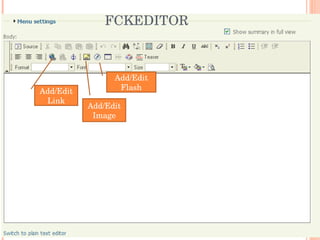
FCKEDITOR Add/Edit Link Add/Edit Image Add/Edit Flash
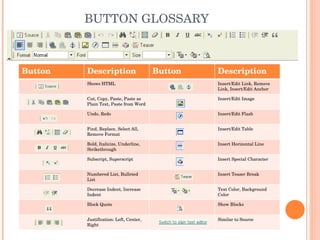
BUTTON GLOSSARY Button Description Button Description Shows HTML  Insert/Edit Link, Remove Link, Insert/Edit Anchor Cut, Copy, Paste, Paste as Plain Text, Paste from Word Insert/Edit Image Undo, Redo Insert/Edit Flash Find, Replace, Select All, Remove Format Insert/Edit Table Bold, Italicize, Underline, Strikethrough Insert Horizontal Line Subscript, Superscript Insert Special Character Numbered List, Bulleted List Insert Teaser Break  Decrease Indent, Increase Indent Text Color, Background Color Block Quote Show Blocks Justification: Left, Center, Right Similar to Source
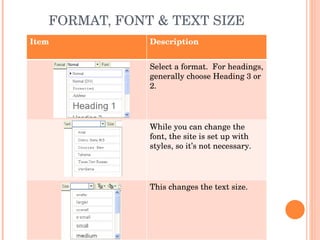
FORMAT, FONT & TEXT SIZE Item Description Select a format.  For headings, generally choose Heading 3 or 2. While you can change the font, the site is set up with styles, so it’s not necessary. This changes the text size.
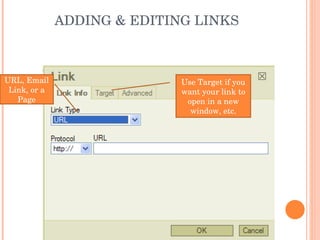
ADDING & EDITING LINKS Can be a URL, Email Link, or a Page anchor. Use Target if you want your link to open in a new window, etc.
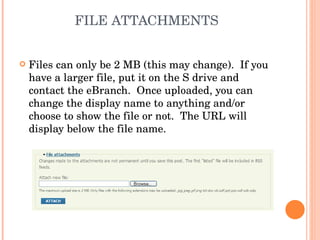
FILE ATTACHMENTS Files can only be 2 MB (this may change).  If you have a larger file, put it on the S drive and contact the eBranch.  Once uploaded, you can change the display name to anything and/or choose to show the file or not.  The URL will display below the file name.
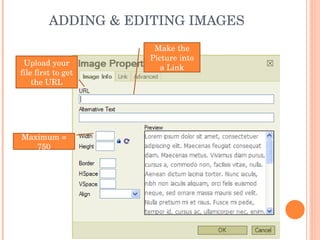
ADDING & EDITING IMAGES Maximum = 750 Upload your file first to get the URL Make the Picture into a Link
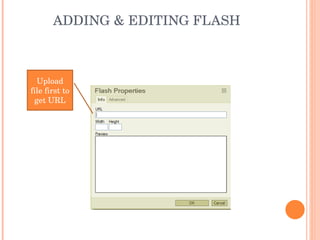
ADDING & EDITING FLASH Upload file first to get URL
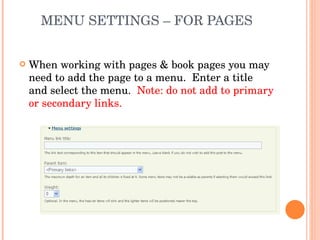
MENU SETTINGS – FOR PAGES When working with pages & book pages you may need to add the page to a menu.  Enter a title and select the menu.  Note: do not add to primary or secondary links.
Adding Content on Harriet

Adding Content on Harriet

  • 1.
    ADDING CONTENT ONHARRIET Using the Editor
  • 2.
    OVERVIEW The editoron Harriet is WYSIWYG – What You See Is What You Get. Many of the options (e.g. Bold, Italicize) are similar to Word For a more in-depth description of functions, see http://docs.fckeditor.net/FCKeditor_2.x/Users_Guide Note: Some options listed on the website are different from our installation.
  • 3.
    FCKEDITOR Add/Edit LinkAdd/Edit Image Add/Edit Flash
  • 4.
    BUTTON GLOSSARY ButtonDescription Button Description Shows HTML Insert/Edit Link, Remove Link, Insert/Edit Anchor Cut, Copy, Paste, Paste as Plain Text, Paste from Word Insert/Edit Image Undo, Redo Insert/Edit Flash Find, Replace, Select All, Remove Format Insert/Edit Table Bold, Italicize, Underline, Strikethrough Insert Horizontal Line Subscript, Superscript Insert Special Character Numbered List, Bulleted List Insert Teaser Break Decrease Indent, Increase Indent Text Color, Background Color Block Quote Show Blocks Justification: Left, Center, Right Similar to Source
  • 5.
    FORMAT, FONT &TEXT SIZE Item Description Select a format. For headings, generally choose Heading 3 or 2. While you can change the font, the site is set up with styles, so it’s not necessary. This changes the text size.
  • 6.
    ADDING & EDITINGLINKS Can be a URL, Email Link, or a Page anchor. Use Target if you want your link to open in a new window, etc.
  • 7.
    FILE ATTACHMENTS Filescan only be 2 MB (this may change). If you have a larger file, put it on the S drive and contact the eBranch. Once uploaded, you can change the display name to anything and/or choose to show the file or not. The URL will display below the file name.
  • 8.
    ADDING & EDITINGIMAGES Maximum = 750 Upload your file first to get the URL Make the Picture into a Link
  • 9.
    ADDING & EDITINGFLASH Upload file first to get URL
  • 10.
    MENU SETTINGS –FOR PAGES When working with pages & book pages you may need to add the page to a menu. Enter a title and select the menu. Note: do not add to primary or secondary links.