@coolfields1
Accessibility Hacks
For life's little inaccessible moments…
@coolfields
A bit about me
2
I’m a…
• Web Accessibility
Consultant
• WordPress
Developer
Photo by Mike Pead
@coolfields
What I'm going to cover
Some small tweaks we can make when building accessible WP
themes for ourselves and our clients.
Specifically I'll be looking at:
• Using SVG images in an accessible way.
• CSS techniques that help with accessibility.
@coolfields
Using SVG
• SVG images are vector graphics, as opposed to raster or bitmapped
images like jpeg, png or gif.
• SVG images are described by the lines and blocks and other shapes,
combined to make up an entire images.
• This means that they can be infinitely scaled without any pixellation.
• And the file sizes are generally smaller than corresponding jpeg, png
or gif.
• But can they be accessed by assistive technology users?
@coolfields
SVG Hack 1 - SVG files
@coolfields
Adding SVG files to web pages
Uses the trusty <img> element with the alt attribute to give
the accessible label…
<img src="https://path/images/home.svg"
alt="My logo">
So we're done here aren't we??
@coolfields
Using role="img" with SVG files
Well, SVG support within screen reader is still in its infancy,
so we need a helping hand from ARIA here...
<img src="https://path/images/home.svg"
alt="My logo" role="img">
This ensures that all screen readers can 'see' this image.
@coolfields
SVG files as links
Now the destination is the important bit, so that's what the
alt attribute should refer to.
<a href="/">
<img src="https://path/images/home.svg"
role="img" alt="Home Page">
</a>
@coolfields
SVG Hack 2 - Inline SVG
@coolfields
Inline SVG in web pages
Example of inline SVG…
<svg version="1.1" width="100" height="75">
<rect width="75" height="50" rx="20" ry="20"
fill="#90ee90" stroke="#228b22"
stroke-fill="1" />
</svg>
@coolfields
The challenge of inline SVG…
• Inline SVG is invisible to screen readers
• There is no <img> element
• And there is no alt attribute you can use to give it some
alternate text.
@coolfields
Using <title> with inline SVG
To solve the issue, you can use the <title> element within the
<svg> wrapper.
But also, connect it with the aria-labelledby attribute so all
screen readers can access the text in the <title> element.
And we still need the role="img" too.
@coolfields
Using <title> with inline SVG
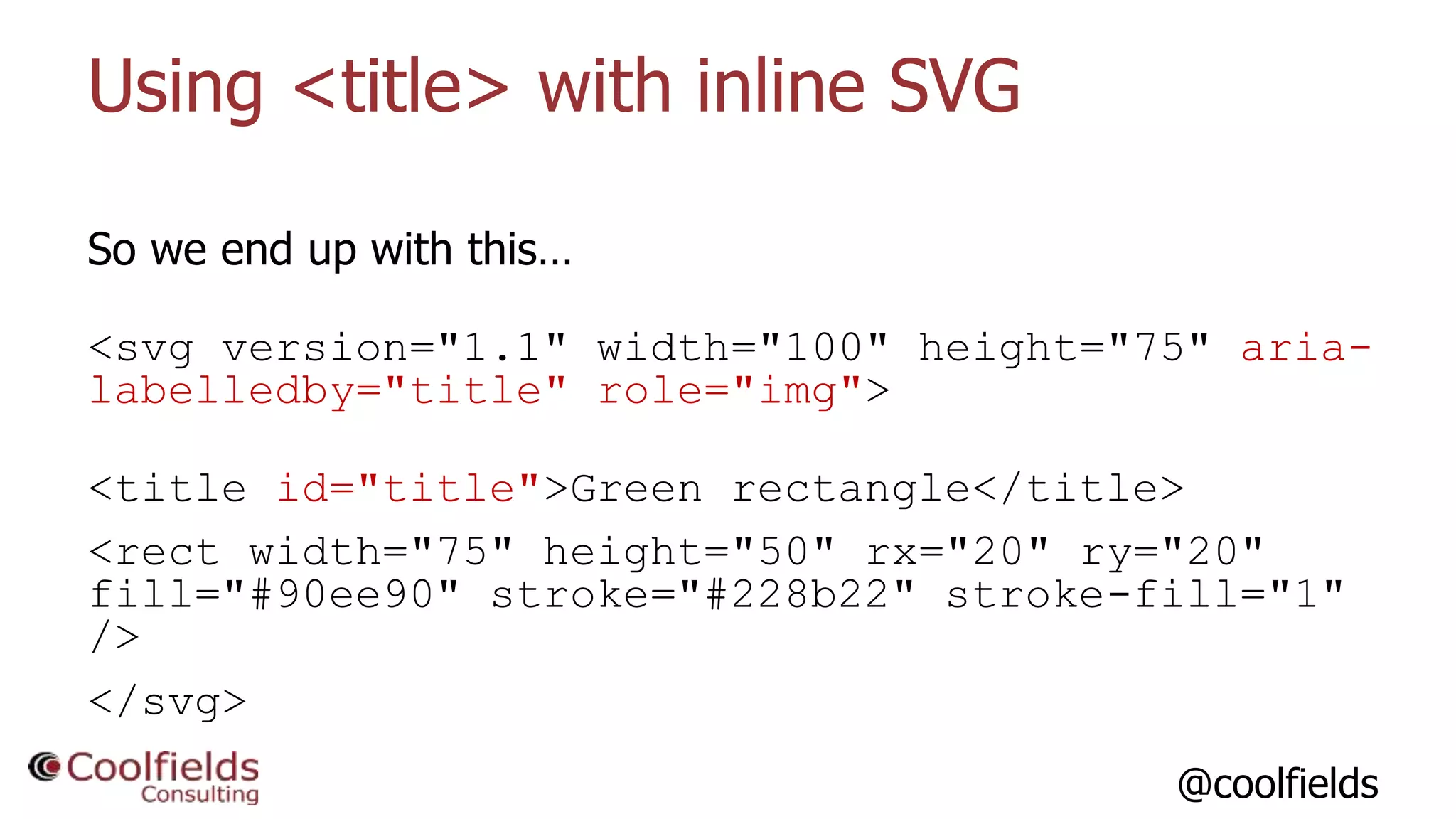
So we end up with this…
<svg version="1.1" width="100" height="75" aria-
labelledby="title" role="img">
<title id="title">Green rectangle</title>
<rect width="75" height="50" rx="20" ry="20"
fill="#90ee90" stroke="#228b22" stroke-fill="1"
/>
</svg>
@coolfields
Using <title> with inline SVG
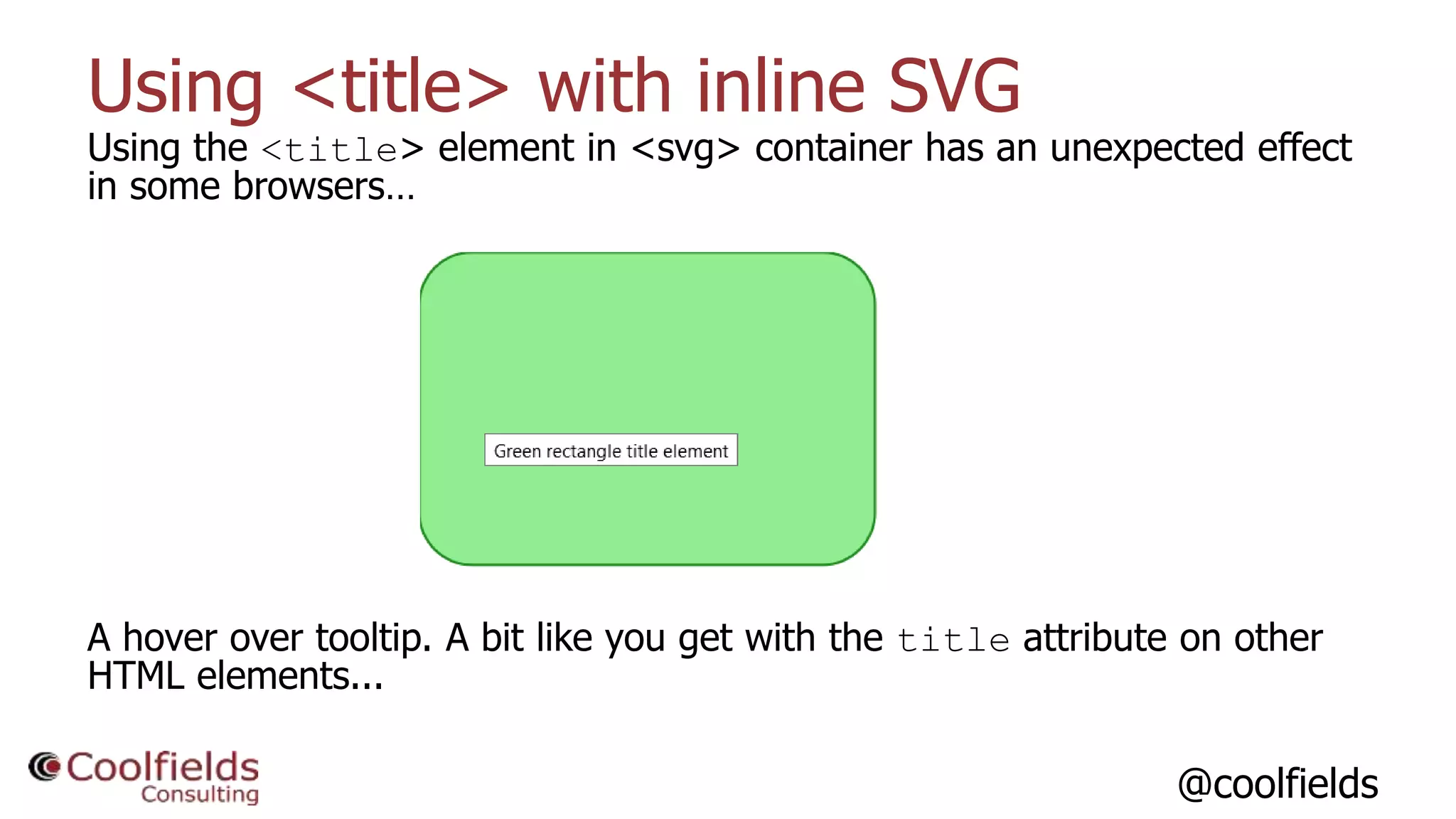
Using the <title> element in <svg> container has an unexpected effect
in some browsers…
A hover over tooltip. A bit like you get with the title attribute on other
HTML elements...
@coolfields
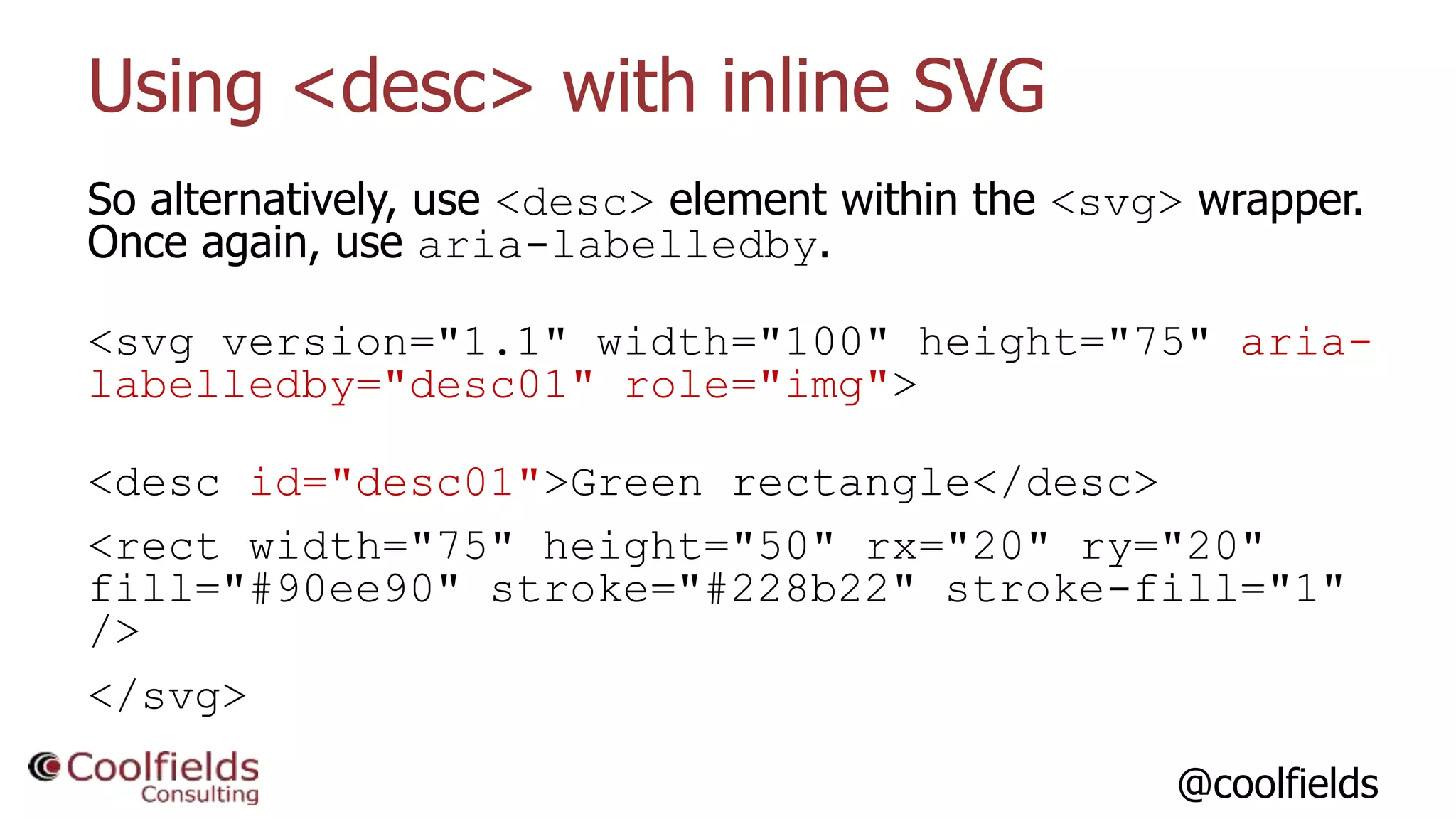
Using <desc> with inline SVG
So alternatively, use <desc> element within the <svg> wrapper.
Once again, use aria-labelledby.
<svg version="1.1" width="100" height="75" aria-
labelledby="desc01" role="img">
<desc id="desc01">Green rectangle</desc>
<rect width="75" height="50" rx="20" ry="20"
fill="#90ee90" stroke="#228b22" stroke-fill="1"
/>
</svg>
@coolfields
Inline SVG in web pages
How do screen readers interpret this?
[Demo]
@coolfields
Inline SVG and links
What if your inline SVG needs to be a link?
@coolfields
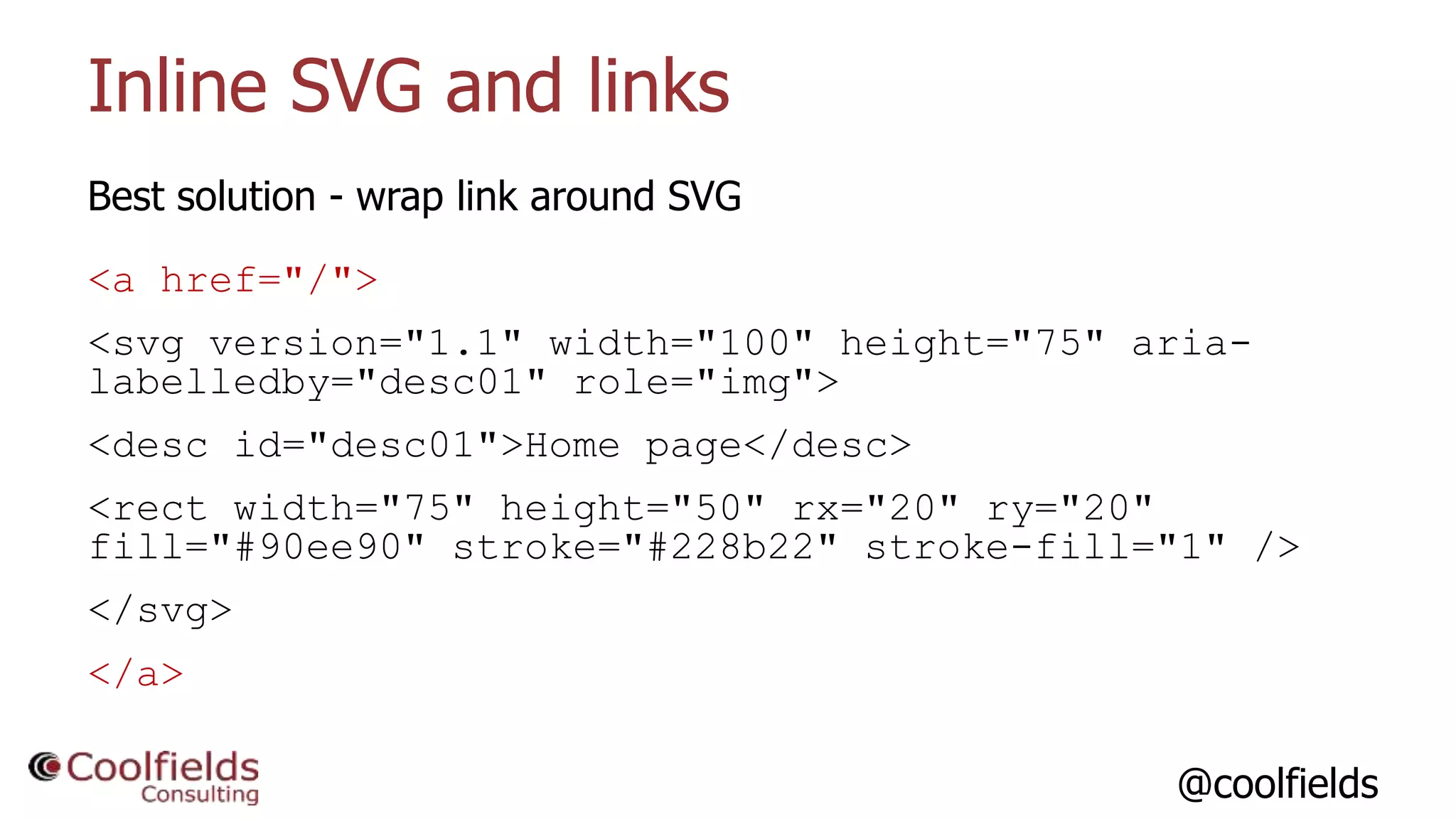
Inline SVG and links
Best solution - wrap link around SVG
<a href="/">
<svg version="1.1" width="100" height="75" aria-
labelledby="desc01" role="img">
<desc id="desc01">Home page</desc>
<rect width="75" height="50" rx="20" ry="20"
fill="#90ee90" stroke="#228b22" stroke-fill="1" />
</svg>
</a>
@coolfields
The difference for screen readers
How do screen readers interpret all this?
@coolfields
Getting SVG into WordPress pages
• No native support for SVG in Media Manager.
• We'd need to paste SVG into pages/posts.
• Or need to rely on a plugin…
• There are a few available, but these next two seem the most
popular.
• But can they give us accessible SVG??
@coolfields
SVG Support plugin
https://wordpress.org/plugins/svg-support/
Does not include role in <img> tag, but does include alt.
Does not include role in <svg> tag, does not include <title> element in
inline SVG.
Plugin author is aware and has responded positively to my comments:
https://wordpress.org/support/topic/suggestions-for-improving-
accessibility/
@coolfields
Safe SVG plugin
https://wordpress.org/plugins/safe-svg/
Does not include role in <img> tag, but does include alt.
Does not cater for inline SVG.
Plugin author contacted but no response.
@coolfields
CSS Accessibility Hacks
CSS techniques can be used to help ensure accessibility within
websites:
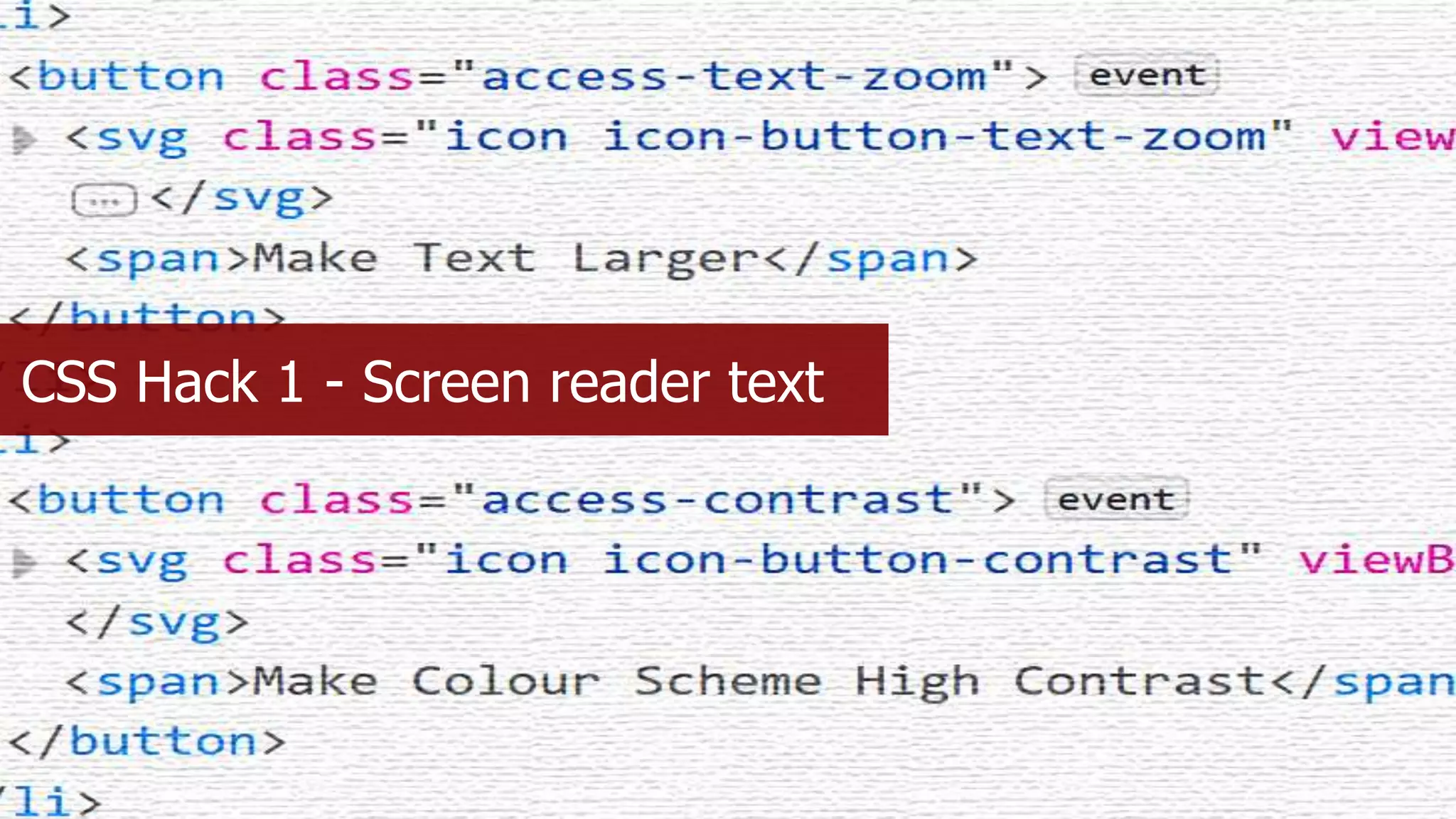
• Providing extra context for links, buttons and other
elements
• Help with testing accessibility during theme development
• Accessibility help for content authors once a site is live
@coolfields
CSS Hack 1 - Screen reader text
@coolfields
Why screen reader text
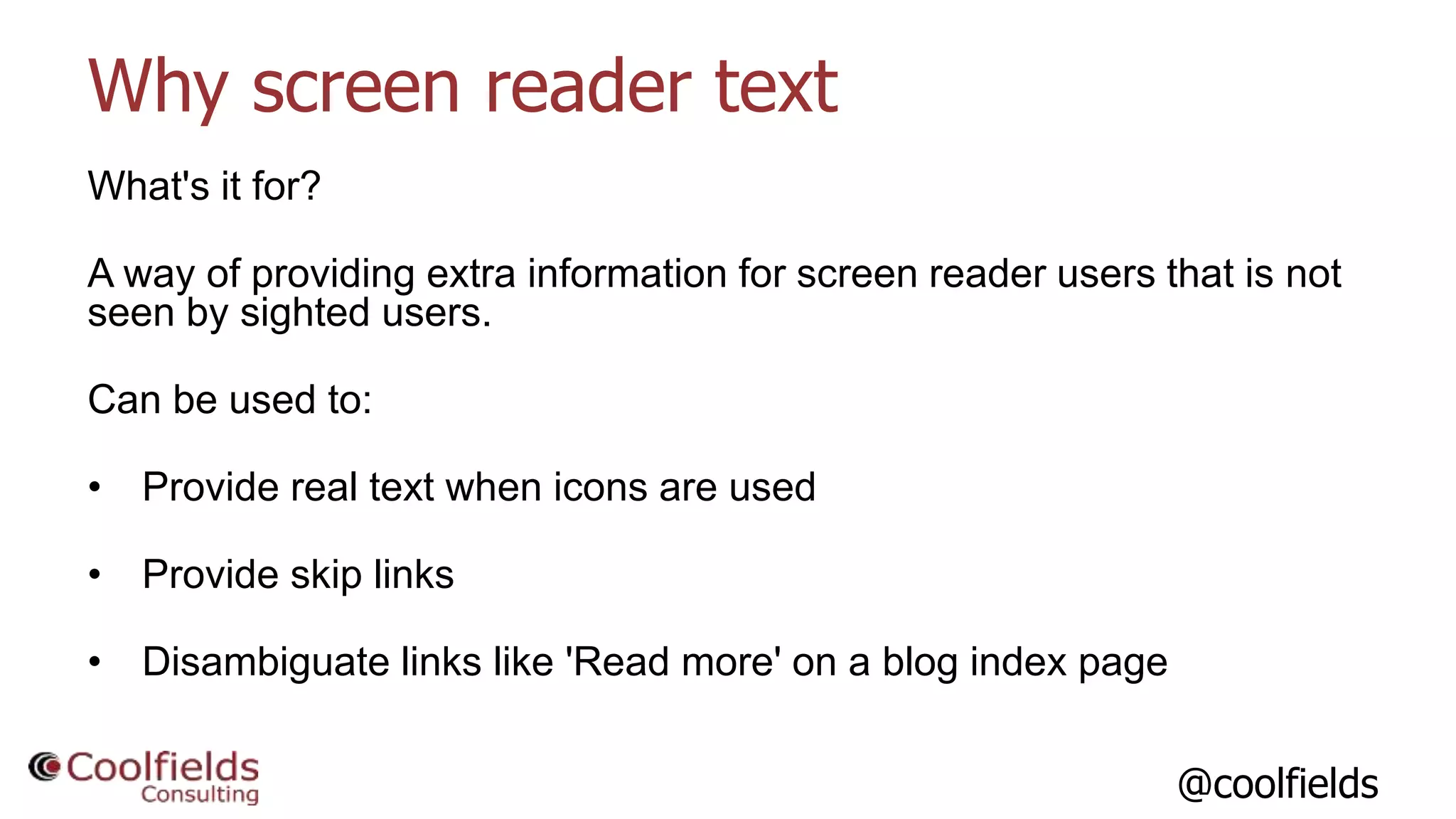
What's it for?
A way of providing extra information for screen reader users that is not
seen by sighted users.
Can be used to:
• Provide real text when icons are used
• Provide skip links
• Disambiguate links like 'Read more' on a blog index page
@coolfields
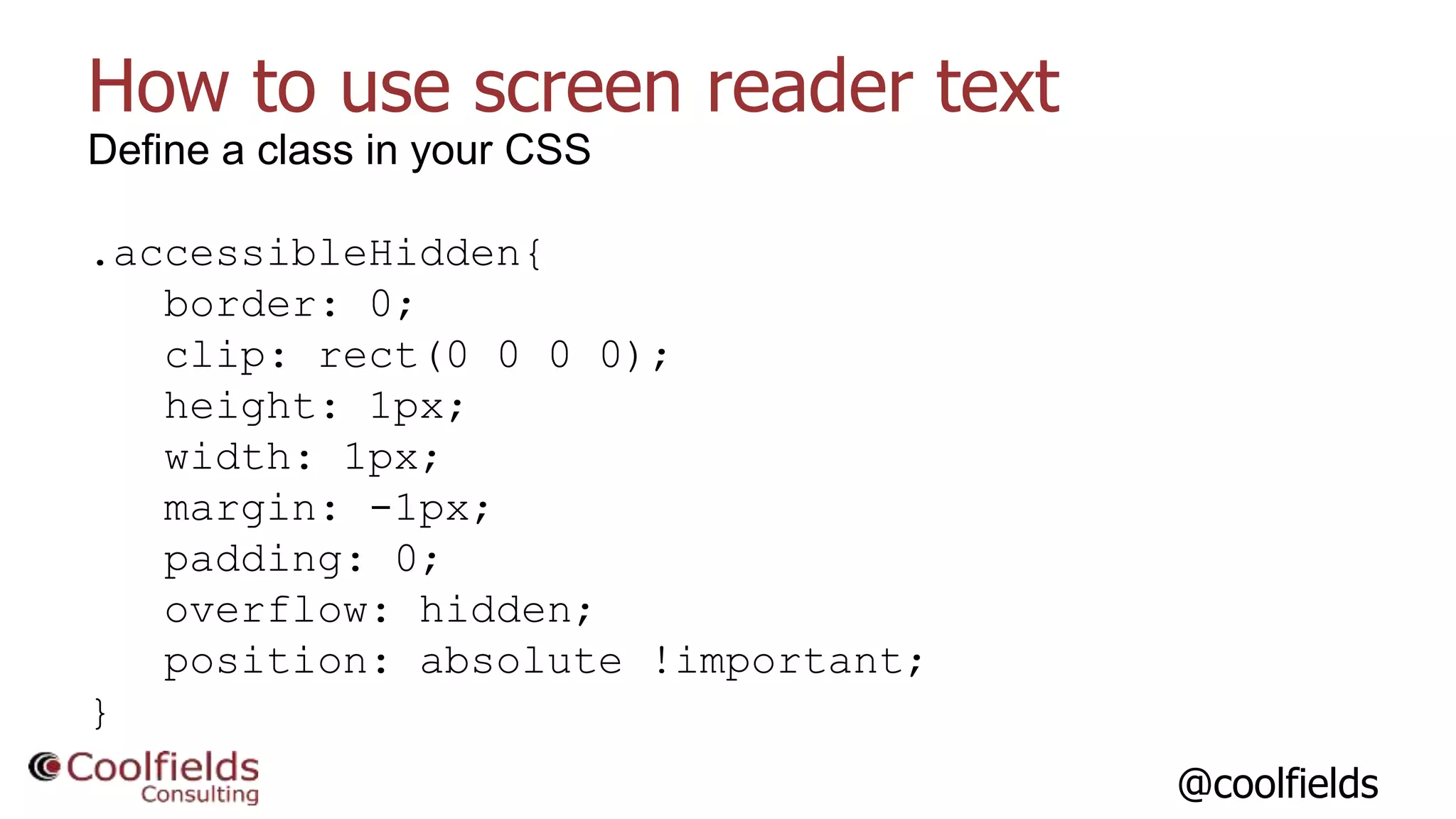
How to use screen reader text
Define a class in your CSS
.accessibleHidden{
border: 0;
clip: rect(0 0 0 0);
height: 1px;
width: 1px;
margin: -1px;
padding: 0;
overflow: hidden;
position: absolute !important;
}
@coolfields
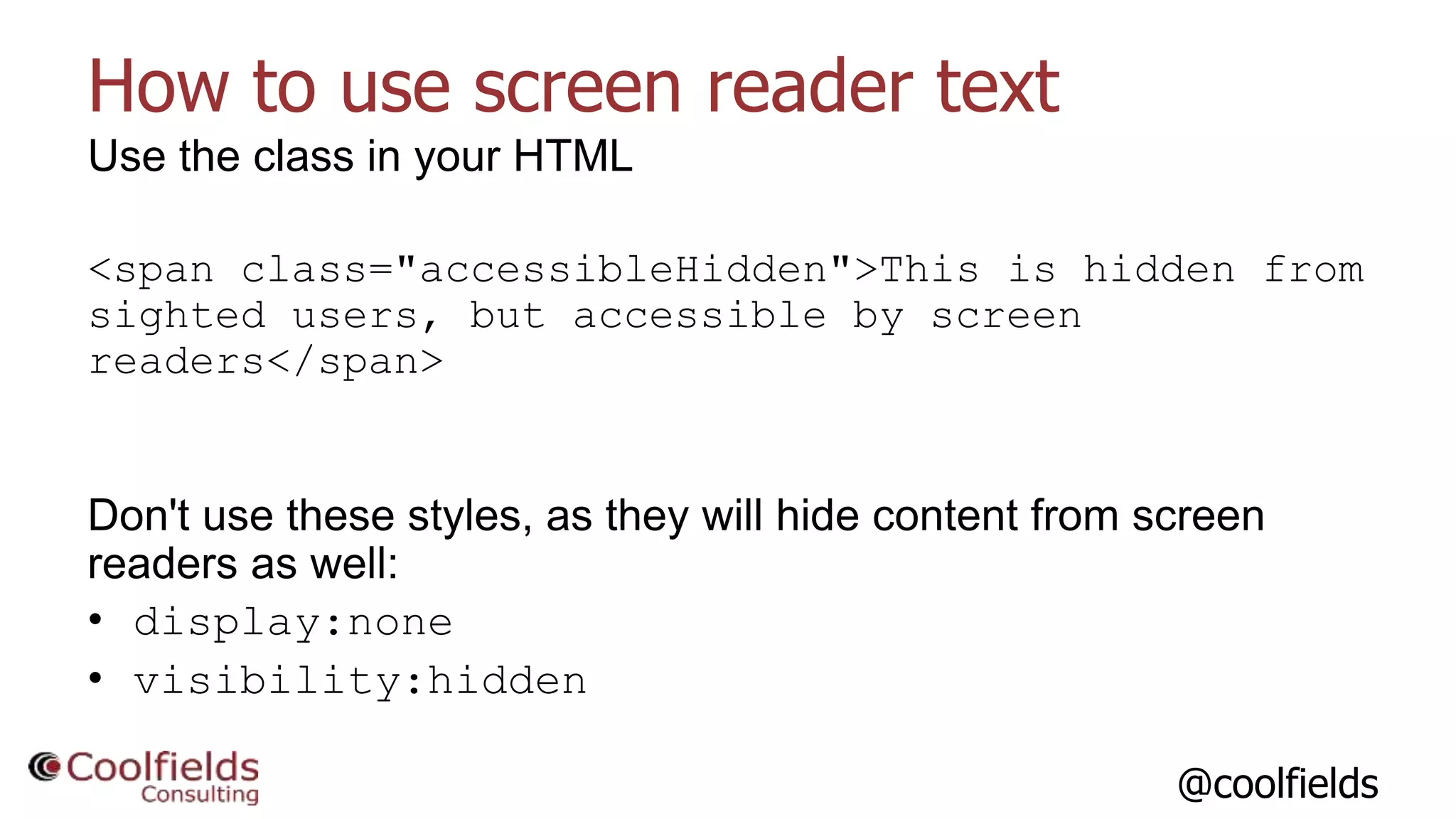
How to use screen reader text
Use the class in your HTML
<span class="accessibleHidden">This is hidden from
sighted users, but accessible by screen
readers</span>
Don't use these styles, as they will hide content from screen
readers as well:
• display:none
• visibility:hidden
@coolfields
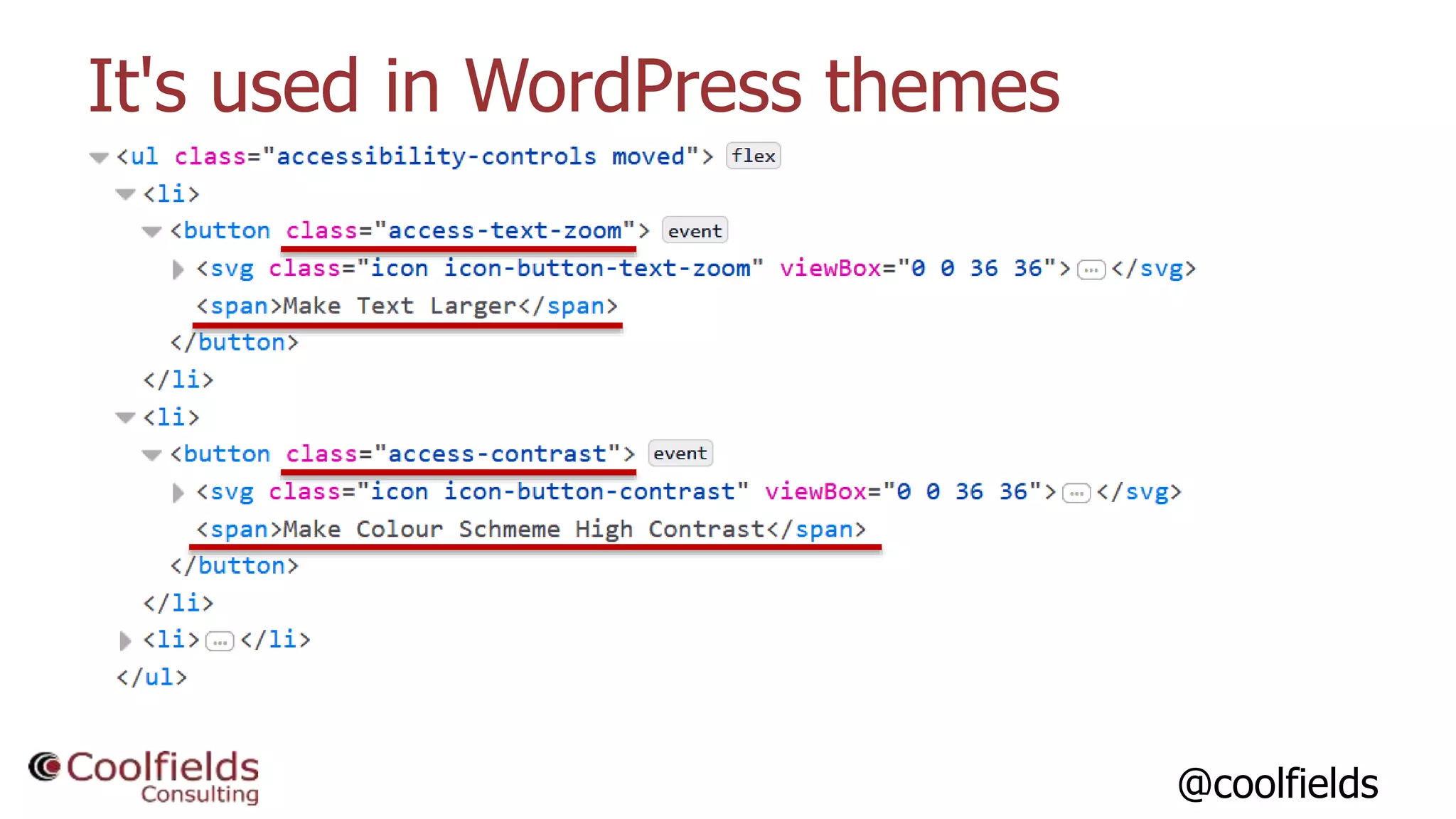
It's used in WordPress themes
@coolfields
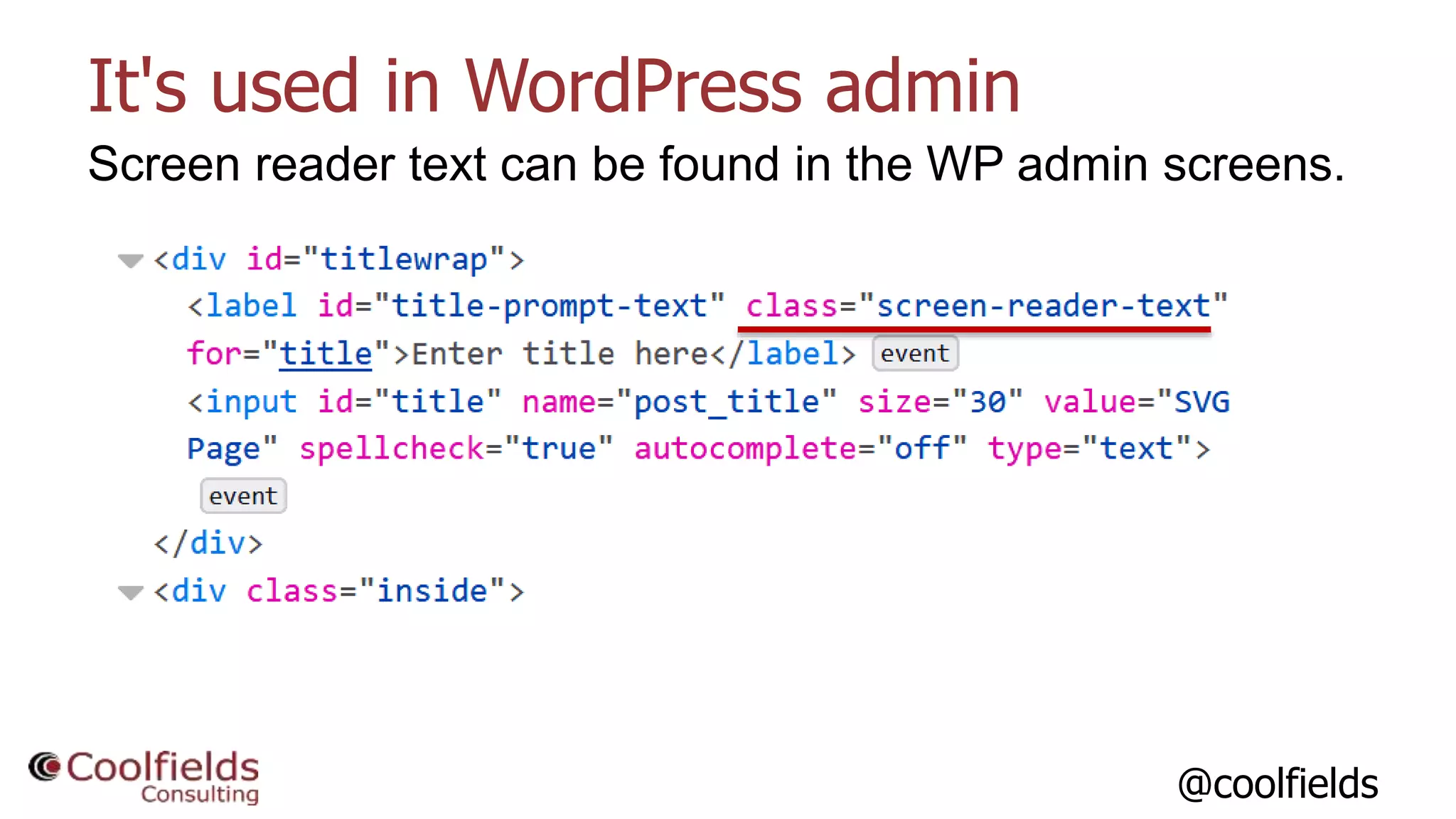
It's used in WordPress admin
Screen reader text can be found in the WP admin screens.
@coolfields
Wouldn't aria-label do the same?
To a point, yes. aria-label can be used on elements with set
roles - like links, buttons, dialogues, etc.
But aria-label won't work for plain text items…
• Alternatives to icons in product comparison tables
• Explaining what values mean on pages.
@coolfields32
CSS Hack 2 - Testing accessibility
during development
@coolfields
Ensuring landmarks are used properly
Wait, landmarks? What are they?
• A way of defining discrete regions of a page.
• For example banner, navigation, main content, etc.
• Increasingly used by screen reader users to help them
navigate around pages.
• Sometimes indicated by role="navigation", role="main",
etc
@coolfields
Ensuring landmarks are used properly
And if you think you're not using them, you probably are anyway -
if you use these HTML5 elements:
• <nav>
• <main>
and in certain situations…
• <header>, <footer>
• <section>, <article>
These are all understood as landmarks, by screen readers.
@coolfields
Ensuring landmarks are used properly
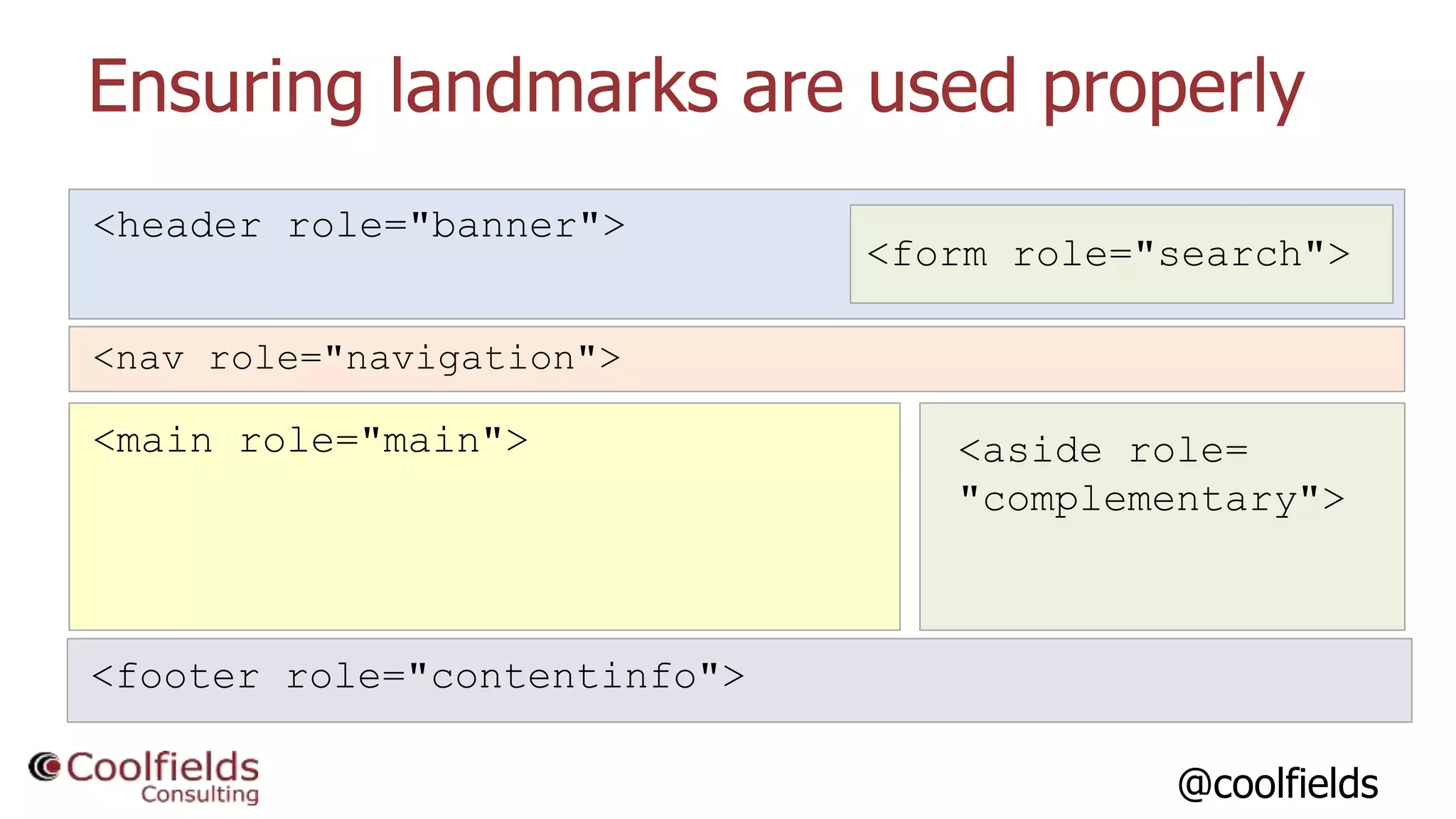
<header role="banner">
<nav role="navigation">
<footer role="contentinfo">
<main role="main"> <aside role=
"complementary">
<form role="search">
@coolfields
Ensuring landmarks are used properly
The key thing is if you're using them, they need to be used
properly.
And all content on the page needs to be in at least one
landmark, or screen reader users may miss key bits.
You can use a browser extension to highlight the landmarks
on a page, but it's not always possible to see whether or not
all content is within one.
@coolfields
Enter accessibility.css
In your dev environment you could have a CSS file that
could be temporarily attached to your pages - say
accessibility.css…
@coolfields
accessibility.css
main, nav, header, footer,
section[aria-labelledby], section[aria-label], form[aria-
labelledby], form[aria-label],
[role="banner"], [role="navigation"], [role="main"],
[role="contentinfo"], [role="complementary"],
[role="search"], [role="form"],
[role="region"][aria-label],
[role="region"][aria-labelledby] {
background-color: rgba(255,0,0,0.1);
outline:3px solid red;
color:#000;
}
@coolfields
accessibility.css
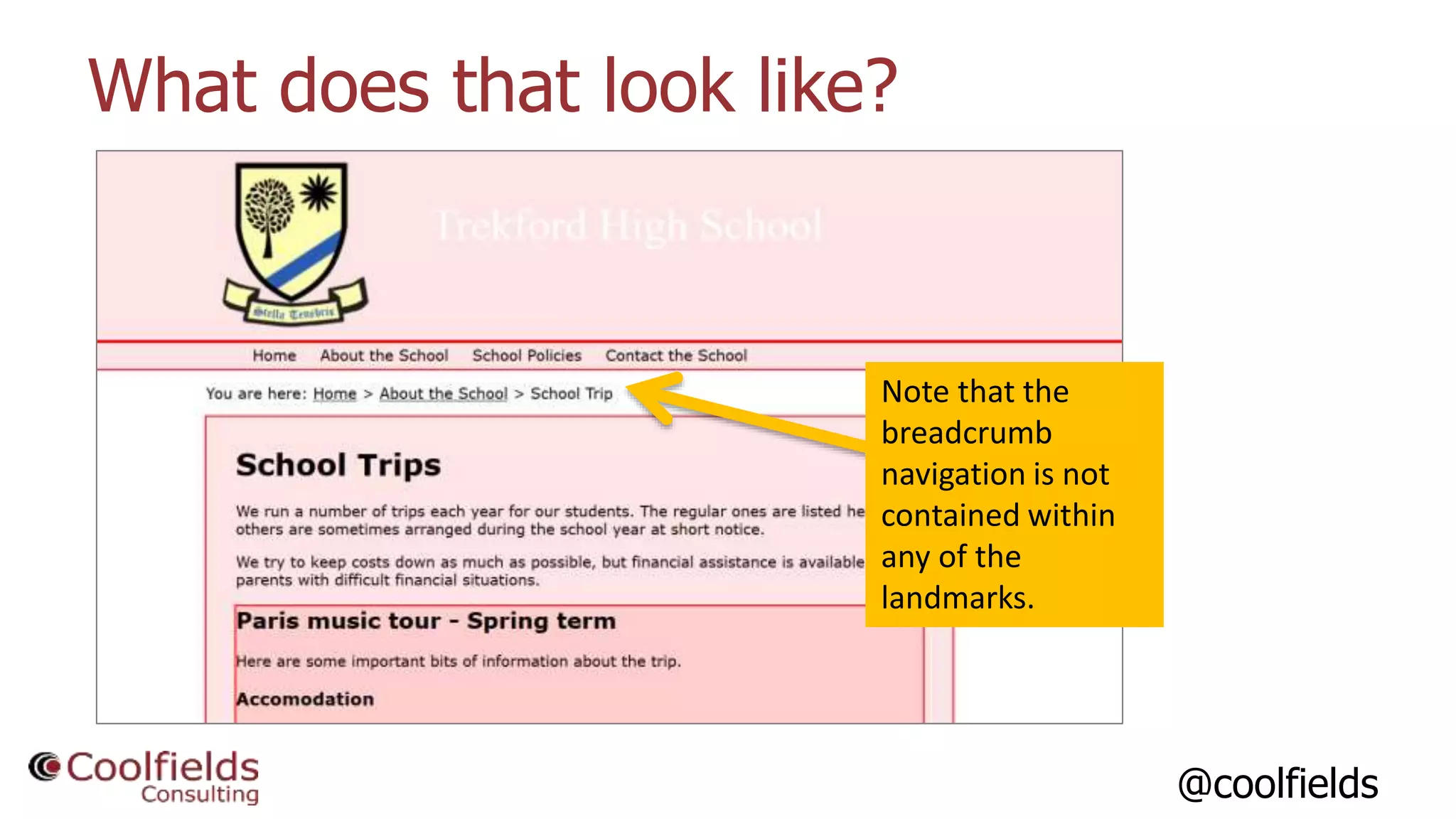
Now we want to 'unselect' <header> and <footer> elements that are
contained within <main>, <article>, <nav> and <section> - these
are not counted as landmarks by browsers and screen readers.
main header, article header, aside header,
nav header, section header,
main footer, article footer, aside footer,
nav footer, section footer {
background-color: transparent;
outline:none;
}
@coolfields
What does that look like?
Note that the
breadcrumb
navigation is not
contained within
any of the
landmarks.
@coolfields
So what else could we do?
Images without alt attributes:
img:not([alt]) {
outline: solid 3px red;
}
SVG files without the role="img" attribute:
img[href$=".svg"]:not([role="img"]) {
outline: solid 3px red;
}
@coolfields
So what else could we do?
Empty links:
a:not([name]):empty {
outline: solid 3px red;
}
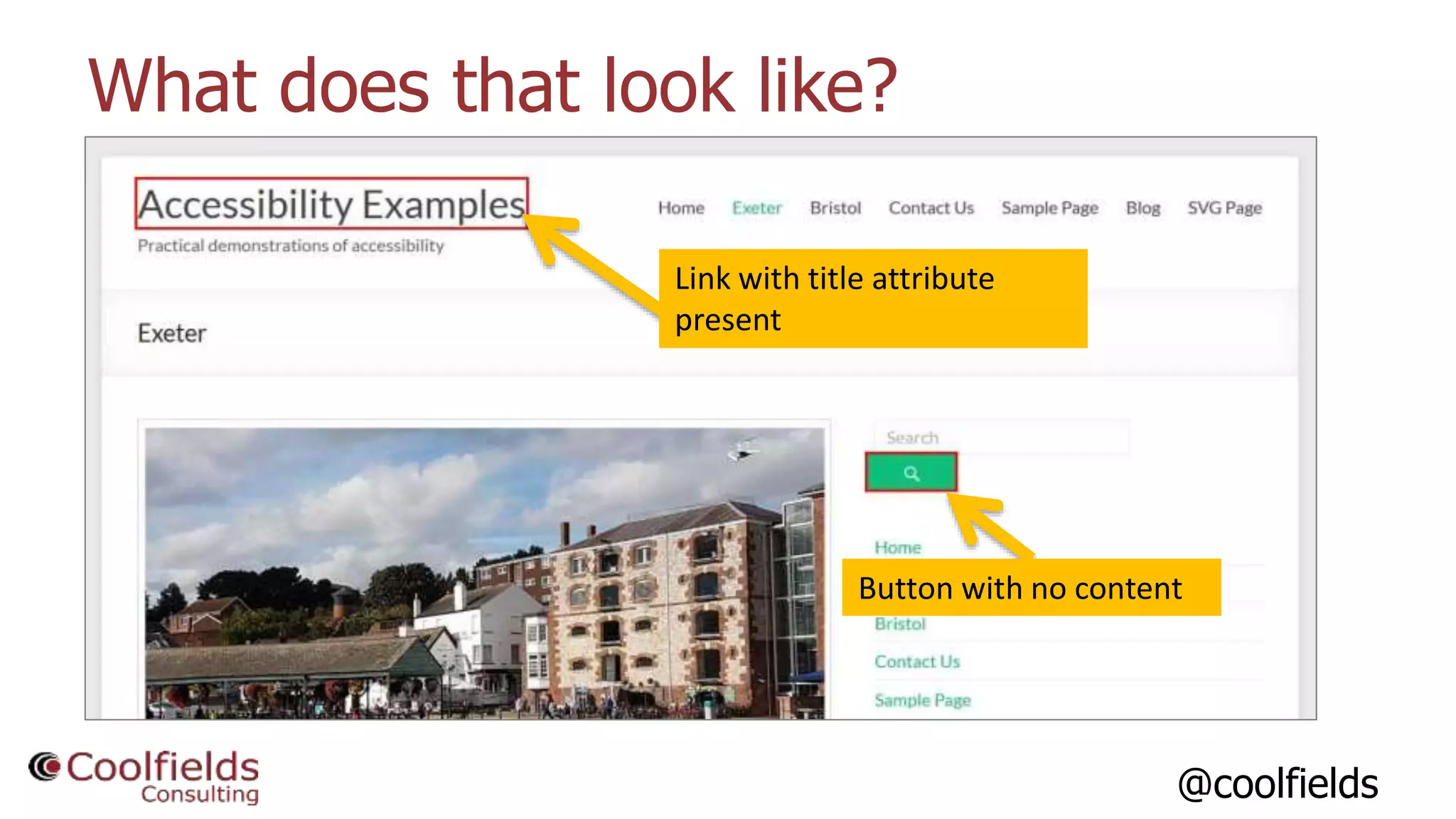
Empty buttons:
button:empty {
outline: solid 3px red;
}
@coolfields
So what else could we do?
Images where the title attribute has been used:
img[title] {
outline: solid 3px red;
}
@coolfields
So what else could we do?
Links with title attributes, or that open a new window:
a[title], a[target] {
outline: solid 3px gold;
}
Images with empty alt attributes:
img[alt=""] {
outline: solid 3px gold;
}
@coolfields
What does that look like?
Link with title attribute
present
Button with no content
@coolfields46
CSS Hack 3 - Helping your
content authors get things right
@coolfields
Content authors can spoil the party
A WordPress website with a fully accessible theme won't stay accessible
for long if your content authors aren't aware how they can affect
accessibility of pages and posts.
Examples:
• Empty headings
• Forgetting to add meaningful alternate text for images
• Links that open a new window/tab
• Links with title attributes
So how can CSS help here?
@coolfields
Hooking into post/page preview
Most content authors will preview their posts or pages before submitting
them for review or putting them live.
So let's have some diagnostic CSS definitions in our main CSS file that
will show up when users preview.
Sadly, there is no 'preview' class that is included in the <body> element
by default.
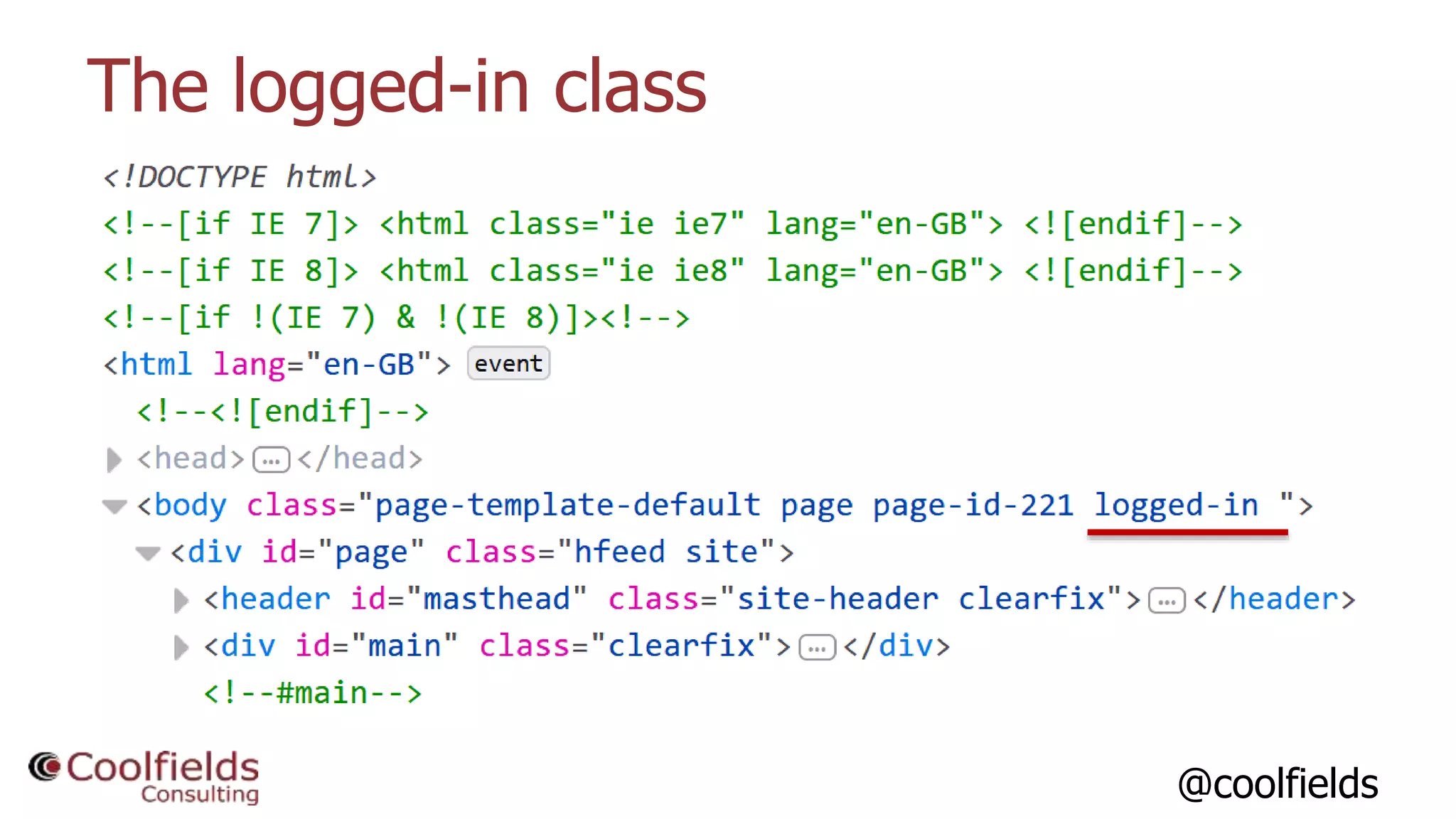
But we could use the 'logged-in' class…
@coolfields
The logged-in class
@coolfields
Adding some warnings with CSS…
Looking for images with blank alt attribute, and links that
open a new window.
.logged-in img[alt=""],
.logged-in a[target] {
outline: solid 3px gold;
}
@coolfields
More serious issues…
.logged-in a[title],
.logged-in img:not([alt]),
.logged-in img[title],
.logged-in img[src$=".svg"]:not([role="img"]),
.logged-in svg:not([role="img"]) {
outline: solid 3px red;
}
@coolfields
Empty elements
h1:empty, h2:empty, h3:empty,
h4:empty, h5:empty, h6:empty,
a:not([name]):empty,
button:empty {
display:block;
position:relative;
min-width: 5em;
min-height: 1em;
outline: solid 3px red;
}
@coolfields
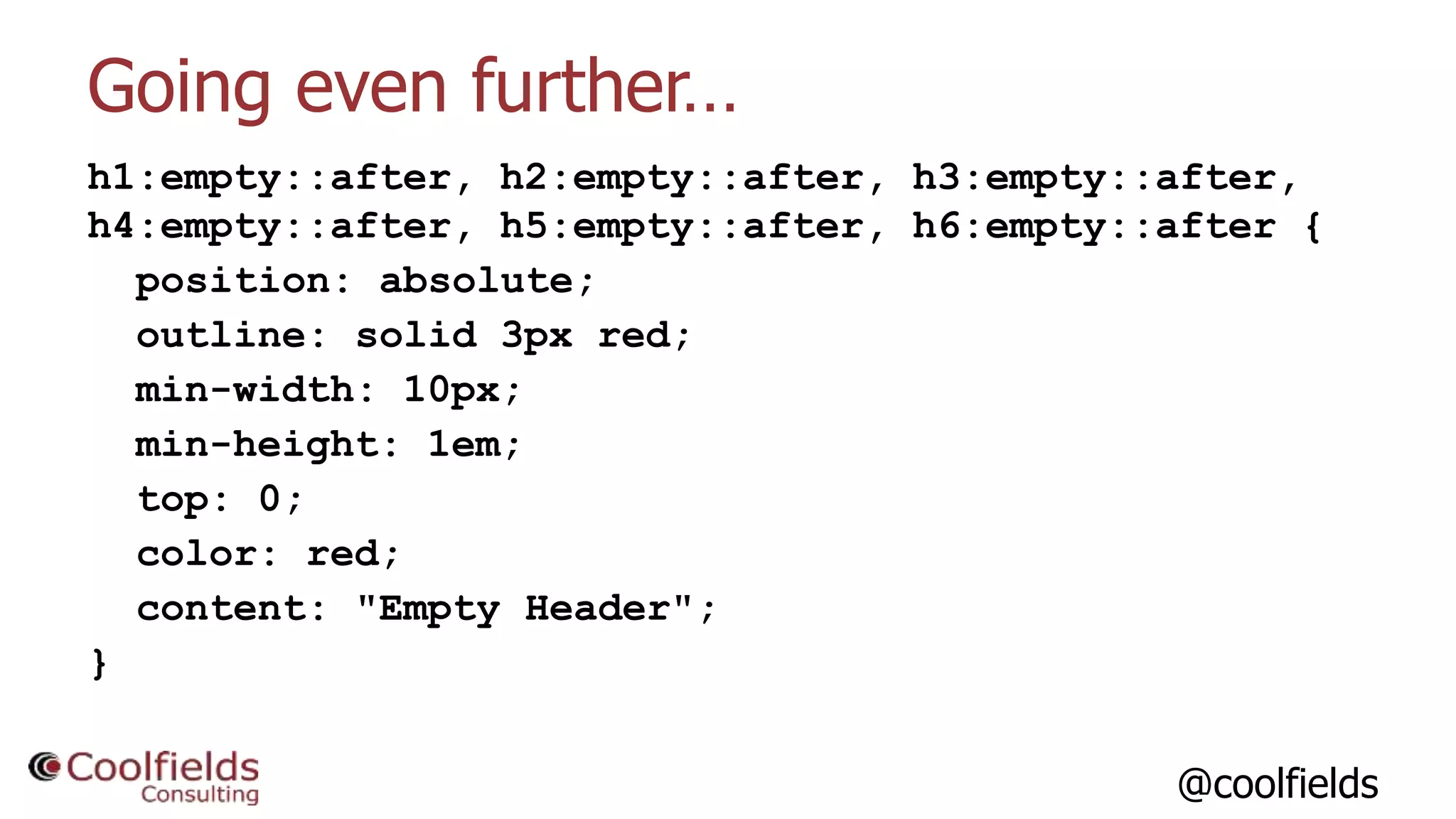
Going even further…
h1:empty::after, h2:empty::after, h3:empty::after,
h4:empty::after, h5:empty::after, h6:empty::after {
position: absolute;
outline: solid 3px red;
min-width: 10px;
min-height: 1em;
top: 0;
color: red;
content: "Empty Header";
}
@coolfields
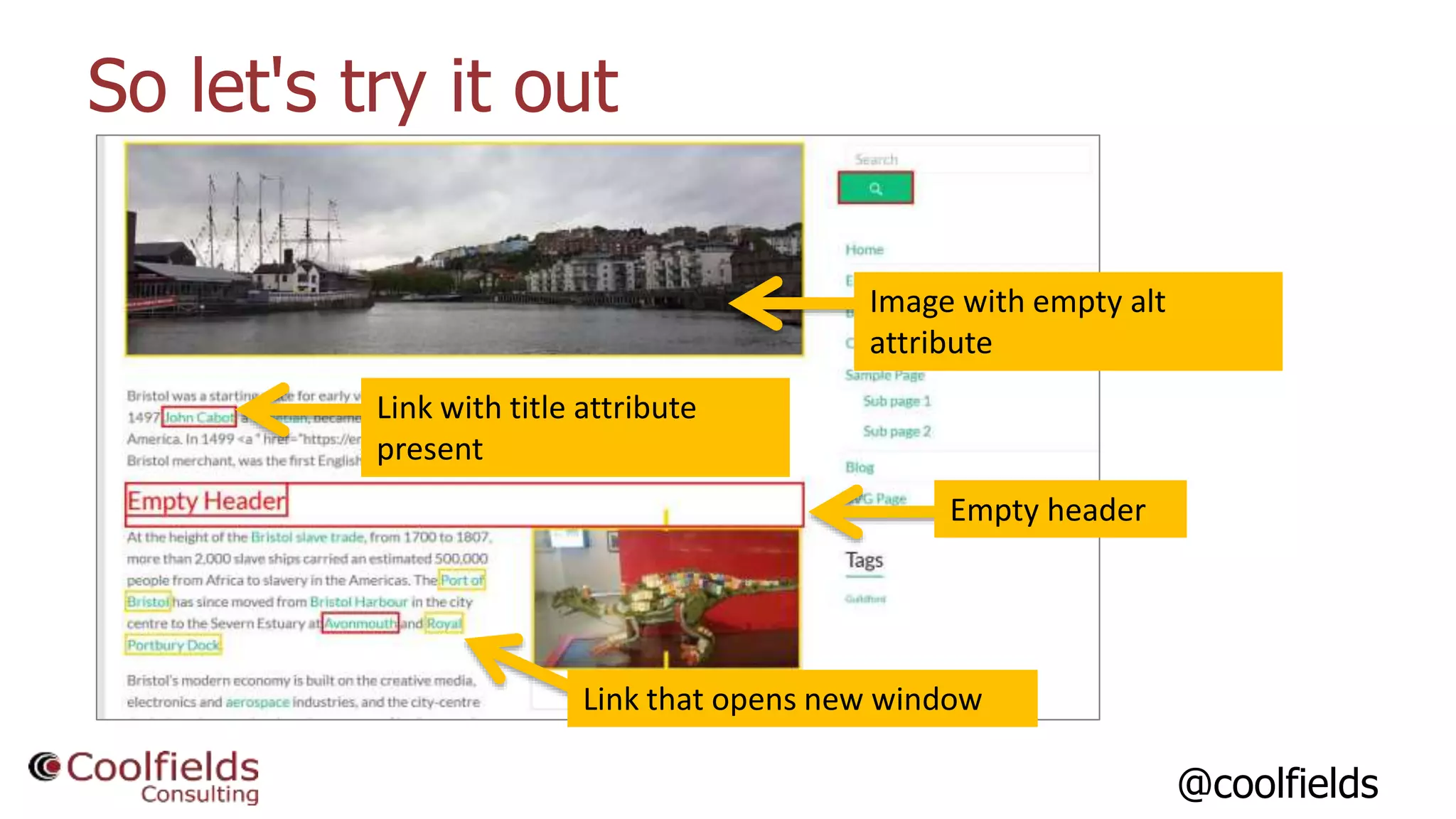
So let's try it out
Link with title attribute
present
Image with empty alt
attribute
Link that opens new window
Empty header
@coolfields
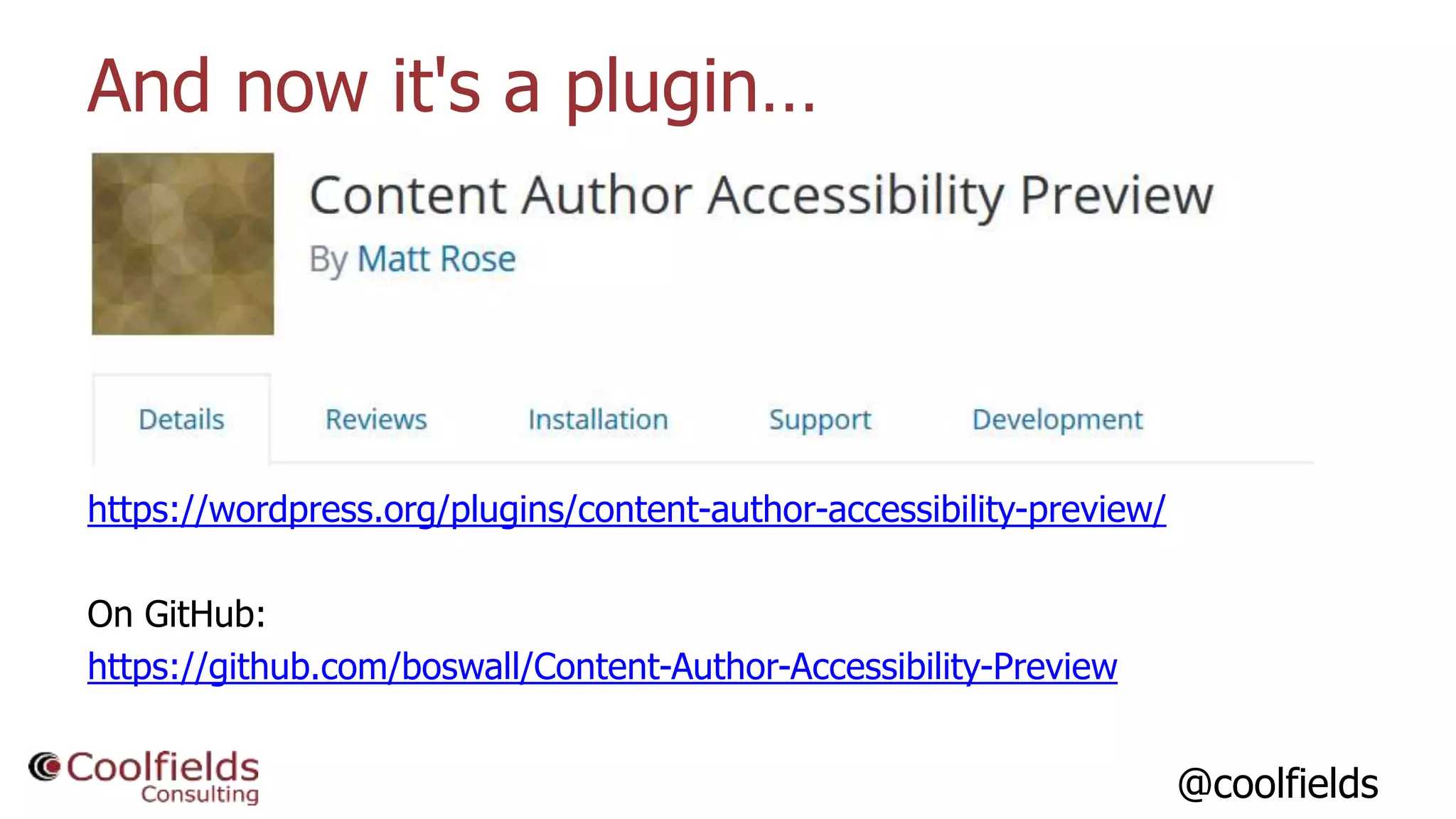
And now it's a plugin…
https://wordpress.org/plugins/content-author-accessibility-preview/
On GitHub:
https://github.com/boswall/Content-Author-Accessibility-Preview
@coolfields
What else could we do?
• Empty table cells - especially if header cells.
• Over to you…
@coolfields
Thanks for listening
Any questions?
graham.armfield@coolfields.co.uk
@coolfields 57

Accessibility Hacks version 2

  • 1.
    @coolfields1 Accessibility Hacks For life'slittle inaccessible moments…
  • 2.
    @coolfields A bit aboutme 2 I’m a… • Web Accessibility Consultant • WordPress Developer Photo by Mike Pead
  • 3.
    @coolfields What I'm goingto cover Some small tweaks we can make when building accessible WP themes for ourselves and our clients. Specifically I'll be looking at: • Using SVG images in an accessible way. • CSS techniques that help with accessibility.
  • 4.
    @coolfields Using SVG • SVGimages are vector graphics, as opposed to raster or bitmapped images like jpeg, png or gif. • SVG images are described by the lines and blocks and other shapes, combined to make up an entire images. • This means that they can be infinitely scaled without any pixellation. • And the file sizes are generally smaller than corresponding jpeg, png or gif. • But can they be accessed by assistive technology users?
  • 5.
  • 6.
    @coolfields Adding SVG filesto web pages Uses the trusty <img> element with the alt attribute to give the accessible label… <img src="https://path/images/home.svg" alt="My logo"> So we're done here aren't we??
  • 7.
    @coolfields Using role="img" withSVG files Well, SVG support within screen reader is still in its infancy, so we need a helping hand from ARIA here... <img src="https://path/images/home.svg" alt="My logo" role="img"> This ensures that all screen readers can 'see' this image.
  • 8.
    @coolfields SVG files aslinks Now the destination is the important bit, so that's what the alt attribute should refer to. <a href="/"> <img src="https://path/images/home.svg" role="img" alt="Home Page"> </a>
  • 9.
  • 10.
    @coolfields Inline SVG inweb pages Example of inline SVG… <svg version="1.1" width="100" height="75"> <rect width="75" height="50" rx="20" ry="20" fill="#90ee90" stroke="#228b22" stroke-fill="1" /> </svg>
  • 11.
    @coolfields The challenge ofinline SVG… • Inline SVG is invisible to screen readers • There is no <img> element • And there is no alt attribute you can use to give it some alternate text.
  • 12.
    @coolfields Using <title> withinline SVG To solve the issue, you can use the <title> element within the <svg> wrapper. But also, connect it with the aria-labelledby attribute so all screen readers can access the text in the <title> element. And we still need the role="img" too.
  • 13.
    @coolfields Using <title> withinline SVG So we end up with this… <svg version="1.1" width="100" height="75" aria- labelledby="title" role="img"> <title id="title">Green rectangle</title> <rect width="75" height="50" rx="20" ry="20" fill="#90ee90" stroke="#228b22" stroke-fill="1" /> </svg>
  • 14.
    @coolfields Using <title> withinline SVG Using the <title> element in <svg> container has an unexpected effect in some browsers… A hover over tooltip. A bit like you get with the title attribute on other HTML elements...
  • 15.
    @coolfields Using <desc> withinline SVG So alternatively, use <desc> element within the <svg> wrapper. Once again, use aria-labelledby. <svg version="1.1" width="100" height="75" aria- labelledby="desc01" role="img"> <desc id="desc01">Green rectangle</desc> <rect width="75" height="50" rx="20" ry="20" fill="#90ee90" stroke="#228b22" stroke-fill="1" /> </svg>
  • 16.
    @coolfields Inline SVG inweb pages How do screen readers interpret this? [Demo]
  • 17.
    @coolfields Inline SVG andlinks What if your inline SVG needs to be a link?
  • 18.
    @coolfields Inline SVG andlinks Best solution - wrap link around SVG <a href="/"> <svg version="1.1" width="100" height="75" aria- labelledby="desc01" role="img"> <desc id="desc01">Home page</desc> <rect width="75" height="50" rx="20" ry="20" fill="#90ee90" stroke="#228b22" stroke-fill="1" /> </svg> </a>
  • 19.
    @coolfields The difference forscreen readers How do screen readers interpret all this?
  • 20.
    @coolfields Getting SVG intoWordPress pages • No native support for SVG in Media Manager. • We'd need to paste SVG into pages/posts. • Or need to rely on a plugin… • There are a few available, but these next two seem the most popular. • But can they give us accessible SVG??
  • 21.
    @coolfields SVG Support plugin https://wordpress.org/plugins/svg-support/ Doesnot include role in <img> tag, but does include alt. Does not include role in <svg> tag, does not include <title> element in inline SVG. Plugin author is aware and has responded positively to my comments: https://wordpress.org/support/topic/suggestions-for-improving- accessibility/
  • 22.
    @coolfields Safe SVG plugin https://wordpress.org/plugins/safe-svg/ Doesnot include role in <img> tag, but does include alt. Does not cater for inline SVG. Plugin author contacted but no response.
  • 23.
    @coolfields CSS Accessibility Hacks CSStechniques can be used to help ensure accessibility within websites: • Providing extra context for links, buttons and other elements • Help with testing accessibility during theme development • Accessibility help for content authors once a site is live
  • 24.
    @coolfields CSS Hack 1- Screen reader text
  • 25.
    @coolfields Why screen readertext What's it for? A way of providing extra information for screen reader users that is not seen by sighted users. Can be used to: • Provide real text when icons are used • Provide skip links • Disambiguate links like 'Read more' on a blog index page
  • 26.
    @coolfields How to usescreen reader text Define a class in your CSS .accessibleHidden{ border: 0; clip: rect(0 0 0 0); height: 1px; width: 1px; margin: -1px; padding: 0; overflow: hidden; position: absolute !important; }
  • 27.
    @coolfields How to usescreen reader text Use the class in your HTML <span class="accessibleHidden">This is hidden from sighted users, but accessible by screen readers</span> Don't use these styles, as they will hide content from screen readers as well: • display:none • visibility:hidden
  • 28.
    @coolfields It's used inWordPress themes
  • 29.
    @coolfields It's used inWordPress admin Screen reader text can be found in the WP admin screens.
  • 30.
    @coolfields Wouldn't aria-label dothe same? To a point, yes. aria-label can be used on elements with set roles - like links, buttons, dialogues, etc. But aria-label won't work for plain text items… • Alternatives to icons in product comparison tables • Explaining what values mean on pages.
  • 31.
    @coolfields32 CSS Hack 2- Testing accessibility during development
  • 32.
    @coolfields Ensuring landmarks areused properly Wait, landmarks? What are they? • A way of defining discrete regions of a page. • For example banner, navigation, main content, etc. • Increasingly used by screen reader users to help them navigate around pages. • Sometimes indicated by role="navigation", role="main", etc
  • 33.
    @coolfields Ensuring landmarks areused properly And if you think you're not using them, you probably are anyway - if you use these HTML5 elements: • <nav> • <main> and in certain situations… • <header>, <footer> • <section>, <article> These are all understood as landmarks, by screen readers.
  • 34.
    @coolfields Ensuring landmarks areused properly <header role="banner"> <nav role="navigation"> <footer role="contentinfo"> <main role="main"> <aside role= "complementary"> <form role="search">
  • 35.
    @coolfields Ensuring landmarks areused properly The key thing is if you're using them, they need to be used properly. And all content on the page needs to be in at least one landmark, or screen reader users may miss key bits. You can use a browser extension to highlight the landmarks on a page, but it's not always possible to see whether or not all content is within one.
  • 36.
    @coolfields Enter accessibility.css In yourdev environment you could have a CSS file that could be temporarily attached to your pages - say accessibility.css…
  • 37.
    @coolfields accessibility.css main, nav, header,footer, section[aria-labelledby], section[aria-label], form[aria- labelledby], form[aria-label], [role="banner"], [role="navigation"], [role="main"], [role="contentinfo"], [role="complementary"], [role="search"], [role="form"], [role="region"][aria-label], [role="region"][aria-labelledby] { background-color: rgba(255,0,0,0.1); outline:3px solid red; color:#000; }
  • 38.
    @coolfields accessibility.css Now we wantto 'unselect' <header> and <footer> elements that are contained within <main>, <article>, <nav> and <section> - these are not counted as landmarks by browsers and screen readers. main header, article header, aside header, nav header, section header, main footer, article footer, aside footer, nav footer, section footer { background-color: transparent; outline:none; }
  • 39.
    @coolfields What does thatlook like? Note that the breadcrumb navigation is not contained within any of the landmarks.
  • 40.
    @coolfields So what elsecould we do? Images without alt attributes: img:not([alt]) { outline: solid 3px red; } SVG files without the role="img" attribute: img[href$=".svg"]:not([role="img"]) { outline: solid 3px red; }
  • 41.
    @coolfields So what elsecould we do? Empty links: a:not([name]):empty { outline: solid 3px red; } Empty buttons: button:empty { outline: solid 3px red; }
  • 42.
    @coolfields So what elsecould we do? Images where the title attribute has been used: img[title] { outline: solid 3px red; }
  • 43.
    @coolfields So what elsecould we do? Links with title attributes, or that open a new window: a[title], a[target] { outline: solid 3px gold; } Images with empty alt attributes: img[alt=""] { outline: solid 3px gold; }
  • 44.
    @coolfields What does thatlook like? Link with title attribute present Button with no content
  • 45.
    @coolfields46 CSS Hack 3- Helping your content authors get things right
  • 46.
    @coolfields Content authors canspoil the party A WordPress website with a fully accessible theme won't stay accessible for long if your content authors aren't aware how they can affect accessibility of pages and posts. Examples: • Empty headings • Forgetting to add meaningful alternate text for images • Links that open a new window/tab • Links with title attributes So how can CSS help here?
  • 47.
    @coolfields Hooking into post/pagepreview Most content authors will preview their posts or pages before submitting them for review or putting them live. So let's have some diagnostic CSS definitions in our main CSS file that will show up when users preview. Sadly, there is no 'preview' class that is included in the <body> element by default. But we could use the 'logged-in' class…
  • 48.
  • 49.
    @coolfields Adding some warningswith CSS… Looking for images with blank alt attribute, and links that open a new window. .logged-in img[alt=""], .logged-in a[target] { outline: solid 3px gold; }
  • 50.
    @coolfields More serious issues… .logged-ina[title], .logged-in img:not([alt]), .logged-in img[title], .logged-in img[src$=".svg"]:not([role="img"]), .logged-in svg:not([role="img"]) { outline: solid 3px red; }
  • 51.
    @coolfields Empty elements h1:empty, h2:empty,h3:empty, h4:empty, h5:empty, h6:empty, a:not([name]):empty, button:empty { display:block; position:relative; min-width: 5em; min-height: 1em; outline: solid 3px red; }
  • 52.
    @coolfields Going even further… h1:empty::after,h2:empty::after, h3:empty::after, h4:empty::after, h5:empty::after, h6:empty::after { position: absolute; outline: solid 3px red; min-width: 10px; min-height: 1em; top: 0; color: red; content: "Empty Header"; }
  • 53.
    @coolfields So let's tryit out Link with title attribute present Image with empty alt attribute Link that opens new window Empty header
  • 54.
    @coolfields And now it'sa plugin… https://wordpress.org/plugins/content-author-accessibility-preview/ On GitHub: https://github.com/boswall/Content-Author-Accessibility-Preview
  • 55.
    @coolfields What else couldwe do? • Empty table cells - especially if header cells. • Over to you…
  • 56.
    @coolfields Thanks for listening Anyquestions? graham.armfield@coolfields.co.uk @coolfields 57

Editor's Notes

  • #3 I work with organisations to help them improve the accessibility of their digital offerings. Do accessibility testing and guide designers and developers in solutions to the issues found. WordPress developer – have built many accessible websites using WordPress. I've delivered presentations to WordCamps in London, Sheffield, Edinburgh, Lancaster, Bournemouth – and a number of WordPress meetup groups. This is me in Sheffield a couple of years ago. The presentation is called So, How Do I Know if My WordPress Website is Accessible and focusses on easy accessibility tests that you can do on your own WordPress website. If you've not seen me do that one – and I know that some of you have - the slides are still on Slideshare , and the deck has been viewed over 12,000 times now.