

This document summarizes key steps for configuring three SAP workflow templates: 1) Purchase requisition release, which triggers on creation or change of a purchase requisition to enable approval processing; 2) Parked invoice approval, which triggers on creation of a parked vendor invoice to manage sequential approvals; and 3) TMS transport release, which triggers on creation of a new transport proposal to enable approval processing before moving to the target system. Configuration steps covered include reviewing the workflow template, configuring the associated business process (e.g. release strategy, approval paths), assigning approvers, and activating the triggering event link.
KEY LEARNING POINTS
Howto configure and activate a workflow template for
purchase order releases
How to configure and activate a workflow template for
parked invoice approval
How to configure and activate a workflow template for
CTS transport releases
PURCHASE REQUISITION RELEASE
Workflowtemplate: WS00000038
Description: wf_req_rel
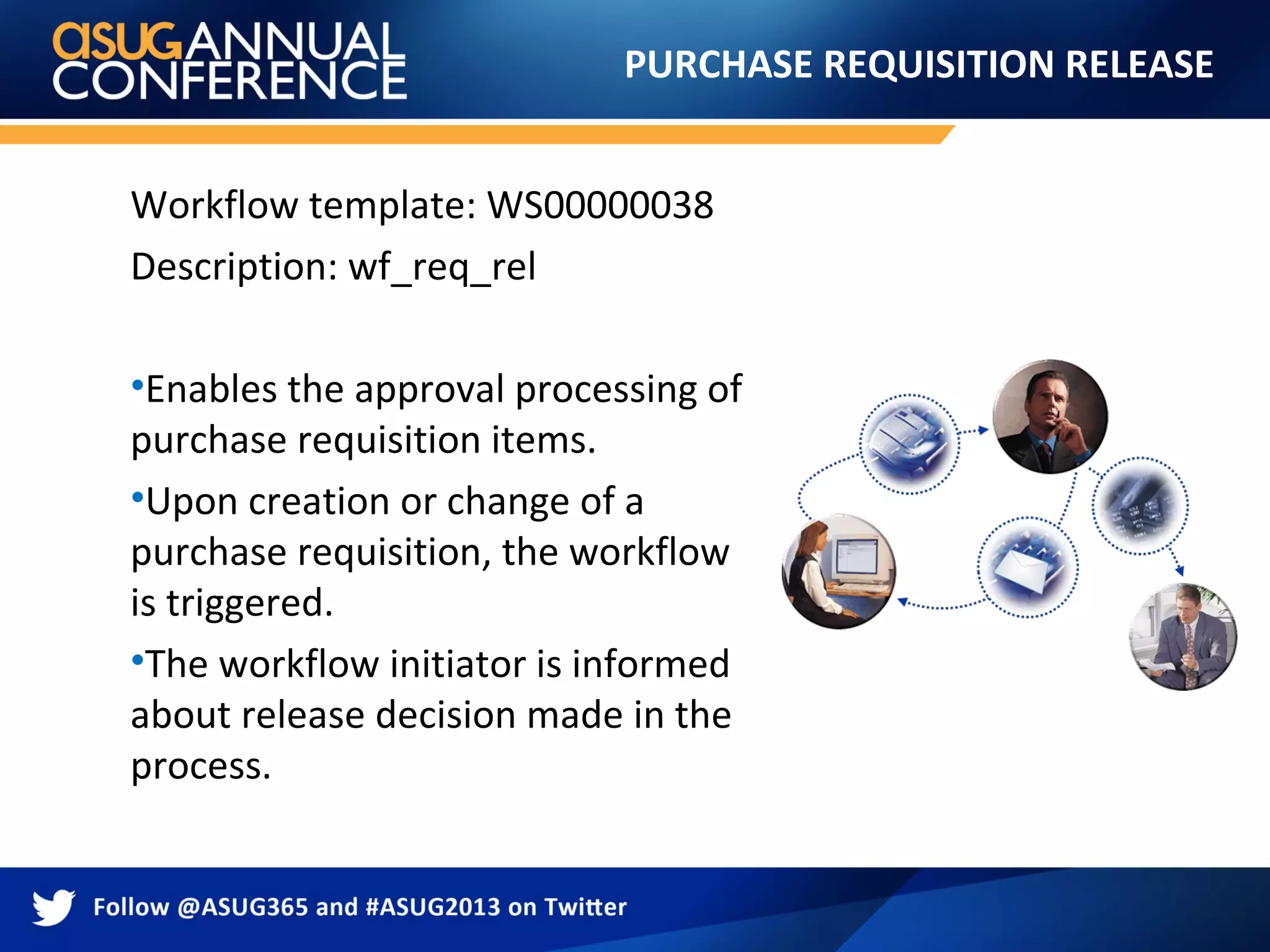
•Enables the approval processing of
purchase requisition items.
•Upon creation or change of a
purchase requisition, the workflow
is triggered.
•The workflow initiator is informed
about release decision made in the
process.
6.
PURCHASE REQUISITION RELEASE
Configurationsteps:
1.Review workflow template
2.Configure requisition release strategy
3.Maintain role resolution
4.Activate event link
5.Test workflow
7.
PURCHASE REQUISITION RELEASE
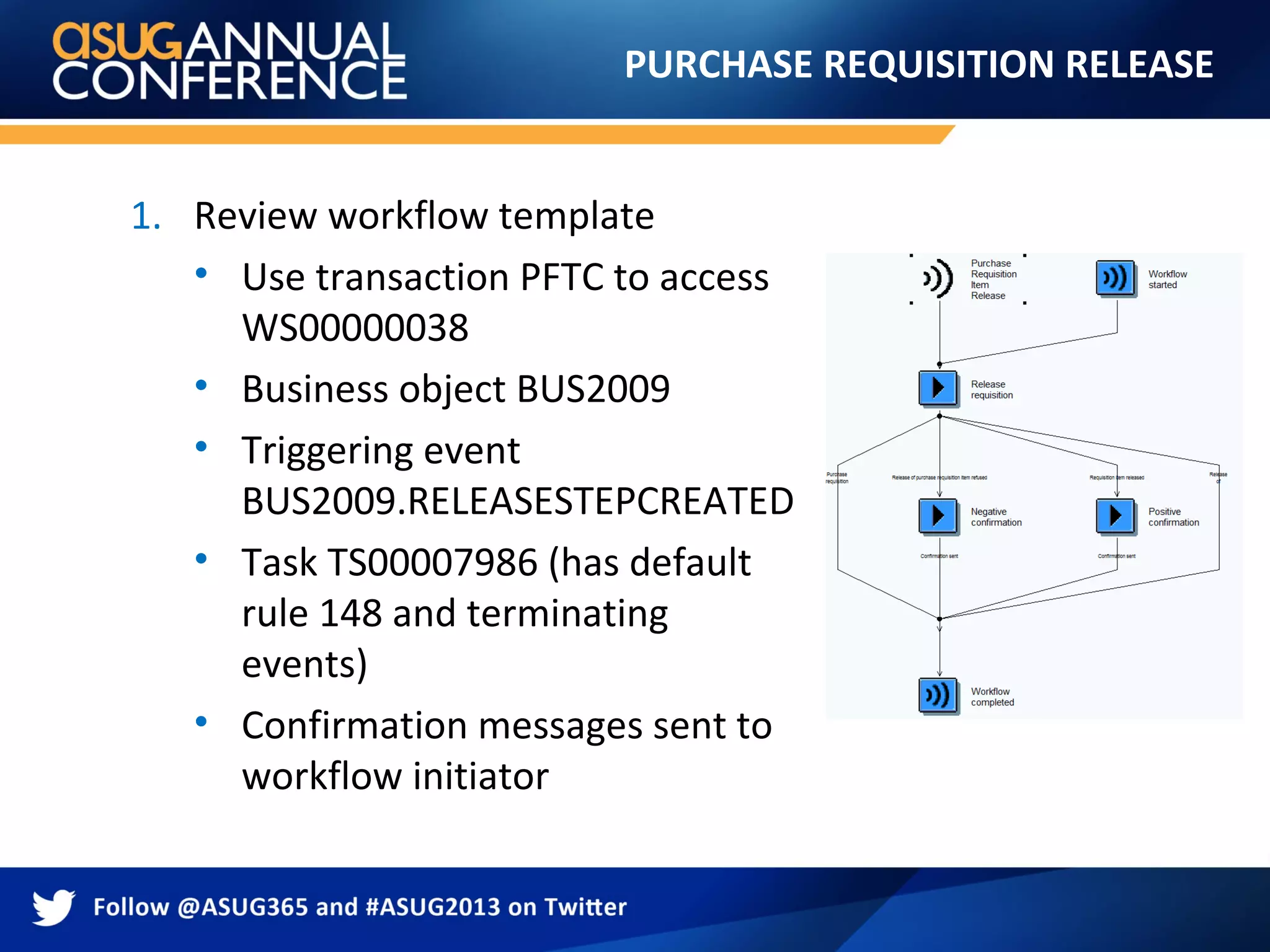
1.Review workflow template
• Use transaction PFTC to access
WS00000038
• Business object BUS2009
• Triggering event
BUS2009.RELEASESTEPCREATED
• Task TS00007986 (has default
rule 148 and terminating
events)
• Confirmation messages sent to
workflow initiator
8.
PURCHASE REQUISITION RELEASE
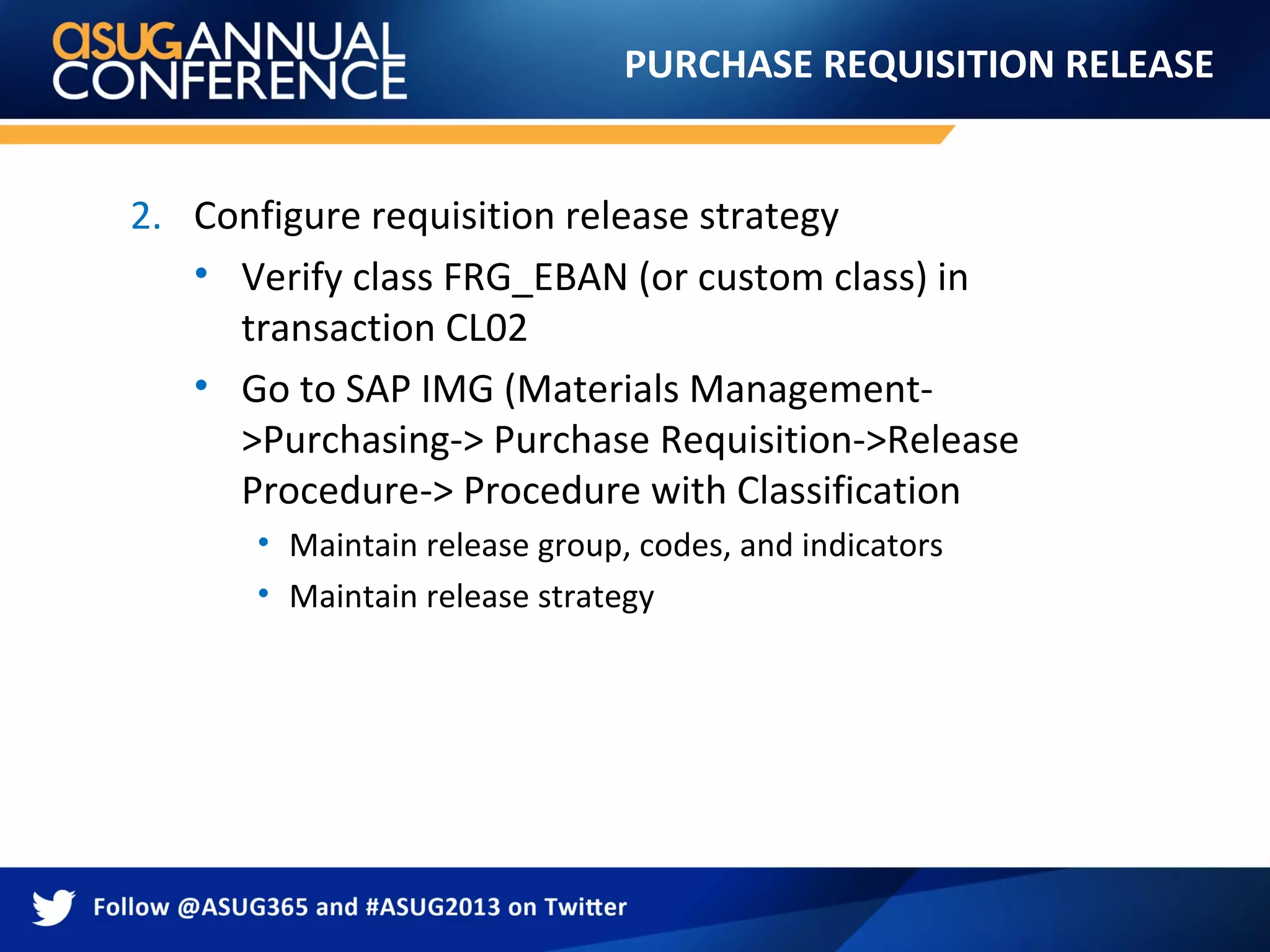
2.Configure requisition release strategy
• Verify class FRG_EBAN (or custom class) in
transaction CL02
• Go to SAP IMG (Materials Management-
>Purchasing-> Purchase Requisition->Release
Procedure-> Procedure with Classification
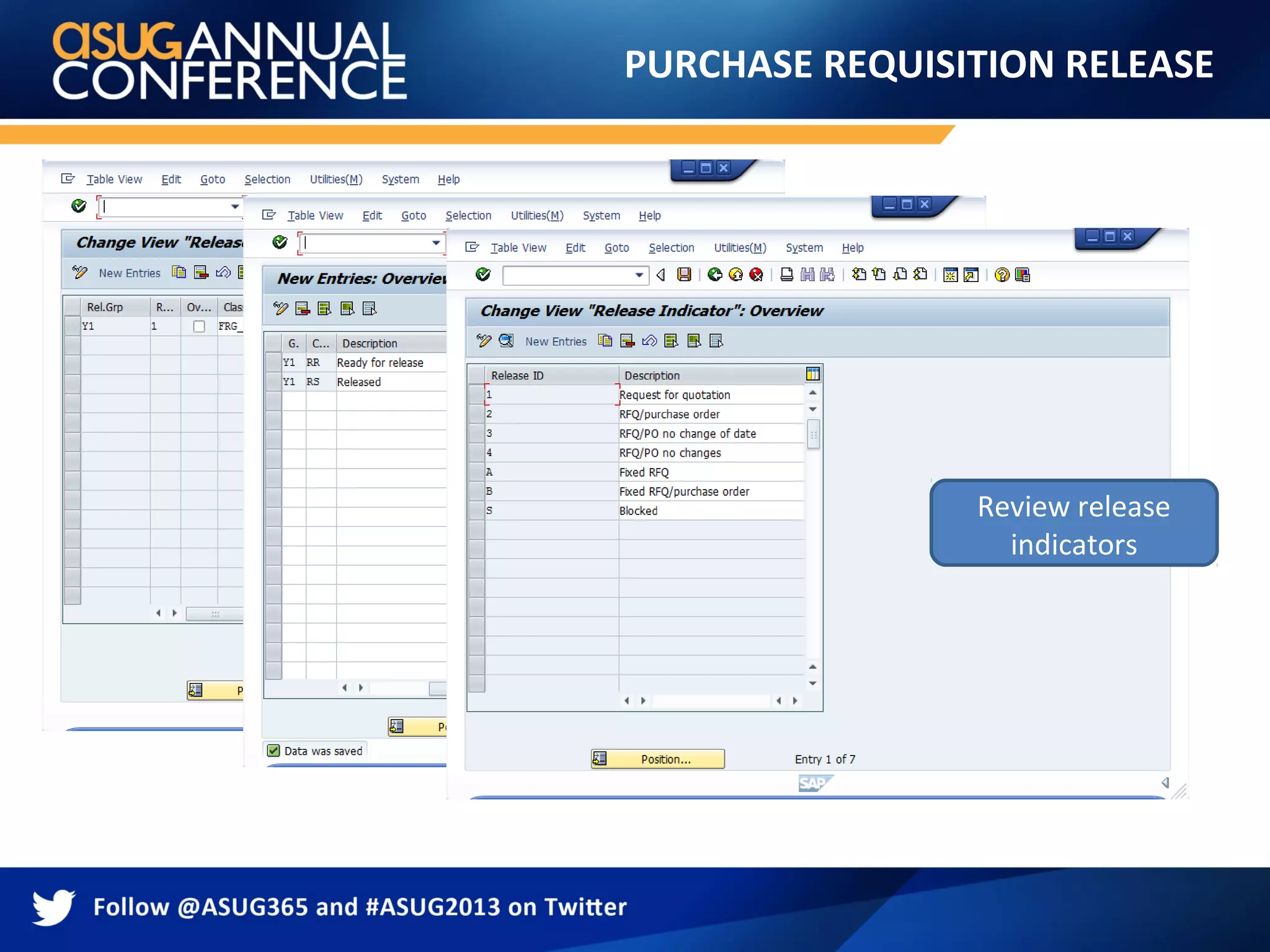
• Maintain release group, codes, and indicators
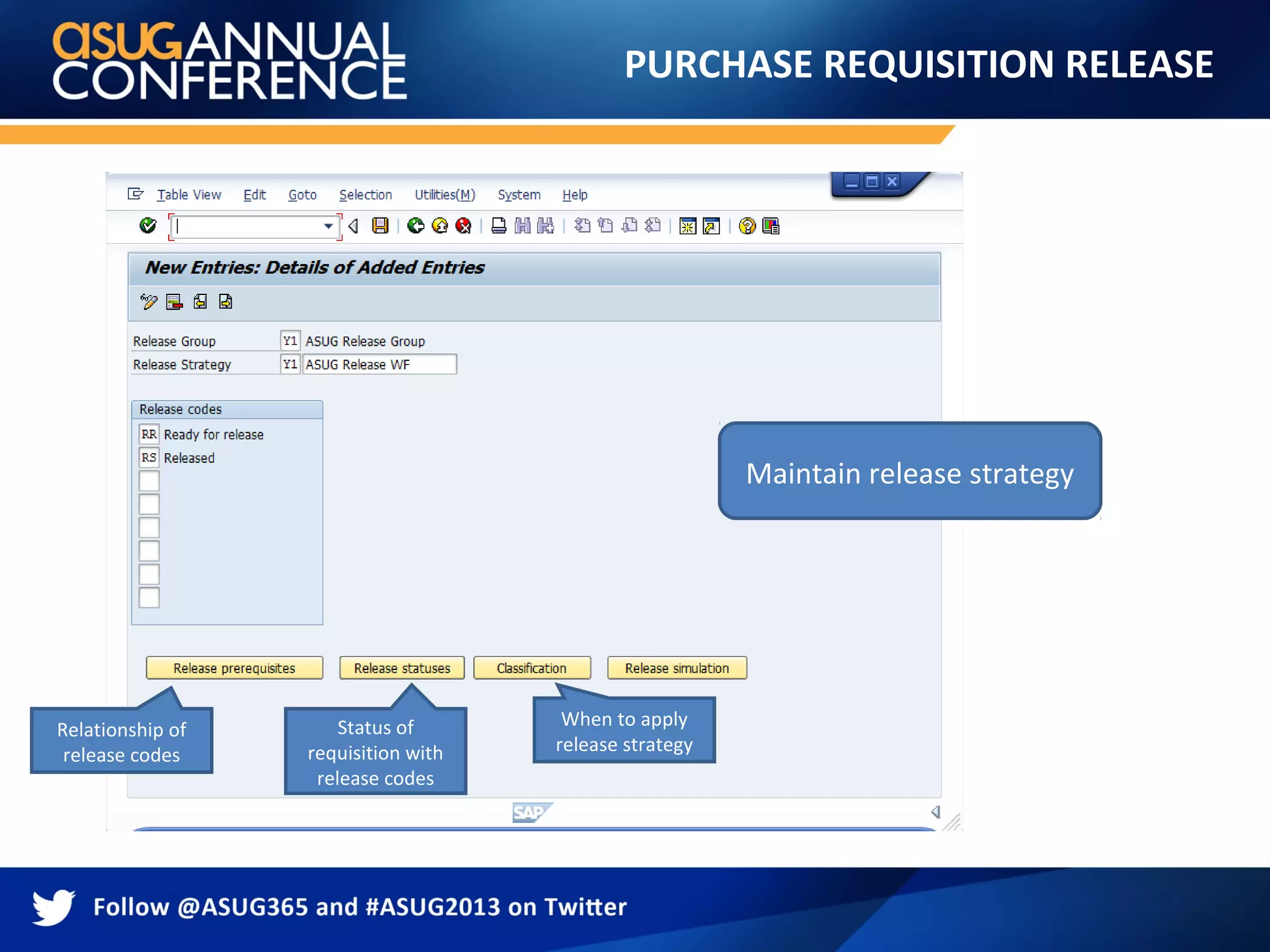
• Maintain release strategy
PURCHASE REQUISITION RELEASE
Maintainrelease strategy
Relationship of
release codes
Status of
requisition with
release codes
When to apply
release strategy
11.
PURCHASE REQUISITION RELEASE
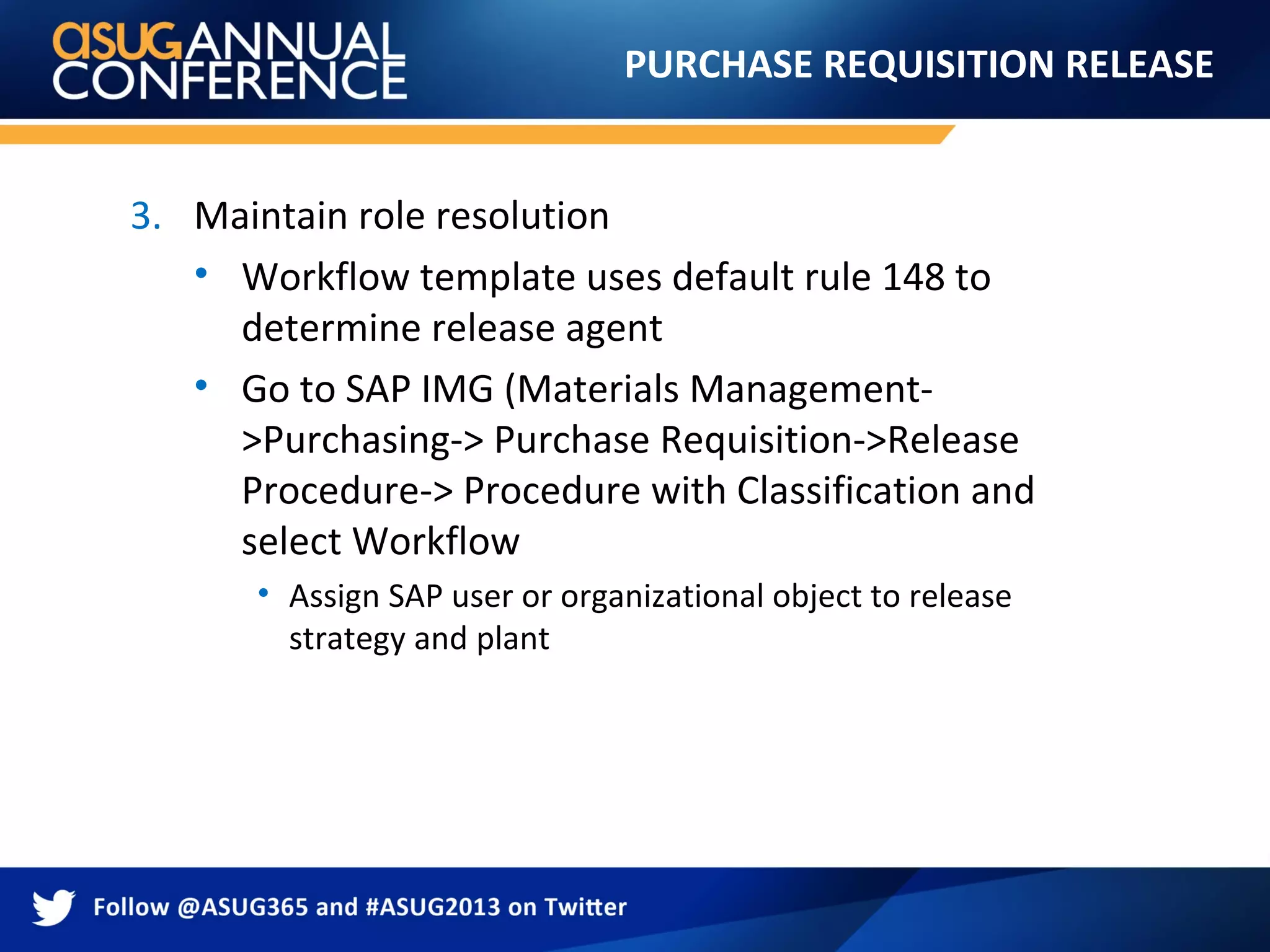
3.Maintain role resolution
• Workflow template uses default rule 148 to
determine release agent
• Go to SAP IMG (Materials Management-
>Purchasing-> Purchase Requisition->Release
Procedure-> Procedure with Classification and
select Workflow
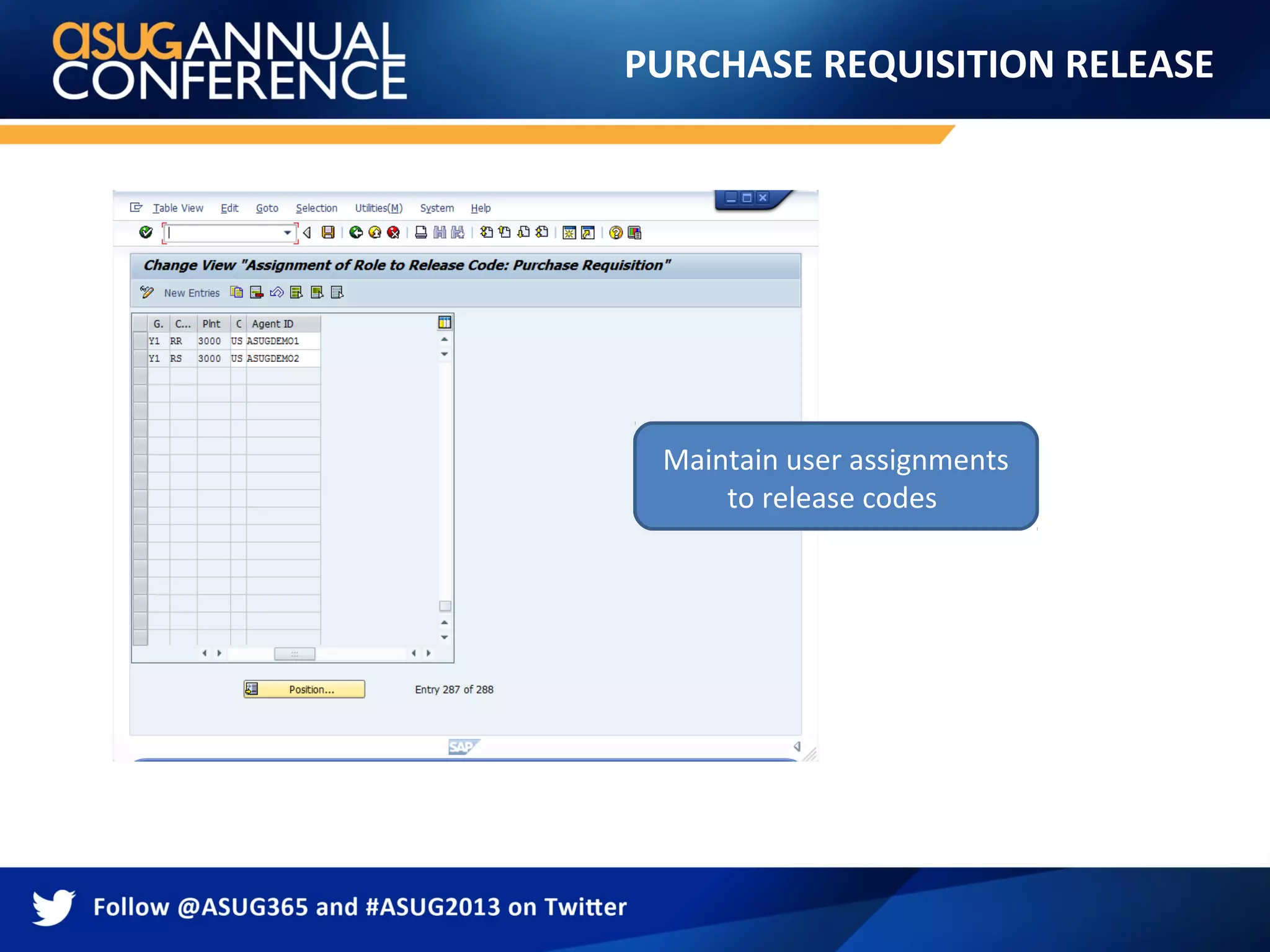
• Assign SAP user or organizational object to release
strategy and plant
PURCHASE REQUISITION RELEASE
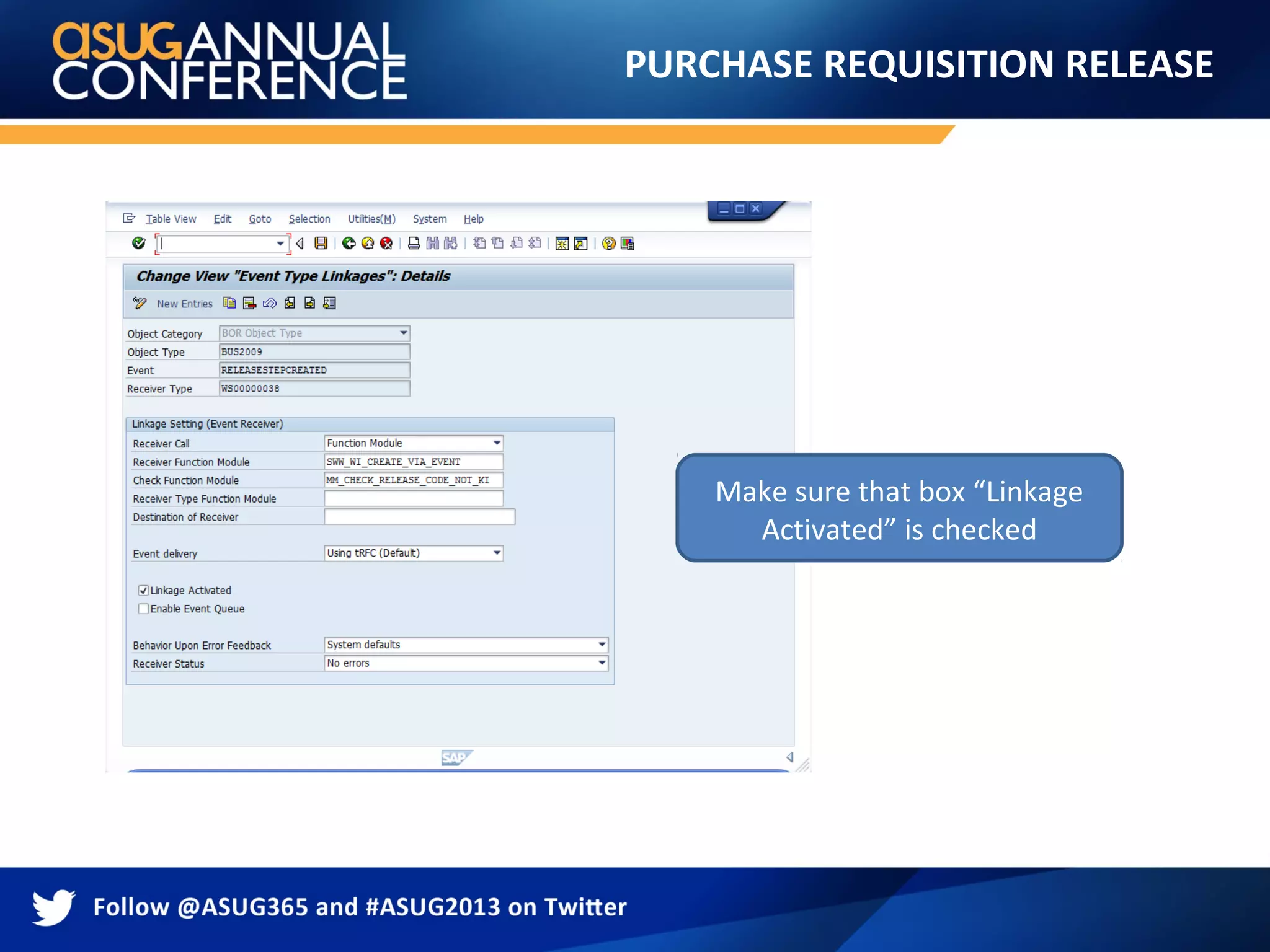
4.Activate linkage for triggering event
• Go to transaction SWETYPV and activate link for
workflow template WS00000038 and event
BUS2009.RELEASESTEPCREATED
PARKED INVOICE APPROVAL
Workflowtemplate: WS00400032
Description: FIPP_FRAME2
•Enables the approval processing of
parked vendor invoices without
purchase order
•Upon creation of a new parked
invoice, the workflow is triggered
•The workflow manages approvals in
sequential fashion
PARKED INVOICE APPROVAL
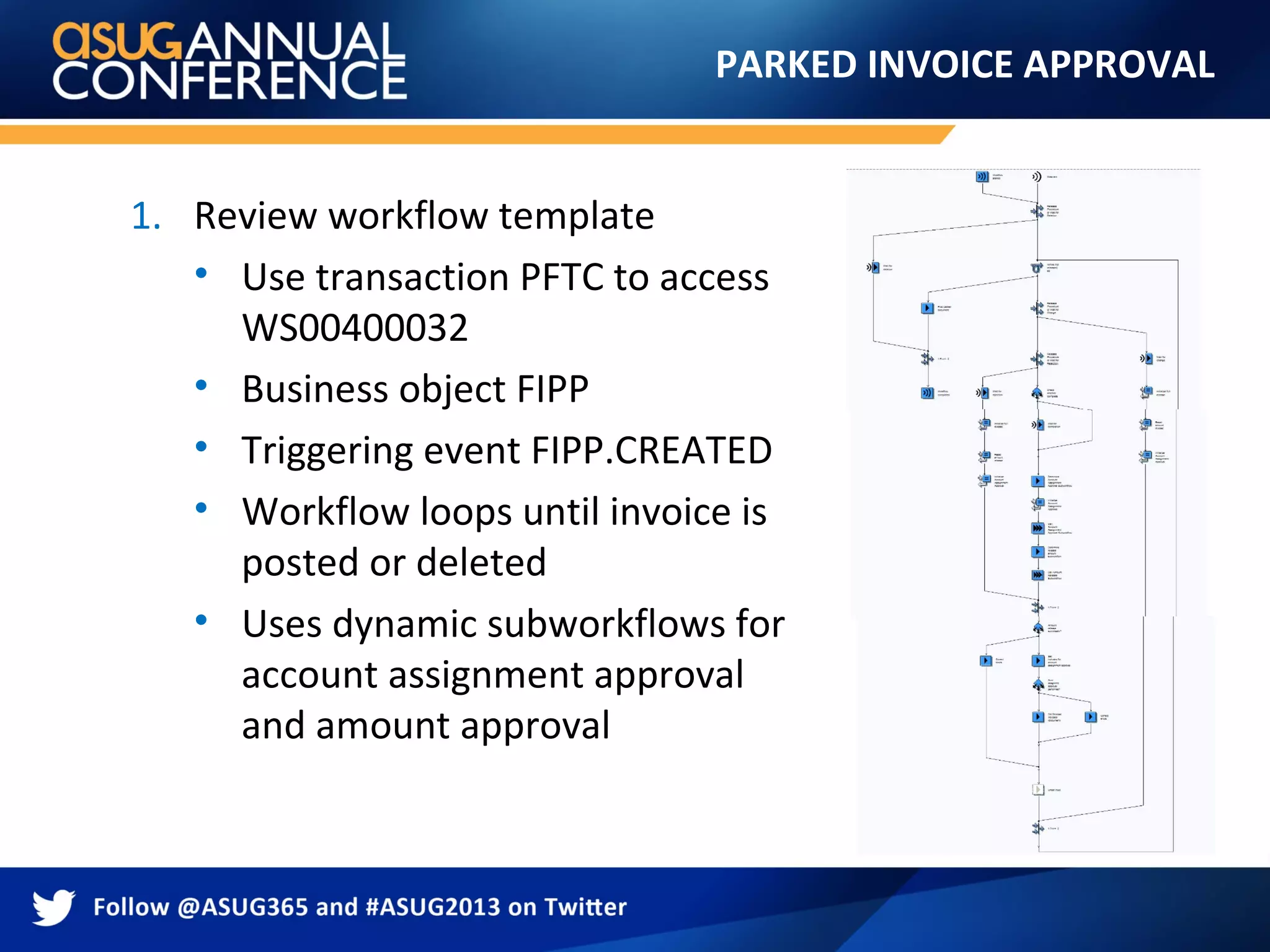
1.Review workflow template
• Use transaction PFTC to access
WS00400032
• Business object FIPP
• Triggering event FIPP.CREATED
• Workflow loops until invoice is
posted or deleted
• Uses dynamic subworkflows for
account assignment approval
and amount approval
20.
PARKED INVOICE APPROVAL
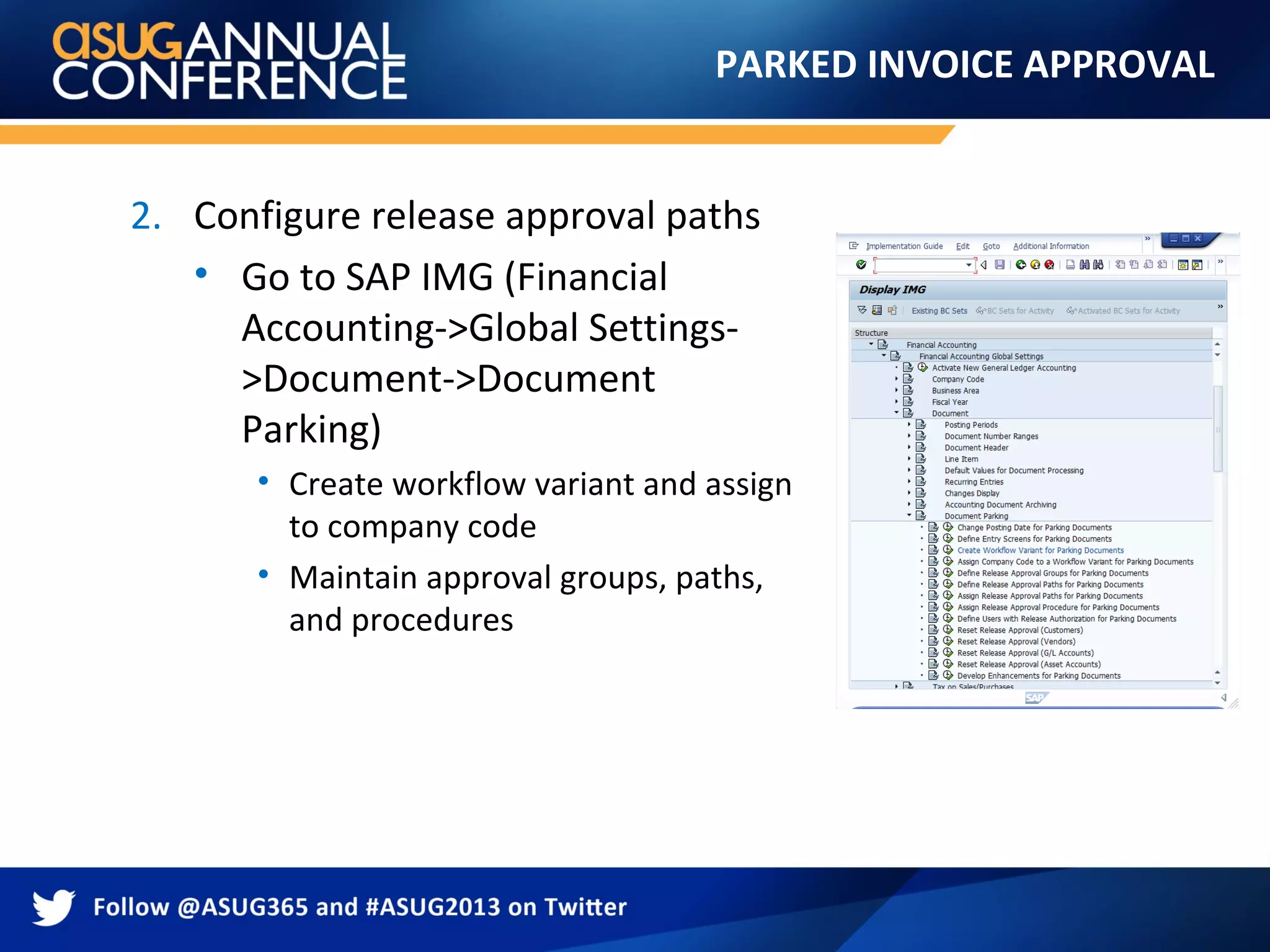
2.Configure release approval paths
• Go to SAP IMG (Financial
Accounting->Global Settings-
>Document->Document
Parking)
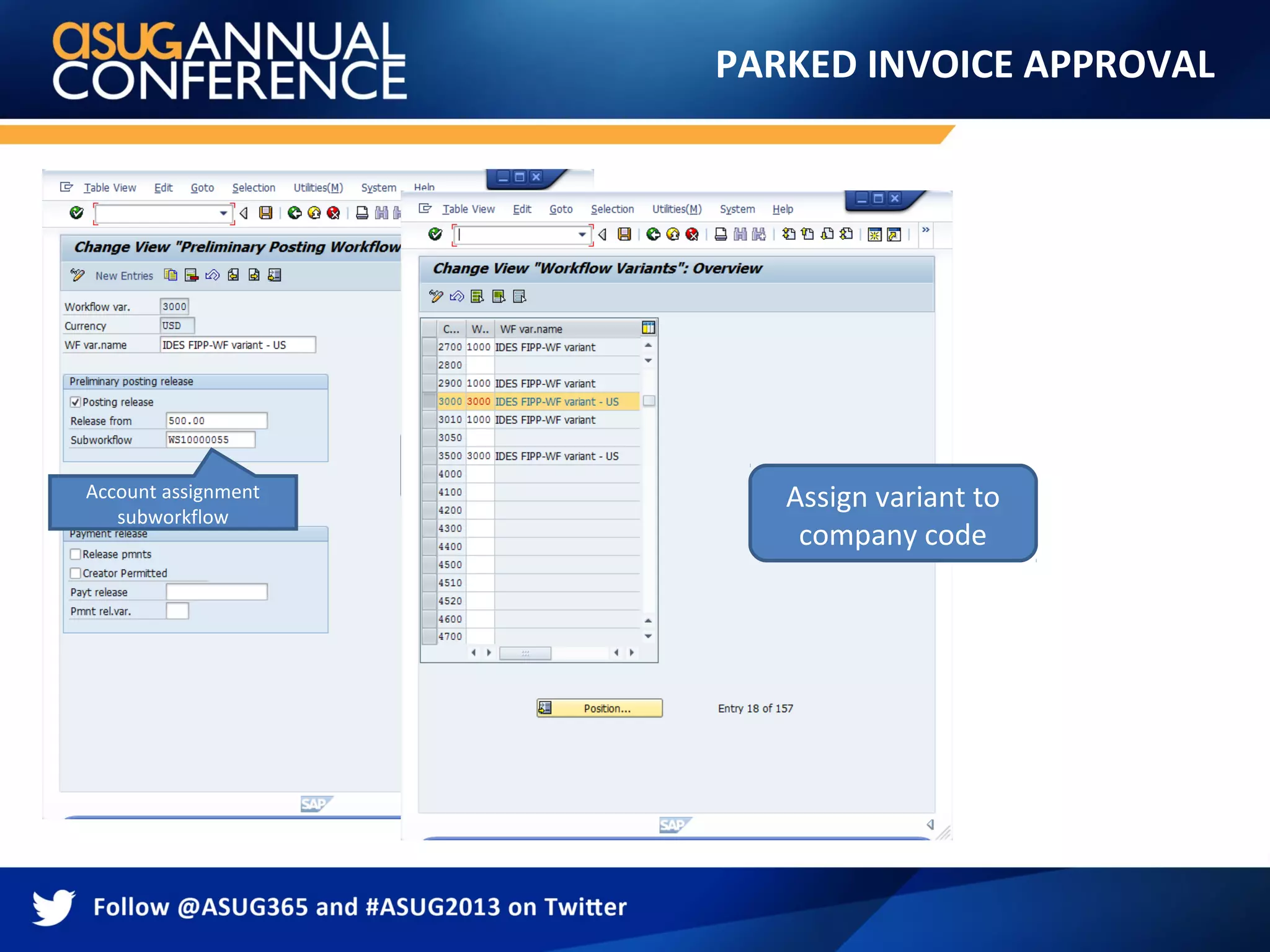
• Create workflow variant and assign
to company code
• Maintain approval groups, paths,
and procedures
PARKED INVOICE APPROVAL
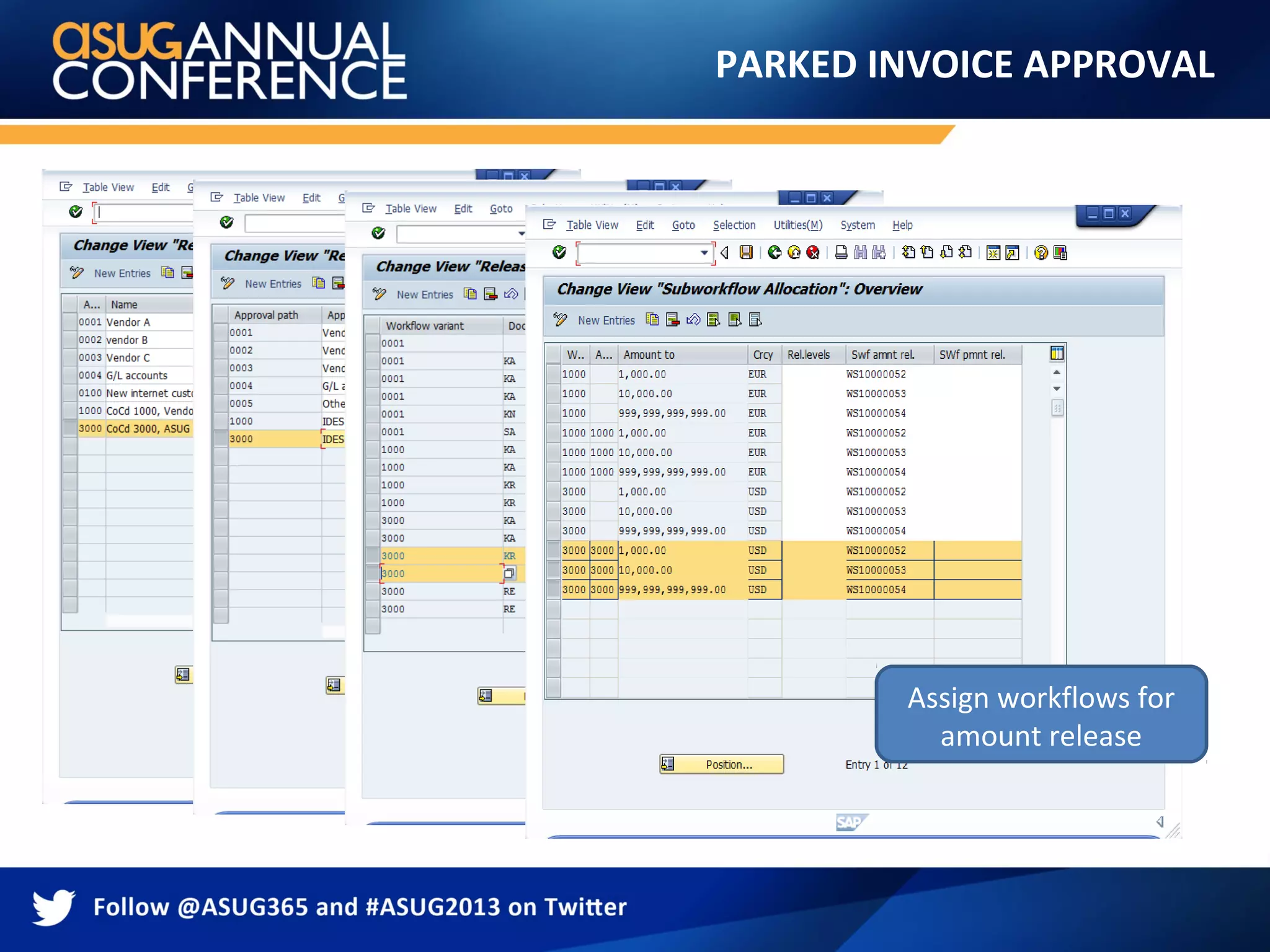
Definerelease group and
assign to vendor master
Maintain release
approval path Assign approval path to
workflow variant and
release group
Assign workflows for
amount release
23.
PARKED INVOICE APPROVAL
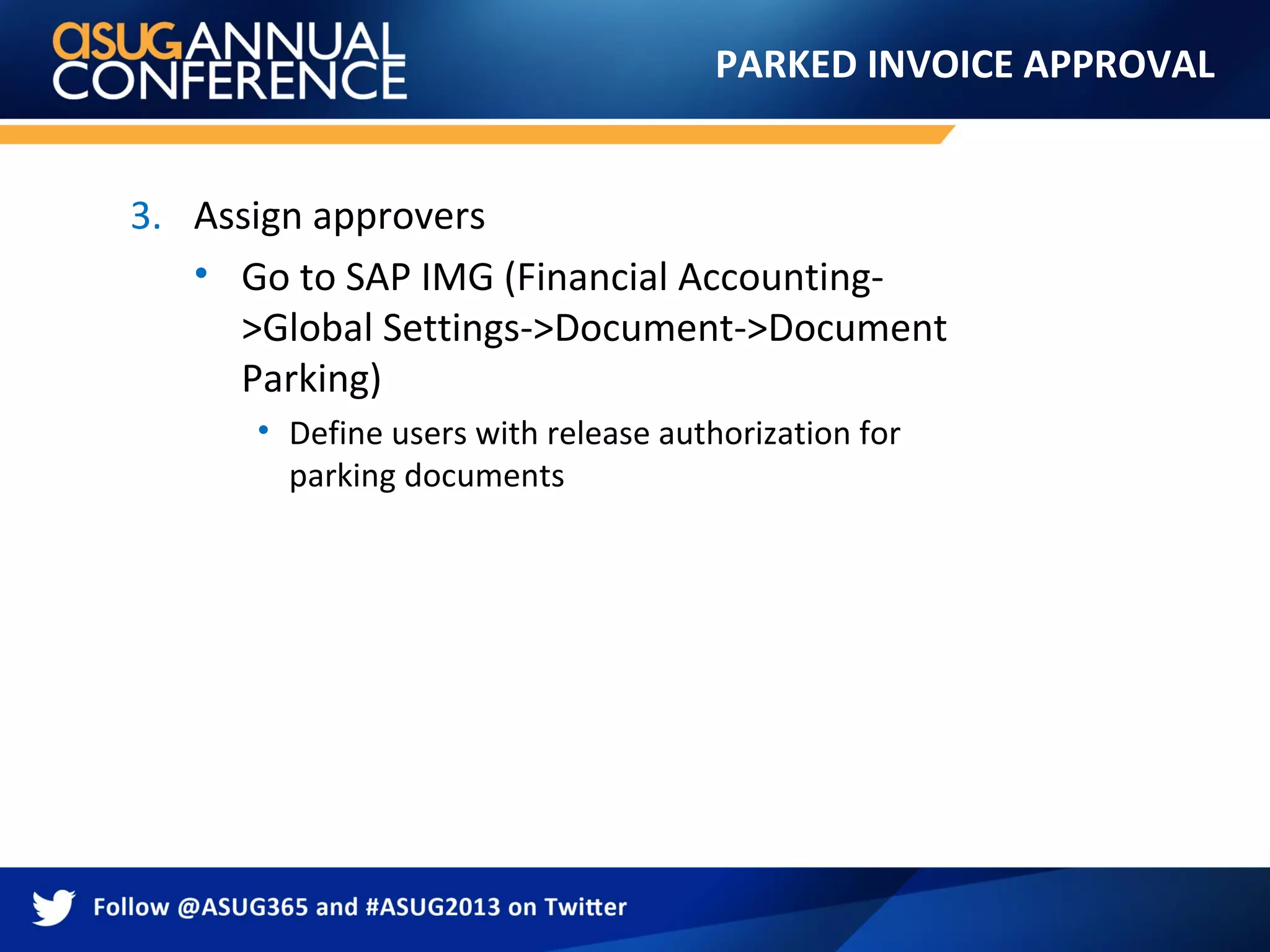
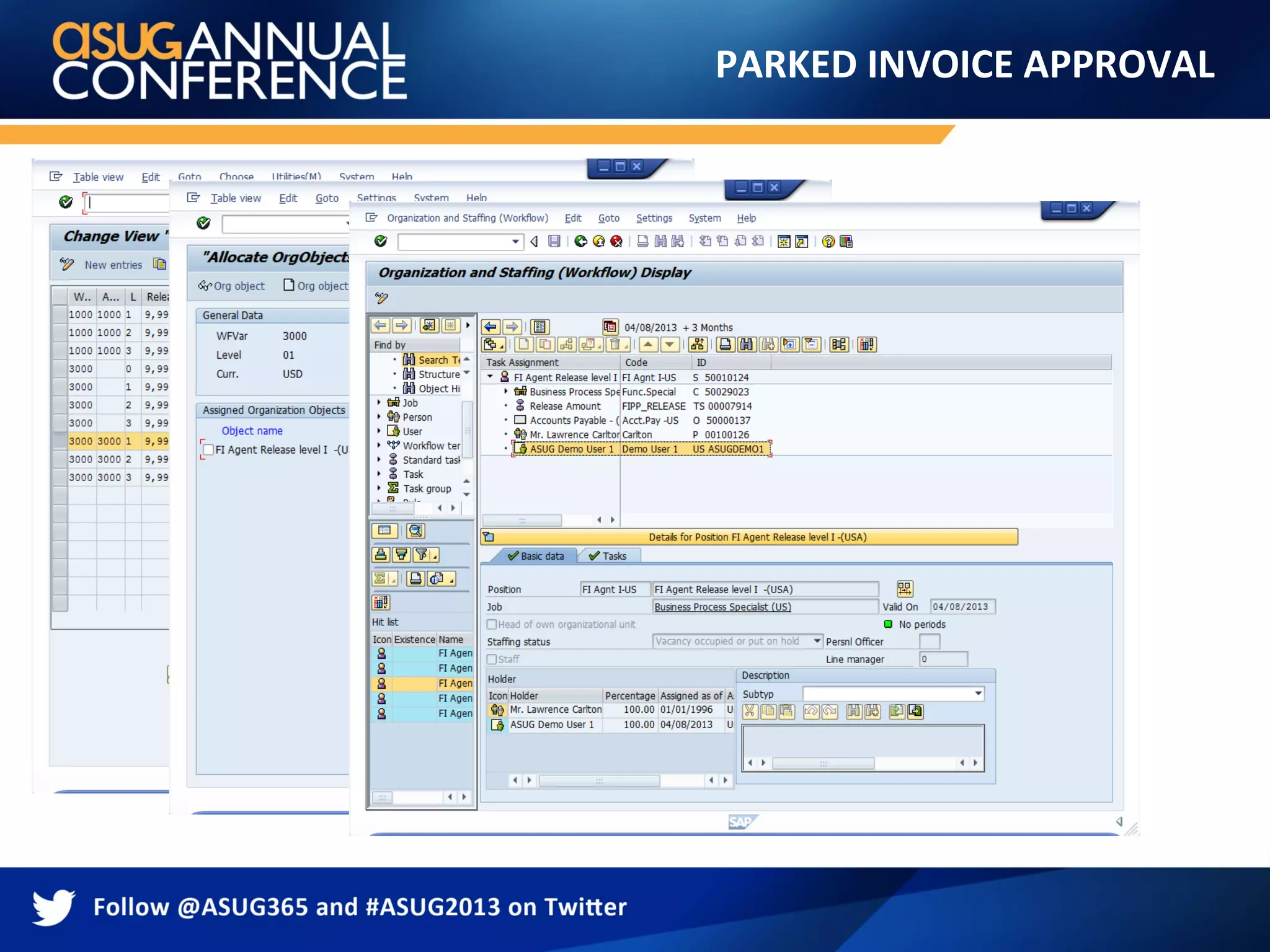
3.Assign approvers
• Go to SAP IMG (Financial Accounting-
>Global Settings->Document->Document
Parking)
• Define users with release authorization for
parking documents
PARKED INVOICE APPROVAL
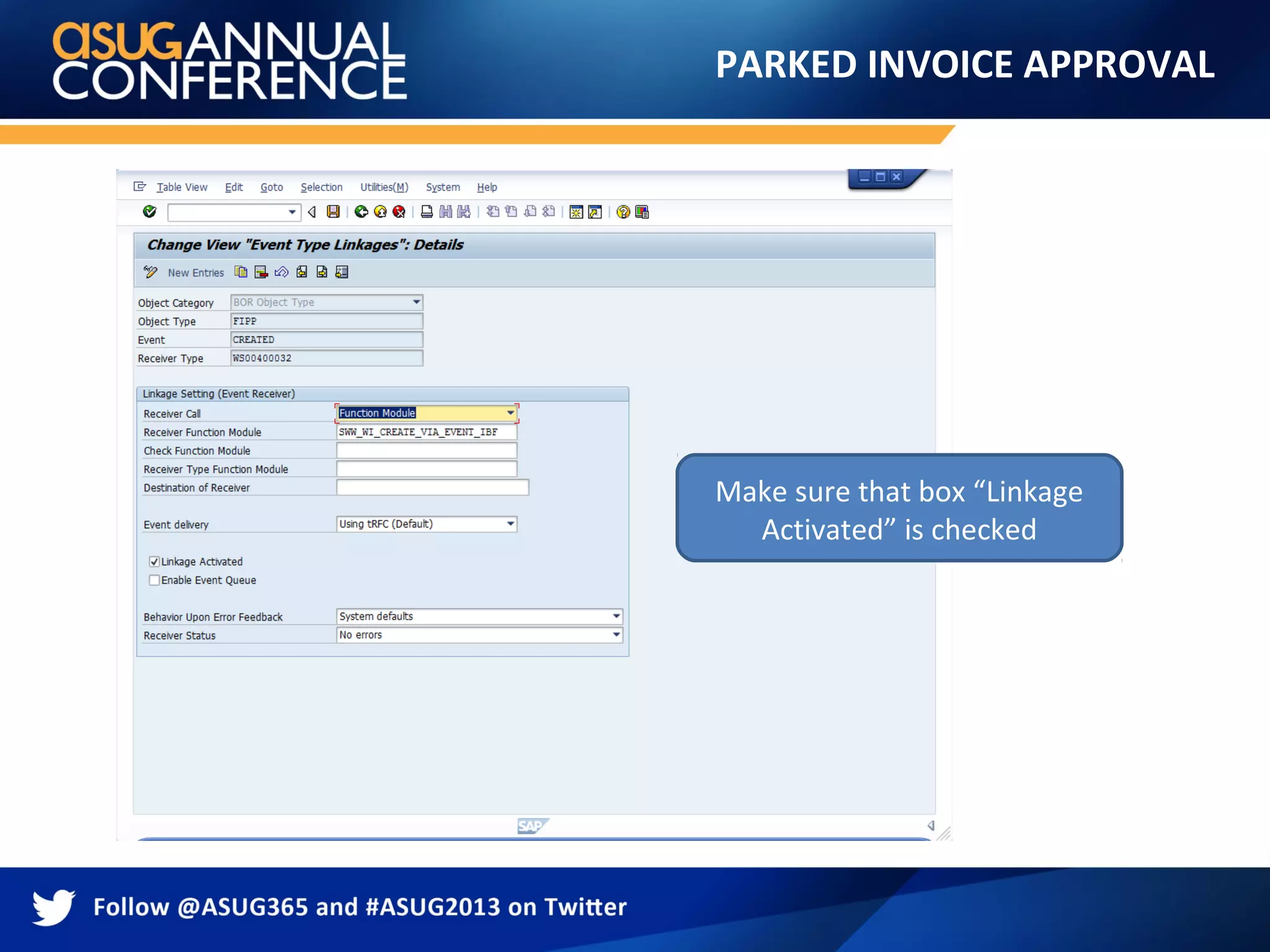
4.Activate linkage for triggering event
• Go to transaction SWETYPV and activate link
for workflow template WS00400032 and
event FIPP.CREATED
TMS TRANSPORT RELEASE
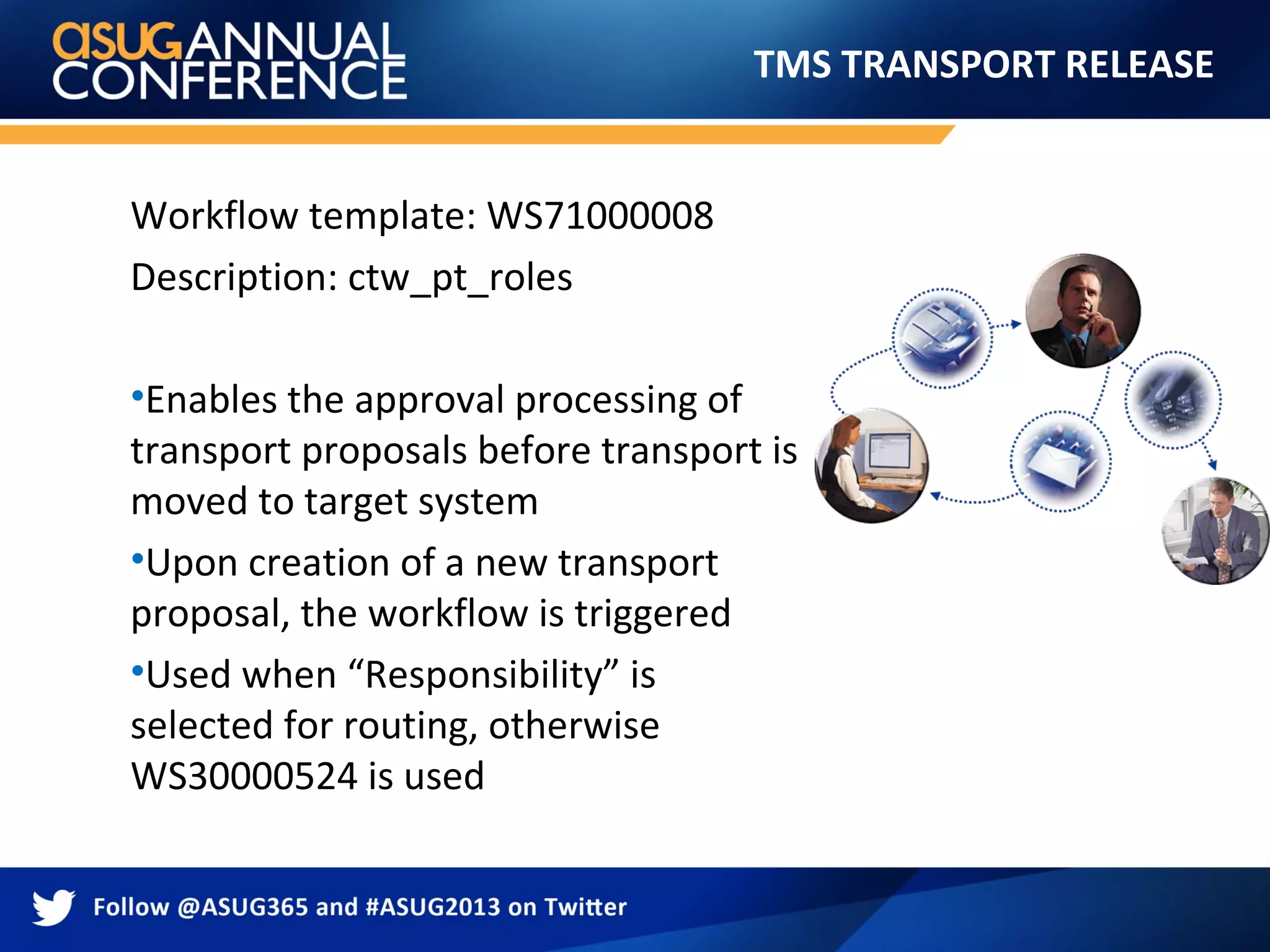
Workflowtemplate: WS71000008
Description: ctw_pt_roles
•Enables the approval processing of
transport proposals before transport is
moved to target system
•Upon creation of a new transport
proposal, the workflow is triggered
•Used when “Responsibility” is
selected for routing, otherwise
WS30000524 is used
30.
TMS TRANSPORT RELEASE
Configurationsteps:
1.Review workflow template
2.Configure transport management system
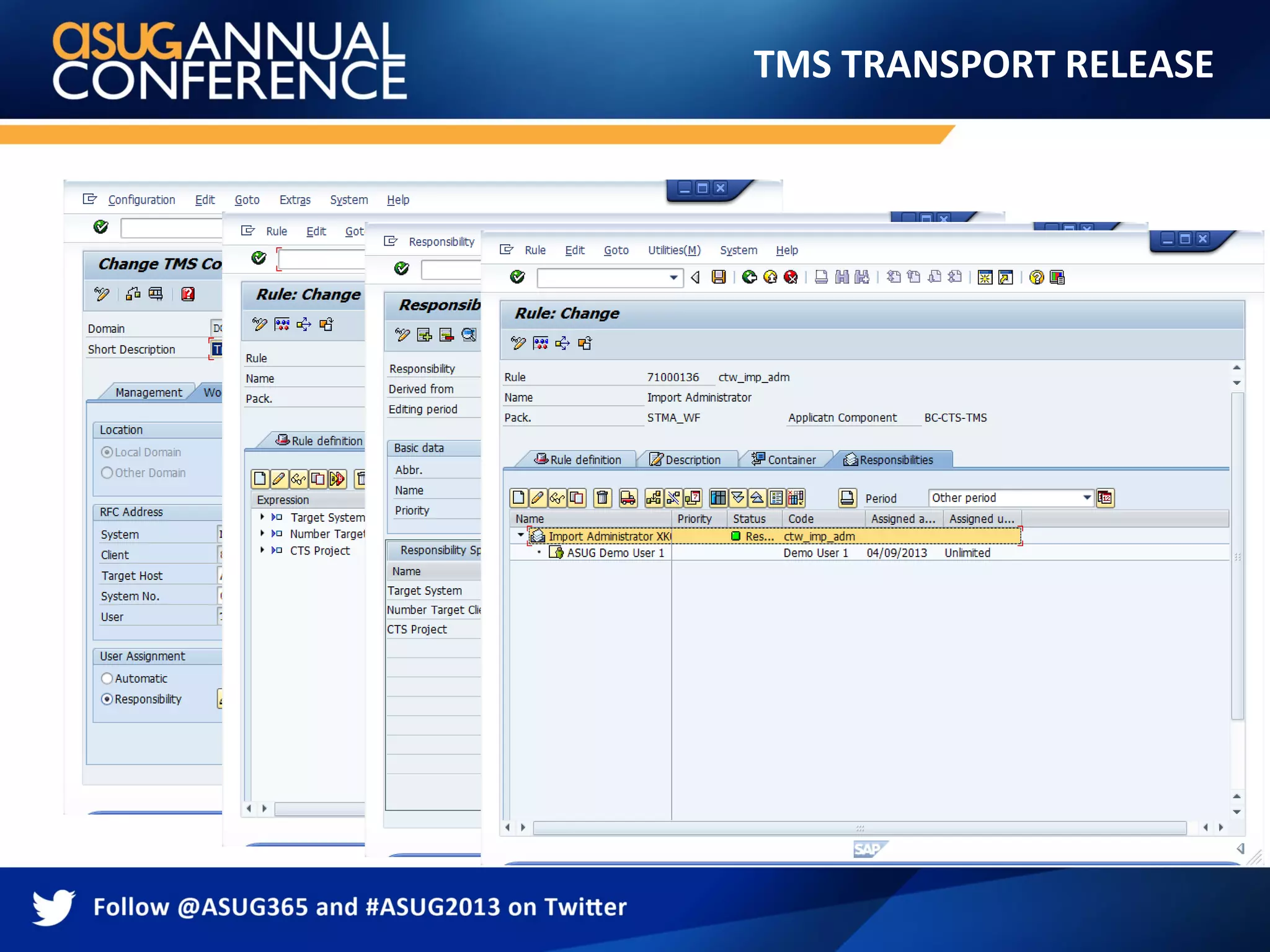
3.Assign agents
4.Test workflow
31.
TMS TRANSPORT RELEASE
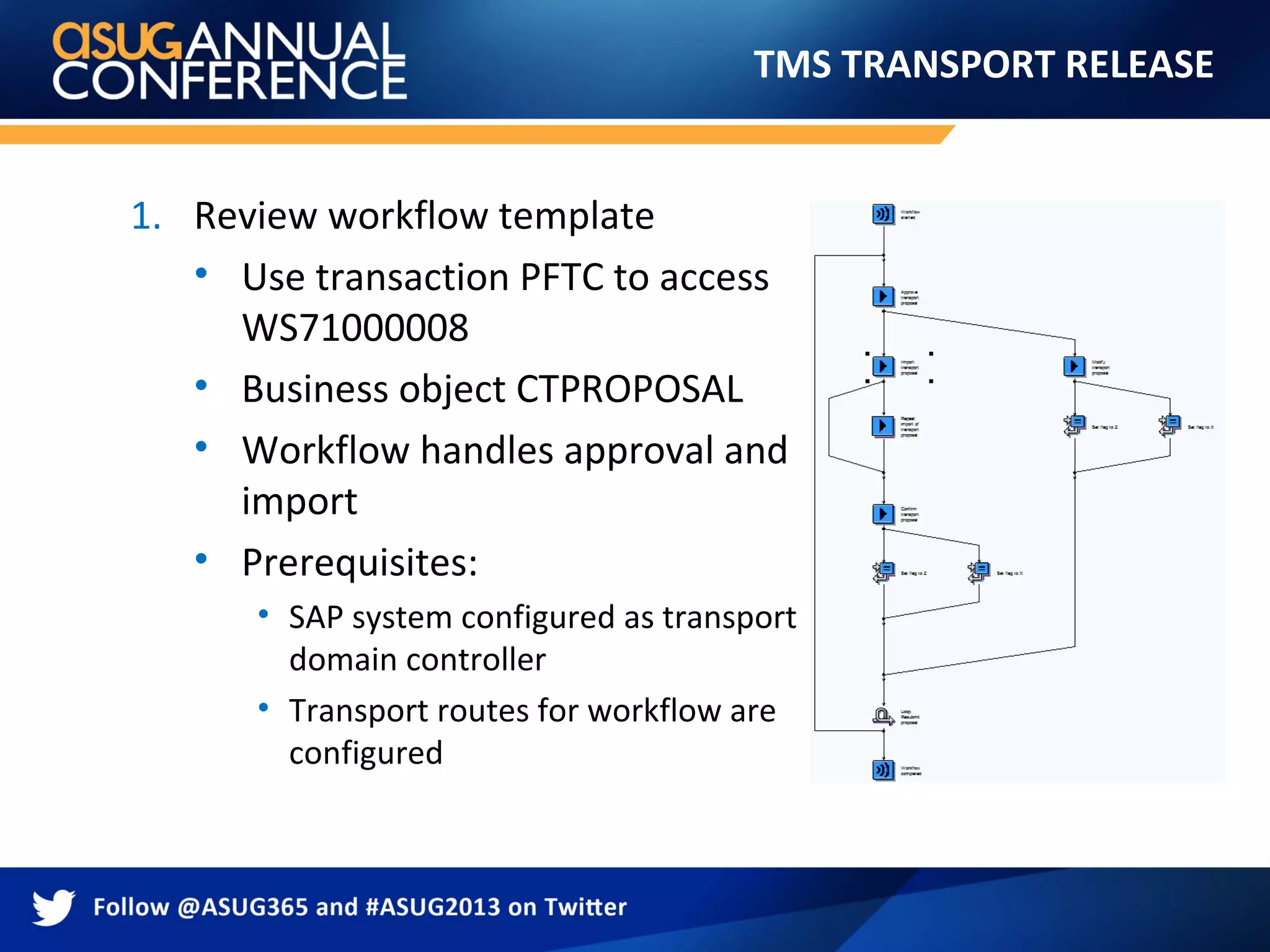
1.Review workflow template
• Use transaction PFTC to access
WS71000008
• Business object CTPROPOSAL
• Workflow handles approval and
import
• Prerequisites:
• SAP system configured as transport
domain controller
• Transport routes for workflow are
configured
32.
TMS TRANSPORT RELEASE
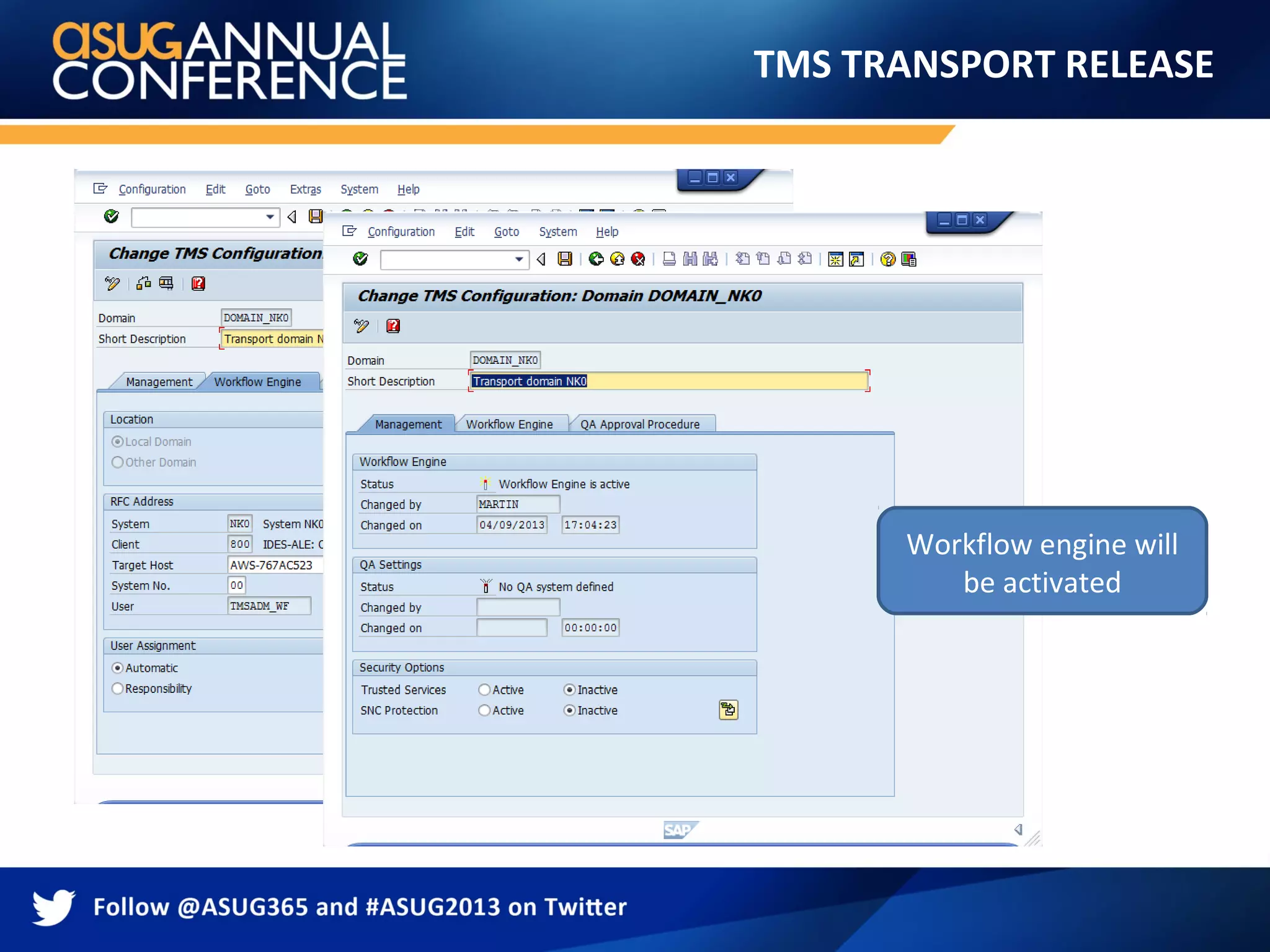
2.Configure transport management
system
• Go to transaction STMS and
then menu Overview->Systems,
Go To->Transport Domain, Then
tab Workflow Engine
• Select domain
• Enter RFC information
THANK YOU FORPARTICIPATING
Please provide feedback on this session by
completing a short survey via the event mobile
application.
SESSION CODE: 803
For ongoing education on this area of focus,
visit www.ASUG.com