Steps for using as Business Object
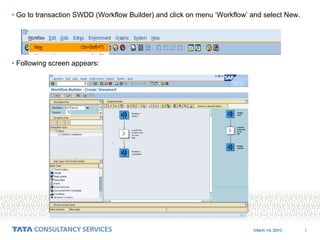
Go to transaction SWDD (Workflow Builder) and click on menu ‘Workflow’ and select New. Following screen appears:
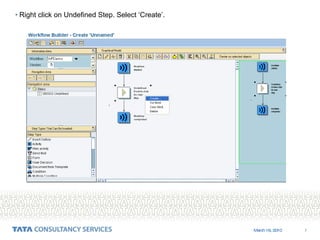
Right click on Undefined Step. Select ‘Create’.
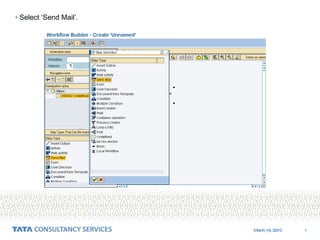
Select ‘Send Mail’.
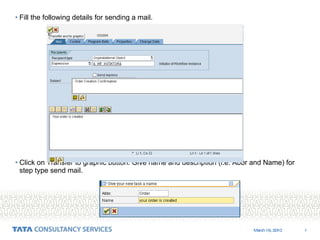
Fill the following details for sending a mail. Click on Transfer to graphic button. Give name and description (i.e. Abbr and Name) for step type send mail.
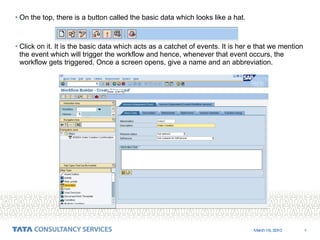
On the top, there is a button called the basic data which looks like a hat. Click on it. It is the basic data which acts as a catchet of events. It is her e that we mention the event which will trigger the workflow and hence, whenever that event occurs, the workflow gets triggered. Once a screen opens, give a name and an abbreviation.
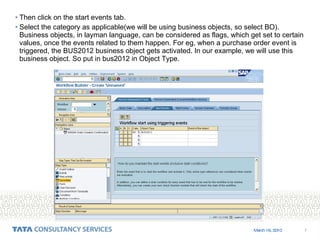
Then click on the start events tab.  Select the category as applicable(we will be using business objects, so select BO). Business objects, in layman language, can be considered as flags, which get set to certain values, once the events related to them happen. For eg, when a purchase order event is triggered, the BUS2012 business object gets activated. In our example, we will use this business object. So put in bus2012 in Object Type.
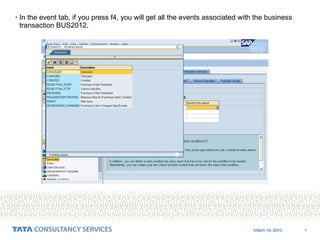
In the event tab, if you press f4, you will get all the events associated with the business transaction BUS2012.
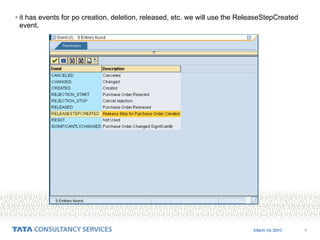
it has events for po creation, deletion, released, etc. we will use the ReleaseStepCreated event.
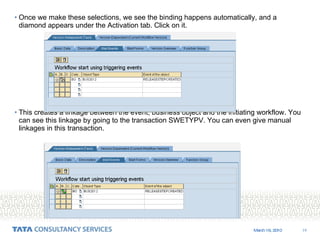
Once we make these selections, we see the binding happens automatically, and a diamond appears under the Activation tab. Click on it.  This creates a linkage between the event, business object and the initiating workflow. You can see this linkage by going to the transaction SWETYPV. You can even give manual linkages in this transaction.
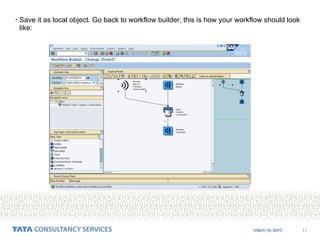
Save it as local object. Go back to workflow builder, this is how your workflow should look like:
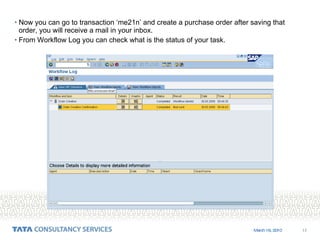
Now you can go to transaction ‘me21n’ and create a purchase order after saving that order, you will receive a mail in your inbox.  From Workflow Log you can check what is the status of your task.
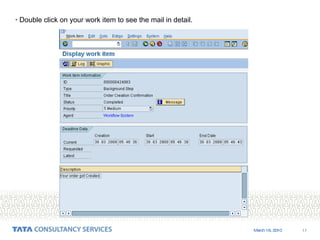
Double click on your work item to see the mail in detail.
Thank You

6.steps for using as business object

  • 1.
    Steps for usingas Business Object
  • 2.
    Go to transactionSWDD (Workflow Builder) and click on menu ‘Workflow’ and select New. Following screen appears:
  • 3.
    Right click onUndefined Step. Select ‘Create’.
  • 4.
  • 5.
    Fill the followingdetails for sending a mail. Click on Transfer to graphic button. Give name and description (i.e. Abbr and Name) for step type send mail.
  • 6.
    On the top,there is a button called the basic data which looks like a hat. Click on it. It is the basic data which acts as a catchet of events. It is her e that we mention the event which will trigger the workflow and hence, whenever that event occurs, the workflow gets triggered. Once a screen opens, give a name and an abbreviation.
  • 7.
    Then click onthe start events tab. Select the category as applicable(we will be using business objects, so select BO). Business objects, in layman language, can be considered as flags, which get set to certain values, once the events related to them happen. For eg, when a purchase order event is triggered, the BUS2012 business object gets activated. In our example, we will use this business object. So put in bus2012 in Object Type.
  • 8.
    In the eventtab, if you press f4, you will get all the events associated with the business transaction BUS2012.
  • 9.
    it has eventsfor po creation, deletion, released, etc. we will use the ReleaseStepCreated event.
  • 10.
    Once we makethese selections, we see the binding happens automatically, and a diamond appears under the Activation tab. Click on it. This creates a linkage between the event, business object and the initiating workflow. You can see this linkage by going to the transaction SWETYPV. You can even give manual linkages in this transaction.
  • 11.
    Save it aslocal object. Go back to workflow builder, this is how your workflow should look like:
  • 12.
    Now you cango to transaction ‘me21n’ and create a purchase order after saving that order, you will receive a mail in your inbox. From Workflow Log you can check what is the status of your task.
  • 13.
    Double click onyour work item to see the mail in detail.
  • 14.