Comprehensive Guide to SPSS – Learn Data View, Variable View, Data Management, Missing Value Handling, and Compute Functions for Efficient Data Analysis
This presentation explains the basics of SPSS, covering Data View and Variable View, saving datasets, managing and transforming data, handling missing values, and computing new variables for effective data analysis.
Similar to Comprehensive Guide to SPSS – Learn Data View, Variable View, Data Management, Missing Value Handling, and Compute Functions for Efficient Data Analysis
Comprehensive Guide to SPSS – Learn Data View, Variable View, Data Management, Missing Value Handling, and Compute Functions for Efficient Data Analysis
1.
DATA VIEW SHEET
DataView Sheet
The Data View in SPSS is where you enter and view your actual
data. The interface resembles a spreadsheet, where:
•Rows represent individual cases (or observations).
•Columns represent the different variables (attributes or
features of each case).
🌐 Website: www.evisiontechnoserve.com
📩 Email: info@evisiontechnoserve.com
2.
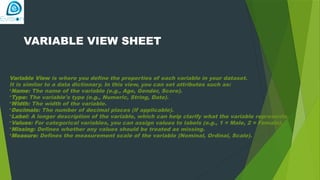
VARIABLE VIEW SHEET
VariableView is where you define the properties of each variable in your dataset.
It is similar to a data dictionary. In this view, you can set attributes such as:
•Name: The name of the variable (e.g., Age, Gender, Score).
•Type: The variable's type (e.g., Numeric, String, Date).
•Width: The width of the variable.
•Decimals: The number of decimal places (if applicable).
•Label: A longer description of the variable, which can help clarify what the variable represents.
•Values: For categorical variables, you can assign values to labels (e.g., 1 = Male, 2 = Female).
•Missing: Defines whether any values should be treated as missing.
•Measure: Defines the measurement scale of the variable (Nominal, Ordinal, Scale).
3.
Saving the Data
Saving the DataOnce you’ve entered or modified
your data, it’s important to save your dataset.
To save the data:File → Save or File → Save
AsChoose a location and give your file a
name.SPSS saves files in its native .sav format,
which is used to retain both the data and the
variable definitions.
4.
MANAGING THE DATA
Managing data in SPSS involves tasks such as sorting, selecting
cases, filtering, or transforming variables. You can manage data
through:
Sorting Data: Sort your cases based on one or more variables.
This can help with organizing your data.
Selecting Cases: You can select subsets of your data to work
with, based on certain conditions or criteria.
Data Transformation: Create new variables or modify existing
ones using functions like Recode, Compute, or Transform.
5.
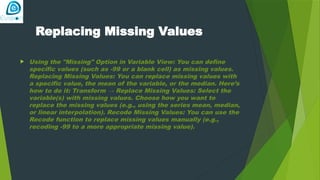
Replacing Missing Values
Using the "Missing" Option in Variable View: You can define
specific values (such as -99 or a blank cell) as missing values.
Replacing Missing Values: You can replace missing values with
a specific value, the mean of the variable, or the median. Here’s
how to do it: Transform → Replace Missing Values: Select the
variable(s) with missing values. Choose how you want to
replace the missing values (e.g., using the series mean, median,
or linear interpolation). Recode Missing Values: You can use the
Recode function to replace missing values manually (e.g.,
recoding -99 to a more appropriate missing value).
6.
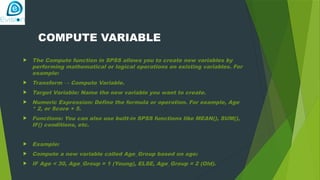
COMPUTE VARIABLE
TheCompute function in SPSS allows you to create new variables by
performing mathematical or logical operations on existing variables. For
example:
Transform → Compute Variable.
Target Variable: Name the new variable you want to create.
Numeric Expression: Define the formula or operation. For example, Age
* 2, or Score + 5.
Functions: You can also use built-in SPSS functions like MEAN(), SUM(),
IF() conditions, etc.
Example:
Compute a new variable called Age_Group based on age:
IF Age < 30, Age_Group = 1 (Young), ELSE, Age_Group = 2 (Old).
7.
Recording into differentvariables
Recording into Different Variables
You can create multiple new variables by applying transformations
and computations.
Transform → Compute Variable allows you to compute a new
variable, but you can apply the same logic to multiple variables. For
instance, creating a sum score across different test items or
applying a transformation to several variables at once.
Example:
You can compute a new variable called Total_Score which sums
several existing variables:
Total_Score = Score1 + Score2 + Score3.
8.
RECORDING INTO THESAME VARIABLE
You can modify an existing variable by applying a computation to
it directly. This is useful when you want to overwrite a variable
with a new value or transformation. Transform → Compute
Variable, and in the Target Variable box, type the same variable
name you want to modify (e.g., Score = Score + 5). This will update
the original variable (Score) with the new computed values.
Example: If you want to add 5 points to all participants’ scores,
you would simply enter: Score = Score + 5. Be cautious when
overwriting variables to ensure you don’t lose any important data.
🌐 Website: www.evisiontechnoserve.com
📩 Email: info@evisiontechnoserve.com





![SPSS Lecture_1 [Autosaved].pptx](https://cdn.slidesharecdn.com/ss_thumbnails/spsslecture1autosaved-231105165336-b29c7b18-thumbnail.jpg?width=640&height=640&fit=bounds)


