EAS – Oracle Apps
Oracle Applications 11i
Oracle Accounts Receivables
A Presentation by EAS – Oracle Applications
December 2003
EAS – Oracle Apps
Oracle Accounts Receivables
 Overview of AR
 Managing Customers
 Processing Invoices
 Processing Invoices Using
Auto-Invoice
 Processing Commitments
 Processing Customer
Adjustments
 Applying Receipts
 Implementing Auto-Lockbox
 Processing Automatic
Receipts
 Remitting Receipts
 Managing Collections
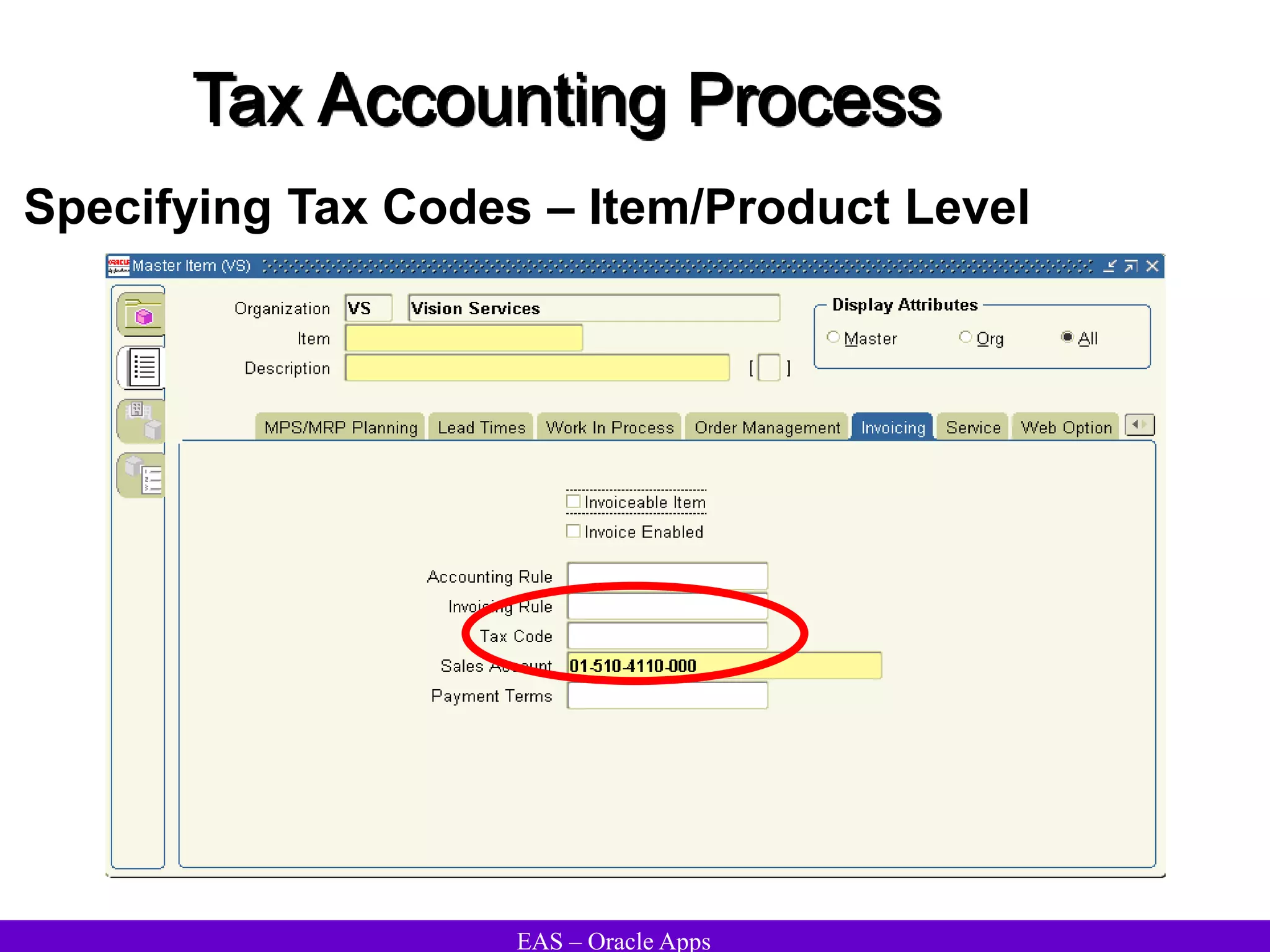
 Tax Accounting Process
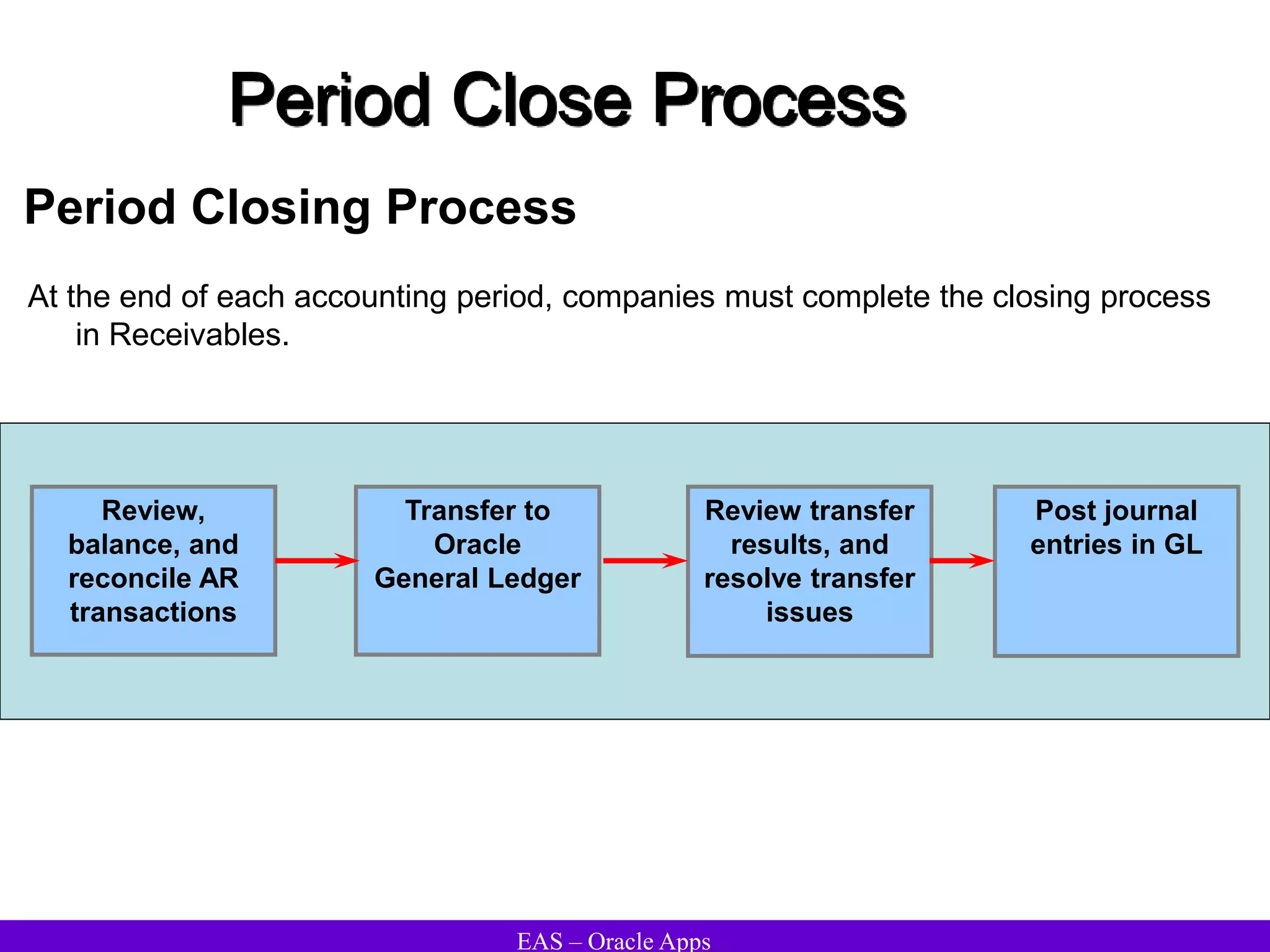
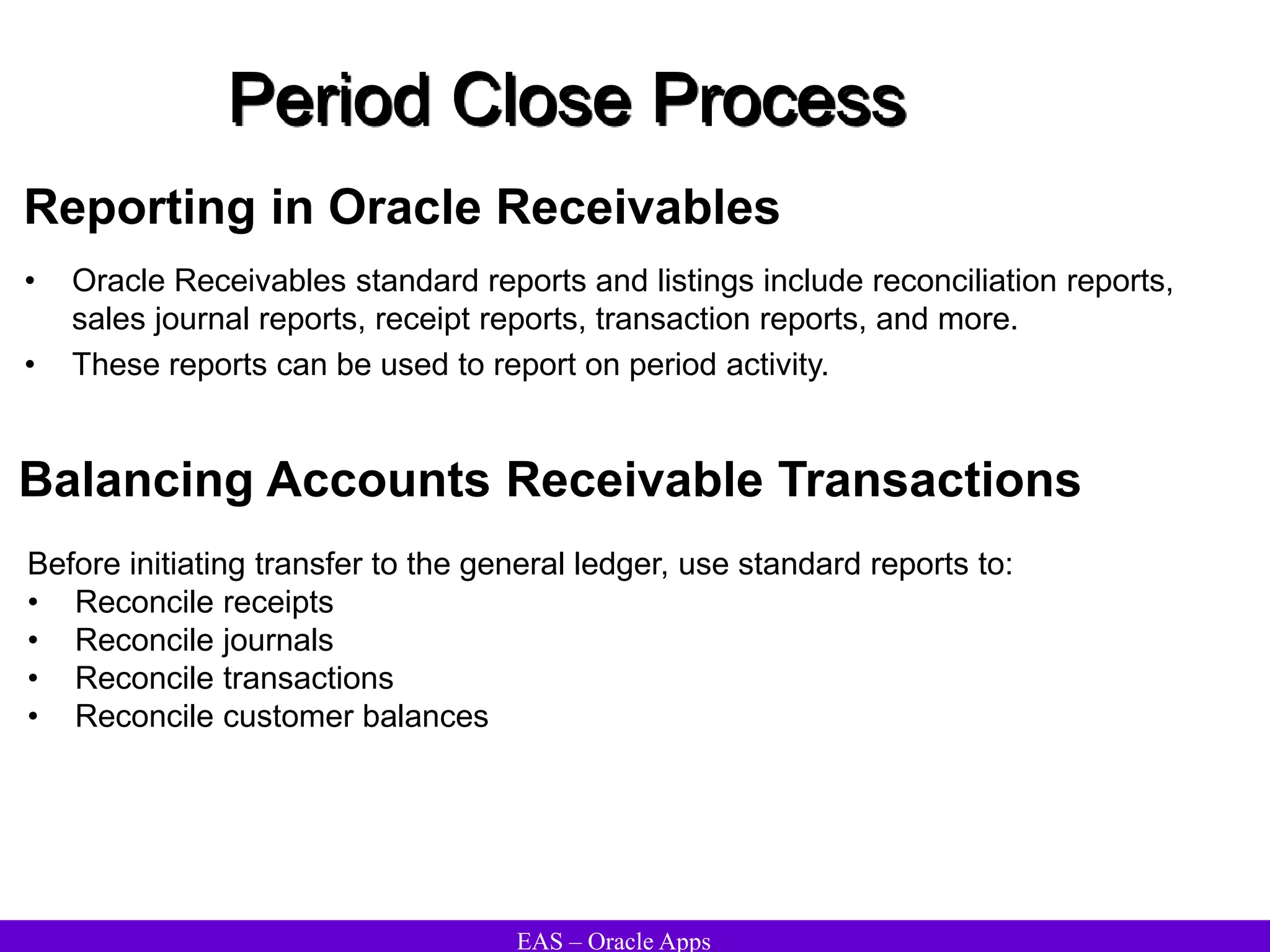
 Period Close Process
 Receivables Setup
 Profile Options
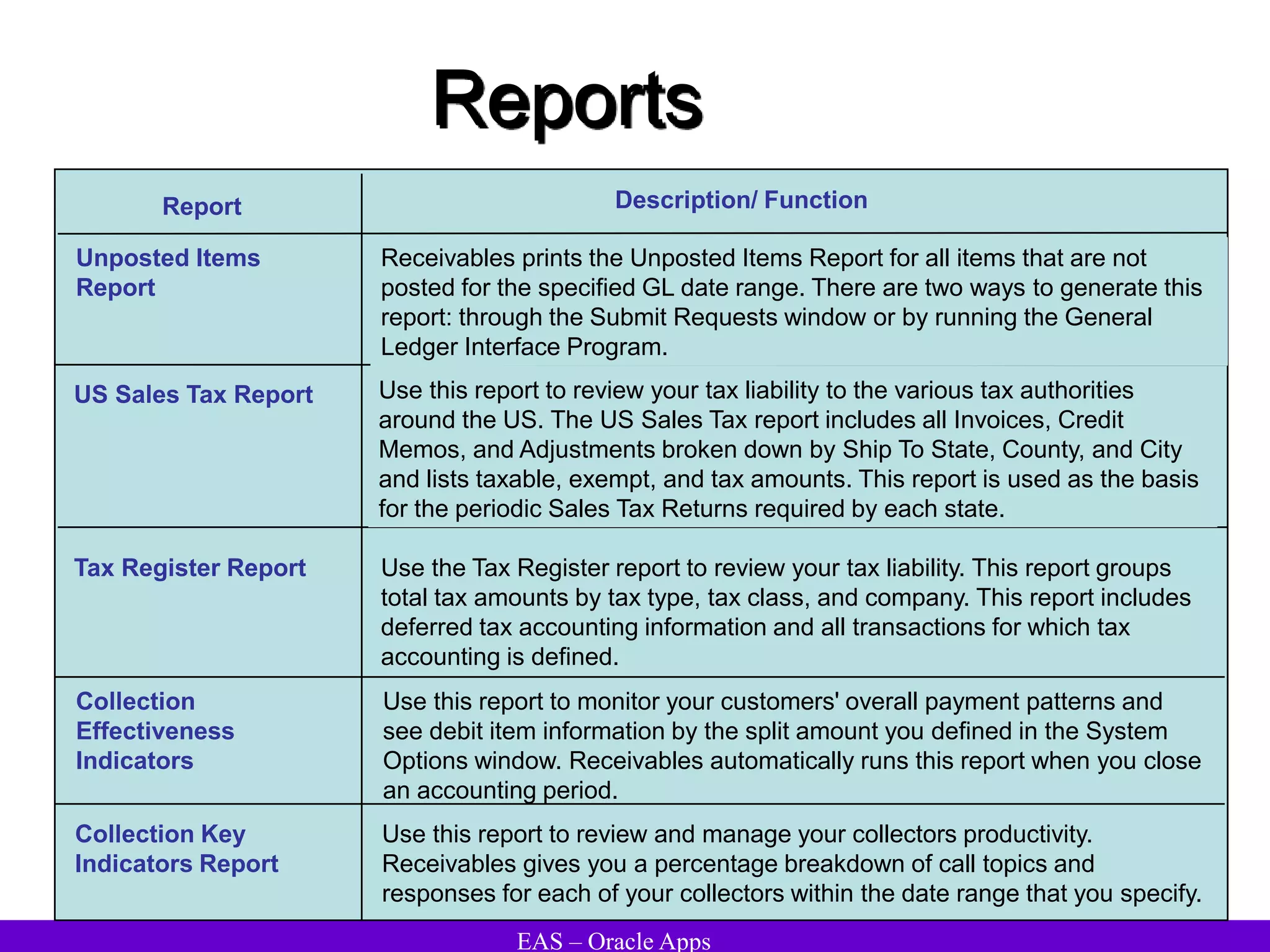
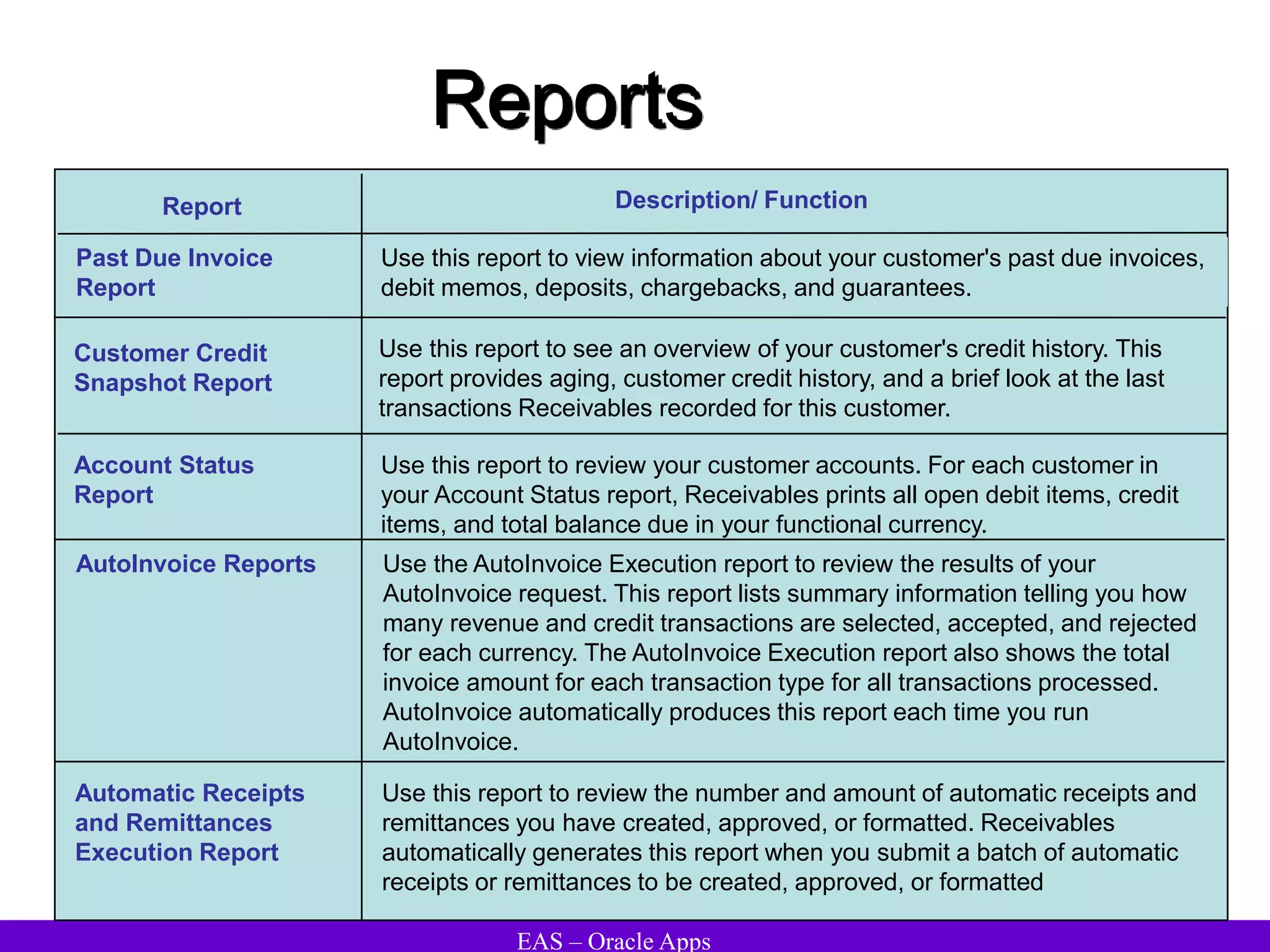
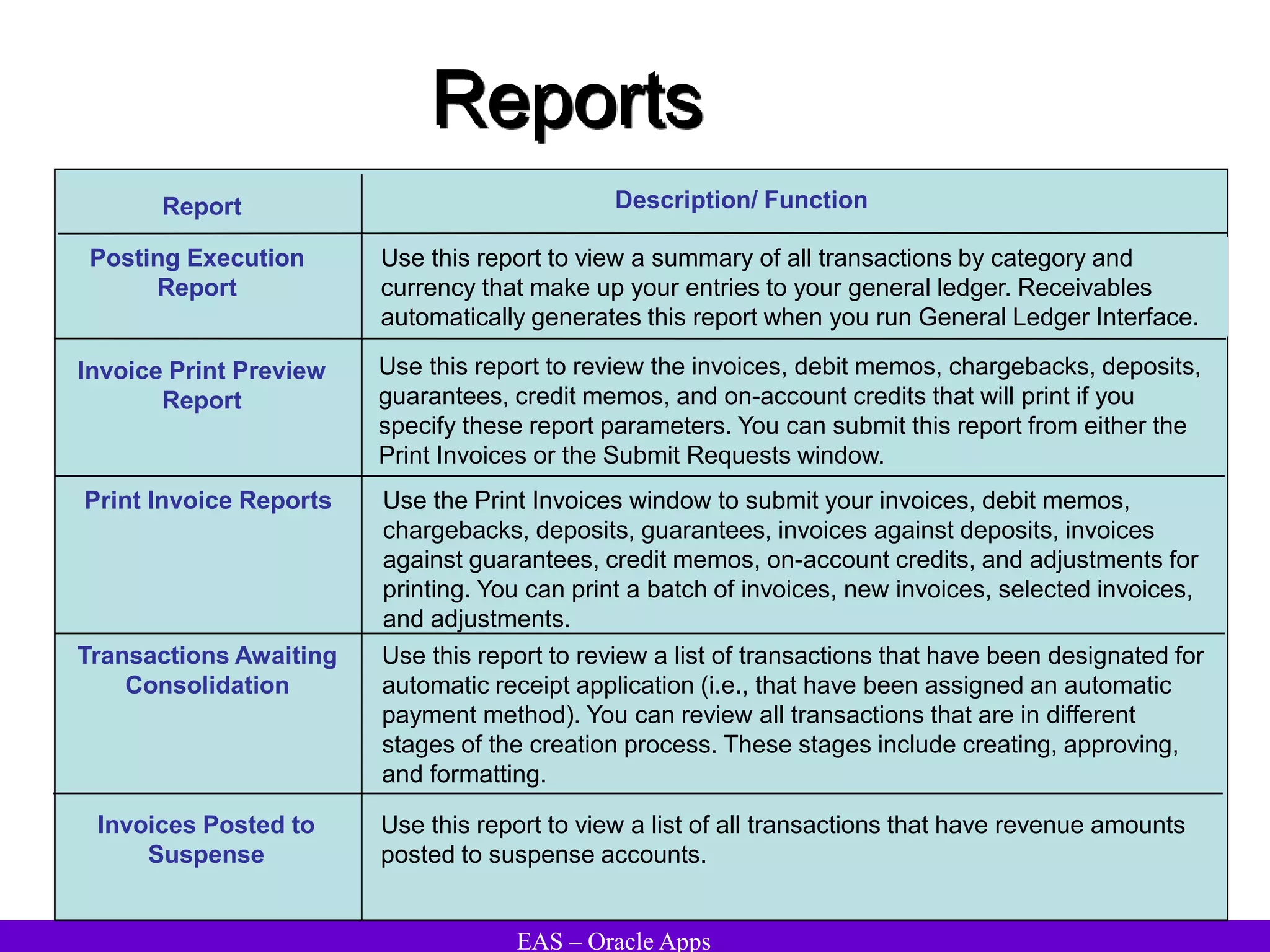
 Reports
Agenda
EAS – Oracle Apps
Overview of Oracle
Accounts Receivables
EAS – Oracle Apps
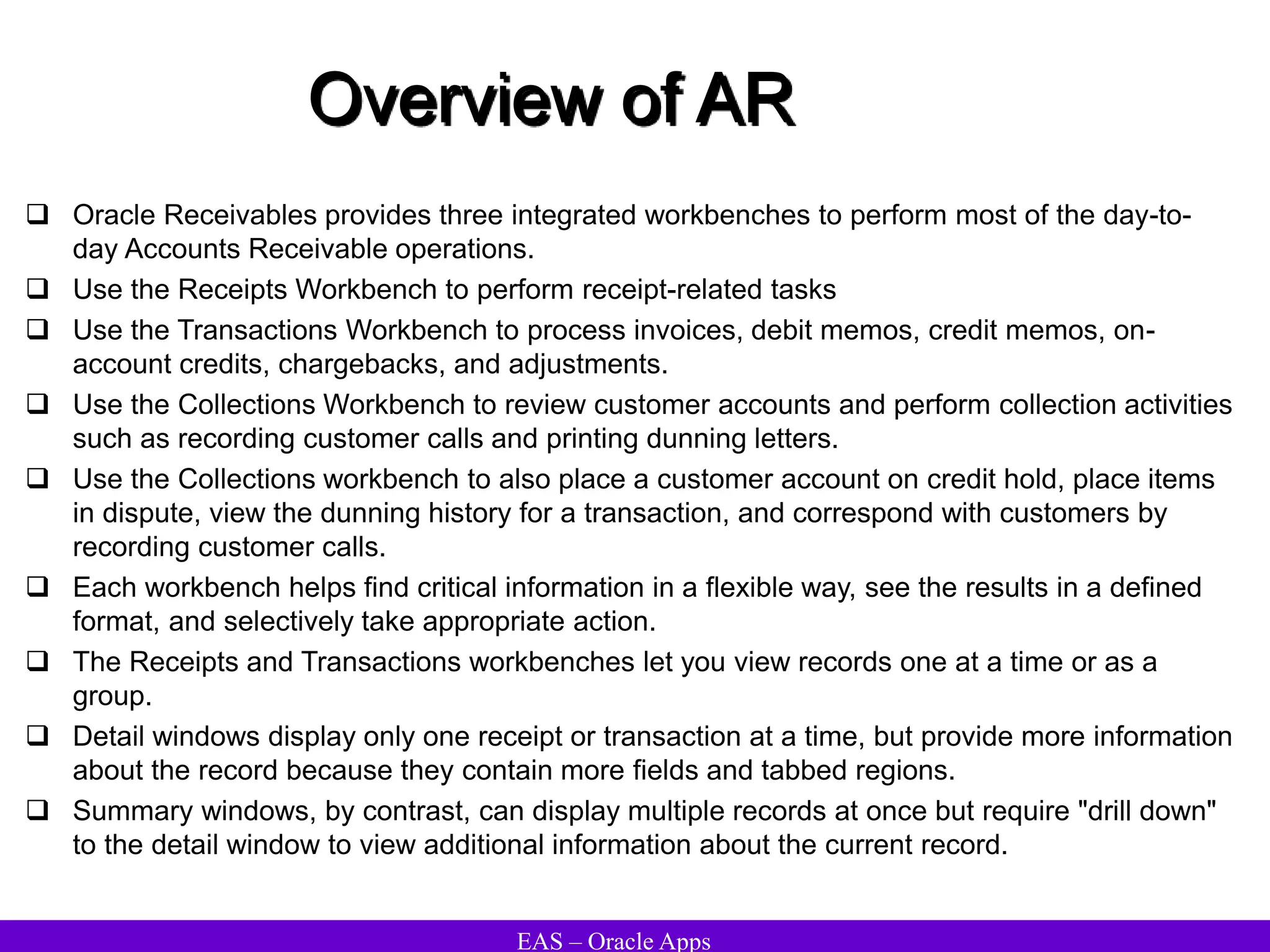
Overview of AR
 Oracle Receivables provides three integrated workbenches to perform most of the day-to-
day Accounts Receivable operations.
 Use the Receipts Workbench to perform receipt-related tasks
 Use the Transactions Workbench to process invoices, debit memos, credit memos, on-
account credits, chargebacks, and adjustments.
 Use the Collections Workbench to review customer accounts and perform collection activities
such as recording customer calls and printing dunning letters.
 Use the Collections workbench to also place a customer account on credit hold, place items
in dispute, view the dunning history for a transaction, and correspond with customers by
recording customer calls.
 Each workbench helps find critical information in a flexible way, see the results in a defined
format, and selectively take appropriate action.
 The Receipts and Transactions workbenches let you view records one at a time or as a
group.
 Detail windows display only one receipt or transaction at a time, but provide more information
about the record because they contain more fields and tabbed regions.
 Summary windows, by contrast, can display multiple records at once but require "drill down"
to the detail window to view additional information about the current record.
EAS – Oracle Apps
Overview of AR
 Receipts Workbench: Receipts, Receipts Summary, Receipt Batches and Receipt Batches
Summary
 Transactions Workbench: Transactions and Transactions Summary, Transactions Batches
and Transaction Batches Summary
 In the Receipts and Transactions Workbenches, the Tools pulldown menu lets you perform
operations in addition to those provided by the action buttons.
 In the Receipts Workbench, view the sum of multiple receipts in the Receipt Totals window,
and review the functional currency gain or loss resulting from a currency exchange rate
adjustment in the Receipt History window.
 In the Transactions window there is no Copy button, but still copy a transaction by choosing
Copy To from the Tools menu.
 Similarly, the Balances button does not appear in the Transactions Summary window, but
can be displayed in the Transaction Balances window by choosing Balances from the Tools
menu.
 View the detail accounting lines for an item in the form of a balanced accounting entry (i.e.,
debits equal credits) by choosing View Accounting from the Tools menu.
 View the detail accounting as t-accounts
EAS – Oracle Apps
Overview of AR
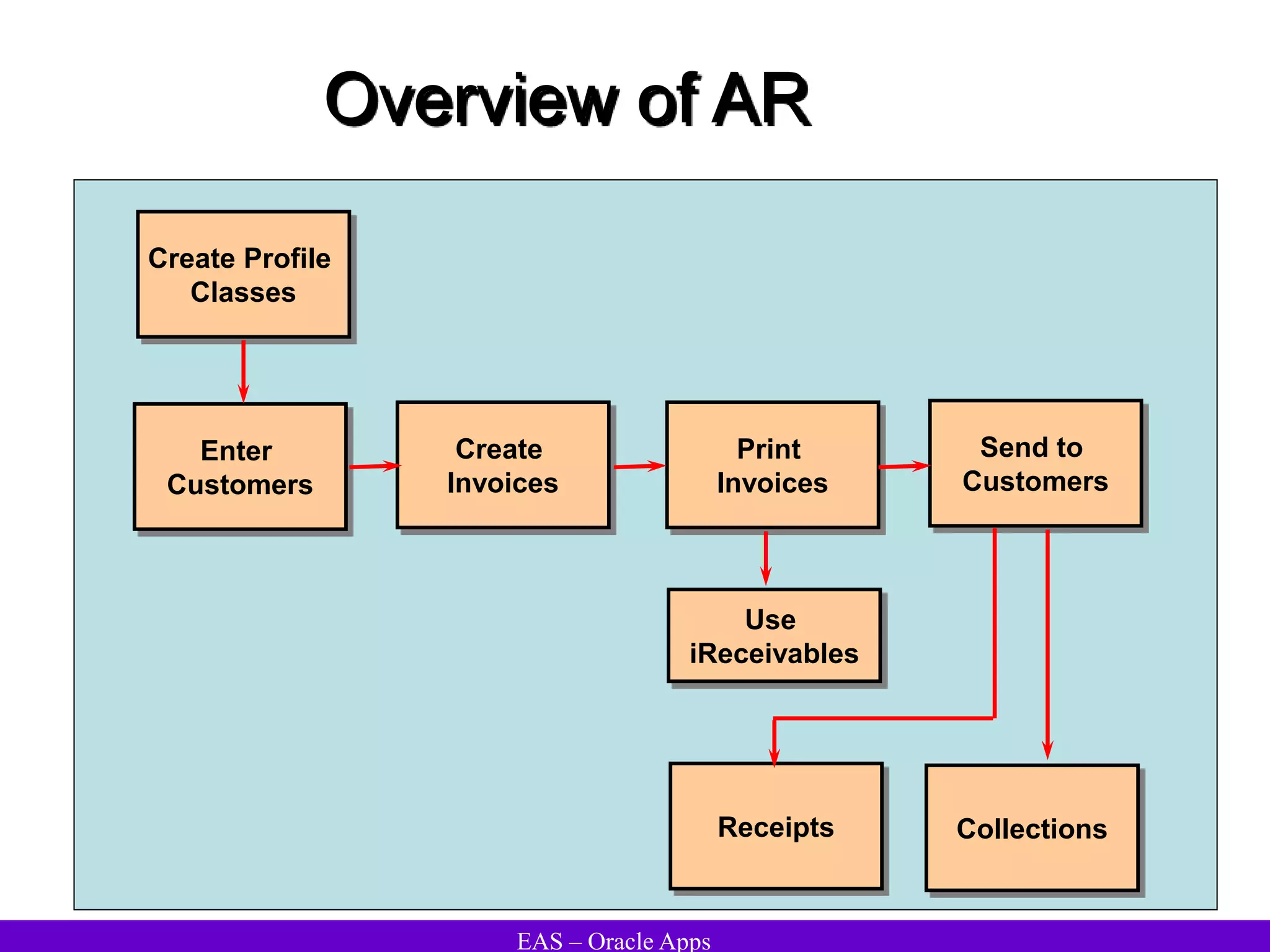
Create Profile
Classes
Enter
Customers
Create
Invoices
Print
Invoices
Send to
Customers
Use
iReceivables
Receipts Collections
EAS – Oracle Apps
Overview of AR
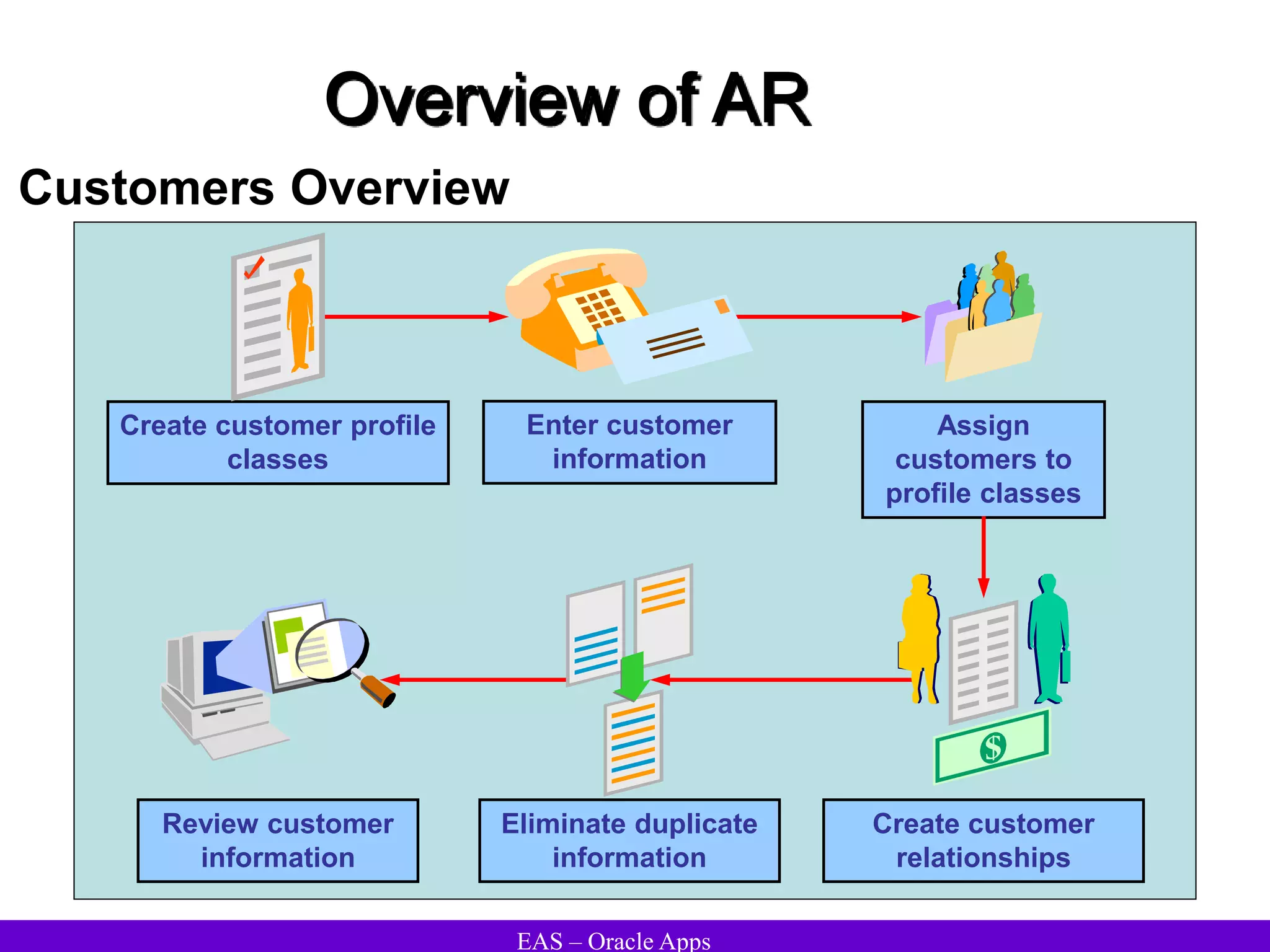
Assign
customers to
profile classes
Review customer
information
Create customer profile
classes
Create customer
relationships
Eliminate duplicate
information
Enter customer
information
Customers Overview
EAS – Oracle Apps
Overview of AR
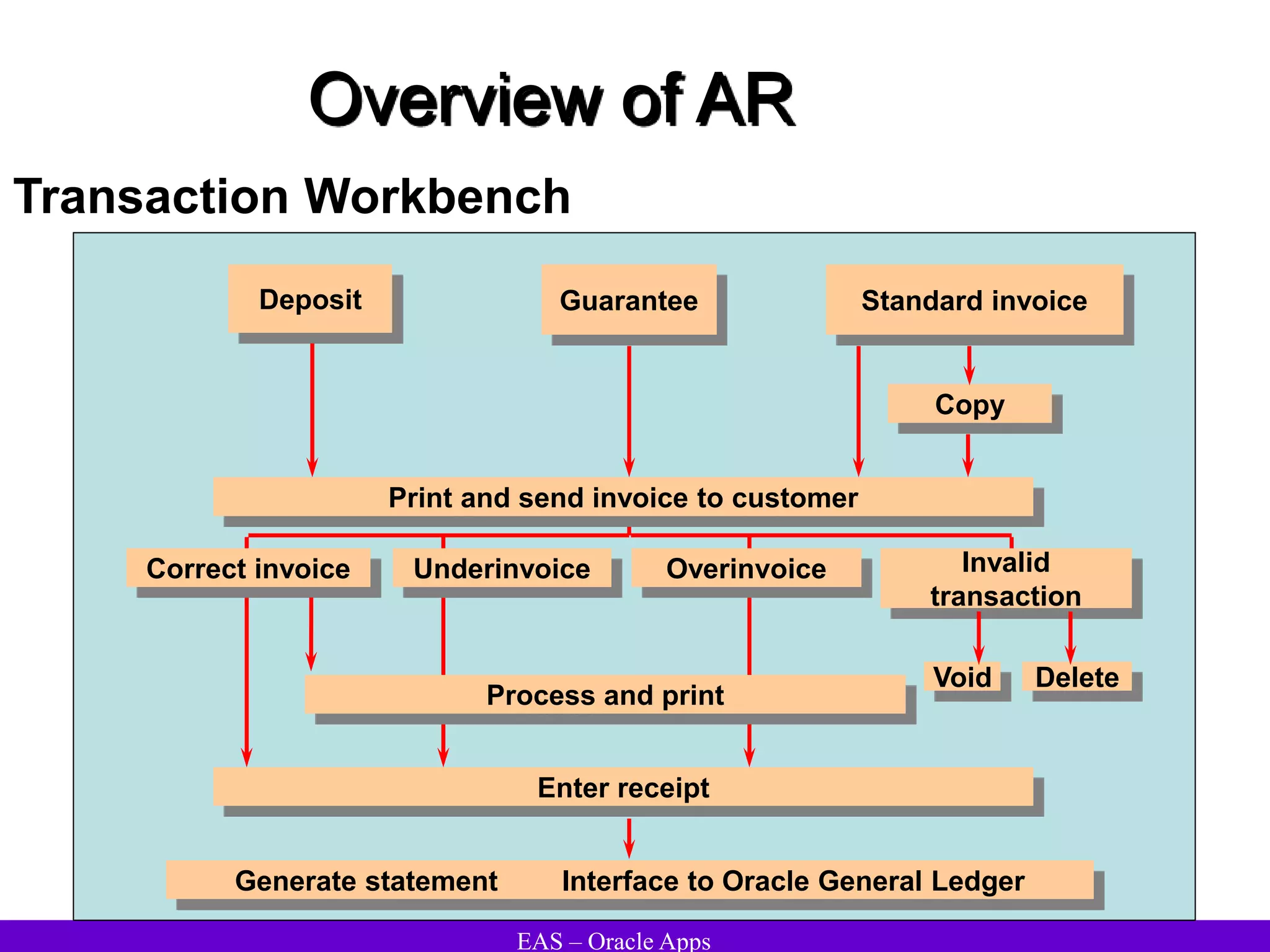
Transaction Workbench
Enter receipt
Deposit Guarantee Standard invoice
Copy
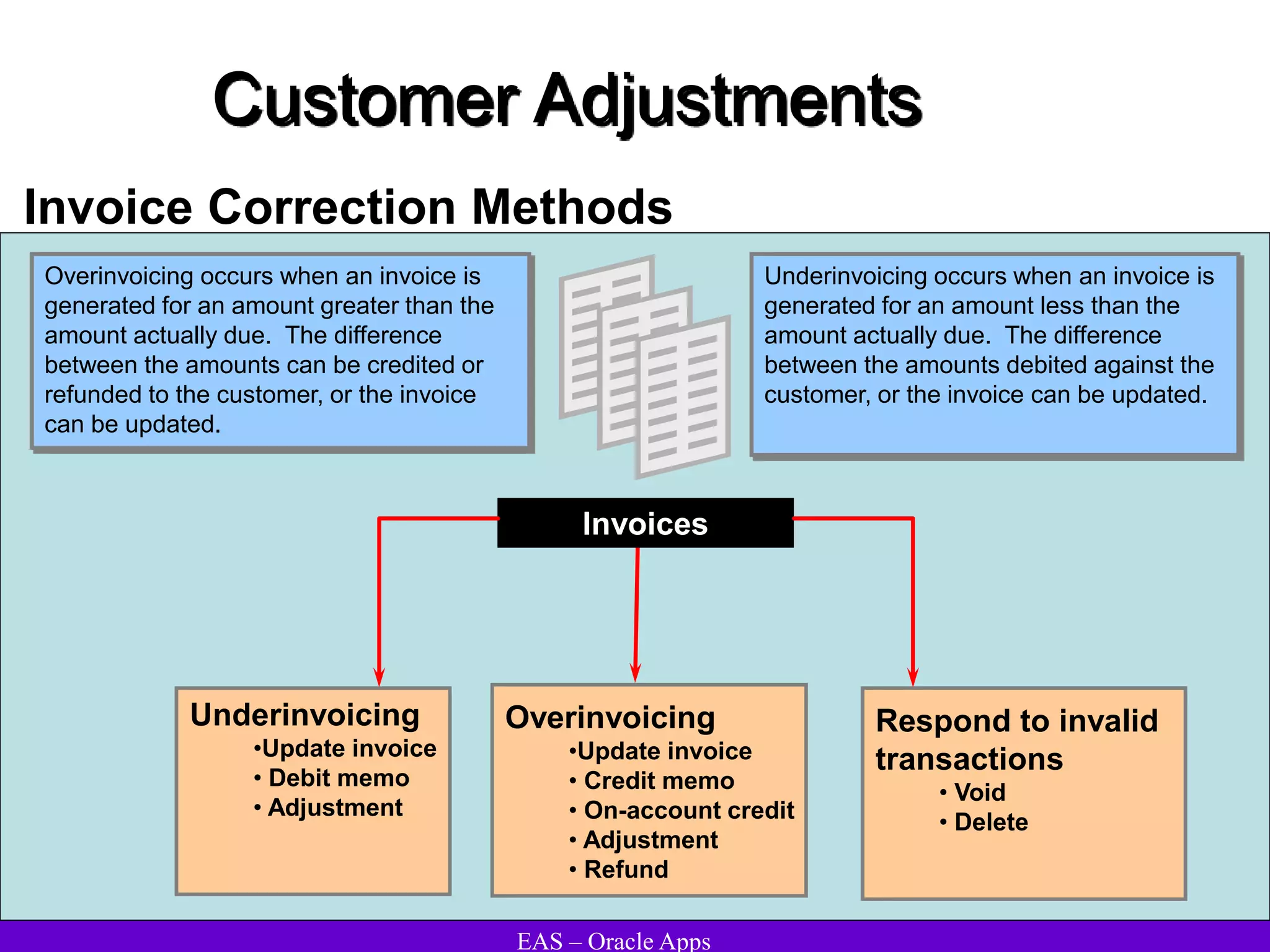
Correct invoice Overinvoice Invalid
transaction
Underinvoice
Process and print
Void
Generate statement Interface to Oracle General Ledger
Print and send invoice to customer
Delete
EAS – Oracle Apps
Overview of AR
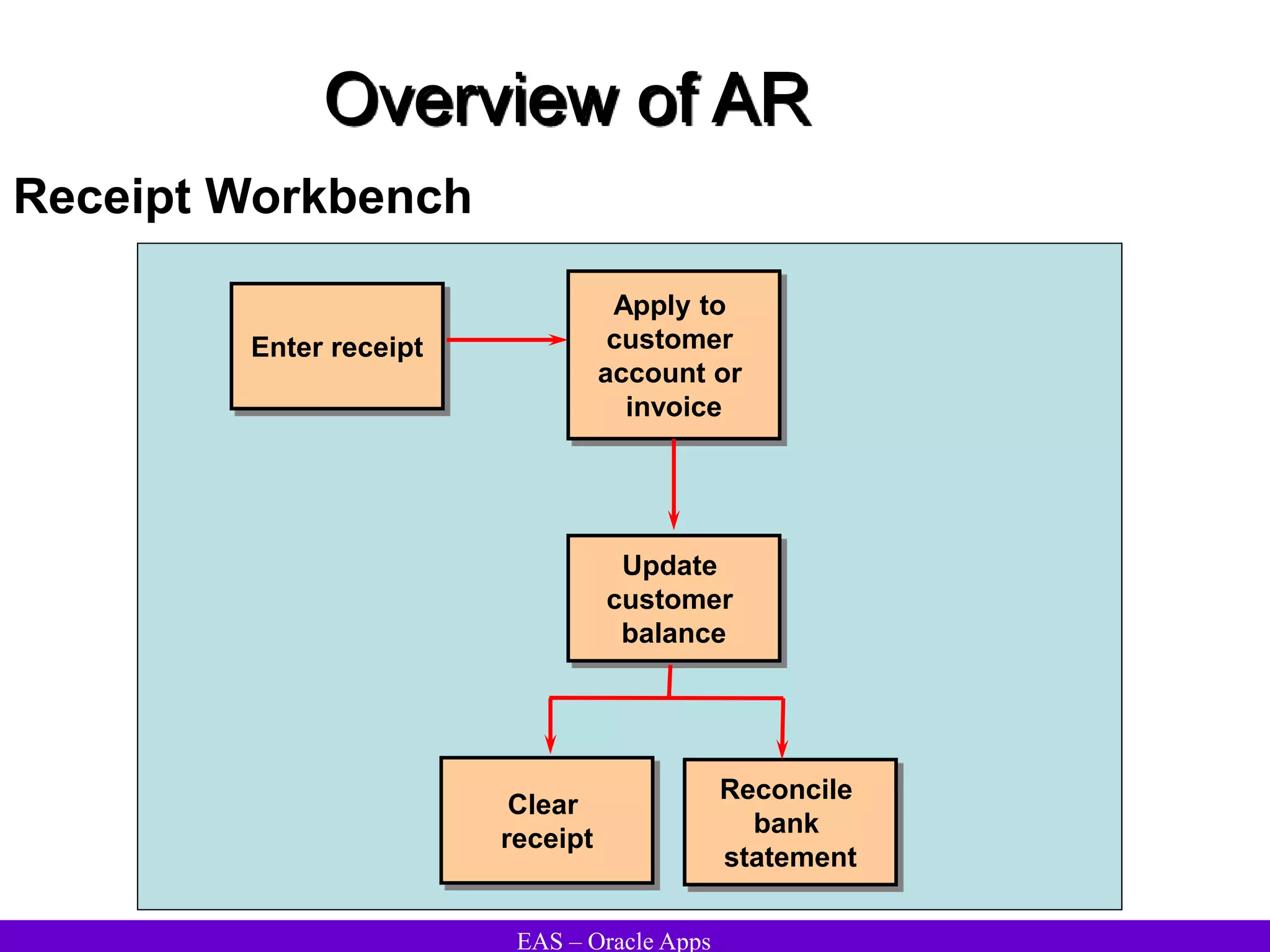
Receipt Workbench
Enter receipt
Apply to
customer
account or
invoice
Update
customer
balance
Clear
receipt
Reconcile
bank
statement
EAS – Oracle Apps
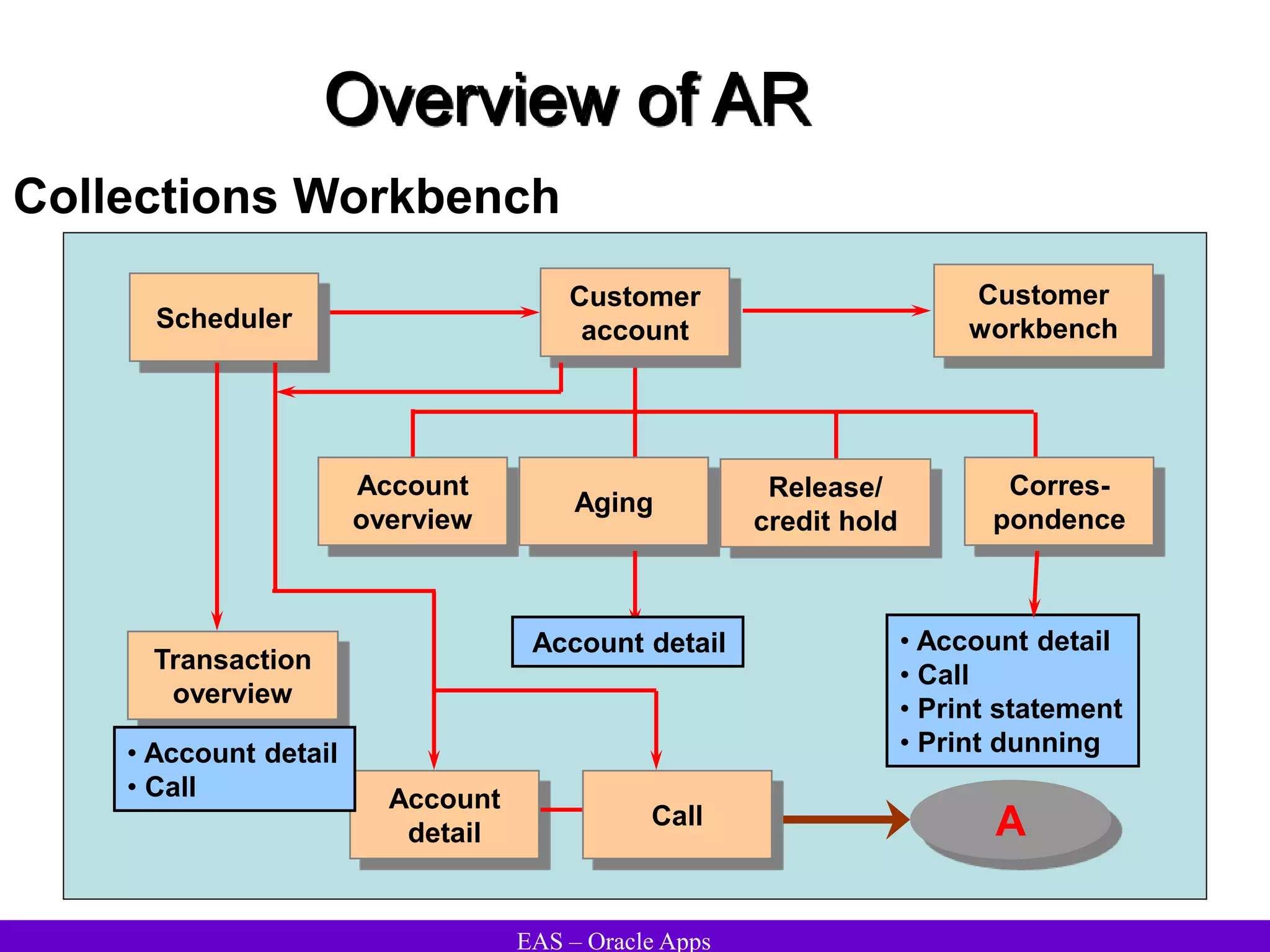
Overview of AR
Customer
account
Scheduler
Account
overview
Aging
Release/
credit hold
Corres-
pondence
• Account detail
• Call
• Print statement
• Print dunning
Account detail
Account
detail
Transaction
overview
• Account detail
• Call
Call
Customer
workbench
A
Collections Workbench
EAS – Oracle Apps
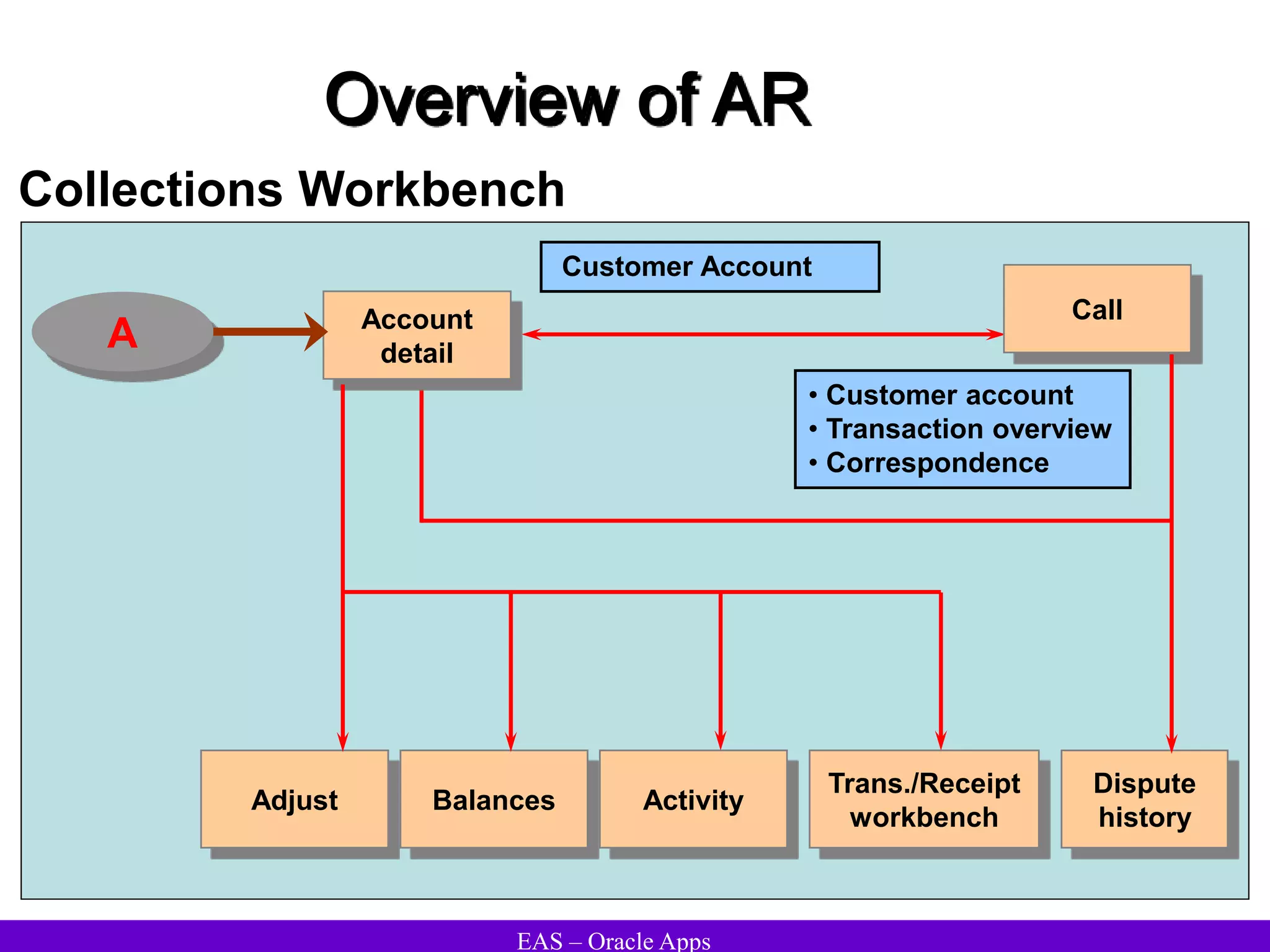
Overview of AR
Account
detail
Call
• Customer account
• Transaction overview
• Correspondence
Customer Account
Adjust Balances Activity
Trans./Receipt
workbench
Dispute
history
A
Collections Workbench
EAS – Oracle Apps
Managing Customers
EAS – Oracle Apps
Managing Customers
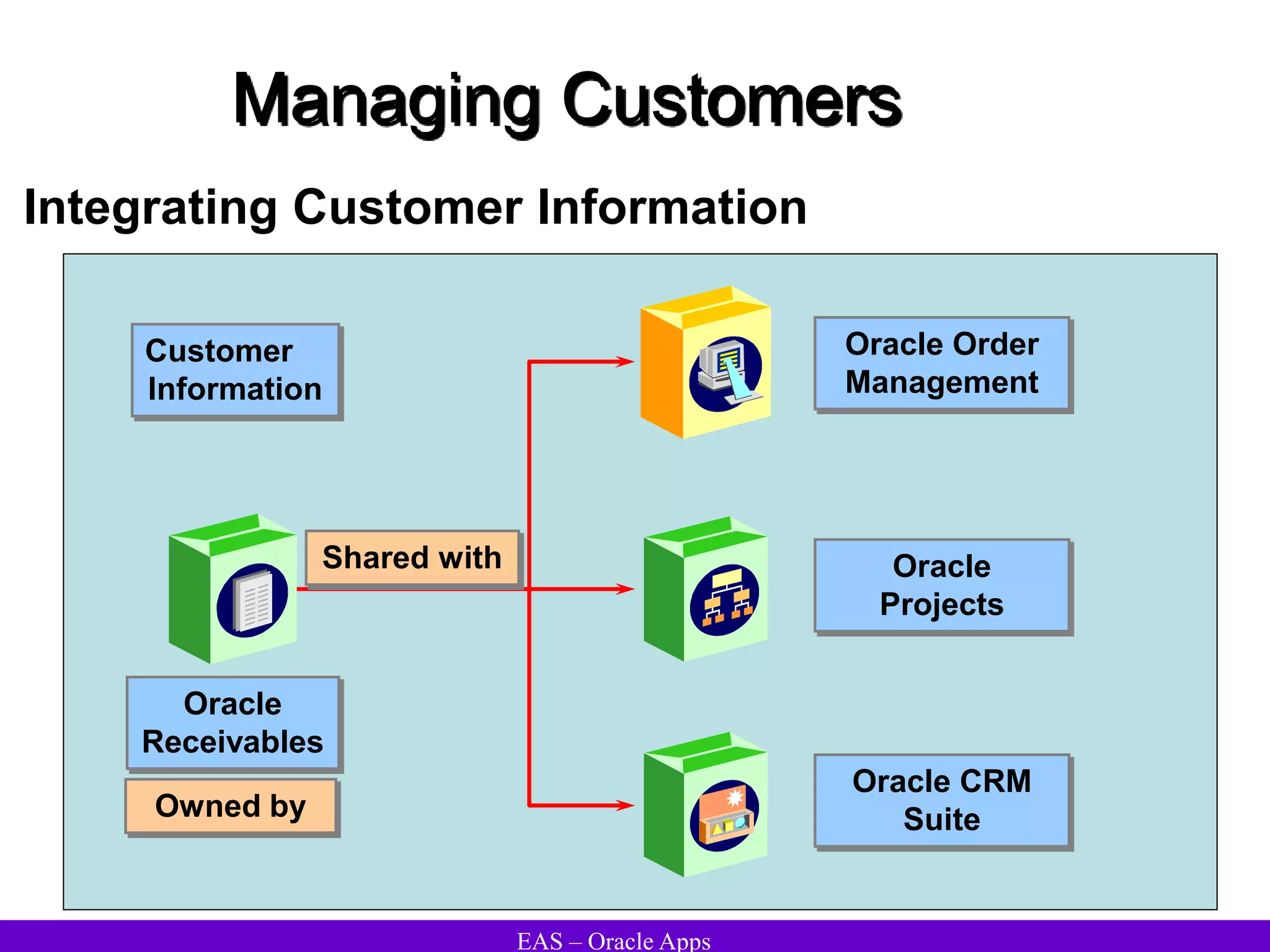
Integrating Customer Information
Oracle Order
Management
Oracle
Receivables
Customer
Information
Shared with
Owned by
Oracle
Projects
Oracle CRM
Suite
EAS – Oracle Apps
Managing Customers
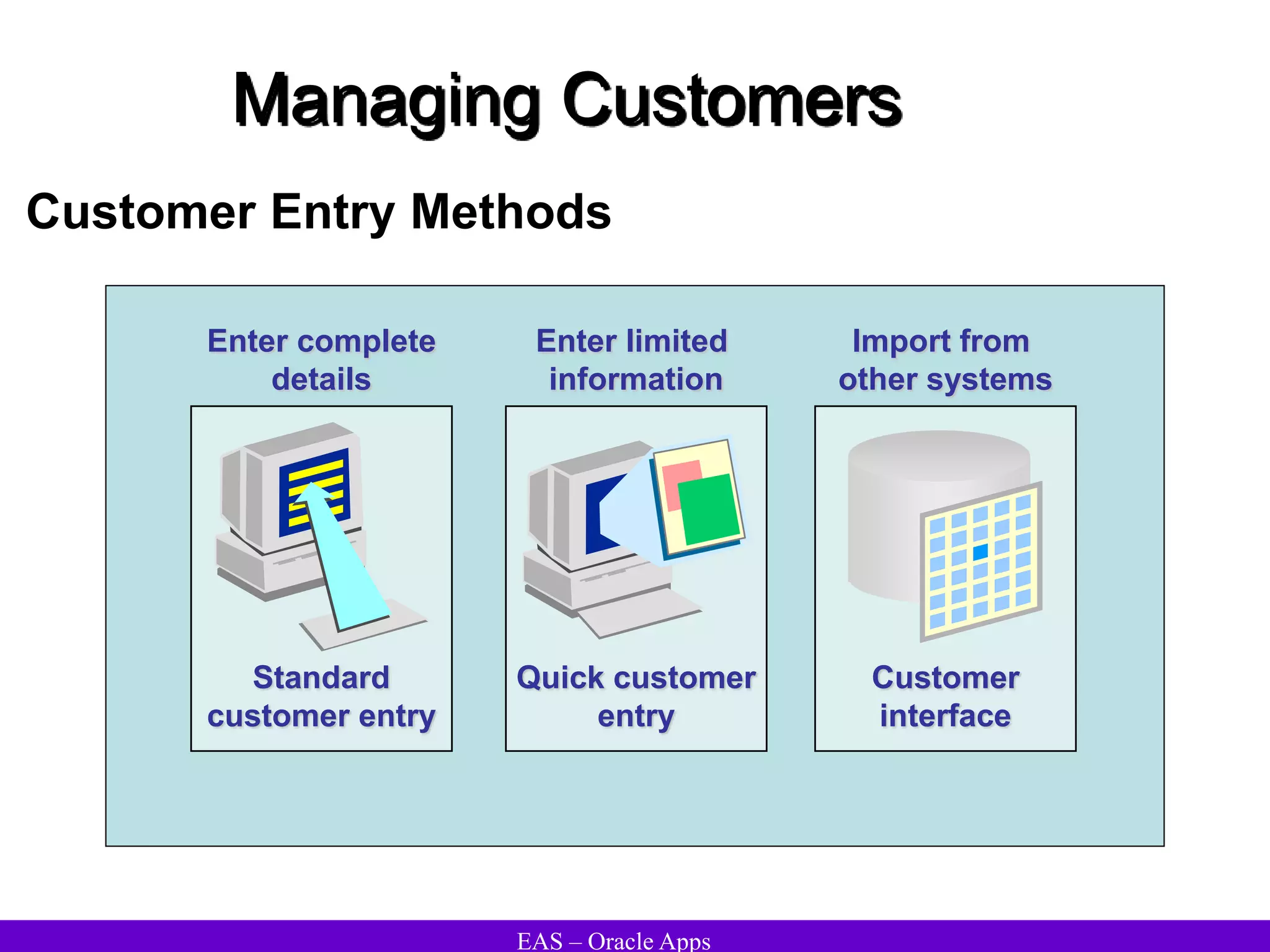
Standard
customer entry
Enter complete
details
Quick customer
entry
Enter limited
information
Customer
interface
Import from
other systems
Customer Entry Methods
EAS – Oracle Apps
Managing Customers
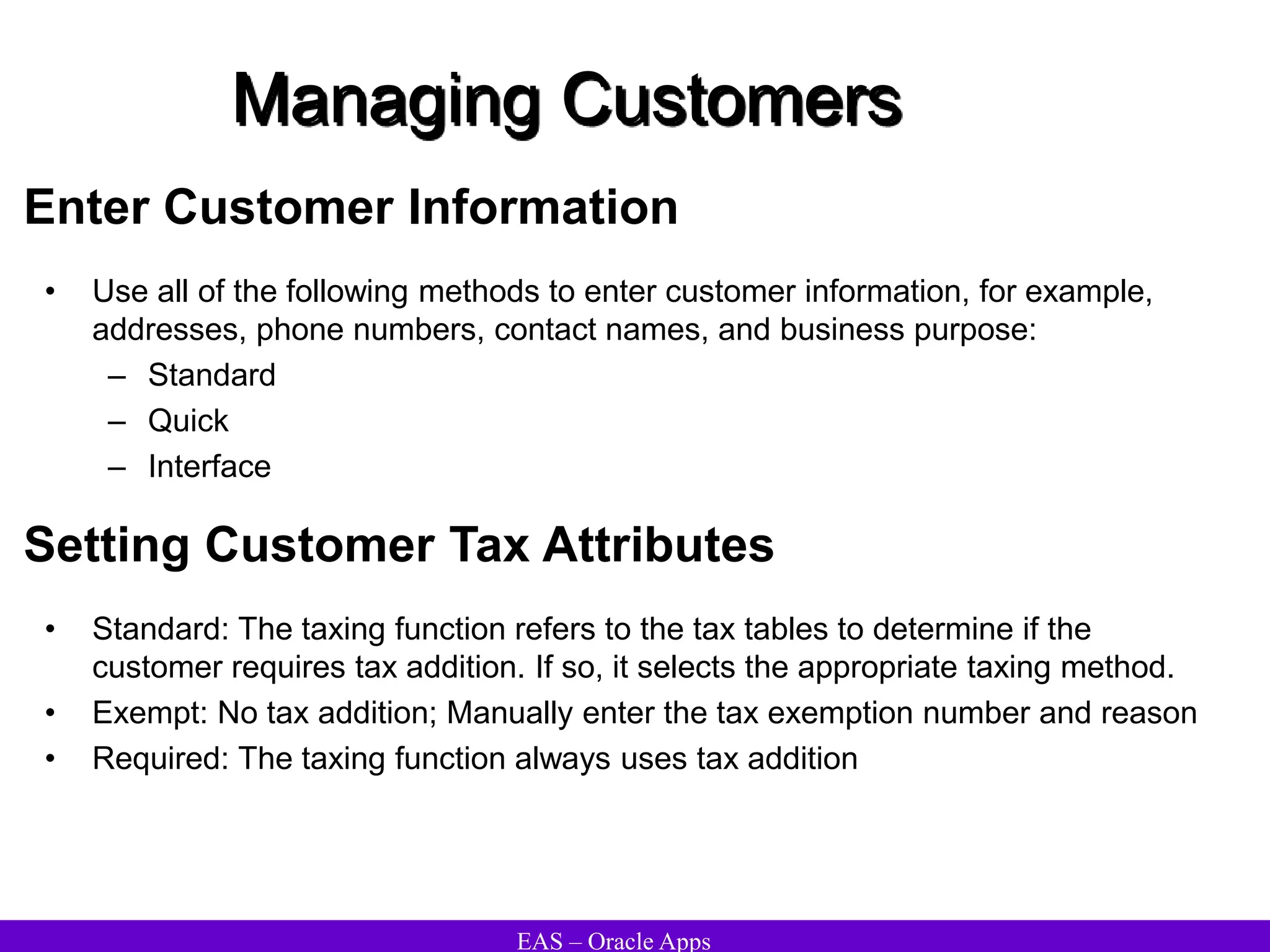
Enter Customer Information
• Use all of the following methods to enter customer information, for example,
addresses, phone numbers, contact names, and business purpose:
– Standard
– Quick
– Interface
Setting Customer Tax Attributes
• Standard: The taxing function refers to the tax tables to determine if the
customer requires tax addition. If so, it selects the appropriate taxing method.
• Exempt: No tax addition; Manually enter the tax exemption number and reason
• Required: The taxing function always uses tax addition
EAS – Oracle Apps
Managing Customers
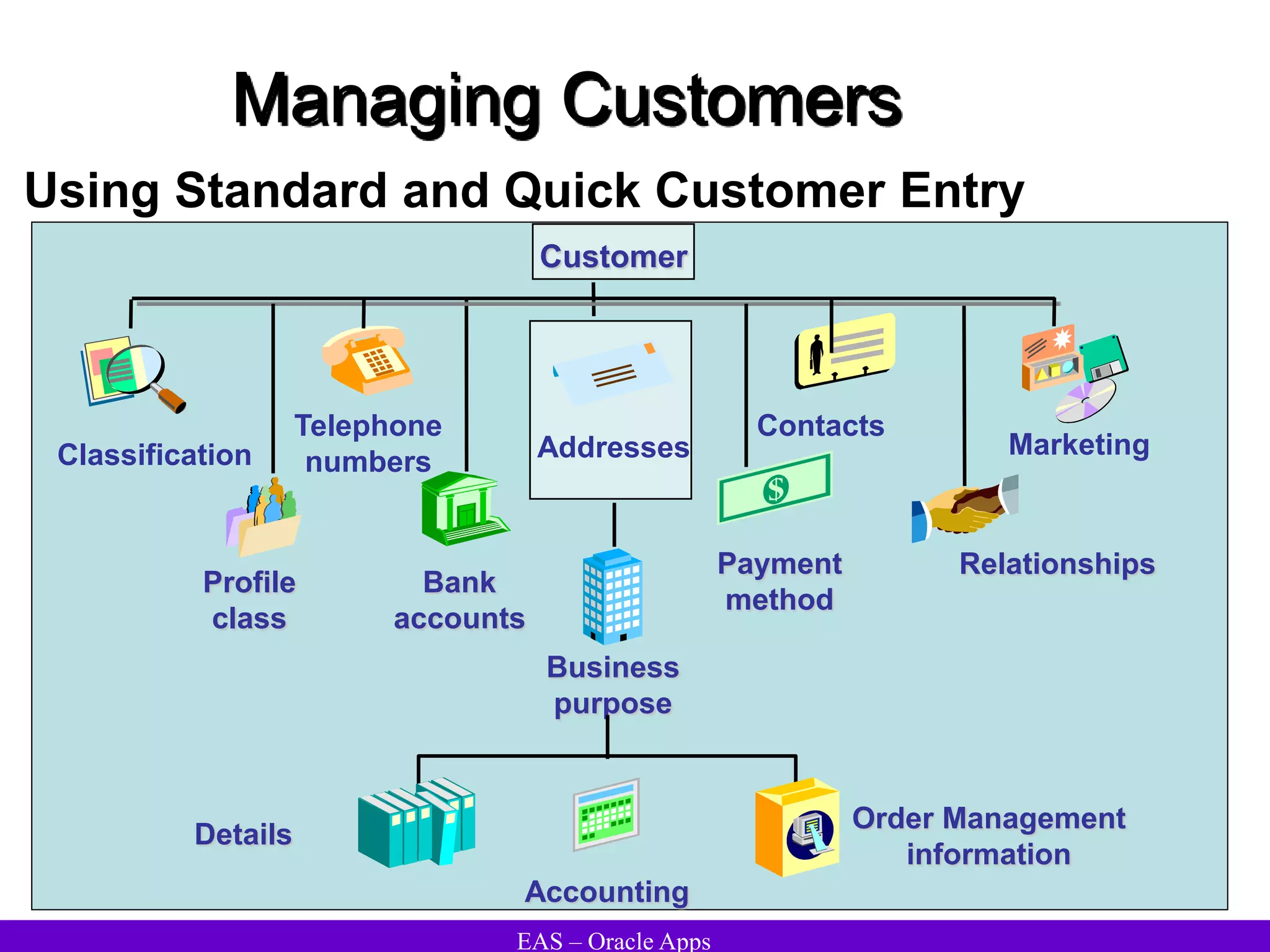
Customer
Profile
class
Telephone
numbers Addresses
Payment
method
Bank
accounts
Contacts
Relationships
Business
purpose
Marketing
Classification
Details
Accounting
Order Management
information
Using Standard and Quick Customer Entry
EAS – Oracle Apps
Managing Customers
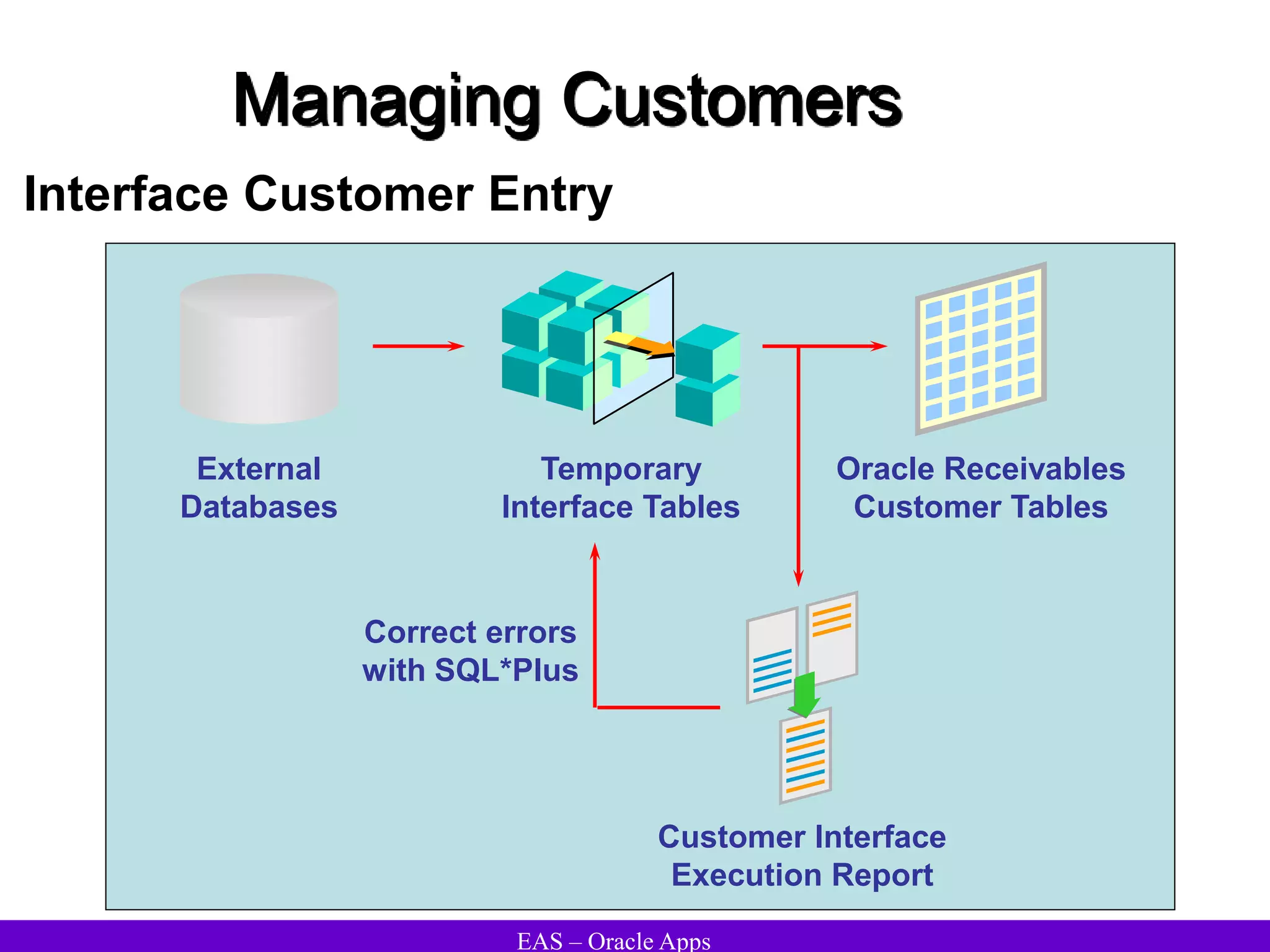
Temporary
Interface Tables
Oracle Receivables
Customer Tables
Correct errors
with SQL*Plus
Customer Interface
Execution Report
External
Databases
Interface Customer Entry
EAS – Oracle Apps
Managing Customers
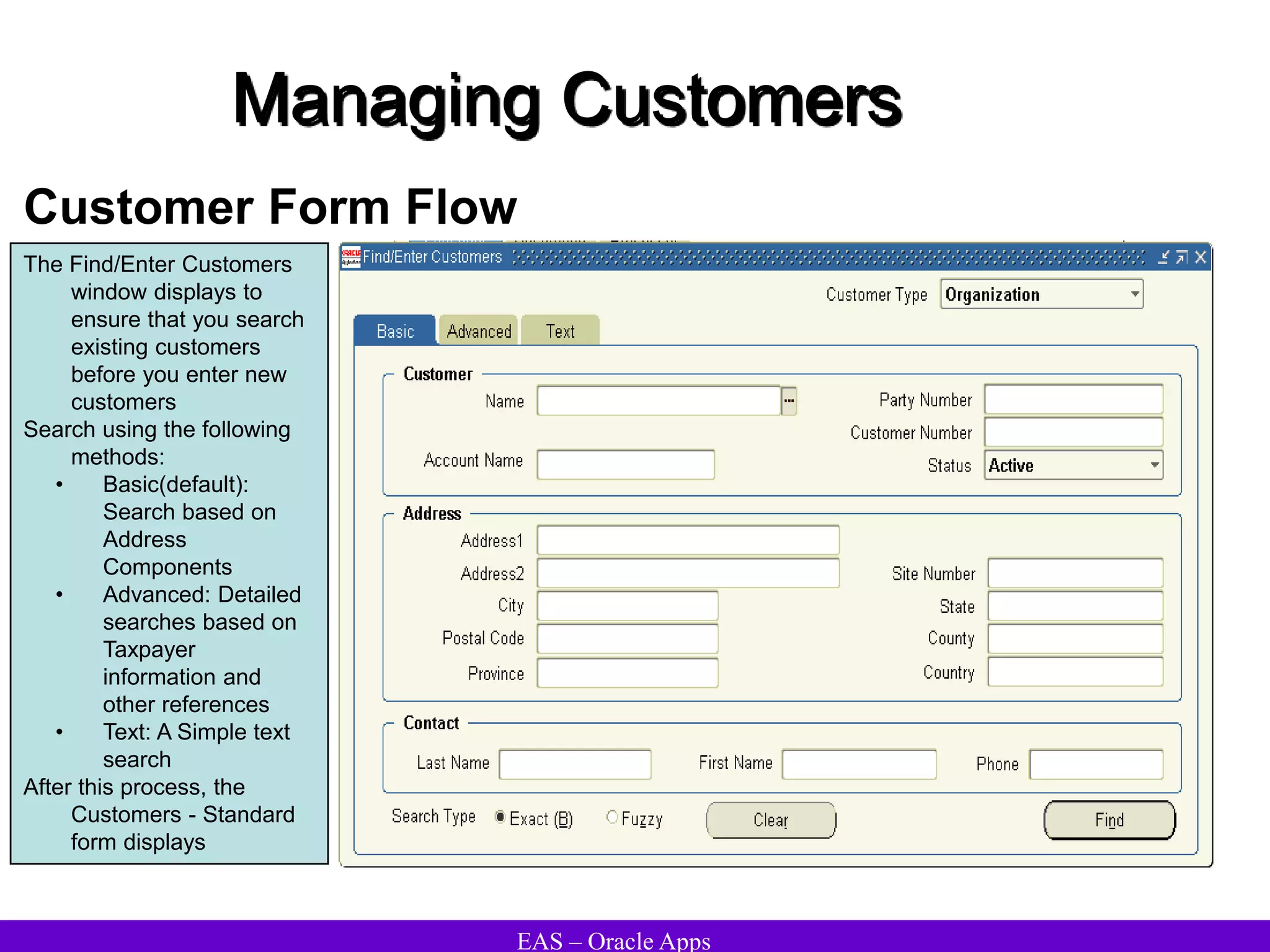
Customer Form Flow
The Find/Enter Customers
window displays to
ensure that you search
existing customers
before you enter new
customers
Search using the following
methods:
• Basic(default):
Search based on
Address
Components
• Advanced: Detailed
searches based on
Taxpayer
information and
other references
• Text: A Simple text
search
After this process, the
Customers - Standard
form displays
EAS – Oracle Apps
Managing Customers
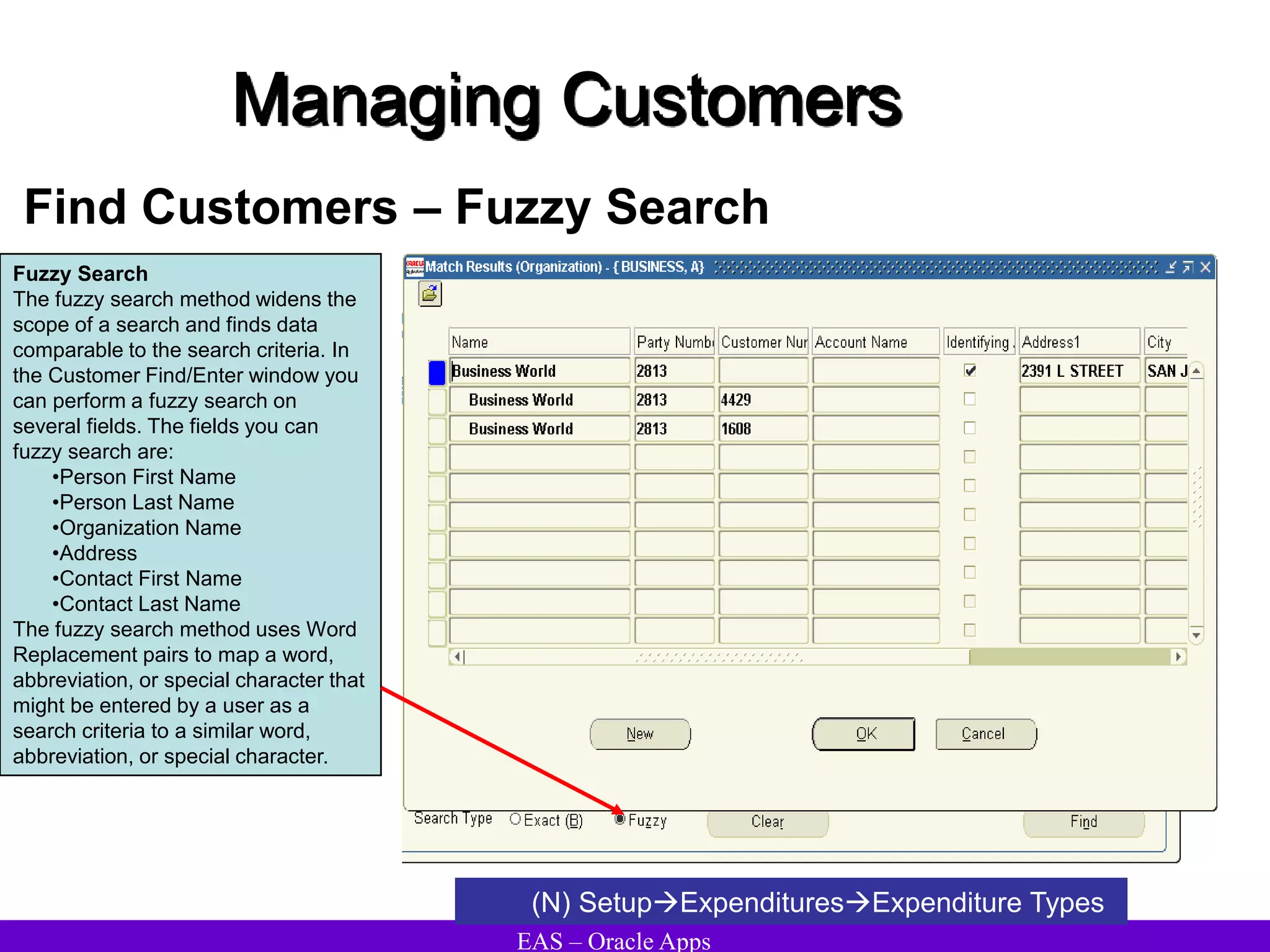
Find Customers – Fuzzy Search
(N) SetupExpendituresExpenditure Types
Fuzzy Search
The fuzzy search method widens the
scope of a search and finds data
comparable to the search criteria. In
the Customer Find/Enter window you
can perform a fuzzy search on
several fields. The fields you can
fuzzy search are:
•Person First Name
•Person Last Name
•Organization Name
•Address
•Contact First Name
•Contact Last Name
The fuzzy search method uses Word
Replacement pairs to map a word,
abbreviation, or special character that
might be entered by a user as a
search criteria to a similar word,
abbreviation, or special character.
EAS – Oracle Apps
Managing Customers
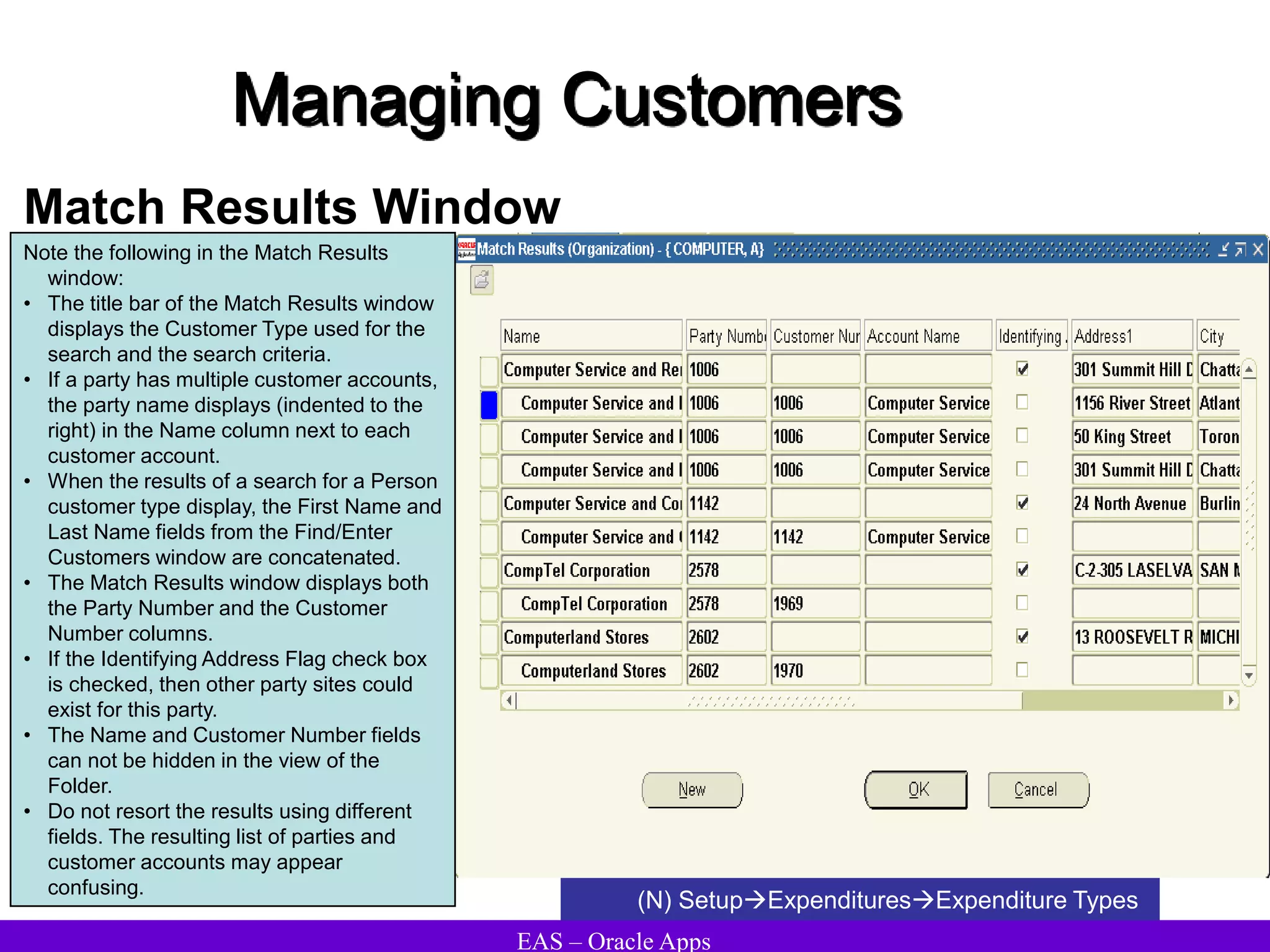
Match Results Window
(N) SetupExpendituresExpenditure Types
Note the following in the Match Results
window:
• The title bar of the Match Results window
displays the Customer Type used for the
search and the search criteria.
• If a party has multiple customer accounts,
the party name displays (indented to the
right) in the Name column next to each
customer account.
• When the results of a search for a Person
customer type display, the First Name and
Last Name fields from the Find/Enter
Customers window are concatenated.
• The Match Results window displays both
the Party Number and the Customer
Number columns.
• If the Identifying Address Flag check box
is checked, then other party sites could
exist for this party.
• The Name and Customer Number fields
can not be hidden in the view of the
Folder.
• Do not resort the results using different
fields. The resulting list of parties and
customer accounts may appear
confusing.
EAS – Oracle Apps
Managing Customers
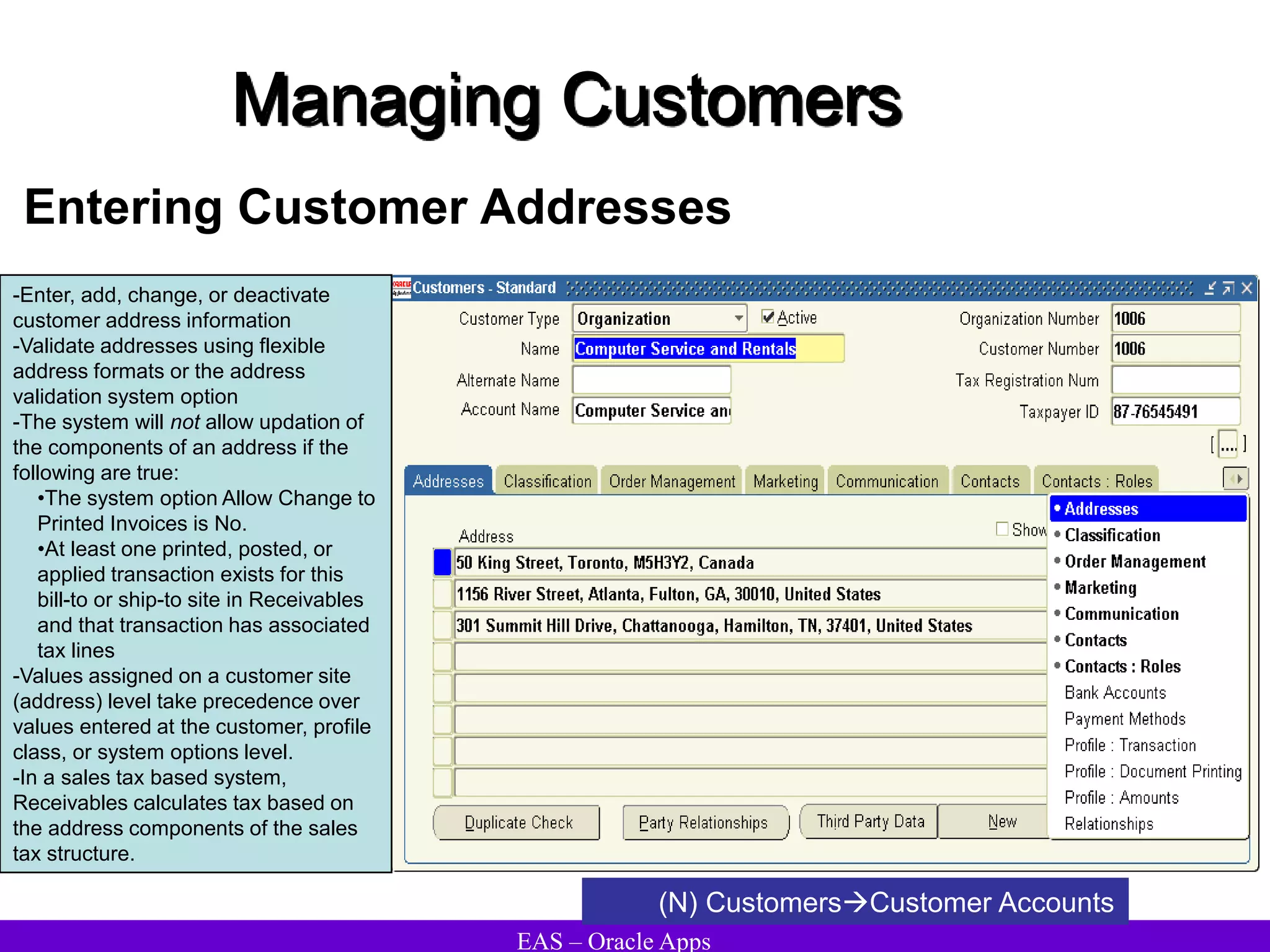
Entering Customer Addresses
(N) CustomersCustomer Accounts
-Enter, add, change, or deactivate
customer address information
-Validate addresses using flexible
address formats or the address
validation system option
-The system will not allow updation of
the components of an address if the
following are true:
•The system option Allow Change to
Printed Invoices is No.
•At least one printed, posted, or
applied transaction exists for this
bill-to or ship-to site in Receivables
and that transaction has associated
tax lines
-Values assigned on a customer site
(address) level take precedence over
values entered at the customer, profile
class, or system options level.
-In a sales tax based system,
Receivables calculates tax based on
the address components of the sales
tax structure.
EAS – Oracle Apps
Managing Customers
Customer Addresses
• Allow multiple organization or person customers can do business at one
location.
• Are global (not specific to operating units).
• Allow you to perform address validation using Vertex or TaxWare information.
• Have flexible address formatting with seeded and custom formats.
Customer Accounts
• Customer accounts model relationships between an organization deploying
Oracle Applications and an organization or person customer stored in the new
customer model registry.
• Additional organizations or person customers can play roles in accounts. The
new account model retains release 11i customer model features including:
– Credit profiles
– Terms of relationship (for example, discount terms)
– Customer bank accounts
EAS – Oracle Apps
Managing Customers
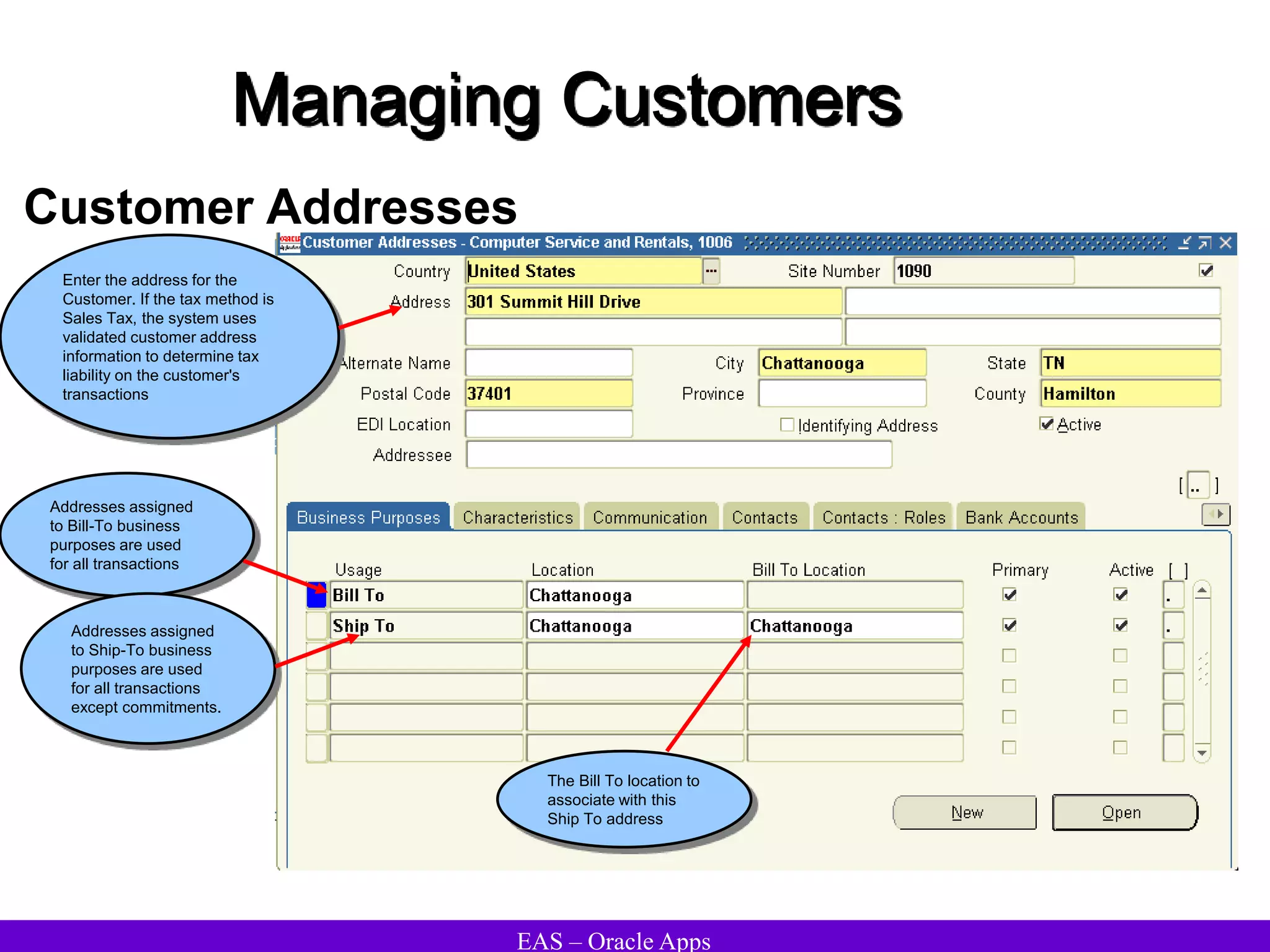
Customer Addresses
Enter the address for the
Customer. If the tax method is
Sales Tax, the system uses
validated customer address
information to determine tax
liability on the customer's
transactions
Addresses assigned
to Bill-To business
purposes are used
for all transactions
Addresses assigned
to Ship-To business
purposes are used
for all transactions
except commitments.
The Bill To location to
associate with this
Ship To address
EAS – Oracle Apps
Managing Customers
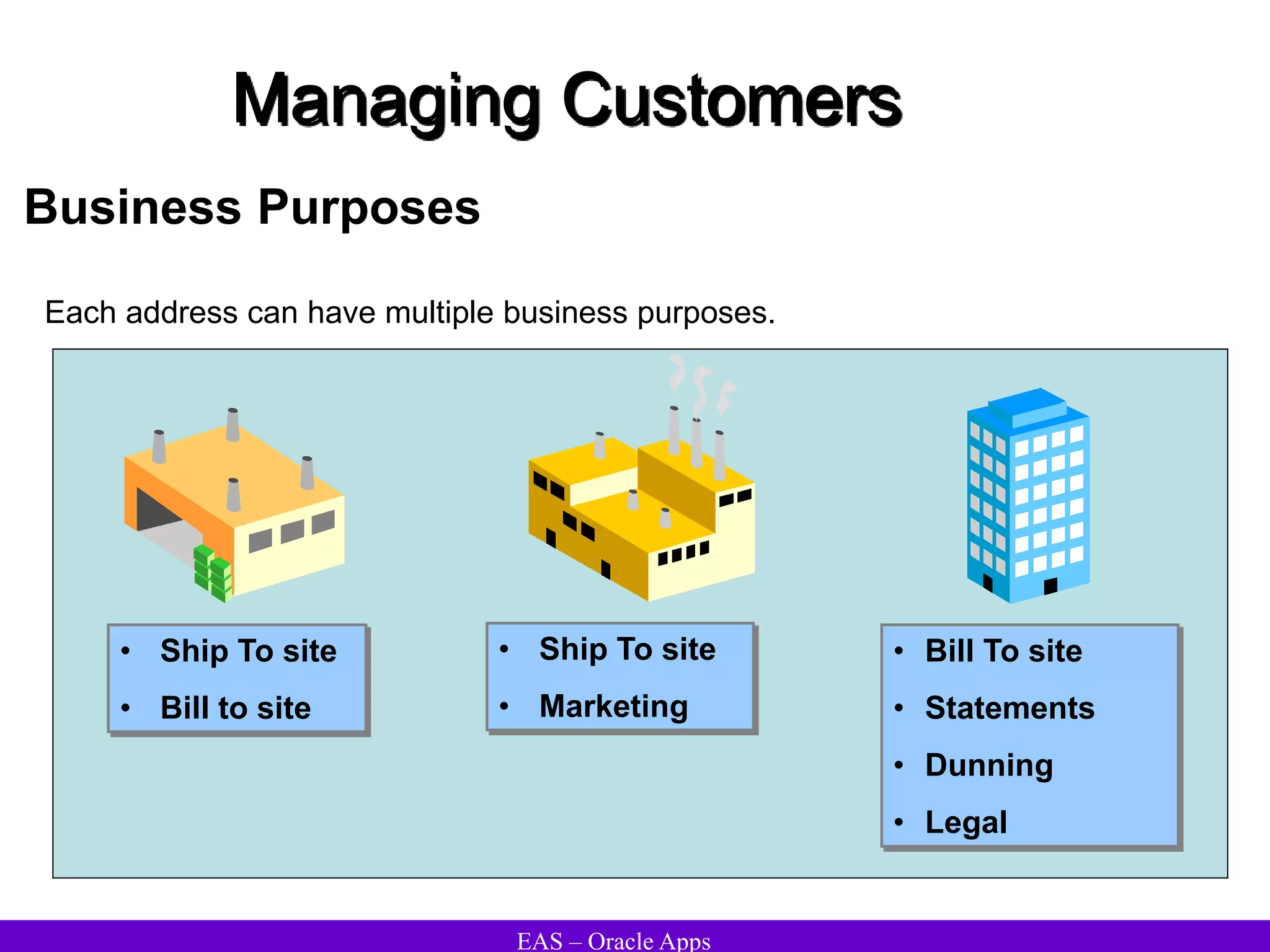
Business Purposes
Each address can have multiple business purposes.
• Ship To site
• Bill to site
• Bill To site
• Statements
• Dunning
• Legal
• Ship To site
• Marketing
EAS – Oracle Apps
Managing Customers
Business Purposes
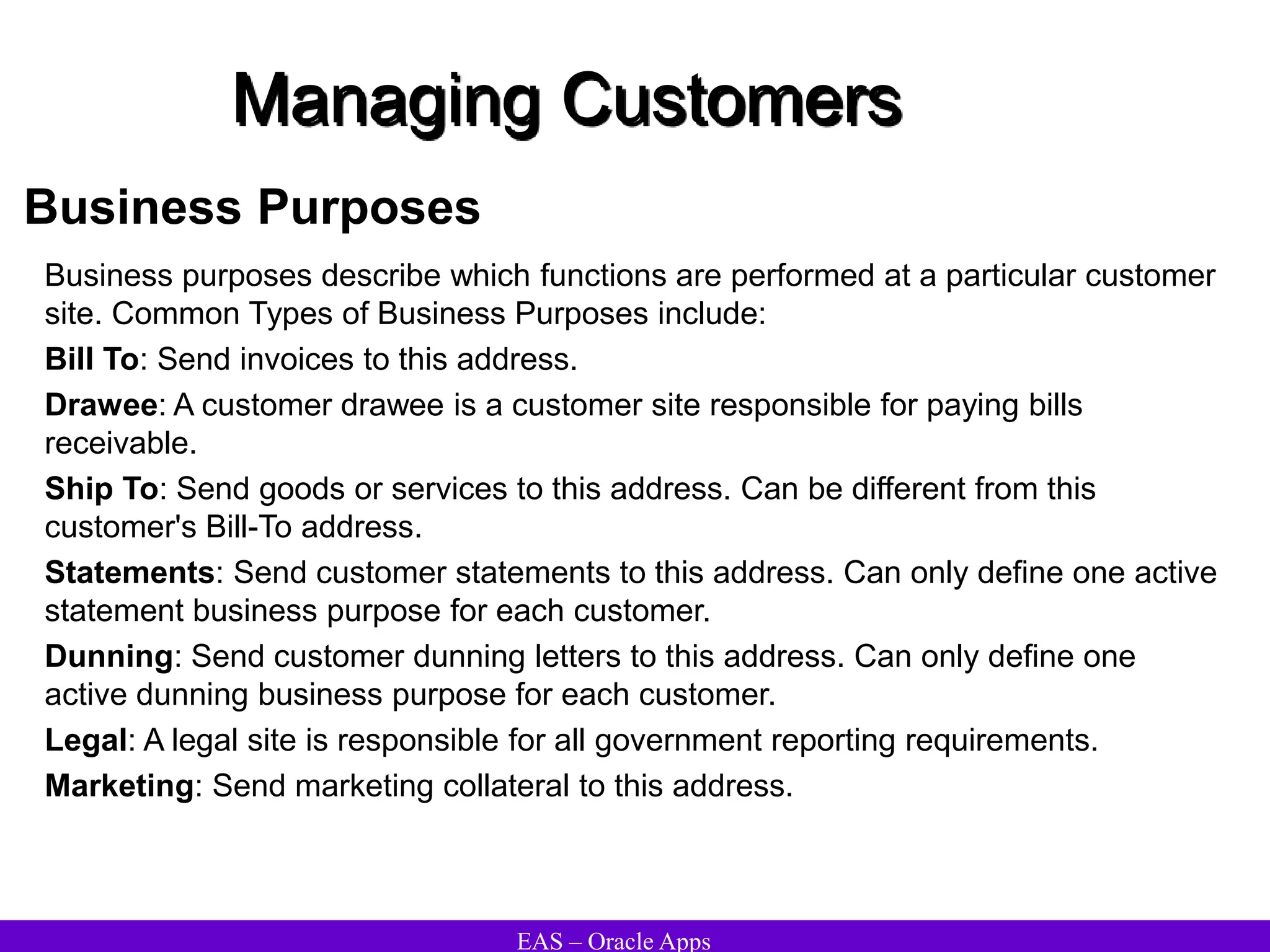
Business purposes describe which functions are performed at a particular customer
site. Common Types of Business Purposes include:
Bill To: Send invoices to this address.
Drawee: A customer drawee is a customer site responsible for paying bills
receivable.
Ship To: Send goods or services to this address. Can be different from this
customer's Bill-To address.
Statements: Send customer statements to this address. Can only define one active
statement business purpose for each customer.
Dunning: Send customer dunning letters to this address. Can only define one
active dunning business purpose for each customer.
Legal: A legal site is responsible for all government reporting requirements.
Marketing: Send marketing collateral to this address.
EAS – Oracle Apps
Managing Customers
Assigning Business Purposes Enter a name for this business
purpose in the Location field, If
Automatic Site Numbering in
the System Options window is
set to No
Enter the Territory Flexfield to
associate with this address
Enter the default
finance charges activity
for this customer
If the inventory location
entered is associated with an
organization, the system
displays the organization
name in this field.
The location of inventory
for this business purpose
address.
Enter values in
this region if this is
a Ship-To site.
Values can be entered in this
region if this is a Bill-To site
and Allow Override is set to
Yes in the Tax tabbed region of
the System Options window.
Choose a tax calculation
level ( line or Header) if
the Tax Method is VAT.
Choose one of the Tax
Classifications defined
in Receivables Lookup
Codes
Choose a tax
rounding rule for
transactions billed to
this site. Choose from
Up, Down or Nearest.
EAS – Oracle Apps
Managing Customers
Business Purposes – Accounts Tab
The AutoInvoice Clearing account
for this address. AutoAccounting
uses this value to derive the
AutoInvoice Clearing account from
the transaction bill-to site. A value
can be entered in this field only if the
business purpose for this address is
Bill-To.
The Receivable account for
this address
The Freight account for this
address. AutoAccounting uses
this value ito derive the Freight
account from the transaction
bill-to site.
Unbilled Receivable account
for this address.
The Tax account for this
address
The Unearned Revenue
account for this address.
The Revenue
account for this
address
EAS – Oracle Apps
Managing Customers
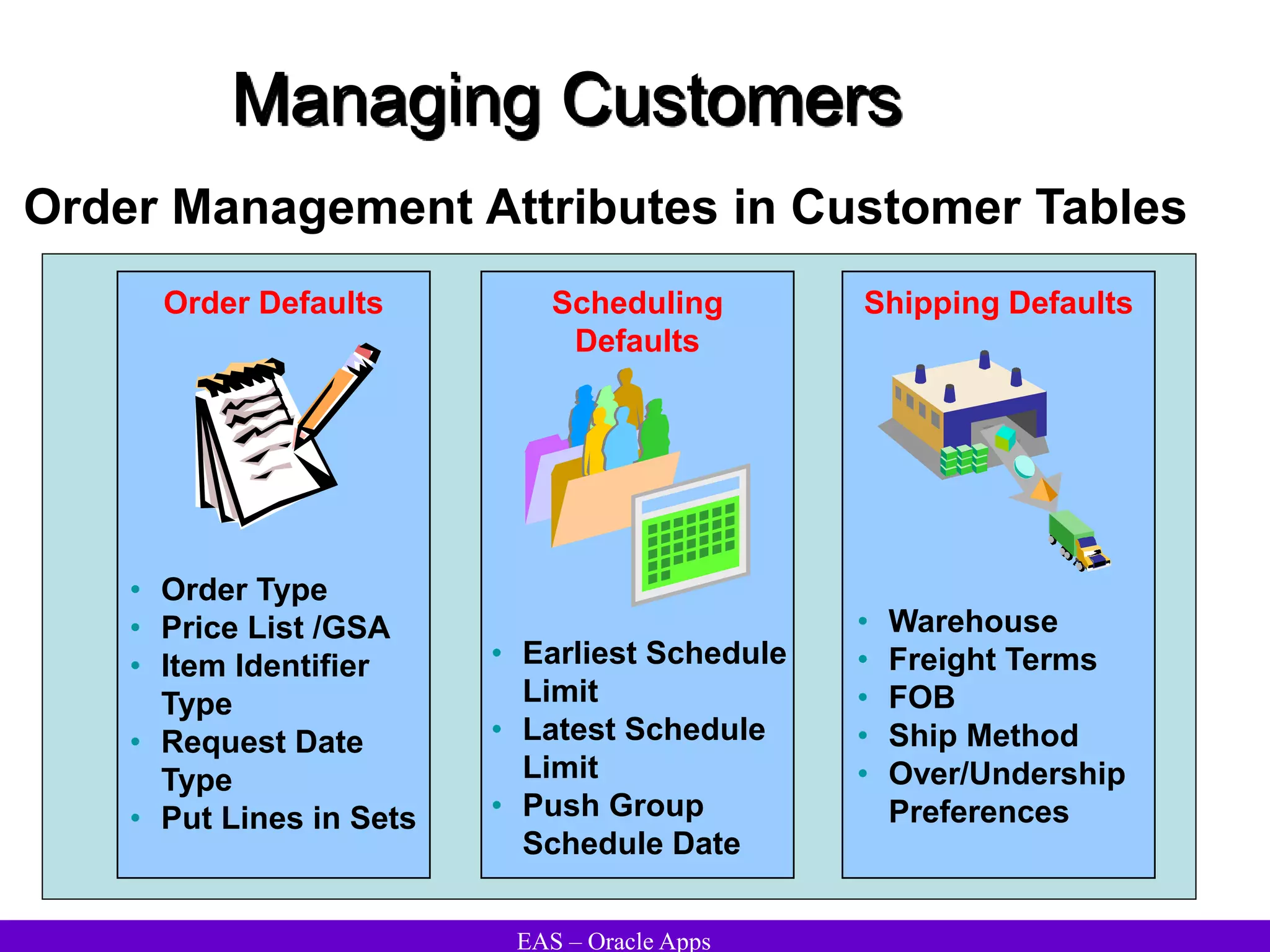
Order Management Attributes in Customer Tables
Shipping Defaults
• Warehouse
• Freight Terms
• FOB
• Ship Method
• Over/Undership
Preferences
Scheduling
Defaults
• Order Type
• Price List /GSA
• Item Identifier
Type
• Request Date
Type
• Put Lines in Sets
Order Defaults
• Earliest Schedule
Limit
• Latest Schedule
Limit
• Push Group
Schedule Date
EAS – Oracle Apps
Managing Customers
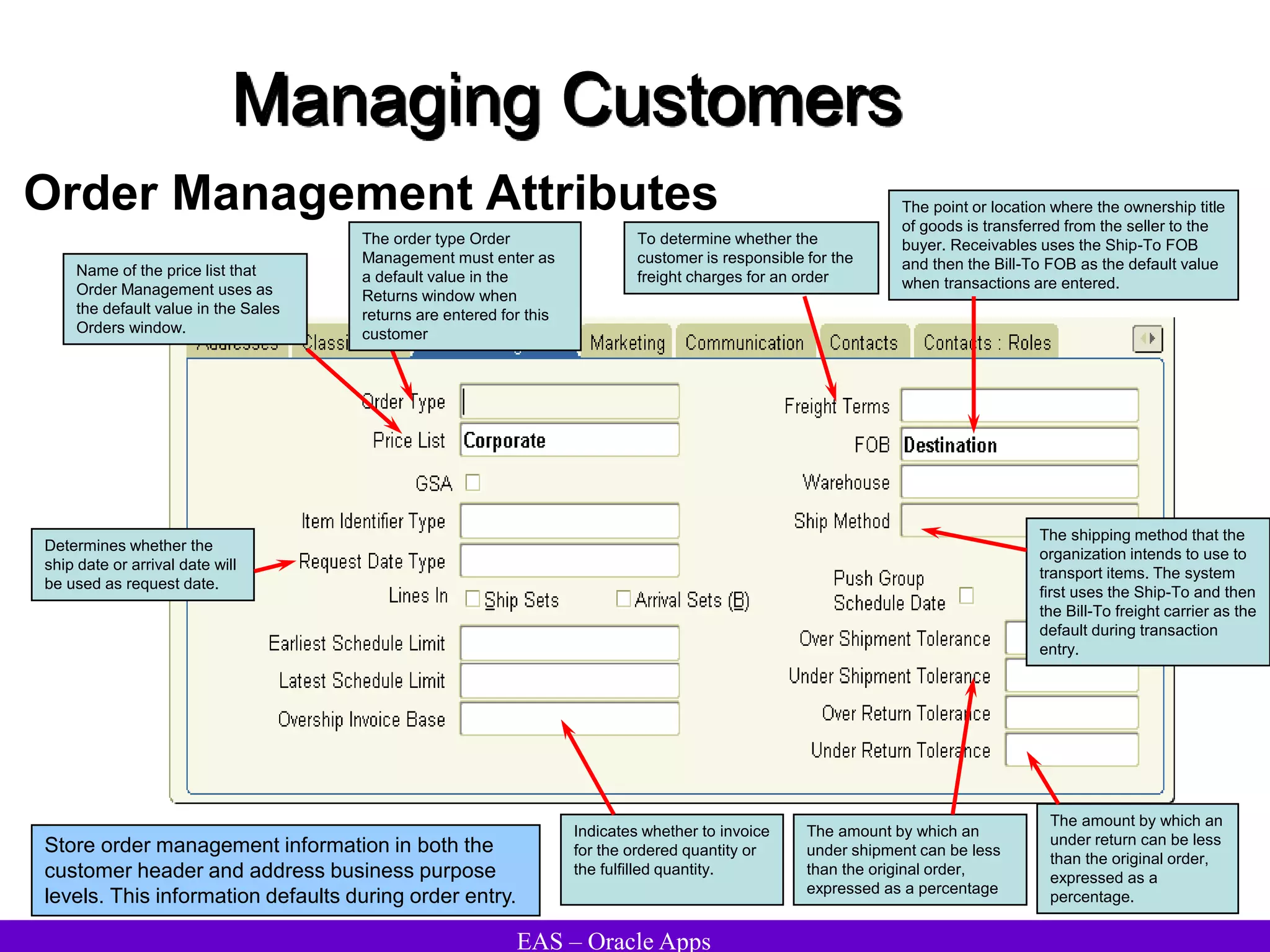
Order Management Attributes
Store order management information in both the
customer header and address business purpose
levels. This information defaults during order entry.
The point or location where the ownership title
of goods is transferred from the seller to the
buyer. Receivables uses the Ship-To FOB
and then the Bill-To FOB as the default value
when transactions are entered.
To determine whether the
customer is responsible for the
freight charges for an order
The amount by which an
under return can be less
than the original order,
expressed as a
percentage.
Name of the price list that
Order Management uses as
the default value in the Sales
Orders window.
The order type Order
Management must enter as
a default value in the
Returns window when
returns are entered for this
customer
Determines whether the
ship date or arrival date will
be used as request date.
The shipping method that the
organization intends to use to
transport items. The system
first uses the Ship-To and then
the Bill-To freight carrier as the
default during transaction
entry.
Indicates whether to invoice
for the ordered quantity or
the fulfilled quantity.
The amount by which an
under shipment can be less
than the original order,
expressed as a percentage
EAS – Oracle Apps
Managing Customers
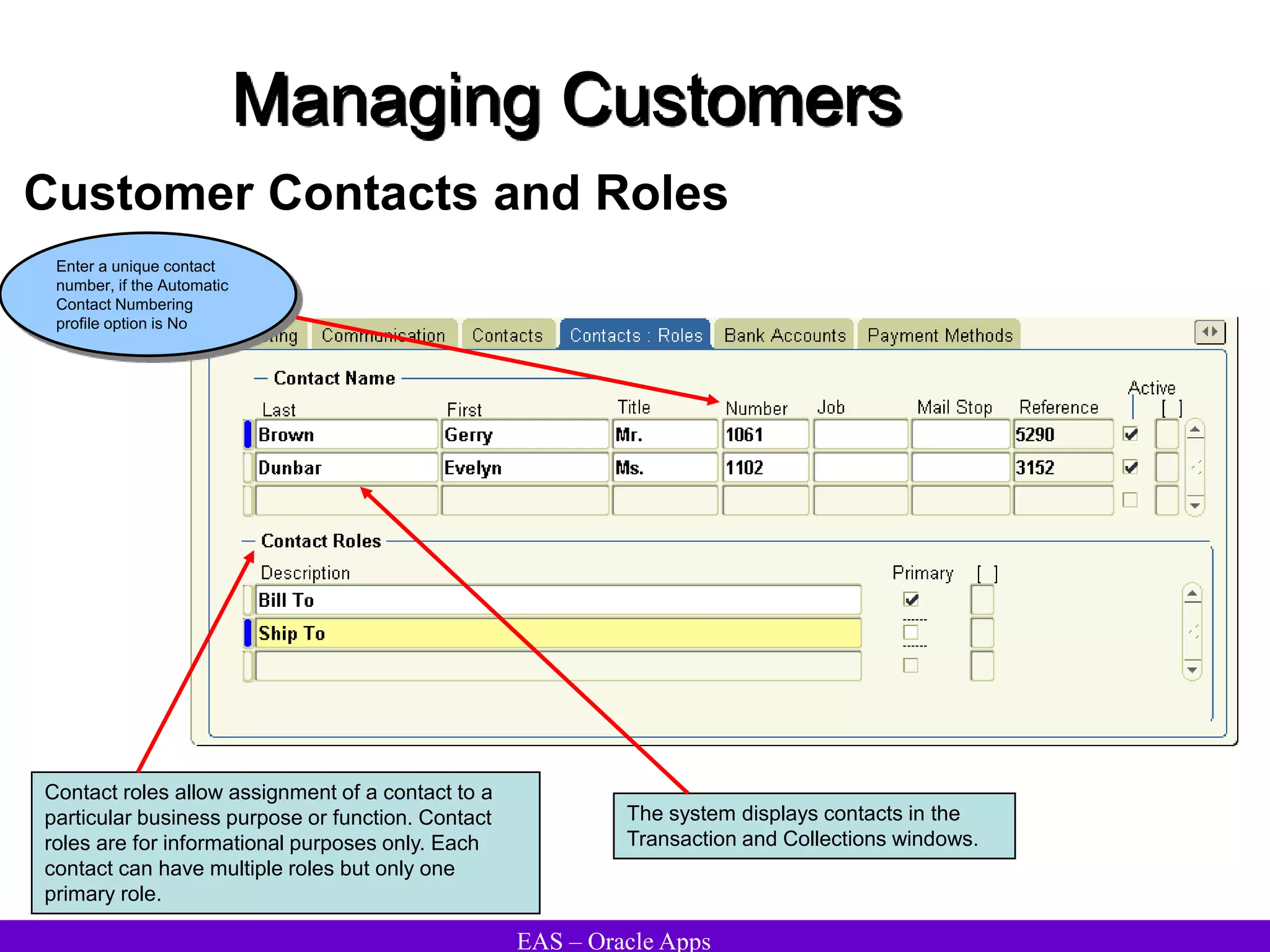
Customer Contacts and Roles
Contact roles allow assignment of a contact to a
particular business purpose or function. Contact
roles are for informational purposes only. Each
contact can have multiple roles but only one
primary role.
Enter a unique contact
number, if the Automatic
Contact Numbering
profile option is No
The system displays contacts in the
Transaction and Collections windows.
EAS – Oracle Apps
Managing Customers
Bank Accounts
Assign bank accounts to customers to allow funds to
be automatically transferred from these accounts to
the remittance bank accounts when using Automatic
Receipts. Define multiple, non-primary accounts in
the same currency, even if the date ranges overlap.
Enter either the Account Name
or Account Number for this
bank account
The primary bank account for a particular currency is
used as the default account when Automatic Receipts
are used. Only one active, primary account per
currency for the customer or site can be assigned.
EAS – Oracle Apps
Managing Customers
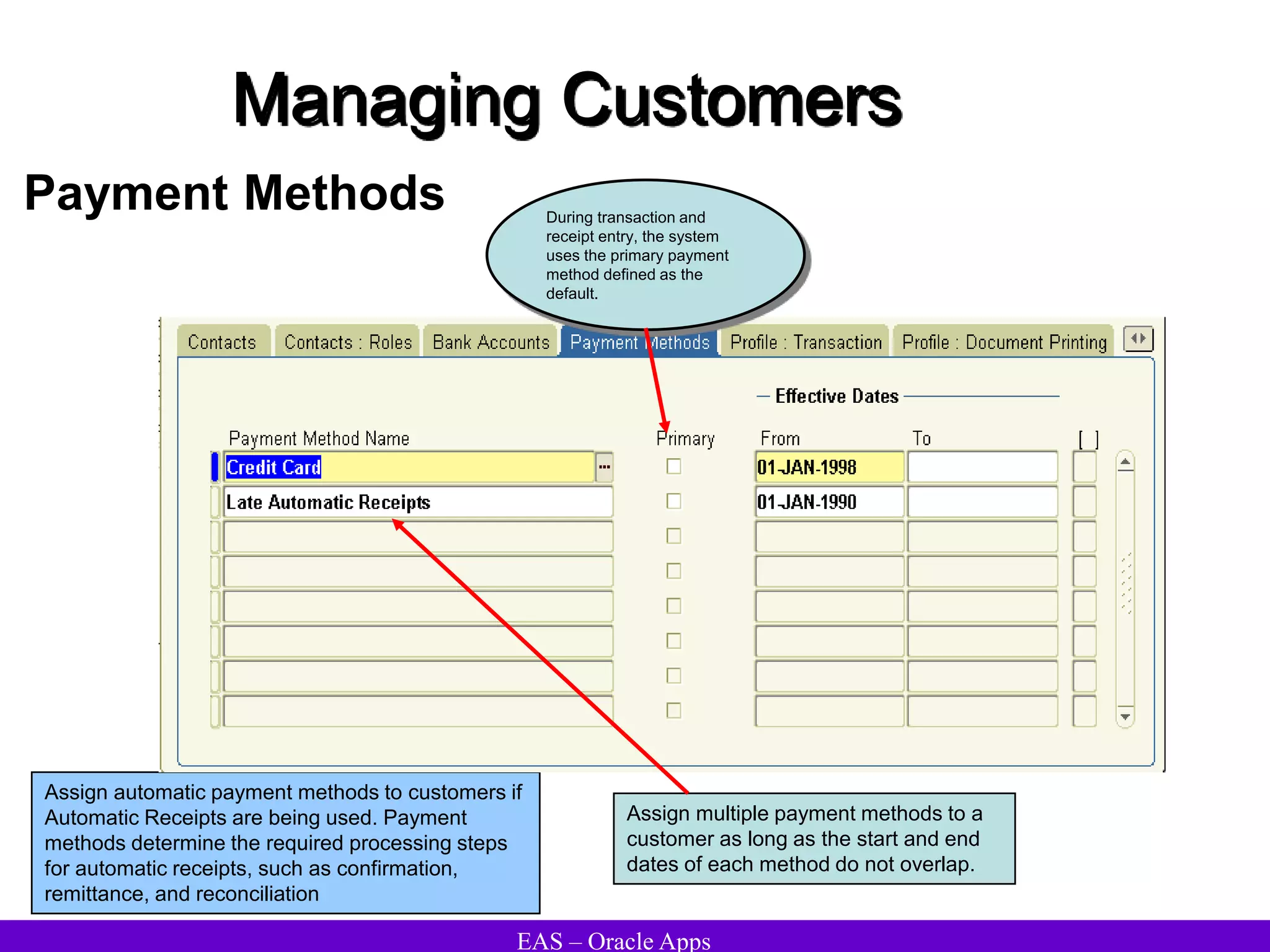
Payment Methods
Assign automatic payment methods to customers if
Automatic Receipts are being used. Payment
methods determine the required processing steps
for automatic receipts, such as confirmation,
remittance, and reconciliation
During transaction and
receipt entry, the system
uses the primary payment
method defined as the
default.
Assign multiple payment methods to a
customer as long as the start and end
dates of each method do not overlap.
EAS – Oracle Apps
Managing Customers
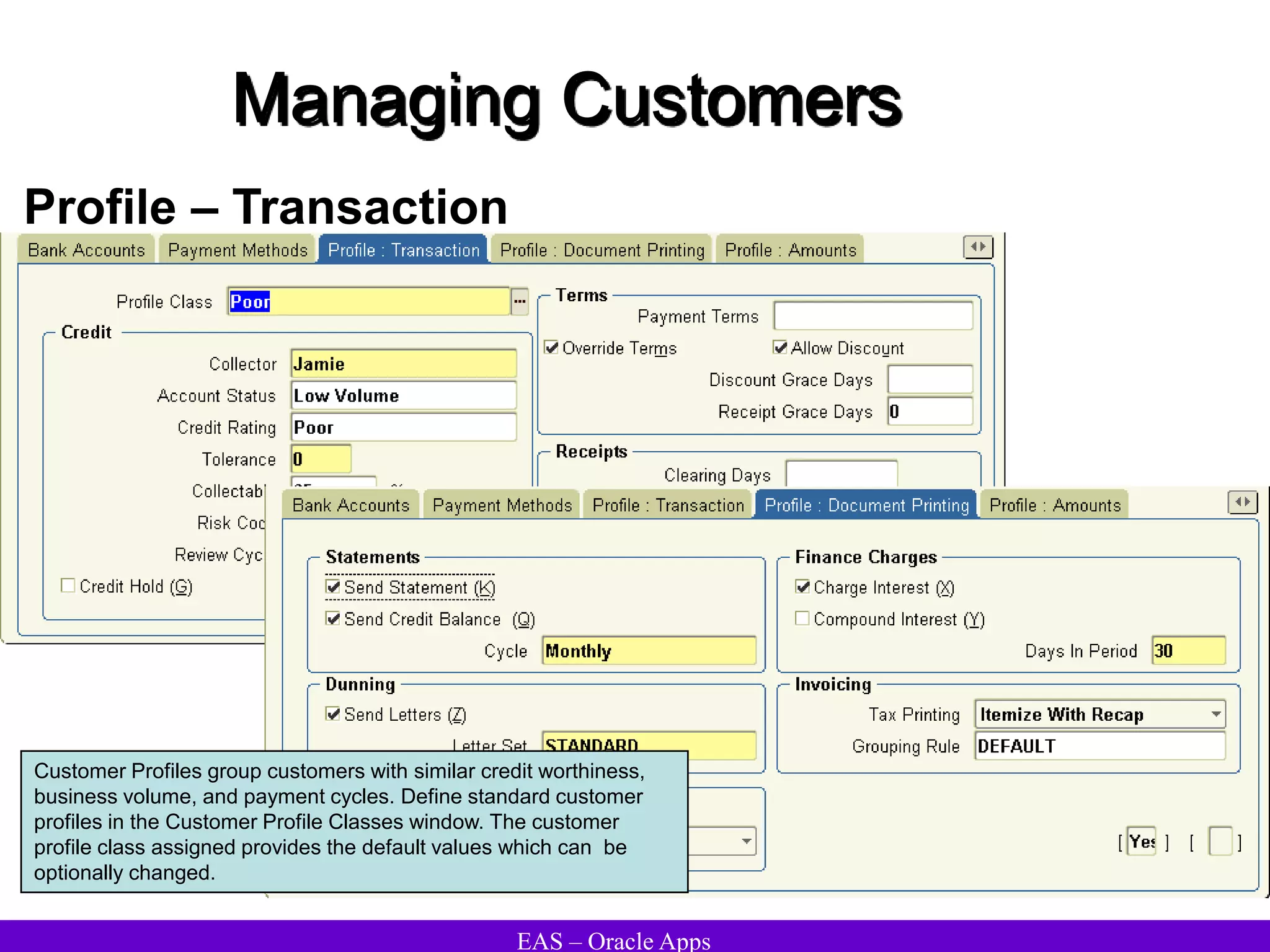
Profile – Transaction
Customer Profiles group customers with similar credit worthiness,
business volume, and payment cycles. Define standard customer
profiles in the Customer Profile Classes window. The customer
profile class assigned provides the default values which can be
optionally changed.
EAS – Oracle Apps
Managing Customers
Customer Relationships
Create customer relationships to control:
• Payment of unrelated invoices
• Sharing of pricing entitlements
• Consolidation of business addresses
• Link one customer to another.
• Enforce invoicing and receipt-application controls.
• Can only exist between two customers.
• Are not transitive: If A is related to B and B is related to C, A and C are not
related.
• Can be reciprocal or nonreciprocal.
• Allow you to select a related customer’s ship-to address during order entry.
EAS – Oracle Apps
Managing Customers
Reciprocal
Related
(child)
Primary
(parent)
Nonreciprocal
Related
Primary
Primary
Related
Customer Relationship
EAS – Oracle Apps
Managing Customers
Customer Relationships
(N) CustomersCustomer AccountsRelationships
Enter the Type of relationship
to use to classify customers.
This field is only for
informational purposes.
Specifies whether the
relationship is a sill to
relation
Allows customers to pay
each other's debit items and
enter invoices against each
other's commitments.
Specifies whether the
relationship is a bill to
relation
EAS – Oracle Apps
Managing Customers
Party Relations
(N) CustomersRelationships
Use the Party Relations window to view, update, and
create relationships for parties. These relationships
model the party registry as a realistic business
world. Multiple relationships between any parties
with the predefined relationship types can be
created .
The party that the
customer is related to
Relationship types
categorize
relationships.
The party type of the
object defaults in the
Object Type field.
EAS – Oracle Apps
Managing Customers
Profile Classes
•Use profile classes to describe and group customers with similar financial
characteristics
•Use profile classes to enter new customers quickly and consistently
•When a customer is established , the customer processing function assigns it to
the default (seeded) customer profile class.
•To assign the customer to a different profile class, select it from the list of values
before saving.
EAS – Oracle Apps
Managing Customers
• Credit check
• Collector
• Payment
application
• Dunning letters
• Finance charges
Invoices and
Statements
• Invoice line
and tax printing
• Statement cycle
• Consolidated
invoices
Credit/collections Payment
promptness
• Payment terms
• Discounts
• Grace days
Customer Profile Class Characteristics
EAS – Oracle Apps
Managing Customers
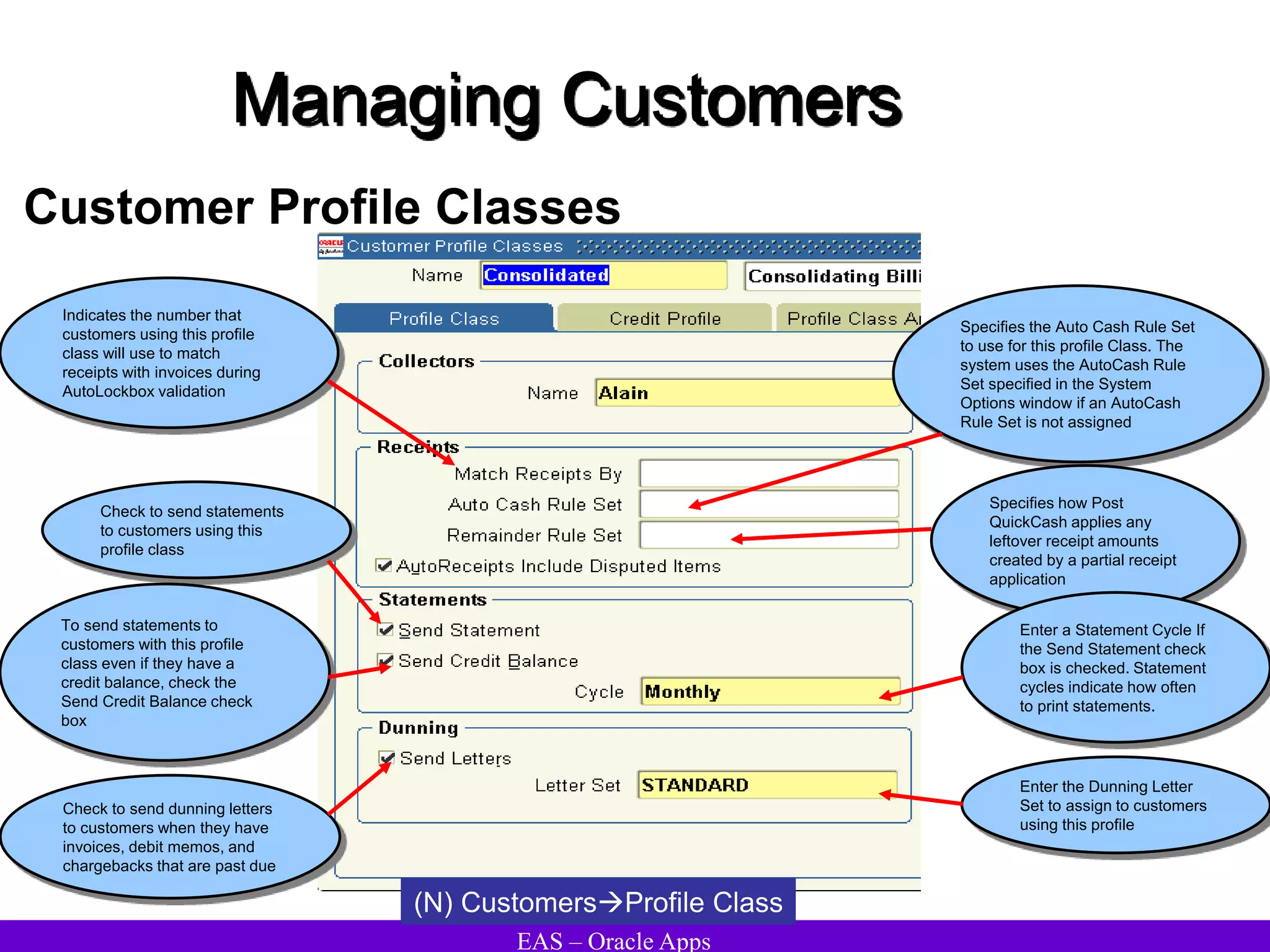
Customer Profile Classes
(N) CustomersProfile Class
Specifies the Auto Cash Rule Set
to use for this profile Class. The
system uses the AutoCash Rule
Set specified in the System
Options window if an AutoCash
Rule Set is not assigned
Indicates the number that
customers using this profile
class will use to match
receipts with invoices during
AutoLockbox validation
Specifies how Post
QuickCash applies any
leftover receipt amounts
created by a partial receipt
application
Check to send statements
to customers using this
profile class
To send statements to
customers with this profile
class even if they have a
credit balance, check the
Send Credit Balance check
box
Enter a Statement Cycle If
the Send Statement check
box is checked. Statement
cycles indicate how often
to print statements.
Enter the Dunning Letter
Set to assign to customers
using this profile
Check to send dunning letters
to customers when they have
invoices, debit memos, and
chargebacks that are past due
EAS – Oracle Apps
Managing Customers
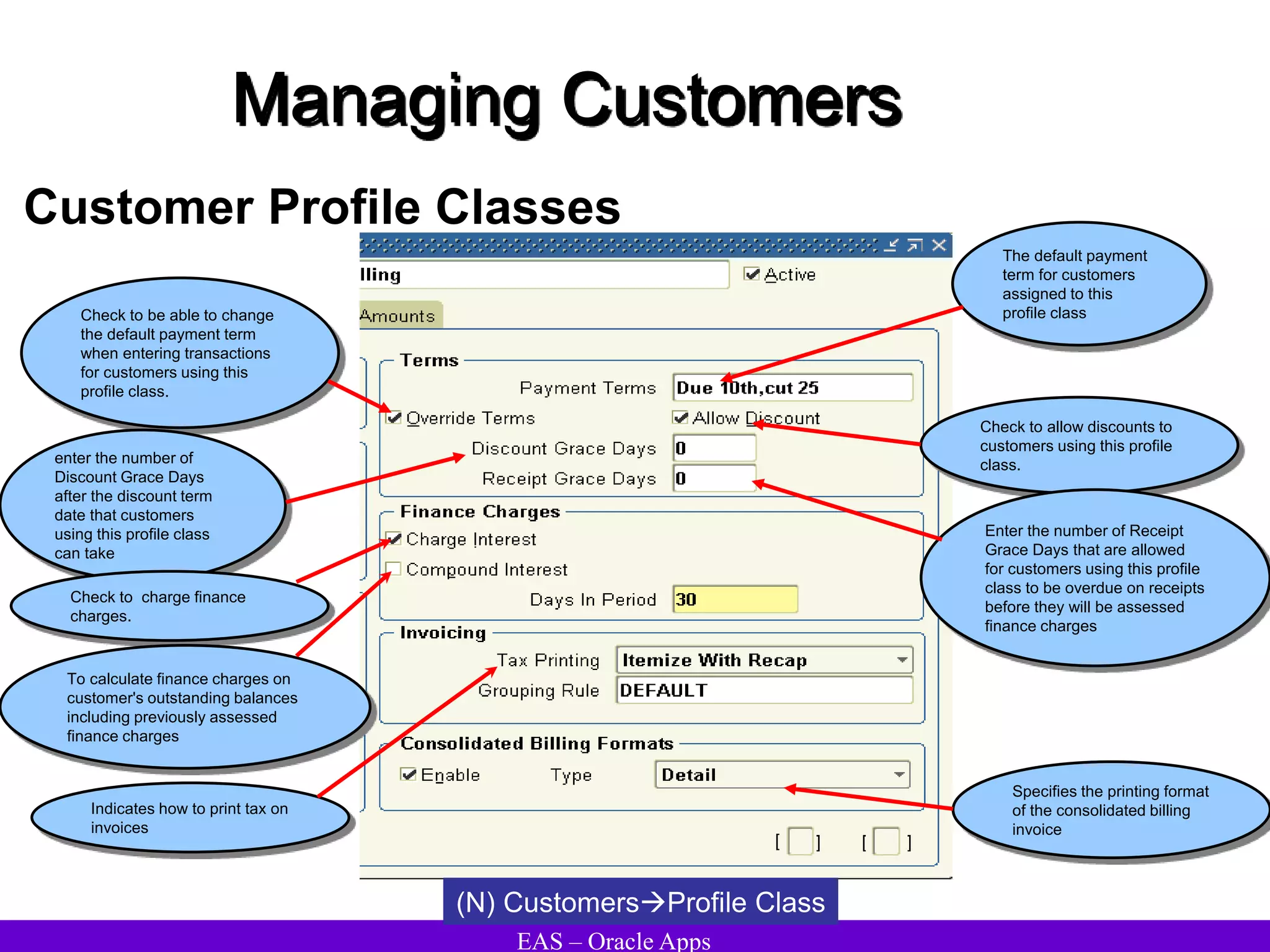
Customer Profile Classes
(N) CustomersProfile Class
The default payment
term for customers
assigned to this
profile class
Check to be able to change
the default payment term
when entering transactions
for customers using this
profile class.
enter the number of
Discount Grace Days
after the discount term
date that customers
using this profile class
can take
Check to allow discounts to
customers using this profile
class.
Enter the number of Receipt
Grace Days that are allowed
for customers using this profile
class to be overdue on receipts
before they will be assessed
finance charges
Check to charge finance
charges.
To calculate finance charges on
customer's outstanding balances
including previously assessed
finance charges
Indicates how to print tax on
invoices
Specifies the printing format
of the consolidated billing
invoice
EAS – Oracle Apps
Managing Customers
Customer Profile Classes
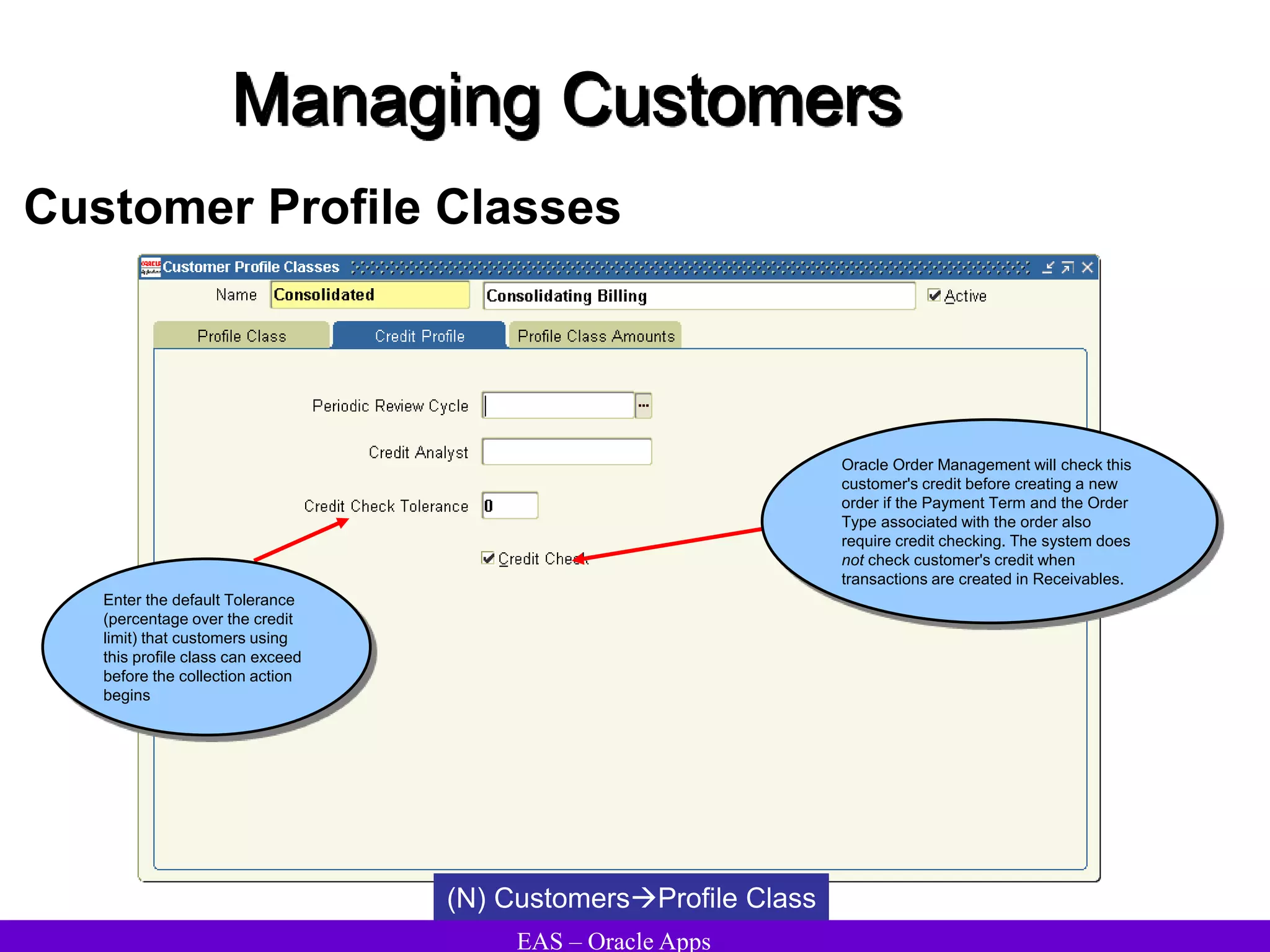
Enter the default Tolerance
(percentage over the credit
limit) that customers using
this profile class can exceed
before the collection action
begins
Oracle Order Management will check this
customer's credit before creating a new
order if the Payment Term and the Order
Type associated with the order also
require credit checking. The system does
not check customer's credit when
transactions are created in Receivables.
(N) CustomersProfile Class
EAS – Oracle Apps
Managing Customers
Customer Profile Classes
(N) CustomersProfile Class
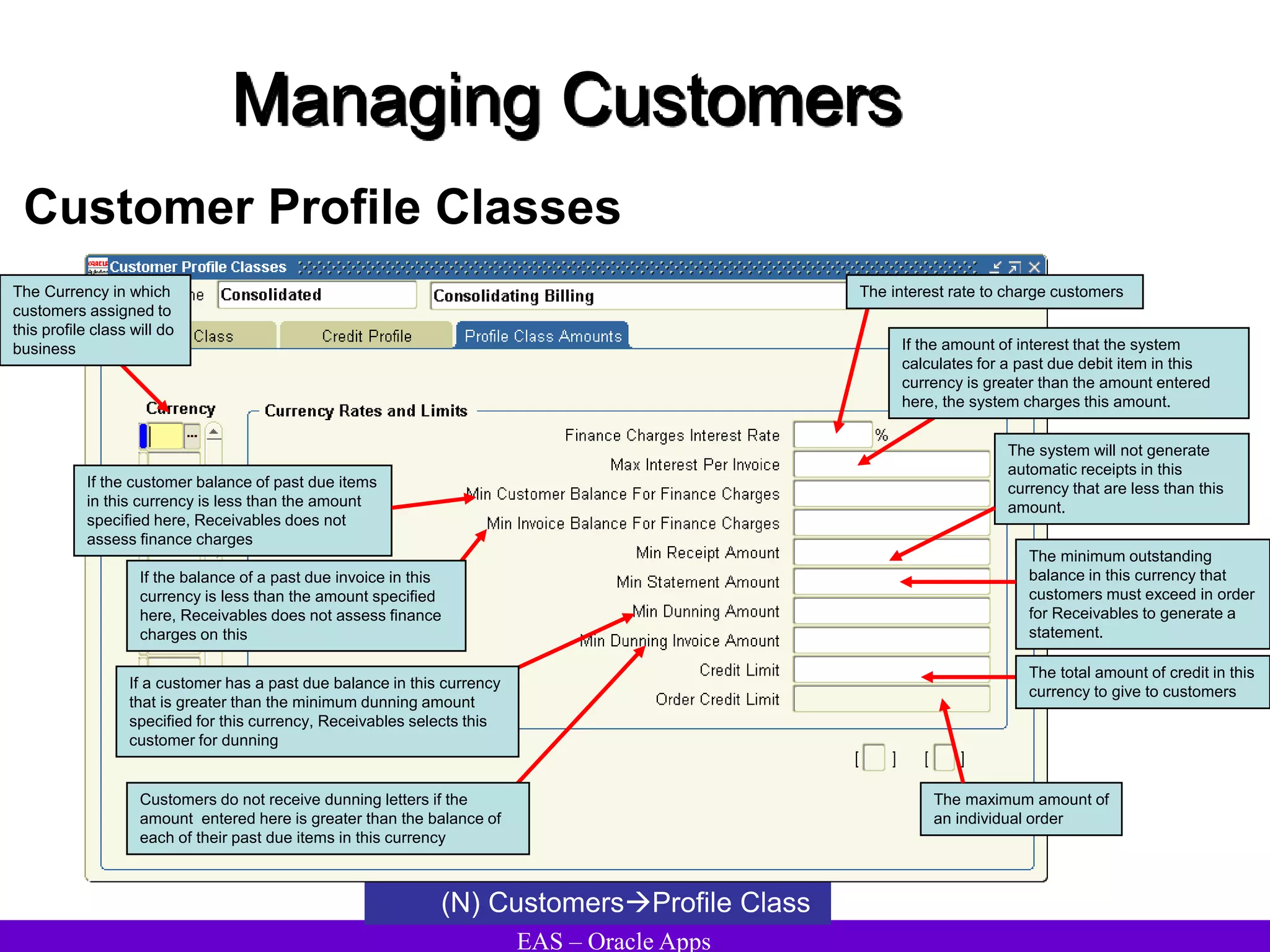
The Currency in which
customers assigned to
this profile class will do
business If the amount of interest that the system
calculates for a past due debit item in this
currency is greater than the amount entered
here, the system charges this amount.
The interest rate to charge customers
If the customer balance of past due items
in this currency is less than the amount
specified here, Receivables does not
assess finance charges
The system will not generate
automatic receipts in this
currency that are less than this
amount.
If the balance of a past due invoice in this
currency is less than the amount specified
here, Receivables does not assess finance
charges on this
The minimum outstanding
balance in this currency that
customers must exceed in order
for Receivables to generate a
statement.
If a customer has a past due balance in this currency
that is greater than the minimum dunning amount
specified for this currency, Receivables selects this
customer for dunning
Customers do not receive dunning letters if the
amount entered here is greater than the balance of
each of their past due items in this currency
The total amount of credit in this
currency to give to customers
The maximum amount of
an individual order
EAS – Oracle Apps
Managing Customers
Merge Customers
Merge customers to:
• Eliminate incorrect data and duplicate information
• Consolidate account site data
• Merge Customers or Sites
• Merge Individuals or Organizations
• Reflect customer account changes due to business consolidation
• Merging customer information combines all information for two customer
accounts or account sites, striped by operating unit.
• Delete or inactivate the merge-from customer account and account sites uses.
• Customer Merge updates the customer information for all of the old customers
transactions.
EAS – Oracle Apps
Managing Customers
Merging Other Application Transactions
The system automatically merges all transactions associated with the merge
candidates in these applications as well:
• Automotive
• Customer Service
• Inventory
• Master Scheduling /MRP Planning
• Order Management
• Payables
• Projects
• Purchasing
• Sales and Marketing
EAS – Oracle Apps
Managing Customers
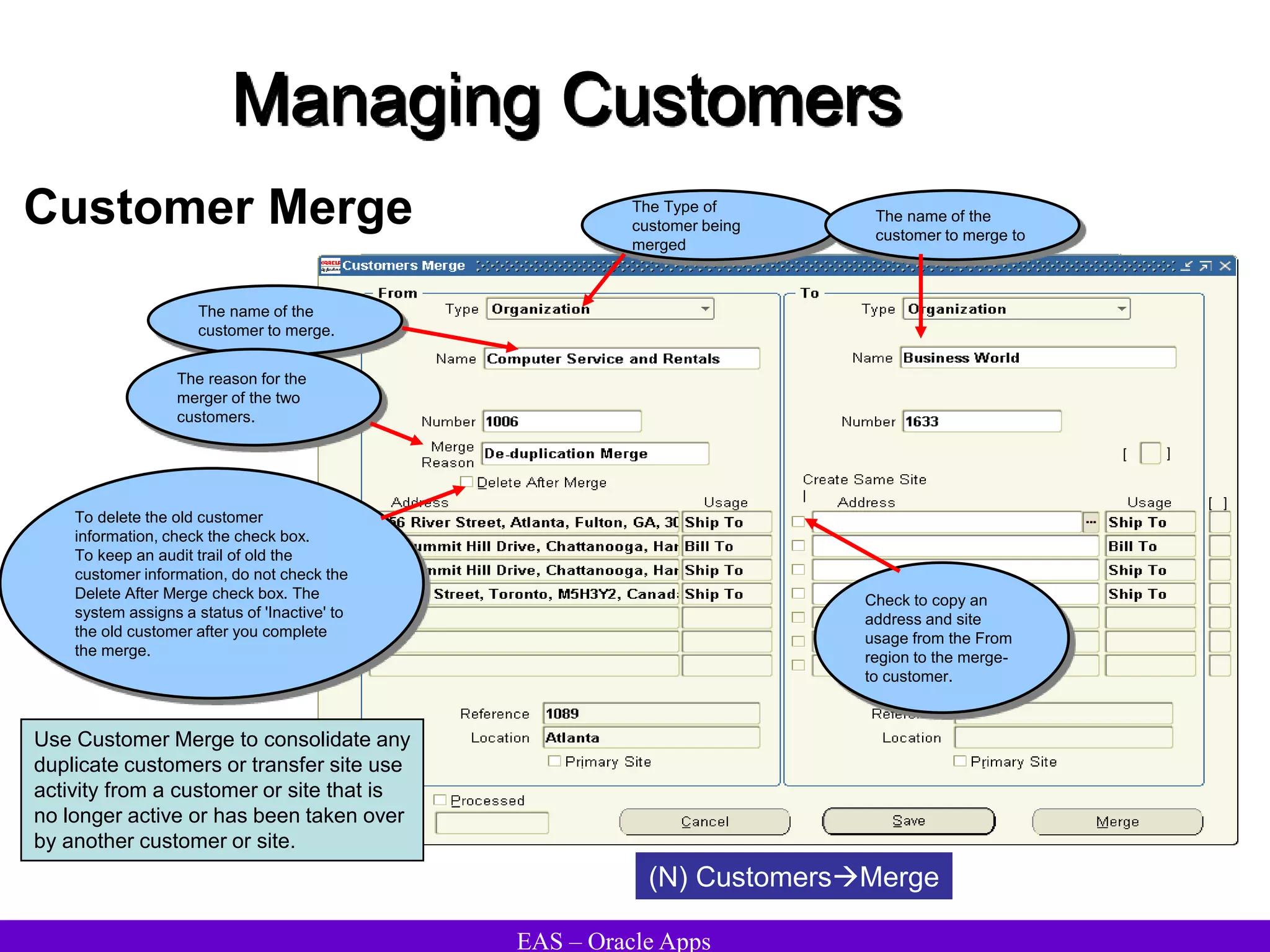
Customer Merge
(N) CustomersMerge
Use Customer Merge to consolidate any
duplicate customers or transfer site use
activity from a customer or site that is
no longer active or has been taken over
by another customer or site.
The Type of
customer being
merged
The name of the
customer to merge.
The name of the
customer to merge to
The reason for the
merger of the two
customers.
To delete the old customer
information, check the check box.
To keep an audit trail of old the
customer information, do not check the
Delete After Merge check box. The
system assigns a status of 'Inactive' to
the old customer after you complete
the merge.
Check to copy an
address and site
usage from the From
region to the merge-
to customer.
EAS – Oracle Apps
Processing Invoices
EAS – Oracle Apps
Processing Invoices
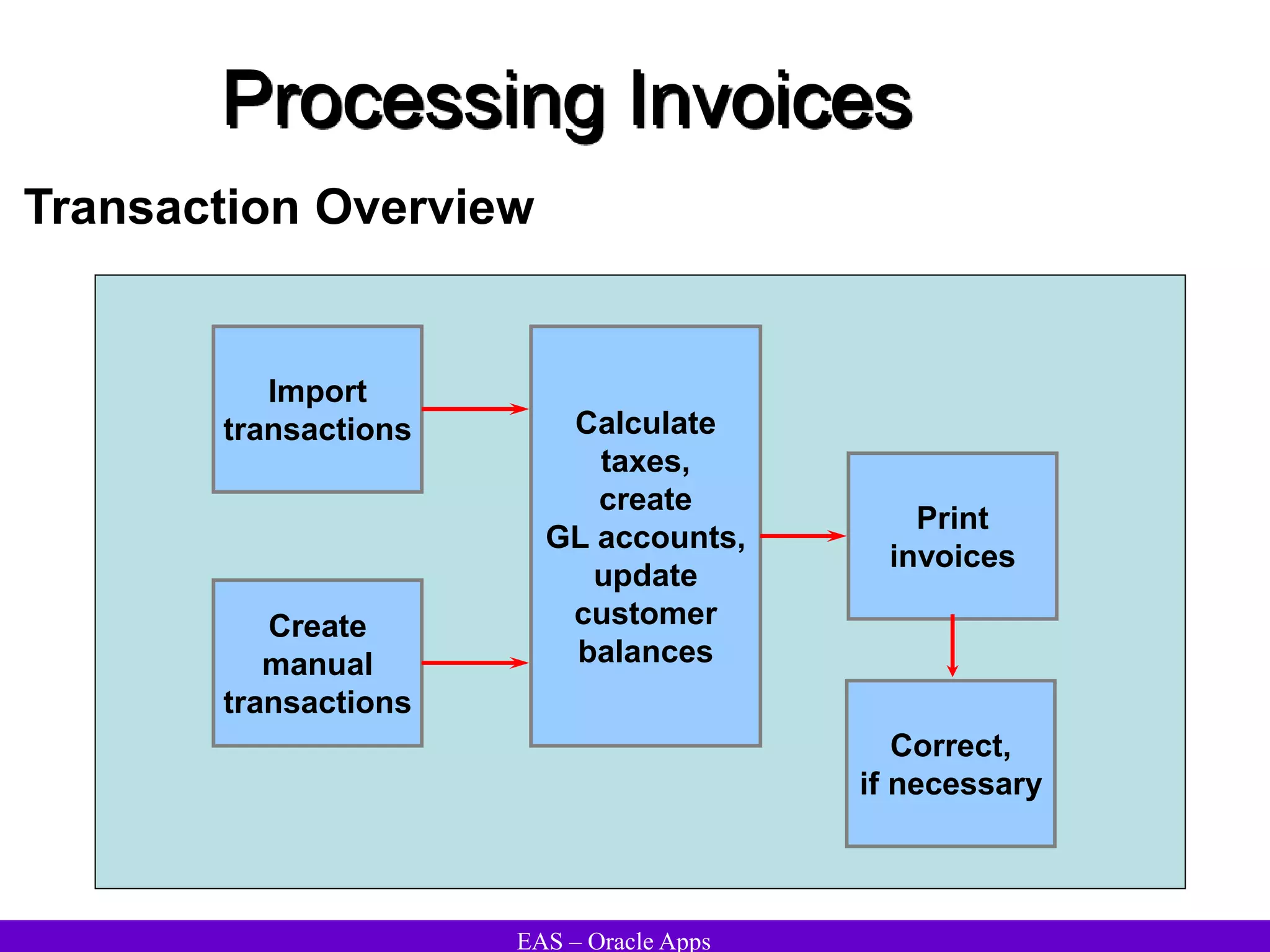
Transaction Overview
Import
transactions
Create
manual
transactions
Calculate
taxes,
create
GL accounts,
update
customer
balances
Print
invoices
Correct,
if necessary
EAS – Oracle Apps
Processing Invoices
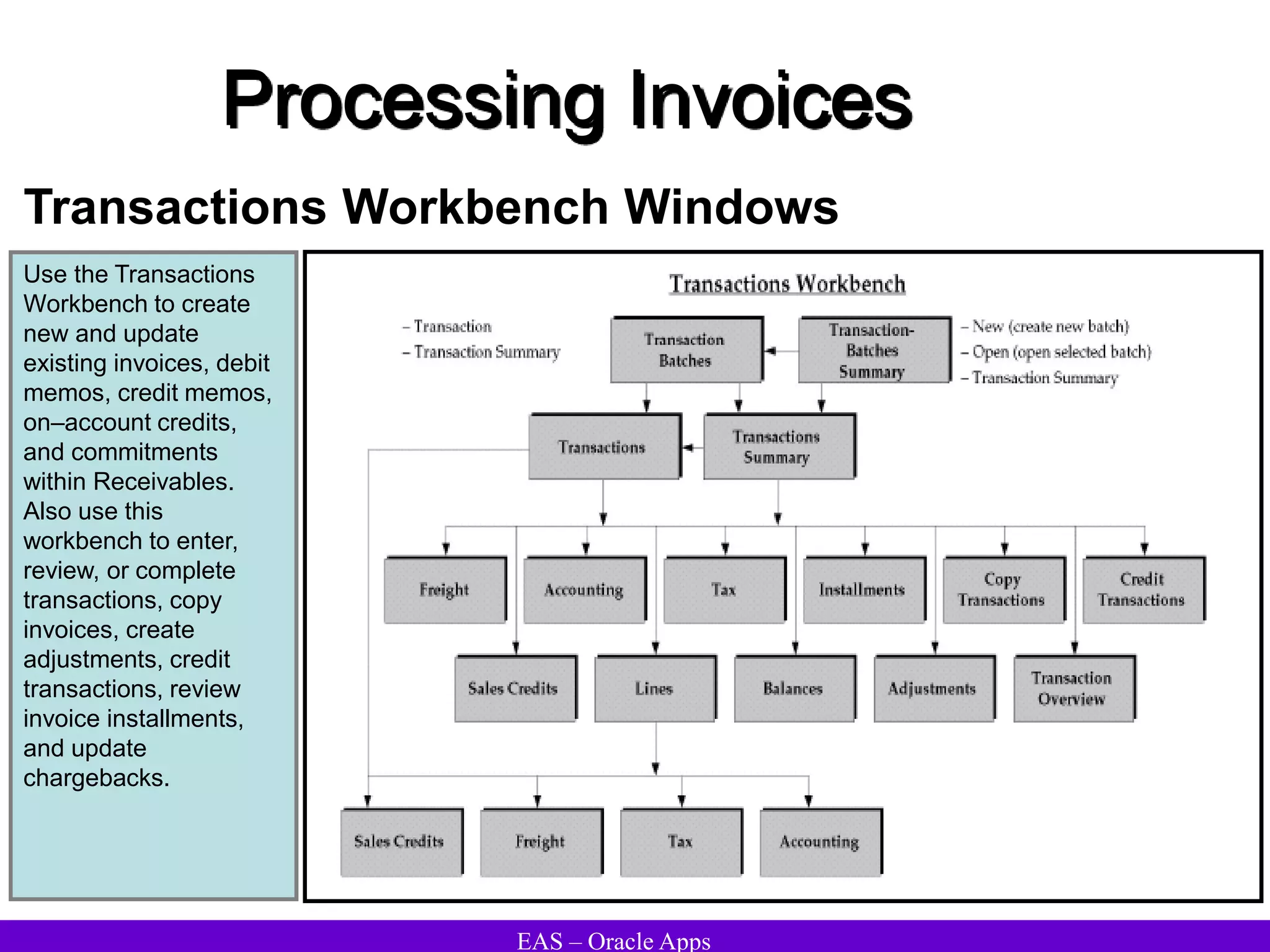
Transactions Workbench Windows
Use the Transactions
Workbench to create
new and update
existing invoices, debit
memos, credit memos,
on–account credits,
and commitments
within Receivables.
Also use this
workbench to enter,
review, or complete
transactions, copy
invoices, create
adjustments, credit
transactions, review
invoice installments,
and update
chargebacks.
EAS – Oracle Apps
Processing Invoices
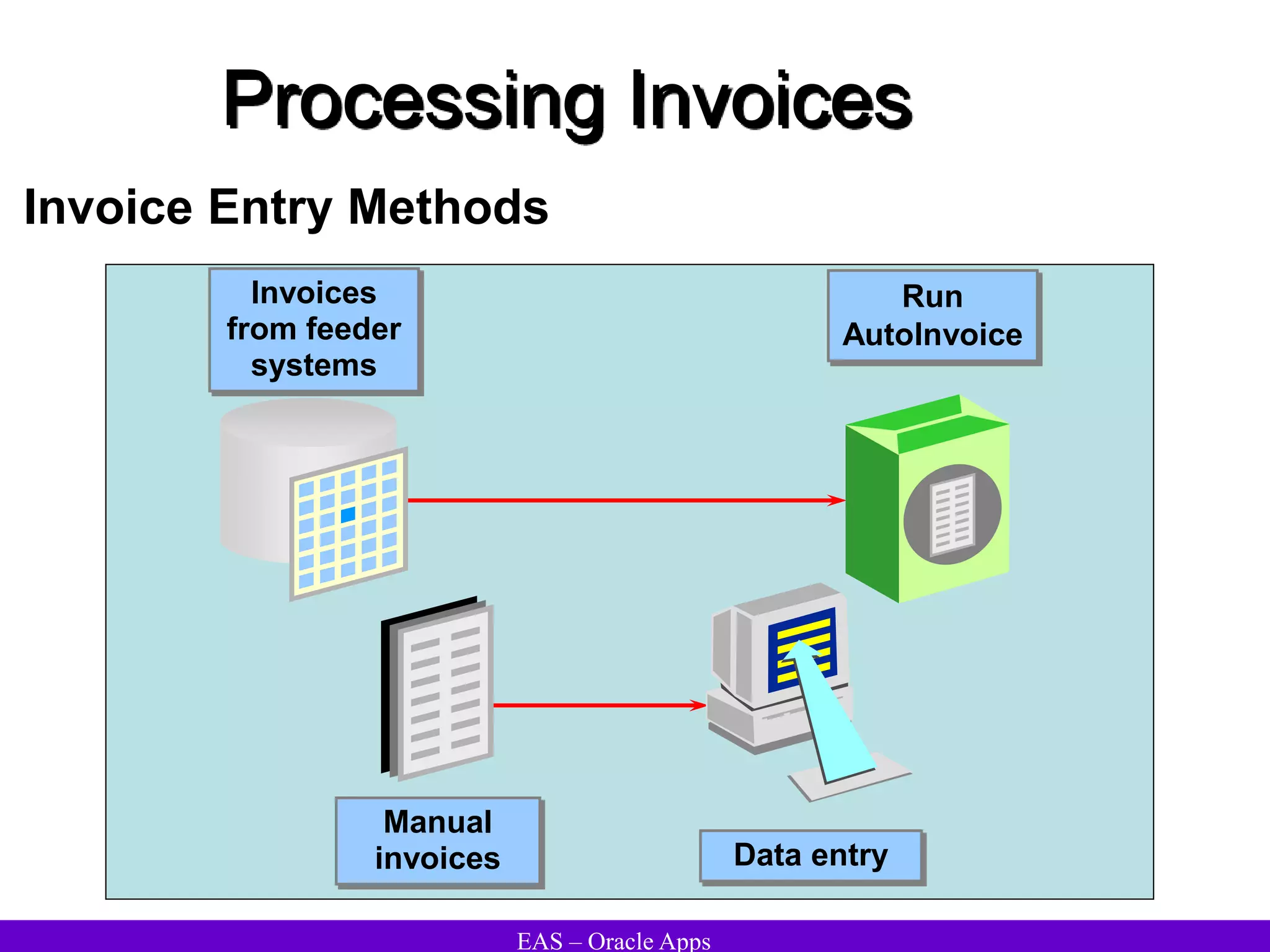
Invoice Entry Methods
Manual
invoices
Invoices
from feeder
systems
Data entry
Run
AutoInvoice
EAS – Oracle Apps
Processing Invoices
Creating Invoice Batches
• Use batches to match control and actual invoice counts and amounts. Actual
count and amount is updated as invoice is entered.
• A batch can contain invoices with different currencies.
• Print invoices by batch.
• Can only delete a batch if it does not contain any transactions
• Oracle Receivables uses invoice batches to import invoice data.
• Batch information identifies the originating system when importing transactions.
Invoice Batch Statuses
• New: This is a new batch, and it has not yet been saved.
• Out of Balance: The actual count and amount of transactions in this batch do
not equal the control count and amount.
• Open: The actual count and amount equal your control count and amount.
• Closed: The actual count and amount match the control count and amount.
EAS – Oracle Apps
Processing Invoices
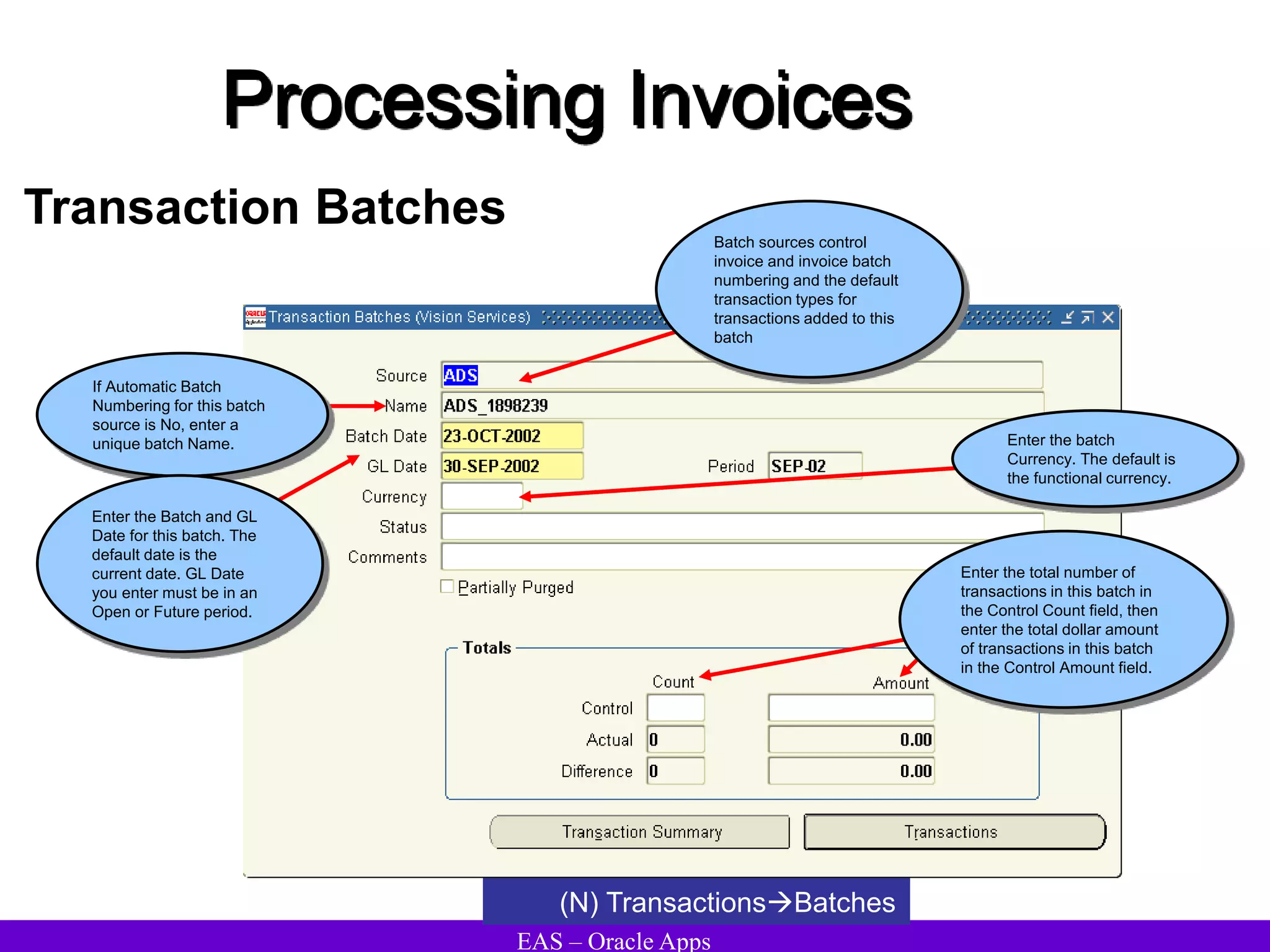
Transaction Batches
(N) TransactionsBatches
If Automatic Batch
Numbering for this batch
source is No, enter a
unique batch Name.
Enter the Batch and GL
Date for this batch. The
default date is the
current date. GL Date
you enter must be in an
Open or Future period.
Batch sources control
invoice and invoice batch
numbering and the default
transaction types for
transactions added to this
batch
Enter the batch
Currency. The default is
the functional currency.
Enter the total number of
transactions in this batch in
the Control Count field, then
enter the total dollar amount
of transactions in this batch
in the Control Amount field.
EAS – Oracle Apps
Processing Invoices
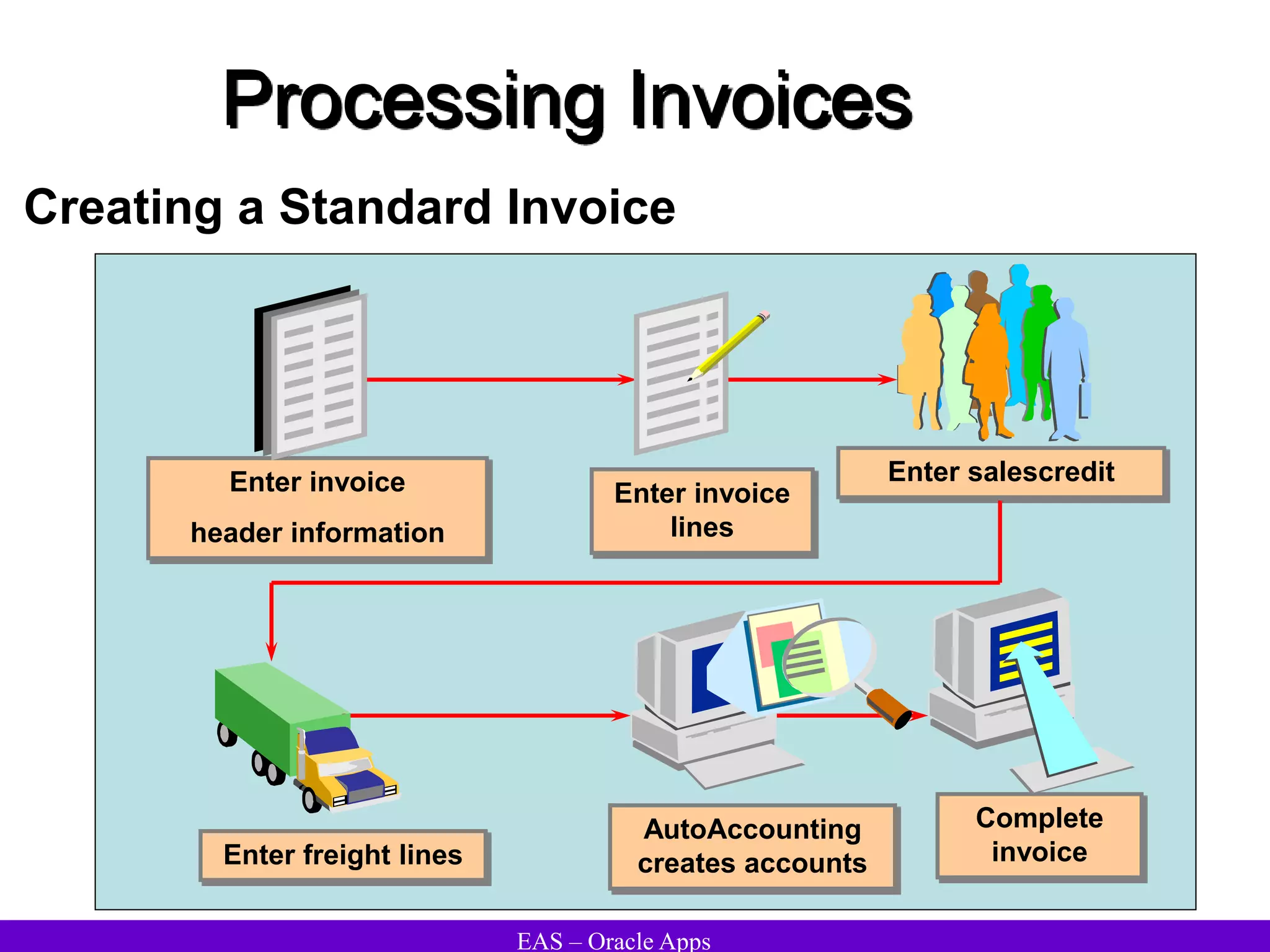
Creating a Standard Invoice
Complete
invoice
Enter invoice
header information
Enter invoice
lines
AutoAccounting
creates accounts
Enter freight lines
Enter salescredit
EAS – Oracle Apps
Processing Invoices
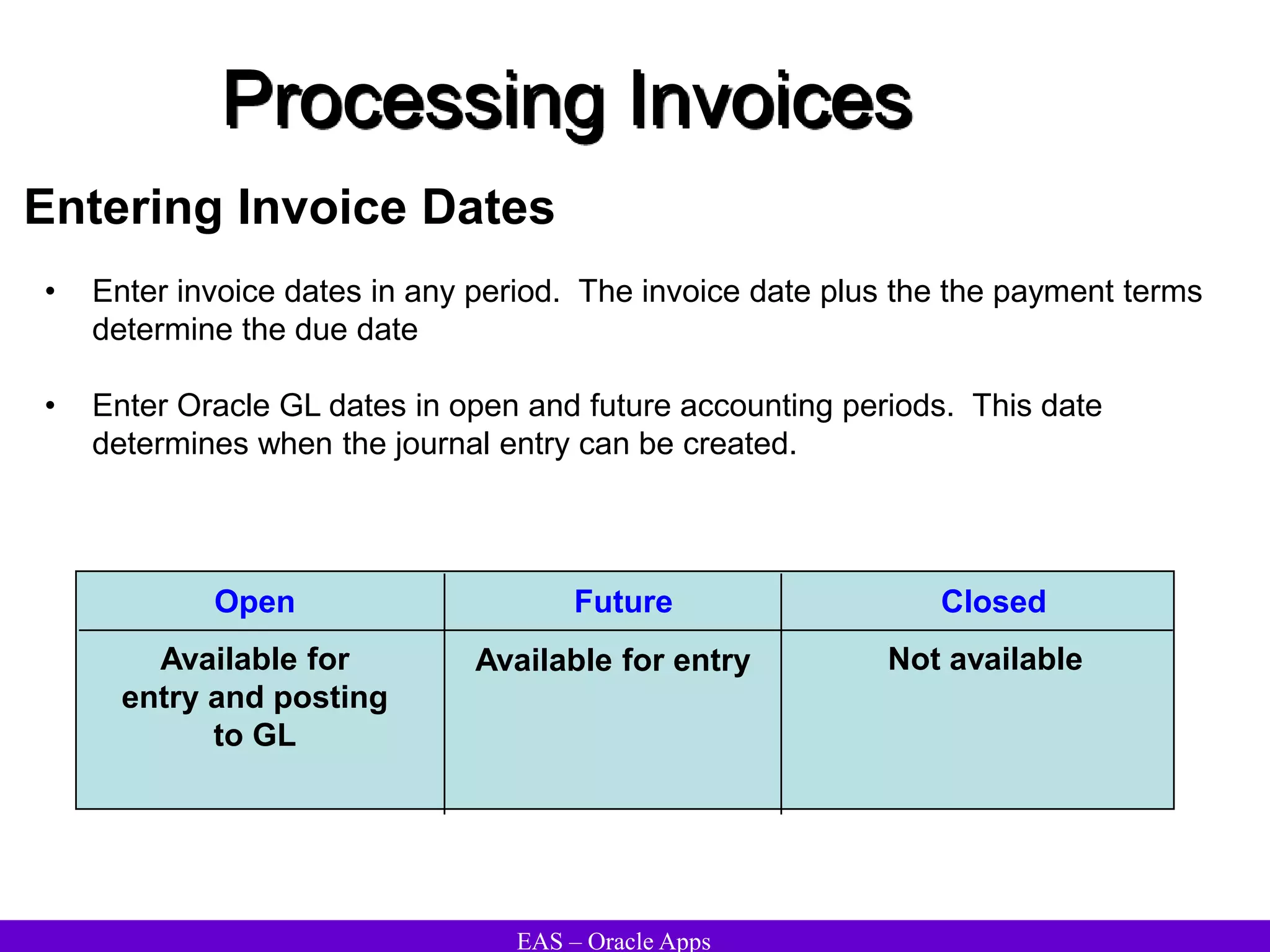
Entering Invoice Dates
• Enter invoice dates in any period. The invoice date plus the the payment terms
determine the due date
• Enter Oracle GL dates in open and future accounting periods. This date
determines when the journal entry can be created.
Open
Available for
entry and posting
to GL
Future Closed
Available for entry Not available
EAS – Oracle Apps
Processing Invoices
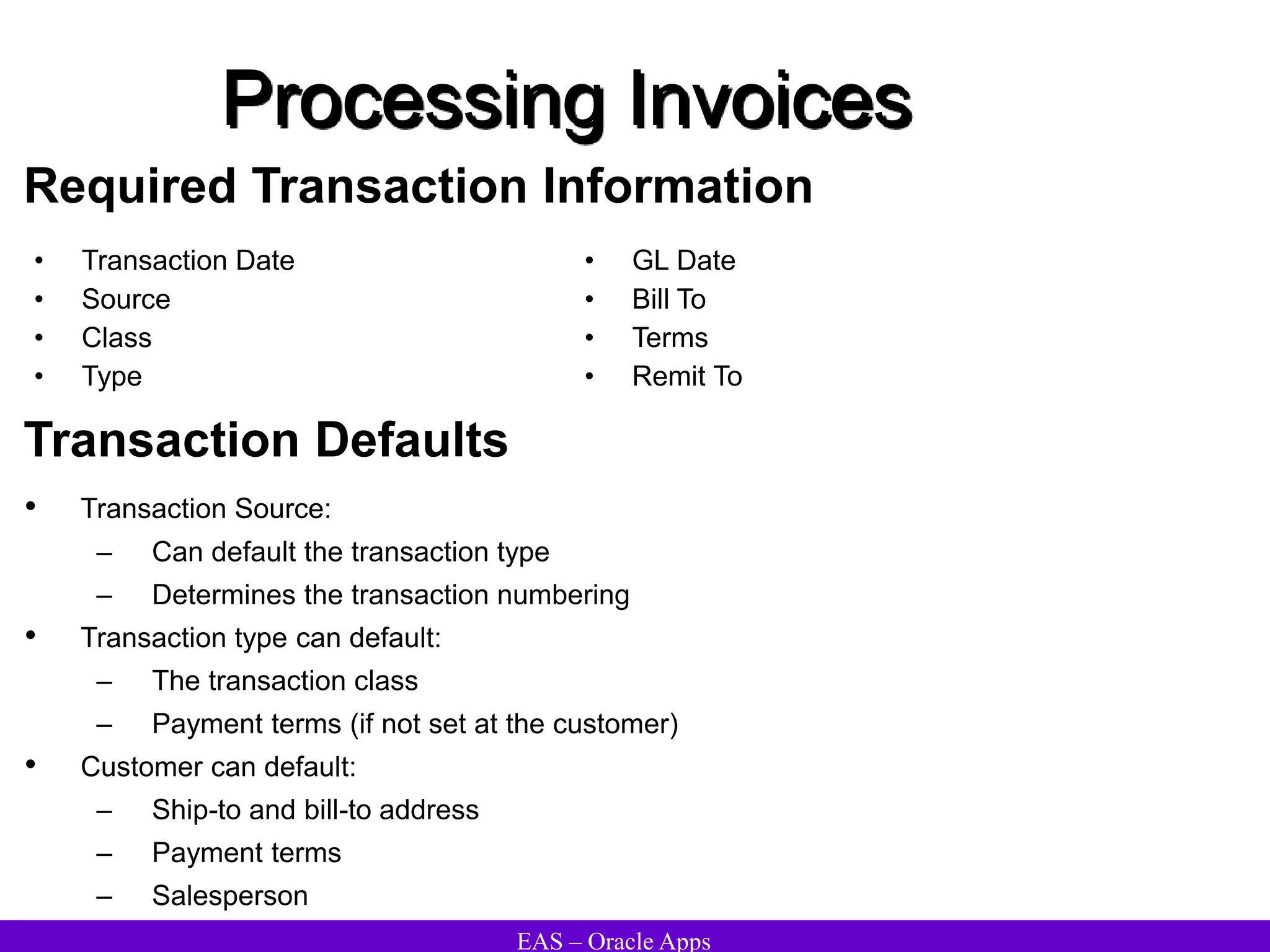
Required Transaction Information
• Transaction Date
• Source
• Class
• Type
• GL Date
• Bill To
• Terms
• Remit To
Transaction Defaults
• Transaction Source:
– Can default the transaction type
– Determines the transaction numbering
• Transaction type can default:
– The transaction class
– Payment terms (if not set at the customer)
• Customer can default:
– Ship-to and bill-to address
– Payment terms
– Salesperson
EAS – Oracle Apps
Processing Invoices
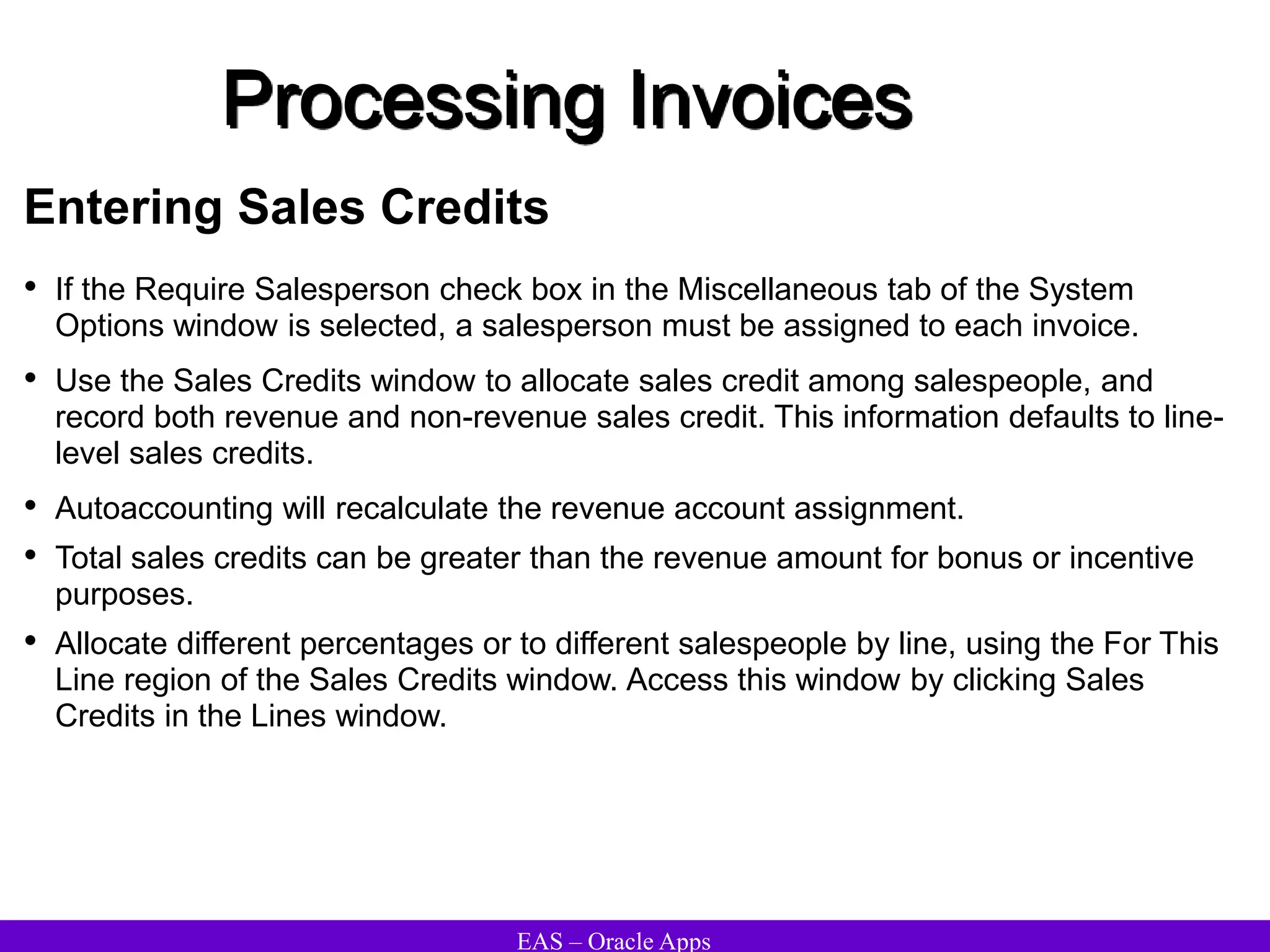
Entering Sales Credits
• If the Require Salesperson check box in the Miscellaneous tab of the System
Options window is selected, a salesperson must be assigned to each invoice.
• Use the Sales Credits window to allocate sales credit among salespeople, and
record both revenue and non-revenue sales credit. This information defaults to line-
level sales credits.
• Autoaccounting will recalculate the revenue account assignment.
• Total sales credits can be greater than the revenue amount for bonus or incentive
purposes.
• Allocate different percentages or to different salespeople by line, using the For This
Line region of the Sales Credits window. Access this window by clicking Sales
Credits in the Lines window.
EAS – Oracle Apps
Processing Invoices
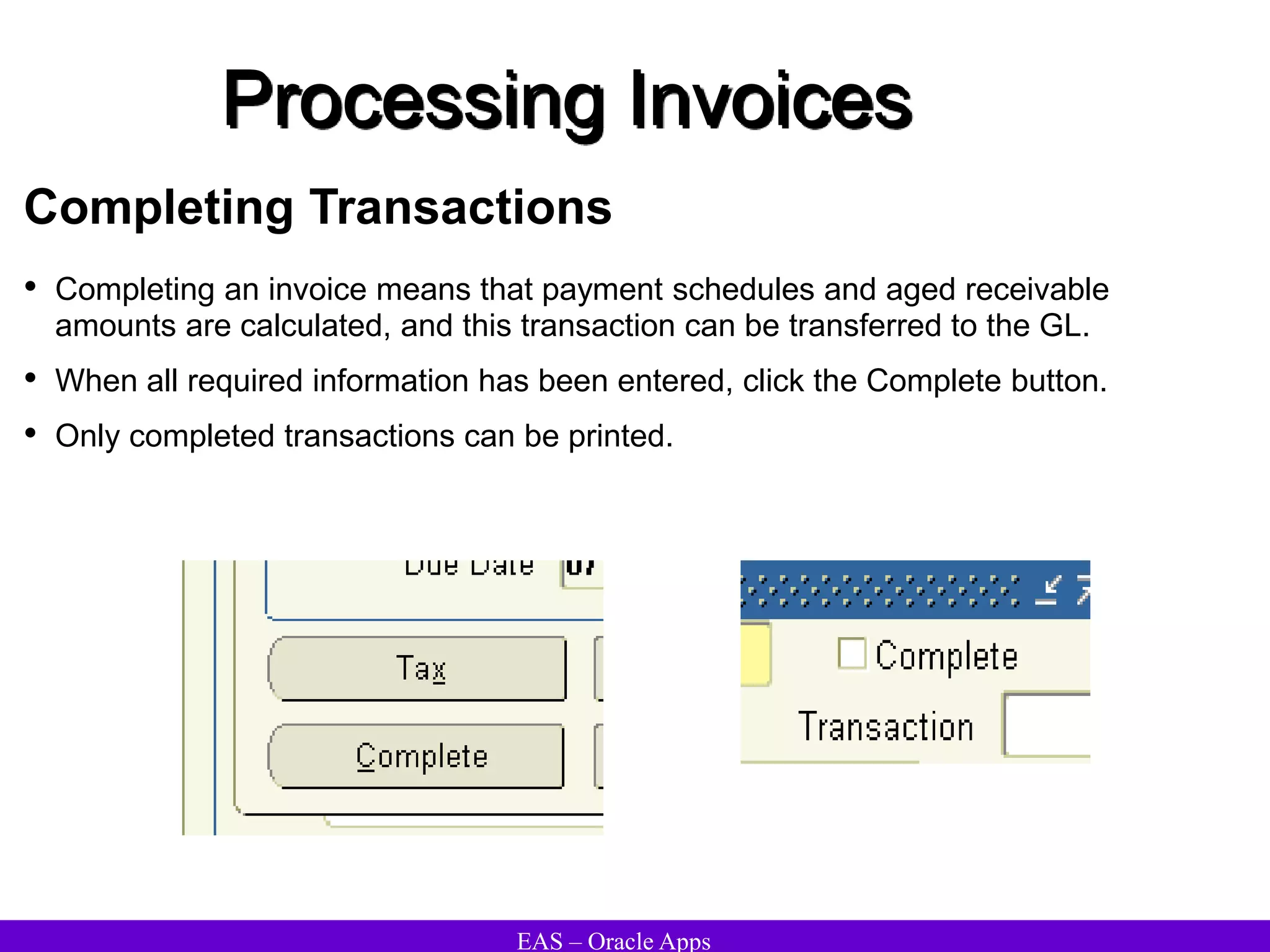
Completing Transactions
• Completing an invoice means that payment schedules and aged receivable
amounts are calculated, and this transaction can be transferred to the GL.
• When all required information has been entered, click the Complete button.
• Only completed transactions can be printed.
EAS – Oracle Apps
Processing Invoices
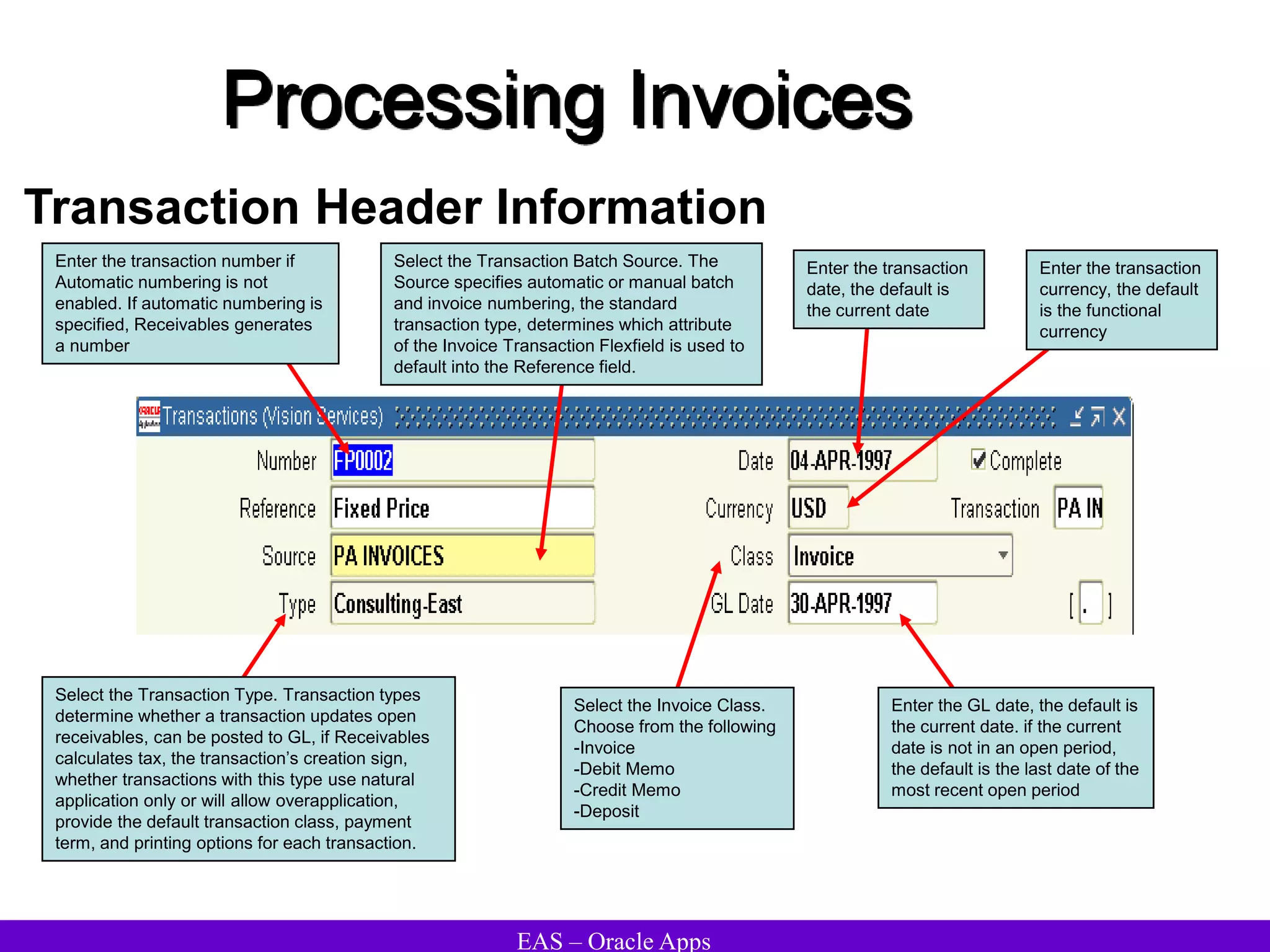
Transaction Header Information
Enter the GL date, the default is
the current date. if the current
date is not in an open period,
the default is the last date of the
most recent open period
Enter the transaction number if
Automatic numbering is not
enabled. If automatic numbering is
specified, Receivables generates
a number
Select the Transaction Type. Transaction types
determine whether a transaction updates open
receivables, can be posted to GL, if Receivables
calculates tax, the transaction’s creation sign,
whether transactions with this type use natural
application only or will allow overapplication,
provide the default transaction class, payment
term, and printing options for each transaction.
Select the Transaction Batch Source. The
Source specifies automatic or manual batch
and invoice numbering, the standard
transaction type, determines which attribute
of the Invoice Transaction Flexfield is used to
default into the Reference field.
Enter the transaction
date, the default is
the current date
Enter the transaction
currency, the default
is the functional
currency
Select the Invoice Class.
Choose from the following
-Invoice
-Debit Memo
-Credit Memo
-Deposit
EAS – Oracle Apps
Processing Invoices
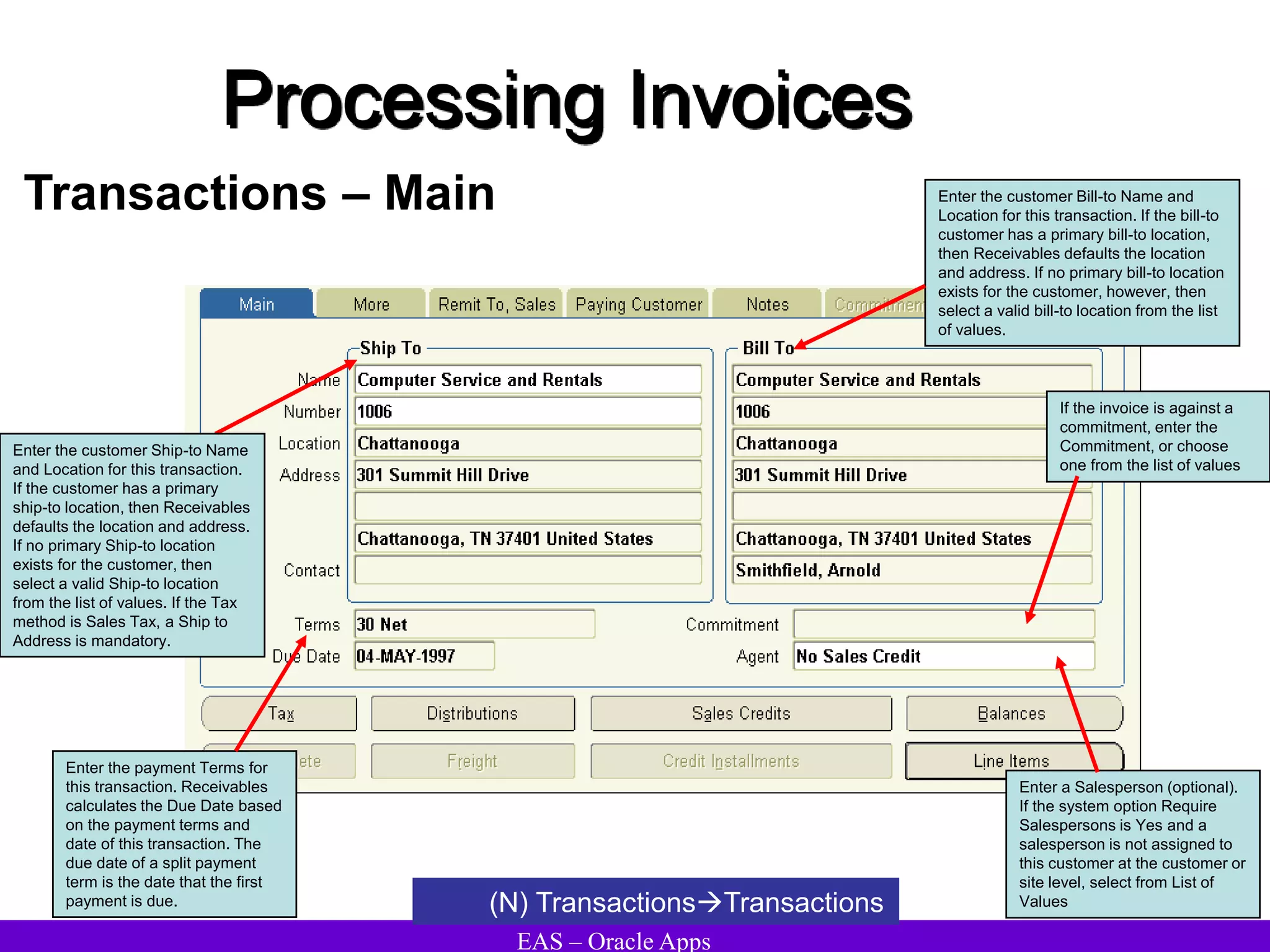
Transactions – Main
(N) TransactionsTransactions
Enter the customer Bill-to Name and
Location for this transaction. If the bill-to
customer has a primary bill-to location,
then Receivables defaults the location
and address. If no primary bill-to location
exists for the customer, however, then
select a valid bill-to location from the list
of values.
Enter the payment Terms for
this transaction. Receivables
calculates the Due Date based
on the payment terms and
date of this transaction. The
due date of a split payment
term is the date that the first
payment is due.
Enter a Salesperson (optional).
If the system option Require
Salespersons is Yes and a
salesperson is not assigned to
this customer at the customer or
site level, select from List of
Values
If the invoice is against a
commitment, enter the
Commitment, or choose
one from the list of values
Enter the customer Ship-to Name
and Location for this transaction.
If the customer has a primary
ship-to location, then Receivables
defaults the location and address.
If no primary Ship-to location
exists for the customer, then
select a valid Ship-to location
from the list of values. If the Tax
method is Sales Tax, a Ship to
Address is mandatory.
EAS – Oracle Apps
Processing Invoices
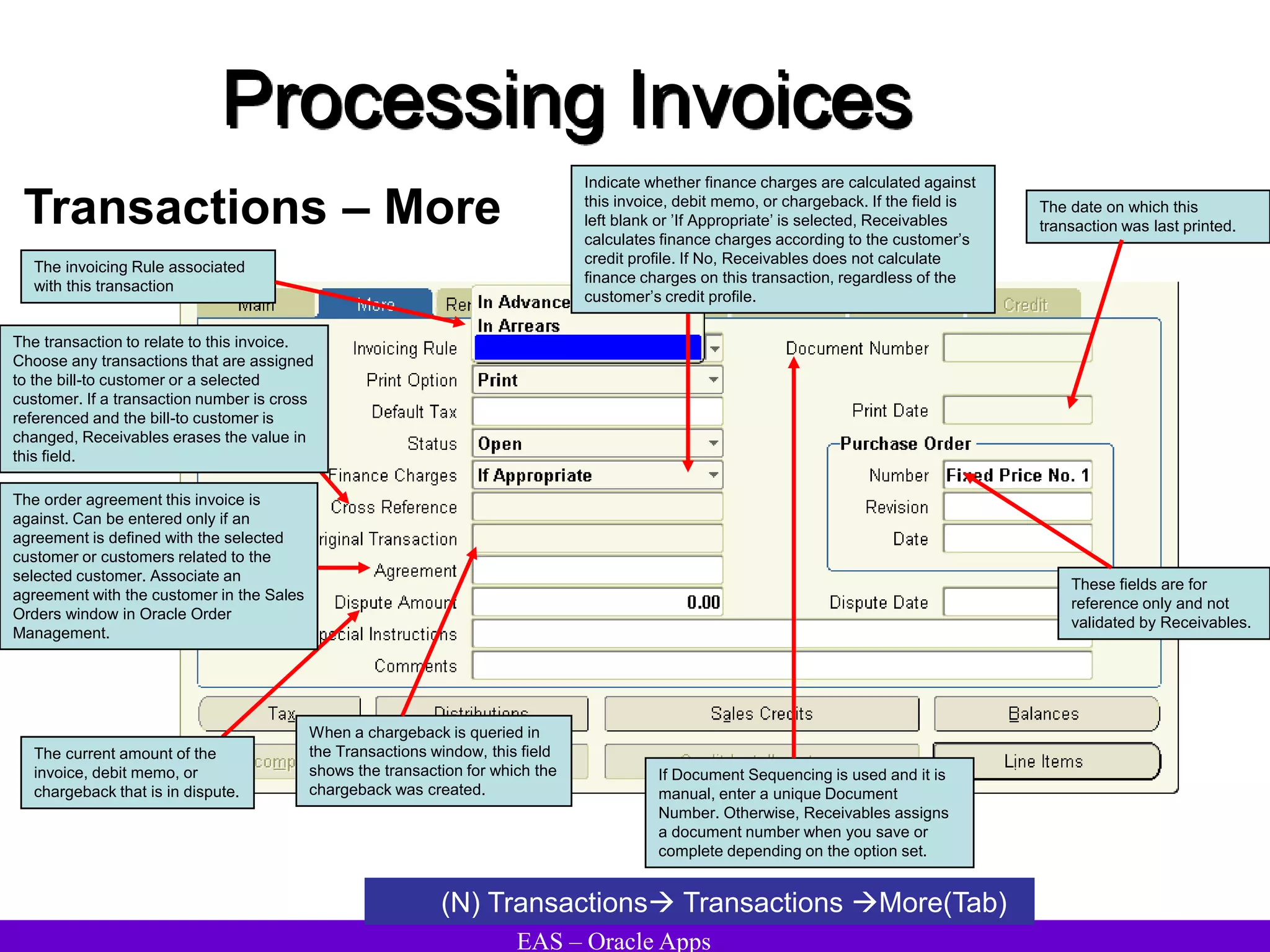
Transactions – More
(N) Transactions Transactions More(Tab)
The order agreement this invoice is
against. Can be entered only if an
agreement is defined with the selected
customer or customers related to the
selected customer. Associate an
agreement with the customer in the Sales
Orders window in Oracle Order
Management.
The transaction to relate to this invoice.
Choose any transactions that are assigned
to the bill-to customer or a selected
customer. If a transaction number is cross
referenced and the bill-to customer is
changed, Receivables erases the value in
this field.
When a chargeback is queried in
the Transactions window, this field
shows the transaction for which the
chargeback was created.
Indicate whether finance charges are calculated against
this invoice, debit memo, or chargeback. If the field is
left blank or ’If Appropriate’ is selected, Receivables
calculates finance charges according to the customer’s
credit profile. If No, Receivables does not calculate
finance charges on this transaction, regardless of the
customer’s credit profile.
The current amount of the
invoice, debit memo, or
chargeback that is in dispute.
These fields are for
reference only and not
validated by Receivables.
The invoicing Rule associated
with this transaction
The date on which this
transaction was last printed.
If Document Sequencing is used and it is
manual, enter a unique Document
Number. Otherwise, Receivables assigns
a document number when you save or
complete depending on the option set.
EAS – Oracle Apps
Processing Invoices
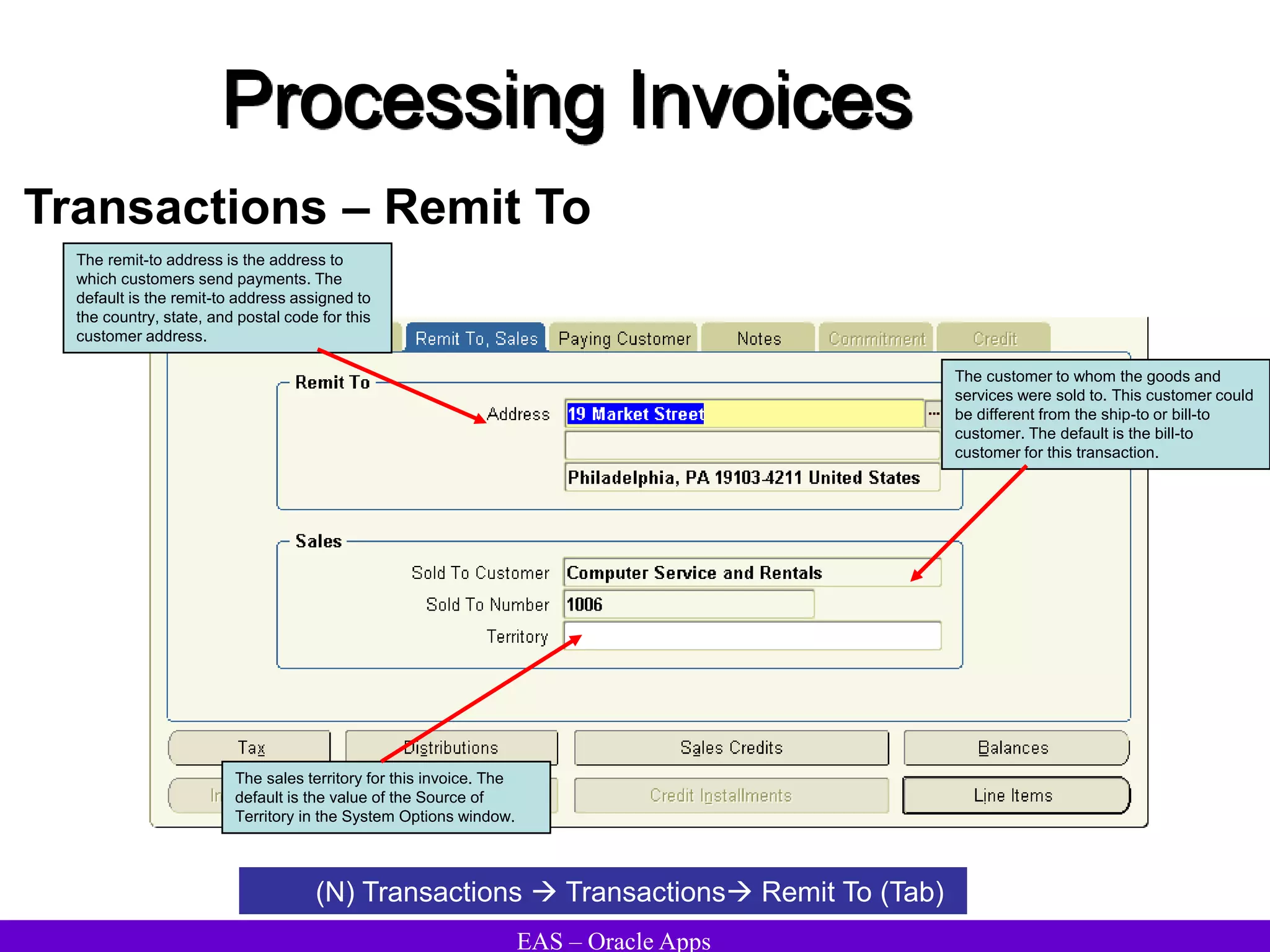
Transactions – Remit To
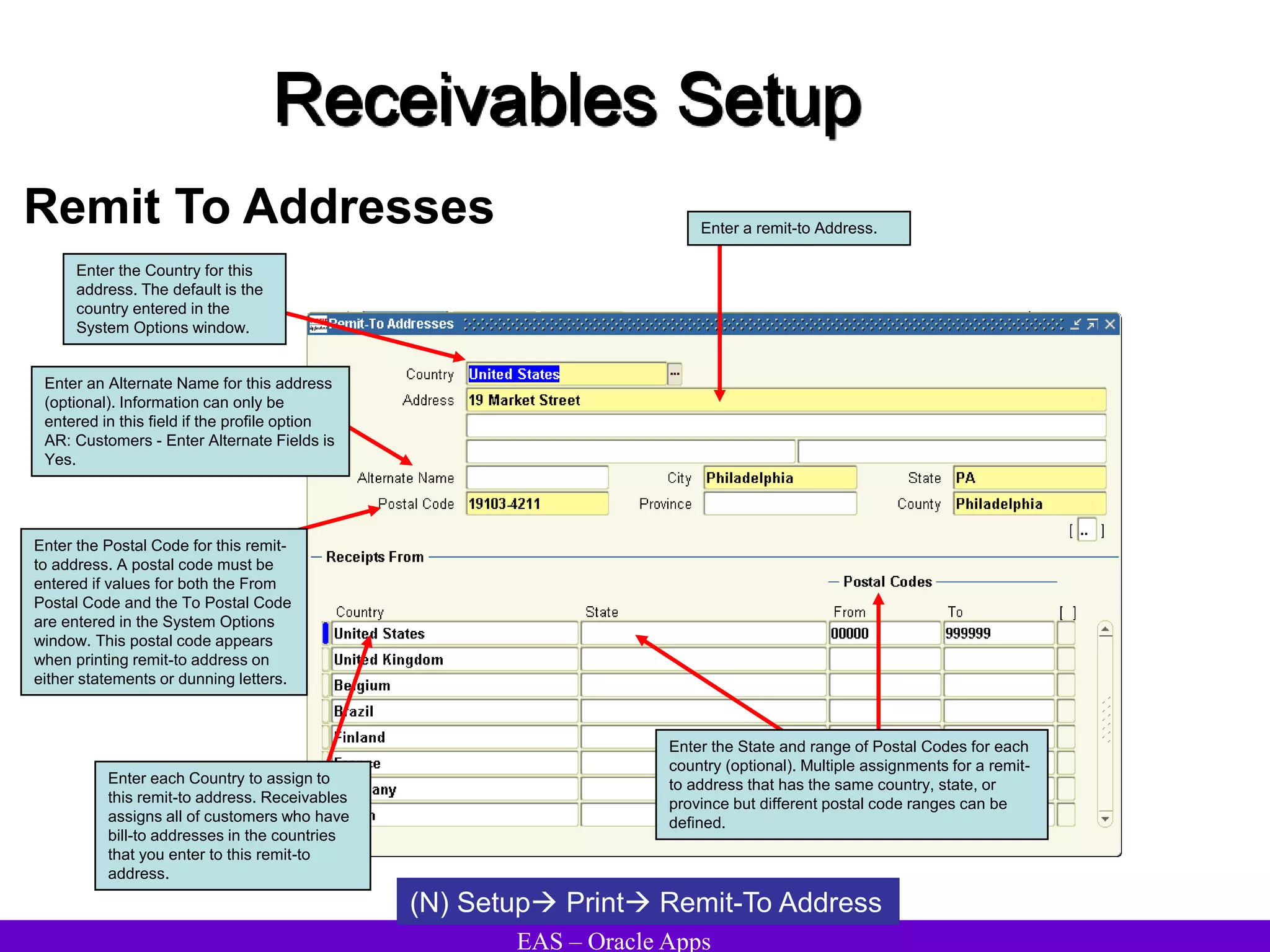
The remit-to address is the address to
which customers send payments. The
default is the remit-to address assigned to
the country, state, and postal code for this
customer address.
The customer to whom the goods and
services were sold to. This customer could
be different from the ship-to or bill-to
customer. The default is the bill-to
customer for this transaction.
The sales territory for this invoice. The
default is the value of the Source of
Territory in the System Options window.
(N) Transactions  Transactions Remit To (Tab)
EAS – Oracle Apps
Processing Invoices
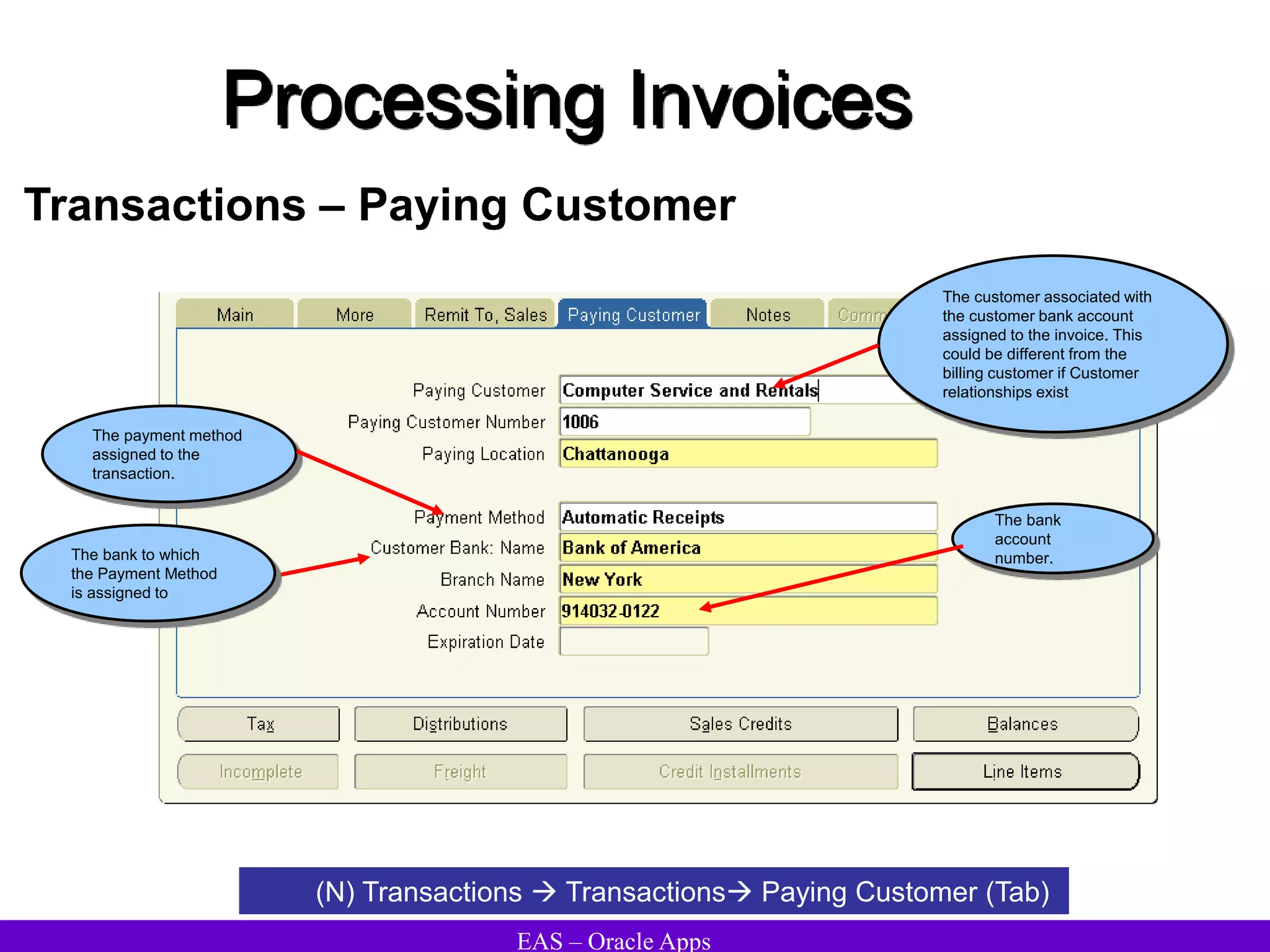
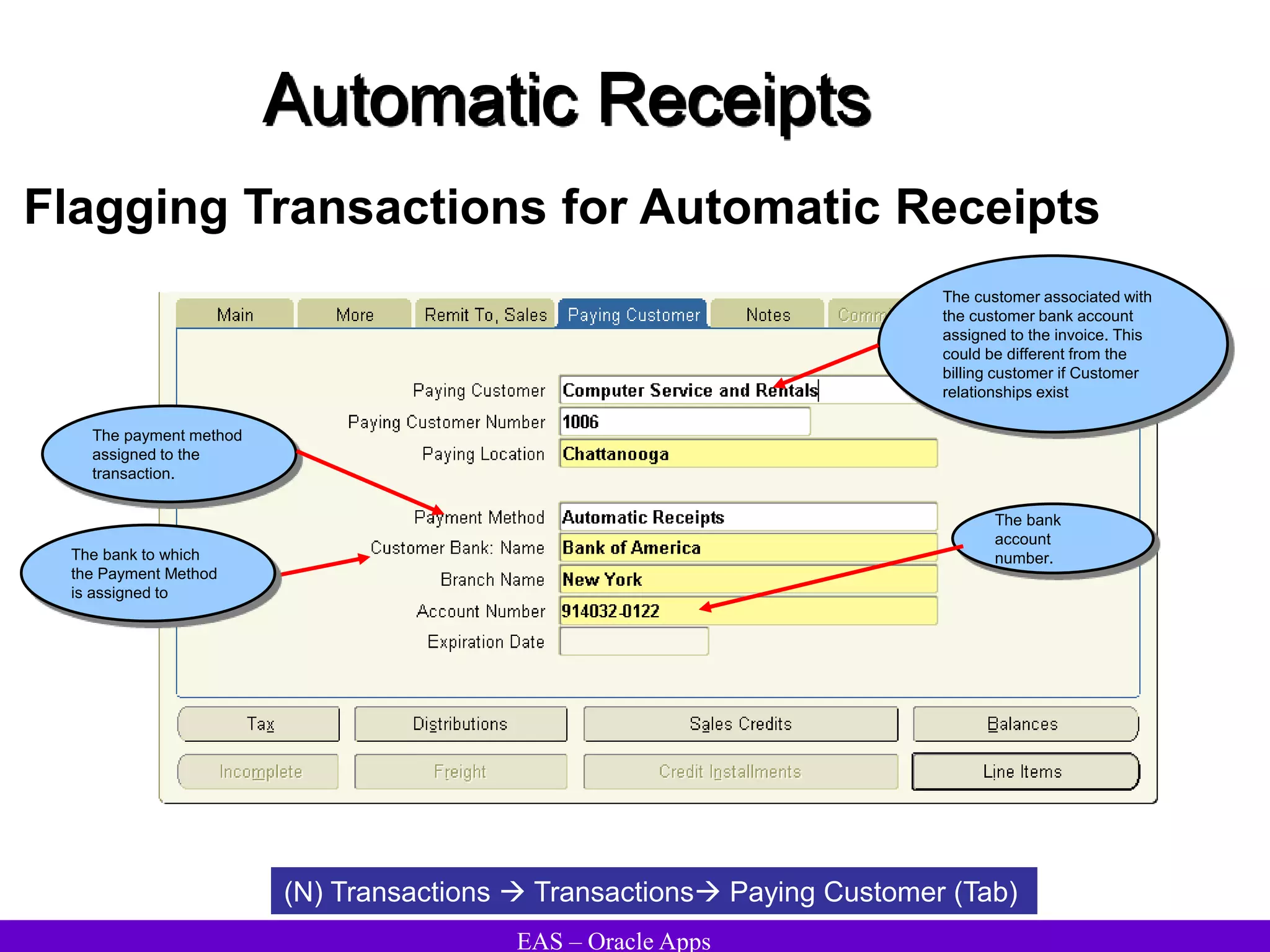
Transactions – Paying Customer
(N) Transactions  Transactions Paying Customer (Tab)
The bank
account
number.
The payment method
assigned to the
transaction.
The customer associated with
the customer bank account
assigned to the invoice. This
could be different from the
billing customer if Customer
relationships exist
The bank to which
the Payment Method
is assigned to
EAS – Oracle Apps
Processing Invoices
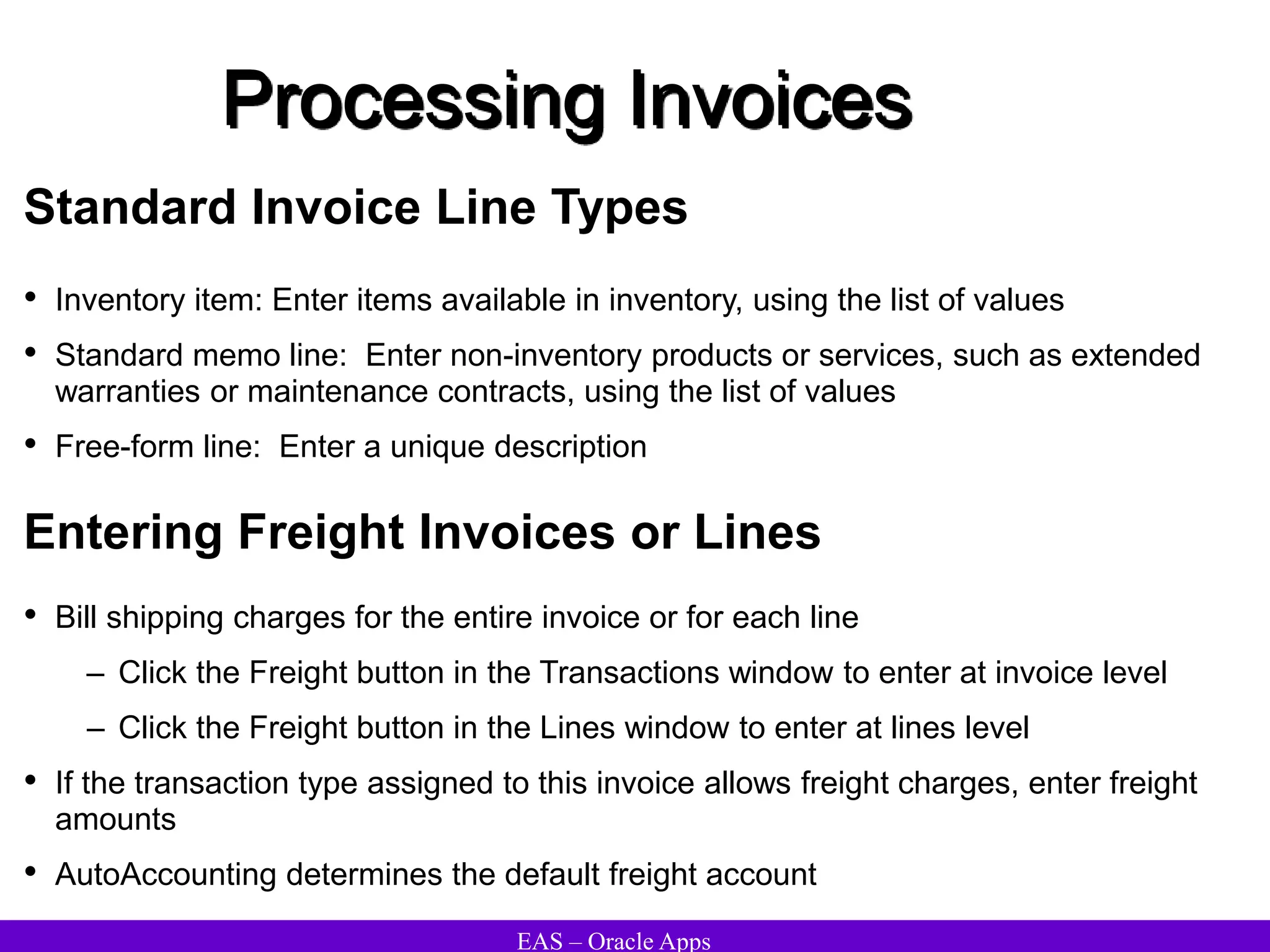
Standard Invoice Line Types
• Inventory item: Enter items available in inventory, using the list of values
• Standard memo line: Enter non-inventory products or services, such as extended
warranties or maintenance contracts, using the list of values
• Free-form line: Enter a unique description
Entering Freight Invoices or Lines
• Bill shipping charges for the entire invoice or for each line
– Click the Freight button in the Transactions window to enter at invoice level
– Click the Freight button in the Lines window to enter at lines level
• If the transaction type assigned to this invoice allows freight charges, enter freight
amounts
• AutoAccounting determines the default freight account
EAS – Oracle Apps
Processing Invoices
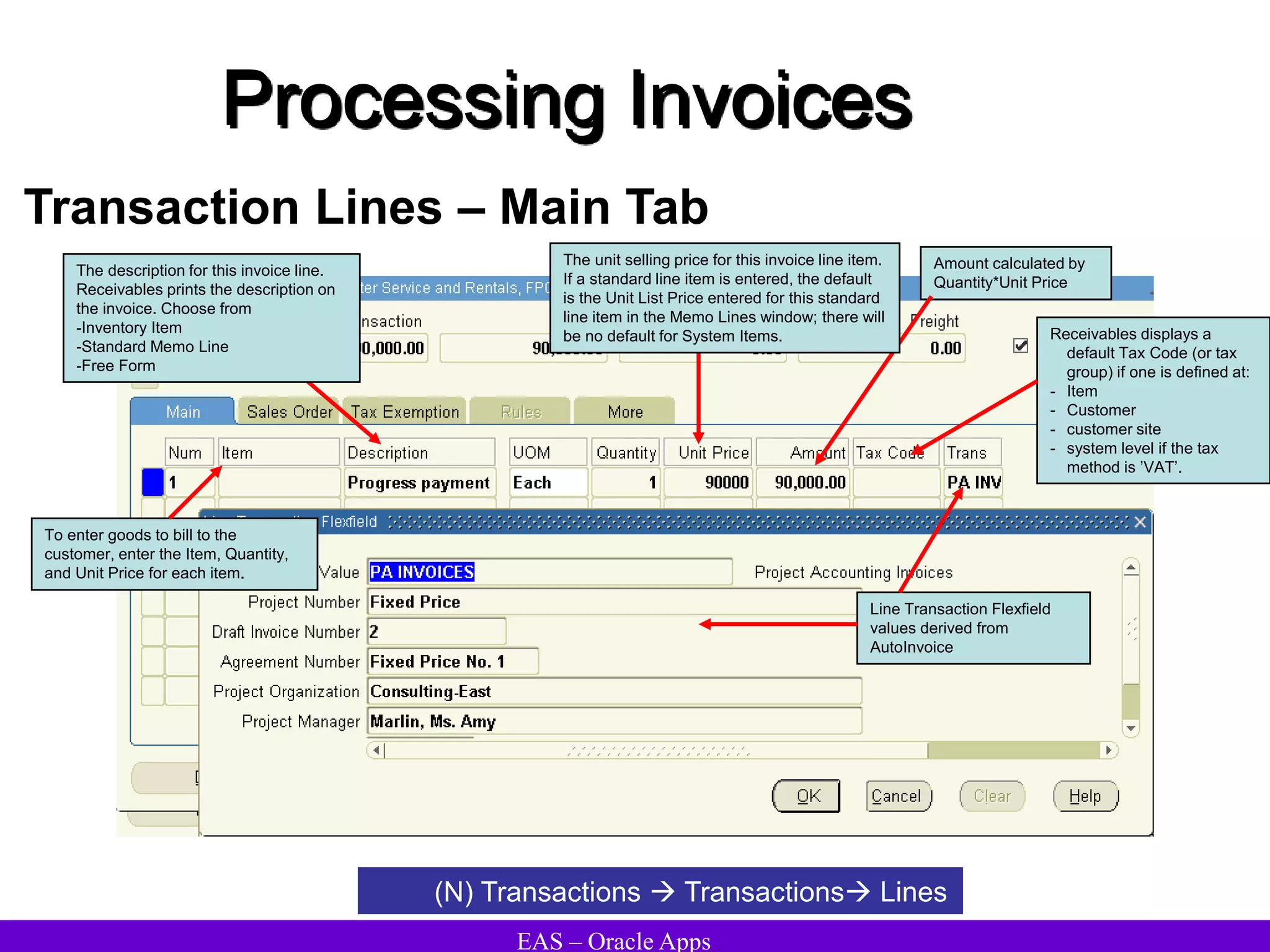
Transaction Lines – Main Tab
(N) Transactions  Transactions Lines
To enter goods to bill to the
customer, enter the Item, Quantity,
and Unit Price for each item.
The description for this invoice line.
Receivables prints the description on
the invoice. Choose from
-Inventory Item
-Standard Memo Line
-Free Form
Line Transaction Flexfield
values derived from
AutoInvoice
Amount calculated by
Quantity*Unit Price
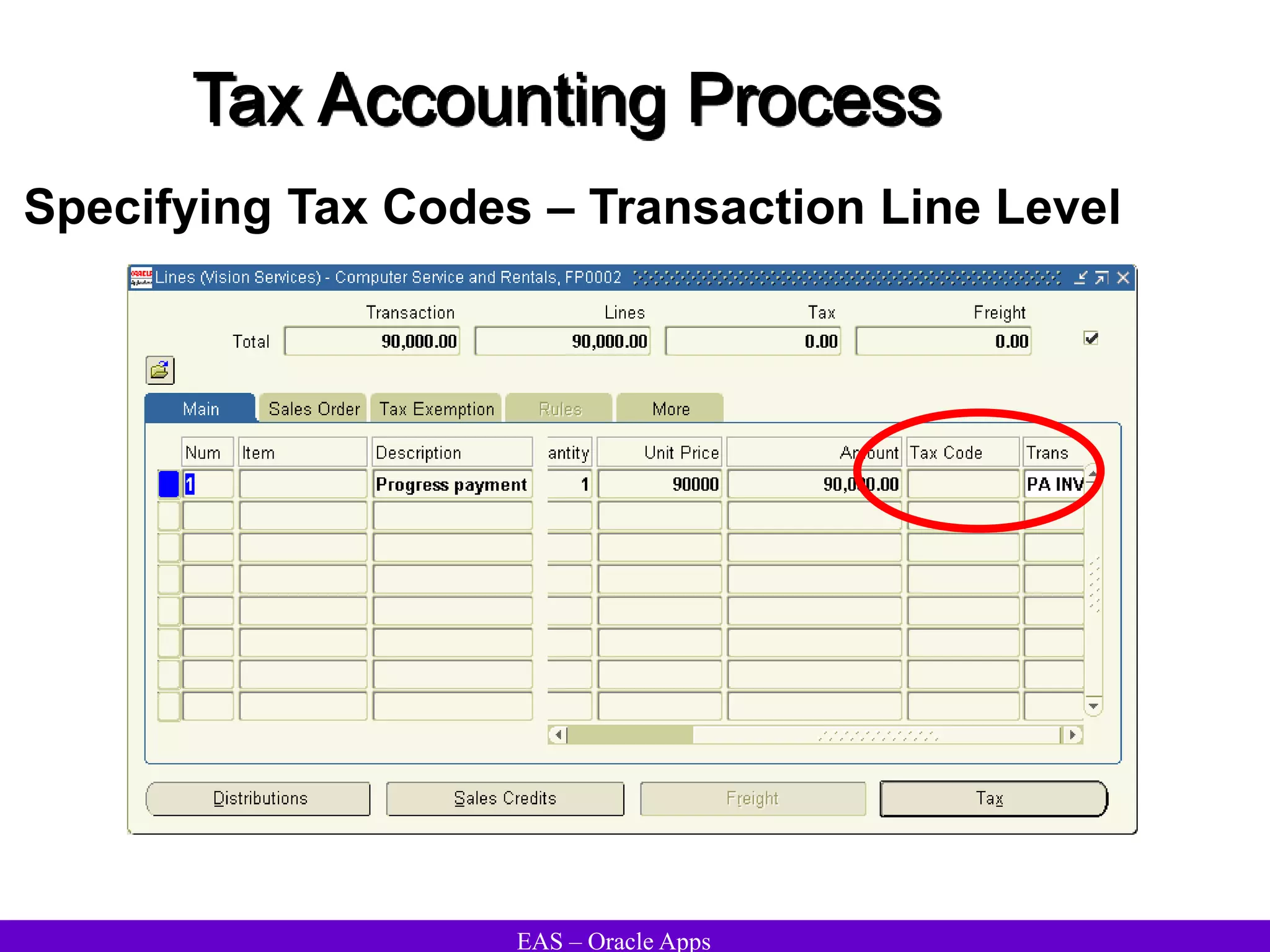
Receivables displays a
default Tax Code (or tax
group) if one is defined at:
- Item
- Customer
- customer site
- system level if the tax
method is ’VAT’.
The unit selling price for this invoice line item.
If a standard line item is entered, the default
is the Unit List Price entered for this standard
line item in the Memo Lines window; there will
be no default for System Items.
EAS – Oracle Apps
Processing Invoices
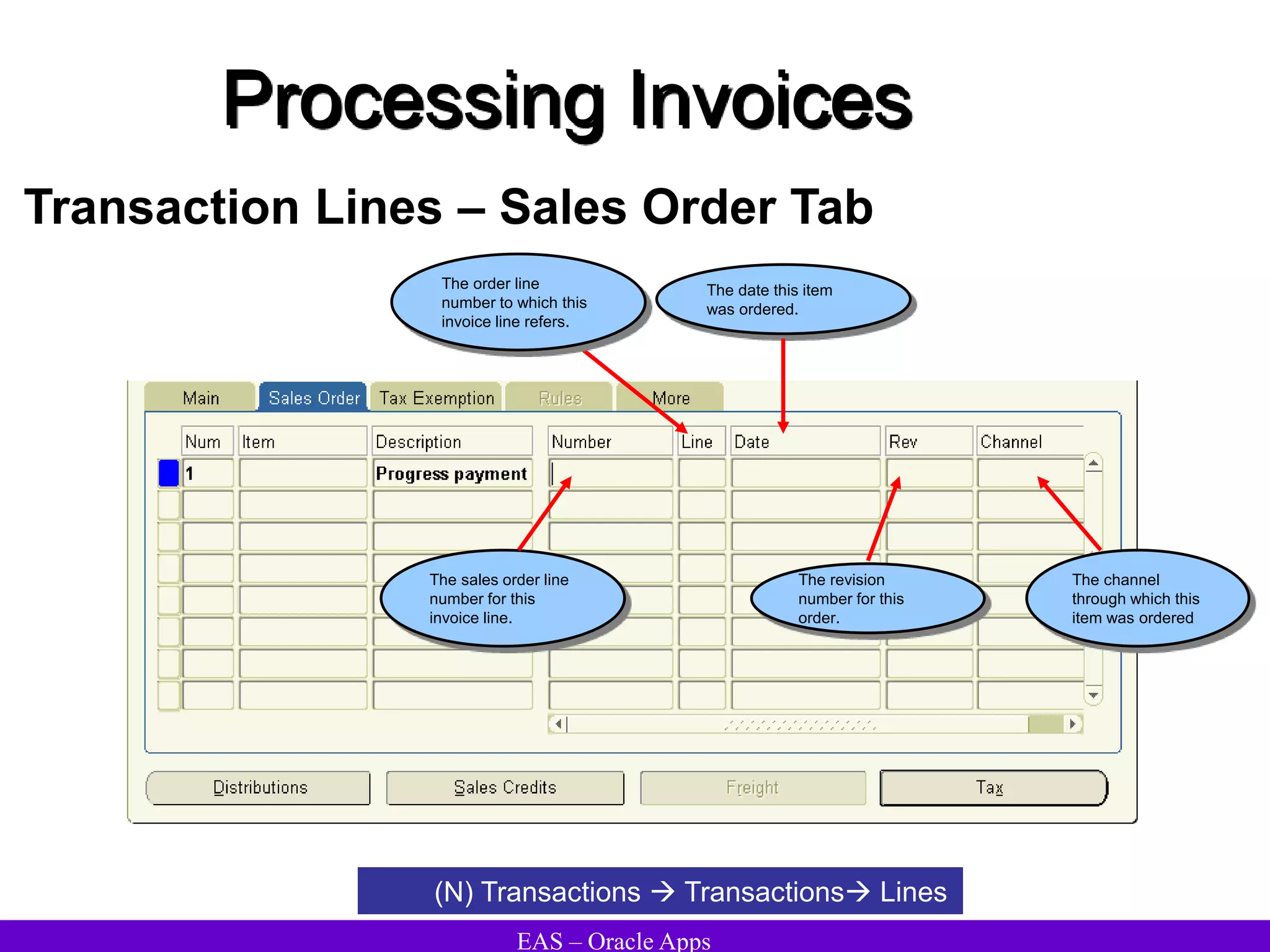
Transaction Lines – Sales Order Tab
(N) Transactions  Transactions Lines
The date this item
was ordered.
The order line
number to which this
invoice line refers.
The sales order line
number for this
invoice line.
The revision
number for this
order.
The channel
through which this
item was ordered
EAS – Oracle Apps
Processing Invoices
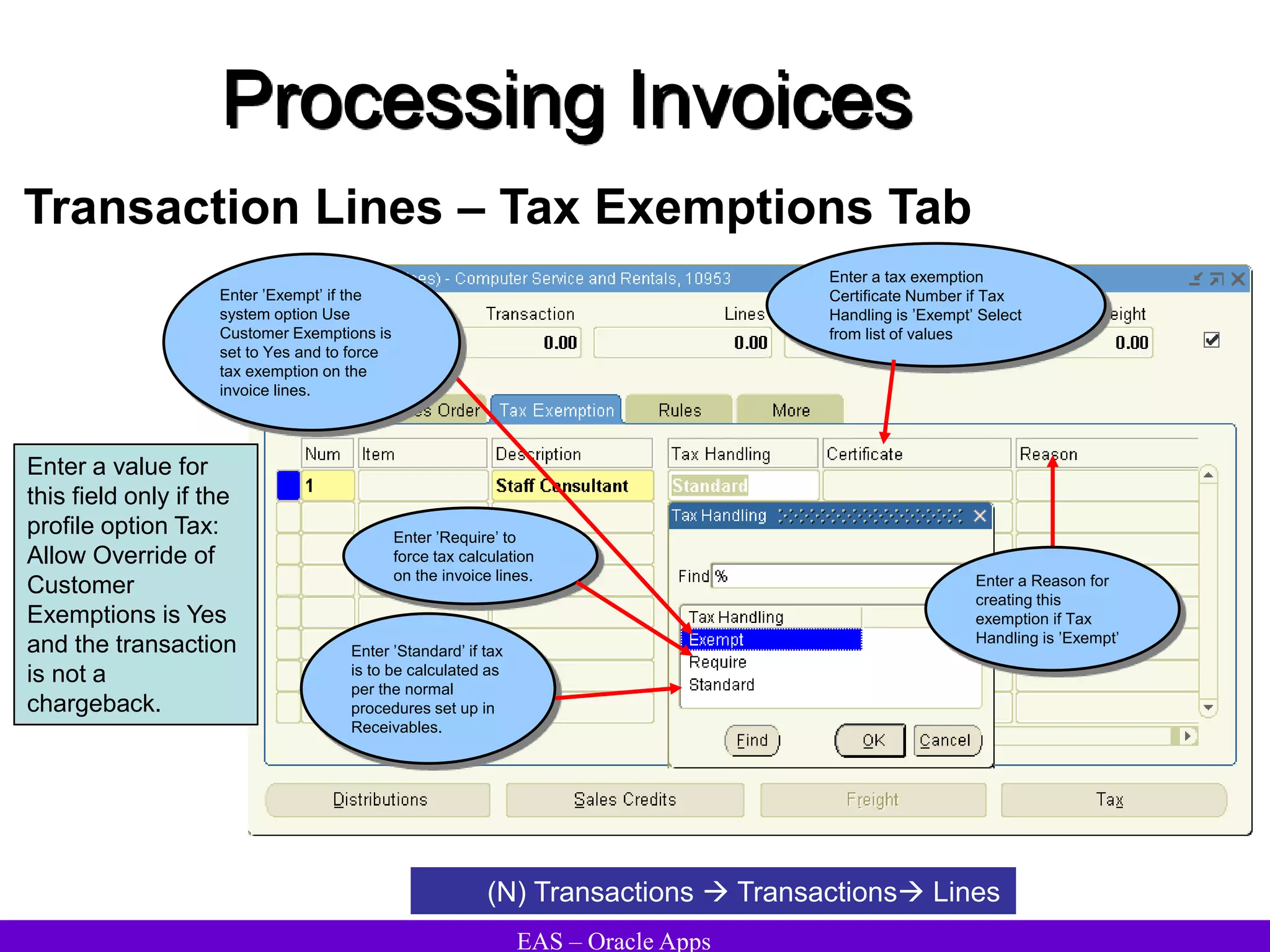
Transaction Lines – Tax Exemptions Tab
(N) Transactions  Transactions Lines
Enter a value for
this field only if the
profile option Tax:
Allow Override of
Customer
Exemptions is Yes
and the transaction
is not a
chargeback.
Enter a tax exemption
Certificate Number if Tax
Handling is ’Exempt’ Select
from list of values
Enter a Reason for
creating this
exemption if Tax
Handling is ’Exempt’
Enter ’Standard’ if tax
is to be calculated as
per the normal
procedures set up in
Receivables.
Enter ’Exempt’ if the
system option Use
Customer Exemptions is
set to Yes and to force
tax exemption on the
invoice lines.
Enter ’Require’ to
force tax calculation
on the invoice lines.
EAS – Oracle Apps
Processing Invoices
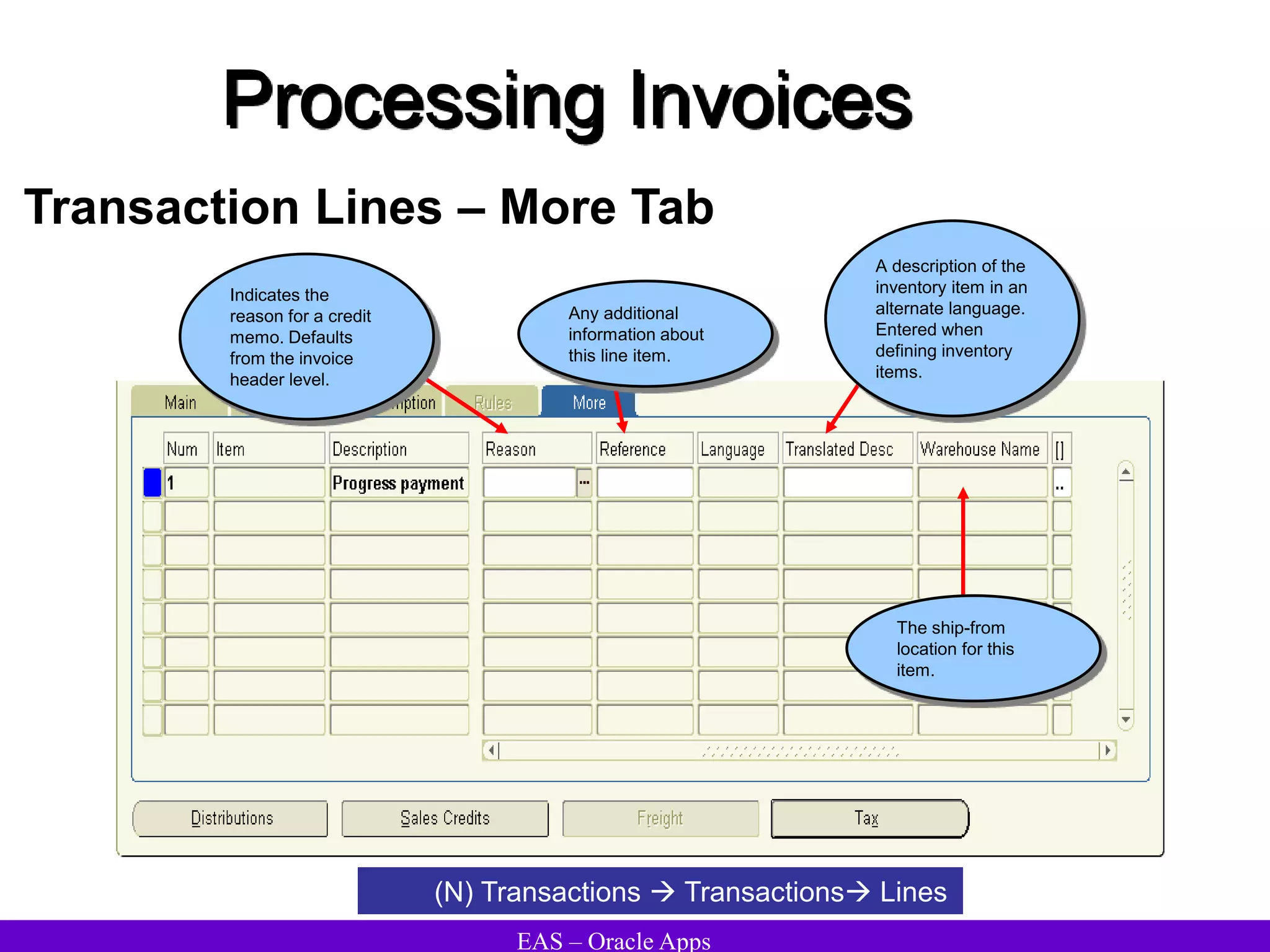
Transaction Lines – More Tab
(N) Transactions  Transactions Lines
The ship-from
location for this
item.
Indicates the
reason for a credit
memo. Defaults
from the invoice
header level.
Any additional
information about
this line item.
A description of the
inventory item in an
alternate language.
Entered when
defining inventory
items.
EAS – Oracle Apps
Processing Invoices
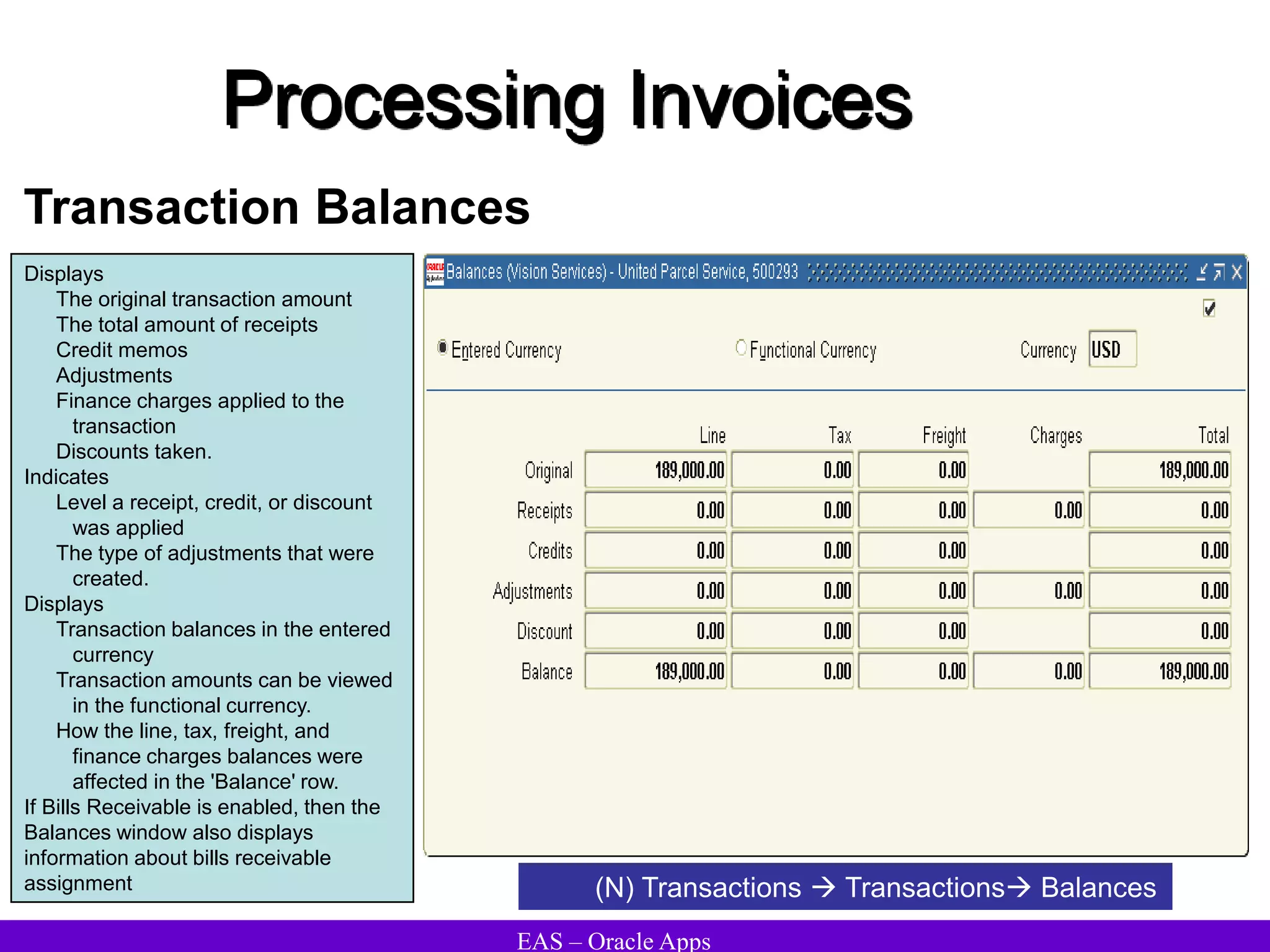
Transaction Balances
Displays
The original transaction amount
The total amount of receipts
Credit memos
Adjustments
Finance charges applied to the
transaction
Discounts taken.
Indicates
Level a receipt, credit, or discount
was applied
The type of adjustments that were
created.
Displays
Transaction balances in the entered
currency
Transaction amounts can be viewed
in the functional currency.
How the line, tax, freight, and
finance charges balances were
affected in the 'Balance' row.
If Bills Receivable is enabled, then the
Balances window also displays
information about bills receivable
assignment (N) Transactions  Transactions Balances
EAS – Oracle Apps
Processing Invoices
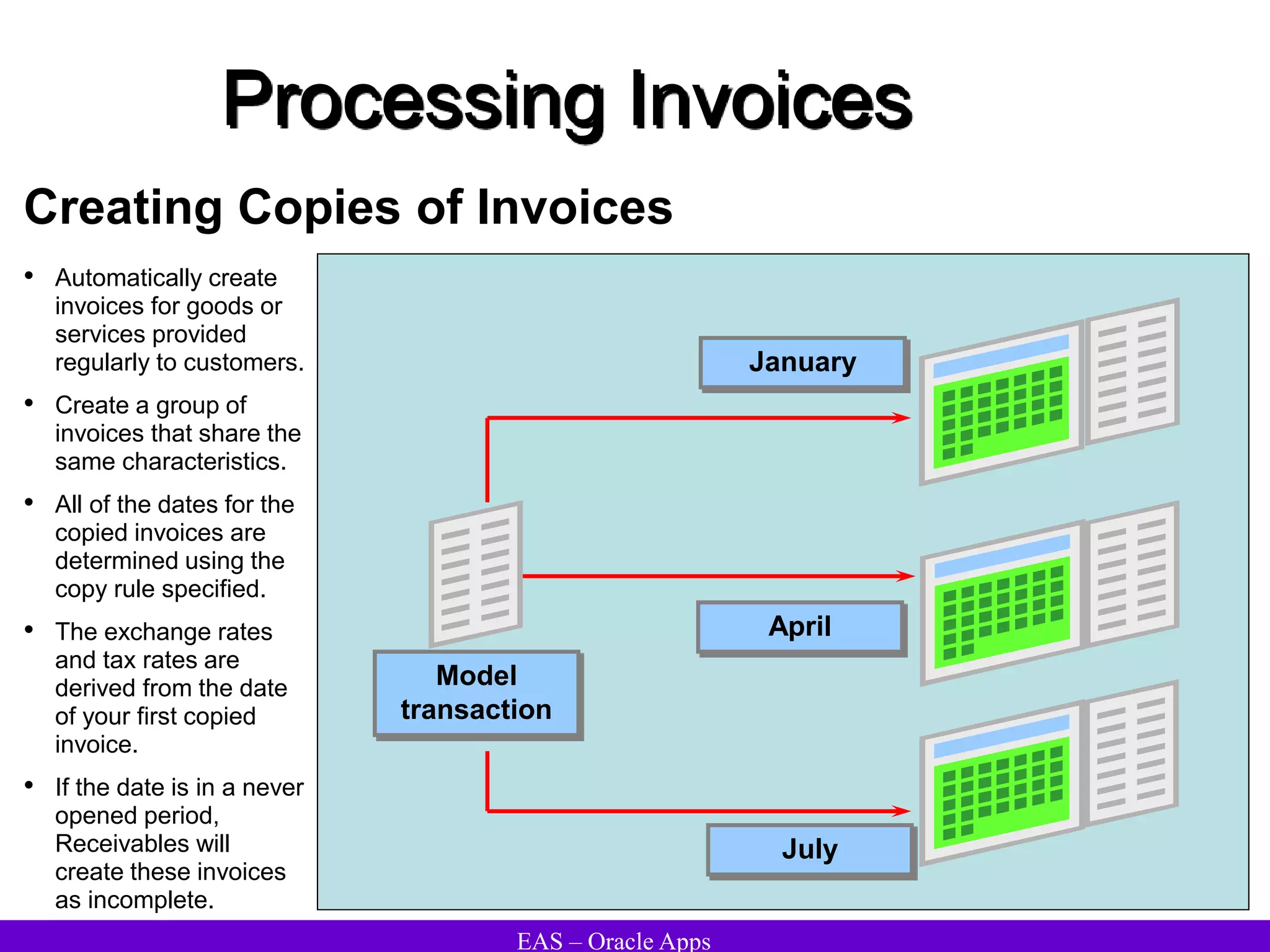
Creating Copies of Invoices
Model
transaction
January
April
July
• Automatically create
invoices for goods or
services provided
regularly to customers.
• Create a group of
invoices that share the
same characteristics.
• All of the dates for the
copied invoices are
determined using the
copy rule specified.
• The exchange rates
and tax rates are
derived from the date
of your first copied
invoice.
• If the date is in a never
opened period,
Receivables will
create these invoices
as incomplete.
EAS – Oracle Apps
Processing Invoices
Choosing Model Transaction
• The model transaction must be complete.
• Once the model transactions are copied, changes to the model transaction do not affect the
copied transaction.
• The model transaction should be the open or closed transaction that exactly matches the
transaction(s) to recur.
• If the batch source for the model invoice has automatic transaction numbering turned on,
Oracle Receivables automatically numbers each recurring transaction.
• Each recurring transaction uses the batch source assigned to the model transaction.
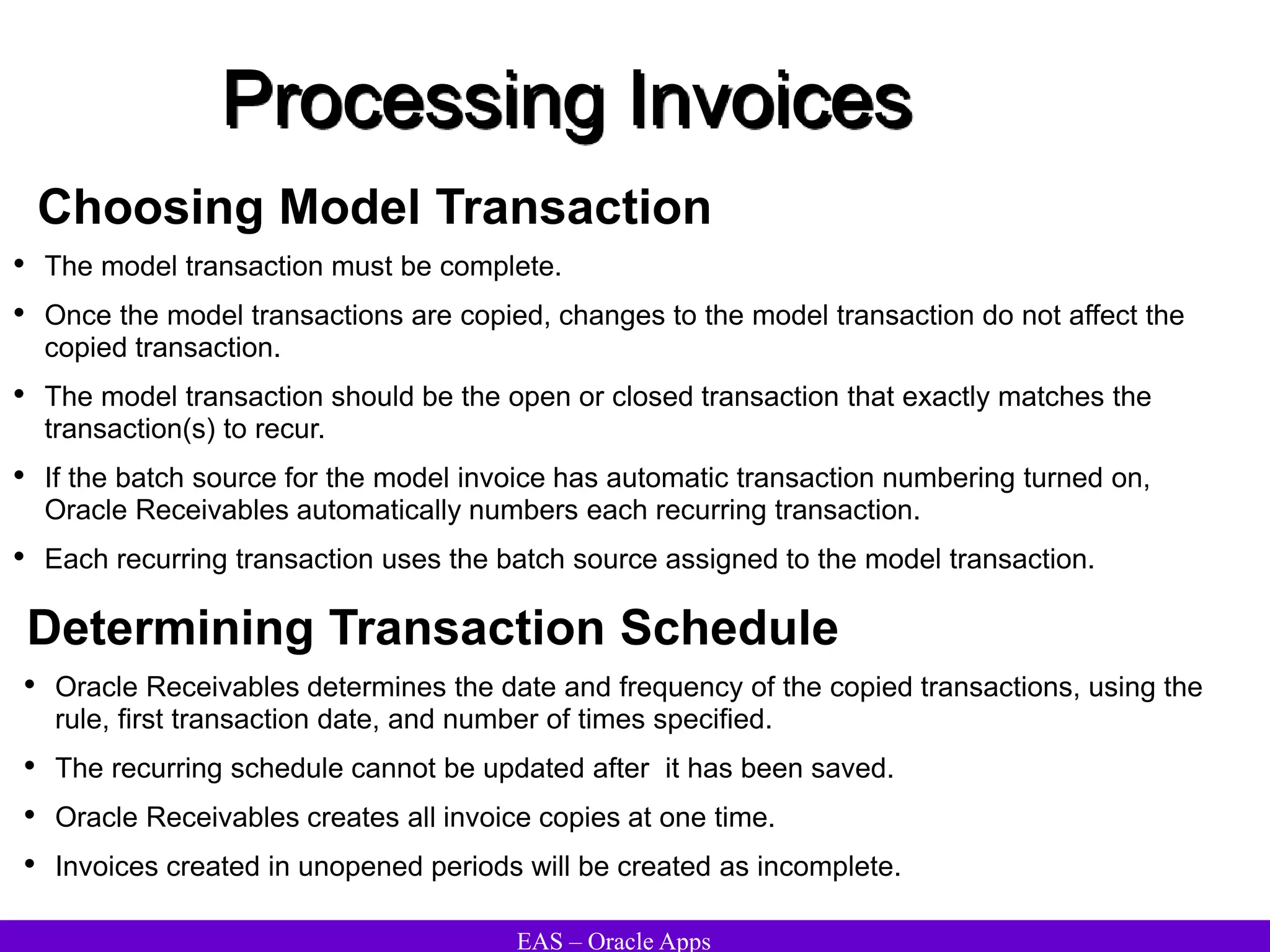
• Oracle Receivables determines the date and frequency of the copied transactions, using the
rule, first transaction date, and number of times specified.
• The recurring schedule cannot be updated after it has been saved.
• Oracle Receivables creates all invoice copies at one time.
• Invoices created in unopened periods will be created as incomplete.
Determining Transaction Schedule
EAS – Oracle Apps
Processing Invoices
Recurring Rules
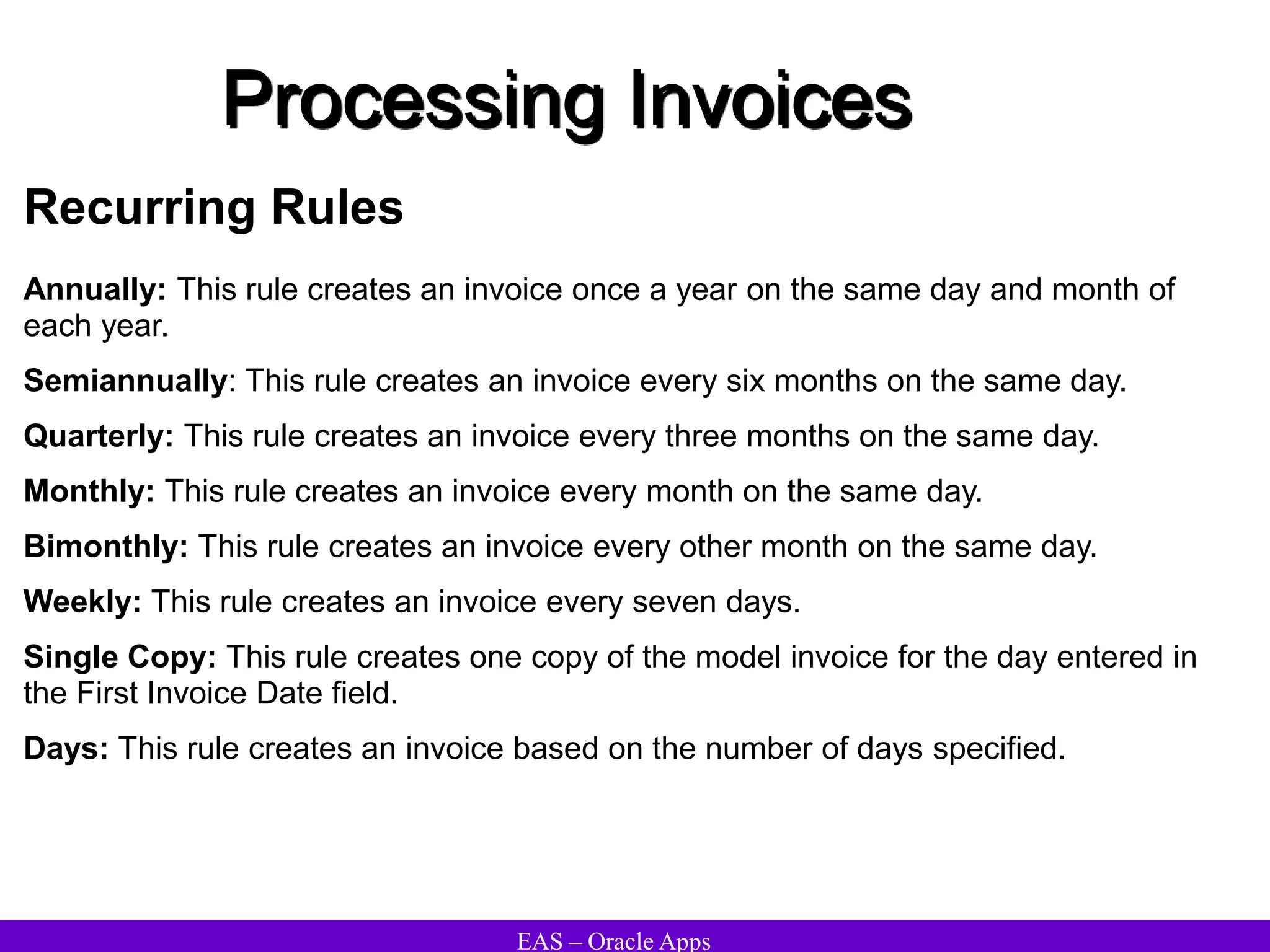
Annually: This rule creates an invoice once a year on the same day and month of
each year.
Semiannually: This rule creates an invoice every six months on the same day.
Quarterly: This rule creates an invoice every three months on the same day.
Monthly: This rule creates an invoice every month on the same day.
Bimonthly: This rule creates an invoice every other month on the same day.
Weekly: This rule creates an invoice every seven days.
Single Copy: This rule creates one copy of the model invoice for the day entered in
the First Invoice Date field.
Days: This rule creates an invoice based on the number of days specified.
EAS – Oracle Apps
Processing Invoices
Copy Transactions – Recurring Invoices
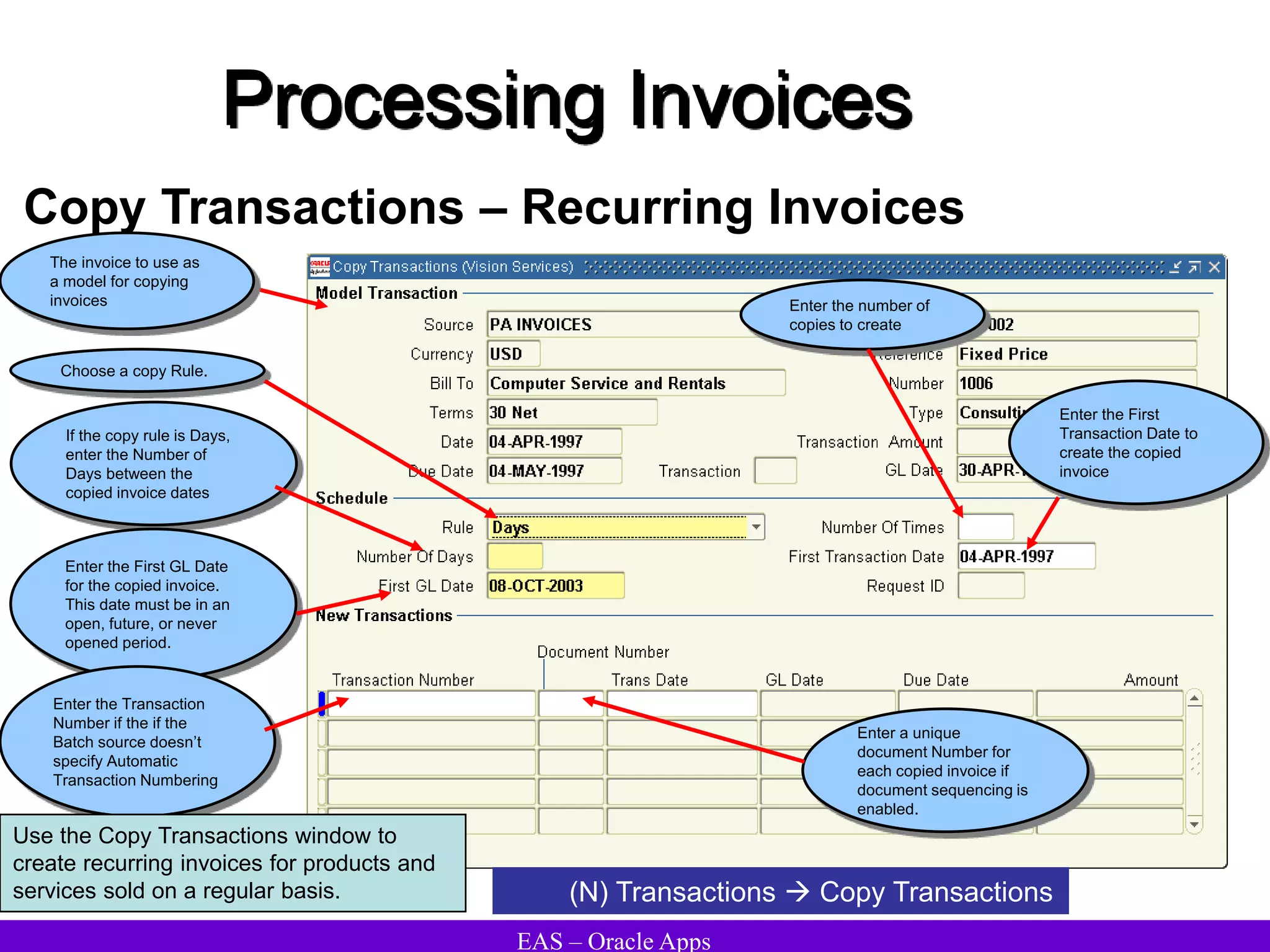
Choose a copy Rule.
Enter the number of
copies to create
(N) Transactions  Copy Transactions
If the copy rule is Days,
enter the Number of
Days between the
copied invoice dates
Enter the First GL Date
for the copied invoice.
This date must be in an
open, future, or never
opened period.
Enter a unique
document Number for
each copied invoice if
document sequencing is
enabled.
Enter the First
Transaction Date to
create the copied
invoice
Enter the Transaction
Number if the if the
Batch source doesn’t
specify Automatic
Transaction Numbering
The invoice to use as
a model for copying
invoices
Use the Copy Transactions window to
create recurring invoices for products and
services sold on a regular basis.
EAS – Oracle Apps
Processing Invoices
Recurring Invoice Program report
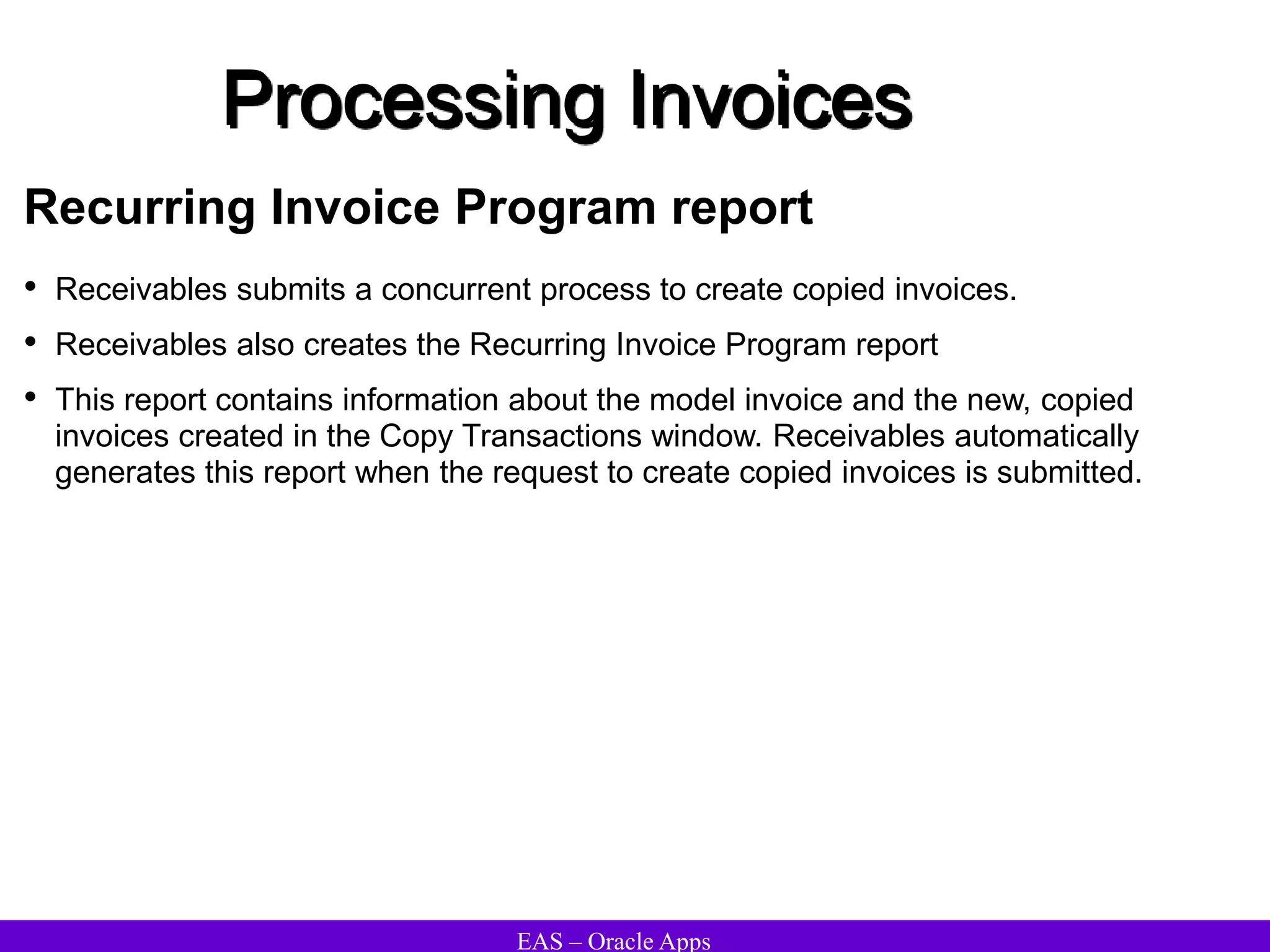
• Receivables submits a concurrent process to create copied invoices.
• Receivables also creates the Recurring Invoice Program report
• This report contains information about the model invoice and the new, copied
invoices created in the Copy Transactions window. Receivables automatically
generates this report when the request to create copied invoices is submitted.
EAS – Oracle Apps
Processing Invoices
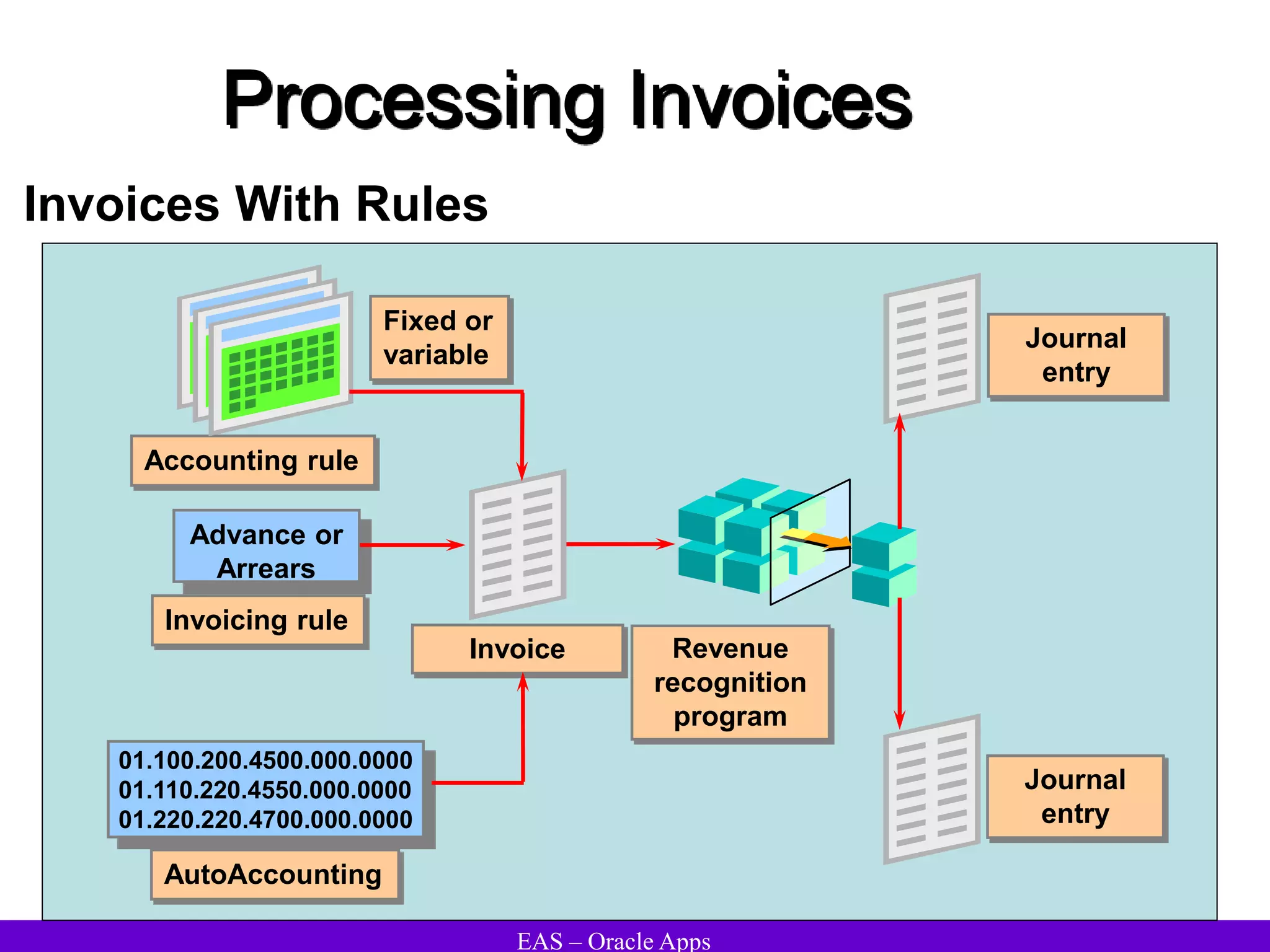
Invoices With Rules
Advance or
Arrears
01.100.200.4500.000.0000
01.110.220.4550.000.0000
01.220.220.4700.000.0000
Accounting rule
Invoicing rule
AutoAccounting
Invoice Revenue
recognition
program
Journal
entry
Journal
entry
Fixed or
variable
EAS – Oracle Apps
Processing Invoices
Invoicing Rules and Accounting Rules
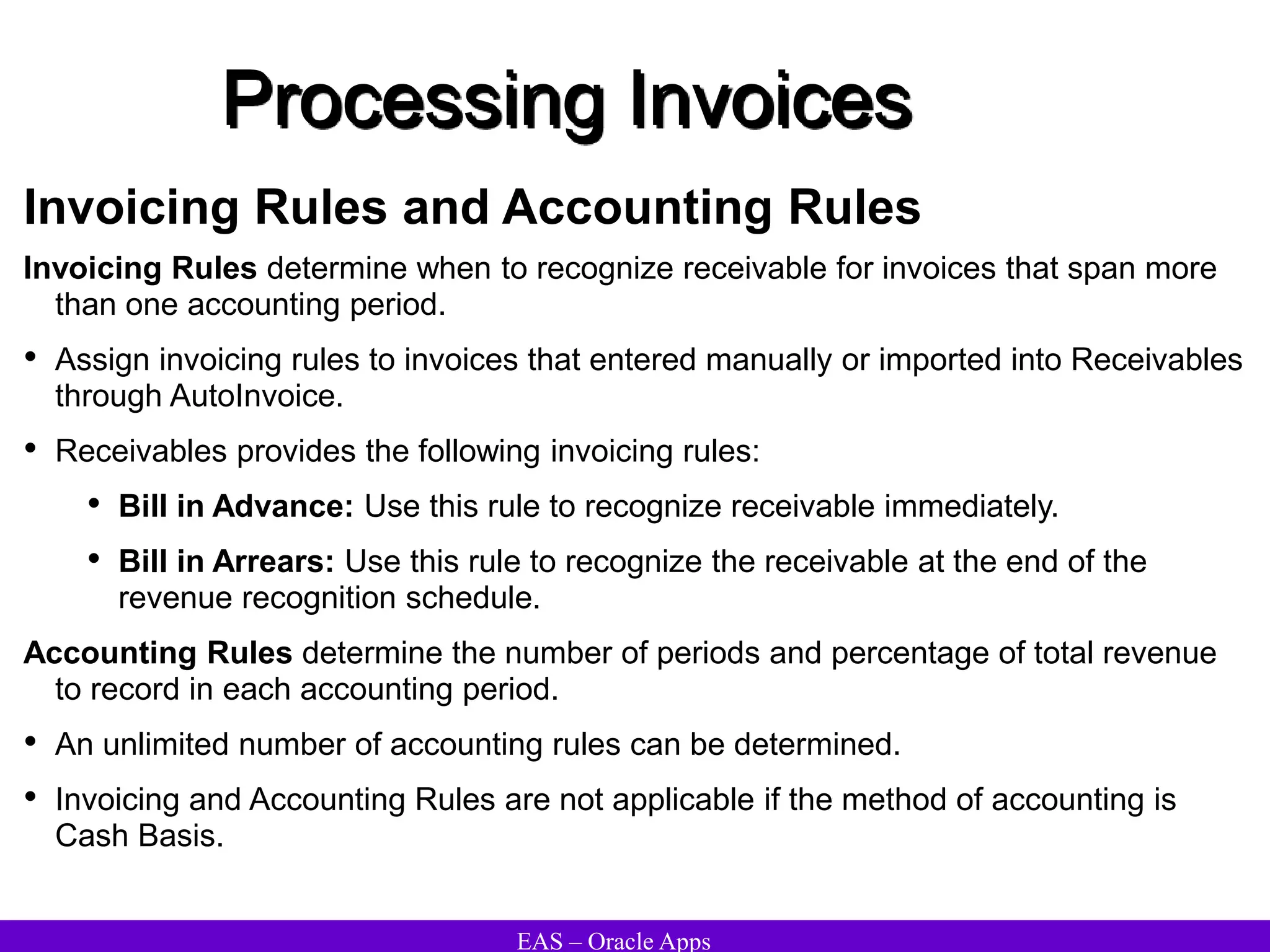
Invoicing Rules determine when to recognize receivable for invoices that span more
than one accounting period.
• Assign invoicing rules to invoices that entered manually or imported into Receivables
through AutoInvoice.
• Receivables provides the following invoicing rules:
• Bill in Advance: Use this rule to recognize receivable immediately.
• Bill in Arrears: Use this rule to recognize the receivable at the end of the
revenue recognition schedule.
Accounting Rules determine the number of periods and percentage of total revenue
to record in each accounting period.
• An unlimited number of accounting rules can be determined.
• Invoicing and Accounting Rules are not applicable if the method of accounting is
Cash Basis.
EAS – Oracle Apps
Processing Invoices
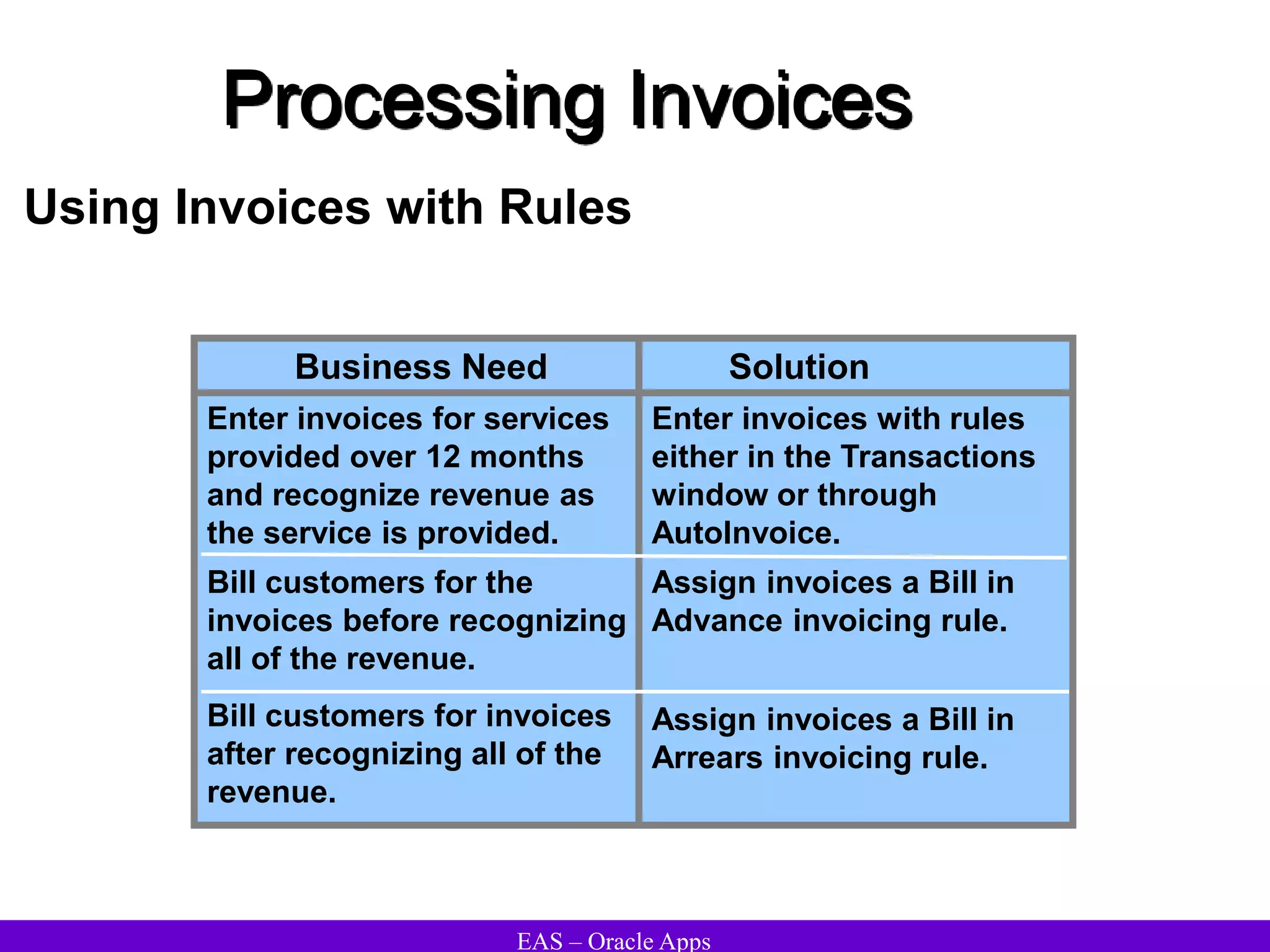
Using Invoices with Rules
Business Need
Enter invoices for services
provided over 12 months
and recognize revenue as
the service is provided.
Bill customers for the
invoices before recognizing
all of the revenue.
Bill customers for invoices
after recognizing all of the
revenue.
Solution
Enter invoices with rules
either in the Transactions
window or through
AutoInvoice.
Assign invoices a Bill in
Advance invoicing rule.
Assign invoices a Bill in
Arrears invoicing rule.
EAS – Oracle Apps
Processing Invoices
Assigning Invoicing Rules
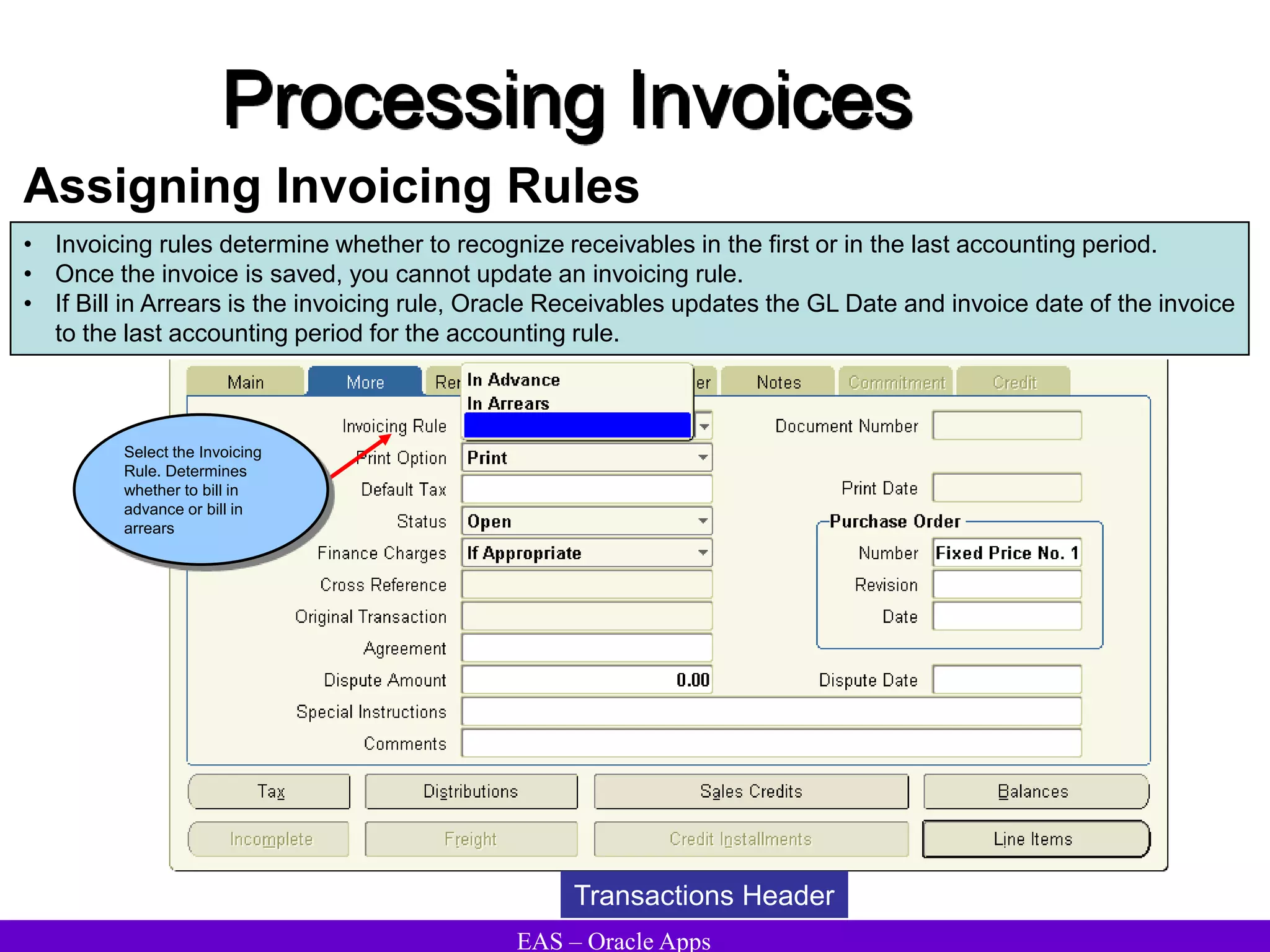
• Invoicing rules determine whether to recognize receivables in the first or in the last accounting period.
• Once the invoice is saved, you cannot update an invoicing rule.
• If Bill in Arrears is the invoicing rule, Oracle Receivables updates the GL Date and invoice date of the invoice
to the last accounting period for the accounting rule.
Transactions Header
Select the Invoicing
Rule. Determines
whether to bill in
advance or bill in
arrears
EAS – Oracle Apps
Processing Invoices
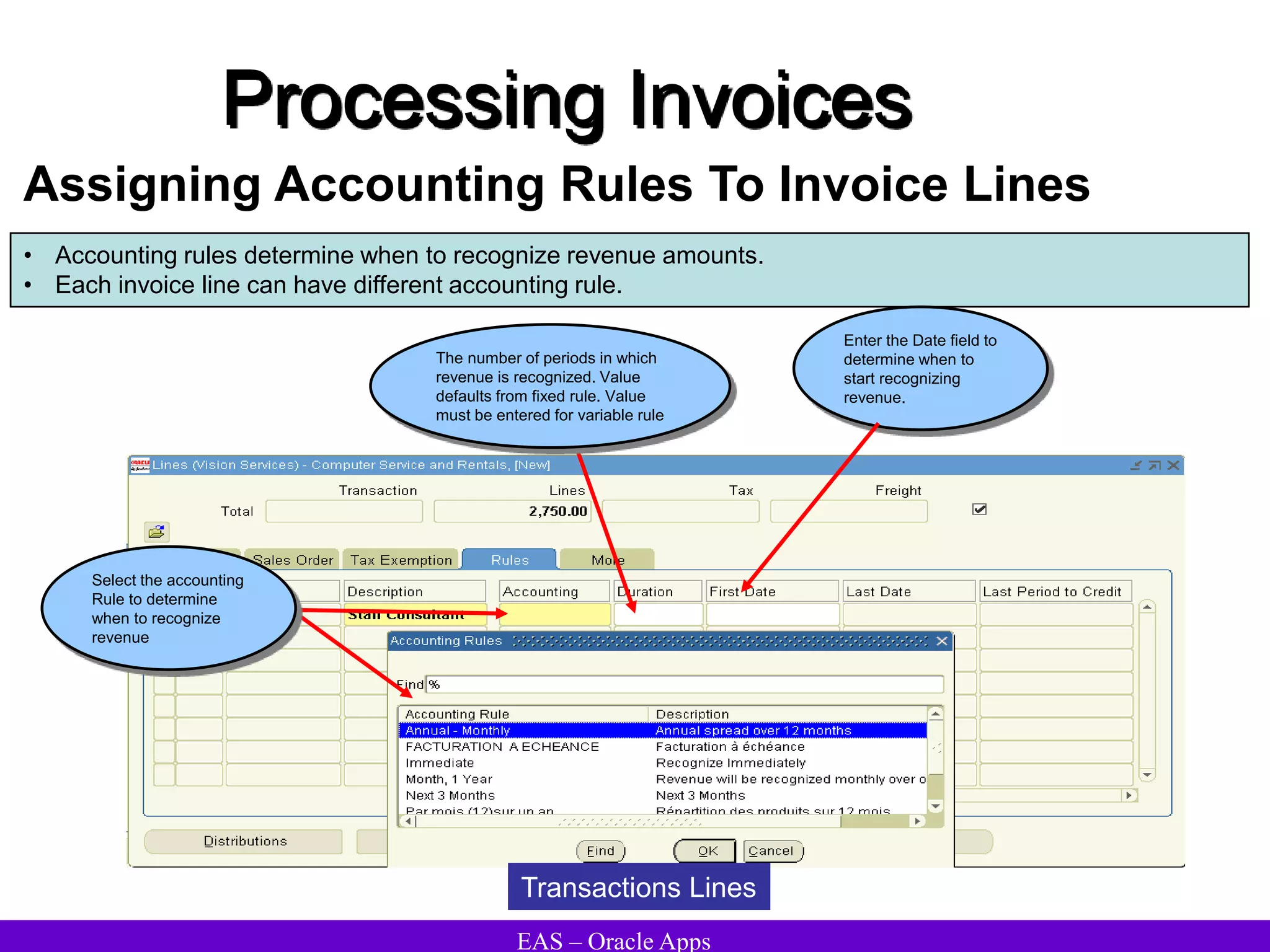
Assigning Accounting Rules To Invoice Lines
• Accounting rules determine when to recognize revenue amounts.
• Each invoice line can have different accounting rule.
Enter the Date field to
determine when to
start recognizing
revenue.
The number of periods in which
revenue is recognized. Value
defaults from fixed rule. Value
must be entered for variable rule
Select the accounting
Rule to determine
when to recognize
revenue
Transactions Lines
EAS – Oracle Apps
Processing Invoices
Creating Accounting Entries
• Accounting distributions are created only after the Revenue Recognition program is run.
• For Bill in Advance, the offset account to accounts receivable is Unearned Revenue.
• For Bill in Arrears, the offset account to accounts receivable is Unbilled Receivables.
• Accounting distributions are created for all periods when Revenue Recognition is run.
Running The Revenue Recognition Program
• The Revenue Recognition program gives control over the creation of accounting entries.
• Submit the Revenue Recognition program manually through the Run Revenue Recognition
window.
• The Revenue Recognition program will also be submitted when posting to Oracle General
Ledger.
• The program processes revenue by transaction, rather than by accounting period.
• Only new transactions are selected each time the process is run.
EAS – Oracle Apps
Processing Invoices
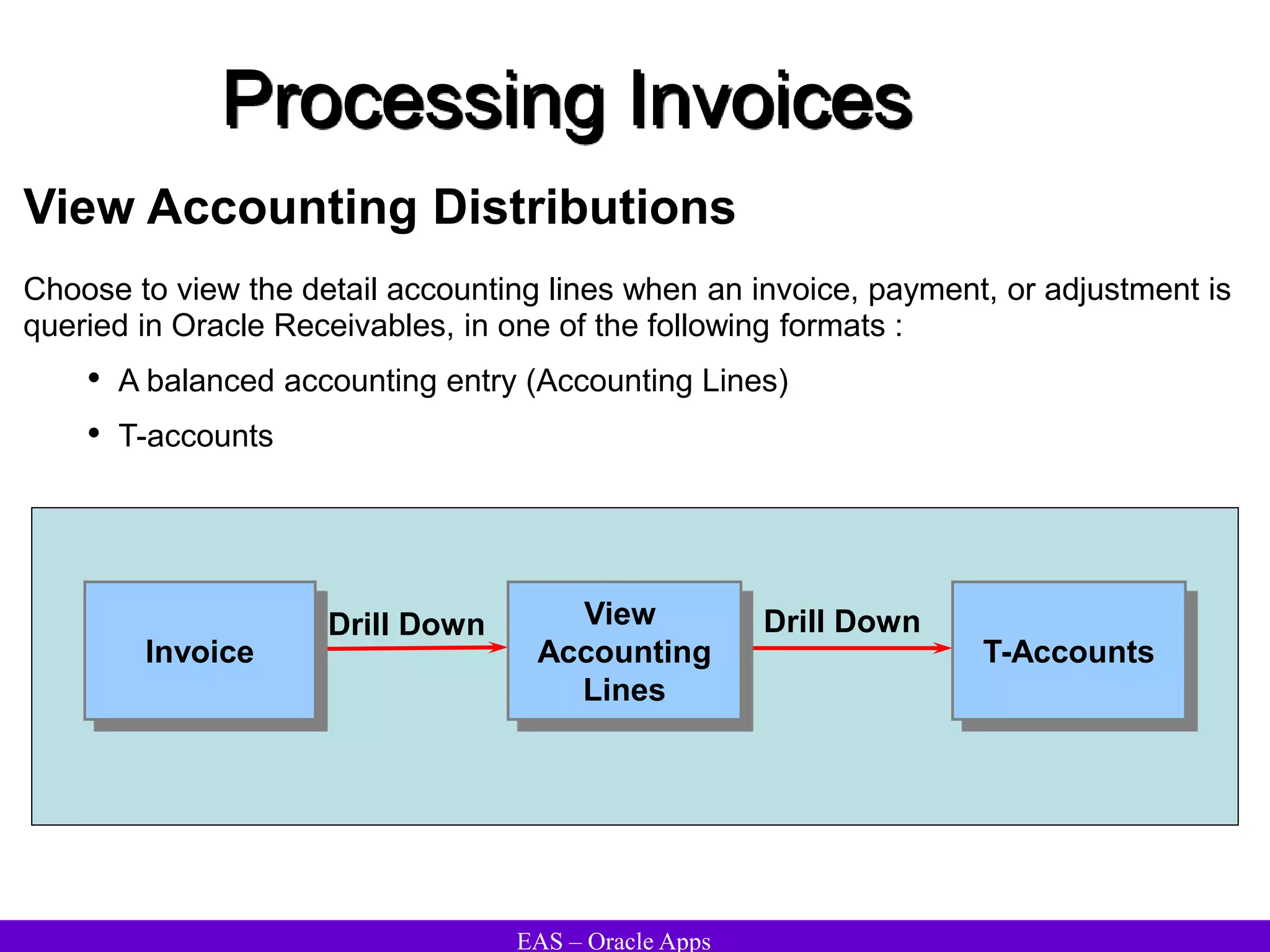
View Accounting Distributions
Choose to view the detail accounting lines when an invoice, payment, or adjustment is
queried in Oracle Receivables, in one of the following formats :
• A balanced accounting entry (Accounting Lines)
• T-accounts
Drill Down Drill Down
Invoice
View
Accounting
Lines
T-Accounts
EAS – Oracle Apps
Processing Invoices
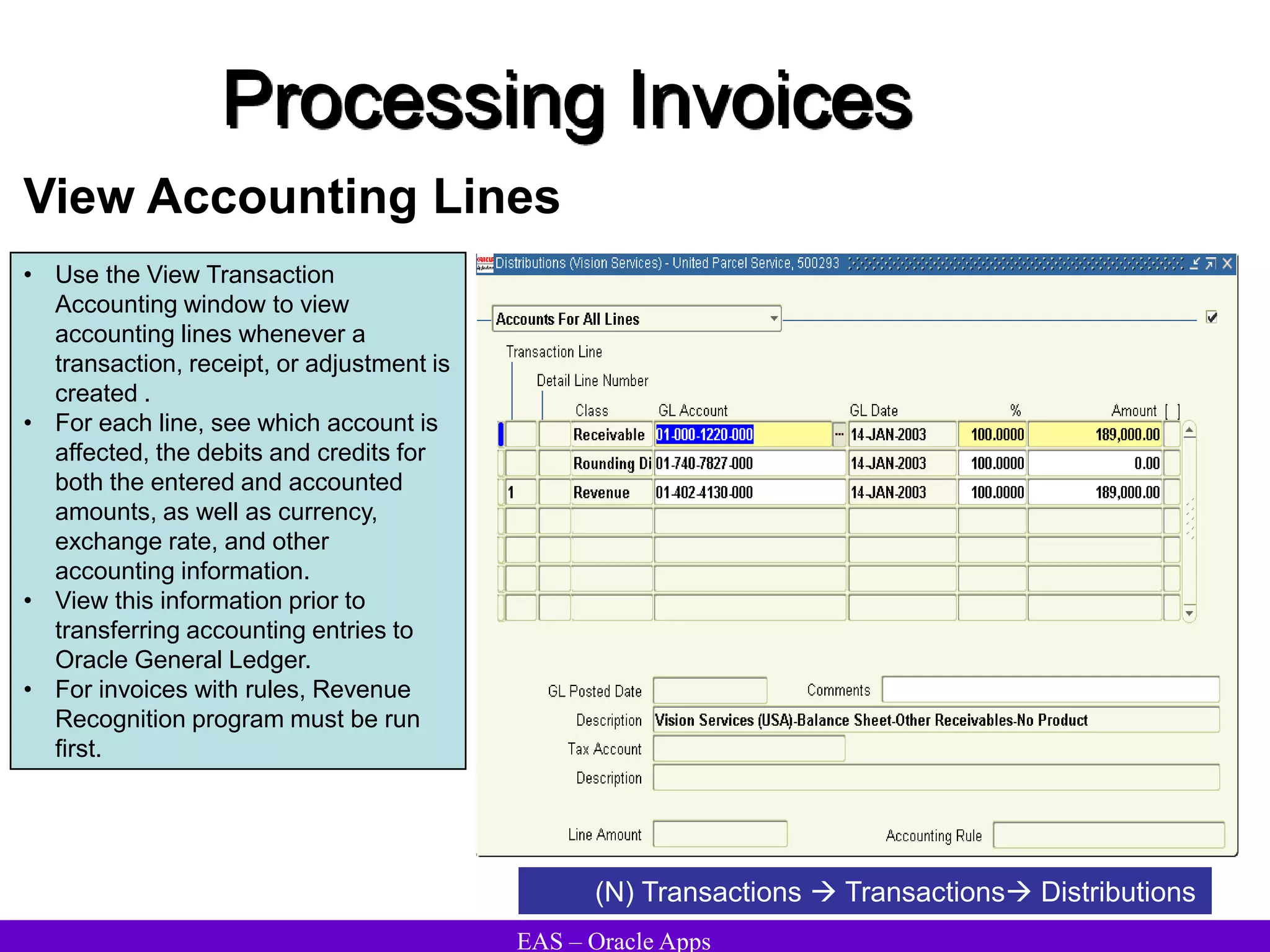
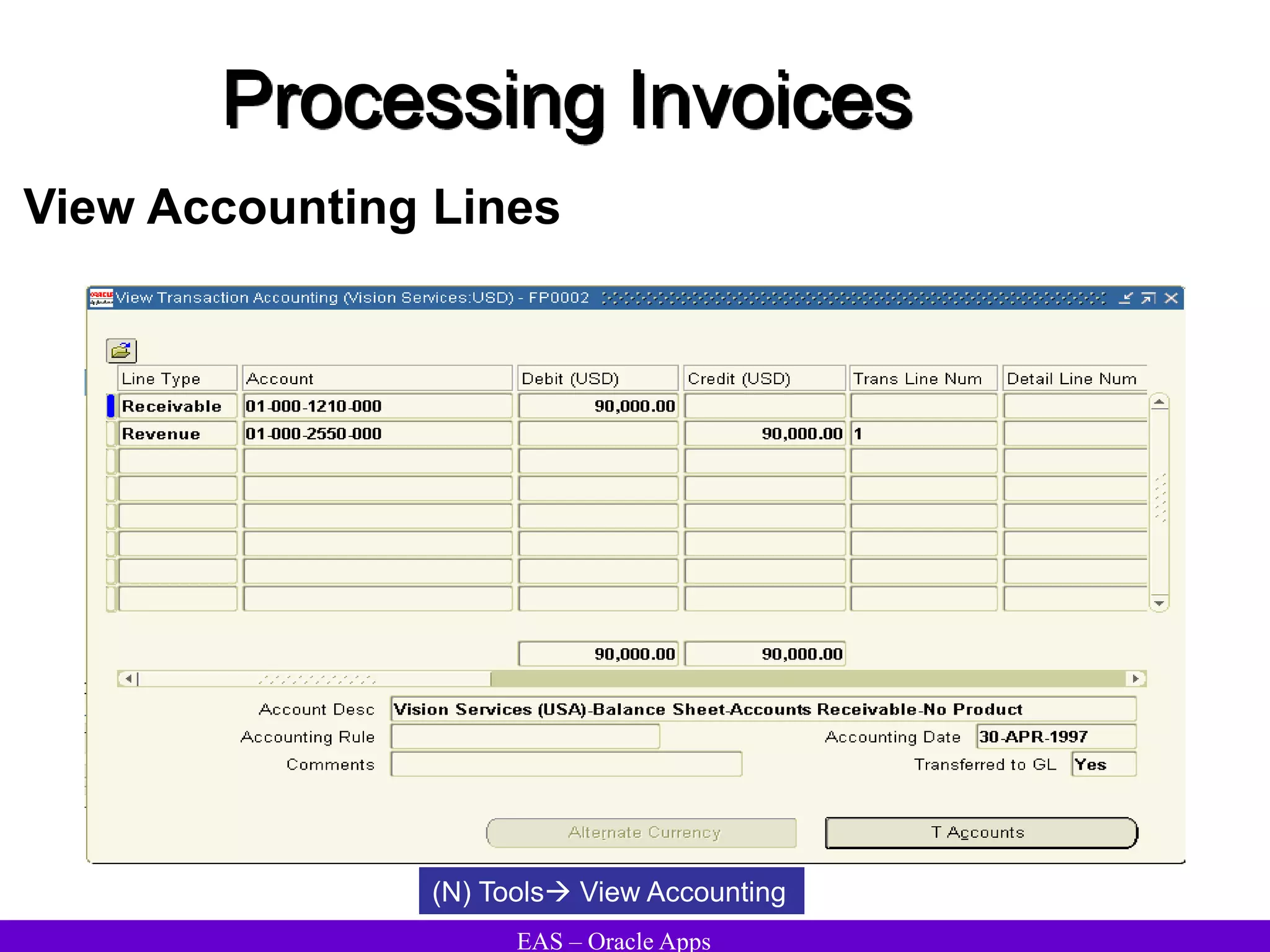
View Accounting Lines
(N) Transactions  Transactions Distributions
• Use the View Transaction
Accounting window to view
accounting lines whenever a
transaction, receipt, or adjustment is
created .
• For each line, see which account is
affected, the debits and credits for
both the entered and accounted
amounts, as well as currency,
exchange rate, and other
accounting information.
• View this information prior to
transferring accounting entries to
Oracle General Ledger.
• For invoices with rules, Revenue
Recognition program must be run
first.
EAS – Oracle Apps
Processing Invoices
View Accounting Lines
(N) Tools View Accounting
EAS – Oracle Apps
Processing Invoices
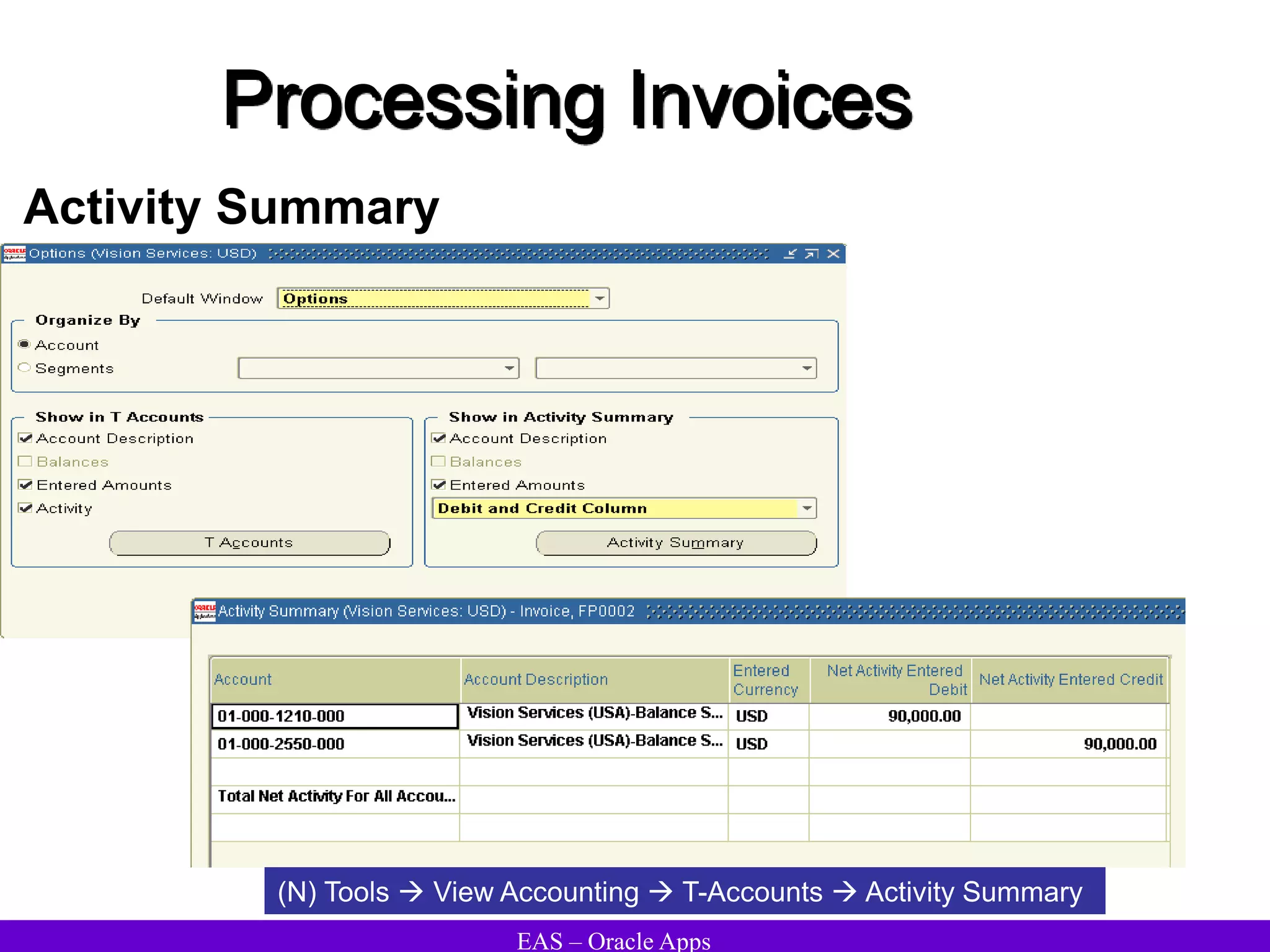
Activity Summary
(N) Tools  View Accounting  T-Accounts  Activity Summary
EAS – Oracle Apps
Processing Invoices
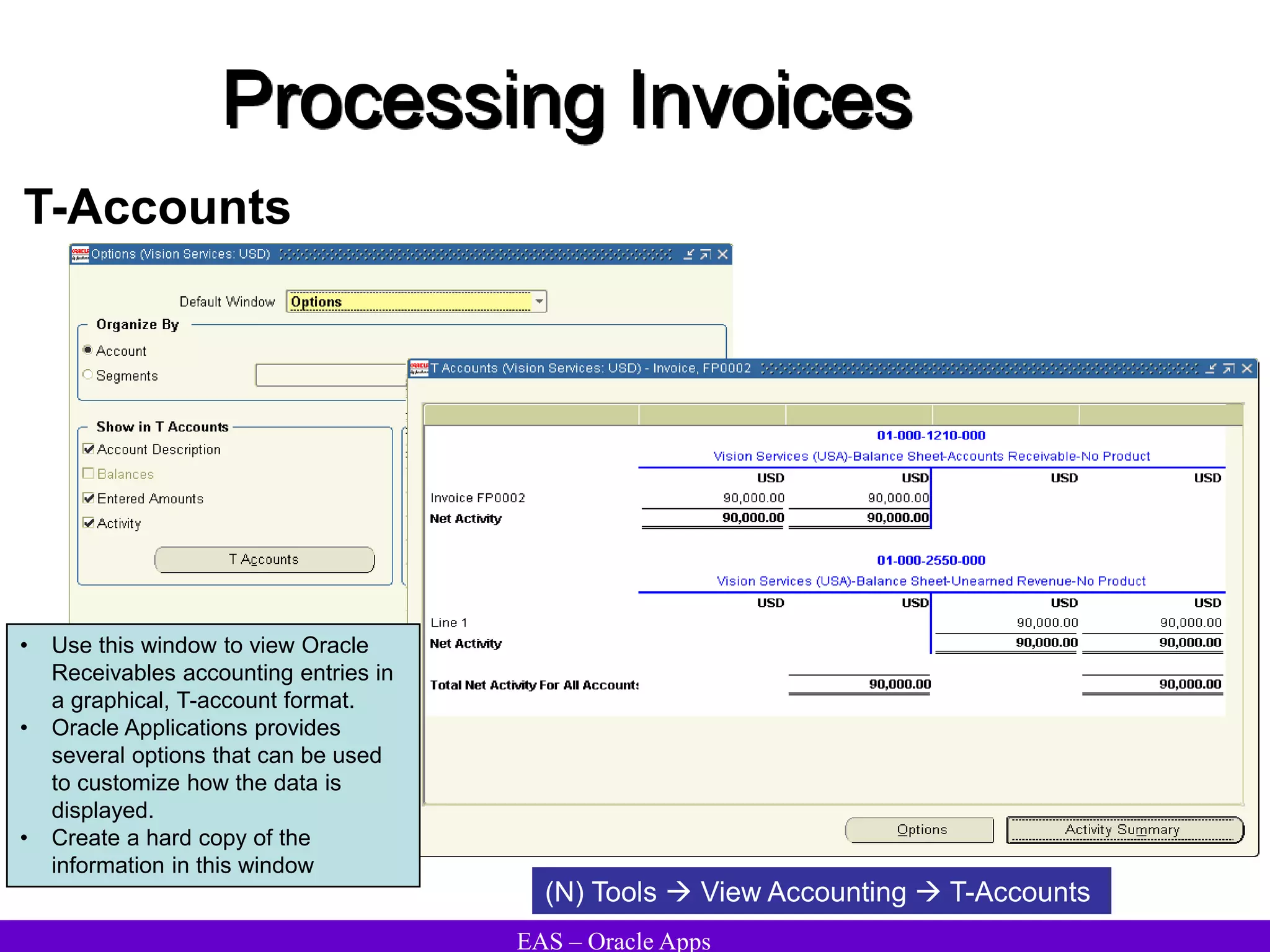
T-Accounts
• Use this window to view Oracle
Receivables accounting entries in
a graphical, T-account format.
• Oracle Applications provides
several options that can be used
to customize how the data is
displayed.
• Create a hard copy of the
information in this window
(N) Tools  View Accounting  T-Accounts
EAS – Oracle Apps
Processing Invoices
Foreign Currency Invoice Processing
When a batch or a receipt or transaction that is not in the functional currency is
entered, Receivables displays a pop-up window to enter exchange rate
information. Receivables uses this information to convert foreign currency receipt
and transaction amounts to the functional currency
Daily conversion rates can also be defined. Daily conversion rates enable
Receivables to automatically calculate exchange rate information when foreign
currency receipts and transactions are entered.
EAS – Oracle Apps
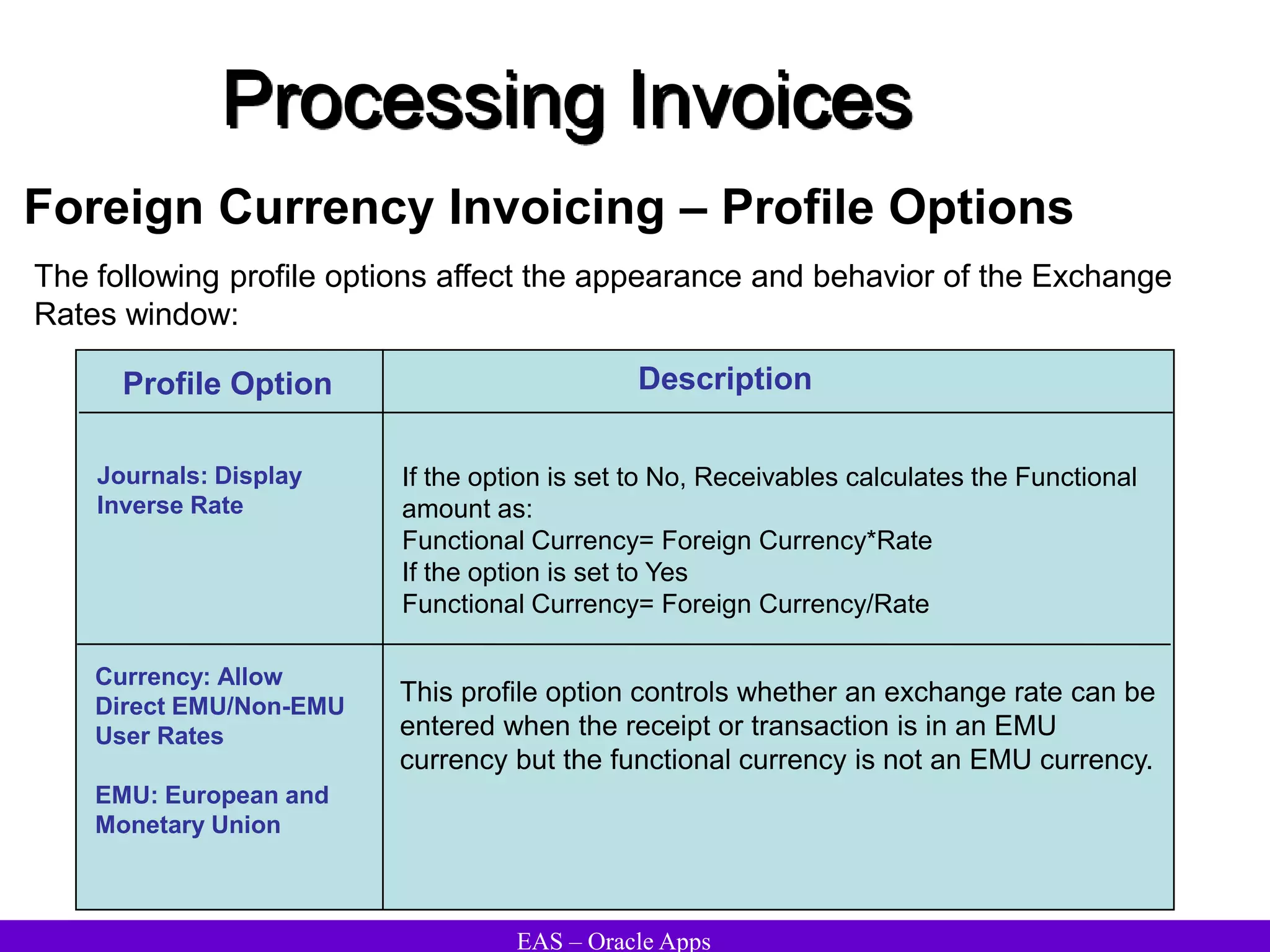
Profile Option Description
Currency: Allow
Direct EMU/Non-EMU
User Rates
EMU: European and
Monetary Union
This profile option controls whether an exchange rate can be
entered when the receipt or transaction is in an EMU
currency but the functional currency is not an EMU currency.
Journals: Display
Inverse Rate
If the option is set to No, Receivables calculates the Functional
amount as:
Functional Currency= Foreign Currency*Rate
If the option is set to Yes
Functional Currency= Foreign Currency/Rate
Processing Invoices
Foreign Currency Invoicing – Profile Options
The following profile options affect the appearance and behavior of the Exchange
Rates window:
EAS – Oracle Apps
Processing Invoices
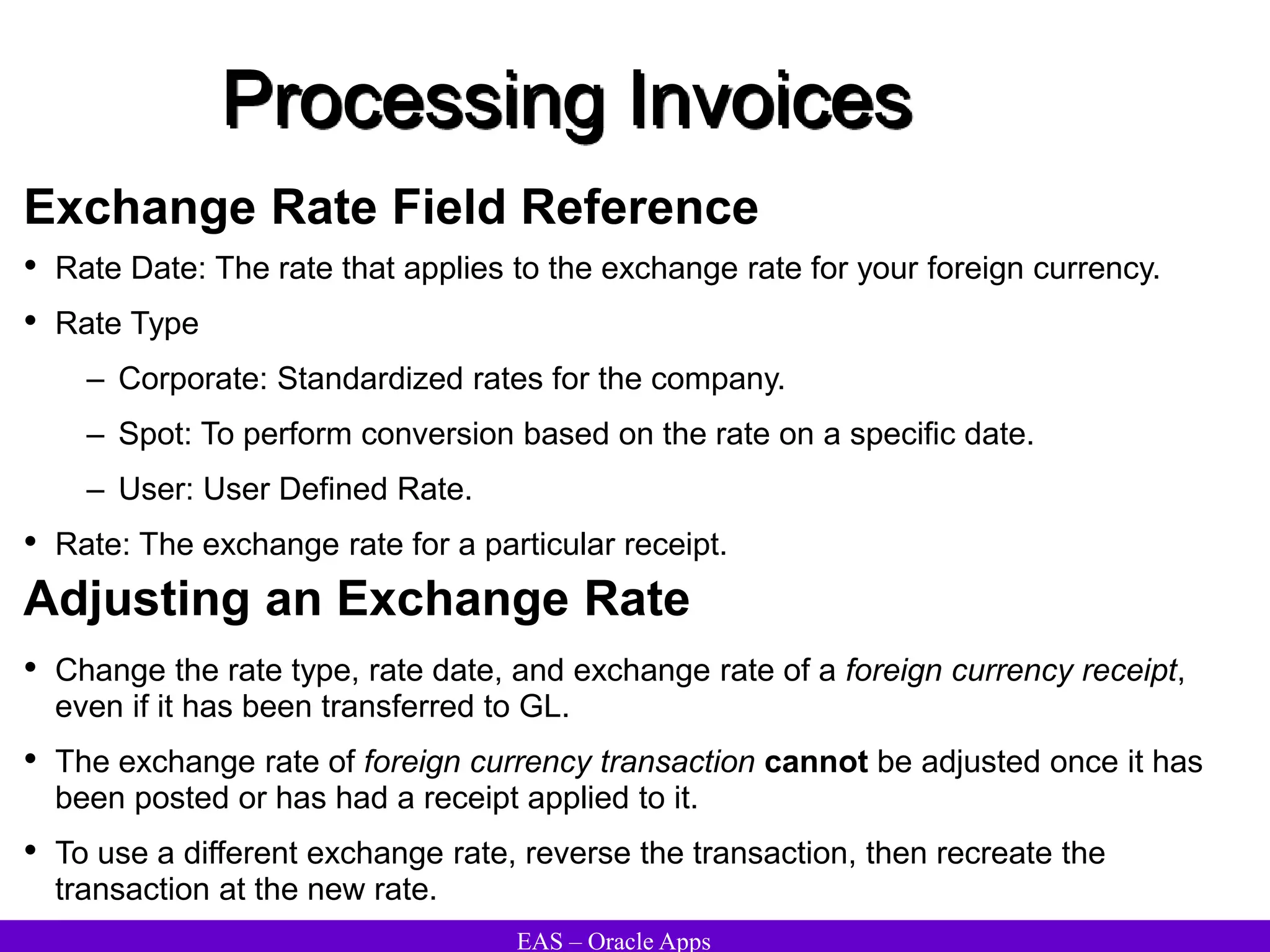
Exchange Rate Field Reference
• Rate Date: The rate that applies to the exchange rate for your foreign currency.
• Rate Type
– Corporate: Standardized rates for the company.
– Spot: To perform conversion based on the rate on a specific date.
– User: User Defined Rate.
• Rate: The exchange rate for a particular receipt.
Adjusting an Exchange Rate
• Change the rate type, rate date, and exchange rate of a foreign currency receipt,
even if it has been transferred to GL.
• The exchange rate of foreign currency transaction cannot be adjusted once it has
been posted or has had a receipt applied to it.
• To use a different exchange rate, reverse the transaction, then recreate the
transaction at the new rate.
EAS – Oracle Apps
Processing Invoices
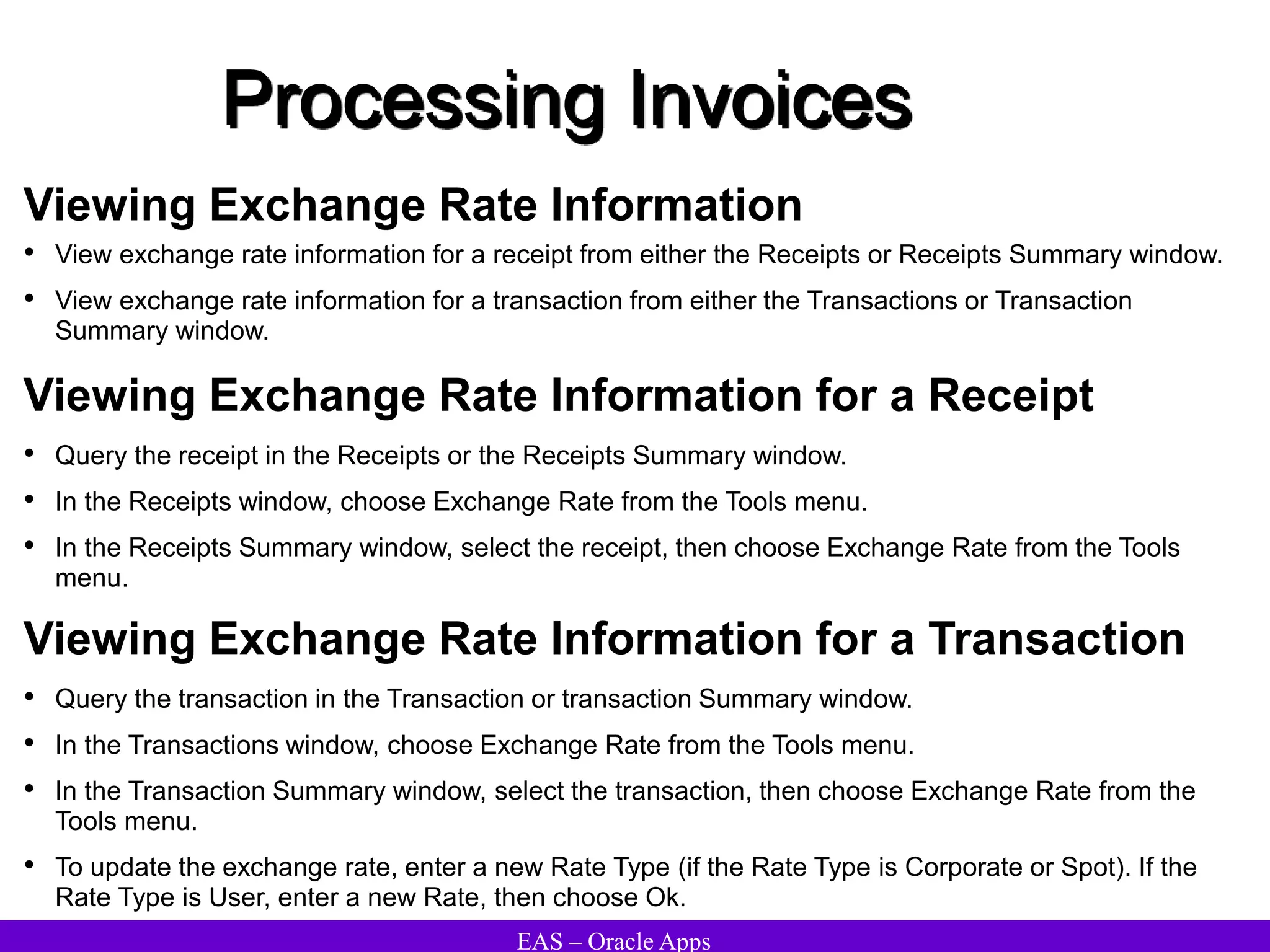
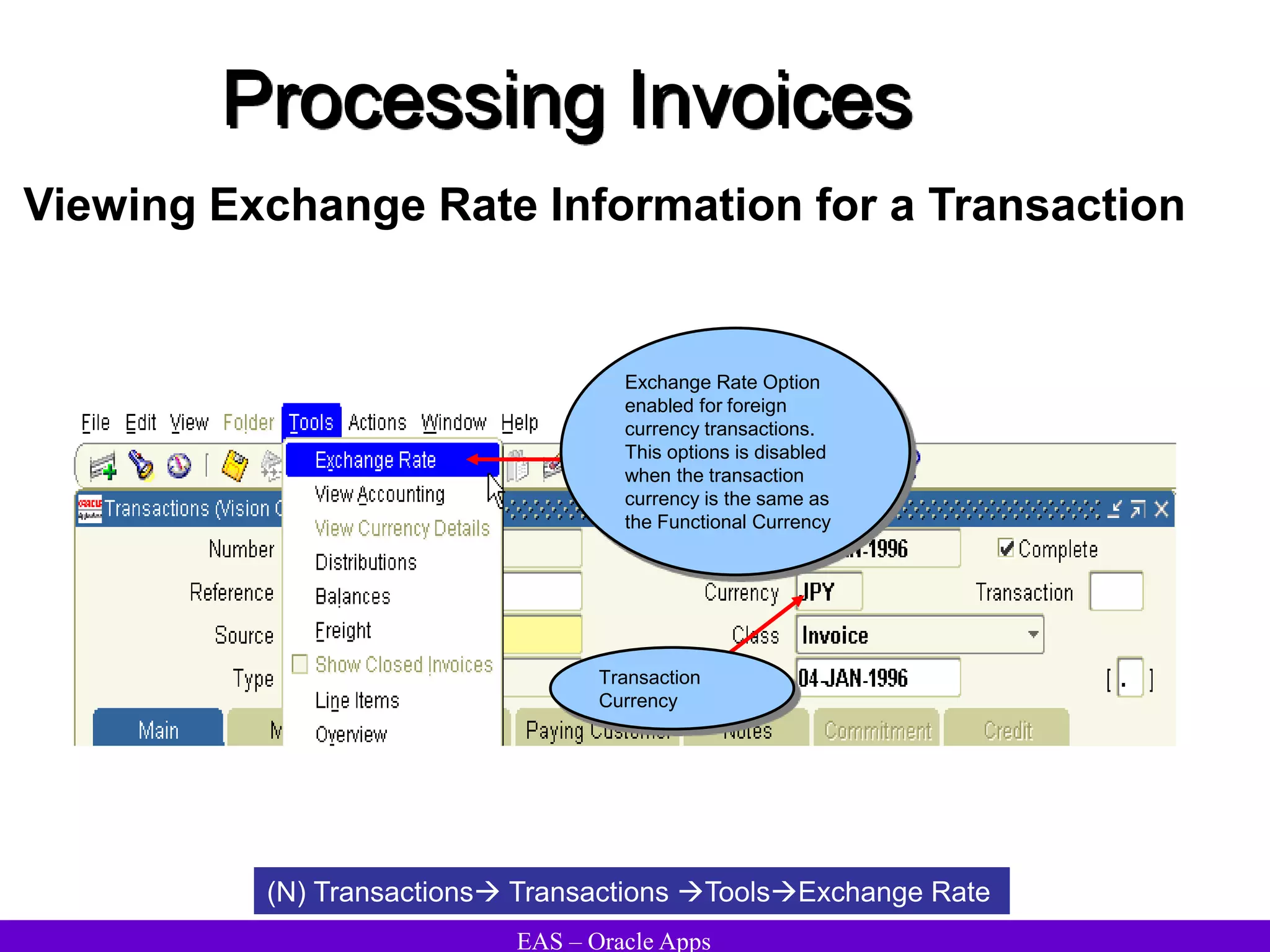
Viewing Exchange Rate Information
• View exchange rate information for a receipt from either the Receipts or Receipts Summary window.
• View exchange rate information for a transaction from either the Transactions or Transaction
Summary window.
Viewing Exchange Rate Information for a Receipt
• Query the receipt in the Receipts or the Receipts Summary window.
• In the Receipts window, choose Exchange Rate from the Tools menu.
• In the Receipts Summary window, select the receipt, then choose Exchange Rate from the Tools
menu.
Viewing Exchange Rate Information for a Transaction
• Query the transaction in the Transaction or transaction Summary window.
• In the Transactions window, choose Exchange Rate from the Tools menu.
• In the Transaction Summary window, select the transaction, then choose Exchange Rate from the
Tools menu.
• To update the exchange rate, enter a new Rate Type (if the Rate Type is Corporate or Spot). If the
Rate Type is User, enter a new Rate, then choose Ok.
EAS – Oracle Apps
Processing Invoices
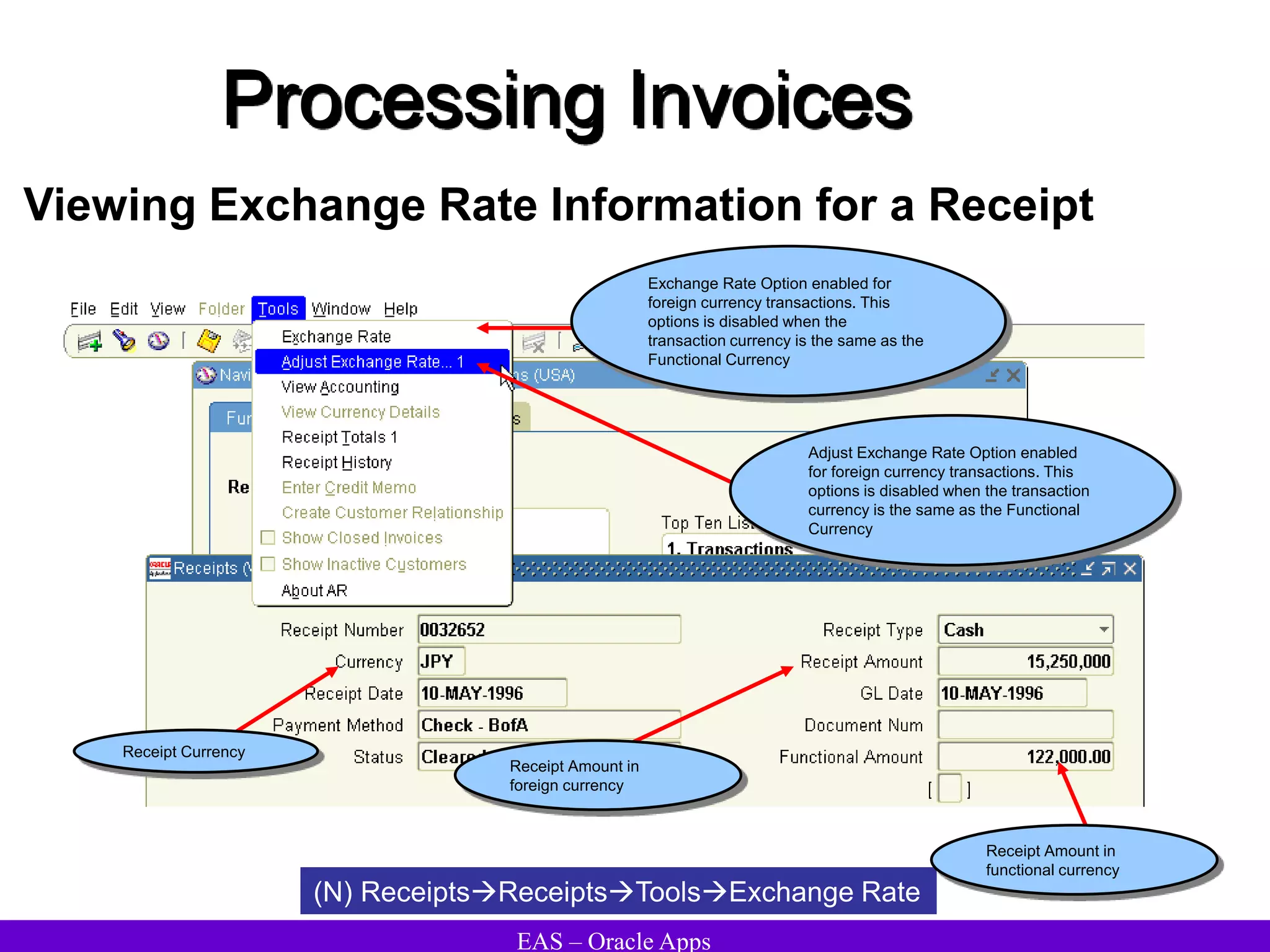
Viewing Exchange Rate Information for a Receipt
(N) ReceiptsReceiptsToolsExchange Rate
Exchange Rate Option enabled for
foreign currency transactions. This
options is disabled when the
transaction currency is the same as the
Functional Currency
Adjust Exchange Rate Option enabled
for foreign currency transactions. This
options is disabled when the transaction
currency is the same as the Functional
Currency
Receipt Currency
Receipt Amount in
foreign currency
Receipt Amount in
functional currency
EAS – Oracle Apps
Processing Invoices
Viewing Exchange Rate Information for a Transaction
(N) Transactions Transactions ToolsExchange Rate
Exchange Rate Option
enabled for foreign
currency transactions.
This options is disabled
when the transaction
currency is the same as
the Functional Currency
Transaction
Currency
EAS – Oracle Apps
Processing Invoices
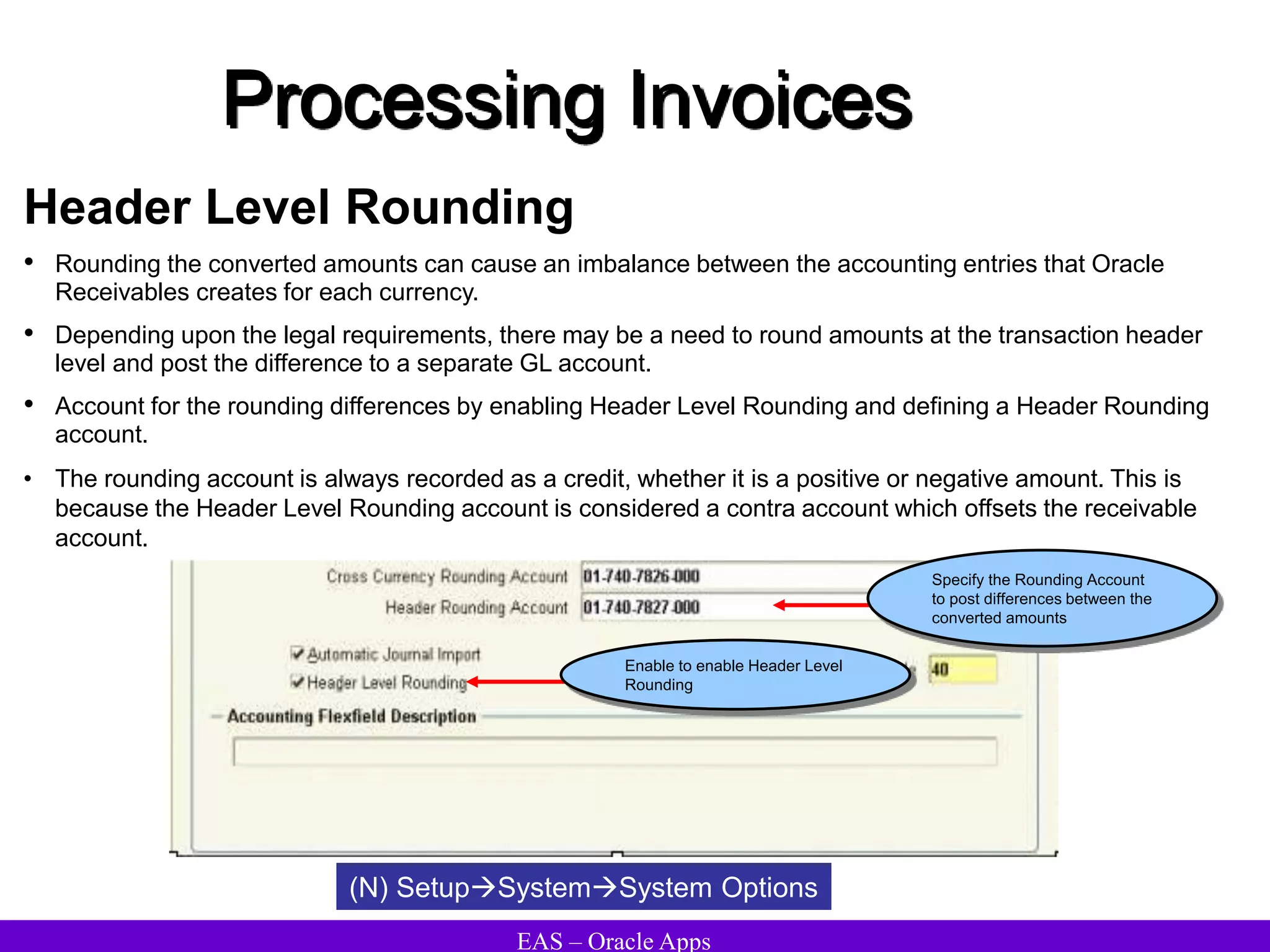
Header Level Rounding
• Rounding the converted amounts can cause an imbalance between the accounting entries that Oracle
Receivables creates for each currency.
• Depending upon the legal requirements, there may be a need to round amounts at the transaction header
level and post the difference to a separate GL account.
• Account for the rounding differences by enabling Header Level Rounding and defining a Header Rounding
account.
• The rounding account is always recorded as a credit, whether it is a positive or negative amount. This is
because the Header Level Rounding account is considered a contra account which offsets the receivable
account.
(N) SetupSystemSystem Options
Specify the Rounding Account
to post differences between the
converted amounts
Enable to enable Header Level
Rounding
EAS – Oracle Apps
Processing Invoices
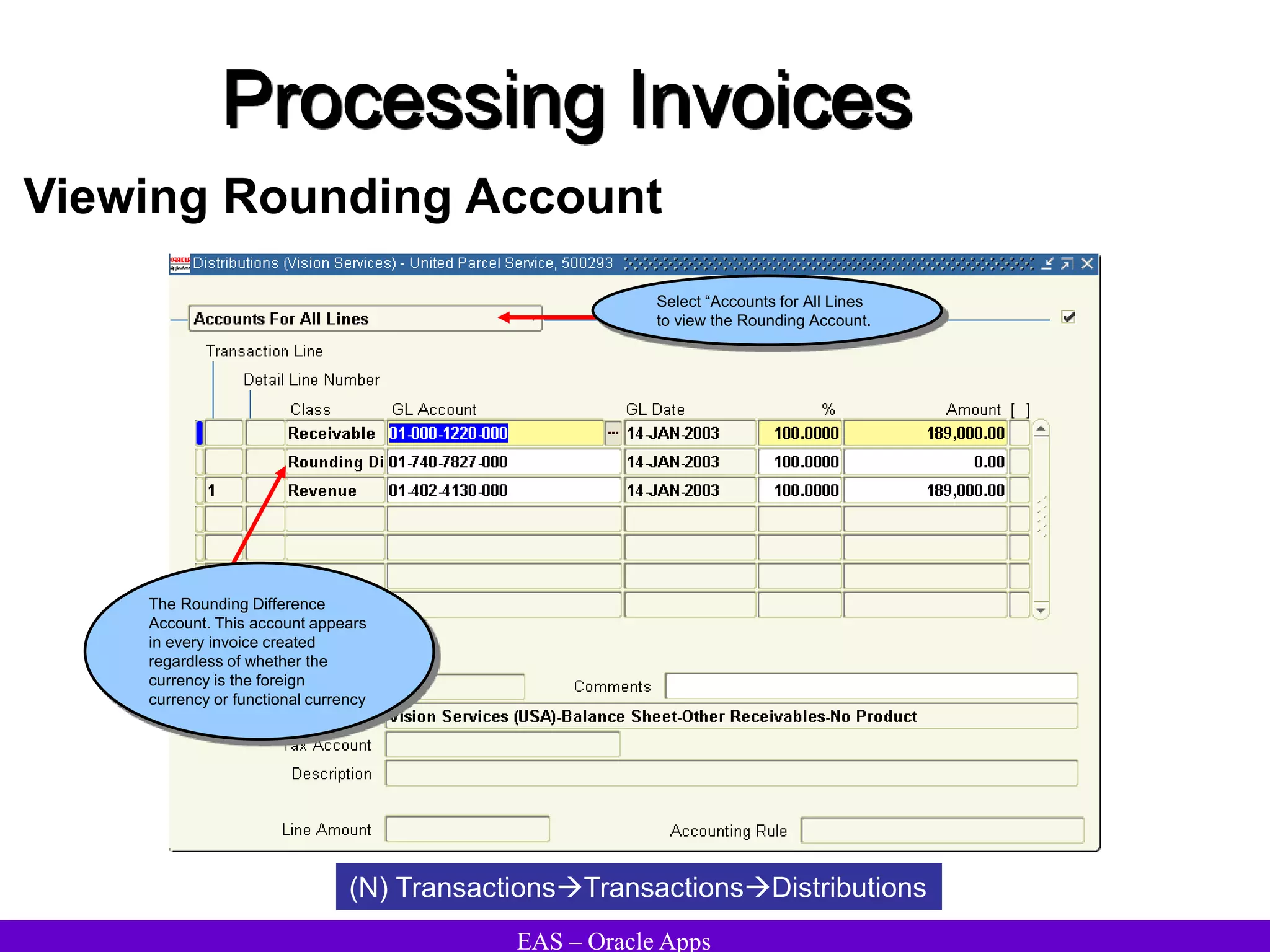
Viewing Rounding Account
(N) TransactionsTransactionsDistributions
The Rounding Difference
Account. This account appears
in every invoice created
regardless of whether the
currency is the foreign
currency or functional currency
Select “Accounts for All Lines
to view the Rounding Account.
EAS – Oracle Apps
Processing Invoices
Printing Transactions
Print the following documents to send to customers:
• Invoices
• Credit memos
• Debit memos
• Deposits
• Guarantees
• Chargebacks
• Adjustments
• Previewing Transactions Before Printing
– Submit the Invoice Print Preview Report to see a list of transactions that will be printed
– Select a list of transactions by specifying values for the report parameters
• Printing Transactions
– Print transactions by batch
– Print transactions that have not been printed
– Specify a range of transactions to print
EAS – Oracle Apps
Processing Invoices
Printing Transactions – Report Options
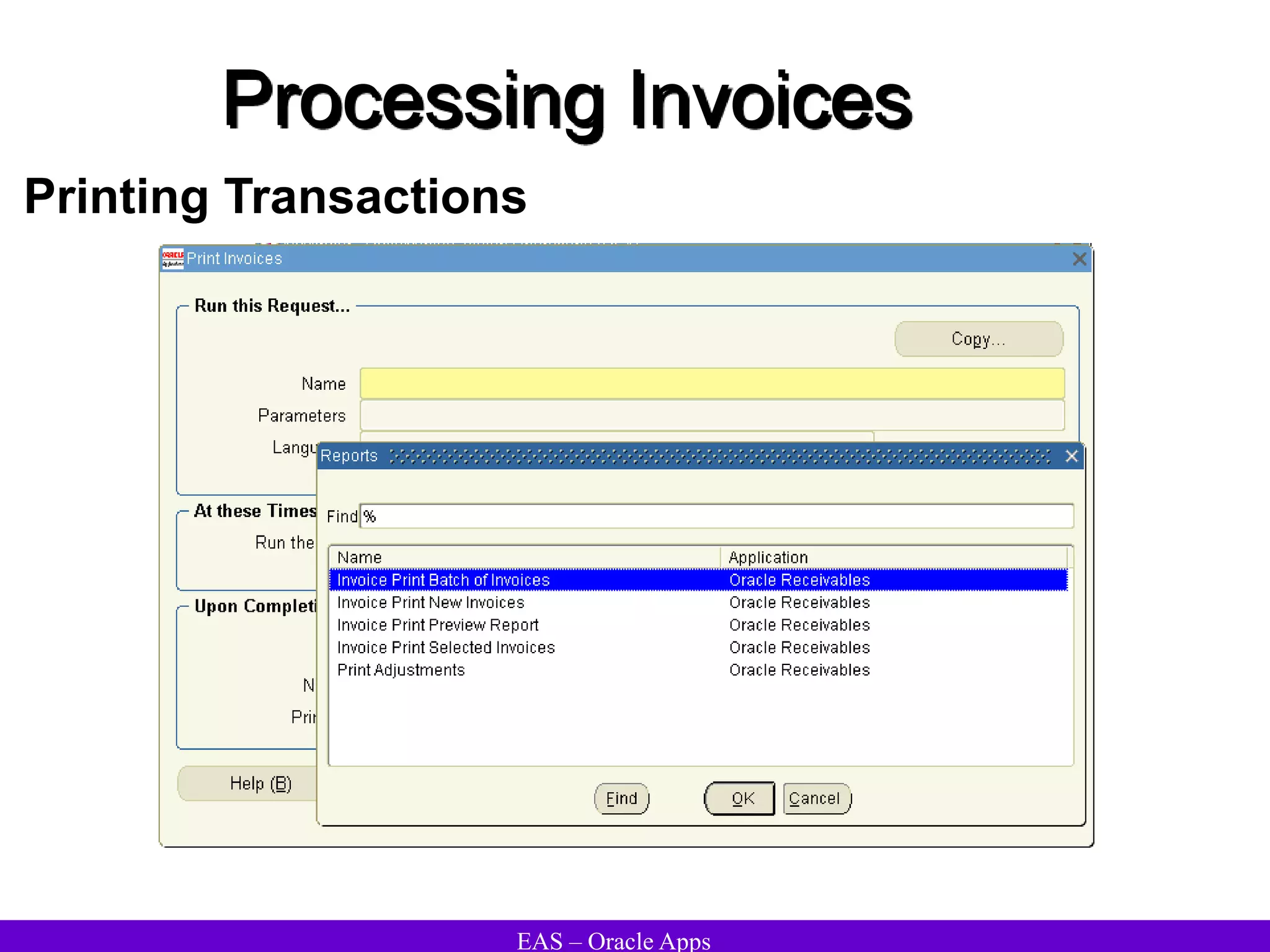
Invoice Print New Invoices: Print all transactions that have not been printed previously and
have a print status of 'Print'.
Invoice Print Selected Invoices: Print specific transactions, regardless of whether you have
already printed them. You can limit your printout by entering a range of dates, transaction
numbers, a specific transaction type, transaction class, customer class, installment number,
and a specific customer. You can also select to print only open invoices. Receivables does
not include any transactions with a print status of 'Do Not Print'.
Invoice Print Batch of Invoices: Print a single batch of transactions, regardless of whether you
have already printed it. You specify the batch to print in the Parameters window. Receivables
does not include transactions with a print status of 'Do Not Print'.
Print Adjustments: Print specific adjustments to transactions which have not been printed
previously and have a print status of 'Print.' Receivables does not include transactions with a
print status of 'Do Not Print'.
Invoice Print Preview Report: Preview transactions that would be printed if you chose to print a
batch of invoices, new invoices, or specific invoices. This report will list the transactions that
would be printed in each case.
EAS – Oracle Apps
Processing Invoices
Printing Transactions
EAS – Oracle Apps
Processing Invoices
Printing Transactions
Printing Invoices
Consider the following when determining the range of invoice dates to print:
If the invoice you are printing has a payment term where Print Lead Days is 0, Receivables uses
the transaction date to determine if this transaction falls into the Start and End Date range you
specify.
If the invoice you are printing has a payment term where Print Lead Days is greater than 0,
Receivables uses the formula Due Date - Print Lead Days to determine if this transaction falls
into the Start and End Date range you specify.
Invoices & Debit Memos
For each invoice Receivables displays the quantity ordered, shipped, unit price, and extended
amount.
Receivables prints the entire description for each invoice line. Text wraps to the next line.
Receivables displays the total amount of the lines, tax, and shipping in the body of the printed
invoice.
For installments, Receivables displays the total amount due for each installment as well as the
line, tax, and freight amount in the subtotal fields.
Credit Memos
For each credit memo, Receivables displays a row for every invoice line, tax, or freight amount
you are crediting.
Credit memo amounts display as negative numbers.
Receivables displays the percent of the credit memo applied to the transaction you are crediting.
EAS – Oracle Apps
Processing Invoices
Printing Transactions
Deposits
For each deposit, Receivables prints unit price, extended amount, and '1' in the quantity ordered
and quantity shipped columns. Unit price and extended amount will always be the same.
Receivables prints 'N' in the Tax column and does not print tax and shipping amounts since these
amounts are not part of the deposit.
Receivables prints the effective start date and the effective end date if you enter one.
Guarantees
For each guarantee, Receivables prints unit price, extended amount, and '1' in the quantity
ordered and quantity shipped columns. Unit price and extended amount will always be the same.
Receivables prints 'N' in the Tax column and does not print tax and shipping amounts since these
amounts are not part of the guarantee.
Receivables prints the effective start date and the effective end date if you enter one.
Receivables prints a message in the body of the guarantee explaining that this is not a request
for payment.
EAS – Oracle Apps
Processing Invoices
Printing Transactions
Invoices Against Deposits
Receivables prints a row for each invoice line. If your line includes tax charges, Receivables
displays 'Y' in the tax column. Receivables also prints the amount deducted from the deposit.
This amount displays as a negative number.
Receivables displays the original balance of your deposit, less any activity. Activity includes any
previous transactions as well as the current invoice. Receivables calculates and displays the
current deposit balance. The deposit balance does not include any tax or shipping charges. Tax
and shipping charges are printed at the bottom of the invoice in their respective columns and
must be collected.
Invoices Against Guarantees
Receivables prints a row for each invoice line. If your line includes tax charges, Receivables
displays 'Y' in the tax column.
Receivables displays the original balance of your guarantee, less any activity. Activity includes
any previous transactions as well as the current invoice. Receivables calculates and displays the
current guarantee balance. The guarantee balance does not include any tax or shipping charges.
Tax and shipping charges are printed at the bottom of the invoice in their respective columns and
must be collected in addition to the line amount(s).
EAS – Oracle Apps
Printing Tax
Processing Invoices
EAS – Oracle Apps
Processing Invoices
Printing Tax
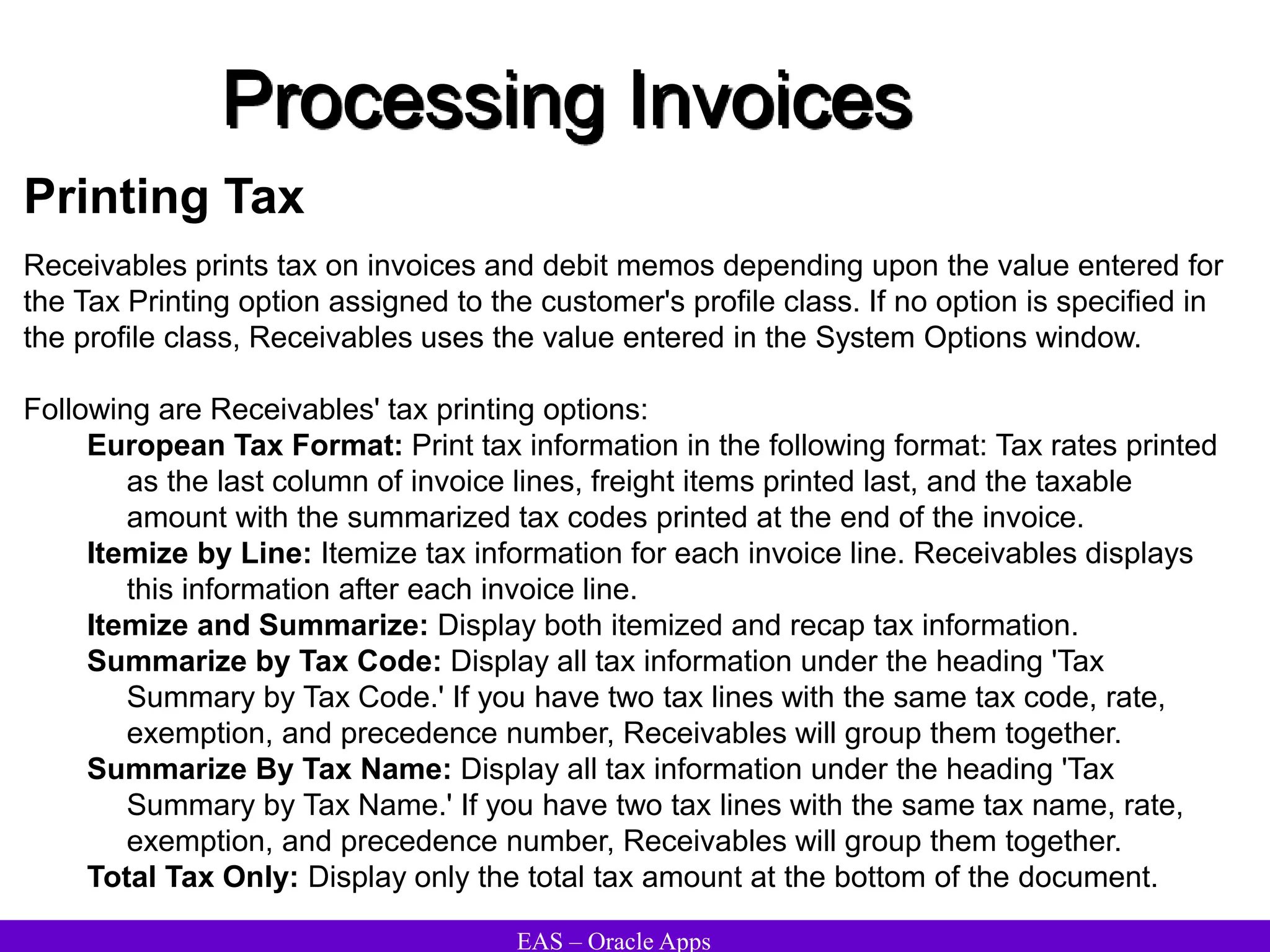
Receivables prints tax on invoices and debit memos depending upon the value entered for
the Tax Printing option assigned to the customer's profile class. If no option is specified in
the profile class, Receivables uses the value entered in the System Options window.
Following are Receivables' tax printing options:
European Tax Format: Print tax information in the following format: Tax rates printed
as the last column of invoice lines, freight items printed last, and the taxable
amount with the summarized tax codes printed at the end of the invoice.
Itemize by Line: Itemize tax information for each invoice line. Receivables displays
this information after each invoice line.
Itemize and Summarize: Display both itemized and recap tax information.
Summarize by Tax Code: Display all tax information under the heading 'Tax
Summary by Tax Code.' If you have two tax lines with the same tax code, rate,
exemption, and precedence number, Receivables will group them together.
Summarize By Tax Name: Display all tax information under the heading 'Tax
Summary by Tax Name.' If you have two tax lines with the same tax name, rate,
exemption, and precedence number, Receivables will group them together.
Total Tax Only: Display only the total tax amount at the bottom of the document.
EAS – Oracle Apps
Printing Statements
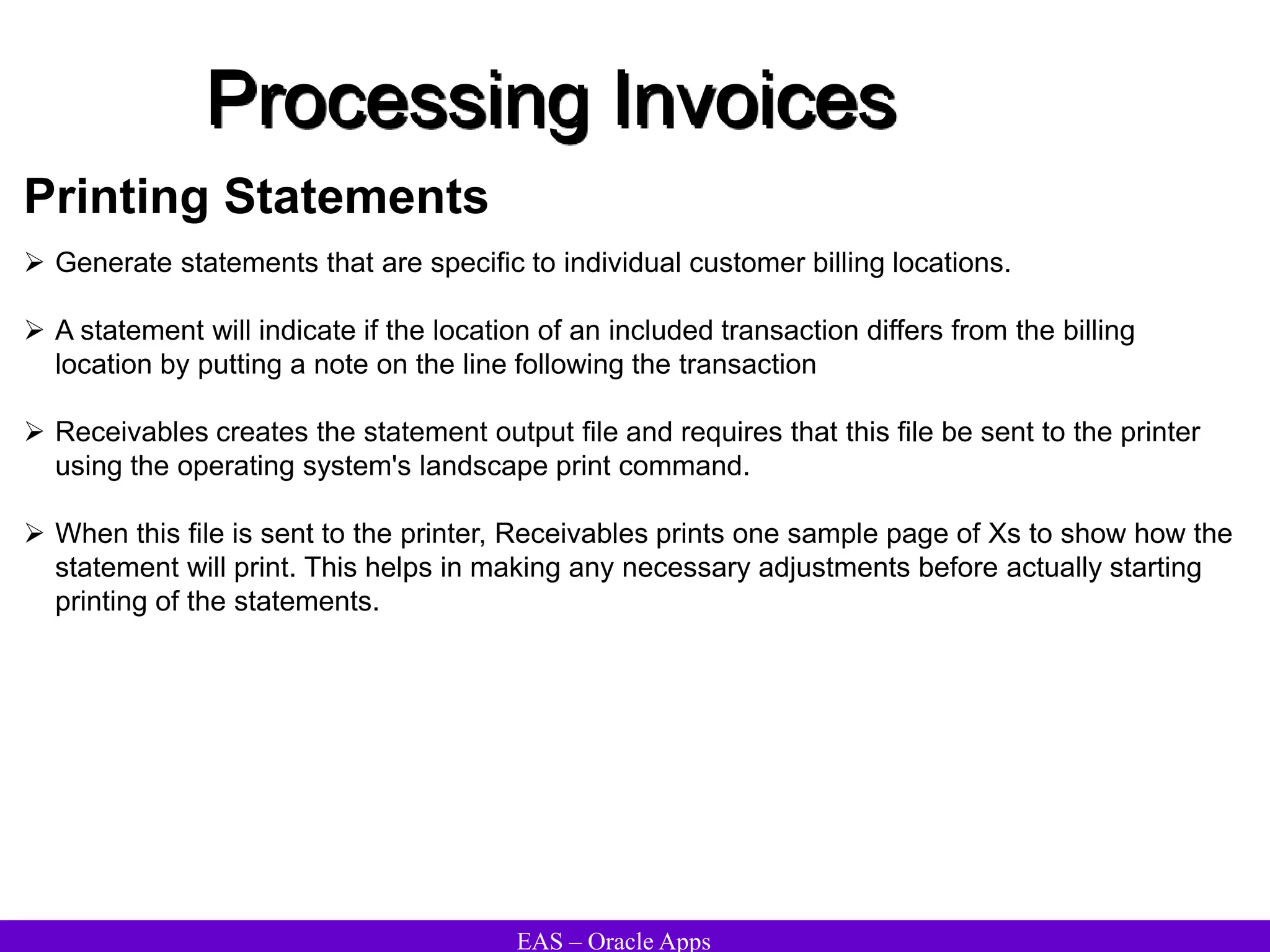
 Generate statements that are specific to individual customer billing locations.
 A statement will indicate if the location of an included transaction differs from the billing
location by putting a note on the line following the transaction
 Receivables creates the statement output file and requires that this file be sent to the printer
using the operating system's landscape print command.
 When this file is sent to the printer, Receivables prints one sample page of Xs to show how the
statement will print. This helps in making any necessary adjustments before actually starting
printing of the statements.
Processing Invoices
EAS – Oracle Apps
Printing Statements – Print Options
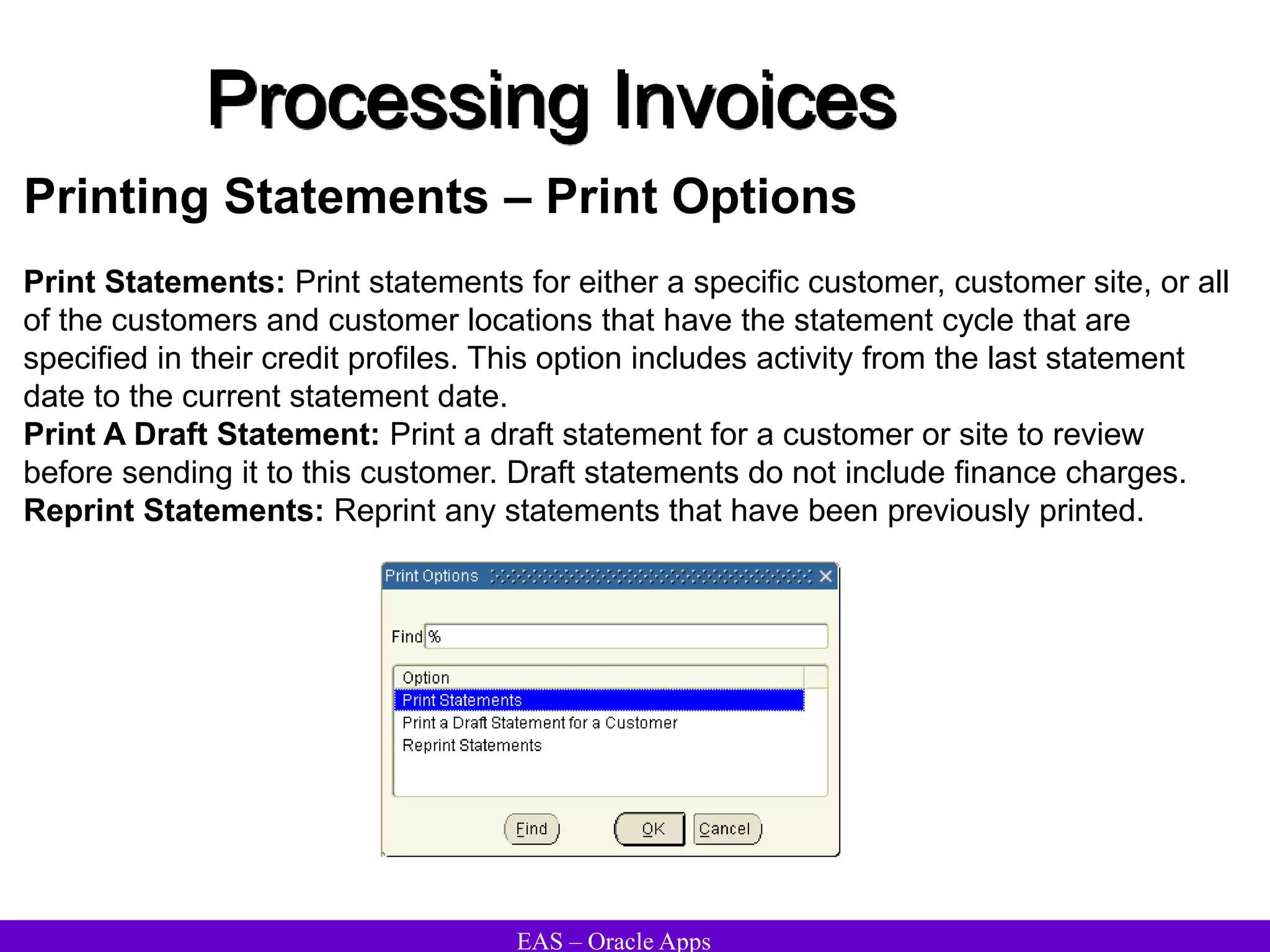
Print Statements: Print statements for either a specific customer, customer site, or all
of the customers and customer locations that have the statement cycle that are
specified in their credit profiles. This option includes activity from the last statement
date to the current statement date.
Print A Draft Statement: Print a draft statement for a customer or site to review
before sending it to this customer. Draft statements do not include finance charges.
Reprint Statements: Reprint any statements that have been previously printed.
Processing Invoices
EAS – Oracle Apps
Printing Statements
Processing Invoices
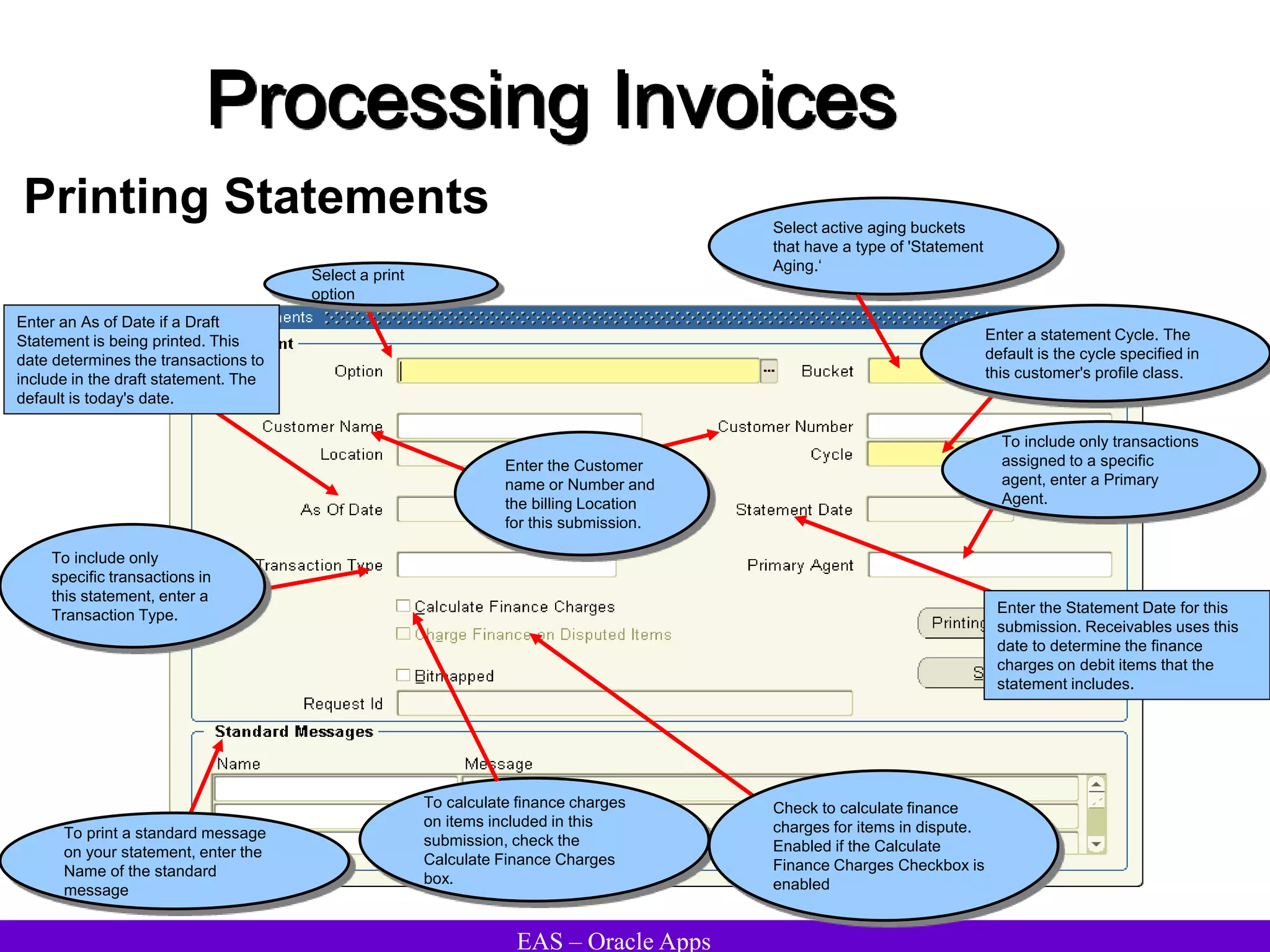
Select active aging buckets
that have a type of 'Statement
Aging.‘
To calculate finance charges
on items included in this
submission, check the
Calculate Finance Charges
box.
To print a standard message
on your statement, enter the
Name of the standard
message
To include only
specific transactions in
this statement, enter a
Transaction Type.
Enter the Customer
name or Number and
the billing Location
for this submission.
Enter a statement Cycle. The
default is the cycle specified in
this customer's profile class.
To include only transactions
assigned to a specific
agent, enter a Primary
Agent.
Enter an As of Date if a Draft
Statement is being printed. This
date determines the transactions to
include in the draft statement. The
default is today's date.
Enter the Statement Date for this
submission. Receivables uses this
date to determine the finance
charges on debit items that the
statement includes.
Check to calculate finance
charges for items in dispute.
Enabled if the Calculate
Finance Charges Checkbox is
enabled
Select a print
option
EAS – Oracle Apps
Printing Dunning Letters
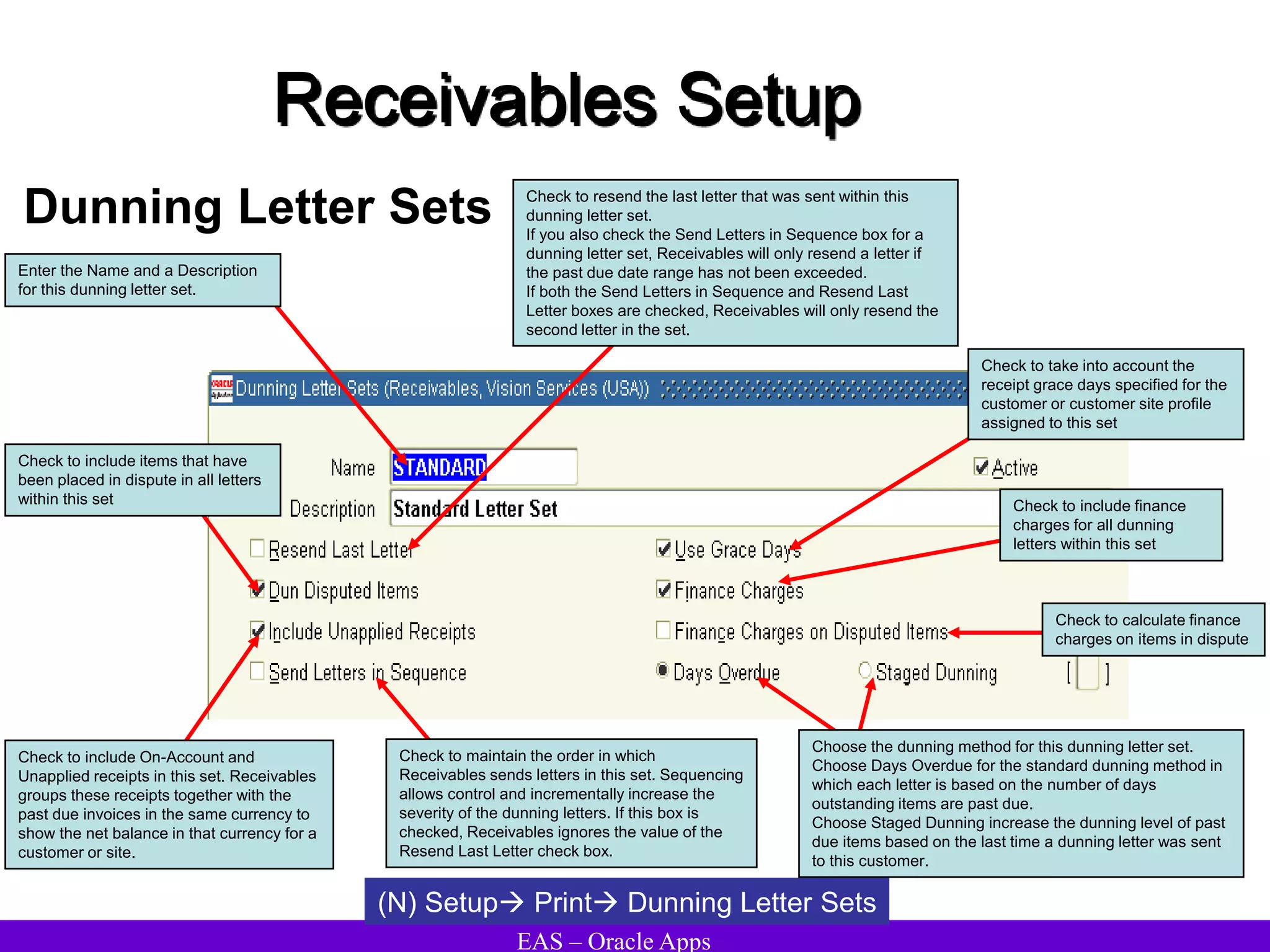
 Use dunning letters to inform customers of past due invoices, debit memos, and
chargebacks. When dunning letters are printed, Receivables prints a copy of each
invoice which has line items that are past due.
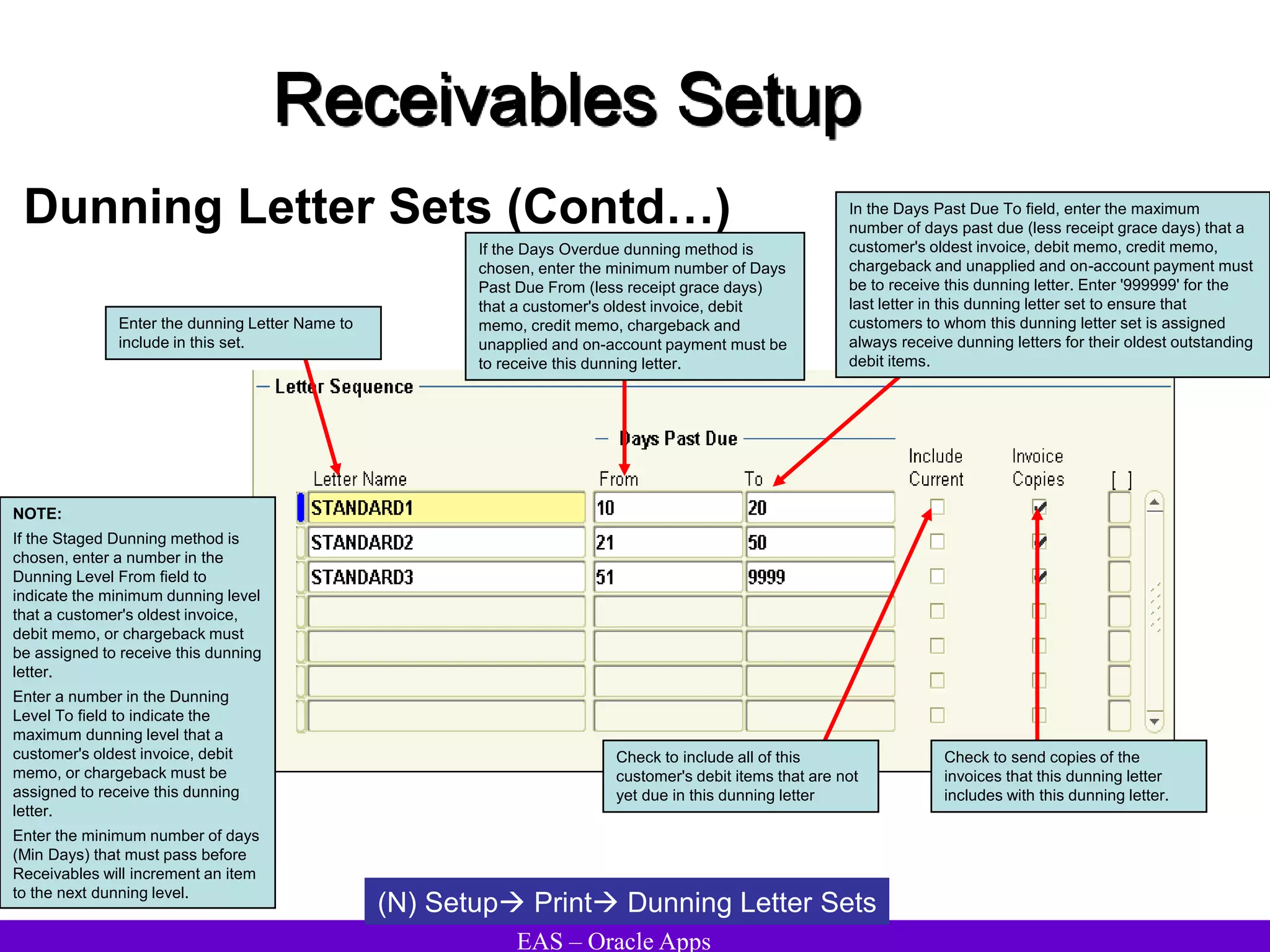
 Create dunning letter sets in which to group dunning letters together to vary the tone
with each successive letter.
 When the Dunning Letter Generate program is submitted, Receivables compares the
number of days that a customer's oldest outstanding debit item is past due with the Days
Past Due Date ranges of the dunning letters in this customer's dunning letter set. This
comparison determines which dunning letter to print
 For each dunning submission, the Dunning Letter Generate program selects and prints
letters using the dunning letter sets, customers, and collectors that satisfy the
submission criteria.
 Control the severity and content of each dunning letter sent and exclude individual
customers from dunning, even if they have items that are past due.
 Include disputed items, on-account and unapplied receipts, and finance charges in
dunning letters, as well as debit items that are not yet due.
 Choose to use receipt grace days to extend the due dates of a customer's past due
items.
Processing Invoices
EAS – Oracle Apps
Dunning Methods
Days Overdue: Letters are based on the total number of days that debit items are
past due. This method generates letters for a specific customer based on a range of
days overdue that you define for each dunning letter set. Receivables takes into
account the number of receipt grace days defined for a customer (if any) when
calculating the number of days items are past due.
Staged Dunning: Letters are based on the dunning levels of past due debit items.
This method lets you send dunning letters based on the number of days since the last
letter was sent, rather than the number of days items are past due. For each dunning
letter, you specify the minimum number of days that must pass before Receivables
can increment an item's dunning level and include this item in the next letter that you
send. This feature can be useful if, for example, you inform your customer that you will
begin collection action if payment is not received within x number of days of receiving
the current letter.
Processing Invoices
EAS – Oracle Apps
Printing Dunning Letters
Processing Invoices
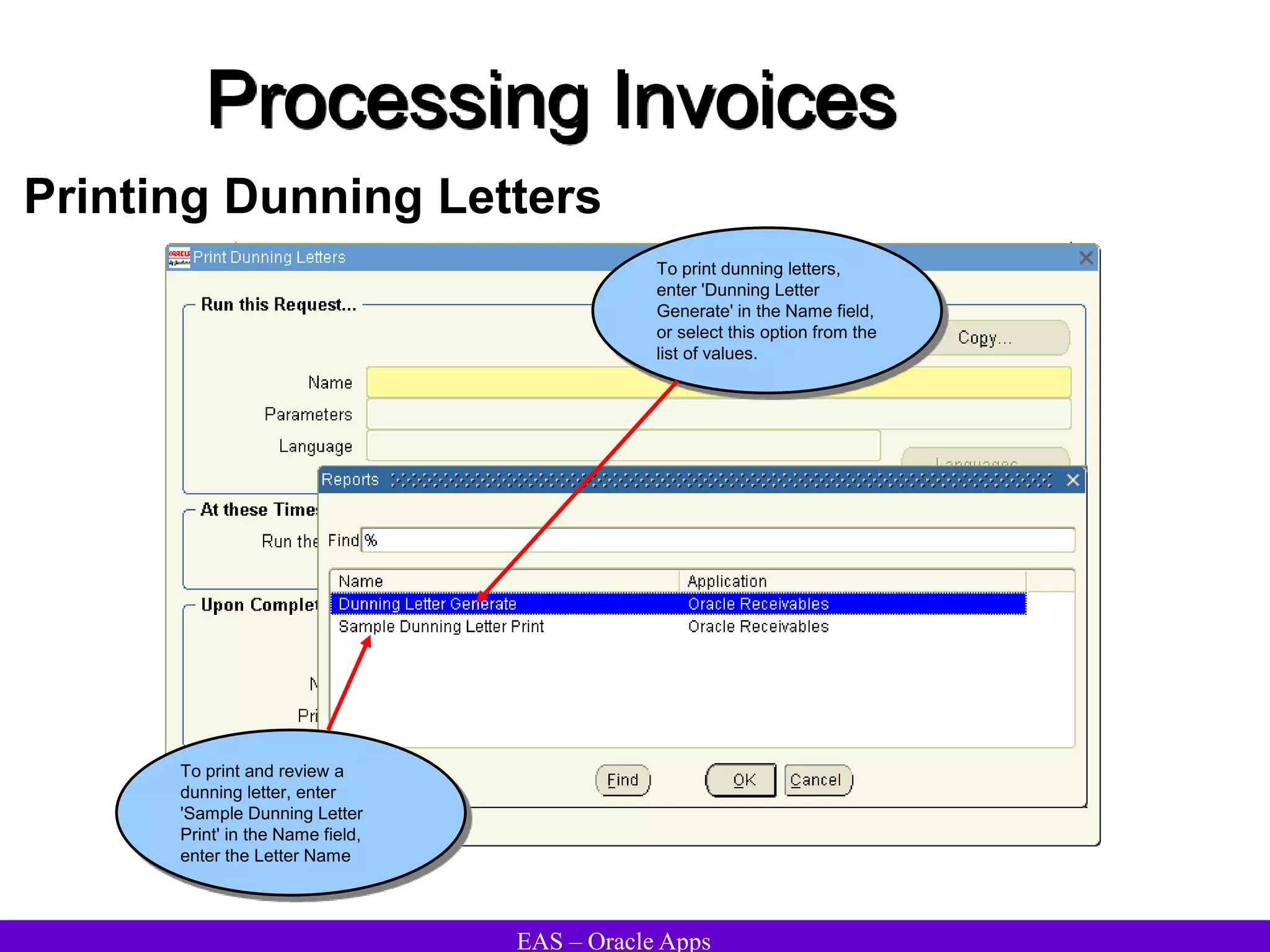
To print dunning letters,
enter 'Dunning Letter
Generate' in the Name field,
or select this option from the
list of values.
To print and review a
dunning letter, enter
'Sample Dunning Letter
Print' in the Name field,
enter the Letter Name
EAS – Oracle Apps
Processing Invoices
Consolidated Billing
• Use the Consolidated Billing Invoice program to print a single monthly invoice that includes all
customer’s transactions for that period.
• Customers are flagged to receive consolidated billing invoices through their customer profile
class.
• The invoice format can be detail or summary. The detail and summary format presents
invoice totals. The detail format lists all line items.
• The Consolidated Billing feature of Receivables cannot be used in conjunction with the
Imported Billing Number feature. The Consolidated Billing feature can be used for monthly
billings. Use the Imported Billing Number to group invoices other than on a monthly basis.
• When a consolidated billing invoice is created, Receivables includes all invoices, credit
memos, adjustments, receipts, and cross-site applications that have not been included on a
previous consolidated billing invoice
• If a transaction has been included on a consolidated billing invoice, it cannot be updated,
regardless of how you set the system option Allow Change to Printed Transactions. This is
because Receivables considers inclusion on a consolidated billing invoice to be an activity and
a transaction cannot be updated once it has an activity against it.
EAS – Oracle Apps
Processing Invoices
Consolidated Billing
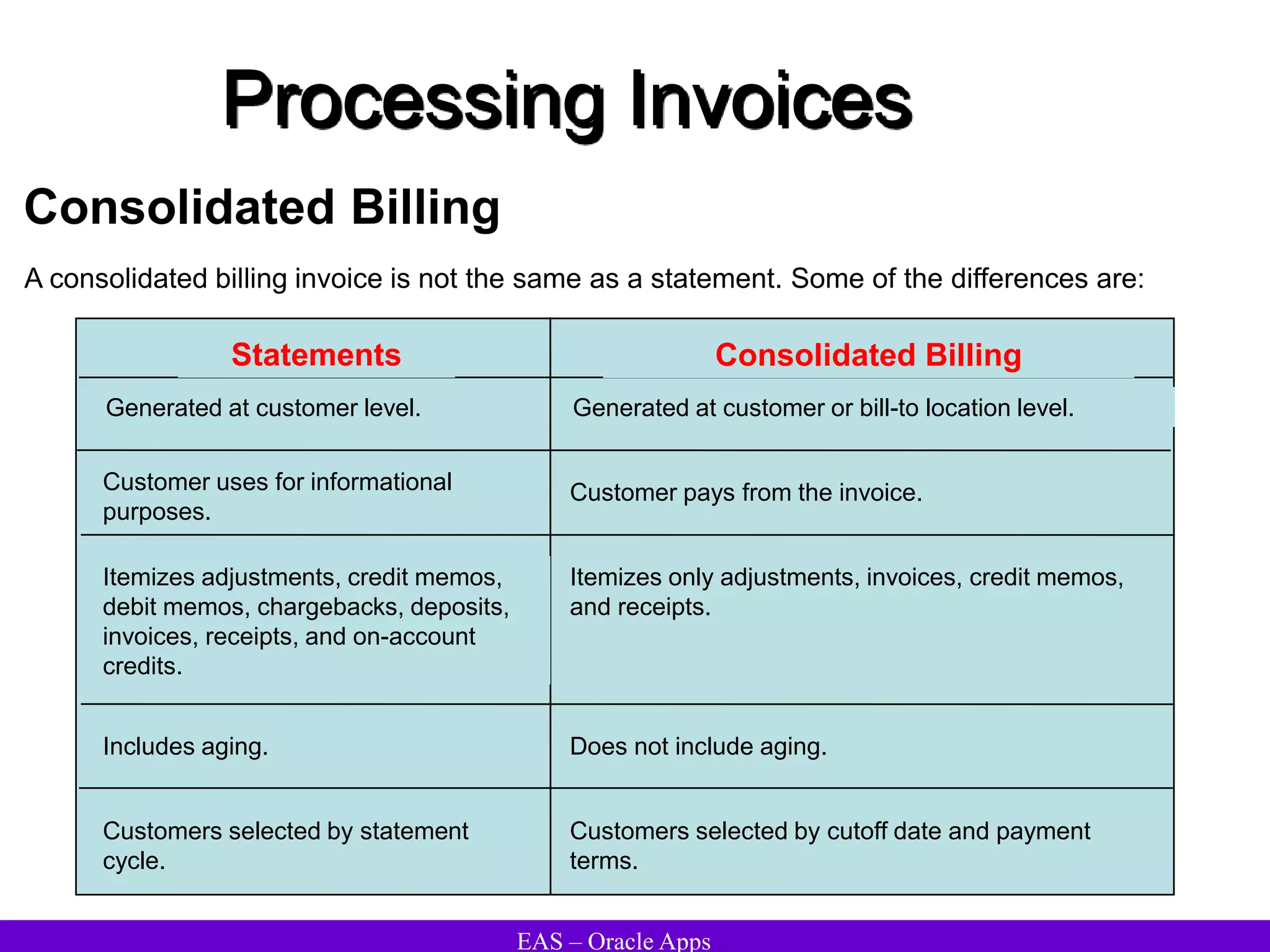
A consolidated billing invoice is not the same as a statement. Some of the differences are:
Statements Consolidated Billing
Generated at customer level. Generated at customer or bill-to location level.
Customer uses for informational
purposes.
Customer pays from the invoice.
Itemizes adjustments, credit memos,
debit memos, chargebacks, deposits,
invoices, receipts, and on-account
credits.
Itemizes only adjustments, invoices, credit memos,
and receipts.
Includes aging. Does not include aging.
Customers selected by statement
cycle.
Customers selected by cutoff date and payment
terms.
EAS – Oracle Apps
Processing Invoices
Consolidated Billing
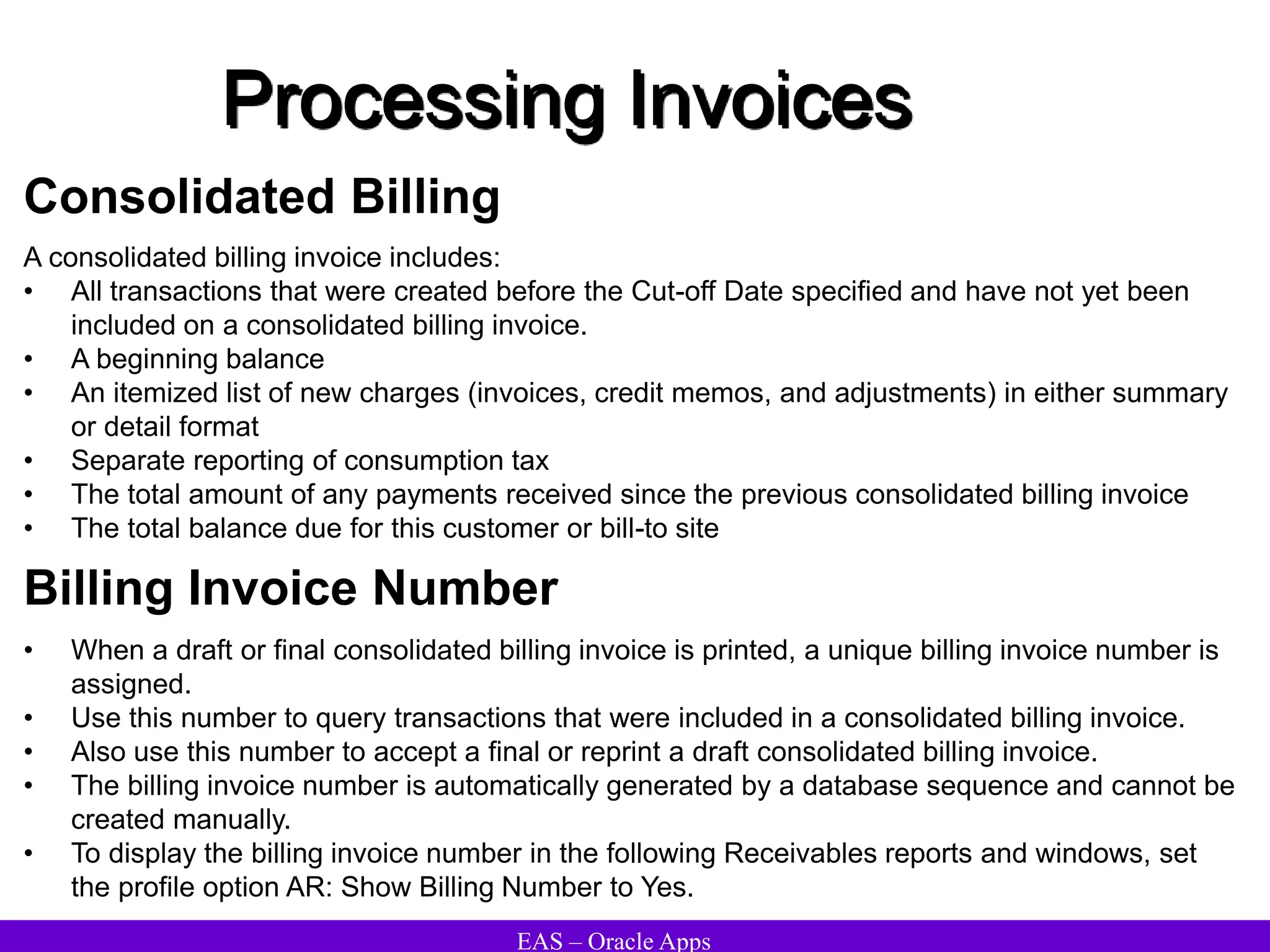
A consolidated billing invoice includes:
• All transactions that were created before the Cut-off Date specified and have not yet been
included on a consolidated billing invoice.
• A beginning balance
• An itemized list of new charges (invoices, credit memos, and adjustments) in either summary
or detail format
• Separate reporting of consumption tax
• The total amount of any payments received since the previous consolidated billing invoice
• The total balance due for this customer or bill-to site
• When a draft or final consolidated billing invoice is printed, a unique billing invoice number is
assigned.
• Use this number to query transactions that were included in a consolidated billing invoice.
• Also use this number to accept a final or reprint a draft consolidated billing invoice.
• The billing invoice number is automatically generated by a database sequence and cannot be
created manually.
• To display the billing invoice number in the following Receivables reports and windows, set
the profile option AR: Show Billing Number to Yes.
Billing Invoice Number
EAS – Oracle Apps
Processing Invoices
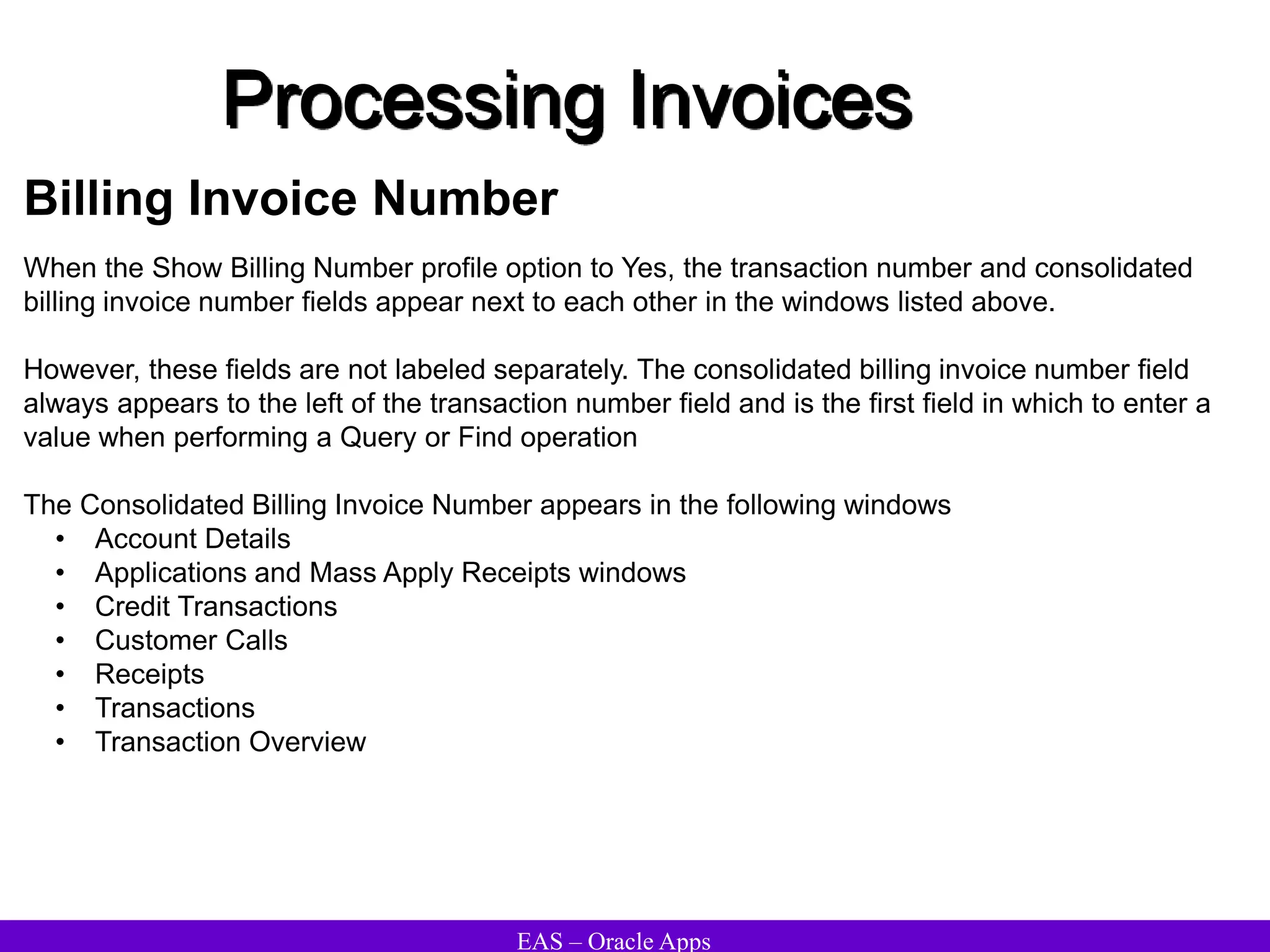
Billing Invoice Number
When the Show Billing Number profile option to Yes, the transaction number and consolidated
billing invoice number fields appear next to each other in the windows listed above.
However, these fields are not labeled separately. The consolidated billing invoice number field
always appears to the left of the transaction number field and is the first field in which to enter a
value when performing a Query or Find operation
The Consolidated Billing Invoice Number appears in the following windows
• Account Details
• Applications and Mass Apply Receipts windows
• Credit Transactions
• Customer Calls
• Receipts
• Transactions
• Transaction Overview
EAS – Oracle Apps
Processing Invoices
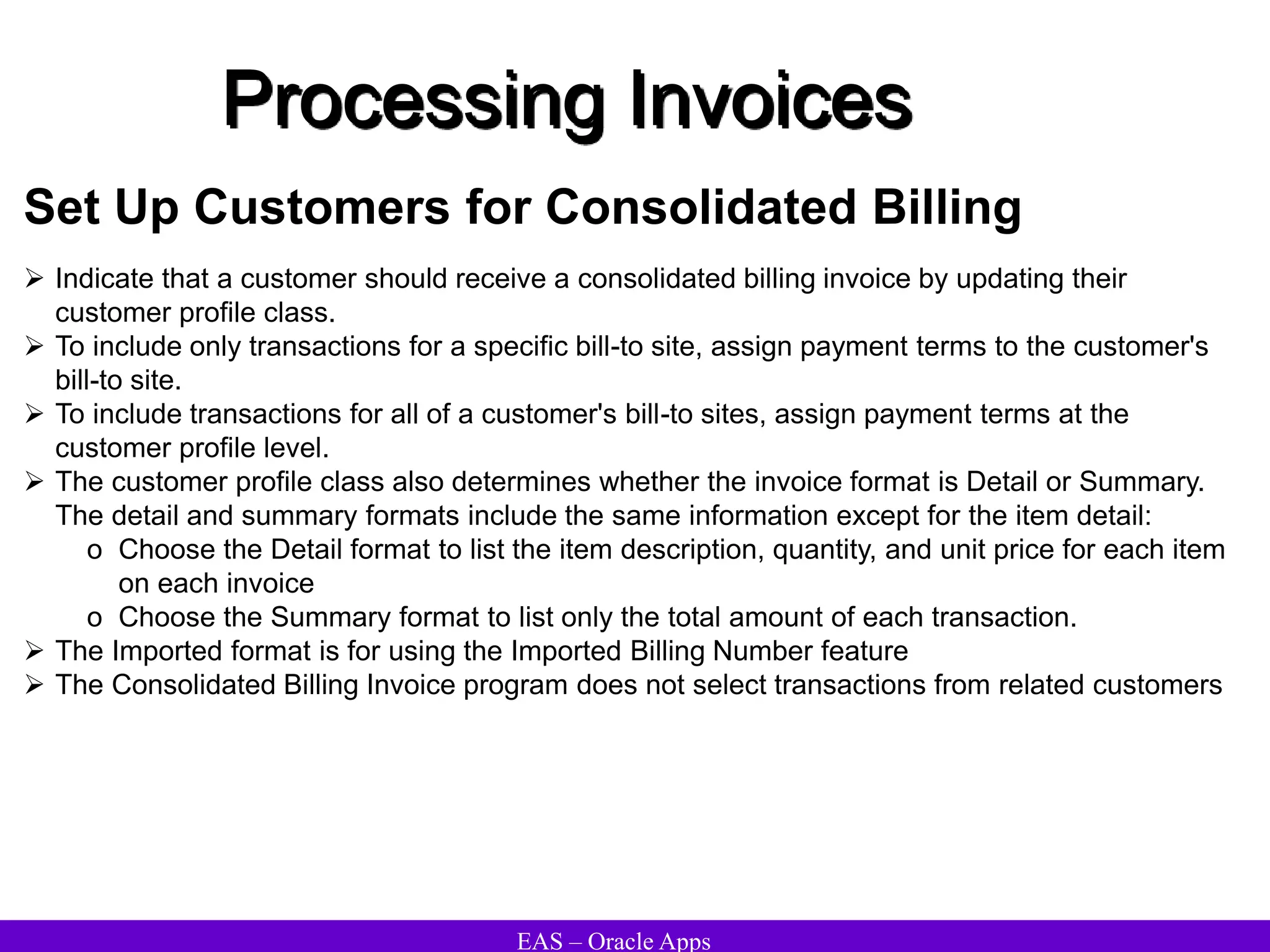
Set Up Customers for Consolidated Billing
 Indicate that a customer should receive a consolidated billing invoice by updating their
customer profile class.
 To include only transactions for a specific bill-to site, assign payment terms to the customer's
bill-to site.
 To include transactions for all of a customer's bill-to sites, assign payment terms at the
customer profile level.
 The customer profile class also determines whether the invoice format is Detail or Summary.
The detail and summary formats include the same information except for the item detail:
o Choose the Detail format to list the item description, quantity, and unit price for each item
on each invoice
o Choose the Summary format to list only the total amount of each transaction.
 The Imported format is for using the Imported Billing Number feature
 The Consolidated Billing Invoice program does not select transactions from related customers
EAS – Oracle Apps
Processing Invoices
Consolidated Billing Reports
• Account Status
• Adjustment Register
• Aging Reports
• Applied Receipts Register
• Billing and Receipt History
• Disputed Invoice
• Dunning Letter Generate
• Past Due Invoice
• Revenue Journal by GL Account
• Sales Journal by GL Account
• Transaction Detail
• Transaction Register
EAS – Oracle Apps
Processing Invoices
Printing Consolidated Billing Invoices
 Use the Print Consolidated Billing Invoices window to:
• Accept or Reject consolidated billing invoices
• Print draft consolidated billing invoices
• Print new (final) consolidated billing invoices
• Reprint draft or final consolidated billing invoices
 Create a batch of consolidated billing invoices by not specifying a customer name or bill-to site
when submitting the program. By omitting these parameters, Receivables creates a
consolidated billing invoice for each customer and bill-to site that matches the other
submission parameters specified.
 Accept or reject all consolidated billing invoices in a batch by specifying the concurrent request
ID for this submission.
 When printing a new consolidated billing invoice, the program includes only transactions that
were created before the cutoff date and have not yet been included on a consolidated billing
invoice.
 To print Imported Billing Number from this program, use custom invoices instead. Imported
Billing Number will not print this way
EAS – Oracle Apps
Processing Invoices
Printing Consolidated Billing Invoices
Choose this option to print a draft of the consolidated billing invoices.
Review the consolidated billing invoices for accuracy and
completeness, then either accept or reject them. With this option, the
invoice will have a status of Draft.
Choose this option to print a
new consolidated billing invoice.
Choose this option to accept consolidated
billing invoices. Receivables changes the
status from Draft to Accepted. This option
does not reprint the consolidated billing
invoices.
Choose this option to reject unsatisfactory
Consolidated billing Invoices. Receivables
changes the invoice print status from
'Printed' to 'Pending.' Print these invoices
again using either the Print Draft or Print
New Consolidated Billing Invoices option.
Choose this option to reprint
spoiled consolidated billing invoice.
EAS – Oracle Apps
Processing Invoices
Consolidated Billing Invoice – Report Parameters
Indicate whether pre-printed stationary is
used for consolidated billing invoices. If
No, Receivables prints column headings
with customer and transaction information;
otherwise, Receivables does not print
column headings.
Choose the print format for this billing
invoice (optional). The Summary format
lists only the total amount for each
transaction. The Detail format includes
item detail such as description, quantity,
and unit price.
The default is the functional currency. For
customers that use multiple currencies, run
a separate report for each currency.
Enter the payment terms to use, if there are
multiple payment terms with the same cutoff day.
Leave this field blank to select all bill-to sites
assigned to payment terms with the cutoff day
entered. If the Last Day of Month parameter is
Yes, specify the payment terms defined for end of
the month consolidated billing.
Enter Yes if the Cut-off Date entered is the last day of the
month and to include all transactions created during the
month. Receivables selects all transactions created during
the month for customers assigned to payment terms with the
Last Day of Month option set to Yes. Enter No to select only
transactions and customers assigned to payment terms with
the same cut-off date entered for the Cut-off Date parameter.
Enter the cutoff date for including invoices
on this consolidated billing invoice.
Receivables includes all transactions
created on or before this date that have
not been included on a previous
consolidated billing invoice
To print an invoice that includes all
transactions for a specific bill-to site, enter
a bill-to site Leave this field blank to print
invoices for all of this customer's bill-to
sites.
To print consolidated billing invoices for a specific
customer, enter the customer name or number. Only
customers who are set up to receive consolidated billing
invoices in their customer level profile appear in the list of
values. Leave these fields blank to print consolidated billing
invoices for all customers who are set up to receive them.
EAS – Oracle Apps
AutoInvoice
EAS – Oracle Apps
AutoInvoice
AutoInvoice Overview
AutoInvoice is a powerful, flexible tool you can use to import and validate transaction data from
other financial systems and create invoices, debit memos, credit memos, and on-account credits
in Oracle Public Sector Receivables. You use a custom feeder program to transfers transaction
data from an external system into the AutoInvoice interface tables. AutoInvoice then selects data
from the interface tables and creates transaction in Receivables. Receivables rejects
transactions with invalid information to ensure the integrity of your data.
With AutoInvoice, you can:
•Import large numbers of transactions for seamless integration from Oracle or non-Oracle
systems
–Invoices
–Debit memos
–Credit memos
–On-account credits
•Calculate taxes for the imported transactions, or pass the tax through the tables
•Correct errors easily online
EAS – Oracle Apps
AutoInvoice
AutoInvoice Process
Error lines
Valid
lines
View and correct
invalid records
AutoInvoice
interface
tables
Oracle
Receivables
transaction
tables
Non Oracle
data
SQL
loader
Oracle
data
Interface
Program
EAS – Oracle Apps
AutoInvoice
AutoInvoice Process
• Create invoices from the
following Oracle applications:
– Oracle Order Management
– Oracle Projects
– Oracle Service
– Oracle Property Manager
• Create invoices from the
following non-Oracle
applications:
– Legacy system (for
transaction history)
– Non-Oracle billing
applications
– Non-Oracle order entry
applications
EAS – Oracle Apps
AutoInvoice
AutoInvoice Process
Line, accounting and sales credit information for
each line populates 3 interface tables
Lines are ordered and grouped
Tax is calculated
GL date is determined
GL accounts are assigned using AutoAccounting
Tax, freight, commitments and credit memos are
linked to transaction lines
All transactions are batched
Validated lines are used to create the transaction
AutoInvoicing
Invoices
Created
Imported
Transactions
EAS – Oracle Apps
AutoInvoice
Preparing Receivables for AutoInvoice
• To ensure that the AutoInvoice program works properly, prepare Receivables for any new data
imported. If the feeder system uses any setup data which is not yet defined in Receivables, must
define this data before using AutoInvoice. Following is a list of setup data to be considered:
• Add currencies not yet defined in Receivables.
• Add or update tax rates assigned to tax codes.
• Add or update tax rates associated with products shipped to specific addresses.
• Add or update full or partial customer and item tax exemptions.
• Add Freight on Board (FOB) codes to Receivables
• Add freight carrier codes.
• Add payment terms to Receivables.
• Add transaction types to Receivables.
• Add batch sources.
• Add agents.
• Add accounting rules.
• Add units of measure.
EAS – Oracle Apps
AutoInvoice
Grouping Rules
• Grouping rules are mandatory and determine how transaction lines are grouped into
transactions
• Grouping rules specify attributes that must be identical for lines to appear on the
same transaction.
• AutoInvoice requires mandatory grouping on the transaction attributes Currency
Code and Bill-To Customer (only one of each attribute is allowed per invoice).
• Receivables automatically applies these required grouping rules to any additional
transaction attributes assigned to the grouping rules.
• All attributes of the Transaction Flexfield are optional within a grouping rule and can
be assigned as optional grouping characteristics in the Grouping Rules window.
EAS – Oracle Apps
AutoInvoice
Grouping Rule Hierarchy
AutoInvoice uses the following hierarchy to determine which grouping rule to use for a
transaction line:
• The grouping rule specified in the Transaction Sources window for the batch
source of the transaction line
• The grouping rule specified in the Customer Profile Classes window for the bill-to
site use of the transaction line
• The grouping rule specified in the Customer Profile Classes window for the bill-to
customer of the transaction line
• If no rule is specified in either the Transaction Sources or Customer Profile
Classes window, AutoInvoice uses the default grouping rule specified in the
System Options window
EAS – Oracle Apps
AutoInvoice
AutoInvoice Line Ordering Rules
• AutoInvoice uses these rules to order transaction lines when grouping the
transactions it creates into invoices, debit memos, and credit memos.
• Line ordering rules can be assigned to each grouping rule.
• AutoInvoice uses transaction attributes in the line ordering rules to order invoice
lines based on the priority defined.
• An ascending or descending order for each transaction attribute assigned to a rule
can also be specified.
EAS – Oracle Apps
AutoInvoice
Using AutoInvoice – Key Concepts
AutoInvoice Purge Program - Choose whether to delete data from the AutoInvoice
Interface tables once it has been validated and transferred into Receivables. Check
the Purge Interface Tables box in the System Options window to automatically delete
the data.
The AutoInvoice Purge program and the Purge Interface Tables system option only
delete data from the interface tables that has been validated and successfully
transferred into Receivables.
Calculating Tax - AutoInvoice provides the functionality needed to meet sales tax
and other taxing requirements, such as Value Added Tax (VAT). Either pass tax code
lines, tax exempt lines or have AutoInvoice automatically determine tax rates using
the hierarchy determined by the tax calculation flow charts.
If AutoInvoice determines tax rates, it will take into account any customer or item tax
exemptions or item tax exceptions.
EAS – Oracle Apps
AutoInvoice
Using AutoInvoice – Key Concepts
Transactions in Closed Accounting Periods – Use AutoInvoice to pass
transactions in closed accounting periods. Receivables automatically uses the first
day of the next open accounting period as the default date to determine the
accounting distributions.
Creating Transactions – AutoInvoice creates invoices, debit memos, credit memos
and on-account credits using the grouping and invoice line ordering rules specified.
AutoInvoice verifies that the data is valid before it creates transactions in AR.
Deriving Invoice and Accounting Dates – Choose how to determine invoice and
accounting dates for transactions. The feeder program can either load these dates
directly into the interface tables or, if the date fields empty are left empty,
Receivables determines the invoice and accounting dates.
Invoices Against Commitments – Create invoices against commitments in the
same way as a manually entered invoice.
EAS – Oracle Apps
AutoInvoice
AutoInvoice Execution Phases
AutoInvoice can be divided into three major phases: pre-grouping, grouping, and
transfer.
In the pre-grouping phase, AutoInvoice validates all of the line-level data as well as
any other data that is not dependent upon successful grouping. Some examples
include validating that a transaction type is valid and validating that only one freight
account exists for each freight line passed.
In the grouping phase, AutoInvoice groups lines based on the grouping rules and
validates header-level data that is dependent on how your lines are grouped. Some
examples include validating the over-application rules specified for your batch
source and validating that the general ledger date of an invoice against a
commitment is not before the general ledger date of the commitment.
In the transfer phase, AutoInvoice validates information that exists in Receivables
tables, such as tax defaulting and AutoAccounting data.
EAS – Oracle Apps
AutoInvoice
AutoInvoice Validation Checks
AutoInvoice validates data for compatibility with Receivables. It ensures that the
columns in Receivables' Interface tables reference the appropriate values and
columns in Receivables.
Existence – For some columns, AutoInvoice ensures that the values are already
defined in Receivables. However, AutoInvoice does not validate against any
effectivity date or status.
Batch Sources – Values for all of the fields that are referenced in the Transaction
Sources window don’t have to be passed. To ignore any of these values for a
specific batch source, set the field to 'None' in the Transaction Sources window. Use
transaction batch sources that have a type of 'Imported' when importing transactions
into Receivables
Uniqueness – AutoInvoice ensures that the invoice number supplied is unique
within a given batch source and the document number supplied is unique within the
associated sequence type. AutoInvoice also ensures that the Transaction Flexfield
supplied is unique.
EAS – Oracle Apps
AutoInvoice
AutoInvoice Validation Checks
Precision – Precision is the number of digits to the right of the decimal point that are
used in regular currency transactions. AutoInvoice ensures that the amount and the
accounted amount supplied have the correct precision for a given currency.
Cross Validation – AutoInvoice ensures that certain column values agree with each
other. These values can be within an interface table or multiple interface tables.
Validation for Lines With Rules – Besides validating dates, AutoInvoice also
validates and rejects lines if:
• The accounting rule has overlapping periods
• All of the accounting periods do not exist for the duration of the accounting rule
Create Transactions with Invalid or Incorrect Data – Specify whether AutoInvoice
has to reject or partially create transactions that have an invalid line, invalid tax rate, or
a GL date in a closed period. Transactions that fail validation appear in the AutoInvoice
Validation report. The values entered in the AutoInvoice Processing Options tabbed
region of the Transaction Sources window determine how AutoInvoice will process
transactions with invalid data.
EAS – Oracle Apps
AutoInvoice
Determining GL Dates for Invoices Without Rules
AutoInvoice uses the following process to determine the GL date for invoices witout
rules
 AutoInvoice uses the general ledger date in the interface table, if one exists and it is
in an open or future enterable period.
 If GL date is not passed and Derive Date is set to No, AutoInvoice uses the value of
the Default Date parameter for this AutoInvoice submission.
 If GL date is not passed and Derive Date is set to Yes, AutoInvoice uses the ship
date in the interface table.
 If the ship date does not exist or is in a closed period, AutoInvoice uses the sales
order date.
 If the sales order date does not exist or is in a closed period, AutoInvoice uses the
value of the Default Date parameter for this AutoInvoice submission.
EAS – Oracle Apps
AutoInvoice
Determining GL Dates for Invoices With Rules
 If the invoice uses Bill in Advance as the invoicing rule, AutoInvoice uses the earliest
accounting rule start date as the invoice GL date.
 If the invoice uses Bill in Arrears as the invoicing rule, the invoice line has an
accounting rule of type 'Accounting, Fixed Duration,' and a period of 'Specific Date,'
AutoInvoice computes an ending date using the latest accounting rule date.
 For all other accounting rules, AutoInvoice computes an ending date for each
invoice line based on the accounting rule, accounting rule start date, and duration.
 Once AutoInvoice computes the ending date for each line of the transaction, it takes
the latest date and uses it as the invoice GL date.
EAS – Oracle Apps
AutoInvoice
Determining Rule Start Date for Invoices with Rules
 If the invoice does not use an accounting rule with a type of 'Accounting, Fixed
Duration' and a period of 'Specific Date,' or if the rule start date is not Derived,
Receivables uses the date specified in the Run AutoInvoice window.
 If the invoice has an accounting rule with a type of 'Accounting, Fixed Duration' and
a period of 'Specific Date,' AutoInvoice uses the earliest accounting rule date as the
rule start date.
 If the rule start date is Derived, AutoInvoice first uses the ship date in the interface
table.
 If the ship date does not exist, AutoInvoice uses the sales order date.
 If the sales order date does not exist, AutoInvoice uses the date entered in the Run
AutoInvoice window.
EAS – Oracle Apps
AutoInvoice
Determining Credit Memo Dates
If a transaction date is passed for the credit memo, AutoInvoice uses the following hierarchy to
determine the credit memo date:
 The credit memo general ledger date.
 The general ledger date for the invoice's receivable distribution, or the Default Date in the Run
AutoInvoice window, whichever is later.
 If a general ledger date is not passed, AutoInvoice uses the general ledger date for the
invoice's receivable distribution or the Default Date in the Run AutoInvoice window, whichever
is later.
Determining the Transaction Dates
If a transaction date is not passed for the invoice or debit memo, AutoInvoice uses the general
ledger date.
EAS – Oracle Apps
AutoInvoice
Transaction Flexfields
• Transaction flexfields are descriptive flexfields that AutoInvoice uses to uniquely
identify transaction lines.
• Because they are unique for each transaction line, they can also be used to
reference and link to other lines.
• Receivables lets you determine how you want to build your transaction flexfield
structure and what information you want to capture.
• Define a flexfield for each import source. Specify which one to use during import.
Types of Transaction Flexfields
• Invoice Header (optional): Specifies invoice header information
• Line (required): Uniquely identifies invoice lines
• Link-To (optional): Link tax and freight to invoice lines
• Reference (optional): Links credit memos to transactions
EAS – Oracle Apps
AutoInvoice
Importing Transactions Using AutoInvoice
 Run the AutoInvoice Import or Master program to transfer transactions from other
systems into Receivables.
 Submit the AutoInvoice Import, Master, and Purge programs from the Submit
Request window. However, the AutoInvoice Master and Purge programs can be
submitted only from the Run AutoInvoice window. The Master program allows
running several instances of AutoInvoice to improve system performance and
import transactions more quickly.
 Run the AutoInvoice Purge program to delete the interface lines that were
processed and successfully transferred into Receivables by the AutoInvoice Import
program.
 If the Purge Interface Tables option in the System Options window is set to Yes this
program doesn’t have to be run; in this case, Receivables deletes the interface
lines automatically after AutoInvoice is run.
EAS – Oracle Apps
AutoInvoice
Running Autoinvoice
EAS – Oracle Apps
AutoInvoice
AutoInvoice Exception Handling
• Records that pass validation are transferred into Receivables transaction tables
• Records that fail validation are called exceptions; these records remain in the
AutoInvoice interface tables
• Once the errors have been corrected , resubmit AutoInvoice
• Valid lines can not be changed in the AutoInvoice Exception Handling windows, only
those lines with errors
AutoInvoice Exception Handling Windows
• The Interface Exceptions window displays exception messages associated with all
invalid records.
• The Interface Lines window displays all records in the interface tables that failed
validation, provides an error message, and can be used to correct invalid records.
• The Line Errors window displays all errors associated with a specific line and can
only be opened from the Interface Lines window.
EAS – Oracle Apps
AutoInvoice
Interface Exceptions Window
• The Interface Exceptions
window displays the
interface ID, exception
type, error message, and
the invalid value associated
with each error.
• Data in this window cannot
be edited only viewed;
Correct the error by clicking
the Details button.
• The error message and
column name with
erroneous data is displayed
in the Message column,
and the value that needs to
be corrected is displayed in
the Invalid Value column.
(N) Control AutoInvoice Interface Exceptions
EAS – Oracle Apps
AutoInvoice
Interface Lines Window
• Click the Details button to
open what is applicable to
the error.
• If the error type is freight,
the Interface Freight Lines
window opens.
• If the error type is tax, the
Interface Tax Lines
window opens.
• Correct the error using this
window.
(N) Control AutoInvoice Interface Lines
EAS – Oracle Apps
AutoInvoice
Interface Line Errors
• View all errors associated
with a single line by
clicking the Errors button
in the Interface Lines
window.
• This window displays the
interface ID, the error
type, error message, and
the invalid value.
• Use this window to access
the Interface Lines window
directly which does not
display the error
messages.
• The type indicates which
button to click in the
Interface Lines window.
(N) Control AutoInvoice Interface Lines Errors
EAS – Oracle Apps
AutoInvoice
AutoInvoice Interface Tables
Oracle Receivables uses three interface tables for AutoInvoice:
•RA_INTERFACE_LINES
•RA_INTERFACE_DISTRIBUTIONS
•RA_INTERFACE_SALESCREDITS
EAS – Oracle Apps
AutoInvoice
RA_INTERFACE_LINES Table
•This table contains information relating to all transactions to be processed by
AutoInvoice. Transactions include invoices, debit memos, credit memos, and on-
account credits.
•Each record contains line, tax, freight, or finance charges information.
•The Line_Type field identifies the type of information contained in the record.
•A record can be a parent record: Line, Header Freight, or Charges; or a child record:
Tax or line-level Freight.
•A child record is linked to the parent record using the Link-To Transaction flexfield.
EAS – Oracle Apps
AutoInvoice
RA_INTERFACE_DISTRIBUTIONS Table
• This table contains accounting distributions to be used by the transactions defined
in RA_INTERFACE_LINES.
• Accounts defined in this table override any accounts created using AutoAccounting.
• Choose to pass some or all account information to AutoInvoice. Any accounts that
are not passed will be derived using AutoAccounting.
• Records in this table are linked to records in the RA_INTERFACE_LINES table
using the Transaction flexfield.
• Not required if AutoAccounting determines GL distributions.
EAS – Oracle Apps
AutoInvoice
RA_INTERFACE_SALESCREDITS Table
• This table contains all sales credit information for the transactions in the
RA_INTERFACE_LINES table.
• The two tables are linked using the Transaction flexfield.
• Not required if not tracking sales credit.
EAS – Oracle Apps
Processing Commitments
EAS – Oracle Apps
Processing Commitments
Overview of Commitments
Business Need Solution
A customer commits to purchase
goods or services in the future and will
be billed upon receipt.
A customer commits to prepay for
goods or services to be purchased in
the future.
Create a deposit.
Create a guarantee
Select a predefined inventory item.
A customer wants to create
commitments for specific items.
Assign start and end date ranges.
A commitment can be made active
only for a specific period of time.
EAS – Oracle Apps
Processing Commitments
Commitment Types
Comment
A deposit is often applied
to the purchase of a
specific item or service to
be provided. If the invoice
is more than the deposit,
the customer is billed for
the deposit and the
invoice.
A guarantee is a promise
to conduct a certain
amount of business,
usually over a period of
time. The customer is
notified of the guarantee
and billed on the invoice.
Type
Deposit
Guarantee
Description
To record a contractual
agreement to prepay a
certain amount
To record a contractual
agreement to spend a
certain amount of
money
EAS – Oracle Apps
Processing Commitments
Remaining Balances
Deposit
Commitment
Invoice
Deposit balances refer to the amount due
remaining on the deposit. Receipts and
credits reduce the deposit balance.
Commitment balances refer to the
contractual amount that has not yet been
invoiced. Invoices against commitments
reduce the commitment balance.
Invoice balances refer to the amount due
remaining on the invoice. Deposits, receipts,
and credits reduce the invoice balance.
Type Description
When a customer
invoices or credits
against their
commitments,
Receivables
automatically adjusts
the commitment
balance and generates
reversing entries.
After invoices are
applied to a
commitment, the
amount that remains is
the commitment
balance.
EAS – Oracle Apps
Processing Commitments
Creating Customer Commitments
Customer
Agreement requiring
deposit
Invoices for
products or
services
Invoice for
deposit
Invoice or credit
memo for difference
Agreement specifying
guarantee
EAS – Oracle Apps
Processing Commitments
Completing the Deposit Process
Customer
agrees to pay
deposit
Invoice issued
for deposit
Invoice issued
for products or
services
Deposit is matched to
invoice for product
Customer pays
deposit
1 2
4
3
5 5
EAS – Oracle Apps
Processing Commitments
Completing the Guarantee Process
Customer agrees
to spend specific
amount
1
Guarantee issued
to customer
2
Invoice issued
for purchases
3
Guarantee is matched
to purchase
4
Customer pays
invoice for purchases
5
EAS – Oracle Apps
Processing Commitments
 The accounting reversal is made by creating a receivables adjustment in Accounts
Receivable to the invoice for the total of the invoice lines.
 This adjustment has the effect of reducing the invoice's payment schedule by the
amount of the invoiced items (tax and freight amounts are not deducted from the
deposit balance) and creating the reversing accounting entries.
 If however, the amount of the invoice exceeds the remaining commitment balance,
Receivables only creates a receivables adjustment for the remaining commitment
balance.
Accounting for Commitments – Deposits
EAS – Oracle Apps
Processing Commitments
Accounting Entries for Deposits
When the deposit is initially entered,
the following accounting entry
is created:
Dr. Receivables (Deposit) 100
Cr. Unearned revenue 100 These accounting entries are created:
Dr. Receivables (Invoice) 40
Cr. Revenue 40
Dr. Unearned Revenue 40
Cr. Receivables (Invoice) 40
Net effect is:
Dr. Receivables (Deposit) 100
Cr. Unearned Revenue 60
Cr. Revenue 40
This accounting entry is created:
Dr. Cash 100
Dr. Receivables (Deposit) 100
Net effect is:
Dr. Cash 100
Cr. Unearned Revenue 60
Cr. Revenue 40
Payment of 100 received for deposit
Customer agrees to pay deposit of 100
Invoice of 40 applied to deposit of 100
EAS – Oracle Apps
Processing Commitments
The accounting reversal is made by creating a receivables adjustment in Accounts
Receivable to the guarantee for the total of the invoice lines.
This adjustment has the effect of reducing the guarantee's payment schedule by the
amount of the invoiced items (tax and freight are not deducted from the commitment
balance) and creating the reversing accounting entries.
If however, the amount of the invoice exceeds the remaining commitment balance,
Receivables only creates a receivables adjustment for the remaining commitment
balance.
Accounting for Commitments – Guarantees
EAS – Oracle Apps
Processing Commitments
Accounting Entries for Guarantees
When the guarantee is initially entered,
the following accounting entry
is created:
Dr. Unbilled Receivables 100
Cr. Unearned Revenue 100
Customer commits to guarantee
These accounting entries are created:
Dr. Receivables (Invoice) 40
Cr. Revenue 40
Dr. Unearned Revenue 40
Cr. Unbilled Receivables 40
Net effect is:
Dr. Unbilled Receivables 60
Cr. Unearned Revenue 60
Dr. Receivables (Invoice) 40
Cr. Revenue 40
Invoice of 40 applied to guarantee
These accounting entries are created:
Dr. Cash 40
Cr. Receivables (Invoice) 40
Net effect is:
Dr. Cash 40
Cr. Revenue 40
Dr. Unbilled Receivables 60
Cr. Unearned Revenue 60
Payment of 40 received for invoice
EAS – Oracle Apps
Processing Commitments
(N) Transaction Transactions
Enter either an Item or a Memo
Line for this commitment, or
select from the list of values.
Enter the Amount of this
commitment.
Enter a range of Effective Dates for this
commitment. If you do not assign an end
date, Receivables lets you enter invoices and
credit memos against this commitment
indefinitely until the amount due becomes
zero. If you enter an end date, Receivables
verifies that all existing invoices against this
commitment are included in this date range.
Enter a brief Description for
this commitment.
Enter the transaction header
information and the Main tab,
including the customer
information and payment terms.
Open the Commitment Tab
Select Deposit or Guarantee
as the Transaction Class
Select a transaction type.
Any transaction type of Class
Deposit or Guarantee can be
selected
Entering Committments
EAS – Oracle Apps
Processing Commitments
 Enter invoices against deposits and guarantees by using the Transaction window or
by importing invoices using AutoInvoice.
 Enter an invoice against an existing or related customer deposit or guarantee by
navigating to the Commitment field in the Transactions window. Enter the
commitment number that to reference and Receivables automatically creates the
adjusting accounting entries.
 Review commitment activity for customers using the Commitment Balance Report.
Invoicing Against Commitments
 Enter orders or invoices for more than the customer's remaining commitment
balance.
 Receivables automatically creates a receivables adjustment in Receivables for the
commitment balance bringing down the commitment balance to 0 and leaving the
amount due on the invoice to the remaining amount.
Overdrawing Commitments
EAS – Oracle Apps
Processing Commitments
 The customer's commitment balance is available in several places within
Receivables and is also available Oracle Order Management is used.
 See the balance for a particular commitment when entering an order (if using Order
Entry), a manual invoice, or a credit memo against a commitment, or by running the
Commitment Balance Report.
 All transactions that reference a commitment or reference an invoice that references
a commitment affect the balance of that commitment.
Calculating Commitment Balance
EAS – Oracle Apps
Customer Adjustments
EAS – Oracle Apps
Customer Adjustments
Invoice Correction Methods
Invoices
Overinvoicing
•Update invoice
• Credit memo
• On-account credit
• Adjustment
• Refund
Underinvoicing
•Update invoice
• Debit memo
• Adjustment
Respond to invalid
transactions
• Void
• Delete
Overinvoicing occurs when an invoice is
generated for an amount greater than the
amount actually due. The difference
between the amounts can be credited or
refunded to the customer, or the invoice
can be updated.
Underinvoicing occurs when an invoice is
generated for an amount less than the
amount actually due. The difference
between the amounts debited against the
customer, or the invoice can be updated.
EAS – Oracle Apps
Customer Adjustments
Overview of Corrections
Correction Effect on Approval Accounting
Type Invoice Limits Source
Update Changes None Original
Invoice original Transaction
Debit memo None; None AutoAccounting
new item
Adjustment Activity User Receivables
Activity
Credit memo New item None Original
applied to Transaction or
original AutoAccounting
(profile option)
On-account None; None AutoAccounting
credit account only
EAS – Oracle Apps
Customer Adjustments
Overview of Corrections
Correction Usage
Type Tax Restriction Entry
Update Automatic Activity Query in
Transaction
window
Debit memo Automatic None Transaction
window
Adjustment Manual or Approval Transaction
write-off limits summary
Credit memo Automatic None Transaction
summary
On-account Automatic None Transaction
window
EAS – Oracle Apps
Customer Adjustments
Underinvoicing Correction Options
Option Description
Update invoice Update the line, tax, and freight
amounts on the original invoice
before it is posted.
Adjust invoice manually Adjust line, tax, and freight amounts
on the original invoice.
Enter Debit memo Create Debit memo from the
transaction screen or import through
AutoInvoice. Debit Memos are like
Invoices
EAS – Oracle Apps
Customer Adjustments
Overinvoicing Correction Options
Option Description
Update invoice Update the line, tax, and freight
amounts on the original invoice
before it is posted.
Adjust invoice manually Adjust line, tax, and freight amounts
on the original invoice.
Enter credit memo Credit a specific invoice.
Enter on-account credit Credit the customer’s account. This
credit does not initially apply to a
specific invoice.
iReceivables disputes an
invoice
Enter a requested credit amount or
percentage for lines, tax or freight or
total. Credit memo request is routed
through the approval process
EAS – Oracle Apps
Customer Adjustments
Applying Different Types of Credits
Respond to overinvoicing with credit memos and on-account credits. Credit memos
affect specific invoices; on-account credits affect customer balances.
Invoice
Credit
memo
Customer
account
Credit
memo
Applied credit memo
On-account credit
EAS – Oracle Apps
Customer Adjustments
On-Account Credits
• On-account credits are credits assigned to customer's account that are not related to
a specific invoice.
• Specify the debit item to credit in the Transactions window or create an on-account
credit by not specifying one.
• On-account credits can be applied and reapplied to invoices, debit items, and
chargebacks.
• Amounts can also be placed on-account when manually applying receipts in the
Applications window
EAS – Oracle Apps
Customer Adjustments
Creating On-Account Credits
(N) Transactions Transactions
If Automatic Sequence Numbering is not used, enter
a unique Number for this credit, else Receivables
assigns a number when the transaction is saved.
Enter the Date and
Currency for this credit
Enter the batch
Source for this credit.
Choose a transaction
Class of Credit Memo.
Enter the GL Date for
this credit. The GL Date
must be in an open or
future period.
Enter a transaction
Type. Choose any
transaction type with a
class of Credit Memo.
Enter the Bill-To
Name and Location
of the customer
account to credit.
Choose Line Items and
enter the description or
select a Standard memo
Line from the List of Values
Enter the Amount of this
on-account credit as a
negative number.
EAS – Oracle Apps
Customer Adjustments
Creating On-Account Credits – Receipts Workbench
(N) Receipts Receipts Applications
To place any remaining amount on
account, enter 'On Account' in the
Transaction Number field. The
default amount is the unapplied
amount of the receipt.
Enter the Receipt Header
information as a normal Receipt
The default amount is the
unapplied amount of the receipt,
but this can be changed.
EAS – Oracle Apps
Customer Adjustments
Crediting Transactions
• Use the Credit Transactions window to enter, update, and review credit memos
against specific invoices, debit memos, or commitments.
• Create credit memos to reduce the balance due for a transaction. When a
transaction is credited, Receivables creates the appropriate accounting entries and
reverses any sales credit assigned to sales agents.
• Receivables allows crediting an entire invoice or specific invoice lines. Also credit
freight for an entire invoice or only for specific invoice lines.
• Deletion of an incomplete credit memo is possible if the system option Allow Invoice
Deletion is set to Yes.
• A transaction must be complete before a credit memo can be created against it
against it.
EAS – Oracle Apps
Customer Adjustments
Crediting Transactions
(N) Transactions Credit Transactions
Enter the number of the transaction to
credit in the Find Transactions window.
Or If the transaction number is not
known, enter selection criteria such as
Class, Transaction Date, and Currency
to limit the search.
EAS – Oracle Apps
Customer Adjustments
Crediting Transactions
(N) Transactions Credit Transactions
To credit the entire balance due for
this transaction, choose Credit
Balance.
Enter a transaction Type for this credit
memo. The batch source provides the
default type. choose any transaction
type with a class of Credit Memo.
If the transaction being credited uses invoicing and
accounting rules, choose one of the following
Rules Methods:
• Last In First Out (LIFO): Choose this option to
back out revenue starting with the last general
ledger period and reverse all prior periods until it
has used up the credit memo.
• Prorate: Choose this option to credit an equal
percentage to all account assignments for this
invoice.
• Unit: Choose this option to reverse the revenue
for the number of units you specify from an
original line of the invoice.
Enter the batch Source for this credit
memo. The default is the batch source of
the transaction being credited
Enter a credit memo Number If the
batch source does not use Automatic
Transaction Numbering,
To credit only part of the balance due
for this transaction, enter the
percentage or Amount of Line, Tax, or
Freight charges to credit. To credit a
specific portion of the charges, enter a
negative number in the Amount field If
you enter a percentage, Receivables
calculates the amount, and vice versa.
If the transaction being credited has multiple
installments, choose one of the following Split
Term Methods:
• First in First Out (FIFO): This method credits
the first installment first.
• Last In First Out (LIFO): This method credits
the last installment first.
• Prorate: This method credits the installments of
the credited transaction and prorates them
based on the amount remaining for each
installment.
Enter the Date of this credit
memo. Receivables prints this
date on the credit memo.
EAS – Oracle Apps
Customer Adjustments
Credit Lines
If a transaction has several line items,
partially or fully credit the amount due
for each line or only a single line item.
(N) Transactions Credit Transactions Credit Lines
Enter either the Quantity and Unit Price or the
Amount to credit for this line. If the quantity
and unit price are entered, Receivables
calculates the amount. A credit memo line
can be overapplied if the transaction type of
the transaction being credited has Allow
Overapplication set to Yes.
A positive amount can be entered if the
Creation Sign of this credit memo's
transaction type is Positive Sign.
A negative amount can be entered if the
Creation Sign of this credit memo's
transaction type is either Negative or
Any Sign
EAS – Oracle Apps
Customer Adjustments
Applying Credits
Business Need
A credit balance exists on a
specific invoice and must be
applied to another invoice.
An on-account credit entered
last month must be applied to a
specific invoice.
An on-account credit is applied
to the wrong invoice and must
be reapplied to the correct
invoice.
Solution
Apply the remaining credit to
another invoice in the
Applications window, accessed
from the Receipts window.
Apply the on-account credit to a
specific invoice in the
Applications window, accessed
from the Transactions Summary
window.
Remove the on-account credit,
and then apply it to the correct
invoice in the Applications
window, accessed from the
Transactions Summary window.
Consider the following issues when applying credit memos and on-account credits:
EAS – Oracle Apps
Customer Adjustments
Applying a Receipt with an On-Account Credit
(N) Receipts Receipts Applications
•Apply a receipt with an existing on-account credit
to close one or more customer's open debit items.
•Also apply receipts and on-account credits to
transactions in different currencies
Select the on-
account credit and
the open
transaction(s) from
the list of values
Query or enter the
receipt to apply and
Choose Applications
EAS – Oracle Apps
Customer Adjustments
Applying On-Account Credits
1. Query the
on-account
credit to
apply.
(N) Transactions  Transactions Summary Applications
3. Select the transaction to which to apply this
on-account credit from the list of values.
Receivables enters the Amount Applied and
updates the Unapplied Amount of the on-
account credit and the Balance Due for this
transaction. The default Amount Applied is
the balance due for this transaction, unless
the balance due is greater than the amount
of this on-account credit. In this case, the
default Amount Applied is the unapplied
amount of the on-account credit.
2. Choose
Applications
EAS – Oracle Apps
Customer Adjustments
Reversing Sales Credits
• When crediting any part of the invoice, Oracle Receivables automatically reverses
sales credits assigned to the appropriate salespeople.
• Partial credits against sales credits default proportionately, but can be updated as
long as the sum of sales credits for the line equals the original line credit amount.
• The AR: Allow Update of Existing Sales Credits profile option determines whether a
user can update existing sales credits or if additional sales credit records need to
be created to maintain an audit trail.
EAS – Oracle Apps
Customer Adjustments
Processing Refunds
•Create a refund when the customer has already
paid an invoice and requests money back
instead of a credit.
•Oracle Receivables does not create checks and
therefore does not complete the refund process.
•If Oracle Payables has been installed, you can
use the features of the two systems to process
refunds.
•Use a clearing account to offset the receivables
account in AR and the payables account in AP.
•Create a credit memo
•Create a debit memo
•Set up customer as a
supplier
•Use the debit memo to
enter an invoice in
Oracle Payables
•Create a payment and
send to customer
Creating Refunds
EAS – Oracle Apps
Customer Adjustments
Accounting Entries for Refunds
Enter a credit memo in Oracle Receivables to reduce revenue and create an amount due to the
customer.
Dr. Revenue 200
Cr. Receivables 200
Enter a debit memo in Oracle Receivables to transfer the amount owed to the customer to a
clearing account.
Dr. Receivables 200
Cr. Clearing 200
Enter an invoice in Oracle Payables to clear the clearing account and create an accounts
payable for the customer.
Dr. Clearing 200
Cr. Payables 200
Issue a check in Oracle Payables to send the refund to the customer.
Dr. Payables 200
Cr. Cash 200
EAS – Oracle Apps
Customer Adjustments
Voiding Transactions
Void invoices, credit memos, and on-account credits in response to invalid
transactions. Respond to invalid transactions according to business needs.
Business Need
Track invoices that are incorrectly
entered to determine whether this
is a data entry problem or if
customers are providing
incorrect information.
Delete transactions that are
incorrectly entered.
Solution
Update the invoice status to
Incomplete, or clear the Open
Receivable and Post To GL check
boxes in the Transaction Types
window.
Delete incomplete transactions
from the Transactions Summary
window if the Allow Invoice
Deletion check box in the System
Options window is selected.
EAS – Oracle Apps
Customer Adjustments
Voiding Invalid Transactions
If there is no activity against a transaction, and if it has not been posted to the GL, you
can void the transaction.
• Changing Complete Status
– Clear the Complete check box of the transaction.
• Updating Transaction Type
– Set up a transaction type with the Open Receivables and Post to GL check
boxes cleared.
– Assign this transaction type to the transaction you want to void and complete the
transaction.
• Deleting Incomplete Transactions
– If the system option Allow Invoice Deletion check box is selected, you can delete
incomplete transactions from Oracle Receivables.
– Select Delete Record from the Edit menu to delete invoices from the
Transactions Summary. Save the record once you have deleted the transaction
EAS – Oracle Apps
Customer Adjustments
Adjusting Invoices
Business Need
Some invoices exist that have
incorrect amounts.
Close all invoices that have
a remaining balance of $50
or less.
A customer was overcharged
for freight by $100.
Write off a line item and
its tax.
Solution
Manual adjustment for each
invoice.
Automatic adjustment
for $50.
Manual freight adjustment
for $100.
Create one adjustment line
using a receivables activity
that includes the tax.
EAS – Oracle Apps
Customer Adjustments
Adjustments Overview
• Make either positive or negative adjustments to invoices, debit memos,
chargebacks, on-account credits, deposits, and guarantees.
• Approve adjustments that are within approval limits and give pending statuses to
adjustments that are outside approval limits.
• Automatically write off debit items that meet selection criteria.
• The accounting of the adjustment is determined by the receivables activity selected
• Tax can be included in a line or entered as a separate line
• Adjustments can be created manually or automatically
EAS – Oracle Apps
Customer Adjustments
Creating Adjustments
Adjustment
entry
Approval limit
$500
Validation
process
Approved
or Pending
EAS – Oracle Apps
Customer Adjustments
Adjustment Status
An adjustment has a status that indicates whether it is complete. Receivables
provides the following adjustment statuses:
Approved: This adjustment has been approved. Receivables updates the debit or
credit item amount and status to reflect the adjustment.
Research Required: This adjustment is on hold because the debit or credit item is
either being researched or additional information id requested about the adjustment.
Rejected: The adjustment is rejected. Adjustments with this status do not update the
balance of the credit or debit item.
Pending Approval: The adjustment amount is outside the approval limits of the user
who entered the adjustment. Adjustments with this status can only be approved by a
user with the appropriate user approval limits.
Additional adjustment statuses can be defined by updating the Receivables lookup
'Approval Type'.
EAS – Oracle Apps
Customer Adjustments
Adjustment Activities
• Use receivables activities to default accounting information for adjustment
transactions.
• Define as many receivables activities of the type adjustment as needed.
• Define adjustment activities in the Receivables Activities window
• To calculate tax on the adjustment, define the GL accounts in the Tax Accounting
window which is accessed from the Tax Code window. Recoverable or non-
recoverable accounts can be set up.
Adjustment Activities:
Define as many
receivables activities of
the type adjustment as
needed.
EAS – Oracle Apps
Customer Adjustments
GL Activity Source Options
• Activity GL Account: Allocate the expense or revenue to the general ledger
account specified for this Receivables Activity.
• Distribution Set: Allocate the expense or revenue to the distribution set that you
specify for this Receivables Activity. A distribution set is a predefined group of
general ledger accounting codes that determine the accounts for miscellaneous
receipts and payments. This option can only be selected if the activity type is
Miscellaneous Cash.
• Revenue on Invoice: Allocate the expense or revenue net of any tax to the
revenue account(s) specified on the invoice. If Tax Code Source is set to None,
allocate the gross amount to these accounts. This option cannot be selected if the
activity type is Miscellaneous Cash.
EAS – Oracle Apps
Customer Adjustments
Tax Code Source Options
• Activity: Allocate the tax amount to the Asset or Liability tax accounts specified by
the Receivables Activity.
• Invoice: Distribute the tax amount to the tax accounts specified by the tax code on
the invoice. This option cannot be selected if the activity Type is Miscellaneous
Cash or Finance Charges.
• None: Allocates the entire tax amount according to the GL Account Source
specified. Choose this option if tax doesn’t have to be separately accounted for .
EAS – Oracle Apps
Customer Adjustments
Adjustment Types
Adjustment
Type
Invoice
Line
Tax
Charges
Freight
Usage
To adjust the entire invoice. Can be a
negative amount only.
To adjust lines. Can be positive or negative.
Can include tax.
To increase or decrease tax amount.
Can be used to create finance charges or
decrease a finance charge.
To increase or decrease freight amount.
Create an adjustment at the invoice header level or adjust only specific elements of
an invoice, debit memo, credit memo, or chargeback.
EAS – Oracle Apps
Customer Adjustments
Validation
When an adjustment is created, Receivables verifies that it is within adjustment
approval limits before approving the adjustment. If an adjustment is entered that is
within the user’s assigned approval limit for the currency of that item, Receivables
updates the customer's balance to reflect the adjustment.
If an adjustment that is outside approval limits is entered, Receivables creates a
pending adjustment with a status of Pending Approval.
If the transaction type does not allow over-application, an amount that would reverse
the sign of the balance of the debit item cannot be entered.
If type of adjustment specified is Invoice Adjustments, Receivables requires that the
adjustment amount be the exact amount to close the item being adjusted, and enters
this amount in the Amount field
EAS – Oracle Apps
Customer Adjustments
Approval Limits
Use the Approval Limits window to define approval limits for adjustments created in
Receivables and requests for credit memos initiated from iReceivables.
Receivables uses approval limits that have a document type of Adjustment when an
adjustment is created in the Adjustments, Submit AutoAdjustments, and Approve
Adjustments windows.
When an adjustment that is outside the approval limit range is entered, Receivables
assigns the adjustment a status of Pending until someone with the appropriate
approval limits either approves or rejects it.
The Credit Memo Request Approval Workflow uses approval limits that have a
document type of Credit Memo when forwarding credit memo requests from
iReceivables. The workflow sends a notification to an approver if the request is within
the approval limit range for the currency and reason code specified.
Define Adjustment approval limits by currency and dollar amount. Credit Memo
approval limits are defined by reason type, currency, and dollar amount.
Both lower and upper approval limits must be specified for each approver.
EAS – Oracle Apps
Customer Adjustments
Creating Manual Adjustments
(N) Transactions Transaction SummaryAdjustment
Enter an Activity Name.
The activity name provides
the default GL account
Choose the Type of adjustment. If the
type specified is 'Invoice' the amount
of adjustment should be at least
enough to close the item being
adjusted. If the adjustment type is
‘Line’ the balance due for the
transaction by the amount that is
updated
Enter the Amount of this
adjustment. Defaults if the
adjustment type specified is
‘invoice’
Enter the GL Date for this
adjustment. The default is
the later of either the
transaction GL date or the
current date.
Enter the Adjustment
Date. The default is
the current date.
EAS – Oracle Apps
Customer Adjustments
Adjusting Transactions Automatically
• Automatic adjustments eliminate remaining balances for invoices, taxes, freight,
invoice line items, or finance charges.
• You can restrict the remaining currency or percentage amounts that can be
reduced to zero, based on the user’s adjustment approval limits.
• Approval limits for automatic adjustments work in the same way as manual
adjustments.
Creating Automatic Adjustments
• The Activity field in the Parameters region determines which GL account is debited
to eliminate remaining balances.
• The Type field determines what type of transactions are affected.
• Because of the impact of this feature, you should limit its availability to users when
setting up Oracle Receivables.
• If Remaining Amount or % Remaining field is left blank, the amount is unlimited.
EAS – Oracle Apps
Customer Adjustments
Creating AutoAdjustments
(N) Control Adjustments Create AutoAdjustments
Enter a Reason for creating
this adjustment, or select
from the list of values
Enter the Type of
adjustments to create.
Enter the GL date. The
default is the current date
Enter an adjustment
Activity, or select from the
list of values.
Check to adjust the items of
related customers.
This option creates the approved and
pending adjustments, closes the
appropriate items, and prints the
AutoAdjustment Audit Report.
This option prints the AutoAdjustment Preview
Report to see the effects of adjustments without
actually updating the items. Use this option to
analyze the adjustments that would be created and
decide if modifications to selection criteria is reqd.
before actually performing the adjustment.
Enter the Invoice Currency of
transactions to adjust. The default is
the functional currency
Specify the transactions to adjust by
entering selection criteria. Leave blank
to not limit adjustments to transactions
matching specific criteria.
EAS – Oracle Apps
Customer Adjustments
Approving Adjustments
• A pending adjustment must be approved before it affects the remaining balance of
a transaction. Adjustment approvals are controlled by creating individual approval
limits.
• Use the Adjustments or the Approve Adjustments window to review and approve
pending adjustments.
• Use the Adjustment Approval Report to see transaction adjustments with
information about their status, creator, reasons, GL date and amount.
• Adjustments include manual adjustments, AutoAdjustments, invoices applied to
commitments, and credit memos applied to invoices that are against commitments.
• Use the Adjustment Register report to review approved adjustments by document
number. This report groups and displays transactions by currency, postable status,
document sequence name, and balancing segment.
EAS – Oracle Apps
Customer Adjustments
Approving Adjustments
(N) Control Adjustments Approve Adjustments Find
To limit your display to only certain adjustments,
enter selection criteria. For example, enter a
Creator, Adjustment Number, Currency, range of
Amounts, or adjustment Status. Open the More
tabbed region to enter selection criteria for a
specific transaction, customer, or adjustment.
Leave a field blank if you do not want to limit
your query to adjustments matching that
criteria.
Control how Receivables displays
your adjustments by choosing the
Order By Amount or Status option.
EAS – Oracle Apps
Customer Adjustments
Approving Adjustments
(N) Control Adjustments Approve Adjustments
To approve an adjustment,
enter a Status of Approved.
EAS – Oracle Apps
Receipts
EAS – Oracle Apps
Receipts
Receipts Workbench Windows
Use the Receipts Workbench to
create receipt batches and enter,
apply, reverse, reapply, and delete
individual receipts.
Enter receipts manually, import them
using AutoLockbox, or create them
automatically.
Use this workbench to clear or risk
eliminate factored receipts, remit
automatic receipts, create
chargebacks and adjustments, and
submit Post QuickCash to
automatically update customer's
account balance
The following windows in the
Receipts Workbench are Folder
windows which can be customized.
• Applications
• Lockbox Transmission Data
• QuickCash
• Receipt Batches Summary
• Receipts Summary
• Remittances Summary
EAS – Oracle Apps
Receipts
Receipt Workbench
Use the Receipts Workbench to create receipt batches and enter, apply, reverse,
reapply, and delete individual receipts.
Enter receipts manually, import them using AutoLockbox, or create them automatically.
Use the Receipt workbench to clear or risk eliminate factored receipts, remit automatic
receipts, create chargebacks and adjustments, and submit Post QuickCash to
automatically update customer's account balance.
Receipt Types
There are two types of receipts
• Cash receipts: Payment (such as cash or a check) that you receive from your
customers for goods or services.
• Miscellaneous transactions: Revenue earned from investments, interest, refunds,
and stock sales.
EAS – Oracle Apps
Receipts
Receipt Entry Methods
Manual
receipts
QuickCash
receipts
Automatic
receipts
• Cash
• AutoLockbox
• Credit card receipts
• Bills of exchange
• Direct debits
• Cash
• Miscellaneous
Receipts can be entered in one of three ways:
EAS – Oracle Apps
Receipts
Receipt Statuses
• Approved: This receipt has been approved for automatic receipt creation. This
status is only valid for automatic receipts.
• Confirmed: For manually entered receipts, this status indicates the receipt
belongs to a receipt class that requires remittance. For automatic receipts, this
status indicates the receipt has been confirmed.
• Remitted: This receipt has been remitted. This status is valid for both automatic
and manually entered receipts.
• Cleared: The payment of this receipt was transferred to your bank account and
the bank statement has been reconciled within Receivables. This status is valid
for both automatic and manually entered receipts.
• Reversed: This receipt has been reversed. You can reverse a receipt when your
customer stops payment on a receipt, if a receipt comes from an account with
non-sufficient funds or if you want to re-enter and reapply it in Receivables. You
can reverse cash receipts and miscellaneous transactions.
EAS – Oracle Apps
Receipts
Receipt Batch Statuses
Description
Creating a new batch. The status of the new
batch changes to Out of Balance, Open, or
Closed when receipts are committed for the
first time.
Actual count and amount of receipts do not
match the control count and amount.
Actual count and amount match the control
count and amount, but the batch includes
unapplied or unidentified receipts.
Actual count and amount match the control
count and amount. All receipts have been
identified and applied to invoices or applied
on account.
Status
New
Out of Balance
Open
Closed
EAS – Oracle Apps
Receipts
Relationship of Receipt Class, Payment Method,
and Bank Account
Receipt class
Payment method
Bank account
• GL account
Payment method
Bank account
• GL account
EAS – Oracle Apps
Receipts
Application Rule Sets
 Application Rule Sets determine the steps Receivables uses to apply partial payments
to customer's open debit items and how discounts affect the open balance for each type
of associated charges.
 Application Rule Sets specify how Receivables reduces the balance of the open debit
items when :
• A receipt is applied to an invoice or debit memo
• Post QuickCash is run
 Assign a rule set to each of transaction types and enter a default rule set in the System
Options window.
 Receivables uses the following hierarchy to determine which application rule set to use,
stopping when one is found:
• Transaction Type
• System Options
EAS – Oracle Apps
Receipts
Application Rule Sets
Receivables provides the following predefined Application Rule Sets.
Line First - Tax After - This rule set first applies the payment to the open line amount, and then
applies the remaining amount to the associated tax. If the payment is greater than the sum of
the line and tax, Receivables attempts to close each open item by applying the remaining
amount in the following order, stopping when the payment has been fully applied:
• Freight
• Finance charges
Any remaining receipt amount is applied using the Overapplication Rule. This is the default
application rule set in the System Options window
Line First - Tax Prorate - This rule set applies a proportionate amount of the payment to the
open line and tax amount for each line. If the payment is greater than the sum of the open line
and tax amounts, Receivables attempts to close each open item by applying the remaining
amount in the following order, stopping when the payment has been fully applied:
• Freight
• Finance charges
Any remaining receipt amount is applied using the Overapplication Rule
EAS – Oracle Apps
Receipts
Application Rule Sets
Prorate All – This rule set applies a proportionate amount of the payment to each open amount
associated with a debit item (for example, any line, tax, freight, and finance charge amounts for
this item).
Receivables uses the following formula to determine the applied amount:
Applied Amount = open application line type amount / sum of application line types in rule
details * Receipt Amount
Any remaining receipt amount is applied using the Overapplication Rule
Overapplication Rule – This rule applies any remaining receipt amount after the balance due
for all charges has been reduced to zero.
• If the transaction type for the debit item has the Allow Overapplication check box set to
Yes, Receivables applies the remaining amount to the lines, making the balance due
negative.
• If the item's transaction type has Allow Overapplication set to No, you can either place
the remaining amount on-account or leave it 'Unapplied'.
EAS – Oracle Apps
Receipts
Manual Receipts
• Manual receipts can be cash or miscellaneous receipts.
• Manual receipts can be entered individually or in a batch.
• The customer balance is updated when the receipt is saved.
Enter
Miscellaneous receipts
Remit
Reconcile
Reverse
Cash receipts
Enter & apply
Remit
Reconcile
Reverse
Adjustment Chargeback
Reapply
EAS – Oracle Apps
Receipts
Receipt Batches
• Use the Receipt Batches window to create receipt batches or to query existing batches.
Batching receipts lets you:
• View the difference between your control and actual batch counts and amounts as you
process your receipts. These differences can alert you to data entry errors, missing or
lost receipts, or duplicate entries.
• Group related receipts together to share default attributes such as receipt class,
payment method, and automatic numbering.
• Manage the time-consuming task of data entry. For example, you have many receipts
to enter and want to divide the work among several people. You can create one batch
and have each person entering receipts add them to the same batch.
• You can add duplicate receipts to a batch. Duplicate receipts are receipts that have the
same number, amount, and customer information.
• You can post a receipt batch to your general ledger regardless of its status. You can delete
a receipt batch only if it does not contain any receipts.
EAS – Oracle Apps
Receipts
Receipt Batches – Manual Regular
(N) Receipts Receipt Batches To add receipts to this
batch, choose Receipts.
Choose a Batch Type of
Manual Regular.
Enter the Batch, GL,
and Deposit Dates
for this batch
Enter the total number and
amount of receipts that you
want to add to this batch in the
Control Count and Control
Amount fields.
Enter a unique Batch Name. If
Automatic Batch Numbering for the
batch source you entered is Yes,
Receivables assigns a batch name
when you save.
Enter a Batch Source. If the profile
option AR: Receipt Batch Source is
defined, Receivables uses this as the
default batch source. The batch source
determines default attributes for
receipts within this batch, including
payment method, receipt class, and
whether receipt numbers are assigned
automatically.
Receivables uses the payment method
to determine the accounting and
remittance bank accounts for this
receipt.
The receipt class determines the
processing steps for this receipt.
EAS – Oracle Apps
Receipts
Receipts
(N) Receipts Receipts
Choose Mass Apply
to apply receipts to
multiple Transactions
Enter the receipt information, including
Receipt Number, Currency, Receipt
Amount, GL Date, and Receipt Date.
Choose a Receipt
Type of 'Cash.'
enter transactions in any currency defined in the
system if you have at least one remittance bank
account with a Receipts Multi-Currency flag set to
Yes. If no such bank account exists, you are
limited to entering only those currencies in which
bank accounts exist.
Enter a Payment Method. Receivables
uses the payment method to
determine the accounting and
remittance bank accounts for this
receipt.
Choose Applications
to apply receipts
manually or to leave
On-Account
Enter Customer Bank Information if
any. IF the Bank accounts are
defined during customer creation,
the same default.
Enter customer information for this receipt, including
Customer Name or Number and Bill-To Location.
Receivables enters this customer's primary Bill-To
Location, if one exists If the system option Require
Billing Location for Receipts is set to Yes, a Bill-To
Location must be entered.
EAS – Oracle Apps
Receipts
Receipts – Mass Applications
(N) Receipts Receipts Mass Apply
Enter an Apply Date (optional). If the
receipt date is later than the current
date, the default is the receipt date;
otherwise the default is the current
date. Receivables uses this date as the
application date for all transactions
included in this application.
To automatically mark the transactions
matching the selection criteria for application,
choose Apply. Receivables selects each
transaction for application in the order queried
until the full amount of the receipt is applied.
Marked transactions will be paid in full with any
discounts automatically taken.
To view the transactions matching the
selection criteria without marking them
for application, choose Preview. Then
choose the transactions to which to
apply this receipt
Specify which types of
transactions to include in
the query by checking or
unchecking the appropriate
check boxes.
Specify how to order
selected transactions by
entering Sort Criteria.
Specify the transactions to which to
apply this receipt by entering
Transaction selection criteria
EAS – Oracle Apps
Receipts
Criteria for Mass Applying Receipts
Sort Criterion Business Need
Balance Due Apply receipts to transactions based on the balance due.
To pay the largest balances first, use descending order.
Due Date Apply receipts based on due date. To pay the oldest
balances first, use ascending order.
Invoice Date Apply receipts in FIFO or LIFO order by sorting on invoice
date and using ascending or descending order,
respectively.
Invoice Number Use invoice numbers, if they follow a meaningful pattern.
For example, if invoices are numbered sequentially, sort
invoices by number to ensure that the oldest invoice is
paid first.
EAS – Oracle Apps
Receipts
Receipts – Applications
(N) Receipts Receipts Applications
To place an amount on account, enter 'On
Account' in the Transaction Number field.
The default amount is the unapplied amount
of the receipt
Select the transaction to which to apply this receipt
from the list of values. Receivables enters the
Amount Applied for this receipt and updates the
Unapplied Amount of the receipt and the Balance
Due for this transaction. If the system option Allow
Payment of Unrelated Invoices is set to Yes, this
receipt can be applied to an unrelated customer's
transactions.
Receivables marks any portion of this
receipt not applied or placed on-account as
'Unapplied'.
EAS – Oracle Apps
Receipts
Miscellaneous Receipts
(N) Receipts Receipts
Specify from where this
payment originated in the Paid
From field. This field is for
informational purposes only.
Enter a Reference Type
for this transaction. Select
from the following:
Payment
Payment Batch
Receipt
Remittance
If a Reference Type is entered, enter
the corresponding Reference Number,
or choose from the list of values.
Choose a Receipt
Type of 'Misc.'
Enter transaction information,
including Receipt Number,
Currency, Receipt Amount, GL
Date, and Payment Method.
Enter an Activity, or choose one from the
list of values. You can enter any
Receivables Activity with a type of
'Miscellaneous Cash.' The Receivables
Activity determines the default distribution
set and accounting for this transaction.
EAS – Oracle Apps
Receipts
Quick Cash Receipts
• Create a batch of QuickCash receipts to enter and apply receipts quickly. The
QuickCash window requires only minimal information for each receipt and
application. QuickCash also provides an extra level of control for entering high
volume receipts because it does not immediately affect the customer's account
balance.
• When receipts and applications are entered in a QuickCash batch or imported using
AutoLockbox, Receivables stores the data in an interim table. Use the QuickCash
window to review receipts and ensure that application information is correct. After
reviewing a QuickCash batch for accuracy, run Post QuickCash to update the
customer account balances.
• Apply receipts to one or many transactions using QuickCash, use AutoCash rules,
place receipts on-account, or enter them as unidentified or unapplied. If the profile
option AR: Enable Cross Currency is enabled, receipts can also be applied to
transactions in different currencies. On running Post QuickCash, Receivables treats
QuickCash receipts like any other receipts wherein they can be reversed, reapplied
and any unapplied, unidentified, or on-account amounts can be applied.
EAS – Oracle Apps
Receipts
Quick Cash Receipts
• QuickCash receipts must be batched. Receivables does not update the status,
applied, on account, unapplied, and unidentified fields for the QuickCash batch until
it is saved.
• Receivables automatically assigns the receipt a status of Unidentified if the
customer for a receipt is not identified.
• Miscellaneous receipts cannot be added to a QuickCash batch.
EAS – Oracle Apps
Receipts
Manual Receipts versus QuickCash Receipts
Manual Receipts QuickCash Receipts
Can apply receipts using the
Applications or Mass Apply windows
Can only apply receipts using
QuickCash or AutoCash Rules
window
Can post receipts information after
applying receipts
Can only post receipts after running
the Post QuickCash program
Can enter GL Date and Deposit Date at
batch level and change dates at receipt
level
Can enter GL Date and Deposit Date
at batch level, but cannot change
dates at receipt level
Can create adjustments and
chargebacks for debit items with
applied receipts
Cannot create adjustments or
chargebacks until after receipts are
posted
EAS – Oracle Apps
Receipts
Applying QuickCash Receipts
Data entry Select invoices
for application
Review
Batch
receipts
Updates
balances
Run Post
QuickCash
EAS – Oracle Apps
Receipts
Entering QuickCash Receipts
• Enter batch-level information which can default to the receipt
• Enter receipt information such as receipt number, receipt date, currency, customer
name or number, and amount for each receipt in the batch
• Enter the number of the invoice to which to apply the receipt or select one of these
application types:
– AutoCash Rule
– Multiple
– On-Account
– Unapplied
– Unidentified
EAS – Oracle Apps
Receipts
QuickCash Receipt Applications Types
Auto Cash Rule: Apply receipts to this customer's transactions using AutoCash Rule
Set defined for this customer's profile class. If this customer's profile class does not
have an AutoCash rule Set assigned to it, Receivables uses the AutoCash Rule Set
defined in the System Options window.
Single: Apply this receipt to a single installment (Transaction). If this option is
selected, the transaction number to which to apply this receipt must be entered.
Multiple: Apply this receipt to multiple transactions or to multiple installments. Specify
the transactions and installments to which to apply this receipt in the Applications
window.
On-Account: Apply this receipt to a customer's account, but not to a specific
transaction.
Unapplied: Mark this amount as Unapplied if this receipt is not applied to any
transactions.
Unidentified: Mark this amount as Unidentified if this receipt is not associated with a
customer.
EAS – Oracle Apps
Receipts
AutoCash Rule Set
AutoCash Rules determine how a QuickCash receipt is applied to open debit items.
Receivables uses the customer open balance along with the AutoCash rules to
determine how to apply receipts and whether to allow partial payments to be applied
to the customer’s open items. If Receivables is not able to apply or fully apply a
receipt, the remaining amount can be left as Unapplied or On-Account.
To determine which AutoCash Rule Set to use when applying receipts, the following
hierarchy is used, stopping when one is found:
• Customer site
• Customer profile class
• System Options window
Receivables provides five AutoCash rules that can be used to create AutoCash rule
sets. When AutoCash rule sets are defined, the rules to use and the sequence of
these rules are specified.
EAS – Oracle Apps
Receipts
AutoCash Rule Set
When Post QuickCash is run to apply customer receipts, Receivables tries to use
each AutoCash rule within an AutoCash rule set. If the first rule in the set does not find
a match, Receivables uses the next rule in the sequence, and so on until it can apply
the receipt.
Following are the AutoCash rules that can be used:
• Match Payment with Invoice
• Clear the Account
• Clear Past Due Invoices
• Clear Past Due Invoices Grouped by Payment Term
• Apply to the Oldest Invoice First
EAS – Oracle Apps
Receipts
AutoCash Rules
Match Payment with Invoice – When using this rule, Receivables can only apply the
receipt to a single invoice, debit memo, or chargeback if the receipt amount matches
the amount of the debit item.
If more than one debit item has an open amount that matches the receipt amount,
Receivables applies the receipt to the item with the earliest due date.
If more than one debit item exists with the same amount and due date,
Receivables applies to the item with the lowest payment schedule id number, an
internal, system-generated number.
Clear the Account – When using this rule, Receivables can only apply the receipt if
the receipt amount matches the customer open balance. Receivables includes all
open debit and credit items when calculating the customer open balance. Open credit
items include credit memos, on–account credits, and on–account and unapplied cash.
EAS – Oracle Apps
Receipts
AutoCash Rules
Clear Past Due Invoices – When using this rule, Receivables can only apply a
receipt if the receipt amount matches the customer past due account balance.
Receivables includes all open past due debit and credit items when calculating the
customer past due account balance.
A debit item is considered past due if the invoice due date is earlier than or equal to
the receipt date of the receipt being applied to this invoice.
For unapplied and on–account cash, Receivables uses the receipt date
For credit memos and on–account credits Receivables uses the credit memo date
to determine whether to include these amounts in the customer’s account balance.
Clear Past Due Invoices Grouped by Payment Term – When using this rule,
Receivables can only apply a receipt if the receipt amount matches the sum of the
customer credit memos and past due invoices. This rule is similar to the Clear Past
Due Invoices rule, but it first groups past due invoices by their payment term, and then
uses the oldest transaction due date within the group as the group due date.
EAS – Oracle Apps
Receipts
AutoCash Rules (Contd…)
Apply to the Oldest Invoice First – When using this rule, Receivables applies
receipts to the customer debit and credit items starting with the item having the oldest
due date. Receivables uses the values entered for the open balance calculation to
determine the customer’s oldest outstanding item.
EAS – Oracle Apps
Receipts
Receipt Batches – Manual Quick
(N) Receipts Receipt Batches
To add receipts to this
batch, choose Receipts.
Choose a Batch Type of
Manual Quick.
Enter the Batch, GL,
and Deposit Dates
for this batch
Enter the total number and
amount of receipts that you
want to add to this batch in the
Control Count and Control
Amount fields.
Enter a unique Batch Name. If
Automatic Batch Numbering for the
batch source you entered is Yes,
Receivables assigns a batch name
when you save.
The receipt class determines the
processing steps for this receipt.
EAS – Oracle Apps
Receipts
Receipt Batches – Manual Quick
(N) Receipts Receipt Batches
Enter the Receipt Number,
Receipt Date, and GL Date.
Enter the Payment Method and
bank if they did not default from the
batch information, or if the receipt
currency is changed.
Enter the Net Amount of this receipt
If bank charges apply, enter the
amount in the Bank Charges field.
Receivables calculates the total
amount as the sum of the net
amount plus the bank charges.
Enter the Customer Name, Number, and Bill To
Location for this receipt. Receivables enters this
customer's primary Bill-To location (if one
exists). If the system option Require Billing
Location for Receipts is set to Yes, enter a Bill-
To Location.
Specify how to apply the receipt by
choosing the Application Type. (If the
Application Type chosen is Single,
enter a transaction number or select
one from the list of values.)
EAS – Oracle Apps
Receipts
Chargebacks
• Use chargebacks to create a new debit item when closing an existing debit item.
• Reduces the balance of the invoice to zero and creates an automatic adjustment
• Creates a new debit item for the balance of the old debit item with Chargeback
transaction type
• Due date for the chargeback is controlled by the Chargeback:Due Date Controls
system option
• Shifting due dates affect the finance charge calculations and the aging of the
outstanding amount
• Chargebacks have to be automatically numbered
EAS – Oracle Apps
Receipts
Creating Chargebacks
(N) Receipts Receipts Applications Chargebacks
EAS – Oracle Apps
Receipts
Adjustments
• Create adjustments to increase or decrease the balance due for an invoice, debit
memo, chargeback, or commitment.
• If you create an adjustment during a receipt application (for example, to write off a
small remaining amount) and then unapply the application later, Receivables
reverses the adjustment and assigns it a status of 'Adjustment Reversal.'
EAS – Oracle Apps
Receipts
Creating Adjustments
Enter an Activity Name.
The activity name provides
the default GL account
Choose the Type of adjustment. If the
type specified is 'Invoice' the amount
of adjustment should be at least
enough to close the item being
adjusted. If the adjustment type is
‘Line’ the balance due for the
transaction by the amount that is
updated
Enter the Amount of this
adjustment. Defaults if the
adjustment type specified is
‘invoice’
Enter the GL Date for this
adjustment. The default is
the later of either the
transaction GL date or the
current date.
Enter the Adjustment
Date. The default is
the current date.
(N) Receipts Receipts Applications Adjustments
EAS – Oracle Apps
Receipts
Reversing Receipts
 Reverse a receipt when a customer stops payment on a receipt or if a receipt comes
from an account with non-sufficient funds.
 Reverse a receipt to re-enter and reapply it in Receivables.
 Reverse both standard, invoice-related receipts and non-invoice related (miscellaneous)
receipts.
 Reverse an Automatic Receipt only if its status is Approved.
 After a receipt is reversed, the receipt's attributes cannot be updated.
 The following types of receipts can be reversed:
• Invoice-related receipts
• Non-invoice related (miscellaneous) receipts
• Credit Card refund (negative miscellaneous) receipts
• Automatic receipts with a status of Approved
• Receipts that are part of a batch (use the Receipt Batches window to re-enter a
receipt in a batch)
EAS – Oracle Apps
Receipts
Reversing Receipts
Create two types of reversals:
Standard Reversal
• Receivables automatically creates reversal journal entries for GL and reopens all of
the debit and credit items that were closed with the original receipt.
• Create a standard reversal for a transaction related to a chargeback if there is no
activity against the chargeback and the chargeback has not been posted to the
general ledger.
• If the chargeback has been posted to the general ledger, create a debit memo
reversal.
• On creating a standard reversal for a receipt that has been applied, Receivables
reverses any adjustments or chargebacks created, as long as these adjustments
are not posted to GL.
EAS – Oracle Apps
Receipts
Reversing Receipts
Debit Memo Reversal
 Receivables does not update any of the receipt activity associated with the original
receipt. The new debit memo reversal is actually a new receivable that replaces the
item closed by the original receipt. Receivables requires that a debit memo reversal
be created if:
• The receipt reversed has previously been applied to a chargeback and this
chargeback has had any activity against it (for example, another receipt, credit
memo, or adjustment)
• The chargeback or adjustment was posted to GL
 When a debit memo is created for a receipt reversal, Receivables creates a line on
the debit memo that displays the original receipt number associated with the debit
memo.
 In addition, when the reversal is saved, Receivables assigns a unique transaction
number to the new debit memo.
EAS – Oracle Apps
Receipts
Receipts – Standard Reversal
(N) Receipts Receipts Reverse
Choose the Reverse button.
Receivables generates a number for
this reversal.
Enter the date of this receipt reversal and the
date to post this reversal to GL. The default
for the reversal and GL dates is the current
date. The reversal date must be on or after
the deposit date of the original receipt, and
the reversal GL Date cannot be before the
receipt GL Date or the reversal date.
Enter the category for this reversal. Use the
Reverse Payment category when the receipt has
been incorrectly entered and has to be re–
entered. Oracle Cash Management does not
reconcile receipts that are reversed with this
category, because this category is reserved for
entry errors only.
Enter a reason
for this receipt
reversal.
EAS – Oracle Apps
Receipts
Receipts – Debit Memo Reversal
(N) Receipts Receipts Reverse
Enter the date of this receipt reversal and the
date to post this reversal to GL. The default
for the reversal and GL dates is the current
date. The reversal date must be on or after
the deposit date of the original receipt, and
the reversal GL Date cannot be before the
receipt GL Date or the reversal date.
Enter the category for this reversal. Use the
Reverse Payment category when the receipt has
been incorrectly entered and has to be re–
entered. Oracle Cash Management does not
reconcile receipts that are reversed with this
category, because this category is reserved for
entry errors only.
Enter a reason for
this receipt reversal.
Check the Debit
Memo Reversal
check box
Enter a transaction type for
this reversal in the Type field.
Choose the
Reverse button.
The debit memo transaction
type provides the default
value for this field
EAS – Oracle Apps
Receipts
Reapplying Receipts
 Reapply receipts previously applied in error before or after posting these items to
GL. Both automatic and manually entered receipts can be reapplied.
 When a receipt is reapplied, first 'unapply' (uncheck the apply check box) the
original receipt applications; this reopens each transaction that was previously
closed by the receipt.
 However, a receipt that has adjustments associated with it cannot be unapplied
unless the transaction is first readjusted to its original amount.
 In addition, a transaction cannot be unapplied if there is a chargeback against it
and the chargeback has any activities against it (for example, another receipt or
credit memo).
EAS – Oracle Apps
Receipts
Cross Currency Receipts
Manual,
AutoLockbox,
or QuickCash
Invoice
currency
BEF
Receipt
currency
EUR
When a customer remits payment
for an invoice, debit memo, or
chargeback, the receipt is usually in
the same currency as the
transaction. However, there may be
times when the customer remits
payment in a currency that is
different than the currency of the
open debit item. For these
occasions, Receivables creates
cross currency receipt
applications to fully or partially
process the payment.
EAS – Oracle Apps
Receipts
Cross Currency Receipts
Calculating the Foreign Currency Exchange Gain or Loss
 When a receipt is applied to a transaction that is in a different currency,
Receivables first determines the transaction and the receipt amounts in the
functional currency.
 Receivables then compares these amounts to determine the foreign exchange gain
or loss for this application.
• If the result is positive, a foreign currency exchange gain is incurred for this
application
• If the result is negative, a foreign exchange loss is incurred.
 Receivables calculates the foreign exchange gain or loss using the following
formula:
Receipt Amount (as of the receipt date) - Invoice Amount (as of the invoice date)
= Foreign Exchange Gain or <Loss>
EAS – Oracle Apps
Receipts
Setting Up Cross Currency Receipts
Define Cross Currency System Profile Option – To be able to apply a receipt in one currency
to one or more transactions in a different currency, set the system profile option AR: Enable
Cross Currency to Yes. Define this profile option at the Site, Application, or User level.
Define Cross Currency Rounding Account – Define a Cross Currency Rounding Account in
the System Options window. Receivables uses this account to record any rounding error
amounts created during a cross currency receipt application for currencies that have a fixed
rate relationship.
Define a Suspense Account in Oracle General Ledger – To create entries so that each
journal entry balances in the entered currency. Enabling of suspense accounting for the set of
books to apply cross currency receipts in Receivables is not necessary. Only definition of a
suspense account for journal entries created by cross currency receipt applications is
required.
For each of these entries, Oracle General Ledger does the following:
• Ignores the Out of Balance Errors: All cross currency receipt applications will be out of
balance, since the currency of the receipt is not the same as that of the transaction.
• Creates Balancing Lines: GL will look to the suspense account defined in the Suspense
Accounts window and create a line to balance the journal entry. The Source of the
Suspense Account should be 'Receivables' and Category 'Cross Currency.'
EAS – Oracle Apps
Receipts
Cross Currency Exchange Gain/Loss Report
Review detailed information about cross currency settlements including:
• The transaction number and currency
• The amount applied to each transaction in both the transaction and your base (functional)
currency
• The amount of the crosss currency receipt allocated to the transaction
• The cross currency rate used for each application
• The foreign exchange gain or loss (FXGL) for each application
• Information necessary to compare the FXGL you would have realized if you had used the
cross currency rate maintained in your General Ledger
Define Journals: Display Inverse Rate Profile Option – The profile option Journals:
Display Inverse Rate lets you determine how you enter and display conversion rates in the
Exchange Rate window. When you create a cross currency application, the field 'Cross
Currency Rate' in the Applications window displays a value independent of this setting. This
field will always display a value in accordance with the following:
Transaction Amount * Cross Currency Rate = Receipt Amount
Setting Up Cross Currency Receipts (Contd…)
EAS – Oracle Apps
AutoLockbox
EAS – Oracle Apps
AutoLockbox
Overview of AutoLockbox
• Process where customers mail payments to a post office box near the remittance bank and
the bank deposits the payments in the company’s account at regular intervals
• Bank provides the company with computer files detailing about the receipts and their
application
• Receivables uses AutoLockbox to import details about receipts directly into the system
• Eliminates manual data entry
• Streamlines the application of receipts to outstanding transactions
• Effectively manages cash flow by reducing turnover for converting checks into cash
• Apply receipts to outstanding invoices
• Import historical receipt data
• Autolockbox reports, such as the Post Quikcash Execution Report, are a good tool to
reconcile autolockbox receipts with the bank transmission reports
Benefits of AutoLockbox
EAS – Oracle Apps
AutoLockbox
Lockbox Cycle
Run AutoLockbox
and validate data
Send payment
to lockbox
Transfer data to
QuickCash table
Post
QuickCash
Import data file
into AutoLockbox
tables
Correct AutoLockbox
validation errors
Collect payment,
update account,
and create data file
EAS – Oracle Apps
AutoLockbox
Prerequisites for AutoLockbox
 Set up agreements with banks
 Define lockboxes in Oracle Receivables
 Define AutoLockbox transmission formats
 Define receipt classes and payment methods
 Test AutoLockbox transmission with bank
EAS – Oracle Apps
AutoLockbox
Entering AutoLockbox Receipts
Run lockbox
interface
Send payment
to lockbox
Transfer data to
QuickCash table
Post
QuickCash
Import data file
into table
Bank collects
payment, updates
account, and
creates data file
EAS – Oracle Apps
AutoLockbox
Importing Data Files Into Receivables
Run lockbox
interface and
validate data
Transfer data to
QuickCash table
Post
QuickCash
Import data file
into table
Import Validate Post
EAS – Oracle Apps
AutoLockbox
Importing Receipts
• Data is imported into interface tables
• Imported data does not affect accounts receivables balances
• Import automatically generates the Lockbox Execution Import report
• Use report to check the imported data
• Ensures that each receipt complies with application and customer requirements
• Customer must have a primary billing location
• Bank can provide a MICR or a customer number to identify customer
• Validated data is transferred to QuickCash tables
• Transfer does not affect accounts receivables amounts
• Receivables can use AutoAssociate or a billing address to identify customer
• Use the Lockbox Execution Import report to review the validation
Validating Receipts
EAS – Oracle Apps
AutoLockbox
Post QuickCash
• Data is transferred from QuickCash tables to Receivables tables
• Posting updates the account balances to reflect the imported receipts
• View and update receipts in the Receipts window
• Receivables applies the receipt using:
• Transaction number
• Sales order number
• Purchase order number
• Consolidated bill number
• User-defined number
AutoLockbox Receipts Matching
EAS – Oracle Apps
AutoLockbox
Setting Up AutoLockboxes
• Set up bank information
– Arrange for lockbox services with bank
– Notify customer of lockbox address
• Set up receipts information
– Define receipt classes and payment methods
• Set up lockbox information
– Define lockbox number, bank account, and contact information
– Define attributes of AutoLockbox receipts
• Translate bank transmission format for Receivables.
EAS – Oracle Apps
AutoLockbox
Running AutoLockbox
Define
transmission
information
Define
validation
information
Define
posting
information
• Transmission ID
• Data file
• Control file
• Transmission
format
• Lockbox number
• Report format
• GL date
• Pay unrelated
invoices?
• Post partial amounts
as unapplied?
To import and apply receipts using AutoLockbox, run each step individually or run
them as a group.
EAS – Oracle Apps
AutoLockbox
Running AutoLockbox
(N) Interfaces Lockbox
Check to import
a new bank file.
Enter a new Transmission
Name. If an existing lockbox
transmission is being
resubmitted, select a name
from the list of values.
To import a new bank file
into Receivables, check
the Submit Import check
box.
Enter the Lockbox Number to validate. If
this is not a new transmission, the default
lockbox number is the number used for
the original step of this transmission. A
lockbox number must be entered if
Submit Validation is Yes and the lockbox
number is not specified in the bank file.
Check to validate or
revalidate imported data
and create QuickCash
receipt batches.
Enter the bank file's Data File, Control
File, and Transmission Format
information. If data is being re-imported,
the default is the transmission format
specified in the initial import step. Either
accept this value or override it.
Check to apply receipts to
transactions belonging to
unrelated customers.
Enter the date to post the
receipt and batch records in
this lockbox transmission to
your general ledger
Enter the
Report Format.
Check to transfer only the
lockbox batches in which all
records pass the validation step
to the QuickCash tables
Check to apply receipts in
this transmission and
update customer receivable
balance
Check to import receipts that could not be fully
applied into the interface tables. If Allow Partial
Applications of Receipts is not checked, receipts
that Lockbox cannot fully apply will remain in the
AR_PAYMENTS_INTERFACE_ALL table.
EAS – Oracle Apps
Automatic Receipts
EAS – Oracle Apps
Automatic Receipts
Automatic Receipts Process
Create
automatic
receipts
Approve
automatic
receipts
Format
automatic
receipts
Remit
receipts
Customer
balance
is updated
Eligible
invoices
Optional
Sends receipts to customer
Receives payment from customer
AR Bank
Customer
Bank
EAS – Oracle Apps
Automatic Receipts
Automatic Receipts Overview
• Use automatic receipts to process transactions such as direct debits, factored
receivables, and bills of exchange (BOE) through customer’s banks
• Payments can be directly transferred from a customer’s bank on the due date
• Collections are assured and bad debits are reduced
• Cash flow can be managed more effectively when fund transfers are scheduled in
advance
EAS – Oracle Apps
Automatic Receipts
Automatic Receipts Definitions
Term Definition
Customer bank Customer funds are automatically transferred from
this bank.
Remittance bank Payments are automatically transferred to this bank.
Automatic receipt Agreement that enables the transfer of funds from the
customer’s bank to your remittance bank.
Factoring Short-term financing method that uses accounts
receivable as collateral. Usually involves an
intermediary bank or factor.
Short-term debt When advance payment is received from a bank or
factor for a factored receivable, a short-term debt is
created.
Risk elimination After the customer has made payment on the amount
receivable, the risk represented by the short-term
debt can be eliminated.
EAS – Oracle Apps
Automatic Receipts
Prerequisites for Automatic Receipts
Agreement
with customer
Setup and
assign
customer and
remittance
bank accounts
Create a
receipt class and
payment method
Assign payment
method to
a customer
Create an
invoice flagged
for this payment
Create
automatic
receipts
EAS – Oracle Apps
Automatic Receipts
Flagging Transactions for Automatic Receipts
• To flag a debit item for automatic receipt:
– Enter information on paying customer
– Specify a payment method and receipt class with an Automatic Creation
method
• Customer bank account currency and invoice currency must be the same
• If automatic receipts have different currencies, set the banks’ “Multiple Currency
Receipts” flag to Yes
• Automatic Receipts program selects all completed transactions for that customer
and creates receipts
EAS – Oracle Apps
Automatic Receipts
Flagging Transactions for Automatic Receipts
(N) Transactions  Transactions Paying Customer (Tab)
The bank
account
number.
The payment method
assigned to the
transaction.
The customer associated with
the customer bank account
assigned to the invoice. This
could be different from the
billing customer if Customer
relationships exist
The bank to which
the Payment Method
is assigned to
EAS – Oracle Apps
Automatic Receipts
Automatic Receipts Batch Process
Specify
payment
method
Specify
currency
information
Select
an action
• Receipt class
• Payment method
• Currency
• Exchange rate
• Create
• Approve
• Format
EAS – Oracle Apps
Automatic Receipts
Setting the Profile Option
Set the AR: Automatic Receipt Creation Authority profile option so that users can
Create, Approve, or Format automatic receipts in one or more steps
• Create (3 steps): Enforces maximum control for the organization
• Format (2 steps): Appropriate for companies with non-standard collections
procedures
• Approve (1 step): Fastest and simplest. Used when payments are collected in
a recurring, standardized fashion.
EAS – Oracle Apps
Automatic Receipts
Payment Method
Method Description
One per customer Creates one payment per customer
One per customer and due
date
Creates several payments for a customer if a
customer’s invoice has several due dates.
One per site Creates one per payment site.
One per invoice Creates one payment per invoice
One per site and due date Creates one payment per customer site and due
date.
EAS – Oracle Apps
Automatic Receipts
Selecting an Action
Depending on the authority level (determined by the AR: Automatic Receipt Creation
Authority profile option), select one or more receipt actions
• Create: Select the invoices to include in automatic receipts.
• Approve: Update, delete, and approve the selected receipts.
• Format: (Optional step)
• Format automatic receipt batches if the receipt batches are to be sent to
customers for notification or confirmation before the receipts are remitted to
the bank (optional step)
• Automatic receipt batches can be formatted an unlimited number of times
• Use the Format Automatic Receipts report to view the formatted receipt
output
• Use the Automatic Print Program field of the Receipt Classes window to
select the receipt format
EAS – Oracle Apps
Automatic Receipts
Confirming Automatic Receipts
• When a customer confirms a receipt, the customer indicates that the receipt was reviewed
and that the payment information is correct
• Set the Require Confirmation option to Yes to allow a customer to confirm a receipt
• Bill of Exchange (BOE) is the only type of receipt that requires confirmation
• When a receipt that requires confirmation is confirmed, Receivables automatically closes the
invoice for which it was created
• A receipt cannot be updated after it has been confirmed.
• Use remittance batches to initiate the transfer of funds for receipts after confirmation
• To flag automatic receipts for confirmation, select the Require Confirmation check box for the
receipt class that is assigned to the receipt’s payment method
• Record receipt confirmations individually or in batches
• After a confirmation is recorded, Receivables updates the customer balance and invoice
balance
• Use the Automatic Receipts Awaiting Confirmation report to view a list of the automatic
receipts waiting for confirmation
Recording Customer Confirmations
EAS – Oracle Apps
Automatic Receipts
Updating Automatic Receipts
• Only receipts with status as Approved can be updated, Receipts with status of
Confirmed cannot be updated.
• The following receipt information can be updated:
– Invoice application amounts
– Exchange rate
– Maturity date
– Remittance bank
– Customer bank information
• Maturity date and bank information can be changed up to the time receipts are
selected for remittance
EAS – Oracle Apps
Automatic Receipts
Automatic Receipt Statuses
Automatic Receipts have a status that indicates whether they are complete. Valid
statuses include:
• Started Creation
• Creation Completed
• Started Approval
• Approval Completed
• Started Format
• Format Completed
EAS – Oracle Apps
Automatic Receipts
Creating Automatic Receipts
• Select invoices to include in the automatic receipt batch by entering a receipt class
with an Automatic creation method and specifying other selection criteria such as
currency, due dates, and range of customer names.
• The Create Automatic Receipts program picks up all complete transactions that
meet this criteria and create receipts to close out these transactions.
• In addition to the criteria specified, the customer profile is also checked to
determine whether a transaction should be included in an automatic receipt batch
and whether to include invoices in dispute.
• The number of Lead Days entered for the payment method is used to determine
when an invoice is eligible for the creation of automatic receipts.
• The lead days is the number of days before the invoice due date that this invoice
can be selected for automatic receipt.
• A batch of automatic receipts can only have one payment method, thus one lead
days value. Receivables compares the invoice due date and lead days with the
batch date.
EAS – Oracle Apps
Automatic Receipts
Creating Automatic Receipts
• The GL date is used to determine the accounting period in which the automatic
receipts will post. A GL date cannot be entered for a new batch if the receipt class
requires confirmation as a separate step because:
• Accounting entries are not created when receipts are approved, but not
confirmed.
• The receipt amount is validated to determine if it is more than or equal to the
Minimum Receipt Amount specified for the remittance bank and customer
profile class.
• Minimum receipt amounts for remittance bank accounts can be assigned in the
Receipt Classes window and for Customers in the Customer Profile Classes or
Customer windows.
• If the total of the transactions does not match the larger of the two minimum receipt
amounts, no receipts will be created. These transactions will appear in the
Exception section of the Create Automatic Receipt Execution report.
EAS – Oracle Apps
Automatic Receipts
Creating Automatic Receipts
(N) Receipts Receipt Batches Automatic Receipts
Choose a Batch
Type of Automatic.
Enter the Batch and
GL Dates for this
batch
In the Media Reference field,
enter the tape or floppy disk on
to which you are going to create
your batch of automatic receipts
Enter the Currency for this
batch. For a foreign currency,
enter exchange rate
information for this batch.
Select a Payment Method.
Only Payment Methods
assigned to Automatic Receipt
Classes are displayed
The receipt class
determines the processing
steps for this receipt.
Choose Create.
EAS – Oracle Apps
Automatic Receipts
Creating Automatic Receipts
(N) Receipts Receipt Batches Automatic Receipts Create
Enter selection criteria to create Automatic
Receipts for specific transactions or customers.
Enter the low and high values of the transaction
Due Dates, Transaction and Document
Numbers, Customer Names, or Customer
Numbers to create Automatic Receipts for
those transactions.
Depending upon the Profile Option
set for the user, select the actions
that the Automatic Receipts
Program must perform.
Choose OK. Receivables
generates a Batch Name by
using the next number after the
value in the Last Number field of
the receipt source ’AUTOMATIC
RECEIPTS.’
EAS – Oracle Apps
Automatic Receipts
Deleting an Automatic Receipts Batch
(N) Receipts Receipt Batches
Delete Record
button on the Menu
To delete a batch of
automatic receipts, the
batch status must be
either Started Creation or
Creation Completed.
EAS – Oracle Apps
Automatic Receipts
Approving Automatic Receipts
 Approve a batch of automatic receipts to verify that only the receipts needed be
included in the batch.
 Automatic receipt batched can be updated before approving it as long as there are
no concurrent processes for creating or approving this batch that are either running
or pending.
 Update the bank name, bank branch, and customer bank account associated with
each of the transactions in the batch.
 Update exchange rate information and exclude transactions from the batch by
deselecting them. Once deselected, these transactions will be available for
selection the next time the automatic receipt creation program is submitted.
 Upon approval:
• Automatic Receipts that do not require confirmation close the invoices they are
paying.
• Receipts that require confirmation close invoices when they are confirmed.
 To approve a batch, its status must be Creation Completed or Started Approval.
EAS – Oracle Apps
Automatic Receipts
Approving Automatic Receipts
(N) Receipts Receipt Batches
Choose Approve. Receivables
displays the Request ID of the
concurrent request for approving
this batch of automatic receipts
and assigns a Process Status of
Started Approval.
EAS – Oracle Apps
Automatic Receipts
Formatting Automatic Receipts
 Format automatic receipt batches onto paper to send to the customer for
confirmation or notification before remitting them to the bank.
 Send these documents to customers to confirm Bills of Exchange or to notify
customers of direct debits being created.
 There is no limit to the amount of times a batch of automatic receipts can be
formatted.
 When a batch of automatic receipts is formatted, Receivables creates the Format
Automatic Receipts report. This report provides details about the batches that have
been formatted.
 To format a batch, it must have a Process Status of Approval Completed.
EAS – Oracle Apps
Automatic Receipts
Formatting Automatic Receipts
(N) Receipts Receipt Batches
Choose Format. Receivables
displays the Request ID of
the concurrent request and
assigns a Process Status of
Started Format.
EAS – Oracle Apps
Automatic Receipts
Confirming Automatic Receipts
 Confirm automatic receipt batches to indicate that the customer has reviewed each
receipt and agreed that the payment information is correct.
 Depending on the agreement with the customer, certain types of automatic receipts
require confirmation from the customer before they can be considered payments
and remitted to the bank.
 Once the receipts have been approved, make any necessary changes, then
confirm the receipts. Receipts that require confirmation automatically close the
invoices for which they were created when they are confirmed.
 After confirming the batch, create a remittance batch to initiate the transfer of funds
for each receipt.
 To indicate that a receipt requires confirmation, assign a receipt class that has the
Require Confirmation option set to Yes.
 Receipts that do not require confirmation are created as confirmed.
EAS – Oracle Apps
Automatic Receipts
Confirming Automatic Receipts
 If the receipt class assigned to an automatic receipt or automatic receipt batch
requires confirmation, the receipt or batch must be confirmed once it has been
approved. If the receipt class does not require confirmation, Receivables
automatically confirms all of the receipts within the batch when the batch is
approved.
 An automatic receipt cannot be “Unconfirmed” after confirmation. If a receipt is
confirmed in error, it needs to be reversed and then recreated.
 Once an automatic receipt is confirmed, the transactions closed by this receipt can
no longer be selected for automatic receipt. However, transactions that have a
remaining balance due can be included in a subsequent automatic receipt batch.
EAS – Oracle Apps
Automatic Receipts
Accounting for Automatic Receipts
Enter invoices
Dr. Accounts receivable
Cr. Revenue account
1
Confirm Dr. Confirmation account
Cr. Accounts receivable
2
Create
automatic receipts
Create
automatic receipts
that require
confirmation
Dr. Confirmation account
Cr. Accounts receivable
EAS – Oracle Apps
Remitting Receipts
EAS – Oracle Apps
Remitting Receipts
Overview of Remittances
• A remittance is a receipt that can be deposited in a bank. It is similar to a deposit
slip.
• Use remittances to initiate the transfer of payments from customers
• Control the remittance process by having different people create, approve, and
format remittances in separate steps, or by having one person remit receipts in a
single step.
• Remit several receipts at the same time by creating a remittance batch.
EAS – Oracle Apps
Remitting Receipts
Remittance Process
Create
remittance
batch
Approve
remittance
batch
Format
remittance
batch
Clear
remittances
Submit remittances
to bank
EAS – Oracle Apps
Remitting Receipts
Remitting and Clearing Receipts
Oracle Receivables
Bank sends
statement
Clear receipts
Submit
remittance
Oracle Cash
Management
Reconcile remittances
and receipts
Bank
EAS – Oracle Apps
Remitting Receipts
Remittance Batch Versus Receipt Batch
Remittance Batch Receipt Batch
Group of receipts remitted to the bank
together
Group of receipts entered together
Includes receipts for the same bank
account
Can include receipts for different
bank accounts
EAS – Oracle Apps
Remitting Receipts
Remittances
Receivables supports two types of remittances:
• Standard Remittances:
• For automatic receipts, remit receipts to the bank so the bank can transfer
funds from the customer's account to the company’s account on the receipt
maturity date.
• For manual receipts, the bank credits the company’s account when the
customer's check clears.
• Factored Remittances:
• Remit receipts to the bank so that the bank can lend money against the
receipts either before the maturity date (for automatic receipts) or before
clearing (for manual receipts).
• After clearing factored receipts, Receivables creates a short term debt for the
borrowed amount to track the liability in case of customer default.
EAS – Oracle Apps
Remitting Receipts
Factoring Remittances
 Factoring is a process in which the accounts receivable of a company is sold to the
bank in return for cash.
 To factor receipts, choose a remittance method of 'Factoring' or 'Standard and
Factoring.' Choose Standard and Factoring receipts created with this receipt class are
not always factored.
 Whether the receipts should be factored is specified when a remittance batch is
created.
 If a Remittance Method of Factored is chosen, all receipts that have receipt classes with
Remittance Method set to either 'Factoring' or 'Standard and Factoring' and that meet
the selection criteria will be included in the remittance batch.
 Factored remittance batches are created the same way as a standard remittance batch.
 Track risk of customer default when a receipt is factored with the bank. In this case,
Receivables creates a short term debt for the risk upon clearance of the receipt.
 Risk is displayed on the Bank Risk report and the different aging reports.
 Oracle Order Management uses this value during credit checking.
 Run the Automatic Clearing program to eliminate risk on or after the maturity date of
your automatic receipts.
EAS – Oracle Apps
Remitting Receipts
Creating Remittance Batches
• Remittance batches group receipts for deposit or transfer of funds
• Create one batch per bank account or per clearing institution
• Receipts are included in the batch by maturity date, followed by amount
• Specify an amount range the batch. If the total amount of receipts in the batch does
not fall within the specified amount range, then Oracle Receivables will not create
the batch.
• Receipts must have a status of either Approved or Confirmed to be included in a
remittance batch
EAS – Oracle Apps
Remitting Receipts
Creating Remittance Batches
• Currency
• Batch and GL dates
• Payment method
• Receipt class
• Remittance bank
• Remittance method
• Remittance bank account
• Receipt selection criteria
Use Maturity Date as an optional selection criteria to reduce risk for factored
remittances
Specify the following information for each remittance batch:
EAS – Oracle Apps
Remitting Receipts
Creating Remittance Batches
(N) Receipts Remittances
Enter the Receipt Class,
Payment Method, and
Remittance Bank information
for this batch
To create this
remittance batch
automatically, choose
Auto Create.
To create this remittance
batch manually, choose
Manual Create.
Choose a Remittance Method. Choose Standard to
remit this batch of receipts on the maturity date.
Choose Factoring to borrow money against the
receipts before the maturity date. Receivables only
selects receipts using the remittance method you
specify here when creating this remittance batch.
Enter the remittance
bank account details
EAS – Oracle Apps
Remitting Receipts
Creating Remittance Batches – Manual Create
(N) Receipts Remittances
Enter selection criteria for creating this
remittance batch (optional).
Enter the low and high values of the
Maturity and Receipt Dates, Receipt
and Document Numbers, and
Customer Names or Numbers to select
only those receipts for this batch.
Leave a field blank to not limit the
search to transactions matching that
criteria.
Both active and inactive customers
can be used as search criteria.
Receivables selects all confirmed
automatic receipts and manual
receipts that match the criteria
specified and have a receipt class with
Require Remittance set to Yes.
Receivables keeps a running total of
the total count and amount of the
remittance batch to ensure that it does
not exceed a certain value.
EAS – Oracle Apps
Remitting Receipts
Creating Remittance Batches – Auto Create
(N) Receipts Remittances
Enter selection criteria for creating this
remittance batch (optional).
Enter the low and high values of the
Maturity and Receipt Dates, Receipt
and Document Numbers, and Customer
Names or Numbers to select only those
receipts for this batch. Leave a field
blank to not limit the search to
transactions matching that criteria.
Both active and inactive customers can
be used as search criteria.
Receivables selects all confirmed
automatic receipts and manual receipts
that match the criteria specified and
have a receipt class with Require
Remittance set to Yes.
Receivables keeps a running total of the
total count and amount of the
remittance batch to ensure that it does
not exceed a certain value.
EAS – Oracle Apps
Remitting Receipts
Accounting Treatment of Remittances
Create remittances
Approve remittances
Format remittances
Clear bank remittances
Eliminate risk
Standard remittance:
Dr. Remittance account
Cr. Confirmation account
Factored remittance:
Dr. Factoring account
Cr. Confirmation account
Standard remittance:
Dr. Cash
Dr. Bank charges
Cr. Remittance account
Factored remittance:
Dr. Cash
Dr. Bank charges
Cr. Short-term debt
Factored Remittance:
Dr. Short-term debt
Cr. Factoring account
2
3
4
Enter invoices Dr. Accounts receivable
Cr. Revenue account
1
EAS – Oracle Apps
Managing Collections
EAS – Oracle Apps
Managing Collections
Collection Cycle
Identify past-
due items
Monitor
activity
Adjust
customer
account
Review customer
account details
Resolve past-due and
disputed items
EAS – Oracle Apps
Managing Collections
Collection Scenarios
Customer
remits in full
Create
chargeback
Paid in Full Not Paid
Apply
partial
receipt
Customer
remits
partially
Customer
does not
remit
Give back to
salesperson
Send to
collection
agency
Record bad
debt
Partial
Payment
Adjust
account
EAS – Oracle Apps
Managing Collections
Collection Workbench Windows
Use the Collections Workbench
windows to view information about
customers' transactions and
account balances in a variety of
ways.
Use this workbench to place a
customer account on credit hold,
place items in dispute, view the
dunning history for a transaction,
and correspond with customers by
recording customer calls.
Most of the windows in the
Collections Workbench are view-
only windows
The following windows in the
Collections Workbench are Folder
windows which can be customized.
• Account Details
• Customer Account
• Scheduler
EAS – Oracle Apps
Managing Collections
Collection Process
• The Collections workbenches enable access to important customer information from
one window.
• With Oracle Receivables:
–Determine what is due from customers
–Communicate with customers
–Perform collection tasks
Receivables lets you view customer account information in a variety of ways. You can
view the total amount overdue for a customer or customers in the Account Summary
window. You can view all transactions that are past due for a specific customer in the
Account Details window.
The Customer Accounts window displays a customer's credit limit and available credit
if you set Display Currency to Yes in the Find Customer Accounts window.
Receivables displays a customer's current account balances in your functional
currency using the most recent exchange rate.
EAS – Oracle Apps
Managing Collections
Customer Calls
When a customer's account or payment
for a specific transaction is past due,
you can contact the customer by phone
and use the Customer Calls window to
record the results of your conversation.
create a record of the contact and can
recommend any further collection
action.
You can also use the Customer Calls
window to place amounts in dispute and
review previous calls made to your
customers.
enter new actions or topics for an
existing call, but you can only update
the following information:
•Call Status in the Customer Calls
window
•Follow up Complete check box in the
Customer Calls window (Response
tabbed region) and the Call Topics
window
•Complete check box in the Actions
window
To enter a call action
against this customer or
location, choose Actions
(N) Collections Customer Calls
EAS – Oracle Apps
Managing Collections
Call Actions
Enter call actions during a customer call to indicate any recommended follow-up steps for
a collection item.
Receivables provides the following call actions:
Alert: Notify management that this item is still outstanding.
Call: Contact the customer for more information.
Collection Action: This transaction requires further collection action.
Collection Follow Up: This invoice, debit memo, or chargeback requires further
follow up action.
Credit Memo: Credit memo this transaction or line item. You can generate the Call
Action report for this action and have your credit memo department enter the credit
memos.
Exclude from Dunning: This option removes your customer from dunning. Your
customer remains off the dunning list until you re-include the customer for dunning by
updating their customer profile in the Customer Profile Classes window.
Partial Dispute: Your customer disagrees with an open invoice, debit memo, or
chargeback. Choose this option if you want this invoice to appear in the Disputed
Invoice report.
EAS – Oracle Apps
Managing Collections
Customer Accounts
(N) Collections Customer Accounts
Use the Customer Accounts Window
to:
• View the total amount overdue
for a customer or customers in
the Account Summary window.
• View all transactions that are
past due for a specific
customer in the Account Details
window.
• A customer's credit limit and
available credit if the Display
Currency is set to Yes in the
Find Customer Accounts
window.
• View receipts at risk and
include them when calculating
a customer's past due balance
by setting the profile option AR:
Include Receipts at Risk in
Customer Balance to Yes
EAS – Oracle Apps
Managing Collections
Customer Aging
 View customer's outstanding
account balances by aging bucket.
Aging buckets are time periods in
which to age and can review debit
items.
 When customer balances are
viewed by aging bucket,
Receivables calculates and displays
the total outstanding amount and the
credits not aged for unapplied cash,
on account cash, and on-account
credits.
 Modify the display by specifying an
aging bucket or by choosing to age
or summarize open credits
 Receivables selects a transaction for
aging if its GL date is prior to or the
same as the current date. Once
selected for aging, Receivables uses
the following formula to determine
the number of days past due for
each transaction:
 (Current Date) - (Due Date) = Days
Past Due
(N) Collections Aging
EAS – Oracle Apps
Managing Collections
Customer Aging
(N) Collections Aging
The total amount of this
customer's open balance
that is currently in dispute.
The receivables balance due, adjusted
for all credit items, for this customer.
Receivables calculates the adjusted
balance for the customer as the
outstanding balance minus unapplied
cash, on-account cash, and on-account
credits.
The total amount of
on-account cash for
this customer. The total amount of
unapplied cash for
this customer.
The amount of this customer's
receipts that have not yet cleared
the bank and factored receipts
that have not been risk
eliminated.
The total amount of open on-
account credits and credit
memos for this customer.
The amount of adjustments
that are currently pending
approval.
EAS – Oracle Apps
Managing Collections
Customer Account Details
(N) Collections Customer Accounts
 Use the Account Details window to
view the status, due date, number of
days late, dispute amount, and the
balance due for a specific
transaction.
 The Account Details window does
not display receipts, credit memos,
on-account credits, adjustments,
and debit items that have a
transaction type with Open
Receivables set to No. Transactions
assigned to a transaction type with
Open Receivables set to No do not
update customer balances and
therefore are not included in the
standard aging and collection
process.
 To view information for a specific
transaction, such as customer bill-to
and ship-to addresses, payment
terms, due date, status and invoice
lines, choose the Transaction
Overview button.
 To view the dunning history for a
specific transaction, choose the
Dunning History button.
EAS – Oracle Apps
Managing Collections
Printing a Collection Report
• Run collection reports from the Print Collection Reports window. After you submit your report
request, Receivables generates a request ID number. You can use this number to view the
status of your report in the Requests window.
• To print a collection report:
• Navigate to the Print Collection Reports window.
• Enter the Name of the report to print, or select from the list of values.
• Enter parameters for printing this report. For example, the Report Summary, Format,
and Aging Bucket to use, and range of Customers, Transactions, or Balances Due.
Viewing Dunning History
• Use the Dunning History window to review a transaction's complete dunning history.
• View the dunning history for any Receivables transaction, regardless of the dunning method.
• The Dunning History window displays the date this transaction was selected for dunning, its
current dunning level (if the Staged Dunning method is used), the dunning letter on which this
transaction was printed, the dunning letter set to which this letter belongs, and any associated
interest charges.
• Each row in this window represents a separate dunning submission that selected this item for
dunning.
EAS – Oracle Apps
Managing Collections
Placing an Item In Dispute
 If the customer disagrees about the outstanding balance for an item, mark that item or a
specific amount due as 'in dispute.'
 Amounts that are in dispute appear in collections reports. Receivables does not prevent
applying payments to disputed transactions.
 Choose whether to calculate finance charges on disputed items when printing statements.
 Place items in dispute from the Customer Calls window, the Installments window, or by using
AR Online
Credit Holds
 When a customer is consistently late in making payments, has exceeded their credit limit, or is
identified as a bad risk, prevent additional credit purchases by placing their account on credit
hold.
 When a customer account is on credit hold, still create new sales orders for that customer in
Oracle Order Management. However, all new orders will have a status of 'on hold' and you will
not be able to book or ship them until the hold on the customer account is removed.
 A credit hold does not prevent creating new transactions for a customer in Receivables.
EAS – Oracle Apps
Tax Accounting Process
EAS – Oracle Apps
Tax Accounting Process
Overview of Tax
Set up Receivables to use basic types of tax: Value Added Tax (VAT) or US Sales Tax.
VAT
Value Added Tax (VAT) is imposed on the supply of goods and services paid for by the consumer,
but collected at each stage of the production and distribution chain. The VAT charged on a
customer invoice is called Output Tax. Any VAT paid on a vendor invoice is called Input Tax. The
amount due each period can be described as follows:
Amount Due = Output Tax - Input Tax
Receivables provides a comprehensive solution for VAT reporting using standard and country-
specific reports.
Sales Tax
Sales tax in Receivables is based on the destination of the supply of goods or services. The
calculation of sales rates is automatic, and is based on the state, county, city, and zip code of
your customer's address and the tax rates assigned to each of these components. You can
override any tax rate through customer and product exemptions and you can compile periodic
sales tax returns using the US Sales Tax Report.
You can import address validation and sales tax rates from your tax vendor and use the Tax
Vendor Extension to integrate external tax calculation programs with Receivables and Oracle
Order Entry
EAS – Oracle Apps
Tax Accounting Process
Tax Accounting
 Set up Oracle Receivables to account for tax in a variety of ways. Depending on the
setup, Receivables automatically accounts for tax on invoices, credit memos, debit
memos, finance charges, earned and unearned discounts, adjustments, cash
applications, and miscellaneous transactions.
 Also set up Receivables to use deferred tax, an accounting method in which the tax
is deferred until payment for goods or services is received, rather than when the
transaction is created.
 Determine how Receivables accounts for tax on adjustments, discounts, finance
charges, and miscellaneous transactions by specifying accounting rules for
Receivables Activities and tax accounting information for tax codes.
 For each activity, Receivables automatically creates entries in the revenue,
expense, and non-recoverable tax accounts defined and creates all associated
payment schedules. By adjusting tax accounts with the gross, net, and tax amounts
created by these activities, Receivables records tax amounts according to the
accounting rules defined and helps correctly state the overall tax liability.
EAS – Oracle Apps
Tax Accounting Process
Types of Tax Accounts
Tax: This account records taxes collected from customers and any legal deductions
taken from these amounts.
Interim: This account records tax amounts for deferred tax codes. This account
records tax liability before payment is received for a transaction. For example, when
an invoice is created, Receivables creates an entry in this account for the invoiced tax
amount. When payment is applied to the open item, Receivables automatically
transfers the amount from the Interim account to the Tax account.
Expense/Revenue: Use this account to record net changes generated by
adjustments, discounts, and finance charges. Typically, Receivables activities such as
discounts and adjustments reduce the receivable amount, so they are considered an
expense.
Non-recoverable: This account records changes in the tax collected when the
amount cannot be taken as a deduction on taxes paid to the government. Use this
account for Receivables Activities of type Adjustment, Finance Charge, Earned
Discount, and Unearned Discount.
EAS – Oracle Apps
Tax Accounting Process
Viewing and Reporting on Tax Accounting Lines
The Tax Register and Tax Reconciliation reports display the tax accounting entries that
Oracle Receivables creates based on the tax codes and Receivables Activities.
View these accounting entries online using the Receivables View Accounting windows
listed below:
• View Adjustment Accounting
• View Receipt Accounting
• View Transaction Accounting
EAS – Oracle Apps
Tax Accounting Process
Calculating Tax
• Receivables gives the flexibility to implement tax solutions for Value Added Tax
(VAT) or Sales Tax systems.
• When calculating VAT, tax codes are assigned to customers, sites, and inventory
items. These tax codes are then used to control which VAT rate is applied to each
invoice.
• When calculating Sales Tax, the Customers ship-to address and any predefined
exceptions are used to control which Sales Tax rate to apply to the invoice.
• Both methods will take into account any customer and item exemptions defined.
Following are some of the major features of the Receivables tax engine.
Calculate Tax Based on Location
Receivables can calculate tax based on different components of the customers
shipping addresses for all addresses in the home country. To calculate sales tax,
choose a Sales Tax Location Flexfield structure that includes the components for
Receivables to use when calculating tax.
EAS – Oracle Apps
Tax Accounting Process
Calculating Tax
Calculate Tax Based on Codes
Receivables can also calculate tax based on tax rates assigned to user definable
codes. These tax codes can then be assigned to specific items, customers, and
customer sites.
Calculate Tax Based on Revenue Account
Set up the system to derive the tax code from the 'Account' segment of the
Revenue account. If the system is setup this way, Receivables will use this tax
code as the default when transactions are entered or imported. Also set up the
system to ensure that the default tax code is always derived from the Revenue
account.
Calculate Tax Externally
Receivables can integrate external tax calculation programs using the Tax Vendor
Extension. This provides for complex tax calculation needs while retaining the full
power of Receivables to create and store all other tax data.
EAS – Oracle Apps
Tax Accounting Process
Calculating Tax
Compound Tax
Create compound tax charges during invoice entry and import if the Compound
Taxes system option is set to Yes. Assign precedence numbers to indicate which
tax line you want Receivables to compound.
Credit Tax
When you credit a transaction that was previously taxed, Receivables will
automatically credit the original taxed amount, so you do not need to consider
any change in tax rates which may have occurred in the interim.
Calculate Multiple Tax Rates
Receivables lets you assign multiple tax rates and tax accounts to each invoice
line. You might want to distribute your tax amounts to different accounts for
reporting purposes.
Create Tax Groups
Define tax groups to apply multiple taxes to a transaction or line item. Within
each tax group, you can include one or more tax codes that Receivables applies
based on the transaction's Ship To location.
EAS – Oracle Apps
Tax Accounting Process
Calculating Tax
Create Tax Exemptions
Tax exemptions allow full or partial exemption of specific customers or items from
tax. Use exemptions in either a VAT or location based tax system. Define
exemptions either at the customer or item level, or specify them at the regional
levels.
Create Tax Exceptions
Tax exceptions are special tax rates that are assigned to items being shipped to
specific addresses. Tax exceptions are only used when location-based tax is used
(the Location Flexfield Structure is State.County.City). Create an exception for
specific items and shipping destinations.
Inclusive Tax
Enter and display transaction lines either inclusive or exclusive of tax. Tax
inclusive indicates that the line amount for an item includes the tax for this item.
Tax exclusive indicates that tax is not included in the line amount for this item.
Define both tax inclusive and exclusive tax codes in the Tax Codes and Rates
window.
EAS – Oracle Apps
Tax Accounting Process
Tax Reporting Ledger
 The Tax Reporting Ledger provides a single reporting solution for the complex global tax
requirements on sales and purchases and enables summarization of tax information
from Oracle Receivables, Oracle Payables, and Oracle General Ledger.
 Taxable transactions are accounted for in the base products following the country-
specific rules defined.
 The Tax Reporting Ledger consists of the tax information recorded in each of these
products
 The Tax Reporting Ledger only supports multi-org environments.
 The Tax Extract copies the accounting information from each application and stores it in
an interface table. Use any reporting tool such as RXi and Application Desktop Integrator
(ADI) to specify which fields of the Tax Reporting Ledger to include and then print the
report in a format that meets needs.
 The Tax Reporting Ledger supports the following reports:
o Deferred Output Tax Register
o Excise & Quantity-based Taxes
o Recoverable and Non-Recoverable Tax Registers
o Single Cross Product Tax Register
o Standard Input and Output Tax Registers
EAS – Oracle Apps
Tax Accounting Process
Implementing the Tax Vendor Extension
 Receivables provides a Tax Vendor Extension to integrate external tax calculation
programs with Oracle Applications. This Extension provides for complex tax
calculation needs while retaining the full power of Receivables to create and store
all other tax data.
 The Tax Extension is called whenever a tax rate is calculated by the Receivables
Tax Engine. When implemented, the Tax Extension will return a tax rate or amount
from the vendor program. Receivables will use this information to create the
appropriate tax line(s) and related accounting information.
 Receivables lets you implement either the Taxware Sales/Use Tax System or the
Vertex Quantum tax vendor extension.
EAS – Oracle Apps
Tax Accounting Process
Implementing Value Added Tax
VAT is imposed on the value added to goods or services at each stage of their supply. The
VAT charged on a customer invoice is referred to as Output Tax. Any VAT paid on a vendor
invoice is referred to as Input Tax. The amount due each period can be described as
follows:
Amount Due = Output Tax - Input Tax
Major Features of VAT
Control and automatically record VAT charges on receivable invoices.
Using Receivables:
• Control VAT using both the inventory item and destination country (item method).
• Optionally control VAT from your Revenue Account (account method).
• Automatically calculate VAT for domestic, import, and intra-EU taxed transactions.
• Automatically calculate and account for multiple VAT regimes, levying additional taxes
such as Surcharges, Excise, and Sales Equalization taxes as required.
EAS – Oracle Apps
Tax Accounting Process
Major Features of VAT
• Compile periodic VAT returns using a comprehensive set of standard and country-
specific VAT reports.
• Easily integrate implementation of VAT with Oracle Order Management, Oracle Sales,
and legacy systems.
• Round VAT amounts at the Transaction Header or Line Level.
• Round VAT Amounts Up, Down, or Nearest, to a different precision and minimum
accountable unit.
• Calculate inclusive or exclusive VAT Amounts.
• Print transactions inclusive or exclusive of VAT.
• Import transactions using AutoInvoice with inclusive or exclusive taxes.
• Allow VAT to be controlled in Receivables or your feeder system.
• Control changes in rate for any given tax code over time.
• Exempt customers and sites from VAT.
• Ensure that your VAT returns are complete.
• Manually defer Output Tax liability on unpaid invoices using the Tax Reconciliation
Report.
EAS – Oracle Apps
Tax Accounting Process
Value Added Tax – Definitions
Acquisition Tax
VAT on the acquisition of goods from a VAT Registered supplier in another EU
member state will be zero-rated. The receiver must account for VAT as both Input and
Output amounts at the VAT rate applicable for the same goods in the country that they
are received, giving a net VAT liability of zero. Oracle Implements Acquisition tax with
Oracle Payables using Offset Taxes.
Deferral
France, Italy and Russia allow the liability on Output VAT to be deferred until payment
has been collected on certain transactions. This is referred to as "Cash accounting for
VAT" and, if allowed, may be used in an accrual system.
Document Rounding
VAT amounts are typically calculated once per tax code within an invoice. Receivables
controls tax codes at the document line, but allows VAT amounts to be rounded at the
document header or line.
Domestic Transaction
Transactions between registered traders in the same EU (European Union) country.
Domestic transactions have VAT charged on goods and services with different
countries applying different VAT rates to specific goods and services.
EAS – Oracle Apps
Tax Accounting Process
Value Added Tax – Definitions
Input VAT: The tax charge on the receipt of taxable goods and services (e.g. tax on
supplier invoices or expense items). Input VAT should be reported wherever you account
for expenditures. Input VAT is usually deductible.
Intra-EU, Taxed Transactions: Transactions between non-registered traders in different
EU (European Union) countries. VAT must be charged to customers within the EU if you do
not know their VAT registration number. The destination country and inventory item controls
which VAT rate to use.
Intra-EU, Zero-Rated Transactions: Transactions between registered traders in different
EU (European Union) countries. An Intra-EU transaction is zero rated if and only if you
know the customer's VAT registration number; otherwise, VAT must be charged on the
invoice.
Japanese Consumption Tax: The Value Added Tax (VAT) paid on any expense (Input
VAT) is usually recoverable against the VAT Charged on revenue (Output VAT). This
ensures that VAT is not inflationary within a supply chain.
Natural Account: The segment of your accounting flexfield that you assign the qualifier
'Natural Account'. This segment indicates whether the Accounting Flexfield is an Asset,
Liability, Equity, Revenue, or Expense account. In Receivables, the Natural Account
typically identifies the Revenue account.
EAS – Oracle Apps
Tax Accounting Process
Value Added Tax – Definitions
Non-Deductible Input VAT: The VAT amount paid on expense items that may not be
reclaimed against Output VAT. Usually, all items purchased for a business are deductible.
Certain high value purchases, (for example, luxury cars for an executive's spouse) may be
considered non-deductible. For small companies, service or items of value to both the
owner and business may be partially non-deductible.
Output VAT: The tax charge on the supply of taxable goods and services (e.g. tax on
customer invoices or revenue items). Output VAT should be reported wherever you
account for sales.
Recargo de Equivalencia: An additional tax levied in Spain on specific types of
businesses. The rate of tax is related to the primary rate of VAT for the item sold.
Tax Engine: A collection of programs, user defined system parameters, and hierarchical
flows used by Receivables to calculate tax.
VAT Regime: A set of VAT rules and rates applicable to a well defined set or type of
transactions. In Europe, the most common VAT regimes are Domestic, Import, and Inter-
EC. However, many countries have additional regimes for special geographical regions or
types of businesses.
EAS – Oracle Apps
Tax Accounting Process
Value Added Tax – Definitions
VAT Classification: Each country classifies VAT into a small number of rates. Following are the
five basic classes of VAT:
•Standard: The majority of transactions are classified at a Standard rate. In Europe,
the Standard rate of VAT varies between 12-25%.
•Reduced: A lower rate of tax for specific goods or services. For example, within the
EU, the reduced rate is applied to consumption of domestic fuel and power.
•Luxury: A higher than standard rate of tax, normally applied to a very limited set of
goods or services.
•Zero: Zero-rated, gross sales are reported separately from exempt rated transactions.
•Exempt: Exempt from VAT. Gross sales are reported separately from zero-rated
transactions.
EAS – Oracle Apps
Tax Accounting Process
Implementing US Sales Tax
 Receivables provides a comprehensive solution for US Sales Tax requirements,
including the calculation of sales tax based on the state, county, city, and zip code
components of the customers' addresses.
 Override any tax rate through customer and product exemptions and compile
periodic sales tax returns using the US Sales Tax Report.
 Additionally, integrate Receivables with external tax software vendors through the
Tax Vendor Extension.
EAS – Oracle Apps
Tax Accounting Process
US Sales Tax – Major Features
Customer Address Validation
Receivables provides the State.County.City Sales Tax Location Flexfield for US Address
Validation. If used, this structure will ensure that the State, County, and City fields are required on
customer addresses within your home country. Given data from the Tax Vendor, Customer
Address entry can default the State, County and City fields automatically from the entry of the 5
digit ZIP code. If a given zip code is identified in multiple locations, Receivables will list only those
applicable, allowing a quick and simple identification of the correct jurisdict
Customer Exemption Certificates
Awarded by the state, a Customer Exemption Certificate allows a customer to be fully or partially
exempt from paying Sales Tax. Another type of exemption includes exemptions by statute, such
as sales to the US Government. Typically, Customer Exemption Certificates are recorded for the
bill-to Customers who are shipping to a specific state. Receivables uses effectivity dates and
approval statuses to ensure your tax department has full visibility and control.
Receivables provides a Tax Handling field for each transaction line that you can use to record
and control how exemption certificates are applied. Receivables lets you fully or partially exempt
customers or items from US Sales Tax. Period end reporting includes summaries of tax exempt
amounts categorized by exempt reason within each state
EAS – Oracle Apps
Tax Accounting Process
US Sales Tax – Major Features
Integration with Oracle Order Management
During the Order process, applicable exemption certificates will be automatically applied to
the order. These controls are also available in AutoInvoice and the Receivables
Transaction workbench.
If the profile option Tax: Allow Override of Customer Exemptions is set to Yes, optionally
override the default tax handling to require tax on a transaction that is normally exempt or
to exempt a customer who normally would be charged tax. When AutoInvoice creates the
transaction in Receivables, an exempt order will automatically create an unapproved
exemption certificate, if one is not found.
If AutoInvoice creates unapproved exemptions, account for the sale prior to obtaining the
paper certificate. Update the status of an exemption certificate from Unapproved to Primary
in the Tax Exemptions window. A certificate that is marked as Primary will be automatically
applied to all future transactions for this bill-to customer, when shipping to the state for
which this exemption is created.
EAS – Oracle Apps
Tax Accounting Process
US Sales Tax – Major Features
Automatic US Sales Tax Calculations
Using data provided by the Tax Vendor, Receivables automatically calculates tax rates and
amounts based on the transaction's ship-to address and creates any applicable Exemptions
or Exceptions.
Reconciliation of Sales Tax Liability Accounts
Receivables AutoAccounting allows recording the sales tax liability for each state in a
different accounting flexfield. Using the Receivables US Sales Tax Report, compile US Tax
Returns and reconcile the period-end figures to individual Sales Tax Liability Accounts.
US Sales Tax Reporting
The US Sales Tax report includes all transactions and Adjustments categorized by ship-to
State, County, and City and lists taxable, exempt, and tax amounts. This report is used as
the basis of the periodic sales tax returns. Using Reports Exchange, download this report
into third party tax preparation packages for automated returns processing.
EAS – Oracle Apps
Tax Accounting Process
Overview of Sales Tax Rate Interface
EAS – Oracle Apps
Tax Accounting Process
Preparing to Load Sales Tax Rates
To ensure that the Sales Tax Rate Interface works correctly, complete the following
steps before loading sales tax records into Receivables:
Verify the Sales Tax Location Flexfield Structure – When the Tax Interface program
is used for the first time, navigate to the Key Flexfields window and verify that the
Sales Tax Location Flexfield structure is frozen and compatible with the location and
tax rate data being loaded into Receivables. This step needs to be performed only
once.
Perform Backup of Sales Tax Information – Before loading sales tax data into
Receivables, perform a backup of the location and tax rate information. Perform this
step every time the Sales Tax Rate Interface program is executed. This information is
stored in the following tables:
• AR_LOCATION_VALUES
• AR_LOCATION_RATES
• AR_LOCATION_COMBINATIONS
• AR_SALES_TAX
EAS – Oracle Apps
Tax Accounting Process
Preparing to Load Sales Tax Rates
Clear Tax Interface Table
Verify that the AR_TAX_INTERFACE table does not contain any records. The SQL
loader control scripts aravp.ctl and arvertex.ctl will clear all existing tax rate
information before loading a new set of locations and rates. Either use these scripts to
clear existing records or truncate the table AR_TAX_INTERFACE manually using the
TRUNCATE command. Perform this step every time the Sales Tax Rate Interface
program is executed.
Verify and Define Tax Table Storage Parameters
Perform this step every time the Sales Tax Rate Interface program is executed. Verify
that the AR_LOCATION_VALUES and AR_LOCATION_RATES tables into which to
load locations and tax rates have sufficient allocations of space.
EAS – Oracle Apps
Tax Accounting Process
Sales Tax Rate Interface Validation
 If the Sales Tax Rate Interface program identifies a record in the interface table that
has invalid data, then the program will not pass this record into Receivables location
and tax rate tables.
 Each location loaded into the tax interface table must have a unique location ID
associated with it. This unique location ID enables the Sales Tax Rate Interface
program to distinguish between different locations even if the same name appears
more than once in your tax data.
 All locations which are junior to other locations must identify their parent through the
parent location ID. The Sales Tax Rate Interface program will only load a tax record
into Receivables if it has a parent, unless it is a senior location.
EAS – Oracle Apps
Tax Accounting Process
Using Sales Tax Rate Interface
Invoke the Sales Tax Rate Interface program from the Run Tax Rate Interface window to transfer
sales tax records from the Receivables tax interface table into the Receivables tax location and
tax rate tables. The Report Submission Parameters are
Parameter Possible Values
Review or
Upload
Load All Data in Tax Interface
Load Changed Data Only in Tax Interface Table
Review Tax Interface Data
Print Format Print All Detail
Print Summary Only
Print Warnings in Detail
Senior
Location
Enter a value from the first segment of your Sales Tax Location Flexfield
structure containing the sales tax rates you want to upload or review. For
example, if your structure is State.County.City then you would enter the State
that contained the rates you want to upload or review. If you leave this
parameter null, all values are included.
EAS – Oracle Apps
Tax Accounting Process
Action Codes of Sales Tax Rate Interface Program
Success Action Codes
The codes in the following table are for tax rows that the Sales Tax Rate Interface program has
successfully loaded into the location or tax rate tables. These codes do not require you to take any
additional actions.
Action Code Meaning
INSERT Inserted a new tax rate for a location that already exists
NEW-LOCATION-
INSERT
Inserted new location and new tax rate information
ZIP-RANGE- UPDATED Updated the zip code range for a location to the range provided by your tax
vendor
IGNORED-
NARROWER-ZIP
Two overlapping zip code ranges were found in AR_TAX_INTERFACE.
Sales Tax Interface added the broader range and rejected the other.
NARROWER-ZIP-
RANGE
Replaced existing zip code range with a narrower zip code range.
EAS – Oracle Apps
Tax Accounting Process
Action Codes of Sales Tax Rate Interface Program
Warning Action Codes
Verify that the Sales Tax Rate Interface program has performed the updates or adjustments required for
each record with a warning action code. The codes in the following table are warning action codes.
Action Code Meaning
ALREADY-
EXISTS
This tax rate already exists in Receivables.
NEW-LOCATION Inserted a new location that did not include any tax rate information. You must
manually assign a tax rate to this location for Receivables to be able to create a
tax line for invoices with this location. If you are only loading locations for address
validation purposes, then you do not need to assign a tax rate to this location.
RATE-ADJUST Replaced an existing tax rate with a new tax rate
UPDATE-INSERT Inserted new tax rate information, and adjusted the active dates of existing tax
rate information
EAS – Oracle Apps
Tax Accounting Process
Specifying Tax Codes – Customer Level
EAS – Oracle Apps
Tax Accounting Process
Specifying Tax Codes – Customer Site Level
EAS – Oracle Apps
Tax Accounting Process
Specifying Tax Codes – Transaction Line Level
EAS – Oracle Apps
Tax Accounting Process
Specifying Tax Codes – Standard Memo Line Level
EAS – Oracle Apps
Tax Accounting Process
Specifying Tax Codes – Item/Product Level
EAS – Oracle Apps
Period Close Process
EAS – Oracle Apps
Period Close Process
Period Closing Process
At the end of each accounting period, companies must complete the closing process
in Receivables.
Review,
balance, and
reconcile AR
transactions
Transfer to
Oracle
General Ledger
Review transfer
results, and
resolve transfer
issues
Post journal
entries in GL
EAS – Oracle Apps
Period Close Process
Reporting in Oracle Receivables
• Oracle Receivables standard reports and listings include reconciliation reports,
sales journal reports, receipt reports, transaction reports, and more.
• These reports can be used to report on period activity.
Before initiating transfer to the general ledger, use standard reports to:
• Reconcile receipts
• Reconcile journals
• Reconcile transactions
• Reconcile customer balances
Balancing Accounts Receivable Transactions
EAS – Oracle Apps
Period Close Process
Balancing Accounts Receivable Transactions
•Sales Journal by
customer
•Transaction register
•Receipts Journal
report
•Receipt register
Opening balance
+ Transactions
- Receipts
= Closing balance
• Journal Entries
Report
• Sales Journal by
GL Account
• Receipts Journal
Report
Reconcile
transactions
and receipts
Reconcile
transaction and
receipt accounting
flexfield balances
Submit GL Interface
process
Reconcile
outstanding
customer balances
EAS – Oracle Apps
Period Close Process
Generating Reconciliation Reports
• Run reports from the Print Accounting Reports window or run as concurrent processes from the
Submit Requests window.
• Use the Aging Report as of the last date of the prior month to get the outstanding opening
balance.
• Use the Transaction Detail Report to identify invoices, debit memos, credit memos, deposits,
guarantees, and chargebacks that increase the outstanding opening balance.
• Use the Adjustment Register to identify any adjustments that affect the transactions for the
month.
• Use the Invoice Exception Report to reduce the outstanding amount where transactions do not
update customers accounts.
–These transactions appear in the Transaction Register, but not on the Aging reports.
• Use the Unapplied Receipt and Applied Receipt registers to identify the payments received
from customers.
–These reduce the outstanding customer balances.
EAS – Oracle Apps
Period Close Process
Generating Reconciliation Reports
•Generate the Aging Report as of the last day of the month to get the month-end balance.
•Use the AR Reconciliation Report to help you reconcile your accounts receivable activities.
–This report summarizes all customer, receipt, transaction, and account balances for the
period you specify to simplify the internal reconciliation process.
Reconciling Customer Balances
Month-end balance =
Outstanding balance at beginning of month
+ transactions - receipts
EAS – Oracle Apps
Period Close Process
Reconciling Transactions
• Generate the Transaction Register and the Sales Journal by Customer for the period under
consideration.
• The Sales Journal balance should match the total of the transactions in the Transaction
Register plus twice the Credit Memo totals.
Reconciling Receipts
• Generate the Receipt Register and the Receipt Journal Report (select Transaction in the
Report Mode parameter) for the period under consideration.
• The balance in the Receipt Journal Report should match the balance in the Receipt Register.
Reconciling Journals
• Generate the Journal Entries Report-Summary by Account.
• The totals for each Accounting flexfield in the Sales Journal and the Receipt Journal should
match the corresponding totals in the Journal Entries Report.
EAS – Oracle Apps
Period Close Process
Comparing Transaction Categories
Category in General Ledger
Debit Memos
Credit Memos and Credit
Memo Applications
Credit Memos
Sales Invoices
Chargebacks
Trade Receipts
Adjustments
Sales Invoices
Miscellaneous Receipts
Sales Invoices
Transaction Type
Debit Memos
Credit Memos
On-Account Credits
Invoices
Chargebacks
Receipts
Adjustments
Guarantees
Miscellaneous Transactions
Deposits
Oracle Receivables Transactions
EAS – Oracle Apps
Period Close Process
Running Revenue Recognition
Recognize revenue for invoices
with rules:
• Revenue Recognition is run
to generate the revenue
recognition schedule for
invoices with accounting
rules.
• Distributions are created
that will be passed to the
general ledger during the
appropriate period.
• To ensure revenue
recognition, the revenue
recognition program runs
prior to the GL transfer
process.
• Alternatively, run the
revenue recognition
program manually using the
Run Revenue Recognition
window.
EAS – Oracle Apps
Period Close Process
Transferring Transactions to Oracle GL
Unposted
Items Report
Posting
Execution Report
GL Interface
Table
Transactions
out of balance
Transactions
balance
Submit GL
Interface program
EAS – Oracle Apps
Period Close Process
Transferring Transactions to Oracle GL
Run Journal
Import from
GL or AR
Journal
entry
GL interface
table
Post journal
entries in GL to
update account
balances
GL_JE_BATCHES
GL_JE_HEADERS
GL_JE_LINES
EAS – Oracle Apps
Period Close Process
Running GL Interface
Select Summary to
transfer transaction
totals by account
code.
Select Detail to
transfer journal entry
transaction line items
for each account
code in a category.
Select Yes in the Run Journal
Import field to populate the
GL_INTERFACE tables and
import journal batches into
Oracle General Ledger.
Specify GL start and end
dates in an open receivables
period and an open or future
enterable Oracle General
Ledger period.
Select No to populate the
GL_INTERFACE tables.
Journal batches will be
transferred at a later time
when Run Journal Import is
submitted from Oracle
General Ledger.
(N) SetupExpendituresExpenditure Types
EAS – Oracle Apps
Period Close Process
Reconciling the GL Transfer Process
• The General Ledger Interface produces an execution report that shows you the total
debits and credits transferred from Receivables to the General Ledger Interface
table.
• Compare this report to your Sales and Receipt Journal totals and verify that they
match.
Note: Be sure to use the same General Ledger Date ranges for the two journals and
the GL transfer.
EAS – Oracle Apps
Receivables Setup
EAS – Oracle Apps
Receivables Setup
Payment Terms
(N) SetupTransactions Payment Terms
To associate a credit check with this payment
term, check the Credit Check box. Oracle
Order Management uses this information to
determine when to place an order on hold.
Enter a number of Print Lead Days
to enable AR to print this
transaction x number of days
before the due date, where x is the
number of days entered here.
Enter the Base Amount for this payment
term. The default is 100. The base amount
is the denominator for the ratio
Receivables uses to determine the amount
due for installments of invoices assigned to
this payment term.
Uncheck to disallow customers to take
discounts for partial payments on items
associated with this payment term
If this payment term uses proxima terms, enter the day to start the
new billing cycle for the next month in the Day of Month field (Cutoff
Day region). Customers who have invoices that fall due before the
cutoff day of the invoice payment terms receive invoices on the day
that you specify in the Due: Day of Month field for the current month.
Customers who have invoices with payment terms that fall due after
the terms' cutoff day receive invoices on the day that you specify in
the Due: Day of Month field for the next month of each of these terms.
To create a payment term to use with
consolidated billing invoices that includes
all transactions created during the month
specified, check the Last Day of Month
check box.
Enter the First Installment option for
items assigned to this payment term.
This indicates how Receivables will
allocate the freight and tax charged to
transactions using this payment term.
Enter the Discount Basis you
want Receivables to use when
calculating discounts for invoices.
The default is the value entered in
the System Options window.
EAS – Oracle Apps
Receivables Setup
Payment Terms
(N) SetupTransactions Payment Terms
Enter the Relative Amount for this payment
term. This is the numerator of the ratio that
Receivables uses to determine the amount
due for this installment of these payment
terms.
Enter the number of Days after the invoice
date that payment is due for this
installment term (optional). For split
payment terms, this number indicates the
number of days after the invoice date that
an installment is due.
Enter the Date on which payment is
due for this installment term (optional).
If you do not complete this field, enter
a value for either Due Days or both
Day of Month and Months Ahead.
If you are defining proxima terms,
enter the Day of Month that payment
is due for this installment term.
If you are defining proxima terms and you
entered a value for Day of Month, enter the
Months Ahead to which this installment
term of the proxima terms refer.
EAS – Oracle Apps
Receivables Setup
Payment Terms – Discounts
(N) SetupTransactions Payment Terms Discounts
To limit the period of time that the discount for
this installment's discount line will be active,
enter the Date, day of the Month, and the
number of Months Ahead for this discount's
expiration date. Receivables uses these values
to calculate the discount date during invoice
entry.
Enter the discount
percentage and number
of Days for this payment
term.
EAS – Oracle Apps
Receivables Setup
Transaction Types
(N) SetupTransactions Transaction Types
This is the transaction type
used for credit memos that
reference a commitment.
The class is used to
distinguish transaction types.
This field controls
tax charges.
This field determines whether to
allow over applications against
items with this transaction type.
The transaction type used
for invoices that reference a
commitment.
This field is used to
control freight charges.
This field is used to specify the
creation sign of transactions.
Use this field to determine whether to
restrict the direction of the transaction
balances when applying payments.
These are default accounts
used by the Transactions
window. Accept these
defaults or enter other
accounts when commitments
are entered.
These fields control posting to
your general ledger and the
updating of customer balances.
EAS – Oracle Apps
Receivables Setup
Transaction Types – Commitments
(N) SetupTransactions Transaction Types
This is the transaction type used for credit memos that
reference a commitment. If you create a deposit, then all credit
memos that reference this deposit must be assigned to this
credit memo type. You should choose a credit memo type that
has Post to GL and Open Receivable set to Yes. Receivables
displays a warning message if the credit memo type you choose
has Post to GL or Open Receivable set to No.
When defining commitment
types, use a class of either
Deposit or Guarantee.
Receivables sets this field to
No when transaction types for
commitments are defined.
This field is set to No when
transaction types for
commitments are defined.
This is the transaction type used for invoices
that reference a commitment. If you create a
deposit, then all invoices that reference this
deposit would be assigned to this invoice
type. You should choose an invoice type
that has Post to GL and Open Receivable
set to Yes. Receivables displays a warning
message if the invoice type you choose has
Post to GL or Open Receivable set to No.
This field is set to Positive
Sign when transaction types
for commitments are defined.
These are default accounts used by the
Transactions window. You can accept
these defaults or enter other accounts
when you enter your commitments.
EAS – Oracle Apps
Receivables Setup
Transaction Sources - Manual
(N) SetupTransactions Sources
Check the Automatic Batch Numbering
box and enter a Last Number to
automatically number new manual
batches created using this source
To automatically number new transactions
created using this source, check the
Automatic Transaction Numbering box and
enter a Last Number. You can use
automatic transaction numbering with both
Imported and Manual sources.
Check to use the same value for both
the document number and the
transaction number for transactions
assigned to this source
Enter the Standard Transaction Type
for this batch source. When you choose
a batch source during transaction entry,
this is the default transaction type.
Enter a Type of
'Manual'
To number credit memos created
against invoices and commitments with
this source differently than the invoices
or commitments they are crediting.
EAS – Oracle Apps
Receivables Setup
Transaction Sources - Imported
(N) SetupTransactions Sources
Check the Automatic Batch Numbering
box and enter a Last Number to
automatically number new manual
batches created using this source
To automatically number new transactions
created using this source, check the
Automatic Transaction Numbering box and
enter a Last Number. You can use
automatic transaction numbering with both
Imported and Manual sources.
Check to use the same value for both
the document number and the
transaction number for transactions
assigned to this source
Enter the Standard Transaction Type
for this batch source. When you choose
a batch source during transaction entry,
this is the default transaction type.
Enter a Type of
'Imported.'
To number credit memos created
against invoices and commitments with
this source differently than the invoices
or commitments they are crediting.
EAS – Oracle Apps
Receivables Setup
Transaction Sources - Imported
(N) SetupTransactions Sources
Check the Create Clearing box if you want AutoInvoice to
require that the revenue amount for each transaction line
is equal to the selling price times the quantity specified for
that line. Use this option to distribute revenue on an
transaction in an amount that is not equal to the
transaction line amount.
Specify how you want AutoInvoice to handle
imported transactions that have Invalid Tax
Rates. An invalid tax rate is one in which the
imported transaction's tax rate does not match
its tax code. Enter 'Correct' if you want
AutoInvoice to automatically update the tax rate
that you supplied to the one that you defined
previously for the tax code. Enter 'Reject' if you
want AutoInvoice to reject the transaction.
Specify how you want AutoInvoice to
handle imported transactions with
Invalid Lines by entering either 'Reject
Invoice' or 'Create Invoice.'
Specify how you want AutoInvoice to handle imported
transactions that have lines in the Interface Lines
table that are in a closed period. To have AutoInvoice
automatically adjust the GL dates to the first GL date
of the next open or future enterable period, enter
'Adjust' in the GL Date in a Closed Period field. Enter
'Reject' to reject these transactions.
Enter a Grouping Rule to use for a
transaction line (optional).
Indicate whether sales credits can be
entered for transactions using this
source by checking or unchecking the
Allow Sales Credit box.
EAS – Oracle Apps
Receivables Setup
Transaction Sources - Imported
Choose either 'Value' or 'ID'
for each option to indicate
whether AutoInvoice validates
customer information for this
batch source using a value or
identifier.
 Choose 'None' for no
validation.
 Choose Value to import
a record into AutoInvoice
tables using its actual
name.
 Choose ID to use its
internal identifier.
(N) SetupTransactions Sources
EAS – Oracle Apps
Receivables Setup
Transaction Sources - Imported
(N) SetupTransactions Sources
Choose either 'Amount' or 'Percent' to
indicate how you want AutoInvoice to
validate your Revenue Account
Allocation data for this batch source.
Choose ID, Value, or None to indicate
how AutoInvoice validates your Invoice
and Accounting Rule data for this batch
source.
Choose either 'Id' or 'Segment' to
indicate whether you want AutoInvoice
to validate the identifier or the flexfield
segment for this batch source.
Check the Derive Date check box to
derive the default rule start date and
default GL date from the ship date, rule
start date, order date and the default
date that you supply when you submit
AutoInvoice.
Choose either 'Id' or 'Value' to indicate
whether AutoInvoice validates your
Payment Terms for this batch source
using identifiers or values.
EAS – Oracle Apps
Receivables Setup
Transaction Sources - Imported
(N) SetupTransactions Sources
Choose how you want AutoInvoice to
validate data for agents, revenue credit
types, and revenue credit. Choose
Number, ID, or Value to validate
information using identifiers, numbers, or
values for this batch source. Choose to
validate Revenue Credits based on either
Amount or Percent.
Choose how AutoInvoice should validate
data.
 Choose Number, ID, or Value to
validate information using identifiers,
numbers, or values for this batch
source.
 Choose 'None' for no validation
EAS – Oracle Apps
Receivables Setup
Standard Memo Lines
(N) SetupTransactions Memo Lines
Enter the Name and a Description of
this memo line. Receivables prints this
description on your debit memo, on-
account credit, debit memo reversal,
chargeback, commitment, or invoice.
Choose a line type of Chargeback Line,
Charges, Debit Memo Receipt
Reversal, Freight, Line, or Tax.
If the type of this memo line is 'Line,'
enter a Unit of Measure. Receivables
defaults the unit of measure to this
value when you choose this standard
line item during invoice or memo entry.
Enter the Accounting Rule to
use with this standard line
Enter the ad hoc tax code to associate with this
standard line (optional). If you are defining a standard
invoice line and AutoAccounting depends on tax
codes, Receivables uses the tax code you enter here
along with your AutoAccounting rules to determine the
default tax account for invoices with this standard line.
Enter the Unit List Price for this memo line
(optional). Receivables displays this price on
the debit memos, on-account credits,
chargebacks, and invoices you create using
this standard line.
EAS – Oracle Apps
Receivables Setup
Invoicing and Accounting Rules
(N) SetupTransactions Accounting Rules
Use the Accounting, Fixed
Duration type to recognize
revenue evenly over a specific
number of periods. Revenue
can be spread evenly or a
percentage can be specified for
each period.
Use the Accounting, Variable
Duration type to recognize
revenue by a percentage for the
first period. The remaining
revenue is spread evenly across
the number of periods you
specify during transaction entry.
If this accounting rule type is
'Accounting, Fixed Duration,' and
Specific Date is chosen as the period,
enter specific dates for each period of
the revenue recognition schedule for
this rule.
Enter the Period to use for the
accounting rule schedule. Choose from
any of the Period Types defined
If this accounting rule type is
'Accounting, Fixed Duration,' enter the
Number of Periods to use for the
accounting rule schedule
If this accounting rule type is 'Accounting, Fixed
Duration,' Receivables displays a rule schedule
according to the period and number of periods entered.
The sum of all periods for this type must equal 100
percent.
If this accounting rule type is 'Accounting, Variable
Duration,' do not enter any information. Receivables
uses the number of periods passed through AutoInvoice
or entered manually in the Transaction window to
determine the payment schedule of the accounting rule.
EAS – Oracle Apps
Receivables Setup
AutoInvoice – Line Ordering Rules
(N) SetupTransactions Autoinvoice Line Ordering Rules
Enter the priority of the transaction
attribute in the Sequence field. Enter a
higher number to specify a lower priority
transaction attribute for this invoice line
ordering rule.
Enter the Transaction Attribute to use to order
your invoice lines. Receivables uses the
transaction attributes you specify to determine
how AutoInvoice orders invoice lines when it
groups the transactions that it creates into
invoices, debit memos, and credit memos.
Enter the type of this line ordering attribute.
Enter either 'Ascending' or 'Descending' to
specify whether you want this transaction
attribute to be ordered from least to greatest
(Ascending), or greatest to least (Descending).
Enter a Name and Description
for this rule.
EAS – Oracle Apps
Receivables Setup
AutoInvoice – Grouping Rules
(N) SetupTransactions Autoinvoice Grouping Rules
Enter any Optional Grouping
Characteristics you want to use to
group your transactions. Receivables
ensures that you do not assign
duplicate transaction class grouping
characteristics to your grouping rule.
Enter a Name and Description
for this grouping rule.
Enter the invoice line ordering rule for
this grouping rule (optional). The
invoice line ordering rule tells
AutoInvoice how to order transaction
lines within this grouping rule.
Enter the Transaction Class to
define for this grouping rule.
Choose from the following
classes: Invoice, Debit Memo,
or Credit Memo.
EAS – Oracle Apps
Receivables Setup
Approval Limits
(N) SetupTransactions Approval Limits
If you specified a Document Type of
Credit Memo, indicate whether this
approver is the primary approver for this
range by checking the Primary box.
Enter the Username of the person for
whom you are defining approval limits,
or select from the list of values.
Enter a Currency code. You can define
multiple user approval limits for each
currency defined in your system.
Enter the Reason for
which the user has got
the approval limits
Enter a maximum approval amount in this
currency for this user. You can enter either a
positive or negative amount, but the To
Amount must be equal to or greater than the
From Amount.
Enter the document type for
which the approval limit is
being set for the User
Enter a minimum approval amount in
this currency for this user. You can
enter either a positive or negative
amount, but the From Amount must be
less than or equal to the To Amount.
EAS – Oracle Apps
Receivables Setup
Auto Accounting
(N) SetupTransactions AutoAccounting
An expenditure type class tells Oracle
Projects how to process an expenditure
item. Oracle Projects predefines all
expenditure type classes.
An expenditure type class tells Oracle
Projects how to process an expenditure
item. Oracle Projects predefines all
expenditure type classes.
An expenditure type class tells Oracle
Projects how to process an expenditure
item. Oracle Projects predefines all
expenditure type classes.
An expenditure type class tells Oracle
Projects how to process an expenditure
item. Oracle Projects predefines all
expenditure type classes.
An expenditure type class tells Oracle
Projects how to process an expenditure
item. Oracle Projects predefines all
expenditure type classes.
EAS – Oracle Apps
Receivables Setup
Receivable Activities
(N) Setup Receipts Receivable Activities
An activity's type determines whether it uses a distribution set or GL account and in
which window your activity appears in the list of values. You can choose from the
following types:
Adjustment: Used in the Adjustments window. Create at least one activity of this
type.
Bank Error: Used in the Receipts window when entering Miscellaneous
transactions. Use this type of activity to help reconcile bank statements using
Oracle Cash Management.
Earned Discount: Used in the Adjustments and the Remittance Banks windows.
Use this type of activity to adjust a transaction if payment is received within the
discount period (determined by the transaction's payment terms).
Finance Charge: Used in the Customers and System Options window. Define a
finance charge activity if finance charges are included on statements or dunning
letters. You can only define one activity of this type.
Miscellaneous Cash: Used in the Receipts window when entering Miscellaneous
transactions. You must create at least one activity of this type.
Short Term Debt: Used in the GL Account tabbed region of the Remittance Banks
window. The short-term debt account records advances made to creditors by the
bank when bills receivable are factored with recourse. Receivables assigns short-
term debt receivables activities to bills receivable remittance payment methods.
Unearned Discount: Used in the Adjustments and the Remittance Banks windows.
Use this type of activity to adjust a transaction if payment is received after the
discount period (determined by the transaction's payment terms).
EAS – Oracle Apps
Receivables Setup
Receivable Activities (Contd…)
(N) Setup Receipts Receivable Activities
Indicate how Receivables should derive
the accounts for the expense or
revenue generated by this activity by
specifying a GL Account Source.
Specify a Tax Code Source to indicate
where Receivables derives the tax code
for this activity. Choose one of the
following:
 Activity: Allocate the tax amount
to the Asset or Liability tax
accounts specified by the
Receivables Activity.
 Invoice: Distribute the tax amount
to the tax accounts specified by
the tax code on the invoice. You
cannot choose this option if the
activity Type is Miscellaneous
Cash or Finance Charges.
 None: Allocates the entire tax
amount according to the GL
Account Source you specified.
Choose this option if you do not
want to separately account for
tax.
If the activity type is Miscellaneous Cash and you specified
a tax Code Source of Activity, enter an Asset and Liability
tax code, or select from the list of values. The Asset tax
code is your collected tax account (tax received); use this
tax code to account for tax on miscellaneous receipts. The
Liability tax code is your deductible account (tax paid); use
this tax code to account for tax on miscellaneous
payments.
Enter an Activity GL Account, or select
from the list of values. If the activity type
is Miscellaneous Cash and the GL
Account Source is Distribution Set, you
cannot enter a value here.
If the activity type is
Miscellaneous Cash, enter a
Distribution Set, or select from
the list of values.
EAS – Oracle Apps
Receivables Setup
AutoCash Rule Sets
(N) Setup Receipts AutoCash Rule Sets
Check to include items in dispute when
calculating customer's open balance
Enter the Name and Description
of this AutoCash rule set.
Enter the type of Discount you want
to automatically give to your
customer for this AutoCash Rule
Set. Choose from:
Earned Only: Customer can take
earned discounts according to the
receipt terms of sale.
Earned and Unearned: Customer
can take both earned and unearned
discounts. An unearned discount is
one taken after the discount period
passes. You cannot choose this
option if the system option Unearned
Discounts is set to No.
None: Customer cannot take
discounts
Enter one or more AutoCash Rules for
this AutoCash rule set
Check to include finance charges when
calculating customer's open balance
If this rule set will include the Apply to
the Oldest Invoice First rule, choose
how you want to apply any Remaining
Remittance Amount.
Check to automatically apply partial
receipts when using the Apply to the
Oldest Invoice First rule
EAS – Oracle Apps
Receivables Setup
Distribution Sets
(N) Setup Receipts Distribution Sets
Enter the Name and
Description for this
distribution set.
Enter the receipt percentage
to allocate to this distribution
set account.
Enter the Account segments for each
distribution set account you create for
your distribution set. Receivables
generates general ledger distributions
using the account information assigned
here.
EAS – Oracle Apps
Receivables Setup
Receipt Sources
(N) Setup Receipts Receipt Sources
Enter a Receipt Class. The receipt class
determines the required processing steps
for receipts you create using this batch
source (confirmation, remittance, and bank
clearance).
Enter a Payment Method. The payment
method determines the accounting for
automatic and manual receipts.
To associate a remittance bank with
this receipt batch source, enter a Bank
Account.
To manually enter batch numbers for receipt
batches you create using this source, choose
Manual Batch Numbering.
To have Receivables automatically assign
sequential batch numbers to receipt batches
you create using this source, choose
Automatic Batch Numbering.
Choose whether the receipt is
created manually or automatically
EAS – Oracle Apps
Receivables Setup
Receipt Classes – Automatic
(N) Setup Receipts Receipt Classes
Choose a Clearance Method to
require receipts created using a
payment method assigned to
this receipt class to be
reconciled before posting them
to your cash account in the
general ledger.
Check the Notes Receivable box to
create a Notes Receivable receipt class
Choose a Creation
Method of Automatic. Check to require automatic receipts
assigned to this receipt class to be
confirmed before they can be remitted
If the Require Confirmation
box is checked, choose a
Remittance Method. Enter the Payment Method to
assign to this receipt class.
Enter the Grouping Rule to use for
this payment method.
Enter Earliest or Latest in the Derive
Maturity Date field to indicate whether
to derive the maturity date for a bill
receivable from the earliest or latest
due date of all transactions grouped
into the bill.
Enter the number of days before the
invoice due date that a transaction
payment schedule can be exchanged for
a bill receivable.
Enter to run a printing program when
you format remittance batches for
receipts remitted to you using this
payment method.
Enter the bills receivable
Transaction Type for this
payment method.
Check the Debit Memos Inherit
Receipt Numbers box, if you want
debit memo reversals of receipts
applied to a bill receivable remitted
with this payment method to inherit
the receipt number.
Check the Inherit Transaction
Number box to use the transaction
number as the receipt number
EAS – Oracle Apps
Receivables Setup
Receipt Classes – Manual
(N) Setup Receipts Receipt Classes
Choose a Clearance Method
to require receipts created
using a payment method
assigned to this receipt class
to be reconciled before
posting them to the cash
account in the general
ledger.
Check the Notes Receivable box to
create a Notes Receivable receipt class
Choose a Creation
Method of Manual.
Check to require receipts assigned to
this receipt class to be confirmed before
they can be remitted
If the Require Confirmation
box is checked, choose a
Remittance Method.
Enter the Payment Method to
assign to this receipt class.
Check the Debit Memos Inherit
Receipt Numbers box, if you
want debit memo reversals of
receipts applied to a bill
receivable remitted with this
payment method to inherit the
receipt number.
EAS – Oracle Apps
Receivables Setup
Banks
(N) Setup Receipts Banks
Enter address information
for your bank account in
this region.
Name. The name of
the bank.
Alternate Name. You can enter an
alternate name for your bank if you enable
the AP: Enter Alternate Fields profile
option. If you do not enable this option, the
Alternate Name field will not appear.
Number. Identification number of the
bank. The system uses this
information to identify the bank in
payment formats that use electronic
payment methods. The combination
of Bank Number and Branch
Number must be unique.
Institution. Enter either Bank
or Clearing House to indicate
what type of bank branch you
are defining.
Name. The name of
the bank branch.
Number. The number of the bank
branch. Payables uses this
information to identify the bank
branch in payment formats using
electronic payment methods, in
creating positive pay files, and when
laser printing the MICR line on
checks.
Type. The banking organization
to which this branch belongs. You
must enter a value in this field if
you will use this bank for
payments with Oracle e-
Commerce Gateway.
EDI Location. The Electronic
Data Interchange (EDI)
location code for this bank.
EDI ID Number. This field is used
only by Oracle Energy, if you
have installed it. If you have not
installed Oracle Energy, leave
this field blank.
EFT Number. Your organization's
EFT (electronic funds transfer) user
number. This number is used to
identify your organization on any EFT
transmissions with the bank.
EAS – Oracle Apps
Receivables Setup
Banks – Transmission Details
(N) Setup Receipts Banks
External Identifier.
Identifier by which the
transmitting entity (your
enterprise) is known to the
bank.
Transmission Code. Unique name
assigned to the transmission setup. In
the Payment Documents window, you
select this code when you create a
transmittable payment document. You
also select this code when you submit a
transmission program.
Program. Your bank's custom
transmission program. This custom file
contains the extensions that the
Automatic Bank Transmission feature
uses to modify the payment file and
communicate directly with your bank.
This field is case-sensitive.
Username. Bank-assigned
login name used to access the
bank's system directory.
Password. Bank-assigned
password used to access the
bank's system directory.
Protocol. Bank's required
protocol by which files are
transferred.
Transmission E-mail. Workflow role assigned to
the Payables user who should receive an e-mail
notification that the payment file was sent or that
the payment file transmission failed.
Confirmation E-mail. Workflow role assigned
to the Payables user who should receive an e-
mail notification that the confirmation file was
received or that there was a transmission error.
Local Payment File. Local
directory where the modified
payment file is stored.
Local Confirmation File. Local
directory where the bank's
confirmation files are stored.
Bank Payment File. Bank's
directory to which the payment file is
delivered.
Bank Confirmation File. Bank's
directory from which the confirmation
files are retrieved.
Payment File Extension.
Extension added to the
payment file name. For
example, .txt.
Payment File Prefix. Prefix
added to the payment file
name. For example, ACH.
Payment File Suffix.
Suffix added to the
payment file name.
Confirmation File
Extension. Extension of
the confirmation file name.
Confirmation File Prefix.
Prefix of the confirmation
file name.
Confirmation File Suffix.
Suffix of the confirmation
file name.
EAS – Oracle Apps
Receivables Setup
Banks – Transmission Details
(N) Setup Receipts Banks
Local directory where the
payment exceptions reports are
placed.
Workflow role assigned to the user who
should receive an e-mail notification that
the payment exceptions reports were
retrieved or that there was a
transmission error.
Suffix of the payment
exceptions file.
Bank's directory from which
the payment exceptions
reports are retrieved.
Extension of the
payment exceptions file.
Prefix of the payment
exceptions file.
EAS – Oracle Apps
Receivables Setup
Banks – Transmission Details
(N) Setup Receipts Banks
Prefix added to the intra-day
bank statement file name to
distinguish the type of file. For
example, BAI.
Workflow role assigned to the user who
should receive an e-mail notification that
the previous day bank statement file was
retrieved or that the previous day bank
statement file transmission failed.
Workflow role assigned to the user who
should receive an e-mail notification that the
intra-day bank statement file was retrieved or
that the intra-day bank statement file
transmission failed.
Prefix added to the previous day
bank statement file name to
distinguish the type of file. For
example, BAI.
Suffix added to the previous
day bank statement file
name.
Extension added to the
intra-day bank statement
file name to distinguish the
type of file. For example,
.dat.
Local directory where the
previous day bank statement files
are placed. This directory path
must be defined in the init.ora file.
Local directory where the intra-
day bank statement files are
placed. This directory path must
be defined in the init.ora file.
Bank's directory from which
the previous day bank
statements are retrieved.
Bank's directory from which the
intra-day bank statements are
retrieved.
Extension added to the
previous day bank statement
file name to distinguish the
type of file. For example, .dat.
Suffix added to the
intra-day bank
statement file name.
EAS – Oracle Apps
Receivables Setup
Bank Accounts
(N) Setup Receipts Banks
The value used to validate the authenticity
of the bank account number according to
country specific bank account validation
requirements. This value is provided by the
financial institution.
The name used to refer
to the bank account.
The bank account identification
number. The combination of
Bank Account Number, Bank
Branch Number, Account Use,
and Currency must be unique
for each bank.
Account Type. Type of your
bank account.
Indicates the account
holder of this account.
Currency. Currency for a bank
account. The default value is your
functional currency.
Enable this option if the bank account
belongs to an organization that receives
payments for multiple suppliers
Enter the cash account associated
with the bank account. This
account must be an asset account.
Enter the cash clearing
account associated with
the bank account.
Enter the bank charges
account associated with
the bank account.
Enter the bank errors
account associated with the
bank account.
If Automatic Receipts are used and receipt
information is to be sent to the customer before
applying the receipt, the receivable is
maintained in the Accounts Receivable account
until it is confirmed by the customer. Upon
confirmation, it is reversed from the Accounts
Receivable account and placed into this
account.
Enter the default value
for the future dated
payment account.
EAS – Oracle Apps
Receivables Setup
Bank Accounts
(N) Setup Receipts Banks
Enter the cash clearing account
associated with the bank account.
Enable this option if you want to use
this bank account to enter receipts in
multiple currencies.
Enter the short term debt account
associated with the bank account.
Enter the Remitted Receipts account
associated with the bank account.
Enter the factored receipts account
associated with the bank account.
Enter the Unapplied Receipts account
associated with the bank account.
Enter the unidentified Receipts account
associated with the bank account.
Enter the on Account Receipts account
associated with the bank account.
Enter the Unearned discounts
receivable activity associated
with the bank account.
Enter the earned discounts
receivable activity associated
with the bank account.
EAS – Oracle Apps
Receivables Setup
Bank Accounts
(N) Setup Receipts Banks
Multiple Currency Payments. Enable
this option if you want to use this bank
account to pay invoices entered in
multiple currencies.
Allow Zero Payments. If you will allow
zero-amount payments from this bank
account, enable this option.
Pooled Account. If you use Automatic
Offsets and you want to associate
multiple companies with this bank
account, then enable this option.
Maximum Outlay. The largest currency
outlay that you allow for a payment
batch for this bank account.
Maximum Payment. The largest
payment amount that you allow in a
payment batch.
Minimum Payment. The lowest
payment amount that you allow in a
payment batch.
Realized Gain. If the bank account is a
foreign currency or multiple currency
account, enter the account you want
Payables to use when creating accounting
entries for realized exchange rate gain/loss
on foreign currency payments.
EAS – Oracle Apps
Receivables Setup
Bank Codes
Select a transaction Type from
the poplist. The transaction type
determines how Cash
Management will match and
account for transactions with that
code.
(N) Setup Receipts Banks Bank Codes
Enter the number of Float Days
that you want Cash Management
to add to or subtract from the
statement date to create an
anticipated value date for
automatic lockbox receipts.
Enter the Code
used by the bank.
Enter a Transaction Source for
payment and receipt transactions.
Choose Journal from the list of
values to reconcile statement
items with the assigned
transaction code to General
Ledger journals. Choose Open
Interface to reconcile statement
items to settlements in Oracle
Treasury or external transactions
in the Reconciliation Open
Interface. Choose Payables
Payments or Receivables
Receipts to reconcile statement
items to transactions in Oracle
Payables or Oracle Receivables.
EAS – Oracle Apps
Receivables Setup
Bank Accounts – Payables Documents
(N) Setup Receipts Banks Payable Documents
Enter a name for the payment document that is unique
for the bank account. Select a Disbursement Type and
Payment Format.
Enter the number of Setup Checks you want Payables to print
at the beginning of each automatic payment batch or Quick
payment.
Enter in the Last Document Number field the last payment
document number you used on a payment document. In the
Last Available Document Number field, enter the last payment
document number available for a payment document.
If the sequential numbering feature is used, assign a Document
Category.
Enter to void a range of
payment documents
EAS – Oracle Apps
Receivables Setup
Bank Accounts – Payables Documents
(N) Setup Receipts Banks Payable Documents
If you want to use the payment document for future
dated payments, then in the Future Dated payments
tabbed region, set the Future Date Use option to
either Allowed or Mandatory. If you use the future
dated payment account from the payment document
rather than the supplier site, then enter the account.
If you have enabled Oracle Cash Management
integration for reconciliation, optionally override the
GL Accounts in the GL Accounts region.
EAS – Oracle Apps
Receivables Setup
Auto Lockbox
(N) Setup Receipts Lockboxes Lockboxes
Enter the lockbox Number
provided by the bank.
Enter the receipt Batch Source for this
lockbox. Enter a batch source that uses
automatic numbering. Receivables enters
the bank name and account, address,
contact person, and accounting flexfield
information associated with this batch
source.
Enter the Bank Origination Number
provided by the bank. This number
uniquely identifies the bank branch
that sends lockbox information.
EAS – Oracle Apps
Receivables Setup
AutoLockbox
(N) Setup Receipts Lockboxes Lockboxes
Choose a Match Receipts By
method. Lockbox uses this
value to determine what type
of matching numbers will be
used in this transmission.
Enter the Batch Size the
Lockbox Validation program
should assign to each receipt
batch.
Enter your GL Date Source.
This source determines the
general ledger date for receipts
in this lockbox.
If exchange rate type is not
specified in the bank file, enter
an Exchange Rate Type.
Enter the Receipt Method to
assign to this lockbox. The default
is the payment method
associated with the receipt batch
source entered.
If this box is checked, AutoLockbox
will only validate the receipt if the
billing location is provided; otherwise,
Lockbox will import and validate these
receipts successfully.
Choose whether to Match on
Corresponding Date for transactions in
this Lockbox transmission. The
matching date will correspond to either
the transaction, sales order, purchase
order, or consolidated billing invoice
date, depending on the Match Receipts
By method chosen.
Check to enable the Lockbox
Validation program to use the debit
item number to determine a customer
Choose how this Lockbox will handle
receipts that were identified by the
customer or MICR number but could
not be fully applied because of invalid
transaction numbers.
EAS – Oracle Apps
Receivables Setup
Lockbox–Transmission Formats
(N) Setup Receipts Lockboxes Transmission Formats
Enter a Name and
Description for this
transmission format.
Enter an Identifier that uniquely
identifies each record type in a
transmission format. The bank
defines this value and uniquely
identifies each type of record in
the bank file.
Enter the Record Type associated with this identifier.
•Batch Header: A Batch Header marks the beginning of a specific
batch. Batch Headers usually contain information such as batch
number, deposit date, and lockbox number.
•Batch Trailer: A Batch Trailer marks the end of a specific batch. Batch
Trailers usually contain information such as batch number, lockbox
number, batch record count, and batch amount.
•Lockbox Header: A Lockbox Header marks the beginning of a
specific lockbox. Lockbox Headers usually contain information such as
destination account and origination number.
•Lockbox Trailer: A Lockbox Trailer marks the end of a specific
lockbox. Lockbox Trailers usually contain information such as lockbox
number, deposit date, lockbox amount, and lockbox record count.
•Overflow Receipt: An Overflow Payment usually contains invoice
information for a specific payment such as batch number, item number,
sequence number, overflow indicator, invoice number, debit memo
number, or chargeback number, and debit item amounts. Receivables
combines the overflow and payment records to create a logical record
to submit payment applications.
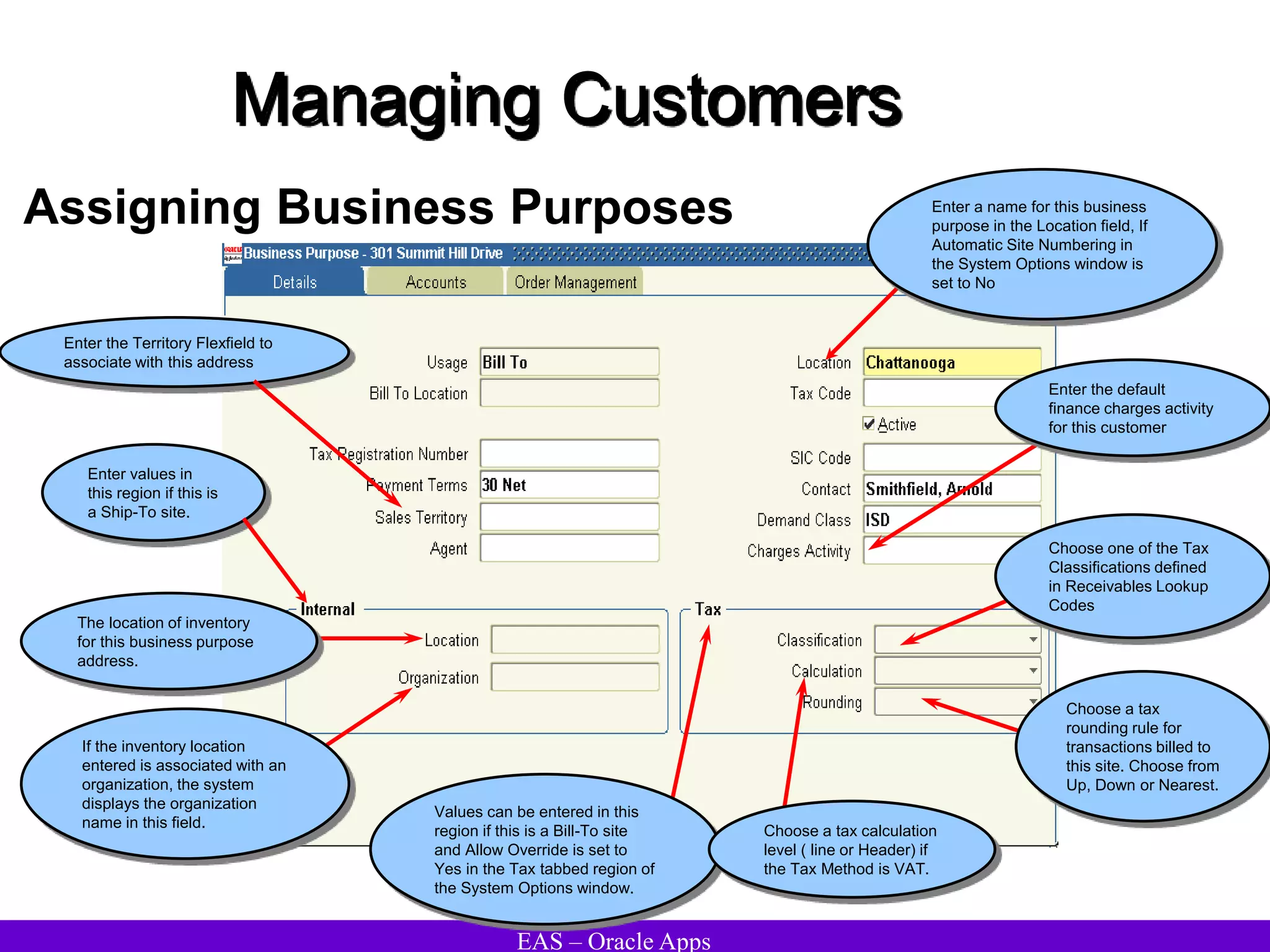
•Receipt: A Payment usually contains information such as MICR
number, batch number, item number, check number, and remittance
amount.
•Service Header: Service Header records contain general information
about the transmission.
•Transmission Header: A Transmission Header marks the beginning
of a specific data file. Transmission Headers usually contain information
such as destination account, origination number, deposit date, and
deposit time.
•Transmission Trailer: A Transmission Trailer marks the end of a
specific data file. Transmission Trailers usually contain information such
as total record count.
EAS – Oracle Apps
Receivables Setup
Lockbox – Transmission Formats
(N) Setup Receipts Lockboxes Transmission Formats
Enter a Description for the field
type defined (optional). Use field
descriptions to help recognize
what information is contained in a
particular field type.
Enter Start and End Position numbers
for this record type. These positions
determine how Receivables identifies
the starting and ending position of the
field type when data from bank file is
imported.
Enter the Field Type to assign to
the start and end positions
Enter either Left or Right in the
Justify field to indicate from
which side Receivables will start
reading data in the transmission
field.
Enter the type of character that
the bank places in the extra
spaces for this field type in the
Fill Symbol field. Valid values
are 'Blank' or 'Zero.'
If the field type is related to a
date, enter the Date format your
bank uses, or select from the list
of values. This field is required
when Field Type is either
Deposit Date or Receipt Date.
If the field type is related to time,
enter the Time format the bank
uses. This field is required when
Field Type is Deposit Time.
Enter either Yes or No in the
Format Amount field to indicate
if Receivables should reformat
the amount transmitted
Enter a value that indicates that
there are additional overflow
records for the transmission
record
EAS – Oracle Apps
Receivables Setup
Collectors
(N) Setup Collections Collectors
Enter a Name and
Description for this collector.
Enter a Correspondence Name and
Telephone Number for this collector
(optional). This information appears
on dunning letters if they are entered
when formatting dunning letters.
If the Credit Memo Request Approval workflow is
used, enter the collector's employee name or
select it from the list of values. Receivables uses
this information to ensure that the collector is also
an employee and therefore can receive workflow
notifications.
EAS – Oracle Apps
Receivables Setup
Aging Buckets
(N) Setup Collections Aging Buckets
Choose the Type of aging bucket being defined.
Choose from the following
4-Bucket Aging: Use this type to define an aging
bucket with four periods.
7-Bucket Aging: Use this type to define an aging
bucket with seven periods.
Credit Snapshot: Receivables displays this aging
bucket in the list of values of the Print Collections
Report window when the Customer Credit Snapshot
report is printed.
Statement Aging: Use this type to define an aging
bucket with five periods. This aging bucket appears
on your statements. You can define as many
statement aging buckets as you need. Receivables
displays your active statement aging buckets as list of
values choices in the Print Statements window.
Enter a Name for
this aging bucket.
Enter a Sequence Number
to reflect the order in which
Receivables prints the
aging bucket period.
Enter the Type of aging bucket line being defined.
Choose from the following types:
Current: Display transactions that are not yet due.
Past Due: Display transactions that have a number
of days past due in the range you specify for this line.
Dispute Only: Display transactions that are in
dispute with your customer.
Pending Adjustment Only: Display transactions that
have pending adjustments.
Dispute and Pending Adjustments: Display
transactions that are in dispute and transactions that
have pending adjustments in this line.
Future: Display transactions that will be due in the
future.
If this line type is Current,
Past Due, or Future, enter
the starting day number in
the Days From field.
If this line type is Current,
Past Due, or Future, enter
the ending day number in
the Days To field.
Enter the column headings to
appear in the report above the
bucket being defined. Enter a
maximum of fifteen characters for
each column heading.
EAS – Oracle Apps
Receivables Setup
Receivable Lookup Codes
An expenditure type class tells Oracle
Projects how to process an expenditure
item. Oracle Projects predefines all
expenditure type classes.
(N) Setup System Quick Codes Receivables
EAS – Oracle Apps
Receivables Setup
System Options – Accounting
(N) Setup System System Options Accounting
Enter the Accounting Method to use for the set of books. Enter
'Accrual' to record revenue from invoices, debit memos, and
chargebacks. When this method is used, Receivables debits the
cash account and credits the receivables account upon payment of a
debit item.
Enter 'Cash Basis' to recognize revenue at the time payment is
received for an invoice, debit memo, or chargeback. Receivables
debits cash and credits revenue when using the Cash Basis method.
Enter the Tax Account to use as
the default value in the Tax
Codes and Rates window.
If the accounting method is Cash Basis,
enter the Unallocated Revenue Account.
Receivables uses this account when cash
receipt is applied with a balance other than
zero to an invoice with a zero balance.
Enter a Cross Currency
Rounding Account. Receivables
uses this account to record any
rounding error amounts created
during a cross currency receipt
application for currencies that
have a fixed rate relationship.
Enter the Name of the receivables
accounting set of books.
Enter a Finance Charge Activity.
If the accounting method is Accrual, enter
the Realized Gains and Realized Losses
Accounts. Receivables posts changes in
the functional currency to the Realized
Gains or Losses account in GL if there are
differences in exchange rate gains or
losses.
Define a Header Rounding Account and enable Header
Level Rounding (optional). Receivables uses this account
to record any rounding differences that occur when
converting foreign currency transactions to the functional
currency. After you enable Header Level Rounding and
save your work, you cannot disable the feature.
To import the batches of
transaction records that post
into general ledger, check the
Automatic Journal Import box.
Enter the number of Days per Posting
Cycle. This allows processing of
transactions being posting in smaller groups
to ensure that you do not run out of rollback
space during posting.
EAS – Oracle Apps
Receivables Setup
System Options – Tax
(N) Setup System System Options Tax
Enter a Tax Registration
Number to print on customer
invoices.
Enter the sales tax Location Flexfield
Structure. Use this to validate
customer addresses as well as
calculate sales tax based on the
customer's shipping address.
Enter the Postal Code Range to be the
default value when entering sales tax
rate assignments in the Tax Locations
and Rates window.
Enter the type of Address Validation to
use. This option is only valid for
addresses in the home country.
To compound taxes in
Receivables, check the
Compound Taxes box.
Enter the Tax Method. Choose
either 'Sales Tax' or 'VAT'
Enter the Invoice Printing method to
use. This is the method Receivables
will use when printing tax amounts on
invoices.
Enter your Reporting Currency
(this is the same as your
functional currency).
If the sales tax vendor is Taxware
Sales/Use Tax System, enter a
value for the Sales Tax Geo
Override.
Check the Inclusive Tax Used
box to use inclusive tax codes.
Choose a Calculation Level. Choose Line to
calculate tax for each invoice line (this is the
default). Choose Header to calculate tax once for
each invoice for each rate.
Enter the Tax Vendor Views to
use to calculate tax, or select
one from the list of values.
Choose a Rounding Rule.
Enter the standard Precision to
use for tax calculations in this
currency.
Enter the Minimum Accountable
Unit for tax rounding in this
currency.
To be able to specify Tax Calculation and
Tax Rounding at the customer or site level,
check the Allow Override box.
EAS – Oracle Apps
Receivables Setup
System Options – Tax Defaults and Rules
(N) Setup System System Options Tax Defaults and Rules
Define Tax Code Defaults and hierarchy by
checking the appropriate boxes and entering a
sequence number for each. This hierarchy
determines the order in which Receivables
derives a default tax rate when you manually
enter transactions or import them using
AutoInvoice.
If the Tax Method is VAT, enter
a default Tax Code
Check this box to include customer
exemptions when calculating tax for your
transactions. Use the Tax Exemptions
window to exempt customers and items from
specific tax. If you do not check this box, you
cannot set the Default Tax and the Tax fields
in the Transaction window to 'Exempt'.
Choose whether to Enforce Tax
from the Revenue Account.
Check to enable the tax engine
to calculate tax for each
imported credit memo.
Check this box to use the tax rate you defined
for specific products based on the customer's
Ship-To address. Use the Item Tax Rate
Exceptions window to enter tax rates for
specific items based on Ship-To address.
Check this box to include item
exemptions when calculating tax for
your transactions. Use the Tax
Exemptions window to exempt
customers and items from specific tax.
EAS – Oracle Apps
Receivables Setup
System Options – Transaction and Customers
(N) Setup System System Options Trans & Customers
Check to automatically assign
unique numbers to customers
when new customers are
defined
Check to allow transactions to
be deleted from Receivables
after they have been saved
Check to allow receipt applications to
debit items of unrelated customers, or
to allow bills receivable assignments
to transactions of unrelated customers
Enter the Accounting, System Items, and
Territory Flexfield segments that are most often
selected by AutoInvoice. Receivables uses this
information to increase AutoInvoice
performance.
To activate SQL trace for
AutoInvoice, check the SQL
Trace box.
Check to allow updates to
transactions that have been
printed.
Check to automatically purge
the AutoInvoice Interface tables
after running AutoInvoice
Enter a Log File Message Level. This
number (from 0 to 3) indicates the amount
of detail you want AutoInvoice to display in
the AutoInvoice log file. The higher the
number, the greater the detail.
Check to Show Consolidated
Billing Number.
Enter the Maximum
Memory (in bytes) to
allocate to AutoInvoice for
validation.
Choose when to generate
sequential number if Document
sequencing is enabled. – On
Saving the transaction or on
Completion.
Check to automatically assign
numbers to your customer's
business purposes
Enter the default Grouping Rule
Name you want AutoInvoice to use.
Check to automatically create a reciprocal
relationship between two customers when
you are defining customer relationships
EAS – Oracle Apps
Receivables Setup
System Options – Miscellaneous
(N) Setup System System Options Miscellaneous
Check to enable the Trade
Accounting feature
Enter the Number of Days to use
when calculating conventional
Days Sales Outstanding for the
Collection Effectiveness Indicators
Report.
Accrue Interest box: Check to automatically
update the open balance in the Transactions
workbench for transactions that are past due
Check to allow
Receivables to accept
unearned discounts
Enter the Split Amount that
Receivables will use when the
Collection Effectiveness
Indicators Report is generated.
Check to allow discounts to be
taken for partial payments
Check to print the remit-to
addresses on customer
statements
Enter an AutoCash Rule Set
Receivables uses this AutoCash
Rule Set for a customer whose
profile class has not been assigned
an AutoCash Rule Set.
Enter a Sales Credit Percent Limit
(optional). The Sales Credit Percent Limit
imposes a limit on the percentage of
revenue plus non-revenue sales credit that
a agent can have on a transaction line.
Check to require that a bill-to
location be associated with a
cash receipt
Enter the Discount Basis
Receivables should use when
calculating discounts for invoices.
Check To require that agents be
entered when entering
transactions
Check to print home country on
invoices and statements that
refer to addresses in that
country
Check to enable the Bills
Receivable feature
EAS – Oracle Apps
Receivables Setup
System Options – Miscellaneous (Contd…)
(N) Setup System System Options Miscellaneous
Enter a Default Country. Receivables
uses this information to specify the
home country for tax calculation,
flexible bank structures, flexible
address formats, and taxpayer id and
tax registration number validation.
Enter the number of receipts the
Automatic Receipt program to
process before saving in the
Receipts per Commit field.
Enter the default Chargeback Due
Date. Receivables uses this date a
chargeback is created. Choose from
the following:
Open Invoice Due Date: Use the due
date of the invoice or debit memo as
the default.
Receipt Date: Use the receipt date as
the default. This is the date that you
entered the receipt.
Current Date: Use today's date as
the default.
Deposit Date: Use the receipt deposit
date as the default.
Enter the number of invoices the
Automatic Receipt program to
process before saving in the
Invoices per Commit field.
Enter the Source of Territory
Receivables should use to default into
the Agents, Transactions, and
Customers windows. Choose from the
following sources:
Bill-To Site: Use your customer's Bill-
To Address as the default.
Agent: Use the territory assigned to
your customer's primary agent as the
default.
Ship-To Site: Use your customer's
Ship-To Address as the default.
None: Do not enter a default territory.
Enter an Application Rule Set or
select one from the list of
values.
EAS – Oracle Apps
Receivables Setup
Application Rule Sets
(N) Setup System Application Rule Sets
Enter an application Rule. Each
rule will correspond to a line
type (for example, lines, freight,
or charges). Each rule set must
have at least one application
rule.
Enter Rule Details for this
application rule. This section
indicates the type of charges
and the tax handling for this
rule. Choose a Type of Line,
Freight, or Charges. Enter at
least one type for the rule set.
Enter the Sequence number for
this application rule.
Receivables applies payments
in this sequence, beginning with
the lowest sequence number.
Check to automatically adjust
this line type to account for any
rounding corrections within this
rule set
If you chose a Type of 'Line', choose a Tax
Treatment. Choose one of the following:
Prorate: Choose this option to proportionately
reduce the net amount of the line and
associated tax amounts.
Before: Choose this option to first reduce the
open tax amount, then apply any remaining
amount to the line.
After: Choose this option to reduce the open
line amount, then apply any remaining
amount to the associated tax.
EAS – Oracle Apps
Receivables Setup
Tax Codes and Rules
Specify a Taxable Basis to control
how Receivables calculates tax on
transactions assigned to this tax
code. Choose one of the following:
•After Discount: Calculate tax on
the invoice line amount, after any
early payment discount is taken.
•Before Discount: Calculate tax
on the invoice line amount, before
any early payment discount is
taken.
•Quantity: Calculate tax based on
the quantity ordered and unit of
measure of the invoice line. If you
choose this option, specify a Tax
Amount.
•PL/SQL: Calculate tax using the
PL/SQL formula that you specify.
Prior Tax: Select this option if you
use this tax code as part of a tax
group (to calculate multiple taxes)
and you want to calculate tax on
only the tax for the previous tax
line.
Choose a Tax Type. If location based
tax is used, enter one enabled tax
code with tax type of Location Based
Tax for a given date range.
If the Taxable Basis is Quantity,
enter a Tax Amount.
Indicate whether this tax code is
positive or negative by setting the Sign
parameter to either 'Cr' or 'Dr',
respectively. When you use a tax code
with a sign of 'Dr' (negative),
Receivables debits your tax account.
When you use a tax code with a sign of
'Cr' (positive), Receivables credits your
tax account.
If the tax type is not 'Location
Based Tax' and a taxable Basis
of either After Discount or Before
Discount is specified, enter a Tax
Rate.
(N) Setup Tax Codes
EAS – Oracle Apps
Receivables Setup
Tax Codes and Rules
(N) Setup Tax Codes
Check to be able to change the
tax rate for this tax code in the
Transaction windows. You can
only check this box if the tax
type is not 'Location Based Tax.'
Choose a Tax Class. Choose
Output to use this tax code with
invoices, debit memos credit
memos, adjustments, discounts,
finance charges and
miscellaneous cash receipts.
Choose Input to use this tax
code with miscellaneous cash
payments (negative receipts).
Input tax codes appear only in
the list of values for the Liability
Tax Code field in the
Receivables Activities window;
output tax codes appear in all
Receivables transaction and set
up windows.
Check to automatically display
line amounts including tax
Uncheck to prevent this tax
code from appearing in
Receivables windows. To be
able to use this tax code only
within a tax group, uncheck this
box.
If you do not want to be able to change this
tax code from inclusive to exclusive (or vice
versa) when entering invoices, uncheck the
Allow Inclusive Override box. Location-
based tax codes are always tax exclusive
and you cannot change them to be tax
inclusive.
EAS – Oracle Apps
Receivables Setup
Tax Codes and Rules
(N) Setup Tax Codes
Enter the Printed Tax Name as
you want it to appear on printed
transactions.
Enter a VAT Transaction Type
(optional). This field is used for
Spanish and Belgian Tax
reporting.
The default account is the Location
Tax Account you defined in the
System Options window.
To use deferred tax, check the Deferred
box and then enter an Interim Tax
Account, or select from the list of
values. The Deferred check box and the
Interim Tax Account cannot be updated
after saving.
Enter an Expense/Revenue
Account for each Receivables
Activity type, including
Adjustment, Earned Discount,
Unearned Discount, and
Finance Charge
If tax is not deductible for an activity
type, enter a Non-Recoverable Tax
Account. The Non Recoverable Tax
Account records tax amounts that
cannot be claimed as a legitimate
deduction to decrease tax liability.
EAS – Oracle Apps
Receivables Setup
Tax Locations
(N) Setup Tax Locations
Choose the type of sales tax
structure to define. Choose
City, County, or State.
To update an existing location or rate,
update the Tax Account, Tax Rate, and
range of Effective Dates or Postal Codes for
this location
To add a new location, choose New Record
from the Edit menu and enter the Name and
Description of this location.
If this segment has been assigned to the
tax account qualifier, Receivables enters
a default Tax Account. This is the
account you defined for the 'Location' tax
code type in the Tax Codes and Rates
window.
Enter the Tax Rate
percentage to assign to this
location
Enter a range of Effective Dates for
this tax rate. The default start date is
today's date. If an end date is not
entered, this tax rate will be valid
indefinitely.
Enter a range of Postal Codes for
this tax rate. Receivables uses the
date and postal code range for
locations to determine which tax rate
assignments to use when creating
sales tax rates.
EAS – Oracle Apps
Receivables Setup
Tax Exemptions
(N) Setup Tax Exemptions
Enter the Tax Code
from which you are
partially or fully
exempting this
customer or item(s).
Enter the tax code
percentage to exempt.
Enter an exemption
Number (optional).
Enter a Reason for this
exemption, or select
from the list of values.
Enter the range of
Effective Dates for this
exemption.
Enter a Status for this exemption.
Unapproved: Exemptions created automatically during Invoice
entry or import are recorded as Unapproved. Exemptions with
this status may be changed to any of the statuses listed here.
Manual: This exemption has been approved but Receivables
will not automatically use it. You have to explicitly use this
exemption. Exemptions with this status can only be changed to
Primary or Expired.
Primary: This exemption has been approved and Receivables
will automatically calculate tax. Exemptions with this status can
only be changed to Manual or Expired.
Expired: Discontinue a previously approved exemption. Once
discontinued, their status cannot be changed.
Rejected: Reject an Unapproved exemption. Once rejected,
their status cannot be changed.
To define an exemption for a customer:
Choose to create Exemptions By Customer.
Enter the customer Name or Number.
To view existing exemptions for this customer or
item(s), choose Find.
Enter the Locations for which this exemption will be
valid (optional).
Enter the Site to exempt (optional). Leave this field
blank to exempt all of this customer's sites or if you
want to create a regional exemption using the Location
flexfield.
Define your Exemption.
To define an exemption for an item:
Choose to create Exemptions By Item.
Enter the Item, or select from the list of values.
To view existing exemptions for this item, choose Find.
To create a new exemption, choose New Record from
the Edit menu.
Define your Exemption.
To define an exemption for a range of items:
Choose to create Exemptions By Range.
Enter the Category and Category Set to which the
range of items belongs.
Enter the User Item Type.
Enter the range of Items for this exemption.
Define your Exemption.
EAS – Oracle Apps
Receivables Setup
Tax Exceptions
(N) Setup Tax Exceptions
Choose to create an Exception By
Item or Range.
If you chose exceptions by Item,
enter the Item to exempt or select
from the list of values.
If you chose exceptions by Range,
enter the Category Set, User Item
Type, and a range of Items. Enter the range of
Effective Dates for this
exception.
Enter the authority Location for
which you want to define a tax
exception for this item or range of
items.
Enter the Tax Rates for
each location in your
authority.
Choose a Reason for
creating this tax exception.
EAS – Oracle Apps
Receivables Setup
Tax Groups
Enter the Group Code for this
Tax Group.
Enter a Group Name for this
Tax Group. The default is the
Group Code.
Choose Output to use this Tax Group with
invoices, debit memos credit memos,
adjustments, discounts, finance charges
and miscellaneous cash. Choose Input to
use this Tax Group in Oracle Public Sector
Payables.
To disable this Tax Group,
uncheck the Enabled box.
Enter a Tax Code or select one from the list of
values. You can only select tax codes with
effective dates that are within the effective dates
for this Tax Group. The Tax Code attributed
default from the code definition
Enter a Compounding Precedence
number (optional). This number
indicates the order in which
Receivables selects tax codes when
compounding taxes in a Tax Group.
To specify a Group Condition for
this Tax Group, choose an
existing Group Condition, or
choose the Conditions button to
define a new one
To specify a Group Exception for
this Tax Group, choose an
existing Group Exception, or
choose the Exceptions Button to
define a new one
Select to specify a Group
Constraint for this Tax Group
(N) Setup Tax Groups
EAS – Oracle Apps
Receivables Setup
Tax Group – Constraints
Assign Group Constraints to a Tax Group to ensure specific
conditions are met before using this Tax Group. Receivables
checks all Group Constraints when you assign a Tax Group to a
transaction. If none of the constraints are found, Receivables
uses the Tax Group to calculate tax; otherwise, Receivables
performs the action specified. A Group Constraint Set can be
used in multiple Tax Groups.
Valid options for defining a Group Constraint are the same as for
Condition Sets, except:
The list of available Entities also includes Tax Code
The list of available Operators also includes 'Not Found'
The list of available Actions are Error Message, Default Tax
Code, System Error, Use This Tax Group, and Do Not Use This
Tax Group
The list of available Fields does not include 'Warehouse'
The list of available Fields does not include 'Tax Registration
Number'
The list of available Operators does not include 'is' and 'is not'
(N) Setup Tax Groups Constraints
EAS – Oracle Apps
Receivables Setup
Tax Group – Exceptions
To automatically change the rate for a tax code within a Tax Group,
assign an Exception Set to the tax code. When this tax code is used,
Receivables changes the tax rate to the rate specified in the
Exception Set. An Exception Set can be used in multiple Tax
Groups.
Valid options for defining an Exception Set are the same as for
Condition Sets, except:
The list of available Operators also includes 'Not Found'
The list of available Actions also includes 'Apply Exception' and
'Do Not Apply Exception'
The list of available Fields does not include 'Tax Registration
Number'
The list of available Operators does not include 'is' and 'is not'
(N) Setup Tax Groups Exceptions
EAS – Oracle Apps
Receivables Setup
Tax Group – Conditions
Use a Condition Set to indicate that each tax code within the Tax
Group is dependent upon one or more conditions specified. A
Condition Set can be used in multiple Tax Groups. A Condition Set
can be setup using these options:
•Clause. If, And, Or, Else
•Operator. =, < > (does not equal), < (less than), >(greater than), <=
(less than or equal to), >= (greater than or equal to)
This table shows the valid values for the Entity option, and the
corresponding valid values for the Field option:
Field
Ship From - Country; State; County; Province; City
Ship-To - Country; State; County; Province; City; Tax Registration
Number
Bill-To - Country; State; County; Province; City; Tax Classification;
Tax Registration Number
Order Origin - Country; State; County; Province; City
Order Acceptance - Country; State; County; Province; City
Transaction - FOB; Type
Item - User Item Type
An action can also be specified for each Condition Set using these
options:
•Action. Error Message, Use This Tax Code, Do Not Use This Tax
Code, Default Tax Code, System Error
(N) Setup Tax Groups Conditions
EAS – Oracle Apps
Receivables Setup
Statement Cycles
(N) Setup Print Statement Cycles
Enter the Interval for this statement cycle
to indicate how often Receivables will
generate your statements. Choose
Weekly, Monthly, or Quarterly.
Enter Statement Dates for this statement
cycle. Receivables uses the statement
date to determine past due items and
calculate finance charges.
To prevent Receivables from printing a
statement on a specific statement date,
check the Skip box.
The Date Printed field displays the last date
you printed statements from the Print
Statements window for each statement date
within a statement cycle. Receivables does
not display a printed date for statement dates
that you have either elected to skip or have
not yet selected for a statement submission.
EAS – Oracle Apps
Receivables Setup
Standard Messages
(N) Setup Print Standard Messages
Enter a Name for this
message.
Enter the Type of message
being defined. Valid standard
message types include ‘Legal
Message’, 'Holiday' and
'Promotional'.
Enter the Start and End Dates
during which this standard
message will be active.
Enter the standard Message to
appear on customer statements.
The text of the standard
message cannot exceed 255
characters.
EAS – Oracle Apps
Receivables Setup
Dunning Letters
(N) Setup Print Dunning Letters
Enter a Name for this
letter.
Enter a Description of
this dunning letter
(optional).
Enter the header text for this letter (optional).
Rows that are left blank in the Dunning Letters
window appear as blank spaces when dunning
letters are printed.
Place the cursor in another row, then enter the
body text for this letter. Enter up to 4000
characters. Receivables automatically wraps the
text of the letter to the next line when the letter is
printed.
To include customer's invoice information in the
letter, place the cursor in a blank row, then enter
'&invoice'.
Enter any footer text as required (optional).
EAS – Oracle Apps
Receivables Setup
Dunning Letter Sets
(N) Setup Print Dunning Letter Sets
Enter the Name and a Description
for this dunning letter set.
Check to resend the last letter that was sent within this
dunning letter set.
If you also check the Send Letters in Sequence box for a
dunning letter set, Receivables will only resend a letter if
the past due date range has not been exceeded.
If both the Send Letters in Sequence and Resend Last
Letter boxes are checked, Receivables will only resend the
second letter in the set.
Check to take into account the
receipt grace days specified for the
customer or customer site profile
assigned to this set
Check to include items that have
been placed in dispute in all letters
within this set Check to include finance
charges for all dunning
letters within this set
Check to include On-Account and
Unapplied receipts in this set. Receivables
groups these receipts together with the
past due invoices in the same currency to
show the net balance in that currency for a
customer or site.
Check to maintain the order in which
Receivables sends letters in this set. Sequencing
allows control and incrementally increase the
severity of the dunning letters. If this box is
checked, Receivables ignores the value of the
Resend Last Letter check box.
Check to calculate finance
charges on items in dispute
Choose the dunning method for this dunning letter set.
Choose Days Overdue for the standard dunning method in
which each letter is based on the number of days
outstanding items are past due.
Choose Staged Dunning increase the dunning level of past
due items based on the last time a dunning letter was sent
to this customer.
EAS – Oracle Apps
Receivables Setup
Dunning Letter Sets (Contd…)
(N) Setup Print Dunning Letter Sets
NOTE:
If the Staged Dunning method is
chosen, enter a number in the
Dunning Level From field to
indicate the minimum dunning level
that a customer's oldest invoice,
debit memo, or chargeback must
be assigned to receive this dunning
letter.
Enter a number in the Dunning
Level To field to indicate the
maximum dunning level that a
customer's oldest invoice, debit
memo, or chargeback must be
assigned to receive this dunning
letter.
Enter the minimum number of days
(Min Days) that must pass before
Receivables will increment an item
to the next dunning level.
Enter the dunning Letter Name to
include in this set.
If the Days Overdue dunning method is
chosen, enter the minimum number of Days
Past Due From (less receipt grace days)
that a customer's oldest invoice, debit
memo, credit memo, chargeback and
unapplied and on-account payment must be
to receive this dunning letter.
Check to include all of this
customer's debit items that are not
yet due in this dunning letter
Check to send copies of the
invoices that this dunning letter
includes with this dunning letter.
In the Days Past Due To field, enter the maximum
number of days past due (less receipt grace days) that a
customer's oldest invoice, debit memo, credit memo,
chargeback and unapplied and on-account payment must
be to receive this dunning letter. Enter '999999' for the
last letter in this dunning letter set to ensure that
customers to whom this dunning letter set is assigned
always receive dunning letters for their oldest outstanding
debit items.
EAS – Oracle Apps
Receivables Setup
Remit To Addresses
(N) Setup Print Remit-To Address
Enter the Country for this
address. The default is the
country entered in the
System Options window.
Enter an Alternate Name for this address
(optional). Information can only be
entered in this field if the profile option
AR: Customers - Enter Alternate Fields is
Yes.
Enter the State and range of Postal Codes for each
country (optional). Multiple assignments for a remit-
to address that has the same country, state, or
province but different postal code ranges can be
defined.
Enter a remit-to Address.
Enter the Postal Code for this remit-
to address. A postal code must be
entered if values for both the From
Postal Code and the To Postal Code
are entered in the System Options
window. This postal code appears
when printing remit-to address on
either statements or dunning letters.
Enter each Country to assign to
this remit-to address. Receivables
assigns all of customers who have
bill-to addresses in the countries
that you enter to this remit-to
address.
EAS – Oracle Apps
Receivables Setup
Credit Usage Rules
(N) Setup Credit Credit Usage Rules
Enter a name for the rule
set Select the Global Exposure check box
to enable the Usage Rule Set for
global exposure (across operating
units). The default value for this check
box is un-checked (do not enable
Global Exposure for the usage rule
set).
Select the value
Currency in the Usage
Type field.
Enter a currency in the Currency field.
The Currency field can contain any
Currency Code currently defined. The
Currency field may also use the
lookup All Currencies to indicate the
usage rule is for all currencies
defined.
Chose to exclude a specific currency for
your usage rule by selecting the Exclude
check box. The default is unchecked, or
No. If the field Currency has value of All,
the Exclude check box is non-
updateable.
EAS – Oracle Apps
Receivables Setup
Assign Credit Usage Rules
The data appearing in the upper
region of the window defaults from
the Credit Profile queried. This
information is protected against
update.
Select a Name from the List of Values,
and the included and excluded
currencies fields will display currencies
that the usage rule set consists of. These
values are protected against update from
this window.
Before a Usage Rule Set can be assigned to a Credit Profile, first select the Credit
Profile Type and then locate the corresponding Credit Profiles.
Certain query processing logic has been disabled within the Find Credit Profiles window;
•If the value of the Credit Profile Type field is Profile Class, then fields Operating Unit,
Customer, Bill To Site, and Item Category are disabled.
•If the value of the Credit Profile Type field is Customer, then fields Profile Class,
Operating Unit, and Item Category are disabled.
•If the value of the Credit Profile Type field is Operating Unit Default, then fields Profile
Class, Customer, Bill To Site, and Item Category are disabled.
•If the value of the Credit Profile Type field is Item Category, then fields Profile Class,
Operating Unit, Customer, Bill To Site, and Overall Credit Limit fields are disabled.
(N) Setup Credit Assign Usage Rules
EAS – Oracle Apps
Receivables Setup
Credit Profiles
(N) Setup Credit Define Credit Profiles
The following fields are for future use
and are for information purposes only.
Values that are ignored during the
credit checking process are:
•Credit Check
•Credit Hold
•Credit Rating
•Next Review Date
Select a value for the Credit Profile
Type in the Credit Profile Type field.
Valid Values are:
•Item Category
•Operating Unit Default
•If Credit Profile Type = Operating Unit
Default, the Item Category field is
disabled.
•If Credit Profile Type = Item
Category, the Overall Credit Limit field
is disabled.
Select an Operating Unit name from a
list of values if a Operating Unit
Default Credit Profile is being defined.
Select an Item Category name from a
list of values if an Item Category
Credit Profile is being defined.
Enter a numeric value in the
Tolerance field. Tolerance values
are used to calculate extended
exposure limits during credit
checking.
Select a value in the Currency field
to limit the Credit Profile to a
specific currency.
Enter a value in the Overall Credit Limit field
for a a Operating Unit Default Credit Profile
Type. Total exposure within an operating unit
for the particular customer may not exceed
the value entered in the Overall Credit Limit
field if credit checking processing defaults to
the operating unit level.
Enter a value in the Order Credit Limit
field, based upon the Credit Profile Type.
New orders may not exceed the value
entered in the Order Credit Limit field if
the checking processing defaults to the
operating unit level.
EAS – Oracle Apps
Receivables Setup
AR Accounting Periods
(N) Control Accounting Open/Close Periods
To update the status of an accounting
period, place the cursor in the Status
field next to that period, then enter a
new status. An accounting period can
have one of the following statuses:
Closed: Journal entry, posting, and
transaction entry are not allowed unless
the accounting period is reopened.
Receivables verifies that there are no
unposted items in this period.
Receivables does not let you close a
period that contains unposted items.
Close Pending: Similar to Closed, but
does not validate for Unposted items.
Journal entry, posting, and transaction
entry are not allowed unless the
accounting period is reopened.
Future: This period is not yet open, but
you can enter transactions in this
period. However, you cannot post in
this period until you open it.
Not Opened: This period has never
been opened and journal entry and
posting are not allowed.
Open: Journal entry and posting are
allowed.
To open the next accounting period
after the Latest Open Period, choose
Open Next Period. Receivables
changes the status of the next period
to 'Open.'
EAS – Oracle Apps
Profile Options
EAS – Oracle Apps
Profile Options
Profile Option Function
Tax: Allow Ad Hoc Tax
Changes
This profile option lets you choose whether to update rates and amounts
assigned to tax codes in the Transactions window in Receivables, if you
defined tax codes in the Tax Codes and Rates window and set Ad Hoc to Yes.
Tax: Allow Manual
Tax Lines
Determines whether users can enter manual tax lines in the Transactions
windows in Receivables.
Tax: Allow Override
of Customer
Exemptions
Determines whether users can override Customer Exemptions defined in the
system
Tax: Allow Override
of Tax Code
This profile option lets you choose whether to override a system-derived tax
code during order or invoice entry.
Tax: Invoice Freight
as Revenue
Determines how Order Management imports freight amounts to Receivables
when the Receivables Interface program is run.
AR: Allow
Overapplication in
Lockbox
Controls how AutoLockbox handles receipts when the payment amount is
greater than the balance due for a transaction.
AR: Application GL
Date Default
Determines how Receivables determines the default GL Date when receipts
are applied.
EAS – Oracle Apps
Profile Options
Profile Option Function
AR: Automatic
Contact Numbering
Determines whether customer contact numbers are automatically generated
when new customers are entered.
AR: Cash - Allow
Actions
Determines whether adjustments and chargebacks can be created when
applying receipts in the Applications window.
AR: Change
Customer on
Transaction
Determines whether customer bill-to and ship-to names in the Transaction
windows can be updated.
AR: Change
Customer Name
Determines whether to let users update customer names in the Customer
windows.
AR: Close Periods -
Run Collections
Effectiveness Report
determines whether Receivables automatically submits the Collections
Effectiveness Report when a period is closed.
AR: Create Bank
Charges
Determines whether Receivables will consider bank charges and tolerance
limits when applying receipts.
AR: Cross Currency
Rate Type
Determines the default exchange rate Receivables uses when the receipt
and transaction currency are different and the two currencies do not have a
fixed rate relationship.
EAS – Oracle Apps
Profile Options
Profile Option Function
AR: Default Exchange
Rate Type
Determines the default exchange rate to use when converting foreign currency
transactions to the functional currency.
AR: Enable Cross
Currency
Controls whether a receipt in one currency can be applied to one or more
transactions in a different currency using AutoLockbox and the Applications
window.
AR: Enable SQL
Trace
Enable this profile option before reproducing and researching SQL errors.
AR: Include Receipts at
Risk in Customer
Balance
Controls whether Receivables displays items at risk and includes them when
calculating customer account balances.
AR: Mask Bank
Account Numbers
Control the display of bank account numbers in Receivables windows.
AR: Override
Adjustment Activity
Account Option
Choose whether you can override the default adjustment account when
entering or updating manual adjustments and when updating automatic
adjustments.
AR: Invoices with
Unconfirmed Receipts
Determines whether to adjust or credit invoices selected for automatic
receipt.
EAS – Oracle Apps
Profile Options
Profile Option Function
AR: Receipt Batch
Source
The default receipt source for the Batch field in the Receipts and Receipt
Batches windows. Only Receipt sources with a Receipt Source Type of
'Manual' will be displayed in the list of values.
AR: Sort Customer
Reports by Alternate
Fields
controls whether Receivables will sort information using the value of the
Alternate Name field in the Customers window. To use this option, the AR:
Customers - Enter Alternate Fields profile option must also be set to Yes.
AR: Transaction
Batch Source
Determines the default invoice source that will appear in the Batch field of the
Transaction and Credit Memo windows.
AR: Update Due Date Determines whether the due date (payment schedule) of a transaction in the
Installments and Account Details windows can be updated.
HZ: Generate Party
Number
Determines whether to automatically generate the party number when a
Customer is created.
EAS – Oracle Apps
Reports
EAS – Oracle Apps
Reports
Report Description/ Function
Applied Receipts
Register
Review how customers' receipts were applied to invoices and debit memos
or reversed from invoices and debit memos. The Applied Receipts Register
prints all applications within the date range that specified, regardless of
check date.
Billing and Receipt
History
Use this report to review a detailed list of transactions for the date range
that you specify. You can also see all the activities against each transaction.
This report prints one line for each activity against the transaction.
Aging Reports Use Aging reports to review information about open items. These reports
print both detail and summary information about customer's current and past
due invoices, debit memos, chargebacks, on-account credits, and on-
account and unapplied cash amounts.
Commitment
Balance Report
Use this report to review summary information for your customer
commitments. Receivables prints each commitment displaying information
about the commitment, customer, primary agent, and other commitment
information. Receivables also automatically prints all invoices and credit
memos against the initial commitment, and displays the remaining balance
of the commitment.
EAS – Oracle Apps
Reports
Report Description/ Function
Invoice Exception
Report
Use this report to match revenue accounts to accounts receivable.
Receivables lists all transactions where Open Receivables is set to No.
These transactions appear on the Transaction Register, but do not display
in agings
Journal with GL
Details Report
Use this report to identify the General Ledger journal entries imported from
particular transactions in Receivables. Transactions that have not been
transferred to General Ledger are marked with an indicator.
Cross Currency
Exchange Gain/Loss
Report
Use this report to review detailed information about your cross currency
settlements.
Miscellaneous
Transactions
Use this report to review miscellaneous receipts and document number
information. Receivables prints deposit date, batch information, receipt
information, code combination, and the percent allocated to each account
for each receipt.
Receipt Register Use this report to review a list of receipts for the range of dates, receipt
numbers, or document numbers that you specify.
EAS – Oracle Apps
Reports
Report Description/ Function
Revenue Journal by
Customer
Use this report to review all transactions. The summary totals for the
revenue journal are by Posting Status, Agency, and Transaction Currency
Transaction
Register
Use the Transaction Register to check that all postable items are reflected
on your Sales Journal. Use the following formula to ensure that the
Transaction Register matches your Sales Journal:
Transaction Register (postable items) + 2 (Credit Memo Total) = Sales
Journal (debits + credits)
Receipt Journal
Report
Use this report to review details of receipts that appear in your Journal
Entries report. The Journal Entries report shows the receipt numbers that
contribute to a particular GL account. Using the receipt number you can see
the detailed information on the Receipt Journal report.
Unapplied Receipts
Register
Use the Unapplied Receipts Register to review detailed information about
your customers on-account and unapplied payments for the date range that
you specify. You can use this report to determine how much your customer
owes after taking into account all on-account and unapplied amounts.
Receivables displays information about your on-account or unapplied
payment such as GL date, batch source, batch name, payment method,
payment number, payment date, on-account amount, and unapplied
amount. This report includes both cash and miscellaneous receipts.
EAS – Oracle Apps
Reports
Report Description/ Function
US Sales Tax Report Use this report to review your tax liability to the various tax authorities
around the US. The US Sales Tax report includes all Invoices, Credit
Memos, and Adjustments broken down by Ship To State, County, and City
and lists taxable, exempt, and tax amounts. This report is used as the basis
for the periodic Sales Tax Returns required by each state.
Unposted Items
Report
Receivables prints the Unposted Items Report for all items that are not
posted for the specified GL date range. There are two ways to generate this
report: through the Submit Requests window or by running the General
Ledger Interface Program.
Tax Register Report Use the Tax Register report to review your tax liability. This report groups
total tax amounts by tax type, tax class, and company. This report includes
deferred tax accounting information and all transactions for which tax
accounting is defined.
Collection
Effectiveness
Indicators
Use this report to monitor your customers' overall payment patterns and
see debit item information by the split amount you defined in the System
Options window. Receivables automatically runs this report when you close
an accounting period.
Collection Key
Indicators Report
Use this report to review and manage your collectors productivity.
Receivables gives you a percentage breakdown of call topics and
responses for each of your collectors within the date range that you specify.
EAS – Oracle Apps
Reports
Report Description/ Function
Customer Credit
Snapshot Report
Use this report to see an overview of your customer's credit history. This
report provides aging, customer credit history, and a brief look at the last
transactions Receivables recorded for this customer.
Past Due Invoice
Report
Use this report to view information about your customer's past due invoices,
debit memos, deposits, chargebacks, and guarantees.
Account Status
Report
Use this report to review your customer accounts. For each customer in
your Account Status report, Receivables prints all open debit items, credit
items, and total balance due in your functional currency.
AutoInvoice Reports Use the AutoInvoice Execution report to review the results of your
AutoInvoice request. This report lists summary information telling you how
many revenue and credit transactions are selected, accepted, and rejected
for each currency. The AutoInvoice Execution report also shows the total
invoice amount for each transaction type for all transactions processed.
AutoInvoice automatically produces this report each time you run
AutoInvoice.
Automatic Receipts
and Remittances
Execution Report
Use this report to review the number and amount of automatic receipts and
remittances you have created, approved, or formatted. Receivables
automatically generates this report when you submit a batch of automatic
receipts or remittances to be created, approved, or formatted
EAS – Oracle Apps
Reports
Report Description/ Function
Invoice Print Preview
Report
Use this report to review the invoices, debit memos, chargebacks, deposits,
guarantees, credit memos, and on-account credits that will print if you
specify these report parameters. You can submit this report from either the
Print Invoices or the Submit Requests window.
Posting Execution
Report
Use this report to view a summary of all transactions by category and
currency that make up your entries to your general ledger. Receivables
automatically generates this report when you run General Ledger Interface.
Print Invoice Reports Use the Print Invoices window to submit your invoices, debit memos,
chargebacks, deposits, guarantees, invoices against deposits, invoices
against guarantees, credit memos, on-account credits, and adjustments for
printing. You can print a batch of invoices, new invoices, selected invoices,
and adjustments.
Transactions Awaiting
Consolidation
Use this report to review a list of transactions that have been designated for
automatic receipt application (i.e., that have been assigned an automatic
payment method). You can review all transactions that are in different
stages of the creation process. These stages include creating, approving,
and formatting.
Invoices Posted to
Suspense
Use this report to view a list of all transactions that have revenue amounts
posted to suspense accounts.

460970787-93626369-Oracle-Accounts-Receivables-1-ppt.ppt

  • 1.
    EAS – OracleApps Oracle Applications 11i Oracle Accounts Receivables A Presentation by EAS – Oracle Applications December 2003
  • 2.
    EAS – OracleApps Oracle Accounts Receivables  Overview of AR  Managing Customers  Processing Invoices  Processing Invoices Using Auto-Invoice  Processing Commitments  Processing Customer Adjustments  Applying Receipts  Implementing Auto-Lockbox  Processing Automatic Receipts  Remitting Receipts  Managing Collections  Tax Accounting Process  Period Close Process  Receivables Setup  Profile Options  Reports Agenda
  • 3.
    EAS – OracleApps Overview of Oracle Accounts Receivables
  • 4.
    EAS – OracleApps Overview of AR  Oracle Receivables provides three integrated workbenches to perform most of the day-to- day Accounts Receivable operations.  Use the Receipts Workbench to perform receipt-related tasks  Use the Transactions Workbench to process invoices, debit memos, credit memos, on- account credits, chargebacks, and adjustments.  Use the Collections Workbench to review customer accounts and perform collection activities such as recording customer calls and printing dunning letters.  Use the Collections workbench to also place a customer account on credit hold, place items in dispute, view the dunning history for a transaction, and correspond with customers by recording customer calls.  Each workbench helps find critical information in a flexible way, see the results in a defined format, and selectively take appropriate action.  The Receipts and Transactions workbenches let you view records one at a time or as a group.  Detail windows display only one receipt or transaction at a time, but provide more information about the record because they contain more fields and tabbed regions.  Summary windows, by contrast, can display multiple records at once but require "drill down" to the detail window to view additional information about the current record.
  • 5.
    EAS – OracleApps Overview of AR  Receipts Workbench: Receipts, Receipts Summary, Receipt Batches and Receipt Batches Summary  Transactions Workbench: Transactions and Transactions Summary, Transactions Batches and Transaction Batches Summary  In the Receipts and Transactions Workbenches, the Tools pulldown menu lets you perform operations in addition to those provided by the action buttons.  In the Receipts Workbench, view the sum of multiple receipts in the Receipt Totals window, and review the functional currency gain or loss resulting from a currency exchange rate adjustment in the Receipt History window.  In the Transactions window there is no Copy button, but still copy a transaction by choosing Copy To from the Tools menu.  Similarly, the Balances button does not appear in the Transactions Summary window, but can be displayed in the Transaction Balances window by choosing Balances from the Tools menu.  View the detail accounting lines for an item in the form of a balanced accounting entry (i.e., debits equal credits) by choosing View Accounting from the Tools menu.  View the detail accounting as t-accounts
  • 6.
    EAS – OracleApps Overview of AR Create Profile Classes Enter Customers Create Invoices Print Invoices Send to Customers Use iReceivables Receipts Collections
  • 7.
    EAS – OracleApps Overview of AR Assign customers to profile classes Review customer information Create customer profile classes Create customer relationships Eliminate duplicate information Enter customer information Customers Overview
  • 8.
    EAS – OracleApps Overview of AR Transaction Workbench Enter receipt Deposit Guarantee Standard invoice Copy Correct invoice Overinvoice Invalid transaction Underinvoice Process and print Void Generate statement Interface to Oracle General Ledger Print and send invoice to customer Delete
  • 9.
    EAS – OracleApps Overview of AR Receipt Workbench Enter receipt Apply to customer account or invoice Update customer balance Clear receipt Reconcile bank statement
  • 10.
    EAS – OracleApps Overview of AR Customer account Scheduler Account overview Aging Release/ credit hold Corres- pondence • Account detail • Call • Print statement • Print dunning Account detail Account detail Transaction overview • Account detail • Call Call Customer workbench A Collections Workbench
  • 11.
    EAS – OracleApps Overview of AR Account detail Call • Customer account • Transaction overview • Correspondence Customer Account Adjust Balances Activity Trans./Receipt workbench Dispute history A Collections Workbench
  • 12.
    EAS – OracleApps Managing Customers
  • 13.
    EAS – OracleApps Managing Customers Integrating Customer Information Oracle Order Management Oracle Receivables Customer Information Shared with Owned by Oracle Projects Oracle CRM Suite
  • 14.
    EAS – OracleApps Managing Customers Standard customer entry Enter complete details Quick customer entry Enter limited information Customer interface Import from other systems Customer Entry Methods
  • 15.
    EAS – OracleApps Managing Customers Enter Customer Information • Use all of the following methods to enter customer information, for example, addresses, phone numbers, contact names, and business purpose: – Standard – Quick – Interface Setting Customer Tax Attributes • Standard: The taxing function refers to the tax tables to determine if the customer requires tax addition. If so, it selects the appropriate taxing method. • Exempt: No tax addition; Manually enter the tax exemption number and reason • Required: The taxing function always uses tax addition
  • 16.
    EAS – OracleApps Managing Customers Customer Profile class Telephone numbers Addresses Payment method Bank accounts Contacts Relationships Business purpose Marketing Classification Details Accounting Order Management information Using Standard and Quick Customer Entry
  • 17.
    EAS – OracleApps Managing Customers Temporary Interface Tables Oracle Receivables Customer Tables Correct errors with SQL*Plus Customer Interface Execution Report External Databases Interface Customer Entry
  • 18.
    EAS – OracleApps Managing Customers Customer Form Flow The Find/Enter Customers window displays to ensure that you search existing customers before you enter new customers Search using the following methods: • Basic(default): Search based on Address Components • Advanced: Detailed searches based on Taxpayer information and other references • Text: A Simple text search After this process, the Customers - Standard form displays
  • 19.
    EAS – OracleApps Managing Customers Find Customers – Fuzzy Search (N) SetupExpendituresExpenditure Types Fuzzy Search The fuzzy search method widens the scope of a search and finds data comparable to the search criteria. In the Customer Find/Enter window you can perform a fuzzy search on several fields. The fields you can fuzzy search are: •Person First Name •Person Last Name •Organization Name •Address •Contact First Name •Contact Last Name The fuzzy search method uses Word Replacement pairs to map a word, abbreviation, or special character that might be entered by a user as a search criteria to a similar word, abbreviation, or special character.
  • 20.
    EAS – OracleApps Managing Customers Match Results Window (N) SetupExpendituresExpenditure Types Note the following in the Match Results window: • The title bar of the Match Results window displays the Customer Type used for the search and the search criteria. • If a party has multiple customer accounts, the party name displays (indented to the right) in the Name column next to each customer account. • When the results of a search for a Person customer type display, the First Name and Last Name fields from the Find/Enter Customers window are concatenated. • The Match Results window displays both the Party Number and the Customer Number columns. • If the Identifying Address Flag check box is checked, then other party sites could exist for this party. • The Name and Customer Number fields can not be hidden in the view of the Folder. • Do not resort the results using different fields. The resulting list of parties and customer accounts may appear confusing.
  • 21.
    EAS – OracleApps Managing Customers Entering Customer Addresses (N) CustomersCustomer Accounts -Enter, add, change, or deactivate customer address information -Validate addresses using flexible address formats or the address validation system option -The system will not allow updation of the components of an address if the following are true: •The system option Allow Change to Printed Invoices is No. •At least one printed, posted, or applied transaction exists for this bill-to or ship-to site in Receivables and that transaction has associated tax lines -Values assigned on a customer site (address) level take precedence over values entered at the customer, profile class, or system options level. -In a sales tax based system, Receivables calculates tax based on the address components of the sales tax structure.
  • 22.
    EAS – OracleApps Managing Customers Customer Addresses • Allow multiple organization or person customers can do business at one location. • Are global (not specific to operating units). • Allow you to perform address validation using Vertex or TaxWare information. • Have flexible address formatting with seeded and custom formats. Customer Accounts • Customer accounts model relationships between an organization deploying Oracle Applications and an organization or person customer stored in the new customer model registry. • Additional organizations or person customers can play roles in accounts. The new account model retains release 11i customer model features including: – Credit profiles – Terms of relationship (for example, discount terms) – Customer bank accounts
  • 23.
    EAS – OracleApps Managing Customers Customer Addresses Enter the address for the Customer. If the tax method is Sales Tax, the system uses validated customer address information to determine tax liability on the customer's transactions Addresses assigned to Bill-To business purposes are used for all transactions Addresses assigned to Ship-To business purposes are used for all transactions except commitments. The Bill To location to associate with this Ship To address
  • 24.
    EAS – OracleApps Managing Customers Business Purposes Each address can have multiple business purposes. • Ship To site • Bill to site • Bill To site • Statements • Dunning • Legal • Ship To site • Marketing
  • 25.
    EAS – OracleApps Managing Customers Business Purposes Business purposes describe which functions are performed at a particular customer site. Common Types of Business Purposes include: Bill To: Send invoices to this address. Drawee: A customer drawee is a customer site responsible for paying bills receivable. Ship To: Send goods or services to this address. Can be different from this customer's Bill-To address. Statements: Send customer statements to this address. Can only define one active statement business purpose for each customer. Dunning: Send customer dunning letters to this address. Can only define one active dunning business purpose for each customer. Legal: A legal site is responsible for all government reporting requirements. Marketing: Send marketing collateral to this address.
  • 26.
    EAS – OracleApps Managing Customers Assigning Business Purposes Enter a name for this business purpose in the Location field, If Automatic Site Numbering in the System Options window is set to No Enter the Territory Flexfield to associate with this address Enter the default finance charges activity for this customer If the inventory location entered is associated with an organization, the system displays the organization name in this field. The location of inventory for this business purpose address. Enter values in this region if this is a Ship-To site. Values can be entered in this region if this is a Bill-To site and Allow Override is set to Yes in the Tax tabbed region of the System Options window. Choose a tax calculation level ( line or Header) if the Tax Method is VAT. Choose one of the Tax Classifications defined in Receivables Lookup Codes Choose a tax rounding rule for transactions billed to this site. Choose from Up, Down or Nearest.
  • 27.
    EAS – OracleApps Managing Customers Business Purposes – Accounts Tab The AutoInvoice Clearing account for this address. AutoAccounting uses this value to derive the AutoInvoice Clearing account from the transaction bill-to site. A value can be entered in this field only if the business purpose for this address is Bill-To. The Receivable account for this address The Freight account for this address. AutoAccounting uses this value ito derive the Freight account from the transaction bill-to site. Unbilled Receivable account for this address. The Tax account for this address The Unearned Revenue account for this address. The Revenue account for this address
  • 28.
    EAS – OracleApps Managing Customers Order Management Attributes in Customer Tables Shipping Defaults • Warehouse • Freight Terms • FOB • Ship Method • Over/Undership Preferences Scheduling Defaults • Order Type • Price List /GSA • Item Identifier Type • Request Date Type • Put Lines in Sets Order Defaults • Earliest Schedule Limit • Latest Schedule Limit • Push Group Schedule Date
  • 29.
    EAS – OracleApps Managing Customers Order Management Attributes Store order management information in both the customer header and address business purpose levels. This information defaults during order entry. The point or location where the ownership title of goods is transferred from the seller to the buyer. Receivables uses the Ship-To FOB and then the Bill-To FOB as the default value when transactions are entered. To determine whether the customer is responsible for the freight charges for an order The amount by which an under return can be less than the original order, expressed as a percentage. Name of the price list that Order Management uses as the default value in the Sales Orders window. The order type Order Management must enter as a default value in the Returns window when returns are entered for this customer Determines whether the ship date or arrival date will be used as request date. The shipping method that the organization intends to use to transport items. The system first uses the Ship-To and then the Bill-To freight carrier as the default during transaction entry. Indicates whether to invoice for the ordered quantity or the fulfilled quantity. The amount by which an under shipment can be less than the original order, expressed as a percentage
  • 30.
    EAS – OracleApps Managing Customers Customer Contacts and Roles Contact roles allow assignment of a contact to a particular business purpose or function. Contact roles are for informational purposes only. Each contact can have multiple roles but only one primary role. Enter a unique contact number, if the Automatic Contact Numbering profile option is No The system displays contacts in the Transaction and Collections windows.
  • 31.
    EAS – OracleApps Managing Customers Bank Accounts Assign bank accounts to customers to allow funds to be automatically transferred from these accounts to the remittance bank accounts when using Automatic Receipts. Define multiple, non-primary accounts in the same currency, even if the date ranges overlap. Enter either the Account Name or Account Number for this bank account The primary bank account for a particular currency is used as the default account when Automatic Receipts are used. Only one active, primary account per currency for the customer or site can be assigned.
  • 32.
    EAS – OracleApps Managing Customers Payment Methods Assign automatic payment methods to customers if Automatic Receipts are being used. Payment methods determine the required processing steps for automatic receipts, such as confirmation, remittance, and reconciliation During transaction and receipt entry, the system uses the primary payment method defined as the default. Assign multiple payment methods to a customer as long as the start and end dates of each method do not overlap.
  • 33.
    EAS – OracleApps Managing Customers Profile – Transaction Customer Profiles group customers with similar credit worthiness, business volume, and payment cycles. Define standard customer profiles in the Customer Profile Classes window. The customer profile class assigned provides the default values which can be optionally changed.
  • 34.
    EAS – OracleApps Managing Customers Customer Relationships Create customer relationships to control: • Payment of unrelated invoices • Sharing of pricing entitlements • Consolidation of business addresses • Link one customer to another. • Enforce invoicing and receipt-application controls. • Can only exist between two customers. • Are not transitive: If A is related to B and B is related to C, A and C are not related. • Can be reciprocal or nonreciprocal. • Allow you to select a related customer’s ship-to address during order entry.
  • 35.
    EAS – OracleApps Managing Customers Reciprocal Related (child) Primary (parent) Nonreciprocal Related Primary Primary Related Customer Relationship
  • 36.
    EAS – OracleApps Managing Customers Customer Relationships (N) CustomersCustomer AccountsRelationships Enter the Type of relationship to use to classify customers. This field is only for informational purposes. Specifies whether the relationship is a sill to relation Allows customers to pay each other's debit items and enter invoices against each other's commitments. Specifies whether the relationship is a bill to relation
  • 37.
    EAS – OracleApps Managing Customers Party Relations (N) CustomersRelationships Use the Party Relations window to view, update, and create relationships for parties. These relationships model the party registry as a realistic business world. Multiple relationships between any parties with the predefined relationship types can be created . The party that the customer is related to Relationship types categorize relationships. The party type of the object defaults in the Object Type field.
  • 38.
    EAS – OracleApps Managing Customers Profile Classes •Use profile classes to describe and group customers with similar financial characteristics •Use profile classes to enter new customers quickly and consistently •When a customer is established , the customer processing function assigns it to the default (seeded) customer profile class. •To assign the customer to a different profile class, select it from the list of values before saving.
  • 39.
    EAS – OracleApps Managing Customers • Credit check • Collector • Payment application • Dunning letters • Finance charges Invoices and Statements • Invoice line and tax printing • Statement cycle • Consolidated invoices Credit/collections Payment promptness • Payment terms • Discounts • Grace days Customer Profile Class Characteristics
  • 40.
    EAS – OracleApps Managing Customers Customer Profile Classes (N) CustomersProfile Class Specifies the Auto Cash Rule Set to use for this profile Class. The system uses the AutoCash Rule Set specified in the System Options window if an AutoCash Rule Set is not assigned Indicates the number that customers using this profile class will use to match receipts with invoices during AutoLockbox validation Specifies how Post QuickCash applies any leftover receipt amounts created by a partial receipt application Check to send statements to customers using this profile class To send statements to customers with this profile class even if they have a credit balance, check the Send Credit Balance check box Enter a Statement Cycle If the Send Statement check box is checked. Statement cycles indicate how often to print statements. Enter the Dunning Letter Set to assign to customers using this profile Check to send dunning letters to customers when they have invoices, debit memos, and chargebacks that are past due
  • 41.
    EAS – OracleApps Managing Customers Customer Profile Classes (N) CustomersProfile Class The default payment term for customers assigned to this profile class Check to be able to change the default payment term when entering transactions for customers using this profile class. enter the number of Discount Grace Days after the discount term date that customers using this profile class can take Check to allow discounts to customers using this profile class. Enter the number of Receipt Grace Days that are allowed for customers using this profile class to be overdue on receipts before they will be assessed finance charges Check to charge finance charges. To calculate finance charges on customer's outstanding balances including previously assessed finance charges Indicates how to print tax on invoices Specifies the printing format of the consolidated billing invoice
  • 42.
    EAS – OracleApps Managing Customers Customer Profile Classes Enter the default Tolerance (percentage over the credit limit) that customers using this profile class can exceed before the collection action begins Oracle Order Management will check this customer's credit before creating a new order if the Payment Term and the Order Type associated with the order also require credit checking. The system does not check customer's credit when transactions are created in Receivables. (N) CustomersProfile Class
  • 43.
    EAS – OracleApps Managing Customers Customer Profile Classes (N) CustomersProfile Class The Currency in which customers assigned to this profile class will do business If the amount of interest that the system calculates for a past due debit item in this currency is greater than the amount entered here, the system charges this amount. The interest rate to charge customers If the customer balance of past due items in this currency is less than the amount specified here, Receivables does not assess finance charges The system will not generate automatic receipts in this currency that are less than this amount. If the balance of a past due invoice in this currency is less than the amount specified here, Receivables does not assess finance charges on this The minimum outstanding balance in this currency that customers must exceed in order for Receivables to generate a statement. If a customer has a past due balance in this currency that is greater than the minimum dunning amount specified for this currency, Receivables selects this customer for dunning Customers do not receive dunning letters if the amount entered here is greater than the balance of each of their past due items in this currency The total amount of credit in this currency to give to customers The maximum amount of an individual order
  • 44.
    EAS – OracleApps Managing Customers Merge Customers Merge customers to: • Eliminate incorrect data and duplicate information • Consolidate account site data • Merge Customers or Sites • Merge Individuals or Organizations • Reflect customer account changes due to business consolidation • Merging customer information combines all information for two customer accounts or account sites, striped by operating unit. • Delete or inactivate the merge-from customer account and account sites uses. • Customer Merge updates the customer information for all of the old customers transactions.
  • 45.
    EAS – OracleApps Managing Customers Merging Other Application Transactions The system automatically merges all transactions associated with the merge candidates in these applications as well: • Automotive • Customer Service • Inventory • Master Scheduling /MRP Planning • Order Management • Payables • Projects • Purchasing • Sales and Marketing
  • 46.
    EAS – OracleApps Managing Customers Customer Merge (N) CustomersMerge Use Customer Merge to consolidate any duplicate customers or transfer site use activity from a customer or site that is no longer active or has been taken over by another customer or site. The Type of customer being merged The name of the customer to merge. The name of the customer to merge to The reason for the merger of the two customers. To delete the old customer information, check the check box. To keep an audit trail of old the customer information, do not check the Delete After Merge check box. The system assigns a status of 'Inactive' to the old customer after you complete the merge. Check to copy an address and site usage from the From region to the merge- to customer.
  • 47.
    EAS – OracleApps Processing Invoices
  • 48.
    EAS – OracleApps Processing Invoices Transaction Overview Import transactions Create manual transactions Calculate taxes, create GL accounts, update customer balances Print invoices Correct, if necessary
  • 49.
    EAS – OracleApps Processing Invoices Transactions Workbench Windows Use the Transactions Workbench to create new and update existing invoices, debit memos, credit memos, on–account credits, and commitments within Receivables. Also use this workbench to enter, review, or complete transactions, copy invoices, create adjustments, credit transactions, review invoice installments, and update chargebacks.
  • 50.
    EAS – OracleApps Processing Invoices Invoice Entry Methods Manual invoices Invoices from feeder systems Data entry Run AutoInvoice
  • 51.
    EAS – OracleApps Processing Invoices Creating Invoice Batches • Use batches to match control and actual invoice counts and amounts. Actual count and amount is updated as invoice is entered. • A batch can contain invoices with different currencies. • Print invoices by batch. • Can only delete a batch if it does not contain any transactions • Oracle Receivables uses invoice batches to import invoice data. • Batch information identifies the originating system when importing transactions. Invoice Batch Statuses • New: This is a new batch, and it has not yet been saved. • Out of Balance: The actual count and amount of transactions in this batch do not equal the control count and amount. • Open: The actual count and amount equal your control count and amount. • Closed: The actual count and amount match the control count and amount.
  • 52.
    EAS – OracleApps Processing Invoices Transaction Batches (N) TransactionsBatches If Automatic Batch Numbering for this batch source is No, enter a unique batch Name. Enter the Batch and GL Date for this batch. The default date is the current date. GL Date you enter must be in an Open or Future period. Batch sources control invoice and invoice batch numbering and the default transaction types for transactions added to this batch Enter the batch Currency. The default is the functional currency. Enter the total number of transactions in this batch in the Control Count field, then enter the total dollar amount of transactions in this batch in the Control Amount field.
  • 53.
    EAS – OracleApps Processing Invoices Creating a Standard Invoice Complete invoice Enter invoice header information Enter invoice lines AutoAccounting creates accounts Enter freight lines Enter salescredit
  • 54.
    EAS – OracleApps Processing Invoices Entering Invoice Dates • Enter invoice dates in any period. The invoice date plus the the payment terms determine the due date • Enter Oracle GL dates in open and future accounting periods. This date determines when the journal entry can be created. Open Available for entry and posting to GL Future Closed Available for entry Not available
  • 55.
    EAS – OracleApps Processing Invoices Required Transaction Information • Transaction Date • Source • Class • Type • GL Date • Bill To • Terms • Remit To Transaction Defaults • Transaction Source: – Can default the transaction type – Determines the transaction numbering • Transaction type can default: – The transaction class – Payment terms (if not set at the customer) • Customer can default: – Ship-to and bill-to address – Payment terms – Salesperson
  • 56.
    EAS – OracleApps Processing Invoices Entering Sales Credits • If the Require Salesperson check box in the Miscellaneous tab of the System Options window is selected, a salesperson must be assigned to each invoice. • Use the Sales Credits window to allocate sales credit among salespeople, and record both revenue and non-revenue sales credit. This information defaults to line- level sales credits. • Autoaccounting will recalculate the revenue account assignment. • Total sales credits can be greater than the revenue amount for bonus or incentive purposes. • Allocate different percentages or to different salespeople by line, using the For This Line region of the Sales Credits window. Access this window by clicking Sales Credits in the Lines window.
  • 57.
    EAS – OracleApps Processing Invoices Completing Transactions • Completing an invoice means that payment schedules and aged receivable amounts are calculated, and this transaction can be transferred to the GL. • When all required information has been entered, click the Complete button. • Only completed transactions can be printed.
  • 58.
    EAS – OracleApps Processing Invoices Transaction Header Information Enter the GL date, the default is the current date. if the current date is not in an open period, the default is the last date of the most recent open period Enter the transaction number if Automatic numbering is not enabled. If automatic numbering is specified, Receivables generates a number Select the Transaction Type. Transaction types determine whether a transaction updates open receivables, can be posted to GL, if Receivables calculates tax, the transaction’s creation sign, whether transactions with this type use natural application only or will allow overapplication, provide the default transaction class, payment term, and printing options for each transaction. Select the Transaction Batch Source. The Source specifies automatic or manual batch and invoice numbering, the standard transaction type, determines which attribute of the Invoice Transaction Flexfield is used to default into the Reference field. Enter the transaction date, the default is the current date Enter the transaction currency, the default is the functional currency Select the Invoice Class. Choose from the following -Invoice -Debit Memo -Credit Memo -Deposit
  • 59.
    EAS – OracleApps Processing Invoices Transactions – Main (N) TransactionsTransactions Enter the customer Bill-to Name and Location for this transaction. If the bill-to customer has a primary bill-to location, then Receivables defaults the location and address. If no primary bill-to location exists for the customer, however, then select a valid bill-to location from the list of values. Enter the payment Terms for this transaction. Receivables calculates the Due Date based on the payment terms and date of this transaction. The due date of a split payment term is the date that the first payment is due. Enter a Salesperson (optional). If the system option Require Salespersons is Yes and a salesperson is not assigned to this customer at the customer or site level, select from List of Values If the invoice is against a commitment, enter the Commitment, or choose one from the list of values Enter the customer Ship-to Name and Location for this transaction. If the customer has a primary ship-to location, then Receivables defaults the location and address. If no primary Ship-to location exists for the customer, then select a valid Ship-to location from the list of values. If the Tax method is Sales Tax, a Ship to Address is mandatory.
  • 60.
    EAS – OracleApps Processing Invoices Transactions – More (N) Transactions Transactions More(Tab) The order agreement this invoice is against. Can be entered only if an agreement is defined with the selected customer or customers related to the selected customer. Associate an agreement with the customer in the Sales Orders window in Oracle Order Management. The transaction to relate to this invoice. Choose any transactions that are assigned to the bill-to customer or a selected customer. If a transaction number is cross referenced and the bill-to customer is changed, Receivables erases the value in this field. When a chargeback is queried in the Transactions window, this field shows the transaction for which the chargeback was created. Indicate whether finance charges are calculated against this invoice, debit memo, or chargeback. If the field is left blank or ’If Appropriate’ is selected, Receivables calculates finance charges according to the customer’s credit profile. If No, Receivables does not calculate finance charges on this transaction, regardless of the customer’s credit profile. The current amount of the invoice, debit memo, or chargeback that is in dispute. These fields are for reference only and not validated by Receivables. The invoicing Rule associated with this transaction The date on which this transaction was last printed. If Document Sequencing is used and it is manual, enter a unique Document Number. Otherwise, Receivables assigns a document number when you save or complete depending on the option set.
  • 61.
    EAS – OracleApps Processing Invoices Transactions – Remit To The remit-to address is the address to which customers send payments. The default is the remit-to address assigned to the country, state, and postal code for this customer address. The customer to whom the goods and services were sold to. This customer could be different from the ship-to or bill-to customer. The default is the bill-to customer for this transaction. The sales territory for this invoice. The default is the value of the Source of Territory in the System Options window. (N) Transactions  Transactions Remit To (Tab)
  • 62.
    EAS – OracleApps Processing Invoices Transactions – Paying Customer (N) Transactions  Transactions Paying Customer (Tab) The bank account number. The payment method assigned to the transaction. The customer associated with the customer bank account assigned to the invoice. This could be different from the billing customer if Customer relationships exist The bank to which the Payment Method is assigned to
  • 63.
    EAS – OracleApps Processing Invoices Standard Invoice Line Types • Inventory item: Enter items available in inventory, using the list of values • Standard memo line: Enter non-inventory products or services, such as extended warranties or maintenance contracts, using the list of values • Free-form line: Enter a unique description Entering Freight Invoices or Lines • Bill shipping charges for the entire invoice or for each line – Click the Freight button in the Transactions window to enter at invoice level – Click the Freight button in the Lines window to enter at lines level • If the transaction type assigned to this invoice allows freight charges, enter freight amounts • AutoAccounting determines the default freight account
  • 64.
    EAS – OracleApps Processing Invoices Transaction Lines – Main Tab (N) Transactions  Transactions Lines To enter goods to bill to the customer, enter the Item, Quantity, and Unit Price for each item. The description for this invoice line. Receivables prints the description on the invoice. Choose from -Inventory Item -Standard Memo Line -Free Form Line Transaction Flexfield values derived from AutoInvoice Amount calculated by Quantity*Unit Price Receivables displays a default Tax Code (or tax group) if one is defined at: - Item - Customer - customer site - system level if the tax method is ’VAT’. The unit selling price for this invoice line item. If a standard line item is entered, the default is the Unit List Price entered for this standard line item in the Memo Lines window; there will be no default for System Items.
  • 65.
    EAS – OracleApps Processing Invoices Transaction Lines – Sales Order Tab (N) Transactions  Transactions Lines The date this item was ordered. The order line number to which this invoice line refers. The sales order line number for this invoice line. The revision number for this order. The channel through which this item was ordered
  • 66.
    EAS – OracleApps Processing Invoices Transaction Lines – Tax Exemptions Tab (N) Transactions  Transactions Lines Enter a value for this field only if the profile option Tax: Allow Override of Customer Exemptions is Yes and the transaction is not a chargeback. Enter a tax exemption Certificate Number if Tax Handling is ’Exempt’ Select from list of values Enter a Reason for creating this exemption if Tax Handling is ’Exempt’ Enter ’Standard’ if tax is to be calculated as per the normal procedures set up in Receivables. Enter ’Exempt’ if the system option Use Customer Exemptions is set to Yes and to force tax exemption on the invoice lines. Enter ’Require’ to force tax calculation on the invoice lines.
  • 67.
    EAS – OracleApps Processing Invoices Transaction Lines – More Tab (N) Transactions  Transactions Lines The ship-from location for this item. Indicates the reason for a credit memo. Defaults from the invoice header level. Any additional information about this line item. A description of the inventory item in an alternate language. Entered when defining inventory items.
  • 68.
    EAS – OracleApps Processing Invoices Transaction Balances Displays The original transaction amount The total amount of receipts Credit memos Adjustments Finance charges applied to the transaction Discounts taken. Indicates Level a receipt, credit, or discount was applied The type of adjustments that were created. Displays Transaction balances in the entered currency Transaction amounts can be viewed in the functional currency. How the line, tax, freight, and finance charges balances were affected in the 'Balance' row. If Bills Receivable is enabled, then the Balances window also displays information about bills receivable assignment (N) Transactions  Transactions Balances
  • 69.
    EAS – OracleApps Processing Invoices Creating Copies of Invoices Model transaction January April July • Automatically create invoices for goods or services provided regularly to customers. • Create a group of invoices that share the same characteristics. • All of the dates for the copied invoices are determined using the copy rule specified. • The exchange rates and tax rates are derived from the date of your first copied invoice. • If the date is in a never opened period, Receivables will create these invoices as incomplete.
  • 70.
    EAS – OracleApps Processing Invoices Choosing Model Transaction • The model transaction must be complete. • Once the model transactions are copied, changes to the model transaction do not affect the copied transaction. • The model transaction should be the open or closed transaction that exactly matches the transaction(s) to recur. • If the batch source for the model invoice has automatic transaction numbering turned on, Oracle Receivables automatically numbers each recurring transaction. • Each recurring transaction uses the batch source assigned to the model transaction. • Oracle Receivables determines the date and frequency of the copied transactions, using the rule, first transaction date, and number of times specified. • The recurring schedule cannot be updated after it has been saved. • Oracle Receivables creates all invoice copies at one time. • Invoices created in unopened periods will be created as incomplete. Determining Transaction Schedule
  • 71.
    EAS – OracleApps Processing Invoices Recurring Rules Annually: This rule creates an invoice once a year on the same day and month of each year. Semiannually: This rule creates an invoice every six months on the same day. Quarterly: This rule creates an invoice every three months on the same day. Monthly: This rule creates an invoice every month on the same day. Bimonthly: This rule creates an invoice every other month on the same day. Weekly: This rule creates an invoice every seven days. Single Copy: This rule creates one copy of the model invoice for the day entered in the First Invoice Date field. Days: This rule creates an invoice based on the number of days specified.
  • 72.
    EAS – OracleApps Processing Invoices Copy Transactions – Recurring Invoices Choose a copy Rule. Enter the number of copies to create (N) Transactions  Copy Transactions If the copy rule is Days, enter the Number of Days between the copied invoice dates Enter the First GL Date for the copied invoice. This date must be in an open, future, or never opened period. Enter a unique document Number for each copied invoice if document sequencing is enabled. Enter the First Transaction Date to create the copied invoice Enter the Transaction Number if the if the Batch source doesn’t specify Automatic Transaction Numbering The invoice to use as a model for copying invoices Use the Copy Transactions window to create recurring invoices for products and services sold on a regular basis.
  • 73.
    EAS – OracleApps Processing Invoices Recurring Invoice Program report • Receivables submits a concurrent process to create copied invoices. • Receivables also creates the Recurring Invoice Program report • This report contains information about the model invoice and the new, copied invoices created in the Copy Transactions window. Receivables automatically generates this report when the request to create copied invoices is submitted.
  • 74.
    EAS – OracleApps Processing Invoices Invoices With Rules Advance or Arrears 01.100.200.4500.000.0000 01.110.220.4550.000.0000 01.220.220.4700.000.0000 Accounting rule Invoicing rule AutoAccounting Invoice Revenue recognition program Journal entry Journal entry Fixed or variable
  • 75.
    EAS – OracleApps Processing Invoices Invoicing Rules and Accounting Rules Invoicing Rules determine when to recognize receivable for invoices that span more than one accounting period. • Assign invoicing rules to invoices that entered manually or imported into Receivables through AutoInvoice. • Receivables provides the following invoicing rules: • Bill in Advance: Use this rule to recognize receivable immediately. • Bill in Arrears: Use this rule to recognize the receivable at the end of the revenue recognition schedule. Accounting Rules determine the number of periods and percentage of total revenue to record in each accounting period. • An unlimited number of accounting rules can be determined. • Invoicing and Accounting Rules are not applicable if the method of accounting is Cash Basis.
  • 76.
    EAS – OracleApps Processing Invoices Using Invoices with Rules Business Need Enter invoices for services provided over 12 months and recognize revenue as the service is provided. Bill customers for the invoices before recognizing all of the revenue. Bill customers for invoices after recognizing all of the revenue. Solution Enter invoices with rules either in the Transactions window or through AutoInvoice. Assign invoices a Bill in Advance invoicing rule. Assign invoices a Bill in Arrears invoicing rule.
  • 77.
    EAS – OracleApps Processing Invoices Assigning Invoicing Rules • Invoicing rules determine whether to recognize receivables in the first or in the last accounting period. • Once the invoice is saved, you cannot update an invoicing rule. • If Bill in Arrears is the invoicing rule, Oracle Receivables updates the GL Date and invoice date of the invoice to the last accounting period for the accounting rule. Transactions Header Select the Invoicing Rule. Determines whether to bill in advance or bill in arrears
  • 78.
    EAS – OracleApps Processing Invoices Assigning Accounting Rules To Invoice Lines • Accounting rules determine when to recognize revenue amounts. • Each invoice line can have different accounting rule. Enter the Date field to determine when to start recognizing revenue. The number of periods in which revenue is recognized. Value defaults from fixed rule. Value must be entered for variable rule Select the accounting Rule to determine when to recognize revenue Transactions Lines
  • 79.
    EAS – OracleApps Processing Invoices Creating Accounting Entries • Accounting distributions are created only after the Revenue Recognition program is run. • For Bill in Advance, the offset account to accounts receivable is Unearned Revenue. • For Bill in Arrears, the offset account to accounts receivable is Unbilled Receivables. • Accounting distributions are created for all periods when Revenue Recognition is run. Running The Revenue Recognition Program • The Revenue Recognition program gives control over the creation of accounting entries. • Submit the Revenue Recognition program manually through the Run Revenue Recognition window. • The Revenue Recognition program will also be submitted when posting to Oracle General Ledger. • The program processes revenue by transaction, rather than by accounting period. • Only new transactions are selected each time the process is run.
  • 80.
    EAS – OracleApps Processing Invoices View Accounting Distributions Choose to view the detail accounting lines when an invoice, payment, or adjustment is queried in Oracle Receivables, in one of the following formats : • A balanced accounting entry (Accounting Lines) • T-accounts Drill Down Drill Down Invoice View Accounting Lines T-Accounts
  • 81.
    EAS – OracleApps Processing Invoices View Accounting Lines (N) Transactions  Transactions Distributions • Use the View Transaction Accounting window to view accounting lines whenever a transaction, receipt, or adjustment is created . • For each line, see which account is affected, the debits and credits for both the entered and accounted amounts, as well as currency, exchange rate, and other accounting information. • View this information prior to transferring accounting entries to Oracle General Ledger. • For invoices with rules, Revenue Recognition program must be run first.
  • 82.
    EAS – OracleApps Processing Invoices View Accounting Lines (N) Tools View Accounting
  • 83.
    EAS – OracleApps Processing Invoices Activity Summary (N) Tools  View Accounting  T-Accounts  Activity Summary
  • 84.
    EAS – OracleApps Processing Invoices T-Accounts • Use this window to view Oracle Receivables accounting entries in a graphical, T-account format. • Oracle Applications provides several options that can be used to customize how the data is displayed. • Create a hard copy of the information in this window (N) Tools  View Accounting  T-Accounts
  • 85.
    EAS – OracleApps Processing Invoices Foreign Currency Invoice Processing When a batch or a receipt or transaction that is not in the functional currency is entered, Receivables displays a pop-up window to enter exchange rate information. Receivables uses this information to convert foreign currency receipt and transaction amounts to the functional currency Daily conversion rates can also be defined. Daily conversion rates enable Receivables to automatically calculate exchange rate information when foreign currency receipts and transactions are entered.
  • 86.
    EAS – OracleApps Profile Option Description Currency: Allow Direct EMU/Non-EMU User Rates EMU: European and Monetary Union This profile option controls whether an exchange rate can be entered when the receipt or transaction is in an EMU currency but the functional currency is not an EMU currency. Journals: Display Inverse Rate If the option is set to No, Receivables calculates the Functional amount as: Functional Currency= Foreign Currency*Rate If the option is set to Yes Functional Currency= Foreign Currency/Rate Processing Invoices Foreign Currency Invoicing – Profile Options The following profile options affect the appearance and behavior of the Exchange Rates window:
  • 87.
    EAS – OracleApps Processing Invoices Exchange Rate Field Reference • Rate Date: The rate that applies to the exchange rate for your foreign currency. • Rate Type – Corporate: Standardized rates for the company. – Spot: To perform conversion based on the rate on a specific date. – User: User Defined Rate. • Rate: The exchange rate for a particular receipt. Adjusting an Exchange Rate • Change the rate type, rate date, and exchange rate of a foreign currency receipt, even if it has been transferred to GL. • The exchange rate of foreign currency transaction cannot be adjusted once it has been posted or has had a receipt applied to it. • To use a different exchange rate, reverse the transaction, then recreate the transaction at the new rate.
  • 88.
    EAS – OracleApps Processing Invoices Viewing Exchange Rate Information • View exchange rate information for a receipt from either the Receipts or Receipts Summary window. • View exchange rate information for a transaction from either the Transactions or Transaction Summary window. Viewing Exchange Rate Information for a Receipt • Query the receipt in the Receipts or the Receipts Summary window. • In the Receipts window, choose Exchange Rate from the Tools menu. • In the Receipts Summary window, select the receipt, then choose Exchange Rate from the Tools menu. Viewing Exchange Rate Information for a Transaction • Query the transaction in the Transaction or transaction Summary window. • In the Transactions window, choose Exchange Rate from the Tools menu. • In the Transaction Summary window, select the transaction, then choose Exchange Rate from the Tools menu. • To update the exchange rate, enter a new Rate Type (if the Rate Type is Corporate or Spot). If the Rate Type is User, enter a new Rate, then choose Ok.
  • 89.
    EAS – OracleApps Processing Invoices Viewing Exchange Rate Information for a Receipt (N) ReceiptsReceiptsToolsExchange Rate Exchange Rate Option enabled for foreign currency transactions. This options is disabled when the transaction currency is the same as the Functional Currency Adjust Exchange Rate Option enabled for foreign currency transactions. This options is disabled when the transaction currency is the same as the Functional Currency Receipt Currency Receipt Amount in foreign currency Receipt Amount in functional currency
  • 90.
    EAS – OracleApps Processing Invoices Viewing Exchange Rate Information for a Transaction (N) Transactions Transactions ToolsExchange Rate Exchange Rate Option enabled for foreign currency transactions. This options is disabled when the transaction currency is the same as the Functional Currency Transaction Currency
  • 91.
    EAS – OracleApps Processing Invoices Header Level Rounding • Rounding the converted amounts can cause an imbalance between the accounting entries that Oracle Receivables creates for each currency. • Depending upon the legal requirements, there may be a need to round amounts at the transaction header level and post the difference to a separate GL account. • Account for the rounding differences by enabling Header Level Rounding and defining a Header Rounding account. • The rounding account is always recorded as a credit, whether it is a positive or negative amount. This is because the Header Level Rounding account is considered a contra account which offsets the receivable account. (N) SetupSystemSystem Options Specify the Rounding Account to post differences between the converted amounts Enable to enable Header Level Rounding
  • 92.
    EAS – OracleApps Processing Invoices Viewing Rounding Account (N) TransactionsTransactionsDistributions The Rounding Difference Account. This account appears in every invoice created regardless of whether the currency is the foreign currency or functional currency Select “Accounts for All Lines to view the Rounding Account.
  • 93.
    EAS – OracleApps Processing Invoices Printing Transactions Print the following documents to send to customers: • Invoices • Credit memos • Debit memos • Deposits • Guarantees • Chargebacks • Adjustments • Previewing Transactions Before Printing – Submit the Invoice Print Preview Report to see a list of transactions that will be printed – Select a list of transactions by specifying values for the report parameters • Printing Transactions – Print transactions by batch – Print transactions that have not been printed – Specify a range of transactions to print
  • 94.
    EAS – OracleApps Processing Invoices Printing Transactions – Report Options Invoice Print New Invoices: Print all transactions that have not been printed previously and have a print status of 'Print'. Invoice Print Selected Invoices: Print specific transactions, regardless of whether you have already printed them. You can limit your printout by entering a range of dates, transaction numbers, a specific transaction type, transaction class, customer class, installment number, and a specific customer. You can also select to print only open invoices. Receivables does not include any transactions with a print status of 'Do Not Print'. Invoice Print Batch of Invoices: Print a single batch of transactions, regardless of whether you have already printed it. You specify the batch to print in the Parameters window. Receivables does not include transactions with a print status of 'Do Not Print'. Print Adjustments: Print specific adjustments to transactions which have not been printed previously and have a print status of 'Print.' Receivables does not include transactions with a print status of 'Do Not Print'. Invoice Print Preview Report: Preview transactions that would be printed if you chose to print a batch of invoices, new invoices, or specific invoices. This report will list the transactions that would be printed in each case.
  • 95.
    EAS – OracleApps Processing Invoices Printing Transactions
  • 96.
    EAS – OracleApps Processing Invoices Printing Transactions Printing Invoices Consider the following when determining the range of invoice dates to print: If the invoice you are printing has a payment term where Print Lead Days is 0, Receivables uses the transaction date to determine if this transaction falls into the Start and End Date range you specify. If the invoice you are printing has a payment term where Print Lead Days is greater than 0, Receivables uses the formula Due Date - Print Lead Days to determine if this transaction falls into the Start and End Date range you specify. Invoices & Debit Memos For each invoice Receivables displays the quantity ordered, shipped, unit price, and extended amount. Receivables prints the entire description for each invoice line. Text wraps to the next line. Receivables displays the total amount of the lines, tax, and shipping in the body of the printed invoice. For installments, Receivables displays the total amount due for each installment as well as the line, tax, and freight amount in the subtotal fields. Credit Memos For each credit memo, Receivables displays a row for every invoice line, tax, or freight amount you are crediting. Credit memo amounts display as negative numbers. Receivables displays the percent of the credit memo applied to the transaction you are crediting.
  • 97.
    EAS – OracleApps Processing Invoices Printing Transactions Deposits For each deposit, Receivables prints unit price, extended amount, and '1' in the quantity ordered and quantity shipped columns. Unit price and extended amount will always be the same. Receivables prints 'N' in the Tax column and does not print tax and shipping amounts since these amounts are not part of the deposit. Receivables prints the effective start date and the effective end date if you enter one. Guarantees For each guarantee, Receivables prints unit price, extended amount, and '1' in the quantity ordered and quantity shipped columns. Unit price and extended amount will always be the same. Receivables prints 'N' in the Tax column and does not print tax and shipping amounts since these amounts are not part of the guarantee. Receivables prints the effective start date and the effective end date if you enter one. Receivables prints a message in the body of the guarantee explaining that this is not a request for payment.
  • 98.
    EAS – OracleApps Processing Invoices Printing Transactions Invoices Against Deposits Receivables prints a row for each invoice line. If your line includes tax charges, Receivables displays 'Y' in the tax column. Receivables also prints the amount deducted from the deposit. This amount displays as a negative number. Receivables displays the original balance of your deposit, less any activity. Activity includes any previous transactions as well as the current invoice. Receivables calculates and displays the current deposit balance. The deposit balance does not include any tax or shipping charges. Tax and shipping charges are printed at the bottom of the invoice in their respective columns and must be collected. Invoices Against Guarantees Receivables prints a row for each invoice line. If your line includes tax charges, Receivables displays 'Y' in the tax column. Receivables displays the original balance of your guarantee, less any activity. Activity includes any previous transactions as well as the current invoice. Receivables calculates and displays the current guarantee balance. The guarantee balance does not include any tax or shipping charges. Tax and shipping charges are printed at the bottom of the invoice in their respective columns and must be collected in addition to the line amount(s).
  • 99.
    EAS – OracleApps Printing Tax Processing Invoices
  • 100.
    EAS – OracleApps Processing Invoices Printing Tax Receivables prints tax on invoices and debit memos depending upon the value entered for the Tax Printing option assigned to the customer's profile class. If no option is specified in the profile class, Receivables uses the value entered in the System Options window. Following are Receivables' tax printing options: European Tax Format: Print tax information in the following format: Tax rates printed as the last column of invoice lines, freight items printed last, and the taxable amount with the summarized tax codes printed at the end of the invoice. Itemize by Line: Itemize tax information for each invoice line. Receivables displays this information after each invoice line. Itemize and Summarize: Display both itemized and recap tax information. Summarize by Tax Code: Display all tax information under the heading 'Tax Summary by Tax Code.' If you have two tax lines with the same tax code, rate, exemption, and precedence number, Receivables will group them together. Summarize By Tax Name: Display all tax information under the heading 'Tax Summary by Tax Name.' If you have two tax lines with the same tax name, rate, exemption, and precedence number, Receivables will group them together. Total Tax Only: Display only the total tax amount at the bottom of the document.
  • 101.
    EAS – OracleApps Printing Statements  Generate statements that are specific to individual customer billing locations.  A statement will indicate if the location of an included transaction differs from the billing location by putting a note on the line following the transaction  Receivables creates the statement output file and requires that this file be sent to the printer using the operating system's landscape print command.  When this file is sent to the printer, Receivables prints one sample page of Xs to show how the statement will print. This helps in making any necessary adjustments before actually starting printing of the statements. Processing Invoices
  • 102.
    EAS – OracleApps Printing Statements – Print Options Print Statements: Print statements for either a specific customer, customer site, or all of the customers and customer locations that have the statement cycle that are specified in their credit profiles. This option includes activity from the last statement date to the current statement date. Print A Draft Statement: Print a draft statement for a customer or site to review before sending it to this customer. Draft statements do not include finance charges. Reprint Statements: Reprint any statements that have been previously printed. Processing Invoices
  • 103.
    EAS – OracleApps Printing Statements Processing Invoices Select active aging buckets that have a type of 'Statement Aging.‘ To calculate finance charges on items included in this submission, check the Calculate Finance Charges box. To print a standard message on your statement, enter the Name of the standard message To include only specific transactions in this statement, enter a Transaction Type. Enter the Customer name or Number and the billing Location for this submission. Enter a statement Cycle. The default is the cycle specified in this customer's profile class. To include only transactions assigned to a specific agent, enter a Primary Agent. Enter an As of Date if a Draft Statement is being printed. This date determines the transactions to include in the draft statement. The default is today's date. Enter the Statement Date for this submission. Receivables uses this date to determine the finance charges on debit items that the statement includes. Check to calculate finance charges for items in dispute. Enabled if the Calculate Finance Charges Checkbox is enabled Select a print option
  • 104.
    EAS – OracleApps Printing Dunning Letters  Use dunning letters to inform customers of past due invoices, debit memos, and chargebacks. When dunning letters are printed, Receivables prints a copy of each invoice which has line items that are past due.  Create dunning letter sets in which to group dunning letters together to vary the tone with each successive letter.  When the Dunning Letter Generate program is submitted, Receivables compares the number of days that a customer's oldest outstanding debit item is past due with the Days Past Due Date ranges of the dunning letters in this customer's dunning letter set. This comparison determines which dunning letter to print  For each dunning submission, the Dunning Letter Generate program selects and prints letters using the dunning letter sets, customers, and collectors that satisfy the submission criteria.  Control the severity and content of each dunning letter sent and exclude individual customers from dunning, even if they have items that are past due.  Include disputed items, on-account and unapplied receipts, and finance charges in dunning letters, as well as debit items that are not yet due.  Choose to use receipt grace days to extend the due dates of a customer's past due items. Processing Invoices
  • 105.
    EAS – OracleApps Dunning Methods Days Overdue: Letters are based on the total number of days that debit items are past due. This method generates letters for a specific customer based on a range of days overdue that you define for each dunning letter set. Receivables takes into account the number of receipt grace days defined for a customer (if any) when calculating the number of days items are past due. Staged Dunning: Letters are based on the dunning levels of past due debit items. This method lets you send dunning letters based on the number of days since the last letter was sent, rather than the number of days items are past due. For each dunning letter, you specify the minimum number of days that must pass before Receivables can increment an item's dunning level and include this item in the next letter that you send. This feature can be useful if, for example, you inform your customer that you will begin collection action if payment is not received within x number of days of receiving the current letter. Processing Invoices
  • 106.
    EAS – OracleApps Printing Dunning Letters Processing Invoices To print dunning letters, enter 'Dunning Letter Generate' in the Name field, or select this option from the list of values. To print and review a dunning letter, enter 'Sample Dunning Letter Print' in the Name field, enter the Letter Name
  • 107.
    EAS – OracleApps Processing Invoices Consolidated Billing • Use the Consolidated Billing Invoice program to print a single monthly invoice that includes all customer’s transactions for that period. • Customers are flagged to receive consolidated billing invoices through their customer profile class. • The invoice format can be detail or summary. The detail and summary format presents invoice totals. The detail format lists all line items. • The Consolidated Billing feature of Receivables cannot be used in conjunction with the Imported Billing Number feature. The Consolidated Billing feature can be used for monthly billings. Use the Imported Billing Number to group invoices other than on a monthly basis. • When a consolidated billing invoice is created, Receivables includes all invoices, credit memos, adjustments, receipts, and cross-site applications that have not been included on a previous consolidated billing invoice • If a transaction has been included on a consolidated billing invoice, it cannot be updated, regardless of how you set the system option Allow Change to Printed Transactions. This is because Receivables considers inclusion on a consolidated billing invoice to be an activity and a transaction cannot be updated once it has an activity against it.
  • 108.
    EAS – OracleApps Processing Invoices Consolidated Billing A consolidated billing invoice is not the same as a statement. Some of the differences are: Statements Consolidated Billing Generated at customer level. Generated at customer or bill-to location level. Customer uses for informational purposes. Customer pays from the invoice. Itemizes adjustments, credit memos, debit memos, chargebacks, deposits, invoices, receipts, and on-account credits. Itemizes only adjustments, invoices, credit memos, and receipts. Includes aging. Does not include aging. Customers selected by statement cycle. Customers selected by cutoff date and payment terms.
  • 109.
    EAS – OracleApps Processing Invoices Consolidated Billing A consolidated billing invoice includes: • All transactions that were created before the Cut-off Date specified and have not yet been included on a consolidated billing invoice. • A beginning balance • An itemized list of new charges (invoices, credit memos, and adjustments) in either summary or detail format • Separate reporting of consumption tax • The total amount of any payments received since the previous consolidated billing invoice • The total balance due for this customer or bill-to site • When a draft or final consolidated billing invoice is printed, a unique billing invoice number is assigned. • Use this number to query transactions that were included in a consolidated billing invoice. • Also use this number to accept a final or reprint a draft consolidated billing invoice. • The billing invoice number is automatically generated by a database sequence and cannot be created manually. • To display the billing invoice number in the following Receivables reports and windows, set the profile option AR: Show Billing Number to Yes. Billing Invoice Number
  • 110.
    EAS – OracleApps Processing Invoices Billing Invoice Number When the Show Billing Number profile option to Yes, the transaction number and consolidated billing invoice number fields appear next to each other in the windows listed above. However, these fields are not labeled separately. The consolidated billing invoice number field always appears to the left of the transaction number field and is the first field in which to enter a value when performing a Query or Find operation The Consolidated Billing Invoice Number appears in the following windows • Account Details • Applications and Mass Apply Receipts windows • Credit Transactions • Customer Calls • Receipts • Transactions • Transaction Overview
  • 111.
    EAS – OracleApps Processing Invoices Set Up Customers for Consolidated Billing  Indicate that a customer should receive a consolidated billing invoice by updating their customer profile class.  To include only transactions for a specific bill-to site, assign payment terms to the customer's bill-to site.  To include transactions for all of a customer's bill-to sites, assign payment terms at the customer profile level.  The customer profile class also determines whether the invoice format is Detail or Summary. The detail and summary formats include the same information except for the item detail: o Choose the Detail format to list the item description, quantity, and unit price for each item on each invoice o Choose the Summary format to list only the total amount of each transaction.  The Imported format is for using the Imported Billing Number feature  The Consolidated Billing Invoice program does not select transactions from related customers
  • 112.
    EAS – OracleApps Processing Invoices Consolidated Billing Reports • Account Status • Adjustment Register • Aging Reports • Applied Receipts Register • Billing and Receipt History • Disputed Invoice • Dunning Letter Generate • Past Due Invoice • Revenue Journal by GL Account • Sales Journal by GL Account • Transaction Detail • Transaction Register
  • 113.
    EAS – OracleApps Processing Invoices Printing Consolidated Billing Invoices  Use the Print Consolidated Billing Invoices window to: • Accept or Reject consolidated billing invoices • Print draft consolidated billing invoices • Print new (final) consolidated billing invoices • Reprint draft or final consolidated billing invoices  Create a batch of consolidated billing invoices by not specifying a customer name or bill-to site when submitting the program. By omitting these parameters, Receivables creates a consolidated billing invoice for each customer and bill-to site that matches the other submission parameters specified.  Accept or reject all consolidated billing invoices in a batch by specifying the concurrent request ID for this submission.  When printing a new consolidated billing invoice, the program includes only transactions that were created before the cutoff date and have not yet been included on a consolidated billing invoice.  To print Imported Billing Number from this program, use custom invoices instead. Imported Billing Number will not print this way
  • 114.
    EAS – OracleApps Processing Invoices Printing Consolidated Billing Invoices Choose this option to print a draft of the consolidated billing invoices. Review the consolidated billing invoices for accuracy and completeness, then either accept or reject them. With this option, the invoice will have a status of Draft. Choose this option to print a new consolidated billing invoice. Choose this option to accept consolidated billing invoices. Receivables changes the status from Draft to Accepted. This option does not reprint the consolidated billing invoices. Choose this option to reject unsatisfactory Consolidated billing Invoices. Receivables changes the invoice print status from 'Printed' to 'Pending.' Print these invoices again using either the Print Draft or Print New Consolidated Billing Invoices option. Choose this option to reprint spoiled consolidated billing invoice.
  • 115.
    EAS – OracleApps Processing Invoices Consolidated Billing Invoice – Report Parameters Indicate whether pre-printed stationary is used for consolidated billing invoices. If No, Receivables prints column headings with customer and transaction information; otherwise, Receivables does not print column headings. Choose the print format for this billing invoice (optional). The Summary format lists only the total amount for each transaction. The Detail format includes item detail such as description, quantity, and unit price. The default is the functional currency. For customers that use multiple currencies, run a separate report for each currency. Enter the payment terms to use, if there are multiple payment terms with the same cutoff day. Leave this field blank to select all bill-to sites assigned to payment terms with the cutoff day entered. If the Last Day of Month parameter is Yes, specify the payment terms defined for end of the month consolidated billing. Enter Yes if the Cut-off Date entered is the last day of the month and to include all transactions created during the month. Receivables selects all transactions created during the month for customers assigned to payment terms with the Last Day of Month option set to Yes. Enter No to select only transactions and customers assigned to payment terms with the same cut-off date entered for the Cut-off Date parameter. Enter the cutoff date for including invoices on this consolidated billing invoice. Receivables includes all transactions created on or before this date that have not been included on a previous consolidated billing invoice To print an invoice that includes all transactions for a specific bill-to site, enter a bill-to site Leave this field blank to print invoices for all of this customer's bill-to sites. To print consolidated billing invoices for a specific customer, enter the customer name or number. Only customers who are set up to receive consolidated billing invoices in their customer level profile appear in the list of values. Leave these fields blank to print consolidated billing invoices for all customers who are set up to receive them.
  • 116.
    EAS – OracleApps AutoInvoice
  • 117.
    EAS – OracleApps AutoInvoice AutoInvoice Overview AutoInvoice is a powerful, flexible tool you can use to import and validate transaction data from other financial systems and create invoices, debit memos, credit memos, and on-account credits in Oracle Public Sector Receivables. You use a custom feeder program to transfers transaction data from an external system into the AutoInvoice interface tables. AutoInvoice then selects data from the interface tables and creates transaction in Receivables. Receivables rejects transactions with invalid information to ensure the integrity of your data. With AutoInvoice, you can: •Import large numbers of transactions for seamless integration from Oracle or non-Oracle systems –Invoices –Debit memos –Credit memos –On-account credits •Calculate taxes for the imported transactions, or pass the tax through the tables •Correct errors easily online
  • 118.
    EAS – OracleApps AutoInvoice AutoInvoice Process Error lines Valid lines View and correct invalid records AutoInvoice interface tables Oracle Receivables transaction tables Non Oracle data SQL loader Oracle data Interface Program
  • 119.
    EAS – OracleApps AutoInvoice AutoInvoice Process • Create invoices from the following Oracle applications: – Oracle Order Management – Oracle Projects – Oracle Service – Oracle Property Manager • Create invoices from the following non-Oracle applications: – Legacy system (for transaction history) – Non-Oracle billing applications – Non-Oracle order entry applications
  • 120.
    EAS – OracleApps AutoInvoice AutoInvoice Process Line, accounting and sales credit information for each line populates 3 interface tables Lines are ordered and grouped Tax is calculated GL date is determined GL accounts are assigned using AutoAccounting Tax, freight, commitments and credit memos are linked to transaction lines All transactions are batched Validated lines are used to create the transaction AutoInvoicing Invoices Created Imported Transactions
  • 121.
    EAS – OracleApps AutoInvoice Preparing Receivables for AutoInvoice • To ensure that the AutoInvoice program works properly, prepare Receivables for any new data imported. If the feeder system uses any setup data which is not yet defined in Receivables, must define this data before using AutoInvoice. Following is a list of setup data to be considered: • Add currencies not yet defined in Receivables. • Add or update tax rates assigned to tax codes. • Add or update tax rates associated with products shipped to specific addresses. • Add or update full or partial customer and item tax exemptions. • Add Freight on Board (FOB) codes to Receivables • Add freight carrier codes. • Add payment terms to Receivables. • Add transaction types to Receivables. • Add batch sources. • Add agents. • Add accounting rules. • Add units of measure.
  • 122.
    EAS – OracleApps AutoInvoice Grouping Rules • Grouping rules are mandatory and determine how transaction lines are grouped into transactions • Grouping rules specify attributes that must be identical for lines to appear on the same transaction. • AutoInvoice requires mandatory grouping on the transaction attributes Currency Code and Bill-To Customer (only one of each attribute is allowed per invoice). • Receivables automatically applies these required grouping rules to any additional transaction attributes assigned to the grouping rules. • All attributes of the Transaction Flexfield are optional within a grouping rule and can be assigned as optional grouping characteristics in the Grouping Rules window.
  • 123.
    EAS – OracleApps AutoInvoice Grouping Rule Hierarchy AutoInvoice uses the following hierarchy to determine which grouping rule to use for a transaction line: • The grouping rule specified in the Transaction Sources window for the batch source of the transaction line • The grouping rule specified in the Customer Profile Classes window for the bill-to site use of the transaction line • The grouping rule specified in the Customer Profile Classes window for the bill-to customer of the transaction line • If no rule is specified in either the Transaction Sources or Customer Profile Classes window, AutoInvoice uses the default grouping rule specified in the System Options window
  • 124.
    EAS – OracleApps AutoInvoice AutoInvoice Line Ordering Rules • AutoInvoice uses these rules to order transaction lines when grouping the transactions it creates into invoices, debit memos, and credit memos. • Line ordering rules can be assigned to each grouping rule. • AutoInvoice uses transaction attributes in the line ordering rules to order invoice lines based on the priority defined. • An ascending or descending order for each transaction attribute assigned to a rule can also be specified.
  • 125.
    EAS – OracleApps AutoInvoice Using AutoInvoice – Key Concepts AutoInvoice Purge Program - Choose whether to delete data from the AutoInvoice Interface tables once it has been validated and transferred into Receivables. Check the Purge Interface Tables box in the System Options window to automatically delete the data. The AutoInvoice Purge program and the Purge Interface Tables system option only delete data from the interface tables that has been validated and successfully transferred into Receivables. Calculating Tax - AutoInvoice provides the functionality needed to meet sales tax and other taxing requirements, such as Value Added Tax (VAT). Either pass tax code lines, tax exempt lines or have AutoInvoice automatically determine tax rates using the hierarchy determined by the tax calculation flow charts. If AutoInvoice determines tax rates, it will take into account any customer or item tax exemptions or item tax exceptions.
  • 126.
    EAS – OracleApps AutoInvoice Using AutoInvoice – Key Concepts Transactions in Closed Accounting Periods – Use AutoInvoice to pass transactions in closed accounting periods. Receivables automatically uses the first day of the next open accounting period as the default date to determine the accounting distributions. Creating Transactions – AutoInvoice creates invoices, debit memos, credit memos and on-account credits using the grouping and invoice line ordering rules specified. AutoInvoice verifies that the data is valid before it creates transactions in AR. Deriving Invoice and Accounting Dates – Choose how to determine invoice and accounting dates for transactions. The feeder program can either load these dates directly into the interface tables or, if the date fields empty are left empty, Receivables determines the invoice and accounting dates. Invoices Against Commitments – Create invoices against commitments in the same way as a manually entered invoice.
  • 127.
    EAS – OracleApps AutoInvoice AutoInvoice Execution Phases AutoInvoice can be divided into three major phases: pre-grouping, grouping, and transfer. In the pre-grouping phase, AutoInvoice validates all of the line-level data as well as any other data that is not dependent upon successful grouping. Some examples include validating that a transaction type is valid and validating that only one freight account exists for each freight line passed. In the grouping phase, AutoInvoice groups lines based on the grouping rules and validates header-level data that is dependent on how your lines are grouped. Some examples include validating the over-application rules specified for your batch source and validating that the general ledger date of an invoice against a commitment is not before the general ledger date of the commitment. In the transfer phase, AutoInvoice validates information that exists in Receivables tables, such as tax defaulting and AutoAccounting data.
  • 128.
    EAS – OracleApps AutoInvoice AutoInvoice Validation Checks AutoInvoice validates data for compatibility with Receivables. It ensures that the columns in Receivables' Interface tables reference the appropriate values and columns in Receivables. Existence – For some columns, AutoInvoice ensures that the values are already defined in Receivables. However, AutoInvoice does not validate against any effectivity date or status. Batch Sources – Values for all of the fields that are referenced in the Transaction Sources window don’t have to be passed. To ignore any of these values for a specific batch source, set the field to 'None' in the Transaction Sources window. Use transaction batch sources that have a type of 'Imported' when importing transactions into Receivables Uniqueness – AutoInvoice ensures that the invoice number supplied is unique within a given batch source and the document number supplied is unique within the associated sequence type. AutoInvoice also ensures that the Transaction Flexfield supplied is unique.
  • 129.
    EAS – OracleApps AutoInvoice AutoInvoice Validation Checks Precision – Precision is the number of digits to the right of the decimal point that are used in regular currency transactions. AutoInvoice ensures that the amount and the accounted amount supplied have the correct precision for a given currency. Cross Validation – AutoInvoice ensures that certain column values agree with each other. These values can be within an interface table or multiple interface tables. Validation for Lines With Rules – Besides validating dates, AutoInvoice also validates and rejects lines if: • The accounting rule has overlapping periods • All of the accounting periods do not exist for the duration of the accounting rule Create Transactions with Invalid or Incorrect Data – Specify whether AutoInvoice has to reject or partially create transactions that have an invalid line, invalid tax rate, or a GL date in a closed period. Transactions that fail validation appear in the AutoInvoice Validation report. The values entered in the AutoInvoice Processing Options tabbed region of the Transaction Sources window determine how AutoInvoice will process transactions with invalid data.
  • 130.
    EAS – OracleApps AutoInvoice Determining GL Dates for Invoices Without Rules AutoInvoice uses the following process to determine the GL date for invoices witout rules  AutoInvoice uses the general ledger date in the interface table, if one exists and it is in an open or future enterable period.  If GL date is not passed and Derive Date is set to No, AutoInvoice uses the value of the Default Date parameter for this AutoInvoice submission.  If GL date is not passed and Derive Date is set to Yes, AutoInvoice uses the ship date in the interface table.  If the ship date does not exist or is in a closed period, AutoInvoice uses the sales order date.  If the sales order date does not exist or is in a closed period, AutoInvoice uses the value of the Default Date parameter for this AutoInvoice submission.
  • 131.
    EAS – OracleApps AutoInvoice Determining GL Dates for Invoices With Rules  If the invoice uses Bill in Advance as the invoicing rule, AutoInvoice uses the earliest accounting rule start date as the invoice GL date.  If the invoice uses Bill in Arrears as the invoicing rule, the invoice line has an accounting rule of type 'Accounting, Fixed Duration,' and a period of 'Specific Date,' AutoInvoice computes an ending date using the latest accounting rule date.  For all other accounting rules, AutoInvoice computes an ending date for each invoice line based on the accounting rule, accounting rule start date, and duration.  Once AutoInvoice computes the ending date for each line of the transaction, it takes the latest date and uses it as the invoice GL date.
  • 132.
    EAS – OracleApps AutoInvoice Determining Rule Start Date for Invoices with Rules  If the invoice does not use an accounting rule with a type of 'Accounting, Fixed Duration' and a period of 'Specific Date,' or if the rule start date is not Derived, Receivables uses the date specified in the Run AutoInvoice window.  If the invoice has an accounting rule with a type of 'Accounting, Fixed Duration' and a period of 'Specific Date,' AutoInvoice uses the earliest accounting rule date as the rule start date.  If the rule start date is Derived, AutoInvoice first uses the ship date in the interface table.  If the ship date does not exist, AutoInvoice uses the sales order date.  If the sales order date does not exist, AutoInvoice uses the date entered in the Run AutoInvoice window.
  • 133.
    EAS – OracleApps AutoInvoice Determining Credit Memo Dates If a transaction date is passed for the credit memo, AutoInvoice uses the following hierarchy to determine the credit memo date:  The credit memo general ledger date.  The general ledger date for the invoice's receivable distribution, or the Default Date in the Run AutoInvoice window, whichever is later.  If a general ledger date is not passed, AutoInvoice uses the general ledger date for the invoice's receivable distribution or the Default Date in the Run AutoInvoice window, whichever is later. Determining the Transaction Dates If a transaction date is not passed for the invoice or debit memo, AutoInvoice uses the general ledger date.
  • 134.
    EAS – OracleApps AutoInvoice Transaction Flexfields • Transaction flexfields are descriptive flexfields that AutoInvoice uses to uniquely identify transaction lines. • Because they are unique for each transaction line, they can also be used to reference and link to other lines. • Receivables lets you determine how you want to build your transaction flexfield structure and what information you want to capture. • Define a flexfield for each import source. Specify which one to use during import. Types of Transaction Flexfields • Invoice Header (optional): Specifies invoice header information • Line (required): Uniquely identifies invoice lines • Link-To (optional): Link tax and freight to invoice lines • Reference (optional): Links credit memos to transactions
  • 135.
    EAS – OracleApps AutoInvoice Importing Transactions Using AutoInvoice  Run the AutoInvoice Import or Master program to transfer transactions from other systems into Receivables.  Submit the AutoInvoice Import, Master, and Purge programs from the Submit Request window. However, the AutoInvoice Master and Purge programs can be submitted only from the Run AutoInvoice window. The Master program allows running several instances of AutoInvoice to improve system performance and import transactions more quickly.  Run the AutoInvoice Purge program to delete the interface lines that were processed and successfully transferred into Receivables by the AutoInvoice Import program.  If the Purge Interface Tables option in the System Options window is set to Yes this program doesn’t have to be run; in this case, Receivables deletes the interface lines automatically after AutoInvoice is run.
  • 136.
    EAS – OracleApps AutoInvoice Running Autoinvoice
  • 137.
    EAS – OracleApps AutoInvoice AutoInvoice Exception Handling • Records that pass validation are transferred into Receivables transaction tables • Records that fail validation are called exceptions; these records remain in the AutoInvoice interface tables • Once the errors have been corrected , resubmit AutoInvoice • Valid lines can not be changed in the AutoInvoice Exception Handling windows, only those lines with errors AutoInvoice Exception Handling Windows • The Interface Exceptions window displays exception messages associated with all invalid records. • The Interface Lines window displays all records in the interface tables that failed validation, provides an error message, and can be used to correct invalid records. • The Line Errors window displays all errors associated with a specific line and can only be opened from the Interface Lines window.
  • 138.
    EAS – OracleApps AutoInvoice Interface Exceptions Window • The Interface Exceptions window displays the interface ID, exception type, error message, and the invalid value associated with each error. • Data in this window cannot be edited only viewed; Correct the error by clicking the Details button. • The error message and column name with erroneous data is displayed in the Message column, and the value that needs to be corrected is displayed in the Invalid Value column. (N) Control AutoInvoice Interface Exceptions
  • 139.
    EAS – OracleApps AutoInvoice Interface Lines Window • Click the Details button to open what is applicable to the error. • If the error type is freight, the Interface Freight Lines window opens. • If the error type is tax, the Interface Tax Lines window opens. • Correct the error using this window. (N) Control AutoInvoice Interface Lines
  • 140.
    EAS – OracleApps AutoInvoice Interface Line Errors • View all errors associated with a single line by clicking the Errors button in the Interface Lines window. • This window displays the interface ID, the error type, error message, and the invalid value. • Use this window to access the Interface Lines window directly which does not display the error messages. • The type indicates which button to click in the Interface Lines window. (N) Control AutoInvoice Interface Lines Errors
  • 141.
    EAS – OracleApps AutoInvoice AutoInvoice Interface Tables Oracle Receivables uses three interface tables for AutoInvoice: •RA_INTERFACE_LINES •RA_INTERFACE_DISTRIBUTIONS •RA_INTERFACE_SALESCREDITS
  • 142.
    EAS – OracleApps AutoInvoice RA_INTERFACE_LINES Table •This table contains information relating to all transactions to be processed by AutoInvoice. Transactions include invoices, debit memos, credit memos, and on- account credits. •Each record contains line, tax, freight, or finance charges information. •The Line_Type field identifies the type of information contained in the record. •A record can be a parent record: Line, Header Freight, or Charges; or a child record: Tax or line-level Freight. •A child record is linked to the parent record using the Link-To Transaction flexfield.
  • 143.
    EAS – OracleApps AutoInvoice RA_INTERFACE_DISTRIBUTIONS Table • This table contains accounting distributions to be used by the transactions defined in RA_INTERFACE_LINES. • Accounts defined in this table override any accounts created using AutoAccounting. • Choose to pass some or all account information to AutoInvoice. Any accounts that are not passed will be derived using AutoAccounting. • Records in this table are linked to records in the RA_INTERFACE_LINES table using the Transaction flexfield. • Not required if AutoAccounting determines GL distributions.
  • 144.
    EAS – OracleApps AutoInvoice RA_INTERFACE_SALESCREDITS Table • This table contains all sales credit information for the transactions in the RA_INTERFACE_LINES table. • The two tables are linked using the Transaction flexfield. • Not required if not tracking sales credit.
  • 145.
    EAS – OracleApps Processing Commitments
  • 146.
    EAS – OracleApps Processing Commitments Overview of Commitments Business Need Solution A customer commits to purchase goods or services in the future and will be billed upon receipt. A customer commits to prepay for goods or services to be purchased in the future. Create a deposit. Create a guarantee Select a predefined inventory item. A customer wants to create commitments for specific items. Assign start and end date ranges. A commitment can be made active only for a specific period of time.
  • 147.
    EAS – OracleApps Processing Commitments Commitment Types Comment A deposit is often applied to the purchase of a specific item or service to be provided. If the invoice is more than the deposit, the customer is billed for the deposit and the invoice. A guarantee is a promise to conduct a certain amount of business, usually over a period of time. The customer is notified of the guarantee and billed on the invoice. Type Deposit Guarantee Description To record a contractual agreement to prepay a certain amount To record a contractual agreement to spend a certain amount of money
  • 148.
    EAS – OracleApps Processing Commitments Remaining Balances Deposit Commitment Invoice Deposit balances refer to the amount due remaining on the deposit. Receipts and credits reduce the deposit balance. Commitment balances refer to the contractual amount that has not yet been invoiced. Invoices against commitments reduce the commitment balance. Invoice balances refer to the amount due remaining on the invoice. Deposits, receipts, and credits reduce the invoice balance. Type Description When a customer invoices or credits against their commitments, Receivables automatically adjusts the commitment balance and generates reversing entries. After invoices are applied to a commitment, the amount that remains is the commitment balance.
  • 149.
    EAS – OracleApps Processing Commitments Creating Customer Commitments Customer Agreement requiring deposit Invoices for products or services Invoice for deposit Invoice or credit memo for difference Agreement specifying guarantee
  • 150.
    EAS – OracleApps Processing Commitments Completing the Deposit Process Customer agrees to pay deposit Invoice issued for deposit Invoice issued for products or services Deposit is matched to invoice for product Customer pays deposit 1 2 4 3 5 5
  • 151.
    EAS – OracleApps Processing Commitments Completing the Guarantee Process Customer agrees to spend specific amount 1 Guarantee issued to customer 2 Invoice issued for purchases 3 Guarantee is matched to purchase 4 Customer pays invoice for purchases 5
  • 152.
    EAS – OracleApps Processing Commitments  The accounting reversal is made by creating a receivables adjustment in Accounts Receivable to the invoice for the total of the invoice lines.  This adjustment has the effect of reducing the invoice's payment schedule by the amount of the invoiced items (tax and freight amounts are not deducted from the deposit balance) and creating the reversing accounting entries.  If however, the amount of the invoice exceeds the remaining commitment balance, Receivables only creates a receivables adjustment for the remaining commitment balance. Accounting for Commitments – Deposits
  • 153.
    EAS – OracleApps Processing Commitments Accounting Entries for Deposits When the deposit is initially entered, the following accounting entry is created: Dr. Receivables (Deposit) 100 Cr. Unearned revenue 100 These accounting entries are created: Dr. Receivables (Invoice) 40 Cr. Revenue 40 Dr. Unearned Revenue 40 Cr. Receivables (Invoice) 40 Net effect is: Dr. Receivables (Deposit) 100 Cr. Unearned Revenue 60 Cr. Revenue 40 This accounting entry is created: Dr. Cash 100 Dr. Receivables (Deposit) 100 Net effect is: Dr. Cash 100 Cr. Unearned Revenue 60 Cr. Revenue 40 Payment of 100 received for deposit Customer agrees to pay deposit of 100 Invoice of 40 applied to deposit of 100
  • 154.
    EAS – OracleApps Processing Commitments The accounting reversal is made by creating a receivables adjustment in Accounts Receivable to the guarantee for the total of the invoice lines. This adjustment has the effect of reducing the guarantee's payment schedule by the amount of the invoiced items (tax and freight are not deducted from the commitment balance) and creating the reversing accounting entries. If however, the amount of the invoice exceeds the remaining commitment balance, Receivables only creates a receivables adjustment for the remaining commitment balance. Accounting for Commitments – Guarantees
  • 155.
    EAS – OracleApps Processing Commitments Accounting Entries for Guarantees When the guarantee is initially entered, the following accounting entry is created: Dr. Unbilled Receivables 100 Cr. Unearned Revenue 100 Customer commits to guarantee These accounting entries are created: Dr. Receivables (Invoice) 40 Cr. Revenue 40 Dr. Unearned Revenue 40 Cr. Unbilled Receivables 40 Net effect is: Dr. Unbilled Receivables 60 Cr. Unearned Revenue 60 Dr. Receivables (Invoice) 40 Cr. Revenue 40 Invoice of 40 applied to guarantee These accounting entries are created: Dr. Cash 40 Cr. Receivables (Invoice) 40 Net effect is: Dr. Cash 40 Cr. Revenue 40 Dr. Unbilled Receivables 60 Cr. Unearned Revenue 60 Payment of 40 received for invoice
  • 156.
    EAS – OracleApps Processing Commitments (N) Transaction Transactions Enter either an Item or a Memo Line for this commitment, or select from the list of values. Enter the Amount of this commitment. Enter a range of Effective Dates for this commitment. If you do not assign an end date, Receivables lets you enter invoices and credit memos against this commitment indefinitely until the amount due becomes zero. If you enter an end date, Receivables verifies that all existing invoices against this commitment are included in this date range. Enter a brief Description for this commitment. Enter the transaction header information and the Main tab, including the customer information and payment terms. Open the Commitment Tab Select Deposit or Guarantee as the Transaction Class Select a transaction type. Any transaction type of Class Deposit or Guarantee can be selected Entering Committments
  • 157.
    EAS – OracleApps Processing Commitments  Enter invoices against deposits and guarantees by using the Transaction window or by importing invoices using AutoInvoice.  Enter an invoice against an existing or related customer deposit or guarantee by navigating to the Commitment field in the Transactions window. Enter the commitment number that to reference and Receivables automatically creates the adjusting accounting entries.  Review commitment activity for customers using the Commitment Balance Report. Invoicing Against Commitments  Enter orders or invoices for more than the customer's remaining commitment balance.  Receivables automatically creates a receivables adjustment in Receivables for the commitment balance bringing down the commitment balance to 0 and leaving the amount due on the invoice to the remaining amount. Overdrawing Commitments
  • 158.
    EAS – OracleApps Processing Commitments  The customer's commitment balance is available in several places within Receivables and is also available Oracle Order Management is used.  See the balance for a particular commitment when entering an order (if using Order Entry), a manual invoice, or a credit memo against a commitment, or by running the Commitment Balance Report.  All transactions that reference a commitment or reference an invoice that references a commitment affect the balance of that commitment. Calculating Commitment Balance
  • 159.
    EAS – OracleApps Customer Adjustments
  • 160.
    EAS – OracleApps Customer Adjustments Invoice Correction Methods Invoices Overinvoicing •Update invoice • Credit memo • On-account credit • Adjustment • Refund Underinvoicing •Update invoice • Debit memo • Adjustment Respond to invalid transactions • Void • Delete Overinvoicing occurs when an invoice is generated for an amount greater than the amount actually due. The difference between the amounts can be credited or refunded to the customer, or the invoice can be updated. Underinvoicing occurs when an invoice is generated for an amount less than the amount actually due. The difference between the amounts debited against the customer, or the invoice can be updated.
  • 161.
    EAS – OracleApps Customer Adjustments Overview of Corrections Correction Effect on Approval Accounting Type Invoice Limits Source Update Changes None Original Invoice original Transaction Debit memo None; None AutoAccounting new item Adjustment Activity User Receivables Activity Credit memo New item None Original applied to Transaction or original AutoAccounting (profile option) On-account None; None AutoAccounting credit account only
  • 162.
    EAS – OracleApps Customer Adjustments Overview of Corrections Correction Usage Type Tax Restriction Entry Update Automatic Activity Query in Transaction window Debit memo Automatic None Transaction window Adjustment Manual or Approval Transaction write-off limits summary Credit memo Automatic None Transaction summary On-account Automatic None Transaction window
  • 163.
    EAS – OracleApps Customer Adjustments Underinvoicing Correction Options Option Description Update invoice Update the line, tax, and freight amounts on the original invoice before it is posted. Adjust invoice manually Adjust line, tax, and freight amounts on the original invoice. Enter Debit memo Create Debit memo from the transaction screen or import through AutoInvoice. Debit Memos are like Invoices
  • 164.
    EAS – OracleApps Customer Adjustments Overinvoicing Correction Options Option Description Update invoice Update the line, tax, and freight amounts on the original invoice before it is posted. Adjust invoice manually Adjust line, tax, and freight amounts on the original invoice. Enter credit memo Credit a specific invoice. Enter on-account credit Credit the customer’s account. This credit does not initially apply to a specific invoice. iReceivables disputes an invoice Enter a requested credit amount or percentage for lines, tax or freight or total. Credit memo request is routed through the approval process
  • 165.
    EAS – OracleApps Customer Adjustments Applying Different Types of Credits Respond to overinvoicing with credit memos and on-account credits. Credit memos affect specific invoices; on-account credits affect customer balances. Invoice Credit memo Customer account Credit memo Applied credit memo On-account credit
  • 166.
    EAS – OracleApps Customer Adjustments On-Account Credits • On-account credits are credits assigned to customer's account that are not related to a specific invoice. • Specify the debit item to credit in the Transactions window or create an on-account credit by not specifying one. • On-account credits can be applied and reapplied to invoices, debit items, and chargebacks. • Amounts can also be placed on-account when manually applying receipts in the Applications window
  • 167.
    EAS – OracleApps Customer Adjustments Creating On-Account Credits (N) Transactions Transactions If Automatic Sequence Numbering is not used, enter a unique Number for this credit, else Receivables assigns a number when the transaction is saved. Enter the Date and Currency for this credit Enter the batch Source for this credit. Choose a transaction Class of Credit Memo. Enter the GL Date for this credit. The GL Date must be in an open or future period. Enter a transaction Type. Choose any transaction type with a class of Credit Memo. Enter the Bill-To Name and Location of the customer account to credit. Choose Line Items and enter the description or select a Standard memo Line from the List of Values Enter the Amount of this on-account credit as a negative number.
  • 168.
    EAS – OracleApps Customer Adjustments Creating On-Account Credits – Receipts Workbench (N) Receipts Receipts Applications To place any remaining amount on account, enter 'On Account' in the Transaction Number field. The default amount is the unapplied amount of the receipt. Enter the Receipt Header information as a normal Receipt The default amount is the unapplied amount of the receipt, but this can be changed.
  • 169.
    EAS – OracleApps Customer Adjustments Crediting Transactions • Use the Credit Transactions window to enter, update, and review credit memos against specific invoices, debit memos, or commitments. • Create credit memos to reduce the balance due for a transaction. When a transaction is credited, Receivables creates the appropriate accounting entries and reverses any sales credit assigned to sales agents. • Receivables allows crediting an entire invoice or specific invoice lines. Also credit freight for an entire invoice or only for specific invoice lines. • Deletion of an incomplete credit memo is possible if the system option Allow Invoice Deletion is set to Yes. • A transaction must be complete before a credit memo can be created against it against it.
  • 170.
    EAS – OracleApps Customer Adjustments Crediting Transactions (N) Transactions Credit Transactions Enter the number of the transaction to credit in the Find Transactions window. Or If the transaction number is not known, enter selection criteria such as Class, Transaction Date, and Currency to limit the search.
  • 171.
    EAS – OracleApps Customer Adjustments Crediting Transactions (N) Transactions Credit Transactions To credit the entire balance due for this transaction, choose Credit Balance. Enter a transaction Type for this credit memo. The batch source provides the default type. choose any transaction type with a class of Credit Memo. If the transaction being credited uses invoicing and accounting rules, choose one of the following Rules Methods: • Last In First Out (LIFO): Choose this option to back out revenue starting with the last general ledger period and reverse all prior periods until it has used up the credit memo. • Prorate: Choose this option to credit an equal percentage to all account assignments for this invoice. • Unit: Choose this option to reverse the revenue for the number of units you specify from an original line of the invoice. Enter the batch Source for this credit memo. The default is the batch source of the transaction being credited Enter a credit memo Number If the batch source does not use Automatic Transaction Numbering, To credit only part of the balance due for this transaction, enter the percentage or Amount of Line, Tax, or Freight charges to credit. To credit a specific portion of the charges, enter a negative number in the Amount field If you enter a percentage, Receivables calculates the amount, and vice versa. If the transaction being credited has multiple installments, choose one of the following Split Term Methods: • First in First Out (FIFO): This method credits the first installment first. • Last In First Out (LIFO): This method credits the last installment first. • Prorate: This method credits the installments of the credited transaction and prorates them based on the amount remaining for each installment. Enter the Date of this credit memo. Receivables prints this date on the credit memo.
  • 172.
    EAS – OracleApps Customer Adjustments Credit Lines If a transaction has several line items, partially or fully credit the amount due for each line or only a single line item. (N) Transactions Credit Transactions Credit Lines Enter either the Quantity and Unit Price or the Amount to credit for this line. If the quantity and unit price are entered, Receivables calculates the amount. A credit memo line can be overapplied if the transaction type of the transaction being credited has Allow Overapplication set to Yes. A positive amount can be entered if the Creation Sign of this credit memo's transaction type is Positive Sign. A negative amount can be entered if the Creation Sign of this credit memo's transaction type is either Negative or Any Sign
  • 173.
    EAS – OracleApps Customer Adjustments Applying Credits Business Need A credit balance exists on a specific invoice and must be applied to another invoice. An on-account credit entered last month must be applied to a specific invoice. An on-account credit is applied to the wrong invoice and must be reapplied to the correct invoice. Solution Apply the remaining credit to another invoice in the Applications window, accessed from the Receipts window. Apply the on-account credit to a specific invoice in the Applications window, accessed from the Transactions Summary window. Remove the on-account credit, and then apply it to the correct invoice in the Applications window, accessed from the Transactions Summary window. Consider the following issues when applying credit memos and on-account credits:
  • 174.
    EAS – OracleApps Customer Adjustments Applying a Receipt with an On-Account Credit (N) Receipts Receipts Applications •Apply a receipt with an existing on-account credit to close one or more customer's open debit items. •Also apply receipts and on-account credits to transactions in different currencies Select the on- account credit and the open transaction(s) from the list of values Query or enter the receipt to apply and Choose Applications
  • 175.
    EAS – OracleApps Customer Adjustments Applying On-Account Credits 1. Query the on-account credit to apply. (N) Transactions  Transactions Summary Applications 3. Select the transaction to which to apply this on-account credit from the list of values. Receivables enters the Amount Applied and updates the Unapplied Amount of the on- account credit and the Balance Due for this transaction. The default Amount Applied is the balance due for this transaction, unless the balance due is greater than the amount of this on-account credit. In this case, the default Amount Applied is the unapplied amount of the on-account credit. 2. Choose Applications
  • 176.
    EAS – OracleApps Customer Adjustments Reversing Sales Credits • When crediting any part of the invoice, Oracle Receivables automatically reverses sales credits assigned to the appropriate salespeople. • Partial credits against sales credits default proportionately, but can be updated as long as the sum of sales credits for the line equals the original line credit amount. • The AR: Allow Update of Existing Sales Credits profile option determines whether a user can update existing sales credits or if additional sales credit records need to be created to maintain an audit trail.
  • 177.
    EAS – OracleApps Customer Adjustments Processing Refunds •Create a refund when the customer has already paid an invoice and requests money back instead of a credit. •Oracle Receivables does not create checks and therefore does not complete the refund process. •If Oracle Payables has been installed, you can use the features of the two systems to process refunds. •Use a clearing account to offset the receivables account in AR and the payables account in AP. •Create a credit memo •Create a debit memo •Set up customer as a supplier •Use the debit memo to enter an invoice in Oracle Payables •Create a payment and send to customer Creating Refunds
  • 178.
    EAS – OracleApps Customer Adjustments Accounting Entries for Refunds Enter a credit memo in Oracle Receivables to reduce revenue and create an amount due to the customer. Dr. Revenue 200 Cr. Receivables 200 Enter a debit memo in Oracle Receivables to transfer the amount owed to the customer to a clearing account. Dr. Receivables 200 Cr. Clearing 200 Enter an invoice in Oracle Payables to clear the clearing account and create an accounts payable for the customer. Dr. Clearing 200 Cr. Payables 200 Issue a check in Oracle Payables to send the refund to the customer. Dr. Payables 200 Cr. Cash 200
  • 179.
    EAS – OracleApps Customer Adjustments Voiding Transactions Void invoices, credit memos, and on-account credits in response to invalid transactions. Respond to invalid transactions according to business needs. Business Need Track invoices that are incorrectly entered to determine whether this is a data entry problem or if customers are providing incorrect information. Delete transactions that are incorrectly entered. Solution Update the invoice status to Incomplete, or clear the Open Receivable and Post To GL check boxes in the Transaction Types window. Delete incomplete transactions from the Transactions Summary window if the Allow Invoice Deletion check box in the System Options window is selected.
  • 180.
    EAS – OracleApps Customer Adjustments Voiding Invalid Transactions If there is no activity against a transaction, and if it has not been posted to the GL, you can void the transaction. • Changing Complete Status – Clear the Complete check box of the transaction. • Updating Transaction Type – Set up a transaction type with the Open Receivables and Post to GL check boxes cleared. – Assign this transaction type to the transaction you want to void and complete the transaction. • Deleting Incomplete Transactions – If the system option Allow Invoice Deletion check box is selected, you can delete incomplete transactions from Oracle Receivables. – Select Delete Record from the Edit menu to delete invoices from the Transactions Summary. Save the record once you have deleted the transaction
  • 181.
    EAS – OracleApps Customer Adjustments Adjusting Invoices Business Need Some invoices exist that have incorrect amounts. Close all invoices that have a remaining balance of $50 or less. A customer was overcharged for freight by $100. Write off a line item and its tax. Solution Manual adjustment for each invoice. Automatic adjustment for $50. Manual freight adjustment for $100. Create one adjustment line using a receivables activity that includes the tax.
  • 182.
    EAS – OracleApps Customer Adjustments Adjustments Overview • Make either positive or negative adjustments to invoices, debit memos, chargebacks, on-account credits, deposits, and guarantees. • Approve adjustments that are within approval limits and give pending statuses to adjustments that are outside approval limits. • Automatically write off debit items that meet selection criteria. • The accounting of the adjustment is determined by the receivables activity selected • Tax can be included in a line or entered as a separate line • Adjustments can be created manually or automatically
  • 183.
    EAS – OracleApps Customer Adjustments Creating Adjustments Adjustment entry Approval limit $500 Validation process Approved or Pending
  • 184.
    EAS – OracleApps Customer Adjustments Adjustment Status An adjustment has a status that indicates whether it is complete. Receivables provides the following adjustment statuses: Approved: This adjustment has been approved. Receivables updates the debit or credit item amount and status to reflect the adjustment. Research Required: This adjustment is on hold because the debit or credit item is either being researched or additional information id requested about the adjustment. Rejected: The adjustment is rejected. Adjustments with this status do not update the balance of the credit or debit item. Pending Approval: The adjustment amount is outside the approval limits of the user who entered the adjustment. Adjustments with this status can only be approved by a user with the appropriate user approval limits. Additional adjustment statuses can be defined by updating the Receivables lookup 'Approval Type'.
  • 185.
    EAS – OracleApps Customer Adjustments Adjustment Activities • Use receivables activities to default accounting information for adjustment transactions. • Define as many receivables activities of the type adjustment as needed. • Define adjustment activities in the Receivables Activities window • To calculate tax on the adjustment, define the GL accounts in the Tax Accounting window which is accessed from the Tax Code window. Recoverable or non- recoverable accounts can be set up. Adjustment Activities: Define as many receivables activities of the type adjustment as needed.
  • 186.
    EAS – OracleApps Customer Adjustments GL Activity Source Options • Activity GL Account: Allocate the expense or revenue to the general ledger account specified for this Receivables Activity. • Distribution Set: Allocate the expense or revenue to the distribution set that you specify for this Receivables Activity. A distribution set is a predefined group of general ledger accounting codes that determine the accounts for miscellaneous receipts and payments. This option can only be selected if the activity type is Miscellaneous Cash. • Revenue on Invoice: Allocate the expense or revenue net of any tax to the revenue account(s) specified on the invoice. If Tax Code Source is set to None, allocate the gross amount to these accounts. This option cannot be selected if the activity type is Miscellaneous Cash.
  • 187.
    EAS – OracleApps Customer Adjustments Tax Code Source Options • Activity: Allocate the tax amount to the Asset or Liability tax accounts specified by the Receivables Activity. • Invoice: Distribute the tax amount to the tax accounts specified by the tax code on the invoice. This option cannot be selected if the activity Type is Miscellaneous Cash or Finance Charges. • None: Allocates the entire tax amount according to the GL Account Source specified. Choose this option if tax doesn’t have to be separately accounted for .
  • 188.
    EAS – OracleApps Customer Adjustments Adjustment Types Adjustment Type Invoice Line Tax Charges Freight Usage To adjust the entire invoice. Can be a negative amount only. To adjust lines. Can be positive or negative. Can include tax. To increase or decrease tax amount. Can be used to create finance charges or decrease a finance charge. To increase or decrease freight amount. Create an adjustment at the invoice header level or adjust only specific elements of an invoice, debit memo, credit memo, or chargeback.
  • 189.
    EAS – OracleApps Customer Adjustments Validation When an adjustment is created, Receivables verifies that it is within adjustment approval limits before approving the adjustment. If an adjustment is entered that is within the user’s assigned approval limit for the currency of that item, Receivables updates the customer's balance to reflect the adjustment. If an adjustment that is outside approval limits is entered, Receivables creates a pending adjustment with a status of Pending Approval. If the transaction type does not allow over-application, an amount that would reverse the sign of the balance of the debit item cannot be entered. If type of adjustment specified is Invoice Adjustments, Receivables requires that the adjustment amount be the exact amount to close the item being adjusted, and enters this amount in the Amount field
  • 190.
    EAS – OracleApps Customer Adjustments Approval Limits Use the Approval Limits window to define approval limits for adjustments created in Receivables and requests for credit memos initiated from iReceivables. Receivables uses approval limits that have a document type of Adjustment when an adjustment is created in the Adjustments, Submit AutoAdjustments, and Approve Adjustments windows. When an adjustment that is outside the approval limit range is entered, Receivables assigns the adjustment a status of Pending until someone with the appropriate approval limits either approves or rejects it. The Credit Memo Request Approval Workflow uses approval limits that have a document type of Credit Memo when forwarding credit memo requests from iReceivables. The workflow sends a notification to an approver if the request is within the approval limit range for the currency and reason code specified. Define Adjustment approval limits by currency and dollar amount. Credit Memo approval limits are defined by reason type, currency, and dollar amount. Both lower and upper approval limits must be specified for each approver.
  • 191.
    EAS – OracleApps Customer Adjustments Creating Manual Adjustments (N) Transactions Transaction SummaryAdjustment Enter an Activity Name. The activity name provides the default GL account Choose the Type of adjustment. If the type specified is 'Invoice' the amount of adjustment should be at least enough to close the item being adjusted. If the adjustment type is ‘Line’ the balance due for the transaction by the amount that is updated Enter the Amount of this adjustment. Defaults if the adjustment type specified is ‘invoice’ Enter the GL Date for this adjustment. The default is the later of either the transaction GL date or the current date. Enter the Adjustment Date. The default is the current date.
  • 192.
    EAS – OracleApps Customer Adjustments Adjusting Transactions Automatically • Automatic adjustments eliminate remaining balances for invoices, taxes, freight, invoice line items, or finance charges. • You can restrict the remaining currency or percentage amounts that can be reduced to zero, based on the user’s adjustment approval limits. • Approval limits for automatic adjustments work in the same way as manual adjustments. Creating Automatic Adjustments • The Activity field in the Parameters region determines which GL account is debited to eliminate remaining balances. • The Type field determines what type of transactions are affected. • Because of the impact of this feature, you should limit its availability to users when setting up Oracle Receivables. • If Remaining Amount or % Remaining field is left blank, the amount is unlimited.
  • 193.
    EAS – OracleApps Customer Adjustments Creating AutoAdjustments (N) Control Adjustments Create AutoAdjustments Enter a Reason for creating this adjustment, or select from the list of values Enter the Type of adjustments to create. Enter the GL date. The default is the current date Enter an adjustment Activity, or select from the list of values. Check to adjust the items of related customers. This option creates the approved and pending adjustments, closes the appropriate items, and prints the AutoAdjustment Audit Report. This option prints the AutoAdjustment Preview Report to see the effects of adjustments without actually updating the items. Use this option to analyze the adjustments that would be created and decide if modifications to selection criteria is reqd. before actually performing the adjustment. Enter the Invoice Currency of transactions to adjust. The default is the functional currency Specify the transactions to adjust by entering selection criteria. Leave blank to not limit adjustments to transactions matching specific criteria.
  • 194.
    EAS – OracleApps Customer Adjustments Approving Adjustments • A pending adjustment must be approved before it affects the remaining balance of a transaction. Adjustment approvals are controlled by creating individual approval limits. • Use the Adjustments or the Approve Adjustments window to review and approve pending adjustments. • Use the Adjustment Approval Report to see transaction adjustments with information about their status, creator, reasons, GL date and amount. • Adjustments include manual adjustments, AutoAdjustments, invoices applied to commitments, and credit memos applied to invoices that are against commitments. • Use the Adjustment Register report to review approved adjustments by document number. This report groups and displays transactions by currency, postable status, document sequence name, and balancing segment.
  • 195.
    EAS – OracleApps Customer Adjustments Approving Adjustments (N) Control Adjustments Approve Adjustments Find To limit your display to only certain adjustments, enter selection criteria. For example, enter a Creator, Adjustment Number, Currency, range of Amounts, or adjustment Status. Open the More tabbed region to enter selection criteria for a specific transaction, customer, or adjustment. Leave a field blank if you do not want to limit your query to adjustments matching that criteria. Control how Receivables displays your adjustments by choosing the Order By Amount or Status option.
  • 196.
    EAS – OracleApps Customer Adjustments Approving Adjustments (N) Control Adjustments Approve Adjustments To approve an adjustment, enter a Status of Approved.
  • 197.
    EAS – OracleApps Receipts
  • 198.
    EAS – OracleApps Receipts Receipts Workbench Windows Use the Receipts Workbench to create receipt batches and enter, apply, reverse, reapply, and delete individual receipts. Enter receipts manually, import them using AutoLockbox, or create them automatically. Use this workbench to clear or risk eliminate factored receipts, remit automatic receipts, create chargebacks and adjustments, and submit Post QuickCash to automatically update customer's account balance The following windows in the Receipts Workbench are Folder windows which can be customized. • Applications • Lockbox Transmission Data • QuickCash • Receipt Batches Summary • Receipts Summary • Remittances Summary
  • 199.
    EAS – OracleApps Receipts Receipt Workbench Use the Receipts Workbench to create receipt batches and enter, apply, reverse, reapply, and delete individual receipts. Enter receipts manually, import them using AutoLockbox, or create them automatically. Use the Receipt workbench to clear or risk eliminate factored receipts, remit automatic receipts, create chargebacks and adjustments, and submit Post QuickCash to automatically update customer's account balance. Receipt Types There are two types of receipts • Cash receipts: Payment (such as cash or a check) that you receive from your customers for goods or services. • Miscellaneous transactions: Revenue earned from investments, interest, refunds, and stock sales.
  • 200.
    EAS – OracleApps Receipts Receipt Entry Methods Manual receipts QuickCash receipts Automatic receipts • Cash • AutoLockbox • Credit card receipts • Bills of exchange • Direct debits • Cash • Miscellaneous Receipts can be entered in one of three ways:
  • 201.
    EAS – OracleApps Receipts Receipt Statuses • Approved: This receipt has been approved for automatic receipt creation. This status is only valid for automatic receipts. • Confirmed: For manually entered receipts, this status indicates the receipt belongs to a receipt class that requires remittance. For automatic receipts, this status indicates the receipt has been confirmed. • Remitted: This receipt has been remitted. This status is valid for both automatic and manually entered receipts. • Cleared: The payment of this receipt was transferred to your bank account and the bank statement has been reconciled within Receivables. This status is valid for both automatic and manually entered receipts. • Reversed: This receipt has been reversed. You can reverse a receipt when your customer stops payment on a receipt, if a receipt comes from an account with non-sufficient funds or if you want to re-enter and reapply it in Receivables. You can reverse cash receipts and miscellaneous transactions.
  • 202.
    EAS – OracleApps Receipts Receipt Batch Statuses Description Creating a new batch. The status of the new batch changes to Out of Balance, Open, or Closed when receipts are committed for the first time. Actual count and amount of receipts do not match the control count and amount. Actual count and amount match the control count and amount, but the batch includes unapplied or unidentified receipts. Actual count and amount match the control count and amount. All receipts have been identified and applied to invoices or applied on account. Status New Out of Balance Open Closed
  • 203.
    EAS – OracleApps Receipts Relationship of Receipt Class, Payment Method, and Bank Account Receipt class Payment method Bank account • GL account Payment method Bank account • GL account
  • 204.
    EAS – OracleApps Receipts Application Rule Sets  Application Rule Sets determine the steps Receivables uses to apply partial payments to customer's open debit items and how discounts affect the open balance for each type of associated charges.  Application Rule Sets specify how Receivables reduces the balance of the open debit items when : • A receipt is applied to an invoice or debit memo • Post QuickCash is run  Assign a rule set to each of transaction types and enter a default rule set in the System Options window.  Receivables uses the following hierarchy to determine which application rule set to use, stopping when one is found: • Transaction Type • System Options
  • 205.
    EAS – OracleApps Receipts Application Rule Sets Receivables provides the following predefined Application Rule Sets. Line First - Tax After - This rule set first applies the payment to the open line amount, and then applies the remaining amount to the associated tax. If the payment is greater than the sum of the line and tax, Receivables attempts to close each open item by applying the remaining amount in the following order, stopping when the payment has been fully applied: • Freight • Finance charges Any remaining receipt amount is applied using the Overapplication Rule. This is the default application rule set in the System Options window Line First - Tax Prorate - This rule set applies a proportionate amount of the payment to the open line and tax amount for each line. If the payment is greater than the sum of the open line and tax amounts, Receivables attempts to close each open item by applying the remaining amount in the following order, stopping when the payment has been fully applied: • Freight • Finance charges Any remaining receipt amount is applied using the Overapplication Rule
  • 206.
    EAS – OracleApps Receipts Application Rule Sets Prorate All – This rule set applies a proportionate amount of the payment to each open amount associated with a debit item (for example, any line, tax, freight, and finance charge amounts for this item). Receivables uses the following formula to determine the applied amount: Applied Amount = open application line type amount / sum of application line types in rule details * Receipt Amount Any remaining receipt amount is applied using the Overapplication Rule Overapplication Rule – This rule applies any remaining receipt amount after the balance due for all charges has been reduced to zero. • If the transaction type for the debit item has the Allow Overapplication check box set to Yes, Receivables applies the remaining amount to the lines, making the balance due negative. • If the item's transaction type has Allow Overapplication set to No, you can either place the remaining amount on-account or leave it 'Unapplied'.
  • 207.
    EAS – OracleApps Receipts Manual Receipts • Manual receipts can be cash or miscellaneous receipts. • Manual receipts can be entered individually or in a batch. • The customer balance is updated when the receipt is saved. Enter Miscellaneous receipts Remit Reconcile Reverse Cash receipts Enter & apply Remit Reconcile Reverse Adjustment Chargeback Reapply
  • 208.
    EAS – OracleApps Receipts Receipt Batches • Use the Receipt Batches window to create receipt batches or to query existing batches. Batching receipts lets you: • View the difference between your control and actual batch counts and amounts as you process your receipts. These differences can alert you to data entry errors, missing or lost receipts, or duplicate entries. • Group related receipts together to share default attributes such as receipt class, payment method, and automatic numbering. • Manage the time-consuming task of data entry. For example, you have many receipts to enter and want to divide the work among several people. You can create one batch and have each person entering receipts add them to the same batch. • You can add duplicate receipts to a batch. Duplicate receipts are receipts that have the same number, amount, and customer information. • You can post a receipt batch to your general ledger regardless of its status. You can delete a receipt batch only if it does not contain any receipts.
  • 209.
    EAS – OracleApps Receipts Receipt Batches – Manual Regular (N) Receipts Receipt Batches To add receipts to this batch, choose Receipts. Choose a Batch Type of Manual Regular. Enter the Batch, GL, and Deposit Dates for this batch Enter the total number and amount of receipts that you want to add to this batch in the Control Count and Control Amount fields. Enter a unique Batch Name. If Automatic Batch Numbering for the batch source you entered is Yes, Receivables assigns a batch name when you save. Enter a Batch Source. If the profile option AR: Receipt Batch Source is defined, Receivables uses this as the default batch source. The batch source determines default attributes for receipts within this batch, including payment method, receipt class, and whether receipt numbers are assigned automatically. Receivables uses the payment method to determine the accounting and remittance bank accounts for this receipt. The receipt class determines the processing steps for this receipt.
  • 210.
    EAS – OracleApps Receipts Receipts (N) Receipts Receipts Choose Mass Apply to apply receipts to multiple Transactions Enter the receipt information, including Receipt Number, Currency, Receipt Amount, GL Date, and Receipt Date. Choose a Receipt Type of 'Cash.' enter transactions in any currency defined in the system if you have at least one remittance bank account with a Receipts Multi-Currency flag set to Yes. If no such bank account exists, you are limited to entering only those currencies in which bank accounts exist. Enter a Payment Method. Receivables uses the payment method to determine the accounting and remittance bank accounts for this receipt. Choose Applications to apply receipts manually or to leave On-Account Enter Customer Bank Information if any. IF the Bank accounts are defined during customer creation, the same default. Enter customer information for this receipt, including Customer Name or Number and Bill-To Location. Receivables enters this customer's primary Bill-To Location, if one exists If the system option Require Billing Location for Receipts is set to Yes, a Bill-To Location must be entered.
  • 211.
    EAS – OracleApps Receipts Receipts – Mass Applications (N) Receipts Receipts Mass Apply Enter an Apply Date (optional). If the receipt date is later than the current date, the default is the receipt date; otherwise the default is the current date. Receivables uses this date as the application date for all transactions included in this application. To automatically mark the transactions matching the selection criteria for application, choose Apply. Receivables selects each transaction for application in the order queried until the full amount of the receipt is applied. Marked transactions will be paid in full with any discounts automatically taken. To view the transactions matching the selection criteria without marking them for application, choose Preview. Then choose the transactions to which to apply this receipt Specify which types of transactions to include in the query by checking or unchecking the appropriate check boxes. Specify how to order selected transactions by entering Sort Criteria. Specify the transactions to which to apply this receipt by entering Transaction selection criteria
  • 212.
    EAS – OracleApps Receipts Criteria for Mass Applying Receipts Sort Criterion Business Need Balance Due Apply receipts to transactions based on the balance due. To pay the largest balances first, use descending order. Due Date Apply receipts based on due date. To pay the oldest balances first, use ascending order. Invoice Date Apply receipts in FIFO or LIFO order by sorting on invoice date and using ascending or descending order, respectively. Invoice Number Use invoice numbers, if they follow a meaningful pattern. For example, if invoices are numbered sequentially, sort invoices by number to ensure that the oldest invoice is paid first.
  • 213.
    EAS – OracleApps Receipts Receipts – Applications (N) Receipts Receipts Applications To place an amount on account, enter 'On Account' in the Transaction Number field. The default amount is the unapplied amount of the receipt Select the transaction to which to apply this receipt from the list of values. Receivables enters the Amount Applied for this receipt and updates the Unapplied Amount of the receipt and the Balance Due for this transaction. If the system option Allow Payment of Unrelated Invoices is set to Yes, this receipt can be applied to an unrelated customer's transactions. Receivables marks any portion of this receipt not applied or placed on-account as 'Unapplied'.
  • 214.
    EAS – OracleApps Receipts Miscellaneous Receipts (N) Receipts Receipts Specify from where this payment originated in the Paid From field. This field is for informational purposes only. Enter a Reference Type for this transaction. Select from the following: Payment Payment Batch Receipt Remittance If a Reference Type is entered, enter the corresponding Reference Number, or choose from the list of values. Choose a Receipt Type of 'Misc.' Enter transaction information, including Receipt Number, Currency, Receipt Amount, GL Date, and Payment Method. Enter an Activity, or choose one from the list of values. You can enter any Receivables Activity with a type of 'Miscellaneous Cash.' The Receivables Activity determines the default distribution set and accounting for this transaction.
  • 215.
    EAS – OracleApps Receipts Quick Cash Receipts • Create a batch of QuickCash receipts to enter and apply receipts quickly. The QuickCash window requires only minimal information for each receipt and application. QuickCash also provides an extra level of control for entering high volume receipts because it does not immediately affect the customer's account balance. • When receipts and applications are entered in a QuickCash batch or imported using AutoLockbox, Receivables stores the data in an interim table. Use the QuickCash window to review receipts and ensure that application information is correct. After reviewing a QuickCash batch for accuracy, run Post QuickCash to update the customer account balances. • Apply receipts to one or many transactions using QuickCash, use AutoCash rules, place receipts on-account, or enter them as unidentified or unapplied. If the profile option AR: Enable Cross Currency is enabled, receipts can also be applied to transactions in different currencies. On running Post QuickCash, Receivables treats QuickCash receipts like any other receipts wherein they can be reversed, reapplied and any unapplied, unidentified, or on-account amounts can be applied.
  • 216.
    EAS – OracleApps Receipts Quick Cash Receipts • QuickCash receipts must be batched. Receivables does not update the status, applied, on account, unapplied, and unidentified fields for the QuickCash batch until it is saved. • Receivables automatically assigns the receipt a status of Unidentified if the customer for a receipt is not identified. • Miscellaneous receipts cannot be added to a QuickCash batch.
  • 217.
    EAS – OracleApps Receipts Manual Receipts versus QuickCash Receipts Manual Receipts QuickCash Receipts Can apply receipts using the Applications or Mass Apply windows Can only apply receipts using QuickCash or AutoCash Rules window Can post receipts information after applying receipts Can only post receipts after running the Post QuickCash program Can enter GL Date and Deposit Date at batch level and change dates at receipt level Can enter GL Date and Deposit Date at batch level, but cannot change dates at receipt level Can create adjustments and chargebacks for debit items with applied receipts Cannot create adjustments or chargebacks until after receipts are posted
  • 218.
    EAS – OracleApps Receipts Applying QuickCash Receipts Data entry Select invoices for application Review Batch receipts Updates balances Run Post QuickCash
  • 219.
    EAS – OracleApps Receipts Entering QuickCash Receipts • Enter batch-level information which can default to the receipt • Enter receipt information such as receipt number, receipt date, currency, customer name or number, and amount for each receipt in the batch • Enter the number of the invoice to which to apply the receipt or select one of these application types: – AutoCash Rule – Multiple – On-Account – Unapplied – Unidentified
  • 220.
    EAS – OracleApps Receipts QuickCash Receipt Applications Types Auto Cash Rule: Apply receipts to this customer's transactions using AutoCash Rule Set defined for this customer's profile class. If this customer's profile class does not have an AutoCash rule Set assigned to it, Receivables uses the AutoCash Rule Set defined in the System Options window. Single: Apply this receipt to a single installment (Transaction). If this option is selected, the transaction number to which to apply this receipt must be entered. Multiple: Apply this receipt to multiple transactions or to multiple installments. Specify the transactions and installments to which to apply this receipt in the Applications window. On-Account: Apply this receipt to a customer's account, but not to a specific transaction. Unapplied: Mark this amount as Unapplied if this receipt is not applied to any transactions. Unidentified: Mark this amount as Unidentified if this receipt is not associated with a customer.
  • 221.
    EAS – OracleApps Receipts AutoCash Rule Set AutoCash Rules determine how a QuickCash receipt is applied to open debit items. Receivables uses the customer open balance along with the AutoCash rules to determine how to apply receipts and whether to allow partial payments to be applied to the customer’s open items. If Receivables is not able to apply or fully apply a receipt, the remaining amount can be left as Unapplied or On-Account. To determine which AutoCash Rule Set to use when applying receipts, the following hierarchy is used, stopping when one is found: • Customer site • Customer profile class • System Options window Receivables provides five AutoCash rules that can be used to create AutoCash rule sets. When AutoCash rule sets are defined, the rules to use and the sequence of these rules are specified.
  • 222.
    EAS – OracleApps Receipts AutoCash Rule Set When Post QuickCash is run to apply customer receipts, Receivables tries to use each AutoCash rule within an AutoCash rule set. If the first rule in the set does not find a match, Receivables uses the next rule in the sequence, and so on until it can apply the receipt. Following are the AutoCash rules that can be used: • Match Payment with Invoice • Clear the Account • Clear Past Due Invoices • Clear Past Due Invoices Grouped by Payment Term • Apply to the Oldest Invoice First
  • 223.
    EAS – OracleApps Receipts AutoCash Rules Match Payment with Invoice – When using this rule, Receivables can only apply the receipt to a single invoice, debit memo, or chargeback if the receipt amount matches the amount of the debit item. If more than one debit item has an open amount that matches the receipt amount, Receivables applies the receipt to the item with the earliest due date. If more than one debit item exists with the same amount and due date, Receivables applies to the item with the lowest payment schedule id number, an internal, system-generated number. Clear the Account – When using this rule, Receivables can only apply the receipt if the receipt amount matches the customer open balance. Receivables includes all open debit and credit items when calculating the customer open balance. Open credit items include credit memos, on–account credits, and on–account and unapplied cash.
  • 224.
    EAS – OracleApps Receipts AutoCash Rules Clear Past Due Invoices – When using this rule, Receivables can only apply a receipt if the receipt amount matches the customer past due account balance. Receivables includes all open past due debit and credit items when calculating the customer past due account balance. A debit item is considered past due if the invoice due date is earlier than or equal to the receipt date of the receipt being applied to this invoice. For unapplied and on–account cash, Receivables uses the receipt date For credit memos and on–account credits Receivables uses the credit memo date to determine whether to include these amounts in the customer’s account balance. Clear Past Due Invoices Grouped by Payment Term – When using this rule, Receivables can only apply a receipt if the receipt amount matches the sum of the customer credit memos and past due invoices. This rule is similar to the Clear Past Due Invoices rule, but it first groups past due invoices by their payment term, and then uses the oldest transaction due date within the group as the group due date.
  • 225.
    EAS – OracleApps Receipts AutoCash Rules (Contd…) Apply to the Oldest Invoice First – When using this rule, Receivables applies receipts to the customer debit and credit items starting with the item having the oldest due date. Receivables uses the values entered for the open balance calculation to determine the customer’s oldest outstanding item.
  • 226.
    EAS – OracleApps Receipts Receipt Batches – Manual Quick (N) Receipts Receipt Batches To add receipts to this batch, choose Receipts. Choose a Batch Type of Manual Quick. Enter the Batch, GL, and Deposit Dates for this batch Enter the total number and amount of receipts that you want to add to this batch in the Control Count and Control Amount fields. Enter a unique Batch Name. If Automatic Batch Numbering for the batch source you entered is Yes, Receivables assigns a batch name when you save. The receipt class determines the processing steps for this receipt.
  • 227.
    EAS – OracleApps Receipts Receipt Batches – Manual Quick (N) Receipts Receipt Batches Enter the Receipt Number, Receipt Date, and GL Date. Enter the Payment Method and bank if they did not default from the batch information, or if the receipt currency is changed. Enter the Net Amount of this receipt If bank charges apply, enter the amount in the Bank Charges field. Receivables calculates the total amount as the sum of the net amount plus the bank charges. Enter the Customer Name, Number, and Bill To Location for this receipt. Receivables enters this customer's primary Bill-To location (if one exists). If the system option Require Billing Location for Receipts is set to Yes, enter a Bill- To Location. Specify how to apply the receipt by choosing the Application Type. (If the Application Type chosen is Single, enter a transaction number or select one from the list of values.)
  • 228.
    EAS – OracleApps Receipts Chargebacks • Use chargebacks to create a new debit item when closing an existing debit item. • Reduces the balance of the invoice to zero and creates an automatic adjustment • Creates a new debit item for the balance of the old debit item with Chargeback transaction type • Due date for the chargeback is controlled by the Chargeback:Due Date Controls system option • Shifting due dates affect the finance charge calculations and the aging of the outstanding amount • Chargebacks have to be automatically numbered
  • 229.
    EAS – OracleApps Receipts Creating Chargebacks (N) Receipts Receipts Applications Chargebacks
  • 230.
    EAS – OracleApps Receipts Adjustments • Create adjustments to increase or decrease the balance due for an invoice, debit memo, chargeback, or commitment. • If you create an adjustment during a receipt application (for example, to write off a small remaining amount) and then unapply the application later, Receivables reverses the adjustment and assigns it a status of 'Adjustment Reversal.'
  • 231.
    EAS – OracleApps Receipts Creating Adjustments Enter an Activity Name. The activity name provides the default GL account Choose the Type of adjustment. If the type specified is 'Invoice' the amount of adjustment should be at least enough to close the item being adjusted. If the adjustment type is ‘Line’ the balance due for the transaction by the amount that is updated Enter the Amount of this adjustment. Defaults if the adjustment type specified is ‘invoice’ Enter the GL Date for this adjustment. The default is the later of either the transaction GL date or the current date. Enter the Adjustment Date. The default is the current date. (N) Receipts Receipts Applications Adjustments
  • 232.
    EAS – OracleApps Receipts Reversing Receipts  Reverse a receipt when a customer stops payment on a receipt or if a receipt comes from an account with non-sufficient funds.  Reverse a receipt to re-enter and reapply it in Receivables.  Reverse both standard, invoice-related receipts and non-invoice related (miscellaneous) receipts.  Reverse an Automatic Receipt only if its status is Approved.  After a receipt is reversed, the receipt's attributes cannot be updated.  The following types of receipts can be reversed: • Invoice-related receipts • Non-invoice related (miscellaneous) receipts • Credit Card refund (negative miscellaneous) receipts • Automatic receipts with a status of Approved • Receipts that are part of a batch (use the Receipt Batches window to re-enter a receipt in a batch)
  • 233.
    EAS – OracleApps Receipts Reversing Receipts Create two types of reversals: Standard Reversal • Receivables automatically creates reversal journal entries for GL and reopens all of the debit and credit items that were closed with the original receipt. • Create a standard reversal for a transaction related to a chargeback if there is no activity against the chargeback and the chargeback has not been posted to the general ledger. • If the chargeback has been posted to the general ledger, create a debit memo reversal. • On creating a standard reversal for a receipt that has been applied, Receivables reverses any adjustments or chargebacks created, as long as these adjustments are not posted to GL.
  • 234.
    EAS – OracleApps Receipts Reversing Receipts Debit Memo Reversal  Receivables does not update any of the receipt activity associated with the original receipt. The new debit memo reversal is actually a new receivable that replaces the item closed by the original receipt. Receivables requires that a debit memo reversal be created if: • The receipt reversed has previously been applied to a chargeback and this chargeback has had any activity against it (for example, another receipt, credit memo, or adjustment) • The chargeback or adjustment was posted to GL  When a debit memo is created for a receipt reversal, Receivables creates a line on the debit memo that displays the original receipt number associated with the debit memo.  In addition, when the reversal is saved, Receivables assigns a unique transaction number to the new debit memo.
  • 235.
    EAS – OracleApps Receipts Receipts – Standard Reversal (N) Receipts Receipts Reverse Choose the Reverse button. Receivables generates a number for this reversal. Enter the date of this receipt reversal and the date to post this reversal to GL. The default for the reversal and GL dates is the current date. The reversal date must be on or after the deposit date of the original receipt, and the reversal GL Date cannot be before the receipt GL Date or the reversal date. Enter the category for this reversal. Use the Reverse Payment category when the receipt has been incorrectly entered and has to be re– entered. Oracle Cash Management does not reconcile receipts that are reversed with this category, because this category is reserved for entry errors only. Enter a reason for this receipt reversal.
  • 236.
    EAS – OracleApps Receipts Receipts – Debit Memo Reversal (N) Receipts Receipts Reverse Enter the date of this receipt reversal and the date to post this reversal to GL. The default for the reversal and GL dates is the current date. The reversal date must be on or after the deposit date of the original receipt, and the reversal GL Date cannot be before the receipt GL Date or the reversal date. Enter the category for this reversal. Use the Reverse Payment category when the receipt has been incorrectly entered and has to be re– entered. Oracle Cash Management does not reconcile receipts that are reversed with this category, because this category is reserved for entry errors only. Enter a reason for this receipt reversal. Check the Debit Memo Reversal check box Enter a transaction type for this reversal in the Type field. Choose the Reverse button. The debit memo transaction type provides the default value for this field
  • 237.
    EAS – OracleApps Receipts Reapplying Receipts  Reapply receipts previously applied in error before or after posting these items to GL. Both automatic and manually entered receipts can be reapplied.  When a receipt is reapplied, first 'unapply' (uncheck the apply check box) the original receipt applications; this reopens each transaction that was previously closed by the receipt.  However, a receipt that has adjustments associated with it cannot be unapplied unless the transaction is first readjusted to its original amount.  In addition, a transaction cannot be unapplied if there is a chargeback against it and the chargeback has any activities against it (for example, another receipt or credit memo).
  • 238.
    EAS – OracleApps Receipts Cross Currency Receipts Manual, AutoLockbox, or QuickCash Invoice currency BEF Receipt currency EUR When a customer remits payment for an invoice, debit memo, or chargeback, the receipt is usually in the same currency as the transaction. However, there may be times when the customer remits payment in a currency that is different than the currency of the open debit item. For these occasions, Receivables creates cross currency receipt applications to fully or partially process the payment.
  • 239.
    EAS – OracleApps Receipts Cross Currency Receipts Calculating the Foreign Currency Exchange Gain or Loss  When a receipt is applied to a transaction that is in a different currency, Receivables first determines the transaction and the receipt amounts in the functional currency.  Receivables then compares these amounts to determine the foreign exchange gain or loss for this application. • If the result is positive, a foreign currency exchange gain is incurred for this application • If the result is negative, a foreign exchange loss is incurred.  Receivables calculates the foreign exchange gain or loss using the following formula: Receipt Amount (as of the receipt date) - Invoice Amount (as of the invoice date) = Foreign Exchange Gain or <Loss>
  • 240.
    EAS – OracleApps Receipts Setting Up Cross Currency Receipts Define Cross Currency System Profile Option – To be able to apply a receipt in one currency to one or more transactions in a different currency, set the system profile option AR: Enable Cross Currency to Yes. Define this profile option at the Site, Application, or User level. Define Cross Currency Rounding Account – Define a Cross Currency Rounding Account in the System Options window. Receivables uses this account to record any rounding error amounts created during a cross currency receipt application for currencies that have a fixed rate relationship. Define a Suspense Account in Oracle General Ledger – To create entries so that each journal entry balances in the entered currency. Enabling of suspense accounting for the set of books to apply cross currency receipts in Receivables is not necessary. Only definition of a suspense account for journal entries created by cross currency receipt applications is required. For each of these entries, Oracle General Ledger does the following: • Ignores the Out of Balance Errors: All cross currency receipt applications will be out of balance, since the currency of the receipt is not the same as that of the transaction. • Creates Balancing Lines: GL will look to the suspense account defined in the Suspense Accounts window and create a line to balance the journal entry. The Source of the Suspense Account should be 'Receivables' and Category 'Cross Currency.'
  • 241.
    EAS – OracleApps Receipts Cross Currency Exchange Gain/Loss Report Review detailed information about cross currency settlements including: • The transaction number and currency • The amount applied to each transaction in both the transaction and your base (functional) currency • The amount of the crosss currency receipt allocated to the transaction • The cross currency rate used for each application • The foreign exchange gain or loss (FXGL) for each application • Information necessary to compare the FXGL you would have realized if you had used the cross currency rate maintained in your General Ledger Define Journals: Display Inverse Rate Profile Option – The profile option Journals: Display Inverse Rate lets you determine how you enter and display conversion rates in the Exchange Rate window. When you create a cross currency application, the field 'Cross Currency Rate' in the Applications window displays a value independent of this setting. This field will always display a value in accordance with the following: Transaction Amount * Cross Currency Rate = Receipt Amount Setting Up Cross Currency Receipts (Contd…)
  • 242.
    EAS – OracleApps AutoLockbox
  • 243.
    EAS – OracleApps AutoLockbox Overview of AutoLockbox • Process where customers mail payments to a post office box near the remittance bank and the bank deposits the payments in the company’s account at regular intervals • Bank provides the company with computer files detailing about the receipts and their application • Receivables uses AutoLockbox to import details about receipts directly into the system • Eliminates manual data entry • Streamlines the application of receipts to outstanding transactions • Effectively manages cash flow by reducing turnover for converting checks into cash • Apply receipts to outstanding invoices • Import historical receipt data • Autolockbox reports, such as the Post Quikcash Execution Report, are a good tool to reconcile autolockbox receipts with the bank transmission reports Benefits of AutoLockbox
  • 244.
    EAS – OracleApps AutoLockbox Lockbox Cycle Run AutoLockbox and validate data Send payment to lockbox Transfer data to QuickCash table Post QuickCash Import data file into AutoLockbox tables Correct AutoLockbox validation errors Collect payment, update account, and create data file
  • 245.
    EAS – OracleApps AutoLockbox Prerequisites for AutoLockbox  Set up agreements with banks  Define lockboxes in Oracle Receivables  Define AutoLockbox transmission formats  Define receipt classes and payment methods  Test AutoLockbox transmission with bank
  • 246.
    EAS – OracleApps AutoLockbox Entering AutoLockbox Receipts Run lockbox interface Send payment to lockbox Transfer data to QuickCash table Post QuickCash Import data file into table Bank collects payment, updates account, and creates data file
  • 247.
    EAS – OracleApps AutoLockbox Importing Data Files Into Receivables Run lockbox interface and validate data Transfer data to QuickCash table Post QuickCash Import data file into table Import Validate Post
  • 248.
    EAS – OracleApps AutoLockbox Importing Receipts • Data is imported into interface tables • Imported data does not affect accounts receivables balances • Import automatically generates the Lockbox Execution Import report • Use report to check the imported data • Ensures that each receipt complies with application and customer requirements • Customer must have a primary billing location • Bank can provide a MICR or a customer number to identify customer • Validated data is transferred to QuickCash tables • Transfer does not affect accounts receivables amounts • Receivables can use AutoAssociate or a billing address to identify customer • Use the Lockbox Execution Import report to review the validation Validating Receipts
  • 249.
    EAS – OracleApps AutoLockbox Post QuickCash • Data is transferred from QuickCash tables to Receivables tables • Posting updates the account balances to reflect the imported receipts • View and update receipts in the Receipts window • Receivables applies the receipt using: • Transaction number • Sales order number • Purchase order number • Consolidated bill number • User-defined number AutoLockbox Receipts Matching
  • 250.
    EAS – OracleApps AutoLockbox Setting Up AutoLockboxes • Set up bank information – Arrange for lockbox services with bank – Notify customer of lockbox address • Set up receipts information – Define receipt classes and payment methods • Set up lockbox information – Define lockbox number, bank account, and contact information – Define attributes of AutoLockbox receipts • Translate bank transmission format for Receivables.
  • 251.
    EAS – OracleApps AutoLockbox Running AutoLockbox Define transmission information Define validation information Define posting information • Transmission ID • Data file • Control file • Transmission format • Lockbox number • Report format • GL date • Pay unrelated invoices? • Post partial amounts as unapplied? To import and apply receipts using AutoLockbox, run each step individually or run them as a group.
  • 252.
    EAS – OracleApps AutoLockbox Running AutoLockbox (N) Interfaces Lockbox Check to import a new bank file. Enter a new Transmission Name. If an existing lockbox transmission is being resubmitted, select a name from the list of values. To import a new bank file into Receivables, check the Submit Import check box. Enter the Lockbox Number to validate. If this is not a new transmission, the default lockbox number is the number used for the original step of this transmission. A lockbox number must be entered if Submit Validation is Yes and the lockbox number is not specified in the bank file. Check to validate or revalidate imported data and create QuickCash receipt batches. Enter the bank file's Data File, Control File, and Transmission Format information. If data is being re-imported, the default is the transmission format specified in the initial import step. Either accept this value or override it. Check to apply receipts to transactions belonging to unrelated customers. Enter the date to post the receipt and batch records in this lockbox transmission to your general ledger Enter the Report Format. Check to transfer only the lockbox batches in which all records pass the validation step to the QuickCash tables Check to apply receipts in this transmission and update customer receivable balance Check to import receipts that could not be fully applied into the interface tables. If Allow Partial Applications of Receipts is not checked, receipts that Lockbox cannot fully apply will remain in the AR_PAYMENTS_INTERFACE_ALL table.
  • 253.
    EAS – OracleApps Automatic Receipts
  • 254.
    EAS – OracleApps Automatic Receipts Automatic Receipts Process Create automatic receipts Approve automatic receipts Format automatic receipts Remit receipts Customer balance is updated Eligible invoices Optional Sends receipts to customer Receives payment from customer AR Bank Customer Bank
  • 255.
    EAS – OracleApps Automatic Receipts Automatic Receipts Overview • Use automatic receipts to process transactions such as direct debits, factored receivables, and bills of exchange (BOE) through customer’s banks • Payments can be directly transferred from a customer’s bank on the due date • Collections are assured and bad debits are reduced • Cash flow can be managed more effectively when fund transfers are scheduled in advance
  • 256.
    EAS – OracleApps Automatic Receipts Automatic Receipts Definitions Term Definition Customer bank Customer funds are automatically transferred from this bank. Remittance bank Payments are automatically transferred to this bank. Automatic receipt Agreement that enables the transfer of funds from the customer’s bank to your remittance bank. Factoring Short-term financing method that uses accounts receivable as collateral. Usually involves an intermediary bank or factor. Short-term debt When advance payment is received from a bank or factor for a factored receivable, a short-term debt is created. Risk elimination After the customer has made payment on the amount receivable, the risk represented by the short-term debt can be eliminated.
  • 257.
    EAS – OracleApps Automatic Receipts Prerequisites for Automatic Receipts Agreement with customer Setup and assign customer and remittance bank accounts Create a receipt class and payment method Assign payment method to a customer Create an invoice flagged for this payment Create automatic receipts
  • 258.
    EAS – OracleApps Automatic Receipts Flagging Transactions for Automatic Receipts • To flag a debit item for automatic receipt: – Enter information on paying customer – Specify a payment method and receipt class with an Automatic Creation method • Customer bank account currency and invoice currency must be the same • If automatic receipts have different currencies, set the banks’ “Multiple Currency Receipts” flag to Yes • Automatic Receipts program selects all completed transactions for that customer and creates receipts
  • 259.
    EAS – OracleApps Automatic Receipts Flagging Transactions for Automatic Receipts (N) Transactions  Transactions Paying Customer (Tab) The bank account number. The payment method assigned to the transaction. The customer associated with the customer bank account assigned to the invoice. This could be different from the billing customer if Customer relationships exist The bank to which the Payment Method is assigned to
  • 260.
    EAS – OracleApps Automatic Receipts Automatic Receipts Batch Process Specify payment method Specify currency information Select an action • Receipt class • Payment method • Currency • Exchange rate • Create • Approve • Format
  • 261.
    EAS – OracleApps Automatic Receipts Setting the Profile Option Set the AR: Automatic Receipt Creation Authority profile option so that users can Create, Approve, or Format automatic receipts in one or more steps • Create (3 steps): Enforces maximum control for the organization • Format (2 steps): Appropriate for companies with non-standard collections procedures • Approve (1 step): Fastest and simplest. Used when payments are collected in a recurring, standardized fashion.
  • 262.
    EAS – OracleApps Automatic Receipts Payment Method Method Description One per customer Creates one payment per customer One per customer and due date Creates several payments for a customer if a customer’s invoice has several due dates. One per site Creates one per payment site. One per invoice Creates one payment per invoice One per site and due date Creates one payment per customer site and due date.
  • 263.
    EAS – OracleApps Automatic Receipts Selecting an Action Depending on the authority level (determined by the AR: Automatic Receipt Creation Authority profile option), select one or more receipt actions • Create: Select the invoices to include in automatic receipts. • Approve: Update, delete, and approve the selected receipts. • Format: (Optional step) • Format automatic receipt batches if the receipt batches are to be sent to customers for notification or confirmation before the receipts are remitted to the bank (optional step) • Automatic receipt batches can be formatted an unlimited number of times • Use the Format Automatic Receipts report to view the formatted receipt output • Use the Automatic Print Program field of the Receipt Classes window to select the receipt format
  • 264.
    EAS – OracleApps Automatic Receipts Confirming Automatic Receipts • When a customer confirms a receipt, the customer indicates that the receipt was reviewed and that the payment information is correct • Set the Require Confirmation option to Yes to allow a customer to confirm a receipt • Bill of Exchange (BOE) is the only type of receipt that requires confirmation • When a receipt that requires confirmation is confirmed, Receivables automatically closes the invoice for which it was created • A receipt cannot be updated after it has been confirmed. • Use remittance batches to initiate the transfer of funds for receipts after confirmation • To flag automatic receipts for confirmation, select the Require Confirmation check box for the receipt class that is assigned to the receipt’s payment method • Record receipt confirmations individually or in batches • After a confirmation is recorded, Receivables updates the customer balance and invoice balance • Use the Automatic Receipts Awaiting Confirmation report to view a list of the automatic receipts waiting for confirmation Recording Customer Confirmations
  • 265.
    EAS – OracleApps Automatic Receipts Updating Automatic Receipts • Only receipts with status as Approved can be updated, Receipts with status of Confirmed cannot be updated. • The following receipt information can be updated: – Invoice application amounts – Exchange rate – Maturity date – Remittance bank – Customer bank information • Maturity date and bank information can be changed up to the time receipts are selected for remittance
  • 266.
    EAS – OracleApps Automatic Receipts Automatic Receipt Statuses Automatic Receipts have a status that indicates whether they are complete. Valid statuses include: • Started Creation • Creation Completed • Started Approval • Approval Completed • Started Format • Format Completed
  • 267.
    EAS – OracleApps Automatic Receipts Creating Automatic Receipts • Select invoices to include in the automatic receipt batch by entering a receipt class with an Automatic creation method and specifying other selection criteria such as currency, due dates, and range of customer names. • The Create Automatic Receipts program picks up all complete transactions that meet this criteria and create receipts to close out these transactions. • In addition to the criteria specified, the customer profile is also checked to determine whether a transaction should be included in an automatic receipt batch and whether to include invoices in dispute. • The number of Lead Days entered for the payment method is used to determine when an invoice is eligible for the creation of automatic receipts. • The lead days is the number of days before the invoice due date that this invoice can be selected for automatic receipt. • A batch of automatic receipts can only have one payment method, thus one lead days value. Receivables compares the invoice due date and lead days with the batch date.
  • 268.
    EAS – OracleApps Automatic Receipts Creating Automatic Receipts • The GL date is used to determine the accounting period in which the automatic receipts will post. A GL date cannot be entered for a new batch if the receipt class requires confirmation as a separate step because: • Accounting entries are not created when receipts are approved, but not confirmed. • The receipt amount is validated to determine if it is more than or equal to the Minimum Receipt Amount specified for the remittance bank and customer profile class. • Minimum receipt amounts for remittance bank accounts can be assigned in the Receipt Classes window and for Customers in the Customer Profile Classes or Customer windows. • If the total of the transactions does not match the larger of the two minimum receipt amounts, no receipts will be created. These transactions will appear in the Exception section of the Create Automatic Receipt Execution report.
  • 269.
    EAS – OracleApps Automatic Receipts Creating Automatic Receipts (N) Receipts Receipt Batches Automatic Receipts Choose a Batch Type of Automatic. Enter the Batch and GL Dates for this batch In the Media Reference field, enter the tape or floppy disk on to which you are going to create your batch of automatic receipts Enter the Currency for this batch. For a foreign currency, enter exchange rate information for this batch. Select a Payment Method. Only Payment Methods assigned to Automatic Receipt Classes are displayed The receipt class determines the processing steps for this receipt. Choose Create.
  • 270.
    EAS – OracleApps Automatic Receipts Creating Automatic Receipts (N) Receipts Receipt Batches Automatic Receipts Create Enter selection criteria to create Automatic Receipts for specific transactions or customers. Enter the low and high values of the transaction Due Dates, Transaction and Document Numbers, Customer Names, or Customer Numbers to create Automatic Receipts for those transactions. Depending upon the Profile Option set for the user, select the actions that the Automatic Receipts Program must perform. Choose OK. Receivables generates a Batch Name by using the next number after the value in the Last Number field of the receipt source ’AUTOMATIC RECEIPTS.’
  • 271.
    EAS – OracleApps Automatic Receipts Deleting an Automatic Receipts Batch (N) Receipts Receipt Batches Delete Record button on the Menu To delete a batch of automatic receipts, the batch status must be either Started Creation or Creation Completed.
  • 272.
    EAS – OracleApps Automatic Receipts Approving Automatic Receipts  Approve a batch of automatic receipts to verify that only the receipts needed be included in the batch.  Automatic receipt batched can be updated before approving it as long as there are no concurrent processes for creating or approving this batch that are either running or pending.  Update the bank name, bank branch, and customer bank account associated with each of the transactions in the batch.  Update exchange rate information and exclude transactions from the batch by deselecting them. Once deselected, these transactions will be available for selection the next time the automatic receipt creation program is submitted.  Upon approval: • Automatic Receipts that do not require confirmation close the invoices they are paying. • Receipts that require confirmation close invoices when they are confirmed.  To approve a batch, its status must be Creation Completed or Started Approval.
  • 273.
    EAS – OracleApps Automatic Receipts Approving Automatic Receipts (N) Receipts Receipt Batches Choose Approve. Receivables displays the Request ID of the concurrent request for approving this batch of automatic receipts and assigns a Process Status of Started Approval.
  • 274.
    EAS – OracleApps Automatic Receipts Formatting Automatic Receipts  Format automatic receipt batches onto paper to send to the customer for confirmation or notification before remitting them to the bank.  Send these documents to customers to confirm Bills of Exchange or to notify customers of direct debits being created.  There is no limit to the amount of times a batch of automatic receipts can be formatted.  When a batch of automatic receipts is formatted, Receivables creates the Format Automatic Receipts report. This report provides details about the batches that have been formatted.  To format a batch, it must have a Process Status of Approval Completed.
  • 275.
    EAS – OracleApps Automatic Receipts Formatting Automatic Receipts (N) Receipts Receipt Batches Choose Format. Receivables displays the Request ID of the concurrent request and assigns a Process Status of Started Format.
  • 276.
    EAS – OracleApps Automatic Receipts Confirming Automatic Receipts  Confirm automatic receipt batches to indicate that the customer has reviewed each receipt and agreed that the payment information is correct.  Depending on the agreement with the customer, certain types of automatic receipts require confirmation from the customer before they can be considered payments and remitted to the bank.  Once the receipts have been approved, make any necessary changes, then confirm the receipts. Receipts that require confirmation automatically close the invoices for which they were created when they are confirmed.  After confirming the batch, create a remittance batch to initiate the transfer of funds for each receipt.  To indicate that a receipt requires confirmation, assign a receipt class that has the Require Confirmation option set to Yes.  Receipts that do not require confirmation are created as confirmed.
  • 277.
    EAS – OracleApps Automatic Receipts Confirming Automatic Receipts  If the receipt class assigned to an automatic receipt or automatic receipt batch requires confirmation, the receipt or batch must be confirmed once it has been approved. If the receipt class does not require confirmation, Receivables automatically confirms all of the receipts within the batch when the batch is approved.  An automatic receipt cannot be “Unconfirmed” after confirmation. If a receipt is confirmed in error, it needs to be reversed and then recreated.  Once an automatic receipt is confirmed, the transactions closed by this receipt can no longer be selected for automatic receipt. However, transactions that have a remaining balance due can be included in a subsequent automatic receipt batch.
  • 278.
    EAS – OracleApps Automatic Receipts Accounting for Automatic Receipts Enter invoices Dr. Accounts receivable Cr. Revenue account 1 Confirm Dr. Confirmation account Cr. Accounts receivable 2 Create automatic receipts Create automatic receipts that require confirmation Dr. Confirmation account Cr. Accounts receivable
  • 279.
    EAS – OracleApps Remitting Receipts
  • 280.
    EAS – OracleApps Remitting Receipts Overview of Remittances • A remittance is a receipt that can be deposited in a bank. It is similar to a deposit slip. • Use remittances to initiate the transfer of payments from customers • Control the remittance process by having different people create, approve, and format remittances in separate steps, or by having one person remit receipts in a single step. • Remit several receipts at the same time by creating a remittance batch.
  • 281.
    EAS – OracleApps Remitting Receipts Remittance Process Create remittance batch Approve remittance batch Format remittance batch Clear remittances Submit remittances to bank
  • 282.
    EAS – OracleApps Remitting Receipts Remitting and Clearing Receipts Oracle Receivables Bank sends statement Clear receipts Submit remittance Oracle Cash Management Reconcile remittances and receipts Bank
  • 283.
    EAS – OracleApps Remitting Receipts Remittance Batch Versus Receipt Batch Remittance Batch Receipt Batch Group of receipts remitted to the bank together Group of receipts entered together Includes receipts for the same bank account Can include receipts for different bank accounts
  • 284.
    EAS – OracleApps Remitting Receipts Remittances Receivables supports two types of remittances: • Standard Remittances: • For automatic receipts, remit receipts to the bank so the bank can transfer funds from the customer's account to the company’s account on the receipt maturity date. • For manual receipts, the bank credits the company’s account when the customer's check clears. • Factored Remittances: • Remit receipts to the bank so that the bank can lend money against the receipts either before the maturity date (for automatic receipts) or before clearing (for manual receipts). • After clearing factored receipts, Receivables creates a short term debt for the borrowed amount to track the liability in case of customer default.
  • 285.
    EAS – OracleApps Remitting Receipts Factoring Remittances  Factoring is a process in which the accounts receivable of a company is sold to the bank in return for cash.  To factor receipts, choose a remittance method of 'Factoring' or 'Standard and Factoring.' Choose Standard and Factoring receipts created with this receipt class are not always factored.  Whether the receipts should be factored is specified when a remittance batch is created.  If a Remittance Method of Factored is chosen, all receipts that have receipt classes with Remittance Method set to either 'Factoring' or 'Standard and Factoring' and that meet the selection criteria will be included in the remittance batch.  Factored remittance batches are created the same way as a standard remittance batch.  Track risk of customer default when a receipt is factored with the bank. In this case, Receivables creates a short term debt for the risk upon clearance of the receipt.  Risk is displayed on the Bank Risk report and the different aging reports.  Oracle Order Management uses this value during credit checking.  Run the Automatic Clearing program to eliminate risk on or after the maturity date of your automatic receipts.
  • 286.
    EAS – OracleApps Remitting Receipts Creating Remittance Batches • Remittance batches group receipts for deposit or transfer of funds • Create one batch per bank account or per clearing institution • Receipts are included in the batch by maturity date, followed by amount • Specify an amount range the batch. If the total amount of receipts in the batch does not fall within the specified amount range, then Oracle Receivables will not create the batch. • Receipts must have a status of either Approved or Confirmed to be included in a remittance batch
  • 287.
    EAS – OracleApps Remitting Receipts Creating Remittance Batches • Currency • Batch and GL dates • Payment method • Receipt class • Remittance bank • Remittance method • Remittance bank account • Receipt selection criteria Use Maturity Date as an optional selection criteria to reduce risk for factored remittances Specify the following information for each remittance batch:
  • 288.
    EAS – OracleApps Remitting Receipts Creating Remittance Batches (N) Receipts Remittances Enter the Receipt Class, Payment Method, and Remittance Bank information for this batch To create this remittance batch automatically, choose Auto Create. To create this remittance batch manually, choose Manual Create. Choose a Remittance Method. Choose Standard to remit this batch of receipts on the maturity date. Choose Factoring to borrow money against the receipts before the maturity date. Receivables only selects receipts using the remittance method you specify here when creating this remittance batch. Enter the remittance bank account details
  • 289.
    EAS – OracleApps Remitting Receipts Creating Remittance Batches – Manual Create (N) Receipts Remittances Enter selection criteria for creating this remittance batch (optional). Enter the low and high values of the Maturity and Receipt Dates, Receipt and Document Numbers, and Customer Names or Numbers to select only those receipts for this batch. Leave a field blank to not limit the search to transactions matching that criteria. Both active and inactive customers can be used as search criteria. Receivables selects all confirmed automatic receipts and manual receipts that match the criteria specified and have a receipt class with Require Remittance set to Yes. Receivables keeps a running total of the total count and amount of the remittance batch to ensure that it does not exceed a certain value.
  • 290.
    EAS – OracleApps Remitting Receipts Creating Remittance Batches – Auto Create (N) Receipts Remittances Enter selection criteria for creating this remittance batch (optional). Enter the low and high values of the Maturity and Receipt Dates, Receipt and Document Numbers, and Customer Names or Numbers to select only those receipts for this batch. Leave a field blank to not limit the search to transactions matching that criteria. Both active and inactive customers can be used as search criteria. Receivables selects all confirmed automatic receipts and manual receipts that match the criteria specified and have a receipt class with Require Remittance set to Yes. Receivables keeps a running total of the total count and amount of the remittance batch to ensure that it does not exceed a certain value.
  • 291.
    EAS – OracleApps Remitting Receipts Accounting Treatment of Remittances Create remittances Approve remittances Format remittances Clear bank remittances Eliminate risk Standard remittance: Dr. Remittance account Cr. Confirmation account Factored remittance: Dr. Factoring account Cr. Confirmation account Standard remittance: Dr. Cash Dr. Bank charges Cr. Remittance account Factored remittance: Dr. Cash Dr. Bank charges Cr. Short-term debt Factored Remittance: Dr. Short-term debt Cr. Factoring account 2 3 4 Enter invoices Dr. Accounts receivable Cr. Revenue account 1
  • 292.
    EAS – OracleApps Managing Collections
  • 293.
    EAS – OracleApps Managing Collections Collection Cycle Identify past- due items Monitor activity Adjust customer account Review customer account details Resolve past-due and disputed items
  • 294.
    EAS – OracleApps Managing Collections Collection Scenarios Customer remits in full Create chargeback Paid in Full Not Paid Apply partial receipt Customer remits partially Customer does not remit Give back to salesperson Send to collection agency Record bad debt Partial Payment Adjust account
  • 295.
    EAS – OracleApps Managing Collections Collection Workbench Windows Use the Collections Workbench windows to view information about customers' transactions and account balances in a variety of ways. Use this workbench to place a customer account on credit hold, place items in dispute, view the dunning history for a transaction, and correspond with customers by recording customer calls. Most of the windows in the Collections Workbench are view- only windows The following windows in the Collections Workbench are Folder windows which can be customized. • Account Details • Customer Account • Scheduler
  • 296.
    EAS – OracleApps Managing Collections Collection Process • The Collections workbenches enable access to important customer information from one window. • With Oracle Receivables: –Determine what is due from customers –Communicate with customers –Perform collection tasks Receivables lets you view customer account information in a variety of ways. You can view the total amount overdue for a customer or customers in the Account Summary window. You can view all transactions that are past due for a specific customer in the Account Details window. The Customer Accounts window displays a customer's credit limit and available credit if you set Display Currency to Yes in the Find Customer Accounts window. Receivables displays a customer's current account balances in your functional currency using the most recent exchange rate.
  • 297.
    EAS – OracleApps Managing Collections Customer Calls When a customer's account or payment for a specific transaction is past due, you can contact the customer by phone and use the Customer Calls window to record the results of your conversation. create a record of the contact and can recommend any further collection action. You can also use the Customer Calls window to place amounts in dispute and review previous calls made to your customers. enter new actions or topics for an existing call, but you can only update the following information: •Call Status in the Customer Calls window •Follow up Complete check box in the Customer Calls window (Response tabbed region) and the Call Topics window •Complete check box in the Actions window To enter a call action against this customer or location, choose Actions (N) Collections Customer Calls
  • 298.
    EAS – OracleApps Managing Collections Call Actions Enter call actions during a customer call to indicate any recommended follow-up steps for a collection item. Receivables provides the following call actions: Alert: Notify management that this item is still outstanding. Call: Contact the customer for more information. Collection Action: This transaction requires further collection action. Collection Follow Up: This invoice, debit memo, or chargeback requires further follow up action. Credit Memo: Credit memo this transaction or line item. You can generate the Call Action report for this action and have your credit memo department enter the credit memos. Exclude from Dunning: This option removes your customer from dunning. Your customer remains off the dunning list until you re-include the customer for dunning by updating their customer profile in the Customer Profile Classes window. Partial Dispute: Your customer disagrees with an open invoice, debit memo, or chargeback. Choose this option if you want this invoice to appear in the Disputed Invoice report.
  • 299.
    EAS – OracleApps Managing Collections Customer Accounts (N) Collections Customer Accounts Use the Customer Accounts Window to: • View the total amount overdue for a customer or customers in the Account Summary window. • View all transactions that are past due for a specific customer in the Account Details window. • A customer's credit limit and available credit if the Display Currency is set to Yes in the Find Customer Accounts window. • View receipts at risk and include them when calculating a customer's past due balance by setting the profile option AR: Include Receipts at Risk in Customer Balance to Yes
  • 300.
    EAS – OracleApps Managing Collections Customer Aging  View customer's outstanding account balances by aging bucket. Aging buckets are time periods in which to age and can review debit items.  When customer balances are viewed by aging bucket, Receivables calculates and displays the total outstanding amount and the credits not aged for unapplied cash, on account cash, and on-account credits.  Modify the display by specifying an aging bucket or by choosing to age or summarize open credits  Receivables selects a transaction for aging if its GL date is prior to or the same as the current date. Once selected for aging, Receivables uses the following formula to determine the number of days past due for each transaction:  (Current Date) - (Due Date) = Days Past Due (N) Collections Aging
  • 301.
    EAS – OracleApps Managing Collections Customer Aging (N) Collections Aging The total amount of this customer's open balance that is currently in dispute. The receivables balance due, adjusted for all credit items, for this customer. Receivables calculates the adjusted balance for the customer as the outstanding balance minus unapplied cash, on-account cash, and on-account credits. The total amount of on-account cash for this customer. The total amount of unapplied cash for this customer. The amount of this customer's receipts that have not yet cleared the bank and factored receipts that have not been risk eliminated. The total amount of open on- account credits and credit memos for this customer. The amount of adjustments that are currently pending approval.
  • 302.
    EAS – OracleApps Managing Collections Customer Account Details (N) Collections Customer Accounts  Use the Account Details window to view the status, due date, number of days late, dispute amount, and the balance due for a specific transaction.  The Account Details window does not display receipts, credit memos, on-account credits, adjustments, and debit items that have a transaction type with Open Receivables set to No. Transactions assigned to a transaction type with Open Receivables set to No do not update customer balances and therefore are not included in the standard aging and collection process.  To view information for a specific transaction, such as customer bill-to and ship-to addresses, payment terms, due date, status and invoice lines, choose the Transaction Overview button.  To view the dunning history for a specific transaction, choose the Dunning History button.
  • 303.
    EAS – OracleApps Managing Collections Printing a Collection Report • Run collection reports from the Print Collection Reports window. After you submit your report request, Receivables generates a request ID number. You can use this number to view the status of your report in the Requests window. • To print a collection report: • Navigate to the Print Collection Reports window. • Enter the Name of the report to print, or select from the list of values. • Enter parameters for printing this report. For example, the Report Summary, Format, and Aging Bucket to use, and range of Customers, Transactions, or Balances Due. Viewing Dunning History • Use the Dunning History window to review a transaction's complete dunning history. • View the dunning history for any Receivables transaction, regardless of the dunning method. • The Dunning History window displays the date this transaction was selected for dunning, its current dunning level (if the Staged Dunning method is used), the dunning letter on which this transaction was printed, the dunning letter set to which this letter belongs, and any associated interest charges. • Each row in this window represents a separate dunning submission that selected this item for dunning.
  • 304.
    EAS – OracleApps Managing Collections Placing an Item In Dispute  If the customer disagrees about the outstanding balance for an item, mark that item or a specific amount due as 'in dispute.'  Amounts that are in dispute appear in collections reports. Receivables does not prevent applying payments to disputed transactions.  Choose whether to calculate finance charges on disputed items when printing statements.  Place items in dispute from the Customer Calls window, the Installments window, or by using AR Online Credit Holds  When a customer is consistently late in making payments, has exceeded their credit limit, or is identified as a bad risk, prevent additional credit purchases by placing their account on credit hold.  When a customer account is on credit hold, still create new sales orders for that customer in Oracle Order Management. However, all new orders will have a status of 'on hold' and you will not be able to book or ship them until the hold on the customer account is removed.  A credit hold does not prevent creating new transactions for a customer in Receivables.
  • 305.
    EAS – OracleApps Tax Accounting Process
  • 306.
    EAS – OracleApps Tax Accounting Process Overview of Tax Set up Receivables to use basic types of tax: Value Added Tax (VAT) or US Sales Tax. VAT Value Added Tax (VAT) is imposed on the supply of goods and services paid for by the consumer, but collected at each stage of the production and distribution chain. The VAT charged on a customer invoice is called Output Tax. Any VAT paid on a vendor invoice is called Input Tax. The amount due each period can be described as follows: Amount Due = Output Tax - Input Tax Receivables provides a comprehensive solution for VAT reporting using standard and country- specific reports. Sales Tax Sales tax in Receivables is based on the destination of the supply of goods or services. The calculation of sales rates is automatic, and is based on the state, county, city, and zip code of your customer's address and the tax rates assigned to each of these components. You can override any tax rate through customer and product exemptions and you can compile periodic sales tax returns using the US Sales Tax Report. You can import address validation and sales tax rates from your tax vendor and use the Tax Vendor Extension to integrate external tax calculation programs with Receivables and Oracle Order Entry
  • 307.
    EAS – OracleApps Tax Accounting Process Tax Accounting  Set up Oracle Receivables to account for tax in a variety of ways. Depending on the setup, Receivables automatically accounts for tax on invoices, credit memos, debit memos, finance charges, earned and unearned discounts, adjustments, cash applications, and miscellaneous transactions.  Also set up Receivables to use deferred tax, an accounting method in which the tax is deferred until payment for goods or services is received, rather than when the transaction is created.  Determine how Receivables accounts for tax on adjustments, discounts, finance charges, and miscellaneous transactions by specifying accounting rules for Receivables Activities and tax accounting information for tax codes.  For each activity, Receivables automatically creates entries in the revenue, expense, and non-recoverable tax accounts defined and creates all associated payment schedules. By adjusting tax accounts with the gross, net, and tax amounts created by these activities, Receivables records tax amounts according to the accounting rules defined and helps correctly state the overall tax liability.
  • 308.
    EAS – OracleApps Tax Accounting Process Types of Tax Accounts Tax: This account records taxes collected from customers and any legal deductions taken from these amounts. Interim: This account records tax amounts for deferred tax codes. This account records tax liability before payment is received for a transaction. For example, when an invoice is created, Receivables creates an entry in this account for the invoiced tax amount. When payment is applied to the open item, Receivables automatically transfers the amount from the Interim account to the Tax account. Expense/Revenue: Use this account to record net changes generated by adjustments, discounts, and finance charges. Typically, Receivables activities such as discounts and adjustments reduce the receivable amount, so they are considered an expense. Non-recoverable: This account records changes in the tax collected when the amount cannot be taken as a deduction on taxes paid to the government. Use this account for Receivables Activities of type Adjustment, Finance Charge, Earned Discount, and Unearned Discount.
  • 309.
    EAS – OracleApps Tax Accounting Process Viewing and Reporting on Tax Accounting Lines The Tax Register and Tax Reconciliation reports display the tax accounting entries that Oracle Receivables creates based on the tax codes and Receivables Activities. View these accounting entries online using the Receivables View Accounting windows listed below: • View Adjustment Accounting • View Receipt Accounting • View Transaction Accounting
  • 310.
    EAS – OracleApps Tax Accounting Process Calculating Tax • Receivables gives the flexibility to implement tax solutions for Value Added Tax (VAT) or Sales Tax systems. • When calculating VAT, tax codes are assigned to customers, sites, and inventory items. These tax codes are then used to control which VAT rate is applied to each invoice. • When calculating Sales Tax, the Customers ship-to address and any predefined exceptions are used to control which Sales Tax rate to apply to the invoice. • Both methods will take into account any customer and item exemptions defined. Following are some of the major features of the Receivables tax engine. Calculate Tax Based on Location Receivables can calculate tax based on different components of the customers shipping addresses for all addresses in the home country. To calculate sales tax, choose a Sales Tax Location Flexfield structure that includes the components for Receivables to use when calculating tax.
  • 311.
    EAS – OracleApps Tax Accounting Process Calculating Tax Calculate Tax Based on Codes Receivables can also calculate tax based on tax rates assigned to user definable codes. These tax codes can then be assigned to specific items, customers, and customer sites. Calculate Tax Based on Revenue Account Set up the system to derive the tax code from the 'Account' segment of the Revenue account. If the system is setup this way, Receivables will use this tax code as the default when transactions are entered or imported. Also set up the system to ensure that the default tax code is always derived from the Revenue account. Calculate Tax Externally Receivables can integrate external tax calculation programs using the Tax Vendor Extension. This provides for complex tax calculation needs while retaining the full power of Receivables to create and store all other tax data.
  • 312.
    EAS – OracleApps Tax Accounting Process Calculating Tax Compound Tax Create compound tax charges during invoice entry and import if the Compound Taxes system option is set to Yes. Assign precedence numbers to indicate which tax line you want Receivables to compound. Credit Tax When you credit a transaction that was previously taxed, Receivables will automatically credit the original taxed amount, so you do not need to consider any change in tax rates which may have occurred in the interim. Calculate Multiple Tax Rates Receivables lets you assign multiple tax rates and tax accounts to each invoice line. You might want to distribute your tax amounts to different accounts for reporting purposes. Create Tax Groups Define tax groups to apply multiple taxes to a transaction or line item. Within each tax group, you can include one or more tax codes that Receivables applies based on the transaction's Ship To location.
  • 313.
    EAS – OracleApps Tax Accounting Process Calculating Tax Create Tax Exemptions Tax exemptions allow full or partial exemption of specific customers or items from tax. Use exemptions in either a VAT or location based tax system. Define exemptions either at the customer or item level, or specify them at the regional levels. Create Tax Exceptions Tax exceptions are special tax rates that are assigned to items being shipped to specific addresses. Tax exceptions are only used when location-based tax is used (the Location Flexfield Structure is State.County.City). Create an exception for specific items and shipping destinations. Inclusive Tax Enter and display transaction lines either inclusive or exclusive of tax. Tax inclusive indicates that the line amount for an item includes the tax for this item. Tax exclusive indicates that tax is not included in the line amount for this item. Define both tax inclusive and exclusive tax codes in the Tax Codes and Rates window.
  • 314.
    EAS – OracleApps Tax Accounting Process Tax Reporting Ledger  The Tax Reporting Ledger provides a single reporting solution for the complex global tax requirements on sales and purchases and enables summarization of tax information from Oracle Receivables, Oracle Payables, and Oracle General Ledger.  Taxable transactions are accounted for in the base products following the country- specific rules defined.  The Tax Reporting Ledger consists of the tax information recorded in each of these products  The Tax Reporting Ledger only supports multi-org environments.  The Tax Extract copies the accounting information from each application and stores it in an interface table. Use any reporting tool such as RXi and Application Desktop Integrator (ADI) to specify which fields of the Tax Reporting Ledger to include and then print the report in a format that meets needs.  The Tax Reporting Ledger supports the following reports: o Deferred Output Tax Register o Excise & Quantity-based Taxes o Recoverable and Non-Recoverable Tax Registers o Single Cross Product Tax Register o Standard Input and Output Tax Registers
  • 315.
    EAS – OracleApps Tax Accounting Process Implementing the Tax Vendor Extension  Receivables provides a Tax Vendor Extension to integrate external tax calculation programs with Oracle Applications. This Extension provides for complex tax calculation needs while retaining the full power of Receivables to create and store all other tax data.  The Tax Extension is called whenever a tax rate is calculated by the Receivables Tax Engine. When implemented, the Tax Extension will return a tax rate or amount from the vendor program. Receivables will use this information to create the appropriate tax line(s) and related accounting information.  Receivables lets you implement either the Taxware Sales/Use Tax System or the Vertex Quantum tax vendor extension.
  • 316.
    EAS – OracleApps Tax Accounting Process Implementing Value Added Tax VAT is imposed on the value added to goods or services at each stage of their supply. The VAT charged on a customer invoice is referred to as Output Tax. Any VAT paid on a vendor invoice is referred to as Input Tax. The amount due each period can be described as follows: Amount Due = Output Tax - Input Tax Major Features of VAT Control and automatically record VAT charges on receivable invoices. Using Receivables: • Control VAT using both the inventory item and destination country (item method). • Optionally control VAT from your Revenue Account (account method). • Automatically calculate VAT for domestic, import, and intra-EU taxed transactions. • Automatically calculate and account for multiple VAT regimes, levying additional taxes such as Surcharges, Excise, and Sales Equalization taxes as required.
  • 317.
    EAS – OracleApps Tax Accounting Process Major Features of VAT • Compile periodic VAT returns using a comprehensive set of standard and country- specific VAT reports. • Easily integrate implementation of VAT with Oracle Order Management, Oracle Sales, and legacy systems. • Round VAT amounts at the Transaction Header or Line Level. • Round VAT Amounts Up, Down, or Nearest, to a different precision and minimum accountable unit. • Calculate inclusive or exclusive VAT Amounts. • Print transactions inclusive or exclusive of VAT. • Import transactions using AutoInvoice with inclusive or exclusive taxes. • Allow VAT to be controlled in Receivables or your feeder system. • Control changes in rate for any given tax code over time. • Exempt customers and sites from VAT. • Ensure that your VAT returns are complete. • Manually defer Output Tax liability on unpaid invoices using the Tax Reconciliation Report.
  • 318.
    EAS – OracleApps Tax Accounting Process Value Added Tax – Definitions Acquisition Tax VAT on the acquisition of goods from a VAT Registered supplier in another EU member state will be zero-rated. The receiver must account for VAT as both Input and Output amounts at the VAT rate applicable for the same goods in the country that they are received, giving a net VAT liability of zero. Oracle Implements Acquisition tax with Oracle Payables using Offset Taxes. Deferral France, Italy and Russia allow the liability on Output VAT to be deferred until payment has been collected on certain transactions. This is referred to as "Cash accounting for VAT" and, if allowed, may be used in an accrual system. Document Rounding VAT amounts are typically calculated once per tax code within an invoice. Receivables controls tax codes at the document line, but allows VAT amounts to be rounded at the document header or line. Domestic Transaction Transactions between registered traders in the same EU (European Union) country. Domestic transactions have VAT charged on goods and services with different countries applying different VAT rates to specific goods and services.
  • 319.
    EAS – OracleApps Tax Accounting Process Value Added Tax – Definitions Input VAT: The tax charge on the receipt of taxable goods and services (e.g. tax on supplier invoices or expense items). Input VAT should be reported wherever you account for expenditures. Input VAT is usually deductible. Intra-EU, Taxed Transactions: Transactions between non-registered traders in different EU (European Union) countries. VAT must be charged to customers within the EU if you do not know their VAT registration number. The destination country and inventory item controls which VAT rate to use. Intra-EU, Zero-Rated Transactions: Transactions between registered traders in different EU (European Union) countries. An Intra-EU transaction is zero rated if and only if you know the customer's VAT registration number; otherwise, VAT must be charged on the invoice. Japanese Consumption Tax: The Value Added Tax (VAT) paid on any expense (Input VAT) is usually recoverable against the VAT Charged on revenue (Output VAT). This ensures that VAT is not inflationary within a supply chain. Natural Account: The segment of your accounting flexfield that you assign the qualifier 'Natural Account'. This segment indicates whether the Accounting Flexfield is an Asset, Liability, Equity, Revenue, or Expense account. In Receivables, the Natural Account typically identifies the Revenue account.
  • 320.
    EAS – OracleApps Tax Accounting Process Value Added Tax – Definitions Non-Deductible Input VAT: The VAT amount paid on expense items that may not be reclaimed against Output VAT. Usually, all items purchased for a business are deductible. Certain high value purchases, (for example, luxury cars for an executive's spouse) may be considered non-deductible. For small companies, service or items of value to both the owner and business may be partially non-deductible. Output VAT: The tax charge on the supply of taxable goods and services (e.g. tax on customer invoices or revenue items). Output VAT should be reported wherever you account for sales. Recargo de Equivalencia: An additional tax levied in Spain on specific types of businesses. The rate of tax is related to the primary rate of VAT for the item sold. Tax Engine: A collection of programs, user defined system parameters, and hierarchical flows used by Receivables to calculate tax. VAT Regime: A set of VAT rules and rates applicable to a well defined set or type of transactions. In Europe, the most common VAT regimes are Domestic, Import, and Inter- EC. However, many countries have additional regimes for special geographical regions or types of businesses.
  • 321.
    EAS – OracleApps Tax Accounting Process Value Added Tax – Definitions VAT Classification: Each country classifies VAT into a small number of rates. Following are the five basic classes of VAT: •Standard: The majority of transactions are classified at a Standard rate. In Europe, the Standard rate of VAT varies between 12-25%. •Reduced: A lower rate of tax for specific goods or services. For example, within the EU, the reduced rate is applied to consumption of domestic fuel and power. •Luxury: A higher than standard rate of tax, normally applied to a very limited set of goods or services. •Zero: Zero-rated, gross sales are reported separately from exempt rated transactions. •Exempt: Exempt from VAT. Gross sales are reported separately from zero-rated transactions.
  • 322.
    EAS – OracleApps Tax Accounting Process Implementing US Sales Tax  Receivables provides a comprehensive solution for US Sales Tax requirements, including the calculation of sales tax based on the state, county, city, and zip code components of the customers' addresses.  Override any tax rate through customer and product exemptions and compile periodic sales tax returns using the US Sales Tax Report.  Additionally, integrate Receivables with external tax software vendors through the Tax Vendor Extension.
  • 323.
    EAS – OracleApps Tax Accounting Process US Sales Tax – Major Features Customer Address Validation Receivables provides the State.County.City Sales Tax Location Flexfield for US Address Validation. If used, this structure will ensure that the State, County, and City fields are required on customer addresses within your home country. Given data from the Tax Vendor, Customer Address entry can default the State, County and City fields automatically from the entry of the 5 digit ZIP code. If a given zip code is identified in multiple locations, Receivables will list only those applicable, allowing a quick and simple identification of the correct jurisdict Customer Exemption Certificates Awarded by the state, a Customer Exemption Certificate allows a customer to be fully or partially exempt from paying Sales Tax. Another type of exemption includes exemptions by statute, such as sales to the US Government. Typically, Customer Exemption Certificates are recorded for the bill-to Customers who are shipping to a specific state. Receivables uses effectivity dates and approval statuses to ensure your tax department has full visibility and control. Receivables provides a Tax Handling field for each transaction line that you can use to record and control how exemption certificates are applied. Receivables lets you fully or partially exempt customers or items from US Sales Tax. Period end reporting includes summaries of tax exempt amounts categorized by exempt reason within each state
  • 324.
    EAS – OracleApps Tax Accounting Process US Sales Tax – Major Features Integration with Oracle Order Management During the Order process, applicable exemption certificates will be automatically applied to the order. These controls are also available in AutoInvoice and the Receivables Transaction workbench. If the profile option Tax: Allow Override of Customer Exemptions is set to Yes, optionally override the default tax handling to require tax on a transaction that is normally exempt or to exempt a customer who normally would be charged tax. When AutoInvoice creates the transaction in Receivables, an exempt order will automatically create an unapproved exemption certificate, if one is not found. If AutoInvoice creates unapproved exemptions, account for the sale prior to obtaining the paper certificate. Update the status of an exemption certificate from Unapproved to Primary in the Tax Exemptions window. A certificate that is marked as Primary will be automatically applied to all future transactions for this bill-to customer, when shipping to the state for which this exemption is created.
  • 325.
    EAS – OracleApps Tax Accounting Process US Sales Tax – Major Features Automatic US Sales Tax Calculations Using data provided by the Tax Vendor, Receivables automatically calculates tax rates and amounts based on the transaction's ship-to address and creates any applicable Exemptions or Exceptions. Reconciliation of Sales Tax Liability Accounts Receivables AutoAccounting allows recording the sales tax liability for each state in a different accounting flexfield. Using the Receivables US Sales Tax Report, compile US Tax Returns and reconcile the period-end figures to individual Sales Tax Liability Accounts. US Sales Tax Reporting The US Sales Tax report includes all transactions and Adjustments categorized by ship-to State, County, and City and lists taxable, exempt, and tax amounts. This report is used as the basis of the periodic sales tax returns. Using Reports Exchange, download this report into third party tax preparation packages for automated returns processing.
  • 326.
    EAS – OracleApps Tax Accounting Process Overview of Sales Tax Rate Interface
  • 327.
    EAS – OracleApps Tax Accounting Process Preparing to Load Sales Tax Rates To ensure that the Sales Tax Rate Interface works correctly, complete the following steps before loading sales tax records into Receivables: Verify the Sales Tax Location Flexfield Structure – When the Tax Interface program is used for the first time, navigate to the Key Flexfields window and verify that the Sales Tax Location Flexfield structure is frozen and compatible with the location and tax rate data being loaded into Receivables. This step needs to be performed only once. Perform Backup of Sales Tax Information – Before loading sales tax data into Receivables, perform a backup of the location and tax rate information. Perform this step every time the Sales Tax Rate Interface program is executed. This information is stored in the following tables: • AR_LOCATION_VALUES • AR_LOCATION_RATES • AR_LOCATION_COMBINATIONS • AR_SALES_TAX
  • 328.
    EAS – OracleApps Tax Accounting Process Preparing to Load Sales Tax Rates Clear Tax Interface Table Verify that the AR_TAX_INTERFACE table does not contain any records. The SQL loader control scripts aravp.ctl and arvertex.ctl will clear all existing tax rate information before loading a new set of locations and rates. Either use these scripts to clear existing records or truncate the table AR_TAX_INTERFACE manually using the TRUNCATE command. Perform this step every time the Sales Tax Rate Interface program is executed. Verify and Define Tax Table Storage Parameters Perform this step every time the Sales Tax Rate Interface program is executed. Verify that the AR_LOCATION_VALUES and AR_LOCATION_RATES tables into which to load locations and tax rates have sufficient allocations of space.
  • 329.
    EAS – OracleApps Tax Accounting Process Sales Tax Rate Interface Validation  If the Sales Tax Rate Interface program identifies a record in the interface table that has invalid data, then the program will not pass this record into Receivables location and tax rate tables.  Each location loaded into the tax interface table must have a unique location ID associated with it. This unique location ID enables the Sales Tax Rate Interface program to distinguish between different locations even if the same name appears more than once in your tax data.  All locations which are junior to other locations must identify their parent through the parent location ID. The Sales Tax Rate Interface program will only load a tax record into Receivables if it has a parent, unless it is a senior location.
  • 330.
    EAS – OracleApps Tax Accounting Process Using Sales Tax Rate Interface Invoke the Sales Tax Rate Interface program from the Run Tax Rate Interface window to transfer sales tax records from the Receivables tax interface table into the Receivables tax location and tax rate tables. The Report Submission Parameters are Parameter Possible Values Review or Upload Load All Data in Tax Interface Load Changed Data Only in Tax Interface Table Review Tax Interface Data Print Format Print All Detail Print Summary Only Print Warnings in Detail Senior Location Enter a value from the first segment of your Sales Tax Location Flexfield structure containing the sales tax rates you want to upload or review. For example, if your structure is State.County.City then you would enter the State that contained the rates you want to upload or review. If you leave this parameter null, all values are included.
  • 331.
    EAS – OracleApps Tax Accounting Process Action Codes of Sales Tax Rate Interface Program Success Action Codes The codes in the following table are for tax rows that the Sales Tax Rate Interface program has successfully loaded into the location or tax rate tables. These codes do not require you to take any additional actions. Action Code Meaning INSERT Inserted a new tax rate for a location that already exists NEW-LOCATION- INSERT Inserted new location and new tax rate information ZIP-RANGE- UPDATED Updated the zip code range for a location to the range provided by your tax vendor IGNORED- NARROWER-ZIP Two overlapping zip code ranges were found in AR_TAX_INTERFACE. Sales Tax Interface added the broader range and rejected the other. NARROWER-ZIP- RANGE Replaced existing zip code range with a narrower zip code range.
  • 332.
    EAS – OracleApps Tax Accounting Process Action Codes of Sales Tax Rate Interface Program Warning Action Codes Verify that the Sales Tax Rate Interface program has performed the updates or adjustments required for each record with a warning action code. The codes in the following table are warning action codes. Action Code Meaning ALREADY- EXISTS This tax rate already exists in Receivables. NEW-LOCATION Inserted a new location that did not include any tax rate information. You must manually assign a tax rate to this location for Receivables to be able to create a tax line for invoices with this location. If you are only loading locations for address validation purposes, then you do not need to assign a tax rate to this location. RATE-ADJUST Replaced an existing tax rate with a new tax rate UPDATE-INSERT Inserted new tax rate information, and adjusted the active dates of existing tax rate information
  • 333.
    EAS – OracleApps Tax Accounting Process Specifying Tax Codes – Customer Level
  • 334.
    EAS – OracleApps Tax Accounting Process Specifying Tax Codes – Customer Site Level
  • 335.
    EAS – OracleApps Tax Accounting Process Specifying Tax Codes – Transaction Line Level
  • 336.
    EAS – OracleApps Tax Accounting Process Specifying Tax Codes – Standard Memo Line Level
  • 337.
    EAS – OracleApps Tax Accounting Process Specifying Tax Codes – Item/Product Level
  • 338.
    EAS – OracleApps Period Close Process
  • 339.
    EAS – OracleApps Period Close Process Period Closing Process At the end of each accounting period, companies must complete the closing process in Receivables. Review, balance, and reconcile AR transactions Transfer to Oracle General Ledger Review transfer results, and resolve transfer issues Post journal entries in GL
  • 340.
    EAS – OracleApps Period Close Process Reporting in Oracle Receivables • Oracle Receivables standard reports and listings include reconciliation reports, sales journal reports, receipt reports, transaction reports, and more. • These reports can be used to report on period activity. Before initiating transfer to the general ledger, use standard reports to: • Reconcile receipts • Reconcile journals • Reconcile transactions • Reconcile customer balances Balancing Accounts Receivable Transactions
  • 341.
    EAS – OracleApps Period Close Process Balancing Accounts Receivable Transactions •Sales Journal by customer •Transaction register •Receipts Journal report •Receipt register Opening balance + Transactions - Receipts = Closing balance • Journal Entries Report • Sales Journal by GL Account • Receipts Journal Report Reconcile transactions and receipts Reconcile transaction and receipt accounting flexfield balances Submit GL Interface process Reconcile outstanding customer balances
  • 342.
    EAS – OracleApps Period Close Process Generating Reconciliation Reports • Run reports from the Print Accounting Reports window or run as concurrent processes from the Submit Requests window. • Use the Aging Report as of the last date of the prior month to get the outstanding opening balance. • Use the Transaction Detail Report to identify invoices, debit memos, credit memos, deposits, guarantees, and chargebacks that increase the outstanding opening balance. • Use the Adjustment Register to identify any adjustments that affect the transactions for the month. • Use the Invoice Exception Report to reduce the outstanding amount where transactions do not update customers accounts. –These transactions appear in the Transaction Register, but not on the Aging reports. • Use the Unapplied Receipt and Applied Receipt registers to identify the payments received from customers. –These reduce the outstanding customer balances.
  • 343.
    EAS – OracleApps Period Close Process Generating Reconciliation Reports •Generate the Aging Report as of the last day of the month to get the month-end balance. •Use the AR Reconciliation Report to help you reconcile your accounts receivable activities. –This report summarizes all customer, receipt, transaction, and account balances for the period you specify to simplify the internal reconciliation process. Reconciling Customer Balances Month-end balance = Outstanding balance at beginning of month + transactions - receipts
  • 344.
    EAS – OracleApps Period Close Process Reconciling Transactions • Generate the Transaction Register and the Sales Journal by Customer for the period under consideration. • The Sales Journal balance should match the total of the transactions in the Transaction Register plus twice the Credit Memo totals. Reconciling Receipts • Generate the Receipt Register and the Receipt Journal Report (select Transaction in the Report Mode parameter) for the period under consideration. • The balance in the Receipt Journal Report should match the balance in the Receipt Register. Reconciling Journals • Generate the Journal Entries Report-Summary by Account. • The totals for each Accounting flexfield in the Sales Journal and the Receipt Journal should match the corresponding totals in the Journal Entries Report.
  • 345.
    EAS – OracleApps Period Close Process Comparing Transaction Categories Category in General Ledger Debit Memos Credit Memos and Credit Memo Applications Credit Memos Sales Invoices Chargebacks Trade Receipts Adjustments Sales Invoices Miscellaneous Receipts Sales Invoices Transaction Type Debit Memos Credit Memos On-Account Credits Invoices Chargebacks Receipts Adjustments Guarantees Miscellaneous Transactions Deposits Oracle Receivables Transactions
  • 346.
    EAS – OracleApps Period Close Process Running Revenue Recognition Recognize revenue for invoices with rules: • Revenue Recognition is run to generate the revenue recognition schedule for invoices with accounting rules. • Distributions are created that will be passed to the general ledger during the appropriate period. • To ensure revenue recognition, the revenue recognition program runs prior to the GL transfer process. • Alternatively, run the revenue recognition program manually using the Run Revenue Recognition window.
  • 347.
    EAS – OracleApps Period Close Process Transferring Transactions to Oracle GL Unposted Items Report Posting Execution Report GL Interface Table Transactions out of balance Transactions balance Submit GL Interface program
  • 348.
    EAS – OracleApps Period Close Process Transferring Transactions to Oracle GL Run Journal Import from GL or AR Journal entry GL interface table Post journal entries in GL to update account balances GL_JE_BATCHES GL_JE_HEADERS GL_JE_LINES
  • 349.
    EAS – OracleApps Period Close Process Running GL Interface Select Summary to transfer transaction totals by account code. Select Detail to transfer journal entry transaction line items for each account code in a category. Select Yes in the Run Journal Import field to populate the GL_INTERFACE tables and import journal batches into Oracle General Ledger. Specify GL start and end dates in an open receivables period and an open or future enterable Oracle General Ledger period. Select No to populate the GL_INTERFACE tables. Journal batches will be transferred at a later time when Run Journal Import is submitted from Oracle General Ledger. (N) SetupExpendituresExpenditure Types
  • 350.
    EAS – OracleApps Period Close Process Reconciling the GL Transfer Process • The General Ledger Interface produces an execution report that shows you the total debits and credits transferred from Receivables to the General Ledger Interface table. • Compare this report to your Sales and Receipt Journal totals and verify that they match. Note: Be sure to use the same General Ledger Date ranges for the two journals and the GL transfer.
  • 351.
    EAS – OracleApps Receivables Setup
  • 352.
    EAS – OracleApps Receivables Setup Payment Terms (N) SetupTransactions Payment Terms To associate a credit check with this payment term, check the Credit Check box. Oracle Order Management uses this information to determine when to place an order on hold. Enter a number of Print Lead Days to enable AR to print this transaction x number of days before the due date, where x is the number of days entered here. Enter the Base Amount for this payment term. The default is 100. The base amount is the denominator for the ratio Receivables uses to determine the amount due for installments of invoices assigned to this payment term. Uncheck to disallow customers to take discounts for partial payments on items associated with this payment term If this payment term uses proxima terms, enter the day to start the new billing cycle for the next month in the Day of Month field (Cutoff Day region). Customers who have invoices that fall due before the cutoff day of the invoice payment terms receive invoices on the day that you specify in the Due: Day of Month field for the current month. Customers who have invoices with payment terms that fall due after the terms' cutoff day receive invoices on the day that you specify in the Due: Day of Month field for the next month of each of these terms. To create a payment term to use with consolidated billing invoices that includes all transactions created during the month specified, check the Last Day of Month check box. Enter the First Installment option for items assigned to this payment term. This indicates how Receivables will allocate the freight and tax charged to transactions using this payment term. Enter the Discount Basis you want Receivables to use when calculating discounts for invoices. The default is the value entered in the System Options window.
  • 353.
    EAS – OracleApps Receivables Setup Payment Terms (N) SetupTransactions Payment Terms Enter the Relative Amount for this payment term. This is the numerator of the ratio that Receivables uses to determine the amount due for this installment of these payment terms. Enter the number of Days after the invoice date that payment is due for this installment term (optional). For split payment terms, this number indicates the number of days after the invoice date that an installment is due. Enter the Date on which payment is due for this installment term (optional). If you do not complete this field, enter a value for either Due Days or both Day of Month and Months Ahead. If you are defining proxima terms, enter the Day of Month that payment is due for this installment term. If you are defining proxima terms and you entered a value for Day of Month, enter the Months Ahead to which this installment term of the proxima terms refer.
  • 354.
    EAS – OracleApps Receivables Setup Payment Terms – Discounts (N) SetupTransactions Payment Terms Discounts To limit the period of time that the discount for this installment's discount line will be active, enter the Date, day of the Month, and the number of Months Ahead for this discount's expiration date. Receivables uses these values to calculate the discount date during invoice entry. Enter the discount percentage and number of Days for this payment term.
  • 355.
    EAS – OracleApps Receivables Setup Transaction Types (N) SetupTransactions Transaction Types This is the transaction type used for credit memos that reference a commitment. The class is used to distinguish transaction types. This field controls tax charges. This field determines whether to allow over applications against items with this transaction type. The transaction type used for invoices that reference a commitment. This field is used to control freight charges. This field is used to specify the creation sign of transactions. Use this field to determine whether to restrict the direction of the transaction balances when applying payments. These are default accounts used by the Transactions window. Accept these defaults or enter other accounts when commitments are entered. These fields control posting to your general ledger and the updating of customer balances.
  • 356.
    EAS – OracleApps Receivables Setup Transaction Types – Commitments (N) SetupTransactions Transaction Types This is the transaction type used for credit memos that reference a commitment. If you create a deposit, then all credit memos that reference this deposit must be assigned to this credit memo type. You should choose a credit memo type that has Post to GL and Open Receivable set to Yes. Receivables displays a warning message if the credit memo type you choose has Post to GL or Open Receivable set to No. When defining commitment types, use a class of either Deposit or Guarantee. Receivables sets this field to No when transaction types for commitments are defined. This field is set to No when transaction types for commitments are defined. This is the transaction type used for invoices that reference a commitment. If you create a deposit, then all invoices that reference this deposit would be assigned to this invoice type. You should choose an invoice type that has Post to GL and Open Receivable set to Yes. Receivables displays a warning message if the invoice type you choose has Post to GL or Open Receivable set to No. This field is set to Positive Sign when transaction types for commitments are defined. These are default accounts used by the Transactions window. You can accept these defaults or enter other accounts when you enter your commitments.
  • 357.
    EAS – OracleApps Receivables Setup Transaction Sources - Manual (N) SetupTransactions Sources Check the Automatic Batch Numbering box and enter a Last Number to automatically number new manual batches created using this source To automatically number new transactions created using this source, check the Automatic Transaction Numbering box and enter a Last Number. You can use automatic transaction numbering with both Imported and Manual sources. Check to use the same value for both the document number and the transaction number for transactions assigned to this source Enter the Standard Transaction Type for this batch source. When you choose a batch source during transaction entry, this is the default transaction type. Enter a Type of 'Manual' To number credit memos created against invoices and commitments with this source differently than the invoices or commitments they are crediting.
  • 358.
    EAS – OracleApps Receivables Setup Transaction Sources - Imported (N) SetupTransactions Sources Check the Automatic Batch Numbering box and enter a Last Number to automatically number new manual batches created using this source To automatically number new transactions created using this source, check the Automatic Transaction Numbering box and enter a Last Number. You can use automatic transaction numbering with both Imported and Manual sources. Check to use the same value for both the document number and the transaction number for transactions assigned to this source Enter the Standard Transaction Type for this batch source. When you choose a batch source during transaction entry, this is the default transaction type. Enter a Type of 'Imported.' To number credit memos created against invoices and commitments with this source differently than the invoices or commitments they are crediting.
  • 359.
    EAS – OracleApps Receivables Setup Transaction Sources - Imported (N) SetupTransactions Sources Check the Create Clearing box if you want AutoInvoice to require that the revenue amount for each transaction line is equal to the selling price times the quantity specified for that line. Use this option to distribute revenue on an transaction in an amount that is not equal to the transaction line amount. Specify how you want AutoInvoice to handle imported transactions that have Invalid Tax Rates. An invalid tax rate is one in which the imported transaction's tax rate does not match its tax code. Enter 'Correct' if you want AutoInvoice to automatically update the tax rate that you supplied to the one that you defined previously for the tax code. Enter 'Reject' if you want AutoInvoice to reject the transaction. Specify how you want AutoInvoice to handle imported transactions with Invalid Lines by entering either 'Reject Invoice' or 'Create Invoice.' Specify how you want AutoInvoice to handle imported transactions that have lines in the Interface Lines table that are in a closed period. To have AutoInvoice automatically adjust the GL dates to the first GL date of the next open or future enterable period, enter 'Adjust' in the GL Date in a Closed Period field. Enter 'Reject' to reject these transactions. Enter a Grouping Rule to use for a transaction line (optional). Indicate whether sales credits can be entered for transactions using this source by checking or unchecking the Allow Sales Credit box.
  • 360.
    EAS – OracleApps Receivables Setup Transaction Sources - Imported Choose either 'Value' or 'ID' for each option to indicate whether AutoInvoice validates customer information for this batch source using a value or identifier.  Choose 'None' for no validation.  Choose Value to import a record into AutoInvoice tables using its actual name.  Choose ID to use its internal identifier. (N) SetupTransactions Sources
  • 361.
    EAS – OracleApps Receivables Setup Transaction Sources - Imported (N) SetupTransactions Sources Choose either 'Amount' or 'Percent' to indicate how you want AutoInvoice to validate your Revenue Account Allocation data for this batch source. Choose ID, Value, or None to indicate how AutoInvoice validates your Invoice and Accounting Rule data for this batch source. Choose either 'Id' or 'Segment' to indicate whether you want AutoInvoice to validate the identifier or the flexfield segment for this batch source. Check the Derive Date check box to derive the default rule start date and default GL date from the ship date, rule start date, order date and the default date that you supply when you submit AutoInvoice. Choose either 'Id' or 'Value' to indicate whether AutoInvoice validates your Payment Terms for this batch source using identifiers or values.
  • 362.
    EAS – OracleApps Receivables Setup Transaction Sources - Imported (N) SetupTransactions Sources Choose how you want AutoInvoice to validate data for agents, revenue credit types, and revenue credit. Choose Number, ID, or Value to validate information using identifiers, numbers, or values for this batch source. Choose to validate Revenue Credits based on either Amount or Percent. Choose how AutoInvoice should validate data.  Choose Number, ID, or Value to validate information using identifiers, numbers, or values for this batch source.  Choose 'None' for no validation
  • 363.
    EAS – OracleApps Receivables Setup Standard Memo Lines (N) SetupTransactions Memo Lines Enter the Name and a Description of this memo line. Receivables prints this description on your debit memo, on- account credit, debit memo reversal, chargeback, commitment, or invoice. Choose a line type of Chargeback Line, Charges, Debit Memo Receipt Reversal, Freight, Line, or Tax. If the type of this memo line is 'Line,' enter a Unit of Measure. Receivables defaults the unit of measure to this value when you choose this standard line item during invoice or memo entry. Enter the Accounting Rule to use with this standard line Enter the ad hoc tax code to associate with this standard line (optional). If you are defining a standard invoice line and AutoAccounting depends on tax codes, Receivables uses the tax code you enter here along with your AutoAccounting rules to determine the default tax account for invoices with this standard line. Enter the Unit List Price for this memo line (optional). Receivables displays this price on the debit memos, on-account credits, chargebacks, and invoices you create using this standard line.
  • 364.
    EAS – OracleApps Receivables Setup Invoicing and Accounting Rules (N) SetupTransactions Accounting Rules Use the Accounting, Fixed Duration type to recognize revenue evenly over a specific number of periods. Revenue can be spread evenly or a percentage can be specified for each period. Use the Accounting, Variable Duration type to recognize revenue by a percentage for the first period. The remaining revenue is spread evenly across the number of periods you specify during transaction entry. If this accounting rule type is 'Accounting, Fixed Duration,' and Specific Date is chosen as the period, enter specific dates for each period of the revenue recognition schedule for this rule. Enter the Period to use for the accounting rule schedule. Choose from any of the Period Types defined If this accounting rule type is 'Accounting, Fixed Duration,' enter the Number of Periods to use for the accounting rule schedule If this accounting rule type is 'Accounting, Fixed Duration,' Receivables displays a rule schedule according to the period and number of periods entered. The sum of all periods for this type must equal 100 percent. If this accounting rule type is 'Accounting, Variable Duration,' do not enter any information. Receivables uses the number of periods passed through AutoInvoice or entered manually in the Transaction window to determine the payment schedule of the accounting rule.
  • 365.
    EAS – OracleApps Receivables Setup AutoInvoice – Line Ordering Rules (N) SetupTransactions Autoinvoice Line Ordering Rules Enter the priority of the transaction attribute in the Sequence field. Enter a higher number to specify a lower priority transaction attribute for this invoice line ordering rule. Enter the Transaction Attribute to use to order your invoice lines. Receivables uses the transaction attributes you specify to determine how AutoInvoice orders invoice lines when it groups the transactions that it creates into invoices, debit memos, and credit memos. Enter the type of this line ordering attribute. Enter either 'Ascending' or 'Descending' to specify whether you want this transaction attribute to be ordered from least to greatest (Ascending), or greatest to least (Descending). Enter a Name and Description for this rule.
  • 366.
    EAS – OracleApps Receivables Setup AutoInvoice – Grouping Rules (N) SetupTransactions Autoinvoice Grouping Rules Enter any Optional Grouping Characteristics you want to use to group your transactions. Receivables ensures that you do not assign duplicate transaction class grouping characteristics to your grouping rule. Enter a Name and Description for this grouping rule. Enter the invoice line ordering rule for this grouping rule (optional). The invoice line ordering rule tells AutoInvoice how to order transaction lines within this grouping rule. Enter the Transaction Class to define for this grouping rule. Choose from the following classes: Invoice, Debit Memo, or Credit Memo.
  • 367.
    EAS – OracleApps Receivables Setup Approval Limits (N) SetupTransactions Approval Limits If you specified a Document Type of Credit Memo, indicate whether this approver is the primary approver for this range by checking the Primary box. Enter the Username of the person for whom you are defining approval limits, or select from the list of values. Enter a Currency code. You can define multiple user approval limits for each currency defined in your system. Enter the Reason for which the user has got the approval limits Enter a maximum approval amount in this currency for this user. You can enter either a positive or negative amount, but the To Amount must be equal to or greater than the From Amount. Enter the document type for which the approval limit is being set for the User Enter a minimum approval amount in this currency for this user. You can enter either a positive or negative amount, but the From Amount must be less than or equal to the To Amount.
  • 368.
    EAS – OracleApps Receivables Setup Auto Accounting (N) SetupTransactions AutoAccounting An expenditure type class tells Oracle Projects how to process an expenditure item. Oracle Projects predefines all expenditure type classes. An expenditure type class tells Oracle Projects how to process an expenditure item. Oracle Projects predefines all expenditure type classes. An expenditure type class tells Oracle Projects how to process an expenditure item. Oracle Projects predefines all expenditure type classes. An expenditure type class tells Oracle Projects how to process an expenditure item. Oracle Projects predefines all expenditure type classes. An expenditure type class tells Oracle Projects how to process an expenditure item. Oracle Projects predefines all expenditure type classes.
  • 369.
    EAS – OracleApps Receivables Setup Receivable Activities (N) Setup Receipts Receivable Activities An activity's type determines whether it uses a distribution set or GL account and in which window your activity appears in the list of values. You can choose from the following types: Adjustment: Used in the Adjustments window. Create at least one activity of this type. Bank Error: Used in the Receipts window when entering Miscellaneous transactions. Use this type of activity to help reconcile bank statements using Oracle Cash Management. Earned Discount: Used in the Adjustments and the Remittance Banks windows. Use this type of activity to adjust a transaction if payment is received within the discount period (determined by the transaction's payment terms). Finance Charge: Used in the Customers and System Options window. Define a finance charge activity if finance charges are included on statements or dunning letters. You can only define one activity of this type. Miscellaneous Cash: Used in the Receipts window when entering Miscellaneous transactions. You must create at least one activity of this type. Short Term Debt: Used in the GL Account tabbed region of the Remittance Banks window. The short-term debt account records advances made to creditors by the bank when bills receivable are factored with recourse. Receivables assigns short- term debt receivables activities to bills receivable remittance payment methods. Unearned Discount: Used in the Adjustments and the Remittance Banks windows. Use this type of activity to adjust a transaction if payment is received after the discount period (determined by the transaction's payment terms).
  • 370.
    EAS – OracleApps Receivables Setup Receivable Activities (Contd…) (N) Setup Receipts Receivable Activities Indicate how Receivables should derive the accounts for the expense or revenue generated by this activity by specifying a GL Account Source. Specify a Tax Code Source to indicate where Receivables derives the tax code for this activity. Choose one of the following:  Activity: Allocate the tax amount to the Asset or Liability tax accounts specified by the Receivables Activity.  Invoice: Distribute the tax amount to the tax accounts specified by the tax code on the invoice. You cannot choose this option if the activity Type is Miscellaneous Cash or Finance Charges.  None: Allocates the entire tax amount according to the GL Account Source you specified. Choose this option if you do not want to separately account for tax. If the activity type is Miscellaneous Cash and you specified a tax Code Source of Activity, enter an Asset and Liability tax code, or select from the list of values. The Asset tax code is your collected tax account (tax received); use this tax code to account for tax on miscellaneous receipts. The Liability tax code is your deductible account (tax paid); use this tax code to account for tax on miscellaneous payments. Enter an Activity GL Account, or select from the list of values. If the activity type is Miscellaneous Cash and the GL Account Source is Distribution Set, you cannot enter a value here. If the activity type is Miscellaneous Cash, enter a Distribution Set, or select from the list of values.
  • 371.
    EAS – OracleApps Receivables Setup AutoCash Rule Sets (N) Setup Receipts AutoCash Rule Sets Check to include items in dispute when calculating customer's open balance Enter the Name and Description of this AutoCash rule set. Enter the type of Discount you want to automatically give to your customer for this AutoCash Rule Set. Choose from: Earned Only: Customer can take earned discounts according to the receipt terms of sale. Earned and Unearned: Customer can take both earned and unearned discounts. An unearned discount is one taken after the discount period passes. You cannot choose this option if the system option Unearned Discounts is set to No. None: Customer cannot take discounts Enter one or more AutoCash Rules for this AutoCash rule set Check to include finance charges when calculating customer's open balance If this rule set will include the Apply to the Oldest Invoice First rule, choose how you want to apply any Remaining Remittance Amount. Check to automatically apply partial receipts when using the Apply to the Oldest Invoice First rule
  • 372.
    EAS – OracleApps Receivables Setup Distribution Sets (N) Setup Receipts Distribution Sets Enter the Name and Description for this distribution set. Enter the receipt percentage to allocate to this distribution set account. Enter the Account segments for each distribution set account you create for your distribution set. Receivables generates general ledger distributions using the account information assigned here.
  • 373.
    EAS – OracleApps Receivables Setup Receipt Sources (N) Setup Receipts Receipt Sources Enter a Receipt Class. The receipt class determines the required processing steps for receipts you create using this batch source (confirmation, remittance, and bank clearance). Enter a Payment Method. The payment method determines the accounting for automatic and manual receipts. To associate a remittance bank with this receipt batch source, enter a Bank Account. To manually enter batch numbers for receipt batches you create using this source, choose Manual Batch Numbering. To have Receivables automatically assign sequential batch numbers to receipt batches you create using this source, choose Automatic Batch Numbering. Choose whether the receipt is created manually or automatically
  • 374.
    EAS – OracleApps Receivables Setup Receipt Classes – Automatic (N) Setup Receipts Receipt Classes Choose a Clearance Method to require receipts created using a payment method assigned to this receipt class to be reconciled before posting them to your cash account in the general ledger. Check the Notes Receivable box to create a Notes Receivable receipt class Choose a Creation Method of Automatic. Check to require automatic receipts assigned to this receipt class to be confirmed before they can be remitted If the Require Confirmation box is checked, choose a Remittance Method. Enter the Payment Method to assign to this receipt class. Enter the Grouping Rule to use for this payment method. Enter Earliest or Latest in the Derive Maturity Date field to indicate whether to derive the maturity date for a bill receivable from the earliest or latest due date of all transactions grouped into the bill. Enter the number of days before the invoice due date that a transaction payment schedule can be exchanged for a bill receivable. Enter to run a printing program when you format remittance batches for receipts remitted to you using this payment method. Enter the bills receivable Transaction Type for this payment method. Check the Debit Memos Inherit Receipt Numbers box, if you want debit memo reversals of receipts applied to a bill receivable remitted with this payment method to inherit the receipt number. Check the Inherit Transaction Number box to use the transaction number as the receipt number
  • 375.
    EAS – OracleApps Receivables Setup Receipt Classes – Manual (N) Setup Receipts Receipt Classes Choose a Clearance Method to require receipts created using a payment method assigned to this receipt class to be reconciled before posting them to the cash account in the general ledger. Check the Notes Receivable box to create a Notes Receivable receipt class Choose a Creation Method of Manual. Check to require receipts assigned to this receipt class to be confirmed before they can be remitted If the Require Confirmation box is checked, choose a Remittance Method. Enter the Payment Method to assign to this receipt class. Check the Debit Memos Inherit Receipt Numbers box, if you want debit memo reversals of receipts applied to a bill receivable remitted with this payment method to inherit the receipt number.
  • 376.
    EAS – OracleApps Receivables Setup Banks (N) Setup Receipts Banks Enter address information for your bank account in this region. Name. The name of the bank. Alternate Name. You can enter an alternate name for your bank if you enable the AP: Enter Alternate Fields profile option. If you do not enable this option, the Alternate Name field will not appear. Number. Identification number of the bank. The system uses this information to identify the bank in payment formats that use electronic payment methods. The combination of Bank Number and Branch Number must be unique. Institution. Enter either Bank or Clearing House to indicate what type of bank branch you are defining. Name. The name of the bank branch. Number. The number of the bank branch. Payables uses this information to identify the bank branch in payment formats using electronic payment methods, in creating positive pay files, and when laser printing the MICR line on checks. Type. The banking organization to which this branch belongs. You must enter a value in this field if you will use this bank for payments with Oracle e- Commerce Gateway. EDI Location. The Electronic Data Interchange (EDI) location code for this bank. EDI ID Number. This field is used only by Oracle Energy, if you have installed it. If you have not installed Oracle Energy, leave this field blank. EFT Number. Your organization's EFT (electronic funds transfer) user number. This number is used to identify your organization on any EFT transmissions with the bank.
  • 377.
    EAS – OracleApps Receivables Setup Banks – Transmission Details (N) Setup Receipts Banks External Identifier. Identifier by which the transmitting entity (your enterprise) is known to the bank. Transmission Code. Unique name assigned to the transmission setup. In the Payment Documents window, you select this code when you create a transmittable payment document. You also select this code when you submit a transmission program. Program. Your bank's custom transmission program. This custom file contains the extensions that the Automatic Bank Transmission feature uses to modify the payment file and communicate directly with your bank. This field is case-sensitive. Username. Bank-assigned login name used to access the bank's system directory. Password. Bank-assigned password used to access the bank's system directory. Protocol. Bank's required protocol by which files are transferred. Transmission E-mail. Workflow role assigned to the Payables user who should receive an e-mail notification that the payment file was sent or that the payment file transmission failed. Confirmation E-mail. Workflow role assigned to the Payables user who should receive an e- mail notification that the confirmation file was received or that there was a transmission error. Local Payment File. Local directory where the modified payment file is stored. Local Confirmation File. Local directory where the bank's confirmation files are stored. Bank Payment File. Bank's directory to which the payment file is delivered. Bank Confirmation File. Bank's directory from which the confirmation files are retrieved. Payment File Extension. Extension added to the payment file name. For example, .txt. Payment File Prefix. Prefix added to the payment file name. For example, ACH. Payment File Suffix. Suffix added to the payment file name. Confirmation File Extension. Extension of the confirmation file name. Confirmation File Prefix. Prefix of the confirmation file name. Confirmation File Suffix. Suffix of the confirmation file name.
  • 378.
    EAS – OracleApps Receivables Setup Banks – Transmission Details (N) Setup Receipts Banks Local directory where the payment exceptions reports are placed. Workflow role assigned to the user who should receive an e-mail notification that the payment exceptions reports were retrieved or that there was a transmission error. Suffix of the payment exceptions file. Bank's directory from which the payment exceptions reports are retrieved. Extension of the payment exceptions file. Prefix of the payment exceptions file.
  • 379.
    EAS – OracleApps Receivables Setup Banks – Transmission Details (N) Setup Receipts Banks Prefix added to the intra-day bank statement file name to distinguish the type of file. For example, BAI. Workflow role assigned to the user who should receive an e-mail notification that the previous day bank statement file was retrieved or that the previous day bank statement file transmission failed. Workflow role assigned to the user who should receive an e-mail notification that the intra-day bank statement file was retrieved or that the intra-day bank statement file transmission failed. Prefix added to the previous day bank statement file name to distinguish the type of file. For example, BAI. Suffix added to the previous day bank statement file name. Extension added to the intra-day bank statement file name to distinguish the type of file. For example, .dat. Local directory where the previous day bank statement files are placed. This directory path must be defined in the init.ora file. Local directory where the intra- day bank statement files are placed. This directory path must be defined in the init.ora file. Bank's directory from which the previous day bank statements are retrieved. Bank's directory from which the intra-day bank statements are retrieved. Extension added to the previous day bank statement file name to distinguish the type of file. For example, .dat. Suffix added to the intra-day bank statement file name.
  • 380.
    EAS – OracleApps Receivables Setup Bank Accounts (N) Setup Receipts Banks The value used to validate the authenticity of the bank account number according to country specific bank account validation requirements. This value is provided by the financial institution. The name used to refer to the bank account. The bank account identification number. The combination of Bank Account Number, Bank Branch Number, Account Use, and Currency must be unique for each bank. Account Type. Type of your bank account. Indicates the account holder of this account. Currency. Currency for a bank account. The default value is your functional currency. Enable this option if the bank account belongs to an organization that receives payments for multiple suppliers Enter the cash account associated with the bank account. This account must be an asset account. Enter the cash clearing account associated with the bank account. Enter the bank charges account associated with the bank account. Enter the bank errors account associated with the bank account. If Automatic Receipts are used and receipt information is to be sent to the customer before applying the receipt, the receivable is maintained in the Accounts Receivable account until it is confirmed by the customer. Upon confirmation, it is reversed from the Accounts Receivable account and placed into this account. Enter the default value for the future dated payment account.
  • 381.
    EAS – OracleApps Receivables Setup Bank Accounts (N) Setup Receipts Banks Enter the cash clearing account associated with the bank account. Enable this option if you want to use this bank account to enter receipts in multiple currencies. Enter the short term debt account associated with the bank account. Enter the Remitted Receipts account associated with the bank account. Enter the factored receipts account associated with the bank account. Enter the Unapplied Receipts account associated with the bank account. Enter the unidentified Receipts account associated with the bank account. Enter the on Account Receipts account associated with the bank account. Enter the Unearned discounts receivable activity associated with the bank account. Enter the earned discounts receivable activity associated with the bank account.
  • 382.
    EAS – OracleApps Receivables Setup Bank Accounts (N) Setup Receipts Banks Multiple Currency Payments. Enable this option if you want to use this bank account to pay invoices entered in multiple currencies. Allow Zero Payments. If you will allow zero-amount payments from this bank account, enable this option. Pooled Account. If you use Automatic Offsets and you want to associate multiple companies with this bank account, then enable this option. Maximum Outlay. The largest currency outlay that you allow for a payment batch for this bank account. Maximum Payment. The largest payment amount that you allow in a payment batch. Minimum Payment. The lowest payment amount that you allow in a payment batch. Realized Gain. If the bank account is a foreign currency or multiple currency account, enter the account you want Payables to use when creating accounting entries for realized exchange rate gain/loss on foreign currency payments.
  • 383.
    EAS – OracleApps Receivables Setup Bank Codes Select a transaction Type from the poplist. The transaction type determines how Cash Management will match and account for transactions with that code. (N) Setup Receipts Banks Bank Codes Enter the number of Float Days that you want Cash Management to add to or subtract from the statement date to create an anticipated value date for automatic lockbox receipts. Enter the Code used by the bank. Enter a Transaction Source for payment and receipt transactions. Choose Journal from the list of values to reconcile statement items with the assigned transaction code to General Ledger journals. Choose Open Interface to reconcile statement items to settlements in Oracle Treasury or external transactions in the Reconciliation Open Interface. Choose Payables Payments or Receivables Receipts to reconcile statement items to transactions in Oracle Payables or Oracle Receivables.
  • 384.
    EAS – OracleApps Receivables Setup Bank Accounts – Payables Documents (N) Setup Receipts Banks Payable Documents Enter a name for the payment document that is unique for the bank account. Select a Disbursement Type and Payment Format. Enter the number of Setup Checks you want Payables to print at the beginning of each automatic payment batch or Quick payment. Enter in the Last Document Number field the last payment document number you used on a payment document. In the Last Available Document Number field, enter the last payment document number available for a payment document. If the sequential numbering feature is used, assign a Document Category. Enter to void a range of payment documents
  • 385.
    EAS – OracleApps Receivables Setup Bank Accounts – Payables Documents (N) Setup Receipts Banks Payable Documents If you want to use the payment document for future dated payments, then in the Future Dated payments tabbed region, set the Future Date Use option to either Allowed or Mandatory. If you use the future dated payment account from the payment document rather than the supplier site, then enter the account. If you have enabled Oracle Cash Management integration for reconciliation, optionally override the GL Accounts in the GL Accounts region.
  • 386.
    EAS – OracleApps Receivables Setup Auto Lockbox (N) Setup Receipts Lockboxes Lockboxes Enter the lockbox Number provided by the bank. Enter the receipt Batch Source for this lockbox. Enter a batch source that uses automatic numbering. Receivables enters the bank name and account, address, contact person, and accounting flexfield information associated with this batch source. Enter the Bank Origination Number provided by the bank. This number uniquely identifies the bank branch that sends lockbox information.
  • 387.
    EAS – OracleApps Receivables Setup AutoLockbox (N) Setup Receipts Lockboxes Lockboxes Choose a Match Receipts By method. Lockbox uses this value to determine what type of matching numbers will be used in this transmission. Enter the Batch Size the Lockbox Validation program should assign to each receipt batch. Enter your GL Date Source. This source determines the general ledger date for receipts in this lockbox. If exchange rate type is not specified in the bank file, enter an Exchange Rate Type. Enter the Receipt Method to assign to this lockbox. The default is the payment method associated with the receipt batch source entered. If this box is checked, AutoLockbox will only validate the receipt if the billing location is provided; otherwise, Lockbox will import and validate these receipts successfully. Choose whether to Match on Corresponding Date for transactions in this Lockbox transmission. The matching date will correspond to either the transaction, sales order, purchase order, or consolidated billing invoice date, depending on the Match Receipts By method chosen. Check to enable the Lockbox Validation program to use the debit item number to determine a customer Choose how this Lockbox will handle receipts that were identified by the customer or MICR number but could not be fully applied because of invalid transaction numbers.
  • 388.
    EAS – OracleApps Receivables Setup Lockbox–Transmission Formats (N) Setup Receipts Lockboxes Transmission Formats Enter a Name and Description for this transmission format. Enter an Identifier that uniquely identifies each record type in a transmission format. The bank defines this value and uniquely identifies each type of record in the bank file. Enter the Record Type associated with this identifier. •Batch Header: A Batch Header marks the beginning of a specific batch. Batch Headers usually contain information such as batch number, deposit date, and lockbox number. •Batch Trailer: A Batch Trailer marks the end of a specific batch. Batch Trailers usually contain information such as batch number, lockbox number, batch record count, and batch amount. •Lockbox Header: A Lockbox Header marks the beginning of a specific lockbox. Lockbox Headers usually contain information such as destination account and origination number. •Lockbox Trailer: A Lockbox Trailer marks the end of a specific lockbox. Lockbox Trailers usually contain information such as lockbox number, deposit date, lockbox amount, and lockbox record count. •Overflow Receipt: An Overflow Payment usually contains invoice information for a specific payment such as batch number, item number, sequence number, overflow indicator, invoice number, debit memo number, or chargeback number, and debit item amounts. Receivables combines the overflow and payment records to create a logical record to submit payment applications. •Receipt: A Payment usually contains information such as MICR number, batch number, item number, check number, and remittance amount. •Service Header: Service Header records contain general information about the transmission. •Transmission Header: A Transmission Header marks the beginning of a specific data file. Transmission Headers usually contain information such as destination account, origination number, deposit date, and deposit time. •Transmission Trailer: A Transmission Trailer marks the end of a specific data file. Transmission Trailers usually contain information such as total record count.
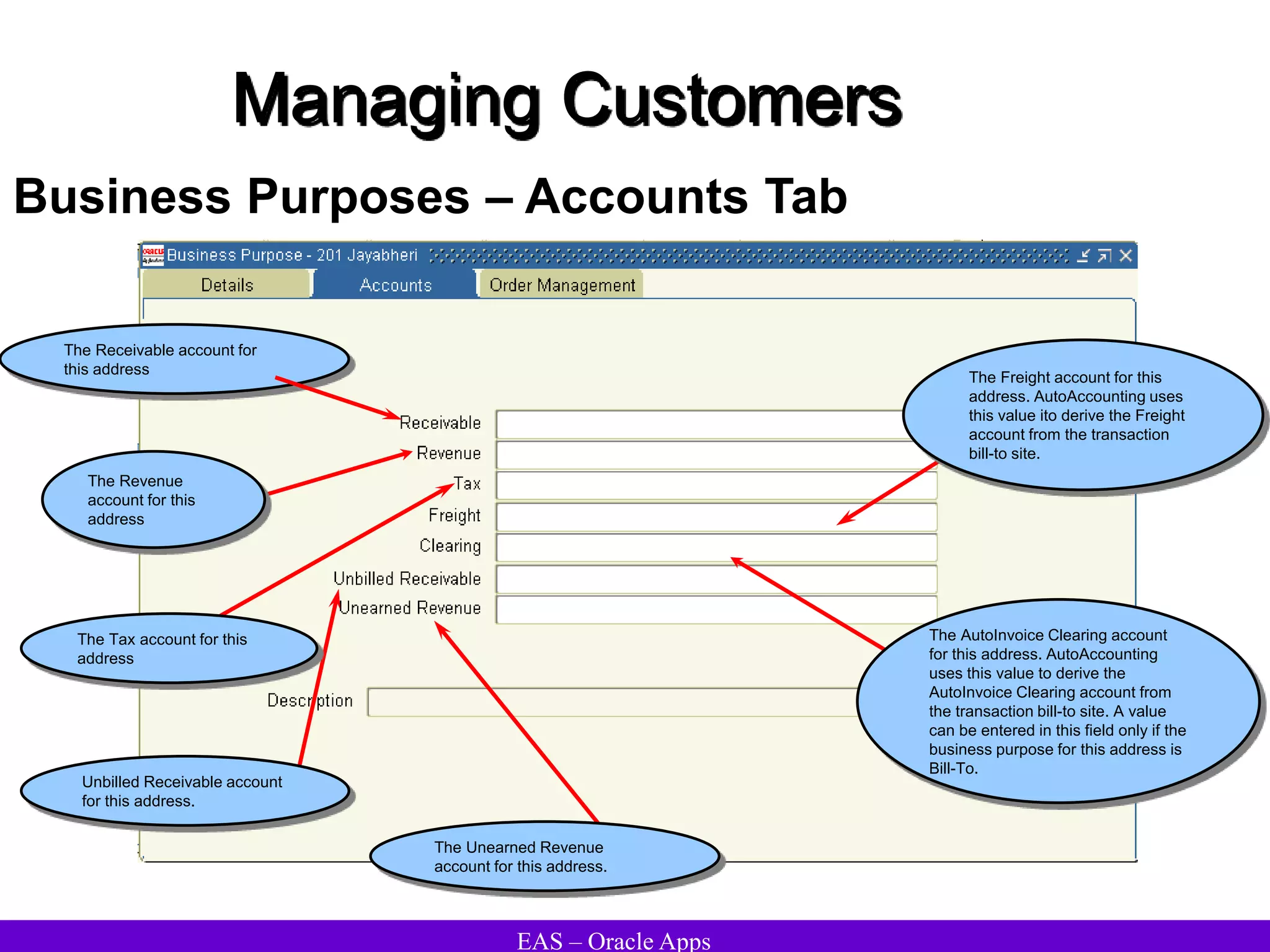
  • 389.
    EAS – OracleApps Receivables Setup Lockbox – Transmission Formats (N) Setup Receipts Lockboxes Transmission Formats Enter a Description for the field type defined (optional). Use field descriptions to help recognize what information is contained in a particular field type. Enter Start and End Position numbers for this record type. These positions determine how Receivables identifies the starting and ending position of the field type when data from bank file is imported. Enter the Field Type to assign to the start and end positions Enter either Left or Right in the Justify field to indicate from which side Receivables will start reading data in the transmission field. Enter the type of character that the bank places in the extra spaces for this field type in the Fill Symbol field. Valid values are 'Blank' or 'Zero.' If the field type is related to a date, enter the Date format your bank uses, or select from the list of values. This field is required when Field Type is either Deposit Date or Receipt Date. If the field type is related to time, enter the Time format the bank uses. This field is required when Field Type is Deposit Time. Enter either Yes or No in the Format Amount field to indicate if Receivables should reformat the amount transmitted Enter a value that indicates that there are additional overflow records for the transmission record
  • 390.
    EAS – OracleApps Receivables Setup Collectors (N) Setup Collections Collectors Enter a Name and Description for this collector. Enter a Correspondence Name and Telephone Number for this collector (optional). This information appears on dunning letters if they are entered when formatting dunning letters. If the Credit Memo Request Approval workflow is used, enter the collector's employee name or select it from the list of values. Receivables uses this information to ensure that the collector is also an employee and therefore can receive workflow notifications.
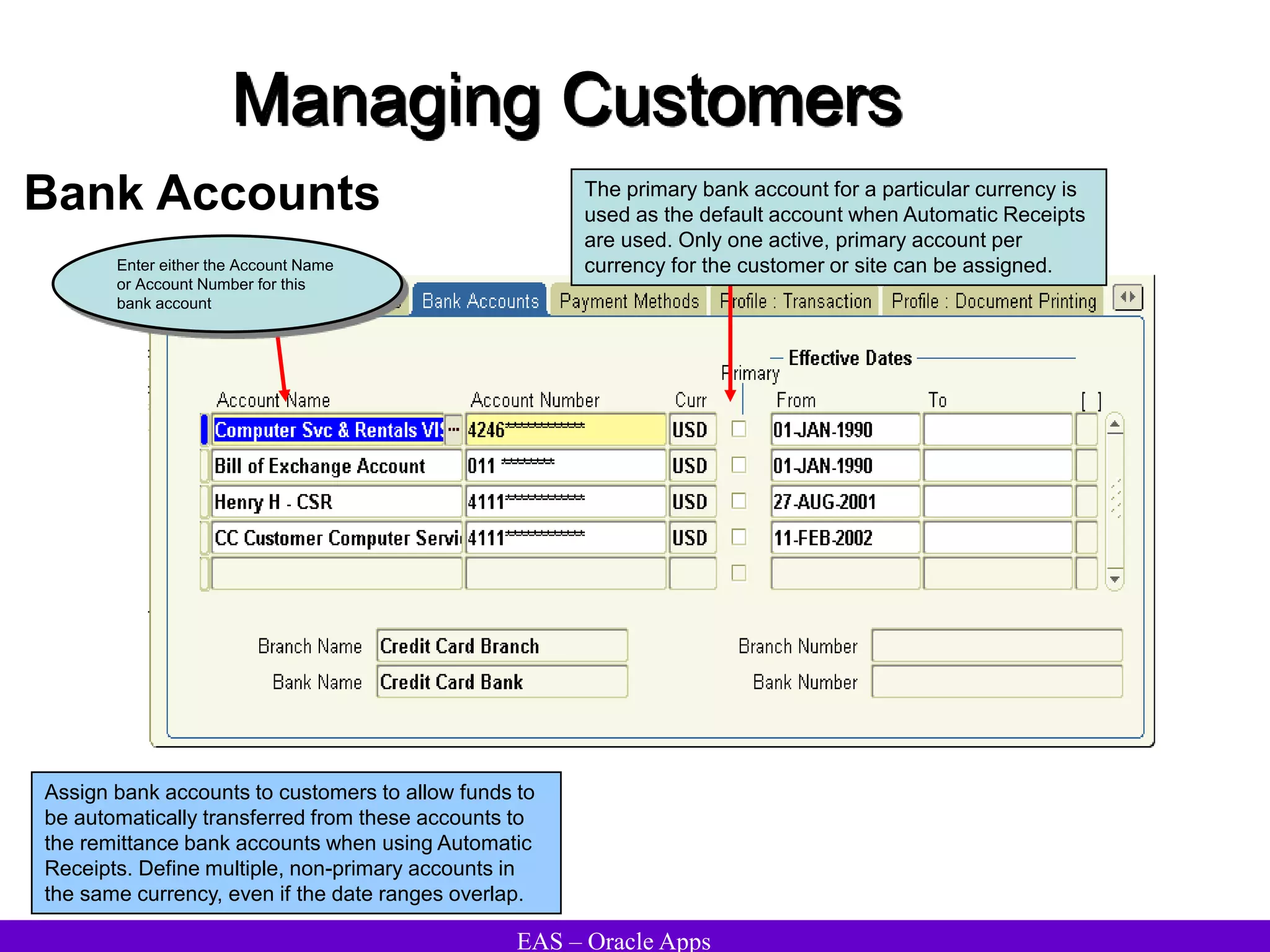
  • 391.
    EAS – OracleApps Receivables Setup Aging Buckets (N) Setup Collections Aging Buckets Choose the Type of aging bucket being defined. Choose from the following 4-Bucket Aging: Use this type to define an aging bucket with four periods. 7-Bucket Aging: Use this type to define an aging bucket with seven periods. Credit Snapshot: Receivables displays this aging bucket in the list of values of the Print Collections Report window when the Customer Credit Snapshot report is printed. Statement Aging: Use this type to define an aging bucket with five periods. This aging bucket appears on your statements. You can define as many statement aging buckets as you need. Receivables displays your active statement aging buckets as list of values choices in the Print Statements window. Enter a Name for this aging bucket. Enter a Sequence Number to reflect the order in which Receivables prints the aging bucket period. Enter the Type of aging bucket line being defined. Choose from the following types: Current: Display transactions that are not yet due. Past Due: Display transactions that have a number of days past due in the range you specify for this line. Dispute Only: Display transactions that are in dispute with your customer. Pending Adjustment Only: Display transactions that have pending adjustments. Dispute and Pending Adjustments: Display transactions that are in dispute and transactions that have pending adjustments in this line. Future: Display transactions that will be due in the future. If this line type is Current, Past Due, or Future, enter the starting day number in the Days From field. If this line type is Current, Past Due, or Future, enter the ending day number in the Days To field. Enter the column headings to appear in the report above the bucket being defined. Enter a maximum of fifteen characters for each column heading.
  • 392.
    EAS – OracleApps Receivables Setup Receivable Lookup Codes An expenditure type class tells Oracle Projects how to process an expenditure item. Oracle Projects predefines all expenditure type classes. (N) Setup System Quick Codes Receivables
  • 393.
    EAS – OracleApps Receivables Setup System Options – Accounting (N) Setup System System Options Accounting Enter the Accounting Method to use for the set of books. Enter 'Accrual' to record revenue from invoices, debit memos, and chargebacks. When this method is used, Receivables debits the cash account and credits the receivables account upon payment of a debit item. Enter 'Cash Basis' to recognize revenue at the time payment is received for an invoice, debit memo, or chargeback. Receivables debits cash and credits revenue when using the Cash Basis method. Enter the Tax Account to use as the default value in the Tax Codes and Rates window. If the accounting method is Cash Basis, enter the Unallocated Revenue Account. Receivables uses this account when cash receipt is applied with a balance other than zero to an invoice with a zero balance. Enter a Cross Currency Rounding Account. Receivables uses this account to record any rounding error amounts created during a cross currency receipt application for currencies that have a fixed rate relationship. Enter the Name of the receivables accounting set of books. Enter a Finance Charge Activity. If the accounting method is Accrual, enter the Realized Gains and Realized Losses Accounts. Receivables posts changes in the functional currency to the Realized Gains or Losses account in GL if there are differences in exchange rate gains or losses. Define a Header Rounding Account and enable Header Level Rounding (optional). Receivables uses this account to record any rounding differences that occur when converting foreign currency transactions to the functional currency. After you enable Header Level Rounding and save your work, you cannot disable the feature. To import the batches of transaction records that post into general ledger, check the Automatic Journal Import box. Enter the number of Days per Posting Cycle. This allows processing of transactions being posting in smaller groups to ensure that you do not run out of rollback space during posting.
  • 394.
    EAS – OracleApps Receivables Setup System Options – Tax (N) Setup System System Options Tax Enter a Tax Registration Number to print on customer invoices. Enter the sales tax Location Flexfield Structure. Use this to validate customer addresses as well as calculate sales tax based on the customer's shipping address. Enter the Postal Code Range to be the default value when entering sales tax rate assignments in the Tax Locations and Rates window. Enter the type of Address Validation to use. This option is only valid for addresses in the home country. To compound taxes in Receivables, check the Compound Taxes box. Enter the Tax Method. Choose either 'Sales Tax' or 'VAT' Enter the Invoice Printing method to use. This is the method Receivables will use when printing tax amounts on invoices. Enter your Reporting Currency (this is the same as your functional currency). If the sales tax vendor is Taxware Sales/Use Tax System, enter a value for the Sales Tax Geo Override. Check the Inclusive Tax Used box to use inclusive tax codes. Choose a Calculation Level. Choose Line to calculate tax for each invoice line (this is the default). Choose Header to calculate tax once for each invoice for each rate. Enter the Tax Vendor Views to use to calculate tax, or select one from the list of values. Choose a Rounding Rule. Enter the standard Precision to use for tax calculations in this currency. Enter the Minimum Accountable Unit for tax rounding in this currency. To be able to specify Tax Calculation and Tax Rounding at the customer or site level, check the Allow Override box.
  • 395.
    EAS – OracleApps Receivables Setup System Options – Tax Defaults and Rules (N) Setup System System Options Tax Defaults and Rules Define Tax Code Defaults and hierarchy by checking the appropriate boxes and entering a sequence number for each. This hierarchy determines the order in which Receivables derives a default tax rate when you manually enter transactions or import them using AutoInvoice. If the Tax Method is VAT, enter a default Tax Code Check this box to include customer exemptions when calculating tax for your transactions. Use the Tax Exemptions window to exempt customers and items from specific tax. If you do not check this box, you cannot set the Default Tax and the Tax fields in the Transaction window to 'Exempt'. Choose whether to Enforce Tax from the Revenue Account. Check to enable the tax engine to calculate tax for each imported credit memo. Check this box to use the tax rate you defined for specific products based on the customer's Ship-To address. Use the Item Tax Rate Exceptions window to enter tax rates for specific items based on Ship-To address. Check this box to include item exemptions when calculating tax for your transactions. Use the Tax Exemptions window to exempt customers and items from specific tax.
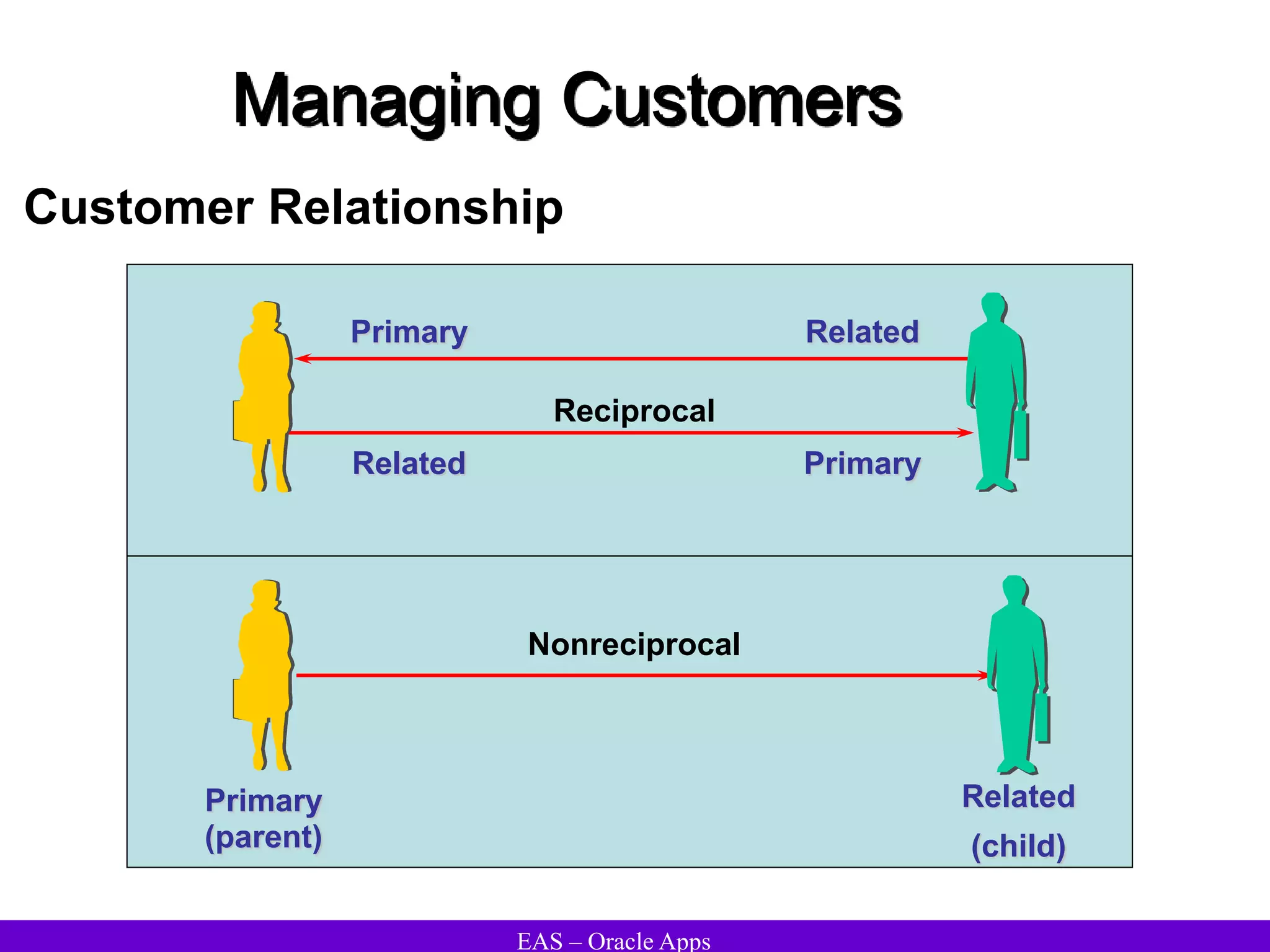
  • 396.
    EAS – OracleApps Receivables Setup System Options – Transaction and Customers (N) Setup System System Options Trans & Customers Check to automatically assign unique numbers to customers when new customers are defined Check to allow transactions to be deleted from Receivables after they have been saved Check to allow receipt applications to debit items of unrelated customers, or to allow bills receivable assignments to transactions of unrelated customers Enter the Accounting, System Items, and Territory Flexfield segments that are most often selected by AutoInvoice. Receivables uses this information to increase AutoInvoice performance. To activate SQL trace for AutoInvoice, check the SQL Trace box. Check to allow updates to transactions that have been printed. Check to automatically purge the AutoInvoice Interface tables after running AutoInvoice Enter a Log File Message Level. This number (from 0 to 3) indicates the amount of detail you want AutoInvoice to display in the AutoInvoice log file. The higher the number, the greater the detail. Check to Show Consolidated Billing Number. Enter the Maximum Memory (in bytes) to allocate to AutoInvoice for validation. Choose when to generate sequential number if Document sequencing is enabled. – On Saving the transaction or on Completion. Check to automatically assign numbers to your customer's business purposes Enter the default Grouping Rule Name you want AutoInvoice to use. Check to automatically create a reciprocal relationship between two customers when you are defining customer relationships
  • 397.
    EAS – OracleApps Receivables Setup System Options – Miscellaneous (N) Setup System System Options Miscellaneous Check to enable the Trade Accounting feature Enter the Number of Days to use when calculating conventional Days Sales Outstanding for the Collection Effectiveness Indicators Report. Accrue Interest box: Check to automatically update the open balance in the Transactions workbench for transactions that are past due Check to allow Receivables to accept unearned discounts Enter the Split Amount that Receivables will use when the Collection Effectiveness Indicators Report is generated. Check to allow discounts to be taken for partial payments Check to print the remit-to addresses on customer statements Enter an AutoCash Rule Set Receivables uses this AutoCash Rule Set for a customer whose profile class has not been assigned an AutoCash Rule Set. Enter a Sales Credit Percent Limit (optional). The Sales Credit Percent Limit imposes a limit on the percentage of revenue plus non-revenue sales credit that a agent can have on a transaction line. Check to require that a bill-to location be associated with a cash receipt Enter the Discount Basis Receivables should use when calculating discounts for invoices. Check To require that agents be entered when entering transactions Check to print home country on invoices and statements that refer to addresses in that country Check to enable the Bills Receivable feature
  • 398.
    EAS – OracleApps Receivables Setup System Options – Miscellaneous (Contd…) (N) Setup System System Options Miscellaneous Enter a Default Country. Receivables uses this information to specify the home country for tax calculation, flexible bank structures, flexible address formats, and taxpayer id and tax registration number validation. Enter the number of receipts the Automatic Receipt program to process before saving in the Receipts per Commit field. Enter the default Chargeback Due Date. Receivables uses this date a chargeback is created. Choose from the following: Open Invoice Due Date: Use the due date of the invoice or debit memo as the default. Receipt Date: Use the receipt date as the default. This is the date that you entered the receipt. Current Date: Use today's date as the default. Deposit Date: Use the receipt deposit date as the default. Enter the number of invoices the Automatic Receipt program to process before saving in the Invoices per Commit field. Enter the Source of Territory Receivables should use to default into the Agents, Transactions, and Customers windows. Choose from the following sources: Bill-To Site: Use your customer's Bill- To Address as the default. Agent: Use the territory assigned to your customer's primary agent as the default. Ship-To Site: Use your customer's Ship-To Address as the default. None: Do not enter a default territory. Enter an Application Rule Set or select one from the list of values.
  • 399.
    EAS – OracleApps Receivables Setup Application Rule Sets (N) Setup System Application Rule Sets Enter an application Rule. Each rule will correspond to a line type (for example, lines, freight, or charges). Each rule set must have at least one application rule. Enter Rule Details for this application rule. This section indicates the type of charges and the tax handling for this rule. Choose a Type of Line, Freight, or Charges. Enter at least one type for the rule set. Enter the Sequence number for this application rule. Receivables applies payments in this sequence, beginning with the lowest sequence number. Check to automatically adjust this line type to account for any rounding corrections within this rule set If you chose a Type of 'Line', choose a Tax Treatment. Choose one of the following: Prorate: Choose this option to proportionately reduce the net amount of the line and associated tax amounts. Before: Choose this option to first reduce the open tax amount, then apply any remaining amount to the line. After: Choose this option to reduce the open line amount, then apply any remaining amount to the associated tax.
  • 400.
    EAS – OracleApps Receivables Setup Tax Codes and Rules Specify a Taxable Basis to control how Receivables calculates tax on transactions assigned to this tax code. Choose one of the following: •After Discount: Calculate tax on the invoice line amount, after any early payment discount is taken. •Before Discount: Calculate tax on the invoice line amount, before any early payment discount is taken. •Quantity: Calculate tax based on the quantity ordered and unit of measure of the invoice line. If you choose this option, specify a Tax Amount. •PL/SQL: Calculate tax using the PL/SQL formula that you specify. Prior Tax: Select this option if you use this tax code as part of a tax group (to calculate multiple taxes) and you want to calculate tax on only the tax for the previous tax line. Choose a Tax Type. If location based tax is used, enter one enabled tax code with tax type of Location Based Tax for a given date range. If the Taxable Basis is Quantity, enter a Tax Amount. Indicate whether this tax code is positive or negative by setting the Sign parameter to either 'Cr' or 'Dr', respectively. When you use a tax code with a sign of 'Dr' (negative), Receivables debits your tax account. When you use a tax code with a sign of 'Cr' (positive), Receivables credits your tax account. If the tax type is not 'Location Based Tax' and a taxable Basis of either After Discount or Before Discount is specified, enter a Tax Rate. (N) Setup Tax Codes
  • 401.
    EAS – OracleApps Receivables Setup Tax Codes and Rules (N) Setup Tax Codes Check to be able to change the tax rate for this tax code in the Transaction windows. You can only check this box if the tax type is not 'Location Based Tax.' Choose a Tax Class. Choose Output to use this tax code with invoices, debit memos credit memos, adjustments, discounts, finance charges and miscellaneous cash receipts. Choose Input to use this tax code with miscellaneous cash payments (negative receipts). Input tax codes appear only in the list of values for the Liability Tax Code field in the Receivables Activities window; output tax codes appear in all Receivables transaction and set up windows. Check to automatically display line amounts including tax Uncheck to prevent this tax code from appearing in Receivables windows. To be able to use this tax code only within a tax group, uncheck this box. If you do not want to be able to change this tax code from inclusive to exclusive (or vice versa) when entering invoices, uncheck the Allow Inclusive Override box. Location- based tax codes are always tax exclusive and you cannot change them to be tax inclusive.
  • 402.
    EAS – OracleApps Receivables Setup Tax Codes and Rules (N) Setup Tax Codes Enter the Printed Tax Name as you want it to appear on printed transactions. Enter a VAT Transaction Type (optional). This field is used for Spanish and Belgian Tax reporting. The default account is the Location Tax Account you defined in the System Options window. To use deferred tax, check the Deferred box and then enter an Interim Tax Account, or select from the list of values. The Deferred check box and the Interim Tax Account cannot be updated after saving. Enter an Expense/Revenue Account for each Receivables Activity type, including Adjustment, Earned Discount, Unearned Discount, and Finance Charge If tax is not deductible for an activity type, enter a Non-Recoverable Tax Account. The Non Recoverable Tax Account records tax amounts that cannot be claimed as a legitimate deduction to decrease tax liability.
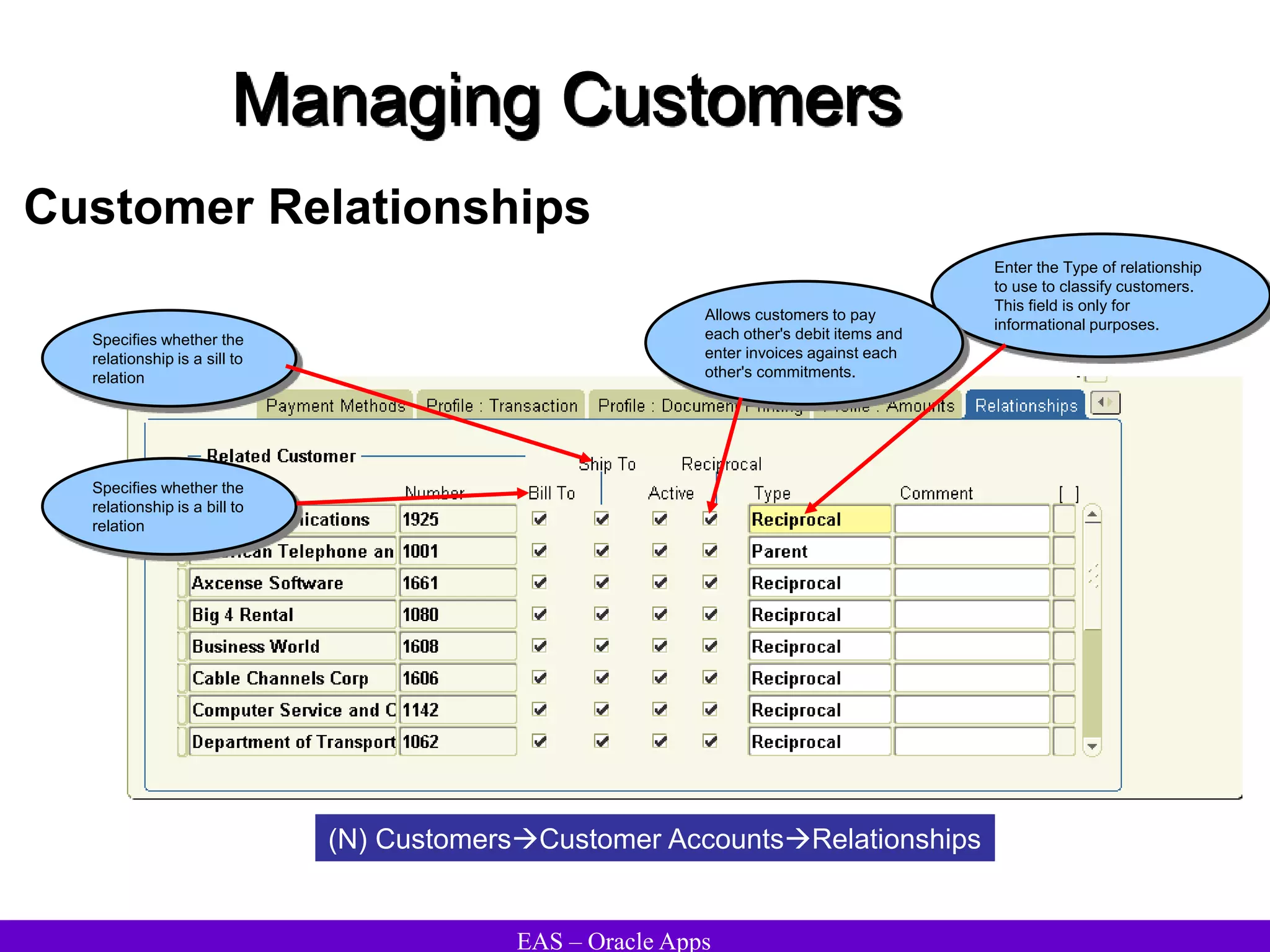
  • 403.
    EAS – OracleApps Receivables Setup Tax Locations (N) Setup Tax Locations Choose the type of sales tax structure to define. Choose City, County, or State. To update an existing location or rate, update the Tax Account, Tax Rate, and range of Effective Dates or Postal Codes for this location To add a new location, choose New Record from the Edit menu and enter the Name and Description of this location. If this segment has been assigned to the tax account qualifier, Receivables enters a default Tax Account. This is the account you defined for the 'Location' tax code type in the Tax Codes and Rates window. Enter the Tax Rate percentage to assign to this location Enter a range of Effective Dates for this tax rate. The default start date is today's date. If an end date is not entered, this tax rate will be valid indefinitely. Enter a range of Postal Codes for this tax rate. Receivables uses the date and postal code range for locations to determine which tax rate assignments to use when creating sales tax rates.
  • 404.
    EAS – OracleApps Receivables Setup Tax Exemptions (N) Setup Tax Exemptions Enter the Tax Code from which you are partially or fully exempting this customer or item(s). Enter the tax code percentage to exempt. Enter an exemption Number (optional). Enter a Reason for this exemption, or select from the list of values. Enter the range of Effective Dates for this exemption. Enter a Status for this exemption. Unapproved: Exemptions created automatically during Invoice entry or import are recorded as Unapproved. Exemptions with this status may be changed to any of the statuses listed here. Manual: This exemption has been approved but Receivables will not automatically use it. You have to explicitly use this exemption. Exemptions with this status can only be changed to Primary or Expired. Primary: This exemption has been approved and Receivables will automatically calculate tax. Exemptions with this status can only be changed to Manual or Expired. Expired: Discontinue a previously approved exemption. Once discontinued, their status cannot be changed. Rejected: Reject an Unapproved exemption. Once rejected, their status cannot be changed. To define an exemption for a customer: Choose to create Exemptions By Customer. Enter the customer Name or Number. To view existing exemptions for this customer or item(s), choose Find. Enter the Locations for which this exemption will be valid (optional). Enter the Site to exempt (optional). Leave this field blank to exempt all of this customer's sites or if you want to create a regional exemption using the Location flexfield. Define your Exemption. To define an exemption for an item: Choose to create Exemptions By Item. Enter the Item, or select from the list of values. To view existing exemptions for this item, choose Find. To create a new exemption, choose New Record from the Edit menu. Define your Exemption. To define an exemption for a range of items: Choose to create Exemptions By Range. Enter the Category and Category Set to which the range of items belongs. Enter the User Item Type. Enter the range of Items for this exemption. Define your Exemption.
  • 405.
    EAS – OracleApps Receivables Setup Tax Exceptions (N) Setup Tax Exceptions Choose to create an Exception By Item or Range. If you chose exceptions by Item, enter the Item to exempt or select from the list of values. If you chose exceptions by Range, enter the Category Set, User Item Type, and a range of Items. Enter the range of Effective Dates for this exception. Enter the authority Location for which you want to define a tax exception for this item or range of items. Enter the Tax Rates for each location in your authority. Choose a Reason for creating this tax exception.
  • 406.
    EAS – OracleApps Receivables Setup Tax Groups Enter the Group Code for this Tax Group. Enter a Group Name for this Tax Group. The default is the Group Code. Choose Output to use this Tax Group with invoices, debit memos credit memos, adjustments, discounts, finance charges and miscellaneous cash. Choose Input to use this Tax Group in Oracle Public Sector Payables. To disable this Tax Group, uncheck the Enabled box. Enter a Tax Code or select one from the list of values. You can only select tax codes with effective dates that are within the effective dates for this Tax Group. The Tax Code attributed default from the code definition Enter a Compounding Precedence number (optional). This number indicates the order in which Receivables selects tax codes when compounding taxes in a Tax Group. To specify a Group Condition for this Tax Group, choose an existing Group Condition, or choose the Conditions button to define a new one To specify a Group Exception for this Tax Group, choose an existing Group Exception, or choose the Exceptions Button to define a new one Select to specify a Group Constraint for this Tax Group (N) Setup Tax Groups
  • 407.
    EAS – OracleApps Receivables Setup Tax Group – Constraints Assign Group Constraints to a Tax Group to ensure specific conditions are met before using this Tax Group. Receivables checks all Group Constraints when you assign a Tax Group to a transaction. If none of the constraints are found, Receivables uses the Tax Group to calculate tax; otherwise, Receivables performs the action specified. A Group Constraint Set can be used in multiple Tax Groups. Valid options for defining a Group Constraint are the same as for Condition Sets, except: The list of available Entities also includes Tax Code The list of available Operators also includes 'Not Found' The list of available Actions are Error Message, Default Tax Code, System Error, Use This Tax Group, and Do Not Use This Tax Group The list of available Fields does not include 'Warehouse' The list of available Fields does not include 'Tax Registration Number' The list of available Operators does not include 'is' and 'is not' (N) Setup Tax Groups Constraints
  • 408.
    EAS – OracleApps Receivables Setup Tax Group – Exceptions To automatically change the rate for a tax code within a Tax Group, assign an Exception Set to the tax code. When this tax code is used, Receivables changes the tax rate to the rate specified in the Exception Set. An Exception Set can be used in multiple Tax Groups. Valid options for defining an Exception Set are the same as for Condition Sets, except: The list of available Operators also includes 'Not Found' The list of available Actions also includes 'Apply Exception' and 'Do Not Apply Exception' The list of available Fields does not include 'Tax Registration Number' The list of available Operators does not include 'is' and 'is not' (N) Setup Tax Groups Exceptions
  • 409.
    EAS – OracleApps Receivables Setup Tax Group – Conditions Use a Condition Set to indicate that each tax code within the Tax Group is dependent upon one or more conditions specified. A Condition Set can be used in multiple Tax Groups. A Condition Set can be setup using these options: •Clause. If, And, Or, Else •Operator. =, < > (does not equal), < (less than), >(greater than), <= (less than or equal to), >= (greater than or equal to) This table shows the valid values for the Entity option, and the corresponding valid values for the Field option: Field Ship From - Country; State; County; Province; City Ship-To - Country; State; County; Province; City; Tax Registration Number Bill-To - Country; State; County; Province; City; Tax Classification; Tax Registration Number Order Origin - Country; State; County; Province; City Order Acceptance - Country; State; County; Province; City Transaction - FOB; Type Item - User Item Type An action can also be specified for each Condition Set using these options: •Action. Error Message, Use This Tax Code, Do Not Use This Tax Code, Default Tax Code, System Error (N) Setup Tax Groups Conditions
  • 410.
    EAS – OracleApps Receivables Setup Statement Cycles (N) Setup Print Statement Cycles Enter the Interval for this statement cycle to indicate how often Receivables will generate your statements. Choose Weekly, Monthly, or Quarterly. Enter Statement Dates for this statement cycle. Receivables uses the statement date to determine past due items and calculate finance charges. To prevent Receivables from printing a statement on a specific statement date, check the Skip box. The Date Printed field displays the last date you printed statements from the Print Statements window for each statement date within a statement cycle. Receivables does not display a printed date for statement dates that you have either elected to skip or have not yet selected for a statement submission.
  • 411.
    EAS – OracleApps Receivables Setup Standard Messages (N) Setup Print Standard Messages Enter a Name for this message. Enter the Type of message being defined. Valid standard message types include ‘Legal Message’, 'Holiday' and 'Promotional'. Enter the Start and End Dates during which this standard message will be active. Enter the standard Message to appear on customer statements. The text of the standard message cannot exceed 255 characters.
  • 412.
    EAS – OracleApps Receivables Setup Dunning Letters (N) Setup Print Dunning Letters Enter a Name for this letter. Enter a Description of this dunning letter (optional). Enter the header text for this letter (optional). Rows that are left blank in the Dunning Letters window appear as blank spaces when dunning letters are printed. Place the cursor in another row, then enter the body text for this letter. Enter up to 4000 characters. Receivables automatically wraps the text of the letter to the next line when the letter is printed. To include customer's invoice information in the letter, place the cursor in a blank row, then enter '&invoice'. Enter any footer text as required (optional).
  • 413.
    EAS – OracleApps Receivables Setup Dunning Letter Sets (N) Setup Print Dunning Letter Sets Enter the Name and a Description for this dunning letter set. Check to resend the last letter that was sent within this dunning letter set. If you also check the Send Letters in Sequence box for a dunning letter set, Receivables will only resend a letter if the past due date range has not been exceeded. If both the Send Letters in Sequence and Resend Last Letter boxes are checked, Receivables will only resend the second letter in the set. Check to take into account the receipt grace days specified for the customer or customer site profile assigned to this set Check to include items that have been placed in dispute in all letters within this set Check to include finance charges for all dunning letters within this set Check to include On-Account and Unapplied receipts in this set. Receivables groups these receipts together with the past due invoices in the same currency to show the net balance in that currency for a customer or site. Check to maintain the order in which Receivables sends letters in this set. Sequencing allows control and incrementally increase the severity of the dunning letters. If this box is checked, Receivables ignores the value of the Resend Last Letter check box. Check to calculate finance charges on items in dispute Choose the dunning method for this dunning letter set. Choose Days Overdue for the standard dunning method in which each letter is based on the number of days outstanding items are past due. Choose Staged Dunning increase the dunning level of past due items based on the last time a dunning letter was sent to this customer.
  • 414.
    EAS – OracleApps Receivables Setup Dunning Letter Sets (Contd…) (N) Setup Print Dunning Letter Sets NOTE: If the Staged Dunning method is chosen, enter a number in the Dunning Level From field to indicate the minimum dunning level that a customer's oldest invoice, debit memo, or chargeback must be assigned to receive this dunning letter. Enter a number in the Dunning Level To field to indicate the maximum dunning level that a customer's oldest invoice, debit memo, or chargeback must be assigned to receive this dunning letter. Enter the minimum number of days (Min Days) that must pass before Receivables will increment an item to the next dunning level. Enter the dunning Letter Name to include in this set. If the Days Overdue dunning method is chosen, enter the minimum number of Days Past Due From (less receipt grace days) that a customer's oldest invoice, debit memo, credit memo, chargeback and unapplied and on-account payment must be to receive this dunning letter. Check to include all of this customer's debit items that are not yet due in this dunning letter Check to send copies of the invoices that this dunning letter includes with this dunning letter. In the Days Past Due To field, enter the maximum number of days past due (less receipt grace days) that a customer's oldest invoice, debit memo, credit memo, chargeback and unapplied and on-account payment must be to receive this dunning letter. Enter '999999' for the last letter in this dunning letter set to ensure that customers to whom this dunning letter set is assigned always receive dunning letters for their oldest outstanding debit items.
  • 415.
    EAS – OracleApps Receivables Setup Remit To Addresses (N) Setup Print Remit-To Address Enter the Country for this address. The default is the country entered in the System Options window. Enter an Alternate Name for this address (optional). Information can only be entered in this field if the profile option AR: Customers - Enter Alternate Fields is Yes. Enter the State and range of Postal Codes for each country (optional). Multiple assignments for a remit- to address that has the same country, state, or province but different postal code ranges can be defined. Enter a remit-to Address. Enter the Postal Code for this remit- to address. A postal code must be entered if values for both the From Postal Code and the To Postal Code are entered in the System Options window. This postal code appears when printing remit-to address on either statements or dunning letters. Enter each Country to assign to this remit-to address. Receivables assigns all of customers who have bill-to addresses in the countries that you enter to this remit-to address.
  • 416.
    EAS – OracleApps Receivables Setup Credit Usage Rules (N) Setup Credit Credit Usage Rules Enter a name for the rule set Select the Global Exposure check box to enable the Usage Rule Set for global exposure (across operating units). The default value for this check box is un-checked (do not enable Global Exposure for the usage rule set). Select the value Currency in the Usage Type field. Enter a currency in the Currency field. The Currency field can contain any Currency Code currently defined. The Currency field may also use the lookup All Currencies to indicate the usage rule is for all currencies defined. Chose to exclude a specific currency for your usage rule by selecting the Exclude check box. The default is unchecked, or No. If the field Currency has value of All, the Exclude check box is non- updateable.
  • 417.
    EAS – OracleApps Receivables Setup Assign Credit Usage Rules The data appearing in the upper region of the window defaults from the Credit Profile queried. This information is protected against update. Select a Name from the List of Values, and the included and excluded currencies fields will display currencies that the usage rule set consists of. These values are protected against update from this window. Before a Usage Rule Set can be assigned to a Credit Profile, first select the Credit Profile Type and then locate the corresponding Credit Profiles. Certain query processing logic has been disabled within the Find Credit Profiles window; •If the value of the Credit Profile Type field is Profile Class, then fields Operating Unit, Customer, Bill To Site, and Item Category are disabled. •If the value of the Credit Profile Type field is Customer, then fields Profile Class, Operating Unit, and Item Category are disabled. •If the value of the Credit Profile Type field is Operating Unit Default, then fields Profile Class, Customer, Bill To Site, and Item Category are disabled. •If the value of the Credit Profile Type field is Item Category, then fields Profile Class, Operating Unit, Customer, Bill To Site, and Overall Credit Limit fields are disabled. (N) Setup Credit Assign Usage Rules
  • 418.
    EAS – OracleApps Receivables Setup Credit Profiles (N) Setup Credit Define Credit Profiles The following fields are for future use and are for information purposes only. Values that are ignored during the credit checking process are: •Credit Check •Credit Hold •Credit Rating •Next Review Date Select a value for the Credit Profile Type in the Credit Profile Type field. Valid Values are: •Item Category •Operating Unit Default •If Credit Profile Type = Operating Unit Default, the Item Category field is disabled. •If Credit Profile Type = Item Category, the Overall Credit Limit field is disabled. Select an Operating Unit name from a list of values if a Operating Unit Default Credit Profile is being defined. Select an Item Category name from a list of values if an Item Category Credit Profile is being defined. Enter a numeric value in the Tolerance field. Tolerance values are used to calculate extended exposure limits during credit checking. Select a value in the Currency field to limit the Credit Profile to a specific currency. Enter a value in the Overall Credit Limit field for a a Operating Unit Default Credit Profile Type. Total exposure within an operating unit for the particular customer may not exceed the value entered in the Overall Credit Limit field if credit checking processing defaults to the operating unit level. Enter a value in the Order Credit Limit field, based upon the Credit Profile Type. New orders may not exceed the value entered in the Order Credit Limit field if the checking processing defaults to the operating unit level.
  • 419.
    EAS – OracleApps Receivables Setup AR Accounting Periods (N) Control Accounting Open/Close Periods To update the status of an accounting period, place the cursor in the Status field next to that period, then enter a new status. An accounting period can have one of the following statuses: Closed: Journal entry, posting, and transaction entry are not allowed unless the accounting period is reopened. Receivables verifies that there are no unposted items in this period. Receivables does not let you close a period that contains unposted items. Close Pending: Similar to Closed, but does not validate for Unposted items. Journal entry, posting, and transaction entry are not allowed unless the accounting period is reopened. Future: This period is not yet open, but you can enter transactions in this period. However, you cannot post in this period until you open it. Not Opened: This period has never been opened and journal entry and posting are not allowed. Open: Journal entry and posting are allowed. To open the next accounting period after the Latest Open Period, choose Open Next Period. Receivables changes the status of the next period to 'Open.'
  • 420.
    EAS – OracleApps Profile Options
  • 421.
    EAS – OracleApps Profile Options Profile Option Function Tax: Allow Ad Hoc Tax Changes This profile option lets you choose whether to update rates and amounts assigned to tax codes in the Transactions window in Receivables, if you defined tax codes in the Tax Codes and Rates window and set Ad Hoc to Yes. Tax: Allow Manual Tax Lines Determines whether users can enter manual tax lines in the Transactions windows in Receivables. Tax: Allow Override of Customer Exemptions Determines whether users can override Customer Exemptions defined in the system Tax: Allow Override of Tax Code This profile option lets you choose whether to override a system-derived tax code during order or invoice entry. Tax: Invoice Freight as Revenue Determines how Order Management imports freight amounts to Receivables when the Receivables Interface program is run. AR: Allow Overapplication in Lockbox Controls how AutoLockbox handles receipts when the payment amount is greater than the balance due for a transaction. AR: Application GL Date Default Determines how Receivables determines the default GL Date when receipts are applied.
  • 422.
    EAS – OracleApps Profile Options Profile Option Function AR: Automatic Contact Numbering Determines whether customer contact numbers are automatically generated when new customers are entered. AR: Cash - Allow Actions Determines whether adjustments and chargebacks can be created when applying receipts in the Applications window. AR: Change Customer on Transaction Determines whether customer bill-to and ship-to names in the Transaction windows can be updated. AR: Change Customer Name Determines whether to let users update customer names in the Customer windows. AR: Close Periods - Run Collections Effectiveness Report determines whether Receivables automatically submits the Collections Effectiveness Report when a period is closed. AR: Create Bank Charges Determines whether Receivables will consider bank charges and tolerance limits when applying receipts. AR: Cross Currency Rate Type Determines the default exchange rate Receivables uses when the receipt and transaction currency are different and the two currencies do not have a fixed rate relationship.
  • 423.
    EAS – OracleApps Profile Options Profile Option Function AR: Default Exchange Rate Type Determines the default exchange rate to use when converting foreign currency transactions to the functional currency. AR: Enable Cross Currency Controls whether a receipt in one currency can be applied to one or more transactions in a different currency using AutoLockbox and the Applications window. AR: Enable SQL Trace Enable this profile option before reproducing and researching SQL errors. AR: Include Receipts at Risk in Customer Balance Controls whether Receivables displays items at risk and includes them when calculating customer account balances. AR: Mask Bank Account Numbers Control the display of bank account numbers in Receivables windows. AR: Override Adjustment Activity Account Option Choose whether you can override the default adjustment account when entering or updating manual adjustments and when updating automatic adjustments. AR: Invoices with Unconfirmed Receipts Determines whether to adjust or credit invoices selected for automatic receipt.
  • 424.
    EAS – OracleApps Profile Options Profile Option Function AR: Receipt Batch Source The default receipt source for the Batch field in the Receipts and Receipt Batches windows. Only Receipt sources with a Receipt Source Type of 'Manual' will be displayed in the list of values. AR: Sort Customer Reports by Alternate Fields controls whether Receivables will sort information using the value of the Alternate Name field in the Customers window. To use this option, the AR: Customers - Enter Alternate Fields profile option must also be set to Yes. AR: Transaction Batch Source Determines the default invoice source that will appear in the Batch field of the Transaction and Credit Memo windows. AR: Update Due Date Determines whether the due date (payment schedule) of a transaction in the Installments and Account Details windows can be updated. HZ: Generate Party Number Determines whether to automatically generate the party number when a Customer is created.
  • 425.
    EAS – OracleApps Reports
  • 426.
    EAS – OracleApps Reports Report Description/ Function Applied Receipts Register Review how customers' receipts were applied to invoices and debit memos or reversed from invoices and debit memos. The Applied Receipts Register prints all applications within the date range that specified, regardless of check date. Billing and Receipt History Use this report to review a detailed list of transactions for the date range that you specify. You can also see all the activities against each transaction. This report prints one line for each activity against the transaction. Aging Reports Use Aging reports to review information about open items. These reports print both detail and summary information about customer's current and past due invoices, debit memos, chargebacks, on-account credits, and on- account and unapplied cash amounts. Commitment Balance Report Use this report to review summary information for your customer commitments. Receivables prints each commitment displaying information about the commitment, customer, primary agent, and other commitment information. Receivables also automatically prints all invoices and credit memos against the initial commitment, and displays the remaining balance of the commitment.
  • 427.
    EAS – OracleApps Reports Report Description/ Function Invoice Exception Report Use this report to match revenue accounts to accounts receivable. Receivables lists all transactions where Open Receivables is set to No. These transactions appear on the Transaction Register, but do not display in agings Journal with GL Details Report Use this report to identify the General Ledger journal entries imported from particular transactions in Receivables. Transactions that have not been transferred to General Ledger are marked with an indicator. Cross Currency Exchange Gain/Loss Report Use this report to review detailed information about your cross currency settlements. Miscellaneous Transactions Use this report to review miscellaneous receipts and document number information. Receivables prints deposit date, batch information, receipt information, code combination, and the percent allocated to each account for each receipt. Receipt Register Use this report to review a list of receipts for the range of dates, receipt numbers, or document numbers that you specify.
  • 428.
    EAS – OracleApps Reports Report Description/ Function Revenue Journal by Customer Use this report to review all transactions. The summary totals for the revenue journal are by Posting Status, Agency, and Transaction Currency Transaction Register Use the Transaction Register to check that all postable items are reflected on your Sales Journal. Use the following formula to ensure that the Transaction Register matches your Sales Journal: Transaction Register (postable items) + 2 (Credit Memo Total) = Sales Journal (debits + credits) Receipt Journal Report Use this report to review details of receipts that appear in your Journal Entries report. The Journal Entries report shows the receipt numbers that contribute to a particular GL account. Using the receipt number you can see the detailed information on the Receipt Journal report. Unapplied Receipts Register Use the Unapplied Receipts Register to review detailed information about your customers on-account and unapplied payments for the date range that you specify. You can use this report to determine how much your customer owes after taking into account all on-account and unapplied amounts. Receivables displays information about your on-account or unapplied payment such as GL date, batch source, batch name, payment method, payment number, payment date, on-account amount, and unapplied amount. This report includes both cash and miscellaneous receipts.
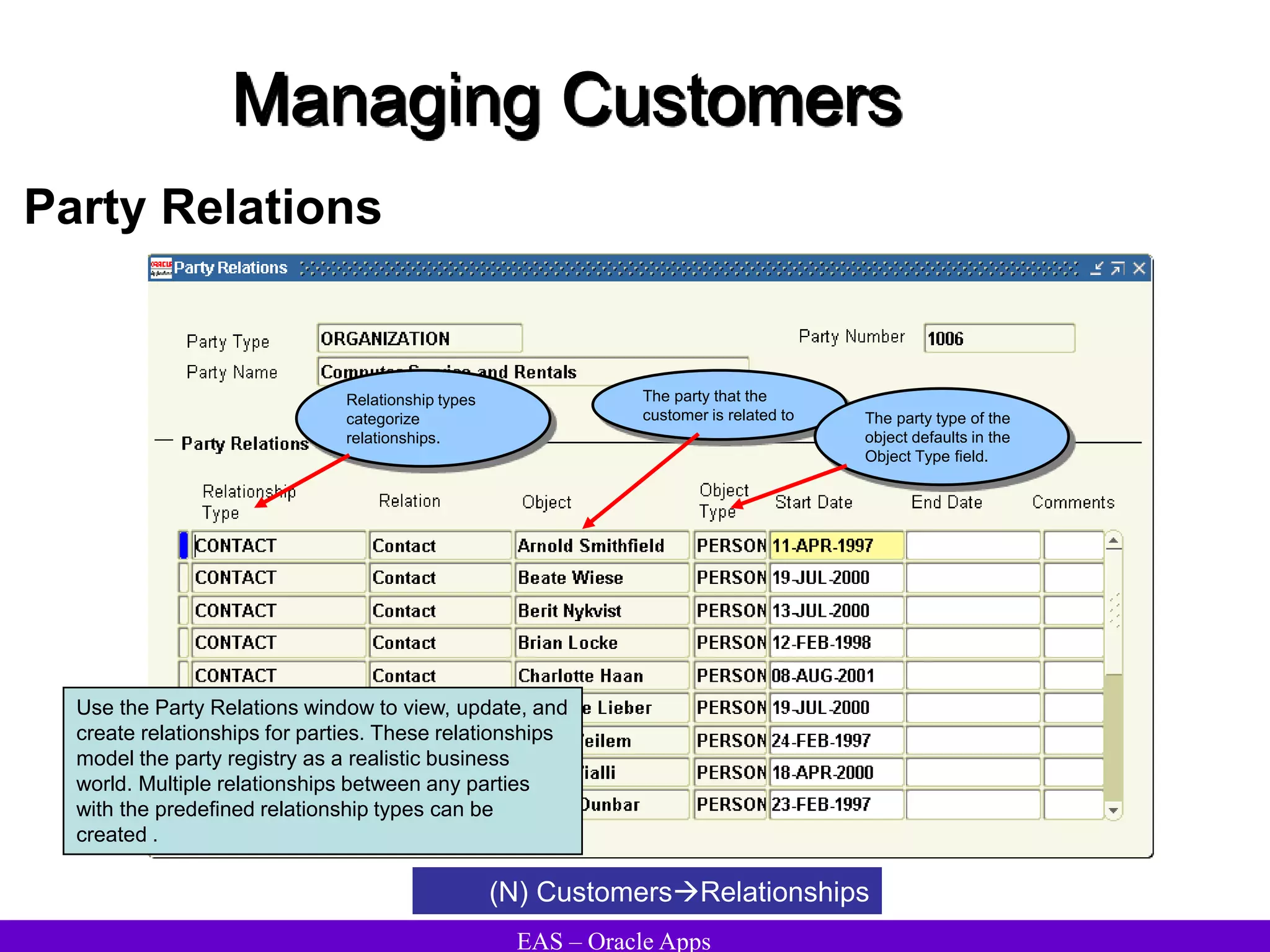
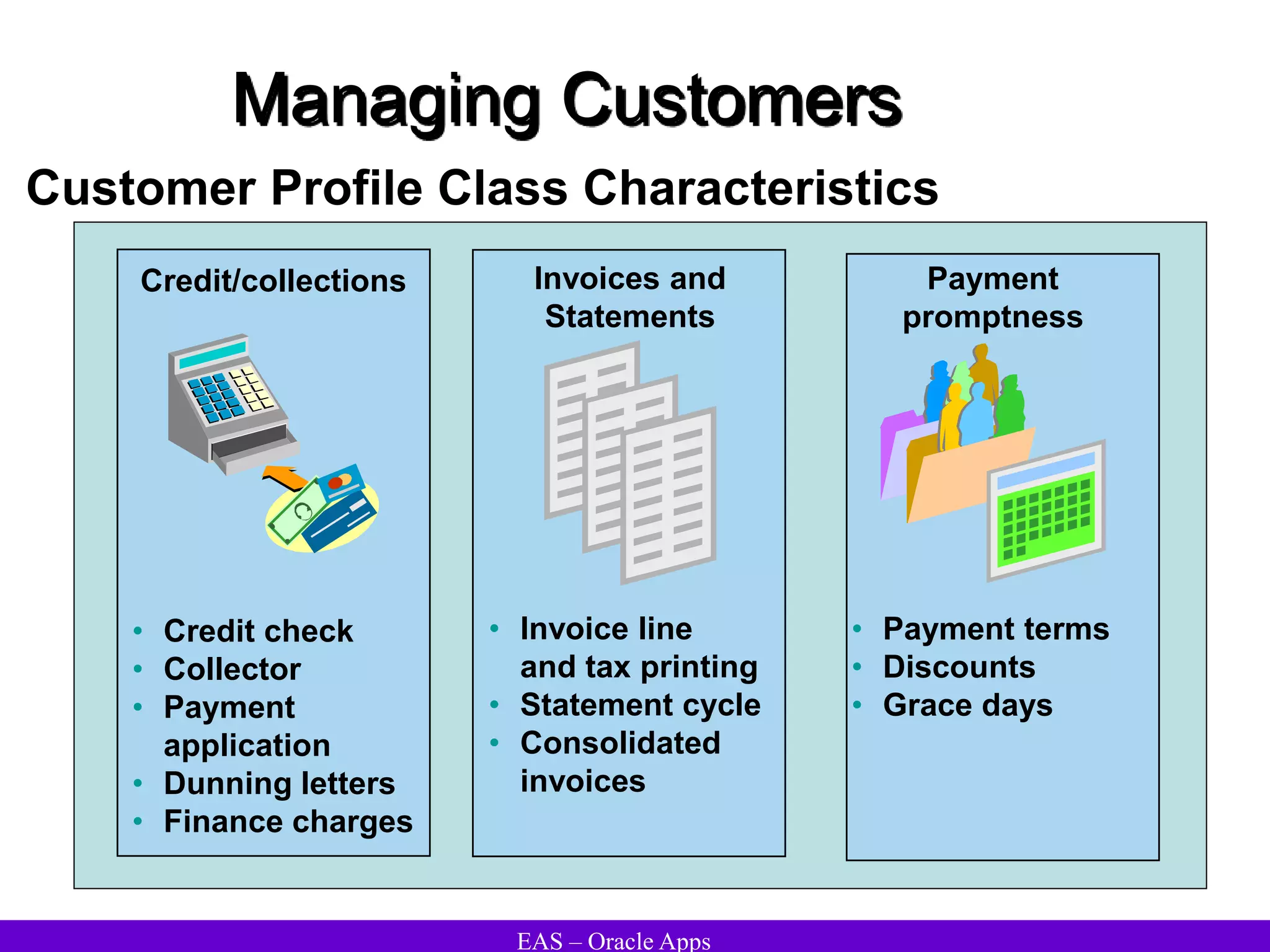
  • 429.
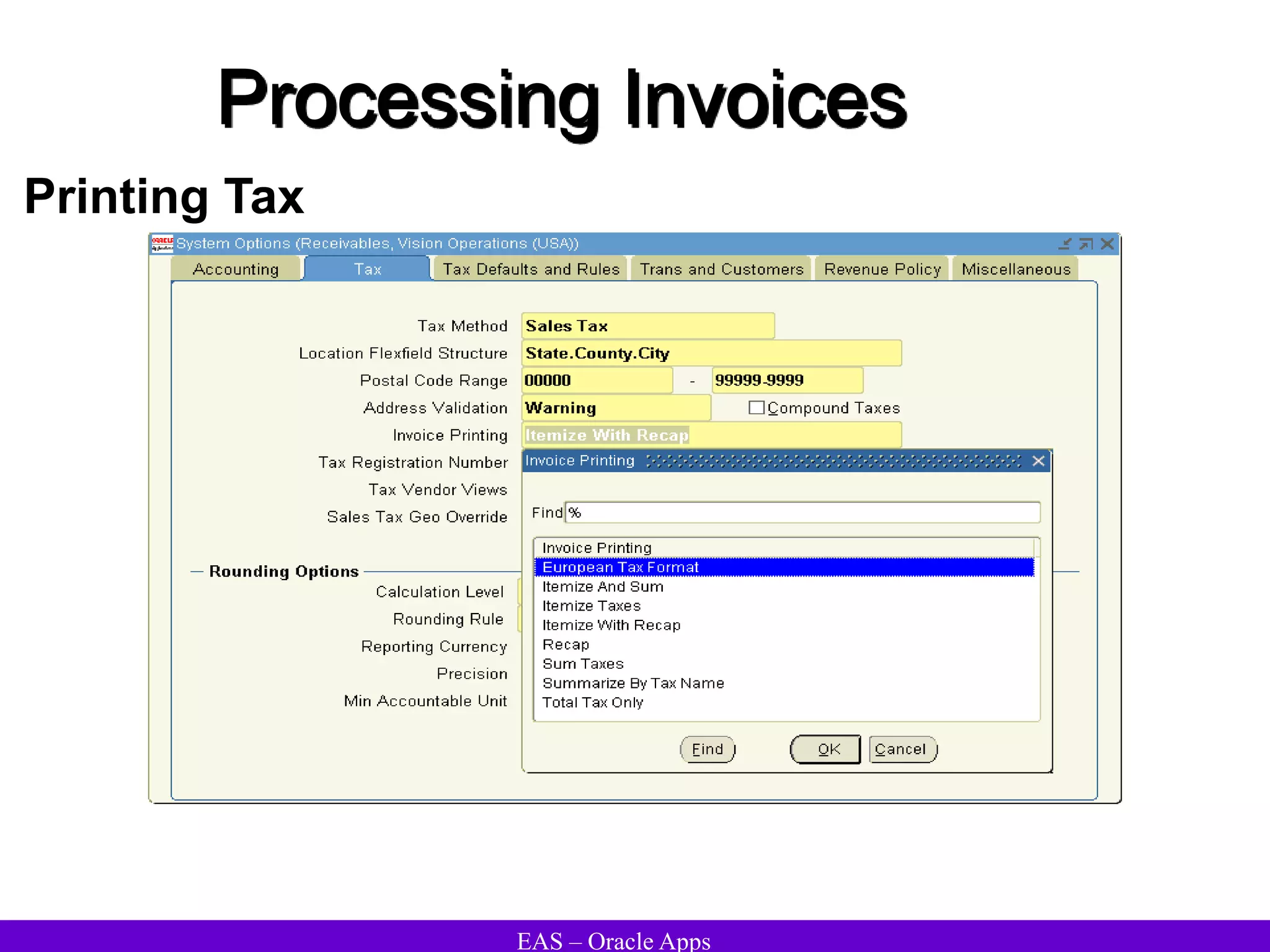
    EAS – OracleApps Reports Report Description/ Function US Sales Tax Report Use this report to review your tax liability to the various tax authorities around the US. The US Sales Tax report includes all Invoices, Credit Memos, and Adjustments broken down by Ship To State, County, and City and lists taxable, exempt, and tax amounts. This report is used as the basis for the periodic Sales Tax Returns required by each state. Unposted Items Report Receivables prints the Unposted Items Report for all items that are not posted for the specified GL date range. There are two ways to generate this report: through the Submit Requests window or by running the General Ledger Interface Program. Tax Register Report Use the Tax Register report to review your tax liability. This report groups total tax amounts by tax type, tax class, and company. This report includes deferred tax accounting information and all transactions for which tax accounting is defined. Collection Effectiveness Indicators Use this report to monitor your customers' overall payment patterns and see debit item information by the split amount you defined in the System Options window. Receivables automatically runs this report when you close an accounting period. Collection Key Indicators Report Use this report to review and manage your collectors productivity. Receivables gives you a percentage breakdown of call topics and responses for each of your collectors within the date range that you specify.
  • 430.
    EAS – OracleApps Reports Report Description/ Function Customer Credit Snapshot Report Use this report to see an overview of your customer's credit history. This report provides aging, customer credit history, and a brief look at the last transactions Receivables recorded for this customer. Past Due Invoice Report Use this report to view information about your customer's past due invoices, debit memos, deposits, chargebacks, and guarantees. Account Status Report Use this report to review your customer accounts. For each customer in your Account Status report, Receivables prints all open debit items, credit items, and total balance due in your functional currency. AutoInvoice Reports Use the AutoInvoice Execution report to review the results of your AutoInvoice request. This report lists summary information telling you how many revenue and credit transactions are selected, accepted, and rejected for each currency. The AutoInvoice Execution report also shows the total invoice amount for each transaction type for all transactions processed. AutoInvoice automatically produces this report each time you run AutoInvoice. Automatic Receipts and Remittances Execution Report Use this report to review the number and amount of automatic receipts and remittances you have created, approved, or formatted. Receivables automatically generates this report when you submit a batch of automatic receipts or remittances to be created, approved, or formatted
  • 431.
    EAS – OracleApps Reports Report Description/ Function Invoice Print Preview Report Use this report to review the invoices, debit memos, chargebacks, deposits, guarantees, credit memos, and on-account credits that will print if you specify these report parameters. You can submit this report from either the Print Invoices or the Submit Requests window. Posting Execution Report Use this report to view a summary of all transactions by category and currency that make up your entries to your general ledger. Receivables automatically generates this report when you run General Ledger Interface. Print Invoice Reports Use the Print Invoices window to submit your invoices, debit memos, chargebacks, deposits, guarantees, invoices against deposits, invoices against guarantees, credit memos, on-account credits, and adjustments for printing. You can print a batch of invoices, new invoices, selected invoices, and adjustments. Transactions Awaiting Consolidation Use this report to review a list of transactions that have been designated for automatic receipt application (i.e., that have been assigned an automatic payment method). You can review all transactions that are in different stages of the creation process. These stages include creating, approving, and formatting. Invoices Posted to Suspense Use this report to view a list of all transactions that have revenue amounts posted to suspense accounts.