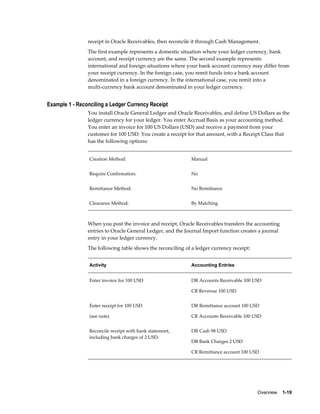
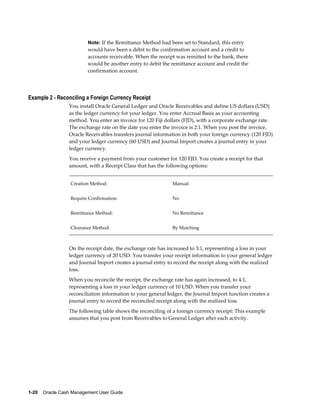
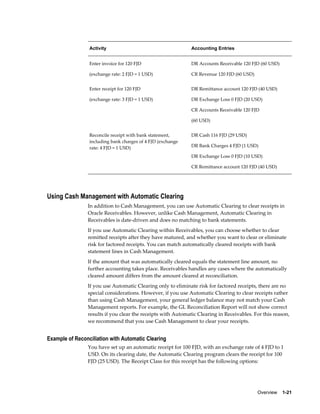
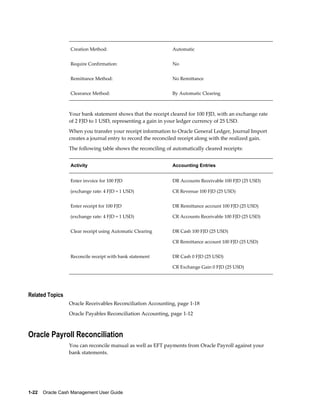
Oracle® Cash Management
User Guide
Release 12.1
Part No. E13483-03


December 2009
Oracle Cash Management User Guide, Release 12.1

Part No. E13483-03

Copyright © 2000, 2009, Oracle and/or its affiliates. All rights reserved.

Primary Author:     Mathew Daniel

Contributing Author:     Hugh Mason, Douglas J. Myers

Contributor:     Julia Baevà, Byung-hyun Chung, Annette Dall, Lynn Kwan, Hilary McClure, Sunil Poonen,
Patruni Suresh, Chirayu Sutaria, Xin X. Wang

Oracle is a registered trademark of Oracle Corporation and/or its affiliates. Other names may be trademarks
of their respective owners.

This software and related documentation are provided under a license agreement containing restrictions on
use and disclosure and are protected by intellectual property laws. Except as expressly permitted in your
license agreement or allowed by law, you may not use, copy, reproduce, translate, broadcast, modify, license,
transmit, distribute, exhibit, perform, publish or display any part, in any form, or by any means. Reverse
engineering, disassembly, or decompilation of this software, unless required by law for interoperability, is
prohibited.

The information contained herein is subject to change without notice and is not warranted to be error-free. If
you find any errors, please report them to us in writing.

If this software or related documentation is delivered to the U.S. Government or anyone licensing it on behalf
of the U.S. Government, the following notice is applicable:

U.S. GOVERNMENT RIGHTS
Programs, software, databases, and related documentation and technical data delivered to U.S. Government
customers are "commercial computer software" or "commercial technical data" pursuant to the applicable
Federal Acquisition Regulation and agency-specific supplemental regulations. As such, the use, duplication,
disclosure, modification, and adaptation shall be subject to the restrictions and license terms set forth in the
applicable Government contract, and, to the extent applicable by the terms of the Government contract, the
additional rights set forth in FAR 52.227-19, Commercial Computer Software License (December 2007). Oracle
USA, Inc., 500 Oracle Parkway, Redwood City, CA 94065.

This software is developed for general use in a variety of information management applications. It is not
developed or intended for use in any inherently dangerous applications, including applications which may
create a risk of personal injury. If you use this software in dangerous applications, then you shall be
responsible to take all appropriate fail-safe, backup, redundancy and other measures to ensure the safe use of
this software. Oracle Corporation and its affiliates disclaim any liability for any damages caused by use of this
software in dangerous applications.

This software and documentation may provide access to or information on content, products and services
from third parties. Oracle Corporation and its affiliates are not responsible for and expressly disclaim all
warranties of any kind with respect to third party content, products and services. Oracle Corporation and its
affiliates will not be responsible for any loss, costs, or damages incurred due to your access to or use of third
party content, products or services.
 
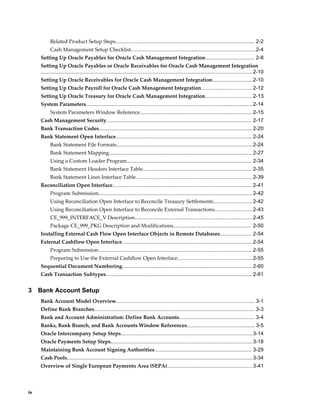
                                                                                                                 Contents


Send Us Your Comments

Preface

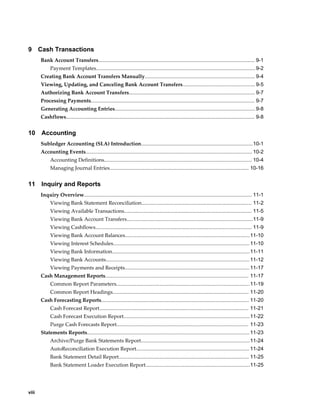
1   Overview
    About Oracle Cash Management.............................................................................................. 1-1
         About Bank Reconciliation...................................................................................................1-2
         About Bank Statements........................................................................................................ 1-4
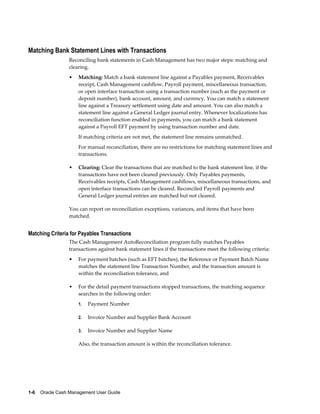
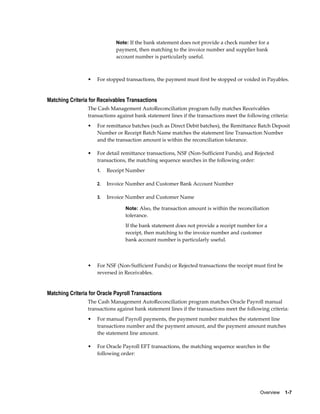
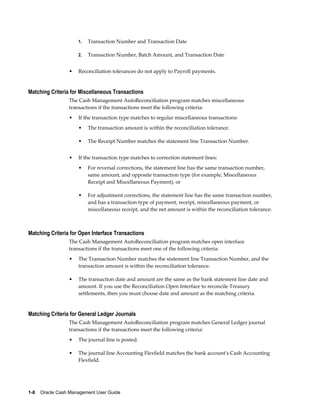
         Matching Bank Statement Lines with Transactions............................................................. 1-6
         Multi-Currency Handling.................................................................................................... 1-9
         Integration with Oracle Receivables, Payables, Payroll, and Treasury.............................. 1-11
    Oracle Payables Reconciliation Accounting........................................................................... 1-12
         Payables Reconciliation Examples..................................................................................... 1-15
    Oracle Receivables Reconciliation Accounting...................................................................... 1-18
         Receivables Reconciliation Examples................................................................................. 1-18
         Using Cash Management with Automatic Clearing.......................................................... 1-21
    Oracle Payroll Reconciliation................................................................................................. 1-22
    Oracle Treasury Reconciliation............................................................................................... 1-24
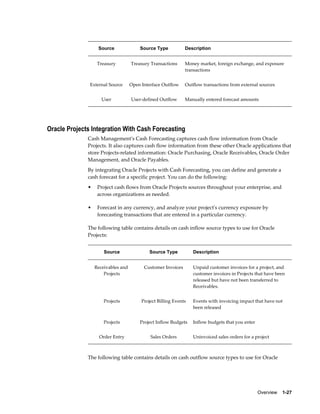
    About Cash Forecasting.......................................................................................................... 1-24
         Oracle Applications Integration with Cash Forecasting.................................................... 1-25
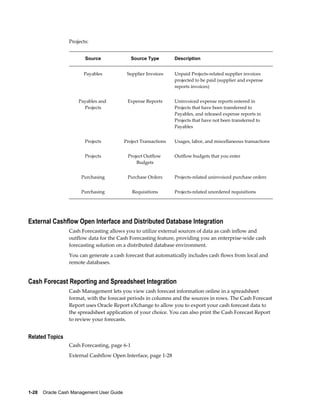
         Oracle Projects Integration With Cash Forecasting............................................................ 1-27
         External Cashflow Open Interface and Distributed Database Integration......................... 1-28
         Cash Forecast Reporting and Spreadsheet Integration...................................................... 1-28


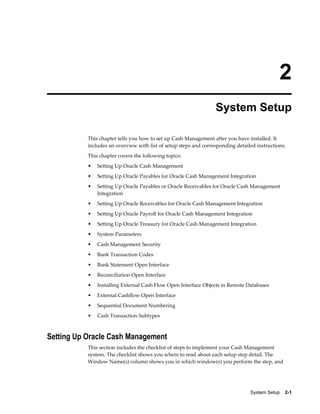
2   System Setup
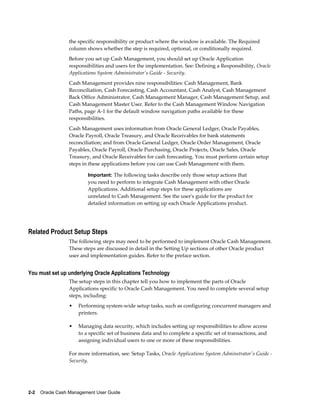
    Setting Up Oracle Cash Management....................................................................................... 2-1


                                                                                                                                                 iii
Related Product Setup Steps................................................................................................ 2-2
           Cash Management Setup Checklist......................................................................................2-4
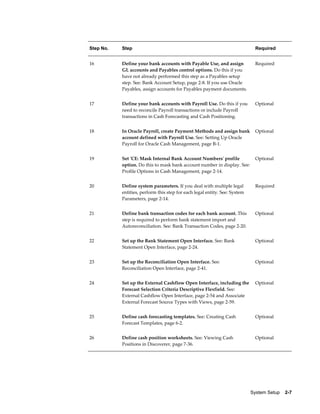
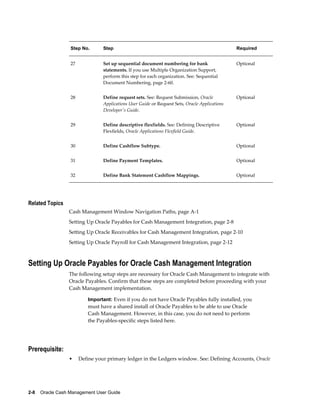
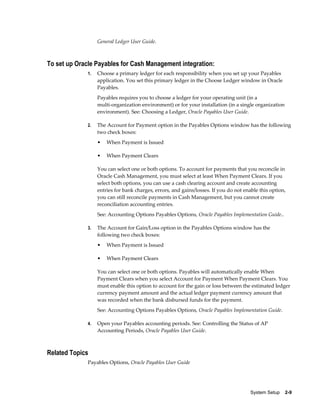
     Setting Up Oracle Payables for Oracle Cash Management Integration.................................. 2-8
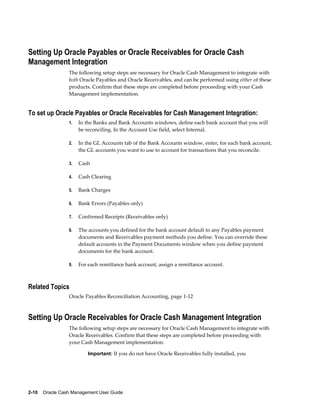
     Setting Up Oracle Payables or Oracle Receivables for Oracle Cash Management Integration
     .................................................................................................................................................. 2-10
     Setting Up Oracle Receivables for Oracle Cash Management Integration............................2-10
     Setting Up Oracle Payroll for Oracle Cash Management Integration................................... 2-12
     Setting Up Oracle Treasury for Oracle Cash Management Integration................................ 2-13
     System Parameters................................................................................................................... 2-14
           System Parameters Window Reference..............................................................................2-15
     Cash Management Security.................................................................................................... 2-17
     Bank Transaction Codes.......................................................................................................... 2-20
     Bank Statement Open Interface.............................................................................................. 2-24
           Bank Statement File Formats..............................................................................................2-24
           Bank Statement Mapping................................................................................................... 2-27
           Using a Custom Loader Program...................................................................................... 2-34
           Bank Statement Headers Interface Table........................................................................... 2-35
           Bank Statement Lines Interface Table................................................................................ 2-39
     Reconciliation Open Interface................................................................................................ 2-41
           Program Submission.......................................................................................................... 2-42
           Using Reconciliation Open Interface to Reconcile Treasury Settlements........................... 2-42
           Using Reconciliation Open Interface to Reconcile External Transactions.......................... 2-43
           CE_999_INTERFACE_V Description................................................................................. 2-45
           Package CE_999_PKG Description and Modifications...................................................... 2-50
     Installing External Cash Flow Open Interface Objects in Remote Databases...................... 2-54
     External Cashflow Open Interface.......................................................................................... 2-54
           Program Submission.......................................................................................................... 2-55
           Preparing to Use the External Cashflow Open Interface....................................................2-55
     Sequential Document Numbering.......................................................................................... 2-60
     Cash Transaction Subtypes..................................................................................................... 2-61


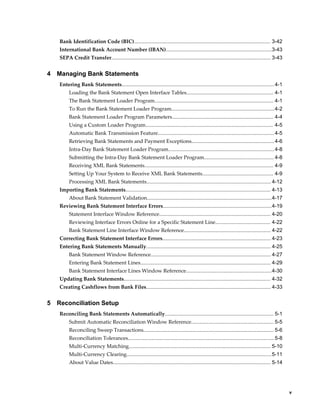
3    Bank Account Setup
     Bank Account Model Overview................................................................................................ 3-1
     Define Bank Branches............................................................................................................... 3-3
     Bank and Account Administration: Define Bank Accounts.................................................... 3-4
     Banks, Bank Branch, and Bank Accounts Window References............................................... 3-5
     Oracle Intercompany Setup Steps...........................................................................................3-14
     Oracle Payments Setup Steps..................................................................................................3-18
     Maintaining Bank Account Signing Authorities................................................................... 3-29
     Cash Pools................................................................................................................................ 3-34
     Overview of Single European Payments Area (SEPA)........................................................... 3-41


iv
Bank Identification Code (BIC).............................................................................................. 3-42
    International Bank Account Number (IBAN).........................................................................3-43
    SEPA Credit Transfer.............................................................................................................. 3-43


4   Managing Bank Statements
    Entering Bank Statements......................................................................................................... 4-1
         Loading the Bank Statement Open Interface Tables............................................................ 4-1
         The Bank Statement Loader Program.................................................................................. 4-1
         To Run the Bank Statement Loader Program.......................................................................4-2
         Bank Statement Loader Program Parameters...................................................................... 4-4
         Using a Custom Loader Program........................................................................................ 4-5
         Automatic Bank Transmission Feature................................................................................ 4-5
         Retrieving Bank Statements and Payment Exceptions......................................................... 4-6
         Intra-Day Bank Statement Loader Program......................................................................... 4-8
         Submitting the Intra-Day Bank Statement Loader Program................................................ 4-8
         Receiving XML Bank Statements......................................................................................... 4-9
         Setting Up Your System to Receive XML Bank Statements................................................. 4-9
         Processing XML Bank Statements...................................................................................... 4-12
    Importing Bank Statements.................................................................................................... 4-13
         About Bank Statement Validation......................................................................................4-17
    Reviewing Bank Statement Interface Errors...........................................................................4-19
         Statement Interface Window Reference............................................................................. 4-20
         Reviewing Interface Errors Online for a Specific Statement Line...................................... 4-22
         Bank Statement Line Interface Window Reference............................................................ 4-22
    Correcting Bank Statement Interface Errors........................................................................... 4-23
    Entering Bank Statements Manually...................................................................................... 4-25
         Bank Statement Window Reference................................................................................... 4-27
         Entering Bank Statement Lines.......................................................................................... 4-29
         Bank Statement Interface Lines Window Reference...........................................................4-30
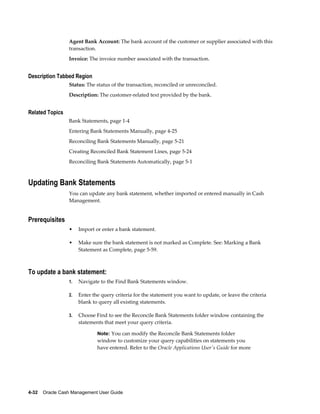
    Updating Bank Statements..................................................................................................... 4-32
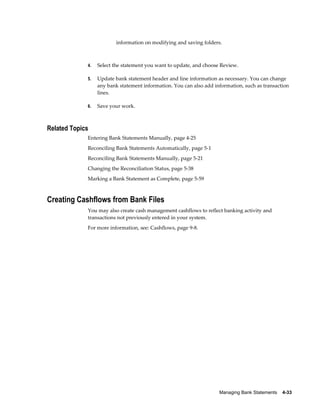
    Creating Cashflows from Bank Files...................................................................................... 4-33


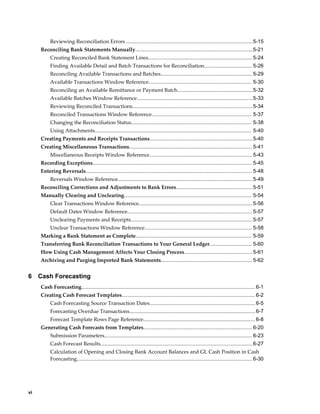
5   Reconciliation Setup
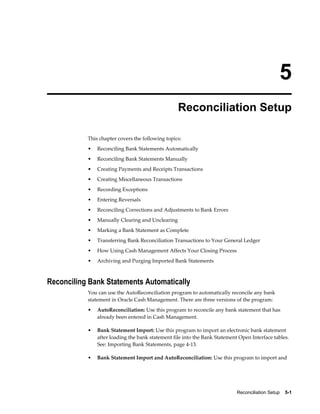
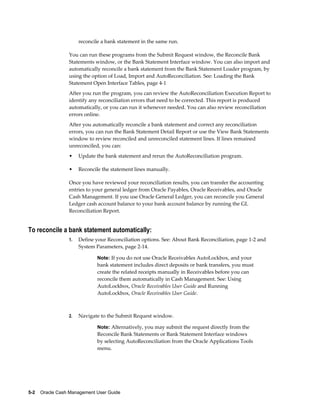
    Reconciling Bank Statements Automatically........................................................................... 5-1
         Submit Automatic Reconciliation Window Reference......................................................... 5-5
         Reconciling Sweep Transactions.......................................................................................... 5-6
         Reconciliation Tolerances.....................................................................................................5-8
         Multi-Currency Matching.................................................................................................. 5-10
         Multi-Currency Clearing....................................................................................................5-11
         About Value Dates............................................................................................................. 5-14


                                                                                                                                                   v
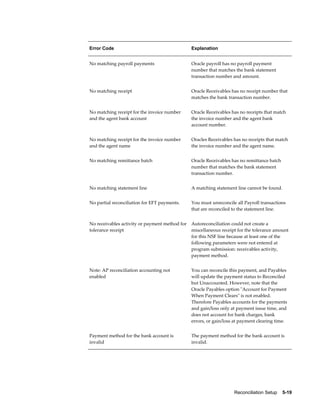
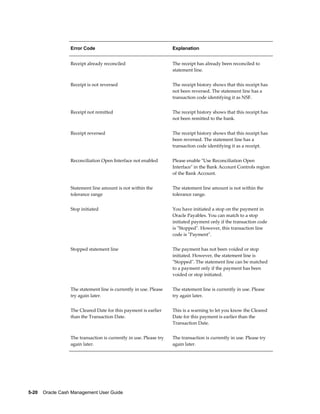
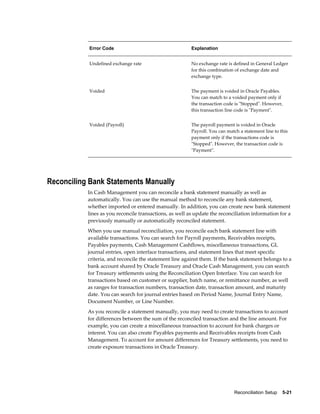
Reviewing Reconciliation Errors ....................................................................................... 5-15
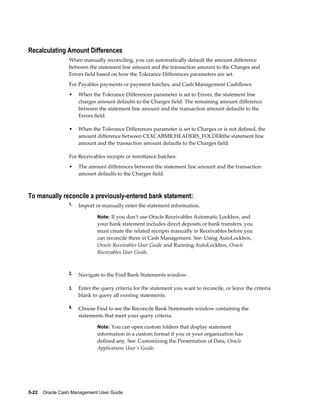
     Reconciling Bank Statements Manually.................................................................................5-21
          Creating Reconciled Bank Statement Lines........................................................................ 5-24
          Finding Available Detail and Batch Transactions for Reconciliation................................. 5-26
          Reconciling Available Transactions and Batches............................................................... 5-29
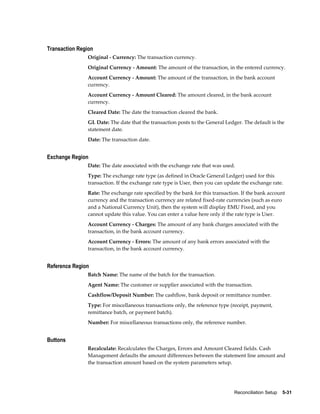
          Available Transactions Window Reference....................................................................... 5-30
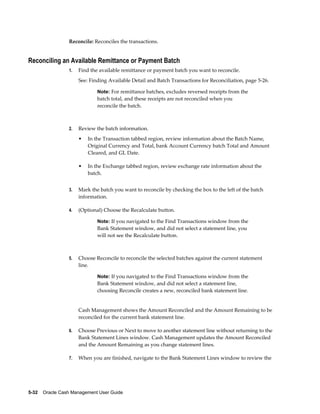
          Reconciling an Available Remittance or Payment Batch....................................................5-32
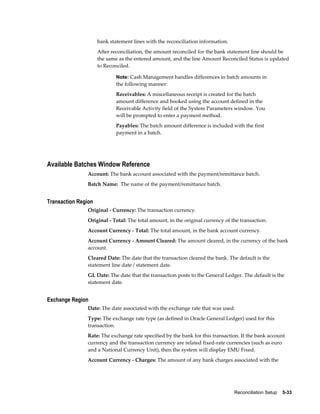
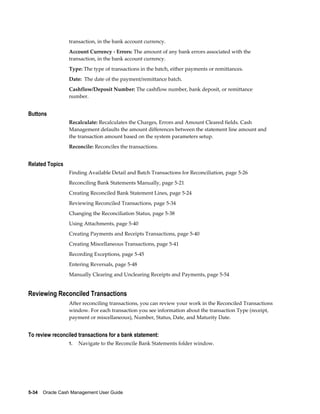
          Available Batches Window Reference................................................................................5-33
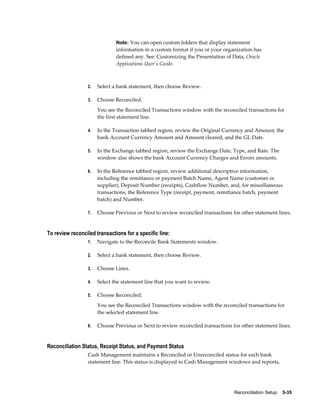
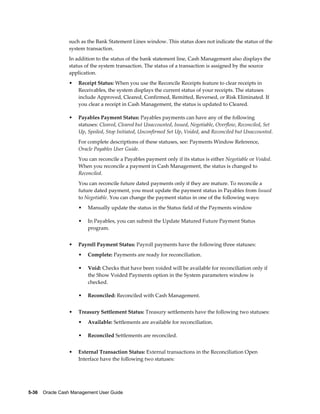
          Reviewing Reconciled Transactions................................................................................... 5-34
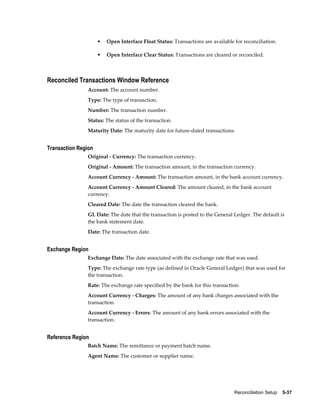
          Reconciled Transactions Window Reference..................................................................... 5-37
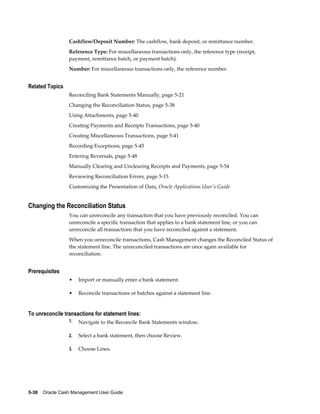
          Changing the Reconciliation Status................................................................................... 5-38
          Using Attachments............................................................................................................ 5-40
     Creating Payments and Receipts Transactions....................................................................... 5-40
     Creating Miscellaneous Transactions..................................................................................... 5-41
          Miscellaneous Receipts Window Reference....................................................................... 5-43
     Recording Exceptions.............................................................................................................. 5-45
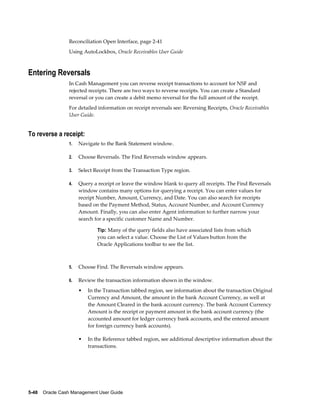
     Entering Reversals................................................................................................................... 5-48
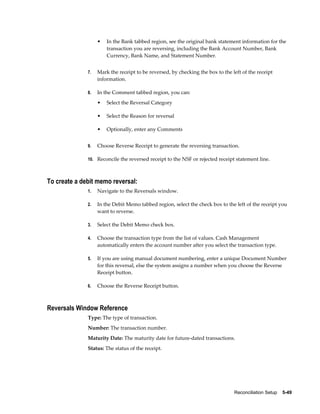
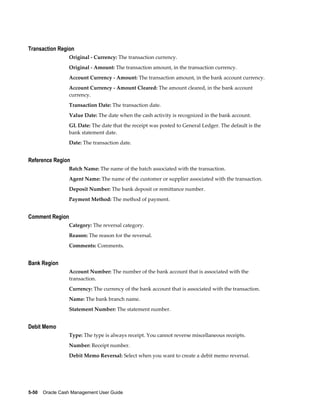
          Reversals Window Reference............................................................................................. 5-49
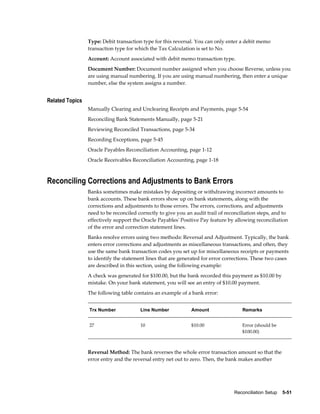
     Reconciling Corrections and Adjustments to Bank Errors.....................................................5-51
     Manually Clearing and Unclearing........................................................................................ 5-54
          Clear Transactions Window Reference.............................................................................. 5-56
          Default Dates Window Reference...................................................................................... 5-57
          Unclearing Payments and Receipts.................................................................................... 5-57
          Unclear Transactions Window Reference.......................................................................... 5-58
     Marking a Bank Statement as Complete................................................................................ 5-59
     Transferring Bank Reconciliation Transactions to Your General Ledger............................. 5-60
     How Using Cash Management Affects Your Closing Process............................................... 5-61
     Archiving and Purging Imported Bank Statements............................................................... 5-62


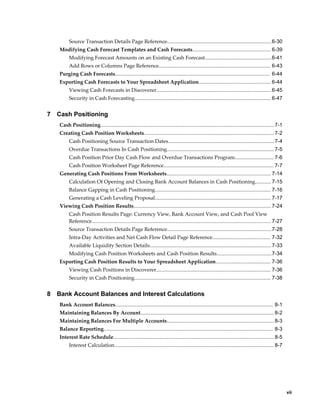
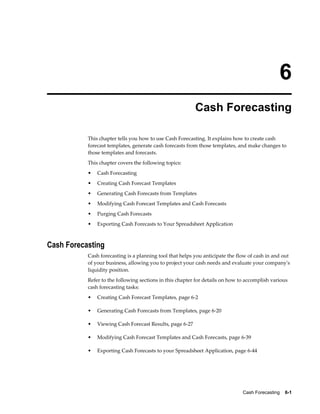
6    Cash Forecasting
     Cash Forecasting........................................................................................................................ 6-1
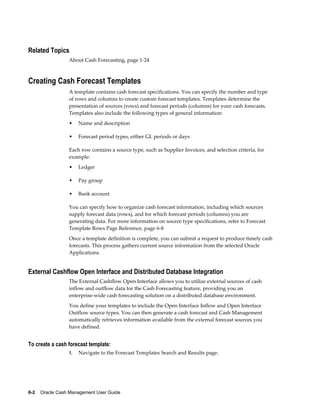
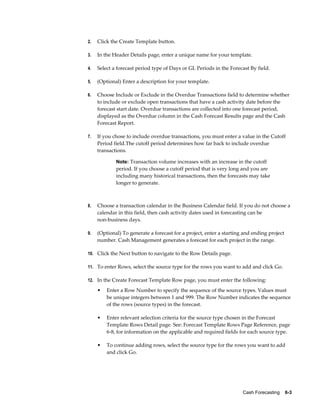
     Creating Cash Forecast Templates............................................................................................ 6-2
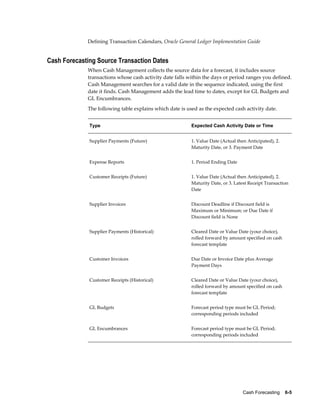
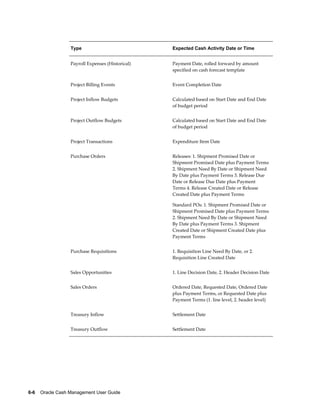
          Cash Forecasting Source Transaction Dates......................................................................... 6-5
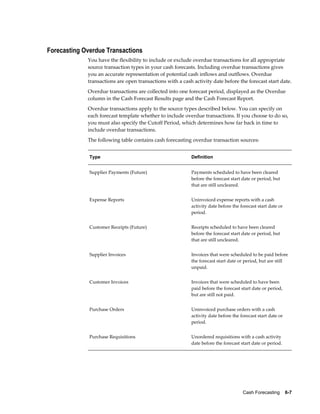
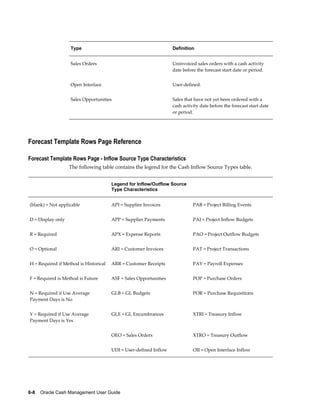
          Forecasting Overdue Transactions....................................................................................... 6-7
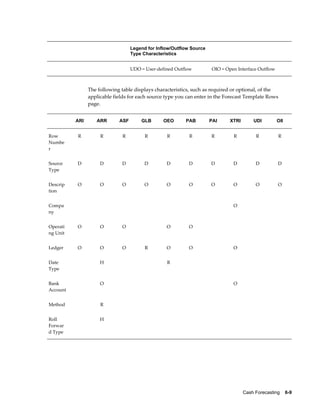
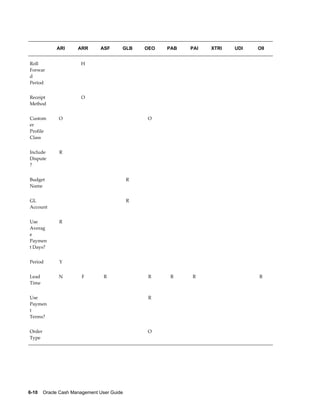
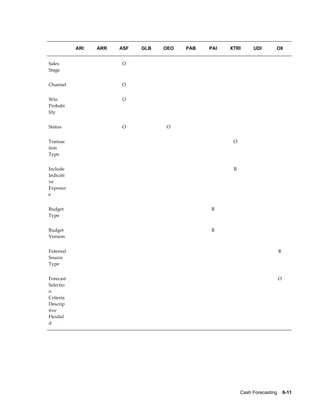
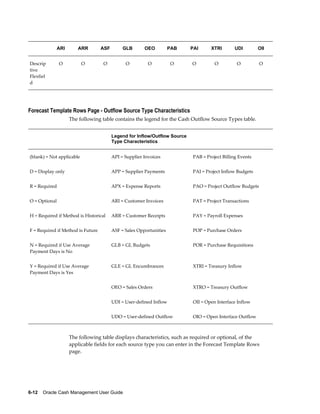
          Forecast Template Rows Page Reference............................................................................. 6-8
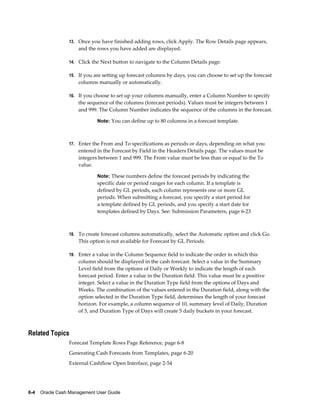
     Generating Cash Forecasts from Templates........................................................................... 6-20
          Submission Parameters...................................................................................................... 6-23
          Cash Forecast Results......................................................................................................... 6-27
          Calculation of Opening and Closing Bank Account Balances and GL Cash Position in Cash
          Forecasting......................................................................................................................... 6-30


vi
Source Transaction Details Page Reference........................................................................6-30
    Modifying Cash Forecast Templates and Cash Forecasts...................................................... 6-39
         Modifying Forecast Amounts on an Existing Cash Forecast..............................................6-41
         Add Rows or Columns Page Reference............................................................................. 6-43
    Purging Cash Forecasts........................................................................................................... 6-44
    Exporting Cash Forecasts to Your Spreadsheet Application.................................................. 6-44
         Viewing Cash Forecasts in Discoverer............................................................................... 6-45
         Security in Cash Forecasting.............................................................................................. 6-47


7   Cash Positioning
    Cash Positioning........................................................................................................................ 7-1
    Creating Cash Position Worksheets..........................................................................................7-2
         Cash Positioning Source Transaction Dates......................................................................... 7-4
         Overdue Transactions In Cash Positioning.......................................................................... 7-5
         Cash Position Prior Day Cash Flow and Overdue Transactions Program........................... 7-6
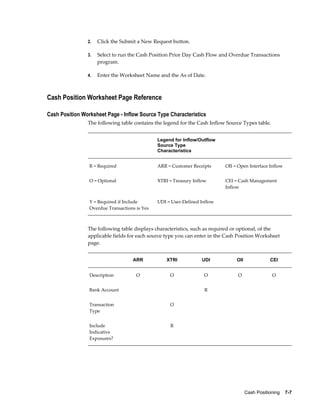
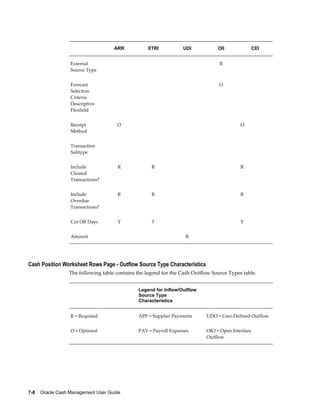
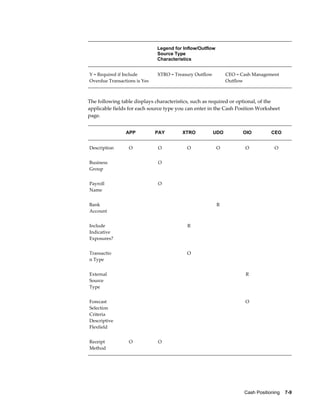
         Cash Position Worksheet Page Reference............................................................................ 7-7
    Generating Cash Positions From Worksheets........................................................................ 7-14
         Calculation Of Opening and Closing Bank Account Balances in Cash Positioning........... 7-15
         Balance Gapping in Cash Positioning................................................................................ 7-16
         Generating a Cash Leveling Proposal................................................................................ 7-17
    Viewing Cash Position Results............................................................................................... 7-24
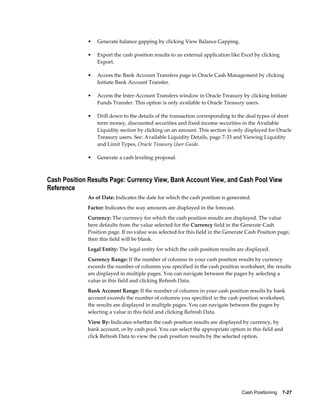
         Cash Position Results Page: Currency View, Bank Account View, and Cash Pool View
         Reference............................................................................................................................ 7-27
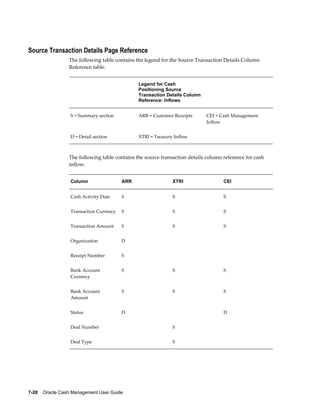
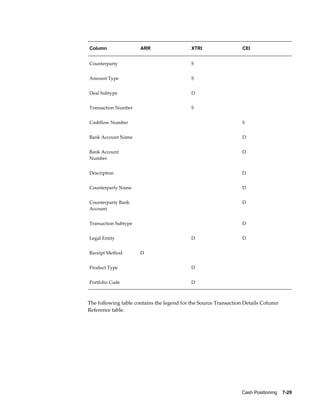
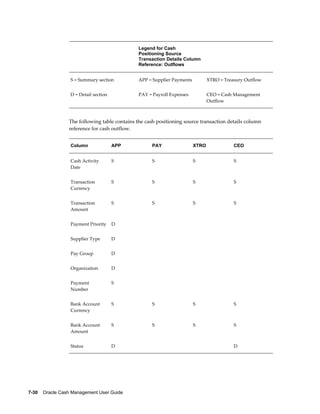
         Source Transaction Details Page Reference........................................................................7-28
         Intra-Day Activities and Net Cash Flow Detail Page Reference........................................ 7-32
         Available Liquidity Section Details.................................................................................... 7-33
         Modifying Cash Position Worksheets and Cash Position Results......................................7-34
    Exporting Cash Position Results to Your Spreadsheet Application...................................... 7-36
         Viewing Cash Positions in Discoverer............................................................................... 7-36
         Security in Cash Positioning.............................................................................................. 7-38


8   Bank Account Balances and Interest Calculations
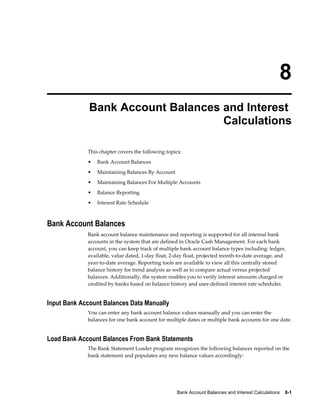
    Bank Account Balances............................................................................................................. 8-1
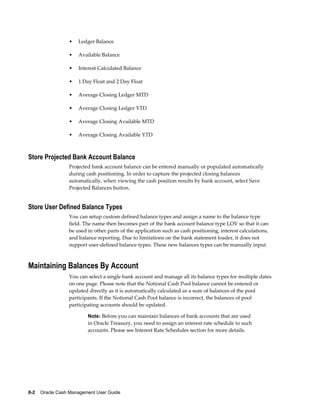
    Maintaining Balances By Account............................................................................................ 8-2
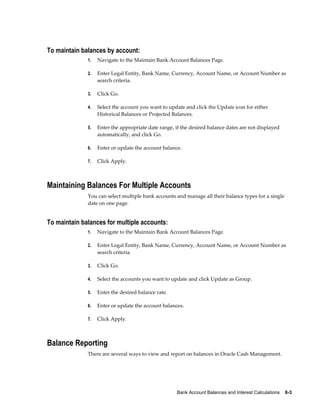
    Maintaining Balances For Multiple Accounts.......................................................................... 8-3
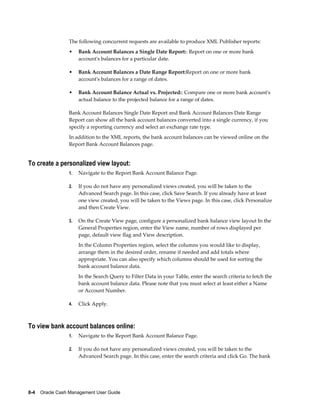
    Balance Reporting..................................................................................................................... 8-3
    Interest Rate Schedule............................................................................................................... 8-5
         Interest Calculation.............................................................................................................. 8-7


                                                                                                                                                      vii
9      Cash Transactions
       Bank Account Transfers............................................................................................................ 9-1
             Payment Templates.............................................................................................................. 9-2
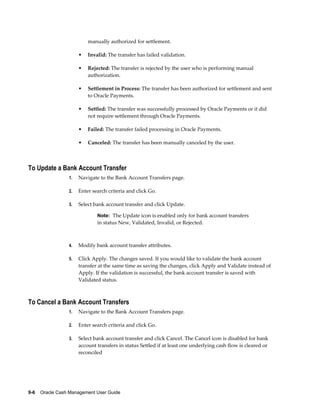
       Creating Bank Account Transfers Manually............................................................................ 9-4
       Viewing, Updating, and Canceling Bank Account Transfers.................................................. 9-5
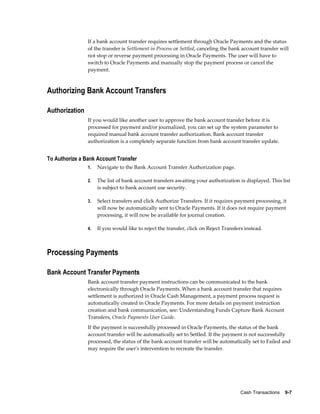
       Authorizing Bank Account Transfers....................................................................................... 9-7
       Processing Payments................................................................................................................. 9-7
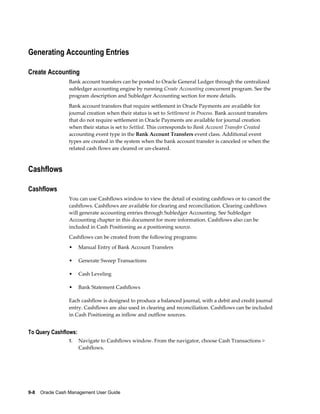
       Generating Accounting Entries................................................................................................. 9-8
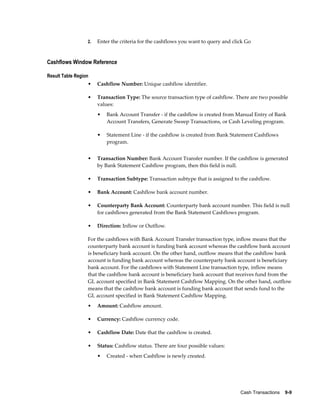
       Cashflows.................................................................................................................................. 9-8


10      Accounting
       Subledger Accounting (SLA) Introduction.............................................................................10-1
       Accounting Events................................................................................................................... 10-2
             Accounting Definitions...................................................................................................... 10-4
             Managing Journal Entries................................................................................................ 10-16


11      Inquiry and Reports
       Inquiry Overview.................................................................................................................... 11-1
             Viewing Bank Statement Reconciliation............................................................................ 11-2
             Viewing Available Transactions........................................................................................ 11-5
             Viewing Bank Account Transfers.......................................................................................11-9
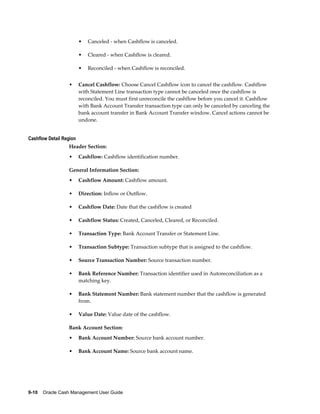
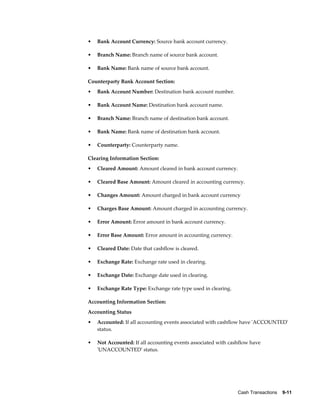
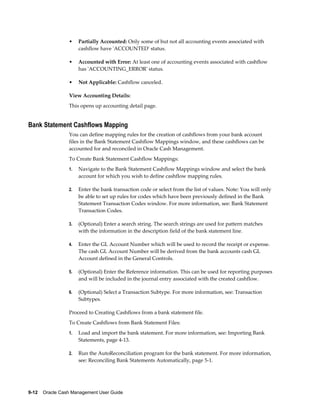
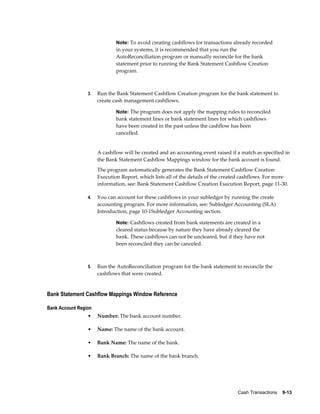
             Viewing Cashflows............................................................................................................ 11-9
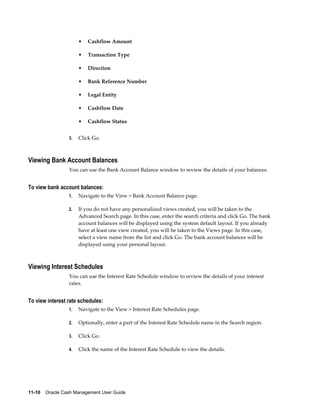
             Viewing Bank Account Balances...................................................................................... 11-10
             Viewing Interest Schedules.............................................................................................. 11-10
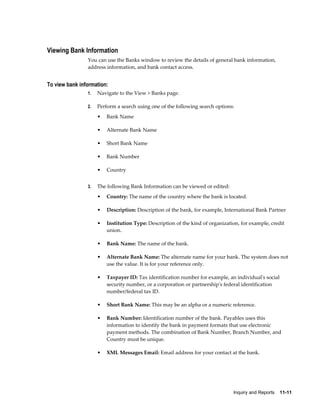
             Viewing Bank Information............................................................................................... 11-11
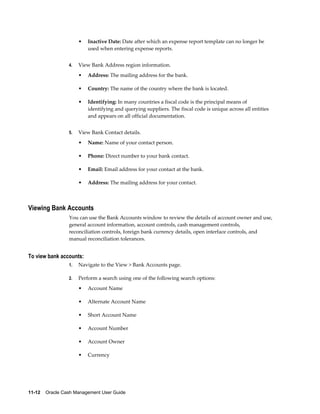
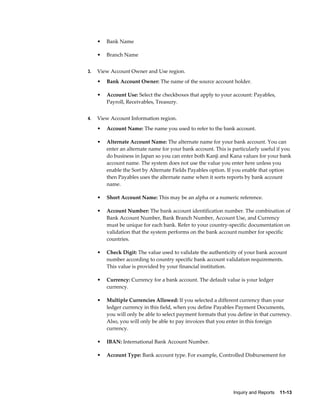
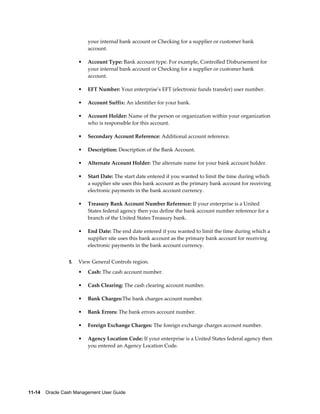
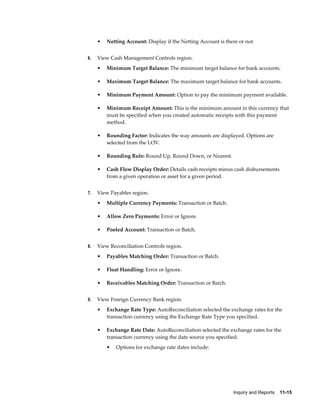
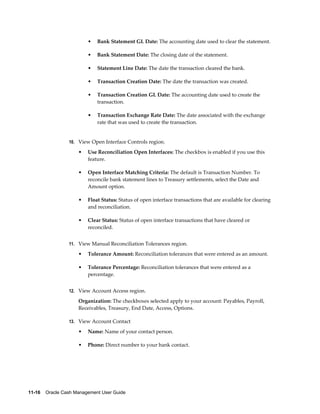
             Viewing Bank Accounts................................................................................................... 11-12
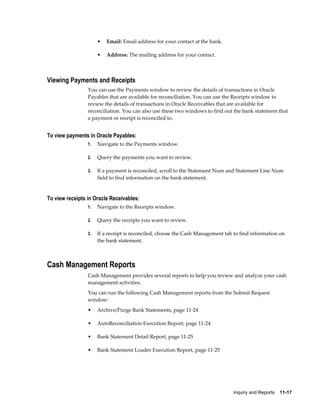
             Viewing Payments and Receipts...................................................................................... 11-17
       Cash Management Reports................................................................................................... 11-17
             Common Report Parameters............................................................................................ 11-19
             Common Report Headings.............................................................................................. 11-20
       Cash Forecasting Reports...................................................................................................... 11-20
             Cash Forecast Report....................................................................................................... 11-21
             Cash Forecast Execution Report.......................................................................................11-22
             Purge Cash Forecasts Report........................................................................................... 11-23
       Statements Reports................................................................................................................ 11-23
             Archive/Purge Bank Statements Report........................................................................... 11-24
             AutoReconciliation Execution Report.............................................................................. 11-24
             Bank Statement Detail Report.......................................................................................... 11-25
             Bank Statement Loader Execution Report........................................................................11-25


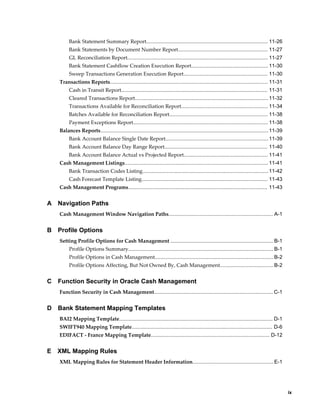
viii
Bank Statement Summary Report.................................................................................... 11-26
         Bank Statements by Document Number Report.............................................................. 11-27
         GL Reconciliation Report................................................................................................. 11-27
         Bank Statement Cashflow Creation Execution Report..................................................... 11-30
         Sweep Transactions Generation Execution Report.......................................................... 11-30
    Transactions Reports............................................................................................................. 11-31
         Cash in Transit Report..................................................................................................... 11-31
         Cleared Transactions Report............................................................................................ 11-32
         Transactions Available for Reconciliation Report............................................................ 11-34
         Batches Available for Reconciliation Report.................................................................... 11-38
         Payment Exceptions Report............................................................................................. 11-38
    Balances Reports.................................................................................................................... 11-39
         Bank Account Balance Single Date Report....................................................................... 11-39
         Bank Account Balance Day Range Report....................................................................... 11-40
         Bank Account Balance Actual vs Projected Report.......................................................... 11-41
    Cash Management Listings................................................................................................... 11-41
         Bank Transaction Codes Listing.......................................................................................11-42
         Cash Forecast Template Listing....................................................................................... 11-43
    Cash Management Programs................................................................................................ 11-43


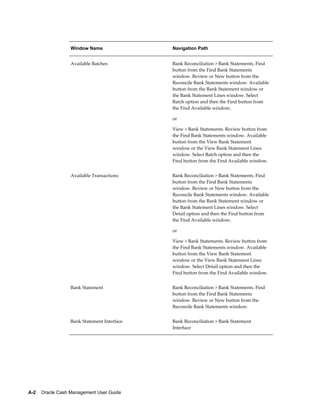
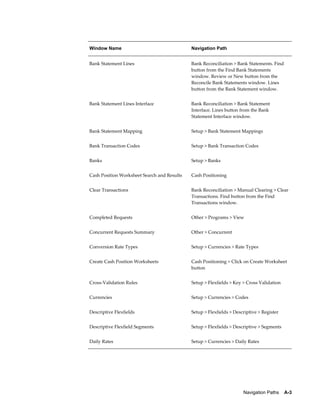
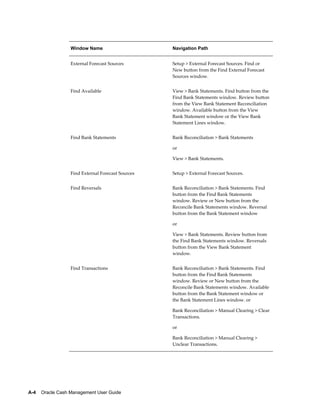
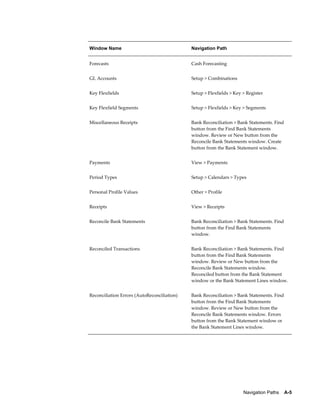
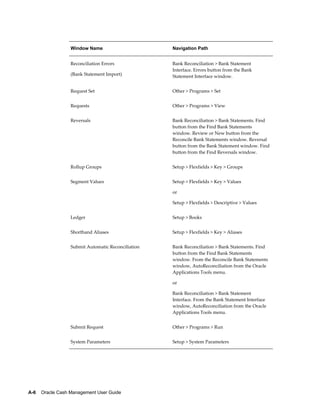
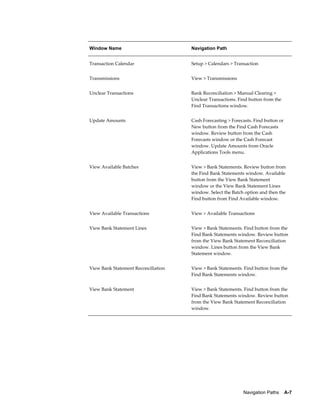
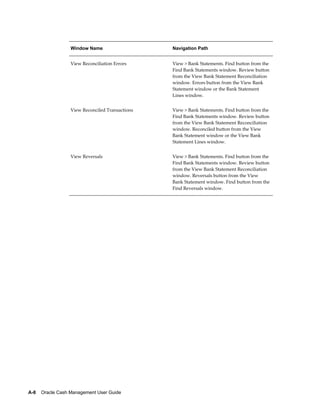
A   Navigation Paths
    Cash Management Window Navigation Paths........................................................................ A-1


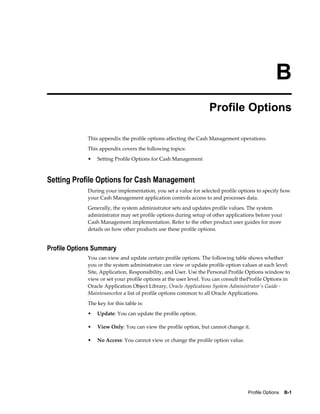
B   Profile Options
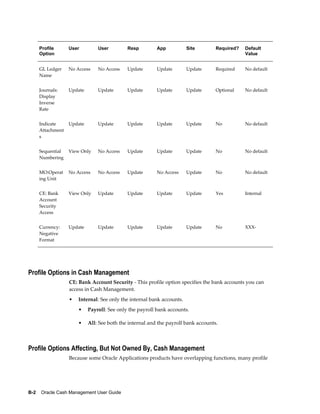
    Setting Profile Options for Cash Management ....................................................................... B-1
         Profile Options Summary.................................................................................................... B-1
         Profile Options in Cash Management.................................................................................. B-2
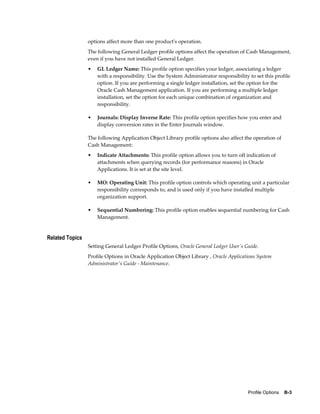
         Profile Options Affecting, But Not Owned By, Cash Management..................................... B-2


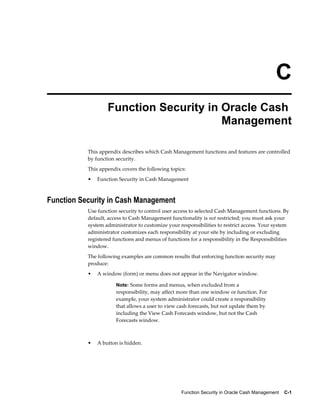
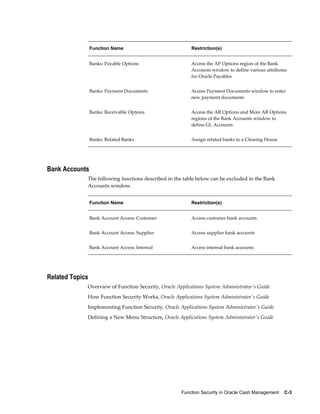
C   Function Security in Oracle Cash Management
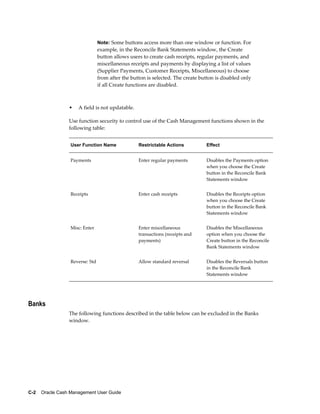
    Function Security in Cash Management.................................................................................. C-1


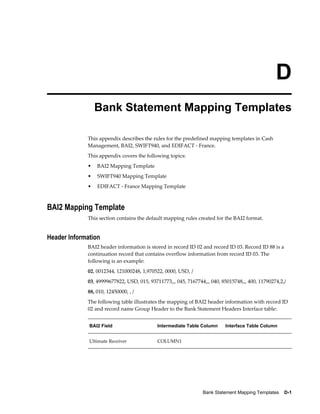
D   Bank Statement Mapping Templates
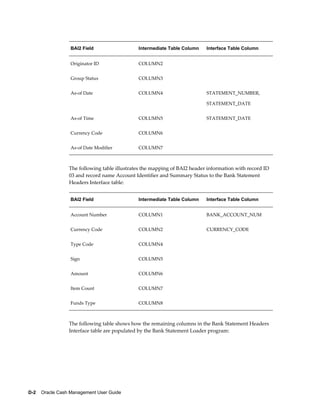
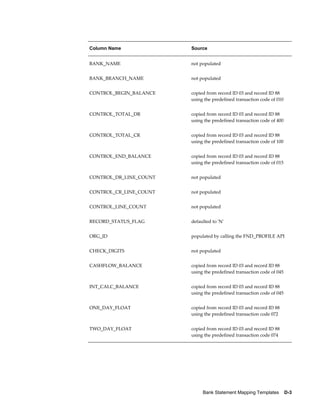
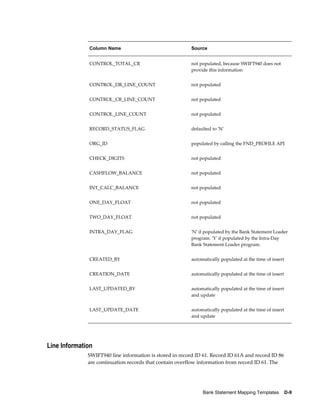
    BAI2 Mapping Template.......................................................................................................... D-1
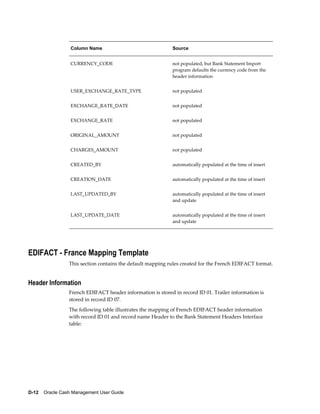
    SWIFT940 Mapping Template................................................................................................. D-6
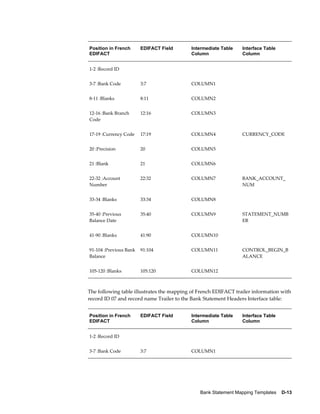
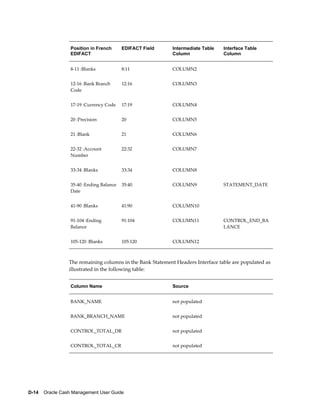
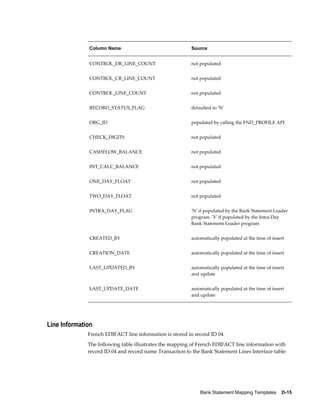
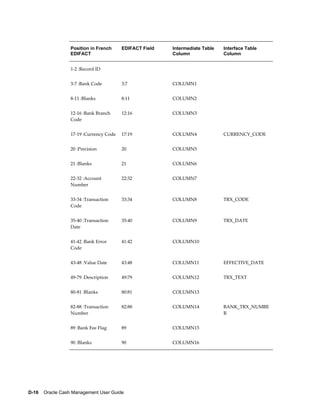
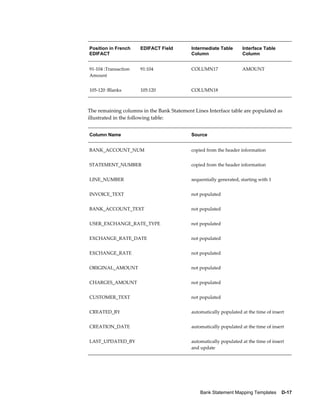
    EDIFACT - France Mapping Template.................................................................................. D-12


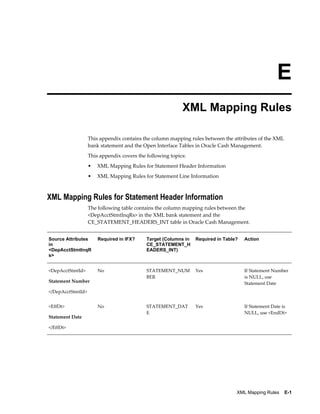
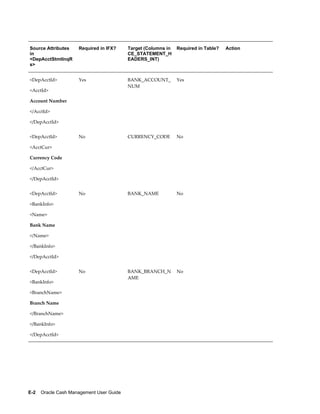
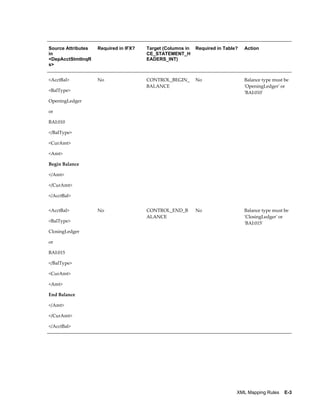
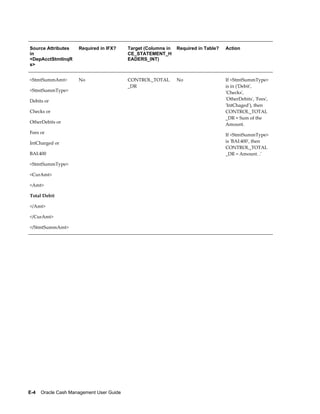
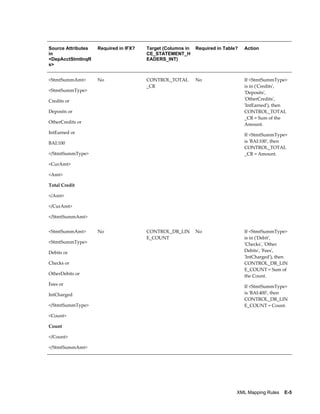
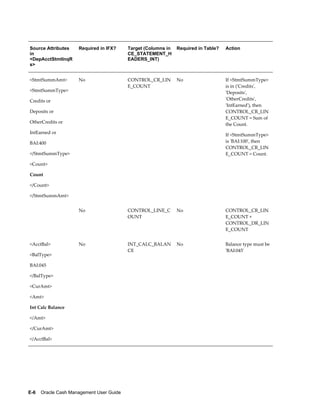
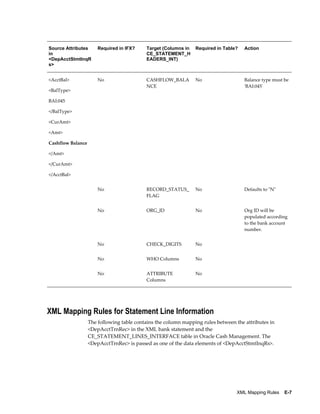
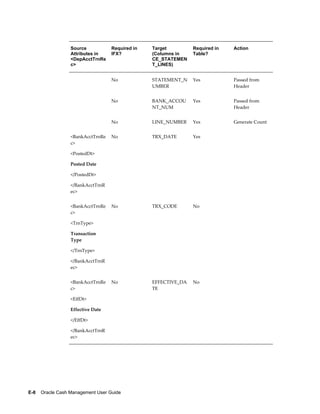
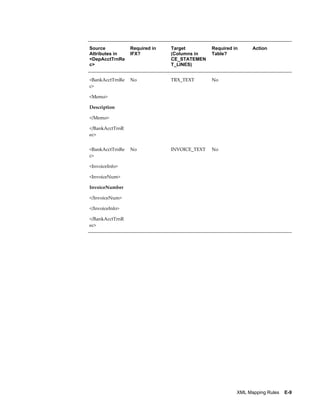
E   XML Mapping Rules
    XML Mapping Rules for Statement Header Information........................................................ E-1


                                                                                                                                                     ix
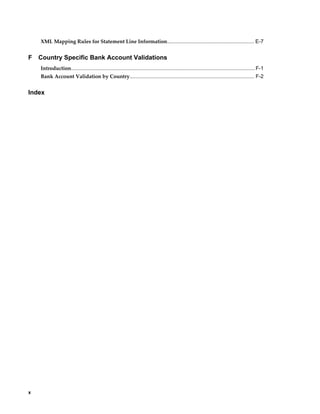
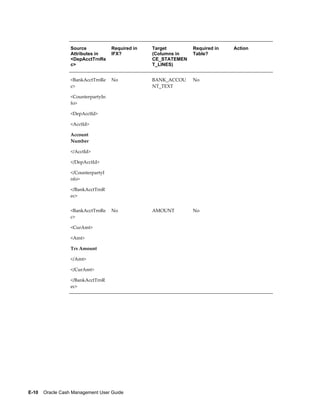
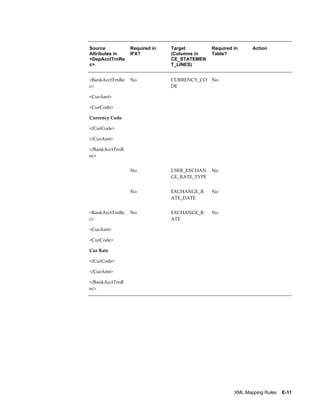
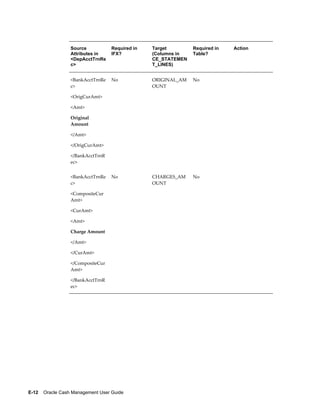
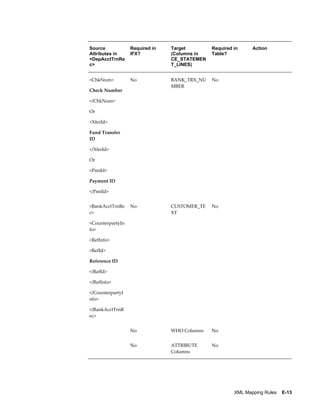
XML Mapping Rules for Statement Line Information............................................................ E-7


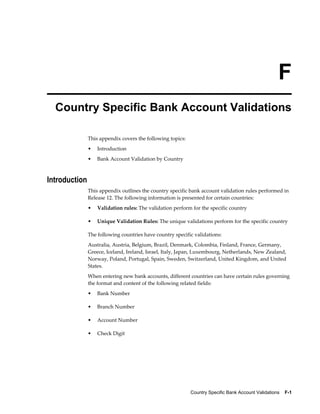
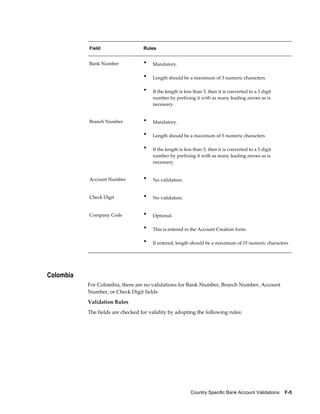
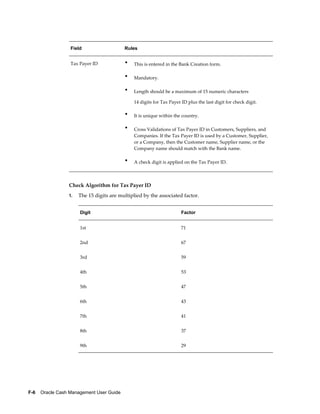
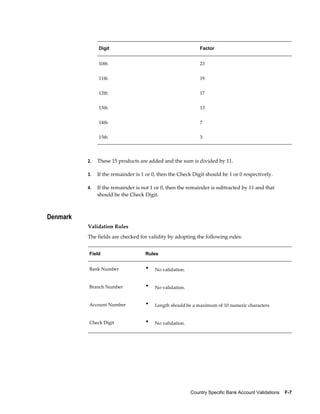
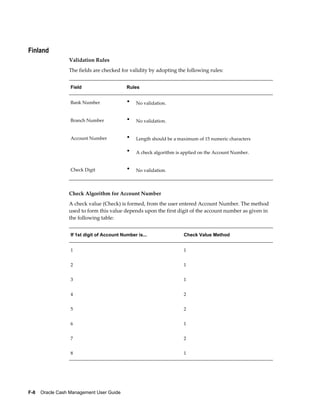
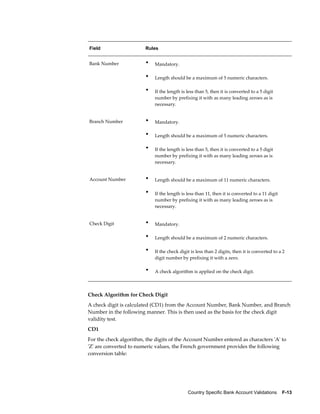
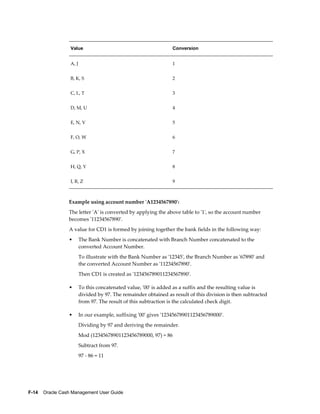
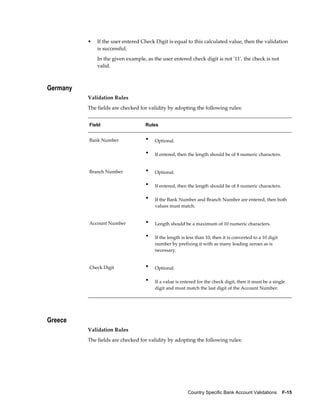
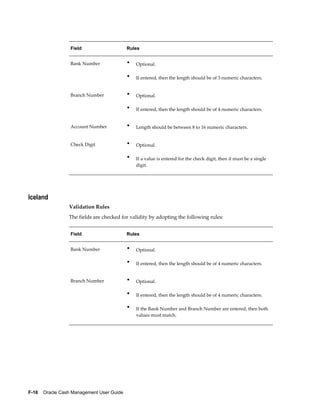
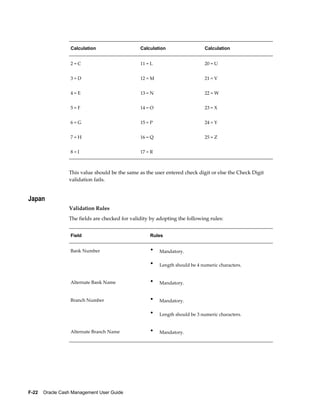
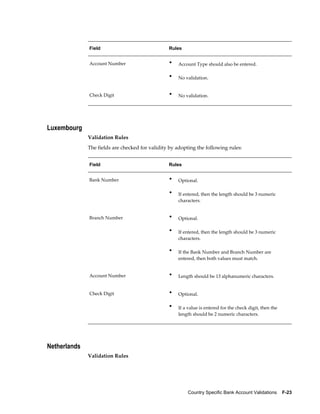
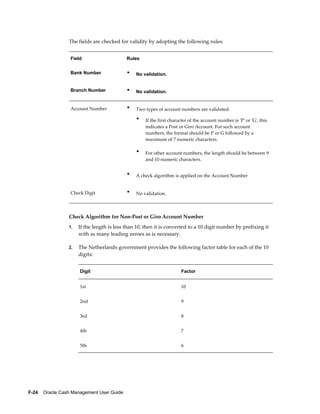
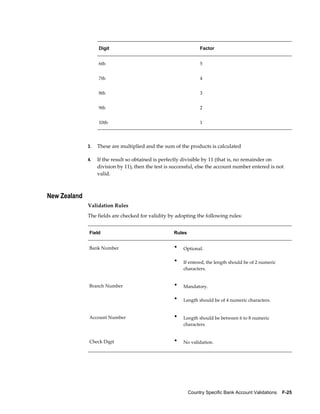
F   Country Specific Bank Account Validations
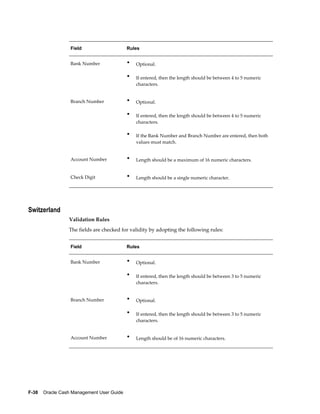
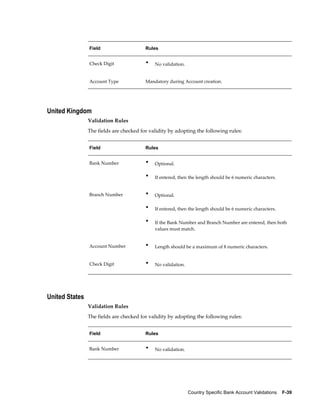
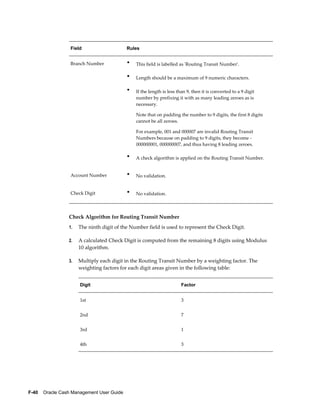
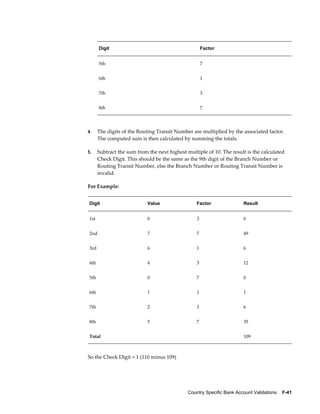
    Introduction............................................................................................................................... F-1
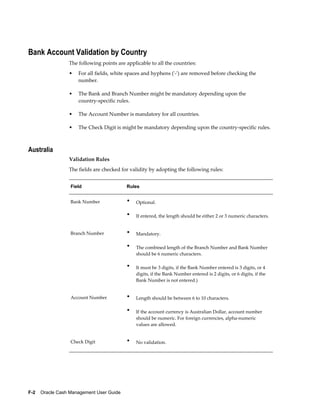
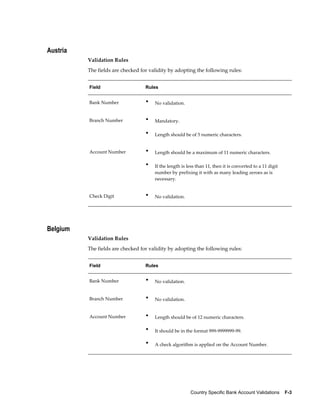
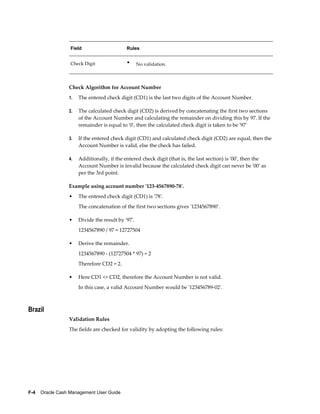
    Bank Account Validation by Country...................................................................................... F-2


Index


x
 
                                               Send Us Your Comments

Oracle Cash Management User Guide, Release 12.1
Part No. E13483-03


Oracle welcomes customers' comments and suggestions on the quality and usefulness of this document.
Your feedback is important, and helps us to best meet your needs as a user of our products. For example:
•   Are the implementation steps correct and complete?
•   Did you understand the context of the procedures?
•   Did you find any errors in the information?
•   Does the structure of the information help you with your tasks?
•   Do you need different information or graphics? If so, where, and in what format?
•   Are the examples correct? Do you need more examples?

If you find any errors or have any other suggestions for improvement, then please tell us your name, the
name of the company who has licensed our products, the title and part number of the documentation and
the chapter, section, and page number (if available).
Note: Before sending us your comments, you might like to check that you have the latest version of the
document and if any concerns are already addressed. To do this, access the new Oracle E-Business Suite
Release Online Documentation CD available on My Oracle Support and www.oracle.com. It contains the
most current Documentation Library plus all documents revised or released recently.
Send your comments to us using the electronic mail address: appsdoc_us@oracle.com
Please give your name, address, electronic mail address, and telephone number (optional).
If you need assistance with Oracle software, then please contact your support representative or Oracle
Support Services.
If you require training or instruction in using Oracle software, then please contact your Oracle local office
and inquire about our Oracle University offerings. A list of Oracle offices is available on our Web site at
www.oracle.com.


                                                                                                             xi
 
                                                                                 Preface


Intended Audience
           Welcome to Release 12.1 of the Oracle Cash Management User Guide.
           This guide assumes you have a working knowledge of the following:
           •   The principles and customary practices of your business area.

           •   Computer desktop application usage and terminology

           If you have never used Oracle Applications, we suggest you attend one or more of the
           Oracle Applications training classes available through Oracle University.
           See Related Information Sources on page xv for more Oracle E-Business Suite product
           information.


Deaf/Hard of Hearing Access to Oracle Support Services
           To reach Oracle Support Services, use a telecommunications relay service (TRS) to call
           Oracle Support at 1.800.223.1711. An Oracle Support Services engineer will handle
           technical issues and provide customer support according to the Oracle service request
           process. Information about TRS is available at
           http://www.fcc.gov/cgb/consumerfacts/trs.html, and a list of phone numbers is
           available at http://www.fcc.gov/cgb/dro/trsphonebk.html.


Documentation Accessibility
           Our goal is to make Oracle products, services, and supporting documentation accessible
           to all users, including users that are disabled. To that end, our documentation includes
           features that make information available to users of assistive technology. This
           documentation is available in HTML format, and contains markup to facilitate access by
           the disabled community. Accessibility standards will continue to evolve over time, and


                                                                                                  xiii
Oracle is actively engaged with other market-leading technology vendors to address
              technical obstacles so that our documentation can be accessible to all of our customers.
              For more information, visit the Oracle Accessibility Program Web site at
              http://www.oracle.com/accessibility/.


Accessibility of Code Examples in Documentation
              Screen readers may not always correctly read the code examples in this document. The
              conventions for writing code require that closing braces should appear on an otherwise
              empty line; however, some screen readers may not always read a line of text that
              consists solely of a bracket or brace.


Accessibility of Links to External Web Sites in Documentation
              This documentation may contain links to Web sites of other companies or organizations
              that Oracle does not own or control. Oracle neither evaluates nor makes any
              representations regarding the accessibility of these Web sites.


Structure
              1  Overview
              2  System Setup
              This chapter tells you how to set up Cash Management after you have installed. It
              includes an overview with list of setup steps and corresponding detailed instructions.
              3  Bank Account Setup
              4  Managing Bank Statements
              5  Reconciliation Setup
              6  Cash Forecasting
              This chapter tells you how to use Cash Forecasting. It explains how to create cash
              forecast templates, generate cash forecasts from those templates, and make changes to
              those templates and forecasts.
              7  Cash Positioning
              This chapter tells you how to use Cash Positioning. It explains how to create cash
              position worksheets, generate daily cash positions from these worksheets, and view the
              cash position results.
              8  Bank Account Balances and Interest Calculations
              9  Cash Transactions
              10  Accounting
              11  Inquiry and Reports
              A  Navigation Paths
              This appendix describes the default navigation paths for each window in Cash
              Management.
              B  Profile Options
              This appendix the profile options affecting the Cash Management operations.
              C  Function Security in Oracle Cash Management


xiv
This appendix describes which Cash Management functions and features are controlled
           by function security.
           D  Bank Statement Mapping Templates
           This appendix describes the rules for the predefined mapping templates in Cash
           Management, BAI2, SWIFT940, and EDIFACT - France.
           E  XML Mapping Rules
           This appendix contains the column mapping rules between the attributes of the XML
           bank statement and the Open Interface Tables in Oracle Cash Management.
           F  Country Specific Bank Account Validations


Related Information Sources
           This document is included on the Oracle Applications Document Library, which is
           supplied in the Release 12 DVD Pack. You can download soft-copy documentation as
           PDF files from the Oracle Technology Network at http://otn.oracle.com/documentation,
           or you can purchase hard-copy documentation from the Oracle Store at
           http://oraclestore.oracle.com. The Oracle E-Business Suite Documentation Library
           Release 12 contains the latest information, including any documents that have changed
           significantly between releases. If substantial changes to this book are necessary, a
           revised version will be made available on the online documentation CD on My Oracle
           Support.
           If this guide refers you to other Oracle Applications documentation, use only the
           Release 12 versions of those guides.
           For a full list of documentation resources for Oracle Applications Release 12, see Oracle
           Applications Documentation Resources, Release 12, Document 394692.1 on My Oracle
           Support.
           Online Documentation
           All Oracle Applications documentation is available online (HTML or PDF).
           •   PDF - PDF documentation is available for download from the Oracle Technology
               Network at http://otn.oracle.com/documentation.

           •   Online Help - Online help patches (HTML) are available on My Oracle Support.

           •   Release Notes - For information about changes in this release, including new
               features, known issues, and other details, see the release notes for the relevant
               product, available on My Oracle Support.

           •   Oracle Electronic Technical Reference Manuals - Each Electronic Technical
               Reference Manual (eTRM) contains database diagrams and a detailed description of
               database tables, forms, reports, and programs for a specific Oracle Applications
               product. This information helps you convert data from your existing applications
               and integrate Oracle Applications data with non-Oracle applications, and write
               custom reports for Oracle Applications products. Oracle eTRM is available on My


                                                                                                       xv
Oracle Support.

      Related Guides
      You should have the following related books on hand. Depending on the requirements
      of your particular installation, you may also need additional manuals or guides.
      Oracle Alert User's Guide:
      This guide explains how to define periodic and event alerts to monitor the status of
      your Oracle Applications data.
      Oracle Applications Flexfields Guide:
      This guide provides flexfields planning, setup, and reference information for the Oracle
      Applications implementation team, as well as for users responsible for the ongoing
      maintenance of Oracle Applications product data. This guide also provides information
      on creating custom reports on flexfields data.
      Oracle Application Framework Developer's Guide:
      This guide contains the coding standards followed by the Oracle Applications
      development staff to produce applications built with Oracle Application Framework.
      This guide is available in PDF format on My Oracle Support and as online
      documentation in JDeveloper 10g with Oracle Application Extension.
      Oracle Application Framework Personalization Guide:
      This guide covers the design-time and run-time aspects of personalizing applications
      built with Oracle Application Framework.
      Oracle E-Business Suite Concepts:
      This book is intended for all those planning to deploy Oracle E-Business Suite Release
      12, or contemplating significant changes to a configuration. After describing the Oracle
      Applications architecture and technology stack, it focuses on strategic topics, giving a
      broad outline of the actions needed to achieve a particular goal, plus the installation and
      configuration choices that may be available.
      Oracle E-Business Suite CRM System Administrator's Guide:
      This manual describes how to implement the CRM Technology Foundation (JTT) and
      use its System Administrator Console.
      Oracle E-Business Suite Developer's Guide:
      This guide contains the coding standards followed by the Oracle Applications
      development staff. It describes the Oracle Application Object Library components
      needed to implement the Oracle Applications user interface described in the Oracle
      E-Business Suite User Interface Standards for Forms-Based Products. It also provides
      information to help you build your custom Oracle Forms Developer forms so that they
      integrate with Oracle Applications.
      Oracle E-Business Suite Diagnostics User's Guide:
      This manual contains information on implementing, administering, and developing


xvi
diagnostics tests in the Oracle E-Business Suite Diagnostics framework.
Oracle E-Business Suite Installation Guide: Using Rapid Install:
This book is intended for use by anyone who is responsible for installing or upgrading
Oracle Applications. It provides instructions for running Rapid Install either to carry
out a fresh installation of Oracle Applications Release 12, or as part of an upgrade from
Release 11i to Release 12. The book also describes the steps needed to install the
technology stack components only, for the special situations where this is applicable.
Oracle E-Business Suite Integrated SOA Gateway User's Guide:
This guide describes the high level service enablement process, explaining how users
can browse and view the integration interface definitions and services residing in
Oracle Integration Repository.
Oracle E-Business Suite Integrated SOA Gateway Implementation Guide:
This guide explains how integration repository administrators can manage and
administer the service enablement process (based on the service-oriented architecture)
for both native packaged public integration interfaces and composite services (BPEL
type). It also describes how to invoke Web services from Oracle E-Business Suite by
employing the Oracle Workflow Business Event System; how to manage Web service
security; and how to monitor SOAP messages.
Oracle E-Business Suite Integrated SOA Gateway Developer's Guide:
This guide describes how system integration developers can perform end-to-end service
integration activities. These include orchestrating discrete Web services into meaningful
end-to-end business processes using business process execution language (BPEL), and
deploying BPEL processes at run time.
It also explains in detail how to invoke Web services using the Service Invocation
Framework. This includes defining Web service invocation metadata, invoking Web
services, managing errors, and testing the Web service invocation.
Oracle E-Business Suite Maintenance Procedures:
This guide describes how to use AD maintenance utilities to complete tasks such as
compiling invalid objects, managing parallel processing jobs, and maintaining snapshot
information. Part of Maintaining Oracle Applications, a 3-book set that also includes
Oracle E-Business Suite Patching Procedures and Oracle E-Business Suite Maintenance
Utilities.
Oracle E-Business Suite Maintenance Utilities:
This guide describes how to run utilities, such as AD Administration and AD
Controller, used to maintain the Oracle Applications file system and database. Outlines
the actions performed by these utilities, such as monitoring parallel processes,
generating Applications files, and maintaining Applications database entities. Part of
Maintaining Oracle Applications, a 3-book set that also includes Oracle E-Business Suite
Patching Procedures and Oracle E-Business Suite Maintenance Procedures.
Oracle E-Business Suite Multiple Organizations Implementation Guide:


                                                                                        xvii
This guide describes the multiple organizations concepts in Oracle Applications. It
        describes in detail on setting up and working effectively with multiple organizations in
        Oracle Applications.
        Oracle E-Business Suite Patching Procedures:
        This guide describes how to patch the Oracle Applications file system and database
        using AutoPatch, and how to use other patching-related tools like AD Merge Patch,
        OAM Patch Wizard, and OAM Registered Flagged Files. Describes patch types and
        structure, and outlines some of the most commonly used patching procedures. Part of
        Maintaining Oracle Applications, a 3-book set that also includes Oracle E-Business Suite
        Maintenance Utilities and Oracle E-Business Suite Maintenance Procedures.
        Oracle E-Business Suite System Administrator's Guide Documentation Set:
        This documentation set provides planning and reference information for the Oracle
        Applications System Administrator. Oracle E-Business Suite System Administrator's Guide
        - Configuration contains information on system configuration steps, including defining
        concurrent programs and managers, enabling Oracle Applications Manager features,
        and setting up printers and online help. Oracle E-Business Suite System Administrator's
        Guide - Maintenance provides information for frequent tasks such as monitoring your
        system with Oracle Applications Manager, administering Oracle E-Business Suite
        Secure Enterprise Search, managing concurrent managers and reports, using diagnostic
        utilities including logging, managing profile options, and using alerts. Oracle E-Business
        Suite System Administrator's Guide - Security describes User Management, data security,
        function security, auditing, and security configurations.
        Oracle E-Business Suite Upgrade Guide: Release 11i to Release 12:
        This guide provides information for DBAs and Applications Specialists who are
        responsible for upgrading a Release 11i Oracle Applications system (techstack and
        products) to Release 12. In addition to information about applying the upgrade driver,
        it outlines pre-upgrade steps and post-upgrade steps, and provides descriptions of
        product-specific functional changes and suggestions for verifying the upgrade and
        reducing downtime.
        Oracle E-Business Suite User Interface Standards for Forms-Based Products:
        This guide contains the user interface (UI) standards followed by the Oracle
        Applications development staff. It describes the UI for the Oracle Applications products
        and how to apply this UI to the design of an application built by using Oracle Forms.
        Oracle E-Business Suite User's Guide:
        This guide explains how to navigate, enter data, query, and run reports using the user
        interface (UI) of Oracle Applications. This guide also includes information on setting
        user profiles, as well as running and reviewing concurrent requests.
        Oracle e-Commerce Gateway User's Guide:
        This guide describes the functionality of Oracle e-Commerce Gateway and the
        necessary setup steps in order for Oracle Applications to conduct business with trading
        partners through Electronic Data Interchange (EDI). It also contains how to run extract


xviii
programs for outbound transactions, import programs for inbound transactions, and
the relevant reports.
Oracle e-Commerce Gateway Implementation Manual:
This guide describes implementation details, highlights additional setups for trading
partner, code conversion, and Oracle Applications as well as provides the architecture
guidelines for transaction interface files. This guide also contains troubleshooting
information and how to customize EDI transactions.
Oracle iSetup User Guide:
This guide describes how to use Oracle iSetup to migrate data between different
instances of the Oracle E-Business Suite and generate reports. It also includes
configuration information, instance mapping, and seeded templates used for data
migration.
Oracle Report Manager User's Guide:
Oracle Report Manager is an online report distribution system that provides a secure
and centralized location to produce and manage point-in-time reports. Oracle Report
Manager users can be either report producers or report consumers. Use this guide for
information on setting up and using Oracle Report Manager.
Oracle Web Applications Desktop Integrator Implementation and Administration
Guide:
Oracle Web ADI brings Oracle E-Business Suite functionality to a spreadsheet where
familiar data entry and modeling techniques can be used to complete Oracle E-Business
Suite tasks. You can create formatted spreadsheets on your desktop that allow you to
download, view, edit, and create Oracle E-Business Suite data that you can then upload.
Use this guide to implement Oracle Web ADI and for information on defining
mappings, layouts, style sheets, and other setup options.
Oracle Workflow Administrator's Guide:
This guide explains how to complete the setup steps necessary for any product that
includes workflow-enabled processes. It also describes how to manage workflow
processes and business events using Oracle Applications Manager, how to monitor the
progress of runtime workflow processes, and how to administer notifications sent to
workflow users.
Oracle Workflow API Reference:
This guide describes the APIs provided for developers and administrators to access
Oracle Workflow.
Oracle Workflow Client Installation Guide:
This guide describes how to install the Oracle Workflow Builder and Oracle XML
Gateway Message Designer client components for Oracle E-Business Suite.
Oracle Workflow Developer's Guide:
This guide explains how to define new workflow business processes and customize


                                                                                       xix
existing Oracle Applications-embedded workflow processes. It also describes how to
     define and customize business events and event subscriptions.
     Oracle Workflow User's Guide:
     This guide describes how users can view and respond to workflow notifications and
     monitor the progress of their workflow processes.
     Oracle XML Gateway User's Guide:
     This guide describes Oracle XML Gateway functionality and each component of the
     Oracle XML Gateway architecture, including Message Designer, Oracle XML Gateway
     Setup, Execution Engine, Message Queues, and Oracle Transport Agent. The
     integrations with Oracle Workflow Business Event System and the Business-to-Business
     transactions are also addressed in this guide.
     Oracle XML Publisher Report Designer's Guide:
     Oracle XML Publisher is a template-based reporting solution that merges XML data
     with templates in RTF or PDF format to produce a variety of outputs to meet a variety
     of business needs. Using Microsoft Word or Adobe Acrobat as the design tool, you can
     create pixel-perfect reports from the Oracle E-Business Suite. Use this guide to design
     your report layouts.
     Oracle XML Publisher Administration and Developer's Guide:
     Oracle XML Publisher is a template-based reporting solution that merges XML data
     with templates in RTF or PDF format to produce a variety of outputs to meet a variety
     of business needs. Outputs include: PDF, HTML, Excel, RTF, and eText (for EDI and
     EFT transactions). Oracle XML Publisher can be used to generate reports based on
     existing Oracle Applications report data, or you can use Oracle XML Publisher's data
     extraction engine to build your own queries. Oracle XML Publisher also provides a
     robust set of APIs to manage delivery of your reports via e-mail, fax, secure FTP,
     printer, WebDav, and more. This guide describes how to set up and administer Oracle
     XML Publisher as well as how to use the Application Programming Interface to build
     custom solutions.
     Oracle Credit Management User Guide:
     This guide provides you with information on how to use Oracle Credit Management.
     This guide includes implementation steps, such as how to set up credit policies, as well
     as details on how to use the credit review process to derive credit recommendations
     that comply with your credit policies. This guide also includes detailed information
     about the public application programming interfaces (APIs) that you can use to extend
     Oracle Credit Management functionality.
     Oracle Financials and Oracle Procurement Functional Upgrade Guide: Release 11i to
     Release 12.1:
     This guides provides detailed information about the functional impacts of upgrading
     Oracle Financials and Oracle Procurement products from Release 11i to Release 12.1.
     This guide supplements the Oracle Applications Upgrade Guide: Release 11i to Release 12.1.1
     .


xx
Oracle Financials Concepts Guide:
This guide describes the fundamental concepts of Oracle Financials. The guide is
intended to introduce readers to the concepts used in the applications, and help them
compare their real world business, organization, and processes to those used in the
applications.
Oracle Financials Country-Specific Installation Supplement:
This guide provides general country information, such as responsibilities and report
security groups, as well as any post-install steps required by some countries.
Oracle Financials Glossary:
The glossary includes definitions of common terms that are shared by all Oracle
Financials products. In some cases, there may be different definitions of the same term
for different Financials products. If you are unsure of the meaning of a term you see in
an Oracle Financials guide, please refer to the glossary for clarification. You can find the
glossary in the online help or in the Oracle Financials Implementation Guide.
Oracle Financials Implementation Guide:
This guide provides information on how to implement the Oracle Financials E-Business
Suite. It guides you through setting up your organizations, including legal entities, and
their accounting, using the Accounting Setup Manager. It covers intercompany
accounting and sequencing of accounting entries, and it provides examples.
Oracle Financials RXi Reports Administration Tool User Guide:
This guide describes how to use the RXi reports administration tool to design the
content and layout of RXi reports. RXi reports let you order, edit, and present report
information to better meet your company's reporting needs.
Oracle General Ledger Implementation Guide:
This guide provides information on how to implement Oracle General Ledger. Use this
guide to understand the implementation steps required for application use, including
how to set up Accounting Flexfields, Accounts, and Calendars.
Oracle General Ledger Reference Guide
This guide provides detailed information about setting up General Ledger Profile
Options and Applications Desktop Integrator (ADI) Profile Options.
Oracle General Ledger User's Guide:
This guide provides information on how to use Oracle General Ledger. Use this guide
to learn how to create and maintain ledgers, ledger currencies, budgets, and journal
entries. This guide also includes information about running financial reports.
Oracle Internet Expenses Implementation and Administration Guide:
This book explains in detail how to configure Oracle Internet Expenses and describes its
integration with other applications in the E-Business Suite, such as Oracle Payables and
Oracle Projects. Use this guide to understand the implementation steps required for
application use, including how to set up policy and rate schedules, credit card policies,


                                                                                           xxi
audit automation, and the expenses spreadsheet. This guide also includes detailed
       information about the client extensions that you can use to extend Oracle Internet
       Expenses functionality.
       Oracle iProcurement Implementation and Administration Guide:
       This manual describes how to set up and administer Oracle iProcurement. Oracle
       iProcurement enables employees to requisition items through a self–service, Web
       interface.
       Oracle iReceivables Implementation Guide:
       This guide provides information on how to implement Oracle iReceivables. Use this
       guide to understand the implementation steps required for application use, including
       how to set up and configure iReceivables, and how to set up the Credit Memo Request
       workflow. There is also a chapter that provides an overview of major features available
       in iReceivables.
       Oracle Loans User Guide:
       This guide describes how to set up and use Oracle Loans. It includes information on
       how to create, approve, fund, amortize, bill, and service extended repayment plan and
       direct loans.
       Oracle Payables User Guide:
       This guide describes how to use Oracle Payables to create invoices and make payments.
       In addition, it describes how to enter and manage suppliers, import invoices using the
       Payables open interface, manage purchase order and receipt matching, apply holds to
       invoices, and validate invoices. It contains information on managing expense reporting,
       procurement cards, and credit cards. This guide also explains the accounting for
       Payables transactions.
       Oracle Payables Implementation Guide:
       This guide provides you with information on how to implement Oracle Payables. Use
       this guide to understand the implementation steps required for how to set up suppliers,
       payments, accounting, and tax.
       Oracle Payables Reference Guide:
       This guide provides you with detailed information about the Oracle Payables open
       interfaces, such as the Invoice open interface, which lets you import invoices. It also
       includes reference information on purchase order matching and purging purchasing
       information.
       Oracle Payments Implementation Guide:
       This guide describes how Oracle Payments, as the central payment engine for the
       Oracle E-Business Suite, processes transactions, such as invoice payments from Oracle
       Payables, bank account transfers from Oracle Cash Management, and settlements
       against credit cards and bank accounts from Oracle Receivables. This guide also
       describes how Oracle Payments is integrated with financial institutions and payment
       systems for receipt and payment processing, known as funds capture and funds


xxii
disbursement, respectively. Additionally, the guide explains to the implementer how to
plan the implementation of Oracle Payments, how to configure it, set it up, test
transactions, and how use it with external payment systems.
Oracle Payments User Guide:
This guide describes how Oracle Payments, as the central payment engine for the
Oracle E-Business Suite, processes transactions, such as invoice payments from Oracle
Payables, bank account transfers from Oracle Cash Management, and settlements
against credit cards and bank accounts from Oracle Receivables. This guide also
describes to the Payment Administrator how to monitor the funds capture and funds
disbursement processes, as well as how to remedy any errors that may arise.
Oracle Purchasing User's Guide:
This guide describes how to create and approve purchasing documents, including
requisitions, different types of purchase orders, quotations, RFQs, and receipts. This
guide also describes how to manage your supply base through agreements, sourcing
rules, and approved supplier lists. In addition, this guide explains how you can
automatically create purchasing documents based on business rules through integration
with Oracle Workflow technology, which automates many of the key procurement
processes.
Oracle Receivables User Guide:
This guide provides you with information on how to use Oracle Receivables. Use this
guide to learn how to create and maintain transactions and bills receivable, enter and
apply receipts, enter customer information, and manage revenue. This guide also
includes information about accounting in Receivables. Use the Standard Navigation
Paths appendix to find out how to access each Receivables window.
Oracle Receivables Implementation Guide:
This guide provides you with information on how to implement Oracle Receivables.
Use this guide to understand the implementation steps required for application use,
including how to set up customers, transactions, receipts, accounting, tax, and
collections. This guide also includes a comprehensive list of profile options that you can
set to customize application behavior.
Oracle Receivables Reference Guide:
This guide provides you with detailed information about all public application
programming interfaces (APIs) that you can use to extend Oracle Receivables
functionality. This guide also describes the Oracle Receivables open interfaces, such as
AutoLockbox which lets you create and apply receipts and AutoInvoice which you can
use to import and validate transactions from other systems. Archiving and purging
Receivables data is also discussed in this guide.
Oracle Subledger Accounting Implementation Guide:
This guide provides setup information for Oracle Subledger Accounting features,
including the Accounting Methods Builder. You can use the Accounting Methods
Builder to create and modify the setup for subledger journal lines and application


                                                                                         xxiii
accounting definitions for Oracle subledger applications. This guide also discusses the
              reports available in Oracle Subledger Accounting and describes how to inquire on
              subledger journal entries.
              Oracle Transfer Pricing User Guide:
              This guide contains the information you need to understand and use Oracle Transfer
              Pricing, including how to generate transfer rates and option costs for your product
              portfolio and determine account level match-funded spreads.


Integration Repository
              The Oracle Integration Repository is a compilation of information about the service
              endpoints exposed by the Oracle E-Business Suite of applications. It provides a
              complete catalog of Oracle E-Business Suite's business service interfaces. The tool lets
              users easily discover and deploy the appropriate business service interface for
              integration with any system, application, or business partner.
              The Oracle Integration Repository is shipped as part of the E-Business Suite. As your
              instance is patched, the repository is automatically updated with content appropriate
              for the precise revisions of interfaces in your environment.


Do Not Use Database Tools to Modify Oracle E-Business Suite Data
              Oracle STRONGLY RECOMMENDS that you never use SQL*Plus, Oracle Data
              Browser, database triggers, or any other tool to modify Oracle E-Business Suite data
              unless otherwise instructed.
              Oracle provides powerful tools you can use to create, store, change, retrieve, and
              maintain information in an Oracle database. But if you use Oracle tools such as
              SQL*Plus to modify Oracle E-Business Suite data, you risk destroying the integrity of
              your data and you lose the ability to audit changes to your data.
              Because Oracle E-Business Suite tables are interrelated, any change you make using an
              Oracle E-Business Suite form can update many tables at once. But when you modify
              Oracle E-Business Suite data using anything other than Oracle E-Business Suite, you
              may change a row in one table without making corresponding changes in related tables.
              If your tables get out of synchronization with each other, you risk retrieving erroneous
              information and you risk unpredictable results throughout Oracle E-Business Suite.
              When you use Oracle E-Business Suite to modify your data, Oracle E-Business Suite
              automatically checks that your changes are valid. Oracle E-Business Suite also keeps
              track of who changes information. If you enter information into database tables using
              database tools, you may store invalid information. You also lose the ability to track who
              has changed your information because SQL*Plus and other database tools do not keep a
              record of changes.


xxiv
1
                                                                              Overview

             This chapter covers the following topics:
             •   About Oracle Cash Management
             •   Oracle Payables Reconciliation Accounting
             •   Oracle Receivables Reconciliation Accounting
             •   Oracle Payroll Reconciliation
             •   Oracle Treasury Reconciliation
             •   About Cash Forecasting


About Oracle Cash Management
             Oracle Cash Management is an enterprise cash management solution that helps you
             effectively manage and control your cash cycle. It provides comprehensive bank
             reconciliation and flexible cash forecasting.


Related Topics
             About Bank Reconciliation, page 1-2
             About Bank Statements, page 1-4
             Matching Bank Statement Lines with Transactions, page 1-6
             Multi-Currency Handling, page 1-9
             Integration with Oracle Receivables, Payables, Payroll, and Treasury, page 1-11
             Oracle Payables Reconciliation Accounting, page 1-12
             Oracle Receivables Reconciliation Accounting, page 1-18
             Oracle Payroll Reconciliation, page 1-22
             Oracle Treasury Reconciliation, page 1-24


                                                                                       Overview    1-1
Using Cash Management with Automatic Clearing, page 1-21
                 About Cash Forecasting, page 1-24


About Bank Reconciliation
                 There are two major process steps you need to follow when reconciling bank
                 statements:
                 1.   Load Bank Statements: You need to enter the detailed information from each bank
                      statement, including bank account information, deposits received by the bank, and
                      payments cleared. You can enter bank statements manually or load electronic
                      statements that you receive directly from your bank. See: Entering Bank Statements
                      Manually, page 4-25 and Loading Bank Statement Open Interface, page 4-1.

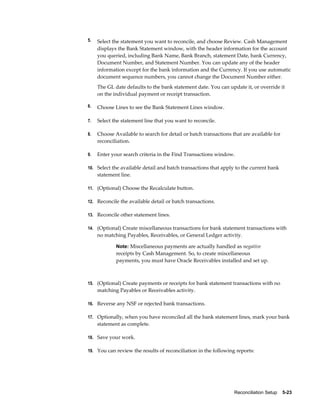
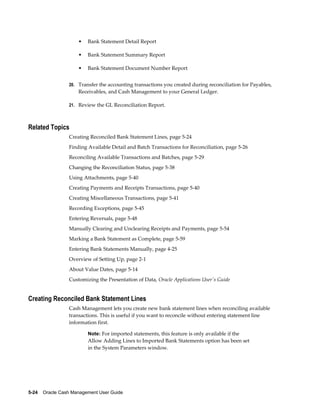
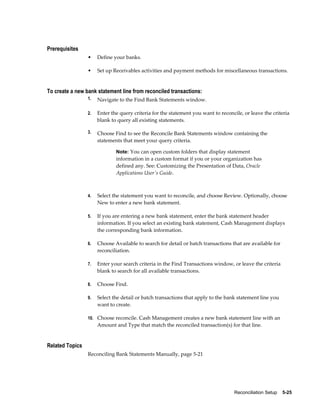
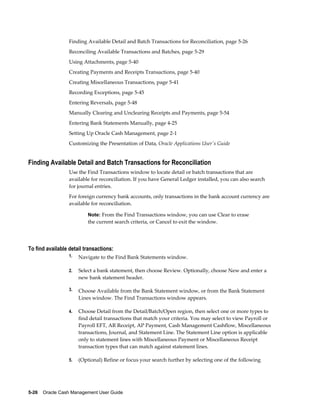
                 2.   Reconcile Bank Statements: Once you have entered detailed bank statement
                      information into Cash Management, you must reconcile that information with your
                      system transactions. Cash Management provides two methods of reconciliation:
                      •   Automatic- Bank statement details are automatically matched and reconciled
                          with system transactions. This method is ideally suited for bank accounts that
                          have a high volume of transactions. See: Reconciling Bank Statements
                          Automatically, page 5-1.

                      •   Manual- This method requires you to manually match bank statement details
                          with system transactions. The method is ideally suited to reconciling bank
                          accounts that have a small volume of monthly transactions. You can also use
                          the manual reconciliation method to reconcile any bank statement details that
                          could not be reconciled automatically. See: Reconciling Bank Statements
                          Manually, page 5-21.


Miscellaneous Transactions
                 During the reconciliation process, you can create miscellaneous transactions for
                 bank-originated entries, such as bank charges and interest. You can also manually enter
                 Payables payments or Receivables receipts. The automatic reconciliation process can be
                 set up to create miscellaneous transactions automatically.


Clearing
                 When you reconcile a transaction, the transaction is first matched to bank statement
                 details and then cleared (if uncleared). Alternatively, you can manually clear Payables
                 payments, Receivables receipts, miscellaneous transactions, open interface transactions,
                 and Cash Management cashflows (except for those created from bank statement lines)
                 in Cash Management prior to reconciliation to maintain more up-to-date cash account
                 balances. You can also use Automatic Clearing to clear receipts in Oracle Receivables.
                 When you clear a transaction, Cash Management assigns a cleared date, cleared


1-2    Oracle Cash Management User Guide
amount, and status to the transaction. Accounting for the cleared transaction varies by
                the source. If the transaction is a payment, Payables records the accounting information
                but you create the accounting entries in Payables. If the transaction is a receipt or a
                miscellaneous transaction, Receivables automatically generates the accounting entries.
                If the transaction is an open interface transaction, you must customize the CE_999_PKG
                package to implement reconciliation accounting. You cannot clear Payroll payments,
                General Ledger journal entries, or Treasury settlements.


Review and Summarize Results
                Once you have completed the reconciliation process, we recommend that you review
                your reconciliation results. You can review the reports that are printed automatically
                from the AutoReconciliation program. You can also use the following reports:
                •   Bank Statement Detail Report

                •   Bank Statement Summary Report

                •   Bank Statements by Number Report


Create Accounting Entries in Payables
                You can create accounting entries for Payables accounting events in two ways:
                •   Submit the Payables Accounting Process.

                •   Create accounting entries for a single transaction or batch.

                After the process completes, Payables produces the Accounting Entries Audit Report
                and Accounting Entries Exception Report. The exception report lists transactions that
                could not be accounted because of invalid or missing information.

Prerequisites
                •   Define Payables options for accounting information.

                •   Open the period in Payables.

                •   If you use Multiple currencies, then all foreign currency transactions require
                    exchange rates. You can enter exchange rates manually, or submit AutoRate to
                    automatically enter exchange rates for invoices and payments without exchange
                    rates.

                •   If you use future dated payments, update the status of matured future dated
                    payments to Negotiable.

                •   To account for invoices, they must be validated.

                •   To account for payments, the invoices must already be accounted, or you must


                                                                                           Overview    1-3
choose the All parameter to account for invoices, and then payments.

                 •   Submit and review the Unaccounted Transactions Report to identify and resolve
                     issues with your transactions that will prevent accounting.


Transfer Accounting Entries to Your General Ledger
                 After you create accounting entries in Payables, submit the Payables Transfer to General
                 Ledger program to send invoice and payment accounting entries to the general ledger
                 interface.
                 If you use Oracle General Ledger, then you can submit Journal Import, which uses the
                 data in the GL interface to create unposted journal entry batches, headers, and lines.
                 You can then post these journal entry batches, headers, and lines within General Ledger
                 to update your General Ledger account balances. You can submit Journal Import either
                 when you submit the transfer program, or separately, after the transfer process
                 completes. See: Importing Journals, Oracle General Ledger User Guide.
                 If you do not use General Ledger, you can use the data in the GL interface to create and
                 post journal entries in your general ledger.
                 Payables retains the accounting entries, so you can continue to review them in Payables.
                 Also, after you post journal entries in Oracle General Ledger, you can drill down to the
                 related accounting entries or transactions in Payables.


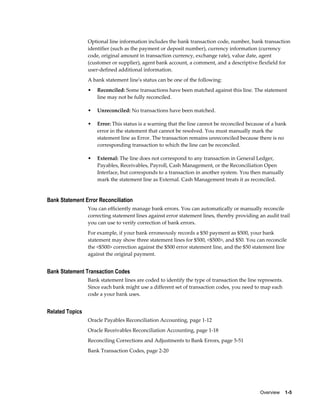
About Bank Statements
                 Cash Management maintains information for each bank statement you want to
                 reconcile. You can use the Cash Management Bank Statement Open Interface to load
                 bank statement information supplied by your bank, or you can enter and update bank
                 statements manually. The system retains all bank statement information for audit and
                 reference purposes, until you purge it.
                 Each Cash Management bank statement is composed of one bank statement header and
                 multiple bank statement lines. The bank statement header identifies the statement
                 number, bank account number, and statement date. It also contains optional
                 information including the bank and branch names, bank account currency, and control
                 amounts.

                         Note: If a bank gives you multiple account information on a single bank
                         statement, you must enter a separate Cash Management bank statement
                         for each bank account, for the specific statement date.


Bank Statement Lines
                 A bank statement line can refer to one or more payments, receipts, cashflows,
                 miscellaneous transactions, open interface transactions, or journal entry lines. Each line
                 has a line number, transaction type, date cleared (bank transaction date), and amount.


1-4    Oracle Cash Management User Guide
Optional line information includes the bank transaction code, number, bank transaction
                 identifier (such as the payment or deposit number), currency information (currency
                 code, original amount in transaction currency, exchange rate), value date, agent
                 (customer or supplier), agent bank account, a comment, and a descriptive flexfield for
                 user-defined additional information.
                 A bank statement line's status can be one of the following:
                 •   Reconciled: Some transactions have been matched against this line. The statement
                     line may not be fully reconciled.

                 •   Unreconciled: No transactions have been matched.

                 •   Error: This status is a warning that the line cannot be reconciled because of a bank
                     error in the statement that cannot be resolved. You must manually mark the
                     statement line as Error. The transaction remains unreconciled because there is no
                     corresponding transaction to which the line can be reconciled.

                 •   External: The line does not correspond to any transaction in General Ledger,
                     Payables, Receivables, Payroll, Cash Management, or the Reconciliation Open
                     Interface, but corresponds to a transaction in another system. You then manually
                     mark the statement line as External. Cash Management treats it as reconciled.


Bank Statement Error Reconciliation
                 You can efficiently manage bank errors. You can automatically or manually reconcile
                 correcting statement lines against error statement lines, thereby providing an audit trail
                 you can use to verify correction of bank errors.
                 For example, if your bank erroneously records a $50 payment as $500, your bank
                 statement may show three statement lines for $500, <$500>, and $50. You can reconcile
                 the <$500> correction against the $500 error statement line, and the $50 statement line
                 against the original payment.


Bank Statement Transaction Codes
                 Bank statement lines are coded to identify the type of transaction the line represents.
                 Since each bank might use a different set of transaction codes, you need to map each
                 code a your bank uses.


Related Topics
                 Oracle Payables Reconciliation Accounting, page 1-12
                 Oracle Receivables Reconciliation Accounting, page 1-18
                 Reconciling Corrections and Adjustments to Bank Errors, page 5-51
                 Bank Transaction Codes, page 2-20


                                                                                             Overview    1-5
Matching Bank Statement Lines with Transactions
                 Reconciling bank statements in Cash Management has two major steps: matching and
                 clearing.
                 •   Matching: Match a bank statement line against a Payables payment, Receivables
                     receipt, Cash Management cashflow, Payroll payment, miscellaneous transaction,
                     or open interface transaction using a transaction number (such as the payment or
                     deposit number), bank account, amount, and currency. You can match a statement
                     line against a Treasury settlement using date and amount. You can also match a
                     statement line against a General Ledger journal entry. Whenever localizations has
                     reconciliation function enabled in payments, you can match a bank statement
                     against a Payroll EFT payment by using transaction number and date.
                     If matching criteria are not met, the statement line remains unmatched.
                     For manual reconciliation, there are no restrictions for matching statement lines and
                     transactions.

                 •   Clearing: Clear the transactions that are matched to the bank statement line, if the
                     transactions have not been cleared previously. Only Payables payments,
                     Receivables receipts, Cash Management cashflows, miscellaneous transactions, and
                     open interface transactions can be cleared. Reconciled Payroll payments and
                     General Ledger journal entries are matched but not cleared.

                 You can report on reconciliation exceptions, variances, and items that have been
                 matched.


Matching Criteria for Payables Transactions
                 The Cash Management AutoReconciliation program fully matches Payables
                 transactions against bank statement lines if the transactions meet the following criteria:
                 •   For payment batches (such as EFT batches), the Reference or Payment Batch Name
                     matches the statement line Transaction Number, and the transaction amount is
                     within the reconciliation tolerance, and

                 •   For the detail payment transactions stopped transactions, the matching sequence
                     searches in the following order:
                     1.   Payment Number

                     2.   Invoice Number and Supplier Bank Account

                     3.   Invoice Number and Supplier Name

                     Also, the transaction amount is within the reconciliation tolerance.


1-6    Oracle Cash Management User Guide
Note: If the bank statement does not provide a check number for a
                             payment, then matching to the invoice number and supplier bank
                             account number is particularly useful.


                 •   For stopped transactions, the payment must first be stopped or voided in Payables.


Matching Criteria for Receivables Transactions
                 The Cash Management AutoReconciliation program fully matches Receivables
                 transactions against bank statement lines if the transactions meet the following criteria:
                 •   For remittance batches (such as Direct Debit batches), the Remittance Batch Deposit
                     Number or Receipt Batch Name matches the statement line Transaction Number
                     and the transaction amount is within the reconciliation tolerance.

                 •   For detail remittance transactions, NSF (Non-Sufficient Funds), and Rejected
                     transactions, the matching sequence searches in the following order:
                     1.   Receipt Number

                     2.   Invoice Number and Customer Bank Account Number

                     3.   Invoice Number and Customer Name

                                 Note: Also, the transaction amount is within the reconciliation
                                 tolerance.
                                 If the bank statement does not provide a receipt number for a
                                 receipt, then matching to the invoice number and customer
                                 bank account number is particularly useful.


                 •   For NSF (Non-Sufficient Funds) or Rejected transactions the receipt must first be
                     reversed in Receivables.


Matching Criteria for Oracle Payroll Transactions
                 The Cash Management AutoReconciliation program matches Oracle Payroll manual
                 transactions against bank statement lines if the transactions meet the following criteria:
                 •   For manual Payroll payments, the payment number matches the statement line
                     transactions number and the payment amount, and the payment amount matches
                     the statement line amount.

                 •   For Oracle Payroll EFT transactions, the matching sequence searches in the
                     following order:


                                                                                              Overview    1-7
1.   Transaction Number and Transaction Date

                     2.   Transaction Number, Batch Amount, and Transaction Date


                 •   Reconciliation tolerances do not apply to Payroll payments.


Matching Criteria for Miscellaneous Transactions
                 The Cash Management AutoReconciliation program matches miscellaneous
                 transactions if the transactions meet the following criteria:
                 •   If the transaction type matches to regular miscellaneous transactions:
                     •    The transaction amount is within the reconciliation tolerance.

                     •    The Receipt Number matches the statement line Transaction Number.


                 •   If the transaction type matches to correction statement lines:
                     •    For reversal corrections, the statement line has the same transaction number,
                          same amount, and opposite transaction type (for example, Miscellaneous
                          Receipt and Miscellaneous Payment), or

                     •    For adjustment corrections, the statement line has the same transaction number,
                          and has a transaction type of payment, receipt, miscellaneous payment, or
                          miscellaneous receipt, and the net amount is within the reconciliation tolerance.


Matching Criteria for Open Interface Transactions
                 The Cash Management AutoReconciliation program matches open interface
                 transactions if the transactions meet one of the following criteria:
                 •   The Transaction Number matches the statement line Transaction Number, and the
                     transaction amount is within the reconciliation tolerance.

                 •   The transaction date and amount are the same as the bank statement line date and
                     amount. If you use the Reconciliation Open Interface to reconcile Treasury
                     settlements, then you must choose date and amount as the matching criteria.


Matching Criteria for General Ledger Journals
                 The Cash Management AutoReconciliation program matches General Ledger journal
                 transactions if the transactions meet the following criteria:
                 •   The journal line is posted.

                 •   The journal line Accounting Flexfield matches the bank account's Cash Accounting
                     Flexfield.


1-8    Oracle Cash Management User Guide
•    The journal line Description matches the statement line Transaction Number.


Matching Criteria for Cash Management Cashflows
                 The Cash Management AutoReconciliation program fully matches Cash Management
                 cashflow transactions in the following sequence:
                 1.   Statement Line ID (for transfers created through the sweep transactions program or
                      transactions created from bank statement lines)

                 2.   Bank Reference Number, Date, and Amount

                 3.   Agent Bank Account, Date, and Amount

                           Note: The transaction amount must be within the reconciliation
                           tolerance.


Related Topics
                 About Bank Statement Validation, page 4-17


Multi-Currency Handling
                 Cash Management handles foreign currency transactions during both automatic and
                 manual bank reconciliation.
                 The following table illustrates the way that Cash Management handles different
                 multi-currency situations. In these examples, the ledger currency is Euro.


                 In this scenario...     if the transaction   and bank account      then the exchange
                                         currency is...       currency is...        rate is...


                 Domestic                EUR                  EUR                   Not needed.


                 International           USD                  EUR                   Calculated by Cash
                                                                                    Management if you
                                                                                    do not provide it.


                 Foreign                 USD                  USD                   Required.


                 Foreign Translated      USD                  JPY                   Not supported in
                                                                                    Payables or
                                                                                    Receivables.


                 In order to calculate the exchange rate gains and losses resulting from foreign currency


                                                                                            Overview    1-9
transactions in both the International and Foreign scenarios, the bank statement
                 transaction line must include, in addition to Currency, at least one of the following
                 types of exchange rate information:
                 •   Original Amount

                 •   Exchange Rate

                 •   Exchange Rate Type and Exchange Rate Date

                 Additionally, Cash Management uses the exchange rate information to match foreign
                 currency transactions in a multi-currency bank account.


Manual Reconciliation
                 When you are entering bank statement lines for manual reconciliation, you can also
                 enter the exchange rate information for each transaction. When you reconcile a Foreign
                 scenario statement line, the statement line exchange rate information is the default for
                 clearing the transaction. When you reconcile an International scenario statement line,
                 the statement line exchange rate information is calculated.


Automatic Reconciliation
                 Cash Management's AutoReconciliation program performs validation checking of
                 exchange rate information during bank statement import and reconciliation. The
                 program also handles transaction matching differently for International and Foreign
                 scenario transactions. See: Multi-Currency Matching, page 5-10.

                           Note: For the International scenario, if you don't provide exchange
                           rates with your statement lines and if the cleared amount (ledger
                           currency) matches the paid transaction amount (after conversion to
                           ledger currency), then Cash Management calculates an exchange rate as
                           of the cleared date.


Related Topics
                 Oracle Payables Reconciliation Accounting, page 1-12
                 Oracle Receivables Reconciliation Accounting, page 1-18
                 Importing Bank Statements, page 4-13
                 Reconciling Bank Statements Automatically, page 5-1
                 Multi-Currency Matching, page 5-10
                 Reconciling Bank Statements Manually, page 5-21


1-10    Oracle Cash Management User Guide
Integration with Oracle Receivables, Payables, Payroll, and Treasury
                 Bank Reconciliation is an integrated application that works with Oracle Receivables,
                 Oracle Payables, Oracle Payroll, and Oracle Treasury.


Integration with Receivables
                 Cash Management shares functionality with Receivables. Using Cash Management, you
                 can do the following:
                 •   Clear and reconcile receipts.

                 •   Undo the reconciled status of a reconciled receipt.

                 •   Undo the cleared status of a cleared receipt.

                 •   Navigate to Receivables where you can create or reverse receipts.

                 •   Create miscellaneous (non-invoiced) transactions, such as interest, debits, or credits.

                 Notes:
                 •   If you use Automatic Clearing for receipts in Receivables, keep in mind that receipts
                     are only cleared, not reconciled against a bank statement.

                 •   If you are using Receivables, you must use Cash Management to reconcile your
                     receipts.


Integration with Payables
                 Cash Management integrates with Payables. If you are using Payables, you must use
                 Cash Management to reconcile your payment transactions. Using Cash Management,
                 you can do the following:
                 •   Clear and reconcile payments.

                 •   Undo the reconciled status of a reconciled payment.

                 •   Undo the cleared status of a cleared payment.

                 •   Record miscellaneous transactions that are on your bank statements such as bank
                     charges, or bank errors. If you plan to use Cash Management to record
                     miscellaneous transactions, then you must install and set up Receivables, since
                     miscellaneous payments in Cash Management are actually negative miscellaneous
                     receipts.

                 •   Open the Payments window to enter Payables payments.


                                                                                            Overview    1-11
Integration with Payroll
                 Cash Management integrates with Oracle Payroll. Using Cash Management, you can do
                 the following:
                 •    Reconcile your payroll account with your bank statement.

                 •    Undo the reconciled status of a reconciled payroll payment.


Integration with Treasury
                 Cash Management integrates with Oracle Treasury through the Reconciliation Open
                 Interface. Using Cash Management, you can do the following:
                 •    Update bank account balances in Oracle Treasury.

                 •    Reconcile Treasury settlements against your bank statements.

                 •    Undo the reconciled status of a reconciled Treasury settlement.


Related Topics
                 About Bank Reconciliation, page 1-2
                 About Bank Statements, page 1-4
                 Oracle Payables Reconciliation Accounting, page 1-12
                 Oracle Receivables Reconciliation Accounting, page 1-18
                 Using Oracle Cash Management with Automatic Clearing, page 1-21
                 Setting Up Oracle Cash Management, page 2-1
                 Automatic Clearing for Receipts, Oracle Receivables User Guide


Oracle Payables Reconciliation Accounting
                 With Oracle Cash Management, you can reconcile payments created in Payables to your
                 bank statements. When you reconcile payments using Oracle Cash Management, Cash
                 Management updates the status of payments to Reconciled. If you enable the Account
                 for Payment When Payment Clears option, in the Oracle Payables Options window,
                 Accounting Option tab, Oracle Payables creates reconciliation accounting entries for the
                 following when you submit the Oracle Payables Accounting Process:
                 •    The delay in the bank clearing of payments from the time of issuance to the time of
                      reconciliation.

                 •    Differences between the original payment amount and the cleared payment amount
                      due to exchange rate fluctuations, bank charges, or bank errors.


1-12    Oracle Cash Management User Guide
•    Reconciled payments.

               •    Unreconciled payments.

                        Important: You can reconcile foreign currency payments that have no
                        exchange rates. However, Oracle Payables will not create reconciliation
                        accounting entries. If you enter the exchange rate in the GL Daily Rates
                        table and then submit the AutoRate program, Oracle Payables
                        automatically creates the reconciliation accounting entries for payments
                        that were reconciled without exchange rates.


               To review payments that have not cleared, you can use the Unclaimed Property Report.


Prerequisite
               Define ledgers. See: Defining Ledgers, Oracle General Ledger Implementation Guide.


To set up Oracle Payables for Cash Management integration:
               1.   Choose a ledger for each responsibility when you set up your Payables application.
                    You set this primary ledger in the Choose Ledger window in Oracle Payables.
                    Payables requires you to choose a ledger for your operating unit (in a
                    multi-organization environment) or for your installation (in a single organization
                    environment).

                            Note: The ledger you enter here will be available to choose as the
                            Ledger Name in the Cash Management System Parameters
                            window. See: Choosing a Ledger, Oracle Payables Implementation
                            Guide.


               2.   The Account for Payment option in the Payables Options window has the following
                    two check boxes:
                    •   When Payment is Issued

                    •   When Payment Clears

                    You can select one or both options. To account for payments that you reconcile in
                    Oracle Cash Management, you must select at least the When Payment Clears
                    option. This also allows you to use a cash clearing account and create accounting
                    entries for bank charges, errors, and gains/losses. If you do not enable this option,
                    you can still reconcile payments in Payables, but you cannot create reconciliation
                    accounting entries.
                    See: Payables Options, Oracle Payables Implementation Guide.


                                                                                            Overview    1-13
3.   The Account for Gain/Loss option in the Payables Options window has the
                      following two check boxes:
                      •   When Payment Clears

                      •   When Payment is Issued


                 You can select one or both options. Select at least the When Payment Clears option. You
                 must enable this option to account for the gain or loss between the estimated ledger
                 currency payment amount that was calculated at invoice entry and the actual ledger
                 payment currency amount that was recorded when the bank disbursed funds for the
                 payment.


Clearing Restrictions
                 ISSUED BILLS PAYABLE: Oracle Cash Management cannot clear bills payable that
                 have a payment status of Issued. Oracle Cash Management clears bills payable only if
                 the payment status is Negotiable. On or after the maturity date of the payment, you can
                 update the status to Negotiable.


Accounting for Gains and Losses
                 Any accounting entries for gains and losses are controlled by the Payables Option:
                 Account for Gain/Loss. For this option, you can select When Payment is Issued, When
                 Payment Clears, or both. However, if you account for payments at clearing time, you
                 must account for gains and losses at clearing time.
                 If you use future dated payments, and if you choose to account for gains and losses at
                 payment issue, then Payables also accounts for gains and losses between payment issue
                 and payment maturity.
                 In Payables, you can view the accounting entries online. See Accounting Options
                 Payables Options, Oracle Payables Implementation Guide.

                          Note: You must specify exchange rates for foreign currency payments
                          that you want to clear or reconcile.


Miscellaneous Transactions
                 When you reconcile a bank statement line that has no corresponding payment in
                 Payables, such as bank charges, you can create a miscellaneous payment in Cash
                 Management, and reconcile the bank statement line to the miscellaneous payment.
                 However, miscellaneous payments are actually created as negative receipts in
                 Receivables. See: Receivables Reconciliation Accounting, page 1-18.


1-14    Oracle Cash Management User Guide
Unclearing or Unreconciling a Payment
                When you unclear or unreconcile a payment in Cash Management, the payment status
                reverts to Negotiable and, if you use a Cash Clearing account, the entry that debited the
                Cash Clearing account and credited the Cash account is reversed. This is called an
                Unclearing event in Payables, and it is recorded when you account for payments at
                clearing time.


Related Topics
                Oracle Payables Reconciliation Examples, page 1-15
                Using Cash Management with Automatic Clearing, page 1-21
                Bank Information, Oracle Payables User Guide
                Posting in General Ledger, Oracle Payables User Guide


Payables Reconciliation Examples
                The following examples illustrate the accounting entries generated when you enter and
                pay an invoice in Payables, then reconcile the payment through Cash Management.
                The first example represents a typical domestic situation where your ledger currency,
                bank account currency, and payment currency are all the same. The second example
                represents typical foreign and international scenarios where your payment currency is
                different from your ledger currency. In the foreign scenario, you pay from a bank
                account denominated in a foreign currency. In the international scenario, you pay from
                a multi-currency bank account denominated in your ledger currency.

                        Note: Both examples assume that Payables accounts for payments at
                        issue time and at clearing time. If Payables is set up to account for
                        payments only once--either at issue time or at clearing time-- then the
                        accounting entries will credit the Cash account directly.


Example 1 - Reconciling a Ledger Currency Payment
                You install General Ledger and Payables, and define US dollars (USD) as the ledger
                currency for your ledger. You use Accrual Basis as your accounting method. You record
                gains and losses both at payment issue and at payment clearing. You enter an invoice
                for 100 USD, approve, pay, reconcile, and create accounting entries for the invoice and
                payment. Payables records the accounting entries in the ledger currency.
                The following table shows the accounting entries for the ledger currency payment. This
                example assumes that you create accounting entries in Payables after each activity:


                                                                                          Overview    1-15
Activity                                   Accounting Entries


                  Enter invoice for 100 USD                  DR Expense 100 USD

                                                             CR AP Liability 100 USD


                  Pay invoice, taking 5 USD discount         DR AP Liability 100 USD

                                                             CR Discount 5 USD

                                                             CR Cash Clearing 95 USD


                  Reconcile payment with bank statement,     DR Cash Clearing 95 USD
                  including bank charges of 2 USD
                                                             DR Bank Charges 2 USD

                                                             CR Cash 97 USD


Example 2 - Reconciling a Foreign Currency Payment
                 You install Oracle General Ledger and Oracle Payables, and define US dollars as the
                 ledger currency for your ledger. You use Accrual Basis as your accounting method. You
                 record gains and losses both at payment issue and at payment clearing. You enter an
                 invoice for 1,000 Mexican Pesos (MXP) and approve the invoice with a Corporate
                 exchange rate. The Corporate exchange rate on the date you enter the invoice is 9:1.
                 Payables creates accounting entries in both the invoice currency (1,000 MXP) and the
                 ledger currency (111.11 USD).
                 When you pay the invoice, the exchange rate has increased to 10:1, representing a gain
                 in your ledger currency of 11.11. Payables creates accounting entries in both the
                 payment currency and the ledger currency to record the invoice payment along with
                 the realized gain.
                 When you reconcile the payment, the exchange rate has increased again, to 11:1,
                 representing an additional gain in your ledger currency of 7.27 USD. Payables calculates
                 and records the gain between payment issue and payment clearing. In this example, it
                 creates an accounting entry for a gain of 7.27 USD. Payables also creates the accounting
                 entries for the cleared payment based on the currency of the bank account. The
                 accounting entries for the Cash Clearing account are recorded in the payment currency
                 and the ledger currency, while the accounting entries for the Cash account, Bank
                 Charges account, and Bank Errors account are recorded in the bank account currency
                 and the ledger currency.
                 The following table shows the accounting entries for the foreign currency payment in
                 the foreign scenario. This example assumes that you create accounting entries in
                 Payables after each activity.


1-16    Oracle Cash Management User Guide
Activity                                     Accounting Entries


Enter invoice for 1,000 MXP                  DR Expense 1,000 MXP (111.11 USD)

(exchange rate 9 MXP = 1 USD)                CR AP Liability 1,000 MXP (111.11 USD)


Pay invoice, taking 200 MXP discount         DR AP Liability 1,000 MXP (111.11 USD)

(exchange rate 10 MXP = 1 USD)               CR Cash Clearing 800 MXP (80 USD)

                                             CR Discount 200 MXP (20 USD)

                                             CR Exchange Rate Gain 0 MXP (11.11 USD)


Reconcile payment with bank statement,       DR Cash Clearing 800 MXP (80 USD)
including bank charges of 22 MXP (exchange
rate 11 MXP = 1 USD)                         DR Bank Charges 22 MXP (2 USD)

                                             CR Cash 822 MXP (74.73 USD)

                                             CR Exchange Rate Gain 0 MXP (7.27 USD)


The following table shows the accounting entries for the foreign currency payment in
the international scenario. This example assumes that you create accounting entries in
Payables after each activity.


Activity                                     Accounting Entries


Enter invoice for 1,000 MXP                  DR Expense 1,000 MXP (111.11 USD)

(exchange rate 9 MXP = 1 USD)                CR AP Liability 1,000 MXP (111.11 USD)


Pay invoice, taking 200 MXP discount         DR AP Liability 1,000 MXP (111.11 USD)

(exchange rate 10 MXP = 1 USD)               CR Cash Clearing 800 MXP (80 USD)

                                             CR Discount 200 MXP (20 USD)

                                             CR Exchange Rate Gain 0 MXP (11.11 USD)


Reconcile payment with bank statement,       DR Cash Clearing 800 MXP (80 USD)
including bank charges of 2 USD
                                             DR Bank Charges 2 USD (2 USD)
(exchange rate 11 MXP = 1 USD)
                                             CR Cash 74.73 (74.73 USD)

                                             CR Exchange Rate Gain 0 MXP (7.27 USD)


                                                                           Overview    1-17
Oracle Receivables Reconciliation Accounting
                 Oracle Cash Management enables you to reconcile receipts you entered with
                 Receivables against your bank statements.
                 When you reconcile receipts with Cash Management, it automatically creates
                 accounting entries to the Cash, Remittance, Short-term Debts, and Interest Earned
                 accounts, as applicable to the reconciliation transaction. Cash Management uses the
                 accounts you defined in the Banks window and the Receipt Classes window (Payment
                 Methods region) in Receivables.
                 You post the accounting entries resulting from Cash Management receipt reconciliation
                 to General Ledger from Receivables.


Miscellaneous Transactions
                 You can create miscellaneous transactions in Receivables directly from Cash
                 Management, to reflect bank-originated activities. For example, you can record
                 miscellaneous receipts for interest and miscellaneous payments (negative miscellaneous
                 receipts) for charges. You can reconcile these transactions at the time you create them,
                 or later. When you create a miscellaneous transaction, Receivables uses the remittance
                 bank account that you defined for the payment method and the activity GL account or
                 distribution set that you defined for the receivable activity to generate the accounting
                 entries.


Unreconciling a Receipt
                 When you unreconcile a receipt in Cash Management, it unclears the receipt and
                 returns the amount to the remittance account.


Reversals
                 If you use Cash Management to reverse reconciled receipts, the system creates reversal
                 entries and reopens the original invoice.


Related Topics
                 Oracle Receivables Reconciliation Examples, page 1-18
                 Using Oracle Cash Management with Automatic Clearing, page 1-21
                 Bank Information, Oracle Payables User Guide
                 Reversing Receipts, Oracle Receivables User Guide


Receivables Reconciliation Examples
                 The following examples illustrate the accounting entries generated when you enter a


1-18    Oracle Cash Management User Guide
receipt in Oracle Receivables, then reconcile it through Cash Management.
                The first example represents a domestic situation where your ledger currency, bank
                account, and receipt currency are the same. The second example represents
                international and foreign situations where your bank account currency may differ from
                your receipt currency. In the foreign case, you remit funds into a bank account
                denominated in a foreign currency. In the international case, you remit into a
                multi-currency bank account denominated in your ledger currency.


Example 1 - Reconciling a Ledger Currency Receipt
                You install Oracle General Ledger and Oracle Receivables, and define US Dollars as the
                ledger currency for your ledger. You enter Accrual Basis as your accounting method.
                You enter an invoice for 100 US Dollars (USD) and receive a payment from your
                customer for 100 USD. You create a receipt for that amount, with a Receipt Class that
                has the following options:


                 Creation Method:                            Manual


                 Require Confirmation:                       No


                 Remittance Method:                          No Remittance


                 Clearance Method:                           By Matching


                When you post the invoice and receipt, Oracle Receivables transfers the accounting
                entries to Oracle General Ledger, and the Journal Import function creates a journal
                entry in your ledger currency.
                The following table shows the reconciling of a ledger currency receipt:


                 Activity                                    Accounting Entries


                 Enter invoice for 100 USD                   DR Accounts Receivable 100 USD

                                                             CR Revenue 100 USD


                 Enter receipt for 100 USD                   DR Remittance account 100 USD

                 (see note)                                  CR Accounts Receivable 100 USD


                 Reconcile receipt with bank statement,      DR Cash 98 USD
                 including bank charges of 2 USD.
                                                             DR Bank Charges 2 USD

                                                             CR Remittance account 100 USD


                                                                                          Overview    1-19
Note: If the Remittance Method had been set to Standard, this entry
                         would have been a debit to the confirmation account and a credit to
                         accounts receivable. When the receipt was remitted to the bank, there
                         would be another entry to debit the remittance account and credit the
                         confirmation account.


Example 2 - Reconciling a Foreign Currency Receipt
                 You install Oracle General Ledger and Oracle Receivables and define US dollars (USD)
                 as the ledger currency for your ledger. You enter Accrual Basis as your accounting
                 method. You enter an invoice for 120 Fiji dollars (FJD), with a corporate exchange rate.
                 The exchange rate on the date you enter the invoice is 2:1. When you post the invoice,
                 Oracle Receivables transfers journal information in both your foreign currency (120 FJD)
                 and your ledger currency (60 USD) and Journal Import creates a journal entry in your
                 ledger currency.
                 You receive a payment from your customer for 120 FJD. You create a receipt for that
                 amount, with a Receipt Class that has the following options:


                  Creation Method:                            Manual


                  Require Confirmation:                       No


                  Remittance Method:                          No Remittance


                  Clearance Method:                           By Matching


                 On the receipt date, the exchange rate has increased to 3:1, representing a loss in your
                 ledger currency of 20 USD. You transfer your receipt information to your general ledger
                 and Journal Import creates a journal entry to record the receipt along with the realized
                 loss.
                 When you reconcile the receipt, the exchange rate has again increased, to 4:1,
                 representing a loss in your ledger currency of 10 USD. When you transfer your
                 reconciliation information to your general ledger, the Journal Import function creates a
                 journal entry to record the reconciled receipt along with the realized loss.
                 The following table shows the reconciling of a foreign currency receipt: This example
                 assumes that you post from Receivables to General Ledger after each activity.


1-20    Oracle Cash Management User Guide
Activity                                     Accounting Entries


                 Enter invoice for 120 FJD                    DR Accounts Receivable 120 FJD (60 USD)

                 (exchange rate: 2 FJD = 1 USD)               CR Revenue 120 FJD (60 USD)


                 Enter receipt for 120 FJD                    DR Remittance account 120 FJD (40 USD)

                 (exchange rate: 3 FJD = 1 USD)               DR Exchange Loss 0 FJD (20 USD)

                                                              CR Accounts Receivable 120 FJD

                                                              (60 USD)


                 Reconcile receipt with bank statement,       DR Cash 116 FJD (29 USD)
                 including bank charges of 4 FJD (exchange
                 rate: 4 FJD = 1 USD)                         DR Bank Charges 4 FJD (1 USD)

                                                              DR Exchange Loss 0 FJD (10 USD)

                                                              CR Remittance account 120 FJD (40 USD)


Using Cash Management with Automatic Clearing
                In addition to Cash Management, you can use Automatic Clearing to clear receipts in
                Oracle Receivables. However, unlike Cash Management, Automatic Clearing in
                Receivables is date-driven and does no matching to bank statements.
                If you use Automatic Clearing within Receivables, you can choose whether to clear
                remitted receipts after they have matured, and whether you want to clear or eliminate
                risk for factored receipts. You can match automatically cleared receipts with bank
                statement lines in Cash Management.
                If the amount that was automatically cleared equals the statement line amount, no
                further accounting takes place. Receivables handles any cases where the automatically
                cleared amount differs from the amount cleared at reconciliation.
                If you use Automatic Clearing only to eliminate risk for factored receipts, there are no
                special considerations. However, if you use Automatic Clearing to clear receipts rather
                than using Cash Management, your general ledger balance may not match your Cash
                Management reports. For example, the GL Reconciliation Report will not show correct
                results if you clear the receipts with Automatic Clearing in Receivables. For this reason,
                we recommend that you use Cash Management to clear your receipts.


Example of Reconciliation with Automatic Clearing
                You have set up an automatic receipt for 100 FJD, with an exchange rate of 4 FJD to 1
                USD. On its clearing date, the Automatic Clearing program clears the receipt for 100
                FJD (25 USD). The Receipt Class for this receipt has the following options:


                                                                                            Overview    1-21
Creation Method:                            Automatic


                  Require Confirmation:                       No


                  Remittance Method:                          No Remittance


                  Clearance Method:                           By Automatic Clearing


                 Your bank statement shows that the receipt cleared for 100 FJD, with an exchange rate
                 of 2 FJD to 1 USD, representing a gain in your ledger currency of 25 USD.
                 When you transfer your receipt information to Oracle General Ledger, Journal Import
                 creates a journal entry to record the reconciled receipt along with the realized gain.
                 The following table shows the reconciling of automatically cleared receipts:


                  Activity                                    Accounting Entries


                  Enter invoice for 100 FJD                   DR Accounts Receivable 100 FJD (25 USD)

                  (exchange rate: 4 FJD = 1 USD)              CR Revenue 100 FJD (25 USD)


                  Enter receipt for 100 FJD                   DR Remittance account 100 FJD (25 USD)

                  (exchange rate: 4 FJD = 1 USD)              CR Accounts Receivable 100 FJD (25 USD)


                  Clear receipt using Automatic Clearing      DR Cash 100 FJD (25 USD)

                                                              CR Remittance account 100 FJD (25 USD)


                  Reconcile receipt with bank statement       DR Cash 0 FJD (25 USD)

                                                              CR Exchange Gain 0 FJD (25 USD)


Related Topics
                 Oracle Receivables Reconciliation Accounting, page 1-18
                 Oracle Payables Reconciliation Accounting, page 1-12


Oracle Payroll Reconciliation
                 You can reconcile manual as well as EFT payments from Oracle Payroll against your
                 bank statements.


1-22    Oracle Cash Management User Guide
Secured Payroll Transactions
                 Security for payroll bank accounts is established by the Bank Account Security Access
                 profile option. Using this profile option, you can grant access to bank account
                 information at three levels: All, Internal, and Payroll.


Third Party Payments
                 When payments are made to third parties, for purposes such as wage garnishment or
                 child support payments, you can reconcile them using the same matching criteria as
                 payroll payments.


Tracking Reconciled Payments
                 You can track payroll and third party payments that have been reconciled. When you
                 access the record of a reconciled payment, the information available to you includes the
                 amount cleared, the clearance date, and the general ledger transaction date.


Voided Payments
                 Payroll and third party payments that have been voided, but appear on the bank
                 statement as having been paid, will not be automatically reconciled. The bank statement
                 line that refers to these payments will be marked with an error message that identifies
                 the payments as voided.


Discrepancies in Amounts
                 When payroll or third party payments show amounts that are different from the
                 amounts on the corresponding bank statement line, Cash Management will not
                 automatically reconcile the payments. The bank statement line that refers to these
                 payments will be marked with an error message that shows that the transaction amount
                 is different from the payment amount.


Multiple Views
                 You can select different views of payroll and third party payments, including:
                 •   Payments that are available for reconciliation

                 •   Payments that have been reconciled.

                 •   Transactions in the bank statement that could not be reconciled. Each of these
                     transaction lines will be marked with an error message.


                                                                                          Overview    1-23
Oracle Treasury Reconciliation
                 You can reconcile settlements from Oracle Treasury, including sweep transactions,
                 against you bank statements.


Treasury Settlements as Open Interface Transactions
                 Oracle Cash Management uses the Reconciliation Open Interface to reconcile Treasury
                 settlements. Treasury settlements appear as open interface transactions in Cash
                 Management windows and reports. If you already reconcile open interface transactions
                 from your proprietary applications, you can use the Reconciliation Open Interface to
                 reconcile Treasury settlements as well as the external transactions.


Retail Term Money
                 Oracle Cash Management does not support the reconciliation of Retail Term Money
                 deals. You must reconcile these transactions in Oracle Treasury.


Matching Criteria of Date and Amount
                 If you want to automatically reconcile bank statements against Treasury settlements,
                 you must choose the matching criteria of date and amount. Under this matching
                 condition, a bank statement line is reconciled to a settlement only if the bank statement
                 line date is the same as the transaction date and the amounts are within tolerance. The
                 bank statement line cannot be reconciled if no match is found or if multiple matches are
                 found.


Amount Differences
                 When you reconcile Treasury settlements by date and amount, differences between the
                 bank statement line amount and the transaction amount may occur. You must manually
                 create exposure transactions in Oracle Treasury to account for these differences.


About Cash Forecasting
                 Cash forecasting is a planning tool that helps you anticipate the flow of cash in and out
                 of your business, allowing you to project your cash needs and evaluate your company's
                 liquidity position.
                 Using sources from other Oracle Applications and from external systems, you can
                 generate cash forecasts from previously-defined cash forecast templates. You can
                 choose whether to forecast by days or GL periods, and choose how to organize each
                 template with multiple sources and levels of detail. Automatic integration with Oracle
                 Applications and other spreadsheet applications provides you with enterprise-wide
                 cash information and management.


1-24    Oracle Cash Management User Guide
You create cash forecast templates, from which you can generate periodic cash forecasts
              projecting your cash flow. Once you have generated a cash forecast, you can modify,
              query, and report on it, and easily export it to any spreadsheet application.
              You can create an unlimited number of cash forecasts. A cash forecast is in a
              spreadsheet format, including rows (cash inflow or outflow source types) and columns
              (forecasting periods). At the intersection of each row and column are cells containing
              forecast amounts.
              You can create forecasts using data across organizations, and in any currency. You can
              also use cash forecasting to help determine your degree of currency exposure.
              You have the flexibility to include or exclude overdue transactions for all appropriate
              source transaction types in your forecasts.
              Cash inflow information is immediately accessible to the cash forecast process in Oracle
              Cash Management from Oracle Receivables, Oracle Order Management, Oracle Sales,
              Oracle General Ledger, and Oracle Treasury. Cash outflow information comes from
              Oracle Payables, Oracle Purchasing, Oracle Payroll, Oracle General Ledger, and Oracle
              Treasury. In addition, cash flow information from Oracle Projects and other Oracle
              Applications that store Projects-related information is also immediately accessible to the
              cash forecast process, enabling you to generate a forecast for a project. Using the
              External Cashflow Open Interface, you can also include cash flows from external
              systems.


Oracle Applications Integration with Cash Forecasting
              Automatic integration with Oracle Applications provides you with enterprise-wide
              cash information. All source types, except for User-defined and Open Interface Inflows
              and Outflows, supply data from other Oracle Applications to a cash forecast.
              The following table contains details on various cash inflow source types. For details on
              Oracle Projects source types, see: Oracle Projects Integration with Cash Forecasting,
              page 1-27.


                  Source            Source Type          Description


                Receivables       Customer Invoices      Unpaid invoices


                Receivables       Customer Receipts      Cleared cash receipts, excluding reversed receipts
                                     (Historical)


                Receivables       Customer Receipts      Uncleared cash receipts, excluding reversed
                                       (Future)          receipts


                Order Entry          Sales Orders        Uninvoiced sales orders that are projected to be
                                                         paid by customer excluding commitments


                                                                                            Overview    1-25
Source             Source Type         Description


                       Sales         Sales Opportunities    Sales opportunities that have not yet been
                                                            ordered/invoiced


                  General Ledger        GL Budgets          Revenue account budget amounts


                     Treasury       Treasury Transactions   Money market, foreign exchange, and exposure
                                                            transactions.


                     External       Open Interface Inflow   External forecast source inflow transactions
                      Source


                       User         User-defined Inflow     Manually entered forecast amounts


                 The following table contains details on various cash outflow source types. For details on
                 Oracle Projects source types, see: Oracle Projects Integration with Cash Forecasting,
                 page 1-27.


                      Source            Source Type         Description


                     Payables         Supplier Invoices     Unpaid invoices, excluding prepayments


                     Payables        Supplier Payments      Cleared disbursements, excluding void payments
                                        (Historical)


                     Payables        Supplier Payments      Uncleared disbursements, excluding void
                                          (Future)          payments


                     Payables         Expense Reports       Expense reports that have not been invoiced


                      Payroll         Payroll Expenses      Paid payroll
                                         (Historical)


                    Purchasing        Purchase Orders       Uninvoiced purchase orders


                    Purchasing      Purchase Requisitions   Unordered requisitions


                  General Ledger      GL Encumbrances       Unused portion of encumbered amounts for
                                                            expenses and assets


                  General Ledger            GL Budgets      Expense account budget amounts


1-26    Oracle Cash Management User Guide
Source               Source Type           Description


                   Treasury         Treasury Transactions     Money market, foreign exchange, and exposure
                                                              transactions


               External Source      Open Interface Outflow    Outflow transactions from external sources


                     User           User-defined Outflow      Manually entered forecast amounts


Oracle Projects Integration With Cash Forecasting
              Cash Management's Cash Forecasting captures cash flow information from Oracle
              Projects. It also captures cash flow information from these other Oracle applications that
              store Projects-related information: Oracle Purchasing, Oracle Receivables, Oracle Order
              Management, and Oracle Payables.
              By integrating Oracle Projects with Cash Forecasting, you can define and generate a
              cash forecast for a specific project. You can do the following:
              •    Project cash flows from Oracle Projects sources throughout your enterprise, and
                   across organizations as needed.

              •    Forecast in any currency, and analyze your project's currency exposure by
                   forecasting transactions that are entered in a particular currency.

              The following table contains details on cash inflow source types to use for Oracle
              Projects:


                      Source                Source Type           Description


                  Receivables and         Customer Invoices       Unpaid customer invoices for a project, and
                      Projects                                    customer invoices in Projects that have been
                                                                  released but have not been transferred to
                                                                  Receivables.


                      Projects           Project Billing Events   Events with invoicing impact that have not
                                                                  been released


                      Projects          Project Inflow Budgets    Inflow budgets that you enter


                    Order Entry              Sales Orders         Uninvoiced sales orders for a project


              The following table contains details on cash outflow source types to use for Oracle


                                                                                                  Overview    1-27
Projects:


                        Source                 Source Type         Description


                        Payables             Supplier Invoices     Unpaid Projects-related supplier invoices
                                                                   projected to be paid (supplier and expense
                                                                   reports invoices)


                     Payables and            Expense Reports       Uninvoiced expense reports entered in
                       Projects                                    Projects that have been transferred to
                                                                   Payables, and released expense reports in
                                                                   Projects that have not been transferred to
                                                                   Payables


                        Projects            Project Transactions   Usages, labor, and miscellaneous transactions


                        Projects             Project Outflow       Outflow budgets that you enter
                                                 Budgets


                      Purchasing             Purchase Orders       Projects-related uninvoiced purchase orders


                      Purchasing               Requisitions        Projects-related unordered requisitions


External Cashflow Open Interface and Distributed Database Integration
                 Cash Forecasting allows you to utilize external sources of data as cash inflow and
                 outflow data for the Cash Forecasting feature, providing you an enterprise-wide cash
                 forecasting solution on a distributed database environment.
                 You can generate a cash forecast that automatically includes cash flows from local and
                 remote databases.


Cash Forecast Reporting and Spreadsheet Integration
                 Cash Management lets you view cash forecast information online in a spreadsheet
                 format, with the forecast periods in columns and the sources in rows. The Cash Forecast
                 Report uses Oracle Report eXchange to allow you to export your cash forecast data to
                 the spreadsheet application of your choice. You can also print the Cash Forecast Report
                 to review your forecasts.


Related Topics
                 Cash Forecasting, page 6-1
                 External Cashflow Open Interface, page 1-28


1-28    Oracle Cash Management User Guide
2
                                                                  System Setup

           This chapter tells you how to set up Cash Management after you have installed. It
           includes an overview with list of setup steps and corresponding detailed instructions.
           This chapter covers the following topics:
           •   Setting Up Oracle Cash Management
           •   Setting Up Oracle Payables for Oracle Cash Management Integration
           •   Setting Up Oracle Payables or Oracle Receivables for Oracle Cash Management
               Integration
           •   Setting Up Oracle Receivables for Oracle Cash Management Integration
           •   Setting Up Oracle Payroll for Oracle Cash Management Integration
           •   Setting Up Oracle Treasury for Oracle Cash Management Integration
           •   System Parameters
           •   Cash Management Security
           •   Bank Transaction Codes
           •   Bank Statement Open Interface
           •   Reconciliation Open Interface
           •   Installing External Cash Flow Open Interface Objects in Remote Databases
           •   External Cashflow Open Interface
           •   Sequential Document Numbering
           •   Cash Transaction Subtypes


Setting Up Oracle Cash Management
           This section includes the checklist of steps to implement your Cash Management
           system. The checklist shows you where to read about each setup step detail. The
           Window Name(s) column shows you in which window(s) you perform the step, and


                                                                                 System Setup    2-1
the specific responsibility or product where the window is available. The Required
                 column shows whether the step is required, optional, or conditionally required.
                 Before you set up Cash Management, you should set up Oracle Application
                 responsibilities and users for the implementation. See: Defining a Responsibility, Oracle
                 Applications System Administrator's Guide - Security.
                 Cash Management provides nine responsibilities: Cash Management, Bank
                 Reconciliation, Cash Forecasting, Cash Accountant, Cash Analyst, Cash Management
                 Back Office Administrator, Cash Management Manager, Cash Management Setup, and
                 Cash Management Master User. Refer to the Cash Management Window Navigation
                 Paths, page A-1 for the default window navigation paths available for these
                 responsibilities.
                 Cash Management uses information from Oracle General Ledger, Oracle Payables,
                 Oracle Payroll, Oracle Treasury, and Oracle Receivables for bank statements
                 reconciliation; and from Oracle General Ledger, Oracle Order Management, Oracle
                 Payables, Oracle Payroll, Oracle Purchasing, Oracle Projects, Oracle Sales, Oracle
                 Treasury, and Oracle Receivables for cash forecasting. You must perform certain setup
                 steps in these applications before you can use Cash Management with them.

                         Important: The following tasks describe only those setup actions that
                         you need to perform to integrate Cash Management with other Oracle
                         Applications. Additional setup steps for these applications are
                         unrelated to Cash Management. See the user's guide for the product for
                         detailed information on setting up each Oracle Applications product.


Related Product Setup Steps
                 The following steps may need to be performed to implement Oracle Cash Management.
                 These steps are discussed in detail in the Setting Up sections of other Oracle product
                 user and implementation guides. Refer to the preface section.


You must set up underlying Oracle Applications Technology
                 The setup steps in this chapter tell you how to implement the parts of Oracle
                 Applications specific to Oracle Cash Management. You need to complete several setup
                 steps, including:
                 •   Performing system-wide setup tasks, such as configuring concurrent managers and
                     printers.

                 •   Managing data security, which includes setting up responsibilities to allow access
                     to a specific set of business data and to complete a specific set of transactions, and
                     assigning individual users to one or more of these responsibilities.

                 For more information, see: Setup Tasks, Oracle Applications System Adminstrator's Guide -
                 Security.


2-2    Oracle Cash Management User Guide
Also, if your product uses Oracle Workflow, for example, to manage the approval of
                business documents or to derive Accounting Flexfield values through the Account
                Generator, you need to set up Oracle Workflow.


General Ledger Setup Steps
                See: General Ledger Setup, Oracle General Ledger Implementation Guide for help in
                completing the following setup steps:
                1.   Define your chart of accounts. See: Defining Accounts, Oracle General Ledger
                     Implementation Guide.

                2.   Define your accounting period types and accounting calendar periods. See: Period
                     Types, Oracle General Ledger Implementation Guide and Calendars, Oracle General
                     Ledger Implementation Guide.

                3.   Enable currencies that you plan to use. See: Defining Currencies, Oracle General
                     Ledger User Guide.

                4.   Define a ledger. Specify a ledger name and assign it a calendar, ledger currency,
                     and a chart of accounts structure. See:Defining Ledgers, Oracle General Ledger
                     Implementatation Guide.

                5.   Define a transaction calendar to determine which days are business days to be used
                     in cash forecasting. See: Defining Transaction Calendars, Oracle General Ledger
                     Implementatation Guide.


Payables Setup Steps
                See: Setting Up Oracle Payables, Oracle Payables Implementation Guide for help in
                completing the following setup steps:
                1.   Choose a primary ledger for Oracle Payables. See: Choosing a Ledger, Oracle
                     Payables Implementation Guide.

                2.   Set the Payables Option: Account for Payment. See: Reports Payables Options,
                     Oracle Payables Implementation Guide.

                3.   Open your Payables accounting periods. See: Controlling the Status of Payables
                     Periods, Oracle Payables Implementation Guide.

                4.   Define your bank accounts, and assign GL accounts. Do this if you have not already
                     performed this step as a Receivables Setup step. See: Setting Up Cash Management
                     to Use with Oracle Payables, page 2-8 or Setting Up Cash Management to Use
                     with Oracle Receivables, page 2-10. If you use Oracle Payables, assign accounts for
                     Payables payment documents.


                                                                                        System Setup    2-3
Receivables Setup Steps
                 See: Setup Steps, Oracle Receivables Implementation Guide for help in completing the
                 following setup steps:
                 1.   Choose a ledger for Oracle Receivables. See: Setting Up Cash Management to Use
                      with Oracle Receivables, page 2-10.

                 2.   Open your Receivables accounting periods. See: Opening and Closing Accounting
                      Periods, Oracle Receivables User Guide.

                 3.   Define a receipt class for miscellaneous receipts. See: Setting Up Cash Management
                      to Use with Oracle Receivables, page 2-10.

                 4.   Define receivables activities for miscellaneous transactions. See: Setting Up Cash
                      Management to Use with Oracle Receivables, page 2-10.

                 5.   Set up receipt sources. See: Setting Up Cash Management to Use with Oracle
                      Receivables, page 2-10

                 6.   Define your bank accounts, and assign GL accounts. Do this if you have not already
                      performed this step as a Payables Setup step. See: Setting Up Cash Management to
                      Use with Oracle Payables, page 2-8 or Setting Up Cash Management to Use with
                      Oracle Receivables, page 2-10. If you use Oracle Payables, assign accounts for
                      Payables payment documents.


Cash Management Setup Checklist
                 This checklist summarizes each of the steps you follow to implement Cash
                 Management. It includes setup steps for data that may be shared with other Oracle
                 Applications, which Cash Management requires. If you have already defined this
                 information when setting up other Oracle Applications, you can skip those steps. This
                 shared data includes:
                 •    Currencies

                 •    Exchange Rates

                 •    Organizations

                 •    Ledgers

                 •    Bank Accounts

                 Since some setup steps build upon information you define in other steps, you should
                 perform them in the order listed.
                 After you complete some setup steps, you can submit reports to review your work and


2-4    Oracle Cash Management User Guide
confirm that you have successfully completed the step. Such as, after you complete
entering bank transaction codes, you can submit the Bank Transaction Codes Listing.
See: Bank Transaction Codes Listing, page 11-42. The following table contains the Cash
Management Setup Checklist:


Step No.      Step                                                               Required


1             Define your chart of accounts. If you use Multiple                 Required
              Organization Support, perform this step for each
              organization. See: Defining Accounts, Oracle General Ledger
              User Guide.


2             Define your accounting period types and accounting                 Required
              calendar periods. If you use Multiple Organization Support,
              perform this step for each organization. See: Period Types,
              Oracle General Ledger User Guide and Calendars, Oracle General
              Ledger User Guide.


3             Enable currencies that you plan to use. See: Defining              Optional
              Currencies, Oracle General Ledger User Guide.


4             Define a ledger. Specify a ledger name and assign it a             Required
              calendar, ledger currency, and a chart of accounts structure.
              If you use Multiple Organization Support, perform this step
              for each organization. See: Defining Ledgers, Oracle General
              Ledger User Guide.


5             Define a transaction calendar to determine which days are          Optional
              business days to be used in cash forecasting. If you use
              Multiple Organization Support, perform this step for each
              organization. See: Defining Transaction Calendars, Oracle
              General Ledger User Guide.


6             Define Bank Account Maintenance and Access security in             Required
              Cash Management Security Wizard. This step is required
              before you set up or use bank accounts. See: Cash
              Management Security, Oracle Payables User Guide.


7             Choose a primary ledger for Oracle Payables. If you use            Required
              Multiple Organization Support, perform this step for each
              organization. See: Choosing a Ledger, Oracle Payables User
              Guide.


                                                                               System Setup    2-5
Step No.      Step                                                             Required


                  8             Set the Payables Option: Account for Payment. The options        Required
                                are When Payment is Issued and When Payment Clears.
                                Select at least the When Payment Clears option. If you use
                                Multiple Organization Support, perform this step for each
                                organization. See: Payment Accounting Payables Options,
                                Oracle Payables User Guide.


                  9             Open your Payables accounting periods. If you use Multiple       Required
                                Organization Support, perform this step for each
                                organization. See: Controlling the Status of Payables Periods,
                                Oracle Payables User Guide.


                  10            Define your bank accounts with Receivable Use, and assign        Required
                                GL accounts and Receivables control options. Do this if you
                                have not already completed this step as a Receivables setup
                                step. See: Bank Account Setup, page 2-8


                  11            Choose a ledger for Oracle Receivables. If you use Multiple      Required
                                Organization Support, perform this step for each
                                organization. See: Setting Up Cash Management to Use with
                                Oracle Receivables, page 2-10.


                  12            Open your Receivables accounting periods. If you use             Required
                                Multiple Organization Support, perform this step for each
                                organization. See: Opening and Closing Accounting Periods,
                                Oracle Receivables User Guide.


                  13            Define a receipt class for miscellaneous receipts. If you use    Required
                                Multiple Organization Support, perform this step for each
                                organization. See: Setting Up Cash Management to Use with
                                Oracle Receivables, page 2-10.


                  14            Define Receivables activities for miscellaneous                  Required
                                transactions. If you use Multiple Organization Support,
                                perform this step for each organization. See: Setting Up Cash
                                Management to Use with Oracle Receivables, page 2-10.


                  15            Set up receipt sources. If you use Multiple Organization         Required
                                Support, perform this step for each organization. See: Setting
                                Up Cash Management to Use with Oracle Receivables, page
                                2-10


2-6    Oracle Cash Management User Guide
Step No.   Step                                                               Required


16         Define your bank accounts with Payable Use, and assign             Required
           GL accounts and Payables control options. Do this if you
           have not already performed this step as a Payables setup
           step. See: Bank Account Setup, page 2-8. If you use Oracle
           Payables, assign accounts for Payables payment documents.


17         Define your bank accounts with Payroll Use. Do this if you         Optional
           need to reconcile Payroll transactions or include Payroll
           transactions in Cash Forecasting and Cash Positioning.


18         In Oracle Payroll, create Payment Methods and assign bank          Optional
           account defined with Payroll Use. See: Setting Up Oracle
           Payroll for Oracle Cash Management, page B-1.


19         Set 'CE: Mask Internal Bank Account Numbers' profile               Optional
           option. Do this to mask bank account number in display. See:
           Profile Options in Cash Management, page 2-14.


20         Define system parameters. If you deal with multiple legal          Required
           entities, perform this step for each legal entity. See: System
           Parameters, page 2-14.


21         Define bank transaction codes for each bank account. This          Optional
           step is required to perform bank statement import and
           Autoreconciliation. See: Bank Transaction Codes, page 2-20.


22         Set up the Bank Statement Open Interface. See: Bank                Optional
           Statement Open Interface, page 2-24.


23         Set up the Reconciliation Open Interface. See:                     Optional
           Reconciliation Open Interface, page 2-41.


24         Set up the External Cashflow Open Interface, including the         Optional
           Forecast Selection Criteria Descriptive Flexfield. See:
           External Cashflow Open Interface, page 2-54 and Associate
           External Forecast Source Types with Views, page 2-59.


25         Define cash forecasting templates. See: Creating Cash              Optional
           Forecast Templates, page 6-2.


26         Define cash position worksheets. See: Viewing Cash                 Optional
           Positions in Discoverer, page 7-36.


                                                                            System Setup    2-7
Step No.       Step                                                           Required


                  27             Set up sequential document numbering for bank                  Optional
                                 statements. If you use Multiple Organization Support,
                                 perform this step for each organization. See: Sequential
                                 Document Numbering, page 2-60.


                  28             Define request sets. See: Request Submission, Oracle           Optional
                                 Applications User Guide or Request Sets, Oracle Applications
                                 Developer's Guide.


                  29             Define descriptive flexfields. See: Defining Descriptive       Optional
                                 Flexfields, Oracle Applications Flexfield Guide.


                  30             Define Cashflow Subtype.                                       Optional


                  31             Define Payment Templates.                                      Optional


                  32             Define Bank Statement Cashflow Mappings.                       Optional


Related Topics
                 Cash Management Window Navigation Paths, page A-1
                 Setting Up Oracle Payables for Cash Management Integration, page 2-8
                 Setting Up Oracle Receivables for Cash Management Integration, page 2-10
                 Setting Up Oracle Payroll for Cash Management Integration, page 2-12


Setting Up Oracle Payables for Oracle Cash Management Integration
                 The following setup steps are necessary for Oracle Cash Management to integrate with
                 Oracle Payables. Confirm that these steps are completed before proceeding with your
                 Cash Management implementation.

                          Important: Even if you do not have Oracle Payables fully installed, you
                          must have a shared install of Oracle Payables to be able to use Oracle
                          Cash Management. However, in this case, you do not need to perform
                          the Payables-specific steps listed here.


Prerequisite:
                 •     Define your primary ledger in the Ledgers window. See: Defining Accounts, Oracle


2-8    Oracle Cash Management User Guide
General Ledger User Guide.


To set up Oracle Payables for Cash Management integration:
              1.   Choose a primary ledger for each responsibility when you set up your Payables
                   application. You set this primary ledger in the Choose Ledger window in Oracle
                   Payables.
                   Payables requires you to choose a ledger for your operating unit (in a
                   multi-organization environment) or for your installation (in a single organization
                   environment). See: Choosing a Ledger, Oracle Payables User Guide.

              2.   The Account for Payment option in the Payables Options window has the following
                   two check boxes:
                   •   When Payment is Issued

                   •   When Payment Clears

                   You can select one or both options. To account for payments that you reconcile in
                   Oracle Cash Management, you must select at least When Payment Clears. If you
                   select both options, you can use a cash clearing account and create accounting
                   entries for bank charges, errors, and gains/losses. If you do not enable this option,
                   you can still reconcile payments in Cash Management, but you cannot create
                   reconciliation accounting entries.
                   See: Accounting Options Payables Options, Oracle Payables Implementation Guide..

              3.   The Account for Gain/Loss option in the Payables Options window has the
                   following two check boxes:
                   •   When Payment is Issued

                   •   When Payment Clears

                   You can select one or both options. Payables will automatically enable When
                   Payment Clears when you select Account for Payment When Payment Clears. You
                   must enable this option to account for the gain or loss between the estimated ledger
                   currency payment amount and the actual ledger payment currency amount that
                   was recorded when the bank disbursed funds for the payment.
                   See: Accounting Options Payables Options, Oracle Payables Implementation Guide.

              4.   Open your Payables accounting periods. See: Controlling the Status of AP
                   Accounting Periods, Oracle Payables User Guide.


Related Topics
              Payables Options, Oracle Payables User Guide


                                                                                        System Setup    2-9
Setting Up Oracle Payables or Oracle Receivables for Oracle Cash
Management Integration
                 The following setup steps are necessary for Oracle Cash Management to integrate with
                 both Oracle Payables and Oracle Receivables, and can be performed using either of these
                 products. Confirm that these steps are completed before proceeding with your Cash
                 Management implementation.


To set up Oracle Payables or Oracle Receivables for Cash Management Integration:
                 1.   In the Banks and Bank Accounts windows, define each bank account that you will
                      be reconciling. In the Account Use field, select Internal.

                 2.   In the GL Accounts tab of the Bank Accounts window, enter, for each bank account,
                      the GL accounts you want to use to account for transactions that you reconcile.

                 3.   Cash

                 4.   Cash Clearing

                 5.   Bank Charges

                 6.   Bank Errors (Payables only)

                 7.   Confirmed Receipts (Receivables only)

                 8.   The accounts you defined for the bank account default to any Payables payment
                      documents and Receivables payment methods you define. You can override these
                      default accounts in the Payment Documents window when you define payment
                      documents for the bank account.

                 9.   For each remittance bank account, assign a remittance account.


Related Topics
                 Oracle Payables Reconciliation Accounting, page 1-12


Setting Up Oracle Receivables for Oracle Cash Management Integration
                 The following setup steps are necessary for Oracle Cash Management to integrate with
                 Oracle Receivables. Confirm that these steps are completed before proceeding with
                 your Cash Management implementation.

                          Important: If you do not have Oracle Receivables fully installed, you


2-10    Oracle Cash Management User Guide
must have a shared install of Oracle Receivables to be able to use Oracle
                         Cash Management. However, in this case, you do not need to perform
                         the Receivables-specific steps listed here, unless you want to be able to
                         create miscellaneous transactions.


Prerequisite:
                •    Define ledgers.


To set up Oracle Receivables for Cash Management Integration:
                1.   Choose a ledger for each responsibility, when you set up your Receivables
                     application. You indicate this ledger in the Name field of the Accounting tab in the
                     System Options window.
                     Receivables requires you to choose a ledger for your operating unit (in a
                     multi-organization environment) or for your installation (in a single organization
                     environment).

                2.   Define a receipt class for miscellaneous transactions with a Creation Method of
                     Manual and Require Remittance set to No.
                     This receipt class is optional, but is required if you plan to create miscellaneous
                     receipts (or payments) from Cash Management.

                3.   Define receivable activities for miscellaneous transactions, if you want to create
                     miscellaneous transactions from Cash Management. For example, define
                     receivables activities with a type of Miscellaneous Cash or Bank Error.
                     When you define a receivables activity with the type Miscellaneous Cash, you must
                     also assign either an account or a distribution set to use for the miscellaneous
                     transaction accounting entries.

                             Note: Miscellaneous transactions include both miscellaneous
                             receipts and miscellaneous payments. Miscellaneous payments are
                             handled as negative miscellaneous receipts in Receivables, rather
                             than as payments in Payables.


                4.   Define receipt sources that you assign to receipts. When you define a receipt source,
                     you can enter a default receipt class and payment method. Receipt sources assign
                     numbers to batches and determine where deposits get remitted.


Related Topics
                Accounting System Options, Oracle Receivables User Guide


                                                                                         System Setup    2-11
Receipt Classes , Oracle Receivables Implementation Guide
                 Receivables Activities, Oracle Receivables Implementation Guide
                 Receipt Sources, Oracle Receivables Implementation User Guide
                 Receipt Methods, Oracle Receivables User Guide
                 Oracle Receivables Reconciliation Accounting, page 1-18


Setting Up Oracle Payroll for Oracle Cash Management Integration
                 The following setup steps are necessary for Oracle Cash Management to integrate with
                 Oracle Payroll. Confirm that these steps are completed before proceeding with your
                 Cash Management implementation.


To set up Oracle Payroll for Cash Management integration:
                 1.   In the Define Organization window, define an organization and classify it as all of
                      the following: business group, legal entity, HR organization, or operating unit.

                 2.   (This step needs to be performed only if the assignment has not already been made
                      during the initial setup.) Assign the business group to the HR: Security profile
                      option for your Payroll responsibility. (The organization defined in step 1 creates
                      the same unique identity for all the four classifications).

                              Important: If you are using Oracle Payroll, the Organization should
                              have already been classified as a Business Group & HR
                              Organization. You need to classify the same Organization as a
                              Legal Entity and Operating Unit also. However, step 2 needs to be
                              performed only if the assignment has not already been made
                              during initial setup.


                 3.   In Cash Management, ensure that bank accounts you like to use for Payroll
                      reconciliation have Payroll Use defined with correct business groups.

                 4.   In the Organizational Payment Method window, create payment methods. Bank
                      accounts you assign to your payment methods are used for Payroll reconciliation in
                      your Cash Management responsibility. To use the bank accounts in Cash
                      Management, provide the following:
                      •   Name

                      •   Type

                      •   Currency


2-12    Oracle Cash Management User Guide
•   Source Bank

                   •   Bank Details

                   •   Ledgers (optional)

                   •   GL Cash Account (optional)

                               Note: If you upgraded your applications from a previous
                               release, Cash Management and Payroll's pre-upgrade step
                               generates bank accounts for Cash Management based on the
                               existing payment methods. If bank accounts are missing from
                               your Cash Management responsibility, make sure that the
                               post-upgrade step ran successfully, and correct any problems
                               with the bank account information in the Payment Method
                               window.


              5.   To use the Journal Entry Line reconciliation feature from your Payroll bank
                   accounts in Cash Management, specify a cash account and ledger. The ledger you
                   specify here should be the same ledger you assign to the GL: Ledger Name profile
                   option for your Cash Management responsibility.

              6.   In Cash Management, you can view reconcile Payroll transactions whose bank
                   accounts are set up with Payroll Use and the business group assigned in the Bank
                   Account Use is the one you have in HR: Security profile option.

              7.   Set up the following bank transactions codes in Cash Management for the bank
                   account defined in Payroll: Payments and Stopped Payments.


Setting Up Oracle Treasury for Oracle Cash Management Integration
              The following setup steps are necessary for Oracle Cash Management to integrate with
              Oracle Treasury. Confirm that these steps are completed before proceeding with your
              Cash Management implementation.


To set up Oracle Treasury for Cash Management Integration:
              1.   Define the legal entities for your companies. See: Treasury Setup Checklist, Oracle
                   Treasury User Guide.

              2.   Define your company information. See:Company Profiles, Oracle Treasury User
                   Guide.

              3.   Assign companies to your users. See: Company Profiles, Oracle Treasury User Guide.


                                                                                     System Setup    2-13
4.   Define your counterparties and link them to bank branches defined in Cash
                      Management. This will enable the Treasury Use checkbox on the bank account. See:
                      Counterparty Profiles, Oracle Treasury User Guide.

                 5.   Define the bank accounts with Treasury Use and enter Treasury bank account
                      specific information in Oracle Cash Management.


System Parameters
                 Use the System Parameters window to configure your Cash Management system to
                 meet your business needs. For example, system parameters determine the default
                 options for manual reconciliation windows and the control settings for the
                 AutoReconciliation program.


Prerequisites
                 •    Define ledgers in General Ledger.

                 •    Your system administrator has selected a value for the GL Data Access Sets, page B-
                      1 profile option.


To set Cash Management system parameters:
                 1.   Navigate to the System Parameters window.

                 2.   Select your basic system parameters. For details on any field, see: System
                      Parameters Window Reference, page 2-15.

                              Note: All options, except for Ledger, can be updated.


                 3.   Select the System Control tab, then choose your control system parameters.

                 4.   Select the Cash Management Transactions tab, then choose your cash management
                      transactions parameters.

                 5.   Save your work.


Related Topics
                 About Oracle Cash Management, page 1-1
                 Overview of Setting Up, page 2-1
                 Setting Up Oracle Cash Management to Use with Oracle Payables or Oracle
                 Receivables, page 2-10


2-14    Oracle Cash Management User Guide
Reconciling Bank Statements Automatically, page 5-1
                Matching Bank Statement Lines with Transactions, page 1-6
                Reconciliation Tolerances, page 5-8
                Importing Bank Statements, page 4-13
                Creating Miscellaneous Transactions, page 5-41
                Archiving and Purging Imported Bank Statements, page 5-62


System Parameters Window Reference
                You can set the following Cash Management options from the System Parameters
                window.


Basic System Parameters
                Legal Entity: The name of legal entity that system parameters are applied to.
                Ledger: The name of the Ledger for Cash Management accounting transactions. This
                value defaults from the GL Data Access Sets profile option.
                Cash Management supports multiple ledgers. Each legal entity is tied to a ledger. If you
                deal with multiple legal entities, you set up System Parameters for each legal entity.
                Begin Date: Cash Management will not display transactions dated earlier than this
                date.


Reconciliation Controls
                Show Cleared Transactions: If you select this check box, cleared transactions remain
                available for reconciliation, else only uncleared transactions will appear for
                reconciliation.
                Show Void Payments: You must select this check box if you want voided payments
                available for reconciliation.
                Allow Adding Lines to Imported Statements: If you do not select this check box, you
                cannot add lines to automatically loaded bank statements.


General Parameters
                Archive/Purge: You can set the following options to automatically archive or purge
                imported bank statement information:
                •    Purge: If you select this check box, the Bank Statement Import program
                     automatically purges all information from the Bank Statement Open Interface
                     tables, after the information has been successfully transferred to the Bank Statement
                     tables. If you import intra-day bank statements, the Intra-Day Bank Statement
                     Import program automatically purges imported bank statement information from
                     the Bank Statement Open Interface tables. You can purge bank statements without


                                                                                       System Setup    2-15
first archiving them.

                 •   Archive: If you select this check box, the Bank Statement Import program
                     automatically archives all information from the Bank Statement Interface tables,
                     once the information has been successfully transferred to the Bank Statement tables.
                     If you import intra-day bank statements, the Intra-Day Bank Statement Import
                     program automatically archives imported bank statement information from the
                     Bank Statement Open Interface tables. You cannot archive bank statements without
                     also purging them.

                              Note: You cannot use these two options to automatically archive or
                              purge information from the Bank Statement tables or the Intra-Day
                              Bank Statement tables. You must run the Archive/Purge Bank
                              Statements program.


                 Lines Per Commit: This is the number of lines that AutoReconciliation will save at a
                 time. It controls the number of transaction rows that AutoReconciliation locks at any
                 given time. The greater the number of lines, the faster AutoReconciliation processes.
                 However, the number of lines you can specify is limited by the amount of memory
                 available in your system.


Signing Authority Approval
                 Through the Signing Authority Approval system parameter, you can decide if you want
                 to manually approve signing authority or use a workflow process. The following
                 options are:
                 Workflow Enabled: This option enables the seeded business event to change the status
                 on the Bank Account Signing Authority window from Pending to Approved, when a
                 record is entered and saved.
                 Manually Controlled: This option allows the user to configure the workflow approval
                 process.


Cash Management Transactions Parameters
                 Accounting
                 •   Exchange Rate Type: Bank Statement Cashflows and Bank Account Transfers
                     programs select the exchange rates for the transaction currency using the exchange
                     rate type you specify. You can choose any exchange rate type defined in Oracle
                     General Ledger

                 •   Bank Statement Cashflow Date: Bank Statement Cashflows program selects the
                     exchange rates for the transaction currency using the date source you specify. You
                     can choose any of the following exchange rate dates:
                     •   Cashflow Date: The date the cashflow is created by the Bank Statement


2-16    Oracle Cash Management User Guide
Cashflows program.

                 •   Bank Statement Date: The closing date of the statement.

                 •   GL Date: The accounting date used to clear the statement.

                 •   Cleared Date: The date the transaction cleared the bank.


             •   Bank Transfer Rate Date: Bank Account Transfers program selects the exchange
                 rates for the transaction currency using the date source you specify. You can choose
                 any of the following exchange rate dates:
                 •   Transfer Date: The date the bank account transfer occurred.

                 •   Statement Line Date: The bank statement line date.

                 •   Bank Statement Date: The closing date of the statement.

                 •   GL Date: The accounting date used to clear the statement.

                 •   Cleared Date: The date the transaction cleared the bank.

                 •   Actual Value Date: The statement line value date.

                 •   Cashflow Date: The date the cashflow is created from the bank account
                     transfer.

             Bank Account Transfers
             •   Authorization: This parameter provides two options:
                 •   Not Required: Authorization is not required for bank account transfer to be
                     settled. Bank Account transfer is changed to settled status right after the
                     creation.

                 •   Required: Authorization is required for bank account transfers to be settled.


Cash Management Security

Bank Account Security
             Two different security mechanisms are provided to secure bank accounts: Bank
             Account Maintenance security and Bank Account Access security. At a high level, Bank
             Account Maintenance security secures the creation and update of bank account data,
             whereas Bank Account Access security secures user access of the bank accounts.


                                                                                   System Setup    2-17
Bank Account Maintenance Security
                 In Bank Account Maintenance security setup, you can assign one or more legal entities
                 to each role (responsibility). In the creation flow, the Bank Account Owner LOV will
                 display only the legal entities that are assigned to your role in this security setup. In the
                 update flow, users can only query the bank accounts whose owner is assigned to your
                 role.

                         Note: When a user is assigned to multiple roles with multiple Bank
                         Account Maintenance Security setups, all security rules are defined for
                         the user even though the user may access the application through only
                         one particular role.


                 Bank Account Maintenance Security is implemented using the UMX data security
                 model. A setup wizard called Cash Management Security Wizard facilitates the setup
                 procedure. See: Cash Management Security Wizard, page 2-19.


Bank Account Access Security
                 The Bank Account Access security rule feature is built on top of Bank Account Access
                 Setup and Cash Management Security Profiles. Bank Account Access setup provides a
                 list of organizations that have access to a given bank account; whereas Cash
                 Management Security Profiles provides a list of organizations an application user has
                 access to. If there is at least one common organization between Bank Account Access
                 setup and Cash Management Security Profile then users will be granted access to the
                 bank account. For example, if bank account 101 has account access setup with operating
                 unit OU1, and if user OPERATIONS has access to OU1 in the profile, then the user can
                 view and use bank account 101.


Bank Account Access Setup
                 Bank Account Access setup defines the uses (Payables, Receivables, Payroll, and
                 Treasury) of bank accounts and organizations that have access for each use. One or
                 more operating units can be assigned to Payables or Receivables Use. Only one legal
                 entity can be assigned for Treasury Use. The legal entity that is assigned to Treasury use
                 is always the same as bank account owner. Lastly, one or more business groups can be
                 assigned for Payroll Use.


Cash Management Security Profile
                 Cash Management Security Profiles provides a list of organizations (OU/LE/BG) that
                 the user has access to based on following four security rules: Bank Account Use
                 security, Treasury security, MOAC security and Payroll security.
                 •   Bank Account Use security grants users the access to one or more legal entities.


2-18    Oracle Cash Management User Guide
Bank Account Use security setup is required to reconcile cashflows in bank
                  statement reconciliation. Bank statement line can be reconciled to a cashflow only if
                  access to the cashflow LE is granted when setting up Bank Account Use security.

              •   Bank Account Use security setup is also required if the user does not have MOAC,
                  Payroll or Treasury security set up, but wants to include bank accounts in Cash
                  Forecasting, Cash Positioning, and Cash Pools. Only those bank accounts whose
                  owner LE is registered in Bank Account Use security will be able to access these
                  features.

              •   Bank Account Use security is implemented using the UMX data security model. A
                  setup wizard called Cash Management Security Wizard facilitates the setup
                  procedure. See: Cash Management Security Wizard, page 2-19.

              •   Treasury security defined in Oracle Treasury provides a list of legal entities that
                  Treasury users have access to.

              •   MOAC security provides a list of operating units that a given user has access to.

              •   Payroll security returns a business groups that a given user has access to based on
                  the PER_BUSINESS_GROUP_ID profile option.


Security in Bank Statement Reconciliation
              Users can create, update or view bank statements as long as the user has access to the
              statement's bank account based on bank account access security. However, in order to
              reconcile transactions a user must have the transaction's organization defined in
              MOAC, Payroll, Treasury or Bank Account Use security.


Security in Cash Forecasting, Cash Positioning and Cash Pool
              Bank Account Access security is applied to these features to restrict the bank accounts
              that the user has access to.


Bank Account Transfer Security
              In Bank Account Transfer security setup, you can assign one or more legal entities to
              each role (responsibility). In Bank Account Transfers, the source and destination bank
              account LOVs will list only those bank accounts whose owners are assigned to your role
              in Bank Account Transfer security setup.
              The Bank Account Maintenance Security is implemented using the UMX data security
              model.


Cash Management Security Wizard
              Using the Cash Management Security wizard, an administrator can assign multiple


                                                                                     System Setup    2-19
legal entities to a role or roles to set up the following three securities:
                 •    Bank Account Maintenance security – control bank account creation and updates

                 •    Bank Account Use security – control bank account access

                 •    Bank Account Fund Transfers security – control bank account transfers


To launch the Cash Management Security Wizard
                 1.   Navigate to User Management > Roles & Role Inheritance page

                 2.   Enter your role/responsibility name

                 3.   Click Go.

                 4.   Select the role/responsibility and click Update.

                 5.   In the Update Role page, click Security Wizard.

                 6.   Click Run to execute the Cash Management Security wizard.


To Set Up Security
                 1.   Add Legal Entity: To add additional legal entities you like to assign to role.

                 2.   Use: Select to assign the legal entity to Bank Account Use security.

                 3.   Maintenance: Select to assign the legal entity to Bank Account Maintenance
                      security.

                 4.   Bank Account Transfers: Select to assign the legal entity to Bank Account Transfers
                      security.

                 5.   Click Apply to save the change or Cancel to remove the changes.


Bank Transaction Codes
                 If you want to load electronic bank statements or use Cash Management's
                 AutoReconciliation feature, you must define, for each bank account, the transaction
                 codes that your bank uses to identify different types of transactions on its statements.
                 You should define a bank transaction code for each code that you expect to receive from
                 your bank. Payment and Receipt codes may be defined more than once if they apply to
                 transactions from multiple sources.
                 You can enter effective date range fields, Start Date and End Date, so that you can make
                 a bank transaction code inactive. You can also delete codes that have not been used, in


2-20    Oracle Cash Management User Guide
case you make a mistake in creating one.
              You can easily view the bank transaction codes you have created here by submitting the
              Bank Transaction Codes Listing, page 11-42.


To define a bank transaction code:
              1.   Navigate to the Bank Transaction Codes window.

              2.   In the Find Bank window, select the bank, whose codes you are defining.
                   Alternatively, you can query the bank account number. The system displays the
                   Bank Transaction Codes window, which includes bank account, bank information,
                   and a region for entering transaction codes.

              3.   For each transaction code you are defining, select a transaction type from the list of
                   values. The transaction type determines how Cash Management will match and
                   account for transactions with that code.
                   Bank statement lines are coded to identify the transaction type the line represents.
                   Since each bank might use a different set of transaction codes, you need to map
                   each code a particular bank uses, to one of the following Cash Management
                   transaction types.
                   You can select from the following list of values:
                   •   Payment: Payments such as generated or recorded checks, payment batches,
                       wire transfers, electronic funds transfers, or payroll checks.

                   •   Receipt: Receipts such as received checks, remittance batches, direct debits, and
                       bills of exchange.

                   •   Miscellaneous payment: Payments not associated with supplier invoices, such
                       as petty cash transactions directly posted to cost accounts or bank charges.

                   •   Miscellaneous receipt: Receipts not associated with customer invoices, such as
                       petty cash transactions directly posted to revenue accounts, such as interest
                       received.

                   •   Stopped: Stopped payments previously entered, generated, or cleared, such as
                       callback of check. A stopped transaction type matches only to Voided or
                       Stopped payments in Payables or Oracle Payroll.

                   •   Rejected: Receipts rejected for reasons other than non-sufficient funds, such as
                       an invalid bank account. A rejected transaction type matches only to reversed
                       receipts in Receivables.

                   •   NSF (Non-Sufficient Funds): Receipts rejected by the bank because the
                       accounts on which they were drawn had non-sufficient funds. You can reverse


                                                                                      System Setup    2-21
these receipts by creating a standard reversal. Cash Management reopens the
                          invoices you closed with the original receipt. When you match bank statement
                          lines with transactions, an NSF transaction type only matches to reversed
                          receipts in Receivables.

                      •   Sweep In: Incoming funds transfer from an internal bank account. This bank
                          transaction type identifies the originating bank account.

                      •   Sweep Out: Outgoing funds transfer from an internal bank account. This bank
                          transaction type identifies the receiving bank account.


                 4.   Enter the code used by your bank.

                 5.   Optionally enter a description of the transaction.

                 6.   Enter start and end dates to determine when the bank transaction code is
                      considered active.

                 7.   Enter the number of float days that you want Cash Management to add to or
                      subtract from the statement date to create an anticipated value date for automatic
                      lockbox receipts.

                 8.   Enter a Transaction Source for payment and receipt transactions. Choose Journal
                      from the list of values to reconcile statement lines, with the assigned transaction
                      code, to General Ledger journals. Choose Open Interface to reconcile statement
                      lines to settlements in Oracle Treasury or external transactions in the Reconciliation
                      Open Interface. Choose Payables Payments or Receivables Receipts to reconcile
                      statement lines to transactions in Oracle Payables or Oracle Receivables. Choose
                      Payroll Payments to reconcile statement lines to transactions in Oracle Payroll.
                      Choose Cash Management to reconcile statement lines to cashflows in Oracle Cash
                      Management.

                 9.   Enter the Reconciliation Sequence number. If the same code with bank transaction
                      type Payment or Receipt is entered more than once with different transaction
                      sources this number is used by the AutoReconciliation program to determine the
                      order in which to search the transaction sources for a matching transaction.

                 10. Optionally select a value for the Payroll Payment Format field to reconcile
                      statement lines, with the assigned transaction code, to Payroll EFT payments. The
                      Payroll Matching Order field is automatically populated based on the value
                      selected in the Payroll Payment Format field. It is populated after a Payroll Payment
                      Format has been selected. This field indicates the order in which you need to set up
                      the format for the BANK_TRX_NUMBER in the bank statement mapping template.

                 11. If the transaction type is Miscellaneous Receipt or Miscellaneous Payment, use the
                      Matching Against field to determine the order of matching and the type of


2-22    Oracle Cash Management User Guide
transactions to match.
                 Since the same transaction code may be used for matching against both
                 miscellaneous transactions and/or correcting statement errors, you need to indicate,
                 for miscellaneous payments and miscellaneous receipts, the transaction type to
                 match. If you use a transaction code for both miscellaneous transactions and
                 correcting statement errors, you can also specify the matching sequence. You can
                 choose from the following values to indicate how to use this bank transaction code:
                 •   Miscellaneous: Only match against miscellaneous transactions.

                 •   Statement: Identify the statement line as a correcting entry. The statement line
                     will match against existing statement lines. The netted amount of these lines is
                     used to match to subledger transactions.

                 •   Miscellaneous, Statement: First try to match against miscellaneous
                     transactions, if there is no match, then try to match against statement lines
                     (corrections).

                 •   Statement, Miscellaneous: First try to match against statement lines
                     (corrections), if there is no match, then try to match against miscellaneous
                     transactions.

             12. Choose the correction method your bank uses when correcting bank errors: Reversal
                 , Adjustment, or Both.
                 This field is only applicable for those Miscellaneous Receipt or Miscellaneous
                 Payment transaction codes that may be used to match to correction statement lines.

             13. Choose whether to create transactions for any miscellaneous payments and
                 miscellaneous receipts reported on the bank statement when no transaction number
                 is provided.

             14. If you selected the Create option in the previous field, specify the Receivables
                 Activity type and payment method for any miscellaneous transactions (receipts or
                 payments) you create from within Cash Management.

             15. Define each additional bank transaction code, following the previous steps.

             16. Save your work.


Related Topics
             About Bank Statements, page 1-4
             Overview of Setting Up, page 2-1
             Reconciling Bank Statements Automatically, page 5-1


                                                                                    System Setup    2-23
Bank Transaction Codes Listing, page 11-42


Bank Statement Open Interface
                 If your bank provides account statements in a flat file, using a defined format like BAI2
                 or SWIFT940, you can use the Bank Statement Open Interface to load this information
                 into Oracle Cash Management. You can load previous-day bank statements to reconcile
                 against system transactions, and intra-day bank statements for cash positioning.
                 You can load bank statement information into the Bank Statement Open Interface tables
                 using the Bank Statement Loader program or a custom loader program. Once you
                 populate the open interface tables, you can run the Bank Statement Import program to
                 validate and transfer the bank statement information into the Cash Management Bank
                 Statement tables. If you import bank statements from bank accounts that are used by
                 Oracle Treasury, the Bank Statement Import program also automatically updates the
                 bank account balances seen in Oracle Treasury. After the bank statement information
                 has been successfully transferred, you can purge the open interface tables.
                 You can load intra-day bank statements into the Bank Statement Open Interface tables
                 using the Intra-Day Bank Statement Loader program or a custom loader program. Once
                 you populate the open interface tables, you can run the Intra-Day Bank Statement
                 Import program to validate and transfer the bank statement information into the Cash
                 Management Intra-Day Bank Statement tables. After the bank statement information
                 has been successfully transferred, you can purge the open interface tables.


Bank Statement File Formats
                 The Bank Statement Loader program and the Intra-Day Bank Statement Loader
                 program can load the following three bank statement file formats:
                 •   BAI2

                 •   SWIFT940

                 •   User-defined

                 Before you can use the Bank Statement Loader program or the Intra-Day Bank
                 Statement Loader program, you must complete the setup required for each format that
                 you want to load.


Setup for BAI2
                 The Bank Statement Loader program uses a predefined SQL*Loader script to load BAI2
                 bank statement files. However, since each bank adopts the BAI2 standard slightly
                 differently, you need to map the BAI2 format to the Bank Statement Open Interface
                 tables. You can create the mapping information from the BAI2 mapping template. See:
                 Bank Statement Mapping, page 2-27


2-24    Oracle Cash Management User Guide
The BAI2 SQL*Loader script is located in $CE_TOP/bin/BAI2.ctl. The mapping rules for
                    the BAI2 format are listed in BAI2 Mapping Template, page D-1.


Setup for SWIFT940 Format
                    The Bank Statement Loader program uses a predefined SQL*Loader script to load
                    SWIFT940 bank statement files. However, since each bank adopts the SWIFT940
                    standard slightly differently, you need to map the SWIFT940 format to the Bank
                    Statement Open Interface tables. You can create the mapping information from the
                    SWIFT940 mapping template. See: Bank Statement Mapping, page 2-27
                    The SWIFT940 SQL*Loader script is located in $CE_TOP/bin/SWIFT940.ctl. The
                    mapping rules for the SWIFT940 format are listed in SWIFT940 Mapping Template,
                    page D-6.
                    After you load SWIFT940 bank statement files into the open interface tables, you may
                    need to define new bank transaction codes in Cash Management. SWIFT940 transaction
                    codes represent the type of transaction. For example, TRF represents transfers.
                    However, SWIFT940 transaction codes do not contain information about the debit or
                    credit nature of the transaction. Instead, the Debit/Credit Mark field is used to
                    differentiate debit and credit entries, where D means debit and C means credit. When
                    the Bank Statement Loader program populates the TRX_CODE column in the Bank
                    Statement Lines Interface table, it appends the Debit/Credit Mark to the transaction
                    code to form a new code. For example, debit transfers are identified as TRFD and credit
                    transfers as TRFC. You must set up these new transaction codes before you can import
                    the bank statement information. See: Bank Transaction Codes, page 2-20.


Setup for User-Defined Format
                    If your bank uses a format other than BAI2 or SWIFT940, you need to develop a
                    SQL*Loader script and create a new mapping template for that format. You may want
                    to consult the sample SQL*Loader script created for the French EDIFACT standard,
                    located in $CE_TOP/bin/EDIFACT.ctl. The mapping template, EDIFACT-France, is also
                    available for your reference. The mapping rules for the French EDIFACT format are
                    listed in EDIFACT - France Mapping Template, page D-12.

Prerequisites of the bank statement file
                    •    The bank statement information is delivered in a flat file.

                    •    The bank statement file has the following structure:
                         •   One Header record

                         •   One or more Line records that belong to the Header

                         •   One Trailer record


                    •    A file may contain multiple bank statements, but each bank statement must begin


                                                                                        System Setup    2-25
with a Header record, followed by a group of Line records, and optionally end with
                      a Trailer record.

                  •   Each record begins with an identifier indicating the record type: Header, Line, or
                      Trailer.

                  •   The field definitions within each record type are consistent within a file.

                  •   Each record has no more than 35 fields.

                  •   Each field has no more than 255 characters. Any field that exceeds this limit must be
                      stored in COLUMN1 of the intermediate table.


Developing your custom SQL*Loader script
                  •   The Bank Statement Loader program uses the SQL*Loader script to copy data from
                      the bank statement file to the intermediate table. The intermediate table is a
                      temporary storage of the file in the database, where a row corresponds to a record
                      in the file and a column corresponds to a field in the record. The Bank Statement
                      Loader program purges the table before inserting data into it. You can consult the
                      SQL*Loader script provided by Cash Management for the French EDIFACT format
                      for an example.

                  •   Your SQL*Loader script must reside in the $CE_TOP/bin directory, where
                      $CE_TOP is the top directory for the Cash Management product. The name of the
                      script must be in upper case and must end with the extension of ctl.

                  •   The SQL*Loader script needs to parse the bank statement file and exclude any
                      extraneous records.

                  •   The SQL*Loader script must populate the REC_NO column and the REC_ID
                      column in the intermediate table for each record loaded from the bank statement
                      file. REC_NO indicates the order of a record in the file. You can use the SQL
                      function of RECNUM to populate the REC_NO column. REC_ID is an identifier of
                      the record type. Common record types found in most bank statement file formats
                      are Header, Line, and Trailer.

                  •   The SQL*Loader script must store the data from each field as a character string in
                      the intermediate table, except for the REC_NO, which is a number column.

                  •   If a field exceeds 255 characters, the SQL*Loader script must store the data in
                      COLUMN 1 of the intermediate table, because COLUMN 1 can contain up to 2000
                      characters.

                  •   In some formats the record structure may change dynamically. For example, record
                      ID 03 and record ID 16 in the BAI2 format have a variable number of fields. The
                      SQL*Loader script must interpret the format and load the data into the appropriate


2-26    Oracle Cash Management User Guide
columns in the intermediate table.

               •    If zeros are used to fill a field, the SQL*Loader script should treat them as nulls. For
                    example, In the French EDIFACT format, each field has a fixed position and a fixed
                    length. If a field, such as CURRENCY_CODE, PRECISION, or BANK_TRX_
                    NUMBER, does not contain any value, it is filled with zeros. In this case, the French
                    EDIFACT SQL*Loader script converts the zeros to nulls before loading the values
                    into the intermediate table. Similarly, if a value does not fully occupy a field such as
                    BANK_ACCOUNT_NUM, AMOUNT, BANK_TRX_NUMBER, CONTROL_BEGIN
                    _BALANCE or CONTROL_END_BALANCE, the value is padded with leading
                    zeros. The French EDIFACT SQL*Loader script ignores these leading zeros when
                    loading the values into the intermediate table.

               •    Amounts may need to be converted into a common format in the SQL*Loader
                    script. For example, decimal points in the SWIFT940 format are not represented by
                    periods. Since numbers stored in the ORACLE database use periods as the decimal
                    separator, the SQL*Loader script must convert that character to a period. You can
                    see an example of this conversion rule in the SWIFT940 SQL*Loader script. In other
                    formats, amounts are expressed in integers qualified by a precision. If the precision
                    varies because of the currency of the amounts, the SQL*Loader script needs to load
                    the precision into the intermediate tables as well. See the French EDIFACT
                    SQL*Loader script for an example.


Creating a New Mapping Template
               Define new mapping rules using the Bank Statement Mappings window. See: Bank
               Statement Mapping, page 2-27


Bank Statement Mapping
               Use the Bank Statement Mappings window to map the structure of your bank statement
               file to the Bank Statement Open Interface tables. You need to define the mapping for
               each unique file structure. The default mapping templates for BAI2, SWIFT940, and
               French EDIFACT are provided by Cash Management and cannot be changed. You can
               create new mapping templates by copying the existing templates.
               1.   Open the Bank Statement Mappings window.

               2.   If you want to review a mapping template, choose one from the list of values, else
                    cancel the list of values.

               3.   Create a new record for the new mapping template.

               4.   In the Name field, enter the name of the new mapping template.

               5.   In the Description field, enter the description for the new mapping template.


                                                                                        System Setup    2-27
6.   In the Control File Name field, enter the SQL*Loader script that should be used
                      with this new mapping template. You can choose an existing script from the list of
                      values or enter a new script that you have created. If your bank uses the BAI2
                      format, choose BAI2.ctl. If your bank uses the SWIFT940 format, choose
                      SWIFT940.ctl. If your bank uses the French EDIFACT format, choose EDIFACT.ctl.
                      If your bank uses a user-defined format, enter the SQL*Loader script you created.

                 7.   In the Precision field, enter a precision for the amounts if they are expressed as
                      integers and have the same precision within the bank statement file. The Bank
                      Statement Loader program uses the precision to convert integer amounts into
                      decimal numbers. For example, an amount expressed as 10000 with a precision of 2
                      is interpreted and loaded as 100.00. Leave the precision blank if amounts are
                      already decimal numbers or if they have different precisions. In BAI2, the default
                      precision is 2. In SWIFT940, precision is not used because amounts are already
                      decimal numbers. In French EDIFACT, precision is specified for each amount on
                      the header and line records.

                 8.   In the Date Format field, enter the date format that is used in the bank statement
                      file. You must enter a format that can be recognized by the Oracle database. The
                      default format for BAI2 and SWIFT940 is YYMMDD. The default format for French
                      EDIFACT is DDMMYY.

                 9.   In the Timestamp Format field, enter the time format that is used in the bank
                      statement file. This information is typically available on intra-day bank statements
                      only. You must enter a format that can be recognized by the Oracle database. The
                      default format for BAI2 is HH24MI. No defaults are provided for other file formats.
                      Although the BAI2 standard uses the timestamp format of HHMM, where HH
                      represents hours in a 24-hour format and MM represents minutes, you cannot use
                      this format, because the Oracle database interprets MM as months instead of
                      minutes.

                 10. In the Bank File Format Type field, enter the format type of the bank statement file.
                      You can enter a new format or choose from a list of previously defined formats. If
                      you have not defined a new format, the seeded choices are BAI2, SWIFT940, and
                      EDIFACT-France. Once you create a mapping template for a new format, that
                      format is available in the list of values. If your bank uses the BAI2 format, choose
                      BAI2. If your bank uses the SWIFT940 format, choose SWIFT940. If your bank uses
                      the French EDIFACT format, choose EDIFACT-France. If your bank uses a
                      user-defined format, enter that format.

                 11. Choose the Populate button. If you choose an existing format as the Bank File
                      Format Type, the rules defined in the mapping template for that format are
                      automatically entered in the Header and Lines tabbed regions. If multiple mapping
                      templates are defined for that format, you must select one from the list of values.
                      However, if you are defining a new format, only the column names are entered in
                      the Header and Lines tabbed regions.


2-28    Oracle Cash Management User Guide
Unlike others, PRECISION and STATEMENT_TIMESTAMP are not columns in the
   Bank Statement Headers Interface table. The Bank Statement Loader program uses
   the precision to convert integer amounts into decimal numbers. The Intra-Day Bank
   Statement Loader program appends the timestamp to the STATEMENT_DATE
   column in the Bank Statement Headers Interface table.
   You should map the PRECISION column only if amounts are expressed in integers
   and have different currencies. In BAI2, the PRECISION column is not used because
   the default precision of 2 is defined on the mapping template. In SWIFT940, the
   PRECISION column is not used because all amounts are already decimal numbers.
   In French EDIFACT, the PRECISION column is used to convert the amounts for the
   AMOUNT column. If you do not enter a value for the PRECISION column, the
   value in the PRECISION column of the Bank Statement Headers Interface table is
   used.
   You must map the STATEMENT_TIMESTAMP column if you want to load
   timestamp information from your intra-day bank statements. Since your bank may
   provide multiple intra-day bank statements within the same day, you can use the
   timestamp to determine how recent the information is. In the BAI2 mapping
   template, the STATEMENT_TIMESTAMP column is mapped to Record ID 02 and
   Position 5.

12. The Headers tabbed region lists all the columns in the Bank Statement Headers
   Interface table. Define the mapping for the columns according to the file format
   used by your bank. The four required columns in the table are:
   •   STATEMENT_NUMBER

   •   BANK_ACCOUNT_NUM

   •   STATEMENT_DATE

   •   ORG_ID

   You must map all of the four columns, except for the ORG_ID column. The
   ORG_ID column is populated automatically by the Bank Statement Loader
   program.
   Unlike others, PRECISION is not a column in the Bank Statement Headers Interface
   table. The Bank Statement Loader program uses this precision to convert integer
   amounts into decimal numbers. You should map this column only if amounts are
   expressed in integers and have different currencies.
   In BAI2, the PRECISION column is not used because the default precision of 2 is
   defined on the mapping template. In SWIFT940, the PRECISION column is not used
   because all amounts are already decimal numbers. In French EDIFACT, the
   PRECISION column is used to convert amounts for the
   CONTROL_BEGIN_BALANCE column, the CONTROL_END_BALANCE column,
   the CASHFLOW_BALANCE column, the INT_CALC_BALANCE column, the


                                                                    System Setup    2-29
ONE_DAY_FLOAT column, the TWO_DAY_FLOAT column, the AVAILABLE
                     BALANCE column, the VALUE_DATED_BALANCE column, the
                     AVERAGE_CLOSE_LEDGER_MTD column, the
                     AVERAGE_CLOSE_LEDGER_YTD column, the
                     AVERAGE_CLOSE__AVAILABLE_MTD column, and the
                     AVERAGE_AVAILABLE_YTD column. If you do not enter a value for the
                     PRECISION column, the precision you defined on the mapping template is used.
                     For each column, you need to specify the location of the source data for this column
                     in the bank statement file. In the Record ID field, enter the type of the record,
                     whether it is a header, line, or trailer. In the Position field, enter the placement of
                     the field within the record, relative to the beginning of the record. For example, in
                     the BAI2 mapping template, the BANK_ACCOUNT_NUM column is mapped to
                     Record ID 03 and Position 1, meaning the data for this column is copied from the
                     first field of a record that has 03 as the identifier.
                     You can map the same field to two different columns. For example, in the BAI2
                     mapping template, the STATEMENT_NUMBER column and the
                     STATEMENT_DATE column are both mapped to Record ID 02 and Position 4.
                     You can map part of a field to a column if the field contains information other than
                     the source data for this column. In the Format field, enter the format in which the
                     source data appears. The Bank Statement Loader program searches for this pattern
                     in the field and copies the data if a match is found. If multiple matches are found,
                     the Bank Statement Loader program selects the first match.
                     The data in a field may come in one of several possible formats. In the Format field,
                     you can enter multiple formats and separate them by commas. The Bank Statement
                     Loader program applies the formats in the order they are specified and stops when
                     a match is found. If multiple formats need to be applied, the Concatenate Format
                     checkbox should be checked for the BANK_TRX_NUMBER field on the mapping
                     template. If only one matching format is needed, do not check the Concatenate
                     Format checkbox.
                     A format may contain an indicator. An indicator is a token that always appears
                     with, before, or after the data. If you expect to find spaces between the indicator and
                     the source data, you must explicitly specify these spaces in the format. The chart in
                     step 13 describes the types of formats supported by the Bank Statement Loader
                     program.
                     In the Include Indicator field, select the checkbox if you want to copy the indicator
                     to the Bank Statement Headers Interface table. If you leave the checkbox blank, the
                     Bank Statement Loader program excludes the indicator.

                 13. The Lines tabbed region lists all the columns in the Bank Statement Lines Interface
                     table. Define the mapping for the column according to the file format used by your
                     bank. The four required columns in the table are:
                     •   STATEMENT_NUMBER


2-30    Oracle Cash Management User Guide
•   BANK_ACCOUNT_NUM

•   LINE_NUMBER

•   TRX_DATE

You must map the TRX_DATE column. The Bank Statement Loader program copies
the values for the STATEMENT__NUMBER column and the
BANK_ACCOUNT_NUM column from the respective columns in the Bank
Statement Headers Interface table, and automatically generates a sequential value
for the LINE_NUMBER column.
For each column, you need to specify the location of the source data for this column
in the bank statement file. In the Record ID field, enter the type of the record,
whether it is a header, line, or trailer. In the Position field, enter the placement of
the field within the record, relative to the beginning of the record.
In most formats, the position should be a positive number. In the BAI2 format,
however, the position can be negative, meaning that a field can be found only by
counting its position from the end of the record. For example, the number of fields
in record ID 16 varies depending upon information such as Funds Type. However,
Text, Customer Ref No, and Bank Ref No are always located at the end of the
record, where Text is the last field, Customer Ref No is the second to the last field,
and Bank Ref No is the third to the last field. In the BAI2 mapping template, these
fields are represented by negative positions. The BANK_TRX_NUMBER column
and the TRX_TEXT column are mapped to the Text field as Record ID 16 and
Position -1. The INVOICE_TEXT column is mapped to the Customer Ref No field as
Record ID 16 and Position -2. The CUSTOMER_TEXT column is mapped to the
Bank Ref No field as Record ID 16 and Position -3.
You can map the same field to two different columns. For example, in the BAI2
mapping template, the BANK_TRX_NUMBER column and the TRX_TEXT column
are both mapped to Record ID 16 and Position -1.
You can map part of a field to a column if the field contains information other than
the source data for this column. In the Format field, enter the format in which the
source data appears. For example, in the BAI2 and SWIFT940 mapping template,
the BANK_TRX_NUMBER column has the default format of Example (xxx). You
should change this value to the actual format used by your bank. The Bank
Statement Loader program searches for this pattern in the field and copies the data
if a match is found. If multiple matches are found, the Bank Statement Loader
program selects the first match.
The data in a field may come in one of several possible formats. In the Format field,
you can enter multiple formats and separate them by commas. The Bank Statement
Loader program applies the formats in the order they are specified and stops when
a match is found. If multiple formats need to be applied, the Concatenate Format
checkbox should be checked for the BANK_TRX_NUMBER field on the mapping
template. If only one matching format is needed, do not check the Concatenate


                                                                   System Setup    2-31
Format checkbox. For example, the format for the BANK_TRX_ NUMBER should
                     be entered in the order specified in the Payroll Matching Order field when defining
                     a transaction code for matching Payroll EFT payments. Additionally, you should
                     check the Concatenate Format checkbox.
                     A format may contain an indicator. An indicator is a token that always appears
                     with, before, or after the data. If you expect to find spaces between the indicator and
                     the source data, you must explicitly specify these spaces in the format. In the
                     example of the BANK_TRX_NUMBER column, the indicator is Example, followed
                     by a space. In the Include Indicator field, select the checkbox if you want to copy the
                     indicator to the Bank Statement Lines Interface table. If you leave the checkbox
                     blank, the Bank Statement Loader program excludes the indicator.
                     The Bank Statement Loader program supports both fixed and variable length
                     formats. The notations used to define fixed length formats are:
                     •   n a digit

                     •   a a non-digit character, like a letter or a special character

                     •   x any character, including digit, letter, or special character

                     Variable formats use only the ~ notation, which stands for any number of
                     alphanumeric and special characters. While fixed length formats may come with or
                     without an indicator, variable length formats must be accompanied by an indicator.
                     If you use either the fixed length format without an indicator or the variable format
                     to extract the source data from a field that contains multiple segments of
                     information, these segments must be delimited by white spaces.
                     The following table summarizes the different types of formats and gives an
                     example of each:


2-32    Oracle Cash Management User Guide
Type                          Description                    Format


Fixed length with indicator   The information in the field   The format must consist of
                              has an indicator and the       the indicator and a pair of
                              length of the data is fixed.   parentheses containing the
                                                             pattern of the data.

                                                             Example:

                                                             If the Transaction Number
                                                             starts with CR or DR and is
                                                             made up of six digits
                                                             followed by one character,
                                                             the correct format to define
                                                             is: CR (nnnnnnx), DR
                                                             (nnnnnnx)

                                                             This is an example of
                                                             multiple formats. If the data
                                                             is CR 1234561, the
                                                             Transaction Number
                                                             populated in the Bank
                                                             Statement Lines Interface
                                                             table is 1234561. If the data
                                                             is DR 654321G, the
                                                             Transaction Number
                                                             populated is 654321G.


Fixed length without          The information in the field   The format must be a pair of
indicator                     has no indicator and the       parentheses containing the
                              length of the data is fixed    pattern of the data.

                                                             Example:

                                                             If the Transaction Number
                                                             has six digits followed by
                                                             one character, the correct
                                                             format to define is:
                                                             (nnnnnnx). This is an
                                                             example of a single format.
                                                             If the data is 1234561, the
                                                             Transaction Number
                                                             populated in the Bank
                                                             Statement Lines Interface
                                                             table is 1234561.


                                                                      System Setup    2-33
Type                        Description                    Format


                      Variable length with        The information in the field   The format must consist of
                      indicator                   has an indicator and the       an indicator and a pair of
                                                  length of the data is          parentheses containing the ~
                                                  variable.                      notation.

                                                                                 Example:

                                                                                 If the Transaction Number
                                                                                 starts with CR or DR
                                                                                 followed by a space, and the
                                                                                 length of the data is
                                                                                 variable, the correct format
                                                                                 to define is CR (~), DR (~).
                                                                                 This is an example of
                                                                                 multiple formats. If the data
                                                                                 is CR 99999, the Transaction
                                                                                 Number populated in the
                                                                                 Bank Statement Lines
                                                                                 Interface table is 99999. If
                                                                                 the data is DR 654G, the
                                                                                 Transaction Number
                                                                                 populated is 654G.


                      Variable length without     The information in the field   This scenario cannot be
                      indicator                   is variable.                   supported.


                 14. Select the Enabled checkbox to activate this mapping information.

                 15. Save your changes.


Using a Custom Loader Program
                 The following steps describe how to use a custom loader program:
                 1.   Create a loader program to map the structure of the bank statement file to the Bank
                      Statement Open Interface tables.
                      •   You must develop a separate loader program for each unique bank statement
                          file structure.

                      •   Loader programs are generally developed by your System Administrator or an
                          Oracle consultant.

                      •   Loader programs are usually written in SQL*Loader. However, depending on


2-34    Oracle Cash Management User Guide
the complexity of the file format, you might choose to use one of a variety of
                         other programming languages.


                 2.   Use your loader program to populate the Bank Statement Open Interface tables.


Bank Statement Open Interface Tables
                 The Bank Statement Open Interface consists of two tables:
                 •    Bank Statement Headers Interface Table[Symbol_arrowhorizex]contains the bank
                      statement header information. The table is named
                      CE_STATEMENT_HEADERS_INT.

                 •    Bank Statement Lines Interface Table[Symbol_arrowhorizex]contains the bank
                      statement transaction lines. The table is named
                      CE_STATEMENT_LINES_INTERFACE.


Related Topics
                 Bank Statement Headers Interface Table, page 2-35
                 Bank Statement Lines Interface Table, page 2-39
                 Loading Bank Statement Open Interface, page 4-1
                 Bank Statement Validation, page 4-17
                 Importing Bank Statements, page 4-13
                 Correcting Bank Statement Interface Errors, page 4-23
                 Reconciling Bank Statements Automatically, page 5-1
                 System Parameters, page 2-14
                 Archiving and Purging Imported Bank Statements, page 5-62


Bank Statement Headers Interface Table
                 The CE_STATEMENT_HEADERS_INT table must contain exactly one record for each
                 bank account within a bank statement. If a bank statement contains more than one
                 account, define a header record for each of the accounts on the statement.
                 The following table shows the columns contained in the
                 CE_STATEMENT_HEADERS_INT table:


                 Column Name                    Null?                        Type


                 STATEMENT_NUMBER               N                            CHAR


                                                                                       System Setup    2-35
Column Name               Null?   Type


                  BANK_NAME                 Y       CHAR


                  BANK_BRANCH_NAME          Y       CHAR


                  BANK_ACCOUNT_NUM          N       CHAR


                  STATEMENT_DATE            N       DATE


                  CONTROL_BEGIN_BALAN       Y       NUM
                  CE


                  CONTROL_END_BALANCE       Y       NUM


                  CONTROL_TOTAL_DR          Y       NUM


                  CONTROL_TOTAL_CR          Y       NUM


                  CONTROL_DR_LINE_COUN      Y       NUM
                  T


                  CONTROL_CR_LINE_COUN      Y       NUM
                  T


                  CONTROL_LINE_COUNT        Y       NUM


                  RECORD_STATUS_FLAG        Y       CHAR


                  CURRENCY_CODE             Y       CHAR


                  ORG_ID                    Y       NUM


                  CHECK_DIGITS              Y       CHAR


                  CASHFLOW_BALANCE          Y       NUM


                  INT_CALC_BALANCE          Y       NUM


                  ONE_DAY_FLOAT             Y       NUM


                  TWO_DAY_FLOAT             Y       NUM


2-36    Oracle Cash Management User Guide
Column Name                  Null?                        Type


               INTRA_DAY_FLAG               Y                            CHAR


               AVERAGE_CLOSE_LEDGER         Y                            NUM
               _MTD


               AVERAGE_CLOSE_LEDGER         Y                            NUM
               _YTD


               AVERAGE_CLOSE_AVAILA         Y                            NUM
               BLE_MTD


               AVERAGE_CLOSE_AVAILA         Y                            NUM
               BLE_YTD


Required Columns
               You must provide values for all of the not-null columns in the
               CE_STATEMENT_HEADERS_INT table. Enter values in the following required
               columns:
               STATEMENT_NUMBER: The identifier for the statement, as provided by the bank. If
               the bank does not assign a statement number, you may use the statement date, or any
               value that will be unique within the bank account.
               BANK_ACCOUNT_NUM: The bank account number, as defined in Oracle
               Receivables, Oracle Payables, or Oracle Payroll.
               STATEMENT_DATE: The closing date for the statement.
               ORG_ID: The organization ID, required only for multiple organization environments.


Optional Columns
               You may enter values in the following optional columns of the
               CE_STATEMENT_HEADERS_INT table:
               BANK_NAME: The name of the bank, as defined in Oracle Receivables, Oracle
               Payables, or Oracle Payroll.
               BANK_BRANCH_NAME: The name of the bank branch, as defined in Receivables
               and/or Payables.
               CONTROL_BEGIN_BALANCE: The beginning balance for the statement, as provided
               by the bank.
               CONTROL_END_BALANCE: The closing balance for the statement, as provided by
               the bank. In the BAI2 format, this is the Ledger Balance.


                                                                                 System Setup    2-37
CONTROL_TOTAL_DR: Total Debits for the statement.
                 CONTROL_TOTAL_CR: Total Credits for the statement.
                 CONTROL_DR_LINE_COUNT: Number of debit lines for the statement.
                 CONTROL_CR_LINE_COUNT: Number of credit lines for the statement.
                 CONTROL_LINE_COUNT: Total number of lines for the statement.
                 RECORD_STATUS_FLAG: Set to E if there is an error in the record. Set to N if the
                 record is new.
                 CURRENCY_CODE: The currency code for the bank account.
                 CHECK_DIGITS: Numbers used to validate the authenticity of a bank account
                 number.
                 CASHFLOW_BALANCE:The available balance on the statement. In the BAI2 format,
                 this is the Closing Available Balance.
                 INT_CALC_BALANCE: The balance on the statement that you want to use to calculate
                 your interest. (Now called the Value Dated Balance.) In the BAI2 format, this is the
                 Closing Available Balance.
                 ONE_DAY_FLOAT: The one-day float balance on the statement.
                 TWO_DAY_FLOAT: The two-day float balance on the statement.
                 INTRA_DAY_FLAG: Set to No if this is a previous-day bank statement. Set to Yes if this
                 is an intra-day bank statement.
                 AVERAGE_CLOSE_LEDGER_MTD: The average closing ledger balance month to
                 date.
                 AVERAGE_CLOSE_LEDGER_YTD: The average closing ledger balance year to date.
                 AVERAGE_CLOSE_AVAILABLE_MTD: The average closing available balance month
                 to date.
                 AVERAGE_CLOSE_AVAILABLE_YTD: The average closing available balance year to
                 date.


Related Topics
                 Bank Statement Open Interface, page 2-24
                 Bank Statement Lines Interface Table, page 2-39
                 Bank Statement Validation, page 4-17
                 Loading Bank Statement Open Interface, page 4-1
                 Importing Bank Statements, page 4-13
                 Correcting Bank Statement Interface Errors, page 4-23
                 Reconciling Bank Statements Automatically, page 5-1


2-38    Oracle Cash Management User Guide
System Parameters, page 2-14
              Archiving and Purging Imported Bank Statements, page 5-62


Bank Statement Lines Interface Table
              The CE_STATEMENT_LINES_INTERFACE table contains the transactions from the
              bank statement.
              The following table shows the columns contained in the
              CE_STATEMENT_LINES_INTERFACE table:


              Column Name                    Null?                     Type


              BANK_ACCOUNT_NUM               N                         CHAR


              STATEMENT_NUMBER               N                         CHAR


              LINE_NUMBER                    N                         NUMBER


              TRX_DATE                       N                         DATE


              TRX_CODE                       Y                         CHAR


              EFFECTIVE_DATE                 Y                         DATE


              TRX_TEXT                       Y                         CHAR


              INVOICE_TEXT                   Y                         CHAR


              AMOUNT                         Y                         NUMBER


              CURRENCY_CODE                  Y                         CHAR


              EXCHANGE_RATE                  Y                         NUMBER


              EXCHANGE_RATE_DATE             Y                         DATE


              USER_EXCHANGE_RATE_T           Y                         CHAR
              YPE


              ORIGINAL_AMOUNT                Y                         NUMBER


              CHARGES_AMOUNT                 Y                         NUMBER


                                                                                System Setup    2-39
Column Name                 Null?                        Type


                  BANK_TRX_NUMBER             Y                            CHAR


                  CUSTOMER_TEXT               Y                            CHAR


                  BANK_ACCOUNT_TEXT           Y                            CHAR


Required Columns
                 You must provide values for all of the not-null columns in the
                 CE_STATEMENT_LINES_INTERFACE table. Enter values in the following required
                 columns:
                 BANK_ACCOUNT_NUM: For each statement line, enter the bank account number, as
                 defined in the header record in CE_STATEMENT_HEADERS_INT.
                 STATEMENT_NUMBER: For each statement line, enter the bank statement number, as
                 defined in the header record in CE_STATEMENT_HEADERS_INT.
                 LINE_NUMBER: For each statement line, enter the line number, as provided by the
                 bank. If the bank does not provide line numbers, you may use a sequence to assign line
                 numbers. The line numbers must be unique within the bank statement.
                 TRX_DATE: The date of the bank transaction.


Optional Columns
                 You may enter values in the following optional columns of the
                 CE_STATEMENT_LINES_INTERFACE table:
                 TRX_CODE: The Bank Transaction Code that the bank uses to identify the type of
                 banking transaction.
                 EFFECTIVE_DATE: The value date for the transaction.
                 TRX_TEXT: Any transaction-related text provided by the bank.
                 INVOICE_TEXT: This is the statement line invoice number, which is used to match
                 statement lines to invoice numbers for payments in Payables and receipts in
                 Receivables.
                 AMOUNT: The amount of the transaction, in the bank account currency.
                 CURRENCY_CODE: The currency code for the transaction.
                 EXCHANGE_RATE: The exchange rate specified by the bank for the transaction.
                 EXCHANGE_RATE_DATE: The date associated with the exchange rate used.
                 USER_EXCHANGE_RATE_TYPE: The exchange rate type (defined in Oracle General


2-40    Oracle Cash Management User Guide
Ledger) used for this transaction.
                 ORIGINAL_AMOUNT: The amount of the transaction, expressed in its original
                 currency.
                 CHARGES_AMOUNT: The amount of bank charges in the bank account currency.
                 BANK_TRX_NUMBER: The Bank Transaction Number. This is the payment document
                 number or deposit number, which AutoReconciliation uses to match the bank
                 transaction with a transaction or batch. If you do not provide a transaction number
                 AutoReconciliation may import the record, but cannot reconcile it.
                 CUSTOMER_TEXT: Any customer-related text provided by the bank.
                 AutoReconciliation does not use this information; it is for reference use only.
                 BANK_ACCOUNT_TEXT: Agent's bank account. AutoReconciliation uses this
                 information to match transactions along with INVOICE_TEXT.


Related Topics
                 Bank Statement Open Interface, page 2-24
                 Bank Statement Headers Interface Table, page 2-35
                 Loading Bank Statement Open Interface, page 4-1
                 Bank Statement Validation, page 4-17
                 Importing Bank Statements, page 4-13
                 Correcting Bank Statement Interface Errors, page 4-23
                 Reconciling Bank Statements Automatically, page 5-1
                 System Parameters, page 2-14
                 Archiving and Purging Imported Bank Statements, page 5-62
                 Defining Conversion Rate Types, Oracle General Ledger User Guide


Reconciliation Open Interface
                 Using the Reconciliation Open Interface, you can reconcile settlements created in Oracle
                 Treasury with your bank statements. You can also clear and reconcile payments and
                 receipts that originate in applications other than Oracle Applications. For example, if
                 you use a proprietary accounts receivable system with General Ledger and Cash
                 Management, you can clear and reconcile your receipts by using the Cash Management
                 Reconciliation Open Interface. In Cash Management windows and reports, Open
                 Interface transactions include both Treasury settlements and external transactions.
                 The Cash Management Reconciliation Open Interface allows you to:
                 •   Find Treasury settlements that are available for reconciliation

                 •   Automatically or manually reconcile Treasury settlements to bank statement lines


                                                                                        System Setup    2-41
•   Find reconciled Treasury settlements

                 •   Find external transactions that are available for clearing

                 •   Find external transactions that are available for reconciliation

                 •   Manually clear external transactions

                 •   Automatically or manually reconcile external transactions to bank statement lines

                 •   Find cleared external transactions

                 •   Find reconciled external transactions


Related Topics
                 Preparing to Use Reconciliation Open Interface, page 2-43
                 CE_999_INTERFACE_V Description, page 2-45
                 Package CE_999_PKG Description and Modifications, page 2-50


Program Submission
                 After following the setup steps, you can run the AutoReconciliation program, or clear
                 or reconcile open interface transactions manually. You do not run the Reconciliation
                 Open Interface as a separate program. Cash Management automatically retrieves the
                 necessary information from the open interface view (CE_999_INTERFACE_ V) for
                 matching bank statement lines to external transactions.


Related Topics
                 Reconciling Bank Statements Automatically, page 5-1
                 Reconciling Bank Statements Manually, page 5-21
                 Manually Clearing and Unclearing, page 5-54
                 Finding Available Transactions, Batches, and Journal Entries for Reconciliation, page 5-
                 26


Using Reconciliation Open Interface to Reconcile Treasury Settlements
                 Prerequisites to Reconciling Treasury Settlements
                 •   Set up Oracle Treasury. See: Setting Up Oracle Treasury for Cash Management
                     Integration, page 2-13

                 •   Define bank accounts with Treasury Use and enter Treasury bank account specific
                     information.


2-42    Oracle Cash Management User Guide
•   Check Use Reconciliation Open Interface in the bank account's Open Interface
                  Controls region. See: Bank Account Window Reference, page 2-14

              •   In the Open Interface Controls region, define the Float Status and Clear Status
                  parameters.

              •   Choose the Date and Amount option for the Open interface Matching Criteria
                  parameter.

              •   If you want to automatically reconcile Treasury settlements, define the transaction
                  codes for the bank accounts used in Treasury. See: Transaction Codes, page 2-20

              •   Create new mapping templates to load bank statements from the bank accounts
                  used in Treasury. See: Bank Statement Mapping, page 2-27

              •   If your bank provides electronic bank statements in formats other than BAI2, map
                  the balance information in your bank statement files to the
                  CONTROL_END_BALANCE, CASHFLOW_BALANCE, INT_CALC_BALANCE,
                  ONE_DAY_FLOAT, TWO_DAY_FLOAT, AVERAGE_CLOSE_LEDGER_MTD,
                  AVERAGE_CLOSE_LEDGER_YTD, AVERAGE_CLOSE_AVAILABLE_MTD, and
                  AVERAGE_CLOSE_AVAILABLE_YTD columns in the Bank Statement Headers
                  Interface table. If your bank delivers BAI2 bank statements, however, you do not
                  need to map these columns because the Bank Statement Loader program uses the
                  pre-defined BAI2 transaction codes to locate the balance information in the bank
                  statement files. See: Bank Statement Headers Interface Table, page 2-35.

              You can automatically or manually reconcile Treasury settlements. You can also
              unreconcile a Treasury settlement after it is reconciled. However, you cannot clear or
              unclear Treasury settlements.


Using Reconciliation Open Interface to Reconcile External Transactions
              Prerequisites to Reconciling External Transactions
              •   Check the Use Reconciliation Open Interface check box in the bank account's Open
                  Interface Controls region.

              •   Define the Open Interface Float Status and Open Interface Clear Status system
                  parameters. Select the Open Interface Matching Criteria system parameter.

              •   If you want to automatically reconcile external transactions, define the transaction
                  codes for your bank accounts.

              •   Customize the Reconciliation Open Interface package and view.

              The Reconciliation Open Interface objects include the following view and package,
              which you would have customized to work in your environment:


                                                                                    System Setup    2-43
•   CE_999_INTERFACE_V (view) - cevw.odf (physical file)

                 •   CE_999_PKG (package)
                     •   ceab999s.pls (physical file)

                     •   ceab999b.pls (physical file)


                 When you upgrade Oracle Cash Management, AutoInstall replaces the objects in the
                 $CE_TOP/admin/sql directory with the default ones provided by Oracle Cash
                 Management, except for the cevw.odf which replaces what is in the
                 $CE_TOP/admin/odf directory. If you have customized versions of the view and
                 packages located in the $CE_TOP/admin/sql and the $CE_TOP/admin/odf directory
                 with the same physical file names, you must make backup copies of these objects or
                 move them to another directory before upgrading.

                         Note: If any of the above objects are patched, the patched objects will be
                         located in $CE_TOP/patch/115/sql, except for odf files which will be
                         located in the $CE_TOP/patch/115/odf. When the patch is applied, it
                         will override your customized files if they are located in that directory
                         with the same names.


Customizing the Reconciliation Open Interface Package and View
                 To use Cash Management's Reconciliation Open Interface, you must modify certain
                 components of the Oracle database, which are provided when Cash Management is
                 installed.

                         Warning: We strongly recommend that any modifications to your
                         Oracle database or to your proprietary application's database and
                         programs be made only by qualified individuals. If you are not sure
                         whether you are qualified to make such modifications, contact an
                         Oracle consultant.


                 When you install Cash Management, one template view and one package are added to
                 your Oracle database:
                 •   CE_999_INTERFACE_ V - a view you define to map to your proprietary
                     application's database, which shows all open interface transactions and their status.

                 •   CE_999_PKG - a package that contains one function and two procedures. To enable
                     the related functionality in Cash Management, you must write the necessary
                     routines to carry out the described package function and procedures.

                 The view and package are described in detail below.


2-44    Oracle Cash Management User Guide
Related Topics
                 Package CE_999_PKG Description and Modifications, page 2-50


CE_999_INTERFACE_V Description
                 Generally, you define CE_999_INTERFACE_V as a view to your proprietary
                 application's database, and implement it to show all open interface transactions and
                 their status. The CE_999_INTERFACE_V view should include available transactions,
                 cleared transactions, as well as transactions reconciled to bank statements that have not
                 been purged or archived.
                 Cash Management provides a template of this view in your Oracle database, to allow
                 you to define your view more easily. Note that many elements of this table or view
                 must join to other Oracle Financials reference tables. For example, you need to indicate
                 a particular bank account, which must be defined in CE_BANK_ACCOUNTS.
                 Alternatively, if your proprietary system does not support real-time access from an
                 Oracle database, you can create a table named CE_999_INTERFACE_V, then use
                 SQL*Loader or another batch mechanism to populate the table with information about
                 your open interface transactions.
                 The following table contains the key to table abbreviations:


                 Abbreviation                                 Meaning


                 Req.                                         Payment


                 Cat.                                         Receipt


                 C                                            Constant Value


                 D                                            Defined in required tables


                 U                                            User definable


                 M                                            Mandatory join to defined tables


                 O                                            Optional join to defined tables


                 S                                            System Required


                 The following table contains the column specifications for CE_999_INTERFACE_V :


                                                                                           System Setup    2-45
Column       Type       Req.   Cat.   Description/
                                 Name                                  Value


                  1              ROW_ID       ROWID      Yes    S      Transaction
                                                                       row ID.


                  2              TRX_ID       NUMBER     Yes    U      Transaction
                                                                       internal
                                                                       identifier (see
                                                                       note 2).


                  3              BANK_ACC     NUMBER     Yes    M      CE_BANK_A
                                 OUNT_ID                               CCOUNTS.B
                                                                       ANK_ACCO
                                                                       UNT_ID.


                  4              TRX_TYPE     VARCHAR2   Yes    C      Transaction
                                                                       type of
                                                                       PAYMENT
                                                                       or CASH (see
                                                                       note 3).


                  5              TRX_TYPE_D   VARCHAR2   Yes    U      Displayed,
                                 SP                                    translated
                                                                       transaction
                                                                       type.


                  6              TRX_NUMB     VARCHAR2   Yes    U      Transaction
                                 ER                                    number (see
                                                                       note 4).


                  7              TRX_DATE     DATE       Yes    U      Date of the
                                                                       transaction.


                  8              CURRENCY_    VARCHAR2   Yes    D      Transaction
                                 CODE                                  currency
                                                                       code.


                  9              STATUS       VARCHAR2   Yes    U      Status of the
                                                                       transaction.


                  10             STATUS_DS    VARCHAR2   Yes    U      Displayed,
                                 P                                     translated
                                                                       transaction
                                                                       status.


2-46    Oracle Cash Management User Guide
Column       Type       Req.   Cat.        Description/
     Name                                       Value


11   EXCHANGE     VARCHAR2   No     O           NULL or
     _RATE_TYPE                                 GL_DAILY_
                                                CONVERSIO
                                                N_TYPES.CO
                                                NVERSION_
                                                TYPE
                                                Required if
                                                transaction is
                                                foreign.


12   EXCHANGE     DATE       No     U           Date of
     _RATE_DAT                                  exchange
     E                                          rate.
                                                Required if
                                                transaction is
                                                foreign.


13   EXCHANGE     NUMBER     No     U           Exchange
     _RATE                                      rate.
                                                Required if
                                                transaction is
                                                foreign.


14   AMOUNT       NUMBER     Yes    U           Transaction
                                                amount
                                                (transaction
                                                currency).


15   CLEARED_A    NUMBER     No     U           Cleared
     MOUNT                                      transaction
                                                amount
                                                (transaction
                                                currency).


16   CHARGES_A    NUMBER     No     U           Transaction
     MOUNT                                      bank charges
                                                amount
                                                (transaction
                                                currency).


                                           System Setup    2-47
Column          Type     Req.   Cat.   Description/
                                 Name                                   Value


                  17             ERROR_AM        NUMBER   No     U      Transaction
                                 OUNT                                   error amount
                                                                        (transaction
                                                                        currency).


                  18             ACCTD_AM        NUMBER   No     U      Transaction
                                 OUNT                                   amount
                                                                        (ledger
                                                                        currency).


                  19             ACCTD_CLE       NUMBER   No     U      Transaction
                                 ARED_AMO                               cleared
                                 UNT                                    amount
                                                                        (ledger
                                                                        currency).


                  20             ACCTD_CH        NUMBER   No     U      Transaction
                                 ARGES_AM                               charges
                                 OUNT                                   amount
                                                                        (ledger
                                                                        currency).


                  21             ACCTD_ERR       NUMBER   No     U      Transaction
                                 OR_AMOUN                               error amount
                                 T                                      (ledger
                                                                        currency).


                  22             GL_DATE         DATE     Yes    U      GL date.


                  23             CLEARED_D       DATE     No     U      Date the
                                 ATE                                    transaction is
                                                                        cleared.


                  24             creation_date   DATE     Yes    S      Standard
                                                                        Who
                                                                        Column.


                  25             created_by      NUMBER   Yes    S      Standard
                                                                        Who
                                                                        Column.


2-48    Oracle Cash Management User Guide
Column         Type          Req.              Cat.         Description/
                          Name                                                        Value


         26               last_update_   DATE          Yes               S            Standard
                          date                                                        Who
                                                                                      Column.


         27               last_updated   NUMBER        Yes               S            Standard
                          _by                                                         Who
                                                                                      Column.


Notes:
         1.   The following table contains notes for specific columns:


              Column Number                              Note


              3                                          The bank account must be defined in
                                                         AP_BANK_ACCOUNTS view.


              8                                          The currency code must be defined in
                                                         FND_CURRENCIES table.


              9                                          The STATUS must be defined in one of the
                                                         following fields in
                                                         CE_SYSTEM_PARAMETERS table:
                                                         OPEN_INTERFACE_FLOAT_STATUS, or
                                                         OPEN_INTERFACE_CLEAR_STATUS.


              11                                         If used, the exchange rate type must be
                                                         defined in
                                                         GL_DAILY_CONVERSION_TYPES table.


         2.   Transaction identifiers (TRX_ID) must be unique within the view. You cannot use
              duplicate transaction identifiers at any time.

         3.   Transaction numbers (TRX_NUMBER), used for matching by the automatic
              reconciliation program when the Open Interface Matching Criteria system
              parameter is set to Transaction Number, should be:
              •    For payments, a payment number.

              •    For receipts, a receipt number.


                                                                                System Setup    2-49
Note: The transaction number, whether a payment or receipt
                              number, appears throughout Cash Management - on inquiry
                              windows, reconciliation windows, and reports.


                 4.   Available, cleared, and reconciled transactions: Cash Management uses the Open
                      Interface Float Status and Open Interface Clear Status system parameters to
                      determine whether a transaction is available for clearing or reconciliation. Cash
                      Management maintains information of transactions that have been reconciled to
                      bank statements, but you must customize the CE_999_PKG package to update the
                      status of the transactions in your proprietary application's database. The status is
                      displayed in Cash Management's forms and reports.
                      To find available transactions for clearing or reconciliation, Cash Management
                      selects transactions in the CE_999_INTERFACE_V view with the Open Interface
                      Float Status that have not been reconciled to a bank statement line. During
                      reconciliation, if you have enabled the Show Cleared Transactions check box in the
                      System Parameters window, Cash Management also finds transactions that have
                      been cleared but not reconciled.
                      To find cleared transactions, Cash Management selects transactions with the Open
                      Interface Clear Status that have not been reconciled to a bank statement line. To find
                      reconciled transactions, Cash Management selects transactions with the Open
                      Interface Clear Status that have been reconciled to a bank statement line.


Related Topics
                 Using Reconciliation Open Interface to Reconcile External Transactions, page 2-43


Package CE_999_PKG Description and Modifications
                 Package CE_999_PKG consists of a function and two procedures:
                 •    Locking function: a routine to lock transactions in your proprietary application's
                      database before clearing or reconciliation. You might want to lock transactions so
                      that users cannot change the amounts during the clearing or reconciliation process.
                      Cash Management calls this function when you clear, reconcile, unclear, or
                      unreconcile open interface transactions.

                 •    Clearing procedure: procedural logic to clear transactions in your proprietary
                      application's database. Cash Management calls this procedure when you clear or
                      reconcile open interface transactions. You need to implement this routine to update
                      information about the transactions in your proprietary application. For example, the
                      status of the cleared or reconciled transactions should be changed to the value
                      defined in the Open Interface Clear Status system parameter.

                 •    Unclearing procedure: procedural logic to unclear transactions in your proprietary


2-50    Oracle Cash Management User Guide
application's database. Cash Management calls this procedure when you unclear or
                     unreconcile open interface transactions. You need to implement this routine to
                     update information about the transactions in your proprietary application. For
                     example, the status of the uncleared or unreconciled transactions should be
                     changed to the value defined in the Open Interface Float Status system parameter.

                             Note: Cash Management does not generate accounting entries
                             when clearing or reconciling open interface transactions. Therefore,
                             to meet your specific needs you may want to enhance the above
                             described functionality of the CE_999_PKG function and
                             procedures. For example, you can use the information passed to the
                             clearing procedure to create journal entries for the differences
                             between recorded and cleared transaction amounts.


               Cash Management provides an empty version of CE_999_PKG in your Oracle database.
               You must modify this package and write the above described routines if you want to
               update data in your proprietary application or generate reconciliation accounting
               entries.
               We have included examples of functions in the CE_999 package that you can use or
               customize.
               The remainder of this section describes information you will need before you can write
               the function and procedures.

                         Note: CE_999_PKG is called by Cash Management after each
                         transaction is processed, rather than in batch mode. Accordingly, your
                         function and procedures should be written to handle transactional
                         processing.


Locking Function
               The locking function is named CE_999_PKG.LOCK_ROW. The function must accept the
               following parameters passed from Cash Management.
               The following table contains parameters the function must accept that are passed from
               Cash Management:


                   Parameter Name             Data Type                     Description


                   X_CALL_MODE                VARCHAR2                      'U' if the transaction is to be
                                                                            cleared or reconciled. 'M" if
                                                                            the transaction is to be
                                                                            uncleared or unreconciled..


                                                                                        System Setup    2-51
Parameter Name               Data Type                    Description


                  X_TRX_TYPE                   VARCHAR2                     The transaction type
                                                                            (TRX_TYPE)


                  X_TRX_ROWID                  ROWID                        ROWID of the transaction


                 •   Uncomment (remove the slashes and asterisks from) the code enclosed by /*---- ....
                     ----*/


Clearing Procedure
                 The clearing procedure is named CE_999_PKG.CLEAR.The following tables shows the
                 parameters the procedure must accept that are passed from Cash Management. All of
                 the parameters, except for X_BANK_CURRENCY, come from CE_999_INTERFACE_V:


                  Parameter Name               Data Type                    Column in
                                                                            CE_999_INTERFACE_V


                  X_trx_ID                     NUMBER                       TRX_ID


                  X_trx_type                   VARCHAR2                     TRX_TYPE (value is
                                                                            PAYMENT or CASH)


                  X_STATUS                     VARCHAR2                     STATUS (value comes from
                                                                            ce_bank_accounts.recon_oi_cl
                                                                            eared_statu)


                  X_trx_NUMBER                 VARCHAR2                     trx_NUMBER


                  X_trx_date                   DATE                         trx_date


                  X_trx_CURRENCY               VARCHAR2                     CURRENCY_CODE


                  X_gl_date                    DATE                         gl_date


                  X_BANK_currency              VARCHAR2                     AP_BANK_ACCOUNTS.BA
                                                                            NK_currency_code


                  X_cleared_amount             NUMBER                       cleared_AMOUNT


                  X_charges_amount             NUMBER                       charges_amount


2-52    Oracle Cash Management User Guide
Parameter Name              Data Type                    Column in
                                                                         CE_999_INTERFACE_V


                X_errors_amount             NUMBER                       error_amount


                X_exchange_date             DATE                         exchange_rate_date


                X_exchange_type             VARCHAR2                     exchange_rate_type


                X_exchange_rate             NUMBER                       exchange_rate


               Use the passed parameters to code the procedural logic needed to clear transactions in
               your proprietary application's database. You need to implement this routine to generate
               reconciliation accounting entries or update data in the open interface transactions
               source application. Enter the same value in X_STATUS_DSP as you entered in
               X_STATUS.


Unclearing Procedure
               The unclearing procedure is named CE_999_PKG.UNCLEAR. The following tables
               shows the parameters the procedure must accept that are passed from Cash
               Management. All of the parameters come from CE_999_INTERFACE_V.


                Parameter Name              Data Type                    Column in
                                                                         CE_999_INTERFACE_V


                X_trx_id                    NUMBER                       trx_id


                X_trx_type                  VARCHAR2                     trx_type


                X_STATUS                    VARCHAR2                     STATUS (value comes from
                                                                         ce_bank_accounts.recon_oi_fl
                                                                         oat_status)


                X_trx_date                  DATE                         trx_date


                X_gl_date                   DATE                         gl_date


               Use the passed parameters to code the procedural logic needed to unclear transactions
               in your proprietary application's database. You need to implement this routine to
               reverse reconciliation accounting entries or update data in the open interface
               transactions source application. Enter the same value in X_STATUS_DSP as you entered
               in X_STATUS.


                                                                                    System Setup    2-53
Related Topics
                 Preparing to Use Reconciliation Open Interface, page 2-43
                 CE_999_INTERFACE_V Description, page 2-45


Installing External Cash Flow Open Interface Objects in Remote Databases
                 This step is required only if you are upgrading and planning to use External Cash Flow
                 Open Interface in a distributed database environment. You must install the necessary
                 Cash Forecasting objects in each remote database with your Cash Forecasting sources in
                 your APPS schema.
                 The following table contains the necessary Cash Forecasting objects:


                  Object                       Physical File Name            Directory


                  CE_FORECAST_EXT_TEMP         cefextmp.sql                  $CE_TOP/sql
                  (table)


                  CE_FORECAST_EXT_TEMP_        cefextmp.sql                  $CE_TOP/sql
                  NI (index)


                  CE_FORECAST_REMOTE_S         cefremts.pls                  $CE_TOP/admin/sql
                  OURCES (package)


                  CE_FORECAST_REMOTE_S         cefremtb.pls
                  OURCES (package)


                 Type the following commands:
                 $cd $CE_TOP/sql
                 $sqlplus <APPS username>/<APPS password>@remote database @cefextmp.sql
                 $cd $CE_TOP/admin/sql
                 $sqlplus <APPS username>/<APPS pasword>@remote database @cefremts.pls
                 $sqlplus <APPS username>/<APPS password>@remote database @cefremtb.pls


External Cashflow Open Interface
                 The Cash Management External Cashflow Open Interface allows you to utilize the
                 following external sources of data as cash inflow and outflow data for flexible cash
                 forecasting and cash positioning:
                 •   Non-Oracle applications on a local database

                 •   Non-Oracle Applications on a remote database


2-54    Oracle Cash Management User Guide
•    Oracle Applications on a remote database


Providing an Open Interface to Forecast or Position from External Applications
              Two source transaction types, Open Interface Inflow and Open Interface Outflow, allow
              you to include external application transaction sources for cash forecasting and cash
              positioning. Having two separate source transaction types for external source
              transactions gives you an easy way to indicate whether the transaction source consists
              of cash receipts (inflow) or disbursements (outflow).
              The External Cashflow Open Interface collects cash flow amounts from your external
              systems, and the Cash Forecasting and Cash Positioning modules summarize and
              calculate the data to include in your cash forecasts and cash positions along with other
              Oracle Applications data.
              See: Preparing to use the External Cashflow Open Interface, page 2-55.


Forecasting and Positioning in a Distributed Environment
              You can include transactions located on a remote database in your cash forecasts and
              cash positions. For each Oracle Application or non-Oracle application source type on a
              distributed database, you need to specify a database link.


Related Topics
              About Cash Forecasting, page 1-24
              Cash Forecasting, page 6-1
              Creating Cash Forecast Templates, page 6-2
              Generating Cash Forecasts from Templates, page 6-20


Program Submission
              After following the setup steps in this document, you can generate a cash forecast and
              cash position and automatically retrieve information available from the external sources
              you have defined. (You do not run the External Cashflow Open Interface as a separate
              program.)


Preparing to Use the External Cashflow Open Interface
              To use the External Cashflow Open Interface effectively, you need to perform these
              steps in the following sequence. Each step has substeps that are explained in the
              referenced section.
              1.   For each external source transaction type, you define its name, such as External
                   Payments, or External Receipts. Then identify the valid selection criteria. See:


                                                                                    System Setup    2-55
Define External Source Types and Selection Criteria, page 2-56.

                 2.   Define value sets to be used for the selection criteria segments. See: Define Value
                      Sets for Selection Criteria, page 2-56.

                 3.   Define the Forecast Selection Criteria Descriptive Flexfield segments for each
                      selection criteria. See: Define Forecast Selection Criteria Descriptive Flexfield
                      Segments, page 2-56.

                 4.   Define the external forecast source transaction database views. See: Define External
                      Source Views, page 2-57.

                 5.   Associate the external source types with the views, and if necessary, the name of the
                      database link. See: Associate External Forecast Source Types With Views, page 2-59
                      .


Define External Source Types and Selection Criteria
                 1.   Determine the external source types that you want to include in your cash forecasts
                      and cash positions.

                 2.   Determine appropriate selection criteria for each type.

                 3.   Identify the selection criteria common to all external source types.

                 4.   Identify the selection criteria appropriate only for specific external source types.

                 5.   Design the use of criteria segments.
                      Use the Descriptive Flexfields worksheets located in the appendix of the Oracle
                      Applications Flexfields Guide to help you with your design.


Define Value Sets for Selection Criteria
                 You need to define value sets that determine the values users can enter for selection
                 criteria for open interface inflow and outflow source types when defining forecast
                 templates and positioning worksheets.
                 1.   Navigate to the Value Sets window (Descriptive Flexfield Segments window >
                      Segments button > Value Sets button).

                 2.   Define your value set and give it a validation type, and enter the appropriate
                      validation information to suit your selection criteria.


Define Forecast Selection Criteria Descriptive Flexfield Segments
                 1.   Navigate to the Descriptive Flexfield Segments window.


2-56    Oracle Cash Management User Guide
2.   Enter Oracle Cash Management in the Application field, and Forecast Selection
                     Criteria in the Title field.

                3.   Uncheck the Freeze Flexfield Definition check box.

                4.   Refer to the worksheet you filled out in designing your descriptive flexfield.
                     •   Include the common selection criteria that are applicable to all external source
                         types.

                     •   Specify external source types in the Context Field region.

                     •   For each external source type defined as a context field value, define the criteria
                         segments that are used by the specific external source type as the
                         context-sensitive segments. These are the selection criteria that depend on the
                         external source types.

                     •   All segments must be enabled and non-required.

                     •   Choose the value sets that you predefined in the Value Set field.

                     •   Do not update any existing default entries.


                5.   Check the Freeze Flexfield Definition check box and save your work.


Define External Source Views
                Define the External Source Transaction View as a view that will access your proprietary
                application's database to include all open interface transactions that you want to select
                for cash forecasting and cash positioning.
                Alternatively, if your proprietary application system does not support real-time access
                from an Oracle database, you can create a table for the External Source Transaction
                View, and use SQL*Loader or another batch mechanism to populate the table with
                information from the non-Oracle system transactions.
                Cash forecasting and Cash positioning share the same Open Interface setup. However,
                you can only use the Cash Flow Open Interface feature for cash positioning if the
                External Transaction view includes the BANK_ACCOUNT_ID column. The
                BANK_ACCOUNT_ID column is optional when you use the Open Interface for cash
                forecasting.
                Column specifications for the External Source Transaction View are outlined in the
                following table:


                                                                                        System Setup    2-57
Column Name           Type                   Required?              Description/Value


                  ROW_ID                ROWID                  Yes                    Row ID


                  TRANSACTION_AM        NUMBER                 Yes                    Amount in
                  OUNT                                                                transaction currency


                  FUNCTIONAL_AM         NUMBER                 Yes                    Amount in ledger
                  OUNT                                                                currency


                  CURRENCY_CODE         VARCHAR2(15)           Yes                    Transaction currency
                                                                                      code, must be valid
                                                                                      currency code
                                                                                      defined in
                                                                                      FND_CURRENCIES


                  FUNCTIONAL_CUR        VARCHAR2(15)           Yes                    ledger currency code,
                  RENCY                                                               must be valid
                                                                                      currency code
                                                                                      defined in
                                                                                      FND_CURRENCIES


                  CASH_ACTIVITY_D       DATE                   Yes                    Projected cash
                  ATE                                                                 transaction date, date
                                                                                      when the transaction
                                                                                      has become or will
                                                                                      become a cash
                                                                                      transaction (e.g. check
                                                                                      date)


                  BANK_ACCOUNT_I        NUMBER                 No                     Bank Account ID,
                  D                                                                   must be valid bank
                                                                                      account id stored in
                                                                                      BANK_ACCOUNT_I
                                                                                      D column of
                                                                                      AP_BANK_ACCOU
                                                                                      NTS_ALL table


                  CRITERIA1...15        VARCHAR2(150)          No                     Selection criteria


                         Note: Organization ID is not included as a default criterion. However,
                         if you want to select transactions for a specific organization, you can
                         define it as a common selection criterion for all external source types.


                 If your environment includes a distributed source transaction type, either you must


2-58    Oracle Cash Management User Guide
import remote data to the local database, or you must establish a database link from the
                   local database to the remote database. See: Associate External Forecast Source Types
                   with Views, page 2-59.

Using Remote Databases
                   If you are planning to use the Cash External Cashflow Open Interface in a distributed
                   database environment, your database administrator must install the necessary Cash
                   Forecasting objects to each of the remote databases with your External Cashflow
                   sources in your APPS account.
                   These objects are located in the $CE_TOP/sql directory:
                   •      CE_FORECAST_EXT_TEMP (table) - cefextmp.sql (physical file)

                   •      CE_FORECAST_EXT_TEMP_N1 (index) - cefextmp.sql (physical file)

                   These objects are located in the $CE_TOP/admin/sql directory:
                   •      CE_FORECAST_REMOTE_SOURCES (package) - cefremts.pls and cefremtb.pls
                          (physical files)

                   If any of the above objects are patched for Release 11, the patched objects will be located
                   in $CE_TOP/patch/110/sql. Therefore, apply the objects from the
                   $CE_TOP/patch/110/sql directory instead of from the $CE_TOP/admin/sql and
                   $CE_TOP/sql directories.

Use of Indexes on Views
                   To maximize performance when generating cash forecasts and cash positions that
                   collect data using the External Cashflow Open Interface, we recommend that you create
                   appropriate indexes on the tables accessed by the views you create. The columns that
                   are frequently used as selection criteria, such as cash activity date, should be defined as
                   indexes.


Associate External Forecast Source Types With Views
                   You need to associate your external source types with an external source transaction
                   view, and if that view is on a remote database, then you need to specify the database
                   link as well.

To associate external forecast source types and views:
                   1.     Navigate to the External Forecast Sources window.

                   2.     Choose an external forecast source Type. The list of values is the context field of the
                          Forecast Selection Criteria Descriptive Flexfield.

                   3.     Enter an external forecast source View. This field is not validated until you submit a
                          forecast that uses the associated external forecast source type.


                                                                                              System Setup    2-59
4.   Optionally, enter a Database Link Name, if the source type is on a remote database.
                      The list of values includes currently available links, but you can enter others as this
                      field is not validated until you submit a forecast that uses the associated external
                      forecast source type.


Related Topics
                 Planning Your Descriptive Flexfields, Oracle Applications Flexfields Guide
                 Defining Descriptive Flexfield Structures, Oracle Applications Flexfields Guide
                 Descriptive Flexfield Segments Window, Oracle Applications Flexfields Guide
                 Context Field Values, Oracle Applications Flexfields Guide
                 Defining Value Sets, Oracle Applications Flexfields Guide
                 Creating Cash Forecast Templates, page 6-2


Sequential Document Numbering
                 Cash Management supports Oracle Application's Document Sequences feature. With
                 this feature enabled, you can have Cash Management assign sequential document
                 numbers to your bank statements.


To set up sequential document numbering:
                 1.   Choose the System Administrator responsibility.

                 2.   Define Document Flexfield: You define and enable the Document Flexfield, which
                      may consist of two, three or four segments. Possible segments include Application,
                      Category, Ledgers and Method.

                 3.   Define Document Sequences: You enter a sequence Name and enter Oracle Cash
                      Management as the Application that "owns" the sequence. You can also specify
                      Effective From and To dates and the sequence numbering Type (Automatic,
                      Gapless, or Manual).

                 4.   Define Document Categories: You define one document category for each bank
                      account for which you want to use sequential numbering. In the Code field you
                      enter the bank account name. In the Table Name field you enter
                      CE_STATEMENT_HEADERS.

                 5.   Assign Document Sequences to Documents: In the Sequence Assignments
                      window you must map your Document Categories to a Document Sequence. You
                      can also specify a Start and End Date for the assignment.

                 6.   Set the Sequential Numbering System Profile Option: You or your System


2-60    Oracle Cash Management User Guide
Administrator must enable sequential numbering for Cash Management. Use the
                  System Profile Values window to set the Sequential Numbering profile option at the
                  Application level. Choose Cash Management as the Application. Query the
                  Sequential Numbering profile name. You can select from Always Used, Partially
                  Used, or Not Used.

                          Note: If you select Always Used, then to have miscellaneous
                          receipts automatically created during the AutoReconciliation
                          process, you must create and assign a sequence to the payment
                          method for the receipt. The sequence numbering type must be
                          Automatic.


Related Topics
             Sequence Assignments Window, Oracle Applications System Administrator's Guide
             Document Sequences, Oracle Applications System Administrator's Guide
             Entering Bank Statements Manually, page 4-25
             Reconciling Bank Statements Automatically, page 5-1


Cash Transaction Subtypes
             Cash Transaction Subtypes allows you to categorize cashflows for reporting purposes.
             Once you create a subtype using Cash Transaction Subtypes > Setup > Transactions, you
             can assign it to either Bank Account Transfers or Bank Statement Cashflows. You can
             also build a hierarchy between the subtypes by entering a subtype parent name.


Set Up Cash Transaction Subtypes
             Use the following steps to set up Cash Transaction Subtypes:
             1.   Navigate to the Cash Management Subtypes page, select the Create button.

             2.   Apply new information in the Update Cash Transaction Subtypes page.

             3.   Enter a Subtype Name (required), for example, Rent or Travel and Entertainment.

             4.   Enter a Short Name.

             5.   Enter Subtype Parent Name.

             6.   Select a Status from the list of values.

             7.   Click Apply.


                                                                                 System Setup    2-61
3
                                                     Bank Account Setup


Bank Account Model Overview
             The Bank Account model allows users to define and keep track of all bank accounts in
             the e-Business Suite in one place and explicitly grant account access to multiple
             operating units/functions and users. Bank accounts for internal use are consolidated in:
             •    Payables

             •    Receivables

             •    Treasury

             •    Global Financials

             •    CRM

             The Bank Account model reduces the number of access points to manage bank accounts
             by providing a centralized user interface where all internal bank accounts can be set up.
             Bank account access in this model can be granted to multiple operating units, thus
             eliminating the redundant duplicate bank account setup under different operating units
             in case these operating units share the same bank account. This will also simplify the
             reconciliation process since now one bank account is the system corresponds to one
             bank account at the bank.


Bank Account Model Setup
             To set up Bank Account model:
             1.   Define Banks in Oracle Cash Management.

             2.   Define Bank Branches in Oracle Cash Management.


                                                                              Bank Account Setup    3-1
3.   If you intend to use this bank account in Oracle Treasury as a company bank
                      account, switch to that application, define Bank Counterparties and link them to
                      Bank Branches that you have created. If you do not intend to use this bank account
                      in Oracle Treasury, skip this step and proceed straight to the Bank Account
                      definition.

                 4.   Then, create your Bank Accounts in Oracle Cash Management.

                 5.   If you do not intend to use this bank account in Payroll, then the setup process is
                      complete for you. If you intend to use this bank account in Payroll, switch to that
                      application and add Payroll properties.


Overview of Bank Accounts
                 When you access the bank setup, the first page shows you all the banks, bank branches
                 and accounts that have already been created. You can navigate the hierarchy at the
                 country, bank, branch and bank account level.


Create Banks
                 The first step in the bank account creation is the bank definition. This page allows you
                 to search for existing banks, view and update them or create new banks.


Create Bank: Bank Information
                 1.   Navigate to the Manage Banks and Branches window, select the Banks tab, and
                      select the Create button.

                 2.   Select one of the two radio buttons in the Bank Options region. When creating a
                      new bank, you can either create a new bank or add bank details to an existing party
                      defined in your Trading Community.

                 3.   Enter a country name or select a country from the list of values. This is a mandatory
                      field.

                 4.   Enter the Bank Name.

                 5.   (Optional) Enter an Alternative Bank name, Short Bank Name, Bank Number,
                      Description, Taxpayer ID, Tax Registration Number, Inactive Date.

                 6.   Select Finish to save your bank or select Save and Next to enter Bank Address
                      information.


Create Bank: Bank Address
                 You can maintain several addresses for the bank in case, for example, when the bank


3-2    Oracle Cash Management User Guide
has different mailing and physical locations. One of the addresses has to be marked as a
              primary or identifying.
              1.   Navigate to the Create Bank Address window and select the Create button.

              2.   Enter a country, or select one from the list of values.

              3.   Enter the remaining country specific address details.

              4.   Select Apply to save the address.

              5.   Select Finish to complete the bank creation or select Save and Next to enter Bank
                   Contact Information.


Create Bank: Contact Information
              Similar to multiple addresses, you can maintain multiple contacts at the bank.
              1.   Navigate to the Create Bank Contact window and select the Create button.

              2.   Enter Contact Information. You need only enter a first or last (Family) name, a
                   Registry ID, and Start Date.

              3.   Optionally enter Email, Phone, and Address information for the contact.

              4.   Select Apply to save the contact.

              5.   Select Finish to complete the bank creation.


Define Bank Branches
              Navigate to the Manage Banks and Branches window, then select the Bank Branches
              tab. Bank branch creation is the next step after the bank creation. This page allows you
              to search for existing bank branches, view and update them or create new bank
              branches. You may conduct a Simple Search by filling in information in one of the
              following fields, and then clicking the search icon: Branch Name, Branch Number, EDI
              Location, Alternate Branch Name, Country, or Bank Name.


Create Bank Branch: Bank Branch Information
              1.   Navigate to the Manage Banks and Branches window, select the Bank Branches tab,
                   and select the Create button.

              2.   Enter the Country and Bank Name for which you are creating the branch or select
                   from the list of values and select the Continue button.


                                                                                Bank Account Setup    3-3
3.   Select one of the two radio buttons in the Branch Options region to indicate if you
                      are creating a new branch or adding branch details to an existing party defined in
                      your Trading Community.

                 4.   Enter the Branch Name (required).

                 5.   Select a Branch Type. The options are:
                      •   ABA: American Bankers Association

                      •   CHIPS: Clearing House Interbank Payment System

                      •   SWIFT: Society for Worldwide Interbank Financial Telecommunication

                      •   OTHERS


                 6.   Optionally, enter the remaining branch information, such as Alternate Branch
                      Name, Branch Number, BIC, Bank Code.

                 7.   Select Finish to save your branch or select Save and Next to enter Branch Address
                      and/or Branch Contact information.

                 Entering Branch Address Details, and supplying Contact Information are the same
                 processes as described when entering this information for banks.


Link Bank Branches in Treasury
                 If you intend to create an internal bank account for use in Treasury, before proceeding
                 to the bank account setup, you have to link the bank branch you have just created to the
                 counterparty in Treasury. You can create a new or update an existing counterparty. In
                 order to establish the link, you, first of all, need to check the Bank Branch check box.
                 After you do that, a list of values will be enabled in the Full Name field. All the
                 available bank branches will be shown there. You navigate to Setup, Parties, then the
                 Counterparty Profiles window.


Bank and Account Administration: Define Bank Accounts
                 Once you are done with the bank branch creation, you can proceed to the bank account
                 setup. This page allows you to search for existing bank accounts, view and update them
                 or create new bank account.
                 Select the bank branch to which your bank account belongs and proceed to the bank
                 account setup. In the first step you will have to select the owner of the bank account; the
                 legal entity that opened this account at the bank. In the following steps you will be able
                 to define which organizations within your company will be able to use this bank
                 account:
                 1.   Navigate to the Manage Bank Accounts window and select Create.


3-4    Oracle Cash Management User Guide
2.   Enter the Country, Bank Name and Branch Name for which you are creating this
                 account and select Continue.

            3.   Enter the Bank Account Owner; the legal entity that owns the account.

            4.   Select the types of functions that this bank account is going to be used for: Payables,
                 Payroll, Receivables, or Treasury or all. If the Treasury option is disabled, you have
                 not linked this bank branch to the counterparty in Treasury.

            5.   Select Next and enter information in the Account Information tab. For details of the
                 fields, see Bank Account Window reference.

            6.   Select Save and Next and enter information in the Account Controls tab.

            7.   Select Save and Next and enter information in the Account Access tab. In this step
                 you will define for which organizations and in which functional areas such as
                 Payables, Payroll, Receivables, or Treasury, or all, that this bank account can be
                 used.
                 For example, you can let Operating Unit # 1 use this bank account in Payables and
                 Receivables, but limit Operating Unit # 2 to use this bank account only in Payables.
                 If you choose a particular functional area for you bank account, you will be taken to
                 the page where you may be required to enter certain bank account attributes that
                 are unique for this particular functional area. It is also important to note that if you
                 grant Operating Unit # 1 access to this bank account in Payables and Receivables,
                 then all users who have been granted access to Operating Unit #1 will be able to use
                 this bank account in Payables and Receivables (provided that the functional access
                 has been granted to these uses as well).

            8.   Select Save and Next and enter information in the Account Contact tab.

                         Note: This is the same process as described in Bank Contacts.


            9.   Select Finish to save your bank account.


Banks, Bank Branch, and Bank Accounts Window References

Banks Window References
            Bank Information Region
            •    Bank Name: The name of the bank.

            •    Short Bank Name: This may be an alpha or a numeric reference.


                                                                                Bank Account Setup    3-5
•   Country: The name of the country where the bank is located.

                 •   Alternate Name: You can enter an alternate name for your bank. This is particularly
                     useful if you do business in Japan, which allows you to enter both Kanji and Kana
                     values for your bank name. The system does not use the value. It is for your
                     reference only.

                 •   Bank Number: Identification number of the bank. Payables uses this information to
                     identify the bank in payment formats that use electronic payment methods. The
                     combination of Bank Number, Branch Number, and Country must be unique.

                 Bank Addresses Region
                 •   Address: The mailing address for the bank.

                 •   Country: The name of the country where the bank is located.

                 •   Identifying: In many countries a fiscal code is the principal means of identifying
                     and querying suppliers. The fiscal code is unique across all entities and appears on
                     all official documentation.

                 •   Update: Select this button to change any information as needed.

                 Bank Contact Region
                 •   Name: Name of your contact person.

                 •   Phone: Direct number to your bank contact.

                 •   Email: Email address for your contact at the bank.

                 •   Address: The mailing address for your contact.

                 •   Update: Select this button to change any information as needed.


Bank Branch Window References
                 Bank Branch Information Region
                 •   Branch Name: The name of the bank branch.

                 •   Branch Number: The bank branch number. Payables used this information to
                     identify the bank branch in payment formats that use electronic payment methods,
                     in creating positive pay files, and when printing the MICR line on checks.

                             Note: For banks based in the United States, enter the American
                             Banking Association nine-digit transit routing number in this field.


3-6    Oracle Cash Management User Guide
Also, if you use the National Automated Clearing House
                        Association (NACHA) electronic payment format, then include the
                        bank branch number on both internal and supplier banks. The
                        combination of Branch Number, Bank Account Number, and
                        Country must be unique within a bank.


            •   EDI Location: The Electronic Data Interchange (EDI) location code for this bank.

            •   Alternate Branch Name: You can enter an alternate name for your bank branch.
                This is particularly useful if you do business in Japan, which allows you to enter
                both Kanji and Kana values for your bank branch name. The system does not use
                the value. It is for your reference only.

            •   Country: The name of the country where the bank is located.

            •   Bank Name: The Bank in which you have a disbursement and/or receipt account or
                the bank in which your customer has a disbursement account, or the bank where
                your supplier has a receipt account.

            Bank Branch Addresses Region
            •   Address: The mailing address for the bank.

            •   Country: The name of the country where the bank is located.

            •   Identifying: In many countries a fiscal code is the principal means of identifying
                and querying suppliers. The fiscal code is unique across all entities and appears on
                all official documentation.

            •   Update: Select this button to change any information as needed.

            Bank Branch Contact Region
            •   Name: Name of your contact person.

            •   Phone: Direct number to your bank branch contact.

            •   Email: Email address for your contact at the bank branch.

            •   Address: The mailing address for your contact.

            •   Update: Select this button to change any information as needed.


Bank Accounts Window References
            Account Owner and Use Region


                                                                             Bank Account Setup    3-7
•   Bank Account Owner: The name of the source account holder.

                 •   Account Use: Select the checkboxes that apply to your account: Payables, Payroll,
                     Receivables, Treasury.

                 •   Update: Select this button to change any information as needed.

                 Account Information Region
                 •   Account Name: The name you use to refer to the bank account. You may want to
                     use a name that indicates the usage of the bank account.

                 •   Alternate Account Name: The alternate name for your bank account. You can enter
                     an alternate name for your bank account. This is particularly useful if you do
                     business in Japan, which allows you to enter both Kanji and Kana values for your
                     bank account name. The system does not use the value you enter here unless you
                     enable the Sort by Alternate Fields Payables option. If you enable that option, then
                     Payables uses the alternate name when it sorts reports by bank account name.

                 •   Short Account Name: This may be an alpha or a numeric reference.

                 •   Account Number: The bank account identification number. The combination of
                     Bank Account Number, Bank Branch Number, Account Use, and Currency must be
                     unique for each bank. Refer to your country-specific documentation on validation
                     that the system performs on the bank account number for specific countries.

                 •   Check Digit: The value used to validate the authenticity of your bank account
                     number according to country specific bank account validation requirements. This
                     value is provided by your financial institution.

                 •   Currency: Currency for a bank account. The default value is your ledger currency.

                 •   Multiple Currencies Allowed: If you do not enable the Use Multiple Currencies
                     Payables option, then Payables does not allow you to change this value. If you
                     select your ledger currency as your bank currency, then you can enable the Use
                     Multiple Currencies Payables option and use this bank account to pay foreign
                     currency invoices. If you select a different currency than your ledger currency in
                     this field when you define Payables Payment Documents, then you will only be able
                     to select payment formats that you define in that currency. Also, you will only be
                     able to pay invoices that you enter in this foreign currency.

                 •   IBAN (International Bank Account Number): The IBAN is an international
                     standard that uniquely identifies the account number of a bank's customer. It is
                     used in euro-zone countries to help ensure error-free cross-border payments. The
                     IBAN is validated upon entry. If you provide the IBAN on your supplier's bank
                     account, then we recommend that you also provide the BIC for that supplier's bank
                     branch.


3-8    Oracle Cash Management User Guide
•   Account Type: Bank account type. For example, Controlled Disbursement for your
                 internal bank account or Checking for a supplier or customer bank account.

             •   EFT Number: Your enterprise's EFT (electronic funds transfer) user number. This
                 number is used to identify your company on any EFT transmissions with the bank.

             •   Account Suffix: An identifier for your bank.

             •   Account Holder: Name of the person or organization within your organization who
                 is responsible for this account (optional).

             •   Secondary Account Reference: Additional account reference. For your reference
                 only.

             •   Description: Description of the Bank Account. For your reference only.

             •   Alternate Account Holder: The alternate name for your bank account holder. If you
                 are using this internal bank account to process NACHA-formatted electronic
                 payments, then enter the name of the tax reporting entity that will be referenced by
                 the payment files, exactly as it appears in the Reporting Entity window. If you do
                 not use this bank account for NACHA-formatted payments, then this value is not
                 used by the system and is for your reference only.

             •   Start Date: Enter the start date if you want to limit the time during which this
                 supplier site uses this bank account as the primary bank account for receiving
                 electronic payments in the bank account currency.

             •   Treasury Bank Account Number Reference: If your enterprise is a United States
                 federal agency, then you may need to define the bank account number reference for
                 a branch of the United States Treasury bank.
                 If the bank account has to be put to use for Treasury purposes also, then the Bank
                 Branch must be defined as a Counterparty in Oracle Treasury. See: Setting Up
                 Counterparties, Oracle Treasury User Guide

             •   End Date: Enter the end date if you want to limit the time during which this
                 supplier site uses this bank account as the primary bank account for receiving
                 electronic payments in the bank account currency.


Account Controls Window References
             General Controls Region
             •   Cash: Enter the cash account number. If the cash account number is in 5 segmental
                 format, such as Company-Department-Account-Sub-Account-Product. enter the
                 number as 01-000-1110-0000-000.


                                                                               Bank Account Setup    3-9
•   Cash Clearing: Enter the cash clearing account number. If the cash clearing account
                     number is in 5 segmental format, such as
                     Company-Department-Account-Sub-Account-Product. enter the number as
                     01-000-1110-0000-000.

                 •   Bank Charges: Enter the bank charges account number. If the bank charges account
                     number is in 5 segmental format, such as
                     Company-Department-Account-Sub-Account-Product. enter the number as
                     01-000-1110-0000-000.

                 •   Bank Errors: Enter the bank errors account number. If the bank errors account
                     number is in 5 segmental format, such as
                     Company-Department-Account-Sub-Account-Product. enter the number as
                     01-000-1110-0000-000.

                 •   Foreign Exchange Charges: Enter the foreign exchange charges account number. If
                     the foreign exchange charges account number is in 5 segmental format, such as
                     Company-Department-Account-Sub-Account-Product. enter the number as
                     01-000-1110-0000-000.

                 •   Agency Location Code: If your enterprise is a United States federal agency, then
                     you might need to enter an Agency Location Code. This code is assigned by the
                     United States Department of the Treasury to identify the source of financial
                     transactions.

                 •   Netting Account: Select Yes or No. When netting receipts, both receipts must be in
                     the same currency.

                 Cash Management Controls Region
                 •   Minimum Target Balance: You can define a minimum target balance for bank
                     accounts. The target balances help you determine the minimum balance for bank
                     accounts that you include in your cash position.

                 •   Maximum Target Balance: You can define a maximum target balance for bank
                     accounts. The target balances help you determine the maximum balance for bank
                     accounts that you include in your cash position.

                 •   Minimum Payment Amount: You can opt to pay the minimum payment available.

                 •   Minimum Receipt Amount: This is the minimum amount in this currency that
                     must be specified when you create automatic receipts with this payment method.

                 •   Rounding Factor: Select the method the factor in amounts are displayed.

                 •   Rounding Rule: Select the rounding rule. The options are Round Up, Round Down,
                     or Nearest.


3-10    Oracle Cash Management User Guide
•   Cash Flow Display Order: Cash receipts minus cash disbursements from a given
    operation or asset for a given period.

Payables Controls Region
•   Multiple Currency Payments: Enable this option if you want to use this bank
    account to pay invoices entered in multiple currencies. You can select this option
    only if the Use Multiple Currencies Payables option is enabled and if the bank
    account is in your ledger currency.

•   Allow Zero Payments: Enable this option to allow zero-amount payments from this
    bank account.

•   Pooled Account: If you use Automatic Offsets and you want to associate multiple
    companies with this bank account, then enable this option. When you enable the
    Automatic Offsets Payables option, Payables creates one offsetting liability
    distribution for each invoice distribution. If you then pay the invoice from a pooled
    bank account, then which Payables accounts for the invoice payment, Payables
    creates one corresponding cash accounting entry for each liability distribution. In
    addition, Payables builds the cash account based on the Cash Account defined for
    the bank account, and on the account segments of the liability lines. If you do not
    use a pooled account, then when Payables accounts for the payment, it creates a
    single accounting entry for the Cash Account, and uses the Cash Account that is
    defined for the bank account without modifying any account segments.

•   Maximum Outlay: The largest currency outlay that you allow for a payment batch
    for this bank account. If the total outlay of a payment batch exceeds the maximum
    outlay for the payment batch, then Payables displays a warning, but allows you to
    continue processing the payment batch. The Maximum Outlay for a bank account
    defaults from the Payables Options window. When you initiate a payment batch
    using the bank account, Payables uses the bank account's Maximum Outlay as a
    default. You can override this default.

•   Minimum Payment: The lowest payment amount that you allow in a payment
    batch. When you initiate a payment batch using the bank account, Payables uses the
    bank account's Minimum Payment as a default. You can override this default.

•   Maximum Payment: The largest payment amount that you allow in a payment
    batch. When you initiate a payment batch using the bank account, Payables uses the
    bank account's Maximum Payment as a default. You can override this default.

Receipt Controls Region
•   Multiple Currency Receipts: Check this check box to define the bank account as a
    multiple currency bank account. A multiple currency bank account is an account
    that accepts payments in more than one currency.

Reconciliation Controls Region


                                                                Bank Account Setup    3-11
•   Payables Matching Order: Select Transaction or Batch.

                 •   Float Handling: Select Error or Ignore.

                 •   Receivables Matching Order: Select Transaction or Batch.

                 Foreign Currency Bank Region
                 •   Exchange Rate Type: AutoReconciliation selects the exchange rates for the
                     transaction currency using the Exchange Rate Type that you specify. You can
                     choose any Exchange Rate Type.

                 •   Exchange Rate Date: AutoReconciliation selects the exchange rates for the
                     transaction currency using the date source you specify. You can choose any of the
                     following exchange rate dates:
                     •   Bank Statement GL Date: The accounting date used to clear the statement.

                     •   Bank Statement Date: The closing date of the statement.

                     •   Statement Line Date: The date the transaction cleared the bank.

                     •   Transaction Creation Date: The date the transaction was created.

                     •   Transaction Creation GL Date: The accounting date used to create the
                         transaction.

                     •   Transaction Exchange Rate Date: The date associated with the exchange rate
                         that was used to create the transaction.


                 Open Interface Controls Region
                 •   Use Reconciliation Open Interfaces: Enable the checkbox if you use this feature.

                 •   Open Interface Matching Criteria: This parameter specifies the matching criteria
                     for open interface transactions. The default is Transaction Number. If you want to
                     reconcile bank statement lines to Treasury settlements, then select the Date and
                     Amount option.

                 •   Float Status: Status of open interface transactions that are available for clearing and
                     reconciliation. If you reconcile only Treasury settlements in the Reconciliation Open
                     Interface, then enter the Reconciled status code.

                 •   Clear Status: Status of open interface transactions that have cleared or reconciled. If
                     you reconcile only Treasury settlements in the Reconciliation Open Interface, then
                     enter the Available status code.

                 Manual Reconciliation Tolerances Region


3-12    Oracle Cash Management User Guide
•   Tolerance Amount: You enter reconciliation tolerances as an amount.

•   Tolerance Percentage: You enter reconciliation tolerances as a percentage.

Auto Reconciliation Tolerances Region
Payments Region
•   Tolerance Amount: You enter reconciliation tolerances as an amount.

•   Tolerance Percentage: You enter reconciliation tolerances as a percentage.

•   Foreign Tolerance Differences: Use this option to control how AutoReconciliation
    handles bank discrepancies caused by exchange rate fluctuations resulting from
    foreign currency transactions in a multi-currency bank account.

•   Tolerance Differences: There are two tolerance differences you can set: AP or
    Foreign.

Receipts Region
•   Tolerance Amount: You enter reconciliation tolerances as an amount.

•   Tolerance Percentage: You enter reconciliation tolerances as a percentage.

•   Foreign Tolerance Differences: Use this option to control how AutoReconciliation
    handles bank discrepancies caused by exchange rate fluctuations resulting from
    foreign currency transactions in a multi-currency bank account.

Cashflows Region
•   Tolerance Amount: You enter reconciliation tolerances as an amount.

•   Tolerance Percentage: You enter reconciliation tolerances as a percentage.

•   Foreign Tolerance Differences: Use this option to control how AutoReconciliation
    handles bank discrepancies caused by exchange rate fluctuations resulting from
    foreign currency transactions in a multi-currency bank account.

•   Tolerance Differences: There are two tolerance differences you can set: AP or
    Foreign.

Open Interface Region
•   Tolerance Amount: You enter reconciliation tolerances as an amount.

•   Tolerance Percentage: You enter reconciliation tolerances as a percentage.


                                                               Bank Account Setup    3-13
Oracle Intercompany Setup Steps
                 Advanced Global Intercompany System (AGIS) enables you to create, settle and
                 reconcile intercompany transactions. Intercompany transactions are transactions that
                 occur between two related legal entities in an enterprise or between groups in the same
                 legal entity. Transactions that occur between two legal entities are called intercompany
                 transactions and transactions that occur between two groups within one legal entity are
                 called intracompany transactions.
                 Intercompany transactions must be processed in a consistent, systematic way across the
                 enterprise. Use the Intercompany Setup tab to define the processing rules at the
                 enterprise level.
                 AGIS setup is required to use the Bank Account Transfers feature. Use the
                 Intracompany Balancing rule in AGIS if the bank account transfers are between the
                 same ledgers; whereas, you use the Intercompany Accounts rule if the transfers are
                 between different ledgers.


Intercompany Accounting Pages
                 This section describes the Intercompany Accounting page.
                 This section describes key Intercompany accounting setup pages.


Common Intercompany Accounts Fields
                 This section describes some of the common fields used in the Intercompany accounts
                 setup pages.


Transacting Legal Entity
                 The legal entity with the transacting (from) perspective in the intercompany trading
                 relationship. The legal entity from which the intercompany transaction is initiated.
                 Choose the transacting legal entity from the list of values.


Transacting Ledger
                 The ledger with the transacting (from) perspective in the intercompany trading
                 relationship. You can choose any ledger that is mapped to the transacting legal entity,
                 including both primary and secondary ledgers, since intercompany accounts can be
                 defined for both primary and secondary ledgers.


Transacting Balancing Segment Value
                 The balancing segment value for the transacting (from) perspective for which
                 intercompany accounts are defined. The list of values displays all the balancing
                 segment values in the transacting ledger to which the transacting legal entity is
                 mapped.


3-14    Oracle Cash Management User Guide
Trading Partner Legal Entity
                 The legal entity with the trading partner (to) perspective in the intercompany trading
                 relationship. Choose the trading partner legal entity from the list of values. The list of
                 values shows all legal entities to which you have access to and the value All Other.


Trading Partner Ledger
                 The ledger with the trading partner (to) perspective in the intercompany trading
                 relationship.


Trading Partner Balancing Segment Value
                 The balancing segment value for the trading partner (to) perspective for which
                 intercompany accounts are defined. The list of values displays all the balancing
                 segment values in the trading partner ledger to which the trading partner legal entity is
                 mapped.


Intercompany Accounts Search Page
                 Use this page to query, create, and update intercompany accounts. To update
                 intercompany accounts, query the trading legal entity and transacting ledger and click
                 Update, or choose Create Accounts to create a new Intercompany account.


Create Intercompany Accounts Pages
                 This page is the first step in creating a new intercompany account. To access the Define
                 Accounts page, click the Define Accounts icon.


Define Accounts Page
                 Use this page to define Intercompany Receivables and Payables accounts. For each of
                 these account types you must define at least one account.


Use for Balancing
                 Use this field to select an account to be used as the balancing account in subledgers and
                 intercompany General Ledger journals.


Update Intercompany Accounts
                 This page is similar to the Create Intercompany Accounts page and allows you to
                 update existing intercompany accounts.


                                                                                   Bank Account Setup    3-15
View Reciprocal Accounts
                 Clicking this button displays the accounts used by the Trading Partner (to) Legal Entity
                 and Trading Partner (to) Balancing Segment Value to book intercompany transactions
                 with the Transacting (from) Legal Entity and Transacting (from) Balancing Segment
                 Value. This button is inactive if the Trading Partner Legal Entity or Balancing Segment
                 Value does not have reciprocal intercompany accounts defined, or if the Trading
                 Partner Legal Entity resides on another applications instance, or if the value is All
                 Other.


Balancing Accounts Search Page
                 Use this page to query, create, or update intracompany balancing rules. To update a
                 balancing rule, query the rule and select the rule from the results table. Choose the
                 Create Rule button to create a new intracompany balancing rule.


Create Intracompany Balancing Rules Page
                 Use this page to create new balancing rules. Before creating a new rule, you should
                 query the rule on this page to ensure the rule does not already exist.


Selected Fields
                 Ledger: Enter the ledger for which to define balancing rules. The list of values displays
                 all the ledgers to which you have access and indicates whether the ledger is primary or
                 secondary. The ledgers available here come from the Data Access Set assigned to your
                 responsibility. The list of values displays only ledgers that are assigned to complete
                 configurations in Accounting Setup Manager and that have the Enable Intracompany
                 Balancing Journals check box checked on the Update Ledger: Ledger Options page.
                 Status: This field indicates whether the rule is enabled or disabled.
                 Additional Information Context: This field allows you to enter the context for the
                 Intracompany Rule Descriptive flexfield. The information entered is only for your
                 reference.


Balancing Details Tab
                 Credit Balancing Segment: This field represents the credit (party recording payable)
                 balancing segment value. The list of values shows all of the balancing segment values
                 allowed by your security profile. For each ledger-legal entity-source-category
                 combination, there must be the default rule All Other-All Other.
                 Debit Account: This is the balancing account that the debit balancing segment value
                 uses to balance when trading with the credit balancing segment value.
                 For balancing segment value - balancing segment value rules where values are


3-16    Oracle Cash Management User Guide
explicitly chosen, the balancing account you choose is used exactly. However, when
              you select the value All Other, the Balancing API determines and substitutes the correct
              balancing and intercompany segment values at the time of balancing. For example, if
              you enter an account code combination 01.4000.02, it actually means xx.4000.yy, where
              xx is the balancing segment value of the debit balancing segment value on the journal
              and yy is the balancing segment value of the credit balancing segment value on the
              journal. The Balancing API substitutes these values during balancing.
              Credit Account: This is the balancing account that the credit balancing segment value
              uses to balance when trading with the debit balancing segment value.
              For balancing segment value - balancing segment value rules where values are
              explicitly chosen, the balancing account you choose is used exactly. However, when
              you select the value All Other, the Balancing API determines and substitutes the correct
              balancing segment value at the time of balancing. For example, if you enter and account
              code combination 02.2000.01, it actually means xx.2000.yy, where xx is the balancing
              segment value of the credit balancing segment value on the journal and yy is the
              balancing segment value of the debit balancing segment value on the journal. The
              Balancing API substitutes these values during balancing.


Options Tab
              Level of Summarization:
              •   Summary Net: If you select Summary Net, the Balancing API summarizes the
                  debits and credits for each balancing segment value on the journal, determines the
                  overall net debit or net credit for each balancing segment value, balances using the
                  net amounts for each balancing segment value, and produces a summary balancing
                  line for each balancing segment value. When processing in Summary Net mode, the
                  Balancing API retains the differences in exchange rates for lines with the same
                  balancing segment value. Negative debits are interpreted as positive credits and
                  negative credits as positive debits, because each balancing segment value is
                  summarized.
                  Summary Net is the default.

              •   Detail: If you select Detail, each line on the journal is balanced individually and a
                  balancing line is generated for each line on the journal. For lines with negative
                  amounts (debits or credits), the sign of each original line is retained in the balancing
                  line.

              Clearing Balancing Segment Value Usage:
              •   Use for All Journals: This option specifies that a clearing balancing segment value
                  will be used for all types of journals. You can enter a clearing balancing segment
                  value at the journal header level (in General Ledger only), or the default clearing
                  balancing segment value will be used if no value is manually entered. This option is
                  the default.


                                                                                Bank Account Setup    3-17
•   Use for Many-to-Many Journals Only: This option specifies that a clearing
                     balancing segment value should be used only to clear many-to-many journals. You
                     can enter a clearing balancing segment value at the journal header level (in General
                     Ledger only), or the default clearing balancing segment value will be used if no
                     value is manually entered.

                 Default Options:
                 Default options include specifying clearing options in case a clearing company should
                 be used but none can be determined for the journal.
                 •   Default Clearing Balancing Segment Value: If no clearing company is specified for
                     the journal, use the default clearing company. The list of values for the Default
                     Clearing Balancing Segment Value is restricted to those that are mapped to the legal
                     entity. If you choose the Default Clearing Balancing Segment Value, you need to
                     enter a clearing balancing segment value.

                 •   Manually Entered Clearing Balancing Segment Value: If no clearing company is
                     specified for the journal then an error occurs. This option should not be used with
                     journals coming from subledgers because the clearing company cannot be specified
                     in Subledger Accounting.

                 •   Default Rule: This option can be used with either Detail or Summary Net level
                     balancing. The Default Rule is the rule defined for All Other-All Other. When this
                     option is specified, balancing lines are built using the All Other-All Other rule,
                     ignoring all the other rules defined in the Balancing Rules subtab.

                             Note: This option is not available if you set the Clearing Balancing
                             Segment Value Usage to Use for All Journals. This option is
                             available only if you set the Clearing Balancing Segment Value
                             Usage to Use for Many-to-Many Journals.


Oracle Payments Setup Steps
                 Oracle Payments setup is required if you want to settle Bank Account Transfers through
                 the Oracle Payments system.


Setting Up First Party Payees
                 On the funds capture side, the first party payee is the deploying company, or
                 organizations within the deploying company, that receives funds from its customers,
                 the payers, by credit card payments, debit card payments, direct debits to bank
                 accounts, and bills receivable transactions sent to banks.


3-18    Oracle Cash Management User Guide
Prerequisites
                Before you can set up first party payees, you must perform the following setup steps:
                •   payment systems

                •   payment system accounts

                •   payment methods

                •   funds capture process profiles


Purpose
                The purpose of setting up first party payees is to tie the payment processing rules of the
                funds capture process profile to the business entities that need to use them.


Completing the Header
                In the Code field of the Create Payee page, enter a shortname for the payee. This value
                is not updateable in the Update Payee page.
                In the Merchant Category Code field of the Create Payee page, enter a four-digit code
                that is usually supplied by the payment system, which identifies the industry in which
                the deploying company operates.


Selecting Payment Systems and Payment System Accounts
                In the Payment System Accounts region of the Create Payee page, you select payment
                systems from the Payment System list of values that are used by the deploying
                company or its organizations. Additionally, you select payment system accounts from
                the Payment System Account list of values.
                Each payment system is associated with one or more payment system accounts. The
                payment system account is an account identifier used by the deploying company's
                payment system, which is stored in Oracle Payments.

                        Note: If you do not select a payment system from the Payment System
                        list of values, then all the payment system accounts are displayed in the
                        Payment System Account list of values and the Payment System field is
                        populated with the option that corresponds to the selected payment
                        system account.


Assigning Operating Units
                In the Assign Operating Units region of the Create Payee page, you can assign one or


                                                                                 Bank Account Setup    3-19
more operating units to the payee. The assignment of one or more operating units to a
                 first party payee occurs because source products attribute each funds capture
                 transaction to an operating unit. This setup allows Oracle Payments to map a
                 transaction from an operating unit to a payee. Each operating unit may only be assigned
                 to one payee.


Selecting Default Payment Systems
                 Default payment systems are used by Oracle Payments to process transactions only if
                 the routing rules do not specify a payment system account or none of the conditions in
                 the routing rules are met for the transaction in question.


Selecting Purchase Card Processing Transaction Detail
                 You can specify the level of transaction detail that is sent to the payment system for
                 purchase card processing, along with the settlement. Level II of purchase card
                 processing transaction detail includes the amount to be captured plus additional
                 information, such as tax and shipping charges. Level III of purchase card processing
                 transaction detail includes the amount to be captured plus tax and shipping charges, as
                 well as itemization of the products or services purchased, such as one sweater, two
                 pairs of slacks, and three pairs of shoes.


Creating a Risk Formula
                 A risk formula is a group of risk factors plus weights, which tells Oracle Payments how
                 to calculate the risk score of credit card transactions. A risk factor is any information,
                 which a first party payee uses to evaluate the risk of a customer who wishes to buy
                 products or services from the payee. Examples of risk factors are address verification,
                 payment history, and transaction amount.
                 One or more risk formulas, comprised of risk factors, can be configured for each first
                 party payee. First party payees can associate each risk factor with different weights that
                 must total 100. Based on their business model, deploying companies can use any
                 number of the seeded risk factors for their organizations.
                 The majority of the risk factors have associated updatable fields for which you enter
                 information or select options. For some risk factors, such as address verification code or
                 risk scores, your payment system provides values for you to enter.


Specifying a Risk Threshold
                 A risk threshold is a number value, or score, between 0 and 100, above which, the
                 deploying company may want to review or reject a credit card or a purchase card as
                 payment for products or services. A zero risk threshold represents no risk and 100
                 represents the highest possible risk. The risk threshold value is determined and entered
                 after reviewing all the risk factors for the particular payee and their associated weights.


3-20    Oracle Cash Management User Guide
Creating Routing Rules
                Oracle Payments routes settlement requests to the appropriate payment systems. Each
                first party payee may have one or more routing rules with corresponding priorities.
                Routing rules determine which payment system account and which funds capture
                process profile are used to process funds capture transactions for specific payment
                methods.
                Routing rules are comprised of destination information and one or more conditions that
                must be met if the funds capture transaction is to be routed using that rule's destination
                information. Destination information specifies the payment system account to which
                the transaction is routed. A condition is comprised of a criterion, (such as Amount,
                Currency, Organization, Card Type, or Bank Routing Number) an operator related to
                the criterion, and the value of the criterion. An example of a condition is Amount
                (criterion) Greater Than (operator) $1,000 (value).
                Routing rule are prioritized and the one with the highest priority is evaluated by Oracle
                Payments first. If the values in the requested funds capture transaction match the
                conditions in the routing rules, the settlement request is routed to the applicable
                payment system account for processing.


Setting Up Payments Systems
                A payment system is an organization that provides financial settlement services.
                Companies that deploy Payments typically choose payment systems to process their
                funds captures and, sometimes, their electronic funds disbursements payment
                instructions. A payment system can be the bank at which the deploying company has
                its bank accounts or it can be a third party processor that connects deploying companies
                with financial institutions. The latter is commonly the case for credit card processing.
                Payment systems are not required for printed funds disbursement payments, but may
                be required for related services, such as positive pay or other reporting.


Prerequisites
                Before you can set up payment systems, you must perform the following setup steps:
                •   formats

                •   transmission configurations


Purpose
                The purpose of setting up payment systems is to:
                •   define the external organizations that Oracle Payments collaborates with to process
                    your funds capture and funds disbursement transactions


                                                                                 Bank Account Setup    3-21
•   define the deploying company's relationships with its payment systems


Specifying Supported Capabilities
                 When creating a payment system on the Create Payment System setup page, you:
                 •   specify payment instruments the payment system will support on the funds capture
                     side and/or the funds disbursement side

                 •   assign payment instruction formats to the payment system

                 •   assign transmission protocols to the payment


Settings Required by Payment System
                 In this region, you can define parameters that the payment system requires for each
                 transaction or settlement batch. When you define payment system accounts, you
                 provide the actual payment system-provided values for these parameters.


Payment Systems on the Funds Capture Side
                 On the funds capture side, payment systems play a central role in the creation of funds
                 capture process profiles, since the creation of a funds capture process profile is payment
                 system-specific. Funds capture process profiles specify how Payments processes
                 settlements, including how the settlement is to be formatted and how it is to be
                 transmitted.


Payment Systems on the Funds Disbursement Side
                 On the funds disbursement side, the payment system plays a smaller role in the creation
                 of payment process profiles, which are blueprints for payments that contain payment
                 instruction formatting and transmission information, as well as payment grouping,
                 payment limits, and payment sorting details.


Setting Up Transmission Configurations
                 A transmission configuration implements a specific transmission protocol, which allows
                 the delivery of a transaction to a specific payment system or financial institution.
                 Each transmission protocol has parameters that require values. The values defined for
                 the parameters comprise the transmission configuration for that transmission protocol.
                 For example, the payment system, PaymentTech, may require a Socket IP Address of X
                 and a Socket Port Number of Y. Together, X and Y represent Transmission
                 Configuration A for a given transmission protocol.


3-22    Oracle Cash Management User Guide
Purpose
             The purpose of setting up transmission configurations in the Create Transmission
             Configuration setup page is to enable electronic connectivity with payment systems by
             specifying parameter values.


Understanding Funds Capture Bank Account Transfers
             Oracle Payments supports funds capture bank account transfers for both
             business-to-consumer and business-to-business models. The funds capture bank
             transfer functionality facilitates electronic transfer of payment amounts from a
             customer's bank account to the payee's bank account. Online validations are online and
             real-time, while actual funds transfer transactions are offline. In addition to standard
             direct debits, Oracle Payments supports remittance of bills receivable instruments.
             Source products use Oracle Payments as their interface to payment systems that
             provide connectivity to appropriate clearing house networks.


Setting Up Funds Capture Payment Methods
             A funds capture payment method is a payment medium by which a third party payer,
             such as a customer, chooses to remit payment to the first party payee, which is the
             deploying company. Oracle Payments supports three funds capture payment methods
             for automated funds capture processing: credit cards, PINless debit cards, and bank
             account transfers.
             Oracle Payments seeds three updateable funds capture payment methods for credit
             card, PINless debit card, and bank account transfer instrument types and also seeds five
             updateable payer-initiated instrument types, such as check or wire transfer. For
             payer-initiated instrument types, Oracle Payments records the transaction, but does not
             perform any processing for these payment methods.
             From the Funds Capture Payment Methods page, you can view and update the seeded
             funds capture payment methods or define new funds capture payment methods for
             bank account transfers only.


How Source Product Users Employ Funds Capture Payment Methods
             Once the funds capture payment methods are set up, they are available for selection by
             the source product user while creating or updating external payers. Additionally,
             source product users select one of the following seeded funds capture payment
             methods before submitting a payment transaction to Oracle Payments:
             1.   ACH (Automated Clearing House) Transfer

             2.   EFT (Electronic Funds Transfer) Bank Transfer

             3.   Credit Card


                                                                             Bank Account Setup    3-23
4.   PINless Debit Card

                 5.   Check

                 6.   Cash Payment

                 7.   Wire Transfer

                 8.   Invoice

                 9.   Offline Manual Payment

                         Note: Of those in the preceding list, the first two are bank account
                         transfer methods and the last five are payer-initiated methods.


Purpose
                 The purpose of setting up funds capture payment methods is to assign validation sets to
                 seeded funds capture payment methods and to assign validation sets and define details
                 of bank account transfers.


Creating Payment Methods
                 When you create a funds capture payment method for the processing type of bank
                 account transfer, you enter user-defined values in the Code field, which is an identifier,
                 or shortname, for the funds capture payment method you are creating.


Assigning Validations
                 In the Assign Validation Sets region, you assign applicable validation sets to the funds
                 capture payment methods of processing type Bank Account Transfer that you are
                 creating.

                         Note: The Assign Validation Sets and Descriptive Flexfields regions
                         only display for non payer-initiated payment instrument types.


Setting Up Funds Capture Process Profiles
                 A funds capture process profile is a setup entity that acts as a blueprint for funds
                 capture processing. It is equivalent to the payment process profile for funds
                 disbursement processing. When you create a funds capture process profile, you specify
                 funds capture processing rules for a specific payment system. These funds capture
                 process profile rules include how:


3-24    Oracle Cash Management User Guide
•   online messages, such as authorizations, for bank account transfers, credit cards,
                    and debit cards are formatted and transmitted

                •   settlements are aggregated into a settlement batch

                •   settlement batches are formatted and transmitted

                •   acknowledgements received from the payment system are received and parsed

                •   payment system account information is linked into the payment process


Prerequisites
                Before you can set up funds capture process profiles, you must perform the following
                set up steps:
                •   formats

                •   transmission configurations

                •   payment systems

                •   funds capture payment methods


Purpose
                The purpose of setting up funds capture process profiles is to specify funds capture
                processing rules for a specific payment system. The funds capture process profiles
                contain all the rules necessary for the execution of funds capture orders for specific
                payment systems.


Sending and Receiving Online Payer Verifications, Authorizations, and Debits
                The region name that you see in the Create Funds Capture Process Profiles page is
                dependent upon the option selected in the Processing Type drop-down list.


Sending and Receiving Online Payer Verifications
                If you select Bank Account Transfer from the Processing Type drop-down list in the
                Create Funds Capture Process Profile page, the Online Payer Verification region
                displays. By selecting outbound and inbound payment system formats, as well as a
                transmission protocol, the deploying company ensures that it can:
                •   send an online message to the payment system, asking it to verify that the
                    transmission configuration is set up correctly to capture funds from customer bank
                    accounts


                                                                                 Bank Account Setup    3-25
•   receive an online response message from the payment system

                         Note: Online Payer Verification is an optional feature and is not offered
                         by all payment systems.


Sending and Receiving Online Authorization
                 If you select Credit Card from the Processing Type drop-down list in the Create Funds
                 Capture Process Profile page, the Online Authorization region displays. By selecting
                 outbound and inbound payment system formats, as well as the transmission protocol,
                 the deploying company ensures that it can:
                 •   send an online message to the payment system, asking it to authorize an online
                     credit card payment from the customer's credit card account with the issuing bank

                 •   receive an online response message from the payment system


Sending and Receiving Online Debits
                 If you select Debit Card from the Processing Type drop-down list in the Create Funds
                 Capture Process Profile page, the Online Debit region displays. By selecting outbound
                 and inbound payment system formats, as well as the transmission protocol, the
                 deploying company ensures that it can:
                 •   send an online message to the payment system, asking it to debit a customer's
                     checking account for payment through the customer's debit card

                 •   receive an online response message from the payment system


Sending and Receiving Settlements
                 By selecting outbound and inbound payment system formats, as well as the
                 transmission protocol, the deploying company ensures that it can:
                 •   send a settlement request to the payment system, which includes individual online
                     settlements for gateway-model payment systems and settlement batches for
                     processor-model payment systems

                 •   receive an online response message from gateway-model payment systems


Sending Payer Notifications to Payers
                 Payer notification is a message sent by the deploying company to each of its customers
                 after the settlement or settlement batch is transmitted, notifying them of a funds capture
                 transaction. This notification is formatted according to the option selected in the Format
                 field of the Payer Notification region and delivered to the payer, that is, the deploying


3-26    Oracle Cash Management User Guide
company's customer, by e-mail, fax, or United States mail.

                     Note: If the payment system is a processor, then the Automatically
                     Submit at Settlement Completion check box appears in the Payer
                     Notification region of the Create Funds Capture Process Profile page. If
                     the payment system is a gateway, then the Automatically Submit at
                     Settlement Completion check box disappears from the Payer
                     Notification region of the Create Funds Capture Process Profile page.


Receiving Acknowledgements from Payment Systems
             By selecting outbound and inbound payment system formats, as well as the
             transmission protocol, the deploying company ensures that it can:
             •   Actively retrieve a response from the payment system, acknowledging that a
                 settlement or batch settlement was received or not received from the deploying
                 company.

             •   Parse the acknowledgement message.

             Acknowledgements are sent from the payment system to the deploying company,
             indicating whether credit card or bank account transfer settlements were made.
             Acknowledgements can be pushed by the payment system onto the deploying
             company's system, or the deploying company may need to actively retrieve
             acknowledgements from the payment system. Acknowledgements can also indicate
             whether the settlement batch was processed and had successes or failures.
             A payment system can reject a settlement batch when the batch is incomplete or missing
             information.


Specifying Settlement Grouping
             Settlement grouping begins when you select check boxes in the Settlement Grouping
             region of the Create Funds Capture Process Profile page. Selection of settlement
             grouping attributes specifies that settlements with the same settlement grouping
             attributes will be included in a unique settlement batch when that Funds Capture
             Process Profile is used.
             The grouping example in the table below illustrates how settlements A to D are
             grouped into settlement batches, given the three settlement grouping attributes selected
             for Funds Capture Process Profile Y. The following settlement grouping attributes are
             used in the example:
             •   First Party Organization

             •   First Party Legal Entity


                                                                            Bank Account Setup    3-27
•    Settlement Date


                 Example of Settlement Grouping into Settlement Batches for the Funds Capture Process
                 Profile Y

                  Settlement                  Settlement Attributes on         Unique Settlement Batches
                                              Settlement                       Contains...


                  A                           •   First Party Organization     Settlement Batch I contains:
                                                  = Organization Unit 1
                                                                               •   Settlement A
                                              •   First Party Legal Entity =
                                                                               •   Settlement B
                                                  Oracle North America

                                              •   Settlement Date =
                                                  January 1, 2006


                  B                           •   First Party Organization      
                                                  = Organization Unit 1

                                              •   First Party Legal Entity =
                                                  Oracle North America

                                              •   Settlement Date =
                                                  January 1, 2006


                  C                           •   First Party Organization     Settlement Batch II contains:
                                                  = Organization Unit 2
                                                                               •   Settlement C
                                              •   First Party Legal Entity =
                                                  Oracle North America

                                              •   Settlement Date =
                                                  January 1, 2006


                  D                           •   First Party Organization     Settlement Batch III contains:
                                                  = Organization Unit 1
                                                                               •   Settlement D
                                              •   First Party Legal Entity =
                                                  Oracle North America

                                              •   Settlement Date =
                                                  January 2, 2006


3-28    Oracle Cash Management User Guide
Specifying Settlement Limits
              You can specify limits that apply to each settlement batch, including the maximum
              number of settlements in a batch.
              The Exchange Rate Type drop-down list has the following options:
              •   Corporate: An exchange rate you define to standardize rates for your company.
                  This rate is generally a standard market rate determined by senior financial
                  management for use throughout the organization.

              •   Spot: An exchange rate which you enter to perform conversion based on the rate on
                  a specific date. It applies to the immediate delivery of a currency.

              •   User: An exchange rate you specify when you enter a foreign currency journal
                  entry.


Specifying Payment System Accounts
              When you specify payment system accounts to be used with the funds capture process
              profile, you are effectively creating separate profiles at the account-level. By default,
              these account-level profiles are named by concatenating the funds capture process
              profile name and the payment system account name, but you can change it.
              Once the identifier is entered, you can select the applicable transmission configuration
              that corresponds to each selected transmission protocol.
              The transmission configuration options available in the Payment System Accounts
              region are dependent on the options selected in the Transmission Protocol fields.

                      Note: When you change options in the Transmission Protocols fields,
                      you must clear the transmission configuration selections and reselect.


              The following conditions apply to the selection of transmission configurations:
              •   When you select a transmission protocol, the corresponding transmission
                  configuration list of values only displays the transmission configurations for the
                  selected transmission protocol.

              •   If you do not initially select a transmission protocol and then select a transmission
                  configuration, the corresponding transmission protocol field is populated.


Maintaining Bank Account Signing Authorities
              You can add, delete, and modify signing authority information for your internal bank
              accounts in the Maintain Bank Account Signing Authority window. You can also
              update, track, and obtain approval for any exceptions or changes in signing authority


                                                                               Bank Account Setup    3-29
records.
                 You can use existing individual profiles from Oracle Human Resources or create
                 profiles for individuals that will be granted signing authority for an internal bank
                 account. You can indicate single and joint limits, signer groups, effective dates, and
                 approval status.
                 You can use Discoverer Views on the bank account signing authority information to
                 view historical audit trails for changes made to the signatory information.
                 You can configure Oracle Approvals Manager and Oracle Workflow to set up rules to
                 determine the required approvals and send workflow notifications when adding and
                 updating signing authority information.


Setup Prerequisites
                 1.   Enter the potential signing authorities in Oracle HRMS. Non-Oracle HRMS users
                      can enter people in the Oracle HR Foundation Responsibility.

                 2.   Set up internal bank accounts in Oracle Cash Management.

                 3.   In the System Parameters window, select the appropriate option for the system
                      parameter, Signing Authority Approval. The default is Workflow Enabled.
                      Workflow will change the status of all new signing authorities from Pending to
                      Approved when saved. To configure Workflow and manually control the approval
                      status, you must select Manually Controlled.

                 4.   Link your FND user ID or applications ID to a valid Person ID in Oracle HR to
                      access the Bank Account Signing Authority window in the maintain mode.

                 5.   (Optional) Modify or update the Lookup for Signing Group.

                 6.   (Optional) Set up descriptive flexfields.


Enter Signing Authority
                 To enter bank account signing authority:
                 1.   Navigate to the Maintain Bank Account Signing Authority window.

                 2.   In the Find Bank Account window, select the bank account number for which you
                      want to enter signing authorities.

                 3.   Select the person name for whom the signing authority information is being
                      entered. The Person Type, HR Organization, Job, Location, and Email information
                      default in, if previously entered in Oracle HRMS.

                 4.   Enter a single and/or joint signing limit.


3-30    Oracle Cash Management User Guide
5.   Enter the Effective Start Date for this signing authority.

              6.   Enter or update the Group, Other Limitations, and Effective End Date.

              7.   (Optional) Add attachments to the new signing authority record.

              8.   Save your work.


Update Signing Authority
              You can update the Group, Other Limitations, Effective End Date, and Status
              information on an existing signing authority.
              If a signer's limits change, you should update the existing signing authority record with
              an effective end date and enter another record with the new limits.
              Similarly, if a signer's authority is revoked, you should update the end date on the
              record.
              If you make an error when entering a signer's limits or effective start date, you should
              delete the record.


Enter a Signing Authority Multiple Times
              You may enter a signer multiple times on the same account, but you cannot overlap the
              effective date ranges.
              If the start date of a new entry for the same signer and bank account is before the
              earliest start date of the existing entries, the end date should be prior to the earliest start
              date of the existing entries.
              Example
              Example: The following records exists:
              Signer A, Single Limit 50,000, Start Date 01-Jan-05, End Date 30-Jun-05
              Signer A, Single Limit 70,000, Start 01-Jul-05, End Date <null>
              If you want to add Signer A's limit for 2004, the start date and end date should be before
              01-Jan-05.
              If the start date of a new entry for the same signer and bank account is between the start
              dates of the existing entries, the end date should not fall on or between the effective
              date ranges of any existing entries.
              Example
              Example: The following records exists:
              Signer A, Single Limit 50,000, Start Date 01-Jan-05, End Date 31-Mar-05
              Signer A, Single Limit 70,000, Start Date 01-Jul-05, End Date <null>
              If you want to add Signer A's limit for April through June 2005, the start date and end


                                                                                  Bank Account Setup    3-31
date should be before 01-Apr-05.


View Signing Authority
                 You can view signing authority information by navigating to the View Bank Account
                 Signing Authority window.


Maintain Bank Account Signing Authority Window Reference

Bank Account Region
                 Account Number: Bank account number.
                 Account Name: Name of the bank account.
                 Bank Name: Name of the bank.
                 Bank Branch: Name of the bank branch.
                 Currency: Bank account currency.


Main Details Tabbed Region
                 Name: Name of the bank signatory.
                 Single Limit: The amount of the single signing limit. If the Single Limit is zero, then the
                 Joint Limit should not be zero.
                 Joint Limit: The amount of the joint signing limit. If the Joint Limit is zero, the Single
                 Limit should not be zero. If the Single Limit is greater than zero, including null, the
                 Joint Limit should not be between zero and the Single Limit. The Joint Limit can be
                 equal to or greater than zero or the Single Limit, including null.
                 Group: (Optional) User-defined lookup for bank signing authorities. Available values
                 are Null, GROUP A, GROUP B, and GROUP C.
                 You can use this field to do the following:
                 •   Record bank requirements that signers be grouped in schedules, such as A, B, and
                     C, according to their limitations.

                 •   Group signers according to a certain characteristic like location, and create groups
                     with names like CORPORATE or LOCAL.

                 •   Record organization restrictions of joint signing authority by having signers in one
                     group sign with a signer in a different group.

                 Other Limitations: (Optional) Any limitation information not conveyed in other fields,
                 such as the rule of who can sign with whom.
                 Effective Start Date: The date the signing authority begins.
                 Effective End Date: The date the signing authority ends.


3-32    Oracle Cash Management User Guide
Status: The status of the signing authority. The status can be Approved, Pending, or
                  Rejected.


Additional Details Tabbed Region
                  Name: Name of the bank signatory.
                  Person Type: The classification of the bank signatory in Oracle HRMS.
                  HR Organization: The group or department the bank signatory belongs to.
                  Job: The job function of the bank signatory.
                  Location: The physical location of the bank signatory in the organization.
                  Email: The email address of the bank signatory.


Discoverer View
                  The Discoverer view for Bank Account Signing Authority provides details and a
                  historical audit trail of the changes made to the signing authority record. The
                  Discoverer view of the Bank Signing Authority can be used to report on the bank
                  account signing authority information.


Bank Account Signing Authority Messages
                  The following table contains bank account signing authority messages and explanation
                  of those messages.


                  Error Message                                     Explanation


                  In order to maintain bank account signing         FND user ID is not mapped to HR Person ID.
                  authority, your FND user ID must be mapped
                  to a valid person-id in HR. Please contact your
                  system administrator. [OK]


                  Do you want to save the changes you have          Standard save changes message
                  made? [YES] [NO] [CANCEL]


                  Delete Message [text]                             Standard confirm deletion message


                  The limit amount can not be negative. Please      Negative limit amount
                  enter a new limit. [OK]


                  Please enter a limit amount. [OK]                 Enter a signing limit amount.


                                                                                        Bank Account Setup    3-33
Error Message                                       Explanation


                  The joint signing limit must be zero or greater     Joint signing limit amount
                  than or equal to the single signing limit. Please
                  enter a new amount. [OK]


                  The effective start date must equal or precede      Effective dates
                  the effective end date. Please enter a new date.
                  [OK]


                  The effective date ranges, of the records for a     Overlapping effective date ranges
                  signer's limits, may not overlap. Please correct
                  the effective dates. [OK]


Cash Pools
                 Cash pooling is a cash management technique aimed at optimizing the balances of the
                 internal bank accounts held at one or several banks. It is usually performed on a daily
                 basis.
                 To perform cash pooling, you need to define a cash pool and assign internal bank
                 accounts to the cash pool.


Creating Cash Pools
                 A cash pool is a group of bank accounts with one or more concentration accounts and
                 multiple sub accounts. You can create the following two types of cash pools:
                 •   Notional Cash Pool: A cash pool consisting of one concentration account and
                     multiple sub accounts. This type of cash pool is used for cash leveling similar to
                     zero balancing without the actual funds movement. The cash pool's closing balance
                     for a day is calculated as a notional sum of the individual balances of the bank
                     accounts included in the pool. The interest is calculated on the notional net balance
                     of all accounts included in the pool and then paid out or charged to the
                     concentration or lead account.

                 •   Physical Cash Pool: A cash pool consisting of one or two concentration accounts
                     and multiple sub-accounts with funds transfer rules specified for each combination
                     of concentration accounts and sub accounts. This type of cash pool is used for cash
                     leveling wherein the user can initiate fund transfers or mirror cash transfers
                     performed by the bank.
                     Before creating Physical Cash Pools, you have to decide how the physical fund
                     transfers will be recorded in the system. If you are using Oracle Treasury, you can
                     choose to create fund transfers in Oracle Treasury or Oracle Cash Management by


3-34    Oracle Cash Management User Guide
choosing one or the other in the site-level system CE: Bank Account Transfers
                   profile option. If you are using Oracle Cash Management only, you will only be able
                   to create fund transfers in Oracle Cash Management.


To create a notional cash pool:
              1.   Navigate to the Cash Pools Search and Results page.

              2.   Select Notional Cash Pool.

              3.   Select Go.

              4.   In the Create Notional Cash Pool: Header Information page, enter a unique Cash
                   Pool name.

              5.   Select a concentration account for your cash pool. The Account Number, Bank
                   Name, Legal Entity, and Cash Pool Currency default in based on the selected bank
                   account.

                              Note: You can only select bank accounts that you have access to,
                              that have not been assigned to other cash pools, and for which the
                              Interest Rounding and Interest Includes options have been
                              assigned as a part of the Interest Rate Schedule.


              6.   In the Effective Date From field, enter the first date that the notional cash pool is
                   active, such as the first date the consolidated bank account balances will be
                   displayed on the Bank Balances page or the first date the interest will be calculated
                   on the consolidated balance.

              7.   In the Effective Date To field, enter the last date that the notional cash pool is active.

              8.   Click Next to assign sub accounts.

              9.   In the Create Notional Cash Pool: Sub Accounts page, select bank accounts to
                   include as sub accounts for your cash pool.

              10. In the Create Notional Cash Pool: Review page, review the information you have
                   entered.

              11. Click Finish to save the cash pool.


To create a physical cash pool:
              1.   Navigate to the Cash Pools Search and Results page.


                                                                                  Bank Account Setup    3-35
2.   Select Physical Cash Pool.

                 3.   Select Go.

                 4.   In the Create Physical Cash Pool Header Information page, enter a unique name for
                      your cash pool.

                 5.   In the Concentration Type field, select either One Account or Two Accounts to
                      indicate if the cash pool will have one or two concentration accounts.
                      If you select the One Account option, the Concentration Account field is displayed.
                      Select a Concentration Account. The Account Number, Bank Name, Company, and
                      Cash Pool Currency default in.
                      If you select the Two Accounts option, the Investment Concentration Account field
                      and the Funding Concentration Account field is displayed.
                      Select an Investment Concentration Account and a Funding Concentration Account
                      for the cash pool. The Account Number, Bank Name, Legal Entity, and Cash Pool
                      Currency default is based on the selected bank accounts. Both the investment and
                      funding concentration accounts should belong to the same legal entity.

                 6.   In the Effective Date From field, enter the first date that the physical cash pool is
                      active, such as the first date the cash leveling transactions can be created.

                 7.   In the Effective Date To field, enter the last date that the physical cash` pool is
                      active.

                 8.   In the Bank Initiated Sweeps field, select Yes if your bank initiates the cash leveling
                      transactions. Select No if you want to use this cash pool to create transactions in the
                      system and send payment instructions to the bank.

                 9.   Select Next to assign sub accounts.

                 10. In the Create Physical Cash Pool: Sub Accounts page, select bank accounts to
                      include as sub-accounts in the cash pool.

                 11. Select Next.

                 12. In the Create Physical Cash Pool: Target Balances page, define target balances and
                      transfer amount calculation rules for each sub account . If target balances for sub
                      accounts included in the cash pool have already been defined in the bank account
                      setup, they will default here.

                 13. Select Next.

                 14. If your system profile option CE: Bank Account Transfers is set to Treasury, in the
                      Create Physical Cash Pool: Treasury Deal Attributes page, select the attributes that


3-36    Oracle Cash Management User Guide
are required for creating transactions in Oracle Treasury during cash leveling for
                  company-initiated transfers, or during sweep transaction generation for bank
                  initiated sweeps. See: Reconciling Sweep Transactions, page 5-6.
                  If your system CE: Bank Account Transfers profile option is set to Cash
                  Management, in the Create Physical Cash Pool: Bank Account Transfer Attributes
                  page, select that attributes that are required for creating transactions in Oracle Cash
                  Management during cash leveling for company-initiated transfers, or during sweep
                  transaction generation for bank initiated sweeps. See: Reconciling Sweep
                  Transactions, page 5-6

              15. Select Next.

              16. In the Create Physical Cash Pool: Review page, review the information you have
                  entered.

              17. Click Finish to save the cash pool.


Create (Notional/Physical) Cash Pool: Header Information Page Reference
              Cash Pool Name: The name of the cash pool.
              Concentration Type: (Physical Cash Pool only) The concentration type that determines
              whether the cash pool will have one or two concentration accounts. The following two
              options are available: One Account or Two Accounts.
              Concentration Account: The concentration bank account for the cash pool.
              Investment Concentration Account: (Physical Cash Pool only) The concentration
              account used for transferring surplus funds from sub-accounts.
              Funding Concentration Account: (Physical Cash Pool only) The concentration account
              used for transferring funds to sub-accounts to cover the deficit.
              Account Number: The account number corresponding to the selected concentration
              accounts.
              Bank Name: The bank name corresponding to the selected concentration account.
              Legal Entity: The name of the legal entity corresponding to the concentration accounts.
              Cash Pool Currency: The currency of the selected concentration account. In case the
              physical cash pool has two concentration accounts, then both the concentration
              accounts must have the same currency.
              Effective Date From: The first date that the cash pool is active.
              •   In notional cash pool, this is the first date the consolidated bank account balances
                  will be displayed in Bank Balances page and the first date the interest will be
                  calculated on the consolidated balance. If this value is left null, all available
                  balances prior to the Effective Date To will be consolidated.


                                                                                  Bank Account Setup    3-37
•   In physical cash pool, this is the first date that the cash leveling or ZBA transactions
                     can be created.

                 Effective Date To: The last date that the cash pool is active.
                 •   In notional cash pools, this is the last date the consolidated bank account balances
                     will be displayed in the Bank Balances page and the last date the interest will be
                     calculated on the consolidated balance. If this value is left null, all available
                     balances after the Effective Date From will be consolidated.

                 •   In physical cash pools, this is the last date that the cash leveling or ZBA transactions
                     can be created.

                 Bank Initiated Sweeps: (Physical Cash Pool only) This choice list indicates whether the
                 cash leveling transfers are initiated by the bank or not.
                 •   If Yes, the system will not be generating transactions based on the cash position
                     results. Instead, transactions will be generated when the bank statement is imported
                     and the Sweep Transactions Generation program is run.

                 •   If No, the system can be used to initiate cash leveling transactions and send the
                     payment instructions to the bank.


Create (Notional/Physical) Cash Pool: Sub Accounts Page Reference
                 Cash Pool Currency: The currency of the concentration account of the cash pool.
                 Concentration Account: The concentration bank account for the cash pool.
                 Name: The bank account name.
                 Type: The type of the sub account. The type can be Account.
                 Account Number: The account number for the bank account.
                 Bank: The bank corresponding to the bank account number(s) shown in the Account
                 Number column.
                 Legal Entity/Subsidiary: The legal entity or subsidiary corresponding to the account
                 number(s) displayed in the Account Number column.


Create Physical Cash Pool: Target Balances Page Reference
                 Cash Pool Currency: The currency of the concentration account of the cash pool.
                 Concentration Account: The cash pool concentration account.
                 Name: The bank account name.
                 Minimum Target Balance: The minimum target balance of the bank account used to
                 determine the projected fund deficit during cash positioning. If the minimum target
                 balance has been entered for the bank account in Oracle Treasury it is displayed in this


3-38    Oracle Cash Management User Guide
field. You can overwrite the default value.
              Maximum Target Balance: The maximum target balance of the bank account used to
              determine the projected fund surplus during cash positioning. If the maximum target
              balance has been entered for the bank account in the bank account setup is displayed in
              this field. You can overwrite the default value.
              Minimum Payment Amount: The minimum payment amount used to determine if and
              how much of the projected fund surplus is transferred to the concentration account
              during cash leveling.
              Minimum Receipt Amount: The minimum receipt amount used to determine if and
              how much of the projected fund deficit is transferred from the concentration account
              during cash leveling.
              Rounding Factor: A funds transfer rule used to determine how to round amounts when
              calculating the projected fund surplus or deficit for transfer to or from the concentration
              account during cash leveling. The default is Unit.
              Rounding Rule: A funds transfer rule used to determine how to round amounts when
              calculating the projected fund surplus or deficit for transfer to or from the concentration
              account during cash leveling. The options are: Nearest, Round Down and Round Up. The
              default is Nearest.


Create Physical Cash Pool: Bank Account Transfer Deal Attributes
              General Details Region
              •   Transaction Subtype: Default portfolio of the company of the concentration
                  account. The list displays all non-external portfolios belonging to the legal entity.

              •   Bank Account Transfer Authorization: Default a bank transfer creation rule used
                  to determine if the transfer requires manual authorization or if is automatically
                  authorized. The options are: Not Required and Required. The default is Not Required.

              Payment Details Region
              •   Bank Account Name: Bank account name.

              •   Payment Method: Payment method for this bank account.

              •   Bank Charge Bearer: The options are: Payee, Payer, Pays Express Charges, and
                  Shared.

              •   Payment Reason: The reason for the payment.

              •   Payment Reason Comments: Comments.

              •   Remittance Message 1: Remittance message.


                                                                                Bank Account Setup    3-39
•   Remittance Message 2: Remittance message.

                 •   Remittance Message 3: Remittance message.


Create Physical Cash Pool: Treasury Deal Attributes
                 Inter-Account Transfers Region
                 •   Portfolio: Default portfolio of the company of the concentration account. The list
                     displays all non-external portfolios belonging to the company.

                 •   Product Type: The product type authorized for Inter-Account Transfers in Oracle
                     Treasury.

                 Intercompany Funding Region: Company Attributes
                 •   Company: The company of the concentration account.

                 •   Portfolio: Default portfolio of the company of the concentration account. The list
                     displays all non-external portfolios belonging to the company.

                 •   Product Type: The product types for Intercompany Funding deal type.

                 Intercompany Attributes
                 •   Intercompany Party: The name of the company or subsidiary to which the sub
                     accounts included in the cash pool belong.

                 •   (Company Details) Funding Limit: The authorized funding and foreign exchange
                     type limit for the company of the concentration account(s). This is used for
                     determining the rules for creating intercompany transactions in Oracle Treasury for
                     transfers between the concentration account and the sub account when they belong
                     to different companies.

                 •   (Company Details) Investment Limit: The authorized investment and foreign
                     exchange type limit for the company of the concentration account(s). This is used
                     for determining the rules for creating intercompany transactions in Oracle Treasury
                     for transfers between the concentration account and the sub account when they
                     belong to different companies.

                 •   (Intercompany Party Details) Portfolio: A list of all non-external portfolios
                     belonging to the company displayed in the Company field in the table row. This
                     field is disabled for all subsidiaries included in the cash pool. If no default portfolio
                     is defined in Oracle treasury, then this field does not display a value.

                 •   (Intercompany Party Details) Product Type: The product type authorized for
                     Intercompany Funding transactions for the company displayed in the Company
                     field of the table. This field is disabled for all subsidiaries included in the cash pool.


3-40    Oracle Cash Management User Guide
•   (Intercompany Party Details) Funding Limit: The authorized funding and foreign
                 exchange type limit for the company displayed in the Company field of the table.
                 This is used for determining the rules for creating intercompany transactions in
                 Oracle Treasury for transfers between the concentration account and the sub
                 account when they belong to different companies. This field is disabled for all
                 subsidiaries in the cash pool.

             •   (Intercompany Party Details) Investment Limit: The authorized investment and
                 foreign exchange type limit for the company displayed in the Company field of the
                 table. This is used for determining the rules for creating intercompany transactions
                 in Oracle Treasury for transfers between the concentration account and the sub
                 account when they belong to different companies. This field is disabled for all
                 subsidiaries in the cash pool.

             •   (Intercompany Party Details) Pricing Model: The authorized pricing model for
                 Intercompany Funding deal type. This field is disabled for all subsidiaries in the
                 cash pool. The default value is No Revaluation.

             •   Interest Rounding: The default value for rounding of interest amount as set up in
                 the company profile in Oracle Treasury. The options are: Nearest, Round Down, and
                 Round Up. The default is Nearest.

             •   Interest Includes: The default value for calculation of interest amount as set up in
                 the company profile in Oracle Treasury. The options are: Last Day, First Day, and
                 Both Days. The default is Last Day.

             •   Company Pricing Model: The authorized pricing model for Intercompany Funding
                 deal type. The default value is No Revaluation.

                         Note: For additional information, please refer to the Oracle
                         Treasury User Guide.


Viewing and Updating Cash Pools
             You can view cash pool information by searching for the cash pool name and clicking
             on the cash pool name in the Search and Results page. If you have the appropriate user
             security, you can update the cash pool.


Overview of Single European Payments Area (SEPA)
             In this release, the Single European Payments Area (SEPA) feature is incorporated
             making it possible for consumers, businesses, and governments to make cashless
             payments from a single payment account using a single set of payment instruments
             throughout the 27 member states of the European Union and also in Liechtenstein,
             Iceland, Norway, and Switzerland. The goal is for these payments to be as inexpensive,


                                                                              Bank Account Setup    3-41
efficient, and safe as domestic payments are today. Standardized payments are
                 scheduled for January 1, 2008.
                 The SEPA payment schemes will operate alongside existing domestic payment schemes
                 during the transition period (from 2008 till 2010) where customers can decide whether
                 to use SEPA formats or not.
                 The SEPA enhancements in Oracle Cash Management through Oracle Payments are
                 designed to improve straight-through processing and allow increased transparency into
                 payment flows. Support is provided for the new ISO 20022 payment schemes as defined
                 in the SEPA rule books enabling users to generate messages directly from their ERP
                 system without having to implement additional middleware for data conversion.
                 In order to be able to make SEPA payments the following information (amongst others)
                 is mandatory:
                 •   Bank Identification Code (BIC) for the suppliers bank branch.

                 •   International Bank Account Number (IBAN) for the suppliers bank account.


Related Topics
                 Bank Identification Code (BIC), page 3-42
                 International Bank Account Number (IBAN), page 3-43
                 SEPA Credit Transfer, page 3-43


Bank Identification Code (BIC)
                 The Bank Identification Code (BIC) (formerly called SWIFT Code) is entered at bank
                 branch level.
                 BIC consists of either 8 or 11 characters. The BIC consists of the following elements:
                 •   4 characters for the bank code

                 •   2 characters for the country code (ISO3166-1)

                 •   2 characters for the location code

                 •   3 characters for the branch code (optional)

                 The length of the BIC will be validated at entry time. If the bank branch is used for
                 SEPA payments, BIC is mandatory.


Related Topics
                 Overview of Single European Payments Area (SEPA), page 3-41
                 International Bank Account Number, page 3-43


3-42    Oracle Cash Management User Guide
SEPA Credit Transfer, page 3-43


International Bank Account Number (IBAN)
             The International Bank Account Number (IBAN) is an international standard that
             uniquely identifies a bank account number.
             IBAN consists of up to 34 contiguous alphanumeric characters containing the following
             consecutive components:
             •   Country code: 2 letter country code, as specified in ISO 3166, of the country in
                 which the bank or branch servicing the IBAN resides

             •   Check digits: 2 digits calculated (calculated from a modulus algorithm)

             •   Some countries also add the first 4 characters of the BIC code (between the check
                 digits and the basic bank account number).

             •   Basic Bank Account Number (BBAN): up to 30 alphanumeric characters, 0-9, A-Z
                 (only uppercase), and no separators
                 The BBAN has a fixed length per country. The BBAN includes an explicit
                 identification code of the bank/branch servicing.

             The IBAN is validated upon entry. If the bank account is used for SEPA payments,
             IBAN is mandatory.


Related Topics
             Overview of Single European Payments Area (SEPA), page 3-41
             Bank Identification Code, page 3-42
             SEPA Credit Transfer, page 3-43


SEPA Credit Transfer
             Oracle Payments in this release cover the SEPA Credit Transfer (SCT) feature, which
             means enabling the Payment originator or payer to transfer money through their bank
             to the account of the beneficiary or supplier.
             The SEPA Credit Transfer scheme is defined by the European Payment Council (EPC)
             as a set of rules, practices, and standards to support the creation and implementation of
             a core and basic credit transfer process whether for single, bulk or repetitive payments.
             The SCT will be governed by the EPC Rulebook and Implementation Guidelines
             Version 2.2 that were approved by the EPC in December 2006.
             The SEPA Credit Transfer supports the ISO20022 message with the SEPA
             implementation: customer credit transfer initiation. This XML message contains all the


                                                                              Bank Account Setup    3-43
relevant information related to the payment instruction and is sent by the Payment
                 originator to the bank.


Related Topics
                 Overview of Single European Payments Area (SEPA), page 3-41
                 Bank Identification Code, page 3-42
                 International Bank Account Number, page 3-43


3-44    Oracle Cash Management User Guide
4
                                    Managing Bank Statements


Entering Bank Statements
             Before you can reconcile transactions against a bank statement, you need to enter the
             bank statement information into Oracle Cash Management. You can accomplish this
             task by doing one of the following:
             •   Using the Bank Statement Loader program

             •   Using a custom loader program

             •   Manually entering the information


Loading the Bank Statement Open Interface Tables
             If your bank provides account statements in a flat file using a defined format like BAI2
             or SWIFT940, you can use the Bank Statement Open Interface to load this information
             into Oracle Cash Management.
             You can use the Bank Statement Open Interface to load prior day bank statements for
             reconciliation. You can also load intra-day bank statement information for cash
             positioning into the Bank Statement Open Interface tables using the Intra-Day Bank
             Statement Loader program, by using a custom loader, or by using the automatic bank
             transmission feature.


The Bank Statement Loader Program
             The Bank Statement Loader program is a platform-independent solution for mapping
             and transferring bank statement information from an electronic bank statement into the
             open interface tables in Oracle Cash Management.
             The Bank Statement Loader program runs in two phases. In the first phase, the program
             uses a SQL*Loader script to insert data from the bank statement file into the
             intermediate table. The SQL*Loader script understands the format of the file and parses


                                                                        Managing Bank Statements    4-1
the data accordingly. The intermediate table is simply a representation of the bank
                 statement file in the database, where a row corresponds to a record in the file and a
                 column corresponds to a field in the record.
                 In the second phase, the Bank Statement Loader program uses a set of mapping rules to
                 transfer data from the intermediate table to the Bank Statement Open Interface tables.
                 These rules map the structure of the bank statement file to the open interface tables.
                 These rules may also perform simple pattern searches and data transformations.
                 The loading of BAI2 and SWIFT940 file formats is mostly automated. Since Oracle Cash
                 Management provides the SQL*Loader scripts and mapping templates for these two
                 formats, you can run the Bank Statement Loader program with minimal setup. You
                 simply need to modify the default mapping information to match the variations your
                 bank has made to the standards. In addition, the Bank Statement Loader program can
                 accept other formats, provided you have created the corresponding SQL*Loader script
                 and mapping information.
                 You can execute the Bank Statement Loader program in one of the following modes:
                 •   Load

                 •   Load and Import

                 •   Load, Import, and AutoReconciliation

                 If you choose the option of Load and Import, the Bank Statement Import program starts
                 after the Bank Statement Loader program completes successfully. If you choose the
                 option of Load, Import, and AutoReconciliation, both the Bank Statement Import
                 program and the AutoReconciliation program launch after successful completion of the
                 Bank Statement Loader program. In either case, if the Bank Statement Loader program
                 completes with errors or warnings, the concurrent request terminates. You can review
                 the exceptions encountered by the Bank Statement Loader program using the Bank
                 Statement Loader Execution Report.


To Run the Bank Statement Loader Program

Prerequisites
                 •   Create a SQL*Loader script for the format of your bank statement file, if it is neither
                     BAI2 nor SWIFT940.
                     See: Setup for User-Defined Format, page 2-24

                 •   Define a mapping template for the format of your bank statement file.
                     See: Bank Statement Mapping, page 2-27

                 •   Place your bank statement file in a directory.


4-2    Oracle Cash Management User Guide
To run the Bank Statement Loader Program:
                1.   Navigate to the Requests window.

                2.   Submit a concurrent request for the Bank Statement Loader program.

                3.   Select one of the following options:
                     •   Load

                     •   Load and Import

                     •   Load, Import, and AutoReconciliation


                4.   Enter the name of the mapping template.

                5.   Enter the name of the bank statement file.

                6.   Enter the directory path in which the bank statement file is located.

                7.   Enter the bank branch name and the bank account number you want to load from
                     the bank statement file. If nothing is entered, the entire file is loaded, else only
                     statements belonging to the bank branch or the bank account are loaded.

                8.   If you selected either the option of Load and Import or Load, Import, and
                     AutoReconciliation, enter the GL Date.

                9.   If you selected the option of Load, Import and AutoReconciliation, enter the
                     Receivable Activity and NSF Handling. Also enter the Payment Method if you
                     specified a bank account number.

                10. Submit the program.

                11. Check the SQL*Loader log file and the Bank Statement Loader Execution Report to
                     see any exceptions generated during the loading process.
                     See: Bank Statement Loader Execution Report, page 11-25

                12. If you selected either the option of Load and Import or Load, Import and
                     AutoReconciliation, review the results of the import process.
                     See: Reviewing Bank Statement Interface Errors, page 4-19

                13. If you selected the option of Load, Import and AutoReconciliation, review the
                     results of the AutoReconciliation program and correct the reconciliation errors.
                     See: Reviewing Reconciliation Errors, page 5-15

                14. If you did not run the AutoReconciliation program, or you are unable to correct the


                                                                            Managing Bank Statements    4-3
reconciliation errors, you can manually reconcile the bank statements.

                 15. After you have reconciled your bank statements, you can run the following Cash
                      Management reports to ensure they contain accurate information:
                      •   Cash in Transit Report

                      •   GL Reconciliation Report

                      •   Bank Statement Summary Report

                      •   Transactions Available for Reconciliation Report


Bank Statement Loader Program Parameters
                 Process Option: You can choose one of the three following options:
                 1.   Load

                 2.   Load and Import

                 3.   Load, Import, and AutoReconciliation

                 If you choose either Load and Import or Load, Import, and AutoReconciliation, a
                 separate process will be submitted for each bank statement after the loader program
                 completes successfully.
                 Mapping Name: Name of the mapping rules that should be used
                 Data File Name: Name of the bank statement file to load from
                 Directory Path: Location of the bank statement file. The length defaults to 50 characters,
                 but can be set up to 240 characters. If none is entered, the Bank Statement Loader
                 program looks for the bank statement file in the directory of $CE_TOP/bin.
                 Bank Branch Name: If the bank statement file contains information for multiple bank
                 branches, you can ask the Bank Statement Loader program to load only bank statements
                 from a specific bank branch.
                 Bank Account Number: If the bank statement file contains information for multiple
                 bank accounts, you can ask the Bank Statement Loader program to load only bank
                 statements from a specific bank account.
                 GL Date: If you selected either the option of Load and Import or Load, Import, and
                 AutoReconciliation, enter the GL Date. This is the default date for all General Ledger
                 journal entries created by AutoReconciliation. The date must be in an open or
                 future-enterable Payables or Receivables period.
                 Receivable Activity: If you selected the option of Load, Import and AutoReconciliation,
                 enter the Receivable Activity to create Receivables miscellaneous receipts for differences
                 that AutoReconciliation encounters when matching remittance batches or NSF


4-4    Oracle Cash Management User Guide
transactions within tolerances.
             Payment Method: If you selected the option of Load, Import and AutoReconciliation
             and have specified a Bank Account Number, enter the Payment Method to create
             Receivables miscellaneous receipts for differences that AutoReconciliation encounters
             when matching remittance batches or NSF transactions within tolerances.
             NSF Handling: If you selected the option of Load, Import and AutoReconciliation,
             enter the NSF Handling for handling any NSF or rejected receipts on the bank
             statement. The valid actions are:
             •    No Action to handle manually.

             •    Reverse to reverse receipt and reopen the invoices.

             •    Debit Memo Reversal to create a debit memo that replaces the item closed by the
                  original receipt.


Using a Custom Loader Program
             First, create your custom loader program. Then:
             1.   Run the custom loader program against the bank statement file to populate the
                  Bank Statement Open Interface tables.

             2.   Verify that the bank statement information was loaded into the open interface
                  tables correctly.
                  You can use the Bank Statement Interface window to ensure that bank statement
                  header information is correctly inserted into the CE_STATEMENT_HEADERS_INT
                  table.
                  You can use the Bank Statement Lines Interface window to ensure that bank
                  statement transaction lines are correctly inserted into the
                  CE_STATEMENT_LINES_INTERFACE table.
                  The Bank Statement Interface and Bank Statement Lines Interface windows show
                  you the statement header and lines information in the open interface tables. You
                  can correct the information using these windows, or you can correct the original
                  bank statement file and reload it using your custom loader program.


Automatic Bank Transmission Feature
             You can set up Cash Management to automatically retrieve previous day and intra-day
             bank statements and payment exceptions from your bank. The automatic bank
             transmission feature includes the following components:
             •    Retrieve Bank Statement Program: The Retrieve Bank Statement program retrieves
                  bank statement files from your bank and transmits them to your local directory. The


                                                                        Managing Bank Statements    4-5
program then sends a transmission status e-mail notification to the designated user
                     defined in the Bank Transmission Details window. When you run this program,
                     you have the option to download, load, import, and reconcile bank statements in
                     the same concurrent request. In addition, you can define a submission schedule to
                     automate the transmission of these files.

                 •   Retrieve Intra-Day Bank Statement Program: The Retrieve Intra-Day Bank
                     Statement program retrieves intra-day bank statement files from your bank and
                     transmits them to your local directory. The program then sends a transmission
                     status e-mail notification to the designated user defined in the Bank Transmission
                     Details window. When you run this program, you have the option to download,
                     load, and import intra-day bank statements in the same concurrent request. In
                     addition, you can define a submission schedule to automate the transmission of
                     these files.

                 •   Retrieve Payment Exceptions Program: The Retrieve Payment Exceptions program
                     retrieves payment exceptions reports from your bank and transmits them to your
                     local directory. The program sends a transmission status e-mail notification to the
                     designated user defined in the Bank Transmission Details window. You can view
                     the transmission history and report details using the Transmissions window. See:
                     Payment Exceptions Report, page 11-38


Retrieving Bank Statements and Payment Exceptions

Prerequisites
                 •   Obtain bank transmission specifications from your bank.

                 •   Write a customized Java class file.

                 •   Define workflow roles and e-mail addresses.

                 •   Add the local file directories to the init.ora file.

                 •   In the Bank Transmission Details window, assign transmission code and enter
                     transmission information supplied by your bank. In the Statement Transmission
                     Details region, select workflow roles, identify file directories, and specify file
                     naming details.

                 •   If you choose to download and load bank statements in the same request, the bank
                     statement mapping rules must be defined. See: Bank Statement Mapping, page 2-27

                 Refer to the Oracle Payables User Guide for more information.


4-6    Oracle Cash Management User Guide
To retrieve bank statements
                1.   Navigate to the Requests window.

                2.   Submit a concurrent request for the Retrieve Bank Statement program.

                3.   Select one of the following options:
                     •   Download

                     •   Download and Load

                     •   Download, Load, and Import

                     •   Download, Load, Import, and AutoReconciliation

                                 Note: You do not have the option to perform
                                 AutoReconciliation with intra-day bank statements.


                4.   Enter the Transmission Code you defined in the Bank Transmission Details
                     window. This code determines the set of transmission detail parameters the
                     program will use.

                5.   Enter the remaining submission parameters.

                         Note: If you choose an option to download and load bank statements, a
                         mapping template name is required. If you select the option of
                         Download, Load, Import, and AutoReconciliation, you must also enter
                         values for the GL Date Source, Receivable Activity and NFS Handling.
                         The GL Date Source determines the date for all General Ledger journal
                         entries created by AutoReconciliation. The date must be in an open or
                         future-enterable Payables or Receivables period. You can choose
                         System Date, Statement Date, or User Entered Date as the GL Date
                         Source. If you choose User Entered Date, you must enter the GL Date.


To retrieve payment exceptions
                1.   Navigate to the Requests window.

                2.   Submit a concurrent request for the Retrieve Payment Exceptions program.

                3.   Enter the Transmission Code you entered in the Bank Transmission Details
                     window. This code determines the set of transmission detail parameters the
                     program will use.


                                                                          Managing Bank Statements    4-7
Intra-Day Bank Statement Loader Program
                 You can use the Intra-Day Bank Statement Loader program to load bank statements
                 updated with the latest transactions that occur on the day the statements are created. If
                 the intra-day bank statements include the time they are created, the Intra-Day Bank
                 Statement Loader program can also load the timestamp information.
                 You can run the Intra-Day Bank Statement Loader in one of two modes:
                 •    Load

                 •    Load and Import

                 If you choose the Load option, the program loads the bank statement information into
                 the Bank Statement Open Interface tables, and you can make corrections to the
                 statements prior to importing them into Oracle Cash Management. Alternatively, you
                 can choose the Load and Import option to automatically start the Intra-Day Bank
                 Statement Import program after the Intra-Day Bank Statement Loader program
                 completes successfully. If the Intra-Day Bank Statement Loader program encounters
                 any errors or warnings, the concurrent request stops. You can review the exceptions
                 using the Bank Statement Loader Execution Report.


Submitting the Intra-Day Bank Statement Loader Program

Prerequisites
                 •    Set up Oracle Treasury for integration with Oracle Cash Management. See: Setting
                      Up Oracle Treasury for Oracle Cash Management Integration, page 2-13.

                 •    Create a SQL*Loader script for the format of your bank statement, if it is neither
                      BAI2 nor SWIFT940.

                 •    Define a mapping template for the format of your bank statement file. See: Bank
                      Statement Mapping, page 2-27.

                 •    Save your bank statement file in a directory.


To submit the Intra-Day Bank Statement Loader Program
                 1.   Navigate to the Requests window.

                 2.   Submit the Intra-Day Bank Statement Loader program.

                 3.   Select one of the following options:
                      •   Load


4-8    Oracle Cash Management User Guide
•   Load and Import


                4.   Enter the name of the mapping template.

                5.   Enter the name of the bank statement file.

                6.   Enter the directory path in which the bank statement file is located.

                7.   If you want to limit loading records from a particular bank branch and branch
                     account, then specify the bank branch name and the bank account number, else the
                     program will import all records in the bank statement file.

                8.   Submit the program.

                9.   Check the SQL*Loader log file and the Bank Statement Loader Execution Report to
                     see any exceptions generated during the loading process.


Receiving XML Bank Statements
                You can set up XML Gateway to receive XML bank statements automatically and
                securely from your bank. The bank delivers the prescheduled bank statements in the
                IFX XML format to the XML Gateway. The XML Gateway validates the message using
                the IFX specifications and predefined Cash Management mapping rules. Upon
                successful validation, the XML Gateway populates the Bank Statement Open Interface
                tables and launches the Bank Statement Import program to transfer the bank statement
                information to Cash Management. If the validation fails, the XML Gateway sends e-mail
                notifications to the system administrator and the bank contact. In addition, the system
                notifies the designated cash manager of the status of the import process.


Setting Up Your System to Receive XML Bank Statements

Prerequisites
                •    Oracle XML Gateway is installed. See: Oracle XML Gateway User's Guide

                •    Oracle Advanced Queuing is installed.

                •    Oracle Workflow Business Event System is installed. See: Oracle Workflow Business
                     Event System User's Guide

                •    Both the bank and your system should use Oracle Transport Agent. If the bank is
                     not using Oracle Transport Agent, the bank needs to integrate its communication
                     software to conform to the Oracle Transport Agent message protocol.


                                                                            Managing Bank Statements    4-9
Setting up a dummy user to receive XML statements
                 Your bank will send the XML statements to a dummy user, so that you do not expose
                 the internal user name to the bank.
                 1.   Log on as System Administrator.

                 2.   Navigate to the Users window.

                 3.   Enter cexml for the User Name.

                 4.   Enter Dummy User for CE XML Data Transmission for the Description.

                 5.   Enter the password cexml. The password is case sensitive.


Setting up a user in Cash Management to receive XML statements
                 1.   Log on as System Administrator.

                 2.   Navigate to the Users window

                 3.   Add Cash Management, Cash Management Notifications, XML Gateway, System
                      Administrator, Workflow Administrator, Payables Manager, and Receivables
                      Manager Responsibilities.

                 4.   In the E-mail field, enter a valid e-mail address for the person who will receive error
                      notifications.

                 5.   Save your work.


Running the Notification Mailer
                 Check the status of the Notification Mailer. If it isn't running, submit the Notification
                 Mailer program so users can receive e-mail notifications. To run this program:
                 1.   Log on as System Administrator.

                 2.   Navigate to the Requests window.

                 3.   Submit the Notification Mailer.


XML Gateway Trading Partner Setup
                 Refer to the Oracle XML Gateway User's Guide for setup instructions.
                 If your current version is Financials Family Pack D, the Bank field will be replaced by
                 the Company Admin E-mail field.
                 The following table shows the values to enter for each parameter:


4-10    Oracle Cash Management User Guide
In this field                               Enter


Trading Partner Type                        Bank


Trading Partner Site                        The bank site


Bank                                        Bank name


Transaction Type                            BANKSVCRS


Transaction Sub-Type                        DEPACCTSTMTINQRS


Standard Code                               IFX


External Transaction Type                   BANKSVCRS


External Transaction Sub-Type               DEPACCTSTMTINQRS


Direction                                   IN


Map                                         CE_BSI_IFX12_IN


XML Header                                  The code that is decided by your party and
                                            your bank for your Party Site ID


The following table shows the values that default for each parameter:


In this field                               These values will default


Transaction Type                            BANKSVCRS


Transaction Sub-Type                        DEPACCTSTMTINQRS


Standard Code                               IFX


External Transaction Type                   BANKSVCRS


External Transaction Sub-Type               DEPACCTSTMTINQRS


Direction                                   IN


                                                            Managing Bank Statements    4-11
Bank Setup
                 •    In the Banks setup window, enter the bank administrator's e-mail address in the
                      XML Administrator E-mail field.

                          Note: If your current version is Financials Family Pack D, please
                          disregard this step.


Processing XML Bank Statements
                 1.   The bank creates the XML message detailing the previous day bank account
                      activities.

                 2.   The bank sends the XML message to your enterprise.

                 3.   The Oracle Transport Agent (OTA) receives the message, and checks the message
                      for transmission errors. If no errors are found, Oracle Transport Agent sends an
                      HTTP success response to the bank server. If errors are found, then Oracle
                      Transport Agent sends an HTTP failure response to the bank.

                 4.   The XML Gateway validates the received file for the XML message structure, the
                      IFX specifications, and predefined Cash Management mapping rules.

                 5.   If there are data errors in the message, XML Gateway sends the bank an error
                      notification.

                 6.   If XML Gateway identifies system/process related errors, it sends the System
                      Administrator an error notification. The System Administrator can check the error
                      message notification for the error detail and correct the problem. Once the problem
                      has been corrected, the System Administrator can then reply to the Oracle
                      Workflow error by:
                      •   choosing the Reprocess option. This will begin the XML processing again,
                          starting with step 4 .

                      •   choosing the Abort option. This will stop the system from attempting to process
                          the statement.


                 7.   XML Gateway populates the Bank Statement Open Interface tables with the XML
                      message according to the mapping rules.

                 8.   If Cash Management identifies data errors, the system sends a data error
                      notification to the Cash Manager. The Cash Manager can correct the data errors in
                      the Bank Statement Open Interface window. Possible data errors include:


4-12    Oracle Cash Management User Guide
•   no bank ID found

                      •   multiple bank accounts found

                      •   duplicate bank statement exists


                 9.   The Bank Statement Import program launches automatically once the bank
                      statement is successfully processed.

                 10. The Cash Manager receives either a success or a failure notification indicating
                      whether the bank statement import process completed successfully or not.

                 11. The Cash Manager can check and correct any import errors before trying to import
                      the bank statement again.

                 12. If the Cash Manager receives a success notification regarding the import process,
                      then the bank statement was correctly imported into the Cash Management tables,
                      and it is now ready for reconciliation.


Related Topics
                 Bank Statement Open Interface, page 2-24
                 Importing Bank Statements, page 4-13
                 About Bank Statement Validation, page 4-17
                 Reviewing Bank Statement Interface Errors, page 4-19
                 Correcting Bank Statement Interface Errors, page 4-23
                 Reconciling Bank Statements Automatically, page 5-1
                 Archiving and Purging Imported Bank Statements, page 5-62


Importing Bank Statements
                 If you load electronic bank statements into the Bank Statement Open Interface tables,
                 you must import the bank statement information into the Cash Management Bank
                 Statement tables before you can reconcile the statement detail lines.
                 Oracle Cash Management's Bank Statement Import program validates the information
                 in the Bank Statement Open Interface tables and imports the validated bank statement
                 information. If you import bank statements from bank accounts that are used by Oracle
                 Treasury, the Bank Statement Import program also updates the bank account balances
                 seen in Oracle Treasury. Additionally, the Bank Statement Import program can launch
                 the AutoReconciliation program to perform an automatic reconciliation after the import
                 process completes.
                 If you load intra-day bank statements, you must use the Intra-Day Bank Statement


                                                                          Managing Bank Statements    4-13
Import program to validate and import the information into the Cash Management
                 Intra-Day Bank Statement tables.
                 After you have successfully imported the intra-day bank statements, you can include
                 the information in your cash positioning in Oracle Treasury. Since intra-day
                 information is not used for reconciliation, you cannot view the imported intra-day bank
                 statements in Cash Management windows or reports. However, you can archive or
                 purge the bank statements. When you import multiple intra-day bank statements
                 within the same day, the Intra-Day Bank Statement Import program deletes the existing
                 bank statement before importing the new bank statement.
                 You can use one of several ways to import data from the Bank Statement Open Interface
                 tables into the Bank Statement tables.


To load and import a bank statement in the same request:
                 1.   Navigate to the Submit Request window.

                 2.   Select the Bank Statement Loader program.

                 3.   Choose the option of Load and Import.

                 4.   Specify the other parameters as appropriate.

                 5.   Submit your request.
                      See: To Run the Bank Statement Loader Program, page 4-2.


To load, import, and reconcile a bank statement in the same request:
                 1.   Navigate to the Submit Request window.

                 2.   Select the Bank Statement Loader program.

                 3.   Choose the option of Load, Import and AutoReconciliation.

                 4.   Specify the other parameters as appropriate.

                 5.   Submit your request.
                      See: To Run the Bank Statement Loader Program, page 4-2.


To import a bank statement only, without AutoReconciliation:
                 1.   Navigate to the Submit Request window. Alternatively, you may submit the
                      request directly from the Bank Statement Interface window by selecting
                      AutoReconciliation from the Oracle Applications Tools menu.


4-14    Oracle Cash Management User Guide
2.   Select the Bank Statement Import program.

              3.   Enter the Bank Account Number for the statement you want to import.

              4.   Specify the range of statement numbers in the Statement Number From and
                   Statement Number To fields.

              5.   Specify dates for the Statement Date From, Statement Date To, and GL Date fields.
                   The GL Date is the default date for all General Ledger journal entries generated by
                   AutoReconciliation. The date must be in an open or future-enterable Payables or
                   Receivables period.

              6.   Submit your request. The Bank Statement Import program validates the data in the
                   Bank Statement Interface tables, imports the validated information, and prints an
                   AutoReconciliation Execution Report.

              7.   Review and correct any import validation errors, then repeat the steps above.


To import and reconcile a bank statement in the same request:
              1.   Navigate to the Submit Request window.

              2.   Select the Bank Statement Import and AutoReconciliation program.

                           Note: Alternatively, you may submit the request directly from the
                           Reconcile Bank Statements window or Bank Statement Interface
                           window by selecting AutoReconciliation from the Oracle
                           Applications Tools menu.


              3.   Enter the Bank Account Number for the statement you want to import.

              4.   Specify the range of statement numbers in the Statement Number From and
                   Statement Number To fields.

              5.   Specify dates for the Statement Date From, Statement Date To, and GL Date fields.

              6.   Select a Receivable Activity and a Payment Method to create Miscellaneous
                   Receipts for differences that AutoReconciliation encounters when matching
                   remittance batches or NSF transactions within tolerances.

              7.   Specify how to handle any NSF transactions that are in your bank statement.
                   Choose:
                   •   No Action: to handle manually


                                                                        Managing Bank Statements    4-15
•   Reverse: to reverse receipt and reopen the invoices

                      •   Debit Memo Reverse: to create a debit memo that replaces the item closed by
                          the original receipt


                 8.   Submit your request. The AutoReconciliation program validates the data in the
                      Bank Statement Open Interface tables, imports the validated information, reconciles
                      the bank statement, and prints an AutoReconciliation Execution Report.

                              Note: You can get an AutoReconciliation Execution Report at any
                              time by submitting a request using the Submit Request window.


                 9.   Review and correct any import validation errors, then repeat steps above. Once any
                      import validation errors have been corrected, the AutoReconciliation program
                      submits a request to reconcile the bank statement.


To load and import an intra-day bank statement in the same request:
                 1.   Navigate to the Submit Request window.

                 2.   Select the Intra-Day Bank Statement Loader program

                 3.   Choose the option of Load and Import.

                 4.   Specify the other parameters as appropriate.

                 5.   Submit your request.

                 See: To Submit the Intra-Day Bank Statement Loader Program, page 4-8


To import an intra-day bank statement only
                 1.   Navigate to the Submit Request window. Alternatively, you may submit the
                      request directly from the Bank Statement Interface window by selecting
                      AutoReconciliation from the Tools menu.

                 2.   Select the Intra-Day Bank Statement Import program.

                 3.   Enter the Bank Account Number for the statement you want to import.

                 4.   Specify the range of statement numbers in the Statement Number From and
                      Statement Number To fields. The list of values displays only intra-day bank
                      statements that are within the range.

                 5.   Specify dates for the Statement Date From and Statement Date To fields.


4-16    Oracle Cash Management User Guide
6.   Submit your request. The Intra-Day Bank Statement Import program validates the
                     data in the Bank Statement Interface tables, imports the validated information, and
                     prints an AutoReconciliation Execution Report.

                7.   Review and correct any import validation errors, then repeat the steps above.


Related Topics
                About Bank Statement Validation, page 4-17
                Reviewing Bank Statement Interface Errors, page 4-19
                Correcting Bank Statement Interface Errors, page 4-23
                Loading Bank Statement Open Interface, page 4-1
                Reconciling Bank Statements Automatically, page 5-1
                About Bank Statement Open Interface, page 4-1
                Multi-Currency Handling, page 1-9
                Archiving and Purging Imported Bank Statements, page 5-62


About Bank Statement Validation
                The Bank Statement Import program validates the information you load into the Bank
                Statement Open Interface tables. If the data passes validation, the program imports it
                into the Cash Management Bank Statement tables. If any records in a statement fail
                validation, the program does not import the statement and assigns the statement an
                Error status.
                You can use the AutoReconciliation Execution Report or the View Reconciliation Errors
                window to review any import validation errors. You can use the Bank Statement
                Interface window to correct any import validation errors.


Bank Statement Header Validation
                Import validation requires that the imported bank statement header information pass
                the following checks:
                •    The bank account must be defined.

                •    If the bank account number is not unique within the system, you must provide a
                     bank and branch name in the Bank Statement Headers Interface table.

                •    The bank statement currency must be the currency defined for the bank account.

                •    If the bank account is used by Oracle Treasury, you must have access to the
                     company that owns the Treasury bank account.


                                                                          Managing Bank Statements    4-17
Control Total Validation
                 Many bank statements provide control totals in the statement header for error-checking
                 purposes. The Bank Statement Header Interface table has seven control total columns.
                 The Bank Statement Import program verifies the values in these columns as follows. If
                 the program encounters exceptions with the control totals, it generates warning
                 messages but proceeds to import the statement.
                 The control totals are as follows:
                 CONTROL_BEGIN_BALANCE: The statement opening balance. No validation is done
                 for this entry.
                 CONTROL_END_BALANCE: The statement closing balance. The closing balance
                 should satisfy the following equation:
                 CONTROL_END_BALANCE = CONTROL_BEGIN_BALANCE +
                 CONTROL_TOTAL_CR - CONTROL_TOTAL_DR.
                 CONTROL_TOTAL_DR: Payment control total in the statement header should match
                 the total payment amount on the statement lines. Payments are statement lines that
                 have a bank transaction code with a type of Payment, Misc. Payment, NSF or Rejected.
                 CONTROL_TOTAL_CR: Receipt control total in the statement header should match
                 the total receipt amount on the statement lines. Receipts are statement lines that have a
                 bank transaction code with a type of Receipt, Misc Receipt, or Stop.
                 CONTROL_DR_LINE_COUNT: Number of payment lines in the statement should
                 match the payment line control total in the statement header. Payments are statement
                 lines that have a bank transaction code with a type of Payment, Misc. Payment, NSF or
                 Rejected.
                 CONTROL_CR_LINE_COUNT: Number of receipt lines in the statement should match
                 the receipt line control total in the statement header. Credits are statement lines that
                 have a bank transaction code with a type of Receipt, Misc. Receipt, or Stop.
                 CONTROL_LINE_COUNT: Number of lines in the statement should match the line
                 control total in the statement header.


Statement Line Validation
                 Values populated in the CE_STATEMENT_LINES_INTERFACE table must not contain
                 any trailing spaces.
                 Currency Code: If you enter a currency code on the statement line, it must be a currency
                 that is defined in the system. The currency code does not affect the matching or
                 calculations.
                 Bank Transactions Codes: Bank Transaction Codes, if entered, must be defined in Cash
                 Management.
                 Exchange Rate Type: The Exchange Rate Type must be a valid type as defined in Oracle
                 General Ledger.


4-18    Oracle Cash Management User Guide
Amount: An amount must be entered for the statement line.


Multi-Currency Validation
                 AutoReconciliation checks each bank statement line for a valid currency and exchange
                 rate type. During reconciliation, the program checks the following once a matching
                 transaction is found:
                 •   For transactions:
                     •   Bank statement line currency must be the same as the transaction currency.
                         (Your bank statement currency may be different.)


                 •   For batches:
                     •   All transactions in the batch must use the same currency.

                     •   Statement line currency is the same as the batch currency.


                 •   For both transactions and batches:
                     •   For user exchange rates, each transaction must include the Exchange Rate, and
                         the Rate Type must be User.

                     •   For predefined rates (such as Corporate or Spot), each transaction must include
                         the Rate Type and Exchange Rate Date.


Related Topics
                 System Parameters, page 2-14
                 Bank Statement Open Interface, page 2-24
                 Loading Bank Statement Open Interface, page 4-1
                 Importing Bank Statements, page 4-13
                 Reviewing Bank Statement Interface Errors, page 4-19
                 Correcting Bank Statement Interface Errors, page 4-23
                 Reconciling Bank Statements Automatically, page 5-1
                 Multi-Currency Handling, page 1-9
                 Archiving and Purging Imported Bank Statements, page 5-62
                 Country Specific Bank Account Validations, page F-2


Reviewing Bank Statement Interface Errors
                 You can use the Bank Statement Interface window to review import validation errors


                                                                          Managing Bank Statements    4-19
that resulted when you imported bank statement information from the Bank Statement
                 Open Interface tables. In addition, you can review the AutoReconciliation Execution
                 Report that is printed automatically by the Bank Statement Import program.
                 You can review all import and validation errors for a statement, or you can review only
                 those errors that occurred for a specific statement line.

                          Note: Only import validation errors are available from the Bank
                          Statement Interface window. To review reconciliation-related errors,
                          use the Reconcile Bank Statements window.


                 If you encounter import errors, you can correct the data one of three ways:
                 •    Use the Bank Statement Interface and Bank Statement Interface Lines window.

                 •    Repair the Bank Statement Open Interface tables manually.

                 •    Repair, reload, and re-import the original bank statement file.


Prerequisite
                 •    Import bank statement information from the Bank Statement Open Interface tables.
                      See: Importing Bank Statements, page 4-13


To review bank statement interface errors online:
                 1.   Navigate to the Bank Statement Interface window.

                 2.   Query the statement whose interface errors you want to review.

                 3.   Choose Errors. You see the Bank Statement Interface Errors window containing the
                      list of interface errors.

                 4.   Choose Done to exit.

                              Tip: If you prefer to review the errors in a printed report, the
                              AutoReconciliation Execution Report is run automatically when
                              you run either of the programs that include Bank Statement Import.


Related Topics
                 Statement Interface Window Reference, page 4-21


4-20    Oracle Cash Management User Guide
Statement Interface Window Reference
             Account Number: The bank account number as defined in Oracle Payables, Oracle
             Receivables, or Oracle Payroll.
             Bank Name: The name of the bank.
             Bank Branch: The name of the bank branch.
             Currency: The currency of the bank account.
             Intra-Day: Indicates whether or not the statement is an intra-day bank statement.
             Statement Number: The number of the bank statement. If you do not use sequential
             numbering, the default statement number is the statement date.
             Statement Date: The closing date of the bank statement. The date also includes the
             timestamp information provided by your bank. On intra-day bank statements, the
             timestamp indicates how recent the information is.
             Status: The status of the bank statement:
             •   Corrected: Errors corrected after input.

             •   Error: Errors detected during input.

             •   New: New statement, not imported.

             •   Transferred: Successfully imported.

             Check Digits: Field for bank account validation.
             Creation Date: The creation date of the bank statement. This is the date that the bank
             statement was created in Oracle Cash Management, not the date that your bank created
             the bank statement. If the intra-day bank statement does not contain timestamp
             information, you can use this date to determine how recent the information is.
             Opening Amount: The beginning balance for the statement, as provided by the bank.
             Receipts Amount: The total amount of receipts on the statement.
             Receipts Lines: The total number of receipt lines on the statement.
             Payments Amount: The total amount of payments on the statement.
             Payments Lines: The total number of payment lines on the statement.
             Closing: The closing balance on the bank statement.
             Lines: The total number of lines on the statement.
             Available: The available balance on the statement.
             Value Dated: The balance on the statement used to calculate interest.
             One Day Float: The one day float balance on the statement. When you import bank
             statements from a shared bank account, this balance is used to update the One Day


                                                                      Managing Bank Statements    4-21
Float Balance in Oracle Treasury.
                  Two Day Float Balance: The two day float balance on the statement. When you import
                  bank statements from a shared bank account, this balance is used to update the Two
                  Day Float Balance in Oracle Treasury.


Reviewing Interface Errors Online for a Specific Statement Line

To review interface errors online for a specific statement line:
                  1.   Navigate to the Bank Statement Interface window.

                  2.   Query the statement whose interface errors you want to review.

                  3.   Choose Lines to see the Bank Statement Line Interface window.

                  4.   Select the line whose errors you want to review.

                  5.   Choose Errors.
                       You see the Bank Statement Interface Line Errors window containing the list of
                       interface errors for the selected line.

                  6.   Choose Done to exit.


Bank Statement Line Interface Window Reference
                  Account: The bank account number, as defined in Oracle Receivables, Oracle Payables,
                  or Oracle Payroll.
                  Date: The closing date of the bank statement.
                  Line Number: The line number provided by the bank. If the bank does not provide line
                  numbers, you can enter line numbers in a sequence.
                  Code: The code that the bank uses to identify a transaction.
                  Number: The transaction number, such as the receipt number, check number, or
                  payment batch name. Automatic Reconciliation uses this number to identify
                  transactions when matching the bank statement line to a transaction or batch.
                  Date: The date that the transaction cleared the bank. The default is the statement date.


Amounts Tabbed Region
                  Amount: The amount of the transaction, in the bank account currency. This amount
                  must be within tolerance for AutoReconciliation to succeed (even if the netted value of
                  the Amount and Charges column equals the amount of the system transaction).
                  Charges: The amount of any bank charges associated with the transaction. This field is
                  not required.


4-22    Oracle Cash Management User Guide
Original Amount: The statement line amount, in its original currency. This amount is
                 used in foreign exchange transactions when the currency of the transaction is different
                 from the currency of the bank account.


Exchange Tabbed Region
                 Curr: The currency of the transaction.
                 Date: The date associated with the exchange rate that was used.
                 Type: The exchange rate type (as defined in Oracle General Ledger) used for this
                 transaction.
                 Rate: The exchange rate specified by the bank for this transaction.


Reference Tabbed Region
                 Agent: The customer or supplier associated with the transaction.
                 Agent Bank Account: The bank account number of the customer or supplier associated
                 with the transaction.
                 Invoice: The invoice number associated with the transaction.


Description Tabbed Region
                 Effective Date: The value date for the transaction.
                 Description: Any other information provided by the bank.


Related Topics
                 Importing Bank Statements, page 4-13
                 Reconciling Bank Statements Automatically, page 5-1
                 Correcting Bank Statement Interface Errors, page 4-23
                 About Bank Statement Open Interface, page 4-1
                 Archiving and Purging Imported Bank Statements, page 5-62


Correcting Bank Statement Interface Errors
                 If any record in a statement fails validation, the Bank Statement Import program does
                 not import the statement, and assigns it an Error status. You can review import
                 validation errors from the Bank Statement Interface window, or by reviewing the
                 AutoReconciliation Execution Report.
                 Interface errors may occur for a variety of reasons. The following is a list of the most
                 common causes of bank statement interface errors:
                 •   Incorrect setup information in Oracle Cash Management, such as bank transaction


                                                                            Managing Bank Statements    4-23
codes, currencies, or bank account information.
                      Solution: Update the Cash Management setup information and reload the bank
                      statement file.

                 •    Errors in the bank statement file.
                      Solution: Obtain a corrected transmission file from your bank and reload it.

                 •    Exceptions from the Bank Statement Loader program or the Intra-Day Bank
                      Statement Loader program.
                      Solution: Review the Bank Statement Loader Execution Report and resolve the
                      exceptions by correcting the SQL*Loader script, the mapping template, or the bank
                      statement file. Reload the file.

                 •    Problem in your custom loader program.
                      Solution: Modify the custom loader program and reload the bank statement file.
                      After you have reloaded the file, import the bank statement file again.

                 Instead of reloading the bank statement file, you may want to directly modify the
                 information in the Bank Statement Interface tables by using the Bank Statement
                 Interface and the Bank Statement Interface Lines window. You can update all bank
                 statement header and line information as well as any optional descriptive flexfield
                 content.


To correct the bank statement interface header information:
                 1.   Navigate to the Bank Statement Interface window.

                 2.   Query the Statement you want to correct.

                 3.   Edit the bank statement header information as necessary, including the Control
                      Balances.

                 4.   Save your work.

                 5.   Run the Bank Statement Import program to import the corrected bank statement
                      information from the open interface tables. If this is an intra-day bank statement,
                      run the Intra-Day Bank Statement Import program.

                              Note: You can submit the Bank Statement Import program or the
                              Intra-Day Bank Statement Import program directly from the Bank
                              Statement Interface window. Choose AutoReconciliation from the
                              Tools menu.


4-24    Oracle Cash Management User Guide
To correct the bank statement interface lines:
               1.   Navigate to the Bank Statement Interface window.

               2.   Query the Statement you want to correct.

               3.   Choose the Lines button.

               4.   Edit the bank statement transaction information. You can edit the Line Number,
                    transaction Code, transaction Number, and Date.

               5.   In the Amounts tabbed region, edit the transaction Amount, bank Charges, and
                    Original Amount.

               6.   In the Exchange tabbed region, edit exchange rate information, including Currency
                    code, Exchange Date, Exchange rate Type, and Exchange Rate.

               7.   In the Reference tabbed region, edit the Agent (customer or supplier), Invoice
                    number, and Agent Bank Account associated with each line.

               8.   In the Description tabbed region, edit the Value Date and Description for each line.

               9.   Save your work.

               10. Run the Bank Statement Import program to import the corrected bank statement
                    information from the open interface tables.


Related Topics
               Loading Bank Statement Open Interface, page 4-1
               Importing Bank Statements, page 4-13
               About Bank Statement Validation, page 4-17
               Reviewing Bank Statement Interface Errors, page 4-19
               Reconciling Bank Statements Automatically, page 5-1
               Archiving and Purging Imported Bank Statements, page 5-62


Entering Bank Statements Manually
               In addition to loading bank statement information automatically with the Bank
               Statement Open Interface, you can enter bank statement information manually. You can
               enable users to update information on a statement that was previously entered
               manually or loaded automatically, even if the statement is already reconciled.
               When you enter a bank statement manually, you enter the bank statement header and


                                                                         Managing Bank Statements    4-25
the transaction lines. You can reconcile transaction lines as you enter them, or you can
                 reconcile the bank statement (manually or automatically) after you enter all the
                 transaction lines and save your work.

                          Note: Cash Management assumes that you enter statements in
                          chronological order, and uses this order to calculate cumulative bank
                          account balances.


Prerequisites
                 •    Define your banks.

                 •    If you plan to use the Bank Statement Import program, you need to define bank
                      transaction codes for the bank account.

                 •    Set up Receivables activities and payment methods for miscellaneous transactions.

                 •    If you want to use document sequences, you or your System Administrator must set
                      up sequential document numbering for Cash Management.

                              Note: For document sequencing, the effective date is the statement
                              date.


                 •    If you have enabled the Allow Adding Lines to Imported Statements feature in the
                      System Parameters window, you can add lines to automatically-loaded statements.


To enter a bank statement manually:
                 1.   Navigate to the Find Bank Statements window. Choose New.

                 2.   Choose the New button to display the Bank Statement window.

                 3.   Enter the following bank header information: Account Number, Account Name,
                      Bank Name, Bank Branch, and Currency.

                 4.   Enter the Statement Date.

                 5.   If you use manual document sequence numbers, enter the Statement Document
                      Number.

                              Note: If you use automatic document sequence numbers, Cash
                              Management creates the Document Number for the statement
                              automatically. You cannot edit an automatically assigned


4-26    Oracle Cash Management User Guide
Document Number.


             6.   Enter the Statement Number.

             7.   Enter the GL Date - the default is the Statement Date. The GL Date must be in an
                  open or a future-enterable period in Receivables or Payables.

             8.   Optionally, enter Bank Statement Control Totals:
                  Enter the opening and closing balances as needed. Enter control totals for Receipts
                  and Payments, as well as the number of statement lines for each.

                          Note: You can compare the Control Total amounts to those
                          displayed by Cash Management in the Line Totals tabbed region of
                          the Statements window, to ensure the completeness and correctness
                          of your entered bank statement.


             9.   Choose Lines to begin entering your statement lines. Optionally, you can save the
                  header information now and enter the statement lines later.

             10. Save your work.


Bank Statement Window Reference
             Account Number: The bank account number. Note that you can update this value but if
             you have already reconciled bank statement lines, it will not update them.
             Account Name: The bank account name.
             Bank Name: The name of the bank.
             Bank Branch: The name of the bank branch.
             Date: The closing date of the statement.
             Currency: The currency of the bank account.
             Document Number: The document number that appears on the bank statement. If you
             use automatic document sequence numbers, Cash Management creates the document
             number for the statement automatically. You cannot edit a document number that is
             assigned automatically.
             Statement Number: The statement number. The default statement number is the
             statement date.
             GL Date: The date that the transaction posts to the General Ledger. The default is the
             statement date. The GL Date must be in an open or future-enterable period in Oracle
             Receivables or Oracle Payables.


                                                                       Managing Bank Statements    4-27
Check Digits: Enter Check Digits for bank account validation.
                 Control Totals and Line Totals: The Control Totals and Line Totals tabbed regions of
                 the window contain the same fields. You can compare these fields to ensure that the
                 bank statement that you entered is complete and correct.
                 Opening Balance: The beginning balance for the statement, as provided by the bank.
                 The default is the closing balance of the previous statement.
                 Receipts Amount: The total amount of receipts on the statement.
                 Receipts Lines: The total number of receipt lines on the statement.
                 Payments Amount: The total amount of payments on the statement.
                 Payments Lines: The total number of payment lines on the statement.
                 Closing Balance: The closing balance on the statement.
                 Available Balance: The available balance on the statement.
                 Value Dated Balance: The value dated balance on the statement. This balance is used to
                 calculate your interest.
                 One Day Float: The one day float balance on the statement.
                 Two Day Float: The two day float balance on the statement.
                 Complete: Check this field to indicate that the bank statement is complete and to
                 prevent any changes to it. You may want to freeze a bank statement after completing
                 the reconciliation process. However, you can mark or unmark the statement as
                 complete at any time.
                 Unreconciled Amount: The total amount on the statement that is unreconciled. This
                 amount is the net of unreconciled receipts and unreconciled payments.
                 Unreconciled Lines: The number of unreconciled lines on the statement.


Related Topics
                 Bank Statements, page 1-4
                 Sequential Document Numbering, page 2-60
                 Entering Bank Statement Lines, page 4-29
                 Reconciling Bank Statements Automatically, page 5-1
                 Reconciling Bank Statements Manually, page 5-21
                 Creating Reconciled Bank Statement Lines, page 5-24
                 Country Specific Bank Account Validations, page F-2


4-28    Oracle Cash Management User Guide
Entering Bank Statement Lines

To enter bank statement lines:
                 1.   Navigate to the Find Bank Statements window.

                 2.   Choose Find to see a list of all statements you have already entered.

                 3.   Select the statement whose header information you've already entered, then choose
                      Review to see the Bank Statement window.

                              Note: If you have not already entered the bank statement header
                              information, see Entering Bank Statements Manually, page 4-25.


                 4.   Choose Lines to enter the bank statement lines.

                 5.   Enter the Line Number.

                 6.   Enter the transaction Type for the line, or select a type from the poplist.

                 7.   Optionally, if you plan to automatically reconcile the bank statement once you
                      finish entering it, for each transaction line enter the Bank Transaction Code and:
                      •   Transaction Number, or

                      •   Invoice Number (see step 11 below) and Agent Bank Account

                              Note: For Payroll EFT payments, the transaction number should be
                              entered in the order specified by the Payroll matching order for the
                              transaction code and separated by "/".


                 8.   In the Amounts tabbed region, enter transaction amount details.
                      •   Enter the Transaction Date. The default is the statement date.

                      •   Enter the Value Date.

                      •   Enter the transaction Amount. The transaction type determines whether the
                          amount is a payment or receipt.


                 9.   In the Exchange tabbed region, enter exchange information for foreign currency
                      transactions.
                      •   Enter the Original Currency Code and Exchange Date.


                                                                             Managing Bank Statements    4-29
•   Enter an exchange rate Type or select one from the available list of values.

                     •   If you select exchange rate type of User, enter the exchange Rate. If you use a
                         predefined rate type, Cash Management picks up the exchange rate
                         automatically if you do not enter one.


                 10. In the Reference tabbed region, enter the Agent (customer or supplier), Invoice
                     number, and Agent Bank Account associated with the transaction.

                 11. In the Description tabbed region, enter a description of the transaction and any
                     Bank Charges related to the transaction.

                 12. Enter each additional transaction line.

                 13. Save your work.


Bank Statement Interface Lines Window Reference
                 Account: The number of the bank account associated with the transaction.
                 Date: The closing date of the bank statement.
                 Line: The line number provided by the bank. If the bank does not provide line numbers,
                 you can enter line numbers in a sequence.
                 Type: The transaction type:
                 •   Payment: Payments, such as generated or recorded checks, wire transfers, and
                     electronic funds transfers.

                 •   Receipt: Receipts, such as received checks, direct debits, and bills of exchange.

                 •   Miscellaneous Payment: Payments not associated with supplier invoices, such as
                     petty cash transactions posted directly to cash accounts.

                 •   Miscellaneous Receipt: Receipts not associated with customer invoices, such as
                     petty cash transactions posted directly to revenue accounts.

                 •   Stopped: Stopped payments previously entered, generated, or cleared, such as
                     callback of a check. A stopped transaction type matches only to voided or stopped
                     payments in Oracle Payables and Oracle Payroll.

                 •   Rejected: Receipts rejected for reasons other than non-sufficient funds, such as an
                     invalid bank account. A rejected transaction type matches only to reversed receipts
                     in Oracle Receivables.

                 •   NSF: Receipts rejected by the bank because the accounts on which they were drawn
                     had non-sufficient funds.


4-30    Oracle Cash Management User Guide
•   Sweep In: Incoming funds transfer from an internal bank account. This bank
                   transaction type identifies the originating bank account.

               •   Sweep Out: Outgoing funds transfer from an internal bank account. This bank
                   transaction type identifies the receiving bank account.

               Code: The code that the bank uses to identify a transaction.
               Number: The transaction number.


Amounts Tabbed Region
               Transaction Date: The date the bank cleared the transaction. The default is the
               statement date.
               Value Date (formerly Effective Date): The date when cash activity (payments or
               receipts) is recognized in a bank account. This date is important for interest calculations
               on a bank account. The statement line Value Date can be provided by the bank or
               entered manually. It is used to populate the Actual Value Date in Oracle Payables and
               Oracle Receivables.
               Amount: The amount of the transaction, in the bank account currency. This amount
               must be within tolerance for autoreconciliation to occur (even if the netted value of the
               Amount and Charges column equals the subledger transaction amount).
               Amount Reconciled: The amount of the transaction that was reconciled.
               Charges: The amount of any bank charges associated with the transaction. This field is
               not required. Cash Management derives the amount reconciled by adding the Charges
               and Amount columns.
               Original Amount: The statement line amount, in its original currency. This amount is
               used in foreign exchange transactions when the currency of the transaction is different
               from the currency of the bank account.


Exchange Tabbed Region
               Currency: The currency of the transaction.
               Date: The date associated with the exchange rate that was used.
               Type: The exchange rate type (as defined in Oracle General Ledger) used for this
               transaction.
               Rate: The exchange rate specified by the bank for this transaction.
               Original Amount: The statement line amount, in its original currency. This amount is
               used in foreign exchange transactions when the currency of the transaction is different
               from the currency of the bank account.


Reference Region
               Agent: The name of the customer or supplier associated with the transaction.


                                                                          Managing Bank Statements    4-31
Agent Bank Account: The bank account of the customer or supplier associated with this
                 transaction.
                 Invoice: The invoice number associated with the transaction.


Description Tabbed Region
                 Status: The status of the transaction, reconciled or unreconciled.
                 Description: The customer-related text provided by the bank.


Related Topics
                 Bank Statements, page 1-4
                 Entering Bank Statements Manually, page 4-25
                 Reconciling Bank Statements Manually, page 5-21
                 Creating Reconciled Bank Statement Lines, page 5-24
                 Reconciling Bank Statements Automatically, page 5-1


Updating Bank Statements
                 You can update any bank statement, whether imported or entered manually in Cash
                 Management.


Prerequisites
                 •    Import or enter a bank statement.

                 •    Make sure the bank statement is not marked as Complete. See: Marking a Bank
                      Statement as Complete, page 5-59.


To update a bank statement:
                 1.   Navigate to the Find Bank Statements window.

                 2.   Enter the query criteria for the statement you want to update, or leave the criteria
                      blank to query all existing statements.

                 3.   Choose Find to see the Reconcile Bank Statements folder window containing the
                      statements that meet your query criteria.

                              Note: You can modify the Reconcile Bank Statements folder
                              window to customize your query capabilities on statements you
                              have entered. Refer to the Oracle Applications User's Guide for more


4-32    Oracle Cash Management User Guide
information on modifying and saving folders.


             4.   Select the statement you want to update, and choose Review.

             5.   Update bank statement header and line information as necessary. You can change
                  any bank statement information. You can also add information, such as transaction
                  lines.

             6.   Save your work.


Related Topics
             Entering Bank Statements Manually, page 4-25
             Reconciling Bank Statements Automatically, page 5-1
             Reconciling Bank Statements Manually, page 5-21
             Changing the Reconciliation Status, page 5-38
             Marking a Bank Statement as Complete, page 5-59


Creating Cashflows from Bank Files
             You may also create cash management cashflows to reflect banking activity and
             transactions not previously entered in your system.
             For more information, see: Cashflows, page 9-8.


                                                                     Managing Bank Statements    4-33
5
                                                  Reconciliation Setup

           This chapter covers the following topics:
           •   Reconciling Bank Statements Automatically
           •   Reconciling Bank Statements Manually
           •   Creating Payments and Receipts Transactions
           •   Creating Miscellaneous Transactions
           •   Recording Exceptions
           •   Entering Reversals
           •   Reconciling Corrections and Adjustments to Bank Errors
           •   Manually Clearing and Unclearing
           •   Marking a Bank Statement as Complete
           •   Transferring Bank Reconciliation Transactions to Your General Ledger
           •   How Using Cash Management Affects Your Closing Process
           •   Archiving and Purging Imported Bank Statements


Reconciling Bank Statements Automatically
           You can use the AutoReconciliation program to automatically reconcile any bank
           statement in Oracle Cash Management. There are three versions of the program:
           •   AutoReconciliation: Use this program to reconcile any bank statement that has
               already been entered in Cash Management.

           •   Bank Statement Import: Use this program to import an electronic bank statement
               after loading the bank statement file into the Bank Statement Open Interface tables.
               See: Importing Bank Statements, page 4-13.

           •   Bank Statement Import and AutoReconciliation: Use this program to import and


                                                                            Reconciliation Setup    5-1
reconcile a bank statement in the same run.

                 You can run these programs from the Submit Request window, the Reconcile Bank
                 Statements window, or the Bank Statement Interface window. You can also import and
                 automatically reconcile a bank statement from the Bank Statement Loader program, by
                 using the option of Load, Import and AutoReconciliation. See: Loading the Bank
                 Statement Open Interface Tables, page 4-1
                 After you run the program, you can review the AutoReconciliation Execution Report to
                 identify any reconciliation errors that need to be corrected. This report is produced
                 automatically, or you can run it whenever needed. You can also review reconciliation
                 errors online.
                 After you automatically reconcile a bank statement and correct any reconciliation
                 errors, you can run the Bank Statement Detail Report or use the View Bank Statements
                 window to review reconciled and unreconciled statement lines. If lines remained
                 unreconciled, you can:
                 •    Update the bank statement and rerun the AutoReconciliation program.

                 •    Reconcile the statement lines manually.

                 Once you have reviewed your reconciliation results, you can transfer the accounting
                 entries to your general ledger from Oracle Payables, Oracle Receivables, and Oracle
                 Cash Management. If you use Oracle General Ledger, you can reconcile you General
                 Ledger cash account balance to your bank account balance by running the GL
                 Reconciliation Report.


To reconcile a bank statement automatically:
                 1.   Define your Reconciliation options. See: About Bank Reconciliation, page 1-2 and
                      System Parameters, page 2-14.

                              Note: If you do not use Oracle Receivables AutoLockbox, and your
                              bank statement includes direct deposits or bank transfers, you must
                              create the related receipts manually in Receivables before you can
                              reconcile them automatically in Cash Management. See: Using
                              AutoLockbox, Oracle Receivables User Guide and Running
                              AutoLockbox, Oracle Receivables User Guide.


                 2.   Navigate to the Submit Request window.

                              Note: Alternatively, you may submit the request directly from the
                              Reconcile Bank Statements or Bank Statement Interface windows
                              by selecting AutoReconciliation from the Oracle Applications Tools
                              menu.


5-2    Oracle Cash Management User Guide
3.   Select the AutoReconciliation program.

4.   Enter the Bank Branch for the statements that you want to reconcile. This field is
     required.

5.   Enter the Bank Account Number for the statement that you want to reconcile. If you
     do not enter a bank account number, you reconcile statements for the entire bank
     branch.

6.   In the following fields, enter a statement number or select one from the list of
     values:
     •   Statement Number From: the beginning statement number in the range of
         statements to be reconciled.

     •   Statement Number To: the ending statement number in the range.


7.   Enter dates in the following fields:
     •   Statement Date From: the opening day of the bank statement period.

     •   Statement Date To: the closing day of the bank statement period.

     •   GL Date: (Required). The default date for all General Ledger journal entries
         generated by AutoReconciliation. The date must be in an open or
         future-enterable Payables or Receivables period.


8.   Select an Organization or leave blank to reconcile transactions from all
     organizations.

9.   Select a Receivable Activity and Payment Method to create Miscellaneous Receipts
     for differences that AutoReconciliation encounters when matching remittance
     batches or NSF transactions within tolerances.

10. Specify how to handle any NSF or rejected receipts that are in your bank statement.
     Choose one of the following actions:
     •   No Action to resubmit the check or request for transfer later.

     •   Reverse to reopen the invoice.

     •   Debit Memo Reverse to create a debit memo that replaces the item closed by
         the original receipt.


11. Submit your request.

12. When the concurrent request is finished, review the AutoReconciliation Execution
     Report for reconciliation errors. Also review the Bank Statement Detail Report,


                                                                   Reconciliation Setup    5-3
which shows reconciled and unreconciled statement lines.

                 13. If any statement lines remained unreconciled, or you need to correct a reconciled
                      line, use the Reconcile Bank Statement Lines window to manually reconcile those
                      lines.

                 14. Transfer the accounting transactions you created during reconciliation for Payables
                      and Receivables to your General Ledger.

                 15. Review the GL Reconciliation Report.


To submit the programs from the Reconcile Bank Statements window or the Bank
Statement Interface window:
                 1.   Select AutoReconciliation from the Oracle Applications Tools menu. The Submit
                      Automatic Reconciliation window appears.
                      •   Euro fixed exchange rates default regardless of Foreign Currency Bank system
                          parameters setup.

                      •   Cash Management does not select exchange rates for foreign bank statements
                          that contain partial or complete exchange rates.
                          When you submit from the Reconcile Bank Statements window, then the Bank
                          Account Number, Statement Number From, Statement Number To, Statement
                          Date From, and Statement Date To fields appear on the Submit Automatic
                          Reconciliation window. Also, the only available option from this window is to
                          Reconcile Only. When you submit from the Bank Statement Interface window
                          the only available options are to Import or Import and Reconcile.


                 2.   Select your Options. You may choose to Import, Reconcile Only, or Import and
                      Reconcile.

                 3.   Optionally, change the default entries for Bank Account Number, Statement
                      Number From, Statement Number To, Statement Date From, and Statement Date To
                      fields.

                 4.   Select the GL Date, Organization (optional), Receivable Activity, Payment Method,
                      and NSF Handling.

                 5.   Submit your request.

                 6.   When the concurrent request is finished, review the AutoReconciliation Execution
                      Report for reconciliation errors. Also review the Bank Statement Detail Report,
                      which shows reconciled and unreconciled statement lines.

                 7.   If any statement lines remained unreconciled, or you need to correct a reconciled


5-4    Oracle Cash Management User Guide
line, use the Bank Statement Lines window to manually reconcile those lines.


Submit Automatic Reconciliation Window Reference
                 Options: When you access this window from the Reconcile Bank Statements window,
                 the only available option is Reconcile Only. If you access this window from the Bank
                 Statement Interface window, the only available options are: Import, and Import and
                 Reconcile.
                 GL Date: The date that the transaction is posted to General Ledger. The default is the
                 date that you run reconciliation.
                 Organization: The organization from which you would like to select transactions for
                 reconciliation. You may leave this blank to reconcile transactions from all organizations
                 to which you have access.
                 Receivable Activity: The Receivables activity type for any miscellaneous transactions
                 that you created. It accounts for differences encountered when matching remittance
                 batches or NSF transactions within tolerances.
                 Payment Method: The payment method for any miscellaneous transactions that you
                 created. It accounts for differences encountered when matching remittance batches or
                 NSF transactions within tolerances.
                 NSF Handling: Indicates how to handle any NSF or rejected receipts that are on your
                 bank statement:
                 •   No Action Resubmit the check or request for transfer later.

                 •   ReverseOpen the invoice.

                 •   Debit Memo Reverse Create a debit memo that replaces the item closed by the
                     original receipt.


Related Topics
                 Submitting a Request, page 11-18
                 Reviewing Reconciliation Errors, page 5-15
                 Reviewing Reconciled Transactions, page 5-34
                 Reconciling Bank Statements Manually, page 5-21
                 About Bank Statement Validation, page 4-17
                 Multi-Currency Handling, page 1-9
                 Multi-Currency Matching, page 5-10
                 Importing Bank Statements, page 4-13
                 Recording Exceptions, page 5-45


                                                                                   Reconciliation Setup    5-5
Entering Reversals, page 5-48
                 Cash Management Reports, page 11-17
                 Setting Up Oracle Cash Management, page 2-1
                 Defining System Parameters, page 2-14
                 Matching Bank Statement Lines with Transactions, page 1-6
                 Entering Bank Statements Manually, page 4-25


Reconciling Sweep Transactions
                 You can load, import, and reconcile bank statements containing bank-initiated sweep
                 lines.
                 Prior to running the AutoReconciliation program, you can automatically create and
                 settle transactions in Oracle Treasury or Oracle Cash Management corresponding to the
                 sweep statement lines by running the Sweep Transactions Generation program. This
                 program searches for treasury or cash management bank account transfer transactions
                 that match the details in the sweep statement lines and the corresponding cash pool. If a
                 match is not found, the program creates and settles a transaction in Oracle Treasury or
                 Oracle Cash Management. For more information, see: Cash Management Programs,
                 page 11-43.
                 You can then run the AutoReconciliation program to reconcile the bank-initiated Sweep
                 statement lines.


To reconcile sweep transactions automatically:
                 1.   Set up cash pools. For more information, see Creating Cash Pools in Cash Leveling.

                 2.   Enter bank transaction codes corresponding to the sweep transactions. For more
                      information, see: Bank Transaction Codes, page 2-20.

                 3.   Create a bank statement mapping for sweep transactions by defining the
                      BANK_ACCOUNT_TEXT field to match the free text field on your bank statement
                      lines.
                      Example
                      Example: In the BAI2 bank file example below, a bank account sweep in transaction
                      is identified by the text ZBA TRANSFER FROM: and a bank account sweep out
                      transaction is identified by the text ZBA TRANSFER TO:.
                      You can create a bank statement mapping in the Lines tab of the Bank Statement
                      Mappings window, defining the BANK_ACCOUNT_TEXT field to match the free
                      text field (Rec ID: 16, Position: -1). In this example, the format will be ZBA
                      TRANSFER FROM: (~), ZBA TRANSFER TO: (~). The (~) designates the characters
                      to pick up following the ZBA TRANSFER FROM: or ZBA TRANSFER TO: and store
                      in the BANK_ACCOUNT_TEXT field.


5-6    Oracle Cash Management User Guide
This bank account information is then used by the Sweep Transaction Generation
                     program to search for transactions or to create new transactions in Oracle Treasury
                     or Oracle Cash Management.
                     Sample BAI2 Bank File with Sweep Transactions
                     01,121000248,0060981,991105,0727,0727,80,1,2/
                     02,0060981,121000248,1,991104,0000,USD,/
                     03,4510001011,,,015,5000000,,,045,5000000,,,040,5000000,, 400,35789779,3,/
                     88,100,35789779,1,,072,0,,,050,5000000,,/
                     16,275,45592306,0,,,ZBA TRANSFER FROM: 4522020841
                     16,575,547940,,,ZBA TRANSFER TO: 4091214650
                     16,575,9432205,,,ZBA TRANSFER TO: 4091214668 49,163159116,8/
                     98,23032892911,21,161/
                     99,23032892911,1,163/

                4.   Run the Bank Statement Loader program to populate the interface tables with the
                     bank statement file. For more information, see: Importing Bank Statements, page 4-
                     13.

                5.   Run the Bank Statement Import program to transfer information from the interface
                     tables to the bank statement tables. For more information, see: Importing Bank
                     Statements, page 4-13.

                6.   Run the Sweep Transactions Generation concurrent program.

                7.   Run the AutoReconciliation program to reconcile the bank statement. For more
                     information, see: Reconciling Bank Statements Automatically, page 5-1.

                8.   You can manually reconcile a sweep bank statement line if the corresponding
                     transaction is available in Oracle Treasury or Oracle Cash Management. For more
                     information, see: Reconciling Bank Statements Manually, page 5-21.

                9.   You can run the Unreconcile Bank Statement program to automatically unreconcile
                     bank statement lines, including sweep in and sweep out transactions. The
                     unreconciliation process will not delete any transactions that were generated by the
                     Sweep Transactions Generation concurrent program.


To submit the Sweep Transactions Generation concurrent program:
                1.   Select Sweep Transactions Generation program from the Submit Request window.

                2.   Enter the following parameters:


                                                                                  Reconciliation Setup    5-7
•   Bank Branch Name (required)

                      •   Bank Account Number

                      •   Statement Number From

                      •   Statement Number To

                      •   Statement Date From

                      •   Statement Date To


                 3.   Submit your request.

                 4.   The concurrent program generates the Sweep Transactions Generation Execution
                      Report, page 11-30, which lists the exceptions found during Sweep Transactions
                      Generation program.


Reconciliation Tolerances
                 You can define reconciliation tolerances for the AutoReconciliation program. The
                 program reconciles Payables payments, Receivables receipts, and Cash Management
                 cashflows if they are within tolerances and automatically posts any amount differences.
                 General Ledger journal entries are automatically reconciled in Cash Management only
                 if the journal line amount and the bank statement line amount are the same. For
                 Treasury settlements and external transactions in the Reconciliation Open Interface,
                 tolerances are verified, but amount differences are not automatically accounted. As a
                 security feature, tolerances are not allowed on payments and voided payments that are
                 generated by Oracle Payroll.
                 You enter reconciliation tolerances as percentages and/or amounts. Such as, if you
                 assume you havee defined the following tolerances:
                 •    Amount = 70

                 •    Percent = 10%

                 Now assume the program encounters a statement line with an amount of $1,000. It first
                 computes the tolerance percentage amount (10% of $1,000 = $100). The program then
                 selects the smaller of the computed amount or the defined tolerance amount - here, the
                 program selects $70. The program then attempts to match the statement line against a
                 transaction in the range $930 to $1,070 ($1,000, plus or minus $70).


Posting Amount Differences Within Tolerances
                 If the difference between a Payables payment or Cash Management cashflow amount
                 and the statement line amount is within defined tolerances, the AutoReconciliation
                 program posts the difference to either the Bank Charges account or the Bank Errors


5-8    Oracle Cash Management User Guide
account, depending on how you defined the Cash Management Tolerance Differences
                 parameters.
                 If the difference between a receipt amount and the statement line amount is within
                 defined tolerances, the program posts the difference to the Receivables Bank Charges
                 account.
                 For matching remittance batches using reconciliation tolerances, you can choose to
                 create a miscellaneous transaction for the difference between the remittance batch
                 amount and the bank statement line. To select this option, you make an entry in the
                 Receivables Activity parameter found on the Bank Account's Receivables Access
                 Options.
                 The following table contains posting differences for payments and receipts:


                 Document                       Matched against:              If within Tolerances:


                 Payment Batch                  1. Reference                  Difference posted to Bank
                                                                              Charges or Bank Errors
                                                2. Payment Batch Name         account


                 Payment                        1. Payment Number             Difference posted to Bank
                                                                              Charges or Bank Errors
                                                2. Invoice Number and Agent   account.
                                                Bank Account

                                                3. Invoice Number and Agent
                                                Name


                 Remittance Batch               1. Remittance Batch Deposit   Miscellaneous transaction
                                                Number                        created for amount of
                                                                              difference.
                                                2. Remittance Batch Name


                 Receipt                        1. Receipt Number             Difference posted to Bank
                                                                              Charges account.
                                                2. Invoice Number and Agent
                                                Bank Account

                                                3. Invoice Number


Related Topics
                 Setting Up Oracle Cash Management, page 2-1
                 Matching Bank Statement Lines with Transactions, page 1-6
                 System Parameters, page 2-14


                                                                                   Reconciliation Setup    5-9
Multi-Currency Matching
                 The AutoReconciliation program handles statement line matching to transactions
                 differently, depending on the bank account currency.
                 •   The transaction amount is the amount recorded in the system.

                 •   The tolerance amounts are always in the bank account currency. .

                 •   The minimum of the percent and amount tolerance is used as the actual tolerance.


Bank Account Currency is Ledger (International Scenario)
                 Cash Management compares the transaction ledger amount to the bank statement line
                 amount. They must be equal or within the tolerance range.
                 The following table shows how Cash Management validates tolerances in the
                 international scenario. The bank account currency is US dollars.


                  Receipt in Oracle System                      In Bank Statement


                  Receipt in Oracle System                      In Bank Statement

                  Ledger currency = USD                         Statement line amount = USD 145

                  Transaction amount = CAD 200

                  Transaction exchange rate = 0.75

                  Transaction in ledger currency amount = USD
                  150

                  Tolerance = USD 10


                  Is this a match?                               

                  Tolerance amount = USD 10

                  Statement line amount = USD 145

                  Yes, since |(145-150)| < 10


Bank Account Currency is Foreign (Foreign Scenario)
                 For foreign currency bank accounts:
                 •   You can reconcile transactions only if they are in the same currency as the bank
                     account.


5-10    Oracle Cash Management User Guide
•   You can create a miscellaneous receipt only if the related transaction is in the same
                    currency as the bank account.

                •   You must include exchange rates on the bank statement lines if you want to use
                    automatic reconciliation but do not set up the Foreign Currency Bank bank account
                    parameters. The exchange rate information is required for accounting.

                If you complete the Foreign Currency Bank system parameters setup, Cash
                Management automatically selects exchange rates for foreign currency bank statement
                lines during automatic reconciliation. However, Cash Management does not select
                exchange rates for bank statement lines that have partial or complete exchange rate
                information.
                The AutoReconciliation program does not update bank statement lines with the
                exchange rate it selects. To view the exchange rate information used to automatically
                reconcile a bank statement line, select the statement line in the Bank Statement Lines
                window and choose the Reconciled button. If matching fails, you need to manually
                reconcile the bank statement line using the Reconcile Bank Statements window.


Multi-Currency Clearing
                Clearing takes place after matching, so any difference between the statement line
                amount and the original transaction amount is already verified to be within the
                specified tolerance limit.
                Cash Management determines clearing amounts for the charges, errors, and foreign
                gain/loss accounts as necessary to clear the transaction.


Bank Account Currency is Ledger (International Scenario)
                Cash Management checks the Foreign Tolerance Differences parameters (in the Bank
                Account Controls region of the Bank Account) to determine what to do with the
                difference between the cleared amount and the transaction amount. The options for
                Payables and Receivables transactions are as follows:
                •   Gain/Loss
                    The unaccounted difference is due to changes in foreign currency gain or loss. Lines
                    are cleared using the calculated bank statement line exchange rate. The calculated
                    rate is the bank statement line amount (less any bank charges) divided by the
                    transaction amount.

                •   Charges/Errors
                    The unaccounted difference is due to charges or errors.
                    •   Receivables
                        Differences are always bank charges.


                                                                                 Reconciliation Setup    5-11
•   Payables
                         Cash Management checks the Tolerance Differences parameter (in the Bank
                         Account Controls region of the Bank Account) to determine whether the
                         difference is due to charges or errors.


                 •   No Action
                     The unaccounted difference indicates an error. The statement line must be
                     reconciled manually.

                 The options for Cash Management Cashflows are as follows:
                 •   Charges
                     The unaccounted difference is due to bank charges.

                 •   Errors
                     The unaccounted difference is due to bank errors.

                 •   FX Charges
                     The unaccounted difference is due to foreign exchange charges.


Bank Account Currency is Foreign (Foreign Scenario)
                 Cash Management checks the Tolerance Differences parameter (in the Bank Account
                 controls region of the Bank Account) to determine whether the difference is due to
                 charges or errors.
                 How differences are handled in this case depends on the transaction source:
                 •   Receivables
                     Differences are always bank charges.

                 •   Payables
                     Cash Management checks the Tolerance Differences parameter (in the Bank
                     Account Controls region of the Bank Account) to determine whether the difference
                     is due to charges or errors.


Example of Multi-Currency Clearing for International Scenario
                 These tables show how Cash Management clears discrepancies. In these examples the
                 ledger currency is US dollars. The AP Tolerance Differences are Errors and the
                 Tolerance Percent is 50.
                 The following table contains the bank account transaction information in Oracle
                 Receivables and Oracle Payables:


5-12    Oracle Cash Management User Guide
Date           Source        Ref           Description      Expenditure     Deposit


22-Jan         A/R           bid2002       Halifax                          5,000.00
                                           Printworks

                                           CAD 10,000
                                           (Rate = 0.5)


25-Jan         A/P           bid1015       Sutcliff         15,000.00        
                                           International,
                                           Ltd.

                                           GBP 10,000
                                           (Rate = 1.5)


The following table contains the bank statement received from the Bank and sorted by
the User:


Date           Type          Ref           Description      Expenditure     Deposit


26-Jan         Receipt       bid2002       Halifax                          3,960.00
                                           Printworks

                                           CAD 10,000
                                           (Rate = 0.4)

                                           Charge USD
                                           40


28-Jan         Payment       bid1015       Sutcliff         16,040.00        
                                           International,
                                           Ltd.

                                           GBP 10,000
                                           (Rate = 1.6)

                                           Charge USD
                                           40


After Reconciliation
The following table displays how Cash Management resolves the transaction and bank
statement line differences for the above example (International Scenario):


                                                                Reconciliation Setup    5-13
System        Ref         Amount       Charges      Errors       Curr         Rate
                  Parameter                 Reconcile
                  : Foreign                 d
                  Difference
                  Handling


                  Gain/Loss     bid1015     16,040.00    40.00        0.00         GBP          1.6


                  Charges/Er    bid1015     16,040.00    40.00        1,000.00     GBP          1.5
                  rors


                  No Action                                                                      
                  (unreconcil
                  ed)


                  Gain/Loss     bid2002     3,960.00     40.00                     CAD          0.6


                  Charges/Er    bid2002     3,960.00     1,040.00                  CAD          0.5
                  rors


                  No Action                                                                      
                  (unreconcil
                  ed)


About Value Dates
                 The value date of a payment or receipt is the date when the cash activity is realized in a
                 bank account. Oracle Payables and Oracle Receivables maintain an Anticipated Value
                 Date and an Actual Value Date. The Anticipated Value Date can be entered when the
                 subledger transaction is created. The Actual Value Date is populated from the bank
                 statement line value date during the reconciliation or clearing processes. The bank
                 statement line value date is provided by the bank or entered manually.
                 The following example illustrates the difference between the transaction date and the
                 value date on a bank statement line: A receipt is deposited into your account on
                 December 1. The receipt clears (funds become available) on December 3. The transaction
                 date is December 1 and the value date is December 3.
                 The relationship between certain bank statement and subledger dates is as follows:
                 •   The Transaction Date in the Bank Statement Lines window updates the Cleared
                     Date in Payables and the Transaction Date in Receivables (History).

                 •   The Value Date in the Bank Statement Lines window updates the Actual Value Date
                     in Payables and Receivables.


5-14    Oracle Cash Management User Guide
Reviewing Reconciliation Errors
                 After you run the AutoReconciliation program, you can review any reconciliation errors
                 online from the Bank Statement or Bank Statement Line window. You can review all
                 reconciliation errors for a statement, or just those errors that occurred for a specific
                 statement line.

                          Note: The Bank Statement window shows errors for both statements
                          and individual lines. To review import validation errors, use the Bank
                          Statement Interface window.


Prerequisite
                 •    Run the AutoReconciliation program to reconcile a bank statement.


To review reconciliation and validation errors:
                 1.   Navigate to the Find Bank Statements window.

                 2.   Enter your query criteria, or leave the criteria blank to query all existing statements.

                 3.   Choose Find to see the Reconcile Bank Statements folder window containing the
                      statements that meet your query criteria.

                 4.   Select the statement whose errors you want to review, and choose Review.

                 5.   If you want to review statement line errors, choose Lines.

                 6.   Choose Errors. You see the Reconciliation Errors window, showing a list of all
                      reconciliation errors for all statement lines, or the selected statement line if you are
                      reviewing statement line errors. See the following chart for further explanation of
                      any error.

                 You can correct any reconciliation errors in the bank statement and rerun
                 AutoReconciliation, or reconcile the statement lines manually.


Bank Reconciliation Errors
                 The following table contains bank reconciliation error codes and explanations of those
                 error codes.


                                                                                     Reconciliation Setup    5-15
Error Code                              Explanation


                  AP period not open or future            The GL date is not in an open or future period
                                                          in Oracle Payables.


                  AR period not open or future            The GL date is not in an open or future period
                                                          in Oracle Receivables.


                  Cannot find transactions to lock         


                  Charge amount exceeds tolerance         The charge amount cannot be greater than the
                                                          tolerance amount.


                  Currencies don't match                  The statement line currency is not the same as
                                                          the Foreign currency bank account.
                                                          Reconciliation is not allowed.


                  Duplicate BACS payment batches          Duplicate BACS payment batches


                  Duplicate journal entries               Oracle General Ledger has more than one
                                                          matching journal entry line.


                  Duplicate NACHA payment batches         Duplicate NACHA payment batches


                  Duplicate Open Interface transactions   More than one Open Interface transaction
                                                          number matches the bank statement
                                                          transaction number.


                  Duplicate payment batches               Oracle Payables has more than one matching
                                                          payment batch.


                  Duplicate payments                      There is more than one matching payment in
                                                          Oracle Payables. Please reconcile manually.


                  Duplicate payroll payments              There is more than one matching payroll
                                                          payment in Oracle Payroll.


                  Duplicate receipts                      Oracle Receivables has more than one
                                                          matching receipt.


                  Duplicate remittance batches            Oracle Receivables has more than one
                                                          matching remittance batch in.


5-16    Oracle Cash Management User Guide
Error Code                                     Explanation


Duplicate statement lines                      There is more than one matching statement
                                               line.


EFT payment amount does not match              The payment amount does not match the
                                               amount on the line.


Exchange rate date missing                     The statement line does not have an exchange
                                               rate date.


Exchange rate type missing                     The statement line does not have an exchange
                                               rate type.


Future payment not yet negotiable              This future dated payment's status is "Issued".
                                               You can reconcile future dated payments only
                                               if the payment status is "Negotiable". The
                                               payment status can be updated to
                                               "Negotiable" in Payables after the maturity
                                               date.


Future value date                              You cannot reconcile a statement line that has
                                               a future value date.


Inconsistent currencies                        The statement line and the transaction
                                               currency are different.


Inconsistent exchange rates                    The statement line exchange rate and the GL
                                               daily rate for the exchange type and exchange
                                               rate date do not match.


Inconsistent transaction currencies within     All transactions within a batch must be in
batch                                          same currency.


Line amount ledger currency not within the     The statement line amount in the ledger
tolerance range                                currency is not within the tolerance range.


Miscellaneous receipt currency doesn't match   Miscellaneous receipts must have the same
bank currency                                  currency as the foreign bank account
                                               currency.


                                                                   Reconciliation Setup    5-17
Error Code                                   Explanation


                  Missing exchange rate information            This message appears for one of the following
                                                               reasons: 1) The exchange type is User, and you
                                                               have not provided both the exchange rate and
                                                               the exchange rate date; 2) The bank currency
                                                               differs from your ledger currency and you are
                                                               creating a miscellaneous receipt; 3) You are
                                                               creating a foreign currency miscellaneous
                                                               receipt.


                  Missing matching criteria                    The statement line needs at least one of the
                                                               following criteria to match, and all are
                                                               missing: 1) transaction number; 2) invoice
                                                               number and agent name; 3) invoice number
                                                               and agent bank account.


                  No document sequence defined                 Document sequence is not set up for the
                                                               receipt/payment method.


                  No matching BACS payment batches             No matching BACS payment batches


                  No matching journal entries                  Oracle General Ledger has no journal entry
                                                               line that matches the bank statement
                                                               transaction number.


                  No matching NACHA payment batches            No matching NACHA payment batches


                  No matching Open Interface transactions      The Open Interface has no transaction number
                                                               that matches the bank statement transaction
                                                               number.


                  No matching payment                          Oracle Payables has no payment number that
                                                               matches the bank transaction number.


                  No matching payment batch                    Oracle Payables has no payment batch
                                                               number that matches the bank statement
                                                               transaction number.


                  No matching payment for the invoice number   Oracle Payables has no matching payment for
                  and the agent bank account                   the invoice number and the agent bank
                                                               account.


                  No matching payment for the invoice number   Oracle Payables has no matching payment for
                  and the agent name                           the invoice number and the agent name.


5-18    Oracle Cash Management User Guide
Error Code                                      Explanation


No matching payroll payments                    Oracle payroll has no payroll payment
                                                number that matches the bank statement
                                                transaction number and amount.


No matching receipt                             Oracle Receivables has no receipt number that
                                                matches the bank transaction number.


No matching receipt for the invoice number      Oracle Receivables has no receipts that match
and the agent bank account                      the invoice number and the agent bank
                                                account number.


No matching receipt for the invoice number      Oracles Receivables has no receipts that match
and the agent name                              the invoice number and the agent name.


No matching remittance batch                    Oracle Receivables has no remittance batch
                                                number that matches the bank statement
                                                transaction number.


No matching statement line                      A matching statement line cannot be found.


No partial reconciliation for EFT payments.     You must unreconcile all Payroll transactions
                                                that are reconciled to the statement line.


No receivables activity or payment method for   Autoreconciliation could not create a
tolerance receipt                               miscellaneous receipt for the tolerance amount
                                                for this NSF line because at least one of the
                                                following parameters were not entered at
                                                program submission: receivables activity,
                                                payment method.


Note: AP reconciliation accounting not          You can reconcile this payment, and Payables
enabled                                         will update the payment status to Reconciled
                                                but Unaccounted. However, note that the
                                                Oracle Payables option "Account for Payment
                                                When Payment Clears" is not enabled.
                                                Therefore Payables accounts for the payments
                                                and gain/loss only at payment issue time, and
                                                does not account for bank charges, bank
                                                errors, or gain/loss at payment clearing time.


Payment method for the bank account is          The payment method for the bank account is
invalid                                         invalid.


                                                                    Reconciliation Setup    5-19
Error Code                                        Explanation


                  Receipt already reconciled                        The receipt has already been reconciled to
                                                                    statement line.


                  Receipt is not reversed                           The receipt history shows that this receipt has
                                                                    not been reversed. The statement line has a
                                                                    transaction code identifying it as NSF.


                  Receipt not remitted                              The receipt history shows that this receipt has
                                                                    not been remitted to the bank.


                  Receipt reversed                                  The receipt history shows that this receipt has
                                                                    been reversed. The statement line has a
                                                                    transaction code identifying it as a receipt.


                  Reconciliation Open Interface not enabled         Please enable "Use Reconciliation Open
                                                                    Interface" in the Bank Account Controls region
                                                                    of the Bank Account.


                  Statement line amount is not within the           The statement line amount is not within the
                  tolerance range                                   tolerance range.


                  Stop initiated                                    You have initiated a stop on the payment in
                                                                    Oracle Payables. You can match to a stop
                                                                    initiated payment only if the transaction code
                                                                    is "Stopped". However, this transaction line
                                                                    code is "Payment".


                  Stopped statement line                            The payment has not been voided or stop
                                                                    initiated. However, the statement line is
                                                                    "Stopped". The statement line can be matched
                                                                    to a payment only if the payment has been
                                                                    voided or stop initiated.


                  The statement line is currently in use. Please    The statement line is currently in use. Please
                  try again later.                                  try again later.


                  The Cleared Date for this payment is earlier      This is a warning to let you know the Cleared
                  than the Transaction Date.                        Date for this payment is earlier than the
                                                                    Transaction Date.


                  The transaction is currently in use. Please try   The transaction is currently in use. Please try
                  again later.                                      again later.


5-20    Oracle Cash Management User Guide
Error Code                                    Explanation


           Undefined exchange rate                       No exchange rate is defined in General Ledger
                                                         for this combination of exchange date and
                                                         exchange type.


           Voided                                        The payment is voided in Oracle Payables.
                                                         You can match to a voided payment only if
                                                         the transaction code is "Stopped". However,
                                                         this transaction line code is "Payment".


           Voided (Payroll)                              The payroll payment is voided in Oracle
                                                         Payroll. You can match a statement line to this
                                                         payment only if the transactions code is
                                                         "Stopped". However, the transaction code is
                                                         "Payment".


Reconciling Bank Statements Manually
           In Cash Management you can reconcile a bank statement manually as well as
           automatically. You can use the manual method to reconcile any bank statement,
           whether imported or entered manually. In addition, you can create new bank statement
           lines as you reconcile transactions, as well as update the reconciliation information for a
           previously manually or automatically reconciled statement.
           When you use manual reconciliation, you reconcile each bank statement line with
           available transactions. You can search for Payroll payments, Receivables receipts,
           Payables payments, Cash Management Cashflows, miscellaneous transactions, GL
           journal entries, open interface transactions, and statement lines that meet specific
           criteria, and reconcile the statement line against them. If the bank statement belongs to a
           bank account shared by Oracle Treasury and Oracle Cash Management, you can search
           for Treasury settlements using the Reconciliation Open Interface. You can search for
           transactions based on customer or supplier, batch name, or remittance number, as well
           as ranges for transaction numbers, transaction date, transaction amount, and maturity
           date. You can search for journal entries based on Period Name, Journal Entry Name,
           Document Number, or Line Number.
           As you reconcile a statement manually, you may need to create transactions to account
           for differences between the sum of the reconciled transaction and the line amount. For
           example, you can create a miscellaneous transaction to account for bank charges or
           interest. You can also create Payables payments and Receivables receipts from Cash
           Management. To account for amount differences for Treasury settlements, you need to
           create exposure transactions in Oracle Treasury.


                                                                             Reconciliation Setup    5-21
Recalculating Amount Differences
                 When manually reconciling, you can automatically default the amount difference
                 between the statement line amount and the transaction amount to the Charges and
                 Errors field based on how the Tolerance Differences parameters are set.
                 For Payables payments or payment batches, and Cash Management Cashflows:
                 •    When the Tolerance Differences parameter is set to Errors, the statement line
                      charges amount defaults to the Charges field. The remaining amount difference
                      between the statement line amount and the transaction amount defaults to the
                      Errors field.

                 •    When the Tolerance Differences parameter is set to Charges or is not defined, the
                      amount difference between CEXCABMR.HEADERS_FOLDERthe statement line
                      amount and the transaction amount defaults to the Charges field.

                 For Receivables receipts or remittance batches:
                 •    The amount differences between the statement line amount and the transaction
                      amount defaults to the Charges field.


To manually reconcile a previously-entered bank statement:
                 1.   Import or manually enter the statement information.

                              Note: If you don't use Oracle Receivables Automatic Lockbox, and
                              your bank statement includes direct deposits or bank transfers, you
                              must create the related receipts manually in Receivables before you
                              can reconcile them in Cash Management. See: Using AutoLockbox,
                              Oracle Receivables User Guide and Running AutoLockbox, Oracle
                              Receivables User Guide.


                 2.   Navigate to the Find Bank Statements window.

                 3.   Enter the query criteria for the statement you want to reconcile, or leave the criteria
                      blank to query all existing statements.

                 4.   Choose Find to see the Reconcile Bank Statements window containing the
                      statements that meet your query criteria.

                              Note: You can open custom folders that display statement
                              information in a custom format if you or your organization has
                              defined any. See: Customizing the Presentation of Data, Oracle
                              Applications User's Guide.


5-22    Oracle Cash Management User Guide
5.   Select the statement you want to reconcile, and choose Review. Cash Management
     displays the Bank Statement window, with the header information for the account
     you queried, including Bank Name, Bank Branch, statement Date, bank Currency,
     Document Number, and Statement Number. You can update any of the header
     information except for the bank information and the Currency. If you use automatic
     document sequence numbers, you cannot change the Document Number either.
     The GL date defaults to the bank statement date. You can update it, or override it
     on the individual payment or receipt transaction.

6.   Choose Lines to see the Bank Statement Lines window.

7.   Select the statement line that you want to reconcile.

8.   Choose Available to search for detail or batch transactions that are available for
     reconciliation.

9.   Enter your search criteria in the Find Transactions window.

10. Select the available detail and batch transactions that apply to the current bank
     statement line.

11. (Optional) Choose the Recalculate button.

12. Reconcile the available detail or batch transactions.

13. Reconcile other statement lines.

14. (Optional) Create miscellaneous transactions for bank statement transactions with
     no matching Payables, Receivables, or General Ledger activity.

             Note: Miscellaneous payments are actually handled as negative
             receipts by Cash Management. So, to create miscellaneous
             payments, you must have Oracle Receivables installed and set up.


15. (Optional) Create payments or receipts for bank statement transactions with no
     matching Payables or Receivables activity.

16. Reverse any NSF or rejected bank transactions.

17. Optionally, when you have reconciled all the bank statement lines, mark your bank
     statement as complete.

18. Save your work.

19. You can review the results of reconciliation in the following reports:


                                                                  Reconciliation Setup    5-23
•   Bank Statement Detail Report

                     •   Bank Statement Summary Report

                     •   Bank Statement Document Number Report


                 20. Transfer the accounting transactions you created during reconciliation for Payables,
                     Receivables, and Cash Management to your General Ledger.

                 21. Review the GL Reconciliation Report.


Related Topics
                 Creating Reconciled Bank Statement Lines, page 5-24
                 Finding Available Detail and Batch Transactions for Reconciliation, page 5-26
                 Reconciling Available Transactions and Batches, page 5-29
                 Changing the Reconciliation Status, page 5-38
                 Using Attachments, page 5-40
                 Creating Payments and Receipts Transactions, page 5-40
                 Creating Miscellaneous Transactions, page 5-41
                 Recording Exceptions, page 5-45
                 Entering Reversals, page 5-48
                 Manually Clearing and Unclearing Receipts and Payments, page 5-54
                 Marking a Bank Statement as Complete, page 5-59
                 Entering Bank Statements Manually, page 4-25
                 Overview of Setting Up, page 2-1
                 About Value Dates, page 5-14
                 Customizing the Presentation of Data, Oracle Applications User's Guide


Creating Reconciled Bank Statement Lines
                 Cash Management lets you create new bank statement lines when reconciling available
                 transactions. This is useful if you want to reconcile without entering statement line
                 information first.

                         Note: For imported statements, this feature is only available if the
                         Allow Adding Lines to Imported Bank Statements option has been set
                         in the System Parameters window.


5-24    Oracle Cash Management User Guide
Prerequisites
                 •    Define your banks.

                 •    Set up Receivables activities and payment methods for miscellaneous transactions.


To create a new bank statement line from reconciled transactions:
                 1.   Navigate to the Find Bank Statements window.

                 2.   Enter the query criteria for the statement you want to reconcile, or leave the criteria
                      blank to query all existing statements.

                 3.   Choose Find to see the Reconcile Bank Statements window containing the
                      statements that meet your query criteria.

                              Note: You can open custom folders that display statement
                              information in a custom format if you or your organization has
                              defined any. See: Customizing the Presentation of Data, Oracle
                              Applications User's Guide.


                 4.   Select the statement you want to reconcile, and choose Review. Optionally, choose
                      New to enter a new bank statement.

                 5.   If you are entering a new bank statement, enter the bank statement header
                      information. If you select an existing bank statement, Cash Management displays
                      the corresponding bank information.

                 6.   Choose Available to search for detail or batch transactions that are available for
                      reconciliation.

                 7.   Enter your search criteria in the Find Transactions window, or leave the criteria
                      blank to search for all available transactions.

                 8.   Choose Find.

                 9.   Select the detail or batch transactions that apply to the bank statement line you
                      want to create.

                 10. Choose reconcile. Cash Management creates a new bank statement line with an
                      Amount and Type that match the reconciled transaction(s) for that line.


Related Topics
                 Reconciling Bank Statements Manually, page 5-21


                                                                                    Reconciliation Setup    5-25
Finding Available Detail and Batch Transactions for Reconciliation, page 5-26
                  Reconciling Available Transactions and Batches, page 5-29
                  Using Attachments, page 5-40
                  Creating Payments and Receipts Transactions, page 5-40
                  Creating Miscellaneous Transactions, page 5-41
                  Recording Exceptions, page 5-45
                  Entering Reversals, page 5-48
                  Manually Clearing and Unclearing Receipts and Payments, page 5-54
                  Entering Bank Statements Manually, page 4-25
                  Setting Up Oracle Cash Management, page 2-1
                  Customizing the Presentation of Data, Oracle Applications User's Guide


Finding Available Detail and Batch Transactions for Reconciliation
                  Use the Find Transactions window to locate detail or batch transactions that are
                  available for reconciliation. If you have General Ledger installed, you can also search
                  for journal entries.
                  For foreign currency bank accounts, only transactions in the bank account currency are
                  available for reconciliation.

                           Note: From the Find Transactions window, you can use Clear to erase
                           the current search criteria, or Cancel to exit the window.


To find available detail transactions:
                  1.   Navigate to the Find Bank Statements window.

                  2.   Select a bank statement, then choose Review. Optionally, choose New and enter a
                       new bank statement header.

                  3.   Choose Available from the Bank Statement window, or from the Bank Statement
                       Lines window. The Find Transactions window appears.

                  4.   Choose Detail from the Detail/Batch/Open region, then select one or more types to
                       find detail transactions that match your criteria. You may select to view Payroll or
                       Payroll EFT, AR Receipt, AP Payment, Cash Management Cashflow, Miscellaneous
                       transactions, Journal, and Statement Line. The Statement Line option is applicable
                       only to statement lines with Miscellaneous Payment or Miscellaneous Receipt
                       transaction types that can match against statement lines.

                  5.   (Optional) Refine or focus your search further by selecting one of the following


5-26    Oracle Cash Management User Guide
tabbed regions:
                      •   Transaction:Cash Management displays some additional fields where you can
                          enter ranges of transaction Numbers, Dates, Amounts, Maturity Dates, Batch
                          Names, Remittance Numbers, and Cashflow Numbers to find only transactions
                          within those ranges. You can also choose to find only those transactions with a
                          specific Organization, Status, or Currency Code.

                      •   Agent: Cash Management displays some additional fields where you can enter
                          a Customer Name and Customer Number to use when finding Receivables
                          transactions. You can also enter a Supplier Name and Supplier Number to use
                          when finding Payables transactions. You can also select a Counterparty Bank
                          Account when searching for Cash Management cashflows associated with Bank
                          Account Transfers.

                      •   Receipt: Cash Management displays some additional fields where you can
                          enter a Reference Type, Reference Number, Receipt Class, Payment Method, or
                          Deposit Dates to use when finding miscellaneous transactions. Certain fields
                          only appear if you select Receipts or Miscellaneous in step 4 above.

                      •   Journal: Cash Management displays some additional fields where you can
                          enter a Period Name, Journal Entry Name, Document Number, or Line Number
                          to use when finding journal entries.

                      •   Ordering: The sort criteria you select determines how the resulting transactions
                          are displayed in the Available Transactions window:
                          •   Use the Primary poplist to select your primary sort category and the
                              Secondary poplist to select your secondary sort category. The sort
                              categories are Transaction Type, Transaction (Trx) Number, Date, and
                              Amount.

                          •   Use the Primary Order poplist to select a sort order for the primary sort
                              category. Use the Secondary Order poplist to select a sort order for the
                              secondary category. The options are Ascending or Descending.


                 6.   Choose Find to find all transactions that match your search criteria, or choose Find
                      and Mark to find and automatically mark any matching transactions for
                      reconciliation.


To find available batches:
                 1.   Navigate to the Find Bank Statements window.

                 2.   Select a bank statement, then choose Review. Optionally, choose New and enter a
                      new bank statement header.


                                                                                  Reconciliation Setup    5-27
3.   Choose Available from the Bank Statement window, or from the Bank Statement
                      Lines window. The Find Transactions window appears.

                 4.   Choose Batch from the Detail/Batch/Open region, then select Remittance and/or
                      Payment to find batches that match your criteria.

                 5.   (Optional) Refine or focus your search further by selecting the Transaction tabbed
                      region. You can enter transaction Dates, Amounts, Batch Names, Remittance
                      Numbers, or the Currency Code to search for. You can also enter sort criteria, which
                      determines how the resulting transactions are displayed in the Available
                      Transactions window.

                              Note: You cannot enter search criteria for the Agent, Receipt, or
                              Journal tabbed regions.


                 6.   Choose Find to find all batches that match your search criteria, or choose Find and
                      Mark to find and automatically mark, for reconciliation, the transactions within any
                      matching batches.


To find available Treasury settlements or external transactions in the Reconciliation Open Interface:
                 1.   Navigate to the Find Bank Statements window.

                 2.   Select a bank statement, then choose Review. Optionally, choose New and enter a
                      new bank statement header.

                 3.   Choose Available from the Bank Statement window, or from the Bank Statement
                      Lines window. The Find Transactions window appears.

                 4.   Choose Open Interface from the Detail/Batch/Open region, then select Receipts
                      and/or Payments to find open interface transactions that match your criteria.
                      The Open Interface option appears only if you have checked the Use Reconciliation
                      Open Interface check box in the System Parameters window.

                 5.   (Optional) Refine or focus your search further by selecting the Transaction tabbed
                      region. You can enter Transaction Dates, Amounts, Batch Names, Remittance
                      Numbers, or the Currency Code to search for. You can also enter sort criteria, which
                      determines how the resulting transactions are displayed in the Available
                      Transactions window.

                              Note: You cannot enter search criteria for the Miscellaneous or
                              Journal tabbed regions.


                 6.   Choose Find to find all open interface transactions that match your search criteria,


5-28    Oracle Cash Management User Guide
or choose Find and Mark to find and automatically mark matching transactions for
                      reconciliation.


Related Topics
                 Reconciling Available Transactions and Batches, page 5-29
                 Entering Bank Statements Manually, page 4-25
                 Reconciling Bank Statements Manually, page 5-21
                 Creating Reconciled Bank Statement Lines, page 5-24
                 Reviewing Reconciled Transactions, page 5-34
                 Changing the Reconciliation Status, page 5-38
                 Using Attachments, page 5-40
                 Creating Payments and Receipts Transactions, page 5-40
                 Creating Miscellaneous Transactions, page 5-41
                 Recording Exceptions, page 5-45
                 Entering Reversals, page 5-48
                 Reconciling Corrections and Adjustments to Bank Errors, page 5-51
                 Manually Clearing and Unclearing Receipts and Payments, page 5-54


Reconciling Available Transactions and Batches
                 After you locate detail or batch transactions that are available for reconciliation, you
                 must mark the specific items you want to reconcile.


To reconcile an available detail transaction:
                 1.   Find the available detail transaction you want to reconcile.
                      See: Finding Available Detail and Batch Transactions for Reconciliation, page 5-26.

                 2.   Review the transaction information shown on the Available Transactions window:
                      •   In the Transaction tabbed region, review the transactions and journal entries
                          shown. You can review:
                          •   Original Currency and Amount

                          •   Bank Account Currency Amount and Amount Cleared

                          •   GL Date


                      •   In the Exchange tabbed region, review the exchange rate information about the


                                                                                     Reconciliation Setup    5-29
transactions.

                      •   In the Reference tabbed region, review additional descriptive information about
                          the transactions and journal entries.


                 3.   Mark the transaction or journal entry you want to reconcile by checking the box to
                      the left of the item's information.

                 4.   (Optional) Choose the Recalculate button.

                              Note: If you navigated to the Find Transactions window from the
                              Bank Statement window, and did not select a statement line, you
                              will not see the Recalculate button.


                 5.   Choose Reconcile to reconcile the selected items against the current statement line.

                              Note: If you navigated to the Find Transactions window from the
                              Bank Statement window, and did not select a statement line,
                              choosing Reconcile creates a new, reconciled bank statement line.


                      Cash Management shows the Amount Reconciled and the Amount Remaining to be
                      reconciled for the current bank statement line.

                 6.   Choose Previous or Next to move to another statement line without returning to the
                      Bank Statement Lines window. Cash Management updates the Amount Reconciled
                      and the Amount Remaining as you change statement lines.

                 7.   When you are finished, navigate to the Bank Statement Lines window to review the
                      bank statement lines with the reconciliation information.
                      After reconciliation, the amount reconciled for the bank statement line should be
                      the same as the entered amount, and the line Amount Reconciled Status will be
                      Reconciled.


Available Transactions Window Reference
                 Account: Bank account associated with the batch.
                 Type: The type of transaction, such as a payment or receipt.
                 Number: The transaction number.
                 Status: The status of the transaction.
                 Maturity Date: The maturity or due date of the transaction.


5-30    Oracle Cash Management User Guide
Transaction Region
               Original - Currency: The transaction currency.
               Original Currency - Amount: The amount of the transaction, in the entered currency.
               Account Currency - Amount: The amount of the transaction, in the bank account
               currency.
               Account Currency - Amount Cleared: The amount cleared, in the bank account
               currency.
               Cleared Date: The date the transaction cleared the bank.
               GL Date: The date that the transaction posts to the General Ledger. The default is the
               statement date.
               Date: The transaction date.


Exchange Region
               Date: The date associated with the exchange rate that was used.
               Type: The exchange rate type (as defined in Oracle General Ledger) used for this
               transaction. If the exchange rate type is User, then you can update the exchange rate.
               Rate: The exchange rate specified by the bank for this transaction. If the bank account
               currency and the transaction currency are related fixed-rate currencies (such as euro
               and a National Currency Unit), then the system will display EMU Fixed, and you
               cannot update this value. You can enter a value here only if the rate type is User.
               Account Currency - Charges: The amount of any bank charges associated with the
               transaction, in the bank account currency.
               Account Currency - Errors: The amount of any bank errors associated with the
               transaction, in the bank account currency.


Reference Region
               Batch Name: The name of the batch for the transaction.
               Agent Name: The customer or supplier associated with the transaction.
               Cashflow/Deposit Number: The cashflow, bank deposit or remittance number.
               Type: For miscellaneous transactions only, the reference type (receipt, payment,
               remittance batch, or payment batch).
               Number: For miscellaneous transactions only, the reference number.


Buttons
               Recalculate: Recalculates the Charges, Errors and Amount Cleared fields. Cash
               Management defaults the amount differences between the statement line amount and
               the transaction amount based on the system parameters setup.


                                                                               Reconciliation Setup    5-31
Reconcile: Reconciles the transactions.


Reconciling an Available Remittance or Payment Batch
                 1.   Find the available remittance or payment batch you want to reconcile.
                      See: Finding Available Detail and Batch Transactions for Reconciliation, page 5-26.

                              Note: For remittance batches, excludes reversed receipts from the
                              batch total, and these receipts are not reconciled when you
                              reconcile the batch.


                 2.   Review the batch information.
                      •   In the Transaction tabbed region, review information about the Batch Name,
                          Original Currency and Total, bank Account Currency batch Total and Amount
                          Cleared, and GL Date.

                      •   In the Exchange tabbed region, review exchange rate information about the
                          batch.


                 3.   Mark the batch you want to reconcile by checking the box to the left of the batch
                      information.

                 4.   (Optional) Choose the Recalculate button.

                              Note: If you navigated to the Find Transactions window from the
                              Bank Statement window, and did not select a statement line, you
                              will not see the Recalculate button.


                 5.   Choose Reconcile to reconcile the selected batches against the current statement
                      line.

                              Note: If you navigated to the Find Transactions window from the
                              Bank Statement window, and did not select a statement line,
                              choosing Reconcile creates a new, reconciled bank statement line.


                      Cash Management shows the Amount Reconciled and the Amount Remaining to be
                      reconciled for the current bank statement line.

                 6.   Choose Previous or Next to move to another statement line without returning to the
                      Bank Statement Lines window. Cash Management updates the Amount Reconciled
                      and the Amount Remaining as you change statement lines.

                 7.   When you are finished, navigate to the Bank Statement Lines window to review the


5-32    Oracle Cash Management User Guide
bank statement lines with the reconciliation information.
                     After reconciliation, the amount reconciled for the bank statement line should be
                     the same as the entered amount, and the line Amount Reconciled Status is updated
                     to Reconciled.

                             Note: Cash Management handles differences in batch amounts in
                             the following manner:
                             Receivables: A miscellaneous receipt is created for the batch
                             amount difference and booked using the account defined in the
                             Receivable Activity field of the System Parameters window. You
                             will be prompted to enter a payment method.
                             Payables: The batch amount difference is included with the first
                             payment in a batch.


Available Batches Window Reference
               Account: The bank account associated with the payment/remittance batch.
               Batch Name: The name of the payment/remittance batch.


Transaction Region
               Original - Currency: The transaction currency.
               Original - Total: The total amount, in the original currency of the transaction.
               Account Currency - Total: The total amount, in the bank account currency.
               Account Currency - Amount Cleared: The amount cleared, in the currency of the bank
               account.
               Cleared Date: The date that the transaction cleared the bank. The default is the
               statement line date / statement date.
               GL Date: The date that the transaction posts to the General Ledger. The default is the
               statement date.


Exchange Region
               Date: The date associated with the exchange rate that was used.
               Type: The exchange rate type (as defined in Oracle General Ledger) used for this
               transaction.
               Rate: The exchange rate specified by the bank for this transaction. If the bank account
               currency and the transaction currency are related fixed-rate currencies (such as euro
               and a National Currency Unit), then the system will display EMU Fixed.
               Account Currency - Charges: The amount of any bank charges associated with the


                                                                                 Reconciliation Setup    5-33
transaction, in the bank account currency.
                 Account Currency - Errors: The amount of any bank errors associated with the
                 transaction, in the bank account currency.
                 Type: The type of transactions in the batch, either payments or remittances.
                 Date: The date of the payment/remittance batch.
                 Cashflow/Deposit Number: The cashflow number, bank deposit, or remittance
                 number.


Buttons
                 Recalculate: Recalculates the Charges, Errors and Amount Cleared fields. Cash
                 Management defaults the amount differences between the statement line amount and
                 the transaction amount based on the system parameters setup.
                 Reconcile: Reconciles the transactions.


Related Topics
                 Finding Available Detail and Batch Transactions for Reconciliation, page 5-26
                 Reconciling Bank Statements Manually, page 5-21
                 Creating Reconciled Bank Statement Lines, page 5-24
                 Reviewing Reconciled Transactions, page 5-34
                 Changing the Reconciliation Status, page 5-38
                 Using Attachments, page 5-40
                 Creating Payments and Receipts Transactions, page 5-40
                 Creating Miscellaneous Transactions, page 5-41
                 Recording Exceptions, page 5-45
                 Entering Reversals, page 5-48
                 Manually Clearing and Unclearing Receipts and Payments, page 5-54


Reviewing Reconciled Transactions
                 After reconciling transactions, you can review your work in the Reconciled Transactions
                 window. For each transaction you see information about the transaction Type (receipt,
                 payment or miscellaneous), Number, Status, Date, and Maturity Date.


To review reconciled transactions for a bank statement:
                 1.   Navigate to the Reconcile Bank Statements folder window.


5-34    Oracle Cash Management User Guide
Note: You can open custom folders that display statement
                              information in a custom format if you or your organization has
                              defined any. See: Customizing the Presentation of Data, Oracle
                              Applications User's Guide.


                 2.   Select a bank statement, then choose Review.

                 3.   Choose Reconciled.
                      You see the Reconciled Transactions window with the reconciled transactions for
                      the first statement line.

                 4.   In the Transaction tabbed region, review the Original Currency and Amount, the
                      bank Account Currency Amount and Amount cleared, and the GL Date.

                 5.   In the Exchange tabbed region, review the Exchange Date, Type, and Rate. The
                      window also shows the bank Account Currency Charges and Errors amounts.

                 6.   In the Reference tabbed region, review additional descriptive information,
                      including the remittance or payment Batch Name, Agent Name (customer or
                      supplier), Deposit Number (receipts), Cashflow Number, and, for miscellaneous
                      transactions, the Reference Type (receipt, payment, remittance batch, payment
                      batch) and Number.

                 7.   Choose Previous or Next to review reconciled transactions for other statement lines.


To review reconciled transactions for a specific line:
                 1.   Navigate to the Reconcile Bank Statements window.

                 2.   Select a bank statement, then choose Review.

                 3.   Choose Lines.

                 4.   Select the statement line that you want to review.

                 5.   Choose Reconciled.
                      You see the Reconciled Transactions window with the reconciled transactions for
                      the selected statement line.

                 6.   Choose Previous or Next to review reconciled transactions for other statement lines.


Reconciliation Status, Receipt Status, and Payment Status
                 Cash Management maintains a Reconciled or Unreconciled status for each bank
                 statement line. This status is displayed in Cash Management windows and reports,


                                                                                 Reconciliation Setup    5-35
such as the Bank Statement Lines window. This status does not indicate the status of the
                 system transaction.
                 In addition to the status of the bank statement line, Cash Management also displays the
                 status of the system transaction. The status of a transaction is assigned by the source
                 application.
                 •   Receipt Status: When you use the Reconcile Receipts feature to clear receipts in
                     Receivables, the system displays the current status of your receipts. The statuses
                     include Approved, Cleared, Confirmed, Remitted, Reversed, or Risk Eliminated. If
                     you clear a receipt in Cash Management, the status is updated to Cleared.

                 •   Payables Payment Status: Payables payments can have any of the following
                     statuses: Cleared, Cleared but Unaccounted, Issued, Negotiable, Overflow, Reconciled, Set
                     Up, Spoiled, Stop Initiated, Unconfirmed Set Up, Voided, and Reconciled but Unaccounted.
                     For complete descriptions of these statuses, see: Payments Window Reference,
                     Oracle Payables User Guide.
                     You can reconcile a Payables payment only if its status is either Negotiable or Voided.
                     When you reconcile a payment in Cash Management, the status is changed to
                     Reconciled.
                     You can reconcile future dated payments only if they are mature. To reconcile a
                     future dated payment, you must update the payment status in Payables from Issued
                     to Negotiable. You can change the payment status in one of the following ways:
                     •   Manually update the status in the Status field of the Payments window

                     •   In Payables, you can submit the Update Matured Future Payment Status
                         program.


                 •   Payroll Payment Status: Payroll payments have the following three statuses:
                     •   Complete: Payments are ready for reconciliation.

                     •   Void: Checks that have been voided will be available for reconciliation only if
                         the Show Voided Payments option in the System parameters window is
                         checked.

                     •   Reconciled: Reconciled with Cash Management.


                 •   Treasury Settlement Status: Treasury settlements have the following two statuses:
                     •   Available: Settlements are available for reconciliation.

                     •   Reconciled Settlements are reconciled.


                 •   External Transaction Status: External transactions in the Reconciliation Open
                     Interface have the following two statuses:


5-36    Oracle Cash Management User Guide
•   Open Interface Float Status: Transactions are available for reconciliation.

                     •   Open Interface Clear Status: Transactions are cleared or reconciled.


Reconciled Transactions Window Reference
               Account: The account number.
               Type: The type of transaction.
               Number: The transaction number.
               Status: The status of the transaction.
               Maturity Date: The maturity date for future-dated transactions.


Transaction Region
               Original - Currency: The transaction currency.
               Original - Amount: The transaction amount, in the transaction currency.
               Account Currency - Amount: The transaction amount, in the bank account currency.
               Account Currency - Amount Cleared: The amount cleared, in the bank account
               currency.
               Cleared Date: The date the transaction cleared the bank.
               GL Date: The date that the transaction is posted to the General Ledger. The default is
               the bank statement date.
               Date: The transaction date.


Exchange Region
               Exchange Date: The date associated with the exchange rate that was used.
               Type: The exchange rate type (as defined in Oracle General Ledger) that was used for
               the transaction.
               Rate: The exchange rate specified by the bank for this transaction.
               Account Currency - Charges: The amount of any bank charges associated with the
               transaction.
               Account Currency - Errors: The amount of any bank errors associated with the
               transaction.


Reference Region
               Batch Name: The remittance or payment batch name.
               Agent Name: The customer or supplier name.


                                                                                 Reconciliation Setup    5-37
Cashflow/Deposit Number: The cashflow, bank deposit, or remittance number.
                 Reference Type: For miscellaneous transactions only, the reference type (receipt,
                 payment, remittance batch, or payment batch).
                 Number: For miscellaneous transactions only, the reference number.


Related Topics
                 Reconciling Bank Statements Manually, page 5-21
                 Changing the Reconciliation Status, page 5-38
                 Using Attachments, page 5-40
                 Creating Payments and Receipts Transactions, page 5-40
                 Creating Miscellaneous Transactions, page 5-41
                 Recording Exceptions, page 5-45
                 Entering Reversals, page 5-48
                 Manually Clearing and Unclearing Receipts and Payments, page 5-54
                 Reviewing Reconciliation Errors, page 5-15
                 Customizing the Presentation of Data, Oracle Applications User's Guide


Changing the Reconciliation Status
                 You can unreconcile any transaction that you have previously reconciled. You can
                 unreconcile a specific transaction that applies to a bank statement line, or you can
                 unreconcile all transactions that you have reconciled against a statement.
                 When you unreconcile transactions, Cash Management changes the Reconciled Status of
                 the statement line. The unreconciled transactions are once again available for
                 reconciliation.


Prerequisites
                 •    Import or manually enter a bank statement.

                 •    Reconcile transactions or batches against a statement line.


To unreconcile transactions for statement lines:
                 1.   Navigate to the Reconcile Bank Statements window.

                 2.   Select a bank statement, then choose Review.

                 3.   Choose Lines.


5-38    Oracle Cash Management User Guide
4.   Select the statement line whose transactions you want to unreconcile, then choose
                      Reconciled.

                 5.   Select the transactions you want to unreconcile, by checking the box to the left of
                      each transaction.

                 6.   Choose Unreconcile.
                      When unreconciling EFT payment statement lines, all transactions reconciled to a
                      statement line need to be unreconciled. You cannot partially unreconcile a Payroll
                      EFT payment statement line.


To unreconcile transactions for a statement:
                 1.   Navigate to the Reconcile Bank Statements window.

                 2.   Select a bank statement, then choose Review.

                 3.   Choose Reconcile.

                 4.   Select the transactions you want to unreconcile.

                 5.   Choose Unreconcile.
                      When unreconciling EFT payment statement lines, all transactions reconciled to a
                      statement line need to be unreconciled. You cannot partially unreconcile a Payroll
                      EFT payment statement line.


To unreconcile all transactions for a bank statement:
                 1.   Navigate to the Reconcile Bank Statements window.

                 2.   Select Unreconcile All from the Tools menu.

                 3.   Choose the Submit button in the window that opens.


To submit the Unreconcile Bank Statement program:
                 Submit the Unreconcile Bank Statement Program in the Submit Request window. The
                 program has three parameters: Bank Account, Statement Number, and Line Number.
                 To view the results of the Unreconcile Bank Statement program, navigate to the Bank
                 Statement Lines window. See: Submitting Requests, page 11-18.


Related Topics
                 Manually Clearing and Unclearing Receipts and Payments, page 5-54
                 Reconciling Bank Statements Manually, page 5-21


                                                                                   Reconciliation Setup    5-39
Reviewing Reconciled Transactions, page 5-34
                 Recording Exceptions, page 5-45
                 Entering Reversals, page 5-48


Using Attachments
                 You can attach text, images, or OLE objects, such as spreadsheets and word-processing
                 documents, to your bank statements and statement lines. This feature is useful for
                 illustrating or clarifying information about your bank statements and the related
                 reconciliations.
                 You can attach, delete, modify, or review attachments for:
                 Bank Statements from the Bank Statement window. From the View Bank Statements
                 window you can only review bank statement attachments.
                 Bank Statement Lines from the Bank Statement Lines window. From the View
                 Statement Lines window, you can only review bank statement line attachments.

                          Note: There is a Indicate Attachments system profile option, which
                          must be set to Yes to view the attachments indicator. See: Profile
                          Options in Oracle Application Object Library, Oracle Applications System
                          Administrator's Guide - Maintenance


Creating Payments and Receipts Transactions
                 You can create Payables payments or Receivables receipts while you are manually
                 reconciling a bank statement in Cash Management. This feature makes it easy to add
                 new payments or receipts that were not entered previously in Payables or Receivables,
                 but which have cleared the bank. You can then reconcile the transactions immediately
                 after you create them.


Prerequisites
                 •    Install Oracle Payables if you want to create payments.

                 •    Install Oracle Receivables if you want to create receipts.

                 •    Your login responsibility must be authorized to create payments in Payables or
                      receipts in Receivables.


To create payments or receipts:
                 1.   Navigate to the Bank Statement Lines window.


5-40    Oracle Cash Management User Guide
2.   Select the statement line for which you want to create a payment or receipt.

                3.   Choose Create.

                4.   From the list of values, choose:
                     •   AP Payments to create payments. The Payables Payments window will appear.
                         See: Creating Single Payments, Oracle Payables User Guide or Creating Multiple
                         Payments, Oracle Payables User Guide.

                     •   AR Receipts to enter receipts. The Receivables Receipts window will appear.
                         See: Entering Receipts, Oracle Receivables User Guide.


                5.   Reconcile the transaction you have just created.


Related Topics
                Reconciling Bank Statements Manually, page 5-21
                Creating Miscellaneous Transactions, page 5-41
                Finding Available Transactions, Batches, and Journal Entries for Reconciliation, page 5-
                26
                Reconciling Available Transactions, Batches, and Journal Entries, page 5-29


Creating Miscellaneous Transactions
                Create miscellaneous transactions to reflect banking activity, such as bank charges.
                When you create a miscellaneous payment, it is actually recorded as a negative receipt.
                When you reconcile that miscellaneous payment, which is actually a negative receipt, it
                is reconciled to a payment bank statement line with a positive amount.


Prerequisites
                •    Define receivables activities and payment methods for miscellaneous transactions.

                             Note: When you define a receivables activity with the type
                             Miscellaneous Cash, you must also assign either an account or a
                             Distribution Set to use for the miscellaneous transaction accounting
                             entries.


                •    In the Receivables Activities window in Receivables, enter values for Asset tax
                     Code and Liability Tax Code, if required.

                •    Set the Tax: Allow Override Of Tax Code profile option. This, with your accounting


                                                                                Reconciliation Setup    5-41
method, controls whether you can override the default for the Tax Code field.

                 •    Perform any additional setup required by Receivables to handle miscellaneous
                      receipts, including defining receipt sources and distribution sets.

                 •    Set up Sequential Numbering.


To create a miscellaneous transaction for a previously-entered line:
                 1.   Navigate to the Find Bank Statements window.

                 2.   Enter the query criteria, or leave the criteria blank to query all existing statements.

                 3.   Choose Find to see the Reconcile Bank Statements folder window containing the
                      statements that meet your query criteria.

                              Note: You can modify the Reconcile Bank Statements folder
                              window to customize your query capabilities on statements you
                              have entered. Refer to the Oracle Applications User's Guide for more
                              information on modifying and saving folders.


                 4.   Select the statement you want to update, then choose Review.

                 5.   Choose Lines.

                 6.   Select the bank statement line to which the miscellaneous transaction applies.

                 7.   Choose Create.

                 8.   Choose Miscellaneous for the transaction you want to create. The Miscellaneous
                      window appears.

                 9.   Choose the Receivables Activity that describes the transaction you are creating.

                 10. Enter the Receipt Number and Date, Currency, and payment Method. The default
                      value for Activity is specified in the System Parameters window. The default value
                      for the date is the bank statement date. The default currency is the bank account
                      statement currency. The default for the receipt number is the bank statement line
                      transaction number. If the bank statement line transaction number isn't available,
                      then the default for the receipt number will be a combination of the statement
                      number and the line number.

                 11. Enter the transaction Amount. The amount defaults to the statement line's
                      remaining amount.


5-42    Oracle Cash Management User Guide
Note: For a receipt, enter a positive amount. For a payment enter a
                         negative amount. If your receipt includes tax, enter the pretax
                         amount.


             12. Enter the GL Date. The default date is the bank statement date.

             13. The value for Tax Code defaults from the Receivable Activities window. Your
                 accounting method and the AR:Allow Tax Code Override profile option control
                 whether or not you can update the defaulted tax code.

             14. Choose Reference from the poplist and enter the reference Type and Deposit Date.
                 You can also enter a reference Number.

             15. Choose Comment from the tabbed region to enter optional Paid From information
                 and Comment text.
                 The miscellaneous transaction's Actual Value Date is populated from the bank
                 statement line Value Date. You can override this date.

                         Note: If you post this transaction to General Ledger, the Comment
                         is the default journal line description.


             16. If the statement line is a foreign currency transaction, choose Exchange from the
                 poplist to enter the Exchange Date, Type, and Rate. The Bank Currency Amount is
                 calculated from the rate and amount.

             17. Choose Create to create the miscellaneous transaction. Cash Management will ask
                 you if you want the receipt to be automatically reconciled against the current
                 statement line. Select Yes to do so.

                         Note: If you select No, you will need to reconcile the new
                         transaction to a bank statement line later. See Reconciling Bank
                         Statements Manually, page 5-21.


Miscellaneous Receipts Window Reference
             Account: The name of the account associated with the receipt.
             Bank Name: The name of the bank.
             Currency: The currency of the bank account.
             Statement Date: The date on the bank statement.
             Activity: The Oracle Receivables activity that describes the transaction that you are
             creating. The default is specified on the System Parameters window.


                                                                             Reconciliation Setup    5-43
Receipt Number: The receipt number.


Transaction Tabbed Region
                 Date: The date of the receipt. The default is the bank statement line date.
                 Curr: The currency of the receipt. The default is the bank account currency.
                 Method: The payment method.
                 Amount: The amount of the receipt. The default is the remaining amount of the
                 statement line. For a receipt, enter a positive amount. For a payment, enter a negative
                 amount. If your receipt includes tax, enter the pretax amount.
                 GL Date: The date that the receipt posts to General Ledger. The default is the bank
                 statement date.
                 Tax Code: The value for Tax Code defaults from the Receivable Activities window.
                 Your accounting method and the AR:Allow Tax Code Override profile option control
                 whether or not you can update the defaulted tax code.


Exchange Tabbed Region
                 Date: The date associated with the exchange rate that was used.
                 Type: The exchange rate type (as defined in Oracle general Ledger) that was used for
                 the transaction.
                 Rate: The exchange rate specified by the bank for this transaction.
                 Bank Currency Amount: The amount of the receipt in the currency of the bank
                 account.


Reference Tabbed Region
                 Type: For miscellaneous transactions only, the reference type (receipt, payment,
                 remittance batch, or payment batch).
                 Number: For miscellaneous transactions only, the reference number.
                 Document Number: The document number used for sequential numbering.
                 Deposit Date: User-defined date.


Comment Tabbed Region
                 Value Date: The value date.
                 Paid From: The source of miscellaneous transactions.
                 Comments: Enter any comments for your reference.


Related Topics
                 Reconciling Bank Statements Automatically, page 5-1


5-44    Oracle Cash Management User Guide
Reconciling Bank Statements Manually, page 5-21
              Finding Available Transactions and Batches for Reconciliation, page 5-26
              Reconciling Available Transactions and Batches, page 5-29
              Oracle Receivables Reconciliation Accounting, page 1-18
              Creating Payments and Receipts Transactions, page 5-40
              Customizing the Presentation of Data in a Folder, Oracle Applications User Guide
              Setting Up Oracle Cash Management, page 2-1
              System Parameters, page 2-14


Recording Exceptions
              A bank statement can contain information about NSF (non-sufficient funds) and
              rejected receipts, stopped payments, direct deposits or debits, and transactions created
              outside Oracle Applications. The bank statement may also contain errors that cannot be
              reconciled against any transactions.


To record NSF or rejected receipts when using AutoReconciliation:
              When you run the AutoReconciliation program, you define the NSF Handling method:
              •    No Action: NSF or rejected receipts will be handled manually (see below).

              •    Reverse: AutoReconciliation unmatches and unclears the receipt, and reopens the
                   invoice.

              •    Debit Memo Reverse: Creates a debit memo that replaces the item closed by the
                   original receipt.


To handle NSF or rejected receipts manually:
                       Note: Receipts that have been reversed in Receivables with a Reversal
                       Category of Reverse Payment are not considered transactions available
                       for reconciliation. Receipts reversed with this Reversal Category are
                       due to User Error and should not be available for reconciliation.


              1.   Reverse the receipt manually. See: Entering Reversals, page 5-48.

              2.   Reconcile the reversed receipt to the NSF or rejected receipt statement line.

                           Note: If you have two statement lines for an NSF or rejected receipt
                           (one for the original receipt and one for the reversal), you can


                                                                                Reconciliation Setup    5-45
reconcile the original receipt and the reversal in the order that you
                              prefer.


To record a stopped payment:
                 1.   Void the payment in Payables or Oracle Payroll.

                 2.   Reconcile the "stopped" payment statement line to the voided payment.


To record a direct debit from a supplier:
                 If the bank statement contains information about a direct debit that you have not
                 entered:
                 1.   Create a payment in Payables for the appropriate invoices.

                 2.   Match the payment against the bank statement line.


To record a direct deposit or wire transfer:
                 If you enter your bank statements into Cash Management manually, enter the receipts
                 for direct deposits and wire transfers in Receivables manually. After saving the receipt,
                 you can then match it against the related Cash Management statement line.
                 If you import your bank statement information to Cash Management from an electronic
                 bank file, you can use the same bank file with the Receivables AutoLockbox program to
                 automatically create receipts for direct deposits and wire transfers. See your Oracle
                 Receivables User's Guide for more information about using AutoLockbox.


To record a bank error:
                 1.   Navigate to the Find Bank Statements window.

                 2.   Enter the query criteria, or leave the criteria blank to query all existing statements.

                 3.   Choose Find to see the Reconcile Bank Statements folder window containing the
                      statements that meet your query criteria.

                 4.   Select a statement and choose Review.

                 5.   Choose Lines.

                 6.   Select the bank error line.

                 7.   Choose Mark.


5-46    Oracle Cash Management User Guide
8.   Select Error to mark the line as a bank error.
                   You do not need to reconcile lines marked as Error, and you can continue to
                   reconcile payments or receipts for the remaining lines. To reconcile error lines to
                   correcting statement lines, see Reconciling Corrections and Adjustments to Bank
                   Errors, page 5-51.


To record transactions from external documents:
              1.   Navigate to the Find Bank Statements window.

              2.   Enter the query criteria, or leave the criteria blank to query all existing statements.

              3.   Choose Find to see the Reconcile Bank Statements folder window containing the
                   statements that meet your query criteria.

              4.   Select a statement and choose Review.

              5.   Choose Lines.

              6.   Select the external document line.

              7.   Choose Mark.

              8.   Select External to mark the line as originating outside Oracle Applications. A line
                   marked as External is considered reconciled. To reconcile lines with external
                   sources, see Reconciliation Open Interface, page 2-41.


Related Topics
              Reconciling Bank Statements Manually, page 5-21
              Reviewing Reconciled Transactions, page 5-34
              Creating Payments and Receipts Transactions, page 5-40
              Creating Miscellaneous Transactions, page 5-41
              Entering Reversals, page 5-48
              Reconciling Corrections and Adjustments to Bank Errors, page 5-51
              Manually Clearing and Unclearing Receipts and Payments, page 5-54
              Cash Management Reports, page 11-17
              Setting Up Oracle Cash Management, page 2-1
              Bank Statements, page 1-4
              Oracle Payables Reconciliation Accounting, page 1-12
              Oracle Receivables Reconciliation Accounting, page 1-18


                                                                                 Reconciliation Setup    5-47
Reconciliation Open Interface, page 2-41
                 Using AutoLockbox, Oracle Receivables User Guide


Entering Reversals
                 In Cash Management you can reverse receipt transactions to account for NSF and
                 rejected receipts. There are two ways to reverse receipts. You can create a Standard
                 reversal or you can create a debit memo reversal for the full amount of the receipt.
                 For detailed information on receipt reversals see: Reversing Receipts, Oracle Receivables
                 User Guide.


To reverse a receipt:
                 1.   Navigate to the Bank Statement window.

                 2.   Choose Reversals. The Find Reversals window appears.

                 3.   Select Receipt from the Transaction Type region.

                 4.   Query a receipt or leave the window blank to query all receipts. The Find Reversals
                      window contains many options for querying a receipt. You can enter values for
                      receipt Number, Amount, Currency, and Date. You can also search for receipts
                      based on the Payment Method, Status, Account Number, and Account Currency
                      Amount. Finally, you can also enter Agent information to further narrow your
                      search for a specific customer Name and Number.

                              Tip: Many of the query fields also have associated lists from which
                              you can select a value. Choose the List of Values button from the
                              Oracle Applications toolbar to see the list.


                 5.   Choose Find. The Reversals window appears.

                 6.   Review the transaction information shown in the window.
                      •   In the Transaction tabbed region, see information about the transaction Original
                          Currency and Amount, the amount in the bank Account Currency, as well at
                          the Amount Cleared in the bank account currency. The bank Account Currency
                          Amount is the receipt or payment amount in the bank account currency (the
                          accounted amount for ledger currency bank accounts, and the entered amount
                          for foreign currency bank accounts).

                      •   In the Reference tabbed region, see additional descriptive information about the
                          transactions.


5-48    Oracle Cash Management User Guide
•   In the Bank tabbed region, see the original bank statement information for the
                       transaction you are reversing, including the Bank Account Number, Bank
                       Currency, Bank Name, and Statement Number.


              7.   Mark the receipt to be reversed, by checking the box to the left of the receipt
                   information.

              8.   In the Comment tabbed region, you can:
                   •   Select the Reversal Category

                   •   Select the Reason for reversal

                   •   Optionally, enter any Comments


              9.   Choose Reverse Receipt to generate the reversing transaction.

              10. Reconcile the reversed receipt to the NSF or rejected receipt statement line.


To create a debit memo reversal:
              1.   Navigate to the Reversals window.

              2.   In the Debit Memo tabbed region, select the check box to the left of the receipt you
                   want to reverse.

              3.   Select the Debit Memo check box.

              4.   Choose the transaction type from the list of values. Cash Management
                   automatically enters the account number after you select the transaction type.

              5.   If you are using manual document numbering, enter a unique Document Number
                   for this reversal, else the system assigns a number when you choose the Reverse
                   Receipt button.

              6.   Choose the Reverse Receipt button.


Reversals Window Reference
              Type: The type of transaction.
              Number: The transaction number.
              Maturity Date: The maturity date for future-dated transactions.
              Status: The status of the receipt.


                                                                                Reconciliation Setup    5-49
Transaction Region
                 Original - Currency: The transaction currency.
                 Original - Amount: The transaction amount, in the transaction currency.
                 Account Currency - Amount: The transaction amount, in the bank account currency.
                 Account Currency - Amount Cleared: The amount cleared, in the bank account
                 currency.
                 Transaction Date: The transaction date.
                 Value Date: The date when the cash activity is recognized in the bank account.
                 GL Date: The date that the receipt was posted to General Ledger. The default is the
                 bank statement date.
                 Date: The transaction date.


Reference Region
                 Batch Name: The name of the batch associated with the transaction.
                 Agent Name: The name of the customer or supplier associated with the transaction.
                 Deposit Number: The bank deposit or remittance number.
                 Payment Method: The method of payment.


Comment Region
                 Category: The reversal category.
                 Reason: The reason for the reversal.
                 Comments: Comments.


Bank Region
                 Account Number: The number of the bank account that is associated with the
                 transaction.
                 Currency: The currency of the bank account that is associated with the transaction.
                 Name: The bank branch name.
                 Statement Number: The statement number.


Debit Memo
                 Type: The type is always receipt. You cannot reverse miscellaneous receipts.
                 Number: Receipt number.
                 Debit Memo Reversal: Select when you want to create a debit memo reversal.


5-50    Oracle Cash Management User Guide
Type: Debit transaction type for this reversal. You can only enter a debit memo
                 transaction type for which the Tax Calculation is set to No.
                 Account: Account associated with debit memo transaction type.
                 Document Number: Document number assigned when you choose Reverse, unless you
                 are using manual numbering. If you are using manual numbering, then enter a unique
                 number, else the system assigns a number.


Related Topics
                 Manually Clearing and Unclearing Receipts and Payments, page 5-54
                 Reconciling Bank Statements Manually, page 5-21
                 Reviewing Reconciled Transactions, page 5-34
                 Recording Exceptions, page 5-45
                 Oracle Payables Reconciliation Accounting, page 1-12
                 Oracle Receivables Reconciliation Accounting, page 1-18


Reconciling Corrections and Adjustments to Bank Errors
                 Banks sometimes make mistakes by depositing or withdrawing incorrect amounts to
                 bank accounts. These bank errors show up on bank statements, along with the
                 corrections and adjustments to those errors. The errors, corrections, and adjustments
                 need to be reconciled correctly to give you an audit trail of reconciliation steps, and to
                 effectively support the Oracle Payables' Positive Pay feature by allowing reconciliation
                 of the error and correction statement lines.
                 Banks resolve errors using two methods: Reversal and Adjustment. Typically, the bank
                 enters error corrections and adjustments as miscellaneous transactions, and often, they
                 use the same bank transaction codes you set up for miscellaneous receipts or payments
                 to identify the statement lines that are generated for error corrections. These two cases
                 are described in this section, using the following example:
                 A check was generated for $100.00, but the bank recorded this payment as $10.00 by
                 mistake. On your bank statement, you will see an entry of $10.00 payment.
                 The following table contains an example of a bank error:


                 Trx Number             Line Number            Amount                 Remarks


                 27                     10                     $10.00                 Error (should be
                                                                                      $100.00)


                 Reversal Method: The bank reverses the whole error transaction amount so that the
                 error entry and the reversal entry net out to zero. Then, the bank makes another


                                                                                  Reconciliation Setup    5-51
transaction entry for the correct transaction amount. In this example, a reversal entry of
                 $10.00- is created to offset the original error entry, and a new correction entry is created
                 of $100.00.
                 The following table contains an example of the reversal method:


                  Trx Number            Line Number             Amount                 Remarks


                  27                    10                      $10.00                 Error


                  27                    20                      $10.00-                Reversal Entry


                  27                    30                      $100.00                New Correction Entry


                 With the reversal method, the error and correction statement lines are match to one
                 another. The correct transaction entry (line 30 above) is then matched to the actual
                 transaction.
                 Adjustment Method: The bank simply creates a new transaction entry to make up for
                 the difference between the original transaction amount and the error entry. In this
                 example, the bank generates a new adjustment entry of $90.00, which is the difference
                 between the original error amount of $10.00 and the correct amount of $100.00.
                 The following table contains an example of the adjustment method:


                  Trx Number            Line Number             Amount                 Remarks


                  27                    10                      $10.00                 Error


                  27                    20                      $90.00                 Adjustment Entry


                 Regardless of which method the bank and you choose to use, and of whether you
                 reconcile automatically or manually, Cash Management allows you to match these
                 statement lines correctly and to provide the information on how the statement lines are
                 reconciled to give you a good audit trail.


AutoReconciliation Matching
                 The AutoReconciliation program can match to a payment, receipt, miscellaneous
                 payment, or miscellaneous receipt line. The program handles both reversal and
                 adjustment methods in the following ways:

                         Note: If you don't have the transaction number, then Cash Management
                         will use the invoice and the agent bank account number to match.


5-52    Oracle Cash Management User Guide
•     Reversal Method: Tries to match the reversal entry to a statement line that contains
                   the same transaction number and opposite transaction type. For example, if the
                   reversal entry is a miscellaneous receipt, then the program matches to a payment or
                   miscellaneous payment. If the amounts net out to zero, then the program assumes
                   there is a match and reconciles the statement lines.

             •     Adjustment Method: Tries to find both a statement line and a transaction to match
                   to the adjustment entry. The statement line must contain the same transaction
                   number as the adjustment line. However, the statement line can be a payment,
                   receipt, miscellaneous payment, or miscellaneous receipt, as long as the amount
                   netted out is within the tolerance of the original transaction.

             If the error statement line is already reconciled to a transaction due to the amount
             difference between the transaction and statement line falling within the tolerance
             amount, you must first unreconcile the error statement line before the
             AutoReconciliation program will reconcile it with the correction statement line.


Manual Reconciliation Matching
             If you are reconciling bank statements manually, the Reconcile Bank Statements
             window retrieves all available statement lines and transactions that match your
             selection criteria. Then you can decide how you want to reconcile the correction entry.
             In the reversal method example above, you reconcile line 20 with line 10. In the
             adjustment method example, you reconcile line 20 with the original transaction and line
             10.
             If you have already reconciled the error statement line to a transaction, you must first
             unreconcile the error statement line before attempting to reconcile it with the correction
             entry.
             Sometimes, a bank uses one correction entry to correct multiple error statement lines.
             You can manually reconcile between multiple statement lines.
             The following table contains an example of the reversal method:


              Trx Number         Line Number       Transaction      Amount            Remarks
                                                   Type


              27                 10                Payment          $100.00           Error


              27                 20                Misc. Receipt    $10.00            First Correction
                                                                                      Entry (Error)


              27                 30                Misc. Receipt    $90.00            Second
                                                                                      Correction Entry


                                                                              Reconciliation Setup    5-53
In this example, line 30 uses the reversal method to correct errors made in lines 10 and
                 20. It may be that line 20 was supposed to correct line 10, but it turns out to be another
                 error. In this case, you should go to either line 20 or line 30 and reconcile the other two
                 statement lines to the miscellaneous receipt line selected.


Related Topics
                 Reconciling Bank Statements Automatically, page 5-1
                 Reconciliation Tolerances, page 5-8
                 Reconciling Bank Statements Manually, page 5-21
                 Overview of Setting Up, page 2-1
                 Bank Transaction Codes, page 2-20


Manually Clearing and Unclearing
                 You can choose to manually clear payments, receipts, miscellaneous transactions, open
                 interface transactions, and cash management cashflows associated with Bank Account
                 Transfers without first reconciling them. You can also undo the cleared status of a
                 cleared payment, receipt, or open interface transaction.

                          Note: You cannot clear the status of a payment from Oracle Payroll, a
                          journal entry in Oracle General Ledger, or a settlement from Oracle
                          Treasury.


To manually clear detail transactions:
                 1.   Navigate to the Find Transactions window.

                 2.   Choose Detail from the Detail/Open Interface region.

                 3.   Select one or more of the following types of detail transactions that are available for
                      clearing:
                      •   AR Receipts

                      •   AP Payments

                      •   Cash Management Cashflow

                      •   Miscellaneous


                 4.   Select a bank account.


5-54    Oracle Cash Management User Guide
5.   (Optional) Enter any additional search criteria for finding available transactions.

              6.   Choose Find. The Clear Transactions window appears.

              7.   Review the available transactions.

              8.   (Optional) Choose the Default Dates button to select a date of your choice to be
                   used as a default date for the Cleared Date, Value Date, and GL Date.

              9.   Mark each transaction that you want to clear by checking the box to the left of the
                   transaction.

              10. (Optional) Update the Amount Cleared, Cleared Date, Value Date, and GL Date.
                   Enter any additional information, such as charges.

              11. Choose the Clear Transaction button to clear the selected transactions.


To manually clear open interface transactions:
              1.   Navigate to the Find Transactions window.

              2.   Choose Open Interface from the Detail/Open Interface region.

              3.   Select one or more of the following types of open interface transactions that are
                   available for clearing:
                   •   Receipts

                   •   Payments


              4.   Select a bank account.

              5.   (Optional) Enter any additional search criteria for finding available transactions.

              6.   Choose Find. The Clear Transactions window appears.

              7.   Review the available transactions.

              8.   (Optional) Choose the Default Dates button to select a date of your choice to be
                   used as a default date for the Cleared Date, Value Date, and GL Date.

              9.   Mark each transaction that you want to clear by checking the box to the left of the
                   transaction.

              10. (Optional) Update the Amount Cleared, Cleared Date, Value Date, and GL Date.
                   Enter any additional information, such as charges.


                                                                                Reconciliation Setup    5-55
11. Choose the Clear Transaction button to clear the selected transactions.


Clear Transactions Window Reference
                 Account Name: The name of the bank account.
                 Account Number: The bank account number.
                 Currency Code: The currency of the bank account.
                 Bank Name: The name of the bank.
                 Branch Name: The name of the bank branch.
                 Total Count: The total count of transactions selected for clearing.
                 Total Amount Cleared: The total amount of the transactions selected for clearing.
                 Type: The type of the transaction, such as payment or receipt.
                 Number: The transaction number.
                 Status: The status of the transaction.
                 Maturity Date: The maturity date for future-dated transactions.


Transaction Region
                 Original - Currency: The transaction currency.
                 Original - Amount: The transaction amount, in the transaction currency.
                 Account Currency - Amount: The transaction amount, in the bank account currency.
                 Account Currency - Amount Cleared: The amount cleared, in the bank account
                 currency.
                 Cleared Date: The date the transaction cleared the bank.
                 Value Date: The date when the cash activity date is recognized in the bank account.
                 This date is important for interest calculations on the bank account. The statement line
                 value date can be provided by the bank or entered manually. This date is used to
                 populate the Actual Value Date in Oracle Payables and Oracle Receivables.
                 GL Date: The date that the payment or receipt posts to the general ledger. If you do not
                 choose the Default Dates button, the default is the system date, if the
                 Payables/Receivables period is open. If the period is closed and in the future, the date
                 defaults to the first date of the latest open period. If the period is closed and not in the
                 future, it defaults to the last date of the latest open period.
                 Date: The date used to determine the currency exchange rate.


Exchange Region
                 Type: The exchange rate type (as defined in Oracle General Ledger) used for this
                 transaction.


5-56    Oracle Cash Management User Guide
Rate: The exchange rate specified by the bank for this transaction.
                 Account Currency - Charges: The amount of any bank charges associated with the
                 transaction.
                 Account Currency - Errors: The amount of any bank errors associated with the
                 transaction.


Reference Region
                 Batch Name: The name of the batch.
                 Agent Name: The customer or supplier associated with the transaction.
                 Cashflow/Deposit Number: The cashflow, bank deposit, or remittance number.
                 Type: For miscellaneous transactions only, the reference type (receipt, payment,
                 remittance batch, or payment batch).
                 Number: For miscellaneous transactions only, the reference number.


Default Dates Window Reference
                 Cleared Date: The date that the transaction clears the bank. The default is the system
                 date.
                 Value Date: The date when the cash activity is recognized in the bank account. The
                 default is the system date.
                 GL Date: The date that the payment or receipt posts to the general ledger. The default is
                 the system date, if the Payables/Receivables period is open. If the period is closed and in
                 the future, the date defaults to the first date of the latest open period. If the period is
                 closed and not in the future, it defaults to the last date of the latest open period.


Unclearing Payments and Receipts

To undo clearing on a payment, receipt, cashflow or open interface transaction:
                 1.   Navigate to the Find Transactions window.

                 2.   Select Detail or Open Interface from the Detail/Open Interface region.

                 3.   Select AR Receipt, AP Payment, or Cash Management Cashflow depending on the
                      transaction whose cleared status you want to undo.

                 4.   (Optional) Enter any search criteria for receipt or payment Organization, Number,
                      Amount, Currency, and Date. You can also search for receipts and payments based
                      on the Payment Method, Account Number, Batch Name, Status, and Account
                      Currency Amount. Additionally, for detail transactions, you can enter Agent Name
                      or Number to further narrow your search for a specific customer or supplier, and


                                                                                  Reconciliation Setup    5-57
for cash management cashflows you can enter the Agent Bank Account. .

                 5.   Choose Find. The Unclear Transactions window appears, displaying a list of all
                      transactions that match your search criteria.

                 6.   Review the transaction information.

                 7.   Mark each transaction you want to unclear by checking the box to the left of the
                      transaction.

                 8.   Choose the Unclear Transaction button to unclear the selected transactions.


Unclear Transactions Window Reference
                 Type: The transaction type.
                 Number: The transaction number.
                 Status: The status of the transaction.
                 Maturity Date: The maturity date for future-dated transactions.


Transaction Region
                 Original - Currency: The transaction currency.
                 Original - Amount: The transaction amount, in the transaction currency.
                 Account Currency - Amount: The transaction amount, in the bank account currency.
                 Account Currency - Amount Cleared: The amount cleared, in the bank account
                 currency.
                 Cleared Date: The date the transaction cleared the bank.
                 Value Date: The date when the cash activity is recognized in the bank account.
                 GL Date: The date that the payment or receipt posts to the general ledger. The default is
                 the system date, if the Payables/Receivables period is open. If the period is closed and in
                 the future, the date defaults to the first date of the latest open period. If the period is
                 closed and not in the future, it defaults to the last date of the latest open period.
                 Date: The transaction date.


Reference Tabbed Region
                 Batch Name: The name of the batch.
                 Agent Name: The name of the customer or supplier associated with the transaction.
                 Cashflow/Deposit Number: The cashflow, bank deposit, or remittance number.
                 Payment Method: The payment method.


5-58    Oracle Cash Management User Guide
Bank Tabbed Region
                 Account Number: The number of the bank account.
                 Currency: The currency of the bank account.
                 Name: The bank branch name.
                 Statement Number: The statement number.


Related Topics
                 Entering Reversals, page 5-48
                 Reconciling Bank Statements Manually, page 5-21
                 Reviewing Reconciled Transactions, page 5-34
                 Recording Exceptions, page 5-45
                 Oracle Payables Reconciliation Accounting, page 1-12
                 Oracle Receivables Reconciliation Accounting, page 1-18


Marking a Bank Statement as Complete
                 You can freeze a bank statement in Cash Management by marking it as complete.
                 Marking a bank statement as complete disables certain Cash Management features and
                 prevents you from making any changes to the statement or statement lines until you
                 specifically unmark the completed bank statement.
                 You can view a statement from the View Bank Statements window to see that the
                 statement is complete.

                          Tip: You might want to freeze a bank statement after completing the
                          reconciliation process. However, you can mark or unmark the
                          statement as complete at any time.


To mark a bank statement as complete:
                 1.   Navigate to the Find Bank Statements window.

                 2.   Enter the query criteria for the statement you want to mark as complete, or leave
                      the criteria blank to query all existing statements.

                 3.   Choose Find to see the Reconcile Bank Statements folder window.

                 4.   Select the statement you want to complete, then choose Review.

                 5.   In the Bank Statement window, check the Complete check box.


                                                                                 Reconciliation Setup    5-59
To unmark a completed bank statement:
                 1.   Navigate to the Bank Statement window, as above.

                 2.   Uncheck the Complete check box.


Related Topics
                 Reconciling Bank Statements Manually, page 5-21
                 Entering Bank Statements Manually, page 4-25
                 Reconciling Bank Statements Automatically, page 5-1
                 Viewing Bank Statements, page 11-2
                 Viewing Available Transactions, page 11-5


Transferring Bank Reconciliation Transactions to Your General Ledger
                 You need to transfer the accounting transactions you created during reconciliation for
                 Payables and Receivables to your general ledger interface tables. You cannot transfer
                 these transactions directly from Cash Management. Instead, transfer them from
                 Payables and/or Receivables, depending on the transaction type. For example, use
                 Receivables to transfer any miscellaneous receipts entries generated during your Cash
                 Management reconciliation. Then, follow your normal posting procedure.

                         Note: When you reconcile bank statement lines to journal entries in
                         General Ledger, no reconciliation accounting entries are created.
                         Transferring to General Ledger is only required for entries created in
                         Payables and Receivables.


                         Note: Cash Management does not provide reconciliation accounting
                         information to Payroll.


Oracle General Ledger
                 If you use General Ledger, you need to submit the Journal Import program after you
                 transfer your reconciliation accounting transactions from Payables or Receivables. This
                 creates journal entries based on the reconciliation transactions. Once you run Journal
                 Import, you need to post your journals in General Ledger.


Related Topics
                 Oracle Payables Reconciliation Accounting, page 1-12


5-60    Oracle Cash Management User Guide
Oracle Receivables Reconciliation Accounting, page 1-18
              Cash Management Reports, page 11-17
              Setting Up Oracle Cash Management, page 2-1
              Posting Journals Batches, Oracle General Ledger User Guide


How Using Cash Management Affects Your Closing Process
              If you use Cash Management with your other Oracle applications, you should consider
              changing your closing processes to ensure that:
              •    Any reconciliation transactions created by Cash Management are properly entered.

              •    Account balances are updated.

              •    Reports include accurate information.

              Specifically, we recommend the following steps.


If you use Oracle General Ledger:
              1.   Reconcile all your bank statements.

              2.   Transfer all transactions from Payables and Receivables to your General Ledger
                   interface tables.

              3.   Run Journal Import in General Ledger.

              4.   Post journals in General Ledger.

              5.   Run the GL Reconciliation Report from Cash Management for each bank account.
                   This report compares the statement balance you specify to the General Ledger
                   ending balances.

              6.   Review the report for errors.

              7.   If there are errors in the report, correct them in Cash Management, as needed.
                   Repeat the above steps until there are no more errors.


If you do not use Oracle General Ledger:
              1.   Reconcile all your bank statements.

              2.   Transfer all transactions from Payables and Receivables to your general ledger
                   interface tables.


                                                                              Reconciliation Setup    5-61
3.   Post journals in your general ledger.

                 4.   Complete your closing process as you would normally.


Related Topics
                 GL Reconciliation Report, page 11-27
                 Posting Journal Batches, page 5-60
                 Unaccounted Transactions Sweep Program, Oracle Payables User Guide


Archiving and Purging Imported Bank Statements
                 After you import a bank statement into Oracle Cash Management, you can purge its
                 information from the Bank Statement Open Interface tables. After you reconcile the
                 bank statement, you can purge its information from the Bank Statement tables. To save
                 a copy of your bank statement, you can archive the information before you purge it.
                 You can also archive or purge intra-day bank statement information from the Bank
                 Statement Open Interface tables and the Intra-Day Bank Statement tables.
                 You can run the Archive/Purge Bank Statements program to archive and purge. When
                 the program completes, it automatically prints the Archive/Purge Bank Statements
                 Report to display the number of headers and lines that were archived or purged.


Purging
                 The purge process deletes all statement header and line information from the open
                 interface tables or the bank statement tables, or both, nothing is retained. When you
                 purge a bank statement, you must also purge any system transactions reconciled to the
                 bank statement.
                 We recommend that you periodically archive and purge your bank statement interface
                 and bank statement tables. If you do not periodically purge your bank statement
                 interface and bank statement tables, the retained information will continue to occupy
                 valuable disk space.

                          Warning: If you use Cash Management to reconcile journal entries in
                          General Ledger, you should run the Cash Management Purge program
                          before you purge journals in General Ledger. See: Archiving and
                          Purging, Oracle General Ledger User Guide.


Archiving
                 With archiving, you can save copies of your bank statement information.
                 •    You cannot archive without also purging.


5-62    Oracle Cash Management User Guide
•    When you archive, Cash Management copies all header and statement line
                     information from either the open interface tables or the bank statement tables into
                     special archive tables the system maintains.

                •    To save your archived information to a file you must use the ORACLE RDBMS
                     Export utility. Contact your Database Administrator or System Administrator for
                     further information.

                •    To restore information from a saved archive file, you must first use the ORACLE
                     RDBMS Import utility to populate the special archive tables. Then, you must run a
                     custom SQL*Loader script to transfer the information from the archive tables to the
                     bank statement or open interface tables. Contact your Database Administrator or
                     System Administrator for further information.


Automatic Archive and Purge
                If you set the Archive and Purge options in the System Parameters window, you can
                automatically archive or purge bank statement information from the Bank Statement
                Open Interface tables after the bank statements have been successfully imported into
                Oracle Cash Management. You can also automatically archive or purge imported
                intra-day bank statement information from the Bank Statement Open Interface tables.
                To archive or purge information from the Bank Statement tables or Intra-Day Bank
                Statement tables, however, you must run the Archive/Purge Bank Statements program.
                See: System Parameters, page 2-14.


Prerequisites
                •    Load your bank statement file into the bank statement interface tables.

                •    Import the bank statement information into Oracle Cash Management.


To archive and/or purge imported bank statements:
                1.   Navigate to the Submit Request window.

                2.   Select the List of Values button to see a list of available programs and reports.

                3.   Select Archive/Purge Bank Statements program. The Parameters window appears.

                4.   Select the Archive/Purge Objects. You can choose Statement tables, Interface tables,
                     or Both.

                5.   Select the Archive/Purge Option. You can choose Archive/Purge or Purge.

                6.   Select the Archive Option that you want the program to perform:


                                                                                  Reconciliation Setup    5-63
•   Delete: delete existing data in interface before saving new archive data

                      •   Append: append archive data to any existing archive data


                 7.   Select the Statement Type that you want to archive or purge. You can choose
                      Previous-Day, Intra-Day, or both.

                 8.   Choose the Bank Branch Name whose statements tables will be archived and/or
                      purged.

                 9.   Optionally, choose a Bank Account Number. If you do not choose a bank account
                      number, all statements for the bank branch name are processed.

                 10. Choose a Statement Date. All statements with this date or an earlier date will be
                      archived and/or purged.

                 11. Choose OK to save your work. The Submit Request window appears again.

                 12. Complete the Print Options and Run Options regions of the window, then choose
                      Submit to begin running the program.

                 13. Review the Archive/Purge Bank Statements Execution Report. If there were errors,
                      investigate and correct them, then rerun the Archive/Purge Bank Statements
                      program.


To archive and/or purge imported bank statements automatically:
                 1.   Set the Archive and Purge options on the System Parameters window.

                 2.   Import the bank statement information into Oracle Cash Management.


Related Topics
                 System Parameters, page 2-14
                 Importing Bank Statements, page 4-13
                 Reconciling Bank Statements Automatically, page 5-1
                 Overview of Setting Up, page 2-1
                 About Bank Statement Open Interface, page 4-1
                 Archiving and Purging, Oracle General Ledger User Guide
                 Archiving Account Balances and Journal Detail, Oracle General Ledger User Guide
                 ORACLE RDBMS Utilities User's Guide


5-64    Oracle Cash Management User Guide
6
                                                          Cash Forecasting

           This chapter tells you how to use Cash Forecasting. It explains how to create cash
           forecast templates, generate cash forecasts from those templates, and make changes to
           those templates and forecasts.
           This chapter covers the following topics:
           •   Cash Forecasting
           •   Creating Cash Forecast Templates
           •   Generating Cash Forecasts from Templates
           •   Modifying Cash Forecast Templates and Cash Forecasts
           •   Purging Cash Forecasts
           •   Exporting Cash Forecasts to Your Spreadsheet Application


Cash Forecasting
           Cash forecasting is a planning tool that helps you anticipate the flow of cash in and out
           of your business, allowing you to project your cash needs and evaluate your company's
           liquidity position.
           Refer to the following sections in this chapter for details on how to accomplish various
           cash forecasting tasks:
           •   Creating Cash Forecast Templates, page 6-2

           •   Generating Cash Forecasts from Templates, page 6-20

           •   Viewing Cash Forecast Results, page 6-27

           •   Modifying Cash Forecast Templates and Cash Forecasts, page 6-39

           •   Exporting Cash Forecasts to your Spreadsheet Application, page 6-44


                                                                               Cash Forecasting    6-1
Related Topics
                 About Cash Forecasting, page 1-24


Creating Cash Forecast Templates
                 A template contains cash forecast specifications. You can specify the number and type
                 of rows and columns to create custom forecast templates. Templates determine the
                 presentation of sources (rows) and forecast periods (columns) for your cash forecasts.
                 Templates also include the following types of general information:
                 •    Name and description

                 •    Forecast period types, either GL periods or days

                 Each row contains a source type, such as Supplier Invoices, and selection criteria, for
                 example:
                 •    Ledger

                 •    Pay group

                 •    Bank account

                 You can specify how to organize cash forecast information, including which sources
                 supply forecast data (rows), and for which forecast periods (columns) you are
                 generating data. For more information on source type specifications, refer to Forecast
                 Template Rows Page Reference, page 6-8
                 Once a template definition is complete, you can submit a request to produce timely cash
                 forecasts. This process gathers current source information from the selected Oracle
                 Applications.


External Cashflow Open Interface and Distributed Database Integration
                 The External Cashflow Open Interface allows you to utilize external sources of cash
                 inflow and outflow data for the Cash Forecasting feature, providing you an
                 enterprise-wide cash forecasting solution on a distributed database environment.
                 You define your templates to include the Open Interface Inflow and Open Interface
                 Outflow source types. You can then generate a cash forecast and Cash Management
                 automatically retrieves information available from the external forecast sources you
                 have defined.


To create a cash forecast template:
                 1.   Navigate to the Forecast Templates Search and Results page.


6-2    Oracle Cash Management User Guide
2.   Click the Create Template button.

3.   In the Header Details page, enter a unique name for your template.

4.   Select a forecast period type of Days or GL Periods in the Forecast By field.

5.   (Optional) Enter a description for your template.

6.   Choose Include or Exclude in the Overdue Transactions field to determine whether
     to include or exclude open transactions that have a cash activity date before the
     forecast start date. Overdue transactions are collected into one forecast period,
     displayed as the Overdue column in the Cash Forecast Results page and the Cash
     Forecast Report.

7.   If you chose to include overdue transactions, you must enter a value in the Cutoff
     Period field.The cutoff period determines how far back to include overdue
     transactions.

             Note: Transaction volume increases with an increase in the cutoff
             period. If you choose a cutoff period that is very long and you are
             including many historical transactions, then the forecasts may take
             longer to generate.


8.   Choose a transaction calendar in the Business Calendar field. If you do not choose a
     calendar in this field, then cash activity dates used in forecasting can be
     non-business days.

9.   (Optional) To generate a forecast for a project, enter a starting and ending project
     number. Cash Management generates a forecast for each project in the range.

10. Click the Next button to navigate to the Row Details page.

11. To enter Rows, select the source type for the rows you want to add and click Go.

12. In the Create Forecast Template Row page, you must enter the following:

     •   Enter a Row Number to specify the sequence of the source types. Values must
         be unique integers between 1 and 999. The Row Number indicates the sequence
         of the rows (source types) in the forecast.

     •   Enter relevant selection criteria for the source type chosen in the Forecast
         Template Rows Detail page. See: Forecast Template Rows Page Reference, page
         6-8, for information on the applicable and required fields for each source type.

     •   To continue adding rows, select the source type for the rows you want to add
         and click Go.


                                                                      Cash Forecasting    6-3
13. Once you have finished adding rows, click Apply. The Row Details page appears,
                     and the rows you have added are displayed.

                 14. Click the Next button to navigate to the Column Details page.

                 15. If you are setting up forecast columns by days, you can choose to set up the forecast
                     columns manually or automatically.

                 16. If you choose to set up your columns manually, enter a Column Number to specify
                     the sequence of the columns (forecast periods). Values must be integers between 1
                     and 999. The Column Number indicates the sequence of the columns in the forecast.

                             Note: You can define up to 80 columns in a forecast template.


                 17. Enter the From and To specifications as periods or days, depending on what you
                     entered in the Forecast by Field in the Headers Details page. The values must be
                     integers between 1 and 999. The From value must be less than or equal to the To
                     value.

                             Note: These numbers define the forecast periods by indicating the
                             specific date or period ranges for each column. If a template is
                             defined by GL periods, each column represents one or more GL
                             periods. When submitting a forecast, you specify a start period for
                             a template defined by GL periods, and you specify a start date for
                             templates defined by Days. See: Submission Parameters, page 6-23


                 18. To create forecast columns automatically, select the Automatic option and click Go.
                     This option is not available for Forecast by GL Periods.

                 19. Enter a value in the Column Sequence field to indicate the order in which this
                     column should be displayed in the cash forecast. Select a value in the Summary
                     Level field from the options of Daily or Weekly to indicate the length of each
                     forecast period. Enter a value in the Duration field. This value must be a positive
                     integer. Select a value in the Duration Type field from the options of Days and
                     Weeks. The combination of the values entered in the Duration field, along with the
                     option selected in the Duration Type field, determines the length of your forecast
                     horizon. For example, a column sequence of 10, summary level of Daily, Duration
                     of 5, and Duration Type of Days will create 5 daily buckets in your forecast.


Related Topics
                 Forecast Template Rows Page Reference, page 6-8
                 Generating Cash Forecasts from Templates, page 6-20
                 External Cashflow Open Interface, page 2-54


6-4    Oracle Cash Management User Guide
Defining Transaction Calendars, Oracle General Ledger Implementation Guide


Cash Forecasting Source Transaction Dates
             When Cash Management collects the source data for a forecast, it includes source
             transactions whose cash activity date falls within the days or period ranges you defined.
             Cash Management searches for a valid date in the sequence indicated, using the first
             date it finds. Cash Management adds the lead time to dates, except for GL Budgets and
             GL Encumbrances.
             The following table explains which date is used as the expected cash activity date.


              Type                                        Expected Cash Activity Date or Time


              Supplier Payments (Future)                  1. Value Date (Actual then Anticipated), 2.
                                                          Maturity Date, or 3. Payment Date


              Expense Reports                             1. Period Ending Date


              Customer Receipts (Future)                  1. Value Date (Actual then Anticipated), 2.
                                                          Maturity Date, or 3. Latest Receipt Transaction
                                                          Date


              Supplier Invoices                           Discount Deadline if Discount field is
                                                          Maximum or Minimum; or Due Date if
                                                          Discount field is None


              Supplier Payments (Historical)              Cleared Date or Value Date (your choice),
                                                          rolled forward by amount specified on cash
                                                          forecast template


              Customer Invoices                           Due Date or Invoice Date plus Average
                                                          Payment Days


              Customer Receipts (Historical)              Cleared Date or Value Date (your choice),
                                                          rolled forward by amount specified on cash
                                                          forecast template


              GL Budgets                                  Forecast period type must be GL Period;
                                                          corresponding periods included


              GL Encumbrances                             Forecast period type must be GL Period;
                                                          corresponding periods included


                                                                                   Cash Forecasting    6-5
Type                            Expected Cash Activity Date or Time


                  Payroll Expenses (Historical)   Payment Date, rolled forward by amount
                                                  specified on cash forecast template


                  Project Billing Events          Event Completion Date


                  Project Inflow Budgets          Calculated based on Start Date and End Date
                                                  of budget period


                  Project Outflow Budgets         Calculated based on Start Date and End Date
                                                  of budget period


                  Project Transactions            Expenditure Item Date


                  Purchase Orders                 Releases: 1. Shipment Promised Date or
                                                  Shipment Promised Date plus Payment Terms
                                                  2. Shipment Need By Date or Shipment Need
                                                  By Date plus Payment Terms 3. Release Due
                                                  Date or Release Due Date plus Payment
                                                  Terms 4. Release Created Date or Release
                                                  Created Date plus Payment Terms

                                                  Standard POs: 1. Shipment Promised Date or
                                                  Shipment Promised Date plus Payment Terms
                                                  2. Shipment Need By Date or Shipment Need
                                                  By Date plus Payment Terms 3. Shipment
                                                  Created Date or Shipment Created Date plus
                                                  Payment Terms


                  Purchase Requisitions           1. Requisition Line Need By Date, or 2.
                                                  Requisition Line Created Date


                  Sales Opportunities             1. Line Decision Date, 2. Header Decision Date


                  Sales Orders                    Ordered Date, Requested Date, Ordered Date
                                                  plus Payment Terms, or Requested Date plus
                                                  Payment Terms (1. line level, 2. header level)


                  Treasury Inflow                 Settlement Date


                  Treasury Outflow                Settlement Date


6-6    Oracle Cash Management User Guide
Forecasting Overdue Transactions
             You have the flexibility to include or exclude overdue transactions for all appropriate
             source transaction types in your cash forecasts. Including overdue transactions gives
             you an accurate representation of potential cash inflows and outflows. Overdue
             transactions are open transactions with a cash activity date before the forecast start date.
             Overdue transactions are collected into one forecast period, displayed as the Overdue
             column in the Cash Forecast Results page and the Cash Forecast Report.
             Overdue transactions apply to the source types described below. You can specify on
             each forecast template whether to include overdue transactions. If you choose to do so,
             you must also specify the Cutoff Period, which determines how far back in time to
             include overdue transactions.
             The following table contains cash forecasting overdue transaction sources:


              Type                                         Definition


              Supplier Payments (Future)                   Payments scheduled to have been cleared
                                                           before the forecast start date or period, but
                                                           that are still uncleared.


              Expense Reports                              Uninvoiced expense reports with a cash
                                                           activity date before the forecast start date or
                                                           period.


              Customer Receipts (Future)                   Receipts scheduled to have been cleared
                                                           before the forecast start date or period, but
                                                           that are still uncleared.


              Supplier Invoices                            Invoices that were scheduled to be paid before
                                                           the forecast start date or period, but are still
                                                           unpaid.


              Customer Invoices                            Invoices that were scheduled to have been
                                                           paid before the forecast start date or period,
                                                           but are still not paid.


              Purchase Orders                              Uninvoiced purchase orders with a cash
                                                           activity date before the forecast start date or
                                                           period.


              Purchase Requisitions                        Unordered requisitions with a cash activity
                                                           date before the forecast start date or period.


                                                                                     Cash Forecasting    6-7
Type                                            Definition


                   Sales Orders                                    Uninvoiced sales orders with a cash activity
                                                                   date before the forecast start date or period.


                   Open Interface                                  User-defined.


                   Sales Opportunities                             Sales that have not yet been ordered with a
                                                                   cash activity date before the forecast start date
                                                                   or period.


Forecast Template Rows Page Reference

Forecast Template Rows Page - Inflow Source Type Characteristics
                   The following table contains the legend for the Cash Inflow Source Types table.


                                       Legend for Inflow/Outflow Source       
                                       Type Characteristics


(blank) = Not applicable               API = Supplier Invoices               PAB = Project Billing Events


D = Display only                       APP = Supplier Payments               PAI = Project Inflow Budgets


R = Required                           APX = Expense Reports                 PAO = Project Outflow Budgets


O = Optional                           ARI = Customer Invoices               PAT = Project Transactions


H = Required if Method is Historical   ARR = Customer Receipts               PAY = Payroll Expenses


F = Required is Method is Future       ASF = Sales Opportunities             POP = Purchase Orders


N = Required if Use Average            GLB = GL Budgets                      POR = Purchase Requisitions
Payment Days is No


Y = Required if Use Average            GLE = GL Encumbrances                 XTRI = Treasury Inflow
Payment Days is Yes

                                       OEO = Sales Orders                    XTRO = Treasury Outflow

                                       UDI = User-defined Inflow             OII = Open Interface Inflow


6-8    Oracle Cash Management User Guide
                                          Legend for Inflow/Outflow Source      
                                          Type Characteristics


                                          UDO = User-defined Outflow           OIO = Open Interface Outflow


                    The following table displays characteristics, such as required or optional, of the
                    applicable fields for each source type you can enter in the Forecast Template Rows
                    page.


              ARI         ARR       ASF          GLB       OEO       PAB       PAI       XTRI         UDI        OII


Row           R            R         R            R         R         R        R          R           R          R
Numbe
r


Source        D           D         D            D         D         D         D          D           D          D
Type


Descrip       O           O         O            O         O         O         O          O           O          O
tion


Compa                                                                                     O                   
ny


Operati       O           O         O                      O         O                                        
ng Unit


Ledger        O           O         O             R        O         O                    O                   


Date                      H                                 R                                                 
Type


Bank                      O                                                               O                   
Account


Method                     R                                                                                  


Roll                      H                                                                                   
Forwar
d Type


                                                                                                Cash Forecasting    6-9
              ARI       ARR       ASF       GLB       OEO       PAB       PAI       XTRI       UDI       OII


Roll                    H                                                                             
Forwar
d
Period


Receipt                 O                                                                             
Method


Custom        O                                       O                                               
er
Profile
Class


Include       R                                                                                       
Dispute
?


Budget                                       R                                                        
Name


GL                                           R                                                        
Account


Use           R                                                                                       
Averag
e
Paymen
t Days?


Period        Y                                                                                       


Lead          N          F         R                   R         R        R                              R
Time


Use                                                    R                                              
Paymen
t
Terms?


Order                                                 O                                               
Type


6-10    Oracle Cash Management User Guide
               ARI       ARR       ASF       GLB       OEO       PAB       PAI       XTRI         UDI       OII


Sales                              O                                                                     
Stage


Channel                            O                                                                     


Win                                O                                                                     
Probabi
lity


Status                             O                   O                                                 


Transac                                                                               O                  
tion
Type


Include                                                                               R                  
Indicati
ve
Exposur
e


Budget                                                                     R                             
Type


Budget                                                                     R                             
Version


External                                                                                                    R
Source
Type


Forecast                                                                                                    O
Selectio
n
Criteria
Descrip
tive
Flexfiel
d


                                                                                          Cash Forecasting    6-11
               ARI      ARR        ASF        GLB       OEO          PAB    PAI     XTRI        UDI        OII


Descrip        O           O       O           O          O          O      O         O          O          O
tive
Flexfiel
d


Forecast Template Rows Page - Outflow Source Type Characteristics
                     The following table contains the legend for the Cash Outflow Source Types table.


                                         Legend for Inflow/Outflow Source    
                                         Type Characteristics


(blank) = Not applicable                 API = Supplier Invoices            PAB = Project Billing Events


D = Display only                         APP = Supplier Payments            PAI = Project Inflow Budgets


R = Required                             APX = Expense Reports              PAO = Project Outflow Budgets


O = Optional                             ARI = Customer Invoices            PAT = Project Transactions


H = Required if Method is Historical     ARR = Customer Receipts            PAY = Payroll Expenses


F = Required if Method is Future         ASF = Sales Opportunities          POP = Purchase Orders


N = Required if Use Average              GLB = GL Budgets                   POR = Purchase Requisitions
Payment Days is No


Y = Required if Use Average              GLE = GL Encumbrances              XTRI = Treasury Inflow
Payment Days is Yes

                                         OEO = Sales Orders                 XTRO = Treasury Outflow

                                         UDI = User-defined Inflow          OII = Open Interface Inflow

                                         UDO = User-defined Outflow         OIO = Open Interface Outflow


                     The following table displays characteristics, such as required or optional, of the
                     applicable fields for each source type you can enter in the Forecast Template Rows
                     page.


6-12    Oracle Cash Management User Guide
               API       APP   APX         GLB   GLE         PAO   PAT     PAY         POP   POR      XTR     UDO         OIO
                                                                                                       O


Row            R          R        R        R        R        R        R       R        R        R        R       R       R
Number


Source         D         D         D       D         D       D         D       D       D         D        D       D       D
Type


Descript       O         O         O       O         O       O         O       O       O         O        O       O       O
ion


Compan                                                                                                    O            
y


Business                                                                       O                                       
Group


Operati        O         O         O                                   O               O         O                     
ng Unit


Ledger         O         O         O        R        R                 O               O         O        O            


Payroll                                                                        O                                       
Name


Discoun        R                                                                                                       
t


Pay            O                                                                       O                               
Group


Payment        O                                                                       O                               
Priority


Supplier       O                                                                       O                               
Type


Payment                  O                                                     O                                       
Method


Bank                     O                                                     O                          O            
Account


                                                                                                     Cash Forecasting    6-13
               API       APP   APX         GLB   GLE         PAO   PAT     PAY         POP   POR     XTR     UDO       OIO
                                                                                                      O


Method                    R                                                    R                                    


Date                     H                                                     R                                    
Type


Use                       R                                                    R                                    
Payment
Terms


Roll                     H                                                     R                                    
Forward
Type


Roll                     H                                                     R                                    
Forward
Period


Budget                                      R                                                                       
Name


Include        R                   R                                                                                
Transact
ions On
Hold?


GL                                          R        R                                                              
Account


Encumb                                               R                                                              
rance
Type


Include                                                                                                  R          
Indicati
ve
Exposur
e?


Lead           R          F        R                          R        R                R        R                  
Time


Status                                                                                 O         O                  


6-14    Oracle Cash Management User Guide
                API       APP     APX        GLB   GLE         PAO   PAT     PAY         POP   POR      XTR     UDO         OIO
                                                                                                         O


Transact                                                                 O                                               
ion Type


Budget                                                          R                                                        
Type


Budget                                                          R                                                        
Version


Include                                                                                   R        R                     
Tempor
ary
Labor?


External                                                                                                                    R
Source
Type


Forecast                                                                                                                    O
Selectio
n
Criteria
Descript
ive
Flexfield


Descript        O         O          O       O         O       O         O       O       O         O        O       O       O
ive
Flexfield


Forecast Template Rows Page Details
                      Use this section along with the Inflow Source Type and Outflow Source Type tables on
                      the previous pages as references when you create forecast templates. You can create
                      multiple forecast templates with a wide variety and combination of source types. The
                      following fields allow you to control the search for data by entering source type
                      information, or by leaving a field blank.
                      •       Description: (Optional) A description of the source type. The information you enter
                              here may be useful when you have multiple rows with the same source type, but
                              different criteria. You can choose to display or hide this field in the Cash Forecast
                              Results page when you are updating or viewing a cash forecast.


                                                                                                       Cash Forecasting    6-15
•   Business Group/Company/Operating Unit: (Optional) An organization that you
                     want to forecast on for the chosen source type. You can have multiple instances of a
                     source type in your forecast, each for a different organization, or one instance to
                     represent all organizations. Leave this field blank to collect source data for all
                     organizations.
                     When the source type is Payroll Expenses, the field is actually the Business Group,
                     and the list of values displays appropriate Business Groups for Oracle Payroll.
                     When the source type is Treasury Inflow or Treasury Outflow, the field is
                     Company. For all other source types, this field is the Operating Unit.

                 •   Ledger: The name of the ledger is required for GL Budgets, and GL Encumbrances.
                     If you selected an organization in the previous field, the list of values for the Ledger
                     field is restricted to the ledger for that organization.

                             Note: If you are creating a forecast by GL periods across multiple
                             organizations or ledgers, all organizations' ledgers must use the
                             same accounting calendar. You select the accounting calendar
                             when you submit a forecast by GL Period.


                 •   Payroll Name: (Optional) Indicates the name of the payroll to include in the cash
                     forecast. Leave this field blank to forecast cash flow from all payrolls.

                 •   Discount: Indicates whether to include discounts, and how to calculate the
                     expected cash activity date for Supplier Invoices. Choose from the following:
                     •   Maximum: Always take the maximum discount available, subtract the discount
                         from the gross invoice amount, and use the discount deadline as the expected
                         cash activity date.

                     •   Minimum: Always take the minimum discount available, subtract the discount
                         from the gross invoice amount, and use the discount deadline as the expected
                         cash activity date.

                     •   None: Pay the entire invoice amount by the due date, and use the due date as
                         the expected cash activity date.


                 •   Pay Group: (Optional) A user-defined Payables lookup that allows grouping of
                     suppliers for payment. You can limit Supplier Invoices and Purchase Orders to
                     those belonging to a certain pay group.

                 •   Payment Priority: (Optional) A number, between 1 (high) and 99 (low). Only
                     supplier invoices or purchase orders with a payment priority the same as or smaller
                     than the number you enter in this field are included in the cash forecast. For
                     example, if you enter 15, Cash Management includes all invoices or purchase orders
                     with a payment priority between 1 and 15.


6-16    Oracle Cash Management User Guide
•   Supplier Type: (Optional) A user-defined Payables lookup that allows supplier
    classification for Supplier Invoices and Purchase Orders.

•   Payment Method: (Optional) The method of payment for the source type. The list
    of values depends on the source type:
    •   For Supplier Payments: The payment methods predefined in Oracle Payables
        for how suppliers' invoices can be paid. Choices include: Check, Electronic,
        Wire, Future Dated, Manual Future Dated, and Clearing.

    •   For Payroll Name: The predefined and user-defined payment methods in
        Oracle Payroll for how employees' payroll can be paid. Predefined choices
        include: Cash, Check, and NACHA (National Automated Clearing House
        Association).

    •   For Customer Receipts: The user-defined Receivables choice to account for
        receipt entries and applications.


•   Bank Account: (Optional) The bank account whose transactions you want to
    include in the cash forecast. The list of values is controlled by CE: Bank Account
    Security profile option. See: Profile Options in Cash Management, page B-2.

•   Method: Specifies cashflow transactions as forward- or backward looking for
    Supplier Payments, Customer Receipts, and Payroll Expenses. For Payroll
    Expenses, this field defaults to Historical as Payroll Expenses forecasts are based
    solely on historical payments.
    •   Future: Include uncleared transactions.

    •   Historical: Include cleared transactions based on the cleared date or value date.
        You choose either Cleared Date or Value Date from the Date Type column on
        the Forecast Template Rows window.


•   Roll Forward Type: and Roll Forward Period: (Required only when you choose
    Historical in the Method field) The combination of these fields determines the
    number of days, months, or accounting periods to roll forward to calculate the
    expected cash activity date for Supplier Payments, Customer Receipts, and Payroll
    Expenses. Roll Forward Type choices include: Day, Month, and Period.
    For example, the Roll Forward Type of Month with the Roll Forward Period of 2
    rolls forward all past transactions for 2 months. So, the transaction date of July 19,
    1997 yields an expected cash activity date of September 19, 1997.

•   Profile Class: (Optional) The Order Management and Receivables customer
    category based on credit information, payment terms, currency limits, and
    correspondence types. You can use it as forecast selection criteria for Customer
    Invoices and Sales Orders.


                                                                     Cash Forecasting    6-17
•   Include Dispute? : (Optional) A check box to indicate inclusion of disputed
                     amounts for Customer Invoices. Items or amounts may be marked as 'in dispute'
                     when a customer disagrees about the outstanding balance for an item.

                 •   Budget Name: The name of a budget for GL Budgets. A budget represents a
                     collection of estimated amounts for a range of accounting periods.

                 •   GL Account: The appropriate General Ledger account for GL Budgets and GL
                     Encumbrances.

                 •   Encumbrance Type: An encumbrance category, for GL Encumbrances, allowing
                     you to track anticipated expenditures according to your purchase approval process
                     and to more accurately control planned expenditures.

                 •   Include Transactions On Hold? : (Optional) Indicates if you want to include
                     transactions (invoices, expense reports, etc.) that are on hold.

                 •   Use Average Payment Days? : (Optional) Indicates whether you want to forecast
                     Customer Invoices based on the customer's payment pattern. If you select this
                     option, the expected cash activity date is the invoice date plus the average number
                     of days the customer takes to pay their bills according to the customer's payment
                     history.

                 •   Period: (Optional) The period on which you want to base your Average Payment
                     Days calculation. The period is in months and the default is twelve months. You can
                     enter a value in this field only if you choose the Use Average Payment Days option.

                 •   Lead Time: The number of days that need to be added to the transaction date to
                     calculate the projected cash activity date. The value must be a positive whole
                     number, or zero. For Customer Invoices, this parameter is optional if you choose
                     the Use Average Payment Days option.

                 •   Use Payment Terms? : (Optional) Indicates whether you want to use payment
                     terms to calculate the expected cash activity date for Sales Orders and Purchase
                     Orders. If you select this option, the cash activity date for Purchase Orders is the
                     promised date or need by date plus the due days specified in the payment terms.
                     The cash activity date for Sales Orders is the ordered date or requested date plus
                     the due days specified in the payment terms. However, if the payment terms
                     contain a fixed due date, the due date is used as the cash activity date.

                 •   Order Type: (Optional) A classification for Sales Orders. In Order Management,
                     this controls an order's workflow activity, order number sequence, credit check
                     point, and transaction type.

                 •   Sales Stage: The sales stage code for Sales Opportunities.

                 •   Channel Code: The lead channel code for Sales Opportunities.


6-18    Oracle Cash Management User Guide
•   Win Probability: The win probability, as a percentage, for Sales Opportunities. For
                     example, if you enter 10, you select all sales opportunities with 10% or more of win
                     probabilities.

                 •   Authorization Status: (Optional) Indicates the status of transactions to include in
                     the cash forecast.

                 •   Sales Order Date: The expected cash activity date to use when calculating forecast
                     amounts.

                 •   Transaction Type: The type of transaction.

                 •   Include Indicative Exposures: For Treasury Inflow and Outflow, if you select Yes,
                     you can include transactions in the forecast as follows:
                     •   Yes: Indicative. Include all transactions including those that may or may not
                         occur.

                     •   No: Firm: Include only transactions that definitely have occurred or will occur.


                 •   Budget Type: Required for Project Inflow Budgets and Project Outflow Budgets.

                 •   Budget Version: The version of the budget type that you selected. You can have
                     many versions of the same budget for a project and budget type, but Cash
                     Management only considers baselined budgets that are identified as the current
                     budget or original budget.

                 •   Include Temporary Labor? : Indicate whether to include the line type of temporary
                     labor for the Purchase Order and Purchase Requisition sources.

                 •   External Source Type: Indicates the user-defined external forecast source type for
                     Open Interface Inflow or Open Interface Outflow. The list of values is from the
                     Context field of the Forecast Selection Criteria Descriptive Flexfield you created
                     during setup of the External Cashflow Open Interface.

                 •   Forecast Selection Criteria: The descriptive flexfield that indicates the external
                     forecast selection criteria based on the External Source Type you entered in the
                     previous field for Open Interface Inflow or Open Interface Outflow sources. The list
                     of values is from the segments you defined for the Forecast Selection Criteria
                     Descriptive Flexfield.


Related Topics
                 Discounts, Oracle Payables User Guide
                 Payment Information of the Suppliers and Supplier Sites Window, Oracle Payables User
                 Guide


                                                                                    Cash Forecasting    6-19
Defining Bank Accounts, page 3-4
                 Receipt Methods, Oracle Receivables Implementation Guide
                 Defining Customer Profile Classes, Oracle Receivables Implementation Guide
                 Placing an Item in Dispute, Oracle Receivables User Guide
                 Defining Accounts, Oracle General Ledger Implementation Guide
                 Defining Budgets, Oracle General Ledger User's Guide
                 Defining Encumbrance Types, Oracle General Ledger User's Guide
                 Defining a Payroll, Oracle HRMS Payroll Processing Management Guide
                 Payment Methods for Your Enterprise, Oracle HRMS Payroll Processing Management
                 Guide
                 Overview of Setting Up, page 2-1
                 External Cashflow Open Interface, page 2-54


Generating Cash Forecasts from Templates
                 You can define reusable cash forecast templates for use in generating cash forecasts. A
                 cash forecast template is a matrix, similar to a spreadsheet, with each row defining the
                 source of the cashflow, and each column defining the forecast period in GL periods or
                 in days. When you submit a forecast, you generate exactly the forecast that you need by
                 entering submission parameters, such as start date and forecast currency.
                 When you submit a cash forecast, Cash Management collects the necessary source data
                 and summarizes the information as cash forecast amounts, based on the forecast period
                 specifications. The forecast data is then available for update, inquiry or reporting
                 purposes, or for export to any spreadsheet application.
                 Cash Management determines projected cash activity dates based on your
                 specifications. For example, if the source type is Supplier Invoices, the expected cash
                 activity date is based on either the discount date or the due date depending on your
                 selection in the template. Refer to the Cash Forecasting Source Transaction Dates table,
                 page 6-5.
                 If you have created a forecast template that includes a user-defined source type, Cash
                 Management creates a row that contains zeroes when you generate a cash forecast. If
                 you want to enter amounts manually in the forecast amount cells for user-defined
                 source types, click on the zero in the forecast cell and add transactions in the Source
                 Transactions Details page.
                 You might generate a new cash forecast because you have created a new template, or
                 because you want to recalculate a forecast with different submission parameters.
                 You can generate forecasts in the following ways:
                 •   Generate a new cash forecast from a template, with forecast amounts calculated


6-20    Oracle Cash Management User Guide
automatically.
                  •   Query the template in the Forecast Templates Search and Results page, and
                      select the Run Forecast icon

                  •   Query a previously run forecast in the Forecast Search and Results page, and
                      select the Run Forecast icon

                  •   Using the Submit Request window


              •   Quickly create a manually enteredcash forecast, with the rows and columns defined
                  by a template.


Generating Cash Forecasts for a Project
              You can generate a forecast for a specific project or for a range of projects. If you
              generate a forecast for a range of projects, Cash Management produces a separate
              forecast for each project.
              To specify projects for your forecast that are different from those on the template, you
              must complete the starting and ending project numbers on the Submit Forecast
              window.
              If you submit a forecast for a project based on a template that includes some sources
              types that are related to Projects and others that are not related to Projects, Cash
              Management produces a forecast that reflects information from only the source types
              related to Projects.


External Cashflow Open Interface and Distributed Database Integration
              The External Cashflow Open Interface allows you to utilize external sources of data as
              cash inflow and outflow data for the Cash Forecasting feature, providing you an
              enterprise-wide cash forecasting solution on a distributed database environment.
              You can generate a cash forecast and the External Cashflow Open Interface
              automatically retrieves information available from the external forecast sources you
              have defined.


Prerequisites for All Methods of Generating Cash Forecasts
              •   Set up the External Cashflow Open Interface if you plan to include external sources
                  in your cash forecasts.

              •   Define at least one cash forecast template.


                                                                                  Cash Forecasting    6-21
Generating a Cash Forecast with Amounts Calculated Automatically

To create a cash forecast from the Forecast Templates Search and Results page:
                 1.   Navigate to the Forecast Templates Search and Results page.

                 2.   Query an existing forecast template and select the Run Forecast icon that
                      corresponds to the template.

                 3.   Enter the appropriate parameters and click Submit to generate a new cash forecast.

                 4.   When you click Submit, you receive a confirmation message in the Forecast
                      Templates Search and Results page. You can then select the View Forecast icon that
                      corresponds to the template to navigate to the Forecast Search and Results page
                      where you can monitor the status of your request.


To create a cash forecast from the Forecast Search and Results page:
                 1.   Navigate to the Forecast Search and Results page.

                 2.   Query an existing forecast from the Forecast Search and Results page and select the
                      Run Forecast icon.

                 3.   Enter the appropriate parameters and click Submit to generate a new cash forecast.

                 4.   When you click Submit, you receive a confirmation message in the Forecast Search
                      and Results page. You can then click the Refresh Processing Status button to
                      monitor the status of your request.


To create a cash forecast from the Submit Request window:
                 1.   Submit a request for Cash Forecasting by Days or Cash Forecasting by GL Periods
                      in the Submit Request window.

                 2.   Select any print or run options prior to submission.

                              Tip: Consider using report sets if you routinely generate a given set
                              of cash forecasts.


                              Important: If you are generating a cash forecast for a project, you
                              can generate a forecast for a specific project or for a range of
                              projects by entering a starting and ending project number.
                              Cash Management automatically generates the Cash Forecast


6-22    Oracle Cash Management User Guide
Execution Report, which indicates if the Submit Forecast program
                         produced any errors. You can also print this report later using the
                         Submit Request window. Cash Management also generates the
                         Cash Forecast report if the Submit Forecast program produced no
                         errors.


Related Topics
             Generating a Cash Forecast with Amounts Generated Automatically, page 6-22
             Creating a Manually Entered Cash Forecast, page 6-26
             External Cash Flow Open Interface, page 2-54
             Cash Forecasting Reports, page 11-20
             Submission Parameters, page 6-23


Submission Parameters
             Enter values for the following parameters when you generate forecasts using either the
             Submit Request window, the Run Forecast icon in the Forecast Templates Search and
             Results page, or the Run Forecast icon in the Forecasts Search and Results page.
             Forecast By: The forecast period type used to run the cash forecast. The values for this
             field automatically default based on the forecast template you select and is not
             updatable.
             •   GL Periods: Run a forecast with GL Periods as the forecast period type.

             •   Days: Run a forecast with Days as the forecast period type.

                         Note: When you define a forecast template, you specify the forecast
                         period type as GL Periods or Days.


             Template Name: The forecast template used to create a new forecast.
             Forecast Name: The unique forecast name for this cash forecast. If you do not enter a
             forecast name, Cash Management automatically generates a unique name for you by
             attaching the system date and time to the template name.
             Factor: Indicates the way amounts are displayed in the forecast.
             Calendar Name: The name of the GL accounting calendar, used when submitting a
             forecast by GL Period. In addition, if you submit a forecast by Days, and you select the
             GL Cash Position or the Both Bank Account and GL Cash Position option in the View
             Opening Balance By field, then you need to enter a Calendar Name.


                                                                                Cash Forecasting    6-23
Important: All GL sources for a forecast by GL periods must use ledgers
                         with the same accounting calendar. If you are creating a forecast across
                         multiple organizations, all organizations' ledgers must use the same
                         accounting calendar.


                 Start Period and Start Date: The accounting period to begin the forecast, or the day to
                 begin the forecast. Cash Management restricts you to using Start Period when
                 submitting a forecast by GL Period, and Start Date when submitting a forecast by Days.

                         Note: The Start Date or Period should be as of today or in the future. If
                         you enter a start date in the past, or a start period in the past (or that is
                         in progress), the forecast only includes transactions as of today. For
                         example, if an invoice is paid today, but you enter a forecast start date
                         of two days ago to try to include it as an open invoice, Cash
                         Management still considers it paid and therefore does not include the
                         invoice (as open) in the forecast.


                 Start Project Number: The beginning number for the range of projects that you want to
                 include in the forecast. Cash Management creates a forecast for every project number in
                 the range that you specify. The default is the project number defined in the template.
                 End Project Number: The ending number for the range of projects that you want to
                 include in the forecast. Cash Management creates a forecast for every project number in
                 the range that you specify. The default is the project number defined in the template.
                 Forecast Currency: The currency in which the forecast amounts are to be displayed.
                 Source Currency Type: The currency type for the sources in the cash forecast. The
                 options are::
                 •   All: Include all source transactions, regardless of currency, and translate them to
                     the Forecast Currency.

                 •   Entered: Include only source transactions with the same Source Currency as the
                     transaction currency.

                 •   Ledger: Include only source transactions with the Source Currency as the ledger
                     currency. (This choice is useful for multiple ledgers environments.)

                 Source Currency: The currency for the source transactions. The transactions included in
                 your forecast calculations are determined by the combination of your entries for this
                 field and the Source Currency Type field, as explained in the following table. If the
                 Source Currency Type is All, you do not enter a Source Currency.

                         Note: For any document without a source currency (such as a
                         requisition or purchase order), Cash Management assumes that the
                         ledger currency is the currency of the transaction.


6-24    Oracle Cash Management User Guide
The following table contains the transactions included for each Source Currency Type:


Source Currency Type                            Which Transactions Are Included


All                                             All transactions, all ledgers, all operating units


Entered                                         All transactions entered in the Source
                                                Currency for all ledgers


Ledger                                          Selects all ledgers where the ledger currency
                                                for that ledger equals the Source Currency
                                                specified, and then includes all transactions of
                                                all currencies from those ledgers


Exchange Date and Exchange Type: The exchange rate date, and the exchange rate
type, which is defined in Oracle General Ledger. These fields are required if the
Forecast Currency and the Source Currency are not the same.

          Important: Cash Management automatically converts transaction
          currency amounts to the forecast currency according to the daily rates
          for the specified exchange rate type and date.
          However, if daily rate information for the exchange date and type does
          not exist in the Oracle General Ledger daily rates table, the forecast will
          be inaccurate because Cash Management ignores transactions amounts
          that it cannot convert to the forecast currency.


Exchange Rate: The user-defined currency exchange rate when the Exchange Rate Type
is User. The User rate only applies when the Source Currency Type is Entered, as no
one rate will apply to converting various currencies to the forecast currency. This field
is required if the Forecast Currency and the Source Currency are not the same.
Amount Threshold: The minimum value of individual transactions to be included in
the forecast, allowing you to omit insignificant transaction amounts from the forecast
calculations. Cash Management compares this amount to transaction amounts if the
Source Currency Type is Entered, and ledger amounts of transaction if the Source
Currency Type is Ledger. The program then only selects transactions that are greater
than this amount threshold.
If you leave this field blank, then the program selects all valid transactions that meet the
selection criteria. This field is not applicable when the Source Currency Type is All.
Row Number From/To: A list of values provides you with a choice to run a partial
forecast for sequential rows of the template you entered.
Request by Row: Select Yes to submit a separate concurrent request for each row, so
that the rows for the forecast are generated concurrently. (This method is useful for


                                                                         Cash Forecasting    6-25
testing or for very large forecasts, that is, forecasts with a large amount of data.)


Opening Balance Options
                 The parameters in this section refer to the opening balance that you can choose to
                 display in your cash forecast.
                 View Opening Balance By: Select how to view the opening balance for your cash
                 forecast from the following options:
                 •    None: Do not display an opening balance.

                 •    GL Cash Position: Display opening balances by GL cash accounts.

                 •    Bank Account: Display opening balances by bank accounts.

                 •    Both Bank Account and GL Cash Position: Display opening balances by bank
                      accounts and GL cash accounts.

                 Bank Account Balance Type: If you choose either the Bank Account or Both Bank
                 Account and GL Cash Position option in the View Opening Balance By field, you must
                 choose what type of bank account balance should be used. The options include:
                 Available, Value Dated, and Ledger Balance.
                 Float Type: If you choose either the Bank Account or Both Bank Account and GL Cash
                 Position option in the View Opening Balance By field, then you must select a value in
                 this field to adjust your opening bank account balance. Options include: Add One Day
                 Float, Add Two Day Float, None, Subtract One Day Float, and Subtract Two Day Float.
                 Include Subsidiary's Bank Account Balance: If you choose either the Bank Account or
                 the Both Bank Account and GL Cash Position option in the View Opening Balance By
                 field, and you have subsidiary bank accounts set up in Oracle Treasury, you can choose
                 to include the bank account balances of the subsidiary bank accounts in your cash
                 forecast.


Creating a Manually Entered Cash Forecast
                 You can create a new cash forecast using an existing template without running the
                 forecast program, with no values calculated. You can then manually fill in forecast
                 amounts in the new forecast.
                 1.   Navigate to the Forecast Search and Results page by selecting Cash Forecasting
                      from the menu.

                 2.   Select either Days or GL Periods in the Forecast By field, and click Create Forecast
                      Manually.

                 3.   In the Create Forecast Manually page, enter the Template Name, Forecast Currency,
                      and Factor. If the forecast is by Days, you must enter a Start Date and if it is by GL
                      Period, you must enter a Start Period. Optionally enter a Forecast Name. Click


6-26    Oracle Cash Management User Guide
Continue.

                4.   In the Create Forecast page, you can:
                     •   Enter forecast amounts in the cells and click the Recalculate Summary Cash
                         flows button to update summary cash flows.

                     •   Manually add rows and columns to the existing forecast template by clicking
                         on the Add Row or Column button

                     •   Exclude rows from summary calculations by disabling the Include checkbox in
                         front of the row and clicking the Recalculate Summary Cash Flows button

                     •   Export the forecast to an external application by selecting the Export button.

                             Important: When you add columns and rows on a forecast
                             template, the changes affect manually created forecasts based on
                             that template as well as those automatically generated.


Cash Forecast Results

Cash Forecast Results Page Reference
                Forecast Name: The unique forecast name for this cash forecast.
                Template Name: The forecast template used to create the forecast.
                Forecast Currency: The currency in which the forecast amounts are displayed.
                Factor: Indicates the way amounts are displayed:
                •    Units Displays amounts as calculated.

                •    1 Displays amounts as multiples of one.

                •    10 Displays amounts as multiple of ten.

                •    100 Displays amounts as multiples of a hundred.

                •    1000 Displays forecast amounts as multiples of a thousand.

                •    10,000 Displays forecast amounts as multiples of ten thousand.

                •    100,000 Displays forecast amounts as multiples of a hundred thousand.

                •    1,000,000 Displays forecast amounts as multiples of a million.

                •    10,000,000 Displays forecast amounts as multiples of ten million.


                                                                                      Cash Forecasting    6-27
•   100,000,000 Displays forecast amounts as multiples of a hundred million.

                 •   1,000,000,000 Displays forecast amounts as multiples of a billion.

                 Display: You have the option to view the Source and Description, Description Only and
                 Source Only.
                 View By: You have the option of viewing forecast results by transaction source, by bank
                 account or GL cash position bank account, depending on selection made when
                 submitting the forecast.


Viewing Cash Forecast Results
                 You can view your cash forecast results by transaction source, bank account or GL cash
                 position. When you select the forecast name in the Results table, the Forecast Results by
                 Transaction Source page appears. In the View By option, you choose how you want to
                 view the results and click the Go button.


Forecast Results By Transaction Source
                 This page displays the forecast results by transaction source. The table below the results
                 displays the summary amounts for the cash inflow, the cash outflow and the net
                 cashflow for each forecast period. For transaction sources associated with bank
                 accounts, the forecast results displayed on this page represent only those transactions
                 that are associated with bank accounts to which the current user has Bank Account
                 Access security enabled. See: Bank Account Access Security within the UMX wizard.
                 In the Forecast Results by Transaction Source page you can do the following:
                 •   Manually add rows and columns to the existing forecast and forecast template by
                     clicking the Add Row or Column button.

                 •   Export the forecast results to an external application by selecting the Export button.

                 •   View the forecast results in Oracle Discoverer by clicking on the View in Discoverer
                     button.

                 •   Exclude rows from summary calculations by disabling the Include checkbox in
                     front of the row and selecting the Recalculate Summary Cashflows button

                 •   View a printer friendly format of the forecast results by selecting the Printable Page
                     button

                 •   Click on the forecast amount in the cells to see the details of the source transactions.
                     The Source Transaction Details page appears where all the transactions that make
                     up the forecast amount are displayed. You can do the following in this page:
                     •   Query for specific transactions by Cash Activity Date or Transaction Amount.


6-28    Oracle Cash Management User Guide
•   Sort transactions in the Results table by various parameters.

                    •   Exclude transactions from the forecast results and update the summary
                        amounts.

                    •   Add transactions manually and update the summary amounts.

                    See: Source Transaction Details Page Reference, page 6-30


Forecast Results by Bank Account
                This page displays the forecast results by bank account. If your forecast contains
                projected cashflows such as invoices, sales orders, purchase orders, sales opportunities,
                etc. and you choose the View By Bank Account option, Cash Management groups these
                sources together and displays them in the Others row If you have not modified your
                External Cashflow Open Interface view to include Bank Account ID. Cash Management
                also displays the open interface transactions in the Others row.
                In the Forecast Results by Bank Account page you can do the following:
                •   Click the bank account name in the table to see the forecast details of individual
                    bank accounts. From the Details page, you can click on the forecast amounts to view
                    the source transaction details.

                •   Select Printable Page to get a printer friendly version of the forecast results by bank
                    account.

                See: Calculation of Opening and Closing Bank Account Balances and GL Cash Position
                in Cash Forecasting, page 6-30


Forecast Results by GL Cash Position
                This page displays the forecast results by GL cash accounts. If your forecast contains
                projected cashflows such as invoices, sales, orders, purchase orders, sales opportunities,
                etc., and you choose the View by GL Cash Position option, Cash Management groups
                these sources together and displays them in the Others row. Cash Management also
                includes open interface transactions in the Others row if you have not modified your
                external cashflow open interface view to include Bank Account ID.
                In the Forecast Results by GL Cash Position page, you can do the following:
                •   Click the GL Cash Account in the table to see the forecast details of individual GL
                    cash accounts. From the Details page, you can click on the forecast amounts to view
                    the source transaction details.

                •   Select Printable Page to get a printer friendly version of the forecast results by bank
                    account or GL cash position.


                                                                                    Cash Forecasting    6-29
Calculation of Opening and Closing Bank Account Balances and GL Cash Position in
Cash Forecasting

Bank Account Balances
                  The opening bank account balance displayed in the cash forecast results is the closing
                  bank account balance of the day prior to the first day or period of the cash forecast for
                  that bank account.
                  The balance type and the float type to be used in calculating the opening balance is
                  determined by the selections made while submitting the cash forecast.
                  If the previous day's closing balance is not available, then the latest available bank
                  account balances are displayed instead. In this case, the cash forecast results by bank
                  account also display a prior day cashflows column that includes transactions between
                  the latest available balance date and the first day/period of the cash forecast so that the
                  closing balance can be projected accurately. The closing balance for bank accounts is
                  calculated as Opening Balance + Prior Day Cash Flows + Net Cash Flow.

                           Warning: If you choose to include overdue transactions in your cash
                           forecast and your bank account balances are not up to date,
                           transactions that are included as Overdue could overlap with
                           transactions that are included as Prior Day Cashflow causing potential
                           double-counting of transactions in the forecast results.


GL Cash Position
                  The opening balance for GL cash accounts for a forecast by days is calculated as the sum
                  of the balance available for the forecast start period within which the forecast start date
                  lies and the net of GL accounting journal entries between period start date and the
                  forecast start date. The opening balance for GL cash accounts for a forecast by GL
                  periods is the balance available for the first day of the forecast start period.


Source Transaction Details Page Reference

Source Transaction Details Page: Cash Inflow
                  The following table contains the legend for the Cash Inflow Source Transaction Details
                  table.


                                     Legend for Inflow/Outflow Source      
                                     Type Characteristics


(blank) = Not applicable             ARI = Customer Invoices              PAI = Project Inflow Budgets


6-30    Oracle Cash Management User Guide
                                           Legend for Inflow/Outflow Source        
                                           Type Characteristics


S = Summary Section                        ARR = Customer Receipts                XTRI = Treasury Inflow


D = Detail Section                         ASF = Sales Forecasts                  UDI = User-Defined Inflow

                                           GLB = GL Budgets                       OII = Open Interface Inflow

                                           OEO = Sales Orders                      

                                           PAB = Project Billing Events            


                     The following table lists the fields that are displayed in the Summary and Detail section
                     for each cash inflow source type in the Source Transaction Details page.


             ARI           ARR       ASF          GLB        OEO       PAB        PAI       XTRI         UDI        OII


Cash          S             S         S            S          S           S                  S            S         S
Activity
Date


Forecast      S             S         S            S          S           S        S         S            S         S
Amount


Transac       S             S         S                       S           S                  S            S      
tion
Currenc
y


Transac       S             S         S                       S           S                  S            S      
tion
Amount


Transac       S                                                                                                  
tion
Numbe
r


Profile       D                                              D                                                   
Class


                                                                                                 Cash Forecasting    6-31
              ARI       ARR       ASF       GLB       OEO       PAB       PAI       XTRI       UDI       OII


Dispute       D                                                                                       
Amount


Organiz       D         D         D                   D         D         D                           
ation


Receipt                  S                                                                            
Numbe
r


Bank                     S                                                           S                
Account
Currenc
y


Bank                     S                                                           S                
Account
Amount


Status                  D         D                   D                                               


Receipt                 D                                                                             
Method


Bank                    D                                                            D                
Account
Name


Bank                    D                                                            D                
Account
Numbe
r


Lead                               S                                                                  
Numbe
r


Channel                           D                                                                   


Win                               D                                                                   
Probabi
lity


6-32    Oracle Cash Management User Guide
              ARI       ARR       ASF       GLB       OEO       PAB       PAI       XTRI         UDI       OII


Balance                                      S                                                          
Currenc
y


Ledger                                      D                                                           


Sales                                                  S                                                
Order
Numbe
r


Line                                                  D         D                                       
Numbe
r


Order                                                 D                                                 
Type


Deal                                                                                 S                  
Numbe
r


Deal                                                                                 S                  
Type


Counter                                                                              S                  
party


Amount                                                                               S                  
Type


Deal                                                                                 D                  
Subtype


Transac                                                         D                    D                  
tion
Numbe
r


Compa                                                                                D                  
ny


                                                                                         Cash Forecasting    6-33
              ARI         ARR       ASF       GLB       OEO       PAB       PAI       XTRI       UDI       OII


Resourc                                                                      S                          
e Name


Period                                                                       S                          
Name


Period                                                                       S                          
Start
Date


Period                                                                       S                          
End
Date


Project                                                                      S                          
Currenc
y


Revenu                                                                       S                          
e


Task                                                                        D                           
Name


Event                                                              S                                    
Numbe
r


Invoice                                                           D                                     
Line
Type


Billed                                                            D                                     
Flag


Source Transaction Details Page: Outflow
                    The following table contains the legend for the Cash Outflow Source Transaction
                    Details table.


6-34    Oracle Cash Management User Guide
                                            Legend for Inflow/Outflow Source             
                                            Type Characteristics


(blank) = Not applicable                    APX = Expense Reports                       POP = Purchase Orders


S = Summary Section                         GLB = GL Budgets                            POR = Purchase Requisitions


D = Detail Section                          GLE = GL Encumbrances                       XTRO = Treasury Outflow

                                            PAO = Project Outflow Budgets               UDO = User-Defined Outflow


API = Supplier Invoices                     PAT = Project Transactions                  OIO = Open Interface Outflow


APP = Supplier Payments                     PAY = Payroll Expenses                       


                     The following table lists the fields that are displayed in the Summary and Detail section
                     for each source type in the Source Transaction Details page.


           API       APP     APX       GLB      GLE     PAO         PAT       PAY   POP       POR        XTR   UDO         OIO
                                                                                                          O


Cash         S           S    S         S           S                S         S        S        S        S        S        S
Activity
Date


Forecast     S           S    S         S           S       S        S         S        S        S        S        S        S
Amoun
t


Transac      S           S    S         S           S                S         S        S        S        S        S        S
tion
Currenc
y


Transac      S           S    S                                      S         S        S        S        S        S    
tion
Amoun
t


Invoice      S                S                                                                                         
Numbe
r


                                                                                                     Cash Forecasting    6-35
               API   APP         APX       GLB   GLE   PAO         PAT       PAY   POP     POR         XTR   UDO       OIO
                                                                                                        O


Paymen         D         D                                                             D                            
t
Priority


Supplie        D         D                                                             D                            
r Type


Pay            D         D                                                             D                            
Group


On             D                 D                                                                                  
Hold?


Organiz        D         D       D                         D       D                   D       D                    
ation


Paymen                   S                                                                                          
t
Numbe
r


Bank                     S                                                    S                         S           
Accoun
t
Currenc
y


Bank                     S                                                    S                         S           
Accoun
t
Amoun
t


Status                   D                                                             D       D                    


Paymen                   D                                                   D                                      
t
Method


Bank                     D                                                   D                         D            
Accoun
t Name


6-36    Oracle Cash Management User Guide
               API   APP         APX       GLB   GLE     PAO       PAT       PAY   POP     POR         XTR   UDO       OIO
                                                                                                        O


Bank                     D                                                   D                         D            
Accoun
t
Numbe
r


Balance                                     S        S                                                              
Currenc
y


Source                           D                                                                                  


Payroll                                                                       S                                     
Name


Busines                                                                      D                                      
s Group


Purchas                                                                                S                            
e Order
Numbe
r


Line                                                                                   D       D                    
Numbe
r


Requisti                                                                                       S                    
on
Numbe
r


Deal                                                                                                    S           
Numbe
r


Deal                                                                                                    S           
Type


Counter                                                                                                 S           
party


                                                                                                   Cash Forecasting    6-37
              API   APP       APX       GLB   GLE   PAO         PAT       PAY   POP     POR         XTR   UDO       OIO
                                                                                                     O


Amoun                                                                                                S           
t Type


Deal                                                                                                D            
Subtype


Transac                                                                                             D            
tion
Numbe
r


Compa                                                                                               D            
ny


Resourc                                                 S                                                        
e Name


Period                                                  S                                                        
Name


Period                                                  S                                                        
Start
Date


Period                                                  S                                                        
End
Date


Assign                                                                              D       D                    
ment
Start
Date


Assign                                                                              D       D                    
ment
End
Date


Project                                                 S                                                        
Currenc
y


6-38    Oracle Cash Management User Guide
              API   APP        APX       GLB   GLE       PAO         PAT         PAY   POP      POR          XTR   UDO           OIO
                                                                                                              O


Cost                                                         S                                                                


Burden                                                       D                                                                
ed Cost


Task                                                         D                                                                
Name


Expend                                                                                                                        
iture
Status


Expend                                                               D                                                        
iture
Type


Expend                                                               D                                                        
iture
Item
Date


Quantit                                                              D                                                        
y


Modifying Cash Forecast Templates and Cash Forecasts
                    You can modify cash forecast templates and forecasts, with some limitations. The
                    following table addresses what you can change on cash forecast templates and cash
                    forecasts and when:


                                           Change                Add Rows and              Delete Rows         Change
                                           Descriptive           Columns                   and Columns         Forecast
                                           Information                                                         Amounts


                    New Templates                  Yes                     Yes                  Yes                    N/A


                    Templates Used                 No                      No                      No                  N/A
                    to Generate
                    Forecasts


                                                                                                        Cash Forecasting    6-39
                  Change             Add Rows and        Delete Rows     Change
                                    Descriptive        Columns             and Columns     Forecast
                                    Information                                            Amounts


                  Forecasts                 No            Yes, with an          No            Yes, modify
                                                       option to modify                    values directly in
                                                       original template                   fields by drilling
                                                        and all existing                      down to the
                                                        forecasts based                           Source
                                                       on that template;                       Transaction
                                                       or to create new                    Details page and
                                                           template.                        either adding a
                                                                                           new transaction
                                                                                              or excluding
                                                                                                 existing
                                                                                              transactions.
                                                                                                 Forecast
                                                                                                summary
                                                                                           amounts cannot
                                                                                           be modified, but
                                                                                                    are
                                                                                             automatically
                                                                                               updated to
                                                                                            reflect forecast
                                                                                           amount changes.


Modifying Templates

To query existing cash forecast templates:
                 1.   Navigate to the Forecast Templates Search and Results page.

                 2.   (Optional) Enter a partial or full Template Name.

                 3.   (Optional) Select a forecast period type in the Forecast By field.

                 4.   Click Go. Cash Management displays all cash forecast templates that match your
                      search criteria.

                 5.   Click on the Template Name in the Forecast Template Results table to view
                      template details.


To modify a cash forecast template:
                 1.   Query an existing cash forecast template (see above).


6-40    Oracle Cash Management User Guide
2.   If no cash forecasts exist based on the template, you can modify any of the
                      information for the cash forecast template by selecting the Update icon
                      corresponding to your template.


Modifying Forecast Amounts on an Existing Cash Forecast

To query existing cash forecasts:
                 1.   Navigate to the Cash Forecasts Search and Results page.

                 2.   (Optional) Enter a partial or full Template Name, or a partial or full Forecast Name.
                      Optionally enter a forecast period type in the Forecast By field.

                 3.   Click Go and Cash Management displays all cash forecasts that match your search
                      criteria.

                 4.   In the Forecast Results table, you can view the following information: Forecast
                      Name, Template Name, Forecast By, Start Date/Start Period, Processing Status, and
                      Date Run.

                              Note: Click on the Template Name to view the details of the
                              template used to generate this forecast.


                 5.   Click on the Forecast Name to review the forecast results.


To modify forecast amounts on an existing cash forecast:
                 1.   Query an existing cash forecast (see above).

                 2.   Click on the Forecast Name. The Cash Forecast Results page appears.

                 3.   Click on the amount in the forecast cell that you want to modify. The Source
                      Transaction Details page appears.

                 4.   You can choose to exclude transactions by disabling the Include checkbox that
                      corresponds to the transaction. Or, you can add a new transaction by entering the
                      transaction details in the Transaction section and clicking the Add button.

                 5.   Click the Apply button to save the changes and return to the Forecast Results page.


To add a column to an existing cash forecast:
                 1.   Query an existing cash forecast.

                 2.   Click on the Forecast Name. The Cash Forecast Results page appears


                                                                                     Cash Forecasting    6-41
3.   Choose the Add Row or Column button. The Add Rows and Columns page
                      appears.

                 4.   Enter a unique Column Number and GL Period From and To/Days From and To
                      values.
                      Values must be integers between 1 and 999. The Column Number indicates the
                      sequence of the columns in the forecast.

                 5.   Enable the Create a New Template option if you do not want the new columns to be
                      added to all existing forecasts that are based on the original template for the
                      forecast. Enabling the Create a New Template option creates a new template with
                      the same rows and columns as this forecast, including the columns you are adding.
                      Cash Management updates the summary amounts in the cash forecast to reflect
                      your changes.

                 6.   If you enabled the Create a New Template option in the previous step, enter a
                      Template Name for a new template. Alternatively enable the Update Existing
                      Template option to update the existing Forecast template.

                 7.   Click the Apply button to save the column information and the modified template.

                              Note: If you have created a new forecast template, further changes
                              that you make from this point are made on the new template. You
                              can make further changes to the new template now, or query it
                              later.


To add a row to an existing cash forecast:
                 1.   Query an existing cash forecast.

                 2.   Click on the Forecast Name. The Cash Forecast Results page appears

                 3.   Choose the Add Row or Column button. The Add Rows and Columns page
                      appears.

                 4.   Enter a Row Number. Values must be integers between 1 and 999. The Row
                      Number indicates the sequence of the rows in the forecast.

                 5.   Choose a Source of either User-defined Inflow or User-defined Outflow. This
                      creates a new row, filled with zeros, in the forecast for you to manually enter a
                      definition and forecast amounts.

                              Note: If you want to add standard sources that are not yet a part of
                              your template, use the Forecast Templates window. See: Modifying


6-42    Oracle Cash Management User Guide
Cash Forecast Templates and Cash Forecasts, page 6-39


            6.   Check the Create New Forecast Template check box if you do not want your new
                 rows to be added to all forecasts using the original template for your forecast.
                 Checking this box creates a new template with the same rows and columns as this
                 forecast, plus the rows you are adding.

            7.   If you checked Create a New Template in the previous step, enter a Template Name
                 for a new template.

            8.   Choose Add to save the row and the new or modified template.

                        Note: If you have created a new forecast template, further changes
                        that you make from this point are made on the new template. You
                        can make further changes to the new template now, or query it
                        later.


                        Important: You can add rows and columns in a template, but your
                        action will affect all cash forecasts previously generated using that
                        template. Adding rows and columns to a previously-defined
                        template generates forecast amounts of zero for the new cells in
                        existing forecasts.


Add Rows or Columns Page Reference
            Row Number: Indicates the sequence of rows in the forecast. Enter a unique integer
            between 1 and 999 for the row you are adding.
            Source: Indicates if the source is User-Defined Inflow or User-Defined Outflow. Cash
            Management creates a new row that contains zeros so you can manually enter forecast
            amounts.
            Description: (Optional) A description of the source type. The information you enter
            here may be useful when you have multiple rows with the same source type, but
            different criteria.
            Column Number: Indicates the sequence of columns in the forecast. Enter a unique
            integer between 1 and 999 for the column you are adding.
            GL Periods / Days From: Use this field, along with the GL Periods/Days To field, to
            indicate the time range for this forecasting period.
            GL Periods / Days To: Use this field, along with the GL Periods/Days From field, to
            indicate the time range for this forecasting period.
            Create A New Template: Select this option to create a new template that contains the


                                                                               Cash Forecasting    6-43
same rows and columns as this forecast, plus the row or column you are adding.
                 Update Existing Forecast Template: Select this option to add the new row or column to
                 the existing template and all the forecasts based on this template.
                 Template Name: Enter the name of the new forecast template.


Purging Cash Forecasts
                 You can purge previously generated cash forecasts when you submit the Purge Cash
                 Forecasts program using the Submit Request window. Cash Management automatically
                 generates the Purge Cash Forecasts report when you submit the Purge Cash Forecasts
                 program. The Purge Cash Forecasts report lists the forecasts that have been purged.


Submission Parameters
                 Purge Option: Choose forecasts by days, GL periods, or both.
                 Forecast Template: Optionally choose the forecast template associated with the
                 forecasts you want to purge.
                 Forecast Date From/Forecast Date To: Optionally choose a value for each of these
                 parameters. All forecasts within this date range will be purged.


Exporting Cash Forecasts to Your Spreadsheet Application
                 You can transfer cash forecast results to your spreadsheet application. Excel can be very
                 useful to manipulate information for analysis and graphical representation.
                 Use the Export button in the Cash Forecast Results page to export cash forecasts from
                 Cash Management to Microsoft Excel.

                          Note: This option is available only on the Windows platform, and only
                          if Microsoft Excel is installed.


To export cash forecasts to Excel:
                 1.   Navigate to the Forecast Search and Results page.

                 2.   Query the cash forecast you want to export.

                 3.   Click on the Forecast Name. The Forecast Results page appears.

                 4.   Click the Export button. The Export Forecast Results page appears.

                 5.   You can choose to export the Cashflow Detail and/or the Cashflow Summary by
                      clicking on the corresponding buttons.


6-44    Oracle Cash Management User Guide
6.   The Save dialogue box appears.

               7.   Enter the file name and select the file type to export the results.

                        Note: Saving in your spreadsheet application does not save an updated
                        spreadsheet in your Oracle database. You can make any modifications
                        to your cash forecast results in your spreadsheet application.


Related Topics
               Cash Forecast Report, page 11-21


Viewing Cash Forecasts in Discoverer
               You can view cash forecast results in a Discoverer Workbook. Discoverer enables you to
               manipulate information for analysis and graphical representation.
               To view cash forecast results in a Discoverer Workbook, click the View in Discoverer
               button in the Cash Forecast Results page. This option is only available if you have
               Oracle Discoverer installed.
               Cash Management provides one predefined workbook, which contains the following
               worksheets:


Cash Forecast by Forecast Currency Worksheet
               This worksheet displays the forecast amounts grouped by transaction source type in the
               forecast currency.


Cash Forecast by Transaction Currency Worksheet
               This worksheet displays the cash forecast amounts grouped by transaction source type
               in the forecast currency and the transaction currency.


Cash Forecast by Bank Account Currency Worksheet
               This worksheet displays cash forecast results grouped by transaction source type and
               bank account for a particular currency.


Cash Forecast by Bank Account Balance Worksheet
               This worksheet displays the bank account opening and closing balances, net cash flows,
               and subsidiary bank account opening balances for different bank accounts grouped by
               legal entity.


                                                                                     Cash Forecasting    6-45
Supplier Invoices Worksheet
                 This worksheet displays details of supplier invoices that pertain to a particular forecast.


Supplier Payments Worksheet
                 This worksheet displays details of supplier payments that pertain to a particular
                 forecast.


Expense Reports Worksheet
                 This worksheet displays details of expense reports that pertain to a particular forecast.


Customer Invoices Worksheet
                 This worksheet displays details of customer invoices that pertain to a particular
                 forecast.


Customer Receipts Worksheet
                 This worksheet displays details of customer receipts that pertain to a particular forecast.


Sales Forecasts Worksheet
                 This worksheet displays details of sales forecasts that pertain to a particular forecast.


GL Budgets Worksheet
                 This worksheet displays details of GL budgets that pertain to a particular forecast.


GL Encumbrances Worksheet
                 This worksheet displays details of GL Encumbrances that pertain to a particular
                 forecast.


Sales Orders Worksheet
                 This worksheet displays details of sales orders that pertain to a particular forecast.


Open Interface Sources Worksheet
                 This worksheet displays details of open interface source transactions that pertain to a
                 particular forecast.


Project Billing Events Worksheet
                 This worksheet displays details of project billing events that pertain to a particular
                 forecast.


6-46    Oracle Cash Management User Guide
Project Budgets Worksheet
                This worksheet displays details of project budgets that pertain to a particular forecast.


Project Transactions Worksheet
                This worksheet displays details of project transactions that pertain to a particular
                forecast.


Payroll Expenses Worksheet
                This worksheet displays details of payroll expenses that pertain to a particular forecast.


Purchase Orders Worksheet
                This worksheet displays details of purchase orders that pertain to a particular forecast.


Purchase Requisitions Worksheet
                This worksheet displays details of purchase requisitions that pertain to a particular
                forecast.


Treasury Transactions Worksheet
                This worksheet displays details of treasury transactions that pertain to a particular
                forecast.


Security in Cash Forecasting
                Oracle Cash Management imposes Oracle Treasury's Legal Entity security for Treasury
                users to secure forecast templates and forecast results. Only Oracle Treasury users have
                access to the sources of Treasury Inflow and Treasury Outflow for inclusion in a
                forecast. Similarly, only Oracle Treasury users have the option to include the subsidiary
                bank account balances when submitting a cash forecast. In the cash forecast results,
                Oracle Cash Management displays only the transactions that belong to legal entities
                that the treasury user has access to. Non-Treasury users will not have access to any
                Treasury transactions although they can still generate and view forecast results across
                all organizations.


                                                                                    Cash Forecasting    6-47
7
                                                           Cash Positioning

           This chapter tells you how to use Cash Positioning. It explains how to create cash
           position worksheets, generate daily cash positions from these worksheets, and view the
           cash position results.
           This chapter covers the following topics:
           •   Cash Positioning
           •   Creating Cash Position Worksheets
           •   Generating Cash Positions From Worksheets
           •   Viewing Cash Position Results
           •   Exporting Cash Position Results to Your Spreadsheet Application


Cash Positioning
           Cash positioning is a planning tool that helps you view your daily cash position by
           currency or bank account. Cash positioning allows you to project your cash needs, and
           evaluate your company's liquidity position. The daily cash positions are based on actual
           cash flows from various Oracle Applications. You can generate a daily cash position for
           a single currency, multiple currencies, a single bank account, multiple bank accounts, a
           single Legal Entity, or multiple Legal Entities..
           Refer to the following sections in this chapter for details on how to accomplish various
           cash positioning tasks:
           •   Creating Cash Position Worksheets, page 7-2

           •   Generating Cash Positions from Worksheets, page 7-14

           •   Viewing Cash Position Results, page 7-24

           •   Exporting Cash Positions to Your Spreadsheet Application, page 7-36


                                                                                Cash Positioning    7-1
•    Viewing Cash Positions in Discoverer, page 7-36


Creating Cash Position Worksheets
                 A worksheet contains cash position specifications. Worksheets determine the
                 presentation of sources (rows) and bank accounts (columns) for your cash position.
                 Worksheets also include the following types of general information:
                 •    Worksheet name

                 •    Number of columns displayed

                 Cash Management provides the following two seeded worksheets:
                 Default Cash Position Worksheet: This worksheet includes the default values for the
                 Bank Account Balance section, Intra-Day Activities section and all transaction sources
                 except for the User-Defined and Open Interface sources.
                 Default Treasury Cash Position Worksheet: This worksheet includes the default values
                 for the Bank Account Balance section, Intra-Day Activities section, Treasury Inflow and
                 Treasury Outflow sources.
                 You can specify the sources you want to include in the cash position to create custom
                 cash position worksheets. You can include transaction source defaults or you can
                 choose to manually set the parameters for the transaction source. For more information
                 on source type specifications, refer to Cash Position Worksheet Page Reference, page 7-
                 7
                 Once you have selected your cash position specifications, you can save your worksheet,
                 and use it to generate your daily cash positions. This process gathers current source
                 information from the selected Oracle Applications.


External Cashflow Open Interface and Distributed Database Integration
                 The External Cashflow Open Interface allows you to utilize external sources of cash
                 inflow and outflow data for the Cash Positioning feature, providing you an
                 enterprise-wide cash positioning solution on a distributed database environment.
                 You define your worksheets to include the Open Interface Inflow and Open Interface
                 Outflow source types. You can then generate a cash position and Cash Management
                 automatically retrieves information available from the external sources you have
                 defined.


To create a cash position worksheet:
                 1.   Navigate to the Cash Position Worksheet Search and Results page.

                 2.   Click Create Worksheet.


7-2    Oracle Cash Management User Guide
3.   In the Create Cash Position Worksheet page, enter a unique name for your
     worksheet.

4.   Enter the number of columns that you want Cash Management to display in each
     page of your cash position results. The default is 20.

5.   Select whether to use real-time prior day cash flow and overdue transactions
     balances or to use calculated balances by selecting No or Yes in the Use Calculated
     Prior Day Cash Flow and Overdue Transactions Balances field. For more
     information refer to Cash Position Prior Day Cash Flow and Overdue Transactions
     Program, page 7-6

6.   The Bank Account Balance section is required and is automatically included with
     the default values. To specify parameters of your choice for this section, click Set
     Manually and select the appropriate values for each field.

7.   If you have set up cash pools, you can choose to include them in your cash position.
     To specify parameters of your choice for this section, click on the Set Manually
     button and select the appropriate values for each field.

8.   Select whether to Include or Exclude Intra Day activities in your cash position. If
     you choose to include Intra Day activities, you can select to either include or
     exclude them from the closing balance calculation.
     You can select from the following options:
     •   No: Do not include intra-day activities in cash position.

     •   Only Display: Display Intra-day activities in the cash position without affecting
         the closing balance. This is the default value.

     •   Display and include in closing balance: Display intra-day activities in the cash
         position and add the amount to the net cash flow to calculate the closing
         balance.


9.   Enable the Include This Section in the Cash Position check box for each inflow and
     outflow source type you want to include in the cash position. This option includes
     the selected sources with the default values. This option is not available for the
     Open Interface and the User-Defined source types.

10. Optionally click Set Manually to select the parameters you want to apply to your
     selected source types if you do not want to use the defaults. You must select
     appropriate values for the applicable parameters for each source type you choose to
     include in the worksheet. You can also choose to include multiple rows from the
     same source type with different parameters by clicking Add Another Row. It is
     recommended that you provide a unique description for each row you include to
     make the cash position meaningful. For the list of applicable parameters for each


                                                                       Cash Positioning    7-3
source type see: Cash Position Worksheet Page Reference, page 7-7

                 11. Click Apply to save the worksheet.


                          Note: A validation is performed for each row for the following and
                          error messages will be displayed in case of a violation:
                          •   The transaction type and transaction code combination is validated
                              for the bank account entered, unless no bank account exists.

                          •   The bank and bank account combination is validated unless no
                              bank account exists.

                          •   The transaction code and bank account combination is validated
                              unless no bank account exists.


Cash Positioning Source Transaction Dates
                 When Cash Management collects the source data for a cash position, it includes source
                 transactions whose cash activity date is the As Of Date for the cash position. Cash
                 Management searches for a valid date in the sequence indicated, using the first date it
                 finds.
                 The following table explains which date is used as the expected cash activity date.


                  Type                                         Expected Cash Activity Date or Time


                  Supplier Payments                            1. Value Date (Actual then Anticipated), 2.
                                                               Maturity Date, or 3. Payment Date


                  Payroll Expenses                             1. Payment Date


                  Customer Receipts                            1. Value Date (Actual then Anticipated), 2.
                                                               Maturity Date, or 3. Latest Receipt Transaction
                                                               Date


                  Treasury Inflow                              1. Settlement Date


                  Treasury Outflow                             2. Settlement Date


                  Intra-Day Activities                         1. Value Date 2. Statement Date


                  Cash Management Inflow                       1. Actual Value Date 2. Cashflow Date


7-4    Oracle Cash Management User Guide
Type                                        Expected Cash Activity Date or Time


              Cash Management Outflow                     1. Actual Value Date 2. Cashflow Date


Overdue Transactions In Cash Positioning
             You have the flexibility to include or exclude overdue transactions for all appropriate
             source transaction types in your cash positions. Including overdue transactions gives
             you an accurate representation of potential cash inflows and outflows. Overdue
             transactions are open transactions with a cash activity date before the cash position As
             of Date.
             Overdue transactions are collected and displayed on the Overdue Transactions line of
             the Cash Position Results page. Overdue transactions apply to the source types
             described below. You can specify on each worksheet whether to include overdue
             transactions for the applicable source types. If you choose to do so, you must also
             specify the Cutoff Period, which determines how far back in time to include overdue
             transactions.
             The following table contains cash forecasting overdue transaction sources:


              Type                                        Definition


              Supplier Payments                           Payments scheduled to have been cleared
                                                          before the position date, but that are still
                                                          uncleared.


              Customer Receipts                           Receipts scheduled to have been cleared
                                                          before the position date, but that are still
                                                          uncleared.


              Treasury Inflow                             Treasury transactions scheduled to have been
                                                          cleared before the position date, but that are
                                                          still uncleared.


              Treasury Outflow                            Treasury transactions scheduled to have been
                                                          cleared before the position date, but that are
                                                          still uncleared.


              Cash Management Inflow                      Cash Management transactions scheduled to
                                                          have been cleared before the position date, but
                                                          that are still uncleared


                                                                                     Cash Positioning    7-5
Type                                            Definition


                   Cash Management Outflow                         Cash Management transactions scheduled to
                                                                   have been cleared before the position date, but
                                                                   that are still uncleared.


Cash Position Prior Day Cash Flow and Overdue Transactions Program
                  To expedite the generation of a cash position, you can run the Cash Position Prior Day
                  Cash Flow and Overdue Transactions program before you submit you cash position. If
                  you specify the option to use calculated prior day cash flows and overdue transactions
                  for the cash position results, the Cash Positioning program will use the pre-calculated
                  prior day and overdue transactions balances. To create these pre-calculated prior day
                  cash flow and overdue transactions balances, you must run the Cash Position Prior Day
                  Cash Flow and Overdue Transactions program prior to generating your cash position.
                  You can run the program manually or you can have the program run automatically
                  according to the schedule you define. In addition to calculating prior day and overdue
                  transactions balances, the Cash Position Prior Day Cash Flow and Overdue
                  Transactions program will purge old summary data.


Submitting the Cash Position Prior Day Cash Flow and Overdue Transactions Program

To run the Cash Position Prior Day Cash Flow and Overdue Transactions program according to a schedule:
                  1.   Navigate to the Submit Requests window.

                  2.   Select the Submit a New Request button.

                  3.   Select Cash Position Prior Day Cash Flow and Overdue Transactions program.

                  4.   Leave all the parameters blank.

                  5.   Click the Schedule button. Either apply a saved schedule by clicking on the Apply a
                       Saved Schedule button or select Periodically and assign a start time. Schedule it to
                       run every day/nightly. If you are creating a new schedule, you might want to save
                       it. You may need to check the Increment Date Parameters Each Run checkbox if you
                       are scheduling multiple nightly tasks for multiple as of dates.


To Run the Cash Position Prior Day Cash Flow and Overdue Transactions program manually:
                  You can submit Cash Position Prior Day Cash Flow and Overdue Transactions
                  concurrent program manually to calculate summary prior day cash flow and overdue
                  transaction balances.
                  1.   Navigate to the Submit Requests window.


7-6    Oracle Cash Management User Guide
2.   Click the Submit a New Request button.

                3.   Select to run the Cash Position Prior Day Cash Flow and Overdue Transactions
                     program.

                4.   Enter the Worksheet Name and the As of Date.


Cash Position Worksheet Page Reference

Cash Position Worksheet Page - Inflow Source Type Characteristics
                The following table contains the legend for the Cash Inflow Source Types table.


                                               Legend for Inflow/Outflow    
                                               Source Type
                                               Characteristics


                 R = Required                  ARR = Customer Receipts     OII = Open Interface Inflow


                 O = Optional                  XTRI = Treasury Inflow      CEI = Cash Management
                                                                           Inflow


                 Y = Required if Include       UDI = User-Defined Inflow    
                 Overdue Transactions is Yes


                The following table displays characteristics, such as required or optional, of the
                applicable fields for each source type you can enter in the Cash Position Worksheet
                page.


                                    ARR            XTRI            UDI          OII               CEI


                 Description          O             O              O             O                 O


                 Bank Account                                       R       


                 Transaction                        O                       
                 Type


                 Include                            R                       
                 Indicative
                 Exposures?


                                                                                      Cash Positioning    7-7
ARR         XTRI           UDI            OII               CEI


                  External                                                       R
                  Source Type


                  Forecast                                                       O
                  Selection
                  Criteria
                  Descriptive
                  Flexfield


                  Receipt             O                                                   O
                  Method


                  Transaction
                  Subtype


                  Include              R            R                                     R
                  Cleared
                  Transactions?


                  Include              R            R                                     R
                  Overdue
                  Transactions?


                  Cut Off Days         Y            Y                                     Y


                  Amount                                          R         


Cash Position Worksheet Rows Page - Outflow Source Type Characteristics
                 The following table contains the legend for the Cash Outflow Source Types table.


                                              Legend for Inflow/Outflow     
                                              Source Type
                                              Characteristics


                  R = Required                APP = Supplier Payments      UDO = User-Defined Outflow


                  O = Optional                PAY = Payroll Expenses       OIO = Open Interface
                                                                           Outflow


7-8    Oracle Cash Management User Guide
                              Legend for Inflow/Outflow        
                              Source Type
                              Characteristics


Y = Required if Include       XTRO = Treasury Outflow         CEO = Cash Management
Overdue Transactions is Yes                                   Outflow


The following table displays characteristics, such as required or optional, of the
applicable fields for each source type you can enter in the Cash Position Worksheet
page.


                  APP         PAY         XTRO          UDO           OIO          CEO


Description       O           O            O              O           O             O


Business                      O                                    
Group


Payroll                       O                                    
Name


Bank                                                      R        
Account


Include                                    R                       
Indicative
Exposures?


Transactio                                 O                       
n Type


External                                                              R
Source
Type


Forecast                                                              O
Selection
Criteria
Descriptive
Flexfield


Receipt           O           O                                    
Method


                                                                      Cash Positioning    7-9
APP          PAY          XTRO         UDO          OIO           CEO


                  Transactio                                                                     O
                  n Subtype


                  Include           R                         R                                  R
                  Cleared
                  Transactio
                  ns?


                  Include           R                         R                                  R
                  Overdue
                  Transactio
                  ns?


                  Cut Off           Y                         Y                                  Y
                  Days


                  Amount                                                   R        


Worksheet Details
                 Worksheet Name: A unique name for your cash position worksheet.
                 Number of Columns Displayed in Results: The number of columns that should be
                 displayed in each page of your cash position results. The default is 20.
                 Use Calculated Prior Day Cash Flow and Overdue Transactions Balances: Indicates if
                 you want to use calculated or real-time prior day cash flow and overdue transactions
                 balances. The default is No.


Bank Account Balance
                 Description: (Optional) A description of the source type. The information you enter
                 here may be useful when you have multiple rows with the same source type, but
                 different criteria.
                 Legal Entity: (Optional) A legal entity that you want to generate the cash position for.
                 You can select a legal entity or leave this field blank to collect source data for all legal
                 entities. You can have multiple rows of a bank account balance in your worksheet. Each
                 row can be for a different legal entity, or you can have one row represent all legal
                 entities.
                 Bank (Optional) The bank whose transactions you want to include in the cash position .
                 You can select a bank name or leave this field blank to include all banks.
                 Bank Account: (Optional) The bank account whose transactions you want to include in


7-10    Oracle Cash Management User Guide
the cash position. You can select a bank account or leave the Bank Account field blank
                  to include all bank accounts. The list of values is controlled by CE: Bank Account
                  Security profile option. See: Profile Options in Cash Management, page B-2.

                          Important: If you selected a bank name in the Bank field and/or a legal
                          entity, you should include bank accounts that belong to the selected
                          bank and legal entity.


                  Balance Type: Select a value in this field to indicate the type of balance to be used for
                  the opening balance of the bank accounts included in the cash pool. Options include:
                  Available Balance, Value Dated Balance, and Ledger Balance.
                  Float Type: Select a value in this field to adjust your opening bank account balance.
                  Options include: Add One Day Float, Add Two Day Float, None, Subtract One Day Float,
                  and Subtract Two Day Float.


Cash Pools
                  Cash Pool Name: The name of the cash pool.
                  Balance Type: The type of balance to be used for the opening balance for the bank
                  accounts included in the cash pool. Options include: Available Balance, Value Dated
                  Balance, and Ledger Balance.
                  Float Type: Select a value in this field to adjust the opening balance of the bank
                  accounts included in the cash pool. Options include: Add One Day Float, Add Two Day
                  Float, None, Subtract One Day Float, and Subtract Two Day Float.


Intra-Day Activities
                  Include intra-day activities in the Cash Position. Choose to include or exclude intra-day
                  activities from the cash position results. Choices include No, Display but do not include
                  in closing balance, and Display and include in closing balance.
                  Description: (Optional) A description of the source type. The information you enter
                  here may be useful when you have multiple rows with the same source type, but
                  different criteria.
                  Transaction Type: The type of transactions that you want to include in your cash
                  position for the intra-day activities source. Choices include: All, Miscellaneous Payment,
                  Miscellaneous Receipt, Non-Sufficient Funds, Payment, Receipt, Rejected, Statement, and
                  Stopped.


Customer Receipts
                  Description (Optional) A description of the source type. The information you enter here
                  may be useful when you have multiple rows with the same source type, but different
                  criteria.
                  Payment Method (Optional) The user-defined Receivables choice to account for receipt


                                                                                       Cash Positioning    7-11
entries and applications.
                 Include Cleared Transactions? : (Optional) Indicates if you want to include transactions
                 that have been cleared on the As of Date.
                 Include Overdue Transactions? : (Optional) Indicates if you want to include or exclude
                 open transactions that have a cash activity date before the cash position As Of Date.
                 Cut Off Days: If you choose to include overdue transactions, you must enter a value.
                 The value you enter determines how far back to include overdue transactions.

                         Important: Transaction volume increases with an increase in the cutoff
                         period. If you choose a cutoff period that is very long, and you are
                         including many historical transactions, then the position may take
                         longer to generate.


Treasury Inflow and Outflow
                 Description: (Optional) A description of the source type. The information you enter
                 here may be useful when you have multiple rows with the same source type, but
                 different criteria.
                 Transaction Type: The type of transactions that you want to include in your cash
                 position for the Treasury Inflow and Outflow sources. The list of values displays the
                 transaction types that are seeded in Oracle Treasury.
                 Include Indicative Exposures: For Treasury Inflow and Outflow, if you select Yes, you
                 can include transactions in the cash position as follows:
                 •   Yes: Indicative. Include all transactions including those that may or may not occur.

                 •   No: Firm. Include only transactions that definitely have occurred or will occur.

                 Include Cleared Transactions? : (Optional) Indicates if you want to include transactions
                 that have been cleared on the As of Date.
                 Include Overdue Transactions? : (Optional) Indicates if you want to include or exclude
                 open transactions that have a cash activity date before the cash position As Of Date.
                 Cut Off Days: If you chose to include overdue transactions, you must enter a value. The
                 value you enter determines how far back to include overdue transactions.

                         Important: Transaction volume increases with an increase in the cutoff
                         period. If you choose a cutoff period that is very long and you are
                         including many historical transactions, then the position may take
                         longer to generate.


Open Interface Inflow and Outflow
                 Description: (Optional) A description of the source type. The information you enter


7-12    Oracle Cash Management User Guide
here may be useful when you have multiple rows with the same source type, but
                different criteria.
                External Source Type: Indicates the user-defined external source type for Open
                Interface Inflow or Open Interface Outflow. The list of values is from the Context field
                of the Forecast Selection Criteria Descriptive flexfield you created during setup of the
                External Cashflow Open Interface.
                Forecast Selection Criteria: The descriptive flexfield that indicates the external forecast
                selection criteria based on the external source type you entered in the previous field for
                Open Interface Inflow or Open Interface Outflow sources. The list of values is from the
                segments you defined for the Forecast Selection Criteria Descriptive flexfield.


User-Defined Inflow and Outflow
                Description: (Optional) A description of the source type. The information you enter
                here may be useful when you have multiple rows with the same source type, but
                different criteria.
                Amount: The amount of the user-defined inflow and outflow.
                Bank Account: The bank account to which the user-defined inflow and outflow
                amounts belong. This should be a bank account that you have previously selected for
                inclusion in your cash position in the Bank Account Balance section.


Supplier Payments
                Description: (Optional) A description of the source type. The information you enter
                here may be useful when you have multiple rows with the same source type, but
                different criteria.
                Payment Method: (Optional) Payment methods predefined in Oracle Payables for how
                suppliers' invoices can be paid. Choices include: Check, Electronic, Wire, Future Dated,
                Manual Future Dated, and Clearing.
                Include Cleared Transactions? : (Optional) Indicates if you want to include transactions
                that have been cleared on the As Of Date.
                Include Overdue Transactions? : (Optional) Indicates if you want to include or exclude
                open transactions that have a cash activity date before the cash position As Of Date.
                Cut Off Days: If you chose to include overdue transactions, you must enter a value..
                The value you enter in the determines how far back to include overdue transactions.

                        Important: Transaction volume increases with an increase in the cutoff
                        period. If you choose a cutoff period that is very long and you are
                        including many historical transactions, then the position may take
                        longer to generate.


                                                                                     Cash Positioning    7-13
Payroll Expenses
                 Description: (Optional) A description of the source type. The information you enter
                 here may be useful when you have multiple rows with the same source type, but
                 different criteria.
                 Payroll Name: (Optional) Indicates the name of the payroll to include in the cash
                 position. Leave this field blank to include cash flows from all payrolls.
                 Payment Method: (Optional) Predefined and user-defined payment methods in Oracle
                 Payroll for how employees' payroll can be paid. Predefined choices include: Cash, Check,
                 and NACHA (National Automated Clearing House Association).


Generating Cash Positions From Worksheets
                 A cash position worksheet contains rows that define transaction sources and columns
                 that display either currencies or bank accounts included in the cash position. You can
                 define reusable worksheets for generating cash positions.
                 When you submit a cash position, Cash Management collects the necessary source data
                 and summarizes the information as cash position amounts, based on the cash position
                 worksheet specifications. The cash position data is then available for update, inquiry,
                 viewing in a Discoverer Workbook, or for export to a spreadsheet application.
                 You can generate a new cash position because you have created a new worksheet, or
                 because you want to recalculate a cash position with different submission parameters.


To generate a cash position from a new worksheet:
                 1.   After you create a new worksheet, click Apply. See: Creating a Cash Position
                      Worksheet, page 7-2

                 2.   Click Generate Cash Position in the Confirmation page.

                 3.   In the Generate Cash Position page select appropriate values for the submission
                      parameters. See: Generate Cash Position Page Reference, page 7-15

                 4.   Select Continue to generate the cash position.


To generate a cash position from an already existing worksheet:
                 1.   Query an existing worksheet in the Cash Position Worksheet Search and Results
                      page.

                 2.   Select the Generate Cash Position icon corresponding to the worksheet you want to
                      use.


7-14    Oracle Cash Management User Guide
3.   In the Generate Cash Position page, select appropriate values for the submission
                  parameters. See:Generate Cash Position Page Reference, page 7-15

             4.   Select Continue to generate the cash position.


Generate Cash Position Page Reference
             As Of Date: The date for which you want to generate the cash position. The default
             value is the system date.
             Factor: Indicates the way amounts are displayed in the cash position.
             Currency: The currency for the source transactions for which you want to generate a
             cash position. Leave this field blank to include all currencies in your cash position.
             View By: Indicates how to display the cash position results. Choices include Bank
             Account, Currency, and Cash Pool.
             Include Subsidiary's Bank Account Balance: If you have subsidiary bank accounts set
             up in Oracle Treasury, you can choose to include the bank account balances of the
             subsidiary bank accounts in your cash position. Subsidiary bank account balances are
             summarized by currency and added to the opening balance of the appropriate currency
             in the Cash Position Results by Currency page. The subsidiary bank account balances
             are displayed in a separate section below the cash position results when you view the
             cash position results by bank account.


Calculation Of Opening and Closing Bank Account Balances in Cash Positioning
             The opening bank account balance displayed in the cash position results is the previous
             day's closing bank account balance for that bank account.
             The balance type and the float type used in calculating the opening balance is
             determined by the selections made in the cash position worksheet.
             If the previous day's closing balance is not available, then the latest available bank
             account balances are displayed instead. In this case, the cash position results also
             display a Prior Day Cashflows row that includes transactions between the latest
             available balance date and the Cash Position As of Date.
             The closing balance is calculated as Opening Balance + Prior Day Cash Flows + Net
             Cash Flow.
             For cash pools included in the cash position, the opening balance is the sum of the
             previous day's balances or the last available balance for all the bank accounts included
             in the cash pool.
             You can also define target balances for bank accounts. These target balances are
             displayed in the cash position and help you determine the surplus or deficit balance for
             bank accounts that you include in your cash position. See: Company Profiles, Oracle
             Treasury User Guide.


                                                                                  Cash Positioning    7-15
Balance Gapping in Cash Positioning
                 A balance gap arises when you have gaps in your cash flows between the current
                 system date and your defined until date. This gap can occur under the following
                 circumstances:
                 •    You begin with a negative balance and need to borrow money. The balance gap
                      occurs because you don't know when you will receive sufficient funds to pay off
                      part or all of the loan.

                 •    You have a positive balance, and you invest the money. The balance gap occurs
                      because you don't know when you will need part or all of that money to cover
                      future obligations.

                 Knowing when a balance gap occurs is crucial to effectively handle the funds you
                 loaned or invested. You can use the View Balance Gapping window/page, to manage
                 your balance gaps.
                 To reduce your balance gapping results, enter amount ranges that meet your cashflow
                 requirements. The balance gapping results incorporate real time data from Oracle
                 Treasury.


To view balance gapping information:
                 1.   In the Cash Position Results page, choose the View Balance Gapping button. The
                      View Balance Gapping page appears.

                 2.   Select a currency for which you want to view the balance gaps.

                 3.   Select a previously run cash forecast in the Forecast Name field. The forecast
                      selected here will be used to populate the net cash flow data from Oracle Payables,
                      Oracle Receivables and Oracle Payroll. Cashflows from Oracle Treasury will be
                      obtained directly. This field is optional for Oracle Treasury users (if you only want
                      to include cashflows from Oracle Treasury), but it is required for non-Treasury
                      Users.

                 4.   In the Start Date and End Date fields, enter the dates between which you want to
                      view your balance gaps.

                 5.   (Optional) Select a legal entity for which you want to view your balance gaps. To
                      view balance gaps for all legal entities, leave this field blank.

                 6.   (Optional) Select a bank account for which you want to view your balance gaps. To
                      view balance gaps for all bank accounts, leave this field blank.

                 7.   In the Balance From and To fields, enter an amount range for the balance gap that
                      you want to view. To view all balance gaps, leave these fields blank.


7-16    Oracle Cash Management User Guide
Tip: If you borrowed money to cover a negative balance, enter a
                             number equal to or greater than zero in the Balances From field. By
                             entering a larger number, you accept a larger balance gap. If you
                             had a positive balance and invested the money, enter a number
                             equal to or less than zero in the To field. By entering a larger
                             negative number, you accept a larger balance gap.


                 8.   Choose the Refresh Gapping Data button to generate balance gapping.

                 9.   You can view the details of the gapping results in a Discoverer Workbook by
                      selecting View in Discoverer Workbook. See: Viewing Cash Positions in Discoverer,
                      page 7-36


Available Liquidity
                 If you are a Oracle Treasury User, the cash position results also include an Available
                 Liquidity section that displays your current position by currency in Short Term Money,
                 Discounted Securities and Fixed Income Securities.
                 You can click on the amounts displayed for each deal type to drill down to the details of
                 the underlying deals.
                 In the Short Term Money Details page, you can view the details of the short term
                 money deals and access the Short Term Money window in Oracle Treasury by clicking
                 on the Manage Short Term Money button. In the Fixed Income Securities Details page,
                 you can view the details of the fixed income securities deals and access the Fixed
                 Income Securities window or the Fixed Income Securities for Resale/Repurchase
                 window in Oracle Treasury by clicking on the Create Fixed Income Securities Deal or
                 Resell Fixed Income Securities Deal button respectively. In the Discounted Securities
                 Details page, you can view the details of the discounted securities deals and access the
                 Discounted Securities window or the Discounted Securities Resales window in Oracle
                 Treasury by clicking on the Create Discounted Securities Deal or Resell Discounted
                 Securities Deal button respectively. See: Deal Types and Product Types, Oracle Treasury
                 User Guide


Generating a Cash Leveling Proposal
                 If your cash position includes cash pools, you can select to generate a cash leveling
                 proposal from the Cash Position Results Page, in the Bank Account View Page or Cash
                 Pool View Page. The Cash Leveling Proposal is calculated online based on the Sub
                 Account target balances and transfer amount calculation rules.
                 For notional cash pools and physical cash pools with bank initiated sweeps, you can use
                 the cash leveling proposal to approximate the projected closing balance of the
                 concentration account so that the investment or funding decisions could be made from
                 the concentration account based on the projection. By clicking the Apply button, the


                                                                                    Cash Positioning    7-17
composition results are displayed.
                 For physical cash pools that do not have bank initiated sweeps, you have the option to
                 generate Intercompany Funding Transactions and/or Inter-Account transfers from the
                 cash leveling proposal. These transfers can then be included in the payment file and
                 sent to the bank through Oracle Treasury.
                 You can select transfers for which you want to generate transfers in Oracle Treasury
                 and click the Apply button. This will display a Warning page, where you will be
                 provided with the options of submitting the Generate Cash Leveling Transfers
                 concurrent request to generate inter-account and intercompany fund transfers in Oracle
                 Treasury. See: Cash Leveling, Oracle Treasury User Guide
                 Subsidiary bank accounts that are part of the cash pool are included in the cash leveling
                 proposal. However, since the projected closing balance is not calculated for subsidiary
                 bank accounts, the opening balance is used in calculations instead. You can update the
                 transfer amount calculated and click the Recalculate New Closing Balance button to
                 recalculate the closing balances.
                 The Transfer Amount will be calculated as follows:
                 •   For notional cash pools, the Transfer Amount is equal to the difference between
                     zero and the Closing Balances (as calculated on the Cash Position for the Sub
                     Accounts).
                     For example, if the projected closing balance for a Sub Account in a Notional Cash
                     Pool is -150,000.00, then the transfer amount between the Sub Account and the
                     Concentration Account will be 150,000.00. The New Closing Balance for the Sub
                     Account will be zero. The New Closing Balance of the Concentration Account will
                     be the Closing Balance (as calculated on the Cash Position for this account) plus the
                     Transfer Amount with the opposite sign, which in this case is equal to -150,000.00.

                 •   For physical cash pools, the Transfer Amount is equal to the difference between the
                     Closing Balances (as calculated on the Cash Position for the Sub Accounts) and the
                     nearest target balance (if the projected balance is outside of the target range),
                     adjusted for the Rounding Factor, Rounding Rule, and Minimum Receipt/Payment
                     Amount.
                     In case where there are two concentration accounts, the calculation of the Transfer
                     Amount is the same as in the case where there is only one concentration account.
                     The only difference is in the destination of the transfer amount. The payments from
                     the Sub Account will go to the Investment Concentration Account and the receipts
                     to the Sub Account will originate from the Funding Concentration Account.
                     For sub accounts belonging to the subsidiaries, since there is not Projected Closing
                     Balance calculated, the opening balance (as displayed on Cash Position) will be
                     used instead.

                 Example 1
                 •   Projected Closing Balance for a Sub Account in a Physical Cash Pool = -150,005.15


7-18    Oracle Cash Management User Guide
•   Projected Closing Balance for the Concentration Account = 10,000.00

•   Minimum Target Balance = 50,000.00

•   Maximum Target Balance = 100,000.00

•   Minimum Payment Amount = 100

•   Minimum Receipt Amount = 1000

•   Rounding Factor = 10

•   Rounding Rule = Nearest

•   Transfer Amount: The difference between 50,000 and -150,005.15 is 200,005.15.
    Rounded to the factor of 10 and using the "Nearest" rounding rule this amount is
    transformed to 200,010.00. This amount is greater than the Minimum
    Payment/Receipt Amounts. Therefore, the Transfer Amount = 200,010.00. New
    Closing Balance for this Sub Account is -150,005.15 + 200,010.00 = 50,004.85.

•   The New Closing Balance of the Concentration Account will be the Closing Balance
    (as calculated on the Cash Position for this account) plus the Transfer Amount with
    the opposite sign: 10,000 - 200,010.00 = -190,010.00.

Example 2
•   Projected Closing Balance for a Sub Account in a Physical Cash Pool = 150,155.15

•   Projected Closing Balance for the Concentration Account = 10,000.00

•   Minimum Target Balance = 50,000.00

•   Maximum Target Balance = 100,000.00

•   Minimum Payment Amount = 100

•   Minimum Receipt Amount = 1000

•   Rounding Factor = 100

•   Rounding Rule = Round Down

•   Transfer Amount: The difference between 100,000 and 150,155.15 is -50,155.15.
    Rounded to the factor of 100 and using the "Round Down" rounding rule this
    amount is transformed to -50,100.00. This amount is greater than the Minimum
    Payment/Receipt Amounts. Therefore, the Transfer Amount = -50,100.00. New
    Closing Balance for this Sub Account is 150,155.15 - 50,100.00 = 100,055.15.


                                                                  Cash Positioning    7-19
•   The New Closing Balance of the Concentration Account will be the Closing Balance
                     (as calculated on the Cash Position for this account) plus the Transfer Amount with
                     the opposite sign: 10,000 + 50,100.00 = 60,100.00.

                 Example 3
                 •   Projected Closing Balance for a Sub Account in a Physical Cash Pool = 60,000.00

                 •   Projected Closing Balance for the Concentration Account = 10,000.00

                 •   Minimum Target Balance = 50,000.00

                 •   Maximum Target Balance = 100,000.00

                 •   Minimum Payment Amount = 100

                 •   Minimum Receipt Amount = 1000

                 •   Rounding Factor = 100

                 •   Rounding Rule = Round Down

                 •   Transfer Amount: The projected closing balance (60,000.00) falls within the target
                     balance range (50,000 - 100,000), therefore, no transfer is required and the Transfer
                     Amount will be set to zero.

                 Example 4
                 •   Projected Closing Balance for a Sub Account in a Physical Cash Pool = 49,995.00

                 •   Projected Closing Balance for the Concentration Account = 10,000.00

                 •   Minimum Target Balance = 50,000.00

                 •   Maximum Target Balance = 100,000.00

                 •   Minimum Payment Amount = 100

                 •   Minimum Receipt Amount = 1000

                 •   Rounding Factor = 100

                 •   Rounding Rule = Round Down

                 •   Transfer Amount: The difference between 50,000 and 49,995 is 5. Rounded to the
                     factor of 100 and using the "Round Down" rounding rule this amount is
                     transformed to 0. This amount is less than the Minimum Payment/Receipt
                     Amounts. Therefore, no transfer is required and the Transfer Amount will be set to
                     zero.


7-20    Oracle Cash Management User Guide
Example 5
•   Projected Closing Balance for a Sub Account in a Physical Cash Pool = 49,995.00

•   Projected Closing Balance for the Concentration Account = 10,000.00

•   Minimum Target Balance = 50,000.00

•   Maximum Target Balance = 100,000.00

•   Minimum Payment Amount = 100

•   Minimum Receipt Amount = 1000

•   Rounding Factor = Unit

•   Rounding Rule = Nearest

•   Transfer Amount: The difference between 50,000 and 49,995 is 5. Rounded to the
    factor of Unit and using the "Nearest" rounding rule this amount is transformed to
    5. This is a receipt to the Sub Account and it is less than the Minimum Receipt
    Amount. Therefore, no transfer is required and the Transfer Amount will be set to
    zero.

Example 6
•   Projected Closing Balance for a Sub Account in a Physical Cash Pool = 100,005.16

•   Projected Closing Balance for the Concentration Account = 10,000.00

•   Minimum Target Balance = 50,000.00

•   Maximum Target Balance = 100,000.00

•   Minimum Payment Amount = 100

•   Minimum Receipt Amount = 1000

•   Rounding Factor = Unit

•   Rounding Rule = Nearest

•   Transfer Amount: The difference between 100,000 and 100,005,16 is -5.16. Rounded
    to the factor of Unit and using the "Nearest" rounding rule this amount is
    transformed to -5.16. This is a payment from the Sub Account and it is less than the
    Minimum Payment Amount. Therefore, no transfer is required and the Transfer
    Amount will be set to zero.

Example 7


                                                                   Cash Positioning    7-21
•   Projected Closing Balance for a Sub Account in a Physical Cash Pool = 100,005.16

                 •   Projected Closing Balance for the Concentration Account = 10,000.00

                 •   Minimum Target Balance = 0

                 •   Maximum Target Balance = 0

                 •   Minimum Payment Amount = null

                 •   Minimum Receipt Amount = null

                 •   Rounding Factor = Unit

                 •   Rounding Rule = Nearest

                 •   Transfer Amount: The difference between 0 and 100,005,16 is -100,005.16. Rounded
                     to the factor of Unit and using the "Nearest" rounding rule this amount is
                     transformed to -100,005.16. This is a payment from the Sub Account and there are
                     no minimum requirements for the payment amount. Therefore, the Transfer
                     Amount = -100,005.16. New Closing Balance for this Sub Account is = 100,005.16 -
                     100,005.16 = 0.

                 •   The New Closing Balance of the Concentration Account will be the Closing Balance
                     (as calculated on the Cash Position for this account) plus the Transfer Amount with
                     the opposite sign: 10,000 + 100,005.16 = 110,005.16.

                 Example 8
                 •   Projected Closing Balance for a Sub Account in a Physical Cash Pool = 100,005.16

                 •   Projected Closing Balance for the Concentration Account = 10,000.00

                 •   Projected Closing Balance for the Funding Concentration Account = 5,000.00

                 •   Minimum Target Balance = 0

                 •   Maximum Target Balance = 0

                 •   Minimum Payment Amount = null

                 •   Minimum Receipt Amount = null

                 •   Rounding Factor = Unit

                 •   Rounding Rule = Nearest

                 •   Transfer Amount: The difference between 0 and 100,005,16 is -100,005.16. Rounded


7-22    Oracle Cash Management User Guide
to the factor of Unit and using the "Nearest" rounding rule this amount is
    transformed to -100,005.16. This is a payment from the Sub Account (therefore, it
    will go to the Investment Concentration Account) and there are no minimum
    requirements for the payment amount. Therefore, the Transfer Amount =
    -100,005.16. New Closing Balance for this Sub Account is = 100,005.16 - 100,005.16 =
    0.

•   The New Closing Balance of the Investment Concentration Account will be the
    Closing Balance (as calculated on the Cash Position for this account) plus the
    Transfer Amount with the opposite sign: 10,000 + 100,005.16 = 110,005.16. This
    transfer will not affect the New Closing Balance of the Funding Concentration
    Account, which will still be equal to 5,000.00.

Example 9
•   Projected Closing Balance for a Sub Account in a Physical Cash Pool = -400.00

•   Projected Closing Balance for the Concentration Account = 10,000.00

•   Projected Closing Balance for the Funding Concentration Account = 5,000.00

•   Minimum Target Balance = 0

•   Maximum Target Balance = 0

•   Minimum Payment Amount = null

•   Minimum Receipt Amount = null

•   Rounding Factor = Unit

•   Rounding Rule = Nearest

•   Transfer Amount: The difference between 0 and -400 is 400. Rounded to the factor
    of Unit and using the "Nearest" rounding rule this amount is transformed to 400.
    This is a receipt to the Sub Account (therefore, it will originate from the Funding
    Concentration Account) and there are no minimum requirements for the receipt
    amount. Therefore, the Transfer Amount = 400. New Closing Balance for this Sub
    Account is -400 + 400 = 0.

•   The New Closing Balance of the Funding Concentration Account will be the
    Closing Balance (as calculated on the Cash Position for this account) plus the
    Transfer Amount with the opposite sign: 5,000 - 400 = 4,600.00. This transfer will not
    affect the New Closing Balance of the Investment Concentration Account, which
    will still be equal to 10,000.


                                                                    Cash Positioning    7-23
Viewing Cash Position Results
                 When you generate a cash position, your cash position results are displayed by
                 currency, by bank account, or by cash pools, depending on your selection in the View
                 By field in the Generate Cash Position page. You can switch among the three views by
                 selecting the appropriate value in the View By field and clicking Refresh Data. Cash
                 Management displays the cash position results in a spreadsheet format with the rows
                 representing the cash flows and the balances and the columns representing either bank
                 accounts, currencies, or cash pools.
                 The cash position results displayed on this page represent only those transactions that
                 are associated with bank accounts to which the current user has Bank Account Access
                 security enabled. This is controlled by CE: Bank Account Security profile option. See:
                 Profile Options in Cash Management, page B-2.


Cash Position Results: Currency View Page
                 In the Cash Position Results: Currency View page, the results of your cash position are
                 displayed by currency with each column representing a currency included in your
                 position. If you chose to include subsidiary bank account balances in your cash position,
                 they are added to the opening balance for the currency which corresponds to the
                 subsidiary bank account's currency. This page also displays the available liquidity for
                 Oracle Treasury users.
                 In the Cash Position Results: Currency View page, you can do the following:
                 •   View the opening balance, cash flows, net cash flow, projected closing balance,
                     target balance, and the difference between the projected closing balance and the
                     target balance by currency.

                 •   Modify your cash position results by modifying the values for any of the following
                     parameters: As Of Date, Currency, Legal Entity, Currency Range, View By, and Include
                     Subsidiary's Bank Account Balance, and clicking Refresh Data.

                 •   Drill down to the details of the source transactions by clicking an amount. This
                     brings up the Source Transaction Details page that displays all the transactions that
                     make up the cash position amount. See: Source Transaction Details Page Reference,
                     page 7-28

                 •   Drill down to the details of the intra-day activities by clicking the intra-day
                     activities amount. This brings up the Intra-Day Activities and Net Cash Flow
                     Details page which displays all the intra-day transactions as well as all the
                     transactions included in your cash position from various sources that make up the
                     net cash flow amount. See: Intra-Day Activities and Net Cash Flow Detail Page
                     Reference, page 7-32.

                 •   Generate balance gapping by clicking View Balance Gapping. See: Balance Gapping


7-24    Oracle Cash Management User Guide
in Cash Positioning, page 7-16.

             •   Export the cash position results to an external application like Excel by clicking
                 Export. See: Exporting Cash Position Results to Your Spreadsheet Application, page
                 7-36.

             •   Access the Bank Account Transfers page in Oracle Cash Management by clicking
                 Initiate Bank Account Transfer.

             •   Access the Inter-Account Transfers window in Oracle Treasury by clicking Initiate
                 Funds Transfer. This option is only available to Oracle Treasury users.

             •   View the details of the cash position in a Discoverer workbook by selecting View in
                 Discoverer Workbook. This option is available only if Oracle Discoverer is installed.

             •   Drill down to the details of the transactions corresponding to the deal types of short
                 term money, discounted securities and fixed income securities in the Available
                 Liquidity section by clicking on the amount. This section is displayed only for
                 Oracle Treasury users. See: Available Liquidity Details, page 7-36 and Viewing
                 Liquidity and Limit Types, Oracle Treasury User Guide.


Cash Position Results: Bank Account View Page
             In the Cash Position Results: Bank Account page, the results of your cash position are
             displayed by bank account with each column representing a bank account included in
             your position. If you chose to include subsidiary bank account balances in your cash
             position, they are summarized by currency and displayed in a separate section below
             the cash position results.
             In the Cash Position Results: Bank Account View page, you can do the following:
             •   View the opening balance, cash flows, net cash flow, projected closing balance,
                 target balance, and the difference between the projected closing balance and the
                 target balance by bank account.

             •   Modify your cash position results by modifying the values for any of the following
                 parameters: As Of Date, Currency, Legal Entity, Bank Account Range, View By, and
                 Include Subsidiary's Bank Account Balance, and clicking Refresh Data.

             •   Drill down to the details of the source transactions by clicking an amount. This
                 brings up the Source Transaction Details page that displays all the transactions that
                 make up the cash position amount.

             •   Drill down to the details of the intra-day activities by clicking the intra-day
                 activities amount. This brings up the Intra-Day Activities and Net Cash Flow
                 Details page which displays the intra-day transactions as well as all the transactions
                 included in your cash position from various sources that make up the net cash flow


                                                                                 Cash Positioning    7-25
amount.

                 •   Generate balance gapping by clicking View Balance Gapping.

                 •   Export the cash position results to an external application like Excel by clicking
                     Export.

                 •   Access the Bank Account Transfers page in Oracle Cash Management by clicking
                     Initiate Bank Account Transfer.

                 •   Access the Inter-Account Transfers window in Oracle Treasury by clicking Initiate
                     Funds Transfer. This option is only available to Oracle Treasury users.

                 •   Save projected balances to the Balances table by selecting Save Projected Balances.

                 •   View the details of the cash position in a Discoverer workbook by selecting View in
                     Discoverer Workbook. This option is available only if Oracle Discoverer is installed.
                     See: Viewing Cash Positions in Discoverer, page 7-36.

                 •   Drill down to the details of the transaction corresponding to the deal types of short
                     term money, discounted securities and fixed income securities in the Available
                     Liquidity section by clicking on an amount. This section is only displayed for Oracle
                     Treasury users. See: Available Liquidity Details, page 7-33 and Viewing Liquidity
                     and Limit Types, Oracle Treasury User Guide.


Cash Position Results: Cash Pool View Page
                 In the Cash Position Results: Cash Pool page, the results of your cash position are
                 displayed by cash pool with each column representing the cash pools or individual
                 bank accounts included in your position. If you chose to include subsidiary bank
                 account balances in your cash position, they are summarized by currency and displayed
                 in a separate section below the cash position results.
                 In the Cash Position Results: Cash Pool page, you can do the following:
                 •   View the opening balance, cash flows, net cash flow, projected closing balance,
                     target balance, and the difference between the projected closing balance and the
                     target balance by cash pool.

                 •   Modify your cash position results by modifying the values for any of the following
                     parameters: As Of Date, Currency, Company, Cash Pool Range, View By, and Include
                     Subsidiary's Bank Account Balance, and clicking Refresh Data.

                 •   Drill down to the details of the source transactions by clicking an amount. This
                     brings up the Source Transaction Details page that displays all the transactions that
                     make up the cash position amount.


7-26    Oracle Cash Management User Guide
•   Generate balance gapping by clicking View Balance Gapping.

             •   Export the cash position results to an external application like Excel by clicking
                 Export.

             •   Access the Bank Account Transfers page in Oracle Cash Management by clicking
                 Initiate Bank Account Transfer.

             •   Access the Inter-Account Transfers window in Oracle Treasury by clicking Initiate
                 Funds Transfer. This option is only available to Oracle Treasury users.

             •   Drill down to the details of the transaction corresponding to the deal types of short
                 term money, discounted securities and fixed income securities in the Available
                 Liquidity section by clicking on an amount. This section is only displayed for Oracle
                 Treasury users. See: Available Liquidity Details, page 7-33 and Viewing Liquidity
                 and Limit Types, Oracle Treasury User Guide.

             •   Generate a cash leveling proposal.


Cash Position Results Page: Currency View, Bank Account View, and Cash Pool View
Reference
             As of Date: Indicates the date for which the cash position is generated.
             Factor: Indicates the way amounts are displayed in the forecast.
             Currency: The currency for which the cash position results are displayed. The value
             here defaults from the value selected for the Currency field in the Generate Cash
             Position page. If no value was selected for this field in the Generate Cash Position page,
             then this field will be blank.
             Legal Entity: The legal entity for which the cash position results are displayed.
             Currency Range: If the number of columns in your cash position results by currency
             exceeds the number of columns you specified in the cash position worksheet, the results
             are displayed in multiple pages. You can navigate between the pages by selecting a
             value in this field and clicking Refresh Data.
             Bank Account Range: If the number of columns in your cash position results by bank
             account exceeds the number of columns you specified in the cash position worksheet,
             the results are displayed in multiple pages. You can navigate between the pages by
             selecting a value in this field and clicking Refresh Data.
             View By: Indicates whether the cash position results are displayed by currency, by
             bank account, or by cash pool. You can select the appropriate option in this field and
             click Refresh Data to view the cash position results by the selected option.


                                                                                 Cash Positioning    7-27
Source Transaction Details Page Reference
                 The following table contains the legend for the Source Transaction Details Column
                 Reference table.


                                               Legend for Cash
                                               Positioning Source
                                               Transaction Details Column
                                               Reference: Inflows


                  S = Summary section          ARR = Customer Receipts      CEI = Cash Management
                                                                            Inflow


                  D = Detail section           XTRI = Treasury Inflow


                 The following table contains the source transaction details column reference for cash
                 inflow.


                  Column                 ARR                  XTRI                  CEI


                  Cash Activity Date     S                    S                     S


                  Transaction Currency   S                    S                     S


                  Transaction Amount     S                    S                     S


                  Organization           D                     


                  Receipt Number         S                     


                  Bank Account           S                    S                     S
                  Currency


                  Bank Account           S                    S                     S
                  Amount


                  Status                 D                                          D


                  Deal Number                                 S


                  Deal Type                                   S


7-28    Oracle Cash Management User Guide
Column                ARR                  XTRI                  CEI


Counterparty                               S


Amount Type                                S


Deal Subtype                               D


Transaction Number                         S


Cashflow Number                                                  S


Bank Account Name                                                D


Bank Account                                                     D
Number


Description                                                      D


Counterparty Name                                                D


Counterparty Bank                                                D
Account


Transaction Subtype                                              D


Legal Entity                               D                     D


Receipt Method        D                     


Product Type                               D


Portfolio Code                             D


The following table contains the legend for the Source Transaction Details Column
Reference table.


                                                                 Cash Positioning    7-29
                             Legend for Cash                   
                                               Positioning Source
                                               Transaction Details Column
                                               Reference: Outflows


                  S = Summary section          APP = Supplier Payments          XTRO = Treasury Outflow


                  D = Detail section           PAY = Payroll Expenses           CEO = Cash Management
                                                                                Outflow


                 The following table contains the cash positioning source transaction details column
                 reference for cash outflow.


                  Column               APP           PAY                 XTRO              CEO


                  Cash Activity        S             S                   S                 S
                  Date


                  Transaction          S             S                   S                 S
                  Currency


                  Transaction          S             S                   S                 S
                  Amount


                  Payment Priority     D                                  


                  Supplier Type        D                                  


                  Pay Group            D                                  


                  Organization         D                                  


                  Payment              S                                  
                  Number


                  Bank Account         S             S                   S                 S
                  Currency


                  Bank Account         S             S                   S                 S
                  Amount


                  Status               D                                                   D


7-30    Oracle Cash Management User Guide
Column           APP   PAY   XTRO        CEO


Payment          D     D      
Method


Payroll Name           S      


Business Group         D      


Deal Number                  S


Deal Type                    S


Counterparty                 S


Amount Type                  S


Deal Subtype                 D


Transaction                  S
Number


Cashflow                                 S
Number


Bank Account                             D
Name


Bank Account                             D
Number


Description                              D


Counterparty                             D
Name


Counterparty                             D
Bank Account


Transaction                              D
Subtype


Legal Entity                 D           D


                                    Cash Positioning    7-31
Column               APP           PAY               XTRO              CEO


                  Product Type                                         D


                  Portfolio Code                                       D


Intra-Day Activities and Net Cash Flow Detail Page Reference
                 Legend for Cash Positioning Intra-Day Activities and Net Cash Flow Details
                 •   S = Summary section

                 •   D = Detail Section

                 •   IDA = Intra-Day Activities

                 •   NCF = Net Cash Flow

                 The following table contains the intra-day activities and net cash flow details column
                 reference.


                  Column                       IDA                            NCF


                  Cash Activity Date           S                              S


                  Transaction Currency         S                              S


                  Transaction Amount           S                              S


                  Transaction Number           S                              S


                  Organization                                                D


                  Bank Account Currency        S                              S


                  Bank Account Amount          S                              S


                  Status                                                      D


                  Line Number                  S                               


                  Payment Method                                              D


7-32    Oracle Cash Management User Guide
Column                       IDA                          NCF


               Transaction Type             S                            S


               Exchange Rate Type           D                             


               Exchange Rate                D                             


               Agent                        D                             


               Agent Bank Account           D                             


               Invoice Number               D                             


               Value Date                   D                             


               Description                  D                             


Available Liquidity Section Details
               The following table contains the legend for the Short Term Money, Fixed Income
               Securities, and the Discounted Securities Details pages table.


                                            Legend for Short Term
                                            Money, Fixed Income
                                            Securities, and the
                                            Discounted Securities
                                            Details Pages Table


               S = Summary section          STM = Short Term Money       FIS = Fixed Income Securities


               D = Detail section           DS = Discounted Securities


               The following table contains the Short Term Money, Fixed Income Securities, and the
               Discounted Securities Details pages.


               Column                STM                   DS                    FIS


               Deal Number           S                     S                     S


                                                                                Cash Positioning    7-33
Column                    STM               DS                   FIS


                    Portfolio                 S                 S                    S


                    Deal Subtype              S                 S                    S


                    Product Type              S                 S                    S


                    Rate                      S                 S                    S


                    Maturity Date             S                 S                    S


                    Balance                   S                 S                    S


                    Transaction Number        D                 D                    D


                    Face Value                D                 D                    D


                    Rate Basis                D                 D                    D


                    Start Date                D                 D                    D


                    Deal Date                 D                 D                    D


                    Counterparty              D                 D                    D


Modifying Cash Position Worksheets and Cash Position Results
                   You can, with some limitations, modify cash position worksheets and cash position
                   results.


Modifying Cash Position Worksheets

To query existing cash position worksheets:
                   1.   Navigate to the Cash Position Search and Results page.

                   2.   (Optional) Enter a partial or full Worksheet Name.

                   3.   Click Go. Cash Management displays all worksheets that match your search
                        criteria.

                   4.   Click the worksheet name in the Cash Position Worksheet Results table to view the


7-34    Oracle Cash Management User Guide
details.


To modify a cash position worksheet:
                   1.   Query an existing cash position worksheet.

                   2.   You can modify any of the information for the cash position worksheet by selecting
                        the Update icon corresponding to your worksheet.


Modifying Amounts on a Cash Position

To modify amounts on a cash position:
                   1.   Query an existing cash position worksheet (see above).

                   2.   Click the Generate Cash Position icon. The Generate Cash Position page appears.

                   3.   Select appropriate values for the parameters and click Continue to generate the cash
                        position.

                   4.   Click the amount corresponding to a transaction source for the bank account or
                        currency in the cash position results that you want to modify. The Source
                        Transaction Details page appears.

                   5.   You can choose to exclude transactions by disabling the Include checkbox that
                        corresponds to the transaction.


To generate exposures in Oracle Treasury:
                   1.   Query an existing cash position worksheet.

                   2.   Click the Generate Cash Position icon. The Generate Cash Position page appears.

                   3.   Select appropriate values for the parameters and click Continue button to generate
                        the cash position.

                   4.   Click the amount corresponding to the currency or bank account for which you
                        want to generate exposures in the Intra-Day Activities row. The Intra-Day Activities
                        and Net Cash Flow Details page appears.

                   5.   You can choose to generate exposures in Oracle Treasury by selecting one or more
                        intra-day transactions and clicking on the Generate Exposures button.

                   6.   The Generate Exposures page appears, where you can enter details for the selected
                        exposure transactions and click Apply to generate exposures and return to the
                        Intra-Day Activities and Net Cash Flow Details page


                                                                                      Cash Positioning    7-35
Important: This feature is available only to Oracle Treasury users.


Exporting Cash Position Results to Your Spreadsheet Application
                 You can transfer cash position results to you spreadsheet application. Excel can be used
                 to manipulate information for analysis and graphical representation. Use the Export
                 button in the Cash Position Results page to export cash positions from Cash
                 Management to Microsoft Excel. This option is available only on the Windows platform,
                 and only if Excel is installed.


To export cash position results to Excel:
                 1.   Navigate to the Cash Position Worksheets Search and Results page.

                 2.   Generate a cash position See: Generating a Cash Position, page 7-14

                 3.   In the Cash Position Results page, click on the Export button. The Save dialogue box
                      appears.

                 4.   Enter the file name and select the file type to export the results.

                 5.   Click Save.

                 6.   You can make modifications to your cash position results in your spreadsheet
                      application.

                              Note: Saving in your spreadsheet application does not save an
                              updated spreadsheet in your Oracle database.


Viewing Cash Positions in Discoverer
                 You can view cash position results in a Discoverer Workbook. Oracle Discoverer
                 enables you to manipulate information for analysis and graphical representation. To
                 view cash position results in Oracle Discoverer, click the View in Discoverer button in
                 the Cash Position Results page. This option is only available if you have Oracle
                 Discoverer installed.
                 Cash Management provides one predefined workbook, which contains the following
                 worksheets:
                 •    Cash Position with Surplus/Deficit

                 •    Cash Position with Closing Balance


7-36    Oracle Cash Management User Guide
•   Cash Position with Surplus/Deficit using Calculated Prior Day Cash Flow and
                     Overdue Transactions

                 •   Cash Position with Closing Balance using Calculated Prior Day Cash Flow and
                     Overdue Transactions

                 •   Gapping Details Worksheet

                 •   Supplier Payments Worksheet

                 •   Customer Receipts Worksheet

                 •   Payroll Expenses Worksheet

                 •   Treasury Transactions Worksheet

                 •   Intra-Day Activities Worksheet


Cash Position with Surplus/Deficit
                 This worksheet displays the cash position results along with the surplus and deficit. The
                 prior day cash flow and overdue transactions rows are both calculated in real time.


Cash Position with Closing Balance
                 This worksheet displays the cash position results along with the closing balance. The
                 prior day cash flow and overdue transactions rows are both calculated in real time.


Cash Position with Surplus/Deficit using Calculated Prior Day Cash Flow and Overdue Transactions
                 This worksheet displays the cash position results along with surplus or deficit. The
                 prior day cash flow and overdue transactions rows are both calculated using the Cash
                 Position Prior Day Cash Flow and Overdue Transactions program.


Cash Position with Closing Balance Using Calculated Prior Day Cash Flow and Overdue Transactions
                 This worksheet displays the cash position results along with the closing balance. The
                 prior day cash flow and overdue transactions are both calculated using the Cash
                 Position Prior Day Cash Flow and Overdue Transactions program.


Gapping Details Worksheet
                 This worksheet displays the details of the balance gapping results grouped by bank
                 account.


Supplier Payments Worksheet
                 This worksheet displays details of supplier payments that pertain to a particular cash


                                                                                    Cash Positioning    7-37
position.


Customer Receipts Worksheet
                  This worksheet displays details of customer receipts that pertain to a particular cash
                  position.


Payroll Expenses Worksheet
                  This worksheet displays details for payroll expenses that pertain to a particular cash
                  position.


Treasury Transactions Worksheet
                  This worksheet displays details of treasury transactions that pertain to a particular cash
                  position.


Intra-Day Activities
                  This worksheet displays details of the intra-day transactions reported by the bank that
                  pertain to a particular cash position.


Security in Cash Positioning
                  Oracle Treasury's Legal Entity security secures cash position worksheets and cash
                  position results for Oracle Treasury users. Only Oracle Treasury users have access to
                  the sources of Treasury Inflow and Treasury Outflow for inclusion in a cash position.
                  Similarly, only Oracle Treasury users have the option to include subsidiary's bank
                  account balances in the cash position results when generating a cash position. In the
                  cash position results, Oracle Cash Management displays only the transactions that
                  belong to legal entities that the Treasury user has access to. Non-Treasury users will not
                  have access to any Treasury transactions although they can still generate and view cash
                  position results across all organizations.


7-38    Oracle Cash Management User Guide
8
              Bank Account Balances and Interest
                                    Calculations

             This chapter covers the following topics:
             •   Bank Account Balances
             •   Maintaining Balances By Account
             •   Maintaining Balances For Multiple Accounts
             •   Balance Reporting
             •   Interest Rate Schedule


Bank Account Balances
             Bank account balance maintenance and reporting is supported for all internal bank
             accounts in the system that are defined in Oracle Cash Management. For each bank
             account, you can keep track of multiple bank account balance types including: ledger,
             available, value dated, 1-day float, 2-day float, projected month-to-date average, and
             year-to-date average. Reporting tools are available to view all this centrally stored
             balance history for trend analysis as well as to compare actual versus projected
             balances. Additionally, the system enables you to verify interest amounts charged or
             credited by banks based on balance history and user-defined interest rate schedules


Input Bank Account Balances Data Manually
             You can enter any bank account balance values manually and you can enter the
             balances for one bank account for multiple dates or multiple bank accounts for one date.


Load Bank Account Balances From Bank Statements
             The Bank Statement Loader program recognizes the following balances reported on the
             bank statement and populates any new balance values accordingly:


                                                    Bank Account Balances and Interest Calculations    8-1
•   Ledger Balance

                 •   Available Balance

                 •   Interest Calculated Balance

                 •   1 Day Float and 2 Day Float

                 •   Average Closing Ledger MTD

                 •   Average Closing Ledger YTD

                 •   Average Closing Available MTD

                 •   Average Closing Available YTD


Store Projected Bank Account Balance
                 Projected bank account balance can be entered manually or populated automatically
                 during cash positioning. In order to capture the projected closing balances
                 automatically, when viewing the cash position results by bank account, select Save
                 Projected Balances button.


Store User Defined Balance Types
                 You can setup custom defined balance types and assign a name to the balance type
                 field. The name then becomes part of the bank account balance type LOV so that it can
                 be used in other parts of the application such as cash positioning, interest calculations,
                 and balance reporting. Due to limitations on the bank statement loader, it does not
                 support user-defined balance types. These new balances types can be manually input.


Maintaining Balances By Account
                 You can select a single bank account and manage all its balance types for multiple dates
                 on one page. Please note that the Notional Cash Pool balance cannot be entered or
                 updated directly as it is automatically calculated as a sum of balances of the pool
                 participants. If the Notional Cash Pool balance is incorrect, the balances of pool
                 participating accounts should be updated.

                         Note: Before you can maintain balances of bank accounts that are used
                         in Oracle Treasury, you need to assign an interest rate schedule to such
                         accounts. Please see Interest Rate Schedules section for more details.


8-2    Oracle Cash Management User Guide
To maintain balances by account:
              1.   Navigate to the Maintain Bank Account Balances Page.

              2.   Enter Legal Entity, Bank Name, Currency, Account Name, or Account Number as
                   search criteria.

              3.   Click Go.

              4.   Select the account you want to update and click the Update icon for either
                   Historical Balances or Projected Balances.

              5.   Enter the appropriate date range, if the desired balance dates are not displayed
                   automatically, and click Go.

              6.   Enter or update the account balance.

              7.   Click Apply.


Maintaining Balances For Multiple Accounts
              You can select multiple bank accounts and manage all their balance types for a single
              date on one page.


To maintain balances for multiple accounts:
              1.   Navigate to the Maintain Bank Account Balances Page.

              2.   Enter Legal Entity, Bank Name, Currency, Account Name, or Account Number as
                   search criteria.

              3.   Click Go.

              4.   Select the accounts you want to update and click Update as Group.

              5.   Enter the desired balance rate.

              6.   Enter or update the account balances.

              7.   Click Apply.


Balance Reporting
              There are several ways to view and report on balances in Oracle Cash Management.


                                                     Bank Account Balances and Interest Calculations    8-3
The following concurrent requests are available to produce XML Publisher reports:
                 •    Bank Account Balances a Single Date Report:: Report on one or more bank
                      account's balances for a particular date.

                 •    Bank Account Balances a Date Range Report:Report on one or more bank
                      account's balances for a range of dates.

                 •    Bank Account Balance Actual vs. Projected:: Compare one or more bank account's
                      actual balance to the projected balance for a range of dates.

                 Bank Account Balances Single Date Report and Bank Account Balances Date Range
                 Report can show all the bank account balances converted into a single currency, if you
                 specify a reporting currency and select an exchange rate type.
                 In addition to the XML reports, the bank account balances can be viewed online on the
                 Report Bank Account Balances page.


To create a personalized view layout:
                 1.   Navigate to the Report Bank Account Balance Page.

                 2.   If you do not have any personalized views created, you will be taken to the
                      Advanced Search page. In this case, click Save Search. If you already have at least
                      one view created, you will be taken to the Views page. In this case, click Personalize
                      and then Create View.

                 3.   On the Create View page, configure a personalized bank balance view layout In the
                      General Properties region, enter the View name, number of rows displayed per
                      page, default view flag and View description.
                      In the Column Properties region, select the columns you would like to display,
                      arrange them in the desired order, rename if needed and add totals where
                      appropriate. You can also specify which columns should be used for sorting the
                      bank account balance data.
                      In the Search Query to Filter Data in your Table, enter the search criteria to fetch the
                      bank account balance data. Please note that you must select at least either a Name
                      or Account Number.

                 4.   Click Apply.


To view bank account balances online:
                 1.   Navigate to the Report Bank Account Balance Page.

                 2.   If you do not have any personalized views created, you will be taken to the
                      Advanced Search page. In this case, enter the search criteria and click Go. The bank


8-4    Oracle Cash Management User Guide
account balances will be displayed using the system default layout.
                    If you already have at least one view created, you will be taken to the Views page.
                    In this case, select a view name from the list and click Go. The bank account
                    balances will be displayed using your personal layout.


Interest Rate Schedule
               You can maintain interest rate schedules in Oracle Cash Management, if you have bank
               account balances that can earn interest rate or where the interest rate can be charged.
               Please note that, if you have bank accounts authorized for use in Oracle Treasury, you
               have to assign an interest rate schedule to such accounts before you can maintain their
               bank account balances.
               Please also note that a separate function is available to allow the user to update only one
               attribute of the Interest Rate Schedule – the interest rates.


To create interest rate schedule:
               1.   Navigate to the Interest Rate Schedules page.

               2.   Click Create Schedule.

               3.   Enter the schedule Name, select schedule Currency, Basis, Interest Rounding, and
                    Day Count Basis. Note that you can also choose the value of the Interest Includes
                    parameter if you choose to display it by personalizing the page. By default, the
                    value of the Interest Includes parameter is taken as Last Day.
                    Basis: This parameter defined if the same interest rate applies to the entire balance
                    amount or of a different interest rate applies to different portions of the balance
                    amount. The options are: Flat and Step. For example, if the selected option is Flat,
                    the balance amount is 150,000 and you have the following rate structure.


                    Rate                                  Amount


                    5%                                    0 to 100,000


                    3%                                    greater than 100,000


                    The 3% interest rate will apply to the entire 150,000 balance amount. If the selected
                    option is Step for the same balance amount and the same rate structure, the 5%
                    interest rate will apply to the first 100,000 of the balance amount and the 3% interest
                    rate will apply to the remaining 50,000 of the balance amount.
                    Interest Rounding: This parameter defines how the calculated interest will be
                    rounded to the currency precision. The options are: Nearest, Round Down, and Round


                                                       Bank Account Balances and Interest Calculations    8-5
Up. For example, let's assume that the exact calculated interest amount is 100.1078
                      and the bank account currency precision allows only two decimals. If the selected
                      option is Nearest, the interest amount will be rounded to 100.11. If the selected
                      option is Round Down, the interest amount will be rounded to 100.10. If the selected
                      option is Round Up, the interest amount will be rounded to 100.11.
                      Day Count Basis: This convention defines the number of days in a year. The
                      options are: Actual/Actual, Actual/360, and Actual/365.
                      Interest Includes: This parameter defines the number of days in the calculation of
                      the interest amount on the first available balance date. The options are: First Day,
                      Last Day, and Both Days. For example, let's assume that the first ever balance date
                      for your bank account is March 1 and the next balance date is March 2. If the
                      selected option is First Day, the number of days in the interest calculation between
                      March 1 and March 2 will be one and it will be assumed to be accrued on March 1.
                      If the selected option is Last Day, the number of days in the interest calculation
                      between March 1 and March 2 will be one and it will be assumed to be accrued on
                      March 2. If the selected option is Both Days, the number of days in the interest
                      calculation between March 1 and March 2 will be two and it will be assumed to be
                      accrued partially on March 1 and partially on March 2.

                 4.   Click Next.

                 5.   Enter the balance ranges (from lowest to highest) to which different rates will
                      apply. A single range may not contain both positive and negative balances. In order
                      to cover all possible balances:
                      The number you enter in the High field increments by one (1) in the smallest
                      precision of the schedule currency and serve as the Low value in the following row.
                      The High field in your final range should not contain a value.
                      By default, a balance range for negative and positive amounts is created
                      automatically.

                 6.   Click Next.

                 7.   Enter the interest rates that will apply to the balance amount ranges you have
                      defined in the previous step.

                 8.   Click Next.

                 9.   Click Assign Accounts and select bank accounts to which this interest rate schedule
                      will apply.

                 10. Click Finish.


8-6    Oracle Cash Management User Guide
To view interest rate schedule:
                 1.   Navigate to the Interest Rate Schedules page.

                 2.   Optionally, enter a part of the Interest Rate Schedule name in the Search region.

                 3.   Click Go.

                 4.   Click the name of the Interest Rate Schedule to view the details.


To maintain interest rate schedule:
                 1.   Navigate to the Interest Rate Schedules page.

                 2.   Optionally, enter a part of the Interest Rate Schedule name in the Search region.

                 3.   Click Go.

                 4.   Select the Interest Rate Schedule name and click Update icon.

                 5.   Modify details as necessary, including adding or removing bank accounts.

                 6.   Click Apply.


Interest Calculation
                 If you have interest rate schedules assigned to your bank accounts, you can use the
                 online calculator to verify the interest amount the bank is charging you or paying to
                 you. Please note that you can also calculate interest for Notional Cash Pools as well as
                 stand-alone bank accounts.


To calculate bank account interest:
                 1.   Navigate to the Bank Account Interest page.

                 2.   Enter search criteria and click Go.

                 3.   Select one or more bank accounts and click Calculate Interest.

                 4.   Enter the date range, for which you want the interest to be calculated, and click Go.

                 5.   Enter the date range, for which you want the interest to be calculated, and click Go.

                 6.   Click the calculated Interest Amount to see the interest rates and balance amounts
                      used in the calculation.


                                                            Bank Account Balances and Interest Calculations    8-7
9
                                                       Cash Transactions

           This chapter covers the following topics:
           •    Bank Account Transfers
           •    Creating Bank Account Transfers Manually
           •    Viewing, Updating, and Canceling Bank Account Transfers
           •    Authorizing Bank Account Transfers
           •    Processing Payments
           •    Generating Accounting Entries
           •    Cashflows


Bank Account Transfers
           Bank account transfers represent fund transfers between internal bank accounts. You
           can create bank account transfers manually or automatically through Cash Leveling
           process (see Cash Positioning section for more details) and/or Sweep Transactions
           Generation concurrent program. The access to bank account transfer creation for a
           particular legal entity is subject to bank account use security. The bank account
           transfers are reflected in Cash Position automatically. Payment processing for bank
           account transfers is managed using Oracle Payments. Journal entries are created
           through a centralized subledger accounting engine.
           The following bank account transfers are supported from the point of view of bank
           account ownership:
           1.   Intra-Company Transfers
                Intra-company transfers represent cash transfers between two internal bank
                accounts that belong to the same legal entity.

           2.   Inter-Company Transfers
                Inter-company transfers represent cash transfers between two internal bank


                                                                            Cash Transactions    9-1
accounts that belong to two different legal entities. In case of such transfers, the
                      system can produce balanced journal entries for both legal entities.

                 The following bank account transfers are supported from the point of view of transfer
                 currency:
                 1.   Domestic
                      The currency of both bank accounts and the transfer amount is the same. For
                      example, you are transferring USD between two bank accounts that are
                      denominated in USD.

                 2.   International
                      The currency of one bank account is the same as the currency of the transfer amount
                      but the currency of the other bank account is different. For example, you are
                      transferring USD from a bank account denominated in USD to the bank account
                      denominated in EUR.

                 The following scenarios are not supported in Cash Management for Bank Account
                 Transfers:


                  Scenario                 Functional Currency   Bank Account           Transaction
                                                                 Currency               Currency


                  1                        USD                   CAD                    EUR


                  2                        USD                   CAD                    USD


Payment Templates
                 Payment templates allow defining reusable sets of bank account transfer attributes and
                 payment processing options. During bank account transfer creation you have an option
                 to select a payment template. If you do so, all the attributes of the payment template
                 will default into the bank account transfer.
                 If you are using repetitive payment codes or repetitive wire codes, you can define those
                 as payment templates.


To Create a Payment Template:
                 1.   Navigate to the Payment Templates page.

                 2.   Click Create.

                 3.   Enter payment template attributes on General Details and Payment Details tabs.
                      Select attributes are explained below.


9-2    Oracle Cash Management User Guide
•   Repetitive Code: This parameter defines whether this is repetitive payment
                           template or not. If the parameter is set to Yes, then the source and destination
                           bank accounts will be required for the template creation. Furthermore, when
                           you are creating a bank account transfer with this template, the source and
                           destination bank accounts will default in and will not be updateable. If the
                           parameter is set to No, then all the template attributes will be updateable after
                           they default in during bank account transfer creation.

                       •   Authorize Transfer: This parameter defines whether the bank account transfer
                           created using this template requires authorization before it can be processed for
                           payment in Oracle Payments or not. If you select Yes, the bank account transfer
                           has to be manually authorized before it can be paid. If you select No, the bank
                           account transfer will be automatically authorized for payment as soon as it is
                           created and validated.

                       •   Settle Transaction: This parameter defines whether the bank account transfer
                           created using this template requires payment processing in Oracle Payments or
                           not. If you select Yes, the bank account transfer will be routed for payment
                           processing in Oracle Payments as soon as it is manually or automatically
                           authorized. If you select No, the bank account transfer will not be routed for
                           payment processing in Oracle Payments. Excluding bank account transfer from
                           the payment processing may be useful when the payment instructions have
                           been communicated to the bank outside of the system or if you are not using
                           Oracle Payments but still want to account for such a transaction.

                       •   Source Bank Account: The bank account from which the transfer will be made.

                       •   Destination Bank Account: The bank account that will receive the transfer.

                       •   Payment Method: The method of payment.

                       •   Payment Reason: The reason for the payment.

                       •   Anticipated Value Date: This field indicates the number of clearing days
                           between the transaction date and settlement date. If a value for anticipated
                           value days exist in the payment method, this value will automatically default
                           here. However, the default can be overwritten by the user.


                  4.   Click Apply.


To Update a Payment Template:
                  1.   Navigate to the Payment Templates page.

                  2.   Enter search parameters and click Go.

                  3.   Select the payment template and click Update.


                                                                                       Cash Transactions    9-3
4.   Update payment template attributes as necessary. If you want to disable the
                      payment template and prevent the users from using it in the future, set the Status to
                      Inactive.

                 5.   Click Apply.


Creating Bank Account Transfers Manually

To Create a Bank Account Transfer
                 1.   Navigate to the Bank Account Transfers page.

                 2.   Click Create.

                 3.   Enter bank account transfer properties. Please note that if you select a payment
                      template, the bank account transfer attributes defined at the template level will
                      default in automatically. Select attributes are explained below.
                      •   Settlement Transactions through Oracle Payments: This parameter defines
                          whether the bank account transfer requires payment processing in Oracle
                          Payments or not. If you select Yes, the bank account transfer will be routed for
                          payment processing in Oracle Payments as soon as it is manually or
                          automatically authorized. If you select No, the bank account transfer will not be
                          routed for payment processing in Oracle Payments. Excluding bank account
                          transfer from the payment processing may be useful when the payment
                          instructions have been communicated to the bank outside of the system or if
                          you are not using Oracle Payments but still want to account for such a
                          transaction. .

                      •   Source Bank Account: The bank account from which the transfer will be made.

                      •   Destination Bank Account: The bank account that will receive the transfer.

                      •   Payment Method: The method of payment.

                      •   Payment Reason: The reason of payment.

                      •   Anticipated Value Date: This field indicates the anticipated date when the
                          funds will reach the destination bank account. If you select a payment template,
                          this field is populated as the Transfer Date plus the number of anticipated value
                          days on the payment template. If you select a payment method, this field is
                          populated as the Transfer Date plus the number of anticipated value days on
                          the payment method. However, the default can be overwritten by the user.


                 4.   Click Apply. The bank account transfer is saved with status New. If you would like


9-4    Oracle Cash Management User Guide
to validate the bank account transfer at the same time as saving it, click Apply and
                    Validate instead of Apply. Please note that the bank account transfer will be
                    available for further processing (manual authorization, payment and journal
                    creation) only after it has been validated.


              Manual                   Settlement through    Bank Account            Bank Account
              Authorization            Oracle Payments       Transfer Status after   Transfer Status after
              Required?                Required?             Successful Validation   Manual
                                                                                     Authorization
                                                                                     Settlement in Process
                                                                                     Settled


              Yes                      Yes                   Validated               Settlement in process


              Yes                      No                    Validated               Settled


              No                       Yes                   Settlement in process


              No                       No                    Settled


To Validate a Bank Account Transfer
              1.    Navigate to the Bank Account Transfers page.

              2.    Enter search criteria and click Go.

              3.    Select a bank account transfer and click Validate. Please note that the Validate icon
                    is enabled only for bank account transfers in status New or Invalid.


Viewing, Updating, and Canceling Bank Account Transfers

To View a Bank Account Transfer
              1.    Navigate to the Bank Account Transfers page.

              2.    Enter search criteria and click Go.

              3.    The bank account transfer status can be one of the following:
                    •   New: The transfer has been created but not validated yet.

                    •   Validated: The transfer has been created and validated. It is ready to be


                                                                                     Cash Transactions    9-5
manually authorized for settlement.

                      •   Invalid: The transfer has failed validation.

                      •   Rejected: The transfer is rejected by the user who is performing manual
                          authorization.

                      •   Settlement in Process: The transfer has been authorized for settlement and sent
                          to Oracle Payments.

                      •   Settled: The transfer was successfully processed by Oracle Payments or it did
                          not require settlement through Oracle Payments.

                      •   Failed: The transfer failed processing in Oracle Payments.

                      •   Canceled: The transfer has been manually canceled by the user.


To Update a Bank Account Transfer
                 1.   Navigate to the Bank Account Transfers page.

                 2.   Enter search criteria and click Go.

                 3.   Select bank account transfer and click Update.

                              Note: The Update icon is enabled only for bank account transfers
                              in status New, Validated, Invalid, or Rejected.


                 4.   Modify bank account transfer attributes.

                 5.   Click Apply. The changes saved. If you would like to validate the bank account
                      transfer at the same time as saving the changes, click Apply and Validate instead of
                      Apply. If the validation is successful, the bank account transfer is saved with
                      Validated status.


To Cancel a Bank Account Transfers
                 1.   Navigate to the Bank Account Transfers page.

                 2.   Enter search criteria and click Go.

                 3.   Select bank account transfer and click Cancel. The Cancel icon is disabled for bank
                      account transfers in status Settled if at least one underlying cash flow is cleared or
                      reconciled


9-6    Oracle Cash Management User Guide
If a bank account transfer requires settlement through Oracle Payments and the status
                of the transfer is Settlement in Process or Settled, canceling the bank account transfer will
                not stop or reverse payment processing in Oracle Payments. The user will have to
                switch to Oracle Payments and manually stop the payment process or cancel the
                payment.


Authorizing Bank Account Transfers

Authorization
                If you would like another user to approve the bank account transfer before it is
                processed for payment and/or journalized, you can set up the system parameter to
                required manual bank account transfer authorization. Bank account transfer
                authorization is a completely separate function from bank account transfer update.


To Authorize a Bank Account Transfer
                1.   Navigate to the Bank Account Transfer Authorization page.

                2.   The list of bank account transfers awaiting your authorization is displayed. This list
                     is subject to bank account use security.

                3.   Select transfers and click Authorize Transfers. If it requires payment processing, it
                     will now be automatically sent to Oracle Payments. If it does not require payment
                     processing, it will now be available for journal creation.

                4.   If you would like to reject the transfer, click on Reject Transfers instead.


Processing Payments

Bank Account Transfer Payments
                Bank account transfer payment instructions can be communicated to the bank
                electronically through Oracle Payments. When a bank account transfer that requires
                settlement is authorized in Oracle Cash Management, a payment process request is
                automatically created in Oracle Payments. For more details on payment instruction
                creation and bank communication, see: Understanding Funds Capture Bank Account
                Transfers, Oracle Payments User Guide.
                If the payment is successfully processed in Oracle Payments, the status of the bank
                account transfer will be automatically set to Settled. If the payment is not successfully
                processed, the status of the bank account transfer will be automatically set to Failed and
                may require the user's intervention to recreate the transfer.


                                                                                      Cash Transactions    9-7
Generating Accounting Entries

Create Accounting
                 Bank account transfers can be posted to Oracle General Ledger through the centralized
                 subledger accounting engine by running Create Accounting concurrent program. See the
                 program description and Subledger Accounting section for more details.
                 Bank account transfers that require settlement in Oracle Payments are available for
                 journal creation when their status is set to Settlement in Process. Bank account transfers
                 that do not require settlement in Oracle Payments are available for journal creation
                 when their status is set to Settled. This corresponds to Bank Account Transfer Created
                 accounting event type in the Bank Account Transfers event class. Additional event
                 types are created in the system when the bank account transfer is canceled or when the
                 related cash flows are cleared or un-cleared.


Cashflows

Cashflows
                 You can use Cashflows window to view the detail of existing cashflows or to cancel the
                 cashflows. Cashflows are available for clearing and reconciliation. Clearing cashflows
                 will generate accounting entries through Subledger Accounting. See Subledger
                 Accounting chapter in this document for more information. Cashflows also can be
                 included in Cash Positioning as a positioning source.
                 Cashflows can be created from the following programs:
                 •    Manual Entry of Bank Account Transfers

                 •    Generate Sweep Transactions

                 •    Cash Leveling

                 •    Bank Statement Cashflows

                 Each cashflow is designed to produce a balanced journal, with a debit and credit journal
                 entry. Cashflows are also used in clearing and reconciliation. Cashflows can be included
                 in Cash Positioning as inflow and outflow sources.


To Query Cashflows:
                 1.   Navigate to Cashflows window. From the navigator, choose Cash Transactions >
                      Cashflows.


9-8    Oracle Cash Management User Guide
2.   Enter the criteria for the cashflows you want to query and click Go


Cashflows Window Reference

Result Table Region
                  •    Cashflow Number: Unique cashflow identifier.

                  •    Transaction Type: The source transaction type of cashflow. There are two possible
                       values:
                       •   Bank Account Transfer - if the cashflow is created from Manual Entry of Bank
                           Account Transfers, Generate Sweep Transactions, or Cash Leveling program.

                       •   Statement Line - if the cashflow is created from Bank Statement Cashflows
                           program.


                  •    Transaction Number: Bank Account Transfer number. If the cashflow is generated
                       by Bank Statement Cashflow program, then this field is null.

                  •    Transaction Subtype: Transaction subtype that is assigned to the cashflow.

                  •    Bank Account: Cashflow bank account number.

                  •    Counterparty Bank Account: Counterparty bank account number. This field is null
                       for cashflows generated from the Bank Statement Cashflows program.

                  •    Direction: Inflow or Outflow.

                  For the cashflows with Bank Account Transfer transaction type, inflow means that the
                  counterparty bank account is funding bank account whereas the cashflow bank account
                  is beneficiary bank account. On the other hand, outflow means that the cashflow bank
                  account is funding bank account whereas the counterparty bank account is beneficiary
                  bank account. For the cashflows with Statement Line transaction type, inflow means
                  that the cashflow bank account is beneficiary bank account that receives fund from the
                  GL account specified in Bank Statement Cashflow Mapping. On the other hand, outflow
                  means that the cashflow bank account is funding bank account that sends fund to the
                  GL account specified in Bank Statement Cashflow Mapping.
                  •    Amount: Cashflow amount.

                  •    Currency: Cashflow currency code.

                  •    Cashflow Date: Date that the cashflow is created.

                  •    Status: Cashflow status. There are four possible values:
                       •   Created - when Cashflow is newly created.


                                                                                     Cash Transactions    9-9
•   Canceled - when Cashflow is canceled.

                         •   Cleared - when Cashflow is cleared.

                         •   Reconciled - when Cashflow is reconciled.


                  •      Cancel Cashflow: Choose Cancel Cashflow icon to cancel the cashflow. Cashflow
                         with Statement Line transaction type cannot be canceled once the cashflow is
                         reconciled. You must first unreconcile the cashflow before you cancel it. Cashflow
                         with Bank Account Transfer transaction type can only be canceled by canceling the
                         bank account transfer in Bank Account Transfer window. Cancel actions cannot be
                         undone.


Cashflow Detail Region
                  Header Section:
                  •      Cashflow: Cashflow identification number.

                  General Information Section:
                  •      Cashflow Amount: Cashflow amount.

                  •      Direction: Inflow or Outflow.

                  •      Cashflow Date: Date that the cashflow is created

                  •      Cashflow Status: Created, Canceled, Cleared, or Reconciled.

                  •      Transaction Type: Bank Account Transfer or Statement Line.

                  •      Transaction Subtype: Transaction subtype that is assigned to the cashflow.

                  •      Source Transaction Number: Source transaction number.

                  •      Bank Reference Number: Transaction identifier used in Autoreconciliation as a
                         matching key.

                  •      Bank Statement Number: Bank statement number that the cashflow is generated
                         from.

                  •      Value Date: Value date of the cashflow.

                  Bank Account Section:
                  •      Bank Account Number: Source bank account number.

                  •      Bank Account Name: Source bank account name.


9-10    Oracle Cash Management User Guide
•   Bank Account Currency: Source bank account currency.

•   Branch Name: Branch name of source bank account.

•   Bank Name: Bank name of source bank account.

Counterparty Bank Account Section:
•   Bank Account Number: Destination bank account number.

•   Bank Account Name: Destination bank account name.

•   Branch Name: Branch name of destination bank account.

•   Bank Name: Bank name of destination bank account.

•   Counterparty: Counterparty name.

Clearing Information Section:
•   Cleared Amount: Amount cleared in bank account currency.

•   Cleared Base Amount: Amount cleared in accounting currency.

•   Changes Amount: Amount charged in bank account currency

•   Charges Base Amount: Amount charged in accounting currency.

•   Error Amount: Error amount in bank account currency.

•   Error Base Amount: Error amount in accounting currency.

•   Cleared Date: Date that cashflow is cleared.

•   Exchange Rate: Exchange rate used in clearing.

•   Exchange Date: Exchange date used in clearing.

•   Exchange Rate Type: Exchange rate type used in clearing.

Accounting Information Section:
Accounting Status
•   Accounted: If all accounting events associated with cashflow have 'ACCOUNTED'
    status.

•   Not Accounted: If all accounting events associated with cashflow have
    'UNACCOUNTED' status.


                                                               Cash Transactions    9-11
•    Partially Accounted: Only some of but not all accounting events associated with
                      cashflow have 'ACCOUNTED' status.

                 •    Accounted with Error: At least one of accounting events associated with cashflow
                      has 'ACCOUNTING_ERROR' status.

                 •    Not Applicable: Cashflow canceled.

                 View Accounting Details:
                 This opens up accounting detail page.


Bank Statement Cashflows Mapping
                 You can define mapping rules for the creation of cashflows from your bank account
                 files in the Bank Statement Cashflow Mappings window, and these cashflows can be
                 accounted for and reconciled in Oracle Cash Management.
                 To Create Bank Statement Cashflow Mappings:
                 1.   Navigate to the Bank Statement Cashflow Mappings window and select the bank
                      account for which you wish to define cashflow mapping rules.

                 2.   Enter the bank transaction code or select from the list of values. Note: You will only
                      be able to set up rules for codes which have been previously defined in the Bank
                      Statement Transaction Codes window. For more information, see: Bank Statement
                      Transaction Codes.

                 3.   (Optional) Enter a search string. The search strings are used for pattern matches
                      with the information in the description field of the bank statement line.

                 4.   Enter the GL Account Number which will be used to record the receipt or expense.
                      The cash GL Account Number will be derived from the bank accounts cash GL
                      Account defined in the General Controls.

                 5.   (Optional) Enter the Reference information. This can be used for reporting purposes
                      and will be included in the journal entry associated with the created cashflow.

                 6.   (Optional) Select a Transaction Subtype. For more information, see: Transaction
                      Subtypes.

                 Proceed to Creating Cashflows from a bank statement file.
                 To Create Cashflows from Bank Statement Files:
                 1.   Load and import the bank statement. For more information, see: Importing Bank
                      Statements, page 4-13.

                 2.   Run the AutoReconciliation program for the bank statement. For more information,
                      see: Reconciling Bank Statements Automatically, page 5-1.


9-12    Oracle Cash Management User Guide
Note: To avoid creating cashflows for transactions already recorded
                              in your systems, it is recommended that you run the
                              AutoReconciliation program or manually reconcile for the bank
                              statement prior to running the Bank Statement Cashflow Creation
                              program.


                 3.   Run the Bank Statement Cashflow Creation program for the bank statement to
                      create cash management cashflows.

                              Note: The program does not apply the mapping rules to reconciled
                              bank statement lines or bank statement lines for which cashflows
                              have been created in the past unless the cashflow has been
                              cancelled.


                      A cashflow will be created and an accounting event raised if a match as specified in
                      the Bank Statement Cashflow Mappings window for the bank account is found.
                      The program automatically generates the Bank Statement Cashflow Creation
                      Execution Report, which lists all of the details of the created cashflows. For more
                      information, see: Bank Statement Cashflow Creation Execution Report, page 11-30.

                 4.   You can account for these cashflows in your subledger by running the create
                      accounting program. For more information, see: Subledger Accounting (SLA)
                      Introduction, page 10-1Subledger Accounting section.

                              Note: Cashflows created from bank statements are created in a
                              cleared status because by nature they have already cleared the
                              bank. These cashflows can not be uncleared, but if they have not
                              been reconciled they can be canceled.


                 5.   Run the AutoReconciliation program for the bank statement to reconcile the
                      cashflows that were created.


Bank Statement Cashflow Mappings Window Reference

Bank Account Region
                 •    Number: The bank account number.

                 •    Name: The name of the bank account.

                 •    Bank Name: The name of the bank.

                 •    Bank Branch: The name of the bank branch.


                                                                                   Cash Transactions    9-13
•   Bank Transaction Code: The code assigned to a bank transaction.

                 •   (Optional) Search String: Free text field for pattern matches.

                 •   GL Account Number: The non cash general ledger account that will be used to
                     account for the cashflow.

                 •   (Optional) Reference: Free text field.

                 •   (Optional) Transaction Subtype: The transaction subtype assigned to the created
                     cashflow and used for classifying and reporting on cashflows.


9-14    Oracle Cash Management User Guide
10
                                                                          Accounting

           This chapter covers the following topics:
           •   Subledger Accounting (SLA) Introduction
           •   Accounting Events


Subledger Accounting (SLA) Introduction
           You can automatically create accounting entries for Bank Account Transfers and Bank
           Statement Cash Flows in Cash Management using the Oracle Subledger Accounting
           (SLA) architecture. This chapter is largely dedicated to describing the principles of the
           automated accounting. In addition to automated accounting, you can create manual
           journal entries in Cash Management, if you need to account for business events not
           related to Bank Account Transfers and Bank Statement Cash Flows..
           Oracle Subledger Accounting is a rule-based accounting engine that centralizes journal
           entry creation across the E-Business Suite. Acting as an intermediate step between a
           subledger application, such as Oracle Cash Management, and Oracle General Ledger,
           Oracle Subledger Accounting creates journal entries for subledger transactions and
           transfers them to Oracle General Ledger.
           Oracle Subledger Accounting allows multiple accounting representations for a single
           business event, resolving conflicts between corporate and local fiscal accounting
           requirements. With subledger accounting you retain the most granular level of detail in
           the journal entries, with different summarization options in the General Ledger,
           allowing full auditing and reconciliation capabilities.
           Each transaction in Oracle Cash Management has a number of accounting events
           associated with it. Oracle Cash Management provides a set of predefined accounting
           rules that Oracle Subledger Accounting uses to create journal entries for each
           accounting event. In addition to the seeded setup, you can define your own detailed
           accounting rules using a centralized accounting setup in a common user interface.
           Journal entries can be created on a trial or final basis. Once the journals are created, you
           can view them in the transaction windows in Oracle Cash Management. Similarly, you
           can drill down from the journal entry in Oracle General Ledger to the source transaction


                                                                                     Accounting    10-1
in Oracle Cash Management.
                 For definitions, common setup steps and further information about Subledger
                 Accounting, see: Subledger Accounting Options Setup Pages, Oracle Subledger
                 Accounting Implementation Guide.


Accounting Events
                 Accounting events represent occurrences that have a financial accounting impact.
                 Accounting events are captured when transactions are committed or processed.
                 In Oracle Subledger Accounting, accounting events are categorized into event types.
                 Event types are grouped into event classes that in turn are grouped into event entities.
                 The overall grouping of these components is called an event model. The Oracle Cash
                 Management accounting event model is predefined for you, and includes each Cash
                 Management transaction type (event class) and its lifecycle. You should understand the
                 Cash Management accounting event model because the model classifies Cash
                 Management accounting events, which are the basis for creating subledger accounting.
                 At the foundation of the event model, Cash Management predefines event entities. An
                 event entity enables Oracle Subledger Accounting to handle the accounting for similar
                 business events in a consistent manner. The event entity in Cash Management is Cash
                 Flow.
                 Each event entity is associated with one or more event classes. An event class represents
                 a category of business events for a particular transaction type or document. Event
                 classes group similar event types and enable the sharing of accounting definitions. An
                 event type represents a business operation that you can perform for an event class. An
                 accounting event has both an event class and an event types that affect how the Create
                 Accounting program determines the subledger accounting for it. Event types provide
                 the lowest level of details for storing accounting definitions.
                 Cash Management provides a predefined set of event classes and event types for each
                 accounting event entity.


Cash Flow Event Entity
                 This table describes the event classes and types that Payables predefines for the Cash
                 Flows Event Entity.


                  Event Class                  Event Type                    Seeded Accounting
                                                                             Definitions


                  Bank Account Transfers       Bank Account Transfer         No
                                               Cancelled


10-2    Oracle Cash Management User Guide
                              Bank Account Transfer         Yes
                              Cleared

                              Bank Account Transfer         No
                              Settled

                              Bank Account Transfer         Yes
                              Uncleared


Bank Statement Cash Flows     Bank Statement Cash Flow      Yes
                              Canceled

                              Bank Statement Cash Flow      Yes
                              Recorded


Bank Account Transfer Settled event is raised when the bank account transfer reaches
the Settled status. If the bank account transfer is canceled, then the Bank Account
Transfer Cancelled event is raised. If you create journal entries for the Bank Account
Transfer Settled event and then cancel the bank account transfer, the Bank Account
Transfer Cancelled event will produce reversing journal entries. If, however, you cancel
bank account transfer even before creating journals for the Bank Account Transfer
Settled event, then no journals will be created for the bank account transfer at all.
Similarly, the Bank Account Transfer Cleared event is raised when you manually or
automatically clear the bank account transfer cash flows. If the bank account transfer
cash flow is un-cleared, then the Bank Account Transfer Uncleared event is raised. If
you create journal entries for the Bank Account Transfer Cleared event and then
un-clear the bank account transfer cash flow, the Bank Account Transfer Uncleared
event will produce reversing journal entries. If, however, you un-clear bank account
transfer cash flow even before creating journals for the Bank Account Transfer Cleared
event, then no journals will be created for the bank account transfer cash flow at all.

        Important: Each bank account transfer produces two cash flows: an
        outflow for the source bank account and an inflow for the destination
        bank account. Since you clear bank account transfers by bank account,
        the clearing status of cash flows originated from the same bank account
        transfer can be different. Thus, accounting events are raised and
        tracked at the cash flow level.


Bank Statement Cash Flow Recorded even is raised when the concurrent program
creates a bank statement cash flow. If the bank statement cash flow is canceled, then the
Bank Statement Cash Flow Cancelled event is raised. If you create journal entries for the
Bank Statement Cash Flow Recorded event and then cancel the bank statement cash
flow, the Bank Statement Cash Flow Cancelled event will produce reversing journal
entries. If, however, you cancel bank statement cash flow even before creating journals


                                                                        Accounting    10-3
for the Bank Statement Cash Flow Recorded event, then no journals will be created for
                 the bank statement cash flow at all.


Accounting Definitions
                 The following accounting definitions are seeded. You can modify the seeded definitions
                 and/or add your own definitions for additional accounting events.
                 Application: Cash Management
                 Definition Code: CE_STANDARD_ACCOUNTING
                 Definition Name: Cash Management Standard Accounting
                 Enabled: Check mark (Yes)
                 Event Class: Bank Account Transfers
                 Event Type: Bank Account Transfer Canceled
                 Create Accounting: Blank (No)
                 Locked: Blank (No)
                 Journal Lines Definition Assignments: Blank (No)
                 Event Class: Bank Account Transfers
                 Event Type: Bank Account Transfer Cleared
                 Create Accounting: Check mark (Yes)
                 Locked: Blank (No)
                 Journal Lines Definition Assignments: Bank Account Transfer Clearing Lines
                 Definition
                 This definition will produce the following journal entry lines per cash flow when the
                 cash flow is cleared and the accounting program is run:
                 1.   Debit the bank charge amount (if any) to the GL account indicated in the bank
                      account setup under Account Controls: General Controls: Bank Charges.

                 2.   Debit the bank error amount (if any) to the GL account indicated in the bank
                      account setup under Account Controls: General Controls: Bank Errors.

                 3.   Debit the FX charges amount (if any) to the GL account indicated in the bank
                      account setup under Account Controls: General Controls: Foreign Exchange
                      Charges.

                 4.   Credit cleared bank account transfer amount to the GL account indicated in the
                      bank account setup under Account Controls: General Controls: Cash, if the cash
                      flow direction is Outflow; OR Debit cleared bank account transfer amount (minus
                      bank charge amount, bank error amount and FX charge amount, if any) to the GL
                      account indicated in the bank account setup under Account Controls: General


10-4    Oracle Cash Management User Guide
Controls: Cash, if the cash flow direction is Inflow.

5.   Debit cleared bank account transfer amount (minus bank charge amount, bank
     error amount and FX charge amount, if any) to the Cash-in-Transit GL account
     defined in Intracompany Rule setup (for intracompany transfer) OR Intercompany
     Receivable Account for this Trading Partner (for intercompany transfer), if the cash
     flow direction is Outflow; OR Credit cleared bank account transfer amount to the
     Cash-in-Transit GL account defined in Intracompany Rule setup (for intracompany
     transfers) OR Intercompany Payable Account for this Trading Partner (for
     intercompany transfer), if the cash flow direction is Inflow.

Bank Account Transfer Business Requirements
The following section describes the business requirements for Bank Account Transfers.
•    Manual Entry of Bank Account Transfers
     You can capture and process Bank Account Transfers from a number of different
     locations. Currently, the Bank Account Transfer form in Treasury is used for
     transaction capture.

•    Recording and Initiating Bank Account Transfers
     A system parameter is required that allows users to choose whether the
     functionality for Cash Management (CE) or Treasury (XTR) will be utilized for bank
     account transfers. When Treasury is not installed only Cash Management will be
     available.

•    Manual Creation of Ad-hoc Bank Account Transfers
     1.   The user should be able to create Bank Account Transfers manually

     2.   The Value Date of the transfer should be allowed to be less, equal or greater
          than the system date. When transactions are created to reflect a line in a bank
          statement, users would enter transaction that are less than the system date

     3.   The standard "WHO" columns should be added in the background. A unique
          transaction number should be generated by the system for each transfer.

     4.   The Bank Account Transfers should have the following enterable attributes:
          •   Transaction Sub-Type

          •   Repetitive Code

          •   Transaction Date

          •   Value Date


                                                                           Accounting    10-5
•   From Account Name

                         •   To Account Name

                         •   Amount

                         •   Descriptive FlexFields


                 Event Class: Bank Statement Cash Flows
                 Event Type: All
                 Create Accounting: Check mark (Yes)
                 Locked: Blank (No)
                 Journal Lines Definition Assignments: Bank Statement Cashflow Journal Line
                 Definition
                 This definition will produce the following journal entry lines per cash flow when the
                 cash flow is created by the concurrent program based on the bank statement line and
                 the accounting program is run:
                 1.   Credit bank statement cash flow amount to the GL account indicated in the bank
                      account setup under Account Controls: General Controls: Cash, if the cash flow
                      direction is Outflow; OR Debit bank statement cash flow amount to the GL account
                      indicated in the bank account setup under Account Controls: General Controls:
                      Cash, if the cash flow direction is Inflow.

                 2.   Debit bank statement cash flow amount to the GL account indicated in the Bank
                      Statement Cash Flow Mappings window, if the cash flow direction is Outflow; OR
                      Credit bank statement cash flow amount to the GL account indicated in the Bank
                      Statement Cash Flow Mappings window, if the cash flow direction is Inflow.

                 The same definition will produce the following journal entry lines per cash flow when
                 the accounted bank statement cash flow is cancelled and the accounting program is run:
                 1.   Debit bank statement cash flow amount to the GL account indicated in the bank
                      account setup under Account Controls: General Controls: Cash, if the cash flow
                      direction is Outflow; OR Credit bank statement cash flow amount to the GL
                      account indicated in the bank account setup under Account Controls: General
                      Controls: Cash, if the cash flow direction is Inflow.

                 2.   Credit bank statement cash flow amount to the GL account indicated in the Bank
                      Statement Cash Flow Mappings window, if the cash flow direction is Outflow; OR
                      Debit bank statement cash flow amount to the GL account indicated in the Bank
                      Statement Cash Flow Mappings window, if the cash flow direction is Inflow.


10-6    Oracle Cash Management User Guide
Setup Affecting Accounting Event Details

                 Window                        Option or Field            Values


                 System Parameters (Cash       Exchange Rate Type         List of values of user-defined
                 Management Transactions tab                              exchange rate types
                 : Accounting Region)


                 System Parameters (Cash       Bank Statement Cash Flow   Cash Flow Date
                 Management Transactions tab   Rate Date
                 : Accounting Region)                                     GL Date

                                                                          Cleared Date

                                                                          Bank Statement Date


                 System Parameters (Cash       Bank Transfer Rate Date    Cash Flow Date
                 Management Transactions tab
                 : Accounting Region)                                     Actual Value Date

                                                                          Cleared Date

                                                                          Bank Statement Date

                                                                          GL Date

                                                                          Statement Line Date

                                                                          Transfer Date


                 Manage Bank Accounts:         Cash                       User-selected GL account
                 Account Controls: General
                 Controls:


                 Manage Bank Accounts:         Cash Clearing              User-selected GL account
                 Account Controls: General
                 Controls:


                 Manage Bank Accounts:         Bank Charges               User-selected GL account
                 Account Controls: General
                 Controls:


                 Manage Bank Accounts:         Bank Errors                User-selected GL account
                 Account Controls: General
                 Controls:


                 Manage Bank Accounts:         Foreign Exchange Charges   User-selected GL account
                 Account Controls: General
                 Controls:


                                                                                          Accounting    10-7
Window                          Option or Field                 Values


                  Account Controls:               Foreign Tolerance Differences   Charges
                  Reconciliation Controls: Auto
                  Reconciliation Tolerances:                                      Errors
                  Cash Flows:                                                     FX Charges


                  Account Controls:               Tolerance Differences           Charges
                  Reconciliation Controls: Auto
                  Reconciliation Tolerances:                                      Errors
                  Cash Flows:


Accounting Examples
                 The following examples demonstrate journal entries created with the seeded accounting
                 setup.
                 Example #1
                 •   Bank Account Transfer

                 •   Transfer Amount = USD 100.00

                 •   Source Bank Account = Account 1

                 •   Destination Bank Account = Account 2

                 •   Bank Charge Bearer = Payer

                 •   Bank Account 1 Setup:

                 •   Owner = Legal Entity # 1 (Ledger Currency = USD)

                 •   Currency = USD

                 •   Account Controls: General Controls: Cash = GL # 1

                 •   Account Controls: General Controls: Bank Charges = GL # 3

                 •   Account Controls: General Controls: Bank Errors = GL # 4

                 •   Account Controls: General Controls: Foreign Exchange Charges = GL # 5

                 •   Account Controls: Reconciliation Controls: Auto Reconciliation Tolerances: Cash
                     Flows: Tolerance Differences = Errors


10-8    Oracle Cash Management User Guide
•   Bank Account 2 Setup:

•   Owner = Legal Entity # 1 (Ledger Currency = USD)

•   Currency = USD

•   Account Controls: General Controls: Cash = GL # 6

•   Account Controls: General Controls: Bank Charges = GL # 8

•   Account Controls: General Controls: Bank Errors = GL # 9

•   Account Controls: General Controls: Foreign Exchange Charges = GL # 10

•   Account Controls: Reconciliation Controls: Auto Reconciliation Tolerances: Cash
    Flows: Tolerance Differences = Errors

•   Legal Entity #1 Intracompany Rule:

•   Intracompany Rule: Cash-in-Transit = GL # 2

Bank account transfer related cash flow (outflow) is automatically cleared when the
Bank Account 1 Bank Statement is auto-reconciled and the Create Accounting concurrent
program is run. The following journal entry is created.

        Note: In the following two tables, GL Date = Clearing Date.


GL Account                    Debit                        Credit


GL #1 (Bank Account 1 Cash)                                105


GL #2 (LE Cash-in-Transit)    100                           


GL #3 (Bank Account 1 Bank    3                             
Charges)


GL #4 (Bank Account 1 Bank    2                             
Errors)


GL #5 (Bank Account 1                                       
Foreign Exchange Charges)


Bank account transfer related cash flow (inflow) is automatically cleared when the Bank
Account 2 Bank Statement is auto-reconciled and the Create Accounting concurrent
program is run. The following journal entry is created.


                                                                       Accounting    10-9
GL Account                    Debit                       Credit


                  GL #6 (Bank Account 2 Cash)   100                          


                  GL #2 (LE Cash-in-Transit)                                100


                  GL #8 (Bank Account 2 Bank                                 
                  Charges)


                  GL #9 (Bank Account 2 Bank                                 
                  Errors)


                  GL #10 (Bank Account 2                                     
                  Foreign Exchange Charges)


                 Both bank account transfer related cash flows (inflow and outflow) are automatically
                 un-cleared when the Bank Account 1 Bank Statement is un-reconciled, the Bank
                 Account 2 Bank Statement is un-reconciled, and the Create Accounting concurrent
                 program is run. The following journal entries are created.

                          Note: In the following two tables, GL Date = Un-Clearing Date.


                  GL Account                    Debit                       Credit


                  GL #1 (Bank Account 1 Cash)   105                          


                  GL #2 (LE Cash-in-Transit)                                100


                  GL #3 (Bank Account 1 Bank                                3
                  Charges)


                  GL #4 (Bank Account 1 Bank                                2
                  Errors)


                  GL #5 (Bank Account 1                                      
                  Foreign Exchange Charges)


10-10    Oracle Cash Management User Guide
GL Account                    Debit                        Credit


GL #6 (Bank Account 2 Cash)                                100


GL #2 (LE Cash-in-Transit)    100                           


GL #8 (Bank Account 2 Bank                                  
Charges)


GL #9 (Bank Account 2 Bank                                  
Errors)


GL #10 (Bank Account 2                                      
Foreign Exchange Charges)


Example #2
•   Bank Statement Line (Bank Statement belongs to Bank Account 1)

•   Transaction Code = 111

•   Type = Payment

•   Transaction Date = January 1

•   Currency = USD

•   Amount = 100.00

•   Bank Account 1 Setup:

•   Owner = Legal Entity # 1 (Ledger Currency = USD)

•   Currency = USD

•   Account Controls: General Controls: Cash = GL # 1

•   Bank Statement Cash Flow Mappings for Bank Account 1

•   Transaction Code = 111

•   GL Account Number = GL #11

Bank Statement Cash Flow Creation program is run, and then the Create Accounting
concurrent program is run. The following journal entry is created.


                                                                      Accounting    10-11
Note: In the following two tables, GL Date = Bank Statement Line
                         Transaction Date.


                  GL Account                    Debit                       Credit


                  GL #1 (Bank Account 1 Cash)                               100


                  GL #11 (Bank Statement Cash   100                          
                  Flow Mappings for Bank
                  Account 1)


                 Cash flow created in previous step is manually deleted, and then the Create Accounting
                 concurrent program is run. The following journal entry is created.


                  GL Account                    Debit                       Credit


                  GL #1 (Bank Account 1 Cash)   100                          


                  GL #11 (Bank Statement Cash                               100
                  Flow Mappings for Bank
                  Account 1)


Foreign Exchange Conversion Examples
                 The following combinations of ledger currency, bank account currency and transaction
                 currency are supported when creating bank account transfers.


                  Source Bank Account                                                 

                                        Ledger Currency      Bank Account            Transaction Currency
                                                             Currency

                                        Currency 1           Currency 1              Currency 1


                  Destination Bank                                                    
                  Account

                                        Ledger Currency      Bank Account             
                                                             Currency


10-12    Oracle Cash Management User Guide
                      Currency 1        Currency 1      

                      Currency 2        Currency 1      

                      Currency 2        Currency 2      


Source Bank Account                                     

                      Ledger Currency   Bank Account   Transaction Currency
                                        Currency

                      Currency 1        Currency 1     Currency 2


Destination Bank                                        
Account

                      Ledger Currency   Bank Account    
                                        Currency

                      Currency 1        Currency 1      

                      Currency 1        Currency 2      

                      Currency 2        Currency 2      


Source Bank Account                                     

                      Ledger Currency   Bank Account   Transaction Currency
                                        Currency

                      Currency 1        Currency 2     Currency 2


Destination Bank                                        
Account

                      Ledger Currency   Bank Account    
                                        Currency

                      Currency 1        Currency 2      


                                                           Accounting    10-13
                      Currency 2           Currency 2             

                                        Currency 1           Currency 1             


                 Example #1
                 Bank Account Transfer
                 •    Transfer Amount = USD 100.00

                 •    Source Bank Account = Account 1

                 •    Destination Bank Account = Account 2

                 •    Bank Charge Bearer = Payee

                 Bank Account 1 Setup:
                 •    Owner = Legal Entity # 1 (Ledger Currency = USD)

                 •    Currency = USD

                 •    Account Controls: General Controls: Cash = GL # 1

                 •    Account Controls: General Controls: Bank Charges = GL # 3

                 •    Account Controls: General Controls: Bank Errors = GL # 4

                 •    Account Controls: General Controls: Foreign Exchange Charges = GL # 5

                 •    Account Controls: Reconciliation Controls: Auto Reconciliation Tolerances: Cash
                      Flows: Tolerance Differences = Errors

                 Bank Account 2 Setup:
                 •    Owner = Legal Entity # 2 (Ledger Currency = CAD)

                 •    Currency = CAD

                 •    Account Controls: General Controls: Cash = GL # 6

                 •    Account Controls: General Controls: Bank Charges = GL # 8

                 •    Account Controls: General Controls: Bank Errors = GL # 9

                 •    Account Controls: General Controls: Foreign Exchange Charges = GL # 10

                 •    Account Controls: Reconciliation Controls: Auto Reconciliation Tolerances: Cash


10-14    Oracle Cash Management User Guide
Flows: Tolerance Differences = Errors

Destination Bank:
•   FX Rate USD 1 = CAD 1.22

•   Converted transfer amount = CAD 122

•   Fee = CAD 5

Bank account transfer related cash flow (outflow) is automatically cleared when the
Bank Account 1 Bank Statement is auto-reconciled and the Create Accounting concurrent
program is run. The following journal entry is created.

        Note: In the following table, GL Date = Clearing Date; Currency = USD.


GL Account                    Debit                        Credit


GL #1 (Bank Account 1 Cash)                                100


Intercompany Receivable       100                           
Account


GL #3 (Bank Account 1 Bank                                  
Charges)


GL #4 (Bank Account 1 Bank                                  
Errors)


GL #5 (Bank Account 1                                       
Foreign Exchange Charges)


Bank account transfer related cash flow (inflow) is automatically cleared when the Bank
Account 2 Bank Statement is auto-reconciled and the Create Accounting concurrent
program is run. The following journal entry is created.

        Note: In the following table, GL Date = Clearing Date; Currency = CAD.


GL Account                    Debit                        Credit


GL #6 (Bank Account 2 Cash)                                117


                                                                      Accounting    10-15
Intercompany Receivable      122                            
                  Account


                  GL #8 (Bank Account 2 Bank                                 5
                  Charges)


                  GL #9 (Bank Account 2 Bank                                  
                  Errors)


                  GL #10 (Bank Account 2                                      
                  Foreign Exchange Charges)


Managing Journal Entries
                 Cash Management supports both automatic and manual creation of journal entries, as
                 well as maintenance of those journal entries.
                 See: Overview of Create Accounting and Transfer Journal Entries to GL Programs,
                 Oracle Subledger Accounting Implementation Guide and Subledger Journal Entries
                 Overview, Oracle Subledger Accounting Implementation Guide.


Creating Journal Entries Automatically
                 Create journal entries for eligible accounting events generated by Bank Account
                 Transfers and Bank Statement Cashflows by submitting Create Accounting concurrent
                 program. The program creates and, optionally, transfers and posts journal entries to
                 General Ledger. If you do not transfer the journals to General Ledger immediately, you
                 can later submit Transfer Journal Entries to GL concurrent program.

                         Important: Final journal entries cannot be further modified in Cash
                         Management. Please make sure you are satisfied with the draft journal
                         entries before creating final accounting.


                 In addition to creating final accounting entries, the program can be run in a draft mode,
                 in which case draft journal entries will be created. Such journals cannot be transferred
                 or posted to General Ledger.


Creating Journal Entries Manually
                 Accounting entries for Bank Account Transfers and Bank Statement Cash Flows are
                 created automatically. However, if you would like to create a journal entry that is not
                 related to Bank Account Transfers or Bank Statement Cash Flows, you can do so
                 manually using the Create Subledger Journal Entry page.
                 To create journal entries manually:


10-16    Oracle Cash Management User Guide
1.   Navigate to the Subledger Journal Entries page.

                 2.   Click Create Journal Entry.

                 3.   Enter Balance Type, GL Date, Ledger, Category, Description and other attributes as
                      needed.

                 4.   Select GL accounts and enter debit and credit amounts.

                 5.   Click Save as Incomplete, if you plan to return to this entry and finalize it at a later
                      date, or click Continue.

                 6.   Review your journal entry, select completion status and click Finish to validate and
                      finalize your entry.


Transferring Journal Entries to General Ledger
                 You can transfer automatically created journal entries to General Ledger at the same
                 time as you execute Create Accounting concurrent program. However, if have not done
                 so or if you have created manual journals, you can submit Transfer Journal Entries to GL
                 concurrent program.


Viewing Journal Entries
                 You can view journal entry created in Cash Management in the Subledger Journal
                 Entries page.
                 To view journal entries:
                 1.   Navigate to the Subledger Journal Entries page.

                 2.   Enter search criteria and click Go.

                 3.   Review search results.


Updating Manual Journal Entries
                 You can only update manual journal entries in status Draft, Incomplete, or Error.
                 To update manual journal entries:
                 1.   Navigate to the Subledger Journal Entries page.

                 2.   Enter search criteria and click Go.

                 3.   Select journal entry and click Update.

                 4.   Modify journal entry as necessary.


                                                                                             Accounting    10-17
5.   Click Save as Incomplete, if you plan to return to this entry and finalize it at a later
                      date, or click Continue.

                 6.   Review your journal entry, select completion status and click Finish to validate and
                      finalize your entry.


Deleting Manual Journal Entries
                 You can only delete manual journal entries in status Draft, Incomplete, or Error.
                 To delete manual journal entries:
                 1.   Navigate to the Subledger Journal Entries page.

                 2.   Enter search criteria and click Go.

                 3.   Select journal entry and click Delete.

                 4.   Click Yes to confirm your choice or No to keep the journal entry.


10-18    Oracle Cash Management User Guide
11
                                                     Inquiry and Reports


Inquiry Overview
           Oracle Cash Management enables you to perform online inquiries to review bank
           account information, bank transfers, cashflow, balances and interest rate schedules,
           monitor reconciliation status, research payments and receipts, and view cash
           forecasting amounts. There are several inquiry windows in Cash Management:
           •   View Bank Statement Reconciliation window: Use this window to review
               statement reconciliations, details, and status. You can also access these other inquiry
               windows from View Bank Statement Reconciliation window:
               •   View Bank Statement Lines window, page 11-3

               •   View Available Batches window, page 11-7

               •   View Available Transactions window, page 11-5

               •   View Reconciled Transactions window, page 11-4

               •   View Reversals window, page 11-4

               •   View Reconciliation Errors window, page 11-5


           •   View Available Transactions window: Use this window to find and view
               transactions that are available to be reconciled with bank statement lines.

           •   View Bank Account Transfer window: Use this window to find and view the
               status of a bank account transfer.

           •   View Cashflow window: Use this window to find and view cashflow information.

           •   View Bank Account Balances window: Use this window to find and view bank
               account balance information.


                                                                             Inquiry and Reports    11-1
•    View Interest Rate Schedule window: Use this window to find and view interest
                      rate schedule details.

                 •    View Bank Information window: Use this window to view bank information, bank
                      addresses, and bank contacts.

                 •    View Bank Accounts window: Use this window to view account owner and use
                      information, account information, account controls, cash management controls,
                      reconciliation controls, foreign bank currency details, open interface controls, and
                      manual reconciliation tolerances.

                 •    Payments window: Use this window to review details of payments that are
                      available for reconciliation. You can also find out the bank statement that a
                      payment is reconciled to.

                 •    Receipts window: Use this window to review details of receipts that are available
                      for reconciliation. You can also find out the bank statement that a receipt is
                      reconciled to.


Related Topics
                 Viewing Bank Statement Reconciliation, page 11-2
                 Viewing Available Transactions, page 11-5
                 Viewing Payments and Receipts, page 11-17
                 Using Attachments, page 5-40


Viewing Bank Statement Reconciliation
                 You can use View Bank Statement Reconciliation window to review statement
                 reconciliations, details, and status. You can also access other inquiry windows from
                 View Bank Statement Reconciliation window. You cannot change the information in a
                 bank statement or reconciliation.


Prerequisite
                 Have bank statements entered and/or reconciled in Cash Management.


To query a bank statement:
                 1.   Navigate to the Find Bank Statements window. From the Navigator, choose View >
                      Bank Statements.

                 2.   Enter the criteria for the statement you want to query or leave the criteria blank to
                      see a list of all existing statements.


11-2    Oracle Cash Management User Guide
3.   Choose Find to open the View Bank Statement Reconciliation window containing
                     the statements that meet your query criteria.

                4.   Select the statement you want to review, then choose Review. The View Bank
                     Statement window appears.
                     Cash Management displays the header information for the statement you queried.
                     You can view Bank Name, Bank Branch, Statement Date, Bank Currency, Document
                     Number, Statement Number, and GL Date. You also see Control and Line Totals for
                     the statement and the corresponding reconciliation. Also, the number of lines and
                     total amount are displayed for any statement lines that remain unreconciled.
                     Finally, there is a Complete check box indicating whether the statement
                     reconciliation has been completed.

                5.   You can also navigate to Errors, Reversals, Reconciled, Available, and Lines inquiry
                     windows from the View Bank Statement window.
                     •   Errors: The View Reconciliation Errors window appears.

                     •   Reversals: The Find Reversals window appears.

                     •   Reconciled: The View Reconciled Transactions window appears.

                     •   Available: The Find Available Transactions window appears, or the View
                         Available Batches window appears, depending on your selection criteria.

                     •   Lines button: The View Bank Statement Lines window appears.


To query bank statement lines:
                1.   Query the bank statement you want to review.

                2.   Choose Lines from the View Bank Statement window. The View Bank Statement
                     Lines window appears, showing the statement lines, Transaction Type, Bank
                     Transaction Code, Transaction Number, Date Cleared, Amount, Amount
                     Reconciled, Charges and Status.

                3.   In the Exchange tabbed region, view exchange rate information for foreign currency
                     transactions.

                4.   In the Reference tabbed region, view the Agent (supplier or customer), Agent Bank
                     Account and Invoice number associated with each transaction.

                5.   In the Description tabbed region, view the Effective Date and Description of the
                     transaction, as well as any associated Bank Charges.

                6.   You can also navigate to Errors, Reversals, Reconciled, and Available inquiry
                     windows from the View Bank Statement window.


                                                                                 Inquiry and Reports    11-3
To query reconciled transactions:
                 1.   Query the bank statement you want to review.

                 2.   Choose Reconciled from the View Bank Statement window or the View Bank
                      Statement Lines window. The View Reconciled Transactions window appears,
                      showing the reconciled transaction lines. For each line you can view Transaction
                      Type and Number, Original Currency and Amount, Bank Account Currency
                      Amount and Amount Cleared, Transaction Date, Value Date, GL Date, and Cleared
                      Date.
                      At the bottom of the window, you can see two fields showing the Status and
                      Maturity Date for the selected transaction line.

                 3.   In the Exchange tabbed region, view the Exchange Date, Type, and Rate, as well as
                      the Bank Account Currency Charges and Errors.

                 4.   In the Reference tabbed region, view the Batch Name, Agent Name, Deposit
                      Number, Reference Type and Number.

                 5.   Choose Next to move to the next record, if any, or choose Previous to move to the
                      previous record, if any.


To query reversals:
                 1.   Query the bank statement you want to review.

                 2.   Choose Reversals from the View Bank Statement window. The Find Reversals
                      window appears.

                 3.   Enter any query values for Receipt or Check Number, Amount, Currency, and Date.
                      You can also search for receipts and payments based on the Payment Method,
                      Status, Account Number, and Account Currency Amount. Also, you can enter
                      Agent information to further narrow your search for a specific customer or supplier
                      Name and Number.

                 4.   Choose Find. The View Reversals window appears, showing the transactions that
                      meet your search criteria. For each line you can view Transaction Type and
                      Number, Original Currency and Amount, Bank Account Currency Amount and
                      Amount Cleared, Transaction Date, Value Date, GL Date, and Cleared Date.
                      At the bottom of the window, you can see two fields showing the Status and
                      Maturity Date for the selected transaction line.

                 5.   In the Reference tabbed region, view the Batch Name, Agent Name, Deposit
                      Number, and Payment Method.


11-4    Oracle Cash Management User Guide
6.   In the Comment tabbed region, view the Reversal Category, Reason, and
                      Comments.

                 7.   In the Bank tabbed region, view the Bank Account Number, Currency, and Name,
                      as well as the Statement Number.


To review reconciliation errors:
                 1.   Query the bank statement you want to review.

                 2.   Choose Errors from the View Bank Statement window or View Bank Statement
                      Lines window. The View Reconciliation Errors window appears, showing the
                      Account, Bank Name, Currency, and Statement Date. The window also shows the
                      Line Number and Message for each reconciliation error.


Related Topics
                 Entering Bank Statements Manually, page 4-25
                 Entering Bank Statement Lines, page 4-29
                 Reconciling Bank Statements Manually, page 5-21
                 Reviewing Reconciled Transactions, page 5-34
                 Reviewing Reconciliation Errors, page 5-15
                 Entering Reversals, page 5-48
                 Using Attachments, page 5-40


Viewing Available Transactions
                 You can use View Available Transactions window to review those Payables and
                 Receivables transactions that are available for reconciliation. You can also review any
                 Oracle General Ledger journal entries that are available for reconciliation.
                 The window only lists void payments if the Show Void Payments option on the
                 Systems Parameters window is checked. It does not list reversed receipts due to user
                 error nor does it list the associated original receipts that were not reconciled.
                 You can access the View Available Transactions window from the Navigator, the View
                 Bank Statement window, or the View Bank Statement Lines window.

                          Note: You cannot reconcile available transactions or journal entries
                          from the View Available Transactions window.


Prerequisite
                 Have bank statements entered and/or reconciled in Cash Management.


                                                                                  Inquiry and Reports    11-5
To query available detail transactions from the Navigator:
                 1.   Navigate to the Find Available window.

                 2.   Choose Detail from the Detail/Batch/Open region, then select one or more
                      transaction types to find detail transactions that match your criteria. You may select
                      to view Receipt, Payment, Miscellaneous transactions, Journal, and Statement Line.

                 3.   Edit the default sort criteria in the Ordering tabbed region of the window. The sort
                      criteria you select determines how the resulting transactions are displayed in the
                      View Available Transactions window.
                      •   Use the Primary poplist to select your primary sort category and the Secondary
                          poplist to select your secondary sort category. The sort categories are
                          transaction Type, Ttransaction Number, Date, and Amount.

                      •   Use the primary order poplist to select a sort order for the primary sort
                          category. Use the secondary order poplist to select a sort order for the
                          secondary category. The options are Ascending or Descending.


                 4.   Select the Bank tabbed region.
                      Cash Management displays some additional fields where you can enter the bank
                      Account Number, Account Name, and Bank Name. The Branch Name and
                      Currency Code fields are display only.

                 5.   (Optional) Refine or focus your search further by selecting the following tabbed
                      regions:
                      •   Transaction: Cash Management displays some additional fields where you can
                          enter ranges of transaction Numbers, Dates, Amounts, Maturity Dates, Batch
                          Names, and Remittance Numbers to find only transactions within those ranges.
                          You can also choose to find only those transactions with a specific Currency
                          Code.

                      •   Agent: Cash Management displays some additional fields where you can enter
                          a Customer Name and Customer Number to use when finding Receivables
                          transactions. You can also enter a Supplier Name and Supplier Number to use
                          when finding Payables transactions.

                      •   Receipt: Cash Management displays some additional fields where you can
                          enter a Reference Type, Reference Number, Receipt Class, Payment Method,
                          and Deposit Dates to use when finding miscellaneous transactions. Some fields
                          are only available if you select Receipts or Miscellaneous in step 2 above.

                      •   Journal: Cash Management displays some additional fields where you can
                          enter a Period Name, Journal Entry Name, Document Number, or Line Number


11-6    Oracle Cash Management User Guide
to use when finding journal entries.


                 6.   Choose Find to find all transactions that match your search criteria. The View
                      Available Transactions window appears, showing the available transaction lines.
                      For each transaction you can view the transaction Type and Number, Original
                      Currency and Amount, Bank Account Currency Amount and Amount Cleared,
                      Transaction Date, Value Date, GL Date, and Cleared Date.
                      At the bottom of the window, you can see two fields showing the Status and
                      Maturity Date for the selected transaction line.

                 7.   In the Exchange tabbed region, view the Exchange Date, Type, and Rate, as well as
                      the Bank Account Currency Charges and Errors.

                 8.   In the Reference tabbed region, view the Batch Name, Agent Name, Deposit
                      Number, and Reference Type and Number.


To find available batches from the Navigator:
                 1.   Navigate to the Find Available window.

                 2.   Choose Batch from the Detail/Batch/Open region, then select Remittance and/or
                      Payment to find batches that match your criteria.

                 3.   Edit the default sort criteria in the Ordering tabbed region of the window. The sort
                      criteria you select determines how the resulting transactions are displayed in the
                      View Available Transactions window.

                 4.   Select the Bank tabbed region.

                 5.   Enter your Bank Account information or select one from the available list of values.

                 6.   (Optional) Refine or focus your search further by selecting the Transaction tabbed
                      region. You can enter transaction Dates, Amounts, Batch Names, Remittance
                      Numbers, or the Currency Code to search for.

                              Note: You cannot enter search criteria for the Agent, Miscellaneous,
                              or Journal tabbed regions.


                 7.   Choose Find to find all batches that match your search criteria. The View Available
                      Batches window appears, showing the available batch lines. For each line you can
                      view Batch Name, Original Currency and Total, bank Account Currency Total,
                      Amount Cleared, Transaction Date, Value Date, GL Date, and Cleared Date.
                      At the bottom of the window, you can see two fields showing the batch Type, and
                      the Remittance Number for the selected batch line.


                                                                                   Inquiry and Reports    11-7
8.   In the Exchange tabbed region, view the Exchange Date, Type, and Rate, as well as
                      the bank Account Currency Charges and Errors.


To query available transactions and batches from the View Bank Statement window or View Bank
Statement Lines windows:
                 1.   Select Available from the related window. The Find Available window appears.

                 2.   Complete your search criteria for transactions or batches as described in the
                      previous two tasks.

                              Note: You do not need to select a bank since you will have already
                              done this from the View Bank Statement Reconciliation window.


                 3.   Choose Find to perform your search. Refer to the previous two tasks for the steps to
                      follow when reviewing the results of your search.


To find available Reconciliation Open Interface transactions:
                 1.   Navigate to the Find Available window.

                 2.   Choose Open Interface from the Detail/Batch/Open region, then select Receipts
                      and/or Payments to find open interface transactions that match your criteria.
                      The Open Interface option appears only if you have checked the Use Reconciliation
                      Open Interface check box in the System Parameters window.

                 3.   (Optional) Refine or focus your search further by selecting the Transaction tabbed
                      region. You can enter transaction Dates, Amounts, Batch Names, Remittance
                      Numbers, or the Currency Code to search for. You can also enter sort criteria, which
                      determines how the resulting transactions are displayed in the Available
                      Transactions window.

                 4.   Choose Find to perform your search.


Related Topics
                 Reconciling Bank Statements Manually, page 5-21
                 Finding Available Transactions, Batches, and Journal Entries for Reconciliation, page 5-
                 26
                 Reconciling Available Transactions, Batches, and Journal Entries, page 5-29
                 Creating Miscellaneous Transactions, page 5-41
                 Recording Exceptions, page 5-45
                 Entering Reversals, page 5-48


11-8    Oracle Cash Management User Guide
Viewing Bank Account Transfers
                 You can use this window to find out the status of a bank account transfer.


To view a bank account transfer:
                 1.   Navigate to the View > Bank Account Transfers page.

                 2.   Enter search criteria and click Go.

                 3.   The bank account transfer status can be one of the following:
                      •   New: The transfer has been created but not validated yet.

                      •   Validated: The transfer has been created and validated. It is ready to be
                          manually authorized for settlement.

                      •   Invalid: The transfer has failed validation.

                      •   Rejected: The transfer is rejected by the user who is performing manual
                          authorization.

                      •   Settlement in Process: The transfer has been authorized for settlement and sent
                          to Oracle Payments.

                      •   Settled: The transfer was successfully processed by Oracle Payments or it did
                          not require settlement through Oracle Payments.

                      •   Failed: The transfer failed processing in Oracle Payments.

                      •   Canceled: The transfer has been manually canceled by the user.


Viewing Cashflows
                 You can use this window to find out cashflow details.


To view cashflows:
                 1.   Navigate to Cashflows window. From the navigator, choose View > Cashflows.

                 2.   Enter the criteria for the cashflows you want to query. Fill in at least one of
                      following fields:
                      •   Cashflow Number

                      •   Bank Account Number


                                                                                     Inquiry and Reports    11-9
•   Cashflow Amount

                      •   Transaction Type

                      •   Direction

                      •   Bank Reference Number

                      •   Legal Entity

                      •   Cashflow Date

                      •   Cashflow Status


                 3.   Click Go.


Viewing Bank Account Balances
                 You can use the Bank Account Balance window to review the details of your balances.


To view bank account balances:
                 1.   Navigate to the View > Bank Account Balance page.

                 2.   If you do not have any personalized views created, you will be taken to the
                      Advanced Search page. In this case, enter the search criteria and click Go. The bank
                      account balances will be displayed using the system default layout. If you already
                      have at least one view created, you will be taken to the Views page. In this case,
                      select a view name from the list and click Go. The bank account balances will be
                      displayed using your personal layout.


Viewing Interest Schedules
                 You can use the Interest Rate Schedule window to review the details of your interest
                 rates.


To view interest rate schedules:
                 1.   Navigate to the View > Interest Rate Schedules page.

                 2.   Optionally, enter a part of the Interest Rate Schedule name in the Search region.

                 3.   Click Go.

                 4.   Click the name of the Interest Rate Schedule to view the details.


11-10    Oracle Cash Management User Guide
Viewing Bank Information
                You can use the Banks window to review the details of general bank information,
                address information, and bank contact access.


To view bank information:
                1.   Navigate to the View > Banks page.

                2.   Perform a search using one of the following search options:
                     •   Bank Name

                     •   Alternate Bank Name

                     •   Short Bank Name

                     •   Bank Number

                     •   Country


                3.   The following Bank Information can be viewed or edited:
                     •   Country: The name of the country where the bank is located.

                     •   Description: Description of the bank, for example, International Bank Partner

                     •   Institution Type: Description of the kind of organization, for example, credit
                         union.

                     •   Bank Name: The name of the bank.

                     •   Alternate Bank Name: The alternate name for your bank. The system does not
                         use the value. It is for your reference only.

                     •   Taxpayer ID: Tax identification number for example, an individual's social
                         security number, or a corporation or partnership's federal identification
                         number/federal tax ID.

                     •   Short Bank Name: This may be an alpha or a numeric reference.

                     •   Bank Number: Identification number of the bank. Payables uses this
                         information to identify the bank in payment formats that use electronic
                         payment methods. The combination of Bank Number, Branch Number, and
                         Country must be unique.

                     •   XML Messages Email: Email address for your contact at the bank.


                                                                                Inquiry and Reports    11-11
•   Inactive Date: Date after which an expense report template can no longer be
                          used when entering expense reports.


                 4.   View Bank Address region information.
                      •   Address: The mailing address for the bank.

                      •   Country: The name of the country where the bank is located.

                      •   Identifying: In many countries a fiscal code is the principal means of
                          identifying and querying suppliers. The fiscal code is unique across all entities
                          and appears on all official documentation.


                 5.   View Bank Contact details.
                      •   Name: Name of your contact person.

                      •   Phone: Direct number to your bank contact.

                      •   Email: Email address for your contact at the bank.

                      •   Address: The mailing address for your contact.


Viewing Bank Accounts
                 You can use the Bank Accounts window to review the details of account owner and use,
                 general account information, account controls, cash management controls,
                 reconciliation controls, foreign bank currency details, open interface controls, and
                 manual reconciliation tolerances.


To view bank accounts:
                 1.   Navigate to the View > Bank Accounts page.

                 2.   Perform a search using one of the following search options:
                      •   Account Name

                      •   Alternate Account Name

                      •   Short Account Name

                      •   Account Number

                      •   Account Owner

                      •   Currency


11-12    Oracle Cash Management User Guide
•   Bank Name

     •   Branch Name


3.   View Account Owner and Use region.
     •   Bank Account Owner: The name of the source account holder.

     •   Account Use: Select the checkboxes that apply to your account: Payables,
         Payroll, Receivables, Treasury.


4.   View Account Information region.
     •   Account Name: The name you used to refer to the bank account.

     •   Alternate Account Name: The alternate name for your bank account. You can
         enter an alternate name for your bank account. This is particularly useful if you
         do business in Japan so you can enter both Kanji and Kana values for your bank
         account name. The system does not use the value you enter here unless you
         enable the Sort by Alternate Fields Payables option. If you enable that option
         then Payables uses the alternate name when it sorts reports by bank account
         name.

     •   Short Account Name: This may be an alpha or a numeric reference.

     •   Account Number: The bank account identification number. The combination of
         Bank Account Number, Bank Branch Number, Account Use, and Currency
         must be unique for each bank. Refer to your country-specific documentation on
         validation that the system performs on the bank account number for specific
         countries.

     •   Check Digit: The value used to validate the authenticity of your bank account
         number according to country specific bank account validation requirements.
         This value is provided by your financial institution.

     •   Currency: Currency for a bank account. The default value is your ledger
         currency.

     •   Multiple Currencies Allowed: If you selected a different currency than your
         ledger currency in this field, when you define Payables Payment Documents,
         you will only be able to select payment formats that you define in that currency.
         Also, you will only be able to pay invoices that you enter in this foreign
         currency.

     •   IBAN: International Bank Account Number.

     •   Account Type: Bank account type. For example, Controlled Disbursement for


                                                                Inquiry and Reports    11-13
your internal bank account or Checking for a supplier or customer bank
                          account.

                      •   Account Type: Bank account type. For example, Controlled Disbursement for
                          your internal bank account or Checking for a supplier or customer bank
                          account.

                      •   EFT Number: Your enterprise's EFT (electronic funds transfer) user number.

                      •   Account Suffix: An identifier for your bank.

                      •   Account Holder: Name of the person or organization within your organization
                          who is responsible for this account.

                      •   Secondary Account Reference: Additional account reference.

                      •   Description: Description of the Bank Account.

                      •   Alternate Account Holder: The alternate name for your bank account holder.

                      •   Start Date: The start date entered if you wanted to limit the time during which
                          a supplier site uses this bank account as the primary bank account for receiving
                          electronic payments in the bank account currency.

                      •   Treasury Bank Account Number Reference: If your enterprise is a United
                          States federal agency then you define the bank account number reference for a
                          branch of the United States Treasury bank.

                      •   End Date: The end date entered if you wanted to limit the time during which a
                          supplier site uses this bank account as the primary bank account for receiving
                          electronic payments in the bank account currency.


                 5.   View General Controls region.
                      •   Cash: The cash account number.

                      •   Cash Clearing: The cash clearing account number.

                      •   Bank Charges:The bank charges account number.

                      •   Bank Errors: The bank errors account number.

                      •   Foreign Exchange Charges: The foreign exchange charges account number.

                      •   Agency Location Code: If your enterprise is a United States federal agency then
                          you entered an Agency Location Code.


11-14    Oracle Cash Management User Guide
•   Netting Account: Display if the Netting Account is there or not.


6.   View Cash Management Controls region.
     •   Minimum Target Balance: The minimum target balance for bank accounts.

     •   Maximum Target Balance: The maximum target balance for bank accounts.

     •   Minimum Payment Amount: Option to pay the minimum payment available.

     •   Minimum Receipt Amount: This is the minimum amount in this currency that
         must be specified when you created automatic receipts with this payment
         method.

     •   Rounding Factor: Indicates the way amounts are displayed. Options are
         selected from the LOV.

     •   Rounding Rule: Round Up, Round Down, or Nearest.

     •   Cash Flow Display Order: Details cash receipts minus cash disbursements
         from a given operation or asset for a given period.


7.   View Payables region.
     •   Multiple Currency Payments: Transaction or Batch.

     •   Allow Zero Payments: Error or Ignore.

     •   Pooled Account: Transaction or Batch.


8.   View Reconciliation Controls region.
     •   Payables Matching Order: Transaction or Batch.

     •   Float Handling: Error or Ignore.

     •   Receivables Matching Order: Transaction or Batch.


9.   View Foreign Currency Bank region.
     •   Exchange Rate Type: AutoReconciliation selected the exchange rates for the
         transaction currency using the Exchange Rate Type you specified.

     •   Exchange Rate Date: AutoReconciliation selected the exchange rates for the
         transaction currency using the date source you specified.
         •   Options for exchange rate dates include:


                                                                Inquiry and Reports    11-15
•   Bank Statement GL Date: The accounting date used to clear the statement.

                         •   Bank Statement Date: The closing date of the statement.

                         •   Statement Line Date: The date the transaction cleared the bank.

                         •   Transaction Creation Date: The date the transaction was created.

                         •   Transaction Creation GL Date: The accounting date used to create the
                             transaction.

                         •   Transaction Exchange Rate Date: The date associated with the exchange
                             rate that was used to create the transaction.


                 10. View Open Interface Controls region.

                     •   Use Reconciliation Open Interfaces: The checkbox is enabled if you use this
                         feature.

                     •   Open Interface Matching Criteria: The default is Transaction Number. To
                         reconcile bank statement lines to Treasury settlements, select the Date and
                         Amount option.

                     •   Float Status: Status of open interface transactions that are available for clearing
                         and reconciliation.

                     •   Clear Status: Status of open interface transactions that have cleared or
                         reconciled.


                 11. View Manual Reconciliation Tolerances region.

                     •   Tolerance Amount: Reconciliation tolerances that were entered as an amount.

                     •   Tolerance Percentage: Reconciliation tolerances that were entered as a
                         percentage.


                 12. View Account Access region.

                     Organization: The checkboxes selected apply to your account: Payables, Payroll,
                     Receivables, Treasury, End Date, Access, Options.

                 13. View Account Contact

                     •   Name: Name of your contact person.

                     •   Phone: Direct number to your bank contact.


11-16    Oracle Cash Management User Guide
•   Email: Email address for your contact at the bank.

                      •   Address: The mailing address for your contact.


Viewing Payments and Receipts
                 You can use the Payments window to review the details of transactions in Oracle
                 Payables that are available for reconciliation. You can use the Receipts window to
                 review the details of transactions in Oracle Receivables that are available for
                 reconciliation. You can also use these two windows to find out the bank statement that
                 a payment or receipt is reconciled to.


To view payments in Oracle Payables:
                 1.   Navigate to the Payments window.

                 2.   Query the payments you want to review.

                 3.   If a payment is reconciled, scroll to the Statement Num and Statement Line Num
                      field to find information on the bank statement.


To view receipts in Oracle Receivables:
                 1.   Navigate to the Receipts window.

                 2.   Query the receipts you want to review.

                 3.   If a receipt is reconciled, choose the Cash Management tab to find information on
                      the bank statement.


Cash Management Reports
                 Cash Management provides several reports to help you review and analyze your cash
                 management activities.
                 You can run the following Cash Management reports from the Submit Request
                 window:
                 •    Archive/Purge Bank Statements, page 11-24

                 •    AutoReconciliation Execution Report, page 11-24

                 •    Bank Statement Detail Report, page 11-25

                 •    Bank Statement Loader Execution Report, page 11-25


                                                                                Inquiry and Reports    11-17
•    Bank Statement Summary Report, page 11-26

                 •    Bank Statements by Document Number Report, page 11-27

                 •    Bank Transaction Codes Listing, page 11-42

                 •    Cash Forecast Report, page 11-21

                 •    Cash Forecast Execution Report, page 11-22

                 •    Cash Forecast Template Listing Report, page 11-22

                 •    Cash in Transit Report, page 11-31

                 •    Cleared Transactions Report, page 11-32

                 •    GL Reconciliation Report, page 11-27

                 •    Payment Exceptions Report, page 11-39

                 •    Purge Cash Forecasts, page 11-23

                 •    Transactions Available for Reconciliation Report, page 11-34

                 •    Batches Available for Reconciliation Report, page 11-38

                 •    Bank Statement Cashflow Creation Execution Report, page 11-30

                 •    Bank Account Balance Single Date Report, page 11-38

                 •    Bank Account Balance Range Day Report, page 11-38

                 •    Bank Account Balance Actual vs Projected Report, page 11-38


Submitting Requests
                 To submit a standard request or request set from the Submit Request window:
                 1.   Navigate to the Submit a New Request window.

                 2.   Choose either Request or Request Set. Choose OK to open the Submit Requests
                      window.

                 3.   Enter the name of the request or request set that you want to submit.

                 4.   If the request or request set has parameters, enter the parameters in the Parameters
                      window. Choose OK to save the parameters.


11-18    Oracle Cash Management User Guide
If your request has parameters, you can see detailed information on the parameters
                     in the Selected Report Parameters section of the request description, or in Common
                     Report Parameters. See: Common Report Parameters, page 11-19.

                5.   Choose Submit to submit your request. You can review the status of your request in
                     the Concurrent Requests Summary or the Requests window.
                     If your request has output, you can see detailed information on it in the Selected
                     Report Headings section of the request description, or in the Common Report
                     Headings help document. See: Common Report Headings, page 11-20.


Cancelling Requests

To cancel a concurrent request:
                In the Concurrent Requests Summary, query the concurrent request number for your
                request. Select your request. Choose Cancel Request. See also: Options for Requests in
                Progress, Oracle Applications User's Guide.


Monitoring Requests
                You can view the status of your concurrent request in the Requests window by
                choosing View My Requests from the Help Menu. See also: Monitoring Requests, Oracle
                Applications User's Guide.


Defining Request Sets
                From the Submit Request window, you can submit a single request, or you can submit a
                request set to run several reports as a group. See also: Running Reports and Programs,
                Oracle Applications User's Guide.


Related Topics
                Cash Management Reports, page 11-17
                Common Report Parameters, page 11-19
                Common Report Headings, page 11-20
                Running Reports and Programs, Oracle Applications User's Guide


Common Report Parameters
                These report parameters are common to many Cash Management reports:
                •    Bank Account Number: Select an account or leave blank to run the report for all
                     accounts at the bank branch.


                                                                                 Inquiry and Reports    11-19
•   Bank Branch Name: Select the bank branch name for which the report will be
                     produced.

                 •   Statement Date: Enter the date of the statement lines that you want to include in
                     the report.

                 •   Statement Date From/To: Enter a range of dates to see information only for
                     statement lines that fall within those dates.

                 •   Statement Number From/To: Enter a range of statement numbers to include in the
                     report.


Common Report Headings
                 Report headings at the top of each page provide you with general information about the
                 contents of your report or listing, such as your ledger name, report title, date and time
                 when Cash Management runs your report, and page number.
                 In addition, Cash Management prints the parameters you specified when you
                 submitted the report request.
                 The following are report headings common to many Cash Management reports:
                 •   Bank Account Currency: Currency for a bank account.

                 •   Bank Account Name: Name of the bank account.

                 •   Bank Account Number: Bank account identification number.

                 •   Bank Branch Name: Name of the bank branch.

                 •   Bank Name: Name of the bank.


Cash Forecasting Reports
                 When you generate a cash forecast, Cash Management automatically produces the Cash
                 Forecast Execution Report. If the cash forecast completes successfully, Cash
                 Management also automatically produces the Cash Forecast report.
                 You can review the Cash Forecast Execution Report to determine if any errors occurred
                 when you ran the Submit Forecast program.
                 Cash Management provides the following cash forecasting reports:
                 •   Cash Forecast Report, page 11-21

                 •   Cash Forecast Execution Report, page 11-22

                 •   Purge Cash Forecasts Report, page 11-23


11-20    Oracle Cash Management User Guide
Cash Forecast Report
                The Cash Forecast Report lets you view the cash forecast data that you can see in the
                Cash Forecast Results page online.
                If you submit this report using Oracle Report eXchange you can export your cash
                forecast data to the spreadsheet application of your choice. You can also print the Cash
                Forecast Report to review your forecasts instead of viewing them online.


Report Submission
                Cash Management automatically produces this report when you generate a cash
                forecast using the Run Forecast icon in the Forecast Templates Search and Results page
                or the Forecasts Search and Results page or when you are using the Submit Request
                window, and that forecast completes successfully. You can also print this report at a
                later time using the Submit Request window. See: Submitting Requests, page 11-18.


Selected Report Parameters
                •   Template Name:Enter the template name of the cash forecast that you want to
                    produce.

                •   Forecast Name:Enter the name of the cash forecast that you want to produce.


Selected Report Headings
                •   Status: The status of the forecast execution, such as success, warning, or error.

                •   Calendar Name: The name of the General Ledger accounting calendar. Applicable
                    only for forecasts by General Ledger period.

                •   Start Date: For forecasts by days, the earliest date of information that is included in
                    the forecast.

                •   Start Period: For forecasts by General Ledger period, the earliest period of
                    information that is included in the forecast.

                •   Project Number: For forecasts of projects, the project number associated with the
                    forecast.

                •   Project Name: For forecasts of projects, the project name associated with the
                    forecast.

                •   Forecast Currency: The currency of the amounts that appear in the forecast.

                •   Source Currency Type: Determines if source transactions are selected by currency:


                                                                                 Inquiry and Reports    11-21
•   All - All transactions are included.

                     •   Entered - Transactions entered in the source currency are included.

                     •   Ledger - Transactions where the source currency is the same as the ledger
                         currency are included.


                 •   Source Currency: The currency of the source transactions included in the forecast.

                 •   Exchange Type: The exchange rate type, as defined in Oracle General Ledger.

                 •   Exchange Date: The exchange date, as defined in Oracle General Ledger.

                 •   Amount Threshold: The minimum amount of an individual transaction in order for
                     it to be included in the forecast.

                 •   Cash Inflow: The total amount of cash received during the forecast period.

                 •   Cash Outflow: The total amount of cash spent during the forecast period.

                 •   Net Cash: The difference between the cash inflow and cash outflow for the forecast
                     period.


Cash Forecast Execution Report
                 This report includes information on any errors that the Submit Forecast program
                 produced when you submitted a cash forecast to be generated.


Report Submission
                 Cash Management automatically generates this report when you submit a forecast
                 using the Run Forecast icon in the Forecast Templates Search and Results page or the
                 Forecasts Search and Results page, or when you are using the Submit Request window
                 to submit a forecast. You can also print this report at a later time using the Submit
                 Request window. See: Generating a Cash Forecast with Amounts Calculated
                 Automatically, page 6-22 and Submitting Requests, page 11-18.


Selected Report Parameters
                 •   Forecast Name: Enter the name of the forecast that you submitted.


Selected Report Headings
                 •   Forecast Name: The name of the cash forecast.

                 •   Template Name: The name of the template for the cash forecast.


11-22    Oracle Cash Management User Guide
•   Forecast By:he forecast period type (GL Period or Days).

                •   Start Date: The earliest date of information that is included in the forecast.

                •   Forecast Currency: The currency of the amounts that appear in the forecast.

                •   Source Currency Type: Determines if source transactions are selected by currency:
                    •   All - All transactions are included.

                    •   Entered - Transactions entered in the source currency are included.

                    •   Ledger - Transactions where the source currency is the same as the ledger
                        currency are included.


                •   Source Currency: The currency for the source transactions included in the forecast.

                •   Exchange Date: The exchange date, as defined in Oracle General Ledger.

                •   Exchange Type: The exchange rate type, as defined in Oracle General Ledger.

                •   Error Message: Description of any errors that occurred for the cash forecast.


Purge Cash Forecasts Report
                The Purge Cash Forecast Report lets you view which forecasts have been purged. Cash
                Management automatically generates this report when you submit the Purge Cash
                Forecasts program using the Submit Request window.


Report Submission
                Cash Management automatically generates this report when you run the Purge Cash
                Forecasts program.


Selected Report Headings
                •   Forecast Name: The name of the forecasts that were purged.

                •   Template Name: The name of the template associated with the purged forecasts.

                •   Forecast By: Indicates whether the forecast was by days or GL periods.

                •   Forecast Date/Period: Indicates the start date or GL period of the purged forecast.


Statements Reports
                Cash Management provides the following statements reports:


                                                                                 Inquiry and Reports    11-23
•   Archive/Purge Bank Statements Report, page 11-24

                 •   AutoReconciliation Execution Report, page 11-24

                 •   Bank Statement Detail Report, page 11-25

                 •   Bank Statement Loader Execution Report, page 11-25

                 •   Bank Statement Summary Report, page 11-26

                 •   Bank Statements by Document Number Report, page 11-27

                 •   GL Reconciliation Report, page 11-27

                 •   Bank Statement Cashflow Creation Execution Report, page 11-30

                 •   Sweep Transactions Generation Execution Report, page 11-30


Archive/Purge Bank Statements Report
                 Use this report to view a list of bank statements that were archived or purged from
                 Cash Management. This report lists only the number of headers and lines archived or
                 purged from the bank statement interface table and does not list reconciliations or
                 errors, since they are not applicable to interface tables. This report does, however, list
                 the number of headers, lines, reconciliations, and errors for the bank statement tables.
                 The number under the headers and lines column is the total number of headers and
                 lines that have been archived or purged.


Report Submission
                 Cash Management automatically generates this report when you run the Archive/Purge
                 Bank Statements program.


AutoReconciliation Execution Report
                 This report shows import and reconciliation errors that occurred when running the
                 AutoReconciliation program. Cash Management automatically produces this report
                 during the automatic reconciliation process. You may also request it as needed from the
                 Submit Request window.
                 This report includes either statement import errors, which prevented the automatic
                 loading of your bank statement, or your reconciliation exceptions found during the
                 automatic reconciliation process.
                 This report lists the details of any miscellaneous transactions that were created in
                 Receivables during the automatic reconciliation process.
                 If the AutoReconciliation program does not encounter any reconciliation errors or


11-24    Oracle Cash Management User Guide
exceptions, the body of the report will display a message that says the program ran
                successfully and that there was no error found.


Report Submission
                You submit this report from the Submit Request window. See: Submitting Requests,
                page 11-18.


Selected Report Parameters
                •    Statement Number: Enter the number of the bank statement.


Bank Statement Detail Report
                This report shows statement and transaction information for a specific bank account
                statement, including bank statement header information, statement line detail, and
                reconciled transaction detail. This report lists any unreconciled transactions separately
                with their current status, and the statement totals for each type of transaction, including
                the amount entered, reconciled, unreconciled and over-reconciled. Under-reconciled
                amounts are displayed as a negative amount in the over-reconciled column. You also
                have the option to run the report for only unreconciled statement lines.
                The statements are displayed in the following order:
                1.   Bank Branch Name

                2.   Bank Account Name

                3.   Statement Date

                4.   Statement Number


Report Submission
                You submit this report from the Submit Request window. See: Submitting Requests,
                page 11-18.


Selected Report Parameters
                •    Break Level: Indicate if you want the report to have a page break for every bank
                     account or for every bank statement.

                •    Statement Line Status: Indicate if you want to include reconciled, unreconciled, or
                     all transactions in the report.


Bank Statement Loader Execution Report
                This report shows errors and warnings that occur when the Bank Statement Loader


                                                                                 Inquiry and Reports    11-25
program transfers data from the intermediate table to the Bank Statement Open
                 Interface tables. Cash Management automatically produces this report when you run
                 the Bank Statement Loader program.
                 The report lists exceptions by their type. The report lists errors first and warnings next.
                 Within each type, the report sorts exceptions by the Rec No, in ascending order.


Report Submission
                 Cash Management automatically generates this report when you run the Bank
                 Statement Loader program.


Selected Report Headings
                 •   Name: Name of the mapping template specified in the Mapping Name parameter
                     of the Bank Statement Loader program.

                 •   Description: Description of the mapping template specified in the Mapping Name
                     parameter of the Bank Statement Loader program.

                 •   Format Type: Format type of the mapping template specified in the Mapping Name
                     parameter of the Bank Statement Loader program.

                 •   Control File: SQL*Loader file of the mapping template specified in the Mapping
                     Name parameter of the Bank Statement Loader program.

                 •   Data File Name: Value specified in the Data File Name parameter of the Bank
                     Statement Loader program.

                 •   Bank Account Number: The bank account number of the statement that was loaded
                     into the Bank Statement Open Interface tables.

                 •   Statement Number: The bank statement number of the statement that was loaded
                     into the Bank Statement Open Interface tables.

                 •   Type: Warning or error

                 •   Message: Message text.

                 •   Record Number: The sequential number of the record in the bank statement file.


Bank Statement Summary Report
                 This report shows summary bank statement information for a bank account.


Report Submission
                 You submit this report from the Submit Request window. See: Submitting Requests,


11-26    Oracle Cash Management User Guide
page 11-18.


Selected Report Parameters
                •   Balances By: Indicate if you want to sort the balances on the report by statement
                    date or effective date.

                •   As Of Date: Only statement information entered before this date is included on the
                    report.


Bank Statements by Document Number Report
                This report lists bank statements in document number order, to help you identify
                missing and deleted statements.
                If you or your System Administrator sets up the Document Sequences feature for Cash
                Management, then you can print a report to list all bank statements in document
                number order.


Report Submission
                You submit this report from the Submit Request window. See: Submitting Requests,
                page 11-18.


Selected Report Parameters
                •   Sequence Name: Enter the name of the document sequence that you want to use to
                    produce the report.

                •   Document Number From/To: Enter the range of document numbers for statements
                    that you want to include in the report.


GL Reconciliation Report
                Use this report to reconcile the General Ledger cash account balance to the bank
                statement closing balance and to identify any discrepancies in your cash position. The
                General Ledger cash account should pertain to only one bank account. This report is
                available in Summary and in Detail format.
                The Summary report lists the General Ledger cash account balance and an adjusted
                balance for the bank statement. It also lists a separate adjustment amount for
                unreconciled receipts, payments, and journal entries which have been recorded in the
                General Ledger cash account, as well as bank errors. The Detail report provides details
                for the unreconciled items as well as the information contained in the Summary report.

                        Note: This report does not include information on Payroll payments,
                        Treasury settlements, or external transactions in the Reconciliation


                                                                                Inquiry and Reports    11-27
Open Interface because they may have been posted to a different
                         General Ledger account than the one assigned to the bank account.


                         Warning: To ensure that this report is accurate, you must first perform
                         the following tasks:
                         •   Reconcile all statements in Cash Management.

                         •   Transfer journal entry transactions from Oracle Payables and
                             Oracle Receivables to your General Ledger.

                         •   Post journals in General Ledger.

                         •   Run the report for the current GL period.


                 See: How Using Cash Management Affects Your Closing Process, page 5-61


Report Submission
                 You submit this report from the Submit Request window. See: Submitting Requests,
                 page 11-18.


Selected Report Parameters
                 •   Period Name: Enter the name of the period for which you want to reconcile to the
                     General Ledger.

                 •   Closing Balance: Enter the bank statement closing balance for the period you
                     entered.

                 •   Report Type: Choose either Summary or Detail to indicate if you want the report to
                     provide summary balances only or details of unreconciled items.


Selected Report Headings
                 •   General Ledger Cash Account Balance: The balance in the General Ledger cash
                     account after all relevant entries have occurred for the reconciliation period. The
                     General Ledger cash account pertains to only one bank account.

                 •   Bank Statement Closing Balance: The bank statement closing balance that you
                     specified.

                 •   Unreconciled Receipts: Total amount of receipts that were recorded in the General
                     Ledger cash account for the reconciliation period, but were not reconciled as of the
                     statement cutoff date.


11-28    Oracle Cash Management User Guide
•   Unreconciled Payments: Total amount of payments that were recorded in the
                    General Ledger cash account for the reconciliation period, but were not reconciled
                    as of the statement cutoff date.

                •   Unreconciled Journal Entries: Total amount of journal entries that were posted to
                    the General Ledger cash account but were not reconciled for the reconciliation
                    period. Depending on the transactions, these are added to or subtracted from the
                    General Ledger cash account balance.

                •   Lines Marked as Errors: Total amount of transactions that are in dispute with the
                    bank and are considered to be outstanding as of the statement cutoff date.

                •   Adjusted Bank Statement Balance: The sum of the Bank Statement Closing
                    Balance, Unreconciled Receipts, Unreconciled Payments, Unreconciled Journal
                    Entries, and Lines Marked as Errors.

                •   Difference: The net difference between the General Ledger Cash Account Balance
                    and the Adjusted Bank Statement Balance. You can investigate this balance to
                    identify items that comprise it. You can start by investigating the corresponding
                    items for the lines marked as error in the bank statement.


Detail Report
                •   Unreconciled Receipts: Details of transactions that comprise the Unreconciled
                    Receipts total amount. The transactions include receipts that have the status of
                    Cleared, Remitted, or Reversed.
                    •   Cleared: Receipts that have been manually cleared in Cash Management or
                        automatically cleared in Receivables, but have not been reconciled.

                    •   Remitted: Receipts that have been deposited and accounted, but have not been
                        cleared or reconciled.

                    •   Reversed: Receipts that have been reversed either through Cash Management
                        or through Receivables and are available for reconciliation.


                •   Unreconciled Payments: Details of transactions that comprise the Unreconciled
                    Payments total amount. The transactions include payments that have the status of
                    Cleared, Negotiable, or Stop Initiated.
                    •   Cleared: Payments that have been manually cleared but have not been
                        reconciled.

                    •   Negotiable: Payments that have been issued and accounted, but have not been
                        cleared or reconciled.

                    •   Stop Initiated: Payments that have been stopped in Payables and are available


                                                                                Inquiry and Reports    11-29
for reconciliation.

                             Note: If the Payment transactions are accounted on Creation and
                             also after Clearing, then such unreconciled payments will be
                             displayed in this report only after accounting the clearing events.


                 •   Unreconciled Journal Entries: Details of transactions that comprise the
                     Unreconciled Journal Entries total amount. The transactions include budget
                     journals created with the Balance Type of Actual.

                 •   Lines Marked as Errors: Details of transactions that comprise the Lines Marked as
                     Errors total amount.


Bank Statement Cashflow Creation Execution Report
                 The Bank Statement Cashflow Creation Execution Report shows a complete,
                 comprehensive listing of errors and cashflow transactions created successfully when
                 running the Bank Statement Cashflow Creation program. Cash Management
                 automatically produces this report during the bank statement cashflow creation
                 process.


Report Submission
                 Cash Management automatically generates this report when you run the Bank
                 Statement Cashflow Creation program.


Sweep Transactions Generation Execution Report
                 The Sweep Transactions Generation Execution Report lists Sweep Transactions
                 Generation exceptions. During automatic deal generation, the following error messages
                 are shown in the output file:
                 •   Transaction generation failure, incomplete cash pool setup

                 •   Transaction generation failure, mandatory fields missing

                 •   Transaction generation failure, bank account number is missing

                 •   Transaction generation successful, with a limit warning

                 •   Possible match already exists for Deal # ______, Transaction # _____


Report Submission
                 Cash Management automatically generates this report when you run the Sweep
                 Transactions Generation Execution program.


11-30    Oracle Cash Management User Guide
Transactions Reports
                Cash Management provides the following transactions reports.
                •   Cash in Transit Report, page 11-31

                •   Cleared Transactions Report, page 11-32

                •   Transactions Available for Reconciliation Report, page 11-34

                •   Batches Available for Reconciliation Report, page 11-38

                •   Payments Exceptions Report, page 11-38


Cash in Transit Report
                This report lists, for a specific bank account, all transactions that have been remitted to
                the bank but have not been cleared. This report excludes all voided transactions. The
                report also excludes all reversed transactions which have a reversal date on or prior to
                the As Of Date.


Report Submission
                You submit this report from the Submit Request window. See: Submitting Requests,
                page 11-18.


Selected Report Parameters
                •   Transaction Type: The type of transactions that you want to include on the report.
                    •   AP Payments

                    •   AR Receipts

                    •   AP Payments and AR Receipts

                    •   Payroll Payments

                    •   Open Interface Transactions

                    •   All


                •   Payroll Business Group: This field is only enabled if Payroll Payments is selected
                    in the Transaction Type field. If a business group is entered, only payroll payments
                    that belong to this business group are displayed on the report.

                •   AP/AR Operating Unit: This field is only enabled if either AP Payments or AR


                                                                                  Inquiry and Reports    11-31
Receipts is selected in the Transaction Type parameter field. If an operating unit is
                     entered, only AP Payments or AR receipts that belong to this operating unit are
                     included on the report.

                 •   As Of Date: Only transactions that were entered before this date are included on
                     the report.

                 •   Sort By: Indicate if you wish to sort the uncleared receipts and payments by
                     Maturity Date, Payment Method, or Payment/Receipt Number.


Selected Report Headings
                 •   Payments in Transit:
                     •   Vendor Name: The supplier associated with the transaction.

                     •   Payment Date: The check or payment date.

                     •   Maturity Date: The maturity date of the payment.

                     •   Currency: The code for the currency of the payment.

                     •   Amount: The amount of the payment.

                     •   Bank Account Amount: The payment amount in the currency of the bank
                         account.


                 •   Receipts in Transit:
                     •   Customer Name: The customer associated with the transaction.

                     •   Remit Date: The receipt transaction date.

                     •   Maturity Date: The receipt maturity/due date.

                     •   Currency: The code for the currency of the receipt.

                     •   Amount: The amount of the receipt.

                     •   Account Amount The receipt amount in the currency of the bank account.


Cleared Transactions Report
                 This report shows transactions that were cleared or reconciled both manually and
                 automatically.
                 The cleared receipts section shows the customer name, remittance date, maturity date,
                 payment method, receipt number, currency, amount, account amount, cleared date, and


11-32    Oracle Cash Management User Guide
cleared amount.
                The cleared payments section shows the supplier name, payment date, payroll
                payments, maturity date, payment method, payment number, currency, amount,
                account amount, cleared date, and cleared amount
                You can submit the report for Oracle Payables payments only, receipts only, payroll
                payments, or all.


Report Submission
                You submit this report from the Submit Request window. See: Submitting Requests,
                page 11-18.


Selected Report Parameters
                •   Bank Branch: Bank branch for which you want to submit the report.

                •   Bank Account Number: If you want to submit the report for a particular bank
                    account, enter the bank account number.

                •   Transaction/Batch: Select the level at which you want to run the report:
                    •   Batch

                    •   Transaction


                •   Transaction Type Transaction type for which you want to run the report.
                    •   All

                    •   Payments

                    •   Receipts

                    •   AP Payments and AR Receipts

                    •   Payroll Payments

                    •   Open Interface Transactions

                    •   Cash Management Transactions

                    •   Journal Entry Lines

                    •   Bank Statement Lines

                    •   Treasury Open Interface Transactions


                                                                               Inquiry and Reports    11-33
•   Treasury Legal Entity: This field is enabled if Treasury Open Interface is selected in
                     the Transaction Type parameter field. If a legal entity is entered, only Treasury
                     transactions that belong to this legal entity are included on the report.

                 •   Payroll Business Group: This field is only enabled if Payroll Payments is selected
                     in the Transaction Type field. If a business group is entered, only payroll payments
                     that belong to this business group are displayed on the report.

                 •   AP/AR Operating Unit: This field is enabled if either AP Payments or AR Receipts
                     is selected in the Transaction Type parameter field. If an operating unit is entered,
                     only AP payments or AR receipts that belong to this operating unit are included on
                     the report.

                 •   Cleared Date From/To: Enter a value in one or both fields if you want to limit the
                     report to transactions with cleared dates during a particular time period.

                 •   Order By: Order in which report output will be displayed.
                     •   Amount

                     •   Date


Selected Report Headings
                 •   Remittance Date: The receipt transaction date.

                 •   Maturity Date: Date the issuing bank dispersed funds.

                 •   Amount: Amount of payment in the currency it was issued.

                 •   Account Amount: Payment amount in the currency of the bank account.

                 •   Cleared Date: Date the payment or receipt cleared in Cash Management.

                 •   Payment Date: Date payment is issued.

                 •   Cleared Amount: Amount cleared in Cash Management.


Transactions Available for Reconciliation Report
                 This report shows all transactions available for reconciliation for a specific bank
                 account. It lists detailed transaction information for your Available Receipts, Available
                 Payments, and Available Journal Entries for reconciliation. Detailed information
                 includes the Customer, Supplier, Transaction Date, Payment Method, Transaction
                 Number, Currency, and Amount. It also lists detailed information for statement lines
                 that are available for reconciliation against other statement lines.


11-34    Oracle Cash Management User Guide
Note: Statement lines that cannot be reconciled are not shown. To view
                        these lines, you should run the Bank Statement Detail Report.


                This report only lists void payments if the Show Void Payments option on the Systems
                Parameters window is checked. It does not list receipts reversed due to user error nor
                does it list the associated original receipts that were not reconciled. This report groups
                transactions by status so that void or reversed transactions are separate from regular
                transactions.
                The Net Available Amount is calculated as Total Available Receipts minus Total
                Reversed Receipts minus Total Available Payments plus Total Voided Payments.

                        Note: If you want to view batches available for reconciliation, submit
                        the Batches Available for Reconciliation Report, page 11-38.


Report Submission
                You submit this report from the Submit Request window. See: Submitting Requests,
                page 11-18.


Selected Report Parameters
                •   Transaction Type Indicate the types of transactions, such as payments, that you
                    want to include on the report.
                    •   All

                    •   Payments

                    •   Receipts

                    •   AP Payments and AR Receipts

                    •   Payroll Payments

                    •   Open Interface Transactions

                    •   Cash Management Transactions

                    •   Journal Entry Lines

                    •   Bank Statement Lines

                    •   Treasury Open Interface Transactions


                •   Treasury Legal Entity: This field is enabled if Treasury Open Interface is selected in


                                                                                 Inquiry and Reports    11-35
the Transaction Type parameter field. If a legal entity is entered, only Treasury
                     transactions that belong to this legal entity are included on the report.

                 •   Payroll Business Group: This field is only enabled if Payroll Payments is selected
                     in the Transaction Type field. If a business group is entered, only payroll payments
                     that belong to this business group are displayed on the report.

                 •   AP/AR Operating Unit: This field is enabled if either AP Payments or AR Receipts
                     is selected in the Transaction Type parameter field. If an operating unit is entered,
                     only AP payments or AR receipts that belong to this operating unit are included on
                     the report.

                 •   Bank Account Number: Enter the bank account number.

                 •   Order By:Choose to sort the report by amount or date.


Selected Report Headings
                 •   Available Receipts:
                     •   Customer Name: The customer associated with the transaction.

                     •   Remit Date: The receipt transaction date.

                     •   Maturity Date: The receipt maturity/due date.

                     •   Currency: The code for the currency of the receipt.

                     •   Amount: The amount of the receipt.

                     •   Account Amount: The receipt amount in the currency of the bank account.


                 •   Available Payments:
                     •   Supplier Name: The supplier associated with the transaction.

                     •   Payment Date: The check or payment date.

                     •   Maturity Date: The maturity date of the payment.

                     •   Currency: The code for the currency of the payment.

                     •   Amount: The amount of the payment.

                     •   Account Amount: The payment amount in the currency of the bank account.


                 •   Journal Entry Lines:


11-36    Oracle Cash Management User Guide
•   Effective Date: The date the journal entry line affects balances in the general
        ledger.

    •   Maturity Date: The maturity date of the journal entry line.

    •   Journal Entry Description: Matching is performed against the journal entry
        description.

    •   Currency: The code for the currency of the journal entry line.

    •   Amount: The amount of the journal entry line.

    •   Account Amount: The amount of the journal entry line in the currency of the
        bank account.


•   Reversed Receipts:
    •   Customer Name: The customer associated with the transaction.

    •   Remit Date: The receipt transaction date.

    •   Maturity Date: The maturity date or due date of the transaction.

    •   Payment Method: The user-defined Receivables choices for how customer's
        invoices can be paid for customer receipts.

    •   Receipt Number: The receipt number.

    •   Currency: The code for the currency of the receipt.

    •   Amount: The amount of the receipt.

    •   Account Amount: The receipt amount in the currency of the bank account.


•   Unreconciled Statement Lines:
    •   Statement Number: The number of the bank statement.

    •   Transaction Date: The transaction date.

    •   Maturity Date: The transaction maturity/due date.

    •   Line Type: Indicates the types of transactions, such as payments.

    •   Transaction Number: The transaction number.

    •   Currency: The code for the currency of the statement line.


                                                                Inquiry and Reports    11-37
•   Amount: The amount of the statement line.

                     •   Account Amount: The amount in the currency of the bank account.


Batches Available for Reconciliation Report
                 This report shows any batches available for reconciliation for a specific bank account. It
                 lists detailed transaction information for your Payment and Remittance Batches that are
                 available for reconciliation. Detailed information includes the Batch Name,
                 Remit/Payment Date, Deposit Number/Reference, Currency, and Amount.

                         Note: To view transactions available for reconciliation, submit the
                         Transactions Available for Reconciliation Report. , page 11-34


Report Submission
                 Submit this report from the Submit Request window. See: Submitting Requests, page
                 11-18.


Selected Report Parameters
                 •   Batch Type: Indicate the type of batch to include on the report.

                 •   Bank Account Number: Enter the bank account number.

                 •   Order By: Choose to sort the report by amount or date.


Selected Report Headings
                 •   Bank Account Currency: The code for the currency of the bank account.

                 •   Remit/Payment Date: The batch transaction date.

                 •   Deposit Number/Reference Number: The deposit number on the remittance batch
                     or the reference number on the payment batch.

                 •   Currency: The code for the currency of the batch.

                 •   Amount: The amount of the batch.

                 •   Account Amount: The batch amount in the currency of the bank account.


Payment Exceptions Report
                 If you implement the automatic bank transmission feature, use this report to view


11-38    Oracle Cash Management User Guide
payment exceptions generated by the bank and transmitted to your local directory. You
                can view the transmission history and the actual report in the Transmissions window.
                In the Find Transmissions window, choose the file type of EXCEPTION to query
                exceptions reports. Select the File Text field of the file you want to view and choose Edit
                Field from the Edit menu. The Editor window displays the content of the file you
                selected.
                To resolve the payment exceptions, you need to manually unreconcile the transactions
                in Cash Management and void the payment in Payables.


Report Submission
                You submit this report from the Submit Request window. See: Submitting Requests,
                page 11-18.
                Select the Retrieve Payment Exceptions program.


Selected Report Parameters
                •   Transmission Code: Indicate the transmission code defined for your bank. The
                    transmission code determines the set of transmission parameters this program uses.


Balances Reports
                Cash Management provides the following balances reports.
                •   Bank Account Balance Single Date Report, page 11-39

                •   Bank Account Balance Range Day Report, page 11-40

                •   Bank Account Balance Actual vs Projected Report, page 11-41


Bank Account Balance Single Date Report
                The Bank Account Balance Single Date Report allows users to report on one or more
                bank account's balances for a particular date and the results are grouped by Bank
                Account Currency.


Selected Report Parameters
                •   Bank Account Currency: Enter the currency of the bank account.

                •   Legal Entity: Enter a legal entity to which the user has access.

                •   As of Date: Enter the date on which you want to review the balance information.

                •   Reporting Currency: Choose a currency in which you want the balances to be


                                                                                 Inquiry and Reports    11-39
reported in addition to the local currency: If the user selects a Reporting Currency,
                     the Exchange Rate Type and Exchange Rate Date parameters are required.

                 •   Exchange Rate Type: Choose an exchange rate type, as defined in Oracle General
                     Ledger.

                 •   Exchange Rate Date: Enter the date of the exchange rate.


Selected Report Headings
                 •   As of Date: Balance date on which the balances are reported.

                 •   Legal Entity: The legal entity that you specified.

                 •   Reporting Currency: The reporting currency that you specified.

                 •   Exchange Rate Type: The exchange rate type that you specified.

                 •   Exchange Rate Date: The exchange rate date that you specified.


Bank Account Balance Day Range Report
                 The Bank Account Balance Day Range Report allows users to report on one or more
                 bank account's balances for a range of dates.


Selected Report Parameters
                 •   Bank Account Currency: Enter the currency of the bank account.

                 •   Legal Entity: Enter a legal entity to which the user has access.

                 •   From Date: Enter the start date of a date range from which you want to review the
                     balance information.

                 •   To Date: Enter the end date of a date range to which you want to review the
                     balances.

                 •   Reporting Currency: Choose a currency in which you want the balances to be
                     reported in addition to the local currency: If the user selects a Reporting Currency,
                     the Exchange Rate Type and Exchange Rate Date parameters are required.

                 •   Exchange Rate Type: Choose an exchange rate type, as defined in Oracle General
                     Ledger.

                 •   Exchange Rate Date: Enter the date of the exchange rate.


11-40    Oracle Cash Management User Guide
Selected Report Headings
                •   From/To Date: The from and to dates that you specified.

                •   Legal Entity: The legal entity that you specified.

                •   Reporting Currency: The reporting currency that you specified.

                •   Exchange Rate Type: The exchange rate type that you specified.

                •   Exchange Rate Date: The exchange rate date that you specified.


Bank Account Balance Actual vs Projected Report
                The Bank Account Balance Actual vs Projected Report allows users to compare one or
                more bank account's actual balance to the projected balance for a range of dates.


Selected Report Parameters
                •   Bank Account Currency: Enter the currency of the bank account.

                •   Legal Entity: Enter a legal entity to which the user has access.

                •   From Date: Enter the start date of a date range from which you want to review the
                    balance information.

                •   To Date: Enter the end date of a date range to which you want to review the
                    balances.

                •   Actual Balance Type: Choose the actual balance type (such as Available Balance,
                    Ledger Balance, among others) that you want to compare to the projected balance.


Selected Report Headings
                •   From/To Date: The from and to dates that you specified.

                •   Legal Entity: The legal entity that you specified.


Cash Management Listings
                Cash Management provides the following listings:
                •   Bank Transaction Codes Listing, page 11-42

                •   Cash Forecast Template Listing, page 11-43


                                                                                 Inquiry and Reports    11-41
Bank Transaction Codes Listing
                 Use this listing to review the transaction codes that you defined for a specific bank
                 account.


Report Submission
                 You submit this listing from the Submit Request window. See: Submitting Requests,
                 page 11-18.


Selected Report Headings
                 •   Code: The code that the bank uses to identify this type of transaction.

                 •   Description A description of the transaction associated with this code.

                 •   Start Date: The first date, in a range of dates, that the transaction code is active.

                 •   End Date: The last date, in a range of dates, that the transaction code is active.

                 •   Transaction Source: The source for transactions that Cash Management uses to
                     reconcile statement lines for this transaction code.
                     •   Journal - General Ledger journals

                     •   Open Interface - Reconciliation Open Interface

                     •   Supplier Payments - Oracle Payables

                     •   Customer Receipts - Oracle Receivables


                 •   Matching Against: The identifier for the order and type of transactions to match for
                     the transaction code if the transaction type is Miscellaneous Receipt or
                     Miscellaneous Payment:
                     •   Miscellaneous - Only matches against miscellaneous transactions.

                     •   Statement - Only matches against statement lines (corrections).

                     •   Miscellaneous and Statement - Cash Management first tries to match against
                         miscellaneous transactions. If there is no match, then it tries to match against
                         statement lines (corrections).

                     •   Statement and Miscellaneous - Cash Management first tries to match against
                         statement lines (corrections). If there is no match, then it tries to match against
                         miscellaneous transactions.


11-42    Oracle Cash Management User Guide
•   Correction Method: The method the bank uses to correct bank errors: reversal,
                    adjustment, or both. The correction method only applies to Miscellaneous Receipt
                    or Miscellaneous Payment transaction codes that may be used to match to
                    correction statement lines.

                •   Create: Indicates if Cash Management creates transactions for any miscellaneous
                    payments or miscellaneous receipts that are reported on a bank statement without a
                    transaction number.

                •   Activity: The Receivables activity type for any miscellaneous transactions (receipts)
                    that were created within Cash Management.

                •   Payment Method: The payment method for any miscellaneous transactions
                    (payments) that were created within Cash Management.


Cash Forecast Template Listing
                Use this report to see details for a cash forecast template.


Report Submission
                You submit this listing from the Submit Request window. See: Submitting Requests,
                page 11-18.


Report Parameter
                •   Template Name: The template for which you want to run the report. Leave this
                    parameter blank to create a listing for all templates.


Selected Report Headings
                For details on any heading, see the Forecast Template Rows Window Reference, page 6-
                8.


Cash Management Programs
                Cash Management provides the following programs:
                Archive/Purge Bank Statements, page 5-62
                Bank Statement Import and AutoReconciliation, page 5-1
                Bank Statement Import, page 4-13
                AutoReconciliation, page 5-1
                Sweep Transactions Generation, page 5-6
                Cash Forecasting by GL Periods, page 6-20


                                                                                Inquiry and Reports    11-43
Cash Forecasting by Days, page 6-20
                 Purge Cash Forecasts, page 6-44
                 Cash Position Prior Day Cash Flow and Overdue Transactions, page 7-6


Program Submission
                 You submit these programs from the Submit Request window. See: Submitting
                 Requests, page 11-18.


11-44    Oracle Cash Management User Guide
A
                                                          Navigation Paths

          This appendix describes the default navigation paths for each window in Cash
          Management.
          This appendix covers the following topics:
          •   Cash Management Window Navigation Paths


Cash Management Window Navigation Paths
          Although your system administrator may have customized your navigator, typical
          navigation paths for each predefined responsibility in Cash Management are described
          in the following tables:


           Window Name                                 Navigation Path


           Account Generation Process                  Setup > Flexfields > Key > Accounts


           Accounting Calendar                         Setup > Calendars > Accounting


                                                                               Navigation Paths    A-1
Window Name                Navigation Path


                  Available Batches          Bank Reconciliation > Bank Statements. Find
                                             button from the Find Bank Statements
                                             window. Review or New button from the
                                             Reconcile Bank Statements window. Available
                                             button from the Bank Statement window or
                                             the Bank Statement Lines window. Select
                                             Batch option and then the Find button from
                                             the Find Available window;

                                             or

                                             View > Bank Statements. Review button from
                                             the Find Bank Statements window. Available
                                             button from the View Bank Statement
                                             window or the View Bank Statement Lines
                                             window. Select Batch option and then the
                                             Find button from the Find Available window.


                  Available Transactions     Bank Reconciliation > Bank Statements. Find
                                             button from the Find Bank Statements
                                             window. Review or New button from the
                                             Reconcile Bank Statements window. Available
                                             button from the Bank Statement window or
                                             the Bank Statement Lines window. Select
                                             Detail option and then the Find button from
                                             the Find Available window;

                                             or

                                             View > Bank Statements. Review button from
                                             the Find Bank Statements window. Available
                                             button from the View Bank Statement
                                             window or the View Bank Statement Lines
                                             window. Select Detail option and then the
                                             Find button from the Find Available window.


                  Bank Statement             Bank Reconciliation > Bank Statements. Find
                                             button from the Find Bank Statements
                                             window. Review or New button from the
                                             Reconcile Bank Statements window.


                  Bank Statement Interface   Bank Reconciliation > Bank Statement
                                             Interface


A-2    Oracle Cash Management User Guide
Window Name                                  Navigation Path


Bank Statement Lines                         Bank Reconciliation > Bank Statements. Find
                                             button from the Find Bank Statements
                                             window. Review or New button from the
                                             Reconcile Bank Statements window. Lines
                                             button from the Bank Statement window.


Bank Statement Lines Interface               Bank Reconciliation > Bank Statement
                                             Interface. Lines button from the Bank
                                             Statement Interface window.


Bank Statement Mapping                       Setup > Bank Statement Mappings


Bank Transaction Codes                       Setup > Bank Transaction Codes


Banks                                        Setup > Banks


Cash Position Worksheet Search and Results   Cash Positioning


Clear Transactions                           Bank Reconciliation > Manual Clearing > Clear
                                             Transactions. Find button from the Find
                                             Transactions window.


Completed Requests                           Other > Programs > View


Concurrent Requests Summary                  Other > Concurrent


Conversion Rate Types                        Setup > Currencies > Rate Types


Create Cash Position Worksheets              Cash Positioning > Click on Create Worksheet
                                             button


Cross-Validation Rules                       Setup > Flexfields > Key > Cross Validation


Currencies                                   Setup > Currencies > Codes


Descriptive Flexfields                       Setup > Flexfields > Descriptive > Register


Descriptive Flexfield Segments               Setup > Flexfields > Descriptive > Segments


Daily Rates                                  Setup > Currencies > Daily Rates


                                                                      Navigation Paths    A-3
Window Name                      Navigation Path


                  External Forecast Sources        Setup > External Forecast Sources. Find or
                                                   New button from the Find External Forecast
                                                   Sources window.


                  Find Available                   View > Bank Statements. Find button from the
                                                   Find Bank Statements window. Review button
                                                   from the View Bank Statement Reconciliation
                                                   window. Available button from the View
                                                   Bank Statement window or the View Bank
                                                   Statement Lines window.


                  Find Bank Statements             Bank Reconciliation > Bank Statements

                                                   or

                                                   View > Bank Statements.


                  Find External Forecast Sources   Setup > External Forecast Sources.


                  Find Reversals                   Bank Reconciliation > Bank Statements. Find
                                                   button from the Find Bank Statements
                                                   window. Review or New button from the
                                                   Reconcile Bank Statements window. Reversal
                                                   button from the Bank Statement window

                                                   or

                                                   View > Bank Statements. Review button from
                                                   the Find Bank Statements window. Reversals
                                                   button from the View Bank Statement
                                                   window.


                  Find Transactions                Bank Reconciliation > Bank Statements. Find
                                                   button from the Find Bank Statements
                                                   window. Review or New button from the
                                                   Reconcile Bank Statements window. Available
                                                   button from the Bank Statement window or
                                                   the Bank Statement Lines window. or

                                                   Bank Reconciliation > Manual Clearing > Clear
                                                   Transactions.

                                                   or

                                                   Bank Reconciliation > Manual Clearing >
                                                   Unclear Transactions.


A-4    Oracle Cash Management User Guide
Window Name                                  Navigation Path


Forecasts                                    Cash Forecasting


GL Accounts                                  Setup > Combinations


Key Flexfields                               Setup > Flexfields > Key > Register


Key Flexfield Segments                       Setup > Flexfields > Key > Segments


Miscellaneous Receipts                       Bank Reconciliation > Bank Statements. Find
                                             button from the Find Bank Statements
                                             window. Review or New button from the
                                             Reconcile Bank Statements window. Create
                                             button from the Bank Statement window.


Payments                                     View > Payments


Period Types                                 Setup > Calendars > Types


Personal Profile Values                      Other > Profile


Receipts                                     View > Receipts


Reconcile Bank Statements                    Bank Reconciliation > Bank Statements. Find
                                             button from the Find Bank Statements
                                             window.


Reconciled Transactions                      Bank Reconciliation > Bank Statements. Find
                                             button from the Find Bank Statements
                                             window. Review or New button from the
                                             Reconcile Bank Statements window.
                                             Reconciled button from the Bank Statement
                                             window or the Bank Statement Lines window.


Reconciliation Errors (AutoReconciliation)   Bank Reconciliation > Bank Statements. Find
                                             button from the Find Bank Statements
                                             window. Review or New button from the
                                             Reconcile Bank Statements window. Errors
                                             button from the Bank Statement window or
                                             the Bank Statement Lines window.


                                                                      Navigation Paths    A-5
Window Name                       Navigation Path


                  Reconciliation Errors             Bank Reconciliation > Bank Statement
                                                    Interface. Errors button from the Bank
                  (Bank Statement Import)           Statement Interface window.


                  Request Set                       Other > Programs > Set


                  Requests                          Other > Programs > View


                  Reversals                         Bank Reconciliation > Bank Statements. Find
                                                    button from the Find Bank Statements
                                                    window. Review or New button from the
                                                    Reconcile Bank Statements window. Reversal
                                                    button from the Bank Statement window. Find
                                                    button from the Find Reversals window.


                  Rollup Groups                     Setup > Flexfields > Key > Groups


                  Segment Values                    Setup > Flexfields > Key > Values

                                                    or

                                                    Setup > Flexfields > Descriptive > Values


                  Ledger                            Setup > Books


                  Shorthand Aliases                 Setup > Flexfields > Key > Aliases


                  Submit Automatic Reconciliation   Bank Reconciliation > Bank Statements. Find
                                                    button from the Find Bank Statements
                                                    window. From the Reconcile Bank Statements
                                                    window, AutoReconciliation from the Oracle
                                                    Applications Tools menu.

                                                    or

                                                    Bank Reconciliation > Bank Statement
                                                    Interface. From the Bank Statement Interface
                                                    window, AutoReconciliation from the Oracle
                                                    Applications Tools menu.


                  Submit Request                    Other > Programs > Run


                  System Parameters                 Setup > System Parameters


A-6    Oracle Cash Management User Guide
Window Name                          Navigation Path


Transaction Calendar                 Setup > Calendars > Transaction


Transmissions                        View > Transmissions


Unclear Transactions                 Bank Reconciliation > Manual Clearing >
                                     Unclear Transactions. Find button from the
                                     Find Transactions window.


Update Amounts                       Cash Forecasting > Forecasts. Find button or
                                     New button from the Find Cash Forecasts
                                     window. Review button from the Cash
                                     Forecasts window or the Cash Forecast
                                     window. Update Amounts from Oracle
                                     Applications Tools menu.


View Available Batches               View > Bank Statements. Review button from
                                     the Find Bank Statements window. Available
                                     button from the View Bank Statement
                                     window or the View Bank Statement Lines
                                     window. Select the Batch option and then the
                                     Find button from Find Available window.


View Available Transactions          View > Available Transactions


View Bank Statement Lines            View > Bank Statements. Find button from the
                                     Find Bank Statements window. Review button
                                     from the View Bank Statement Reconciliation
                                     window. Lines button from the View Bank
                                     Statement window.


View Bank Statement Reconciliation   View > Bank Statements. Find button from the
                                     Find Bank Statements window.


View Bank Statement                  View > Bank Statements. Find button from the
                                     Find Bank Statements window. Review button
                                     from the View Bank Statement Reconciliation
                                     window.


                                                             Navigation Paths    A-7
Window Name                    Navigation Path


                  View Reconciliation Errors     View > Bank Statements. Find button from the
                                                 Find Bank Statements window. Review button
                                                 from the View Bank Statement Reconciliation
                                                 window. Errors button from the View Bank
                                                 Statement window or the Bank Statement
                                                 Lines window.


                  View Reconciled Transactions   View > Bank Statements. Find button from the
                                                 Find Bank Statements window. Review button
                                                 from the View Bank Statement Reconciliation
                                                 window. Reconciled button from the View
                                                 Bank Statement window or the View Bank
                                                 Statement Lines window.


                  View Reversals                 View > Bank Statements. Find button from the
                                                 Find Bank Statements window. Review button
                                                 from the View Bank Statement Reconciliation
                                                 window. Reversals button from the View
                                                 Bank Statement window. Find button from the
                                                 Find Reversals window.


A-8    Oracle Cash Management User Guide
B
                                                                  Profile Options

             This appendix the profile options affecting the Cash Management operations.
             This appendix covers the following topics:
             •   Setting Profile Options for Cash Management


Setting Profile Options for Cash Management
             During your implementation, you set a value for selected profile options to specify how
             your Cash Management application controls access to and processes data.
             Generally, the system administrator sets and updates profile values. The system
             administrator may set profile options during setup of other applications before your
             Cash Management implementation. Refer to the other product user guides for more
             details on how other products use these profile options.


Profile Options Summary
             You can view and update certain profile options. The following table shows whether
             you or the system administrator can view or update profile option values at each level:
             Site, Application, Responsibility, and User. Use the Personal Profile Options window to
             view or set your profile options at the user level. You can consult theProfile Options in
             Oracle Application Object Library, Oracle Applications System Administrator's Guide -
             Maintenancefor a list of profile options common to all Oracle Applications.
             The key for this table is:
             •   Update: You can update the profile option.

             •   View Only: You can view the profile option, but cannot change it.

             •   No Access: You cannot view or change the profile option value.


                                                                                   Profile Options    B-1
Profile      User         User         Resp         App           Site        Required?   Default
    Option                                                                                    Value


    GL Ledger    No Access    No Access    Update       Update        Update      Required    No default
    Name


    Journals:    Update       Update       Update       Update        Update      Optional    No default
    Display
    Inverse
    Rate


    Indicate     Update       Update       Update       Update        Update      No          No default
    Attachment
    s


    Sequential   View Only    No Access    Update       Update        Update      No          No default
    Numbering


    MO:Operat    No Access    No Access    Update       No Access     Update      No          No default
    ing Unit


    CE: Bank     View Only    Update       Update       Update        Update      Yes         Internal
    Account
    Security
    Access


    Currency:    Update       Update       Update       Update        Update      No          XXX-
    Negative
    Format


Profile Options in Cash Management
                 CE: Bank Account Security - This profile option specifies the bank accounts you can
                 access in Cash Management.
                 •   Internal: See only the internal bank accounts.
                     •    Payroll: See only the payroll bank accounts.

                     •    All: See both the internal and the payroll bank accounts.


Profile Options Affecting, But Not Owned By, Cash Management
                 Because some Oracle Applications products have overlapping functions, many profile


B-2    Oracle Cash Management User Guide
options affect more than one product's operation.
                 The following General Ledger profile options affect the operation of Cash Management,
                 even if you have not installed General Ledger.
                 •   GL Ledger Name: This profile option specifies your ledger, associating a ledger
                     with a responsibility. Use the System Administrator responsibility to set this profile
                     option. If you are performing a single ledger installation, set the option for the
                     Oracle Cash Management application. If you are performing a multiple ledger
                     installation, set the option for each unique combination of organization and
                     responsibility.

                 •   Journals: Display Inverse Rate: This profile option specifies how you enter and
                     display conversion rates in the Enter Journals window.

                 The following Application Object Library profile options also affect the operation of
                 Cash Management:
                 •   Indicate Attachments: This profile option allows you to turn off indication of
                     attachments when querying records (for performance reasons) in Oracle
                     Applications. It is set at the site level.

                 •   MO: Operating Unit: This profile option controls which operating unit a particular
                     responsibility corresponds to, and is used only if you have installed multiple
                     organization support.

                 •   Sequential Numbering: This profile option enables sequential numbering for Cash
                     Management.


Related Topics
                 Setting General Ledger Profile Options, Oracle General Ledger User's Guide.
                 Profile Options in Oracle Application Object Library , Oracle Applications System
                 Administrator's Guide - Maintenance.


                                                                                        Profile Options    B-3
C
                   Function Security in Oracle Cash
                                        Management

           This appendix describes which Cash Management functions and features are controlled
           by function security.
           This appendix covers the following topics:
           •   Function Security in Cash Management


Function Security in Cash Management
           Use function security to control user access to selected Cash Management functions. By
           default, access to Cash Management functionality is not restricted; you must ask your
           system administrator to customize your responsibilities to restrict access. Your system
           administrator customizes each responsibility at your site by including or excluding
           registered functions and menus of functions for a responsibility in the Responsibilities
           window.
           The following examples are common results that enforcing function security may
           produce:
           •   A window (form) or menu does not appear in the Navigator window.

                       Note: Some forms and menus, when excluded from a
                       responsibility, may affect more than one window or function. For
                       example, your system administrator could create a responsibility
                       that allows a user to view cash forecasts, but not update them by
                       including the View Cash Forecasts window, but not the Cash
                       Forecasts window.


           •   A button is hidden.


                                                   Function Security in Oracle Cash Management    C-1
Note: Some buttons access more than one window or function. For
                                 example, in the Reconcile Bank Statements window, the Create
                                 button allows users to create cash receipts, regular payments, and
                                 miscellaneous receipts and payments by displaying a list of values
                                 (Supplier Payments, Customer Receipts, Miscellaneous) to choose
                                 from after the button is selected. The create button is disabled only
                                 if all Create functions are disabled.


                 •   A field is not updatable.

                 Use function security to control use of the Cash Management functions shown in the
                 following table:


                  User Function Name               Restrictable Actions           Effect


                  Payments                         Enter regular payments         Disables the Payments option
                                                                                  when you choose the Create
                                                                                  button in the Reconcile Bank
                                                                                  Statements window


                  Receipts                         Enter cash receipts            Disables the Receipts option
                                                                                  when you choose the Create
                                                                                  button in the Reconcile Bank
                                                                                  Statements window


                  Misc: Enter                      Enter miscellaneous            Disables the Miscellaneous
                                                   transactions (receipts and     option when you choose the
                                                   payments)                      Create button in the Reconcile
                                                                                  Bank Statements window


                  Reverse: Std                     Allow standard reversal        Disables the Reversals button
                                                                                  in the Reconcile Bank
                                                                                  Statements window


Banks
                 The following functions described in the table below can be excluded in the Banks
                 window.


C-2    Oracle Cash Management User Guide
Function Name                           Restriction(s)


                 Banks: Payable Options                  Access the AP Options region of the Bank
                                                         Accounts window to define various attributes
                                                         for Oracle Payables


                 Banks: Payment Documents                Access Payment Documents window to enter
                                                         new payment documents


                 Banks: Receivable Options               Access the AR Options and More AR Options
                                                         regions of the Bank Accounts window to
                                                         define GL Accounts


                 Banks: Related Banks                    Assign related banks to a Clearing House


Bank Accounts
             The following functions described in the table below can be excluded in the Bank
             Accounts window.


                 Function Name                           Restriction(s)


                 Bank Account Access: Customer           Access customer bank accounts


                 Bank Account Access: Supplier           Access supplier bank accounts


                 Bank Account Access: Internal           Access internal bank accounts


Related Topics
             Overview of Function Security, Oracle Applications System Administrator's Guide
             How Function Security Works, Oracle Applications System Administrator's Guide
             Implementing Function Security, Oracle Applications System Administrator's Guide
             Defining a New Menu Structure, Oracle Applications System Administrator's Guide


                                                     Function Security in Oracle Cash Management    C-3
D
                 Bank Statement Mapping Templates

             This appendix describes the rules for the predefined mapping templates in Cash
             Management, BAI2, SWIFT940, and EDIFACT - France.
             This appendix covers the following topics:
             •   BAI2 Mapping Template
             •   SWIFT940 Mapping Template
             •   EDIFACT - France Mapping Template


BAI2 Mapping Template
             This section contains the default mapping rules created for the BAI2 format.


Header Information
             BAI2 header information is stored in record ID 02 and record ID 03. Record ID 88 is a
             continuation record that contains overflow information from record ID 03. The
             following is an example:
             02, 0012344, 121000248, 1,970522, 0000, USD, /
             03, 49999677822, USD, 015, 93711773,,, 045, 7167744,,, 040, 85015748,,, 400, 11790274,2,/
             88, 010, 12450000, , /
             The following table illustrates the mapping of BAI2 header information with record ID
             02 and record name Group Header to the Bank Statement Headers Interface table:


              BAI2 Field                    Intermediate Table Column     Interface Table Column


              Ultimate Receiver             COLUMN1                        


                                                                Bank Statement Mapping Templates    D-1
BAI2 Field                  Intermediate Table Column    Interface Table Column


                  Originator ID               COLUMN2                       


                  Group Status                COLUMN3                       


                  As-of Date                  COLUMN4                      STATEMENT_NUMBER,

                                                                           STATEMENT_DATE


                  As-of Time                  COLUMN5                      STATEMENT_DATE


                  Currency Code               COLUMN6                       


                  As-of Date Modifier         COLUMN7                       


                 The following table illustrates the mapping of BAI2 header information with record ID
                 03 and record name Account Identifier and Summary Status to the Bank Statement
                 Headers Interface table:


                  BAI2 Field                  Intermediate Table Column    Interface Table Column


                  Account Number              COLUMN1                      BANK_ACCOUNT_NUM


                  Currency Code               COLUMN2                      CURRENCY_CODE


                  Type Code                   COLUMN4                       


                  Sign                        COLUMN5                       


                  Amount                      COLUMN6                       


                  Item Count                  COLUMN7                       


                  Funds Type                  COLUMN8                       


                 The following table shows how the remaining columns in the Bank Statement Headers
                 Interface table are populated by the Bank Statement Loader program:


D-2    Oracle Cash Management User Guide
Column Name             Source


BANK_NAME               not populated


BANK_BRANCH_NAME        not populated


CONTROL_BEGIN_BALANCE   copied from record ID 03 and record ID 88
                        using the predefined transaction code of 010


CONTROL_TOTAL_DR        copied from record ID 03 and record ID 88
                        using the predefined transaction code of 400


CONTROL_TOTAL_CR        copied from record ID 03 and record ID 88
                        using the predefined transaction code of 100


CONTROL_END_BALANCE     copied from record ID 03 and record ID 88
                        using the predefined transaction code of 015


CONTROL_DR_LINE_COUNT   not populated


CONTROL_CR_LINE_COUNT   not populated


CONTROL_LINE_COUNT      not populated


RECORD_STATUS_FLAG      defaulted to 'N'


ORG_ID                  populated by calling the FND_PROFILE API


CHECK_DIGITS            not populated


CASHFLOW_BALANCE        copied from record ID 03 and record ID 88
                        using the predefined transaction code of 045


INT_CALC_BALANCE        copied from record ID 03 and record ID 88
                        using the predefined transaction code of 045


ONE_DAY_FLOAT           copied from record ID 03 and record ID 88
                        using the predefined transaction code 072


TWO_DAY_FLOAT           copied from record ID 03 and record ID 88
                        using the predefined transaction code 074


                             Bank Statement Mapping Templates    D-3
Column Name                                Source


                  INTRA_DAY_FLAG                             'N' if populated by the Bank Statement Loader
                                                             program. 'Y' if populated by the Intra-Day
                                                             Bank Statement Loader program


                  CREATED_BY                                 updated at the time of insert


                  CREATION_DATE                              updated at the time of insert


                  LAST_UPDATED_BY                            updated at the time of insert and update


                  LAST_UPDATE_DATE                           updated at the time of insert and update


Line Information
                 BAI2 line information is stored in record ID 16 and record ID 88. Record ID 88 is a
                 continuation record that contains overflow information from record ID 16. The
                 information from record ID 88 is stored in the TRX_TEXT column. The following is an
                 example:
                 16, 469, 1175000000, , , 00000001, ABC, COMPANY NATL
                 88, BANK
                 The following table illustrates the mapping of BAI2 line information with record ID 16
                 and record name Transaction Detail to the Bank Statement Lines Interface table:


                  BAI2 Field                   Intermediate Table Column     Interface Table Column


                  Type Code                    COLUMN1                       TRX_CODE


                  Amount                       COLUMN2                       AMOUNT


                  Funds Type                   COLUMN3...?                   Variable


                  Bank Ref No                  COLUMN?                       CUSTOMER_TEXT


                  Customer Ref No              COLUMN?                       INVOICE_TEXT


                  Text                         COLUMN?                       BANK_TRX_NUMBER,
                                                                             TRX_TEXT


D-4    Oracle Cash Management User Guide
The following table illustrates the mapping of BAI2 line information with record ID 88
and record name Continuation to the Bank Statement Lines Interface table:


BAI2 Field                    Intermediate Table Column     Interface Table Column


Continuation                  COLUMN1                       TRX_TEXT


        Note: Since the number of fields in record ID 16 varies, depending
        upon information such as funds type, the location of these fields in the
        intermediate table cannot be determined in advance. However, Text,
        Customer Ref No, and Bank Ref No are always located at the end of the
        record, where Text is the last field, Customer Ref No is the second to
        the last field, and Bank Ref No is the third to the last field. They are
        represented by negative positions. The Text field is mapped to the
        BANK_TRX_NUMBER column and the TRX_TEXT column as position
        -1. The Customer Ref No field is mapped to the INVOICE_TEXT
        column as position -2. The Bank Ref No field is mapped to the
        CUSTOMER_TEXT column as position -3. If your bank uses different
        locations for these fields, you need to modify the mapping accordingly.
        In addition, the BANK_TRX_NUMBER column is populated with data
        from the Text field that matches the default format of Example (xxx).
        You must change the format to the actual format used by your bank.


The following table shows how the remaining columns in the Bank Statement Lines
Interface table are populated by the Bank Statement Loader program:


Column Name                                 Source


BANK_ACCOUNT_NUM                            copied from the header information


STATEMENT_NUMBER                            copied from the header information


LINE_NUMBER                                 sequentially generated, starting with 1


TRX_DATE                                    copied from the header information


EFFECTIVE_DATE                              populated with the value date, if the Funds
                                            Type field of record ID 16 contains the value
                                            of 'V'


BANK_ACCOUNT_TEXT                           not populated


                                                 Bank Statement Mapping Templates    D-5
Column Name                                 Source


                  CURRENCY_CODE                               not populated, but the Bank Statement Import
                                                              program defaults the currency code from the
                                                              header information


                  USER_EXCHANGE_RATE_TYPE                     not populated


                  EXCHANGE_RATE_DATE                          not populated


                  EXCHANGE_RATE                               not populated


                  ORIGINAL_AMOUNT                             not populated


                  CHARGES_AMOUNT                              not populated


                  CREATED_BY                                  automatically populated at the time of insert


                  CREATION_DATE                               automatically populated at the time of insert


                  LAST_UPDATED_BY                             automatically populated at the time of insert
                                                              and update


                  LAST_UPDATE_DATE                            automatically populated at the time of insert
                                                              and update


SWIFT940 Mapping Template
                 This section contains the default mapping rules created for the SWIFT940 format.


Header Information
                 SWIFT940 header information is stored in records with tags of 25, 28C, 60a, and 62a. A
                 tag behaves similarly as record ID in BAI2. When a record is copied from a SWIFT940
                 bank statement file to the intermediate table, the Bank Statement Loader program uses
                 the tag as the record ID, but deletes the last non-numeric character. The following is an
                 example:
                 :20:GL9903010486
                 :25:720520899611
                 :28:193
                 :60F:C990226BEF37692,


D-6    Oracle Cash Management User Guide
:62F:C990227BEF37812,12
The following table contains the legend for SWIFT940 tables:


Legend for SWIFT940 Tables                  Legend for SWIFT940 Tables


a                                           character


n                                           numeric


number                                      numeric


x                                           character or numeric


[]                                          optional


The following table illustrates the mapping of SWIFT940 header information with
record ID 25/25 and record name Account Identification to the Bank Statement Headers
Interface table:


Format in SWIFT940    SWIFT940 Field        Intermediate Table     Interface Table
                                            Column                 Column


35x: Account          35x                   COLUMN1                BANK_ACCOUNT_
Identification                                                     NUM


The following table illustrates the mapping of SWIFT940 header information with
record ID 28C/28 and record name Statement Number/Sequence Number to the Bank
Statement Headers Interface table:


Format in SWIFT940    SWIFT940 Field        Intermediate Table     Interface Table
                                            Column                 Column


5n: Statement         5n[/3n]               COLUMN1                STATEMENT_NUMB
Number [/3n]:                                                      ER
Sequence Number


The following table illustrates the mapping of SWIFT940 header information with
record ID 60a/60 and record name Opening Balance to the Bank Statement Headers
Interface table:


                                                 Bank Statement Mapping Templates    D-7
Format in SWIFT940       SWIFT940 Field   Intermediate Table    Interface Table
                                                            Column                Column


                  1a: D or C               1a               COLUMN2                


                  6n: Opening Balance      6n               COLUMN3                
                  Date


                  3a: Currency Code        3a               COLUMN4               CURRENCY_CODE


                  15number: Opening        15number         COLUMN5               CONTROL_BEGIN_B
                  Balance                                                         ALANCE


                 The following table illustrates the mapping of SWIFT940 header information with
                 record ID 62a/62 and record name Closing Balance to the Bank Statement Headers
                 Interface table:


                  Format in SWIFT940       SWIFT940 Field   Intermediate Table    Interface Table
                                                            Column                Column


                  1a: D or C               1a               COLUMN2                


                  6n: Closing Balance      6n               COLUMN3               STATEMENT_DATE
                  Date


                  3a: Currency Code        3a               COLUMN4                


                  15number: Closing        15number         COLUMN5               CONTROL_END_BA
                  Balance                                                         LANCE


                 The remaining columns in the Bank Statement Headers Interface table are populated as
                 indicated in the table below:


                  Column Name                               Source


                  BANK_NAME                                 not populated


                  BANK_BRANCH_NAME                          not populated


                  CONTROL_TOTAL_DR                          not populated, because SWIFT940 does not
                                                            provide this information


D-8    Oracle Cash Management User Guide
Column Name                                Source


              CONTROL_TOTAL_CR                           not populated, because SWIFT940 does not
                                                         provide this information


              CONTROL_DR_LINE_COUNT                      not populated


              CONTROL_CR_LINE_COUNT                      not populated


              CONTROL_LINE_COUNT                         not populated


              RECORD_STATUS_FLAG                         defaulted to 'N'


              ORG_ID                                     populated by calling the FND_PROFILE API


              CHECK_DIGITS                               not populated


              CASHFLOW_BALANCE                           not populated


              INT_CALC_BALANCE                           not populated


              ONE_DAY_FLOAT                              not populated


              TWO_DAY_FLOAT                              not populated


              INTRA_DAY_FLAG                             'N' if populated by the Bank Statement Loader
                                                         program. 'Y' if populated by the Intra-Day
                                                         Bank Statement Loader program.


              CREATED_BY                                 automatically populated at the time of insert


              CREATION_DATE                              automatically populated at the time of insert


              LAST_UPDATED_BY                            automatically populated at the time of insert
                                                         and update


              LAST_UPDATE_DATE                           automatically populated at the time of insert
                                                         and update


Line Information
              SWIFT940 line information is stored in record ID 61. Record ID 61A and record ID 86
              are continuation records that contain overflow information from record ID 61. The


                                                              Bank Statement Mapping Templates    D-9
following is an example:
                 :61:9903020301D3,92N422NONREF
                 /OCMT/EURI,78
                 :86: 43.59.16.629 GTS OPERATIONS ADM
                 00011000000090 000000520012 9123456 19999
                 The following table illustrates the mapping of SWIFT940 line information with record
                 ID 61/61 and record name Statement Line to the Bank Statement Lines Interface table:


                  Format in SWIFT940        SWIFT940 Field   Intermediate Table   Interface Table
                                                             Column               Column


                  6n: Transaction Date      6n               COLUMN1              TRX_DATE


                  [4n] : Entry Date         [4n]             COLUMN2               


                  2a: Debit/Credit Mark     2a               COLUMN3               


                  [1a] : Funds Code         [1a]             COLUMN4               


                  15number : Amount         15number         COLUMN5              AMOUNT


                  axxx : Transaction        axxx             COLUMN6              TRX_CODE
                  Code


                  16x : Reference for       16x              COLUMN7              CUSTOMER_TEXT
                  Account Owner


                  [//16x] : Account         [//16x]          COLUMN8              BANK_ACCOUNT_T
                  Servicing Institution's                                         EXT
                  Reference


                  [34x] : Supplementary                                            
                  Detail


                 The following table illustrates the mapping of SWIFT940 line information with record
                 ID 86/61A and record name Information to Account Owner to the Bank Statement Lines
                 Interface table:


D-10    Oracle Cash Management User Guide
Format in SWIFT940    SWIFT940 Field         Intermediate Table      Interface Table
                                             Column                  Column


65x: Information to   65x                    COLUMN1                 BANK_TRX_NUMBE
Account Owner                                                        R, TRX_TEXT


        Note: [34x] is stored as a separate record ID 61A and is mapped to the
        TRX_TEXT column. Overflow information from record ID 61 is stored
        in the same column as the supplementary details in record ID 61. The
        BANK_TRX_NUMBER column is populated with data from the
        Information to Account Owner field that matches the default format of
        Example (xxx). You must change the format to the actual format used
        by your bank. The Transaction Code field identifies the type of
        transaction. For example, transfers are identified as TRF. However, the
        Transaction Code field does not contain information about the debit or
        credit nature of the transaction. A separate field, the Debit/Credit Mark
        field, is used to differentiate debit and credit entries, where D means
        debit and C means credit. When the Bank Statement Loader program
        populates the TRX_CODE column in the Bank Statement Lines
        Interface table, it appends the Debit/Credit Mark to the Transaction
        Code to form a new code. For example, debit transfers are identified as
        TRFD and credit transfers as TRFC. You must set up these new bank
        transaction codes in Cash Management before you can import the bank
        statement information.


The remaining columns in the Bank Statement Lines Interface table are populated as the
following table illustrates:


Column Name                                  Source


BANK_ACCOUNT_NUM                             copied from the header information


STATEMENT_NUMBER                             copied from the header information


LINE_NUMBER                                  sequentially generated, starting with 1


EFFECTIVE_DATE                               not populated


INVOICE_TEXT                                 not populated


                                                 Bank Statement Mapping Templates    D-11
Column Name                                Source


                  CURRENCY_CODE                              not populated, but Bank Statement Import
                                                             program defaults the currency code from the
                                                             header information


                  USER_EXCHANGE_RATE_TYPE                    not populated


                  EXCHANGE_RATE_DATE                         not populated


                  EXCHANGE_RATE                              not populated


                  ORIGINAL_AMOUNT                            not populated


                  CHARGES_AMOUNT                             not populated


                  CREATED_BY                                 automatically populated at the time of insert


                  CREATION_DATE                              automatically populated at the time of insert


                  LAST_UPDATED_BY                            automatically populated at the time of insert
                                                             and update


                  LAST_UPDATE_DATE                           automatically populated at the time of insert
                                                             and update


EDIFACT - France Mapping Template
                 This section contains the default mapping rules created for the French EDIFACT format.


Header Information
                 French EDIFACT header information is stored in record ID 01. Trailer information is
                 stored in record ID 07.
                 The following table illustrates the mapping of French EDIFACT header information
                 with record ID 01 and record name Header to the Bank Statement Headers Interface
                 table:


D-12    Oracle Cash Management User Guide
Position in French      EDIFACT Field      Intermediate Table    Interface Table
EDIFACT                                    Column                Column


1-2 :Record ID                                                    


3-7 :Bank Code          3:7                COLUMN1                


8-11 :Blanks            8:11               COLUMN2                


12-16 :Bank Branch      12:16              COLUMN3                
Code


17-19 :Currency Code    17:19              COLUMN4               CURRENCY_CODE


20 :Precision           20                 COLUMN5                


21 :Blank               21                 COLUMN6                


22-32 :Account          22:32              COLUMN7               BANK_ACCOUNT_
Number                                                           NUM


33-34 :Blanks           33:34              COLUMN8                


35-40 :Previous         35:40              COLUMN9               STATEMENT_NUMB
Balance Date                                                     ER


41-90 :Blanks           41:90              COLUMN10               


91-104 :Previous Bank   91:104             COLUMN11              CONTROL_BEGIN_B
Balance                                                          ALANCE


105-120 :Blanks         105:120            COLUMN12               


The following table illustrates the mapping of French EDIFACT trailer information with
record ID 07 and record name Trailer to the Bank Statement Headers Interface table:


Position in French      EDIFACT Field      Intermediate Table    Interface Table
EDIFACT                                    Column                Column


1-2 :Record ID                                                    


3-7 :Bank Code          3:7                COLUMN1                


                                               Bank Statement Mapping Templates    D-13
Position in French      EDIFACT Field     Intermediate Table   Interface Table
                  EDIFACT                                   Column               Column


                  8-11 :Blanks            8:11              COLUMN2               


                  12-16 :Bank Branch      12:16             COLUMN3               
                  Code


                  17-19 :Currency Code    17:19             COLUMN4               


                  20 :Precision           20                COLUMN5               


                  21 :Blank               21                COLUMN6               


                  22-32 :Account          22:32             COLUMN7               
                  Number


                  33-34 :Blanks           33:34             COLUMN8               


                  35-40 :Ending Balance   35:40             COLUMN9              STATEMENT_DATE
                  Date


                  41-90 :Blanks           41:90             COLUMN10              


                  91-104 :Ending          91:104            COLUMN11             CONTROL_END_BA
                  Balance                                                        LANCE


                  105-120 :Blanks         105:120           COLUMN12              


                 The remaining columns in the Bank Statement Headers Interface table are populated as
                 illustrated in the following table:


                  Column Name                               Source


                  BANK_NAME                                 not populated


                  BANK_BRANCH_NAME                          not populated


                  CONTROL_TOTAL_DR                          not populated


                  CONTROL_TOTAL_CR                          not populated


D-14    Oracle Cash Management User Guide
Column Name                                 Source


              CONTROL_DR_LINE_COUNT                       not populated


              CONTROL_CR_LINE_COUNT                       not populated


              CONTROL_LINE_COUNT                          not populated


              RECORD_STATUS_FLAG                          defaulted to 'N'


              ORG_ID                                      populated by calling the FND_PROFILE API


              CHECK_DIGITS                                not populated


              CASHFLOW_BALANCE                            not populated


              INT_CALC_BALANCE                            not populated


              ONE_DAY_FLOAT                               not populated


              TWO_DAY_FLOAT                               not populated


              INTRA_DAY_FLAG                              'N' if populated by the Bank Statement Loader
                                                          program. 'Y' if populated by the Intra-Day
                                                          Bank Statemetn Loader program


              CREATED_BY                                  automatically populated at the time of insert


              CREATION_DATE                               automatically populated at the time of insert


              LAST_UPDATED_BY                             automatically populated at the time of insert
                                                          and update


              LAST_UPDATE_DATE                            automatically populated at the time of insert
                                                          and update


Line Information
              French EDIFACT line information is stored in record ID 04.
              The following table illustrates the mapping of French EDIFACT line information with
              record ID 04 and record name Transaction to the Bank Statement Lines Interface table:


                                                              Bank Statement Mapping Templates    D-15
Position in French     EDIFACT Field   Intermediate Table   Interface Table
                  EDIFACT                                Column               Column


                  1-2 :Record ID                                               


                  3-7 :Bank Code         3:7             COLUMN1               


                  8-11 :Blanks           8:11            COLUMN2               


                  12-16 :Bank Branch     12:16           COLUMN3               
                  Code


                  17-19 :Currency Code   17:19           COLUMN4              CURRENCY_CODE


                  20 :Precision          20              COLUMN5               


                  21 :Blanks             21              COLUMN6               


                  22-32 :Account         22:32           COLUMN7               
                  Number


                  33-34 :Transaction     33:34           COLUMN8              TRX_CODE
                  Code


                  35-40 :Transaction     35:40           COLUMN9              TRX_DATE
                  Date


                  41-42 :Bank Error      41:42           COLUMN10              
                  Code


                  43-48 :Value Date      43:48           COLUMN11             EFFECTIVE_DATE


                  49-79 :Description     49:79           COLUMN12             TRX_TEXT


                  80-81 :Blanks          80:81           COLUMN13


                  82-88 :Transaction     82:88           COLUMN14             BANK_TRX_NUMBE
                  Number                                                      R


                  89 :Bank Fee Flag      89              COLUMN15              


                  90 :Blanks             90              COLUMN16              


D-16    Oracle Cash Management User Guide
Position in French    EDIFACT Field        Intermediate Table      Interface Table
EDIFACT                                    Column                  Column


91-104 :Transaction   91:104               COLUMN17                AMOUNT
Amount


105-120 :Blanks       105:120              COLUMN18                 


The remaining columns in the Bank Statement Lines Interface table are populated as
illustrated in the following table:


Column Name                                Source


BANK_ACCOUNT_NUM                           copied from the header information


STATEMENT_NUMBER                           copied from the header information


LINE_NUMBER                                sequentially generated, starting with 1


INVOICE_TEXT                               not populated


BANK_ACCOUNT_TEXT                          not populated


USER_EXCHANGE_RATE_TYPE                    not populated


EXCHANGE_RATE_DATE                         not populated


EXCHANGE_RATE                              not populated


ORIGINAL_AMOUNT                            not populated


CHARGES_AMOUNT                             not populated


CUSTOMER_TEXT                              not populated


CREATED_BY                                 automatically populated at the time of insert


CREATION_DATE                              automatically populated at the time of insert


LAST_UPDATED_BY                            automatically populated at the time of insert
                                           and update


                                               Bank Statement Mapping Templates    D-17
Column Name               Source


                  LAST_UPDATE_DATE          automatically populated at the time of insert
                                            and update


D-18    Oracle Cash Management User Guide
E
                                                           XML Mapping Rules

                   This appendix contains the column mapping rules between the attributes of the XML
                   bank statement and the Open Interface Tables in Oracle Cash Management.
                   This appendix covers the following topics:
                   •   XML Mapping Rules for Statement Header Information
                   •   XML Mapping Rules for Statement Line Information


XML Mapping Rules for Statement Header Information
                   The following table contains the column mapping rules between the
                   <DepAcctStmtInqRs> in the XML bank statement and the
                   CE_STATEMENT_HEADERS_INT table in Oracle Cash Management.


Source Attributes      Required in IFX?     Target (Columns in   Required in Table?   Action
in                                          CE_STATEMENT_H
<DepAcctStmtInqR                            EADERS_INT)
s>


<DepAcctStmtId>        No                   STATEMENT_NUM        Yes                  If Statement Number
                                            BER                                       is NULL, use
Statement Number                                                                      Statement Date
</DepAcctStmtId>


<EffDt>                No                   STATEMENT_DAT        Yes                  If Statement Date is
                                            E                                         NULL, use <EndDt>
Statement Date

</EffDt>


                                                                                  XML Mapping Rules    E-1
Source Attributes    Required in IFX?      Target (Columns in   Required in Table?   Action
in                                         CE_STATEMENT_H
<DepAcctStmtInqR                           EADERS_INT)
s>


<DepAcctId>          Yes                   BANK_ACCOUNT_        Yes
                                           NUM
<AcctId>

Account Number

</AcctId>

</DepAcctId>


<DepAcctId>          No                    CURRENCY_CODE        No

<AcctCur>

Currency Code

</AcctCur>

</DepAcctId>


<DepAcctId>          No                    BANK_NAME            No

<BankInfo>

<Name>

Bank Name

</Name>

</BankInfo>

</DepAcctId>


<DepAcctId>          No                    BANK_BRANCH_N        No
                                           AME
<BankInfo>

<BranchName>

Branch Name

</BranchName>

</BankInfo>

</DepAcctId>


E-2    Oracle Cash Management User Guide
Source Attributes   Required in IFX?   Target (Columns in   Required in Table?   Action
in                                     CE_STATEMENT_H
<DepAcctStmtInqR                       EADERS_INT)
s>


<AcctBal>           No                 CONTROL_BEGIN_       No                   Balance type must be
                                       BALANCE                                   'OpeningLedger' or
<BalType>                                                                        'BAI:010'
OpeningLedger

or

BAI:010

</BalType>

<CurAmt>

<Amt>

Begin Balance

</Amt>

</CurAmt>

</AcctBal>


<AcctBal>           No                 CONTROL_END_B        No                   Balance type must be
                                       ALANCE                                    'ClosingLedger' or
<BalType>                                                                        'BAI:015'
ClosingLedger

or

BAI:015

</BalType>

<CurAmt>

<Amt>

End Balance

</Amt>

</CurAmt>

</AcctBal>


                                                                             XML Mapping Rules    E-3
Source Attributes    Required in IFX?      Target (Columns in   Required in Table?   Action
in                                         CE_STATEMENT_H
<DepAcctStmtInqR                           EADERS_INT)
s>


<StmtSummAmt>        No                    CONTROL_TOTAL        No                   If <StmtSummType>
                                           _DR                                       is in ('Debit',
<StmtSummType>                                                                       'Checks',
Debits or                                                                            'OtherDebits', 'Fees',
                                                                                     'IntChaged'), then
Checks or                                                                            CONTROL_TOTAL
                                                                                     _DR = Sum of the
OtherDebits or                                                                       Amount.
Fees or                                                                              If <StmtSummType>
IntCharged or                                                                        is 'BAI:400', then
                                                                                     CONTROL_TOTAL
BAI:400                                                                              _DR = Amount. .'

<StmtSummType>

<CurAmt>

<Amt>

Total Debit

</Amt>

</CurAmt>

</StmtSummAmt>


E-4    Oracle Cash Management User Guide
Source Attributes   Required in IFX?   Target (Columns in   Required in Table?   Action
in                                     CE_STATEMENT_H
<DepAcctStmtInqR                       EADERS_INT)
s>


<StmtSummAmt>       No                 CONTROL_TOTAL        No                   If <StmtSummType>
                                       _CR                                       is in ('Credits',
<StmtSummType>                                                                   'Deposits',
Credits or                                                                       'OtherCredits',
                                                                                 'IntEarned'), then
Deposits or                                                                      CONTROL_TOTAL
                                                                                 _CR = Sum of the
OtherCredits or                                                                  Amount.
IntEarned or                                                                     If <StmtSummType>
BAI:100                                                                          is 'BAI:100', then
                                                                                 CONTROL_TOTAL
</StmtSummType>                                                                  _CR = Amount.

<CurAmt>

<Amt>

Total Credit

</Amt>

</CurAmt>

</StmtSummAmt>


<StmtSummAmt>       No                 CONTROL_DR_LIN       No                   If <StmtSummType>
                                       E_COUNT                                   is in ('Debit',
<StmtSummType>                                                                   'Checks', 'Other
Debits or                                                                        Debits', 'Fees',
                                                                                 'IntCharged'), then
Checks or                                                                        CONTROL_DR_LIN
                                                                                 E_COUNT = Sum of
OtherDebits or                                                                   the Count.
Fees or                                                                          If <StmtSummType>
IntCharged                                                                       is 'BAI:400', then
                                                                                 CONTROL_DR_LIN
</StmtSummType>                                                                  E_COUNT = Count.

<Count>

Count

</Count>

</StmtSummAmt>


                                                                             XML Mapping Rules    E-5
Source Attributes    Required in IFX?      Target (Columns in   Required in Table?   Action
in                                         CE_STATEMENT_H
<DepAcctStmtInqR                           EADERS_INT)
s>


<StmtSummAmt>        No                    CONTROL_CR_LIN       No                   If <StmtSummType>
                                           E_COUNT                                   is in ('Credits',
<StmtSummType>                                                                       'Deposits',
Credits or                                                                           'OtherCredits',
                                                                                     'IntEarned'), then
Deposits or                                                                          CONTROL_CR_LIN
                                                                                     E_COUNT = Sum of
OtherCredits or                                                                      the Count.
IntEarned or                                                                         If <StmtSummType>
BAI:400                                                                              is 'BAI:100', then
                                                                                     CONTROL_CR_LIN
</StmtSummType>                                                                      E_COUNT = Count.

<Count>

Count

</Count>

</StmtSummAmt>


                     No                    CONTROL_LINE_C       No                   CONTROL_CR_LIN
                                           OUNT                                      E_COUNT +
                                                                                     CONTROL_DR_LIN
                                                                                     E_COUNT


<AcctBal>            No                    INT_CALC_BALAN       No                   Balance type must be
                                           CE                                        'BAI:045'
<BalType>

BAI:045

</BalType>

<CurAmt>

<Amt>

Int Calc Balance

</Amt>

</CurAmt>

</AcctBal>


E-6    Oracle Cash Management User Guide
Source Attributes      Required in IFX?    Target (Columns in   Required in Table?   Action
in                                         CE_STATEMENT_H
<DepAcctStmtInqR                           EADERS_INT)
s>


<AcctBal>              No                  CASHFLOW_BALA        No                   Balance type must be
                                           NCE                                       'BAI:045'
<BalType>

BAI:045

</BalType>

<CurAmt>

<Amt>

Cashflow Balance

</Amt>

</CurAmt>

</AcctBal>


                       No                  RECORD_STATUS_       No                   Defaults to "N"
                                           FLAG


                       No                  ORG_ID               No                   Org ID will be
                                                                                     populated according
                                                                                     to the bank account
                                                                                     number.


                       No                  CHECK_DIGITS         No                    


                       No                  WHO Columns          No                    


                       No                  ATTRIBUTE            No                    
                                           Columns


XML Mapping Rules for Statement Line Information
                   The following table contains the column mapping rules between the attributes in
                   <DepAcctTrnRec> in the XML bank statement and the
                   CE_STATEMENT_LINES_INTERFACE table in Oracle Cash Management. The
                   <DepAcctTrnRec> is passed as one of the data elements of <DepAcctStmtInqRs>.


                                                                                  XML Mapping Rules    E-7
Source           Required in   Target         Required in   Action
                  Attributes in    IFX?          (Columns in    Table?
                  <DepAcctTrnRe                  CE_STATEMEN
                  c>                             T_LINES)


                                   No            STATEMENT_N    Yes           Passed from
                                                 UMBER                        Header


                                   No            BANK_ACCOU     Yes           Passed from
                                                 NT_NUM                       Header


                                   No            LINE_NUMBER    Yes           Generate Count


                  <BankAcctTrnRe   No            TRX_DATE       Yes
                  c>

                  <PostedDt>

                  Posted Date

                  </PostedDt>

                  </BankAcctTrnR
                  ec>


                  <BankAcctTrnRe   No            TRX_CODE       No
                  c>

                  <TrnType>

                  Transaction
                  Type

                  </TrnType>

                  </BankAcctTrnR
                  ec>


                  <BankAcctTrnRe   No            EFFECTIVE_DA   No
                  c>                             TE

                  <EffDt>

                  Effective Date

                  </EffDt>

                  </BankAcctTrnR
                  ec>


E-8    Oracle Cash Management User Guide
Source           Required in   Target         Required in     Action
Attributes in    IFX?          (Columns in    Table?
<DepAcctTrnRe                  CE_STATEMEN
c>                             T_LINES)


<BankAcctTrnRe   No            TRX_TEXT       No
c>

<Memo>

Description

</Memo>

</BankAcctTrnR
ec>


<BankAcctTrnRe   No            INVOICE_TEXT   No
c>

<InvoiceInfo>

<InvoiceNum>

InvoiceNumber

</InvoiceNum>

</InvoiceInfo>

</BankAcctTrnR
ec>


                                                        XML Mapping Rules    E-9
Source            Required in   Target        Required in   Action
                  Attributes in     IFX?          (Columns in   Table?
                  <DepAcctTrnRe                   CE_STATEMEN
                  c>                              T_LINES)


                  <BankAcctTrnRe    No            BANK_ACCOU    No
                  c>                              NT_TEXT

                  <CounterpartyIn
                  fo>

                  <DepAcctId>

                  <AcctId>

                  Account
                  Number

                  </AcctId>

                  </DepAcctId>

                  </CounterpartyI
                  nfo>

                  </BankAcctTrnR
                  ec>


                  <BankAcctTrnRe    No            AMOUNT        No
                  c>

                  <CurAmt>

                  <Amt>

                  Trx Amount

                  </Amt>

                  </CurAmt>

                  </BankAcctTrnR
                  ec>


E-10    Oracle Cash Management User Guide
Source           Required in   Target         Required in     Action
Attributes in    IFX?          (Columns in    Table?
<DepAcctTrnRe                  CE_STATEMEN
c>                             T_LINES)


<BankAcctTrnRe   No            CURRENCY_CO    No
c>                             DE

<CurAmt>

<CurCode>

Currency Code

</CurCode>

</CurAmt>

</BankAcctTrnR
ec>


                 No            USER_EXCHAN    No
                               GE_RATE_TYPE


                 No            EXCHANGE_R     No
                               ATE_DATE


<BankAcctTrnRe   No            EXCHANGE_R     No
c>                             ATE

<CurAmt>

<CurCode>

Cur Rate

</CurCode>

</CurAmt>

</BankAcctTrnR
ec>


                                                       XML Mapping Rules    E-11
Source           Required in   Target        Required in   Action
                  Attributes in    IFX?          (Columns in   Table?
                  <DepAcctTrnRe                  CE_STATEMEN
                  c>                             T_LINES)


                  <BankAcctTrnRe   No            ORIGINAL_AM   No
                  c>                             OUNT

                  <OrigCurAmt>

                  <Amt>

                  Original
                  Amount

                  </Amt>

                  </OrigCurAmt>

                  </BankAcctTrnR
                  ec>


                  <BankAcctTrnRe   No            CHARGES_AM    No
                  c>                             OUNT

                  <CompositeCur
                  Amt>

                  <CurAmt>

                  <Amt>

                  Charge Amount

                  </Amt>

                  </CurAmt>

                  </CompositeCur
                  Amt>

                  </BankAcctTrnR
                  ec>


E-12    Oracle Cash Management User Guide
Source            Required in   Target        Required in     Action
Attributes in     IFX?          (Columns in   Table?
<DepAcctTrnRe                   CE_STATEMEN
c>                              T_LINES)


<ChkNum>          No            BANK_TRX_NU   No
                                MBER
Check Number

</ChkNum>

Or

<XferId>

Fund Transfer
ID

</XferId>

Or

<PmtId>

Payment ID

</PmtId>


<BankAcctTrnRe    No            CUSTOMER_TE   No
c>                              XT

<CounterpartyIn
fo>

<RefInfo>

<RefId>

Reference ID

</RefId>

</RefInfo>

</CounterpartyI
nfo>

</BankAcctTrnR
ec>


                  No            WHO Columns   No


                  No            ATTRIBUTE     No
                                Columns


                                                       XML Mapping Rules    E-13
F
  Country Specific Bank Account Validations

               This appendix covers the following topics:
               •   Introduction
               •   Bank Account Validation by Country


Introduction
               This appendix outlines the country specific bank account validation rules performed in
               Release 12. The following information is presented for certain countries:
               •   Validation rules: The validation perform for the specific country

               •   Unique Validation Rules: The unique validations perform for the specific country

               The following countries have country specific validations:
               Australia, Austria, Belgium, Brazil, Denmark, Colombia, Finland, France, Germany,
               Greece, Iceland, Ireland, Israel, Italy, Japan, Luxembourg, Netherlands, New Zealand,
               Norway, Poland, Portugal, Spain, Sweden, Switzerland, United Kingdom, and United
               States.
               When entering new bank accounts, different countries can have certain rules governing
               the format and content of the following related fields:
               •   Bank Number

               •   Branch Number

               •   Account Number

               •   Check Digit


                                                            Country Specific Bank Account Validations    F-1
Bank Account Validation by Country
                 The following points are applicable to all the countries:
                 •   For all fields, white spaces and hyphens ('-') are removed before checking the
                     number.

                 •   The Bank and Branch Number might be mandatory depending upon the
                     country-specific rules.

                 •   The Account Number is mandatory for all countries.

                 •   The Check Digit is might be mandatory depending upon the country-specific rules.


Australia
                 Validation Rules
                 The fields are checked for validity by adopting the following rules:


                  Field                    Rules


                  Bank Number              •   Optional.

                                           •   If entered, the length should be either 2 or 3 numeric characters.


                  Branch Number            •   Mandatory.

                                           •   The combined length of the Branch Number and Bank Number
                                               should be 6 numeric characters.

                                           •   It must be 3 digits, if the Bank Number entered is 3 digits, or 4
                                               digits, if the Bank Number entered is 2 digits, or 6 digits, if the
                                               Bank Number is not entered.)


                  Account Number           •   Length should be between 6 to 10 characters.

                                           •   If the account currency is Australian Dollar, account number
                                               should be numeric. For foreign currencies, alpha-numeric
                                               values are allowed.


                  Check Digit              •   No validation.


F-2    Oracle Cash Management User Guide
Austria
          Validation Rules
          The fields are checked for validity by adopting the following rules:


          Field                    Rules


          Bank Number              •   No validation.


          Branch Number            •   Mandatory.

                                   •   Length should be of 5 numeric characters.


          Account Number           •   Length should be a maximum of 11 numeric characters.

                                   •   If the length is less than 11, then it is converted to a 11 digit
                                       number by prefixing it with as many leading zeroes as is
                                       necessary.


          Check Digit              •   No validation.


Belgium
          Validation Rules
          The fields are checked for validity by adopting the following rules:


          Field                    Rules


          Bank Number              •   No validation.


          Branch Number            •   No validation.


          Account Number           •   Length should be of 12 numeric characters.

                                   •   It should be in the format 999-9999999-99.

                                   •   A check algorithm is applied on the Account Number.


                                                         Country Specific Bank Account Validations    F-3
Field                     Rules


                  Check Digit               •      No validation.


                 Check Algorithm for Account Number
                 1.   The entered check digit (CD1) is the last two digits of the Account Number.

                 2.   The calculated check digit (CD2) is derived by concatenating the first two sections
                      of the Account Number and calculating the remainder on dividing this by 97. If the
                      remainder is equal to '0', then the calculated check digit is taken to be '97'

                 3.   If the entered check digit (CD1) and calculated check digit (CD2) are equal, then the
                      Account Number is valid, else the check has failed.

                 4.   Additionally, if the entered check digit (that is, the last section) is '00', then the
                      Account Number is invalid because the calculated check digit can never be '00' as
                      per the 3rd point.

                 Example using account number '123-4567890-78'.
                 •    The entered check digit (CD1) is '78'.
                      The concatenation of the first two sections gives '1234567890'.

                 •    Divide the result by '97'.
                      1234567890 / 97 = 12727504

                 •    Derive the remainder.
                      1234567890 - (12727504 * 97) = 2
                      Therefore CD2 = 2.

                 •    Here CD1 <> CD2, therefore the Account Number is not valid.
                      In this case, a valid Account Number would be '123456789-02'.


Brazil
                 Validation Rules
                 The fields are checked for validity by adopting the following rules:


F-4    Oracle Cash Management User Guide
Field                   Rules


           Bank Number             •   Mandatory.

                                   •   Length should be a maximum of 3 numeric characters.

                                   •   If the length is less than 3, then it is converted to a 3 digit
                                       number by prefixing it with as many leading zeroes as is
                                       necessary.


           Branch Number           •   Mandatory.

                                   •   Length should be a maximum of 5 numeric characters

                                   •   If the length is less than 5, then it is converted to a 5 digit
                                       number by prefixing it with as many leading zeroes as is
                                       necessary.


           Account Number          •   No validation.


           Check Digit             •   No validation.


           Company Code            •   Optional.

                                   •   This is entered in the Account Creation form.

                                   •   If entered, length should be a maximum of 15 numeric characters


Colombia
           For Colombia, there are no validations for Bank Number, Branch Number, Account
           Number, or Check Digit fields
           Validation Rules
           The fields are checked for validity by adopting the following rules:


                                                           Country Specific Bank Account Validations    F-5
Field                    Rules


                  Tax Payer ID             •   This is entered in the Bank Creation form.

                                           •   Mandatory.

                                           •   Length should be a maximum of 15 numeric characters

                                               14 digits for Tax Payer ID plus the last digit for check digit.

                                           •   It is unique within the country.

                                           •   Cross Validations of Tax Payer ID in Customers, Suppliers, and
                                               Companies. If the Tax Payer ID is used by a Customer, Supplier,
                                               or a Company, then the Customer name, Supplier name, or the
                                               Company name should match with the Bank name.

                                           •   A check digit is applied on the Tax Payer ID.


                 Check Algorithm for Tax Payer ID
                 1.   The 15 digits are multiplied by the associated factor.


                      Digit                                            Factor


                      1st                                              71


                      2nd                                              67


                      3rd                                              59


                      4th                                              53


                      5th                                              47


                      6th                                              43


                      7th                                              41


                      8th                                              37


                      9th                                              29


F-6    Oracle Cash Management User Guide
Digit                                         Factor


               10th                                          23


               11th                                          19


               12th                                          17


               13th                                          13


               14th                                          7


               15th                                          3


          2.   These 15 products are added and the sum is divided by 11.

          3.   If the remainder is 1 or 0, then the Check Digit should be 1 or 0 respectively.

          4.   If the remainder is not 1 or 0, then the remainder is subtracted by 11 and that
               should be the Check Digit.


Denmark
          Validation Rules
          The fields are checked for validity by adopting the following rules:


          Field                     Rules


          Bank Number               •   No validation.


          Branch Number             •   No validation.


          Account Number            •   Length should be a maximum of 10 numeric characters


          Check Digit               •   No validation.


                                                         Country Specific Bank Account Validations    F-7
Finland
                 Validation Rules
                 The fields are checked for validity by adopting the following rules:


                  Field                     Rules


                  Bank Number               •   No validation.


                  Branch Number             •   No validation.


                  Account Number            •   Length should be a maximum of 15 numeric characters

                                            •   A check algorithm is applied on the Account Number.


                  Check Digit               •   No validation.


                 Check Algorithm for Account Number
                 A check value (Check) is formed, from the user entered Account Number. The method
                 used to form this value depends upon the first digit of the account number as given in
                 the following table:


                  If 1st digit of Account Number is...               Check Value Method


                  1                                                  1


                  2                                                  1


                  3                                                  1


                  4                                                  2


                  5                                                  2


                  6                                                  1


                  7                                                  2


                  8                                                  1


F-8    Oracle Cash Management User Guide
If 1st digit of Account Number is...                Check Value Method


9                                                   1


Method 1
•   Check is formed in the following two parts:
    •   The first part of the Check is formed from the first 6 digits of the Account
        Number.
        To illustrate, if the account number is '123456789', then the first part of Check
        would be created as '123456'.

    •   The second part of Check is formed as an eight digit value, comprising the 8th
        to 15th digits of the Account Number. If the length is less than 8, then it is
        converted to a 8 digit number by prefixing it with as many leading zeroes as is
        necessary.
        Using the same example, the second part of Check would be created as
        '00000089'.
        Check is then formed by concatenating the two parts.
        So, in our example the Check is formed as '12345600000089'.

Method 2
•   Check is formed in the following three parts:
    •   The first part of the Check is formed from the first 6 digits of the Account
        Number.
        To illustrate, if the account number is '123456789', then the first part of Check
        would be created as '123456'.

    •   The second part of Check is formed as the 8th digit of the Account Number.
        Using the same example, the second part of Check would be created as '8'.

    •   The third part of Check is formed as a seven digit value, comprising the 9th to
        15th digits of the Account Number. If the length is less than 7, then it is
        converted to a 7 digit number by prefixing it with as many leading zeroes as is
        necessary.
        Using the same example, the second part of Check would be created as
        '0000009'.
        Check is then formed by concatenating the three parts.
        So, in our example the Check is formed as '12345680000009'.


                                              Country Specific Bank Account Validations    F-9
A computed sum is then calculated based on the value of Check. Different calculations
                 are performed depending on the first two digits of the formed Check value.
                 •   If the first two digits of Check are '88', then:
                     The Finnish government provides the following factor table. The 8th to 13th digits
                     of the Check number are multiplied by the associated factor. The computed sum is
                     then calculated by summing the totals.


                      Digit                                         Factor


                      8th                                           1


                      9th                                           3


                      10th                                          7


                      11th                                          1


                      12th                                          3


                      13th                                          7


                     Example using Check number '88345600000089':
                     Multiply the given digits with the given factor.


                      Digit                       Value                 Factor        Result


                      8th Digit                   0                     1             0


                      9th Digit                   0                     3             0


                      10th Digit                  0                     7             0


                      11th Digit                  0                     7             0


                      12th Digit                  0                     3             0


                      13th Digit                  8                     7             56


                      Total                                                           56


F-10    Oracle Cash Management User Guide
So the computed sum for this example is 56.
    The test fails unless either of the following apply:
    •     The 14th digit of Check should equal the value of 10 minus the last digit of the
          computed sum.
          For the Check value is '88345600000089', the last digit of the computed sum is 6.
          So 10 - 6 = 4. So, the 14th digit of the Check should equal 4. The test fails here as
          the 14th digit is 9.

    •     Both the 14th digit of Check and the last digit of the computed sum are 0.
          Using the same example, the test fails here as both values are not 0.


•   If the first two digits of Check are NOT '88', then:
    The computed sum is calculated for each of the first 13 digits by adding the even
    numbered digits to the following calculated sum for each odd numbered digit :
    Multiply the digit by 2.
    Divide the result by 10.
    From the result add the integer to the remainder.
    Example using account number '123456800000089':


    Digit           Value     Multiply (a)   Divide (b)       Integer       Remainder      Result


    1st             1         2              0.2              0             2              2


    2nd             2                                                                      2


    3rd             3         6              0.6              0             6              6


    4th             4                                                                      4


    5th             5         10             1                1             0              1


    6th             6                                                                      6


    7th             0         16             1.6              1             6              0


    8th             0                                                                      0


    9th             0         0              0                0             0              0


                                                   Country Specific Bank Account Validations    F-11
Digit         Value     Multiply (a)   Divide (b)   Integer      Remainder     Result


                      10th          0                                                                0


                      11th          0         0              0            0            0             0


                      12th          0                                                                0


                      13th          8         16             1.6          1            6             7


                      Total                                                                          28


                     The computed sum is then converted using the following process, before being
                     used to see if the Account Number is valid :
                     1.   Computed sum is added to 9.

                     2.   The result is divided by 10.

                     3.   The integer result is multiplied by 10.

                     4.   The result is subtracted by the original computed sum.

                     1.   So the computed sum '282 is converted to '2' as:

                     2.   28 + 9 = 37

                     3.   37/10 = 3.7. Integer result therefore = 3

                     4.   3 * 10 = 30

                     5.   30 - 28 = 2

                     This number is then compared to the 14th digit of the Account Number. If it
                     matches, then the test is passed, else it is failed.
                     In our example, the test fails as the 14th digit of the account number is 9. If the 14th
                     digit had been 2, then the test would have been passed.


France
                 Validation Rules
                 The fields are checked for validity by adopting the following rules:


F-12    Oracle Cash Management User Guide
Field                   Rules


Bank Number             •    Mandatory.

                        •    Length should be a maximum of 5 numeric characters.

                        •    If the length is less than 5, then it is converted to a 5 digit
                             number by prefixing it with as many leading zeroes as is
                             necessary.


Branch Number           •    Mandatory.

                        •    Length should be a maximum of 5 numeric characters.

                        •    If the length is less than 5, then it is converted to a 5 digit
                             number by prefixing it with as many leading zeroes as is
                             necessary.


Account Number          •    Length should be a maximum of 11 numeric characters.

                        •    If the length is less than 11, then it is converted to a 11 digit
                             number by prefixing it with as many leading zeroes as is
                             necessary.


Check Digit             •    Mandatory.

                        •    Length should be a maximum of 2 numeric characters.

                        •    If the check digit is less than 2 digits, then it is converted to a 2
                             digit number by prefixing it with a zero.

                        •    A check algorithm is applied on the check digit.


Check Algorithm for Check Digit
A check digit is calculated (CD1) from the Account Number, Bank Number, and Branch
Number in the following manner. This is then used as the basis for the check digit
validity test.
CD1
For the check algorithm, the digits of the Account Number entered as characters 'A' to
'Z' are converted to numeric values, the French government provides the following
conversion table:


                                              Country Specific Bank Account Validations    F-13
Value                                           Conversion


                  A, J                                            1


                  B, K, S                                         2


                  C, L, T                                         3


                  D, M, U                                         4


                  E, N, V                                         5


                  F, O, W                                         6


                  G, P, X                                         7


                  H, Q, Y                                         8


                  I, R, Z                                         9


                 Example using account number 'A1234567890':
                 The letter 'A' is converted by applying the above table to '1', so the account number
                 becomes '11234567890'.
                 A value for CD1 is formed by joining together the bank fields in the following way:
                 •       The Bank Number is concatenated with Branch Number concatenated to the
                         converted Account Number.
                         To illustrate with the Bank Number as '12345', the Branch Number as '67890' and
                         the converted Account Number as '11234567890'.
                         Then CD1 is created as '123456789011234567890'.

                 •       To this concatenated value, '00' is added as a suffix and the resulting value is
                         divided by 97. The remainder obtained as result of this division is then subtracted
                         from 97. The result of this subtraction is the calculated check digit.

                 •       In our example, suffixing '00' gives '12345678901123456789000'.
                         Dividing by 97 and deriving the remainder.
                         Mod (12345678901123456789000, 97) = 86
                         Subtract from 97.
                         97 - 86 = 11


F-14    Oracle Cash Management User Guide
•   If the user entered Check Digit is equal to this calculated value, then the validation
              is successful.
              In the given example, as the user entered check digit is not '11', the check is not
              valid.


Germany
          Validation Rules
          The fields are checked for validity by adopting the following rules:


          Field                     Rules


          Bank Number               •   Optional.

                                    •   If entered, then the length should be of 8 numeric characters.


          Branch Number             •   Optional.

                                    •   If entered, then the length should be of 8 numeric characters.

                                    •   If the Bank Number and Branch Number are entered, then both
                                        values must match.


          Account Number            •   Length should be a maximum of 10 numeric characters.

                                    •   If the length is less than 10, then it is converted to a 10 digit
                                        number by prefixing it with as many leading zeroes as is
                                        necessary.


          Check Digit               •   Optional.

                                    •   If a value is entered for the check digit, then it must be a single
                                        digit and must match the last digit of the Account Number.


Greece
          Validation Rules
          The fields are checked for validity by adopting the following rules:


                                                         Country Specific Bank Account Validations    F-15
Field                     Rules


                  Bank Number               •   Optional.

                                            •   If entered, then the length should be of 3 numeric characters.


                  Branch Number             •   Optional.

                                            •   If entered, then the length should be of 4 numeric characters.


                  Account Number            •   Length should be between 8 to 16 numeric characters.


                  Check Digit               •   Optional.

                                            •   If a value is entered for the check digit, then it must be a single
                                                digit.


Iceland
                 Validation Rules
                 The fields are checked for validity by adopting the following rules:


                  Field                     Rules


                  Bank Number               •   Optional.

                                            •   If entered, then the length should be of 4 numeric characters.


                  Branch Number             •   Optional.

                                            •   If entered, then the length should be of 4 numeric characters.

                                            •   If the Bank Number and Branch Number are entered, then both
                                                values must match.


F-16    Oracle Cash Management User Guide
Field                      Rules


Account Number             •   Length should be a maximum of 18 numeric characters.

                           •   If the length is less than 18, then it is converted to a 18 digit
                               number by prefixing it with as many leading zeroes as is
                               necessary.

                           •   A check algorithm is applied on the Account Number.


Check Digit                •   Optional.

                           •   If a value is entered for the check digit, then it must be a single
                               digit and must match the seventeenth digit of the Account
                               Number.


Check Algorithm for Account Number
1.   Check algorithm is performed against the Account Number (from digit 9 to 16).
     Each of these digits is multiplied with the factors as given in the following table:


     Digit                                            Factor


     9th                                              3


     10th                                             2


     11th                                             7


     12th                                             6


     13th                                             5


     14th                                             4


     15th                                             3


     16th                                             2


2.   These products are added and the sum is divided by 11. The remainder obtained as
     a result of this division is subtracted from 11 to obtain the calculated check digit. If


                                                Country Specific Bank Account Validations    F-17
remainder is 0, then calculated check digit is taken as 0.

                 3.   This calculated check digit should match the entered check digit (seventeenth digit
                      of the Account Number), else the Account Number is not valid.


Ireland
                 Validation Rules
                 The fields are checked for validity by adopting the following rules:


                  Field                     Rules


                  Bank Number               •   Optional.

                                            •   If entered, then the length should be of 6 numeric characters.


                  Branch Number             •   Optional.

                                            •   If entered, then the length should be of 6 numeric characters.

                                            •   If the Bank Number and Branch Number are entered, then both
                                                values must match.


                  Account Number            •   Length should be a maximum of 8 numeric characters.


                  Check Digit               •   Optional.

                                            •   No validation.


Israel
                 Validation Rules
                 The fields are checked for validity by adopting the following rules:


                  Field                     Rules


                  Bank Number               •   Mandatory.

                                            •   Length should be a maximum of 2 numeric characters.


F-18    Oracle Cash Management User Guide
Field                    Rules


        Branch Number            •   Mandatory.

                                 •   Length should be a maximum of 3 numeric characters.


        Account Number           •   Length should be a maximum of 9 numeric characters.


        Check Digit              •   Optional.

                                 •   No validation.


        EFT Number               •   Mandatory.

                                 •   Length should be a maximum of 8 numeric characters.

                                 •   No validation.


Italy
        Validation Rules
        The fields are checked for validity by adopting the following rules:


        Field                    Rules


        Bank Number              •   Mandatory.

                                 •   Length should be a maximum of 5 numeric characters.


        Branch Number            •   Mandatory.

                                 •   Length should be a maximum of 5 numeric characters.


        Account Number           •   Length should be a maximum of 12 alphanumeric characters.


                                                      Country Specific Bank Account Validations    F-19
Field                     Rules


                  Check Digit               •   Mandatory.

                                            •   Length should be a single alphabetic character.

                                            •   A check algorithm is applied on the Check Digit.


                 Check Algorithm for Check Digit
                 The check digit is used to validate against the Bank Number, Branch Number, and
                 Account Number. These are concatenated to obtain a 22 character string.
                 Each character is assigned a value depending upon whether the character is in an odd
                 position or an even position in the string as given in the following table.


                  Even Position Values                           Odd Position Values


                  A/0 = 0                                        A/0 = 1


                  B/1 = 1                                        B/1 = 0


                  C/2 = 2                                        C/2 = 5


                  D/3 = 3                                        D/3 = 7


                  E/4 = 4                                        E/4 = 9


                  F/5 = 5                                        F/5 = 13


                  G/6 = 6                                        G/6 = 15


                  H/7 = 7                                        H/7 = 17


                  I/8 = 8                                        I/8 = 19


                  J/9 = 9                                        J/9 = 21


                  K = 10                                         K=2


                  L = 11                                         L=4


F-20    Oracle Cash Management User Guide
Even Position Values                           Odd Position Values


M = 12                                         M = 18


N = 13                                         N = 20


O = 14                                         O = 11


P = 15                                         P=3


Q = 16                                         Q=6


R = 17                                         R=8


S = 18                                         S = 12


T = 19                                         T = 14


U = 20                                         U = 16


V = 21                                         V = 10


W = 22                                         W = 22


X = 23                                         X = 25


Y = 24                                         Y = 24


Z = 25                                         Z = 23


The first character on the left is an odd position.
The values assigned are added up and the sum is divided 26. The remainder obtained
as a result of this division is converted into an alphabet as given in the following table:
Transformation Algorithm


Calculation                     Calculation                   Calculation


0=A                             9=J                           18 = S


1=B                             10 = K                        19 = T


                                              Country Specific Bank Account Validations    F-21
Calculation                   Calculation                  Calculation


                  2=C                           11 = L                       20 = U


                  3=D                           12 = M                       21 = V


                  4=E                           13 = N                       22 = W


                  5=F                           14 = O                       23 = X


                  6=G                           15 = P                       24 = Y


                  7=H                           16 = Q                       25 = Z


                  8=I                           17 = R                        


                 This value should be the same as the user entered check digit or else the Check Digit
                 validation fails.


Japan
                 Validation Rules
                 The fields are checked for validity by adopting the following rules:


                  Field                             Rules


                  Bank Number                       •    Mandatory.

                                                    •    Length should be 4 numeric characters.


                  Alternate Bank Name               •    Mandatory.


                  Branch Number                     •    Mandatory.

                                                    •    Length should be 3 numeric characters.


                  Alternate Branch Name             •    Mandatory.


F-22    Oracle Cash Management User Guide
Field                              Rules


              Account Number                     •   Account Type should also be entered.

                                                 •   No validation.


              Check Digit                        •   No validation.


Luxembourg
              Validation Rules
              The fields are checked for validity by adopting the following rules:


              Field                              Rules


              Bank Number                        •   Optional.

                                                 •   If entered, then the length should be 3 numeric
                                                     characters.


              Branch Number                      •   Optional.

                                                 •   If entered, then the length should be 3 numeric
                                                     characters.

                                                 •   If the Bank Number and Branch Number are
                                                     entered, then both values must match.


              Account Number                     •   Length should be 13 alphanumeric characters.


              Check Digit                        •   Optional.

                                                 •   If a value is entered for the check digit, then the
                                                     length should be 2 numeric characters.


Netherlands
              Validation Rules


                                                          Country Specific Bank Account Validations    F-23
The fields are checked for validity by adopting the following rules:


                  Field                     Rules


                  Bank Number               •   No validation.


                  Branch Number             •   No validation.


                  Account Number            •   Two types of account numbers are validated:

                                                •    If the first character of the account number is 'P' or 'G', this
                                                     indicates a Post or Giro Account. For such account
                                                     numbers, the format should be P or G followed by a
                                                     maximum of 7 numeric characters.

                                                •    For other account numbers, the length should be between 9
                                                     and 10 numeric characters.


                                            •   A check algorithm is applied on the Account Number


                  Check Digit               •   No validation.


                 Check Algorithm for Non-Post or Giro Account Number
                 1.   If the length is less than 10, then it is converted to a 10 digit number by prefixing it
                      with as many leading zeroes as is necessary.

                 2.   The Netherlands government provides the following factor table for each of the 10
                      digits:


                      Digit                                            Factor


                      1st                                              10


                      2nd                                              9


                      3rd                                              8


                      4th                                              7


                      5th                                              6


F-24    Oracle Cash Management User Guide
Digit                                          Factor


                   6th                                            5


                   7th                                            4


                   8th                                            3


                   9th                                            2


                   10th                                           1


              3.   These are multiplied and the sum of the products is calculated

              4.   If the result so obtained is perfectly divisible by 11 (that is, no remainder on
                   division by 11), then the test is successful, else the account number entered is not
                   valid.


New Zealand
              Validation Rules
              The fields are checked for validity by adopting the following rules:


              Field                                  Rules


              Bank Number                            •   Optional.

                                                     •   If entered, the length should be of 2 numeric
                                                         characters.


              Branch Number                          •   Mandatory.

                                                     •   Length should be of 4 numeric characters.


              Account Number                         •   Length should be between 6 to 8 numeric
                                                         characters.


              Check Digit                            •   No validation.


                                                             Country Specific Bank Account Validations    F-25
Field                                  Rules


                  Account Suffix                         •   Mandatory.

                                                         •   Length should be of 3 numeric characters.


Norway
                 Validation Rules
                 The fields are checked for validity by adopting the following rules:


                  Field                     Rules


                  Bank Number               •   No validation.


                  Branch Number             •   No validation.


                  Account Number            •   Length should be of 11 numeric characters

                                            •   A check algorithm is applied on the Account Number, if and
                                                only if digits 5 and 6 are not '00'.

                                                For example, for Account Number, '12340012345', the check
                                                algorithm will not be applied but for Account Number
                                                '02056439653', the check algorithm will be applied as outlined
                                                below


                  Check Digit               •   No validation.


                 Check Algorithm for Account Number
                 1.   The check digit is set as the last (that is, the 11th digit) of the Account Number.
                      For example, if the account number is '02056439653', then the check digit is set to '3'.

                 2.   The Norwegian government provides the following factor table:


F-26    Oracle Cash Management User Guide
Digit                                        Factor


     1st                                          5


     2nd                                          4


     3rd                                          3


     4th                                          2


     5th                                          7


     6th                                          6


     7th                                          5


     8th                                          4


     9th                                          3


     10th                                         2


     The first ten digits of the account number are multiplied by the associated factor.
     The computed sum is then calculated by summing the totals.

3.   Example using account number '02056439653':
     Multiply each digit with the given factor.


     Digit                         Value              Factor              Result


     1st                           0                  5                   0


     2nd                           2                  4                   8


     3rd                           0                  3                   0


     4th                           5                  2                   10


     5th                           6                  7                   42


                                             Country Specific Bank Account Validations    F-27
Digit                           Value             Factor                Result


                      6th                             4                 6                     24


                      7th                             3                 5                     15


                      8th                             9                 4                     36


                      9th                             6                 3                     18


                      10th                            5                 2                     10


                      Total                                                                   163


                      So the computed sum for this example is 163.

                 4.   The computed sum is then added to the check digit.
                      In the above example, 163 + 3 = 166.

                 5.   Divide the result by 11.
                      166 / 11 = 15

                 6.   Derive the remainder.
                      166 - (11 * 15) = 1

                 7.   If the remainder is '0', then the validation is successful, else the check fails.

                 8.   In the given example, the check fails the Account Number as the remainder is 1.
                      If the 11th digit of the Account Number was 2 (that is, the check digit would be 2),
                      then the remainder would be 165 - (11 * 15) = 0 and the check on the Account
                      Number would be successful.


Poland
                 Validation Rules
                 The fields are checked for validity by adopting the following rules:


F-28    Oracle Cash Management User Guide
Field                    Rules


           Bank Number              •   Optional.

                                    •   If entered, the length should be of 8 numeric characters.


           Branch Number            •   Optional.

                                    •   If entered, the length should be of 8 numeric characters.

                                    •   If the Bank Number and Branch Number are entered, then both
                                        values must match.


           Account Number           •   Length should be a maximum of 26 alphanumeric characters.


           Check Digit              •   No validation.


Portugal
           Validation Rules
           The fields are checked for validity by adopting the following rules:


           Field                    Rules


           Bank Number              •   Mandatory.

                                    •   Length should be of 4 numeric characters.


           Branch Number            •   Mandatory.

                                    •   Length should be of 4 numeric characters.


           Account Number           •   Length should be a maximum of 11 numeric characters.


                                                         Country Specific Bank Account Validations    F-29
Field                     Rules


                  Check Digit               •   Mandatory.

                                            •   Length should be of 2 numeric characters.

                                            •   A check algorithm is applied on the Check Digit.


                 Check Algorithm for Check Digit
                 •   A check digit is formed (CD1) from the Bank Number, Branch Number, and
                     Account Number by concatenating the three numbers.

                 •   For example, using Bank Number '1234', Branch Number '5678', and Account
                     Number '12345678901'.
                     Then CD1 is set as '1234567812345678901'.

                 •   The Portuguese government provides the following factor table:


                      Digit                                          Factor


                      1st                                            73


                      2nd                                            17


                      3rd                                            89


                      4th                                            38


                      5th                                            62


                      6th                                            45


                      7th                                            53


                      8th                                            15


                      9th                                            50


                      10th                                           5


F-30    Oracle Cash Management User Guide
Digit                                          Factor


    11th                                           49


    12th                                           34


    13th                                           81


    14th                                           76


    15th                                           27


    16th                                           90


    17th                                           9


    18th                                           30


    19th                                           3


    The nineteen digits of the created check digit (CD1) are multiplied by the associated
    factor. The multiple sum is then calculated by summing the totals.

•   Example using the above value for CD1 :


    Digit              Value                  Factor                 Result


    1st                1                      73                     73


    2nd                2                      17                     34


    3rd                3                      89                     267


    4th                4                      38                     152


    5th                5                      62                     310


    6th                6                      45                     270


    7th                7                      53                     371


                                           Country Specific Bank Account Validations    F-31
Digit                  Value                 Factor              Result


                      8th                    8                     15                  120


                      9th                    1                     50                  50


                      10th                   2                     5                   10


                      11th                   3                     49                  147


                      12th                   4                     34                  136


                      13th                   5                     81                  405


                      14th                   6                     76                  456


                      15th                   7                     27                  189


                      16th                   8                     90                  720


                      17th                   9                     9                   81


                      18th                   0                     30                  0


                      19th                   1                     3                   3


                      Total                                                            3794


                 •   Divide the result by 97.
                     3794 / 97 = 39

                 •   Derive the remainder.
                     3794 - (39 * 97) = 11

                 •   CD1 is then derived by subtracting the remainder from 97.
                     97 - 11 = 86. So for this example CD1 = 86.

                 •   If the calculated value for CD1 is not the same as the user entered check digit, then
                     the check digit fails the validation.
                     In the given example, unless the user entered check digit is '86', the validation will
                     fail.


F-32    Oracle Cash Management User Guide
Spain
        Validation Rules
        The fields are checked for validity by adopting the following rules:


        Field                    Rules


        Bank Number              •   Mandatory.

                                 •   If the bank number is less than 4 digits, then it is converted to a
                                     4 digit number by prefixing it with as many leading zeroes as is
                                     necessary.


        Branch Number            •   Mandatory.

                                 •   Length should be a maximum of 4 numeric characters.


        Account Number           •   Length should be a maximum of 4 numeric characters.


        Check Digit              •   Mandatory.

                                 •   Length should be a maximum of 2 numeric characters.

                                 •   A check algorithm is applied on the Check Digit.


        Check Algorithm for Check Digit
        Two check digits are calculated, CD1 from the Bank Number and Branch Number and
        CD2 from Account Number in the following manner; these are then used as the basis
        for the check digit validity test:
        CD1
        1.   For the Bank Number, the Spanish government provides the following factor table:


              Digit                                        Factor


              1st                                          4


              2nd                                          8


              3rd                                          5


                                                     Country Specific Bank Account Validations    F-33
Digit                                             Factor


                      4th                                               10


                      The four digits of the Bank Number are multiplied by the associated factor. The
                      computed sum is then calculated by summing the totals.
                      Example using Bank Number '1234':
                      Multiply each digit with the given factor.


                      Digit                 Value                  Factor           Result


                      1st                   1                      4                4


                      2nd                   2                      8                16


                      3rd                   3                      5                15


                      4th                   4                      10               40


                      Total                                                         75


                      So the computed sum for this example is 75.

                 2.   For the Branch Number, the Spanish government provides the following factor
                      table:


                      Digit                                             Factor


                      1st                                               9


                      2nd                                               7


                      3rd                                               3


                      4th                                               6


                      The four digits of the Branch Number are multiplied by the associated factor. The
                      computed sum is then calculated by summing the totals.
                      Example using Branch Number '5678':


F-34    Oracle Cash Management User Guide
Multiply each digit with the given factor.


      Digit                Value                  Factor                Result


      1st                  5                      9                     45


      2nd                  6                      7                     42


      3rd                  7                      3                     21


      4th                  8                      6                     48


      Total                                                             156


     So the computed sum for this example is 156.

3.   The computed sums from both the Bank Number and Branch Number calculations
     are then summed up.
     From the above example, it is 75 + 156 = 231.

4.   Divide the result by 11.
     231 / 11 = 21

5.   Derive the remainder.
     231 - (11 * 21) = 0

6.   CD1 is then derived by subtracting the remainder from 11. If difference is 11, then
     CD1 is 0 and if difference is 10, then CD1 is 1
     11 - 0 = 11. So for this example, CD1 = 11 = 0.

CD2
1.   For the Account Number, the Spanish government provides the following factor
     table:


      Digit                                            Factor


      1st                                              1


      2nd                                              2


      3rd                                              4


                                              Country Specific Bank Account Validations    F-35
Digit                                       Factor


                      4th                                         8


                      5th                                         5


                      6th                                         10


                      7th                                         9


                      8th                                         7


                      9th                                         3


                      10th                                        6


                     The ten digits of the bank number are multiplied by the associated factor. The
                     computed sum is then calculated by summing the totals.
                     Example using account number '1234567890':
                     Multiply each digit with the given factor.


                      Digit                 Value                 Factor             Result


                      1st                   1                     1                  1


                      2nd                   2                     2                  4


                      3rd                   3                     4                  12


                      4th                   4                     8                  32


                      5th                   5                     5                  25


                      6th                   6                     10                 60


                      7th                   7                     9                  63


                      8th                   8                     7                  56


                      9th                   9                     3                  27


F-36    Oracle Cash Management User Guide
Digit                    Value                   Factor                  Result


              10th                     0                       6                       0


              Total                                                                    280


              So the computed sum for this example is 280.

         2.   Divide the result by 11.
              280 / 11 = 25

         3.   Derive the remainder.
              280 - (11 * 25) = 5

         4.   CD2 is then derived by subtracting the remainder from 11.
              11 - 5 = 6. So for this example CD2 = 6.

         Check Digit Validity Test
         The value in the user entered check digit field is compared to the calculated CD1 and
         CD2 using the following checks, if both of the checks are true, then the validation is
         unsuccessful.


         Check           Description


         1               CD1 is compared to the first digit of the entered check digit field


         2               CD2 is compared to the second digit of the entered check digit field


         Example of the test using the previously calculated CD1 and CD2:
         Where CD1 = 0 and CD2 = 6 and suppose the user entered Check Digit Value is '05'. As
         CD2 does not match, the check digit is invalid.


Sweden
         Validation Rules
         The fields are checked for validity by adopting the following rules:


                                                          Country Specific Bank Account Validations    F-37
Field                     Rules


                  Bank Number               •   Optional.

                                            •   If entered, then the length should be between 4 to 5 numeric
                                                characters.


                  Branch Number             •   Optional.

                                            •   If entered, then the length should be between 4 to 5 numeric
                                                characters.

                                            •   If the Bank Number and Branch Number are entered, then both
                                                values must match.


                  Account Number            •   Length should be a maximum of 16 numeric characters.


                  Check Digit               •   Length should be a single numeric character.


Switzerland
                 Validation Rules
                 The fields are checked for validity by adopting the following rules:


                  Field                     Rules


                  Bank Number               •   Optional.

                                            •   If entered, then the length should be between 3 to 5 numeric
                                                characters.


                  Branch Number             •   Optional.

                                            •   If entered, then the length should be between 3 to 5 numeric
                                                characters.


                  Account Number            •   Length should be of 16 numeric characters.


F-38    Oracle Cash Management User Guide
Field                    Rules


                Check Digit              •   No validation.


                Account Type             Mandatory during Account creation.


United Kingdom
                Validation Rules
                The fields are checked for validity by adopting the following rules:


                Field                    Rules


                Bank Number              •   Optional.

                                         •   If entered, then the length should be 6 numeric characters.


                Branch Number            •   Optional.

                                         •   If entered, then the length should be 6 numeric characters.

                                         •   If the Bank Number and Branch Number are entered, then both
                                             values must match.


                Account Number           •   Length should be a maximum of 8 numeric characters.


                Check Digit              •   No validation.


United States
                Validation Rules
                The fields are checked for validity by adopting the following rules:


                Field                    Rules


                Bank Number              •   No validation.


                                                              Country Specific Bank Account Validations    F-39
Field                     Rules


                  Branch Number             •   This field is labelled as 'Routing Transit Number'.

                                            •   Length should be a maximum of 9 numeric characters.

                                            •   If the length is less than 9, then it is converted to a 9 digit
                                                number by prefixing it with as many leading zeroes as is
                                                necessary.

                                                Note that on padding the number to 9 digits, the first 8 digits
                                                cannot be all zeroes.

                                                For example, 001 and 000007 are invalid Routing Transit
                                                Numbers because on padding to 9 digits, they become -
                                                000000001, 000000007, and thus having 8 leading zeroes.

                                            •   A check algorithm is applied on the Routing Transit Number.


                  Account Number            •   No validation.


                  Check Digit               •   No validation.


                 Check Algorithm for Routing Transit Number
                 1.   The ninth digit of the Number field is used to represent the Check Digit.

                 2.   A calculated Check Digit is computed from the remaining 8 digits using Modulus
                      10 algorithm.

                 3.   Multiply each digit in the Routing Transit Number by a weighting factor. The
                      weighting factors for each digit areas given in the following table:


                      Digit                                             Factor


                      1st                                               3


                      2nd                                               7


                      3rd                                               1


                      4th                                               3


F-40    Oracle Cash Management User Guide
Digit                                           Factor


      5th                                             7


      6th                                             1


      7th                                             3


      8th                                             7


4.    The digits of the Routing Transit Number are multiplied by the associated factor.
      The computed sum is then calculated by summing the totals.

5.    Subtract the sum from the next highest multiple of 10. The result is the calculated
      Check Digit. This should be the same as the 9th digit of the Branch Number or
      Routing Transit Number, else the Branch Number or Routing Transit Number is
      invalid.

For Example:


Digit                       Value                 Factor                Result


1st                         0                     3                     0


2nd                         7                     7                     49


3rd                         6                     1                     6


4th                         4                     3                     12


5th                         0                     7                     0


6th                         1                     1                     1


7th                         2                     3                     6


8th                         5                     7                     35


Total                                                                   109


So the Check Digit = 1 (110 minus 109)


                                              Country Specific Bank Account Validations    F-41
In this example, the Routing Transit Number '076401251' will pass validation.


All Other Countries
                 Unique Validation Rules
                 The unique key will be the combination of:
                 1.   BANK
                      •   Bank Number, Country

                      •   Bank Name, Country


                 2.   BRANCH
                      •   Bank ID, Branch Number

                      •   Bank ID, Branch Name


                 3.   ACCOUNT
                      •   Bank Branch ID, Bank Account Number, Bank Account Name, Currency


F-42    Oracle Cash Management User Guide
 
                                                                               Index

                                            Available Transactions window, 5-30
A                                           Bank Statement Lines window, 4-30
                                            Miscellaneous Receipts window, 5-43
About Oracle Cash Management, 1-1
                                            Reconciled Transactions window, 5-37
account balances in cash positioning
                                            Statement Line Interface window, 4-22
   calculating, 7-15
                                          Accounting Definitions, 10-4
Account Currency Amount Cleared field
                                          Accounting Events, 10-2
   Available Batches window, 5-33
                                          Account Name field
   Available Transactions window, 5-31
                                            Bank Statement window, 4-27
   Clear Transactions window, 5-56
                                            Clear Transactions window, 5-56
   Reconciled Transactions window, 5-37
                                          Account Number field
   Reversals window, 5-50
                                            Bank Statement window, 4-27
   Unclear Transactions window, 5-58
                                            Clear Transactions window, 5-56
Account Currency Amount field
                                            Reversals window, 5-50
   Available Transactions window, 5-31
                                            Statement Interface window, 4-20
   Clear Transactions window, 5-56
                                            Unclear Transactions window, 5-59
   Reconciled Transactions window, 5-37
                                          acknowledgements from payment systems
   Reversals window, 5-50
                                            receiving, 3-27
   Unclear Transactions window, 5-58
                                          Activity field
Account Currency Charges field
                                            Miscellaneous Receipts window, 5-43
   Available Batches window, 5-33
                                          Add Column button, 6-42, 6-42
   Available Transactions window, 5-31
                                          adding
   Clear Transactions window, 5-57
                                            columns and rows to templates, 6-43
   Reconciled Transactions window, 5-37
                                                  effect on manually created forecasts, 6-27
Account Currency Errors field
                                            rows to forecasts, 6-42
   Available Batches window, 5-33
                                          Add Row window reference, 6-43
   Available Transactions window, 5-31
                                          adjustments for bank errors, 5-52
   Clear Transactions window, 5-57
                                          Agent Bank Account field
   Reconciled Transactions window, 5-37
                                            Bank Statement Lines window, 4-32
Account Currency Total field
                                            Statement Line Interface window, 4-23
   Available Batches window, 5-33
                                          Agent field
Account field
                                            Bank Statement Lines window, 4-31
   Available Batches window, 5-33
                                            Statement Line Interface window, 4-23


                                                                                     Index-1
Agent Name field                                Automatic Bank Transmission, 4-5
   Available Transactions window, 5-31          Automatic Clearing, 1-21
   Clear Transactions window, 5-57              AutoReconciliation Execution Report, 11-24
   Reconciled Transactions window, 5-37         AutoReconciliation program, 5-1
   Reversals window, 5-50                         reviewing errors, 11-5
   Unclear Transactions window, 5-58              running from the Special menu, 5-4
Allow Adding Lines to Imported Statements, 2-   Available Batches window reference, 5-33
15                                              available transactions, batches, and journal
Amount field                                    entries, 11-5
   Bank Statement Lines window, 4-31
   Miscellaneous Receipts window, 5-44          B
   Statement Line Interface window, 4-22
                                                BAI2
Amount Reconciled field
                                                  setting up, 2-24
   Bank Statement Lines window, 4-31
                                                Balance reporting, 8-3
Amount Threshold field, 6-25
                                                Balancing Details Tab
Archive/Purge Bank Statements program, 5-62
                                                  Credit Account, 3-17
   system parameter settings, 2-15
                                                  Debit Account, 3-16
Archive/Purge Bank Statements Report, 11-24
                                                Bank Account Balance, 8-1
Archive check box, 2-15
                                                Bank Account Balance Actual vs Projected
archiving
                                                Report, 11-41
   automatic with reconciliation, 5-63
                                                Bank Account Balance Day Range Report, 11-40
   bank statements, 5-62
                                                Bank Account Balance Single Date Report, 11-39
   procedures, 5-63
                                                Bank Account field, 6-17
   setting system parameters, 2-15
                                                Bank Account Model Overview, 3-1
assigning
                                                bank accounts
   operating units, 3-19
                                                  country specific validation, F-1
attachments
                                                  matching by customer, 1-7
   Indicate Attachments profile option, 5-40
                                                  matching by supplier, 1-6
   using, 5-40
                                                Bank Account Transfers, 9-1
Authorization Status field, 6-19
                                                Bank Account Transfers Manually, 9-4
Authorizing Bank Account Transfers, 9-7
                                                Bank Account Validations, F-1
AutoLockbox
                                                Bank and Account Administration: Define Bank
   Oracle Receivables integration, 5-46
                                                Accounts, 3-4
automatic bank reconciliation
                                                Bank Branch field
   correcting program errors, 5-15
                                                  Bank Statement window, 4-27
   importing bank statements, 4-13
                                                  Statement Interface window, 4-21
   matching bank errors and corrections, 5-52
                                                bank charges, 5-41
   matching criteria, 1-6
                                                Bank Currency Amount field
   multi-currency clearing, 5-11
                                                  Miscellaneous Receipts window, 5-44
   multi-currency handling, 1-9
                                                bank errors
   multi-currency matching, 5-10
                                                  recording, 5-45
   reconciling bank errors, 5-51
                                                  setting up transaction codes, 2-22
   reviewing program errors, 11-5
                                                  statement reconciliation, 1-5
   reviewing reconciliation errors, 5-15
                                                Bank Identification Code, 3-42
   running, 5-1
                                                Bank Name field
   running from the Special menu, 5-4
                                                  Bank Statement window, 4-27
   validation, 4-17


Index-2
Clear Transactions window, 5-56                     archiving, 5-62
  Miscellaneous Receipts window, 5-43                 attaching text, images, spreadsheets, 5-40
  Statement Interface window, 4-21                    changing the reconciliation status, 5-38
Bank Statement Cashflow Creation Execution            correcting interface errors, 4-23
Report, 11-30                                         creating miscellaneous transactions, 5-41
Bank Statement Detail Report, 5-2, 11-25              electronic, 4-1
Bank Statement Import program, 4-13, 5-1              entering manually, 4-25
  correcting errors, 4-23                             importing, 4-13
Bank Statement Interface window, 4-24                 loading, 4-1
  loading bank statements into the bank               mapping templates, D-1
  statement open interface, 4-5                       marking as complete, 5-59
  reviewing bank statement interface errors           numbering, 2-60
  online, 4-20                                        overview, 1-4
bank statement lines                                  purging, 5-62
  clearing, 1-6                                       reconciliation overview, 1-2
  corrections and adjustments to bank errors, 5-      reconciling automatically, 5-1
  51                                                  reconciling manually, 5-21
  creating during manual reconciliation, 5-24         retrieving, 4-6
  entering manually, 4-29                             reviewing reconciled transactions, 5-34
  inquiry, 11-3                                       transaction codes, 1-5
  matching to transactions, 1-6                       unmarking completed, 5-59
  overview, 1-4                                       updating, 4-32
  status, 1-4                                      Bank Statements
  validation, 4-18                                    bank statement loader program, 4-1
Bank Statement Lines Interface window, 4-22           entering, 4-1
  loading bank statements into the bank               mapping, 2-27
  statement open interface, 4-5                    Bank Statements by Document Number Report,
Bank Statement Lines window                        11-27
  creating payments or receipts, 5-40              Bank Statement Summary Report, 11-26
  using attachments, 5-40                          Bank Statement window, 4-27
  window reference, 4-30                              finding available batches, 5-28
Bank Statement Loader Execution Report, 11-25         finding available detail transactions, 5-26
Bank Statement Loader program, 4-1                    finding available open interface transactions,
  parameters, 4-4                                     5-28
Bank Statement Loader Program, 2-24                   reconciling manually, 5-23
Bank Statement Open Interface                         reversing a receipt, 5-48
  archiving and purging imported statements, 5-       using attachments, 5-40
  62                                               bank transaction codes
  correcting errors, 4-23                             overview, 1-5
  importing bank statements, 4-13                  Bank Transaction Codes Listing, 11-42
  loading, 4-1                                     Bank Transaction Codes window
  reviewing errors, 4-19                              defining transaction codes, 2-20
  setting up, 2-24                                 Basic Bank Account Number, 3-43
  Statement Headers Interface table, 2-35          Batches Available for Reconciliation Report, 11-
  Statement Lines Interface table, 2-39            38
  validation, 4-17                                 batch handling
bank statements                                       finding, 5-27


                                                                                              Index-3
finding available batch transactions for             reporting, 11-20
  reconciliation, 5-26                                 updating and reviewing forecasts, 6-39
  reconciliation, 5-29                              Cash Forecasting, 6-1
Batch Name field                                       purge, 6-44
  Available Batches window, 5-33                    Cash Forecast Report, 11-21
  Available Transactions window, 5-31               Cash Forecasts Search and Results page
  Clear Transactions window, 5-57                      making modifications, 6-41
  Reconciled Transactions window, 5-37              Cash Forecast Template Listing, 11-43
  Reversals window, 5-50                            Cash in Transit Report, 11-31
  Unclear Transactions window, 5-58                 cash management security, 2-17
BBAN, 3-43                                          cash management transactions
  See also Basic Bank Account Number                   setting cash management transactions
Begin Date field, 2-15                                 parameters, 2-16
BIC, 3-42                                           cash position
  See also Bank Identification Code                    modifying amounts, 7-35
Branch Name field                                      source transaction dates, 7-4
  Clear Transactions window, 5-56                   cash positioning, 7-1
Budget Name field, 6-18                                worksheets, 7-2
Budget Type field, 6-19                             cash positioning gapping, 7-16
Budget Version field, 6-19                          cash position results, 7-24
Business Calendar field, 6-3                           exporting, 7-36
buttons                                                page reference, 7-27
  disabling, C-1                                    cash positions
                                                       generating, 7-14
C                                                   cash position worksheet
                                                       page reference, 7-7
Calendar Name field, 6-23
                                                    cash position worksheets
calendars
                                                       modifying, 7-34
   choosing business calendar for forecasting, 6-
                                                    cash transaction subtypes, 2-61
   23
                                                    Category field
   defining accounting calendars, 2-3
                                                       Reversals window, 5-50
   defining transaction calendars, 2-3, 2-5
                                                    CE_999_INTERFACE_V, 2-44
cancelling concurrent requests, 11-19
                                                    CE_999_PKG, 2-44
Cashflows
                                                    CE_STATEMENT_HEADERS_INTERFACE
   bank files, 4-33
                                                    table, 4-5
Cash Forecast Amounts window reference, 6-27
                                                    CE_STATEMENT_LINES_INTERFACE table, 4-5
Cash Forecast Execution Report, 11-22
                                                    Channel Code field, 6-18
cash forecasting
                                                    Charges field
   creating templates, 6-2
                                                       Bank Statement Lines window, 4-31
   exporting forecasts to Excel, 6-44
                                                       Statement Line Interface window, 4-22
   Forecasting Open Interface
                                                    chart of accounts
         External Forecast Sources window, 2-59
                                                       defining, 2-3
   generating forecasts, 6-20
                                                    checklists
   maintaining forecasts, 6-39
                                                       setup, 2-4
   manually creating forecasts, 6-26
                                                    Cleared Date field
   modifying templates, 6-39
                                                       Available Batches window, 5-33
   overview, 1-24
                                                       Available Transactions window, 5-31


Index-4
Clear Transactions window, 5-56                 creating
   Reconciled Transactions window, 5-37               risk formula, 3-20
   Unclear Transactions window, 5-58                  routing rules, 3-21
clearing                                           Creating Cashflows, 9-8
   bank statement lines, 1-6                       Creating Journal Entries Automatically, 10-16
   payment or receipt                              creating payments and receipts transactions, 5-40
         manually, 5-54, 5-55                      Creation Date field
   transactions, 1-6                                  Statement Interface window, 4-21
Clear Transaction button, 5-55, 5-56               currencies
Clear Transactions Report, 11-32                      defining, 2-3, 2-5
Clear Transactions window, 5-55, 5-55              Currencies window, 2-3, 2-5
Clear Transactions window reference, 5-56          Currency Code field
Closing field                                         Clear Transactions window, 5-56
   Bank Statement window, 4-27                     Currency field
   Statement Interface window, 4-21                   Bank Statement window, 4-27
closing process, 5-61                                 Miscellaneous Receipts window, 5-43
Code field                                            Statement Interface window, 4-21
   Bank Statement Lines window, 4-31                  Unclear Transactions window, 5-59
   Statement Line Interface window, 4-22           Curr field
Column Number field                                   Miscellaneous Receipts window, 5-44
   Add Column window, 6-43                            Reversals window, 5-50
columns                                               Statement Line Interface window, 4-23
   adding in forecast templates, 6-43              Cutoff Period field, 6-3
   changes affecting manually created forecasts,
   6-27                                            D
   defining forecast templates, 6-4
                                                   Database Link Name field, 2-59
Comments field
                                                   Date field
   Miscellaneous Receipts window, 5-44
                                                     Available Batches window, 5-33
   Reversals window, 5-50
                                                     Available Transactions window, 5-31
Complete check box, 5-60
                                                     Bank Statement Lines window, 4-30
Complete field
                                                     Bank Statement window, 4-27
   Bank Statement window, 4-27
                                                     Clear Transactions window, 5-56
completing
                                                     Miscellaneous Receipts window, 5-44
   header, 3-19
                                                     Reconciled Transactions window, 5-37
concurrent requests
                                                     Reversals window, 5-50
   cancelling, 11-19
                                                     Statement Line Interface window, 4-22, 4-22,
   monitoring, 11-19
                                                     4-23
   submitting, 11-18
                                                     Unclear Transactions window, 5-58
control totals, 4-27
                                                   dates
control total validation, 4-18
                                                     expected cash activity date for forecasting, 6-5,
Correction Method field, 2-23
                                                     6-20
corrections
                                                   debit memo reversal, 5-49
   reconciling to bank errors, 5-51
                                                   Default Clearing Balancing Segment Value, 3-18
Create button, C-2
                                                   default payment systems
Create New Forecast Template check box, 6-43
                                                     selecting, 3-20
Create New Forecast Template field
                                                   Define Bank Branches, 3-3
   Add Column window, 6-43


                                                                                              Index-5
deleting                                                 AutoReconciliation program
   columns and rows from templates                            correcting, 5-15
         effect on manually created forecasts, 6-27           reviewing, 5-15
Deposit Date field                                       Bank Statement Open Interface
   Miscellaneous Receipts window, 5-44                        correcting, 4-23
Deposit Number field                                          reviewing, 4-19
   Available Batches window, 5-33                        bank statements, 5-45
   Available Transactions window, 5-31                        setting up transaction codes, 2-22
   Clear Transactions window, 5-57                       Reconciliation Errors window, 4-20, 4-22, 5-15
   Reconciled Transactions window, 5-37                  reconciling bank, 1-5
   Reversals window, 5-50                                reconciling in bank statement lines, 5-51
   Unclear Transactions window, 5-58                  Excel
Description field, 6-15                                  exporting to, 6-44
descriptive flexfields                                   integration with Cash Forecasting, 1-24
   entering Forecast Selection Criteria, 6-19            saving forecasts, 6-45
Detail, 3-17                                          exceptions
detail payment transactions, 1-6                         recording, 5-45
detail remittance transactions, 1-7                   Exchange Date field, 6-25
direct debits                                            Reconciled Transactions window, 5-37
   recording, 5-46                                    Exchange Rate field, 6-25
direct deposits                                       exchange rates
   recording, 5-46                                       Journals: Display Inverse Rate profile option,
Discount field, 6-16                                     B-3
Discoverer Workbook, 7-36                             Exchange Type field, 6-25
distributed database                                  expected cash activity dates, 6-5
   cash forecasting integration, 1-28, 2-54           exporting cash position results, 7-36
Document Number field                                 exporting data
   Bank Statement window, 4-27                           to Microsoft Excel, 6-44
   Miscellaneous Receipts window, 5-44                exposures
document numbering, 2-60                                 generate In Oracle Treasury, 7-35
documents                                             external documents
   external, 5-47                                        recording transactions, 5-47
                                                      External Forecast Sources window, 2-59
E                                                     External Source Type field, 6-19
EDIFACT - France Mapping Template, D-12
Effective Date field                                  F
   Miscellaneous Receipts window, 5-44                Factor field
   Statement Line Interface window, 4-23                 Cash Forecast Amounts window, 6-27
electronic bank statements, 4-1                       Find Available window
electronic payments                                      finding available batches, 11-7
   matching criteria, 1-6                                finding available detail transactions, 11-6
Encumbrance Type field, 6-18                             finding available open interface transactions,
End Project field, 6-24                                  11-8
errors                                                   finding transactions and batches, 11-8
   AutoReconciliation                                 Find Bank Statements window, 5-25, 5-46
        reviewing, 11-5                                  entering bank statements manually, 4-26


Index-6
finding available batches, 5-27                      window reference, 6-8, 6-15
   finding available detail transactions or journal   function security, C-1
   entries, 5-26                                      funds capture side
   finding available open interface transactions,       payment systems, 3-22
   5-28                                               funds disbursement side
   marking bank statements as complete, 5-59            payment systems, 3-22
   reconciling manually, 5-22
   updating bank statements, 4-32                     G
Find Reversals window
                                                      gapping
   querying reversals, 11-4
                                                        cash positioning, 7-16
   reversing receipts, 5-48
                                                      generating
Find Transactions window
                                                        cash forecasts, 6-20
   finding batches, 5-28
                                                        forecasts from templates, 6-20
   finding detail transactions, 5-26
                                                      Generating Accounting Entries, 9-8
   finding open interface transactions, 5-28
                                                      generating cash positions, 7-14
   manually clearing a payment or receipt, 5-54,
                                                      GL Account field, 6-18
   5-55
                                                      GL Data Access Sets profile option, B-3
   manually unclearing a payment or receipt, 5-
                                                      GL Date field
   57
                                                        Available Batches window, 5-33
Float Days field, 2-22
                                                        Available Transactions window, 5-31
folder windows
                                                        Bank Statement window, 4-27
   Reconcile Bank Statements, 4-32, 5-15, 5-46
                                                        Clear Transactions window, 5-56
         creating new lines, 5-25
                                                        Miscellaneous Receipts window, 5-44
         marking and unmarking, 5-59
                                                        Reconciled Transactions window, 5-37
         reconciling manually, 5-22
                                                        Reversals window, 5-50
         reviewing reconciled transactions for
                                                        Submit Automatic Reconciliation window, 5-5
         specific lines, 5-35
                                                        Unclear Transactions window, 5-58
         unreconciling transactions for statement
                                                      GL Periods/Days From field
         lines, 5-38
                                                        Add Column window, 6-43
         unreconciling transactions for
                                                      GL Periods/Days To field
         statements, 5-39
                                                        Add Column window, 6-43
Forecast By field, 6-23
                                                      GL Reconciliation Report, 1-21, 11-27
Forecast Currency field, 6-24
Forecasting Open Interface
                                                      H
   indexes on views, 2-59
   remote databases, 2-59                             header
   running, 2-55                                        completing, 3-19
   setting up, 2-54
Forecast Name field, 6-23                             I
forecast period types                                 IBAN, 3-43
   entering, 6-3                                         See also International Bank Account Number
   submitting forecasts, 6-23                         Include Disputes field, 6-18
forecasts                                             Include Indicative Exposures field, 6-19
   adding rows to, 6-42                               Include Temporary Labor field, 6-19
   creating manually, 6-26                            Include Transactions On Hold field, 6-18
Forecast Selection Criteria field, 6-19               indexes on views
Forecast Template Rows window


                                                                                             Index-7
Forecasting Open Interface, 2-59                  Invoice field
Indicate Attachments profile option, 5-40               Bank Statement Lines window, 4-32
inflows                                                 Statement Line Interface window, 4-23
   cash forecasting, 1-25                            invoice number
inquiry                                                 matching for electronic payments, 1-6
   available transactions, 11-5
   bank statement lines, 11-3                        J
   finding available detail and batch transactions
                                                     journal entries
   for reconciliation, 5-26
                                                        closing process, 5-61
   manual reconciliation, 11-2
                                                        finding, 5-26
   overview, 11-1
                                                        General Ledger, 1-8
   reconciled transactions, 11-4
                                                        Journals: Display Inverse Rate profile option,
   reconciliation errors, 11-5
                                                        B-3
   reversals, 11-4
                                                     Journals: Display Inverse Rate profile option, B-3
integration
   Automatic Clearing, 1-21
                                                     L
   cash forecasting
         distributed database environments, 1-28,    Lead Time field, 6-18
         2-54                                        ledger
         expense reports, 1-24                          system parameters, 2-15
         non-Oracle applications, 1-28, 2-54         Ledger field, 2-15
         Oracle Applications, 1-25                   Ledger Name field, 6-16
         spreadsheet applications, 1-28              Ledger Name profile option, 2-14
   non-Oracle general ledger, 5-61                   ledgers
   Oracle General Ledger, 5-61                          defining, 2-3
   Oracle Payables                                      GL Data Access Sets profile option, B-3
         overview, 1-11                                 multiple organizations, 2-15
         setting up, 2-8, 2-10                          setting for Payables, 2-9
   Oracle Payroll, 6-17                                 setting for Receivables, 2-11
         setting up, 2-12                            legal
   Oracle Receivables                                   entity, 2-15
         AutoLockbox, 5-22, 5-46                     Legal Entity, 2-15
         overview, 1-11                              Line Number field
         setting up, 2-10, 2-10                         Bank Statement Lines window, 4-30
   with Receivables and Payables, 1-11                  Statement Line Interface window, 4-22
Intercompany Setup, 3-14                             Lines field
Interest Calculation, 8-7                               Statement Interface window, 4-21
Interest rate schedule, 8-5                          line totals, 4-27
interface tables                                     loading Bank Statement Open Interface, 4-1
   CE_STATEMENT_HEADERS_INTERFACE,
   4-5                                               M
   CE_STATEMENT_LINES_INTERFACE, 4-5                 manual bank reconciliation
Interface tables, 2-45                                 changing the reconciliation status, 5-38
International Bank Account Number, 3-43                creating miscellaneous transactions, 5-41
Intra-Day Bank Statements                              creating reconciled bank statement lines, 5-24
   Intra-Day Bank Statement Loader program, 4-         entering reversals, 5-48
   8


Index-8
entering statements manually, 4-25                Modify Balances By Account, 8-2
  finding available detail and batch transactions   Modify Balances For Multiple Accounts, 8-3
  for reconciliation, 5-26                          multi-currency
  inquiry, 11-2                                       automatic bank reconciliation, 1-9, 5-10
  matching bank errors and corrections, 5-53          clearing, 5-11
  multi-currency handling, 1-10                       matching, 5-10
  overview, 5-21                                      validation, 4-19
  overview diagram, 5-22                            multiple organizations
  reconciling bank errors, 5-51                       cash forecasting
  reviewing reconciled transactions, 5-34                   accounting calendar, 6-16
manually creating forecasts, 6-26                           currency, 6-24
Manually Entered Clearing Balancing Segment           ledgers, 2-15
Value, 3-18                                           MO: Operating Unit profile option, B-3
Mapping
  bank statements, 2-27                             N
matching
                                                    Name field
  bank statement lines, 1-6
                                                      Reversals window, 5-50
  transactions, 1-6
                                                      Unclear Transactions window, 5-59
Matching Against field, 2-22
                                                    Navigation paths
matching criteria
                                                      Cash Management Window, A-1
  Cash Management cashflows, 1-9
                                                    non-Oracle general ledger
  electronic payments, 1-6
                                                      closing process, 5-61
  General Ledger journals, 1-8
                                                    NSF handling, 1-7
  miscellaneous transactions, 1-8
                                                      Reversals, 5-48
  multi-currency, 5-10
                                                    NSF Handling field
  Open Interface transactions, 1-8
                                                      Submit Automatic Reconciliation window, 5-5
  Oracle Payables transactions, 1-6
                                                    Number field
  Oracle Payroll transactions, 1-7
                                                      Available Transactions window, 5-30, 5-31
  Oracle Receivables transactions, 1-7
                                                      Bank Statement Lines window, 4-31
Maturity Date field
                                                      Clear Transactions window, 5-57
  Available Transactions window, 5-30
                                                      Miscellaneous Receipts window, 5-44
  Reconciled Transactions window, 5-37
                                                      Reconciled Transactions window, 5-37
  Reversals window, 5-49
                                                      Reversals window, 5-49
  Unclear Transactions window, 5-58
                                                      Statement Line Interface window, 4-22
Method field, 6-17
                                                      Unclear Transactions window, 5-58
  Miscellaneous Receipts window, 5-44
                                                    numbering
Miscellaneous Receipts window, 5-42
                                                      Sequential Numbering profile option, B-3
Miscellaneous Receipts window reference, 5-43
miscellaneous transactions
                                                    O
  creating, 5-41
  in Payables, 1-14                                 online authorization
  matching criteria, 1-8                              sending and receiving, 3-26
  Oracle Receivables, 1-18                          online debits
  payments, 1-11                                      sending and receiving, 3-26
  setting up, 2-11                                  online payer verifications
  setting up transaction codes, 2-22                  sending and receiving, 3-25
MO: Operating Unit profile option, B-3              online payer verifications, authorizations, and


                                                                                               Index-9
debits                                               integration with Cash Management, 1-11
  sending and receiving, 3-25                        ledgers, 2-11
Opening Amount field                                 miscellaneous transactions, 1-18
  Bank Statement window, 4-27                        reconciliation accounting, 1-18
  Statement Interface window, 4-21                   reconciliation examples, 1-18
open interface                                       setting up, 2-10, 2-10
  transaction matching criteria, 1-8                 transaction matching criteria, 1-7
open interfaces                                      using AutoLockbox, 5-22
  Bank Statement Open Interface, 2-24              Oracle Treasury, 1-24, 2-13
  Forecasting Open Interface, 2-54                   reconciliation, 1-12
  Reconciliation Open Interface, 2-41              Order Type field, 6-18
operating units                                    Organization field, 6-16
  assigning, 3-19                                    Submit Automatic Reconciliation, 5-5
  MO: Operating Unit profile option, B-3           Original Amount field
Options field                                        Bank Statement Lines window, 4-31
  Submit Automatic Reconciliation window, 5-5        Clear Transactions window, 5-56
Options Tab                                          Reconciled Transactions window, 5-37
  Clearing Balancing Segment Value Usage, 3-17       Reversals window, 5-50
  Default Options, 3-18                              Statement Line Interface window, 4-23
Oracle Cash Management                               Unclear Transactions window, 5-58
  matching criteria for cashflows, 1-9             Original Currency Amount field
Oracle Discoverer, 7-36                              Available Transactions window, 5-31
Oracle General Ledger                              Original Currency field
  closing process, 5-61                              Available Batches window, 5-33
  matching criteria for journal entries, 1-8         Available Transactions window, 5-30
  reconciling journal entries, 5-21                  Reconciled Transactions window, 5-37
  transferring reconciliation transactions, 5-60     Reversals window, 5-50
Oracle Payables                                      Unclear Transactions window, 5-58
  creating payments from Cash Management, 5-       Original Curr field
  40                                                 Clear Transactions window, 5-56
  integration with Cash Management, 1-11           Original Total field
  ledgers, 2-9                                       Available Batches window, 5-33
  reconciliation, 1-11                             outflows
  reconciliation accounting, 1-12                    cash forecasting, 1-25
  reconciliation examples, 1-15                    overdue transactions
  setting up, 2-8, 2-10                              cash positioning, 7-5
  transaction matching criteria, 1-6               Overdue Transactions field, 6-3
Oracle Payroll
  integration with Cash Management, 6-17           P
  reconciliation, 1-12, 1-22
                                                   Paid From field
  setting up, 2-12
                                                     Miscellaneous Receipts window, 5-44
  transaction matching criteria, 1-7
                                                   Parameters window
Oracle Projects
                                                     archiving/purging bank statements, 5-63
  integration, 1-27
                                                   payer notifications to payers
Oracle Receivables
                                                     sending, 3-26
  AutoLockbox, 5-46
                                                   Pay Group field, 6-16
  creating receipts from Cash Management, 5-40


Index-10
payment batches                                       Sequential Numbering, 2-60, B-3
  matching, 1-6                                     programs
payment exceptions, 4-6                               Archive/Purge Bank Statements, 5-62
Payment Exceptions Report, 11-38                      AutoReconciliation, 5-1
Payment Method field, 6-17                                  reviewing errors, 11-5
  Reversals window, 5-50                              Bank Statement Import, 4-13, 5-1
  Submit Automatic Reconciliation window, 5-5               correcting errors, 4-23
  Unclear Transactions window, 5-58                 purchase card processing transaction detail
Payment Priority field, 6-16                          selecting, 3-20
payments                                            Purge check box, 2-15
  miscellaneous, 1-11                               purging
  reconciling, 1-6                                    automatic with reconciliation, 5-63
Payments Amount field                                 bank statements, 5-62
  Bank Statement window, 4-27                         procedures, 5-63
  Statement Interface window, 4-21                    setting system parameters, 2-15
Payments Lines field                                purpose
  Bank Statement window, 4-27                         setting up first party payees, 3-19
  Statement Interface window, 4-21                    setting up funds capture process profiles, 3-25
Payments Setup, 3-18                                  setting up payment systems, 3-21
payment system                                        setting up transmission configurations, 3-22
  settings required, 3-22
payment system accounts                             R
  specifying, 3-29
                                                    Rate field
payment systems
                                                       Available Batches window, 5-33
  funds capture side, 3-22
                                                       Available Transactions window, 5-31
  funds disbursement side, 3-22
                                                       Clear Transactions window, 5-57
payment systems and payment system accounts
                                                       Miscellaneous Receipts window, 5-44
  selecting, 3-19
                                                       Reconciled Transactions window, 5-37
Payment Templates, 9-2
                                                       Statement Line Interface window, 4-23
Payroll Name field, 6-16
                                                    Reason field
Period field, 6-18
                                                       Reversals window, 5-50
periods
                                                    receipt classes
  defining accounting periods, 2-3
                                                       setting up, 2-11
period types
                                                    Receipt Number field
  defining, 2-3
                                                       Miscellaneous Receipts window, 5-43
positioning, 7-1
                                                    receipts
prerequisites
                                                       reconciling, 1-6
  setting up first party payees, 3-18
                                                       rejected
  setting up funds capture process profiles, 3-25
                                                             bank transaction codes, 2-21
  setting up payment systems, 3-21
                                                             entering reversals, 5-48
Processing Payments, 9-7
                                                             matching, 1-7
Profile Class field, 6-17
                                                             recording with AutoReconciliation, 5-45
profile options
                                                    Receipts Amount field
  GL Ledger Name, B-3
                                                       Bank Statement window, 4-27
  Indicate Attachments, 5-40
                                                       Statement Interface window, 4-21
  Journals: Display Inverse Rate, B-3
                                                    Receipts Lines field
  overview, B-1


                                                                                             Index-11
Bank Statement window, 4-27                          creating miscellaneous transactions, 5-41
   Statement Interface window, 4-21                     entering reversals, 5-48
receivable activities                                   manually, 5-21
   setting up, 2-11                                     matching bank errors and corrections, 5-52
Receivable Activity field                               matching statement lines, 1-6
   Submit Automatic Reconciliation window, 5-5          reconciling bank errors, 5-51
receiving                                               recording exceptions, 5-45
   acknowledgements from payment systems, 3-            reviewing reconciled transactions, 5-34
   27                                                   reviewing reconciliation errors, 5-15
Reconcile Bank Statements window                     Reference Type field
   creating miscellaneous transactions for              Reconciled Transactions window, 5-37
   previously-entered lines, 5-42                    remittance batches
   creating new lines, 5-25                             matching, 1-7
   entering bank statements manually, 4-32           remote databases
   function security, C-2                               accessing for the Forecasting Open Interface,
   reconciling manually, 5-22                           2-59
   recording bank errors, 5-46                       reports and listings
   reviewing reconciled transactions for a bank         Archive/Purge Bank Statements Report, 11-24
   statement, 5-34                                      AutoReconciliation Execution Report, 11-24
   reviewing reconciliation and validation errors,      Bank Account Balance Actual vs Projected, 11-
   5-15                                                 41
Reconciled Transactions window, 5-34, 5-34              Bank Account Balance Day Range, 11-40
Reconciled Transactions window reference, 5-37          Bank Account Balance Single Date, 11-39
reconciliation                                          Bank Statement by Document Number Report,
   accounting                                           11-27
         Oracle Payables, 1-12                          Bank Statement Cashflow Creation Execution
         Oracle Receivables, 1-18                       Report, 11-30
   bank errors, 1-5                                     Bank Statement Detail Report, 5-2, 11-25
   examples                                             Bank Statement Loader Execution Report, 11-
         Oracle Payables, 1-15                          25
         Oracle Receivables, 1-18                       Bank Statement Summary Report, 11-26
   Oracle Payroll, 1-22                                 Bank Transaction Codes Listing, 11-42
   overview, 1-2                                        Batches Available for Reconciliation, 11-38
   status, 5-38                                         cancelling requests, 11-19
   unreconciling, 1-14                                  Cash Forecast Execution Report, 11-22
Reconciliation Errors window, 4-20, 4-22, 5-15          Cash Forecast Report, 11-21
Reconciliation Open Interface                           Cash Forecast Template Listing, 11-43
   CE_999_INTERFACE_V, 2-45                             Cash in Transit Report, 11-31
   Package CE_999_PKG, 2-50                             Clear Transactions Report, 11-32
   preparing to use, 2-43                               GL Reconciliation Report, 1-21, 11-27
   running, 2-42                                        Payment Exceptions, 11-38
   setting up, 2-41                                     report headings, 11-20
reconciling bank statements                             report parameters, 11-19
   automatically, 5-1                                   submitting, 11-18
   changing the reconciliation status, 5-38             Sweep Transactions Generation Execution
   creating bank statement lines during manual          Report, 11-30
   reconciliation, 5-24                                 Transactions Available for Reconciliation


Index-12
Report, 11-34                                        20
   viewing status of requests, 11-19                 sending
Request by Row check box, 6-25                          payer notifications to payers, 3-26
request sets, 11-18                                  sending and receiving
responsibilities                                        online authorization, 3-26
   predefined, 2-1                                      online debits, 3-26
restricting functionality, C-1                          online payer verifications, 3-25
Retrieving Bank Statements, 4-6                         online payer verifications, authorizations, and
reversals                                               debits, 3-25
   correcting bank errors, 5-51                         settlements, 3-26
   debit memo, 5-49                                  SEPA, 3-41
   entering, 5-48                                       See also Single European Payments Area
   inquiry, 11-4                                     sequential document numbering, 2-60
Reversals window, 5-48                               Sequential Numbering profile option, 2-60, B-3
Reversals window reference, 5-49                     settings
reviewing concurrent request status, 11-19              required by payment system, 3-22
risk formula                                         setting system parameters, 2-14
   creating, 3-20                                    setting up
risk threshold                                          accounting calendar periods, 2-3
   specifying, 3-20                                     accounting period types, 2-3
Roll Forward Period field, 6-17                         Bank Statement Open Interface, 2-24
Roll Forward Type field, 6-17                           chart of accounts, 2-3
routing rules                                           checklist, 2-4
   creating, 3-21                                       currencies, 2-3, 2-5
Row Number field                                        Forecasting Open Interface, 2-54
   Add Row window, 6-43                                 ledgers, 2-3
Row Number From/To fields, 6-25                         overview, 2-1
rows                                                    profile options, B-1
   adding in templates, 6-43                            Reconciliation Open Interface, 2-41
   adding to forecasts, 6-42                            sequential document numbering, 2-60
   changes affecting manually created forecasts,        transaction codes, 2-20
   6-27                                              settlement grouping
   defining forecast templates, 6-3                     specifying, 3-27
   Forecast Template Rows window reference, 6-       settlement limits
   8, 6-15                                              specifying, 3-29
   source type characteristics, 6-8                  settlements
                                                        sending and receiving, 3-26
S                                                    setup
                                                        product, 2-2
Sales Order Date field, 6-19
                                                     Show cleared transactions, 2-15
Sales Stage field, 6-18
                                                     Show Void Payments, 2-15
security, C-1
                                                     Single European Payments Area, 3-41
selecting
                                                        Bank Identification Code, 3-42
   default payment systems, 3-20
                                                        credit transfer, 3-43
   payment systems and payment system
                                                        International Bank Account Number, 3-43
   accounts, 3-19
                                                     Source Currency field, 6-24
   purchase card processing transaction detail, 3-
                                                     Source Currency Type field, 6-24


                                                                                               Index-13
Source field                                          Status field
   Add Row window, 6-43                                  Available Transactions window, 5-30
source transaction dates                                 Bank Statement Lines window, 4-32
   cash position, 7-4                                    Reconciled Transactions window, 5-37
Source Transaction Details                               Reversals window, 5-49
   page reference, 7-28                                  Statement Interface window, 4-21
source types                                             Unclear Transactions window, 5-58
   characteristics, 6-8                               stopped payments
   expected cash activity dates, 6-5                     recording, 5-46
   user-defined, 6-20                                 stopped transactions, 1-6
specifying                                            Subledger Accounting (SLA) Introduction, 10-1
   payment system accounts, 3-29                      Submit Automatic Reconciliation window, 5-4
   risk threshold, 3-20                               Submit Automatic Reconciliation window
   settlement grouping, 3-27                          reference, 5-5
   settlement limits, 3-29                            Submit Forecast window
   supported capabilities, 3-22                          window reference, 6-23
spreadsheets                                          Submit Request window
   attachments, 5-40                                     submitting cash forecasts, 6-23
   forecasting, 1-28, 6-44                            submitting forecasts, 6-20
SQL*Loader script                                     Summary Net, 3-17
   developing, 2-26                                   suppliers
Start Date field, 6-24                                   recording direct debits, 5-46
Start Period field, 6-24                              Supplier Type field, 6-17
Start Project field, 6-24                             supported capabilities
Statement Date field                                     specifying, 3-22
   Miscellaneous Receipts window, 5-43                Sweep Transactions Generation Execution
   Statement Interface window, 4-21                   Report, 11-30
Statement Interface window                            SWIFT940
   reviewing bank statement interface errors, 4-         setting up, 2-25
   19                                                 SWIFT940 Mapping Template, D-6
   reviewing interface errors online for a specific   system parameters
   statement line, 4-22                                  reconciliation tolerances, 5-8
   window reference, 4-21                             System Parameters window, 2-14
Statement Line Interface window reference, 4-22          window reference, 2-15
Statement Lines window
   reconciling manually, 5-23                         T
Statement Number field
                                                      Tab
   Bank Statement window, 4-27
                                                         Accounting, 3-14
   Reversals window, 5-50
                                                      Tax Code field
   Statement Interface window, 4-21
                                                         Miscellaneous Receipts window, 5-44
   Unclear Transactions window, 5-59
                                                      Template Name field, 6-23
statements
                                                      templates
   Bank statements, 4-1
                                                         creating for forecasts, 6-2
status
                                                         defining for forecasts, 6-2
   bank statement lines, 1-4
                                                      tolerances
   changing the reconciliation status, 5-38
                                                         matching bank statement lines with
   reconciliation, receipt, and payment, 5-35


Index-14
transactions, 1-6                                      Available Transactions window, 5-30, 5-31
   multi-currency matching, 5-10                          Bank Statement Lines window, 4-30
Trading Partner Balancing Segment Value, 3-15             Clear Transactions window, 5-56, 5-57
Trading Partner Ledger, 3-15                              Miscellaneous Receipts window, 5-44
Trading Partner Legal Entity, 3-15                        Reconciled Transactions window, 5-37
Transacting Balancing Segment Value, 3-14                 Reversals window, 5-49
Transacting Ledger, 3-14                                  Statement Line Interface window, 4-23
Transacting Legal Entity, 3-14                            Unclear Transactions window, 5-58
transaction codes
   bank statements, 1-5                               U
   defining, 2-20
                                                      Unclear Transaction button, 5-57
Transaction Date field
                                                      Unclear Transactions window, 5-58
   Bank Statement Lines window, 4-31
                                                      Unclear Transactions window reference, 5-58
transactions
                                                      unmarking a completed bank statement, 5-59
   bank errors, 5-51
                                                      Unreconciled Amount field
   changing reconciliation status, 5-38
                                                        Bank Statement window, 4-27
   clearing, 1-6
                                                      Unreconciled Lines field
   creating payments and receipts, 5-40
                                                        Bank Statement window, 4-27
   finding, 5-26
                                                      unreconciling, 1-14, 5-38
   matching bank statement lines, 1-6
                                                      updating bank statements, 4-32
   matching cashflows, 1-9
                                                      Use Average Payment Days field, 6-18
   matching criteria, 1-6
                                                      Use for All Journals, 3-17
   matching for electronic payments, 1-6
                                                      Use for Many-to-Many Journals Only, 3-18
   matching journal entries, 1-8
                                                      Use Payment Terms field, 6-18
   matching miscellaneous, 1-8
                                                      Using Default Rule, 3-18
   matching multi-currency, 5-10
   miscellaneous, 5-41
                                                      V
   payments, 1-6
   reconciling, 5-29                                  validation
   rejected, 1-7                                        bank statement headers, 4-17
   remittances, 1-7                                     bank statement lines, 4-18
   reviewing reconciled, 5-34                           control totals, 4-18
   stopped, 1-6, 2-21                                   country specific bank account, F-1
   transferring reconciled to General Ledger, 5-60      multi-currency, 4-19
   viewing reconciled, 11-4                             overview, 4-17
Transactions Available for Reconciliation Report,     value date, 5-14
11-34                                                 Value Date field
Transaction Type field, 6-19                            Bank Statement Lines window, 4-31
transaction types, 1-5                                  Clear Transactions window, 5-56
transferring data to General Ledger                     Unclear Transactions window, 5-58
   differences within reconciliation tolerances, 5-   View Available Batches window, 11-1
   8                                                  View Available Transactions window, 5-29
   reconciliation overview, 1-2                       View Bank Account Balances window, 11-1
   reconciliation transactions, 5-60                  View Bank Accounts window, 11-1
TRX, 2-39                                             View Bank Account Transfer window, 11-1
Type field, 2-59                                      View Bank Information window, 11-1
   Available Batches window, 5-33                     View Bank Statement Lines window, 11-1


                                                                                               Index-15
using attachments, 5-40                                creating payments or receipts, 5-40
View Bank Statement Reconciliation window, 11-            using attachments, 5-40
1, 11-2                                              Bank Statement Lines Interface, 4-22
View Bank Statement window, 11-2                          loading bank statements into the bank
   using attachments, 5-40                                statement open interface, 4-5
View By field                                        Bank Transaction Codes, 2-20
   Cash Forecast Amounts window, 6-28                Clear Transactions, 5-55, 5-55
View Cashflows window, 11-1                          Currencies, 2-3, 2-5
View field, 2-59                                     External Forecast Sources, 2-59
Viewing, Updating, Canceling Bank Account            Find Available
Transfer, 9-5                                             finding available batches, 11-7
viewing cash position results, 7-24                       finding available detail transactions, 11-6
View Interest Rate Schedule window, 11-1                  finding available open interface
View Reconciled Transactions window, 11-1                 transactions, 11-8
View Reconciliation Errors window, 11-1                   finding transactions and batches, 11-8
   reviewing import validation errors in             Find Bank Statements, 5-25, 5-46
   AutoReconciliation, 4-17                               entering bank statements manually, 4-26
View Reversals window, 11-1                               finding available batches, 5-27
views                                                     finding available detail transactions or
   defining external sources, 2-57                        journal entries, 5-26
   using indexes, 2-59                                    finding available open interface
                                                          transactions, 5-28
W                                                         marking bank statements as complete, 5-
                                                          59
window reference
                                                          reconciling manually, 5-22
  Forecast Template Rows, 6-8, 6-15
                                                          updating bank statements, 4-32
  Submit Forecast, 6-23
                                                     Find Reversals
  System Parameters, 2-15
                                                          querying reversals, 11-4
Window References, 3-5
                                                          reversing receipts, 5-48
windows
                                                     Find Transactions
  Bank Statement, 4-27
                                                          finding batches, 5-28
       finding available batches, 5-28
                                                          finding detail transactions, 5-26
       finding available detail transactions, 5-26
                                                          finding open interface transactions, 5-28
       finding available open interface
                                                          manually clearing a payment or receipt,
       transactions, 5-28
                                                          5-54, 5-55
       reconciling manually, 5-23
                                                          manually unclearing a payment or
       reversing a receipt, 5-48
                                                          receipt, 5-57
       using attachments, 5-40
                                                     Forecast Template Rows
  Bank Statement Interface, 4-24, 5-15
                                                          window reference, 6-8, 6-15
       loading bank statements into the bank
                                                     Miscellaneous Receipts, 5-42
       statement open interface, 4-5
                                                     Parameters
       reviewing bank statement errors, 4-19
                                                          archiving/purging bank statements, 5-63
       reviewing bank statement interface
                                                     Reconcile Bank Statements, 5-34
       errors online, 4-20
                                                          creating new lines, 5-25
       reviewing interface errors online for a
                                                          function security, C-2
       specific statement line, 4-22
                                                          marking and unmarking, 5-59
  Bank Statement Lines
                                                          reconciling manually, 5-22


Index-16
recording bank errors, 5-46                mapping rules, E-1
        reviewing reconciliation and validation    processing, 4-12
        errors, 5-15                               Receiving, 4-9
        unreconciling transactions for statement   setting up, 4-9
        lines, 5-38
        unreconciling transactions for
        statements, 5-39
  Reconciled Transactions, 5-34, 5-34
  Reconciliation Errors, 4-20, 4-22, 5-15
  Reversals, 5-48
  Statement Lines window
        reconciling manually, 5-23
  Submit Automatic Reconciliation, 5-4
  Submit Forecast
        window reference, 6-23
  Submit Request
        submitting cash forecasts, 6-23
  Submit Requests, 11-18
  System Parameters, 2-14
        window reference, 2-15
  Unclear Transactions, 5-57
  View Available Batches, 11-1
  View Available Transactions, 5-29
  View Bank Account Balances, 11-1
  View Bank Accounts, 11-1
  View Bank Account Transfers, 11-1
  View Bank Information, 11-1
  View Bank Statement, 11-2
  View Bank Statement Lines, 11-1
        using attachments, 5-40
  View Bank Statement Reconciliation, 11-1, 11-2
  View Bank Statements
        using attachments, 5-40
  View Cashflows, 11-1
  View Interest Rate Schedule, 11-1
  View Reconciled Transactions, 11-1
  View Reconciliation Errors, 11-1
        reviewing import validation errors in
        AutoReconciliation, 4-17
  View Reversals, 11-1
Win Probability field, 6-19
wire transfer
  recording, 5-46

X
XML Bank Statements


                                                                        Index-17
121cash mgmt

121cash mgmt

  • 1.
    Oracle® Cash Management UserGuide Release 12.1 Part No. E13483-03 December 2009
  • 2.
    Oracle Cash ManagementUser Guide, Release 12.1 Part No. E13483-03 Copyright © 2000, 2009, Oracle and/or its affiliates. All rights reserved. Primary Author:     Mathew Daniel Contributing Author:     Hugh Mason, Douglas J. Myers Contributor:     Julia Baevà, Byung-hyun Chung, Annette Dall, Lynn Kwan, Hilary McClure, Sunil Poonen, Patruni Suresh, Chirayu Sutaria, Xin X. Wang Oracle is a registered trademark of Oracle Corporation and/or its affiliates. Other names may be trademarks of their respective owners. This software and related documentation are provided under a license agreement containing restrictions on use and disclosure and are protected by intellectual property laws. Except as expressly permitted in your license agreement or allowed by law, you may not use, copy, reproduce, translate, broadcast, modify, license, transmit, distribute, exhibit, perform, publish or display any part, in any form, or by any means. Reverse engineering, disassembly, or decompilation of this software, unless required by law for interoperability, is prohibited. The information contained herein is subject to change without notice and is not warranted to be error-free. If you find any errors, please report them to us in writing. If this software or related documentation is delivered to the U.S. Government or anyone licensing it on behalf of the U.S. Government, the following notice is applicable: U.S. GOVERNMENT RIGHTS Programs, software, databases, and related documentation and technical data delivered to U.S. Government customers are "commercial computer software" or "commercial technical data" pursuant to the applicable Federal Acquisition Regulation and agency-specific supplemental regulations. As such, the use, duplication, disclosure, modification, and adaptation shall be subject to the restrictions and license terms set forth in the applicable Government contract, and, to the extent applicable by the terms of the Government contract, the additional rights set forth in FAR 52.227-19, Commercial Computer Software License (December 2007). Oracle USA, Inc., 500 Oracle Parkway, Redwood City, CA 94065. This software is developed for general use in a variety of information management applications. It is not developed or intended for use in any inherently dangerous applications, including applications which may create a risk of personal injury. If you use this software in dangerous applications, then you shall be responsible to take all appropriate fail-safe, backup, redundancy and other measures to ensure the safe use of this software. Oracle Corporation and its affiliates disclaim any liability for any damages caused by use of this software in dangerous applications. This software and documentation may provide access to or information on content, products and services from third parties. Oracle Corporation and its affiliates are not responsible for and expressly disclaim all warranties of any kind with respect to third party content, products and services. Oracle Corporation and its affiliates will not be responsible for any loss, costs, or damages incurred due to your access to or use of third party content, products or services.
  • 3.
      Contents Send Us Your Comments Preface 1 Overview About Oracle Cash Management.............................................................................................. 1-1 About Bank Reconciliation...................................................................................................1-2 About Bank Statements........................................................................................................ 1-4 Matching Bank Statement Lines with Transactions............................................................. 1-6 Multi-Currency Handling.................................................................................................... 1-9 Integration with Oracle Receivables, Payables, Payroll, and Treasury.............................. 1-11 Oracle Payables Reconciliation Accounting........................................................................... 1-12 Payables Reconciliation Examples..................................................................................... 1-15 Oracle Receivables Reconciliation Accounting...................................................................... 1-18 Receivables Reconciliation Examples................................................................................. 1-18 Using Cash Management with Automatic Clearing.......................................................... 1-21 Oracle Payroll Reconciliation................................................................................................. 1-22 Oracle Treasury Reconciliation............................................................................................... 1-24 About Cash Forecasting.......................................................................................................... 1-24 Oracle Applications Integration with Cash Forecasting.................................................... 1-25 Oracle Projects Integration With Cash Forecasting............................................................ 1-27 External Cashflow Open Interface and Distributed Database Integration......................... 1-28 Cash Forecast Reporting and Spreadsheet Integration...................................................... 1-28 2 System Setup Setting Up Oracle Cash Management....................................................................................... 2-1     iii
  • 4.
    Related Product SetupSteps................................................................................................ 2-2 Cash Management Setup Checklist......................................................................................2-4 Setting Up Oracle Payables for Oracle Cash Management Integration.................................. 2-8 Setting Up Oracle Payables or Oracle Receivables for Oracle Cash Management Integration .................................................................................................................................................. 2-10 Setting Up Oracle Receivables for Oracle Cash Management Integration............................2-10 Setting Up Oracle Payroll for Oracle Cash Management Integration................................... 2-12 Setting Up Oracle Treasury for Oracle Cash Management Integration................................ 2-13 System Parameters................................................................................................................... 2-14 System Parameters Window Reference..............................................................................2-15 Cash Management Security.................................................................................................... 2-17 Bank Transaction Codes.......................................................................................................... 2-20 Bank Statement Open Interface.............................................................................................. 2-24 Bank Statement File Formats..............................................................................................2-24 Bank Statement Mapping................................................................................................... 2-27 Using a Custom Loader Program...................................................................................... 2-34 Bank Statement Headers Interface Table........................................................................... 2-35 Bank Statement Lines Interface Table................................................................................ 2-39 Reconciliation Open Interface................................................................................................ 2-41 Program Submission.......................................................................................................... 2-42 Using Reconciliation Open Interface to Reconcile Treasury Settlements........................... 2-42 Using Reconciliation Open Interface to Reconcile External Transactions.......................... 2-43 CE_999_INTERFACE_V Description................................................................................. 2-45 Package CE_999_PKG Description and Modifications...................................................... 2-50 Installing External Cash Flow Open Interface Objects in Remote Databases...................... 2-54 External Cashflow Open Interface.......................................................................................... 2-54 Program Submission.......................................................................................................... 2-55 Preparing to Use the External Cashflow Open Interface....................................................2-55 Sequential Document Numbering.......................................................................................... 2-60 Cash Transaction Subtypes..................................................................................................... 2-61 3 Bank Account Setup Bank Account Model Overview................................................................................................ 3-1 Define Bank Branches............................................................................................................... 3-3 Bank and Account Administration: Define Bank Accounts.................................................... 3-4 Banks, Bank Branch, and Bank Accounts Window References............................................... 3-5 Oracle Intercompany Setup Steps...........................................................................................3-14 Oracle Payments Setup Steps..................................................................................................3-18 Maintaining Bank Account Signing Authorities................................................................... 3-29 Cash Pools................................................................................................................................ 3-34 Overview of Single European Payments Area (SEPA)........................................................... 3-41 iv
  • 5.
    Bank Identification Code(BIC).............................................................................................. 3-42 International Bank Account Number (IBAN).........................................................................3-43 SEPA Credit Transfer.............................................................................................................. 3-43 4 Managing Bank Statements Entering Bank Statements......................................................................................................... 4-1 Loading the Bank Statement Open Interface Tables............................................................ 4-1 The Bank Statement Loader Program.................................................................................. 4-1 To Run the Bank Statement Loader Program.......................................................................4-2 Bank Statement Loader Program Parameters...................................................................... 4-4 Using a Custom Loader Program........................................................................................ 4-5 Automatic Bank Transmission Feature................................................................................ 4-5 Retrieving Bank Statements and Payment Exceptions......................................................... 4-6 Intra-Day Bank Statement Loader Program......................................................................... 4-8 Submitting the Intra-Day Bank Statement Loader Program................................................ 4-8 Receiving XML Bank Statements......................................................................................... 4-9 Setting Up Your System to Receive XML Bank Statements................................................. 4-9 Processing XML Bank Statements...................................................................................... 4-12 Importing Bank Statements.................................................................................................... 4-13 About Bank Statement Validation......................................................................................4-17 Reviewing Bank Statement Interface Errors...........................................................................4-19 Statement Interface Window Reference............................................................................. 4-20 Reviewing Interface Errors Online for a Specific Statement Line...................................... 4-22 Bank Statement Line Interface Window Reference............................................................ 4-22 Correcting Bank Statement Interface Errors........................................................................... 4-23 Entering Bank Statements Manually...................................................................................... 4-25 Bank Statement Window Reference................................................................................... 4-27 Entering Bank Statement Lines.......................................................................................... 4-29 Bank Statement Interface Lines Window Reference...........................................................4-30 Updating Bank Statements..................................................................................................... 4-32 Creating Cashflows from Bank Files...................................................................................... 4-33 5 Reconciliation Setup Reconciling Bank Statements Automatically........................................................................... 5-1 Submit Automatic Reconciliation Window Reference......................................................... 5-5 Reconciling Sweep Transactions.......................................................................................... 5-6 Reconciliation Tolerances.....................................................................................................5-8 Multi-Currency Matching.................................................................................................. 5-10 Multi-Currency Clearing....................................................................................................5-11 About Value Dates............................................................................................................. 5-14     v
  • 6.
    Reviewing Reconciliation Errors....................................................................................... 5-15 Reconciling Bank Statements Manually.................................................................................5-21 Creating Reconciled Bank Statement Lines........................................................................ 5-24 Finding Available Detail and Batch Transactions for Reconciliation................................. 5-26 Reconciling Available Transactions and Batches............................................................... 5-29 Available Transactions Window Reference....................................................................... 5-30 Reconciling an Available Remittance or Payment Batch....................................................5-32 Available Batches Window Reference................................................................................5-33 Reviewing Reconciled Transactions................................................................................... 5-34 Reconciled Transactions Window Reference..................................................................... 5-37 Changing the Reconciliation Status................................................................................... 5-38 Using Attachments............................................................................................................ 5-40 Creating Payments and Receipts Transactions....................................................................... 5-40 Creating Miscellaneous Transactions..................................................................................... 5-41 Miscellaneous Receipts Window Reference....................................................................... 5-43 Recording Exceptions.............................................................................................................. 5-45 Entering Reversals................................................................................................................... 5-48 Reversals Window Reference............................................................................................. 5-49 Reconciling Corrections and Adjustments to Bank Errors.....................................................5-51 Manually Clearing and Unclearing........................................................................................ 5-54 Clear Transactions Window Reference.............................................................................. 5-56 Default Dates Window Reference...................................................................................... 5-57 Unclearing Payments and Receipts.................................................................................... 5-57 Unclear Transactions Window Reference.......................................................................... 5-58 Marking a Bank Statement as Complete................................................................................ 5-59 Transferring Bank Reconciliation Transactions to Your General Ledger............................. 5-60 How Using Cash Management Affects Your Closing Process............................................... 5-61 Archiving and Purging Imported Bank Statements............................................................... 5-62 6 Cash Forecasting Cash Forecasting........................................................................................................................ 6-1 Creating Cash Forecast Templates............................................................................................ 6-2 Cash Forecasting Source Transaction Dates......................................................................... 6-5 Forecasting Overdue Transactions....................................................................................... 6-7 Forecast Template Rows Page Reference............................................................................. 6-8 Generating Cash Forecasts from Templates........................................................................... 6-20 Submission Parameters...................................................................................................... 6-23 Cash Forecast Results......................................................................................................... 6-27 Calculation of Opening and Closing Bank Account Balances and GL Cash Position in Cash Forecasting......................................................................................................................... 6-30 vi
  • 7.
    Source Transaction DetailsPage Reference........................................................................6-30 Modifying Cash Forecast Templates and Cash Forecasts...................................................... 6-39 Modifying Forecast Amounts on an Existing Cash Forecast..............................................6-41 Add Rows or Columns Page Reference............................................................................. 6-43 Purging Cash Forecasts........................................................................................................... 6-44 Exporting Cash Forecasts to Your Spreadsheet Application.................................................. 6-44 Viewing Cash Forecasts in Discoverer............................................................................... 6-45 Security in Cash Forecasting.............................................................................................. 6-47 7 Cash Positioning Cash Positioning........................................................................................................................ 7-1 Creating Cash Position Worksheets..........................................................................................7-2 Cash Positioning Source Transaction Dates......................................................................... 7-4 Overdue Transactions In Cash Positioning.......................................................................... 7-5 Cash Position Prior Day Cash Flow and Overdue Transactions Program........................... 7-6 Cash Position Worksheet Page Reference............................................................................ 7-7 Generating Cash Positions From Worksheets........................................................................ 7-14 Calculation Of Opening and Closing Bank Account Balances in Cash Positioning........... 7-15 Balance Gapping in Cash Positioning................................................................................ 7-16 Generating a Cash Leveling Proposal................................................................................ 7-17 Viewing Cash Position Results............................................................................................... 7-24 Cash Position Results Page: Currency View, Bank Account View, and Cash Pool View Reference............................................................................................................................ 7-27 Source Transaction Details Page Reference........................................................................7-28 Intra-Day Activities and Net Cash Flow Detail Page Reference........................................ 7-32 Available Liquidity Section Details.................................................................................... 7-33 Modifying Cash Position Worksheets and Cash Position Results......................................7-34 Exporting Cash Position Results to Your Spreadsheet Application...................................... 7-36 Viewing Cash Positions in Discoverer............................................................................... 7-36 Security in Cash Positioning.............................................................................................. 7-38 8 Bank Account Balances and Interest Calculations Bank Account Balances............................................................................................................. 8-1 Maintaining Balances By Account............................................................................................ 8-2 Maintaining Balances For Multiple Accounts.......................................................................... 8-3 Balance Reporting..................................................................................................................... 8-3 Interest Rate Schedule............................................................................................................... 8-5 Interest Calculation.............................................................................................................. 8-7     vii
  • 8.
    9 Cash Transactions Bank Account Transfers............................................................................................................ 9-1 Payment Templates.............................................................................................................. 9-2 Creating Bank Account Transfers Manually............................................................................ 9-4 Viewing, Updating, and Canceling Bank Account Transfers.................................................. 9-5 Authorizing Bank Account Transfers....................................................................................... 9-7 Processing Payments................................................................................................................. 9-7 Generating Accounting Entries................................................................................................. 9-8 Cashflows.................................................................................................................................. 9-8 10 Accounting Subledger Accounting (SLA) Introduction.............................................................................10-1 Accounting Events................................................................................................................... 10-2 Accounting Definitions...................................................................................................... 10-4 Managing Journal Entries................................................................................................ 10-16 11 Inquiry and Reports Inquiry Overview.................................................................................................................... 11-1 Viewing Bank Statement Reconciliation............................................................................ 11-2 Viewing Available Transactions........................................................................................ 11-5 Viewing Bank Account Transfers.......................................................................................11-9 Viewing Cashflows............................................................................................................ 11-9 Viewing Bank Account Balances...................................................................................... 11-10 Viewing Interest Schedules.............................................................................................. 11-10 Viewing Bank Information............................................................................................... 11-11 Viewing Bank Accounts................................................................................................... 11-12 Viewing Payments and Receipts...................................................................................... 11-17 Cash Management Reports................................................................................................... 11-17 Common Report Parameters............................................................................................ 11-19 Common Report Headings.............................................................................................. 11-20 Cash Forecasting Reports...................................................................................................... 11-20 Cash Forecast Report....................................................................................................... 11-21 Cash Forecast Execution Report.......................................................................................11-22 Purge Cash Forecasts Report........................................................................................... 11-23 Statements Reports................................................................................................................ 11-23 Archive/Purge Bank Statements Report........................................................................... 11-24 AutoReconciliation Execution Report.............................................................................. 11-24 Bank Statement Detail Report.......................................................................................... 11-25 Bank Statement Loader Execution Report........................................................................11-25 viii
  • 9.
    Bank Statement SummaryReport.................................................................................... 11-26 Bank Statements by Document Number Report.............................................................. 11-27 GL Reconciliation Report................................................................................................. 11-27 Bank Statement Cashflow Creation Execution Report..................................................... 11-30 Sweep Transactions Generation Execution Report.......................................................... 11-30 Transactions Reports............................................................................................................. 11-31 Cash in Transit Report..................................................................................................... 11-31 Cleared Transactions Report............................................................................................ 11-32 Transactions Available for Reconciliation Report............................................................ 11-34 Batches Available for Reconciliation Report.................................................................... 11-38 Payment Exceptions Report............................................................................................. 11-38 Balances Reports.................................................................................................................... 11-39 Bank Account Balance Single Date Report....................................................................... 11-39 Bank Account Balance Day Range Report....................................................................... 11-40 Bank Account Balance Actual vs Projected Report.......................................................... 11-41 Cash Management Listings................................................................................................... 11-41 Bank Transaction Codes Listing.......................................................................................11-42 Cash Forecast Template Listing....................................................................................... 11-43 Cash Management Programs................................................................................................ 11-43 A Navigation Paths Cash Management Window Navigation Paths........................................................................ A-1 B Profile Options Setting Profile Options for Cash Management ....................................................................... B-1 Profile Options Summary.................................................................................................... B-1 Profile Options in Cash Management.................................................................................. B-2 Profile Options Affecting, But Not Owned By, Cash Management..................................... B-2 C Function Security in Oracle Cash Management Function Security in Cash Management.................................................................................. C-1 D Bank Statement Mapping Templates BAI2 Mapping Template.......................................................................................................... D-1 SWIFT940 Mapping Template................................................................................................. D-6 EDIFACT - France Mapping Template.................................................................................. D-12 E XML Mapping Rules XML Mapping Rules for Statement Header Information........................................................ E-1     ix
  • 10.
    XML Mapping Rulesfor Statement Line Information............................................................ E-7 F Country Specific Bank Account Validations Introduction............................................................................................................................... F-1 Bank Account Validation by Country...................................................................................... F-2 Index x
  • 11.
      Send Us Your Comments Oracle Cash Management User Guide, Release 12.1 Part No. E13483-03 Oracle welcomes customers' comments and suggestions on the quality and usefulness of this document. Your feedback is important, and helps us to best meet your needs as a user of our products. For example: • Are the implementation steps correct and complete? • Did you understand the context of the procedures? • Did you find any errors in the information? • Does the structure of the information help you with your tasks? • Do you need different information or graphics? If so, where, and in what format? • Are the examples correct? Do you need more examples? If you find any errors or have any other suggestions for improvement, then please tell us your name, the name of the company who has licensed our products, the title and part number of the documentation and the chapter, section, and page number (if available). Note: Before sending us your comments, you might like to check that you have the latest version of the document and if any concerns are already addressed. To do this, access the new Oracle E-Business Suite Release Online Documentation CD available on My Oracle Support and www.oracle.com. It contains the most current Documentation Library plus all documents revised or released recently. Send your comments to us using the electronic mail address: appsdoc_us@oracle.com Please give your name, address, electronic mail address, and telephone number (optional). If you need assistance with Oracle software, then please contact your support representative or Oracle Support Services. If you require training or instruction in using Oracle software, then please contact your Oracle local office and inquire about our Oracle University offerings. A list of Oracle offices is available on our Web site at www.oracle.com.     xi
  • 13.
      Preface Intended Audience Welcome to Release 12.1 of the Oracle Cash Management User Guide. This guide assumes you have a working knowledge of the following: • The principles and customary practices of your business area. • Computer desktop application usage and terminology If you have never used Oracle Applications, we suggest you attend one or more of the Oracle Applications training classes available through Oracle University. See Related Information Sources on page xv for more Oracle E-Business Suite product information. Deaf/Hard of Hearing Access to Oracle Support Services To reach Oracle Support Services, use a telecommunications relay service (TRS) to call Oracle Support at 1.800.223.1711. An Oracle Support Services engineer will handle technical issues and provide customer support according to the Oracle service request process. Information about TRS is available at http://www.fcc.gov/cgb/consumerfacts/trs.html, and a list of phone numbers is available at http://www.fcc.gov/cgb/dro/trsphonebk.html. Documentation Accessibility Our goal is to make Oracle products, services, and supporting documentation accessible to all users, including users that are disabled. To that end, our documentation includes features that make information available to users of assistive technology. This documentation is available in HTML format, and contains markup to facilitate access by the disabled community. Accessibility standards will continue to evolve over time, and     xiii
  • 14.
    Oracle is activelyengaged with other market-leading technology vendors to address technical obstacles so that our documentation can be accessible to all of our customers. For more information, visit the Oracle Accessibility Program Web site at http://www.oracle.com/accessibility/. Accessibility of Code Examples in Documentation Screen readers may not always correctly read the code examples in this document. The conventions for writing code require that closing braces should appear on an otherwise empty line; however, some screen readers may not always read a line of text that consists solely of a bracket or brace. Accessibility of Links to External Web Sites in Documentation This documentation may contain links to Web sites of other companies or organizations that Oracle does not own or control. Oracle neither evaluates nor makes any representations regarding the accessibility of these Web sites. Structure 1  Overview 2  System Setup This chapter tells you how to set up Cash Management after you have installed. It includes an overview with list of setup steps and corresponding detailed instructions. 3  Bank Account Setup 4  Managing Bank Statements 5  Reconciliation Setup 6  Cash Forecasting This chapter tells you how to use Cash Forecasting. It explains how to create cash forecast templates, generate cash forecasts from those templates, and make changes to those templates and forecasts. 7  Cash Positioning This chapter tells you how to use Cash Positioning. It explains how to create cash position worksheets, generate daily cash positions from these worksheets, and view the cash position results. 8  Bank Account Balances and Interest Calculations 9  Cash Transactions 10  Accounting 11  Inquiry and Reports A  Navigation Paths This appendix describes the default navigation paths for each window in Cash Management. B  Profile Options This appendix the profile options affecting the Cash Management operations. C  Function Security in Oracle Cash Management xiv
  • 15.
    This appendix describeswhich Cash Management functions and features are controlled by function security. D  Bank Statement Mapping Templates This appendix describes the rules for the predefined mapping templates in Cash Management, BAI2, SWIFT940, and EDIFACT - France. E  XML Mapping Rules This appendix contains the column mapping rules between the attributes of the XML bank statement and the Open Interface Tables in Oracle Cash Management. F  Country Specific Bank Account Validations Related Information Sources This document is included on the Oracle Applications Document Library, which is supplied in the Release 12 DVD Pack. You can download soft-copy documentation as PDF files from the Oracle Technology Network at http://otn.oracle.com/documentation, or you can purchase hard-copy documentation from the Oracle Store at http://oraclestore.oracle.com. The Oracle E-Business Suite Documentation Library Release 12 contains the latest information, including any documents that have changed significantly between releases. If substantial changes to this book are necessary, a revised version will be made available on the online documentation CD on My Oracle Support. If this guide refers you to other Oracle Applications documentation, use only the Release 12 versions of those guides. For a full list of documentation resources for Oracle Applications Release 12, see Oracle Applications Documentation Resources, Release 12, Document 394692.1 on My Oracle Support. Online Documentation All Oracle Applications documentation is available online (HTML or PDF). • PDF - PDF documentation is available for download from the Oracle Technology Network at http://otn.oracle.com/documentation. • Online Help - Online help patches (HTML) are available on My Oracle Support. • Release Notes - For information about changes in this release, including new features, known issues, and other details, see the release notes for the relevant product, available on My Oracle Support. • Oracle Electronic Technical Reference Manuals - Each Electronic Technical Reference Manual (eTRM) contains database diagrams and a detailed description of database tables, forms, reports, and programs for a specific Oracle Applications product. This information helps you convert data from your existing applications and integrate Oracle Applications data with non-Oracle applications, and write custom reports for Oracle Applications products. Oracle eTRM is available on My     xv
  • 16.
    Oracle Support. Related Guides You should have the following related books on hand. Depending on the requirements of your particular installation, you may also need additional manuals or guides. Oracle Alert User's Guide: This guide explains how to define periodic and event alerts to monitor the status of your Oracle Applications data. Oracle Applications Flexfields Guide: This guide provides flexfields planning, setup, and reference information for the Oracle Applications implementation team, as well as for users responsible for the ongoing maintenance of Oracle Applications product data. This guide also provides information on creating custom reports on flexfields data. Oracle Application Framework Developer's Guide: This guide contains the coding standards followed by the Oracle Applications development staff to produce applications built with Oracle Application Framework. This guide is available in PDF format on My Oracle Support and as online documentation in JDeveloper 10g with Oracle Application Extension. Oracle Application Framework Personalization Guide: This guide covers the design-time and run-time aspects of personalizing applications built with Oracle Application Framework. Oracle E-Business Suite Concepts: This book is intended for all those planning to deploy Oracle E-Business Suite Release 12, or contemplating significant changes to a configuration. After describing the Oracle Applications architecture and technology stack, it focuses on strategic topics, giving a broad outline of the actions needed to achieve a particular goal, plus the installation and configuration choices that may be available. Oracle E-Business Suite CRM System Administrator's Guide: This manual describes how to implement the CRM Technology Foundation (JTT) and use its System Administrator Console. Oracle E-Business Suite Developer's Guide: This guide contains the coding standards followed by the Oracle Applications development staff. It describes the Oracle Application Object Library components needed to implement the Oracle Applications user interface described in the Oracle E-Business Suite User Interface Standards for Forms-Based Products. It also provides information to help you build your custom Oracle Forms Developer forms so that they integrate with Oracle Applications. Oracle E-Business Suite Diagnostics User's Guide: This manual contains information on implementing, administering, and developing xvi
  • 17.
    diagnostics tests inthe Oracle E-Business Suite Diagnostics framework. Oracle E-Business Suite Installation Guide: Using Rapid Install: This book is intended for use by anyone who is responsible for installing or upgrading Oracle Applications. It provides instructions for running Rapid Install either to carry out a fresh installation of Oracle Applications Release 12, or as part of an upgrade from Release 11i to Release 12. The book also describes the steps needed to install the technology stack components only, for the special situations where this is applicable. Oracle E-Business Suite Integrated SOA Gateway User's Guide: This guide describes the high level service enablement process, explaining how users can browse and view the integration interface definitions and services residing in Oracle Integration Repository. Oracle E-Business Suite Integrated SOA Gateway Implementation Guide: This guide explains how integration repository administrators can manage and administer the service enablement process (based on the service-oriented architecture) for both native packaged public integration interfaces and composite services (BPEL type). It also describes how to invoke Web services from Oracle E-Business Suite by employing the Oracle Workflow Business Event System; how to manage Web service security; and how to monitor SOAP messages. Oracle E-Business Suite Integrated SOA Gateway Developer's Guide: This guide describes how system integration developers can perform end-to-end service integration activities. These include orchestrating discrete Web services into meaningful end-to-end business processes using business process execution language (BPEL), and deploying BPEL processes at run time. It also explains in detail how to invoke Web services using the Service Invocation Framework. This includes defining Web service invocation metadata, invoking Web services, managing errors, and testing the Web service invocation. Oracle E-Business Suite Maintenance Procedures: This guide describes how to use AD maintenance utilities to complete tasks such as compiling invalid objects, managing parallel processing jobs, and maintaining snapshot information. Part of Maintaining Oracle Applications, a 3-book set that also includes Oracle E-Business Suite Patching Procedures and Oracle E-Business Suite Maintenance Utilities. Oracle E-Business Suite Maintenance Utilities: This guide describes how to run utilities, such as AD Administration and AD Controller, used to maintain the Oracle Applications file system and database. Outlines the actions performed by these utilities, such as monitoring parallel processes, generating Applications files, and maintaining Applications database entities. Part of Maintaining Oracle Applications, a 3-book set that also includes Oracle E-Business Suite Patching Procedures and Oracle E-Business Suite Maintenance Procedures. Oracle E-Business Suite Multiple Organizations Implementation Guide:     xvii
  • 18.
    This guide describesthe multiple organizations concepts in Oracle Applications. It describes in detail on setting up and working effectively with multiple organizations in Oracle Applications. Oracle E-Business Suite Patching Procedures: This guide describes how to patch the Oracle Applications file system and database using AutoPatch, and how to use other patching-related tools like AD Merge Patch, OAM Patch Wizard, and OAM Registered Flagged Files. Describes patch types and structure, and outlines some of the most commonly used patching procedures. Part of Maintaining Oracle Applications, a 3-book set that also includes Oracle E-Business Suite Maintenance Utilities and Oracle E-Business Suite Maintenance Procedures. Oracle E-Business Suite System Administrator's Guide Documentation Set: This documentation set provides planning and reference information for the Oracle Applications System Administrator. Oracle E-Business Suite System Administrator's Guide - Configuration contains information on system configuration steps, including defining concurrent programs and managers, enabling Oracle Applications Manager features, and setting up printers and online help. Oracle E-Business Suite System Administrator's Guide - Maintenance provides information for frequent tasks such as monitoring your system with Oracle Applications Manager, administering Oracle E-Business Suite Secure Enterprise Search, managing concurrent managers and reports, using diagnostic utilities including logging, managing profile options, and using alerts. Oracle E-Business Suite System Administrator's Guide - Security describes User Management, data security, function security, auditing, and security configurations. Oracle E-Business Suite Upgrade Guide: Release 11i to Release 12: This guide provides information for DBAs and Applications Specialists who are responsible for upgrading a Release 11i Oracle Applications system (techstack and products) to Release 12. In addition to information about applying the upgrade driver, it outlines pre-upgrade steps and post-upgrade steps, and provides descriptions of product-specific functional changes and suggestions for verifying the upgrade and reducing downtime. Oracle E-Business Suite User Interface Standards for Forms-Based Products: This guide contains the user interface (UI) standards followed by the Oracle Applications development staff. It describes the UI for the Oracle Applications products and how to apply this UI to the design of an application built by using Oracle Forms. Oracle E-Business Suite User's Guide: This guide explains how to navigate, enter data, query, and run reports using the user interface (UI) of Oracle Applications. This guide also includes information on setting user profiles, as well as running and reviewing concurrent requests. Oracle e-Commerce Gateway User's Guide: This guide describes the functionality of Oracle e-Commerce Gateway and the necessary setup steps in order for Oracle Applications to conduct business with trading partners through Electronic Data Interchange (EDI). It also contains how to run extract xviii
  • 19.
    programs for outboundtransactions, import programs for inbound transactions, and the relevant reports. Oracle e-Commerce Gateway Implementation Manual: This guide describes implementation details, highlights additional setups for trading partner, code conversion, and Oracle Applications as well as provides the architecture guidelines for transaction interface files. This guide also contains troubleshooting information and how to customize EDI transactions. Oracle iSetup User Guide: This guide describes how to use Oracle iSetup to migrate data between different instances of the Oracle E-Business Suite and generate reports. It also includes configuration information, instance mapping, and seeded templates used for data migration. Oracle Report Manager User's Guide: Oracle Report Manager is an online report distribution system that provides a secure and centralized location to produce and manage point-in-time reports. Oracle Report Manager users can be either report producers or report consumers. Use this guide for information on setting up and using Oracle Report Manager. Oracle Web Applications Desktop Integrator Implementation and Administration Guide: Oracle Web ADI brings Oracle E-Business Suite functionality to a spreadsheet where familiar data entry and modeling techniques can be used to complete Oracle E-Business Suite tasks. You can create formatted spreadsheets on your desktop that allow you to download, view, edit, and create Oracle E-Business Suite data that you can then upload. Use this guide to implement Oracle Web ADI and for information on defining mappings, layouts, style sheets, and other setup options. Oracle Workflow Administrator's Guide: This guide explains how to complete the setup steps necessary for any product that includes workflow-enabled processes. It also describes how to manage workflow processes and business events using Oracle Applications Manager, how to monitor the progress of runtime workflow processes, and how to administer notifications sent to workflow users. Oracle Workflow API Reference: This guide describes the APIs provided for developers and administrators to access Oracle Workflow. Oracle Workflow Client Installation Guide: This guide describes how to install the Oracle Workflow Builder and Oracle XML Gateway Message Designer client components for Oracle E-Business Suite. Oracle Workflow Developer's Guide: This guide explains how to define new workflow business processes and customize     xix
  • 20.
    existing Oracle Applications-embeddedworkflow processes. It also describes how to define and customize business events and event subscriptions. Oracle Workflow User's Guide: This guide describes how users can view and respond to workflow notifications and monitor the progress of their workflow processes. Oracle XML Gateway User's Guide: This guide describes Oracle XML Gateway functionality and each component of the Oracle XML Gateway architecture, including Message Designer, Oracle XML Gateway Setup, Execution Engine, Message Queues, and Oracle Transport Agent. The integrations with Oracle Workflow Business Event System and the Business-to-Business transactions are also addressed in this guide. Oracle XML Publisher Report Designer's Guide: Oracle XML Publisher is a template-based reporting solution that merges XML data with templates in RTF or PDF format to produce a variety of outputs to meet a variety of business needs. Using Microsoft Word or Adobe Acrobat as the design tool, you can create pixel-perfect reports from the Oracle E-Business Suite. Use this guide to design your report layouts. Oracle XML Publisher Administration and Developer's Guide: Oracle XML Publisher is a template-based reporting solution that merges XML data with templates in RTF or PDF format to produce a variety of outputs to meet a variety of business needs. Outputs include: PDF, HTML, Excel, RTF, and eText (for EDI and EFT transactions). Oracle XML Publisher can be used to generate reports based on existing Oracle Applications report data, or you can use Oracle XML Publisher's data extraction engine to build your own queries. Oracle XML Publisher also provides a robust set of APIs to manage delivery of your reports via e-mail, fax, secure FTP, printer, WebDav, and more. This guide describes how to set up and administer Oracle XML Publisher as well as how to use the Application Programming Interface to build custom solutions. Oracle Credit Management User Guide: This guide provides you with information on how to use Oracle Credit Management. This guide includes implementation steps, such as how to set up credit policies, as well as details on how to use the credit review process to derive credit recommendations that comply with your credit policies. This guide also includes detailed information about the public application programming interfaces (APIs) that you can use to extend Oracle Credit Management functionality. Oracle Financials and Oracle Procurement Functional Upgrade Guide: Release 11i to Release 12.1: This guides provides detailed information about the functional impacts of upgrading Oracle Financials and Oracle Procurement products from Release 11i to Release 12.1. This guide supplements the Oracle Applications Upgrade Guide: Release 11i to Release 12.1.1 . xx
  • 21.
    Oracle Financials ConceptsGuide: This guide describes the fundamental concepts of Oracle Financials. The guide is intended to introduce readers to the concepts used in the applications, and help them compare their real world business, organization, and processes to those used in the applications. Oracle Financials Country-Specific Installation Supplement: This guide provides general country information, such as responsibilities and report security groups, as well as any post-install steps required by some countries. Oracle Financials Glossary: The glossary includes definitions of common terms that are shared by all Oracle Financials products. In some cases, there may be different definitions of the same term for different Financials products. If you are unsure of the meaning of a term you see in an Oracle Financials guide, please refer to the glossary for clarification. You can find the glossary in the online help or in the Oracle Financials Implementation Guide. Oracle Financials Implementation Guide: This guide provides information on how to implement the Oracle Financials E-Business Suite. It guides you through setting up your organizations, including legal entities, and their accounting, using the Accounting Setup Manager. It covers intercompany accounting and sequencing of accounting entries, and it provides examples. Oracle Financials RXi Reports Administration Tool User Guide: This guide describes how to use the RXi reports administration tool to design the content and layout of RXi reports. RXi reports let you order, edit, and present report information to better meet your company's reporting needs. Oracle General Ledger Implementation Guide: This guide provides information on how to implement Oracle General Ledger. Use this guide to understand the implementation steps required for application use, including how to set up Accounting Flexfields, Accounts, and Calendars. Oracle General Ledger Reference Guide This guide provides detailed information about setting up General Ledger Profile Options and Applications Desktop Integrator (ADI) Profile Options. Oracle General Ledger User's Guide: This guide provides information on how to use Oracle General Ledger. Use this guide to learn how to create and maintain ledgers, ledger currencies, budgets, and journal entries. This guide also includes information about running financial reports. Oracle Internet Expenses Implementation and Administration Guide: This book explains in detail how to configure Oracle Internet Expenses and describes its integration with other applications in the E-Business Suite, such as Oracle Payables and Oracle Projects. Use this guide to understand the implementation steps required for application use, including how to set up policy and rate schedules, credit card policies,     xxi
  • 22.
    audit automation, andthe expenses spreadsheet. This guide also includes detailed information about the client extensions that you can use to extend Oracle Internet Expenses functionality. Oracle iProcurement Implementation and Administration Guide: This manual describes how to set up and administer Oracle iProcurement. Oracle iProcurement enables employees to requisition items through a self–service, Web interface. Oracle iReceivables Implementation Guide: This guide provides information on how to implement Oracle iReceivables. Use this guide to understand the implementation steps required for application use, including how to set up and configure iReceivables, and how to set up the Credit Memo Request workflow. There is also a chapter that provides an overview of major features available in iReceivables. Oracle Loans User Guide: This guide describes how to set up and use Oracle Loans. It includes information on how to create, approve, fund, amortize, bill, and service extended repayment plan and direct loans. Oracle Payables User Guide: This guide describes how to use Oracle Payables to create invoices and make payments. In addition, it describes how to enter and manage suppliers, import invoices using the Payables open interface, manage purchase order and receipt matching, apply holds to invoices, and validate invoices. It contains information on managing expense reporting, procurement cards, and credit cards. This guide also explains the accounting for Payables transactions. Oracle Payables Implementation Guide: This guide provides you with information on how to implement Oracle Payables. Use this guide to understand the implementation steps required for how to set up suppliers, payments, accounting, and tax. Oracle Payables Reference Guide: This guide provides you with detailed information about the Oracle Payables open interfaces, such as the Invoice open interface, which lets you import invoices. It also includes reference information on purchase order matching and purging purchasing information. Oracle Payments Implementation Guide: This guide describes how Oracle Payments, as the central payment engine for the Oracle E-Business Suite, processes transactions, such as invoice payments from Oracle Payables, bank account transfers from Oracle Cash Management, and settlements against credit cards and bank accounts from Oracle Receivables. This guide also describes how Oracle Payments is integrated with financial institutions and payment systems for receipt and payment processing, known as funds capture and funds xxii
  • 23.
    disbursement, respectively. Additionally,the guide explains to the implementer how to plan the implementation of Oracle Payments, how to configure it, set it up, test transactions, and how use it with external payment systems. Oracle Payments User Guide: This guide describes how Oracle Payments, as the central payment engine for the Oracle E-Business Suite, processes transactions, such as invoice payments from Oracle Payables, bank account transfers from Oracle Cash Management, and settlements against credit cards and bank accounts from Oracle Receivables. This guide also describes to the Payment Administrator how to monitor the funds capture and funds disbursement processes, as well as how to remedy any errors that may arise. Oracle Purchasing User's Guide: This guide describes how to create and approve purchasing documents, including requisitions, different types of purchase orders, quotations, RFQs, and receipts. This guide also describes how to manage your supply base through agreements, sourcing rules, and approved supplier lists. In addition, this guide explains how you can automatically create purchasing documents based on business rules through integration with Oracle Workflow technology, which automates many of the key procurement processes. Oracle Receivables User Guide: This guide provides you with information on how to use Oracle Receivables. Use this guide to learn how to create and maintain transactions and bills receivable, enter and apply receipts, enter customer information, and manage revenue. This guide also includes information about accounting in Receivables. Use the Standard Navigation Paths appendix to find out how to access each Receivables window. Oracle Receivables Implementation Guide: This guide provides you with information on how to implement Oracle Receivables. Use this guide to understand the implementation steps required for application use, including how to set up customers, transactions, receipts, accounting, tax, and collections. This guide also includes a comprehensive list of profile options that you can set to customize application behavior. Oracle Receivables Reference Guide: This guide provides you with detailed information about all public application programming interfaces (APIs) that you can use to extend Oracle Receivables functionality. This guide also describes the Oracle Receivables open interfaces, such as AutoLockbox which lets you create and apply receipts and AutoInvoice which you can use to import and validate transactions from other systems. Archiving and purging Receivables data is also discussed in this guide. Oracle Subledger Accounting Implementation Guide: This guide provides setup information for Oracle Subledger Accounting features, including the Accounting Methods Builder. You can use the Accounting Methods Builder to create and modify the setup for subledger journal lines and application     xxiii
  • 24.
    accounting definitions forOracle subledger applications. This guide also discusses the reports available in Oracle Subledger Accounting and describes how to inquire on subledger journal entries. Oracle Transfer Pricing User Guide: This guide contains the information you need to understand and use Oracle Transfer Pricing, including how to generate transfer rates and option costs for your product portfolio and determine account level match-funded spreads. Integration Repository The Oracle Integration Repository is a compilation of information about the service endpoints exposed by the Oracle E-Business Suite of applications. It provides a complete catalog of Oracle E-Business Suite's business service interfaces. The tool lets users easily discover and deploy the appropriate business service interface for integration with any system, application, or business partner. The Oracle Integration Repository is shipped as part of the E-Business Suite. As your instance is patched, the repository is automatically updated with content appropriate for the precise revisions of interfaces in your environment. Do Not Use Database Tools to Modify Oracle E-Business Suite Data Oracle STRONGLY RECOMMENDS that you never use SQL*Plus, Oracle Data Browser, database triggers, or any other tool to modify Oracle E-Business Suite data unless otherwise instructed. Oracle provides powerful tools you can use to create, store, change, retrieve, and maintain information in an Oracle database. But if you use Oracle tools such as SQL*Plus to modify Oracle E-Business Suite data, you risk destroying the integrity of your data and you lose the ability to audit changes to your data. Because Oracle E-Business Suite tables are interrelated, any change you make using an Oracle E-Business Suite form can update many tables at once. But when you modify Oracle E-Business Suite data using anything other than Oracle E-Business Suite, you may change a row in one table without making corresponding changes in related tables. If your tables get out of synchronization with each other, you risk retrieving erroneous information and you risk unpredictable results throughout Oracle E-Business Suite. When you use Oracle E-Business Suite to modify your data, Oracle E-Business Suite automatically checks that your changes are valid. Oracle E-Business Suite also keeps track of who changes information. If you enter information into database tables using database tools, you may store invalid information. You also lose the ability to track who has changed your information because SQL*Plus and other database tools do not keep a record of changes. xxiv
  • 25.
    1 Overview This chapter covers the following topics: • About Oracle Cash Management • Oracle Payables Reconciliation Accounting • Oracle Receivables Reconciliation Accounting • Oracle Payroll Reconciliation • Oracle Treasury Reconciliation • About Cash Forecasting About Oracle Cash Management Oracle Cash Management is an enterprise cash management solution that helps you effectively manage and control your cash cycle. It provides comprehensive bank reconciliation and flexible cash forecasting. Related Topics About Bank Reconciliation, page 1-2 About Bank Statements, page 1-4 Matching Bank Statement Lines with Transactions, page 1-6 Multi-Currency Handling, page 1-9 Integration with Oracle Receivables, Payables, Payroll, and Treasury, page 1-11 Oracle Payables Reconciliation Accounting, page 1-12 Oracle Receivables Reconciliation Accounting, page 1-18 Oracle Payroll Reconciliation, page 1-22 Oracle Treasury Reconciliation, page 1-24 Overview    1-1
  • 26.
    Using Cash Managementwith Automatic Clearing, page 1-21 About Cash Forecasting, page 1-24 About Bank Reconciliation There are two major process steps you need to follow when reconciling bank statements: 1. Load Bank Statements: You need to enter the detailed information from each bank statement, including bank account information, deposits received by the bank, and payments cleared. You can enter bank statements manually or load electronic statements that you receive directly from your bank. See: Entering Bank Statements Manually, page 4-25 and Loading Bank Statement Open Interface, page 4-1. 2. Reconcile Bank Statements: Once you have entered detailed bank statement information into Cash Management, you must reconcile that information with your system transactions. Cash Management provides two methods of reconciliation: • Automatic- Bank statement details are automatically matched and reconciled with system transactions. This method is ideally suited for bank accounts that have a high volume of transactions. See: Reconciling Bank Statements Automatically, page 5-1. • Manual- This method requires you to manually match bank statement details with system transactions. The method is ideally suited to reconciling bank accounts that have a small volume of monthly transactions. You can also use the manual reconciliation method to reconcile any bank statement details that could not be reconciled automatically. See: Reconciling Bank Statements Manually, page 5-21. Miscellaneous Transactions During the reconciliation process, you can create miscellaneous transactions for bank-originated entries, such as bank charges and interest. You can also manually enter Payables payments or Receivables receipts. The automatic reconciliation process can be set up to create miscellaneous transactions automatically. Clearing When you reconcile a transaction, the transaction is first matched to bank statement details and then cleared (if uncleared). Alternatively, you can manually clear Payables payments, Receivables receipts, miscellaneous transactions, open interface transactions, and Cash Management cashflows (except for those created from bank statement lines) in Cash Management prior to reconciliation to maintain more up-to-date cash account balances. You can also use Automatic Clearing to clear receipts in Oracle Receivables. When you clear a transaction, Cash Management assigns a cleared date, cleared 1-2    Oracle Cash Management User Guide
  • 27.
    amount, and statusto the transaction. Accounting for the cleared transaction varies by the source. If the transaction is a payment, Payables records the accounting information but you create the accounting entries in Payables. If the transaction is a receipt or a miscellaneous transaction, Receivables automatically generates the accounting entries. If the transaction is an open interface transaction, you must customize the CE_999_PKG package to implement reconciliation accounting. You cannot clear Payroll payments, General Ledger journal entries, or Treasury settlements. Review and Summarize Results Once you have completed the reconciliation process, we recommend that you review your reconciliation results. You can review the reports that are printed automatically from the AutoReconciliation program. You can also use the following reports: • Bank Statement Detail Report • Bank Statement Summary Report • Bank Statements by Number Report Create Accounting Entries in Payables You can create accounting entries for Payables accounting events in two ways: • Submit the Payables Accounting Process. • Create accounting entries for a single transaction or batch. After the process completes, Payables produces the Accounting Entries Audit Report and Accounting Entries Exception Report. The exception report lists transactions that could not be accounted because of invalid or missing information. Prerequisites • Define Payables options for accounting information. • Open the period in Payables. • If you use Multiple currencies, then all foreign currency transactions require exchange rates. You can enter exchange rates manually, or submit AutoRate to automatically enter exchange rates for invoices and payments without exchange rates. • If you use future dated payments, update the status of matured future dated payments to Negotiable. • To account for invoices, they must be validated. • To account for payments, the invoices must already be accounted, or you must Overview    1-3
  • 28.
    choose the Allparameter to account for invoices, and then payments. • Submit and review the Unaccounted Transactions Report to identify and resolve issues with your transactions that will prevent accounting. Transfer Accounting Entries to Your General Ledger After you create accounting entries in Payables, submit the Payables Transfer to General Ledger program to send invoice and payment accounting entries to the general ledger interface. If you use Oracle General Ledger, then you can submit Journal Import, which uses the data in the GL interface to create unposted journal entry batches, headers, and lines. You can then post these journal entry batches, headers, and lines within General Ledger to update your General Ledger account balances. You can submit Journal Import either when you submit the transfer program, or separately, after the transfer process completes. See: Importing Journals, Oracle General Ledger User Guide. If you do not use General Ledger, you can use the data in the GL interface to create and post journal entries in your general ledger. Payables retains the accounting entries, so you can continue to review them in Payables. Also, after you post journal entries in Oracle General Ledger, you can drill down to the related accounting entries or transactions in Payables. About Bank Statements Cash Management maintains information for each bank statement you want to reconcile. You can use the Cash Management Bank Statement Open Interface to load bank statement information supplied by your bank, or you can enter and update bank statements manually. The system retains all bank statement information for audit and reference purposes, until you purge it. Each Cash Management bank statement is composed of one bank statement header and multiple bank statement lines. The bank statement header identifies the statement number, bank account number, and statement date. It also contains optional information including the bank and branch names, bank account currency, and control amounts. Note: If a bank gives you multiple account information on a single bank statement, you must enter a separate Cash Management bank statement for each bank account, for the specific statement date. Bank Statement Lines A bank statement line can refer to one or more payments, receipts, cashflows, miscellaneous transactions, open interface transactions, or journal entry lines. Each line has a line number, transaction type, date cleared (bank transaction date), and amount. 1-4    Oracle Cash Management User Guide
  • 29.
    Optional line informationincludes the bank transaction code, number, bank transaction identifier (such as the payment or deposit number), currency information (currency code, original amount in transaction currency, exchange rate), value date, agent (customer or supplier), agent bank account, a comment, and a descriptive flexfield for user-defined additional information. A bank statement line's status can be one of the following: • Reconciled: Some transactions have been matched against this line. The statement line may not be fully reconciled. • Unreconciled: No transactions have been matched. • Error: This status is a warning that the line cannot be reconciled because of a bank error in the statement that cannot be resolved. You must manually mark the statement line as Error. The transaction remains unreconciled because there is no corresponding transaction to which the line can be reconciled. • External: The line does not correspond to any transaction in General Ledger, Payables, Receivables, Payroll, Cash Management, or the Reconciliation Open Interface, but corresponds to a transaction in another system. You then manually mark the statement line as External. Cash Management treats it as reconciled. Bank Statement Error Reconciliation You can efficiently manage bank errors. You can automatically or manually reconcile correcting statement lines against error statement lines, thereby providing an audit trail you can use to verify correction of bank errors. For example, if your bank erroneously records a $50 payment as $500, your bank statement may show three statement lines for $500, <$500>, and $50. You can reconcile the <$500> correction against the $500 error statement line, and the $50 statement line against the original payment. Bank Statement Transaction Codes Bank statement lines are coded to identify the type of transaction the line represents. Since each bank might use a different set of transaction codes, you need to map each code a your bank uses. Related Topics Oracle Payables Reconciliation Accounting, page 1-12 Oracle Receivables Reconciliation Accounting, page 1-18 Reconciling Corrections and Adjustments to Bank Errors, page 5-51 Bank Transaction Codes, page 2-20 Overview    1-5
  • 30.
    Matching Bank StatementLines with Transactions Reconciling bank statements in Cash Management has two major steps: matching and clearing. • Matching: Match a bank statement line against a Payables payment, Receivables receipt, Cash Management cashflow, Payroll payment, miscellaneous transaction, or open interface transaction using a transaction number (such as the payment or deposit number), bank account, amount, and currency. You can match a statement line against a Treasury settlement using date and amount. You can also match a statement line against a General Ledger journal entry. Whenever localizations has reconciliation function enabled in payments, you can match a bank statement against a Payroll EFT payment by using transaction number and date. If matching criteria are not met, the statement line remains unmatched. For manual reconciliation, there are no restrictions for matching statement lines and transactions. • Clearing: Clear the transactions that are matched to the bank statement line, if the transactions have not been cleared previously. Only Payables payments, Receivables receipts, Cash Management cashflows, miscellaneous transactions, and open interface transactions can be cleared. Reconciled Payroll payments and General Ledger journal entries are matched but not cleared. You can report on reconciliation exceptions, variances, and items that have been matched. Matching Criteria for Payables Transactions The Cash Management AutoReconciliation program fully matches Payables transactions against bank statement lines if the transactions meet the following criteria: • For payment batches (such as EFT batches), the Reference or Payment Batch Name matches the statement line Transaction Number, and the transaction amount is within the reconciliation tolerance, and • For the detail payment transactions stopped transactions, the matching sequence searches in the following order: 1. Payment Number 2. Invoice Number and Supplier Bank Account 3. Invoice Number and Supplier Name Also, the transaction amount is within the reconciliation tolerance. 1-6    Oracle Cash Management User Guide
  • 31.
    Note: If thebank statement does not provide a check number for a payment, then matching to the invoice number and supplier bank account number is particularly useful. • For stopped transactions, the payment must first be stopped or voided in Payables. Matching Criteria for Receivables Transactions The Cash Management AutoReconciliation program fully matches Receivables transactions against bank statement lines if the transactions meet the following criteria: • For remittance batches (such as Direct Debit batches), the Remittance Batch Deposit Number or Receipt Batch Name matches the statement line Transaction Number and the transaction amount is within the reconciliation tolerance. • For detail remittance transactions, NSF (Non-Sufficient Funds), and Rejected transactions, the matching sequence searches in the following order: 1. Receipt Number 2. Invoice Number and Customer Bank Account Number 3. Invoice Number and Customer Name Note: Also, the transaction amount is within the reconciliation tolerance. If the bank statement does not provide a receipt number for a receipt, then matching to the invoice number and customer bank account number is particularly useful. • For NSF (Non-Sufficient Funds) or Rejected transactions the receipt must first be reversed in Receivables. Matching Criteria for Oracle Payroll Transactions The Cash Management AutoReconciliation program matches Oracle Payroll manual transactions against bank statement lines if the transactions meet the following criteria: • For manual Payroll payments, the payment number matches the statement line transactions number and the payment amount, and the payment amount matches the statement line amount. • For Oracle Payroll EFT transactions, the matching sequence searches in the following order: Overview    1-7
  • 32.
    1. Transaction Number and Transaction Date 2. Transaction Number, Batch Amount, and Transaction Date • Reconciliation tolerances do not apply to Payroll payments. Matching Criteria for Miscellaneous Transactions The Cash Management AutoReconciliation program matches miscellaneous transactions if the transactions meet the following criteria: • If the transaction type matches to regular miscellaneous transactions: • The transaction amount is within the reconciliation tolerance. • The Receipt Number matches the statement line Transaction Number. • If the transaction type matches to correction statement lines: • For reversal corrections, the statement line has the same transaction number, same amount, and opposite transaction type (for example, Miscellaneous Receipt and Miscellaneous Payment), or • For adjustment corrections, the statement line has the same transaction number, and has a transaction type of payment, receipt, miscellaneous payment, or miscellaneous receipt, and the net amount is within the reconciliation tolerance. Matching Criteria for Open Interface Transactions The Cash Management AutoReconciliation program matches open interface transactions if the transactions meet one of the following criteria: • The Transaction Number matches the statement line Transaction Number, and the transaction amount is within the reconciliation tolerance. • The transaction date and amount are the same as the bank statement line date and amount. If you use the Reconciliation Open Interface to reconcile Treasury settlements, then you must choose date and amount as the matching criteria. Matching Criteria for General Ledger Journals The Cash Management AutoReconciliation program matches General Ledger journal transactions if the transactions meet the following criteria: • The journal line is posted. • The journal line Accounting Flexfield matches the bank account's Cash Accounting Flexfield. 1-8    Oracle Cash Management User Guide
  • 33.
    The journal line Description matches the statement line Transaction Number. Matching Criteria for Cash Management Cashflows The Cash Management AutoReconciliation program fully matches Cash Management cashflow transactions in the following sequence: 1. Statement Line ID (for transfers created through the sweep transactions program or transactions created from bank statement lines) 2. Bank Reference Number, Date, and Amount 3. Agent Bank Account, Date, and Amount Note: The transaction amount must be within the reconciliation tolerance. Related Topics About Bank Statement Validation, page 4-17 Multi-Currency Handling Cash Management handles foreign currency transactions during both automatic and manual bank reconciliation. The following table illustrates the way that Cash Management handles different multi-currency situations. In these examples, the ledger currency is Euro. In this scenario... if the transaction and bank account then the exchange currency is... currency is... rate is... Domestic EUR EUR Not needed. International USD EUR Calculated by Cash Management if you do not provide it. Foreign USD USD Required. Foreign Translated USD JPY Not supported in Payables or Receivables. In order to calculate the exchange rate gains and losses resulting from foreign currency Overview    1-9
  • 34.
    transactions in boththe International and Foreign scenarios, the bank statement transaction line must include, in addition to Currency, at least one of the following types of exchange rate information: • Original Amount • Exchange Rate • Exchange Rate Type and Exchange Rate Date Additionally, Cash Management uses the exchange rate information to match foreign currency transactions in a multi-currency bank account. Manual Reconciliation When you are entering bank statement lines for manual reconciliation, you can also enter the exchange rate information for each transaction. When you reconcile a Foreign scenario statement line, the statement line exchange rate information is the default for clearing the transaction. When you reconcile an International scenario statement line, the statement line exchange rate information is calculated. Automatic Reconciliation Cash Management's AutoReconciliation program performs validation checking of exchange rate information during bank statement import and reconciliation. The program also handles transaction matching differently for International and Foreign scenario transactions. See: Multi-Currency Matching, page 5-10. Note: For the International scenario, if you don't provide exchange rates with your statement lines and if the cleared amount (ledger currency) matches the paid transaction amount (after conversion to ledger currency), then Cash Management calculates an exchange rate as of the cleared date. Related Topics Oracle Payables Reconciliation Accounting, page 1-12 Oracle Receivables Reconciliation Accounting, page 1-18 Importing Bank Statements, page 4-13 Reconciling Bank Statements Automatically, page 5-1 Multi-Currency Matching, page 5-10 Reconciling Bank Statements Manually, page 5-21 1-10    Oracle Cash Management User Guide
  • 35.
    Integration with OracleReceivables, Payables, Payroll, and Treasury Bank Reconciliation is an integrated application that works with Oracle Receivables, Oracle Payables, Oracle Payroll, and Oracle Treasury. Integration with Receivables Cash Management shares functionality with Receivables. Using Cash Management, you can do the following: • Clear and reconcile receipts. • Undo the reconciled status of a reconciled receipt. • Undo the cleared status of a cleared receipt. • Navigate to Receivables where you can create or reverse receipts. • Create miscellaneous (non-invoiced) transactions, such as interest, debits, or credits. Notes: • If you use Automatic Clearing for receipts in Receivables, keep in mind that receipts are only cleared, not reconciled against a bank statement. • If you are using Receivables, you must use Cash Management to reconcile your receipts. Integration with Payables Cash Management integrates with Payables. If you are using Payables, you must use Cash Management to reconcile your payment transactions. Using Cash Management, you can do the following: • Clear and reconcile payments. • Undo the reconciled status of a reconciled payment. • Undo the cleared status of a cleared payment. • Record miscellaneous transactions that are on your bank statements such as bank charges, or bank errors. If you plan to use Cash Management to record miscellaneous transactions, then you must install and set up Receivables, since miscellaneous payments in Cash Management are actually negative miscellaneous receipts. • Open the Payments window to enter Payables payments. Overview    1-11
  • 36.
    Integration with Payroll Cash Management integrates with Oracle Payroll. Using Cash Management, you can do the following: • Reconcile your payroll account with your bank statement. • Undo the reconciled status of a reconciled payroll payment. Integration with Treasury Cash Management integrates with Oracle Treasury through the Reconciliation Open Interface. Using Cash Management, you can do the following: • Update bank account balances in Oracle Treasury. • Reconcile Treasury settlements against your bank statements. • Undo the reconciled status of a reconciled Treasury settlement. Related Topics About Bank Reconciliation, page 1-2 About Bank Statements, page 1-4 Oracle Payables Reconciliation Accounting, page 1-12 Oracle Receivables Reconciliation Accounting, page 1-18 Using Oracle Cash Management with Automatic Clearing, page 1-21 Setting Up Oracle Cash Management, page 2-1 Automatic Clearing for Receipts, Oracle Receivables User Guide Oracle Payables Reconciliation Accounting With Oracle Cash Management, you can reconcile payments created in Payables to your bank statements. When you reconcile payments using Oracle Cash Management, Cash Management updates the status of payments to Reconciled. If you enable the Account for Payment When Payment Clears option, in the Oracle Payables Options window, Accounting Option tab, Oracle Payables creates reconciliation accounting entries for the following when you submit the Oracle Payables Accounting Process: • The delay in the bank clearing of payments from the time of issuance to the time of reconciliation. • Differences between the original payment amount and the cleared payment amount due to exchange rate fluctuations, bank charges, or bank errors. 1-12    Oracle Cash Management User Guide
  • 37.
    Reconciled payments. • Unreconciled payments. Important: You can reconcile foreign currency payments that have no exchange rates. However, Oracle Payables will not create reconciliation accounting entries. If you enter the exchange rate in the GL Daily Rates table and then submit the AutoRate program, Oracle Payables automatically creates the reconciliation accounting entries for payments that were reconciled without exchange rates. To review payments that have not cleared, you can use the Unclaimed Property Report. Prerequisite Define ledgers. See: Defining Ledgers, Oracle General Ledger Implementation Guide. To set up Oracle Payables for Cash Management integration: 1. Choose a ledger for each responsibility when you set up your Payables application. You set this primary ledger in the Choose Ledger window in Oracle Payables. Payables requires you to choose a ledger for your operating unit (in a multi-organization environment) or for your installation (in a single organization environment). Note: The ledger you enter here will be available to choose as the Ledger Name in the Cash Management System Parameters window. See: Choosing a Ledger, Oracle Payables Implementation Guide. 2. The Account for Payment option in the Payables Options window has the following two check boxes: • When Payment is Issued • When Payment Clears You can select one or both options. To account for payments that you reconcile in Oracle Cash Management, you must select at least the When Payment Clears option. This also allows you to use a cash clearing account and create accounting entries for bank charges, errors, and gains/losses. If you do not enable this option, you can still reconcile payments in Payables, but you cannot create reconciliation accounting entries. See: Payables Options, Oracle Payables Implementation Guide. Overview    1-13
  • 38.
    3. The Account for Gain/Loss option in the Payables Options window has the following two check boxes: • When Payment Clears • When Payment is Issued You can select one or both options. Select at least the When Payment Clears option. You must enable this option to account for the gain or loss between the estimated ledger currency payment amount that was calculated at invoice entry and the actual ledger payment currency amount that was recorded when the bank disbursed funds for the payment. Clearing Restrictions ISSUED BILLS PAYABLE: Oracle Cash Management cannot clear bills payable that have a payment status of Issued. Oracle Cash Management clears bills payable only if the payment status is Negotiable. On or after the maturity date of the payment, you can update the status to Negotiable. Accounting for Gains and Losses Any accounting entries for gains and losses are controlled by the Payables Option: Account for Gain/Loss. For this option, you can select When Payment is Issued, When Payment Clears, or both. However, if you account for payments at clearing time, you must account for gains and losses at clearing time. If you use future dated payments, and if you choose to account for gains and losses at payment issue, then Payables also accounts for gains and losses between payment issue and payment maturity. In Payables, you can view the accounting entries online. See Accounting Options Payables Options, Oracle Payables Implementation Guide. Note: You must specify exchange rates for foreign currency payments that you want to clear or reconcile. Miscellaneous Transactions When you reconcile a bank statement line that has no corresponding payment in Payables, such as bank charges, you can create a miscellaneous payment in Cash Management, and reconcile the bank statement line to the miscellaneous payment. However, miscellaneous payments are actually created as negative receipts in Receivables. See: Receivables Reconciliation Accounting, page 1-18. 1-14    Oracle Cash Management User Guide
  • 39.
    Unclearing or Unreconcilinga Payment When you unclear or unreconcile a payment in Cash Management, the payment status reverts to Negotiable and, if you use a Cash Clearing account, the entry that debited the Cash Clearing account and credited the Cash account is reversed. This is called an Unclearing event in Payables, and it is recorded when you account for payments at clearing time. Related Topics Oracle Payables Reconciliation Examples, page 1-15 Using Cash Management with Automatic Clearing, page 1-21 Bank Information, Oracle Payables User Guide Posting in General Ledger, Oracle Payables User Guide Payables Reconciliation Examples The following examples illustrate the accounting entries generated when you enter and pay an invoice in Payables, then reconcile the payment through Cash Management. The first example represents a typical domestic situation where your ledger currency, bank account currency, and payment currency are all the same. The second example represents typical foreign and international scenarios where your payment currency is different from your ledger currency. In the foreign scenario, you pay from a bank account denominated in a foreign currency. In the international scenario, you pay from a multi-currency bank account denominated in your ledger currency. Note: Both examples assume that Payables accounts for payments at issue time and at clearing time. If Payables is set up to account for payments only once--either at issue time or at clearing time-- then the accounting entries will credit the Cash account directly. Example 1 - Reconciling a Ledger Currency Payment You install General Ledger and Payables, and define US dollars (USD) as the ledger currency for your ledger. You use Accrual Basis as your accounting method. You record gains and losses both at payment issue and at payment clearing. You enter an invoice for 100 USD, approve, pay, reconcile, and create accounting entries for the invoice and payment. Payables records the accounting entries in the ledger currency. The following table shows the accounting entries for the ledger currency payment. This example assumes that you create accounting entries in Payables after each activity: Overview    1-15
  • 40.
    Activity Accounting Entries Enter invoice for 100 USD DR Expense 100 USD CR AP Liability 100 USD Pay invoice, taking 5 USD discount DR AP Liability 100 USD CR Discount 5 USD CR Cash Clearing 95 USD Reconcile payment with bank statement, DR Cash Clearing 95 USD including bank charges of 2 USD DR Bank Charges 2 USD CR Cash 97 USD Example 2 - Reconciling a Foreign Currency Payment You install Oracle General Ledger and Oracle Payables, and define US dollars as the ledger currency for your ledger. You use Accrual Basis as your accounting method. You record gains and losses both at payment issue and at payment clearing. You enter an invoice for 1,000 Mexican Pesos (MXP) and approve the invoice with a Corporate exchange rate. The Corporate exchange rate on the date you enter the invoice is 9:1. Payables creates accounting entries in both the invoice currency (1,000 MXP) and the ledger currency (111.11 USD). When you pay the invoice, the exchange rate has increased to 10:1, representing a gain in your ledger currency of 11.11. Payables creates accounting entries in both the payment currency and the ledger currency to record the invoice payment along with the realized gain. When you reconcile the payment, the exchange rate has increased again, to 11:1, representing an additional gain in your ledger currency of 7.27 USD. Payables calculates and records the gain between payment issue and payment clearing. In this example, it creates an accounting entry for a gain of 7.27 USD. Payables also creates the accounting entries for the cleared payment based on the currency of the bank account. The accounting entries for the Cash Clearing account are recorded in the payment currency and the ledger currency, while the accounting entries for the Cash account, Bank Charges account, and Bank Errors account are recorded in the bank account currency and the ledger currency. The following table shows the accounting entries for the foreign currency payment in the foreign scenario. This example assumes that you create accounting entries in Payables after each activity. 1-16    Oracle Cash Management User Guide
  • 41.
    Activity Accounting Entries Enter invoice for 1,000 MXP DR Expense 1,000 MXP (111.11 USD) (exchange rate 9 MXP = 1 USD) CR AP Liability 1,000 MXP (111.11 USD) Pay invoice, taking 200 MXP discount DR AP Liability 1,000 MXP (111.11 USD) (exchange rate 10 MXP = 1 USD) CR Cash Clearing 800 MXP (80 USD) CR Discount 200 MXP (20 USD) CR Exchange Rate Gain 0 MXP (11.11 USD) Reconcile payment with bank statement, DR Cash Clearing 800 MXP (80 USD) including bank charges of 22 MXP (exchange rate 11 MXP = 1 USD) DR Bank Charges 22 MXP (2 USD) CR Cash 822 MXP (74.73 USD) CR Exchange Rate Gain 0 MXP (7.27 USD) The following table shows the accounting entries for the foreign currency payment in the international scenario. This example assumes that you create accounting entries in Payables after each activity. Activity Accounting Entries Enter invoice for 1,000 MXP DR Expense 1,000 MXP (111.11 USD) (exchange rate 9 MXP = 1 USD) CR AP Liability 1,000 MXP (111.11 USD) Pay invoice, taking 200 MXP discount DR AP Liability 1,000 MXP (111.11 USD) (exchange rate 10 MXP = 1 USD) CR Cash Clearing 800 MXP (80 USD) CR Discount 200 MXP (20 USD) CR Exchange Rate Gain 0 MXP (11.11 USD) Reconcile payment with bank statement, DR Cash Clearing 800 MXP (80 USD) including bank charges of 2 USD DR Bank Charges 2 USD (2 USD) (exchange rate 11 MXP = 1 USD) CR Cash 74.73 (74.73 USD) CR Exchange Rate Gain 0 MXP (7.27 USD) Overview    1-17
  • 42.
    Oracle Receivables ReconciliationAccounting Oracle Cash Management enables you to reconcile receipts you entered with Receivables against your bank statements. When you reconcile receipts with Cash Management, it automatically creates accounting entries to the Cash, Remittance, Short-term Debts, and Interest Earned accounts, as applicable to the reconciliation transaction. Cash Management uses the accounts you defined in the Banks window and the Receipt Classes window (Payment Methods region) in Receivables. You post the accounting entries resulting from Cash Management receipt reconciliation to General Ledger from Receivables. Miscellaneous Transactions You can create miscellaneous transactions in Receivables directly from Cash Management, to reflect bank-originated activities. For example, you can record miscellaneous receipts for interest and miscellaneous payments (negative miscellaneous receipts) for charges. You can reconcile these transactions at the time you create them, or later. When you create a miscellaneous transaction, Receivables uses the remittance bank account that you defined for the payment method and the activity GL account or distribution set that you defined for the receivable activity to generate the accounting entries. Unreconciling a Receipt When you unreconcile a receipt in Cash Management, it unclears the receipt and returns the amount to the remittance account. Reversals If you use Cash Management to reverse reconciled receipts, the system creates reversal entries and reopens the original invoice. Related Topics Oracle Receivables Reconciliation Examples, page 1-18 Using Oracle Cash Management with Automatic Clearing, page 1-21 Bank Information, Oracle Payables User Guide Reversing Receipts, Oracle Receivables User Guide Receivables Reconciliation Examples The following examples illustrate the accounting entries generated when you enter a 1-18    Oracle Cash Management User Guide
  • 43.
    receipt in OracleReceivables, then reconcile it through Cash Management. The first example represents a domestic situation where your ledger currency, bank account, and receipt currency are the same. The second example represents international and foreign situations where your bank account currency may differ from your receipt currency. In the foreign case, you remit funds into a bank account denominated in a foreign currency. In the international case, you remit into a multi-currency bank account denominated in your ledger currency. Example 1 - Reconciling a Ledger Currency Receipt You install Oracle General Ledger and Oracle Receivables, and define US Dollars as the ledger currency for your ledger. You enter Accrual Basis as your accounting method. You enter an invoice for 100 US Dollars (USD) and receive a payment from your customer for 100 USD. You create a receipt for that amount, with a Receipt Class that has the following options: Creation Method: Manual Require Confirmation: No Remittance Method: No Remittance Clearance Method: By Matching When you post the invoice and receipt, Oracle Receivables transfers the accounting entries to Oracle General Ledger, and the Journal Import function creates a journal entry in your ledger currency. The following table shows the reconciling of a ledger currency receipt: Activity Accounting Entries Enter invoice for 100 USD DR Accounts Receivable 100 USD CR Revenue 100 USD Enter receipt for 100 USD DR Remittance account 100 USD (see note) CR Accounts Receivable 100 USD Reconcile receipt with bank statement, DR Cash 98 USD including bank charges of 2 USD. DR Bank Charges 2 USD CR Remittance account 100 USD Overview    1-19
  • 44.
    Note: If theRemittance Method had been set to Standard, this entry would have been a debit to the confirmation account and a credit to accounts receivable. When the receipt was remitted to the bank, there would be another entry to debit the remittance account and credit the confirmation account. Example 2 - Reconciling a Foreign Currency Receipt You install Oracle General Ledger and Oracle Receivables and define US dollars (USD) as the ledger currency for your ledger. You enter Accrual Basis as your accounting method. You enter an invoice for 120 Fiji dollars (FJD), with a corporate exchange rate. The exchange rate on the date you enter the invoice is 2:1. When you post the invoice, Oracle Receivables transfers journal information in both your foreign currency (120 FJD) and your ledger currency (60 USD) and Journal Import creates a journal entry in your ledger currency. You receive a payment from your customer for 120 FJD. You create a receipt for that amount, with a Receipt Class that has the following options: Creation Method: Manual Require Confirmation: No Remittance Method: No Remittance Clearance Method: By Matching On the receipt date, the exchange rate has increased to 3:1, representing a loss in your ledger currency of 20 USD. You transfer your receipt information to your general ledger and Journal Import creates a journal entry to record the receipt along with the realized loss. When you reconcile the receipt, the exchange rate has again increased, to 4:1, representing a loss in your ledger currency of 10 USD. When you transfer your reconciliation information to your general ledger, the Journal Import function creates a journal entry to record the reconciled receipt along with the realized loss. The following table shows the reconciling of a foreign currency receipt: This example assumes that you post from Receivables to General Ledger after each activity. 1-20    Oracle Cash Management User Guide
  • 45.
    Activity Accounting Entries Enter invoice for 120 FJD DR Accounts Receivable 120 FJD (60 USD) (exchange rate: 2 FJD = 1 USD) CR Revenue 120 FJD (60 USD) Enter receipt for 120 FJD DR Remittance account 120 FJD (40 USD) (exchange rate: 3 FJD = 1 USD) DR Exchange Loss 0 FJD (20 USD) CR Accounts Receivable 120 FJD (60 USD) Reconcile receipt with bank statement, DR Cash 116 FJD (29 USD) including bank charges of 4 FJD (exchange rate: 4 FJD = 1 USD) DR Bank Charges 4 FJD (1 USD) DR Exchange Loss 0 FJD (10 USD) CR Remittance account 120 FJD (40 USD) Using Cash Management with Automatic Clearing In addition to Cash Management, you can use Automatic Clearing to clear receipts in Oracle Receivables. However, unlike Cash Management, Automatic Clearing in Receivables is date-driven and does no matching to bank statements. If you use Automatic Clearing within Receivables, you can choose whether to clear remitted receipts after they have matured, and whether you want to clear or eliminate risk for factored receipts. You can match automatically cleared receipts with bank statement lines in Cash Management. If the amount that was automatically cleared equals the statement line amount, no further accounting takes place. Receivables handles any cases where the automatically cleared amount differs from the amount cleared at reconciliation. If you use Automatic Clearing only to eliminate risk for factored receipts, there are no special considerations. However, if you use Automatic Clearing to clear receipts rather than using Cash Management, your general ledger balance may not match your Cash Management reports. For example, the GL Reconciliation Report will not show correct results if you clear the receipts with Automatic Clearing in Receivables. For this reason, we recommend that you use Cash Management to clear your receipts. Example of Reconciliation with Automatic Clearing You have set up an automatic receipt for 100 FJD, with an exchange rate of 4 FJD to 1 USD. On its clearing date, the Automatic Clearing program clears the receipt for 100 FJD (25 USD). The Receipt Class for this receipt has the following options: Overview    1-21
  • 46.
    Creation Method: Automatic Require Confirmation: No Remittance Method: No Remittance Clearance Method: By Automatic Clearing Your bank statement shows that the receipt cleared for 100 FJD, with an exchange rate of 2 FJD to 1 USD, representing a gain in your ledger currency of 25 USD. When you transfer your receipt information to Oracle General Ledger, Journal Import creates a journal entry to record the reconciled receipt along with the realized gain. The following table shows the reconciling of automatically cleared receipts: Activity Accounting Entries Enter invoice for 100 FJD DR Accounts Receivable 100 FJD (25 USD) (exchange rate: 4 FJD = 1 USD) CR Revenue 100 FJD (25 USD) Enter receipt for 100 FJD DR Remittance account 100 FJD (25 USD) (exchange rate: 4 FJD = 1 USD) CR Accounts Receivable 100 FJD (25 USD) Clear receipt using Automatic Clearing DR Cash 100 FJD (25 USD) CR Remittance account 100 FJD (25 USD) Reconcile receipt with bank statement DR Cash 0 FJD (25 USD) CR Exchange Gain 0 FJD (25 USD) Related Topics Oracle Receivables Reconciliation Accounting, page 1-18 Oracle Payables Reconciliation Accounting, page 1-12 Oracle Payroll Reconciliation You can reconcile manual as well as EFT payments from Oracle Payroll against your bank statements. 1-22    Oracle Cash Management User Guide
  • 47.
    Secured Payroll Transactions Security for payroll bank accounts is established by the Bank Account Security Access profile option. Using this profile option, you can grant access to bank account information at three levels: All, Internal, and Payroll. Third Party Payments When payments are made to third parties, for purposes such as wage garnishment or child support payments, you can reconcile them using the same matching criteria as payroll payments. Tracking Reconciled Payments You can track payroll and third party payments that have been reconciled. When you access the record of a reconciled payment, the information available to you includes the amount cleared, the clearance date, and the general ledger transaction date. Voided Payments Payroll and third party payments that have been voided, but appear on the bank statement as having been paid, will not be automatically reconciled. The bank statement line that refers to these payments will be marked with an error message that identifies the payments as voided. Discrepancies in Amounts When payroll or third party payments show amounts that are different from the amounts on the corresponding bank statement line, Cash Management will not automatically reconcile the payments. The bank statement line that refers to these payments will be marked with an error message that shows that the transaction amount is different from the payment amount. Multiple Views You can select different views of payroll and third party payments, including: • Payments that are available for reconciliation • Payments that have been reconciled. • Transactions in the bank statement that could not be reconciled. Each of these transaction lines will be marked with an error message. Overview    1-23
  • 48.
    Oracle Treasury Reconciliation You can reconcile settlements from Oracle Treasury, including sweep transactions, against you bank statements. Treasury Settlements as Open Interface Transactions Oracle Cash Management uses the Reconciliation Open Interface to reconcile Treasury settlements. Treasury settlements appear as open interface transactions in Cash Management windows and reports. If you already reconcile open interface transactions from your proprietary applications, you can use the Reconciliation Open Interface to reconcile Treasury settlements as well as the external transactions. Retail Term Money Oracle Cash Management does not support the reconciliation of Retail Term Money deals. You must reconcile these transactions in Oracle Treasury. Matching Criteria of Date and Amount If you want to automatically reconcile bank statements against Treasury settlements, you must choose the matching criteria of date and amount. Under this matching condition, a bank statement line is reconciled to a settlement only if the bank statement line date is the same as the transaction date and the amounts are within tolerance. The bank statement line cannot be reconciled if no match is found or if multiple matches are found. Amount Differences When you reconcile Treasury settlements by date and amount, differences between the bank statement line amount and the transaction amount may occur. You must manually create exposure transactions in Oracle Treasury to account for these differences. About Cash Forecasting Cash forecasting is a planning tool that helps you anticipate the flow of cash in and out of your business, allowing you to project your cash needs and evaluate your company's liquidity position. Using sources from other Oracle Applications and from external systems, you can generate cash forecasts from previously-defined cash forecast templates. You can choose whether to forecast by days or GL periods, and choose how to organize each template with multiple sources and levels of detail. Automatic integration with Oracle Applications and other spreadsheet applications provides you with enterprise-wide cash information and management. 1-24    Oracle Cash Management User Guide
  • 49.
    You create cashforecast templates, from which you can generate periodic cash forecasts projecting your cash flow. Once you have generated a cash forecast, you can modify, query, and report on it, and easily export it to any spreadsheet application. You can create an unlimited number of cash forecasts. A cash forecast is in a spreadsheet format, including rows (cash inflow or outflow source types) and columns (forecasting periods). At the intersection of each row and column are cells containing forecast amounts. You can create forecasts using data across organizations, and in any currency. You can also use cash forecasting to help determine your degree of currency exposure. You have the flexibility to include or exclude overdue transactions for all appropriate source transaction types in your forecasts. Cash inflow information is immediately accessible to the cash forecast process in Oracle Cash Management from Oracle Receivables, Oracle Order Management, Oracle Sales, Oracle General Ledger, and Oracle Treasury. Cash outflow information comes from Oracle Payables, Oracle Purchasing, Oracle Payroll, Oracle General Ledger, and Oracle Treasury. In addition, cash flow information from Oracle Projects and other Oracle Applications that store Projects-related information is also immediately accessible to the cash forecast process, enabling you to generate a forecast for a project. Using the External Cashflow Open Interface, you can also include cash flows from external systems. Oracle Applications Integration with Cash Forecasting Automatic integration with Oracle Applications provides you with enterprise-wide cash information. All source types, except for User-defined and Open Interface Inflows and Outflows, supply data from other Oracle Applications to a cash forecast. The following table contains details on various cash inflow source types. For details on Oracle Projects source types, see: Oracle Projects Integration with Cash Forecasting, page 1-27. Source Source Type Description Receivables Customer Invoices Unpaid invoices Receivables Customer Receipts Cleared cash receipts, excluding reversed receipts (Historical) Receivables Customer Receipts Uncleared cash receipts, excluding reversed (Future) receipts Order Entry Sales Orders Uninvoiced sales orders that are projected to be paid by customer excluding commitments Overview    1-25
  • 50.
    Source Source Type Description Sales Sales Opportunities Sales opportunities that have not yet been ordered/invoiced General Ledger GL Budgets Revenue account budget amounts Treasury Treasury Transactions Money market, foreign exchange, and exposure transactions. External Open Interface Inflow External forecast source inflow transactions Source User User-defined Inflow Manually entered forecast amounts The following table contains details on various cash outflow source types. For details on Oracle Projects source types, see: Oracle Projects Integration with Cash Forecasting, page 1-27. Source Source Type Description Payables Supplier Invoices Unpaid invoices, excluding prepayments Payables Supplier Payments Cleared disbursements, excluding void payments (Historical) Payables Supplier Payments Uncleared disbursements, excluding void (Future) payments Payables Expense Reports Expense reports that have not been invoiced Payroll Payroll Expenses Paid payroll (Historical) Purchasing Purchase Orders Uninvoiced purchase orders Purchasing Purchase Requisitions Unordered requisitions General Ledger GL Encumbrances Unused portion of encumbered amounts for expenses and assets General Ledger GL Budgets Expense account budget amounts 1-26    Oracle Cash Management User Guide
  • 51.
    Source Source Type Description Treasury Treasury Transactions Money market, foreign exchange, and exposure transactions External Source Open Interface Outflow Outflow transactions from external sources User User-defined Outflow Manually entered forecast amounts Oracle Projects Integration With Cash Forecasting Cash Management's Cash Forecasting captures cash flow information from Oracle Projects. It also captures cash flow information from these other Oracle applications that store Projects-related information: Oracle Purchasing, Oracle Receivables, Oracle Order Management, and Oracle Payables. By integrating Oracle Projects with Cash Forecasting, you can define and generate a cash forecast for a specific project. You can do the following: • Project cash flows from Oracle Projects sources throughout your enterprise, and across organizations as needed. • Forecast in any currency, and analyze your project's currency exposure by forecasting transactions that are entered in a particular currency. The following table contains details on cash inflow source types to use for Oracle Projects: Source Source Type Description Receivables and Customer Invoices Unpaid customer invoices for a project, and Projects customer invoices in Projects that have been released but have not been transferred to Receivables. Projects Project Billing Events Events with invoicing impact that have not been released Projects Project Inflow Budgets Inflow budgets that you enter Order Entry Sales Orders Uninvoiced sales orders for a project The following table contains details on cash outflow source types to use for Oracle Overview    1-27
  • 52.
    Projects: Source Source Type Description Payables Supplier Invoices Unpaid Projects-related supplier invoices projected to be paid (supplier and expense reports invoices) Payables and Expense Reports Uninvoiced expense reports entered in Projects Projects that have been transferred to Payables, and released expense reports in Projects that have not been transferred to Payables Projects Project Transactions Usages, labor, and miscellaneous transactions Projects Project Outflow Outflow budgets that you enter Budgets Purchasing Purchase Orders Projects-related uninvoiced purchase orders Purchasing Requisitions Projects-related unordered requisitions External Cashflow Open Interface and Distributed Database Integration Cash Forecasting allows you to utilize external sources of data as cash inflow and outflow data for the Cash Forecasting feature, providing you an enterprise-wide cash forecasting solution on a distributed database environment. You can generate a cash forecast that automatically includes cash flows from local and remote databases. Cash Forecast Reporting and Spreadsheet Integration Cash Management lets you view cash forecast information online in a spreadsheet format, with the forecast periods in columns and the sources in rows. The Cash Forecast Report uses Oracle Report eXchange to allow you to export your cash forecast data to the spreadsheet application of your choice. You can also print the Cash Forecast Report to review your forecasts. Related Topics Cash Forecasting, page 6-1 External Cashflow Open Interface, page 1-28 1-28    Oracle Cash Management User Guide
  • 53.
    2 System Setup This chapter tells you how to set up Cash Management after you have installed. It includes an overview with list of setup steps and corresponding detailed instructions. This chapter covers the following topics: • Setting Up Oracle Cash Management • Setting Up Oracle Payables for Oracle Cash Management Integration • Setting Up Oracle Payables or Oracle Receivables for Oracle Cash Management Integration • Setting Up Oracle Receivables for Oracle Cash Management Integration • Setting Up Oracle Payroll for Oracle Cash Management Integration • Setting Up Oracle Treasury for Oracle Cash Management Integration • System Parameters • Cash Management Security • Bank Transaction Codes • Bank Statement Open Interface • Reconciliation Open Interface • Installing External Cash Flow Open Interface Objects in Remote Databases • External Cashflow Open Interface • Sequential Document Numbering • Cash Transaction Subtypes Setting Up Oracle Cash Management This section includes the checklist of steps to implement your Cash Management system. The checklist shows you where to read about each setup step detail. The Window Name(s) column shows you in which window(s) you perform the step, and System Setup    2-1
  • 54.
    the specific responsibilityor product where the window is available. The Required column shows whether the step is required, optional, or conditionally required. Before you set up Cash Management, you should set up Oracle Application responsibilities and users for the implementation. See: Defining a Responsibility, Oracle Applications System Administrator's Guide - Security. Cash Management provides nine responsibilities: Cash Management, Bank Reconciliation, Cash Forecasting, Cash Accountant, Cash Analyst, Cash Management Back Office Administrator, Cash Management Manager, Cash Management Setup, and Cash Management Master User. Refer to the Cash Management Window Navigation Paths, page A-1 for the default window navigation paths available for these responsibilities. Cash Management uses information from Oracle General Ledger, Oracle Payables, Oracle Payroll, Oracle Treasury, and Oracle Receivables for bank statements reconciliation; and from Oracle General Ledger, Oracle Order Management, Oracle Payables, Oracle Payroll, Oracle Purchasing, Oracle Projects, Oracle Sales, Oracle Treasury, and Oracle Receivables for cash forecasting. You must perform certain setup steps in these applications before you can use Cash Management with them. Important: The following tasks describe only those setup actions that you need to perform to integrate Cash Management with other Oracle Applications. Additional setup steps for these applications are unrelated to Cash Management. See the user's guide for the product for detailed information on setting up each Oracle Applications product. Related Product Setup Steps The following steps may need to be performed to implement Oracle Cash Management. These steps are discussed in detail in the Setting Up sections of other Oracle product user and implementation guides. Refer to the preface section. You must set up underlying Oracle Applications Technology The setup steps in this chapter tell you how to implement the parts of Oracle Applications specific to Oracle Cash Management. You need to complete several setup steps, including: • Performing system-wide setup tasks, such as configuring concurrent managers and printers. • Managing data security, which includes setting up responsibilities to allow access to a specific set of business data and to complete a specific set of transactions, and assigning individual users to one or more of these responsibilities. For more information, see: Setup Tasks, Oracle Applications System Adminstrator's Guide - Security. 2-2    Oracle Cash Management User Guide
  • 55.
    Also, if yourproduct uses Oracle Workflow, for example, to manage the approval of business documents or to derive Accounting Flexfield values through the Account Generator, you need to set up Oracle Workflow. General Ledger Setup Steps See: General Ledger Setup, Oracle General Ledger Implementation Guide for help in completing the following setup steps: 1. Define your chart of accounts. See: Defining Accounts, Oracle General Ledger Implementation Guide. 2. Define your accounting period types and accounting calendar periods. See: Period Types, Oracle General Ledger Implementation Guide and Calendars, Oracle General Ledger Implementation Guide. 3. Enable currencies that you plan to use. See: Defining Currencies, Oracle General Ledger User Guide. 4. Define a ledger. Specify a ledger name and assign it a calendar, ledger currency, and a chart of accounts structure. See:Defining Ledgers, Oracle General Ledger Implementatation Guide. 5. Define a transaction calendar to determine which days are business days to be used in cash forecasting. See: Defining Transaction Calendars, Oracle General Ledger Implementatation Guide. Payables Setup Steps See: Setting Up Oracle Payables, Oracle Payables Implementation Guide for help in completing the following setup steps: 1. Choose a primary ledger for Oracle Payables. See: Choosing a Ledger, Oracle Payables Implementation Guide. 2. Set the Payables Option: Account for Payment. See: Reports Payables Options, Oracle Payables Implementation Guide. 3. Open your Payables accounting periods. See: Controlling the Status of Payables Periods, Oracle Payables Implementation Guide. 4. Define your bank accounts, and assign GL accounts. Do this if you have not already performed this step as a Receivables Setup step. See: Setting Up Cash Management to Use with Oracle Payables, page 2-8 or Setting Up Cash Management to Use with Oracle Receivables, page 2-10. If you use Oracle Payables, assign accounts for Payables payment documents. System Setup    2-3
  • 56.
    Receivables Setup Steps See: Setup Steps, Oracle Receivables Implementation Guide for help in completing the following setup steps: 1. Choose a ledger for Oracle Receivables. See: Setting Up Cash Management to Use with Oracle Receivables, page 2-10. 2. Open your Receivables accounting periods. See: Opening and Closing Accounting Periods, Oracle Receivables User Guide. 3. Define a receipt class for miscellaneous receipts. See: Setting Up Cash Management to Use with Oracle Receivables, page 2-10. 4. Define receivables activities for miscellaneous transactions. See: Setting Up Cash Management to Use with Oracle Receivables, page 2-10. 5. Set up receipt sources. See: Setting Up Cash Management to Use with Oracle Receivables, page 2-10 6. Define your bank accounts, and assign GL accounts. Do this if you have not already performed this step as a Payables Setup step. See: Setting Up Cash Management to Use with Oracle Payables, page 2-8 or Setting Up Cash Management to Use with Oracle Receivables, page 2-10. If you use Oracle Payables, assign accounts for Payables payment documents. Cash Management Setup Checklist This checklist summarizes each of the steps you follow to implement Cash Management. It includes setup steps for data that may be shared with other Oracle Applications, which Cash Management requires. If you have already defined this information when setting up other Oracle Applications, you can skip those steps. This shared data includes: • Currencies • Exchange Rates • Organizations • Ledgers • Bank Accounts Since some setup steps build upon information you define in other steps, you should perform them in the order listed. After you complete some setup steps, you can submit reports to review your work and 2-4    Oracle Cash Management User Guide
  • 57.
    confirm that youhave successfully completed the step. Such as, after you complete entering bank transaction codes, you can submit the Bank Transaction Codes Listing. See: Bank Transaction Codes Listing, page 11-42. The following table contains the Cash Management Setup Checklist: Step No. Step Required 1 Define your chart of accounts. If you use Multiple Required Organization Support, perform this step for each organization. See: Defining Accounts, Oracle General Ledger User Guide. 2 Define your accounting period types and accounting Required calendar periods. If you use Multiple Organization Support, perform this step for each organization. See: Period Types, Oracle General Ledger User Guide and Calendars, Oracle General Ledger User Guide. 3 Enable currencies that you plan to use. See: Defining Optional Currencies, Oracle General Ledger User Guide. 4 Define a ledger. Specify a ledger name and assign it a Required calendar, ledger currency, and a chart of accounts structure. If you use Multiple Organization Support, perform this step for each organization. See: Defining Ledgers, Oracle General Ledger User Guide. 5 Define a transaction calendar to determine which days are Optional business days to be used in cash forecasting. If you use Multiple Organization Support, perform this step for each organization. See: Defining Transaction Calendars, Oracle General Ledger User Guide. 6 Define Bank Account Maintenance and Access security in Required Cash Management Security Wizard. This step is required before you set up or use bank accounts. See: Cash Management Security, Oracle Payables User Guide. 7 Choose a primary ledger for Oracle Payables. If you use Required Multiple Organization Support, perform this step for each organization. See: Choosing a Ledger, Oracle Payables User Guide. System Setup    2-5
  • 58.
    Step No. Step Required 8 Set the Payables Option: Account for Payment. The options Required are When Payment is Issued and When Payment Clears. Select at least the When Payment Clears option. If you use Multiple Organization Support, perform this step for each organization. See: Payment Accounting Payables Options, Oracle Payables User Guide. 9 Open your Payables accounting periods. If you use Multiple Required Organization Support, perform this step for each organization. See: Controlling the Status of Payables Periods, Oracle Payables User Guide. 10 Define your bank accounts with Receivable Use, and assign Required GL accounts and Receivables control options. Do this if you have not already completed this step as a Receivables setup step. See: Bank Account Setup, page 2-8 11 Choose a ledger for Oracle Receivables. If you use Multiple Required Organization Support, perform this step for each organization. See: Setting Up Cash Management to Use with Oracle Receivables, page 2-10. 12 Open your Receivables accounting periods. If you use Required Multiple Organization Support, perform this step for each organization. See: Opening and Closing Accounting Periods, Oracle Receivables User Guide. 13 Define a receipt class for miscellaneous receipts. If you use Required Multiple Organization Support, perform this step for each organization. See: Setting Up Cash Management to Use with Oracle Receivables, page 2-10. 14 Define Receivables activities for miscellaneous Required transactions. If you use Multiple Organization Support, perform this step for each organization. See: Setting Up Cash Management to Use with Oracle Receivables, page 2-10. 15 Set up receipt sources. If you use Multiple Organization Required Support, perform this step for each organization. See: Setting Up Cash Management to Use with Oracle Receivables, page 2-10 2-6    Oracle Cash Management User Guide
  • 59.
    Step No. Step Required 16 Define your bank accounts with Payable Use, and assign Required GL accounts and Payables control options. Do this if you have not already performed this step as a Payables setup step. See: Bank Account Setup, page 2-8. If you use Oracle Payables, assign accounts for Payables payment documents. 17 Define your bank accounts with Payroll Use. Do this if you Optional need to reconcile Payroll transactions or include Payroll transactions in Cash Forecasting and Cash Positioning. 18 In Oracle Payroll, create Payment Methods and assign bank Optional account defined with Payroll Use. See: Setting Up Oracle Payroll for Oracle Cash Management, page B-1. 19 Set 'CE: Mask Internal Bank Account Numbers' profile Optional option. Do this to mask bank account number in display. See: Profile Options in Cash Management, page 2-14. 20 Define system parameters. If you deal with multiple legal Required entities, perform this step for each legal entity. See: System Parameters, page 2-14. 21 Define bank transaction codes for each bank account. This Optional step is required to perform bank statement import and Autoreconciliation. See: Bank Transaction Codes, page 2-20. 22 Set up the Bank Statement Open Interface. See: Bank Optional Statement Open Interface, page 2-24. 23 Set up the Reconciliation Open Interface. See: Optional Reconciliation Open Interface, page 2-41. 24 Set up the External Cashflow Open Interface, including the Optional Forecast Selection Criteria Descriptive Flexfield. See: External Cashflow Open Interface, page 2-54 and Associate External Forecast Source Types with Views, page 2-59. 25 Define cash forecasting templates. See: Creating Cash Optional Forecast Templates, page 6-2. 26 Define cash position worksheets. See: Viewing Cash Optional Positions in Discoverer, page 7-36. System Setup    2-7
  • 60.
    Step No. Step Required 27 Set up sequential document numbering for bank Optional statements. If you use Multiple Organization Support, perform this step for each organization. See: Sequential Document Numbering, page 2-60. 28 Define request sets. See: Request Submission, Oracle Optional Applications User Guide or Request Sets, Oracle Applications Developer's Guide. 29 Define descriptive flexfields. See: Defining Descriptive Optional Flexfields, Oracle Applications Flexfield Guide. 30 Define Cashflow Subtype. Optional 31 Define Payment Templates. Optional 32 Define Bank Statement Cashflow Mappings. Optional Related Topics Cash Management Window Navigation Paths, page A-1 Setting Up Oracle Payables for Cash Management Integration, page 2-8 Setting Up Oracle Receivables for Cash Management Integration, page 2-10 Setting Up Oracle Payroll for Cash Management Integration, page 2-12 Setting Up Oracle Payables for Oracle Cash Management Integration The following setup steps are necessary for Oracle Cash Management to integrate with Oracle Payables. Confirm that these steps are completed before proceeding with your Cash Management implementation. Important: Even if you do not have Oracle Payables fully installed, you must have a shared install of Oracle Payables to be able to use Oracle Cash Management. However, in this case, you do not need to perform the Payables-specific steps listed here. Prerequisite: • Define your primary ledger in the Ledgers window. See: Defining Accounts, Oracle 2-8    Oracle Cash Management User Guide
  • 61.
    General Ledger UserGuide. To set up Oracle Payables for Cash Management integration: 1. Choose a primary ledger for each responsibility when you set up your Payables application. You set this primary ledger in the Choose Ledger window in Oracle Payables. Payables requires you to choose a ledger for your operating unit (in a multi-organization environment) or for your installation (in a single organization environment). See: Choosing a Ledger, Oracle Payables User Guide. 2. The Account for Payment option in the Payables Options window has the following two check boxes: • When Payment is Issued • When Payment Clears You can select one or both options. To account for payments that you reconcile in Oracle Cash Management, you must select at least When Payment Clears. If you select both options, you can use a cash clearing account and create accounting entries for bank charges, errors, and gains/losses. If you do not enable this option, you can still reconcile payments in Cash Management, but you cannot create reconciliation accounting entries. See: Accounting Options Payables Options, Oracle Payables Implementation Guide.. 3. The Account for Gain/Loss option in the Payables Options window has the following two check boxes: • When Payment is Issued • When Payment Clears You can select one or both options. Payables will automatically enable When Payment Clears when you select Account for Payment When Payment Clears. You must enable this option to account for the gain or loss between the estimated ledger currency payment amount and the actual ledger payment currency amount that was recorded when the bank disbursed funds for the payment. See: Accounting Options Payables Options, Oracle Payables Implementation Guide. 4. Open your Payables accounting periods. See: Controlling the Status of AP Accounting Periods, Oracle Payables User Guide. Related Topics Payables Options, Oracle Payables User Guide System Setup    2-9
  • 62.
    Setting Up OraclePayables or Oracle Receivables for Oracle Cash Management Integration The following setup steps are necessary for Oracle Cash Management to integrate with both Oracle Payables and Oracle Receivables, and can be performed using either of these products. Confirm that these steps are completed before proceeding with your Cash Management implementation. To set up Oracle Payables or Oracle Receivables for Cash Management Integration: 1. In the Banks and Bank Accounts windows, define each bank account that you will be reconciling. In the Account Use field, select Internal. 2. In the GL Accounts tab of the Bank Accounts window, enter, for each bank account, the GL accounts you want to use to account for transactions that you reconcile. 3. Cash 4. Cash Clearing 5. Bank Charges 6. Bank Errors (Payables only) 7. Confirmed Receipts (Receivables only) 8. The accounts you defined for the bank account default to any Payables payment documents and Receivables payment methods you define. You can override these default accounts in the Payment Documents window when you define payment documents for the bank account. 9. For each remittance bank account, assign a remittance account. Related Topics Oracle Payables Reconciliation Accounting, page 1-12 Setting Up Oracle Receivables for Oracle Cash Management Integration The following setup steps are necessary for Oracle Cash Management to integrate with Oracle Receivables. Confirm that these steps are completed before proceeding with your Cash Management implementation. Important: If you do not have Oracle Receivables fully installed, you 2-10    Oracle Cash Management User Guide
  • 63.
    must have ashared install of Oracle Receivables to be able to use Oracle Cash Management. However, in this case, you do not need to perform the Receivables-specific steps listed here, unless you want to be able to create miscellaneous transactions. Prerequisite: • Define ledgers. To set up Oracle Receivables for Cash Management Integration: 1. Choose a ledger for each responsibility, when you set up your Receivables application. You indicate this ledger in the Name field of the Accounting tab in the System Options window. Receivables requires you to choose a ledger for your operating unit (in a multi-organization environment) or for your installation (in a single organization environment). 2. Define a receipt class for miscellaneous transactions with a Creation Method of Manual and Require Remittance set to No. This receipt class is optional, but is required if you plan to create miscellaneous receipts (or payments) from Cash Management. 3. Define receivable activities for miscellaneous transactions, if you want to create miscellaneous transactions from Cash Management. For example, define receivables activities with a type of Miscellaneous Cash or Bank Error. When you define a receivables activity with the type Miscellaneous Cash, you must also assign either an account or a distribution set to use for the miscellaneous transaction accounting entries. Note: Miscellaneous transactions include both miscellaneous receipts and miscellaneous payments. Miscellaneous payments are handled as negative miscellaneous receipts in Receivables, rather than as payments in Payables. 4. Define receipt sources that you assign to receipts. When you define a receipt source, you can enter a default receipt class and payment method. Receipt sources assign numbers to batches and determine where deposits get remitted. Related Topics Accounting System Options, Oracle Receivables User Guide System Setup    2-11
  • 64.
    Receipt Classes ,Oracle Receivables Implementation Guide Receivables Activities, Oracle Receivables Implementation Guide Receipt Sources, Oracle Receivables Implementation User Guide Receipt Methods, Oracle Receivables User Guide Oracle Receivables Reconciliation Accounting, page 1-18 Setting Up Oracle Payroll for Oracle Cash Management Integration The following setup steps are necessary for Oracle Cash Management to integrate with Oracle Payroll. Confirm that these steps are completed before proceeding with your Cash Management implementation. To set up Oracle Payroll for Cash Management integration: 1. In the Define Organization window, define an organization and classify it as all of the following: business group, legal entity, HR organization, or operating unit. 2. (This step needs to be performed only if the assignment has not already been made during the initial setup.) Assign the business group to the HR: Security profile option for your Payroll responsibility. (The organization defined in step 1 creates the same unique identity for all the four classifications). Important: If you are using Oracle Payroll, the Organization should have already been classified as a Business Group & HR Organization. You need to classify the same Organization as a Legal Entity and Operating Unit also. However, step 2 needs to be performed only if the assignment has not already been made during initial setup. 3. In Cash Management, ensure that bank accounts you like to use for Payroll reconciliation have Payroll Use defined with correct business groups. 4. In the Organizational Payment Method window, create payment methods. Bank accounts you assign to your payment methods are used for Payroll reconciliation in your Cash Management responsibility. To use the bank accounts in Cash Management, provide the following: • Name • Type • Currency 2-12    Oracle Cash Management User Guide
  • 65.
    Source Bank • Bank Details • Ledgers (optional) • GL Cash Account (optional) Note: If you upgraded your applications from a previous release, Cash Management and Payroll's pre-upgrade step generates bank accounts for Cash Management based on the existing payment methods. If bank accounts are missing from your Cash Management responsibility, make sure that the post-upgrade step ran successfully, and correct any problems with the bank account information in the Payment Method window. 5. To use the Journal Entry Line reconciliation feature from your Payroll bank accounts in Cash Management, specify a cash account and ledger. The ledger you specify here should be the same ledger you assign to the GL: Ledger Name profile option for your Cash Management responsibility. 6. In Cash Management, you can view reconcile Payroll transactions whose bank accounts are set up with Payroll Use and the business group assigned in the Bank Account Use is the one you have in HR: Security profile option. 7. Set up the following bank transactions codes in Cash Management for the bank account defined in Payroll: Payments and Stopped Payments. Setting Up Oracle Treasury for Oracle Cash Management Integration The following setup steps are necessary for Oracle Cash Management to integrate with Oracle Treasury. Confirm that these steps are completed before proceeding with your Cash Management implementation. To set up Oracle Treasury for Cash Management Integration: 1. Define the legal entities for your companies. See: Treasury Setup Checklist, Oracle Treasury User Guide. 2. Define your company information. See:Company Profiles, Oracle Treasury User Guide. 3. Assign companies to your users. See: Company Profiles, Oracle Treasury User Guide. System Setup    2-13
  • 66.
    4. Define your counterparties and link them to bank branches defined in Cash Management. This will enable the Treasury Use checkbox on the bank account. See: Counterparty Profiles, Oracle Treasury User Guide. 5. Define the bank accounts with Treasury Use and enter Treasury bank account specific information in Oracle Cash Management. System Parameters Use the System Parameters window to configure your Cash Management system to meet your business needs. For example, system parameters determine the default options for manual reconciliation windows and the control settings for the AutoReconciliation program. Prerequisites • Define ledgers in General Ledger. • Your system administrator has selected a value for the GL Data Access Sets, page B- 1 profile option. To set Cash Management system parameters: 1. Navigate to the System Parameters window. 2. Select your basic system parameters. For details on any field, see: System Parameters Window Reference, page 2-15. Note: All options, except for Ledger, can be updated. 3. Select the System Control tab, then choose your control system parameters. 4. Select the Cash Management Transactions tab, then choose your cash management transactions parameters. 5. Save your work. Related Topics About Oracle Cash Management, page 1-1 Overview of Setting Up, page 2-1 Setting Up Oracle Cash Management to Use with Oracle Payables or Oracle Receivables, page 2-10 2-14    Oracle Cash Management User Guide
  • 67.
    Reconciling Bank StatementsAutomatically, page 5-1 Matching Bank Statement Lines with Transactions, page 1-6 Reconciliation Tolerances, page 5-8 Importing Bank Statements, page 4-13 Creating Miscellaneous Transactions, page 5-41 Archiving and Purging Imported Bank Statements, page 5-62 System Parameters Window Reference You can set the following Cash Management options from the System Parameters window. Basic System Parameters Legal Entity: The name of legal entity that system parameters are applied to. Ledger: The name of the Ledger for Cash Management accounting transactions. This value defaults from the GL Data Access Sets profile option. Cash Management supports multiple ledgers. Each legal entity is tied to a ledger. If you deal with multiple legal entities, you set up System Parameters for each legal entity. Begin Date: Cash Management will not display transactions dated earlier than this date. Reconciliation Controls Show Cleared Transactions: If you select this check box, cleared transactions remain available for reconciliation, else only uncleared transactions will appear for reconciliation. Show Void Payments: You must select this check box if you want voided payments available for reconciliation. Allow Adding Lines to Imported Statements: If you do not select this check box, you cannot add lines to automatically loaded bank statements. General Parameters Archive/Purge: You can set the following options to automatically archive or purge imported bank statement information: • Purge: If you select this check box, the Bank Statement Import program automatically purges all information from the Bank Statement Open Interface tables, after the information has been successfully transferred to the Bank Statement tables. If you import intra-day bank statements, the Intra-Day Bank Statement Import program automatically purges imported bank statement information from the Bank Statement Open Interface tables. You can purge bank statements without System Setup    2-15
  • 68.
    first archiving them. • Archive: If you select this check box, the Bank Statement Import program automatically archives all information from the Bank Statement Interface tables, once the information has been successfully transferred to the Bank Statement tables. If you import intra-day bank statements, the Intra-Day Bank Statement Import program automatically archives imported bank statement information from the Bank Statement Open Interface tables. You cannot archive bank statements without also purging them. Note: You cannot use these two options to automatically archive or purge information from the Bank Statement tables or the Intra-Day Bank Statement tables. You must run the Archive/Purge Bank Statements program. Lines Per Commit: This is the number of lines that AutoReconciliation will save at a time. It controls the number of transaction rows that AutoReconciliation locks at any given time. The greater the number of lines, the faster AutoReconciliation processes. However, the number of lines you can specify is limited by the amount of memory available in your system. Signing Authority Approval Through the Signing Authority Approval system parameter, you can decide if you want to manually approve signing authority or use a workflow process. The following options are: Workflow Enabled: This option enables the seeded business event to change the status on the Bank Account Signing Authority window from Pending to Approved, when a record is entered and saved. Manually Controlled: This option allows the user to configure the workflow approval process. Cash Management Transactions Parameters Accounting • Exchange Rate Type: Bank Statement Cashflows and Bank Account Transfers programs select the exchange rates for the transaction currency using the exchange rate type you specify. You can choose any exchange rate type defined in Oracle General Ledger • Bank Statement Cashflow Date: Bank Statement Cashflows program selects the exchange rates for the transaction currency using the date source you specify. You can choose any of the following exchange rate dates: • Cashflow Date: The date the cashflow is created by the Bank Statement 2-16    Oracle Cash Management User Guide
  • 69.
    Cashflows program. • Bank Statement Date: The closing date of the statement. • GL Date: The accounting date used to clear the statement. • Cleared Date: The date the transaction cleared the bank. • Bank Transfer Rate Date: Bank Account Transfers program selects the exchange rates for the transaction currency using the date source you specify. You can choose any of the following exchange rate dates: • Transfer Date: The date the bank account transfer occurred. • Statement Line Date: The bank statement line date. • Bank Statement Date: The closing date of the statement. • GL Date: The accounting date used to clear the statement. • Cleared Date: The date the transaction cleared the bank. • Actual Value Date: The statement line value date. • Cashflow Date: The date the cashflow is created from the bank account transfer. Bank Account Transfers • Authorization: This parameter provides two options: • Not Required: Authorization is not required for bank account transfer to be settled. Bank Account transfer is changed to settled status right after the creation. • Required: Authorization is required for bank account transfers to be settled. Cash Management Security Bank Account Security Two different security mechanisms are provided to secure bank accounts: Bank Account Maintenance security and Bank Account Access security. At a high level, Bank Account Maintenance security secures the creation and update of bank account data, whereas Bank Account Access security secures user access of the bank accounts. System Setup    2-17
  • 70.
    Bank Account MaintenanceSecurity In Bank Account Maintenance security setup, you can assign one or more legal entities to each role (responsibility). In the creation flow, the Bank Account Owner LOV will display only the legal entities that are assigned to your role in this security setup. In the update flow, users can only query the bank accounts whose owner is assigned to your role. Note: When a user is assigned to multiple roles with multiple Bank Account Maintenance Security setups, all security rules are defined for the user even though the user may access the application through only one particular role. Bank Account Maintenance Security is implemented using the UMX data security model. A setup wizard called Cash Management Security Wizard facilitates the setup procedure. See: Cash Management Security Wizard, page 2-19. Bank Account Access Security The Bank Account Access security rule feature is built on top of Bank Account Access Setup and Cash Management Security Profiles. Bank Account Access setup provides a list of organizations that have access to a given bank account; whereas Cash Management Security Profiles provides a list of organizations an application user has access to. If there is at least one common organization between Bank Account Access setup and Cash Management Security Profile then users will be granted access to the bank account. For example, if bank account 101 has account access setup with operating unit OU1, and if user OPERATIONS has access to OU1 in the profile, then the user can view and use bank account 101. Bank Account Access Setup Bank Account Access setup defines the uses (Payables, Receivables, Payroll, and Treasury) of bank accounts and organizations that have access for each use. One or more operating units can be assigned to Payables or Receivables Use. Only one legal entity can be assigned for Treasury Use. The legal entity that is assigned to Treasury use is always the same as bank account owner. Lastly, one or more business groups can be assigned for Payroll Use. Cash Management Security Profile Cash Management Security Profiles provides a list of organizations (OU/LE/BG) that the user has access to based on following four security rules: Bank Account Use security, Treasury security, MOAC security and Payroll security. • Bank Account Use security grants users the access to one or more legal entities. 2-18    Oracle Cash Management User Guide
  • 71.
    Bank Account Usesecurity setup is required to reconcile cashflows in bank statement reconciliation. Bank statement line can be reconciled to a cashflow only if access to the cashflow LE is granted when setting up Bank Account Use security. • Bank Account Use security setup is also required if the user does not have MOAC, Payroll or Treasury security set up, but wants to include bank accounts in Cash Forecasting, Cash Positioning, and Cash Pools. Only those bank accounts whose owner LE is registered in Bank Account Use security will be able to access these features. • Bank Account Use security is implemented using the UMX data security model. A setup wizard called Cash Management Security Wizard facilitates the setup procedure. See: Cash Management Security Wizard, page 2-19. • Treasury security defined in Oracle Treasury provides a list of legal entities that Treasury users have access to. • MOAC security provides a list of operating units that a given user has access to. • Payroll security returns a business groups that a given user has access to based on the PER_BUSINESS_GROUP_ID profile option. Security in Bank Statement Reconciliation Users can create, update or view bank statements as long as the user has access to the statement's bank account based on bank account access security. However, in order to reconcile transactions a user must have the transaction's organization defined in MOAC, Payroll, Treasury or Bank Account Use security. Security in Cash Forecasting, Cash Positioning and Cash Pool Bank Account Access security is applied to these features to restrict the bank accounts that the user has access to. Bank Account Transfer Security In Bank Account Transfer security setup, you can assign one or more legal entities to each role (responsibility). In Bank Account Transfers, the source and destination bank account LOVs will list only those bank accounts whose owners are assigned to your role in Bank Account Transfer security setup. The Bank Account Maintenance Security is implemented using the UMX data security model. Cash Management Security Wizard Using the Cash Management Security wizard, an administrator can assign multiple System Setup    2-19
  • 72.
    legal entities toa role or roles to set up the following three securities: • Bank Account Maintenance security – control bank account creation and updates • Bank Account Use security – control bank account access • Bank Account Fund Transfers security – control bank account transfers To launch the Cash Management Security Wizard 1. Navigate to User Management > Roles & Role Inheritance page 2. Enter your role/responsibility name 3. Click Go. 4. Select the role/responsibility and click Update. 5. In the Update Role page, click Security Wizard. 6. Click Run to execute the Cash Management Security wizard. To Set Up Security 1. Add Legal Entity: To add additional legal entities you like to assign to role. 2. Use: Select to assign the legal entity to Bank Account Use security. 3. Maintenance: Select to assign the legal entity to Bank Account Maintenance security. 4. Bank Account Transfers: Select to assign the legal entity to Bank Account Transfers security. 5. Click Apply to save the change or Cancel to remove the changes. Bank Transaction Codes If you want to load electronic bank statements or use Cash Management's AutoReconciliation feature, you must define, for each bank account, the transaction codes that your bank uses to identify different types of transactions on its statements. You should define a bank transaction code for each code that you expect to receive from your bank. Payment and Receipt codes may be defined more than once if they apply to transactions from multiple sources. You can enter effective date range fields, Start Date and End Date, so that you can make a bank transaction code inactive. You can also delete codes that have not been used, in 2-20    Oracle Cash Management User Guide
  • 73.
    case you makea mistake in creating one. You can easily view the bank transaction codes you have created here by submitting the Bank Transaction Codes Listing, page 11-42. To define a bank transaction code: 1. Navigate to the Bank Transaction Codes window. 2. In the Find Bank window, select the bank, whose codes you are defining. Alternatively, you can query the bank account number. The system displays the Bank Transaction Codes window, which includes bank account, bank information, and a region for entering transaction codes. 3. For each transaction code you are defining, select a transaction type from the list of values. The transaction type determines how Cash Management will match and account for transactions with that code. Bank statement lines are coded to identify the transaction type the line represents. Since each bank might use a different set of transaction codes, you need to map each code a particular bank uses, to one of the following Cash Management transaction types. You can select from the following list of values: • Payment: Payments such as generated or recorded checks, payment batches, wire transfers, electronic funds transfers, or payroll checks. • Receipt: Receipts such as received checks, remittance batches, direct debits, and bills of exchange. • Miscellaneous payment: Payments not associated with supplier invoices, such as petty cash transactions directly posted to cost accounts or bank charges. • Miscellaneous receipt: Receipts not associated with customer invoices, such as petty cash transactions directly posted to revenue accounts, such as interest received. • Stopped: Stopped payments previously entered, generated, or cleared, such as callback of check. A stopped transaction type matches only to Voided or Stopped payments in Payables or Oracle Payroll. • Rejected: Receipts rejected for reasons other than non-sufficient funds, such as an invalid bank account. A rejected transaction type matches only to reversed receipts in Receivables. • NSF (Non-Sufficient Funds): Receipts rejected by the bank because the accounts on which they were drawn had non-sufficient funds. You can reverse System Setup    2-21
  • 74.
    these receipts bycreating a standard reversal. Cash Management reopens the invoices you closed with the original receipt. When you match bank statement lines with transactions, an NSF transaction type only matches to reversed receipts in Receivables. • Sweep In: Incoming funds transfer from an internal bank account. This bank transaction type identifies the originating bank account. • Sweep Out: Outgoing funds transfer from an internal bank account. This bank transaction type identifies the receiving bank account. 4. Enter the code used by your bank. 5. Optionally enter a description of the transaction. 6. Enter start and end dates to determine when the bank transaction code is considered active. 7. Enter the number of float days that you want Cash Management to add to or subtract from the statement date to create an anticipated value date for automatic lockbox receipts. 8. Enter a Transaction Source for payment and receipt transactions. Choose Journal from the list of values to reconcile statement lines, with the assigned transaction code, to General Ledger journals. Choose Open Interface to reconcile statement lines to settlements in Oracle Treasury or external transactions in the Reconciliation Open Interface. Choose Payables Payments or Receivables Receipts to reconcile statement lines to transactions in Oracle Payables or Oracle Receivables. Choose Payroll Payments to reconcile statement lines to transactions in Oracle Payroll. Choose Cash Management to reconcile statement lines to cashflows in Oracle Cash Management. 9. Enter the Reconciliation Sequence number. If the same code with bank transaction type Payment or Receipt is entered more than once with different transaction sources this number is used by the AutoReconciliation program to determine the order in which to search the transaction sources for a matching transaction. 10. Optionally select a value for the Payroll Payment Format field to reconcile statement lines, with the assigned transaction code, to Payroll EFT payments. The Payroll Matching Order field is automatically populated based on the value selected in the Payroll Payment Format field. It is populated after a Payroll Payment Format has been selected. This field indicates the order in which you need to set up the format for the BANK_TRX_NUMBER in the bank statement mapping template. 11. If the transaction type is Miscellaneous Receipt or Miscellaneous Payment, use the Matching Against field to determine the order of matching and the type of 2-22    Oracle Cash Management User Guide
  • 75.
    transactions to match. Since the same transaction code may be used for matching against both miscellaneous transactions and/or correcting statement errors, you need to indicate, for miscellaneous payments and miscellaneous receipts, the transaction type to match. If you use a transaction code for both miscellaneous transactions and correcting statement errors, you can also specify the matching sequence. You can choose from the following values to indicate how to use this bank transaction code: • Miscellaneous: Only match against miscellaneous transactions. • Statement: Identify the statement line as a correcting entry. The statement line will match against existing statement lines. The netted amount of these lines is used to match to subledger transactions. • Miscellaneous, Statement: First try to match against miscellaneous transactions, if there is no match, then try to match against statement lines (corrections). • Statement, Miscellaneous: First try to match against statement lines (corrections), if there is no match, then try to match against miscellaneous transactions. 12. Choose the correction method your bank uses when correcting bank errors: Reversal , Adjustment, or Both. This field is only applicable for those Miscellaneous Receipt or Miscellaneous Payment transaction codes that may be used to match to correction statement lines. 13. Choose whether to create transactions for any miscellaneous payments and miscellaneous receipts reported on the bank statement when no transaction number is provided. 14. If you selected the Create option in the previous field, specify the Receivables Activity type and payment method for any miscellaneous transactions (receipts or payments) you create from within Cash Management. 15. Define each additional bank transaction code, following the previous steps. 16. Save your work. Related Topics About Bank Statements, page 1-4 Overview of Setting Up, page 2-1 Reconciling Bank Statements Automatically, page 5-1 System Setup    2-23
  • 76.
    Bank Transaction CodesListing, page 11-42 Bank Statement Open Interface If your bank provides account statements in a flat file, using a defined format like BAI2 or SWIFT940, you can use the Bank Statement Open Interface to load this information into Oracle Cash Management. You can load previous-day bank statements to reconcile against system transactions, and intra-day bank statements for cash positioning. You can load bank statement information into the Bank Statement Open Interface tables using the Bank Statement Loader program or a custom loader program. Once you populate the open interface tables, you can run the Bank Statement Import program to validate and transfer the bank statement information into the Cash Management Bank Statement tables. If you import bank statements from bank accounts that are used by Oracle Treasury, the Bank Statement Import program also automatically updates the bank account balances seen in Oracle Treasury. After the bank statement information has been successfully transferred, you can purge the open interface tables. You can load intra-day bank statements into the Bank Statement Open Interface tables using the Intra-Day Bank Statement Loader program or a custom loader program. Once you populate the open interface tables, you can run the Intra-Day Bank Statement Import program to validate and transfer the bank statement information into the Cash Management Intra-Day Bank Statement tables. After the bank statement information has been successfully transferred, you can purge the open interface tables. Bank Statement File Formats The Bank Statement Loader program and the Intra-Day Bank Statement Loader program can load the following three bank statement file formats: • BAI2 • SWIFT940 • User-defined Before you can use the Bank Statement Loader program or the Intra-Day Bank Statement Loader program, you must complete the setup required for each format that you want to load. Setup for BAI2 The Bank Statement Loader program uses a predefined SQL*Loader script to load BAI2 bank statement files. However, since each bank adopts the BAI2 standard slightly differently, you need to map the BAI2 format to the Bank Statement Open Interface tables. You can create the mapping information from the BAI2 mapping template. See: Bank Statement Mapping, page 2-27 2-24    Oracle Cash Management User Guide
  • 77.
    The BAI2 SQL*Loaderscript is located in $CE_TOP/bin/BAI2.ctl. The mapping rules for the BAI2 format are listed in BAI2 Mapping Template, page D-1. Setup for SWIFT940 Format The Bank Statement Loader program uses a predefined SQL*Loader script to load SWIFT940 bank statement files. However, since each bank adopts the SWIFT940 standard slightly differently, you need to map the SWIFT940 format to the Bank Statement Open Interface tables. You can create the mapping information from the SWIFT940 mapping template. See: Bank Statement Mapping, page 2-27 The SWIFT940 SQL*Loader script is located in $CE_TOP/bin/SWIFT940.ctl. The mapping rules for the SWIFT940 format are listed in SWIFT940 Mapping Template, page D-6. After you load SWIFT940 bank statement files into the open interface tables, you may need to define new bank transaction codes in Cash Management. SWIFT940 transaction codes represent the type of transaction. For example, TRF represents transfers. However, SWIFT940 transaction codes do not contain information about the debit or credit nature of the transaction. Instead, the Debit/Credit Mark field is used to differentiate debit and credit entries, where D means debit and C means credit. When the Bank Statement Loader program populates the TRX_CODE column in the Bank Statement Lines Interface table, it appends the Debit/Credit Mark to the transaction code to form a new code. For example, debit transfers are identified as TRFD and credit transfers as TRFC. You must set up these new transaction codes before you can import the bank statement information. See: Bank Transaction Codes, page 2-20. Setup for User-Defined Format If your bank uses a format other than BAI2 or SWIFT940, you need to develop a SQL*Loader script and create a new mapping template for that format. You may want to consult the sample SQL*Loader script created for the French EDIFACT standard, located in $CE_TOP/bin/EDIFACT.ctl. The mapping template, EDIFACT-France, is also available for your reference. The mapping rules for the French EDIFACT format are listed in EDIFACT - France Mapping Template, page D-12. Prerequisites of the bank statement file • The bank statement information is delivered in a flat file. • The bank statement file has the following structure: • One Header record • One or more Line records that belong to the Header • One Trailer record • A file may contain multiple bank statements, but each bank statement must begin System Setup    2-25
  • 78.
    with a Headerrecord, followed by a group of Line records, and optionally end with a Trailer record. • Each record begins with an identifier indicating the record type: Header, Line, or Trailer. • The field definitions within each record type are consistent within a file. • Each record has no more than 35 fields. • Each field has no more than 255 characters. Any field that exceeds this limit must be stored in COLUMN1 of the intermediate table. Developing your custom SQL*Loader script • The Bank Statement Loader program uses the SQL*Loader script to copy data from the bank statement file to the intermediate table. The intermediate table is a temporary storage of the file in the database, where a row corresponds to a record in the file and a column corresponds to a field in the record. The Bank Statement Loader program purges the table before inserting data into it. You can consult the SQL*Loader script provided by Cash Management for the French EDIFACT format for an example. • Your SQL*Loader script must reside in the $CE_TOP/bin directory, where $CE_TOP is the top directory for the Cash Management product. The name of the script must be in upper case and must end with the extension of ctl. • The SQL*Loader script needs to parse the bank statement file and exclude any extraneous records. • The SQL*Loader script must populate the REC_NO column and the REC_ID column in the intermediate table for each record loaded from the bank statement file. REC_NO indicates the order of a record in the file. You can use the SQL function of RECNUM to populate the REC_NO column. REC_ID is an identifier of the record type. Common record types found in most bank statement file formats are Header, Line, and Trailer. • The SQL*Loader script must store the data from each field as a character string in the intermediate table, except for the REC_NO, which is a number column. • If a field exceeds 255 characters, the SQL*Loader script must store the data in COLUMN 1 of the intermediate table, because COLUMN 1 can contain up to 2000 characters. • In some formats the record structure may change dynamically. For example, record ID 03 and record ID 16 in the BAI2 format have a variable number of fields. The SQL*Loader script must interpret the format and load the data into the appropriate 2-26    Oracle Cash Management User Guide
  • 79.
    columns in theintermediate table. • If zeros are used to fill a field, the SQL*Loader script should treat them as nulls. For example, In the French EDIFACT format, each field has a fixed position and a fixed length. If a field, such as CURRENCY_CODE, PRECISION, or BANK_TRX_ NUMBER, does not contain any value, it is filled with zeros. In this case, the French EDIFACT SQL*Loader script converts the zeros to nulls before loading the values into the intermediate table. Similarly, if a value does not fully occupy a field such as BANK_ACCOUNT_NUM, AMOUNT, BANK_TRX_NUMBER, CONTROL_BEGIN _BALANCE or CONTROL_END_BALANCE, the value is padded with leading zeros. The French EDIFACT SQL*Loader script ignores these leading zeros when loading the values into the intermediate table. • Amounts may need to be converted into a common format in the SQL*Loader script. For example, decimal points in the SWIFT940 format are not represented by periods. Since numbers stored in the ORACLE database use periods as the decimal separator, the SQL*Loader script must convert that character to a period. You can see an example of this conversion rule in the SWIFT940 SQL*Loader script. In other formats, amounts are expressed in integers qualified by a precision. If the precision varies because of the currency of the amounts, the SQL*Loader script needs to load the precision into the intermediate tables as well. See the French EDIFACT SQL*Loader script for an example. Creating a New Mapping Template Define new mapping rules using the Bank Statement Mappings window. See: Bank Statement Mapping, page 2-27 Bank Statement Mapping Use the Bank Statement Mappings window to map the structure of your bank statement file to the Bank Statement Open Interface tables. You need to define the mapping for each unique file structure. The default mapping templates for BAI2, SWIFT940, and French EDIFACT are provided by Cash Management and cannot be changed. You can create new mapping templates by copying the existing templates. 1. Open the Bank Statement Mappings window. 2. If you want to review a mapping template, choose one from the list of values, else cancel the list of values. 3. Create a new record for the new mapping template. 4. In the Name field, enter the name of the new mapping template. 5. In the Description field, enter the description for the new mapping template. System Setup    2-27
  • 80.
    6. In the Control File Name field, enter the SQL*Loader script that should be used with this new mapping template. You can choose an existing script from the list of values or enter a new script that you have created. If your bank uses the BAI2 format, choose BAI2.ctl. If your bank uses the SWIFT940 format, choose SWIFT940.ctl. If your bank uses the French EDIFACT format, choose EDIFACT.ctl. If your bank uses a user-defined format, enter the SQL*Loader script you created. 7. In the Precision field, enter a precision for the amounts if they are expressed as integers and have the same precision within the bank statement file. The Bank Statement Loader program uses the precision to convert integer amounts into decimal numbers. For example, an amount expressed as 10000 with a precision of 2 is interpreted and loaded as 100.00. Leave the precision blank if amounts are already decimal numbers or if they have different precisions. In BAI2, the default precision is 2. In SWIFT940, precision is not used because amounts are already decimal numbers. In French EDIFACT, precision is specified for each amount on the header and line records. 8. In the Date Format field, enter the date format that is used in the bank statement file. You must enter a format that can be recognized by the Oracle database. The default format for BAI2 and SWIFT940 is YYMMDD. The default format for French EDIFACT is DDMMYY. 9. In the Timestamp Format field, enter the time format that is used in the bank statement file. This information is typically available on intra-day bank statements only. You must enter a format that can be recognized by the Oracle database. The default format for BAI2 is HH24MI. No defaults are provided for other file formats. Although the BAI2 standard uses the timestamp format of HHMM, where HH represents hours in a 24-hour format and MM represents minutes, you cannot use this format, because the Oracle database interprets MM as months instead of minutes. 10. In the Bank File Format Type field, enter the format type of the bank statement file. You can enter a new format or choose from a list of previously defined formats. If you have not defined a new format, the seeded choices are BAI2, SWIFT940, and EDIFACT-France. Once you create a mapping template for a new format, that format is available in the list of values. If your bank uses the BAI2 format, choose BAI2. If your bank uses the SWIFT940 format, choose SWIFT940. If your bank uses the French EDIFACT format, choose EDIFACT-France. If your bank uses a user-defined format, enter that format. 11. Choose the Populate button. If you choose an existing format as the Bank File Format Type, the rules defined in the mapping template for that format are automatically entered in the Header and Lines tabbed regions. If multiple mapping templates are defined for that format, you must select one from the list of values. However, if you are defining a new format, only the column names are entered in the Header and Lines tabbed regions. 2-28    Oracle Cash Management User Guide
  • 81.
    Unlike others, PRECISIONand STATEMENT_TIMESTAMP are not columns in the Bank Statement Headers Interface table. The Bank Statement Loader program uses the precision to convert integer amounts into decimal numbers. The Intra-Day Bank Statement Loader program appends the timestamp to the STATEMENT_DATE column in the Bank Statement Headers Interface table. You should map the PRECISION column only if amounts are expressed in integers and have different currencies. In BAI2, the PRECISION column is not used because the default precision of 2 is defined on the mapping template. In SWIFT940, the PRECISION column is not used because all amounts are already decimal numbers. In French EDIFACT, the PRECISION column is used to convert the amounts for the AMOUNT column. If you do not enter a value for the PRECISION column, the value in the PRECISION column of the Bank Statement Headers Interface table is used. You must map the STATEMENT_TIMESTAMP column if you want to load timestamp information from your intra-day bank statements. Since your bank may provide multiple intra-day bank statements within the same day, you can use the timestamp to determine how recent the information is. In the BAI2 mapping template, the STATEMENT_TIMESTAMP column is mapped to Record ID 02 and Position 5. 12. The Headers tabbed region lists all the columns in the Bank Statement Headers Interface table. Define the mapping for the columns according to the file format used by your bank. The four required columns in the table are: • STATEMENT_NUMBER • BANK_ACCOUNT_NUM • STATEMENT_DATE • ORG_ID You must map all of the four columns, except for the ORG_ID column. The ORG_ID column is populated automatically by the Bank Statement Loader program. Unlike others, PRECISION is not a column in the Bank Statement Headers Interface table. The Bank Statement Loader program uses this precision to convert integer amounts into decimal numbers. You should map this column only if amounts are expressed in integers and have different currencies. In BAI2, the PRECISION column is not used because the default precision of 2 is defined on the mapping template. In SWIFT940, the PRECISION column is not used because all amounts are already decimal numbers. In French EDIFACT, the PRECISION column is used to convert amounts for the CONTROL_BEGIN_BALANCE column, the CONTROL_END_BALANCE column, the CASHFLOW_BALANCE column, the INT_CALC_BALANCE column, the System Setup    2-29
  • 82.
    ONE_DAY_FLOAT column, theTWO_DAY_FLOAT column, the AVAILABLE BALANCE column, the VALUE_DATED_BALANCE column, the AVERAGE_CLOSE_LEDGER_MTD column, the AVERAGE_CLOSE_LEDGER_YTD column, the AVERAGE_CLOSE__AVAILABLE_MTD column, and the AVERAGE_AVAILABLE_YTD column. If you do not enter a value for the PRECISION column, the precision you defined on the mapping template is used. For each column, you need to specify the location of the source data for this column in the bank statement file. In the Record ID field, enter the type of the record, whether it is a header, line, or trailer. In the Position field, enter the placement of the field within the record, relative to the beginning of the record. For example, in the BAI2 mapping template, the BANK_ACCOUNT_NUM column is mapped to Record ID 03 and Position 1, meaning the data for this column is copied from the first field of a record that has 03 as the identifier. You can map the same field to two different columns. For example, in the BAI2 mapping template, the STATEMENT_NUMBER column and the STATEMENT_DATE column are both mapped to Record ID 02 and Position 4. You can map part of a field to a column if the field contains information other than the source data for this column. In the Format field, enter the format in which the source data appears. The Bank Statement Loader program searches for this pattern in the field and copies the data if a match is found. If multiple matches are found, the Bank Statement Loader program selects the first match. The data in a field may come in one of several possible formats. In the Format field, you can enter multiple formats and separate them by commas. The Bank Statement Loader program applies the formats in the order they are specified and stops when a match is found. If multiple formats need to be applied, the Concatenate Format checkbox should be checked for the BANK_TRX_NUMBER field on the mapping template. If only one matching format is needed, do not check the Concatenate Format checkbox. A format may contain an indicator. An indicator is a token that always appears with, before, or after the data. If you expect to find spaces between the indicator and the source data, you must explicitly specify these spaces in the format. The chart in step 13 describes the types of formats supported by the Bank Statement Loader program. In the Include Indicator field, select the checkbox if you want to copy the indicator to the Bank Statement Headers Interface table. If you leave the checkbox blank, the Bank Statement Loader program excludes the indicator. 13. The Lines tabbed region lists all the columns in the Bank Statement Lines Interface table. Define the mapping for the column according to the file format used by your bank. The four required columns in the table are: • STATEMENT_NUMBER 2-30    Oracle Cash Management User Guide
  • 83.
    BANK_ACCOUNT_NUM • LINE_NUMBER • TRX_DATE You must map the TRX_DATE column. The Bank Statement Loader program copies the values for the STATEMENT__NUMBER column and the BANK_ACCOUNT_NUM column from the respective columns in the Bank Statement Headers Interface table, and automatically generates a sequential value for the LINE_NUMBER column. For each column, you need to specify the location of the source data for this column in the bank statement file. In the Record ID field, enter the type of the record, whether it is a header, line, or trailer. In the Position field, enter the placement of the field within the record, relative to the beginning of the record. In most formats, the position should be a positive number. In the BAI2 format, however, the position can be negative, meaning that a field can be found only by counting its position from the end of the record. For example, the number of fields in record ID 16 varies depending upon information such as Funds Type. However, Text, Customer Ref No, and Bank Ref No are always located at the end of the record, where Text is the last field, Customer Ref No is the second to the last field, and Bank Ref No is the third to the last field. In the BAI2 mapping template, these fields are represented by negative positions. The BANK_TRX_NUMBER column and the TRX_TEXT column are mapped to the Text field as Record ID 16 and Position -1. The INVOICE_TEXT column is mapped to the Customer Ref No field as Record ID 16 and Position -2. The CUSTOMER_TEXT column is mapped to the Bank Ref No field as Record ID 16 and Position -3. You can map the same field to two different columns. For example, in the BAI2 mapping template, the BANK_TRX_NUMBER column and the TRX_TEXT column are both mapped to Record ID 16 and Position -1. You can map part of a field to a column if the field contains information other than the source data for this column. In the Format field, enter the format in which the source data appears. For example, in the BAI2 and SWIFT940 mapping template, the BANK_TRX_NUMBER column has the default format of Example (xxx). You should change this value to the actual format used by your bank. The Bank Statement Loader program searches for this pattern in the field and copies the data if a match is found. If multiple matches are found, the Bank Statement Loader program selects the first match. The data in a field may come in one of several possible formats. In the Format field, you can enter multiple formats and separate them by commas. The Bank Statement Loader program applies the formats in the order they are specified and stops when a match is found. If multiple formats need to be applied, the Concatenate Format checkbox should be checked for the BANK_TRX_NUMBER field on the mapping template. If only one matching format is needed, do not check the Concatenate System Setup    2-31
  • 84.
    Format checkbox. Forexample, the format for the BANK_TRX_ NUMBER should be entered in the order specified in the Payroll Matching Order field when defining a transaction code for matching Payroll EFT payments. Additionally, you should check the Concatenate Format checkbox. A format may contain an indicator. An indicator is a token that always appears with, before, or after the data. If you expect to find spaces between the indicator and the source data, you must explicitly specify these spaces in the format. In the example of the BANK_TRX_NUMBER column, the indicator is Example, followed by a space. In the Include Indicator field, select the checkbox if you want to copy the indicator to the Bank Statement Lines Interface table. If you leave the checkbox blank, the Bank Statement Loader program excludes the indicator. The Bank Statement Loader program supports both fixed and variable length formats. The notations used to define fixed length formats are: • n a digit • a a non-digit character, like a letter or a special character • x any character, including digit, letter, or special character Variable formats use only the ~ notation, which stands for any number of alphanumeric and special characters. While fixed length formats may come with or without an indicator, variable length formats must be accompanied by an indicator. If you use either the fixed length format without an indicator or the variable format to extract the source data from a field that contains multiple segments of information, these segments must be delimited by white spaces. The following table summarizes the different types of formats and gives an example of each: 2-32    Oracle Cash Management User Guide
  • 85.
    Type Description Format Fixed length with indicator The information in the field The format must consist of has an indicator and the the indicator and a pair of length of the data is fixed. parentheses containing the pattern of the data. Example: If the Transaction Number starts with CR or DR and is made up of six digits followed by one character, the correct format to define is: CR (nnnnnnx), DR (nnnnnnx) This is an example of multiple formats. If the data is CR 1234561, the Transaction Number populated in the Bank Statement Lines Interface table is 1234561. If the data is DR 654321G, the Transaction Number populated is 654321G. Fixed length without The information in the field The format must be a pair of indicator has no indicator and the parentheses containing the length of the data is fixed pattern of the data. Example: If the Transaction Number has six digits followed by one character, the correct format to define is: (nnnnnnx). This is an example of a single format. If the data is 1234561, the Transaction Number populated in the Bank Statement Lines Interface table is 1234561. System Setup    2-33
  • 86.
    Type Description Format Variable length with The information in the field The format must consist of indicator has an indicator and the an indicator and a pair of length of the data is parentheses containing the ~ variable. notation. Example: If the Transaction Number starts with CR or DR followed by a space, and the length of the data is variable, the correct format to define is CR (~), DR (~). This is an example of multiple formats. If the data is CR 99999, the Transaction Number populated in the Bank Statement Lines Interface table is 99999. If the data is DR 654G, the Transaction Number populated is 654G. Variable length without The information in the field This scenario cannot be indicator is variable. supported. 14. Select the Enabled checkbox to activate this mapping information. 15. Save your changes. Using a Custom Loader Program The following steps describe how to use a custom loader program: 1. Create a loader program to map the structure of the bank statement file to the Bank Statement Open Interface tables. • You must develop a separate loader program for each unique bank statement file structure. • Loader programs are generally developed by your System Administrator or an Oracle consultant. • Loader programs are usually written in SQL*Loader. However, depending on 2-34    Oracle Cash Management User Guide
  • 87.
    the complexity ofthe file format, you might choose to use one of a variety of other programming languages. 2. Use your loader program to populate the Bank Statement Open Interface tables. Bank Statement Open Interface Tables The Bank Statement Open Interface consists of two tables: • Bank Statement Headers Interface Table[Symbol_arrowhorizex]contains the bank statement header information. The table is named CE_STATEMENT_HEADERS_INT. • Bank Statement Lines Interface Table[Symbol_arrowhorizex]contains the bank statement transaction lines. The table is named CE_STATEMENT_LINES_INTERFACE. Related Topics Bank Statement Headers Interface Table, page 2-35 Bank Statement Lines Interface Table, page 2-39 Loading Bank Statement Open Interface, page 4-1 Bank Statement Validation, page 4-17 Importing Bank Statements, page 4-13 Correcting Bank Statement Interface Errors, page 4-23 Reconciling Bank Statements Automatically, page 5-1 System Parameters, page 2-14 Archiving and Purging Imported Bank Statements, page 5-62 Bank Statement Headers Interface Table The CE_STATEMENT_HEADERS_INT table must contain exactly one record for each bank account within a bank statement. If a bank statement contains more than one account, define a header record for each of the accounts on the statement. The following table shows the columns contained in the CE_STATEMENT_HEADERS_INT table: Column Name Null? Type STATEMENT_NUMBER N CHAR System Setup    2-35
  • 88.
    Column Name Null? Type BANK_NAME Y CHAR BANK_BRANCH_NAME Y CHAR BANK_ACCOUNT_NUM N CHAR STATEMENT_DATE N DATE CONTROL_BEGIN_BALAN Y NUM CE CONTROL_END_BALANCE Y NUM CONTROL_TOTAL_DR Y NUM CONTROL_TOTAL_CR Y NUM CONTROL_DR_LINE_COUN Y NUM T CONTROL_CR_LINE_COUN Y NUM T CONTROL_LINE_COUNT Y NUM RECORD_STATUS_FLAG Y CHAR CURRENCY_CODE Y CHAR ORG_ID Y NUM CHECK_DIGITS Y CHAR CASHFLOW_BALANCE Y NUM INT_CALC_BALANCE Y NUM ONE_DAY_FLOAT Y NUM TWO_DAY_FLOAT Y NUM 2-36    Oracle Cash Management User Guide
  • 89.
    Column Name Null? Type INTRA_DAY_FLAG Y CHAR AVERAGE_CLOSE_LEDGER Y NUM _MTD AVERAGE_CLOSE_LEDGER Y NUM _YTD AVERAGE_CLOSE_AVAILA Y NUM BLE_MTD AVERAGE_CLOSE_AVAILA Y NUM BLE_YTD Required Columns You must provide values for all of the not-null columns in the CE_STATEMENT_HEADERS_INT table. Enter values in the following required columns: STATEMENT_NUMBER: The identifier for the statement, as provided by the bank. If the bank does not assign a statement number, you may use the statement date, or any value that will be unique within the bank account. BANK_ACCOUNT_NUM: The bank account number, as defined in Oracle Receivables, Oracle Payables, or Oracle Payroll. STATEMENT_DATE: The closing date for the statement. ORG_ID: The organization ID, required only for multiple organization environments. Optional Columns You may enter values in the following optional columns of the CE_STATEMENT_HEADERS_INT table: BANK_NAME: The name of the bank, as defined in Oracle Receivables, Oracle Payables, or Oracle Payroll. BANK_BRANCH_NAME: The name of the bank branch, as defined in Receivables and/or Payables. CONTROL_BEGIN_BALANCE: The beginning balance for the statement, as provided by the bank. CONTROL_END_BALANCE: The closing balance for the statement, as provided by the bank. In the BAI2 format, this is the Ledger Balance. System Setup    2-37
  • 90.
    CONTROL_TOTAL_DR: Total Debitsfor the statement. CONTROL_TOTAL_CR: Total Credits for the statement. CONTROL_DR_LINE_COUNT: Number of debit lines for the statement. CONTROL_CR_LINE_COUNT: Number of credit lines for the statement. CONTROL_LINE_COUNT: Total number of lines for the statement. RECORD_STATUS_FLAG: Set to E if there is an error in the record. Set to N if the record is new. CURRENCY_CODE: The currency code for the bank account. CHECK_DIGITS: Numbers used to validate the authenticity of a bank account number. CASHFLOW_BALANCE:The available balance on the statement. In the BAI2 format, this is the Closing Available Balance. INT_CALC_BALANCE: The balance on the statement that you want to use to calculate your interest. (Now called the Value Dated Balance.) In the BAI2 format, this is the Closing Available Balance. ONE_DAY_FLOAT: The one-day float balance on the statement. TWO_DAY_FLOAT: The two-day float balance on the statement. INTRA_DAY_FLAG: Set to No if this is a previous-day bank statement. Set to Yes if this is an intra-day bank statement. AVERAGE_CLOSE_LEDGER_MTD: The average closing ledger balance month to date. AVERAGE_CLOSE_LEDGER_YTD: The average closing ledger balance year to date. AVERAGE_CLOSE_AVAILABLE_MTD: The average closing available balance month to date. AVERAGE_CLOSE_AVAILABLE_YTD: The average closing available balance year to date. Related Topics Bank Statement Open Interface, page 2-24 Bank Statement Lines Interface Table, page 2-39 Bank Statement Validation, page 4-17 Loading Bank Statement Open Interface, page 4-1 Importing Bank Statements, page 4-13 Correcting Bank Statement Interface Errors, page 4-23 Reconciling Bank Statements Automatically, page 5-1 2-38    Oracle Cash Management User Guide
  • 91.
    System Parameters, page2-14 Archiving and Purging Imported Bank Statements, page 5-62 Bank Statement Lines Interface Table The CE_STATEMENT_LINES_INTERFACE table contains the transactions from the bank statement. The following table shows the columns contained in the CE_STATEMENT_LINES_INTERFACE table: Column Name Null? Type BANK_ACCOUNT_NUM N CHAR STATEMENT_NUMBER N CHAR LINE_NUMBER N NUMBER TRX_DATE N DATE TRX_CODE Y CHAR EFFECTIVE_DATE Y DATE TRX_TEXT Y CHAR INVOICE_TEXT Y CHAR AMOUNT Y NUMBER CURRENCY_CODE Y CHAR EXCHANGE_RATE Y NUMBER EXCHANGE_RATE_DATE Y DATE USER_EXCHANGE_RATE_T Y CHAR YPE ORIGINAL_AMOUNT Y NUMBER CHARGES_AMOUNT Y NUMBER System Setup    2-39
  • 92.
    Column Name Null? Type BANK_TRX_NUMBER Y CHAR CUSTOMER_TEXT Y CHAR BANK_ACCOUNT_TEXT Y CHAR Required Columns You must provide values for all of the not-null columns in the CE_STATEMENT_LINES_INTERFACE table. Enter values in the following required columns: BANK_ACCOUNT_NUM: For each statement line, enter the bank account number, as defined in the header record in CE_STATEMENT_HEADERS_INT. STATEMENT_NUMBER: For each statement line, enter the bank statement number, as defined in the header record in CE_STATEMENT_HEADERS_INT. LINE_NUMBER: For each statement line, enter the line number, as provided by the bank. If the bank does not provide line numbers, you may use a sequence to assign line numbers. The line numbers must be unique within the bank statement. TRX_DATE: The date of the bank transaction. Optional Columns You may enter values in the following optional columns of the CE_STATEMENT_LINES_INTERFACE table: TRX_CODE: The Bank Transaction Code that the bank uses to identify the type of banking transaction. EFFECTIVE_DATE: The value date for the transaction. TRX_TEXT: Any transaction-related text provided by the bank. INVOICE_TEXT: This is the statement line invoice number, which is used to match statement lines to invoice numbers for payments in Payables and receipts in Receivables. AMOUNT: The amount of the transaction, in the bank account currency. CURRENCY_CODE: The currency code for the transaction. EXCHANGE_RATE: The exchange rate specified by the bank for the transaction. EXCHANGE_RATE_DATE: The date associated with the exchange rate used. USER_EXCHANGE_RATE_TYPE: The exchange rate type (defined in Oracle General 2-40    Oracle Cash Management User Guide
  • 93.
    Ledger) used forthis transaction. ORIGINAL_AMOUNT: The amount of the transaction, expressed in its original currency. CHARGES_AMOUNT: The amount of bank charges in the bank account currency. BANK_TRX_NUMBER: The Bank Transaction Number. This is the payment document number or deposit number, which AutoReconciliation uses to match the bank transaction with a transaction or batch. If you do not provide a transaction number AutoReconciliation may import the record, but cannot reconcile it. CUSTOMER_TEXT: Any customer-related text provided by the bank. AutoReconciliation does not use this information; it is for reference use only. BANK_ACCOUNT_TEXT: Agent's bank account. AutoReconciliation uses this information to match transactions along with INVOICE_TEXT. Related Topics Bank Statement Open Interface, page 2-24 Bank Statement Headers Interface Table, page 2-35 Loading Bank Statement Open Interface, page 4-1 Bank Statement Validation, page 4-17 Importing Bank Statements, page 4-13 Correcting Bank Statement Interface Errors, page 4-23 Reconciling Bank Statements Automatically, page 5-1 System Parameters, page 2-14 Archiving and Purging Imported Bank Statements, page 5-62 Defining Conversion Rate Types, Oracle General Ledger User Guide Reconciliation Open Interface Using the Reconciliation Open Interface, you can reconcile settlements created in Oracle Treasury with your bank statements. You can also clear and reconcile payments and receipts that originate in applications other than Oracle Applications. For example, if you use a proprietary accounts receivable system with General Ledger and Cash Management, you can clear and reconcile your receipts by using the Cash Management Reconciliation Open Interface. In Cash Management windows and reports, Open Interface transactions include both Treasury settlements and external transactions. The Cash Management Reconciliation Open Interface allows you to: • Find Treasury settlements that are available for reconciliation • Automatically or manually reconcile Treasury settlements to bank statement lines System Setup    2-41
  • 94.
    Find reconciled Treasury settlements • Find external transactions that are available for clearing • Find external transactions that are available for reconciliation • Manually clear external transactions • Automatically or manually reconcile external transactions to bank statement lines • Find cleared external transactions • Find reconciled external transactions Related Topics Preparing to Use Reconciliation Open Interface, page 2-43 CE_999_INTERFACE_V Description, page 2-45 Package CE_999_PKG Description and Modifications, page 2-50 Program Submission After following the setup steps, you can run the AutoReconciliation program, or clear or reconcile open interface transactions manually. You do not run the Reconciliation Open Interface as a separate program. Cash Management automatically retrieves the necessary information from the open interface view (CE_999_INTERFACE_ V) for matching bank statement lines to external transactions. Related Topics Reconciling Bank Statements Automatically, page 5-1 Reconciling Bank Statements Manually, page 5-21 Manually Clearing and Unclearing, page 5-54 Finding Available Transactions, Batches, and Journal Entries for Reconciliation, page 5- 26 Using Reconciliation Open Interface to Reconcile Treasury Settlements Prerequisites to Reconciling Treasury Settlements • Set up Oracle Treasury. See: Setting Up Oracle Treasury for Cash Management Integration, page 2-13 • Define bank accounts with Treasury Use and enter Treasury bank account specific information. 2-42    Oracle Cash Management User Guide
  • 95.
    Check Use Reconciliation Open Interface in the bank account's Open Interface Controls region. See: Bank Account Window Reference, page 2-14 • In the Open Interface Controls region, define the Float Status and Clear Status parameters. • Choose the Date and Amount option for the Open interface Matching Criteria parameter. • If you want to automatically reconcile Treasury settlements, define the transaction codes for the bank accounts used in Treasury. See: Transaction Codes, page 2-20 • Create new mapping templates to load bank statements from the bank accounts used in Treasury. See: Bank Statement Mapping, page 2-27 • If your bank provides electronic bank statements in formats other than BAI2, map the balance information in your bank statement files to the CONTROL_END_BALANCE, CASHFLOW_BALANCE, INT_CALC_BALANCE, ONE_DAY_FLOAT, TWO_DAY_FLOAT, AVERAGE_CLOSE_LEDGER_MTD, AVERAGE_CLOSE_LEDGER_YTD, AVERAGE_CLOSE_AVAILABLE_MTD, and AVERAGE_CLOSE_AVAILABLE_YTD columns in the Bank Statement Headers Interface table. If your bank delivers BAI2 bank statements, however, you do not need to map these columns because the Bank Statement Loader program uses the pre-defined BAI2 transaction codes to locate the balance information in the bank statement files. See: Bank Statement Headers Interface Table, page 2-35. You can automatically or manually reconcile Treasury settlements. You can also unreconcile a Treasury settlement after it is reconciled. However, you cannot clear or unclear Treasury settlements. Using Reconciliation Open Interface to Reconcile External Transactions Prerequisites to Reconciling External Transactions • Check the Use Reconciliation Open Interface check box in the bank account's Open Interface Controls region. • Define the Open Interface Float Status and Open Interface Clear Status system parameters. Select the Open Interface Matching Criteria system parameter. • If you want to automatically reconcile external transactions, define the transaction codes for your bank accounts. • Customize the Reconciliation Open Interface package and view. The Reconciliation Open Interface objects include the following view and package, which you would have customized to work in your environment: System Setup    2-43
  • 96.
    CE_999_INTERFACE_V (view) - cevw.odf (physical file) • CE_999_PKG (package) • ceab999s.pls (physical file) • ceab999b.pls (physical file) When you upgrade Oracle Cash Management, AutoInstall replaces the objects in the $CE_TOP/admin/sql directory with the default ones provided by Oracle Cash Management, except for the cevw.odf which replaces what is in the $CE_TOP/admin/odf directory. If you have customized versions of the view and packages located in the $CE_TOP/admin/sql and the $CE_TOP/admin/odf directory with the same physical file names, you must make backup copies of these objects or move them to another directory before upgrading. Note: If any of the above objects are patched, the patched objects will be located in $CE_TOP/patch/115/sql, except for odf files which will be located in the $CE_TOP/patch/115/odf. When the patch is applied, it will override your customized files if they are located in that directory with the same names. Customizing the Reconciliation Open Interface Package and View To use Cash Management's Reconciliation Open Interface, you must modify certain components of the Oracle database, which are provided when Cash Management is installed. Warning: We strongly recommend that any modifications to your Oracle database or to your proprietary application's database and programs be made only by qualified individuals. If you are not sure whether you are qualified to make such modifications, contact an Oracle consultant. When you install Cash Management, one template view and one package are added to your Oracle database: • CE_999_INTERFACE_ V - a view you define to map to your proprietary application's database, which shows all open interface transactions and their status. • CE_999_PKG - a package that contains one function and two procedures. To enable the related functionality in Cash Management, you must write the necessary routines to carry out the described package function and procedures. The view and package are described in detail below. 2-44    Oracle Cash Management User Guide
  • 97.
    Related Topics Package CE_999_PKG Description and Modifications, page 2-50 CE_999_INTERFACE_V Description Generally, you define CE_999_INTERFACE_V as a view to your proprietary application's database, and implement it to show all open interface transactions and their status. The CE_999_INTERFACE_V view should include available transactions, cleared transactions, as well as transactions reconciled to bank statements that have not been purged or archived. Cash Management provides a template of this view in your Oracle database, to allow you to define your view more easily. Note that many elements of this table or view must join to other Oracle Financials reference tables. For example, you need to indicate a particular bank account, which must be defined in CE_BANK_ACCOUNTS. Alternatively, if your proprietary system does not support real-time access from an Oracle database, you can create a table named CE_999_INTERFACE_V, then use SQL*Loader or another batch mechanism to populate the table with information about your open interface transactions. The following table contains the key to table abbreviations: Abbreviation Meaning Req. Payment Cat. Receipt C Constant Value D Defined in required tables U User definable M Mandatory join to defined tables O Optional join to defined tables S System Required The following table contains the column specifications for CE_999_INTERFACE_V : System Setup    2-45
  • 98.
    Column Type Req. Cat. Description/ Name Value 1 ROW_ID ROWID Yes S Transaction row ID. 2 TRX_ID NUMBER Yes U Transaction internal identifier (see note 2). 3 BANK_ACC NUMBER Yes M CE_BANK_A OUNT_ID CCOUNTS.B ANK_ACCO UNT_ID. 4 TRX_TYPE VARCHAR2 Yes C Transaction type of PAYMENT or CASH (see note 3). 5 TRX_TYPE_D VARCHAR2 Yes U Displayed, SP translated transaction type. 6 TRX_NUMB VARCHAR2 Yes U Transaction ER number (see note 4). 7 TRX_DATE DATE Yes U Date of the transaction. 8 CURRENCY_ VARCHAR2 Yes D Transaction CODE currency code. 9 STATUS VARCHAR2 Yes U Status of the transaction. 10 STATUS_DS VARCHAR2 Yes U Displayed, P translated transaction status. 2-46    Oracle Cash Management User Guide
  • 99.
    Column Type Req. Cat. Description/ Name Value 11 EXCHANGE VARCHAR2 No O NULL or _RATE_TYPE GL_DAILY_ CONVERSIO N_TYPES.CO NVERSION_ TYPE Required if transaction is foreign. 12 EXCHANGE DATE No U Date of _RATE_DAT exchange E rate. Required if transaction is foreign. 13 EXCHANGE NUMBER No U Exchange _RATE rate. Required if transaction is foreign. 14 AMOUNT NUMBER Yes U Transaction amount (transaction currency). 15 CLEARED_A NUMBER No U Cleared MOUNT transaction amount (transaction currency). 16 CHARGES_A NUMBER No U Transaction MOUNT bank charges amount (transaction currency). System Setup    2-47
  • 100.
    Column Type Req. Cat. Description/ Name Value 17 ERROR_AM NUMBER No U Transaction OUNT error amount (transaction currency). 18 ACCTD_AM NUMBER No U Transaction OUNT amount (ledger currency). 19 ACCTD_CLE NUMBER No U Transaction ARED_AMO cleared UNT amount (ledger currency). 20 ACCTD_CH NUMBER No U Transaction ARGES_AM charges OUNT amount (ledger currency). 21 ACCTD_ERR NUMBER No U Transaction OR_AMOUN error amount T (ledger currency). 22 GL_DATE DATE Yes U GL date. 23 CLEARED_D DATE No U Date the ATE transaction is cleared. 24 creation_date DATE Yes S Standard Who Column. 25 created_by NUMBER Yes S Standard Who Column. 2-48    Oracle Cash Management User Guide
  • 101.
    Column Type Req. Cat. Description/ Name Value 26 last_update_ DATE Yes S Standard date Who Column. 27 last_updated NUMBER Yes S Standard _by Who Column. Notes: 1. The following table contains notes for specific columns: Column Number Note 3 The bank account must be defined in AP_BANK_ACCOUNTS view. 8 The currency code must be defined in FND_CURRENCIES table. 9 The STATUS must be defined in one of the following fields in CE_SYSTEM_PARAMETERS table: OPEN_INTERFACE_FLOAT_STATUS, or OPEN_INTERFACE_CLEAR_STATUS. 11 If used, the exchange rate type must be defined in GL_DAILY_CONVERSION_TYPES table. 2. Transaction identifiers (TRX_ID) must be unique within the view. You cannot use duplicate transaction identifiers at any time. 3. Transaction numbers (TRX_NUMBER), used for matching by the automatic reconciliation program when the Open Interface Matching Criteria system parameter is set to Transaction Number, should be: • For payments, a payment number. • For receipts, a receipt number. System Setup    2-49
  • 102.
    Note: The transactionnumber, whether a payment or receipt number, appears throughout Cash Management - on inquiry windows, reconciliation windows, and reports. 4. Available, cleared, and reconciled transactions: Cash Management uses the Open Interface Float Status and Open Interface Clear Status system parameters to determine whether a transaction is available for clearing or reconciliation. Cash Management maintains information of transactions that have been reconciled to bank statements, but you must customize the CE_999_PKG package to update the status of the transactions in your proprietary application's database. The status is displayed in Cash Management's forms and reports. To find available transactions for clearing or reconciliation, Cash Management selects transactions in the CE_999_INTERFACE_V view with the Open Interface Float Status that have not been reconciled to a bank statement line. During reconciliation, if you have enabled the Show Cleared Transactions check box in the System Parameters window, Cash Management also finds transactions that have been cleared but not reconciled. To find cleared transactions, Cash Management selects transactions with the Open Interface Clear Status that have not been reconciled to a bank statement line. To find reconciled transactions, Cash Management selects transactions with the Open Interface Clear Status that have been reconciled to a bank statement line. Related Topics Using Reconciliation Open Interface to Reconcile External Transactions, page 2-43 Package CE_999_PKG Description and Modifications Package CE_999_PKG consists of a function and two procedures: • Locking function: a routine to lock transactions in your proprietary application's database before clearing or reconciliation. You might want to lock transactions so that users cannot change the amounts during the clearing or reconciliation process. Cash Management calls this function when you clear, reconcile, unclear, or unreconcile open interface transactions. • Clearing procedure: procedural logic to clear transactions in your proprietary application's database. Cash Management calls this procedure when you clear or reconcile open interface transactions. You need to implement this routine to update information about the transactions in your proprietary application. For example, the status of the cleared or reconciled transactions should be changed to the value defined in the Open Interface Clear Status system parameter. • Unclearing procedure: procedural logic to unclear transactions in your proprietary 2-50    Oracle Cash Management User Guide
  • 103.
    application's database. CashManagement calls this procedure when you unclear or unreconcile open interface transactions. You need to implement this routine to update information about the transactions in your proprietary application. For example, the status of the uncleared or unreconciled transactions should be changed to the value defined in the Open Interface Float Status system parameter. Note: Cash Management does not generate accounting entries when clearing or reconciling open interface transactions. Therefore, to meet your specific needs you may want to enhance the above described functionality of the CE_999_PKG function and procedures. For example, you can use the information passed to the clearing procedure to create journal entries for the differences between recorded and cleared transaction amounts. Cash Management provides an empty version of CE_999_PKG in your Oracle database. You must modify this package and write the above described routines if you want to update data in your proprietary application or generate reconciliation accounting entries. We have included examples of functions in the CE_999 package that you can use or customize. The remainder of this section describes information you will need before you can write the function and procedures. Note: CE_999_PKG is called by Cash Management after each transaction is processed, rather than in batch mode. Accordingly, your function and procedures should be written to handle transactional processing. Locking Function The locking function is named CE_999_PKG.LOCK_ROW. The function must accept the following parameters passed from Cash Management. The following table contains parameters the function must accept that are passed from Cash Management: Parameter Name Data Type Description X_CALL_MODE VARCHAR2 'U' if the transaction is to be cleared or reconciled. 'M" if the transaction is to be uncleared or unreconciled.. System Setup    2-51
  • 104.
    Parameter Name Data Type Description X_TRX_TYPE VARCHAR2 The transaction type (TRX_TYPE) X_TRX_ROWID ROWID ROWID of the transaction • Uncomment (remove the slashes and asterisks from) the code enclosed by /*---- .... ----*/ Clearing Procedure The clearing procedure is named CE_999_PKG.CLEAR.The following tables shows the parameters the procedure must accept that are passed from Cash Management. All of the parameters, except for X_BANK_CURRENCY, come from CE_999_INTERFACE_V: Parameter Name Data Type Column in CE_999_INTERFACE_V X_trx_ID NUMBER TRX_ID X_trx_type VARCHAR2 TRX_TYPE (value is PAYMENT or CASH) X_STATUS VARCHAR2 STATUS (value comes from ce_bank_accounts.recon_oi_cl eared_statu) X_trx_NUMBER VARCHAR2 trx_NUMBER X_trx_date DATE trx_date X_trx_CURRENCY VARCHAR2 CURRENCY_CODE X_gl_date DATE gl_date X_BANK_currency VARCHAR2 AP_BANK_ACCOUNTS.BA NK_currency_code X_cleared_amount NUMBER cleared_AMOUNT X_charges_amount NUMBER charges_amount 2-52    Oracle Cash Management User Guide
  • 105.
    Parameter Name Data Type Column in CE_999_INTERFACE_V X_errors_amount NUMBER error_amount X_exchange_date DATE exchange_rate_date X_exchange_type VARCHAR2 exchange_rate_type X_exchange_rate NUMBER exchange_rate Use the passed parameters to code the procedural logic needed to clear transactions in your proprietary application's database. You need to implement this routine to generate reconciliation accounting entries or update data in the open interface transactions source application. Enter the same value in X_STATUS_DSP as you entered in X_STATUS. Unclearing Procedure The unclearing procedure is named CE_999_PKG.UNCLEAR. The following tables shows the parameters the procedure must accept that are passed from Cash Management. All of the parameters come from CE_999_INTERFACE_V. Parameter Name Data Type Column in CE_999_INTERFACE_V X_trx_id NUMBER trx_id X_trx_type VARCHAR2 trx_type X_STATUS VARCHAR2 STATUS (value comes from ce_bank_accounts.recon_oi_fl oat_status) X_trx_date DATE trx_date X_gl_date DATE gl_date Use the passed parameters to code the procedural logic needed to unclear transactions in your proprietary application's database. You need to implement this routine to reverse reconciliation accounting entries or update data in the open interface transactions source application. Enter the same value in X_STATUS_DSP as you entered in X_STATUS. System Setup    2-53
  • 106.
    Related Topics Preparing to Use Reconciliation Open Interface, page 2-43 CE_999_INTERFACE_V Description, page 2-45 Installing External Cash Flow Open Interface Objects in Remote Databases This step is required only if you are upgrading and planning to use External Cash Flow Open Interface in a distributed database environment. You must install the necessary Cash Forecasting objects in each remote database with your Cash Forecasting sources in your APPS schema. The following table contains the necessary Cash Forecasting objects: Object Physical File Name Directory CE_FORECAST_EXT_TEMP cefextmp.sql $CE_TOP/sql (table) CE_FORECAST_EXT_TEMP_ cefextmp.sql $CE_TOP/sql NI (index) CE_FORECAST_REMOTE_S cefremts.pls $CE_TOP/admin/sql OURCES (package) CE_FORECAST_REMOTE_S cefremtb.pls OURCES (package) Type the following commands: $cd $CE_TOP/sql $sqlplus <APPS username>/<APPS password>@remote database @cefextmp.sql $cd $CE_TOP/admin/sql $sqlplus <APPS username>/<APPS pasword>@remote database @cefremts.pls $sqlplus <APPS username>/<APPS password>@remote database @cefremtb.pls External Cashflow Open Interface The Cash Management External Cashflow Open Interface allows you to utilize the following external sources of data as cash inflow and outflow data for flexible cash forecasting and cash positioning: • Non-Oracle applications on a local database • Non-Oracle Applications on a remote database 2-54    Oracle Cash Management User Guide
  • 107.
    Oracle Applications on a remote database Providing an Open Interface to Forecast or Position from External Applications Two source transaction types, Open Interface Inflow and Open Interface Outflow, allow you to include external application transaction sources for cash forecasting and cash positioning. Having two separate source transaction types for external source transactions gives you an easy way to indicate whether the transaction source consists of cash receipts (inflow) or disbursements (outflow). The External Cashflow Open Interface collects cash flow amounts from your external systems, and the Cash Forecasting and Cash Positioning modules summarize and calculate the data to include in your cash forecasts and cash positions along with other Oracle Applications data. See: Preparing to use the External Cashflow Open Interface, page 2-55. Forecasting and Positioning in a Distributed Environment You can include transactions located on a remote database in your cash forecasts and cash positions. For each Oracle Application or non-Oracle application source type on a distributed database, you need to specify a database link. Related Topics About Cash Forecasting, page 1-24 Cash Forecasting, page 6-1 Creating Cash Forecast Templates, page 6-2 Generating Cash Forecasts from Templates, page 6-20 Program Submission After following the setup steps in this document, you can generate a cash forecast and cash position and automatically retrieve information available from the external sources you have defined. (You do not run the External Cashflow Open Interface as a separate program.) Preparing to Use the External Cashflow Open Interface To use the External Cashflow Open Interface effectively, you need to perform these steps in the following sequence. Each step has substeps that are explained in the referenced section. 1. For each external source transaction type, you define its name, such as External Payments, or External Receipts. Then identify the valid selection criteria. See: System Setup    2-55
  • 108.
    Define External SourceTypes and Selection Criteria, page 2-56. 2. Define value sets to be used for the selection criteria segments. See: Define Value Sets for Selection Criteria, page 2-56. 3. Define the Forecast Selection Criteria Descriptive Flexfield segments for each selection criteria. See: Define Forecast Selection Criteria Descriptive Flexfield Segments, page 2-56. 4. Define the external forecast source transaction database views. See: Define External Source Views, page 2-57. 5. Associate the external source types with the views, and if necessary, the name of the database link. See: Associate External Forecast Source Types With Views, page 2-59 . Define External Source Types and Selection Criteria 1. Determine the external source types that you want to include in your cash forecasts and cash positions. 2. Determine appropriate selection criteria for each type. 3. Identify the selection criteria common to all external source types. 4. Identify the selection criteria appropriate only for specific external source types. 5. Design the use of criteria segments. Use the Descriptive Flexfields worksheets located in the appendix of the Oracle Applications Flexfields Guide to help you with your design. Define Value Sets for Selection Criteria You need to define value sets that determine the values users can enter for selection criteria for open interface inflow and outflow source types when defining forecast templates and positioning worksheets. 1. Navigate to the Value Sets window (Descriptive Flexfield Segments window > Segments button > Value Sets button). 2. Define your value set and give it a validation type, and enter the appropriate validation information to suit your selection criteria. Define Forecast Selection Criteria Descriptive Flexfield Segments 1. Navigate to the Descriptive Flexfield Segments window. 2-56    Oracle Cash Management User Guide
  • 109.
    2. Enter Oracle Cash Management in the Application field, and Forecast Selection Criteria in the Title field. 3. Uncheck the Freeze Flexfield Definition check box. 4. Refer to the worksheet you filled out in designing your descriptive flexfield. • Include the common selection criteria that are applicable to all external source types. • Specify external source types in the Context Field region. • For each external source type defined as a context field value, define the criteria segments that are used by the specific external source type as the context-sensitive segments. These are the selection criteria that depend on the external source types. • All segments must be enabled and non-required. • Choose the value sets that you predefined in the Value Set field. • Do not update any existing default entries. 5. Check the Freeze Flexfield Definition check box and save your work. Define External Source Views Define the External Source Transaction View as a view that will access your proprietary application's database to include all open interface transactions that you want to select for cash forecasting and cash positioning. Alternatively, if your proprietary application system does not support real-time access from an Oracle database, you can create a table for the External Source Transaction View, and use SQL*Loader or another batch mechanism to populate the table with information from the non-Oracle system transactions. Cash forecasting and Cash positioning share the same Open Interface setup. However, you can only use the Cash Flow Open Interface feature for cash positioning if the External Transaction view includes the BANK_ACCOUNT_ID column. The BANK_ACCOUNT_ID column is optional when you use the Open Interface for cash forecasting. Column specifications for the External Source Transaction View are outlined in the following table: System Setup    2-57
  • 110.
    Column Name Type Required? Description/Value ROW_ID ROWID Yes Row ID TRANSACTION_AM NUMBER Yes Amount in OUNT transaction currency FUNCTIONAL_AM NUMBER Yes Amount in ledger OUNT currency CURRENCY_CODE VARCHAR2(15) Yes Transaction currency code, must be valid currency code defined in FND_CURRENCIES FUNCTIONAL_CUR VARCHAR2(15) Yes ledger currency code, RENCY must be valid currency code defined in FND_CURRENCIES CASH_ACTIVITY_D DATE Yes Projected cash ATE transaction date, date when the transaction has become or will become a cash transaction (e.g. check date) BANK_ACCOUNT_I NUMBER No Bank Account ID, D must be valid bank account id stored in BANK_ACCOUNT_I D column of AP_BANK_ACCOU NTS_ALL table CRITERIA1...15 VARCHAR2(150) No Selection criteria Note: Organization ID is not included as a default criterion. However, if you want to select transactions for a specific organization, you can define it as a common selection criterion for all external source types. If your environment includes a distributed source transaction type, either you must 2-58    Oracle Cash Management User Guide
  • 111.
    import remote datato the local database, or you must establish a database link from the local database to the remote database. See: Associate External Forecast Source Types with Views, page 2-59. Using Remote Databases If you are planning to use the Cash External Cashflow Open Interface in a distributed database environment, your database administrator must install the necessary Cash Forecasting objects to each of the remote databases with your External Cashflow sources in your APPS account. These objects are located in the $CE_TOP/sql directory: • CE_FORECAST_EXT_TEMP (table) - cefextmp.sql (physical file) • CE_FORECAST_EXT_TEMP_N1 (index) - cefextmp.sql (physical file) These objects are located in the $CE_TOP/admin/sql directory: • CE_FORECAST_REMOTE_SOURCES (package) - cefremts.pls and cefremtb.pls (physical files) If any of the above objects are patched for Release 11, the patched objects will be located in $CE_TOP/patch/110/sql. Therefore, apply the objects from the $CE_TOP/patch/110/sql directory instead of from the $CE_TOP/admin/sql and $CE_TOP/sql directories. Use of Indexes on Views To maximize performance when generating cash forecasts and cash positions that collect data using the External Cashflow Open Interface, we recommend that you create appropriate indexes on the tables accessed by the views you create. The columns that are frequently used as selection criteria, such as cash activity date, should be defined as indexes. Associate External Forecast Source Types With Views You need to associate your external source types with an external source transaction view, and if that view is on a remote database, then you need to specify the database link as well. To associate external forecast source types and views: 1. Navigate to the External Forecast Sources window. 2. Choose an external forecast source Type. The list of values is the context field of the Forecast Selection Criteria Descriptive Flexfield. 3. Enter an external forecast source View. This field is not validated until you submit a forecast that uses the associated external forecast source type. System Setup    2-59
  • 112.
    4. Optionally, enter a Database Link Name, if the source type is on a remote database. The list of values includes currently available links, but you can enter others as this field is not validated until you submit a forecast that uses the associated external forecast source type. Related Topics Planning Your Descriptive Flexfields, Oracle Applications Flexfields Guide Defining Descriptive Flexfield Structures, Oracle Applications Flexfields Guide Descriptive Flexfield Segments Window, Oracle Applications Flexfields Guide Context Field Values, Oracle Applications Flexfields Guide Defining Value Sets, Oracle Applications Flexfields Guide Creating Cash Forecast Templates, page 6-2 Sequential Document Numbering Cash Management supports Oracle Application's Document Sequences feature. With this feature enabled, you can have Cash Management assign sequential document numbers to your bank statements. To set up sequential document numbering: 1. Choose the System Administrator responsibility. 2. Define Document Flexfield: You define and enable the Document Flexfield, which may consist of two, three or four segments. Possible segments include Application, Category, Ledgers and Method. 3. Define Document Sequences: You enter a sequence Name and enter Oracle Cash Management as the Application that "owns" the sequence. You can also specify Effective From and To dates and the sequence numbering Type (Automatic, Gapless, or Manual). 4. Define Document Categories: You define one document category for each bank account for which you want to use sequential numbering. In the Code field you enter the bank account name. In the Table Name field you enter CE_STATEMENT_HEADERS. 5. Assign Document Sequences to Documents: In the Sequence Assignments window you must map your Document Categories to a Document Sequence. You can also specify a Start and End Date for the assignment. 6. Set the Sequential Numbering System Profile Option: You or your System 2-60    Oracle Cash Management User Guide
  • 113.
    Administrator must enablesequential numbering for Cash Management. Use the System Profile Values window to set the Sequential Numbering profile option at the Application level. Choose Cash Management as the Application. Query the Sequential Numbering profile name. You can select from Always Used, Partially Used, or Not Used. Note: If you select Always Used, then to have miscellaneous receipts automatically created during the AutoReconciliation process, you must create and assign a sequence to the payment method for the receipt. The sequence numbering type must be Automatic. Related Topics Sequence Assignments Window, Oracle Applications System Administrator's Guide Document Sequences, Oracle Applications System Administrator's Guide Entering Bank Statements Manually, page 4-25 Reconciling Bank Statements Automatically, page 5-1 Cash Transaction Subtypes Cash Transaction Subtypes allows you to categorize cashflows for reporting purposes. Once you create a subtype using Cash Transaction Subtypes > Setup > Transactions, you can assign it to either Bank Account Transfers or Bank Statement Cashflows. You can also build a hierarchy between the subtypes by entering a subtype parent name. Set Up Cash Transaction Subtypes Use the following steps to set up Cash Transaction Subtypes: 1. Navigate to the Cash Management Subtypes page, select the Create button. 2. Apply new information in the Update Cash Transaction Subtypes page. 3. Enter a Subtype Name (required), for example, Rent or Travel and Entertainment. 4. Enter a Short Name. 5. Enter Subtype Parent Name. 6. Select a Status from the list of values. 7. Click Apply. System Setup    2-61
  • 115.
    3 Bank Account Setup Bank Account Model Overview The Bank Account model allows users to define and keep track of all bank accounts in the e-Business Suite in one place and explicitly grant account access to multiple operating units/functions and users. Bank accounts for internal use are consolidated in: • Payables • Receivables • Treasury • Global Financials • CRM The Bank Account model reduces the number of access points to manage bank accounts by providing a centralized user interface where all internal bank accounts can be set up. Bank account access in this model can be granted to multiple operating units, thus eliminating the redundant duplicate bank account setup under different operating units in case these operating units share the same bank account. This will also simplify the reconciliation process since now one bank account is the system corresponds to one bank account at the bank. Bank Account Model Setup To set up Bank Account model: 1. Define Banks in Oracle Cash Management. 2. Define Bank Branches in Oracle Cash Management. Bank Account Setup    3-1
  • 116.
    3. If you intend to use this bank account in Oracle Treasury as a company bank account, switch to that application, define Bank Counterparties and link them to Bank Branches that you have created. If you do not intend to use this bank account in Oracle Treasury, skip this step and proceed straight to the Bank Account definition. 4. Then, create your Bank Accounts in Oracle Cash Management. 5. If you do not intend to use this bank account in Payroll, then the setup process is complete for you. If you intend to use this bank account in Payroll, switch to that application and add Payroll properties. Overview of Bank Accounts When you access the bank setup, the first page shows you all the banks, bank branches and accounts that have already been created. You can navigate the hierarchy at the country, bank, branch and bank account level. Create Banks The first step in the bank account creation is the bank definition. This page allows you to search for existing banks, view and update them or create new banks. Create Bank: Bank Information 1. Navigate to the Manage Banks and Branches window, select the Banks tab, and select the Create button. 2. Select one of the two radio buttons in the Bank Options region. When creating a new bank, you can either create a new bank or add bank details to an existing party defined in your Trading Community. 3. Enter a country name or select a country from the list of values. This is a mandatory field. 4. Enter the Bank Name. 5. (Optional) Enter an Alternative Bank name, Short Bank Name, Bank Number, Description, Taxpayer ID, Tax Registration Number, Inactive Date. 6. Select Finish to save your bank or select Save and Next to enter Bank Address information. Create Bank: Bank Address You can maintain several addresses for the bank in case, for example, when the bank 3-2    Oracle Cash Management User Guide
  • 117.
    has different mailingand physical locations. One of the addresses has to be marked as a primary or identifying. 1. Navigate to the Create Bank Address window and select the Create button. 2. Enter a country, or select one from the list of values. 3. Enter the remaining country specific address details. 4. Select Apply to save the address. 5. Select Finish to complete the bank creation or select Save and Next to enter Bank Contact Information. Create Bank: Contact Information Similar to multiple addresses, you can maintain multiple contacts at the bank. 1. Navigate to the Create Bank Contact window and select the Create button. 2. Enter Contact Information. You need only enter a first or last (Family) name, a Registry ID, and Start Date. 3. Optionally enter Email, Phone, and Address information for the contact. 4. Select Apply to save the contact. 5. Select Finish to complete the bank creation. Define Bank Branches Navigate to the Manage Banks and Branches window, then select the Bank Branches tab. Bank branch creation is the next step after the bank creation. This page allows you to search for existing bank branches, view and update them or create new bank branches. You may conduct a Simple Search by filling in information in one of the following fields, and then clicking the search icon: Branch Name, Branch Number, EDI Location, Alternate Branch Name, Country, or Bank Name. Create Bank Branch: Bank Branch Information 1. Navigate to the Manage Banks and Branches window, select the Bank Branches tab, and select the Create button. 2. Enter the Country and Bank Name for which you are creating the branch or select from the list of values and select the Continue button. Bank Account Setup    3-3
  • 118.
    3. Select one of the two radio buttons in the Branch Options region to indicate if you are creating a new branch or adding branch details to an existing party defined in your Trading Community. 4. Enter the Branch Name (required). 5. Select a Branch Type. The options are: • ABA: American Bankers Association • CHIPS: Clearing House Interbank Payment System • SWIFT: Society for Worldwide Interbank Financial Telecommunication • OTHERS 6. Optionally, enter the remaining branch information, such as Alternate Branch Name, Branch Number, BIC, Bank Code. 7. Select Finish to save your branch or select Save and Next to enter Branch Address and/or Branch Contact information. Entering Branch Address Details, and supplying Contact Information are the same processes as described when entering this information for banks. Link Bank Branches in Treasury If you intend to create an internal bank account for use in Treasury, before proceeding to the bank account setup, you have to link the bank branch you have just created to the counterparty in Treasury. You can create a new or update an existing counterparty. In order to establish the link, you, first of all, need to check the Bank Branch check box. After you do that, a list of values will be enabled in the Full Name field. All the available bank branches will be shown there. You navigate to Setup, Parties, then the Counterparty Profiles window. Bank and Account Administration: Define Bank Accounts Once you are done with the bank branch creation, you can proceed to the bank account setup. This page allows you to search for existing bank accounts, view and update them or create new bank account. Select the bank branch to which your bank account belongs and proceed to the bank account setup. In the first step you will have to select the owner of the bank account; the legal entity that opened this account at the bank. In the following steps you will be able to define which organizations within your company will be able to use this bank account: 1. Navigate to the Manage Bank Accounts window and select Create. 3-4    Oracle Cash Management User Guide
  • 119.
    2. Enter the Country, Bank Name and Branch Name for which you are creating this account and select Continue. 3. Enter the Bank Account Owner; the legal entity that owns the account. 4. Select the types of functions that this bank account is going to be used for: Payables, Payroll, Receivables, or Treasury or all. If the Treasury option is disabled, you have not linked this bank branch to the counterparty in Treasury. 5. Select Next and enter information in the Account Information tab. For details of the fields, see Bank Account Window reference. 6. Select Save and Next and enter information in the Account Controls tab. 7. Select Save and Next and enter information in the Account Access tab. In this step you will define for which organizations and in which functional areas such as Payables, Payroll, Receivables, or Treasury, or all, that this bank account can be used. For example, you can let Operating Unit # 1 use this bank account in Payables and Receivables, but limit Operating Unit # 2 to use this bank account only in Payables. If you choose a particular functional area for you bank account, you will be taken to the page where you may be required to enter certain bank account attributes that are unique for this particular functional area. It is also important to note that if you grant Operating Unit # 1 access to this bank account in Payables and Receivables, then all users who have been granted access to Operating Unit #1 will be able to use this bank account in Payables and Receivables (provided that the functional access has been granted to these uses as well). 8. Select Save and Next and enter information in the Account Contact tab. Note: This is the same process as described in Bank Contacts. 9. Select Finish to save your bank account. Banks, Bank Branch, and Bank Accounts Window References Banks Window References Bank Information Region • Bank Name: The name of the bank. • Short Bank Name: This may be an alpha or a numeric reference. Bank Account Setup    3-5
  • 120.
    Country: The name of the country where the bank is located. • Alternate Name: You can enter an alternate name for your bank. This is particularly useful if you do business in Japan, which allows you to enter both Kanji and Kana values for your bank name. The system does not use the value. It is for your reference only. • Bank Number: Identification number of the bank. Payables uses this information to identify the bank in payment formats that use electronic payment methods. The combination of Bank Number, Branch Number, and Country must be unique. Bank Addresses Region • Address: The mailing address for the bank. • Country: The name of the country where the bank is located. • Identifying: In many countries a fiscal code is the principal means of identifying and querying suppliers. The fiscal code is unique across all entities and appears on all official documentation. • Update: Select this button to change any information as needed. Bank Contact Region • Name: Name of your contact person. • Phone: Direct number to your bank contact. • Email: Email address for your contact at the bank. • Address: The mailing address for your contact. • Update: Select this button to change any information as needed. Bank Branch Window References Bank Branch Information Region • Branch Name: The name of the bank branch. • Branch Number: The bank branch number. Payables used this information to identify the bank branch in payment formats that use electronic payment methods, in creating positive pay files, and when printing the MICR line on checks. Note: For banks based in the United States, enter the American Banking Association nine-digit transit routing number in this field. 3-6    Oracle Cash Management User Guide
  • 121.
    Also, if youuse the National Automated Clearing House Association (NACHA) electronic payment format, then include the bank branch number on both internal and supplier banks. The combination of Branch Number, Bank Account Number, and Country must be unique within a bank. • EDI Location: The Electronic Data Interchange (EDI) location code for this bank. • Alternate Branch Name: You can enter an alternate name for your bank branch. This is particularly useful if you do business in Japan, which allows you to enter both Kanji and Kana values for your bank branch name. The system does not use the value. It is for your reference only. • Country: The name of the country where the bank is located. • Bank Name: The Bank in which you have a disbursement and/or receipt account or the bank in which your customer has a disbursement account, or the bank where your supplier has a receipt account. Bank Branch Addresses Region • Address: The mailing address for the bank. • Country: The name of the country where the bank is located. • Identifying: In many countries a fiscal code is the principal means of identifying and querying suppliers. The fiscal code is unique across all entities and appears on all official documentation. • Update: Select this button to change any information as needed. Bank Branch Contact Region • Name: Name of your contact person. • Phone: Direct number to your bank branch contact. • Email: Email address for your contact at the bank branch. • Address: The mailing address for your contact. • Update: Select this button to change any information as needed. Bank Accounts Window References Account Owner and Use Region Bank Account Setup    3-7
  • 122.
    Bank Account Owner: The name of the source account holder. • Account Use: Select the checkboxes that apply to your account: Payables, Payroll, Receivables, Treasury. • Update: Select this button to change any information as needed. Account Information Region • Account Name: The name you use to refer to the bank account. You may want to use a name that indicates the usage of the bank account. • Alternate Account Name: The alternate name for your bank account. You can enter an alternate name for your bank account. This is particularly useful if you do business in Japan, which allows you to enter both Kanji and Kana values for your bank account name. The system does not use the value you enter here unless you enable the Sort by Alternate Fields Payables option. If you enable that option, then Payables uses the alternate name when it sorts reports by bank account name. • Short Account Name: This may be an alpha or a numeric reference. • Account Number: The bank account identification number. The combination of Bank Account Number, Bank Branch Number, Account Use, and Currency must be unique for each bank. Refer to your country-specific documentation on validation that the system performs on the bank account number for specific countries. • Check Digit: The value used to validate the authenticity of your bank account number according to country specific bank account validation requirements. This value is provided by your financial institution. • Currency: Currency for a bank account. The default value is your ledger currency. • Multiple Currencies Allowed: If you do not enable the Use Multiple Currencies Payables option, then Payables does not allow you to change this value. If you select your ledger currency as your bank currency, then you can enable the Use Multiple Currencies Payables option and use this bank account to pay foreign currency invoices. If you select a different currency than your ledger currency in this field when you define Payables Payment Documents, then you will only be able to select payment formats that you define in that currency. Also, you will only be able to pay invoices that you enter in this foreign currency. • IBAN (International Bank Account Number): The IBAN is an international standard that uniquely identifies the account number of a bank's customer. It is used in euro-zone countries to help ensure error-free cross-border payments. The IBAN is validated upon entry. If you provide the IBAN on your supplier's bank account, then we recommend that you also provide the BIC for that supplier's bank branch. 3-8    Oracle Cash Management User Guide
  • 123.
    Account Type: Bank account type. For example, Controlled Disbursement for your internal bank account or Checking for a supplier or customer bank account. • EFT Number: Your enterprise's EFT (electronic funds transfer) user number. This number is used to identify your company on any EFT transmissions with the bank. • Account Suffix: An identifier for your bank. • Account Holder: Name of the person or organization within your organization who is responsible for this account (optional). • Secondary Account Reference: Additional account reference. For your reference only. • Description: Description of the Bank Account. For your reference only. • Alternate Account Holder: The alternate name for your bank account holder. If you are using this internal bank account to process NACHA-formatted electronic payments, then enter the name of the tax reporting entity that will be referenced by the payment files, exactly as it appears in the Reporting Entity window. If you do not use this bank account for NACHA-formatted payments, then this value is not used by the system and is for your reference only. • Start Date: Enter the start date if you want to limit the time during which this supplier site uses this bank account as the primary bank account for receiving electronic payments in the bank account currency. • Treasury Bank Account Number Reference: If your enterprise is a United States federal agency, then you may need to define the bank account number reference for a branch of the United States Treasury bank. If the bank account has to be put to use for Treasury purposes also, then the Bank Branch must be defined as a Counterparty in Oracle Treasury. See: Setting Up Counterparties, Oracle Treasury User Guide • End Date: Enter the end date if you want to limit the time during which this supplier site uses this bank account as the primary bank account for receiving electronic payments in the bank account currency. Account Controls Window References General Controls Region • Cash: Enter the cash account number. If the cash account number is in 5 segmental format, such as Company-Department-Account-Sub-Account-Product. enter the number as 01-000-1110-0000-000. Bank Account Setup    3-9
  • 124.
    Cash Clearing: Enter the cash clearing account number. If the cash clearing account number is in 5 segmental format, such as Company-Department-Account-Sub-Account-Product. enter the number as 01-000-1110-0000-000. • Bank Charges: Enter the bank charges account number. If the bank charges account number is in 5 segmental format, such as Company-Department-Account-Sub-Account-Product. enter the number as 01-000-1110-0000-000. • Bank Errors: Enter the bank errors account number. If the bank errors account number is in 5 segmental format, such as Company-Department-Account-Sub-Account-Product. enter the number as 01-000-1110-0000-000. • Foreign Exchange Charges: Enter the foreign exchange charges account number. If the foreign exchange charges account number is in 5 segmental format, such as Company-Department-Account-Sub-Account-Product. enter the number as 01-000-1110-0000-000. • Agency Location Code: If your enterprise is a United States federal agency, then you might need to enter an Agency Location Code. This code is assigned by the United States Department of the Treasury to identify the source of financial transactions. • Netting Account: Select Yes or No. When netting receipts, both receipts must be in the same currency. Cash Management Controls Region • Minimum Target Balance: You can define a minimum target balance for bank accounts. The target balances help you determine the minimum balance for bank accounts that you include in your cash position. • Maximum Target Balance: You can define a maximum target balance for bank accounts. The target balances help you determine the maximum balance for bank accounts that you include in your cash position. • Minimum Payment Amount: You can opt to pay the minimum payment available. • Minimum Receipt Amount: This is the minimum amount in this currency that must be specified when you create automatic receipts with this payment method. • Rounding Factor: Select the method the factor in amounts are displayed. • Rounding Rule: Select the rounding rule. The options are Round Up, Round Down, or Nearest. 3-10    Oracle Cash Management User Guide
  • 125.
    Cash Flow Display Order: Cash receipts minus cash disbursements from a given operation or asset for a given period. Payables Controls Region • Multiple Currency Payments: Enable this option if you want to use this bank account to pay invoices entered in multiple currencies. You can select this option only if the Use Multiple Currencies Payables option is enabled and if the bank account is in your ledger currency. • Allow Zero Payments: Enable this option to allow zero-amount payments from this bank account. • Pooled Account: If you use Automatic Offsets and you want to associate multiple companies with this bank account, then enable this option. When you enable the Automatic Offsets Payables option, Payables creates one offsetting liability distribution for each invoice distribution. If you then pay the invoice from a pooled bank account, then which Payables accounts for the invoice payment, Payables creates one corresponding cash accounting entry for each liability distribution. In addition, Payables builds the cash account based on the Cash Account defined for the bank account, and on the account segments of the liability lines. If you do not use a pooled account, then when Payables accounts for the payment, it creates a single accounting entry for the Cash Account, and uses the Cash Account that is defined for the bank account without modifying any account segments. • Maximum Outlay: The largest currency outlay that you allow for a payment batch for this bank account. If the total outlay of a payment batch exceeds the maximum outlay for the payment batch, then Payables displays a warning, but allows you to continue processing the payment batch. The Maximum Outlay for a bank account defaults from the Payables Options window. When you initiate a payment batch using the bank account, Payables uses the bank account's Maximum Outlay as a default. You can override this default. • Minimum Payment: The lowest payment amount that you allow in a payment batch. When you initiate a payment batch using the bank account, Payables uses the bank account's Minimum Payment as a default. You can override this default. • Maximum Payment: The largest payment amount that you allow in a payment batch. When you initiate a payment batch using the bank account, Payables uses the bank account's Maximum Payment as a default. You can override this default. Receipt Controls Region • Multiple Currency Receipts: Check this check box to define the bank account as a multiple currency bank account. A multiple currency bank account is an account that accepts payments in more than one currency. Reconciliation Controls Region Bank Account Setup    3-11
  • 126.
    Payables Matching Order: Select Transaction or Batch. • Float Handling: Select Error or Ignore. • Receivables Matching Order: Select Transaction or Batch. Foreign Currency Bank Region • Exchange Rate Type: AutoReconciliation selects the exchange rates for the transaction currency using the Exchange Rate Type that you specify. You can choose any Exchange Rate Type. • Exchange Rate Date: AutoReconciliation selects the exchange rates for the transaction currency using the date source you specify. You can choose any of the following exchange rate dates: • Bank Statement GL Date: The accounting date used to clear the statement. • Bank Statement Date: The closing date of the statement. • Statement Line Date: The date the transaction cleared the bank. • Transaction Creation Date: The date the transaction was created. • Transaction Creation GL Date: The accounting date used to create the transaction. • Transaction Exchange Rate Date: The date associated with the exchange rate that was used to create the transaction. Open Interface Controls Region • Use Reconciliation Open Interfaces: Enable the checkbox if you use this feature. • Open Interface Matching Criteria: This parameter specifies the matching criteria for open interface transactions. The default is Transaction Number. If you want to reconcile bank statement lines to Treasury settlements, then select the Date and Amount option. • Float Status: Status of open interface transactions that are available for clearing and reconciliation. If you reconcile only Treasury settlements in the Reconciliation Open Interface, then enter the Reconciled status code. • Clear Status: Status of open interface transactions that have cleared or reconciled. If you reconcile only Treasury settlements in the Reconciliation Open Interface, then enter the Available status code. Manual Reconciliation Tolerances Region 3-12    Oracle Cash Management User Guide
  • 127.
    Tolerance Amount: You enter reconciliation tolerances as an amount. • Tolerance Percentage: You enter reconciliation tolerances as a percentage. Auto Reconciliation Tolerances Region Payments Region • Tolerance Amount: You enter reconciliation tolerances as an amount. • Tolerance Percentage: You enter reconciliation tolerances as a percentage. • Foreign Tolerance Differences: Use this option to control how AutoReconciliation handles bank discrepancies caused by exchange rate fluctuations resulting from foreign currency transactions in a multi-currency bank account. • Tolerance Differences: There are two tolerance differences you can set: AP or Foreign. Receipts Region • Tolerance Amount: You enter reconciliation tolerances as an amount. • Tolerance Percentage: You enter reconciliation tolerances as a percentage. • Foreign Tolerance Differences: Use this option to control how AutoReconciliation handles bank discrepancies caused by exchange rate fluctuations resulting from foreign currency transactions in a multi-currency bank account. Cashflows Region • Tolerance Amount: You enter reconciliation tolerances as an amount. • Tolerance Percentage: You enter reconciliation tolerances as a percentage. • Foreign Tolerance Differences: Use this option to control how AutoReconciliation handles bank discrepancies caused by exchange rate fluctuations resulting from foreign currency transactions in a multi-currency bank account. • Tolerance Differences: There are two tolerance differences you can set: AP or Foreign. Open Interface Region • Tolerance Amount: You enter reconciliation tolerances as an amount. • Tolerance Percentage: You enter reconciliation tolerances as a percentage. Bank Account Setup    3-13
  • 128.
    Oracle Intercompany SetupSteps Advanced Global Intercompany System (AGIS) enables you to create, settle and reconcile intercompany transactions. Intercompany transactions are transactions that occur between two related legal entities in an enterprise or between groups in the same legal entity. Transactions that occur between two legal entities are called intercompany transactions and transactions that occur between two groups within one legal entity are called intracompany transactions. Intercompany transactions must be processed in a consistent, systematic way across the enterprise. Use the Intercompany Setup tab to define the processing rules at the enterprise level. AGIS setup is required to use the Bank Account Transfers feature. Use the Intracompany Balancing rule in AGIS if the bank account transfers are between the same ledgers; whereas, you use the Intercompany Accounts rule if the transfers are between different ledgers. Intercompany Accounting Pages This section describes the Intercompany Accounting page. This section describes key Intercompany accounting setup pages. Common Intercompany Accounts Fields This section describes some of the common fields used in the Intercompany accounts setup pages. Transacting Legal Entity The legal entity with the transacting (from) perspective in the intercompany trading relationship. The legal entity from which the intercompany transaction is initiated. Choose the transacting legal entity from the list of values. Transacting Ledger The ledger with the transacting (from) perspective in the intercompany trading relationship. You can choose any ledger that is mapped to the transacting legal entity, including both primary and secondary ledgers, since intercompany accounts can be defined for both primary and secondary ledgers. Transacting Balancing Segment Value The balancing segment value for the transacting (from) perspective for which intercompany accounts are defined. The list of values displays all the balancing segment values in the transacting ledger to which the transacting legal entity is mapped. 3-14    Oracle Cash Management User Guide
  • 129.
    Trading Partner LegalEntity The legal entity with the trading partner (to) perspective in the intercompany trading relationship. Choose the trading partner legal entity from the list of values. The list of values shows all legal entities to which you have access to and the value All Other. Trading Partner Ledger The ledger with the trading partner (to) perspective in the intercompany trading relationship. Trading Partner Balancing Segment Value The balancing segment value for the trading partner (to) perspective for which intercompany accounts are defined. The list of values displays all the balancing segment values in the trading partner ledger to which the trading partner legal entity is mapped. Intercompany Accounts Search Page Use this page to query, create, and update intercompany accounts. To update intercompany accounts, query the trading legal entity and transacting ledger and click Update, or choose Create Accounts to create a new Intercompany account. Create Intercompany Accounts Pages This page is the first step in creating a new intercompany account. To access the Define Accounts page, click the Define Accounts icon. Define Accounts Page Use this page to define Intercompany Receivables and Payables accounts. For each of these account types you must define at least one account. Use for Balancing Use this field to select an account to be used as the balancing account in subledgers and intercompany General Ledger journals. Update Intercompany Accounts This page is similar to the Create Intercompany Accounts page and allows you to update existing intercompany accounts. Bank Account Setup    3-15
  • 130.
    View Reciprocal Accounts Clicking this button displays the accounts used by the Trading Partner (to) Legal Entity and Trading Partner (to) Balancing Segment Value to book intercompany transactions with the Transacting (from) Legal Entity and Transacting (from) Balancing Segment Value. This button is inactive if the Trading Partner Legal Entity or Balancing Segment Value does not have reciprocal intercompany accounts defined, or if the Trading Partner Legal Entity resides on another applications instance, or if the value is All Other. Balancing Accounts Search Page Use this page to query, create, or update intracompany balancing rules. To update a balancing rule, query the rule and select the rule from the results table. Choose the Create Rule button to create a new intracompany balancing rule. Create Intracompany Balancing Rules Page Use this page to create new balancing rules. Before creating a new rule, you should query the rule on this page to ensure the rule does not already exist. Selected Fields Ledger: Enter the ledger for which to define balancing rules. The list of values displays all the ledgers to which you have access and indicates whether the ledger is primary or secondary. The ledgers available here come from the Data Access Set assigned to your responsibility. The list of values displays only ledgers that are assigned to complete configurations in Accounting Setup Manager and that have the Enable Intracompany Balancing Journals check box checked on the Update Ledger: Ledger Options page. Status: This field indicates whether the rule is enabled or disabled. Additional Information Context: This field allows you to enter the context for the Intracompany Rule Descriptive flexfield. The information entered is only for your reference. Balancing Details Tab Credit Balancing Segment: This field represents the credit (party recording payable) balancing segment value. The list of values shows all of the balancing segment values allowed by your security profile. For each ledger-legal entity-source-category combination, there must be the default rule All Other-All Other. Debit Account: This is the balancing account that the debit balancing segment value uses to balance when trading with the credit balancing segment value. For balancing segment value - balancing segment value rules where values are 3-16    Oracle Cash Management User Guide
  • 131.
    explicitly chosen, thebalancing account you choose is used exactly. However, when you select the value All Other, the Balancing API determines and substitutes the correct balancing and intercompany segment values at the time of balancing. For example, if you enter an account code combination 01.4000.02, it actually means xx.4000.yy, where xx is the balancing segment value of the debit balancing segment value on the journal and yy is the balancing segment value of the credit balancing segment value on the journal. The Balancing API substitutes these values during balancing. Credit Account: This is the balancing account that the credit balancing segment value uses to balance when trading with the debit balancing segment value. For balancing segment value - balancing segment value rules where values are explicitly chosen, the balancing account you choose is used exactly. However, when you select the value All Other, the Balancing API determines and substitutes the correct balancing segment value at the time of balancing. For example, if you enter and account code combination 02.2000.01, it actually means xx.2000.yy, where xx is the balancing segment value of the credit balancing segment value on the journal and yy is the balancing segment value of the debit balancing segment value on the journal. The Balancing API substitutes these values during balancing. Options Tab Level of Summarization: • Summary Net: If you select Summary Net, the Balancing API summarizes the debits and credits for each balancing segment value on the journal, determines the overall net debit or net credit for each balancing segment value, balances using the net amounts for each balancing segment value, and produces a summary balancing line for each balancing segment value. When processing in Summary Net mode, the Balancing API retains the differences in exchange rates for lines with the same balancing segment value. Negative debits are interpreted as positive credits and negative credits as positive debits, because each balancing segment value is summarized. Summary Net is the default. • Detail: If you select Detail, each line on the journal is balanced individually and a balancing line is generated for each line on the journal. For lines with negative amounts (debits or credits), the sign of each original line is retained in the balancing line. Clearing Balancing Segment Value Usage: • Use for All Journals: This option specifies that a clearing balancing segment value will be used for all types of journals. You can enter a clearing balancing segment value at the journal header level (in General Ledger only), or the default clearing balancing segment value will be used if no value is manually entered. This option is the default. Bank Account Setup    3-17
  • 132.
    Use for Many-to-Many Journals Only: This option specifies that a clearing balancing segment value should be used only to clear many-to-many journals. You can enter a clearing balancing segment value at the journal header level (in General Ledger only), or the default clearing balancing segment value will be used if no value is manually entered. Default Options: Default options include specifying clearing options in case a clearing company should be used but none can be determined for the journal. • Default Clearing Balancing Segment Value: If no clearing company is specified for the journal, use the default clearing company. The list of values for the Default Clearing Balancing Segment Value is restricted to those that are mapped to the legal entity. If you choose the Default Clearing Balancing Segment Value, you need to enter a clearing balancing segment value. • Manually Entered Clearing Balancing Segment Value: If no clearing company is specified for the journal then an error occurs. This option should not be used with journals coming from subledgers because the clearing company cannot be specified in Subledger Accounting. • Default Rule: This option can be used with either Detail or Summary Net level balancing. The Default Rule is the rule defined for All Other-All Other. When this option is specified, balancing lines are built using the All Other-All Other rule, ignoring all the other rules defined in the Balancing Rules subtab. Note: This option is not available if you set the Clearing Balancing Segment Value Usage to Use for All Journals. This option is available only if you set the Clearing Balancing Segment Value Usage to Use for Many-to-Many Journals. Oracle Payments Setup Steps Oracle Payments setup is required if you want to settle Bank Account Transfers through the Oracle Payments system. Setting Up First Party Payees On the funds capture side, the first party payee is the deploying company, or organizations within the deploying company, that receives funds from its customers, the payers, by credit card payments, debit card payments, direct debits to bank accounts, and bills receivable transactions sent to banks. 3-18    Oracle Cash Management User Guide
  • 133.
    Prerequisites Before you can set up first party payees, you must perform the following setup steps: • payment systems • payment system accounts • payment methods • funds capture process profiles Purpose The purpose of setting up first party payees is to tie the payment processing rules of the funds capture process profile to the business entities that need to use them. Completing the Header In the Code field of the Create Payee page, enter a shortname for the payee. This value is not updateable in the Update Payee page. In the Merchant Category Code field of the Create Payee page, enter a four-digit code that is usually supplied by the payment system, which identifies the industry in which the deploying company operates. Selecting Payment Systems and Payment System Accounts In the Payment System Accounts region of the Create Payee page, you select payment systems from the Payment System list of values that are used by the deploying company or its organizations. Additionally, you select payment system accounts from the Payment System Account list of values. Each payment system is associated with one or more payment system accounts. The payment system account is an account identifier used by the deploying company's payment system, which is stored in Oracle Payments. Note: If you do not select a payment system from the Payment System list of values, then all the payment system accounts are displayed in the Payment System Account list of values and the Payment System field is populated with the option that corresponds to the selected payment system account. Assigning Operating Units In the Assign Operating Units region of the Create Payee page, you can assign one or Bank Account Setup    3-19
  • 134.
    more operating unitsto the payee. The assignment of one or more operating units to a first party payee occurs because source products attribute each funds capture transaction to an operating unit. This setup allows Oracle Payments to map a transaction from an operating unit to a payee. Each operating unit may only be assigned to one payee. Selecting Default Payment Systems Default payment systems are used by Oracle Payments to process transactions only if the routing rules do not specify a payment system account or none of the conditions in the routing rules are met for the transaction in question. Selecting Purchase Card Processing Transaction Detail You can specify the level of transaction detail that is sent to the payment system for purchase card processing, along with the settlement. Level II of purchase card processing transaction detail includes the amount to be captured plus additional information, such as tax and shipping charges. Level III of purchase card processing transaction detail includes the amount to be captured plus tax and shipping charges, as well as itemization of the products or services purchased, such as one sweater, two pairs of slacks, and three pairs of shoes. Creating a Risk Formula A risk formula is a group of risk factors plus weights, which tells Oracle Payments how to calculate the risk score of credit card transactions. A risk factor is any information, which a first party payee uses to evaluate the risk of a customer who wishes to buy products or services from the payee. Examples of risk factors are address verification, payment history, and transaction amount. One or more risk formulas, comprised of risk factors, can be configured for each first party payee. First party payees can associate each risk factor with different weights that must total 100. Based on their business model, deploying companies can use any number of the seeded risk factors for their organizations. The majority of the risk factors have associated updatable fields for which you enter information or select options. For some risk factors, such as address verification code or risk scores, your payment system provides values for you to enter. Specifying a Risk Threshold A risk threshold is a number value, or score, between 0 and 100, above which, the deploying company may want to review or reject a credit card or a purchase card as payment for products or services. A zero risk threshold represents no risk and 100 represents the highest possible risk. The risk threshold value is determined and entered after reviewing all the risk factors for the particular payee and their associated weights. 3-20    Oracle Cash Management User Guide
  • 135.
    Creating Routing Rules Oracle Payments routes settlement requests to the appropriate payment systems. Each first party payee may have one or more routing rules with corresponding priorities. Routing rules determine which payment system account and which funds capture process profile are used to process funds capture transactions for specific payment methods. Routing rules are comprised of destination information and one or more conditions that must be met if the funds capture transaction is to be routed using that rule's destination information. Destination information specifies the payment system account to which the transaction is routed. A condition is comprised of a criterion, (such as Amount, Currency, Organization, Card Type, or Bank Routing Number) an operator related to the criterion, and the value of the criterion. An example of a condition is Amount (criterion) Greater Than (operator) $1,000 (value). Routing rule are prioritized and the one with the highest priority is evaluated by Oracle Payments first. If the values in the requested funds capture transaction match the conditions in the routing rules, the settlement request is routed to the applicable payment system account for processing. Setting Up Payments Systems A payment system is an organization that provides financial settlement services. Companies that deploy Payments typically choose payment systems to process their funds captures and, sometimes, their electronic funds disbursements payment instructions. A payment system can be the bank at which the deploying company has its bank accounts or it can be a third party processor that connects deploying companies with financial institutions. The latter is commonly the case for credit card processing. Payment systems are not required for printed funds disbursement payments, but may be required for related services, such as positive pay or other reporting. Prerequisites Before you can set up payment systems, you must perform the following setup steps: • formats • transmission configurations Purpose The purpose of setting up payment systems is to: • define the external organizations that Oracle Payments collaborates with to process your funds capture and funds disbursement transactions Bank Account Setup    3-21
  • 136.
    define the deploying company's relationships with its payment systems Specifying Supported Capabilities When creating a payment system on the Create Payment System setup page, you: • specify payment instruments the payment system will support on the funds capture side and/or the funds disbursement side • assign payment instruction formats to the payment system • assign transmission protocols to the payment Settings Required by Payment System In this region, you can define parameters that the payment system requires for each transaction or settlement batch. When you define payment system accounts, you provide the actual payment system-provided values for these parameters. Payment Systems on the Funds Capture Side On the funds capture side, payment systems play a central role in the creation of funds capture process profiles, since the creation of a funds capture process profile is payment system-specific. Funds capture process profiles specify how Payments processes settlements, including how the settlement is to be formatted and how it is to be transmitted. Payment Systems on the Funds Disbursement Side On the funds disbursement side, the payment system plays a smaller role in the creation of payment process profiles, which are blueprints for payments that contain payment instruction formatting and transmission information, as well as payment grouping, payment limits, and payment sorting details. Setting Up Transmission Configurations A transmission configuration implements a specific transmission protocol, which allows the delivery of a transaction to a specific payment system or financial institution. Each transmission protocol has parameters that require values. The values defined for the parameters comprise the transmission configuration for that transmission protocol. For example, the payment system, PaymentTech, may require a Socket IP Address of X and a Socket Port Number of Y. Together, X and Y represent Transmission Configuration A for a given transmission protocol. 3-22    Oracle Cash Management User Guide
  • 137.
    Purpose The purpose of setting up transmission configurations in the Create Transmission Configuration setup page is to enable electronic connectivity with payment systems by specifying parameter values. Understanding Funds Capture Bank Account Transfers Oracle Payments supports funds capture bank account transfers for both business-to-consumer and business-to-business models. The funds capture bank transfer functionality facilitates electronic transfer of payment amounts from a customer's bank account to the payee's bank account. Online validations are online and real-time, while actual funds transfer transactions are offline. In addition to standard direct debits, Oracle Payments supports remittance of bills receivable instruments. Source products use Oracle Payments as their interface to payment systems that provide connectivity to appropriate clearing house networks. Setting Up Funds Capture Payment Methods A funds capture payment method is a payment medium by which a third party payer, such as a customer, chooses to remit payment to the first party payee, which is the deploying company. Oracle Payments supports three funds capture payment methods for automated funds capture processing: credit cards, PINless debit cards, and bank account transfers. Oracle Payments seeds three updateable funds capture payment methods for credit card, PINless debit card, and bank account transfer instrument types and also seeds five updateable payer-initiated instrument types, such as check or wire transfer. For payer-initiated instrument types, Oracle Payments records the transaction, but does not perform any processing for these payment methods. From the Funds Capture Payment Methods page, you can view and update the seeded funds capture payment methods or define new funds capture payment methods for bank account transfers only. How Source Product Users Employ Funds Capture Payment Methods Once the funds capture payment methods are set up, they are available for selection by the source product user while creating or updating external payers. Additionally, source product users select one of the following seeded funds capture payment methods before submitting a payment transaction to Oracle Payments: 1. ACH (Automated Clearing House) Transfer 2. EFT (Electronic Funds Transfer) Bank Transfer 3. Credit Card Bank Account Setup    3-23
  • 138.
    4. PINless Debit Card 5. Check 6. Cash Payment 7. Wire Transfer 8. Invoice 9. Offline Manual Payment Note: Of those in the preceding list, the first two are bank account transfer methods and the last five are payer-initiated methods. Purpose The purpose of setting up funds capture payment methods is to assign validation sets to seeded funds capture payment methods and to assign validation sets and define details of bank account transfers. Creating Payment Methods When you create a funds capture payment method for the processing type of bank account transfer, you enter user-defined values in the Code field, which is an identifier, or shortname, for the funds capture payment method you are creating. Assigning Validations In the Assign Validation Sets region, you assign applicable validation sets to the funds capture payment methods of processing type Bank Account Transfer that you are creating. Note: The Assign Validation Sets and Descriptive Flexfields regions only display for non payer-initiated payment instrument types. Setting Up Funds Capture Process Profiles A funds capture process profile is a setup entity that acts as a blueprint for funds capture processing. It is equivalent to the payment process profile for funds disbursement processing. When you create a funds capture process profile, you specify funds capture processing rules for a specific payment system. These funds capture process profile rules include how: 3-24    Oracle Cash Management User Guide
  • 139.
    online messages, such as authorizations, for bank account transfers, credit cards, and debit cards are formatted and transmitted • settlements are aggregated into a settlement batch • settlement batches are formatted and transmitted • acknowledgements received from the payment system are received and parsed • payment system account information is linked into the payment process Prerequisites Before you can set up funds capture process profiles, you must perform the following set up steps: • formats • transmission configurations • payment systems • funds capture payment methods Purpose The purpose of setting up funds capture process profiles is to specify funds capture processing rules for a specific payment system. The funds capture process profiles contain all the rules necessary for the execution of funds capture orders for specific payment systems. Sending and Receiving Online Payer Verifications, Authorizations, and Debits The region name that you see in the Create Funds Capture Process Profiles page is dependent upon the option selected in the Processing Type drop-down list. Sending and Receiving Online Payer Verifications If you select Bank Account Transfer from the Processing Type drop-down list in the Create Funds Capture Process Profile page, the Online Payer Verification region displays. By selecting outbound and inbound payment system formats, as well as a transmission protocol, the deploying company ensures that it can: • send an online message to the payment system, asking it to verify that the transmission configuration is set up correctly to capture funds from customer bank accounts Bank Account Setup    3-25
  • 140.
    receive an online response message from the payment system Note: Online Payer Verification is an optional feature and is not offered by all payment systems. Sending and Receiving Online Authorization If you select Credit Card from the Processing Type drop-down list in the Create Funds Capture Process Profile page, the Online Authorization region displays. By selecting outbound and inbound payment system formats, as well as the transmission protocol, the deploying company ensures that it can: • send an online message to the payment system, asking it to authorize an online credit card payment from the customer's credit card account with the issuing bank • receive an online response message from the payment system Sending and Receiving Online Debits If you select Debit Card from the Processing Type drop-down list in the Create Funds Capture Process Profile page, the Online Debit region displays. By selecting outbound and inbound payment system formats, as well as the transmission protocol, the deploying company ensures that it can: • send an online message to the payment system, asking it to debit a customer's checking account for payment through the customer's debit card • receive an online response message from the payment system Sending and Receiving Settlements By selecting outbound and inbound payment system formats, as well as the transmission protocol, the deploying company ensures that it can: • send a settlement request to the payment system, which includes individual online settlements for gateway-model payment systems and settlement batches for processor-model payment systems • receive an online response message from gateway-model payment systems Sending Payer Notifications to Payers Payer notification is a message sent by the deploying company to each of its customers after the settlement or settlement batch is transmitted, notifying them of a funds capture transaction. This notification is formatted according to the option selected in the Format field of the Payer Notification region and delivered to the payer, that is, the deploying 3-26    Oracle Cash Management User Guide
  • 141.
    company's customer, bye-mail, fax, or United States mail. Note: If the payment system is a processor, then the Automatically Submit at Settlement Completion check box appears in the Payer Notification region of the Create Funds Capture Process Profile page. If the payment system is a gateway, then the Automatically Submit at Settlement Completion check box disappears from the Payer Notification region of the Create Funds Capture Process Profile page. Receiving Acknowledgements from Payment Systems By selecting outbound and inbound payment system formats, as well as the transmission protocol, the deploying company ensures that it can: • Actively retrieve a response from the payment system, acknowledging that a settlement or batch settlement was received or not received from the deploying company. • Parse the acknowledgement message. Acknowledgements are sent from the payment system to the deploying company, indicating whether credit card or bank account transfer settlements were made. Acknowledgements can be pushed by the payment system onto the deploying company's system, or the deploying company may need to actively retrieve acknowledgements from the payment system. Acknowledgements can also indicate whether the settlement batch was processed and had successes or failures. A payment system can reject a settlement batch when the batch is incomplete or missing information. Specifying Settlement Grouping Settlement grouping begins when you select check boxes in the Settlement Grouping region of the Create Funds Capture Process Profile page. Selection of settlement grouping attributes specifies that settlements with the same settlement grouping attributes will be included in a unique settlement batch when that Funds Capture Process Profile is used. The grouping example in the table below illustrates how settlements A to D are grouped into settlement batches, given the three settlement grouping attributes selected for Funds Capture Process Profile Y. The following settlement grouping attributes are used in the example: • First Party Organization • First Party Legal Entity Bank Account Setup    3-27
  • 142.
    Settlement Date Example of Settlement Grouping into Settlement Batches for the Funds Capture Process Profile Y Settlement Settlement Attributes on Unique Settlement Batches Settlement Contains... A • First Party Organization Settlement Batch I contains: = Organization Unit 1 • Settlement A • First Party Legal Entity = • Settlement B Oracle North America • Settlement Date = January 1, 2006 B • First Party Organization   = Organization Unit 1 • First Party Legal Entity = Oracle North America • Settlement Date = January 1, 2006 C • First Party Organization Settlement Batch II contains: = Organization Unit 2 • Settlement C • First Party Legal Entity = Oracle North America • Settlement Date = January 1, 2006 D • First Party Organization Settlement Batch III contains: = Organization Unit 1 • Settlement D • First Party Legal Entity = Oracle North America • Settlement Date = January 2, 2006 3-28    Oracle Cash Management User Guide
  • 143.
    Specifying Settlement Limits You can specify limits that apply to each settlement batch, including the maximum number of settlements in a batch. The Exchange Rate Type drop-down list has the following options: • Corporate: An exchange rate you define to standardize rates for your company. This rate is generally a standard market rate determined by senior financial management for use throughout the organization. • Spot: An exchange rate which you enter to perform conversion based on the rate on a specific date. It applies to the immediate delivery of a currency. • User: An exchange rate you specify when you enter a foreign currency journal entry. Specifying Payment System Accounts When you specify payment system accounts to be used with the funds capture process profile, you are effectively creating separate profiles at the account-level. By default, these account-level profiles are named by concatenating the funds capture process profile name and the payment system account name, but you can change it. Once the identifier is entered, you can select the applicable transmission configuration that corresponds to each selected transmission protocol. The transmission configuration options available in the Payment System Accounts region are dependent on the options selected in the Transmission Protocol fields. Note: When you change options in the Transmission Protocols fields, you must clear the transmission configuration selections and reselect. The following conditions apply to the selection of transmission configurations: • When you select a transmission protocol, the corresponding transmission configuration list of values only displays the transmission configurations for the selected transmission protocol. • If you do not initially select a transmission protocol and then select a transmission configuration, the corresponding transmission protocol field is populated. Maintaining Bank Account Signing Authorities You can add, delete, and modify signing authority information for your internal bank accounts in the Maintain Bank Account Signing Authority window. You can also update, track, and obtain approval for any exceptions or changes in signing authority Bank Account Setup    3-29
  • 144.
    records. You can use existing individual profiles from Oracle Human Resources or create profiles for individuals that will be granted signing authority for an internal bank account. You can indicate single and joint limits, signer groups, effective dates, and approval status. You can use Discoverer Views on the bank account signing authority information to view historical audit trails for changes made to the signatory information. You can configure Oracle Approvals Manager and Oracle Workflow to set up rules to determine the required approvals and send workflow notifications when adding and updating signing authority information. Setup Prerequisites 1. Enter the potential signing authorities in Oracle HRMS. Non-Oracle HRMS users can enter people in the Oracle HR Foundation Responsibility. 2. Set up internal bank accounts in Oracle Cash Management. 3. In the System Parameters window, select the appropriate option for the system parameter, Signing Authority Approval. The default is Workflow Enabled. Workflow will change the status of all new signing authorities from Pending to Approved when saved. To configure Workflow and manually control the approval status, you must select Manually Controlled. 4. Link your FND user ID or applications ID to a valid Person ID in Oracle HR to access the Bank Account Signing Authority window in the maintain mode. 5. (Optional) Modify or update the Lookup for Signing Group. 6. (Optional) Set up descriptive flexfields. Enter Signing Authority To enter bank account signing authority: 1. Navigate to the Maintain Bank Account Signing Authority window. 2. In the Find Bank Account window, select the bank account number for which you want to enter signing authorities. 3. Select the person name for whom the signing authority information is being entered. The Person Type, HR Organization, Job, Location, and Email information default in, if previously entered in Oracle HRMS. 4. Enter a single and/or joint signing limit. 3-30    Oracle Cash Management User Guide
  • 145.
    5. Enter the Effective Start Date for this signing authority. 6. Enter or update the Group, Other Limitations, and Effective End Date. 7. (Optional) Add attachments to the new signing authority record. 8. Save your work. Update Signing Authority You can update the Group, Other Limitations, Effective End Date, and Status information on an existing signing authority. If a signer's limits change, you should update the existing signing authority record with an effective end date and enter another record with the new limits. Similarly, if a signer's authority is revoked, you should update the end date on the record. If you make an error when entering a signer's limits or effective start date, you should delete the record. Enter a Signing Authority Multiple Times You may enter a signer multiple times on the same account, but you cannot overlap the effective date ranges. If the start date of a new entry for the same signer and bank account is before the earliest start date of the existing entries, the end date should be prior to the earliest start date of the existing entries. Example Example: The following records exists: Signer A, Single Limit 50,000, Start Date 01-Jan-05, End Date 30-Jun-05 Signer A, Single Limit 70,000, Start 01-Jul-05, End Date <null> If you want to add Signer A's limit for 2004, the start date and end date should be before 01-Jan-05. If the start date of a new entry for the same signer and bank account is between the start dates of the existing entries, the end date should not fall on or between the effective date ranges of any existing entries. Example Example: The following records exists: Signer A, Single Limit 50,000, Start Date 01-Jan-05, End Date 31-Mar-05 Signer A, Single Limit 70,000, Start Date 01-Jul-05, End Date <null> If you want to add Signer A's limit for April through June 2005, the start date and end Bank Account Setup    3-31
  • 146.
    date should bebefore 01-Apr-05. View Signing Authority You can view signing authority information by navigating to the View Bank Account Signing Authority window. Maintain Bank Account Signing Authority Window Reference Bank Account Region Account Number: Bank account number. Account Name: Name of the bank account. Bank Name: Name of the bank. Bank Branch: Name of the bank branch. Currency: Bank account currency. Main Details Tabbed Region Name: Name of the bank signatory. Single Limit: The amount of the single signing limit. If the Single Limit is zero, then the Joint Limit should not be zero. Joint Limit: The amount of the joint signing limit. If the Joint Limit is zero, the Single Limit should not be zero. If the Single Limit is greater than zero, including null, the Joint Limit should not be between zero and the Single Limit. The Joint Limit can be equal to or greater than zero or the Single Limit, including null. Group: (Optional) User-defined lookup for bank signing authorities. Available values are Null, GROUP A, GROUP B, and GROUP C. You can use this field to do the following: • Record bank requirements that signers be grouped in schedules, such as A, B, and C, according to their limitations. • Group signers according to a certain characteristic like location, and create groups with names like CORPORATE or LOCAL. • Record organization restrictions of joint signing authority by having signers in one group sign with a signer in a different group. Other Limitations: (Optional) Any limitation information not conveyed in other fields, such as the rule of who can sign with whom. Effective Start Date: The date the signing authority begins. Effective End Date: The date the signing authority ends. 3-32    Oracle Cash Management User Guide
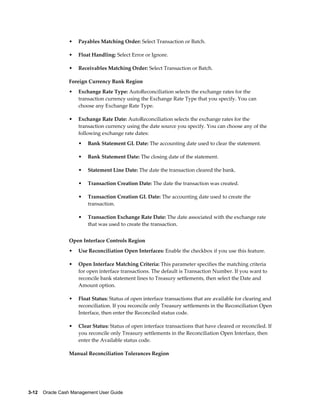
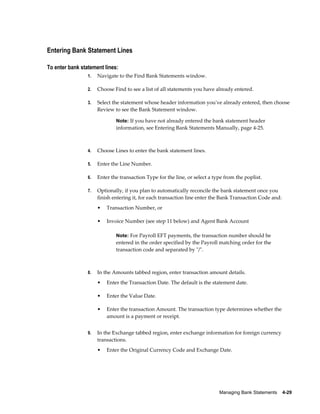
  • 147.
    Status: The statusof the signing authority. The status can be Approved, Pending, or Rejected. Additional Details Tabbed Region Name: Name of the bank signatory. Person Type: The classification of the bank signatory in Oracle HRMS. HR Organization: The group or department the bank signatory belongs to. Job: The job function of the bank signatory. Location: The physical location of the bank signatory in the organization. Email: The email address of the bank signatory. Discoverer View The Discoverer view for Bank Account Signing Authority provides details and a historical audit trail of the changes made to the signing authority record. The Discoverer view of the Bank Signing Authority can be used to report on the bank account signing authority information. Bank Account Signing Authority Messages The following table contains bank account signing authority messages and explanation of those messages. Error Message Explanation In order to maintain bank account signing FND user ID is not mapped to HR Person ID. authority, your FND user ID must be mapped to a valid person-id in HR. Please contact your system administrator. [OK] Do you want to save the changes you have Standard save changes message made? [YES] [NO] [CANCEL] Delete Message [text] Standard confirm deletion message The limit amount can not be negative. Please Negative limit amount enter a new limit. [OK] Please enter a limit amount. [OK] Enter a signing limit amount. Bank Account Setup    3-33
  • 148.
    Error Message Explanation The joint signing limit must be zero or greater Joint signing limit amount than or equal to the single signing limit. Please enter a new amount. [OK] The effective start date must equal or precede Effective dates the effective end date. Please enter a new date. [OK] The effective date ranges, of the records for a Overlapping effective date ranges signer's limits, may not overlap. Please correct the effective dates. [OK] Cash Pools Cash pooling is a cash management technique aimed at optimizing the balances of the internal bank accounts held at one or several banks. It is usually performed on a daily basis. To perform cash pooling, you need to define a cash pool and assign internal bank accounts to the cash pool. Creating Cash Pools A cash pool is a group of bank accounts with one or more concentration accounts and multiple sub accounts. You can create the following two types of cash pools: • Notional Cash Pool: A cash pool consisting of one concentration account and multiple sub accounts. This type of cash pool is used for cash leveling similar to zero balancing without the actual funds movement. The cash pool's closing balance for a day is calculated as a notional sum of the individual balances of the bank accounts included in the pool. The interest is calculated on the notional net balance of all accounts included in the pool and then paid out or charged to the concentration or lead account. • Physical Cash Pool: A cash pool consisting of one or two concentration accounts and multiple sub-accounts with funds transfer rules specified for each combination of concentration accounts and sub accounts. This type of cash pool is used for cash leveling wherein the user can initiate fund transfers or mirror cash transfers performed by the bank. Before creating Physical Cash Pools, you have to decide how the physical fund transfers will be recorded in the system. If you are using Oracle Treasury, you can choose to create fund transfers in Oracle Treasury or Oracle Cash Management by 3-34    Oracle Cash Management User Guide
  • 149.
    choosing one orthe other in the site-level system CE: Bank Account Transfers profile option. If you are using Oracle Cash Management only, you will only be able to create fund transfers in Oracle Cash Management. To create a notional cash pool: 1. Navigate to the Cash Pools Search and Results page. 2. Select Notional Cash Pool. 3. Select Go. 4. In the Create Notional Cash Pool: Header Information page, enter a unique Cash Pool name. 5. Select a concentration account for your cash pool. The Account Number, Bank Name, Legal Entity, and Cash Pool Currency default in based on the selected bank account. Note: You can only select bank accounts that you have access to, that have not been assigned to other cash pools, and for which the Interest Rounding and Interest Includes options have been assigned as a part of the Interest Rate Schedule. 6. In the Effective Date From field, enter the first date that the notional cash pool is active, such as the first date the consolidated bank account balances will be displayed on the Bank Balances page or the first date the interest will be calculated on the consolidated balance. 7. In the Effective Date To field, enter the last date that the notional cash pool is active. 8. Click Next to assign sub accounts. 9. In the Create Notional Cash Pool: Sub Accounts page, select bank accounts to include as sub accounts for your cash pool. 10. In the Create Notional Cash Pool: Review page, review the information you have entered. 11. Click Finish to save the cash pool. To create a physical cash pool: 1. Navigate to the Cash Pools Search and Results page. Bank Account Setup    3-35
  • 150.
    2. Select Physical Cash Pool. 3. Select Go. 4. In the Create Physical Cash Pool Header Information page, enter a unique name for your cash pool. 5. In the Concentration Type field, select either One Account or Two Accounts to indicate if the cash pool will have one or two concentration accounts. If you select the One Account option, the Concentration Account field is displayed. Select a Concentration Account. The Account Number, Bank Name, Company, and Cash Pool Currency default in. If you select the Two Accounts option, the Investment Concentration Account field and the Funding Concentration Account field is displayed. Select an Investment Concentration Account and a Funding Concentration Account for the cash pool. The Account Number, Bank Name, Legal Entity, and Cash Pool Currency default is based on the selected bank accounts. Both the investment and funding concentration accounts should belong to the same legal entity. 6. In the Effective Date From field, enter the first date that the physical cash pool is active, such as the first date the cash leveling transactions can be created. 7. In the Effective Date To field, enter the last date that the physical cash` pool is active. 8. In the Bank Initiated Sweeps field, select Yes if your bank initiates the cash leveling transactions. Select No if you want to use this cash pool to create transactions in the system and send payment instructions to the bank. 9. Select Next to assign sub accounts. 10. In the Create Physical Cash Pool: Sub Accounts page, select bank accounts to include as sub-accounts in the cash pool. 11. Select Next. 12. In the Create Physical Cash Pool: Target Balances page, define target balances and transfer amount calculation rules for each sub account . If target balances for sub accounts included in the cash pool have already been defined in the bank account setup, they will default here. 13. Select Next. 14. If your system profile option CE: Bank Account Transfers is set to Treasury, in the Create Physical Cash Pool: Treasury Deal Attributes page, select the attributes that 3-36    Oracle Cash Management User Guide
  • 151.
    are required forcreating transactions in Oracle Treasury during cash leveling for company-initiated transfers, or during sweep transaction generation for bank initiated sweeps. See: Reconciling Sweep Transactions, page 5-6. If your system CE: Bank Account Transfers profile option is set to Cash Management, in the Create Physical Cash Pool: Bank Account Transfer Attributes page, select that attributes that are required for creating transactions in Oracle Cash Management during cash leveling for company-initiated transfers, or during sweep transaction generation for bank initiated sweeps. See: Reconciling Sweep Transactions, page 5-6 15. Select Next. 16. In the Create Physical Cash Pool: Review page, review the information you have entered. 17. Click Finish to save the cash pool. Create (Notional/Physical) Cash Pool: Header Information Page Reference Cash Pool Name: The name of the cash pool. Concentration Type: (Physical Cash Pool only) The concentration type that determines whether the cash pool will have one or two concentration accounts. The following two options are available: One Account or Two Accounts. Concentration Account: The concentration bank account for the cash pool. Investment Concentration Account: (Physical Cash Pool only) The concentration account used for transferring surplus funds from sub-accounts. Funding Concentration Account: (Physical Cash Pool only) The concentration account used for transferring funds to sub-accounts to cover the deficit. Account Number: The account number corresponding to the selected concentration accounts. Bank Name: The bank name corresponding to the selected concentration account. Legal Entity: The name of the legal entity corresponding to the concentration accounts. Cash Pool Currency: The currency of the selected concentration account. In case the physical cash pool has two concentration accounts, then both the concentration accounts must have the same currency. Effective Date From: The first date that the cash pool is active. • In notional cash pool, this is the first date the consolidated bank account balances will be displayed in Bank Balances page and the first date the interest will be calculated on the consolidated balance. If this value is left null, all available balances prior to the Effective Date To will be consolidated. Bank Account Setup    3-37
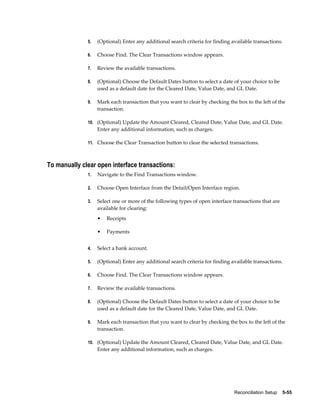
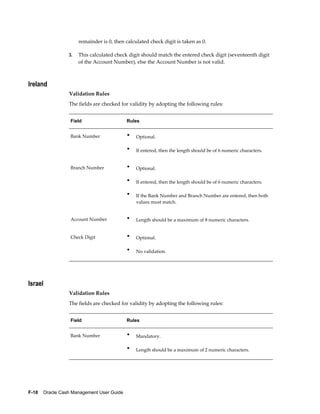
  • 152.
    In physical cash pool, this is the first date that the cash leveling or ZBA transactions can be created. Effective Date To: The last date that the cash pool is active. • In notional cash pools, this is the last date the consolidated bank account balances will be displayed in the Bank Balances page and the last date the interest will be calculated on the consolidated balance. If this value is left null, all available balances after the Effective Date From will be consolidated. • In physical cash pools, this is the last date that the cash leveling or ZBA transactions can be created. Bank Initiated Sweeps: (Physical Cash Pool only) This choice list indicates whether the cash leveling transfers are initiated by the bank or not. • If Yes, the system will not be generating transactions based on the cash position results. Instead, transactions will be generated when the bank statement is imported and the Sweep Transactions Generation program is run. • If No, the system can be used to initiate cash leveling transactions and send the payment instructions to the bank. Create (Notional/Physical) Cash Pool: Sub Accounts Page Reference Cash Pool Currency: The currency of the concentration account of the cash pool. Concentration Account: The concentration bank account for the cash pool. Name: The bank account name. Type: The type of the sub account. The type can be Account. Account Number: The account number for the bank account. Bank: The bank corresponding to the bank account number(s) shown in the Account Number column. Legal Entity/Subsidiary: The legal entity or subsidiary corresponding to the account number(s) displayed in the Account Number column. Create Physical Cash Pool: Target Balances Page Reference Cash Pool Currency: The currency of the concentration account of the cash pool. Concentration Account: The cash pool concentration account. Name: The bank account name. Minimum Target Balance: The minimum target balance of the bank account used to determine the projected fund deficit during cash positioning. If the minimum target balance has been entered for the bank account in Oracle Treasury it is displayed in this 3-38    Oracle Cash Management User Guide
  • 153.
    field. You canoverwrite the default value. Maximum Target Balance: The maximum target balance of the bank account used to determine the projected fund surplus during cash positioning. If the maximum target balance has been entered for the bank account in the bank account setup is displayed in this field. You can overwrite the default value. Minimum Payment Amount: The minimum payment amount used to determine if and how much of the projected fund surplus is transferred to the concentration account during cash leveling. Minimum Receipt Amount: The minimum receipt amount used to determine if and how much of the projected fund deficit is transferred from the concentration account during cash leveling. Rounding Factor: A funds transfer rule used to determine how to round amounts when calculating the projected fund surplus or deficit for transfer to or from the concentration account during cash leveling. The default is Unit. Rounding Rule: A funds transfer rule used to determine how to round amounts when calculating the projected fund surplus or deficit for transfer to or from the concentration account during cash leveling. The options are: Nearest, Round Down and Round Up. The default is Nearest. Create Physical Cash Pool: Bank Account Transfer Deal Attributes General Details Region • Transaction Subtype: Default portfolio of the company of the concentration account. The list displays all non-external portfolios belonging to the legal entity. • Bank Account Transfer Authorization: Default a bank transfer creation rule used to determine if the transfer requires manual authorization or if is automatically authorized. The options are: Not Required and Required. The default is Not Required. Payment Details Region • Bank Account Name: Bank account name. • Payment Method: Payment method for this bank account. • Bank Charge Bearer: The options are: Payee, Payer, Pays Express Charges, and Shared. • Payment Reason: The reason for the payment. • Payment Reason Comments: Comments. • Remittance Message 1: Remittance message. Bank Account Setup    3-39
  • 154.
    Remittance Message 2: Remittance message. • Remittance Message 3: Remittance message. Create Physical Cash Pool: Treasury Deal Attributes Inter-Account Transfers Region • Portfolio: Default portfolio of the company of the concentration account. The list displays all non-external portfolios belonging to the company. • Product Type: The product type authorized for Inter-Account Transfers in Oracle Treasury. Intercompany Funding Region: Company Attributes • Company: The company of the concentration account. • Portfolio: Default portfolio of the company of the concentration account. The list displays all non-external portfolios belonging to the company. • Product Type: The product types for Intercompany Funding deal type. Intercompany Attributes • Intercompany Party: The name of the company or subsidiary to which the sub accounts included in the cash pool belong. • (Company Details) Funding Limit: The authorized funding and foreign exchange type limit for the company of the concentration account(s). This is used for determining the rules for creating intercompany transactions in Oracle Treasury for transfers between the concentration account and the sub account when they belong to different companies. • (Company Details) Investment Limit: The authorized investment and foreign exchange type limit for the company of the concentration account(s). This is used for determining the rules for creating intercompany transactions in Oracle Treasury for transfers between the concentration account and the sub account when they belong to different companies. • (Intercompany Party Details) Portfolio: A list of all non-external portfolios belonging to the company displayed in the Company field in the table row. This field is disabled for all subsidiaries included in the cash pool. If no default portfolio is defined in Oracle treasury, then this field does not display a value. • (Intercompany Party Details) Product Type: The product type authorized for Intercompany Funding transactions for the company displayed in the Company field of the table. This field is disabled for all subsidiaries included in the cash pool. 3-40    Oracle Cash Management User Guide
  • 155.
    (Intercompany Party Details) Funding Limit: The authorized funding and foreign exchange type limit for the company displayed in the Company field of the table. This is used for determining the rules for creating intercompany transactions in Oracle Treasury for transfers between the concentration account and the sub account when they belong to different companies. This field is disabled for all subsidiaries in the cash pool. • (Intercompany Party Details) Investment Limit: The authorized investment and foreign exchange type limit for the company displayed in the Company field of the table. This is used for determining the rules for creating intercompany transactions in Oracle Treasury for transfers between the concentration account and the sub account when they belong to different companies. This field is disabled for all subsidiaries in the cash pool. • (Intercompany Party Details) Pricing Model: The authorized pricing model for Intercompany Funding deal type. This field is disabled for all subsidiaries in the cash pool. The default value is No Revaluation. • Interest Rounding: The default value for rounding of interest amount as set up in the company profile in Oracle Treasury. The options are: Nearest, Round Down, and Round Up. The default is Nearest. • Interest Includes: The default value for calculation of interest amount as set up in the company profile in Oracle Treasury. The options are: Last Day, First Day, and Both Days. The default is Last Day. • Company Pricing Model: The authorized pricing model for Intercompany Funding deal type. The default value is No Revaluation. Note: For additional information, please refer to the Oracle Treasury User Guide. Viewing and Updating Cash Pools You can view cash pool information by searching for the cash pool name and clicking on the cash pool name in the Search and Results page. If you have the appropriate user security, you can update the cash pool. Overview of Single European Payments Area (SEPA) In this release, the Single European Payments Area (SEPA) feature is incorporated making it possible for consumers, businesses, and governments to make cashless payments from a single payment account using a single set of payment instruments throughout the 27 member states of the European Union and also in Liechtenstein, Iceland, Norway, and Switzerland. The goal is for these payments to be as inexpensive, Bank Account Setup    3-41
  • 156.
    efficient, and safeas domestic payments are today. Standardized payments are scheduled for January 1, 2008. The SEPA payment schemes will operate alongside existing domestic payment schemes during the transition period (from 2008 till 2010) where customers can decide whether to use SEPA formats or not. The SEPA enhancements in Oracle Cash Management through Oracle Payments are designed to improve straight-through processing and allow increased transparency into payment flows. Support is provided for the new ISO 20022 payment schemes as defined in the SEPA rule books enabling users to generate messages directly from their ERP system without having to implement additional middleware for data conversion. In order to be able to make SEPA payments the following information (amongst others) is mandatory: • Bank Identification Code (BIC) for the suppliers bank branch. • International Bank Account Number (IBAN) for the suppliers bank account. Related Topics Bank Identification Code (BIC), page 3-42 International Bank Account Number (IBAN), page 3-43 SEPA Credit Transfer, page 3-43 Bank Identification Code (BIC) The Bank Identification Code (BIC) (formerly called SWIFT Code) is entered at bank branch level. BIC consists of either 8 or 11 characters. The BIC consists of the following elements: • 4 characters for the bank code • 2 characters for the country code (ISO3166-1) • 2 characters for the location code • 3 characters for the branch code (optional) The length of the BIC will be validated at entry time. If the bank branch is used for SEPA payments, BIC is mandatory. Related Topics Overview of Single European Payments Area (SEPA), page 3-41 International Bank Account Number, page 3-43 3-42    Oracle Cash Management User Guide
  • 157.
    SEPA Credit Transfer,page 3-43 International Bank Account Number (IBAN) The International Bank Account Number (IBAN) is an international standard that uniquely identifies a bank account number. IBAN consists of up to 34 contiguous alphanumeric characters containing the following consecutive components: • Country code: 2 letter country code, as specified in ISO 3166, of the country in which the bank or branch servicing the IBAN resides • Check digits: 2 digits calculated (calculated from a modulus algorithm) • Some countries also add the first 4 characters of the BIC code (between the check digits and the basic bank account number). • Basic Bank Account Number (BBAN): up to 30 alphanumeric characters, 0-9, A-Z (only uppercase), and no separators The BBAN has a fixed length per country. The BBAN includes an explicit identification code of the bank/branch servicing. The IBAN is validated upon entry. If the bank account is used for SEPA payments, IBAN is mandatory. Related Topics Overview of Single European Payments Area (SEPA), page 3-41 Bank Identification Code, page 3-42 SEPA Credit Transfer, page 3-43 SEPA Credit Transfer Oracle Payments in this release cover the SEPA Credit Transfer (SCT) feature, which means enabling the Payment originator or payer to transfer money through their bank to the account of the beneficiary or supplier. The SEPA Credit Transfer scheme is defined by the European Payment Council (EPC) as a set of rules, practices, and standards to support the creation and implementation of a core and basic credit transfer process whether for single, bulk or repetitive payments. The SCT will be governed by the EPC Rulebook and Implementation Guidelines Version 2.2 that were approved by the EPC in December 2006. The SEPA Credit Transfer supports the ISO20022 message with the SEPA implementation: customer credit transfer initiation. This XML message contains all the Bank Account Setup    3-43
  • 158.
    relevant information relatedto the payment instruction and is sent by the Payment originator to the bank. Related Topics Overview of Single European Payments Area (SEPA), page 3-41 Bank Identification Code, page 3-42 International Bank Account Number, page 3-43 3-44    Oracle Cash Management User Guide
  • 159.
    4 Managing Bank Statements Entering Bank Statements Before you can reconcile transactions against a bank statement, you need to enter the bank statement information into Oracle Cash Management. You can accomplish this task by doing one of the following: • Using the Bank Statement Loader program • Using a custom loader program • Manually entering the information Loading the Bank Statement Open Interface Tables If your bank provides account statements in a flat file using a defined format like BAI2 or SWIFT940, you can use the Bank Statement Open Interface to load this information into Oracle Cash Management. You can use the Bank Statement Open Interface to load prior day bank statements for reconciliation. You can also load intra-day bank statement information for cash positioning into the Bank Statement Open Interface tables using the Intra-Day Bank Statement Loader program, by using a custom loader, or by using the automatic bank transmission feature. The Bank Statement Loader Program The Bank Statement Loader program is a platform-independent solution for mapping and transferring bank statement information from an electronic bank statement into the open interface tables in Oracle Cash Management. The Bank Statement Loader program runs in two phases. In the first phase, the program uses a SQL*Loader script to insert data from the bank statement file into the intermediate table. The SQL*Loader script understands the format of the file and parses Managing Bank Statements    4-1
  • 160.
    the data accordingly.The intermediate table is simply a representation of the bank statement file in the database, where a row corresponds to a record in the file and a column corresponds to a field in the record. In the second phase, the Bank Statement Loader program uses a set of mapping rules to transfer data from the intermediate table to the Bank Statement Open Interface tables. These rules map the structure of the bank statement file to the open interface tables. These rules may also perform simple pattern searches and data transformations. The loading of BAI2 and SWIFT940 file formats is mostly automated. Since Oracle Cash Management provides the SQL*Loader scripts and mapping templates for these two formats, you can run the Bank Statement Loader program with minimal setup. You simply need to modify the default mapping information to match the variations your bank has made to the standards. In addition, the Bank Statement Loader program can accept other formats, provided you have created the corresponding SQL*Loader script and mapping information. You can execute the Bank Statement Loader program in one of the following modes: • Load • Load and Import • Load, Import, and AutoReconciliation If you choose the option of Load and Import, the Bank Statement Import program starts after the Bank Statement Loader program completes successfully. If you choose the option of Load, Import, and AutoReconciliation, both the Bank Statement Import program and the AutoReconciliation program launch after successful completion of the Bank Statement Loader program. In either case, if the Bank Statement Loader program completes with errors or warnings, the concurrent request terminates. You can review the exceptions encountered by the Bank Statement Loader program using the Bank Statement Loader Execution Report. To Run the Bank Statement Loader Program Prerequisites • Create a SQL*Loader script for the format of your bank statement file, if it is neither BAI2 nor SWIFT940. See: Setup for User-Defined Format, page 2-24 • Define a mapping template for the format of your bank statement file. See: Bank Statement Mapping, page 2-27 • Place your bank statement file in a directory. 4-2    Oracle Cash Management User Guide
  • 161.
    To run theBank Statement Loader Program: 1. Navigate to the Requests window. 2. Submit a concurrent request for the Bank Statement Loader program. 3. Select one of the following options: • Load • Load and Import • Load, Import, and AutoReconciliation 4. Enter the name of the mapping template. 5. Enter the name of the bank statement file. 6. Enter the directory path in which the bank statement file is located. 7. Enter the bank branch name and the bank account number you want to load from the bank statement file. If nothing is entered, the entire file is loaded, else only statements belonging to the bank branch or the bank account are loaded. 8. If you selected either the option of Load and Import or Load, Import, and AutoReconciliation, enter the GL Date. 9. If you selected the option of Load, Import and AutoReconciliation, enter the Receivable Activity and NSF Handling. Also enter the Payment Method if you specified a bank account number. 10. Submit the program. 11. Check the SQL*Loader log file and the Bank Statement Loader Execution Report to see any exceptions generated during the loading process. See: Bank Statement Loader Execution Report, page 11-25 12. If you selected either the option of Load and Import or Load, Import and AutoReconciliation, review the results of the import process. See: Reviewing Bank Statement Interface Errors, page 4-19 13. If you selected the option of Load, Import and AutoReconciliation, review the results of the AutoReconciliation program and correct the reconciliation errors. See: Reviewing Reconciliation Errors, page 5-15 14. If you did not run the AutoReconciliation program, or you are unable to correct the Managing Bank Statements    4-3
  • 162.
    reconciliation errors, youcan manually reconcile the bank statements. 15. After you have reconciled your bank statements, you can run the following Cash Management reports to ensure they contain accurate information: • Cash in Transit Report • GL Reconciliation Report • Bank Statement Summary Report • Transactions Available for Reconciliation Report Bank Statement Loader Program Parameters Process Option: You can choose one of the three following options: 1. Load 2. Load and Import 3. Load, Import, and AutoReconciliation If you choose either Load and Import or Load, Import, and AutoReconciliation, a separate process will be submitted for each bank statement after the loader program completes successfully. Mapping Name: Name of the mapping rules that should be used Data File Name: Name of the bank statement file to load from Directory Path: Location of the bank statement file. The length defaults to 50 characters, but can be set up to 240 characters. If none is entered, the Bank Statement Loader program looks for the bank statement file in the directory of $CE_TOP/bin. Bank Branch Name: If the bank statement file contains information for multiple bank branches, you can ask the Bank Statement Loader program to load only bank statements from a specific bank branch. Bank Account Number: If the bank statement file contains information for multiple bank accounts, you can ask the Bank Statement Loader program to load only bank statements from a specific bank account. GL Date: If you selected either the option of Load and Import or Load, Import, and AutoReconciliation, enter the GL Date. This is the default date for all General Ledger journal entries created by AutoReconciliation. The date must be in an open or future-enterable Payables or Receivables period. Receivable Activity: If you selected the option of Load, Import and AutoReconciliation, enter the Receivable Activity to create Receivables miscellaneous receipts for differences that AutoReconciliation encounters when matching remittance batches or NSF 4-4    Oracle Cash Management User Guide
  • 163.
    transactions within tolerances. Payment Method: If you selected the option of Load, Import and AutoReconciliation and have specified a Bank Account Number, enter the Payment Method to create Receivables miscellaneous receipts for differences that AutoReconciliation encounters when matching remittance batches or NSF transactions within tolerances. NSF Handling: If you selected the option of Load, Import and AutoReconciliation, enter the NSF Handling for handling any NSF or rejected receipts on the bank statement. The valid actions are: • No Action to handle manually. • Reverse to reverse receipt and reopen the invoices. • Debit Memo Reversal to create a debit memo that replaces the item closed by the original receipt. Using a Custom Loader Program First, create your custom loader program. Then: 1. Run the custom loader program against the bank statement file to populate the Bank Statement Open Interface tables. 2. Verify that the bank statement information was loaded into the open interface tables correctly. You can use the Bank Statement Interface window to ensure that bank statement header information is correctly inserted into the CE_STATEMENT_HEADERS_INT table. You can use the Bank Statement Lines Interface window to ensure that bank statement transaction lines are correctly inserted into the CE_STATEMENT_LINES_INTERFACE table. The Bank Statement Interface and Bank Statement Lines Interface windows show you the statement header and lines information in the open interface tables. You can correct the information using these windows, or you can correct the original bank statement file and reload it using your custom loader program. Automatic Bank Transmission Feature You can set up Cash Management to automatically retrieve previous day and intra-day bank statements and payment exceptions from your bank. The automatic bank transmission feature includes the following components: • Retrieve Bank Statement Program: The Retrieve Bank Statement program retrieves bank statement files from your bank and transmits them to your local directory. The Managing Bank Statements    4-5
  • 164.
    program then sendsa transmission status e-mail notification to the designated user defined in the Bank Transmission Details window. When you run this program, you have the option to download, load, import, and reconcile bank statements in the same concurrent request. In addition, you can define a submission schedule to automate the transmission of these files. • Retrieve Intra-Day Bank Statement Program: The Retrieve Intra-Day Bank Statement program retrieves intra-day bank statement files from your bank and transmits them to your local directory. The program then sends a transmission status e-mail notification to the designated user defined in the Bank Transmission Details window. When you run this program, you have the option to download, load, and import intra-day bank statements in the same concurrent request. In addition, you can define a submission schedule to automate the transmission of these files. • Retrieve Payment Exceptions Program: The Retrieve Payment Exceptions program retrieves payment exceptions reports from your bank and transmits them to your local directory. The program sends a transmission status e-mail notification to the designated user defined in the Bank Transmission Details window. You can view the transmission history and report details using the Transmissions window. See: Payment Exceptions Report, page 11-38 Retrieving Bank Statements and Payment Exceptions Prerequisites • Obtain bank transmission specifications from your bank. • Write a customized Java class file. • Define workflow roles and e-mail addresses. • Add the local file directories to the init.ora file. • In the Bank Transmission Details window, assign transmission code and enter transmission information supplied by your bank. In the Statement Transmission Details region, select workflow roles, identify file directories, and specify file naming details. • If you choose to download and load bank statements in the same request, the bank statement mapping rules must be defined. See: Bank Statement Mapping, page 2-27 Refer to the Oracle Payables User Guide for more information. 4-6    Oracle Cash Management User Guide
  • 165.
    To retrieve bankstatements 1. Navigate to the Requests window. 2. Submit a concurrent request for the Retrieve Bank Statement program. 3. Select one of the following options: • Download • Download and Load • Download, Load, and Import • Download, Load, Import, and AutoReconciliation Note: You do not have the option to perform AutoReconciliation with intra-day bank statements. 4. Enter the Transmission Code you defined in the Bank Transmission Details window. This code determines the set of transmission detail parameters the program will use. 5. Enter the remaining submission parameters. Note: If you choose an option to download and load bank statements, a mapping template name is required. If you select the option of Download, Load, Import, and AutoReconciliation, you must also enter values for the GL Date Source, Receivable Activity and NFS Handling. The GL Date Source determines the date for all General Ledger journal entries created by AutoReconciliation. The date must be in an open or future-enterable Payables or Receivables period. You can choose System Date, Statement Date, or User Entered Date as the GL Date Source. If you choose User Entered Date, you must enter the GL Date. To retrieve payment exceptions 1. Navigate to the Requests window. 2. Submit a concurrent request for the Retrieve Payment Exceptions program. 3. Enter the Transmission Code you entered in the Bank Transmission Details window. This code determines the set of transmission detail parameters the program will use. Managing Bank Statements    4-7
  • 166.
    Intra-Day Bank StatementLoader Program You can use the Intra-Day Bank Statement Loader program to load bank statements updated with the latest transactions that occur on the day the statements are created. If the intra-day bank statements include the time they are created, the Intra-Day Bank Statement Loader program can also load the timestamp information. You can run the Intra-Day Bank Statement Loader in one of two modes: • Load • Load and Import If you choose the Load option, the program loads the bank statement information into the Bank Statement Open Interface tables, and you can make corrections to the statements prior to importing them into Oracle Cash Management. Alternatively, you can choose the Load and Import option to automatically start the Intra-Day Bank Statement Import program after the Intra-Day Bank Statement Loader program completes successfully. If the Intra-Day Bank Statement Loader program encounters any errors or warnings, the concurrent request stops. You can review the exceptions using the Bank Statement Loader Execution Report. Submitting the Intra-Day Bank Statement Loader Program Prerequisites • Set up Oracle Treasury for integration with Oracle Cash Management. See: Setting Up Oracle Treasury for Oracle Cash Management Integration, page 2-13. • Create a SQL*Loader script for the format of your bank statement, if it is neither BAI2 nor SWIFT940. • Define a mapping template for the format of your bank statement file. See: Bank Statement Mapping, page 2-27. • Save your bank statement file in a directory. To submit the Intra-Day Bank Statement Loader Program 1. Navigate to the Requests window. 2. Submit the Intra-Day Bank Statement Loader program. 3. Select one of the following options: • Load 4-8    Oracle Cash Management User Guide
  • 167.
    Load and Import 4. Enter the name of the mapping template. 5. Enter the name of the bank statement file. 6. Enter the directory path in which the bank statement file is located. 7. If you want to limit loading records from a particular bank branch and branch account, then specify the bank branch name and the bank account number, else the program will import all records in the bank statement file. 8. Submit the program. 9. Check the SQL*Loader log file and the Bank Statement Loader Execution Report to see any exceptions generated during the loading process. Receiving XML Bank Statements You can set up XML Gateway to receive XML bank statements automatically and securely from your bank. The bank delivers the prescheduled bank statements in the IFX XML format to the XML Gateway. The XML Gateway validates the message using the IFX specifications and predefined Cash Management mapping rules. Upon successful validation, the XML Gateway populates the Bank Statement Open Interface tables and launches the Bank Statement Import program to transfer the bank statement information to Cash Management. If the validation fails, the XML Gateway sends e-mail notifications to the system administrator and the bank contact. In addition, the system notifies the designated cash manager of the status of the import process. Setting Up Your System to Receive XML Bank Statements Prerequisites • Oracle XML Gateway is installed. See: Oracle XML Gateway User's Guide • Oracle Advanced Queuing is installed. • Oracle Workflow Business Event System is installed. See: Oracle Workflow Business Event System User's Guide • Both the bank and your system should use Oracle Transport Agent. If the bank is not using Oracle Transport Agent, the bank needs to integrate its communication software to conform to the Oracle Transport Agent message protocol. Managing Bank Statements    4-9
  • 168.
    Setting up adummy user to receive XML statements Your bank will send the XML statements to a dummy user, so that you do not expose the internal user name to the bank. 1. Log on as System Administrator. 2. Navigate to the Users window. 3. Enter cexml for the User Name. 4. Enter Dummy User for CE XML Data Transmission for the Description. 5. Enter the password cexml. The password is case sensitive. Setting up a user in Cash Management to receive XML statements 1. Log on as System Administrator. 2. Navigate to the Users window 3. Add Cash Management, Cash Management Notifications, XML Gateway, System Administrator, Workflow Administrator, Payables Manager, and Receivables Manager Responsibilities. 4. In the E-mail field, enter a valid e-mail address for the person who will receive error notifications. 5. Save your work. Running the Notification Mailer Check the status of the Notification Mailer. If it isn't running, submit the Notification Mailer program so users can receive e-mail notifications. To run this program: 1. Log on as System Administrator. 2. Navigate to the Requests window. 3. Submit the Notification Mailer. XML Gateway Trading Partner Setup Refer to the Oracle XML Gateway User's Guide for setup instructions. If your current version is Financials Family Pack D, the Bank field will be replaced by the Company Admin E-mail field. The following table shows the values to enter for each parameter: 4-10    Oracle Cash Management User Guide
  • 169.
    In this field Enter Trading Partner Type Bank Trading Partner Site The bank site Bank Bank name Transaction Type BANKSVCRS Transaction Sub-Type DEPACCTSTMTINQRS Standard Code IFX External Transaction Type BANKSVCRS External Transaction Sub-Type DEPACCTSTMTINQRS Direction IN Map CE_BSI_IFX12_IN XML Header The code that is decided by your party and your bank for your Party Site ID The following table shows the values that default for each parameter: In this field These values will default Transaction Type BANKSVCRS Transaction Sub-Type DEPACCTSTMTINQRS Standard Code IFX External Transaction Type BANKSVCRS External Transaction Sub-Type DEPACCTSTMTINQRS Direction IN Managing Bank Statements    4-11
  • 170.
    Bank Setup • In the Banks setup window, enter the bank administrator's e-mail address in the XML Administrator E-mail field. Note: If your current version is Financials Family Pack D, please disregard this step. Processing XML Bank Statements 1. The bank creates the XML message detailing the previous day bank account activities. 2. The bank sends the XML message to your enterprise. 3. The Oracle Transport Agent (OTA) receives the message, and checks the message for transmission errors. If no errors are found, Oracle Transport Agent sends an HTTP success response to the bank server. If errors are found, then Oracle Transport Agent sends an HTTP failure response to the bank. 4. The XML Gateway validates the received file for the XML message structure, the IFX specifications, and predefined Cash Management mapping rules. 5. If there are data errors in the message, XML Gateway sends the bank an error notification. 6. If XML Gateway identifies system/process related errors, it sends the System Administrator an error notification. The System Administrator can check the error message notification for the error detail and correct the problem. Once the problem has been corrected, the System Administrator can then reply to the Oracle Workflow error by: • choosing the Reprocess option. This will begin the XML processing again, starting with step 4 . • choosing the Abort option. This will stop the system from attempting to process the statement. 7. XML Gateway populates the Bank Statement Open Interface tables with the XML message according to the mapping rules. 8. If Cash Management identifies data errors, the system sends a data error notification to the Cash Manager. The Cash Manager can correct the data errors in the Bank Statement Open Interface window. Possible data errors include: 4-12    Oracle Cash Management User Guide
  • 171.
    no bank ID found • multiple bank accounts found • duplicate bank statement exists 9. The Bank Statement Import program launches automatically once the bank statement is successfully processed. 10. The Cash Manager receives either a success or a failure notification indicating whether the bank statement import process completed successfully or not. 11. The Cash Manager can check and correct any import errors before trying to import the bank statement again. 12. If the Cash Manager receives a success notification regarding the import process, then the bank statement was correctly imported into the Cash Management tables, and it is now ready for reconciliation. Related Topics Bank Statement Open Interface, page 2-24 Importing Bank Statements, page 4-13 About Bank Statement Validation, page 4-17 Reviewing Bank Statement Interface Errors, page 4-19 Correcting Bank Statement Interface Errors, page 4-23 Reconciling Bank Statements Automatically, page 5-1 Archiving and Purging Imported Bank Statements, page 5-62 Importing Bank Statements If you load electronic bank statements into the Bank Statement Open Interface tables, you must import the bank statement information into the Cash Management Bank Statement tables before you can reconcile the statement detail lines. Oracle Cash Management's Bank Statement Import program validates the information in the Bank Statement Open Interface tables and imports the validated bank statement information. If you import bank statements from bank accounts that are used by Oracle Treasury, the Bank Statement Import program also updates the bank account balances seen in Oracle Treasury. Additionally, the Bank Statement Import program can launch the AutoReconciliation program to perform an automatic reconciliation after the import process completes. If you load intra-day bank statements, you must use the Intra-Day Bank Statement Managing Bank Statements    4-13
  • 172.
    Import program tovalidate and import the information into the Cash Management Intra-Day Bank Statement tables. After you have successfully imported the intra-day bank statements, you can include the information in your cash positioning in Oracle Treasury. Since intra-day information is not used for reconciliation, you cannot view the imported intra-day bank statements in Cash Management windows or reports. However, you can archive or purge the bank statements. When you import multiple intra-day bank statements within the same day, the Intra-Day Bank Statement Import program deletes the existing bank statement before importing the new bank statement. You can use one of several ways to import data from the Bank Statement Open Interface tables into the Bank Statement tables. To load and import a bank statement in the same request: 1. Navigate to the Submit Request window. 2. Select the Bank Statement Loader program. 3. Choose the option of Load and Import. 4. Specify the other parameters as appropriate. 5. Submit your request. See: To Run the Bank Statement Loader Program, page 4-2. To load, import, and reconcile a bank statement in the same request: 1. Navigate to the Submit Request window. 2. Select the Bank Statement Loader program. 3. Choose the option of Load, Import and AutoReconciliation. 4. Specify the other parameters as appropriate. 5. Submit your request. See: To Run the Bank Statement Loader Program, page 4-2. To import a bank statement only, without AutoReconciliation: 1. Navigate to the Submit Request window. Alternatively, you may submit the request directly from the Bank Statement Interface window by selecting AutoReconciliation from the Oracle Applications Tools menu. 4-14    Oracle Cash Management User Guide
  • 173.
    2. Select the Bank Statement Import program. 3. Enter the Bank Account Number for the statement you want to import. 4. Specify the range of statement numbers in the Statement Number From and Statement Number To fields. 5. Specify dates for the Statement Date From, Statement Date To, and GL Date fields. The GL Date is the default date for all General Ledger journal entries generated by AutoReconciliation. The date must be in an open or future-enterable Payables or Receivables period. 6. Submit your request. The Bank Statement Import program validates the data in the Bank Statement Interface tables, imports the validated information, and prints an AutoReconciliation Execution Report. 7. Review and correct any import validation errors, then repeat the steps above. To import and reconcile a bank statement in the same request: 1. Navigate to the Submit Request window. 2. Select the Bank Statement Import and AutoReconciliation program. Note: Alternatively, you may submit the request directly from the Reconcile Bank Statements window or Bank Statement Interface window by selecting AutoReconciliation from the Oracle Applications Tools menu. 3. Enter the Bank Account Number for the statement you want to import. 4. Specify the range of statement numbers in the Statement Number From and Statement Number To fields. 5. Specify dates for the Statement Date From, Statement Date To, and GL Date fields. 6. Select a Receivable Activity and a Payment Method to create Miscellaneous Receipts for differences that AutoReconciliation encounters when matching remittance batches or NSF transactions within tolerances. 7. Specify how to handle any NSF transactions that are in your bank statement. Choose: • No Action: to handle manually Managing Bank Statements    4-15
  • 174.
    Reverse: to reverse receipt and reopen the invoices • Debit Memo Reverse: to create a debit memo that replaces the item closed by the original receipt 8. Submit your request. The AutoReconciliation program validates the data in the Bank Statement Open Interface tables, imports the validated information, reconciles the bank statement, and prints an AutoReconciliation Execution Report. Note: You can get an AutoReconciliation Execution Report at any time by submitting a request using the Submit Request window. 9. Review and correct any import validation errors, then repeat steps above. Once any import validation errors have been corrected, the AutoReconciliation program submits a request to reconcile the bank statement. To load and import an intra-day bank statement in the same request: 1. Navigate to the Submit Request window. 2. Select the Intra-Day Bank Statement Loader program 3. Choose the option of Load and Import. 4. Specify the other parameters as appropriate. 5. Submit your request. See: To Submit the Intra-Day Bank Statement Loader Program, page 4-8 To import an intra-day bank statement only 1. Navigate to the Submit Request window. Alternatively, you may submit the request directly from the Bank Statement Interface window by selecting AutoReconciliation from the Tools menu. 2. Select the Intra-Day Bank Statement Import program. 3. Enter the Bank Account Number for the statement you want to import. 4. Specify the range of statement numbers in the Statement Number From and Statement Number To fields. The list of values displays only intra-day bank statements that are within the range. 5. Specify dates for the Statement Date From and Statement Date To fields. 4-16    Oracle Cash Management User Guide
  • 175.
    6. Submit your request. The Intra-Day Bank Statement Import program validates the data in the Bank Statement Interface tables, imports the validated information, and prints an AutoReconciliation Execution Report. 7. Review and correct any import validation errors, then repeat the steps above. Related Topics About Bank Statement Validation, page 4-17 Reviewing Bank Statement Interface Errors, page 4-19 Correcting Bank Statement Interface Errors, page 4-23 Loading Bank Statement Open Interface, page 4-1 Reconciling Bank Statements Automatically, page 5-1 About Bank Statement Open Interface, page 4-1 Multi-Currency Handling, page 1-9 Archiving and Purging Imported Bank Statements, page 5-62 About Bank Statement Validation The Bank Statement Import program validates the information you load into the Bank Statement Open Interface tables. If the data passes validation, the program imports it into the Cash Management Bank Statement tables. If any records in a statement fail validation, the program does not import the statement and assigns the statement an Error status. You can use the AutoReconciliation Execution Report or the View Reconciliation Errors window to review any import validation errors. You can use the Bank Statement Interface window to correct any import validation errors. Bank Statement Header Validation Import validation requires that the imported bank statement header information pass the following checks: • The bank account must be defined. • If the bank account number is not unique within the system, you must provide a bank and branch name in the Bank Statement Headers Interface table. • The bank statement currency must be the currency defined for the bank account. • If the bank account is used by Oracle Treasury, you must have access to the company that owns the Treasury bank account. Managing Bank Statements    4-17
  • 176.
    Control Total Validation Many bank statements provide control totals in the statement header for error-checking purposes. The Bank Statement Header Interface table has seven control total columns. The Bank Statement Import program verifies the values in these columns as follows. If the program encounters exceptions with the control totals, it generates warning messages but proceeds to import the statement. The control totals are as follows: CONTROL_BEGIN_BALANCE: The statement opening balance. No validation is done for this entry. CONTROL_END_BALANCE: The statement closing balance. The closing balance should satisfy the following equation: CONTROL_END_BALANCE = CONTROL_BEGIN_BALANCE + CONTROL_TOTAL_CR - CONTROL_TOTAL_DR. CONTROL_TOTAL_DR: Payment control total in the statement header should match the total payment amount on the statement lines. Payments are statement lines that have a bank transaction code with a type of Payment, Misc. Payment, NSF or Rejected. CONTROL_TOTAL_CR: Receipt control total in the statement header should match the total receipt amount on the statement lines. Receipts are statement lines that have a bank transaction code with a type of Receipt, Misc Receipt, or Stop. CONTROL_DR_LINE_COUNT: Number of payment lines in the statement should match the payment line control total in the statement header. Payments are statement lines that have a bank transaction code with a type of Payment, Misc. Payment, NSF or Rejected. CONTROL_CR_LINE_COUNT: Number of receipt lines in the statement should match the receipt line control total in the statement header. Credits are statement lines that have a bank transaction code with a type of Receipt, Misc. Receipt, or Stop. CONTROL_LINE_COUNT: Number of lines in the statement should match the line control total in the statement header. Statement Line Validation Values populated in the CE_STATEMENT_LINES_INTERFACE table must not contain any trailing spaces. Currency Code: If you enter a currency code on the statement line, it must be a currency that is defined in the system. The currency code does not affect the matching or calculations. Bank Transactions Codes: Bank Transaction Codes, if entered, must be defined in Cash Management. Exchange Rate Type: The Exchange Rate Type must be a valid type as defined in Oracle General Ledger. 4-18    Oracle Cash Management User Guide
  • 177.
    Amount: An amountmust be entered for the statement line. Multi-Currency Validation AutoReconciliation checks each bank statement line for a valid currency and exchange rate type. During reconciliation, the program checks the following once a matching transaction is found: • For transactions: • Bank statement line currency must be the same as the transaction currency. (Your bank statement currency may be different.) • For batches: • All transactions in the batch must use the same currency. • Statement line currency is the same as the batch currency. • For both transactions and batches: • For user exchange rates, each transaction must include the Exchange Rate, and the Rate Type must be User. • For predefined rates (such as Corporate or Spot), each transaction must include the Rate Type and Exchange Rate Date. Related Topics System Parameters, page 2-14 Bank Statement Open Interface, page 2-24 Loading Bank Statement Open Interface, page 4-1 Importing Bank Statements, page 4-13 Reviewing Bank Statement Interface Errors, page 4-19 Correcting Bank Statement Interface Errors, page 4-23 Reconciling Bank Statements Automatically, page 5-1 Multi-Currency Handling, page 1-9 Archiving and Purging Imported Bank Statements, page 5-62 Country Specific Bank Account Validations, page F-2 Reviewing Bank Statement Interface Errors You can use the Bank Statement Interface window to review import validation errors Managing Bank Statements    4-19
  • 178.
    that resulted whenyou imported bank statement information from the Bank Statement Open Interface tables. In addition, you can review the AutoReconciliation Execution Report that is printed automatically by the Bank Statement Import program. You can review all import and validation errors for a statement, or you can review only those errors that occurred for a specific statement line. Note: Only import validation errors are available from the Bank Statement Interface window. To review reconciliation-related errors, use the Reconcile Bank Statements window. If you encounter import errors, you can correct the data one of three ways: • Use the Bank Statement Interface and Bank Statement Interface Lines window. • Repair the Bank Statement Open Interface tables manually. • Repair, reload, and re-import the original bank statement file. Prerequisite • Import bank statement information from the Bank Statement Open Interface tables. See: Importing Bank Statements, page 4-13 To review bank statement interface errors online: 1. Navigate to the Bank Statement Interface window. 2. Query the statement whose interface errors you want to review. 3. Choose Errors. You see the Bank Statement Interface Errors window containing the list of interface errors. 4. Choose Done to exit. Tip: If you prefer to review the errors in a printed report, the AutoReconciliation Execution Report is run automatically when you run either of the programs that include Bank Statement Import. Related Topics Statement Interface Window Reference, page 4-21 4-20    Oracle Cash Management User Guide
  • 179.
    Statement Interface WindowReference Account Number: The bank account number as defined in Oracle Payables, Oracle Receivables, or Oracle Payroll. Bank Name: The name of the bank. Bank Branch: The name of the bank branch. Currency: The currency of the bank account. Intra-Day: Indicates whether or not the statement is an intra-day bank statement. Statement Number: The number of the bank statement. If you do not use sequential numbering, the default statement number is the statement date. Statement Date: The closing date of the bank statement. The date also includes the timestamp information provided by your bank. On intra-day bank statements, the timestamp indicates how recent the information is. Status: The status of the bank statement: • Corrected: Errors corrected after input. • Error: Errors detected during input. • New: New statement, not imported. • Transferred: Successfully imported. Check Digits: Field for bank account validation. Creation Date: The creation date of the bank statement. This is the date that the bank statement was created in Oracle Cash Management, not the date that your bank created the bank statement. If the intra-day bank statement does not contain timestamp information, you can use this date to determine how recent the information is. Opening Amount: The beginning balance for the statement, as provided by the bank. Receipts Amount: The total amount of receipts on the statement. Receipts Lines: The total number of receipt lines on the statement. Payments Amount: The total amount of payments on the statement. Payments Lines: The total number of payment lines on the statement. Closing: The closing balance on the bank statement. Lines: The total number of lines on the statement. Available: The available balance on the statement. Value Dated: The balance on the statement used to calculate interest. One Day Float: The one day float balance on the statement. When you import bank statements from a shared bank account, this balance is used to update the One Day Managing Bank Statements    4-21
  • 180.
    Float Balance inOracle Treasury. Two Day Float Balance: The two day float balance on the statement. When you import bank statements from a shared bank account, this balance is used to update the Two Day Float Balance in Oracle Treasury. Reviewing Interface Errors Online for a Specific Statement Line To review interface errors online for a specific statement line: 1. Navigate to the Bank Statement Interface window. 2. Query the statement whose interface errors you want to review. 3. Choose Lines to see the Bank Statement Line Interface window. 4. Select the line whose errors you want to review. 5. Choose Errors. You see the Bank Statement Interface Line Errors window containing the list of interface errors for the selected line. 6. Choose Done to exit. Bank Statement Line Interface Window Reference Account: The bank account number, as defined in Oracle Receivables, Oracle Payables, or Oracle Payroll. Date: The closing date of the bank statement. Line Number: The line number provided by the bank. If the bank does not provide line numbers, you can enter line numbers in a sequence. Code: The code that the bank uses to identify a transaction. Number: The transaction number, such as the receipt number, check number, or payment batch name. Automatic Reconciliation uses this number to identify transactions when matching the bank statement line to a transaction or batch. Date: The date that the transaction cleared the bank. The default is the statement date. Amounts Tabbed Region Amount: The amount of the transaction, in the bank account currency. This amount must be within tolerance for AutoReconciliation to succeed (even if the netted value of the Amount and Charges column equals the amount of the system transaction). Charges: The amount of any bank charges associated with the transaction. This field is not required. 4-22    Oracle Cash Management User Guide
  • 181.
    Original Amount: Thestatement line amount, in its original currency. This amount is used in foreign exchange transactions when the currency of the transaction is different from the currency of the bank account. Exchange Tabbed Region Curr: The currency of the transaction. Date: The date associated with the exchange rate that was used. Type: The exchange rate type (as defined in Oracle General Ledger) used for this transaction. Rate: The exchange rate specified by the bank for this transaction. Reference Tabbed Region Agent: The customer or supplier associated with the transaction. Agent Bank Account: The bank account number of the customer or supplier associated with the transaction. Invoice: The invoice number associated with the transaction. Description Tabbed Region Effective Date: The value date for the transaction. Description: Any other information provided by the bank. Related Topics Importing Bank Statements, page 4-13 Reconciling Bank Statements Automatically, page 5-1 Correcting Bank Statement Interface Errors, page 4-23 About Bank Statement Open Interface, page 4-1 Archiving and Purging Imported Bank Statements, page 5-62 Correcting Bank Statement Interface Errors If any record in a statement fails validation, the Bank Statement Import program does not import the statement, and assigns it an Error status. You can review import validation errors from the Bank Statement Interface window, or by reviewing the AutoReconciliation Execution Report. Interface errors may occur for a variety of reasons. The following is a list of the most common causes of bank statement interface errors: • Incorrect setup information in Oracle Cash Management, such as bank transaction Managing Bank Statements    4-23
  • 182.
    codes, currencies, orbank account information. Solution: Update the Cash Management setup information and reload the bank statement file. • Errors in the bank statement file. Solution: Obtain a corrected transmission file from your bank and reload it. • Exceptions from the Bank Statement Loader program or the Intra-Day Bank Statement Loader program. Solution: Review the Bank Statement Loader Execution Report and resolve the exceptions by correcting the SQL*Loader script, the mapping template, or the bank statement file. Reload the file. • Problem in your custom loader program. Solution: Modify the custom loader program and reload the bank statement file. After you have reloaded the file, import the bank statement file again. Instead of reloading the bank statement file, you may want to directly modify the information in the Bank Statement Interface tables by using the Bank Statement Interface and the Bank Statement Interface Lines window. You can update all bank statement header and line information as well as any optional descriptive flexfield content. To correct the bank statement interface header information: 1. Navigate to the Bank Statement Interface window. 2. Query the Statement you want to correct. 3. Edit the bank statement header information as necessary, including the Control Balances. 4. Save your work. 5. Run the Bank Statement Import program to import the corrected bank statement information from the open interface tables. If this is an intra-day bank statement, run the Intra-Day Bank Statement Import program. Note: You can submit the Bank Statement Import program or the Intra-Day Bank Statement Import program directly from the Bank Statement Interface window. Choose AutoReconciliation from the Tools menu. 4-24    Oracle Cash Management User Guide
  • 183.
    To correct thebank statement interface lines: 1. Navigate to the Bank Statement Interface window. 2. Query the Statement you want to correct. 3. Choose the Lines button. 4. Edit the bank statement transaction information. You can edit the Line Number, transaction Code, transaction Number, and Date. 5. In the Amounts tabbed region, edit the transaction Amount, bank Charges, and Original Amount. 6. In the Exchange tabbed region, edit exchange rate information, including Currency code, Exchange Date, Exchange rate Type, and Exchange Rate. 7. In the Reference tabbed region, edit the Agent (customer or supplier), Invoice number, and Agent Bank Account associated with each line. 8. In the Description tabbed region, edit the Value Date and Description for each line. 9. Save your work. 10. Run the Bank Statement Import program to import the corrected bank statement information from the open interface tables. Related Topics Loading Bank Statement Open Interface, page 4-1 Importing Bank Statements, page 4-13 About Bank Statement Validation, page 4-17 Reviewing Bank Statement Interface Errors, page 4-19 Reconciling Bank Statements Automatically, page 5-1 Archiving and Purging Imported Bank Statements, page 5-62 Entering Bank Statements Manually In addition to loading bank statement information automatically with the Bank Statement Open Interface, you can enter bank statement information manually. You can enable users to update information on a statement that was previously entered manually or loaded automatically, even if the statement is already reconciled. When you enter a bank statement manually, you enter the bank statement header and Managing Bank Statements    4-25
  • 184.
    the transaction lines.You can reconcile transaction lines as you enter them, or you can reconcile the bank statement (manually or automatically) after you enter all the transaction lines and save your work. Note: Cash Management assumes that you enter statements in chronological order, and uses this order to calculate cumulative bank account balances. Prerequisites • Define your banks. • If you plan to use the Bank Statement Import program, you need to define bank transaction codes for the bank account. • Set up Receivables activities and payment methods for miscellaneous transactions. • If you want to use document sequences, you or your System Administrator must set up sequential document numbering for Cash Management. Note: For document sequencing, the effective date is the statement date. • If you have enabled the Allow Adding Lines to Imported Statements feature in the System Parameters window, you can add lines to automatically-loaded statements. To enter a bank statement manually: 1. Navigate to the Find Bank Statements window. Choose New. 2. Choose the New button to display the Bank Statement window. 3. Enter the following bank header information: Account Number, Account Name, Bank Name, Bank Branch, and Currency. 4. Enter the Statement Date. 5. If you use manual document sequence numbers, enter the Statement Document Number. Note: If you use automatic document sequence numbers, Cash Management creates the Document Number for the statement automatically. You cannot edit an automatically assigned 4-26    Oracle Cash Management User Guide
  • 185.
    Document Number. 6. Enter the Statement Number. 7. Enter the GL Date - the default is the Statement Date. The GL Date must be in an open or a future-enterable period in Receivables or Payables. 8. Optionally, enter Bank Statement Control Totals: Enter the opening and closing balances as needed. Enter control totals for Receipts and Payments, as well as the number of statement lines for each. Note: You can compare the Control Total amounts to those displayed by Cash Management in the Line Totals tabbed region of the Statements window, to ensure the completeness and correctness of your entered bank statement. 9. Choose Lines to begin entering your statement lines. Optionally, you can save the header information now and enter the statement lines later. 10. Save your work. Bank Statement Window Reference Account Number: The bank account number. Note that you can update this value but if you have already reconciled bank statement lines, it will not update them. Account Name: The bank account name. Bank Name: The name of the bank. Bank Branch: The name of the bank branch. Date: The closing date of the statement. Currency: The currency of the bank account. Document Number: The document number that appears on the bank statement. If you use automatic document sequence numbers, Cash Management creates the document number for the statement automatically. You cannot edit a document number that is assigned automatically. Statement Number: The statement number. The default statement number is the statement date. GL Date: The date that the transaction posts to the General Ledger. The default is the statement date. The GL Date must be in an open or future-enterable period in Oracle Receivables or Oracle Payables. Managing Bank Statements    4-27
  • 186.
    Check Digits: EnterCheck Digits for bank account validation. Control Totals and Line Totals: The Control Totals and Line Totals tabbed regions of the window contain the same fields. You can compare these fields to ensure that the bank statement that you entered is complete and correct. Opening Balance: The beginning balance for the statement, as provided by the bank. The default is the closing balance of the previous statement. Receipts Amount: The total amount of receipts on the statement. Receipts Lines: The total number of receipt lines on the statement. Payments Amount: The total amount of payments on the statement. Payments Lines: The total number of payment lines on the statement. Closing Balance: The closing balance on the statement. Available Balance: The available balance on the statement. Value Dated Balance: The value dated balance on the statement. This balance is used to calculate your interest. One Day Float: The one day float balance on the statement. Two Day Float: The two day float balance on the statement. Complete: Check this field to indicate that the bank statement is complete and to prevent any changes to it. You may want to freeze a bank statement after completing the reconciliation process. However, you can mark or unmark the statement as complete at any time. Unreconciled Amount: The total amount on the statement that is unreconciled. This amount is the net of unreconciled receipts and unreconciled payments. Unreconciled Lines: The number of unreconciled lines on the statement. Related Topics Bank Statements, page 1-4 Sequential Document Numbering, page 2-60 Entering Bank Statement Lines, page 4-29 Reconciling Bank Statements Automatically, page 5-1 Reconciling Bank Statements Manually, page 5-21 Creating Reconciled Bank Statement Lines, page 5-24 Country Specific Bank Account Validations, page F-2 4-28    Oracle Cash Management User Guide
  • 187.
    Entering Bank StatementLines To enter bank statement lines: 1. Navigate to the Find Bank Statements window. 2. Choose Find to see a list of all statements you have already entered. 3. Select the statement whose header information you've already entered, then choose Review to see the Bank Statement window. Note: If you have not already entered the bank statement header information, see Entering Bank Statements Manually, page 4-25. 4. Choose Lines to enter the bank statement lines. 5. Enter the Line Number. 6. Enter the transaction Type for the line, or select a type from the poplist. 7. Optionally, if you plan to automatically reconcile the bank statement once you finish entering it, for each transaction line enter the Bank Transaction Code and: • Transaction Number, or • Invoice Number (see step 11 below) and Agent Bank Account Note: For Payroll EFT payments, the transaction number should be entered in the order specified by the Payroll matching order for the transaction code and separated by "/". 8. In the Amounts tabbed region, enter transaction amount details. • Enter the Transaction Date. The default is the statement date. • Enter the Value Date. • Enter the transaction Amount. The transaction type determines whether the amount is a payment or receipt. 9. In the Exchange tabbed region, enter exchange information for foreign currency transactions. • Enter the Original Currency Code and Exchange Date. Managing Bank Statements    4-29
  • 188.
    Enter an exchange rate Type or select one from the available list of values. • If you select exchange rate type of User, enter the exchange Rate. If you use a predefined rate type, Cash Management picks up the exchange rate automatically if you do not enter one. 10. In the Reference tabbed region, enter the Agent (customer or supplier), Invoice number, and Agent Bank Account associated with the transaction. 11. In the Description tabbed region, enter a description of the transaction and any Bank Charges related to the transaction. 12. Enter each additional transaction line. 13. Save your work. Bank Statement Interface Lines Window Reference Account: The number of the bank account associated with the transaction. Date: The closing date of the bank statement. Line: The line number provided by the bank. If the bank does not provide line numbers, you can enter line numbers in a sequence. Type: The transaction type: • Payment: Payments, such as generated or recorded checks, wire transfers, and electronic funds transfers. • Receipt: Receipts, such as received checks, direct debits, and bills of exchange. • Miscellaneous Payment: Payments not associated with supplier invoices, such as petty cash transactions posted directly to cash accounts. • Miscellaneous Receipt: Receipts not associated with customer invoices, such as petty cash transactions posted directly to revenue accounts. • Stopped: Stopped payments previously entered, generated, or cleared, such as callback of a check. A stopped transaction type matches only to voided or stopped payments in Oracle Payables and Oracle Payroll. • Rejected: Receipts rejected for reasons other than non-sufficient funds, such as an invalid bank account. A rejected transaction type matches only to reversed receipts in Oracle Receivables. • NSF: Receipts rejected by the bank because the accounts on which they were drawn had non-sufficient funds. 4-30    Oracle Cash Management User Guide
  • 189.
    Sweep In: Incoming funds transfer from an internal bank account. This bank transaction type identifies the originating bank account. • Sweep Out: Outgoing funds transfer from an internal bank account. This bank transaction type identifies the receiving bank account. Code: The code that the bank uses to identify a transaction. Number: The transaction number. Amounts Tabbed Region Transaction Date: The date the bank cleared the transaction. The default is the statement date. Value Date (formerly Effective Date): The date when cash activity (payments or receipts) is recognized in a bank account. This date is important for interest calculations on a bank account. The statement line Value Date can be provided by the bank or entered manually. It is used to populate the Actual Value Date in Oracle Payables and Oracle Receivables. Amount: The amount of the transaction, in the bank account currency. This amount must be within tolerance for autoreconciliation to occur (even if the netted value of the Amount and Charges column equals the subledger transaction amount). Amount Reconciled: The amount of the transaction that was reconciled. Charges: The amount of any bank charges associated with the transaction. This field is not required. Cash Management derives the amount reconciled by adding the Charges and Amount columns. Original Amount: The statement line amount, in its original currency. This amount is used in foreign exchange transactions when the currency of the transaction is different from the currency of the bank account. Exchange Tabbed Region Currency: The currency of the transaction. Date: The date associated with the exchange rate that was used. Type: The exchange rate type (as defined in Oracle General Ledger) used for this transaction. Rate: The exchange rate specified by the bank for this transaction. Original Amount: The statement line amount, in its original currency. This amount is used in foreign exchange transactions when the currency of the transaction is different from the currency of the bank account. Reference Region Agent: The name of the customer or supplier associated with the transaction. Managing Bank Statements    4-31
  • 190.
    Agent Bank Account:The bank account of the customer or supplier associated with this transaction. Invoice: The invoice number associated with the transaction. Description Tabbed Region Status: The status of the transaction, reconciled or unreconciled. Description: The customer-related text provided by the bank. Related Topics Bank Statements, page 1-4 Entering Bank Statements Manually, page 4-25 Reconciling Bank Statements Manually, page 5-21 Creating Reconciled Bank Statement Lines, page 5-24 Reconciling Bank Statements Automatically, page 5-1 Updating Bank Statements You can update any bank statement, whether imported or entered manually in Cash Management. Prerequisites • Import or enter a bank statement. • Make sure the bank statement is not marked as Complete. See: Marking a Bank Statement as Complete, page 5-59. To update a bank statement: 1. Navigate to the Find Bank Statements window. 2. Enter the query criteria for the statement you want to update, or leave the criteria blank to query all existing statements. 3. Choose Find to see the Reconcile Bank Statements folder window containing the statements that meet your query criteria. Note: You can modify the Reconcile Bank Statements folder window to customize your query capabilities on statements you have entered. Refer to the Oracle Applications User's Guide for more 4-32    Oracle Cash Management User Guide
  • 191.
    information on modifyingand saving folders. 4. Select the statement you want to update, and choose Review. 5. Update bank statement header and line information as necessary. You can change any bank statement information. You can also add information, such as transaction lines. 6. Save your work. Related Topics Entering Bank Statements Manually, page 4-25 Reconciling Bank Statements Automatically, page 5-1 Reconciling Bank Statements Manually, page 5-21 Changing the Reconciliation Status, page 5-38 Marking a Bank Statement as Complete, page 5-59 Creating Cashflows from Bank Files You may also create cash management cashflows to reflect banking activity and transactions not previously entered in your system. For more information, see: Cashflows, page 9-8. Managing Bank Statements    4-33
  • 193.
    5 Reconciliation Setup This chapter covers the following topics: • Reconciling Bank Statements Automatically • Reconciling Bank Statements Manually • Creating Payments and Receipts Transactions • Creating Miscellaneous Transactions • Recording Exceptions • Entering Reversals • Reconciling Corrections and Adjustments to Bank Errors • Manually Clearing and Unclearing • Marking a Bank Statement as Complete • Transferring Bank Reconciliation Transactions to Your General Ledger • How Using Cash Management Affects Your Closing Process • Archiving and Purging Imported Bank Statements Reconciling Bank Statements Automatically You can use the AutoReconciliation program to automatically reconcile any bank statement in Oracle Cash Management. There are three versions of the program: • AutoReconciliation: Use this program to reconcile any bank statement that has already been entered in Cash Management. • Bank Statement Import: Use this program to import an electronic bank statement after loading the bank statement file into the Bank Statement Open Interface tables. See: Importing Bank Statements, page 4-13. • Bank Statement Import and AutoReconciliation: Use this program to import and Reconciliation Setup    5-1
  • 194.
    reconcile a bankstatement in the same run. You can run these programs from the Submit Request window, the Reconcile Bank Statements window, or the Bank Statement Interface window. You can also import and automatically reconcile a bank statement from the Bank Statement Loader program, by using the option of Load, Import and AutoReconciliation. See: Loading the Bank Statement Open Interface Tables, page 4-1 After you run the program, you can review the AutoReconciliation Execution Report to identify any reconciliation errors that need to be corrected. This report is produced automatically, or you can run it whenever needed. You can also review reconciliation errors online. After you automatically reconcile a bank statement and correct any reconciliation errors, you can run the Bank Statement Detail Report or use the View Bank Statements window to review reconciled and unreconciled statement lines. If lines remained unreconciled, you can: • Update the bank statement and rerun the AutoReconciliation program. • Reconcile the statement lines manually. Once you have reviewed your reconciliation results, you can transfer the accounting entries to your general ledger from Oracle Payables, Oracle Receivables, and Oracle Cash Management. If you use Oracle General Ledger, you can reconcile you General Ledger cash account balance to your bank account balance by running the GL Reconciliation Report. To reconcile a bank statement automatically: 1. Define your Reconciliation options. See: About Bank Reconciliation, page 1-2 and System Parameters, page 2-14. Note: If you do not use Oracle Receivables AutoLockbox, and your bank statement includes direct deposits or bank transfers, you must create the related receipts manually in Receivables before you can reconcile them automatically in Cash Management. See: Using AutoLockbox, Oracle Receivables User Guide and Running AutoLockbox, Oracle Receivables User Guide. 2. Navigate to the Submit Request window. Note: Alternatively, you may submit the request directly from the Reconcile Bank Statements or Bank Statement Interface windows by selecting AutoReconciliation from the Oracle Applications Tools menu. 5-2    Oracle Cash Management User Guide
  • 195.
    3. Select the AutoReconciliation program. 4. Enter the Bank Branch for the statements that you want to reconcile. This field is required. 5. Enter the Bank Account Number for the statement that you want to reconcile. If you do not enter a bank account number, you reconcile statements for the entire bank branch. 6. In the following fields, enter a statement number or select one from the list of values: • Statement Number From: the beginning statement number in the range of statements to be reconciled. • Statement Number To: the ending statement number in the range. 7. Enter dates in the following fields: • Statement Date From: the opening day of the bank statement period. • Statement Date To: the closing day of the bank statement period. • GL Date: (Required). The default date for all General Ledger journal entries generated by AutoReconciliation. The date must be in an open or future-enterable Payables or Receivables period. 8. Select an Organization or leave blank to reconcile transactions from all organizations. 9. Select a Receivable Activity and Payment Method to create Miscellaneous Receipts for differences that AutoReconciliation encounters when matching remittance batches or NSF transactions within tolerances. 10. Specify how to handle any NSF or rejected receipts that are in your bank statement. Choose one of the following actions: • No Action to resubmit the check or request for transfer later. • Reverse to reopen the invoice. • Debit Memo Reverse to create a debit memo that replaces the item closed by the original receipt. 11. Submit your request. 12. When the concurrent request is finished, review the AutoReconciliation Execution Report for reconciliation errors. Also review the Bank Statement Detail Report, Reconciliation Setup    5-3
  • 196.
    which shows reconciledand unreconciled statement lines. 13. If any statement lines remained unreconciled, or you need to correct a reconciled line, use the Reconcile Bank Statement Lines window to manually reconcile those lines. 14. Transfer the accounting transactions you created during reconciliation for Payables and Receivables to your General Ledger. 15. Review the GL Reconciliation Report. To submit the programs from the Reconcile Bank Statements window or the Bank Statement Interface window: 1. Select AutoReconciliation from the Oracle Applications Tools menu. The Submit Automatic Reconciliation window appears. • Euro fixed exchange rates default regardless of Foreign Currency Bank system parameters setup. • Cash Management does not select exchange rates for foreign bank statements that contain partial or complete exchange rates. When you submit from the Reconcile Bank Statements window, then the Bank Account Number, Statement Number From, Statement Number To, Statement Date From, and Statement Date To fields appear on the Submit Automatic Reconciliation window. Also, the only available option from this window is to Reconcile Only. When you submit from the Bank Statement Interface window the only available options are to Import or Import and Reconcile. 2. Select your Options. You may choose to Import, Reconcile Only, or Import and Reconcile. 3. Optionally, change the default entries for Bank Account Number, Statement Number From, Statement Number To, Statement Date From, and Statement Date To fields. 4. Select the GL Date, Organization (optional), Receivable Activity, Payment Method, and NSF Handling. 5. Submit your request. 6. When the concurrent request is finished, review the AutoReconciliation Execution Report for reconciliation errors. Also review the Bank Statement Detail Report, which shows reconciled and unreconciled statement lines. 7. If any statement lines remained unreconciled, or you need to correct a reconciled 5-4    Oracle Cash Management User Guide
  • 197.
    line, use theBank Statement Lines window to manually reconcile those lines. Submit Automatic Reconciliation Window Reference Options: When you access this window from the Reconcile Bank Statements window, the only available option is Reconcile Only. If you access this window from the Bank Statement Interface window, the only available options are: Import, and Import and Reconcile. GL Date: The date that the transaction is posted to General Ledger. The default is the date that you run reconciliation. Organization: The organization from which you would like to select transactions for reconciliation. You may leave this blank to reconcile transactions from all organizations to which you have access. Receivable Activity: The Receivables activity type for any miscellaneous transactions that you created. It accounts for differences encountered when matching remittance batches or NSF transactions within tolerances. Payment Method: The payment method for any miscellaneous transactions that you created. It accounts for differences encountered when matching remittance batches or NSF transactions within tolerances. NSF Handling: Indicates how to handle any NSF or rejected receipts that are on your bank statement: • No Action Resubmit the check or request for transfer later. • ReverseOpen the invoice. • Debit Memo Reverse Create a debit memo that replaces the item closed by the original receipt. Related Topics Submitting a Request, page 11-18 Reviewing Reconciliation Errors, page 5-15 Reviewing Reconciled Transactions, page 5-34 Reconciling Bank Statements Manually, page 5-21 About Bank Statement Validation, page 4-17 Multi-Currency Handling, page 1-9 Multi-Currency Matching, page 5-10 Importing Bank Statements, page 4-13 Recording Exceptions, page 5-45 Reconciliation Setup    5-5
  • 198.
    Entering Reversals, page5-48 Cash Management Reports, page 11-17 Setting Up Oracle Cash Management, page 2-1 Defining System Parameters, page 2-14 Matching Bank Statement Lines with Transactions, page 1-6 Entering Bank Statements Manually, page 4-25 Reconciling Sweep Transactions You can load, import, and reconcile bank statements containing bank-initiated sweep lines. Prior to running the AutoReconciliation program, you can automatically create and settle transactions in Oracle Treasury or Oracle Cash Management corresponding to the sweep statement lines by running the Sweep Transactions Generation program. This program searches for treasury or cash management bank account transfer transactions that match the details in the sweep statement lines and the corresponding cash pool. If a match is not found, the program creates and settles a transaction in Oracle Treasury or Oracle Cash Management. For more information, see: Cash Management Programs, page 11-43. You can then run the AutoReconciliation program to reconcile the bank-initiated Sweep statement lines. To reconcile sweep transactions automatically: 1. Set up cash pools. For more information, see Creating Cash Pools in Cash Leveling. 2. Enter bank transaction codes corresponding to the sweep transactions. For more information, see: Bank Transaction Codes, page 2-20. 3. Create a bank statement mapping for sweep transactions by defining the BANK_ACCOUNT_TEXT field to match the free text field on your bank statement lines. Example Example: In the BAI2 bank file example below, a bank account sweep in transaction is identified by the text ZBA TRANSFER FROM: and a bank account sweep out transaction is identified by the text ZBA TRANSFER TO:. You can create a bank statement mapping in the Lines tab of the Bank Statement Mappings window, defining the BANK_ACCOUNT_TEXT field to match the free text field (Rec ID: 16, Position: -1). In this example, the format will be ZBA TRANSFER FROM: (~), ZBA TRANSFER TO: (~). The (~) designates the characters to pick up following the ZBA TRANSFER FROM: or ZBA TRANSFER TO: and store in the BANK_ACCOUNT_TEXT field. 5-6    Oracle Cash Management User Guide
  • 199.
    This bank accountinformation is then used by the Sweep Transaction Generation program to search for transactions or to create new transactions in Oracle Treasury or Oracle Cash Management. Sample BAI2 Bank File with Sweep Transactions 01,121000248,0060981,991105,0727,0727,80,1,2/ 02,0060981,121000248,1,991104,0000,USD,/ 03,4510001011,,,015,5000000,,,045,5000000,,,040,5000000,, 400,35789779,3,/ 88,100,35789779,1,,072,0,,,050,5000000,,/ 16,275,45592306,0,,,ZBA TRANSFER FROM: 4522020841 16,575,547940,,,ZBA TRANSFER TO: 4091214650 16,575,9432205,,,ZBA TRANSFER TO: 4091214668 49,163159116,8/ 98,23032892911,21,161/ 99,23032892911,1,163/ 4. Run the Bank Statement Loader program to populate the interface tables with the bank statement file. For more information, see: Importing Bank Statements, page 4- 13. 5. Run the Bank Statement Import program to transfer information from the interface tables to the bank statement tables. For more information, see: Importing Bank Statements, page 4-13. 6. Run the Sweep Transactions Generation concurrent program. 7. Run the AutoReconciliation program to reconcile the bank statement. For more information, see: Reconciling Bank Statements Automatically, page 5-1. 8. You can manually reconcile a sweep bank statement line if the corresponding transaction is available in Oracle Treasury or Oracle Cash Management. For more information, see: Reconciling Bank Statements Manually, page 5-21. 9. You can run the Unreconcile Bank Statement program to automatically unreconcile bank statement lines, including sweep in and sweep out transactions. The unreconciliation process will not delete any transactions that were generated by the Sweep Transactions Generation concurrent program. To submit the Sweep Transactions Generation concurrent program: 1. Select Sweep Transactions Generation program from the Submit Request window. 2. Enter the following parameters: Reconciliation Setup    5-7
  • 200.
    Bank Branch Name (required) • Bank Account Number • Statement Number From • Statement Number To • Statement Date From • Statement Date To 3. Submit your request. 4. The concurrent program generates the Sweep Transactions Generation Execution Report, page 11-30, which lists the exceptions found during Sweep Transactions Generation program. Reconciliation Tolerances You can define reconciliation tolerances for the AutoReconciliation program. The program reconciles Payables payments, Receivables receipts, and Cash Management cashflows if they are within tolerances and automatically posts any amount differences. General Ledger journal entries are automatically reconciled in Cash Management only if the journal line amount and the bank statement line amount are the same. For Treasury settlements and external transactions in the Reconciliation Open Interface, tolerances are verified, but amount differences are not automatically accounted. As a security feature, tolerances are not allowed on payments and voided payments that are generated by Oracle Payroll. You enter reconciliation tolerances as percentages and/or amounts. Such as, if you assume you havee defined the following tolerances: • Amount = 70 • Percent = 10% Now assume the program encounters a statement line with an amount of $1,000. It first computes the tolerance percentage amount (10% of $1,000 = $100). The program then selects the smaller of the computed amount or the defined tolerance amount - here, the program selects $70. The program then attempts to match the statement line against a transaction in the range $930 to $1,070 ($1,000, plus or minus $70). Posting Amount Differences Within Tolerances If the difference between a Payables payment or Cash Management cashflow amount and the statement line amount is within defined tolerances, the AutoReconciliation program posts the difference to either the Bank Charges account or the Bank Errors 5-8    Oracle Cash Management User Guide
  • 201.
    account, depending onhow you defined the Cash Management Tolerance Differences parameters. If the difference between a receipt amount and the statement line amount is within defined tolerances, the program posts the difference to the Receivables Bank Charges account. For matching remittance batches using reconciliation tolerances, you can choose to create a miscellaneous transaction for the difference between the remittance batch amount and the bank statement line. To select this option, you make an entry in the Receivables Activity parameter found on the Bank Account's Receivables Access Options. The following table contains posting differences for payments and receipts: Document Matched against: If within Tolerances: Payment Batch 1. Reference Difference posted to Bank Charges or Bank Errors 2. Payment Batch Name account Payment 1. Payment Number Difference posted to Bank Charges or Bank Errors 2. Invoice Number and Agent account. Bank Account 3. Invoice Number and Agent Name Remittance Batch 1. Remittance Batch Deposit Miscellaneous transaction Number created for amount of difference. 2. Remittance Batch Name Receipt 1. Receipt Number Difference posted to Bank Charges account. 2. Invoice Number and Agent Bank Account 3. Invoice Number Related Topics Setting Up Oracle Cash Management, page 2-1 Matching Bank Statement Lines with Transactions, page 1-6 System Parameters, page 2-14 Reconciliation Setup    5-9
  • 202.
    Multi-Currency Matching The AutoReconciliation program handles statement line matching to transactions differently, depending on the bank account currency. • The transaction amount is the amount recorded in the system. • The tolerance amounts are always in the bank account currency. . • The minimum of the percent and amount tolerance is used as the actual tolerance. Bank Account Currency is Ledger (International Scenario) Cash Management compares the transaction ledger amount to the bank statement line amount. They must be equal or within the tolerance range. The following table shows how Cash Management validates tolerances in the international scenario. The bank account currency is US dollars. Receipt in Oracle System In Bank Statement Receipt in Oracle System In Bank Statement Ledger currency = USD Statement line amount = USD 145 Transaction amount = CAD 200 Transaction exchange rate = 0.75 Transaction in ledger currency amount = USD 150 Tolerance = USD 10 Is this a match?   Tolerance amount = USD 10 Statement line amount = USD 145 Yes, since |(145-150)| < 10 Bank Account Currency is Foreign (Foreign Scenario) For foreign currency bank accounts: • You can reconcile transactions only if they are in the same currency as the bank account. 5-10    Oracle Cash Management User Guide
  • 203.
    You can create a miscellaneous receipt only if the related transaction is in the same currency as the bank account. • You must include exchange rates on the bank statement lines if you want to use automatic reconciliation but do not set up the Foreign Currency Bank bank account parameters. The exchange rate information is required for accounting. If you complete the Foreign Currency Bank system parameters setup, Cash Management automatically selects exchange rates for foreign currency bank statement lines during automatic reconciliation. However, Cash Management does not select exchange rates for bank statement lines that have partial or complete exchange rate information. The AutoReconciliation program does not update bank statement lines with the exchange rate it selects. To view the exchange rate information used to automatically reconcile a bank statement line, select the statement line in the Bank Statement Lines window and choose the Reconciled button. If matching fails, you need to manually reconcile the bank statement line using the Reconcile Bank Statements window. Multi-Currency Clearing Clearing takes place after matching, so any difference between the statement line amount and the original transaction amount is already verified to be within the specified tolerance limit. Cash Management determines clearing amounts for the charges, errors, and foreign gain/loss accounts as necessary to clear the transaction. Bank Account Currency is Ledger (International Scenario) Cash Management checks the Foreign Tolerance Differences parameters (in the Bank Account Controls region of the Bank Account) to determine what to do with the difference between the cleared amount and the transaction amount. The options for Payables and Receivables transactions are as follows: • Gain/Loss The unaccounted difference is due to changes in foreign currency gain or loss. Lines are cleared using the calculated bank statement line exchange rate. The calculated rate is the bank statement line amount (less any bank charges) divided by the transaction amount. • Charges/Errors The unaccounted difference is due to charges or errors. • Receivables Differences are always bank charges. Reconciliation Setup    5-11
  • 204.
    Payables Cash Management checks the Tolerance Differences parameter (in the Bank Account Controls region of the Bank Account) to determine whether the difference is due to charges or errors. • No Action The unaccounted difference indicates an error. The statement line must be reconciled manually. The options for Cash Management Cashflows are as follows: • Charges The unaccounted difference is due to bank charges. • Errors The unaccounted difference is due to bank errors. • FX Charges The unaccounted difference is due to foreign exchange charges. Bank Account Currency is Foreign (Foreign Scenario) Cash Management checks the Tolerance Differences parameter (in the Bank Account controls region of the Bank Account) to determine whether the difference is due to charges or errors. How differences are handled in this case depends on the transaction source: • Receivables Differences are always bank charges. • Payables Cash Management checks the Tolerance Differences parameter (in the Bank Account Controls region of the Bank Account) to determine whether the difference is due to charges or errors. Example of Multi-Currency Clearing for International Scenario These tables show how Cash Management clears discrepancies. In these examples the ledger currency is US dollars. The AP Tolerance Differences are Errors and the Tolerance Percent is 50. The following table contains the bank account transaction information in Oracle Receivables and Oracle Payables: 5-12    Oracle Cash Management User Guide
  • 205.
    Date Source Ref Description Expenditure Deposit 22-Jan A/R bid2002 Halifax   5,000.00 Printworks CAD 10,000 (Rate = 0.5) 25-Jan A/P bid1015 Sutcliff 15,000.00   International, Ltd. GBP 10,000 (Rate = 1.5) The following table contains the bank statement received from the Bank and sorted by the User: Date Type Ref Description Expenditure Deposit 26-Jan Receipt bid2002 Halifax   3,960.00 Printworks CAD 10,000 (Rate = 0.4) Charge USD 40 28-Jan Payment bid1015 Sutcliff 16,040.00   International, Ltd. GBP 10,000 (Rate = 1.6) Charge USD 40 After Reconciliation The following table displays how Cash Management resolves the transaction and bank statement line differences for the above example (International Scenario): Reconciliation Setup    5-13
  • 206.
    System Ref Amount Charges Errors Curr Rate Parameter Reconcile : Foreign d Difference Handling Gain/Loss bid1015 16,040.00 40.00 0.00 GBP 1.6 Charges/Er bid1015 16,040.00 40.00 1,000.00 GBP 1.5 rors No Action             (unreconcil ed) Gain/Loss bid2002 3,960.00 40.00 CAD 0.6 Charges/Er bid2002 3,960.00 1,040.00 CAD 0.5 rors No Action             (unreconcil ed) About Value Dates The value date of a payment or receipt is the date when the cash activity is realized in a bank account. Oracle Payables and Oracle Receivables maintain an Anticipated Value Date and an Actual Value Date. The Anticipated Value Date can be entered when the subledger transaction is created. The Actual Value Date is populated from the bank statement line value date during the reconciliation or clearing processes. The bank statement line value date is provided by the bank or entered manually. The following example illustrates the difference between the transaction date and the value date on a bank statement line: A receipt is deposited into your account on December 1. The receipt clears (funds become available) on December 3. The transaction date is December 1 and the value date is December 3. The relationship between certain bank statement and subledger dates is as follows: • The Transaction Date in the Bank Statement Lines window updates the Cleared Date in Payables and the Transaction Date in Receivables (History). • The Value Date in the Bank Statement Lines window updates the Actual Value Date in Payables and Receivables. 5-14    Oracle Cash Management User Guide
  • 207.
    Reviewing Reconciliation Errors After you run the AutoReconciliation program, you can review any reconciliation errors online from the Bank Statement or Bank Statement Line window. You can review all reconciliation errors for a statement, or just those errors that occurred for a specific statement line. Note: The Bank Statement window shows errors for both statements and individual lines. To review import validation errors, use the Bank Statement Interface window. Prerequisite • Run the AutoReconciliation program to reconcile a bank statement. To review reconciliation and validation errors: 1. Navigate to the Find Bank Statements window. 2. Enter your query criteria, or leave the criteria blank to query all existing statements. 3. Choose Find to see the Reconcile Bank Statements folder window containing the statements that meet your query criteria. 4. Select the statement whose errors you want to review, and choose Review. 5. If you want to review statement line errors, choose Lines. 6. Choose Errors. You see the Reconciliation Errors window, showing a list of all reconciliation errors for all statement lines, or the selected statement line if you are reviewing statement line errors. See the following chart for further explanation of any error. You can correct any reconciliation errors in the bank statement and rerun AutoReconciliation, or reconcile the statement lines manually. Bank Reconciliation Errors The following table contains bank reconciliation error codes and explanations of those error codes. Reconciliation Setup    5-15
  • 208.
    Error Code Explanation AP period not open or future The GL date is not in an open or future period in Oracle Payables. AR period not open or future The GL date is not in an open or future period in Oracle Receivables. Cannot find transactions to lock   Charge amount exceeds tolerance The charge amount cannot be greater than the tolerance amount. Currencies don't match The statement line currency is not the same as the Foreign currency bank account. Reconciliation is not allowed. Duplicate BACS payment batches Duplicate BACS payment batches Duplicate journal entries Oracle General Ledger has more than one matching journal entry line. Duplicate NACHA payment batches Duplicate NACHA payment batches Duplicate Open Interface transactions More than one Open Interface transaction number matches the bank statement transaction number. Duplicate payment batches Oracle Payables has more than one matching payment batch. Duplicate payments There is more than one matching payment in Oracle Payables. Please reconcile manually. Duplicate payroll payments There is more than one matching payroll payment in Oracle Payroll. Duplicate receipts Oracle Receivables has more than one matching receipt. Duplicate remittance batches Oracle Receivables has more than one matching remittance batch in. 5-16    Oracle Cash Management User Guide
  • 209.
    Error Code Explanation Duplicate statement lines There is more than one matching statement line. EFT payment amount does not match The payment amount does not match the amount on the line. Exchange rate date missing The statement line does not have an exchange rate date. Exchange rate type missing The statement line does not have an exchange rate type. Future payment not yet negotiable This future dated payment's status is "Issued". You can reconcile future dated payments only if the payment status is "Negotiable". The payment status can be updated to "Negotiable" in Payables after the maturity date. Future value date You cannot reconcile a statement line that has a future value date. Inconsistent currencies The statement line and the transaction currency are different. Inconsistent exchange rates The statement line exchange rate and the GL daily rate for the exchange type and exchange rate date do not match. Inconsistent transaction currencies within All transactions within a batch must be in batch same currency. Line amount ledger currency not within the The statement line amount in the ledger tolerance range currency is not within the tolerance range. Miscellaneous receipt currency doesn't match Miscellaneous receipts must have the same bank currency currency as the foreign bank account currency. Reconciliation Setup    5-17
  • 210.
    Error Code Explanation Missing exchange rate information This message appears for one of the following reasons: 1) The exchange type is User, and you have not provided both the exchange rate and the exchange rate date; 2) The bank currency differs from your ledger currency and you are creating a miscellaneous receipt; 3) You are creating a foreign currency miscellaneous receipt. Missing matching criteria The statement line needs at least one of the following criteria to match, and all are missing: 1) transaction number; 2) invoice number and agent name; 3) invoice number and agent bank account. No document sequence defined Document sequence is not set up for the receipt/payment method. No matching BACS payment batches No matching BACS payment batches No matching journal entries Oracle General Ledger has no journal entry line that matches the bank statement transaction number. No matching NACHA payment batches No matching NACHA payment batches No matching Open Interface transactions The Open Interface has no transaction number that matches the bank statement transaction number. No matching payment Oracle Payables has no payment number that matches the bank transaction number. No matching payment batch Oracle Payables has no payment batch number that matches the bank statement transaction number. No matching payment for the invoice number Oracle Payables has no matching payment for and the agent bank account the invoice number and the agent bank account. No matching payment for the invoice number Oracle Payables has no matching payment for and the agent name the invoice number and the agent name. 5-18    Oracle Cash Management User Guide
  • 211.
    Error Code Explanation No matching payroll payments Oracle payroll has no payroll payment number that matches the bank statement transaction number and amount. No matching receipt Oracle Receivables has no receipt number that matches the bank transaction number. No matching receipt for the invoice number Oracle Receivables has no receipts that match and the agent bank account the invoice number and the agent bank account number. No matching receipt for the invoice number Oracles Receivables has no receipts that match and the agent name the invoice number and the agent name. No matching remittance batch Oracle Receivables has no remittance batch number that matches the bank statement transaction number. No matching statement line A matching statement line cannot be found. No partial reconciliation for EFT payments. You must unreconcile all Payroll transactions that are reconciled to the statement line. No receivables activity or payment method for Autoreconciliation could not create a tolerance receipt miscellaneous receipt for the tolerance amount for this NSF line because at least one of the following parameters were not entered at program submission: receivables activity, payment method. Note: AP reconciliation accounting not You can reconcile this payment, and Payables enabled will update the payment status to Reconciled but Unaccounted. However, note that the Oracle Payables option "Account for Payment When Payment Clears" is not enabled. Therefore Payables accounts for the payments and gain/loss only at payment issue time, and does not account for bank charges, bank errors, or gain/loss at payment clearing time. Payment method for the bank account is The payment method for the bank account is invalid invalid. Reconciliation Setup    5-19
  • 212.
    Error Code Explanation Receipt already reconciled The receipt has already been reconciled to statement line. Receipt is not reversed The receipt history shows that this receipt has not been reversed. The statement line has a transaction code identifying it as NSF. Receipt not remitted The receipt history shows that this receipt has not been remitted to the bank. Receipt reversed The receipt history shows that this receipt has been reversed. The statement line has a transaction code identifying it as a receipt. Reconciliation Open Interface not enabled Please enable "Use Reconciliation Open Interface" in the Bank Account Controls region of the Bank Account. Statement line amount is not within the The statement line amount is not within the tolerance range tolerance range. Stop initiated You have initiated a stop on the payment in Oracle Payables. You can match to a stop initiated payment only if the transaction code is "Stopped". However, this transaction line code is "Payment". Stopped statement line The payment has not been voided or stop initiated. However, the statement line is "Stopped". The statement line can be matched to a payment only if the payment has been voided or stop initiated. The statement line is currently in use. Please The statement line is currently in use. Please try again later. try again later. The Cleared Date for this payment is earlier This is a warning to let you know the Cleared than the Transaction Date. Date for this payment is earlier than the Transaction Date. The transaction is currently in use. Please try The transaction is currently in use. Please try again later. again later. 5-20    Oracle Cash Management User Guide
  • 213.
    Error Code Explanation Undefined exchange rate No exchange rate is defined in General Ledger for this combination of exchange date and exchange type. Voided The payment is voided in Oracle Payables. You can match to a voided payment only if the transaction code is "Stopped". However, this transaction line code is "Payment". Voided (Payroll) The payroll payment is voided in Oracle Payroll. You can match a statement line to this payment only if the transactions code is "Stopped". However, the transaction code is "Payment". Reconciling Bank Statements Manually In Cash Management you can reconcile a bank statement manually as well as automatically. You can use the manual method to reconcile any bank statement, whether imported or entered manually. In addition, you can create new bank statement lines as you reconcile transactions, as well as update the reconciliation information for a previously manually or automatically reconciled statement. When you use manual reconciliation, you reconcile each bank statement line with available transactions. You can search for Payroll payments, Receivables receipts, Payables payments, Cash Management Cashflows, miscellaneous transactions, GL journal entries, open interface transactions, and statement lines that meet specific criteria, and reconcile the statement line against them. If the bank statement belongs to a bank account shared by Oracle Treasury and Oracle Cash Management, you can search for Treasury settlements using the Reconciliation Open Interface. You can search for transactions based on customer or supplier, batch name, or remittance number, as well as ranges for transaction numbers, transaction date, transaction amount, and maturity date. You can search for journal entries based on Period Name, Journal Entry Name, Document Number, or Line Number. As you reconcile a statement manually, you may need to create transactions to account for differences between the sum of the reconciled transaction and the line amount. For example, you can create a miscellaneous transaction to account for bank charges or interest. You can also create Payables payments and Receivables receipts from Cash Management. To account for amount differences for Treasury settlements, you need to create exposure transactions in Oracle Treasury. Reconciliation Setup    5-21
  • 214.
    Recalculating Amount Differences When manually reconciling, you can automatically default the amount difference between the statement line amount and the transaction amount to the Charges and Errors field based on how the Tolerance Differences parameters are set. For Payables payments or payment batches, and Cash Management Cashflows: • When the Tolerance Differences parameter is set to Errors, the statement line charges amount defaults to the Charges field. The remaining amount difference between the statement line amount and the transaction amount defaults to the Errors field. • When the Tolerance Differences parameter is set to Charges or is not defined, the amount difference between CEXCABMR.HEADERS_FOLDERthe statement line amount and the transaction amount defaults to the Charges field. For Receivables receipts or remittance batches: • The amount differences between the statement line amount and the transaction amount defaults to the Charges field. To manually reconcile a previously-entered bank statement: 1. Import or manually enter the statement information. Note: If you don't use Oracle Receivables Automatic Lockbox, and your bank statement includes direct deposits or bank transfers, you must create the related receipts manually in Receivables before you can reconcile them in Cash Management. See: Using AutoLockbox, Oracle Receivables User Guide and Running AutoLockbox, Oracle Receivables User Guide. 2. Navigate to the Find Bank Statements window. 3. Enter the query criteria for the statement you want to reconcile, or leave the criteria blank to query all existing statements. 4. Choose Find to see the Reconcile Bank Statements window containing the statements that meet your query criteria. Note: You can open custom folders that display statement information in a custom format if you or your organization has defined any. See: Customizing the Presentation of Data, Oracle Applications User's Guide. 5-22    Oracle Cash Management User Guide
  • 215.
    5. Select the statement you want to reconcile, and choose Review. Cash Management displays the Bank Statement window, with the header information for the account you queried, including Bank Name, Bank Branch, statement Date, bank Currency, Document Number, and Statement Number. You can update any of the header information except for the bank information and the Currency. If you use automatic document sequence numbers, you cannot change the Document Number either. The GL date defaults to the bank statement date. You can update it, or override it on the individual payment or receipt transaction. 6. Choose Lines to see the Bank Statement Lines window. 7. Select the statement line that you want to reconcile. 8. Choose Available to search for detail or batch transactions that are available for reconciliation. 9. Enter your search criteria in the Find Transactions window. 10. Select the available detail and batch transactions that apply to the current bank statement line. 11. (Optional) Choose the Recalculate button. 12. Reconcile the available detail or batch transactions. 13. Reconcile other statement lines. 14. (Optional) Create miscellaneous transactions for bank statement transactions with no matching Payables, Receivables, or General Ledger activity. Note: Miscellaneous payments are actually handled as negative receipts by Cash Management. So, to create miscellaneous payments, you must have Oracle Receivables installed and set up. 15. (Optional) Create payments or receipts for bank statement transactions with no matching Payables or Receivables activity. 16. Reverse any NSF or rejected bank transactions. 17. Optionally, when you have reconciled all the bank statement lines, mark your bank statement as complete. 18. Save your work. 19. You can review the results of reconciliation in the following reports: Reconciliation Setup    5-23
  • 216.
    Bank Statement Detail Report • Bank Statement Summary Report • Bank Statement Document Number Report 20. Transfer the accounting transactions you created during reconciliation for Payables, Receivables, and Cash Management to your General Ledger. 21. Review the GL Reconciliation Report. Related Topics Creating Reconciled Bank Statement Lines, page 5-24 Finding Available Detail and Batch Transactions for Reconciliation, page 5-26 Reconciling Available Transactions and Batches, page 5-29 Changing the Reconciliation Status, page 5-38 Using Attachments, page 5-40 Creating Payments and Receipts Transactions, page 5-40 Creating Miscellaneous Transactions, page 5-41 Recording Exceptions, page 5-45 Entering Reversals, page 5-48 Manually Clearing and Unclearing Receipts and Payments, page 5-54 Marking a Bank Statement as Complete, page 5-59 Entering Bank Statements Manually, page 4-25 Overview of Setting Up, page 2-1 About Value Dates, page 5-14 Customizing the Presentation of Data, Oracle Applications User's Guide Creating Reconciled Bank Statement Lines Cash Management lets you create new bank statement lines when reconciling available transactions. This is useful if you want to reconcile without entering statement line information first. Note: For imported statements, this feature is only available if the Allow Adding Lines to Imported Bank Statements option has been set in the System Parameters window. 5-24    Oracle Cash Management User Guide
  • 217.
    Prerequisites • Define your banks. • Set up Receivables activities and payment methods for miscellaneous transactions. To create a new bank statement line from reconciled transactions: 1. Navigate to the Find Bank Statements window. 2. Enter the query criteria for the statement you want to reconcile, or leave the criteria blank to query all existing statements. 3. Choose Find to see the Reconcile Bank Statements window containing the statements that meet your query criteria. Note: You can open custom folders that display statement information in a custom format if you or your organization has defined any. See: Customizing the Presentation of Data, Oracle Applications User's Guide. 4. Select the statement you want to reconcile, and choose Review. Optionally, choose New to enter a new bank statement. 5. If you are entering a new bank statement, enter the bank statement header information. If you select an existing bank statement, Cash Management displays the corresponding bank information. 6. Choose Available to search for detail or batch transactions that are available for reconciliation. 7. Enter your search criteria in the Find Transactions window, or leave the criteria blank to search for all available transactions. 8. Choose Find. 9. Select the detail or batch transactions that apply to the bank statement line you want to create. 10. Choose reconcile. Cash Management creates a new bank statement line with an Amount and Type that match the reconciled transaction(s) for that line. Related Topics Reconciling Bank Statements Manually, page 5-21 Reconciliation Setup    5-25
  • 218.
    Finding Available Detailand Batch Transactions for Reconciliation, page 5-26 Reconciling Available Transactions and Batches, page 5-29 Using Attachments, page 5-40 Creating Payments and Receipts Transactions, page 5-40 Creating Miscellaneous Transactions, page 5-41 Recording Exceptions, page 5-45 Entering Reversals, page 5-48 Manually Clearing and Unclearing Receipts and Payments, page 5-54 Entering Bank Statements Manually, page 4-25 Setting Up Oracle Cash Management, page 2-1 Customizing the Presentation of Data, Oracle Applications User's Guide Finding Available Detail and Batch Transactions for Reconciliation Use the Find Transactions window to locate detail or batch transactions that are available for reconciliation. If you have General Ledger installed, you can also search for journal entries. For foreign currency bank accounts, only transactions in the bank account currency are available for reconciliation. Note: From the Find Transactions window, you can use Clear to erase the current search criteria, or Cancel to exit the window. To find available detail transactions: 1. Navigate to the Find Bank Statements window. 2. Select a bank statement, then choose Review. Optionally, choose New and enter a new bank statement header. 3. Choose Available from the Bank Statement window, or from the Bank Statement Lines window. The Find Transactions window appears. 4. Choose Detail from the Detail/Batch/Open region, then select one or more types to find detail transactions that match your criteria. You may select to view Payroll or Payroll EFT, AR Receipt, AP Payment, Cash Management Cashflow, Miscellaneous transactions, Journal, and Statement Line. The Statement Line option is applicable only to statement lines with Miscellaneous Payment or Miscellaneous Receipt transaction types that can match against statement lines. 5. (Optional) Refine or focus your search further by selecting one of the following 5-26    Oracle Cash Management User Guide
  • 219.
    tabbed regions: • Transaction:Cash Management displays some additional fields where you can enter ranges of transaction Numbers, Dates, Amounts, Maturity Dates, Batch Names, Remittance Numbers, and Cashflow Numbers to find only transactions within those ranges. You can also choose to find only those transactions with a specific Organization, Status, or Currency Code. • Agent: Cash Management displays some additional fields where you can enter a Customer Name and Customer Number to use when finding Receivables transactions. You can also enter a Supplier Name and Supplier Number to use when finding Payables transactions. You can also select a Counterparty Bank Account when searching for Cash Management cashflows associated with Bank Account Transfers. • Receipt: Cash Management displays some additional fields where you can enter a Reference Type, Reference Number, Receipt Class, Payment Method, or Deposit Dates to use when finding miscellaneous transactions. Certain fields only appear if you select Receipts or Miscellaneous in step 4 above. • Journal: Cash Management displays some additional fields where you can enter a Period Name, Journal Entry Name, Document Number, or Line Number to use when finding journal entries. • Ordering: The sort criteria you select determines how the resulting transactions are displayed in the Available Transactions window: • Use the Primary poplist to select your primary sort category and the Secondary poplist to select your secondary sort category. The sort categories are Transaction Type, Transaction (Trx) Number, Date, and Amount. • Use the Primary Order poplist to select a sort order for the primary sort category. Use the Secondary Order poplist to select a sort order for the secondary category. The options are Ascending or Descending. 6. Choose Find to find all transactions that match your search criteria, or choose Find and Mark to find and automatically mark any matching transactions for reconciliation. To find available batches: 1. Navigate to the Find Bank Statements window. 2. Select a bank statement, then choose Review. Optionally, choose New and enter a new bank statement header. Reconciliation Setup    5-27
  • 220.
    3. Choose Available from the Bank Statement window, or from the Bank Statement Lines window. The Find Transactions window appears. 4. Choose Batch from the Detail/Batch/Open region, then select Remittance and/or Payment to find batches that match your criteria. 5. (Optional) Refine or focus your search further by selecting the Transaction tabbed region. You can enter transaction Dates, Amounts, Batch Names, Remittance Numbers, or the Currency Code to search for. You can also enter sort criteria, which determines how the resulting transactions are displayed in the Available Transactions window. Note: You cannot enter search criteria for the Agent, Receipt, or Journal tabbed regions. 6. Choose Find to find all batches that match your search criteria, or choose Find and Mark to find and automatically mark, for reconciliation, the transactions within any matching batches. To find available Treasury settlements or external transactions in the Reconciliation Open Interface: 1. Navigate to the Find Bank Statements window. 2. Select a bank statement, then choose Review. Optionally, choose New and enter a new bank statement header. 3. Choose Available from the Bank Statement window, or from the Bank Statement Lines window. The Find Transactions window appears. 4. Choose Open Interface from the Detail/Batch/Open region, then select Receipts and/or Payments to find open interface transactions that match your criteria. The Open Interface option appears only if you have checked the Use Reconciliation Open Interface check box in the System Parameters window. 5. (Optional) Refine or focus your search further by selecting the Transaction tabbed region. You can enter Transaction Dates, Amounts, Batch Names, Remittance Numbers, or the Currency Code to search for. You can also enter sort criteria, which determines how the resulting transactions are displayed in the Available Transactions window. Note: You cannot enter search criteria for the Miscellaneous or Journal tabbed regions. 6. Choose Find to find all open interface transactions that match your search criteria, 5-28    Oracle Cash Management User Guide
  • 221.
    or choose Findand Mark to find and automatically mark matching transactions for reconciliation. Related Topics Reconciling Available Transactions and Batches, page 5-29 Entering Bank Statements Manually, page 4-25 Reconciling Bank Statements Manually, page 5-21 Creating Reconciled Bank Statement Lines, page 5-24 Reviewing Reconciled Transactions, page 5-34 Changing the Reconciliation Status, page 5-38 Using Attachments, page 5-40 Creating Payments and Receipts Transactions, page 5-40 Creating Miscellaneous Transactions, page 5-41 Recording Exceptions, page 5-45 Entering Reversals, page 5-48 Reconciling Corrections and Adjustments to Bank Errors, page 5-51 Manually Clearing and Unclearing Receipts and Payments, page 5-54 Reconciling Available Transactions and Batches After you locate detail or batch transactions that are available for reconciliation, you must mark the specific items you want to reconcile. To reconcile an available detail transaction: 1. Find the available detail transaction you want to reconcile. See: Finding Available Detail and Batch Transactions for Reconciliation, page 5-26. 2. Review the transaction information shown on the Available Transactions window: • In the Transaction tabbed region, review the transactions and journal entries shown. You can review: • Original Currency and Amount • Bank Account Currency Amount and Amount Cleared • GL Date • In the Exchange tabbed region, review the exchange rate information about the Reconciliation Setup    5-29
  • 222.
    transactions. • In the Reference tabbed region, review additional descriptive information about the transactions and journal entries. 3. Mark the transaction or journal entry you want to reconcile by checking the box to the left of the item's information. 4. (Optional) Choose the Recalculate button. Note: If you navigated to the Find Transactions window from the Bank Statement window, and did not select a statement line, you will not see the Recalculate button. 5. Choose Reconcile to reconcile the selected items against the current statement line. Note: If you navigated to the Find Transactions window from the Bank Statement window, and did not select a statement line, choosing Reconcile creates a new, reconciled bank statement line. Cash Management shows the Amount Reconciled and the Amount Remaining to be reconciled for the current bank statement line. 6. Choose Previous or Next to move to another statement line without returning to the Bank Statement Lines window. Cash Management updates the Amount Reconciled and the Amount Remaining as you change statement lines. 7. When you are finished, navigate to the Bank Statement Lines window to review the bank statement lines with the reconciliation information. After reconciliation, the amount reconciled for the bank statement line should be the same as the entered amount, and the line Amount Reconciled Status will be Reconciled. Available Transactions Window Reference Account: Bank account associated with the batch. Type: The type of transaction, such as a payment or receipt. Number: The transaction number. Status: The status of the transaction. Maturity Date: The maturity or due date of the transaction. 5-30    Oracle Cash Management User Guide
  • 223.
    Transaction Region Original - Currency: The transaction currency. Original Currency - Amount: The amount of the transaction, in the entered currency. Account Currency - Amount: The amount of the transaction, in the bank account currency. Account Currency - Amount Cleared: The amount cleared, in the bank account currency. Cleared Date: The date the transaction cleared the bank. GL Date: The date that the transaction posts to the General Ledger. The default is the statement date. Date: The transaction date. Exchange Region Date: The date associated with the exchange rate that was used. Type: The exchange rate type (as defined in Oracle General Ledger) used for this transaction. If the exchange rate type is User, then you can update the exchange rate. Rate: The exchange rate specified by the bank for this transaction. If the bank account currency and the transaction currency are related fixed-rate currencies (such as euro and a National Currency Unit), then the system will display EMU Fixed, and you cannot update this value. You can enter a value here only if the rate type is User. Account Currency - Charges: The amount of any bank charges associated with the transaction, in the bank account currency. Account Currency - Errors: The amount of any bank errors associated with the transaction, in the bank account currency. Reference Region Batch Name: The name of the batch for the transaction. Agent Name: The customer or supplier associated with the transaction. Cashflow/Deposit Number: The cashflow, bank deposit or remittance number. Type: For miscellaneous transactions only, the reference type (receipt, payment, remittance batch, or payment batch). Number: For miscellaneous transactions only, the reference number. Buttons Recalculate: Recalculates the Charges, Errors and Amount Cleared fields. Cash Management defaults the amount differences between the statement line amount and the transaction amount based on the system parameters setup. Reconciliation Setup    5-31
  • 224.
    Reconcile: Reconciles thetransactions. Reconciling an Available Remittance or Payment Batch 1. Find the available remittance or payment batch you want to reconcile. See: Finding Available Detail and Batch Transactions for Reconciliation, page 5-26. Note: For remittance batches, excludes reversed receipts from the batch total, and these receipts are not reconciled when you reconcile the batch. 2. Review the batch information. • In the Transaction tabbed region, review information about the Batch Name, Original Currency and Total, bank Account Currency batch Total and Amount Cleared, and GL Date. • In the Exchange tabbed region, review exchange rate information about the batch. 3. Mark the batch you want to reconcile by checking the box to the left of the batch information. 4. (Optional) Choose the Recalculate button. Note: If you navigated to the Find Transactions window from the Bank Statement window, and did not select a statement line, you will not see the Recalculate button. 5. Choose Reconcile to reconcile the selected batches against the current statement line. Note: If you navigated to the Find Transactions window from the Bank Statement window, and did not select a statement line, choosing Reconcile creates a new, reconciled bank statement line. Cash Management shows the Amount Reconciled and the Amount Remaining to be reconciled for the current bank statement line. 6. Choose Previous or Next to move to another statement line without returning to the Bank Statement Lines window. Cash Management updates the Amount Reconciled and the Amount Remaining as you change statement lines. 7. When you are finished, navigate to the Bank Statement Lines window to review the 5-32    Oracle Cash Management User Guide
  • 225.
    bank statement lineswith the reconciliation information. After reconciliation, the amount reconciled for the bank statement line should be the same as the entered amount, and the line Amount Reconciled Status is updated to Reconciled. Note: Cash Management handles differences in batch amounts in the following manner: Receivables: A miscellaneous receipt is created for the batch amount difference and booked using the account defined in the Receivable Activity field of the System Parameters window. You will be prompted to enter a payment method. Payables: The batch amount difference is included with the first payment in a batch. Available Batches Window Reference Account: The bank account associated with the payment/remittance batch. Batch Name: The name of the payment/remittance batch. Transaction Region Original - Currency: The transaction currency. Original - Total: The total amount, in the original currency of the transaction. Account Currency - Total: The total amount, in the bank account currency. Account Currency - Amount Cleared: The amount cleared, in the currency of the bank account. Cleared Date: The date that the transaction cleared the bank. The default is the statement line date / statement date. GL Date: The date that the transaction posts to the General Ledger. The default is the statement date. Exchange Region Date: The date associated with the exchange rate that was used. Type: The exchange rate type (as defined in Oracle General Ledger) used for this transaction. Rate: The exchange rate specified by the bank for this transaction. If the bank account currency and the transaction currency are related fixed-rate currencies (such as euro and a National Currency Unit), then the system will display EMU Fixed. Account Currency - Charges: The amount of any bank charges associated with the Reconciliation Setup    5-33
  • 226.
    transaction, in thebank account currency. Account Currency - Errors: The amount of any bank errors associated with the transaction, in the bank account currency. Type: The type of transactions in the batch, either payments or remittances. Date: The date of the payment/remittance batch. Cashflow/Deposit Number: The cashflow number, bank deposit, or remittance number. Buttons Recalculate: Recalculates the Charges, Errors and Amount Cleared fields. Cash Management defaults the amount differences between the statement line amount and the transaction amount based on the system parameters setup. Reconcile: Reconciles the transactions. Related Topics Finding Available Detail and Batch Transactions for Reconciliation, page 5-26 Reconciling Bank Statements Manually, page 5-21 Creating Reconciled Bank Statement Lines, page 5-24 Reviewing Reconciled Transactions, page 5-34 Changing the Reconciliation Status, page 5-38 Using Attachments, page 5-40 Creating Payments and Receipts Transactions, page 5-40 Creating Miscellaneous Transactions, page 5-41 Recording Exceptions, page 5-45 Entering Reversals, page 5-48 Manually Clearing and Unclearing Receipts and Payments, page 5-54 Reviewing Reconciled Transactions After reconciling transactions, you can review your work in the Reconciled Transactions window. For each transaction you see information about the transaction Type (receipt, payment or miscellaneous), Number, Status, Date, and Maturity Date. To review reconciled transactions for a bank statement: 1. Navigate to the Reconcile Bank Statements folder window. 5-34    Oracle Cash Management User Guide
  • 227.
    Note: You canopen custom folders that display statement information in a custom format if you or your organization has defined any. See: Customizing the Presentation of Data, Oracle Applications User's Guide. 2. Select a bank statement, then choose Review. 3. Choose Reconciled. You see the Reconciled Transactions window with the reconciled transactions for the first statement line. 4. In the Transaction tabbed region, review the Original Currency and Amount, the bank Account Currency Amount and Amount cleared, and the GL Date. 5. In the Exchange tabbed region, review the Exchange Date, Type, and Rate. The window also shows the bank Account Currency Charges and Errors amounts. 6. In the Reference tabbed region, review additional descriptive information, including the remittance or payment Batch Name, Agent Name (customer or supplier), Deposit Number (receipts), Cashflow Number, and, for miscellaneous transactions, the Reference Type (receipt, payment, remittance batch, payment batch) and Number. 7. Choose Previous or Next to review reconciled transactions for other statement lines. To review reconciled transactions for a specific line: 1. Navigate to the Reconcile Bank Statements window. 2. Select a bank statement, then choose Review. 3. Choose Lines. 4. Select the statement line that you want to review. 5. Choose Reconciled. You see the Reconciled Transactions window with the reconciled transactions for the selected statement line. 6. Choose Previous or Next to review reconciled transactions for other statement lines. Reconciliation Status, Receipt Status, and Payment Status Cash Management maintains a Reconciled or Unreconciled status for each bank statement line. This status is displayed in Cash Management windows and reports, Reconciliation Setup    5-35
  • 228.
    such as theBank Statement Lines window. This status does not indicate the status of the system transaction. In addition to the status of the bank statement line, Cash Management also displays the status of the system transaction. The status of a transaction is assigned by the source application. • Receipt Status: When you use the Reconcile Receipts feature to clear receipts in Receivables, the system displays the current status of your receipts. The statuses include Approved, Cleared, Confirmed, Remitted, Reversed, or Risk Eliminated. If you clear a receipt in Cash Management, the status is updated to Cleared. • Payables Payment Status: Payables payments can have any of the following statuses: Cleared, Cleared but Unaccounted, Issued, Negotiable, Overflow, Reconciled, Set Up, Spoiled, Stop Initiated, Unconfirmed Set Up, Voided, and Reconciled but Unaccounted. For complete descriptions of these statuses, see: Payments Window Reference, Oracle Payables User Guide. You can reconcile a Payables payment only if its status is either Negotiable or Voided. When you reconcile a payment in Cash Management, the status is changed to Reconciled. You can reconcile future dated payments only if they are mature. To reconcile a future dated payment, you must update the payment status in Payables from Issued to Negotiable. You can change the payment status in one of the following ways: • Manually update the status in the Status field of the Payments window • In Payables, you can submit the Update Matured Future Payment Status program. • Payroll Payment Status: Payroll payments have the following three statuses: • Complete: Payments are ready for reconciliation. • Void: Checks that have been voided will be available for reconciliation only if the Show Voided Payments option in the System parameters window is checked. • Reconciled: Reconciled with Cash Management. • Treasury Settlement Status: Treasury settlements have the following two statuses: • Available: Settlements are available for reconciliation. • Reconciled Settlements are reconciled. • External Transaction Status: External transactions in the Reconciliation Open Interface have the following two statuses: 5-36    Oracle Cash Management User Guide
  • 229.
    Open Interface Float Status: Transactions are available for reconciliation. • Open Interface Clear Status: Transactions are cleared or reconciled. Reconciled Transactions Window Reference Account: The account number. Type: The type of transaction. Number: The transaction number. Status: The status of the transaction. Maturity Date: The maturity date for future-dated transactions. Transaction Region Original - Currency: The transaction currency. Original - Amount: The transaction amount, in the transaction currency. Account Currency - Amount: The transaction amount, in the bank account currency. Account Currency - Amount Cleared: The amount cleared, in the bank account currency. Cleared Date: The date the transaction cleared the bank. GL Date: The date that the transaction is posted to the General Ledger. The default is the bank statement date. Date: The transaction date. Exchange Region Exchange Date: The date associated with the exchange rate that was used. Type: The exchange rate type (as defined in Oracle General Ledger) that was used for the transaction. Rate: The exchange rate specified by the bank for this transaction. Account Currency - Charges: The amount of any bank charges associated with the transaction. Account Currency - Errors: The amount of any bank errors associated with the transaction. Reference Region Batch Name: The remittance or payment batch name. Agent Name: The customer or supplier name. Reconciliation Setup    5-37
  • 230.
    Cashflow/Deposit Number: Thecashflow, bank deposit, or remittance number. Reference Type: For miscellaneous transactions only, the reference type (receipt, payment, remittance batch, or payment batch). Number: For miscellaneous transactions only, the reference number. Related Topics Reconciling Bank Statements Manually, page 5-21 Changing the Reconciliation Status, page 5-38 Using Attachments, page 5-40 Creating Payments and Receipts Transactions, page 5-40 Creating Miscellaneous Transactions, page 5-41 Recording Exceptions, page 5-45 Entering Reversals, page 5-48 Manually Clearing and Unclearing Receipts and Payments, page 5-54 Reviewing Reconciliation Errors, page 5-15 Customizing the Presentation of Data, Oracle Applications User's Guide Changing the Reconciliation Status You can unreconcile any transaction that you have previously reconciled. You can unreconcile a specific transaction that applies to a bank statement line, or you can unreconcile all transactions that you have reconciled against a statement. When you unreconcile transactions, Cash Management changes the Reconciled Status of the statement line. The unreconciled transactions are once again available for reconciliation. Prerequisites • Import or manually enter a bank statement. • Reconcile transactions or batches against a statement line. To unreconcile transactions for statement lines: 1. Navigate to the Reconcile Bank Statements window. 2. Select a bank statement, then choose Review. 3. Choose Lines. 5-38    Oracle Cash Management User Guide
  • 231.
    4. Select the statement line whose transactions you want to unreconcile, then choose Reconciled. 5. Select the transactions you want to unreconcile, by checking the box to the left of each transaction. 6. Choose Unreconcile. When unreconciling EFT payment statement lines, all transactions reconciled to a statement line need to be unreconciled. You cannot partially unreconcile a Payroll EFT payment statement line. To unreconcile transactions for a statement: 1. Navigate to the Reconcile Bank Statements window. 2. Select a bank statement, then choose Review. 3. Choose Reconcile. 4. Select the transactions you want to unreconcile. 5. Choose Unreconcile. When unreconciling EFT payment statement lines, all transactions reconciled to a statement line need to be unreconciled. You cannot partially unreconcile a Payroll EFT payment statement line. To unreconcile all transactions for a bank statement: 1. Navigate to the Reconcile Bank Statements window. 2. Select Unreconcile All from the Tools menu. 3. Choose the Submit button in the window that opens. To submit the Unreconcile Bank Statement program: Submit the Unreconcile Bank Statement Program in the Submit Request window. The program has three parameters: Bank Account, Statement Number, and Line Number. To view the results of the Unreconcile Bank Statement program, navigate to the Bank Statement Lines window. See: Submitting Requests, page 11-18. Related Topics Manually Clearing and Unclearing Receipts and Payments, page 5-54 Reconciling Bank Statements Manually, page 5-21 Reconciliation Setup    5-39
  • 232.
    Reviewing Reconciled Transactions,page 5-34 Recording Exceptions, page 5-45 Entering Reversals, page 5-48 Using Attachments You can attach text, images, or OLE objects, such as spreadsheets and word-processing documents, to your bank statements and statement lines. This feature is useful for illustrating or clarifying information about your bank statements and the related reconciliations. You can attach, delete, modify, or review attachments for: Bank Statements from the Bank Statement window. From the View Bank Statements window you can only review bank statement attachments. Bank Statement Lines from the Bank Statement Lines window. From the View Statement Lines window, you can only review bank statement line attachments. Note: There is a Indicate Attachments system profile option, which must be set to Yes to view the attachments indicator. See: Profile Options in Oracle Application Object Library, Oracle Applications System Administrator's Guide - Maintenance Creating Payments and Receipts Transactions You can create Payables payments or Receivables receipts while you are manually reconciling a bank statement in Cash Management. This feature makes it easy to add new payments or receipts that were not entered previously in Payables or Receivables, but which have cleared the bank. You can then reconcile the transactions immediately after you create them. Prerequisites • Install Oracle Payables if you want to create payments. • Install Oracle Receivables if you want to create receipts. • Your login responsibility must be authorized to create payments in Payables or receipts in Receivables. To create payments or receipts: 1. Navigate to the Bank Statement Lines window. 5-40    Oracle Cash Management User Guide
  • 233.
    2. Select the statement line for which you want to create a payment or receipt. 3. Choose Create. 4. From the list of values, choose: • AP Payments to create payments. The Payables Payments window will appear. See: Creating Single Payments, Oracle Payables User Guide or Creating Multiple Payments, Oracle Payables User Guide. • AR Receipts to enter receipts. The Receivables Receipts window will appear. See: Entering Receipts, Oracle Receivables User Guide. 5. Reconcile the transaction you have just created. Related Topics Reconciling Bank Statements Manually, page 5-21 Creating Miscellaneous Transactions, page 5-41 Finding Available Transactions, Batches, and Journal Entries for Reconciliation, page 5- 26 Reconciling Available Transactions, Batches, and Journal Entries, page 5-29 Creating Miscellaneous Transactions Create miscellaneous transactions to reflect banking activity, such as bank charges. When you create a miscellaneous payment, it is actually recorded as a negative receipt. When you reconcile that miscellaneous payment, which is actually a negative receipt, it is reconciled to a payment bank statement line with a positive amount. Prerequisites • Define receivables activities and payment methods for miscellaneous transactions. Note: When you define a receivables activity with the type Miscellaneous Cash, you must also assign either an account or a Distribution Set to use for the miscellaneous transaction accounting entries. • In the Receivables Activities window in Receivables, enter values for Asset tax Code and Liability Tax Code, if required. • Set the Tax: Allow Override Of Tax Code profile option. This, with your accounting Reconciliation Setup    5-41
  • 234.
    method, controls whetheryou can override the default for the Tax Code field. • Perform any additional setup required by Receivables to handle miscellaneous receipts, including defining receipt sources and distribution sets. • Set up Sequential Numbering. To create a miscellaneous transaction for a previously-entered line: 1. Navigate to the Find Bank Statements window. 2. Enter the query criteria, or leave the criteria blank to query all existing statements. 3. Choose Find to see the Reconcile Bank Statements folder window containing the statements that meet your query criteria. Note: You can modify the Reconcile Bank Statements folder window to customize your query capabilities on statements you have entered. Refer to the Oracle Applications User's Guide for more information on modifying and saving folders. 4. Select the statement you want to update, then choose Review. 5. Choose Lines. 6. Select the bank statement line to which the miscellaneous transaction applies. 7. Choose Create. 8. Choose Miscellaneous for the transaction you want to create. The Miscellaneous window appears. 9. Choose the Receivables Activity that describes the transaction you are creating. 10. Enter the Receipt Number and Date, Currency, and payment Method. The default value for Activity is specified in the System Parameters window. The default value for the date is the bank statement date. The default currency is the bank account statement currency. The default for the receipt number is the bank statement line transaction number. If the bank statement line transaction number isn't available, then the default for the receipt number will be a combination of the statement number and the line number. 11. Enter the transaction Amount. The amount defaults to the statement line's remaining amount. 5-42    Oracle Cash Management User Guide
  • 235.
    Note: For areceipt, enter a positive amount. For a payment enter a negative amount. If your receipt includes tax, enter the pretax amount. 12. Enter the GL Date. The default date is the bank statement date. 13. The value for Tax Code defaults from the Receivable Activities window. Your accounting method and the AR:Allow Tax Code Override profile option control whether or not you can update the defaulted tax code. 14. Choose Reference from the poplist and enter the reference Type and Deposit Date. You can also enter a reference Number. 15. Choose Comment from the tabbed region to enter optional Paid From information and Comment text. The miscellaneous transaction's Actual Value Date is populated from the bank statement line Value Date. You can override this date. Note: If you post this transaction to General Ledger, the Comment is the default journal line description. 16. If the statement line is a foreign currency transaction, choose Exchange from the poplist to enter the Exchange Date, Type, and Rate. The Bank Currency Amount is calculated from the rate and amount. 17. Choose Create to create the miscellaneous transaction. Cash Management will ask you if you want the receipt to be automatically reconciled against the current statement line. Select Yes to do so. Note: If you select No, you will need to reconcile the new transaction to a bank statement line later. See Reconciling Bank Statements Manually, page 5-21. Miscellaneous Receipts Window Reference Account: The name of the account associated with the receipt. Bank Name: The name of the bank. Currency: The currency of the bank account. Statement Date: The date on the bank statement. Activity: The Oracle Receivables activity that describes the transaction that you are creating. The default is specified on the System Parameters window. Reconciliation Setup    5-43
  • 236.
    Receipt Number: Thereceipt number. Transaction Tabbed Region Date: The date of the receipt. The default is the bank statement line date. Curr: The currency of the receipt. The default is the bank account currency. Method: The payment method. Amount: The amount of the receipt. The default is the remaining amount of the statement line. For a receipt, enter a positive amount. For a payment, enter a negative amount. If your receipt includes tax, enter the pretax amount. GL Date: The date that the receipt posts to General Ledger. The default is the bank statement date. Tax Code: The value for Tax Code defaults from the Receivable Activities window. Your accounting method and the AR:Allow Tax Code Override profile option control whether or not you can update the defaulted tax code. Exchange Tabbed Region Date: The date associated with the exchange rate that was used. Type: The exchange rate type (as defined in Oracle general Ledger) that was used for the transaction. Rate: The exchange rate specified by the bank for this transaction. Bank Currency Amount: The amount of the receipt in the currency of the bank account. Reference Tabbed Region Type: For miscellaneous transactions only, the reference type (receipt, payment, remittance batch, or payment batch). Number: For miscellaneous transactions only, the reference number. Document Number: The document number used for sequential numbering. Deposit Date: User-defined date. Comment Tabbed Region Value Date: The value date. Paid From: The source of miscellaneous transactions. Comments: Enter any comments for your reference. Related Topics Reconciling Bank Statements Automatically, page 5-1 5-44    Oracle Cash Management User Guide
  • 237.
    Reconciling Bank StatementsManually, page 5-21 Finding Available Transactions and Batches for Reconciliation, page 5-26 Reconciling Available Transactions and Batches, page 5-29 Oracle Receivables Reconciliation Accounting, page 1-18 Creating Payments and Receipts Transactions, page 5-40 Customizing the Presentation of Data in a Folder, Oracle Applications User Guide Setting Up Oracle Cash Management, page 2-1 System Parameters, page 2-14 Recording Exceptions A bank statement can contain information about NSF (non-sufficient funds) and rejected receipts, stopped payments, direct deposits or debits, and transactions created outside Oracle Applications. The bank statement may also contain errors that cannot be reconciled against any transactions. To record NSF or rejected receipts when using AutoReconciliation: When you run the AutoReconciliation program, you define the NSF Handling method: • No Action: NSF or rejected receipts will be handled manually (see below). • Reverse: AutoReconciliation unmatches and unclears the receipt, and reopens the invoice. • Debit Memo Reverse: Creates a debit memo that replaces the item closed by the original receipt. To handle NSF or rejected receipts manually: Note: Receipts that have been reversed in Receivables with a Reversal Category of Reverse Payment are not considered transactions available for reconciliation. Receipts reversed with this Reversal Category are due to User Error and should not be available for reconciliation. 1. Reverse the receipt manually. See: Entering Reversals, page 5-48. 2. Reconcile the reversed receipt to the NSF or rejected receipt statement line. Note: If you have two statement lines for an NSF or rejected receipt (one for the original receipt and one for the reversal), you can Reconciliation Setup    5-45
  • 238.
    reconcile the originalreceipt and the reversal in the order that you prefer. To record a stopped payment: 1. Void the payment in Payables or Oracle Payroll. 2. Reconcile the "stopped" payment statement line to the voided payment. To record a direct debit from a supplier: If the bank statement contains information about a direct debit that you have not entered: 1. Create a payment in Payables for the appropriate invoices. 2. Match the payment against the bank statement line. To record a direct deposit or wire transfer: If you enter your bank statements into Cash Management manually, enter the receipts for direct deposits and wire transfers in Receivables manually. After saving the receipt, you can then match it against the related Cash Management statement line. If you import your bank statement information to Cash Management from an electronic bank file, you can use the same bank file with the Receivables AutoLockbox program to automatically create receipts for direct deposits and wire transfers. See your Oracle Receivables User's Guide for more information about using AutoLockbox. To record a bank error: 1. Navigate to the Find Bank Statements window. 2. Enter the query criteria, or leave the criteria blank to query all existing statements. 3. Choose Find to see the Reconcile Bank Statements folder window containing the statements that meet your query criteria. 4. Select a statement and choose Review. 5. Choose Lines. 6. Select the bank error line. 7. Choose Mark. 5-46    Oracle Cash Management User Guide
  • 239.
    8. Select Error to mark the line as a bank error. You do not need to reconcile lines marked as Error, and you can continue to reconcile payments or receipts for the remaining lines. To reconcile error lines to correcting statement lines, see Reconciling Corrections and Adjustments to Bank Errors, page 5-51. To record transactions from external documents: 1. Navigate to the Find Bank Statements window. 2. Enter the query criteria, or leave the criteria blank to query all existing statements. 3. Choose Find to see the Reconcile Bank Statements folder window containing the statements that meet your query criteria. 4. Select a statement and choose Review. 5. Choose Lines. 6. Select the external document line. 7. Choose Mark. 8. Select External to mark the line as originating outside Oracle Applications. A line marked as External is considered reconciled. To reconcile lines with external sources, see Reconciliation Open Interface, page 2-41. Related Topics Reconciling Bank Statements Manually, page 5-21 Reviewing Reconciled Transactions, page 5-34 Creating Payments and Receipts Transactions, page 5-40 Creating Miscellaneous Transactions, page 5-41 Entering Reversals, page 5-48 Reconciling Corrections and Adjustments to Bank Errors, page 5-51 Manually Clearing and Unclearing Receipts and Payments, page 5-54 Cash Management Reports, page 11-17 Setting Up Oracle Cash Management, page 2-1 Bank Statements, page 1-4 Oracle Payables Reconciliation Accounting, page 1-12 Oracle Receivables Reconciliation Accounting, page 1-18 Reconciliation Setup    5-47
  • 240.
    Reconciliation Open Interface,page 2-41 Using AutoLockbox, Oracle Receivables User Guide Entering Reversals In Cash Management you can reverse receipt transactions to account for NSF and rejected receipts. There are two ways to reverse receipts. You can create a Standard reversal or you can create a debit memo reversal for the full amount of the receipt. For detailed information on receipt reversals see: Reversing Receipts, Oracle Receivables User Guide. To reverse a receipt: 1. Navigate to the Bank Statement window. 2. Choose Reversals. The Find Reversals window appears. 3. Select Receipt from the Transaction Type region. 4. Query a receipt or leave the window blank to query all receipts. The Find Reversals window contains many options for querying a receipt. You can enter values for receipt Number, Amount, Currency, and Date. You can also search for receipts based on the Payment Method, Status, Account Number, and Account Currency Amount. Finally, you can also enter Agent information to further narrow your search for a specific customer Name and Number. Tip: Many of the query fields also have associated lists from which you can select a value. Choose the List of Values button from the Oracle Applications toolbar to see the list. 5. Choose Find. The Reversals window appears. 6. Review the transaction information shown in the window. • In the Transaction tabbed region, see information about the transaction Original Currency and Amount, the amount in the bank Account Currency, as well at the Amount Cleared in the bank account currency. The bank Account Currency Amount is the receipt or payment amount in the bank account currency (the accounted amount for ledger currency bank accounts, and the entered amount for foreign currency bank accounts). • In the Reference tabbed region, see additional descriptive information about the transactions. 5-48    Oracle Cash Management User Guide
  • 241.
    In the Bank tabbed region, see the original bank statement information for the transaction you are reversing, including the Bank Account Number, Bank Currency, Bank Name, and Statement Number. 7. Mark the receipt to be reversed, by checking the box to the left of the receipt information. 8. In the Comment tabbed region, you can: • Select the Reversal Category • Select the Reason for reversal • Optionally, enter any Comments 9. Choose Reverse Receipt to generate the reversing transaction. 10. Reconcile the reversed receipt to the NSF or rejected receipt statement line. To create a debit memo reversal: 1. Navigate to the Reversals window. 2. In the Debit Memo tabbed region, select the check box to the left of the receipt you want to reverse. 3. Select the Debit Memo check box. 4. Choose the transaction type from the list of values. Cash Management automatically enters the account number after you select the transaction type. 5. If you are using manual document numbering, enter a unique Document Number for this reversal, else the system assigns a number when you choose the Reverse Receipt button. 6. Choose the Reverse Receipt button. Reversals Window Reference Type: The type of transaction. Number: The transaction number. Maturity Date: The maturity date for future-dated transactions. Status: The status of the receipt. Reconciliation Setup    5-49
  • 242.
    Transaction Region Original - Currency: The transaction currency. Original - Amount: The transaction amount, in the transaction currency. Account Currency - Amount: The transaction amount, in the bank account currency. Account Currency - Amount Cleared: The amount cleared, in the bank account currency. Transaction Date: The transaction date. Value Date: The date when the cash activity is recognized in the bank account. GL Date: The date that the receipt was posted to General Ledger. The default is the bank statement date. Date: The transaction date. Reference Region Batch Name: The name of the batch associated with the transaction. Agent Name: The name of the customer or supplier associated with the transaction. Deposit Number: The bank deposit or remittance number. Payment Method: The method of payment. Comment Region Category: The reversal category. Reason: The reason for the reversal. Comments: Comments. Bank Region Account Number: The number of the bank account that is associated with the transaction. Currency: The currency of the bank account that is associated with the transaction. Name: The bank branch name. Statement Number: The statement number. Debit Memo Type: The type is always receipt. You cannot reverse miscellaneous receipts. Number: Receipt number. Debit Memo Reversal: Select when you want to create a debit memo reversal. 5-50    Oracle Cash Management User Guide
  • 243.
    Type: Debit transactiontype for this reversal. You can only enter a debit memo transaction type for which the Tax Calculation is set to No. Account: Account associated with debit memo transaction type. Document Number: Document number assigned when you choose Reverse, unless you are using manual numbering. If you are using manual numbering, then enter a unique number, else the system assigns a number. Related Topics Manually Clearing and Unclearing Receipts and Payments, page 5-54 Reconciling Bank Statements Manually, page 5-21 Reviewing Reconciled Transactions, page 5-34 Recording Exceptions, page 5-45 Oracle Payables Reconciliation Accounting, page 1-12 Oracle Receivables Reconciliation Accounting, page 1-18 Reconciling Corrections and Adjustments to Bank Errors Banks sometimes make mistakes by depositing or withdrawing incorrect amounts to bank accounts. These bank errors show up on bank statements, along with the corrections and adjustments to those errors. The errors, corrections, and adjustments need to be reconciled correctly to give you an audit trail of reconciliation steps, and to effectively support the Oracle Payables' Positive Pay feature by allowing reconciliation of the error and correction statement lines. Banks resolve errors using two methods: Reversal and Adjustment. Typically, the bank enters error corrections and adjustments as miscellaneous transactions, and often, they use the same bank transaction codes you set up for miscellaneous receipts or payments to identify the statement lines that are generated for error corrections. These two cases are described in this section, using the following example: A check was generated for $100.00, but the bank recorded this payment as $10.00 by mistake. On your bank statement, you will see an entry of $10.00 payment. The following table contains an example of a bank error: Trx Number Line Number Amount Remarks 27 10 $10.00 Error (should be $100.00) Reversal Method: The bank reverses the whole error transaction amount so that the error entry and the reversal entry net out to zero. Then, the bank makes another Reconciliation Setup    5-51
  • 244.
    transaction entry forthe correct transaction amount. In this example, a reversal entry of $10.00- is created to offset the original error entry, and a new correction entry is created of $100.00. The following table contains an example of the reversal method: Trx Number Line Number Amount Remarks 27 10 $10.00 Error 27 20 $10.00- Reversal Entry 27 30 $100.00 New Correction Entry With the reversal method, the error and correction statement lines are match to one another. The correct transaction entry (line 30 above) is then matched to the actual transaction. Adjustment Method: The bank simply creates a new transaction entry to make up for the difference between the original transaction amount and the error entry. In this example, the bank generates a new adjustment entry of $90.00, which is the difference between the original error amount of $10.00 and the correct amount of $100.00. The following table contains an example of the adjustment method: Trx Number Line Number Amount Remarks 27 10 $10.00 Error 27 20 $90.00 Adjustment Entry Regardless of which method the bank and you choose to use, and of whether you reconcile automatically or manually, Cash Management allows you to match these statement lines correctly and to provide the information on how the statement lines are reconciled to give you a good audit trail. AutoReconciliation Matching The AutoReconciliation program can match to a payment, receipt, miscellaneous payment, or miscellaneous receipt line. The program handles both reversal and adjustment methods in the following ways: Note: If you don't have the transaction number, then Cash Management will use the invoice and the agent bank account number to match. 5-52    Oracle Cash Management User Guide
  • 245.
    Reversal Method: Tries to match the reversal entry to a statement line that contains the same transaction number and opposite transaction type. For example, if the reversal entry is a miscellaneous receipt, then the program matches to a payment or miscellaneous payment. If the amounts net out to zero, then the program assumes there is a match and reconciles the statement lines. • Adjustment Method: Tries to find both a statement line and a transaction to match to the adjustment entry. The statement line must contain the same transaction number as the adjustment line. However, the statement line can be a payment, receipt, miscellaneous payment, or miscellaneous receipt, as long as the amount netted out is within the tolerance of the original transaction. If the error statement line is already reconciled to a transaction due to the amount difference between the transaction and statement line falling within the tolerance amount, you must first unreconcile the error statement line before the AutoReconciliation program will reconcile it with the correction statement line. Manual Reconciliation Matching If you are reconciling bank statements manually, the Reconcile Bank Statements window retrieves all available statement lines and transactions that match your selection criteria. Then you can decide how you want to reconcile the correction entry. In the reversal method example above, you reconcile line 20 with line 10. In the adjustment method example, you reconcile line 20 with the original transaction and line 10. If you have already reconciled the error statement line to a transaction, you must first unreconcile the error statement line before attempting to reconcile it with the correction entry. Sometimes, a bank uses one correction entry to correct multiple error statement lines. You can manually reconcile between multiple statement lines. The following table contains an example of the reversal method: Trx Number Line Number Transaction Amount Remarks Type 27 10 Payment $100.00 Error 27 20 Misc. Receipt $10.00 First Correction Entry (Error) 27 30 Misc. Receipt $90.00 Second Correction Entry Reconciliation Setup    5-53
  • 246.
    In this example,line 30 uses the reversal method to correct errors made in lines 10 and 20. It may be that line 20 was supposed to correct line 10, but it turns out to be another error. In this case, you should go to either line 20 or line 30 and reconcile the other two statement lines to the miscellaneous receipt line selected. Related Topics Reconciling Bank Statements Automatically, page 5-1 Reconciliation Tolerances, page 5-8 Reconciling Bank Statements Manually, page 5-21 Overview of Setting Up, page 2-1 Bank Transaction Codes, page 2-20 Manually Clearing and Unclearing You can choose to manually clear payments, receipts, miscellaneous transactions, open interface transactions, and cash management cashflows associated with Bank Account Transfers without first reconciling them. You can also undo the cleared status of a cleared payment, receipt, or open interface transaction. Note: You cannot clear the status of a payment from Oracle Payroll, a journal entry in Oracle General Ledger, or a settlement from Oracle Treasury. To manually clear detail transactions: 1. Navigate to the Find Transactions window. 2. Choose Detail from the Detail/Open Interface region. 3. Select one or more of the following types of detail transactions that are available for clearing: • AR Receipts • AP Payments • Cash Management Cashflow • Miscellaneous 4. Select a bank account. 5-54    Oracle Cash Management User Guide
  • 247.
    5. (Optional) Enter any additional search criteria for finding available transactions. 6. Choose Find. The Clear Transactions window appears. 7. Review the available transactions. 8. (Optional) Choose the Default Dates button to select a date of your choice to be used as a default date for the Cleared Date, Value Date, and GL Date. 9. Mark each transaction that you want to clear by checking the box to the left of the transaction. 10. (Optional) Update the Amount Cleared, Cleared Date, Value Date, and GL Date. Enter any additional information, such as charges. 11. Choose the Clear Transaction button to clear the selected transactions. To manually clear open interface transactions: 1. Navigate to the Find Transactions window. 2. Choose Open Interface from the Detail/Open Interface region. 3. Select one or more of the following types of open interface transactions that are available for clearing: • Receipts • Payments 4. Select a bank account. 5. (Optional) Enter any additional search criteria for finding available transactions. 6. Choose Find. The Clear Transactions window appears. 7. Review the available transactions. 8. (Optional) Choose the Default Dates button to select a date of your choice to be used as a default date for the Cleared Date, Value Date, and GL Date. 9. Mark each transaction that you want to clear by checking the box to the left of the transaction. 10. (Optional) Update the Amount Cleared, Cleared Date, Value Date, and GL Date. Enter any additional information, such as charges. Reconciliation Setup    5-55
  • 248.
    11. Choose theClear Transaction button to clear the selected transactions. Clear Transactions Window Reference Account Name: The name of the bank account. Account Number: The bank account number. Currency Code: The currency of the bank account. Bank Name: The name of the bank. Branch Name: The name of the bank branch. Total Count: The total count of transactions selected for clearing. Total Amount Cleared: The total amount of the transactions selected for clearing. Type: The type of the transaction, such as payment or receipt. Number: The transaction number. Status: The status of the transaction. Maturity Date: The maturity date for future-dated transactions. Transaction Region Original - Currency: The transaction currency. Original - Amount: The transaction amount, in the transaction currency. Account Currency - Amount: The transaction amount, in the bank account currency. Account Currency - Amount Cleared: The amount cleared, in the bank account currency. Cleared Date: The date the transaction cleared the bank. Value Date: The date when the cash activity date is recognized in the bank account. This date is important for interest calculations on the bank account. The statement line value date can be provided by the bank or entered manually. This date is used to populate the Actual Value Date in Oracle Payables and Oracle Receivables. GL Date: The date that the payment or receipt posts to the general ledger. If you do not choose the Default Dates button, the default is the system date, if the Payables/Receivables period is open. If the period is closed and in the future, the date defaults to the first date of the latest open period. If the period is closed and not in the future, it defaults to the last date of the latest open period. Date: The date used to determine the currency exchange rate. Exchange Region Type: The exchange rate type (as defined in Oracle General Ledger) used for this transaction. 5-56    Oracle Cash Management User Guide
  • 249.
    Rate: The exchangerate specified by the bank for this transaction. Account Currency - Charges: The amount of any bank charges associated with the transaction. Account Currency - Errors: The amount of any bank errors associated with the transaction. Reference Region Batch Name: The name of the batch. Agent Name: The customer or supplier associated with the transaction. Cashflow/Deposit Number: The cashflow, bank deposit, or remittance number. Type: For miscellaneous transactions only, the reference type (receipt, payment, remittance batch, or payment batch). Number: For miscellaneous transactions only, the reference number. Default Dates Window Reference Cleared Date: The date that the transaction clears the bank. The default is the system date. Value Date: The date when the cash activity is recognized in the bank account. The default is the system date. GL Date: The date that the payment or receipt posts to the general ledger. The default is the system date, if the Payables/Receivables period is open. If the period is closed and in the future, the date defaults to the first date of the latest open period. If the period is closed and not in the future, it defaults to the last date of the latest open period. Unclearing Payments and Receipts To undo clearing on a payment, receipt, cashflow or open interface transaction: 1. Navigate to the Find Transactions window. 2. Select Detail or Open Interface from the Detail/Open Interface region. 3. Select AR Receipt, AP Payment, or Cash Management Cashflow depending on the transaction whose cleared status you want to undo. 4. (Optional) Enter any search criteria for receipt or payment Organization, Number, Amount, Currency, and Date. You can also search for receipts and payments based on the Payment Method, Account Number, Batch Name, Status, and Account Currency Amount. Additionally, for detail transactions, you can enter Agent Name or Number to further narrow your search for a specific customer or supplier, and Reconciliation Setup    5-57
  • 250.
    for cash managementcashflows you can enter the Agent Bank Account. . 5. Choose Find. The Unclear Transactions window appears, displaying a list of all transactions that match your search criteria. 6. Review the transaction information. 7. Mark each transaction you want to unclear by checking the box to the left of the transaction. 8. Choose the Unclear Transaction button to unclear the selected transactions. Unclear Transactions Window Reference Type: The transaction type. Number: The transaction number. Status: The status of the transaction. Maturity Date: The maturity date for future-dated transactions. Transaction Region Original - Currency: The transaction currency. Original - Amount: The transaction amount, in the transaction currency. Account Currency - Amount: The transaction amount, in the bank account currency. Account Currency - Amount Cleared: The amount cleared, in the bank account currency. Cleared Date: The date the transaction cleared the bank. Value Date: The date when the cash activity is recognized in the bank account. GL Date: The date that the payment or receipt posts to the general ledger. The default is the system date, if the Payables/Receivables period is open. If the period is closed and in the future, the date defaults to the first date of the latest open period. If the period is closed and not in the future, it defaults to the last date of the latest open period. Date: The transaction date. Reference Tabbed Region Batch Name: The name of the batch. Agent Name: The name of the customer or supplier associated with the transaction. Cashflow/Deposit Number: The cashflow, bank deposit, or remittance number. Payment Method: The payment method. 5-58    Oracle Cash Management User Guide
  • 251.
    Bank Tabbed Region Account Number: The number of the bank account. Currency: The currency of the bank account. Name: The bank branch name. Statement Number: The statement number. Related Topics Entering Reversals, page 5-48 Reconciling Bank Statements Manually, page 5-21 Reviewing Reconciled Transactions, page 5-34 Recording Exceptions, page 5-45 Oracle Payables Reconciliation Accounting, page 1-12 Oracle Receivables Reconciliation Accounting, page 1-18 Marking a Bank Statement as Complete You can freeze a bank statement in Cash Management by marking it as complete. Marking a bank statement as complete disables certain Cash Management features and prevents you from making any changes to the statement or statement lines until you specifically unmark the completed bank statement. You can view a statement from the View Bank Statements window to see that the statement is complete. Tip: You might want to freeze a bank statement after completing the reconciliation process. However, you can mark or unmark the statement as complete at any time. To mark a bank statement as complete: 1. Navigate to the Find Bank Statements window. 2. Enter the query criteria for the statement you want to mark as complete, or leave the criteria blank to query all existing statements. 3. Choose Find to see the Reconcile Bank Statements folder window. 4. Select the statement you want to complete, then choose Review. 5. In the Bank Statement window, check the Complete check box. Reconciliation Setup    5-59
  • 252.
    To unmark acompleted bank statement: 1. Navigate to the Bank Statement window, as above. 2. Uncheck the Complete check box. Related Topics Reconciling Bank Statements Manually, page 5-21 Entering Bank Statements Manually, page 4-25 Reconciling Bank Statements Automatically, page 5-1 Viewing Bank Statements, page 11-2 Viewing Available Transactions, page 11-5 Transferring Bank Reconciliation Transactions to Your General Ledger You need to transfer the accounting transactions you created during reconciliation for Payables and Receivables to your general ledger interface tables. You cannot transfer these transactions directly from Cash Management. Instead, transfer them from Payables and/or Receivables, depending on the transaction type. For example, use Receivables to transfer any miscellaneous receipts entries generated during your Cash Management reconciliation. Then, follow your normal posting procedure. Note: When you reconcile bank statement lines to journal entries in General Ledger, no reconciliation accounting entries are created. Transferring to General Ledger is only required for entries created in Payables and Receivables. Note: Cash Management does not provide reconciliation accounting information to Payroll. Oracle General Ledger If you use General Ledger, you need to submit the Journal Import program after you transfer your reconciliation accounting transactions from Payables or Receivables. This creates journal entries based on the reconciliation transactions. Once you run Journal Import, you need to post your journals in General Ledger. Related Topics Oracle Payables Reconciliation Accounting, page 1-12 5-60    Oracle Cash Management User Guide
  • 253.
    Oracle Receivables ReconciliationAccounting, page 1-18 Cash Management Reports, page 11-17 Setting Up Oracle Cash Management, page 2-1 Posting Journals Batches, Oracle General Ledger User Guide How Using Cash Management Affects Your Closing Process If you use Cash Management with your other Oracle applications, you should consider changing your closing processes to ensure that: • Any reconciliation transactions created by Cash Management are properly entered. • Account balances are updated. • Reports include accurate information. Specifically, we recommend the following steps. If you use Oracle General Ledger: 1. Reconcile all your bank statements. 2. Transfer all transactions from Payables and Receivables to your General Ledger interface tables. 3. Run Journal Import in General Ledger. 4. Post journals in General Ledger. 5. Run the GL Reconciliation Report from Cash Management for each bank account. This report compares the statement balance you specify to the General Ledger ending balances. 6. Review the report for errors. 7. If there are errors in the report, correct them in Cash Management, as needed. Repeat the above steps until there are no more errors. If you do not use Oracle General Ledger: 1. Reconcile all your bank statements. 2. Transfer all transactions from Payables and Receivables to your general ledger interface tables. Reconciliation Setup    5-61
  • 254.
    3. Post journals in your general ledger. 4. Complete your closing process as you would normally. Related Topics GL Reconciliation Report, page 11-27 Posting Journal Batches, page 5-60 Unaccounted Transactions Sweep Program, Oracle Payables User Guide Archiving and Purging Imported Bank Statements After you import a bank statement into Oracle Cash Management, you can purge its information from the Bank Statement Open Interface tables. After you reconcile the bank statement, you can purge its information from the Bank Statement tables. To save a copy of your bank statement, you can archive the information before you purge it. You can also archive or purge intra-day bank statement information from the Bank Statement Open Interface tables and the Intra-Day Bank Statement tables. You can run the Archive/Purge Bank Statements program to archive and purge. When the program completes, it automatically prints the Archive/Purge Bank Statements Report to display the number of headers and lines that were archived or purged. Purging The purge process deletes all statement header and line information from the open interface tables or the bank statement tables, or both, nothing is retained. When you purge a bank statement, you must also purge any system transactions reconciled to the bank statement. We recommend that you periodically archive and purge your bank statement interface and bank statement tables. If you do not periodically purge your bank statement interface and bank statement tables, the retained information will continue to occupy valuable disk space. Warning: If you use Cash Management to reconcile journal entries in General Ledger, you should run the Cash Management Purge program before you purge journals in General Ledger. See: Archiving and Purging, Oracle General Ledger User Guide. Archiving With archiving, you can save copies of your bank statement information. • You cannot archive without also purging. 5-62    Oracle Cash Management User Guide
  • 255.
    When you archive, Cash Management copies all header and statement line information from either the open interface tables or the bank statement tables into special archive tables the system maintains. • To save your archived information to a file you must use the ORACLE RDBMS Export utility. Contact your Database Administrator or System Administrator for further information. • To restore information from a saved archive file, you must first use the ORACLE RDBMS Import utility to populate the special archive tables. Then, you must run a custom SQL*Loader script to transfer the information from the archive tables to the bank statement or open interface tables. Contact your Database Administrator or System Administrator for further information. Automatic Archive and Purge If you set the Archive and Purge options in the System Parameters window, you can automatically archive or purge bank statement information from the Bank Statement Open Interface tables after the bank statements have been successfully imported into Oracle Cash Management. You can also automatically archive or purge imported intra-day bank statement information from the Bank Statement Open Interface tables. To archive or purge information from the Bank Statement tables or Intra-Day Bank Statement tables, however, you must run the Archive/Purge Bank Statements program. See: System Parameters, page 2-14. Prerequisites • Load your bank statement file into the bank statement interface tables. • Import the bank statement information into Oracle Cash Management. To archive and/or purge imported bank statements: 1. Navigate to the Submit Request window. 2. Select the List of Values button to see a list of available programs and reports. 3. Select Archive/Purge Bank Statements program. The Parameters window appears. 4. Select the Archive/Purge Objects. You can choose Statement tables, Interface tables, or Both. 5. Select the Archive/Purge Option. You can choose Archive/Purge or Purge. 6. Select the Archive Option that you want the program to perform: Reconciliation Setup    5-63
  • 256.
    Delete: delete existing data in interface before saving new archive data • Append: append archive data to any existing archive data 7. Select the Statement Type that you want to archive or purge. You can choose Previous-Day, Intra-Day, or both. 8. Choose the Bank Branch Name whose statements tables will be archived and/or purged. 9. Optionally, choose a Bank Account Number. If you do not choose a bank account number, all statements for the bank branch name are processed. 10. Choose a Statement Date. All statements with this date or an earlier date will be archived and/or purged. 11. Choose OK to save your work. The Submit Request window appears again. 12. Complete the Print Options and Run Options regions of the window, then choose Submit to begin running the program. 13. Review the Archive/Purge Bank Statements Execution Report. If there were errors, investigate and correct them, then rerun the Archive/Purge Bank Statements program. To archive and/or purge imported bank statements automatically: 1. Set the Archive and Purge options on the System Parameters window. 2. Import the bank statement information into Oracle Cash Management. Related Topics System Parameters, page 2-14 Importing Bank Statements, page 4-13 Reconciling Bank Statements Automatically, page 5-1 Overview of Setting Up, page 2-1 About Bank Statement Open Interface, page 4-1 Archiving and Purging, Oracle General Ledger User Guide Archiving Account Balances and Journal Detail, Oracle General Ledger User Guide ORACLE RDBMS Utilities User's Guide 5-64    Oracle Cash Management User Guide
  • 257.
    6 Cash Forecasting This chapter tells you how to use Cash Forecasting. It explains how to create cash forecast templates, generate cash forecasts from those templates, and make changes to those templates and forecasts. This chapter covers the following topics: • Cash Forecasting • Creating Cash Forecast Templates • Generating Cash Forecasts from Templates • Modifying Cash Forecast Templates and Cash Forecasts • Purging Cash Forecasts • Exporting Cash Forecasts to Your Spreadsheet Application Cash Forecasting Cash forecasting is a planning tool that helps you anticipate the flow of cash in and out of your business, allowing you to project your cash needs and evaluate your company's liquidity position. Refer to the following sections in this chapter for details on how to accomplish various cash forecasting tasks: • Creating Cash Forecast Templates, page 6-2 • Generating Cash Forecasts from Templates, page 6-20 • Viewing Cash Forecast Results, page 6-27 • Modifying Cash Forecast Templates and Cash Forecasts, page 6-39 • Exporting Cash Forecasts to your Spreadsheet Application, page 6-44 Cash Forecasting    6-1
  • 258.
    Related Topics About Cash Forecasting, page 1-24 Creating Cash Forecast Templates A template contains cash forecast specifications. You can specify the number and type of rows and columns to create custom forecast templates. Templates determine the presentation of sources (rows) and forecast periods (columns) for your cash forecasts. Templates also include the following types of general information: • Name and description • Forecast period types, either GL periods or days Each row contains a source type, such as Supplier Invoices, and selection criteria, for example: • Ledger • Pay group • Bank account You can specify how to organize cash forecast information, including which sources supply forecast data (rows), and for which forecast periods (columns) you are generating data. For more information on source type specifications, refer to Forecast Template Rows Page Reference, page 6-8 Once a template definition is complete, you can submit a request to produce timely cash forecasts. This process gathers current source information from the selected Oracle Applications. External Cashflow Open Interface and Distributed Database Integration The External Cashflow Open Interface allows you to utilize external sources of cash inflow and outflow data for the Cash Forecasting feature, providing you an enterprise-wide cash forecasting solution on a distributed database environment. You define your templates to include the Open Interface Inflow and Open Interface Outflow source types. You can then generate a cash forecast and Cash Management automatically retrieves information available from the external forecast sources you have defined. To create a cash forecast template: 1. Navigate to the Forecast Templates Search and Results page. 6-2    Oracle Cash Management User Guide
  • 259.
    2. Click the Create Template button. 3. In the Header Details page, enter a unique name for your template. 4. Select a forecast period type of Days or GL Periods in the Forecast By field. 5. (Optional) Enter a description for your template. 6. Choose Include or Exclude in the Overdue Transactions field to determine whether to include or exclude open transactions that have a cash activity date before the forecast start date. Overdue transactions are collected into one forecast period, displayed as the Overdue column in the Cash Forecast Results page and the Cash Forecast Report. 7. If you chose to include overdue transactions, you must enter a value in the Cutoff Period field.The cutoff period determines how far back to include overdue transactions. Note: Transaction volume increases with an increase in the cutoff period. If you choose a cutoff period that is very long and you are including many historical transactions, then the forecasts may take longer to generate. 8. Choose a transaction calendar in the Business Calendar field. If you do not choose a calendar in this field, then cash activity dates used in forecasting can be non-business days. 9. (Optional) To generate a forecast for a project, enter a starting and ending project number. Cash Management generates a forecast for each project in the range. 10. Click the Next button to navigate to the Row Details page. 11. To enter Rows, select the source type for the rows you want to add and click Go. 12. In the Create Forecast Template Row page, you must enter the following: • Enter a Row Number to specify the sequence of the source types. Values must be unique integers between 1 and 999. The Row Number indicates the sequence of the rows (source types) in the forecast. • Enter relevant selection criteria for the source type chosen in the Forecast Template Rows Detail page. See: Forecast Template Rows Page Reference, page 6-8, for information on the applicable and required fields for each source type. • To continue adding rows, select the source type for the rows you want to add and click Go. Cash Forecasting    6-3
  • 260.
    13. Once youhave finished adding rows, click Apply. The Row Details page appears, and the rows you have added are displayed. 14. Click the Next button to navigate to the Column Details page. 15. If you are setting up forecast columns by days, you can choose to set up the forecast columns manually or automatically. 16. If you choose to set up your columns manually, enter a Column Number to specify the sequence of the columns (forecast periods). Values must be integers between 1 and 999. The Column Number indicates the sequence of the columns in the forecast. Note: You can define up to 80 columns in a forecast template. 17. Enter the From and To specifications as periods or days, depending on what you entered in the Forecast by Field in the Headers Details page. The values must be integers between 1 and 999. The From value must be less than or equal to the To value. Note: These numbers define the forecast periods by indicating the specific date or period ranges for each column. If a template is defined by GL periods, each column represents one or more GL periods. When submitting a forecast, you specify a start period for a template defined by GL periods, and you specify a start date for templates defined by Days. See: Submission Parameters, page 6-23 18. To create forecast columns automatically, select the Automatic option and click Go. This option is not available for Forecast by GL Periods. 19. Enter a value in the Column Sequence field to indicate the order in which this column should be displayed in the cash forecast. Select a value in the Summary Level field from the options of Daily or Weekly to indicate the length of each forecast period. Enter a value in the Duration field. This value must be a positive integer. Select a value in the Duration Type field from the options of Days and Weeks. The combination of the values entered in the Duration field, along with the option selected in the Duration Type field, determines the length of your forecast horizon. For example, a column sequence of 10, summary level of Daily, Duration of 5, and Duration Type of Days will create 5 daily buckets in your forecast. Related Topics Forecast Template Rows Page Reference, page 6-8 Generating Cash Forecasts from Templates, page 6-20 External Cashflow Open Interface, page 2-54 6-4    Oracle Cash Management User Guide
  • 261.
    Defining Transaction Calendars,Oracle General Ledger Implementation Guide Cash Forecasting Source Transaction Dates When Cash Management collects the source data for a forecast, it includes source transactions whose cash activity date falls within the days or period ranges you defined. Cash Management searches for a valid date in the sequence indicated, using the first date it finds. Cash Management adds the lead time to dates, except for GL Budgets and GL Encumbrances. The following table explains which date is used as the expected cash activity date. Type Expected Cash Activity Date or Time Supplier Payments (Future) 1. Value Date (Actual then Anticipated), 2. Maturity Date, or 3. Payment Date Expense Reports 1. Period Ending Date Customer Receipts (Future) 1. Value Date (Actual then Anticipated), 2. Maturity Date, or 3. Latest Receipt Transaction Date Supplier Invoices Discount Deadline if Discount field is Maximum or Minimum; or Due Date if Discount field is None Supplier Payments (Historical) Cleared Date or Value Date (your choice), rolled forward by amount specified on cash forecast template Customer Invoices Due Date or Invoice Date plus Average Payment Days Customer Receipts (Historical) Cleared Date or Value Date (your choice), rolled forward by amount specified on cash forecast template GL Budgets Forecast period type must be GL Period; corresponding periods included GL Encumbrances Forecast period type must be GL Period; corresponding periods included Cash Forecasting    6-5
  • 262.
    Type Expected Cash Activity Date or Time Payroll Expenses (Historical) Payment Date, rolled forward by amount specified on cash forecast template Project Billing Events Event Completion Date Project Inflow Budgets Calculated based on Start Date and End Date of budget period Project Outflow Budgets Calculated based on Start Date and End Date of budget period Project Transactions Expenditure Item Date Purchase Orders Releases: 1. Shipment Promised Date or Shipment Promised Date plus Payment Terms 2. Shipment Need By Date or Shipment Need By Date plus Payment Terms 3. Release Due Date or Release Due Date plus Payment Terms 4. Release Created Date or Release Created Date plus Payment Terms Standard POs: 1. Shipment Promised Date or Shipment Promised Date plus Payment Terms 2. Shipment Need By Date or Shipment Need By Date plus Payment Terms 3. Shipment Created Date or Shipment Created Date plus Payment Terms Purchase Requisitions 1. Requisition Line Need By Date, or 2. Requisition Line Created Date Sales Opportunities 1. Line Decision Date, 2. Header Decision Date Sales Orders Ordered Date, Requested Date, Ordered Date plus Payment Terms, or Requested Date plus Payment Terms (1. line level, 2. header level) Treasury Inflow Settlement Date Treasury Outflow Settlement Date 6-6    Oracle Cash Management User Guide
  • 263.
    Forecasting Overdue Transactions You have the flexibility to include or exclude overdue transactions for all appropriate source transaction types in your cash forecasts. Including overdue transactions gives you an accurate representation of potential cash inflows and outflows. Overdue transactions are open transactions with a cash activity date before the forecast start date. Overdue transactions are collected into one forecast period, displayed as the Overdue column in the Cash Forecast Results page and the Cash Forecast Report. Overdue transactions apply to the source types described below. You can specify on each forecast template whether to include overdue transactions. If you choose to do so, you must also specify the Cutoff Period, which determines how far back in time to include overdue transactions. The following table contains cash forecasting overdue transaction sources: Type Definition Supplier Payments (Future) Payments scheduled to have been cleared before the forecast start date or period, but that are still uncleared. Expense Reports Uninvoiced expense reports with a cash activity date before the forecast start date or period. Customer Receipts (Future) Receipts scheduled to have been cleared before the forecast start date or period, but that are still uncleared. Supplier Invoices Invoices that were scheduled to be paid before the forecast start date or period, but are still unpaid. Customer Invoices Invoices that were scheduled to have been paid before the forecast start date or period, but are still not paid. Purchase Orders Uninvoiced purchase orders with a cash activity date before the forecast start date or period. Purchase Requisitions Unordered requisitions with a cash activity date before the forecast start date or period. Cash Forecasting    6-7
  • 264.
    Type Definition Sales Orders Uninvoiced sales orders with a cash activity date before the forecast start date or period. Open Interface User-defined. Sales Opportunities Sales that have not yet been ordered with a cash activity date before the forecast start date or period. Forecast Template Rows Page Reference Forecast Template Rows Page - Inflow Source Type Characteristics The following table contains the legend for the Cash Inflow Source Types table.   Legend for Inflow/Outflow Source   Type Characteristics (blank) = Not applicable API = Supplier Invoices PAB = Project Billing Events D = Display only APP = Supplier Payments PAI = Project Inflow Budgets R = Required APX = Expense Reports PAO = Project Outflow Budgets O = Optional ARI = Customer Invoices PAT = Project Transactions H = Required if Method is Historical ARR = Customer Receipts PAY = Payroll Expenses F = Required is Method is Future ASF = Sales Opportunities POP = Purchase Orders N = Required if Use Average GLB = GL Budgets POR = Purchase Requisitions Payment Days is No Y = Required if Use Average GLE = GL Encumbrances XTRI = Treasury Inflow Payment Days is Yes   OEO = Sales Orders XTRO = Treasury Outflow   UDI = User-defined Inflow OII = Open Interface Inflow 6-8    Oracle Cash Management User Guide
  • 265.
      Legend for Inflow/Outflow Source   Type Characteristics   UDO = User-defined Outflow OIO = Open Interface Outflow The following table displays characteristics, such as required or optional, of the applicable fields for each source type you can enter in the Forecast Template Rows page.   ARI ARR ASF GLB OEO PAB PAI XTRI UDI OII Row R R R R R R R R R R Numbe r Source D D D D D D D D D D Type Descrip O O O O O O O O O O tion Compa               O     ny Operati O O O   O O         ng Unit Ledger O O O R O O   O     Date   H     R           Type Bank   O           O     Account Method   R                 Roll   H                 Forwar d Type Cash Forecasting    6-9
  • 266.
      ARI ARR ASF GLB OEO PAB PAI XTRI UDI OII Roll   H                 Forwar d Period Receipt   O                 Method Custom O       O           er Profile Class Include R                   Dispute ? Budget       R             Name GL       R             Account Use R                   Averag e Paymen t Days? Period Y                   Lead N F R   R R R     R Time Use         R           Paymen t Terms? Order         O           Type 6-10    Oracle Cash Management User Guide
  • 267.
      ARI ARR ASF GLB OEO PAB PAI XTRI UDI OII Sales     O               Stage Channel     O               Win     O               Probabi lity Status     O   O           Transac               O     tion Type Include               R     Indicati ve Exposur e Budget             R       Type Budget             R       Version External                   R Source Type Forecast                   O Selectio n Criteria Descrip tive Flexfiel d Cash Forecasting    6-11
  • 268.
      ARI ARR ASF GLB OEO PAB PAI XTRI UDI OII Descrip O O O O O O O O O O tive Flexfiel d Forecast Template Rows Page - Outflow Source Type Characteristics The following table contains the legend for the Cash Outflow Source Types table.   Legend for Inflow/Outflow Source   Type Characteristics (blank) = Not applicable API = Supplier Invoices PAB = Project Billing Events D = Display only APP = Supplier Payments PAI = Project Inflow Budgets R = Required APX = Expense Reports PAO = Project Outflow Budgets O = Optional ARI = Customer Invoices PAT = Project Transactions H = Required if Method is Historical ARR = Customer Receipts PAY = Payroll Expenses F = Required if Method is Future ASF = Sales Opportunities POP = Purchase Orders N = Required if Use Average GLB = GL Budgets POR = Purchase Requisitions Payment Days is No Y = Required if Use Average GLE = GL Encumbrances XTRI = Treasury Inflow Payment Days is Yes   OEO = Sales Orders XTRO = Treasury Outflow   UDI = User-defined Inflow OII = Open Interface Inflow   UDO = User-defined Outflow OIO = Open Interface Outflow The following table displays characteristics, such as required or optional, of the applicable fields for each source type you can enter in the Forecast Template Rows page. 6-12    Oracle Cash Management User Guide
  • 269.
      API APP APX GLB GLE PAO PAT PAY POP POR XTR UDO OIO O Row R R R R R R R R R R R R R Number Source D D D D D D D D D D D D D Type Descript O O O O O O O O O O O O O ion Compan                     O     y Business               O           Group Operati O O O       O   O O       ng Unit Ledger O O O R R   O   O O O     Payroll               O           Name Discoun R                         t Pay O               O         Group Payment O               O         Priority Supplier O               O         Type Payment   O           O           Method Bank   O           O     O     Account Cash Forecasting    6-13
  • 270.
      API APP APX GLB GLE PAO PAT PAY POP POR XTR UDO OIO O Method   R           R           Date   H           R           Type Use   R           R           Payment Terms Roll   H           R           Forward Type Roll   H           R           Forward Period Budget       R                   Name Include R   R                     Transact ions On Hold? GL       R R                 Account Encumb         R                 rance Type Include                     R     Indicati ve Exposur e? Lead R F R     R R   R R       Time Status                 O O       6-14    Oracle Cash Management User Guide
  • 271.
      API APP APX GLB GLE PAO PAT PAY POP POR XTR UDO OIO O Transact             O             ion Type Budget           R               Type Budget           R               Version Include                 R R       Tempor ary Labor? External                         R Source Type Forecast                         O Selectio n Criteria Descript ive Flexfield Descript O O O O O O O O O O O O O ive Flexfield Forecast Template Rows Page Details Use this section along with the Inflow Source Type and Outflow Source Type tables on the previous pages as references when you create forecast templates. You can create multiple forecast templates with a wide variety and combination of source types. The following fields allow you to control the search for data by entering source type information, or by leaving a field blank. • Description: (Optional) A description of the source type. The information you enter here may be useful when you have multiple rows with the same source type, but different criteria. You can choose to display or hide this field in the Cash Forecast Results page when you are updating or viewing a cash forecast. Cash Forecasting    6-15
  • 272.
    Business Group/Company/Operating Unit: (Optional) An organization that you want to forecast on for the chosen source type. You can have multiple instances of a source type in your forecast, each for a different organization, or one instance to represent all organizations. Leave this field blank to collect source data for all organizations. When the source type is Payroll Expenses, the field is actually the Business Group, and the list of values displays appropriate Business Groups for Oracle Payroll. When the source type is Treasury Inflow or Treasury Outflow, the field is Company. For all other source types, this field is the Operating Unit. • Ledger: The name of the ledger is required for GL Budgets, and GL Encumbrances. If you selected an organization in the previous field, the list of values for the Ledger field is restricted to the ledger for that organization. Note: If you are creating a forecast by GL periods across multiple organizations or ledgers, all organizations' ledgers must use the same accounting calendar. You select the accounting calendar when you submit a forecast by GL Period. • Payroll Name: (Optional) Indicates the name of the payroll to include in the cash forecast. Leave this field blank to forecast cash flow from all payrolls. • Discount: Indicates whether to include discounts, and how to calculate the expected cash activity date for Supplier Invoices. Choose from the following: • Maximum: Always take the maximum discount available, subtract the discount from the gross invoice amount, and use the discount deadline as the expected cash activity date. • Minimum: Always take the minimum discount available, subtract the discount from the gross invoice amount, and use the discount deadline as the expected cash activity date. • None: Pay the entire invoice amount by the due date, and use the due date as the expected cash activity date. • Pay Group: (Optional) A user-defined Payables lookup that allows grouping of suppliers for payment. You can limit Supplier Invoices and Purchase Orders to those belonging to a certain pay group. • Payment Priority: (Optional) A number, between 1 (high) and 99 (low). Only supplier invoices or purchase orders with a payment priority the same as or smaller than the number you enter in this field are included in the cash forecast. For example, if you enter 15, Cash Management includes all invoices or purchase orders with a payment priority between 1 and 15. 6-16    Oracle Cash Management User Guide
  • 273.
    Supplier Type: (Optional) A user-defined Payables lookup that allows supplier classification for Supplier Invoices and Purchase Orders. • Payment Method: (Optional) The method of payment for the source type. The list of values depends on the source type: • For Supplier Payments: The payment methods predefined in Oracle Payables for how suppliers' invoices can be paid. Choices include: Check, Electronic, Wire, Future Dated, Manual Future Dated, and Clearing. • For Payroll Name: The predefined and user-defined payment methods in Oracle Payroll for how employees' payroll can be paid. Predefined choices include: Cash, Check, and NACHA (National Automated Clearing House Association). • For Customer Receipts: The user-defined Receivables choice to account for receipt entries and applications. • Bank Account: (Optional) The bank account whose transactions you want to include in the cash forecast. The list of values is controlled by CE: Bank Account Security profile option. See: Profile Options in Cash Management, page B-2. • Method: Specifies cashflow transactions as forward- or backward looking for Supplier Payments, Customer Receipts, and Payroll Expenses. For Payroll Expenses, this field defaults to Historical as Payroll Expenses forecasts are based solely on historical payments. • Future: Include uncleared transactions. • Historical: Include cleared transactions based on the cleared date or value date. You choose either Cleared Date or Value Date from the Date Type column on the Forecast Template Rows window. • Roll Forward Type: and Roll Forward Period: (Required only when you choose Historical in the Method field) The combination of these fields determines the number of days, months, or accounting periods to roll forward to calculate the expected cash activity date for Supplier Payments, Customer Receipts, and Payroll Expenses. Roll Forward Type choices include: Day, Month, and Period. For example, the Roll Forward Type of Month with the Roll Forward Period of 2 rolls forward all past transactions for 2 months. So, the transaction date of July 19, 1997 yields an expected cash activity date of September 19, 1997. • Profile Class: (Optional) The Order Management and Receivables customer category based on credit information, payment terms, currency limits, and correspondence types. You can use it as forecast selection criteria for Customer Invoices and Sales Orders. Cash Forecasting    6-17
  • 274.
    Include Dispute? : (Optional) A check box to indicate inclusion of disputed amounts for Customer Invoices. Items or amounts may be marked as 'in dispute' when a customer disagrees about the outstanding balance for an item. • Budget Name: The name of a budget for GL Budgets. A budget represents a collection of estimated amounts for a range of accounting periods. • GL Account: The appropriate General Ledger account for GL Budgets and GL Encumbrances. • Encumbrance Type: An encumbrance category, for GL Encumbrances, allowing you to track anticipated expenditures according to your purchase approval process and to more accurately control planned expenditures. • Include Transactions On Hold? : (Optional) Indicates if you want to include transactions (invoices, expense reports, etc.) that are on hold. • Use Average Payment Days? : (Optional) Indicates whether you want to forecast Customer Invoices based on the customer's payment pattern. If you select this option, the expected cash activity date is the invoice date plus the average number of days the customer takes to pay their bills according to the customer's payment history. • Period: (Optional) The period on which you want to base your Average Payment Days calculation. The period is in months and the default is twelve months. You can enter a value in this field only if you choose the Use Average Payment Days option. • Lead Time: The number of days that need to be added to the transaction date to calculate the projected cash activity date. The value must be a positive whole number, or zero. For Customer Invoices, this parameter is optional if you choose the Use Average Payment Days option. • Use Payment Terms? : (Optional) Indicates whether you want to use payment terms to calculate the expected cash activity date for Sales Orders and Purchase Orders. If you select this option, the cash activity date for Purchase Orders is the promised date or need by date plus the due days specified in the payment terms. The cash activity date for Sales Orders is the ordered date or requested date plus the due days specified in the payment terms. However, if the payment terms contain a fixed due date, the due date is used as the cash activity date. • Order Type: (Optional) A classification for Sales Orders. In Order Management, this controls an order's workflow activity, order number sequence, credit check point, and transaction type. • Sales Stage: The sales stage code for Sales Opportunities. • Channel Code: The lead channel code for Sales Opportunities. 6-18    Oracle Cash Management User Guide
  • 275.
    Win Probability: The win probability, as a percentage, for Sales Opportunities. For example, if you enter 10, you select all sales opportunities with 10% or more of win probabilities. • Authorization Status: (Optional) Indicates the status of transactions to include in the cash forecast. • Sales Order Date: The expected cash activity date to use when calculating forecast amounts. • Transaction Type: The type of transaction. • Include Indicative Exposures: For Treasury Inflow and Outflow, if you select Yes, you can include transactions in the forecast as follows: • Yes: Indicative. Include all transactions including those that may or may not occur. • No: Firm: Include only transactions that definitely have occurred or will occur. • Budget Type: Required for Project Inflow Budgets and Project Outflow Budgets. • Budget Version: The version of the budget type that you selected. You can have many versions of the same budget for a project and budget type, but Cash Management only considers baselined budgets that are identified as the current budget or original budget. • Include Temporary Labor? : Indicate whether to include the line type of temporary labor for the Purchase Order and Purchase Requisition sources. • External Source Type: Indicates the user-defined external forecast source type for Open Interface Inflow or Open Interface Outflow. The list of values is from the Context field of the Forecast Selection Criteria Descriptive Flexfield you created during setup of the External Cashflow Open Interface. • Forecast Selection Criteria: The descriptive flexfield that indicates the external forecast selection criteria based on the External Source Type you entered in the previous field for Open Interface Inflow or Open Interface Outflow sources. The list of values is from the segments you defined for the Forecast Selection Criteria Descriptive Flexfield. Related Topics Discounts, Oracle Payables User Guide Payment Information of the Suppliers and Supplier Sites Window, Oracle Payables User Guide Cash Forecasting    6-19
  • 276.
    Defining Bank Accounts,page 3-4 Receipt Methods, Oracle Receivables Implementation Guide Defining Customer Profile Classes, Oracle Receivables Implementation Guide Placing an Item in Dispute, Oracle Receivables User Guide Defining Accounts, Oracle General Ledger Implementation Guide Defining Budgets, Oracle General Ledger User's Guide Defining Encumbrance Types, Oracle General Ledger User's Guide Defining a Payroll, Oracle HRMS Payroll Processing Management Guide Payment Methods for Your Enterprise, Oracle HRMS Payroll Processing Management Guide Overview of Setting Up, page 2-1 External Cashflow Open Interface, page 2-54 Generating Cash Forecasts from Templates You can define reusable cash forecast templates for use in generating cash forecasts. A cash forecast template is a matrix, similar to a spreadsheet, with each row defining the source of the cashflow, and each column defining the forecast period in GL periods or in days. When you submit a forecast, you generate exactly the forecast that you need by entering submission parameters, such as start date and forecast currency. When you submit a cash forecast, Cash Management collects the necessary source data and summarizes the information as cash forecast amounts, based on the forecast period specifications. The forecast data is then available for update, inquiry or reporting purposes, or for export to any spreadsheet application. Cash Management determines projected cash activity dates based on your specifications. For example, if the source type is Supplier Invoices, the expected cash activity date is based on either the discount date or the due date depending on your selection in the template. Refer to the Cash Forecasting Source Transaction Dates table, page 6-5. If you have created a forecast template that includes a user-defined source type, Cash Management creates a row that contains zeroes when you generate a cash forecast. If you want to enter amounts manually in the forecast amount cells for user-defined source types, click on the zero in the forecast cell and add transactions in the Source Transactions Details page. You might generate a new cash forecast because you have created a new template, or because you want to recalculate a forecast with different submission parameters. You can generate forecasts in the following ways: • Generate a new cash forecast from a template, with forecast amounts calculated 6-20    Oracle Cash Management User Guide
  • 277.
    automatically. • Query the template in the Forecast Templates Search and Results page, and select the Run Forecast icon • Query a previously run forecast in the Forecast Search and Results page, and select the Run Forecast icon • Using the Submit Request window • Quickly create a manually enteredcash forecast, with the rows and columns defined by a template. Generating Cash Forecasts for a Project You can generate a forecast for a specific project or for a range of projects. If you generate a forecast for a range of projects, Cash Management produces a separate forecast for each project. To specify projects for your forecast that are different from those on the template, you must complete the starting and ending project numbers on the Submit Forecast window. If you submit a forecast for a project based on a template that includes some sources types that are related to Projects and others that are not related to Projects, Cash Management produces a forecast that reflects information from only the source types related to Projects. External Cashflow Open Interface and Distributed Database Integration The External Cashflow Open Interface allows you to utilize external sources of data as cash inflow and outflow data for the Cash Forecasting feature, providing you an enterprise-wide cash forecasting solution on a distributed database environment. You can generate a cash forecast and the External Cashflow Open Interface automatically retrieves information available from the external forecast sources you have defined. Prerequisites for All Methods of Generating Cash Forecasts • Set up the External Cashflow Open Interface if you plan to include external sources in your cash forecasts. • Define at least one cash forecast template. Cash Forecasting    6-21
  • 278.
    Generating a CashForecast with Amounts Calculated Automatically To create a cash forecast from the Forecast Templates Search and Results page: 1. Navigate to the Forecast Templates Search and Results page. 2. Query an existing forecast template and select the Run Forecast icon that corresponds to the template. 3. Enter the appropriate parameters and click Submit to generate a new cash forecast. 4. When you click Submit, you receive a confirmation message in the Forecast Templates Search and Results page. You can then select the View Forecast icon that corresponds to the template to navigate to the Forecast Search and Results page where you can monitor the status of your request. To create a cash forecast from the Forecast Search and Results page: 1. Navigate to the Forecast Search and Results page. 2. Query an existing forecast from the Forecast Search and Results page and select the Run Forecast icon. 3. Enter the appropriate parameters and click Submit to generate a new cash forecast. 4. When you click Submit, you receive a confirmation message in the Forecast Search and Results page. You can then click the Refresh Processing Status button to monitor the status of your request. To create a cash forecast from the Submit Request window: 1. Submit a request for Cash Forecasting by Days or Cash Forecasting by GL Periods in the Submit Request window. 2. Select any print or run options prior to submission. Tip: Consider using report sets if you routinely generate a given set of cash forecasts. Important: If you are generating a cash forecast for a project, you can generate a forecast for a specific project or for a range of projects by entering a starting and ending project number. Cash Management automatically generates the Cash Forecast 6-22    Oracle Cash Management User Guide
  • 279.
    Execution Report, whichindicates if the Submit Forecast program produced any errors. You can also print this report later using the Submit Request window. Cash Management also generates the Cash Forecast report if the Submit Forecast program produced no errors. Related Topics Generating a Cash Forecast with Amounts Generated Automatically, page 6-22 Creating a Manually Entered Cash Forecast, page 6-26 External Cash Flow Open Interface, page 2-54 Cash Forecasting Reports, page 11-20 Submission Parameters, page 6-23 Submission Parameters Enter values for the following parameters when you generate forecasts using either the Submit Request window, the Run Forecast icon in the Forecast Templates Search and Results page, or the Run Forecast icon in the Forecasts Search and Results page. Forecast By: The forecast period type used to run the cash forecast. The values for this field automatically default based on the forecast template you select and is not updatable. • GL Periods: Run a forecast with GL Periods as the forecast period type. • Days: Run a forecast with Days as the forecast period type. Note: When you define a forecast template, you specify the forecast period type as GL Periods or Days. Template Name: The forecast template used to create a new forecast. Forecast Name: The unique forecast name for this cash forecast. If you do not enter a forecast name, Cash Management automatically generates a unique name for you by attaching the system date and time to the template name. Factor: Indicates the way amounts are displayed in the forecast. Calendar Name: The name of the GL accounting calendar, used when submitting a forecast by GL Period. In addition, if you submit a forecast by Days, and you select the GL Cash Position or the Both Bank Account and GL Cash Position option in the View Opening Balance By field, then you need to enter a Calendar Name. Cash Forecasting    6-23
  • 280.
    Important: All GLsources for a forecast by GL periods must use ledgers with the same accounting calendar. If you are creating a forecast across multiple organizations, all organizations' ledgers must use the same accounting calendar. Start Period and Start Date: The accounting period to begin the forecast, or the day to begin the forecast. Cash Management restricts you to using Start Period when submitting a forecast by GL Period, and Start Date when submitting a forecast by Days. Note: The Start Date or Period should be as of today or in the future. If you enter a start date in the past, or a start period in the past (or that is in progress), the forecast only includes transactions as of today. For example, if an invoice is paid today, but you enter a forecast start date of two days ago to try to include it as an open invoice, Cash Management still considers it paid and therefore does not include the invoice (as open) in the forecast. Start Project Number: The beginning number for the range of projects that you want to include in the forecast. Cash Management creates a forecast for every project number in the range that you specify. The default is the project number defined in the template. End Project Number: The ending number for the range of projects that you want to include in the forecast. Cash Management creates a forecast for every project number in the range that you specify. The default is the project number defined in the template. Forecast Currency: The currency in which the forecast amounts are to be displayed. Source Currency Type: The currency type for the sources in the cash forecast. The options are:: • All: Include all source transactions, regardless of currency, and translate them to the Forecast Currency. • Entered: Include only source transactions with the same Source Currency as the transaction currency. • Ledger: Include only source transactions with the Source Currency as the ledger currency. (This choice is useful for multiple ledgers environments.) Source Currency: The currency for the source transactions. The transactions included in your forecast calculations are determined by the combination of your entries for this field and the Source Currency Type field, as explained in the following table. If the Source Currency Type is All, you do not enter a Source Currency. Note: For any document without a source currency (such as a requisition or purchase order), Cash Management assumes that the ledger currency is the currency of the transaction. 6-24    Oracle Cash Management User Guide
  • 281.
    The following tablecontains the transactions included for each Source Currency Type: Source Currency Type Which Transactions Are Included All All transactions, all ledgers, all operating units Entered All transactions entered in the Source Currency for all ledgers Ledger Selects all ledgers where the ledger currency for that ledger equals the Source Currency specified, and then includes all transactions of all currencies from those ledgers Exchange Date and Exchange Type: The exchange rate date, and the exchange rate type, which is defined in Oracle General Ledger. These fields are required if the Forecast Currency and the Source Currency are not the same. Important: Cash Management automatically converts transaction currency amounts to the forecast currency according to the daily rates for the specified exchange rate type and date. However, if daily rate information for the exchange date and type does not exist in the Oracle General Ledger daily rates table, the forecast will be inaccurate because Cash Management ignores transactions amounts that it cannot convert to the forecast currency. Exchange Rate: The user-defined currency exchange rate when the Exchange Rate Type is User. The User rate only applies when the Source Currency Type is Entered, as no one rate will apply to converting various currencies to the forecast currency. This field is required if the Forecast Currency and the Source Currency are not the same. Amount Threshold: The minimum value of individual transactions to be included in the forecast, allowing you to omit insignificant transaction amounts from the forecast calculations. Cash Management compares this amount to transaction amounts if the Source Currency Type is Entered, and ledger amounts of transaction if the Source Currency Type is Ledger. The program then only selects transactions that are greater than this amount threshold. If you leave this field blank, then the program selects all valid transactions that meet the selection criteria. This field is not applicable when the Source Currency Type is All. Row Number From/To: A list of values provides you with a choice to run a partial forecast for sequential rows of the template you entered. Request by Row: Select Yes to submit a separate concurrent request for each row, so that the rows for the forecast are generated concurrently. (This method is useful for Cash Forecasting    6-25
  • 282.
    testing or forvery large forecasts, that is, forecasts with a large amount of data.) Opening Balance Options The parameters in this section refer to the opening balance that you can choose to display in your cash forecast. View Opening Balance By: Select how to view the opening balance for your cash forecast from the following options: • None: Do not display an opening balance. • GL Cash Position: Display opening balances by GL cash accounts. • Bank Account: Display opening balances by bank accounts. • Both Bank Account and GL Cash Position: Display opening balances by bank accounts and GL cash accounts. Bank Account Balance Type: If you choose either the Bank Account or Both Bank Account and GL Cash Position option in the View Opening Balance By field, you must choose what type of bank account balance should be used. The options include: Available, Value Dated, and Ledger Balance. Float Type: If you choose either the Bank Account or Both Bank Account and GL Cash Position option in the View Opening Balance By field, then you must select a value in this field to adjust your opening bank account balance. Options include: Add One Day Float, Add Two Day Float, None, Subtract One Day Float, and Subtract Two Day Float. Include Subsidiary's Bank Account Balance: If you choose either the Bank Account or the Both Bank Account and GL Cash Position option in the View Opening Balance By field, and you have subsidiary bank accounts set up in Oracle Treasury, you can choose to include the bank account balances of the subsidiary bank accounts in your cash forecast. Creating a Manually Entered Cash Forecast You can create a new cash forecast using an existing template without running the forecast program, with no values calculated. You can then manually fill in forecast amounts in the new forecast. 1. Navigate to the Forecast Search and Results page by selecting Cash Forecasting from the menu. 2. Select either Days or GL Periods in the Forecast By field, and click Create Forecast Manually. 3. In the Create Forecast Manually page, enter the Template Name, Forecast Currency, and Factor. If the forecast is by Days, you must enter a Start Date and if it is by GL Period, you must enter a Start Period. Optionally enter a Forecast Name. Click 6-26    Oracle Cash Management User Guide
  • 283.
    Continue. 4. In the Create Forecast page, you can: • Enter forecast amounts in the cells and click the Recalculate Summary Cash flows button to update summary cash flows. • Manually add rows and columns to the existing forecast template by clicking on the Add Row or Column button • Exclude rows from summary calculations by disabling the Include checkbox in front of the row and clicking the Recalculate Summary Cash Flows button • Export the forecast to an external application by selecting the Export button. Important: When you add columns and rows on a forecast template, the changes affect manually created forecasts based on that template as well as those automatically generated. Cash Forecast Results Cash Forecast Results Page Reference Forecast Name: The unique forecast name for this cash forecast. Template Name: The forecast template used to create the forecast. Forecast Currency: The currency in which the forecast amounts are displayed. Factor: Indicates the way amounts are displayed: • Units Displays amounts as calculated. • 1 Displays amounts as multiples of one. • 10 Displays amounts as multiple of ten. • 100 Displays amounts as multiples of a hundred. • 1000 Displays forecast amounts as multiples of a thousand. • 10,000 Displays forecast amounts as multiples of ten thousand. • 100,000 Displays forecast amounts as multiples of a hundred thousand. • 1,000,000 Displays forecast amounts as multiples of a million. • 10,000,000 Displays forecast amounts as multiples of ten million. Cash Forecasting    6-27
  • 284.
    100,000,000 Displays forecast amounts as multiples of a hundred million. • 1,000,000,000 Displays forecast amounts as multiples of a billion. Display: You have the option to view the Source and Description, Description Only and Source Only. View By: You have the option of viewing forecast results by transaction source, by bank account or GL cash position bank account, depending on selection made when submitting the forecast. Viewing Cash Forecast Results You can view your cash forecast results by transaction source, bank account or GL cash position. When you select the forecast name in the Results table, the Forecast Results by Transaction Source page appears. In the View By option, you choose how you want to view the results and click the Go button. Forecast Results By Transaction Source This page displays the forecast results by transaction source. The table below the results displays the summary amounts for the cash inflow, the cash outflow and the net cashflow for each forecast period. For transaction sources associated with bank accounts, the forecast results displayed on this page represent only those transactions that are associated with bank accounts to which the current user has Bank Account Access security enabled. See: Bank Account Access Security within the UMX wizard. In the Forecast Results by Transaction Source page you can do the following: • Manually add rows and columns to the existing forecast and forecast template by clicking the Add Row or Column button. • Export the forecast results to an external application by selecting the Export button. • View the forecast results in Oracle Discoverer by clicking on the View in Discoverer button. • Exclude rows from summary calculations by disabling the Include checkbox in front of the row and selecting the Recalculate Summary Cashflows button • View a printer friendly format of the forecast results by selecting the Printable Page button • Click on the forecast amount in the cells to see the details of the source transactions. The Source Transaction Details page appears where all the transactions that make up the forecast amount are displayed. You can do the following in this page: • Query for specific transactions by Cash Activity Date or Transaction Amount. 6-28    Oracle Cash Management User Guide
  • 285.
    Sort transactions in the Results table by various parameters. • Exclude transactions from the forecast results and update the summary amounts. • Add transactions manually and update the summary amounts. See: Source Transaction Details Page Reference, page 6-30 Forecast Results by Bank Account This page displays the forecast results by bank account. If your forecast contains projected cashflows such as invoices, sales orders, purchase orders, sales opportunities, etc. and you choose the View By Bank Account option, Cash Management groups these sources together and displays them in the Others row If you have not modified your External Cashflow Open Interface view to include Bank Account ID. Cash Management also displays the open interface transactions in the Others row. In the Forecast Results by Bank Account page you can do the following: • Click the bank account name in the table to see the forecast details of individual bank accounts. From the Details page, you can click on the forecast amounts to view the source transaction details. • Select Printable Page to get a printer friendly version of the forecast results by bank account. See: Calculation of Opening and Closing Bank Account Balances and GL Cash Position in Cash Forecasting, page 6-30 Forecast Results by GL Cash Position This page displays the forecast results by GL cash accounts. If your forecast contains projected cashflows such as invoices, sales, orders, purchase orders, sales opportunities, etc., and you choose the View by GL Cash Position option, Cash Management groups these sources together and displays them in the Others row. Cash Management also includes open interface transactions in the Others row if you have not modified your external cashflow open interface view to include Bank Account ID. In the Forecast Results by GL Cash Position page, you can do the following: • Click the GL Cash Account in the table to see the forecast details of individual GL cash accounts. From the Details page, you can click on the forecast amounts to view the source transaction details. • Select Printable Page to get a printer friendly version of the forecast results by bank account or GL cash position. Cash Forecasting    6-29
  • 286.
    Calculation of Openingand Closing Bank Account Balances and GL Cash Position in Cash Forecasting Bank Account Balances The opening bank account balance displayed in the cash forecast results is the closing bank account balance of the day prior to the first day or period of the cash forecast for that bank account. The balance type and the float type to be used in calculating the opening balance is determined by the selections made while submitting the cash forecast. If the previous day's closing balance is not available, then the latest available bank account balances are displayed instead. In this case, the cash forecast results by bank account also display a prior day cashflows column that includes transactions between the latest available balance date and the first day/period of the cash forecast so that the closing balance can be projected accurately. The closing balance for bank accounts is calculated as Opening Balance + Prior Day Cash Flows + Net Cash Flow. Warning: If you choose to include overdue transactions in your cash forecast and your bank account balances are not up to date, transactions that are included as Overdue could overlap with transactions that are included as Prior Day Cashflow causing potential double-counting of transactions in the forecast results. GL Cash Position The opening balance for GL cash accounts for a forecast by days is calculated as the sum of the balance available for the forecast start period within which the forecast start date lies and the net of GL accounting journal entries between period start date and the forecast start date. The opening balance for GL cash accounts for a forecast by GL periods is the balance available for the first day of the forecast start period. Source Transaction Details Page Reference Source Transaction Details Page: Cash Inflow The following table contains the legend for the Cash Inflow Source Transaction Details table.   Legend for Inflow/Outflow Source   Type Characteristics (blank) = Not applicable ARI = Customer Invoices PAI = Project Inflow Budgets 6-30    Oracle Cash Management User Guide
  • 287.
      Legend for Inflow/Outflow Source   Type Characteristics S = Summary Section ARR = Customer Receipts XTRI = Treasury Inflow D = Detail Section ASF = Sales Forecasts UDI = User-Defined Inflow   GLB = GL Budgets OII = Open Interface Inflow   OEO = Sales Orders     PAB = Project Billing Events   The following table lists the fields that are displayed in the Summary and Detail section for each cash inflow source type in the Source Transaction Details page.   ARI ARR ASF GLB OEO PAB PAI XTRI UDI OII Cash S S S S S S   S S S Activity Date Forecast S S S S S S S S S S Amount Transac S S S   S S   S S   tion Currenc y Transac S S S   S S   S S   tion Amount Transac S                   tion Numbe r Profile D       D           Class Cash Forecasting    6-31
  • 288.
      ARI ARR ASF GLB OEO PAB PAI XTRI UDI OII Dispute D                   Amount Organiz D D D   D D D       ation Receipt   S                 Numbe r Bank   S           S     Account Currenc y Bank   S           S     Account Amount Status   D D   D           Receipt   D                 Method Bank   D           D     Account Name Bank   D           D     Account Numbe r Lead     S               Numbe r Channel     D               Win     D               Probabi lity 6-32    Oracle Cash Management User Guide
  • 289.
      ARI ARR ASF GLB OEO PAB PAI XTRI UDI OII Balance       S             Currenc y Ledger       D             Sales         S           Order Numbe r Line         D D         Numbe r Order         D           Type Deal               S     Numbe r Deal               S     Type Counter               S     party Amount               S     Type Deal               D     Subtype Transac           D   D     tion Numbe r Compa               D     ny Cash Forecasting    6-33
  • 290.
      ARI ARR ASF GLB OEO PAB PAI XTRI UDI OII Resourc             S       e Name Period             S       Name Period             S       Start Date Period             S       End Date Project             S       Currenc y Revenu             S       e Task             D       Name Event           S         Numbe r Invoice           D         Line Type Billed           D         Flag Source Transaction Details Page: Outflow The following table contains the legend for the Cash Outflow Source Transaction Details table. 6-34    Oracle Cash Management User Guide
  • 291.
      Legend for Inflow/Outflow Source   Type Characteristics (blank) = Not applicable APX = Expense Reports POP = Purchase Orders S = Summary Section GLB = GL Budgets POR = Purchase Requisitions D = Detail Section GLE = GL Encumbrances XTRO = Treasury Outflow   PAO = Project Outflow Budgets UDO = User-Defined Outflow API = Supplier Invoices PAT = Project Transactions OIO = Open Interface Outflow APP = Supplier Payments PAY = Payroll Expenses   The following table lists the fields that are displayed in the Summary and Detail section for each source type in the Source Transaction Details page.   API APP APX GLB GLE PAO PAT PAY POP POR XTR UDO OIO O Cash S S S S S   S S S S S S S Activity Date Forecast S S S S S S S S S S S S S Amoun t Transac S S S S S   S S S S S S S tion Currenc y Transac S S S       S S S S S S   tion Amoun t Invoice S   S                     Numbe r Cash Forecasting    6-35
  • 292.
      API APP APX GLB GLE PAO PAT PAY POP POR XTR UDO OIO O Paymen D D             D         t Priority Supplie D D             D         r Type Pay D D             D         Group On D   D                     Hold? Organiz D D D     D D   D D       ation Paymen   S                       t Numbe r Bank   S           S     S     Accoun t Currenc y Bank   S           S     S     Accoun t Amoun t Status   D             D D       Paymen   D           D           t Method Bank   D           D     D     Accoun t Name 6-36    Oracle Cash Management User Guide
  • 293.
      API APP APX GLB GLE PAO PAT PAY POP POR XTR UDO OIO O Bank   D           D     D     Accoun t Numbe r Balance       S S                 Currenc y Source     D                     Payroll               S           Name Busines               D           s Group Purchas                 S         e Order Numbe r Line                 D D       Numbe r Requisti                   S       on Numbe r Deal                     S     Numbe r Deal                     S     Type Counter                     S     party Cash Forecasting    6-37
  • 294.
      API APP APX GLB GLE PAO PAT PAY POP POR XTR UDO OIO O Amoun                     S     t Type Deal                     D     Subtype Transac                     D     tion Numbe r Compa                     D     ny Resourc           S               e Name Period           S               Name Period           S               Start Date Period           S               End Date Assign                 D D       ment Start Date Assign                 D D       ment End Date Project           S               Currenc y 6-38    Oracle Cash Management User Guide
  • 295.
      API APP APX GLB GLE PAO PAT PAY POP POR XTR UDO OIO O Cost           S               Burden           D               ed Cost Task           D               Name Expend                         iture Status Expend             D             iture Type Expend             D             iture Item Date Quantit             D             y Modifying Cash Forecast Templates and Cash Forecasts You can modify cash forecast templates and forecasts, with some limitations. The following table addresses what you can change on cash forecast templates and cash forecasts and when:   Change Add Rows and Delete Rows Change Descriptive Columns and Columns Forecast Information Amounts New Templates Yes Yes Yes N/A Templates Used No No No N/A to Generate Forecasts Cash Forecasting    6-39
  • 296.
      Change Add Rows and Delete Rows Change Descriptive Columns and Columns Forecast Information Amounts Forecasts No Yes, with an No Yes, modify option to modify values directly in original template fields by drilling and all existing down to the forecasts based Source on that template; Transaction or to create new Details page and template. either adding a new transaction or excluding existing transactions. Forecast summary amounts cannot be modified, but are automatically updated to reflect forecast amount changes. Modifying Templates To query existing cash forecast templates: 1. Navigate to the Forecast Templates Search and Results page. 2. (Optional) Enter a partial or full Template Name. 3. (Optional) Select a forecast period type in the Forecast By field. 4. Click Go. Cash Management displays all cash forecast templates that match your search criteria. 5. Click on the Template Name in the Forecast Template Results table to view template details. To modify a cash forecast template: 1. Query an existing cash forecast template (see above). 6-40    Oracle Cash Management User Guide
  • 297.
    2. If no cash forecasts exist based on the template, you can modify any of the information for the cash forecast template by selecting the Update icon corresponding to your template. Modifying Forecast Amounts on an Existing Cash Forecast To query existing cash forecasts: 1. Navigate to the Cash Forecasts Search and Results page. 2. (Optional) Enter a partial or full Template Name, or a partial or full Forecast Name. Optionally enter a forecast period type in the Forecast By field. 3. Click Go and Cash Management displays all cash forecasts that match your search criteria. 4. In the Forecast Results table, you can view the following information: Forecast Name, Template Name, Forecast By, Start Date/Start Period, Processing Status, and Date Run. Note: Click on the Template Name to view the details of the template used to generate this forecast. 5. Click on the Forecast Name to review the forecast results. To modify forecast amounts on an existing cash forecast: 1. Query an existing cash forecast (see above). 2. Click on the Forecast Name. The Cash Forecast Results page appears. 3. Click on the amount in the forecast cell that you want to modify. The Source Transaction Details page appears. 4. You can choose to exclude transactions by disabling the Include checkbox that corresponds to the transaction. Or, you can add a new transaction by entering the transaction details in the Transaction section and clicking the Add button. 5. Click the Apply button to save the changes and return to the Forecast Results page. To add a column to an existing cash forecast: 1. Query an existing cash forecast. 2. Click on the Forecast Name. The Cash Forecast Results page appears Cash Forecasting    6-41
  • 298.
    3. Choose the Add Row or Column button. The Add Rows and Columns page appears. 4. Enter a unique Column Number and GL Period From and To/Days From and To values. Values must be integers between 1 and 999. The Column Number indicates the sequence of the columns in the forecast. 5. Enable the Create a New Template option if you do not want the new columns to be added to all existing forecasts that are based on the original template for the forecast. Enabling the Create a New Template option creates a new template with the same rows and columns as this forecast, including the columns you are adding. Cash Management updates the summary amounts in the cash forecast to reflect your changes. 6. If you enabled the Create a New Template option in the previous step, enter a Template Name for a new template. Alternatively enable the Update Existing Template option to update the existing Forecast template. 7. Click the Apply button to save the column information and the modified template. Note: If you have created a new forecast template, further changes that you make from this point are made on the new template. You can make further changes to the new template now, or query it later. To add a row to an existing cash forecast: 1. Query an existing cash forecast. 2. Click on the Forecast Name. The Cash Forecast Results page appears 3. Choose the Add Row or Column button. The Add Rows and Columns page appears. 4. Enter a Row Number. Values must be integers between 1 and 999. The Row Number indicates the sequence of the rows in the forecast. 5. Choose a Source of either User-defined Inflow or User-defined Outflow. This creates a new row, filled with zeros, in the forecast for you to manually enter a definition and forecast amounts. Note: If you want to add standard sources that are not yet a part of your template, use the Forecast Templates window. See: Modifying 6-42    Oracle Cash Management User Guide
  • 299.
    Cash Forecast Templatesand Cash Forecasts, page 6-39 6. Check the Create New Forecast Template check box if you do not want your new rows to be added to all forecasts using the original template for your forecast. Checking this box creates a new template with the same rows and columns as this forecast, plus the rows you are adding. 7. If you checked Create a New Template in the previous step, enter a Template Name for a new template. 8. Choose Add to save the row and the new or modified template. Note: If you have created a new forecast template, further changes that you make from this point are made on the new template. You can make further changes to the new template now, or query it later. Important: You can add rows and columns in a template, but your action will affect all cash forecasts previously generated using that template. Adding rows and columns to a previously-defined template generates forecast amounts of zero for the new cells in existing forecasts. Add Rows or Columns Page Reference Row Number: Indicates the sequence of rows in the forecast. Enter a unique integer between 1 and 999 for the row you are adding. Source: Indicates if the source is User-Defined Inflow or User-Defined Outflow. Cash Management creates a new row that contains zeros so you can manually enter forecast amounts. Description: (Optional) A description of the source type. The information you enter here may be useful when you have multiple rows with the same source type, but different criteria. Column Number: Indicates the sequence of columns in the forecast. Enter a unique integer between 1 and 999 for the column you are adding. GL Periods / Days From: Use this field, along with the GL Periods/Days To field, to indicate the time range for this forecasting period. GL Periods / Days To: Use this field, along with the GL Periods/Days From field, to indicate the time range for this forecasting period. Create A New Template: Select this option to create a new template that contains the Cash Forecasting    6-43
  • 300.
    same rows andcolumns as this forecast, plus the row or column you are adding. Update Existing Forecast Template: Select this option to add the new row or column to the existing template and all the forecasts based on this template. Template Name: Enter the name of the new forecast template. Purging Cash Forecasts You can purge previously generated cash forecasts when you submit the Purge Cash Forecasts program using the Submit Request window. Cash Management automatically generates the Purge Cash Forecasts report when you submit the Purge Cash Forecasts program. The Purge Cash Forecasts report lists the forecasts that have been purged. Submission Parameters Purge Option: Choose forecasts by days, GL periods, or both. Forecast Template: Optionally choose the forecast template associated with the forecasts you want to purge. Forecast Date From/Forecast Date To: Optionally choose a value for each of these parameters. All forecasts within this date range will be purged. Exporting Cash Forecasts to Your Spreadsheet Application You can transfer cash forecast results to your spreadsheet application. Excel can be very useful to manipulate information for analysis and graphical representation. Use the Export button in the Cash Forecast Results page to export cash forecasts from Cash Management to Microsoft Excel. Note: This option is available only on the Windows platform, and only if Microsoft Excel is installed. To export cash forecasts to Excel: 1. Navigate to the Forecast Search and Results page. 2. Query the cash forecast you want to export. 3. Click on the Forecast Name. The Forecast Results page appears. 4. Click the Export button. The Export Forecast Results page appears. 5. You can choose to export the Cashflow Detail and/or the Cashflow Summary by clicking on the corresponding buttons. 6-44    Oracle Cash Management User Guide
  • 301.
    6. The Save dialogue box appears. 7. Enter the file name and select the file type to export the results. Note: Saving in your spreadsheet application does not save an updated spreadsheet in your Oracle database. You can make any modifications to your cash forecast results in your spreadsheet application. Related Topics Cash Forecast Report, page 11-21 Viewing Cash Forecasts in Discoverer You can view cash forecast results in a Discoverer Workbook. Discoverer enables you to manipulate information for analysis and graphical representation. To view cash forecast results in a Discoverer Workbook, click the View in Discoverer button in the Cash Forecast Results page. This option is only available if you have Oracle Discoverer installed. Cash Management provides one predefined workbook, which contains the following worksheets: Cash Forecast by Forecast Currency Worksheet This worksheet displays the forecast amounts grouped by transaction source type in the forecast currency. Cash Forecast by Transaction Currency Worksheet This worksheet displays the cash forecast amounts grouped by transaction source type in the forecast currency and the transaction currency. Cash Forecast by Bank Account Currency Worksheet This worksheet displays cash forecast results grouped by transaction source type and bank account for a particular currency. Cash Forecast by Bank Account Balance Worksheet This worksheet displays the bank account opening and closing balances, net cash flows, and subsidiary bank account opening balances for different bank accounts grouped by legal entity. Cash Forecasting    6-45
  • 302.
    Supplier Invoices Worksheet This worksheet displays details of supplier invoices that pertain to a particular forecast. Supplier Payments Worksheet This worksheet displays details of supplier payments that pertain to a particular forecast. Expense Reports Worksheet This worksheet displays details of expense reports that pertain to a particular forecast. Customer Invoices Worksheet This worksheet displays details of customer invoices that pertain to a particular forecast. Customer Receipts Worksheet This worksheet displays details of customer receipts that pertain to a particular forecast. Sales Forecasts Worksheet This worksheet displays details of sales forecasts that pertain to a particular forecast. GL Budgets Worksheet This worksheet displays details of GL budgets that pertain to a particular forecast. GL Encumbrances Worksheet This worksheet displays details of GL Encumbrances that pertain to a particular forecast. Sales Orders Worksheet This worksheet displays details of sales orders that pertain to a particular forecast. Open Interface Sources Worksheet This worksheet displays details of open interface source transactions that pertain to a particular forecast. Project Billing Events Worksheet This worksheet displays details of project billing events that pertain to a particular forecast. 6-46    Oracle Cash Management User Guide
  • 303.
    Project Budgets Worksheet This worksheet displays details of project budgets that pertain to a particular forecast. Project Transactions Worksheet This worksheet displays details of project transactions that pertain to a particular forecast. Payroll Expenses Worksheet This worksheet displays details of payroll expenses that pertain to a particular forecast. Purchase Orders Worksheet This worksheet displays details of purchase orders that pertain to a particular forecast. Purchase Requisitions Worksheet This worksheet displays details of purchase requisitions that pertain to a particular forecast. Treasury Transactions Worksheet This worksheet displays details of treasury transactions that pertain to a particular forecast. Security in Cash Forecasting Oracle Cash Management imposes Oracle Treasury's Legal Entity security for Treasury users to secure forecast templates and forecast results. Only Oracle Treasury users have access to the sources of Treasury Inflow and Treasury Outflow for inclusion in a forecast. Similarly, only Oracle Treasury users have the option to include the subsidiary bank account balances when submitting a cash forecast. In the cash forecast results, Oracle Cash Management displays only the transactions that belong to legal entities that the treasury user has access to. Non-Treasury users will not have access to any Treasury transactions although they can still generate and view forecast results across all organizations. Cash Forecasting    6-47
  • 305.
    7 Cash Positioning This chapter tells you how to use Cash Positioning. It explains how to create cash position worksheets, generate daily cash positions from these worksheets, and view the cash position results. This chapter covers the following topics: • Cash Positioning • Creating Cash Position Worksheets • Generating Cash Positions From Worksheets • Viewing Cash Position Results • Exporting Cash Position Results to Your Spreadsheet Application Cash Positioning Cash positioning is a planning tool that helps you view your daily cash position by currency or bank account. Cash positioning allows you to project your cash needs, and evaluate your company's liquidity position. The daily cash positions are based on actual cash flows from various Oracle Applications. You can generate a daily cash position for a single currency, multiple currencies, a single bank account, multiple bank accounts, a single Legal Entity, or multiple Legal Entities.. Refer to the following sections in this chapter for details on how to accomplish various cash positioning tasks: • Creating Cash Position Worksheets, page 7-2 • Generating Cash Positions from Worksheets, page 7-14 • Viewing Cash Position Results, page 7-24 • Exporting Cash Positions to Your Spreadsheet Application, page 7-36 Cash Positioning    7-1
  • 306.
    Viewing Cash Positions in Discoverer, page 7-36 Creating Cash Position Worksheets A worksheet contains cash position specifications. Worksheets determine the presentation of sources (rows) and bank accounts (columns) for your cash position. Worksheets also include the following types of general information: • Worksheet name • Number of columns displayed Cash Management provides the following two seeded worksheets: Default Cash Position Worksheet: This worksheet includes the default values for the Bank Account Balance section, Intra-Day Activities section and all transaction sources except for the User-Defined and Open Interface sources. Default Treasury Cash Position Worksheet: This worksheet includes the default values for the Bank Account Balance section, Intra-Day Activities section, Treasury Inflow and Treasury Outflow sources. You can specify the sources you want to include in the cash position to create custom cash position worksheets. You can include transaction source defaults or you can choose to manually set the parameters for the transaction source. For more information on source type specifications, refer to Cash Position Worksheet Page Reference, page 7- 7 Once you have selected your cash position specifications, you can save your worksheet, and use it to generate your daily cash positions. This process gathers current source information from the selected Oracle Applications. External Cashflow Open Interface and Distributed Database Integration The External Cashflow Open Interface allows you to utilize external sources of cash inflow and outflow data for the Cash Positioning feature, providing you an enterprise-wide cash positioning solution on a distributed database environment. You define your worksheets to include the Open Interface Inflow and Open Interface Outflow source types. You can then generate a cash position and Cash Management automatically retrieves information available from the external sources you have defined. To create a cash position worksheet: 1. Navigate to the Cash Position Worksheet Search and Results page. 2. Click Create Worksheet. 7-2    Oracle Cash Management User Guide
  • 307.
    3. In the Create Cash Position Worksheet page, enter a unique name for your worksheet. 4. Enter the number of columns that you want Cash Management to display in each page of your cash position results. The default is 20. 5. Select whether to use real-time prior day cash flow and overdue transactions balances or to use calculated balances by selecting No or Yes in the Use Calculated Prior Day Cash Flow and Overdue Transactions Balances field. For more information refer to Cash Position Prior Day Cash Flow and Overdue Transactions Program, page 7-6 6. The Bank Account Balance section is required and is automatically included with the default values. To specify parameters of your choice for this section, click Set Manually and select the appropriate values for each field. 7. If you have set up cash pools, you can choose to include them in your cash position. To specify parameters of your choice for this section, click on the Set Manually button and select the appropriate values for each field. 8. Select whether to Include or Exclude Intra Day activities in your cash position. If you choose to include Intra Day activities, you can select to either include or exclude them from the closing balance calculation. You can select from the following options: • No: Do not include intra-day activities in cash position. • Only Display: Display Intra-day activities in the cash position without affecting the closing balance. This is the default value. • Display and include in closing balance: Display intra-day activities in the cash position and add the amount to the net cash flow to calculate the closing balance. 9. Enable the Include This Section in the Cash Position check box for each inflow and outflow source type you want to include in the cash position. This option includes the selected sources with the default values. This option is not available for the Open Interface and the User-Defined source types. 10. Optionally click Set Manually to select the parameters you want to apply to your selected source types if you do not want to use the defaults. You must select appropriate values for the applicable parameters for each source type you choose to include in the worksheet. You can also choose to include multiple rows from the same source type with different parameters by clicking Add Another Row. It is recommended that you provide a unique description for each row you include to make the cash position meaningful. For the list of applicable parameters for each Cash Positioning    7-3
  • 308.
    source type see:Cash Position Worksheet Page Reference, page 7-7 11. Click Apply to save the worksheet. Note: A validation is performed for each row for the following and error messages will be displayed in case of a violation: • The transaction type and transaction code combination is validated for the bank account entered, unless no bank account exists. • The bank and bank account combination is validated unless no bank account exists. • The transaction code and bank account combination is validated unless no bank account exists. Cash Positioning Source Transaction Dates When Cash Management collects the source data for a cash position, it includes source transactions whose cash activity date is the As Of Date for the cash position. Cash Management searches for a valid date in the sequence indicated, using the first date it finds. The following table explains which date is used as the expected cash activity date. Type Expected Cash Activity Date or Time Supplier Payments 1. Value Date (Actual then Anticipated), 2. Maturity Date, or 3. Payment Date Payroll Expenses 1. Payment Date Customer Receipts 1. Value Date (Actual then Anticipated), 2. Maturity Date, or 3. Latest Receipt Transaction Date Treasury Inflow 1. Settlement Date Treasury Outflow 2. Settlement Date Intra-Day Activities 1. Value Date 2. Statement Date Cash Management Inflow 1. Actual Value Date 2. Cashflow Date 7-4    Oracle Cash Management User Guide
  • 309.
    Type Expected Cash Activity Date or Time Cash Management Outflow 1. Actual Value Date 2. Cashflow Date Overdue Transactions In Cash Positioning You have the flexibility to include or exclude overdue transactions for all appropriate source transaction types in your cash positions. Including overdue transactions gives you an accurate representation of potential cash inflows and outflows. Overdue transactions are open transactions with a cash activity date before the cash position As of Date. Overdue transactions are collected and displayed on the Overdue Transactions line of the Cash Position Results page. Overdue transactions apply to the source types described below. You can specify on each worksheet whether to include overdue transactions for the applicable source types. If you choose to do so, you must also specify the Cutoff Period, which determines how far back in time to include overdue transactions. The following table contains cash forecasting overdue transaction sources: Type Definition Supplier Payments Payments scheduled to have been cleared before the position date, but that are still uncleared. Customer Receipts Receipts scheduled to have been cleared before the position date, but that are still uncleared. Treasury Inflow Treasury transactions scheduled to have been cleared before the position date, but that are still uncleared. Treasury Outflow Treasury transactions scheduled to have been cleared before the position date, but that are still uncleared. Cash Management Inflow Cash Management transactions scheduled to have been cleared before the position date, but that are still uncleared Cash Positioning    7-5
  • 310.
    Type Definition Cash Management Outflow Cash Management transactions scheduled to have been cleared before the position date, but that are still uncleared. Cash Position Prior Day Cash Flow and Overdue Transactions Program To expedite the generation of a cash position, you can run the Cash Position Prior Day Cash Flow and Overdue Transactions program before you submit you cash position. If you specify the option to use calculated prior day cash flows and overdue transactions for the cash position results, the Cash Positioning program will use the pre-calculated prior day and overdue transactions balances. To create these pre-calculated prior day cash flow and overdue transactions balances, you must run the Cash Position Prior Day Cash Flow and Overdue Transactions program prior to generating your cash position. You can run the program manually or you can have the program run automatically according to the schedule you define. In addition to calculating prior day and overdue transactions balances, the Cash Position Prior Day Cash Flow and Overdue Transactions program will purge old summary data. Submitting the Cash Position Prior Day Cash Flow and Overdue Transactions Program To run the Cash Position Prior Day Cash Flow and Overdue Transactions program according to a schedule: 1. Navigate to the Submit Requests window. 2. Select the Submit a New Request button. 3. Select Cash Position Prior Day Cash Flow and Overdue Transactions program. 4. Leave all the parameters blank. 5. Click the Schedule button. Either apply a saved schedule by clicking on the Apply a Saved Schedule button or select Periodically and assign a start time. Schedule it to run every day/nightly. If you are creating a new schedule, you might want to save it. You may need to check the Increment Date Parameters Each Run checkbox if you are scheduling multiple nightly tasks for multiple as of dates. To Run the Cash Position Prior Day Cash Flow and Overdue Transactions program manually: You can submit Cash Position Prior Day Cash Flow and Overdue Transactions concurrent program manually to calculate summary prior day cash flow and overdue transaction balances. 1. Navigate to the Submit Requests window. 7-6    Oracle Cash Management User Guide
  • 311.
    2. Click the Submit a New Request button. 3. Select to run the Cash Position Prior Day Cash Flow and Overdue Transactions program. 4. Enter the Worksheet Name and the As of Date. Cash Position Worksheet Page Reference Cash Position Worksheet Page - Inflow Source Type Characteristics The following table contains the legend for the Cash Inflow Source Types table.   Legend for Inflow/Outflow   Source Type Characteristics R = Required ARR = Customer Receipts OII = Open Interface Inflow O = Optional XTRI = Treasury Inflow CEI = Cash Management Inflow Y = Required if Include UDI = User-Defined Inflow   Overdue Transactions is Yes The following table displays characteristics, such as required or optional, of the applicable fields for each source type you can enter in the Cash Position Worksheet page. ARR XTRI UDI OII CEI Description O O O O O Bank Account     R   Transaction   O     Type Include   R     Indicative Exposures? Cash Positioning    7-7
  • 312.
    ARR XTRI UDI OII CEI External       R Source Type Forecast       O Selection Criteria Descriptive Flexfield Receipt O       O Method Transaction Subtype Include R R     R Cleared Transactions? Include R R     R Overdue Transactions? Cut Off Days Y Y     Y Amount     R   Cash Position Worksheet Rows Page - Outflow Source Type Characteristics The following table contains the legend for the Cash Outflow Source Types table.   Legend for Inflow/Outflow   Source Type Characteristics R = Required APP = Supplier Payments UDO = User-Defined Outflow O = Optional PAY = Payroll Expenses OIO = Open Interface Outflow 7-8    Oracle Cash Management User Guide
  • 313.
      Legend for Inflow/Outflow   Source Type Characteristics Y = Required if Include XTRO = Treasury Outflow CEO = Cash Management Overdue Transactions is Yes Outflow The following table displays characteristics, such as required or optional, of the applicable fields for each source type you can enter in the Cash Position Worksheet page. APP PAY XTRO UDO OIO CEO Description O O O O O O Business   O       Group Payroll   O       Name Bank       R   Account Include     R     Indicative Exposures? Transactio     O     n Type External         R Source Type Forecast         O Selection Criteria Descriptive Flexfield Receipt O O       Method Cash Positioning    7-9
  • 314.
    APP PAY XTRO UDO OIO CEO Transactio O n Subtype Include R   R     R Cleared Transactio ns? Include R   R     R Overdue Transactio ns? Cut Off Y   Y     Y Days Amount       R   Worksheet Details Worksheet Name: A unique name for your cash position worksheet. Number of Columns Displayed in Results: The number of columns that should be displayed in each page of your cash position results. The default is 20. Use Calculated Prior Day Cash Flow and Overdue Transactions Balances: Indicates if you want to use calculated or real-time prior day cash flow and overdue transactions balances. The default is No. Bank Account Balance Description: (Optional) A description of the source type. The information you enter here may be useful when you have multiple rows with the same source type, but different criteria. Legal Entity: (Optional) A legal entity that you want to generate the cash position for. You can select a legal entity or leave this field blank to collect source data for all legal entities. You can have multiple rows of a bank account balance in your worksheet. Each row can be for a different legal entity, or you can have one row represent all legal entities. Bank (Optional) The bank whose transactions you want to include in the cash position . You can select a bank name or leave this field blank to include all banks. Bank Account: (Optional) The bank account whose transactions you want to include in 7-10    Oracle Cash Management User Guide
  • 315.
    the cash position.You can select a bank account or leave the Bank Account field blank to include all bank accounts. The list of values is controlled by CE: Bank Account Security profile option. See: Profile Options in Cash Management, page B-2. Important: If you selected a bank name in the Bank field and/or a legal entity, you should include bank accounts that belong to the selected bank and legal entity. Balance Type: Select a value in this field to indicate the type of balance to be used for the opening balance of the bank accounts included in the cash pool. Options include: Available Balance, Value Dated Balance, and Ledger Balance. Float Type: Select a value in this field to adjust your opening bank account balance. Options include: Add One Day Float, Add Two Day Float, None, Subtract One Day Float, and Subtract Two Day Float. Cash Pools Cash Pool Name: The name of the cash pool. Balance Type: The type of balance to be used for the opening balance for the bank accounts included in the cash pool. Options include: Available Balance, Value Dated Balance, and Ledger Balance. Float Type: Select a value in this field to adjust the opening balance of the bank accounts included in the cash pool. Options include: Add One Day Float, Add Two Day Float, None, Subtract One Day Float, and Subtract Two Day Float. Intra-Day Activities Include intra-day activities in the Cash Position. Choose to include or exclude intra-day activities from the cash position results. Choices include No, Display but do not include in closing balance, and Display and include in closing balance. Description: (Optional) A description of the source type. The information you enter here may be useful when you have multiple rows with the same source type, but different criteria. Transaction Type: The type of transactions that you want to include in your cash position for the intra-day activities source. Choices include: All, Miscellaneous Payment, Miscellaneous Receipt, Non-Sufficient Funds, Payment, Receipt, Rejected, Statement, and Stopped. Customer Receipts Description (Optional) A description of the source type. The information you enter here may be useful when you have multiple rows with the same source type, but different criteria. Payment Method (Optional) The user-defined Receivables choice to account for receipt Cash Positioning    7-11
  • 316.
    entries and applications. Include Cleared Transactions? : (Optional) Indicates if you want to include transactions that have been cleared on the As of Date. Include Overdue Transactions? : (Optional) Indicates if you want to include or exclude open transactions that have a cash activity date before the cash position As Of Date. Cut Off Days: If you choose to include overdue transactions, you must enter a value. The value you enter determines how far back to include overdue transactions. Important: Transaction volume increases with an increase in the cutoff period. If you choose a cutoff period that is very long, and you are including many historical transactions, then the position may take longer to generate. Treasury Inflow and Outflow Description: (Optional) A description of the source type. The information you enter here may be useful when you have multiple rows with the same source type, but different criteria. Transaction Type: The type of transactions that you want to include in your cash position for the Treasury Inflow and Outflow sources. The list of values displays the transaction types that are seeded in Oracle Treasury. Include Indicative Exposures: For Treasury Inflow and Outflow, if you select Yes, you can include transactions in the cash position as follows: • Yes: Indicative. Include all transactions including those that may or may not occur. • No: Firm. Include only transactions that definitely have occurred or will occur. Include Cleared Transactions? : (Optional) Indicates if you want to include transactions that have been cleared on the As of Date. Include Overdue Transactions? : (Optional) Indicates if you want to include or exclude open transactions that have a cash activity date before the cash position As Of Date. Cut Off Days: If you chose to include overdue transactions, you must enter a value. The value you enter determines how far back to include overdue transactions. Important: Transaction volume increases with an increase in the cutoff period. If you choose a cutoff period that is very long and you are including many historical transactions, then the position may take longer to generate. Open Interface Inflow and Outflow Description: (Optional) A description of the source type. The information you enter 7-12    Oracle Cash Management User Guide
  • 317.
    here may beuseful when you have multiple rows with the same source type, but different criteria. External Source Type: Indicates the user-defined external source type for Open Interface Inflow or Open Interface Outflow. The list of values is from the Context field of the Forecast Selection Criteria Descriptive flexfield you created during setup of the External Cashflow Open Interface. Forecast Selection Criteria: The descriptive flexfield that indicates the external forecast selection criteria based on the external source type you entered in the previous field for Open Interface Inflow or Open Interface Outflow sources. The list of values is from the segments you defined for the Forecast Selection Criteria Descriptive flexfield. User-Defined Inflow and Outflow Description: (Optional) A description of the source type. The information you enter here may be useful when you have multiple rows with the same source type, but different criteria. Amount: The amount of the user-defined inflow and outflow. Bank Account: The bank account to which the user-defined inflow and outflow amounts belong. This should be a bank account that you have previously selected for inclusion in your cash position in the Bank Account Balance section. Supplier Payments Description: (Optional) A description of the source type. The information you enter here may be useful when you have multiple rows with the same source type, but different criteria. Payment Method: (Optional) Payment methods predefined in Oracle Payables for how suppliers' invoices can be paid. Choices include: Check, Electronic, Wire, Future Dated, Manual Future Dated, and Clearing. Include Cleared Transactions? : (Optional) Indicates if you want to include transactions that have been cleared on the As Of Date. Include Overdue Transactions? : (Optional) Indicates if you want to include or exclude open transactions that have a cash activity date before the cash position As Of Date. Cut Off Days: If you chose to include overdue transactions, you must enter a value.. The value you enter in the determines how far back to include overdue transactions. Important: Transaction volume increases with an increase in the cutoff period. If you choose a cutoff period that is very long and you are including many historical transactions, then the position may take longer to generate. Cash Positioning    7-13
  • 318.
    Payroll Expenses Description: (Optional) A description of the source type. The information you enter here may be useful when you have multiple rows with the same source type, but different criteria. Payroll Name: (Optional) Indicates the name of the payroll to include in the cash position. Leave this field blank to include cash flows from all payrolls. Payment Method: (Optional) Predefined and user-defined payment methods in Oracle Payroll for how employees' payroll can be paid. Predefined choices include: Cash, Check, and NACHA (National Automated Clearing House Association). Generating Cash Positions From Worksheets A cash position worksheet contains rows that define transaction sources and columns that display either currencies or bank accounts included in the cash position. You can define reusable worksheets for generating cash positions. When you submit a cash position, Cash Management collects the necessary source data and summarizes the information as cash position amounts, based on the cash position worksheet specifications. The cash position data is then available for update, inquiry, viewing in a Discoverer Workbook, or for export to a spreadsheet application. You can generate a new cash position because you have created a new worksheet, or because you want to recalculate a cash position with different submission parameters. To generate a cash position from a new worksheet: 1. After you create a new worksheet, click Apply. See: Creating a Cash Position Worksheet, page 7-2 2. Click Generate Cash Position in the Confirmation page. 3. In the Generate Cash Position page select appropriate values for the submission parameters. See: Generate Cash Position Page Reference, page 7-15 4. Select Continue to generate the cash position. To generate a cash position from an already existing worksheet: 1. Query an existing worksheet in the Cash Position Worksheet Search and Results page. 2. Select the Generate Cash Position icon corresponding to the worksheet you want to use. 7-14    Oracle Cash Management User Guide
  • 319.
    3. In the Generate Cash Position page, select appropriate values for the submission parameters. See:Generate Cash Position Page Reference, page 7-15 4. Select Continue to generate the cash position. Generate Cash Position Page Reference As Of Date: The date for which you want to generate the cash position. The default value is the system date. Factor: Indicates the way amounts are displayed in the cash position. Currency: The currency for the source transactions for which you want to generate a cash position. Leave this field blank to include all currencies in your cash position. View By: Indicates how to display the cash position results. Choices include Bank Account, Currency, and Cash Pool. Include Subsidiary's Bank Account Balance: If you have subsidiary bank accounts set up in Oracle Treasury, you can choose to include the bank account balances of the subsidiary bank accounts in your cash position. Subsidiary bank account balances are summarized by currency and added to the opening balance of the appropriate currency in the Cash Position Results by Currency page. The subsidiary bank account balances are displayed in a separate section below the cash position results when you view the cash position results by bank account. Calculation Of Opening and Closing Bank Account Balances in Cash Positioning The opening bank account balance displayed in the cash position results is the previous day's closing bank account balance for that bank account. The balance type and the float type used in calculating the opening balance is determined by the selections made in the cash position worksheet. If the previous day's closing balance is not available, then the latest available bank account balances are displayed instead. In this case, the cash position results also display a Prior Day Cashflows row that includes transactions between the latest available balance date and the Cash Position As of Date. The closing balance is calculated as Opening Balance + Prior Day Cash Flows + Net Cash Flow. For cash pools included in the cash position, the opening balance is the sum of the previous day's balances or the last available balance for all the bank accounts included in the cash pool. You can also define target balances for bank accounts. These target balances are displayed in the cash position and help you determine the surplus or deficit balance for bank accounts that you include in your cash position. See: Company Profiles, Oracle Treasury User Guide. Cash Positioning    7-15
  • 320.
    Balance Gapping inCash Positioning A balance gap arises when you have gaps in your cash flows between the current system date and your defined until date. This gap can occur under the following circumstances: • You begin with a negative balance and need to borrow money. The balance gap occurs because you don't know when you will receive sufficient funds to pay off part or all of the loan. • You have a positive balance, and you invest the money. The balance gap occurs because you don't know when you will need part or all of that money to cover future obligations. Knowing when a balance gap occurs is crucial to effectively handle the funds you loaned or invested. You can use the View Balance Gapping window/page, to manage your balance gaps. To reduce your balance gapping results, enter amount ranges that meet your cashflow requirements. The balance gapping results incorporate real time data from Oracle Treasury. To view balance gapping information: 1. In the Cash Position Results page, choose the View Balance Gapping button. The View Balance Gapping page appears. 2. Select a currency for which you want to view the balance gaps. 3. Select a previously run cash forecast in the Forecast Name field. The forecast selected here will be used to populate the net cash flow data from Oracle Payables, Oracle Receivables and Oracle Payroll. Cashflows from Oracle Treasury will be obtained directly. This field is optional for Oracle Treasury users (if you only want to include cashflows from Oracle Treasury), but it is required for non-Treasury Users. 4. In the Start Date and End Date fields, enter the dates between which you want to view your balance gaps. 5. (Optional) Select a legal entity for which you want to view your balance gaps. To view balance gaps for all legal entities, leave this field blank. 6. (Optional) Select a bank account for which you want to view your balance gaps. To view balance gaps for all bank accounts, leave this field blank. 7. In the Balance From and To fields, enter an amount range for the balance gap that you want to view. To view all balance gaps, leave these fields blank. 7-16    Oracle Cash Management User Guide
  • 321.
    Tip: If youborrowed money to cover a negative balance, enter a number equal to or greater than zero in the Balances From field. By entering a larger number, you accept a larger balance gap. If you had a positive balance and invested the money, enter a number equal to or less than zero in the To field. By entering a larger negative number, you accept a larger balance gap. 8. Choose the Refresh Gapping Data button to generate balance gapping. 9. You can view the details of the gapping results in a Discoverer Workbook by selecting View in Discoverer Workbook. See: Viewing Cash Positions in Discoverer, page 7-36 Available Liquidity If you are a Oracle Treasury User, the cash position results also include an Available Liquidity section that displays your current position by currency in Short Term Money, Discounted Securities and Fixed Income Securities. You can click on the amounts displayed for each deal type to drill down to the details of the underlying deals. In the Short Term Money Details page, you can view the details of the short term money deals and access the Short Term Money window in Oracle Treasury by clicking on the Manage Short Term Money button. In the Fixed Income Securities Details page, you can view the details of the fixed income securities deals and access the Fixed Income Securities window or the Fixed Income Securities for Resale/Repurchase window in Oracle Treasury by clicking on the Create Fixed Income Securities Deal or Resell Fixed Income Securities Deal button respectively. In the Discounted Securities Details page, you can view the details of the discounted securities deals and access the Discounted Securities window or the Discounted Securities Resales window in Oracle Treasury by clicking on the Create Discounted Securities Deal or Resell Discounted Securities Deal button respectively. See: Deal Types and Product Types, Oracle Treasury User Guide Generating a Cash Leveling Proposal If your cash position includes cash pools, you can select to generate a cash leveling proposal from the Cash Position Results Page, in the Bank Account View Page or Cash Pool View Page. The Cash Leveling Proposal is calculated online based on the Sub Account target balances and transfer amount calculation rules. For notional cash pools and physical cash pools with bank initiated sweeps, you can use the cash leveling proposal to approximate the projected closing balance of the concentration account so that the investment or funding decisions could be made from the concentration account based on the projection. By clicking the Apply button, the Cash Positioning    7-17
  • 322.
    composition results aredisplayed. For physical cash pools that do not have bank initiated sweeps, you have the option to generate Intercompany Funding Transactions and/or Inter-Account transfers from the cash leveling proposal. These transfers can then be included in the payment file and sent to the bank through Oracle Treasury. You can select transfers for which you want to generate transfers in Oracle Treasury and click the Apply button. This will display a Warning page, where you will be provided with the options of submitting the Generate Cash Leveling Transfers concurrent request to generate inter-account and intercompany fund transfers in Oracle Treasury. See: Cash Leveling, Oracle Treasury User Guide Subsidiary bank accounts that are part of the cash pool are included in the cash leveling proposal. However, since the projected closing balance is not calculated for subsidiary bank accounts, the opening balance is used in calculations instead. You can update the transfer amount calculated and click the Recalculate New Closing Balance button to recalculate the closing balances. The Transfer Amount will be calculated as follows: • For notional cash pools, the Transfer Amount is equal to the difference between zero and the Closing Balances (as calculated on the Cash Position for the Sub Accounts). For example, if the projected closing balance for a Sub Account in a Notional Cash Pool is -150,000.00, then the transfer amount between the Sub Account and the Concentration Account will be 150,000.00. The New Closing Balance for the Sub Account will be zero. The New Closing Balance of the Concentration Account will be the Closing Balance (as calculated on the Cash Position for this account) plus the Transfer Amount with the opposite sign, which in this case is equal to -150,000.00. • For physical cash pools, the Transfer Amount is equal to the difference between the Closing Balances (as calculated on the Cash Position for the Sub Accounts) and the nearest target balance (if the projected balance is outside of the target range), adjusted for the Rounding Factor, Rounding Rule, and Minimum Receipt/Payment Amount. In case where there are two concentration accounts, the calculation of the Transfer Amount is the same as in the case where there is only one concentration account. The only difference is in the destination of the transfer amount. The payments from the Sub Account will go to the Investment Concentration Account and the receipts to the Sub Account will originate from the Funding Concentration Account. For sub accounts belonging to the subsidiaries, since there is not Projected Closing Balance calculated, the opening balance (as displayed on Cash Position) will be used instead. Example 1 • Projected Closing Balance for a Sub Account in a Physical Cash Pool = -150,005.15 7-18    Oracle Cash Management User Guide
  • 323.
    Projected Closing Balance for the Concentration Account = 10,000.00 • Minimum Target Balance = 50,000.00 • Maximum Target Balance = 100,000.00 • Minimum Payment Amount = 100 • Minimum Receipt Amount = 1000 • Rounding Factor = 10 • Rounding Rule = Nearest • Transfer Amount: The difference between 50,000 and -150,005.15 is 200,005.15. Rounded to the factor of 10 and using the "Nearest" rounding rule this amount is transformed to 200,010.00. This amount is greater than the Minimum Payment/Receipt Amounts. Therefore, the Transfer Amount = 200,010.00. New Closing Balance for this Sub Account is -150,005.15 + 200,010.00 = 50,004.85. • The New Closing Balance of the Concentration Account will be the Closing Balance (as calculated on the Cash Position for this account) plus the Transfer Amount with the opposite sign: 10,000 - 200,010.00 = -190,010.00. Example 2 • Projected Closing Balance for a Sub Account in a Physical Cash Pool = 150,155.15 • Projected Closing Balance for the Concentration Account = 10,000.00 • Minimum Target Balance = 50,000.00 • Maximum Target Balance = 100,000.00 • Minimum Payment Amount = 100 • Minimum Receipt Amount = 1000 • Rounding Factor = 100 • Rounding Rule = Round Down • Transfer Amount: The difference between 100,000 and 150,155.15 is -50,155.15. Rounded to the factor of 100 and using the "Round Down" rounding rule this amount is transformed to -50,100.00. This amount is greater than the Minimum Payment/Receipt Amounts. Therefore, the Transfer Amount = -50,100.00. New Closing Balance for this Sub Account is 150,155.15 - 50,100.00 = 100,055.15. Cash Positioning    7-19
  • 324.
    The New Closing Balance of the Concentration Account will be the Closing Balance (as calculated on the Cash Position for this account) plus the Transfer Amount with the opposite sign: 10,000 + 50,100.00 = 60,100.00. Example 3 • Projected Closing Balance for a Sub Account in a Physical Cash Pool = 60,000.00 • Projected Closing Balance for the Concentration Account = 10,000.00 • Minimum Target Balance = 50,000.00 • Maximum Target Balance = 100,000.00 • Minimum Payment Amount = 100 • Minimum Receipt Amount = 1000 • Rounding Factor = 100 • Rounding Rule = Round Down • Transfer Amount: The projected closing balance (60,000.00) falls within the target balance range (50,000 - 100,000), therefore, no transfer is required and the Transfer Amount will be set to zero. Example 4 • Projected Closing Balance for a Sub Account in a Physical Cash Pool = 49,995.00 • Projected Closing Balance for the Concentration Account = 10,000.00 • Minimum Target Balance = 50,000.00 • Maximum Target Balance = 100,000.00 • Minimum Payment Amount = 100 • Minimum Receipt Amount = 1000 • Rounding Factor = 100 • Rounding Rule = Round Down • Transfer Amount: The difference between 50,000 and 49,995 is 5. Rounded to the factor of 100 and using the "Round Down" rounding rule this amount is transformed to 0. This amount is less than the Minimum Payment/Receipt Amounts. Therefore, no transfer is required and the Transfer Amount will be set to zero. 7-20    Oracle Cash Management User Guide
  • 325.
    Example 5 • Projected Closing Balance for a Sub Account in a Physical Cash Pool = 49,995.00 • Projected Closing Balance for the Concentration Account = 10,000.00 • Minimum Target Balance = 50,000.00 • Maximum Target Balance = 100,000.00 • Minimum Payment Amount = 100 • Minimum Receipt Amount = 1000 • Rounding Factor = Unit • Rounding Rule = Nearest • Transfer Amount: The difference between 50,000 and 49,995 is 5. Rounded to the factor of Unit and using the "Nearest" rounding rule this amount is transformed to 5. This is a receipt to the Sub Account and it is less than the Minimum Receipt Amount. Therefore, no transfer is required and the Transfer Amount will be set to zero. Example 6 • Projected Closing Balance for a Sub Account in a Physical Cash Pool = 100,005.16 • Projected Closing Balance for the Concentration Account = 10,000.00 • Minimum Target Balance = 50,000.00 • Maximum Target Balance = 100,000.00 • Minimum Payment Amount = 100 • Minimum Receipt Amount = 1000 • Rounding Factor = Unit • Rounding Rule = Nearest • Transfer Amount: The difference between 100,000 and 100,005,16 is -5.16. Rounded to the factor of Unit and using the "Nearest" rounding rule this amount is transformed to -5.16. This is a payment from the Sub Account and it is less than the Minimum Payment Amount. Therefore, no transfer is required and the Transfer Amount will be set to zero. Example 7 Cash Positioning    7-21
  • 326.
    Projected Closing Balance for a Sub Account in a Physical Cash Pool = 100,005.16 • Projected Closing Balance for the Concentration Account = 10,000.00 • Minimum Target Balance = 0 • Maximum Target Balance = 0 • Minimum Payment Amount = null • Minimum Receipt Amount = null • Rounding Factor = Unit • Rounding Rule = Nearest • Transfer Amount: The difference between 0 and 100,005,16 is -100,005.16. Rounded to the factor of Unit and using the "Nearest" rounding rule this amount is transformed to -100,005.16. This is a payment from the Sub Account and there are no minimum requirements for the payment amount. Therefore, the Transfer Amount = -100,005.16. New Closing Balance for this Sub Account is = 100,005.16 - 100,005.16 = 0. • The New Closing Balance of the Concentration Account will be the Closing Balance (as calculated on the Cash Position for this account) plus the Transfer Amount with the opposite sign: 10,000 + 100,005.16 = 110,005.16. Example 8 • Projected Closing Balance for a Sub Account in a Physical Cash Pool = 100,005.16 • Projected Closing Balance for the Concentration Account = 10,000.00 • Projected Closing Balance for the Funding Concentration Account = 5,000.00 • Minimum Target Balance = 0 • Maximum Target Balance = 0 • Minimum Payment Amount = null • Minimum Receipt Amount = null • Rounding Factor = Unit • Rounding Rule = Nearest • Transfer Amount: The difference between 0 and 100,005,16 is -100,005.16. Rounded 7-22    Oracle Cash Management User Guide
  • 327.
    to the factorof Unit and using the "Nearest" rounding rule this amount is transformed to -100,005.16. This is a payment from the Sub Account (therefore, it will go to the Investment Concentration Account) and there are no minimum requirements for the payment amount. Therefore, the Transfer Amount = -100,005.16. New Closing Balance for this Sub Account is = 100,005.16 - 100,005.16 = 0. • The New Closing Balance of the Investment Concentration Account will be the Closing Balance (as calculated on the Cash Position for this account) plus the Transfer Amount with the opposite sign: 10,000 + 100,005.16 = 110,005.16. This transfer will not affect the New Closing Balance of the Funding Concentration Account, which will still be equal to 5,000.00. Example 9 • Projected Closing Balance for a Sub Account in a Physical Cash Pool = -400.00 • Projected Closing Balance for the Concentration Account = 10,000.00 • Projected Closing Balance for the Funding Concentration Account = 5,000.00 • Minimum Target Balance = 0 • Maximum Target Balance = 0 • Minimum Payment Amount = null • Minimum Receipt Amount = null • Rounding Factor = Unit • Rounding Rule = Nearest • Transfer Amount: The difference between 0 and -400 is 400. Rounded to the factor of Unit and using the "Nearest" rounding rule this amount is transformed to 400. This is a receipt to the Sub Account (therefore, it will originate from the Funding Concentration Account) and there are no minimum requirements for the receipt amount. Therefore, the Transfer Amount = 400. New Closing Balance for this Sub Account is -400 + 400 = 0. • The New Closing Balance of the Funding Concentration Account will be the Closing Balance (as calculated on the Cash Position for this account) plus the Transfer Amount with the opposite sign: 5,000 - 400 = 4,600.00. This transfer will not affect the New Closing Balance of the Investment Concentration Account, which will still be equal to 10,000. Cash Positioning    7-23
  • 328.
    Viewing Cash PositionResults When you generate a cash position, your cash position results are displayed by currency, by bank account, or by cash pools, depending on your selection in the View By field in the Generate Cash Position page. You can switch among the three views by selecting the appropriate value in the View By field and clicking Refresh Data. Cash Management displays the cash position results in a spreadsheet format with the rows representing the cash flows and the balances and the columns representing either bank accounts, currencies, or cash pools. The cash position results displayed on this page represent only those transactions that are associated with bank accounts to which the current user has Bank Account Access security enabled. This is controlled by CE: Bank Account Security profile option. See: Profile Options in Cash Management, page B-2. Cash Position Results: Currency View Page In the Cash Position Results: Currency View page, the results of your cash position are displayed by currency with each column representing a currency included in your position. If you chose to include subsidiary bank account balances in your cash position, they are added to the opening balance for the currency which corresponds to the subsidiary bank account's currency. This page also displays the available liquidity for Oracle Treasury users. In the Cash Position Results: Currency View page, you can do the following: • View the opening balance, cash flows, net cash flow, projected closing balance, target balance, and the difference between the projected closing balance and the target balance by currency. • Modify your cash position results by modifying the values for any of the following parameters: As Of Date, Currency, Legal Entity, Currency Range, View By, and Include Subsidiary's Bank Account Balance, and clicking Refresh Data. • Drill down to the details of the source transactions by clicking an amount. This brings up the Source Transaction Details page that displays all the transactions that make up the cash position amount. See: Source Transaction Details Page Reference, page 7-28 • Drill down to the details of the intra-day activities by clicking the intra-day activities amount. This brings up the Intra-Day Activities and Net Cash Flow Details page which displays all the intra-day transactions as well as all the transactions included in your cash position from various sources that make up the net cash flow amount. See: Intra-Day Activities and Net Cash Flow Detail Page Reference, page 7-32. • Generate balance gapping by clicking View Balance Gapping. See: Balance Gapping 7-24    Oracle Cash Management User Guide
  • 329.
    in Cash Positioning,page 7-16. • Export the cash position results to an external application like Excel by clicking Export. See: Exporting Cash Position Results to Your Spreadsheet Application, page 7-36. • Access the Bank Account Transfers page in Oracle Cash Management by clicking Initiate Bank Account Transfer. • Access the Inter-Account Transfers window in Oracle Treasury by clicking Initiate Funds Transfer. This option is only available to Oracle Treasury users. • View the details of the cash position in a Discoverer workbook by selecting View in Discoverer Workbook. This option is available only if Oracle Discoverer is installed. • Drill down to the details of the transactions corresponding to the deal types of short term money, discounted securities and fixed income securities in the Available Liquidity section by clicking on the amount. This section is displayed only for Oracle Treasury users. See: Available Liquidity Details, page 7-36 and Viewing Liquidity and Limit Types, Oracle Treasury User Guide. Cash Position Results: Bank Account View Page In the Cash Position Results: Bank Account page, the results of your cash position are displayed by bank account with each column representing a bank account included in your position. If you chose to include subsidiary bank account balances in your cash position, they are summarized by currency and displayed in a separate section below the cash position results. In the Cash Position Results: Bank Account View page, you can do the following: • View the opening balance, cash flows, net cash flow, projected closing balance, target balance, and the difference between the projected closing balance and the target balance by bank account. • Modify your cash position results by modifying the values for any of the following parameters: As Of Date, Currency, Legal Entity, Bank Account Range, View By, and Include Subsidiary's Bank Account Balance, and clicking Refresh Data. • Drill down to the details of the source transactions by clicking an amount. This brings up the Source Transaction Details page that displays all the transactions that make up the cash position amount. • Drill down to the details of the intra-day activities by clicking the intra-day activities amount. This brings up the Intra-Day Activities and Net Cash Flow Details page which displays the intra-day transactions as well as all the transactions included in your cash position from various sources that make up the net cash flow Cash Positioning    7-25
  • 330.
    amount. • Generate balance gapping by clicking View Balance Gapping. • Export the cash position results to an external application like Excel by clicking Export. • Access the Bank Account Transfers page in Oracle Cash Management by clicking Initiate Bank Account Transfer. • Access the Inter-Account Transfers window in Oracle Treasury by clicking Initiate Funds Transfer. This option is only available to Oracle Treasury users. • Save projected balances to the Balances table by selecting Save Projected Balances. • View the details of the cash position in a Discoverer workbook by selecting View in Discoverer Workbook. This option is available only if Oracle Discoverer is installed. See: Viewing Cash Positions in Discoverer, page 7-36. • Drill down to the details of the transaction corresponding to the deal types of short term money, discounted securities and fixed income securities in the Available Liquidity section by clicking on an amount. This section is only displayed for Oracle Treasury users. See: Available Liquidity Details, page 7-33 and Viewing Liquidity and Limit Types, Oracle Treasury User Guide. Cash Position Results: Cash Pool View Page In the Cash Position Results: Cash Pool page, the results of your cash position are displayed by cash pool with each column representing the cash pools or individual bank accounts included in your position. If you chose to include subsidiary bank account balances in your cash position, they are summarized by currency and displayed in a separate section below the cash position results. In the Cash Position Results: Cash Pool page, you can do the following: • View the opening balance, cash flows, net cash flow, projected closing balance, target balance, and the difference between the projected closing balance and the target balance by cash pool. • Modify your cash position results by modifying the values for any of the following parameters: As Of Date, Currency, Company, Cash Pool Range, View By, and Include Subsidiary's Bank Account Balance, and clicking Refresh Data. • Drill down to the details of the source transactions by clicking an amount. This brings up the Source Transaction Details page that displays all the transactions that make up the cash position amount. 7-26    Oracle Cash Management User Guide
  • 331.
    Generate balance gapping by clicking View Balance Gapping. • Export the cash position results to an external application like Excel by clicking Export. • Access the Bank Account Transfers page in Oracle Cash Management by clicking Initiate Bank Account Transfer. • Access the Inter-Account Transfers window in Oracle Treasury by clicking Initiate Funds Transfer. This option is only available to Oracle Treasury users. • Drill down to the details of the transaction corresponding to the deal types of short term money, discounted securities and fixed income securities in the Available Liquidity section by clicking on an amount. This section is only displayed for Oracle Treasury users. See: Available Liquidity Details, page 7-33 and Viewing Liquidity and Limit Types, Oracle Treasury User Guide. • Generate a cash leveling proposal. Cash Position Results Page: Currency View, Bank Account View, and Cash Pool View Reference As of Date: Indicates the date for which the cash position is generated. Factor: Indicates the way amounts are displayed in the forecast. Currency: The currency for which the cash position results are displayed. The value here defaults from the value selected for the Currency field in the Generate Cash Position page. If no value was selected for this field in the Generate Cash Position page, then this field will be blank. Legal Entity: The legal entity for which the cash position results are displayed. Currency Range: If the number of columns in your cash position results by currency exceeds the number of columns you specified in the cash position worksheet, the results are displayed in multiple pages. You can navigate between the pages by selecting a value in this field and clicking Refresh Data. Bank Account Range: If the number of columns in your cash position results by bank account exceeds the number of columns you specified in the cash position worksheet, the results are displayed in multiple pages. You can navigate between the pages by selecting a value in this field and clicking Refresh Data. View By: Indicates whether the cash position results are displayed by currency, by bank account, or by cash pool. You can select the appropriate option in this field and click Refresh Data to view the cash position results by the selected option. Cash Positioning    7-27
  • 332.
    Source Transaction DetailsPage Reference The following table contains the legend for the Source Transaction Details Column Reference table.   Legend for Cash Positioning Source Transaction Details Column Reference: Inflows S = Summary section ARR = Customer Receipts CEI = Cash Management Inflow D = Detail section XTRI = Treasury Inflow The following table contains the source transaction details column reference for cash inflow. Column ARR XTRI CEI Cash Activity Date S S S Transaction Currency S S S Transaction Amount S S S Organization D   Receipt Number S   Bank Account S S S Currency Bank Account S S S Amount Status D   D Deal Number   S Deal Type   S 7-28    Oracle Cash Management User Guide
  • 333.
    Column ARR XTRI CEI Counterparty   S Amount Type   S Deal Subtype   D Transaction Number   S Cashflow Number S Bank Account Name D Bank Account D Number Description D Counterparty Name D Counterparty Bank D Account Transaction Subtype D Legal Entity   D D Receipt Method D   Product Type   D Portfolio Code   D The following table contains the legend for the Source Transaction Details Column Reference table. Cash Positioning    7-29
  • 334.
      Legend for Cash   Positioning Source Transaction Details Column Reference: Outflows S = Summary section APP = Supplier Payments XTRO = Treasury Outflow D = Detail section PAY = Payroll Expenses CEO = Cash Management Outflow The following table contains the cash positioning source transaction details column reference for cash outflow. Column APP PAY XTRO CEO Cash Activity S S S S Date Transaction S S S S Currency Transaction S S S S Amount Payment Priority D     Supplier Type D     Pay Group D     Organization D     Payment S     Number Bank Account S S S S Currency Bank Account S S S S Amount Status D     D 7-30    Oracle Cash Management User Guide
  • 335.
    Column APP PAY XTRO CEO Payment D D   Method Payroll Name   S   Business Group   D   Deal Number     S Deal Type     S Counterparty     S Amount Type     S Deal Subtype     D Transaction     S Number Cashflow S Number Bank Account D Name Bank Account D Number Description D Counterparty D Name Counterparty D Bank Account Transaction D Subtype Legal Entity     D D Cash Positioning    7-31
  • 336.
    Column APP PAY XTRO CEO Product Type     D Portfolio Code     D Intra-Day Activities and Net Cash Flow Detail Page Reference Legend for Cash Positioning Intra-Day Activities and Net Cash Flow Details • S = Summary section • D = Detail Section • IDA = Intra-Day Activities • NCF = Net Cash Flow The following table contains the intra-day activities and net cash flow details column reference. Column IDA NCF Cash Activity Date S S Transaction Currency S S Transaction Amount S S Transaction Number S S Organization   D Bank Account Currency S S Bank Account Amount S S Status   D Line Number S   Payment Method   D 7-32    Oracle Cash Management User Guide
  • 337.
    Column IDA NCF Transaction Type S S Exchange Rate Type D   Exchange Rate D   Agent D   Agent Bank Account D   Invoice Number D   Value Date D   Description D   Available Liquidity Section Details The following table contains the legend for the Short Term Money, Fixed Income Securities, and the Discounted Securities Details pages table. Legend for Short Term Money, Fixed Income Securities, and the Discounted Securities Details Pages Table S = Summary section STM = Short Term Money FIS = Fixed Income Securities D = Detail section DS = Discounted Securities The following table contains the Short Term Money, Fixed Income Securities, and the Discounted Securities Details pages. Column STM DS FIS Deal Number S S S Cash Positioning    7-33
  • 338.
    Column STM DS FIS Portfolio S S S Deal Subtype S S S Product Type S S S Rate S S S Maturity Date S S S Balance S S S Transaction Number D D D Face Value D D D Rate Basis D D D Start Date D D D Deal Date D D D Counterparty D D D Modifying Cash Position Worksheets and Cash Position Results You can, with some limitations, modify cash position worksheets and cash position results. Modifying Cash Position Worksheets To query existing cash position worksheets: 1. Navigate to the Cash Position Search and Results page. 2. (Optional) Enter a partial or full Worksheet Name. 3. Click Go. Cash Management displays all worksheets that match your search criteria. 4. Click the worksheet name in the Cash Position Worksheet Results table to view the 7-34    Oracle Cash Management User Guide
  • 339.
    details. To modify acash position worksheet: 1. Query an existing cash position worksheet. 2. You can modify any of the information for the cash position worksheet by selecting the Update icon corresponding to your worksheet. Modifying Amounts on a Cash Position To modify amounts on a cash position: 1. Query an existing cash position worksheet (see above). 2. Click the Generate Cash Position icon. The Generate Cash Position page appears. 3. Select appropriate values for the parameters and click Continue to generate the cash position. 4. Click the amount corresponding to a transaction source for the bank account or currency in the cash position results that you want to modify. The Source Transaction Details page appears. 5. You can choose to exclude transactions by disabling the Include checkbox that corresponds to the transaction. To generate exposures in Oracle Treasury: 1. Query an existing cash position worksheet. 2. Click the Generate Cash Position icon. The Generate Cash Position page appears. 3. Select appropriate values for the parameters and click Continue button to generate the cash position. 4. Click the amount corresponding to the currency or bank account for which you want to generate exposures in the Intra-Day Activities row. The Intra-Day Activities and Net Cash Flow Details page appears. 5. You can choose to generate exposures in Oracle Treasury by selecting one or more intra-day transactions and clicking on the Generate Exposures button. 6. The Generate Exposures page appears, where you can enter details for the selected exposure transactions and click Apply to generate exposures and return to the Intra-Day Activities and Net Cash Flow Details page Cash Positioning    7-35
  • 340.
    Important: This featureis available only to Oracle Treasury users. Exporting Cash Position Results to Your Spreadsheet Application You can transfer cash position results to you spreadsheet application. Excel can be used to manipulate information for analysis and graphical representation. Use the Export button in the Cash Position Results page to export cash positions from Cash Management to Microsoft Excel. This option is available only on the Windows platform, and only if Excel is installed. To export cash position results to Excel: 1. Navigate to the Cash Position Worksheets Search and Results page. 2. Generate a cash position See: Generating a Cash Position, page 7-14 3. In the Cash Position Results page, click on the Export button. The Save dialogue box appears. 4. Enter the file name and select the file type to export the results. 5. Click Save. 6. You can make modifications to your cash position results in your spreadsheet application. Note: Saving in your spreadsheet application does not save an updated spreadsheet in your Oracle database. Viewing Cash Positions in Discoverer You can view cash position results in a Discoverer Workbook. Oracle Discoverer enables you to manipulate information for analysis and graphical representation. To view cash position results in Oracle Discoverer, click the View in Discoverer button in the Cash Position Results page. This option is only available if you have Oracle Discoverer installed. Cash Management provides one predefined workbook, which contains the following worksheets: • Cash Position with Surplus/Deficit • Cash Position with Closing Balance 7-36    Oracle Cash Management User Guide
  • 341.
    Cash Position with Surplus/Deficit using Calculated Prior Day Cash Flow and Overdue Transactions • Cash Position with Closing Balance using Calculated Prior Day Cash Flow and Overdue Transactions • Gapping Details Worksheet • Supplier Payments Worksheet • Customer Receipts Worksheet • Payroll Expenses Worksheet • Treasury Transactions Worksheet • Intra-Day Activities Worksheet Cash Position with Surplus/Deficit This worksheet displays the cash position results along with the surplus and deficit. The prior day cash flow and overdue transactions rows are both calculated in real time. Cash Position with Closing Balance This worksheet displays the cash position results along with the closing balance. The prior day cash flow and overdue transactions rows are both calculated in real time. Cash Position with Surplus/Deficit using Calculated Prior Day Cash Flow and Overdue Transactions This worksheet displays the cash position results along with surplus or deficit. The prior day cash flow and overdue transactions rows are both calculated using the Cash Position Prior Day Cash Flow and Overdue Transactions program. Cash Position with Closing Balance Using Calculated Prior Day Cash Flow and Overdue Transactions This worksheet displays the cash position results along with the closing balance. The prior day cash flow and overdue transactions are both calculated using the Cash Position Prior Day Cash Flow and Overdue Transactions program. Gapping Details Worksheet This worksheet displays the details of the balance gapping results grouped by bank account. Supplier Payments Worksheet This worksheet displays details of supplier payments that pertain to a particular cash Cash Positioning    7-37
  • 342.
    position. Customer Receipts Worksheet This worksheet displays details of customer receipts that pertain to a particular cash position. Payroll Expenses Worksheet This worksheet displays details for payroll expenses that pertain to a particular cash position. Treasury Transactions Worksheet This worksheet displays details of treasury transactions that pertain to a particular cash position. Intra-Day Activities This worksheet displays details of the intra-day transactions reported by the bank that pertain to a particular cash position. Security in Cash Positioning Oracle Treasury's Legal Entity security secures cash position worksheets and cash position results for Oracle Treasury users. Only Oracle Treasury users have access to the sources of Treasury Inflow and Treasury Outflow for inclusion in a cash position. Similarly, only Oracle Treasury users have the option to include subsidiary's bank account balances in the cash position results when generating a cash position. In the cash position results, Oracle Cash Management displays only the transactions that belong to legal entities that the Treasury user has access to. Non-Treasury users will not have access to any Treasury transactions although they can still generate and view cash position results across all organizations. 7-38    Oracle Cash Management User Guide
  • 343.
    8 Bank Account Balances and Interest Calculations This chapter covers the following topics: • Bank Account Balances • Maintaining Balances By Account • Maintaining Balances For Multiple Accounts • Balance Reporting • Interest Rate Schedule Bank Account Balances Bank account balance maintenance and reporting is supported for all internal bank accounts in the system that are defined in Oracle Cash Management. For each bank account, you can keep track of multiple bank account balance types including: ledger, available, value dated, 1-day float, 2-day float, projected month-to-date average, and year-to-date average. Reporting tools are available to view all this centrally stored balance history for trend analysis as well as to compare actual versus projected balances. Additionally, the system enables you to verify interest amounts charged or credited by banks based on balance history and user-defined interest rate schedules Input Bank Account Balances Data Manually You can enter any bank account balance values manually and you can enter the balances for one bank account for multiple dates or multiple bank accounts for one date. Load Bank Account Balances From Bank Statements The Bank Statement Loader program recognizes the following balances reported on the bank statement and populates any new balance values accordingly: Bank Account Balances and Interest Calculations    8-1
  • 344.
    Ledger Balance • Available Balance • Interest Calculated Balance • 1 Day Float and 2 Day Float • Average Closing Ledger MTD • Average Closing Ledger YTD • Average Closing Available MTD • Average Closing Available YTD Store Projected Bank Account Balance Projected bank account balance can be entered manually or populated automatically during cash positioning. In order to capture the projected closing balances automatically, when viewing the cash position results by bank account, select Save Projected Balances button. Store User Defined Balance Types You can setup custom defined balance types and assign a name to the balance type field. The name then becomes part of the bank account balance type LOV so that it can be used in other parts of the application such as cash positioning, interest calculations, and balance reporting. Due to limitations on the bank statement loader, it does not support user-defined balance types. These new balances types can be manually input. Maintaining Balances By Account You can select a single bank account and manage all its balance types for multiple dates on one page. Please note that the Notional Cash Pool balance cannot be entered or updated directly as it is automatically calculated as a sum of balances of the pool participants. If the Notional Cash Pool balance is incorrect, the balances of pool participating accounts should be updated. Note: Before you can maintain balances of bank accounts that are used in Oracle Treasury, you need to assign an interest rate schedule to such accounts. Please see Interest Rate Schedules section for more details. 8-2    Oracle Cash Management User Guide
  • 345.
    To maintain balancesby account: 1. Navigate to the Maintain Bank Account Balances Page. 2. Enter Legal Entity, Bank Name, Currency, Account Name, or Account Number as search criteria. 3. Click Go. 4. Select the account you want to update and click the Update icon for either Historical Balances or Projected Balances. 5. Enter the appropriate date range, if the desired balance dates are not displayed automatically, and click Go. 6. Enter or update the account balance. 7. Click Apply. Maintaining Balances For Multiple Accounts You can select multiple bank accounts and manage all their balance types for a single date on one page. To maintain balances for multiple accounts: 1. Navigate to the Maintain Bank Account Balances Page. 2. Enter Legal Entity, Bank Name, Currency, Account Name, or Account Number as search criteria. 3. Click Go. 4. Select the accounts you want to update and click Update as Group. 5. Enter the desired balance rate. 6. Enter or update the account balances. 7. Click Apply. Balance Reporting There are several ways to view and report on balances in Oracle Cash Management. Bank Account Balances and Interest Calculations    8-3
  • 346.
    The following concurrentrequests are available to produce XML Publisher reports: • Bank Account Balances a Single Date Report:: Report on one or more bank account's balances for a particular date. • Bank Account Balances a Date Range Report:Report on one or more bank account's balances for a range of dates. • Bank Account Balance Actual vs. Projected:: Compare one or more bank account's actual balance to the projected balance for a range of dates. Bank Account Balances Single Date Report and Bank Account Balances Date Range Report can show all the bank account balances converted into a single currency, if you specify a reporting currency and select an exchange rate type. In addition to the XML reports, the bank account balances can be viewed online on the Report Bank Account Balances page. To create a personalized view layout: 1. Navigate to the Report Bank Account Balance Page. 2. If you do not have any personalized views created, you will be taken to the Advanced Search page. In this case, click Save Search. If you already have at least one view created, you will be taken to the Views page. In this case, click Personalize and then Create View. 3. On the Create View page, configure a personalized bank balance view layout In the General Properties region, enter the View name, number of rows displayed per page, default view flag and View description. In the Column Properties region, select the columns you would like to display, arrange them in the desired order, rename if needed and add totals where appropriate. You can also specify which columns should be used for sorting the bank account balance data. In the Search Query to Filter Data in your Table, enter the search criteria to fetch the bank account balance data. Please note that you must select at least either a Name or Account Number. 4. Click Apply. To view bank account balances online: 1. Navigate to the Report Bank Account Balance Page. 2. If you do not have any personalized views created, you will be taken to the Advanced Search page. In this case, enter the search criteria and click Go. The bank 8-4    Oracle Cash Management User Guide
  • 347.
    account balances willbe displayed using the system default layout. If you already have at least one view created, you will be taken to the Views page. In this case, select a view name from the list and click Go. The bank account balances will be displayed using your personal layout. Interest Rate Schedule You can maintain interest rate schedules in Oracle Cash Management, if you have bank account balances that can earn interest rate or where the interest rate can be charged. Please note that, if you have bank accounts authorized for use in Oracle Treasury, you have to assign an interest rate schedule to such accounts before you can maintain their bank account balances. Please also note that a separate function is available to allow the user to update only one attribute of the Interest Rate Schedule – the interest rates. To create interest rate schedule: 1. Navigate to the Interest Rate Schedules page. 2. Click Create Schedule. 3. Enter the schedule Name, select schedule Currency, Basis, Interest Rounding, and Day Count Basis. Note that you can also choose the value of the Interest Includes parameter if you choose to display it by personalizing the page. By default, the value of the Interest Includes parameter is taken as Last Day. Basis: This parameter defined if the same interest rate applies to the entire balance amount or of a different interest rate applies to different portions of the balance amount. The options are: Flat and Step. For example, if the selected option is Flat, the balance amount is 150,000 and you have the following rate structure. Rate Amount 5% 0 to 100,000 3% greater than 100,000 The 3% interest rate will apply to the entire 150,000 balance amount. If the selected option is Step for the same balance amount and the same rate structure, the 5% interest rate will apply to the first 100,000 of the balance amount and the 3% interest rate will apply to the remaining 50,000 of the balance amount. Interest Rounding: This parameter defines how the calculated interest will be rounded to the currency precision. The options are: Nearest, Round Down, and Round Bank Account Balances and Interest Calculations    8-5
  • 348.
    Up. For example,let's assume that the exact calculated interest amount is 100.1078 and the bank account currency precision allows only two decimals. If the selected option is Nearest, the interest amount will be rounded to 100.11. If the selected option is Round Down, the interest amount will be rounded to 100.10. If the selected option is Round Up, the interest amount will be rounded to 100.11. Day Count Basis: This convention defines the number of days in a year. The options are: Actual/Actual, Actual/360, and Actual/365. Interest Includes: This parameter defines the number of days in the calculation of the interest amount on the first available balance date. The options are: First Day, Last Day, and Both Days. For example, let's assume that the first ever balance date for your bank account is March 1 and the next balance date is March 2. If the selected option is First Day, the number of days in the interest calculation between March 1 and March 2 will be one and it will be assumed to be accrued on March 1. If the selected option is Last Day, the number of days in the interest calculation between March 1 and March 2 will be one and it will be assumed to be accrued on March 2. If the selected option is Both Days, the number of days in the interest calculation between March 1 and March 2 will be two and it will be assumed to be accrued partially on March 1 and partially on March 2. 4. Click Next. 5. Enter the balance ranges (from lowest to highest) to which different rates will apply. A single range may not contain both positive and negative balances. In order to cover all possible balances: The number you enter in the High field increments by one (1) in the smallest precision of the schedule currency and serve as the Low value in the following row. The High field in your final range should not contain a value. By default, a balance range for negative and positive amounts is created automatically. 6. Click Next. 7. Enter the interest rates that will apply to the balance amount ranges you have defined in the previous step. 8. Click Next. 9. Click Assign Accounts and select bank accounts to which this interest rate schedule will apply. 10. Click Finish. 8-6    Oracle Cash Management User Guide
  • 349.
    To view interestrate schedule: 1. Navigate to the Interest Rate Schedules page. 2. Optionally, enter a part of the Interest Rate Schedule name in the Search region. 3. Click Go. 4. Click the name of the Interest Rate Schedule to view the details. To maintain interest rate schedule: 1. Navigate to the Interest Rate Schedules page. 2. Optionally, enter a part of the Interest Rate Schedule name in the Search region. 3. Click Go. 4. Select the Interest Rate Schedule name and click Update icon. 5. Modify details as necessary, including adding or removing bank accounts. 6. Click Apply. Interest Calculation If you have interest rate schedules assigned to your bank accounts, you can use the online calculator to verify the interest amount the bank is charging you or paying to you. Please note that you can also calculate interest for Notional Cash Pools as well as stand-alone bank accounts. To calculate bank account interest: 1. Navigate to the Bank Account Interest page. 2. Enter search criteria and click Go. 3. Select one or more bank accounts and click Calculate Interest. 4. Enter the date range, for which you want the interest to be calculated, and click Go. 5. Enter the date range, for which you want the interest to be calculated, and click Go. 6. Click the calculated Interest Amount to see the interest rates and balance amounts used in the calculation. Bank Account Balances and Interest Calculations    8-7
  • 351.
    9 Cash Transactions This chapter covers the following topics: • Bank Account Transfers • Creating Bank Account Transfers Manually • Viewing, Updating, and Canceling Bank Account Transfers • Authorizing Bank Account Transfers • Processing Payments • Generating Accounting Entries • Cashflows Bank Account Transfers Bank account transfers represent fund transfers between internal bank accounts. You can create bank account transfers manually or automatically through Cash Leveling process (see Cash Positioning section for more details) and/or Sweep Transactions Generation concurrent program. The access to bank account transfer creation for a particular legal entity is subject to bank account use security. The bank account transfers are reflected in Cash Position automatically. Payment processing for bank account transfers is managed using Oracle Payments. Journal entries are created through a centralized subledger accounting engine. The following bank account transfers are supported from the point of view of bank account ownership: 1. Intra-Company Transfers Intra-company transfers represent cash transfers between two internal bank accounts that belong to the same legal entity. 2. Inter-Company Transfers Inter-company transfers represent cash transfers between two internal bank Cash Transactions    9-1
  • 352.
    accounts that belongto two different legal entities. In case of such transfers, the system can produce balanced journal entries for both legal entities. The following bank account transfers are supported from the point of view of transfer currency: 1. Domestic The currency of both bank accounts and the transfer amount is the same. For example, you are transferring USD between two bank accounts that are denominated in USD. 2. International The currency of one bank account is the same as the currency of the transfer amount but the currency of the other bank account is different. For example, you are transferring USD from a bank account denominated in USD to the bank account denominated in EUR. The following scenarios are not supported in Cash Management for Bank Account Transfers: Scenario Functional Currency Bank Account Transaction Currency Currency 1 USD CAD EUR 2 USD CAD USD Payment Templates Payment templates allow defining reusable sets of bank account transfer attributes and payment processing options. During bank account transfer creation you have an option to select a payment template. If you do so, all the attributes of the payment template will default into the bank account transfer. If you are using repetitive payment codes or repetitive wire codes, you can define those as payment templates. To Create a Payment Template: 1. Navigate to the Payment Templates page. 2. Click Create. 3. Enter payment template attributes on General Details and Payment Details tabs. Select attributes are explained below. 9-2    Oracle Cash Management User Guide
  • 353.
    Repetitive Code: This parameter defines whether this is repetitive payment template or not. If the parameter is set to Yes, then the source and destination bank accounts will be required for the template creation. Furthermore, when you are creating a bank account transfer with this template, the source and destination bank accounts will default in and will not be updateable. If the parameter is set to No, then all the template attributes will be updateable after they default in during bank account transfer creation. • Authorize Transfer: This parameter defines whether the bank account transfer created using this template requires authorization before it can be processed for payment in Oracle Payments or not. If you select Yes, the bank account transfer has to be manually authorized before it can be paid. If you select No, the bank account transfer will be automatically authorized for payment as soon as it is created and validated. • Settle Transaction: This parameter defines whether the bank account transfer created using this template requires payment processing in Oracle Payments or not. If you select Yes, the bank account transfer will be routed for payment processing in Oracle Payments as soon as it is manually or automatically authorized. If you select No, the bank account transfer will not be routed for payment processing in Oracle Payments. Excluding bank account transfer from the payment processing may be useful when the payment instructions have been communicated to the bank outside of the system or if you are not using Oracle Payments but still want to account for such a transaction. • Source Bank Account: The bank account from which the transfer will be made. • Destination Bank Account: The bank account that will receive the transfer. • Payment Method: The method of payment. • Payment Reason: The reason for the payment. • Anticipated Value Date: This field indicates the number of clearing days between the transaction date and settlement date. If a value for anticipated value days exist in the payment method, this value will automatically default here. However, the default can be overwritten by the user. 4. Click Apply. To Update a Payment Template: 1. Navigate to the Payment Templates page. 2. Enter search parameters and click Go. 3. Select the payment template and click Update. Cash Transactions    9-3
  • 354.
    4. Update payment template attributes as necessary. If you want to disable the payment template and prevent the users from using it in the future, set the Status to Inactive. 5. Click Apply. Creating Bank Account Transfers Manually To Create a Bank Account Transfer 1. Navigate to the Bank Account Transfers page. 2. Click Create. 3. Enter bank account transfer properties. Please note that if you select a payment template, the bank account transfer attributes defined at the template level will default in automatically. Select attributes are explained below. • Settlement Transactions through Oracle Payments: This parameter defines whether the bank account transfer requires payment processing in Oracle Payments or not. If you select Yes, the bank account transfer will be routed for payment processing in Oracle Payments as soon as it is manually or automatically authorized. If you select No, the bank account transfer will not be routed for payment processing in Oracle Payments. Excluding bank account transfer from the payment processing may be useful when the payment instructions have been communicated to the bank outside of the system or if you are not using Oracle Payments but still want to account for such a transaction. . • Source Bank Account: The bank account from which the transfer will be made. • Destination Bank Account: The bank account that will receive the transfer. • Payment Method: The method of payment. • Payment Reason: The reason of payment. • Anticipated Value Date: This field indicates the anticipated date when the funds will reach the destination bank account. If you select a payment template, this field is populated as the Transfer Date plus the number of anticipated value days on the payment template. If you select a payment method, this field is populated as the Transfer Date plus the number of anticipated value days on the payment method. However, the default can be overwritten by the user. 4. Click Apply. The bank account transfer is saved with status New. If you would like 9-4    Oracle Cash Management User Guide
  • 355.
    to validate thebank account transfer at the same time as saving it, click Apply and Validate instead of Apply. Please note that the bank account transfer will be available for further processing (manual authorization, payment and journal creation) only after it has been validated. Manual Settlement through Bank Account Bank Account Authorization Oracle Payments Transfer Status after Transfer Status after Required? Required? Successful Validation Manual Authorization Settlement in Process Settled Yes Yes Validated Settlement in process Yes No Validated Settled No Yes Settlement in process No No Settled To Validate a Bank Account Transfer 1. Navigate to the Bank Account Transfers page. 2. Enter search criteria and click Go. 3. Select a bank account transfer and click Validate. Please note that the Validate icon is enabled only for bank account transfers in status New or Invalid. Viewing, Updating, and Canceling Bank Account Transfers To View a Bank Account Transfer 1. Navigate to the Bank Account Transfers page. 2. Enter search criteria and click Go. 3. The bank account transfer status can be one of the following: • New: The transfer has been created but not validated yet. • Validated: The transfer has been created and validated. It is ready to be Cash Transactions    9-5
  • 356.
    manually authorized forsettlement. • Invalid: The transfer has failed validation. • Rejected: The transfer is rejected by the user who is performing manual authorization. • Settlement in Process: The transfer has been authorized for settlement and sent to Oracle Payments. • Settled: The transfer was successfully processed by Oracle Payments or it did not require settlement through Oracle Payments. • Failed: The transfer failed processing in Oracle Payments. • Canceled: The transfer has been manually canceled by the user. To Update a Bank Account Transfer 1. Navigate to the Bank Account Transfers page. 2. Enter search criteria and click Go. 3. Select bank account transfer and click Update. Note: The Update icon is enabled only for bank account transfers in status New, Validated, Invalid, or Rejected. 4. Modify bank account transfer attributes. 5. Click Apply. The changes saved. If you would like to validate the bank account transfer at the same time as saving the changes, click Apply and Validate instead of Apply. If the validation is successful, the bank account transfer is saved with Validated status. To Cancel a Bank Account Transfers 1. Navigate to the Bank Account Transfers page. 2. Enter search criteria and click Go. 3. Select bank account transfer and click Cancel. The Cancel icon is disabled for bank account transfers in status Settled if at least one underlying cash flow is cleared or reconciled 9-6    Oracle Cash Management User Guide
  • 357.
    If a bankaccount transfer requires settlement through Oracle Payments and the status of the transfer is Settlement in Process or Settled, canceling the bank account transfer will not stop or reverse payment processing in Oracle Payments. The user will have to switch to Oracle Payments and manually stop the payment process or cancel the payment. Authorizing Bank Account Transfers Authorization If you would like another user to approve the bank account transfer before it is processed for payment and/or journalized, you can set up the system parameter to required manual bank account transfer authorization. Bank account transfer authorization is a completely separate function from bank account transfer update. To Authorize a Bank Account Transfer 1. Navigate to the Bank Account Transfer Authorization page. 2. The list of bank account transfers awaiting your authorization is displayed. This list is subject to bank account use security. 3. Select transfers and click Authorize Transfers. If it requires payment processing, it will now be automatically sent to Oracle Payments. If it does not require payment processing, it will now be available for journal creation. 4. If you would like to reject the transfer, click on Reject Transfers instead. Processing Payments Bank Account Transfer Payments Bank account transfer payment instructions can be communicated to the bank electronically through Oracle Payments. When a bank account transfer that requires settlement is authorized in Oracle Cash Management, a payment process request is automatically created in Oracle Payments. For more details on payment instruction creation and bank communication, see: Understanding Funds Capture Bank Account Transfers, Oracle Payments User Guide. If the payment is successfully processed in Oracle Payments, the status of the bank account transfer will be automatically set to Settled. If the payment is not successfully processed, the status of the bank account transfer will be automatically set to Failed and may require the user's intervention to recreate the transfer. Cash Transactions    9-7
  • 358.
    Generating Accounting Entries CreateAccounting Bank account transfers can be posted to Oracle General Ledger through the centralized subledger accounting engine by running Create Accounting concurrent program. See the program description and Subledger Accounting section for more details. Bank account transfers that require settlement in Oracle Payments are available for journal creation when their status is set to Settlement in Process. Bank account transfers that do not require settlement in Oracle Payments are available for journal creation when their status is set to Settled. This corresponds to Bank Account Transfer Created accounting event type in the Bank Account Transfers event class. Additional event types are created in the system when the bank account transfer is canceled or when the related cash flows are cleared or un-cleared. Cashflows Cashflows You can use Cashflows window to view the detail of existing cashflows or to cancel the cashflows. Cashflows are available for clearing and reconciliation. Clearing cashflows will generate accounting entries through Subledger Accounting. See Subledger Accounting chapter in this document for more information. Cashflows also can be included in Cash Positioning as a positioning source. Cashflows can be created from the following programs: • Manual Entry of Bank Account Transfers • Generate Sweep Transactions • Cash Leveling • Bank Statement Cashflows Each cashflow is designed to produce a balanced journal, with a debit and credit journal entry. Cashflows are also used in clearing and reconciliation. Cashflows can be included in Cash Positioning as inflow and outflow sources. To Query Cashflows: 1. Navigate to Cashflows window. From the navigator, choose Cash Transactions > Cashflows. 9-8    Oracle Cash Management User Guide
  • 359.
    2. Enter the criteria for the cashflows you want to query and click Go Cashflows Window Reference Result Table Region • Cashflow Number: Unique cashflow identifier. • Transaction Type: The source transaction type of cashflow. There are two possible values: • Bank Account Transfer - if the cashflow is created from Manual Entry of Bank Account Transfers, Generate Sweep Transactions, or Cash Leveling program. • Statement Line - if the cashflow is created from Bank Statement Cashflows program. • Transaction Number: Bank Account Transfer number. If the cashflow is generated by Bank Statement Cashflow program, then this field is null. • Transaction Subtype: Transaction subtype that is assigned to the cashflow. • Bank Account: Cashflow bank account number. • Counterparty Bank Account: Counterparty bank account number. This field is null for cashflows generated from the Bank Statement Cashflows program. • Direction: Inflow or Outflow. For the cashflows with Bank Account Transfer transaction type, inflow means that the counterparty bank account is funding bank account whereas the cashflow bank account is beneficiary bank account. On the other hand, outflow means that the cashflow bank account is funding bank account whereas the counterparty bank account is beneficiary bank account. For the cashflows with Statement Line transaction type, inflow means that the cashflow bank account is beneficiary bank account that receives fund from the GL account specified in Bank Statement Cashflow Mapping. On the other hand, outflow means that the cashflow bank account is funding bank account that sends fund to the GL account specified in Bank Statement Cashflow Mapping. • Amount: Cashflow amount. • Currency: Cashflow currency code. • Cashflow Date: Date that the cashflow is created. • Status: Cashflow status. There are four possible values: • Created - when Cashflow is newly created. Cash Transactions    9-9
  • 360.
    Canceled - when Cashflow is canceled. • Cleared - when Cashflow is cleared. • Reconciled - when Cashflow is reconciled. • Cancel Cashflow: Choose Cancel Cashflow icon to cancel the cashflow. Cashflow with Statement Line transaction type cannot be canceled once the cashflow is reconciled. You must first unreconcile the cashflow before you cancel it. Cashflow with Bank Account Transfer transaction type can only be canceled by canceling the bank account transfer in Bank Account Transfer window. Cancel actions cannot be undone. Cashflow Detail Region Header Section: • Cashflow: Cashflow identification number. General Information Section: • Cashflow Amount: Cashflow amount. • Direction: Inflow or Outflow. • Cashflow Date: Date that the cashflow is created • Cashflow Status: Created, Canceled, Cleared, or Reconciled. • Transaction Type: Bank Account Transfer or Statement Line. • Transaction Subtype: Transaction subtype that is assigned to the cashflow. • Source Transaction Number: Source transaction number. • Bank Reference Number: Transaction identifier used in Autoreconciliation as a matching key. • Bank Statement Number: Bank statement number that the cashflow is generated from. • Value Date: Value date of the cashflow. Bank Account Section: • Bank Account Number: Source bank account number. • Bank Account Name: Source bank account name. 9-10    Oracle Cash Management User Guide
  • 361.
    Bank Account Currency: Source bank account currency. • Branch Name: Branch name of source bank account. • Bank Name: Bank name of source bank account. Counterparty Bank Account Section: • Bank Account Number: Destination bank account number. • Bank Account Name: Destination bank account name. • Branch Name: Branch name of destination bank account. • Bank Name: Bank name of destination bank account. • Counterparty: Counterparty name. Clearing Information Section: • Cleared Amount: Amount cleared in bank account currency. • Cleared Base Amount: Amount cleared in accounting currency. • Changes Amount: Amount charged in bank account currency • Charges Base Amount: Amount charged in accounting currency. • Error Amount: Error amount in bank account currency. • Error Base Amount: Error amount in accounting currency. • Cleared Date: Date that cashflow is cleared. • Exchange Rate: Exchange rate used in clearing. • Exchange Date: Exchange date used in clearing. • Exchange Rate Type: Exchange rate type used in clearing. Accounting Information Section: Accounting Status • Accounted: If all accounting events associated with cashflow have 'ACCOUNTED' status. • Not Accounted: If all accounting events associated with cashflow have 'UNACCOUNTED' status. Cash Transactions    9-11
  • 362.
    Partially Accounted: Only some of but not all accounting events associated with cashflow have 'ACCOUNTED' status. • Accounted with Error: At least one of accounting events associated with cashflow has 'ACCOUNTING_ERROR' status. • Not Applicable: Cashflow canceled. View Accounting Details: This opens up accounting detail page. Bank Statement Cashflows Mapping You can define mapping rules for the creation of cashflows from your bank account files in the Bank Statement Cashflow Mappings window, and these cashflows can be accounted for and reconciled in Oracle Cash Management. To Create Bank Statement Cashflow Mappings: 1. Navigate to the Bank Statement Cashflow Mappings window and select the bank account for which you wish to define cashflow mapping rules. 2. Enter the bank transaction code or select from the list of values. Note: You will only be able to set up rules for codes which have been previously defined in the Bank Statement Transaction Codes window. For more information, see: Bank Statement Transaction Codes. 3. (Optional) Enter a search string. The search strings are used for pattern matches with the information in the description field of the bank statement line. 4. Enter the GL Account Number which will be used to record the receipt or expense. The cash GL Account Number will be derived from the bank accounts cash GL Account defined in the General Controls. 5. (Optional) Enter the Reference information. This can be used for reporting purposes and will be included in the journal entry associated with the created cashflow. 6. (Optional) Select a Transaction Subtype. For more information, see: Transaction Subtypes. Proceed to Creating Cashflows from a bank statement file. To Create Cashflows from Bank Statement Files: 1. Load and import the bank statement. For more information, see: Importing Bank Statements, page 4-13. 2. Run the AutoReconciliation program for the bank statement. For more information, see: Reconciling Bank Statements Automatically, page 5-1. 9-12    Oracle Cash Management User Guide
  • 363.
    Note: To avoidcreating cashflows for transactions already recorded in your systems, it is recommended that you run the AutoReconciliation program or manually reconcile for the bank statement prior to running the Bank Statement Cashflow Creation program. 3. Run the Bank Statement Cashflow Creation program for the bank statement to create cash management cashflows. Note: The program does not apply the mapping rules to reconciled bank statement lines or bank statement lines for which cashflows have been created in the past unless the cashflow has been cancelled. A cashflow will be created and an accounting event raised if a match as specified in the Bank Statement Cashflow Mappings window for the bank account is found. The program automatically generates the Bank Statement Cashflow Creation Execution Report, which lists all of the details of the created cashflows. For more information, see: Bank Statement Cashflow Creation Execution Report, page 11-30. 4. You can account for these cashflows in your subledger by running the create accounting program. For more information, see: Subledger Accounting (SLA) Introduction, page 10-1Subledger Accounting section. Note: Cashflows created from bank statements are created in a cleared status because by nature they have already cleared the bank. These cashflows can not be uncleared, but if they have not been reconciled they can be canceled. 5. Run the AutoReconciliation program for the bank statement to reconcile the cashflows that were created. Bank Statement Cashflow Mappings Window Reference Bank Account Region • Number: The bank account number. • Name: The name of the bank account. • Bank Name: The name of the bank. • Bank Branch: The name of the bank branch. Cash Transactions    9-13
  • 364.
    Bank Transaction Code: The code assigned to a bank transaction. • (Optional) Search String: Free text field for pattern matches. • GL Account Number: The non cash general ledger account that will be used to account for the cashflow. • (Optional) Reference: Free text field. • (Optional) Transaction Subtype: The transaction subtype assigned to the created cashflow and used for classifying and reporting on cashflows. 9-14    Oracle Cash Management User Guide
  • 365.
    10 Accounting This chapter covers the following topics: • Subledger Accounting (SLA) Introduction • Accounting Events Subledger Accounting (SLA) Introduction You can automatically create accounting entries for Bank Account Transfers and Bank Statement Cash Flows in Cash Management using the Oracle Subledger Accounting (SLA) architecture. This chapter is largely dedicated to describing the principles of the automated accounting. In addition to automated accounting, you can create manual journal entries in Cash Management, if you need to account for business events not related to Bank Account Transfers and Bank Statement Cash Flows.. Oracle Subledger Accounting is a rule-based accounting engine that centralizes journal entry creation across the E-Business Suite. Acting as an intermediate step between a subledger application, such as Oracle Cash Management, and Oracle General Ledger, Oracle Subledger Accounting creates journal entries for subledger transactions and transfers them to Oracle General Ledger. Oracle Subledger Accounting allows multiple accounting representations for a single business event, resolving conflicts between corporate and local fiscal accounting requirements. With subledger accounting you retain the most granular level of detail in the journal entries, with different summarization options in the General Ledger, allowing full auditing and reconciliation capabilities. Each transaction in Oracle Cash Management has a number of accounting events associated with it. Oracle Cash Management provides a set of predefined accounting rules that Oracle Subledger Accounting uses to create journal entries for each accounting event. In addition to the seeded setup, you can define your own detailed accounting rules using a centralized accounting setup in a common user interface. Journal entries can be created on a trial or final basis. Once the journals are created, you can view them in the transaction windows in Oracle Cash Management. Similarly, you can drill down from the journal entry in Oracle General Ledger to the source transaction Accounting    10-1
  • 366.
    in Oracle CashManagement. For definitions, common setup steps and further information about Subledger Accounting, see: Subledger Accounting Options Setup Pages, Oracle Subledger Accounting Implementation Guide. Accounting Events Accounting events represent occurrences that have a financial accounting impact. Accounting events are captured when transactions are committed or processed. In Oracle Subledger Accounting, accounting events are categorized into event types. Event types are grouped into event classes that in turn are grouped into event entities. The overall grouping of these components is called an event model. The Oracle Cash Management accounting event model is predefined for you, and includes each Cash Management transaction type (event class) and its lifecycle. You should understand the Cash Management accounting event model because the model classifies Cash Management accounting events, which are the basis for creating subledger accounting. At the foundation of the event model, Cash Management predefines event entities. An event entity enables Oracle Subledger Accounting to handle the accounting for similar business events in a consistent manner. The event entity in Cash Management is Cash Flow. Each event entity is associated with one or more event classes. An event class represents a category of business events for a particular transaction type or document. Event classes group similar event types and enable the sharing of accounting definitions. An event type represents a business operation that you can perform for an event class. An accounting event has both an event class and an event types that affect how the Create Accounting program determines the subledger accounting for it. Event types provide the lowest level of details for storing accounting definitions. Cash Management provides a predefined set of event classes and event types for each accounting event entity. Cash Flow Event Entity This table describes the event classes and types that Payables predefines for the Cash Flows Event Entity. Event Class Event Type Seeded Accounting Definitions Bank Account Transfers Bank Account Transfer No Cancelled 10-2    Oracle Cash Management User Guide
  • 367.
      Bank Account Transfer Yes Cleared   Bank Account Transfer No Settled   Bank Account Transfer Yes Uncleared Bank Statement Cash Flows Bank Statement Cash Flow Yes Canceled   Bank Statement Cash Flow Yes Recorded Bank Account Transfer Settled event is raised when the bank account transfer reaches the Settled status. If the bank account transfer is canceled, then the Bank Account Transfer Cancelled event is raised. If you create journal entries for the Bank Account Transfer Settled event and then cancel the bank account transfer, the Bank Account Transfer Cancelled event will produce reversing journal entries. If, however, you cancel bank account transfer even before creating journals for the Bank Account Transfer Settled event, then no journals will be created for the bank account transfer at all. Similarly, the Bank Account Transfer Cleared event is raised when you manually or automatically clear the bank account transfer cash flows. If the bank account transfer cash flow is un-cleared, then the Bank Account Transfer Uncleared event is raised. If you create journal entries for the Bank Account Transfer Cleared event and then un-clear the bank account transfer cash flow, the Bank Account Transfer Uncleared event will produce reversing journal entries. If, however, you un-clear bank account transfer cash flow even before creating journals for the Bank Account Transfer Cleared event, then no journals will be created for the bank account transfer cash flow at all. Important: Each bank account transfer produces two cash flows: an outflow for the source bank account and an inflow for the destination bank account. Since you clear bank account transfers by bank account, the clearing status of cash flows originated from the same bank account transfer can be different. Thus, accounting events are raised and tracked at the cash flow level. Bank Statement Cash Flow Recorded even is raised when the concurrent program creates a bank statement cash flow. If the bank statement cash flow is canceled, then the Bank Statement Cash Flow Cancelled event is raised. If you create journal entries for the Bank Statement Cash Flow Recorded event and then cancel the bank statement cash flow, the Bank Statement Cash Flow Cancelled event will produce reversing journal entries. If, however, you cancel bank statement cash flow even before creating journals Accounting    10-3
  • 368.
    for the BankStatement Cash Flow Recorded event, then no journals will be created for the bank statement cash flow at all. Accounting Definitions The following accounting definitions are seeded. You can modify the seeded definitions and/or add your own definitions for additional accounting events. Application: Cash Management Definition Code: CE_STANDARD_ACCOUNTING Definition Name: Cash Management Standard Accounting Enabled: Check mark (Yes) Event Class: Bank Account Transfers Event Type: Bank Account Transfer Canceled Create Accounting: Blank (No) Locked: Blank (No) Journal Lines Definition Assignments: Blank (No) Event Class: Bank Account Transfers Event Type: Bank Account Transfer Cleared Create Accounting: Check mark (Yes) Locked: Blank (No) Journal Lines Definition Assignments: Bank Account Transfer Clearing Lines Definition This definition will produce the following journal entry lines per cash flow when the cash flow is cleared and the accounting program is run: 1. Debit the bank charge amount (if any) to the GL account indicated in the bank account setup under Account Controls: General Controls: Bank Charges. 2. Debit the bank error amount (if any) to the GL account indicated in the bank account setup under Account Controls: General Controls: Bank Errors. 3. Debit the FX charges amount (if any) to the GL account indicated in the bank account setup under Account Controls: General Controls: Foreign Exchange Charges. 4. Credit cleared bank account transfer amount to the GL account indicated in the bank account setup under Account Controls: General Controls: Cash, if the cash flow direction is Outflow; OR Debit cleared bank account transfer amount (minus bank charge amount, bank error amount and FX charge amount, if any) to the GL account indicated in the bank account setup under Account Controls: General 10-4    Oracle Cash Management User Guide
  • 369.
    Controls: Cash, ifthe cash flow direction is Inflow. 5. Debit cleared bank account transfer amount (minus bank charge amount, bank error amount and FX charge amount, if any) to the Cash-in-Transit GL account defined in Intracompany Rule setup (for intracompany transfer) OR Intercompany Receivable Account for this Trading Partner (for intercompany transfer), if the cash flow direction is Outflow; OR Credit cleared bank account transfer amount to the Cash-in-Transit GL account defined in Intracompany Rule setup (for intracompany transfers) OR Intercompany Payable Account for this Trading Partner (for intercompany transfer), if the cash flow direction is Inflow. Bank Account Transfer Business Requirements The following section describes the business requirements for Bank Account Transfers. • Manual Entry of Bank Account Transfers You can capture and process Bank Account Transfers from a number of different locations. Currently, the Bank Account Transfer form in Treasury is used for transaction capture. • Recording and Initiating Bank Account Transfers A system parameter is required that allows users to choose whether the functionality for Cash Management (CE) or Treasury (XTR) will be utilized for bank account transfers. When Treasury is not installed only Cash Management will be available. • Manual Creation of Ad-hoc Bank Account Transfers 1. The user should be able to create Bank Account Transfers manually 2. The Value Date of the transfer should be allowed to be less, equal or greater than the system date. When transactions are created to reflect a line in a bank statement, users would enter transaction that are less than the system date 3. The standard "WHO" columns should be added in the background. A unique transaction number should be generated by the system for each transfer. 4. The Bank Account Transfers should have the following enterable attributes: • Transaction Sub-Type • Repetitive Code • Transaction Date • Value Date Accounting    10-5
  • 370.
    From Account Name • To Account Name • Amount • Descriptive FlexFields Event Class: Bank Statement Cash Flows Event Type: All Create Accounting: Check mark (Yes) Locked: Blank (No) Journal Lines Definition Assignments: Bank Statement Cashflow Journal Line Definition This definition will produce the following journal entry lines per cash flow when the cash flow is created by the concurrent program based on the bank statement line and the accounting program is run: 1. Credit bank statement cash flow amount to the GL account indicated in the bank account setup under Account Controls: General Controls: Cash, if the cash flow direction is Outflow; OR Debit bank statement cash flow amount to the GL account indicated in the bank account setup under Account Controls: General Controls: Cash, if the cash flow direction is Inflow. 2. Debit bank statement cash flow amount to the GL account indicated in the Bank Statement Cash Flow Mappings window, if the cash flow direction is Outflow; OR Credit bank statement cash flow amount to the GL account indicated in the Bank Statement Cash Flow Mappings window, if the cash flow direction is Inflow. The same definition will produce the following journal entry lines per cash flow when the accounted bank statement cash flow is cancelled and the accounting program is run: 1. Debit bank statement cash flow amount to the GL account indicated in the bank account setup under Account Controls: General Controls: Cash, if the cash flow direction is Outflow; OR Credit bank statement cash flow amount to the GL account indicated in the bank account setup under Account Controls: General Controls: Cash, if the cash flow direction is Inflow. 2. Credit bank statement cash flow amount to the GL account indicated in the Bank Statement Cash Flow Mappings window, if the cash flow direction is Outflow; OR Debit bank statement cash flow amount to the GL account indicated in the Bank Statement Cash Flow Mappings window, if the cash flow direction is Inflow. 10-6    Oracle Cash Management User Guide
  • 371.
    Setup Affecting AccountingEvent Details Window Option or Field Values System Parameters (Cash Exchange Rate Type List of values of user-defined Management Transactions tab exchange rate types : Accounting Region) System Parameters (Cash Bank Statement Cash Flow Cash Flow Date Management Transactions tab Rate Date : Accounting Region) GL Date Cleared Date Bank Statement Date System Parameters (Cash Bank Transfer Rate Date Cash Flow Date Management Transactions tab : Accounting Region) Actual Value Date Cleared Date Bank Statement Date GL Date Statement Line Date Transfer Date Manage Bank Accounts: Cash User-selected GL account Account Controls: General Controls: Manage Bank Accounts: Cash Clearing User-selected GL account Account Controls: General Controls: Manage Bank Accounts: Bank Charges User-selected GL account Account Controls: General Controls: Manage Bank Accounts: Bank Errors User-selected GL account Account Controls: General Controls: Manage Bank Accounts: Foreign Exchange Charges User-selected GL account Account Controls: General Controls: Accounting    10-7
  • 372.
    Window Option or Field Values Account Controls: Foreign Tolerance Differences Charges Reconciliation Controls: Auto Reconciliation Tolerances: Errors Cash Flows: FX Charges Account Controls: Tolerance Differences Charges Reconciliation Controls: Auto Reconciliation Tolerances: Errors Cash Flows: Accounting Examples The following examples demonstrate journal entries created with the seeded accounting setup. Example #1 • Bank Account Transfer • Transfer Amount = USD 100.00 • Source Bank Account = Account 1 • Destination Bank Account = Account 2 • Bank Charge Bearer = Payer • Bank Account 1 Setup: • Owner = Legal Entity # 1 (Ledger Currency = USD) • Currency = USD • Account Controls: General Controls: Cash = GL # 1 • Account Controls: General Controls: Bank Charges = GL # 3 • Account Controls: General Controls: Bank Errors = GL # 4 • Account Controls: General Controls: Foreign Exchange Charges = GL # 5 • Account Controls: Reconciliation Controls: Auto Reconciliation Tolerances: Cash Flows: Tolerance Differences = Errors 10-8    Oracle Cash Management User Guide
  • 373.
    Bank Account 2 Setup: • Owner = Legal Entity # 1 (Ledger Currency = USD) • Currency = USD • Account Controls: General Controls: Cash = GL # 6 • Account Controls: General Controls: Bank Charges = GL # 8 • Account Controls: General Controls: Bank Errors = GL # 9 • Account Controls: General Controls: Foreign Exchange Charges = GL # 10 • Account Controls: Reconciliation Controls: Auto Reconciliation Tolerances: Cash Flows: Tolerance Differences = Errors • Legal Entity #1 Intracompany Rule: • Intracompany Rule: Cash-in-Transit = GL # 2 Bank account transfer related cash flow (outflow) is automatically cleared when the Bank Account 1 Bank Statement is auto-reconciled and the Create Accounting concurrent program is run. The following journal entry is created. Note: In the following two tables, GL Date = Clearing Date. GL Account Debit Credit GL #1 (Bank Account 1 Cash)   105 GL #2 (LE Cash-in-Transit) 100   GL #3 (Bank Account 1 Bank 3   Charges) GL #4 (Bank Account 1 Bank 2   Errors) GL #5 (Bank Account 1     Foreign Exchange Charges) Bank account transfer related cash flow (inflow) is automatically cleared when the Bank Account 2 Bank Statement is auto-reconciled and the Create Accounting concurrent program is run. The following journal entry is created. Accounting    10-9
  • 374.
    GL Account Debit Credit GL #6 (Bank Account 2 Cash) 100   GL #2 (LE Cash-in-Transit)   100 GL #8 (Bank Account 2 Bank     Charges) GL #9 (Bank Account 2 Bank     Errors) GL #10 (Bank Account 2     Foreign Exchange Charges) Both bank account transfer related cash flows (inflow and outflow) are automatically un-cleared when the Bank Account 1 Bank Statement is un-reconciled, the Bank Account 2 Bank Statement is un-reconciled, and the Create Accounting concurrent program is run. The following journal entries are created. Note: In the following two tables, GL Date = Un-Clearing Date. GL Account Debit Credit GL #1 (Bank Account 1 Cash) 105   GL #2 (LE Cash-in-Transit)   100 GL #3 (Bank Account 1 Bank   3 Charges) GL #4 (Bank Account 1 Bank   2 Errors) GL #5 (Bank Account 1     Foreign Exchange Charges) 10-10    Oracle Cash Management User Guide
  • 375.
    GL Account Debit Credit GL #6 (Bank Account 2 Cash)   100 GL #2 (LE Cash-in-Transit) 100   GL #8 (Bank Account 2 Bank     Charges) GL #9 (Bank Account 2 Bank     Errors) GL #10 (Bank Account 2     Foreign Exchange Charges) Example #2 • Bank Statement Line (Bank Statement belongs to Bank Account 1) • Transaction Code = 111 • Type = Payment • Transaction Date = January 1 • Currency = USD • Amount = 100.00 • Bank Account 1 Setup: • Owner = Legal Entity # 1 (Ledger Currency = USD) • Currency = USD • Account Controls: General Controls: Cash = GL # 1 • Bank Statement Cash Flow Mappings for Bank Account 1 • Transaction Code = 111 • GL Account Number = GL #11 Bank Statement Cash Flow Creation program is run, and then the Create Accounting concurrent program is run. The following journal entry is created. Accounting    10-11
  • 376.
    Note: In thefollowing two tables, GL Date = Bank Statement Line Transaction Date. GL Account Debit Credit GL #1 (Bank Account 1 Cash)   100 GL #11 (Bank Statement Cash 100   Flow Mappings for Bank Account 1) Cash flow created in previous step is manually deleted, and then the Create Accounting concurrent program is run. The following journal entry is created. GL Account Debit Credit GL #1 (Bank Account 1 Cash) 100   GL #11 (Bank Statement Cash   100 Flow Mappings for Bank Account 1) Foreign Exchange Conversion Examples The following combinations of ledger currency, bank account currency and transaction currency are supported when creating bank account transfers. Source Bank Account         Ledger Currency Bank Account Transaction Currency Currency   Currency 1 Currency 1 Currency 1 Destination Bank       Account   Ledger Currency Bank Account   Currency 10-12    Oracle Cash Management User Guide
  • 377.
      Currency 1 Currency 1     Currency 2 Currency 1     Currency 2 Currency 2   Source Bank Account         Ledger Currency Bank Account Transaction Currency Currency   Currency 1 Currency 1 Currency 2 Destination Bank       Account   Ledger Currency Bank Account   Currency   Currency 1 Currency 1     Currency 1 Currency 2     Currency 2 Currency 2   Source Bank Account         Ledger Currency Bank Account Transaction Currency Currency   Currency 1 Currency 2 Currency 2 Destination Bank       Account   Ledger Currency Bank Account   Currency   Currency 1 Currency 2   Accounting    10-13
  • 378.
      Currency 2 Currency 2     Currency 1 Currency 1   Example #1 Bank Account Transfer • Transfer Amount = USD 100.00 • Source Bank Account = Account 1 • Destination Bank Account = Account 2 • Bank Charge Bearer = Payee Bank Account 1 Setup: • Owner = Legal Entity # 1 (Ledger Currency = USD) • Currency = USD • Account Controls: General Controls: Cash = GL # 1 • Account Controls: General Controls: Bank Charges = GL # 3 • Account Controls: General Controls: Bank Errors = GL # 4 • Account Controls: General Controls: Foreign Exchange Charges = GL # 5 • Account Controls: Reconciliation Controls: Auto Reconciliation Tolerances: Cash Flows: Tolerance Differences = Errors Bank Account 2 Setup: • Owner = Legal Entity # 2 (Ledger Currency = CAD) • Currency = CAD • Account Controls: General Controls: Cash = GL # 6 • Account Controls: General Controls: Bank Charges = GL # 8 • Account Controls: General Controls: Bank Errors = GL # 9 • Account Controls: General Controls: Foreign Exchange Charges = GL # 10 • Account Controls: Reconciliation Controls: Auto Reconciliation Tolerances: Cash 10-14    Oracle Cash Management User Guide
  • 379.
    Flows: Tolerance Differences= Errors Destination Bank: • FX Rate USD 1 = CAD 1.22 • Converted transfer amount = CAD 122 • Fee = CAD 5 Bank account transfer related cash flow (outflow) is automatically cleared when the Bank Account 1 Bank Statement is auto-reconciled and the Create Accounting concurrent program is run. The following journal entry is created. Note: In the following table, GL Date = Clearing Date; Currency = USD. GL Account Debit Credit GL #1 (Bank Account 1 Cash)   100 Intercompany Receivable 100   Account GL #3 (Bank Account 1 Bank     Charges) GL #4 (Bank Account 1 Bank     Errors) GL #5 (Bank Account 1     Foreign Exchange Charges) Bank account transfer related cash flow (inflow) is automatically cleared when the Bank Account 2 Bank Statement is auto-reconciled and the Create Accounting concurrent program is run. The following journal entry is created. Note: In the following table, GL Date = Clearing Date; Currency = CAD. GL Account Debit Credit GL #6 (Bank Account 2 Cash)   117 Accounting    10-15
  • 380.
    Intercompany Receivable 122   Account GL #8 (Bank Account 2 Bank   5 Charges) GL #9 (Bank Account 2 Bank     Errors) GL #10 (Bank Account 2     Foreign Exchange Charges) Managing Journal Entries Cash Management supports both automatic and manual creation of journal entries, as well as maintenance of those journal entries. See: Overview of Create Accounting and Transfer Journal Entries to GL Programs, Oracle Subledger Accounting Implementation Guide and Subledger Journal Entries Overview, Oracle Subledger Accounting Implementation Guide. Creating Journal Entries Automatically Create journal entries for eligible accounting events generated by Bank Account Transfers and Bank Statement Cashflows by submitting Create Accounting concurrent program. The program creates and, optionally, transfers and posts journal entries to General Ledger. If you do not transfer the journals to General Ledger immediately, you can later submit Transfer Journal Entries to GL concurrent program. Important: Final journal entries cannot be further modified in Cash Management. Please make sure you are satisfied with the draft journal entries before creating final accounting. In addition to creating final accounting entries, the program can be run in a draft mode, in which case draft journal entries will be created. Such journals cannot be transferred or posted to General Ledger. Creating Journal Entries Manually Accounting entries for Bank Account Transfers and Bank Statement Cash Flows are created automatically. However, if you would like to create a journal entry that is not related to Bank Account Transfers or Bank Statement Cash Flows, you can do so manually using the Create Subledger Journal Entry page. To create journal entries manually: 10-16    Oracle Cash Management User Guide
  • 381.
    1. Navigate to the Subledger Journal Entries page. 2. Click Create Journal Entry. 3. Enter Balance Type, GL Date, Ledger, Category, Description and other attributes as needed. 4. Select GL accounts and enter debit and credit amounts. 5. Click Save as Incomplete, if you plan to return to this entry and finalize it at a later date, or click Continue. 6. Review your journal entry, select completion status and click Finish to validate and finalize your entry. Transferring Journal Entries to General Ledger You can transfer automatically created journal entries to General Ledger at the same time as you execute Create Accounting concurrent program. However, if have not done so or if you have created manual journals, you can submit Transfer Journal Entries to GL concurrent program. Viewing Journal Entries You can view journal entry created in Cash Management in the Subledger Journal Entries page. To view journal entries: 1. Navigate to the Subledger Journal Entries page. 2. Enter search criteria and click Go. 3. Review search results. Updating Manual Journal Entries You can only update manual journal entries in status Draft, Incomplete, or Error. To update manual journal entries: 1. Navigate to the Subledger Journal Entries page. 2. Enter search criteria and click Go. 3. Select journal entry and click Update. 4. Modify journal entry as necessary. Accounting    10-17
  • 382.
    5. Click Save as Incomplete, if you plan to return to this entry and finalize it at a later date, or click Continue. 6. Review your journal entry, select completion status and click Finish to validate and finalize your entry. Deleting Manual Journal Entries You can only delete manual journal entries in status Draft, Incomplete, or Error. To delete manual journal entries: 1. Navigate to the Subledger Journal Entries page. 2. Enter search criteria and click Go. 3. Select journal entry and click Delete. 4. Click Yes to confirm your choice or No to keep the journal entry. 10-18    Oracle Cash Management User Guide
  • 383.
    11 Inquiry and Reports Inquiry Overview Oracle Cash Management enables you to perform online inquiries to review bank account information, bank transfers, cashflow, balances and interest rate schedules, monitor reconciliation status, research payments and receipts, and view cash forecasting amounts. There are several inquiry windows in Cash Management: • View Bank Statement Reconciliation window: Use this window to review statement reconciliations, details, and status. You can also access these other inquiry windows from View Bank Statement Reconciliation window: • View Bank Statement Lines window, page 11-3 • View Available Batches window, page 11-7 • View Available Transactions window, page 11-5 • View Reconciled Transactions window, page 11-4 • View Reversals window, page 11-4 • View Reconciliation Errors window, page 11-5 • View Available Transactions window: Use this window to find and view transactions that are available to be reconciled with bank statement lines. • View Bank Account Transfer window: Use this window to find and view the status of a bank account transfer. • View Cashflow window: Use this window to find and view cashflow information. • View Bank Account Balances window: Use this window to find and view bank account balance information. Inquiry and Reports    11-1
  • 384.
    View Interest Rate Schedule window: Use this window to find and view interest rate schedule details. • View Bank Information window: Use this window to view bank information, bank addresses, and bank contacts. • View Bank Accounts window: Use this window to view account owner and use information, account information, account controls, cash management controls, reconciliation controls, foreign bank currency details, open interface controls, and manual reconciliation tolerances. • Payments window: Use this window to review details of payments that are available for reconciliation. You can also find out the bank statement that a payment is reconciled to. • Receipts window: Use this window to review details of receipts that are available for reconciliation. You can also find out the bank statement that a receipt is reconciled to. Related Topics Viewing Bank Statement Reconciliation, page 11-2 Viewing Available Transactions, page 11-5 Viewing Payments and Receipts, page 11-17 Using Attachments, page 5-40 Viewing Bank Statement Reconciliation You can use View Bank Statement Reconciliation window to review statement reconciliations, details, and status. You can also access other inquiry windows from View Bank Statement Reconciliation window. You cannot change the information in a bank statement or reconciliation. Prerequisite Have bank statements entered and/or reconciled in Cash Management. To query a bank statement: 1. Navigate to the Find Bank Statements window. From the Navigator, choose View > Bank Statements. 2. Enter the criteria for the statement you want to query or leave the criteria blank to see a list of all existing statements. 11-2    Oracle Cash Management User Guide
  • 385.
    3. Choose Find to open the View Bank Statement Reconciliation window containing the statements that meet your query criteria. 4. Select the statement you want to review, then choose Review. The View Bank Statement window appears. Cash Management displays the header information for the statement you queried. You can view Bank Name, Bank Branch, Statement Date, Bank Currency, Document Number, Statement Number, and GL Date. You also see Control and Line Totals for the statement and the corresponding reconciliation. Also, the number of lines and total amount are displayed for any statement lines that remain unreconciled. Finally, there is a Complete check box indicating whether the statement reconciliation has been completed. 5. You can also navigate to Errors, Reversals, Reconciled, Available, and Lines inquiry windows from the View Bank Statement window. • Errors: The View Reconciliation Errors window appears. • Reversals: The Find Reversals window appears. • Reconciled: The View Reconciled Transactions window appears. • Available: The Find Available Transactions window appears, or the View Available Batches window appears, depending on your selection criteria. • Lines button: The View Bank Statement Lines window appears. To query bank statement lines: 1. Query the bank statement you want to review. 2. Choose Lines from the View Bank Statement window. The View Bank Statement Lines window appears, showing the statement lines, Transaction Type, Bank Transaction Code, Transaction Number, Date Cleared, Amount, Amount Reconciled, Charges and Status. 3. In the Exchange tabbed region, view exchange rate information for foreign currency transactions. 4. In the Reference tabbed region, view the Agent (supplier or customer), Agent Bank Account and Invoice number associated with each transaction. 5. In the Description tabbed region, view the Effective Date and Description of the transaction, as well as any associated Bank Charges. 6. You can also navigate to Errors, Reversals, Reconciled, and Available inquiry windows from the View Bank Statement window. Inquiry and Reports    11-3
  • 386.
    To query reconciledtransactions: 1. Query the bank statement you want to review. 2. Choose Reconciled from the View Bank Statement window or the View Bank Statement Lines window. The View Reconciled Transactions window appears, showing the reconciled transaction lines. For each line you can view Transaction Type and Number, Original Currency and Amount, Bank Account Currency Amount and Amount Cleared, Transaction Date, Value Date, GL Date, and Cleared Date. At the bottom of the window, you can see two fields showing the Status and Maturity Date for the selected transaction line. 3. In the Exchange tabbed region, view the Exchange Date, Type, and Rate, as well as the Bank Account Currency Charges and Errors. 4. In the Reference tabbed region, view the Batch Name, Agent Name, Deposit Number, Reference Type and Number. 5. Choose Next to move to the next record, if any, or choose Previous to move to the previous record, if any. To query reversals: 1. Query the bank statement you want to review. 2. Choose Reversals from the View Bank Statement window. The Find Reversals window appears. 3. Enter any query values for Receipt or Check Number, Amount, Currency, and Date. You can also search for receipts and payments based on the Payment Method, Status, Account Number, and Account Currency Amount. Also, you can enter Agent information to further narrow your search for a specific customer or supplier Name and Number. 4. Choose Find. The View Reversals window appears, showing the transactions that meet your search criteria. For each line you can view Transaction Type and Number, Original Currency and Amount, Bank Account Currency Amount and Amount Cleared, Transaction Date, Value Date, GL Date, and Cleared Date. At the bottom of the window, you can see two fields showing the Status and Maturity Date for the selected transaction line. 5. In the Reference tabbed region, view the Batch Name, Agent Name, Deposit Number, and Payment Method. 11-4    Oracle Cash Management User Guide
  • 387.
    6. In the Comment tabbed region, view the Reversal Category, Reason, and Comments. 7. In the Bank tabbed region, view the Bank Account Number, Currency, and Name, as well as the Statement Number. To review reconciliation errors: 1. Query the bank statement you want to review. 2. Choose Errors from the View Bank Statement window or View Bank Statement Lines window. The View Reconciliation Errors window appears, showing the Account, Bank Name, Currency, and Statement Date. The window also shows the Line Number and Message for each reconciliation error. Related Topics Entering Bank Statements Manually, page 4-25 Entering Bank Statement Lines, page 4-29 Reconciling Bank Statements Manually, page 5-21 Reviewing Reconciled Transactions, page 5-34 Reviewing Reconciliation Errors, page 5-15 Entering Reversals, page 5-48 Using Attachments, page 5-40 Viewing Available Transactions You can use View Available Transactions window to review those Payables and Receivables transactions that are available for reconciliation. You can also review any Oracle General Ledger journal entries that are available for reconciliation. The window only lists void payments if the Show Void Payments option on the Systems Parameters window is checked. It does not list reversed receipts due to user error nor does it list the associated original receipts that were not reconciled. You can access the View Available Transactions window from the Navigator, the View Bank Statement window, or the View Bank Statement Lines window. Note: You cannot reconcile available transactions or journal entries from the View Available Transactions window. Prerequisite Have bank statements entered and/or reconciled in Cash Management. Inquiry and Reports    11-5
  • 388.
    To query availabledetail transactions from the Navigator: 1. Navigate to the Find Available window. 2. Choose Detail from the Detail/Batch/Open region, then select one or more transaction types to find detail transactions that match your criteria. You may select to view Receipt, Payment, Miscellaneous transactions, Journal, and Statement Line. 3. Edit the default sort criteria in the Ordering tabbed region of the window. The sort criteria you select determines how the resulting transactions are displayed in the View Available Transactions window. • Use the Primary poplist to select your primary sort category and the Secondary poplist to select your secondary sort category. The sort categories are transaction Type, Ttransaction Number, Date, and Amount. • Use the primary order poplist to select a sort order for the primary sort category. Use the secondary order poplist to select a sort order for the secondary category. The options are Ascending or Descending. 4. Select the Bank tabbed region. Cash Management displays some additional fields where you can enter the bank Account Number, Account Name, and Bank Name. The Branch Name and Currency Code fields are display only. 5. (Optional) Refine or focus your search further by selecting the following tabbed regions: • Transaction: Cash Management displays some additional fields where you can enter ranges of transaction Numbers, Dates, Amounts, Maturity Dates, Batch Names, and Remittance Numbers to find only transactions within those ranges. You can also choose to find only those transactions with a specific Currency Code. • Agent: Cash Management displays some additional fields where you can enter a Customer Name and Customer Number to use when finding Receivables transactions. You can also enter a Supplier Name and Supplier Number to use when finding Payables transactions. • Receipt: Cash Management displays some additional fields where you can enter a Reference Type, Reference Number, Receipt Class, Payment Method, and Deposit Dates to use when finding miscellaneous transactions. Some fields are only available if you select Receipts or Miscellaneous in step 2 above. • Journal: Cash Management displays some additional fields where you can enter a Period Name, Journal Entry Name, Document Number, or Line Number 11-6    Oracle Cash Management User Guide
  • 389.
    to use whenfinding journal entries. 6. Choose Find to find all transactions that match your search criteria. The View Available Transactions window appears, showing the available transaction lines. For each transaction you can view the transaction Type and Number, Original Currency and Amount, Bank Account Currency Amount and Amount Cleared, Transaction Date, Value Date, GL Date, and Cleared Date. At the bottom of the window, you can see two fields showing the Status and Maturity Date for the selected transaction line. 7. In the Exchange tabbed region, view the Exchange Date, Type, and Rate, as well as the Bank Account Currency Charges and Errors. 8. In the Reference tabbed region, view the Batch Name, Agent Name, Deposit Number, and Reference Type and Number. To find available batches from the Navigator: 1. Navigate to the Find Available window. 2. Choose Batch from the Detail/Batch/Open region, then select Remittance and/or Payment to find batches that match your criteria. 3. Edit the default sort criteria in the Ordering tabbed region of the window. The sort criteria you select determines how the resulting transactions are displayed in the View Available Transactions window. 4. Select the Bank tabbed region. 5. Enter your Bank Account information or select one from the available list of values. 6. (Optional) Refine or focus your search further by selecting the Transaction tabbed region. You can enter transaction Dates, Amounts, Batch Names, Remittance Numbers, or the Currency Code to search for. Note: You cannot enter search criteria for the Agent, Miscellaneous, or Journal tabbed regions. 7. Choose Find to find all batches that match your search criteria. The View Available Batches window appears, showing the available batch lines. For each line you can view Batch Name, Original Currency and Total, bank Account Currency Total, Amount Cleared, Transaction Date, Value Date, GL Date, and Cleared Date. At the bottom of the window, you can see two fields showing the batch Type, and the Remittance Number for the selected batch line. Inquiry and Reports    11-7
  • 390.
    8. In the Exchange tabbed region, view the Exchange Date, Type, and Rate, as well as the bank Account Currency Charges and Errors. To query available transactions and batches from the View Bank Statement window or View Bank Statement Lines windows: 1. Select Available from the related window. The Find Available window appears. 2. Complete your search criteria for transactions or batches as described in the previous two tasks. Note: You do not need to select a bank since you will have already done this from the View Bank Statement Reconciliation window. 3. Choose Find to perform your search. Refer to the previous two tasks for the steps to follow when reviewing the results of your search. To find available Reconciliation Open Interface transactions: 1. Navigate to the Find Available window. 2. Choose Open Interface from the Detail/Batch/Open region, then select Receipts and/or Payments to find open interface transactions that match your criteria. The Open Interface option appears only if you have checked the Use Reconciliation Open Interface check box in the System Parameters window. 3. (Optional) Refine or focus your search further by selecting the Transaction tabbed region. You can enter transaction Dates, Amounts, Batch Names, Remittance Numbers, or the Currency Code to search for. You can also enter sort criteria, which determines how the resulting transactions are displayed in the Available Transactions window. 4. Choose Find to perform your search. Related Topics Reconciling Bank Statements Manually, page 5-21 Finding Available Transactions, Batches, and Journal Entries for Reconciliation, page 5- 26 Reconciling Available Transactions, Batches, and Journal Entries, page 5-29 Creating Miscellaneous Transactions, page 5-41 Recording Exceptions, page 5-45 Entering Reversals, page 5-48 11-8    Oracle Cash Management User Guide
  • 391.
    Viewing Bank AccountTransfers You can use this window to find out the status of a bank account transfer. To view a bank account transfer: 1. Navigate to the View > Bank Account Transfers page. 2. Enter search criteria and click Go. 3. The bank account transfer status can be one of the following: • New: The transfer has been created but not validated yet. • Validated: The transfer has been created and validated. It is ready to be manually authorized for settlement. • Invalid: The transfer has failed validation. • Rejected: The transfer is rejected by the user who is performing manual authorization. • Settlement in Process: The transfer has been authorized for settlement and sent to Oracle Payments. • Settled: The transfer was successfully processed by Oracle Payments or it did not require settlement through Oracle Payments. • Failed: The transfer failed processing in Oracle Payments. • Canceled: The transfer has been manually canceled by the user. Viewing Cashflows You can use this window to find out cashflow details. To view cashflows: 1. Navigate to Cashflows window. From the navigator, choose View > Cashflows. 2. Enter the criteria for the cashflows you want to query. Fill in at least one of following fields: • Cashflow Number • Bank Account Number Inquiry and Reports    11-9
  • 392.
    Cashflow Amount • Transaction Type • Direction • Bank Reference Number • Legal Entity • Cashflow Date • Cashflow Status 3. Click Go. Viewing Bank Account Balances You can use the Bank Account Balance window to review the details of your balances. To view bank account balances: 1. Navigate to the View > Bank Account Balance page. 2. If you do not have any personalized views created, you will be taken to the Advanced Search page. In this case, enter the search criteria and click Go. The bank account balances will be displayed using the system default layout. If you already have at least one view created, you will be taken to the Views page. In this case, select a view name from the list and click Go. The bank account balances will be displayed using your personal layout. Viewing Interest Schedules You can use the Interest Rate Schedule window to review the details of your interest rates. To view interest rate schedules: 1. Navigate to the View > Interest Rate Schedules page. 2. Optionally, enter a part of the Interest Rate Schedule name in the Search region. 3. Click Go. 4. Click the name of the Interest Rate Schedule to view the details. 11-10    Oracle Cash Management User Guide
  • 393.
    Viewing Bank Information You can use the Banks window to review the details of general bank information, address information, and bank contact access. To view bank information: 1. Navigate to the View > Banks page. 2. Perform a search using one of the following search options: • Bank Name • Alternate Bank Name • Short Bank Name • Bank Number • Country 3. The following Bank Information can be viewed or edited: • Country: The name of the country where the bank is located. • Description: Description of the bank, for example, International Bank Partner • Institution Type: Description of the kind of organization, for example, credit union. • Bank Name: The name of the bank. • Alternate Bank Name: The alternate name for your bank. The system does not use the value. It is for your reference only. • Taxpayer ID: Tax identification number for example, an individual's social security number, or a corporation or partnership's federal identification number/federal tax ID. • Short Bank Name: This may be an alpha or a numeric reference. • Bank Number: Identification number of the bank. Payables uses this information to identify the bank in payment formats that use electronic payment methods. The combination of Bank Number, Branch Number, and Country must be unique. • XML Messages Email: Email address for your contact at the bank. Inquiry and Reports    11-11
  • 394.
    Inactive Date: Date after which an expense report template can no longer be used when entering expense reports. 4. View Bank Address region information. • Address: The mailing address for the bank. • Country: The name of the country where the bank is located. • Identifying: In many countries a fiscal code is the principal means of identifying and querying suppliers. The fiscal code is unique across all entities and appears on all official documentation. 5. View Bank Contact details. • Name: Name of your contact person. • Phone: Direct number to your bank contact. • Email: Email address for your contact at the bank. • Address: The mailing address for your contact. Viewing Bank Accounts You can use the Bank Accounts window to review the details of account owner and use, general account information, account controls, cash management controls, reconciliation controls, foreign bank currency details, open interface controls, and manual reconciliation tolerances. To view bank accounts: 1. Navigate to the View > Bank Accounts page. 2. Perform a search using one of the following search options: • Account Name • Alternate Account Name • Short Account Name • Account Number • Account Owner • Currency 11-12    Oracle Cash Management User Guide
  • 395.
    Bank Name • Branch Name 3. View Account Owner and Use region. • Bank Account Owner: The name of the source account holder. • Account Use: Select the checkboxes that apply to your account: Payables, Payroll, Receivables, Treasury. 4. View Account Information region. • Account Name: The name you used to refer to the bank account. • Alternate Account Name: The alternate name for your bank account. You can enter an alternate name for your bank account. This is particularly useful if you do business in Japan so you can enter both Kanji and Kana values for your bank account name. The system does not use the value you enter here unless you enable the Sort by Alternate Fields Payables option. If you enable that option then Payables uses the alternate name when it sorts reports by bank account name. • Short Account Name: This may be an alpha or a numeric reference. • Account Number: The bank account identification number. The combination of Bank Account Number, Bank Branch Number, Account Use, and Currency must be unique for each bank. Refer to your country-specific documentation on validation that the system performs on the bank account number for specific countries. • Check Digit: The value used to validate the authenticity of your bank account number according to country specific bank account validation requirements. This value is provided by your financial institution. • Currency: Currency for a bank account. The default value is your ledger currency. • Multiple Currencies Allowed: If you selected a different currency than your ledger currency in this field, when you define Payables Payment Documents, you will only be able to select payment formats that you define in that currency. Also, you will only be able to pay invoices that you enter in this foreign currency. • IBAN: International Bank Account Number. • Account Type: Bank account type. For example, Controlled Disbursement for Inquiry and Reports    11-13
  • 396.
    your internal bankaccount or Checking for a supplier or customer bank account. • Account Type: Bank account type. For example, Controlled Disbursement for your internal bank account or Checking for a supplier or customer bank account. • EFT Number: Your enterprise's EFT (electronic funds transfer) user number. • Account Suffix: An identifier for your bank. • Account Holder: Name of the person or organization within your organization who is responsible for this account. • Secondary Account Reference: Additional account reference. • Description: Description of the Bank Account. • Alternate Account Holder: The alternate name for your bank account holder. • Start Date: The start date entered if you wanted to limit the time during which a supplier site uses this bank account as the primary bank account for receiving electronic payments in the bank account currency. • Treasury Bank Account Number Reference: If your enterprise is a United States federal agency then you define the bank account number reference for a branch of the United States Treasury bank. • End Date: The end date entered if you wanted to limit the time during which a supplier site uses this bank account as the primary bank account for receiving electronic payments in the bank account currency. 5. View General Controls region. • Cash: The cash account number. • Cash Clearing: The cash clearing account number. • Bank Charges:The bank charges account number. • Bank Errors: The bank errors account number. • Foreign Exchange Charges: The foreign exchange charges account number. • Agency Location Code: If your enterprise is a United States federal agency then you entered an Agency Location Code. 11-14    Oracle Cash Management User Guide
  • 397.
    Netting Account: Display if the Netting Account is there or not. 6. View Cash Management Controls region. • Minimum Target Balance: The minimum target balance for bank accounts. • Maximum Target Balance: The maximum target balance for bank accounts. • Minimum Payment Amount: Option to pay the minimum payment available. • Minimum Receipt Amount: This is the minimum amount in this currency that must be specified when you created automatic receipts with this payment method. • Rounding Factor: Indicates the way amounts are displayed. Options are selected from the LOV. • Rounding Rule: Round Up, Round Down, or Nearest. • Cash Flow Display Order: Details cash receipts minus cash disbursements from a given operation or asset for a given period. 7. View Payables region. • Multiple Currency Payments: Transaction or Batch. • Allow Zero Payments: Error or Ignore. • Pooled Account: Transaction or Batch. 8. View Reconciliation Controls region. • Payables Matching Order: Transaction or Batch. • Float Handling: Error or Ignore. • Receivables Matching Order: Transaction or Batch. 9. View Foreign Currency Bank region. • Exchange Rate Type: AutoReconciliation selected the exchange rates for the transaction currency using the Exchange Rate Type you specified. • Exchange Rate Date: AutoReconciliation selected the exchange rates for the transaction currency using the date source you specified. • Options for exchange rate dates include: Inquiry and Reports    11-15
  • 398.
    Bank Statement GL Date: The accounting date used to clear the statement. • Bank Statement Date: The closing date of the statement. • Statement Line Date: The date the transaction cleared the bank. • Transaction Creation Date: The date the transaction was created. • Transaction Creation GL Date: The accounting date used to create the transaction. • Transaction Exchange Rate Date: The date associated with the exchange rate that was used to create the transaction. 10. View Open Interface Controls region. • Use Reconciliation Open Interfaces: The checkbox is enabled if you use this feature. • Open Interface Matching Criteria: The default is Transaction Number. To reconcile bank statement lines to Treasury settlements, select the Date and Amount option. • Float Status: Status of open interface transactions that are available for clearing and reconciliation. • Clear Status: Status of open interface transactions that have cleared or reconciled. 11. View Manual Reconciliation Tolerances region. • Tolerance Amount: Reconciliation tolerances that were entered as an amount. • Tolerance Percentage: Reconciliation tolerances that were entered as a percentage. 12. View Account Access region. Organization: The checkboxes selected apply to your account: Payables, Payroll, Receivables, Treasury, End Date, Access, Options. 13. View Account Contact • Name: Name of your contact person. • Phone: Direct number to your bank contact. 11-16    Oracle Cash Management User Guide
  • 399.
    Email: Email address for your contact at the bank. • Address: The mailing address for your contact. Viewing Payments and Receipts You can use the Payments window to review the details of transactions in Oracle Payables that are available for reconciliation. You can use the Receipts window to review the details of transactions in Oracle Receivables that are available for reconciliation. You can also use these two windows to find out the bank statement that a payment or receipt is reconciled to. To view payments in Oracle Payables: 1. Navigate to the Payments window. 2. Query the payments you want to review. 3. If a payment is reconciled, scroll to the Statement Num and Statement Line Num field to find information on the bank statement. To view receipts in Oracle Receivables: 1. Navigate to the Receipts window. 2. Query the receipts you want to review. 3. If a receipt is reconciled, choose the Cash Management tab to find information on the bank statement. Cash Management Reports Cash Management provides several reports to help you review and analyze your cash management activities. You can run the following Cash Management reports from the Submit Request window: • Archive/Purge Bank Statements, page 11-24 • AutoReconciliation Execution Report, page 11-24 • Bank Statement Detail Report, page 11-25 • Bank Statement Loader Execution Report, page 11-25 Inquiry and Reports    11-17
  • 400.
    Bank Statement Summary Report, page 11-26 • Bank Statements by Document Number Report, page 11-27 • Bank Transaction Codes Listing, page 11-42 • Cash Forecast Report, page 11-21 • Cash Forecast Execution Report, page 11-22 • Cash Forecast Template Listing Report, page 11-22 • Cash in Transit Report, page 11-31 • Cleared Transactions Report, page 11-32 • GL Reconciliation Report, page 11-27 • Payment Exceptions Report, page 11-39 • Purge Cash Forecasts, page 11-23 • Transactions Available for Reconciliation Report, page 11-34 • Batches Available for Reconciliation Report, page 11-38 • Bank Statement Cashflow Creation Execution Report, page 11-30 • Bank Account Balance Single Date Report, page 11-38 • Bank Account Balance Range Day Report, page 11-38 • Bank Account Balance Actual vs Projected Report, page 11-38 Submitting Requests To submit a standard request or request set from the Submit Request window: 1. Navigate to the Submit a New Request window. 2. Choose either Request or Request Set. Choose OK to open the Submit Requests window. 3. Enter the name of the request or request set that you want to submit. 4. If the request or request set has parameters, enter the parameters in the Parameters window. Choose OK to save the parameters. 11-18    Oracle Cash Management User Guide
  • 401.
    If your requesthas parameters, you can see detailed information on the parameters in the Selected Report Parameters section of the request description, or in Common Report Parameters. See: Common Report Parameters, page 11-19. 5. Choose Submit to submit your request. You can review the status of your request in the Concurrent Requests Summary or the Requests window. If your request has output, you can see detailed information on it in the Selected Report Headings section of the request description, or in the Common Report Headings help document. See: Common Report Headings, page 11-20. Cancelling Requests To cancel a concurrent request: In the Concurrent Requests Summary, query the concurrent request number for your request. Select your request. Choose Cancel Request. See also: Options for Requests in Progress, Oracle Applications User's Guide. Monitoring Requests You can view the status of your concurrent request in the Requests window by choosing View My Requests from the Help Menu. See also: Monitoring Requests, Oracle Applications User's Guide. Defining Request Sets From the Submit Request window, you can submit a single request, or you can submit a request set to run several reports as a group. See also: Running Reports and Programs, Oracle Applications User's Guide. Related Topics Cash Management Reports, page 11-17 Common Report Parameters, page 11-19 Common Report Headings, page 11-20 Running Reports and Programs, Oracle Applications User's Guide Common Report Parameters These report parameters are common to many Cash Management reports: • Bank Account Number: Select an account or leave blank to run the report for all accounts at the bank branch. Inquiry and Reports    11-19
  • 402.
    Bank Branch Name: Select the bank branch name for which the report will be produced. • Statement Date: Enter the date of the statement lines that you want to include in the report. • Statement Date From/To: Enter a range of dates to see information only for statement lines that fall within those dates. • Statement Number From/To: Enter a range of statement numbers to include in the report. Common Report Headings Report headings at the top of each page provide you with general information about the contents of your report or listing, such as your ledger name, report title, date and time when Cash Management runs your report, and page number. In addition, Cash Management prints the parameters you specified when you submitted the report request. The following are report headings common to many Cash Management reports: • Bank Account Currency: Currency for a bank account. • Bank Account Name: Name of the bank account. • Bank Account Number: Bank account identification number. • Bank Branch Name: Name of the bank branch. • Bank Name: Name of the bank. Cash Forecasting Reports When you generate a cash forecast, Cash Management automatically produces the Cash Forecast Execution Report. If the cash forecast completes successfully, Cash Management also automatically produces the Cash Forecast report. You can review the Cash Forecast Execution Report to determine if any errors occurred when you ran the Submit Forecast program. Cash Management provides the following cash forecasting reports: • Cash Forecast Report, page 11-21 • Cash Forecast Execution Report, page 11-22 • Purge Cash Forecasts Report, page 11-23 11-20    Oracle Cash Management User Guide
  • 403.
    Cash Forecast Report The Cash Forecast Report lets you view the cash forecast data that you can see in the Cash Forecast Results page online. If you submit this report using Oracle Report eXchange you can export your cash forecast data to the spreadsheet application of your choice. You can also print the Cash Forecast Report to review your forecasts instead of viewing them online. Report Submission Cash Management automatically produces this report when you generate a cash forecast using the Run Forecast icon in the Forecast Templates Search and Results page or the Forecasts Search and Results page or when you are using the Submit Request window, and that forecast completes successfully. You can also print this report at a later time using the Submit Request window. See: Submitting Requests, page 11-18. Selected Report Parameters • Template Name:Enter the template name of the cash forecast that you want to produce. • Forecast Name:Enter the name of the cash forecast that you want to produce. Selected Report Headings • Status: The status of the forecast execution, such as success, warning, or error. • Calendar Name: The name of the General Ledger accounting calendar. Applicable only for forecasts by General Ledger period. • Start Date: For forecasts by days, the earliest date of information that is included in the forecast. • Start Period: For forecasts by General Ledger period, the earliest period of information that is included in the forecast. • Project Number: For forecasts of projects, the project number associated with the forecast. • Project Name: For forecasts of projects, the project name associated with the forecast. • Forecast Currency: The currency of the amounts that appear in the forecast. • Source Currency Type: Determines if source transactions are selected by currency: Inquiry and Reports    11-21
  • 404.
    All - All transactions are included. • Entered - Transactions entered in the source currency are included. • Ledger - Transactions where the source currency is the same as the ledger currency are included. • Source Currency: The currency of the source transactions included in the forecast. • Exchange Type: The exchange rate type, as defined in Oracle General Ledger. • Exchange Date: The exchange date, as defined in Oracle General Ledger. • Amount Threshold: The minimum amount of an individual transaction in order for it to be included in the forecast. • Cash Inflow: The total amount of cash received during the forecast period. • Cash Outflow: The total amount of cash spent during the forecast period. • Net Cash: The difference between the cash inflow and cash outflow for the forecast period. Cash Forecast Execution Report This report includes information on any errors that the Submit Forecast program produced when you submitted a cash forecast to be generated. Report Submission Cash Management automatically generates this report when you submit a forecast using the Run Forecast icon in the Forecast Templates Search and Results page or the Forecasts Search and Results page, or when you are using the Submit Request window to submit a forecast. You can also print this report at a later time using the Submit Request window. See: Generating a Cash Forecast with Amounts Calculated Automatically, page 6-22 and Submitting Requests, page 11-18. Selected Report Parameters • Forecast Name: Enter the name of the forecast that you submitted. Selected Report Headings • Forecast Name: The name of the cash forecast. • Template Name: The name of the template for the cash forecast. 11-22    Oracle Cash Management User Guide
  • 405.
    Forecast By:he forecast period type (GL Period or Days). • Start Date: The earliest date of information that is included in the forecast. • Forecast Currency: The currency of the amounts that appear in the forecast. • Source Currency Type: Determines if source transactions are selected by currency: • All - All transactions are included. • Entered - Transactions entered in the source currency are included. • Ledger - Transactions where the source currency is the same as the ledger currency are included. • Source Currency: The currency for the source transactions included in the forecast. • Exchange Date: The exchange date, as defined in Oracle General Ledger. • Exchange Type: The exchange rate type, as defined in Oracle General Ledger. • Error Message: Description of any errors that occurred for the cash forecast. Purge Cash Forecasts Report The Purge Cash Forecast Report lets you view which forecasts have been purged. Cash Management automatically generates this report when you submit the Purge Cash Forecasts program using the Submit Request window. Report Submission Cash Management automatically generates this report when you run the Purge Cash Forecasts program. Selected Report Headings • Forecast Name: The name of the forecasts that were purged. • Template Name: The name of the template associated with the purged forecasts. • Forecast By: Indicates whether the forecast was by days or GL periods. • Forecast Date/Period: Indicates the start date or GL period of the purged forecast. Statements Reports Cash Management provides the following statements reports: Inquiry and Reports    11-23
  • 406.
    Archive/Purge Bank Statements Report, page 11-24 • AutoReconciliation Execution Report, page 11-24 • Bank Statement Detail Report, page 11-25 • Bank Statement Loader Execution Report, page 11-25 • Bank Statement Summary Report, page 11-26 • Bank Statements by Document Number Report, page 11-27 • GL Reconciliation Report, page 11-27 • Bank Statement Cashflow Creation Execution Report, page 11-30 • Sweep Transactions Generation Execution Report, page 11-30 Archive/Purge Bank Statements Report Use this report to view a list of bank statements that were archived or purged from Cash Management. This report lists only the number of headers and lines archived or purged from the bank statement interface table and does not list reconciliations or errors, since they are not applicable to interface tables. This report does, however, list the number of headers, lines, reconciliations, and errors for the bank statement tables. The number under the headers and lines column is the total number of headers and lines that have been archived or purged. Report Submission Cash Management automatically generates this report when you run the Archive/Purge Bank Statements program. AutoReconciliation Execution Report This report shows import and reconciliation errors that occurred when running the AutoReconciliation program. Cash Management automatically produces this report during the automatic reconciliation process. You may also request it as needed from the Submit Request window. This report includes either statement import errors, which prevented the automatic loading of your bank statement, or your reconciliation exceptions found during the automatic reconciliation process. This report lists the details of any miscellaneous transactions that were created in Receivables during the automatic reconciliation process. If the AutoReconciliation program does not encounter any reconciliation errors or 11-24    Oracle Cash Management User Guide
  • 407.
    exceptions, the bodyof the report will display a message that says the program ran successfully and that there was no error found. Report Submission You submit this report from the Submit Request window. See: Submitting Requests, page 11-18. Selected Report Parameters • Statement Number: Enter the number of the bank statement. Bank Statement Detail Report This report shows statement and transaction information for a specific bank account statement, including bank statement header information, statement line detail, and reconciled transaction detail. This report lists any unreconciled transactions separately with their current status, and the statement totals for each type of transaction, including the amount entered, reconciled, unreconciled and over-reconciled. Under-reconciled amounts are displayed as a negative amount in the over-reconciled column. You also have the option to run the report for only unreconciled statement lines. The statements are displayed in the following order: 1. Bank Branch Name 2. Bank Account Name 3. Statement Date 4. Statement Number Report Submission You submit this report from the Submit Request window. See: Submitting Requests, page 11-18. Selected Report Parameters • Break Level: Indicate if you want the report to have a page break for every bank account or for every bank statement. • Statement Line Status: Indicate if you want to include reconciled, unreconciled, or all transactions in the report. Bank Statement Loader Execution Report This report shows errors and warnings that occur when the Bank Statement Loader Inquiry and Reports    11-25
  • 408.
    program transfers datafrom the intermediate table to the Bank Statement Open Interface tables. Cash Management automatically produces this report when you run the Bank Statement Loader program. The report lists exceptions by their type. The report lists errors first and warnings next. Within each type, the report sorts exceptions by the Rec No, in ascending order. Report Submission Cash Management automatically generates this report when you run the Bank Statement Loader program. Selected Report Headings • Name: Name of the mapping template specified in the Mapping Name parameter of the Bank Statement Loader program. • Description: Description of the mapping template specified in the Mapping Name parameter of the Bank Statement Loader program. • Format Type: Format type of the mapping template specified in the Mapping Name parameter of the Bank Statement Loader program. • Control File: SQL*Loader file of the mapping template specified in the Mapping Name parameter of the Bank Statement Loader program. • Data File Name: Value specified in the Data File Name parameter of the Bank Statement Loader program. • Bank Account Number: The bank account number of the statement that was loaded into the Bank Statement Open Interface tables. • Statement Number: The bank statement number of the statement that was loaded into the Bank Statement Open Interface tables. • Type: Warning or error • Message: Message text. • Record Number: The sequential number of the record in the bank statement file. Bank Statement Summary Report This report shows summary bank statement information for a bank account. Report Submission You submit this report from the Submit Request window. See: Submitting Requests, 11-26    Oracle Cash Management User Guide
  • 409.
    page 11-18. Selected ReportParameters • Balances By: Indicate if you want to sort the balances on the report by statement date or effective date. • As Of Date: Only statement information entered before this date is included on the report. Bank Statements by Document Number Report This report lists bank statements in document number order, to help you identify missing and deleted statements. If you or your System Administrator sets up the Document Sequences feature for Cash Management, then you can print a report to list all bank statements in document number order. Report Submission You submit this report from the Submit Request window. See: Submitting Requests, page 11-18. Selected Report Parameters • Sequence Name: Enter the name of the document sequence that you want to use to produce the report. • Document Number From/To: Enter the range of document numbers for statements that you want to include in the report. GL Reconciliation Report Use this report to reconcile the General Ledger cash account balance to the bank statement closing balance and to identify any discrepancies in your cash position. The General Ledger cash account should pertain to only one bank account. This report is available in Summary and in Detail format. The Summary report lists the General Ledger cash account balance and an adjusted balance for the bank statement. It also lists a separate adjustment amount for unreconciled receipts, payments, and journal entries which have been recorded in the General Ledger cash account, as well as bank errors. The Detail report provides details for the unreconciled items as well as the information contained in the Summary report. Note: This report does not include information on Payroll payments, Treasury settlements, or external transactions in the Reconciliation Inquiry and Reports    11-27
  • 410.
    Open Interface becausethey may have been posted to a different General Ledger account than the one assigned to the bank account. Warning: To ensure that this report is accurate, you must first perform the following tasks: • Reconcile all statements in Cash Management. • Transfer journal entry transactions from Oracle Payables and Oracle Receivables to your General Ledger. • Post journals in General Ledger. • Run the report for the current GL period. See: How Using Cash Management Affects Your Closing Process, page 5-61 Report Submission You submit this report from the Submit Request window. See: Submitting Requests, page 11-18. Selected Report Parameters • Period Name: Enter the name of the period for which you want to reconcile to the General Ledger. • Closing Balance: Enter the bank statement closing balance for the period you entered. • Report Type: Choose either Summary or Detail to indicate if you want the report to provide summary balances only or details of unreconciled items. Selected Report Headings • General Ledger Cash Account Balance: The balance in the General Ledger cash account after all relevant entries have occurred for the reconciliation period. The General Ledger cash account pertains to only one bank account. • Bank Statement Closing Balance: The bank statement closing balance that you specified. • Unreconciled Receipts: Total amount of receipts that were recorded in the General Ledger cash account for the reconciliation period, but were not reconciled as of the statement cutoff date. 11-28    Oracle Cash Management User Guide
  • 411.
    Unreconciled Payments: Total amount of payments that were recorded in the General Ledger cash account for the reconciliation period, but were not reconciled as of the statement cutoff date. • Unreconciled Journal Entries: Total amount of journal entries that were posted to the General Ledger cash account but were not reconciled for the reconciliation period. Depending on the transactions, these are added to or subtracted from the General Ledger cash account balance. • Lines Marked as Errors: Total amount of transactions that are in dispute with the bank and are considered to be outstanding as of the statement cutoff date. • Adjusted Bank Statement Balance: The sum of the Bank Statement Closing Balance, Unreconciled Receipts, Unreconciled Payments, Unreconciled Journal Entries, and Lines Marked as Errors. • Difference: The net difference between the General Ledger Cash Account Balance and the Adjusted Bank Statement Balance. You can investigate this balance to identify items that comprise it. You can start by investigating the corresponding items for the lines marked as error in the bank statement. Detail Report • Unreconciled Receipts: Details of transactions that comprise the Unreconciled Receipts total amount. The transactions include receipts that have the status of Cleared, Remitted, or Reversed. • Cleared: Receipts that have been manually cleared in Cash Management or automatically cleared in Receivables, but have not been reconciled. • Remitted: Receipts that have been deposited and accounted, but have not been cleared or reconciled. • Reversed: Receipts that have been reversed either through Cash Management or through Receivables and are available for reconciliation. • Unreconciled Payments: Details of transactions that comprise the Unreconciled Payments total amount. The transactions include payments that have the status of Cleared, Negotiable, or Stop Initiated. • Cleared: Payments that have been manually cleared but have not been reconciled. • Negotiable: Payments that have been issued and accounted, but have not been cleared or reconciled. • Stop Initiated: Payments that have been stopped in Payables and are available Inquiry and Reports    11-29
  • 412.
    for reconciliation. Note: If the Payment transactions are accounted on Creation and also after Clearing, then such unreconciled payments will be displayed in this report only after accounting the clearing events. • Unreconciled Journal Entries: Details of transactions that comprise the Unreconciled Journal Entries total amount. The transactions include budget journals created with the Balance Type of Actual. • Lines Marked as Errors: Details of transactions that comprise the Lines Marked as Errors total amount. Bank Statement Cashflow Creation Execution Report The Bank Statement Cashflow Creation Execution Report shows a complete, comprehensive listing of errors and cashflow transactions created successfully when running the Bank Statement Cashflow Creation program. Cash Management automatically produces this report during the bank statement cashflow creation process. Report Submission Cash Management automatically generates this report when you run the Bank Statement Cashflow Creation program. Sweep Transactions Generation Execution Report The Sweep Transactions Generation Execution Report lists Sweep Transactions Generation exceptions. During automatic deal generation, the following error messages are shown in the output file: • Transaction generation failure, incomplete cash pool setup • Transaction generation failure, mandatory fields missing • Transaction generation failure, bank account number is missing • Transaction generation successful, with a limit warning • Possible match already exists for Deal # ______, Transaction # _____ Report Submission Cash Management automatically generates this report when you run the Sweep Transactions Generation Execution program. 11-30    Oracle Cash Management User Guide
  • 413.
    Transactions Reports Cash Management provides the following transactions reports. • Cash in Transit Report, page 11-31 • Cleared Transactions Report, page 11-32 • Transactions Available for Reconciliation Report, page 11-34 • Batches Available for Reconciliation Report, page 11-38 • Payments Exceptions Report, page 11-38 Cash in Transit Report This report lists, for a specific bank account, all transactions that have been remitted to the bank but have not been cleared. This report excludes all voided transactions. The report also excludes all reversed transactions which have a reversal date on or prior to the As Of Date. Report Submission You submit this report from the Submit Request window. See: Submitting Requests, page 11-18. Selected Report Parameters • Transaction Type: The type of transactions that you want to include on the report. • AP Payments • AR Receipts • AP Payments and AR Receipts • Payroll Payments • Open Interface Transactions • All • Payroll Business Group: This field is only enabled if Payroll Payments is selected in the Transaction Type field. If a business group is entered, only payroll payments that belong to this business group are displayed on the report. • AP/AR Operating Unit: This field is only enabled if either AP Payments or AR Inquiry and Reports    11-31
  • 414.
    Receipts is selectedin the Transaction Type parameter field. If an operating unit is entered, only AP Payments or AR receipts that belong to this operating unit are included on the report. • As Of Date: Only transactions that were entered before this date are included on the report. • Sort By: Indicate if you wish to sort the uncleared receipts and payments by Maturity Date, Payment Method, or Payment/Receipt Number. Selected Report Headings • Payments in Transit: • Vendor Name: The supplier associated with the transaction. • Payment Date: The check or payment date. • Maturity Date: The maturity date of the payment. • Currency: The code for the currency of the payment. • Amount: The amount of the payment. • Bank Account Amount: The payment amount in the currency of the bank account. • Receipts in Transit: • Customer Name: The customer associated with the transaction. • Remit Date: The receipt transaction date. • Maturity Date: The receipt maturity/due date. • Currency: The code for the currency of the receipt. • Amount: The amount of the receipt. • Account Amount The receipt amount in the currency of the bank account. Cleared Transactions Report This report shows transactions that were cleared or reconciled both manually and automatically. The cleared receipts section shows the customer name, remittance date, maturity date, payment method, receipt number, currency, amount, account amount, cleared date, and 11-32    Oracle Cash Management User Guide
  • 415.
    cleared amount. The cleared payments section shows the supplier name, payment date, payroll payments, maturity date, payment method, payment number, currency, amount, account amount, cleared date, and cleared amount You can submit the report for Oracle Payables payments only, receipts only, payroll payments, or all. Report Submission You submit this report from the Submit Request window. See: Submitting Requests, page 11-18. Selected Report Parameters • Bank Branch: Bank branch for which you want to submit the report. • Bank Account Number: If you want to submit the report for a particular bank account, enter the bank account number. • Transaction/Batch: Select the level at which you want to run the report: • Batch • Transaction • Transaction Type Transaction type for which you want to run the report. • All • Payments • Receipts • AP Payments and AR Receipts • Payroll Payments • Open Interface Transactions • Cash Management Transactions • Journal Entry Lines • Bank Statement Lines • Treasury Open Interface Transactions Inquiry and Reports    11-33
  • 416.
    Treasury Legal Entity: This field is enabled if Treasury Open Interface is selected in the Transaction Type parameter field. If a legal entity is entered, only Treasury transactions that belong to this legal entity are included on the report. • Payroll Business Group: This field is only enabled if Payroll Payments is selected in the Transaction Type field. If a business group is entered, only payroll payments that belong to this business group are displayed on the report. • AP/AR Operating Unit: This field is enabled if either AP Payments or AR Receipts is selected in the Transaction Type parameter field. If an operating unit is entered, only AP payments or AR receipts that belong to this operating unit are included on the report. • Cleared Date From/To: Enter a value in one or both fields if you want to limit the report to transactions with cleared dates during a particular time period. • Order By: Order in which report output will be displayed. • Amount • Date Selected Report Headings • Remittance Date: The receipt transaction date. • Maturity Date: Date the issuing bank dispersed funds. • Amount: Amount of payment in the currency it was issued. • Account Amount: Payment amount in the currency of the bank account. • Cleared Date: Date the payment or receipt cleared in Cash Management. • Payment Date: Date payment is issued. • Cleared Amount: Amount cleared in Cash Management. Transactions Available for Reconciliation Report This report shows all transactions available for reconciliation for a specific bank account. It lists detailed transaction information for your Available Receipts, Available Payments, and Available Journal Entries for reconciliation. Detailed information includes the Customer, Supplier, Transaction Date, Payment Method, Transaction Number, Currency, and Amount. It also lists detailed information for statement lines that are available for reconciliation against other statement lines. 11-34    Oracle Cash Management User Guide
  • 417.
    Note: Statement linesthat cannot be reconciled are not shown. To view these lines, you should run the Bank Statement Detail Report. This report only lists void payments if the Show Void Payments option on the Systems Parameters window is checked. It does not list receipts reversed due to user error nor does it list the associated original receipts that were not reconciled. This report groups transactions by status so that void or reversed transactions are separate from regular transactions. The Net Available Amount is calculated as Total Available Receipts minus Total Reversed Receipts minus Total Available Payments plus Total Voided Payments. Note: If you want to view batches available for reconciliation, submit the Batches Available for Reconciliation Report, page 11-38. Report Submission You submit this report from the Submit Request window. See: Submitting Requests, page 11-18. Selected Report Parameters • Transaction Type Indicate the types of transactions, such as payments, that you want to include on the report. • All • Payments • Receipts • AP Payments and AR Receipts • Payroll Payments • Open Interface Transactions • Cash Management Transactions • Journal Entry Lines • Bank Statement Lines • Treasury Open Interface Transactions • Treasury Legal Entity: This field is enabled if Treasury Open Interface is selected in Inquiry and Reports    11-35
  • 418.
    the Transaction Typeparameter field. If a legal entity is entered, only Treasury transactions that belong to this legal entity are included on the report. • Payroll Business Group: This field is only enabled if Payroll Payments is selected in the Transaction Type field. If a business group is entered, only payroll payments that belong to this business group are displayed on the report. • AP/AR Operating Unit: This field is enabled if either AP Payments or AR Receipts is selected in the Transaction Type parameter field. If an operating unit is entered, only AP payments or AR receipts that belong to this operating unit are included on the report. • Bank Account Number: Enter the bank account number. • Order By:Choose to sort the report by amount or date. Selected Report Headings • Available Receipts: • Customer Name: The customer associated with the transaction. • Remit Date: The receipt transaction date. • Maturity Date: The receipt maturity/due date. • Currency: The code for the currency of the receipt. • Amount: The amount of the receipt. • Account Amount: The receipt amount in the currency of the bank account. • Available Payments: • Supplier Name: The supplier associated with the transaction. • Payment Date: The check or payment date. • Maturity Date: The maturity date of the payment. • Currency: The code for the currency of the payment. • Amount: The amount of the payment. • Account Amount: The payment amount in the currency of the bank account. • Journal Entry Lines: 11-36    Oracle Cash Management User Guide
  • 419.
    Effective Date: The date the journal entry line affects balances in the general ledger. • Maturity Date: The maturity date of the journal entry line. • Journal Entry Description: Matching is performed against the journal entry description. • Currency: The code for the currency of the journal entry line. • Amount: The amount of the journal entry line. • Account Amount: The amount of the journal entry line in the currency of the bank account. • Reversed Receipts: • Customer Name: The customer associated with the transaction. • Remit Date: The receipt transaction date. • Maturity Date: The maturity date or due date of the transaction. • Payment Method: The user-defined Receivables choices for how customer's invoices can be paid for customer receipts. • Receipt Number: The receipt number. • Currency: The code for the currency of the receipt. • Amount: The amount of the receipt. • Account Amount: The receipt amount in the currency of the bank account. • Unreconciled Statement Lines: • Statement Number: The number of the bank statement. • Transaction Date: The transaction date. • Maturity Date: The transaction maturity/due date. • Line Type: Indicates the types of transactions, such as payments. • Transaction Number: The transaction number. • Currency: The code for the currency of the statement line. Inquiry and Reports    11-37
  • 420.
    Amount: The amount of the statement line. • Account Amount: The amount in the currency of the bank account. Batches Available for Reconciliation Report This report shows any batches available for reconciliation for a specific bank account. It lists detailed transaction information for your Payment and Remittance Batches that are available for reconciliation. Detailed information includes the Batch Name, Remit/Payment Date, Deposit Number/Reference, Currency, and Amount. Note: To view transactions available for reconciliation, submit the Transactions Available for Reconciliation Report. , page 11-34 Report Submission Submit this report from the Submit Request window. See: Submitting Requests, page 11-18. Selected Report Parameters • Batch Type: Indicate the type of batch to include on the report. • Bank Account Number: Enter the bank account number. • Order By: Choose to sort the report by amount or date. Selected Report Headings • Bank Account Currency: The code for the currency of the bank account. • Remit/Payment Date: The batch transaction date. • Deposit Number/Reference Number: The deposit number on the remittance batch or the reference number on the payment batch. • Currency: The code for the currency of the batch. • Amount: The amount of the batch. • Account Amount: The batch amount in the currency of the bank account. Payment Exceptions Report If you implement the automatic bank transmission feature, use this report to view 11-38    Oracle Cash Management User Guide
  • 421.
    payment exceptions generatedby the bank and transmitted to your local directory. You can view the transmission history and the actual report in the Transmissions window. In the Find Transmissions window, choose the file type of EXCEPTION to query exceptions reports. Select the File Text field of the file you want to view and choose Edit Field from the Edit menu. The Editor window displays the content of the file you selected. To resolve the payment exceptions, you need to manually unreconcile the transactions in Cash Management and void the payment in Payables. Report Submission You submit this report from the Submit Request window. See: Submitting Requests, page 11-18. Select the Retrieve Payment Exceptions program. Selected Report Parameters • Transmission Code: Indicate the transmission code defined for your bank. The transmission code determines the set of transmission parameters this program uses. Balances Reports Cash Management provides the following balances reports. • Bank Account Balance Single Date Report, page 11-39 • Bank Account Balance Range Day Report, page 11-40 • Bank Account Balance Actual vs Projected Report, page 11-41 Bank Account Balance Single Date Report The Bank Account Balance Single Date Report allows users to report on one or more bank account's balances for a particular date and the results are grouped by Bank Account Currency. Selected Report Parameters • Bank Account Currency: Enter the currency of the bank account. • Legal Entity: Enter a legal entity to which the user has access. • As of Date: Enter the date on which you want to review the balance information. • Reporting Currency: Choose a currency in which you want the balances to be Inquiry and Reports    11-39
  • 422.
    reported in additionto the local currency: If the user selects a Reporting Currency, the Exchange Rate Type and Exchange Rate Date parameters are required. • Exchange Rate Type: Choose an exchange rate type, as defined in Oracle General Ledger. • Exchange Rate Date: Enter the date of the exchange rate. Selected Report Headings • As of Date: Balance date on which the balances are reported. • Legal Entity: The legal entity that you specified. • Reporting Currency: The reporting currency that you specified. • Exchange Rate Type: The exchange rate type that you specified. • Exchange Rate Date: The exchange rate date that you specified. Bank Account Balance Day Range Report The Bank Account Balance Day Range Report allows users to report on one or more bank account's balances for a range of dates. Selected Report Parameters • Bank Account Currency: Enter the currency of the bank account. • Legal Entity: Enter a legal entity to which the user has access. • From Date: Enter the start date of a date range from which you want to review the balance information. • To Date: Enter the end date of a date range to which you want to review the balances. • Reporting Currency: Choose a currency in which you want the balances to be reported in addition to the local currency: If the user selects a Reporting Currency, the Exchange Rate Type and Exchange Rate Date parameters are required. • Exchange Rate Type: Choose an exchange rate type, as defined in Oracle General Ledger. • Exchange Rate Date: Enter the date of the exchange rate. 11-40    Oracle Cash Management User Guide
  • 423.
    Selected Report Headings • From/To Date: The from and to dates that you specified. • Legal Entity: The legal entity that you specified. • Reporting Currency: The reporting currency that you specified. • Exchange Rate Type: The exchange rate type that you specified. • Exchange Rate Date: The exchange rate date that you specified. Bank Account Balance Actual vs Projected Report The Bank Account Balance Actual vs Projected Report allows users to compare one or more bank account's actual balance to the projected balance for a range of dates. Selected Report Parameters • Bank Account Currency: Enter the currency of the bank account. • Legal Entity: Enter a legal entity to which the user has access. • From Date: Enter the start date of a date range from which you want to review the balance information. • To Date: Enter the end date of a date range to which you want to review the balances. • Actual Balance Type: Choose the actual balance type (such as Available Balance, Ledger Balance, among others) that you want to compare to the projected balance. Selected Report Headings • From/To Date: The from and to dates that you specified. • Legal Entity: The legal entity that you specified. Cash Management Listings Cash Management provides the following listings: • Bank Transaction Codes Listing, page 11-42 • Cash Forecast Template Listing, page 11-43 Inquiry and Reports    11-41
  • 424.
    Bank Transaction CodesListing Use this listing to review the transaction codes that you defined for a specific bank account. Report Submission You submit this listing from the Submit Request window. See: Submitting Requests, page 11-18. Selected Report Headings • Code: The code that the bank uses to identify this type of transaction. • Description A description of the transaction associated with this code. • Start Date: The first date, in a range of dates, that the transaction code is active. • End Date: The last date, in a range of dates, that the transaction code is active. • Transaction Source: The source for transactions that Cash Management uses to reconcile statement lines for this transaction code. • Journal - General Ledger journals • Open Interface - Reconciliation Open Interface • Supplier Payments - Oracle Payables • Customer Receipts - Oracle Receivables • Matching Against: The identifier for the order and type of transactions to match for the transaction code if the transaction type is Miscellaneous Receipt or Miscellaneous Payment: • Miscellaneous - Only matches against miscellaneous transactions. • Statement - Only matches against statement lines (corrections). • Miscellaneous and Statement - Cash Management first tries to match against miscellaneous transactions. If there is no match, then it tries to match against statement lines (corrections). • Statement and Miscellaneous - Cash Management first tries to match against statement lines (corrections). If there is no match, then it tries to match against miscellaneous transactions. 11-42    Oracle Cash Management User Guide
  • 425.
    Correction Method: The method the bank uses to correct bank errors: reversal, adjustment, or both. The correction method only applies to Miscellaneous Receipt or Miscellaneous Payment transaction codes that may be used to match to correction statement lines. • Create: Indicates if Cash Management creates transactions for any miscellaneous payments or miscellaneous receipts that are reported on a bank statement without a transaction number. • Activity: The Receivables activity type for any miscellaneous transactions (receipts) that were created within Cash Management. • Payment Method: The payment method for any miscellaneous transactions (payments) that were created within Cash Management. Cash Forecast Template Listing Use this report to see details for a cash forecast template. Report Submission You submit this listing from the Submit Request window. See: Submitting Requests, page 11-18. Report Parameter • Template Name: The template for which you want to run the report. Leave this parameter blank to create a listing for all templates. Selected Report Headings For details on any heading, see the Forecast Template Rows Window Reference, page 6- 8. Cash Management Programs Cash Management provides the following programs: Archive/Purge Bank Statements, page 5-62 Bank Statement Import and AutoReconciliation, page 5-1 Bank Statement Import, page 4-13 AutoReconciliation, page 5-1 Sweep Transactions Generation, page 5-6 Cash Forecasting by GL Periods, page 6-20 Inquiry and Reports    11-43
  • 426.
    Cash Forecasting byDays, page 6-20 Purge Cash Forecasts, page 6-44 Cash Position Prior Day Cash Flow and Overdue Transactions, page 7-6 Program Submission You submit these programs from the Submit Request window. See: Submitting Requests, page 11-18. 11-44    Oracle Cash Management User Guide
  • 427.
    A Navigation Paths This appendix describes the default navigation paths for each window in Cash Management. This appendix covers the following topics: • Cash Management Window Navigation Paths Cash Management Window Navigation Paths Although your system administrator may have customized your navigator, typical navigation paths for each predefined responsibility in Cash Management are described in the following tables: Window Name Navigation Path Account Generation Process Setup > Flexfields > Key > Accounts Accounting Calendar Setup > Calendars > Accounting Navigation Paths    A-1
  • 428.
    Window Name Navigation Path Available Batches Bank Reconciliation > Bank Statements. Find button from the Find Bank Statements window. Review or New button from the Reconcile Bank Statements window. Available button from the Bank Statement window or the Bank Statement Lines window. Select Batch option and then the Find button from the Find Available window; or View > Bank Statements. Review button from the Find Bank Statements window. Available button from the View Bank Statement window or the View Bank Statement Lines window. Select Batch option and then the Find button from the Find Available window. Available Transactions Bank Reconciliation > Bank Statements. Find button from the Find Bank Statements window. Review or New button from the Reconcile Bank Statements window. Available button from the Bank Statement window or the Bank Statement Lines window. Select Detail option and then the Find button from the Find Available window; or View > Bank Statements. Review button from the Find Bank Statements window. Available button from the View Bank Statement window or the View Bank Statement Lines window. Select Detail option and then the Find button from the Find Available window. Bank Statement Bank Reconciliation > Bank Statements. Find button from the Find Bank Statements window. Review or New button from the Reconcile Bank Statements window. Bank Statement Interface Bank Reconciliation > Bank Statement Interface A-2    Oracle Cash Management User Guide
  • 429.
    Window Name Navigation Path Bank Statement Lines Bank Reconciliation > Bank Statements. Find button from the Find Bank Statements window. Review or New button from the Reconcile Bank Statements window. Lines button from the Bank Statement window. Bank Statement Lines Interface Bank Reconciliation > Bank Statement Interface. Lines button from the Bank Statement Interface window. Bank Statement Mapping Setup > Bank Statement Mappings Bank Transaction Codes Setup > Bank Transaction Codes Banks Setup > Banks Cash Position Worksheet Search and Results Cash Positioning Clear Transactions Bank Reconciliation > Manual Clearing > Clear Transactions. Find button from the Find Transactions window. Completed Requests Other > Programs > View Concurrent Requests Summary Other > Concurrent Conversion Rate Types Setup > Currencies > Rate Types Create Cash Position Worksheets Cash Positioning > Click on Create Worksheet button Cross-Validation Rules Setup > Flexfields > Key > Cross Validation Currencies Setup > Currencies > Codes Descriptive Flexfields Setup > Flexfields > Descriptive > Register Descriptive Flexfield Segments Setup > Flexfields > Descriptive > Segments Daily Rates Setup > Currencies > Daily Rates Navigation Paths    A-3
  • 430.
    Window Name Navigation Path External Forecast Sources Setup > External Forecast Sources. Find or New button from the Find External Forecast Sources window. Find Available View > Bank Statements. Find button from the Find Bank Statements window. Review button from the View Bank Statement Reconciliation window. Available button from the View Bank Statement window or the View Bank Statement Lines window. Find Bank Statements Bank Reconciliation > Bank Statements or View > Bank Statements. Find External Forecast Sources Setup > External Forecast Sources. Find Reversals Bank Reconciliation > Bank Statements. Find button from the Find Bank Statements window. Review or New button from the Reconcile Bank Statements window. Reversal button from the Bank Statement window or View > Bank Statements. Review button from the Find Bank Statements window. Reversals button from the View Bank Statement window. Find Transactions Bank Reconciliation > Bank Statements. Find button from the Find Bank Statements window. Review or New button from the Reconcile Bank Statements window. Available button from the Bank Statement window or the Bank Statement Lines window. or Bank Reconciliation > Manual Clearing > Clear Transactions. or Bank Reconciliation > Manual Clearing > Unclear Transactions. A-4    Oracle Cash Management User Guide
  • 431.
    Window Name Navigation Path Forecasts Cash Forecasting GL Accounts Setup > Combinations Key Flexfields Setup > Flexfields > Key > Register Key Flexfield Segments Setup > Flexfields > Key > Segments Miscellaneous Receipts Bank Reconciliation > Bank Statements. Find button from the Find Bank Statements window. Review or New button from the Reconcile Bank Statements window. Create button from the Bank Statement window. Payments View > Payments Period Types Setup > Calendars > Types Personal Profile Values Other > Profile Receipts View > Receipts Reconcile Bank Statements Bank Reconciliation > Bank Statements. Find button from the Find Bank Statements window. Reconciled Transactions Bank Reconciliation > Bank Statements. Find button from the Find Bank Statements window. Review or New button from the Reconcile Bank Statements window. Reconciled button from the Bank Statement window or the Bank Statement Lines window. Reconciliation Errors (AutoReconciliation) Bank Reconciliation > Bank Statements. Find button from the Find Bank Statements window. Review or New button from the Reconcile Bank Statements window. Errors button from the Bank Statement window or the Bank Statement Lines window. Navigation Paths    A-5
  • 432.
    Window Name Navigation Path Reconciliation Errors Bank Reconciliation > Bank Statement Interface. Errors button from the Bank (Bank Statement Import) Statement Interface window. Request Set Other > Programs > Set Requests Other > Programs > View Reversals Bank Reconciliation > Bank Statements. Find button from the Find Bank Statements window. Review or New button from the Reconcile Bank Statements window. Reversal button from the Bank Statement window. Find button from the Find Reversals window. Rollup Groups Setup > Flexfields > Key > Groups Segment Values Setup > Flexfields > Key > Values or Setup > Flexfields > Descriptive > Values Ledger Setup > Books Shorthand Aliases Setup > Flexfields > Key > Aliases Submit Automatic Reconciliation Bank Reconciliation > Bank Statements. Find button from the Find Bank Statements window. From the Reconcile Bank Statements window, AutoReconciliation from the Oracle Applications Tools menu. or Bank Reconciliation > Bank Statement Interface. From the Bank Statement Interface window, AutoReconciliation from the Oracle Applications Tools menu. Submit Request Other > Programs > Run System Parameters Setup > System Parameters A-6    Oracle Cash Management User Guide
  • 433.
    Window Name Navigation Path Transaction Calendar Setup > Calendars > Transaction Transmissions View > Transmissions Unclear Transactions Bank Reconciliation > Manual Clearing > Unclear Transactions. Find button from the Find Transactions window. Update Amounts Cash Forecasting > Forecasts. Find button or New button from the Find Cash Forecasts window. Review button from the Cash Forecasts window or the Cash Forecast window. Update Amounts from Oracle Applications Tools menu. View Available Batches View > Bank Statements. Review button from the Find Bank Statements window. Available button from the View Bank Statement window or the View Bank Statement Lines window. Select the Batch option and then the Find button from Find Available window. View Available Transactions View > Available Transactions View Bank Statement Lines View > Bank Statements. Find button from the Find Bank Statements window. Review button from the View Bank Statement Reconciliation window. Lines button from the View Bank Statement window. View Bank Statement Reconciliation View > Bank Statements. Find button from the Find Bank Statements window. View Bank Statement View > Bank Statements. Find button from the Find Bank Statements window. Review button from the View Bank Statement Reconciliation window. Navigation Paths    A-7
  • 434.
    Window Name Navigation Path View Reconciliation Errors View > Bank Statements. Find button from the Find Bank Statements window. Review button from the View Bank Statement Reconciliation window. Errors button from the View Bank Statement window or the Bank Statement Lines window. View Reconciled Transactions View > Bank Statements. Find button from the Find Bank Statements window. Review button from the View Bank Statement Reconciliation window. Reconciled button from the View Bank Statement window or the View Bank Statement Lines window. View Reversals View > Bank Statements. Find button from the Find Bank Statements window. Review button from the View Bank Statement Reconciliation window. Reversals button from the View Bank Statement window. Find button from the Find Reversals window. A-8    Oracle Cash Management User Guide
  • 435.
    B Profile Options This appendix the profile options affecting the Cash Management operations. This appendix covers the following topics: • Setting Profile Options for Cash Management Setting Profile Options for Cash Management During your implementation, you set a value for selected profile options to specify how your Cash Management application controls access to and processes data. Generally, the system administrator sets and updates profile values. The system administrator may set profile options during setup of other applications before your Cash Management implementation. Refer to the other product user guides for more details on how other products use these profile options. Profile Options Summary You can view and update certain profile options. The following table shows whether you or the system administrator can view or update profile option values at each level: Site, Application, Responsibility, and User. Use the Personal Profile Options window to view or set your profile options at the user level. You can consult theProfile Options in Oracle Application Object Library, Oracle Applications System Administrator's Guide - Maintenancefor a list of profile options common to all Oracle Applications. The key for this table is: • Update: You can update the profile option. • View Only: You can view the profile option, but cannot change it. • No Access: You cannot view or change the profile option value. Profile Options    B-1
  • 436.
    Profile User User Resp App Site Required? Default Option Value GL Ledger No Access No Access Update Update Update Required No default Name Journals: Update Update Update Update Update Optional No default Display Inverse Rate Indicate Update Update Update Update Update No No default Attachment s Sequential View Only No Access Update Update Update No No default Numbering MO:Operat No Access No Access Update No Access Update No No default ing Unit CE: Bank View Only Update Update Update Update Yes Internal Account Security Access Currency: Update Update Update Update Update No XXX- Negative Format Profile Options in Cash Management CE: Bank Account Security - This profile option specifies the bank accounts you can access in Cash Management. • Internal: See only the internal bank accounts. • Payroll: See only the payroll bank accounts. • All: See both the internal and the payroll bank accounts. Profile Options Affecting, But Not Owned By, Cash Management Because some Oracle Applications products have overlapping functions, many profile B-2    Oracle Cash Management User Guide
  • 437.
    options affect morethan one product's operation. The following General Ledger profile options affect the operation of Cash Management, even if you have not installed General Ledger. • GL Ledger Name: This profile option specifies your ledger, associating a ledger with a responsibility. Use the System Administrator responsibility to set this profile option. If you are performing a single ledger installation, set the option for the Oracle Cash Management application. If you are performing a multiple ledger installation, set the option for each unique combination of organization and responsibility. • Journals: Display Inverse Rate: This profile option specifies how you enter and display conversion rates in the Enter Journals window. The following Application Object Library profile options also affect the operation of Cash Management: • Indicate Attachments: This profile option allows you to turn off indication of attachments when querying records (for performance reasons) in Oracle Applications. It is set at the site level. • MO: Operating Unit: This profile option controls which operating unit a particular responsibility corresponds to, and is used only if you have installed multiple organization support. • Sequential Numbering: This profile option enables sequential numbering for Cash Management. Related Topics Setting General Ledger Profile Options, Oracle General Ledger User's Guide. Profile Options in Oracle Application Object Library , Oracle Applications System Administrator's Guide - Maintenance. Profile Options    B-3
  • 439.
    C Function Security in Oracle Cash Management This appendix describes which Cash Management functions and features are controlled by function security. This appendix covers the following topics: • Function Security in Cash Management Function Security in Cash Management Use function security to control user access to selected Cash Management functions. By default, access to Cash Management functionality is not restricted; you must ask your system administrator to customize your responsibilities to restrict access. Your system administrator customizes each responsibility at your site by including or excluding registered functions and menus of functions for a responsibility in the Responsibilities window. The following examples are common results that enforcing function security may produce: • A window (form) or menu does not appear in the Navigator window. Note: Some forms and menus, when excluded from a responsibility, may affect more than one window or function. For example, your system administrator could create a responsibility that allows a user to view cash forecasts, but not update them by including the View Cash Forecasts window, but not the Cash Forecasts window. • A button is hidden. Function Security in Oracle Cash Management    C-1
  • 440.
    Note: Some buttonsaccess more than one window or function. For example, in the Reconcile Bank Statements window, the Create button allows users to create cash receipts, regular payments, and miscellaneous receipts and payments by displaying a list of values (Supplier Payments, Customer Receipts, Miscellaneous) to choose from after the button is selected. The create button is disabled only if all Create functions are disabled. • A field is not updatable. Use function security to control use of the Cash Management functions shown in the following table: User Function Name Restrictable Actions Effect Payments Enter regular payments Disables the Payments option when you choose the Create button in the Reconcile Bank Statements window Receipts Enter cash receipts Disables the Receipts option when you choose the Create button in the Reconcile Bank Statements window Misc: Enter Enter miscellaneous Disables the Miscellaneous transactions (receipts and option when you choose the payments) Create button in the Reconcile Bank Statements window Reverse: Std Allow standard reversal Disables the Reversals button in the Reconcile Bank Statements window Banks The following functions described in the table below can be excluded in the Banks window. C-2    Oracle Cash Management User Guide
  • 441.
    Function Name Restriction(s) Banks: Payable Options Access the AP Options region of the Bank Accounts window to define various attributes for Oracle Payables Banks: Payment Documents Access Payment Documents window to enter new payment documents Banks: Receivable Options Access the AR Options and More AR Options regions of the Bank Accounts window to define GL Accounts Banks: Related Banks Assign related banks to a Clearing House Bank Accounts The following functions described in the table below can be excluded in the Bank Accounts window. Function Name Restriction(s) Bank Account Access: Customer Access customer bank accounts Bank Account Access: Supplier Access supplier bank accounts Bank Account Access: Internal Access internal bank accounts Related Topics Overview of Function Security, Oracle Applications System Administrator's Guide How Function Security Works, Oracle Applications System Administrator's Guide Implementing Function Security, Oracle Applications System Administrator's Guide Defining a New Menu Structure, Oracle Applications System Administrator's Guide Function Security in Oracle Cash Management    C-3
  • 443.
    D Bank Statement Mapping Templates This appendix describes the rules for the predefined mapping templates in Cash Management, BAI2, SWIFT940, and EDIFACT - France. This appendix covers the following topics: • BAI2 Mapping Template • SWIFT940 Mapping Template • EDIFACT - France Mapping Template BAI2 Mapping Template This section contains the default mapping rules created for the BAI2 format. Header Information BAI2 header information is stored in record ID 02 and record ID 03. Record ID 88 is a continuation record that contains overflow information from record ID 03. The following is an example: 02, 0012344, 121000248, 1,970522, 0000, USD, / 03, 49999677822, USD, 015, 93711773,,, 045, 7167744,,, 040, 85015748,,, 400, 11790274,2,/ 88, 010, 12450000, , / The following table illustrates the mapping of BAI2 header information with record ID 02 and record name Group Header to the Bank Statement Headers Interface table: BAI2 Field Intermediate Table Column Interface Table Column Ultimate Receiver COLUMN1   Bank Statement Mapping Templates    D-1
  • 444.
    BAI2 Field Intermediate Table Column Interface Table Column Originator ID COLUMN2   Group Status COLUMN3   As-of Date COLUMN4 STATEMENT_NUMBER, STATEMENT_DATE As-of Time COLUMN5 STATEMENT_DATE Currency Code COLUMN6   As-of Date Modifier COLUMN7   The following table illustrates the mapping of BAI2 header information with record ID 03 and record name Account Identifier and Summary Status to the Bank Statement Headers Interface table: BAI2 Field Intermediate Table Column Interface Table Column Account Number COLUMN1 BANK_ACCOUNT_NUM Currency Code COLUMN2 CURRENCY_CODE Type Code COLUMN4   Sign COLUMN5   Amount COLUMN6   Item Count COLUMN7   Funds Type COLUMN8   The following table shows how the remaining columns in the Bank Statement Headers Interface table are populated by the Bank Statement Loader program: D-2    Oracle Cash Management User Guide
  • 445.
    Column Name Source BANK_NAME not populated BANK_BRANCH_NAME not populated CONTROL_BEGIN_BALANCE copied from record ID 03 and record ID 88 using the predefined transaction code of 010 CONTROL_TOTAL_DR copied from record ID 03 and record ID 88 using the predefined transaction code of 400 CONTROL_TOTAL_CR copied from record ID 03 and record ID 88 using the predefined transaction code of 100 CONTROL_END_BALANCE copied from record ID 03 and record ID 88 using the predefined transaction code of 015 CONTROL_DR_LINE_COUNT not populated CONTROL_CR_LINE_COUNT not populated CONTROL_LINE_COUNT not populated RECORD_STATUS_FLAG defaulted to 'N' ORG_ID populated by calling the FND_PROFILE API CHECK_DIGITS not populated CASHFLOW_BALANCE copied from record ID 03 and record ID 88 using the predefined transaction code of 045 INT_CALC_BALANCE copied from record ID 03 and record ID 88 using the predefined transaction code of 045 ONE_DAY_FLOAT copied from record ID 03 and record ID 88 using the predefined transaction code 072 TWO_DAY_FLOAT copied from record ID 03 and record ID 88 using the predefined transaction code 074 Bank Statement Mapping Templates    D-3
  • 446.
    Column Name Source INTRA_DAY_FLAG 'N' if populated by the Bank Statement Loader program. 'Y' if populated by the Intra-Day Bank Statement Loader program CREATED_BY updated at the time of insert CREATION_DATE updated at the time of insert LAST_UPDATED_BY updated at the time of insert and update LAST_UPDATE_DATE updated at the time of insert and update Line Information BAI2 line information is stored in record ID 16 and record ID 88. Record ID 88 is a continuation record that contains overflow information from record ID 16. The information from record ID 88 is stored in the TRX_TEXT column. The following is an example: 16, 469, 1175000000, , , 00000001, ABC, COMPANY NATL 88, BANK The following table illustrates the mapping of BAI2 line information with record ID 16 and record name Transaction Detail to the Bank Statement Lines Interface table: BAI2 Field Intermediate Table Column Interface Table Column Type Code COLUMN1 TRX_CODE Amount COLUMN2 AMOUNT Funds Type COLUMN3...? Variable Bank Ref No COLUMN? CUSTOMER_TEXT Customer Ref No COLUMN? INVOICE_TEXT Text COLUMN? BANK_TRX_NUMBER, TRX_TEXT D-4    Oracle Cash Management User Guide
  • 447.
    The following tableillustrates the mapping of BAI2 line information with record ID 88 and record name Continuation to the Bank Statement Lines Interface table: BAI2 Field Intermediate Table Column Interface Table Column Continuation COLUMN1 TRX_TEXT Note: Since the number of fields in record ID 16 varies, depending upon information such as funds type, the location of these fields in the intermediate table cannot be determined in advance. However, Text, Customer Ref No, and Bank Ref No are always located at the end of the record, where Text is the last field, Customer Ref No is the second to the last field, and Bank Ref No is the third to the last field. They are represented by negative positions. The Text field is mapped to the BANK_TRX_NUMBER column and the TRX_TEXT column as position -1. The Customer Ref No field is mapped to the INVOICE_TEXT column as position -2. The Bank Ref No field is mapped to the CUSTOMER_TEXT column as position -3. If your bank uses different locations for these fields, you need to modify the mapping accordingly. In addition, the BANK_TRX_NUMBER column is populated with data from the Text field that matches the default format of Example (xxx). You must change the format to the actual format used by your bank. The following table shows how the remaining columns in the Bank Statement Lines Interface table are populated by the Bank Statement Loader program: Column Name Source BANK_ACCOUNT_NUM copied from the header information STATEMENT_NUMBER copied from the header information LINE_NUMBER sequentially generated, starting with 1 TRX_DATE copied from the header information EFFECTIVE_DATE populated with the value date, if the Funds Type field of record ID 16 contains the value of 'V' BANK_ACCOUNT_TEXT not populated Bank Statement Mapping Templates    D-5
  • 448.
    Column Name Source CURRENCY_CODE not populated, but the Bank Statement Import program defaults the currency code from the header information USER_EXCHANGE_RATE_TYPE not populated EXCHANGE_RATE_DATE not populated EXCHANGE_RATE not populated ORIGINAL_AMOUNT not populated CHARGES_AMOUNT not populated CREATED_BY automatically populated at the time of insert CREATION_DATE automatically populated at the time of insert LAST_UPDATED_BY automatically populated at the time of insert and update LAST_UPDATE_DATE automatically populated at the time of insert and update SWIFT940 Mapping Template This section contains the default mapping rules created for the SWIFT940 format. Header Information SWIFT940 header information is stored in records with tags of 25, 28C, 60a, and 62a. A tag behaves similarly as record ID in BAI2. When a record is copied from a SWIFT940 bank statement file to the intermediate table, the Bank Statement Loader program uses the tag as the record ID, but deletes the last non-numeric character. The following is an example: :20:GL9903010486 :25:720520899611 :28:193 :60F:C990226BEF37692, D-6    Oracle Cash Management User Guide
  • 449.
    :62F:C990227BEF37812,12 The following tablecontains the legend for SWIFT940 tables: Legend for SWIFT940 Tables Legend for SWIFT940 Tables a character n numeric number numeric x character or numeric [] optional The following table illustrates the mapping of SWIFT940 header information with record ID 25/25 and record name Account Identification to the Bank Statement Headers Interface table: Format in SWIFT940 SWIFT940 Field Intermediate Table Interface Table Column Column 35x: Account 35x COLUMN1 BANK_ACCOUNT_ Identification NUM The following table illustrates the mapping of SWIFT940 header information with record ID 28C/28 and record name Statement Number/Sequence Number to the Bank Statement Headers Interface table: Format in SWIFT940 SWIFT940 Field Intermediate Table Interface Table Column Column 5n: Statement 5n[/3n] COLUMN1 STATEMENT_NUMB Number [/3n]: ER Sequence Number The following table illustrates the mapping of SWIFT940 header information with record ID 60a/60 and record name Opening Balance to the Bank Statement Headers Interface table: Bank Statement Mapping Templates    D-7
  • 450.
    Format in SWIFT940 SWIFT940 Field Intermediate Table Interface Table Column Column 1a: D or C 1a COLUMN2   6n: Opening Balance 6n COLUMN3   Date 3a: Currency Code 3a COLUMN4 CURRENCY_CODE 15number: Opening 15number COLUMN5 CONTROL_BEGIN_B Balance ALANCE The following table illustrates the mapping of SWIFT940 header information with record ID 62a/62 and record name Closing Balance to the Bank Statement Headers Interface table: Format in SWIFT940 SWIFT940 Field Intermediate Table Interface Table Column Column 1a: D or C 1a COLUMN2   6n: Closing Balance 6n COLUMN3 STATEMENT_DATE Date 3a: Currency Code 3a COLUMN4   15number: Closing 15number COLUMN5 CONTROL_END_BA Balance LANCE The remaining columns in the Bank Statement Headers Interface table are populated as indicated in the table below: Column Name Source BANK_NAME not populated BANK_BRANCH_NAME not populated CONTROL_TOTAL_DR not populated, because SWIFT940 does not provide this information D-8    Oracle Cash Management User Guide
  • 451.
    Column Name Source CONTROL_TOTAL_CR not populated, because SWIFT940 does not provide this information CONTROL_DR_LINE_COUNT not populated CONTROL_CR_LINE_COUNT not populated CONTROL_LINE_COUNT not populated RECORD_STATUS_FLAG defaulted to 'N' ORG_ID populated by calling the FND_PROFILE API CHECK_DIGITS not populated CASHFLOW_BALANCE not populated INT_CALC_BALANCE not populated ONE_DAY_FLOAT not populated TWO_DAY_FLOAT not populated INTRA_DAY_FLAG 'N' if populated by the Bank Statement Loader program. 'Y' if populated by the Intra-Day Bank Statement Loader program. CREATED_BY automatically populated at the time of insert CREATION_DATE automatically populated at the time of insert LAST_UPDATED_BY automatically populated at the time of insert and update LAST_UPDATE_DATE automatically populated at the time of insert and update Line Information SWIFT940 line information is stored in record ID 61. Record ID 61A and record ID 86 are continuation records that contain overflow information from record ID 61. The Bank Statement Mapping Templates    D-9
  • 452.
    following is anexample: :61:9903020301D3,92N422NONREF /OCMT/EURI,78 :86: 43.59.16.629 GTS OPERATIONS ADM 00011000000090 000000520012 9123456 19999 The following table illustrates the mapping of SWIFT940 line information with record ID 61/61 and record name Statement Line to the Bank Statement Lines Interface table: Format in SWIFT940 SWIFT940 Field Intermediate Table Interface Table Column Column 6n: Transaction Date 6n COLUMN1 TRX_DATE [4n] : Entry Date [4n] COLUMN2   2a: Debit/Credit Mark 2a COLUMN3   [1a] : Funds Code [1a] COLUMN4   15number : Amount 15number COLUMN5 AMOUNT axxx : Transaction axxx COLUMN6 TRX_CODE Code 16x : Reference for 16x COLUMN7 CUSTOMER_TEXT Account Owner [//16x] : Account [//16x] COLUMN8 BANK_ACCOUNT_T Servicing Institution's EXT Reference [34x] : Supplementary       Detail The following table illustrates the mapping of SWIFT940 line information with record ID 86/61A and record name Information to Account Owner to the Bank Statement Lines Interface table: D-10    Oracle Cash Management User Guide
  • 453.
    Format in SWIFT940 SWIFT940 Field Intermediate Table Interface Table Column Column 65x: Information to 65x COLUMN1 BANK_TRX_NUMBE Account Owner R, TRX_TEXT Note: [34x] is stored as a separate record ID 61A and is mapped to the TRX_TEXT column. Overflow information from record ID 61 is stored in the same column as the supplementary details in record ID 61. The BANK_TRX_NUMBER column is populated with data from the Information to Account Owner field that matches the default format of Example (xxx). You must change the format to the actual format used by your bank. The Transaction Code field identifies the type of transaction. For example, transfers are identified as TRF. However, the Transaction Code field does not contain information about the debit or credit nature of the transaction. A separate field, the Debit/Credit Mark field, is used to differentiate debit and credit entries, where D means debit and C means credit. When the Bank Statement Loader program populates the TRX_CODE column in the Bank Statement Lines Interface table, it appends the Debit/Credit Mark to the Transaction Code to form a new code. For example, debit transfers are identified as TRFD and credit transfers as TRFC. You must set up these new bank transaction codes in Cash Management before you can import the bank statement information. The remaining columns in the Bank Statement Lines Interface table are populated as the following table illustrates: Column Name Source BANK_ACCOUNT_NUM copied from the header information STATEMENT_NUMBER copied from the header information LINE_NUMBER sequentially generated, starting with 1 EFFECTIVE_DATE not populated INVOICE_TEXT not populated Bank Statement Mapping Templates    D-11
  • 454.
    Column Name Source CURRENCY_CODE not populated, but Bank Statement Import program defaults the currency code from the header information USER_EXCHANGE_RATE_TYPE not populated EXCHANGE_RATE_DATE not populated EXCHANGE_RATE not populated ORIGINAL_AMOUNT not populated CHARGES_AMOUNT not populated CREATED_BY automatically populated at the time of insert CREATION_DATE automatically populated at the time of insert LAST_UPDATED_BY automatically populated at the time of insert and update LAST_UPDATE_DATE automatically populated at the time of insert and update EDIFACT - France Mapping Template This section contains the default mapping rules created for the French EDIFACT format. Header Information French EDIFACT header information is stored in record ID 01. Trailer information is stored in record ID 07. The following table illustrates the mapping of French EDIFACT header information with record ID 01 and record name Header to the Bank Statement Headers Interface table: D-12    Oracle Cash Management User Guide
  • 455.
    Position in French EDIFACT Field Intermediate Table Interface Table EDIFACT Column Column 1-2 :Record ID       3-7 :Bank Code 3:7 COLUMN1   8-11 :Blanks 8:11 COLUMN2   12-16 :Bank Branch 12:16 COLUMN3   Code 17-19 :Currency Code 17:19 COLUMN4 CURRENCY_CODE 20 :Precision 20 COLUMN5   21 :Blank 21 COLUMN6   22-32 :Account 22:32 COLUMN7 BANK_ACCOUNT_ Number NUM 33-34 :Blanks 33:34 COLUMN8   35-40 :Previous 35:40 COLUMN9 STATEMENT_NUMB Balance Date ER 41-90 :Blanks 41:90 COLUMN10   91-104 :Previous Bank 91:104 COLUMN11 CONTROL_BEGIN_B Balance ALANCE 105-120 :Blanks 105:120 COLUMN12   The following table illustrates the mapping of French EDIFACT trailer information with record ID 07 and record name Trailer to the Bank Statement Headers Interface table: Position in French EDIFACT Field Intermediate Table Interface Table EDIFACT Column Column 1-2 :Record ID       3-7 :Bank Code 3:7 COLUMN1   Bank Statement Mapping Templates    D-13
  • 456.
    Position in French EDIFACT Field Intermediate Table Interface Table EDIFACT Column Column 8-11 :Blanks 8:11 COLUMN2   12-16 :Bank Branch 12:16 COLUMN3   Code 17-19 :Currency Code 17:19 COLUMN4   20 :Precision 20 COLUMN5   21 :Blank 21 COLUMN6   22-32 :Account 22:32 COLUMN7   Number 33-34 :Blanks 33:34 COLUMN8   35-40 :Ending Balance 35:40 COLUMN9 STATEMENT_DATE Date 41-90 :Blanks 41:90 COLUMN10   91-104 :Ending 91:104 COLUMN11 CONTROL_END_BA Balance LANCE 105-120 :Blanks 105:120 COLUMN12   The remaining columns in the Bank Statement Headers Interface table are populated as illustrated in the following table: Column Name Source BANK_NAME not populated BANK_BRANCH_NAME not populated CONTROL_TOTAL_DR not populated CONTROL_TOTAL_CR not populated D-14    Oracle Cash Management User Guide
  • 457.
    Column Name Source CONTROL_DR_LINE_COUNT not populated CONTROL_CR_LINE_COUNT not populated CONTROL_LINE_COUNT not populated RECORD_STATUS_FLAG defaulted to 'N' ORG_ID populated by calling the FND_PROFILE API CHECK_DIGITS not populated CASHFLOW_BALANCE not populated INT_CALC_BALANCE not populated ONE_DAY_FLOAT not populated TWO_DAY_FLOAT not populated INTRA_DAY_FLAG 'N' if populated by the Bank Statement Loader program. 'Y' if populated by the Intra-Day Bank Statemetn Loader program CREATED_BY automatically populated at the time of insert CREATION_DATE automatically populated at the time of insert LAST_UPDATED_BY automatically populated at the time of insert and update LAST_UPDATE_DATE automatically populated at the time of insert and update Line Information French EDIFACT line information is stored in record ID 04. The following table illustrates the mapping of French EDIFACT line information with record ID 04 and record name Transaction to the Bank Statement Lines Interface table: Bank Statement Mapping Templates    D-15
  • 458.
    Position in French EDIFACT Field Intermediate Table Interface Table EDIFACT Column Column 1-2 :Record ID       3-7 :Bank Code 3:7 COLUMN1   8-11 :Blanks 8:11 COLUMN2   12-16 :Bank Branch 12:16 COLUMN3   Code 17-19 :Currency Code 17:19 COLUMN4 CURRENCY_CODE 20 :Precision 20 COLUMN5   21 :Blanks 21 COLUMN6   22-32 :Account 22:32 COLUMN7   Number 33-34 :Transaction 33:34 COLUMN8 TRX_CODE Code 35-40 :Transaction 35:40 COLUMN9 TRX_DATE Date 41-42 :Bank Error 41:42 COLUMN10   Code 43-48 :Value Date 43:48 COLUMN11 EFFECTIVE_DATE 49-79 :Description 49:79 COLUMN12 TRX_TEXT 80-81 :Blanks 80:81 COLUMN13 82-88 :Transaction 82:88 COLUMN14 BANK_TRX_NUMBE Number R 89 :Bank Fee Flag 89 COLUMN15   90 :Blanks 90 COLUMN16   D-16    Oracle Cash Management User Guide
  • 459.
    Position in French EDIFACT Field Intermediate Table Interface Table EDIFACT Column Column 91-104 :Transaction 91:104 COLUMN17 AMOUNT Amount 105-120 :Blanks 105:120 COLUMN18   The remaining columns in the Bank Statement Lines Interface table are populated as illustrated in the following table: Column Name Source BANK_ACCOUNT_NUM copied from the header information STATEMENT_NUMBER copied from the header information LINE_NUMBER sequentially generated, starting with 1 INVOICE_TEXT not populated BANK_ACCOUNT_TEXT not populated USER_EXCHANGE_RATE_TYPE not populated EXCHANGE_RATE_DATE not populated EXCHANGE_RATE not populated ORIGINAL_AMOUNT not populated CHARGES_AMOUNT not populated CUSTOMER_TEXT not populated CREATED_BY automatically populated at the time of insert CREATION_DATE automatically populated at the time of insert LAST_UPDATED_BY automatically populated at the time of insert and update Bank Statement Mapping Templates    D-17
  • 460.
    Column Name Source LAST_UPDATE_DATE automatically populated at the time of insert and update D-18    Oracle Cash Management User Guide
  • 461.
    E XML Mapping Rules This appendix contains the column mapping rules between the attributes of the XML bank statement and the Open Interface Tables in Oracle Cash Management. This appendix covers the following topics: • XML Mapping Rules for Statement Header Information • XML Mapping Rules for Statement Line Information XML Mapping Rules for Statement Header Information The following table contains the column mapping rules between the <DepAcctStmtInqRs> in the XML bank statement and the CE_STATEMENT_HEADERS_INT table in Oracle Cash Management. Source Attributes Required in IFX? Target (Columns in Required in Table? Action in CE_STATEMENT_H <DepAcctStmtInqR EADERS_INT) s> <DepAcctStmtId> No STATEMENT_NUM Yes If Statement Number BER is NULL, use Statement Number Statement Date </DepAcctStmtId> <EffDt> No STATEMENT_DAT Yes If Statement Date is E NULL, use <EndDt> Statement Date </EffDt> XML Mapping Rules    E-1
  • 462.
    Source Attributes Required in IFX? Target (Columns in Required in Table? Action in CE_STATEMENT_H <DepAcctStmtInqR EADERS_INT) s> <DepAcctId> Yes BANK_ACCOUNT_ Yes NUM <AcctId> Account Number </AcctId> </DepAcctId> <DepAcctId> No CURRENCY_CODE No <AcctCur> Currency Code </AcctCur> </DepAcctId> <DepAcctId> No BANK_NAME No <BankInfo> <Name> Bank Name </Name> </BankInfo> </DepAcctId> <DepAcctId> No BANK_BRANCH_N No AME <BankInfo> <BranchName> Branch Name </BranchName> </BankInfo> </DepAcctId> E-2    Oracle Cash Management User Guide
  • 463.
    Source Attributes Required in IFX? Target (Columns in Required in Table? Action in CE_STATEMENT_H <DepAcctStmtInqR EADERS_INT) s> <AcctBal> No CONTROL_BEGIN_ No Balance type must be BALANCE 'OpeningLedger' or <BalType> 'BAI:010' OpeningLedger or BAI:010 </BalType> <CurAmt> <Amt> Begin Balance </Amt> </CurAmt> </AcctBal> <AcctBal> No CONTROL_END_B No Balance type must be ALANCE 'ClosingLedger' or <BalType> 'BAI:015' ClosingLedger or BAI:015 </BalType> <CurAmt> <Amt> End Balance </Amt> </CurAmt> </AcctBal> XML Mapping Rules    E-3
  • 464.
    Source Attributes Required in IFX? Target (Columns in Required in Table? Action in CE_STATEMENT_H <DepAcctStmtInqR EADERS_INT) s> <StmtSummAmt> No CONTROL_TOTAL No If <StmtSummType> _DR is in ('Debit', <StmtSummType> 'Checks', Debits or 'OtherDebits', 'Fees', 'IntChaged'), then Checks or CONTROL_TOTAL _DR = Sum of the OtherDebits or Amount. Fees or If <StmtSummType> IntCharged or is 'BAI:400', then CONTROL_TOTAL BAI:400 _DR = Amount. .' <StmtSummType> <CurAmt> <Amt> Total Debit </Amt> </CurAmt> </StmtSummAmt> E-4    Oracle Cash Management User Guide
  • 465.
    Source Attributes Required in IFX? Target (Columns in Required in Table? Action in CE_STATEMENT_H <DepAcctStmtInqR EADERS_INT) s> <StmtSummAmt> No CONTROL_TOTAL No If <StmtSummType> _CR is in ('Credits', <StmtSummType> 'Deposits', Credits or 'OtherCredits', 'IntEarned'), then Deposits or CONTROL_TOTAL _CR = Sum of the OtherCredits or Amount. IntEarned or If <StmtSummType> BAI:100 is 'BAI:100', then CONTROL_TOTAL </StmtSummType> _CR = Amount. <CurAmt> <Amt> Total Credit </Amt> </CurAmt> </StmtSummAmt> <StmtSummAmt> No CONTROL_DR_LIN No If <StmtSummType> E_COUNT is in ('Debit', <StmtSummType> 'Checks', 'Other Debits or Debits', 'Fees', 'IntCharged'), then Checks or CONTROL_DR_LIN E_COUNT = Sum of OtherDebits or the Count. Fees or If <StmtSummType> IntCharged is 'BAI:400', then CONTROL_DR_LIN </StmtSummType> E_COUNT = Count. <Count> Count </Count> </StmtSummAmt> XML Mapping Rules    E-5
  • 466.
    Source Attributes Required in IFX? Target (Columns in Required in Table? Action in CE_STATEMENT_H <DepAcctStmtInqR EADERS_INT) s> <StmtSummAmt> No CONTROL_CR_LIN No If <StmtSummType> E_COUNT is in ('Credits', <StmtSummType> 'Deposits', Credits or 'OtherCredits', 'IntEarned'), then Deposits or CONTROL_CR_LIN E_COUNT = Sum of OtherCredits or the Count. IntEarned or If <StmtSummType> BAI:400 is 'BAI:100', then CONTROL_CR_LIN </StmtSummType> E_COUNT = Count. <Count> Count </Count> </StmtSummAmt> No CONTROL_LINE_C No CONTROL_CR_LIN OUNT E_COUNT + CONTROL_DR_LIN E_COUNT <AcctBal> No INT_CALC_BALAN No Balance type must be CE 'BAI:045' <BalType> BAI:045 </BalType> <CurAmt> <Amt> Int Calc Balance </Amt> </CurAmt> </AcctBal> E-6    Oracle Cash Management User Guide
  • 467.
    Source Attributes Required in IFX? Target (Columns in Required in Table? Action in CE_STATEMENT_H <DepAcctStmtInqR EADERS_INT) s> <AcctBal> No CASHFLOW_BALA No Balance type must be NCE 'BAI:045' <BalType> BAI:045 </BalType> <CurAmt> <Amt> Cashflow Balance </Amt> </CurAmt> </AcctBal> No RECORD_STATUS_ No Defaults to "N" FLAG No ORG_ID No Org ID will be populated according to the bank account number. No CHECK_DIGITS No   No WHO Columns No   No ATTRIBUTE No   Columns XML Mapping Rules for Statement Line Information The following table contains the column mapping rules between the attributes in <DepAcctTrnRec> in the XML bank statement and the CE_STATEMENT_LINES_INTERFACE table in Oracle Cash Management. The <DepAcctTrnRec> is passed as one of the data elements of <DepAcctStmtInqRs>. XML Mapping Rules    E-7
  • 468.
    Source Required in Target Required in Action Attributes in IFX? (Columns in Table? <DepAcctTrnRe CE_STATEMEN c> T_LINES) No STATEMENT_N Yes Passed from UMBER Header No BANK_ACCOU Yes Passed from NT_NUM Header No LINE_NUMBER Yes Generate Count <BankAcctTrnRe No TRX_DATE Yes c> <PostedDt> Posted Date </PostedDt> </BankAcctTrnR ec> <BankAcctTrnRe No TRX_CODE No c> <TrnType> Transaction Type </TrnType> </BankAcctTrnR ec> <BankAcctTrnRe No EFFECTIVE_DA No c> TE <EffDt> Effective Date </EffDt> </BankAcctTrnR ec> E-8    Oracle Cash Management User Guide
  • 469.
    Source Required in Target Required in Action Attributes in IFX? (Columns in Table? <DepAcctTrnRe CE_STATEMEN c> T_LINES) <BankAcctTrnRe No TRX_TEXT No c> <Memo> Description </Memo> </BankAcctTrnR ec> <BankAcctTrnRe No INVOICE_TEXT No c> <InvoiceInfo> <InvoiceNum> InvoiceNumber </InvoiceNum> </InvoiceInfo> </BankAcctTrnR ec> XML Mapping Rules    E-9
  • 470.
    Source Required in Target Required in Action Attributes in IFX? (Columns in Table? <DepAcctTrnRe CE_STATEMEN c> T_LINES) <BankAcctTrnRe No BANK_ACCOU No c> NT_TEXT <CounterpartyIn fo> <DepAcctId> <AcctId> Account Number </AcctId> </DepAcctId> </CounterpartyI nfo> </BankAcctTrnR ec> <BankAcctTrnRe No AMOUNT No c> <CurAmt> <Amt> Trx Amount </Amt> </CurAmt> </BankAcctTrnR ec> E-10    Oracle Cash Management User Guide
  • 471.
    Source Required in Target Required in Action Attributes in IFX? (Columns in Table? <DepAcctTrnRe CE_STATEMEN c> T_LINES) <BankAcctTrnRe No CURRENCY_CO No c> DE <CurAmt> <CurCode> Currency Code </CurCode> </CurAmt> </BankAcctTrnR ec> No USER_EXCHAN No GE_RATE_TYPE No EXCHANGE_R No ATE_DATE <BankAcctTrnRe No EXCHANGE_R No c> ATE <CurAmt> <CurCode> Cur Rate </CurCode> </CurAmt> </BankAcctTrnR ec> XML Mapping Rules    E-11
  • 472.
    Source Required in Target Required in Action Attributes in IFX? (Columns in Table? <DepAcctTrnRe CE_STATEMEN c> T_LINES) <BankAcctTrnRe No ORIGINAL_AM No c> OUNT <OrigCurAmt> <Amt> Original Amount </Amt> </OrigCurAmt> </BankAcctTrnR ec> <BankAcctTrnRe No CHARGES_AM No c> OUNT <CompositeCur Amt> <CurAmt> <Amt> Charge Amount </Amt> </CurAmt> </CompositeCur Amt> </BankAcctTrnR ec> E-12    Oracle Cash Management User Guide
  • 473.
    Source Required in Target Required in Action Attributes in IFX? (Columns in Table? <DepAcctTrnRe CE_STATEMEN c> T_LINES) <ChkNum> No BANK_TRX_NU No MBER Check Number </ChkNum> Or <XferId> Fund Transfer ID </XferId> Or <PmtId> Payment ID </PmtId> <BankAcctTrnRe No CUSTOMER_TE No c> XT <CounterpartyIn fo> <RefInfo> <RefId> Reference ID </RefId> </RefInfo> </CounterpartyI nfo> </BankAcctTrnR ec> No WHO Columns No No ATTRIBUTE No Columns XML Mapping Rules    E-13
  • 475.
    F CountrySpecific Bank Account Validations This appendix covers the following topics: • Introduction • Bank Account Validation by Country Introduction This appendix outlines the country specific bank account validation rules performed in Release 12. The following information is presented for certain countries: • Validation rules: The validation perform for the specific country • Unique Validation Rules: The unique validations perform for the specific country The following countries have country specific validations: Australia, Austria, Belgium, Brazil, Denmark, Colombia, Finland, France, Germany, Greece, Iceland, Ireland, Israel, Italy, Japan, Luxembourg, Netherlands, New Zealand, Norway, Poland, Portugal, Spain, Sweden, Switzerland, United Kingdom, and United States. When entering new bank accounts, different countries can have certain rules governing the format and content of the following related fields: • Bank Number • Branch Number • Account Number • Check Digit Country Specific Bank Account Validations    F-1
  • 476.
    Bank Account Validationby Country The following points are applicable to all the countries: • For all fields, white spaces and hyphens ('-') are removed before checking the number. • The Bank and Branch Number might be mandatory depending upon the country-specific rules. • The Account Number is mandatory for all countries. • The Check Digit is might be mandatory depending upon the country-specific rules. Australia Validation Rules The fields are checked for validity by adopting the following rules: Field Rules Bank Number • Optional. • If entered, the length should be either 2 or 3 numeric characters. Branch Number • Mandatory. • The combined length of the Branch Number and Bank Number should be 6 numeric characters. • It must be 3 digits, if the Bank Number entered is 3 digits, or 4 digits, if the Bank Number entered is 2 digits, or 6 digits, if the Bank Number is not entered.) Account Number • Length should be between 6 to 10 characters. • If the account currency is Australian Dollar, account number should be numeric. For foreign currencies, alpha-numeric values are allowed. Check Digit • No validation. F-2    Oracle Cash Management User Guide
  • 477.
    Austria Validation Rules The fields are checked for validity by adopting the following rules: Field Rules Bank Number • No validation. Branch Number • Mandatory. • Length should be of 5 numeric characters. Account Number • Length should be a maximum of 11 numeric characters. • If the length is less than 11, then it is converted to a 11 digit number by prefixing it with as many leading zeroes as is necessary. Check Digit • No validation. Belgium Validation Rules The fields are checked for validity by adopting the following rules: Field Rules Bank Number • No validation. Branch Number • No validation. Account Number • Length should be of 12 numeric characters. • It should be in the format 999-9999999-99. • A check algorithm is applied on the Account Number. Country Specific Bank Account Validations    F-3
  • 478.
    Field Rules Check Digit • No validation. Check Algorithm for Account Number 1. The entered check digit (CD1) is the last two digits of the Account Number. 2. The calculated check digit (CD2) is derived by concatenating the first two sections of the Account Number and calculating the remainder on dividing this by 97. If the remainder is equal to '0', then the calculated check digit is taken to be '97' 3. If the entered check digit (CD1) and calculated check digit (CD2) are equal, then the Account Number is valid, else the check has failed. 4. Additionally, if the entered check digit (that is, the last section) is '00', then the Account Number is invalid because the calculated check digit can never be '00' as per the 3rd point. Example using account number '123-4567890-78'. • The entered check digit (CD1) is '78'. The concatenation of the first two sections gives '1234567890'. • Divide the result by '97'. 1234567890 / 97 = 12727504 • Derive the remainder. 1234567890 - (12727504 * 97) = 2 Therefore CD2 = 2. • Here CD1 <> CD2, therefore the Account Number is not valid. In this case, a valid Account Number would be '123456789-02'. Brazil Validation Rules The fields are checked for validity by adopting the following rules: F-4    Oracle Cash Management User Guide
  • 479.
    Field Rules Bank Number • Mandatory. • Length should be a maximum of 3 numeric characters. • If the length is less than 3, then it is converted to a 3 digit number by prefixing it with as many leading zeroes as is necessary. Branch Number • Mandatory. • Length should be a maximum of 5 numeric characters • If the length is less than 5, then it is converted to a 5 digit number by prefixing it with as many leading zeroes as is necessary. Account Number • No validation. Check Digit • No validation. Company Code • Optional. • This is entered in the Account Creation form. • If entered, length should be a maximum of 15 numeric characters Colombia For Colombia, there are no validations for Bank Number, Branch Number, Account Number, or Check Digit fields Validation Rules The fields are checked for validity by adopting the following rules: Country Specific Bank Account Validations    F-5
  • 480.
    Field Rules Tax Payer ID • This is entered in the Bank Creation form. • Mandatory. • Length should be a maximum of 15 numeric characters 14 digits for Tax Payer ID plus the last digit for check digit. • It is unique within the country. • Cross Validations of Tax Payer ID in Customers, Suppliers, and Companies. If the Tax Payer ID is used by a Customer, Supplier, or a Company, then the Customer name, Supplier name, or the Company name should match with the Bank name. • A check digit is applied on the Tax Payer ID. Check Algorithm for Tax Payer ID 1. The 15 digits are multiplied by the associated factor. Digit Factor 1st 71 2nd 67 3rd 59 4th 53 5th 47 6th 43 7th 41 8th 37 9th 29 F-6    Oracle Cash Management User Guide
  • 481.
    Digit Factor 10th 23 11th 19 12th 17 13th 13 14th 7 15th 3 2. These 15 products are added and the sum is divided by 11. 3. If the remainder is 1 or 0, then the Check Digit should be 1 or 0 respectively. 4. If the remainder is not 1 or 0, then the remainder is subtracted by 11 and that should be the Check Digit. Denmark Validation Rules The fields are checked for validity by adopting the following rules: Field Rules Bank Number • No validation. Branch Number • No validation. Account Number • Length should be a maximum of 10 numeric characters Check Digit • No validation. Country Specific Bank Account Validations    F-7
  • 482.
    Finland Validation Rules The fields are checked for validity by adopting the following rules: Field Rules Bank Number • No validation. Branch Number • No validation. Account Number • Length should be a maximum of 15 numeric characters • A check algorithm is applied on the Account Number. Check Digit • No validation. Check Algorithm for Account Number A check value (Check) is formed, from the user entered Account Number. The method used to form this value depends upon the first digit of the account number as given in the following table: If 1st digit of Account Number is... Check Value Method 1 1 2 1 3 1 4 2 5 2 6 1 7 2 8 1 F-8    Oracle Cash Management User Guide
  • 483.
    If 1st digitof Account Number is... Check Value Method 9 1 Method 1 • Check is formed in the following two parts: • The first part of the Check is formed from the first 6 digits of the Account Number. To illustrate, if the account number is '123456789', then the first part of Check would be created as '123456'. • The second part of Check is formed as an eight digit value, comprising the 8th to 15th digits of the Account Number. If the length is less than 8, then it is converted to a 8 digit number by prefixing it with as many leading zeroes as is necessary. Using the same example, the second part of Check would be created as '00000089'. Check is then formed by concatenating the two parts. So, in our example the Check is formed as '12345600000089'. Method 2 • Check is formed in the following three parts: • The first part of the Check is formed from the first 6 digits of the Account Number. To illustrate, if the account number is '123456789', then the first part of Check would be created as '123456'. • The second part of Check is formed as the 8th digit of the Account Number. Using the same example, the second part of Check would be created as '8'. • The third part of Check is formed as a seven digit value, comprising the 9th to 15th digits of the Account Number. If the length is less than 7, then it is converted to a 7 digit number by prefixing it with as many leading zeroes as is necessary. Using the same example, the second part of Check would be created as '0000009'. Check is then formed by concatenating the three parts. So, in our example the Check is formed as '12345680000009'. Country Specific Bank Account Validations    F-9
  • 484.
    A computed sumis then calculated based on the value of Check. Different calculations are performed depending on the first two digits of the formed Check value. • If the first two digits of Check are '88', then: The Finnish government provides the following factor table. The 8th to 13th digits of the Check number are multiplied by the associated factor. The computed sum is then calculated by summing the totals. Digit Factor 8th 1 9th 3 10th 7 11th 1 12th 3 13th 7 Example using Check number '88345600000089': Multiply the given digits with the given factor. Digit Value Factor Result 8th Digit 0 1 0 9th Digit 0 3 0 10th Digit 0 7 0 11th Digit 0 7 0 12th Digit 0 3 0 13th Digit 8 7 56 Total     56 F-10    Oracle Cash Management User Guide
  • 485.
    So the computedsum for this example is 56. The test fails unless either of the following apply: • The 14th digit of Check should equal the value of 10 minus the last digit of the computed sum. For the Check value is '88345600000089', the last digit of the computed sum is 6. So 10 - 6 = 4. So, the 14th digit of the Check should equal 4. The test fails here as the 14th digit is 9. • Both the 14th digit of Check and the last digit of the computed sum are 0. Using the same example, the test fails here as both values are not 0. • If the first two digits of Check are NOT '88', then: The computed sum is calculated for each of the first 13 digits by adding the even numbered digits to the following calculated sum for each odd numbered digit : Multiply the digit by 2. Divide the result by 10. From the result add the integer to the remainder. Example using account number '123456800000089': Digit Value Multiply (a) Divide (b) Integer Remainder Result 1st 1 2 0.2 0 2 2 2nd 2         2 3rd 3 6 0.6 0 6 6 4th 4         4 5th 5 10 1 1 0 1 6th 6         6 7th 0 16 1.6 1 6 0 8th 0         0 9th 0 0 0 0 0 0 Country Specific Bank Account Validations    F-11
  • 486.
    Digit Value Multiply (a) Divide (b) Integer Remainder Result 10th 0         0 11th 0 0 0 0 0 0 12th 0         0 13th 8 16 1.6 1 6 7 Total           28 The computed sum is then converted using the following process, before being used to see if the Account Number is valid : 1. Computed sum is added to 9. 2. The result is divided by 10. 3. The integer result is multiplied by 10. 4. The result is subtracted by the original computed sum. 1. So the computed sum '282 is converted to '2' as: 2. 28 + 9 = 37 3. 37/10 = 3.7. Integer result therefore = 3 4. 3 * 10 = 30 5. 30 - 28 = 2 This number is then compared to the 14th digit of the Account Number. If it matches, then the test is passed, else it is failed. In our example, the test fails as the 14th digit of the account number is 9. If the 14th digit had been 2, then the test would have been passed. France Validation Rules The fields are checked for validity by adopting the following rules: F-12    Oracle Cash Management User Guide
  • 487.
    Field Rules Bank Number • Mandatory. • Length should be a maximum of 5 numeric characters. • If the length is less than 5, then it is converted to a 5 digit number by prefixing it with as many leading zeroes as is necessary. Branch Number • Mandatory. • Length should be a maximum of 5 numeric characters. • If the length is less than 5, then it is converted to a 5 digit number by prefixing it with as many leading zeroes as is necessary. Account Number • Length should be a maximum of 11 numeric characters. • If the length is less than 11, then it is converted to a 11 digit number by prefixing it with as many leading zeroes as is necessary. Check Digit • Mandatory. • Length should be a maximum of 2 numeric characters. • If the check digit is less than 2 digits, then it is converted to a 2 digit number by prefixing it with a zero. • A check algorithm is applied on the check digit. Check Algorithm for Check Digit A check digit is calculated (CD1) from the Account Number, Bank Number, and Branch Number in the following manner. This is then used as the basis for the check digit validity test. CD1 For the check algorithm, the digits of the Account Number entered as characters 'A' to 'Z' are converted to numeric values, the French government provides the following conversion table: Country Specific Bank Account Validations    F-13
  • 488.
    Value Conversion A, J 1 B, K, S 2 C, L, T 3 D, M, U 4 E, N, V 5 F, O, W 6 G, P, X 7 H, Q, Y 8 I, R, Z 9 Example using account number 'A1234567890': The letter 'A' is converted by applying the above table to '1', so the account number becomes '11234567890'. A value for CD1 is formed by joining together the bank fields in the following way: • The Bank Number is concatenated with Branch Number concatenated to the converted Account Number. To illustrate with the Bank Number as '12345', the Branch Number as '67890' and the converted Account Number as '11234567890'. Then CD1 is created as '123456789011234567890'. • To this concatenated value, '00' is added as a suffix and the resulting value is divided by 97. The remainder obtained as result of this division is then subtracted from 97. The result of this subtraction is the calculated check digit. • In our example, suffixing '00' gives '12345678901123456789000'. Dividing by 97 and deriving the remainder. Mod (12345678901123456789000, 97) = 86 Subtract from 97. 97 - 86 = 11 F-14    Oracle Cash Management User Guide
  • 489.
    If the user entered Check Digit is equal to this calculated value, then the validation is successful. In the given example, as the user entered check digit is not '11', the check is not valid. Germany Validation Rules The fields are checked for validity by adopting the following rules: Field Rules Bank Number • Optional. • If entered, then the length should be of 8 numeric characters. Branch Number • Optional. • If entered, then the length should be of 8 numeric characters. • If the Bank Number and Branch Number are entered, then both values must match. Account Number • Length should be a maximum of 10 numeric characters. • If the length is less than 10, then it is converted to a 10 digit number by prefixing it with as many leading zeroes as is necessary. Check Digit • Optional. • If a value is entered for the check digit, then it must be a single digit and must match the last digit of the Account Number. Greece Validation Rules The fields are checked for validity by adopting the following rules: Country Specific Bank Account Validations    F-15
  • 490.
    Field Rules Bank Number • Optional. • If entered, then the length should be of 3 numeric characters. Branch Number • Optional. • If entered, then the length should be of 4 numeric characters. Account Number • Length should be between 8 to 16 numeric characters. Check Digit • Optional. • If a value is entered for the check digit, then it must be a single digit. Iceland Validation Rules The fields are checked for validity by adopting the following rules: Field Rules Bank Number • Optional. • If entered, then the length should be of 4 numeric characters. Branch Number • Optional. • If entered, then the length should be of 4 numeric characters. • If the Bank Number and Branch Number are entered, then both values must match. F-16    Oracle Cash Management User Guide
  • 491.
    Field Rules Account Number • Length should be a maximum of 18 numeric characters. • If the length is less than 18, then it is converted to a 18 digit number by prefixing it with as many leading zeroes as is necessary. • A check algorithm is applied on the Account Number. Check Digit • Optional. • If a value is entered for the check digit, then it must be a single digit and must match the seventeenth digit of the Account Number. Check Algorithm for Account Number 1. Check algorithm is performed against the Account Number (from digit 9 to 16). Each of these digits is multiplied with the factors as given in the following table: Digit Factor 9th 3 10th 2 11th 7 12th 6 13th 5 14th 4 15th 3 16th 2 2. These products are added and the sum is divided by 11. The remainder obtained as a result of this division is subtracted from 11 to obtain the calculated check digit. If Country Specific Bank Account Validations    F-17
  • 492.
    remainder is 0,then calculated check digit is taken as 0. 3. This calculated check digit should match the entered check digit (seventeenth digit of the Account Number), else the Account Number is not valid. Ireland Validation Rules The fields are checked for validity by adopting the following rules: Field Rules Bank Number • Optional. • If entered, then the length should be of 6 numeric characters. Branch Number • Optional. • If entered, then the length should be of 6 numeric characters. • If the Bank Number and Branch Number are entered, then both values must match. Account Number • Length should be a maximum of 8 numeric characters. Check Digit • Optional. • No validation. Israel Validation Rules The fields are checked for validity by adopting the following rules: Field Rules Bank Number • Mandatory. • Length should be a maximum of 2 numeric characters. F-18    Oracle Cash Management User Guide
  • 493.
    Field Rules Branch Number • Mandatory. • Length should be a maximum of 3 numeric characters. Account Number • Length should be a maximum of 9 numeric characters. Check Digit • Optional. • No validation. EFT Number • Mandatory. • Length should be a maximum of 8 numeric characters. • No validation. Italy Validation Rules The fields are checked for validity by adopting the following rules: Field Rules Bank Number • Mandatory. • Length should be a maximum of 5 numeric characters. Branch Number • Mandatory. • Length should be a maximum of 5 numeric characters. Account Number • Length should be a maximum of 12 alphanumeric characters. Country Specific Bank Account Validations    F-19
  • 494.
    Field Rules Check Digit • Mandatory. • Length should be a single alphabetic character. • A check algorithm is applied on the Check Digit. Check Algorithm for Check Digit The check digit is used to validate against the Bank Number, Branch Number, and Account Number. These are concatenated to obtain a 22 character string. Each character is assigned a value depending upon whether the character is in an odd position or an even position in the string as given in the following table. Even Position Values Odd Position Values A/0 = 0 A/0 = 1 B/1 = 1 B/1 = 0 C/2 = 2 C/2 = 5 D/3 = 3 D/3 = 7 E/4 = 4 E/4 = 9 F/5 = 5 F/5 = 13 G/6 = 6 G/6 = 15 H/7 = 7 H/7 = 17 I/8 = 8 I/8 = 19 J/9 = 9 J/9 = 21 K = 10 K=2 L = 11 L=4 F-20    Oracle Cash Management User Guide
  • 495.
    Even Position Values Odd Position Values M = 12 M = 18 N = 13 N = 20 O = 14 O = 11 P = 15 P=3 Q = 16 Q=6 R = 17 R=8 S = 18 S = 12 T = 19 T = 14 U = 20 U = 16 V = 21 V = 10 W = 22 W = 22 X = 23 X = 25 Y = 24 Y = 24 Z = 25 Z = 23 The first character on the left is an odd position. The values assigned are added up and the sum is divided 26. The remainder obtained as a result of this division is converted into an alphabet as given in the following table: Transformation Algorithm Calculation Calculation Calculation 0=A 9=J 18 = S 1=B 10 = K 19 = T Country Specific Bank Account Validations    F-21
  • 496.
    Calculation Calculation Calculation 2=C 11 = L 20 = U 3=D 12 = M 21 = V 4=E 13 = N 22 = W 5=F 14 = O 23 = X 6=G 15 = P 24 = Y 7=H 16 = Q 25 = Z 8=I 17 = R   This value should be the same as the user entered check digit or else the Check Digit validation fails. Japan Validation Rules The fields are checked for validity by adopting the following rules: Field Rules Bank Number • Mandatory. • Length should be 4 numeric characters. Alternate Bank Name • Mandatory. Branch Number • Mandatory. • Length should be 3 numeric characters. Alternate Branch Name • Mandatory. F-22    Oracle Cash Management User Guide
  • 497.
    Field Rules Account Number • Account Type should also be entered. • No validation. Check Digit • No validation. Luxembourg Validation Rules The fields are checked for validity by adopting the following rules: Field Rules Bank Number • Optional. • If entered, then the length should be 3 numeric characters. Branch Number • Optional. • If entered, then the length should be 3 numeric characters. • If the Bank Number and Branch Number are entered, then both values must match. Account Number • Length should be 13 alphanumeric characters. Check Digit • Optional. • If a value is entered for the check digit, then the length should be 2 numeric characters. Netherlands Validation Rules Country Specific Bank Account Validations    F-23
  • 498.
    The fields arechecked for validity by adopting the following rules: Field Rules Bank Number • No validation. Branch Number • No validation. Account Number • Two types of account numbers are validated: • If the first character of the account number is 'P' or 'G', this indicates a Post or Giro Account. For such account numbers, the format should be P or G followed by a maximum of 7 numeric characters. • For other account numbers, the length should be between 9 and 10 numeric characters. • A check algorithm is applied on the Account Number Check Digit • No validation. Check Algorithm for Non-Post or Giro Account Number 1. If the length is less than 10, then it is converted to a 10 digit number by prefixing it with as many leading zeroes as is necessary. 2. The Netherlands government provides the following factor table for each of the 10 digits: Digit Factor 1st 10 2nd 9 3rd 8 4th 7 5th 6 F-24    Oracle Cash Management User Guide
  • 499.
    Digit Factor 6th 5 7th 4 8th 3 9th 2 10th 1 3. These are multiplied and the sum of the products is calculated 4. If the result so obtained is perfectly divisible by 11 (that is, no remainder on division by 11), then the test is successful, else the account number entered is not valid. New Zealand Validation Rules The fields are checked for validity by adopting the following rules: Field Rules Bank Number • Optional. • If entered, the length should be of 2 numeric characters. Branch Number • Mandatory. • Length should be of 4 numeric characters. Account Number • Length should be between 6 to 8 numeric characters. Check Digit • No validation. Country Specific Bank Account Validations    F-25
  • 500.
    Field Rules Account Suffix • Mandatory. • Length should be of 3 numeric characters. Norway Validation Rules The fields are checked for validity by adopting the following rules: Field Rules Bank Number • No validation. Branch Number • No validation. Account Number • Length should be of 11 numeric characters • A check algorithm is applied on the Account Number, if and only if digits 5 and 6 are not '00'. For example, for Account Number, '12340012345', the check algorithm will not be applied but for Account Number '02056439653', the check algorithm will be applied as outlined below Check Digit • No validation. Check Algorithm for Account Number 1. The check digit is set as the last (that is, the 11th digit) of the Account Number. For example, if the account number is '02056439653', then the check digit is set to '3'. 2. The Norwegian government provides the following factor table: F-26    Oracle Cash Management User Guide
  • 501.
    Digit Factor 1st 5 2nd 4 3rd 3 4th 2 5th 7 6th 6 7th 5 8th 4 9th 3 10th 2 The first ten digits of the account number are multiplied by the associated factor. The computed sum is then calculated by summing the totals. 3. Example using account number '02056439653': Multiply each digit with the given factor. Digit Value Factor Result 1st 0 5 0 2nd 2 4 8 3rd 0 3 0 4th 5 2 10 5th 6 7 42 Country Specific Bank Account Validations    F-27
  • 502.
    Digit Value Factor Result 6th 4 6 24 7th 3 5 15 8th 9 4 36 9th 6 3 18 10th 5 2 10 Total     163 So the computed sum for this example is 163. 4. The computed sum is then added to the check digit. In the above example, 163 + 3 = 166. 5. Divide the result by 11. 166 / 11 = 15 6. Derive the remainder. 166 - (11 * 15) = 1 7. If the remainder is '0', then the validation is successful, else the check fails. 8. In the given example, the check fails the Account Number as the remainder is 1. If the 11th digit of the Account Number was 2 (that is, the check digit would be 2), then the remainder would be 165 - (11 * 15) = 0 and the check on the Account Number would be successful. Poland Validation Rules The fields are checked for validity by adopting the following rules: F-28    Oracle Cash Management User Guide
  • 503.
    Field Rules Bank Number • Optional. • If entered, the length should be of 8 numeric characters. Branch Number • Optional. • If entered, the length should be of 8 numeric characters. • If the Bank Number and Branch Number are entered, then both values must match. Account Number • Length should be a maximum of 26 alphanumeric characters. Check Digit • No validation. Portugal Validation Rules The fields are checked for validity by adopting the following rules: Field Rules Bank Number • Mandatory. • Length should be of 4 numeric characters. Branch Number • Mandatory. • Length should be of 4 numeric characters. Account Number • Length should be a maximum of 11 numeric characters. Country Specific Bank Account Validations    F-29
  • 504.
    Field Rules Check Digit • Mandatory. • Length should be of 2 numeric characters. • A check algorithm is applied on the Check Digit. Check Algorithm for Check Digit • A check digit is formed (CD1) from the Bank Number, Branch Number, and Account Number by concatenating the three numbers. • For example, using Bank Number '1234', Branch Number '5678', and Account Number '12345678901'. Then CD1 is set as '1234567812345678901'. • The Portuguese government provides the following factor table: Digit Factor 1st 73 2nd 17 3rd 89 4th 38 5th 62 6th 45 7th 53 8th 15 9th 50 10th 5 F-30    Oracle Cash Management User Guide
  • 505.
    Digit Factor 11th 49 12th 34 13th 81 14th 76 15th 27 16th 90 17th 9 18th 30 19th 3 The nineteen digits of the created check digit (CD1) are multiplied by the associated factor. The multiple sum is then calculated by summing the totals. • Example using the above value for CD1 : Digit Value Factor Result 1st 1 73 73 2nd 2 17 34 3rd 3 89 267 4th 4 38 152 5th 5 62 310 6th 6 45 270 7th 7 53 371 Country Specific Bank Account Validations    F-31
  • 506.
    Digit Value Factor Result 8th 8 15 120 9th 1 50 50 10th 2 5 10 11th 3 49 147 12th 4 34 136 13th 5 81 405 14th 6 76 456 15th 7 27 189 16th 8 90 720 17th 9 9 81 18th 0 30 0 19th 1 3 3 Total     3794 • Divide the result by 97. 3794 / 97 = 39 • Derive the remainder. 3794 - (39 * 97) = 11 • CD1 is then derived by subtracting the remainder from 97. 97 - 11 = 86. So for this example CD1 = 86. • If the calculated value for CD1 is not the same as the user entered check digit, then the check digit fails the validation. In the given example, unless the user entered check digit is '86', the validation will fail. F-32    Oracle Cash Management User Guide
  • 507.
    Spain Validation Rules The fields are checked for validity by adopting the following rules: Field Rules Bank Number • Mandatory. • If the bank number is less than 4 digits, then it is converted to a 4 digit number by prefixing it with as many leading zeroes as is necessary. Branch Number • Mandatory. • Length should be a maximum of 4 numeric characters. Account Number • Length should be a maximum of 4 numeric characters. Check Digit • Mandatory. • Length should be a maximum of 2 numeric characters. • A check algorithm is applied on the Check Digit. Check Algorithm for Check Digit Two check digits are calculated, CD1 from the Bank Number and Branch Number and CD2 from Account Number in the following manner; these are then used as the basis for the check digit validity test: CD1 1. For the Bank Number, the Spanish government provides the following factor table: Digit Factor 1st 4 2nd 8 3rd 5 Country Specific Bank Account Validations    F-33
  • 508.
    Digit Factor 4th 10 The four digits of the Bank Number are multiplied by the associated factor. The computed sum is then calculated by summing the totals. Example using Bank Number '1234': Multiply each digit with the given factor. Digit Value Factor Result 1st 1 4 4 2nd 2 8 16 3rd 3 5 15 4th 4 10 40 Total     75 So the computed sum for this example is 75. 2. For the Branch Number, the Spanish government provides the following factor table: Digit Factor 1st 9 2nd 7 3rd 3 4th 6 The four digits of the Branch Number are multiplied by the associated factor. The computed sum is then calculated by summing the totals. Example using Branch Number '5678': F-34    Oracle Cash Management User Guide
  • 509.
    Multiply each digitwith the given factor. Digit Value Factor Result 1st 5 9 45 2nd 6 7 42 3rd 7 3 21 4th 8 6 48 Total     156 So the computed sum for this example is 156. 3. The computed sums from both the Bank Number and Branch Number calculations are then summed up. From the above example, it is 75 + 156 = 231. 4. Divide the result by 11. 231 / 11 = 21 5. Derive the remainder. 231 - (11 * 21) = 0 6. CD1 is then derived by subtracting the remainder from 11. If difference is 11, then CD1 is 0 and if difference is 10, then CD1 is 1 11 - 0 = 11. So for this example, CD1 = 11 = 0. CD2 1. For the Account Number, the Spanish government provides the following factor table: Digit Factor 1st 1 2nd 2 3rd 4 Country Specific Bank Account Validations    F-35
  • 510.
    Digit Factor 4th 8 5th 5 6th 10 7th 9 8th 7 9th 3 10th 6 The ten digits of the bank number are multiplied by the associated factor. The computed sum is then calculated by summing the totals. Example using account number '1234567890': Multiply each digit with the given factor. Digit Value Factor Result 1st 1 1 1 2nd 2 2 4 3rd 3 4 12 4th 4 8 32 5th 5 5 25 6th 6 10 60 7th 7 9 63 8th 8 7 56 9th 9 3 27 F-36    Oracle Cash Management User Guide
  • 511.
    Digit Value Factor Result 10th 0 6 0 Total     280 So the computed sum for this example is 280. 2. Divide the result by 11. 280 / 11 = 25 3. Derive the remainder. 280 - (11 * 25) = 5 4. CD2 is then derived by subtracting the remainder from 11. 11 - 5 = 6. So for this example CD2 = 6. Check Digit Validity Test The value in the user entered check digit field is compared to the calculated CD1 and CD2 using the following checks, if both of the checks are true, then the validation is unsuccessful. Check Description 1 CD1 is compared to the first digit of the entered check digit field 2 CD2 is compared to the second digit of the entered check digit field Example of the test using the previously calculated CD1 and CD2: Where CD1 = 0 and CD2 = 6 and suppose the user entered Check Digit Value is '05'. As CD2 does not match, the check digit is invalid. Sweden Validation Rules The fields are checked for validity by adopting the following rules: Country Specific Bank Account Validations    F-37
  • 512.
    Field Rules Bank Number • Optional. • If entered, then the length should be between 4 to 5 numeric characters. Branch Number • Optional. • If entered, then the length should be between 4 to 5 numeric characters. • If the Bank Number and Branch Number are entered, then both values must match. Account Number • Length should be a maximum of 16 numeric characters. Check Digit • Length should be a single numeric character. Switzerland Validation Rules The fields are checked for validity by adopting the following rules: Field Rules Bank Number • Optional. • If entered, then the length should be between 3 to 5 numeric characters. Branch Number • Optional. • If entered, then the length should be between 3 to 5 numeric characters. Account Number • Length should be of 16 numeric characters. F-38    Oracle Cash Management User Guide
  • 513.
    Field Rules Check Digit • No validation. Account Type Mandatory during Account creation. United Kingdom Validation Rules The fields are checked for validity by adopting the following rules: Field Rules Bank Number • Optional. • If entered, then the length should be 6 numeric characters. Branch Number • Optional. • If entered, then the length should be 6 numeric characters. • If the Bank Number and Branch Number are entered, then both values must match. Account Number • Length should be a maximum of 8 numeric characters. Check Digit • No validation. United States Validation Rules The fields are checked for validity by adopting the following rules: Field Rules Bank Number • No validation. Country Specific Bank Account Validations    F-39
  • 514.
    Field Rules Branch Number • This field is labelled as 'Routing Transit Number'. • Length should be a maximum of 9 numeric characters. • If the length is less than 9, then it is converted to a 9 digit number by prefixing it with as many leading zeroes as is necessary. Note that on padding the number to 9 digits, the first 8 digits cannot be all zeroes. For example, 001 and 000007 are invalid Routing Transit Numbers because on padding to 9 digits, they become - 000000001, 000000007, and thus having 8 leading zeroes. • A check algorithm is applied on the Routing Transit Number. Account Number • No validation. Check Digit • No validation. Check Algorithm for Routing Transit Number 1. The ninth digit of the Number field is used to represent the Check Digit. 2. A calculated Check Digit is computed from the remaining 8 digits using Modulus 10 algorithm. 3. Multiply each digit in the Routing Transit Number by a weighting factor. The weighting factors for each digit areas given in the following table: Digit Factor 1st 3 2nd 7 3rd 1 4th 3 F-40    Oracle Cash Management User Guide
  • 515.
    Digit Factor 5th 7 6th 1 7th 3 8th 7 4. The digits of the Routing Transit Number are multiplied by the associated factor. The computed sum is then calculated by summing the totals. 5. Subtract the sum from the next highest multiple of 10. The result is the calculated Check Digit. This should be the same as the 9th digit of the Branch Number or Routing Transit Number, else the Branch Number or Routing Transit Number is invalid. For Example: Digit Value Factor Result 1st 0 3 0 2nd 7 7 49 3rd 6 1 6 4th 4 3 12 5th 0 7 0 6th 1 1 1 7th 2 3 6 8th 5 7 35 Total     109 So the Check Digit = 1 (110 minus 109) Country Specific Bank Account Validations    F-41
  • 516.
    In this example,the Routing Transit Number '076401251' will pass validation. All Other Countries Unique Validation Rules The unique key will be the combination of: 1. BANK • Bank Number, Country • Bank Name, Country 2. BRANCH • Bank ID, Branch Number • Bank ID, Branch Name 3. ACCOUNT • Bank Branch ID, Bank Account Number, Bank Account Name, Currency F-42    Oracle Cash Management User Guide
  • 517.
      Index Available Transactions window, 5-30 A Bank Statement Lines window, 4-30 Miscellaneous Receipts window, 5-43 About Oracle Cash Management, 1-1 Reconciled Transactions window, 5-37 account balances in cash positioning Statement Line Interface window, 4-22 calculating, 7-15 Accounting Definitions, 10-4 Account Currency Amount Cleared field Accounting Events, 10-2 Available Batches window, 5-33 Account Name field Available Transactions window, 5-31 Bank Statement window, 4-27 Clear Transactions window, 5-56 Clear Transactions window, 5-56 Reconciled Transactions window, 5-37 Account Number field Reversals window, 5-50 Bank Statement window, 4-27 Unclear Transactions window, 5-58 Clear Transactions window, 5-56 Account Currency Amount field Reversals window, 5-50 Available Transactions window, 5-31 Statement Interface window, 4-20 Clear Transactions window, 5-56 Unclear Transactions window, 5-59 Reconciled Transactions window, 5-37 acknowledgements from payment systems Reversals window, 5-50 receiving, 3-27 Unclear Transactions window, 5-58 Activity field Account Currency Charges field Miscellaneous Receipts window, 5-43 Available Batches window, 5-33 Add Column button, 6-42, 6-42 Available Transactions window, 5-31 adding Clear Transactions window, 5-57 columns and rows to templates, 6-43 Reconciled Transactions window, 5-37 effect on manually created forecasts, 6-27 Account Currency Errors field rows to forecasts, 6-42 Available Batches window, 5-33 Add Row window reference, 6-43 Available Transactions window, 5-31 adjustments for bank errors, 5-52 Clear Transactions window, 5-57 Agent Bank Account field Reconciled Transactions window, 5-37 Bank Statement Lines window, 4-32 Account Currency Total field Statement Line Interface window, 4-23 Available Batches window, 5-33 Agent field Account field Bank Statement Lines window, 4-31 Available Batches window, 5-33 Statement Line Interface window, 4-23 Index-1
  • 518.
    Agent Name field Automatic Bank Transmission, 4-5 Available Transactions window, 5-31 Automatic Clearing, 1-21 Clear Transactions window, 5-57 AutoReconciliation Execution Report, 11-24 Reconciled Transactions window, 5-37 AutoReconciliation program, 5-1 Reversals window, 5-50 reviewing errors, 11-5 Unclear Transactions window, 5-58 running from the Special menu, 5-4 Allow Adding Lines to Imported Statements, 2- Available Batches window reference, 5-33 15 available transactions, batches, and journal Amount field entries, 11-5 Bank Statement Lines window, 4-31 Miscellaneous Receipts window, 5-44 B Statement Line Interface window, 4-22 BAI2 Amount Reconciled field setting up, 2-24 Bank Statement Lines window, 4-31 Balance reporting, 8-3 Amount Threshold field, 6-25 Balancing Details Tab Archive/Purge Bank Statements program, 5-62 Credit Account, 3-17 system parameter settings, 2-15 Debit Account, 3-16 Archive/Purge Bank Statements Report, 11-24 Bank Account Balance, 8-1 Archive check box, 2-15 Bank Account Balance Actual vs Projected archiving Report, 11-41 automatic with reconciliation, 5-63 Bank Account Balance Day Range Report, 11-40 bank statements, 5-62 Bank Account Balance Single Date Report, 11-39 procedures, 5-63 Bank Account field, 6-17 setting system parameters, 2-15 Bank Account Model Overview, 3-1 assigning bank accounts operating units, 3-19 country specific validation, F-1 attachments matching by customer, 1-7 Indicate Attachments profile option, 5-40 matching by supplier, 1-6 using, 5-40 Bank Account Transfers, 9-1 Authorization Status field, 6-19 Bank Account Transfers Manually, 9-4 Authorizing Bank Account Transfers, 9-7 Bank Account Validations, F-1 AutoLockbox Bank and Account Administration: Define Bank Oracle Receivables integration, 5-46 Accounts, 3-4 automatic bank reconciliation Bank Branch field correcting program errors, 5-15 Bank Statement window, 4-27 importing bank statements, 4-13 Statement Interface window, 4-21 matching bank errors and corrections, 5-52 bank charges, 5-41 matching criteria, 1-6 Bank Currency Amount field multi-currency clearing, 5-11 Miscellaneous Receipts window, 5-44 multi-currency handling, 1-9 bank errors multi-currency matching, 5-10 recording, 5-45 reconciling bank errors, 5-51 setting up transaction codes, 2-22 reviewing program errors, 11-5 statement reconciliation, 1-5 reviewing reconciliation errors, 5-15 Bank Identification Code, 3-42 running, 5-1 Bank Name field running from the Special menu, 5-4 Bank Statement window, 4-27 validation, 4-17 Index-2
  • 519.
    Clear Transactions window,5-56 archiving, 5-62 Miscellaneous Receipts window, 5-43 attaching text, images, spreadsheets, 5-40 Statement Interface window, 4-21 changing the reconciliation status, 5-38 Bank Statement Cashflow Creation Execution correcting interface errors, 4-23 Report, 11-30 creating miscellaneous transactions, 5-41 Bank Statement Detail Report, 5-2, 11-25 electronic, 4-1 Bank Statement Import program, 4-13, 5-1 entering manually, 4-25 correcting errors, 4-23 importing, 4-13 Bank Statement Interface window, 4-24 loading, 4-1 loading bank statements into the bank mapping templates, D-1 statement open interface, 4-5 marking as complete, 5-59 reviewing bank statement interface errors numbering, 2-60 online, 4-20 overview, 1-4 bank statement lines purging, 5-62 clearing, 1-6 reconciliation overview, 1-2 corrections and adjustments to bank errors, 5- reconciling automatically, 5-1 51 reconciling manually, 5-21 creating during manual reconciliation, 5-24 retrieving, 4-6 entering manually, 4-29 reviewing reconciled transactions, 5-34 inquiry, 11-3 transaction codes, 1-5 matching to transactions, 1-6 unmarking completed, 5-59 overview, 1-4 updating, 4-32 status, 1-4 Bank Statements validation, 4-18 bank statement loader program, 4-1 Bank Statement Lines Interface window, 4-22 entering, 4-1 loading bank statements into the bank mapping, 2-27 statement open interface, 4-5 Bank Statements by Document Number Report, Bank Statement Lines window 11-27 creating payments or receipts, 5-40 Bank Statement Summary Report, 11-26 using attachments, 5-40 Bank Statement window, 4-27 window reference, 4-30 finding available batches, 5-28 Bank Statement Loader Execution Report, 11-25 finding available detail transactions, 5-26 Bank Statement Loader program, 4-1 finding available open interface transactions, parameters, 4-4 5-28 Bank Statement Loader Program, 2-24 reconciling manually, 5-23 Bank Statement Open Interface reversing a receipt, 5-48 archiving and purging imported statements, 5- using attachments, 5-40 62 bank transaction codes correcting errors, 4-23 overview, 1-5 importing bank statements, 4-13 Bank Transaction Codes Listing, 11-42 loading, 4-1 Bank Transaction Codes window reviewing errors, 4-19 defining transaction codes, 2-20 setting up, 2-24 Basic Bank Account Number, 3-43 Statement Headers Interface table, 2-35 Batches Available for Reconciliation Report, 11- Statement Lines Interface table, 2-39 38 validation, 4-17 batch handling bank statements finding, 5-27 Index-3
  • 520.
    finding available batchtransactions for reporting, 11-20 reconciliation, 5-26 updating and reviewing forecasts, 6-39 reconciliation, 5-29 Cash Forecasting, 6-1 Batch Name field purge, 6-44 Available Batches window, 5-33 Cash Forecast Report, 11-21 Available Transactions window, 5-31 Cash Forecasts Search and Results page Clear Transactions window, 5-57 making modifications, 6-41 Reconciled Transactions window, 5-37 Cash Forecast Template Listing, 11-43 Reversals window, 5-50 Cash in Transit Report, 11-31 Unclear Transactions window, 5-58 cash management security, 2-17 BBAN, 3-43 cash management transactions See also Basic Bank Account Number setting cash management transactions Begin Date field, 2-15 parameters, 2-16 BIC, 3-42 cash position See also Bank Identification Code modifying amounts, 7-35 Branch Name field source transaction dates, 7-4 Clear Transactions window, 5-56 cash positioning, 7-1 Budget Name field, 6-18 worksheets, 7-2 Budget Type field, 6-19 cash positioning gapping, 7-16 Budget Version field, 6-19 cash position results, 7-24 Business Calendar field, 6-3 exporting, 7-36 buttons page reference, 7-27 disabling, C-1 cash positions generating, 7-14 C cash position worksheet page reference, 7-7 Calendar Name field, 6-23 cash position worksheets calendars modifying, 7-34 choosing business calendar for forecasting, 6- cash transaction subtypes, 2-61 23 Category field defining accounting calendars, 2-3 Reversals window, 5-50 defining transaction calendars, 2-3, 2-5 CE_999_INTERFACE_V, 2-44 cancelling concurrent requests, 11-19 CE_999_PKG, 2-44 Cashflows CE_STATEMENT_HEADERS_INTERFACE bank files, 4-33 table, 4-5 Cash Forecast Amounts window reference, 6-27 CE_STATEMENT_LINES_INTERFACE table, 4-5 Cash Forecast Execution Report, 11-22 Channel Code field, 6-18 cash forecasting Charges field creating templates, 6-2 Bank Statement Lines window, 4-31 exporting forecasts to Excel, 6-44 Statement Line Interface window, 4-22 Forecasting Open Interface chart of accounts External Forecast Sources window, 2-59 defining, 2-3 generating forecasts, 6-20 checklists maintaining forecasts, 6-39 setup, 2-4 manually creating forecasts, 6-26 Cleared Date field modifying templates, 6-39 Available Batches window, 5-33 overview, 1-24 Available Transactions window, 5-31 Index-4
  • 521.
    Clear Transactions window,5-56 creating Reconciled Transactions window, 5-37 risk formula, 3-20 Unclear Transactions window, 5-58 routing rules, 3-21 clearing Creating Cashflows, 9-8 bank statement lines, 1-6 Creating Journal Entries Automatically, 10-16 payment or receipt creating payments and receipts transactions, 5-40 manually, 5-54, 5-55 Creation Date field transactions, 1-6 Statement Interface window, 4-21 Clear Transaction button, 5-55, 5-56 currencies Clear Transactions Report, 11-32 defining, 2-3, 2-5 Clear Transactions window, 5-55, 5-55 Currencies window, 2-3, 2-5 Clear Transactions window reference, 5-56 Currency Code field Closing field Clear Transactions window, 5-56 Bank Statement window, 4-27 Currency field Statement Interface window, 4-21 Bank Statement window, 4-27 closing process, 5-61 Miscellaneous Receipts window, 5-43 Code field Statement Interface window, 4-21 Bank Statement Lines window, 4-31 Unclear Transactions window, 5-59 Statement Line Interface window, 4-22 Curr field Column Number field Miscellaneous Receipts window, 5-44 Add Column window, 6-43 Reversals window, 5-50 columns Statement Line Interface window, 4-23 adding in forecast templates, 6-43 Cutoff Period field, 6-3 changes affecting manually created forecasts, 6-27 D defining forecast templates, 6-4 Database Link Name field, 2-59 Comments field Date field Miscellaneous Receipts window, 5-44 Available Batches window, 5-33 Reversals window, 5-50 Available Transactions window, 5-31 Complete check box, 5-60 Bank Statement Lines window, 4-30 Complete field Bank Statement window, 4-27 Bank Statement window, 4-27 Clear Transactions window, 5-56 completing Miscellaneous Receipts window, 5-44 header, 3-19 Reconciled Transactions window, 5-37 concurrent requests Reversals window, 5-50 cancelling, 11-19 Statement Line Interface window, 4-22, 4-22, monitoring, 11-19 4-23 submitting, 11-18 Unclear Transactions window, 5-58 control totals, 4-27 dates control total validation, 4-18 expected cash activity date for forecasting, 6-5, Correction Method field, 2-23 6-20 corrections debit memo reversal, 5-49 reconciling to bank errors, 5-51 Default Clearing Balancing Segment Value, 3-18 Create button, C-2 default payment systems Create New Forecast Template check box, 6-43 selecting, 3-20 Create New Forecast Template field Define Bank Branches, 3-3 Add Column window, 6-43 Index-5
  • 522.
    deleting AutoReconciliation program columns and rows from templates correcting, 5-15 effect on manually created forecasts, 6-27 reviewing, 5-15 Deposit Date field Bank Statement Open Interface Miscellaneous Receipts window, 5-44 correcting, 4-23 Deposit Number field reviewing, 4-19 Available Batches window, 5-33 bank statements, 5-45 Available Transactions window, 5-31 setting up transaction codes, 2-22 Clear Transactions window, 5-57 Reconciliation Errors window, 4-20, 4-22, 5-15 Reconciled Transactions window, 5-37 reconciling bank, 1-5 Reversals window, 5-50 reconciling in bank statement lines, 5-51 Unclear Transactions window, 5-58 Excel Description field, 6-15 exporting to, 6-44 descriptive flexfields integration with Cash Forecasting, 1-24 entering Forecast Selection Criteria, 6-19 saving forecasts, 6-45 Detail, 3-17 exceptions detail payment transactions, 1-6 recording, 5-45 detail remittance transactions, 1-7 Exchange Date field, 6-25 direct debits Reconciled Transactions window, 5-37 recording, 5-46 Exchange Rate field, 6-25 direct deposits exchange rates recording, 5-46 Journals: Display Inverse Rate profile option, Discount field, 6-16 B-3 Discoverer Workbook, 7-36 Exchange Type field, 6-25 distributed database expected cash activity dates, 6-5 cash forecasting integration, 1-28, 2-54 exporting cash position results, 7-36 Document Number field exporting data Bank Statement window, 4-27 to Microsoft Excel, 6-44 Miscellaneous Receipts window, 5-44 exposures document numbering, 2-60 generate In Oracle Treasury, 7-35 documents external documents external, 5-47 recording transactions, 5-47 External Forecast Sources window, 2-59 E External Source Type field, 6-19 EDIFACT - France Mapping Template, D-12 Effective Date field F Miscellaneous Receipts window, 5-44 Factor field Statement Line Interface window, 4-23 Cash Forecast Amounts window, 6-27 electronic bank statements, 4-1 Find Available window electronic payments finding available batches, 11-7 matching criteria, 1-6 finding available detail transactions, 11-6 Encumbrance Type field, 6-18 finding available open interface transactions, End Project field, 6-24 11-8 errors finding transactions and batches, 11-8 AutoReconciliation Find Bank Statements window, 5-25, 5-46 reviewing, 11-5 entering bank statements manually, 4-26 Index-6
  • 523.
    finding available batches,5-27 window reference, 6-8, 6-15 finding available detail transactions or journal function security, C-1 entries, 5-26 funds capture side finding available open interface transactions, payment systems, 3-22 5-28 funds disbursement side marking bank statements as complete, 5-59 payment systems, 3-22 reconciling manually, 5-22 updating bank statements, 4-32 G Find Reversals window gapping querying reversals, 11-4 cash positioning, 7-16 reversing receipts, 5-48 generating Find Transactions window cash forecasts, 6-20 finding batches, 5-28 forecasts from templates, 6-20 finding detail transactions, 5-26 Generating Accounting Entries, 9-8 finding open interface transactions, 5-28 generating cash positions, 7-14 manually clearing a payment or receipt, 5-54, GL Account field, 6-18 5-55 GL Data Access Sets profile option, B-3 manually unclearing a payment or receipt, 5- GL Date field 57 Available Batches window, 5-33 Float Days field, 2-22 Available Transactions window, 5-31 folder windows Bank Statement window, 4-27 Reconcile Bank Statements, 4-32, 5-15, 5-46 Clear Transactions window, 5-56 creating new lines, 5-25 Miscellaneous Receipts window, 5-44 marking and unmarking, 5-59 Reconciled Transactions window, 5-37 reconciling manually, 5-22 Reversals window, 5-50 reviewing reconciled transactions for Submit Automatic Reconciliation window, 5-5 specific lines, 5-35 Unclear Transactions window, 5-58 unreconciling transactions for statement GL Periods/Days From field lines, 5-38 Add Column window, 6-43 unreconciling transactions for GL Periods/Days To field statements, 5-39 Add Column window, 6-43 Forecast By field, 6-23 GL Reconciliation Report, 1-21, 11-27 Forecast Currency field, 6-24 Forecasting Open Interface H indexes on views, 2-59 remote databases, 2-59 header running, 2-55 completing, 3-19 setting up, 2-54 Forecast Name field, 6-23 I forecast period types IBAN, 3-43 entering, 6-3 See also International Bank Account Number submitting forecasts, 6-23 Include Disputes field, 6-18 forecasts Include Indicative Exposures field, 6-19 adding rows to, 6-42 Include Temporary Labor field, 6-19 creating manually, 6-26 Include Transactions On Hold field, 6-18 Forecast Selection Criteria field, 6-19 indexes on views Forecast Template Rows window Index-7
  • 524.
    Forecasting Open Interface,2-59 Invoice field Indicate Attachments profile option, 5-40 Bank Statement Lines window, 4-32 inflows Statement Line Interface window, 4-23 cash forecasting, 1-25 invoice number inquiry matching for electronic payments, 1-6 available transactions, 11-5 bank statement lines, 11-3 J finding available detail and batch transactions journal entries for reconciliation, 5-26 closing process, 5-61 manual reconciliation, 11-2 finding, 5-26 overview, 11-1 General Ledger, 1-8 reconciled transactions, 11-4 Journals: Display Inverse Rate profile option, reconciliation errors, 11-5 B-3 reversals, 11-4 Journals: Display Inverse Rate profile option, B-3 integration Automatic Clearing, 1-21 L cash forecasting distributed database environments, 1-28, Lead Time field, 6-18 2-54 ledger expense reports, 1-24 system parameters, 2-15 non-Oracle applications, 1-28, 2-54 Ledger field, 2-15 Oracle Applications, 1-25 Ledger Name field, 6-16 spreadsheet applications, 1-28 Ledger Name profile option, 2-14 non-Oracle general ledger, 5-61 ledgers Oracle General Ledger, 5-61 defining, 2-3 Oracle Payables GL Data Access Sets profile option, B-3 overview, 1-11 multiple organizations, 2-15 setting up, 2-8, 2-10 setting for Payables, 2-9 Oracle Payroll, 6-17 setting for Receivables, 2-11 setting up, 2-12 legal Oracle Receivables entity, 2-15 AutoLockbox, 5-22, 5-46 Legal Entity, 2-15 overview, 1-11 Line Number field setting up, 2-10, 2-10 Bank Statement Lines window, 4-30 with Receivables and Payables, 1-11 Statement Line Interface window, 4-22 Intercompany Setup, 3-14 Lines field Interest Calculation, 8-7 Statement Interface window, 4-21 Interest rate schedule, 8-5 line totals, 4-27 interface tables loading Bank Statement Open Interface, 4-1 CE_STATEMENT_HEADERS_INTERFACE, 4-5 M CE_STATEMENT_LINES_INTERFACE, 4-5 manual bank reconciliation Interface tables, 2-45 changing the reconciliation status, 5-38 International Bank Account Number, 3-43 creating miscellaneous transactions, 5-41 Intra-Day Bank Statements creating reconciled bank statement lines, 5-24 Intra-Day Bank Statement Loader program, 4- entering reversals, 5-48 8 Index-8
  • 525.
    entering statements manually,4-25 Modify Balances By Account, 8-2 finding available detail and batch transactions Modify Balances For Multiple Accounts, 8-3 for reconciliation, 5-26 multi-currency inquiry, 11-2 automatic bank reconciliation, 1-9, 5-10 matching bank errors and corrections, 5-53 clearing, 5-11 multi-currency handling, 1-10 matching, 5-10 overview, 5-21 validation, 4-19 overview diagram, 5-22 multiple organizations reconciling bank errors, 5-51 cash forecasting reviewing reconciled transactions, 5-34 accounting calendar, 6-16 manually creating forecasts, 6-26 currency, 6-24 Manually Entered Clearing Balancing Segment ledgers, 2-15 Value, 3-18 MO: Operating Unit profile option, B-3 Mapping bank statements, 2-27 N matching Name field bank statement lines, 1-6 Reversals window, 5-50 transactions, 1-6 Unclear Transactions window, 5-59 Matching Against field, 2-22 Navigation paths matching criteria Cash Management Window, A-1 Cash Management cashflows, 1-9 non-Oracle general ledger electronic payments, 1-6 closing process, 5-61 General Ledger journals, 1-8 NSF handling, 1-7 miscellaneous transactions, 1-8 Reversals, 5-48 multi-currency, 5-10 NSF Handling field Open Interface transactions, 1-8 Submit Automatic Reconciliation window, 5-5 Oracle Payables transactions, 1-6 Number field Oracle Payroll transactions, 1-7 Available Transactions window, 5-30, 5-31 Oracle Receivables transactions, 1-7 Bank Statement Lines window, 4-31 Maturity Date field Clear Transactions window, 5-57 Available Transactions window, 5-30 Miscellaneous Receipts window, 5-44 Reconciled Transactions window, 5-37 Reconciled Transactions window, 5-37 Reversals window, 5-49 Reversals window, 5-49 Unclear Transactions window, 5-58 Statement Line Interface window, 4-22 Method field, 6-17 Unclear Transactions window, 5-58 Miscellaneous Receipts window, 5-44 numbering Miscellaneous Receipts window, 5-42 Sequential Numbering profile option, B-3 Miscellaneous Receipts window reference, 5-43 miscellaneous transactions O creating, 5-41 in Payables, 1-14 online authorization matching criteria, 1-8 sending and receiving, 3-26 Oracle Receivables, 1-18 online debits payments, 1-11 sending and receiving, 3-26 setting up, 2-11 online payer verifications setting up transaction codes, 2-22 sending and receiving, 3-25 MO: Operating Unit profile option, B-3 online payer verifications, authorizations, and Index-9
  • 526.
    debits integration with Cash Management, 1-11 sending and receiving, 3-25 ledgers, 2-11 Opening Amount field miscellaneous transactions, 1-18 Bank Statement window, 4-27 reconciliation accounting, 1-18 Statement Interface window, 4-21 reconciliation examples, 1-18 open interface setting up, 2-10, 2-10 transaction matching criteria, 1-8 transaction matching criteria, 1-7 open interfaces using AutoLockbox, 5-22 Bank Statement Open Interface, 2-24 Oracle Treasury, 1-24, 2-13 Forecasting Open Interface, 2-54 reconciliation, 1-12 Reconciliation Open Interface, 2-41 Order Type field, 6-18 operating units Organization field, 6-16 assigning, 3-19 Submit Automatic Reconciliation, 5-5 MO: Operating Unit profile option, B-3 Original Amount field Options field Bank Statement Lines window, 4-31 Submit Automatic Reconciliation window, 5-5 Clear Transactions window, 5-56 Options Tab Reconciled Transactions window, 5-37 Clearing Balancing Segment Value Usage, 3-17 Reversals window, 5-50 Default Options, 3-18 Statement Line Interface window, 4-23 Oracle Cash Management Unclear Transactions window, 5-58 matching criteria for cashflows, 1-9 Original Currency Amount field Oracle Discoverer, 7-36 Available Transactions window, 5-31 Oracle General Ledger Original Currency field closing process, 5-61 Available Batches window, 5-33 matching criteria for journal entries, 1-8 Available Transactions window, 5-30 reconciling journal entries, 5-21 Reconciled Transactions window, 5-37 transferring reconciliation transactions, 5-60 Reversals window, 5-50 Oracle Payables Unclear Transactions window, 5-58 creating payments from Cash Management, 5- Original Curr field 40 Clear Transactions window, 5-56 integration with Cash Management, 1-11 Original Total field ledgers, 2-9 Available Batches window, 5-33 reconciliation, 1-11 outflows reconciliation accounting, 1-12 cash forecasting, 1-25 reconciliation examples, 1-15 overdue transactions setting up, 2-8, 2-10 cash positioning, 7-5 transaction matching criteria, 1-6 Overdue Transactions field, 6-3 Oracle Payroll integration with Cash Management, 6-17 P reconciliation, 1-12, 1-22 Paid From field setting up, 2-12 Miscellaneous Receipts window, 5-44 transaction matching criteria, 1-7 Parameters window Oracle Projects archiving/purging bank statements, 5-63 integration, 1-27 payer notifications to payers Oracle Receivables sending, 3-26 AutoLockbox, 5-46 Pay Group field, 6-16 creating receipts from Cash Management, 5-40 Index-10
  • 527.
    payment batches Sequential Numbering, 2-60, B-3 matching, 1-6 programs payment exceptions, 4-6 Archive/Purge Bank Statements, 5-62 Payment Exceptions Report, 11-38 AutoReconciliation, 5-1 Payment Method field, 6-17 reviewing errors, 11-5 Reversals window, 5-50 Bank Statement Import, 4-13, 5-1 Submit Automatic Reconciliation window, 5-5 correcting errors, 4-23 Unclear Transactions window, 5-58 purchase card processing transaction detail Payment Priority field, 6-16 selecting, 3-20 payments Purge check box, 2-15 miscellaneous, 1-11 purging reconciling, 1-6 automatic with reconciliation, 5-63 Payments Amount field bank statements, 5-62 Bank Statement window, 4-27 procedures, 5-63 Statement Interface window, 4-21 setting system parameters, 2-15 Payments Lines field purpose Bank Statement window, 4-27 setting up first party payees, 3-19 Statement Interface window, 4-21 setting up funds capture process profiles, 3-25 Payments Setup, 3-18 setting up payment systems, 3-21 payment system setting up transmission configurations, 3-22 settings required, 3-22 payment system accounts R specifying, 3-29 Rate field payment systems Available Batches window, 5-33 funds capture side, 3-22 Available Transactions window, 5-31 funds disbursement side, 3-22 Clear Transactions window, 5-57 payment systems and payment system accounts Miscellaneous Receipts window, 5-44 selecting, 3-19 Reconciled Transactions window, 5-37 Payment Templates, 9-2 Statement Line Interface window, 4-23 Payroll Name field, 6-16 Reason field Period field, 6-18 Reversals window, 5-50 periods receipt classes defining accounting periods, 2-3 setting up, 2-11 period types Receipt Number field defining, 2-3 Miscellaneous Receipts window, 5-43 positioning, 7-1 receipts prerequisites reconciling, 1-6 setting up first party payees, 3-18 rejected setting up funds capture process profiles, 3-25 bank transaction codes, 2-21 setting up payment systems, 3-21 entering reversals, 5-48 Processing Payments, 9-7 matching, 1-7 Profile Class field, 6-17 recording with AutoReconciliation, 5-45 profile options Receipts Amount field GL Ledger Name, B-3 Bank Statement window, 4-27 Indicate Attachments, 5-40 Statement Interface window, 4-21 Journals: Display Inverse Rate, B-3 Receipts Lines field overview, B-1 Index-11
  • 528.
    Bank Statement window,4-27 creating miscellaneous transactions, 5-41 Statement Interface window, 4-21 entering reversals, 5-48 receivable activities manually, 5-21 setting up, 2-11 matching bank errors and corrections, 5-52 Receivable Activity field matching statement lines, 1-6 Submit Automatic Reconciliation window, 5-5 reconciling bank errors, 5-51 receiving recording exceptions, 5-45 acknowledgements from payment systems, 3- reviewing reconciled transactions, 5-34 27 reviewing reconciliation errors, 5-15 Reconcile Bank Statements window Reference Type field creating miscellaneous transactions for Reconciled Transactions window, 5-37 previously-entered lines, 5-42 remittance batches creating new lines, 5-25 matching, 1-7 entering bank statements manually, 4-32 remote databases function security, C-2 accessing for the Forecasting Open Interface, reconciling manually, 5-22 2-59 recording bank errors, 5-46 reports and listings reviewing reconciled transactions for a bank Archive/Purge Bank Statements Report, 11-24 statement, 5-34 AutoReconciliation Execution Report, 11-24 reviewing reconciliation and validation errors, Bank Account Balance Actual vs Projected, 11- 5-15 41 Reconciled Transactions window, 5-34, 5-34 Bank Account Balance Day Range, 11-40 Reconciled Transactions window reference, 5-37 Bank Account Balance Single Date, 11-39 reconciliation Bank Statement by Document Number Report, accounting 11-27 Oracle Payables, 1-12 Bank Statement Cashflow Creation Execution Oracle Receivables, 1-18 Report, 11-30 bank errors, 1-5 Bank Statement Detail Report, 5-2, 11-25 examples Bank Statement Loader Execution Report, 11- Oracle Payables, 1-15 25 Oracle Receivables, 1-18 Bank Statement Summary Report, 11-26 Oracle Payroll, 1-22 Bank Transaction Codes Listing, 11-42 overview, 1-2 Batches Available for Reconciliation, 11-38 status, 5-38 cancelling requests, 11-19 unreconciling, 1-14 Cash Forecast Execution Report, 11-22 Reconciliation Errors window, 4-20, 4-22, 5-15 Cash Forecast Report, 11-21 Reconciliation Open Interface Cash Forecast Template Listing, 11-43 CE_999_INTERFACE_V, 2-45 Cash in Transit Report, 11-31 Package CE_999_PKG, 2-50 Clear Transactions Report, 11-32 preparing to use, 2-43 GL Reconciliation Report, 1-21, 11-27 running, 2-42 Payment Exceptions, 11-38 setting up, 2-41 report headings, 11-20 reconciling bank statements report parameters, 11-19 automatically, 5-1 submitting, 11-18 changing the reconciliation status, 5-38 Sweep Transactions Generation Execution creating bank statement lines during manual Report, 11-30 reconciliation, 5-24 Transactions Available for Reconciliation Index-12
  • 529.
    Report, 11-34 20 viewing status of requests, 11-19 sending Request by Row check box, 6-25 payer notifications to payers, 3-26 request sets, 11-18 sending and receiving responsibilities online authorization, 3-26 predefined, 2-1 online debits, 3-26 restricting functionality, C-1 online payer verifications, 3-25 Retrieving Bank Statements, 4-6 online payer verifications, authorizations, and reversals debits, 3-25 correcting bank errors, 5-51 settlements, 3-26 debit memo, 5-49 SEPA, 3-41 entering, 5-48 See also Single European Payments Area inquiry, 11-4 sequential document numbering, 2-60 Reversals window, 5-48 Sequential Numbering profile option, 2-60, B-3 Reversals window reference, 5-49 settings reviewing concurrent request status, 11-19 required by payment system, 3-22 risk formula setting system parameters, 2-14 creating, 3-20 setting up risk threshold accounting calendar periods, 2-3 specifying, 3-20 accounting period types, 2-3 Roll Forward Period field, 6-17 Bank Statement Open Interface, 2-24 Roll Forward Type field, 6-17 chart of accounts, 2-3 routing rules checklist, 2-4 creating, 3-21 currencies, 2-3, 2-5 Row Number field Forecasting Open Interface, 2-54 Add Row window, 6-43 ledgers, 2-3 Row Number From/To fields, 6-25 overview, 2-1 rows profile options, B-1 adding in templates, 6-43 Reconciliation Open Interface, 2-41 adding to forecasts, 6-42 sequential document numbering, 2-60 changes affecting manually created forecasts, transaction codes, 2-20 6-27 settlement grouping defining forecast templates, 6-3 specifying, 3-27 Forecast Template Rows window reference, 6- settlement limits 8, 6-15 specifying, 3-29 source type characteristics, 6-8 settlements sending and receiving, 3-26 S setup product, 2-2 Sales Order Date field, 6-19 Show cleared transactions, 2-15 Sales Stage field, 6-18 Show Void Payments, 2-15 security, C-1 Single European Payments Area, 3-41 selecting Bank Identification Code, 3-42 default payment systems, 3-20 credit transfer, 3-43 payment systems and payment system International Bank Account Number, 3-43 accounts, 3-19 Source Currency field, 6-24 purchase card processing transaction detail, 3- Source Currency Type field, 6-24 Index-13
  • 530.
    Source field Status field Add Row window, 6-43 Available Transactions window, 5-30 source transaction dates Bank Statement Lines window, 4-32 cash position, 7-4 Reconciled Transactions window, 5-37 Source Transaction Details Reversals window, 5-49 page reference, 7-28 Statement Interface window, 4-21 source types Unclear Transactions window, 5-58 characteristics, 6-8 stopped payments expected cash activity dates, 6-5 recording, 5-46 user-defined, 6-20 stopped transactions, 1-6 specifying Subledger Accounting (SLA) Introduction, 10-1 payment system accounts, 3-29 Submit Automatic Reconciliation window, 5-4 risk threshold, 3-20 Submit Automatic Reconciliation window settlement grouping, 3-27 reference, 5-5 settlement limits, 3-29 Submit Forecast window supported capabilities, 3-22 window reference, 6-23 spreadsheets Submit Request window attachments, 5-40 submitting cash forecasts, 6-23 forecasting, 1-28, 6-44 submitting forecasts, 6-20 SQL*Loader script Summary Net, 3-17 developing, 2-26 suppliers Start Date field, 6-24 recording direct debits, 5-46 Start Period field, 6-24 Supplier Type field, 6-17 Start Project field, 6-24 supported capabilities Statement Date field specifying, 3-22 Miscellaneous Receipts window, 5-43 Sweep Transactions Generation Execution Statement Interface window, 4-21 Report, 11-30 Statement Interface window SWIFT940 reviewing bank statement interface errors, 4- setting up, 2-25 19 SWIFT940 Mapping Template, D-6 reviewing interface errors online for a specific system parameters statement line, 4-22 reconciliation tolerances, 5-8 window reference, 4-21 System Parameters window, 2-14 Statement Line Interface window reference, 4-22 window reference, 2-15 Statement Lines window reconciling manually, 5-23 T Statement Number field Tab Bank Statement window, 4-27 Accounting, 3-14 Reversals window, 5-50 Tax Code field Statement Interface window, 4-21 Miscellaneous Receipts window, 5-44 Unclear Transactions window, 5-59 Template Name field, 6-23 statements templates Bank statements, 4-1 creating for forecasts, 6-2 status defining for forecasts, 6-2 bank statement lines, 1-4 tolerances changing the reconciliation status, 5-38 matching bank statement lines with reconciliation, receipt, and payment, 5-35 Index-14
  • 531.
    transactions, 1-6 Available Transactions window, 5-30, 5-31 multi-currency matching, 5-10 Bank Statement Lines window, 4-30 Trading Partner Balancing Segment Value, 3-15 Clear Transactions window, 5-56, 5-57 Trading Partner Ledger, 3-15 Miscellaneous Receipts window, 5-44 Trading Partner Legal Entity, 3-15 Reconciled Transactions window, 5-37 Transacting Balancing Segment Value, 3-14 Reversals window, 5-49 Transacting Ledger, 3-14 Statement Line Interface window, 4-23 Transacting Legal Entity, 3-14 Unclear Transactions window, 5-58 transaction codes bank statements, 1-5 U defining, 2-20 Unclear Transaction button, 5-57 Transaction Date field Unclear Transactions window, 5-58 Bank Statement Lines window, 4-31 Unclear Transactions window reference, 5-58 transactions unmarking a completed bank statement, 5-59 bank errors, 5-51 Unreconciled Amount field changing reconciliation status, 5-38 Bank Statement window, 4-27 clearing, 1-6 Unreconciled Lines field creating payments and receipts, 5-40 Bank Statement window, 4-27 finding, 5-26 unreconciling, 1-14, 5-38 matching bank statement lines, 1-6 updating bank statements, 4-32 matching cashflows, 1-9 Use Average Payment Days field, 6-18 matching criteria, 1-6 Use for All Journals, 3-17 matching for electronic payments, 1-6 Use for Many-to-Many Journals Only, 3-18 matching journal entries, 1-8 Use Payment Terms field, 6-18 matching miscellaneous, 1-8 Using Default Rule, 3-18 matching multi-currency, 5-10 miscellaneous, 5-41 V payments, 1-6 reconciling, 5-29 validation rejected, 1-7 bank statement headers, 4-17 remittances, 1-7 bank statement lines, 4-18 reviewing reconciled, 5-34 control totals, 4-18 stopped, 1-6, 2-21 country specific bank account, F-1 transferring reconciled to General Ledger, 5-60 multi-currency, 4-19 viewing reconciled, 11-4 overview, 4-17 Transactions Available for Reconciliation Report, value date, 5-14 11-34 Value Date field Transaction Type field, 6-19 Bank Statement Lines window, 4-31 transaction types, 1-5 Clear Transactions window, 5-56 transferring data to General Ledger Unclear Transactions window, 5-58 differences within reconciliation tolerances, 5- View Available Batches window, 11-1 8 View Available Transactions window, 5-29 reconciliation overview, 1-2 View Bank Account Balances window, 11-1 reconciliation transactions, 5-60 View Bank Accounts window, 11-1 TRX, 2-39 View Bank Account Transfer window, 11-1 Type field, 2-59 View Bank Information window, 11-1 Available Batches window, 5-33 View Bank Statement Lines window, 11-1 Index-15
  • 532.
    using attachments, 5-40 creating payments or receipts, 5-40 View Bank Statement Reconciliation window, 11- using attachments, 5-40 1, 11-2 Bank Statement Lines Interface, 4-22 View Bank Statement window, 11-2 loading bank statements into the bank using attachments, 5-40 statement open interface, 4-5 View By field Bank Transaction Codes, 2-20 Cash Forecast Amounts window, 6-28 Clear Transactions, 5-55, 5-55 View Cashflows window, 11-1 Currencies, 2-3, 2-5 View field, 2-59 External Forecast Sources, 2-59 Viewing, Updating, Canceling Bank Account Find Available Transfer, 9-5 finding available batches, 11-7 viewing cash position results, 7-24 finding available detail transactions, 11-6 View Interest Rate Schedule window, 11-1 finding available open interface View Reconciled Transactions window, 11-1 transactions, 11-8 View Reconciliation Errors window, 11-1 finding transactions and batches, 11-8 reviewing import validation errors in Find Bank Statements, 5-25, 5-46 AutoReconciliation, 4-17 entering bank statements manually, 4-26 View Reversals window, 11-1 finding available batches, 5-27 views finding available detail transactions or defining external sources, 2-57 journal entries, 5-26 using indexes, 2-59 finding available open interface transactions, 5-28 W marking bank statements as complete, 5- 59 window reference reconciling manually, 5-22 Forecast Template Rows, 6-8, 6-15 updating bank statements, 4-32 Submit Forecast, 6-23 Find Reversals System Parameters, 2-15 querying reversals, 11-4 Window References, 3-5 reversing receipts, 5-48 windows Find Transactions Bank Statement, 4-27 finding batches, 5-28 finding available batches, 5-28 finding detail transactions, 5-26 finding available detail transactions, 5-26 finding open interface transactions, 5-28 finding available open interface manually clearing a payment or receipt, transactions, 5-28 5-54, 5-55 reconciling manually, 5-23 manually unclearing a payment or reversing a receipt, 5-48 receipt, 5-57 using attachments, 5-40 Forecast Template Rows Bank Statement Interface, 4-24, 5-15 window reference, 6-8, 6-15 loading bank statements into the bank Miscellaneous Receipts, 5-42 statement open interface, 4-5 Parameters reviewing bank statement errors, 4-19 archiving/purging bank statements, 5-63 reviewing bank statement interface Reconcile Bank Statements, 5-34 errors online, 4-20 creating new lines, 5-25 reviewing interface errors online for a function security, C-2 specific statement line, 4-22 marking and unmarking, 5-59 Bank Statement Lines reconciling manually, 5-22 Index-16
  • 533.
    recording bank errors,5-46 mapping rules, E-1 reviewing reconciliation and validation processing, 4-12 errors, 5-15 Receiving, 4-9 unreconciling transactions for statement setting up, 4-9 lines, 5-38 unreconciling transactions for statements, 5-39 Reconciled Transactions, 5-34, 5-34 Reconciliation Errors, 4-20, 4-22, 5-15 Reversals, 5-48 Statement Lines window reconciling manually, 5-23 Submit Automatic Reconciliation, 5-4 Submit Forecast window reference, 6-23 Submit Request submitting cash forecasts, 6-23 Submit Requests, 11-18 System Parameters, 2-14 window reference, 2-15 Unclear Transactions, 5-57 View Available Batches, 11-1 View Available Transactions, 5-29 View Bank Account Balances, 11-1 View Bank Accounts, 11-1 View Bank Account Transfers, 11-1 View Bank Information, 11-1 View Bank Statement, 11-2 View Bank Statement Lines, 11-1 using attachments, 5-40 View Bank Statement Reconciliation, 11-1, 11-2 View Bank Statements using attachments, 5-40 View Cashflows, 11-1 View Interest Rate Schedule, 11-1 View Reconciled Transactions, 11-1 View Reconciliation Errors, 11-1 reviewing import validation errors in AutoReconciliation, 4-17 View Reversals, 11-1 Win Probability field, 6-19 wire transfer recording, 5-46 X XML Bank Statements Index-17