        
PC Repair and Troubleshooting
   Replacing the old with new version for improvement
   What do you need?
    o Hardware Upgrade or Software Upgrade
   Are you willing to pay? Is it worth it?
    o Upgrade or Buy a new one
   Risks?
    o Compatibility
    o Breakage
    o Undesired Result
    o Bug
    o Improper Function
   CPU & RAM
   Motherboard
   Display
   Hard Disk
   CD Rom Drive
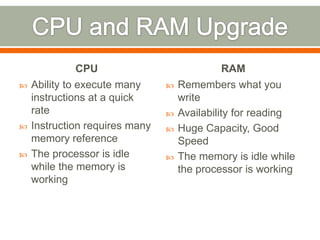
CPU                             RAM
   Ability to execute many        Remembers what you
    instructions at a quick         write
    rate                           Availability for reading
   Instruction requires many      Huge Capacity, Good
    memory reference                Speed
   The processor is idle          The memory is idle while
    while the memory is             the processor is working
    working
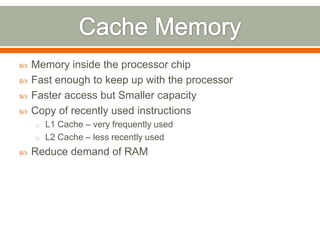
   Memory inside the processor chip
   Fast enough to keep up with the processor
   Faster access but Smaller capacity
   Copy of recently used instructions
    o L1 Cache – very frequently used
    o L2 Cache – less recently used
   Reduce demand of RAM
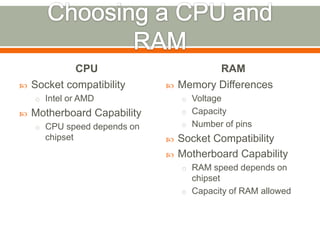
CPU                        RAM
   Socket compatibility        Memory Differences
    o Intel or AMD               o Voltage
   Motherboard Capability       o Capacity

    o CPU speed depends on       o Number of pins
      chipset                   Socket Compatibility
                                Motherboard Capability
                                 o RAM speed depends on
                                   chipset
                                 o Capacity of RAM allowed
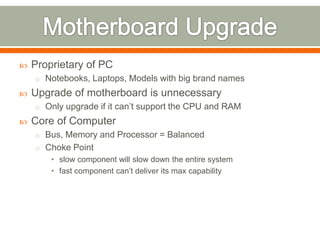
   Proprietary of PC
    o Notebooks, Laptops, Models with big brand names
   Upgrade of motherboard is unnecessary
    o Only upgrade if it can’t support the CPU and RAM
   Core of Computer
    o Bus, Memory and Processor = Balanced
    o Choke Point
        • slow component will slow down the entire system
        • fast component can’t deliver its max capability
   Processor and FSB speed
    o FSB connects CPU to RAM ; Faster CPU need faster RAM access
    o Motherboard Limits FSB max speed and determines design
   Amount type and Memory Configuration
    o Limited DIMM
    o Faster CPU benefits from motherboards supporting multiple
       memory channels and faster memory technologies
   Adapter Card Bus Type
    o PCI Slots and AGP Slot
   Internal I/O Ports
    o IDE or SATA options
   External I/O Ports
    o USB, Audio, Ethernet Options
   Video Upgrade
    o Video images are arrays of dots (pixels) output by the
      motherboard
    o Higher resolution – closer dot spacing – more pixels – more work
   Monitor Upgrade
    o CRT (Cathode Ray Tube)
        • cheaper to produce and offered viewing angles close to 180
          degrees
        • superior contrast, superior response time, are able to use multiple
          screen resolutions natively, refresh rate can be set.
    o LCD (Liquid Crystal Display)
        • consume less power, take up much less space, and are
          considerably lighter
        • less flickering than CRTs, which reduces eye strain
    o LED (Light Emitting Diode)
        • provide higher contrast and better viewing angles than LCDs
   What do you want?
   Manufacturer (ATI , NVIDIA)
   Luminance - describes the amount of light that passes
    through or is emitted from a particular area, and falls
    within a given solid angle.
   Aspect Ratio - the ratio of the width of the image to its
    height
   Viewable Image Size - actual amount of screen space
    that is available for display without obstruction from the
    case
   Display Resolution - number of distinct pixels in each
    dimension
   Dot Pitch - distance between sub-pixels of the same
    color in millimeters. smaller the dot pitch = sharper the
    picture
   Refresh rate - number of times in a second that a display
    is illuminated
   Response time - time a pixel in a monitor takes to go
    from active to inactive. Lower numbers mean faster
    transitions
   Contrast ratio - ratio of the brightest color to that of the
    darkest color that the monitor is capable of producing
   Power Consumption – electrical energy needed to
    operate
   Viewing Angle - max angle at which images on the
    monitor can be viewed, without excessive degradation to
    the image
HD Upgrade                       CDR Upgrade
   Why upgrade if you can          How often do you use
    add one?                         your CDR?
   Space on case                   CDR – DVDR
   Software for copying files      Read and Write Upgrade
                                     for business purposes
   Do I need an update or upgrade?
    o Software Update
       • provides bug fixes and minor software enhancements and is made
         available by free download.
       • A software update is sometimes called a software patch because it
         is applied over software that you already have installed.
       • A software update does not provide a full software package
         installation.
    o Software Upgrade
       • purchase of a newer version of software you currently use of a more
         fully-featured version of your current software.
   Is my current version no longer supported?
    o As software manufacturers release new software, they no longer
      support the older versions.
    o Most software companies support the most recent version and
      two old versions.
    o To check if your version is supported, you can go to the software
      maker's website and check the support area.
    o When your software is no longer supported, it may be hard to get
      answers to questions you have and this can lead to possible
      delays and frustration if you run into a problem with the software.
   Does the new version have some features that will make
    my work more efficient?
    o Almost every software release includes a slew of new features
      designed to make work more efficient or easier.
    o Examine the list of new or changed features to see if any will
      really benefit me.
    o Most people never use more than 10-20% of the features of a
      software package, so new features in that unused 80% are of
      less interest.
   Has the software been out long enough to detect any
    significant problems?
    o Wait 6-12 months after a major new software version is released
      before upgrading.
    o In the first few months, the software company finds bugs that
      they didn't find when testing it and they prepare a service release
      or minor upgrade to fix those problems.
    o This reduces the risk of upgrading and running into significant
      problems.
   Will I run into file format compatibility issues?
    o If a software application has changed the file format that the
      information is saved in, the new files may not be compatible with
      the old version of the software.
    o This can cause problems when sharing files with colleagues or
      partners.
    o If the file format has changed, wait longer to upgrade in order to
      ensure that most of the people you will share files with have
      upgraded to reduce the risk of running into file compatibility
      problems

3 pc upgrade

  • 1.
     PC Repair and Troubleshooting
  • 2.
    Replacing the old with new version for improvement  What do you need? o Hardware Upgrade or Software Upgrade  Are you willing to pay? Is it worth it? o Upgrade or Buy a new one  Risks? o Compatibility o Breakage o Undesired Result o Bug o Improper Function
  • 3.
    CPU & RAM  Motherboard  Display  Hard Disk  CD Rom Drive
  • 4.
    CPU RAM  Ability to execute many  Remembers what you instructions at a quick write rate  Availability for reading  Instruction requires many  Huge Capacity, Good memory reference Speed  The processor is idle  The memory is idle while while the memory is the processor is working working
  • 5.
    Memory inside the processor chip  Fast enough to keep up with the processor  Faster access but Smaller capacity  Copy of recently used instructions o L1 Cache – very frequently used o L2 Cache – less recently used  Reduce demand of RAM
  • 6.
    CPU RAM  Socket compatibility  Memory Differences o Intel or AMD o Voltage  Motherboard Capability o Capacity o CPU speed depends on o Number of pins chipset  Socket Compatibility  Motherboard Capability o RAM speed depends on chipset o Capacity of RAM allowed
  • 7.
    Proprietary of PC o Notebooks, Laptops, Models with big brand names  Upgrade of motherboard is unnecessary o Only upgrade if it can’t support the CPU and RAM  Core of Computer o Bus, Memory and Processor = Balanced o Choke Point • slow component will slow down the entire system • fast component can’t deliver its max capability
  • 8.
    Processor and FSB speed o FSB connects CPU to RAM ; Faster CPU need faster RAM access o Motherboard Limits FSB max speed and determines design  Amount type and Memory Configuration o Limited DIMM o Faster CPU benefits from motherboards supporting multiple memory channels and faster memory technologies  Adapter Card Bus Type o PCI Slots and AGP Slot  Internal I/O Ports o IDE or SATA options  External I/O Ports o USB, Audio, Ethernet Options
  • 9.
    Video Upgrade o Video images are arrays of dots (pixels) output by the motherboard o Higher resolution – closer dot spacing – more pixels – more work  Monitor Upgrade o CRT (Cathode Ray Tube) • cheaper to produce and offered viewing angles close to 180 degrees • superior contrast, superior response time, are able to use multiple screen resolutions natively, refresh rate can be set. o LCD (Liquid Crystal Display) • consume less power, take up much less space, and are considerably lighter • less flickering than CRTs, which reduces eye strain o LED (Light Emitting Diode) • provide higher contrast and better viewing angles than LCDs
  • 10.
    What do you want?  Manufacturer (ATI , NVIDIA)
  • 11.
    Luminance - describes the amount of light that passes through or is emitted from a particular area, and falls within a given solid angle.  Aspect Ratio - the ratio of the width of the image to its height  Viewable Image Size - actual amount of screen space that is available for display without obstruction from the case  Display Resolution - number of distinct pixels in each dimension  Dot Pitch - distance between sub-pixels of the same color in millimeters. smaller the dot pitch = sharper the picture
  • 12.
    Refresh rate - number of times in a second that a display is illuminated  Response time - time a pixel in a monitor takes to go from active to inactive. Lower numbers mean faster transitions  Contrast ratio - ratio of the brightest color to that of the darkest color that the monitor is capable of producing  Power Consumption – electrical energy needed to operate  Viewing Angle - max angle at which images on the monitor can be viewed, without excessive degradation to the image
  • 13.
    HD Upgrade CDR Upgrade  Why upgrade if you can  How often do you use add one? your CDR?  Space on case  CDR – DVDR  Software for copying files  Read and Write Upgrade for business purposes
  • 14.
    Do I need an update or upgrade? o Software Update • provides bug fixes and minor software enhancements and is made available by free download. • A software update is sometimes called a software patch because it is applied over software that you already have installed. • A software update does not provide a full software package installation. o Software Upgrade • purchase of a newer version of software you currently use of a more fully-featured version of your current software.
  • 15.
    Is my current version no longer supported? o As software manufacturers release new software, they no longer support the older versions. o Most software companies support the most recent version and two old versions. o To check if your version is supported, you can go to the software maker's website and check the support area. o When your software is no longer supported, it may be hard to get answers to questions you have and this can lead to possible delays and frustration if you run into a problem with the software.
  • 16.
    Does the new version have some features that will make my work more efficient? o Almost every software release includes a slew of new features designed to make work more efficient or easier. o Examine the list of new or changed features to see if any will really benefit me. o Most people never use more than 10-20% of the features of a software package, so new features in that unused 80% are of less interest.
  • 17.
    Has the software been out long enough to detect any significant problems? o Wait 6-12 months after a major new software version is released before upgrading. o In the first few months, the software company finds bugs that they didn't find when testing it and they prepare a service release or minor upgrade to fix those problems. o This reduces the risk of upgrading and running into significant problems.
  • 18.
    Will I run into file format compatibility issues? o If a software application has changed the file format that the information is saved in, the new files may not be compatible with the old version of the software. o This can cause problems when sharing files with colleagues or partners. o If the file format has changed, wait longer to upgrade in order to ensure that most of the people you will share files with have upgraded to reduce the risk of running into file compatibility problems