Advanced Imaging on iOS
@rsebbe
Foreword
•

Don’t make any assumption about imaging on
iOS. Why?

•

Because even if you’re right today, you’ll be wrong
next year.

•

iOS is a moving platform, constantly being
optimized versions after versions.

•

Experiment, and find out the best approach for
your app.
Understanding
•

Things to have in mind at all times: execution
speed & memory consumption.

•

How to assess those: Instruments.
APIs
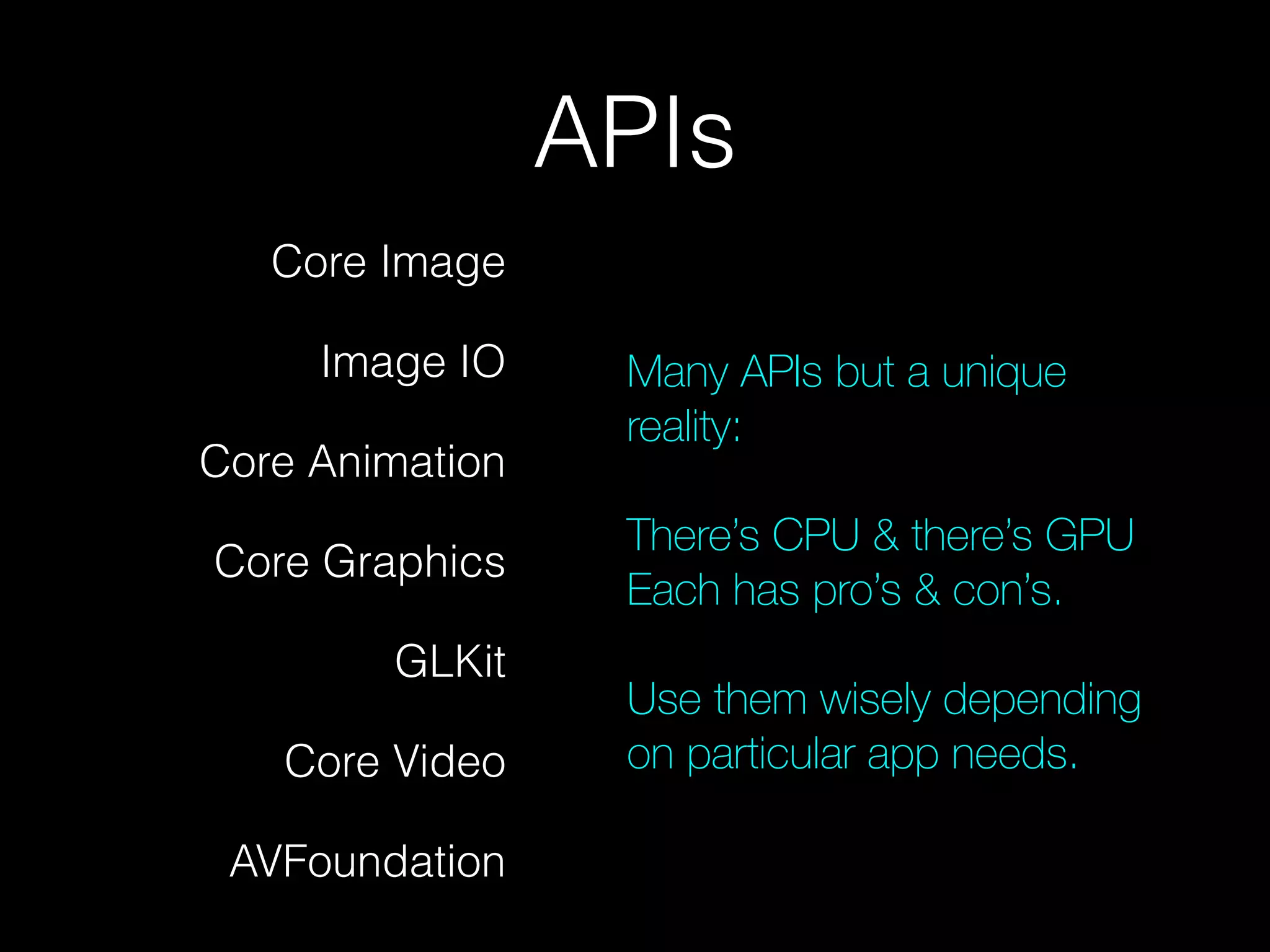
Core Image
Image IO
Core Animation
Core Graphics
GLKit
Core Video
AVFoundation

Many APIs but a unique
reality:
!

There’s CPU & there’s GPU
Each has pro’s & con’s.
!

Use them wisely depending
on particular app needs.
Imaging 101
•

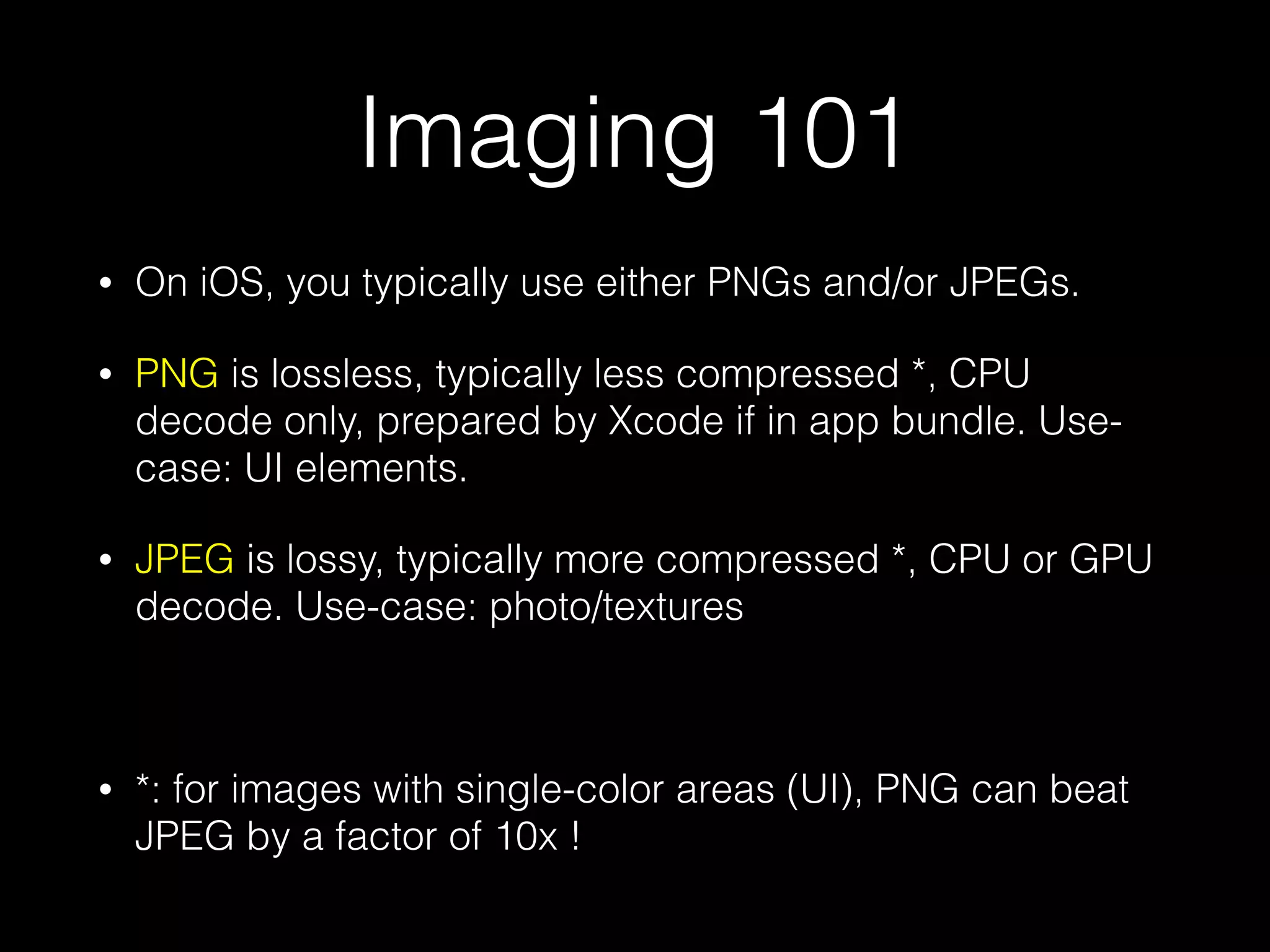
On iOS, you typically use either PNGs and/or JPEGs.

•

PNG is lossless, typically less compressed *, CPU
decode only, prepared by Xcode if in app bundle. Usecase: UI elements.

•

JPEG is lossy, typically more compressed *, CPU or GPU
decode. Use-case: photo/textures
!

•

*: for images with single-color areas (UI), PNG can beat
JPEG by a factor of 10x !
Imaging 101
•

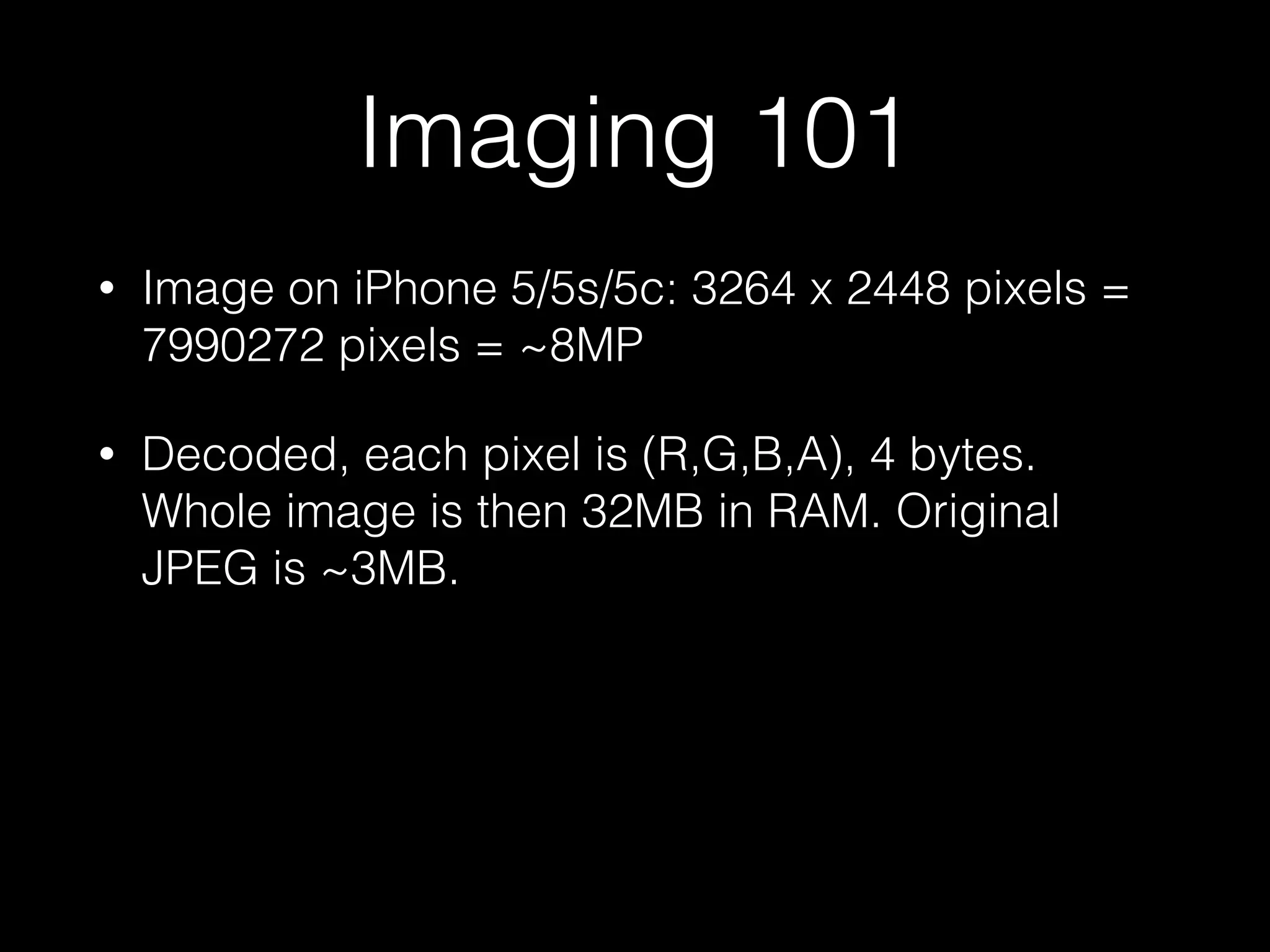
Image on iPhone 5/5s/5c: 3264 x 2448 pixels =
7990272 pixels = ~8MP

•

Decoded, each pixel is (R,G,B,A), 4 bytes.
Whole image is then 32MB in RAM. Original
JPEG is ~3MB.
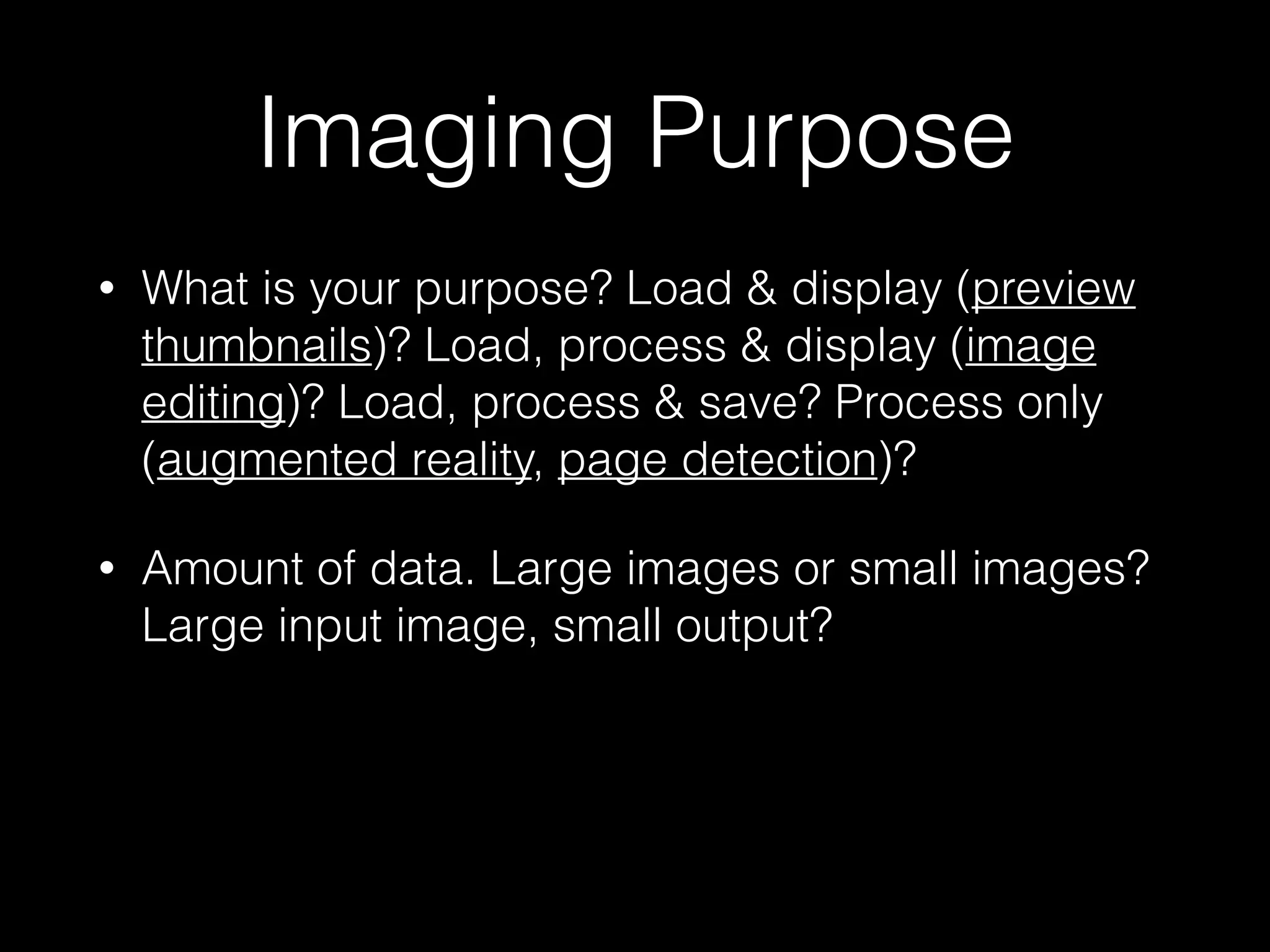
Imaging Purpose
•

What is your purpose? Load & display (preview
thumbnails)? Load, process & display (image
editing)? Load, process & save? Process only
(augmented reality, page detection)?

•

Amount of data. Large images or small images?
Large input image, small output?
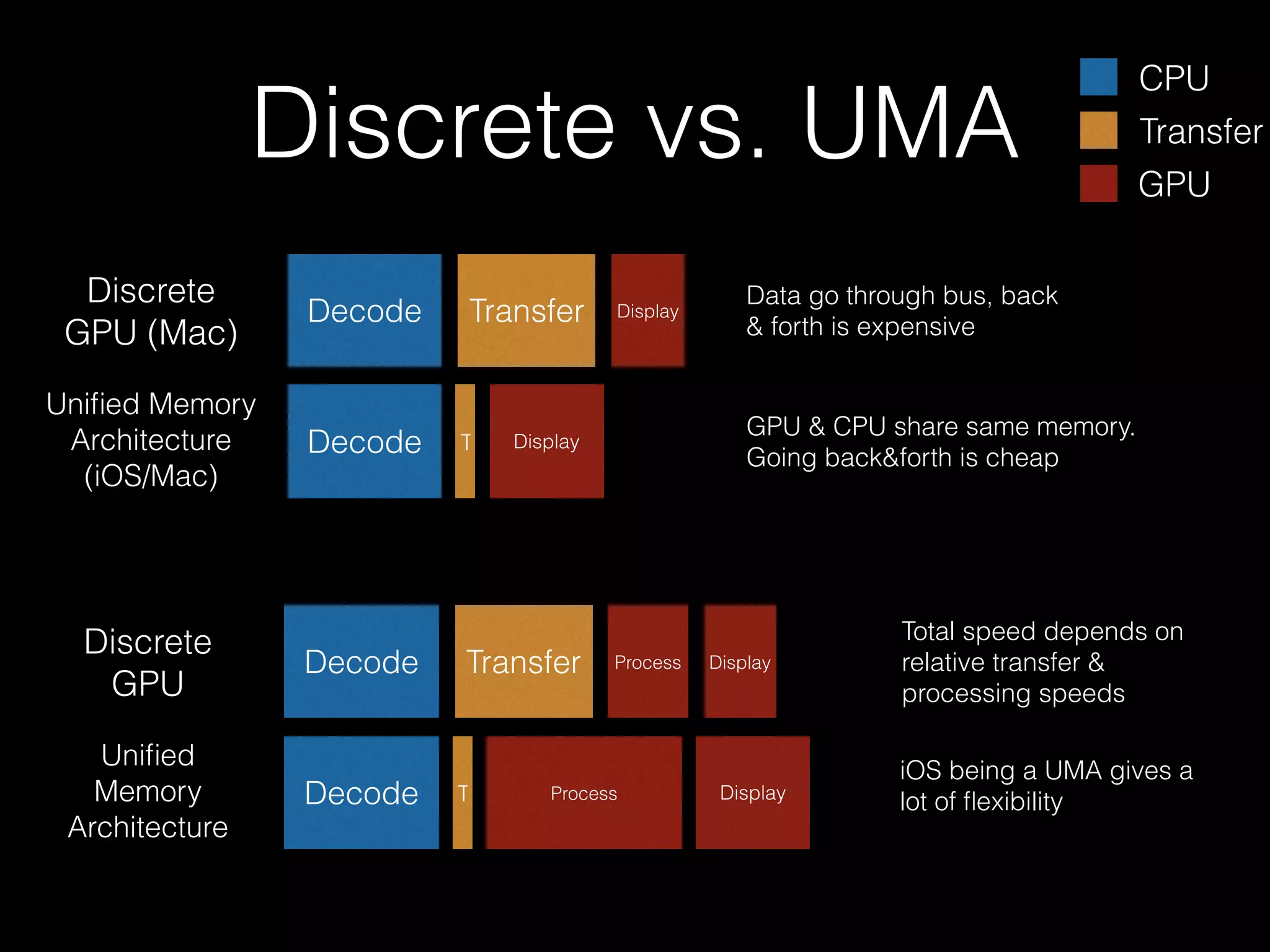
Discrete vs. UMA
Discrete
GPU (Mac)

Decode

Unified Memory
Architecture
(iOS/Mac)

Decode

Discrete
GPU
Unified
Memory
Architecture

Decode

Decode

Transfer

T

Transfer
GPU

Data go through bus, back
& forth is expensive

GPU & CPU share same memory.
Going back&forth is cheap

Display

Transfer

T

Display

CPU

Process

Process

Display

Display

Total speed depends on
relative transfer &
processing speeds
iOS being a UMA gives a
lot of flexibility
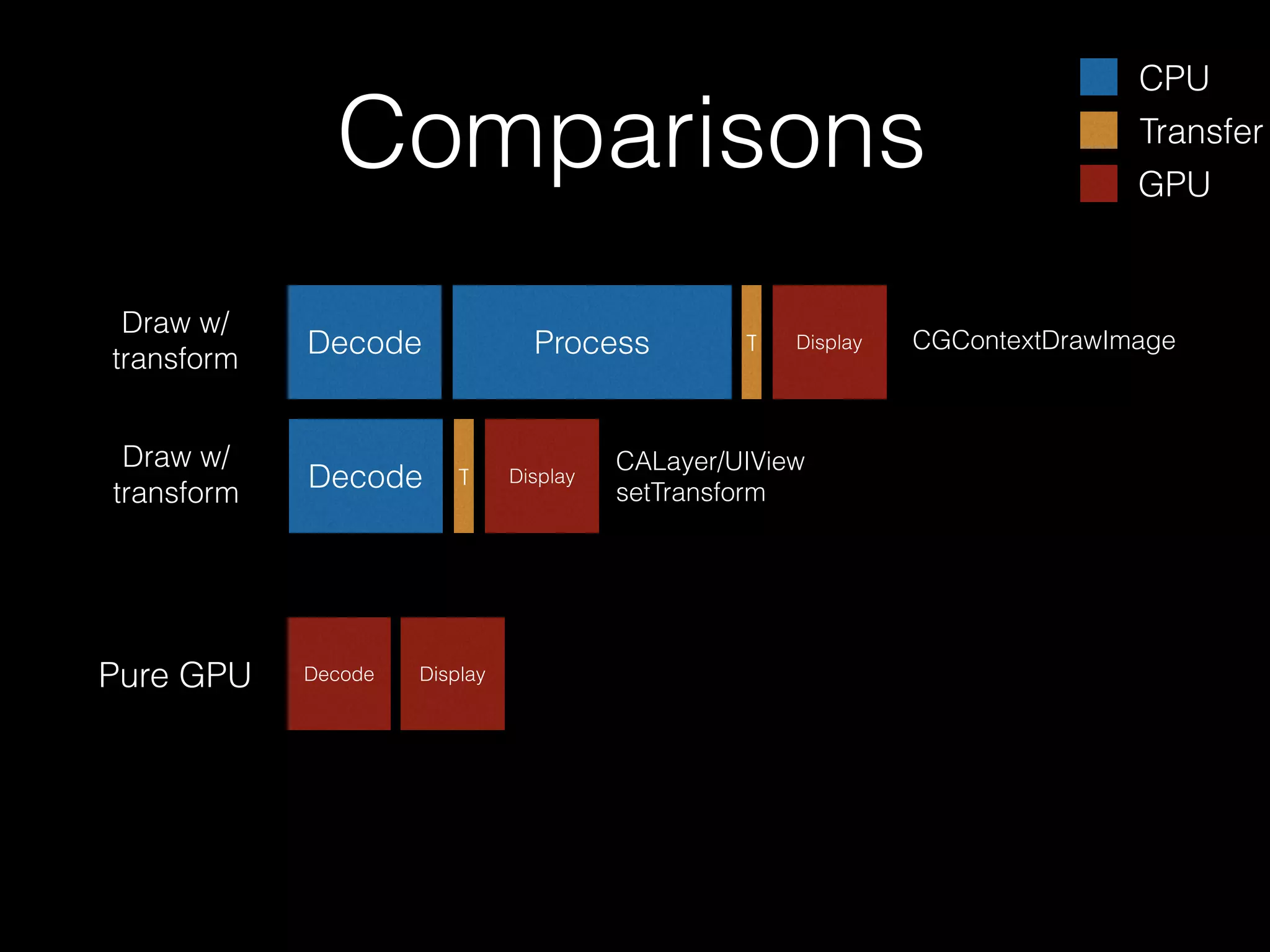
Comparisons
Draw w/
transform

Decode

Draw w/
transform

Decode

Pure GPU

Decode

Process

T

Display

Display

T

Display

CALayer/UIView
setTransform

CPU
Transfer
GPU

CGContextDrawImage
GPU
•

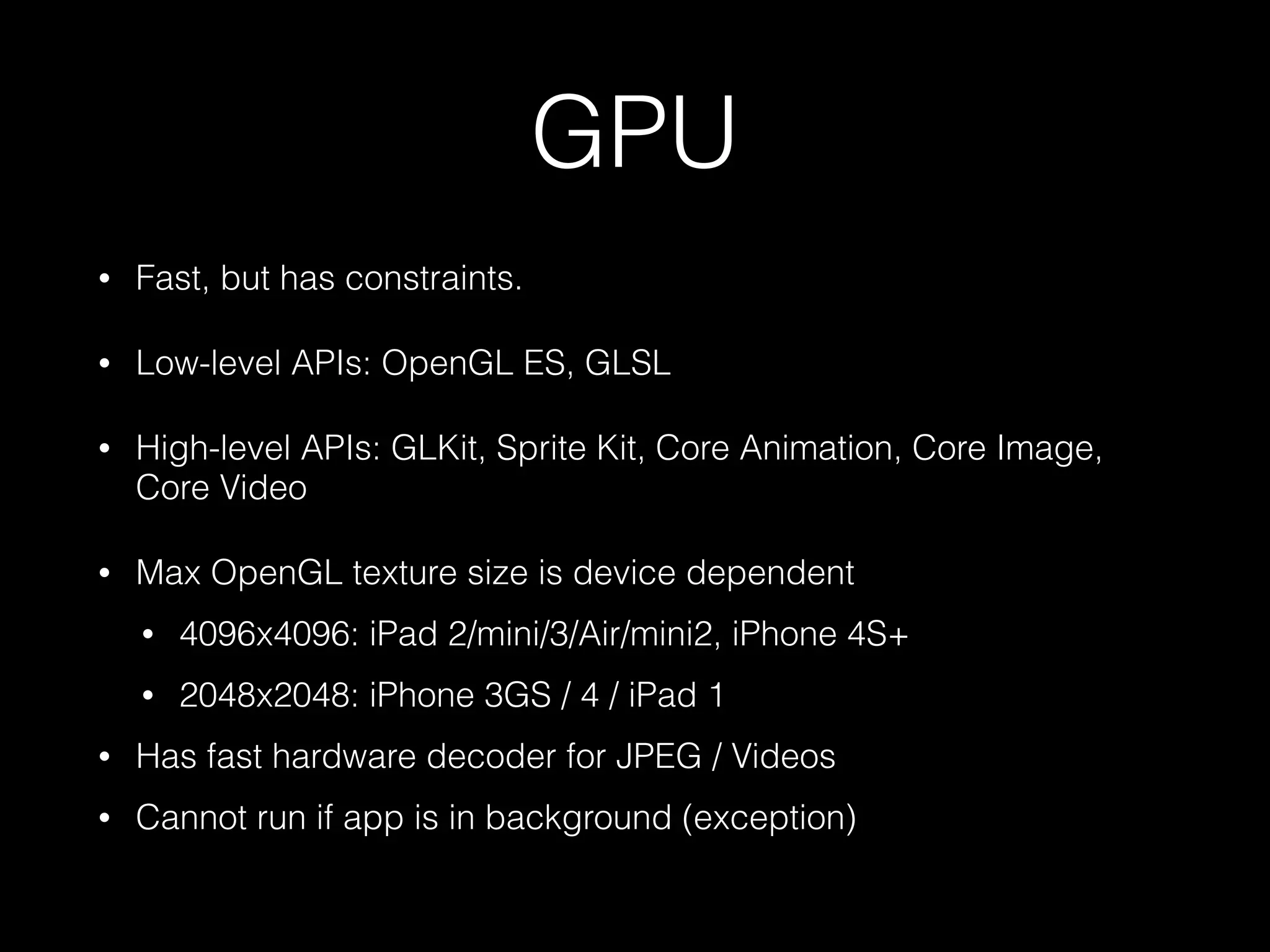
Fast, but has constraints.

•

Low-level APIs: OpenGL ES, GLSL

•

High-level APIs: GLKit, Sprite Kit, Core Animation, Core Image,
Core Video

•

Max OpenGL texture size is device dependent
•

4096x4096: iPad 2/mini/3/Air/mini2, iPhone 4S+

•

2048x2048: iPhone 3GS / 4 / iPad 1

•

Has fast hardware decoder for JPEG / Videos

•

Cannot run if app is in background (exception)
CPU
•

Slow, but flexible. Like “I’m 15x slower than my GPU
friend, OK, but I can be smarter”.

•

Low-level APIs: C, SIMD.

•

High-level APIs: Accelerate, Core Graphics, ImageIO.

•

Has smart JPEG decoder.

•

Can run in background.
Core Animation
•

Very efficient, GPU-accelerated 2D/3D transform of image-based
content. Foundation for UIKit’s UIView.

•

CALayer/UIView needs some visuals. How? -drawLayer: or setContents:

•

-[CALayer drawLayer:] (or -[UIView drawRect:]) uses Core
Graphics (CPU) to generate an image (slow), and that image is
then made into a GPU-backed texture that can move around
(fast).

•

If not drawing, but instead setting contents -[CALayer
setContents:] (or -[UIImageView setImage:]), you get the fast
path, that is, GPU image decoding.
Fast Path
CPU

Pure GPU

Decode

Decode

Display

T

Display

CPU
Transfer
GPU

-[CALayer drawRect:] (or UIView) +
CGContextDrawImage (or UIImage
draw)

CALayer.contents (or
UIImageView.image)
Demo 1
The Strong, the Weak, & the Ugly

Comparison of CALayer.contents / UIView drawRect: for small images
2MP, 50x
Show relative execution speed
Show Instruments Time Profiler & OpenGL ES Driver.
Core Graphics / ImageIO
•

CPU (mostly).

•

CGImageRef, CGImageSourceRef, CGContextRef

•

Used with -drawRect: -drawLayer:
Core Graphics / ImageIO
•

How the load CGImageRef? Either using UIImage (easier) or
CGImageSourceRef (more control)

•

How to create CGImageRef from existing pixel data?
CGDataProviderRef

•

Having a CGImage object does not mean it’s decoded. It’s
typically not, and even references mem-mapped data on disk ->
no real device memory.

•

Sometimes, you may want to have it into decoded form (repeated/
high performance drawing, access to pixel values)

•

How do I do that?
Core Graphics / ImageIO
•

Need access to pixel values: use CGBitmapContext

•

Need to draw that image repeatedly? use CGLayer,
UIGraphicsBeginImageContext(), or CGImage’s
shouldCache property.
Core Graphics / ImageIO
•

Understanding kCGImageSourceShouldCache

•

It does *not* cache your image when creating it from the
CGImageSourceRef.

•

Instead it caches it when drawing it the first time.

•

It caches possibly at different sizes simultaneously. If you
draw your image at 3 different sizes -> cached 3x.

•

Check your memory consumption when using caching,
and don’t keep that image around when not needed.
Core Graphics / ImageIO
•

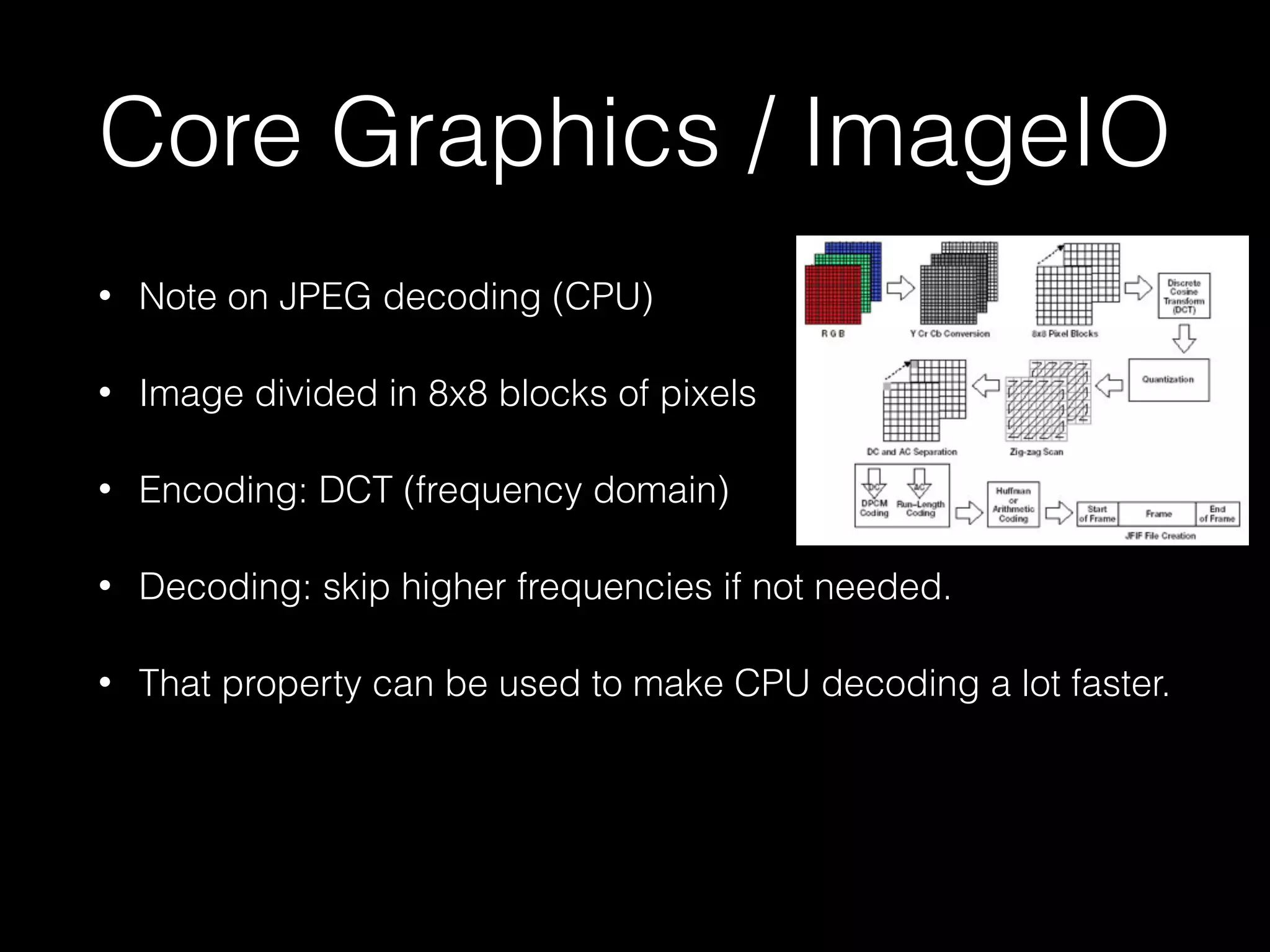
Note on JPEG decoding (CPU)

•

Image divided in 8x8 blocks of pixels

•

Encoding: DCT (frequency domain)

•

Decoding: skip higher frequencies if not needed.

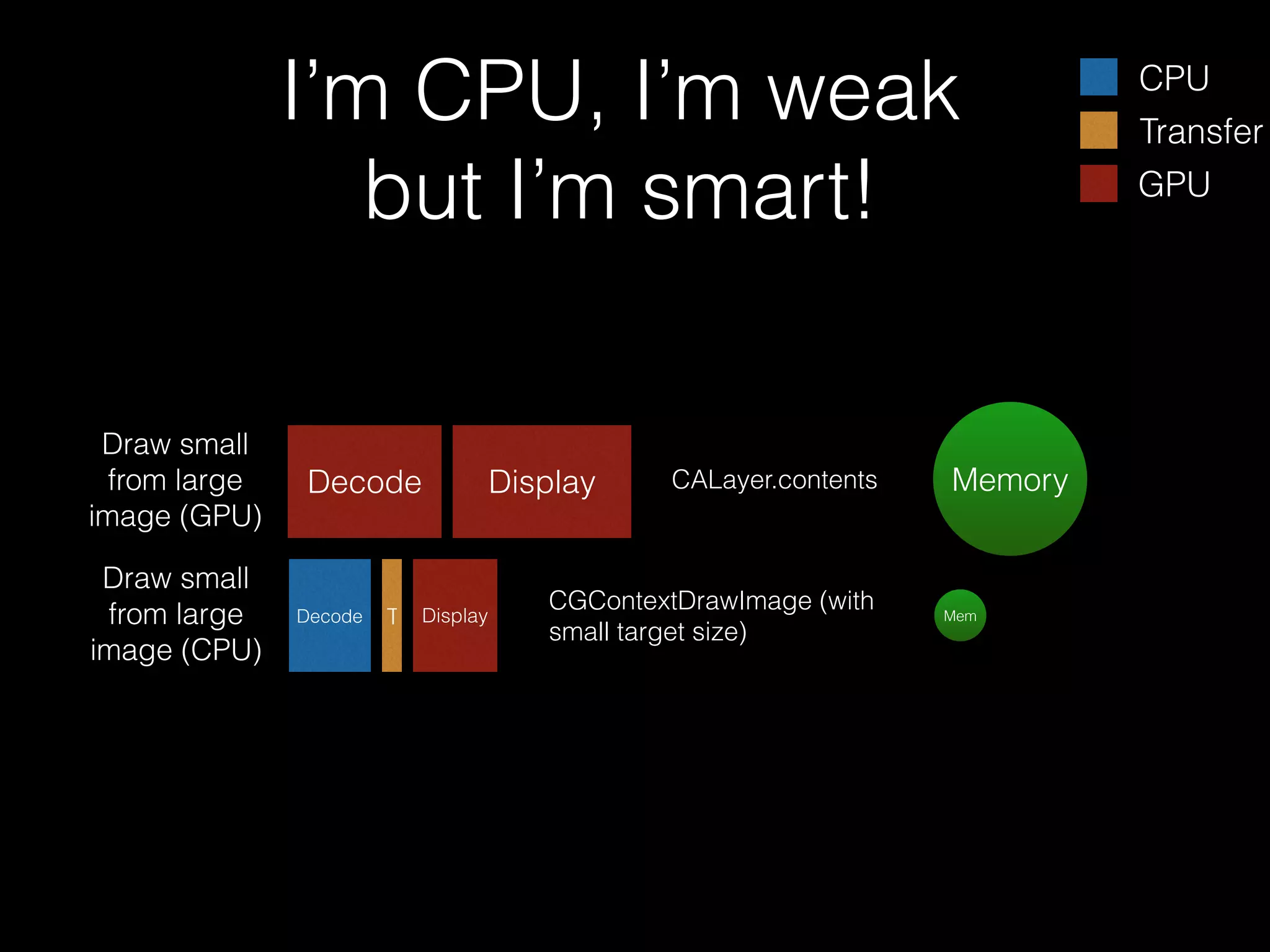
•

That property can be used to make CPU decoding a lot faster.
Core Graphics / ImageIO
•

If source image is 3264px wide,

•

Drawing at 1632px will trigger partial JPEG decoding (4x4
instead of 8x8) -> much faster. Drawing at 1633px
triggers full decoding + interpolation (much slower)

•

Similarly, successive power of 2 dividers have additional
speed gain. ÷8 faster than ÷4 faster than ÷2

•

If you need to draw a large image to a small size, use
Core Graphics API (CPU), not CALayer (GPU). GPU
decoding always decodes at full resolution!
I’m CPU, I’m weak
but I’m smart!
Draw small
from large
image (GPU)
Draw small
from large
image (CPU)

Decode

Decode

T

Display

Display

CALayer.contents

CGContextDrawImage (with
small target size)

Memory

Mem

CPU
Transfer
GPU
Demo 2
The Strong & Idiot vs. the Weak & Smart

11MP, 10x
Show GPU is slower. Show GPU version does entire image decoding, while CPU does smarter, reduced drawing.
Show Time Profiler function trace
Show VMTracker tool, Dirty size.
Change code to show influence of draw size on speed (+ function trace)
Core Image
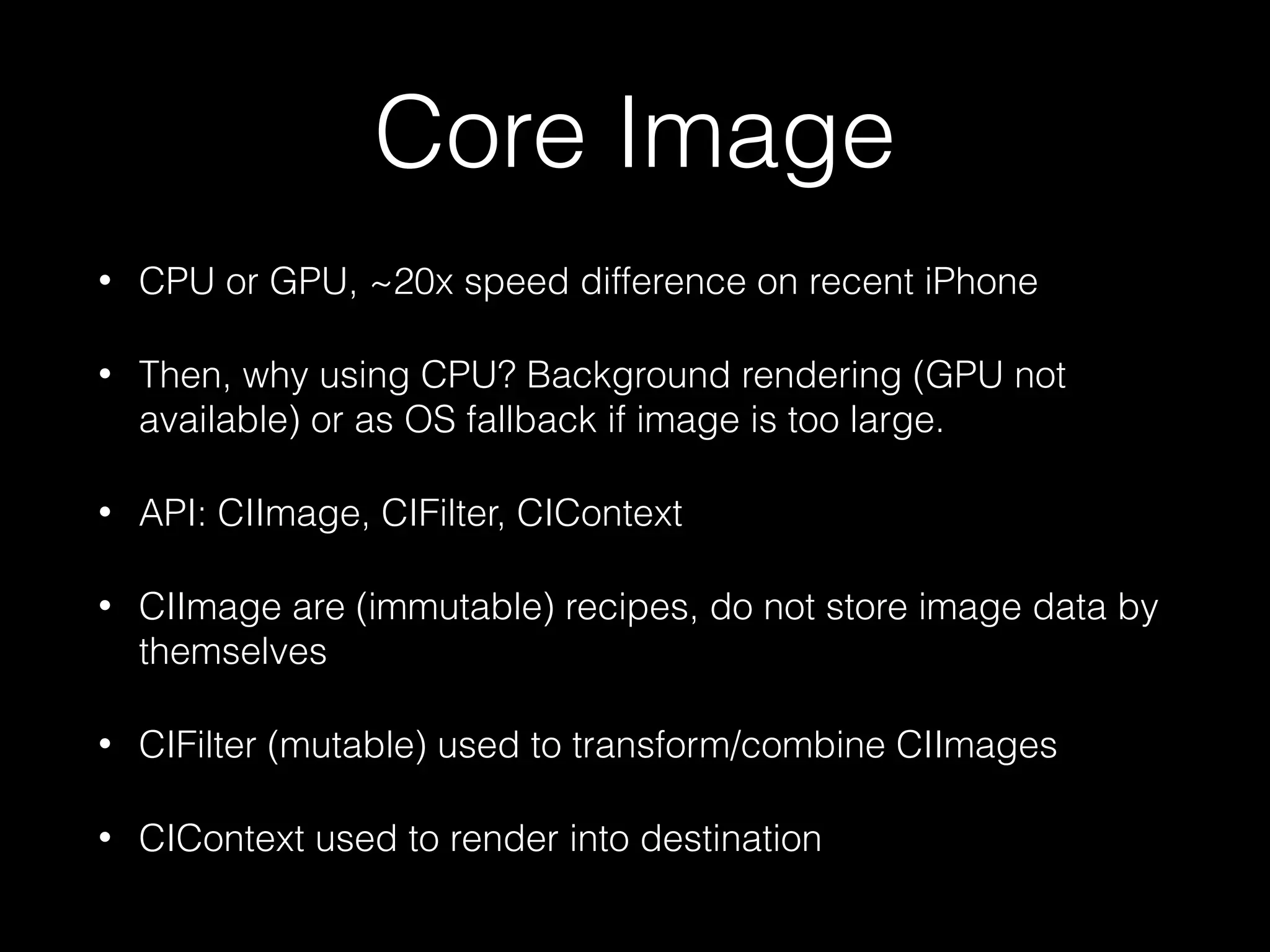
•

CPU or GPU, ~20x speed difference on recent iPhone

•

Then, why using CPU? Background rendering (GPU not
available) or as OS fallback if image is too large.

•

API: CIImage, CIFilter, CIContext

•

CIImage are (immutable) recipes, do not store image data by
themselves

•

CIFilter (mutable) used to transform/combine CIImages

•

CIContext used to render into destination
Core Image
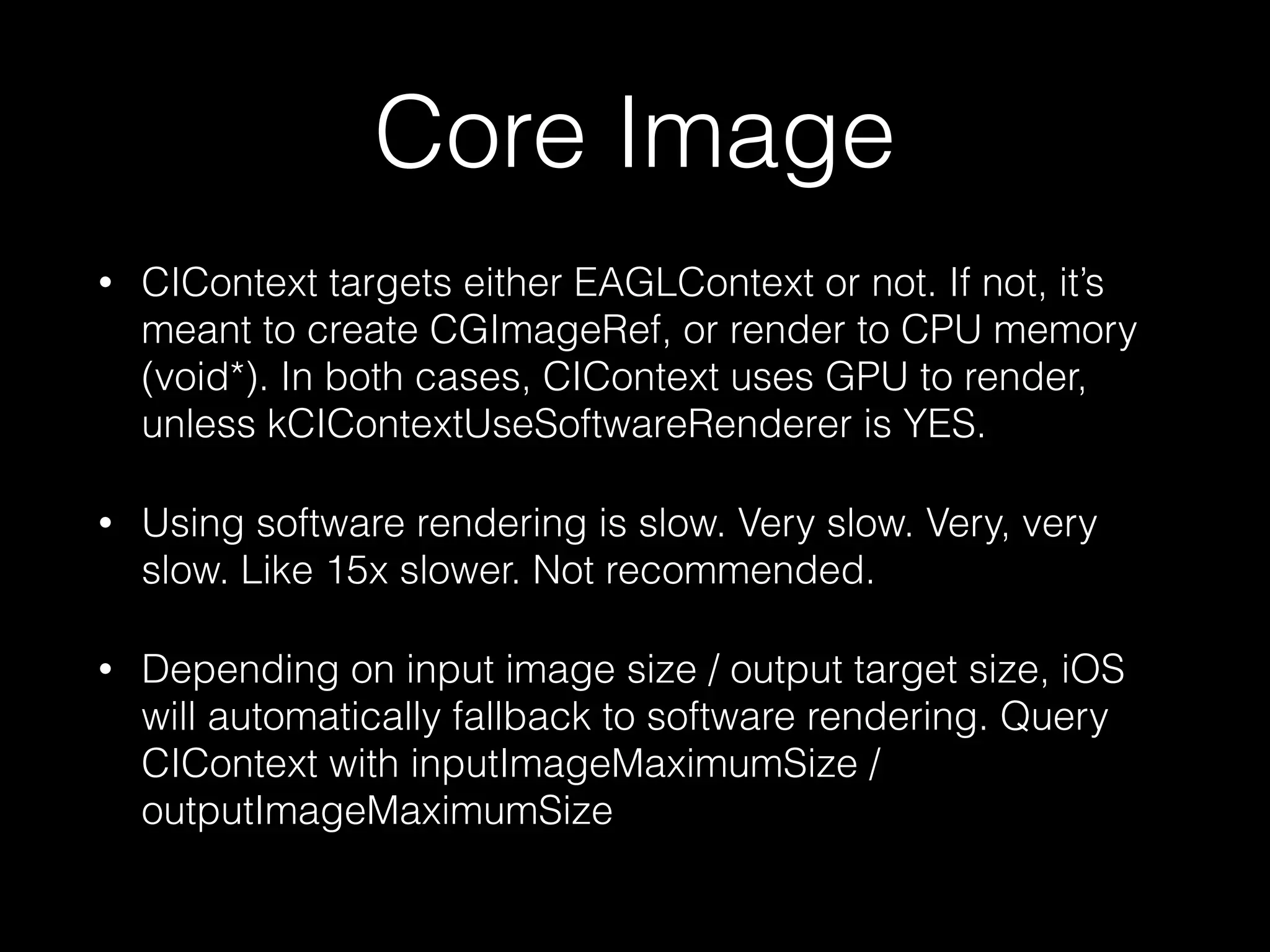
•

CIContext targets either EAGLContext or not. If not, it’s
meant to create CGImageRef, or render to CPU memory
(void*). In both cases, CIContext uses GPU to render,
unless kCIContextUseSoftwareRenderer is YES.

•

Using software rendering is slow. Very slow. Very, very
slow. Like 15x slower. Not recommended.

•

Depending on input image size / output target size, iOS
will automatically fallback to software rendering. Query
CIContext with inputImageMaximumSize /
outputImageMaximumSize
Core Image
•

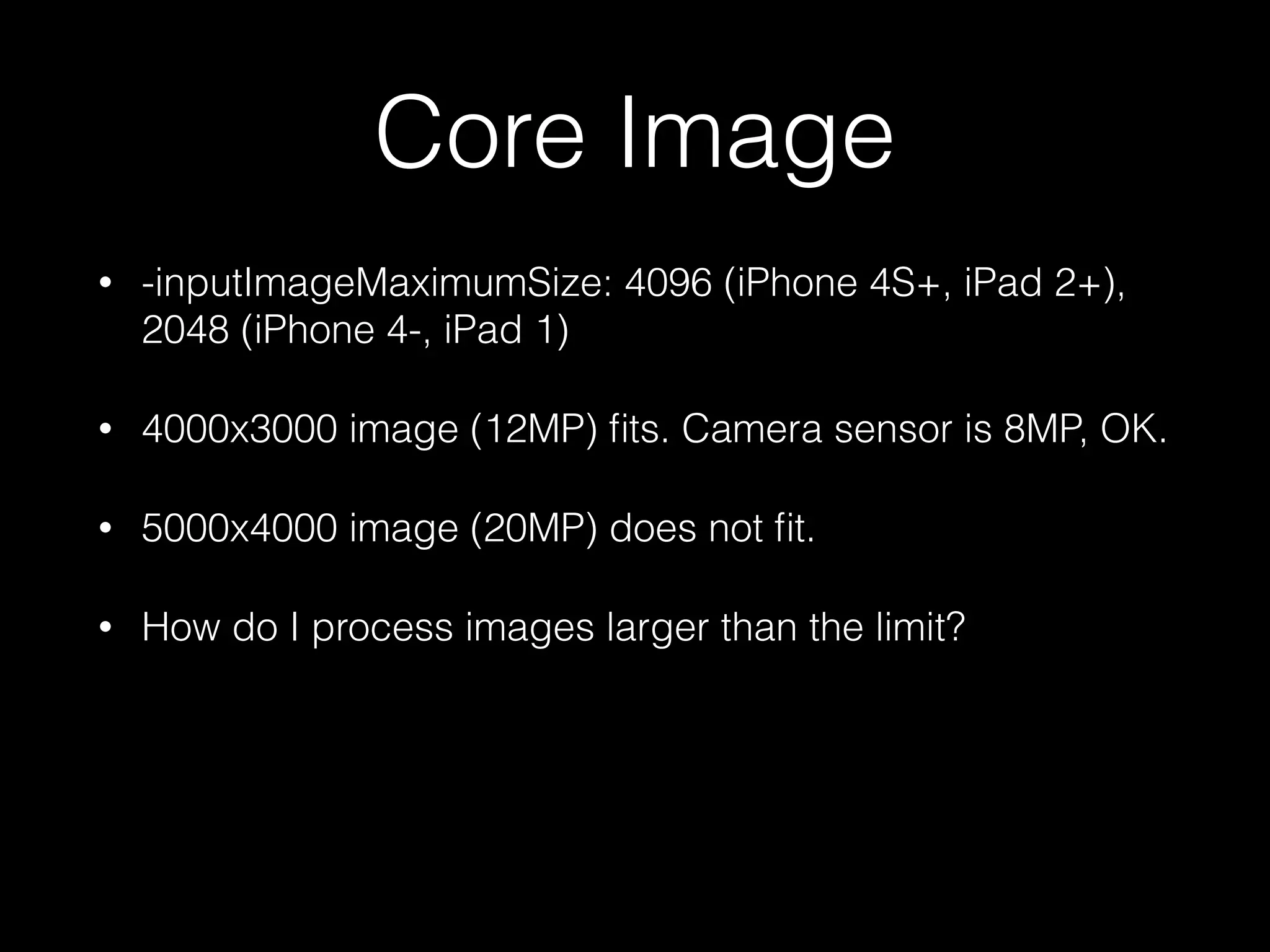
-inputImageMaximumSize: 4096 (iPhone 4S+, iPad 2+),
2048 (iPhone 4-, iPad 1)

•

4000x3000 image (12MP) fits. Camera sensor is 8MP, OK.

•

5000x4000 image (20MP) does not fit.

•

How do I process images larger than the limit?
Core Image
•

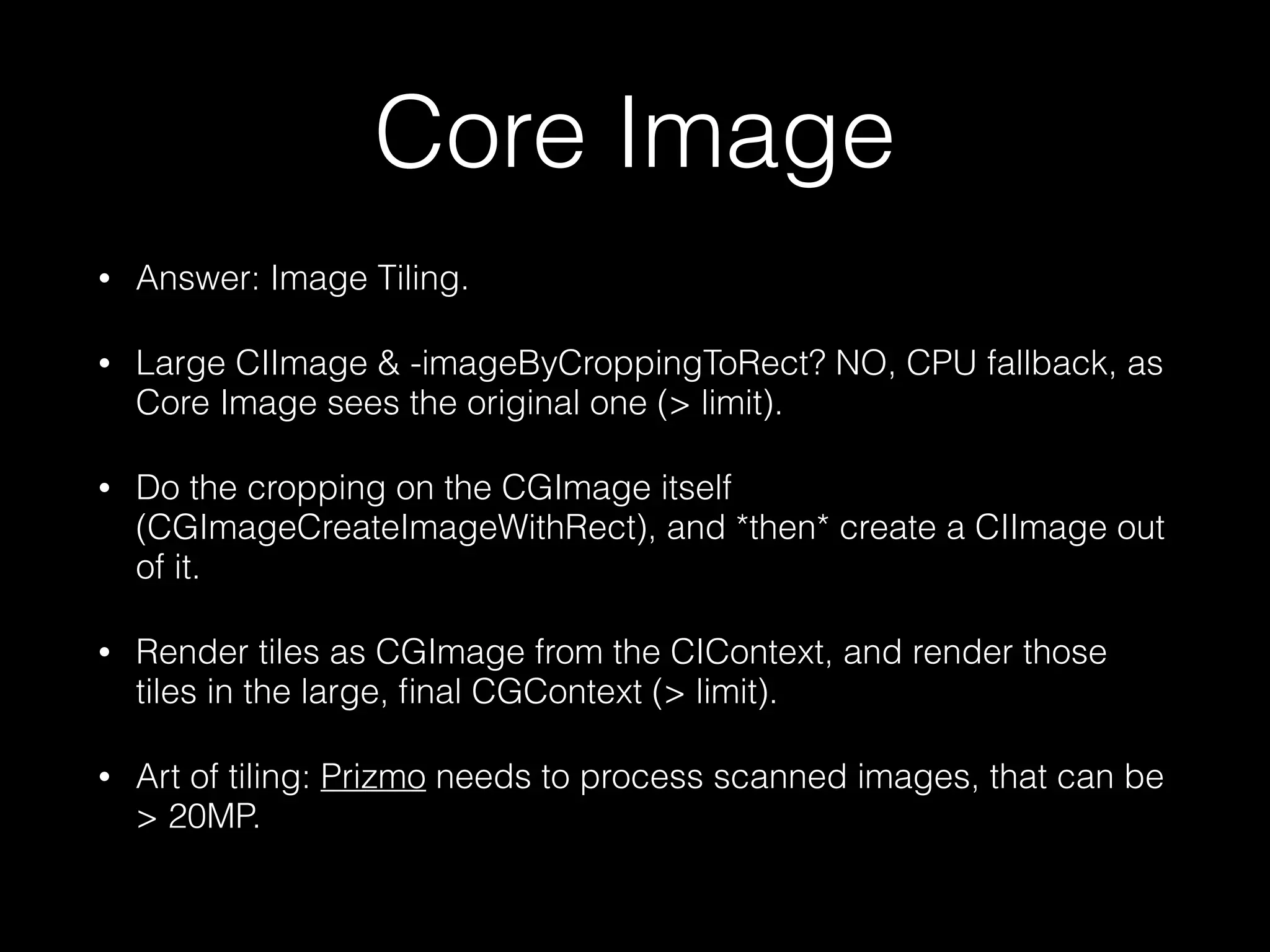
Answer: Image Tiling.

•

Large CIImage & -imageByCroppingToRect? NO, CPU fallback, as
Core Image sees the original one (> limit).

•

Do the cropping on the CGImage itself
(CGImageCreateImageWithRect), and *then* create a CIImage out
of it.

•

Render tiles as CGImage from the CIContext, and render those
tiles in the large, final CGContext (> limit).

•

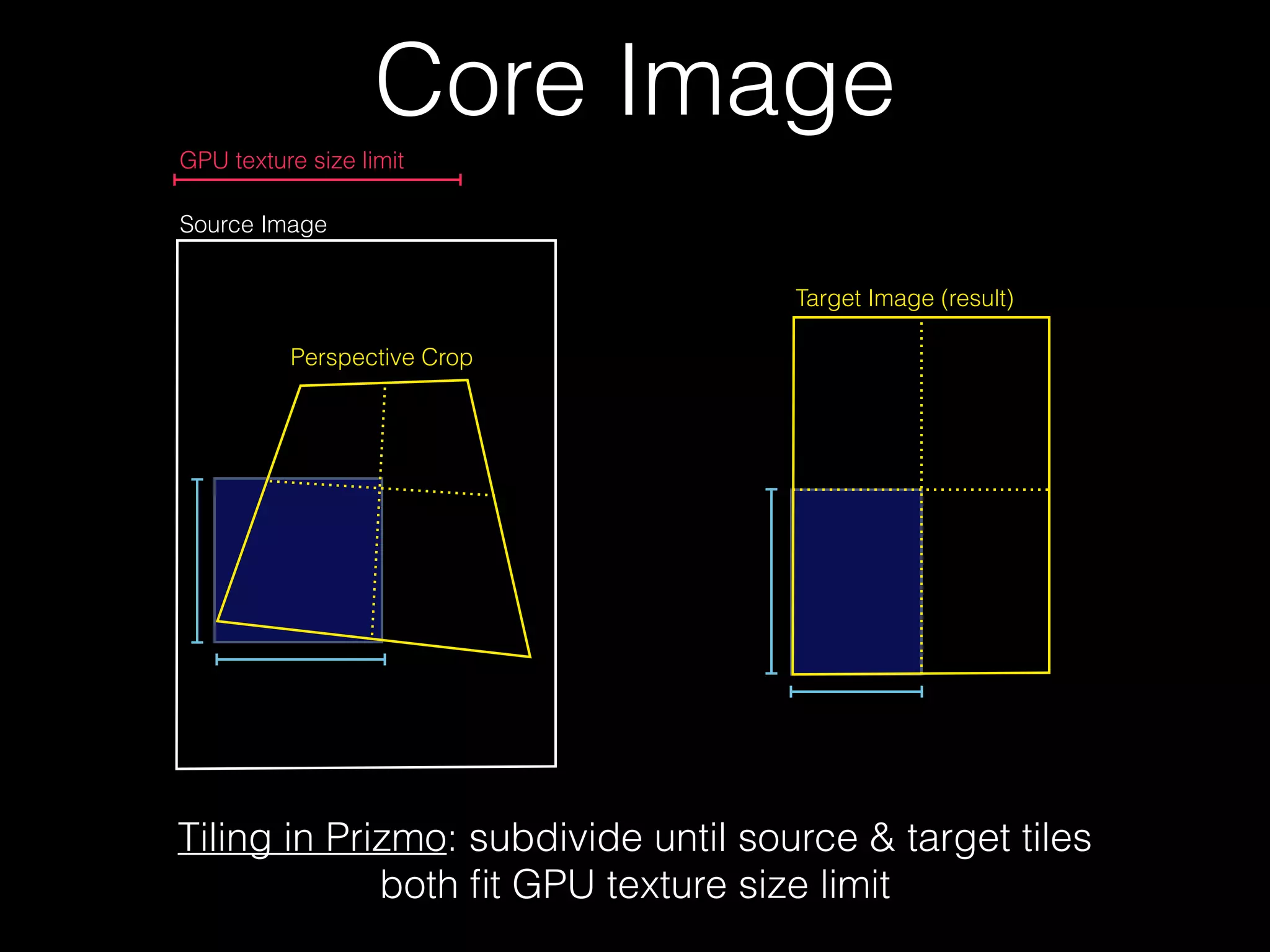
Art of tiling: Prizmo needs to process scanned images, that can be
> 20MP.
Core Image
GPU texture size limit
Source Image
Target Image (result)
Perspective Crop

Tiling in Prizmo: subdivide until source & target tiles
both fit GPU texture size limit
Core Image
•

Tips & Tricks

•

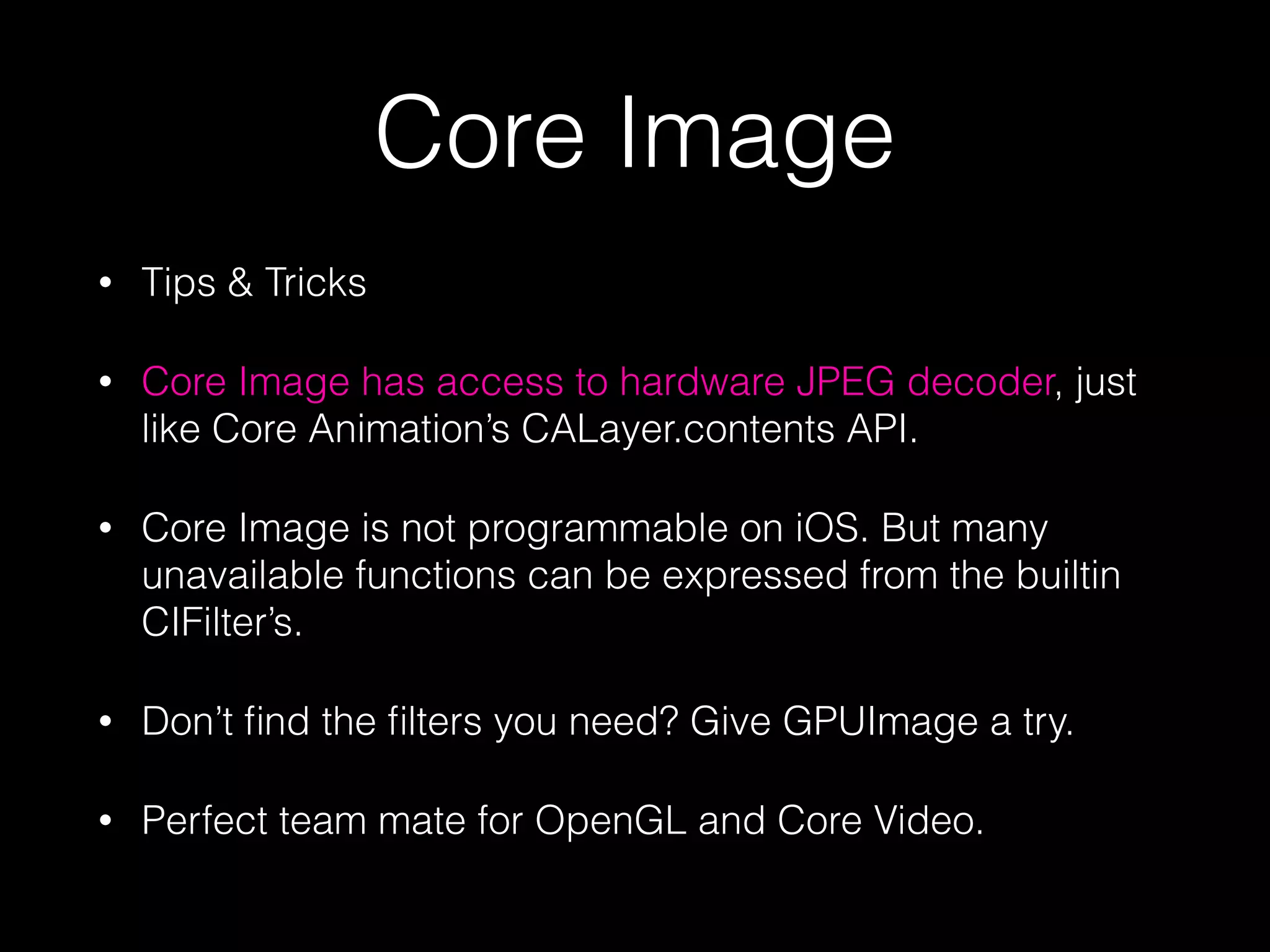
Core Image has access to hardware JPEG decoder, just
like Core Animation’s CALayer.contents API.

•

Core Image is not programmable on iOS. But many
unavailable functions can be expressed from the builtin
CIFilter’s.

•

Don’t find the filters you need? Give GPUImage a try.

•

Perfect team mate for OpenGL and Core Video.
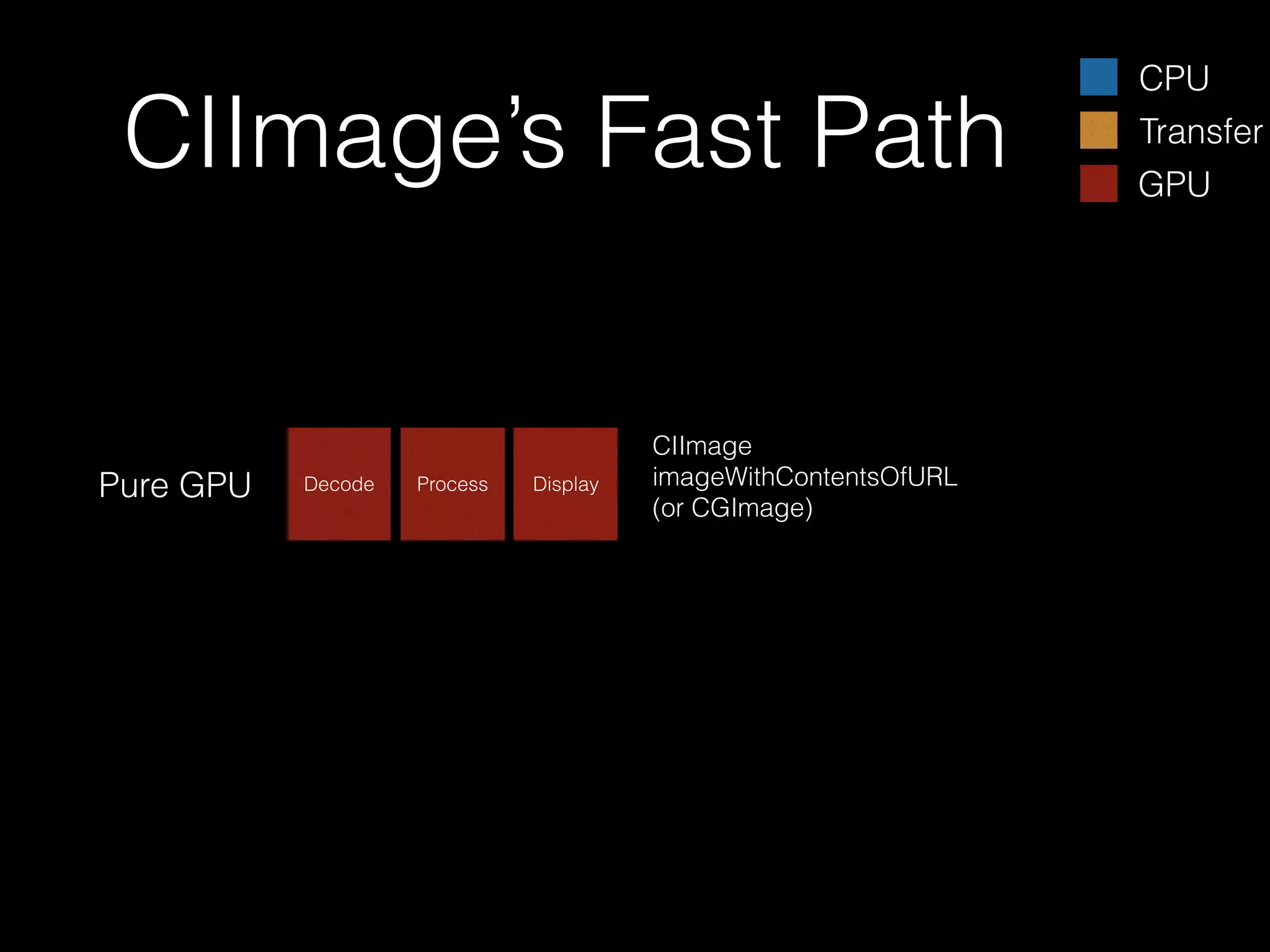
CIImage’s Fast Path

Pure GPU

Decode

Process

Display

CIImage
imageWithContentsOfURL
(or CGImage)

CPU
Transfer
GPU
Core Image
•

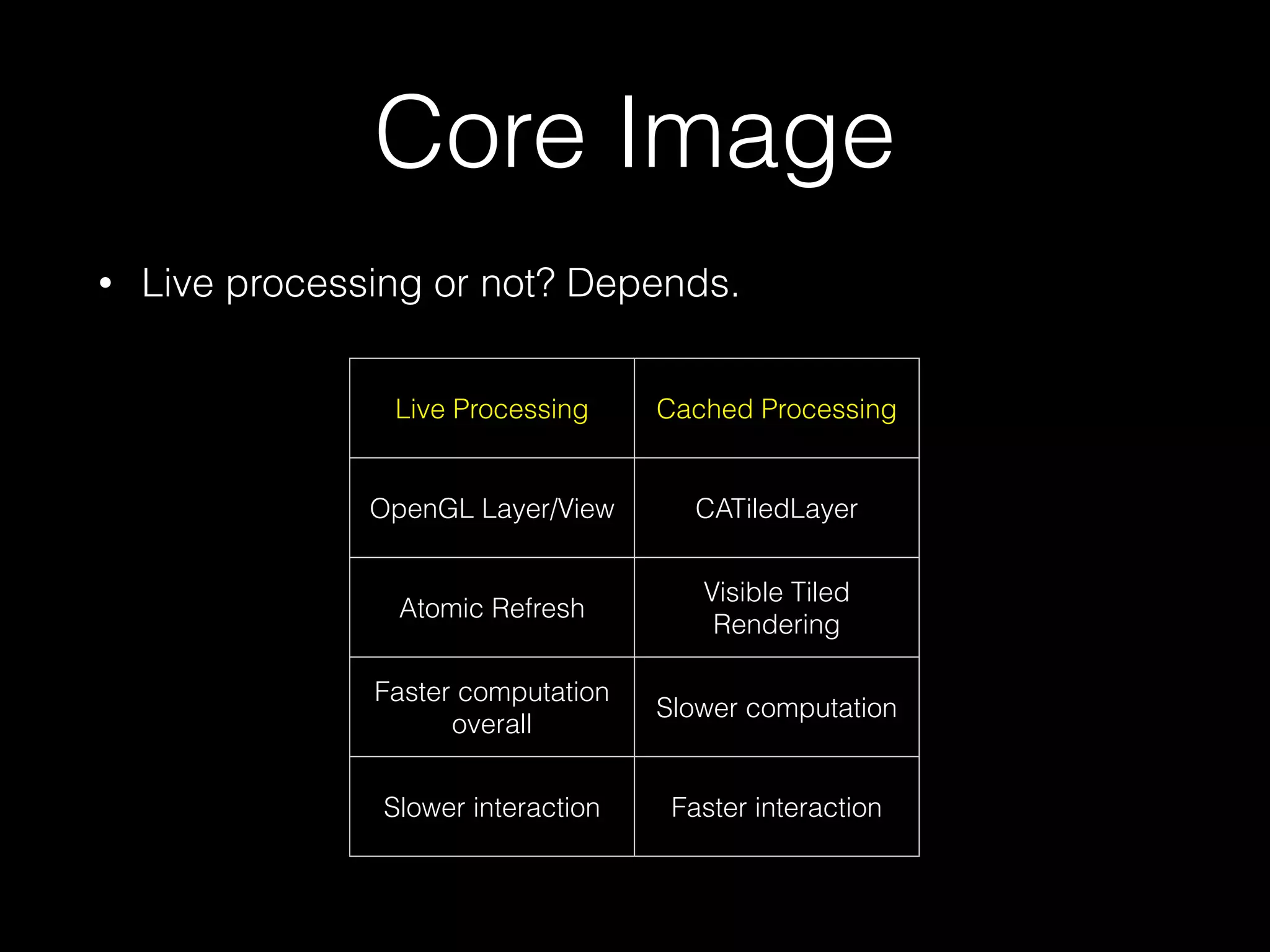
Live processing or not? Depends.
Live Processing

Cached Processing

OpenGL Layer/View

CATiledLayer

Atomic Refresh

Visible Tiled
Rendering

Faster computation
overall

Slower computation

Slower interaction

Faster interaction
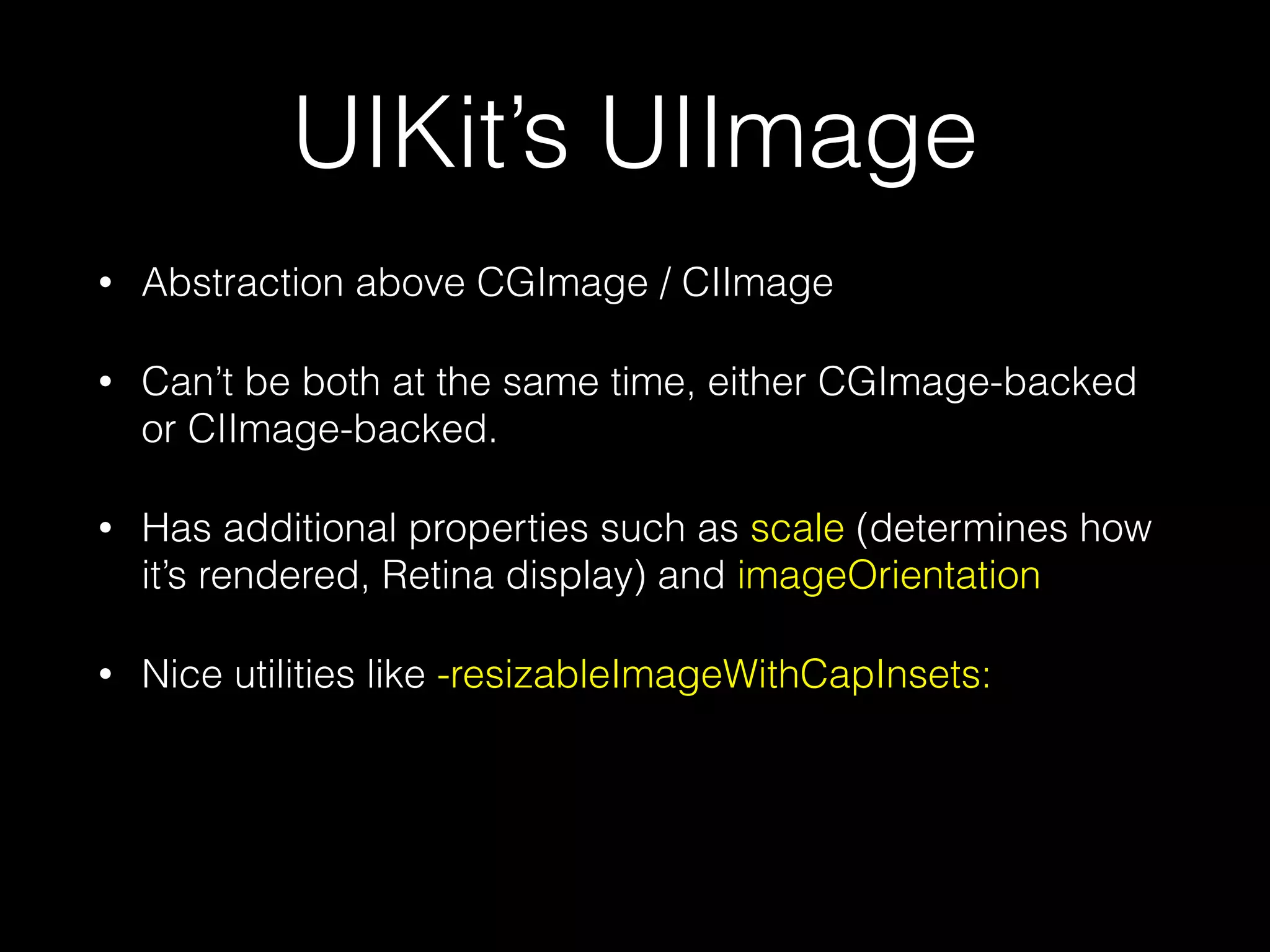
UIKit’s UIImage
•

Abstraction above CGImage / CIImage

•

Can’t be both at the same time, either CGImage-backed
or CIImage-backed.

•

Has additional properties such as scale (determines how
it’s rendered, Retina display) and imageOrientation

•

Nice utilities like -resizableImageWithCapInsets:
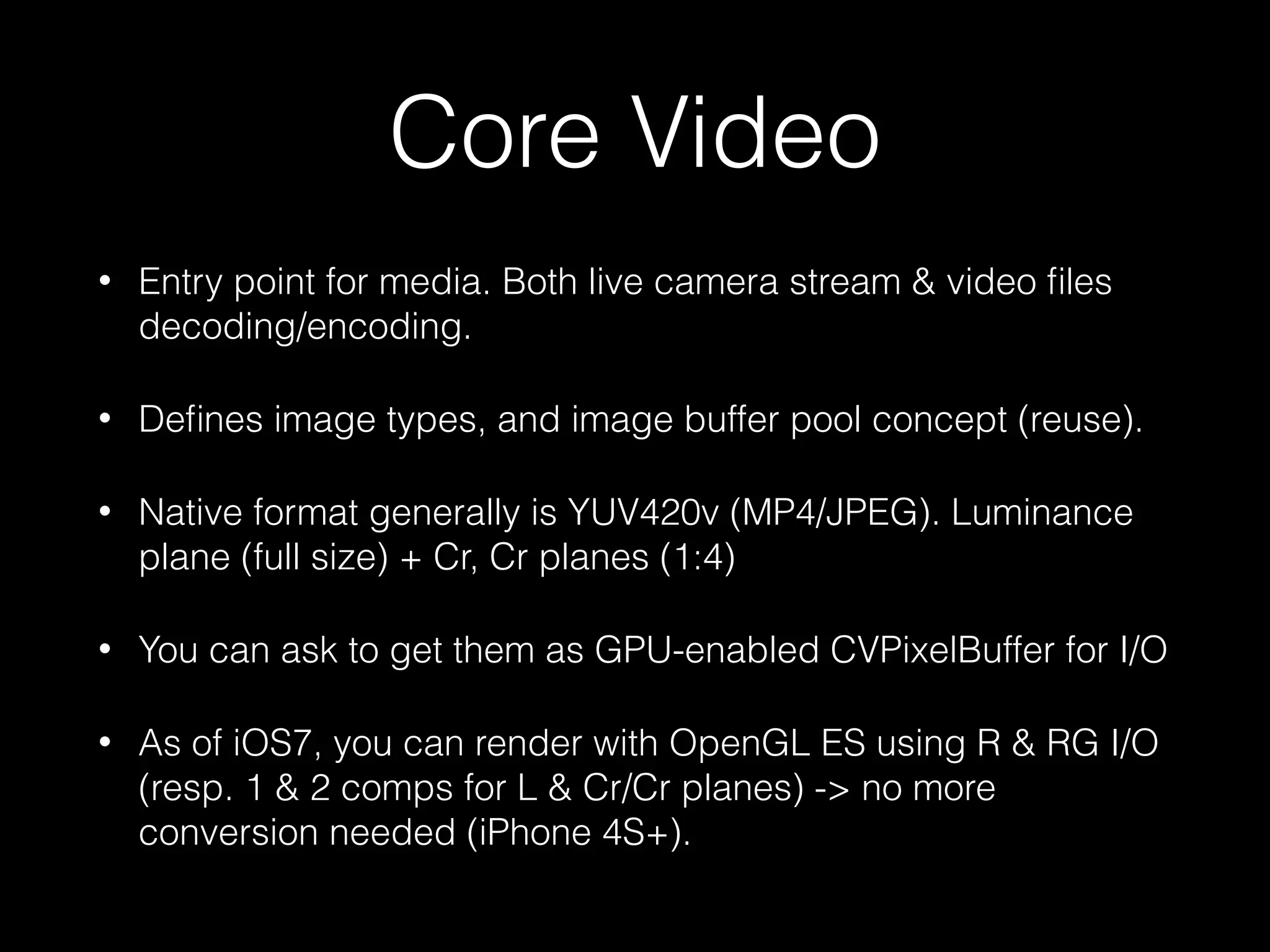
Core Video
•

Entry point for media. Both live camera stream & video files
decoding/encoding.

•

Defines image types, and image buffer pool concept (reuse).

•

Native format generally is YUV420v (MP4/JPEG). Luminance
plane (full size) + Cr, Cr planes (1:4)

•

You can ask to get them as GPU-enabled CVPixelBuffer for I/O

•

As of iOS7, you can render with OpenGL ES using R & RG I/O
(resp. 1 & 2 comps for L & Cr/Cr planes) -> no more
conversion needed (iPhone 4S+).
OpenGL ES
•

OpenGL - GLSL - GLKit: low level. You must load image
as a texture, create a rectangle geometry, define a shader
that tells how to map texture image to rendered fragments

•

Image processing is mostly happening in the fragment
shader.

•

GPUImage is an interesting library with so many available
filters.

•

CeedGL is a thin Obj-C wrapper for OpenGL objects
(texture, framebuffer, shader, program, etc.)
OpenGL ES
•

R / RG planes (GL2.0, iPhone 4s+)

•

Multiple Render Targets / Framebuffer Fetch (GL3.0,
iPhone 5s+)
•

MRT: before gl_FragColor.rgba = …

•

MRT: after my_FragColor.rgba = …;
my_NormalMap.xy = …, etc. in single shader pass.
GLKit Remark
•

GLKit does not seem to allow hardware decoding of
JPEGs (tested on iOS7, iPhone 5). Could change.
Conclusion
•

Use CPU / GPU for what it does best.

•

Don’t do more work than you need.

•

Overwhelming CPU or GPU is not good. Try to balance
efforts to remain fluid at all times.
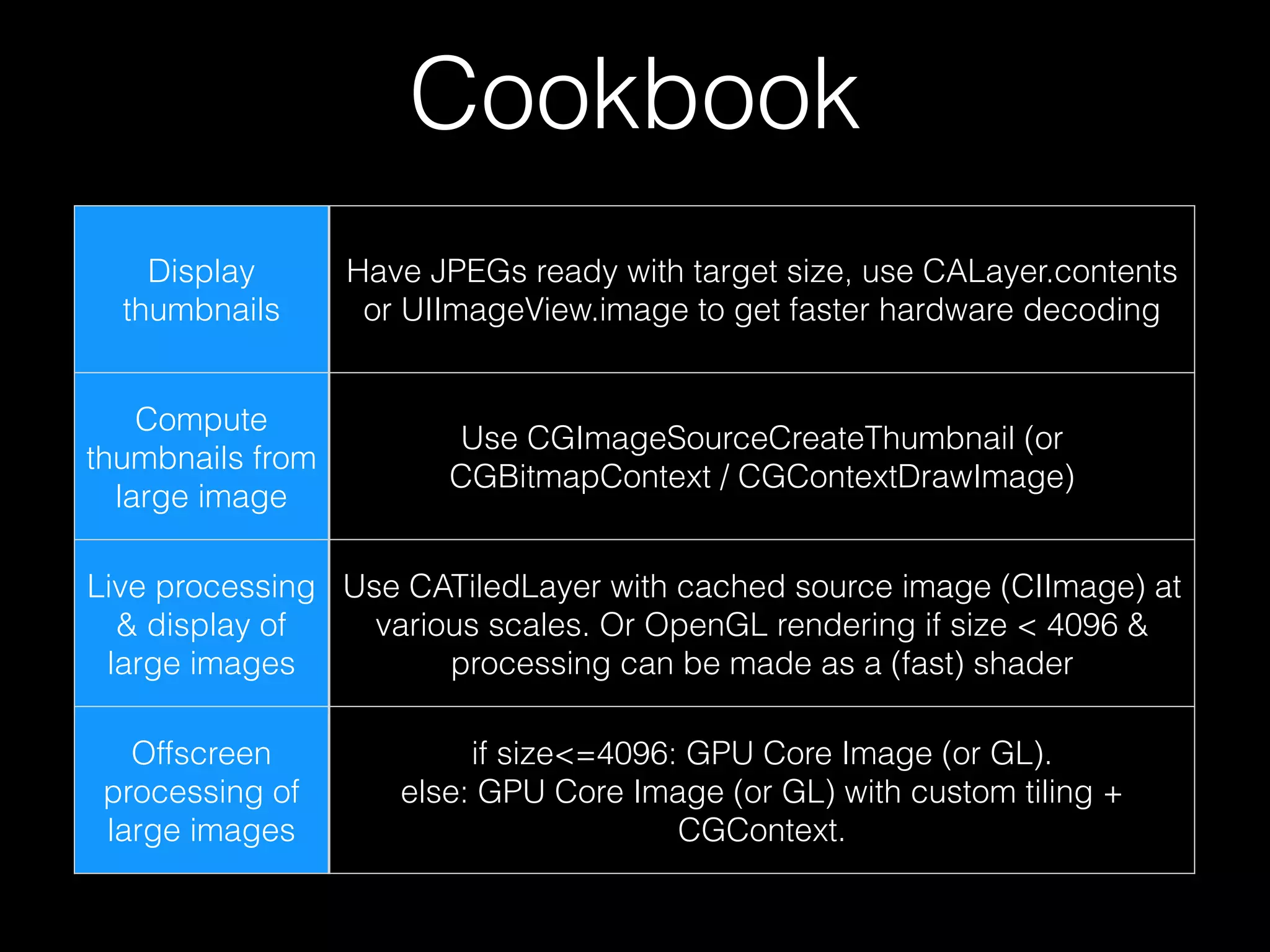
Cookbook
Display
thumbnails

Have JPEGs ready with target size, use CALayer.contents
or UIImageView.image to get faster hardware decoding

Compute
thumbnails from
large image

Use CGImageSourceCreateThumbnail (or
CGBitmapContext / CGContextDrawImage)

Live processing Use CATiledLayer with cached source image (CIImage) at
& display of
various scales. Or OpenGL rendering if size < 4096 &
large images
processing can be made as a (fast) shader
Offscreen
processing of
large images

if size<=4096: GPU Core Image (or GL).
else: GPU Core Image (or GL) with custom tiling +
CGContext.
@cocoaheadsBE

Advanced Imaging on iOS

  • 1.
  • 2.
    Foreword • Don’t make anyassumption about imaging on iOS. Why? • Because even if you’re right today, you’ll be wrong next year. • iOS is a moving platform, constantly being optimized versions after versions. • Experiment, and find out the best approach for your app.
  • 3.
    Understanding • Things to havein mind at all times: execution speed & memory consumption. • How to assess those: Instruments.
  • 4.
    APIs Core Image Image IO CoreAnimation Core Graphics GLKit Core Video AVFoundation Many APIs but a unique reality: ! There’s CPU & there’s GPU Each has pro’s & con’s. ! Use them wisely depending on particular app needs.
  • 5.
    Imaging 101 • On iOS,you typically use either PNGs and/or JPEGs. • PNG is lossless, typically less compressed *, CPU decode only, prepared by Xcode if in app bundle. Usecase: UI elements. • JPEG is lossy, typically more compressed *, CPU or GPU decode. Use-case: photo/textures ! • *: for images with single-color areas (UI), PNG can beat JPEG by a factor of 10x !
  • 6.
    Imaging 101 • Image oniPhone 5/5s/5c: 3264 x 2448 pixels = 7990272 pixels = ~8MP • Decoded, each pixel is (R,G,B,A), 4 bytes. Whole image is then 32MB in RAM. Original JPEG is ~3MB.
  • 7.
    Imaging Purpose • What isyour purpose? Load & display (preview thumbnails)? Load, process & display (image editing)? Load, process & save? Process only (augmented reality, page detection)? • Amount of data. Large images or small images? Large input image, small output?
  • 8.
    Discrete vs. UMA Discrete GPU(Mac) Decode Unified Memory Architecture (iOS/Mac) Decode Discrete GPU Unified Memory Architecture Decode Decode Transfer T Transfer GPU Data go through bus, back & forth is expensive GPU & CPU share same memory. Going back&forth is cheap Display Transfer T Display CPU Process Process Display Display Total speed depends on relative transfer & processing speeds iOS being a UMA gives a lot of flexibility
  • 9.
    Comparisons Draw w/ transform Decode Draw w/ transform Decode PureGPU Decode Process T Display Display T Display CALayer/UIView setTransform CPU Transfer GPU CGContextDrawImage
  • 10.
    GPU • Fast, but hasconstraints. • Low-level APIs: OpenGL ES, GLSL • High-level APIs: GLKit, Sprite Kit, Core Animation, Core Image, Core Video • Max OpenGL texture size is device dependent • 4096x4096: iPad 2/mini/3/Air/mini2, iPhone 4S+ • 2048x2048: iPhone 3GS / 4 / iPad 1 • Has fast hardware decoder for JPEG / Videos • Cannot run if app is in background (exception)
  • 11.
    CPU • Slow, but flexible.Like “I’m 15x slower than my GPU friend, OK, but I can be smarter”. • Low-level APIs: C, SIMD. • High-level APIs: Accelerate, Core Graphics, ImageIO. • Has smart JPEG decoder. • Can run in background.
  • 12.
    Core Animation • Very efficient,GPU-accelerated 2D/3D transform of image-based content. Foundation for UIKit’s UIView. • CALayer/UIView needs some visuals. How? -drawLayer: or setContents: • -[CALayer drawLayer:] (or -[UIView drawRect:]) uses Core Graphics (CPU) to generate an image (slow), and that image is then made into a GPU-backed texture that can move around (fast). • If not drawing, but instead setting contents -[CALayer setContents:] (or -[UIImageView setImage:]), you get the fast path, that is, GPU image decoding.
  • 13.
    Fast Path CPU Pure GPU Decode Decode Display T Display CPU Transfer GPU -[CALayerdrawRect:] (or UIView) + CGContextDrawImage (or UIImage draw) CALayer.contents (or UIImageView.image)
  • 14.
    Demo 1 The Strong,the Weak, & the Ugly Comparison of CALayer.contents / UIView drawRect: for small images 2MP, 50x Show relative execution speed Show Instruments Time Profiler & OpenGL ES Driver.
  • 15.
    Core Graphics /ImageIO • CPU (mostly). • CGImageRef, CGImageSourceRef, CGContextRef • Used with -drawRect: -drawLayer:
  • 16.
    Core Graphics /ImageIO • How the load CGImageRef? Either using UIImage (easier) or CGImageSourceRef (more control) • How to create CGImageRef from existing pixel data? CGDataProviderRef • Having a CGImage object does not mean it’s decoded. It’s typically not, and even references mem-mapped data on disk -> no real device memory. • Sometimes, you may want to have it into decoded form (repeated/ high performance drawing, access to pixel values) • How do I do that?
  • 17.
    Core Graphics /ImageIO • Need access to pixel values: use CGBitmapContext • Need to draw that image repeatedly? use CGLayer, UIGraphicsBeginImageContext(), or CGImage’s shouldCache property.
  • 18.
    Core Graphics /ImageIO • Understanding kCGImageSourceShouldCache • It does *not* cache your image when creating it from the CGImageSourceRef. • Instead it caches it when drawing it the first time. • It caches possibly at different sizes simultaneously. If you draw your image at 3 different sizes -> cached 3x. • Check your memory consumption when using caching, and don’t keep that image around when not needed.
  • 19.
    Core Graphics /ImageIO • Note on JPEG decoding (CPU) • Image divided in 8x8 blocks of pixels • Encoding: DCT (frequency domain) • Decoding: skip higher frequencies if not needed. • That property can be used to make CPU decoding a lot faster.
  • 20.
    Core Graphics /ImageIO • If source image is 3264px wide, • Drawing at 1632px will trigger partial JPEG decoding (4x4 instead of 8x8) -> much faster. Drawing at 1633px triggers full decoding + interpolation (much slower) • Similarly, successive power of 2 dividers have additional speed gain. ÷8 faster than ÷4 faster than ÷2 • If you need to draw a large image to a small size, use Core Graphics API (CPU), not CALayer (GPU). GPU decoding always decodes at full resolution!
  • 21.
    I’m CPU, I’mweak but I’m smart! Draw small from large image (GPU) Draw small from large image (CPU) Decode Decode T Display Display CALayer.contents CGContextDrawImage (with small target size) Memory Mem CPU Transfer GPU
  • 22.
    Demo 2 The Strong& Idiot vs. the Weak & Smart 11MP, 10x Show GPU is slower. Show GPU version does entire image decoding, while CPU does smarter, reduced drawing. Show Time Profiler function trace Show VMTracker tool, Dirty size. Change code to show influence of draw size on speed (+ function trace)
  • 23.
    Core Image • CPU orGPU, ~20x speed difference on recent iPhone • Then, why using CPU? Background rendering (GPU not available) or as OS fallback if image is too large. • API: CIImage, CIFilter, CIContext • CIImage are (immutable) recipes, do not store image data by themselves • CIFilter (mutable) used to transform/combine CIImages • CIContext used to render into destination
  • 24.
    Core Image • CIContext targetseither EAGLContext or not. If not, it’s meant to create CGImageRef, or render to CPU memory (void*). In both cases, CIContext uses GPU to render, unless kCIContextUseSoftwareRenderer is YES. • Using software rendering is slow. Very slow. Very, very slow. Like 15x slower. Not recommended. • Depending on input image size / output target size, iOS will automatically fallback to software rendering. Query CIContext with inputImageMaximumSize / outputImageMaximumSize
  • 25.
    Core Image • -inputImageMaximumSize: 4096(iPhone 4S+, iPad 2+), 2048 (iPhone 4-, iPad 1) • 4000x3000 image (12MP) fits. Camera sensor is 8MP, OK. • 5000x4000 image (20MP) does not fit. • How do I process images larger than the limit?
  • 26.
    Core Image • Answer: ImageTiling. • Large CIImage & -imageByCroppingToRect? NO, CPU fallback, as Core Image sees the original one (> limit). • Do the cropping on the CGImage itself (CGImageCreateImageWithRect), and *then* create a CIImage out of it. • Render tiles as CGImage from the CIContext, and render those tiles in the large, final CGContext (> limit). • Art of tiling: Prizmo needs to process scanned images, that can be > 20MP.
  • 27.
    Core Image GPU texturesize limit Source Image Target Image (result) Perspective Crop Tiling in Prizmo: subdivide until source & target tiles both fit GPU texture size limit
  • 28.
    Core Image • Tips &Tricks • Core Image has access to hardware JPEG decoder, just like Core Animation’s CALayer.contents API. • Core Image is not programmable on iOS. But many unavailable functions can be expressed from the builtin CIFilter’s. • Don’t find the filters you need? Give GPUImage a try. • Perfect team mate for OpenGL and Core Video.
  • 29.
    CIImage’s Fast Path PureGPU Decode Process Display CIImage imageWithContentsOfURL (or CGImage) CPU Transfer GPU
  • 30.
    Core Image • Live processingor not? Depends. Live Processing Cached Processing OpenGL Layer/View CATiledLayer Atomic Refresh Visible Tiled Rendering Faster computation overall Slower computation Slower interaction Faster interaction
  • 31.
    UIKit’s UIImage • Abstraction aboveCGImage / CIImage • Can’t be both at the same time, either CGImage-backed or CIImage-backed. • Has additional properties such as scale (determines how it’s rendered, Retina display) and imageOrientation • Nice utilities like -resizableImageWithCapInsets:
  • 32.
    Core Video • Entry pointfor media. Both live camera stream & video files decoding/encoding. • Defines image types, and image buffer pool concept (reuse). • Native format generally is YUV420v (MP4/JPEG). Luminance plane (full size) + Cr, Cr planes (1:4) • You can ask to get them as GPU-enabled CVPixelBuffer for I/O • As of iOS7, you can render with OpenGL ES using R & RG I/O (resp. 1 & 2 comps for L & Cr/Cr planes) -> no more conversion needed (iPhone 4S+).
  • 33.
    OpenGL ES • OpenGL -GLSL - GLKit: low level. You must load image as a texture, create a rectangle geometry, define a shader that tells how to map texture image to rendered fragments • Image processing is mostly happening in the fragment shader. • GPUImage is an interesting library with so many available filters. • CeedGL is a thin Obj-C wrapper for OpenGL objects (texture, framebuffer, shader, program, etc.)
  • 34.
    OpenGL ES • R /RG planes (GL2.0, iPhone 4s+) • Multiple Render Targets / Framebuffer Fetch (GL3.0, iPhone 5s+) • MRT: before gl_FragColor.rgba = … • MRT: after my_FragColor.rgba = …; my_NormalMap.xy = …, etc. in single shader pass.
  • 35.
    GLKit Remark • GLKit doesnot seem to allow hardware decoding of JPEGs (tested on iOS7, iPhone 5). Could change.
  • 36.
    Conclusion • Use CPU /GPU for what it does best. • Don’t do more work than you need. • Overwhelming CPU or GPU is not good. Try to balance efforts to remain fluid at all times.
  • 37.
    Cookbook Display thumbnails Have JPEGs readywith target size, use CALayer.contents or UIImageView.image to get faster hardware decoding Compute thumbnails from large image Use CGImageSourceCreateThumbnail (or CGBitmapContext / CGContextDrawImage) Live processing Use CATiledLayer with cached source image (CIImage) at & display of various scales. Or OpenGL rendering if size < 4096 & large images processing can be made as a (fast) shader Offscreen processing of large images if size<=4096: GPU Core Image (or GL). else: GPU Core Image (or GL) with custom tiling + CGContext.
  • 38.