Introduction to SQL Server
 Working with MS SQL Server and SQL Server Management Studio
Table of Contents
1. SQL Server Overview
2. SQL Server Services
3. Types of Databases
4. Authentication and Permissions
5. SQL Server Management Studio
6. Moving a SQL Server Database
 Through Backups and Restore
 By Detaching and Attaching
2
What is Microsoft SQL Server?
 MS SQL Server
Relational Database Management System
(RDBMS) from Microsoft
The main language in SQL Server
 Transact SQL (T-SQL), an extension of SQL
 Powerful, trustworthy, easy-to-use DB server
 The most recent version is SQL Server 2022
 Works only on Windows systems
4
How to Install SQL Server?
1. Download SQL Server 2014
 SQL Server 2014 Express (free distribution)
 http://www.microsoft.com/express/database/
 DreamSpark – you can register with academic email
5
SQL Server Services
Background-Running Processes
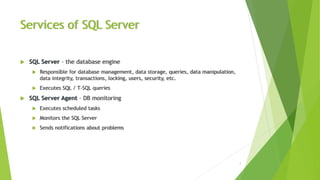
Services of SQL Server
 SQL Server – the database engine
 Responsible for database management, data storage, queries, data manipulation,
data integrity, transactions, locking, users, security, etc.
 Executes SQL / T-SQL queries
 SQL Server Agent – DB monitoring
 Executes scheduled tasks
 Monitors the SQL Server
 Sends notifications about problems
7
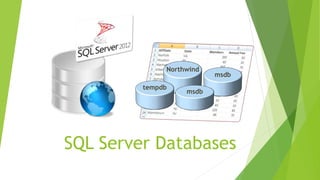
SQL Server Databases
msdb
Northwind
tempdb
msdb
SQL Server Databases
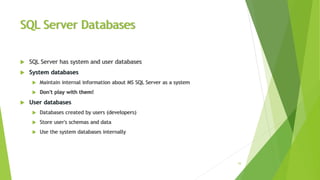
 SQL Server has system and user databases
 System databases
 Maintain internal information about MS SQL Server as a system
 Don't play with them!
 User databases
 Databases created by users (developers)
 Store user's schemas and data
 Use the system databases internally
10
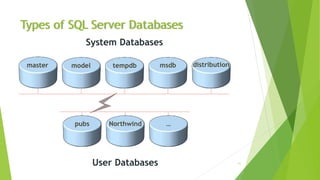
Types of SQL Server Databases
11
System Databases
User Databases
model tempdb msdb distribution
pubs Northwind …
master
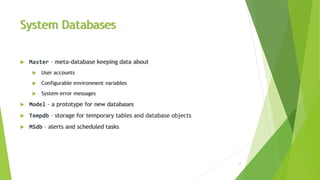
System Databases
 Master – meta-database keeping data about
 User accounts
 Configurable environment variables
 System error messages
 Model – a prototype for new databases
 Tempdb – storage for temporary tables and database objects
 MSdb – alerts and scheduled tasks
12
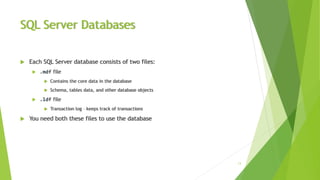
SQL Server Databases
 Each SQL Server database consists of two files:
 .mdf file
 Contains the core data in the database
 Schema, tables data, and other database objects
 .ldf file
 Transaction log – keeps track of transactions
 You need both these files to use the database
13
SQL Server Authentication
Users, Roles, Permissions
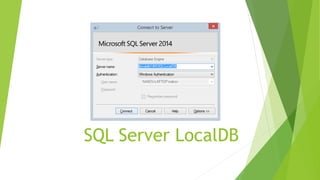
Connecting to SQL Server
 Connecting to SQL Server requires
 The name of the server (e.g. localhost)
 The name of the DB instance (e.g. SQLEXPRESS)
 The name of the database (e.g. Northwind)
 Username / password (if using SQL Server authentication)
 Types of authentication in SQL Server
 Windows (by using a Windows user credentials)
 Mixed (both Windows and SQL Server)
15
SQL Server Users Permissions
 Each user has certain permissions and roles for a database (Database User
Account)
 A role defines a group of users with the same permissions
 There are 3 types of roles in MS SQL Server
 Fixed server roles
 Fixed database roles
 User-defined database roles
16
Fixed Database Roles
 Public – maintains all default permissions for users in
a database
 Db_owner – performs any database role activity
 Db_accessadmin – add or remove database users,
groups, and roles
 Db_ddladmin – add, modify, or drop database objects
 Db_securityadmin – assign statement and object
permissions
 Others …
17
SQL Server
Authentication
Live Demo
SQL Server Management Studio
A Powerful Management Tool for Administrators and Developers
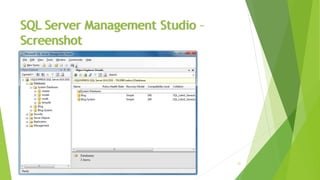
SQL Server Management Studio (SSMS)
 SQL Server Management Studio (SSMS) is a powerful graphical DB management
tool
 Administrate databases (create, modify, backup / restore DB)
 Create and modify E/R diagrams
 View / modify table data and other DB objects
 Execute SQL queries
 Free and easy to use tool
 Works with all SQL Server versions
20
SQL Server Management Studio –
Screenshot
21
SSMS Setting Server Account
 You can use SSMS to create database user / give permissions to Windows users
 Follow these steps:
1. Right click on the [Security / Login] folder in Object Explorer and choose "New
Login…"
22
SSMS Setting Server Account (2)
2. In the next dialog click the [Search] button
 Select one of the Windows accounts in a typical Windows
fashion
 Leave the authentication method set to Windows
authentication
 Click [OK]
 Thus you create an SQL Server User account
 Account permissions could be assigned later
 Windows administrators already have access
23
SSMS Setting Database Account
1. Right click on the "Security" under some of the databases and choose "New"
 "User"
2. Enter username and select one of the Server accounts to use
3. Assign the roles for this user
4. Click [OK] to confirm
 By selecting the [Name-of-Database]  "Properties"  "Permissions" you can also
set specific permissions for the accounts
24
Creating Accounts and
Assigning Permissions in SQL
Server
Using SQL Server Management Studio
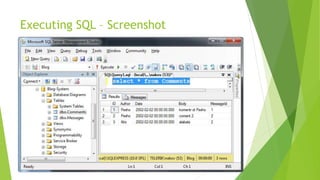
 SSMS can be used to visually edit the structure or data in a database
 It can execute T-SQL queries
 Select the database you want to work with in the Object Explorer
 Click the [New Query] button
 Write the query in the window to the right of Object Explorer
 Click the [Execute] button
26
Executing SQL – Screenshot
27
Executing Simple SQL
Queries in SQL Server
Management Studio
Moving an SQL Server Database
Backup / Restore, Detach / Attach
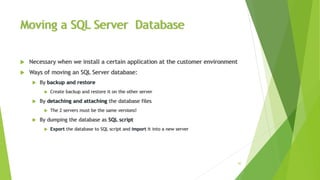
Moving a SQL Server Database
 Necessary when we install a certain application at the customer environment
 Ways of moving an SQL Server database:
 By backup and restore
 Create backup and restore it on the other server
 By detaching and attaching the database files
 The 2 servers must be the same versions!
 By dumping the database as SQL script
 Export the database to SQL script and import it into a new server
30
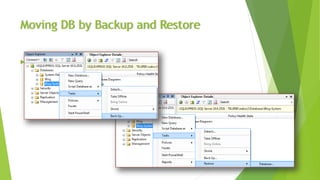
Moving DB by Backup and Restore
 Backup and restore database through SSMS
31
Moving DB by Detaching and Attaching
 On the source server:
 Choose the database in SQL Server Management Studio
 From the context menu we choose the Detach command
 We copy the database files from the source server to the destination server:
 <database_name>.mdf
 <database_name>.ldf
 Typical location: C:Program FilesMicrosoft SQL
ServerMSSQL12.MSSQLSERVERMSSQLDATA
32
Moving DB by SQL Script Export / Import
 Export a MS SQL database as SQL script
Database  Tasks  Generate Scripts
Advanced  Types of data to script 
Schema and data
33
Moving a Database by
Detaching and Attaching
SQL Server LocalDB
Auto-Started MSQL Databases
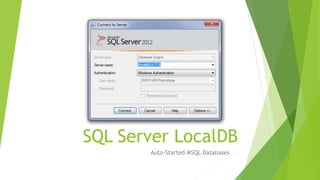
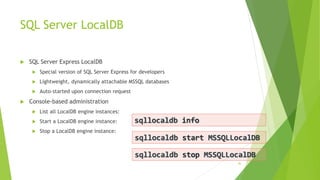
SQL Server LocalDB
 SQL Server Express LocalDB
 Special version of SQL Server Express for developers
 Lightweight, dynamically attachable MSSQL databases
 Auto-started upon connection request
 Console-based administration
 List all LocalDB engine instances:
 Start a LocalDB engine instance:
 Stop a LocalDB engine instance:
36
sqllocaldb info
sqllocaldb start MSSQLLocalDB
sqllocaldb stop MSSQLLocalDB
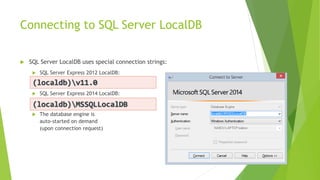
Connecting to SQL Server LocalDB
 SQL Server LocalDB uses special connection strings:
 SQL Server Express 2012 LocalDB:
 SQL Server Express 2014 LocalDB:
 The database engine is
auto-started on demand
(upon connection request)
37
(localdb)v11.0
(localdb)MSSQLLocalDB
SQL Server LocalDB
Summary
 What is RDBMS?
 What is the purpose of
SQL Server Agent service?
 What is MSdb?
 Why we need the .ldf file?
 How do we backup / restore a database?
 How do we export a DB to SQL script?
 How do we import a DB from a SQL script?
 What is SQL Server Express LocalDB?
39

2. Introduction-to-MSSQL-Server.pptx

  • 1.
    Introduction to SQLServer  Working with MS SQL Server and SQL Server Management Studio
  • 2.
    Table of Contents 1.SQL Server Overview 2. SQL Server Services 3. Types of Databases 4. Authentication and Permissions 5. SQL Server Management Studio 6. Moving a SQL Server Database  Through Backups and Restore  By Detaching and Attaching 2
  • 3.
    What is MicrosoftSQL Server?  MS SQL Server Relational Database Management System (RDBMS) from Microsoft The main language in SQL Server  Transact SQL (T-SQL), an extension of SQL  Powerful, trustworthy, easy-to-use DB server  The most recent version is SQL Server 2022  Works only on Windows systems 4
  • 4.
    How to InstallSQL Server? 1. Download SQL Server 2014  SQL Server 2014 Express (free distribution)  http://www.microsoft.com/express/database/  DreamSpark – you can register with academic email 5
  • 5.
  • 6.
    Services of SQLServer  SQL Server – the database engine  Responsible for database management, data storage, queries, data manipulation, data integrity, transactions, locking, users, security, etc.  Executes SQL / T-SQL queries  SQL Server Agent – DB monitoring  Executes scheduled tasks  Monitors the SQL Server  Sends notifications about problems 7
  • 7.
  • 8.
    SQL Server Databases SQL Server has system and user databases  System databases  Maintain internal information about MS SQL Server as a system  Don't play with them!  User databases  Databases created by users (developers)  Store user's schemas and data  Use the system databases internally 10
  • 9.
    Types of SQLServer Databases 11 System Databases User Databases model tempdb msdb distribution pubs Northwind … master
  • 10.
    System Databases  Master– meta-database keeping data about  User accounts  Configurable environment variables  System error messages  Model – a prototype for new databases  Tempdb – storage for temporary tables and database objects  MSdb – alerts and scheduled tasks 12
  • 11.
    SQL Server Databases Each SQL Server database consists of two files:  .mdf file  Contains the core data in the database  Schema, tables data, and other database objects  .ldf file  Transaction log – keeps track of transactions  You need both these files to use the database 13
  • 12.
  • 13.
    Connecting to SQLServer  Connecting to SQL Server requires  The name of the server (e.g. localhost)  The name of the DB instance (e.g. SQLEXPRESS)  The name of the database (e.g. Northwind)  Username / password (if using SQL Server authentication)  Types of authentication in SQL Server  Windows (by using a Windows user credentials)  Mixed (both Windows and SQL Server) 15
  • 14.
    SQL Server UsersPermissions  Each user has certain permissions and roles for a database (Database User Account)  A role defines a group of users with the same permissions  There are 3 types of roles in MS SQL Server  Fixed server roles  Fixed database roles  User-defined database roles 16
  • 15.
    Fixed Database Roles Public – maintains all default permissions for users in a database  Db_owner – performs any database role activity  Db_accessadmin – add or remove database users, groups, and roles  Db_ddladmin – add, modify, or drop database objects  Db_securityadmin – assign statement and object permissions  Others … 17
  • 16.
  • 17.
    SQL Server ManagementStudio A Powerful Management Tool for Administrators and Developers
  • 18.
    SQL Server ManagementStudio (SSMS)  SQL Server Management Studio (SSMS) is a powerful graphical DB management tool  Administrate databases (create, modify, backup / restore DB)  Create and modify E/R diagrams  View / modify table data and other DB objects  Execute SQL queries  Free and easy to use tool  Works with all SQL Server versions 20
  • 19.
    SQL Server ManagementStudio – Screenshot 21
  • 20.
    SSMS Setting ServerAccount  You can use SSMS to create database user / give permissions to Windows users  Follow these steps: 1. Right click on the [Security / Login] folder in Object Explorer and choose "New Login…" 22
  • 21.
    SSMS Setting ServerAccount (2) 2. In the next dialog click the [Search] button  Select one of the Windows accounts in a typical Windows fashion  Leave the authentication method set to Windows authentication  Click [OK]  Thus you create an SQL Server User account  Account permissions could be assigned later  Windows administrators already have access 23
  • 22.
    SSMS Setting DatabaseAccount 1. Right click on the "Security" under some of the databases and choose "New"  "User" 2. Enter username and select one of the Server accounts to use 3. Assign the roles for this user 4. Click [OK] to confirm  By selecting the [Name-of-Database]  "Properties"  "Permissions" you can also set specific permissions for the accounts 24
  • 23.
    Creating Accounts and AssigningPermissions in SQL Server
  • 24.
    Using SQL ServerManagement Studio  SSMS can be used to visually edit the structure or data in a database  It can execute T-SQL queries  Select the database you want to work with in the Object Explorer  Click the [New Query] button  Write the query in the window to the right of Object Explorer  Click the [Execute] button 26
  • 25.
    Executing SQL –Screenshot 27
  • 26.
    Executing Simple SQL Queriesin SQL Server Management Studio
  • 27.
    Moving an SQLServer Database Backup / Restore, Detach / Attach
  • 28.
    Moving a SQLServer Database  Necessary when we install a certain application at the customer environment  Ways of moving an SQL Server database:  By backup and restore  Create backup and restore it on the other server  By detaching and attaching the database files  The 2 servers must be the same versions!  By dumping the database as SQL script  Export the database to SQL script and import it into a new server 30
  • 29.
    Moving DB byBackup and Restore  Backup and restore database through SSMS 31
  • 30.
    Moving DB byDetaching and Attaching  On the source server:  Choose the database in SQL Server Management Studio  From the context menu we choose the Detach command  We copy the database files from the source server to the destination server:  <database_name>.mdf  <database_name>.ldf  Typical location: C:Program FilesMicrosoft SQL ServerMSSQL12.MSSQLSERVERMSSQLDATA 32
  • 31.
    Moving DB bySQL Script Export / Import  Export a MS SQL database as SQL script Database  Tasks  Generate Scripts Advanced  Types of data to script  Schema and data 33
  • 32.
    Moving a Databaseby Detaching and Attaching
  • 33.
  • 34.
    SQL Server LocalDB SQL Server Express LocalDB  Special version of SQL Server Express for developers  Lightweight, dynamically attachable MSSQL databases  Auto-started upon connection request  Console-based administration  List all LocalDB engine instances:  Start a LocalDB engine instance:  Stop a LocalDB engine instance: 36 sqllocaldb info sqllocaldb start MSSQLLocalDB sqllocaldb stop MSSQLLocalDB
  • 35.
    Connecting to SQLServer LocalDB  SQL Server LocalDB uses special connection strings:  SQL Server Express 2012 LocalDB:  SQL Server Express 2014 LocalDB:  The database engine is auto-started on demand (upon connection request) 37 (localdb)v11.0 (localdb)MSSQLLocalDB
  • 36.
  • 37.
    Summary  What isRDBMS?  What is the purpose of SQL Server Agent service?  What is MSdb?  Why we need the .ldf file?  How do we backup / restore a database?  How do we export a DB to SQL script?  How do we import a DB from a SQL script?  What is SQL Server Express LocalDB? 39