01/01/2025 Prepared BY: Abdulhafiz A. 1
MS Windows Server 2003
Prepared By: Abdulhafiz A.
01/01/2025 Prepared BY: Abdulhafiz A. 2
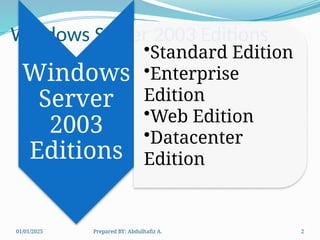
Windows Server 2003 Editions
Windows
Server
2003
Editions
•Standard Edition
•Enterprise
Edition
•Web Edition
•Datacenter
Edition
01/01/2025 Prepared BY: Abdulhafiz A. 3
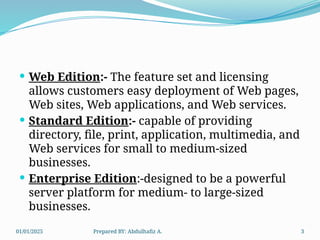
 Web Edition:- The feature set and licensing
allows customers easy deployment of Web pages,
Web sites, Web applications, and Web services.
 Standard Edition:- capable of providing
directory, file, print, application, multimedia, and
Web services for small to medium-sized
businesses.
 Enterprise Edition:-designed to be a powerful
server platform for medium- to large-sized
businesses.
01/01/2025 Prepared BY: Abdulhafiz A. 4
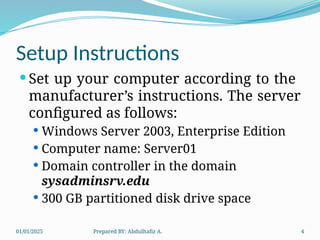
Setup Instructions
 Set up your computer according to the
manufacturer’s instructions. The server
configured as follows:
 Windows Server 2003, Enterprise Edition
 Computer name: Server01
 Domain controller in the domain
sysadminsrv.edu
 300 GB partitioned disk drive space
01/01/2025 Prepared BY: Abdulhafiz A. 5
Server roles
 File Server
 Provides convenient, centralized access to files and directories
 Print Server
 Application Server (IIS, ASP.NET)
 hosting of Web applications
 Mail Server (POP3, SMTP)
 Terminal Server
 Provides applications and server resources
 Remote Access/VPN Server
 Domain Controller (Active Directory)
 DNS Server
 DHCP Server
 Streaming Media Server
01/01/2025 Prepared BY: Abdulhafiz A. 6
Knowledge you will acquired
 After this lab session, you will be able to
 Install Windows Server 2003
 Identify the key structures and concepts of Active
Directory
 Create a Domain Controller , DC
 Create Active Directory , AD, objects including users,
groups, and organizational units (OUs)
 Configuring DHCP server roles
 Configuring DNS server roles
 Configuring FTP server roles , and
Many other related configurations
01/01/2025 Prepared BY: Abdulhafiz A. 7
Concepts of Active Directory
 AD: Is a centralized database where it contains the
information about the objects like
 users,
 groups,
 computers,
 printers etc.
 AD is a centralized hierarchical Directory Database.
 AD is a searchable Database
 A server where A.D. is installed is called D.C.
 AD is saved in a file called NTDS.DIT
 NTDS -New Technology Directory Services
 C:windowsntdsntds.dit
01/01/2025 Prepared BY: Abdulhafiz A. 8
Installing Active Directory
 Requirements
 An NTFS partition with enough free space
 An Administrator's username and password
 The correct operating system version
 A NIC
 Properly configured TCP/IP (IP address, subnet mask
and - optional - default gateway)
 A Domain name that you want to use,
(sysadminsrv.com)
 The Windows Server 2003 CD media (or at least the
i386 folder)
01/01/2025 Prepared BY: Abdulhafiz A. 9
Installing Active Directory
Two ways to install
Start > Run> dcpromo.msc 
Following the steps on
“Configure Your Server
Wizard:”
01/01/2025 Prepared BY: Abdulhafiz A. 10
After installing
You should notice 5 options like
ADUC Active Directory Users and
Computers
ADDT Active Directory Domains and Trusts
ADSS Active Directory Sites Services
DCSP Domain Controller Security Policy
DSP Domain Security Policy
01/01/2025 Prepared BY: Abdulhafiz A. 11
Some terms you should know
 Domains, Trees and Forests
 Domains:
 A domain is the core administrative unit of the
Windows Server 2003 directory service.
 A domain is collection of computers connected together
with server and users
 Trees: Multiple domain which share contiguous
DNS names. info.edu, cs.info.edu, it.info.edu ,
is.info.edu
 Forests: Multiple domain which do not share
contiguous DNS names.
01/01/2025 Prepared BY: Abdulhafiz A. 12
Objects and Organizational Units (OUs)
 Active Directory is capable of hosting millions of
objects, including :
 users,
 groups,
 computers,
 printers,
 shared folders,
 sites,
 site links,
 Group Policy Objects (GPOs), and even
 DNS zones and host records.
01/01/2025 Prepared BY: Abdulhafiz A. 13
Objects and Organizational Units (OUs)
OUs:- are containers within
a domain that allow you to
group objects that share
common administration or
configuration.
Creating Domain users
 First check the password policy before you create DU.
 Administrative tools  domain security policy 
account policy  password policy.
 To create Domain user account we have two options:
 Manual
 Using java scripts
 Create domain user accounts.
 Modify user account properties, including changing
logon and password settings in the user account.
 Reset the password.
 Enable and disable an account.
01/01/2025 Prepared BY: Abdulhafiz A. 15
How to add PCs on a server
1. Test the connection using ipconfig and ping
commands.
2. Use Ip address of the server as DNS IP address
for the local machine.
3. Goto my computer propertiescomputer
name…then follow the wizard to join the
computer.
01/01/2025 Prepared BY: Abdulhafiz A. 16
Group Policy
 GPOs are collections of hundreds of possible
configuration settings, from user logon rights
and privileges to the software that is allowed to
be run on a system.
Let us follow the steps to apply GPO.
01/01/2025 Prepared BY: Abdulhafiz A. 17
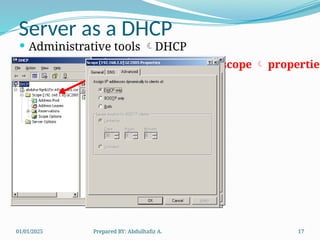
Server as a DHCP
 Administrative tools DHCP
Right click on the scope  properties
01/01/2025 Prepared BY: Abdulhafiz A. 18
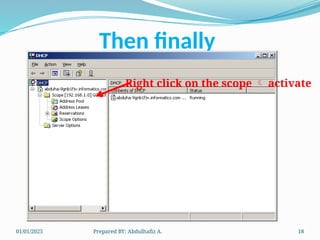
Then finally
Right click on the scope  activate
01/01/2025 Prepared BY: Abdulhafiz A. 19
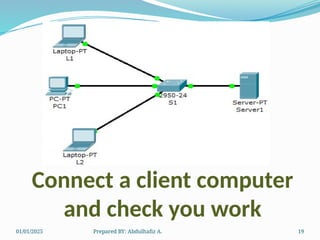
Connect a client computer
and check you work
01/01/2025 Prepared BY: Abdulhafiz A. 20
Application Server
(IIS, ASP.NET)
 Internet Information Service (IIS): It is a web server from
Microsoft used for administering, managing, controlling websites.
 IIS is the server component which provides services like www,
http, ftp, nntp, SMTP, FrontPage, .net frame works
 WWW: World Wide Web: enables use of internet.
 HTTP: (Hiper text transfer Protocol): Supports file types like text,
audio &video
 Gopher: used prior to http supported only text.
 FTP: (File Transfer Protocol): used for uploading or downloading,
huge size files.
 NNTP (Network News Transfer Protocol): Used for publishing the
same message for a group of people.
 SMTP: (Simple mail transfer protocol); Used by exchange server for
sending mails.
01/01/2025 Prepared BY: Abdulhafiz A. 21
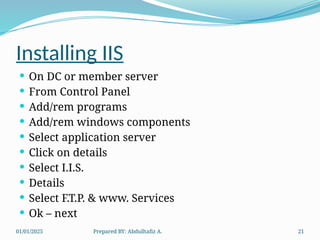
Installing IIS
 On DC or member server
 From Control Panel
 Add/rem programs
 Add/rem windows components
 Select application server
 Click on details
 Select I.I.S.
 Details
 Select F.T.P. & www. Services
 Ok – next
01/01/2025 Prepared BY: Abdulhafiz A. 22
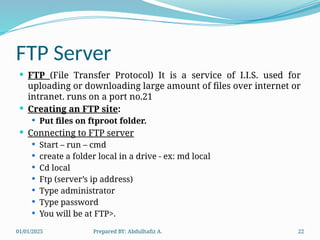
FTP Server
 FTP (File Transfer Protocol) It is a service of I.I.S. used for
uploading or downloading large amount of files over internet or
intranet. runs on a port no.21
 Creating an FTP site:
 Put files on ftproot folder.
 Connecting to FTP server
 Start – run – cmd
 create a folder local in a drive - ex: md local
 Cd local
 Ftp (server’s ip address)
 Type administrator
 Type password
 You will be at FTP>.
01/01/2025 Prepared BY: Abdulhafiz A. 23
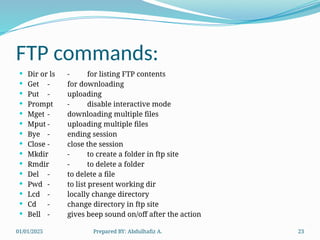
FTP commands:
 Dir or ls - for listing FTP contents
 Get - for downloading
 Put - uploading
 Prompt - disable interactive mode
 Mget - downloading multiple files
 Mput - uploading multiple files
 Bye - ending session
 Close - close the session
 Mkdir - to create a folder in ftp site
 Rmdir - to delete a folder
 Del - to delete a file
 Pwd - to list present working dir
 Lcd - locally change directory
 Cd - change directory in ftp site
 Bell - gives beep sound on/off after the action

Training on MS Windows Server 2003_045015.pptx

  • 1.
    01/01/2025 Prepared BY:Abdulhafiz A. 1 MS Windows Server 2003 Prepared By: Abdulhafiz A.
  • 2.
    01/01/2025 Prepared BY:Abdulhafiz A. 2 Windows Server 2003 Editions Windows Server 2003 Editions •Standard Edition •Enterprise Edition •Web Edition •Datacenter Edition
  • 3.
    01/01/2025 Prepared BY:Abdulhafiz A. 3  Web Edition:- The feature set and licensing allows customers easy deployment of Web pages, Web sites, Web applications, and Web services.  Standard Edition:- capable of providing directory, file, print, application, multimedia, and Web services for small to medium-sized businesses.  Enterprise Edition:-designed to be a powerful server platform for medium- to large-sized businesses.
  • 4.
    01/01/2025 Prepared BY:Abdulhafiz A. 4 Setup Instructions  Set up your computer according to the manufacturer’s instructions. The server configured as follows:  Windows Server 2003, Enterprise Edition  Computer name: Server01  Domain controller in the domain sysadminsrv.edu  300 GB partitioned disk drive space
  • 5.
    01/01/2025 Prepared BY:Abdulhafiz A. 5 Server roles  File Server  Provides convenient, centralized access to files and directories  Print Server  Application Server (IIS, ASP.NET)  hosting of Web applications  Mail Server (POP3, SMTP)  Terminal Server  Provides applications and server resources  Remote Access/VPN Server  Domain Controller (Active Directory)  DNS Server  DHCP Server  Streaming Media Server
  • 6.
    01/01/2025 Prepared BY:Abdulhafiz A. 6 Knowledge you will acquired  After this lab session, you will be able to  Install Windows Server 2003  Identify the key structures and concepts of Active Directory  Create a Domain Controller , DC  Create Active Directory , AD, objects including users, groups, and organizational units (OUs)  Configuring DHCP server roles  Configuring DNS server roles  Configuring FTP server roles , and Many other related configurations
  • 7.
    01/01/2025 Prepared BY:Abdulhafiz A. 7 Concepts of Active Directory  AD: Is a centralized database where it contains the information about the objects like  users,  groups,  computers,  printers etc.  AD is a centralized hierarchical Directory Database.  AD is a searchable Database  A server where A.D. is installed is called D.C.  AD is saved in a file called NTDS.DIT  NTDS -New Technology Directory Services  C:windowsntdsntds.dit
  • 8.
    01/01/2025 Prepared BY:Abdulhafiz A. 8 Installing Active Directory  Requirements  An NTFS partition with enough free space  An Administrator's username and password  The correct operating system version  A NIC  Properly configured TCP/IP (IP address, subnet mask and - optional - default gateway)  A Domain name that you want to use, (sysadminsrv.com)  The Windows Server 2003 CD media (or at least the i386 folder)
  • 9.
    01/01/2025 Prepared BY:Abdulhafiz A. 9 Installing Active Directory Two ways to install Start > Run> dcpromo.msc  Following the steps on “Configure Your Server Wizard:”
  • 10.
    01/01/2025 Prepared BY:Abdulhafiz A. 10 After installing You should notice 5 options like ADUC Active Directory Users and Computers ADDT Active Directory Domains and Trusts ADSS Active Directory Sites Services DCSP Domain Controller Security Policy DSP Domain Security Policy
  • 11.
    01/01/2025 Prepared BY:Abdulhafiz A. 11 Some terms you should know  Domains, Trees and Forests  Domains:  A domain is the core administrative unit of the Windows Server 2003 directory service.  A domain is collection of computers connected together with server and users  Trees: Multiple domain which share contiguous DNS names. info.edu, cs.info.edu, it.info.edu , is.info.edu  Forests: Multiple domain which do not share contiguous DNS names.
  • 12.
    01/01/2025 Prepared BY:Abdulhafiz A. 12 Objects and Organizational Units (OUs)  Active Directory is capable of hosting millions of objects, including :  users,  groups,  computers,  printers,  shared folders,  sites,  site links,  Group Policy Objects (GPOs), and even  DNS zones and host records.
  • 13.
    01/01/2025 Prepared BY:Abdulhafiz A. 13 Objects and Organizational Units (OUs) OUs:- are containers within a domain that allow you to group objects that share common administration or configuration.
  • 14.
    Creating Domain users First check the password policy before you create DU.  Administrative tools  domain security policy  account policy  password policy.  To create Domain user account we have two options:  Manual  Using java scripts  Create domain user accounts.  Modify user account properties, including changing logon and password settings in the user account.  Reset the password.  Enable and disable an account.
  • 15.
    01/01/2025 Prepared BY:Abdulhafiz A. 15 How to add PCs on a server 1. Test the connection using ipconfig and ping commands. 2. Use Ip address of the server as DNS IP address for the local machine. 3. Goto my computer propertiescomputer name…then follow the wizard to join the computer.
  • 16.
    01/01/2025 Prepared BY:Abdulhafiz A. 16 Group Policy  GPOs are collections of hundreds of possible configuration settings, from user logon rights and privileges to the software that is allowed to be run on a system. Let us follow the steps to apply GPO.
  • 17.
    01/01/2025 Prepared BY:Abdulhafiz A. 17 Server as a DHCP  Administrative tools DHCP Right click on the scope  properties
  • 18.
    01/01/2025 Prepared BY:Abdulhafiz A. 18 Then finally Right click on the scope  activate
  • 19.
    01/01/2025 Prepared BY:Abdulhafiz A. 19 Connect a client computer and check you work
  • 20.
    01/01/2025 Prepared BY:Abdulhafiz A. 20 Application Server (IIS, ASP.NET)  Internet Information Service (IIS): It is a web server from Microsoft used for administering, managing, controlling websites.  IIS is the server component which provides services like www, http, ftp, nntp, SMTP, FrontPage, .net frame works  WWW: World Wide Web: enables use of internet.  HTTP: (Hiper text transfer Protocol): Supports file types like text, audio &video  Gopher: used prior to http supported only text.  FTP: (File Transfer Protocol): used for uploading or downloading, huge size files.  NNTP (Network News Transfer Protocol): Used for publishing the same message for a group of people.  SMTP: (Simple mail transfer protocol); Used by exchange server for sending mails.
  • 21.
    01/01/2025 Prepared BY:Abdulhafiz A. 21 Installing IIS  On DC or member server  From Control Panel  Add/rem programs  Add/rem windows components  Select application server  Click on details  Select I.I.S.  Details  Select F.T.P. & www. Services  Ok – next
  • 22.
    01/01/2025 Prepared BY:Abdulhafiz A. 22 FTP Server  FTP (File Transfer Protocol) It is a service of I.I.S. used for uploading or downloading large amount of files over internet or intranet. runs on a port no.21  Creating an FTP site:  Put files on ftproot folder.  Connecting to FTP server  Start – run – cmd  create a folder local in a drive - ex: md local  Cd local  Ftp (server’s ip address)  Type administrator  Type password  You will be at FTP>.
  • 23.
    01/01/2025 Prepared BY:Abdulhafiz A. 23 FTP commands:  Dir or ls - for listing FTP contents  Get - for downloading  Put - uploading  Prompt - disable interactive mode  Mget - downloading multiple files  Mput - uploading multiple files  Bye - ending session  Close - close the session  Mkdir - to create a folder in ftp site  Rmdir - to delete a folder  Del - to delete a file  Pwd - to list present working dir  Lcd - locally change directory  Cd - change directory in ftp site  Bell - gives beep sound on/off after the action