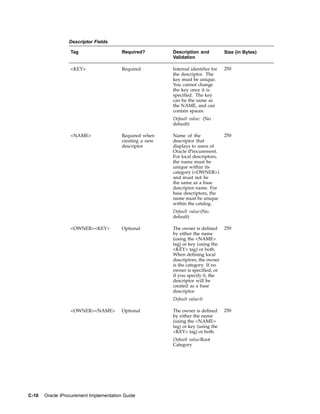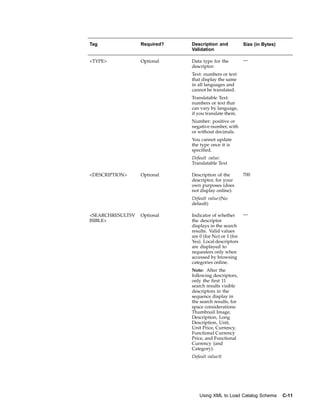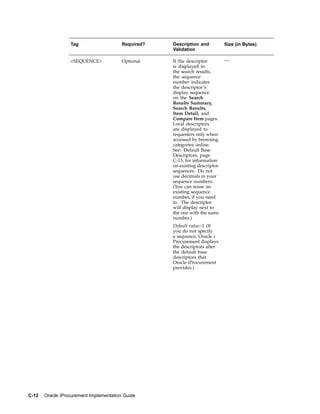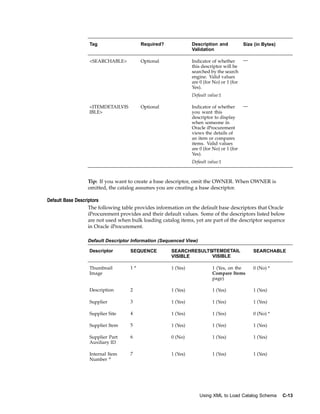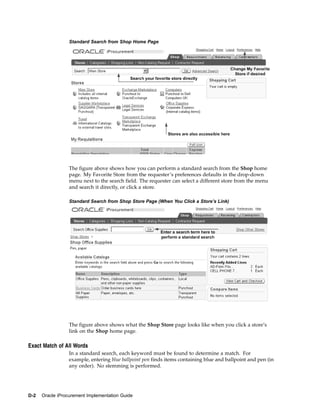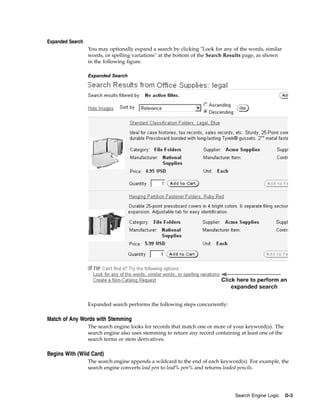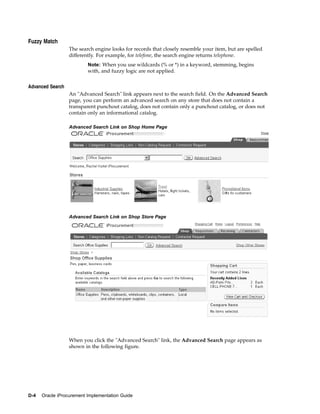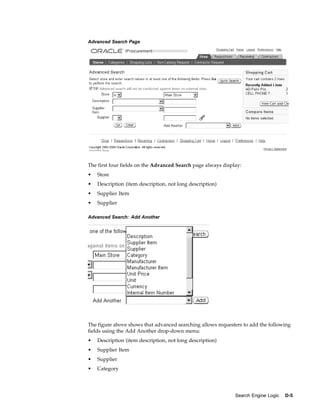



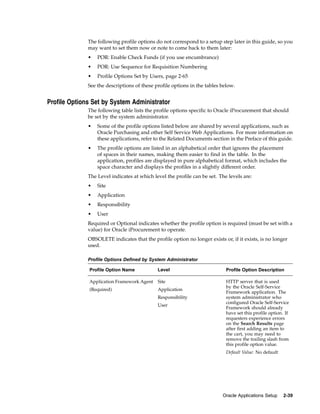
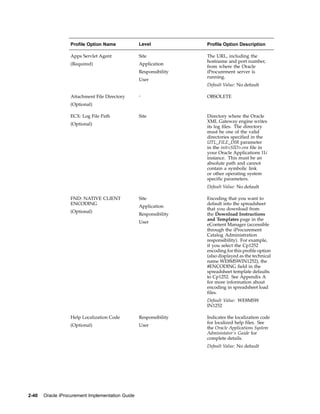
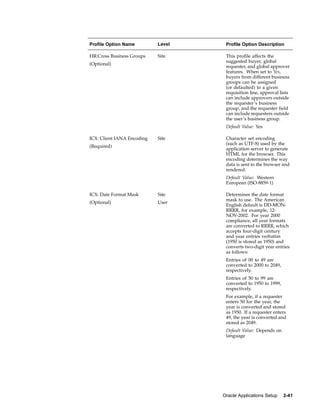
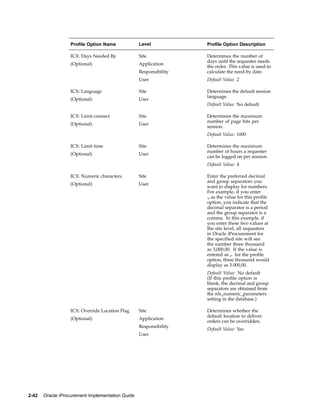


Oracle® iProcurement
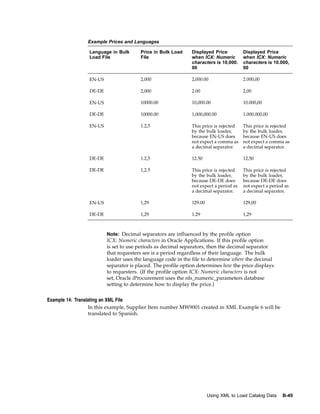
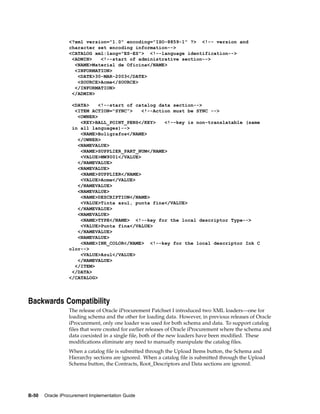
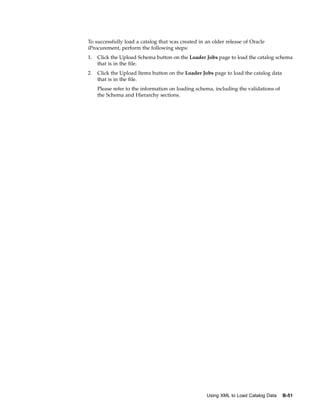
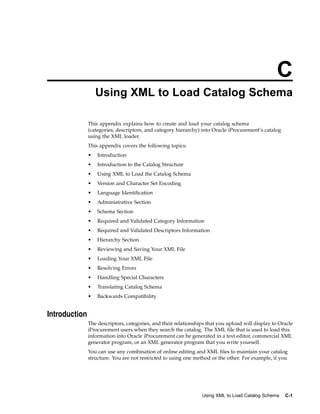
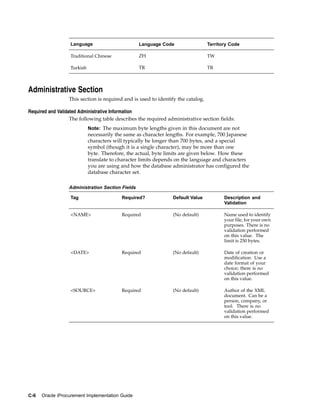
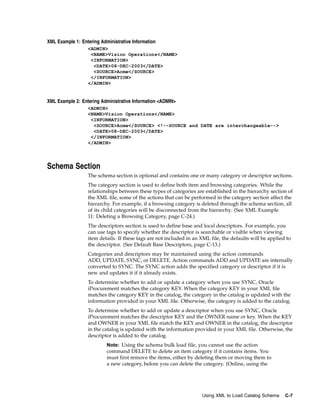
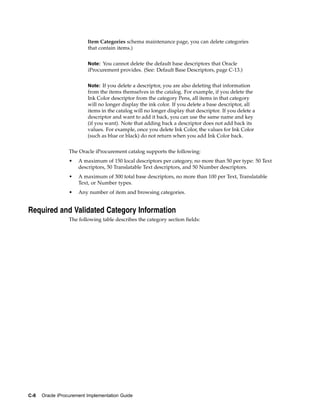
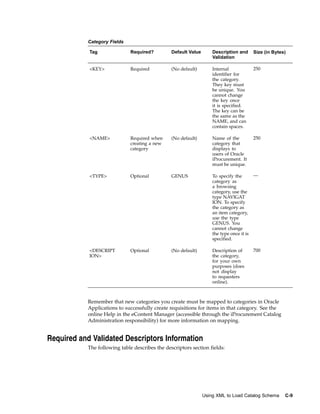
Implementation Guide
Release 11i
Part No. A85361-05


December 2004
Oracle iProcurement Implementation Guide, Release 11i

Part No. A85361-05

Copyright © 1997, 2004, Oracle. All rights reserved.

Primary Author:      Rachel Korte

Contributing Author:     David Chan, Sheeba George, Sonia Hunt, Sudhir Kaushik, Evelyn Lin, Vic
Mitchell, Mara Prieto, Sudhir Subramanian, Andrew Yeung

The Programs (which include both the software and documentation) contain proprietary information; they
are provided under a license agreement containing restrictions on use and disclosure and are also protected
by copyright, patent, and other intellectual and industrial property laws. Reverse engineering, disassembly,
or decompilation of the Programs, except to the extent required to obtain interoperability with other
independently created software or as specified by law, is prohibited.

The information contained in this document is subject to change without notice. If you find any problems
in the documentation, please report them to us in writing. This document is not warranted to be error-free.
Except as may be expressly permitted in your license agreement for these Programs, no part of these Programs
may be reproduced or transmitted in any form or by any means, electronic or mechanical, for any purpose.

If the Programs are delivered to the United States Government or anyone licensing or using the Programs on
behalf of the United States Government, the following notice is applicable:

U.S. GOVERNMENT RIGHTS
Programs, software, databases, and related documentation and technical data delivered to U.S. Government
customers are "commercial computer software" or "commercial technical data" pursuant to the applicable
Federal Acquisition Regulation and agency-specific supplemental regulations. As such, use, duplication,
disclosure, modification, and adaptation of the Programs, including documentation and technical data, shall be
subject to the licensing restrictions set forth in the applicable Oracle license agreement, and, to the extent
applicable, the additional rights set forth in FAR 52.227-19, Commercial Computer Software--Restricted Rights
(June 1987). Oracle Corporation, 500 Oracle Parkway, Redwood City, CA 94065.

The Programs are not intended for use in any nuclear, aviation, mass transit, medical, or other inherently
dangerous applications. It shall be the licensee's responsibility to take all appropriate fail-safe, backup,
redundancy and other measures to ensure the safe use of such applications if the Programs are used for such
purposes, and we disclaim liability for any damages caused by such use of the Programs.

The Programs may provide links to Web sites and access to content, products, and services from third parties.
Oracle is not responsible for the availability of, or any content provided on, third-party Web sites. You bear
all risks associated with the use of such content. If you choose to purchase any products or services from
a third party, the relationship is directly between you and the third party. Oracle is not responsible for: (a)
the quality of third-party products or services; or (b) fulfilling any of the terms of the agreement with the
third party, including delivery of products or services and warranty obligations related to purchased products
or services. Oracle is not responsible for any loss or damage of any sort that you may incur from dealing
with any third party.

Oracle is a registered trademark of Oracle Corporation and/or its affiliates. Other names may be trademarks of
their respective owners.
Contents

Send Us Your Comments

Preface

1   Overview
    Oracle iProcurement in Comprehensive Procure-to-Pay Flow     .   .   .   .   .   .   .   .   .   .   .   .   .   .   1- 1
    Catalog Management . . . . . . . . . . . . . . . . .         .   .   .   .   .   .   .   .   .   .   .   .   .   .   1- 2
       Catalog Types and Sources . . . . . . . . . . . . .       .   .   .   .   .   .   .   .   .   .   .   .   .   .   1- 2
       Catalogs and Stores . . . . . . . . . . . . . . . . .     .   .   .   .   .   .   .   .   .   .   .   .   .   .   1- 2
       Category and Descriptor Management . . . . . . . .        .   .   .   .   .   .   .   .   .   .   .   .   .   .   1- 2
       Security . . . . . . . . . . . . . . . . . . . . . .      .   .   .   .   .   .   .   .   .   .   .   .   .   .   1- 2
       Images . . . . . . . . . . . . . . . . . . . . . .        .   .   .   .   .   .   .   .   .   .   .   .   .   .   1- 2
    Shopping . . . . . . . . . . . . . . . . . . . . . . .       .   .   .   .   .   .   .   .   .   .   .   .   .   .   1- 3
       Stores . . . . . . . . . . . . . . . . . . . . . . .      .   .   .   .   .   .   .   .   .   .   .   .   .   .   1- 3
       Powerful Search Capabilities . . . . . . . . . . . . .    .   .   .   .   .   .   .   .   .   .   .   .   .   .   1- 3
       Shopping Lists . . . . . . . . . . . . . . . . . . .      .   .   .   .   .   .   .   .   .   .   .   .   .   .   1- 4
       Saved Carts . . . . . . . . . . . . . . . . . . . .       .   .   .   .   .   .   .   .   .   .   .   .   .   .   1- 4
       Non-Catalog Requests . . . . . . . . . . . . . . .        .   .   .   .   .   .   .   .   .   .   .   .   .   .   1- 4
       Automatic Document Creation . . . . . . . . . . . .       .   .   .   .   .   .   .   .   .   .   .   .   .   .   1- 5
       Center-Led Procurement . . . . . . . . . . . . . .        .   .   .   .   .   .   .   .   .   .   .   .   .   .   1- 5
        Internally Sourced Items . . . . . . . . . . . . . .     .   .   .   .   .   .   .   .   .   .   .   .   .   .   1- 5
    Checkout . . . . . . . . . . . . . . . . . . . . . . .       .   .   .   .   .   .   .   .   .   .   .   .   .   .   1- 5
        Delivery . . . . . . . . . . . . . . . . . . . . .       .   .   .   .   .   .   .   .   .   .   .   .   .   .   1- 5
        Billing . . . . . . . . . . . . . . . . . . . . . .      .   .   .   .   .   .   .   .   .   .   .   .   .   .   1- 7
        Notes and Attachments . . . . . . . . . . . . . . .      .   .   .   .   .   .   .   .   .   .   .   .   .   .   1- 8
        Approvers . . . . . . . . . . . . . . . . . . . . .      .   .   .   .   .   .   .   .   .   .   .   .   .   .   1- 8
        Integration with Oracle Advanced Pricing . . . . . . .   .   .   .   .   .   .   .   .   .   .   .   .   .   .   1- 9
    Requisition Tracking and Management . . . . . . . . .        .   .   .   .   .   .   .   .   .   .   .   .   .   .   1- 9
        Requisition Status . . . . . . . . . . . . . . . . .     .   .   .   .   .   .   .   .   .   .   .   .   .   .   1- 9
        Requisition Management . . . . . . . . . . . . . .       .   .   .   .   .   .   .   .   .   .   .   .   .   .   1- 9
        Procure-to-Pay Lifecycle Tracking . . . . . . . . . .    .   .   .   .   .   .   .   .   .   .   .   .   .   .   1-10
        Requisition Approval Routing . . . . . . . . . . . .     .   .   .   .   .   .   .   .   .   .   .   .   .   .   1-11
    Desktop Receiving . . . . . . . . . . . . . . . . . .        .   .   .   .   .   .   .   .   .   .   .   .   .   .   1-12
        Receive . . . . . . . . . . . . . . . . . . . . . .      .   .   .   .   .   .   .   .   .   .   .   .   .   .   1-12
        View Shipments . . . . . . . . . . . . . . . . . .       .   .   .   .   .   .   .   .   .   .   .   .   .   .   1-13


                                                                                                                           iii
Return . . . . . . . . . . . . .       .   .   .   .   .   .   .   .   .   .   .   .   .   .   .   .   .   .   .   .   .   .   .   1-13
        Correct . . . . . . . . . . . . .      .   .   .   .   .   .   .   .   .   .   .   .   .   .   .   .   .   .   .   .   .   .   .   1-13
        Receipt Confirmation . . . . . . .     .   .   .   .   .   .   .   .   .   .   .   .   .   .   .   .   .   .   .   .   .   .   .   1-13
     Oracle Services Procurement Integration   .   .   .   .   .   .   .   .   .   .   .   .   .   .   .   .   .   .   .   .   .   .   .   1-13


2    Oracle Applications Setup
     Prerequisites . . . . . . . . . . . . . . . . . . . . . . . . . . .                                   .   .   .   .   .   .   .   .   2- 1
     Setup Checklists . . . . . . . . . . . . . . . . . . . . . . . . .                                    .   .   .   .   .   .   .   .   2- 5
     Set Up Function, Menu, and Data Security . . . . . . . . . . . . . .                                  .   .   .   .   .   .   .   .   2- 8
     Personalize Oracle iProcurement Using Oracle Applications Framework                                   .   .   .   .   .   .   .   .   2-18
     Create Operating Unit-Specific Purchasing News       . . . . . . . . . .                              .   .   .   .   .   .   .   .   2-20
     Customize Operating Unit-Specific Purchasing Policies . . . . . . . .                                 .   .   .   .   .   .   .   .   2-21
     Customize Workflows . . . . . . . . . . . . . . . . . . . . . . .                                     .   .   .   .   .   .   .   .   2-22
     Define Descriptive Flexfields on Requisitions . . . . . . . . . . . .                                 .   .   .   .   .   .   .   .   2-29
     Implement Custom Packages . . . . . . . . . . . . . . . . . . . .                                     .   .   .   .   .   .   .   .   2-32
     Modify Online Help . . . . . . . . . . . . . . . . . . . . . . . .                                    .   .   .   .   .   .   .   .   2-36
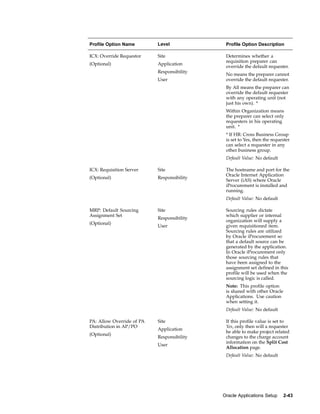
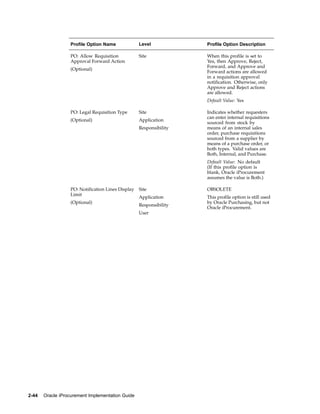
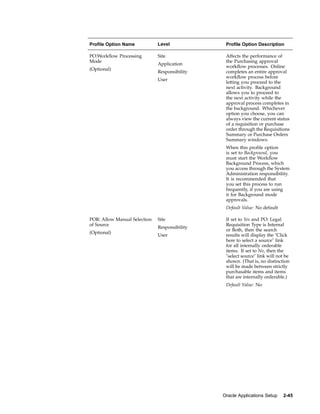
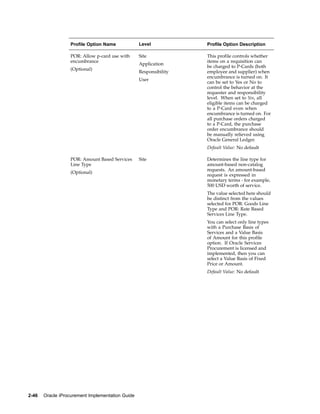
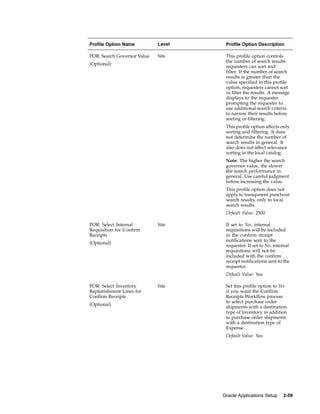
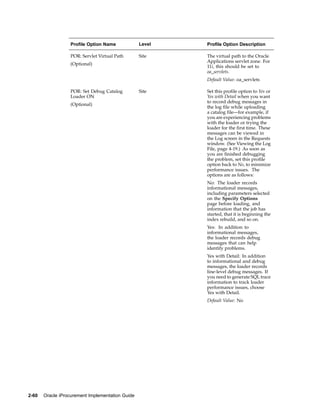
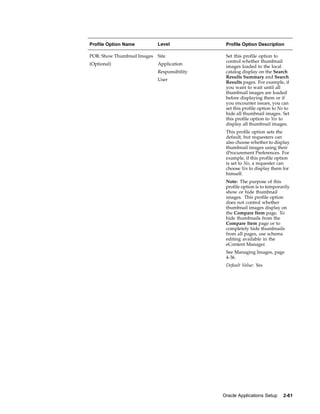
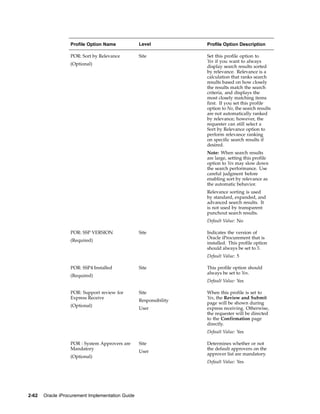
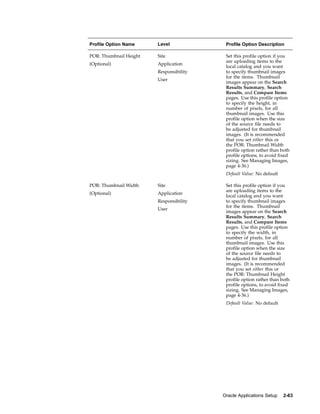
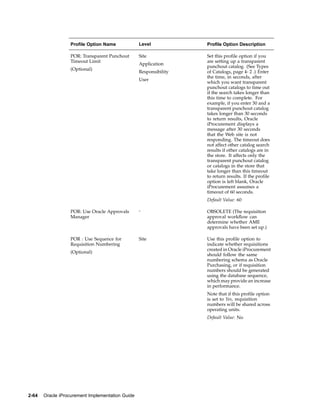
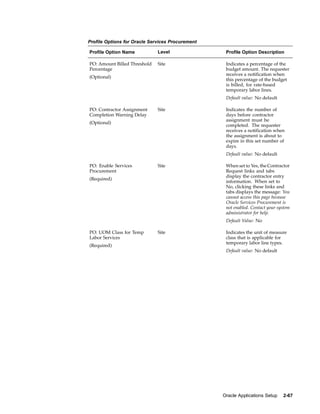
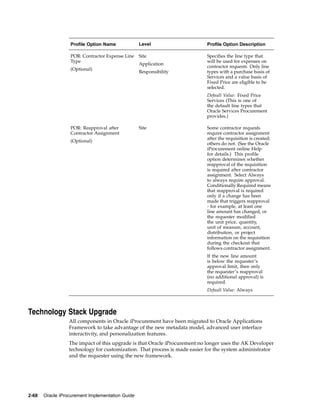
     Set Profile Options . . . . . . . . . . . . . . . . . . . . . . . .                                   .   .   .   .   .   .   .   .   2-38
         Profile Options Set by System Administrator . . . . . . . . . . . .                               .   .   .   .   .   .   .   .   2-39
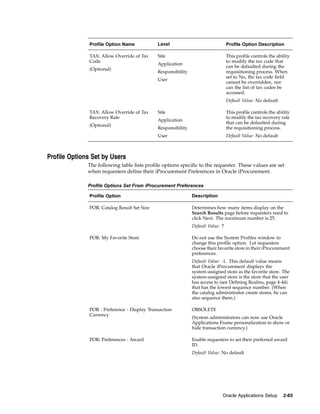
         Profile Options Set by Users . . . . . . . . . . . . . . . . . . .                                .   .   .   .   .   .   .   .   2-65
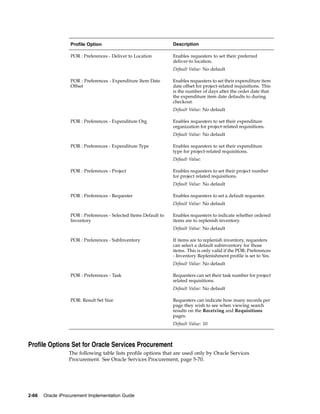
         Profile Options Set for Oracle Services Procurement . . . . . . . . .                             .   .   .   .   .   .   .   .   2-66
     Technology Stack Upgrade . . . . . . . . . . . . . . . . . . . . .                                    .   .   .   .   .   .   .   .   2-68


3    Document Sourcing Setup
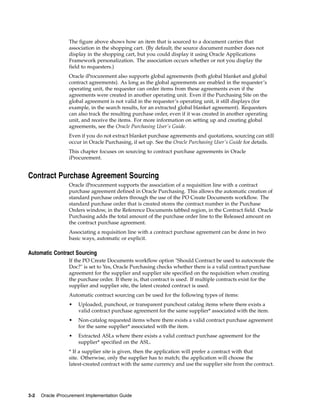
     Overview . . . . . . . . . . . . . . . . . . . . . . . . . . . . . . . . . . . . .                                                    3- 1
     Contract Purchase Agreement Sourcing . . . . . . . . . . . . . . . . . . . . . . .                                                    3- 2
     Setting Up Contract Sourcing . . . . . . . . . . . . . . . . . . . . . . . . . . . .                                                  3- 4


4    Catalog Setup and Management
     Catalogs and Stores . . . . . . . . . . . . .             .   .   .   .   .   .   .   .   .   .   .   .   .   .   .   .   .   .   .   4- 1
         Types of Catalogs . . . . . . . . . . . .             .   .   .   .   .   .   .   .   .   .   .   .   .   .   .   .   .   .   .   4- 2
         Choosing a Catalog Type . . . . . . . . .             .   .   .   .   .   .   .   .   .   .   .   .   .   .   .   .   .   .   .   4- 3
         Example Stores and Catalogs . . . . . . .             .   .   .   .   .   .   .   .   .   .   .   .   .   .   .   .   .   .   .   4- 5
         Controlling Access to Catalogs and Stores . .         .   .   .   .   .   .   .   .   .   .   .   .   .   .   .   .   .   .   .   4- 8
     Catalog Setup Checklist . . . . . . . . . . .             .   .   .   .   .   .   .   .   .   .   .   .   .   .   .   .   .   .   .   4- 9
     Creating and Maintaining Local Content . . . .            .   .   .   .   .   .   .   .   .   .   .   .   .   .   .   .   .   .   .   4-11
     Extracting Catalog Data from Oracle Purchasing            .   .   .   .   .   .   .   .   .   .   .   .   .   .   .   .   .   .   .   4-12
     Loading Catalog Data . . . . . . . . . . . .              .   .   .   .   .   .   .   .   .   .   .   .   .   .   .   .   .   .   .   4-26
     Define Category Mapping . . . . . . . . . .               .   .   .   .   .   .   .   .   .   .   .   .   .   .   .   .   .   .   .   4-29
     Define Classification and Supplier Domains . .            .   .   .   .   .   .   .   .   .   .   .   .   .   .   .   .   .   .   .   4-34
     Setting Search Related Options . . . . . . . .            .   .   .   .   .   .   .   .   .   .   .   .   .   .   .   .   .   .   .   4-36
     Managing Images . . . . . . . . . . . . . .               .   .   .   .   .   .   .   .   .   .   .   .   .   .   .   .   .   .   .   4-36
     Defining Realms . . . . . . . . . . . . . .               .   .   .   .   .   .   .   .   .   .   .   .   .   .   .   .   .   .   .   4-44
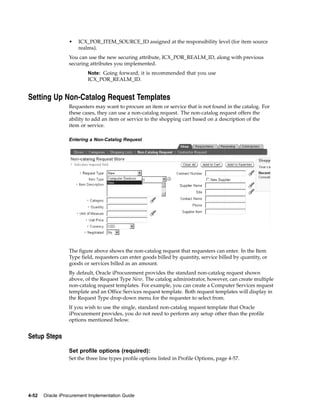
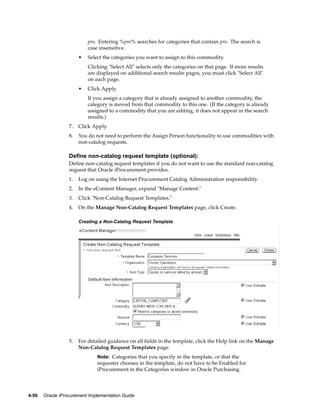
     Setting Up Non-Catalog Request Templates . .              .   .   .   .   .   .   .   .   .   .   .   .   .   .   .   .   .   .   .   4-52


iv
5   Requisitions Setup
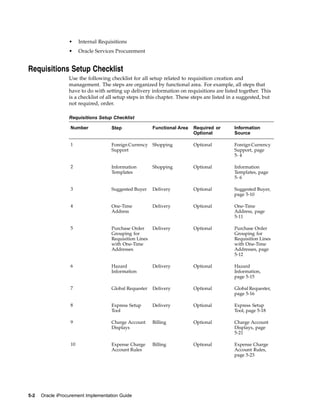
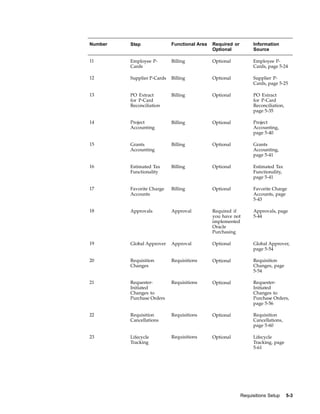
    Requisitions Setup Checklist . . . . . . . . . . . . . . . . . . . . .                                    .   .   .   .   .   .   .   5- 2
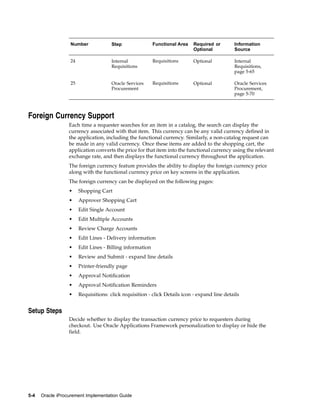
    Foreign Currency Support . . . . . . . . . . . . . . . . . . . . . .                                      .   .   .   .   .   .   .   5- 4
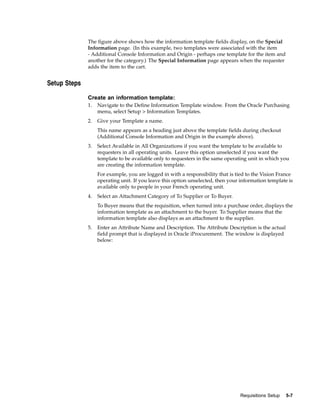
    Information Templates . . . . . . . . . . . . . . . . . . . . . . . .                                     .   .   .   .   .   .   .   5- 6
    Suggested Buyer . . . . . . . . . . . . . . . . . . . . . . . . . .                                       .   .   .   .   .   .   .   5-10
    One-Time Address . . . . . . . . . . . . . . . . . . . . . . . . .                                        .   .   .   .   .   .   .   5-11
    Purchase Order Grouping for Requisition Lines with One-Time Addresses                                     .   .   .   .   .   .   .   5-12
    Hazard Information . . . . . . . . . . . . . . . . . . . . . . . . .                                      .   .   .   .   .   .   .   5-15
    Global Requester . . . . . . . . . . . . . . . . . . . . . . . . . .                                      .   .   .   .   .   .   .   5-16
    Express Setup Tool . . . . . . . . . . . . . . . . . . . . . . . . .                                      .   .   .   .   .   .   .   5-18
    Charge Account Displays . . . . . . . . . . . . . . . . . . . . . .                                       .   .   .   .   .   .   .   5-21
    Expense Charge Account Rules . . . . . . . . . . . . . . . . . . . .                                      .   .   .   .   .   .   .   5-23
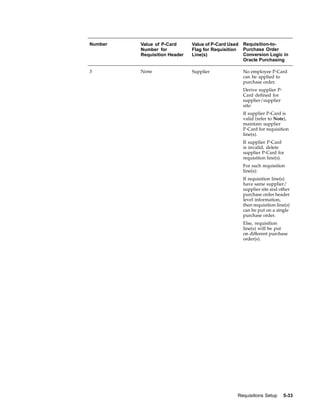
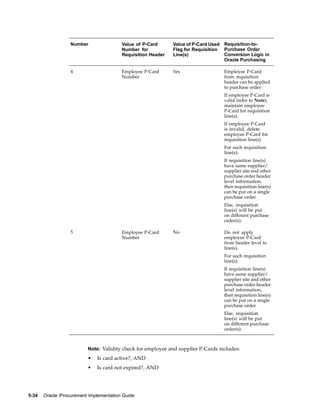
    Employee P-Cards . . . . . . . . . . . . . . . . . . . . . . . . . .                                      .   .   .   .   .   .   .   5-24
    Supplier P-Cards . . . . . . . . . . . . . . . . . . . . . . . . . .                                      .   .   .   .   .   .   .   5-25
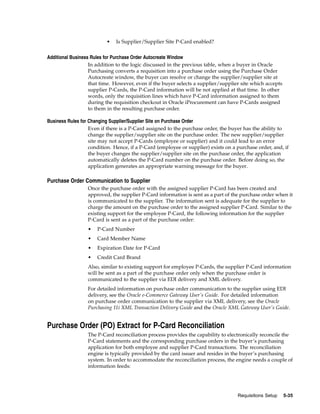
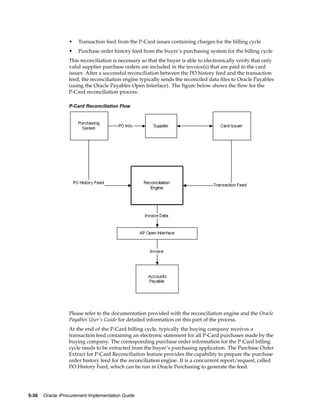
    Purchase Order (PO) Extract for P-Card Reconciliation . . . . . . . . .                                   .   .   .   .   .   .   .   5-35
    Project Accounting . . . . . . . . . . . . . . . . . . . . . . . . .                                      .   .   .   .   .   .   .   5-40
    Grants Accounting . . . . . . . . . . . . . . . . . . . . . . . . .                                       .   .   .   .   .   .   .   5-41
    Estimated Tax Functionality . . . . . . . . . . . . . . . . . . . . .                                     .   .   .   .   .   .   .   5-41
    Favorite Charge Accounts . . . . . . . . . . . . . . . . . . . . . .                                      .   .   .   .   .   .   .   5-43
    Approvals . . . . . . . . . . . . . . . . . . . . . . . . . . . . .                                       .   .   .   .   .   .   .   5-44
    Global Approver . . . . . . . . . . . . . . . . . . . . . . . . . .                                       .   .   .   .   .   .   .   5-54
    Requisition Changes . . . . . . . . . . . . . . . . . . . . . . . . .                                     .   .   .   .   .   .   .   5-54
    Requester-Initiated Changes to Purchase Orders . . . . . . . . . . . .                                    .   .   .   .   .   .   .   5-56
    Requisition Cancellations . . . . . . . . . . . . . . . . . . . . . .                                     .   .   .   .   .   .   .   5-60
    Lifecycle Tracking . . . . . . . . . . . . . . . . . . . . . . . . . .                                    .   .   .   .   .   .   .   5-61
    Internal Requisitions . . . . . . . . . . . . . . . . . . . . . . . .                                     .   .   .   .   .   .   .   5-65
    Oracle Services Procurement . . . . . . . . . . . . . . . . . . . . .                                     .   .   .   .   .   .   .   5-70


6   Receipts
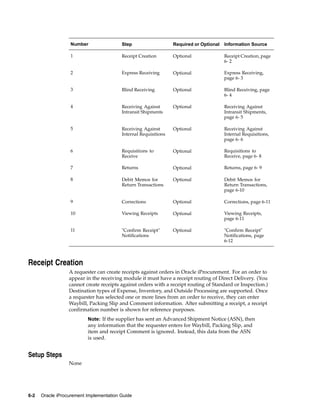
    Receiving Setup Checklist . . . . . .     .   .   .   .   .   .   .   .   .   .   .   .   .   .   .   .   .   .   .   .   .   .   .   6- 1
    Receipt Creation . . . . . . . . . .      .   .   .   .   .   .   .   .   .   .   .   .   .   .   .   .   .   .   .   .   .   .   .   6- 2
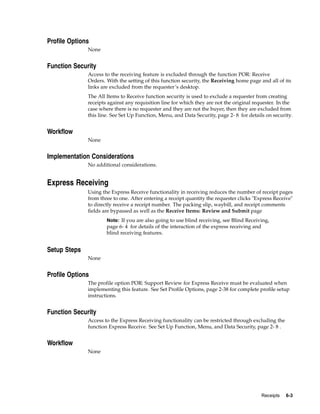
    Express Receiving . . . . . . . . . .     .   .   .   .   .   .   .   .   .   .   .   .   .   .   .   .   .   .   .   .   .   .   .   6- 3
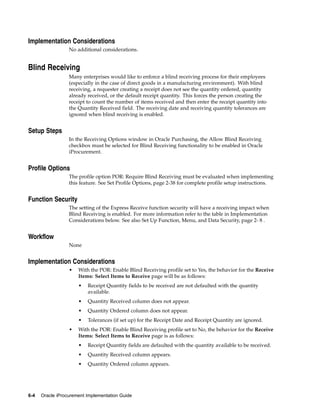
    Blind Receiving . . . . . . . . . . .     .   .   .   .   .   .   .   .   .   .   .   .   .   .   .   .   .   .   .   .   .   .   .   6- 4
    Receiving Against Intransit Shipments     .   .   .   .   .   .   .   .   .   .   .   .   .   .   .   .   .   .   .   .   .   .   .   6- 5
    Receiving Against Internal Requisitions   .   .   .   .   .   .   .   .   .   .   .   .   .   .   .   .   .   .   .   .   .   .   .   6- 6
    Requisitions to Receive . . . . . . .     .   .   .   .   .   .   .   .   .   .   .   .   .   .   .   .   .   .   .   .   .   .   .   6- 8
    Returns . . . . . . . . . . . . . .       .   .   .   .   .   .   .   .   .   .   .   .   .   .   .   .   .   .   .   .   .   .   .   6- 9
    Debit Memos for Return Transactions .     .   .   .   .   .   .   .   .   .   .   .   .   .   .   .   .   .   .   .   .   .   .   .   6-10
    Corrections . . . . . . . . . . . . .     .   .   .   .   .   .   .   .   .   .   .   .   .   .   .   .   .   .   .   .   .   .   .   6-11
    Viewing Receipts . . . . . . . . . .      .   .   .   .   .   .   .   .   .   .   .   .   .   .   .   .   .   .   .   .   .   .   .   6-11
    "Confirm Receipt" Notifications . . .     .   .   .   .   .   .   .   .   .   .   .   .   .   .   .   .   .   .   .   .   .   .   .   6-12


A   Using a Spreadsheet to Load Catalog Data
    Introduction   . . . . . . . . . . . . . . . . . . . . . . . . . . . . . . . . . . .                                                  A- 1


                                                                                                                                             v
Introduction to the Catalog Structure . . . .     .   .   .   .   .   .   .   .   .   .   .   .   .   .   .   .   .   .   .   .   A- 2
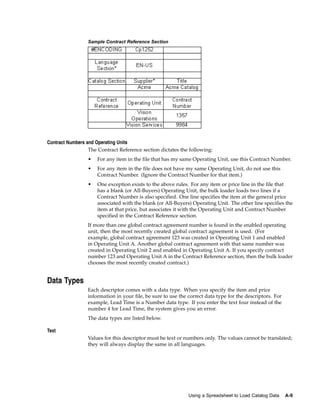
     Using a Spreadsheet to Load the Catalog Data      .   .   .   .   .   .   .   .   .   .   .   .   .   .   .   .   .   .   .   .   A- 3
     Encoding Section . . . . . . . . . . . . .        .   .   .   .   .   .   .   .   .   .   .   .   .   .   .   .   .   .   .   .   A- 4
     Language Section . . . . . . . . . . . . .        .   .   .   .   .   .   .   .   .   .   .   .   .   .   .   .   .   .   .   .   A- 5
     Catalog Section . . . . . . . . . . . . . .       .   .   .   .   .   .   .   .   .   .   .   .   .   .   .   .   .   .   .   .   A- 7
     Contract Reference Section . . . . . . . . .      .   .   .   .   .   .   .   .   .   .   .   .   .   .   .   .   .   .   .   .   A- 7
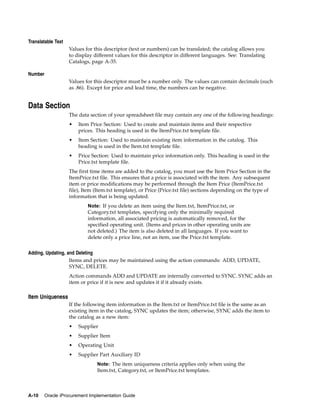
     Data Types . . . . . . . . . . . . . . . .        .   .   .   .   .   .   .   .   .   .   .   .   .   .   .   .   .   .   .   .   A- 9
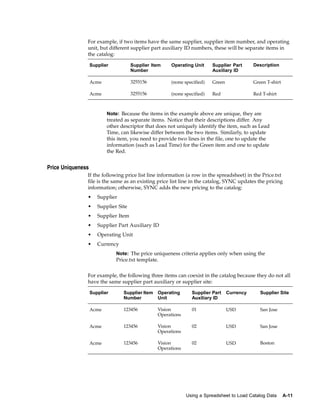
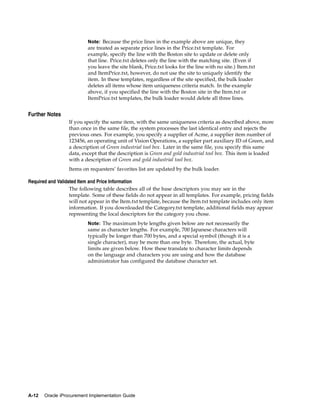
     Data Section . . . . . . . . . . . . . . .        .   .   .   .   .   .   .   .   .   .   .   .   .   .   .   .   .   .   .   .   A-10
     Using the Bulk Loader with Extracted Items .      .   .   .   .   .   .   .   .   .   .   .   .   .   .   .   .   .   .   .   .   A-28
     Reviewing and Saving Your Spreadsheet File        .   .   .   .   .   .   .   .   .   .   .   .   .   .   .   .   .   .   .   .   A-29
     Loading Your Spreadsheet File . . . . . . .       .   .   .   .   .   .   .   .   .   .   .   .   .   .   .   .   .   .   .   .   A-29
     Resolving Errors . . . . . . . . . . . . .        .   .   .   .   .   .   .   .   .   .   .   .   .   .   .   .   .   .   .   .   A-32
     Handling Special Characters . . . . . . . .       .   .   .   .   .   .   .   .   .   .   .   .   .   .   .   .   .   .   .   .   A-32
     Loading Images . . . . . . . . . . . . . .        .   .   .   .   .   .   .   .   .   .   .   .   .   .   .   .   .   .   .   .   A-33
     Translating Catalogs . . . . . . . . . . . .      .   .   .   .   .   .   .   .   .   .   .   .   .   .   .   .   .   .   .   .   A-35


B    Using XML to Load Catalog Data
     Introduction . . . . . . . . . . . . . .      .   .   .   .   .   .   .   .   .   .   .   .   .   .   .   .   .   .   .   .   .   B- 1
     Introduction to the Catalog Structure . . .   .   .   .   .   .   .   .   .   .   .   .   .   .   .   .   .   .   .   .   .   .   B- 2
     Using XML to Load the Catalog Data . . .      .   .   .   .   .   .   .   .   .   .   .   .   .   .   .   .   .   .   .   .   .   B- 3
     Version and Character Set Encoding . . . .    .   .   .   .   .   .   .   .   .   .   .   .   .   .   .   .   .   .   .   .   .   B- 4
     Language Identification . . . . . . . . .     .   .   .   .   .   .   .   .   .   .   .   .   .   .   .   .   .   .   .   .   .   B- 4
     Administrative Section . . . . . . . . .      .   .   .   .   .   .   .   .   .   .   .   .   .   .   .   .   .   .   .   .   .   B- 6
     Data Types . . . . . . . . . . . . . . .      .   .   .   .   .   .   .   .   .   .   .   .   .   .   .   .   .   .   .   .   .   B-10
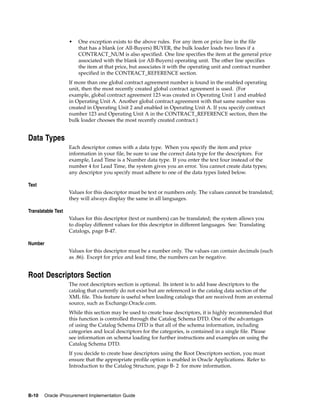
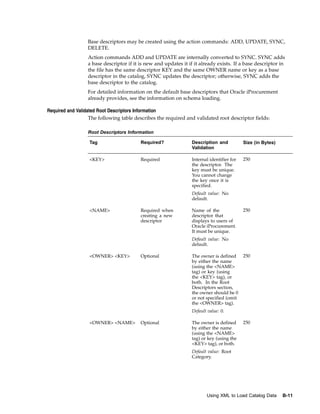
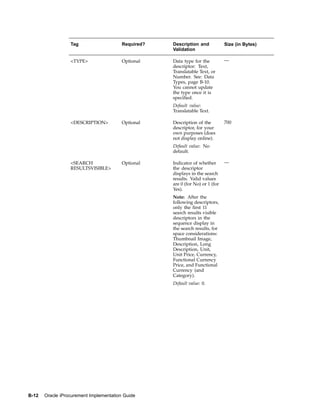
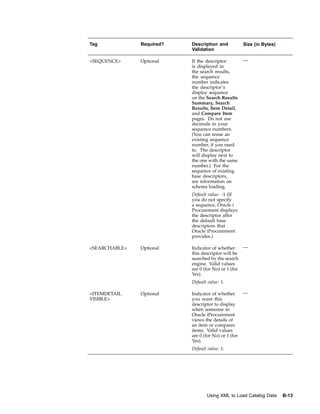
     Root Descriptors Section . . . . . . . . .    .   .   .   .   .   .   .   .   .   .   .   .   .   .   .   .   .   .   .   .   .   B-10
     Catalog Data Section . . . . . . . . . . .    .   .   .   .   .   .   .   .   .   .   .   .   .   .   .   .   .   .   .   .   .   B-14
     Using the Bulk Loader with Extracted Items    .   .   .   .   .   .   .   .   .   .   .   .   .   .   .   .   .   .   .   .   .   B-40
     Reviewing and Saving Your XML File . . .      .   .   .   .   .   .   .   .   .   .   .   .   .   .   .   .   .   .   .   .   .   B-41
     Loading Your XML File . . . . . . . . .       .   .   .   .   .   .   .   .   .   .   .   .   .   .   .   .   .   .   .   .   .   B-41
     Resolving Errors . . . . . . . . . . . .      .   .   .   .   .   .   .   .   .   .   .   .   .   .   .   .   .   .   .   .   .   B-44
     Handling Special Characters . . . . . . .     .   .   .   .   .   .   .   .   .   .   .   .   .   .   .   .   .   .   .   .   .   B-44
     Loading Images . . . . . . . . . . . . .      .   .   .   .   .   .   .   .   .   .   .   .   .   .   .   .   .   .   .   .   .   B-45
     Translating Catalogs . . . . . . . . . . .    .   .   .   .   .   .   .   .   .   .   .   .   .   .   .   .   .   .   .   .   .   B-47
     Backwards Compatibility . . . . . . . .       .   .   .   .   .   .   .   .   .   .   .   .   .   .   .   .   .   .   .   .   .   B-50


C    Using XML to Load Catalog Schema
     Introduction . . . . . . . . . . . . . . . .          .   .   .   .   .   .   .   .   .   .   .   .   .   .   .   .   .   .   .   C- 1
     Introduction to the Catalog Structure . . . . .       .   .   .   .   .   .   .   .   .   .   .   .   .   .   .   .   .   .   .   C- 2
     Using XML to Load the Catalog Schema . . . .          .   .   .   .   .   .   .   .   .   .   .   .   .   .   .   .   .   .   .   C- 2
     Version and Character Set Encoding    . . . . .       .   .   .   .   .   .   .   .   .   .   .   .   .   .   .   .   .   .   .   C- 3
     Language Identification . . . . . . . . . . .         .   .   .   .   .   .   .   .   .   .   .   .   .   .   .   .   .   .   .   C- 4
     Administrative Section . . . . . . . . . . .          .   .   .   .   .   .   .   .   .   .   .   .   .   .   .   .   .   .   .   C- 6
     Schema Section . . . . . . . . . . . . . . .          .   .   .   .   .   .   .   .   .   .   .   .   .   .   .   .   .   .   .   C- 7
     Required and Validated Category Information .         .   .   .   .   .   .   .   .   .   .   .   .   .   .   .   .   .   .   .   C- 8
     Required and Validated Descriptors Information        .   .   .   .   .   .   .   .   .   .   .   .   .   .   .   .   .   .   .   C- 9


vi
Hierarchy Section . . . . . . . . .   .   .   .   .   .   .   .   .   .   .   .   .   .   .   .   .   .   .   .   .   .   .   .   .   C-21
    Reviewing and Saving Your XML File    .   .   .   .   .   .   .   .   .   .   .   .   .   .   .   .   .   .   .   .   .   .   .   .   C-25
    Loading Your XML File . . . . . .     .   .   .   .   .   .   .   .   .   .   .   .   .   .   .   .   .   .   .   .   .   .   .   .   C-25
    Resolving Errors . . . . . . . . .    .   .   .   .   .   .   .   .   .   .   .   .   .   .   .   .   .   .   .   .   .   .   .   .   C-26
    Handling Special Characters . . . .   .   .   .   .   .   .   .   .   .   .   .   .   .   .   .   .   .   .   .   .   .   .   .   .   C-27
    Translating Catalog Schema . . . .    .   .   .   .   .   .   .   .   .   .   .   .   .   .   .   .   .   .   .   .   .   .   .   .   C-27
    Backwards Compatibility . . . . .     .   .   .   .   .   .   .   .   .   .   .   .   .   .   .   .   .   .   .   .   .   .   .   .   C-29


D   Search Engine Logic
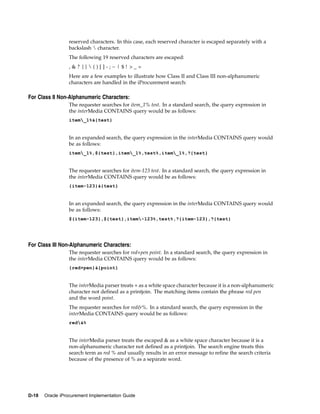
    Search Methods . . . . . . . . . . . . .          .   .   .   .   .   .   .   .   .   .   .   .   .   .   .   .   .   .   .   .   .   D- 1
    Items Displayed in Search Results . . . .         .   .   .   .   .   .   .   .   .   .   .   .   .   .   .   .   .   .   .   .   .   D- 7
    Related Links . . . . . . . . . . . . . .         .   .   .   .   .   .   .   .   .   .   .   .   .   .   .   .   .   .   .   .   .   D- 9
    Filtering and Sorting . . . . . . . . . . .       .   .   .   .   .   .   .   .   .   .   .   .   .   .   .   .   .   .   .   .   .   D-10
    Supported Search Methods by Catalog Type          .   .   .   .   .   .   .   .   .   .   .   .   .   .   .   .   .   .   .   .   .   D-11
    Special Characters . . . . . . . . . . . .        .   .   .   .   .   .   .   .   .   .   .   .   .   .   .   .   .   .   .   .   .   D-13
    Search Configuration . . . . . . . . . .          .   .   .   .   .   .   .   .   .   .   .   .   .   .   .   .   .   .   .   .   .   D-13
    Relevance Ranking . . . . . . . . . . .           .   .   .   .   .   .   .   .   .   .   .   .   .   .   .   .   .   .   .   .   .   D-15
    Technical Details . . . . . . . . . . . .         .   .   .   .   .   .   .   .   .   .   .   .   .   .   .   .   .   .   .   .   .   D-16
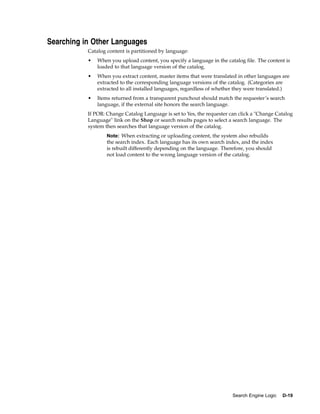
    Searching in Other Languages . . . . . .          .   .   .   .   .   .   .   .   .   .   .   .   .   .   .   .   .   .   .   .   .   D-19


E   PO History Feed File
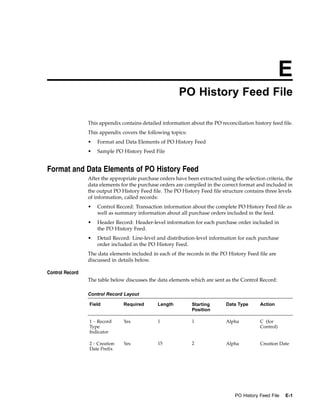
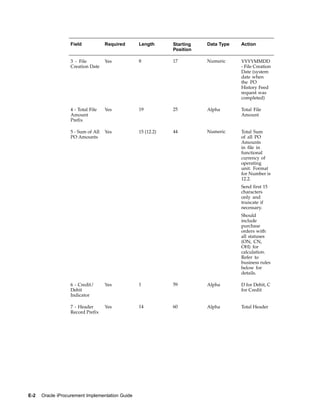
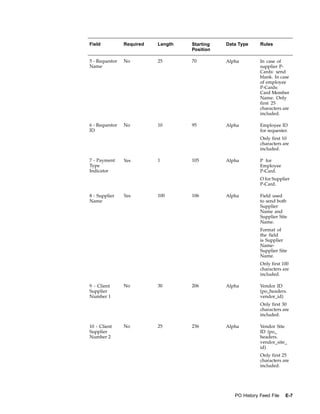
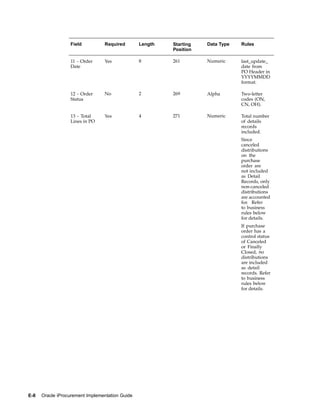
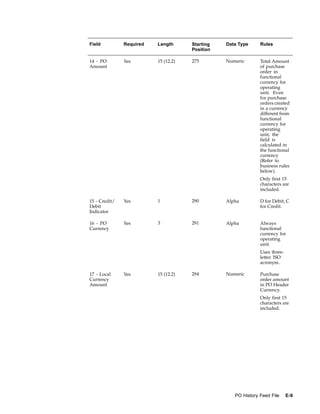
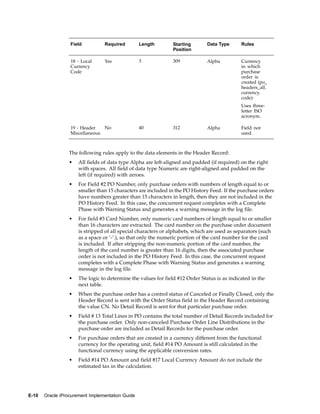
    Format and Data Elements of PO History Feed . . . . . . . . . . . . . . . . . . . .                                                   E- 1
    Sample PO History Feed File . . . . . . . . . . . . . . . . . . . . . . . . . . . .                                                   E-14


Index


                                                                                                                                            vii
Send Us Your Comments

Oracle iProcurement Implementation Guide, Release 11i
Part No. A85361-05


Oracle welcomes your comments and suggestions on the quality and usefulness of this publication. Your
input is an important part of the information used for revision.
•   Did you find any errors?
•   Is the information clearly presented?
•   Do you need more information? If so, where?
•   Are the examples correct? Do you need more examples?
•   What features did you like most about this manual?

If you find any errors or have any other suggestions for improvement, please indicate the title and part
number of the documentation and the chapter, section, and page number (if available). You can send
comments to us in the following ways:
•   Electronic mail: appsdoc_us@oracle.com
•   FAX: 650-506-7200 Attn: Oracle Supply Chain Management Documentation Manager
•   Postal service:
    Oracle Supply Chain Management Documentation Manager
    Oracle Corporation
    500 Oracle Parkway
    Redwood Shores, CA 94065
    USA

If you would like a reply, please give your name, address, telephone number, and electronic mail address
(optional).
If you have problems with the software, please contact your local Oracle Support Services.


                                                                                                           ix
Preface

Intended Audience
              Welcome to Release 11i of the Oracle iProcurement Implementation Guide.
              See Related Documents on page xii for more Oracle Applications product information.


TTY Access to Oracle Support Services
              Oracle provides dedicated Text Telephone (TTY) access to Oracle Support Services
              within the United States of America 24 hours a day, seven days a week. For TTY support,
              call 800.446.2398.


Documentation Accessibility
              Our goal is to make Oracle products, services, and supporting documentation accessible,
              with good usability, to the disabled community. To that end, our documentation
              includes features that make information available to users of assistive technology.
              This documentation is available in HTML format, and contains markup to facilitate
              access by the disabled community. Accessibility standards will continue to evolve over
              time, and Oracle is actively engaged with other market-leading technology vendors to
              address technical obstacles so that our documentation can be accessible to all of our
              customers. For more information, visit the Oracle Accessibility Program Web site at
              http://www.oracle.com/accessibility/ .


Accessibility of Code Examples in Documentation
              Screen readers may not always correctly read the code examples in this document. The
              conventions for writing code require that closing braces should appear on an otherwise
              empty line; however, some screen readers may not always read a line of text that consists
              solely of a bracket or brace.


Accessibility of Links to External Web Sites in Documentation
              This documentation may contain links to Web sites of other companies or organizations
              that Oracle does not own or control. Oracle neither evaluates nor makes any
              representations regarding the accessibility of these Web sites.


Structure
              1 Overview
              This chapter provides an overview of the features in Oracle iProcurement.


                                                                                                     xi
2 Oracle Applications Setup
             This chapter describes the technical implementation steps for Oracle iProcurement that
             would be performed by a database administrator, system administrator, or technical
             implementation team member. These steps are completed in Oracle Applications.
             3 Document Sourcing Setup
             This chapter provides an overview of the document sourcing options in Oracle
             iProcurement. It also includes instructions for setting up contract purchase agreements
             as source documents.
             4 Catalog Setup and Management
             This chapter provides a complete overview and setup of the Oracle iProcurement catalog.
             5 Requisitions Setup
             This chapter describes the implementation steps specific to requisitioning (ordering)
             in Oracle iProcurement.
             6 Receipts
             This chapter describes the implementation steps specific to receiving in Oracle
             iProcurement.
             A Using a Spreadsheet to Load Catalog Data
             This appendix explains how to create and load your catalog items into the Oracle
             iProcurement catalog using the spreadsheet loader.
             B Using XML to Load Catalog Data
             This appendix explains how to create and load your catalog items into the Oracle
             iProcurement catalog using the XML loader.
             C Using XML to Load Catalog Schema
             This appendix explains how to create and load your catalog schema
             (categories, descriptors, and category hierarchy) into Oracle iProcurement’s catalog
             using the XML loader.
             D Search Engine Logic
             This appendix describes the search engine in detail, including setup impact on searching.
             E PO History Feed File
             This appendix contains detailed information about the PO reconciliation history feed file.


Related Documents
             You can choose from many sources of information, including online
             documentation, training, and support services, to increase your knowledge and
             understanding of Oracle iProcurement. If this guide refers you to other Oracle
             Applications documentation, use only the Release 11i versions of those guides.
             Documentation on OracleMetaLink can be found at http://metalink.oracle.com.


About Oracle iProcurement in Oracle Supply Chain Management
             For information about new features in this release, instructions for applying patches, new
             and changed setup steps, descriptions of software updates, and updated implementation
             and user documentation, refer to the document About Oracle iProcurement in Oracle
             Supply Chain Management for your current release. This document is available on
             OracleMetaLink.


xii
Online Documentation
              All Oracle Applications documentation is available online (HTML). Online help is
              available for end users of Oracle iProcurement and for catalog authors. No paper user
              guides are available. Online help patches are available on OracleMetaLink.


Oracle Applications User’s Guide
              This guide explains how to enter data, query, run reports, and navigate using the
              graphical user interface (GUI) available with Oracle Applications products. This guide
              also includes information on setting user profiles, as well as running and reviewing
              reports and concurrent processes. You can access this user’s guide online (in Oracle
              Applications products) by choosing Getting Started with Oracle Applications from any
              Oracle Applications Help file.


Oracle Applications Flexfields Guide
              This guide provides flexfields planning, setup, and reference information for the Oracle
              Purchasing implementation team, as well as for users responsible for the ongoing
              maintenance of Oracle Applications product data. This guide also provides information
              on creating custom reports on flexfields data.


Oracle Applications System Administrator’s Guide
              This guide provides planning and reference information for the Oracle Applications
              System Administrator. It contains information on how to define security, customize
              menus and online help, and manage processing.


Oracle e-Commerce Gateway User’s Guide
              This guide describes how Oracle e-Commerce Gateway provides a means to conduct
              business with trading partners via Electronic Data Interchange (EDI). Data files are
              exchanged in a standard format to minimize manual effort, speed data processing, and
              ensure accuracy.


Oracle eTechnical Reference Manuals (eTRM)
              Each eTechnical Reference Manual (eTRM) contains database diagrams and a detailed
              description of database tables, forms, reports, and programs for a specific Oracle
              Applications product. This information helps you convert data from your existing
              applications, integrate Oracle Applications data with non-Oracle applications, and
              write custom reports for Oracle Applications products. Oracle eTRM is available on
              OracleMetaLink.


Oracle Payables User’s Guide
              This guide describes how accounts payable transactions are created and entered in
              Oracle Payables. This guide also contains detailed setup information for Oracle Payables.


Oracle Purchasing User’s Guide
              This guide describes how to create and approve purchasing documents, including
              requisitions, different types of purchase orders, quotations, RFQs, and receipts. This
              guide also describes how to manage your supply base through agreements, sourcing


                                                                                                       xiii
rules, and approved supplier lists. In addition, this guide explains how you can
             automatically create purchasing documents based on business rules through integration
             with Oracle Workflow technology, which automates many of the key procurement
             processes.


Oracle Self-Service Web Applications Implementation Manual
             This manual contains essential information if you are implementing iProcurement
             11i on Oracle Applications Release 11i.


Oracle Workflow Guide
             Oracle Workflow enables you to automate and continuously improve business
             processes. Information of any type can be routed according to business rules.


Oracle Procurement Buyer’s Guide to Punchout and Transparent Punchout
             This guide contains necessary information for customers implementing remote catalog
             content on a supplier’s Web site or on Oracle Exchange.


Do Not Use Database Tools to Modify Oracle Applications Data
             Oracle STRONGLY RECOMMENDS that you never use SQL*Plus, Oracle Data Browser,
             database triggers, or any other tool to modify Oracle Applications data unless otherwise
             instructed.
             Oracle provides powerful tools you can use to create, store, change, retrieve, and
             maintain information in an Oracle database. But if you use Oracle tools such as SQL*Plus
             to modify Oracle Applications data, you risk destroying the integrity of your data and
             you lose the ability to audit changes to your data.
             Because Oracle Applications tables are interrelated, any change you make using an
             Oracle Applications form can update many tables at once. But when you modify Oracle
             Applications data using anything other than Oracle Applications, you may change a row
             in one table without making corresponding changes in related tables. If your tables get
             out of synchronization with each other, you risk retrieving erroneous information and
             you risk unpredictable results throughout Oracle Applications.
             When you use Oracle Applications to modify your data, Oracle Applications
             automatically checks that your changes are valid. Oracle Applications also keeps track of
             who changes information. If you enter information into database tables using database
             tools, you may store invalid information. You also lose the ability to track who has
             changed your information because SQL*Plus and other database tools do not keep a
             record of changes.


xiv
1
                                                                            Overview

           This chapter provides an overview of the features in Oracle iProcurement.
           This chapter covers the following topics:
           •   Oracle iProcurement in Comprehensive Procure-to-Pay Flow
           •   Catalog Management
           •   Shopping
           •   Checkout
           •   Requisition Tracking and Management
           •   Desktop Receiving
           •   Oracle Services Procurement Integration


Oracle iProcurement in Comprehensive Procure-to-Pay Flow
           Oracle iProcurement enables internal corporate requesters to independently order items
           from both local (internal) and remote (external) catalogs.
           Oracle iProcurement is part of Oracle Applications, an integrated suite of E-Business
           solutions designed to transform your business into an E-Business. Along with the rest
           of the Oracle E-Business suite, Oracle iProcurement helps an enterprise streamline the
           procurement process with end-to-end business automation. It is the starting point for
           the ordering process and provides powerful self-service requisitioning capability with
           an intuitive, web shopping interface. It constitutes a key component of the complete
           procure-to-pay business flow and helps an enterprise to process and manage requisitions
           and receipt of the requested goods or services in an efficient and automated manner.

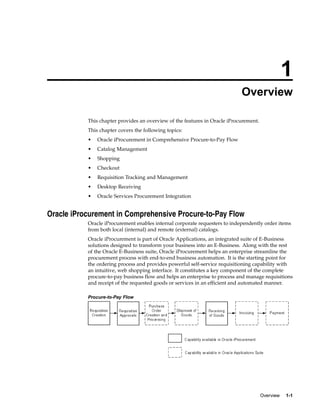
           Procure-to-Pay Flow


                                                                                       Overview   1-1
Catalog Management
                  For complete information on catalog features, see Catalogs and Stores, page 4- 1 in the
                  Catalog Management chapter.


Catalog Types and Sources
                  Oracle iProcurement offers a flexible solution to catalog and content
                  management, enabling you to select from several approaches based on your business
                  model.
                  1.   Load catalogs directly into the Oracle iProcurement catalog using the catalog
                       bulk loader, which supports catalogs formatted in XML, standard text, catalog
                       interchange format (CIF), or cXML. Using the catalog bulk loader, you can load new
                       catalogs, update existing catalogs, and delete catalog content. Oracle iProcurement
                       also supports catalogs created in multiple languages and currencies to support
                       requester communities worldwide.
                  2.   Use the catalog extractor to load items and services from Oracle Purchasing into the
                       iProcurement catalog.
                  3.   Perform a punchout to an Oracle Exchange marketplace, such as
                       Exchange.Oracle.com, or a supplier’s Web store to access their catalogs. This
                       punchout can be a direct link to the store, where the requester searches, shops, and
                       returns items to Oracle iProcurement. Alternatively, you and the supplier can set up
                       a transparent punchout that works in the background to return matching items from
                       the external site directly to the requester’s search results.
                  4.   Use informational catalogs, which contain instructions or links for ordering other
                       items or services at your company. The informational catalog enables Oracle
                       iProcurement to be your company’s portal for all ordering.
                  You can use any or all of these approaches for creating catalog content.


Catalogs and Stores
                  Stores provide an easy way for requesters to shop among a variety of catalog types
                  and sources. Stores are an optional part of your catalog configuration. See Shopping,
                  page 1- 3 .


Category and Descriptor Management
                  The Oracle iProcurement catalog provides uploading and online capabilities to create
                  categories and descriptors, in addition to categories that you may have extracted and
                  default descriptors (such as Supplier and Price) that already exist.


Security
                  You can use realms to control which categories or catalog sources that certain requesters
                  can access. You can also configure stores to display only to requesters in certain
                  operating units.


Images
                  Oracle iProcurement provides several options for displaying images for items. For
                  example, you can upload or extract images. You can also provide thumbnail images


1-2   Oracle iProcurement Implementation Guide
that display next to items in the search results. (These can be separate, smaller format
              images, or you can use profile options to automatically size them from the larger item
              images.)


Shopping
              Oracle iProcurement leverages the well-accepted model for web shopping incorporated
              into top consumer Web sites. This proven approach allows first-time, untrained
              requesters to find desired items or services (shop) and create requisitions
              (checkout), while also catering to experienced requesters by providing increased control
              and flexibility when creating requisitions.

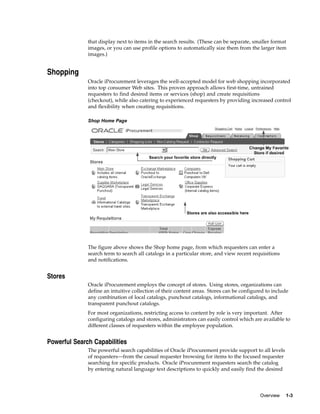
              Shop Home Page


              The figure above shows the Shop home page, from which requesters can enter a
              search term to search all catalogs in a particular store, and view recent requisitions
              and notifications.


Stores
              Oracle iProcurement employs the concept of stores. Using stores, organizations can
              define an intuitive collection of their content areas. Stores can be configured to include
              any combination of local catalogs, punchout catalogs, informational catalogs, and
              transparent punchout catalogs.
              For most organizations, restricting access to content by role is very important. After
              configuring catalogs and stores, administrators can easily control which are available to
              different classes of requesters within the employee population.


Powerful Search Capabilities
              The powerful search capabilities of Oracle iProcurement provide support to all levels
              of requesters—from the casual requester browsing for items to the focused requester
              searching for specific products. Oracle iProcurement requesters search the catalog
              by entering natural language text descriptions to quickly and easily find the desired


                                                                                           Overview    1-3
items or services. Requesters are not required to know the details of a classification
                  format or catalog hierarchy—they simply enter search criteria ranging from partial
                  item descriptions and part numbers to supplier names and specific product attributes
                  (such as color or size). Using Oracle interMedia’s state-of-the-art technology, the
                  search returns a list of matching items. Additional search capabilities such as
                  comparing, sorting, filtering, and advanced search enable requesters to further refine
                  their search.
                  As an alternative to performing searches, requesters can browse through the hierarchy of
                  categories within the catalog to locate items and services. This is particularly effective
                  when the requester is familiar with the classification of the items.
                  See Appendix D for detailed and complete information on searching.

Standard (or Quick) Search
                   Standard search looks across all the searchable descriptors for records that match all of
                   the entered search keywords.

Expanded Search
                  If no results are returned from performing a standard search, requesters can find more
                  approximate matches by using expanded search.

Advanced Search
                  Advanced search enables requesters to search by specific item descriptors, such as item
                  description, supplier, manufacturer, or price. Requesters can use advanced search
                  operators such as with at least one of the words or with the exact phrase to search for items
                  that match a particular description, manufacturer, and price, or other combination.


Shopping Lists
                  Requesters can access frequently ordered items through the use of shopping lists.

Favorite List
                  Requesters can create their own personal favorites list for the items they most frequently
                  order.

Public Lists
                  Professional buyers in Oracle Purchasing can use requisition templates to create public
                  lists that can be accessed by requesters.


Saved Carts
                  Requesters can save an unlimited number of shopping carts in progress. This enables
                  them to save selected items and return later to add more items and check out.


Non-Catalog Requests
                  Requesters can request items and services not found in the catalog or shopping lists by
                  creating non-catalog requests. Using catalog administration, you can create non-catalog
                  request templates, also known as smart forms. These templates enable you to control
                  the non-catalog request fields that requesters complete, depending on which store or
                  operating unit they are in. (See Setting Up Non-Catalog Request Templates, page 4-52.)


1-4   Oracle iProcurement Implementation Guide
If you implement Oracle Services Procurement, requesters can create fixed price service
              requisitions using a non-catalog request. See Oracle Services Procurement, page 5-70.


Automatic Document Creation
              Oracle iProcurement supports several different supplier-level document types to enable
              the automated document creation process. Supplier purchase contracts and quotations
              can be used to generate standard purchase orders. Supplier blanket purchase agreements
              can be used to create releases. All three document types support purchasing document
              creation without requiring buyer intervention.


Center-Led Procurement
              Oracle iProcurement supports requisitioning against global contract agreements and
              global blanket agreements. These can be created by a central procurement center in your
              business, and then used by other organizations. For example, a requester in the German
              operating unit can request an item that exists on a global blanket agreement in Ireland, as
              long as the global agreement is enabled in the German operating unit. Oracle Purchasing
              will generate a standard purchase order against the global blanket agreement, and the
              requester will receive the item like any other.


Internally Sourced Items
              In a buying organization, goods are sourced either from external suppliers or from
              internal inventory and warehouse locations. In Oracle iProcurement, externally sourced
              items are requested using purchase requisitions; internally sourced items are requested
              using internal requisitions. Internal requisitions are not converted into purchasing
              documents, such as purchase orders and blanket releases. Rather, they are converted
              into internal sales orders. These internal sales orders are subsequently processed, and
              the requested items can be received in Oracle iProcurement.


Checkout
              Checkout consists of four basic components: delivery, billing, notes and attachments, and
              approvers.


Delivery
              Each requisition includes the need-by date and time, requester, and location. These can
              be entered once for the entire requisition, or vary by line. Most of the information can
              be set up to default automatically, and requesters can change these delivery defaults
              in their iProcurement Preferences or on the requisition.


                                                                                          Overview   1-5
Delivery Information


                  The figure above shows the delivery information during the first step of the checkout
                  process. This delivery information applies to all lines on the requisition.

                  Delivery Line Information


                  The figure above shows the optional Edit Lines step of the checkout process, where
                  requesters can vary delivery information by line.


1-6   Oracle iProcurement Implementation Guide
Multiple Destination Types
                    You can use Oracle iProcurement to create requisitions for requester-initiated inventory
                    replenishment requests, such as stocking a shop floor crib. Alternatively, requested items
                    can be delivered to an expense destination.

One-Time Addresses
                 There are occasions where requesters want items delivered to a location, such as a
                 home address, that is not an office location or other predefined location established in
                 the database. This is considered a one-time address and can be defined as a deliver-to
                 location during the requisition creation process.

Integration to EAM
                     Oracle Enterprise Asset Management (EAM) is an Oracle Applications product that
                     identifies, schedules, and tracks all work activity and costs related to assets throughout
                     an organization. Oracle iProcurement requisitions update EAM work orders.


Billing
Multiple Account Distributions and Account Generation Workflow
                   Charge accounts for requisition lines are generated using Account Generator
                   Workflow rules. You can split charges for requested items across multiple accounting
                   codes, allowing multiple departments or accounts to bear the cost of items on a single
                   requisition line. This eliminates the need to create multiple requisition lines when the
                   same item is being requested for multiple departments.

Procurement Card Purchases
                  Oracle iProcurement automatically flags shopping cart lines for procurement card
                  (P-Card) payment and defaults the P-Card number depending on the requester and
                  supplier profiles. Two separate types of P-Cards are supported:
                     •   Employee P-Cards. Companies maintain a separate employee P-Card for each
                         requester in the company to make purchases.
                     •   Supplier P-Cards. Companies maintain a single supplier P-Card for each
                         supplier/supplier site in the system to consolidate all purchases from that
                         supplier/supplier site.
                     After a requisition has been created and approved, a purchase order containing the
                     P-Card number is created and communicated to the supplier. A P-Card reconciliation
                     process provides the capability to electronically reconcile the P-Card statements and the
                     corresponding purchase orders in the buyer’s purchasing application.

Oracle Projects Integration
                    Integration with Oracle Projects and Oracle Project Manufacturing enables requesters to
                    optionally reference project and task information on shopping cart order lines.

Oracle Grants Integration
                   Integration with Oracle Grants enables requesters to optionally reference
                   projects, tasks, and award information on shopping cart order lines.


                                                                                                  Overview   1-7
Encumbrance Support
                For customers using budgetary controls, Oracle iProcurement provides the ability to
                check funds online before submitting requisitions. If a request carries costs past their
                budgetary limit, the requester is informed and can take appropriate action. Funds are
                automatically reserved during the requisition submit process.

Tax Integration
                    Oracle iProcurement enables you to specify tax information, including taxable status
                    and tax code, if applicable. This tax information is carried forward to the purchasing
                    document.


Notes and Attachments
Notes
                    During checkout, requesters can include notes to buyers and approvers. These notes can
                    be viewed by their intended recipients later in the procurement process.

Upload and View Attachments
                  You can provide additional information to approvers, buyers, suppliers, and receivers by
                  attaching text, URLs, and other file types to the requisition. These attachments can be
                  transferred through the system to purchase orders, blanket releases, and receipts.
                    In Oracle iProcurement, requesters can add attachments to a requisition during
                    checkout. Attachments can be of the following types:
                    •   Internal to Requisition. The attachment can be viewed only from the requisition.
                    •   To Buyer. The attachment information is passed on to the purchase order created
                        from the requisition.
                    •   To Approver. The attachment information can be viewed by the appropriate
                        approvers.
                    •   To Receiver. The attachment information can be viewed by the receiver, if the
                        receiver is not the requester.
                    •   To Supplier. Text and non-image file attachments can be transmitted electronically
                        by EDI or XML to the supplier when the purchase order automatically created from
                        the requisition is transmitted.
                    •   Miscellaneous.


Approvers
                    Approval and workflow setup in Oracle Purchasing determines the approver list for
                    each requisition. During checkout, the requester can add approvers and change the
                    first approver in the approver list, depending on whether you allow access to this
                    functionality (using function security). You can also customize the workflow to meet
                    your business needs.
                    You can alternatively use Oracle Approvals Management to determine the approver
                    list. Oracle Approvals Management provides a single approval management engine
                    (AME) that can be used by multiple Oracle applications, including Oracle iProcurement.


1-8     Oracle iProcurement Implementation Guide
Integration with Oracle Advanced Pricing
              Any item that is associated with a contract purchase agreement can reference complex
              pricing rules in Oracle Advanced Pricing, such as formula-based pricing, discounts, and
              surcharges. If an item is associated with a contract purchase agreement, and you have
              set up advanced pricing, then the item’s price takes into account the pricing rules
              during checkout.


Requisition Tracking and Management
              After the requester has created and submitted a requisition, the requester can quickly
              and easily track further processing of the requisition using the Oracle iProcurement
              application.


Requisition Status
              Requesters can view the status of all of their requisitions in the Requisitions tab, and
              perform detailed searches for requisitions. They can search by many criteria, including
              when the requisition was created, requester, and purchase order (or sales order)
              number. The requester also receives real-time notifications to keep the requester
              up-to-date with actions taken against the requisition. Notifications can be viewed in
              Oracle iProcurement, on the Notifications page, or by e-mail.

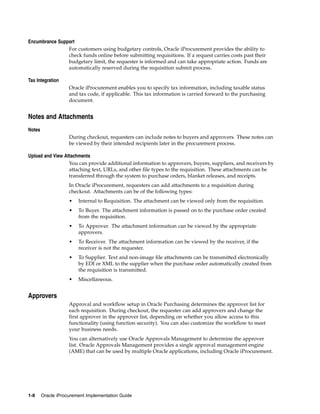
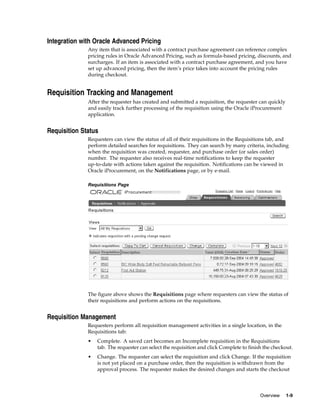
              Requisitions Page


              The figure above shows the Requisitions page where requesters can view the status of
              their requisitions and perform actions on the requisitions.


Requisition Management
              Requesters perform all requisition management activities in a single location, in the
              Requisitions tab:
              •   Complete. A saved cart becomes an Incomplete requisition in the Requisitions
                  tab. The requester can select the requisition and click Complete to finish the checkout.
              •   Change. The requester can select the requisition and click Change. If the requisition
                  is not yet placed on a purchase order, then the requisition is withdrawn from the
                  approval process. The requester makes the desired changes and starts the checkout


                                                                                           Overview    1-9
process. If the requisition is already placed on a purchase order, then the changes
                      that the requester performs become change order requests that the buyer must
                      first approve.
                  •   Cancel. The requester can select the requisition and click Cancel to cancel the entire
                      requisition or individual lines. If the requisition is not yet placed on a purchase
                      order, then the cancellation occurs immediately. If the requisition is already placed
                      on a purchase order, then the cancellation becomes a request that the buyer must
                      first approve.
                  •   Resubmit. If the status of the requisition is Rejected or Returned, then the requester
                      can resubmit it by clicking Change, making the necessary changes, and starting
                      the checkout process.


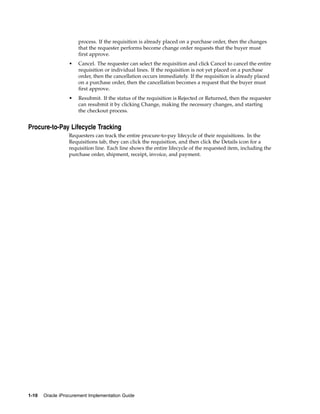
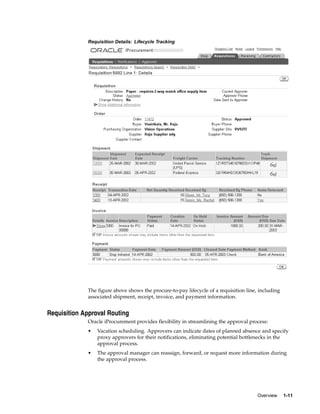
Procure-to-Pay Lifecycle Tracking
                  Requesters can track the entire procure-to-pay lifecycle of their requisitions. In the
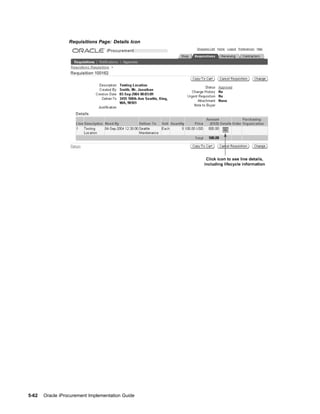
                  Requisitions tab, they can click the requisition, and then click the Details icon for a
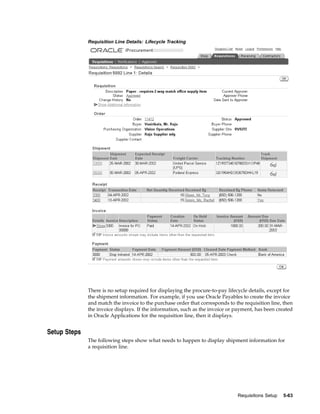
                  requisition line. Each line shows the entire lifecycle of the requested item, including the
                  purchase order, shipment, receipt, invoice, and payment.


1-10   Oracle iProcurement Implementation Guide
Requisition Details: Lifecycle Tracking


             The figure above shows the procure-to-pay lifecycle of a requisition line, including
             associated shipment, receipt, invoice, and payment information.


Requisition Approval Routing
             Oracle iProcurement provides flexibility in streamlining the approval process:
             •   Vacation scheduling. Approvers can indicate dates of planned absence and specify
                 proxy approvers for their notifications, eliminating potential bottlenecks in the
                 approval process.
             •   The approval manager can reassign, forward, or request more information during
                 the approval process.


                                                                                       Overview     1-11
•   Approver checkout. When the approver reviews the requisition, the approver can
                      also make changes to the requisition before approving it.


Desktop Receiving
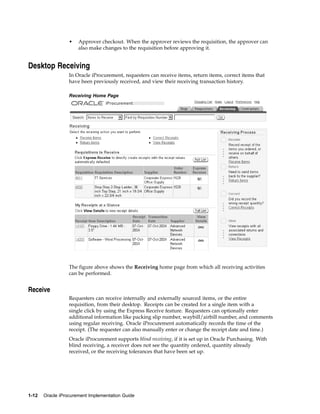
                  In Oracle iProcurement, requesters can receive items, return items, correct items that
                  have been previously received, and view their receiving transaction history.

                  Receiving Home Page


                  The figure above shows the Receiving home page from which all receiving activities
                  can be performed.


Receive
                  Requesters can receive internally and externally sourced items, or the entire
                  requisition, from their desktop. Receipts can be created for a single item with a
                  single click by using the Express Receive feature. Requesters can optionally enter
                  additional information like packing slip number, waybill/airbill number, and comments
                  using regular receiving. Oracle iProcurement automatically records the time of the
                  receipt. (The requester can also manually enter or change the receipt date and time.)
                  Oracle iProcurement supports blind receiving, if it is set up in Oracle Purchasing. With
                  blind receiving, a receiver does not see the quantity ordered, quantity already
                  received, or the receiving tolerances that have been set up.


1-12   Oracle iProcurement Implementation Guide
View Shipments
             Oracle iProcurement requesters can view supplier advanced shipment notices (ASNs)
             as well as internal shipments. Shipment information defaults into the receipt while
             receiving items. (See Receiving Against Intransit Shipments, page 6- 5 .)


Return
             Oracle iProcurement allows the receiver to return items to suppliers. If set up, debit
             memos can also be generated during the return process. (See Debit Memos for Return
             Transactions, page 6-10.)


Correct
             Oracle iProcurement allows the receiver to make corrections to the quantity received on
             receipts that have already been processed.


Receipt Confirmation
             Oracle iProcurement also provides a workflow-driven receipt confirmation mechanism
             that proactively sends a notification to requesters to confirm receipt on the due date.


Oracle Services Procurement Integration
             Oracle iProcurement plays a major role in Oracle Services Procurement when
             requisitioning temporary labor. Oracle iProcurement can also be fully utilized in
             requisitioning services through Oracle Services Procurement. If you have licensed and
             implemented Oracle Services Procurement, then there is additional setup that you
             can perform in Oracle iProcurement to requisition services and temporary labor. See
             Oracle Services Procurement, page 5-70.


                                                                                      Overview   1-13
2
                                      Oracle Applications Setup

            This chapter describes the technical implementation steps for Oracle iProcurement that
            would be performed by a database administrator, system administrator, or technical
            implementation team member. These steps are completed in Oracle Applications.
            This chapter covers the following topics:
            •   Prerequisites
            •   Setup Checklists
            •   Set Up Function, Menu, and Data Security
            •   Personalize Oracle iProcurement Using Oracle Applications Framework
            •   Create Operating Unit-Specific Purchasing News
            •   Customize Operating Unit-Specific Purchasing Policies
            •   Customize Workflows
            •   Define Descriptive Flexfields on Requisitions
            •   Implement Custom Packages
            •   Modify Online Help
            •   Set Profile Options
            •   Technology Stack Upgrade


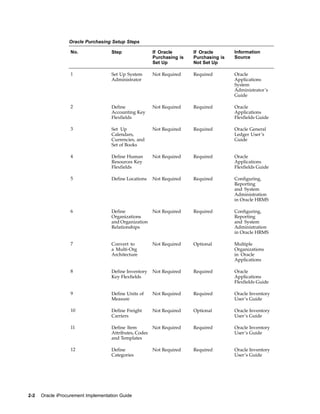
Prerequisites
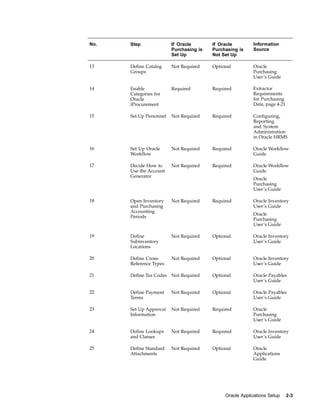
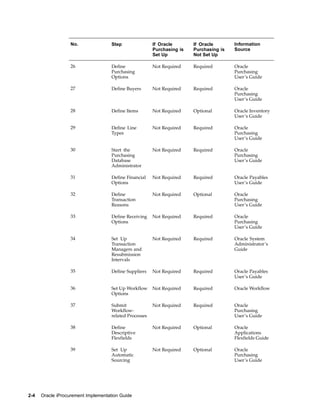
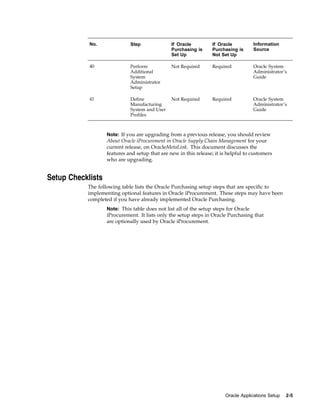
            The following table lists the prerequisite setup steps necessary to implement Oracle
            iProcurement. These steps may have been completed if you have already implemented
            Oracle Purchasing. See Setting Up in the Oracle Purchasing User’s Guide for more
            information.


                                                                        Oracle Applications Setup   2-1
Oracle Purchasing Setup Steps

                   No.               Step                If Oracle       If Oracle       Information
                                                         Purchasing is   Purchasing is   Source
                                                         Set Up          Not Set Up

                   1                 Set Up System       Not Required    Required        Oracle
                                     Administrator                                       Applications
                                                                                         System
                                                                                         Administrator’s
                                                                                         Guide

                   2                 Define              Not Required    Required        Oracle
                                     Accounting Key                                      Applications
                                     Flexfields                                          Flexfields Guide

                   3                 Set Up              Not Required    Required        Oracle General
                                     Calendars,                                          Ledger User’s
                                     Currencies, and                                     Guide
                                     Set of Books

                   4                 Define Human        Not Required    Required        Oracle
                                     Resources Key                                       Applications
                                     Flexfields                                          Flexfields Guide

                   5                 Define Locations    Not Required    Required        Configuring,
                                                                                         Reporting
                                                                                         and System
                                                                                         Administration
                                                                                         in Oracle HRMS

                   6                 Define           Not Required       Required        Configuring,
                                     Organizations                                       Reporting
                                     and Organization                                    and System
                                     Relationships                                       Administration
                                                                                         in Oracle HRMS

                   7                 Convert to          Not Required    Optional        Multiple
                                     a Multi-Org                                         Organizations
                                     Architecture                                        in Oracle
                                                                                         Applications

                   8                 Define Inventory    Not Required    Required        Oracle
                                     Key Flexfields                                      Applications
                                                                                         Flexfields Guide

                   9                 Define Units of     Not Required    Required        Oracle Inventory
                                     Measure                                             User’s Guide

                   10                Define Freight      Not Required    Optional        Oracle Inventory
                                     Carriers                                            User’s Guide

                   11                Define Item         Not Required    Required        Oracle Inventory
                                     Attributes, Codes                                   User’s Guide
                                     and Templates

                   12                Define              Not Required    Required        Oracle Inventory
                                     Categories                                          User’s Guide


2-2   Oracle iProcurement Implementation Guide
No.   Step               If Oracle       If Oracle        Information
                         Purchasing is   Purchasing is    Source
                         Set Up          Not Set Up

13    Define Catalog     Not Required    Optional         Oracle
      Groups                                              Purchasing
                                                          User’s Guide

14    Enable             Required        Required         Extractor
      Categories for                                      Requirements
      Oracle                                              for Purchasing
      iProcurement                                        Data, page 4-21

15    Set Up Personnel   Not Required    Required         Configuring,
                                                          Reporting
                                                          and System
                                                          Administration
                                                          in Oracle HRMS

16    Set Up Oracle      Not Required    Required         Oracle Workflow
      Workflow                                            Guide

17    Decide How to      Not Required    Required         Oracle Workflow
      Use the Account                                     Guide
      Generator
                                                          Oracle
                                                          Purchasing
                                                          User’s Guide

18    Open Inventory     Not Required    Required         Oracle Inventory
      and Purchasing                                      User’s Guide
      Accounting
                                                          Oracle
      Periods
                                                          Purchasing
                                                          User’s Guide

19    Define             Not Required    Optional         Oracle Inventory
      Subinventory                                        User’s Guide
      Locations

20    Define Cross-      Not Required    Optional         Oracle Inventory
      Reference Types                                     User’s Guide

21    Define Tax Codes Not Required      Optional         Oracle Payables
                                                          User’s Guide

22    Define Payment     Not Required    Optional         Oracle Payables
      Terms                                               User’s Guide

23    Set Up Approval    Not Required    Required         Oracle
      Information                                         Purchasing
                                                          User’s Guide

24    Define Lookups     Not Required    Required         Oracle Inventory
      and Classes                                         User’s Guide

25    Define Standard    Not Required    Optional         Oracle
      Attachments                                         Applications
                                                          Guide


                                              Oracle Applications Setup     2-3
No.               Step                If Oracle       If Oracle       Information
                                                         Purchasing is   Purchasing is   Source
                                                         Set Up          Not Set Up

                   26                Define              Not Required    Required        Oracle
                                     Purchasing                                          Purchasing
                                     Options                                             User’s Guide

                   27                Define Buyers       Not Required    Required        Oracle
                                                                                         Purchasing
                                                                                         User’s Guide

                   28                Define Items        Not Required    Optional        Oracle Inventory
                                                                                         User’s Guide

                   29                Define Line         Not Required    Required        Oracle
                                     Types                                               Purchasing
                                                                                         User’s Guide

                   30                Start the           Not Required    Required        Oracle
                                     Purchasing                                          Purchasing
                                     Database                                            User’s Guide
                                     Administrator

                   31                Define Financial    Not Required    Required        Oracle Payables
                                     Options                                             User’s Guide

                   32                Define              Not Required    Optional        Oracle
                                     Transaction                                         Purchasing
                                     Reasons                                             User’s Guide

                   33                Define Receiving    Not Required    Required        Oracle
                                     Options                                             Purchasing
                                                                                         User’s Guide

                   34                Set Up              Not Required    Required        Oracle System
                                     Transaction                                         Administrator’s
                                     Managers and                                        Guide
                                     Resubmission
                                     Intervals

                   35                Define Suppliers    Not Required    Required        Oracle Payables
                                                                                         User’s Guide

                   36                Set Up Workflow     Not Required    Required        Oracle Workflow
                                     Options

                   37                Submit              Not Required    Required        Oracle
                                     Workflow-                                           Purchasing
                                     related Processes                                   User’s Guide

                   38                Define              Not Required    Optional        Oracle
                                     Descriptive                                         Applications
                                     Flexfields                                          Flexfields Guide

                   39                Set Up              Not Required    Optional        Oracle
                                     Automatic                                           Purchasing
                                     Sourcing                                            User’s Guide


2-4   Oracle iProcurement Implementation Guide
No.              Step               If Oracle         If Oracle           Information
                                                Purchasing is     Purchasing is       Source
                                                Set Up            Not Set Up

            40               Perform            Not Required      Required            Oracle System
                             Additional                                               Administrator’s
                             System                                                   Guide
                             Administrator
                             Setup

            41               Define             Not Required      Required            Oracle System
                             Manufacturing                                            Administrator’s
                             System and User                                          Guide
                             Profiles


                   Note: If you are upgrading from a previous release, you should review
                   About Oracle iProcurement in Oracle Supply Chain Management for your
                   current release, on OracleMetaLink. This document discusses the
                   features and setup that are new in this release; it is helpful to customers
                   who are upgrading.


Setup Checklists
           The following table lists the Oracle Purchasing setup steps that are specific to
           implementing optional features in Oracle iProcurement. These steps may have been
           completed if you have already implemented Oracle Purchasing.
                   Note: This table does not list all of the setup steps for Oracle
                   iProcurement. It lists only the setup steps in Oracle Purchasing that
                   are optionally used by Oracle iProcurement.


                                                                        Oracle Applications Setup   2-5
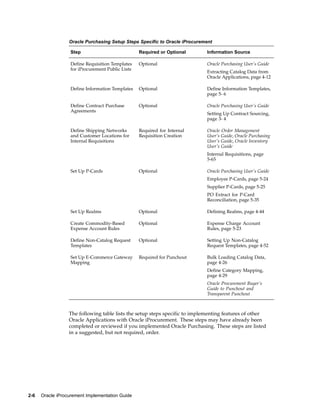
Oracle Purchasing Setup Steps Specific to Oracle iProcurement

                   Step                            Required or Optional     Information Source

                   Define Requisition Templates    Optional                 Oracle Purchasing User’s Guide
                   for iProcurement Public Lists
                                                                            Extracting Catalog Data from
                                                                            Oracle Applications, page 4-12

                   Define Information Templates    Optional                 Define Information Templates,
                                                                            page 5- 6

                   Define Contract Purchase        Optional                 Oracle Purchasing User’s Guide
                   Agreements
                                                                            Setting Up Contract Sourcing,
                                                                            page 3- 4

                   Define Shipping Networks        Required for Internal    Oracle Order Management
                   and Customer Locations for      Requisition Creation     User’s Guide, Oracle Purchasing
                   Internal Requisitions                                    User’s Guide, Oracle Inventory
                                                                            User’s Guide
                                                                            Internal Requisitions, page
                                                                            5-65

                   Set Up P-Cards                  Optional                 Oracle Purchasing User’s Guide
                                                                            Employee P-Cards, page 5-24
                                                                            Supplier P-Cards, page 5-25
                                                                            PO Extract for P-Card
                                                                            Reconciliation, page 5-35

                   Set Up Realms                   Optional                 Defining Realms, page 4-44

                   Create Commodity-Based          Optional                 Expense Charge Account
                   Expense Account Rules                                    Rules, page 5-23

                   Define Non-Catalog Request      Optional                 Setting Up Non-Catalog
                   Templates                                                Request Templates, page 4-52

                   Set Up E-Commerce Gateway       Required for Punchout    Bulk Loading Catalog Data,
                   Mapping                                                  page 4-26
                                                                            Define Category Mapping,
                                                                            page 4-29
                                                                            Oracle Procurement Buyer’s
                                                                            Guide to Punchout and
                                                                            Transparent Punchout


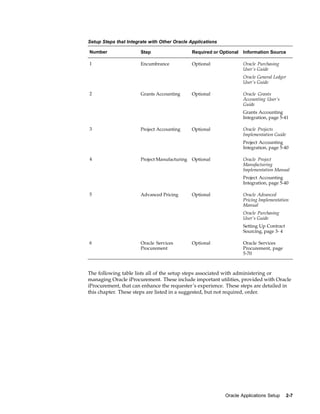
                  The following table lists the setup steps specific to implementing features of other
                  Oracle Applications with Oracle iProcurement. These steps may have already been
                  completed or reviewed if you implemented Oracle Purchasing. These steps are listed
                  in a suggested, but not required, order.


2-6   Oracle iProcurement Implementation Guide
Setup Steps that Integrate with Other Oracle Applications

Number                 Step                    Required or Optional   Information Source

1                      Encumbrance             Optional               Oracle Purchasing
                                                                      User’s Guide
                                                                      Oracle General Ledger
                                                                      User’s Guide

2                      Grants Accounting       Optional               Oracle Grants
                                                                      Accounting User’s
                                                                      Guide
                                                                      Grants Accounting
                                                                      Integration, page 5-41

3                      Project Accounting      Optional               Oracle Projects
                                                                      Implementation Guide
                                                                      Project Accounting
                                                                      Integration, page 5-40

4                      Project Manufacturing   Optional               Oracle Project
                                                                      Manufacturing
                                                                      Implementation Manual
                                                                      Project Accounting
                                                                      Integration, page 5-40

5                      Advanced Pricing        Optional               Oracle Advanced
                                                                      Pricing Implementation
                                                                      Manual
                                                                      Oracle Purchasing
                                                                      User’s Guide
                                                                      Setting Up Contract
                                                                      Sourcing, page 3- 4

6                      Oracle Services         Optional               Oracle Services
                       Procurement                                    Procurement, page
                                                                      5-70


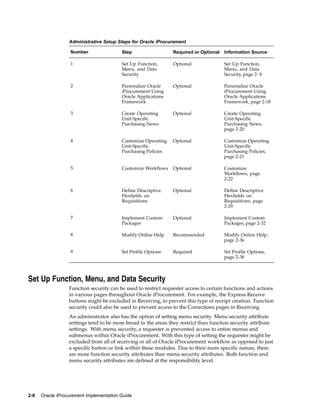
The following table lists all of the setup steps associated with administering or
managing Oracle iProcurement. These include important utilities, provided with Oracle
iProcurement, that can enhance the requester’s experience. These steps are detailed in
this chapter. These steps are listed in a suggested, but not required, order.


                                                             Oracle Applications Setup       2-7
Administrative Setup Steps for Oracle iProcurement

                   Number                Step                   Required or Optional   Information Source

                   1                     Set Up Function,       Optional               Set Up Function,
                                         Menu, and Data                                Menu, and Data
                                         Security                                      Security, page 2- 8

                   2                     Personalize Oracle     Optional               Personalize Oracle
                                         iProcurement Using                            iProcurement Using
                                         Oracle Applications                           Oracle Applications
                                         Framework                                     Framework, page 2-18

                   3                     Create Operating       Optional               Create Operating
                                         Unit-Specific                                 Unit-Specific
                                         Purchasing News                               Purchasing News,
                                                                                       page 2-20

                   4                     Customize Operating    Optional               Customize Operating
                                         Unit-Specific                                 Unit-Specific
                                         Purchasing Policies                           Purchasing Policies,
                                                                                       page 2-21

                   5                     Customize Workflows    Optional               Customize
                                                                                       Workflows, page
                                                                                       2-22

                   6                     Define Descriptive     Optional               Define Descriptive
                                         Flexfields on                                 Flexfields on
                                         Requisitions                                  Requisitions, page
                                                                                       2-29

                   7                     Implement Custom       Optional               Implement Custom
                                         Packages                                      Packages, page 2-32

                   8                     Modify Online Help     Recommended            Modify Online Help,
                                                                                       page 2-36

                   9                     Set Profile Options    Required               Set Profile Options,
                                                                                       page 2-38


Set Up Function, Menu, and Data Security
                  Function security can be used to restrict requester access to certain functions and actions
                  in various pages throughout Oracle iProcurement. For example, the Express Receive
                  buttons might be excluded in Receiving, to prevent this type of receipt creation. Function
                  security could also be used to prevent access to the Corrections pages in Receiving.
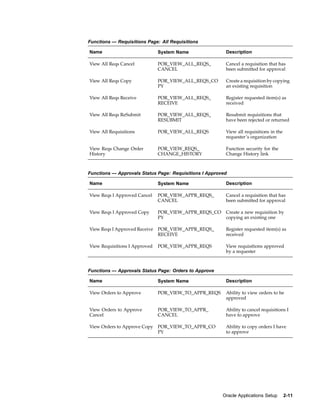
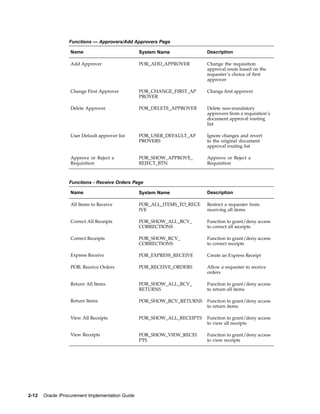
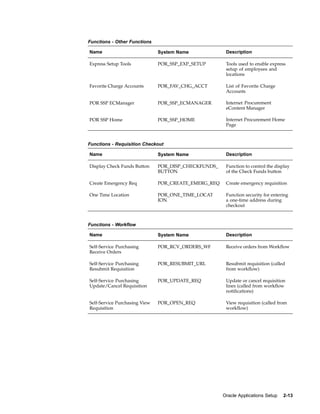
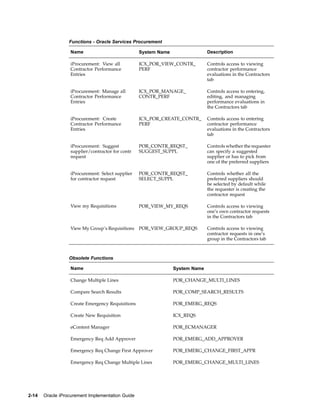
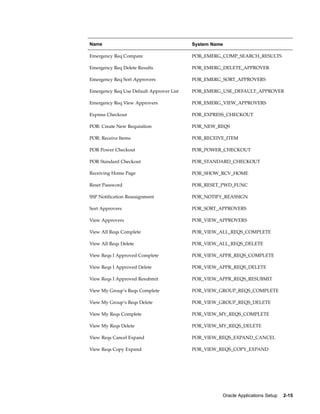
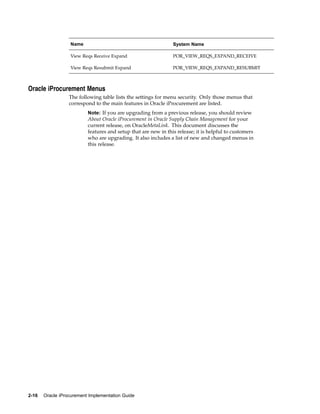
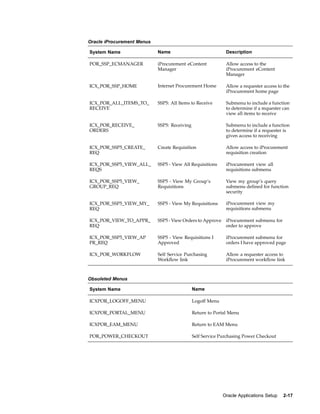
                  An administrator also has the option of setting menu security. Menu security attribute
                  settings tend to be more broad in the areas they restrict than function security attribute
                  settings. With menu security, a requester is prevented access to entire menus and
                  submenus within Oracle iProcurement. With this type of setting the requester might be
                  excluded from all of receiving or all of Oracle iProcurement workflow as opposed to just
                  a specific button or link within these modules. Due to their more specific nature, there
                  are more function security attributes than menu security attributes. Both function and
                  menu security attributes are defined at the responsibility level.


2-8   Oracle iProcurement Implementation Guide
Setup Steps
              Perform these steps if you want to modify the default function and menu security
              associated with the default-provided Internet Procurement responsibility.

              Define responsibility:
              1.   Log into Oracle Applications and select the System Administrator responsibility.
              2.   Choose Security > Responsibility > Define to open the Responsibilities window.
              3.   Create a new responsibility related to iProcurement. This responsibility will be used
                   to enforce function security.
              4.   Be sure to enter a Responsibility Name, Application, Responsibility Key, and
                   Effective From Date.
              5.   Available From should be set to Oracle Self Service Web Application.
              6.   Data Group fields for Name and Application should be entered as well.
              7.   The Menu field should be set to Internet Procurement Home.

              Exclude responsibility functions and menus:
              1.   In the Menu Exclusions tabbed region of the Responsibilities window, select either
                   the Function or Menu selection to set up either function or menu security.
              2.   Tab to the Name field and select the appropriate function or menu to exclude.
              3.   Save the responsibility.
                       Note: If you are not implementing Oracle Services Procurement, consider
                       excluding the Contractors tab menu and the Contractor Request
                       sub-tab from the Internet Procurement Home menu. If you do not
                       implement Oracle Services Procurement, the Contractor Request link
                       and Contractors tab still appear in Oracle iProcurement; however, when
                       the requester accesses these areas, the following message appears: You
                       cannot access this page because Oracle Services Procurement is not
                       enabled. Contact your system administrator for help. If you want to remove
                       these areas altogether, create a custom responsibility that excludes the
                       Contracts menu and Contractor Request submenu from the Internet
                       Procurement Home menu.


              Assign iProcurement responsibility to a requester:
              1.   Choose System Administrator > Security > Users > Define.
              2.   Search for the requester to assign to the responsibility.
              3.   Insert the new responsibility.
              4.   Save the requester record.


Oracle iProcurement Functions
              The following tables list functions that can be used to establish function security in
              Oracle iProcurement. Only those functions that correspond to the main features in
              Oracle iProcurement are listed.


                                                                               Oracle Applications Setup   2-9
Functions — Requisitions Page: My Groups Requisitions

                  Name                            System Name             Description

                  View My Group’s Requisitions    POR_VIEW_GROUP_REQS     View requisitions created by
                                                                          employees in the requester’s
                                                                          organization. The definition
                                                                          of a group is based on the
                                                                          Security Level option selected
                                                                          during the Document Types
                                                                          setup in Oracle Purchasing.

                  View My Group’s Reqs            POR_VIEW_GROUP_REQS_    Register requested item(s) as
                  Receive                         RECEIVE                 received

                  View My Group’s Reqs Cancel     POR_VIEW_GROUP_REQS_    Cancel a requisition that has
                                                  CANCEL                  been submitted for approval

                  View My Group’s Reqs Copy       POR_VIEW_GROUP_REQS_    Create a requisition by copying
                                                  COPY                    an existing requisition

                  View My Group’s Reqs            POR_VIEW_GROUP_REQS_    Resubmit requisitions that
                  ReSubmit                        RESUBMIT                have been rejected or returned


                  Functions — Requisitions Page: My Requisitions

                  Name                            System Name             Description

                  View My Reqs Cancel             POR_VIEW_MY_REQS_       Function security for the
                                                  CANCEL                  Cancel button

                  View My Reqs Copy               POR_VIEW_MY_REQS_CO     Function security for the Copy
                                                  PY                      button

                  View My Reqs Receive            POR_VIEW_MY_REQS_       Function security for the
                                                  RECEIVE                 Receive button

                  View My Reqs Resubmit           POR_VIEW_MY_REQS_       Function security for the
                                                  RESUBMIT                Resubmit button

                  View my Requisitions            POR_VIEW_MY_REQS        Viewing requisitions owned
                                                                          by a requester

                  View my Reqs Change Order       POR_VIEW_MY_REQS_       Function security to request
                                                  CHANGE_ORDER            changes and cancellations to
                                                                          requisition line(s) on purchase
                                                                          order(s).

                  View My Reqs Withdraw           POR_VIEW_MY_REQS_W      Function security for the
                                                  ITHDRAW                 Withdraw function of the
                                                                          Change button


2-10   Oracle iProcurement Implementation Guide
Functions — Requisitions Page: All Requisitions

Name                           System Name               Description

View All Reqs Cancel           POR_VIEW_ALL_REQS_        Cancel a requisition that has
                               CANCEL                    been submitted for approval

View All Reqs Copy             POR_VIEW_ALL_REQS_CO      Create a requisition by copying
                               PY                        an existing requisition

View All Reqs Receive          POR_VIEW_ALL_REQS_        Register requested item(s) as
                               RECEIVE                   received

View All Reqs ReSubmit         POR_VIEW_ALL_REQS_        Resubmit requisitions that
                               RESUBMIT                  have been rejected or returned

View All Requisitions          POR_VIEW_ALL_REQS         View all requisitions in the
                                                         requester’s organization

View Reqs Change Order         POR_VIEW_REQS_            Function security for the
History                        CHANGE_HISTORY            Change History link


Functions — Approvals Status Page: Requisitions I Approved

Name                           System Name               Description

View Reqs I Approved Cancel    POR_VIEW_APPR_REQS_       Cancel a requisition that has
                               CANCEL                    been submitted for approval

View Reqs I Approved Copy      POR_VIEW_APPR_REQS_CO     Create a new requisition by
                               PY                        copying an existing one

View Reqs I Approved Receive   POR_VIEW_APPR_REQS_       Register requested item(s) as
                               RECEIVE                   received

View Requisitions I Approved   POR_VIEW_APPR_REQS        View requisitions approved
                                                         by a requester


Functions — Approvals Status Page: Orders to Approve

Name                           System Name               Description

View Orders to Approve         POR_VIEW_TO_APPR_REQS     Ability to view orders to be
                                                         approved

View Orders to Approve         POR_VIEW_TO_APPR_         Ability to cancel requisitions I
Cancel                         CANCEL                    have to approve

View Orders to Approve Copy    POR_VIEW_TO_APPR_CO       Ability to copy orders I have
                               PY                        to approve


                                                        Oracle Applications Setup       2-11
Functions — Approvers/Add Approvers Page

                  Name                            System Name             Description

                  Add Approver                    POR_ADD_APPROVER        Change the requisition
                                                                          approval route based on the
                                                                          requester’s choice of first
                                                                          approver

                  Change First Approver           POR_CHANGE_FIRST_AP     Change first approver
                                                  PROVER

                  Delete Approver                 POR_DELETE_APPROVER     Delete non-mandatory
                                                                          approvers from a requisition’s
                                                                          document approval routing
                                                                          list

                  User Default approver list      POR_USER_DEFAULT_AP     Ignore changes and revert
                                                  PROVERS                 to the original document
                                                                          approval routing list

                  Approve or Reject a             POR_SHOW_APPROVE_       Approve or Reject a
                  Requisition                     REJECT_BTN              Requisition


                  Functions - Receive Orders Page

                  Name                            System Name             Description

                  All Items to Receive            POR_ALL_ITEMS_TO_RECE   Restrict a requester from
                                                  IVE                     receiving all items

                  Correct All Receipts            POR_SHOW_ALL_RCV_       Function to grant/deny access
                                                  CORRECTIONS             to correct all receipts

                  Correct Receipts                POR_SHOW_RCV_           Function to grant/deny access
                                                  CORRECTIONS             to correct receipts

                  Express Receive                 POR_EXPRESS_RECEIVE     Create an Express Receipt

                  POR: Receive Orders             POR_RECEIVE_ORDERS      Allow a requester to receive
                                                                          orders

                  Return All Items                POR_SHOW_ALL_RCV_       Function to grant/deny access
                                                  RETURNS                 to return all items

                  Return Items                    POR_SHOW_RCV_RETURNS    Function to grant/deny access
                                                                          to return items

                  View All Receipts               POR_SHOW_ALL_RECEIPTS   Function to grant/deny access
                                                                          to view all receipts

                  View Receipts                   POR_SHOW_VIEW_RECEI     Function to grant/deny access
                                                  PTS                     to view receipts


2-12   Oracle iProcurement Implementation Guide
Functions - Other Functions

Name                           System Name             Description

Express Setup Tools            POR_SSP_EXP_SETUP       Tools used to enable express
                                                       setup of employees and
                                                       locations

Favorite Charge Accounts       POR_FAV_CHG_ACCT        List of Favorite Charge
                                                       Accounts

POR SSP ECManager              POR_SSP_ECMANAGER       Internet Procurement
                                                       eContent Manager

POR SSP Home                   POR_SSP_HOME            Internet Procurement Home
                                                       Page


Functions - Requisition Checkout

Name                           System Name             Description

Display Check Funds Button     POR_DISP_CHECKFUNDS_    Function to control the display
                               BUTTON                  of the Check Funds button

Create Emergency Req           POR_CREATE_EMERG_REQ    Create emergency requisition

One Time Location              POR_ONE_TIME_LOCAT      Function security for entering
                               ION                     a one-time address during
                                                       checkout


Functions - Workflow

Name                           System Name             Description

Self-Service Purchasing        POR_RCV_ORDERS_WF       Receive orders from Workflow
Receive Orders

Self-Service Purchasing        POR_RESUBMIT_URL        Resubmit requisition (called
Resubmit Requisition                                   from workflow)

Self-Service Purchasing        POR_UPDATE_REQ          Update or cancel requisition
Update/Cancel Requisition                              lines (called from workflow
                                                       notifications)

Self-Service Purchasing View   POR_OPEN_REQ            View requisition (called from
Requisition                                            workflow)


                                                      Oracle Applications Setup   2-13
Functions - Oracle Services Procurement

                  Name                            System Name                 Description

                  iProcurement: View all          ICX_POR_VIEW_CONTR_         Controls access to viewing
                  Contractor Performance          PERF                        contractor performance
                  Entries                                                     evaluations in the Contractors
                                                                              tab

                  iProcurement: Manage all        ICX_POR_MANAGE_             Controls access to entering,
                  Contractor Performance          CONTR_PERF                  editing, and managing
                  Entries                                                     performance evaluations in
                                                                              the Contractors tab

                  iProcurement: Create            ICX_POR_CREATE_CONTR_       Controls access to entering
                  Contractor Performance          PERF                        contractor performance
                  Entries                                                     evaluations in the Contractors
                                                                              tab

                  iProcurement: Suggest           POR_CONTR_REQST_            Controls whether the requester
                  supplier/contractor for contr   SUGGEST_SUPPL               can specify a suggested
                  request                                                     supplier or has to pick from
                                                                              one of the preferred suppliers

                  iProcurement: Select supplier   POR_CONTR_REQST_            Controls whether all the
                  for contractor request          SELECT_SUPPL                preferred suppliers should
                                                                              be selected by default while
                                                                              the requester is creating the
                                                                              contractor request

                  View my Requisitions            POR_VIEW_MY_REQS            Controls access to viewing
                                                                              one’s own contractor requests
                                                                              in the Contractors tab

                  View My Group’s Requisitions    POR_VIEW_GROUP_REQS         Controls access to viewing
                                                                              contractor requests in one’s
                                                                              group in the Contractors tab


                  Obsolete Functions

                  Name                                          System Name

                  Change Multiple Lines                         POR_CHANGE_MULTI_LINES

                  Compare Search Results                        POR_COMP_SEARCH_RESULTS

                  Create Emergency Requisitions                 POR_EMERG_REQS

                  Create New Requisition                        ICX_REQS

                  eContent Manager                              POR_ECMANAGER

                  Emergency Req Add Approver                    POR_EMERG_ADD_APPROVER

                  Emergency Req Change First Approver           POR_EMERG_CHANGE_FIRST_APPR

                  Emergency Req Change Multiple Lines           POR_EMERG_CHANGE_MULTI_LINES


2-14   Oracle iProcurement Implementation Guide
Name                                      System Name

Emergency Req Compare                     POR_EMERG_COMP_SEARCH_RESULTS

Emergency Req Delete Results              POR_EMERG_DELETE_APPROVER

Emergency Req Sort Approvers              POR_EMERG_SORT_APPROVERS

Emergency Req Use Default Approver List   POR_EMERG_USE_DEFAULT_APPROVER

Emergency Req View Approvers              POR_EMERG_VIEW_APPROVERS

Express Checkout                          POR_EXPRESS_CHECKOUT

POR: Create New Requisition               POR_NEW_REQS

POR: Receive Items                        POR_RECEIVE_ITEM

POR Power Checkout                        POR_POWER_CHECKOUT

POR Standard Checkout                     POR_STANDARD_CHECKOUT

Receiving Home Page                       POR_SHOW_RCV_HOME

Reset Password                            POR_RESET_PWD_FUNC

SSP Notification Reassignment             POR_NOTIFY_REASSIGN

Sort Approvers                            POR_SORT_APPROVERS

View Approvers                            POR_VIEW_APPROVERS

View All Reqs Complete                    POR_VIEW_ALL_REQS_COMPLETE

View All Reqs Delete                      POR_VIEW_ALL_REQS_DELETE

View Reqs I Approved Complete             POR_VIEW_APPR_REQS_COMPLETE

View Reqs I Approved Delete               POR_VIEW_APPR_REQS_DELETE

View Reqs I Approved Resubmit             POR_VIEW_APPR_REQS_RESUBMIT

View My Group’s Reqs Complete             POR_VIEW_GROUP_REQS_COMPLETE

View My Group’s Reqs Delete               POR_VIEW_GROUP_REQS_DELETE

View My Reqs Complete                     POR_VIEW_MY_REQS_COMPLETE

View My Reqs Delete                       POR_VIEW_MY_REQS_DELETE

View Reqs Cancel Expand                   POR_VIEW_REQS_EXPAND_CANCEL

View Reqs Copy Expand                     POR_VIEW_REQS_COPY_EXPAND


                                                    Oracle Applications Setup   2-15
Name                                          System Name

                  View Reqs Receive Expand                      POR_VIEW_REQS_EXPAND_RECEIVE

                  View Reqs Resubmit Expand                     POR_VIEW_REQS_EXPAND_RESUBMIT


Oracle iProcurement Menus
                  The following table lists the settings for menu security. Only those menus that
                  correspond to the main features in Oracle iProcurement are listed.
                          Note: If you are upgrading from a previous release, you should review
                          About Oracle iProcurement in Oracle Supply Chain Management for your
                          current release, on OracleMetaLink. This document discusses the
                          features and setup that are new in this release; it is helpful to customers
                          who are upgrading. It also includes a list of new and changed menus in
                          this release.


2-16   Oracle iProcurement Implementation Guide
Oracle iProcurement Menus

System Name                 Name                             Description

POR_SSP_ECMANAGER           iProcurement eContent            Allow access to the
                            Manager                          iProcurement eContent
                                                             Manager

ICX_POR_SSP_HOME            Internet Procurement Home        Allow a requester access to the
                                                             iProcurement home page

ICX_POR_ALL_ITEMS_TO_       SSP5: All Items to Receive       Submenu to include a function
RECEIVE                                                      to determine if a requester can
                                                             view all items to receive

ICX_POR_RECEIVE_            SSP5: Receiving                  Submenu to include a function
ORDERS                                                       to determine if a requester is
                                                             given access to receiving

ICX_POR_SSP5_CREATE_        Create Requisition               Allow access to iProcurement
REQ                                                          requisition creation

ICX_POR_SSP5_VIEW_ALL_      SSP5 - View All Requisitions     iProcurement view all
REQS                                                         requisitions submenu

ICX_POR_SSP5_VIEW_          SSP5 - View My Group’s           View my group’s query
GROUP_REQ                   Requisitions                     submenu defined for function
                                                             security

ICX_POR_SSP5_VIEW_MY_       SSP5 - View My Requisitions      iProcurement view my
REQ                                                          requisitions submenu

ICX_POR_VIEW_TO_APPR_       SSP5 - View Orders to Approve    iProcurement submenu for
REQ                                                          order to approve

ICX_POR_SSP5_VIEW_AP        SSP5 - View Requisitions I       iProcurement submenu for
PR_REQ                      Approved                         orders I have approved page

ICX_POR_WORKFLOW            Self Service Purchasing          Allow a requester access to
                            Workflow link                    iProcurement workflow link


Obsoleted Menus

System Name                                   Name

ICXPOR_LOGOFF_MENU                            Logoff Menu

ICXPOR_PORTAL_MENU                            Return to Portal Menu

ICXPOR_EAM_MENU                               Return to EAM Menu

POR_POWER_CHECKOUT                            Self Service Purchasing Power Checkout


                                                            Oracle Applications Setup   2-17
Data Security
                  Data security is achieved by using securing attributes to allow rows (records) of data
                  to be visible to specified requesters based on the specific data contained in the row. In
                  Oracle iProcurement, securing attributes called realms are used to restrict requester
                  access to the catalog.
                  The following table lists securing attributes that can be used to establish data security
                  in Oracle iProcurement:

                  iProcurement Securing Attributes

                  Attribute                       Application                   Description

                  ICX_POR_ITEM_SOURCE_ID          Oracle Self Service Web       No longer used. (If you used
                                                  Applications                  it in a previous release, the
                                                                                current release still honors it.)

                  RT_CATEGORY_ID                  Oracle Self Service Web       No longer used. (If you used
                                                  Applications                  it in a previous release, the
                                                                                current release still honors it.)

                  ICX_POR_REALM_ID                Oracle Self Service Web       Use this attribute to secure the
                                                  Applications                  responsibility for category or
                                                                                item source realms.


                  For more information on restricting the catalog using realms, see Defining Realms,
                  page 4-44.


Personalize Oracle iProcurement Using Oracle Applications Framework
                  Oracle iProcurement is built upon the Oracle Applications Framework technology. Oracle
                  Applications Framework enables system administrators to easily personalize the user
                  interface in Oracle iProcurement. Examples include showing, hiding, moving, or
                  modifying regions (such as the My Requisitions section on the shop Home page), items
                  (such as a button), or fields (such as showing the Rate Type field, which is hidden by
                  default in the shopping cart).


2-18   Oracle iProcurement Implementation Guide
Personalization: Field Displayed


When the personalization profile option is turned on, the system administrator can log
on to Oracle iProcurement, click the personalization link on any page, and personalize
the desired regions, items, or fields. These personalizations are then seen by users. For
example, if you make the personalizations at the responsibility level, then they are
visible to all users who sign on using that responsibility.
        Note: The personalization profile option must be turned on to see
        the "Personalize Page" link. See the Oracle Applications Framework
        Personalization Guide on OracleMetaLink for details.

Personalization: Field Hidden


By default, Oracle iProcurement is already set up to display the optimum information
to requesters. For example, the first figure above shows that by default the shopping
cart shows basic item fields, such as Item Description, Unit, and Price. You
can, however, additionally display one or more fields that are hidden by default. In
the second figure above, the following hidden fields are now displayed: Supplier
Config ID, which is used by punchout for suppliers with configured items; and Source
Document Type, Source Document Number, and Source Document Line.


                                                           Oracle Applications Setup   2-19
As you are implementing the features and setup steps described in this guide, use the
                  personalization feature to see which fields are hidden by default or which page regions
                  and items you want to modify.
                  For instructions on enabling and performing personalizations, see the Oracle Applications
                  Framework Personalization Guide on OracleMetaLink. For the exact OracleMetaLink Note
                  reference, see the Oracle Applications System Administrator’s Guide.
                           Note: Before using personalization to show or hide information, check
                           the function security options. You may be able to restrict access to a
                           function instead. See: Setting Up Function, Menu, and Data Security,
                           page 2- 8 .


Create Operating Unit-Specific Purchasing News
                  You can create purchasing news that is specific to an operating unit. Requesters will be
                  able to view information that is pertinent only to their operating unit when accessing
                  this area from the home page.

                  Purchasing News


                  The figure above shows the Purchasing News box, below the Shopping Cart box, on the
                  home page.


Setup Steps
                  1.   Create a directory under OA_HTML/<language code>/.
                       For example: OA_HTML/US/operating_unit_1 where operating_unit_1 is your
                       help path.
                  2.   Copy PORPNEWS.htm from the OA_HTML/US/ directory to the directory that was
                       created in step 1. Modify this file to include content specific to the operating unit.


2-20   Oracle iProcurement Implementation Guide
3.    Set the value for the responsibility-level profile option POR: Help Path to the
                    location of the operating unit-specific files as specified in step 1. See Set Profile
                    Options, page 2-38 for details.
                    For the example from step 1, you would enter /operating_unit_1/ for the profile
                    option.
                            Note: The POR: Help Path profile option requires a / at the
                            beginning and at the end of the string. OA_HTML is the path of
                            all the iProcurement HTML files and is part of the Oracle Internet
                            Application Server (iAS) setup.


              4.    By default, the Purchasing News box is hidden. Use Oracle Applications Framework
                    personalization to display the Purchasing News.
                    See Personalize Oracle iProcurement Using Oracle Applications Framework,
                    page 2-18.


Profile Options
              POR: Help Path


Function Security
              None


Workflow
              None


Implementation Considerations
              No additional considerations.


Customize Operating Unit-Specific Purchasing Policies
              Customers can provide purchasing policies that cover the same topic, but in terms
              appropriate to specific countries, regions, or operating units. This can be accomplished
              by adding an optional localization code at the end of the anchor_name in the HTML
              online Help files.


Setup Steps
              1.    Think of a localization code to use. For example, ou1 for operating unit 1.
              2.    Copy the original PORPOLCY.htm file to a new file with the same name. Copy the
                    file from $ICX_TOP/help/<language code>.
              3.    Open the new file with an HTML editor.
              4.    In this Help file, find the HTML anchor with the anchor_name ppolicy, as follows:
                    < A NAME = "ppolicy"></A>
                    Append the localization code for the appropriate operating unit to this anchor
                    name. For example:


                                                                              Oracle Applications Setup     2-21
< A NAME="ppolicy@ou1"></A>

                  5.   Change the PORPOLCY.htm file to include the localized information to be displayed
                       for the given operating unit.
                  6.   Save your changes.
                  7.   Upload the localized Help file to the database using the Oracle Applications Help
                       System Utility. See the Oracle Applications System Administrator’s Guide for detailed
                       instructions on using the Help System Utility.
                  8.   Set the profile option Help Localization Code for the appropriate responsibility to
                       the value defined with the anchor name in the HTML code:
                       •   Log in to Oracle Applications and choose the System Administrator
                           responsibility.
                       •   Navigate to the System Profiles window and search for the profile Help
                           Localization Code and the appropriate responsibility (such as Internet
                           Procurement).
                       •   Set the profile value to the localization code that you appended to the anchor
                           name (ou1 in this example) for the appropriate responsibility.
                           Since each responsibility is tied to an operating unit, requesters with that
                           responsibility (such as Internet Procurement) in that operating unit will see
                           the Purchasing Policies Help file that is appended with the localization code
                           (ou1 in this example).


Profile Options
                  None


Function Security
                  None


Workflow
                  None


Implementation Considerations
                  No additional considerations.


Customize Workflows
                  Oracle Workflow enables you to automate business processes by routing information
                  according to customizable business rules. Workflows automate several procedures in
                  Oracle Purchasing and Oracle iProcurement and are shared by these products.
                  This section presents a brief description of each predefined workflow used by Oracle
                  iProcurement:
                  •    PO Requisition Approval
                  •    PO Create Documents
                  •    Account Generator


2-22   Oracle iProcurement Implementation Guide
•   PO Send Notifications for Purchasing Documents
             •   Confirm Receipts
             •   PO Change Request Tolerance Check
             •   Requester Change Order Approval
             •   PO Change Approval for Requester
             Each of these workflows consists of processes that are viewable in the Oracle Workflow
             Builder. Each workflow process, in turn, consists of individual function activities. The
             processes can be tailored to support your business practices.
             For detailed information on these workflows, see the Oracle Purchasing User’s Guide. For
             information on the procedures for setting them up, see the Oracle Workflow Guide.


PO Requisition Approval
             Workflow File Name: poxwfrqa.wft
                     Note: If you are installing and implementing Oracle iProcurement for
                     the first time, the name of this workflow is Requisition. For upgrading
                     customers, the name is PO Requisition Approval.


             This workflow manages all requisition approvals and is initiated when you submit a
             requisition in Oracle iProcurement. Approvers, upon receipt of the approval notification
             (via web or e-mail), may approve, reject, forward, or reassign the requisition. If
             approved, the notification passes to the next approver until all approvers have acted on
             the requisition. Finally, when all approvers have approved the requisition, the workflow
             process submits the requisition to the buyer or purchasing department. If the requester
             has the appropriate security access, the requester can override the default approver
             list. (See Set Up Function, Menu, and Data Security, page 2- 8 .)
             Customize the attributes in this workflow to fit your business needs. The key attribute
             that requires consideration is Send PO Autocreate to Background. This attribute
             determines whether a deferred process is created at the very end of the requisition
             approval workflow. By default, the process defers the call to the PO Create Documents
             workflow by placing the call in Background mode. There is also an Online mode. For
             more details, see the PO Requisition Approval section of the Oracle Purchasing User’s
             Guide.


PO Create Documents
             Workflow File Name: poxwfatc.wft
             This workflow manages the automatic creation of purchasing documents. The PO Create
             Documents workflow is initiated in Oracle iProcurement when you submit a requisition
             associated with an existing blanket purchase agreement, contract purchase agreement, or
             catalog quotation in Oracle Purchasing.
             Customize the attributes in this workflow to fit your business needs. The attributes you
             must consider are listed in the following table:


                                                                       Oracle Applications Setup   2-23
Automatic Document Creation Attributes

                  Attributes: Display name        Attributes: Internal name   Description

                  Is Automatic Creation           AUTOCREATE_DOC              Indicator (Y for Yes or N for
                  Allowed?                                                    No) of whether this workflow
                                                                              is initiated for all approved
                                                                              requisition lines.
                                                                              Default Value: N

                  Is Automatic Approval           AUTO_APPROVE_DOC            Indicator of whether the
                  Allowed?                                                    purchase order approval
                                                                              workflow is initiated
                                                                              automatically after this
                                                                              workflow.
                                                                              Default Value: N

                  Should Workflow Create The      CONT_WF_FOR_AC_REL_         Indicator of whether this
                  Release?                        GEN                         workflow creates releases or
                                                                              leaves them to the buyer to
                                                                              create using AutoCreate in
                                                                              Oracle Purchasing.
                                                                              Default Value: N

                  Should Contract be used to      USE_CONTRACT_FLAG           Indicator of whether the
                  autocreate Doc?                                             workflow should autocreate
                                                                              standard purchase orders with
                                                                              contract purchase agreement
                                                                              references. If this attribute
                                                                              is set to Yes and a contract
                                                                              exists, then the purchase
                                                                              order is created with the
                                                                              contract reference; if a contract
                                                                              does not exist or cannot be
                                                                              found, then the buyer must
                                                                              use AutoCreate to create
                                                                              the purchase order. If this
                                                                              attribute is set to No, then the
                                                                              buyer must use AutoCreate to
                                                                              create the purchase order.
                                                                              Default Value: N

                  Is Contract Required on         CONTRACT_REQUIRED_          Indicator of whether a contract
                  Requisition Line?               FLAG                        purchase agreement must
                                                                              exist on the requisition line
                                                                              for autocreation to generate a
                                                                              standard purchase order. (For
                                                                              example, a contract purchase
                                                                              agreement is referenced on a
                                                                              requisition line by associating
                                                                              a contract purchase agreement
                                                                              with an item using bulk
                                                                              loading. See Setting Up
                                                                              Contract Sourcing, page 3- 4 .)
                                                                              Default Value: N


2-24   Oracle iProcurement Implementation Guide
Attributes: Display name        Attributes: Internal name    Description

             Should non-catalog requests     INCLUDE_NON_CATALOG_         If Should Contract be used to
             be autosourced from contract?   REQ_FLAG                     autocreate Doc? is set to Yes
                                                                          andIs Contract Required on
                                                                          Requisition Line? is set to
                                                                          No, then use this attribute to
                                                                          indicate whether the workflow
                                                                          should search for a contract
                                                                          purchase agreement with
                                                                          which to associate non-catalog
                                                                          requests.
                                                                          Default Value: N

             Should temp labor request be    INCLUDE_TEMP_LABOR_          If Should Contract be used to
             autosourced from contracts?     FLAG                         autocreate Doc? is set to Yes
                                                                          andIs Contract Required on
                                                                          Requisition Line? is set to
                                                                          No, then use this attribute to
                                                                          indicate whether the workflow
                                                                          should search for a contract
                                                                          purchase agreement with
                                                                          which to associate contractor
                                                                          requests.
                                                                          Default value: Y

             Is Grouping of Requisition      GROUPING_ALLOWED_            Indicator of whether the
             Line Allowed?                   FLAG                         workflow should group all
                                                                          lines from a single requisition
                                                                          to a single purchase order. If
                                                                          this option is set to No, then
                                                                          each requisition line becomes
                                                                          a separate purchase order.
                                                                          Default Value: N

             Is Grouping of One Time         GROUP_ONE_ADDR_LINE_         Indicator of whether the
             Address Line Allowed?           FLAG                         workflow should group
                                                                          all requisition lines for the
                                                                          same one-time address (on
                                                                          a single requisition) to a
                                                                          single purchase order. If this
                                                                          option is set to No, then each
                                                                          requisition line becomes a
                                                                          separate purchase order.
                                                                          Default Value: N


             See the Workflow section of the Oracle Purchasing User’s Guide for more details on this
             workflow and these attributes.


Account Generator
             Workflow File Name: poxwfpag.wft
             During checkout, the Oracle Purchasing Account Generator builds a
             charge, budget, accrual, and variance account for each purchase order, release, and
             requisition distribution based on the distribution’s destination type. Once an account


                                                                         Oracle Applications Setup    2-25
has been determined for a requisition distribution, the Account Generator populates all
                  segments of the account.
                  Customize the processes in the requisitions Account Generator workflow to fit your
                  business needs. See the Account Generator Workflow section of the Oracle Purchasing
                  User’s Guide for details.


PO Send Notifications for Purchasing Documents
                  Workflow File Name: poxwfarm.wft
                  The PO Send Notifications for Purchasing Documents workflow looks for documents
                  that are incomplete, rejected, or in need of reapproval and sends notifications of the
                  document’s status to the appropriate people. You can view and respond to these
                  notifications online or through e-mail.
                  Customize the messages in this workflow to fit your business needs. See the PO Send
                  Notifications for Purchasing Documents Workflow section of the Oracle Purchasing
                  User’s Guide for details.


Confirm Receipts
                  Workflow File Name: poxwfrcv.wft
                  The Confirm Receipts workflow sends notifications that are visible online
                  or through e–mail to requesters who create requisitions through Oracle
                  iProcurement. (Online, requesters can see the notifications on the Notifications page
                  in Oracle iProcurement; buyers can see the notifications in the Notifications Summary
                  worklist in Oracle Purchasing.)
                  The Confirm Receipts workflow sends notifications for purchase order shipments
                  that meet the following criteria:
                  •   Destination or Deliver–To Type is Expense.
                  •   Destination type is Inventory, if the profile option POR: Select Inventory
                      Replenishment Lines for Confirm Receipts is set to Y.
                  •   Receipt routing is Direct Delivery.
                  •   Matching is 3-way or 4-way.
                  •   Need–By Date/Promised Date is prior to the current date
                  Customize the processes or messages in this workflow to fit your business needs. See the
                  Confirm Receipts section of the Oracle Purchasing User’s Guide for details.


PO Change Request Tolerance Check
                  Workflow File Name: poxrcoa.wft
                  The PO Change Request Tolerance Check workflow provides the administrator the
                  capability to customize the business rules for routing of the change request through the
                  Oracle iProcurement user’s approval hierarchy. This workflow is called for changes
                  that requesters make to a requisition after one of its requisition lines is placed on an
                  approved purchase order.
                  Customize the attributes in this workflow to fit your business needs. These attributes
                  control whether reapproval of the change is required by the requester’s approval
                  hierarchy. Each attribute comes with an upper and lower tolerance limit. For


2-26   Oracle iProcurement Implementation Guide
example, for the unit price, you define a lower tolerance limit of 20 (percent) and an
upper tolerance limit of 0 (percent). In this example, a change to the price requires
reapproval whenever it is decreased by more than 20 percent or whenever it is
increased. The following tables list all of the attributes you can change, if desired.
The following table lists all of the percentage attributes. The values for these attributes
are percentages.

Tolerance Check Attributes: Percentages

Attributes: Display Name       Attributes: Internal Name      Description

Unit Price Lower Tolerance     UNIT_PRICE_LOWER_TOL           Lower tolerance for a change
                                                              to the unit price.
                                                              Default Value: 100

Unit Price Upper Tolerance     UNIT_PRICE_UPPER_TOL           Upper tolerance for a change
                                                              to the unit price.
                                                              Default Value: 0

Line Quantity Ordered Lower    QTY_ORDERED_LOWER_             Lower tolerance for a change
Tolerance                      TOL                            to the quantity.
                                                              Default Value: 100

Line Quantity Ordered Upper    QTY_ORDERED_UPPER_             Upper tolerance for a change
Tolerance                      TOL                            to the quantity.
                                                              Default Value: 0

Requisition Total Lower        REQ_TOTAL_LOWER_TOL            Lower tolerance for a change
Tolerance                                                     to the requisition total.
                                                              Default Value: 100

Requisition Total Upper        REQ_TOTAL_UPPER_TOL            Upper tolerance for a change
Tolerance                                                     to the requisition total.
                                                              Default Value: 0

Budget Amount Lower            BUDGET_AMOUNT_                 Lower tolerance for a change
Tolerance                      LOWER_TOL                      to the amount on any fixed
                                                              price or rate-based line, if
                                                              you have licensed and
                                                              implemented Oracle Services
                                                              Procurement.
                                                              Default Value: 100

Budget Amount Upper            BUDGET_AMOUNT_UP               Lower tolerance for a change
Tolerance                      PER_TOL                        to the amount on any fixed
                                                              price or rate-based line, if
                                                              you have licensed and
                                                              implemented Oracle Services
                                                              Procurement.
                                                              Default Value: 0


The following table lists all of the days attributes. The values for these attributes are
in days.


                                                             Oracle Applications Setup      2-27
Tolerance Check Attributes: Days

                  Attributes: Display Name        Attributes: Internal Name     Description

                  Need By Date Lower Tolerance    NEED_BY_DATE_LOWER_           Lower tolerance for a change
                                                  TOL                           to the need-by date, in days.
                                                                                For example, the tolerance
                                                                                is 2 and the need-by date
                                                                                is 10/12/2005. The change
                                                                                request needs reapproval
                                                                                if the new need-by date is
                                                                                10/09/2005 or sooner. No
                                                                                approval is needed if the new
                                                                                need-by date is 10/10/2005.
                                                                                Default Value: 0

                  Need By Date Upper Tolerance    NEED_BY_DATE_UPPER_           Upper tolerance for a change
                                                  TOL                           to the need-by date.
                                                                                Default Value: 0

                  Start Date Lower Tolerance      START_DATE_LOWER_TOL          Lower tolerance for a change
                                                                                to the start date on a contractor
                                                                                request, if you have licensed
                                                                                and implemented Oracle
                                                                                Services Procurement.
                                                                                Default Value: 0

                  Start Date Upper Tolerance      START_DATE_UPPER_TOL          Upper tolerance for a change
                                                                                to the start date on a contractor
                                                                                request, if you have licensed
                                                                                and implemented Oracle
                                                                                Services Procurement.
                                                                                Default Value: 0

                  End Date Lower Tolerance        END_DATE_LOWER_TOL            Lower tolerance for a change
                                                                                to the end date on a contractor
                                                                                request, if you have licensed
                                                                                and implemented Oracle
                                                                                Services Procurement.
                                                                                Default Value: 0

                  End Date Upper Tolerance        END_DATE_UPPER_TOL            Upper tolerance for a change
                                                                                to the end date on a contractor
                                                                                request, if you have licensed
                                                                                and implemented Oracle
                                                                                Services Procurement.
                                                                                Default Value: 0


                  See the Oracle Workflow Guide for instructions on opening and modifying workflows.


Requester Change Order Approval
                  Workflow File Name:poreqcha.wft
                  The Requester Change Order Approval workflow handles changes that requesters make
                  to a requisition after one of its requisition lines is placed on an approved purchase order.


2-28   Oracle iProcurement Implementation Guide
This workflow performs the following steps:
             1.   After the requester makes the change, the workflow checks the change order
                  attributes in the PO Change Request Tolerance Check workflow to see if the change
                  requires reapproval by the requisition approval hierarchy. If it does not, then the
                  requisition is submitted directly to the buyer for approval.
             2.   If the requisition changes require reapproval, then the Requester Change Order
                  Approval workflow routes the changed requisition through the requisition approval
                  hierarchy. (Approvers receive a notification of the changes.)
             3.   Once the requisition is approved, the workflow sends the changes to the buyer for
                  acceptance or rejection. (The buyer receives a notification of the changes.)
             4.   Once the buyer accepts the changes, the workflow completes and initiates the PO
                  Change Approval for Requester workflow.
                      Note: When a change is made to a requisition before any of its lines are
                      placed on an approved purchase order, the requisition is withdrawn
                      from the approval process. This withdrawal is handled by the
                      requisition approval workflow, not the Requester Change Order
                      Approval workflow.


PO Change Approval for Requester
             Workflow File Name:porpocha.wft
             Once the buyer accepts a change order request, this workflow initiates processes in the
             PO Approval workflow (poxwfpoa.wft) for determining whether the changed purchase
             order requires approval by the buyer’s approval hierarchy.
             See the information on workflow processes for approving change orders, in the Oracle
             Purchasing User’s Guide.


Define Descriptive Flexfields on Requisitions
             You can define descriptive flexfields on requisition headers, lines, and distributions.


                                                                         Oracle Applications Setup     2-29
Descriptive Flexfields (Header and Line)


                  The figure above shows descriptive flexfields during the checkout process. In this
                  example, the following header-level flexfields display in the Requisition Information
                  section: Region, Country Name, and Country Code. The following line-level flexfields
                  display in an Additional Line Information section: Service Agreement, Service
                  Period, and Service Products. (The Additional Line Information section displays only
                  if there are line-level descriptive flexfields.) Line-level descriptive flexfields can also
                  display in the shopping cart and in the final checkout page (just before you click Submit).

                  Descriptive Flexfields (Distribution)


2-30   Oracle iProcurement Implementation Guide
The figure above shows descriptive flexfields at the distribution level. In this
              example, the descriptive flexfield is Service Department. To see descriptive flexfields at
              the distribution level, click Edit Lines, Accounts, and then the Split icon. Distribution
              flexfields can also display in the final checkout page (just before you click Submit).
                       Note: Once set up, flexfields display only if you use Oracle Applications
                       Framework to display them on the desired pages. (By default, they
                       are hidden on all pages.)


              Oracle iProcurement supports global segments and a single context field. It does not
              support multiple context fields, nor reference fields. Support for the single context field
              is made possible through the context value profile options discussed below.
              For example, you define the following Requisition Headers descriptive flexfields using
              the Descriptive Flexfield Segments window in Oracle Applications:
              •    Region (global segment)
              •    Country Name (global segment)
              •    Country Code (context field)
              •    Province (context field)
                       Note: The profile option POR: Context value for Requisition header
                       descriptive flexfield is set to Country Code.


              In this example, the following descriptive flexfields would display on the requisition
              header:
              •    Region and Country Name display because they are global segments, which
                   always display.
              •    Country Code displays because it is selected in the profile option POR: Context value
                   for Requisition header descriptive flexfield.
                       Note: Province does not display because it is a context field that is
                       not selected in the profile option.


              In summary, for each part of the requisition—header, line, distribution—Oracle
              iProcurement displays all global segments that you define, plus the context field that is
              selected in the corresponding profile option.


Setup Steps
              To define descriptive flexfields:
              1.   Using the System Administrator responsibility, create descriptive flexfields for any
                   or all of the following entities:
                   •   Requisition Headers
                   •   Requisition Lines
                   •   Requisition Distributions
                   Each of these three entities is already predefined in Oracle Applications. In the
                   Descriptive Flexfields Segments window, they display in the Title field. Query the


                                                                          Oracle Applications Setup   2-31
one you want and define the desired flexfields for it. For instructions, see the Oracle
                       Applications Flexfields Guide.
                  2.   For flexfields that are context fields, select the desired flexfield in the corresponding
                       profile option, listed in the Profile Options section below.
                  3.   By default, the flexfields are hidden on all pages. Use Oracle Applications
                       Framework personalization to display the flexfields on the desired pages.
                       See Personalize Oracle iProcurement Using Oracle Applications Framework,
                       page 2-18.
                       When personalizing the desired page, the descriptive flexfield is called Flex. For
                       example: Flex: (ReqHeaderDFF). One field is given for all flexfield segments. In the
                       examples above, the Flex: (ReqHeaderDFF) field is given for all of the segments
                       - Region, Country Name, and Country Code - on the Checkout: Requisition
                       Information page. If you display Flex (ReqHeaderDFF), then you display
                       Region, Country Name, and Country Code.


Profile Options
                  For instructions on setting these profile options, see Set Profile Options, page 2-38:
                  •    POR: Context value for Requisition header descriptive flexfield
                  •    POR: Context value for Requisition line descriptive flexfield
                  •    POR: Context value for Requisition distribution descriptive flexfield


Function Security
                  None


Workflow
                  None


Implementation Considerations
                  If the requisition containing the descriptive flexfields is later completed, copied, changed
                  (by the requester or approver), or resubmitted, then Oracle iProcurement assumes
                  the same descriptive flexfields that were on the original requisition, even if the
                  corresponding profile option now contains a different value. If descriptive flexfields are
                  set up after the requisition’s original creation, then subsequent checkout of the requisition
                  applies the descriptive flexfields, including those designated by the profile options.


Implement Custom Packages
                  The following sections describe how to use a PL/SQL package to make requisition
                  header and line customizations and how to use Oracle Applications Framework to make
                  customizations to the default account generation and account validation procedures.


Requisition Header/Line Customizations
                  POR_CUSTOM_PKG provides customization hooks to perform the defaulting
                  logic and validation of the requisition header, line, and distribution data. These


2-32   Oracle iProcurement Implementation Guide
procedures are invoked from CustomReqHeaderHelper, CustomReqLineHelper, and
                  CustomReqDistHelper classes. By default, they do not affect the existing logic and
                  validation. POR_CUSTOM_PKG is bundled in the PORCUSTB.pls file.
                  For instructions on modifying PL/SQL packages, see the Oracle Applications Developer’s
                  Guide.
                  The following table describes the different procedures provided in POR_CUSTOM_PKG
                  for requisition header, line, and distribution customizations and how they are triggered.

                  Requisition Header/Line Procedures

                  Procedure Name                Purpose                            Invocation Details

                  CUSTOM_DEFAULT_REQ_           This procedure can be              This procedure is
                  HEADER                        customized to include logic to     called from the
                                                default the header information     executeCustomDefaultingLogic
                                                for a given requisition.           method in
                                                                                   CustomReqHeaderHelper
                                                                                   when a requisition is created.

                  CUSTOM_VALIDATE_REQ_          This procedure can be              This procedure is called
                  HEADER                        customized to include              from the validate method in
                                                logic to validate the header       CustomReqHeaderHelper
                                                information for a given            before the requisition is
                                                requisition.                       submitted.

                  CUSTOM_DEFAULT_REQ_L          This procedure can be used         This procedure is
                  INE                           to include logic to default the    called from the
                                                information onto a requisition     executeCustomDefaultingLogic
                                                line.                              method in
                                                                                   CustomReqLineHelper when
                                                                                   a new line is added to the
                                                                                   shopping cart.

                  CUSTOM_VALIDATE_REQ_          This procedure can be used to      This procedure is called
                  LINE                          include logic to validate the      from the validate method in
                                                information on the requisition     CustomReqLineHelper on
                                                line.                              every page in the checkout
                                                                                   flow.

                  CUSTOM_DEFAULT_REQ_D          This procedure can be used         This procedure is
                  IST                           to include logic to default the    called from the
                                                information onto a requisition     executeCustomDefaultingLogic
                                                distribution.                      method in
                                                                                   CustomReqDistHelper when
                                                                                   a distribution is created upon
                                                                                   entering the checkout flow.

                  CUSTOM_VALIDATE_REQ_          This procedure can be used to      This procedure is called
                  DIST                          include logic to validate the      from the validate method in
                                                information on the requisition     CustomReqDistHelper on
                                                distribution.                      every page in the checkout
                                                                                   flow.


Profile Options
                  The following profile options control whether the corresponding custom procedures
                  should be invoked:


                                                                                  Oracle Applications Setup   2-33
•    POR: Enable Req Header Customization
                  •    POR: Enable Requisition Line Customization
                  •    POR: Enable Req Distribution Customization
                  Set the corresponding profile option to Yes to invoke your customized procedure. See
                  Profile Options, page 2-38.

Function Security
                  None

Workflow
                  None

Implementation Considerations
                  No additional considerations.


Account Generator Customizations
                  Value changes to certain attributes on a requisition line or distribution can cause charge
                  account re-defaulting. For example, a change to the Deliver-to Location can cause the
                  charge account number to change. You can add to the attributes that cause charge
                  account re-defaulting.

Setup Steps
                  1.   Extend the Entity Object for requisition lines or distributions.
                       The Entity Object contains all of the target attributes that can potentially cause
                       account re-defaulting. Follow these steps:
                       •   Since you will be extending Entity Objects (EO) in the BC4J package
                           oracle.apps.icx.por.schema.server, open this package in your project.
                       •   Select the parent EO. For requisition lines, select oracle.apps.icx.por.
                           schema.server.PoRequisitionLineEO. For requisition distributions, select
                           oracle.apps.icx.por.schema.server.PoReqDistributionEO.
                       •   For instructions on these steps, see the section Modify Entity Object Attribute
                           Default Values, in the Oracle Applications Framework Developer’s Guide, for
                           identifying the parent EO. You can find this guide on OracleMetaLink. (For
                           an exact reference to the correct location on OracleMetaLink, see the Oracle
                           Applications System Administrator’s Guide.)
                       •   In the section Modify Entity Object Attribute Default Values, follow the steps for
                           creating a new, empty BC4J package to hold your custom BC4J objects and for
                           creating a new entity object that extends the parent EO.
                       •   In the second step of the Entity Object Wizard, click New from Table ... and
                           select your target attributes.
                           These are the attributes, such as AMOUNT, that you want to trigger account
                           re-defaulting when their values are changed.


2-34   Oracle iProcurement Implementation Guide
Selecting Target Attributes


     •   Click OK, and accept the defaults for the rest of the steps in the wizard.
2.   In the System Navigator panel, highlight the Entity Object that you created in the
     steps above, to list all of the attributes in the Entity Object.
3.   Highlight each target attribute in the Structures panel, right-click, and select the Edit
     option to edit each of your target attributes. The Attribute Editor appears.
4.   Select Properties from the left-hand panel. For each target attribute, add a new
     property in the attribute editor.
     •   If your target attribute is associated with a requisition line, enter
         AccountLineBizAttrSet in the property name field and Y in the value field.
     •   If your target attribute is associated with a requisition distribution, enter
         AccountDistBizAttrSet in the property name field and Y in the value field.
     •   Click Add, and then OK, to save the changes.
     AccountLineBizAttrSet and AccountDistBizAttrSet include all of the attributes that
     trigger account re-defaulting. You have now set your target attributes to trigger
     account re-defaulting when the attribute’s value is changed.
5.   Once you have completed extending the Entity Objects, see the instructions in the
     section Substitute Extended BC4J Objects for Parent BC4J Objects, in the Oracle
     Applications Framework Developer’s Guide, to substitute your extended BC4J object for
     the parent BC4J object.
6.   Restart the Oracle Internet Application Server (iAS) after these changes.


                                                              Oracle Applications Setup   2-35
Profile Options
                  None

Function Security
                  None

Workflow
                  None

Implementation Considerations
                  Performing the charge account customizations is not the same as modifying the Account
                  Generator workflow. The customizations performed in this step determine what triggers
                  account re-defaulting. Once triggered, the Account Generator workflow defaults the
                  correct account.


Modify Online Help
                  The online Help is available as Oracle Applications Help. All the Help documents and
                  graphic files are stored in the database. The Help documents are in HTML format. You
                  may modify the Help content by using any commercial HTML editor.
                  Refer to the Oracle Applications System Administrator’s Guide for detailed instructions
                  on modifying and updating Help files.
                  Oracle iProcurement consists of two sets of Help files:
                  •   The first set appears when a requester clicks the Help icon in Oracle iProcurement.
                  •   The second set appears when the catalog administrator clicks the Help icon in
                      the eContent Manager. Only someone logging in with the iProcurement Catalog
                      Administration responsibility has access to this second set of Help files.


Purchasing Policies and Support
                  Both the iProcurement and eContent Manager online Help contain placeholder Help
                  files for you to add instructions specific to your company’s processes.

                  iProcurement Placeholder Help


                  In the Oracle iProcurement Help, the placeholder files are in an Additional Help
                  section. The placeholder files contain placeholder text. For example, the file Contacting
                  the Purchasing Department contains the following text: This is a placeholder. Create a file


2-36   Oracle iProcurement Implementation Guide
detailing the procedure for contacting your Purchasing Department and replace this file. The
             placeholder files in the iProcurement Help are as follows:
             •   Purchasing Policies (PORPOLCY.htm)
                          Note: You may already have customized PORPOLCY.htm by
                          operating unit in Customize Operating Unit-Specific Purchasing
                          Policies, page 2-21.


             •   Contacting the Purchasing Department (PORCPURC.htm)
             •   Contacting Technical Support (PORCTECH.htm)

             eContent Manager Placeholder Help


             The placeholder file used in the eContent Manager Help is Contacting Technical Support
             (PORCTECH.htm), in the Additional Information section.
             Particularly for the iProcurement Help files, which requesters see, you should modify or
             replace these files with files of your own, or remove them from the Additional Help
             section of the iProcurement main Help page (PORINDEX.htm) or the iProcurement
             Catalog Administration main Help page (PORCATIX.htm).


Oracle Services Procurement
             If you are not implementing Oracle Services Procurement, you may want to remove the
             online Help for that application.

             iProcurement Contractor Request Help


                                                                           Oracle Applications Setup    2-37
iProcurement Contractor Request Receiving Help


                  The figures above show the Contractor Request section and Receiving Items section of
                  the iProcurement Help. If you want to remove access to the Contractor Request Help
                  files, then modify the iProcurement main Help page (PORINDEX.htm) to remove the
                  Contractor Request section and links:
                  •    Creating Contractor Requests (PORSRVCR.htm)
                  •    Assigning Contractors (PORSRVAS.htm)
                  •    Finding and Tracking Contractor Requests (PORSRVTR.htm)
                  •    Evaluating Contractors (PORSRVEV.htm)
                  •    Receiving Contractor Requests (PORSRVRV.htm)


Set Profile Options
                  A number of profile options govern the behavior of Oracle iProcurement. During
                  implementation, you must set a value for each profile option to specify how Oracle
                  iProcurement controls access to and processes data.
                  The tables that follow display the profile options applicable to Oracle iProcurement and
                  are separated into the following groups:
                  •    Profile Options Set by System Administrator
                  •    Profile Options Set by User
                  •    Profile Options Set for Oracle Services Procurement

                  Set Profile Options:
                  Each setup step in this implementation guide lists the profile options that need to be set
                  for that feature. You do not need to set all profile options now, but can use the tables
                  below as a reference when you do set them.
                  1.   Log on to Oracle Applications using the System Administrator responsibility.
                  2.   Use the following navigation: Profile > System.
                  3.   In the System Profile Values window, search for and set the desired profile options.
                       See the Oracle Applications System Administrator’s Guide for more details.
                               Note: When you update a Site-level profile option, you must restart
                               the Oracle Internet Application Server (iAS) for the change to
                               take effect.


2-38   Oracle iProcurement Implementation Guide
The following profile options do not correspond to a setup step later in this guide, so you
              may want to set them now or note to come back to them later:
              •   POR: Enable Check Funds (if you use encumbrance)
              •   POR: Use Sequence for Requisition Numbering
              •   Profile Options Set by Users, page 2-65
              See the descriptions of these profile options in the tables below.


Profile Options Set by System Administrator
              The following table lists the profile options specific to Oracle iProcurement that should
              be set by the system administrator.
              •   Some of the profile options listed below are shared by several applications, such as
                  Oracle Purchasing and other Self Service Web Applications. For more information on
                  these applications, refer to the Related Documents section in the Preface of this guide.
              •   The profile options are listed in an alphabetical order that ignores the placement
                  of spaces in their names, making them easier to find in the table. In the
                  application, profiles are displayed in pure alphabetical format, which includes the
                  space character and displays the profiles in a slightly different order.
              The Level indicates at which level the profile can be set. The levels are:
              •   Site
              •   Application
              •   Responsibility
              •   User
              Required or Optional indicates whether the profile option is required (must be set with a
              value) for Oracle iProcurement to operate.
              OBSOLETE indicates that the profile option no longer exists or, if it exists, is no longer
              used.

              Profile Options Defined by System Administrator

              Profile Option Name            Level                          Profile Option Description

              Application Framework Agent    Site                           HTTP server that is used
                                                                            by the Oracle Self-Service
              (Required)                     Application
                                                                            Framework application. The
                                             Responsibility                 system administrator who
                                                                            configured Oracle Self-Service
                                             User
                                                                            Framework should already
                                                                            have set this profile option. If
                                                                            requesters experience errors
                                                                            on the Search Results page
                                                                            after first adding an item to
                                                                            the cart, you may need to
                                                                            remove the trailing slash from
                                                                            this profile option value.
                                                                            Default Value: No default


                                                                          Oracle Applications Setup      2-39
Profile Option Name             Level            Profile Option Description

                  Apps Servlet Agent              Site             The URL, including the
                                                                   hostname and port number,
                  (Required)                      Application
                                                                   from where the Oracle
                                                  Responsibility   iProcurement server is
                                                                   running.
                                                  User
                                                                   Default Value: No default

                  Attachment File Directory       -                OBSOLETE
                  (Optional)

                  ECX: Log File Path              Site             Directory where the Oracle
                                                                   XML Gateway engine writes
                  (Optional)
                                                                   its log files. The directory
                                                                   must be one of the valid
                                                                   directories specified in the
                                                                   UTL_FILE_DIR parameter
                                                                   in the init<SID>.ora file in
                                                                   your Oracle Applications 11i
                                                                   instance. This must be an
                                                                   absolute path and cannot
                                                                   contain a symbolic link
                                                                   or other operating system
                                                                   specific parameters.
                                                                   Default Value: No default

                  FND: NATIVE CLIENT              Site             Encoding that you want to
                  ENCODING                                         default into the spreadsheet
                                                  Application
                                                                   that you download from
                  (Optional)
                                                  Responsibility   the Download Instructions
                                                                   and Templates page in the
                                                  User
                                                                   eContent Manager (accessible
                                                                   through the iProcurement
                                                                   Catalog Administration
                                                                   responsibility). For example,
                                                                   if you select the Cp1252
                                                                   encoding for this profile option
                                                                   (also displayed as the technical
                                                                   name WE8MSWIN1252), the
                                                                   #ENCODING field in the
                                                                   spreadsheet template defaults
                                                                   to Cp1252. See Appendix A
                                                                   for more information about
                                                                   encoding in spreadsheet load
                                                                   files.
                                                                   Default Value: WE8MSW
                                                                   IN1252

                  Help Localization Code          Responsibility   Indicates the localization code
                                                                   for localized help files. See
                  (Optional)                      User
                                                                   the Oracle Applications System
                                                                   Administator’s Guide for
                                                                   complete details.
                                                                   Default Value: No default


2-40   Oracle iProcurement Implementation Guide
Profile Option Name         Level    Profile Option Description

HR:Cross Business Groups    Site     This profile affects the
                                     suggested buyer, global
(Optional)
                                     requester, and global approver
                                     features. When set to Yes,
                                     buyers from different business
                                     groups can be assigned
                                     (or defaulted) to a given
                                     requisition line, approval lists
                                     can include approvers outside
                                     the requester’s business
                                     group, and the requester field
                                     can include requesters outside
                                     the user’s business group.
                                     Default Value: Yes

ICX: Client IANA Encoding   Site     Character set encoding
                                     (such as UTF-8) used by the
(Required)
                                     application server to generate
                                     HTML for the browser. This
                                     encoding determines the way
                                     data is sent to the browser and
                                     rendered.
                                     Default Value: Western
                                     European (ISO-8859-1)

ICX: Date Format Mask       Site     Determines the date format
                                     mask to use. The American
(Optional)                  User
                                     English default is DD-MON-
                                     RRRR, for example, 12-
                                     NOV-2002. For year 2000
                                     compliance, all year formats
                                     are converted to RRRR, which
                                     accepts four-digit century
                                     and year entries verbatim
                                     (1950 is stored as 1950) and
                                     converts two-digit year entries
                                     as follows:
                                     Entries of 00 to 49 are
                                     converted to 2000 to 2049,
                                     respectively.
                                     Entries of 50 to 99 are
                                     converted to 1950 to 1999,
                                     respectively.
                                     For example, if a requester
                                     enters 50 for the year, the
                                     year is converted and stored
                                     as 1950. If a requester enters
                                     49, the year is converted and
                                     stored as 2049.
                                     Default Value: Depends on
                                     language


                                    Oracle Applications Setup     2-41
Profile Option Name             Level            Profile Option Description

                  ICX: Days Needed By             Site             Determines the number of
                                                                   days until the requester needs
                  (Optional)                      Application
                                                                   the order. This value is used to
                                                  Responsibility   calculate the need-by date.
                                                  User             Default Value: 2

                  ICX: Language                   Site             Determines the default session
                                                                   language.
                  (Optional)                      User
                                                                   Default Value: No default

                  ICX: Limit connect              Site             Determines the maximum
                                                                   number of page hits per
                  (Optional)                      User
                                                                   session.
                                                                   Default Value: 1000

                  ICX: Limit time                 Site             Determines the maximum
                                                                   number of hours a requester
                  (Optional)                      User
                                                                   can be logged on per session.
                                                                   Default Value: 4

                  ICX: Numeric characters         Site             Enter the preferred decimal
                                                                   and group separators you
                  (Optional)                      User
                                                                   want to display for numbers.
                                                                   For example, if you enter
                                                                   ., as the value for this profile
                                                                   option, you indicate that the
                                                                   decimal separator is a period
                                                                   and the group separator is a
                                                                   comma. In this example, if
                                                                   you enter these two values at
                                                                   the site level, all requesters
                                                                   in Oracle iProcurement for
                                                                   the specified site will see
                                                                   the number three thousand
                                                                   as 3,000.00. If the value is
                                                                   entered as ,. for the profile
                                                                   option, three thousand would
                                                                   display as 3.000,00.
                                                                   Default Value: No default
                                                                   (If this profile option is
                                                                   blank, the decimal and group
                                                                   separators are obtained from
                                                                   the nls_numeric_parameters
                                                                   setting in the database.)

                  ICX: Override Location Flag     Site             Determines whether the
                                                                   default location to deliver
                  (Optional)                      Application
                                                                   orders can be overridden.
                                                  Responsibility
                                                                   Default Value: Yes
                                                  User


2-42   Oracle iProcurement Implementation Guide
Profile Option Name        Level             Profile Option Description

ICX: Override Requestor    Site              Determines whether a
                                             requisition preparer can
(Optional)                 Application
                                             override the default requester.
                           Responsibility
                                             No means the preparer cannot
                           User              override the default requester.
                                             By All means the preparer can
                                             override the default requester
                                             with any operating unit (not
                                             just his own). *
                                             Within Organization means
                                             the preparer can select only
                                             requesters in his operating
                                             unit. *
                                             * If HR: Cross Business Group
                                             is set to Yes, then the requester
                                             can select a requester in any
                                             other business group.
                                             Default Value: No default

ICX: Requisition Server    Site              The hostname and port for the
                                             Oracle Internet Application
(Optional)                 Responsibility
                                             Server (iAS) where Oracle
                                             iProcurement is installed and
                                             running.
                                             Default Value: No default

MRP: Default Sourcing      Site              Sourcing rules dictate
Assignment Set                               which supplier or internal
                           Responsibility
                                             organization will supply a
(Optional)
                           User              given requisitioned item.
                                             Sourcing rules are utilized
                                             by Oracle iProcurement so
                                             that a default source can be
                                             generated by the application.
                                             In Oracle iProcurement only
                                             those sourcing rules that
                                             have been assigned to the
                                             assignment set defined in this
                                             profile will be used when the
                                             sourcing logic is called.
                                             Note: This profile option
                                             is shared with other Oracle
                                             Applications. Use caution
                                             when setting it.
                                             Default Value: No default

PA: Allow Override of PA   Site              If this profile value is set to
Distribution in AP/PO                        Yes, only then will a requester
                           Application
                                             be able to make project related
(Optional)
                           Responsibility    changes to the charge account
                                             information on the Split Cost
                           User
                                             Allocation page.
                                             Default Value: No default


                                            Oracle Applications Setup      2-43
Profile Option Name              Level            Profile Option Description

                  PO: Allow Requisition            Site             When this profile is set to
                  Approval Forward Action                           Yes, then Approve, Reject,
                                                                    Forward, and Approve and
                  (Optional)
                                                                    Forward actions are allowed
                                                                    in a requisition approval
                                                                    notification. Otherwise, only
                                                                    Approve and Reject actions
                                                                    are allowed.
                                                                    Default Value: Yes

                  PO: Legal Requisition Type       Site             Indicates whether requesters
                                                                    can enter internal requisitions
                  (Optional)                       Application
                                                                    sourced from stock by
                                                   Responsibility   means of an internal sales
                                                                    order, purchase requisitions
                                                                    sourced from a supplier by
                                                                    means of a purchase order, or
                                                                    both types. Valid values are
                                                                    Both, Internal, and Purchase.
                                                                    Default Value: No default
                                                                    (If this profile option is
                                                                    blank, Oracle iProcurement
                                                                    assumes the value is Both.)

                  PO: Notification Lines Display   Site             OBSOLETE
                  Limit
                                                   Application      This profile option is still used
                  (Optional)                                        by Oracle Purchasing, but not
                                                   Responsibility
                                                                    Oracle iProcurement.
                                                   User


2-44   Oracle iProcurement Implementation Guide
Profile Option Name           Level             Profile Option Description

PO:Workflow Processing        Site              Affects the performance of
Mode                                            the Purchasing approval
                              Application
                                                workflow processes. Online
(Optional)
                              Responsibility    completes an entire approval
                                                workflow process before
                              User
                                                letting you proceed to the
                                                next activity. Background
                                                allows you to proceed to
                                                the next activity while the
                                                approval process completes in
                                                the background. Whichever
                                                option you choose, you can
                                                always view the current status
                                                of a requisition or purchase
                                                order through the Requisitions
                                                Summary or Purchase Orders
                                                Summary windows.
                                                When this profile option
                                                is set to Background, you
                                                must start the Workflow
                                                Background Process, which
                                                you access through the System
                                                Administration responsibility.
                                                It is recommended that
                                                you set this process to run
                                                frequently, if you are using
                                                it for Background mode
                                                approvals.
                                                Default Value: No default

POR: Allow Manual Selection   Site              If set to Yes and PO: Legal
of Source                                       Requisition Type is Internal
                              Responsibility
                                                or Both, then the search
(Optional)
                              User              results will display the "Click
                                                here to select a source" link
                                                for all internally orderable
                                                items. If set to No, then the
                                                "select source" link will not be
                                                shown. (That is, no distinction
                                                will be made between strictly
                                                purchasable items and items
                                                that are internally orderable.)
                                                Default Value: No


                                               Oracle Applications Setup    2-45
Profile Option Name             Level            Profile Option Description

                  POR: Allow p-card use with      Site             This profile controls whether
                  encumbrance                                      items on a requisition can
                                                  Application
                                                                   be charged to P-Cards (both
                  (Optional)
                                                  Responsibility   employee and supplier) when
                                                                   encumbrance is turned on. It
                                                  User
                                                                   can be set to Yes or No to
                                                                   control the behavior at the
                                                                   requester and responsibility
                                                                   level. When set to Yes, all
                                                                   eligible items can be charged
                                                                   to a P-Card even when
                                                                   encumbrance is turned on. For
                                                                   all purchase orders charged
                                                                   to a P-Card, the purchase
                                                                   order encumbrance should
                                                                   be manually relieved using
                                                                   Oracle General Ledger.
                                                                   Default Value: No default

                  POR: Amount Based Services      Site             Determines the line type for
                  Line Type                                        amount-based non-catalog
                                                                   requests. An amount-based
                  (Optional)
                                                                   request is expressed in
                                                                   monetary terms - for example,
                                                                   500 USD worth of service.
                                                                   The value selected here should
                                                                   be distinct from the values
                                                                   selected for POR: Goods Line
                                                                   Type and POR: Rate Based
                                                                   Services Line Type.
                                                                   You can select only line types
                                                                   with a Purchase Basis of
                                                                   Services and a Value Basis
                                                                   of Amount for this profile
                                                                   option. If Oracle Services
                                                                   Procurement is licensed and
                                                                   implemented, then you can
                                                                   select a Value Basis of Fixed
                                                                   Price or Amount.
                                                                   Default Value: No default


2-46   Oracle iProcurement Implementation Guide
Profile Option Name          Level             Profile Option Description

POR: Apply Category          Site              Set this profile option if you
Mapping                                        want to determine whether
                                               to apply category mappings
(Optional)
                                               defined in Oracle e-Commerce
                                               Gateway to uploaded catalog
                                               files. During loading, you
                                               can choose a Yes or No
                                               option whether you want to
                                               apply category mapping to
                                               the file. This profile option
                                               determines what the default
                                               selection for that option will
                                               be. If you set this profile
                                               option to Yes, by default the
                                               loader will apply category
                                               mapping to the file, unless
                                               you choose otherwise on the
                                               Upload Items & Price Lists
                                               page. If you set this profile
                                               option to No, by default the
                                               loader will not apply category
                                               mapping to the file, unless you
                                               choose otherwise. For more
                                               details, see Define Category
                                               Mapping, page 4-29.
                                               Default Value: No

POR: Apply Expense Account   Site              Set this profile option to Yes
Rules to Favorite Charge                       when you want the Expense
                             Application
Accounts                                       Account Rules to apply to the
                             Responsibility    requester’s Favorite Charge
(Optional)
                                               Accounts.
                             User
                                               Default Value: No

POR: Approved Pricing Only   Site              Restricts requester access
                                               to only those items
(Optional)                   User
                                               associated with blanket
                                               purchase agreements, catalog
                                               quotations, and requisition
                                               templates. For example,
                                               item AB22ZL exists in the
                                               catalog, but is not associated
                                               with a blanket purchase
                                               agreement, catalog quotation,
                                               or requisition template. (For
                                               example, it was uploaded to
                                               the catalog.) When requesters
                                               search for item AB22ZL, it
                                               does not appear in their search
                                               results when this profile is set
                                               to Yes.
                                               Default Value: No


                                              Oracle Applications Setup    2-47
Profile Option Name             Level            Profile Option Description

                  POR: Bulk Load for All          Site             When this profile option is set
                  Business Groups                                  to No, the person uploading
                                                  Responsibility
                                                                   or mass deleting catalog items
                  (Optional)
                                                  User             can specify only operating
                                                                   units in that person’s business
                                                                   group. When this profile
                                                                   option is set to Yes, the person
                                                                   uploading or mass deleting
                                                                   catalog items can specify any
                                                                   operating unit, even in another
                                                                   business group.
                                                                   This profile option affects
                                                                   the Upload Items & Price
                                                                   Lists page when uploading
                                                                   a file that specifies operating
                                                                   units, the Specify Options
                                                                   page when selecting an
                                                                   operating unit for the file, and
                                                                   the Mass Delete page when
                                                                   selecting an operating unit for
                                                                   which to mass delete items.
                                                                   Default Value: No

                  POR: Bulk Loader/Extractor      Site             Determines the batch size
                  Commit Size                                      used to commit records
                                                                   to catalog tables when
                  (Optional)
                                                                   uploading, extracting, or
                                                                   purging data. You can
                                                                   change the default setting
                                                                   depending on the volume of
                                                                   purchasing data you expect
                                                                   to extract or upload and your
                                                                   database configuration. For
                                                                   example, if the commit size
                                                                   is exceptionally large, errors
                                                                   may occur. If the value
                                                                   is too small, there may be
                                                                   performance issues. Contact
                                                                   your database administrator
                                                                   to see whether you should
                                                                   change the default commit
                                                                   size.
                                                                   Default Value: 2500


2-48   Oracle iProcurement Implementation Guide
Profile Option Name         Level    Profile Option Description

POR : CA Certificate File   Site     This profile option is used
Name                                 by punchout and transparent
                                     punchout catalogs when those
(Optional)
                                     catalogs reside on a secure
                                     site. (See Types of Catalogs,
                                     page 4- 2 .) It specifies the
                                     file name that includes the
                                     certificates your company’s
                                     server is willing to accept. This
                                     file should be readable and
                                     should be accessible from
                                     the middle tier. If you have
                                     multiple JVMs, then this
                                     directory should be accessible
                                     from all the JVMs. By
                                     default you can use the file
                                     $APACHE_TOP/Apache/
                                     conf/ssl.crt/ca-bundle.crt,
                                     where $APACHE_TOP is
                                     the root directory where the
                                     Oracle Internet Application
                                     Server (iAS) is installed. The
                                     ca-bundle.crt file includes
                                     certificates from various
                                     signing authorities. For more
                                     information, see the Oracle
                                     Procurement Buyer’s Guide
                                     to Punchout and Transparent
                                     Punchout.
                                     Default Value: No default

POR: Catalog Bulk Load      Site     Specifies the directory path
Directory                            used to store catalog files that
                                     are submitted for loading into
(Required)
                                     Oracle iProcurement. When
                                     the catalog administrator
                                     submits a catalog to load
                                     into Oracle iProcurement, the
                                     catalog file is uploaded to the
                                     path specified in this profile
                                     option. The catalog loader
                                     then processes the file from
                                     this location. Ensure that both
                                     the loader and middle tier
                                     have read-write access to this
                                     directory. You should enter
                                     a read-write access directory
                                     that is valid in your system.
                                     Default Value: No default
                                     (If this profile option is
                                     blank, /tmp/ is assumed.)

POR: Catalog Bulk Loader    -        OBSOLETE
Host


                                    Oracle Applications Setup     2-49
Profile Option Name              Level            Profile Option Description

                  POR: Change Catalog              Site             If catalog items exist in
                  Language                                          multiple languages, requesters
                                                   Application
                                                                    can search for items in a
                  (Optional)
                                                   Responsibility   language other than their
                                                                    default session language. For
                                                   User
                                                                    example, if an item exists
                                                                    only in the German version
                                                                    of the catalog, requesters
                                                                    will not find it unless they
                                                                    change their search language
                                                                    to German, using the Change
                                                                    Catalog Language link on the
                                                                    Shop home and search results
                                                                    pages.
                                                                    Set this profile option to Yes
                                                                    to enable requesters to change
                                                                    their search language. Set this
                                                                    profile option to No to hide
                                                                    the Change Catalog Language
                                                                    link, to restrict requesters to
                                                                    purchasing items only in the
                                                                    default session language. You
                                                                    should set this profile option
                                                                    to No if you do not want
                                                                    requesters to purchase items
                                                                    that are available in languages
                                                                    other than their session
                                                                    language.
                                                                    Default Value: No

                  POR : Cleanup Thread Interval    Site             Specifies a number to indicate
                                                                    how often, in milliseconds,
                  (Optional)
                                                                    unused requisition objects are
                                                                    removed from the object cache
                                                                    in the middle tier. Entering a
                                                                    value of 0 or null means no
                                                                    cleanup.
                                                                    Default Value: No default

                  POR: Context value for           Site             Determines which context-
                  Requisition distribution                          sensitive descriptive flexfield
                  descriptive flexfield                             Oracle iProcurement uses for
                                                                    requisition distributions. See
                  (Optional)
                                                                    Define Descriptive Flexfields
                                                                    on Requisitions, page 2-29.
                                                                    Default Value: No default

                  POR: Context value for           Site             Determines which context-
                  Requisition header descriptive                    sensitive descriptive flexfield
                  flexfield                                         Oracle iProcurement uses
                                                                    for requisition headers. See
                  (Optional)
                                                                    Define Descriptive Flexfields
                                                                    on Requisitions, page 2-29.
                                                                    Default Value: No default


2-50   Oracle iProcurement Implementation Guide
Profile Option Name            Level             Profile Option Description

POR: Context value for         Site              Determines which context-
Requisition line descriptive                     sensitive descriptive flexfield
flexfield                                        Oracle iProcurement uses for
                                                 requisition lines. See Define
(Optional)
                                                 Descriptive Flexfields on
                                                 Requisitions, page 2-29.
                                                 Default Value: No default

POR: Debugging                 -                 OBSOLETE

POR : Default Currency         Site              Use this profile option to
Conversion Rate Type                             specify the default exchange
                               Application
                                                 rate type. This rate is used
(Optional)
                               Responsibility    when creating non-catalog
                                                 requests, when converting an
                               User
                                                 uploaded item’s transactional
                                                 price into a requester’s
                                                 functional price, when
                                                 converting a punchout or
                                                 transparent punchout item’s
                                                 transactional price into the
                                                 functional price, or when
                                                 exchange rates cannot be
                                                 found during contractor
                                                 assignment.
                                                 If you will be converting prices
                                                 of punchout or transparent
                                                 punchout items, this profile
                                                 option must be set to either
                                                 Corporate or Spot (not User).
                                                 Otherwise, the requester will
                                                 receive an error message
                                                 during checkout that no
                                                 exchange rate exists and will
                                                 not be able to check out the
                                                 item.
                                                 Default Value: No default

POR: Display Legacy            Site              Determines whether the
Accounting Flex UI                               charge account key flexfield
                               Application
                                                 user interface from previous
(Optional)
                               Responsibility    releases is used on the Edit
                                                 Lines page during checkout.
                               User
                                                 This user interface displays
                                                 the charge account as separate
                                                 segments, in separate fields. If
                                                 this profile is set to Yes, then
                                                 the separate segments are
                                                 displayed. If No, then the
                                                 new user interface, which
                                                 displays the segments in a
                                                 single field, is used.
                                                 Default Value: No, at the Site
                                                 level

POR: Distribution Lines        -                 OBSOLETE
Region


                                                Oracle Applications Setup     2-51
Profile Option Name             Level            Profile Option Description

                  POR: Dtd Files Directory        Site             Dtd files absolute directory.
                                                                   For example. oracle_stuff/
                  (Optional)
                                                                   XML/orc115.
                                                                   Default Value: No default

                  POR: Ecmanager Servlet Path     -                For internal use by Oracle
                                                                   only.

                  POR : Edit Accounts Region      -                OBSOLETE

                  POR: Enable Automatic Debit     Site             Enables automatic creation of
                  Memo Creation for Returns                        debit memos for all return-to-
                                                  Application
                                                                   supplier transactions. Valid
                  (Optional)
                                                  Responsibility   values are Yes or No.
                                                  User             Default Value: No

                  POR : Emergency Requisitions    -                OBSOLETE
                  - Restrict to Requisition
                  Templates

                  POR: Enable Advanced Search     Site             Set this profile option if
                  and Category Browse                              you are not using the local
                                                  Responsibility
                                                                   catalog, but are implementing
                  (Optional)
                                                  User             only punchout or transparent
                                                                   punchout catalogs. (See
                                                                   Types of Catalogs, page 4- 2 .)
                                                                   Punchout and transparent
                                                                   punchout catalogs do not use
                                                                   the advanced searching or
                                                                   category browsing features;
                                                                   only the local catalog uses
                                                                   these. Therefore, if you are
                                                                   implementing only punchout
                                                                   or transparent punchout
                                                                   catalogs, you can set this
                                                                   profile option to No to hide all
                                                                   Advanced Search links and to
                                                                   disable the browse categories
                                                                   feature. Set this profile option
                                                                   to Yes to enable advanced
                                                                   searching and category
                                                                   browsing. If this profile option
                                                                   is set to No, requesters can
                                                                   still use standard searching,
                                                                   which includes searching of
                                                                   punchout and transparent
                                                                   punchout catalogs; only the
                                                                   advanced searching and
                                                                   category browsing features are
                                                                   disabled.
                                                                   Default Value: No default
                                                                   (If this profile option is
                                                                   blank, Oracle iProcurement
                                                                   assumes the value is Yes.)


2-52   Oracle iProcurement Implementation Guide
Profile Option Name             Level             Profile Option Description

POR: Enable Check Funds         Site              This profile can be used to
                                                  control if the funds check
(Optional)                      Responsibility
                                                  is initiated as part of the
                                User              requisition submission
                                                  process. Valid values are;
                                                  Display error on failure, Display
                                                  warning on failure, and No
                                                  checkfunds. No checkfunds
                                                  means that the funds are
                                                  checked during approval, not
                                                  creation.
                                                  Default Value: No checkfunds

POR: Enable Req Distribution    Site              This profile is used to control
Customization                                     if the distribution-related
                                Responsibility
                                                  customization procedures
(Optional)
                                User              need to be invoked as part of
                                                  the requisition creation. Valid
                                                  values are Yes or No.
                                                  Note: You must customize
                                                  these procedures prior to
                                                  setting this profile option to
                                                  Yes.
                                                  Default Value: No default

POR: Enable Req Header          Site              This profile is used to
Customization                                     control if the header-related
                                Application
                                                  customization procedures
(Optional)
                                Responsibility    need to be invoked as part of
                                                  the requisition creation. Valid
                                                  values are Yes or No.
                                                  Note: You must customize
                                                  these procedures prior to
                                                  setting this profile option to
                                                  Yes.
                                                  Default Value: No default

POR : Enable Requisition Line   Site              This profile is used to control if
Customization                                     the line-related customization
                                Application
                                                  procedures need to be invoked
(Optional)
                                Responsibility    as part of the requisition
                                                  creation. Valid values are Yes
                                                  and No.
                                                  Note: If you did not create
                                                  customized procedures for
                                                  requisition lines, then set this
                                                  profile option to No.
                                                  Default Value: Yes


                                                 Oracle Applications Setup      2-53
Profile Option Name             Level            Profile Option Description

                  POR: Extract BPA/Quote          Site             If items on blanket purchase
                  Images                                           agreements or catalog
                                                  Application
                                                                   quotations are associated
                  (Optional)
                                                  Responsibility   with image files or image
                                                                   URLs, you can choose
                                                  User
                                                                   whether to extract the images
                                                                   along with the items into
                                                                   the Oracle iProcurement
                                                                   catalog. Requesters can then
                                                                   see the item’s image to help
                                                                   them make their purchase. Set
                                                                   this profile option to Yes if you
                                                                   want to extract the images
                                                                   along with the items. See
                                                                   Managing Images, page 4-36.
                                                                   Default Value: Yes

                  POR: Generate and Display       Site             Setting this profile option to
                  Account at Checkout                              Yes means that the charge
                                                  Application
                                                                   account will be generated and
                  (Optional)
                                                  Responsibility   displayed on the first checkout
                                                                   page.
                                                  User
                                                                   Default Value: No, at the Site
                                                                   level

                  POR : Goods Line Type           Site             Indicates the line type
                                                                   that should be used for
                  (Optional)
                                                                   all uploaded items and
                                                                   quantity-based non-catalog
                                                                   requests.
                                                                   The value selected here should
                                                                   be distinct from the values
                                                                   selected for POR: Amount
                                                                   Based Services Line Type and
                                                                   POR: Rate Based Services Line
                                                                   Type.
                                                                   You can select only line types
                                                                   with a Purchase Basis of Goods
                                                                   and a Value Basis of Quantity
                                                                   for this profile option.
                                                                   Default Value: No default

                  POR: Help Path                  Site             For multi-org environments,
                                                                   this is the directory where
                  (Optional)                      Responsibility
                                                                   operating unit-specific
                                                                   purchasing news is stored.
                                                                   Normally, this value is
                                                                   /<OU>/ where OU refers
                                                                   to the name of the operating
                                                                   unit, for example, /Vision
                                                                   Operations/.
                                                                   Default Value: No default


2-54   Oracle iProcurement Implementation Guide
Profile Option Name            Level             Profile Option Description

POR: Hosted Images Directory   Site              Specifies the directory where
                                                 image files are stored. If you
(Optional)                     Application
                                                 want to associate an item
                               Responsibility    with a picture, the image
                                                 file must be copied to this
                               User
                                                 directory to appear in Oracle
                                                 iProcurement. This path
                                                 usually corresponds to the
                                                 /OA_MEDIA/ directory.
                                                 Default Value: No default

POR: ITEMS DISPLAY NUM         -                 OBSOLETE

POR: Java Virtual Path         -                 OBSOLETE

POR:Load Auto Attrib           Site              Controls whether the
                                                 catalog loader should
(Optional)
                                                 automatically create any
                                                 new local descriptors (also
                                                 known as category attributes)
                                                 encountered in a catalog
                                                 file. Local descriptors are used
                                                 to describe items in a specific
                                                 category. Ink Color is an
                                                 example of a local descriptor
                                                 for the item category Ball Point
                                                 Pens. Valid values are Yes and
                                                 No.
                                                 Default Value: No

POR: Load Auto Category        Site              Controls whether the catalog
                                                 loader should automatically
(Optional)
                                                 create any new categories
                                                 encountered in an upload
                                                 file. Valid values are Yes and
                                                 No.
                                                 Default Value: No

POR:Load Auto Root             Site              Controls whether the catalog
                                                 loader should automatically
(Optional)
                                                 create any new base
                                                 descriptors (also known
                                                 as root descriptors) defined
                                                 in an XML, cXML, or Catalog
                                                 Interchange Format (CIF)
                                                 file. Base descriptors are
                                                 attributes, such as Supplier,
                                                 that apply to all items and
                                                 services in the catalog. Valid
                                                 values are Yes and No.
                                                 Default Value: No

POR: Multiple Accounts         -                 OBSOLETE
region


                                                Oracle Applications Setup    2-55
Profile Option Name             Level            Profile Option Description

                  POR: One Time Location          Site             Enter the location to be used
                                                                   as the one-time address. The
                  (Optional)                      Responsibility
                                                                   application uses the location
                                                  User             code entered here as the
                                                                   one-time location. The actual
                                                                   one-time address details are
                                                                   entered during checkout.
                                                                   Default Value: No default

                  POR: Override Supplier          Site             Controls whether the supplier
                  P-Card                                           P-Card takes precedence over
                                                  Responsibility
                                                                   the employee P-Card when
                  (Optional)
                                                  User             both P-Card types are eligible
                                                                   to be assigned to a requisition
                                                                   line. Valid values are Yes or
                                                                   No.
                                                                   Default Value: No

                  POR: Parallel Routing           Site             Determines whether parallel
                  Allowed                                          routing is supported. Valid
                                                  User
                                                                   values are Yes or No.
                  (Optional)
                                                                   Default Value: No

                  POR : Proxy Server Name         Site             Used for punchout and
                                                                   transparent punchout
                  (Optional)
                                                                   catalogs. It specifies the proxy
                                                                   server (Web Server) name if
                                                                   your Oracle iProcurement
                                                                   implementation has a proxy
                                                                   setup. The proxy server is
                                                                   typically the same as the
                                                                   proxy server that is set up
                                                                   in people’s browsers in your
                                                                   company—for example,
                                                                   www-proxy.company.com.
                                                                   For more information, see
                                                                   the Oracle Procurement
                                                                   Buyer’s Guide to Punchout
                                                                   and Transparent Punchout.
                                                                   Any time you change this
                                                                   profile option, you must
                                                                   restart the Oracle Internet
                                                                   Application Server (iAS) for
                                                                   the change to take effect.
                                                                   Default Value: No default


2-56   Oracle iProcurement Implementation Guide
Profile Option Name          Level    Profile Option Description

POR : Proxy Server Port      Site     Used for punchout and
                                      transparent punchout
(Optional)
                                      catalogs. It specifies the
                                      port on which the proxy
                                      server listens if your Oracle
                                      iProcurement implementation
                                      has a proxy setup. The
                                      port is typically the same
                                      as the port that is set up in
                                      people’s browsers in your
                                      company—for example,
                                      80. For more information,
                                      see the Oracle Procurement
                                      Buyer’s Guide to Punchout and
                                      Transparent Punchout.
                                      Any time you change this
                                      profile option, you must
                                      restart the Oracle Internet
                                      Application Server (iAS) for
                                      the change to take effect.
                                      Default Value: No default

POR: Purge Jobs Older Than   Site     Catalog administrators can
(days)                                use this profile option to
                                      specify the number of days
(Optional)
                                      catalog loader job history is
                                      stored in the database. This
                                      setting helps minimize the
                                      amount of disk space used
                                      by the loader tables. When
                                      the catalog loader is started, it
                                      retrieves this profile option
                                      setting and purges any data
                                      older than the value in the
                                      profile option.
                                      The tables from which the data
                                      is purged include: ICX_POR_
                                      BATCH_JOBS, ICX_POR_FA
                                      ILED_LINE_MESSAGES,
                                      ICX_POR_FAILED_LINES,
                                      and ICX_POR_CONTRACT_
                                      REFERENCES. You can also
                                      use the POR: Bulk Loader/
                                      Extractor Commit Size profile
                                      option to determine how
                                      many records are purged at a
                                      time.
                                      Default Value: 30


                                     Oracle Applications Setup      2-57
Profile Option Name             Level            Profile Option Description

                  POR : Rate Based Services       Site             Specifies the line type for rate-
                  Line Type                                        based non-catalog requests. A
                                                                   rate-based request is expressed
                  (Optional)
                                                                   as a monetary charge per time
                                                                   period.
                                                                   The value selected here should
                                                                   be distinct from the values
                                                                   selected for POR: Goods Line
                                                                   Type and POR: Amount Based
                                                                   Services Line Type.
                                                                   You can select only line types
                                                                   with a Purchase Basis of Goods
                                                                   and a Value Basis of Quantity
                                                                   for this profile option.
                                                                   Default Value: No default

                  POR: Require Blind Receiving    Site             This profile is used to turn on
                                                                   or off blind receiving support
                  (Optional)                      Application
                                                                   in Oracle iProcurement. Blind
                                                  Responsibility   receiving support requires
                                                                   corresponding setup in Oracle
                                                  User
                                                                   Purchasing. Valid values are
                                                                   Yes or No.
                                                                   Default Value: No

                  POR: ROWS DISPLAY NUM           -                OBSOLETE


2-58   Oracle iProcurement Implementation Guide
Profile Option Name          Level    Profile Option Description

POR: Search Governor Value   Site     This profile option controls
                                      the number of search results
(Optional)
                                      requesters can sort and
                                      filter. If the number of search
                                      results is greater than the
                                      value specified in this profile
                                      option, requesters cannot sort
                                      or filter the results. A message
                                      displays to the requester
                                      prompting the requester to
                                      use additional search criteria
                                      to narrow their results before
                                      sorting or filtering.
                                      This profile option affects only
                                      sorting and filtering. It does
                                      not determine the number of
                                      search results in general. It
                                      also does not affect relevance
                                      sorting in the local catalog.
                                      Note: The higher the search
                                      governor value, the slower
                                      the search performance in
                                      general. Use careful judgment
                                      before increasing the value.
                                      This profile option does not
                                      apply to transparent punchout
                                      search results, only to local
                                      search results.
                                      Default Value: 2500

POR: Select Internal         Site     If set to Yes, internal
Requisition for Confirm               requisitions will be included
Receipts                              in the confirm receipt
                                      notifications sent to the
(Optional)
                                      requester. If set to No, internal
                                      requisitions will not be
                                      included with the confirm
                                      receipt notifications sent to the
                                      requester.
                                      Default Value: Yes

POR: Select Inventory        Site     Set this profile option to Yes
Replenishment Lines for               if you want the Confirm
Confirm Receipts                      Receipts Workflow process
                                      to select purchase order
(Optional)
                                      shipments with a destination
                                      type of Inventory in addition
                                      to purchase order shipments
                                      with a destination type of
                                      Expense.
                                      Default Value: Yes


                                     Oracle Applications Setup     2-59
Profile Option Name             Level   Profile Option Description

                  POR: Servlet Virtual Path       Site    The virtual path to the Oracle
                                                          Applications servlet zone. For
                  (Optional)
                                                          11i, this should be set to
                                                          oa_servlets.
                                                          Default Value: oa_servlets

                  POR: Set Debug Catalog          Site    Set this profile option to Yes or
                  Loader ON                               Yes with Detail when you want
                                                          to record debug messages in
                  (Optional)
                                                          the log file while uploading
                                                          a catalog file—for example, if
                                                          you are experiencing problems
                                                          with the loader or trying the
                                                          loader for the first time. These
                                                          messages can be viewed in
                                                          the Log screen in the Requests
                                                          window. (See Viewing the Log
                                                          File, page 4-19.) As soon as
                                                          you are finished debugging
                                                          the problem, set this profile
                                                          option back to No, to minimize
                                                          performance issues. The
                                                          options are as follows:
                                                          No: The loader records
                                                          informational messages,
                                                          including parameters selected
                                                          on the Specify Options
                                                          page before loading, and
                                                          information that the job has
                                                          started, that it is beginning the
                                                          index rebuild, and so on.
                                                          Yes: In addition to
                                                          informational messages,
                                                          the loader records debug
                                                          messages that can help
                                                          identify problems.
                                                          Yes with Detail: In addition
                                                          to informational and debug
                                                          messages, the loader records
                                                          line-level debug messages. If
                                                          you need to generate SQL trace
                                                          information to track loader
                                                          performance issues, choose
                                                          Yes with Detail.
                                                          Default Value: No


2-60   Oracle iProcurement Implementation Guide
Profile Option Name          Level             Profile Option Description

POR: Show Thumbnail Images   Site              Set this profile option to
                                               control whether thumbnail
(Optional)                   Application
                                               images loaded to the local
                             Responsibility    catalog display on the Search
                                               Results Summary and Search
                             User
                                               Results pages. For example, if
                                               you want to wait until all
                                               thumbnail images are loaded
                                               before displaying them or if
                                               you encounter issues, you can
                                               set this profile option to No to
                                               hide all thumbnail images. Set
                                               this profile option to Yes to
                                               display all thumbnail images.
                                               This profile option sets the
                                               default, but requesters can
                                               also choose whether to display
                                               thumbnail images using their
                                               iProcurement Preferences. For
                                               example, if this profile option
                                               is set to No, a requester can
                                               choose Yes to display them for
                                               himself.
                                               Note: The purpose of this
                                               profile option is to temporarily
                                               show or hide thumbnail
                                               images. This profile option
                                               does not control whether
                                               thumbnail images display on
                                               the Compare Item page. To
                                               hide thumbnails from the
                                               Compare Item page or to
                                               completely hide thumbnails
                                               from all pages, use schema
                                               editing available in the
                                               eContent Manager.
                                               See Managing Images, page
                                               4-36.
                                               Default Value: Yes


                                              Oracle Applications Setup    2-61
Profile Option Name             Level            Profile Option Description

                  POR: Sort by Relevance          Site             Set this profile option to
                                                                   Yes if you want to always
                  (Optional)
                                                                   display search results sorted
                                                                   by relevance. Relevance is a
                                                                   calculation that ranks search
                                                                   results based on how closely
                                                                   the results match the search
                                                                   criteria, and displays the
                                                                   most closely matching items
                                                                   first. If you set this profile
                                                                   option to No, the search results
                                                                   are not automatically ranked
                                                                   by relevance; however, the
                                                                   requester can still select a
                                                                   Sort by Relevance option to
                                                                   perform relevance ranking
                                                                   on specific search results if
                                                                   desired.
                                                                   Note: When search results
                                                                   are large, setting this profile
                                                                   option to Yes may slow down
                                                                   the search performance. Use
                                                                   careful judgment before
                                                                   enabling sort by relevance as
                                                                   the automatic behavior.
                                                                   Relevance sorting is used
                                                                   by standard, expanded, and
                                                                   advanced search results. It
                                                                   is not used by transparent
                                                                   punchout search results.
                                                                   Default Value: No

                  POR: SSP VERSION                Site             Indicates the version of
                                                                   Oracle iProcurement that is
                  (Required)
                                                                   installed. This profile option
                                                                   should always be set to 5.
                                                                   Default Value: 5

                  POR: SSP4 Installed             Site             This profile option should
                                                                   always be set to Yes.
                  (Required)
                                                                   Default Value: Yes

                  POR: Support review for         Site             When this profile is set to
                  Express Receive                                  Yes, the Review and Submit
                                                  Responsibility
                                                                   page will be shown during
                  (Optional)
                                                  User             express receiving. Otherwise,
                                                                   the requester will be directed
                                                                   to the Confirmation page
                                                                   directly.
                                                                   Default Value: Yes

                  POR : System Approvers are      Site             Determines whether or not
                  Mandatory                                        the default approvers on the
                                                  User
                                                                   approver list are mandatory.
                  (Optional)
                                                                   Default Value: Yes


2-62   Oracle iProcurement Implementation Guide
Profile Option Name     Level             Profile Option Description

POR: Thumbnail Height   Site              Set this profile option if you
                                          are uploading items to the
(Optional)              Application
                                          local catalog and you want
                        Responsibility    to specify thumbnail images
                                          for the items. Thumbnail
                        User
                                          images appear on the Search
                                          Results Summary, Search
                                          Results, and Compare Items
                                          pages. Use this profile option
                                          to specify the height, in
                                          number of pixels, for all
                                          thumbnail images. Use this
                                          profile option when the size
                                          of the source file needs to
                                          be adjusted for thumbnail
                                          images. (It is recommended
                                          that you set either this or
                                          the POR: Thumbnail Width
                                          profile option rather than both
                                          profile options, to avoid fixed
                                          sizing. See Managing Images,
                                          page 4-36.)
                                          Default Value: No default

POR: Thumbnail Width    Site              Set this profile option if you
                                          are uploading items to the
(Optional)              Application
                                          local catalog and you want
                        Responsibility    to specify thumbnail images
                                          for the items. Thumbnail
                        User
                                          images appear on the Search
                                          Results Summary, Search
                                          Results, and Compare Items
                                          pages. Use this profile option
                                          to specify the width, in
                                          number of pixels, for all
                                          thumbnail images. Use this
                                          profile option when the size
                                          of the source file needs to
                                          be adjusted for thumbnail
                                          images. (It is recommended
                                          that you set either this or
                                          the POR: Thumbnail Height
                                          profile option rather than both
                                          profile options, to avoid fixed
                                          sizing. See Managing Images,
                                          page 4-36.)
                                          Default Value: No default


                                         Oracle Applications Setup    2-63
Profile Option Name             Level            Profile Option Description

                  POR: Transparent Punchout       Site             Set this profile option if you
                  Timeout Limit                                    are setting up a transparent
                                                  Application
                                                                   punchout catalog. (See Types
                  (Optional)
                                                  Responsibility   of Catalogs, page 4- 2 .) Enter
                                                                   the time, in seconds, after
                                                  User
                                                                   which you want transparent
                                                                   punchout catalogs to time out
                                                                   if the search takes longer than
                                                                   this time to complete. For
                                                                   example, if you enter 30 and a
                                                                   transparent punchout catalog
                                                                   takes longer than 30 seconds
                                                                   to return results, Oracle
                                                                   iProcurement displays a
                                                                   message after 30 seconds
                                                                   that the Web site is not
                                                                   responding. The timeout does
                                                                   not affect other catalog search
                                                                   results if other catalogs are in
                                                                   the store. It affects only the
                                                                   transparent punchout catalog
                                                                   or catalogs in the store that
                                                                   take longer than this timeout
                                                                   to return results. If the profile
                                                                   option is left blank, Oracle
                                                                   iProcurement assumes a
                                                                   timeout of 60 seconds.
                                                                   Default Value: 60

                  POR: Use Oracle Approvals       -                OBSOLETE (The requisition
                  Manager                                          approval workflow can
                                                                   determine whether AME
                                                                   approvals have been set up.)

                  POR : Use Sequence for          Site             Use this profile option to
                  Requisition Numbering                            indicate whether requisitions
                                                                   created in Oracle iProcurement
                  (Optional)
                                                                   should follow the same
                                                                   numbering schema as Oracle
                                                                   Purchasing, or if requisition
                                                                   numbers should be generated
                                                                   using the database sequence,
                                                                   which may provide an increase
                                                                   in performance.
                                                                   Note that if this profile option
                                                                   is set to Yes, requisition
                                                                   numbers will be shared across
                                                                   operating units.
                                                                   Default Value: No


2-64   Oracle iProcurement Implementation Guide
Profile Option Name            Level                               Profile Option Description

               TAX: Allow Override of Tax     Site                                This profile controls the ability
               Code                                                               to modify the tax code that
                                              Application
                                                                                  can be defaulted during the
               (Optional)
                                              Responsibility                      requisitioning process. When
                                                                                  set to No, the tax code field
                                              User
                                                                                  cannot be overridden, nor
                                                                                  can the list of tax codes be
                                                                                  accessed.
                                                                                  Default Value: No default

               TAX: Allow Override of Tax     Site                                This profile controls the ability
               Recovery Rate                                                      to modify the tax recovery rate
                                              Application
                                                                                  that can be defaulted during
               (Optional)
                                              Responsibility                      the requisitioning process.
                                              User                                Default Value: No default


Profile Options Set by Users
              The following table lists profile options specific to the requester. These values are set
              when requesters define their iProcurement Preferences in Oracle iProcurement.

              Profile Options Set From iProcurement Preferences

               Profile Option                                  Description

               POR: Catalog Result Set Size                    Determines how many items display on the
                                                               Search Results page before requesters need to
                                                               click Next. The maximum number is 25.
                                                               Default Value: 7

               POR: My Favorite Store                          Do not use the System Profiles window to
                                                               change this profile option. Let requesters
                                                               choose their favorite store in their iProcurement
                                                               preferences.
                                                               Default Value: -1. This default value means
                                                               that Oracle iProcurement displays the
                                                               system-assigned store as the favorite store. The
                                                               system-assigned store is the store that the user
                                                               has access to (see Defining Realms, page 4-44)
                                                               that has the lowest sequence number. (When
                                                               the catalog administrator create stores, he can
                                                               also sequence them.)

               POR : Preference - Display Transaction          OBSOLETE
               Currency
                                                               (System administrators can now use Oracle
                                                               Applications Frame personalization to show or
                                                               hide transaction currency.)

               POR: Preferences - Award                        Enable requesters to set their preferred award
                                                               ID.
                                                               Default Value: No default


                                                                              Oracle Applications Setup        2-65
Profile Option                                  Description

                  POR : Preferences - Deliver to Location         Enables requesters to set their preferred
                                                                  deliver-to location.
                                                                  Default Value: No default

                  POR : Preferences - Expenditure Item Date       Enables requesters to set their expenditure item
                  Offset                                          date offset for project-related requisitions. This
                                                                  is the number of days after the order date that
                                                                  the expenditure item date defaults to during
                                                                  checkout.
                                                                  Default Value: No default

                  POR : Preferences - Expenditure Org             Enables requesters to set their expenditure
                                                                  organization for project-related requisitions.
                                                                  Default Value: No default

                  POR : Preferences - Expenditure Type            Enables requesters to set their expenditure
                                                                  type for project-related requisitions.
                                                                  Default Value:

                  POR : Preferences - Project                     Enables requesters to set their project number
                                                                  for project related requisitions.
                                                                  Default Value: No default

                  POR : Preferences - Requester                   Enables requesters to set a default requester.
                                                                  Default Value: No default

                  POR : Preferences - Selected Items Default to   Enables requesters to indicate whether ordered
                  Inventory                                       items are to replenish inventory.
                                                                  Default Value: No default

                  POR : Preferences - SubInventory                If items are to replenish inventory, requesters
                                                                  can select a default subinventory for those
                                                                  items. This is only valid if the POR: Preferences
                                                                  - Inventory Replenishment profile is set to Yes.
                                                                  Default Value: No default

                  POR : Preferences - Task                        Requesters can set their task number for project
                                                                  related requisitions.
                                                                  Default Value: No default

                  POR: Result Set Size                            Requesters can indicate how many records per
                                                                  page they wish to see when viewing search
                                                                  results on the Receiving and Requisitions
                                                                  pages.
                                                                  Default Value: 10


Profile Options Set for Oracle Services Procurement
                  The following table lists profile options that are used only by Oracle Services
                  Procurement. See Oracle Services Procurement, page 5-70.


2-66   Oracle iProcurement Implementation Guide
Profile Options for Oracle Services Procurement

Profile Option Name           Level                Profile Option Description

PO: Amount Billed Threshold   Site                 Indicates a percentage of the
Percentage                                         budget amount. The requester
                                                   receives a notification when
(Optional)
                                                   this percentage of the budget
                                                   is billed, for rate-based
                                                   temporary labor lines.
                                                   Default value: No default

PO: Contractor Assignment     Site                 Indicates the number of
Completion Warning Delay                           days before contractor
                                                   assignment must be
(Optional)
                                                   completed. The requester
                                                   receives a notification when
                                                   the assignment is about to
                                                   expire in this set number of
                                                   days.
                                                   Default value: No default

PO: Enable Services           Site                 When set to Yes, the Contractor
Procurement                                        Request links and tabs
                                                   display the contractor entry
(Required)
                                                   information. When set to
                                                   No, clicking these links and
                                                   tabs displays the message: You
                                                   cannot access this page because
                                                   Oracle Services Procurement is
                                                   not enabled. Contact your system
                                                   administrator for help.
                                                   Default Value: No

PO: UOM Class for Temp        Site                 Indicates the unit of measure
Labor Services                                     class that is applicable for
                                                   temporary labor line types.
(Required)
                                                   Default value: No default


                                                  Oracle Applications Setup    2-67
Profile Option Name             Level                     Profile Option Description

                  POR: Contractor Expense Line    Site                      Specifies the line type that
                  Type                                                      will be used for expenses on
                                                  Application
                                                                            contractor requests. Only line
                  (Optional)
                                                  Responsibility            types with a purchase basis of
                                                                            Services and a value basis of
                                                                            Fixed Price are eligible to be
                                                                            selected.
                                                                            Default Value: Fixed Price
                                                                            Services (This is one of
                                                                            the default line types that
                                                                            Oracle Services Procurement
                                                                            provides.)

                  POR: Reapproval after           Site                      Some contractor requests
                  Contractor Assignment                                     require contractor assignment
                                                                            after the requisition is created;
                  (Optional)
                                                                            others do not. (See the Oracle
                                                                            iProcurement online Help
                                                                            for details.) This profile
                                                                            option determines whether
                                                                            reapproval of the requisition
                                                                            is required after contractor
                                                                            assignment. Select Always
                                                                            to always require approval.
                                                                            Conditionally Required means
                                                                            that reapproval is required
                                                                            only if a change has been
                                                                            made that triggers reapproval
                                                                            - for example, at least one
                                                                            line amount has changed, or
                                                                            the requester modified
                                                                            the unit price, quantity,
                                                                            unit of measure, account,
                                                                            distribution, or project
                                                                            information on the requisition
                                                                            during the checkout that
                                                                            follows contractor assignment.
                                                                            If the new line amount
                                                                            is below the requester’s
                                                                            approval limit, then only
                                                                            the requester’s reapproval
                                                                            (no additional approval) is
                                                                            required.
                                                                            Default Value: Always


Technology Stack Upgrade
                  All components in Oracle iProcurement have been migrated to Oracle Applications
                  Framework to take advantage of the new metadata model, advanced user interface
                  interactivity, and personalization features.
                  The impact of this upgrade is that Oracle iProcurement no longer uses the AK Developer
                  technology for customization. That process is made easier for the system administrator
                  and the requester using the new framework.


2-68   Oracle iProcurement Implementation Guide
For more information, see Personalize Oracle iProcurement Using Oracle Applications
Framework, page 2-18.


                                                        Oracle Applications Setup   2-69
3
                                     Document Sourcing Setup

           This chapter provides an overview of the document sourcing options in Oracle
           iProcurement. It also includes instructions for setting up contract purchase agreements
           as source documents.
           This chapter covers the following topics:
           •   Overview
           •   Contract Purchase Agreement Sourcing
           •   Setting Up Contract Sourcing


Overview
           You can set up Oracle iProcurement to reference the following source documents for
           items or services:
           •   Blanket purchase agreements (global or local)
           •   Quotations
           •   Contract purchase agreements (global or local)
           For information on extracting blanket purchase agreements and quotations, see
           Extracting Catalog Data from Oracle Purchasing, page 4-12. For example, if a requester
           orders an item that was extracted on a blanket purchase agreement, then Oracle
           Purchasing (using the PO Create Documents workflow) automatically creates a release
           against the blanket purchase agreement. You can also extract approved supplier list
           (ASL) entries, which may contain source documents.

           Source Document Number in Cart (If Displayed)


                                                                      Document Sourcing Setup   3-1
The figure above shows how an item that is sourced to a document carries that
                  association in the shopping cart. (By default, the source document number does not
                  display in the shopping cart, but you could display it using Oracle Applications
                  Framework personalization. The association occurs whether or not you display the
                  field to requesters.)
                  Oracle iProcurement also supports global agreements (both global blanket and global
                  contract agreements). As long as the global agreements are enabled in the requester’s
                  operating unit, the requester can order items from these agreements even if the
                  agreements were created in another operating unit. Even if the Purchasing Site on the
                  global agreement is not valid in the requester’s operating unit, it still displays (for
                  example, in the search results, for an extracted global blanket agreement). Requesters
                  can also track the resulting purchase order, even if it was created in another operating
                  unit, and receive the items. For more information on setting up and creating global
                  agreements, see the Oracle Purchasing User’s Guide.
                  Even if you do not extract blanket purchase agreements and quotations, sourcing can still
                  occur in Oracle Purchasing, if set up. See the Oracle Purchasing User’s Guide for details.
                  This chapter focuses on sourcing to contract purchase agreements in Oracle
                  iProcurement.


Contract Purchase Agreement Sourcing
                  Oracle iProcurement supports the association of a requisition line with a contract
                  purchase agreement defined in Oracle Purchasing. This allows the automatic creation of
                  standard purchase orders through the use of the PO Create Documents workflow. The
                  standard purchase order that is created stores the contract number in the Purchase
                  Orders window, in the Reference Documents tabbed region, in the Contract field. Oracle
                  Purchasing adds the total amount of the purchase order line to the Released amount on
                  the contract purchase agreement.
                  Associating a requisition line with a contract purchase agreement can be done in two
                  basic ways, automatic or explicit.

Automatic Contract Sourcing
                  If the PO Create Documents workflow option "Should Contract be used to autocreate the
                  Doc?" is set to Yes, Oracle Purchasing checks whether there is a valid contract purchase
                  agreement for the supplier and supplier site specified on the requisition when creating
                  the purchase order. If there is, that contract is used. If multiple contracts exist for the
                  supplier and supplier site, the latest created contract is used.
                  Automatic contract sourcing can be used for the following types of items:
                  •   Uploaded, punchout, or transparent punchout catalog items where there exists a
                      valid contract purchase agreement for the same supplier* associated with the item.
                  •   Non-catalog requested items where there exists a valid contract purchase agreement
                      for the same supplier* associated with the item.
                  •   Extracted ASLs where there exists a valid contract purchase agreement for the
                      supplier* specified on the ASL.
                  * If a supplier site is given, then the application will prefer a contract with that
                  site. Otherwise, only the supplier has to match; the application will choose the
                  latest-created contract with the same currency and use the supplier site from the contract.


3-2   Oracle iProcurement Implementation Guide
Automatic sourcing can be set up to occur during requisition creation in Oracle
                 iProcurement, or later during purchase order creation in Oracle Purchasing. See Setting
                 Up Contract Sourcing, page 3- 4 .

Explicit Contract Sourcing
                 You can also explicitly enter a contract purchase agreement for an item in the catalog.
                 Explicit contract auto-sourcing can be used for the following types of items:
                 •   Uploaded items that have an explicit reference to a contract purchase agreement
                     in Oracle Purchasing.
                 •   Extracted ASLs that are linked directly to a contract purchase agreement.
                 •   XML punchout or transparent punchout items for which the supplier hosting the
                     content has specified a contract purchase agreement number that is valid in Oracle
                     Purchasing.
                 •   XML punchout or transparent punchout items from an Oracle Exchange marketplace
                     where the buying company has specified on a supplier price list a valid contract
                     purchase agreement number in Oracle Purchasing.
                 If a specific, valid contract purchase agreement number is given for an item, the PO
                 Create Documents workflow references that contract purchase agreement on the
                 purchase order, even if other valid contract purchase agreements exist for the supplier.
                 The contract number for an item (when the contract reference is made explicitly) displays
                 as shown in the following illustration, if the Contract Number descriptor remains at its
                 default setting of Search Results Visible:

                 Contract Number in Item Details


                                                                             Document Sourcing Setup       3-3
When explicitly specifying a contract purchase agreement number for an item, the
                  number stays with the item even when the item is added to the favorites list;
                  copied, changed, or resubmitted on a requisition; or saved in the shopping
                  cart. If, however, the contract is no longer valid at that point, then Oracle iProcurement
                  drops the contract reference. For example, the requester copies a requisition with a
                  contract reference that is no longer valid. When copying the requisition to the shopping
                  cart, Oracle iProcurement checks whether the contract is still valid. If it is not, Oracle
                  iProcurement keeps the item in the shopping cart, but removes the association with
                  the contract.


Setting Up Contract Sourcing
                  The following information applies to both global and non-global contract agreements.


Setup Steps

                  Setting Up Automatic Contract Sourcing:
                  You can set up contract sourcing to occur during requisition creation, as soon as the item
                  is added to the cart, or later during purchase order creation. Typically, you would set up
                  contract sourcing to occur during requisition creation if the following were true:
                  •   You have implemented Oracle Advanced Pricing, which is used by items that
                      reference contract agreements. In this case, you typically want the advanced pricing
                      rules to apply to the item’s price as soon as the requester orders it. (If you do not set
                      up contract sourcing to occur during requisition creation, the advanced pricing still
                      occurs, but during purchase order creation. Therefore, the requisition may have a
                      different price than the purchase order.)
                  •   You want the contract agreement reference to travel with the requisition line, so that
                      it will be used later if the requester copies or changes the requisition later (if the
                      contract is still valid). You may have a business process that requires a contract to be
                      applied specifically to the requisition line, rather than applying contract sourcing
                      during purchase order creation.
                           Note: When you set up automatic contract sourcing to occur during
                           requisition creation, requesters do not see the contract reference in the
                           search results (for extracted items or ASLs). The contract reference does
                           not appear until the item is added to the cart.


                  See the Oracle Purchasing User’s Guide for complete information on sourcing that occurs
                  on requisitions.
                      Perform contract sourcing during requisition creation
                      1. Create contract purchase agreements in Oracle Purchasing.
                           See the Oracle Purchasing User’s Guide.
                      2.   Set the Use Contract Agreements for Auto Sourcing option in the Document
                           Types window in Oracle Purchasing:
                           •   Navigate to the Document Types window in Oracle Purchasing as
                               follows: Setup > Purchasing > Document Types.
                           •   Select the Purchase Requisition document type.


3-4   Oracle iProcurement Implementation Guide
•   In the Document Types window, select the option Use Contract Agreements
             for Auto Sourcing.
         •   If desired, select the sub-option Include Non-Catalog Requests if you want
             to apply contract agreement sourcing to non-catalog requests as well as
             goods and services requisitions.
                 Note: Oracle iProcurement also checks the profile option
                 PO: Automatic Document Sourcing if you are applying contract
                 agreement sourcing during requisition creation:
                 •   If the profile option is set to No, then you must set up an
                     ASL entry that references a global contract agreement, and
                     run the extractor.
                 •   If the profile is set to Yes, then you do not have to set up
                     an ASL. (The profile applies the latest matching contract
                     agreement in the system to the item. See the Oracle
                     Purchasing User’s Guide for details.)


    3.   Use the Oracle Workflow Builder to open the PO Create Documents workflow
         and set the attribute "Should Contract be used to autocreate the Doc?" to Yes, if
         you want the resulting purchase order with the contract reference to be created
         automatically.
         •   If this attribute is set to Yes, then the workflow automatically creates the
             purchase order with the reference to the contract agreement.
         •   If this attribute is set to No, then the contract agreement reference stays with
             the requisition line; however, because workflow cannot create the purchase
             order from the contract, the requisition line is placed into the AutoCreate
             window for the buyer to manually create the purchase order (with the
             contract reference already on the requisition line).
    Perform contract sourcing during purchase order creation
    If you do not want contract agreement sourcing to occur until purchase order
    creation, then do not select the Use Contract Agreements for Auto Sourcing option
    for requisitions in the Document Types window. Instead, use the "Should Contract
    be used to autocreate the Doc?" attribute to determine whether a contract is used to
    automatically create the purchase order.
    See the PO Create Documents section in Customize Workflows, page 2-22, for
    more information. See also the Oracle Workflow Guide and the Oracle Purchasing
    User’s Guide for more guidance.

Setting Up Explicit Contract Sourcing:
This section discusses how you can use the catalog loader, punchout, or transparent
punchout to explicitly associate an item with a specific contract purchase agreement.
    Using the catalog loader to associate items with contract purchase agreements
    When uploading a catalog file, specify the operating unit(s) and contract purchase
    agreement(s):
    •    For XML and tab-delimited text files, specify the operating units and contract
         purchase agreement numbers at the header level of the file. Alternatively, you


                                                              Document Sourcing Setup       3-5
can select a valid operating unit and contract number from drop-down menus
                          on the Specify Options page just before submitting the file.
                      •   For CIF and cXML files, select a valid operating unit and contract number from
                          the drop-down menus on the Specify Options page just before submitting
                          the file.

                          Associating Contracts with Catalog Load Files Using the Specify Options Page


                      All items in the catalog file are associated with the referenced contract purchase
                      agreement(s).
                              Note: It may be necessary to split the data file into multiple files if
                              some of the items should be associated with different contracts.


                      For more information on the use of the catalog loader, including sample XML and
                      text files, see the appendices later in this guide.
                      Associating punchout and transparent punchout items with contract purchase
                      agreements
                      In a punchout or in a transparent punchout to the supplier, the supplier can specify
                      a contract number along with the item information. In a punchout or transparent
                      punchout to an Oracle Exchange marketplace, the buyer can specify the contract
                      number on a price list on the Exchange. Oracle iProcurement recognizes contract
                      numbers only in an XML (not cXML) punchout.
                      For more information on specifying contract purchase agreements for punchout and
                      transparent punchout items, see the Oracle Procurement Buyer’s Guide to Punchout and
                      Transparent Punchout.


Profile Options
                  POR: Default Currency Conversion Rate Type is used to perform currency conversions
                  when automatic contract sourcing is used. See Currency Validation later below.


3-6   Oracle iProcurement Implementation Guide
Function Security
                      The POR_SSP_ECMANAGER function controls access to the eContent Manager page
                      from which files are uploaded, if you use uploading to specify contract purchase
                      agreements for items. Anyone assigned the iProcurement Catalog Administration
                      responsibility already has access to this function.


Workflow
                      The PO Create Documents workflow provides different levels of support for contract
                      automation using the following attributes in the poxwfatc.wft workflow file. Use the
                      Oracle Workflow Builder to set these attributes in the poxwfatc.wft file according to your
                      business practices and load the updated workflow file to the database.
                      •   Should Contract be used to autocreate the Doc?
                      •   Is Contract Required on the Req Line?
                      •   Should a Non-Catalog Request AutoSource From the Contract?
                      •   Should temp labor request be autosourced from contracts?
                      For more information, see the section on the PO Create Documents workflow in
                      Customize Workflows, page 2-22.


Implementation Considerations

Notes
                      The PO: Automatic Document Sourcing profile option and the Use Contract Agreements
                      for Auto Sourcing options work separately from the workflow attributes. The former
                      govern document sourcing during requisition creation; the latter govern document
                      sourcing during purchase order creation. As a result, the following scenarios may occur:
                      •   If PO: Automatic Document Sourcing is set to No, and no ASL exists for the item, the
                          PO Create Documents workflow may still find a contract purchase agreement if the
                          attribute Should Contract be used to autocreate Doc? is set to Yes.
                      •   If Use Contract Agreements for Auto Sourcing is not selected, then the PO Create
                          Documents workflow may still find a contract purchase agreement if the attribute
                          Should Contract be used to autocreate Doc? is set to Yes.

Validation
                      The following summarizes the business rules that are enforced when specifying a
                      contract purchase agreement for an item, in either automatic or explicit sourcing.

Supplier Validation
                      A catalog file that contains contract purchase agreement references can only refer to one
                      supplier, and the contract must be valid for that supplier.
                      In a punchout or transparent punchout, the contract purchase agreement number must
                      be valid for the supplier. (If a supplier site is given, then the application will prefer a
                      contract with that site. Otherwise, only the supplier has to match; the application
                      will choose the latest-created contract with the same currency and use the supplier
                      site from the contract.)


                                                                                   Document Sourcing Setup     3-7
Contract Purchase Agreement Validation
                  Only valid contract agreements may be referenced. Valid contracts include:
                      •   Approved agreements
                      •   Agreements that have not expired
                      •   Agreements that have not been canceled
                      •   Agreements that are not on hold
                      •   Agreements that have not been finally closed

Currency Validation
                      In a catalog file, all prices and all contract purchase agreement references must be in
                      the same currency, and that currency must match the contract purchase agreement
                      currency. Otherwise, the items in the file are rejected during uploading.
                      In a punchout or transparent punchout where an explicit contract purchase agreement
                      number is given, the item currency must match the contract currency. Otherwise, the
                      purchase order is not created.
                      In automatic contract sourcing, Oracle iProcurement looks for a matching contract
                      purchase agreement (see Supplier Validation, above) with the same currency.

Operating Unit Validation
                    The contract purchase agreement must be valid in the operating unit in which the
                    item is requested.
                      If entering a contract number in a catalog file, only one contract can be specified per
                      operating unit. The contract number must be valid in that operating unit.


3-8   Oracle iProcurement Implementation Guide
4
                        Catalog Setup and Management

           This chapter provides a complete overview and setup of the Oracle iProcurement catalog.
           This chapter covers the following topics:
           •   Catalogs and Stores
           •   Catalog Setup Checklist
           •   Creating and Maintaining Local Content
           •   Extracting Catalog Data from Oracle Purchasing
           •   Loading Catalog Data
           •   Define Category Mapping
           •   Define Classification and Supplier Domains
           •   Setting Search Related Options
           •   Managing Images
           •   Defining Realms
           •   Setting Up Non-Catalog Request Templates


Catalogs and Stores
           Oracle iProcurement uses stores and catalogs to organize items for requesters, as shown
           in the figure below. Each store contains one or more catalogs of items (see Types of
           Catalogs, page 4- 2 ). When requesters search, Oracle iProcurement searches across all
           catalogs in the store and displays the results. (You search one store at a time.)
           Grouping similar catalogs into a single store provides the following benefits:
           •   Provides logical groupings. In some cases, requesters may understand store
               groupings better than categories, which may be too technical or granular for
               requesters.
           •   Produces more relevant search results. For example, searching for battery can return
               AAA battery, industrial battery, and notebook computer battery. If, however, each
               battery is in a separate catalog and you segment the catalogs by store, the notebook
               computer battery can belong to a Computer Supplies store. Searching for a battery in
               the Computer Supplies store returns only computer batteries.


                                                                 Catalog Setup and Management   4-1
Shop Page


                  In the figure above, the requester selects a store from the drop-down menu next to the
                  search field, or the requester can click a store to see its catalog contents and search
                  it. The store drop-down menu defaults a favorite store. Requesters choose My Favorite
                  Store in their iProcurement Preferences.


Types of Catalogs
                  Oracle iProcurement supports the following types of catalogs:
                  •   Local catalog (also known as the base catalog)
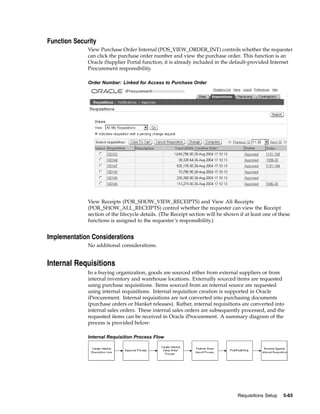
                  •   Punchout catalog hosted by a supplier or marketplace
                  •   Transparent punchout catalog hosted by a supplier or marketplace
                  •   Informational catalog

Local Catalog
                  There are two sources for data residing in the local catalog. One of these sources is
                  your internal procurement system. Using the catalog extractor, data from purchasing
                  documents such as blanket purchase agreements and requisition templates, as well as
                  inventory items and approved supplier list (ASL) entries, can be made available to
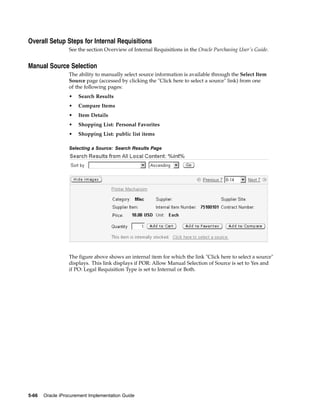
                  requesters in Oracle iProcurement. The other source for local content is data loaded
                  directly into Oracle iProcurement through the catalog loader. This data may have
                  originated from a supplier or third-party content management service, downloaded
                  from Exchange.Oracle.com, or created internally.

Punchout Catalog Hosted by Supplier or Marketplace
                  While creating a requisition, requesters can punch out directly to an Oracle Exchange
                  marketplace, such as Exchange.Oracle.com, or to a supplier’s Web store (to access
                  supplier-hosted catalogs). After selecting items for purchase, requesters return to Oracle
                  iProcurement to add additional items to their cart and check out as they normally do. For
                  more information on setting up punchout, see the Oracle Procurement Buyer’s Guide to


4-2   Oracle iProcurement Implementation Guide
Punchout and Transparent Punchout. There is also a supplier version of this guide, Oracle
                  Procurement Supplier’s Guide to Punchout and Transparent Punchout.

Transparent Punchout Catalog Hosted by Supplier or Marketplace
                  A transparent punchout catalog (also known as a distributed search) allows requesters
                  to search for items on an external site without leaving Oracle iProcurement. Unlike
                  punchout, requesters do not access the site directly. Instead, when the requester
                  searches for items, the transparent punchout works in the background to access the
                  remote catalog and returns the matching items directly to the search results in Oracle
                  iProcurement. Requesters do not necessarily know the items came from an external
                  site. From the Search Results page, requesters add the items returned from the
                  transparent punchout to their shopping cart and check out as they normally do.
                  From Oracle iProcurement, you can set up a transparent punchout to a supplier site
                  or to an Oracle Exchange marketplace, such as Exchange.Oracle.com. For more
                  information, see the Oracle Procurement Buyer’s Guide to Punchout and Transparent
                  Punchout. There is also a supplier version of this guide, Oracle Procurement Supplier’s
                  Guide to Punchout and Transparent Punchout.

Informational Catalog
                    An informational catalog enables you to provide to requesters instructions or links for
                    ordering items or services that may not fit into the other catalog types. For example, your
                    company may already have internal Web pages containing purchasing information for
                    employees. You can use the informational catalog as the starting point for accessing
                    those pages. The informational catalog enables Oracle iProcurement to be your
                    company’s portal for all ordering.
                  You can create informational catalogs in the eContent Manager. (Use the iProcurement
                  Catalog Administration responsibility to access the eContent Manager.) For
                  instructions, click the Help icon in the eContent Manager.


Choosing a Catalog Type
                  Different items and commodities are better suited to one catalog type over another;
                  however, there is no one-size-fits-all solution to catalog management. The following
                  table provides guidance on the commodities best suited to the different catalog types, but
                  ultimately you and the supplier decide on the best approach. You can use one or more
                  catalog types to suit your processes.


                                                                          Catalog Setup and Management      4-3
Catalog Types Compared

                   Catalog Type                                 Commodity (Types of Items)

                   Local catalog                                Best suited for direct material, such as
                                                                mass-produced mechanical parts; products
                                                                with prenegotiated or stable prices; items for
                                                                which blanket agreements and quotations
                                                                already exist in Oracle Purchasing (which can
                                                                be extracted to the local catalog); or indirect
                                                                material that you want to manage locally
                                                                (rather than using a punchout or transparent
                                                                punchout) so that you have more control over
                                                                the pricing and descriptions.
                                                                Use for items you want to manage locally.

                   Punchout                                     Best suited for indirect material requiring
                                                                a high degree of configuration (such as
                                                                computer hardware or office furniture) and
                                                                specialized services (such as printing or media
                                                                services). For example, the supplier site may
                                                                have special features unique to the industry
                                                                that the punchout can use. (In an XML
                                                                punchout, the supplier can also link its items
                                                                to contract agreements in Oracle Purchasing.)
                                                                The supplier controls the content, searching,
                                                                and the user interface for selecting items.

                   Transparent punchout                         Best suited for products with fluctuating
                                                                prices, or extremely large or specialized
                                                                catalogs, such as chemical supplies, that you
                                                                want the supplier to manage. (The supplier
                                                                can also link its items to contract agreements
                                                                in Oracle Purchasing.)
                                                                The supplier controls the content and the
                                                                search engine, but the requester never leaves
                                                                Oracle iProcurement while searching and
                                                                shopping.

                   Informational catalog                        Best suited to provide requesters with
                                                                instructions or links for ordering items
                                                                that are not provided by the other catalog
                                                                types. Enables Oracle iProcurement to be a
                                                                portal for all ordering.


                  Other functional differences between the catalog types include the following:
                  •   For differences in the search features that different catalog types support, see
                      Appendix D.
                  •   Both local and transparent punchout catalogs support item images and item
                      comparisons. (Punchout catalog items are controlled by the supplier, so the ability to
                      view images and comparisons depends on the supplier’s site. A punchout to an
                      Oracle Exchange marketplace automatically supports item images, if the supplier
                      provides them, and item comparisons.)
                  •   In a local catalog, the buying company can create additional base and local
                      descriptors by uploading them. (See the appendices later in this guide.) In a


4-4   Oracle iProcurement Implementation Guide
punchout or transparent punchout, the supplier or marketplace provides the
                 minimally required base descriptors.
             •   A punchout or transparent punchout to an Oracle Exchange marketplace can
                 provide different prices for the same item that are visible only to certain operating
                 units if you perform the multiple organizations setup described in the Oracle
                 Procurement Buyer’s Guide to Punchout and Transparent Punchout. The local catalog
                 provides even more functionality for creating item information that is unique to an
                 operating unit. (On an Oracle Exchange marketplace, only the item’s price, unit of
                 measure, and currency can vary by operating unit. In the local catalog, the entire
                 item can vary; it can exist in some operating units, but not others, or its descriptive
                 information can vary by operating unit.)
             •   The local catalog allows you to restrict different requesters’ access to
                 categories. Punchout, transparent punchout, or informational catalogs allow you to
                 restrict access to them at the catalog level. (See Defining Realms, page 4-44.)


Example Stores and Catalogs
             In the following example, you create seven catalogs and three stores. An X indicates
             whether the catalog is included in the store.
             The example also shows how you can segment the local catalog by supplier, if
             desired. Segmenting the local catalog by supplier is helpful if you want to place local
             catalogs in separate stores as shown in this example.
                     Note: For instructions on creating and managing multiple catalogs and
                     stores, use the iProcurement Catalog Administration responsibility to
                     access the eContent Manager. Click the Help icon.

             Example Catalogs and Stores

             Catalog Name        Catalog Type        Store:          Store: Office     Store: Wireless
                                                     Computer        Supplies          Supplies
                                                     Supplies

             Approved            Local (for          X
             Computer            Computer
             Supplies            Supplier, Inc.
                                 items only)

             Office Supplies     Local (for Office                   X
                                 Supplier, Inc.
                                 items only)

             All Paper           Transparent                         X
             Supplies            punchout

             Business Cards      Punchout                            X

             Arch Wireless       Punchout                                              X

             AT&T Wireless       Punchout                                              X

             Wireless Services   Informational                                         X


                                                                    Catalog Setup and Management       4-5
In this example, when the requester accesses the Shop page, all the available stores are
                  displayed. The following figure shows what happens when the requester clicks the
                  Office Supplies store:

                  Shop Store Page


                  If a URL was specified for a punchout or informational catalog during setup of the
                  catalog, the catalog name appears as a link. (Local or transparent punchout catalog
                  names are never linked.) Requesters can search all three catalogs by entering a search
                  keyword into the Search field, or they can click a catalog link to go to the punchout
                  or informational catalog site.

Operating Unit-Specific Stores
                   When creating a store, you can also assign the store to all operating units (the default
                   setting) or to specific operating units. A store that is assigned to a specific operating unit
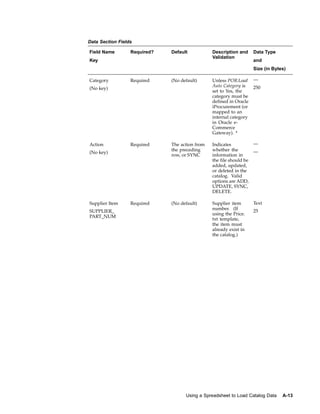
                   is visible and accessible only to requesters in that operating unit. See the instructions
                   on creating stores in the eContent Manager online Help.

Search Results for a Store
                    If the requester searches a store and the store contains more than one catalog, a Search
                    Results Summary page displays, dividing the results among each catalog, as shown
                    in the following figure.
                           Note: For illustrative purposes, the following figure shows just one
                           search result for the local and transparent punchout catalogs. Oracle
                           iProcurement actually displays the first three search results from each
                           catalog on the Search Results Summary page.


4-6   Oracle iProcurement Implementation Guide
Search Results Summary Page


The Search Results Summary page works as follows for each catalog type:
•   A local catalog (such as Office Supplies in the figure above) returns the first three
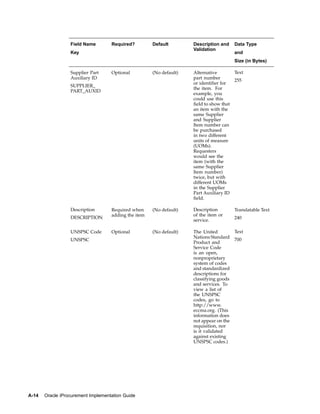
    items on the Search Results Summary page that match the search. If no matching
    items are found, a no results found message displays for the local catalog.
•   A transparent punchout catalog (such as All Paper Supplies in the figure above)
    displays the first three matching search results or no results found on the Search
    Results Summary page, just like the local catalog.
•   A punchout catalog (such as Business Cards in the figure above) displays a link
    (and, if you set it up, an image) on the Search Results Summary page if the search
    keywords the requester enters match the keywords defined for the punchout when
    you set it up.
•   An informational catalog displays a link (and, if you set it up, an image) on the
    Search Results Summary page if the keywords match, just like the punchout catalog.


                                                       Catalog Setup and Management      4-7
For local and transparent punchout catalogs, a link at the top of each section on the
                  Search Results Summary page takes the requester to a detailed Search Results
                  page, which lists all of the matching items in that catalog, as shown in the following
                  figure.

                  Search Results Details Page


                  From the Search Results Summary or Search Results pages, the requester can add
                  the items to the shopping cart.


Controlling Access to Catalogs and Stores
                  Use any one or more of the following methods if you want to control access to content:
                  •   Use item source realms to control access to punchout or transparent punchout
                      catalogs, by user or responsibility. See Defining Realms, page 4-44. See also the
                      Oracle Procurement Buyer’s Guide to Punchout and Transparent Punchout.
                  •   Use item source realms to control access to informational catalogs, by user or
                      responsibility. See Defining Realms, page 4-44.
                  •   Use category realms to control access to categories within any local catalog, by user
                      or responsibility. (You cannot apply category realms to categories within a punchout
                      or transparent punchout catalog.) See Defining Realms, page 4-44.
                  •   Display stores, which can contain different types of catalogs, to select operating
                      units. See instructions for managing stores in the eContent Manager online Help.
                  You can also display non-catalog request templates to select operating units. See Setting
                  Up Non-Catalog Request Templates, page 4-52.


4-8   Oracle iProcurement Implementation Guide
Catalog Setup Checklist
           Use the following checklist for all setup related to catalog creation and management. This
           is a checklist of all setup steps in this chapter.

           Catalog Setup Checklist

            Number                Step                    Required or Optional   Information Source

            1                     Determine Catalog       Required               Types of Catalogs,
                                  Types to Implement                             page 4- 2
                                                                                 Choosing a Catalog
                                                                                 Type, page 4- 3

            2                     Create One or More      Required               For local catalog,
                                  Catalogs: local                                see Creating and
                                  catalog, punchout                              Maintaining Local
                                  or transparent                                 Content, page 4-11.
                                  punchout catalog, or
                                                                                 For punchout or
                                  informational catalog
                                                                                 transparent punchout,
                                                                                 see the Oracle
                                                                                 Procurement Buyer’s
                                                                                 Guide to Punchout and
                                                                                 Transparent Punchout.
                                                                                 For informational
                                                                                 catalogs, use the
                                                                                 iProcurement Catalog
                                                                                 Administration
                                                                                 responsibility to
                                                                                 access the eContent
                                                                                 Manager; click the
                                                                                 Help icon and look
                                                                                 for instructions on
                                                                                 managing catalogs
                                                                                 and stores.

            3                     Decide Whether to       Optional               Catalogs and Stores,
                                  Create More than One                           page 4- 1
                                  Store

            4                     Create Stores to Group Optional                Use the
                                  Catalogs                                       iProcurement Catalog
                                                                                 Administration
                                                                                 responsibility to
                                                                                 access the eContent
                                                                                 Manager. Click
                                                                                 the Help icon for
                                                                                 instructions on
                                                                                 managing catalogs
                                                                                 and stores.

            5                     Define Access to        Optional               Controlling Access to
                                  Catalog Content                                Catalogs and Stores,
                                                                                 page 4- 8
                                                                                 Defining Realms,
                                                                                 page 4-44


                                                                     Catalog Setup and Management       4-9
Number                Step                    Required or Optional   Information Source

                    6                     Set or Review Search    Recommended            Setting Search Related
                                          Related Options                                Options, page 4-36

                    7                     Associate Images with   Optional               Managing Images,
                                          Catalogs, Stores, or                           page 4-36
                                          Items

                    8                     Set Up Non-Catalog      Optional               Setting Up Non-
                                          Request Templates                              Catalog Request
                                                                                         Templates, page 4-52


                            Note: If you have upgraded from Release 11.5.8 or earlier, make sure
                            that you have run the Catalog Index Create - Intermedia process. Use
                            the Purchasing Super User responsibility to access this request. After
                            running it, ensure that you can search for existing catalog data and
                            that the data is accurate. You only need to run this process if you
                            are upgrading from Release 11.5.8 or earlier. The process can only be
                            run once, after which it disappears from the system. Therefore, if
                            you do not see the process, then it likely has already been run. See
                            About Oracle iProcurement in Oracle Supply Chain Management, on Oracle
                            MetaLink, for details.


Profile Options
                  It is recommended that you leave POR: My Favorite Store at the default setting of -1
                  during implementation. When this profile option is set to -1, Oracle iProcurement
                  automatically displays the store that has the lowest sequence number (you set the
                  sequence when defining the store) and that the requester has access to, if you use realms
                  to control catalog access.
                  For a list of profile options that affect search behavior, see Appendix D.
                            Note: The requester can change the default favorite store by selecting
                            My Favorite Store in the iProcurement Preferences.


Function Security
                  None, but you can optionally control access to catalogs or stores. See Controlling Access
                  to Catalogs and Stores, page 4- 8 .

Workflow
                  None

Implementation Considerations
                  Note the following about creating stores:
                  •     Oracle iProcurement provides a default store, called the Main Store, if you do not
                        wish to set up stores.
                  •     Every punchout, transparent punchout, or informational catalog must be assigned
                        to a store to be searchable. The local catalog is already in the Main Store by
                        default, although you can assign it to any store. (If you are upgrading from Release


4-10   Oracle iProcurement Implementation Guide
11.5.8 or sooner, your punchout catalogs, if any, are also automatically included in
                the Main Store; the upgrade process also creates an additional store to house each
                punchout. Therefore, after upgrading, existing punchout catalogs are available
                in both the Main Store and their own individual stores. You can change this
                configuration if desired. If you are upgrading from 11.5.9, then your existing store
                and catalog configuration is preserved.)
           •    A catalog can be in multiple stores.
           •    The more transparent punchout catalogs in a store, the slower the search
                performance may be, depending on factors such as network and Internet traffic
                and the external site’s performance.
                        Note: A store can contain more than one catalog of the same
                        type, such as two punchout catalogs, with one exception: a store can
                        have only one local catalog.


           •    Category browsing occurs in the local catalog only.
           •    Advanced Search is performed on the local catalog only. A store that contains
                a transparent punchout catalog, or that contains only an informational or only a
                punchout catalog, does not allow Advanced Search.
           •    If a store contains only punchout catalogs, set at least one of the punchout catalogs to
                always display in the search results, to prevent the Search Results Summary page
                from being blank when the search returns no matching items. See the online Help in
                the eContent Manage for instructions on managing stores.
                        Note: A store that contains only a punchout catalog or only an
                        informational catalog goes directly to that catalog when you click
                        the store’s link on the Shop home page.


           •    The default Main Store has no image associated with it. If you want to associate
                images with stores, see the online Help about stores in the eContent Manager. See
                also Managing Images, page 4-36.


Creating and Maintaining Local Content
           Populating the local catalog with content consists of the following activities. Either
           extracting or loading data is required; everything else is optional:
           •    Extracting Catalog Data from Oracle Applications, page 4-12
           •    Loading Catalog Data, page 4-26
           •    Define Category Mapping, page 4-29
           •    Define Classification and Supplier Domains, page 4-34
           Perform the following steps to set up a local catalog:
           1.   Determine the source of data for the local catalog—the extractor, which pulls data
                from Oracle Purchasing; the catalog loader, which loads the data in files; or both.
           2.   Analyze your catalog structure. What categories and subcategories do you
                use? What descriptors, such as manufacturer or ink color, do you use to describe
                items?


                                                                  Catalog Setup and Management      4-11
3.   Create categories by using the extractor, which pulls categories from Oracle
                       Purchasing; the schema loader or editor in Oracle iProcurement; or both.
                       •   See Extracting Catalog Data from Oracle Purchasing, page 4-12 for instructions
                           on using the extractor.
                       •   See Appendix C for instructions on uploading schema. See the eContent
                           Manager online Help for instructions on schema online editing.
                       •   You can also include new categories and descriptors when loading catalog items
                           in step 6, if the POR:Load Auto profile options are set to Yes.
                  4.   If you created new categories using schema loading or editing, you must use
                       the iProcurement Categories Mapping page in the eContent Manager to map
                       your categories to categories set up in Oracle Applications. (Alternatively, you
                       can leverage mapping in Oracle e-Commerce Gateway while uploading items
                       in step 6. See Define Category Mapping, page 4-29.) All categories must
                       map to Oracle Purchasing categories before requesters can successfully create
                       requisitions. Optionally use the Oracle Purchasing Categories Mapping page to
                       "rename" the categories as they are displayed in Oracle iProcurement.
                       For instructions on using the iProcurement Categories Mapping and Oracle
                       Purchasing Categories Mapping pages, see the online Help in the eContent
                       Manager.
                  5.   Optionally use the category hierarchy or the schema loader in the eContent Manager
                       to create a hierarchy of categories that requesters can browse when looking for
                       items. (Requesters can still search for items without browsing, if you do not create a
                       hierarchy of categories.)
                       For instructions, see the online Help in the eContent Manager.
                  6.   Add catalog items to the local catalog using the extractor, loader, or both.
                       •   See Extracting Catalog Data from Oracle Purchasing, page 4-12.
                       •   See Loading Catalog Data, page 4-26.
                  7.   If uploading data, see if you need to perform the following steps:
                       •   Define Category Mapping, page 4-29.
                       •   Define Classification and Supplier Domains, page 4-34.
                  8.   If you want to include images with items, see Managing Images, page 4-36.
                  9.   Optionally segment your local catalog by supplier, by creating additional local
                       catalogs, if needed. Be sure your local catalog belongs to a store.
                       See the online Help in the eContent Manager for instructions on managing catalogs
                       and stores.
                  10. If you want to control access to certain categories in the local catalog, see Defining
                      Realms, page 4-44.


Extracting Catalog Data from Oracle Purchasing
                  The following purchasing data from Oracle Purchasing can be reflected in the Oracle
                  iProcurement catalog:
                  •    Purchasing categories


4-12   Oracle iProcurement Implementation Guide
•    Blanket purchase agreements
              •    Global blanket agreements
              •    Catalog quotations
              •    Requisition templates
              •    Approved supplier list (ASL) entries
              •    Items from the item master file, including internally orderable items
              For more information on creating these sources of purchasing data, see the Oracle
              Purchasing User’s Guide.


Setup Steps
              The catalog extractor in Oracle Purchasing is used to populate the Oracle iProcurement
              catalog with your Oracle Purchasing data. To extract this purchasing data, perform the
              following setup.

              Select Extractor Options:
              Before running the catalog extractor, you must specify which data elements you wish
              to make available in Oracle iProcurement. For example, if your company does not use
              requisition templates, there is no need to extract them.
              1.   Set or review the profile options listed in Profile Options, page 4-20.
              2.   Open the Define Catalog Server Loader Values window using the following
                   navigation path after logging into Oracle Purchasing: Setup > E-Catalog Admin >
                   Loader Values.


                                                                     Catalog Setup and Management   4-13
Define Catalog Loader Values Window


                  3.   For the Extract Classifications program (Classification Data section), indicate
                       whether to extract purchasing categories and requisition template headers to Oracle
                       iProcurement by selecting the corresponding checkbox. (Requisition templates
                       become public lists in Oracle iProcurement. These are public shopping lists of items
                       available to all requesters in an operating unit.)
                               Note: Categories must be selected to extract any data in the Extract
                               Items program (Item Data section).
                               Template Headers must be selected to extract Template Lines in the
                               Extract Items program.


                  4.   The Last Run Dates for both categories and template headers are automatically
                       populated at the conclusion of each Extract Classifications program. This value is
                       used by the catalog extractor to determine the data that has changed between the
                       date and time stamp captured on this window (the last time the program ran) and
                       the date and time of the current extractor run. Normally, there is no need to alter
                       these values. Clearing out the date and time stamp is equivalent to running the
                       catalog extractor for the first time. The longer span of time between the Last Run
                       Date and now (or when running it for the first time), the more data the extractor has
                       to process and the longer it may take to extract the data.
                  5.   Enter a Log Level to determine the level of detail that should be stored in the log
                       file. The following values are supported:


4-14   Oracle iProcurement Implementation Guide
Log Level Settings

     Value                                        Data Captured in Log File

     -1                                           No log file created

     1                                            Fatal errors

     2                                            Fatal errors and data errors

     3                                            Fatal errors, data errors, and item level
                                                  details

     4                                            Fatal errors, data errors, item level
                                                  details, and sub-table level information


     The recommended value is 2. If, however, items you expected to be extracted
     were not extracted, run the extractor again for these items, specifying an earlier
     Last Run Date and time (to be sure you extract the same contents as last time)
     and setting the Log Level to 3 or 4. At these levels, the log explains why certain
     items were not extracted.
6.   Enter a Commit Size to determine the number of records that are processed before
     committing the data. This number defaults from the POR: Bulk Loader / Extractor
     Commit Size profile option and should depend upon your volume of data and
     database configuration.
7.   For the Extract Items program (Item Data section), indicate whether to extract your
     item master file, requisition template lines, or internal items to Oracle iProcurement
     by selecting the corresponding checkbox.
             Note: Both Template Headers and Template Lines must be selected
             to extract requisition templates.
             Categories must be selected to extract any data in the Extract
             Items program.


     By default, blanket purchase agreements (including global agreements) and
     quotations are always extracted. These are grouped together in the Contracts
     option, which is always selected. You do not need to select this option since these
     documents are always extracted.
     Selecting Item Master extracts purchaseable items in the master item file and
     item-level ASL entries. Selecting Internal Items extracts internally orderable
     items, which can be placed on internal requisitions if the internal requisitions
     functionality has been implemented in Oracle Purchasing.
     If an item is both purchaseable and internally orderable, it is extracted based on your
     selection. If you select only Item Master, it is extracted as a strictly purchaseable
     (external) item. If you select only Internal Items, it is extracted as a strictly internal
     item. If you select both, it is available as both an internal and external item in the
     catalog (if POR: Legal Requisition Type is set to BOTH).
8.   The Last Run Dates for Contracts, Item Master, Template Lines, and Internal Items
     behave in the same manner as described earlier.
9.   Populate values for the Log Level and Commit Size as described earlier.


                                                        Catalog Setup and Management          4-15
10. Save your changes.
                  11. Define Rollback Segment (Optional)
                       Use the Concurrent Programs window to define rollback segments for each of
                       the extractor programs:
                       •   Catalog Data Extract - Classifications
                       •   Catalog Data Extract - Items
                       •   Catalog Data Extract - Purge
                           Rollback segments are used by the database to store the information needed to
                           undo changes when necessary (for example, during a system failure). Defining
                           rollback segments is optional, because the default rollback settings should be
                           adequate. If you choose to define rollback segments, however, get help from
                           your database administrator. Defining rollback segment sizes can affect the
                           successful completion and performance of the extractor.
                           For more information on managing concurrent programs, see the Oracle
                           Applications System Administrator’s Guide.
                  12. Extract the Data
                       Extract the data in one of two ways:
                       •   Click the Extract buttons in the Define Catalog Server Loader Values
                           window. See Launching the Catalog Extractor from the Loader Values
                           Window, later below.
                       •   Use the Submit Requests window. See Launching the Catalog Extractor from the
                           Submit Request window, later below.

                  Managing the Catalog Extractor:
                  To transfer your purchasing data into the Oracle iProcurement catalog, the catalog
                  extractor must be launched by clicking the Extract buttons or using the Submit Request
                  window. The catalog extractor consists of four concurrent programs:
                  1.   Catalog Data Extract - Classifications
                       Based on your selections in the Define Catalog Server Loader Values window, this
                       program transfers eligible Oracle Purchasing categories and requisition template
                       headers to the Oracle iProcurement catalog. This program also synchronizes
                       category name changes made in Oracle Purchasing with catalog data in Oracle
                       iProcurement. It also purges inactive categories and requisition template
                       headers. This program concludes with a rebuild of the interMedia index.
                               Note: Detailed information on the eligibility requirements of
                               categories and template headers can be found in Extractor
                               Requirements for Purchasing Data, later below.


                  2.   Catalog Data Extract - Items
                       This program makes your eligible Oracle Purchasing data available to Oracle
                       iProcurement requesters. The specific purchasing data that is extracted depends
                       on your selections in the Define Catalog Server Loader Values window and can
                       include blanket purchase agreements, global agreements, catalog quotations, master
                       items, internal items, approved supplier lists, and requisition template lines. This


4-16   Oracle iProcurement Implementation Guide
program also purges some data; however, to perform a complete purging, use the
     Catalog Data Extract - Purge program. The Catalog Data Extract - Items program
     also rebuilds the interMedia index.
             Note: Detailed information on the eligibility requirements of Oracle
             Purchasing data can be found in Extractor Requirements for
             Purchasing Data, later below.


3.   Catalog Data Extract - Purge
     The purge program deletes from the Oracle iProcurement catalog data that
     is invalid, expired, or deleted in Oracle Applications. Examples included
     deleted requisition template or quotation lines, and items that are no longer
     purchaseable. These items are purged from both the catalog and requesters’ favorites
     lists when you run the purge program.
4.   Rebuild Catalog Item interMedia Index (only if data corruption or some other
     exception occurs)
     This program indexes the Oracle Purchasing data in Oracle iProcurement so that
     it can be searched. The indexing works somewhat like a book index, to help find
     things faster. This program is included in both the extract classifications and extract
     items programs, but is offered as a separate program for use on an exception basis
     only (for example, when data corruption occurs).
             Note: Other than for exceptions, you should not run this program
             independently. For example, if you are upgrading Oracle
             iProcurement or extracting data and the log indicates a database
             error occurred while the interMedia Index was running, you could
             run the interMedia Index program independently; however, you
             should always investigate the error before running the program, to
             make troubleshooting the problem easier.


The catalog extractor can be launched from either the Define Catalog Loader Values
window or the Submit Request window. The recommended order for running the
catalog extractor is:
•    Catalog Data Extract - Classifications
•    Catalog Data Extract - Items
•    Catalog Data Extract - Purge (Recommended)
For more information on creating a report set to run the Extract and Purge programs in
the recommended order or to schedule them to run at a specified time, see the Oracle
Applications System Administrator’s Guide.

Launching the Catalog Extractor from the Loader Values Window:
To launch the catalog extractor from the Define Catalog Server Loader Values window:
1.   Follow the instructions in the Select Extractor Options steps earlier above to select
     the data you want to extract and other extractor options.
2.   Click Extract Classifications.
3.   Monitor the extraction request in Oracle Purchasing by choosing Requests.
     Choose View Log to check for errors. See Viewing the Log File, later below.


                                                       Catalog Setup and Management     4-17
4.   Once the classifications request completes successfully, return to the Define Catalog
                       Server Loader Values window and click Extract Items.
                  5.   Monitor the extraction request in Oracle Purchasing by choosing Requests.
                       Choose View Log to check for errors. See Viewing the Log File, later below.

                  Launching the Catalog Extractor from the Submit Request Window:
                  Instead of launching the catalog extractor from the Define Catalog Server Loader Values
                  window, you can launch the extractor from the Submit Request window. The Submit
                  Request window runs the extractor with the options selected and saved in the Define
                  Catalog Loader Server Values window.
                  To extract classifications and items:
                  1.   Open the Submit Request window using the following navigation path after logging
                       into Oracle Purchasing: Requests > Submit a New Request > Single Request.
                  2.   Select Catalog Data Extract - Classifications as the Report Name.

                       Submit Request Window


                  3.   Enter values for the following parameters:
                       •   Log Level. The recommended value is 2. See the section Select Extractor Options
                           above for more information on the Log Level field.
                       •   Commit Size. See the section Select Extractor Options earlier above for more
                           information on the Commit Size field.
                  4.   Choose OK to return to the Submit Request window.
                  5.   Choose Submit to execute the program.
                  6.   Once the request has completed successfully, choose: Submit a New Request >
                       Single Request.


4-18   Oracle iProcurement Implementation Guide
7.   From the Submit Request window select Catalog Extract Data - Items in the Name
     field and follow the same steps as above for submitting the classifications program.
Purging data is recommended. To purge data:
1.   Once the classifications and item requests have completed processing, choose
     Submit a New Request > Single Request to return to the Submit Request window.
2.   Select Catalog Extract Data - Purge in the Name field.
3.   Enter values for the Log Level and Commit Size using the guidelines specified in the
     section Select Extractor Options, earlier above.
4.   Choose OK to return to the Submit window.
5.   Choose Submit to execute the program.
To rebuild the Item interMedia Index only if problems, such as data corruption, occur:
1.   Once the classifications and item requests (and the purge request, if performed) have
     completed processing, choose: Submit a New Request > Single Request.
2.   In the Submit Request window, select Rebuild Catalog Item interMedia Index in
     the Name field.
3.   Choose OK to return to the Submit Request window.
4.   Choose Submit to execute the program.
You should monitor requests after you submit them, to be sure they completed
successfully. To monitor the requests:
1.   In Oracle Purchasing, choose Requests.
2.   Use the Find Requests window to monitor the status of the requests.
3.   Choose View Log to check for errors. See Viewing the Log File, below.

Viewing the Log File:
Use the Requests window to access the log files for each program of the catalog
extractor. Select the corresponding Request ID of the program whose log file you want to
review and click View Log to open the file.


                                                     Catalog Setup and Management     4-19
Monitoring Requests


                  If you chose a Log Level of at least 3 when running the programs, the View Log window
                  provides clear explanations for any item or classification that was not extracted. (If an
                  item or classification does not meet the requirements described in the section Extractor
                  Requirements for Purchasing Data later below, it does not get extracted.)
                  For items, the log informs you of failed extractions only if the item and all associated
                  documents are not extracted. For example, if an item exists on an inactive blanket
                  purchase agreement, but its master item record is extracted, no message is shown for the
                  item’s blanket purchase agreement record failing extraction.
                  Only the person who performed the extraction can view the log.


Profile Options
                  The following profile options affect the extractor:
                  •   POR: Bulk Loader/Extractor Commit Size sets the number of records that are
                      processed at a time. By default, it is set to 2500; however, you can change this
                      default depending on the volume of purchasing data you expect to extract and your
                      database configuration. See: Set Profile Options, page 2-38.
                  •   POR: Extract BPA/Quote Images, when set to Yes, extracts images along with
                      blanket purchase agreement or catalog quotation items if they are associated
                      with image files or image URLs. (By default this profile option is set to Yes.)
                      See: Managing Images, page 4-36.


Function Security
                  None


4-20   Oracle iProcurement Implementation Guide
Workflow
                None


Implementation Considerations
                The following sections describe extractor requirements and other considerations.

Extractor Requirements for Purchasing Data
                The extraction criteria for each of the following data elements is explained in further
                detail below:
                •   Purchasing categories
                •   Blanket purchase agreements
                •   Global blanket agreements (blanket purchase agreements for which Global is
                    selected)
                •   Catalog quotations
                •   Requisition templates
                •   Approved supplier list (ASL) entries
                •   Items from the item master file, including internally orderable items
                The extractor does not extract outside processing items.
                The extractor extracts all of the data listed above; however, the search results in
                Oracle iProcurement use the order of priority listed above, starting with blanket
                agreements and quotations and ending with master items, to avoid displaying duplicate
                items. For example, if an item exists both in the item master and on a blanket purchase
                agreement, then the search results display only the blanket purchase agreement
                (provided you are extracting both master items and blanket agreements). If you extract
                both requisition templates and ASLs and an item exists on both, then the search results
                display only the requisition template. If, however, an item exists on more than one
                blanket or quotation (for example, on a quotation and a blanket agreement), then the
                search results display the item once from each document (for example, the item displays
                twice - once with the quotation number and once with the agreement number).
                If the extracted items include updates to items that requesters have placed on favorites
                lists, the favorites lists are also updated. (Saved carts are not updated, but upon
                checkout, Oracle iProcurement will alert the requester to items that no longer exist
                or are no longer valid.)
                The item data that is extracted is as follows: supplier, supplier site, category, item
                number, item description (not the Long Description from Oracle Bills of Material), unit
                of measure (UOM), price, currency, supplier item number, attribute 13 (for images, if
                any, on blanket agreements or catalog quotations), and attribute 14 (for image URLs, if
                any, on blanket agreements or catalog quotations). If extracting requisition templates, the
                requisition template name is also extracted and displayed as a public shopping list. If
                extracting items from agreements or quotations, the agreement or quotation number is
                also extracted; the number displays to the requester in the search results and item details
                if it is set up to display using schema editing.
                Regardless of the operating unit from which you run the extractor, the data is extracted
                from all operating units. Each requester sees only data that is created or enabled in
                the requester’s operating unit.


                                                                     Catalog Setup and Management     4-21
Purchasing Categories
                  For categories to be extracted into the Oracle iProcurement catalog, the following
                  requirements must be satisfied:
                  •   The category belongs to the Purchasing Category set.
                  •   The category is Enabled for iProcurement in the Categories window. (See the Oracle
                      Inventory User’s Guide, or the online Help for the Categories window.)
                  •   The category is active.
                  Oracle iProcurement extracts the category description, such as Computers and
                  Monitors, and displays that as the category name in Oracle iProcurement. If there is
                  no category description, it extracts the category code, such as IT.COMPUTER, and
                  makes that the category name.

Blanket Purchase Agreements
                  Items on blanket purchase agreements appear in the Oracle iProcurement catalog if the
                  following conditions are met:
                  •   The blanket purchase agreement is approved and valid (not canceled, closed, finally
                      closed, or frozen).
                  •   The blanket purchase agreement header and line are active. (Their effective dates
                      include today.)
                  •   The item belongs to a purchasing category that satisfies the requirements stated in
                      the Purchasing Categories section. The category has been extracted.

Global Blanket Agreements
                   Items on global blanket agreements appear in the Oracle iProcurement catalog if the
                   following conditions are met:
                  •   The global blanket agreement meets the same requirements as given for blanket
                      purchase agreements, above.
                  •   Since global blanket agreements are created in one operating unit and enabled in
                      others, the following conditions must also be met to ensure that the global blanket
                      agreement is valid in its enabled operating units:
                      •   The owning organization (operating unit in which the global blanket agreement
                          was created), enabled operating unit (requester’s operating unit), and the
                          Purchasing Org (purchasing operating unit) must all be active operating units.
                      •   If the item on the global agreement is a master item, then the item must exist in
                          both the enabled operating unit’s FSP organization and in the Purchasing Org’s
                          FSP organization. (The FSP organization is the Inventory Organization selected
                          for the operating unit in the Supplier-Purchasing tabbed region of the Financial
                          System Parameters window.) The item must be purchaseable, and not an outside
                          processing item, in both inventory organizations.
                                  Note: If the item is assigned to a different category in
                                  the enabled FSP organization than in the owning FSP
                                  organization, then Oracle iProcurement shows the category
                                  from the owning organization. (That is, the extractor extracts
                                  the item information itself from the owning organization; the
                                  item must additionally exist in both the enabled and purchasing
                                  FSP organizations.)


4-22   Oracle iProcurement Implementation Guide
•   If the item on the global agreement is a master item, the UOM class used on the
                             agreement must match the UOM class defined for the master item.
                                 Note: The Purchasing Site on the global agreement does not have to
                                 be a valid site in the enabled (requester’s) operating unit.


Catalog Quotations
                     Items on quotations appear in the Oracle iProcurement catalog if the following
                     conditions are met:
                     •   The quotation is of type Catalog. No bid quotations are extracted.
                     •   The quotation is active.
                     •   If the quotation requires approval (Approval Required is selected), the item must
                         have at least one price break, the price break must have effective dates that include
                         today (price breaks dated in the future are not included), and the price break must be
                         approved for All Orders or Requisitions.
                     •   The item belongs to a purchasing category that satisfies the requirements stated in
                         the Purchasing Categories section. The category has been extracted.

Requisition Templates (Public Lists)
                   Items on requisition templates appear in the Oracle iProcurement catalog if the following
                   conditions are met:
                     •   The template is active.
                     •   The item was not copied from a blanket purchase agreement header or line that is
                         unapproved, canceled, closed, finally closed, or frozen, or whose effective dates
                         do not include today.
                     •   The item belongs to a purchasing category that satisfies the requirements stated in
                         the Purchasing Categories section. The category has been extracted.
                     •   The template header has been extracted.
                     •   The item does not already exist on an extracted blanket purchase agreement, global
                         blanket agreement enabled in the item’s operating unit, or quotation.
                     Requisition templates display as public lists in Oracle iProcurement. (In the Shop
                     tab, click Shopping Lists to display public lists.)


                                                                           Catalog Setup and Management   4-23
Public List


                  The figure above shows a requisition template named New IT Hires displaying as a
                  public list on the Shopping List page.
                  If you entered a Suggested Quantity on a requisition template line in Oracle
                  Purchasing, then that quantity defaults into the Quantity field when viewing the public
                  list, as shown above. (The suggested quantity for the item defaults only in the public
                  list, not in the search results.) The requester can add any or all items on the list to the
                  cart; the cart preserves the suggested quantities. The requester can change the suggested
                  quantity at any point.
                  In addition to requisition template items appearing in the catalog, matching requisition
                  template names (for both purchaseable and internal type templates) also appear as
                  shopping lists in the Related Links box on the Search Results page.


4-24   Oracle iProcurement Implementation Guide
The same item that exists on multiple requisition templates displays as just one item in
                 the search results; however, requesters can access all requisition templates for the item
                 by clicking the shopping lists related link on the Search Results page.

Approved Supplier Lists (ASL)
                  Items associated with ASLs appear in the Oracle iProcurement catalog if the following
                  conditions are met:
                 •    The ASL entry is item based, not commodity based.
                 •    The ASL entry is not disabled.
                 •    The supplier is enabled and allowed to source the item. (The supplier is assigned a
                      status in the ASL entry that enables it to source the item.)
                 •    The item has a list price associated with it in the Master Item window.
                 •    The item belongs to a purchasing category that satisfies the requirements stated in
                      the Purchasing Categories section. The category has been extracted.
                 •    The item does not already exist on an extracted requisition template, blanket
                      purchase agreement, global blanket agreement enabled in the item’s operating
                      unit, or quotation.

Purchaseable Master Items
                  Purchaseable items from the master item file (defined in the Master Item window)
                  appear in the Oracle iProcurement catalog if the following conditions are met:
                 •    The item is Purchasable in the Purchasing tabbed region of the Master Item window.
                 •    The item is not a configurable item. In the Master Item window, a configurable item
                      is one in which Assemble to Order is selected in the Order Management tabbed
                      region, a Base Model value is provided in the Bills of Material tabbed region, and
                      Autocreate Configuration is selected in the Bills of Material tabbed region.
                 •    The item has a List Price associated with it in the Purchasing tabbed region of the
                      Master Item window.
                 •    The item belongs to a purchasing category that satisfies the requirements stated in
                      the Purchasing Categories section. The category has been extracted.
                 •    The item does not already exist on an extracted ASL, requisition template, blanket
                      purchase agreement, global blanket agreement enabled in the item’s operating
                      unit, or quotation.

Internal Master Items
                    Internally orderable items from the master item file appear in the Oracle iProcurement
                    catalog if the following conditions are met:
                 •    The item is Internal Orders Enabled in the Order Management tabbed region of the
                      Master Item window.
                 •    The item is not a configurable item. (See the description of a configurable item
                      in Purchaseable Master Items, above.)
                 •    The item belongs to a purchasing category that satisfies the requirements stated in
                      the Purchasing Categories section. The category has been extracted.


                                                                       Catalog Setup and Management      4-25
•   The item does not already exist on an extracted ASL, requisition template, blanket
                      purchase agreement, global blanket agreement enabled in the item’s operating
                      unit, or quotation.
                      That is, if the item exists only as a master item (for example, it is not also on an
                      ASL), then it displays in the search results. If, however, it exists both as a master
                      item and as an item on a document or ASL, then the document or ASL item displays
                      in the search results, based on the hierarchy discussed earlier in this section. (For
                      example, an agreement takes precedence over an ASL in the search results.) In this
                      case, the master item source itself would display only if you have enabled the "Click
                      here to select a source" link, which displays the Select Item Source page. (See
                      Manual Source Selection, page 5-66.) If you enable requesters to select an item
                      source for an internal item, then the Select Item Source page displays all sources of
                      that item, including its internal inventory source and its external sources (ASL and
                      agreement, for example), if POR: Legal Requisition Type is set to BOTH.
                  If the internal requisitions functionality in Oracle Purchasing is set up, the extracted
                  internal items can be placed on internal requisitions. See the Oracle Purchasing User’s
                  Guide.

Translating Purchasing Data
                  Translations provided for both categories and items in the master item file are reflected
                  in the Oracle iProcurement catalog. When creating categories and master items in Oracle
                  Purchasing, use the translation icon to provide descriptions for the languages installed in
                  your environment. When you extract categories and master items, requesters can see
                  the translated values based on their catalog language preference while searching the
                  Oracle iProcurement catalog.
                  For more information on translating data in Oracle Applications, please refer to the
                  Oracle Applications User’s Guide.

Currency Conversion
                  Oracle iProcurement performs currency conversions as follows, when the document’s
                  currency differs from the requester’s currency, to display the item price in the requester’s
                  functional currency:
                  •   For blanket purchase agreements and quotations, Oracle iProcurement uses the Rate
                      Type from the document. It uses the document creation date as the Rate Date to
                      obtain the appropriate exchange rate.
                  •   For global blanket agreements, Oracle iProcurement uses the Rate Type from the
                      Purchasing Options for the enabled (requester’s) operating unit and the date that the
                      document was extracted to obtain the appropriate exchange rate.

Uploading Updates to Extracted Items
                  For information on what happens when you use the uploading feature to update
                  extracted items, see the appendices on loading catalog data later in this guide.


Loading Catalog Data
                  The Oracle iProcurement catalog supports uploading of catalog data. Catalog data
                  consists of the items and services available for purchase as well as the associated prices
                  for these goods.


4-26   Oracle iProcurement Implementation Guide
Catalog data may have originated from any of the following sources:
              •    Downloaded from an Oracle Exchange marketplace, such as Exchange.Oracle.com.
              •    Obtained directly from a supplier.
              •    Obtained from a third-party catalog provider.
              •    Created internally.
              The loader supports item catalogs created in the following formats:
              •    Tab-delimited text file (spreadsheet)
              •    XML
              •    Catalog Interchange Format (CIF)
              •    cXML (commerce eXtensible Markup Language, which is based on the XML
                   language)
              The catalog loader also supports the creation of catalog schema using XML files. The
              catalog schema consists of a combination of categories, local descriptors used to describe
              items in a specific category, and base descriptors used to describe any item or service in
              the catalog.


Setup Steps
              To use the catalog loader to populate the Oracle iProcurement catalog, the following
              setup steps must be performed:
              1.   To ensure that you can download instructions and templates (such as the Readme
                   files) in the eContent Manager, verify Parameters in the ssp_init.txt file:
                   Ensure the following line is present in the [iAS ORACLE_HOME]/Apache/Jserv/
                   etc/ssp_init.txt file and is set accordingly:
                   icxCatalogTemplateRoot=<OA_HTML>/US/

                   If this setting is incorrect, then the Zip file of instructions and templates will
                   contain no data.
              2.   Set or review the profile options listed in Profile Options, page 4-28.
              3.   If you will be uploading cXML files, download the latest cXML DTD from
                   http://www.cxml.org/ and copy it to the $ICX_TOP/xml/orc115 directory.
                   The Document Type Definitions (DTDs) for the item and schema XML files are
                   automatically copied to the $ICX_TOP/xml/orc115 directory. Perform this step
                   for cXML loading only.
              4.   Optionally set up category mapping in Oracle e-Commerce Gateway.
                   See Define Category Mapping, page 4-29 for details.
              5.   If you will be uploading CIF or cXML files, optionally define classification and
                   supplier domains.
                   See Define Classification and Supplier Domains, page 4-34 for details.
              6.   Optionally define rollback segments.
                   Use the Concurrent Programs window to define rollback segments for each of
                   the loader programs:


                                                                      Catalog Setup and Management      4-27
•   Catalog Bulk Load - Items & Price Lists
                       •   Catalog Bulk Load - Catalog Structure
                       Rollback segments are used by the database to store the information needed to undo
                       changes when necessary (for example, during a system failure). Defining rollback
                       segments is optional, because the default rollback settings should be adequate. If
                       you choose to define rollback segments, however, get help from your database
                       administrator. Defining rollback segment sizes can affect the successful completion
                       and performance of the extractor.
                       For more information on managing concurrent programs, see the Oracle Applications
                       System Administrator’s Guide.

Loading Instructions
                  For instructions on uploading tab-delimited text or XML files, including schema files, see
                  the appendices.
                  For information on uploading cXML or Catalog Interchange Format (CIF) files, see the
                  online Help in the eContent Manager.

Managing the Loader
                  The catalog loader is controlled by the concurrent manager, the program that operates
                  the Submit Request window for submitting and viewing requests. If the concurrent
                  manager is running, the catalog loader is running.
                  You can monitor loader jobs using either the eContent Manager (where files are
                  uploaded) or the Requests window in Oracle Applications (shown in the Monitoring
                  Requests figure earlier). If you have trouble diagnosing an error in an upload, you may
                  get more details using the View Log button in the Requests window. (After the loader
                  completes, it automatically runs the interMedia Index, the status of which displays in
                  the log.)
                  For instructions on monitoring loader jobs through either the eContent Manager or the
                  Requests window, see the Loading Your File sections in the appendices later in this guide.


Profile Options
                  Set or review the following profile options if you will be uploading files; see Set Profile
                  Options, page 2-38 for descriptions:
                  •    FND: NATIVE CLIENT ENCODING
                  •    ICX: Client IANA Encoding
                  •    POR: Apply Category Mapping
                  •    POR: Approved Pricing Only
                  •    POR: Bulk Load for All Business Groups
                  •    POR: Bulk Loader/Extractor Commit Size
                  •    POR: Catalog Bulk Load Directory
                  •    POR: Default Currency Conversion Rate Type
                  •    POR: Hosted Images Directory
                  •    POR: Load Auto Attrib


4-28   Oracle iProcurement Implementation Guide
•     POR: Load Auto Category
              •     POR: Load Auto Root
              •     POR: Purge Jobs Older Than (days)
              •     POR: Set Debug Catalog Loader ON


Function Security
              The POR_SSP_ECMANAGER function controls access to the eContent Manager
              page from which files are uploaded. Anyone assigned the iProcurement Catalog
              Administration responsibility already has access to this function.


Workflow
              None


Implementation Considerations
              No additional considerations.


Define Category Mapping
              You can use category mapping in Oracle e-Commerce Gateway for local, punchout, and
              transparent punchout catalogs. For instructions on setting up category mapping for
              punchout or transparent punchout catalogs, see the Oracle Procurement Buyer’s Guide to
              Punchout and Transparent Punchout. For local catalogs, use the instructions below.
              When uploading to the local catalog, you have the option of applying category mapping
              to the file. For example, the external category File Folders is mapped in Oracle
              e-Commerce Gateway to the Oracle Applications category OFFICE.SUPPLIES. Using
              the eContent Manager, you upload a file that specifies the category File Folders for an
              item. You choose to apply category mapping during the load as shown in the figure
              below. In this example, the loader maps the category File Folders to the category
              OFFICE.SUPPLIES in Oracle Applications. The item is uploaded to OFFICE.SUPPLIES.
              The apply category mapping feature performs the same mapping that the iProcurement
              Category Mapping page does in the eContent Manager, except that it does the mapping
              during uploading. (iProcurement Category Mapping is employed when the requester
              adds the items to the cart.) Typically, you would use one method or the other to
              do mapping.


                                                                 Catalog Setup and Management    4-29
Category Mapping Option on the Specify Options Page


                  You do not have to apply the Oracle e-Commerce Gateway category mapping during
                  uploading. (You can choose No on the Specify Options page. For example, you may
                  want to use the mapping for punchout catalogs or some other purpose only.)
                  For more mapping examples, see the online Help in the eContent Manager on loading
                  data.


Setup Steps
                  To set up category mapping for local catalogs:
                  1.   For each category in Oracle Applications to which you will be mapping external
                       categories, make sure Enabled for iProcurement is selected in the Categories window
                       and the category is extracted. Otherwise, the mapping will fail.
                  2.   Set or review the profile options listed in Profile Options, page 4-32.
                  3.   In Oracle Applications, access the e-Commerce Gateway application and use the
                       following navigation to open the Code Conversion Values window: Setup > Code
                       Conversion > Define Code Conversion Values.
                       The code conversions you define here apply to all operating units.


4-30   Oracle iProcurement Implementation Guide
Code Conversion Values Window


4.   In the Category field, select ITEM_CATEGORY.
5.   Enter your own Description for the mapping, if desired.
     A Description can help you determine what the mapping is for, if you need to edit
     it in the future.
6.   For the Direction, enter IN.
7.   For Key 1, enter a supplier name if the mapping applies only to a specific supplier, or
     leave this field blank to apply the mapping to all suppliers.
     If the mapping applies to a specific supplier, enter the supplier name exactly as it
     was defined in the Supplier Name field in the Suppliers window, including using
     the same case. Otherwise, the mapping specific to this supplier will fail when
     you upload.
             Note: The Key 1 field allows a maximum of 30 bytes. If the
             supplier’s name is greater than 30 bytes, enter the Supplier
             Number (from the Suppliers window) in the Key 5 field. If Oracle
             iProcurement cannot find a match on the supplier name, it will look
             for a match on the supplier number in the Key 5 field.


8.   Key 2 through Key 4 are not used.
9.   For the Internal Value, enter the category code that Oracle Applications uses.
     Enter the category code exactly as defined in Oracle Applications, such as
     MISC.MISC. Otherwise, the mapping will fail when you upload.
10. For the External 1 value, enter the category code that the supplier in the upload
    file uses.
     An upload file can use either the category name (such as File Folders) or category
     key (such as UNSPSC_44.12.20.11) to specify the category. You can enter either
     the name or key in the External 1 field.
11. The fields External 2 through External 5 are not used.


                                                      Catalog Setup and Management      4-31
12. If you want to map more than one external code to a single internal code, create a
                      new row for each mapping.
                       You cannot map a single external category code to more than one internal category
                       code, unless you are doing so for different suppliers.
                  Mapping occurs during the upload.


Profile Options
                  •    POR: Apply Category Mapping. Setting this profile to Yes defaults the Apply
                       Category Mapping option on the Specify Options page to Yes. Setting it to No
                       defaults the Apply Category Mapping option to No.
                  •    POR: Load Auto Category. If this profile is set to Yes and if the mapping was not
                       successful, then Oracle iProcurement creates the category during the upload.


Function Security
                  The POR_SSP_ECMANAGER function controls access to the eContent Manager
                  page from which files are uploaded. Anyone assigned the iProcurement Catalog
                  Administration responsibility already has access to this function.


Workflow
                  None


Implementation Considerations
                  Decide whether to create supplier-specific category mapping, or mapping that applies to
                  all suppliers.
                  If the Apply Category Mapping option was selected on the Specify Options page, the
                  catalog loader performs the following steps depending on whether you have set
                  up supplier-specific mapping:
                  1.   The loader checks whether supplier-specific mapping exists in Oracle e-Commerce
                       Gateway for the category in the upload file:
                       •   Is there a match between the Supplier specified in the file and the supplier
                           specified in the Key 1 or Key 5 field? (If you specified a supplier name in
                           the file, but the supplier number in the Key 5 field, then the loader finds the
                           match.) This check is case sensitive because supplier names are case sensitive in
                           Oracle Applications.
                       •   Is there a match between the category specified in the file and the category
                           specified in the External Value 1 field, for that supplier?
                                   Note: The mapping works on extracted categories only. If the
                                   internal mapped category (OFFICE.SUPPLIES in the earlier
                                   example) has not been extracted, the mapping fails. Recall that
                                   only iProcurement-enabled categories get extracted.


                  2.   If supplier-specific mapping does not exist, the loader looks for the same category
                       mapping where both Key 1 and Key 5 are blank (no supplier is specified).
                  3.   If mapping exists, the loader applies the conversion.


4-32   Oracle iProcurement Implementation Guide
The loader performs the mapping on the category name specified in the file;
     however, if you also specified a category key in the file, Oracle iProcurement tries to
     map the key if it couldn’t map the name.
     The loader chooses supplier-specific mapping over non-supplier-specific mapping, if
     both exist. The following table shows an example:

     Category           Direction       Key 1             Internal Value   External Value
                                                                           1

     ITEM_              IN              Supplier A        MISC.MISC        Software
     CATEGORY

     ITEM_              IN                                COMP.SFTW        Software
     CATEGORY

     ITEM_              IN                                COMP.HDW         Hardware
     CATEGORY


     In this example:
     •   A catalog file for Supplier A specifies the category Software. The loader maps
         Software to MISC.MISC.
     •   A catalog file for Supplier B specifies the category Software. The loader maps
         Software to COMP.SFTW.
     •   A catalog file for Supplier A specifies the category Hardware. The loader maps
         Hardware to COMP.HDW.
         If there is a problem with the supplier-specific mapping—for example, the
         category in the Internal Value field does not exist in Oracle Applications (it was
         entered wrong)—the loader does not use the non-supplier-specific mapping, but
         rejects the item, if POR: Load Auto Category is set to No. This way, an error
         message informs you there is a problem with the mapping, and you can correct
         it. (If POR: Load Auto Category is set to Yes, then the item is loaded to the
         category specified in the file.)
         Since the loader looks only at the Key 1 (or Key 5), Internal Value, and External
         Value fields to determine the mapping, it might find mappings that are the
         same. For example, if you set up two ITEM_CATEGORY mapping rows for
         use with another application, identical except for their Key 2 fields, the loader
         considers these identical. If the loader finds multiple, identical mappings, it
         rejects the item if POR: Load Auto Category is set No.
4.   If you have also set up category mapping on the Oracle Purchasing Category
     Mapping page in the eContent Manager, that mapping is additionally taken into
     account.
     For example, File Folders in the upload file is mapped to OFFICE.SUPPLIES in
     the Code Conversion Values window. OFFICE.SUPPLIES is mapped to Office
     Supplies/Furnishings on the Oracle Purchasing Category Mapping page. The
     loader maps File Folders to OFFICE.SUPPLIES, but the requester sees the item in
     Office Supplies/Furnishings.
     See the online Help about loading data in the eContent Manager for more mapping
     examples.


                                                       Catalog Setup and Management     4-33
Define Classification and Supplier Domains
                  If you will be loading CIF or cXML files, you can optionally define classification and
                  supplier domains.
                  When uploading CIF or cXML files, the Specify Options page enables you to select
                  a single classification or supplier domain to use for the entire file. See the figure
                  below. (Multiple supplier domains are used by cXML only.)
                  •   Classification domains are used to identify the system by which categories are
                      known. For example, the United Nations Standard Product and Service Code
                      (UNSPSC) is a classification domain.
                  •   Supplier domains are used to identify the system by which suppliers are known. For
                      example, a Dun and Bradstreet DUNS number is a supplier domain.
                  CIF and cXML files can contain multiple domains to identify a category or supplier for
                  an item. A supplier may include multiple domains in a file so that the file can be used
                  by multiple buyers. For example, some buyers use UNSPSC codes; others may use
                  another classification code. In this case, the supplier creates a single file, but specifies
                  two classification domains. Each buying company chooses the classification domain
                  its company uses.
                  Although the file may contain multiple domains, the loader can process only one domain
                  at a time. The domain you select or enter on the Specify Options page must match a
                  domain in the file. The loader then uses the domain for the entire file. For example, if
                  you specify the UNSPSC domain that the supplier uses in the file, the category name
                  that is loaded with the item is the UNSPSC category. If that is not the name that Oracle
                  iProcurement uses for the category, specify another domain in the file that uses the
                  naming you use.
                  To specify a domain while uploading (see the figure below), select the desired domain
                  from the drop-down menu. The menu lists all domains that it detected in your file, plus
                  any additional domains that you defined (see Setup Steps below).

                  Specifying Domains While Bulk Loading CIF or cXML Files


4-34   Oracle iProcurement Implementation Guide
You do not have to define domains; however, if you do, they appear in the domains
              drop-down menu when you click the flashlight icon. Defining the domains that you
              accept can provide consistency in the category and supplier names that are chosen
              for items in CIF or cXML files.


Setup Steps
              If you want to establish valid domains for your company that a catalog author can select
              on the Specify Options page, define them as lookups in Oracle Applications:
              1.   Log on to Oracle Applications using the Application Developer responsibility.
              2.   Access the Application Object Library Lookups window using the following
                   navigation: Application > Lookups > Application Object Library.
              3.   Query the following lookup Types:
                   •   Use the Type ICX_CAT_CLASSIFICATION_DOMAINS to define classification
                       domains.
                   •   Use the Type ICX_CAT_SUPPLIER_DOMAINS to define supplier domains.

                       Application Object Library Lookups Window


              4.   For the lookup type, enter a Code and Meaning.
                   The Meaning displays as the domain value in the drop-down menu next to the
                   domain field on the Specify Options page.
              5.   Optionally enter any of the other fields for each lookup code (domain) you define.
                   For more information on defining lookups, access the online Help for the Application
                   Object Library Lookups window or see the Oracle Applications Developer’s Guide.


                                                                   Catalog Setup and Management    4-35
Profile Options
                  None


Function Security
                  The POR_SSP_ECMANAGER function controls access to the eContent Manager
                  page from which files are uploaded. Anyone assigned the iProcurement Catalog
                  Administration responsibility already has access to this function.


Workflow
                  None


Implementation Considerations
                  No additional considerations.


Setting Search Related Options
                  As part of the catalog setup, you should do the following:
                  •   Understand how the catalog search engine works. See Appendix D.
                  •   Review the profile options that affect searching. See the list of profile options in
                      Search Configuration, page D-13. Set or change these profile options as desired.
                  •   Review and update descriptors and default descriptor properties, if desired. See the
                      Schema Editing section in Search Configuration, page D-13.


Managing Images
                  Images in the catalog are one of the following kinds:
                  •   Images that display on the Item Details page when requesters view the details of
                      an item. See the following figures. You can extract or upload items that reference
                      these images.
                  •   Smaller, thumbnail versions of the images that display on the Search Results
                      Summary, Search Results, and Compare Items pages for items. See the following
                      figures. You can extract or upload items that reference these images.
                  •   Images associated with stores that display on the Shop home page. See the figure
                      at the beginning of this chapter. You can reference these images when creating
                      your store.
                  •   Images associated with a punchout or an informational catalog that display on the
                      Search Results Summary page. See the figure earlier in this chapter. You can
                      reference these images when creating the punchout or informational catalog.
                  Including images in the catalog is optional. If you provide images for items, the
                  corresponding image displays when a requester searches for and views items, assisting
                  the user in selecting the correct item for purchase. JPEG and GIF image formats are
                  recommended.
                          Note: Images associated with transparent punchout items are hosted
                          externally by the supplier site or marketplace. For more information, see


4-36   Oracle iProcurement Implementation Guide
the Oracle Procurement Supplier’s Guide to Punchout and Transparent
Punchout.

Image on Item Details Page


Thumbnail Images on Search Results Page


                                            Catalog Setup and Management   4-37
Item Without an Image on Item Details Page


                          Item Without a Thumbnail Image on Search Results Page


4-38   Oracle iProcurement Implementation Guide
Note: Individual requesters can use their iProcurement Preferences to
                       disable thumbnail images in the search results if they desire. If so, the
                       text description of the item fills the entire horizontal space, with no
                       thumbnail image. Punchout and informational catalog images also do
                       not display in the search results if the requester disables thumbnails.


Setup Steps

              Extracting Items with Images:
              You can associate items on blanket purchase agreements and catalog quotations with
              images to enhance the shopping experience.
              Images on extracted blanket agreement or quotation lines can be stored on a local server
              or specified in a URL.
              Extracting Image Files Stored on a Local Server
              To associate an image file with a blanket purchase agreement or quotation line
              item, perform the following steps:
              1.   Make sure the profile option POR: Extract BPA/Quote Images is set to Yes.
              2.   Populate the profile option POR: Hosted Images Directory with the directory path
                   used to store image files.
                   This path usually corresponds to the OA_MEDIA directory. Contact your database
                   administrator or installation team for the exact location of your OA_MEDIA
                   directory.
              3.   Copy your images to this directory.
              4.   Define Attribute 13 as a descriptive flexfield on the PO_LINES table. Use this
                   flexfield to store the image name, for example mech_pencil.gif.
                           Note: The file name for the image is case sensitive. For example, if
                           the image file name is bluepen.gif, but you specify BluePen.gif in the
                           descriptive flexfield, the image will not display.


              5.   Populate this flexfield for each blanket agreement and catalog quotation line item
                   that has an associated image.
              6.   Run the catalog extractor.
                   In Oracle iProcurement, the image appears on the Item Details page and as a
                   thumbnail on the Search Results Summary, Search Results, and Compare Items
                   pages. If you want to resize the thumbnail image, see the instructions on creating
                   thumbnail images for items.
              Extracting Image URLs
              To associate an image URL with a blanket agreement or quotation line item, perform the
              following steps:
              1.   Make sure the profile option POR: Extract BPA/Quote Images is set to Yes.
              2.   Define Attribute 14 as a descriptive flexfield on the PO_LINES table. Use this flexfield
                   to store the image URL, such as http://www.oracle.com/homepageimages/logo.gif.


                                                                     Catalog Setup and Management     4-39
3.   Populate this flexfield for each blanket agreement and catalog quotation line item
                       that has an associated image URL.
                  4.   Run the catalog extractor.
                       In Oracle iProcurement, the image appears on the Item Details page and as a
                       thumbnail on the Search Results Summary, Search Results, and Compare Items
                       pages. If you want to resize the thumbnail image, see the instructions for creating
                       thumbnail images for items.

                  Uploading Items with Images:
                  To upload images, use the PICTURE or THUMBNAIL_IMAGE fields in an XML upload
                  file, or the Image or Thumbnail Image fields in a text upload file. These images can be
                  either files stored internally or URLs that point to an image stored remotely.
                  You can also use the loader to associate an image with an item you have extracted, if the
                  item has a supplier item number. (The loader requires a supplier item number.) See
                  the instructions for creating thumbnail images for items.
                  Specifying Image Files Stored on a Local Server
                  To reference image files stored on the local server:
                  1.   For the POR: Hosted Images Directory profile option, enter the directory path
                       you use to store image files.
                       This path usually corresponds to the OA_MEDIA directory. Contact your database
                       administrator or installation team for the exact location of your OA_MEDIA
                       directory.
                  2.   Ask your database administrator to transfer the pictures to the directory you
                       specified above.
                  3.   Use the PICTURE field in an XML upload file (or the Image field in a text bulk load
                       file) to specify an image for the Item Details page. Use the THUMBNAIL_IMAGE
                       field in an XML upload file (or the Thumbnail Image field in a text upload file) to
                       specify a thumbnail image for the search results and comparison pages.
                       See Appendix A and Appendix B for instructions on preparing and uploading
                       files. See also the instructions for creating thumbnail images for items.
                               Note: The file name for the image is case sensitive. For example, if
                               the image file name is bluepen.gif, but you specify BluePen.gif in
                               the Image field, the image will not display.


                  4.   Load your catalog file.
                  Specifying Image URLs
                  To specify the URL of the image that resides on the Internet:
                  1.   Obtain the full path of the image (for example, http://www.oracle.com/toplogo2.gif).
                  2.   Use the PICTURE field in an XML upload file (or the Image field in a text
                       bulk load file) to specify an image URL for the Item Details page. Use the
                       THUMBNAIL_IMAGE field in an XML upload file (or the Thumbnail Image field
                       in a text upload file) to specify a thumbnail image URL for the search results and
                       comparison pages.


4-40   Oracle iProcurement Implementation Guide
See Appendix A and Appendix B for instructions on preparing and uploading
     files. You can use the same image for both the image and thumbnail image, or create
     separately sized versions. See the instructions for creating thumbnail images for
     items.
3.   Load your catalog file.

Creating Thumbnail Images for Items:
You can upload or extract items with thumbnail images, using an image file or image
URL.
There are two ways to create and size thumbnail images:
•    Use the same image file name or URL for the Thumbnail Image
     (THUMBNAIL_IMAGE) field as you used for the Image (PICTURE) field.
     Specify the image file names or URLs through uploading or extracting. Then set
     the POR: Thumbnail Width or POR: Thumbnail Height profile options to resize the
     thumbnails. These profile options resize all thumbnails, while leaving the original
     image intact. Specify the desired number of pixels in these profile options. To
     resize the height and width proportionately, specify the number of pixels for just
     one profile option. For example, if you specify just POR: Thumbnail Width and
     leave POR: Thumbnail Height blank, the system automatically resizes the height
     proportionately to the width, for each thumbnail image. (If you specify both profile
     options, the sizing you specify is applied equally to all images. If the aspect ratio
     of an image is not the same as your sizing ratio, the thumbnail image may appear
     distorted.)
•    If the item image and thumbnail image are different, use uploading to specify
     the separate image file names or URLs.
     If you extracted the image, which uses the same image for both item details and
     thumbnails, use uploading to change one image or the other. The item must have a
     supplier item number to be updated by the loader. You can use a picture editor to
     change the size of the thumbnail images. See the instructions for uploading items
     with images, earlier.

Creating Store or Catalog Images:
Stores, punchout catalogs, and informational catalogs can also be set up to display
images, if desired.
Store and catalog images can be either files stored internally or URLs that point to an
image stored remotely.
Specifying Image Files on a Local Server
To specify an image stored on the local server:
1.   For the POR: Hosted Images Directory profile option, enter the directory path
     you use to store image files.
     This path usually corresponds to the OA_MEDIA directory. Contact your database
     administrator or installation team for the exact location of your OA_MEDIA
     directory.
2.   Ask your database administrator to transfer the pictures to the directory you
     specified above.


                                                      Catalog Setup and Management    4-41
3.   Access the Internet Procurement Catalog Administration responsibility. In the
                       eContent Manager, expand "Manage Content" and click "Stores" to add an image for
                       a store; click "Catalogs" to add an image for a punchout or informational catalog.
                  4.   Specify the image file name in the Image field for the store or catalog.
                       See the online Help if you need more information.
                  Specifying Image URLs
                  To specify the URL of the image that resides on the Internet:
                  1.   Access the Internet Procurement Catalog Administration responsibility. In the
                       eContent Manager, expand "Manage Content" and click "Stores" to add an image for
                       a store; click "Catalogs" to add an image for a catalog.
                  2.   Specify the complete image URL (such as http://www.oracle.com/toplogo2.gif) in
                       the Image field for the store or catalog.
                       See the online Help if you need more information.


Profile Options
                  POR: Extract BPA/Quote Images should be set to Yes if you want to extract images.
                  POR: Hosted Images Directory should specify the directory path used to store image
                  files that are used while extracting or uploading items. Usually the path is the location
                  of your OA_MEDIA directory.
                  The following profile options affect thumbnail images:
                  •    POR: Thumbnail Width (see the instructions for creating thumbnail images, earlier
                       above)
                  •    POR: Thumbnail Height (see the instructions for creating thumbnail images, earlier
                       above)
                  •    POR: Show Thumbnail Images (see Set Profile Options, page 2-38)


Function Security
                  The POR_SSP_ECMANAGER function controls access to the eContent Manager page
                  from which files are uploaded, and stores and catalogs are defined. Anyone assigned the
                  iProcurement Catalog Administration responsibility already has access to this function.


Workflow
                  None


Implementation Considerations
                  If you specify both a server image and an image URL, only the server image displays
                  in Oracle iProcurement.
                           Note: If your images do not display after following the instructions in
                           the previous sections, then check whether you have multiple middle-tier
                           servers, each on a different box. If you do, then you must copy the
                           OA_MEDIA directory and your images to each server, or make the
                           OA_MEDIA directory an nfs-mounted directory that is shared by all
                           servers.


4-42   Oracle iProcurement Implementation Guide
You cannot extract images for master items that do not exist on a blanket agreement
                or catalog quotation. If the master item exists on a requisition template or ASL entry
                with a supplier item number, then you can use the loader to associate an image with the
                extracted item. (The loader requires a supplier item number.)
                By default, Oracle iProcurement uses blank image files (invisible to the requester) to
                display items that do not have images:
                •   ag_placeholder_item.gif—160 by 160 pixels, used on the Item Details page for
                    items without images.
                •   ag_placeholder_thumbnail.gif—100 by 100 pixels, used on the Search Results
                    Summary, Search Results, and Compare Item pages for items without thumbnail
                    images.
                If desired, you can replace the default blank image files with different image files. For
                example, if most of your items have images, you may want to display an image with
                the text No Image Available for the exceptions rather than a blank space. (This text
                would display the same in all languages.) The replacement blank image files must have
                the same names and file format (.gif) as the default ones. The default blank files can
                be found in the OA_MEDIA directory.
                The following functionality can also be used to influence images, if you do not want to
                maintain images at all:
                •   The item detail visible descriptor property can be used to completely hide detailed
                    images from the Item Details pages.
                •   The search results visible descriptor property can be used to completely hide
                    thumbnails from the Search Results Summary and Search Results pages, if desired.
                •   The item detail visible descriptor property can be used to completely hide thumbnail
                    images from the Compare Item page.
                You can edit descriptor properties online in the eContent Manager or through uploading
                schema. See Appendix C for more information on descriptors.

Additional Considerations for Thumbnails
                The recommended height and width for thumbnail images is 100x100 pixels. You should
                not exceed a width of 280 pixels because the column width on the Compare Items page
                is 280 pixels; if the thumbnail image exceeds that, the image will wrap.

Additional Considerations for Store and Catalog Images
                The recommended image dimensions for a store or catalog image is 70 by 55 pixels.
                By default, Oracle iProcurement uses a blank image file (invisible to the requester)
                to display items that do not have images. For stores without images on the Shop
                home page, it uses ag_placeholder_store.gif (70 by 55 pixels) to display the blank
                image. (Punchout and informational catalogs have no default blank image. When no
                image is specified, they display only the catalog name and description on the Search
                Results Summary page.)
                If desired, you can use standard clip art icons that Oracle Applications Framework
                provides. Look in the OA_MEDIA directory for these image files. For example, the file
                medicalequipment_cctitle.gif is a small picture of a stethoscope, which you could use as
                an image for a medical supplies store.


                                                                     Catalog Setup and Management        4-43
Defining Realms
                  Realms are securing attributes used to control access to the catalog as an additional layer
                  for application security. You can create the following two kinds of realms:
                  •   A category realm is a set of access privileges to categories contained in the local
                      catalog.
                  •   An item source realm is a set of access privileges to punchout, transparent
                      punchout, or informational catalogs.
                  Once you create a realm, you assign it to a responsibility or user. The requester
                  associated with that responsibility or user can see whatever categories or item source
                  catalogs are contained in that realm.
                          Note: If you restrict a requester’s access, using realms, to all catalogs in
                          a store, the store does not display at all to the requester.


Category Realms Example
                  Assume the following item categories exist in the local catalog:
                  •   Medical/Surgical Equipment
                  •   Medical/Surgical Supplies
                  •   Notepads
                  •   Writing Instruments
                  Because of the nature of the items contained in the Medical/Surgical categories, only
                  certain requesters are allowed to create requisitions for these items. You create two
                  realms. One realm grants access to all of the categories mentioned above and is assigned
                  to the iProcurement MedSurge responsibility. The other realm grants access only to
                  the Notepads and Writing Instruments categories and is assigned to the Internet
                  Procurement responsibility.
                  Any requester who logs in using the iProcurement MedSurge responsibility has access
                  to items in all of the categories mentioned above. A requester who logs in using the
                  Internet Procurement responsibility has access only to items in the Notepads and
                  Writing Instruments categories. Alternatively, or additionally, you could assign these
                  realms to individual users.


Item Source Realms Example
                  Assume the following remote catalogs are defined in Oracle iProcurement:
                  •   Exchange.Oracle.com (transparent punchout)
                  •   Office Supplies Unlimited (transparent punchout)
                  •   Computer Components Corporation (punchout site)
                  Company policy limits the purchasing of computer hardware to the Information
                  Technology (IT) department. To adhere to this policy and restrict certain requesters
                  from ordering these types of items, two realms are created. One realm grants access
                  to all of the remote catalogs mentioned above and is assigned to members of the
                  IT department. The other realm grants access only to Exchange.Oracle.com and
                  Office Supplies Unlimited. This realm is assigned to all other requesters. You can


4-44   Oracle iProcurement Implementation Guide
assign the realms to a responsibility (which assigns it to all requesters who use that
              responsibility), to individual requesters, or both.


Responsibility and User Access to Realms
              Until you assign realms, users have access to all categories and to all
              punchout, transparent punchout, and informational catalogs defined in Oracle
              iProcurement. Once you assign a realm, the affected requester or requesters have access
              only to the data in the assigned realm.
                       Note: You can use realms either to control access to categories in
                       the local catalog (using category realms) or to control access to a
                       punchout, transparent punchout, or informational catalog (using item
                       source realms). For example, you cannot restrict a user’s access to
                       categories within a punchout or transparent punchout. You cannot use
                       realms to control access to an entire local catalog.


              Realms are additive. For example, when you assign a realm to a responsibility, all
              requesters assigned that responsibility have access to that realm; however, you can assign
              additional realms to any of these individual requesters that only they have access to.
              In the following example, both users 1 and 2 are assigned the Internet Procurement
              responsibility and have access to the Exchange.Oracle.com catalog. Additionally, User 2
              has access to the Computer Components catalog and the Routers category.

              Realm 1         Realm 2        Internet       User 1            User 2        Result
                                             Procurement
                                             Responsibility

              Item Source     Item Source    Assigned to    Not assigned      Assigned to   User 1 has
              = Exchange.     = Computer     Realm 1        additional        Realm 2       access to
              Oracle.com      Components                    realms                          Exchange.
                                                                                            Oracle.com.
                              Category =
                              Routers                                                       User 2 has
                                                                                            access to the
                                                                                            Exchange.
                                                                                            Oracle.
                                                                                            com and
                                                                                            Computer
                                                                                            Components
                                                                                            catalogs and
                                                                                            to the Routers
                                                                                            category in
                                                                                            the local
                                                                                            catalog.


Setup Steps
              Setting up realms consists of three basic steps:
              1.   Create the realm.
              2.   Assign the realm to a responsibility.
              3.   Optionally assign realms to individual users if desired.
              To use realms, you must at a minimum "secure" the responsibility that the requesters
              use to access Oracle iProcurement. Securing a responsibility consists of entering


                                                                     Catalog Setup and Management      4-45
ICX_POR_REALM_ID in the Name field for the responsibility as described in the steps
                  below. Next, as described in the steps below, assign a realm ID to that responsibility, to
                  requesters (users) in that responsibility, or both, as your needs require.
                  If you secure a responsibility with ICX_POR_REALM_ID and do not assign a realm
                  ID, the responsibility is "secured" against accessing any categories or item source
                  catalogs. Anyone assigned to that responsibility does not have access to any categories
                  or item source catalogs—until you assign a realm ID to the responsibility or user.
                  The table below demonstrates the following basic principles:
                  •   First row of the table. If you secure a responsibility and assign no realms, requesters
                      cannot access any catalogs or categories.
                  •   Second row of the table. As soon as you assign an item source realm to a
                      responsibility, the requester has access to that realm and all categories. In other
                      words, assigning an item source realm at the responsibility level "adds back" access
                      to all categories, and vice versa. (If you assign a category realm to a responsibility, the
                      requester has access to those categories and all item source realms.) This behavior
                      preserves similar behavior from previous releases.
                  •   Third row of the table. If you secure a responsibility and assign a realm at the user
                      level, the requester has access to nothing except the user-assigned realm.
                  •   Fourth row of the table. If you assign an item source realm to a responsibility and a
                      category realm to the user, the user-level realm is ignored. Assigning an item source
                      realm to a responsibility frees up access to all categories, so adding a category
                      realm at the user level is redundant. (Likewise, if you assign a category realm to a
                      responsibility and an item source realm to the user, the user-level realm is ignored.)

                  Examples of Secured Responsibilities and Realms

                  Securing           Responsibility     Securing           User Realm         Result
                  Attribute for      Realm              Attribute for
                  Responsibility                        User

                  ICX_POR_           None assigned      None assigned      None assigned      Assuming the
                  REALM_ID                                                                    requester logs on
                                                                                              using the secured
                                                                                              responsibility,
                                                                                              the requester
                                                                                              cannot access
                                                                                              any catalogs or
                                                                                              categories.

                  ICX_POR_           Item Source =      ICX_POR_           Item Source =      Requester can
                  REALM_ID           Exchange.Oracle.   REALM_ID           Office Supplies    access the
                                     com                                   Unlimited          Exchange.Oracle.
                                                                                              com and Office
                                                                                              SuppliesUnlimited
                                                                                              catalogs and
                                                                                              all categories.
                                                                                              (Assigning the
                                                                                              item source
                                                                                              realm at the
                                                                                              responsibility
                                                                                              level frees up
                                                                                              access to all
                                                                                              categories.)


4-46   Oracle iProcurement Implementation Guide
Securing             Responsibility    Securing         User Realm         Result
Attribute for        Realm             Attribute for
Responsibility                         User

ICX_POR_             None assigned     ICX_POR_         Item Source =      At the
REALM_ID                               REALM_ID         Exchange.Oracle.   responsibility
                                                        com                level, ICX_
                                                                           POR_REALM_
                                                                           ID secures
                                                                           against access
                                                                           to any catalog or
                                                                           category. Since
                                                                           the requester is
                                                                           assigned a realm
                                                                           that contains the
                                                                           Exchange.Oracle.
                                                                           com catalog,
                                                                           however, the
                                                                           requester has
                                                                           access to that
                                                                           catalog. Since
                                                                           the requester is
                                                                           not assigned a
                                                                           category realm,
                                                                           the requester has
                                                                           no access to any
                                                                           categories (no
                                                                           access to local
                                                                           content).

ICX_POR_             Item Source =     ICX_POR_         Category =         Requester can
REALM_ID             Office Supplies   REALM_ID         Computers          access the
                     Unlimited                                             Office Supplies
                                                                           Unlimited
                                                                           catalog and all
                                                                           categories in the
                                                                           local catalog.
                                                                           Since category
                                                                           realms are not
                                                                           restricted at the
                                                                           responsibility
                                                                           level (and realms
                                                                           are additive),
                                                                           the user-level
                                                                           category realm is
                                                                           ignored.


Create the Realm:
To create a realm:
1.   Log in to Oracle Purchasing and use the following navigation path to open the
     Realms window: Setup > E-Catalog Admin > Realms.
2.   In the Realms window, enter your own Name and Description for the realm.


                                                       Catalog Setup and Management      4-47
Realms Window


                  3.   Select either of the following as the Component Type:
                       •   Item Source, to define a realm for a punchout, transparent punchout, or
                           informational catalog.
                       •   Category, to define a realm for categories in the local catalog.
                  4.   In the Components section, use the list of values (LOV) to select the catalog or
                       category to which anyone assigned this realm has access.
                  5.   Save your changes.
                  6.   Note the Realm ID that is automatically assigned to the realm. You will need to
                       reference this ID later.

                  Assign the Realm to a Responsibility:
                  To assign the realm to a responsibility:
                  1.   Log on to Oracle Applications using the System Administrator responsibility.
                  2.   Open the Responsibilities window using the following navigation path: Security >
                       Responsibility > Define.
                  3.   Query the responsibility to which you will assign the realm.


4-48   Oracle iProcurement Implementation Guide
Responsibilities Window


4.   In the Securing Attributes tabbed region, in the Name field, use the LOV to select
     ICX_POR_REALM_ID.
5.   Choose the Values button.
6.   In the Values fields, enter the Realm ID that you noted earlier for each realm you
     want to assign to this responsibility.


                                                     Catalog Setup and Management     4-49
Realm ID in Attribute Values Window


                  7.   Click OK.
                  8.   Save your changes.
                  9.   Repeat these steps for each responsibility to which you want to assign the realms.

                  Assign the Realm to Users (Optional):
                  To assign the realm to users:
                  1.   Log on to Oracle Applications using the System Administrator responsibility.
                  2.   Open the Users window using the following navigation path: Security > User >
                       Define.
                  3.   Query the user (person) to whom you want to assign the realm.
                  4.   In the Securing Attributes tabbed region, in the Attribute field, use the LOV to
                       select ICX_POR_REALM_ID.


4-50   Oracle iProcurement Implementation Guide
Users Window


                  5.   For the Value, enter the Realm ID that you noted earlier for the realm you want
                       to assign to the user.
                  6.   In the Securing Attributes tabbed region, create a line for each realm you want to
                       assign to the user. Select ICX_POR_REALM_ID in the Name field and the Realm ID
                       for each realm.
                  7.   Save your work.

Profile Options
                  None


Data Security
                  The following securing attribute applies to this feature:
                  •    ICX_POR_REALM_ID assigned at the responsibility level. It can also be assigned at
                       the user level, if the realm is assigned to a user.


Implementation Considerations
                  Categories restricted by realms display to requesters when browsing categories;
                  however, the items in those categories do not display. Category realms restrict access to
                  items in the excluded categories.
                  If you are upgrading from a previous release, the following securing attributes from
                  the previous release continue to work:
                  •    RT_CATEGORY_ID assigned at the responsibility level (for category realms).


                                                                        Catalog Setup and Management     4-51
•   ICX_POR_ITEM_SOURCE_ID assigned at the responsibility level (for item source
                      realms).
                  You can use the new securing attribute, ICX_POR_REALM_ID, along with previous
                  securing attributes you implemented.
                          Note: Going forward, it is recommended that you use
                          ICX_POR_REALM_ID.


Setting Up Non-Catalog Request Templates
                  Requesters may want to procure an item or service that is not found in the catalog. For
                  these cases, they can use a non-catalog request. The non-catalog request offers the
                  ability to add an item or service to the shopping cart based on a description of the
                  item or service.

                  Entering a Non-Catalog Request


                  The figure above shows the non-catalog request that requesters can enter. In the Item
                  Type field, requesters can enter goods billed by quantity, service billed by quantity, or
                  goods or services billed as an amount.
                  By default, Oracle iProcurement provides the standard non-catalog request shown
                  above, of the Request Type New. The catalog administrator, however, can create multiple
                  non-catalog request templates. For example, you can create a Computer Services request
                  template and an Office Services request template. Both request templates will display in
                  the Request Type drop-down menu for the requester to select from.
                  If you wish to use the single, standard non-catalog request template that Oracle
                  iProcurement provides, you do not need to perform any setup other than the profile
                  options mentioned below.


Setup Steps

                  Set profile options (required):
                  Set the three line types profile options listed in Profile Options, page 4-57.


4-52   Oracle iProcurement Implementation Guide
Define commodities (optional):
If desired, you can define commodities for use by the non-catalog request
template. Commodity is a display-only field on the non-catalog request template that
defaults based on the category selected. (See the later figure, Creating a Non-Catalog
Request Template.) Define commodities if you want to provide a default category on the
template, and you want to restrict the requester to choose only categories within that
commodity. For example, for a Computer Services non-catalog request, requesters can
only select categories in the Technical Services commodity. (Alternatively, you can enter
a default category in the template and make the Category field non-editable.)
          Note: The requester may actually see only a subset of the categories
          in that commodity if those categories are inactive, inaccessible to the
          requester due to realms, or other reasons.


Commodities are groupings of categories. Use commodities to group categories that
you have already defined in the Purchasing Category set in Oracle Purchasing. You can
place only Purchasing categories in these commodities.
For example, you create the commodities Filters and Brakes to group the following
Purchasing categories already defined in Oracle Purchasing:

Example Commodities and Categories

Commodity                       Purchasing Category            Category Code in Oracle
                                                               Applications

Filters                         Air Filters                    AIR.FIL

Filters                         Oil Filters                    OIL.FIL

Brakes                          Brake Shoes                    SHOES.BRAKES

Brakes                          Brake Pads                     PADS.BRAKES

Brakes                          Brake Foundations              FOUND.BRAKES


          Note: You cannot create a hierarchy of commodities. Only one
          commodity level, just above the category level, is supported.
          Commodities are visible across all operating units and organizations.
          A category cannot belong to more than one commodity.


To define commodities:
1.   Log on to Oracle Applications using one of the following responsibilities:
     •    iProcurement Super User
     •    Purchasing Super User
     •    Public Sector Purchasing Super User
2.   Use the following navigation to access the Commodities setup page: Setup > Items >
     Commodities > Commodities.


                                                       Catalog Setup and Management      4-53
Note: If you do not find the Commodities menu, then you may be
                               logged on with a customized responsibility. The system-provided
                               Purchasing Super User responsibility comes with the Commodities
                               menu built in. Use the system-provided responsibility if you cannot
                               find the Commodities menu.


                  3.   On the Commodities page, click Create Commodity.
                  4.   On the Create Commodity page, enter the following:
                       •   Commodity Code. A unique identifier for the commodity, such as IT or 01. This
                           identifier is the same in all languages. The maximum length of this field is 120
                           bytes or approximately 40 English characters. You cannot use the same code for
                           more than one commodity; each code must be unique. (You can use the same
                           code that is used for a code segment in Oracle Applications.)
                       •   Name. Commodity name, such as Information Technology, that displays in the
                           reports. The maximum length of this field is 240 bytes or approximately 80
                           English characters. The name must be unique within a given language.
                       •   Description. Optional description, for your own purposes. The description does
                           not display in the reports.
                                   Note: You cannot delete commodities. Inactivating commodities
                                   does not remove them from the non-catalog request. Be
                                   sure to create only the commodities you need. You can
                                   add, update, and split commodities any time, and the changes
                                   are reflected immediately.


                  5.   Make sure that Active is selected.
                       You can assign categories only to active commodities. (You can make all other
                       changes, such as removing categories and changing person assignments, to active
                       or inactive categories.)
                       Both active and inactive commodities display in the non-catalog requests.


4-54   Oracle iProcurement Implementation Guide
Create Commodity Page


6.   Assign the desired categories to your commodity:
     •   Click Assign Categories.
     •   On the Assign Categories page, optionally enter search criteria and click Go.
         You can search on the Category Description or any of its category code (flexfield
         structure) segments. For example, your company created a two-segment
         structure in Oracle Applications. The first segment is the Item Category, and
         the second is the Commodity. An example is 451.01, where 451 is the Item
         Category and 01 is the Commodity. In this example, the Assign Categories page
         displays the following search fields: Category Description, Item Category, and
         Commodity.
         In this example, assume that 01 indicates the Filters commodity. Enter 01 in
         the Commodity search field to return all category codes that contain 01 in
         their Commodity flexfield segment.
                 Note: If Enforce List of Valid Categories is checked in the
                 Category Sets window in Oracle Applications, then only the
                 categories listed in that window for the Purchasing Category set
                 are available for assignment to a commodity. If Enforce List of
                 Valid Categories is not checked, then any category that uses
                 the same flexfield structure as the Purchasing Category set
                 is available for assignment.


         When searching, enter the first part of the name or code, or use a wildcard
         (%). For example, entering pro searches for categories that begin with


                                                     Catalog Setup and Management       4-55
pro. Entering %pro% searches for categories that contain pro. The search is
                           case insensitive.
                       •   Select the categories you want to assign to this commodity.
                           Clicking "Select All" selects only the categories on that page. If more results
                           are displayed on additional search results pages, you must click "Select All"
                           on each page.
                       •   Click Apply.
                           If you assign a category that is already assigned to another commodity, the
                           category is moved from that commodity to this one. (If the category is already
                           assigned to a commodity that you are editing, it does not appear in the search
                           results.)
                  7.   Click Apply.
                  8.   You do not need to perform the Assign Person functionality to use commodities with
                       non-catalog requests.

                  Define non-catalog request template (optional):
                  Define non-catalog request templates if you do not want to use the standard non-catalog
                  request that Oracle iProcurement provides.
                  1.   Log on using the Internet Procurement Catalog Administration responsibility.
                  2.   In the eContent Manager, expand "Manage Content."
                  3.   Click "Non-Catalog Request Templates."
                  4.   On the Manage Non-Catalog Request Templates page, click Create.

                       Creating a Non-Catalog Request Template


                  5.   For detailed guidance on all fields in the template, click the Help link on the Manage
                       Non-Catalog Request Templates page.
                               Note: Categories that you specify in the template, or that the
                               requester chooses in the template, do not have to be Enabled for
                               iProcurement in the Categories window in Oracle Purchasing.


4-56   Oracle iProcurement Implementation Guide
6.   You can decide whether to restrict suppliers in your template.
                   •   If you select No in the Restrict Suppliers field, then the list of suppliers that
                       requesters can choose from is limited only to those whose supplier sites are
                       valid in the requester’s operating unit.
                   •   If you select Category ASL, then the list of suppliers that requesters can choose
                       from is additionally limited to those suppliers that exist in the approved supplier
                       list (ASL) in Oracle Purchasing, for the selected category. (The ASL in Oracle
                       Purchasing calls the category a "commodity.")
              7.   If desired, you can also assign information templates to your non-catalog request
                   template. See the online Help for details. See also Information Templates, page 5- 6 .
              8.   Assign your non-catalog request template to a store, as described in the steps below.
                           Note: You must assign your template to a store for it to be visible to
                           requesters.


              Assign non-catalog request template to a store (required):
              If you created a non-catalog request template, you must assign it to a store for it to be
              visible to requesters. Assign it to either of the following stores:
              •    Non-catalog Request Store. This store is provided by default, by Oracle
                   iProcurement. This store does not behave like other stores; it does not display on the
                   Shop home page for the requester to search in or select. Instead, when a requester
                   clicks Non-Catalog Request directly below the Shop tab, the default non-catalog
                   request store is used behind the scenes to house that request. If you assign multiple
                   templates to this store, then requesters can choose any template that has been
                   assigned to their operating unit (Organization) from the Request Type drop-down
                   menu.
              •    A non-catalog request store that you create. You can create a non-catalog request
                   store that displays on the Shop home page along with other stores. For example, you
                   can create a store called Non-Catalog Services. When requesters click the store, they
                   can choose (from the Request Type drop-down menu) any one of the non-catalog
                   request templates that you created and assigned to the store, provided that the
                   template has been assigned to the requester’s operating unit (Organization).
              To assign your template to a store:
              1.   Log on using the Internet Procurement Catalog Administration responsibility.
              2.   In the eContent Manager, expand "Manage Content."
              3.   Click "Stores."
              4.   See the online Help for non-catalog requests and for stores, for additional
                   instructions.
                           Note: Your store must have a Type of Non-Catalog.


Profile Options
              See Set Profile Options, page 2-38 for complete profile setup instructions. To use each of
              the possible item types, three profile options must be set:
              1.   POR: Goods Line Type


                                                                      Catalog Setup and Management         4-57
This profile determines the line type for goods billed by quantity in non-catalog
                       requests. The value selected here must be distinct from the values selected for the
                       other line types profile options (see 2 and 3). You can select only line types with a
                       Purchase Basis of Goods and a Value Basis of Quantity for this profile option.
                  2.   POR: Rate Based Services Line Type
                       This profile determines the line type for services billed by quantity in non-catalog
                       requests. The value selected here must be distinct from the values selected for the
                       other line types profile options (see 1 and 3). You can select only line types with a
                       Purchase Basis of Goods and a Value Basis of Quantity for this profile option.
                  3.   POR: Amount Based Services Line Type
                       This profile determines the line type for amount-based non-catalog requests. The
                       value selected here must be distinct from the values selected for the other line types
                       profile options (see 1 and 2). You can select only line types with a Purchase Basis
                       of Services and a Value Basis of Amount for this profile option. If Oracle Services
                       Procurement is licensed and implemented, then you can select a Value Basis of
                       Fixed Price or Amount.
                               Note: It is possible to have unit values defaulted onto the
                               non-catalog request based on the line type. In order to do
                               this, associate a unit of measure with the line type in Oracle
                               Purchasing.


Function Security
                  If you want to hide access to the standard non-catalog request template that Oracle
                  iProcurement provides, exclude the submenu iProcurement: Non-catalog Request
                  (ICXPOR_NONCATALOG) from the Internet Procurement Home menu when defining
                  users’ responsibilities.


Workflow
                  The PO Create Documents workflow can be configured to automatically source
                  non-catalog requests from a contract. The attribute name that controls this option
                  is Should non-catalog requests be autosourced from contract? If set to Yes, then if a valid
                  contract purchase agreement exists for the given supplier, a purchase order referencing
                  that contract will be automatically created. The default value for this attribute is No. See
                  information about the PO Create Documents workflow in Customize Workflows, page
                  2-22 for details.


Implementation Considerations
                  When you create a non-catalog request template, you must create it for a specific
                  Organization (operating unit). When you create a store, you can assign the store to all or
                  specific operating units. Oracle iProcurement uses both operating unit assignments to
                  determine whether the non-catalog request template displays to a requester.
                  For example:
                  •    A non-catalog request store is assigned to the Vision Operations operating
                       unit. The store contains two non-catalog request templates: Template 1, for Vision
                       Operations, and Template 2, for Vision Services. In this example, a requester in
                       Vision Operations sees only Template 1.


4-58   Oracle iProcurement Implementation Guide
•   A non-catalog request store is assigned to Vision Spain. The store contains one
    non-catalog request template, which is created for Vision Operations. A requester in
    Vision Spain does not see this store at all.


                                                    Catalog Setup and Management    4-59
5
                                            Requisitions Setup

This chapter describes the implementation steps specific to requisitioning (ordering)
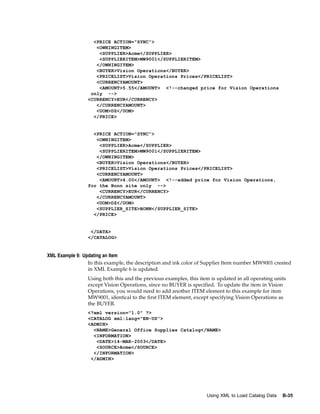
in Oracle iProcurement.
This chapter covers the following topics:
•   Requisitions Setup Checklist
•   Foreign Currency Support
•   Information Templates
•   Suggested Buyer
•   One-Time Address
•   Purchase Order Grouping for Requisition Lines with One-Time Addresses
•   Hazard Information
•   Global Requester
•   Express Setup Tool
•   Charge Account Displays
•   Expense Charge Account Rules
•   Employee P-Cards
•   Supplier P-Cards
•   Purchase Order (PO) Extract for P-Card Reconciliation
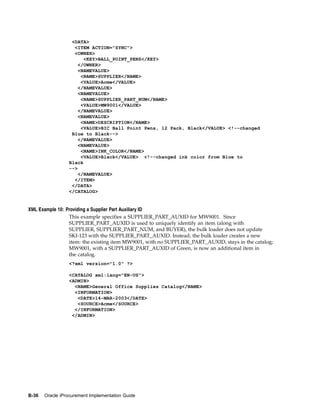
•   Project Accounting
•   Grants Accounting
•   Estimated Tax Functionality
•   Favorite Charge Accounts
•   Approvals
•   Global Approver
•   Requisition Changes
•   Requester-Initiated Changes to Purchase Orders
•   Requisition Cancellations
•   Lifecycle Tracking


                                                                  Requisitions Setup    5-1
•     Internal Requisitions
                  •     Oracle Services Procurement


Requisitions Setup Checklist
                  Use the following checklist for all setup related to requisition creation and
                  management. The steps are organized by functional area. For example, all steps that
                  have to do with setting up delivery information on requisitions are listed together. This
                  is a checklist of all setup steps in this chapter. These steps are listed in a suggested, but
                  not required, order.

                  Requisitions Setup Checklist

                   Number             Step                Functional Area   Required or       Information
                                                                            Optional          Source

                   1                  Foreign Currency Shopping             Optional          Foreign Currency
                                      Support                                                 Support, page
                                                                                              5- 4

                   2                  Information         Shopping          Optional          Information
                                      Templates                                               Templates, page
                                                                                              5- 6

                   3                  Suggested Buyer     Delivery          Optional          Suggested Buyer,
                                                                                              page 5-10

                   4                  One-Time            Delivery          Optional          One-Time
                                      Address                                                 Address, page
                                                                                              5-11

                   5                  Purchase Order      Delivery          Optional          Purchase Order
                                      Grouping for                                            Grouping for
                                      Requisition Lines                                       Requisition Lines
                                      with One-Time                                           with One-Time
                                      Addresses                                               Addresses, page
                                                                                              5-12

                   6                  Hazard              Delivery          Optional          Hazard
                                      Information                                             Information,
                                                                                              page 5-15

                   7                  Global Requester    Delivery          Optional          Global Requester,
                                                                                              page 5-16

                   8                  Express Setup       Delivery          Optional          Express Setup
                                      Tool                                                    Tool, page 5-18

                   9                  Charge Account      Billing           Optional          Charge Account
                                      Displays                                                Displays, page
                                                                                              5-21

                   10                 Expense Charge      Billing           Optional          Expense Charge
                                      Account Rules                                           Account Rules,
                                                                                              page 5-23


5-2   Oracle iProcurement Implementation Guide
Number   Step               Functional Area   Required or        Information
                                              Optional           Source

11       Employee P-        Billing           Optional           Employee P-
         Cards                                                   Cards, page 5-24

12       Supplier P-Cards   Billing           Optional           Supplier P-
                                                                 Cards, page 5-25

13       PO Extract         Billing           Optional           PO Extract
         for P-Card                                              for P-Card
         Reconciliation                                          Reconciliation,
                                                                 page 5-35

14       Project            Billing           Optional           Project
         Accounting                                              Accounting,
                                                                 page 5-40

15       Grants             Billing           Optional           Grants
         Accounting                                              Accounting,
                                                                 page 5-41

16       Estimated Tax      Billing           Optional           Estimated Tax
         Functionality                                           Functionality,
                                                                 page 5-41

17       Favorite Charge    Billing           Optional           Favorite Charge
         Accounts                                                Accounts, page
                                                                 5-43

18       Approvals          Approval          Required if        Approvals, page
                                              you have not       5-44
                                              implemented
                                              Oracle
                                              Purchasing

19       Global Approver    Approval          Optional           Global Approver,
                                                                 page 5-54

20       Requisition        Requisitions      Optional           Requisition
         Changes                                                 Changes, page
                                                                 5-54

21       Requester-         Requisitions      Optional           Requester-
         Initiated                                               Initiated
         Changes to                                              Changes to
         Purchase Orders                                         Purchase Orders,
                                                                 page 5-56

22       Requisition        Requisitions      Optional           Requisition
         Cancellations                                           Cancellations,
                                                                 page 5-60

23       Lifecycle          Requisitions      Optional           Lifecycle
         Tracking                                                Tracking, page
                                                                 5-61


                                                            Requisitions Setup     5-3
Number              Step                Functional Area   Required or       Information
                                                                             Optional          Source

                   24                  Internal            Requisitions      Optional          Internal
                                       Requisitions                                            Requisitions,
                                                                                               page 5-65

                   25                  Oracle Services     Requisitions      Optional          Oracle Services
                                       Procurement                                             Procurement,
                                                                                               page 5-70


Foreign Currency Support
                  Each time a requester searches for an item in a catalog, the search can display the
                  currency associated with that item. This currency can be any valid currency defined in
                  the application, including the functional currency. Similarly, a non-catalog request can
                  be made in any valid currency. Once these items are added to the shopping cart, the
                  application converts the price for that item into the functional currency using the relevant
                  exchange rate, and then displays the functional currency throughout the application.
                  The foreign currency feature provides the ability to display the foreign currency price
                  along with the functional currency price on key screens in the application.
                  The foreign currency can be displayed on the following pages:
                  •     Shopping Cart
                  •     Approver Shopping Cart
                  •     Edit Single Account
                  •     Edit Multiple Accounts
                  •     Review Charge Accounts
                  •     Edit Lines - Delivery information
                  •     Edit Lines - Billing information
                  •     Review and Submit - expand line details
                  •     Printer-friendly page
                  •     Approval Notification
                  •     Approval Notification Reminders
                  •     Requisitions: click requisition - click Details icon - expand line details


Setup Steps
                  Decide whether to display the transaction currency price to requesters during
                  checkout. Use Oracle Applications Framework personalization to display or hide the
                  field.


5-4   Oracle iProcurement Implementation Guide
Transaction and Functional Currency in Shopping Cart


The figure above shows the shopping cart displaying the price in the transaction
currency and in the functional currency. The following table shows the default settings
of transaction and functional prices and amounts in the shopping cart:

Price and Amount Fields by Default

Field Name                     Personalization Name            Displayed or Hidden by
                                                               Default?

Transaction Currency Price     Price                           Displayed by default

Functional Currency Price      FuncPrice                       Hidden by default

Transaction Amount             TxnAmountFlow                   This field cannot be
                                                               personalized

Functional Amount              FuncAmount and                  This field cannot be
                               TxnAsFuncAmount                 personalized


If you do not wish to accept the defaults for Transaction Currency Price and Functional
Currency Price, then use Oracle Applications Framework personalization to change
them. See Personalize Oracle iProcurement Using Oracle Applications Framework,
page 2-18.
If you want your changes to apply to the Review and Submit page of the checkout
process, additionally apply your personalizations to that page as well.
        Note: The Transaction Amount is hidden if the transaction currency is
        the same as the functional currency for all lines in the cart; it is shown if


                                                                      Requisitions Setup   5-5
there is at least one foreign currency line. The Functional Amount always
                          displays. Therefore, these fields cannot be controlled by personalization.


Profile Options
                  None


Function Security
                  None


Workflow
                  None


Implementation Considerations
                  No additional considerations.


Information Templates
                  You may set up information templates to gather additional information in Oracle
                  iProcurement to pass necessary order processing information to suppliers. When
                  an information template is assigned to a category or item, the application prompts
                  requesters to provide the information specified in the template when the item is added
                  to the shopping cart. This information becomes a line-level attachment to the requisition.
                  For example, you can implement information templates for items like business cards that
                  require additional information (name, address, e-mail, phone) from the requester. Oracle
                  iProcurement will then prompt for name, address, e-mail, and phone number when you
                  order business cards. Each information template must be associated with an Oracle
                  Purchasing item or item category. If an information template is associated with an item
                  category, all items belonging to that category are also associated with the template.

                  Information Template Fields in Oracle iProcurement


5-6   Oracle iProcurement Implementation Guide
The figure above shows how the information template fields display, on the Special
              Information page. (In this example, two templates were associated with the item
              - Additional Console Information and Origin - perhaps one template for the item and
              another for the category.) The Special Information page appears when the requester
              adds the item to the cart.


Setup Steps

              Create an information template:
              1.   Navigate to the Define Information Template window. From the Oracle Purchasing
                   menu, select Setup > Information Templates.
              2.   Give your Template a name.
                   This name appears as a heading just above the template fields during checkout
                   (Additional Console Information and Origin in the example above).
              3.   Select Available in All Organizations if you want the template to be available to
                   requesters in all operating units. Leave this option unselected if you want the
                   template to be available only to requesters in the same operating unit in which you
                   are creating the information template.
                   For example, you are logged in with a responsibility that is tied to the Vision France
                   operating unit. If you leave this option unselected, then your information template is
                   available only to people in your French operating unit.
              4.   Select an Attachment Category of To Supplier or To Buyer.
                   To Buyer means that the requisition, when turned into a purchase order, displays the
                   information template as an attachment to the buyer. To Supplier means that the
                   information template also displays as an attachment to the supplier.
              5.   Enter an Attribute Name and Description. The Attribute Description is the actual
                   field prompt that is displayed in Oracle iProcurement. The window is displayed
                   below:


                                                                                 Requisitions Setup   5-7
Define Information Template Window


                       If you use Multilingual Support (MLS), translations can be entered for the following
                       fields: Template, Attribute Name, Attribute Description, and Default Value. To enter
                       the translations, select Translations from the View menu. For more information, see
                       the Oracle Applications User’s Guide.
                  6.   Optionally, enter a default value to automatically appear in the field.
                       For example, for an Attribute Name of Body Color, the default value could be Black.
                  7.   If you want the template field to be a pop-list (drop-down menu) of values from
                       which the requester selects, see the steps for creating pop-lists below.
                  8.   Indicate whether the field is mandatory for Oracle iProcurement requesters. If the
                       field is mandatory, requesters will be required to enter a value in the field before
                       proceeding to complete the requisition.
                  9.   Indicate whether to activate the attribute to actually display in Oracle
                       iProcurement. In certain circumstances, you may want to define an attribute, but
                       delay enabling it for display.
                  10. Choose Associate Template to associate the template with an item or item
                      category. The Information Template Association window appears. This window is
                      displayed below:


5-8   Oracle iProcurement Implementation Guide
Information Template Association Window


11. Select the type of association (Item Number or Item Category) to associate with
    the template.
12. If you selected Item Number, enter the number. If you selected Item Category, enter
    the category.
13. Save your work.

Create pop-lists:
Follow these steps if you want your template fields to be a drop-down menu of
valid values. For example, you create a Country of Origin field. Instead of letting
the requester enter any value, you provide a drop-down menu that contains only the
values Canada, US, and Mexico.
For more details on the following steps, see the Oracle Applications Flexfields Guide.
1.   Log in to Oracle Purchasing.
2.   Use the following navigation: Setup > Flexfields > Validation > Sets.
3.   Create a flexfields validation set that satisfies the following criteria:
     •   Format Type is Char, and Maximum Size is less than or equal to 240.
     •   Validation Type is either Independent or Translatable Independent.
     •   List Type is any of the provided options.
4.   Use the following navigation: Setup > Flexfields > Validation > Values.
5.   Search for the validation set name that you just created and add values to it.
     For example, your validation set is Country of Origin, and the values are
     Canada, US, or Mexico.


                                                                        Requisitions Setup   5-9
6.   Access the Information Templates window as described above, in the instructions for
                       defining information templates.
                  7.   In the LOV field, select your validation set name.
                  8.   Save your work.

Profile Options
                  None

Function Security
                  None

Implementation Considerations
                  If information templates are created for both the item and a category that it belongs
                  to, then both templates apply to that item.
                  The information template is also accessible through a Special Information link in the
                  cart, if the requester wishes to update the fields after initially adding the items to the cart.

                  Information Templates for Each Line


                  The figure above shows how information templates are associated with multiple lines
                  in a cart, through the Special Information column. (The Special Information column
                  displays by default.)


Suggested Buyer
                  As requisitions are created in Oracle iProcurement, it is possible to indicate the suggested
                  buyer for each requisition and requisition line. A buyer can be defined on any of the
                  following:
                  •    Blanket purchase agreement or quotation
                  •    Requisition template
                  •    Item


5-10   Oracle iProcurement Implementation Guide
•     Category
              If a buyer is found on any of the above, then it will be defaulted onto the corresponding
              purchase requisition based on its position in the document hierarchy expressed
              above. The Oracle iProcurement requester may accept this default or override it based on
              the list of buyers in the Suggested Buyer field on the requisition. This suggested buyer
              information is then passed to the resulting purchasing document and may be overridden
              during the document creation process.


Setup Steps
              None


Profile Options
              The profile option HR: Cross Business Groups allows buyers to be defaulted from other
              business groups. Set this profile option as desired. See Set Profile Options, page 2-38
              for complete profile setup instructions.


Function Security
              None


Workflow
              The Get Buyer process of the PO Create Documents workflow retrieves buyer
              information for the purchase order when it is being created. For standard purchase
              orders, this process will retrieve the buyer from the requisition line (through
              the Get Buyer From Req Line function). If no buyer is defined at the requisition
              level, then the item master, category, source document, and contract are subsequently
              checked. When a blanket release is created, the buyer will be retrieved from the blanket
              agreement, regardless of the buyer defined on the associated requisition.


Implementation Considerations
              When the profile HR: Cross Business Groups is set to Yes:
              •     When using the Category to determine the default buyer, Oracle iProcurement will
                    cross business group boundaries when selecting the default buyer.
              •     The list of values for the Suggested Buyer field crosses business groups, enabling the
                    user to select an employee from another business group as the suggested buyer.


One-Time Address
              There are occasions when requesters want items delivered to a location, such as a home
              address, that is not an office location or other predefined location established in the
              database. This is considered a one-time address and can be defined as a deliver-to
              location. This feature enables users to specify a one-time address on a requisition line
              during the checkout process. The one-time address can be associated with individual
              requisition lines or with all requisition lines on a given requisition. One-time locations
              associated with requisition lines will then be displayed as a line-level attachment on the
              resulting purchase order.


                                                                                 Requisitions Setup   5-11
Setup Steps
                  To set up a default one-time address:
                  1.   Set up a dummy HR location that would be used as the deliver-to location on
                       the requisition line, whenever the requester specifies a one-time location. When
                       defining this location, it may or may not be associated with an organization. If it is
                       associated with an organization, then a distinct location must be defined for every
                       organization. This location can be set up using the Location window accessible from
                       the Purchasing menu (Setup > Organizations > Locations).
                  2.   Set the value of the profile POR: One Time Location to be equal to the name of the
                       location created in step 1. This profile value can be set at the site, responsibility, or
                       user level.
                  3.   By default, a single text entry box is provided to enter the address details. Use Oracle
                       Applications Framework personalization if you want to configure the address so
                       that individual address lines can be presented and displayed accordingly. See
                       Personalize Oracle iProcurement Using Oracle Applications Framework, page 2-18.


Profile Options
                  POR: One Time Location must be set to a location that has been previously defined in
                  the Location window.


Function Security
                  Access to this functionality can be restricted using menu function security. Under Menu
                  Exclusions, exclude the function One Time Location. See Function, Menu, and Data
                  Security, page 2- 8 for details on function security setup.


Workflow
                  None


Implementation Considerations
                  No additional considerations.


Purchase Order Grouping for Requisition Lines with One-Time Addresses
                  As requisitions are created in Oracle iProcurement, it is possible to assign one-time
                  addresses as the deliver-to locations for each line. One-time locations (delivery
                  addresses) are used when requesters want their items to be delivered to a location that
                  has not been previously defined (and most likely will not be used again). Individual
                  requisition lines can be delivered to distinct and separate one-time locations. Each
                  one-time location is represented on the resulting purchase order line as an attachment.
                  In the case where the same item is found on two or more requisition lines, each with a
                  separate one-time delivery address, the buyer or requester may not want these two (or
                  more) requisition lines to be grouped onto the same purchase order line since there could
                  be some confusion as to the quantity to be delivered to each location. The figure below
                  details the requisition-to-purchase order process when one-time locations are employed:


5-12   Oracle iProcurement Implementation Guide
One-Time Location on Requisitions and Purchase Orders


             As requisition lines are converted into purchase order lines, multiple requisition lines are
             grouped onto one purchase order line if certain characteristics, such as item and unit
             of measure, are the same. If one-time locations are associated with the requisition
             lines, each one-time location is represented on the resulting purchase order line as
             an attachment. The main functional elements of the one-time location grouping
             functionality are detailed below.


Grouping Options
             Attributes in the PO Create Documents Workflow control the grouping feature and
             provide the requester the ability to not group requisition lines that contain one-time
             locations. The workflow looks at the available requisition lines to be converted into
             purchase order lines and first determines the value of these attributes to determine if
             requisition lines with the same data will be grouped.
             The two workflow attributes are Is Grouping of Requisition Line Allowed? and Is Grouping
             of One Time Address Line Allowed? Each of these attributes can have a value of Yes or
             No. Depending on the value selected, the workflow PO Create Documents will behave
             differently:
             •     If the attribute Is Grouping of Requisition Line Allowed? is set to No, then no requisition
                   lines are consolidated into a single purchase order line.
             •     If grouping is set to occur, but Is Grouping of One Time Address Line Allowed? is set to
                   No, then requisitions with one-time locations will not be grouped.
             •     If both attributes are set to Yes, then all similar requisition lines, even those with
                   one-time locations will be consolidated onto a single purchase order line. The
                   default values for both attributes is Yes.


                                                                                    Requisitions Setup   5-13
Note: When the attribute Is Grouping of One Time Address Line Allowed? is
                            set to No, then no grouping of requisition lines with one-time locations
                            will occur, even if the one-time addresses are the same.
                            The internal names of the above attributes are GROUPING_ALLOWED_
                            FLAG and GROUP_ONE_ADDR_LINE_FLAG, respectively.


Append Quantity and UOM to Attachment
                  As one-time locations are converted and displayed as attachments for the purchase order
                  lines, these text attachments will now include the following information (for one-time
                  location text attachments only):
                  •    Unit of Measure (UOM)
                  •    Quantity Ordered
                  •    Location
                  As an example, the text of an attachment reads as follows:
                  Please ship 30 (Each) to:
                  100 Mason St.
                  Palo Alto, CA
                  95320


Setup Steps
                  1.   Access the PO Create Documents Workflow. See Customize Workflows, page 2-22.
                  2.   Find the workflow attributes Is Grouping of Requisition Line Allowed? and Is Grouping
                       of One Time Address Line Allowed?
                  3.   To modify the grouping logic, change the values of these attributes from Yes to
                       No. Yes is the defaulted value for both attributes. The following table details the
                       results of the various attribute setting combinations:

                       One-Time Location Grouping Attributes

                       Is Grouping of Requisition    Is Grouping of One Time     Result
                       Line Allowed?                 Address Line Allowed?

                       YES                           YES                         All similar requisition lines
                                                                                 will be grouped regardless
                                                                                 of the existence of one-time
                                                                                 locations.

                       YES                           NO                          Similar requisition lines
                                                                                 will be grouped unless a
                                                                                 one-time location is found
                                                                                 on the requisition line.

                       NO                            YES                         No grouping of requisition
                                                                                 lines will ever occur.

                       NO                            NO                          No grouping of requisition
                                                                                 lines will ever occur.


5-14   Oracle iProcurement Implementation Guide
Profile Options
              POR: One Time Location must be set. See Set Profile Options, page 2-38 for complete
              profile setup instructions.


Workflow
              The PO Create Documents workflow looks at the two attributes Is Grouping of Requisition
              Line Allowed? and Is Grouping of One Time Address Line Allowed? when determining if
              requisition lines should be grouped onto a single purchase order line.


Implementation Considerations
              •     The automatic grouping logic only applies to the workflow PO Create
                    Documents. When creating purchase documents through the Autocreate
                    window, the buyer always has the ability to control the grouping function.
              •     The profile POR: One Time Location must be properly set in order for one-time
                    locations to be used within Oracle iProcurement.
              •     If the first workflow attribute Is Grouping of Requisition Line Allowed? is set to
                    No, then no grouping will occur, regardless of the setting of Is Grouping of One Time
                    Address Line Allowed?


Hazard Information
              Hazard information can be indicated for each line item of a requisition. As requisitions
              are created in Oracle iProcurement, both a hazard identification number and a hazard
              class can be associated with a requisition line. Further, if an item already has a hazard
              identification number or a hazard class linked to it, either from a source document
              or the item master, then this default information will be passed on to the resulting
              requisition line. The hazard information consists of a hazard ID number (known as the
              UN Number) and a Hazard Class. This information can be entered or modified on
              the requisition line delivery information.


Setup Steps
              By default, the hazard fields are hidden. If you want to display them, use Oracle
              Applications Framework. See Personalize Oracle iProcurement Using Oracle
              Applications Framework, page 2-18.


Profile Options
              None


Function Security
              None


Workflow
              None


                                                                                  Requisitions Setup   5-15
Implementation Considerations
                  No additional considerations.


Global Requester
                  Oracle iProcurement enables requisition preparers to create requisitions on behalf of
                  another requester, even if that requester is in a different operating unit or business
                  group. For example, a manager in the United Kingdom can order office supplies for a
                  newly hired employee in the United States, even though the UK and the US represent
                  different business groups. There can be two scenarios:
                  •   Global preparer. The manager in the UK logs on using the US responsibility. Even
                      though the manager is not part of the US business group, she can create a requisition
                      for a US employee.
                  •   Global requester. The manager in the UK logs on using the US responsibility and picks
                      herself as the requester, even though she is not an employee in the US business
                      group. For example, the manager is traveling to the US and needs to order supplies
                      while in the US.
                  The resulting requisition is routed for approval based on the preparer’s approval
                  path, when an employee/supervisor hierarchy is used. When a position hierarchy
                  is used and the preparer or approver belongs to a different business group than the
                  requester, then the preparer or approver must manually select an approver for the
                  requisition. (The workflow cannot generate an approval list in this scenario.)

                  Requester Field During Checkout


                  The figure above shows the Requester field on the requisition during checkout. When
                  global requester functionality is enabled, then clicking the search icon next to this field
                  enables you to select requesters in other business groups.
                          Note: When you click the flashlight icon, the list of available requesters
                          includes all employees in the business group associated with the logon
                          responsibility, plus the preparer. For example, a manager in the UK
                          logs on using the US responsibility. This manager sees everyone in the
                          US business group, plus herself.


5-16   Oracle iProcurement Implementation Guide
Searching for Requisitions


              The figure above shows two search fields when searching for requisitions in the
              Requisitions tab: Requisition Created By (preparer) and Requester. If the global
              requester functionality is enabled, then you can check the option Include employees from
              other organizations to expand the search to preparers or requesters in other business
              groups. The list of available preparers and requesters includes all employees in the
              business group associated with the logon responsibility, plus the preparer.
                       Note: As always, you can monitor only those requisitions that
                       were created in the operating unit associated with your login
                       responsibility. For example, a manager in the UK logged on using the
                       US responsibility and created a requisition. When she logs on using the
                       UK responsibility, she does not find the requisition. She finds it only
                       when logging on using the US responsibility.


Setup Steps
              1.   Set HR: Cross Business Group to Yes to allow the selection of requesters in other
                   business groups.
                   If this profile option is set to No, then preparers can select requesters in other
                   operating units, but not in other business groups.
              2.   Set the profile option ICX: Override Requestor to either By All or Within
                   Organization.
                   When ICX: Override Requestor is set to No, then the Requester field on the
                   requisition defaults to the preparer and cannot be changed.


Profile Options
              Set the following profile options as described in Setup Steps, above:
              •    HR: Cross Business Group
              •    ICX: Override Requestor
              The following table illustrates how Oracle iProcurement behaves depending on the
              setting of these profile options:


                                                                                  Requisitions Setup    5-17
HR: Cross Business Group and ICX: Override Requestor

                  HR: Cross Business Group         ICX: Override Requestor       Preparer’s Actions

                  Yes                              By All                        Preparer can select any
                                                                                 employee in or outside his
                                                                                 business group.

                  Yes                              Within Organization           Preparer can select any
                                                                                 employee in or outside his
                                                                                 business group.


Function Security
                  The functions for viewing or performing actions on My Group’s Requisitions, My
                  Requisitions, All Requisitions, Requisitions I Approved, and Orders to Approve
                  behave the same regardless of how HR: Cross Business Group is set. For example, if
                  the requester is given access to View My Group’s Requisitions (and the security level
                  access for the requisition document type in Oracle Purchasing is set to Public), then the
                  requester can view all requisitions created in the operating unit that the requester is
                  logged in to, regardless of whether the preparer belongs to the same business group.


Implementation Considerations
                  The accounting for the global requester functionality behaves no differently than
                  it normally does:
                  •     If the item is an expense item and no account information is defined for the
                        item, then the system checks whether an account is associated with the requester (in
                        the People window in Oracle Applications). As always, this account has to share the
                        same set of books as the operating unit in which the requisition is created.
                  •     If the account is not valid for the set of books of the operating unit in which the
                        requisition is being created, then the system checks the favorite accounts that the
                        preparer has defined in the iProcurement Preferences. If a valid account does not
                        exist in the preferences, then the system still tries to build the account using the
                        expense charge account rules, if set up.
                  •     If the system cannot build the account information, then the preparer will be
                        prompted to enter the appropriate accounting information manually during
                        checkout.


Express Setup Tool
                  The Express Setup Tool allows for the fast definition and creation of
                  locations, employees, and requester information. It is also possible to update some
                  existing location and employee related fields using this tool.
                  The Express Setup tool is targeted towards rapid implementation for small to midsize
                  companies who do not want (or do not yet want) to perform the complete employee
                  and location setup in the Oracle Applications setup windows. It supports uploading of
                  up to 500 records at one time.


5-18   Oracle iProcurement Implementation Guide
Setup Steps
              Express setup is performed in two steps:
              1.   Creating the files that contain your locations and employees.
              2.   Uploading the locations and employees files.

              Preparing the Files:
              1.   Access the following files:
                   •   <APPL_TOP>/ICX/11.5.10/html/jsp/por/services/employees.zip

                   •   <APPL_TOP>/ICX/11.5.10/html/jsp/por/services/locations.zip

                   These files contain tab-delimited text (spreadsheet) templates in which to enter the
                   data. Fields in the files are separated by tabs, without special formatting characters.
              2.   Save the Zip files to a working directory of your choice.
              3.   Extract the contents of the Zip files to your directory. (When you open the Zip file, a
                   Comments dialog box appears. Click Close.)
                   Each Zip contains a blank template (.txt) file and a Readme file of instructions.
              4.   Fill in the locations and employees files.
                   Open the Readme files and follow the instructions for opening and populating
                   each template (.txt) file.
              5.   Once you have created the files, place them in a directory, on the same machine that
                   is used to run concurrent programs in Oracle Applications.
                   Talk to your database administrator or system administrator to determine which
                   machine this is. Use FTP or telnet to transfer the files. Be sure to place the files in a
                   read-access directory.

              Loading the Files:
              1.   Log in to Oracle Applications and choose the Procure-to-Pay Administrator
                   responsibility.
              2.   Navigate to the Find Requests window as follows: Reports > Run Report.
              3.   In the Find Requests window, choose Submit a New Request.
              4.   In the Submit Request window, select Express Setup Tool in the Name field.
              5.   In the Parameters window, enter the following:
                   •   Full path of the file name where you have placed your file.
                   •   File type (location or employee).
                           Note: The file must be in a read-access directory that resides on
                           the same machine that runs the concurrent manager in Oracle
                           Applications.
                           If you created new locations for employees in the employees
                           file, load the locations file first. (Locations must already exist in
                           Oracle Applications before they can be associated with an employee
                           in the employees file.)


                                                                                    Requisitions Setup   5-19
6.   Choose OK, and then Submit.
                  7.   Following a data load, a log is recorded that lists both the number of records loaded
                       and not loaded successfully. A detailed description is given as to why a certain
                       record did not load successfully.
                       To access the log, use the Find Requests window to find your request. Select your
                       request and choose View Log.
                  For more instructions on submitting and monitoring requests, see the Oracle Applications
                  System Administrator’s Guide.


Profile Options
                  None


Function Security
                  Through function security, requesters can be prohibited from loading
                  locations, employees, and requesters through the Express Loader Tool by excluding the
                  function Express Setup Tools. See Set Up Function, Menu, and Data Security, page
                  2- 8 for detailed instructions.


Workflow
                  None


Implementation Considerations
                  •    The Employee Number can only be loaded when it has been set to Manual. When
                       set to Automatic, the system will reject the records containing employee numbers.
                  •    The Employee Number should be unique for every requester.
                  •    The name of the employee will be stored exactly as it is entered. Case conversion
                       will not be performed. For example, an employee entered as tOM SmiTH in the
                       file will appear exactly in this manner.
                  •    Once a start date has been entered, it cannot be updated.
                  •    Specifying the End-Date for an employee is not supported. (You would have to log
                       into Oracle Applications and specify an End Date in the People window.)
                  •    The location specified for the employee in the employees file must have already
                       been created in Oracle Applications.
                  •    Data load sequence:
                       •   Building on the previous note, the location loader should always be run before
                           the employee loader.
                       •   The supervisor of an employee should already be defined in the system before
                           entering the employee.
                  •    The application user password cannot be updated using the loader.
                  •    The loader only supports the American English language.
                  •    Note the following considerations when express loading locations:
                       •   The loader only supports the address style of United States.


5-20   Oracle iProcurement Implementation Guide
•   Locations cannot be defined as Global using the loader.
               •   The loader only supports the American English language.


Charge Account Displays
           Use the profile options listed below to determine how or whether to display charge
           account information at certain points during the checkout process.
           The profile option POR: Generate and Display Account at Checkout affects the first step
           of the checkout.

           First Step of Checkout: Charge Account Not Displayed


           The figure above shows that when POR: Generate and Display Account at Checkout is
           set to No (its default value), then no charge account displays during the first step of the
           checkout. (It always displays when you edit lines and on the last, review-and-submit
           page of the checkout.)

           First Step of Checkout: Charge Account Displayed


           The figure above shows that when POR: Generate and Display Account at Checkout
           is set to Yes, then the charge account displays during the first step of the checkout, in


                                                                              Requisitions Setup   5-21
the Billing section. (If the charge account varies by line, then the Charge Account field
                  displays a "Multiple" link.)
                  The profile option POR: Display Legacy Accounting Flex UI affects the optional edit
                  lines step of the checkout.

                  Edit Charge Account: Segments Not Separated


                  The figure above shows how the charge account, 01-510-7530-0000-000, displays in a
                  single field if POR: Display Legacy Accounting Flex UI is set to No (its default value). If
                  desired, the requester can edit this field. (To edit the charge account, click Edit Lines
                  during checkout. Click Accounts. Click the account itself.)

                  Edit Charge Account: Segments Separated


                  The figure above shows how the charge account, 01-510-7530-0000-000, displays each
                  segment in a separate field if POR: Display Legacy Accounting Flex UI is set to Yes. In
                  this example, the segments are displayed in separate columns as follows: Company
                  (01), Department (510), Account (7530), and Sub-Account (0000).
                  Whether the account displays in a single or separate field, the names of each segment
                  still display, and the requester can click a search icon to search for the valid accounts for
                  each segment. Only the method of displaying and searching the segments changes.


5-22   Oracle iProcurement Implementation Guide
Searching for All Segments


              The figure above shows how you can still search individual segments, even if you
              display all of them in one field.


Setup Steps
              Set the profile options listed below.


Profile Options
              Set the following profile options as desired:
              •     POR: Generate and Display Account at Checkout
              •     POR: Display Legacy Accounting Flex UI
              See Profile Options, page 2-38.


Function Security
              None


Workflow
              None


Implementation Considerations
              No additional considerations.


Expense Charge Account Rules
              When determining the default charge account, the account generator may reference
              the charge account defined on the employee record. Expense Charge Account Rules
              enable you to override one or multiple segments of that default account based on the
              item category. This ability to override does not interfere with the action of the account


                                                                                Requisitions Setup   5-23
generator, but simply replaces those segments you configure after the account generator
                  has created a charge account.


Setup Steps
                  1.   Log in to Oracle Applications and choose the Procure to Pay Administrator
                       responsibility.
                  2.   Navigate to Purchasing Setup > Financials > Accounting > Expense Account Rules.
                  3.   Define the rules (per item category) in the window displayed. Duplicate rules for the
                       same category or account segment are not permitted.
                  4.   Save your work.


Profile Options
                  Set POR: Apply Expense Account Rules to Favorite Charge Accounts to Yes. See Profile
                  Options, page 2-38.


Function Security
                  None


Implementation Considerations
                  No additional considerations.


Employee P-Cards
                  Employee P-Cards are a way for companies to incorporate electronic payment and
                  settlement procedures to streamline their procure-to-pay processes. Each requester is
                  assigned his or her own employee P-Card to make purchases using Oracle iProcurement.


Setup Steps
                  For detailed information on setting up procurement cards, see the sections on Setting
                  Up Credit Card Programs and Procurement Card Management in the Oracle Payables
                  User’s Guide.
                  In addition to the setup steps provided in the Oracle Payables User’s Guide, you will need
                  to enable supplier sites to accept procurement cards.
                  1.   Log in to Oracle Applications. From the Oracle Purchasing menu, select Supply
                       Base > Suppliers.
                  2.   Query the supplier associated with the supplier site you want to set up.
                  3.   Choose Sites. Query the supplier site for which you want to enable procurement
                       cards.
                  4.   Enable the Procurement Card check box to indicate that the supplier site is P-Card
                       enabled.
                  5.   Save the changes.


5-24   Oracle iProcurement Implementation Guide
Profile Options
              The profile option POR: Override Supplier P-card must be evaluated when implementing
              this feature. See Profile Options, page 2-38 for complete profile setup instructions.


Function Security
              None


Workflow
              None


Implementation Considerations
              See considerations for Supplier P-Cards.


Supplier P-Cards
              Supplier P-Cards (or Ghost Cards) are another way for companies to incorporate
              electronic payment and settlement procedures in order to streamline their procure-to-pay
              processes. Instead of having to maintain a separate employee P-Card for each requester in
              the company and each requester having to use his or her own employee P-Card to make
              purchases, companies can maintain a single supplier P-Card for each supplier/supplier
              site in the system, and consolidate all purchases from that supplier/supplier site on
              the single P-Card. The feature allows all requisitions in Oracle iProcurement (across
              requesters) created against the respective supplier/supplier site to be automatically
              charged to the single supplier P-Card. To enable the feature, the supplier P-Card must be
              set up and tied to the supplier/supplier site in advance. This arrangement improves
              control on the purchasing process and cuts down on maverick spending.


Setup Steps
              There are two major business flows involved in the supplier P-Card functionality used
              in Oracle iProcurement:
              •     Supplier P-Card Setup
              •     Supplier P-Card Assignment For Requisitions
              See the Implementation Considerations section below for a detailed discussion of these
              setup steps since they do not interact with Oracle iProcurement directly. Each of the
              major flows is set up separately.


Profile Options
              POR: Override Supplier P-Card must be set. See Set Profile Options, page 2-38 for
              complete profile setup instructions.


Function Security
              None


                                                                               Requisitions Setup   5-25
Workflow
                  None


Implementation Considerations

Supplier P-Card Setup
                  To enable the supplier P-Cards feature, you first need to enable supplier/supplier sites
                  to accept procurement cards.
                  1.   Log in to Oracle Applications. From the Oracle Purchasing menu, select Supply
                       Base > Suppliers.
                  2.   Query the supplier associated with the supplier site
                  3.   Choose Sites. Query the supplier site for which you want to enable procurement
                       cards.
                  4.   Enable the Procurement Card check box to indicate that the supplier site is P-Card
                       enabled.
                  5.   Save the changes.
                       After the supplier/supplier sites have been enabled for P-Cards, you need to set
                       up supplier P-Cards in Oracle Payables using a process similar to the setup for
                       employee P-Cards. To set up supplier P-Cards, the windows detailed in the figure
                       below must be populated.

                       Setup for Supplier P-Card


                       Card Programs: This window is used to set up the following information for a
                       P-Card:
                       •   Card Brand: Card brand name (American Express, Diners, Visa, Mastercard, and
                           so forth).
                       •   Card type: Select whether the card is of type Procurement, Travel, or
                           Supplier. Only P-Cards of type Supplier and Employee can be used in Oracle
                           iProcurement. To set up a supplier P-Card, you would have to select a card
                           type of Supplier.
                       •   Card Issuer/Issuer Site: Select a card issuer/issuer site for the card program. The
                           card issuer/issuer site needs to be an active supplier/supplier site in the system.
                       Card Profiles: This window is used to associate card profile(s) to the card
                       program. Multiple credit card profiles can be associated with each card
                       program. The profile records any transaction amount limits that are associated with
                       a P-Card. These transaction limits will be passed on to the P-Cards (both employee
                       and supplier) that are created using the profile.


5-26   Oracle iProcurement Implementation Guide
Note: When the P-Card (employee or supplier) associated with the card
         profile is used for a requisition checkout in Oracle iProcurement, the
         transaction limit is enforced as follows:
         •   If the aggregate amount (in functional currency for the operating
             unit) for all line(s) in the requisition checkout that can be charged to
             the P-Card is equal to or smaller than the transaction limit defined
             on the card profile, then the P-Card will be assigned to all the line(s).
         •   If the aggregate amount (in functional currency for the operating
             unit) for all lenses) in the requisition checkout that can be charged to
             the P-Card is greater than the transaction limit defined on the card
             profile, then the P-Card will not be assigned to any of the line(s).


Credit Cards: This window (shown in the figure below) is used to define the P-Card
and associate it with a card program and card profile.

Credit Cards Window


This window can be used to enter the following information:
1.   Enter information for the P-Card such as the card number and expiration date.
2.   Associate the card with the card program and card profile.
3.   If the card program selected is of type Procurement, then additional information
     about the employee who would own the P-Card can be entered in the window.
4.   If the card program selected is of type Supplier, then the supplier/supplier
     site(s), which are to be associated with the supplier P-Card, can be entered. The
     business rules for associating the P-Card to a supplier/supplier site when the card
     program selected is of type Supplier are as follows:


                                                                     Requisitions Setup   5-27
•   The fields in the window that are applicable for a card program of type
                           Procurement (such as Card Member Name, Employee Name, and Employee
                           Number) cannot be entered.
                       •   The supplier and supplier site fields on the window are mandatory. That is, each
                           supplier P-Card must have at least one supplier/supplier site associated with it.
                       •   Each supplier site can only be associated with a single supplier P-Card.
                       •   A single supplier P-Card can be associated with (shared by) multiple supplier
                           sites as long as the supplier sites belong to the same supplier.
                       •   Supplier sites within a supplier can each be associated with different supplier
                           P-Cards.
                       •   The Select All Eligible Sites button provides the requester the ability to enter the
                           multiple supplier sites quickly and easily. Hitting the button will automatically
                           fill up the supplier site fields for the selected supplier with valid but unassigned
                           (that is, the site is not assigned to another supplier P-Card) supplier site(s) for
                           the selected supplier.
                  For additional information about setting up supplier P-Cards, see the Oracle Payables
                  User’s Guide.

Supplier P-Card Assignment for Requisitions
                  When the requester creates a requisition in Oracle iProcurement, one of the following
                  payment methods can be assigned to each line on the requisition:
                  •    Employee P-Card
                  •    Supplier P-Card
                  •    No P-Card (payment method on invoice)
                  As the requester is checking out a requisition in Oracle iProcurement, the application
                  checks and determines which payment method should be assigned to each line on
                  the requisition. The first payment method (employee P-Card) is an option which the
                  requester can explicitly select during the requisition checkout. The other two payment
                  methods (supplier P-Card and no P-Card) are automatically assigned to the requisition
                  line by the application when certain conditions are met (the requester does not have to
                  explicitly select them).
                           Note: A requisition in Oracle iProcurement can contain multiple
                           line(s). Depending on the source of the item/service on the line (internal
                           or from external supplier/supplier site), the type of the item (expense
                           or inventory) and other setup, different payment methods could be
                           applicable for each line. Hence, the assignment of the payment method is
                           done at the requisition line level, and not at the requisition header level.


                  The following business rules apply for the assignment of payment methods to a
                  requisition line during checkout:
                  1.   No P-Card (neither employee P-Card nor supplier P-Card) can be assigned to a
                       requisition line in the following cases:
                       •   No supplier/supplier site is available or selected for the requisition line.
                       •   The item or service on the requisition line is sourced internally.


5-28   Oracle iProcurement Implementation Guide
•   The supplier/supplier site available or selected for the requisition line is not
         P-Card enabled.
     •   No employee P-Card has been set up for the requester and no supplier P-Card
         has been set up for the supplier/supplier site that is available or selected for
         the requisition line.
     •   The requisition line is associated with a project, in which case a P-Card
         (employee or supplier) cannot be assigned to the line.
     •   For an inventory item being delivered to a subinventory, a P-Card (employee or
         supplier) cannot be assigned to the line. On the other hand, if the inventory
         item is not delivered to a subinventory, then a P-Card (employee or supplier)
         can be assigned to the line.
2.   If none of the above cases is met, then P-Cards (employee or supplier), if set up, are
     eligible to be assigned to the requisition line. Only one of them can be applied, and
     Oracle iProcurement determines which one to apply during the requisition checkout
     process.
     In order to provide maximum flexibility, a system profile controls which P-Card
     (employee or supplier) gets precedence when both P-Card types are eligible to
     be applied to the requisition line. The profile is called POR: Override Supplier
     P-Card. This profile applies to the Supplier P-Card Assignment for Requisitions
     business flow.
3.   If none of the cases mentioned in Rule #1 is applicable and if the POR: Override
     Supplier P-Card profile value is set to No, the business logic for assignment of
     P-Cards to a requisition line during a checkout is illustrated in the following figure.

     Supplier P-Card Assignment for Profile Set to No


4.   If none of the cases mentioned in Rule #1 is applicable and if the POR: Override
     Supplier P-Card profile value is set to Yes, the business logic for assignment of
     P-Cards to a requisition line during a checkout is illustrated in the following figure.


                                                                    Requisitions Setup   5-29
Supplier P-Card Assignment for Profile Set to Yes


                  5.   After the application has determined the payment method for the requisition line(s)
                       during checkout, the information is made visible to the requester. Access to this
                       information is available on the Review and Submit page during checkout, and
                       also on the Requisition Details page after the requisition has been submitted. If
                       an employee P-Card has been assigned to at least one line on the requisition, then
                       the partially masked employee P-Card number is displayed in the P-Card Number
                       field at the requisition header level. At the requisition line level, the P-Card Used
                       field will indicate which payment method is assigned to that particular line. The
                       possible values for this field are:
                       •   Yes when employee P-Card is assigned to the line
                       •   Supplier P-Card when supplier P-Card is assigned to the line
                       •   No when no P-Card is assigned to the line
                           •   Only one employee P-Card can be used per requisition and it may
                               or may not apply to all the lines on the requisition. So the P-Card
                               Number field at the requisition header level contains either a single
                               partially masked employee P-Card number or a blank value.
                           •   The actual supplier P-Card number is not displayed to the requester
                               (neither in the P-Card Number field at the requisition header level
                               nor in the P-Card Used field at the requisition line level). The
                               value of the P-Card Used field at the requisition line level (when
                               it is Supplier P-Card) is the only indication to the requester that a
                               supplier P-Card has been assigned to the line.


5-30   Oracle iProcurement Implementation Guide
Supplier P-Card Carryover from Requisition to Purchase Orders
                The requisition that is created in Oracle iProcurement is converted into a purchasing
                document in Oracle Purchasing. When all the necessary conditions are met, the resulting
                purchase order document contains the supplier P-Card number that was associated
                with the requisition line. Currently there are three processes in Oracle Purchasing to
                convert a requisition into a purchase order:
                •   PO Create Documents workflow: Workflow process to automatically create standard
                    purchase orders and blanket releases from approved requisitions.
                •   Autocreate window: Utility to manually create standard purchase orders and
                    blanket releases from approved requisitions.
                •   Create Releases: Concurrent program to generate releases for existing blanket
                    purchase agreements from approved requisitions.

Common Business Rules for All Requisition-to-Purchase Order Conversion Processes
                • As discussed in the Supplier P-Card Assignment for Requisitions section above, the
                    P-Card Used flag for the requisition lines coming from Oracle iProcurement holds
                    three possible values: Yes, No, or Supplier P-Card. This flag determines whether
                    and which P-Card number (employee or supplier or none) should be applied to the
                    purchase order, which is generated in Oracle Purchasing.
                •   A P-Card (employee or supplier) can be assigned to purchase order documents of
                    type Standard Purchase Order and Blanket Purchase Release only. Only one P-Card
                    number (employee or supplier) can be assigned per purchase order and is applied
                    at the header level of the purchase order only, and, unlike a requisition in Oracle
                    iProcurement, applies to all the lines on the purchase order.
                        Note: If purchase orders are created directly or are created from
                        requisitions submitted in Oracle Purchasing (that is, there is no
                        associated requisition in Oracle iProcurement), then no P-Card can be
                        assigned to the purchase order, even if the particular supplier/supplier
                        site accepts P-Cards.


                The logic to determine how and which P-Card number (employee or supplier or none)
                should be applied to the purchase order works as indicated in the table below. This logic
                applies to all the three requisition-to- purchase order conversion processes.


                                                                                 Requisitions Setup   5-31
Common P-Card Logic

                  Number                 Value of P-Card      Value of P-Card Used   Requisition-to-
                                         Number for           Flag for Requisition   Purchase Order
                                         Requisition Header   Line(s)                Conversion Logic in
                                                                                     Oracle Purchasing

                  1                      None                 Yes                    Scenario NOT
                                                                                     possible. If there is
                                                                                     no P-Card number
                                                                                     at requisition header
                                                                                     level, all values for
                                                                                     P-Card Used flag
                                                                                     should either be No or
                                                                                     Supplier.

                  2                      None                 No                     No employee P-Card
                                                                                     can be applied to
                                                                                     purchase order.
                                                                                     For such requisition
                                                                                     line(s):
                                                                                     If requisition line(s)
                                                                                     have same supplier/
                                                                                     supplier site and other
                                                                                     purchase order header
                                                                                     level information,
                                                                                     then requisition line(s)
                                                                                     can be put on a single
                                                                                     purchase order.
                                                                                     Else, requisition
                                                                                     line(s) will be put
                                                                                     on different purchase
                                                                                     order(s).


5-32   Oracle iProcurement Implementation Guide
Number   Value of P-Card      Value of P-Card Used   Requisition-to-
         Number for           Flag for Requisition   Purchase Order
         Requisition Header   Line(s)                Conversion Logic in
                                                     Oracle Purchasing

3        None                 Supplier               No employee P-Card
                                                     can be applied to
                                                     purchase order.
                                                     Derive supplier P-
                                                     Card defined for
                                                     supplier/supplier
                                                     site:
                                                     If supplier P-Card is
                                                     valid (refer to Note),
                                                     maintain supplier
                                                     P-Card for requisition
                                                     line(s).
                                                     If supplier P-Card
                                                     is invalid, delete
                                                     supplier P-Card for
                                                     requisition line(s).
                                                     For such requisition
                                                     line(s):
                                                     If requisition line(s)
                                                     have same supplier/
                                                     supplier site and other
                                                     purchase order header
                                                     level information,
                                                     then requisition line(s)
                                                     can be put on a single
                                                     purchase order.
                                                     Else, requisition
                                                     line(s) will be put
                                                     on different purchase
                                                     order(s).


                                                 Requisitions Setup       5-33
Number                 Value of P-Card      Value of P-Card Used   Requisition-to-
                                         Number for           Flag for Requisition   Purchase Order
                                         Requisition Header   Line(s)                Conversion Logic in
                                                                                     Oracle Purchasing

                  4                      Employee P-Card      Yes                    Employee P-Card
                                         Number                                      from requisition
                                                                                     header can be applied
                                                                                     to purchase order:
                                                                                     If employee P-Card is
                                                                                     valid (refer to Note),
                                                                                     maintain employee
                                                                                     P-Card for requisition
                                                                                     line(s).
                                                                                     If employee P-Card
                                                                                     is invalid, delete
                                                                                     employee P-Card for
                                                                                     requisition line(s).
                                                                                     For such requisition
                                                                                     line(s):
                                                                                     If requisition line(s)
                                                                                     have same supplier/
                                                                                     supplier site and other
                                                                                     purchase order header
                                                                                     level information,
                                                                                     then requisition line(s)
                                                                                     can be put on a single
                                                                                     purchase order.
                                                                                     Else, requisition
                                                                                     line(s) will be put
                                                                                     on different purchase
                                                                                     order(s).

                  5                      Employee P-Card      No                     Do not apply
                                         Number                                      employee P-Card
                                                                                     from header level to
                                                                                     line(s).
                                                                                     For such requisition
                                                                                     line(s):
                                                                                     If requisition line(s)
                                                                                     have same supplier/
                                                                                     supplier site and other
                                                                                     purchase order header
                                                                                     level information,
                                                                                     then requisition line(s)
                                                                                     can be put on a single
                                                                                     purchase order.
                                                                                     Else, requisition
                                                                                     line(s) will be put
                                                                                     on different purchase
                                                                                     order(s).


                          Note: Validity check for employee and supplier P-Cards includes:
                          •   Is card active?, AND
                          •   Is card not expired?, AND


5-34   Oracle iProcurement Implementation Guide
•   Is Supplier/Supplier Site P-Card enabled?


Additional Business Rules for Purchase Order Autocreate Window
                   In addition to the logic discussed in the previous table, when a buyer in Oracle
                   Purchasing converts a requisition into a purchase order using the Purchase Order
                   Autocreate window, the buyer can resolve or change the supplier/supplier site at
                   that time. However, even if the buyer selects a supplier/supplier site which accepts
                   supplier P-Cards, the P-Card information will be not applied at that time. In other
                   words, only the requisition lines which have P-Card information assigned to them
                   during the requisition checkout in Oracle iProcurement can have P-Cards assigned
                   to them in the resulting purchase order.

Business Rules for Changing Supplier/Supplier Site on Purchase Order
                   Even if there is a P-Card assigned to the purchase order, the buyer has the ability to
                   change the supplier/supplier site on the purchase order. The new supplier/supplier
                   site may not accept P-Cards (employee or supplier) and it could lead to an error
                   condition. Hence, if a P-Card (employee or supplier) exists on a purchase order, and, if
                   the buyer changes the supplier/supplier site on the purchase order, the application
                   automatically deletes the P-Card number on the purchase order. Before doing so, the
                   application generates an appropriate warning message for the buyer.

Purchase Order Communication to Supplier
                  Once the purchase order with the assigned supplier P-Card has been created and
                  approved, the supplier P-Card information is sent as a part of the purchase order when it
                  is communicated to the supplier. The information sent is adequate for the supplier to
                  charge the amount on the purchase order to the assigned supplier P-Card. Similar to the
                  existing support for the employee P-Card, the following information for the supplier
                  P-Card is sent as a part of the purchase order:
                  •   P-Card Number
                  •   Card Member Name
                  •   Expiration Date for P-Card
                  •   Credit Card Brand
                  Also, similar to existing support for employee P-Cards, the supplier P-Card information
                  will be sent as a part of the purchase order only when the purchase order is
                  communicated to the supplier via EDI delivery and XML delivery.
                  For detailed information on purchase order communication to the supplier using EDI
                  delivery, see the Oracle e-Commerce Gateway User’s Guide. For detailed information
                  on purchase order communication to the supplier via XML delivery, see the Oracle
                  Purchasing 11i XML Transaction Delivery Guide and the Oracle XML Gateway User’s Guide.


Purchase Order (PO) Extract for P-Card Reconciliation
                  The P-Card reconciliation process provides the capability to electronically reconcile the
                  P-Card statements and the corresponding purchase orders in the buyer’s purchasing
                  application for both employee and supplier P-Card transactions. The reconciliation
                  engine is typically provided by the card issuer and resides in the buyer’s purchasing
                  system. In order to accommodate the reconciliation process, the engine needs a couple of
                  information feeds:


                                                                                    Requisitions Setup    5-35
•   Transaction feed from the P-Card issuer containing charges for the billing cycle
                  •   Purchase order history feed from the buyer’s purchasing system for the billing cycle
                  This reconciliation is necessary so that the buyer is able to electronically verify that only
                  valid supplier purchase orders are included in the invoice(s) that are paid to the card
                  issuer. After a successful reconciliation between the PO history feed and the transaction
                  feed, the reconciliation engine typically sends the reconciled data files to Oracle Payables
                  (using the Oracle Payables Open Interface). The figure below shows the flow for the
                  P-Card reconciliation process:

                  P-Card Reconciliation Flow


                  Please refer to the documentation provided with the reconciliation engine and the Oracle
                  Payables User’s Guide for detailed information on this part of the process.
                  At the end of the P-Card billing cycle, typically the buying company receives a
                  transaction feed containing an electronic statement for all P-Card purchases made by the
                  buying company. The corresponding purchase order information for the P-Card billing
                  cycle needs to be extracted from the buyer’s purchasing application. The Purchase Order
                  Extract for P-Card Reconciliation feature provides the capability to prepare the purchase
                  order history feed for the reconciliation engine. It is a concurrent report/request, called
                  PO History Feed, which can be run in Oracle Purchasing to generate the feed.


5-36   Oracle iProcurement Implementation Guide
Concurrent Report
               The new concurrent report accumulates and compiles the necessary PO history data in a
               specific format. Upon its completion, the output file is stored in a specified directory
               location. The following business rules apply to the concurrent request:
               1.   Name for the concurrent program:
                    •   Title: Purchase Order History Feed for P-Card Reconciliation
                    •   Description: Purchase Order History Feed for reconciling P-Card payments
               2.   The concurrent program belongs to Oracle Purchasing.
               3.   The program can be initiated at any time but is typically run before the end of the
                    monthly billing cycle for the P-Card. It can also be set to run at a pre-specified
                    frequency through standard report submission (SRS).
               4.   The output of the concurrent program will be stored in a specific directory. The
                    directory is derived from the UTL_FILE_DIR parameter in the INIT.ORA file of the
                    Oracle Purchasing installation. The application administrator should set up the
                    output directory location prior to running the concurrent program.
               5.   The PO History Feed Report Request window has the following parameters which
                    need to be entered prior to the submission of the report:
                    •   Card Brand Name: List of values containing all available card brand names.
                    •   Card Issuer/Card Issuer Site: List of values containing all valid Card
                        Issuer/Issuer Sites.
                    •   From Date/From Time: From Date and Time. The last_update_date for a
                        purchase order should be on or later than the selected date and time in order
                        for it to be selected.
                        After the requester has entered a valid Card Brand Name, Card Issuer and Card
                        Issuer Site, the From Date/From Time field on the window gets auto-filled
                        with the To Date and To Time information from the last successfully run
                        report (report with Completed Phase with Normal Status or Complete Phase with
                        Warning Status) for the selected card brand name and card issuer/card issuer
                        site combination. Using this logic reduces the chances of sending duplicate PO
                        History Feeds by running reports with overlapping dates and missing PO
                        records by skipping intermediate dates.
                                Note: If the last run report for a particular card brand name
                                and card issuer/card issuer site combination is not completed
                                successfully (the request is in any phase/status other than
                                Completed Phase with Normal Status or Complete Phase with
                                Warning Status), then the To Date/Time information for that
                                request is not tracked.


                    •   To Date/To Time: To Date and Time. The last_update_date for a purchase order
                        should be earlier than the selected date and time in order for it to be selected.
                        •   Output Filename: The name of the file in which the PO History feed file
                            generated by the report should be stored in the output directory location. If
                            a file with the same filename as the one selected in the Output Filename field
                            already exists in the output directory, then the new file will overwrite the
                            existing file in the output directory.


                                                                                 Requisitions Setup   5-37
Criteria Selection of Purchasing Records
                  Only purchase orders which satisfy certain selection criteria are included in the PO
                  history feed. Some of the selection criteria for the purchase records are entered on the PO
                  History Feed Report Request window (as discussed in the section above), while the rest
                  of the selection criteria are automatically and internally applied by the application. The
                  internal selection criteria are as follows:
                  •   Only purchase orders of type Standard Purchase Order and Blanket Release are
                      available for selection.
                  •   Only purchase orders created against supplier/supplier sites that belong to the same
                      operating unit as the requester’s responsibility are selected.
                  •   The different values for the Approval Status, Control Status, and On Hold Status for
                      the purchase order in Oracle Purchasing determine whether the purchase orders
                      should be sent as a part of the PO History Feed. The following business rules apply:
                      •   Only purchase orders with an approval status of Approved and Requires
                          Reapproval are eligible for selection; purchase orders with any other approval
                          status do not get extracted.
                      •   Purchase orders with an approval status of Requires Reapproval get selected only
                          if they have been approved at least once before they were put in the current
                          approval status of Requires Reapproval.
                      •   Based on a combination of the Approval Status, Control Status, and On Hold
                          Status for the purchase order, the program will generate three possible statuses
                          for the Order Status field for the purchase order included in the PO History Feed:
                          •   ON: Purchase order is open and should be reconciled with the corresponding
                              transaction feed from the card issuer.
                          •   HL: Purchase order is temporarily put on hold, but the hold may get released
                              at a later time. However, it should not be reconciled with the corresponding
                              transaction feed from the card issuer while it is still in the HL status.
                          •   CN: Purchase order is permanently canceled and should not be reconciled
                              with the corresponding transaction feed from the card issuer.
                  The figure below indicates the selection logic based on the Approval, Control, and On
                  Hold statuses of the purchase order in Oracle Purchasing and the appropriate output
                  status for the purchase order in the PO History Feed.


5-38   Oracle iProcurement Implementation Guide
Status and Selection Logic

              Number            Approval Status   Control Status    On Hold Status    Selection and
                                                                                      Status of
                                                                                      Purchase Order
                                                                                      in PO History
                                                                                      Feed

              1                 Approved          All except        Not On Hold       PO is sent with
                                                  Canceled and                        Order Status =
                                                  Finally Closed                      ON

              2.                Approved          All except        On Hold           PO is sent with
                                                  Canceled and                        Order Status =
                                                  Finally Closed                      HL

              3                 Approved          Canceled OR       Does Not Matter   PO is sent with
                                                  Finally Closed                      Order Status =
                                                                                      CN

              4                 In Process        Does Not Matter   Does Not Matter   PO is not sent

              5                 Incomplete        Does Not Matter   Does Not Matter   PO is not sent

              6                 Pre-approved      Does Not Matter   Does Not Matter   PO is not sent

              7                 Rejected          Does Not Matter   Does Not Matter   PO is not sent

              8                 Requires          All except        Does Not Matter   If (PO AP
                                Reapproval1.      Canceled and                        PROVED_DATE
                                                  Finally Closed                      ¹ NULL), PO is
                                                                                      sent with Order
                                                                                      Status = HL
                                                                                      If (PO AP
                                                                                      PROVED_DATE
                                                                                      = NULL), PO is
                                                                                      not sent

              9                 Requires          Canceled or       Does Not Matter   If (PO AP
                                Reapproval3.      Finally Closed                      PROVED_DATE
                                                                                      ¹ NULL), PO is
                                                                                      sent with Order
                                                                                      Status = CN
                                                                                      If (PO AP
                                                                                      PROVED_DATE
                                                                                      = NULL), PO is
                                                                                      not sent


              For complete details of the format and data elements of PO History Feed see the PO
              History Feed File appendix of this guide.

Setup Steps
              As mentioned in the section above, the output of the concurrent program will be stored
              in a specific directory. The directory is derived from the UTL_FILE_DIR parameter
              in the INIT.ORA file of the Oracle Purchasing installation. For additional details


                                                                              Requisitions Setup       5-39
about setting the output directory location, refer to the Oracle e-Commerce Gateway
                  Implementation Manual.

Profile Options
                  None

Function Security
                  None

Workflow
                  None

Implementation Considerations
                  None


Project Accounting
                  Integration with Oracle Projects enables requesters to optionally reference project
                  and task information on requisition lines. The cost of a single requisition line can be
                  distributed across one or more projects.

Setup Steps
                  For detailed information, see the Oracle Projects Implementation Guide.
                  Once Oracle Projects is implemented, decide whether to expose the project and task
                  fields to requesters:
                  •   By default, the following fields display if Oracle Projects is installed, and the
                      destination type is Expense: Project, Task, Expenditure Type, Expenditure
                      Organization, Expenditure Item Date.
                  •   If the destination type is Inventory or Shop Floor, then the Project and Task fields
                      require Project Manufacturing to be enabled.
                  If you want to hide any of the project-related fields, then use Oracle Applications
                  Framework. See Personalize Oracle iProcurement Using Oracle Applications
                  Framework, page 2-18.
                          Note: If Oracle Projects is installed, then the project related fields display
                          in the Billing section of the requisition, even if you do not implement
                          or use Oracle Projects. Therefore, you may want to hide these fields
                          if you do not use them.


Profile Options
                  None

Function Security
                  None


5-40   Oracle iProcurement Implementation Guide
Implementation Considerations
                  No additional considerations.


Grants Accounting
                  Oracle Grants Accounting is integrated with Oracle iProcurement to support the
                  charging of requisitions and resulting purchase orders to projects funded by grants
                  (Awards). The integration introduces the concept of an award number, which represents
                  additional information about the source of funding associated with projects and tasks.
                  In addition to the standard project and task information, the Award dimension from
                  Oracle Grants Accounting can be used to specify the source of funding associated
                  with projects and tasks. This helps organizations manage all aspects of the grant
                  funding they receive. In higher education institutions, other public sector agencies, and
                  project-intensive commercial enterprises, it is often necessary to distribute the cost of
                  a purchase request line across multiple projects. To support this need, you can enter
                  multiple projects and awards for each requisition line.
                  The Award number field will be enabled if Oracle Grants Accounting has been
                  implemented for the associated operating unit. The Award number field is only required
                  for projects that are funded by awards in Oracle Grants Accounting.
                  To enable Oracle Grants Accounting integration with Oracle iProcurement, customers
                  will need to apply Grants Accounting Patchset L (Patch 3018908).

Setup Steps
                  Oracle Projects and Oracle Grants Accounting must be installed. For detailed
                  information, refer to the Oracle Grants Accounting User’s Guide.
                  By default, the Award field displays if Oracle Grants Accounting is implemented for the
                  associated operating unit. If you want to hide this field, then use Oracle Applications
                  Framework. See Personalize Oracle iProcurement Using Oracle Applications
                  Framework, page 2-18.

Profile Options
                  None

Function Security
                  None

Implementation Considerations
                  No additional considerations.


Estimated Tax Functionality
                  Estimated purchase tax can be calculated for each requisition line created in Oracle
                  iProcurement. The estimated tax code and rate can be generated for every requisition
                  line based on a predefined setup in Oracle Purchasing.
                  This setup is based on a hierarchy, and the tax can be derived from the
                  item, location, supplier, supplier site, or financial options. This tax hierarchy is found in
                  the Purchasing Options that are defined within Oracle Purchasing. The tax codes/names


                                                                                      Requisitions Setup   5-41
used in Oracle iProcurement are also defined in Oracle Purchasing. Recovery rates are
                  also supported, and the generated tax information can optionally be overridden by the
                  requester. Recovery rates are associated with tax codes/names or through recovery
                  rules. Once again, this setup is defined in Oracle Purchasing.
                  Tax summary information is available at the requisition header level. Tax detail
                  information is available at the requisition line level.


Setup Steps
                  1.   Define the tax hierarchy in the Purchasing Options window in Oracle
                       Purchasing, using the following navigation: Purchasing > Setup > Organization >
                       Purchasing Options.
                  2.   Create Tax Codes/Names and associate appropriate tax rates. Refer to the Oracle
                       Payables User’s Guide.
                  3.   Define Tax Recovery rates/rules (optional).
                  4.   Associate the above tax codes/names to:
                       •   Supplier
                       •   Supplier Site
                       •   Ship-to Location
                       •   Item
                       •   Financial Options Default
                                   Note: Tax codes cannot be associated with suppliers in a
                                   multi-organization implementation. In this case, tax codes can
                                   still be associated with supplier sites.


Profile Options
                  Two profile options affect the usage of the estimated tax functionality in Oracle
                  iProcurement:
                  •    Modifying the tax name that is defaulted during the checkout process is controlled
                       through the profile Tax: Allow Override of Tax Code.
                  •    Modifying the generated recovery rate is controlled through the profile Tax: Allow
                       Override of Tax Recovery Rate.


Function Security
                  None


Workflow
                  None


Implementation Considerations
                  No additional considerations.


5-42   Oracle iProcurement Implementation Guide
Favorite Charge Accounts
              The favorite charge accounts functionality provides the requester the capability to
              maintain a list of up to 50 frequently used charge accounts on the iProcurement
              Preferences page. During the checkout process, the requester can access the favorite
              charge accounts list and use it to auto-fill the charge account information for the
              item(s), rather than having to manually enter the charge account information.


Setup Steps
              To create favorite charge accounts, the requester should do the following:
              1.    Log in to Oracle iProcurement.
              2.    On the Home page, click "Preferences" in the upper-right corner.
              3.    In the preferences, click "iProcurement Preferences."
              4.    Enter Favorite Charge Accounts and a nickname for each account. To add another
                    row, choose Add Another Row.
              5.    Select a default favorite charge account.
              6.    Save the changes.


Profile Options
              None


Function Security
              Function Security exists to disable the Favorite Charge Account List functionality. The
              function is called Favorite Charge Accounts. See Set Up Function, Menu, and Data
              Security, page 2- 8 for details on function security setup.


Implementation Considerations
              •     The favorite charge account list is the last resort to generate the charge account
                    information for the item. If the Account Generator workflow engine, which includes
                    Employee Default Charge Account and the Commodity-based Accounting Rules, has
                    already been set up, then the favorite charge accounts functionality will not affect it.
              •     The requester can add, delete, or modify accounts in the list. A nickname for an
                    account is mandatory, and it has to be unique per list. One of the accounts in the
                    list has to be selected as the default.
              •     The requester can have one favorite charge account list per responsibility. If the
                    requester has multiple responsibilities, they can choose a favorite charge account
                    list per responsibility. The accounts maintained in one responsibility will not be
                    available in the other responsibilities. If the requester has responsibilities that roll
                    up to multiple sets of books with different accounting structures, then the favorite
                    charge accounts list will conform to the respective accounting structures.
              •     The favorite charge account functionality will not affect the system profile for
                    Dynamic Insertion of Charge Accounts. If the profile has been turned on, requesters
                    still can create new charge accounts on the fly in the preferences as well as during
                    the edit lines step of the checkout.


                                                                                     Requisitions Setup   5-43
•   A requester can store only valid charge accounts in the favorite charge account list. If
                      a charge account is deactivated in Oracle General Ledger after the requester has
                      already stored it in the favorite charge accounts list, then an error will be raised
                      when the requester resubmits the iProcurement Preferences page (by clicking
                      Apply Changes). The requester then has the opportunity to edit or delete the
                      charge account in the favorite charge account list. Until the deactivated account is
                      changed, it will also raise an error if it is used during checkout.


Approvals
                  There are two ways you can conduct requisition approvals in Oracle iProcurement:
                  •   Use the approval setup from Oracle Purchasing. See the Oracle Purchasing User’s
                      Guide.
                  •   Use Oracle Approvals Management, also known as the Approvals Management
                      Engine (AME). AME enables you to define approval rules once and leverage them
                      across multiple applications.

                  Approval Setup in Oracle Purchasing


5-44   Oracle iProcurement Implementation Guide
The figure above shows that an employee/supervisor approval setup in Oracle
              Purchasing consists of the following steps:
              •   Define jobs
              •   Define document types
              •   Define approval groups
              •   Assign approval groups
              •   Assign employees

              Approval Setup Using AME


              The figure above shows how the approvals setup looks using AME. For a detailed
              description of each of these steps, see the AME setup steps below.
                      Note: Oracle iProcurement does not support the parallel approval
                      feature of AME. You also cannot implement position hierarchy
                      approvals in Oracle iProcurement using AME.


              Whether you set up approvals in Oracle Purchasing or AME, the Requisition approval
              workflow in Oracle Purchasing handles the approval. For example, the Approval List
              Routing Using AME process in the Requisition approval workflow is initiated if AME
              approvals have been set up (as described below). This process uses your approval setup
              in AME to perform the approval, send notifications, and complete other approval
              tasks in Oracle iProcurement.


Setup Steps

              Implement Oracle Purchasing Approvals:
              For instructions, see the approval setup information in the Oracle Purchasing User’s
              Guide. See also information about requisition approval workflow attributes, whose
              defaults you can change if desired, in the Oracle Purchasing User’s Guide.


                                                                               Requisitions Setup    5-45
Implement AME:
                  1.   Determine approval structure.
                       Offline, determine your approval structure. For example:
                       •   Meredith Walton, Buyer, reports to
                       •   Pat Stock, Manager, reports to
                       •   Casey Brown, Executive
                  2.   Define jobs:
                       •   Create a job.
                       •   Assign approval authority to the job.
                       In the Human Resources responsibility, use the following navigation to open the Job
                       window: Work Structures > Job > Description.

                       Job Window


                  3.   Create employees and users:
                       •   Create employees and assign appropriate jobs and supervisors.
                       •   Create users.
                       •   Add appropriate responsibilities to the users.
                  4.   Navigate to the Document Types window in Oracle Purchasing as follows: Setup >
                       Purchasing > Document Types.
                  5.   Select a Document Type of Purchase Requisition, Internal Requisitions, or Change
                       Order Request: Requisition.
                  6.   For the selected document type, select one of the provided Approval Transaction
                       Types, or one that you created in AME:


5-46   Oracle iProcurement Implementation Guide
•   PURCHASE_REQ
     •   INTERNAL_REQ
     •   RCO

     Document Types Window


             Note: Use the Approval Transaction Types field to enable or disable
             AME. If a transaction type is selected in this field, then Oracle
             iProcurement uses AME to conduct approvals. If you leave the
             Approval Transaction Types field blank, then AME approvals are not
             used; instead, the approval setup in Oracle Purchasing will be used.


7.   Use the Oracle Approvals Management Implementation Guide, available on
     OracleMetaLink (search for "Oracle Approvals Management Implementation
     Guide", with quotation marks, or for Note 282529.1), to complete the following steps:
     •   Create attributes. See the list of attributes that Oracle iProcurement
         provides, below. For example:
         •   ITEM_CATEGORY (line level)
         •   REQUISITION_TOTAL (header level)
     •   Create conditions using the attributes. Conditions are the "if" clause in an action
         rule. They are similar to approval groups in Oracle Purchasing. For the rule to
         apply to a transaction, all of its conditions must be true.


                                                                   Requisitions Setup   5-47
For example, to enforce a rule about a requisition’s total amount, you
                           could have the following condition, where REQUISITION_AMOUNT is an
                           attribute: USD1000 <= REQUISITION_AMOUNT < USD5000. In this example, a
                           requisition initiates this approval rule when the requisition total amount is
                           greater than or equal to 1000 USD and under 5000 USD.
                       •   Create approval groups (optional). An approval group is an ordered set or list of
                           one or more approvers. For example, an approval rule can add an approval
                           group’s members, in order, to a transaction’s approval list. Typically, approval
                           groups represent functional approvers outside a transaction’s chain of
                           authority, such as finance or internal legal counsel, that must approve a
                           transaction before or after management has done so. You can also insert an
                           approval group into the chain of authority.
                       •   Define actions (optional). Actions are used to generate the approval list for a
                           transaction. If a transaction satisfies all conditions in an action rule, then the
                           associated actions are processed to generate the approval list.
                       •   Create action rules.
                           Define rules based on the conditions, that result in an action. For example:
                           •   If the condition USD1000 <= REQUISITION_AMOUNT < USD5000 is
                               met, then require approvals up to at least level 1 approval authority.
                           •   If the condition USD5000 <= REQUISITION_AMOUNT < USD9000 is
                               met, then require approvals up to at least level 2 approval authority.
                  Example
                  Name                            Job                             Approval Authority

                  Meredith Walton                 Buyer                           1

                  Pat Stock                       Manager                         2

                  Casey Brown                     Executive                       3

                  Connie Horton (in the IT        IT Manager                      4
                  approval group)


                  In this example:
                  1.   If the condition 0 USD <= REQUISITION_TOTAL <= 100 USD is met, then require
                       approvals up to at least level 1.
                  2.   If the condition 1000 USD < REQUISITION_TOTAL <= 25000 USD is met, then
                       require approvals up to at least level 2.
                  3.   If the condition ITEM_CATEGORY in {IT.EQUIPMENT...} is met, then require
                       post-approval from IT approval group.

                  Provided AME Attributes:
                  Oracle iProcurement provides the following kinds of AME attributes:
                  •    AME mandatory attributes
                  •    AME non-mandatory header attributes


5-48   Oracle iProcurement Implementation Guide
•   AME non-mandatory line attributes
The attributes that Oracle iProcurement provides for use by AME are listed and
described in the tables that follow.

AME Mandatory Attributes

Mandatory Attribute   Attribute Type       Attribute Description      Static Usage?
Name

ALLOW_DELET           Boolean              Requisition preparer       No
ING_RULE_                                  allowed to delete
GENERATED_AP                               system-generated
PROVERS                                    approvers?
                                           The value is derived
                                           from POR: System
                                           Approvers Are
                                           Mandatory, for the
                                           user or responsibility.
                                           It determines whether
                                           the user can delete
                                           mandatory approvers
                                           from the system-
                                           generated approver
                                           list during checkout.

ALLOW_                Boolean              Determines if              No
REQUESTOR_AP                               preparer can approve
PROVAL                                     own requisitions if
                                           preparer has enough
                                           approval authority.
                                           The value is derived
                                           from the document
                                           type setup for the
                                           requisition (Purchase,
                                           Internal, or Change
                                           Order Request).

AT_LEAST_ONE_         Boolean              AME raise exception        Yes
RULE_MUST_APPLY                            when no rules apply
                                           to a transaction?

EFFECTIVE_RULE_       Date                 Date used to               Yes
DATE                                       determine active
                                           rules. The default
                                           provided value
                                           assumes every rule
                                           is effective.

EVALUATE_PRIORIT      Boolean              Determines whether       Yes
IES_PER_LINE_ITEM                          to evaluate rule
                                           priorities per line item
                                           under strict line-item
                                           evaluation

REJECTION_RES         String               How AME responds           Yes
PONSE                                      to a rejection


                                                                    Requisitions Setup   5-49
Mandatory Attribute    Attribute Type   Attribute Description   Static Usage?
                  Name

                  USE_RESTRICT           Boolean          Determines whether      Yes
                  IVE_LINE_ITEM_                          to require that the
                  EVALUATION                              same line item
                                                          satisfy all line-item
                                                          conditions in a given
                                                          rule

                  USE_WORKFLOW           Boolean          Determines whether
                                                          Oracle Approval
                                                          Manager should log
                                                          exceptions to the
                                                          workflow context
                                                          stack

                  WORKFLOW_ITEM_         String           Requisition approval    No
                  KEY                                     workflow’s item key

                  WORKFLOW_ITEM_         String           Workflow item type      No
                  TYPE


5-50   Oracle iProcurement Implementation Guide
AME Non-Mandatory Header Attributes

Non-Mandatory        Attribute Type   Attribute Description        Static Usage?
Header Attribute
Name

REQUISITION_         Currency         Total of all requisition     No
TOTAL                                 lines that have not
                                      been canceled, given
                                      in the functional
                                      currency. Conversion
                                      method is derived
                                      from POR: Default
                                      Currency Conversion
                                      Rate Type for the
                                      user. General Ledger
                                      currency conversion
                                      must be enabled.

JOB_LEVEL_NON_       Number           Person ID of non-            Yes
DEFAULT_START                         default first approver
ING_POINT_                            for job-level authority
PERSON_ID                             approval types

INCLUDE_ALL_JOB_     Boolean          Determines whether           Yes
LEVEL_APPROVERS                       to include all
                                      approvers at a given
                                      job level

TRANSACTION_         Date             Date when requisition        No
DATE                                  was created

TRANSACTION_         Number           Business group               No
GROUP_ID                              identifier (ID) of the
                                      requisition preparer

TRANSACTION_         Number           Operating unit in            No
ORG_ID                                which the requisition
                                      was created

TRANSACTION_         Number           Person ID of the             No
REQUESTOR_                            requisition preparer
PERSON_ID

TRANSACTION_         Number           User ID of the               No
REQUESTER_USER_                       person initiating the
ID                                    transaction

TRANSACTION_         Number           ID of the set of             No
SET_OF_BOOKS_ID                       books that owns
                                      the transaction. The
                                      value is derived from
                                      the Financials System
                                      Parameters for the
                                      operating unit.


                                                                 Requisitions Setup   5-51
AME Non-Mandatory Line Attributes

                  Non-Mandatory Line     Attribute Type   Attribute Description     Static Usage?
                  Attribute Name

                  PO_NATURAL_            String           Natural Account:          No
                  ACCOUNT                                 Segment of the
                                                          accounting flexfield
                                                          that is specified as
                                                          the Natural Account
                                                          Segment. The value
                                                          is derived from the
                                                          natural account
                                                          segments for the
                                                          charge accounts
                                                          specified on the
                                                          requisition line
                                                          distributions.

                  PO_COST_CENTER         String           Cost Center: Segment      No
                                                          of the accounting
                                                          flexfield that is
                                                          specified as the Cost
                                                          Center Segment.
                                                          The value is derived
                                                          from the cost center
                                                          segments for the
                                                          charge accounts
                                                          specified on the
                                                          requisition line
                                                          distributions.

                  ITEM_NUMBER            String           Item Number: Item         No
                                                          number composed
                                                          by concatenating all
                                                          segments defined on
                                                          the Item key flexfield.
                                                          The value is derived
                                                          from the item number
                                                          associated with the
                                                          requisition line.


5-52   Oracle iProcurement Implementation Guide
Non-Mandatory Line   Attribute Type        Attribute Description     Static Usage?
                  Attribute Name

                  ITEM_CATEGORY        String                Item Category: Item       No
                                                             category composed
                                                             by concatenating all
                                                             segments defined on
                                                             the Item Category key
                                                             flexfield. The value is
                                                             derived from the item
                                                             category associated
                                                             with the requisition
                                                             line.

                  DELIVER_TO_          String                Deliver-to Location:      No
                  LOCATION                                   The value is derived
                                                             from the deliver-to
                                                             location specified
                                                             on the requisition
                                                             line. The value is
                                                             the location code in
                                                             the database base
                                                             language. (AME
                                                             does not use multi-
                                                             lingual support that is
                                                             provided in the Oracle
                                                             Applications setup
                                                             windows.)


                        Note: A requisition has a header, lines, and distributions. AME does
                        not support three levels of attributes. Therefore, the definition of a
                        line is a combination of the line and distribution information. For
                        example, a requisition line with two distributions is considered as two
                        lines in AME approvals.


Profile Options
              The following profile options affect the approval process in Oracle iProcurement:
              •      PO: Allow Requisition Approval Forward Action
              •      PO: Workflow Processing Mode
              •      POR: System Approvers are Mandatory
              For details, see Set Profile Options, page 2-38.


Function Security
              There are a number of functions that control the approval process, such as whether to
              permit requesters to add approvers. See a list of the functions relating to the Approvals
              Status page and the Approvers and Add Approvers page, in Set Up Function, Menu, and
              Data Security, page 2- 8 .


                                                                                   Requisitions Setup   5-53
Workflow
                  There is one workflow attribute that can be modified in the requisition approval
                  workflow, if you do not want to accept the default setting. For details, see Customize
                  Workflows, page 2-22.


Implementation Considerations
                  No additional considerations.


Global Approver
                  As requisitions are created in Oracle iProcurement and approval paths are generated, the
                  list of approvers can be set up to include employees belonging to different business
                  groups. For example, it is possible for requester A from business group 1 to have his
                  or her requisition routed to approver B from business group 2. In addition, approvers
                  from different business groups can be manually inserted into the approval list. As
                  such, the list of values for approvers can include a column containing the business
                  group of each potential approver.
                  Approvers can view the requisition details from the notifications pages, even if the
                  requisition was created in a different operating unit. Requisitions that were created in
                  a different operating unit will not be available through the general requisition status
                  pages nor will they be available for modification. The approval action history display
                  includes business group information for each approver.


Setup Steps
                  Set the profile option HR: Cross Business Groups to Yes before you set up your approval
                  hierarchy, if any approvers in the hierarchy will be employees in different business
                  groups.


Profile Options
                  HR: Cross Business Groups


Function Security
                  None


Workflow
                  None


Implementation Considerations
                  No additional considerations.


Requisition Changes
                  A requester in Oracle iProcurement can change a requisition after it has been
                  submitted. The requisition can be changed at any time prior to its conversion to a
                  purchase order, even though it currently is in an approver’s notifications list. When


5-54   Oracle iProcurement Implementation Guide
the requisition is in the change process, it will be removed from the current approvers’
                notification list. (It is withdrawn from the approval process.)
                        Note: A different change process occurs if the requisition line has been
                        placed on an approved purchase order. See Requester-Initiated Changes
                        to Purchase Orders, page 5-56.


Setup Steps
                None


Profile Options
                None


Function Security
                Requisition Withdrawal is controlled by the function View My Reqs Withdraw. See Set
                Up Function, Menu, and Data Security, page 2- 8 .
                        Note: When choosing Change, the requester is taken to the shopping
                        cart so that changes can be made.


Workflow
                If the PO Create Documents workflow is running in background mode, there is
                potentially a longer window of opportunity for requesters to make changes before the
                requisition is converted to a purchase order.
                The PO Requisition Approval workflow (also known as the Requisition workflow)
                handles the withdrawal of the changed requisition from the requisition approval
                process. For example, a requisition’s approval list consists of approvers 1, 2, 3, and
                4. When the approval is between approvers 2 and 3, the requester changes the
                requisition. The workflow withdraws the requisition as soon as the requester clicks the
                Change button. Approvers 3 and 4 never receive a notification request for approval. Once
                the requester makes the changes and submits the requisition, approvers 1, 2, 3, and 4
                receive a notification request for approval, as they would for any other requisition.
                See Customize Workflows, page 2-22.


Implementation Considerations
                Either requesters or approvers can make changes to requisitions.

Requester-Initiated Changes
                •   The change feature was formerly known as Requisition Withdrawal, and the
                    Withdraw button has been replaced by the Change button.
                •   There is a single Change button, which depending on the status of the requisition
                    will launch the requester into either of the following flows:
                    •   Change Requisition flow (when no lines are placed on a purchase order). The
                        requester can directly change the entire requisition or select and change
                        individual lines on the requisition. No buyer approval is needed.


                                                                                   Requisitions Setup   5-55
•   Requester Change Order Request flow (when at least one line is placed on a
                          purchase order). For the lines placed on a purchase order, the requester can
                          request changes, which will have to be approved by the buyer on the purchase
                          order. See Requester-Initiated Changes to Purchase Orders, page 5-56.

Approver-Initiated Changes
                  The approver can also make changes to a requisition while approving it. The approver
                  can add, delete, or modify the requisition lines. When finished, the approver checks
                  out the requisition again. The checkout is initiated from a special Approver Shopping
                  Cart. (For details, see the online Help.)
                  In some cases, the approver checkout process assumes the requisition preparer’s
                  information; in other cases, the approver’s. These assumptions are taken during
                  defaulting and validation. For example, if the approver adds a line to the requisition, the
                  Need-By Date defaults from the preparer’s preferences, not the approver’s. In the
                  Approver Shopping Cart and checkout process, all requisition lines (even the unchanged
                  ones) are validated again. For example, the system checks whether the account
                  information on the requisition is still valid.
                  The following table summarizes which information (both defaulting and validation)
                  assumes the preparer and which the approver during the approver checkout.

                  Information                                      Preparer or Approver

                  Oracle Applications Framework                    Approver
                  personalization and page functions

                  Function security                                Approver

                  Favorite charge accounts list                    Approver

                  General preferences, such as Date Format         Approver

                  iProcurement preferences, such as Need-By        Preparer
                  Date Offset

                  Billing and encumbrance, such as list of valid   Preparer
                  projects and tasks

                  Validation (for example, that the account        Preparer
                  information is still valid)

                  P-card and p-card profile                        Preparer

                  Delivery related profile options such as         Preparer
                  ICX: Override Requester

                  Account generation, if the account cannot be     Approver
                  retrieved from the item or preparer’s user
                  definition in the People window


Requester-Initiated Changes to Purchase Orders
                  Requester-initiated amendments to purchase orders can often be time-consuming and
                  labor-intensive. Oracle iProcurement supports a streamlined and self-service process for


5-56   Oracle iProcurement Implementation Guide
making amendments. Requesters can request line cancellations, changes to the order
              quantity or amount, need-by date, and, under some conditions, price. This capability
              complements the requisition change feature. Once submitted and approved, the
              Purchasing organization retains appropriate controls and can accept or reject proposed
              changes. As expected, material changes to the purchase order result in both a new
              revision and an immediate supplier notification.
              This feature provides the Oracle iProcurement requester the ability to request attribute
              changes and line cancellations to purchase orders that have been created from the
              requisition. The following attributes on the purchase order lines are available for
              changes:
              •   Need-by Date
              •   Quantity ordered
              •   Price for non-catalog request items
              •   Cancel purchase order line
              •   Amount (on contractor requests or fixed price service lines)
              •   Start Date on contractor requests
              •   End Date on contractor requests
              Before the change request is sent to the buyer on the purchase order for processing, the
              change request may have to be approved by the Oracle iProcurement requester’s
              approval hierarchy. There is a workflow, PO Change Request Tolerance Check, which
              can be customized to include the business rules under which the change request
              needs to be manually approved by the Oracle iProcurement requester’s approval
              hierarchy. Otherwise the change request will be automatically approved and be sent to
              the buyer on the purchase order.
              The buyer on the purchase order can approve or reject the change request using a
              notification, the Purchase Order Summary window (selecting Respond to Changes from
              the Tools menu), or a self-service screen accessed from the Pending Purchase Order
              Changes menu in Oracle Purchasing. The buyer for the requester’s purchase order needs
              to accept the change request, after which the values on both the purchase order and the
              requisition are updated. The Oracle iProcurement requester can track the progress of
              the change request using the Change History page. (View the requisition details. If
              the requisition was placed on a purchase order when the changes were made, then a
              Change History link will be available.)


Setup Steps
              Whenever the requester initiates a purchase order change order request, the change order
              request document gets routed through the Oracle iProcurement requester’s approval
              hierarchy. Since the requisition document has already been through the approval
              hierarchy at least once before, some customers would not want the change order request
              to be the re-routed through the approval process and others would. The PO Change
              Request Tolerance Check workflow package provides the administrator the ability to
              control which changes to the attributes in the order request require manual reapproval
              and which would not require manual reapproval (get automatically re-approved).
              Using the workflow package, the administrator can define an Upper Tolerance limit
              and a Lower Tolerance limit for all these attributes in the PO Change Request Tolerance
              Check workflow. If the attribute change requested by the Oracle iProcurement requester


                                                                                 Requisitions Setup   5-57
lies within the upper and a lower tolerance limit, then the change request does not
                  require a manual reapproval from the Oracle iProcurement requester’s approval
                  hierarchy. Otherwise, the change request requires a manual reapproval from the Oracle
                  iProcurement requester’s approval hierarchy.
                  For each of these attributes, seeded values are available for the Upper Tolerance Limit
                  and Lower Tolerance Limit. The administrator can change these values to suit their
                  business requirements. See Customize Workflows, page 2-22.


Profile Options
                  None


Function Security
                  This feature is controlled by functions View my Reqs Change Order and View Reqs
                  Change Order History. See Set Up Function, Menu, and Data Security, page 2- 8 .


Workflow
                  See Customize Workflows, page 2-22 for full details on the PO Change Request Tolerance
                  Check workflow.


Implementation Considerations
                  •   There is a single Change button which depending on the status of the requisition
                      will launch the requester into either of the following flows:
                      •   Requester Change Order Request flow (when at least one line is placed on a
                          purchase order). The requester can request changes to any line on the requisition
                          that is placed on a purchase order; all changes must be approved by the buyer
                          on the purchase order. For lines on this requisition that are not placed on a
                          purchase order, the requester can cancel the line without buyer approval, but
                          not change the line.
                      •   Change Requisition flow (when no lines are placed on a purchase order). The
                          requester can directly change the entire requisition or select and change
                          individual lines on the requisition. Buyer approval is not required.
                  •   At any given time, there can be only a single change request pending per
                      requisition. Until the pending change request is completely acted upon, the requester
                      cannot request any new purchase order (PO) change requests for the requisition.
                  •   Only the preparer of the requisition can request purchase order change requests for
                      the requisition.
                  •   If a purchase order line contains multiple distributions corresponding to the different
                      requisition lines, then the purchase order line is not eligible for change request and
                      none of the Oracle iProcurement requesters who prepared the requisitions can
                      request changes to the purchase order.
                  •   If the purchase order has any approval status other than Approved, then the purchase
                      order is not eligible for a change request and none of the Oracle iProcurement
                      requesters who prepared the requisitions associated with the purchase order can
                      request changes to the purchase order.


5-58   Oracle iProcurement Implementation Guide
•   If the purchase order has any control status other than Closed for Receiving or
    Closed for Invoicing, then the purchase order is not eligible for a change request and
    none of the Oracle iProcurement user who prepared the requisitions associated with
    the purchase order can request changes to the purchase order.
•   If the purchase order shipment has a control status other than Closed for Receiving
    or Closed for Invoicing, then the purchase order shipment is not eligible for a
    change request and none of the Oracle iProcurement requester who prepared the
    requisition lines associated with the purchase order shipment can request changes to
    the purchase order shipment.
•   Price changes for non-catalog request items are not allowed for Partially
    Invoiced, Received, or Accrue on Receipt purchase orders, if the profile option
    PO: Allow Retroactive Pricing of POs is set to NEVER or OPEN RELEASES. If the
    profile option is set to ALL RELEASES, then the price changes are allowed, even for
    Partially Invoiced, Received, or Accrue on Receipt purchase orders.
•   When the purchase order line contains a non-catalog request item in a foreign
    currency, the Oracle iProcurement requester can request a price change for that item
    in both the foreign currency of the item as well as the functional currency for the
    operating unit. In case of a price change request in the foreign currency of the
    item, the conversion rate used for the change request is the same as the one used at
    the time of purchase order creation.
•   While the purchase order change request is being approved in the Oracle
    iProcurement requester’s approval hierarchy, if the purchase order becomes
    ineligible for change (purchase order goes into a Cancelled control status), then
    the purchase order change request is automatically rejected. The buyer does not
    receive the notification to process the change request, nor does the change request
    appear in the buyer self-service screen.
•   After the purchase order change request has been approved in the Oracle
    iProcurement requester’s approval hierarchy and before the request is sent to
    the buyer on the purchase order for processing, a check is made to compare the
    requested values for the attributes on the change request and the current values on
    the purchase order. If these values are same, then the purchase order change request
    is automatically accepted. The buyer does not receive the notification to approve the
    change request, nor will the request appear in the buyer self-service screen.
•   While the purchase order change request is being approved in the Oracle
    iProcurement requester’s approval hierarchy, if the purchase order goes into an In
    Process approval status or a Requires Re-approval status, then the purchase order
    change request is deferred and is not sent to the buyer until the purchase order is
    in the Approved status.
•   Encumbrance support (if enabled) is available for the change request. When the
    requester is creating the purchase order change request in Oracle iProcurement, the
    encumbrance funds check is performed for the revised requisition document
    total if there is a change (increase or decrease) to the document total. The actual
    funds reservation is performed after the buyer responds to the purchase order
    change request.
•   Tax support is available for the change request. While submitting the change
    request, the estimated tax applicable to the requisition is recomputed based on
    the revised requisition document total.


                                                                 Requisitions Setup   5-59
•   If there are price breaks applicable to the purchase order based on the changes
                      requested by the requester, those are applied to the purchase order.


Requisition Cancellations
                  This feature provides the Oracle iProcurement requester with the capability to select and
                  cancel individual requisition lines (in addition to the entire requisition), before they are
                  placed on a purchase order or a sales order.
                          Note: After the requisition lines are placed on an order, a cancellation
                          triggers the requester change order process. See Requester-Initiated
                          Changes to Purchase Orders, page 5-56.


Setup Steps
                  Enabling the function security for a requester (see list below) enables the requester to
                  select and cancel individual lines (including all lines on the requisition, which would be
                  equivalent to canceling the entire requisition).


Profile Options
                  None


Function Security
                  The ability to cancel requisitions is controlled by functions View my Reqs Cancel, View
                  All Reqs Cancel, and View My Group’s Reqs Cancel.
                  See Set Up Function, Menu, and Data Security, page 2- 8 .


Workflow
                  None


Implementation Considerations
                  •   There is a single Cancel Requisition button which, depending on the status of the
                      requisition, will launch the requester into either of the following flows:
                      •   Requester Cancel Order Request flow (when at least one line is placed on
                          a purchase order). For the lines placed on a purchase order, you can request
                          cancellations, which will have to be approved by the buyer on the purchase
                          order. For lines that are not placed on the purchase order, the requester can
                          directly cancel the line, and no buyer approval is required.
                      •   Cancel Requisition flow (when no lines are placed on a purchase order). The
                          requester can directly cancel the entire requisition or select and cancel individual
                          lines on the requisition. Buyer approval is not required.
                  •   You cannot cancel internal requisition lines after they have been linked to an internal
                      sales order, unless the corresponding sales order is also canceled. If the sales
                      order has already been canceled, then you can cancel the corresponding internal
                      requisition lines.


5-60   Oracle iProcurement Implementation Guide
Lifecycle Tracking
            Requesters can view the following information when they click the Details icon for a
            requisition line, as the information is updated:
            •   Negotiation. If your company uses Oracle Sourcing, then the buyer may have placed
                the requisition lines on a negotiation (such as reverse auction). If so, requesters
                can view the associated negotiation.
            •   Purchase order. Once the requisition is converted to a purchase order, the requester
                can view the associated purchase order and purchase order status. The requester can
                view only those purchase order lines with at least one distribution that is associated
                with the requisition line.
                        Note: Although Oracle iSupplier Portal is used to display the
                        purchase order details, you do not have to install or set up Oracle
                        iSupplier Portal.


            •   Sales order. For internal requisitions, the requester can view the associated sales
                order number.
                        Note: Requesters can view the sales order number, but not click
                        the number to see the sales order details.


            •   Shipment. If the supplier sends Advance Shipment Notices (ASNs), then the ASN
                information, such as Tracking Number, displays. If Oracle Transportation Execution
                is installed and implemented, then requesters can also track the progress of the
                shipment by the carrier.
            •   Receipt. Once the requester or appropriate party enters a receipt for the requisitioned
                items, the receipt details will also display for the requisition.
            •   Invoice. Requesters can view the corresponding invoice created in Oracle Payables.
            •   Payment. Requesters can view the corresponding payment created in Oracle
                Payables.
            •   Timecard. If Oracle Services Procurement is implemented, then requesters can view
                the contractor’s approved timecard, if Oracle Time & Labor is also implemented.


                                                                              Requisitions Setup      5-61
Requisitions Page: Details Icon


5-62   Oracle iProcurement Implementation Guide
Requisition Line Details: Lifecycle Tracking


              There is no setup required for displaying the procure-to-pay lifecycle details, except for
              the shipment information. For example, if you use Oracle Payables to create the invoice
              and match the invoice to the purchase order that corresponds to the requisition line, then
              the invoice displays. If the information, such as the invoice or payment, has been created
              in Oracle Applications for the requisition line, then it displays.


Setup Steps
              The following steps show what needs to happen to display shipment information for
              a requisition line.


                                                                               Requisitions Setup   5-63
Requisition Line Details: Shipment Tracking


                  In the shipment details, the Shipment number, Shipment Date, Expected Receipt
                  Date, and (optional) Freight Carrier come from the ASN that the supplier sends to Oracle
                  Purchasing or enters in Oracle iSupplier Portal. The Track Shipment icon displays if
                  a link is set up to the carrier; a Tracking Number displays if the carrier is set up to
                  find the shipment by tracking number.
                  If ASNs are not used and carrier setup has not been performed, then the Shipment
                  section displays with the text "No data exists."

                  To set up a carrier (optional):
                  1.   Log on to Oracle Applications using the Procure-to-Pay Administrator responsibility.
                  2.   Use the following navigation: Purchasing Setup > Shipment Tracking Setup.
                  3.   See the Oracle Transportation Execution Implementation Manual for instructions on
                       setting up a carrier and a carrier URL.
                       The URL that you set up is accessed when the requester clicks the Track Shipment
                       icon. If you have chosen a Tracking Number as your lookup parameter during this
                       setup, then the Tracking Number is used to display that shipment’s information
                       at the carrier’s URL.

                  To populate the shipment details (optional):
                  1.   A purchase order for the requisition line has to be created in Oracle Purchasing.
                  2.   The supplier has to respond to the purchase order with an ASN. The supplier can
                       send the ASN electronically to Oracle Purchasing, which uses the Receiving Open
                       Interface to process the ASN, or the supplier can use Oracle iSupplier Portal to
                       enter the ASN.
                       The Shipment number, Shipment Date, and Expected Receipt Date are required
                       on the ASN. Freight Carrier is optional. Waybill/Airbill Number is optional; if
                       provided, it displays as the Tracking Number in Oracle iProcurement. These are the
                       only fields from the ASN that display in the shipment details in Oracle iProcurement.
                  3.   To display or update the shipment details, run the Receiving Transaction Processor:
                       •   Log on using the Oracle Purchasing responsibility.
                       •   Navigate to Requests to open the Submit a New Request window.
                       •   Submit the Receiving Transaction Processor request.
                       •   Make sure the request completed successfully.


Profile Options
                  None


5-64   Oracle iProcurement Implementation Guide
Function Security
              View Purchase Order Internal (POS_VIEW_ORDER_INT) controls whether the requester
              can click the purchase order number and view the purchase order. This function is an
              Oracle iSupplier Portal function; it is already included in the default-provided Internet
              Procurement responsibility.

              Order Number: Linked for Access to Purchase Order


              View Receipts (POR_SHOW_VIEW_RECEIPTS) and View All Receipts
              (POR_SHOW_ALL_RECEIPTS) control whether the requester can view the Receipt
              section of the lifecycle details. (The Receipt section will be shown if at least one of these
              functions is assigned to the requester’s responsibility.)


Implementation Considerations
              No additional considerations.


Internal Requisitions
              In a buying organization, goods are sourced either from external suppliers or from
              internal inventory and warehouse locations. Externally sourced items are requested
              using purchase requisitions. Items sourced from an internal source are requested
              using internal requisitions. Internal requisition creation is supported in Oracle
              iProcurement. Internal requisitions are not converted into purchasing documents
              (purchase orders or blanket releases). Rather, internal requisitions are converted into
              internal sales orders. These internal sales orders are subsequently processed, and the
              requested items can be received in Oracle iProcurement. A summary diagram of the
              process is provided below:

              Internal Requisition Process Flow


                                                                                  Requisitions Setup   5-65
Overall Setup Steps for Internal Requisitions
                  See the section Overview of Internal Requisitions in the Oracle Purchasing User’s Guide.


Manual Source Selection
                  The ability to manually select source information is available through the Select Item
                  Source page (accessed by clicking the "Click here to select a source" link) from one
                  of the following pages:
                  •   Search Results
                  •   Compare Items
                  •   Item Details
                  •   Shopping List: Personal Favorites
                  •   Shopping List: public list items

                  Selecting a Source: Search Results Page


                  The figure above shows an internal item for which the link "Click here to select a source"
                  displays. This link displays if POR: Allow Manual Selection of Source is set to Yes and
                  if PO: Legal Requisition Type is set to Internal or Both.


5-66   Oracle iProcurement Implementation Guide
Select Item Source Page


              The figure above shows how the requester can select an external or internal source for
              the item on the Select Item Source page. This page appears after clicking the link "Click
              here to select a source" on the Search Results page. In this example, the requester has a
              choice among an external source or two internal sources. For each internal source, the
              subinventory location and available quantity are given.


Source Subinventory
              In addition to Oracle iProcurement determining the source organization, the source
              subinventory is also defaulted. When sourcing is automatic and transparent, and the
              source is determined to be an internal organization, the subinventory that is reservable
              and that has the greatest available inventory is selected. If multiple subinventories have
              equal available inventory, then the first subinventory alphabetically is defaulted. If all
              subinventories have zero available inventory, then no subinventory is defaulted. The
              available inventory figure is an estimate only and is defined as:
              [INVENTORY ON HAND - RESERVED INVENTORY IN SUBINVENTORY]
                      Note: If inventory is reserved without an indication of subinventory, then
                      that reservation is not included in the available inventory calculation.


              When requesters manually select the source information, all available subinventories
              that are enabled for quantity tracking are displayed in a drop down box. The available
              inventory per subinventory is shown along side the subinventory value in the drop
              down box. The inventory is only an estimate and may not be valid at the time of order
              fulfillment.


Checkout and Validation (Mixed Lines)
              It is possible to include both internally sourced and supplier sourced lines on a
              single requisition. However, because of additional constraints for internally sourced
              lines, during checkout extra validation is performed on the internally sourced lines. A
              comparison of the checkout validation between supplier-sourced lines and internally
              sourced lines is given in the table below:


                                                                                Requisitions Setup   5-67
Item Checkout Validation

                  Field / Attribute               Supplier-Sourced Line           Internally Sourced Line

                  Deliver-to Location             Item must belong to the         1. Item must belong to the
                                                  organization associated with    organization associated with
                                                  the deliver-to location         the deliver-to location.
                                                                                  2. The location must be
                                                                                  associated with a customer.
                                                                                  3. There is a valid shipping
                                                                                  network between the source
                                                                                  inventory organization and
                                                                                  the destination inventory
                                                                                  organization (deliver-to
                                                                                  organization).

                  One-Time Address                None                            Cannot deliver internally
                                                                                  sourced items to a one-time
                                                                                  address.

                  Requester                       None                            New requester cannot result
                                                                                  in a new deliver-to location
                                                                                  that infringes on the above
                                                                                  deliver-to location rules.

                  Buyer                           None                            Buyer cannot be entered.

                  Charge Account                  Non-modifiable if destination   1. Non-modifiable if
                                                  is inventory.                   destination is inventory.
                                                                                  2. If destination is expense,
                                                                                  cannot allocate to multiple
                                                                                  charge accounts.


                  It is possible to create internal requisitions for both expense and inventory destinations.
                  At the end of the checkout process a single requisition, containing both internal and
                  external lines is created. This requisition is then routed through the same approval
                  path as a requisition with all purchase requisition lines. Upon approval, the internally
                  sourced lines are converted into internal sales orders and the externally sourced lines are
                  converted into purchasing documents (purchase orders or blanket releases).
                  It is possible to receive internal orders in Oracle iProcurement. See Receipt Creation,
                  page 6- 2 for details.


Profile Options
                  The following profile options must be evaluated when implementing this feature. See
                  Set Profile Options, page 2-38 for complete profile setup instructions.
                  •   PO: Legal Requisition Type
                  •   POR: Allow Manual Selection of Source
                  •   POR: Select Internal Requisition for Confirm Receipts
                  •   POR: Select Inventory Replenishment Lines for Confirm Receipts
                  •   MRP: Default Sourcing Assignment Set


5-68   Oracle iProcurement Implementation Guide
Function Security
              None


Workflow
              The Confirm Receipts workflow has been modified so that past due shipments for
              internal requisitions can be selected.


Implementation Considerations
              •     Purchasing sourcing is only called and applied when an internally orderable item is
                    selected. If a strictly purchasable item is selected, then no sourcing is applied.
              •     If the profile PO: Legal Requisition Type = Internal then the following are true:
                    •   It is not possible to sort by unit price.
                    •   Strictly purchasable items are not displayed.
                    •   Displaying the "Click here to select a source" link depends on the setting of the
                        profile POR: Allow Manual Selection of Source.
                    •   Items which are both purchasable and internally orderable are only displayed as
                        internally orderable.
                    •   All prices on the catalog pages are null.
              •     If the profile PO: Legal Requisition Type is set to Purchase, then the following
                    are true:
                    •   The "Click here to select a source" link does not display regardless of the setting
                        of the profile POR: Allow Manual Selection of Source.
                    •   No sourcing is called.
              •     If the profile PO: Legal Requisition Type is set to Both, then the following are true:
                    •   Display of the "Click here to select a source" link depends on the setting of the
                        profile POR: Allow Manual Selection of Source.
                    •   If both internal and external items have been extracted into the catalog, then
                        both item types are displayed.
              •     When an item is internally sourced, the unit of issue from the destination
                    organization is used. The transfer price is calculated based on the cost price of the
                    source organization and the unit of measure conversion rates.
              •     General planning information is not used when determining the source for a given
                    item. All sourcing is based on the sourcing rules defined.
              •     If a requisition has both internally and externally sourced lines and the delivery
                    information is changed at the header level, then the deliver-to location validation is
                    different for each line type. The list of values for the deliver-to location provides a
                    list of all deliver-to locations. If a location that is invalid for internal line items is
                    selected, then an error message is displayed for the internal line item. Requesters
                    must select a valid location for the line before proceeding.
              •     It is not possible to add information templates to internally sourced lines.


                                                                                     Requisitions Setup   5-69
•   It is not possible to modify the source information during checkout. To modify the
                      source, requesters have to delete the item from the shopping cart and then re-select
                      the item from the catalog.
                  •   The source defined on a requisition template (public list) is not used when the source
                      is determined by Oracle iProcurement. Sourcing is strictly based on sourcing rules.


Oracle Services Procurement
                  Oracle Purchasing includes the following line types that are also used by Oracle
                  iProcurement:
                  •   Quantity-based, or Goods (for example, 10 books at 5 USD each; the price is 5 and
                      the quantity is 10 on the purchase order)
                  •   Amount-based (for example, 500 USD for a service; the price is 1 and the quantity
                      is 500 on the purchase order)
                  Oracle Services Procurement, if licensed and implemented, provides the following
                  additional line types:
                  •   Fixed price service (for example, 500 USD for a service; the amount is 500 on the
                      purchase order; a quantity is not required)
                  •   Rate-based temporary labor (for example, a contractor at 100 USD per hour; on the
                      purchase order, the rate is 100 in the price field, the UOM is hour, and the amount is
                      the agreed-upon amount for the labor, plus any additional amount to cover rate
                      differentials such as overtime and weekend time)
                  •   Fixed price temporary labor (for example, consulting at a fixed 15,000 USD for the
                      labor)
                  Line types are determined based on their Purchase Basis and Value Basis in the
                  Line Types window in Oracle Purchasing. In summary, the default line types are
                  as follows, depending on whether Oracle Services Procurement is licensed and
                  implemented:

                  Purchase and Value Basis of Provided Line Types

                  Line Type              Purchase Basis        Value Basis            Oracle Services
                                                                                      Procurement
                                                                                      Required?

                  Goods                  Goods                 Quantity               No

                  Services (Amount-      Services              Amount                 No
                  Based)

                  Fixed Price Services   Services              Fixed Price            Yes

                  Rate-Based Temp        Temp Labor            Rate                   Yes
                  Labor

                  Fixed Price Temp       Temp Labor            Fixed Price            Yes
                  Labor


5-70   Oracle iProcurement Implementation Guide
Creating the Requests
             Oracle iProcurement can requisition fixed price services by using a non-catalog
             request. Oracle iProcurement requisitions temporary labor by using a contractor request.
                     Note: Oracle iProcurement is the only application in which you can
                     create a temporary labor request.

             Non-Catalog Request


             The figure above demonstrates the use of a non-catalog request to create requisitions
             for fixed price services line types. In the Item Type field, select Goods or services billed
             by amount, which uses the line type selected in the profile option POR: Amount Based
             Services Line Type. (The Services billed by quantity item type corresponds to the line type
             selected in the profile option POR: Rate Based Services Line Type.)

             Contractor Request


             The figure above demonstrates the use of a Contractor Request to create requisitions for
             rate-based or fixed-price temporary labor line types. Some of the fields you enter on a
             contractor request include a job and start date, and contact information.


                                                                                 Requisitions Setup   5-71
Contractor Request Preferred Suppliers


                  The figure above shows the second step of contractor request creation where
                  amounts can be entered. If an approved supplier list (ASL) has been set up in Oracle
                  Purchasing, then the ASL suppliers also display in a preferred supplier list, from which
                  the requester can select a supplier.
                          Note: Oracle iProcurement prevents combining goods and temporary
                          labor on the same requisition. If the requester tries to create a contractor
                          request while there are goods in the shopping cart (or vice versa), Oracle
                          iProcurement will guide the requester to keep these on separate
                          requisitions.


Contractor Request Flow
                  Contractor requests use either of two flows:
                  •   Fast-Track. Also known as a manual request, the fast-track request results in a
                      contractor request status of Not Applicable. This flow works like any normal
                      requisition. The requester completes the contractor request, checks out, and receives
                      the required approvals. In a fast-track request, typically the requester does not care
                      who the contractor is.
                  •   Full-Track. A full-track request results in a contractor status of Pending. This flow
                      is initiated when more than one preferred supplier is selected on the contractor
                      request, when the candidate screening option is selected on the contractor request, or


5-72   Oracle iProcurement Implementation Guide
when the target rate entered on the contractor request does not equal the rate on an
    existing contract in Oracle Purchasing. The flow is as follows:
    •   Requester completes the contractor request, checks out, and receives the
        required approvals.
    •   Oracle iProcurement sends an automated notification to the supplier or
        suppliers on the request.
    •   Requester works with the supplier or suppliers offline to choose a contractor.
    •   Requester assigns the contractor to the requisition, changes amounts if
        necessary, and checks out.
    •   Depending on how POR: Reapproval after Contractor Assignment is set, the
        requisition may require reapproval.
        Note: See the online Help in Oracle iProcurement for further details
        on the contractor requisitioning flow, contractor status, and contractor
        request fields.

Overview of Contractor Request Flow


The figure above shows the fast-track and full-track contractor status flows described
earlier. (If contractor assignment is not required, then it is a fast-track flow. If contractor
assignment is required, then it is a full-track flow.)
The figure also shows the following integration points with Oracle Purchasing: during
creation and checkout, Oracle iProcurement checks whether approved supplier list (ASL)
entries have been defined for the job or category (see details in Oracle iProcurement
Setup, below); once the requisition is finished, Oracle Purchasing creates the purchase
order.


                                                                      Requisitions Setup   5-73
Contractor Assignment


                  The figure above shows how contractor assignment is performed in a Pending
                  contractor request flow, in the Contractors tab. (Assignment can also be performed in
                  the Requisitions tab. See the online Help for details.) If the Assign icon is disabled for
                  contractors pending assignment, then the supplier has not yet been notified. Refer to the
                  Contractor Request Flow diagram above.
                  Receiving against Oracle Services Procurement items consists of the following main
                  points:
                  •   Only fixed price services lines can be received in Oracle iProcurement.
                  •   Rate-based temporary labor cannot be received. (Typically, it is "received" by the
                      contractor’s entering a timecard. These timecards can be converted into receipts, for
                      accounting purposes, by submitting a process in Oracle Purchasing. If Oracle Time
                      & Labor is installed, then the timecard icon can be viewed in the Contractors tab
                      when viewing active and past contractors, or in the Requisitions tab when viewing
                      the requisition line details.)
                  •   You cannot create a return for fixed-price temporary labor or fixed-price services.
                  Requesters can also enter contractor performance evaluations online in Oracle
                  iProcurement. They can also view previously entered evaluations to help them select
                  contractors. As shown in the Contractor Assignment figure above, the Contractors tab
                  allows contractor assignment and performance evaluations.


Expense Lines
                  If the requester enters an amount for the contractor’s expenses (such as air travel) on the
                  contractor request, then Oracle iProcurement treats this amount as a separate line on the
                  requisition, numbered as shown in the following example:


5-74   Oracle iProcurement Implementation Guide
Line Number                                     Description

                1                                               Database administrator

                1.1                                             Database administrator - expense

                2                                               Executive assistant

                3                                               Project manager

                3.1                                             Project manager - expense


Notifications
                Oracle iProcurement sends the following notifications in the contractor request flow, in
                addition to those sent in the standard requisition flow:
                •     Notification to each supplier of the request, for Pending contractor requests only. The
                      notification states the request for a contractor and provides most of the information
                      from the request, including the Job Details, Start Date, Rate or Amount, and any
                      notes to the supplier that the requester entered.
                •     Notification to supplier that the contractor request has been canceled, if the
                      requester canceled it.
                •     Notification to the requester if the supplier’s e-mail address cannot be found.
                •     The existing notification to the requester that the requisition is now approved, is
                      also sent in the case of an approved contractor request. For Pending contractor
                      requests, however, the notification also reminds the requester that the requisition
                      will require contractor assignment next.


Setup Steps

                Prerequisites:
                •     Oracle Services Procurement license (Required)
                •     Oracle Purchasing (Required)
                •     Oracle iProcurement (Required)
                          Note: For additional information about Oracle Services
                          Procurement, including supported features and product
                          dependencies, see About Oracle Services Procurement in Oracle Supply
                          Management, on OracleMetaLink.


                Oracle Purchasing Setup (Required):
                There is some setup that must be done in Oracle Purchasing, before you can implement
                the services and temporary labor functionality in Oracle iProcurement. See the Oracle
                Services Procurement setup information in the Oracle Purchasing User’s Guide for details.

                Oracle iProcurement Setup (Required):
                1.    Set the following profile options:


                                                                                      Requisitions Setup   5-75
•   POR: Contractor Expense Line Type.
                       •   POR: Reapproval after Contractor Assignment
                       •   POR: Amount Based Services Line Types.
                       You may have already set the following profile options when you performed the
                       Oracle Purchasing setup:
                       •   PO: Enable Services Procurement
                       •   PO: UOM Class for Temp Labor Services
                       See Set Profile Options, page 2-38.
                  2.   Assign the Contractor Request catalog to stores. (Optional)
                       Requesters can always click Contractor Request directly below the Shop tab to create
                       a contractor request. You can, however, make contractor requests additionally
                       accessible in one or more stores. For example, you can assign the Contractor Request
                       catalog to a store that you created. When a requester clicks the store on the Shop
                       page, all of the catalogs in that store are displayed. The requester can then click the
                       Contractor Request catalog in the store and be taken to the contractor request entry
                       page. (If you create a store that contains only the Contractor Request catalog, then
                       clicking the store takes the requester directly to the contractor request entry page.)
                       Furthermore, you can use realms to control access to the Contractor Request catalog
                       that you add to other stores. See Defining Realms, page 4-44.
                       Log on using the iProcurement Catalog Administration responsibility and access the
                       eContent Manager. See the online Help for more information on adding catalogs to
                       stores.
                  3.   Create non-catalog request templates for services. (Optional)
                       If desired, you can create non-catalog request templates specifically for
                       services. When requesters create a non-catalog request, they can select the desired
                       template. You can also assign a non-catalog request template to a services-related
                       store, so that the requester always selects the correct template when in that store. For
                       example, for each service type, you can define default values for certain service
                       attributes and optionally restrict the requester from overriding defaults.
                       Log on using the iProcurement Catalog Administration responsibility and access
                       the eContent Manager. See the online Help for more information on creating
                       non-catalog request templates.
                  4.   Define approved supplier list (ASL) entries. (Optional)
                       If you have defined ASL entries for the job category selected on the contractor
                       request, then the contractor request displays them as preferred suppliers. The
                       requester can then choose one or more preferred suppliers. If global blanket
                       agreements are associated with the ASL entries, then the pricing information from
                       those documents is also displayed. If contract purchase agreements are associated
                       with the ASL entries, then the contract number is displayed. See the previous
                       figure, Contractor Request Preferred Suppliers.
                       See the Oracle Purchasing User’s Guide for instructions on setting up the ASL.
                  5.   Set up supplier e-mail for temporary labor suppliers. (Required)


5-76   Oracle iProcurement Implementation Guide
Provide an e-mail address for the Oracle iSupplier Portal user defined in the Users
                   window for the supplier, supplier site, or supplier contact. See supplier registration
                   information in the Oracle iSupplier Portal Implementation Guide for details.

              Source Document Setup (Optional):
              Temporary labor (contractor) requests in Oracle iProcurement use global
              blanket agreements or contract purchase agreements (global or local) for source
              documents. Temporary labor jobs on requisition lines can source these documents
              just like any other line.
              1.   See Chapter 3 and the Oracle Purchasing User’s Guide for instructions on setting
                   up agreements as source documents.
              2.   If desired, you can include price differentials on your global blanket agreement, at
                   the shipment or line level. Price (or rate) differentials are overtime or holiday rates.
              3.   In the PO Create Documents workflow, set the following attributes to Yes, if you will
                   be using contracts as source documents:
                   •   Should Contract be used to autocreate doc?
                   •   Should temp labor request be autosourced from contracts? (By default, this
                       attribute is set to Yes.)
                           Note: Advanced pricing cannot be used for fixed price services or
                           temporary labor line types. See Setting Up Contract Sourcing,
                           page 3- 4 .


              4.   If you want to prevent the rate or amount from being changed by the requester on
                   the contractor request, deselect the Price Override option on the global blanket
                   agreement line, if you are using global blanket agreements as source documents.


Profile Options
              The following profile options affect Oracle Services Procurement. For descriptions, see
              Set Profile Options, page 2-38.
              •    ICX: Days Needed By (The Start Date on the contractor request defaults based on
                   this profile option, which is also part of the requester’s iProcurement preferences.)
              •    PO: Amount Billed Threshold Percentage
              •    PO: Enable Services Procurement
              •    PO: Contractor Assignment Completion Warning Delay
              •    PO: UOM Class for Temp Labor Services
              •    POR: Reapproval after Contractor Assignment
              •    POR: Contractor Expense Line Type
              •    POR: Default Currency Conversion Rate Type
                       Note: Other standard Oracle iProcurement profile options, such as
                       ICX: Override Location Flag, also affect Oracle Services Procurement
                       requisitions. The list above shows those profile options that must
                       additionally be considered if you are implementing Oracle Services
                       Procurement.


                                                                                   Requisitions Setup   5-77
Function Security
                  See the Oracle Services Procurement table of functions in Set Up Function, Menu, and
                  Data Security, page 2- 8 .


Workflow
                  In the PO Create Documents workflow, you can set the following attributes to determine
                  whether contract document sourcing occurs for temporary labor lines:
                  •   Should Contract be used to autocreate doc? (By default, this attribute is set to No.)
                  •   Should temp labor request be autosourced from contracts? (By default, this attribute
                      is set to Yes. This attribute is checked only if "Should Contract be used to autocreate
                      doc" is set to Yes.)
                  See PO Create Documents, page 2-23 for more details.


Implementation Considerations
                  Note the following implementation considerations.

Encumbrance
                  In Oracle Purchasing, you have the choice of encumbering a blanket purchase agreement
                  or the requisition. For Pending contractor requests, the encumbrance is always done
                  on the requisition. During contractor assignment, Oracle iProcurement temporarily
                  unreserves funds. The funds are re-reserved once contractor assignment is completed.

Jobs
                  Oracle Human Resources jobs are specific to a business group. Therefore, the job
                  selected on the contractor request limits the deliver-to location on the requisition to those
                  locations that belong to the preparer’s business group.

Document Sourcing
                  If you have set up global blanket agreement or contract purchase agreement document
                  sourcing, then Oracle iProcurement displays the source document information in
                  the preferred supplier list on the contractor request if the following conditions are
                  met. (Some of these conditions apply only to blanket, not contract, agreements.)
                  •   The source document’s supplier and supplier site match a supplier and supplier site
                      in the ASL for the selected job category.
                  •   The start date entered on the contractor request must fall within the effective dates of
                      the source document.
                  •   Price break information from the source document is used, based on the deliver-to
                      location selected on the contractor request and the date the request was created. That
                      is, if the date that the request was created falls within the effective dates on the price
                      break, then that price break is used.
                  •   The line type on the source document must match the line type on the contractor
                      request. For example, if a Type of Fixed Price Temporary Labor is selected on the
                      contractor request, then only source document lines with this line type are displayed.


5-78   Oracle iProcurement Implementation Guide
Note: Oracle iProcurement does not obtain new source document
                         information if the requester changes the start date during contractor
                         assignment or changes the requisition later using the Change button.


                 If the currency on the global blanket agreement differs from the requester’s functional
                 currency, then Oracle iProcurement uses the exchange rate in the system to perform a
                 currency conversion. If an exchange rate cannot be found, then Oracle iProcurement
                 uses the exchange rate determined by the profile option POR: Default Currency
                 Conversion Rate Type.

Descriptive Flexfields
                 For contractor requests, descriptive flexfields do not display in the shopping cart, even if
                 you use Oracle Applications Framework personalization to display them.

Miscellaneous
                 See also About Oracle Services Procurement in Oracle Supply Chain Management, on
                 OracleMetaLink.


                                                                                    Requisitions Setup   5-79
6
                                                                                  Receipts

           This chapter describes the implementation steps specific to receiving in Oracle
           iProcurement.
           This chapter covers the following topics:
           •   Receiving Setup Checklist
           •   Receipt Creation
           •   Express Receiving
           •   Blind Receiving
           •   Receiving Against Intransit Shipments
           •   Receiving Against Internal Requisitions
           •   Requisitions to Receive
           •   Returns
           •   Debit Memos for Return Transactions
           •   Corrections
           •   Viewing Receipts
           •   "Confirm Receipt" Notifications


Receiving Setup Checklist
           Use the following checklist for all setup related to receiving. This is a checklist of all
           setup steps in this chapter. These steps are listed in a suggested, but not required, order.


                                                                                         Receipts   6-1
Number                Step                    Required or Optional   Information Source

                   1                     Receipt Creation        Optional               Receipt Creation, page
                                                                                        6- 2

                   2                     Express Receiving       Optional               Express Receiving,
                                                                                        page 6- 3

                   3                     Blind Receiving         Optional               Blind Receiving, page
                                                                                        6- 4

                   4                     Receiving Against       Optional               Receiving Against
                                         Intransit Shipments                            Intransit Shipments,
                                                                                        page 6- 5

                   5                     Receiving Against       Optional               Receiving Against
                                         Internal Requisitions                          Internal Requisitions,
                                                                                        page 6- 6

                   6                     Requisitions to         Optional               Requisitions to
                                         Receive                                        Receive, page 6- 8

                   7                     Returns                 Optional               Returns, page 6- 9

                   8                     Debit Memos for         Optional               Debit Memos for
                                         Return Transactions                            Return Transactions,
                                                                                        page 6-10

                   9                     Corrections             Optional               Corrections, page 6-11

                   10                    Viewing Receipts        Optional               Viewing Receipts,
                                                                                        page 6-11

                   11                    "Confirm Receipt"       Optional               "Confirm Receipt"
                                         Notifications                                  Notifications, page
                                                                                        6-12


Receipt Creation
                  A requester can create receipts against orders in Oracle iProcurement. For an order to
                  appear in the receiving module it must have a receipt routing of Direct Delivery. (You
                  cannot create receipts against orders with a receipt routing of Standard or Inspection.)
                  Destination types of Expense, Inventory, and Outside Processing are supported. Once
                  a requester has selected one or more lines from an order to receive, they can enter
                  Waybill, Packing Slip and Comment information. After submitting a receipt, a receipt
                  confirmation number is shown for reference purposes.
                          Note: If the supplier has sent an Advanced Shipment Notice (ASN), then
                          any information that the requester enters for Waybill, Packing Slip, and
                          item and receipt Comment is ignored. Instead, this data from the ASN
                          is used.


Setup Steps
                  None


6-2   Oracle iProcurement Implementation Guide
Profile Options
              None


Function Security
              Access to the receiving feature is excluded through the function POR: Receive
              Orders. With the setting of this function security, the Receiving home page and all of its
              links are excluded from the requester’s desktop.
              The All Items to Receive function security is used to exclude a requester from creating
              receipts against any requisition line for which they are not the original requester. In the
              case where there is no requester and they are not the buyer, then they are excluded from
              this line. See Set Up Function, Menu, and Data Security, page 2- 8 for details on security.


Workflow
              None


Implementation Considerations
              No additional considerations.


Express Receiving
              Using the Express Receive functionality in receiving reduces the number of receipt pages
              from three to one. After entering a receipt quantity the requester clicks "Express Receive"
              to directly receive a receipt number. The packing slip, waybill, and receipt comments
              fields are bypassed as well as the Receive Items: Review and Submit page
                      Note: If you are also going to use blind receiving, see Blind Receiving,
                      page 6- 4 for details of the interaction of the express receiving and
                      blind receiving features.


Setup Steps
              None


Profile Options
              The profile option POR: Support Review for Express Receive must be evaluated when
              implementing this feature. See Set Profile Options, page 2-38 for complete profile setup
              instructions.


Function Security
              Access to the Express Receiving functionality can be restricted through excluding the
              function Express Receive. See Set Up Function, Menu, and Data Security, page 2- 8 .


Workflow
              None


                                                                                              Receipts   6-3
Implementation Considerations
                  No additional considerations.


Blind Receiving
                  Many enterprises would like to enforce a blind receiving process for their employees
                  (especially in the case of direct goods in a manufacturing environment). With blind
                  receiving, a requester creating a receipt does not see the quantity ordered, quantity
                  already received, or the default receipt quantity. This forces the person creating the
                  receipt to count the number of items received and then enter the receipt quantity into
                  the Quantity Received field. The receiving date and receiving quantity tolerances are
                  ignored when blind receiving is enabled.


Setup Steps
                  In the Receiving Options window in Oracle Purchasing, the Allow Blind Receiving
                  checkbox must be selected for Blind Receiving functionality to be enabled in Oracle
                  iProcurement.


Profile Options
                  The profile option POR: Require Blind Receiving must be evaluated when implementing
                  this feature. See Set Profile Options, page 2-38 for complete profile setup instructions.


Function Security
                  The setting of the Express Receive function security will have a receiving impact when
                  Blind Receiving is enabled. For more information refer to the table in Implementation
                  Considerations below. See also Set Up Function, Menu, and Data Security, page 2- 8 .


Workflow
                  None


Implementation Considerations
                  •   With the POR: Enable Blind Receiving profile set to Yes, the behavior for the Receive
                      Items: Select Items to Receive page will be as follows:
                      •   Receipt Quantity fields to be received are not defaulted with the quantity
                          available.
                      •   Quantity Received column does not appear.
                      •   Quantity Ordered column does not appear.
                      •   Tolerances (if set up) for the Receipt Date and Receipt Quantity are ignored.
                  •   With the POR: Enable Blind Receiving profile set to No, the behavior for the Receive
                      Items: Select Items to Receive page is as follows:
                      •   Receipt Quantity fields are defaulted with the quantity available to be received.
                      •   Quantity Received column appears.
                      •   Quantity Ordered column appears.


6-4   Oracle iProcurement Implementation Guide
•   Tolerances (if set up) for the Receipt Date and Receipt Quantity are enforced.
           •   The impact of Express Receive function security setting and the POR: Enable Blind
               Receiving profile is as follows:
               •   The display of the Express Receive (or Receive) column in the Requisitions
                   to Receive portlet and the Express Receive (or Receive) button on the My
                   Requisitions to Receive - Full List page depends on the values for the following
                   settings for the requester:
                   •   Express Receive functional security setting.
                   •   Value of the POR: Enable Blind Receiving profile.
               The table below summarizes the behavior for the portlet and page depending on
               the combination of the Express Receive function security and the POR: Enable
               Blind Receiving profile.

               Behavior of Express Receive and Blind Receiving Functionality

               Setup            Express          POR: Enable       Can requester     Can requester
                                Receive          Blind             Express           Express
                                functional       Receiving         Receive from      Receive from
                                security         profile           Requisitions      Receive Items:
                                                                   to Receive        Select Items to
                                                                   portlet AND       Receive page?
                                                                   Requisitions to
                                                                   Receive - Full
                                                                   List?

               1                Enabled          No                Yes               Yes

               2                Enabled          Yes               No                Yes

               3                Disabled         No                No                No

               4                Disabled         Yes               No                No


Receiving Against Intransit Shipments
           Intransit shipments are defined as a shipment of items from one inventory organization
           or supplier to a destination inventory warehouse. The goods associated with an advance
           shipping notice (ASN) may not yet have arrived at the destination warehouse. Intransit
           shipments fall into the following three categories:
           •   ASN shipments sent by a supplier to a customer.
           •   Inter-organization transfers that are created through internal requisitions. These
               intransit shipments also involve the transfer of inventory items from one inventory
               organization to another.
           •   Manually created intransit shipments that are processed in the Oracle Inventory
               module. These intransit shipments involve the transfer of inventory items from one
               inventory organization to another and are not supported in Oracle iProcurement
               receiving.
           If there is an intransit shipment associated with the shipped item, then the shipment
           details can be viewed by the requester while receiving the item. The Shipment Details


                                                                                       Receipts     6-5
page includes detailed shipment information such as Expected Receipt Date, Quantity
                  Shipped, and Freight Terms. If multiple shipments are associated with the shipped
                  item, then the details for all the associated shipment can be viewed.
                          Note: If the supplier has sent an ASN, then any information that
                          the requester enters for Waybill, Packing Slip, and item and receipt
                          Comment fields is ignored. Instead, this data from the ASN is used. (The
                          ASN data does not display to the requester, but it is stored internally
                          and ultimately gets applied to the receipt.)


Set Up Steps
                  None


Profile Options
                  The following profiles must be evaluated when implementing this feature:
                  •   POR: Select Internal Requisition for Confirm Receipts
                  •   POR: Select Inventory Replenishment Lines for Confirm Receipts
                  See Set Profile Options, page 2-38 for complete profile setup instructions.


Function Security
                  None


Workflow
                  The Confirm Receipts notification workflow selects internal requisitions that have a
                  need-by-date that is prior to the date of when Confirm Receipts Workflow request is
                  submitted. See information about this workflow in Customize Workflows, page 2-22
                  for more details.


Implementation Considerations
                  When receiving against a combination of multiple intransit and purchase order
                  shipments, multiple receipts are created when required. The criteria that determines the
                  creation of a new receipt are listed below:
                  •   A separate receipt should be created for each supplier/inventory organization
                      combination.
                  •   All shipments from an ASN should always be received on the same receipt, even if
                      the receiving is completed via multiple partial transactions. This is true even if the
                      ASN consists of shipments from multiple purchase orders. A new receipt against
                      the purchase order distribution should be created for any quantity that exceeds the
                      quantity shipped on the ASN shipment.
                  •   All shipments from an internal requisition must be received on the same receipt.


Receiving Against Internal Requisitions
                  Internal requisitions (internal orders) can be received in Oracle iProcurement. Once the
                  associated internal sales order has been picked, packed, and shipped (confirmed), the


6-6   Oracle iProcurement Implementation Guide
items are recorded as received in Oracle iProcurement. As with all requisitions, only
              those internal requisitions with a receipt routing (defined in the shipping network) of
              direct delivery can be received. The following restrictions exist for receiving against
              internal requisitions:
              •     Internal orders cannot be over-received.
              •     Internal orders cannot be returned.
              •     Corrections cannot be created against internal orders that are greater than the
                    order amount.
              •     Internal orders delivered to an inventory destination cannot be corrected. Corrections
                    can only be created against expense destinations.
              You can confirm receipts for an internal order. A notification will be sent to the requester
              of the internal requisition.


Setup Steps
              1.    Verify that the shipping network is defined with the transfer type set to Intransit. If
                    the transfer type is not set to Intransit, then the requested items will be automatically
                    received into the destination organization upon shipment from the source
                    organization.
              2.    Verify that the shipping network is defined with the receipt routing set to Direct
                    Delivery. Direct Delivery must be defined in order for receipts to be recorded in
                    Oracle iProcurement.
              3.    If the original requisition is being delivered to an inventory destination, verify that
                    the destination subinventory is indicated:
                        •   Once the items have been shipped, the shipment number is
                            displayed for all internal requisitions.
                        •   It is possible to receive against internal requisitions destined for
                            either inventory or expense locations as long as the receipt routing
                            is defined as Direct Delivery.


Profile Options
              None


Function Security
              None


Workflow
              None


Implementation Considerations
              No additional considerations.


                                                                                              Receipts   6-7
Requisitions to Receive
                  Requesters have the ability to create one-click receipts for their requisitions directly
                  from the Receiving home page. This is especially helpful in case of desktop receiving
                  of indirect items such as office supplies. The My Requisitions To Receive portlet on
                  the Receiving home page enables a receipt to be created directly against all eligible
                  distributions on a requisition.

                  Requisitions to Receive


Setup Steps
                  None


Profile Options
                  None


Function Security
                  POR_ALL_ITEMS_TO_RECEIVE


Workflow
                  None


Implementation Considerations
                  Note the following criteria for displaying purchase order-related requisitions in the
                  Requisitions to Receive portlet:
                  •   When the POR_ALL_ITEMS_TO_RECEIVE function security for the requester is
                      enabled, Oracle iProcurement displays requisitions that were prepared by the
                      logged-in user, as long as at least one receivable requisition distribution exists on the


6-8   Oracle iProcurement Implementation Guide
requisition. In the case where the POR_ALL_ITEMS_TO_RECEIVE function security
                  is disabled for the requester, Oracle iProcurement displays only the receivable
                  requisitions whose requester is the same as the logged-in user.
              •   Only requisitions that have at least one line placed on purchase order, which meets
                  the following criteria, are eligible to be shown in the portlet:
                  •   The purchase order approval status is Approved.
                  •   The quantity ordered less the quantity delivered less the quantity cancelled
                      is greater than zero.
                  •   The Shipment Type is one of Standard, Blanket, or Scheduled.
                  •   The Receipt Routing for the purchase order must be set to Direct Delivery.
              •   If a purchase order was created without creating a requisition and the purchase order
                  meets both the criteria mentioned above, the portlet will not contain such a case.
              •   The five most recently created requisitions that meet the above criteria are shown in
                  the portlet. The requisitions will be sorted descending by requisition number.
              •   The Full List button on the portlet will take the user to the entire list of requisitions
                  which satisfy the criteria mentioned above.
              Note the following criteria for displaying internal order-related requisitions in the
              Requisitions to Receive portlet:
              •   Only internal requisitions that have at least one line placed on an internal sales
                  order, which meet the following criteria, are eligible to be shown in the portlet:
                  •   The quantity ordered less the quantity delivered less the quantity cancelled
                      is greater than zero.
                  •   A valid shipping network has been set up.
              •   The Receipt Routing for the internal sales order should be set to Direct Delivery.
              •   The Source Type Code is set to Inventory.


Returns
              This feature enables requesters to return items to the supplier after they have received
              them. Returning items can be accomplished by clicking the appropriate link from
              the Receiving home page. Received items are displayed, and requesters can enter
              a quantity in the Return Quantity field. In addition, a reason for a return, a return
              material authorization number, and comments can be added to any item that is being
              returned. This additional information is optional. Returning items will add a transaction
              to the receiving history for that requisition. The new adjusted value will be visible when
              the requester queries the order in the view receipts section of Oracle iProcurement.


Setup Steps
              None


Profile Options
              None


                                                                                              Receipts   6-9
Function Security
                  Excluding the Return Items function prevents requesters from creating returns against
                  all receipts. Excluding the Return All Items function prevents requesters from creating
                  returns against items they did not request. See the Set Up Function, Menu, and Data
                  Security, page 2- 8 .


Workflow
                  None


Implementation Considerations
                  No additional considerations.


Debit Memos for Return Transactions
                  When the Oracle iProcurement requester is creating a return transaction against the
                  supplier this feature automatically creates a debit memo in Oracle Payables against a
                  supplier invoice.


Setup Steps
                  The supplier site should be enabled for debit memo creation. To enable the supplier
                  site, the Create Debit Memo from RTS transaction option needs to be selected in the
                  Supplier Sites window in Oracle Purchasing . If the flag is enabled, every time the Oracle
                  iProcurement requester creates a return transaction against that supplier site, a debit
                  memo will be created against the supplier invoice (if the supplier invoice exists).


Profile Options
                  The profile option POR: Enable Automatic Debit Memo Creation for Returns must
                  be evaluated when implementing this feature. See Set Profile Options, page 2-38 for
                  complete profile setup instructions.


Function Security
                  Excluding the Return Items function prevents requesters from creating returns against
                  all receipts. Excluding the Return All Items function prevents requesters from creating
                  returns against items they did not request. See Set Up Function, Menu, and Data
                  Security, page 2- 8 .


Workflow
                  None


Implementation Considerations
                  No additional considerations.


6-10   Oracle iProcurement Implementation Guide
Corrections
              There are occasions when requesters want to make modifications to an existing receipt
              quantity. Normally this is the result of human error when the wrong receipt quantity
              was originally entered. From the Receiving home page, requesters can select "Correct
              Items" and proceed to correct an existing receipt. It is also possible to correct the quantity
              of items that someone else has received.


Setup Steps
              None


Profile Options
              None


Function Security
              Excluding the Correct Receipts function prevents a requester from creating corrections
              against any receipts. Excluding the Correct All Receipt function prevents a requester
              from creating corrections against receipts for any requisition lines on which they are not
              the original requester. See Set Up Function, Menu, and Data Security, page 2- 8 .


Workflow
              None


Implementation Considerations
              No additional considerations.


Viewing Receipts
              This feature enables requesters to view all the relevant receiving transactions for their
              requisitions as well as receipts processed by someone else.


Setup Steps
              None


Profile Options
              None


Function Security
              Access to the Receiving History functionality can be restricted by excluding the function
              View Receipts. Access to the viewing receipts created by others can be disabled by
              excluding the function View All Receipts. See Set Up Function, Menu, and Data Security,
              page 2- 8 .


                                                                                            Receipts   6-11
Workflow
                  None


Implementation Considerations
                  No additional considerations.


"Confirm Receipt" Notifications
                  It is possible to have notifications sent to the requester in order for them to respond to the
                  receipt status of an order. These notifications are called confirm receipt notifications. The
                  options available to the requester who receives a notification are Fully Received, Not
                  Received, Partially/Over Received and Reassign. The line on the order must be set to a
                  matching level of either 3-Way or 4-Way Matching. Some amount of time must have
                  lapsed from the need-by-date found on the order line. (The standard amount of time
                  is 1 day after the need-by-date, although this can be modified in the workflow). The
                  process Confirm Receipts Workflow Select Orders must be submitted in order for the
                  notifications to be sent to the requesters


Setup Steps
                  1.   Set the profile options listed below.
                  2.   Run Confirm Receipts Notification workflow.


Profile Options
                  The following profiles must be evaluated when implementing this feature:
                  •    POR: Select Internal Requisition for Confirm Receipt
                  •    POR: Select Inventory Replenishment Lines for Confirm Receipts


Function Security
                  None


Workflow
                  The workflow is called Confirm Receipts workflow. Its system name is PORCPTWF. See
                  the Confirm Receipts section in Customize Workflows, page 2-22.


Implementation Considerations
                  •    If the profile option POR: Select Internal Requisition for Confirm Receipt is set
                       to Yes, internal requisition notifications will be sent to requesters in addition to
                       standard requisition notifications.
                  •    If the profile option POR: Select Inventory Replenishment Lines for Confirm Receipts
                       is set to Yes, inventory destination lines in addition to expense destination lines will
                       be sent as notifications to requesters.


6-12   Oracle iProcurement Implementation Guide
A
    Using a Spreadsheet to Load Catalog Data

               This appendix explains how to create and load your catalog items into the Oracle
               iProcurement catalog using the spreadsheet loader.
               This appendix covers the following topics:
               •   Introduction
               •   Introduction to the Catalog Structure
               •   Using a Spreadsheet to Load the Catalog Data
               •   Encoding Section
               •   Language Section
               •   Catalog Section
               •   Contract Reference Section
               •   Data Types
               •   Data Section
               •   Using the Bulk Loader with Extracted Items
               •   Reviewing and Saving Your Spreadsheet File
               •   Loading Your Spreadsheet File
               •   Resolving Errors
               •   Handling Special Characters
               •   Loading Images
               •   Translating Catalogs


Introduction
               You can use any combination of spreadsheet text files and XML files to maintain your
               catalog items. You are not restricted to using one method or the other. For example, if
               you load your initial catalog data using XML, you can update the items using a
               spreadsheet text file.
               This document is also available as a downloadable Readme file from the Download
               Instructions and Templates page in the eContent Manager (when you log in with
               the iProcurement Catalog Administration responsibility). For subsequent releases of
               Oracle iProcurement, always check the Readme file in the eContent Manager for the
               latest information.


                                                            Using a Spreadsheet to Load Catalog Data   A-1
Introduction to the Catalog Structure
                  At a high level, there are two areas that define the catalog—the catalog data and the
                  catalog schema.
                  Catalog data consists of the items and services available for purchase. The associated
                  prices for these items and services are also considered part of the catalog data.
                  Catalog schema is comprised of a combination of categories, local descriptors (sometimes
                  known as category attributes) used to describe items in a specific category, and base
                  descriptors (sometimes known as base attributes) used to describe any item or service in
                  the catalog.
                  There are two types of categories in the catalog. Together, these categories define the
                  hierarchy:
                  •   Item categories, also known as genus categories, are used to group similar
                      items. Item categories are found at the lowest level of the category hierarchy;
                      therefore an item category can never be a parent category to a child category. Every
                      item in the catalog must belong to an item category.
                  •   Browsing categories, also known as navigation categories (or master or intermediate
                      level categories), are used to define the levels of the category hierarchy. These
                      types of categories can be either a parent or child to another category, but cannot
                      contain any items.
                  Local descriptors apply only to items within a specific item category. Ink Color is an
                  example of a local descriptor for the item category Ball Point Pens. Local descriptors can
                  vary from one item category to another, and they are always optional.
                  Base descriptors apply to all items or services in the catalog. Supplier is an example of a
                  base descriptor. Some base descriptors, such as Supplier Item number, are required;
                  others, such as Manufacturer, are optional.
                  Typically, catalog schema is loaded using a separate, XML file; however, there are some
                  instances in which you may need to create both the schema and the item and price data
                  in one file. There are two profile options that can be used to dictate whether you can
                  include schema in your catalog spreadsheet file:
                  •   POR:Load Auto Category. Setting this profile option to Yes ensures that if the loader
                      encounters a category in the item section of the text file that does not exist in the
                      catalog, it will create the category. Setting this profile option to No will cause the
                      loader to reject the item belonging to this category (unless you use the Apply
                      Category Mapping option on the Specify Options page when bulk loading, and
                      category mapping already exists in Oracle e-Commerce Gateway). The default for
                      this profile option is No. (In spreadsheet loading, if this profile option is set to
                      Yes, the bulk loader creates both a name and key for your category; the key will be
                      the same as the name.)
                      If you choose Yes for this profile option, you must map the new category to an
                      internal category in Oracle Applications to successfully create requisitions for items
                      in that category. See the online Help in the eContent Manager for more information
                      on mapping.
                              Note: If mapping is successful after using the Apply Category
                              Mapping option, the POR: Load Auto Category profile option is
                              ignored.


A-2   Oracle iProcurement Implementation Guide
•    POR:Load Auto Attrib. Setting this profile option to Yes ensures that local descriptors
                        referenced in the text file that do not exist in the catalog will be created. Setting this
                        profile option to No will cause the loader to reject the item that references the local
                        descriptors. The default for this profile option is No.


Using a Spreadsheet to Load the Catalog Data
                   Catalog content loaded into the catalog is divided into the following sections:
                   1.   Encoding (optional): Used to define the character set that is used in the file.
                   2.   Language (required): Used to identify the language in which the catalog data is
                        loaded.
                   3.   Catalog (required): Used to identify the catalog.
                   4.   Contract Reference (optional): Used to associate a catalog with one or many contract
                        purchase agreements established in Oracle Purchasing.
                   5.   Data (required): Includes item information, price information, or both.

Opening the Spreadsheet Text File
                  After you extract the spreadsheet text file template from the Zip file, follow these
                  steps to open it:
                   1.   To open the text template, start your spreadsheet software (for example, Microsoft
                        Excel).
                   2.   From your spreadsheet software, open the text template.
                        If you cannot find the template file in the Open dialog box, make sure that you are
                        pointing to the correct directory, and set the File Type in the dialog box to All files.
                   3.   Most spreadsheet software applications will ask you for the data type of the
                        file. Select Delimited. You will then be asked to set delimiters for your data. Choose
                        Tab. Do not change the tab appearance in the file.

Spreadsheet Tips
                   Use the following spreadsheet tips:
                   •    On your spreadsheet template, leave the fields directly below the Language
                        Section, #ENCODING, Catalog Section, Contract Reference, Item Section, Price
                        Section, and Item Price Section fields blank. (The sections you see vary depending
                        on which template you downloaded.) These sections are headers, not fields into
                        which data must be entered. Also leave a blank row between these sections, to
                        avoid format errors.
                   •    Required descriptors are marked with an asterisk (*) in the spreadsheet text file.
                   •    The maximum sizes mentioned later may be limited by your spreadsheet
                        application. For example, Long Description allows up to 2,000 bytes, but your
                        spreadsheet application may not allow this many characters in a column. If the
                        maximum number of characters is limited by your spreadsheet application, open the
                        .txt file in a text editor after you have completed your edits in the spreadsheet. Edit
                        the file in the text editor to add more characters.
                   •    Based on the default column formats, your spreadsheet program may have
                        automatically applied some conversions to your data. For example, in some
                        spreadsheet programs, leading or trailing zeros may be stripped. You should not


                                                                  Using a Spreadsheet to Load Catalog Data    A-3
change the format of the columns to fix the data. (For example, in Microsoft
                        Excel, when you select a column and choose Cells ... from the Format menu, the
                        Category will be set to General.) Instead, always check your finished file in a text
                        editor. Fix any problems in the text editor, if needed. (Alternatively, if you are using
                        Microsoft Excel, you can enter a single quotation mark (’) in the spreadsheet field
                        before the data to enforce a number or date format. Then save the file.)


Encoding Section
                  If you are loading any special characters (such as é) in your spreadsheet file, and you are
                  not using a UTF-8 editor, you must specify the proper character or multibyte encoding
                  value, as shown in either of the following examples, to inform the spreadsheet loader
                  of the encoding:
                  #ENCODING Cp1252


                  Or:
                  #ENCODING Unicode


                  Other language characters, such as Chinese, may require a different encoding
                  value. Specify the encoding using the Internet Assigned Numbers Authority (IANA)
                  registered character set names. A list of registered character sets is available from IANA
                  at the following URL: http://www.iana.org/assignments/character-sets.
                  The encoding must support the format in which the file is saved. For example, if you
                  specify Cp1252, the spreadsheet or text editor you are using must also support Cp1252
                  characters. The bulk loader uses the encoding to "read" the contents of the file. If this
                  encoding does not support the characters in the file nor matches the encoding in which
                  the file was saved, the system produces an error and rejects the file with a Failed status.
                  If you do not specify encoding in your spreadsheet file, UTF-8 is assumed, and the first
                  line of the spreadsheet file should be the Language Section. You may omit the encoding
                  if you are not using special characters in the file, or if you used a UTF-8 editor to edit
                  the file.
                  When you download the spreadsheet template file, an encoding defaults. This default
                  encoding comes from the profile option FND: NATIVE CLIENT ENCODING. For
                  example, if this profile option is set to WE8MSWIN1252, the encoding in the spreadsheet
                  is Cp1252. (WE8MSWIN1252 is the technical name for the Cp1252 encoding. When you
                  set the profile option, you select from a list of values.)
                  If the FND: NATIVE CLIENT ENCODING profile option is not set, the encoding in the
                  downloaded template defaults based on the language of Oracle iProcurement you
                  are using (also called the session language). For example, in an American English
                  session language, the encoding is Cp1252. Generally, you should download the template
                  in the same language in which you will bulk load it, so that the Encoding code and
                  spreadsheet column names match the bulk load language. If, however, you need to bulk
                  load the template in a different language than which you downloaded it, first make
                  sure the column headings in your bulk load file match the template headings in that
                  language. Then make sure the encoding is correct as described in the table in the next
                  section and, if not, update it.
                            Note: If the default encoding does not match the session language, you
                            will need to either change the encoding or change the column


A-4   Oracle iProcurement Implementation Guide
headings. (The encoding defaults from the FND: NATIVE CLIENT
                    ENCODING profile option, if set, but the column headings are always
                    displayed in the session language.)


                    Note: The FND: NATIVE CLIENT ENCODING profile option and
                    the Client Character Encoding field on the Preferences page are the
                    same. Changing one changes the other, at the user level.


          For a list of the valid encodings by language, see the table in the next section.


Language Section
          The spreadsheet files that you submit must conform to the Langcode(-Subcode) standard.
          The Langcode must be a two-letter language code as defined by ISO 639, Codes for the
          representation of the names of languages. The Subcode must be a country code from
          ISO 3166, Codes for the representation of names of countries. (See the list of language
          and territory codes in the table below.)
          For example, the following illustrates setting the language to English and the country to
          the United States:
          Language Section* EN-US


          The language you specify must be installed in the Oracle iProcurement database. For
          more information on providing translations for catalog content, see: Translating
          Catalogs, page A-35.
          The Oracle iProcurement catalog supports the following language code and territory
          code combinations, if the corresponding language is installed:

          Valid Encoding, Language, and Territory Codes

           Encoding               Language                Language Code          Territory Code

           Cp1252                 American English        EN                     US

           Cp1256                 Arabic                  AR                     AE

           Cp1252                 Brazilian Portuguese    PT                     BR

           Cp1252                 British English         EN                     GB

           Cp1251                 Bulgarian               BG                     BG

           Cp1252                 Canadian French         FR                     CA

           Cp1252                 Catalan                 CA                     CT

           Cp1250                 Croatian                HR                     YU

           Cp1250                 Czech                   CZ                     CZ

           Cp1252                 Danish                  DA                     DK


                                                         Using a Spreadsheet to Load Catalog Data   A-5
Encoding               Language              Language Code   Territory Code

                  Cp1252                 Dutch                 NL              NL

                  Cp1256                 Egyptian              EG              EG

                  Cp1252                 Finnish               FI              FI

                  Cp1252                 French                FR              FR

                  Cp1252                 German                DE              DE

                  Cp1253                 Greek                 EL              GR

                  Cp1255                 Hebrew                IW              IL

                  Cp1250                 Hungarian             HU              HU

                  Cp1252                 Icelandic             IS              IS

                  Cp1252                 Italian               IT              IT

                  MS932                  Japanese              JA              JP

                  MS949                  Korean                KO              KR

                  Cp1252                 Latin American        ES              MX
                                         Spanish

                  Cp921                  Lithuanian            LT              LT

                  Cp1252                 Norwegian             NO              NO

                  Cp1250                 Polish                PL              PL

                  Cp1252                 Portuguese            PT              PT

                  Cp1250                 Romanian              RO              RO

                  Cp1251                 Russian               RU              SU

                  MS936                  Simplified Chinese    ZH              CN

                  Cp1250                 Slovak                SK              SI

                  Cp1250                 Slovenian             SL              SI

                  Cp1252                 Spanish               ES              ES

                  Cp1252                 Swedish               SV              SE

                  MS874                  Thai                  TH              TH

                  MS950                  Traditional Chinese   ZH              TW

                  Cp1254                 Turkish               TR              TR


A-6   Oracle iProcurement Implementation Guide
Catalog Section
                  This section is required and is used to identify the catalog.

Required and Validated Catalog Information
                   The following table describes the required catalog section fields:

                  Catalog Section Fields

                   Field Name              Required?             Default Value          Description and
                                                                                        Validation
                   (Required?)

                   Supplier                Required              (No default)           The supplier name
                                                                                        specified here
                                                                                        must match the
                                                                                        corresponding
                                                                                        supplier name
                                                                                        defined in Oracle
                                                                                        Applications,
                                                                                        including using the
                                                                                        same case. The limit is
                                                                                        240 bytes. *

                   Title                   Optional              (No default)           Name used to identify
                                                                                        your file, for your
                                                                                        own purposes. There
                                                                                        is currently no
                                                                                        validation performed
                                                                                        on this value. The
                                                                                        limit is 255 bytes.


                  * If you’re not sure of the supplier name, you can change it later by selecting it from an
                  Oracle Applications list of suppliers on the Specify Options page just before you bulk
                  load the file. See: Loading Your Spreadsheet File, page A-29.

Example 1: Sample Catalog Section
                  The following example shows a sample catalog section in the spreadsheet template:

                  Sample Catalog Section


Contract Reference Section
                  This section is optional and is used to associate a catalog file with one or more contract
                  purchase agreements or global contract agreements established in Oracle Purchasing.


                                                               Using a Spreadsheet to Load Catalog Data     A-7
Required and Validated Contract Information
                   The following table describes the required contract section fields; both fields are required
                   if you want to specify a contract:

                  Contract Section Fields

                   Field Name             Required?              Default Value          Description and
                                                                                        Validation
                   (Required?)

                   Operating Unit         Required               (No default)           This is the operating
                                                                                        unit defined in Oracle
                                                                                        Applications in which
                                                                                        the contract purchase
                                                                                        agreement exists or
                                                                                        in which the global
                                                                                        contract agreement is
                                                                                        enabled. If you are
                                                                                        not using a multiple
                                                                                        organizations setup
                                                                                        (you have no
                                                                                        operating units), enter
                                                                                        All.

                   Contract Number        Required               (No default)           This is the contract
                                                                                        purchase agreement
                                                                                        or global contract
                                                                                        agreement defined in
                                                                                        Oracle Purchasing.
                                                                                        The contract must be
                                                                                        valid (approved, but
                                                                                        not expired) for the
                                                                                        specified operating
                                                                                        unit. (That is, it must
                                                                                        be created or enabled
                                                                                        in the specified
                                                                                        operating unit.) In
                                                                                        addition, the contract
                                                                                        must be established
                                                                                        for the same supplier
                                                                                        and currency as all
                                                                                        items and all other
                                                                                        contracts within the
                                                                                        catalog file. You
                                                                                        cannot specify more
                                                                                        than one contract per
                                                                                        operating unit in the
                                                                                        same file.


                  For information on contract purchase agreements, including how to enable global
                  contract agreements in an operating unit, see the Oracle Purchasing User’s Guide.

Example 2: Sample Contract Reference Section
                  The following example shows a sample contract reference section in the spreadsheet
                  template:


A-8   Oracle iProcurement Implementation Guide
Sample Contract Reference Section


Contract Numbers and Operating Units
                  The Contract Reference section dictates the following:
                 •   For any item in the file that has my same Operating Unit, use this Contract Number.
                 •   For any item in the file does not have my same Operating Unit, do not use this
                     Contract Number. (Ignore the Contract Number for that item.)
                 •   One exception exists to the above rules. For any item or price line in the file that
                     has a blank (or All-Buyers) Operating Unit, the bulk loader loads two lines if a
                     Contract Number is also specified. One line specifies the item at the general price
                     associated with the blank (or All-Buyers) Operating Unit. The other line specifies the
                     item at that price, but associates it with the Operating Unit and Contract Number
                     specified in the Contract Reference section.
                 If more than one global contract agreement number is found in the enabled operating
                 unit, then the most recently created global contract agreement is used. (For
                 example, global contract agreement 123 was created in Operating Unit 1 and enabled
                 in Operating Unit A. Another global contract agreement with that same number was
                 created in Operating Unit 2 and enabled in Operating Unit A. If you specify contract
                 number 123 and Operating Unit A in the Contract Reference section, then the bulk loader
                 chooses the most recently created contract.)


Data Types
                 Each descriptor comes with a data type. When you specify the item and price
                 information in your file, be sure to use the correct data type for the descriptors. For
                 example, Lead Time is a Number data type. If you enter the text four instead of the
                 number 4 for Lead Time, the system gives you an error.
                 The data types are listed below.

Text
                 Values for this descriptor must be text or numbers only. The values cannot be translated;
                 they will always display the same in all languages.


                                                              Using a Spreadsheet to Load Catalog Data     A-9
Translatable Text
                    Values for this descriptor (text or numbers) can be translated; the catalog allows you
                    to display different values for this descriptor in different languages. See: Translating
                    Catalogs, page A-35.

Number
                    Values for this descriptor must be a number only. The values can contain decimals (such
                    as .86). Except for price and lead time, the numbers can be negative.


Data Section
                    The data section of your spreadsheet file may contain any one of the following headings:
                    •   Item Price Section: Used to create and maintain items and their respective
                        prices. This heading is used in the ItemPrice.txt template file.
                    •   Item Section: Used to maintain existing item information in the catalog. This
                        heading is used in the Item.txt template file.
                    •   Price Section: Used to maintain price information only. This heading is used in the
                        Price.txt template file.
                    The first time items are added to the catalog, you must use the Item Price Section in the
                    ItemPrice.txt file. This ensures that a price is associated with the item. Any subsequent
                    item or price modifications may be performed through the Item Price (ItemPrice.txt
                    file), Item (Item.txt template), or Price (Price.txt file) sections depending on the type of
                    information that is being updated.
                            Note: If you delete an item using the Item.txt, ItemPrice.txt, or
                            Category.txt templates, specifying only the minimally required
                            information, all associated pricing is automatically removed, for the
                            specified operating unit. (Items and prices in other operating units are
                            not deleted.) The item is also deleted in all languages. If you want to
                            delete only a price line, not an item, use the Price.txt template.


Adding, Updating, and Deleting
                   Items and prices may be maintained using the action commands: ADD, UPDATE,
                   SYNC, DELETE.
                    Action commands ADD and UPDATE are internally converted to SYNC. SYNC adds an
                    item or price if it is new and updates it if it already exists.

Item Uniqueness
                    If the following item information in the Item.txt or ItemPrice.txt file is the same as an
                    existing item in the catalog, SYNC updates the item; otherwise, SYNC adds the item to
                    the catalog as a new item:
                    •   Supplier
                    •   Supplier Item
                    •   Operating Unit
                    •   Supplier Part Auxiliary ID
                                Note: The item uniqueness criteria applies only when using the
                                Item.txt, Category.txt, or ItemPrice.txt templates.


A-10   Oracle iProcurement Implementation Guide
For example, if two items have the same supplier, supplier item number, and operating
               unit, but different supplier part auxiliary ID numbers, these will be separate items in
               the catalog:

                   Supplier           Supplier Item   Operating Unit     Supplier Part      Description
                                      Number                             Auxiliary ID

                   Acme               3255156         (none specified)   Green              Green T-shirt

                   Acme               3255156         (none specified)   Red                Red T-shirt


                          Note: Because the items in the example above are unique, they are
                          treated as separate items. Notice that their descriptions differ. Any
                          other descriptor that does not uniquely identify the item, such as Lead
                          Time, can likewise differ between the two items. Similarly, to update
                          this item, you need to provide two lines in the file, one to update the
                          information (such as Lead Time) for the Green item and one to update
                          the Red.


Price Uniqueness
               If the following price list line information (a row in the spreadsheet) in the Price.txt
               file is the same as an existing price list line in the catalog, SYNC updates the pricing
               information; otherwise, SYNC adds the new pricing to the catalog:
               •      Supplier
               •      Supplier Site
               •      Supplier Item
               •      Supplier Part Auxiliary ID
               •      Operating Unit
               •      Currency
                              Note: The price uniqueness criteria applies only when using the
                              Price.txt template.


               For example, the following three items can coexist in the catalog because they do not all
               have the same supplier part auxiliary or supplier site:

                   Supplier      Supplier Item   Operating      Supplier Part    Currency      Supplier Site
                                 Number          Unit           Auxiliary ID

                   Acme          123456          Vision         01               USD           San Jose
                                                 Operations

                   Acme          123456          Vision         02               USD           San Jose
                                                 Operations

                   Acme          123456          Vision         02               USD           Boston
                                                 Operations


                                                              Using a Spreadsheet to Load Catalog Data      A-11
Note: Because the price lines in the example above are unique, they
                          are treated as separate price lines in the Price.txt template. For
                          example, specify the line with the Boston site to update or delete only
                          that line. Price.txt deletes only the line with the matching site. (Even if
                          you leave the site blank, Price.txt looks for the line with no site.) Item.txt
                          and ItemPrice.txt, however, do not use the site to uniquely identify the
                          item. In these templates, regardless of the site specified, the bulk loader
                          deletes all items whose item uniqueness criteria match. In the example
                          above, if you specified the line with the Boston site in the Item.txt or
                          ItemPrice.txt templates, the bulk loader would delete all three lines.


Further Notes
                  If you specify the same item, with the same uniqueness criteria as described above, more
                  than once in the same file, the system processes the last identical entry and rejects the
                  previous ones. For example, you specify a supplier of Acme, a supplier item number of
                  123456, an operating unit of Vision Operations, a supplier part auxiliary ID of Green, and
                  a description of Green industrial tool box. Later in the same file, you specify this same
                  data, except that the description is Green and gold industrial tool box. This item is loaded
                  with a description of Green and gold industrial tool box.
                  Items on requesters’ favorites list are updated by the bulk loader.

Required and Validated Item and Price Information
                   The following table describes all of the base descriptors you may see in the
                   template. Some of these fields do not appear in all templates. For example, pricing fields
                   will not appear in the Item.txt template, because the Item.txt template includes only item
                   information. If you downloaded the Category.txt template, additional fields may appear
                   representing the local descriptors for the category you chose.
                          Note: The maximum byte lengths given below are not necessarily the
                          same as character lengths. For example, 700 Japanese characters will
                          typically be longer than 700 bytes, and a special symbol (though it is a
                          single character), may be more than one byte. Therefore, the actual, byte
                          limits are given below. How these translate to character limits depends
                          on the language and characters you are using and how the database
                          administrator has configured the database character set.


A-12   Oracle iProcurement Implementation Guide
Data Section Fields

Field Name        Required?   Default           Description and      Data Type
                                                Validation
Key                                                                  and
                                                                     Size (in Bytes)

Category          Required    (No default)      Unless POR:Load      —
                                                Auto Category is     250
(No key)
                                                set to Yes, the
                                                category must be
                                                defined in Oracle
                                                iProcurement (or
                                                mapped to an
                                                internal category
                                                in Oracle e-
                                                Commerce
                                                Gateway). *

Action            Required    The action from   Indicates            —
                              the preceding     whether the          —
(No key)
                              row, or SYNC      information in
                                                the file should be
                                                added, updated,
                                                or deleted in the
                                                catalog. Valid
                                                options are ADD,
                                                UPDATE, SYNC,
                                                DELETE.

Supplier Item     Required    (No default)      Supplier item        Text
                                                number. (If
SUPPLIER_                                                            25
                                                using the Price.
PART_NUM
                                                txt template,
                                                the item must
                                                already exist in
                                                the catalog.)


                                    Using a Spreadsheet to Load Catalog Data      A-13
Field Name        Required?         Default        Description and     Data Type
                                                                     Validation
                  Key                                                                    and
                                                                                         Size (in Bytes)

                  Supplier Part     Optional          (No default)   Alternative        Text
                  Auxiliary ID                                       part number
                                                                                        255
                                                                     or identifier for
                  SUPPLIER_
                                                                     the item. For
                  PART_AUXID
                                                                     example, you
                                                                     could use this
                                                                     field to show that
                                                                     an item with the
                                                                     same Supplier
                                                                     and Supplier
                                                                     Item number can
                                                                     be purchased
                                                                     in two different
                                                                     units of measure
                                                                     (UOMs).
                                                                     Requesters
                                                                     would see the
                                                                     item (with the
                                                                     same Supplier
                                                                     Item number)
                                                                     twice, but with
                                                                     different UOMs
                                                                     in the Supplier
                                                                     Part Auxiliary ID
                                                                     field.

                  Description       Required when     (No default)   Description         Translatable Text
                                    adding the item                  of the item or
                  DESCRIPTION                                                            240
                                                                     service.

                  UNSPSC Code       Optional          (No default)   The United          Text
                                                                     Nations Standard
                  UNSPSC                                                                 700
                                                                     Product and
                                                                     Service Code
                                                                     is an open,
                                                                     nonproprietary
                                                                     system of codes
                                                                     and standardized
                                                                     descriptions for
                                                                     classifying goods
                                                                     and services. To
                                                                     view a list of
                                                                     the UNSPSC
                                                                     codes, go to
                                                                     http://www.
                                                                     eccma.org. (This
                                                                     information does
                                                                     not appear on the
                                                                     requisition, nor
                                                                     is it validated
                                                                     against existing
                                                                     UNSPSC codes.)


A-14   Oracle iProcurement Implementation Guide
Field Name       Required?            Default            Description and      Data Type
                                                         Validation
Key                                                                           and
                                                                              Size (in Bytes)

Pricelist        Optional             All-Buyers         One price list is    Text
                                      List Prices or     allowed for each
PRICELIST                                                                     90
                                      <Operating         combination
                                      Unit> Price List   of supplier,
                                                         operating unit,
                                                         and currency.
                                                         If no operating
                                                         unit or price
                                                         list is specified,
                                                         the bulk loader
                                                         defaults All-
                                                         Buyers List
                                                         Prices for the
                                                         price list name.
                                                         If an operating
                                                         unit is specified,
                                                         the bulk loader
                                                         defaults the
                                                         operating unit
                                                         name followed
                                                         by Price List—for
                                                         example Vision
                                                         Services Price
                                                         List.

Operating Unit   Required when        All-Buyers         Operating unit       Text
                 a Supplier Site is                      defined in Oracle
BUYER                                                                         700
                 specified                               Applications. If
                                                         an operating unit
                                                         is not specified
                                                         here, this item is
                                                         applicable to all
                                                         operating units
                                                         (All-Buyers). If
                                                         POR: Bulk Load
                                                         for All Business
                                                         Groups is set to
                                                         No, you can enter
                                                         only an operating
                                                         unit within your
                                                         business group. (
                                                         If it is set to Yes,
                                                         you can enter any
                                                         operating unit.)
                                                         **


                                             Using a Spreadsheet to Load Catalog Data      A-15
Field Name        Required?            Default        Description and      Data Type
                                                                        Validation
                  Key                                                                        and
                                                                                             Size (in Bytes)

                  Supplier Site     Optional             (No default)   The supplier         Text
                                                                        site must meet
                  SUPPLIER_SITE                                                              100
                                                                        the following
                                                                        criteria:
                                                                        Match the site
                                                                        name defined for
                                                                        that supplier
                                                                        in Oracle
                                                                        Applications. **
                                                                        Be enabled for
                                                                        the specified
                                                                        Operating Unit.
                                                                        If the Operating
                                                                        Unit is blank or
                                                                        All-Buyers, the
                                                                        Supplier Site
                                                                        must be blank.
                                                                        Be designated
                                                                        a Purchasing
                                                                        site in Oracle
                                                                        Applications.
                                                                        If associated with
                                                                        an Inactive On
                                                                        date, the date
                                                                        must be later
                                                                        than today.
                                                                        If a Contract
                                                                        Number was
                                                                        specified, the
                                                                        Supplier Site is
                                                                        ignored. Instead,
                                                                        the Supplier Site
                                                                        on the contract
                                                                        purchase
                                                                        agreement is
                                                                        used. For
                                                                        global contract
                                                                        agreements,
                                                                        the applicable
                                                                        Purchasing Site
                                                                        specified on the
                                                                        agreement is
                                                                        used.

                  Unit              Required if Unit     (No default)   Must be a            Text
                                    Price is specified                  valid unit of
                  UOM                                                                        30
                                                                        measure code
                                                                        defined in Oracle
                                                                        Applications.


A-16   Oracle iProcurement Implementation Guide
Field Name   Required?            Default          Description and      Data Type
                                                   Validation
Key                                                                     and
                                                                        Size (in Bytes)

Unit Price   Required, except     (No default)     Must be a            Number
             in Item.txt                           number greater
PRICE                                                                   —
                                                   than or equal
                                                   to 0, such as
                                                   10, 1.99, or 2,
                                                   000. Must not
                                                   use any special
                                                   formatting, such
                                                   as currency
                                                   symbols. The
                                                   bulk loader uses
                                                   the language
                                                   code in the file
                                                   to interpret
                                                   the decimal
                                                   separator in
                                                   the number.
                                                   If the decimal
                                                   separator is
                                                   not valid for
                                                   the specified
                                                   language, then
                                                   the bulk loader
                                                   rejects the
                                                   price line. See:
                                                   Translating
                                                   Catalogs, page
                                                   A-35.

Currency     Required if Unit     (No default)     Must be a valid      Text
             Price is specified                    currency code
CURRENCY                                                                4
                                                   established
                                                   in Oracle
                                                   Applications.
                                                   You cannot
                                                   update a price
                                                   list’s currency
                                                   once you create
                                                   it; however, you
                                                   can create more
                                                   than one price
                                                   list per operating
                                                   unit, each with
                                                   a different
                                                   currency. See
                                                   the information
                                                   on price lists,
                                                   following this
                                                   table.


                                        Using a Spreadsheet to Load Catalog Data     A-17
Field Name        Required?     Default        Description and      Data Type
                                                                 Validation
                  Key                                                                 and
                                                                                      Size (in Bytes)

                  Manufacturer      Optional      (No default)   Name of the          Translatable Text
                                                                 manufacturer
                  MANUFACTURER                                                        240
                                                                 of each item
                                                                 or service.
                                                                 Typically, you
                                                                 would complete
                                                                 this field only if
                                                                 you are not the
                                                                 manufacturer of
                                                                 the listed item
                                                                 or service. (This
                                                                 information does
                                                                 not appear on the
                                                                 requisition.)

                  Manufacturer      Optional      (No default)   Manufacturer-        Text
                  Item                                           assigned part
                                                                                      30
                                                                 number of each
                  MANUFACTURER_
                                                                 item or service.
                  PART_NUM
                                                                 Typically, you
                                                                 would complete
                                                                 this field only if
                                                                 you are not the
                                                                 manufacturer of
                                                                 the listed item
                                                                 or service. (This
                                                                 information does
                                                                 not appear on the
                                                                 requisition.)

                  Alias             Optional      (No default)   Alternate            Translatable Text
                                                                 description or
                  ALIAS                                                               700
                                                                 identifier for
                                                                 each item or
                                                                 service that
                                                                 people can enter
                                                                 when performing
                                                                 a search. For
                                                                 example, an alias
                                                                 for soda might
                                                                 be pop. To enter
                                                                 more than one
                                                                 alias, separate
                                                                 each alias with
                                                                 a comma—for
                                                                 example: soda,
                                                                 pop,cola. (This
                                                                 information does
                                                                 not appear on the
                                                                 requisition.)


A-18   Oracle iProcurement Implementation Guide
Field Name   Required?   Default          Description and      Data Type
                                          Validation
Key                                                            and
                                                               Size (in Bytes)

Lead Time    Optional    (No default)     Amount of time, Number
                                          expressed in
LEAD_TIME                                                   —
                                          days, between
                                          the order date
                                          and the shipment
                                          date. Use any
                                          number greater
                                          than or equal
                                          to 0, such as 7
                                          or 1.5. Seven is
                                          invalid. (This
                                          information does
                                          not appear on the
                                          requisition.)

Image        Optional    (No default)     File name of         Text
                                          the image that
PICTURE                                                        700
                                          is associated
                                          with the item;
                                          for example:
                                          bluepen.gif.
                                          The image
                                          must reside
                                          on the local
                                          server, in the
                                          image directory
                                          specified in
                                          POR: Hosted
                                          Images Directory.
                                          Alternatively,
                                          you can enter a
                                          URL at which
                                          the image can
                                          be viewed. If
                                          so, enter the
                                          full URL; for
                                          example: http:
                                          //www.us.
                                          oracle.com/
                                          logo.gif. (This
                                          information does
                                          not appear on the
                                          requisition.) See:
                                          Loading Images,
                                          page A-33.


                               Using a Spreadsheet to Load Catalog Data     A-19
Field Name        Required?     Default        Description and       Data Type
                                                                 Validation
                  Key                                                                  and
                                                                                       Size (in Bytes)

                  Image URL         Optional      (No default)   No longer used.       Text
                                                                 If, however,
                  PICTURE_URL                                                          150
                                                                 you used this
                                                                 descriptor
                                                                 in previous
                                                                 releases, you
                                                                 may still use it to
                                                                 provide an image
                                                                 URL. Note that if
                                                                 both Image and
                                                                 Image URL are
                                                                 specified, Image
                                                                 URL is ignored.

                  Thumbnail         Optional      (No default)   File name             Text
                  Image                                          of a smaller,
                                                                                       700
                                                                 thumbnail image
                  THUMBNAIL_
                                                                 for the item, for
                  IMAGE
                                                                 displaying on the
                                                                 Search Results
                                                                 Summary,
                                                                 Search Results,
                                                                 and Compare
                                                                 Items pages;
                                                                 for example:
                                                                 bluepen.gif.
                                                                 The image
                                                                 must reside
                                                                 on the local
                                                                 server, in the
                                                                 image directory
                                                                 specified in
                                                                 POR: Hosted
                                                                 Images Directory.
                                                                 Alternatively,
                                                                 you can enter a
                                                                 URL at which
                                                                 the image can
                                                                 be viewed. If
                                                                 so, enter the
                                                                 full URL; for
                                                                 example: http:
                                                                 //www.us.
                                                                 oracle.com/
                                                                 logo.gif. (This
                                                                 information does
                                                                 not appear on the
                                                                 requisition.) See:
                                                                 Loading Images,
                                                                 page A-33.


A-20   Oracle iProcurement Implementation Guide
Field Name       Required?   Default          Description and      Data Type
                                              Validation
Key                                                                and
                                                                   Size (in Bytes)

Attachment URL   Optional    (No default)     URL at which         Text (but
                                              an attachment        displayed as a
ATTACHMENT_
                                              for each item or     URL in search
URL
                                              service can be       results and item
                                              viewed. Include      details)
                                              the full URL; for
                                                                   700
                                              example: http:/
                                              /www.us.oracle.
                                              com/attachment.
                                              gif. On the Item
                                              Details page, this
                                              URL displays in
                                              an Additional
                                              Information
                                              field. (This
                                              information does
                                              not appear on the
                                              requisition.)

Supplier URL     Optional    (No default)     URL for the          Text (but
                                              supplier’s Web       displayed as a
SUPPLIER_URL
                                              site. Include the    URL in search
                                              full URL; for        results and item
                                              example: http:/      details)
                                              /www.us.oracle.
                                                                   700
                                              com. On the Item
                                              Details page, this
                                              URL displays in
                                              an Additional
                                              Information
                                              field. (This
                                              information does
                                              not appear on the
                                              requisition.)

Manufacturer     Optional    (No default)     URL for the          Text (but
URL                                           manufacturer’s       displayed as a
                                              Web site. Include    URL in search
MANUFACTURER_
                                              the full URL; for    results and item
URL
                                              example: http:/      details)
                                              /www.us.oracle.
                                                                   700
                                              com. On the Item
                                              Details page, this
                                              URL displays in
                                              an Additional
                                              Information
                                              field. (This
                                              information does
                                              not appear on the
                                              requisition.)


                                   Using a Spreadsheet to Load Catalog Data     A-21
Field Name         Required?          Default              Description and     Data Type
                                                                              Validation
                   Key                                                                            and
                                                                                                  Size (in Bytes)

                   Item Type          Optional           (No default)         Indicator of        Text
                                                                              whether the item
                   ITEM_TYPE                                                                      —
                                                                              is a PRODUCT
                                                                              or SERVICE (use
                                                                              capital letters).
                                                                              Note: The
                                                                              ITEM_TYPE is
                                                                              for informational
                                                                              purposes only.
                                                                              There is no
                                                                              relationship
                                                                              between this
                                                                              value and line
                                                                              types specified
                                                                              in Oracle
                                                                              Applications.

                   Long Description   Optional           (No default)         Detailed            Translatable Text
                                                                              description of
                   LONG_ DESCRI                                                                   2000
                                                                              your item or
                   PTION
                                                                              service. (This
                                                                              information does
                                                                              not appear on the
                                                                              requisition.)


                  * If the category exists in the catalog already, you can enter either the name or key
                  here. (In XML bulk loading, you specify both a name, such as Cookies, and a key, such
                  as COOKIES_UNSPSC_CODE, to identify a category.)
                  ** If you’re not sure of the exact name, you can change it later by selecting it from an
                  Oracle Applications list of valid names on the Specify Options page just before you bulk
                  load the file. See: Loading Your Spreadsheet File, page A-29.

Price Lists
                  For a given operating unit, supplier, and currency, there can be only one price list;
                  however, you can create more than one price list per operating unit if the currencies
                  are different.
                  For example, the following price lists can coexist because, in the first two price lists, the
                  currencies are different and in the last price list, the operating unit is different:

                  Coexisting Price Lists

                   Price List Name         Operating Unit          Supplier                 Currency

                   2003 Prices             Vision Services         Oracle                   USD

                   2003 Prices             Vision Services         Oracle                   GBP

                   2003 Prices             Vision Operations       Oracle                   USD


A-22    Oracle iProcurement Implementation Guide
The following price lists cannot coexist because the names are different; when uploading
                  the price list 2003 Prices - Revised, Oracle iProcurement detects that a price list already
                  exists for that operating unit, supplier, and currency, and it will not accept a new one:

                  Price Lists that Cannot Coexist

                  Price List Name         Operating Unit        Supplier               Currency

                  2003 Prices             Vision Services       Oracle                 USD

                  2003 Prices - Revised   Vision Services       Oracle                 USD


Example 3: Items and Prices (ItemPrice.txt)
                  In this ItemPrice.txt spreadsheet example, two items for the supplier Acme are added
                  to the catalog. Because no Pricelist and Operating Unit are given, the item is visible
                  to all operating units. An item that is visible to all operating units is said to have a
                  general (or list) price.
                          Note: This example does not show all of the columns you would see in
                          an actual template. It does show all required columns, plus any other
                          columns specific to the example.

                  Items and Prices (ItemPrice.txt)


Example 4: Operating Unit-Specific Items (ItemPrice.txt)
                  This example shows how to create operating unit-specific items and prices. In
                  this example, the items cost 350 USD for all operating units except for Vision
                  Operations, where they cost 324.19 EUR.
                          Note: This example does not show all of the columns you would see in
                          an actual template. It does show all required columns, plus any other
                          columns specific to the example.


                                                             Using a Spreadsheet to Load Catalog Data   A-23
Operating Unit-Specific Items (ItemPrice.txt)


Example 5: Operating Unit-Specific Prices (Price.txt)
                  In this example, a new Price.txt file is created to update prices for the operating
                  unit-specific items created in Example 4 above. The operating unit is Vision
                  Operations, and the prices are updated only for requesters in that operating unit. In
                  addition, a new price is added for requesters in Vision Operations; the price applies
                  only to items coming from the Bonn site.
                          Note: This example does not show all of the columns you would see in
                          an actual template. It does show all required columns, plus any other
                          columns specific to the example.

                 Operating Unit-Specific Prices (Price.txt)


                          Note: This example assumes the items were already added to the Vision
                          Operations operating unit using the ItemPrice.txt template. Use Price.txt


A-24   Oracle iProcurement Implementation Guide
only to update the prices of items that already exist (that were created
                          using ItemPrice.txt). Otherwise, the items will be rejected.


Example 6: Item Updates (ItemPrice.txt)
                  This example updates the description of SKI-123. Using both this and the previous
                  examples, this item is updated in all operating units except Vision Operations (since no
                  operating unit is specified). To update the item in Vision Operations, you would need to
                  create a second SKI-123 row in the example, identical to the previous row, but specifying
                  Vision Operations as the operating unit.
                          Note: This example does not show all of the columns you would see in
                          an actual template. It does show all required columns, plus any other
                          columns specific to the example.

                  Item Updates (ItemPrice.txt)


                          Note: You could also have used Item.txt to make this update.


Example 7: Item with Supplier Part Auxiliary ID (ItemPrice.txt)
                   This example specifies a Supplier Part Auxiliary ID for SKI-123. Since Supplier Part
                   Auxiliary ID is used to uniquely identify an item (along with Supplier, Supplier
                   Item, and Operating Unit), the bulk loader does not update SKI-123 with the Supplier
                   Part Auxiliary ID. Instead, the bulk loader creates a new item: the existing item
                   SKI-123, with no Supplier Part Auxiliary ID, stays in the catalog; SKI-123, with a Supplier
                   Part Auxiliary ID of Green, is now an additional item in the catalog.
                          Note: This example does not show all of the columns you would see in
                          an actual template. It does show all required columns, plus any other
                          columns specific to the example.


                                                              Using a Spreadsheet to Load Catalog Data   A-25
Item with Supplier Part Auxiliary ID (ItemPrice.txt)


Example 8: Item Deletion (ItemPrice.txt)
                  This example deletes SKI-234. Using both this and the previous examples, this item
                  is deleted in all operating units except Vision Operations (since no operating unit
                  is specified). To delete the item in Vision Operations, you would need to create a
                  second SKI-234 row in the example, identical to the previous row, but specifying Vision
                  Operations as the operating unit.
                          Note: This example does not show all of the columns you would see in
                          an actual template. It does show all required columns, plus any other
                          columns specific to the example.

                 Item Deletion (ItemPrice.txt)


                          Note: You could also have used Item.txt to delete this item. Using
                          Item.txt or ItemPrice.txt to delete an item deletes all its associated
                          pricing, in the specified Operating Unit. For example, if the item has


A-26   Oracle iProcurement Implementation Guide
multiple prices in a single operating unit, which vary by currency or
                           supplier site, then deleting this item using Item.txt or ItemPrice.txt also
                           deletes its multiple prices. Items and prices in other operating units are
                           not deleted.


Example 9: Price Deletion (Price.txt)
                  In this example, the operating unit-specific price for SKI-234 is deleted. Only the Vision
                  Operations price for the Bonn site is deleted, not the item and not the other list prices or
                  operating unit-specific prices for the item.
                           Note: This example does not show all of the columns you would see in
                           an actual template. It does show all required columns, plus any other
                           columns specific to the example.

                   Price Deletion (Price.txt)


Case Sensitivity
                   All values are case sensitive except the following values:
                   •   Category, such as Ball Point Pens
                   •   Descriptor, such as Ink Color or Lead Time
                   •   Unit, such as EA
                   •   Supplier Site
                   For example, you can specify the category as Ball Point Pens or Ball point pens, and
                   they would be treated as the same. Your item would be added to the category Ball Point
                   Pens. But the supplier item number AB457Z would be treated as a different item number
                   than ab457z. The system would add ab457z to the catalog if AB457Z already exists.

Blanking Out a Descriptor
                  If you want to delete the value for a particular descriptor for an item, use the text #DEL, as
                  shown in the following example. You cannot delete values for required descriptors or for
                  the Supplier Part Auxiliary ID. (To delete the Supplier Part Auxiliary ID for an item, you
                  would need to delete the item and recreate it without the Supplier Part Auxiliary ID.)


                                                               Using a Spreadsheet to Load Catalog Data    A-27
Example 10: Deleting Information
                  The following example shows a sample spreadsheet template that uses #DEL to delete
                  a value that describes an item:

                  Deleting Information


                  In this example, item 1896225 no longer has a value for Long Description in the
                  catalog. The Long Description descriptor itself still displays, but for your item, no
                  value exists for Long Description.

Reclassifying an Item Under Another Category
                    If you want to move items formerly under one category, such as Ball Point Pens, to
                    another category, such as Felt Pens, list all of the items under Felt Pens using the SYNC
                    action. (You cannot have the same item in more than one category.)
                          Note: When you move an item from one category to another, you
                          lose the local descriptors. For example, you originally add an item
                          under the category Felt Pens, using Tip Width and Ink Color as local
                          descriptors. You then move the item to Ball Point Pens. The item will
                          no longer display the Tip Width and Ink Color you specified, even if
                          Ink Color exists in the new category. Local descriptors are specific
                          to each category.


Using the Bulk Loader with Extracted Items
                  You can use the bulk loader to update any extracted item that has a supplier and
                  supplier part number associated with it. For example, the extractor does not include
                  manufacturer information with the items; however, you could use the bulk loader to
                  specify a manufacturer for an extracted item.
                  Recall the rules discussed in the section earlier about adding, updating, and
                  deleting. These rules determine whether you are updating an item or creating a new
                  item. For example, if you provide a supplier part auxiliary ID for an extracted item, the
                  bulk loader creates a new item.


A-28   Oracle iProcurement Implementation Guide
Note: In general, you should extract an item first, then bulk load
                            updates to it if desired. If you bulk load the item first, then extract it, the
                            item may not be updated, but may be created as a new item.


                   You cannot update the category of extracted items. For extracted items, you can use the
                   bulk loader to change only the following descriptors (in addition to any new descriptors
                   you may have added to the catalog):
                   •    Manufacturer
                   •    Manufacturer Item number
                   •    Description
                   •    Long Description
                   •    Alias
                   •    Attachment URL
                   •    UNSPSC Code
                   •    Availability
                   •    Lead Time
                   •    Item Type
                   •    Image Thumbnail Image
                   •    Supplier URL
                   •    Manufacturer URL
                   Using the bulk loader, you cannot delete items that were extracted from Oracle
                   Purchasing. To delete items that are considered extracted, delete them in Oracle
                   Applications, then rerun the item extractor.


Reviewing and Saving Your Spreadsheet File
                   See the tables in the previous sections that describe the information in the template to be
                   sure that the information in your spreadsheet file will validate successfully.
                   Save your file as a tab-delimited text file with a .txt extension. You can give the file
                   any name. (If you did not provide a Title for your file, the bulk loader stores the file
                   name in the system.)
                   The bulk loader has no file size limitations; however, larger files may take some time
                   to load.


Loading Your Spreadsheet File
                   Once you have created and reviewed your spreadsheet file, load it to Oracle
                   iProcurement.

Loading the File
                   Follow these steps to load the file:
                   1.   Use the iProcurement Catalog Administration responsibility to access the eContent
                        Manager home page.


                                                                 Using a Spreadsheet to Load Catalog Data     A-29
2.   Expand "Load Data & Schema" and click "Manage Loading" to open the Loader
                      Jobs page.
                 3.   On the Loader Jobs page, click Upload Items.
                 4.   Enter the File Name and path, or click Browse to navigate to your spreadsheet
                      (.txt) file.
                 5.   For File Type, select Tab-delimited text.
                 6.   Click Continue.
                 7.   If you would like to replace certain values, such as Supplier and Supplier Site, for all
                      items in your catalog file, then specify the following optional fields:
                      •   Select a Supplier if you wish to replace the Supplier specified in the file.
                      •   Select an Operating Unit for which all items in the file are applicable. If
                          POR: Bulk Load for All Business Groups is set to No, then you can select only
                          operating units that are in your business group.
                          This Operating Unit replaces the line-level operating units specified in the
                          file. It does not replace the operating unit in the Contract Reference section
                          of the file, if specified. (The operating unit that you select here does affect
                          the Contract Reference section, however. A contract specified in the Contract
                          Reference section is applied only to those lines whose operating units match its
                          own. See the information on contract numbers and operating units in Contract
                          Reference Section, page A- 7 .
                      •   Select a Supplier Site* to load these items for a particular Supplier Site. Oracle
                          iProcurement displays only the list of sites valid for the selected operating unit
                          and supplier. If global contract agreements exist in Oracle Purchasing, then the
                          list additionally includes purchasing supplier sites that are associated with the
                          operating units in which the contract is enabled.
                      •   You may optionally select a Contract Purchase Agreement* that is applicable
                          to all items in the file. (If you already specified one or more agreements in the
                          file, then the agreement you select here replaces those.)
                          Oracle iProcurement retrieves this list of valid agreements from Oracle
                          Purchasing, for the Operating Unit and Supplier you chose. The list of contract
                          purchase agreements from which you can choose consists of the following:
                          •   Contract purchase agreements that were created in the selected Operating
                              Unit (known as the owning organization) and that are valid for the selected
                              Supplier Site, if a site was selected.
                          •   Global contract purchase agreements that were enabled in the selected
                              Operating Unit and whose purchase sites match the selected Supplier Site, if
                              a site was selected. (The enabled operating unit is known as the requesting
                              organization. Global contract agreements are associated with a purchasing
                              site, which is the site with which the purchase order is ultimately created.)
                              For more information on global agreements, see the Oracle Purchasing
                              User’s Guide.
                      •   Select Yes or No for Negotiated Prices. Use this field if you are or will be
                          implementing Daily Business Intelligence (DBI) for Procurement. If you select
                          Yes, then DBI for Procurement considers all items from this supplier to have


A-30   Oracle iProcurement Implementation Guide
negotiated prices, for reporting purposes. For more information, see the Oracle
                          E-Business Intelligence Daily Business Intelligence User Guide.
                          * This option is only available when you select an Operating Unit and Supplier.
                 8.   Choose whether you want to apply category mapping to the file.
                      If you choose Yes, Oracle iProcurement checks whether category mapping is set up
                      in Oracle e-Commerce Gateway. If a category in the bulk load file matches a category
                      that is mapped in Oracle e-Commerce Gateway and that has been extracted to the
                      catalog, the bulk loader adds the item to the mapped category. For more information
                      and examples, see the online Help in the eContent Manager.
                 9.   Click Upload to send your file.
                      As soon as the load is started, the screen displays a confirmation message and
                      job number.

Checking the Job Status in the eContent Manager
                  To check the status of your job, return to the Loader Jobs page. The Loader Jobs page
                  tells you the status of your entire job:
                 •    Pending (waiting to be processed)
                 •    Running (processing the file)
                 •    Completed
                      If you included one or more contract references in your file which were successfully
                      loaded, the bulk loader counts these as separate lines, in addition to successfully
                      loaded item or price lines in the file.
                 •    Failed (did not load the file at all because of a format or encoding error, or loaded
                      the file but rejected some of its lines)
                              Note: If the entire file failed and you cannot determine why, use the
                              Requests window in Oracle Applications as described below.


                 Large files may take some time to load. You do not need to remain logged in while your
                 job completes. If you need, click the Refresh or Reload button on your browser to
                 update the status.

Using the Requests Window to Check the Job Status
                  As an alternative to the Loader Jobs page, you can also view bulk load jobs in Oracle
                  Applications:
                 1.   In Oracle Applications, in the Oracle Purchasing or System Administration
                      responsibilities, navigate to the View Requests window as follows:
                      From Oracle Purchasing: Requests
                      From System Administration: Requests > View
                              Note: You must be logged on as the same user who submitted the
                              job to access the View Log button for the request.


                 2.   In the Find Requests window, choose to find all requests or enter a specific Request
                      ID, Name, or other information.


                                                             Using a Spreadsheet to Load Catalog Data    A-31
The bulk load number assigned to your bulk load job in the eContent Manager is the
                       same as the Request ID. The request name is Catalog Bulk Load - Items & Price Lists.
                       The Requests window uses different status readings for its jobs. For example, a bulk
                       load file with a status of Failed on the Loader Jobs page has a status of Completed
                       - Warning in the Requests window.
                  3.   You may be able to see more details about the bulk load and errors using the View
                       Log button.
                       If you still cannot determine the cause of an error using the log, temporarily set the
                       profile option POR: Set Debug Catalog Loader ON to Yes with Detail and bulk load
                       the file again. Setting this profile option to Yes or Yes with Detail displays a more
                       detailed log of the bulk load process for that job. (This profile option should be set to
                       Yes or Yes with Detail only while troubleshooting.)


Resolving Errors
                  The Loader Jobs page alerts you to failures or rejected lines in your spreadsheet
                  file. Oracle iProcurement looks for errors in your file in two phases: format errors
                  and validation errors.

Format errors (failures)
                     Format errors occur when the spreadsheet file fails validation. Some examples of format
                     errors include special characters in your file that are not covered by the character
                     set specified in the #ENCODING declaration, or extra rows or columns in your
                     spreadsheet. If a format error is encountered, the load process stops, and a Failed
                     status is returned.
                  If your job fails, fix the file and resubmit it for processing.

Validation errors (rejected lines)
                     Once format errors, if any, are resolved, Oracle iProcurement checks for validation
                     errors. Validation errors occur when information that you entered in your spreadsheet
                     file does not match corresponding information already held within Oracle iProcurement
                     or Oracle Applications. For example, if you enter values for Unit or Currency that Oracle
                     Applications does not recognize, a validation error will occur. The individual item or
                     price for which the validation errors occurred will be rejected.
                  If your job contains rejected lines, click the Rejected Lines number for the job to view the
                  errors. Fix the file and resubmit it for processing.


Handling Special Characters
                  If you want to include special characters (such as trademark symbols) in your text
                  file, follow the steps below. You only need to follow these steps if the special characters
                  are not supported by the encoding in which the file was saved. For example, a file
                  created in Germany likely supports saving files with umlaut characters, and you do
                  not have to follow these instructions for inserting umlaut characters. Follow these
                  instructions if the encoding in which your file is saved does not support the special
                  character. Trademark or copyright symbols are examples of these.
                  These steps are just one method for copying special characters into the bulk load
                  file. You may have other methods.


A-32   Oracle iProcurement Implementation Guide
To insert special characters in your spreadsheet text file:
          1.   Open your text file in your spreadsheet application.
          2.   Access the Character Map utility in Windows.
               Depending on your computer’s configuration, you may be able to find this utility in
               the Start menu: choose Program, then Accessories, then System Tools.
          3.   Select the proper encoding for the contents of the file. For example, if the contents
               of the file are in German, select the Windows Western encoding (Cp1252). See
               Encoding Section, page A- 4 .
               You may find the encoding in a Subset drop-down menu or in an advanced view
               area of the Character Map window.
          4.   In the Characters to Copy field, double-click the special character from the characters
               display in the Character Map window.
               You may need to select a font such as Times New Roman from the Font menu in
               the Character Map window.
          5.   Copy and paste the text or character from the Characters to Copy field to your
               file. (You can use the Copy button in the Character Map window and the Paste
               command in the spreadsheet application.)
          6.   Make sure the proper encoding is entered in the #ENCODING field in the
               spreadsheet text file, as usual, according to the language contents of the file. See
               Encoding Section, page A- 4 .
          7.   Save and upload your spreadsheet .txt file.
          An alternative to using the Character Map utility is to use the "Alt" number key
          sequence for the special character. (Hold down the Alt key while entering the number
          sequence. You must use the number keypad on your keyboard to enter the numbers.)
          For example:
          •    Alt + 0153—Trademark ™
          •    Alt + 0174—Registered trademark ®
          •    Alt + 0169—Copyright ©
          •    Alt + 0196—A umlaut Â
          These numbers are the decimal equivalents of a letter. For example, 065 is the decimal
          equivalent of A.
                   Note: Do not use HTML code or character sequences, or Java scripts, in
                   the bulk load file. For security reasons, Oracle Applications Framework
                   (the technology upon which Oracle iProcurement is built) ignores
                   these. For example, <B>Buy Now</B> displays as <B>Buy Now</B>
                   in the catalog. The sequence &copy; (instead of the copyright symbol)
                   displays as &copy; in the catalog.


Loading Images
          You can specify or load two kinds of images for items:
          •    Images that display on the Item Details page when requesters view the details of an
               item. (Use the Image field in the bulk load file.)


                                                       Using a Spreadsheet to Load Catalog Data   A-33
•    Smaller, thumbnail versions of the images that display on the Search Results
                      Summary, Search Results, and Compare Items pages. (Use the Thumbnail Image
                      in the bulk load file.)
                 For a complete overview of image management, including recommendations on
                 thumbnail image sizes, see the Image Management section of the Oracle iProcurement
                 Implementation Guide.
                 There are two ways to associate items with images in your bulk load file:
                 •    Copy the images to the local server and indicate the image file names in the
                      spreadsheet file.
                 •    Reference the URLs of the images in the spreadsheet file.
                 To copy the images to the local server:
                 1.   For the POR: Hosted Images Directory profile option, enter the directory path you
                      use to store image files.
                      This path usually corresponds to the OA_MEDIA directory. Contact your database
                      administrator or installation team for the exact location of your OA_MEDIA
                      directory.
                      Behind the scenes, the catalog uses the Application Framework Agent and POR: Hosted
                      Images Directory profile options to locate the image. For example, if Application
                      Framework Agent is set to http://abc.com:8888 and POR: Hosted Images Directory
                      is set to /OA_MEDIA/US/, then the catalog locates the image abc.gif at
                      http://abc.com:8888/OA_MEDIA/US/abc.gif. (If you specify a full URL, such as
                      http://abc.com:8888/abc.gif, in the bulk load file, then the catalog goes directly to
                      that URL. The catalog constructs the URL based on the profile options described here
                      only when a catalog image name, with no URL, is specified in the bulk load file.)
                 2.   Ask your database administrator to transfer the pictures to the directory you
                      specified above.
                 3.   Use the appropriate columns in your spreadsheet file to specify the image file
                      name, such as bluepen.gif.
                      To specify an image for the Item Details page, use the Image column. To specify a
                      thumbnail image for the search results and comparison pages, use the Thumbnail
                      Image field.
                              Note: The file name for the image is case sensitive. For example, if
                              the image file name is bluepen.gif, but you specify BluePen.gif in
                              the Image field, the image will not display.


                 4.   Load your spreadsheet file.
                 To specify the URL of the image that resides on the Internet:
                 1.   Obtain the full path of the image (for example, http://www.oracle.com/toplogo2.gif).
                 2.   Insert this full path into the appropriate columns in your spreadsheet file.
                      To specify an image for the Item Details page, use the Image column. To specify a
                      thumbnail image for the search results and comparison pages, use the Thumbnail
                      Image field.
                 3.   Load your spreadsheet file.


A-34   Oracle iProcurement Implementation Guide
If you specify both a server image (in the Image field) and an Image URL for an
            item, Oracle iProcurement displays the server image.
                    Note: Instead of creating separate detail and thumbnail images, you
                    could use the same image file name or URL for both the Image and
                    Thumbnail Image fields. Then set either the POR: Thumbnail Width or
                    POR: Thumbnail Height profile option to resize the image for thumbnails.


Translating Catalogs
            You can load your catalog items in any or all of the languages that Oracle iProcurement
            supports. The language you specify in your file must be installed in the Oracle
            iProcurement database.
            When you add an item to the catalog, it is added only in the language specified at
            the beginning of your spreadsheet file. To provide your catalog items in another
            language, translate the spreadsheet file and load it again specifying the supported
            language and the action command SYNC.
            When you delete an item, specifying an action of DELETE, the item is deleted for all
            languages installed in the Oracle iProcurement database.
            When an item is created in another language, only the translatable descriptors (those
            with a Translatable Text data type) need to be specified in the spreadsheet file (along
            with minimally required values). All of the non-translatable descriptors, such as
            Manufacturer Item number, are automatically inherited from the original language in
            which the item was created. If you change the value of a non-translatable descriptor
            when loading the translated file, the change will appear in all languages installed in the
            Oracle iProcurement database. Only translatable descriptors can vary by language. For
            example, if you change the Manufacturer Item number in one language, it is changed in
            all languages; however, if you change the item’s Description, it is changed only in the
            language specified in the file.
            Load your catalog items in one language at a time. For example, load your catalog items
            in English, using the EN-US language code, then translate and load that catalog file in
            French using the FR-FR language code.
            The information that is needed to translate an item includes:
            •   Supplier (for validation purposes) - required
            •   Supplier Item (for validation purposes) - required
            •   Category (for validation purposes) - required
            •   Supplier Part Auxiliary ID (for validation purposes) - required if the item you are
                translating has a Supplier Part Auxiliary ID. The Supplier Part Auxiliary ID is used
                to uniquely identify an item.
            •   Description (for validation purposes and translation, if applicable) - required when
                adding an item for the first time to any language
            •   Descriptors whose TYPE=Translatable Text, if applicable - optional
                        Note: The column headings (descriptor names) in your spreadsheet
                        must match exactly those given in the system for that language. To
                        ensure that the column headings are valid for the language you
                        are translating to, log on to Oracle iProcurement in that language
                        and download the spreadsheet template file. The file will include


                                                       Using a Spreadsheet to Load Catalog Data   A-35
column headings in that language. Either copy your translated item
                                 information to this file, or overwrite the column headings in your
                                 existing file with the translated column headings (whichever is
                                 easier for you).


Pricing
                    Pricing does not need to be included in the translated file. When an item is translated to
                    another language, its pricing is also automatically copied over to that language. You
                    could use the Item.txt template to translate the item information and omit the pricing
                    information.
                    As with all non-translatable descriptors, if you change the pricing information in one
                    language, it is changed in all languages. For example, you bulk load an item that costs 2
                    USD, specifying EN-US (English) in the file. Later, you change EN-US to FR-FR (French)
                    and change the price from 2 USD to 4 USD. The price is changed in all languages.
                    In another example, you publish an EN-US (English) file with USD prices for Operating
                    Unit A; you then create a FR-FR (French) version of that catalog file, changing the pricing
                    from USD to FRF, for Operating Unit A. In this example, Oracle iProcurement now has
                    two price lists for Operating Unit A, one in USD and one in FRF, and the people in
                    Operating Unit A see prices in those two currencies. If, however, you publish USD prices
                    only for Operating Unit A and FRF prices only for Operating Unit B, then people in those
                    operating units see only their prices. Price list currencies are independent of language.
                    The system uses the language code specified in your file to determine the decimal
                    separator in a number. For example, if you specify American English (EN-US) in the
                    file, the system interprets periods as decimal separators. If you specify German (DE-DE)
                    in the file, the system interprets commas as decimal separators. The following table
                    shows some examples:


A-36      Oracle iProcurement Implementation Guide
Example Prices and Languages

Language in Bulk      Price in Bulk Load     Displayed Price          Displayed Price
Load File             File                   when ICX: Numeric        when ICX: Numeric
                                             characters is 10,000.    characters is 10.000,
                                             00                       00

EN-US                 2,000                  2,000.00                 2.000,00

DE-DE                 2,000                  2.00                     2,00

EN-US                 10000.00               10,000.00                10.000,00

DE-DE                 10000.00               1,000,000.00             1.000.000,00

EN-US                 1.2,5                  This price is rejected   This price is rejected
                                             by the bulk loader,      by the bulk loader,
                                             because EN-US does       because EN-US does
                                             not expect a comma as    not expect a comma as
                                             a decimal separator.     a decimal separator.

DE-DE                 1.2,5                  12.50                    12,50

DE-DE                 1,2.5                  This price is rejected   This price is rejected
                                             by the bulk loader,      by the bulk loader,
                                             because DE-DE does       because DE-DE does
                                             not expect a period as   not expect a period as
                                             a decimal separator.     a decimal separator.

EN-US                 1,29                   129.00                   129,00

DE-DE                 1,29                   1.29                     1,29


        Note: Decimal separators are influenced by the profile option
        ICX: Numeric characters in Oracle Applications. If this profile option
        is set to use periods as decimal separators, then the decimal separator
        that requesters see is a period regardless of their language. The bulk
        loader uses the language code in the file to determine where the decimal
        separator is placed. The profile option determines how the price displays
        to requesters. (If the profile option ICX: Numeric characters is not
        set, Oracle iProcurement uses the nls_numeric_parameters database
        setting to determine how to display the price.)


                                           Using a Spreadsheet to Load Catalog Data      A-37
B
                          Using XML to Load Catalog Data

               This appendix explains how to create and load your catalog items into the Oracle
               iProcurement catalog using the XML loader.
               This appendix covers the following topics:
               •   Introduction
               •   Introduction to the Catalog Structure
               •   Using XML to Load the Catalog Data
               •   Version and Character Set Encoding
               •   Language Identification
               •   Administrative Section
               •   Data Types
               •   Root Descriptors Section
               •   Catalog Data Section
               •   Using the Bulk Loader with Extracted Items
               •   Reviewing and Saving Your XML File
               •   Loading Your XML File
               •   Resolving Errors
               •   Handling Special Characters
               •   Loading Images
               •   Translating Catalogs
               •   Backwards Compatibility


Introduction
               The XML file that is used to load catalog information into Oracle iProcurement can be
               generated in a text editor, commercial XML generator program, or an XML generator
               program that you write yourself. You can use any combination of spreadsheet text files
               and XML files to maintain your catalog items. You are not restricted to using one method
               or the other. For example, if you load your initial catalog data using XML, you can
               update the item using a spreadsheet text file.


                                                                   Using XML to Load Catalog Data   B-1
This document is also available as a downloadable Readme file from the Download
                  Instructions and Templates page in the eContent Manager (when you log in with
                  the iProcurement Catalog Administration responsibility). For subsequent releases of
                  Oracle iProcurement, always check the Readme file in the eContent Manager for the
                  latest information.


Introduction to the Catalog Structure
                  At a high level, there are two areas that define the catalog—the catalog data and the
                  catalog schema.
                  Catalog data consists of the items and services available for purchase. The associated
                  prices for these items and services are also considered part of the catalog data.
                  Catalog schema is comprised of a combination of categories, local descriptors (sometimes
                  known as category attributes) used to describe items in a specific category, and base
                  descriptors (sometimes known as base attributes) used to describe any item or service in
                  the catalog.
                  There are two types of categories in the catalog. Together, these categories define the
                  hierarchy:
                  •   Item categories, also known as genus categories, are used to group similar
                      items. Item categories are found at the lowest level of the category hierarchy;
                      therefore an item category can never be a parent category to a child category. Every
                      item in the catalog must belong to an item category.
                  •   Browsing categories, also known as navigation categories (or master or intermediate
                      level categories), are used to define the levels of the category hierarchy. These
                      types of categories can be either a parent or child to another category, but cannot
                      contain any items.
                  Local descriptors apply only to items within a specific item category. Ink Color is an
                  example of a local descriptor for the item category Ball Point Pens. Local descriptors
                  may vary from item category to item category and they are always optional.
                  Base descriptors apply to all items or services in the catalog. Supplier is an example of a
                  base descriptor. Some base descriptors, such as Supplier Item number, are required;
                  others, such as Manufacturer, are optional.
                  Typically, catalog schema is loaded using a separate XML file (see the information on
                  loading XML schema); however, there are some instances in which you may need to
                  create both the schema and the item and price data in one file. There are three profile
                  options that can be used to dictate whether you can include schema in your catalog
                  XML file:
                  •   POR: Load Auto Category. Setting this profile option to Yes ensures that if the loader
                      encounters a category in the item section of the XML file that does not exist in
                      the catalog, it will create the category. Setting this profile option to No will cause
                      the loader to reject the item belonging to this category (unless you use the Apply
                      Category Mapping option on the Specify Options page when bulk loading, and
                      category mapping already exists in Oracle e-Commerce Gateway). The default for
                      this profile option is No. If this profile option is set to Yes, you should provide both
                      the name and key (in either order) when specifying a new category in your file. (This
                      requirement does not apply to the other two profile options.) For example:


B-2   Oracle iProcurement Implementation Guide
<OWNER>
                     <KEY>UNSPSC_44121704</KEY>
                     <NAME>Ball Point Pens</NAME>
                </OWNER>

                Or:
                <OWNER>
                     <NAME>Ball Point Pens</NAME>
                     <KEY>UNSPSC_44121704</KEY>
                </OWNER>

                If you choose Yes for this profile option, you must map the new category to an
                internal category in Oracle Applications to successfully create requisitions for items
                in that category. See the online Help in the eContent Manager for more information
                on mapping.
                        Note: If mapping is successful after using the Apply Category
                        Mapping option, the POR: Load Auto Category profile option is
                        ignored.


           •    POR:Load Auto Attrib. Setting this profile option to Yes ensures that local descriptors
                referenced in the XML file that do not exist in the catalog will be created. Setting this
                profile option to No will cause the loader to reject the item that references the local
                descriptors. The default for this profile option is No.
           •    POR:Load Auto Root. Setting this profile option to Yes allows the loader to create
                base descriptors that are defined in the ROOT_DESCRIPTORS section of the XML
                file. Setting this profile option to No means the loader ignores the base descriptors
                that are defined for the item. The file will still load successfully, and the items will
                be created; however, the base descriptors will not be created. The default for this
                profile option is No.
                        Note: These profile options are only applicable when defining
                        the catalog schema through the Catalog Data DTD. These profile
                        options are ignored when creating catalog schema through the
                        Catalog Schema DTD.


Using XML to Load the Catalog Data
           Catalog content loaded into the catalog is divided into the following main sections:
           1.   Admin (required): Used to identify the catalog. Within the Admin section, you may
                optionally associate catalog content with one or more contract purchase agreements
                established in Oracle Purchasing.
           2.   Root Descriptors (optional): Used to define new base descriptors that are referenced
                in the Data section.
           3.   Data (required): Includes item information, price information, or both. The catalog
                data section may optionally contain local descriptors.
           There are two additional sections, Schema and Hierarchy, that are used solely for
           supporting catalog files created for previous releases of Oracle iProcurement. New
           catalog files should not contain these two sections. For more information, see: Backwards
           Compatibility, page B-50.


                                                                   Using XML to Load Catalog Data     B-3
The Catalog Data Document Type Definition (DTD)
                  A Document Type Definition (DTD) is a formal definition, or summary, of the
                  requirements of a particular XML file. This DTD will help you structure your XML
                  file. However, you can also use the example XML files in this document to help you
                  create your XML file.
                  Your XML file must conform to the following World Wide Web Consortium (W3C)
                  specifications:
                  •   The W3C recommendation for Extensible Markup Language (XML) 1.0 at
                      http://www.w3.org/TR/2000/REC-xml-20001006.
                  •   The W3C proposed recommendation for Namespaces in XML at
                      http://www.w3.org/TR/1999/REC-xml-names-19990114.
                  •   The xml:lang attribute as described in Language Identification.
                  The Catalog Data DTD is provided in the Zip resources download. The DTD also exists
                  in the $OA_HTML directory (or corresponding directory based on your platform). The
                  DTD file name is CatalogData.dtd.


Version and Character Set Encoding
                  Every XML file must contain a line that indicates the version of XML you are using and
                  any special encoding (or character set) you are using within the file. The version should
                  always be 1.0. If your item descriptions and other catalog data use basic alphanumeric
                  characters (a-z, AZ, 0-9, or any character with an ASCII code between 0 and 127), or if
                  you used a UTF-8 editor to edit the file, you do not need to specify the encoding, so the
                  beginning of your XML file can look like this:
                  <?xml version="1.0" ?>

                  When no document encoding is specified, UTF-8 is assumed.
                  If you are not using a UTF-8 editor and your catalog content includes special characters
                  (such as the copyright or registered trademark symbols), accented characters (for
                  example, é), or any characters that have a binary representation greater than 127, you
                  must specify the character set in which your editor saves the file. For example, if you
                  are creating the file in Spanish, using an ISO-8859-1 editor that supports Spanish
                  characters, then you should also enter an encoding of ISO-8859-1 in your XML file, as
                  follows:
                  <?xml version="1.0" encoding="ISO-8859-1" ?>

                  The system uses the encoding you specify in your XML file to "read" the contents of
                  the file. If this encoding does not support the characters in the file nor matches the
                  encoding in which the file was saved, the system produces an error and rejects the
                  file with a Failed status.
                  Specify the encoding using the Internet Assigned Numbers Authority (IANA) registered
                  character set names. A list of registered character sets is available from IANA at the
                  following URL: http://www.iana.org/assignments/character-sets.


Language Identification
                  The XML documents that you submit must support language specifications using
                  the xml:lang attribute as described in the Extensible Markup Language (XML) 1.0


B-4   Oracle iProcurement Implementation Guide
W3C recommendation (visit http://www.w3.org/TR for all published and draft
recommendations).
The following, extracted from the XML 1.0 specification, describes how language
is identified:
•   LanguageID ::= Langcode (- Subcode)*
    LangCode ::= ISO639Code
According to the specification, the Langcode must be a two-letter language code as
defined by ISO 639, Codes for the representation of the names of languages. The
Subcode must be a country code from ISO 3166, Codes for the representation of names of
countries. (See the list of language and territory codes in the table below.)
For example, the following illustrates setting the language to English and the country to
the United States:
<CATALOG xml:lang="EN-US">


The language you specify must be installed in the Oracle iProcurement database. For
more information on providing translations for catalog content, see: Translating
Catalogs, page B-47.
The Oracle iProcurement catalog supports the following language code and territory
code combinations, if the corresponding language is installed:

Valid Language and Territory Codes

Language                      Language Code                 Territory Code

American English              EN                            US

Arabic                        AR                            AE

Brazilian Portuguese          PT                            BR

British English               EN                            GB

Bulgarian                     BG                            BG

Canadian French               FR                            CA

Catalan                       CA                            CT

Croatian                      HR                            YU

Czech                         CZ                            CZ

Danish                        DA                            DK

Dutch                         NL                            NL

Egyptian                      EG                            EG

Finnish                       FI                            FI


                                                     Using XML to Load Catalog Data   B-5
Language                       Language Code                 Territory Code

                  French                         FR                            FR

                  German                         DE                            DE

                  Greek                          EL                            GR

                  Hebrew                         IW                            IL

                  Hungarian                      HU                            HU

                  Icelandic                      IS                            IS

                  Italian                        IT                            IT

                  Japanese                       JA                            JP

                  Korean                         KO                            KR

                  Latin American Spanish         ES                            MX

                  Lithuanian                     LT                            LT

                  Norwegian                      NO                            NO

                  Polish                         PL                            PL

                  Portuguese                     PT                            PT

                  Romanian                       RO                            RO

                  Russian                        RU                            SU

                  Simplified Chinese             ZH                            CN

                  Slovak                         SK                            SI

                  Slovenian                      SL                            SI

                  Spanish                        ES                            ES

                  Swedish                        SV                            SE

                  Thai                           TH                            TH

                  Traditional Chinese            ZH                            TW

                  Turkish                        TR                            TR


Administrative Section
                  This section is required and is used to identify the catalog. Within this section, you may
                  optionally associate catalog content with one or more contract purchase agreements or
                  global contract agreements established in Oracle Purchasing.


B-6   Oracle iProcurement Implementation Guide
Required and Validated Administrative Information
                   The following table describes the required administrative section fields:

                  Required and Validated Administrative Information

                  Tag                    Required?              Default Value           Description and
                                                                                        Validation

                  <NAME>                 Required               (No default)            Name used to identify
                                                                                        your file, for your
                                                                                        own purposes. There
                                                                                        is currently no
                                                                                        validation performed
                                                                                        on this value. The
                                                                                        limit is 255 bytes.

                  <DATE>                 Required               (No default)            Date of creation or
                                                                                        modification. Use a
                                                                                        date format of your
                                                                                        choice; there is no
                                                                                        validation performed
                                                                                        on this value.

                  <SOURCE>               Required               (No default)            Author of the XML
                                                                                        document. Can be a
                                                                Note: If catalogs are
                                                                                        person, company, or
                                                                downloaded from
                                                                                        tool. There is no
                                                                Oracle Exchange, the
                                                                                        validation performed
                                                                source defaults to
                                                                                        on this value.
                                                                OEX.


                                                                        Using XML to Load Catalog Data    B-7
Tag                     Required?              Default Value     Description and
                                                                                    Validation

                   <BUYER>                 Required if            (No default)      This is the operating
                                           CONTRACT_NUM is                          unit defined in Oracle
                                           specified                                Applications in which
                                                                                    the contract purchase
                                                                                    agreement exists or
                                                                                    in which the global
                                                                                    contract agreement is
                                                                                    enabled. If you are
                                                                                    not using a multiple
                                                                                    organizations setup
                                                                                    (you have no
                                                                                    operating units), enter
                                                                                    All.

                   <CONTRACT_              Required if BUYER is   (No default)      This is the contract
                   NUM>                    specified                                purchase agreement
                                                                                    or global contract
                                                                                    agreement defined in
                                                                                    Oracle Purchasing.
                                                                                    The contract must be
                                                                                    valid (approved, but
                                                                                    not expired) for the
                                                                                    specified operating
                                                                                    unit. (That is, it must
                                                                                    be created or enabled
                                                                                    in the specified
                                                                                    operating unit.) In
                                                                                    addition, the contract
                                                                                    must be established
                                                                                    for the same supplier
                                                                                    and currency as all
                                                                                    items and all other
                                                                                    contracts within the
                                                                                    catalog file. You
                                                                                    cannot specify more
                                                                                    than one contract per
                                                                                    operating unit in the
                                                                                    same file.


                  For information on contract purchase agreements, including how to enable global
                  contract agreements in an operating unit, see the Oracle Purchasing User’s Guide.

XML Example 1: Entering Administrative Information
                  <ADMIN>
                   <NAME>Acme Winter Catalog 2003</NAME>
                   <INFORMATION>
                    <DATE>08-DEC-2003</DATE>
                    <SOURCE>Acme</SOURCE>
                   </INFORMATION>
                  </ADMIN>


B-8   Oracle iProcurement Implementation Guide
XML Example 2: Entering Administrative Information
                  <ADMIN>
                   <NAME>Acme Winter Catalog 2003</NAME>
                   <INFORMATION>
                    <SOURCE>Acme</SOURCE> <!--SOURCE and DATE are interchangeable--
                  > <DATE>08-DEC-2003</DATE>
                   </INFORMATION>
                  </ADMIN>


XML Example 3: Associating a Catalog with a Contract Purchase Agreement
                  <ADMIN>
                   <NAME>Acme Winter Catalog 2003</NAME>
                   <INFORMATION>
                    <SOURCE>Acme</SOURCE>
                    <DATE>08-DEC-2003</DATE>
                   </INFORMATION>
                   <CONTRACTS>
                    <CONTRACT_REFERENCE>
                     <BUYER>Vision Operations</BUYER>
                     <CONTRACT_NUM>1357</CONTRACT_NUM>
                    </CONTRACT_REFERENCE>
                   </CONTRACTS>
                  </ADMIN>


XML Example 4: Associating a Catalog with Multiple Contract Purchase Agreements
                  <ADMIN>
                   <NAME>Acme Winter Catalog 2003</NAME>
                   <INFORMATION>
                    <SOURCE>Acme</SOURCE>
                    <DATE>08-DEC-2003</DATE>
                   </INFORMATION>
                   <CONTRACTS>
                    <CONTRACT_REFERENCE>
                     <BUYER>Vision Operations</BUYER>
                     <CONTRACT_NUM>1357</CONTRACT_NUM>
                    </CONTRACT_REFERENCE>
                    <CONTRACT_REFERENCE>
                     <BUYER>Vision Services</BUYER>
                     <CONTRACT_NUM>9987</CONTRACT_NUM>
                    </CONTRACT_REFERENCE>
                   </CONTRACTS>
                  </ADMIN>


Contract Numbers and Operating Units
                  The CONTRACT_REFERENCE section dictates the following:
                  •    For any item in the file that has my same BUYER (operating unit), use this
                       CONTRACT_NUM (contract number).
                  •    For any item in the file does not have my same BUYER (operating unit), do not
                       use this CONTRACT_NUM (contract number). (Ignore the contract number for
                       that item.)


                                                                          Using XML to Load Catalog Data   B-9
•   One exception exists to the above rules. For any item or price line in the file
                        that has a blank (or All-Buyers) BUYER, the bulk loader loads two lines if a
                        CONTRACT_NUM is also specified. One line specifies the item at the general price
                        associated with the blank (or All-Buyers) operating unit. The other line specifies
                        the item at that price, but associates it with the operating unit and contract number
                        specified in the CONTRACT_REFERENCE section.
                    If more than one global contract agreement number is found in the enabled operating
                    unit, then the most recently created global contract agreement is used. (For
                    example, global contract agreement 123 was created in Operating Unit 1 and enabled
                    in Operating Unit A. Another global contract agreement with that same number was
                    created in Operating Unit 2 and enabled in Operating Unit A. If you specify contract
                    number 123 and Operating Unit A in the CONTRACT_REFERENCE section, then the
                    bulk loader chooses the most recently created contract.)


Data Types
                    Each descriptor comes with a data type. When you specify the item and price
                    information in your file, be sure to use the correct data type for the descriptors. For
                    example, Lead Time is a Number data type. If you enter the text four instead of the
                    number 4 for Lead Time, the system gives you an error. You cannot create data types;
                    any descriptor you specify must adhere to one of the data types listed below.

Text
                    Values for this descriptor must be text or numbers only. The values cannot be translated;
                    they will always display the same in all languages.

Translatable Text
                    Values for this descriptor (text or numbers) can be translated; the system allows you
                    to display different values for this descriptor in different languages. See: Translating
                    Catalogs, page B-47.

Number
                    Values for this descriptor must be a number only. The values can contain decimals (such
                    as .86). Except for price and lead time, the numbers can be negative.


Root Descriptors Section
                    The root descriptors section is optional. Its intent is to add base descriptors to the
                    catalog that currently do not exist but are referenced in the catalog data section of the
                    XML file. This feature is useful when loading catalogs that are received from an external
                    source, such as Exchange.Oracle.com.
                    While this section may be used to create base descriptors, it is highly recommended that
                    this function is controlled through the Catalog Schema DTD. One of the advantages
                    of using the Catalog Schema DTD is that all of the schema information, including
                    categories and local descriptors for the categories, is contained in a single file. Please
                    see information on schema loading for further instructions and examples on using the
                    Catalog Schema DTD.
                    If you decide to create base descriptors using the Root Descriptors section, you must
                    ensure that the appropriate profile option is enabled in Oracle Applications. Refer to
                    Introduction to the Catalog Structure, page B- 2 for more information.


B-10   Oracle iProcurement Implementation Guide
Base descriptors may be created using the action commands: ADD, UPDATE, SYNC,
                  DELETE.
                  Action commands ADD and UPDATE are internally converted to SYNC. SYNC adds
                  a base descriptor if it is new and updates it if it already exists. If a base descriptor in
                  the file has the same descriptor KEY and the same OWNER name or key as a base
                  descriptor in the catalog, SYNC updates the descriptor; otherwise, SYNC adds the
                  base descriptor to the catalog.
                  For detailed information on the default base descriptors that Oracle iProcurement
                  already provides, see the information on schema loading.

Required and Validated Root Descriptors Information
                   The following table describes the required and validated root descriptor fields:

                  Root Descriptors Information

                  Tag                     Required?               Description and           Size (in Bytes)
                                                                  Validation

                  <KEY>                   Required                Internal identifier for   250
                                                                  the descriptor. The
                                                                  key must be unique.
                                                                  You cannot change
                                                                  the key once it is
                                                                  specified.
                                                                  Default value: No
                                                                  default.

                  <NAME>                  Required when           Name of the               250
                                          creating a new          descriptor that
                                          descriptor              displays to users of
                                                                  Oracle iProcurement.
                                                                  It must be unique.
                                                                  Default value: No
                                                                  default.

                  <OWNER> <KEY>           Optional                The owner is defined      250
                                                                  by either the name
                                                                  (using the <NAME>
                                                                  tag) or key (using

                                                                  the <KEY> tag), or
                                                                  both. In the Root
                                                                  Descriptors section,
                                                                  the owner should be 0
                                                                  or not specified (omit
                                                                  the <OWNER> tag).
                                                                  Default value: 0.

                  <OWNER> <NAME>          Optional                The owner is defined      250
                                                                  by either the name
                                                                  (using the <NAME>
                                                                  tag) or key (using the
                                                                  <KEY> tag), or both.
                                                                  Default value: Root
                                                                  Category.


                                                                         Using XML to Load Catalog Data       B-11
Tag                    Required?   Description and            Size (in Bytes)
                                                     Validation

                  <TYPE>                 Optional    Data type for the          —
                                                     descriptor: Text,
                                                     Translatable Text, or
                                                     Number. See: Data
                                                     Types, page B-10.
                                                     You cannot update
                                                     the type once it is
                                                     specified.
                                                     Default value:
                                                     Translatable Text.

                  <DESCRIPTION>          Optional    Description of the         700
                                                     descriptor, for your
                                                     own purposes (does
                                                     not display online).
                                                     Default value: No
                                                     default.

                  <SEARCH                Optional    Indicator of whether       —
                  RESULTSVISIBLE>                    the descriptor
                                                     displays in the search
                                                     results. Valid values
                                                     are 0 (for No) or 1 (for
                                                     Yes).
                                                     Note: After the
                                                     following descriptors,
                                                     only the first 11
                                                     search results visible
                                                     descriptors in the
                                                     sequence display in
                                                     the search results, for
                                                     space considerations:
                                                     Thumbnail Image,
                                                     Description, Long
                                                     Description, Unit,
                                                     Unit Price, Currency,
                                                     Functional Currency
                                                     Price, and Functional
                                                     Currency (and
                                                     Category).
                                                     Default value: 0.


B-12   Oracle iProcurement Implementation Guide
Tag            Required?   Description and            Size (in Bytes)
                           Validation

<SEQUENCE>     Optional    If the descriptor          —
                           is displayed in
                           the search results,
                           the sequence
                           number indicates
                           the descriptor’s
                           display sequence
                           on the Search Results
                           Summary, Search
                           Results, Item Detail,
                           and Compare Item
                           pages. Do not use
                           decimals in your
                           sequence numbers.
                           (You can reuse an
                           existing sequence
                           number, if you need
                           to. The descriptor
                           will display next to
                           the one with the same
                           number.) For the
                           sequence of existing
                           base descriptors,
                           see information on
                           schema loading.
                           Default value: -1 (If
                           you do not specify
                           a sequence, Oracle i
                           Procurement displays
                           the descriptor after
                           the default base
                           descriptors that
                           Oracle iProcurement
                           provides.)

<SEARCHABLE>   Optional    Indicator of whether       —
                           this descriptor will be
                           searched by the search
                           engine. Valid values
                           are 0 (for No) or 1 (for
                           Yes).
                           Default value: 1.

<ITEMDETAIL    Optional    Indicator of whether       —
VISIBLE>                   you want this
                           descriptor to display
                           when someone in
                           Oracle iProcurement
                           views the details of
                           an item or compares
                           items. Valid values
                           are 0 (for No) or 1 (for
                           Yes).
                           Default value: 1.


                                  Using XML to Load Catalog Data        B-13
Note: In the Root Descriptors section, omit the OWNER. When OWNER
                          is omitted, the catalog assumes you are creating a base descriptor.


XML Example 5: Creating Base Descriptors
                 The following is an excerpt from an XML file in which the base descriptor Country
                 of Origin will be added to the catalog.
                 <ROOT_DESCRIPTORS>
                  <DESCRIPTOR ACTION="SYNC">
                   <KEY>COUNTRY_ORIGIN</KEY>
                   <NAME>Country of Origin</NAME>
                   <TYPE>Text</TYPE>
                   <DESCRIPTION>Where the item originated or was manufactured</DESC
                 RIPTION>
                   <SEARCHRESULTSVISIBLE>1</SEARCHRESULTSVISIBLE>
                  </DESCRIPTOR>
                 </ROOT_DESCRIPTORS>


Catalog Data Section
                 The catalog data section is required and contains one or many item and price sections.
                 The item section consists of required base descriptors, such as Supplier and Supplier
                 Item Number, and may also include optional base descriptors, such as Manufacturer or
                 Lead Time.
                 The item section may also be used to create item categories and local descriptors
                 for the categories, if the appropriate profile options described earlier are enabled in
                 Oracle Applications. Creating new categories and descriptors is useful when loading
                 catalogs that are received from an external source, such as Exchange.Oracle.com. It is
                 recommended, however, that this function is controlled using the Catalog Schema
                 DTD. One of the advantages of using the Catalog Schema DTD is that all of your
                 schema information, including base descriptors, browsing categories, and the category
                 hierarchy, is contained in a single file. The Catalog Schema DTD also offers increased
                 flexibility over the Catalog Data DTD for maintaining local descriptors in the catalog. For
                 example, certain tags, such as <TYPE>, can only be defined in the Catalog Schema
                 DTD. If a local descriptor is created from the item section of the Catalog Data DTD, the
                 default for this tag will be Translatable Text and cannot be changed. Please refer to the
                 information on schema loading for further instructions and examples on using the
                 Catalog Schema DTD.
                 The first time an item is added to the catalog, its price information, such as price, unit
                 of measure, and currency, must be included in the item section of the XML file. Any
                 subsequent price modifications should be handled through the price section of the XML
                 file. (Although the item section could be used to maintain price information, the loader
                 performs better when maintaining prices in the price section. When the XML parser
                 loads the price section, the number of tables accessed is a small subset of the tables
                 accessed when loading the item section of the XML file. For this reason, the item and
                 price sections were designed to function independently of each other.)

Adding, Updating, and Deleting
                   Items and prices may be maintained using the action commands: ADD, UPDATE,
                   SYNC, DELETE.


B-14   Oracle iProcurement Implementation Guide
Action commands ADD and UPDATE are internally converted to SYNC. SYNC adds an
                  item or price if it is new and updates it if it already exists.

Item Uniqueness
                  If the following item information in the file is the same as an existing item in the
                  catalog, SYNC updates the item; otherwise, SYNC adds the item to the catalog as
                  a new item:
                  •   SUPPLIER
                  •   SUPPLIER_PART_NUM
                  •   BUYER
                  •   SUPPLIER_PART_AUXID
                               Note: The item uniqueness criteria applies only within the ITEM
                               section of the XML file.


                  For example, if two items have the same supplier, supplier part number, and buyer, but
                  different supplier part auxiliary ID numbers, these will be separate items in the catalog:

                   Supplier          Supplier Part        Buyer                Supplier Part    Description
                                     Number               (Operating Unit)     Auxiliary ID

                   Acme              3255156              (none specified)     Green            Green T-shirt

                   Acme              3255156              (none specified)     Red              Red T-shirt


                          Note: Because the items in the example above are unique, they are
                          treated as separate items. Notice that their descriptions differ. Any
                          other descriptor that does not uniquely identify the item, such as Lead
                          Time, can likewise differ between the two items. Similarly, to update
                          this item, you need to provide two ITEM elements in the file, one to
                          update the information (such as Lead Time) for the Green item and
                          one to update the Red.


Price Uniqueness
                  If the following pricing information (also called a price list line) in the file is the same
                  as an existing price list line in the catalog, SYNC updates the pricing information;
                  otherwise, SYNC adds the new pricing to the catalog:
                  •   SUPPLIER
                  •   SUPPLIER_PART_NUM
                  •   BUYER
                  •   SUPPLIER_PART_AUXID
                  •   CURRENCY
                  •   SUPPLIER_SITE
                               Note: The price uniqueness criteria applies only within the PRICE
                               section of the XML file.


                                                                             Using XML to Load Catalog Data     B-15
For example, the following three items can coexist in the catalog because they do not all
                  have the same supplier part auxiliary or supplier site:

                  Supplier        Supplier Part   Buyer          Supplier Part   Currency        Supplier Site
                                  Number          (Operating     Auxiliary ID
                                                  Unit)

                  Acme            123456          Vision         01              USD             San Jose
                                                  Operations

                  Acme            123456          Vision         02              USD             San Jose
                                                  Operations

                  Acme            123456          Vision         02              USD             Boston
                                                  Operations


                          Note: Because the price lines in the example above are unique, they are
                          treated as separate price lines in the PRICE section. For example, specify
                          the line with the Boston site to update or delete only that line. The
                          PRICE section deletes only the line with the matching site. (Even if you
                          leave the site blank, the PRICE section looks for the line with no site.)
                          The ITEM section, however, does not use the site to uniquely identify
                          the item. In the ITEM section, regardless of the site specified, the bulk
                          loader deletes all items whose item uniqueness criteria match. In the
                          example above, if you specified the line with the Boston site in the ITEM
                          section, the bulk loader would delete all three lines.


Further Notes
                  If you specify the same item, with the same criteria as described in this section, more
                  than once in the same file, the system processes the last identical entry and rejects the
                  previous ones. For example, you specify a supplier of Acme, a supplier part number
                  of 123456, a buyer of Vision Operations, a supplier part auxiliary ID of Green, and a
                  description of Green industrial tool box. Later in the same file, you specify this same
                  data, except that the description is Green and gold industrial tool box. This item is loaded
                  with a description of Green and gold industrial tool box.
                  Items on requesters’ favorites list are updated by the bulk loader.

Required and Validated Item Information
                   The following table describes the required and validated item section fields:
                          Note: The maximum byte lengths given in this document are not
                          necessarily the same as character lengths. For example, 700 Japanese
                          characters will typically be longer than 700 bytes, and a special
                          symbol (though it is a single character), may be more than one
                          byte. Therefore, the actual, byte limits are given below. How these
                          translate to character limits depends on the language and characters
                          you are using and how the database administrator has configured the
                          database character set.


B-16   Oracle iProcurement Implementation Guide
Item Section Fields

Tag/Key               Required?                Description and            Data Type
                                               Validation
                                                                          and
                                                                          Size (in Bytes)

<OWNER> <KEY>         Required if NAME is      Item category to           Text
                      not specified *          which the item
                                                                          250
                                               belongs. The owner
                                               is defined by either
                                               the name (using the
                                               <NAME> tag) or key
                                               (using the <KEY> tag)
                                               or both. Unless POR:
                                               Load Auto Category is
                                               set to Yes, the category
                                               must be defined in
                                               Oracle iProcurement
                                               (or mapped to an
                                               internal category in
                                               Oracle e-Commerce
                                               Gateway).
                                               Default value: No
                                               default.

<OWNER> <NAME>        Required if KEY is not   (See description for       Text
                      specified *              <OWNER><KEY>
                                                                          250
                                               above.)
                                               Default value: No
                                               default.

SUPPLIER              Required                 The supplier name          Text
                                               specified here
                                                                          240
                                               must match the
                                               corresponding
                                               supplier name
                                               defined in Oracle
                                               Applications,
                                               including using the
                                               same case. **
                                               Default value: No
                                               default.

SUPPLIER_ PART_       Required                 Supplier item number.      Text
NUM
                                               Default value: No          25
                                               default.


                                                      Using XML to Load Catalog Data        B-17
Tag/Key                Required?             Description and          Data Type
                                                               Validation
                                                                                        and
                                                                                        Size (in Bytes)

                  SUPPLIER_PART_         Optional              Alternative part         Text
                  AUXID                                        number or identifier
                                                                                        255
                                                               for the item. For
                                                               example, you could
                                                               use this field to show
                                                               that an item with
                                                               the same SUPPL
                                                               IER and SUPPLIER_
                                                               PART_NUM can be
                                                               purchased in two
                                                               different units of
                                                               measure (UOMs).
                                                               Requesters would see
                                                               the item (with the
                                                               same supplier item
                                                               number) twice, but
                                                               with different UOMs
                                                               in the Supplier Part
                                                               Auxiliary ID field.
                                                               Default value: No
                                                               default.

                  DESCRIPTION            Required when         Description of the       Translatable Text
                                         adding the item       item or service.
                                                                                        240
                                                               Default value: No
                                                               default.

                  PRICE                  Required when         Must be a number         Number
                                         adding the item       greater than or equal
                                                                                        —
                                                               to 0, such as 10, 1.
                                                               99, or 2,000. Must
                                                               not use any special
                                                               formatting, such as
                                                               currency symbols.
                                                               The system uses the
                                                               language code in the
                                                               file to interpret the
                                                               decimal separator in
                                                               the number. If the
                                                               decimal separator
                                                               is not valid for the
                                                               specified language,
                                                               then the bulk loader
                                                               rejects the price
                                                               line. See: Translating
                                                               Catalogs, page B-47.
                                                               Default value: No
                                                               default.

                  UOM                    Required whenever a   Must be a valid UOM      Text
                                         PRICE is specified    code defined in Oracle
                                                                                        30
                                                               Applications.
                                                               Default value: No
                                                               default.


B-18   Oracle iProcurement Implementation Guide
Tag/Key     Required?          Description and            Data Type
                               Validation
                                                          and
                                                          Size (in Bytes)

BUYER       Required when a    Operating unit          Text
            SUPPLIER_SITE is   defined in Oracle
                                                       700
            specified          Applications. If an
                               operating unit is not
                               specified here, this
                               item is applicable to
                               all operating units
                               (All-Buyers). If
                               POR: Bulk Load for All
                               Business Groups is set
                               to No, you can enter
                               only an operating unit
                               within your business
                               group. (If it is set to
                               Yes, you can enter any
                               operating unit.) **
                               Default value: All
                               Buyers.

PRICELIST   Optional           One price list is          Text
                               allowed for each
                                                          90
                               combination of
                               supplier, operating
                               unit (buyer), and
                               currency.
                               If no operating unit or
                               price list is specified,
                               the bulk loader
                               defaults All-Buyers
                               List Prices for the
                               price list name. If
                               an operating unit is
                               specified, the bulk
                               loader defaults the
                               operating unit name
                               followed by Price
                               List—for example
                               Vision Services Price
                               List.
                               Default value: All-
                               Buyers List Prices
                               or <Operating Unit>
                               Price List


                                      Using XML to Load Catalog Data        B-19
Tag/Key                Required?            Description and           Data Type
                                                              Validation
                                                                                        and
                                                                                        Size (in Bytes)

                  CURRENCY               Required when a      Must be a valid           Text
                                         PRICE is specified   currency code
                                                                                        4
                                                              defined in Oracle
                                                              Applications. You
                                                              cannot update a price
                                                              list’s currency once
                                                              you create it; however,
                                                              you can create more
                                                              than one price list per
                                                              BUYER (operating
                                                              unit), each with a
                                                              different currency. See
                                                              the price lists section
                                                              following this table.
                                                              Default value: No
                                                              default.

                  SUPPLIER_ SITE         Optional             The supplier site must    Text
                                                              meet the following
                                                                                        100
                                                              criteria:
                                                              Match the site name
                                                              defined for that
                                                              supplier in Oracle
                                                              Applications. **
                                                              Be enabled for the
                                                              specified operating
                                                              unit (BUYER). If the
                                                              BUYER is blank or
                                                              All-Buyers, the SUP
                                                              PLIER_SITE must be
                                                              blank.
                                                              Be designated a
                                                              Purchasing site in
                                                              Oracle Applications.
                                                              If associated with an
                                                              Inactive On date, the
                                                              date must be later
                                                              than today.
                                                              If a CONTRACT_
                                                              NUM was specified,
                                                              the SUPPLIER_SITE is
                                                              ignored. Instead, the
                                                              Supplier Site on the
                                                              contract purchase
                                                              agreement is used.
                                                              For global contract
                                                              agreements, the
                                                              applicable Purchasing
                                                              Site specified on the
                                                              agreement is used.
                                                              Default value: No
                                                              default.


B-20   Oracle iProcurement Implementation Guide
Tag/Key          Required?   Description and            Data Type
                             Validation
                                                        and
                                                        Size (in Bytes)

MANUFAC          Optional    Name of the                Translatable Text
TURER                        manufacturer of
                                                        240
                             each item or service.
                             Typically, you would
                             complete this field
                             only if you are not the
                             manufacturer of the
                             listed item or service.
                             (This information
                             does not appear on
                             the requisition.)
                             Default value: No
                             default.

MANUFACTURER_    Optional    Manufacturer-              Text
PART_NUM                     assigned part number
                                                        30
                             of each item or service.
                             Typically, you would
                             complete this field
                             only if you are not the
                             manufacturer of the
                             listed item or service.
                             (This information
                             does not appear on
                             the requisition.)
                             Default value: No
                             default.

ALIAS            Optional    Alternate description      Translatable Text
                             or identifier for each
                                                        700
                             item or service that
                             people can enter when
                             performing a search.
                             For example, an alias
                             for soda might be pop.
                             To enter more than
                             one alias, separate
                             each alias with a
                             comma—for example:
                             soda,pop,cola. (This
                             information does
                             not appear on the
                             requisition.)
                             Default value: No
                             default.

LONG_ DESCRIPT   Optional    Detailed description       Translatable Text
ION                          of your item or
                                                        2000
                             service. (This
                             information does
                             not appear on the
                             requisition.)
                             Default value: No
                             default.


                                    Using XML to Load Catalog Data          B-21
Tag/Key                Required?   Description and           Data Type
                                                     Validation
                                                                               and
                                                                               Size (in Bytes)

                  PICTURE                Optional    File name of the image    Text
                                                     that is associated
                                                                               700
                                                     with the item; for
                                                     example: bluepen.
                                                     gif. The image must
                                                     reside on the local
                                                     server, in the image
                                                     directory specified
                                                     in POR: Hosted
                                                     Images Directory.
                                                     Alternatively, you
                                                     can enter a URL at
                                                     which the image
                                                     can be viewed. If
                                                     so, enter the full URL;
                                                     for example: http:
                                                     //www.us.oracle.
                                                     com/ logo.gif. (This
                                                     information does
                                                     not appear on the
                                                     requisition.) See:
                                                     Loading Images,
                                                     Oracle iProcurement
                                                     Implementation Guide.
                                                     Default value: No
                                                     default.

                  PICTURE_URL            Optional    No longer used. If,       Text
                                                     however, you used
                                                                               150
                                                     this descriptor in
                                                     previous releases, you
                                                     may still use it to
                                                     provide an image
                                                     URL. Note that if
                                                     both PICTURE and
                                                     PICTURE_URL are
                                                     specified, PICTURE_
                                                     URL is ignored.
                                                     Default value: No
                                                     default.


B-22   Oracle iProcurement Implementation Guide
Tag/Key        Required?   Description and          Data Type
                           Validation
                                                    and
                                                    Size (in Bytes)

THUMBNAIL_     Optional    File name of a smaller, Text
IMAGE                      thumbnail image
                                                   700
                           for the item, for
                           displaying on the
                           Search Results
                           Summary, Search
                           Results, and Compare
                           Items pages; for
                           example: bluepen.
                           gif. The image must
                           reside on the local
                           server, in the image
                           directory specified
                           in POR: Hosted
                           Images Directory.
                           Alternatively, you
                           can enter a URL at
                           which the image
                           can be viewed. If
                           so, enter the full URL;
                           for example: http:
                           //www.us.oracle.
                           com/ logo.gif. (This
                           information does
                           not appear on the
                           requisition.) See:
                           Loading Images,
                           Oracle iProcurement
                           Implementation Guide.
                           Default value: No
                           default.

ATTACHMENT _   Optional    URL at which an          Text (but displayed as
URL                        attachment for each      a URL in search results
                           item or service can      and item details)
                           be viewed. Include
                                                    700
                           the full URL; for
                           example: http://
                           www.us.oracle.com/
                           attachment.gif. On
                           the Item Details page,
                           this URL displays
                           in an Additional
                           Information field.
                           (This information
                           does not appear on
                           the requisition.)
                           Default value: No
                           default.


                                  Using XML to Load Catalog Data       B-23
Tag/Key                Required?   Description and           Data Type
                                                     Validation
                                                                               and
                                                                               Size (in Bytes)

                  SUPPLIER_ URL          Optional    URL for the supplier’s    Text (but displayed as
                                                     Web site. Include the     a URL in search results
                                                     full URL; for example:    and item details)
                                                     http://www.us.
                                                                               700
                                                     oracle.com. On the
                                                     Item Details page,
                                                     this URL displays
                                                     in an Additional
                                                     Information field.
                                                     (This information
                                                     does not appear on
                                                     the requisition.)
                                                     Default value: No
                                                     default.

                  MANUFAC                Optional    URL for the               Text (but displayed as
                  TURER_ URL                         manufacturer’s Web        a URL in search results
                                                     site. Include the full    and item details)
                                                     URL; for example:
                                                                               700
                                                     http://www.us.
                                                     oracle.com. On the
                                                     Item Details page,
                                                     this URL displays
                                                     in an Additional
                                                     Information field.
                                                     (This information
                                                     does not appear on
                                                     the requisition.)
                                                     Default value: No
                                                     default.

                  LEAD_TIME              Optional    Amount of time,           Number
                                                     expressed in days,
                                                                               —
                                                     between the order
                                                     date and the shipment
                                                     date. Use any number
                                                     greater than or equal
                                                     to 0, such as 7 or 1.5.
                                                     Seven is invalid. (This
                                                     information does
                                                     not appear on the
                                                     requisition.)
                                                     Default value: No
                                                     default.


B-24   Oracle iProcurement Implementation Guide
Tag/Key                Required?              Description and           Data Type
                                                                Validation
                                                                                          and
                                                                                          Size (in Bytes)

                  ITEM_TYPE              Optional               Indicator of whether      Text
                                                                the item is a
                                                                                          —
                                                                PRODUCT or SERV
                                                                ICE (use capital
                                                                letters). Note: The
                                                                ITEM_TYPE is
                                                                for informational
                                                                purposes only. There
                                                                is no relationship
                                                                between this value
                                                                and line types
                                                                specified in Oracle
                                                                Applications.
                                                                Default value: No
                                                                default.

                  UNSPSC                 Optional               The United Nations        Text
                                                                Standard Product and
                                                                                          700
                                                                Service Code is an
                                                                open, nonproprietary
                                                                system of codes
                                                                and standardized
                                                                descriptions for
                                                                classifying goods
                                                                and services. To
                                                                view a list of the
                                                                UNSPSC codes, go to
                                                                http://www.eccma.
                                                                org. (This information
                                                                does not appear on
                                                                the requisition, nor
                                                                is it validated against
                                                                existing UNSPSC
                                                                codes.)
                                                                Default value: No
                                                                default.


                  * If the POR:Load Auto Category profile option is set to Yes, you should provide both the
                  NAME and KEY. See: Introduction to the Catalog Structure, page B- 2 .
                  ** If you’re not sure of the exact name, you can change it later by selecting it from an
                  Oracle Applications list of valid names on the Specify Options page just before you bulk
                  load the file. See: Loading Your XML File, Oracle iProcurement Implementation Guide.

Required and Validated Price Information
                   The following table describes the required and validated price section fields:


                                                                       Using XML to Load Catalog Data       B-25
Price Section Fields

                  Tag                    Required?               Description and           Data Type
                                                                 Validation
                                                                                           and
                                                                                           Size (in Bytes)

                  <OWNINGITEM>           Required                See the Required          Text
                  <SUPPLIER>                                     and Validated
                                                                                           240
                                                                 Item Information
                                                                 section, earlier, for
                                                                 a description and
                                                                 validation of the
                                                                 supplier.
                                                                 Default value: No
                                                                 default.

                  <OWNINGITEM>           Required                See Required              Text
                  <SUPPLIERITEM>                                 and Validated
                                                                                           25
                                                                 Item Information
                                                                 section, earlier, for
                                                                 a description and
                                                                 validation of the
                                                                 supplier item number.
                                                                 Default value: No
                                                                 default.

                  <OWNINGITEM>           Optional                SeeRequired and           Text
                  <SUPPLIER_PART_                                Validated Item
                                                                                           255
                  AUXID>                                         Information section,
                                                                 earlier, for a
                                                                 description and
                                                                 validation of the
                                                                 supplier part auxiliary
                                                                 ID.
                                                                 Default value: No
                                                                 default.

                  <SUPPLIER_ SITE>       Optional                See Required and          Text
                                                                 Validated Item
                                                                                           100
                                                                 Information section,
                                                                 earlier.
                                                                 Default value: No
                                                                 default.

                  <BUYER>                Required if a SUPPL     See Required and          Text
                                         IER_SITE is specified   Validated Item
                                                                                           700
                                                                 Information section,
                                                                 earlier.
                                                                 Default value: All
                                                                 Buyers.


B-26   Oracle iProcurement Implementation Guide
Tag                     Required?              Description and            Data Type
                                                             Validation
                                                                                        and
                                                                                        Size (in Bytes)

              <PRICELIST>             Required if a BUYER    See Required and           Text
                                      is specified           Validated Item
                                                                                        90
                                                             Information section,
                                                             earlier.
                                                             Default value: All-
                                                             Buyers List Prices
                                                             or <Operating Unit>
                                                             Price List

              <CURRENCY               Required               See Required               Number
              AMOUNT>                                        and Validated
                                                                                        —
              <AMOUNT>                                       Item Information
                                                             section, earlier, for
                                                             a description and
                                                             validation of the price.
                                                             Default value: No
                                                             default.

              <CURRENCY               Required               See Required               Text
              AMOUNT>                                        and Validated
                                                                                        4
              <CURRENCY>                                     Item Information
                                                             section, earlier, for
                                                             a description and
                                                             validation of the
                                                             currency.
                                                             Default value: No
                                                             default.

              <UOM>                   Required               See Required and           Text
                                                             Validated Item
                                                                                        30
                                                             Information section,
                                                             earlier.
                                                             Default value: No
                                                             default.


Price Lists
              For a given buyer, supplier, and currency, there can be only one price list; however, you
              can create more than one price list per buyer if the currencies are different.
              For example, the following price lists can coexist because, in the first two price lists, the
              currencies are different and in the last price list, the operating unit is different:


                                                                     Using XML to Load Catalog Data       B-27
Coexisting Price Lists

                  Price List Name          Buyer (Operating     Supplier               Currency
                                           Unit)

                  2003 Prices              Vision Services      Oracle                 USD

                  2003 Prices              Vision Services      Oracle                 GBP

                  2003 Prices              Vision Operations    Oracle                 USD


                  The following price lists cannot coexist because the names are different; when uploading
                  the price list 2003 Prices - Revised, Oracle iProcurement detects that a price list already
                  exists for that operating unit, supplier, and currency, and it will not accept a new one:

                  Price Lists that Cannot Coexist

                  Price List Name          Buyer (Operating     Supplier               Currency
                                           Unit)

                  2003 Prices              Vision Services      Oracle                 USD

                  2003 Prices - Revised    Vision Services      Oracle                 USD


XML Example 6: Adding Items
                 In this example, two items for the supplier Acme are added to the catalog. Because no
                 specific operating unit (BUYER) is given, the price is visible to all operating units. An
                 item that is visible to all operating units is said to have a general (or list) price.
                  <?xml version="1.0" ?> <!-- version and character set
                  encoding information-->
                  <CATALOG xml:lang="EN-US"> <!--language identification-->
                  <ADMIN> <!--start of administrative section-->
                  <NAME>General Office Supplies Catalog</NAME>
                    <INFORMATION>
                     <DATE>13-MAR-2003</DATE>
                     <SOURCE>Acme</SOURCE>
                    </INFORMATION>
                   </ADMIN> <!--end of administrative section-->


B-28   Oracle iProcurement Implementation Guide
<DATA> <!--start of catalog data section-->
<ITEM ACTION="SYNC"> <!--start of first item, including general p
rice-->
   <OWNER>
    <NAME>Ball Point Pens</NAME> <!--specify category name, key,
or both -->
    <KEY>BALL_POINT_PENS</KEY>
   </OWNER>
   <NAMEVALUE>
    <NAME>SUPPLIER</NAME>
    <VALUE>Acme</VALUE>
   </NAMEVALUE>
   <NAMEVALUE>
    <NAME>SUPPLIER_PART_NUM</NAME>
    <VALUE>MW9001</VALUE>
   </NAMEVALUE>
   <NAMEVALUE>
    <NAME>DESCRIPTION</NAME>
    <VALUE>BIC Ball Point Pens, 12 Pack, Blue</VALUE>
   </NAMEVALUE>
   <NAMEVALUE>
    <NAME>MANUFACTURER</NAME>
    <VALUE>Bic, Inc.</VALUE>
   </NAMEVALUE>
   <NAMEVALUE>
    <NAME>TYPE</NAME> <!--local descriptor key or name for the ca
tegory Ball Point Pens-->
<VALUE>Ball Point</VALUE>
   </NAMEVALUE>
   <NAMEVALUE>
    <NAME>INK_COLOR</NAME> <!--local descriptor key or name for t
he category Ball Point Pens-->
    <VALUE>Blue</VALUE>
   </NAMEVALUE>
   <NAMEVALUE>
    <NAME>PRICE</NAME>
    <VALUE>3.99</VALUE> <!--general price applicable to all opera
ting units-->
   </NAMEVALUE>
   <NAMEVALUE>
    <NAME>UOM</NAME>
    <VALUE>DZ</VALUE>
   </NAMEVALUE>
   <NAMEVALUE>
    <NAME>CURRENCY</NAME>
    <VALUE>USD</VALUE>
   </NAMEVALUE>
  </ITEM> <!--end of item section for item MW9001-->


                                        Using XML to Load Catalog Data   B-29
<ITEM ACTION="SYNC"> <!--start of second item, including
                 general price-->
                    <OWNER>
                     <NAME>Ball Point Pens</NAME>
                     <KEY>BALL_POINT_PENS</KEY>
                    </OWNER>
                    <NAMEVALUE>
                     <NAME>SUPPLIER</NAME>
                     <VALUE>Acme</VALUE>
                    </NAMEVALUE>
                    <NAMEVALUE>
                     <NAME>SUPPLIER_PART_NUM</NAME>
                     <VALUE>MW9002</VALUE>
                    </NAMEVALUE>
                    <NAMEVALUE>
                     <NAME>DESCRIPTION</NAME>
                     <VALUE>BIC Ball Point Pens, 12 Pack, Red</VALUE>
                    </NAMEVALUE>
                    <NAMEVALUE>
                     <NAME>MANUFACTURER</NAME>
                     <VALUE>Bic, Inc.</VALUE>
                    </NAMEVALUE>
                    <NAMEVALUE>
                     <NAME>TYPE</NAME>
                     <VALUE>Ball Point</VALUE>
                    </NAMEVALUE>
                    <NAMEVALUE>
                     <NAME>INK_COLOR</NAME>
                     <VALUE>Blue</VALUE>
                    </NAMEVALUE>
                    <NAMEVALUE>
                     <NAME>PRICE</NAME>
                     <VALUE>2.99</VALUE> <!--general price applicable to all opera
                 ting units-->
                    </NAMEVALUE>
                    <NAMEVALUE>
                     <NAME>UOM</NAME>
                     <VALUE>DZ</VALUE>
                    </NAMEVALUE>
                    <NAMEVALUE>
                     <NAME>CURRENCY</NAME>
                     <VALUE>USD</VALUE>
                    </NAMEVALUE>
                   </ITEM> <!--end of item section for item MW9002-->

                 </DATA> <!--end of catalog data section-->
                 </CATALOG> <!--end of catalog-->

XML Example 7: Adding Operating Unit-Specific Items
                 This example shows how to create operating unit-specific items and prices.
                 If both this and the previous example are bulk loaded, items MW9001 and MW9002 cost
                 3.99 and 2.99 USD respectively for all operating units except Vision Operations, where
                 they cost 3.70 and 2.80 EUR respectively. If just this example is bulk loaded, items
                 MW9001 and MW9002 are available only to people in the Vision Operations operating
                 unit, at a cost of 3.70 and 2.80 EUR respectively.


B-30   Oracle iProcurement Implementation Guide
<?xml version="1.0" ?> <!-- version and character set
encoding information-->
<CATALOG xml:lang="EN-US"> <!--language identification-->
<ADMIN> <!--start of administrative section-->
 <NAME>General Office Supplies Catalog</NAME>
  <INFORMATION>
   <DATE>13-MAR-2003</DATE>
   <SOURCE>Acme</SOURCE>
  </INFORMATION>
 </ADMIN> <!--end of administrative section-->


                                        Using XML to Load Catalog Data   B-31
<DATA> <!--start of catalog data section-->
                 <ITEM ACTION="SYNC"> <!--start of first item, including operating
                  unit price-->
                    <OWNER>
                     <NAME>Ball Point Pens</NAME>
                     <KEY>BALL_POINT_PENS</KEY>
                    </OWNER>
                    <NAMEVALUE>
                     <NAME>SUPPLIER</NAME>
                     <VALUE>Acme</VALUE>
                    </NAMEVALUE>
                    <NAMEVALUE>
                     <NAME>SUPPLIER_PART_NUM</NAME>
                     <VALUE>MW9001</VALUE>
                    </NAMEVALUE>
                    <NAMEVALUE>
                     <NAME>DESCRIPTION</NAME>
                     <VALUE>BIC Ball Point Pens, 12 Pack, Blue</VALUE>
                    </NAMEVALUE>
                    <NAMEVALUE>
                     <NAME>MANUFACTURER</NAME>
                     <VALUE>Bic, Inc.</VALUE>
                    </NAMEVALUE>
                    <NAMEVALUE>
                     <NAME>TYPE</NAME>
                     <VALUE>Ball Point</VALUE>
                     </NAMEVALUE>
                    <NAMEVALUE>
                     <NAME>INK_COLOR</NAME>
                      <VALUE>Blue</VALUE>
                    </NAMEVALUE>
                    <NAMEVALUE>
                     <NAME>PRICE</NAME>
                     <VALUE>3.70</VALUE> <!--operating unit-specific price-->
                    </NAMEVALUE>
                    <NAMEVALUE>
                     <NAME>UOM</NAME>
                     <VALUE>DZ</VALUE>
                    </NAMEVALUE>
                    <NAMEVALUE>
                     <NAME>CURRENCY</NAME>
                     <VALUE>EUR</VALUE>
                    </NAMEVALUE>
                    <NAMEVALUE>
                     <NAME>BUYER</NAME>
                     <VALUE>Vision Operations</VALUE>
                    </NAMEVALUE>
                    <NAMEVALUE>
                     <NAME>PRICELIST</NAME>
                     <VALUE>Vision Operations Prices</VALUE>
                    </NAMEVALUE>
                   </ITEM> <!--end of item section for item MW9001-->


B-32   Oracle iProcurement Implementation Guide
<ITEM ACTION="SYNC"> <!--start of second item, including
                 operating unit price-->
                    <OWNER>
                     <NAME>Ball Point Pens</NAME>
                     <KEY>BALL_POINT_PENS</KEY>
                    </OWNER>
                    <NAMEVALUE>
                     <NAME>SUPPLIER</NAME>
                     <VALUE>Acme</VALUE>
                    </NAMEVALUE>
                    <NAMEVALUE>
                     <NAME>SUPPLIER_PART_NUM</NAME>
                     <VALUE>MW9002</VALUE>
                    </NAMEVALUE>
                    <NAMEVALUE>
                     <NAME>DESCRIPTION</NAME>
                     <VALUE>BIC Ball Point Pens, 12 Pack, Red</VALUE>
                    </NAMEVALUE>
                    <NAMEVALUE>
                     <NAME>MANUFACTURER</NAME>
                     <VALUE>Bic, Inc.</VALUE>
                    </NAMEVALUE>
                    <NAMEVALUE>
                     <NAME>TYPE</NAME>
                     <VALUE>Ball Point</VALUE>
                    </NAMEVALUE>
                    <NAMEVALUE>
                     <NAME>INK_COLOR</NAME>
                     <VALUE>Blue</VALUE>
                    </NAMEVALUE>
                    <NAMEVALUE>
                     <NAME>PRICE</NAME>
                     <VALUE>2.80</VALUE> <!--operating unit-specific price-->
                    </NAMEVALUE>
                    <NAMEVALUE>
                     <NAME>UOM</NAME>
                     <VALUE>DZ</VALUE>
                    </NAMEVALUE>
                    <NAMEVALUE>
                     <NAME>CURRENCY</NAME>
                     <VALUE>EUR</VALUE>
                    </NAMEVALUE>
                    <NAMEVALUE>
                     <NAME>BUYER</NAME>
                     <VALUE>Vision Operations</VALUE>
                    </NAMEVALUE>
                    <NAMEVALUE>
                     <NAME>PRICELIST</NAME>
                     <VALUE>Vision Operations Prices</VALUE>
                    </NAMEVALUE>
                   </ITEM> <!--end of item section for item MW9002-->

                 </DATA> <!--end of catalog data section-->
                 </CATALOG> <!--end of catalog-->

XML Example 8: Updating Prices
                 In this example, the following updates are made:


                                                                    Using XML to Load Catalog Data   B-33
•   The general price for Supplier Item number MW9001 created in XML Example 6
                     is updated. Since a BUYER is not specified, this price change affects all operating
                     units except Vision Operations.
                 •   The operating unit-specific price for Supplier Item number MW9001 created in
                     XML Example 7 is updated. This price change affects only the Vision Operations
                     operating unit.
                 •   A new price for MW9001 is added. This new price is visible only in the Vision
                     Operations operating unit. The Vision Operations operating unit now has two prices
                     for MW9001—one for 5.55 and one for 4.00 for any item coming from the Bonn site.
                              Note: This example assumes the items were already added to the
                              Vision Operations operating unit using XML Example 7. Use the
                              PRICE element only to update the prices of items that already
                              exist (that were created using the ITEM element). Otherwise, the
                              items will be rejected.

                 <?xml version="1.0" ?>
                 <CATALOG xml:lang="EN-US">
                  <ADMIN>
                   <NAME>General Office Supplies Catalog</NAME>
                   <INFORMATION>
                    <DATE>14-MAR-2003</DATE>
                    <SOURCE>Acme</SOURCE>
                   </INFORMATION>
                  </ADMIN>


                   <DATA>
                    <PRICE ACTION="SYNC">
                     <OWNINGITEM>
                      <SUPPLIER>Acme</SUPPLIER>
                      <SUPPLIERITEM>MW9001</SUPPLIERITEM>
                     </OWNINGITEM>
                     <CURRENCYAMOUNT>
                      <AMOUNT>5.99</AMOUNT> <!--increased price to 5.99 USD for all
                   operating units except Vision Operations -->
                      <CURRENCY>USD</CURRENCY>
                     </CURRENCYAMOUNT>
                     <UOM>DZ</UOM>
                    </PRICE>


B-34   Oracle iProcurement Implementation Guide
<PRICE ACTION="SYNC">
                    <OWNINGITEM>
                     <SUPPLIER>Acme</SUPPLIER>
                     <SUPPLIERITEM>MW9001</SUPPLIERITEM>
                    </OWNINGITEM>
                    <BUYER>Vision Operations</BUYER>
                    <PRICELIST>Vision Operations Prices</PRICELIST>
                    <CURRENCYAMOUNT>
                     <AMOUNT>5.55</AMOUNT> <!--changed price for Vision Operations
                  only -->
                 <CURRENCY>EUR</CURRENCY>
                    </CURRENCYAMOUNT>
                    <UOM>DZ</UOM>
                   </PRICE>


                   <PRICE ACTION="SYNC">
                    <OWNINGITEM>
                     <SUPPLIER>Acme</SUPPLIER>
                     <SUPPLIERITEM>MW9001</SUPPLIERITEM>
                    </OWNINGITEM>
                    <BUYER>Vision Operations</BUYER>
                    <PRICELIST>Vision Operations Prices</PRICELIST>
                    <CURRENCYAMOUNT>
                     <AMOUNT>4.00</AMOUNT> <!--added price for Vision Operations,
                 for the Bonn site only -->
                     <CURRENCY>EUR</CURRENCY>
                    </CURRENCYAMOUNT>
                    <UOM>DZ</UOM>
                    <SUPPLIER_SITE>BONN</SUPPLIER_SITE>
                   </PRICE>


                  </DATA>
                 </CATALOG>


XML Example 9: Updating an Item
                 In this example, the description and ink color of Supplier Item number MW9001 created
                 in XML Example 6 is updated.
                 Using both this and the previous examples, this item is updated in all operating units
                 except Vision Operations, since no BUYER is specified. To update the item in Vision
                 Operations, you would need to add another ITEM element to this example for item
                 MW9001, identical to the first ITEM element, except specifying Vision Operations as
                 the BUYER.
                 <?xml version="1.0" ?>
                 <CATALOG xml:lang="EN-US">
                 <ADMIN>
                   <NAME>General Office Supplies Catalog</NAME>
                   <INFORMATION>
                    <DATE>14-MAR-2003</DATE>
                    <SOURCE>Acme</SOURCE>
                   </INFORMATION>
                  </ADMIN>


                                                                    Using XML to Load Catalog Data   B-35
<DATA>
                   <ITEM ACTION="SYNC">
                   <OWNER>
                       <KEY>BALL_POINT_PENS</KEY>
                     </OWNER>
                     <NAMEVALUE>
                      <NAME>SUPPLIER</NAME>
                      <VALUE>Acme</VALUE>
                     </NAMEVALUE>
                     <NAMEVALUE>
                      <NAME>SUPPLIER_PART_NUM</NAME>
                      <VALUE>MW9001</VALUE>
                     </NAMEVALUE>
                     <NAMEVALUE>
                      <NAME>DESCRIPTION</NAME>
                      <VALUE>BIC Ball Point Pens, 12 Pack, Black</VALUE> <!--changed
                  Blue to Black-->
                     </NAMEVALUE>
                     <NAMEVALUE>
                      <NAME>INK_COLOR</NAME>
                      <VALUE>Black</VALUE> <!--changed ink color from Blue to
                 Black
                 -->
                     </NAMEVALUE>
                   </ITEM>
                  </DATA>
                 </CATALOG>


XML Example 10: Providing a Supplier Part Auxiliary ID
                 This example specifies a SUPPLIER_PART_AUXID for MW9001. Since
                 SUPPLIER_PART_AUXID is used to uniquely identify an item (along with
                 SUPPLIER, SUPPLIER_PART_NUM, and BUYER), the bulk loader does not update
                 SKI-123 with the SUPPLIER_PART_AUXID. Instead, the bulk loader creates a new
                 item: the existing item MW9001, with no SUPPLIER_PART_AUXID, stays in the catalog;
                 MW9001, with a SUPPLIER_PART_AUXID of Green, is now an additional item in
                 the catalog.
                 <?xml version="1.0" ?>

                 <CATALOG xml:lang="EN-US">
                 <ADMIN>
                   <NAME>General Office Supplies Catalog</NAME>
                   <INFORMATION>
                    <DATE>14-MAR-2003</DATE>
                    <SOURCE>Acme</SOURCE>
                   </INFORMATION>
                  </ADMIN>


B-36   Oracle iProcurement Implementation Guide
<DATA>
                  <ITEM ACTION="SYNC">
                  <OWNER>
                     <KEY>BALL_POINT_PENS</KEY>
                   </OWNER>
                   <NAMEVALUE>
                    <NAME>SUPPLIER</NAME>
                    <VALUE>Acme</VALUE>
                   </NAMEVALUE>
                   <NAMEVALUE>
                    <NAME>SUPPLIER_PART_NUM</NAME>
                    <VALUE>MW9001</VALUE>
                   </NAMEVALUE>
                   <NAMEVALUE>
                    <NAME>SUPPLIER_PART_AUXID</NAME>   <!--created a new item by p
                roviding a SUPPLIER_PART_AUXID-->
                    <VALUE>Green</VALUE>
                   </NAMEVALUE>
                   <NAMEVALUE>
                    <NAME>DESCRIPTION</NAME>
                    <VALUE>BIC Ball Point Pens, 12 Pack, Black</VALUE>
                   </NAMEVALUE>
                   <NAMEVALUE>
                    <NAME>INK_COLOR</NAME>
                    <VALUE>Black</VALUE>
                   </NAMEVALUE>
                  </ITEM>

                 </DATA>
                </CATALOG>


XML Example 11: Deleting an Item
                 In this example, Supplier Item number MW9002 that was created in XML Example
                 6 is deleted.
                Using both this and the previous examples, this item is deleted in all operating units
                except Vision Operations, since no BUYER is specified. To delete the item from Vision
                Operations, you would need to add another ITEM ACTION="DELETE" element for item
                MW9002, identical to the first ITEM ACTION="DELETE" element, except specifying
                Vision Operations as the BUYER.
                <?xml version="1.0" ?>
                <CATALOG xml:lang="EN-US">
                 <ADMIN>
                  <NAME>General Office Supplies Catalog</NAME>
                  <INFORMATION>
                   <DATE>13-MAR-2003</DATE>
                   <SOURCE>Acme</SOURCE>
                  </INFORMATION>
                 </ADMIN>


                                                                 Using XML to Load Catalog Data   B-37
<DATA>
                    <ITEM ACTION="DELETE"> <!--start of item section, deleting the
                  item-->
                     <OWNER>
                        <KEY>BALL_POINT_PENS</KEY>
                     </OWNER>
                     <NAMEVALUE>
                      <NAME>SUPPLIER</NAME>
                      <VALUE>Acme</VALUE>
                     </NAMEVALUE>
                     <NAMEVALUE>
                      <NAME>SUPPLIER_PART_NUM</NAME>
                      <VALUE>MW9002</VALUE>
                     </NAMEVALUE>
                    </ITEM>
                   </DATA>
                  </CATALOG>

                          Note: Using the ITEM section to delete an item deletes all its associated
                          pricing, for the specified BUYER. For example, if the item has multiple
                          prices for a single BUYER, which vary by currency or supplier site, then
                          deleting this item using the ITEM section also deletes its multiple
                          prices. Items and prices in other operating units are not deleted.


XML Example 12: Deleting Item Prices
                 In this example, the operating unit-specific price for Supplier Item number MW9001, last
                 updated in XML Example 8, is deleted. Only the Vision Operations price for the Bonn
                 site is deleted, not the item and not the other list prices or operating unit-specific prices
                 for the item.
                  <?xml version="1.0" ?>
                  <CATALOG xml:lang="EN-US">
                   <ADMIN>
                    <NAME>General Office Supplies Catalog</NAME>
                    <INFORMATION>
                     <DATE>14-MAR-2003</DATE>
                     <SOURCE>Acme</SOURCE>
                    </INFORMATION>
                   </ADMIN>


B-38   Oracle iProcurement Implementation Guide
<DATA>
                     <PRICE ACTION="DELETE"> <!--start of price section, deleting pr
                   ice-->
                      <OWNINGITEM>
                       <SUPPLIER>Acme</SUPPLIER>
                       <SUPPLIERITEM>MW9001</SUPPLIERITEM>
                      </OWNINGITEM>
                      <BUYER>Vision Operations</BUYER>
                      <PRICELIST>Vision Operations Prices</PRICELIST>
                      <CURRENCYAMOUNT>
                       <AMOUNT>4.00</AMOUNT>
                       <CURRENCY>EUR</CURRENCY>
                      </CURRENCYAMOUNT>
                      <UOM>DZ</UOM>
                      <SUPPLIER_SITE>BONN</SUPPLIER_SITE>
                    </PRICE> <!--end of price section-->

                    </DATA>
                   </CATALOG>


Case Sensitivity
                   Some values are case sensitive and will be considered as updated if their case has
                   changed. All values are case sensitive except the following values:
                   •   Category name and key (for example, Ball Point Pens)
                   •   Descriptor name and key (for example, Ink Color or LEAD_TIME)
                   •   Unit (for example, EA)
                   •   Supplier Site
                   For example, you can specify the category as Ball Point Pens or Ball point pens, and
                   they would be treated as the same. Your item would be added to the category Ball Point
                   Pens. But the supplier item number AB457Z would be treated as a different item number
                   than ab457z. The system would add ab457z to the catalog if AB457Z already exists.

Reclassifying an Item Under Another Category
                    If you want to move items formerly under one category, such as Ball Point Pens, to
                    another category, such as Felt Pens, list all of the items under Felt Pens using the SYNC
                    action. (You cannot have the same item in more than one category.)
                           Note: When you move an item from one category to another, you
                           lose the local descriptors. For example, you originally add an item
                           under the category Felt Pens, using Tip Width and Ink Color as local
                           descriptors. You then move the item to Ball Point Pens. The item will
                           no longer display the Tip Width and Ink Color you specified, even if
                           Ink Color exists in the new category. Local descriptors are specific
                           to each category.


Blanking Out a Descriptor
                  If you want to delete the value for a particular descriptor for an item, blank it out using
                  the text #DEL as shown below. You cannot blank out values for required descriptors or for
                  the SUPPLIER_PART_AUXID. (To delete the SUPPLIER_PART_AUXID for an item, you
                  would need to delete the item and recreate it without the SUPPLIER_PART_AUXID.)


                                                                       Using XML to Load Catalog Data     B-39
XML Example 13: Deleting Values
                 <?xml version="1.0" ?>
                 <CATALOG xml:lang="EN-US">
                 <ADMIN>
                      <NAME>General Office Supplies Catalog</NAME>
                      <INFORMATION>
                           <DATE>15-JAN-2001</DATE>
                           <SOURCE>Acme</SOURCE>
                      </INFORMATION>
                 </ADMIN>

                 <DATA>
                      <ITEM ACTION="SYNC">
                            <OWNER>
                                  <KEY>BALL_POINT_PENS</KEY>
                           </OWNER>
                           <NAMEVALUE>
                                  <NAME>SUPPLIER</NAME>
                                  <VALUE>Acme</VALUE>
                           </NAMEVALUE>
                           <NAMEVALUE>
                                  <NAME>SUPPLIER_PART_NUM</NAME>
                                  <VALUE>MW9002</VALUE>
                           </NAMEVALUE>
                           <NAMEVALUE>
                                  <NAME>Type</NAME>
                                  <VALUE>#DEL</VALUE>   <!-- blank out the value -->
                           </NAMEVALUE>
                      </ITEM>
                   </DATA>
                 </CATALOG>

                 In this example, item MW9002 no longer has a value for Type in the catalog. The Type
                 local descriptor itself still displays, but for item MW9002, no value exists for Type.


Using the Bulk Loader with Extracted Items
                 You can use the bulk loader to update any extracted item that has a supplier and
                 supplier part number associated with it. For example, the extractor does not include
                 manufacturer information with the items; however, you could use the bulk loader to
                 specify a manufacturer for an extracted item.
                 Recall the rules discussed in the earlier section on adding, updating, and deleting
                 items. These rules determine whether you are updating an item or creating a new
                 item. For example, if you provide a supplier part auxiliary ID for an extracted item, the
                 bulk loader creates a new item.
                          Note: In general, you should extract an item first, then bulk load
                          updates to it if desired. If you bulk load the item first, then extract it, the
                          item may not be updated, but may be created as a new item.


                 You cannot update the category of extracted items. For extracted items, you can use the
                 bulk loader to change only the following descriptors (in addition to any new descriptors
                 you may have added to the catalog):
                 •   Manufacturer


B-40   Oracle iProcurement Implementation Guide
•    Manufacturer Item number
                   •    Description
                   •    Long Description
                   •    Alias
                   •    Attachment URL
                   •    UNSPSC Code
                   •    Availability
                   •    Lead Time
                   •    Item Type
                   •    Image Thumbnail Image
                   •    Supplier URL
                   •    Manufacturer URL
                   Using the bulk loader, you cannot delete items that were extracted from Oracle
                   Purchasing. To delete items that are considered extracted, delete them in Oracle
                   Applications, then rerun the item extractor.


Reviewing and Saving Your XML File
                   See the tables in the previous sections to be sure that the information in your XML file
                   will validate successfully. Make sure your XML file is formatted properly according to
                   the DTD and examples in this document.
                            Note: Open the completed XML file in Internet Explorer to check
                            for syntax errors in the file. (Internet Explorer does not validate
                            the document against the DTD, but checks for syntax errors such
                            as a missing </ADMIN> at the end of the ADMIN section.)
                            If the file’s syntax is correct, it opens successfully in Internet
                            Explorer. Otherwise, Internet Explorer presents an error.


                   Save your XML file with a .xml extension. You can give the file any name. (If you left the
                   NAME in the ADMIN section blank, the bulk loader stores the file name in the system.)
                   The bulk loader has no file size limitations; however, larger files may take some time
                   to load.


Loading Your XML File
                   Once you have created and reviewed your XML file, load it to Oracle iProcurement as
                   follows:

Loading the File
                   Follow these steps to load the file:
                   1.   Use the iProcurement Catalog Administration responsibility to access the eContent
                        Manager home page.
                   2.   Expand "Load Data & Schema" and click "Manage Loading" to open the Loader
                        Jobs page.


                                                                        Using XML to Load Catalog Data   B-41
3.   On the Loader Jobs page, click Upload Items.
                 4.   Enter the File Name and path, or click Browse to navigate to your XML (.xml) file.
                 5.   For File Type, select XML.
                 6.   Click Continue.
                 7.   If you would like to replace certain values, such as Supplier and Supplier Site, for all
                      items in your catalog file, then specify the following optional fields:
                      •   Select a Supplier if you wish to replace the Supplier specified in the file.
                      •   Select an Operating Unit for which all items in the file are applicable. If
                          POR: Bulk Load for All Business Groups is set to No, then you can select only
                          operating units that are in your business group.
                          This Operating Unit replaces the line-level operating units specified in the
                          file. It does not replace the operating unit in the Contract Reference section
                          of the file, if specified. (The operating unit that you select here does affect
                          the Contract Reference section, however. A contract specified in the Contract
                          Reference section is applied only to those lines whose operating units match
                          its own. See the information on contract numbers and operating units in
                          Administrative Section, page B- 6 .)
                      •   Select a Supplier Site* to load these items for a particular Supplier Site. Oracle
                          iProcurement displays only the list of sites valid for the selected operating unit
                          and supplier. If global contract agreements exist in Oracle Purchasing, then the
                          list additionally includes purchasing supplier sites that are associated with the
                          operating units in which the contract is enabled.
                      •   You may optionally select a Contract Purchase Agreement* that is applicable
                          to all items in the file. (If you already specified one or more agreements in the
                          file, then the agreement you select here replaces those.)
                          Oracle iProcurement retrieves this list of valid agreements from Oracle
                          Purchasing, for the Operating Unit and Supplier you chose. The list of contract
                          purchase agreements from which you can choose consists of the following:
                          •   Contract purchase agreements that were created in the selected Operating
                              Unit (known as the owning organization) and that are valid for the selected
                              Supplier Site, if a site was selected.
                          •   Global contract purchase agreements that were enabled in the selected
                              Operating Unit and whose purchase sites match the selected Supplier Site, if
                              a site was selected. (The enabled operating unit is known as the requesting
                              organization. Global contract agreements are associated with a purchasing
                              site, which is the site with which the purchase order is ultimately created.)
                              For more information on global agreements, see the Oracle Purchasing
                              User’s Guide.
                      •   Select Yes or No for Negotiated Prices. Use this field if you are or will be
                          implementing Daily Business Intelligence (DBI) for Procurement. If you select
                          Yes, then DBI for Procurement considers all items from this supplier to have
                          negotiated prices, for reporting purposes. For more information, see the Oracle
                          E-Business Intelligence Daily Business Intelligence User Guide.
                          * This option is only available when you select an Operating Unit and Supplier.
                 8.   Choose whether you want to apply category mapping to the file.


B-42   Oracle iProcurement Implementation Guide
If you choose Yes, Oracle iProcurement checks whether category mapping is set up
                      in Oracle e-Commerce Gateway. If a category in the bulk load file matches a category
                      that is mapped in Oracle e-Commerce Gateway and that has been extracted to the
                      catalog, the bulk loader adds the item to the mapped category. For more information
                      and examples, see the online Help in the eContent Manager.
                 9.   Click Upload to send your file.
                      As soon as the load is started, the screen displays a confirmation message and
                      job number.

Checking the Job Status in the eContent Manager
                  To check the status of your job, return to the Loader Jobs page. The Loader Jobs page
                  tells you the status of your entire job:
                 •    Pending (waiting to be processed)
                 •    Running (processing the file)
                 •    Completed
                      If you included one or more contract references in your file which were successfully
                      loaded, the bulk loader counts these as separate lines, in addition to successfully
                      loaded item or price lines in the file.
                 •    Failed (did not load the file at all because of a format or encoding error, or loaded
                      the file but rejected some of its lines)
                              Note: If the entire file failed and you cannot determine why, use the
                              Requests window in Oracle Applications as described below.


                 Large files may take some time to load. You do not need to remain logged in while your
                 job completes. If you need, click the Refresh or Reload button on your browser to
                 update the status.

Using the Requests Window to Check the Job Status
                  As an alternative to the Loader Jobs page, you can also view bulk load jobs in Oracle
                  Applications:
                 1.   In Oracle Applications, in the Oracle Purchasing or System Administration
                      responsibilities, navigate to the View Requests window as follows:
                      From Oracle Purchasing: Requests
                      From System Administration: Requests > View
                              Note: You must be logged on as the same user who submitted the
                              job to access the View Log button for the request.


                 2.   In the Find Requests window, choose to find all requests or enter a specific Request
                      ID, Name, or other information.
                      The bulk load number assigned to your bulk load job in the eContent Manager is the
                      same as the Request ID. The request name is Catalog Bulk Load - Items & Price Lists.
                      The Requests window uses different status readings for its jobs. For example, a bulk
                      load file with a status of Failed on the Loader Jobs page has a status of Completed
                      - Warning in the Requests window.


                                                                       Using XML to Load Catalog Data    B-43
3.   You may be able to see more details about the bulk load and errors using the View
                       Log button.
                       If you still cannot determine the cause of an error using the log, temporarily set the
                       profile option POR: Set Debug Catalog Loader ON to Yes with Detail and bulk load
                       the file again. Setting this profile option to Yes or Yes with Detail displays a more
                       detailed log of the bulk load process for that job. (This profile option should be set to
                       Yes or Yes with Detail only while troubleshooting.)


Resolving Errors
                  The Loader Jobs page alerts you to failures or rejected lines in your XML file. Oracle
                  iProcurement looks for errors in your file in two phases: format errors and validation
                  errors.

Format errors (failures)
                     Format errors occur when the XML file fails validation against the DTD. Some examples
                     of format errors include special characters in your file that are not covered by the
                     character set specified in the <?xml version="1.0" ?> element, or a syntactic error such
                     as forgetting to end the administrative section with </ADMIN>. If a format error is
                     encountered, the load process stops, and a Failed status is returned.
                  If your job fails, fix the file and resubmit it for processing.

Validation errors (rejected lines)
                     Once format errors, if any, are resolved, Oracle iProcurement checks for validation
                     errors. Validation errors occur when information that you entered in your XML file does
                     not match corresponding information already held within Oracle iProcurement or Oracle
                     Applications. For example, if you enter values for UOM or CURRENCY that Oracle
                     Applications does not recognize, a validation error will occur. The individual <ITEM> or
                     <PRICE> elements on which the validation errors occurred will be rejected.
                  If your job contains rejected lines, click the Rejected Lines number for the job to view the
                  errors. Fix the file and resubmit it for processing.


Handling Special Characters
                  If you want to include special characters (such as &, or <>) in your XML file, use the
                  CDATA tag as follows:
                  <NAMEVALUE>
                   <NAME>DESCRIPTION</NAME>
                   <VALUE><![CDATA[Pen & Pencil Gift Set<-- SPECIAL DEALS]]></VALUE>
                  </NAMEVALUE>

                  Use the CDATA tag only for special characters that have meaning in XML. For
                  example, the less-than character (<) has special meaning in XML. If you do not
                  enclose it within CDATA tags, then the file fails XML processing. For accents or other
                  language-specific characters, you must use the proper encoding. See Version and
                  Character Set Encoding, page B- 4 .
                  If you want to include special characters (such as the copyright symbol) in your text
                  file, follow the steps below. You only need to follow these steps if the special characters
                  are not supported by the encoding in which the file was saved. For example, a file
                  created in Germany likely supports saving files with umlaut characters, and you do


B-44   Oracle iProcurement Implementation Guide
not have to follow these instructions for inserting umlaut characters. Follow these
          instructions if the encoding in which your file is saved does not support the special
          character. The copyright symbol is an example.
          These steps are just one method for copying special characters into the bulk load
          file. You may have other methods.
          To insert special characters in your bulk load file:
          1.   Open your bulk load file.
          2.   Access the Character Map utility in Windows.
               Depending on your computer’s configuration, you may be able to find this utility in
               the Start menu: choose Program, then Accessories, then System Tools.
          3.   Select the proper encoding for the contents of the file. For example, if the contents
               of the file are in German, select the Windows Western encoding. See Version and
               Character Set Encoding, page B- 4 .
               You may find the encoding in a Subset drop-down menu or in an advanced view
               area of the Character Map window.
          4.   In the Characters to Copy field, double-click the special character from the characters
               display in the Character Map window.
               You may need to select a font such as Times New Roman from the Font menu in
               the Character Map window.
          5.   Copy and paste the text or character from the Characters to Copy field to your file.
          6.   Make sure the proper encoding is entered in the file, as usual, according to the
               language contents of the file. See Version and Character Set Encoding, page B- 4 .
          7.   Save and upload your file.
          An alternative to using the Character Map utility is to use the "Alt" number key
          sequence for the special character. (Hold down the Alt key while entering the number
          sequence. You must use the number keypad on your keyboard to enter the numbers.)
          For example, Alt + 0169 gives the Copyright © symbol. These numbers are the decimal
          equivalents of a letter. For example, 065 is the decimal equivalent of A.
                   Note: Do not use HTML code or character sequences, or Java scripts, in
                   the bulk load file. For security reasons, Oracle Applications Framework
                   (the technology upon which Oracle iProcurement is built) ignores
                   these. For example, <B>Buy Now</B> displays as <B>Buy Now</B>
                   in the catalog. The sequence &copy; (instead of the copyright symbol)
                   causes a format failure. (The following special character sequences
                   are exceptions and do work, even without a CDATA tag: &amp;
                   for ampersand, &lt; for less-than, and &gt; for greater-than. For
                   example, &amp; displays as & in the catalog.)


Loading Images
          You can specify or load two kinds of images for items:
          •    Images that display on the Item Details page when requesters view the details of an
               item. (Use the Image field in the bulk load file.)


                                                                 Using XML to Load Catalog Data   B-45
•    Smaller, thumbnail versions of the images that display on the Search Results
                      Summary, Search Results, and Compare Items pages. (Use the Thumbnail Image
                      in the bulk load file.)
                 For a complete overview of image management, including recommendations on
                 thumbnail image sizes, see the Image Management section of the Oracle iProcurement
                 Implementation Guide.
                 There are two ways to associate items with images in your bulk load file:
                 •    Copy the images to the local server and indicate the image file names in the XML file.
                 •    Reference the URLs of the images in the XML file.
                 To copy the images to the local server:
                 1.   For the POR: Hosted Images Directory profile option, enter the directory path you
                      use to store image files.
                      This path usually corresponds to the OA_MEDIA directory. Contact your database
                      administrator or installation team for the exact location of your OA_MEDIA
                      directory.
                      Behind the scenes, the catalog uses the Application Framework Agent and POR: Hosted
                      Images Directory profile options to locate the image. For example, if Application
                      Framework Agent is set to http://abc.com:8888 and POR: Hosted Images Directory
                      is set to /OA_MEDIA/US/, then the catalog locates the image abc.gif at
                      http://abc.com:8888/OA_MEDIA/US/abc.gif. (If you specify a full URL, such as
                      http://abc.com:8888/abc.gif, in the bulk load file, then the catalog goes directly to
                      that URL. The catalog constructs the URL based on the profile options described here
                      only when a catalog image name, with no URL, is specified in the bulk load file.)
                 2.   Ask your database administrator to transfer the pictures to the directory you
                      specified above.
                 3.   Use the <NAMEVALUE> tags within the item section of your XML file.
                      For example, to specify an image for the Item Details page:
                      <NAMEVALUE>
                               <NAME>PICTURE</NAME>
                               <VALUE>bluepen.gif</VALUE>
                      </NAMEVALUE>

                      To specify a thumbnail image for the search results and comparison pages:
                      <NAMEVALUE>
                               <NAME>THUMBNAIL_IMAGE</NAME>
                               <VALUE>bluepen_thumb.gif</VALUE>
                      </NAMEVALUE>

                              Note: The file name for the image is case sensitive. For example, if
                              the image file name is bluepen.gif, but you specify BluePen.gif in
                              the Image field, the image will not display.


                 4.   Load your XML file.
                 To specify the URL of the image that resides on the Internet:
                 1.   Obtain the full path of the image (for example, http://www.oracle.com/toplogo2.gif).


B-46   Oracle iProcurement Implementation Guide
2.   Use the <NAMEVALUE> tags within the item section of your XML file.
                 For example, to specify an image for the Item Details page:
                 <NAMEVALUE>
                        <NAME>PICTURE</NAME>
                        <VALUE>http://www.oracle.com/logo.gif</VALUE>
                 </NAMEVALUE>

                 To specify a thumbnail image for the search results and comparison pages:
                 <NAMEVALUE>
                          <NAME>THUMBNAIL_IMAGE</NAME>
                          <VALUE>http://www.oracle.com/logo_thumb.gif</VALUE>
                 </NAMEVALUE>


            3.   Load your XML file.
            If you specify both an image URL (using the old PICTURE_URL field) and a server
            image (using PICTURE) for an item, Oracle iProcurement displays the server image.
                     Note: Instead of creating separate detail and thumbnail images, you
                     could use the same image file name or URL for both the Image and
                     Thumbnail Image fields. Then set either the POR: Thumbnail Width or
                     POR: Thumbnail Height profile option to resize the image for thumbnails.


Translating Catalogs
            You can load your catalog items in any or all of the languages that Oracle iProcurement
            supports. The language you specify in your file must be installed in the Oracle
            iProcurement database.
            When you add an item to the catalog, it is added only in the language specified at the
            beginning of your XML file. To provide your catalog items in another language, translate
            the XML file and load it again specifying the supported language and the action
            command SYNC.
            When you delete an item, specifying an action of DELETE, the item is deleted for all
            languages installed in the Oracle iProcurement database.
            When an item is created in another language, only the translatable descriptors
            (those with a Translatable Text data type) must be specified in the XML file (along
            with minimally required values). All of the non-translatable descriptors, such as
            Manufacturer Item number, are automatically inherited from the original language in
            which the item was created. If you change the value of a non-translatable descriptor
            when loading the translated file, the change will appear in all languages installed in the
            Oracle iProcurement database. Only translatable descriptors can vary by language. For
            example, if you change the Manufacturer Item number in one language, it is changed in
            all languages; however, when you change the item’s Description, it is changed only in
            the language specified in the file.
            Load your catalog items in one language at a time. For example, load your catalog items
            in English, using the "EN-US" language code, then translate and load that catalog file in
            French using the "FR-FR" language code.
            The information that is needed to translate an item includes:
            •    SUPPLIER (for validation purposes) - required


                                                                 Using XML to Load Catalog Data   B-47
•   SUPPLIER_PART_NUM (for validation purposes) - required
                    •   Category (using the <OWNER> tag) (for validation purposes) - required
                    •   SUPPLIER_PART_AUXID (for validation purposes) - required if the item you are
                        translating has a SUPPLIER_PART_AUXID. The SUPPLIER_PART_AUXID is used
                        to uniquely identify an item.
                    •   Item DESCRIPTION (for validation purposes and translation, if applicable)
                        - required when adding an item for the first time to any language
                    •   Descriptors whose TYPE=Translatable Text, if applicable - optional

Categories and Descriptors
                  As with any catalog items you load into the catalog, the category name or key and local
                  descriptor name or key in your translated file must match exactly those given in the
                  foreign language catalog. The key will be the same in all languages, but its name may be
                  different. When translating your items, you may reference either the category name
                  in that language or the category key. In the following example, the category key in all
                  languages is Ball Point Pens, but the category name in Spanish is Bolígrafos:

                     Tag                             EN-US                       ES-ES

                     <NAME>                          Ball Point Pens             Bolígrafos

                     <KEY>                           Ball Point Pens             Ball Point Pens


                    The same is true for local descriptors, such as Ink Color and any base descriptor. For
                    example, the key for the supplier item number is always SUPPLIER_PART_NUM, but
                    the name, Supplier Item, will vary across languages. You may reference either the
                    name (in the specified language) or the key.

Pricing
                    Pricing does not need to be included in the translated file. When an item is translated to
                    another language, its pricing is also automatically copied over to that language. You
                    could omit the pricing information in your translated file.
                    As with all non-translatable descriptors, if you change the pricing information in one
                    language, it is changed in all languages. For example, you bulk load an item that costs 2
                    USD, specifying EN-US (English) in the file. Later, you change EN-US to FR-FR (French)
                    and change the price from 2 USD to 4 USD. The price is changed in all languages.
                    In another example, you publish an EN-US (English) file with USD prices for Operating
                    Unit A; you then create a FR-FR (French) version of that catalog file, changing the pricing
                    from USD to FRF, for Operating Unit A. In this example, Oracle iProcurement now has
                    two price lists for Operating Unit A, one in USD and one in FRF, and the people in
                    Operating Unit A see prices in those two currencies. If, however, you publish USD prices
                    only for Operating Unit A and FRF prices only for Operating Unit B, then people in those
                    operating units see only their prices. Price list currencies are independent of language.
                    The system uses the language code specified in your file to determine the decimal
                    separator in a number. For example, if you specify American English (EN-US) in the
                    file, the system interprets periods as decimal separators. If you specify German (DE-DE)
                    in the file, the system interprets commas as decimal separators. The following table
                    shows some examples:


B-48      Oracle iProcurement Implementation Guide
Example Prices and Languages

                 Language in Bulk      Price in Bulk Load     Displayed Price          Displayed Price
                 Load File             File                   when ICX: Numeric        when ICX: Numeric
                                                              characters is 10,000.    characters is 10.000,
                                                              00                       00

                 EN-US                 2,000                  2,000.00                 2.000,00

                 DE-DE                 2,000                  2.00                     2,00

                 EN-US                 10000.00               10,000.00                10.000,00

                 DE-DE                 10000.00               1,000,000.00             1.000.000,00

                 EN-US                 1.2,5                  This price is rejected   This price is rejected
                                                              by the bulk loader,      by the bulk loader,
                                                              because EN-US does       because EN-US does
                                                              not expect a comma as    not expect a comma as
                                                              a decimal separator.     a decimal separator.

                 DE-DE                 1.2,5                  12.50                    12,50

                 DE-DE                 1,2.5                  This price is rejected   This price is rejected
                                                              by the bulk loader,      by the bulk loader,
                                                              because DE-DE does       because DE-DE does
                                                              not expect a period as   not expect a period as
                                                              a decimal separator.     a decimal separator.

                 EN-US                 1,29                   129.00                   129,00

                 DE-DE                 1,29                   1.29                     1,29


                         Note: Decimal separators are influenced by the profile option
                         ICX: Numeric characters in Oracle Applications. If this profile option
                         is set to use periods as decimal separators, then the decimal separator
                         that requesters see is a period regardless of their language. The bulk
                         loader uses the language code in the file to determine where the decimal
                         separator is placed. The profile option determines how the price displays
                         to requesters. (If the profile option ICX: Numeric characters is not
                         set, Oracle iProcurement uses the nls_numeric_parameters database
                         setting to determine how to display the price.)


Example 14: Translating an XML File
                  In this example, Supplier Item number MW9001 created in XML Example 6 will be
                  translated to Spanish.


                                                                       Using XML to Load Catalog Data     B-49
<?xml version="1.0" encoding="ISO-8859-1" ?> <!-- version and
                 character set encoding information-->
                 <CATALOG xml:lang="ES-ES"> <!--language identification-->
                  <ADMIN>   <!--start of administrative section-->
                   <NAME>Material de Oficina</NAME>
                   <INFORMATION>
                    <DATE>30-MAR-2003</DATE>
                    <SOURCE>Acme</SOURCE>
                   </INFORMATION>
                  </ADMIN>

                  <DATA>    <!--start of catalog data section-->
                   <ITEM ACTION="SYNC">    <!--Action must be SYNC -->
                    <OWNER>
                     <KEY>BALL_POINT_PENS</KEY>    <!--key is non-translatable (same
                  in all languages)-->
                     <NAME>Bolígrafos</NAME>
                    </OWNER>
                    <NAMEVALUE>
                     <NAME>SUPPLIER_PART_NUM</NAME>
                     <VALUE>MW9001</VALUE>
                    </NAMEVALUE>
                    <NAMEVALUE>
                     <NAME>SUPPLIER</NAME>
                     <VALUE>Acme</VALUE>
                    </NAMEVALUE>
                    <NAMEVALUE>
                     <NAME>DESCRIPTION</NAME>
                     <VALUE>Tinta azul, punta fina</VALUE>
                    </NAMEVALUE>
                    <NAMEVALUE>
                     <NAME>TYPE</NAME> <!--key for the local descriptor Type-->
                     <VALUE>Punta fina</VALUE>
                    </NAMEVALUE>
                    <NAMEVALUE>
                     <NAME>INK_COLOR</NAME> <!--key for the local descriptor Ink C
                 olor-->
                     <VALUE>Azul</VALUE>
                    </NAMEVALUE>
                   </ITEM>
                  </DATA>
                 </CATALOG>


Backwards Compatibility
                 The release of Oracle iProcurement Patchset I introduced two XML loaders—one for
                 loading schema and the other for loading data. However, in previous releases of Oracle
                 iProcurement, only one loader was used for both schema and data. To support catalog
                 files that were created for earlier releases of Oracle iProcurement where the schema and
                 data coexisted in a single file, both of the new loaders have been modified. These
                 modifications eliminate any need to manually manipulate the catalog files.
                 When a catalog file is submitted through the Upload Items button, the Schema and
                 Hierarchy sections are ignored. When a catalog file is submitted through the Upload
                 Schema button, the Contracts, Root_Descriptors and Data sections are ignored.


B-50   Oracle iProcurement Implementation Guide
To successfully load a catalog that was created in an older release of Oracle
iProcurement, perform the following steps:
1.   Click the Upload Schema button on the Loader Jobs page to load the catalog schema
     that is in the file.
2.   Click the Upload Items button on the Loader Jobs page to load the catalog data
     that is in the file.
     Please refer to the information on loading schema, including the validations of
     the Schema and Hierarchy sections.


                                                    Using XML to Load Catalog Data     B-51
C
                   Using XML to Load Catalog Schema

               This appendix explains how to create and load your catalog schema
               (categories, descriptors, and category hierarchy) into Oracle iProcurement’s catalog
               using the XML loader.
               This appendix covers the following topics:
               •   Introduction
               •   Introduction to the Catalog Structure
               •   Using XML to Load the Catalog Schema
               •   Version and Character Set Encoding
               •   Language Identification
               •   Administrative Section
               •   Schema Section
               •   Required and Validated Category Information
               •   Required and Validated Descriptors Information
               •   Hierarchy Section
               •   Reviewing and Saving Your XML File
               •   Loading Your XML File
               •   Resolving Errors
               •   Handling Special Characters
               •   Translating Catalog Schema
               •   Backwards Compatibility


Introduction
               The descriptors, categories, and their relationships that you upload will display to Oracle
               iProcurement users when they search the catalog. The XML file that is used to load this
               information into Oracle iProcurement can be generated in a text editor, commercial XML
               generator program, or an XML generator program that you write yourself.
               You can use any combination of online editing and XML files to maintain your catalog
               structure. You are not restricted to using one method or the other. For example, if you


                                                                 Using XML to Load Catalog Schema     C-1
load your initial categories and descriptors using XML, you can add to or change them
                  using the Online Schema Maintenance pages in the eContent Manager.
                  This document is also available as a downloadable Readme file from the Download
                  Instructions and Templates page in the eContent Manager (when you log in with
                  the iProcurement Catalog Administration responsibility). For subsequent releases of
                  Oracle iProcurement, always check the Readme file in the eContent Manager for the
                  latest information.


Introduction to the Catalog Structure
                  At a high level, there are two areas that define the catalog—the catalog data and the
                  catalog schema.
                  Catalog data consists of the items and services available for purchase. The associated
                  prices for these items and services are also considered part of the catalog data.
                  Catalog schema is comprised of a combination of categories, local descriptors (sometimes
                  known as category attributes) used to describe items in a specific category, and base
                  descriptors (sometimes known as base attributes) used to describe any item or service in
                  the catalog.
                  There are two types of categories in the catalog. Together, these categories define the
                  hierarchy:
                  •    Item categories, also known as genus categories, are used to group similar
                       items. Item categories are found at the lowest level of the category hierarchy;
                       therefore an item category can never be a parent category to a child category. Every
                       item in the catalog must belong to an item category.
                  •    Browsing categories, also known as navigation categories (or master or intermediate
                       level categories), are used to define the levels of the category hierarchy. These
                       types of categories can be either a parent or child to another category, but cannot
                       contain any items.
                  Local descriptors apply only to items within a specific item category. Ink Color is an
                  example of a local descriptor for the item category Ball Point Pens. Local descriptors can
                  vary from one item category to another, and they are always optional.
                  Base descriptors apply to all items or services in the catalog. Supplier is an example of a
                  base descriptor. Some base descriptors, such as Supplier Item number, are required;
                  others, such as Manufacturer, are optional.


Using XML to Load the Catalog Schema
                  Catalog schema loaded into the catalog is divided into three main sections:
                  1.   Admin (required): Used to identify the catalog.
                  2.   Schema (optional): Used to define categories, local descriptors, and base descriptors.
                  3.   Hierarchy (optional): Used to define category relationships, also known as the
                       category hierarchy.
                  Your XML file can consist of just categories, just descriptors, just relationships, or any
                  combination of the three. Categories and descriptors must be defined first (in any
                  order), then hierarchy relationships.


C-2   Oracle iProcurement Implementation Guide
There are two additional sections, Root_Descriptors and Data, that are used solely for
                 supporting catalog files created for previous releases of Oracle iProcurement. New
                 catalog files should not contain these two sections. For more information, see: Backwards
                 Compatibility, page C-29.

The Catalog Schema Document Type Definition (DTD)
                 A Document Type Definition (DTD) is a formal definition, or summary, of the
                 requirements of a particular XML file. This DTD will help you structure your XML
                 file. However, you can also use the example XML files in this document to help you
                 create your XML file.
                 Your XML file must conform to the following World Wide Web Consortium (W3C)
                 specifications:
                 •   The W3C recommendation for Extensible Markup Language (XML) 1.0 at
                     http://www.w3.org/TR/2000/REC-xml-20001006.
                 •   The W3C proposed recommendation for Namespaces in XML at
                     http://www.w3.org/TR/1999/REC-xml-names-19990114.
                 •   The xml:lang attribute as described in Language Identification.
                 The Catalog Schema DTD is provided in the Zip resources download. The DTD
                 also exists in the $OA_HTML directory (or corresponding directory based on your
                 platform). The DTD file name is CatalogSchema.dtd.


Version and Character Set Encoding
                 Every XML file must contain a line that indicates the version of XML you are using and
                 any special encoding (or character set) you are using within the file. The version should
                 always be 1.0. If your item descriptions and other catalog data use basic alphanumeric
                 characters (a-z, AZ, 0-9, or any character with an ASCII code between 0 and 127), or if
                 you used a UTF-8 editor to edit the file, you do not need to specify the encoding, so the
                 beginning of your XML file can look like this:
                 <?xml version="1.0" ?>


                 When no document encoding is specified, UTF-8 is assumed.
                 If you are not using a UTF-8 editor and your catalog content includes special characters
                 (such as the copyright or registered trademark symbols), accented characters (for
                 example, é), or any characters that have a binary representation greater than 127, you
                 must specify the character set in which your editor saves the file. For example, if you
                 are creating the file in Spanish, using an ISO-8859-1 editor that supports Spanish
                 characters, then you should also enter an encoding of ISO-8859-1 in your XML file, as
                 follows:
                 <?xml version="1.0" encoding="ISO-8859-1" ?>


                 The system uses the encoding you specify in your XML file to "read" the contents of
                 the file. If this encoding does not support the characters in the file nor matches the
                 encoding in which the file was saved, the system produces an error and rejects the
                 file with a Failed status.


                                                                   Using XML to Load Catalog Schema       C-3
Specify the encoding using the Internet Assigned Numbers Authority (IANA) registered
                  character set names. A list of registered character sets is available from IANA at the
                  following URL: http://www.iana.org/assignments/character-sets.


Language Identification
                  The XML documents that you submit must support language specifications using
                  the xml:lang attribute as described in the Extensible Markup Language (XML) 1.0
                  W3C recommendation (visit http://www.w3.org/TR for all published and draft
                  recommendations).
                  The following, extracted from the XML 1.0 specification, describes how language
                  is identified.
                  •   LanguageID ::= Langcode (- Subcode)*
                      LangCode ::= ISO639Code
                  According to the specification, the Langcode must be a two-letter language code as
                  defined by ISO 639, Codes for the representation of the names of languages. The
                  Subcode must be a country code from ISO 3166, Codes for the representation of names of
                  countries. (See the list of language and territory codes in the table below.)
                  For example, the following illustrates setting the language to English and the country to
                  the United States:
                  <CATALOG xml:lang="EN-US">


                  The language you specify must be installed in the Oracle iProcurement database. For
                  more information on providing translations for catalog content, see: Translating Catalog
                  Schema, page C-27.
                  The Oracle iProcurement catalog supports the following language code and territory
                  code combinations, if the corresponding language is installed:

                  Valid Language and Territory Codes

                  Language                       Language Code                Territory Code

                  American English               EN                           US

                  Arabic                         AR                           AE

                  Brazilian Portuguese           PT                           BR

                  British English                EN                           GB

                  Bulgarian                      BG                           BG

                  Canadian French                FR                           CA

                  Catalan                        CA                           CT

                  Croatian                       HR                           YU

                  Czech                          CZ                           CZ


C-4   Oracle iProcurement Implementation Guide
Language                 Language Code            Territory Code

Danish                   DA                       DK

Dutch                    NL                       NL

Egyptian                 EG                       EG

Finnish                  FI                       FI

French                   FR                       FR

German                   DE                       DE

Greek                    EL                       GR

Hebrew                   IW                       IL

Hungarian                HU                       HU

Icelandic                IS                       IS

Italian                  IT                       IT

Japanese                 JA                       JP

Korean                   KO                       KR

Latin American Spanish   ES                       MX

Lithuanian               LT                       LT

Norwegian                NO                       NO

Polish                   PL                       PL

Portuguese               PT                       PT

Romanian                 RO                       RO

Russian                  RU                       SU

Simplified Chinese       ZH                       CN

Slovak                   SK                       SI

Slovenian                SL                       SI

Spanish                  ES                       ES

Swedish                  SV                       SE

Thai                     TH                       TH


                                         Using XML to Load Catalog Schema   C-5
Language                        Language Code                   Territory Code

                  Traditional Chinese             ZH                              TW

                  Turkish                         TR                              TR


Administrative Section
                  This section is required and is used to identify the catalog.

Required and Validated Administrative Information
                   The following table describes the required administrative section fields:
                            Note: The maximum byte lengths given in this document are not
                            necessarily the same as character lengths. For example, 700 Japanese
                            characters will typically be longer than 700 bytes, and a special
                            symbol (though it is a single character), may be more than one
                            byte. Therefore, the actual, byte limits are given below. How these
                            translate to character limits depends on the language and characters
                            you are using and how the database administrator has configured the
                            database character set.

                  Administration Section Fields

                  Tag                     Required?             Default Value            Description and
                                                                                         Validation

                  <NAME>                  Required              (No default)             Name used to identify
                                                                                         your file, for your own
                                                                                         purposes. There is no
                                                                                         validation performed
                                                                                         on this value. The
                                                                                         limit is 250 bytes.

                  <DATE>                  Required              (No default)             Date of creation or
                                                                                         modification. Use a
                                                                                         date format of your
                                                                                         choice; there is no
                                                                                         validation performed
                                                                                         on this value.

                  <SOURCE>                Required              (No default)             Author of the XML
                                                                                         document. Can be a
                                                                                         person, company, or
                                                                                         tool. There is no
                                                                                         validation performed
                                                                                         on this value.


C-6   Oracle iProcurement Implementation Guide
XML Example 1: Entering Administrative Information
                  <ADMIN>
                   <NAME>Vision Operations</NAME>
                   <INFORMATION>
                    <DATE>08-DEC-2003</DATE>
                    <SOURCE>Acme</SOURCE>
                   </INFORMATION>
                  </ADMIN>


XML Example 2: Entering Administrative Information <ADMIN>
                  <ADMIN>
                  <NAME>Vision Operations</NAME>
                   <INFORMATION>
                    <SOURCE>Acme</SOURCE> <!--SOURCE and DATE are interchangeable-->
                    <DATE>08-DEC-2003</DATE>
                   </INFORMATION>
                  </ADMIN>


Schema Section
                  The schema section is optional and contains one or many category or descriptor sections.
                  The category section is used to define both item and browsing categories. While the
                  relationships between these types of categories are established in the hierarchy section of
                  the XML file, some of the actions that can be performed in the category section affect the
                  hierarchy. For example, if a browsing category is deleted through the schema section, all
                  of its child categories will be disconnected from the hierarchy. (See XML Example
                  11: Deleting a Browsing Category, page C-24.)
                  The descriptors section is used to define base and local descriptors. For example, you
                  can use tags to specify whether the descriptor is searchable or visible when viewing
                  item details. If these tags are not included in an XML file, the defaults will be applied to
                  the descriptor. (See Default Base Descriptors, page C-13.)
                  Categories and descriptors may be maintained using the action commands
                  ADD, UPDATE, SYNC, or DELETE. Action commands ADD and UPDATE are internally
                  converted to SYNC. The SYNC action adds the specified category or descriptor if it is
                  new and updates it if it already exists.
                  To determine whether to add or update a category when you use SYNC, Oracle
                  iProcurement matches the category KEY. When the category KEY in your XML file
                  matches the category KEY in the catalog, the category in the catalog is updated with the
                  information provided in your XML file. Otherwise, the category is added to the catalog.
                  To determine whether to add or update a descriptor when you use SYNC, Oracle
                  iProcurement matches the descriptor KEY and the OWNER name or key. When the KEY
                  and OWNER in your XML file match the KEY and OWNER in the catalog, the descriptor
                  in the catalog is updated with the information provided in your XML file. Otherwise, the
                  descriptor is added to the catalog.
                           Note: Using the schema bulk load file, you cannot use the action
                           command DELETE to delete an item category if it contains items. You
                           must first remove the items, either by deleting them or moving them to
                           a new category, before you can delete the category. (Online, using the


                                                                     Using XML to Load Catalog Schema      C-7
Item Categories schema maintenance page, you can delete categories
                          that contain items.)


                          Note: You cannot delete the default base descriptors that Oracle
                          iProcurement provides. (See: Default Base Descriptors, page C-13.)


                          Note: If you delete a descriptor, you are also deleting that information
                          from the items themselves in the catalog. For example, if you delete the
                          Ink Color descriptor from the category Pens, all items in that category
                          will no longer display the ink color. If you delete a base descriptor, all
                          items in the catalog will no longer display that descriptor. If you delete a
                          descriptor and want to add it back, you can use the same name and key
                          (if you want). Note that adding back a descriptor does not add back its
                          values. For example, once you delete Ink Color, the values for Ink Color
                          (such as blue or black) do not return when you add Ink Color back.


                  The Oracle iProcurement catalog supports the following:
                  •   A maximum of 150 local descriptors per category, no more than 50 per type: 50 Text
                      descriptors, 50 Translatable Text descriptors, and 50 Number descriptors.
                  •   A maximum of 300 total base descriptors, no more than 100 per Text, Translatable
                      Text, or Number types.
                  •   Any number of item and browsing categories.


Required and Validated Category Information
                  The following table describes the category section fields:


C-8   Oracle iProcurement Implementation Guide
Category Fields

            Tag               Required?          Default Value       Description and       Size (in Bytes)
                                                                     Validation

            <KEY>             Required           (No default)        Internal              250
                                                                     identifier for
                                                                     the category.
                                                                     They key must
                                                                     be unique. You
                                                                     cannot change
                                                                     the key once
                                                                     it is specified.
                                                                     The key can be
                                                                     the same as the
                                                                     NAME, and can
                                                                     contain spaces.

            <NAME>            Required when      (No default)        Name of the           250
                              creating a new                         category that
                              category                               displays to
                                                                     users of Oracle
                                                                     iProcurement. It
                                                                     must be unique.

            <TYPE>            Optional           GENUS               To specify the        —
                                                                     category as
                                                                     a browsing
                                                                     category, use the
                                                                     type NAVIGAT
                                                                     ION. To specify
                                                                     the category as
                                                                     an item category,
                                                                     use the type
                                                                     GENUS. You
                                                                     cannot change
                                                                     the type once it is
                                                                     specified.

            <DESCRIPT         Optional           (No default)        Description of        700
            ION>                                                     the category,
                                                                     for your own
                                                                     purposes (does
                                                                     not display
                                                                     to requesters
                                                                     online).


            Remember that new categories you create must be mapped to categories in Oracle
            Applications to successfully create requisitions for items in that category. See the
            online Help in the eContent Manager (accessible through the iProcurement Catalog
            Administration responsibility) for more information on mapping.


Required and Validated Descriptors Information
            The following table describes the descriptors section fields:


                                                                 Using XML to Load Catalog Schema        C-9
Descriptor Fields

                  Tag                    Required?        Description and           Size (in Bytes)
                                                          Validation

                  <KEY>                  Required         Internal identifier for   250
                                                          the descriptor. The
                                                          key must be unique.
                                                          You cannot change
                                                          the key once it is
                                                          specified. The key
                                                          can be the same as
                                                          the NAME, and can
                                                          contain spaces.
                                                          Default value: (No
                                                          default)

                  <NAME>                 Required when    Name of the               250
                                         creating a new   descriptor that
                                         descriptor       displays to users of
                                                          Oracle iProcurement.
                                                          For local descriptors,
                                                          the name must be
                                                          unique within its
                                                          category (<OWNER>)
                                                          and must not be
                                                          the same as a base
                                                          descriptor name. For
                                                          base descriptors, the
                                                          name must be unique
                                                          within the catalog.
                                                          Default value:(No
                                                          default)

                  <OWNER><KEY>           Optional         The owner is defined      250
                                                          by either the name
                                                          (using the <NAME>
                                                          tag) or key (using the
                                                          <KEY> tag) or both.
                                                          When defining local
                                                          descriptors, the owner
                                                          is the category. If no
                                                          owner is specified, or
                                                          if you specify 0, the
                                                          descriptor will be
                                                          created as a base
                                                          descriptor.
                                                          Default value:0

                  <OWNER><NAME>          Optional         The owner is defined      250
                                                          by either the name
                                                          (using the <NAME>
                                                          tag) or key (using the
                                                          <KEY> tag) or both.
                                                          Default value:Root
                                                          Category


C-10   Oracle iProcurement Implementation Guide
Tag               Required?   Description and            Size (in Bytes)
                              Validation

<TYPE>            Optional    Data type for the          —
                              descriptor:
                              Text: numbers or text
                              that display the same
                              in all languages and
                              cannot be translated.
                              Translatable Text:
                              numbers or text that
                              can vary by language,
                              if you translate them.
                              Number: positive or
                              negative number, with
                              or without decimals.
                              You cannot update
                              the type once it is
                              specified.
                              Default value:
                              Translatable Text

<DESCRIPTION>     Optional    Description of the         700
                              descriptor, for your
                              own purposes (does
                              not display online).
                              Default value:(No
                              default)

<SEARCHRESULTSV   Optional    Indicator of whether       —
ISIBLE>                       the descriptor
                              displays in the search
                              results. Valid values
                              are 0 (for No) or 1 (for
                              Yes). Local descriptors
                              are displayed to
                              requesters only when
                              accessed by browsing
                              categories online.
                              Note: After the
                              following descriptors,
                              only the first 11
                              search results visible
                              descriptors in the
                              sequence display in
                              the search results, for
                              space considerations:
                              Thumbnail Image,
                              Description, Long
                              Description, Unit,
                              Unit Price, Currency,
                              Functional Currency
                              Price, and Functional
                              Currency (and
                              Category).
                              Default value:0


                                 Using XML to Load Catalog Schema          C-11
Tag                    Required?   Description and          Size (in Bytes)
                                                     Validation

                  <SEQUENCE>             Optional    If the descriptor        —
                                                     is displayed in
                                                     the search results,
                                                     the sequence
                                                     number indicates
                                                     the descriptor’s
                                                     display sequence
                                                     on the Search
                                                     Results Summary,
                                                     Search Results,
                                                     Item Detail, and
                                                     Compare Item pages.
                                                     Local descriptors
                                                     are displayed to
                                                     requesters only when
                                                     accessed by browsing
                                                     categories online.
                                                     See: Default Base
                                                     Descriptors, page
                                                     C-13, for information
                                                     on existing descriptor
                                                     sequences. Do not
                                                     use decimals in your
                                                     sequence numbers.
                                                     (You can reuse an
                                                     existing sequence
                                                     number, if you need
                                                     to. The descriptor
                                                     will display next to
                                                     the one with the same
                                                     number.)
                                                     Default value:-1 (If
                                                     you do not specify
                                                     a sequence, Oracle i
                                                     Procurement displays
                                                     the descriptors after
                                                     the default base
                                                     descriptors that
                                                     Oracle iProcurement
                                                     provides.)


C-12   Oracle iProcurement Implementation Guide
Tag                    Required?              Description and            Size (in Bytes)
                                                                Validation

                  <SEARCHABLE>           Optional               Indicator of whether       —
                                                                this descriptor will be
                                                                searched by the search
                                                                engine. Valid values
                                                                are 0 (for No) or 1 (for
                                                                Yes).
                                                                Default value:1

                  <ITEMDETAILVIS         Optional               Indicator of whether       —
                  IBLE>                                         you want this
                                                                descriptor to display
                                                                when someone in
                                                                Oracle iProcurement
                                                                views the details of
                                                                an item or compares
                                                                items. Valid values
                                                                are 0 (for No) or 1 (for
                                                                Yes).
                                                                Default value:1


                 Tip: If you want to create a base descriptor, omit the OWNER. When OWNER is
                 omitted, the catalog assumes you are creating a base descriptor.

Default Base Descriptors
                   The following table provides information on the default base descriptors that Oracle
                   iProcurement provides and their default values. Some of the descriptors listed below
                   are not used when bulk loading catalog items, yet are part of the descriptor sequence
                   in Oracle iProcurement.

                 Default Descriptor Information (Sequenced View)

                  Descriptor        SEQUENCE          SEARCHRESULTSITEMDETAIL                  SEARCHABLE
                                                      VISIBLE      VISIBLE

                  Thumbnail         1*                1 (Yes)             1 (Yes, on the       0 (No) *
                  Image                                                   Compare Items
                                                                          page)

                  Description       2                 1 (Yes)             1 (Yes)              1 (Yes)

                  Supplier          3                 1 (Yes)             1 (Yes)              1 (Yes)

                  Supplier Site     4                 1 (Yes)             1 (Yes)              0 (No) *

                  Supplier Item     5                 1 (Yes)             1 (Yes)              1 (Yes)

                  Supplier Part     6                 0 (No)              1 (Yes)              1 (Yes)
                  Auxiliary ID

                  Internal Item     7                 1 (Yes)             1 (Yes)              1 (Yes)
                  Number +


                                                                    Using XML to Load Catalog Schema         C-13
Descriptor         SEQUENCE     SEARCHRESULTSITEMDETAIL   SEARCHABLE
                                                  VISIBLE      VISIBLE

                  Image              7            0 (No) *     1 (Yes)      0 (No) *

                  Manufacturer       8            0 (No)       1 (Yes)      1 (Yes)

                  Manufacturer       9            0 (No)       1 (Yes)      1 (Yes)
                  Item

                  Unit               10           1 (Yes)      1 (Yes)      0 (No) *

                  Unit Price         11           1 (Yes)      1 (Yes)      0 (No) *

                  Currency           12           1 (Yes)      1 (Yes)      0 (No) *

                  Functional         13           1 (Yes)      1 (Yes)      0 (No) *
                  Currency Price
                  +

                  Functional         14           1 (Yes)      1 (Yes)      0 (No) *
                  Currency +

                  Availability       15           0 (No)       1 (Yes)      0 (No)

                  Lead Time          16           0 (No)       1 (Yes)      0 (No) *

                  UNSPSC Code        17           0 (No)       1 (Yes)      1 (Yes)

                  Item Type          18           0 (No)       1 (Yes)      0 (No)

                  Operating Unit     19           0 (No) *     0 (No) *     0 (No) *
                  (Buyer)

                  Contract           20           0 (No)       1 (Yes)      0 (No) *
                  Number

                  Contract Line      21           0 (No)       0 (No)       0 (No) *

                  Pricelist          22           0 (No) *     0 (No) *     0 (No) *

                  Alias              23           0 (No)       0 (No)       1 (Yes)

                  Comments           24           0 (No)       0 (No)       0 (No)

                  Long Description   25           1 (Yes)      1 (Yes)      0 (No)

                  Attachment URL     26           0 (No) *     1 (Yes)      0 (No) *

                  Supplier URL       27           0 (No)       1 (Yes)      0 (No) *

                  Manufacturer       28           0 (No)       1 (Yes)      0 (No) *
                  URL

                  Image URL          30           0 (No) *     0 (No)       0 (No) *


C-14   Oracle iProcurement Implementation Guide
* You should not modify these properties.
+ Although you can change some of the properties for these descriptors, you cannot
add or update values for them when bulk loading items.
The following table shows the same information as the previous table, Default
Descriptor Information (Sequenced View), isolating descriptors that are
SEARCHRESULTSVISIBLE by default:

Default Descriptor Information (Visible in Search Results)

Descriptor                                    SEQUENCE

Thumbnail Image                               1

Description                                   2

Supplier                                      3

Supplier Site                                 4

Supplier Item                                 5

Internal Item Number                          7

Unit *                                        10

Unit Price                                    11

Currency                                      12

Functional Currency Price *                   13

Functional Currency *                         14

Long Description *                            25


* The order in which these are displayed in the search results cannot be controlled by
the sequence number.
The following table shows the same information as the table earlier above, Default
Descriptor Information (Sequenced View), isolating descriptors that are
ITEMDETAILVISIBLE by default:


                                                   Using XML to Load Catalog Schema   C-15
Default Descriptor Information (Visible in Item Details and Comparisons)

                  Descriptor                                   SEQUENCE

                  Thumbnail Image *                            1

                  Description *                                2

                  Supplier                                     3

                  Supplier Site                                4

                  Supplier Item                                5

                  Supplier Part Auxiliary ID                   6

                  Internal Item Number                         7

                  Image *                                      7

                  Manufacturer                                 8

                  Manufacturer Item                            9

                  Unit                                         10

                  Unit Price                                   11

                  Currency                                     12

                  Functional Currency Price                    13

                  Functional Currency                          14

                  Availability                                 15

                  Lead Time                                    16

                  UNSPSC Code                                  17

                  Item Type                                    18

                  Contract Number                              20

                  Long Description                             25

                  Attachment URL *                             26

                  Supplier URL *                               27

                  Manufacturer URL *                           28


                 * The order in which these are displayed in the item details and comparisons pages
                 cannot be controlled by the sequence number.
                 The item category is always displayed in the search results and item details.


C-16   Oracle iProcurement Implementation Guide
If any of the following descriptors are set to be not searchable, they still display on the
                 Advanced Search page; however, requesters will see an error message when selecting
                 the descriptor, saying they cannot search on it:
                 •   Description
                 •   Supplier Item
                 •   Supplier
                 •   Category
                 •   Manufacturer
                 •   Manufacturer Item
                 •   UNSPSC Code
                 •   Supplier Part Auxiliary ID
                 •   Internal Part Number

XML Example 3: Creating Item Categories and Local Descriptors
                 In this example, two item categories, Envelopes and Pens, will be added to the catalog. In
                 addition, local descriptors will be defined for both item categories.
                 <?xml version="1.0" ?> <!--version and character set
                 encoding information-->
                 <CATALOG xml:lang="EN-US"> <!--language identification-->
                 <ADMIN> <!--start of administrative section-->
                   <NAME>General Office Supplies Catalog</NAME>
                   <INFORMATION>
                    <SOURCE>Acme</SOURCE>
                    <DATE>09-DEC-2003</DATE>
                   </INFORMATION>
                  </ADMIN> <!--end of administrative section-->

                  <SCHEMA> <!--start of schema section-->
                   <CATEGORY ACTION="SYNC"> <!--start of category section for firs
                 t category-->
                    <KEY>44.12.15.06.00</KEY>
                    <NAME>Envelopes</NAME>
                    <TYPE>GENUS</TYPE><!--type determines if category is browsing o
                 r item-->
                 </CATEGORY><!--end of category section for category Envelopes-->

                   <DESCRIPTOR ACTION="SYNC"><!--start of descriptor section
                 for category Envelopes-->
                    <KEY>SIZE</KEY>
                    <NAME>Size</NAME>
                    <OWNER>
                     <KEY>44.12.15.06.00</KEY>
                     <NAME>Envelopes</NAME>
                    </OWNER>
                    <DESCRIPTION>Letter or Legal Size</DESCRIPTION> <!--description
                  is optional, for your own purposes-->
                   </DESCRIPTOR> <!--end of descriptor section-->


                                                                   Using XML to Load Catalog Schema      C-17
<CATEGORY ACTION="SYNC"> <!--start of category section
                 for second category-->
                    <KEY>44.12.17.04</KEY>
                    <NAME>Pens</NAME>
                    <TYPE>GENUS</TYPE> <!--type determines if category is browsing
                  or item-->
                 </CATEGORY> <!--end of category section for category Pens-->

                   <DESCRIPTOR ACTION="SYNC"> <!--start of descriptor
                 section for category Pens-->
                    <KEY>INK_COLOR</KEY>
                    <NAME>Ink Color</NAME>
                    <OWNER>
                     <KEY>44.12.17.04</KEY>
                     <NAME>Pens</NAME>
                    </OWNER>
                 </DESCRIPTOR> <!--end of descriptor section for descriptor Ink Co
                 lor-->

                   <DESCRIPTOR ACTION="SYNC"> <!--start of descriptor
                 section for category Pens-->
                    <KEY>LENGTH</KEY>
                    <NAME>Length (CM)</NAME>
                    <OWNER>
                     <KEY>44.12.17.04</KEY>
                     <NAME>Pens</NAME>
                    </OWNER>
                    <TYPE>Number</TYPE>
                    <DESCRIPTION>Length of the pen</DESCRIPTION>   <!--description
                  is optional, for your own purposes-->
                    <SEARCHABLE>No</SEARCHABLE>
                   </DESCRIPTOR> <!--end of descriptor section for descriptor Leng
                 th (CM)-->


                 </SCHEMA> <!--end of schema section-->
                 </CATALOG> <!--end of catalog-->

XML Example 4: Deleting an Item Category and Local Descriptor
                 In this example, the item category Envelopes and the local descriptor Ink Color for the
                 category Pens (created in XML Example 3) will be deleted.
                 <?xml version="1.0" ?>
                 <CATALOG xml:lang="EN-US">
                 <ADMIN> <!--start of administrative section-->
                   <NAME>General Office Supplies Catalog</NAME>
                   <INFORMATION>
                    <SOURCE>Acme</SOURCE>
                    <DATE>09-DEC-2003</DATE>
                   </INFORMATION>
                 </ADMIN>   <!--end of administrative section-->


C-18   Oracle iProcurement Implementation Guide
<SCHEMA>    <!--start of schema section-->
                   <CATEGORY ACTION="DELETE">    <!--start of category section,
                 dele
                 ting Envelopes-->
                    <KEY>44.12.15.06.00</KEY>
                    <NAME>Envelopes</NAME>
                    <TYPE>GENUS</TYPE>
                 </CATEGORY>    <!--end of category section-->
                   <DESCRIPTOR ACTION="DELETE"> <!--start of descriptor
                 section, deleting Ink Color-->
                    <KEY>INK_COLOR</KEY>
                    <OWNER>
                      <KEY>44.12.17.04</KEY>
                    </OWNER>
                   </DESCRIPTOR> <!--end of descriptor section for descriptor Ink
                 Color-->
                  </SCHEMA>

                 </CATALOG>


XML Example 5: Creating a Base Descriptor
                 In this example, two base descriptors, Country of Origin and Shipping Cost, are added
                 to the catalog.
                 <?xml version="1.0" ?>
                 <CATALOG xml:lang="EN-US">
                 <ADMIN>
                    <NAME>General Office Supplies Catalog</NAME>
                   <INFORMATION>
                    <SOURCE>Acme</SOURCE>
                    <DATE>08-DEC-2003</DATE>
                   </INFORMATION>
                  </ADMIN>

                  <SCHEMA>
                  <DESCRIPTOR ACTION="SYNC"> <!--start of first base descriptor-->
                    <KEY>Country of Origin</KEY>
                    <NAME>Country of Origin</NAME>
                    <OWNER>
                     <KEY>0</KEY>   <!--key must be 0 when defining a base descript
                 or-->
                    </OWNER>
                   </DESCRIPTOR>

                   <DESCRIPTOR ACTION="SYNC">          <!--start of second base
                 descriptor-->
                    <KEY>Shipping Cost</KEY>
                    <NAME>Shipping Cost</NAME>
                    <OWNER>
                     <KEY>0</KEY>
                    </OWNER>
                    <TYPE>Number</TYPE>
                   </DESCRIPTOR>

                  </SCHEMA>
                 </CATALOG>


                                                                Using XML to Load Catalog Schema   C-19
XML Example 6: Updating a Base Descriptor
                 In this example, the name for the base descriptor Shipping Cost created in XML Example
                 5 will be updated.
                 <?xml version="1.0" ?>
                 <CATALOG xml:lang="EN-US">
                  <ADMIN>
                   <NAME>General Office Supplies Catalog</NAME>
                   <INFORMATION>
                    <SOURCE>Acme</SOURCE>
                    <DATE>08-DEC-2003</DATE>
                   </INFORMATION>
                  </ADMIN>

                   <SCHEMA>
                    <DESCRIPTOR ACTION="SYNC">
                    <KEY>SHIPPING COST</KEY> <!--key is case insensitive-->
                     <NAME>SHIPPING COST</NAME>  <!--name changed to upper case-->
                     <OWNER>
                      <KEY>0</KEY>
                     </OWNER>
                    </DESCRIPTOR>

                   </SCHEMA>
                 </CATALOG>


XML Example 7: Deleting a Base Descriptor
                 In this example, the base descriptor Shipping Cost created in XML Example 5 will be
                 deleted.
                          Note: Use caution when deleting base descriptors, since deleting base
                          descriptors may cause unrecoverable data loss. All items will lose the
                          information provided by the base descriptors you delete.

                 <?xml version="1.0" ?>
                     <CATALOG xml:lang="EN-US">
                     <ADMIN>
                     <NAME>General Office Supplies Catalog</NAME>
                    <INFORMATION>
                     <SOURCE>Acme</SOURCE>
                     <DATE>08-DEC-2003</DATE>
                    </INFORMATION>
                   </ADMIN>
                   <SCHEMA>
                    <DESCRIPTOR ACTION="DELETE"> <!--start of deleting descriptor--
                 >
                     <KEY>Shipping Cost</KEY>
                     <NAME>Shipping Cost</NAME>
                     <OWNER>
                      <KEY>0</KEY>   <!--key must be 0 when specifying a base descri
                 ptor-->
                     </OWNER>
                    </DESCRIPTOR>

                    </SCHEMA>


C-20   Oracle iProcurement Implementation Guide
</CATALOG>


Hierarchy Section
           The hierarchy section is optional. Use the hierarchy section for displaying a hierarchy of
           categories that requesters can browse online.
           You can also manage the category hierarchy online in Oracle iProcurement, in the
           eContent Manager, to perform the same actions as the hierarchy section.
           If you do not create a category hierarchy, the categories will exist by themselves. This
           means that requesters will not be able to browse the categories online, but will be able to
           find the items when performing a search.
           The category hierarchy may contain multiple levels depending on the number of
           browsing categories assigned to the tree. At the lowest level of the tree will be the item
           categories. You do not have to have the same number of levels between categories. One
           category can contain subcategories, which contain item categories; another can contain
           only item categories. When creating the category hierarchy, keep in mind that categories
           that contain items can never become parent categories.
           Maintain the category hierarchy using the action commands SYNC and DELETE.
           The SYNC action adds or updates the hierarchy relationship specified in the file. (See the
           examples below.)
           The following table describes the required hierarchy section fields:

           Hierarchy Fields

            Tag                   Required?              Default Value            Description and
                                                                                  Validation

            <PARENT>              Required               (No default)             Specifies the parent
                                                                                  category. The parent
                                                                                  is defined by either
                                                                                  the name (using the
                                                                                  <NAME> tag) or key
                                                                                  (using the <KEY>
                                                                                  tag) or both. If you
                                                                                  specify both, the
                                                                                  HIERARCHY section
                                                                                  requires the <KEY>
                                                                                  tag to appear before
                                                                                  the <NAME> tag.

            <CHILD>               Required               (No default)             Specifies the child
                                                                                  category. The child
                                                                                  is defined by either
                                                                                  the name (using the
                                                                                  <NAME> tag) or key
                                                                                  (using the <KEY>
                                                                                  tag) or both. If you
                                                                                  specify both, the
                                                                                  HIERARCHY section
                                                                                  requires the <KEY>
                                                                                  tag to appear before
                                                                                  the <NAME> tag.


                                                            Using XML to Load Catalog Schema        C-21
XML Example 8: Creating a Category Hierarchy
                 In this example, the browsing category Office Supplies is created, and the item categories
                 Pens and Envelopes created in XML Example 3 are added as child categories to Office
                 Supplies.
                 <?xml version="1.0" ?>
                 <CATALOG xml:lang="EN-US">
                  <ADMIN>
                    <NAME>General Office Supplies Catalog</NAME>
                   <INFORMATION>
                    <SOURCE>Acme</SOURCE>
                    <DATE>08-DEC-2003</DATE>
                   </INFORMATION>
                 </ADMIN>

                  <SCHEMA>
                   <CATEGORY ACTION="SYNC"> <!--start of category section-->
                     <KEY>OFFICE_SUPPLIES</KEY>
                     <NAME>Office Supplies</NAME>
                     <TYPE>NAVIGATION</TYPE> <!--type specifies a browsing category
                 -->
                     <DESCRIPTION>Office Supplies</DESCRIPTION>
                   </CATEGORY> <!--end of category section-->
                  </SCHEMA> <!--end of schema section-->
                 <HIERARCHY>    <!--start of the hierarchy section-->
                   <RELATIONSHIP ACTION="SYNC">
                     <PARENT>
                      <NAME>Office Supplies</NAME>
                     </PARENT>
                     <CHILD>
                      <KEY>44.12.17.04</KEY>    <!--Pens is defined as the child of O
                 ffice Supplies-->
                     </CHILD>
                   </RELATIONSHIP>
                   <RELATIONSHIP ACTION="SYNC">
                     <PARENT>
                      <NAME>Office Supplies</NAME>
                     </PARENT>
                     <CHILD>
                      <KEY>44.12.15.06.00</KEY>    <!--Envelopes is defined as the ch
                 ild of Office Supplies-->
                     </CHILD>
                   </RELATIONSHIP>    <!--end of relationship section-->
                 </HIERARCHY> <!--end of hierarchy section-->
                 </CATALOG> <!--end of catalog-->

XML Example 9: Deleting a Parent-Child Relationship
                 In this example, the item category Pens (with the key 44.12.17.04) will be removed
                 from its parent, Office Supplies. The category Pens and all of its contents will not be
                 deleted from the catalog—people will still be able to search for the category and its
                 items. The category Pens is no longer visible while browsing the categories, since it
                 has been removed from the hierarchy.


C-22   Oracle iProcurement Implementation Guide
<?xml version="1.0" ?>
                 <CATALOG xml:lang="EN-US">
                   <ADMIN>
                   <NAME>General Office Supplies Catalog</NAME>
                   <INFORMATION>
                    <SOURCE>Acme</SOURCE>
                    <DATE>08-DEC-2003</DATE>
                   </INFORMATION>
                  </ADMIN>
                 <HIERARCHY>
                   <RELATIONSHIP ACTION="DELETE">
                    <PARENT>
                     <NAME>Office Supplies</NAME>
                    </PARENT>
                    <CHILD>
                     <KEY>44.12.17.04</KEY>
                    </CHILD>
                   </RELATIONSHIP>
                  </HIERARCHY>
                 </CATALOG>


XML Example 10: Changing a Parent-Child Relationship
                 In this example, the categories previously added to Office Supplies in XML Example 8
                 are moved to a new category, Desk Supplies.
                         Note: This example assumes that the browsing category Desk Supplies
                         has already been created.


                 To move a category to another category, first delete it from its current parent
                 category, using the DELETE action, then add it to its new parent category using SYNC:


                                                                Using XML to Load Catalog Schema   C-23
<?xml version="1.0" ?>
                 <CATALOG xml:lang="EN-US">
                  <ADMIN>
                   <NAME>General Office Supplies Catalog</NAME>
                   <INFORMATION>
                    <SOURCE>Acme</SOURCE>
                    <DATE>08-DEC-2003</DATE>
                   </INFORMATION>
                 </ADMIN>

                  <HIERARCHY>    <!--start of the hierarchy section-->
                   <RELATIONSHIP ACTION="DELETE">
                    <PARENT>
                     <NAME>Office Supplies</NAME>
                    </PARENT>
                    <CHILD>
                     <KEY>44.12.17.04</KEY>    <!--Pens category is removed from Off
                 ice Supplies-->
                   </CHILD>
                   </RELATIONSHIP>
                   <RELATIONSHIP ACTION="DELETE">
                    <PARENT>
                     <NAME>Office Supplies</NAME>
                    </PARENT>
                    <CHILD>
                     <KEY>44.12.15.06.00</KEY> <!--Envelopes category is removed fr
                 om Office Supplies-->
                   </CHILD>
                   </RELATIONSHIP>    <!--end of relationship section-->
                   <RELATIONSHIP ACTION="SYNC">
                    <PARENT>
                     <NAME>Desk Supplies</NAME>
                    </PARENT>
                    <CHILD>
                     <KEY>44.12.17.04</KEY>    <!--Pens is moved to Desk Supplies-->
                    </CHILD>
                   </RELATIONSHIP>
                   <RELATIONSHIP ACTION="SYNC">
                    <PARENT>
                     <NAME>Desk Supplies</NAME>
                    </PARENT>
                    <CHILD>
                     <KEY>44.12.15.06.00</KEY>    <!--Envelopes is moved to Desk Sup
                 plies-->
                    </CHILD>
                   </RELATIONSHIP>    <!--end of relationship section-->
                 </HIERARCHY>
                 </CATALOG>


XML Example 11: Deleting a Browsing Category
                 For this example, assume the following category hierarchy:
                 Office Supplies        <--browsing category-->
                   Storage                <--browsing category-->
                     Shelving               <--item category-->
                     Boxes                  <--item category-->


C-24   Oracle iProcurement Implementation Guide
The following example deletes the browsing category Storage. Deleting the browsing
           category Storage also disconnects the item categories Shelving and Boxes from the
           hierarchy. The categories Shelving and Boxes themselves are not deleted, they are just no
           longer visible in the hierarchy when you delete their parent category, Storage.
           <?xml version="1.0" ?>
           <CATALOG xml:lang="EN-US">
           <ADMIN> <!--start of administrative section-->
             <NAME>General Office Supplies Catalog</NAME>
             <INFORMATION>
              <SOURCE>Acme</SOURCE>
              <DATE>09-DEC-2003</DATE>
             </INFORMATION>
           </ADMIN>    <!--end of administrative section-->
            <SCHEMA>
             <CATEGORY ACTION="DELETE">    <!--delete browsing category-->
              <KEY>OFFICE_STORAGE</KEY>
              <NAME>Storage</NAME>
              <TYPE>NAVIGATION</TYPE>
           </CATEGORY>

            </SCHEMA>
           </CATALOG>


Reviewing and Saving Your XML File
           See the tables in the previous sections to be sure that the information in your XML file
           will validate successfully. Make sure your XML file is formatted properly according to
           the DTD and examples in this document.
                    Note: Open the completed XML file in Internet Explorer to check
                    for syntax errors in the file. (Internet Explorer does not validate
                    the document against the DTD, but checks for syntax errors such
                    as a missing </ADMIN> at the end of the ADMIN section.)
                    If the file’s syntax is correct, it opens successfully in Internet
                    Explorer. Otherwise, Internet Explorer presents an error.


           Save your XML file with a .xml extension.


Loading Your XML File
           Once you have created and reviewed your XML file, load it to Oracle iProcurement as
           follows:
           1.   Use the iProcurement Catalog Administration responsibility to access the eContent
                Manager home page.
           2.   Expand "Load Data & Schema" and click "Manage Loading" to open the Loader
                Jobs page.
           3.   On the Loader Jobs page, click Upload Schema.
           4.   Enter your File Name and path, or click Browse to navigate to your XML file.
           5.   Click Upload to send your file.


                                                             Using XML to Load Catalog Schema   C-25
As soon as the load is started, the screen displays a confirmation message and job
                 number.
                 To check the status of your job, return to the Loader Jobs page.
                 The Loader Jobs page tells you the status of your entire job:
                 •    Pending (waiting to be processed)
                 •    Running (processing the file)
                 •    Completed
                 •    Failed (did not load the file at all because of a format or encoding error, or loaded
                      the file but rejected some of its lines)
                 Large files may take some time to load. You do not need to remain logged in while your
                 job completes. If you need, click the Refresh or Reload button on your browser to
                 update the status.
                 As an alternative to the Loader Jobs page, you can also view bulk load jobs in Oracle
                 Applications:
                 1.   In Oracle Applications, in the Oracle Purchasing or System Administration
                      responsibilities, navigate to the View Requests window as follows:
                      From Oracle Purchasing: Requests
                      From System Administration: Requests > View
                              Note: You must be logged on as the same user who submitted the
                              job to access the View Log button for the request.


                 2.   In the Find Requests window, choose to find all requests or enter a specific Request
                      ID, Name, or other information.
                      The bulk load number assigned to your bulk load job in the eContent Manager is the
                      same as the Request ID. The request name is Catalog Bulk Load - Catalog Structure.
                      The Requests window uses different status readings for its jobs. For example, a bulk
                      load file with a status of Failed on the Loader Jobs page has a status of Completed
                      - Warning in the Requests window.
                 3.   You may be able to see more details about the bulk load and errors using the View
                      Log button.
                      If you still cannot determine the cause of an error using the log, temporarily set the
                      profile option POR: Set Debug Catalog Loader ON to Yes with Detail and bulk load
                      the file again. Setting this profile option to Yes or Yes with Detail displays a more
                      detailed log of the bulk load process for that job. (This profile option should be set to
                      Yes or Yes with Detail only while troubleshooting.)


Resolving Errors
                 The Loader Jobs page alerts you to failures or validation errors in your XML file. Oracle
                 iProcurement looks for errors in two phases: format errors and validation errors.

Format errors (failures)
                     Format errors occur when the XML file fails validation against the DTD. Some examples
                     of format errors include special characters in your file that are not covered by the


C-26   Oracle iProcurement Implementation Guide
character set specified in the <?xml version="1.0" ?> element, or a syntactic error such
                  as forgetting to end the administrative section with </ADMIN>. If a format error is
                  encountered, the load process stops, and a Failed status is returned.
                  If your job fails, fix the file and resubmit it for processing.

Validation errors (rejected lines)
                     Once format errors, if any, are resolved, Oracle iProcurement checks for validation
                     errors. Validation errors occur when information that you entered in your XML file does
                     not match corresponding information already held within Oracle iProcurement or Oracle
                     Applications. For example, if you do not define a required attribute in your XML file, the
                     entire category, descriptor, or relationship in which the error occurred will be rejected.
                  If your job contains rejected lines, click the Rejected Lines number for the job to view the
                  errors. Fix the file and resubmit it for processing.


Handling Special Characters
                  If you want to include special characters (such as &, or <>) in your XML file, use the
                  CDATA tag as follows:
                  <CATEGORY ACTION="SYNC">
                   <KEY>Pens</KEY>
115ipig
115ipig
115ipig
115ipig
115ipig
115ipig
115ipig
115ipig
115ipig
115ipig
115ipig
115ipig
115ipig
115ipig
115ipig
115ipig
115ipig
115ipig
115ipig
115ipig
115ipig
115ipig
115ipig
115ipig
115ipig
115ipig
115ipig
115ipig
115ipig
115ipig
115ipig
115ipig
115ipig
115ipig
115ipig
115ipig
115ipig
115ipig
115ipig
115ipig
115ipig
115ipig
115ipig

115ipig

  • 1.
    Oracle® iProcurement Implementation Guide Release11i Part No. A85361-05 December 2004
  • 2.
    Oracle iProcurement ImplementationGuide, Release 11i Part No. A85361-05 Copyright © 1997, 2004, Oracle. All rights reserved. Primary Author: Rachel Korte Contributing Author: David Chan, Sheeba George, Sonia Hunt, Sudhir Kaushik, Evelyn Lin, Vic Mitchell, Mara Prieto, Sudhir Subramanian, Andrew Yeung The Programs (which include both the software and documentation) contain proprietary information; they are provided under a license agreement containing restrictions on use and disclosure and are also protected by copyright, patent, and other intellectual and industrial property laws. Reverse engineering, disassembly, or decompilation of the Programs, except to the extent required to obtain interoperability with other independently created software or as specified by law, is prohibited. The information contained in this document is subject to change without notice. If you find any problems in the documentation, please report them to us in writing. This document is not warranted to be error-free. Except as may be expressly permitted in your license agreement for these Programs, no part of these Programs may be reproduced or transmitted in any form or by any means, electronic or mechanical, for any purpose. If the Programs are delivered to the United States Government or anyone licensing or using the Programs on behalf of the United States Government, the following notice is applicable: U.S. GOVERNMENT RIGHTS Programs, software, databases, and related documentation and technical data delivered to U.S. Government customers are "commercial computer software" or "commercial technical data" pursuant to the applicable Federal Acquisition Regulation and agency-specific supplemental regulations. As such, use, duplication, disclosure, modification, and adaptation of the Programs, including documentation and technical data, shall be subject to the licensing restrictions set forth in the applicable Oracle license agreement, and, to the extent applicable, the additional rights set forth in FAR 52.227-19, Commercial Computer Software--Restricted Rights (June 1987). Oracle Corporation, 500 Oracle Parkway, Redwood City, CA 94065. The Programs are not intended for use in any nuclear, aviation, mass transit, medical, or other inherently dangerous applications. It shall be the licensee's responsibility to take all appropriate fail-safe, backup, redundancy and other measures to ensure the safe use of such applications if the Programs are used for such purposes, and we disclaim liability for any damages caused by such use of the Programs. The Programs may provide links to Web sites and access to content, products, and services from third parties. Oracle is not responsible for the availability of, or any content provided on, third-party Web sites. You bear all risks associated with the use of such content. If you choose to purchase any products or services from a third party, the relationship is directly between you and the third party. Oracle is not responsible for: (a) the quality of third-party products or services; or (b) fulfilling any of the terms of the agreement with the third party, including delivery of products or services and warranty obligations related to purchased products or services. Oracle is not responsible for any loss or damage of any sort that you may incur from dealing with any third party. Oracle is a registered trademark of Oracle Corporation and/or its affiliates. Other names may be trademarks of their respective owners.
  • 3.
    Contents Send Us YourComments Preface 1 Overview Oracle iProcurement in Comprehensive Procure-to-Pay Flow . . . . . . . . . . . . . . 1- 1 Catalog Management . . . . . . . . . . . . . . . . . . . . . . . . . . . . . . . 1- 2 Catalog Types and Sources . . . . . . . . . . . . . . . . . . . . . . . . . . . 1- 2 Catalogs and Stores . . . . . . . . . . . . . . . . . . . . . . . . . . . . . . . 1- 2 Category and Descriptor Management . . . . . . . . . . . . . . . . . . . . . . 1- 2 Security . . . . . . . . . . . . . . . . . . . . . . . . . . . . . . . . . . . . 1- 2 Images . . . . . . . . . . . . . . . . . . . . . . . . . . . . . . . . . . . . 1- 2 Shopping . . . . . . . . . . . . . . . . . . . . . . . . . . . . . . . . . . . . . 1- 3 Stores . . . . . . . . . . . . . . . . . . . . . . . . . . . . . . . . . . . . . 1- 3 Powerful Search Capabilities . . . . . . . . . . . . . . . . . . . . . . . . . . . 1- 3 Shopping Lists . . . . . . . . . . . . . . . . . . . . . . . . . . . . . . . . . 1- 4 Saved Carts . . . . . . . . . . . . . . . . . . . . . . . . . . . . . . . . . . 1- 4 Non-Catalog Requests . . . . . . . . . . . . . . . . . . . . . . . . . . . . . 1- 4 Automatic Document Creation . . . . . . . . . . . . . . . . . . . . . . . . . . 1- 5 Center-Led Procurement . . . . . . . . . . . . . . . . . . . . . . . . . . . . 1- 5 Internally Sourced Items . . . . . . . . . . . . . . . . . . . . . . . . . . . . 1- 5 Checkout . . . . . . . . . . . . . . . . . . . . . . . . . . . . . . . . . . . . . 1- 5 Delivery . . . . . . . . . . . . . . . . . . . . . . . . . . . . . . . . . . . 1- 5 Billing . . . . . . . . . . . . . . . . . . . . . . . . . . . . . . . . . . . . 1- 7 Notes and Attachments . . . . . . . . . . . . . . . . . . . . . . . . . . . . . 1- 8 Approvers . . . . . . . . . . . . . . . . . . . . . . . . . . . . . . . . . . . 1- 8 Integration with Oracle Advanced Pricing . . . . . . . . . . . . . . . . . . . . . 1- 9 Requisition Tracking and Management . . . . . . . . . . . . . . . . . . . . . . . 1- 9 Requisition Status . . . . . . . . . . . . . . . . . . . . . . . . . . . . . . . 1- 9 Requisition Management . . . . . . . . . . . . . . . . . . . . . . . . . . . . 1- 9 Procure-to-Pay Lifecycle Tracking . . . . . . . . . . . . . . . . . . . . . . . . 1-10 Requisition Approval Routing . . . . . . . . . . . . . . . . . . . . . . . . . . 1-11 Desktop Receiving . . . . . . . . . . . . . . . . . . . . . . . . . . . . . . . . 1-12 Receive . . . . . . . . . . . . . . . . . . . . . . . . . . . . . . . . . . . . 1-12 View Shipments . . . . . . . . . . . . . . . . . . . . . . . . . . . . . . . . 1-13 iii
  • 4.
    Return . .. . . . . . . . . . . . . . . . . . . . . . . . . . . . . . . . . . 1-13 Correct . . . . . . . . . . . . . . . . . . . . . . . . . . . . . . . . . . . . 1-13 Receipt Confirmation . . . . . . . . . . . . . . . . . . . . . . . . . . . . . . 1-13 Oracle Services Procurement Integration . . . . . . . . . . . . . . . . . . . . . . . 1-13 2 Oracle Applications Setup Prerequisites . . . . . . . . . . . . . . . . . . . . . . . . . . . . . . . . . . . 2- 1 Setup Checklists . . . . . . . . . . . . . . . . . . . . . . . . . . . . . . . . . 2- 5 Set Up Function, Menu, and Data Security . . . . . . . . . . . . . . . . . . . . . . 2- 8 Personalize Oracle iProcurement Using Oracle Applications Framework . . . . . . . . 2-18 Create Operating Unit-Specific Purchasing News . . . . . . . . . . . . . . . . . . 2-20 Customize Operating Unit-Specific Purchasing Policies . . . . . . . . . . . . . . . . 2-21 Customize Workflows . . . . . . . . . . . . . . . . . . . . . . . . . . . . . . . 2-22 Define Descriptive Flexfields on Requisitions . . . . . . . . . . . . . . . . . . . . 2-29 Implement Custom Packages . . . . . . . . . . . . . . . . . . . . . . . . . . . . 2-32 Modify Online Help . . . . . . . . . . . . . . . . . . . . . . . . . . . . . . . . 2-36 Set Profile Options . . . . . . . . . . . . . . . . . . . . . . . . . . . . . . . . 2-38 Profile Options Set by System Administrator . . . . . . . . . . . . . . . . . . . . 2-39 Profile Options Set by Users . . . . . . . . . . . . . . . . . . . . . . . . . . . 2-65 Profile Options Set for Oracle Services Procurement . . . . . . . . . . . . . . . . . 2-66 Technology Stack Upgrade . . . . . . . . . . . . . . . . . . . . . . . . . . . . . 2-68 3 Document Sourcing Setup Overview . . . . . . . . . . . . . . . . . . . . . . . . . . . . . . . . . . . . . 3- 1 Contract Purchase Agreement Sourcing . . . . . . . . . . . . . . . . . . . . . . . 3- 2 Setting Up Contract Sourcing . . . . . . . . . . . . . . . . . . . . . . . . . . . . 3- 4 4 Catalog Setup and Management Catalogs and Stores . . . . . . . . . . . . . . . . . . . . . . . . . . . . . . . . 4- 1 Types of Catalogs . . . . . . . . . . . . . . . . . . . . . . . . . . . . . . . 4- 2 Choosing a Catalog Type . . . . . . . . . . . . . . . . . . . . . . . . . . . . 4- 3 Example Stores and Catalogs . . . . . . . . . . . . . . . . . . . . . . . . . . 4- 5 Controlling Access to Catalogs and Stores . . . . . . . . . . . . . . . . . . . . . 4- 8 Catalog Setup Checklist . . . . . . . . . . . . . . . . . . . . . . . . . . . . . . 4- 9 Creating and Maintaining Local Content . . . . . . . . . . . . . . . . . . . . . . . 4-11 Extracting Catalog Data from Oracle Purchasing . . . . . . . . . . . . . . . . . . . 4-12 Loading Catalog Data . . . . . . . . . . . . . . . . . . . . . . . . . . . . . . . 4-26 Define Category Mapping . . . . . . . . . . . . . . . . . . . . . . . . . . . . . 4-29 Define Classification and Supplier Domains . . . . . . . . . . . . . . . . . . . . . 4-34 Setting Search Related Options . . . . . . . . . . . . . . . . . . . . . . . . . . . 4-36 Managing Images . . . . . . . . . . . . . . . . . . . . . . . . . . . . . . . . . 4-36 Defining Realms . . . . . . . . . . . . . . . . . . . . . . . . . . . . . . . . . 4-44 Setting Up Non-Catalog Request Templates . . . . . . . . . . . . . . . . . . . . . 4-52 iv
  • 5.
    5 Requisitions Setup Requisitions Setup Checklist . . . . . . . . . . . . . . . . . . . . . . . . . . . . 5- 2 Foreign Currency Support . . . . . . . . . . . . . . . . . . . . . . . . . . . . . 5- 4 Information Templates . . . . . . . . . . . . . . . . . . . . . . . . . . . . . . . 5- 6 Suggested Buyer . . . . . . . . . . . . . . . . . . . . . . . . . . . . . . . . . 5-10 One-Time Address . . . . . . . . . . . . . . . . . . . . . . . . . . . . . . . . 5-11 Purchase Order Grouping for Requisition Lines with One-Time Addresses . . . . . . . 5-12 Hazard Information . . . . . . . . . . . . . . . . . . . . . . . . . . . . . . . . 5-15 Global Requester . . . . . . . . . . . . . . . . . . . . . . . . . . . . . . . . . 5-16 Express Setup Tool . . . . . . . . . . . . . . . . . . . . . . . . . . . . . . . . 5-18 Charge Account Displays . . . . . . . . . . . . . . . . . . . . . . . . . . . . . 5-21 Expense Charge Account Rules . . . . . . . . . . . . . . . . . . . . . . . . . . . 5-23 Employee P-Cards . . . . . . . . . . . . . . . . . . . . . . . . . . . . . . . . . 5-24 Supplier P-Cards . . . . . . . . . . . . . . . . . . . . . . . . . . . . . . . . . 5-25 Purchase Order (PO) Extract for P-Card Reconciliation . . . . . . . . . . . . . . . . 5-35 Project Accounting . . . . . . . . . . . . . . . . . . . . . . . . . . . . . . . . 5-40 Grants Accounting . . . . . . . . . . . . . . . . . . . . . . . . . . . . . . . . 5-41 Estimated Tax Functionality . . . . . . . . . . . . . . . . . . . . . . . . . . . . 5-41 Favorite Charge Accounts . . . . . . . . . . . . . . . . . . . . . . . . . . . . . 5-43 Approvals . . . . . . . . . . . . . . . . . . . . . . . . . . . . . . . . . . . . 5-44 Global Approver . . . . . . . . . . . . . . . . . . . . . . . . . . . . . . . . . 5-54 Requisition Changes . . . . . . . . . . . . . . . . . . . . . . . . . . . . . . . . 5-54 Requester-Initiated Changes to Purchase Orders . . . . . . . . . . . . . . . . . . . 5-56 Requisition Cancellations . . . . . . . . . . . . . . . . . . . . . . . . . . . . . 5-60 Lifecycle Tracking . . . . . . . . . . . . . . . . . . . . . . . . . . . . . . . . . 5-61 Internal Requisitions . . . . . . . . . . . . . . . . . . . . . . . . . . . . . . . 5-65 Oracle Services Procurement . . . . . . . . . . . . . . . . . . . . . . . . . . . . 5-70 6 Receipts Receiving Setup Checklist . . . . . . . . . . . . . . . . . . . . . . . . . . . . . 6- 1 Receipt Creation . . . . . . . . . . . . . . . . . . . . . . . . . . . . . . . . . 6- 2 Express Receiving . . . . . . . . . . . . . . . . . . . . . . . . . . . . . . . . . 6- 3 Blind Receiving . . . . . . . . . . . . . . . . . . . . . . . . . . . . . . . . . . 6- 4 Receiving Against Intransit Shipments . . . . . . . . . . . . . . . . . . . . . . . 6- 5 Receiving Against Internal Requisitions . . . . . . . . . . . . . . . . . . . . . . . 6- 6 Requisitions to Receive . . . . . . . . . . . . . . . . . . . . . . . . . . . . . . 6- 8 Returns . . . . . . . . . . . . . . . . . . . . . . . . . . . . . . . . . . . . . 6- 9 Debit Memos for Return Transactions . . . . . . . . . . . . . . . . . . . . . . . . 6-10 Corrections . . . . . . . . . . . . . . . . . . . . . . . . . . . . . . . . . . . . 6-11 Viewing Receipts . . . . . . . . . . . . . . . . . . . . . . . . . . . . . . . . . 6-11 "Confirm Receipt" Notifications . . . . . . . . . . . . . . . . . . . . . . . . . . 6-12 A Using a Spreadsheet to Load Catalog Data Introduction . . . . . . . . . . . . . . . . . . . . . . . . . . . . . . . . . . . A- 1 v
  • 6.
    Introduction to theCatalog Structure . . . . . . . . . . . . . . . . . . . . . . . . A- 2 Using a Spreadsheet to Load the Catalog Data . . . . . . . . . . . . . . . . . . . . A- 3 Encoding Section . . . . . . . . . . . . . . . . . . . . . . . . . . . . . . . . . A- 4 Language Section . . . . . . . . . . . . . . . . . . . . . . . . . . . . . . . . . A- 5 Catalog Section . . . . . . . . . . . . . . . . . . . . . . . . . . . . . . . . . . A- 7 Contract Reference Section . . . . . . . . . . . . . . . . . . . . . . . . . . . . . A- 7 Data Types . . . . . . . . . . . . . . . . . . . . . . . . . . . . . . . . . . . . A- 9 Data Section . . . . . . . . . . . . . . . . . . . . . . . . . . . . . . . . . . . A-10 Using the Bulk Loader with Extracted Items . . . . . . . . . . . . . . . . . . . . . A-28 Reviewing and Saving Your Spreadsheet File . . . . . . . . . . . . . . . . . . . . A-29 Loading Your Spreadsheet File . . . . . . . . . . . . . . . . . . . . . . . . . . . A-29 Resolving Errors . . . . . . . . . . . . . . . . . . . . . . . . . . . . . . . . . A-32 Handling Special Characters . . . . . . . . . . . . . . . . . . . . . . . . . . . . A-32 Loading Images . . . . . . . . . . . . . . . . . . . . . . . . . . . . . . . . . . A-33 Translating Catalogs . . . . . . . . . . . . . . . . . . . . . . . . . . . . . . . . A-35 B Using XML to Load Catalog Data Introduction . . . . . . . . . . . . . . . . . . . . . . . . . . . . . . . . . . . B- 1 Introduction to the Catalog Structure . . . . . . . . . . . . . . . . . . . . . . . . B- 2 Using XML to Load the Catalog Data . . . . . . . . . . . . . . . . . . . . . . . . B- 3 Version and Character Set Encoding . . . . . . . . . . . . . . . . . . . . . . . . . B- 4 Language Identification . . . . . . . . . . . . . . . . . . . . . . . . . . . . . . B- 4 Administrative Section . . . . . . . . . . . . . . . . . . . . . . . . . . . . . . B- 6 Data Types . . . . . . . . . . . . . . . . . . . . . . . . . . . . . . . . . . . . B-10 Root Descriptors Section . . . . . . . . . . . . . . . . . . . . . . . . . . . . . . B-10 Catalog Data Section . . . . . . . . . . . . . . . . . . . . . . . . . . . . . . . . B-14 Using the Bulk Loader with Extracted Items . . . . . . . . . . . . . . . . . . . . . B-40 Reviewing and Saving Your XML File . . . . . . . . . . . . . . . . . . . . . . . . B-41 Loading Your XML File . . . . . . . . . . . . . . . . . . . . . . . . . . . . . . B-41 Resolving Errors . . . . . . . . . . . . . . . . . . . . . . . . . . . . . . . . . B-44 Handling Special Characters . . . . . . . . . . . . . . . . . . . . . . . . . . . . B-44 Loading Images . . . . . . . . . . . . . . . . . . . . . . . . . . . . . . . . . . B-45 Translating Catalogs . . . . . . . . . . . . . . . . . . . . . . . . . . . . . . . . B-47 Backwards Compatibility . . . . . . . . . . . . . . . . . . . . . . . . . . . . . B-50 C Using XML to Load Catalog Schema Introduction . . . . . . . . . . . . . . . . . . . . . . . . . . . . . . . . . . . C- 1 Introduction to the Catalog Structure . . . . . . . . . . . . . . . . . . . . . . . . C- 2 Using XML to Load the Catalog Schema . . . . . . . . . . . . . . . . . . . . . . . C- 2 Version and Character Set Encoding . . . . . . . . . . . . . . . . . . . . . . . . C- 3 Language Identification . . . . . . . . . . . . . . . . . . . . . . . . . . . . . . C- 4 Administrative Section . . . . . . . . . . . . . . . . . . . . . . . . . . . . . . C- 6 Schema Section . . . . . . . . . . . . . . . . . . . . . . . . . . . . . . . . . . C- 7 Required and Validated Category Information . . . . . . . . . . . . . . . . . . . . C- 8 Required and Validated Descriptors Information . . . . . . . . . . . . . . . . . . . C- 9 vi
  • 7.
    Hierarchy Section .. . . . . . . . . . . . . . . . . . . . . . . . . . . . . . . . C-21 Reviewing and Saving Your XML File . . . . . . . . . . . . . . . . . . . . . . . . C-25 Loading Your XML File . . . . . . . . . . . . . . . . . . . . . . . . . . . . . . C-25 Resolving Errors . . . . . . . . . . . . . . . . . . . . . . . . . . . . . . . . . C-26 Handling Special Characters . . . . . . . . . . . . . . . . . . . . . . . . . . . . C-27 Translating Catalog Schema . . . . . . . . . . . . . . . . . . . . . . . . . . . . C-27 Backwards Compatibility . . . . . . . . . . . . . . . . . . . . . . . . . . . . . C-29 D Search Engine Logic Search Methods . . . . . . . . . . . . . . . . . . . . . . . . . . . . . . . . . . D- 1 Items Displayed in Search Results . . . . . . . . . . . . . . . . . . . . . . . . . D- 7 Related Links . . . . . . . . . . . . . . . . . . . . . . . . . . . . . . . . . . . D- 9 Filtering and Sorting . . . . . . . . . . . . . . . . . . . . . . . . . . . . . . . . D-10 Supported Search Methods by Catalog Type . . . . . . . . . . . . . . . . . . . . . D-11 Special Characters . . . . . . . . . . . . . . . . . . . . . . . . . . . . . . . . . D-13 Search Configuration . . . . . . . . . . . . . . . . . . . . . . . . . . . . . . . D-13 Relevance Ranking . . . . . . . . . . . . . . . . . . . . . . . . . . . . . . . . D-15 Technical Details . . . . . . . . . . . . . . . . . . . . . . . . . . . . . . . . . D-16 Searching in Other Languages . . . . . . . . . . . . . . . . . . . . . . . . . . . D-19 E PO History Feed File Format and Data Elements of PO History Feed . . . . . . . . . . . . . . . . . . . . E- 1 Sample PO History Feed File . . . . . . . . . . . . . . . . . . . . . . . . . . . . E-14 Index vii
  • 9.
    Send Us YourComments Oracle iProcurement Implementation Guide, Release 11i Part No. A85361-05 Oracle welcomes your comments and suggestions on the quality and usefulness of this publication. Your input is an important part of the information used for revision. • Did you find any errors? • Is the information clearly presented? • Do you need more information? If so, where? • Are the examples correct? Do you need more examples? • What features did you like most about this manual? If you find any errors or have any other suggestions for improvement, please indicate the title and part number of the documentation and the chapter, section, and page number (if available). You can send comments to us in the following ways: • Electronic mail: appsdoc_us@oracle.com • FAX: 650-506-7200 Attn: Oracle Supply Chain Management Documentation Manager • Postal service: Oracle Supply Chain Management Documentation Manager Oracle Corporation 500 Oracle Parkway Redwood Shores, CA 94065 USA If you would like a reply, please give your name, address, telephone number, and electronic mail address (optional). If you have problems with the software, please contact your local Oracle Support Services. ix
  • 11.
    Preface Intended Audience Welcome to Release 11i of the Oracle iProcurement Implementation Guide. See Related Documents on page xii for more Oracle Applications product information. TTY Access to Oracle Support Services Oracle provides dedicated Text Telephone (TTY) access to Oracle Support Services within the United States of America 24 hours a day, seven days a week. For TTY support, call 800.446.2398. Documentation Accessibility Our goal is to make Oracle products, services, and supporting documentation accessible, with good usability, to the disabled community. To that end, our documentation includes features that make information available to users of assistive technology. This documentation is available in HTML format, and contains markup to facilitate access by the disabled community. Accessibility standards will continue to evolve over time, and Oracle is actively engaged with other market-leading technology vendors to address technical obstacles so that our documentation can be accessible to all of our customers. For more information, visit the Oracle Accessibility Program Web site at http://www.oracle.com/accessibility/ . Accessibility of Code Examples in Documentation Screen readers may not always correctly read the code examples in this document. The conventions for writing code require that closing braces should appear on an otherwise empty line; however, some screen readers may not always read a line of text that consists solely of a bracket or brace. Accessibility of Links to External Web Sites in Documentation This documentation may contain links to Web sites of other companies or organizations that Oracle does not own or control. Oracle neither evaluates nor makes any representations regarding the accessibility of these Web sites. Structure 1 Overview This chapter provides an overview of the features in Oracle iProcurement. xi
  • 12.
    2 Oracle ApplicationsSetup This chapter describes the technical implementation steps for Oracle iProcurement that would be performed by a database administrator, system administrator, or technical implementation team member. These steps are completed in Oracle Applications. 3 Document Sourcing Setup This chapter provides an overview of the document sourcing options in Oracle iProcurement. It also includes instructions for setting up contract purchase agreements as source documents. 4 Catalog Setup and Management This chapter provides a complete overview and setup of the Oracle iProcurement catalog. 5 Requisitions Setup This chapter describes the implementation steps specific to requisitioning (ordering) in Oracle iProcurement. 6 Receipts This chapter describes the implementation steps specific to receiving in Oracle iProcurement. A Using a Spreadsheet to Load Catalog Data This appendix explains how to create and load your catalog items into the Oracle iProcurement catalog using the spreadsheet loader. B Using XML to Load Catalog Data This appendix explains how to create and load your catalog items into the Oracle iProcurement catalog using the XML loader. C Using XML to Load Catalog Schema This appendix explains how to create and load your catalog schema (categories, descriptors, and category hierarchy) into Oracle iProcurement’s catalog using the XML loader. D Search Engine Logic This appendix describes the search engine in detail, including setup impact on searching. E PO History Feed File This appendix contains detailed information about the PO reconciliation history feed file. Related Documents You can choose from many sources of information, including online documentation, training, and support services, to increase your knowledge and understanding of Oracle iProcurement. If this guide refers you to other Oracle Applications documentation, use only the Release 11i versions of those guides. Documentation on OracleMetaLink can be found at http://metalink.oracle.com. About Oracle iProcurement in Oracle Supply Chain Management For information about new features in this release, instructions for applying patches, new and changed setup steps, descriptions of software updates, and updated implementation and user documentation, refer to the document About Oracle iProcurement in Oracle Supply Chain Management for your current release. This document is available on OracleMetaLink. xii
  • 13.
    Online Documentation All Oracle Applications documentation is available online (HTML). Online help is available for end users of Oracle iProcurement and for catalog authors. No paper user guides are available. Online help patches are available on OracleMetaLink. Oracle Applications User’s Guide This guide explains how to enter data, query, run reports, and navigate using the graphical user interface (GUI) available with Oracle Applications products. This guide also includes information on setting user profiles, as well as running and reviewing reports and concurrent processes. You can access this user’s guide online (in Oracle Applications products) by choosing Getting Started with Oracle Applications from any Oracle Applications Help file. Oracle Applications Flexfields Guide This guide provides flexfields planning, setup, and reference information for the Oracle Purchasing implementation team, as well as for users responsible for the ongoing maintenance of Oracle Applications product data. This guide also provides information on creating custom reports on flexfields data. Oracle Applications System Administrator’s Guide This guide provides planning and reference information for the Oracle Applications System Administrator. It contains information on how to define security, customize menus and online help, and manage processing. Oracle e-Commerce Gateway User’s Guide This guide describes how Oracle e-Commerce Gateway provides a means to conduct business with trading partners via Electronic Data Interchange (EDI). Data files are exchanged in a standard format to minimize manual effort, speed data processing, and ensure accuracy. Oracle eTechnical Reference Manuals (eTRM) Each eTechnical Reference Manual (eTRM) contains database diagrams and a detailed description of database tables, forms, reports, and programs for a specific Oracle Applications product. This information helps you convert data from your existing applications, integrate Oracle Applications data with non-Oracle applications, and write custom reports for Oracle Applications products. Oracle eTRM is available on OracleMetaLink. Oracle Payables User’s Guide This guide describes how accounts payable transactions are created and entered in Oracle Payables. This guide also contains detailed setup information for Oracle Payables. Oracle Purchasing User’s Guide This guide describes how to create and approve purchasing documents, including requisitions, different types of purchase orders, quotations, RFQs, and receipts. This guide also describes how to manage your supply base through agreements, sourcing xiii
  • 14.
    rules, and approvedsupplier lists. In addition, this guide explains how you can automatically create purchasing documents based on business rules through integration with Oracle Workflow technology, which automates many of the key procurement processes. Oracle Self-Service Web Applications Implementation Manual This manual contains essential information if you are implementing iProcurement 11i on Oracle Applications Release 11i. Oracle Workflow Guide Oracle Workflow enables you to automate and continuously improve business processes. Information of any type can be routed according to business rules. Oracle Procurement Buyer’s Guide to Punchout and Transparent Punchout This guide contains necessary information for customers implementing remote catalog content on a supplier’s Web site or on Oracle Exchange. Do Not Use Database Tools to Modify Oracle Applications Data Oracle STRONGLY RECOMMENDS that you never use SQL*Plus, Oracle Data Browser, database triggers, or any other tool to modify Oracle Applications data unless otherwise instructed. Oracle provides powerful tools you can use to create, store, change, retrieve, and maintain information in an Oracle database. But if you use Oracle tools such as SQL*Plus to modify Oracle Applications data, you risk destroying the integrity of your data and you lose the ability to audit changes to your data. Because Oracle Applications tables are interrelated, any change you make using an Oracle Applications form can update many tables at once. But when you modify Oracle Applications data using anything other than Oracle Applications, you may change a row in one table without making corresponding changes in related tables. If your tables get out of synchronization with each other, you risk retrieving erroneous information and you risk unpredictable results throughout Oracle Applications. When you use Oracle Applications to modify your data, Oracle Applications automatically checks that your changes are valid. Oracle Applications also keeps track of who changes information. If you enter information into database tables using database tools, you may store invalid information. You also lose the ability to track who has changed your information because SQL*Plus and other database tools do not keep a record of changes. xiv
  • 15.
    1 Overview This chapter provides an overview of the features in Oracle iProcurement. This chapter covers the following topics: • Oracle iProcurement in Comprehensive Procure-to-Pay Flow • Catalog Management • Shopping • Checkout • Requisition Tracking and Management • Desktop Receiving • Oracle Services Procurement Integration Oracle iProcurement in Comprehensive Procure-to-Pay Flow Oracle iProcurement enables internal corporate requesters to independently order items from both local (internal) and remote (external) catalogs. Oracle iProcurement is part of Oracle Applications, an integrated suite of E-Business solutions designed to transform your business into an E-Business. Along with the rest of the Oracle E-Business suite, Oracle iProcurement helps an enterprise streamline the procurement process with end-to-end business automation. It is the starting point for the ordering process and provides powerful self-service requisitioning capability with an intuitive, web shopping interface. It constitutes a key component of the complete procure-to-pay business flow and helps an enterprise to process and manage requisitions and receipt of the requested goods or services in an efficient and automated manner. Procure-to-Pay Flow Overview 1-1
  • 16.
    Catalog Management For complete information on catalog features, see Catalogs and Stores, page 4- 1 in the Catalog Management chapter. Catalog Types and Sources Oracle iProcurement offers a flexible solution to catalog and content management, enabling you to select from several approaches based on your business model. 1. Load catalogs directly into the Oracle iProcurement catalog using the catalog bulk loader, which supports catalogs formatted in XML, standard text, catalog interchange format (CIF), or cXML. Using the catalog bulk loader, you can load new catalogs, update existing catalogs, and delete catalog content. Oracle iProcurement also supports catalogs created in multiple languages and currencies to support requester communities worldwide. 2. Use the catalog extractor to load items and services from Oracle Purchasing into the iProcurement catalog. 3. Perform a punchout to an Oracle Exchange marketplace, such as Exchange.Oracle.com, or a supplier’s Web store to access their catalogs. This punchout can be a direct link to the store, where the requester searches, shops, and returns items to Oracle iProcurement. Alternatively, you and the supplier can set up a transparent punchout that works in the background to return matching items from the external site directly to the requester’s search results. 4. Use informational catalogs, which contain instructions or links for ordering other items or services at your company. The informational catalog enables Oracle iProcurement to be your company’s portal for all ordering. You can use any or all of these approaches for creating catalog content. Catalogs and Stores Stores provide an easy way for requesters to shop among a variety of catalog types and sources. Stores are an optional part of your catalog configuration. See Shopping, page 1- 3 . Category and Descriptor Management The Oracle iProcurement catalog provides uploading and online capabilities to create categories and descriptors, in addition to categories that you may have extracted and default descriptors (such as Supplier and Price) that already exist. Security You can use realms to control which categories or catalog sources that certain requesters can access. You can also configure stores to display only to requesters in certain operating units. Images Oracle iProcurement provides several options for displaying images for items. For example, you can upload or extract images. You can also provide thumbnail images 1-2 Oracle iProcurement Implementation Guide
  • 17.
    that display nextto items in the search results. (These can be separate, smaller format images, or you can use profile options to automatically size them from the larger item images.) Shopping Oracle iProcurement leverages the well-accepted model for web shopping incorporated into top consumer Web sites. This proven approach allows first-time, untrained requesters to find desired items or services (shop) and create requisitions (checkout), while also catering to experienced requesters by providing increased control and flexibility when creating requisitions. Shop Home Page The figure above shows the Shop home page, from which requesters can enter a search term to search all catalogs in a particular store, and view recent requisitions and notifications. Stores Oracle iProcurement employs the concept of stores. Using stores, organizations can define an intuitive collection of their content areas. Stores can be configured to include any combination of local catalogs, punchout catalogs, informational catalogs, and transparent punchout catalogs. For most organizations, restricting access to content by role is very important. After configuring catalogs and stores, administrators can easily control which are available to different classes of requesters within the employee population. Powerful Search Capabilities The powerful search capabilities of Oracle iProcurement provide support to all levels of requesters—from the casual requester browsing for items to the focused requester searching for specific products. Oracle iProcurement requesters search the catalog by entering natural language text descriptions to quickly and easily find the desired Overview 1-3
  • 18.
    items or services.Requesters are not required to know the details of a classification format or catalog hierarchy—they simply enter search criteria ranging from partial item descriptions and part numbers to supplier names and specific product attributes (such as color or size). Using Oracle interMedia’s state-of-the-art technology, the search returns a list of matching items. Additional search capabilities such as comparing, sorting, filtering, and advanced search enable requesters to further refine their search. As an alternative to performing searches, requesters can browse through the hierarchy of categories within the catalog to locate items and services. This is particularly effective when the requester is familiar with the classification of the items. See Appendix D for detailed and complete information on searching. Standard (or Quick) Search Standard search looks across all the searchable descriptors for records that match all of the entered search keywords. Expanded Search If no results are returned from performing a standard search, requesters can find more approximate matches by using expanded search. Advanced Search Advanced search enables requesters to search by specific item descriptors, such as item description, supplier, manufacturer, or price. Requesters can use advanced search operators such as with at least one of the words or with the exact phrase to search for items that match a particular description, manufacturer, and price, or other combination. Shopping Lists Requesters can access frequently ordered items through the use of shopping lists. Favorite List Requesters can create their own personal favorites list for the items they most frequently order. Public Lists Professional buyers in Oracle Purchasing can use requisition templates to create public lists that can be accessed by requesters. Saved Carts Requesters can save an unlimited number of shopping carts in progress. This enables them to save selected items and return later to add more items and check out. Non-Catalog Requests Requesters can request items and services not found in the catalog or shopping lists by creating non-catalog requests. Using catalog administration, you can create non-catalog request templates, also known as smart forms. These templates enable you to control the non-catalog request fields that requesters complete, depending on which store or operating unit they are in. (See Setting Up Non-Catalog Request Templates, page 4-52.) 1-4 Oracle iProcurement Implementation Guide
  • 19.
    If you implementOracle Services Procurement, requesters can create fixed price service requisitions using a non-catalog request. See Oracle Services Procurement, page 5-70. Automatic Document Creation Oracle iProcurement supports several different supplier-level document types to enable the automated document creation process. Supplier purchase contracts and quotations can be used to generate standard purchase orders. Supplier blanket purchase agreements can be used to create releases. All three document types support purchasing document creation without requiring buyer intervention. Center-Led Procurement Oracle iProcurement supports requisitioning against global contract agreements and global blanket agreements. These can be created by a central procurement center in your business, and then used by other organizations. For example, a requester in the German operating unit can request an item that exists on a global blanket agreement in Ireland, as long as the global agreement is enabled in the German operating unit. Oracle Purchasing will generate a standard purchase order against the global blanket agreement, and the requester will receive the item like any other. Internally Sourced Items In a buying organization, goods are sourced either from external suppliers or from internal inventory and warehouse locations. In Oracle iProcurement, externally sourced items are requested using purchase requisitions; internally sourced items are requested using internal requisitions. Internal requisitions are not converted into purchasing documents, such as purchase orders and blanket releases. Rather, they are converted into internal sales orders. These internal sales orders are subsequently processed, and the requested items can be received in Oracle iProcurement. Checkout Checkout consists of four basic components: delivery, billing, notes and attachments, and approvers. Delivery Each requisition includes the need-by date and time, requester, and location. These can be entered once for the entire requisition, or vary by line. Most of the information can be set up to default automatically, and requesters can change these delivery defaults in their iProcurement Preferences or on the requisition. Overview 1-5
  • 20.
    Delivery Information The figure above shows the delivery information during the first step of the checkout process. This delivery information applies to all lines on the requisition. Delivery Line Information The figure above shows the optional Edit Lines step of the checkout process, where requesters can vary delivery information by line. 1-6 Oracle iProcurement Implementation Guide
  • 21.
    Multiple Destination Types You can use Oracle iProcurement to create requisitions for requester-initiated inventory replenishment requests, such as stocking a shop floor crib. Alternatively, requested items can be delivered to an expense destination. One-Time Addresses There are occasions where requesters want items delivered to a location, such as a home address, that is not an office location or other predefined location established in the database. This is considered a one-time address and can be defined as a deliver-to location during the requisition creation process. Integration to EAM Oracle Enterprise Asset Management (EAM) is an Oracle Applications product that identifies, schedules, and tracks all work activity and costs related to assets throughout an organization. Oracle iProcurement requisitions update EAM work orders. Billing Multiple Account Distributions and Account Generation Workflow Charge accounts for requisition lines are generated using Account Generator Workflow rules. You can split charges for requested items across multiple accounting codes, allowing multiple departments or accounts to bear the cost of items on a single requisition line. This eliminates the need to create multiple requisition lines when the same item is being requested for multiple departments. Procurement Card Purchases Oracle iProcurement automatically flags shopping cart lines for procurement card (P-Card) payment and defaults the P-Card number depending on the requester and supplier profiles. Two separate types of P-Cards are supported: • Employee P-Cards. Companies maintain a separate employee P-Card for each requester in the company to make purchases. • Supplier P-Cards. Companies maintain a single supplier P-Card for each supplier/supplier site in the system to consolidate all purchases from that supplier/supplier site. After a requisition has been created and approved, a purchase order containing the P-Card number is created and communicated to the supplier. A P-Card reconciliation process provides the capability to electronically reconcile the P-Card statements and the corresponding purchase orders in the buyer’s purchasing application. Oracle Projects Integration Integration with Oracle Projects and Oracle Project Manufacturing enables requesters to optionally reference project and task information on shopping cart order lines. Oracle Grants Integration Integration with Oracle Grants enables requesters to optionally reference projects, tasks, and award information on shopping cart order lines. Overview 1-7
  • 22.
    Encumbrance Support For customers using budgetary controls, Oracle iProcurement provides the ability to check funds online before submitting requisitions. If a request carries costs past their budgetary limit, the requester is informed and can take appropriate action. Funds are automatically reserved during the requisition submit process. Tax Integration Oracle iProcurement enables you to specify tax information, including taxable status and tax code, if applicable. This tax information is carried forward to the purchasing document. Notes and Attachments Notes During checkout, requesters can include notes to buyers and approvers. These notes can be viewed by their intended recipients later in the procurement process. Upload and View Attachments You can provide additional information to approvers, buyers, suppliers, and receivers by attaching text, URLs, and other file types to the requisition. These attachments can be transferred through the system to purchase orders, blanket releases, and receipts. In Oracle iProcurement, requesters can add attachments to a requisition during checkout. Attachments can be of the following types: • Internal to Requisition. The attachment can be viewed only from the requisition. • To Buyer. The attachment information is passed on to the purchase order created from the requisition. • To Approver. The attachment information can be viewed by the appropriate approvers. • To Receiver. The attachment information can be viewed by the receiver, if the receiver is not the requester. • To Supplier. Text and non-image file attachments can be transmitted electronically by EDI or XML to the supplier when the purchase order automatically created from the requisition is transmitted. • Miscellaneous. Approvers Approval and workflow setup in Oracle Purchasing determines the approver list for each requisition. During checkout, the requester can add approvers and change the first approver in the approver list, depending on whether you allow access to this functionality (using function security). You can also customize the workflow to meet your business needs. You can alternatively use Oracle Approvals Management to determine the approver list. Oracle Approvals Management provides a single approval management engine (AME) that can be used by multiple Oracle applications, including Oracle iProcurement. 1-8 Oracle iProcurement Implementation Guide
  • 23.
    Integration with OracleAdvanced Pricing Any item that is associated with a contract purchase agreement can reference complex pricing rules in Oracle Advanced Pricing, such as formula-based pricing, discounts, and surcharges. If an item is associated with a contract purchase agreement, and you have set up advanced pricing, then the item’s price takes into account the pricing rules during checkout. Requisition Tracking and Management After the requester has created and submitted a requisition, the requester can quickly and easily track further processing of the requisition using the Oracle iProcurement application. Requisition Status Requesters can view the status of all of their requisitions in the Requisitions tab, and perform detailed searches for requisitions. They can search by many criteria, including when the requisition was created, requester, and purchase order (or sales order) number. The requester also receives real-time notifications to keep the requester up-to-date with actions taken against the requisition. Notifications can be viewed in Oracle iProcurement, on the Notifications page, or by e-mail. Requisitions Page The figure above shows the Requisitions page where requesters can view the status of their requisitions and perform actions on the requisitions. Requisition Management Requesters perform all requisition management activities in a single location, in the Requisitions tab: • Complete. A saved cart becomes an Incomplete requisition in the Requisitions tab. The requester can select the requisition and click Complete to finish the checkout. • Change. The requester can select the requisition and click Change. If the requisition is not yet placed on a purchase order, then the requisition is withdrawn from the approval process. The requester makes the desired changes and starts the checkout Overview 1-9
  • 24.
    process. If therequisition is already placed on a purchase order, then the changes that the requester performs become change order requests that the buyer must first approve. • Cancel. The requester can select the requisition and click Cancel to cancel the entire requisition or individual lines. If the requisition is not yet placed on a purchase order, then the cancellation occurs immediately. If the requisition is already placed on a purchase order, then the cancellation becomes a request that the buyer must first approve. • Resubmit. If the status of the requisition is Rejected or Returned, then the requester can resubmit it by clicking Change, making the necessary changes, and starting the checkout process. Procure-to-Pay Lifecycle Tracking Requesters can track the entire procure-to-pay lifecycle of their requisitions. In the Requisitions tab, they can click the requisition, and then click the Details icon for a requisition line. Each line shows the entire lifecycle of the requested item, including the purchase order, shipment, receipt, invoice, and payment. 1-10 Oracle iProcurement Implementation Guide
  • 25.
    Requisition Details: LifecycleTracking The figure above shows the procure-to-pay lifecycle of a requisition line, including associated shipment, receipt, invoice, and payment information. Requisition Approval Routing Oracle iProcurement provides flexibility in streamlining the approval process: • Vacation scheduling. Approvers can indicate dates of planned absence and specify proxy approvers for their notifications, eliminating potential bottlenecks in the approval process. • The approval manager can reassign, forward, or request more information during the approval process. Overview 1-11
  • 26.
    Approver checkout. When the approver reviews the requisition, the approver can also make changes to the requisition before approving it. Desktop Receiving In Oracle iProcurement, requesters can receive items, return items, correct items that have been previously received, and view their receiving transaction history. Receiving Home Page The figure above shows the Receiving home page from which all receiving activities can be performed. Receive Requesters can receive internally and externally sourced items, or the entire requisition, from their desktop. Receipts can be created for a single item with a single click by using the Express Receive feature. Requesters can optionally enter additional information like packing slip number, waybill/airbill number, and comments using regular receiving. Oracle iProcurement automatically records the time of the receipt. (The requester can also manually enter or change the receipt date and time.) Oracle iProcurement supports blind receiving, if it is set up in Oracle Purchasing. With blind receiving, a receiver does not see the quantity ordered, quantity already received, or the receiving tolerances that have been set up. 1-12 Oracle iProcurement Implementation Guide
  • 27.
    View Shipments Oracle iProcurement requesters can view supplier advanced shipment notices (ASNs) as well as internal shipments. Shipment information defaults into the receipt while receiving items. (See Receiving Against Intransit Shipments, page 6- 5 .) Return Oracle iProcurement allows the receiver to return items to suppliers. If set up, debit memos can also be generated during the return process. (See Debit Memos for Return Transactions, page 6-10.) Correct Oracle iProcurement allows the receiver to make corrections to the quantity received on receipts that have already been processed. Receipt Confirmation Oracle iProcurement also provides a workflow-driven receipt confirmation mechanism that proactively sends a notification to requesters to confirm receipt on the due date. Oracle Services Procurement Integration Oracle iProcurement plays a major role in Oracle Services Procurement when requisitioning temporary labor. Oracle iProcurement can also be fully utilized in requisitioning services through Oracle Services Procurement. If you have licensed and implemented Oracle Services Procurement, then there is additional setup that you can perform in Oracle iProcurement to requisition services and temporary labor. See Oracle Services Procurement, page 5-70. Overview 1-13
  • 29.
    2 Oracle Applications Setup This chapter describes the technical implementation steps for Oracle iProcurement that would be performed by a database administrator, system administrator, or technical implementation team member. These steps are completed in Oracle Applications. This chapter covers the following topics: • Prerequisites • Setup Checklists • Set Up Function, Menu, and Data Security • Personalize Oracle iProcurement Using Oracle Applications Framework • Create Operating Unit-Specific Purchasing News • Customize Operating Unit-Specific Purchasing Policies • Customize Workflows • Define Descriptive Flexfields on Requisitions • Implement Custom Packages • Modify Online Help • Set Profile Options • Technology Stack Upgrade Prerequisites The following table lists the prerequisite setup steps necessary to implement Oracle iProcurement. These steps may have been completed if you have already implemented Oracle Purchasing. See Setting Up in the Oracle Purchasing User’s Guide for more information. Oracle Applications Setup 2-1
  • 30.
    Oracle Purchasing SetupSteps No. Step If Oracle If Oracle Information Purchasing is Purchasing is Source Set Up Not Set Up 1 Set Up System Not Required Required Oracle Administrator Applications System Administrator’s Guide 2 Define Not Required Required Oracle Accounting Key Applications Flexfields Flexfields Guide 3 Set Up Not Required Required Oracle General Calendars, Ledger User’s Currencies, and Guide Set of Books 4 Define Human Not Required Required Oracle Resources Key Applications Flexfields Flexfields Guide 5 Define Locations Not Required Required Configuring, Reporting and System Administration in Oracle HRMS 6 Define Not Required Required Configuring, Organizations Reporting and Organization and System Relationships Administration in Oracle HRMS 7 Convert to Not Required Optional Multiple a Multi-Org Organizations Architecture in Oracle Applications 8 Define Inventory Not Required Required Oracle Key Flexfields Applications Flexfields Guide 9 Define Units of Not Required Required Oracle Inventory Measure User’s Guide 10 Define Freight Not Required Optional Oracle Inventory Carriers User’s Guide 11 Define Item Not Required Required Oracle Inventory Attributes, Codes User’s Guide and Templates 12 Define Not Required Required Oracle Inventory Categories User’s Guide 2-2 Oracle iProcurement Implementation Guide
  • 31.
    No. Step If Oracle If Oracle Information Purchasing is Purchasing is Source Set Up Not Set Up 13 Define Catalog Not Required Optional Oracle Groups Purchasing User’s Guide 14 Enable Required Required Extractor Categories for Requirements Oracle for Purchasing iProcurement Data, page 4-21 15 Set Up Personnel Not Required Required Configuring, Reporting and System Administration in Oracle HRMS 16 Set Up Oracle Not Required Required Oracle Workflow Workflow Guide 17 Decide How to Not Required Required Oracle Workflow Use the Account Guide Generator Oracle Purchasing User’s Guide 18 Open Inventory Not Required Required Oracle Inventory and Purchasing User’s Guide Accounting Oracle Periods Purchasing User’s Guide 19 Define Not Required Optional Oracle Inventory Subinventory User’s Guide Locations 20 Define Cross- Not Required Optional Oracle Inventory Reference Types User’s Guide 21 Define Tax Codes Not Required Optional Oracle Payables User’s Guide 22 Define Payment Not Required Optional Oracle Payables Terms User’s Guide 23 Set Up Approval Not Required Required Oracle Information Purchasing User’s Guide 24 Define Lookups Not Required Required Oracle Inventory and Classes User’s Guide 25 Define Standard Not Required Optional Oracle Attachments Applications Guide Oracle Applications Setup 2-3
  • 32.
    No. Step If Oracle If Oracle Information Purchasing is Purchasing is Source Set Up Not Set Up 26 Define Not Required Required Oracle Purchasing Purchasing Options User’s Guide 27 Define Buyers Not Required Required Oracle Purchasing User’s Guide 28 Define Items Not Required Optional Oracle Inventory User’s Guide 29 Define Line Not Required Required Oracle Types Purchasing User’s Guide 30 Start the Not Required Required Oracle Purchasing Purchasing Database User’s Guide Administrator 31 Define Financial Not Required Required Oracle Payables Options User’s Guide 32 Define Not Required Optional Oracle Transaction Purchasing Reasons User’s Guide 33 Define Receiving Not Required Required Oracle Options Purchasing User’s Guide 34 Set Up Not Required Required Oracle System Transaction Administrator’s Managers and Guide Resubmission Intervals 35 Define Suppliers Not Required Required Oracle Payables User’s Guide 36 Set Up Workflow Not Required Required Oracle Workflow Options 37 Submit Not Required Required Oracle Workflow- Purchasing related Processes User’s Guide 38 Define Not Required Optional Oracle Descriptive Applications Flexfields Flexfields Guide 39 Set Up Not Required Optional Oracle Automatic Purchasing Sourcing User’s Guide 2-4 Oracle iProcurement Implementation Guide
  • 33.
    No. Step If Oracle If Oracle Information Purchasing is Purchasing is Source Set Up Not Set Up 40 Perform Not Required Required Oracle System Additional Administrator’s System Guide Administrator Setup 41 Define Not Required Required Oracle System Manufacturing Administrator’s System and User Guide Profiles Note: If you are upgrading from a previous release, you should review About Oracle iProcurement in Oracle Supply Chain Management for your current release, on OracleMetaLink. This document discusses the features and setup that are new in this release; it is helpful to customers who are upgrading. Setup Checklists The following table lists the Oracle Purchasing setup steps that are specific to implementing optional features in Oracle iProcurement. These steps may have been completed if you have already implemented Oracle Purchasing. Note: This table does not list all of the setup steps for Oracle iProcurement. It lists only the setup steps in Oracle Purchasing that are optionally used by Oracle iProcurement. Oracle Applications Setup 2-5
  • 34.
    Oracle Purchasing SetupSteps Specific to Oracle iProcurement Step Required or Optional Information Source Define Requisition Templates Optional Oracle Purchasing User’s Guide for iProcurement Public Lists Extracting Catalog Data from Oracle Applications, page 4-12 Define Information Templates Optional Define Information Templates, page 5- 6 Define Contract Purchase Optional Oracle Purchasing User’s Guide Agreements Setting Up Contract Sourcing, page 3- 4 Define Shipping Networks Required for Internal Oracle Order Management and Customer Locations for Requisition Creation User’s Guide, Oracle Purchasing Internal Requisitions User’s Guide, Oracle Inventory User’s Guide Internal Requisitions, page 5-65 Set Up P-Cards Optional Oracle Purchasing User’s Guide Employee P-Cards, page 5-24 Supplier P-Cards, page 5-25 PO Extract for P-Card Reconciliation, page 5-35 Set Up Realms Optional Defining Realms, page 4-44 Create Commodity-Based Optional Expense Charge Account Expense Account Rules Rules, page 5-23 Define Non-Catalog Request Optional Setting Up Non-Catalog Templates Request Templates, page 4-52 Set Up E-Commerce Gateway Required for Punchout Bulk Loading Catalog Data, Mapping page 4-26 Define Category Mapping, page 4-29 Oracle Procurement Buyer’s Guide to Punchout and Transparent Punchout The following table lists the setup steps specific to implementing features of other Oracle Applications with Oracle iProcurement. These steps may have already been completed or reviewed if you implemented Oracle Purchasing. These steps are listed in a suggested, but not required, order. 2-6 Oracle iProcurement Implementation Guide
  • 35.
    Setup Steps thatIntegrate with Other Oracle Applications Number Step Required or Optional Information Source 1 Encumbrance Optional Oracle Purchasing User’s Guide Oracle General Ledger User’s Guide 2 Grants Accounting Optional Oracle Grants Accounting User’s Guide Grants Accounting Integration, page 5-41 3 Project Accounting Optional Oracle Projects Implementation Guide Project Accounting Integration, page 5-40 4 Project Manufacturing Optional Oracle Project Manufacturing Implementation Manual Project Accounting Integration, page 5-40 5 Advanced Pricing Optional Oracle Advanced Pricing Implementation Manual Oracle Purchasing User’s Guide Setting Up Contract Sourcing, page 3- 4 6 Oracle Services Optional Oracle Services Procurement Procurement, page 5-70 The following table lists all of the setup steps associated with administering or managing Oracle iProcurement. These include important utilities, provided with Oracle iProcurement, that can enhance the requester’s experience. These steps are detailed in this chapter. These steps are listed in a suggested, but not required, order. Oracle Applications Setup 2-7
  • 36.
    Administrative Setup Stepsfor Oracle iProcurement Number Step Required or Optional Information Source 1 Set Up Function, Optional Set Up Function, Menu, and Data Menu, and Data Security Security, page 2- 8 2 Personalize Oracle Optional Personalize Oracle iProcurement Using iProcurement Using Oracle Applications Oracle Applications Framework Framework, page 2-18 3 Create Operating Optional Create Operating Unit-Specific Unit-Specific Purchasing News Purchasing News, page 2-20 4 Customize Operating Optional Customize Operating Unit-Specific Unit-Specific Purchasing Policies Purchasing Policies, page 2-21 5 Customize Workflows Optional Customize Workflows, page 2-22 6 Define Descriptive Optional Define Descriptive Flexfields on Flexfields on Requisitions Requisitions, page 2-29 7 Implement Custom Optional Implement Custom Packages Packages, page 2-32 8 Modify Online Help Recommended Modify Online Help, page 2-36 9 Set Profile Options Required Set Profile Options, page 2-38 Set Up Function, Menu, and Data Security Function security can be used to restrict requester access to certain functions and actions in various pages throughout Oracle iProcurement. For example, the Express Receive buttons might be excluded in Receiving, to prevent this type of receipt creation. Function security could also be used to prevent access to the Corrections pages in Receiving. An administrator also has the option of setting menu security. Menu security attribute settings tend to be more broad in the areas they restrict than function security attribute settings. With menu security, a requester is prevented access to entire menus and submenus within Oracle iProcurement. With this type of setting the requester might be excluded from all of receiving or all of Oracle iProcurement workflow as opposed to just a specific button or link within these modules. Due to their more specific nature, there are more function security attributes than menu security attributes. Both function and menu security attributes are defined at the responsibility level. 2-8 Oracle iProcurement Implementation Guide
  • 37.
    Setup Steps Perform these steps if you want to modify the default function and menu security associated with the default-provided Internet Procurement responsibility. Define responsibility: 1. Log into Oracle Applications and select the System Administrator responsibility. 2. Choose Security > Responsibility > Define to open the Responsibilities window. 3. Create a new responsibility related to iProcurement. This responsibility will be used to enforce function security. 4. Be sure to enter a Responsibility Name, Application, Responsibility Key, and Effective From Date. 5. Available From should be set to Oracle Self Service Web Application. 6. Data Group fields for Name and Application should be entered as well. 7. The Menu field should be set to Internet Procurement Home. Exclude responsibility functions and menus: 1. In the Menu Exclusions tabbed region of the Responsibilities window, select either the Function or Menu selection to set up either function or menu security. 2. Tab to the Name field and select the appropriate function or menu to exclude. 3. Save the responsibility. Note: If you are not implementing Oracle Services Procurement, consider excluding the Contractors tab menu and the Contractor Request sub-tab from the Internet Procurement Home menu. If you do not implement Oracle Services Procurement, the Contractor Request link and Contractors tab still appear in Oracle iProcurement; however, when the requester accesses these areas, the following message appears: You cannot access this page because Oracle Services Procurement is not enabled. Contact your system administrator for help. If you want to remove these areas altogether, create a custom responsibility that excludes the Contracts menu and Contractor Request submenu from the Internet Procurement Home menu. Assign iProcurement responsibility to a requester: 1. Choose System Administrator > Security > Users > Define. 2. Search for the requester to assign to the responsibility. 3. Insert the new responsibility. 4. Save the requester record. Oracle iProcurement Functions The following tables list functions that can be used to establish function security in Oracle iProcurement. Only those functions that correspond to the main features in Oracle iProcurement are listed. Oracle Applications Setup 2-9
  • 38.
    Functions — RequisitionsPage: My Groups Requisitions Name System Name Description View My Group’s Requisitions POR_VIEW_GROUP_REQS View requisitions created by employees in the requester’s organization. The definition of a group is based on the Security Level option selected during the Document Types setup in Oracle Purchasing. View My Group’s Reqs POR_VIEW_GROUP_REQS_ Register requested item(s) as Receive RECEIVE received View My Group’s Reqs Cancel POR_VIEW_GROUP_REQS_ Cancel a requisition that has CANCEL been submitted for approval View My Group’s Reqs Copy POR_VIEW_GROUP_REQS_ Create a requisition by copying COPY an existing requisition View My Group’s Reqs POR_VIEW_GROUP_REQS_ Resubmit requisitions that ReSubmit RESUBMIT have been rejected or returned Functions — Requisitions Page: My Requisitions Name System Name Description View My Reqs Cancel POR_VIEW_MY_REQS_ Function security for the CANCEL Cancel button View My Reqs Copy POR_VIEW_MY_REQS_CO Function security for the Copy PY button View My Reqs Receive POR_VIEW_MY_REQS_ Function security for the RECEIVE Receive button View My Reqs Resubmit POR_VIEW_MY_REQS_ Function security for the RESUBMIT Resubmit button View my Requisitions POR_VIEW_MY_REQS Viewing requisitions owned by a requester View my Reqs Change Order POR_VIEW_MY_REQS_ Function security to request CHANGE_ORDER changes and cancellations to requisition line(s) on purchase order(s). View My Reqs Withdraw POR_VIEW_MY_REQS_W Function security for the ITHDRAW Withdraw function of the Change button 2-10 Oracle iProcurement Implementation Guide
  • 39.
    Functions — RequisitionsPage: All Requisitions Name System Name Description View All Reqs Cancel POR_VIEW_ALL_REQS_ Cancel a requisition that has CANCEL been submitted for approval View All Reqs Copy POR_VIEW_ALL_REQS_CO Create a requisition by copying PY an existing requisition View All Reqs Receive POR_VIEW_ALL_REQS_ Register requested item(s) as RECEIVE received View All Reqs ReSubmit POR_VIEW_ALL_REQS_ Resubmit requisitions that RESUBMIT have been rejected or returned View All Requisitions POR_VIEW_ALL_REQS View all requisitions in the requester’s organization View Reqs Change Order POR_VIEW_REQS_ Function security for the History CHANGE_HISTORY Change History link Functions — Approvals Status Page: Requisitions I Approved Name System Name Description View Reqs I Approved Cancel POR_VIEW_APPR_REQS_ Cancel a requisition that has CANCEL been submitted for approval View Reqs I Approved Copy POR_VIEW_APPR_REQS_CO Create a new requisition by PY copying an existing one View Reqs I Approved Receive POR_VIEW_APPR_REQS_ Register requested item(s) as RECEIVE received View Requisitions I Approved POR_VIEW_APPR_REQS View requisitions approved by a requester Functions — Approvals Status Page: Orders to Approve Name System Name Description View Orders to Approve POR_VIEW_TO_APPR_REQS Ability to view orders to be approved View Orders to Approve POR_VIEW_TO_APPR_ Ability to cancel requisitions I Cancel CANCEL have to approve View Orders to Approve Copy POR_VIEW_TO_APPR_CO Ability to copy orders I have PY to approve Oracle Applications Setup 2-11
  • 40.
    Functions — Approvers/AddApprovers Page Name System Name Description Add Approver POR_ADD_APPROVER Change the requisition approval route based on the requester’s choice of first approver Change First Approver POR_CHANGE_FIRST_AP Change first approver PROVER Delete Approver POR_DELETE_APPROVER Delete non-mandatory approvers from a requisition’s document approval routing list User Default approver list POR_USER_DEFAULT_AP Ignore changes and revert PROVERS to the original document approval routing list Approve or Reject a POR_SHOW_APPROVE_ Approve or Reject a Requisition REJECT_BTN Requisition Functions - Receive Orders Page Name System Name Description All Items to Receive POR_ALL_ITEMS_TO_RECE Restrict a requester from IVE receiving all items Correct All Receipts POR_SHOW_ALL_RCV_ Function to grant/deny access CORRECTIONS to correct all receipts Correct Receipts POR_SHOW_RCV_ Function to grant/deny access CORRECTIONS to correct receipts Express Receive POR_EXPRESS_RECEIVE Create an Express Receipt POR: Receive Orders POR_RECEIVE_ORDERS Allow a requester to receive orders Return All Items POR_SHOW_ALL_RCV_ Function to grant/deny access RETURNS to return all items Return Items POR_SHOW_RCV_RETURNS Function to grant/deny access to return items View All Receipts POR_SHOW_ALL_RECEIPTS Function to grant/deny access to view all receipts View Receipts POR_SHOW_VIEW_RECEI Function to grant/deny access PTS to view receipts 2-12 Oracle iProcurement Implementation Guide
  • 41.
    Functions - OtherFunctions Name System Name Description Express Setup Tools POR_SSP_EXP_SETUP Tools used to enable express setup of employees and locations Favorite Charge Accounts POR_FAV_CHG_ACCT List of Favorite Charge Accounts POR SSP ECManager POR_SSP_ECMANAGER Internet Procurement eContent Manager POR SSP Home POR_SSP_HOME Internet Procurement Home Page Functions - Requisition Checkout Name System Name Description Display Check Funds Button POR_DISP_CHECKFUNDS_ Function to control the display BUTTON of the Check Funds button Create Emergency Req POR_CREATE_EMERG_REQ Create emergency requisition One Time Location POR_ONE_TIME_LOCAT Function security for entering ION a one-time address during checkout Functions - Workflow Name System Name Description Self-Service Purchasing POR_RCV_ORDERS_WF Receive orders from Workflow Receive Orders Self-Service Purchasing POR_RESUBMIT_URL Resubmit requisition (called Resubmit Requisition from workflow) Self-Service Purchasing POR_UPDATE_REQ Update or cancel requisition Update/Cancel Requisition lines (called from workflow notifications) Self-Service Purchasing View POR_OPEN_REQ View requisition (called from Requisition workflow) Oracle Applications Setup 2-13
  • 42.
    Functions - OracleServices Procurement Name System Name Description iProcurement: View all ICX_POR_VIEW_CONTR_ Controls access to viewing Contractor Performance PERF contractor performance Entries evaluations in the Contractors tab iProcurement: Manage all ICX_POR_MANAGE_ Controls access to entering, Contractor Performance CONTR_PERF editing, and managing Entries performance evaluations in the Contractors tab iProcurement: Create ICX_POR_CREATE_CONTR_ Controls access to entering Contractor Performance PERF contractor performance Entries evaluations in the Contractors tab iProcurement: Suggest POR_CONTR_REQST_ Controls whether the requester supplier/contractor for contr SUGGEST_SUPPL can specify a suggested request supplier or has to pick from one of the preferred suppliers iProcurement: Select supplier POR_CONTR_REQST_ Controls whether all the for contractor request SELECT_SUPPL preferred suppliers should be selected by default while the requester is creating the contractor request View my Requisitions POR_VIEW_MY_REQS Controls access to viewing one’s own contractor requests in the Contractors tab View My Group’s Requisitions POR_VIEW_GROUP_REQS Controls access to viewing contractor requests in one’s group in the Contractors tab Obsolete Functions Name System Name Change Multiple Lines POR_CHANGE_MULTI_LINES Compare Search Results POR_COMP_SEARCH_RESULTS Create Emergency Requisitions POR_EMERG_REQS Create New Requisition ICX_REQS eContent Manager POR_ECMANAGER Emergency Req Add Approver POR_EMERG_ADD_APPROVER Emergency Req Change First Approver POR_EMERG_CHANGE_FIRST_APPR Emergency Req Change Multiple Lines POR_EMERG_CHANGE_MULTI_LINES 2-14 Oracle iProcurement Implementation Guide
  • 43.
    Name System Name Emergency Req Compare POR_EMERG_COMP_SEARCH_RESULTS Emergency Req Delete Results POR_EMERG_DELETE_APPROVER Emergency Req Sort Approvers POR_EMERG_SORT_APPROVERS Emergency Req Use Default Approver List POR_EMERG_USE_DEFAULT_APPROVER Emergency Req View Approvers POR_EMERG_VIEW_APPROVERS Express Checkout POR_EXPRESS_CHECKOUT POR: Create New Requisition POR_NEW_REQS POR: Receive Items POR_RECEIVE_ITEM POR Power Checkout POR_POWER_CHECKOUT POR Standard Checkout POR_STANDARD_CHECKOUT Receiving Home Page POR_SHOW_RCV_HOME Reset Password POR_RESET_PWD_FUNC SSP Notification Reassignment POR_NOTIFY_REASSIGN Sort Approvers POR_SORT_APPROVERS View Approvers POR_VIEW_APPROVERS View All Reqs Complete POR_VIEW_ALL_REQS_COMPLETE View All Reqs Delete POR_VIEW_ALL_REQS_DELETE View Reqs I Approved Complete POR_VIEW_APPR_REQS_COMPLETE View Reqs I Approved Delete POR_VIEW_APPR_REQS_DELETE View Reqs I Approved Resubmit POR_VIEW_APPR_REQS_RESUBMIT View My Group’s Reqs Complete POR_VIEW_GROUP_REQS_COMPLETE View My Group’s Reqs Delete POR_VIEW_GROUP_REQS_DELETE View My Reqs Complete POR_VIEW_MY_REQS_COMPLETE View My Reqs Delete POR_VIEW_MY_REQS_DELETE View Reqs Cancel Expand POR_VIEW_REQS_EXPAND_CANCEL View Reqs Copy Expand POR_VIEW_REQS_COPY_EXPAND Oracle Applications Setup 2-15
  • 44.
    Name System Name View Reqs Receive Expand POR_VIEW_REQS_EXPAND_RECEIVE View Reqs Resubmit Expand POR_VIEW_REQS_EXPAND_RESUBMIT Oracle iProcurement Menus The following table lists the settings for menu security. Only those menus that correspond to the main features in Oracle iProcurement are listed. Note: If you are upgrading from a previous release, you should review About Oracle iProcurement in Oracle Supply Chain Management for your current release, on OracleMetaLink. This document discusses the features and setup that are new in this release; it is helpful to customers who are upgrading. It also includes a list of new and changed menus in this release. 2-16 Oracle iProcurement Implementation Guide
  • 45.
    Oracle iProcurement Menus SystemName Name Description POR_SSP_ECMANAGER iProcurement eContent Allow access to the Manager iProcurement eContent Manager ICX_POR_SSP_HOME Internet Procurement Home Allow a requester access to the iProcurement home page ICX_POR_ALL_ITEMS_TO_ SSP5: All Items to Receive Submenu to include a function RECEIVE to determine if a requester can view all items to receive ICX_POR_RECEIVE_ SSP5: Receiving Submenu to include a function ORDERS to determine if a requester is given access to receiving ICX_POR_SSP5_CREATE_ Create Requisition Allow access to iProcurement REQ requisition creation ICX_POR_SSP5_VIEW_ALL_ SSP5 - View All Requisitions iProcurement view all REQS requisitions submenu ICX_POR_SSP5_VIEW_ SSP5 - View My Group’s View my group’s query GROUP_REQ Requisitions submenu defined for function security ICX_POR_SSP5_VIEW_MY_ SSP5 - View My Requisitions iProcurement view my REQ requisitions submenu ICX_POR_VIEW_TO_APPR_ SSP5 - View Orders to Approve iProcurement submenu for REQ order to approve ICX_POR_SSP5_VIEW_AP SSP5 - View Requisitions I iProcurement submenu for PR_REQ Approved orders I have approved page ICX_POR_WORKFLOW Self Service Purchasing Allow a requester access to Workflow link iProcurement workflow link Obsoleted Menus System Name Name ICXPOR_LOGOFF_MENU Logoff Menu ICXPOR_PORTAL_MENU Return to Portal Menu ICXPOR_EAM_MENU Return to EAM Menu POR_POWER_CHECKOUT Self Service Purchasing Power Checkout Oracle Applications Setup 2-17
  • 46.
    Data Security Data security is achieved by using securing attributes to allow rows (records) of data to be visible to specified requesters based on the specific data contained in the row. In Oracle iProcurement, securing attributes called realms are used to restrict requester access to the catalog. The following table lists securing attributes that can be used to establish data security in Oracle iProcurement: iProcurement Securing Attributes Attribute Application Description ICX_POR_ITEM_SOURCE_ID Oracle Self Service Web No longer used. (If you used Applications it in a previous release, the current release still honors it.) RT_CATEGORY_ID Oracle Self Service Web No longer used. (If you used Applications it in a previous release, the current release still honors it.) ICX_POR_REALM_ID Oracle Self Service Web Use this attribute to secure the Applications responsibility for category or item source realms. For more information on restricting the catalog using realms, see Defining Realms, page 4-44. Personalize Oracle iProcurement Using Oracle Applications Framework Oracle iProcurement is built upon the Oracle Applications Framework technology. Oracle Applications Framework enables system administrators to easily personalize the user interface in Oracle iProcurement. Examples include showing, hiding, moving, or modifying regions (such as the My Requisitions section on the shop Home page), items (such as a button), or fields (such as showing the Rate Type field, which is hidden by default in the shopping cart). 2-18 Oracle iProcurement Implementation Guide
  • 47.
    Personalization: Field Displayed Whenthe personalization profile option is turned on, the system administrator can log on to Oracle iProcurement, click the personalization link on any page, and personalize the desired regions, items, or fields. These personalizations are then seen by users. For example, if you make the personalizations at the responsibility level, then they are visible to all users who sign on using that responsibility. Note: The personalization profile option must be turned on to see the "Personalize Page" link. See the Oracle Applications Framework Personalization Guide on OracleMetaLink for details. Personalization: Field Hidden By default, Oracle iProcurement is already set up to display the optimum information to requesters. For example, the first figure above shows that by default the shopping cart shows basic item fields, such as Item Description, Unit, and Price. You can, however, additionally display one or more fields that are hidden by default. In the second figure above, the following hidden fields are now displayed: Supplier Config ID, which is used by punchout for suppliers with configured items; and Source Document Type, Source Document Number, and Source Document Line. Oracle Applications Setup 2-19
  • 48.
    As you areimplementing the features and setup steps described in this guide, use the personalization feature to see which fields are hidden by default or which page regions and items you want to modify. For instructions on enabling and performing personalizations, see the Oracle Applications Framework Personalization Guide on OracleMetaLink. For the exact OracleMetaLink Note reference, see the Oracle Applications System Administrator’s Guide. Note: Before using personalization to show or hide information, check the function security options. You may be able to restrict access to a function instead. See: Setting Up Function, Menu, and Data Security, page 2- 8 . Create Operating Unit-Specific Purchasing News You can create purchasing news that is specific to an operating unit. Requesters will be able to view information that is pertinent only to their operating unit when accessing this area from the home page. Purchasing News The figure above shows the Purchasing News box, below the Shopping Cart box, on the home page. Setup Steps 1. Create a directory under OA_HTML/<language code>/. For example: OA_HTML/US/operating_unit_1 where operating_unit_1 is your help path. 2. Copy PORPNEWS.htm from the OA_HTML/US/ directory to the directory that was created in step 1. Modify this file to include content specific to the operating unit. 2-20 Oracle iProcurement Implementation Guide
  • 49.
    3. Set the value for the responsibility-level profile option POR: Help Path to the location of the operating unit-specific files as specified in step 1. See Set Profile Options, page 2-38 for details. For the example from step 1, you would enter /operating_unit_1/ for the profile option. Note: The POR: Help Path profile option requires a / at the beginning and at the end of the string. OA_HTML is the path of all the iProcurement HTML files and is part of the Oracle Internet Application Server (iAS) setup. 4. By default, the Purchasing News box is hidden. Use Oracle Applications Framework personalization to display the Purchasing News. See Personalize Oracle iProcurement Using Oracle Applications Framework, page 2-18. Profile Options POR: Help Path Function Security None Workflow None Implementation Considerations No additional considerations. Customize Operating Unit-Specific Purchasing Policies Customers can provide purchasing policies that cover the same topic, but in terms appropriate to specific countries, regions, or operating units. This can be accomplished by adding an optional localization code at the end of the anchor_name in the HTML online Help files. Setup Steps 1. Think of a localization code to use. For example, ou1 for operating unit 1. 2. Copy the original PORPOLCY.htm file to a new file with the same name. Copy the file from $ICX_TOP/help/<language code>. 3. Open the new file with an HTML editor. 4. In this Help file, find the HTML anchor with the anchor_name ppolicy, as follows: < A NAME = "ppolicy"></A> Append the localization code for the appropriate operating unit to this anchor name. For example: Oracle Applications Setup 2-21
  • 50.
    < A NAME="ppolicy@ou1"></A> 5. Change the PORPOLCY.htm file to include the localized information to be displayed for the given operating unit. 6. Save your changes. 7. Upload the localized Help file to the database using the Oracle Applications Help System Utility. See the Oracle Applications System Administrator’s Guide for detailed instructions on using the Help System Utility. 8. Set the profile option Help Localization Code for the appropriate responsibility to the value defined with the anchor name in the HTML code: • Log in to Oracle Applications and choose the System Administrator responsibility. • Navigate to the System Profiles window and search for the profile Help Localization Code and the appropriate responsibility (such as Internet Procurement). • Set the profile value to the localization code that you appended to the anchor name (ou1 in this example) for the appropriate responsibility. Since each responsibility is tied to an operating unit, requesters with that responsibility (such as Internet Procurement) in that operating unit will see the Purchasing Policies Help file that is appended with the localization code (ou1 in this example). Profile Options None Function Security None Workflow None Implementation Considerations No additional considerations. Customize Workflows Oracle Workflow enables you to automate business processes by routing information according to customizable business rules. Workflows automate several procedures in Oracle Purchasing and Oracle iProcurement and are shared by these products. This section presents a brief description of each predefined workflow used by Oracle iProcurement: • PO Requisition Approval • PO Create Documents • Account Generator 2-22 Oracle iProcurement Implementation Guide
  • 51.
    PO Send Notifications for Purchasing Documents • Confirm Receipts • PO Change Request Tolerance Check • Requester Change Order Approval • PO Change Approval for Requester Each of these workflows consists of processes that are viewable in the Oracle Workflow Builder. Each workflow process, in turn, consists of individual function activities. The processes can be tailored to support your business practices. For detailed information on these workflows, see the Oracle Purchasing User’s Guide. For information on the procedures for setting them up, see the Oracle Workflow Guide. PO Requisition Approval Workflow File Name: poxwfrqa.wft Note: If you are installing and implementing Oracle iProcurement for the first time, the name of this workflow is Requisition. For upgrading customers, the name is PO Requisition Approval. This workflow manages all requisition approvals and is initiated when you submit a requisition in Oracle iProcurement. Approvers, upon receipt of the approval notification (via web or e-mail), may approve, reject, forward, or reassign the requisition. If approved, the notification passes to the next approver until all approvers have acted on the requisition. Finally, when all approvers have approved the requisition, the workflow process submits the requisition to the buyer or purchasing department. If the requester has the appropriate security access, the requester can override the default approver list. (See Set Up Function, Menu, and Data Security, page 2- 8 .) Customize the attributes in this workflow to fit your business needs. The key attribute that requires consideration is Send PO Autocreate to Background. This attribute determines whether a deferred process is created at the very end of the requisition approval workflow. By default, the process defers the call to the PO Create Documents workflow by placing the call in Background mode. There is also an Online mode. For more details, see the PO Requisition Approval section of the Oracle Purchasing User’s Guide. PO Create Documents Workflow File Name: poxwfatc.wft This workflow manages the automatic creation of purchasing documents. The PO Create Documents workflow is initiated in Oracle iProcurement when you submit a requisition associated with an existing blanket purchase agreement, contract purchase agreement, or catalog quotation in Oracle Purchasing. Customize the attributes in this workflow to fit your business needs. The attributes you must consider are listed in the following table: Oracle Applications Setup 2-23
  • 52.
    Automatic Document CreationAttributes Attributes: Display name Attributes: Internal name Description Is Automatic Creation AUTOCREATE_DOC Indicator (Y for Yes or N for Allowed? No) of whether this workflow is initiated for all approved requisition lines. Default Value: N Is Automatic Approval AUTO_APPROVE_DOC Indicator of whether the Allowed? purchase order approval workflow is initiated automatically after this workflow. Default Value: N Should Workflow Create The CONT_WF_FOR_AC_REL_ Indicator of whether this Release? GEN workflow creates releases or leaves them to the buyer to create using AutoCreate in Oracle Purchasing. Default Value: N Should Contract be used to USE_CONTRACT_FLAG Indicator of whether the autocreate Doc? workflow should autocreate standard purchase orders with contract purchase agreement references. If this attribute is set to Yes and a contract exists, then the purchase order is created with the contract reference; if a contract does not exist or cannot be found, then the buyer must use AutoCreate to create the purchase order. If this attribute is set to No, then the buyer must use AutoCreate to create the purchase order. Default Value: N Is Contract Required on CONTRACT_REQUIRED_ Indicator of whether a contract Requisition Line? FLAG purchase agreement must exist on the requisition line for autocreation to generate a standard purchase order. (For example, a contract purchase agreement is referenced on a requisition line by associating a contract purchase agreement with an item using bulk loading. See Setting Up Contract Sourcing, page 3- 4 .) Default Value: N 2-24 Oracle iProcurement Implementation Guide
  • 53.
    Attributes: Display name Attributes: Internal name Description Should non-catalog requests INCLUDE_NON_CATALOG_ If Should Contract be used to be autosourced from contract? REQ_FLAG autocreate Doc? is set to Yes andIs Contract Required on Requisition Line? is set to No, then use this attribute to indicate whether the workflow should search for a contract purchase agreement with which to associate non-catalog requests. Default Value: N Should temp labor request be INCLUDE_TEMP_LABOR_ If Should Contract be used to autosourced from contracts? FLAG autocreate Doc? is set to Yes andIs Contract Required on Requisition Line? is set to No, then use this attribute to indicate whether the workflow should search for a contract purchase agreement with which to associate contractor requests. Default value: Y Is Grouping of Requisition GROUPING_ALLOWED_ Indicator of whether the Line Allowed? FLAG workflow should group all lines from a single requisition to a single purchase order. If this option is set to No, then each requisition line becomes a separate purchase order. Default Value: N Is Grouping of One Time GROUP_ONE_ADDR_LINE_ Indicator of whether the Address Line Allowed? FLAG workflow should group all requisition lines for the same one-time address (on a single requisition) to a single purchase order. If this option is set to No, then each requisition line becomes a separate purchase order. Default Value: N See the Workflow section of the Oracle Purchasing User’s Guide for more details on this workflow and these attributes. Account Generator Workflow File Name: poxwfpag.wft During checkout, the Oracle Purchasing Account Generator builds a charge, budget, accrual, and variance account for each purchase order, release, and requisition distribution based on the distribution’s destination type. Once an account Oracle Applications Setup 2-25
  • 54.
    has been determinedfor a requisition distribution, the Account Generator populates all segments of the account. Customize the processes in the requisitions Account Generator workflow to fit your business needs. See the Account Generator Workflow section of the Oracle Purchasing User’s Guide for details. PO Send Notifications for Purchasing Documents Workflow File Name: poxwfarm.wft The PO Send Notifications for Purchasing Documents workflow looks for documents that are incomplete, rejected, or in need of reapproval and sends notifications of the document’s status to the appropriate people. You can view and respond to these notifications online or through e-mail. Customize the messages in this workflow to fit your business needs. See the PO Send Notifications for Purchasing Documents Workflow section of the Oracle Purchasing User’s Guide for details. Confirm Receipts Workflow File Name: poxwfrcv.wft The Confirm Receipts workflow sends notifications that are visible online or through e–mail to requesters who create requisitions through Oracle iProcurement. (Online, requesters can see the notifications on the Notifications page in Oracle iProcurement; buyers can see the notifications in the Notifications Summary worklist in Oracle Purchasing.) The Confirm Receipts workflow sends notifications for purchase order shipments that meet the following criteria: • Destination or Deliver–To Type is Expense. • Destination type is Inventory, if the profile option POR: Select Inventory Replenishment Lines for Confirm Receipts is set to Y. • Receipt routing is Direct Delivery. • Matching is 3-way or 4-way. • Need–By Date/Promised Date is prior to the current date Customize the processes or messages in this workflow to fit your business needs. See the Confirm Receipts section of the Oracle Purchasing User’s Guide for details. PO Change Request Tolerance Check Workflow File Name: poxrcoa.wft The PO Change Request Tolerance Check workflow provides the administrator the capability to customize the business rules for routing of the change request through the Oracle iProcurement user’s approval hierarchy. This workflow is called for changes that requesters make to a requisition after one of its requisition lines is placed on an approved purchase order. Customize the attributes in this workflow to fit your business needs. These attributes control whether reapproval of the change is required by the requester’s approval hierarchy. Each attribute comes with an upper and lower tolerance limit. For 2-26 Oracle iProcurement Implementation Guide
  • 55.
    example, for theunit price, you define a lower tolerance limit of 20 (percent) and an upper tolerance limit of 0 (percent). In this example, a change to the price requires reapproval whenever it is decreased by more than 20 percent or whenever it is increased. The following tables list all of the attributes you can change, if desired. The following table lists all of the percentage attributes. The values for these attributes are percentages. Tolerance Check Attributes: Percentages Attributes: Display Name Attributes: Internal Name Description Unit Price Lower Tolerance UNIT_PRICE_LOWER_TOL Lower tolerance for a change to the unit price. Default Value: 100 Unit Price Upper Tolerance UNIT_PRICE_UPPER_TOL Upper tolerance for a change to the unit price. Default Value: 0 Line Quantity Ordered Lower QTY_ORDERED_LOWER_ Lower tolerance for a change Tolerance TOL to the quantity. Default Value: 100 Line Quantity Ordered Upper QTY_ORDERED_UPPER_ Upper tolerance for a change Tolerance TOL to the quantity. Default Value: 0 Requisition Total Lower REQ_TOTAL_LOWER_TOL Lower tolerance for a change Tolerance to the requisition total. Default Value: 100 Requisition Total Upper REQ_TOTAL_UPPER_TOL Upper tolerance for a change Tolerance to the requisition total. Default Value: 0 Budget Amount Lower BUDGET_AMOUNT_ Lower tolerance for a change Tolerance LOWER_TOL to the amount on any fixed price or rate-based line, if you have licensed and implemented Oracle Services Procurement. Default Value: 100 Budget Amount Upper BUDGET_AMOUNT_UP Lower tolerance for a change Tolerance PER_TOL to the amount on any fixed price or rate-based line, if you have licensed and implemented Oracle Services Procurement. Default Value: 0 The following table lists all of the days attributes. The values for these attributes are in days. Oracle Applications Setup 2-27
  • 56.
    Tolerance Check Attributes:Days Attributes: Display Name Attributes: Internal Name Description Need By Date Lower Tolerance NEED_BY_DATE_LOWER_ Lower tolerance for a change TOL to the need-by date, in days. For example, the tolerance is 2 and the need-by date is 10/12/2005. The change request needs reapproval if the new need-by date is 10/09/2005 or sooner. No approval is needed if the new need-by date is 10/10/2005. Default Value: 0 Need By Date Upper Tolerance NEED_BY_DATE_UPPER_ Upper tolerance for a change TOL to the need-by date. Default Value: 0 Start Date Lower Tolerance START_DATE_LOWER_TOL Lower tolerance for a change to the start date on a contractor request, if you have licensed and implemented Oracle Services Procurement. Default Value: 0 Start Date Upper Tolerance START_DATE_UPPER_TOL Upper tolerance for a change to the start date on a contractor request, if you have licensed and implemented Oracle Services Procurement. Default Value: 0 End Date Lower Tolerance END_DATE_LOWER_TOL Lower tolerance for a change to the end date on a contractor request, if you have licensed and implemented Oracle Services Procurement. Default Value: 0 End Date Upper Tolerance END_DATE_UPPER_TOL Upper tolerance for a change to the end date on a contractor request, if you have licensed and implemented Oracle Services Procurement. Default Value: 0 See the Oracle Workflow Guide for instructions on opening and modifying workflows. Requester Change Order Approval Workflow File Name:poreqcha.wft The Requester Change Order Approval workflow handles changes that requesters make to a requisition after one of its requisition lines is placed on an approved purchase order. 2-28 Oracle iProcurement Implementation Guide
  • 57.
    This workflow performsthe following steps: 1. After the requester makes the change, the workflow checks the change order attributes in the PO Change Request Tolerance Check workflow to see if the change requires reapproval by the requisition approval hierarchy. If it does not, then the requisition is submitted directly to the buyer for approval. 2. If the requisition changes require reapproval, then the Requester Change Order Approval workflow routes the changed requisition through the requisition approval hierarchy. (Approvers receive a notification of the changes.) 3. Once the requisition is approved, the workflow sends the changes to the buyer for acceptance or rejection. (The buyer receives a notification of the changes.) 4. Once the buyer accepts the changes, the workflow completes and initiates the PO Change Approval for Requester workflow. Note: When a change is made to a requisition before any of its lines are placed on an approved purchase order, the requisition is withdrawn from the approval process. This withdrawal is handled by the requisition approval workflow, not the Requester Change Order Approval workflow. PO Change Approval for Requester Workflow File Name:porpocha.wft Once the buyer accepts a change order request, this workflow initiates processes in the PO Approval workflow (poxwfpoa.wft) for determining whether the changed purchase order requires approval by the buyer’s approval hierarchy. See the information on workflow processes for approving change orders, in the Oracle Purchasing User’s Guide. Define Descriptive Flexfields on Requisitions You can define descriptive flexfields on requisition headers, lines, and distributions. Oracle Applications Setup 2-29
  • 58.
    Descriptive Flexfields (Headerand Line) The figure above shows descriptive flexfields during the checkout process. In this example, the following header-level flexfields display in the Requisition Information section: Region, Country Name, and Country Code. The following line-level flexfields display in an Additional Line Information section: Service Agreement, Service Period, and Service Products. (The Additional Line Information section displays only if there are line-level descriptive flexfields.) Line-level descriptive flexfields can also display in the shopping cart and in the final checkout page (just before you click Submit). Descriptive Flexfields (Distribution) 2-30 Oracle iProcurement Implementation Guide
  • 59.
    The figure aboveshows descriptive flexfields at the distribution level. In this example, the descriptive flexfield is Service Department. To see descriptive flexfields at the distribution level, click Edit Lines, Accounts, and then the Split icon. Distribution flexfields can also display in the final checkout page (just before you click Submit). Note: Once set up, flexfields display only if you use Oracle Applications Framework to display them on the desired pages. (By default, they are hidden on all pages.) Oracle iProcurement supports global segments and a single context field. It does not support multiple context fields, nor reference fields. Support for the single context field is made possible through the context value profile options discussed below. For example, you define the following Requisition Headers descriptive flexfields using the Descriptive Flexfield Segments window in Oracle Applications: • Region (global segment) • Country Name (global segment) • Country Code (context field) • Province (context field) Note: The profile option POR: Context value for Requisition header descriptive flexfield is set to Country Code. In this example, the following descriptive flexfields would display on the requisition header: • Region and Country Name display because they are global segments, which always display. • Country Code displays because it is selected in the profile option POR: Context value for Requisition header descriptive flexfield. Note: Province does not display because it is a context field that is not selected in the profile option. In summary, for each part of the requisition—header, line, distribution—Oracle iProcurement displays all global segments that you define, plus the context field that is selected in the corresponding profile option. Setup Steps To define descriptive flexfields: 1. Using the System Administrator responsibility, create descriptive flexfields for any or all of the following entities: • Requisition Headers • Requisition Lines • Requisition Distributions Each of these three entities is already predefined in Oracle Applications. In the Descriptive Flexfields Segments window, they display in the Title field. Query the Oracle Applications Setup 2-31
  • 60.
    one you wantand define the desired flexfields for it. For instructions, see the Oracle Applications Flexfields Guide. 2. For flexfields that are context fields, select the desired flexfield in the corresponding profile option, listed in the Profile Options section below. 3. By default, the flexfields are hidden on all pages. Use Oracle Applications Framework personalization to display the flexfields on the desired pages. See Personalize Oracle iProcurement Using Oracle Applications Framework, page 2-18. When personalizing the desired page, the descriptive flexfield is called Flex. For example: Flex: (ReqHeaderDFF). One field is given for all flexfield segments. In the examples above, the Flex: (ReqHeaderDFF) field is given for all of the segments - Region, Country Name, and Country Code - on the Checkout: Requisition Information page. If you display Flex (ReqHeaderDFF), then you display Region, Country Name, and Country Code. Profile Options For instructions on setting these profile options, see Set Profile Options, page 2-38: • POR: Context value for Requisition header descriptive flexfield • POR: Context value for Requisition line descriptive flexfield • POR: Context value for Requisition distribution descriptive flexfield Function Security None Workflow None Implementation Considerations If the requisition containing the descriptive flexfields is later completed, copied, changed (by the requester or approver), or resubmitted, then Oracle iProcurement assumes the same descriptive flexfields that were on the original requisition, even if the corresponding profile option now contains a different value. If descriptive flexfields are set up after the requisition’s original creation, then subsequent checkout of the requisition applies the descriptive flexfields, including those designated by the profile options. Implement Custom Packages The following sections describe how to use a PL/SQL package to make requisition header and line customizations and how to use Oracle Applications Framework to make customizations to the default account generation and account validation procedures. Requisition Header/Line Customizations POR_CUSTOM_PKG provides customization hooks to perform the defaulting logic and validation of the requisition header, line, and distribution data. These 2-32 Oracle iProcurement Implementation Guide
  • 61.
    procedures are invokedfrom CustomReqHeaderHelper, CustomReqLineHelper, and CustomReqDistHelper classes. By default, they do not affect the existing logic and validation. POR_CUSTOM_PKG is bundled in the PORCUSTB.pls file. For instructions on modifying PL/SQL packages, see the Oracle Applications Developer’s Guide. The following table describes the different procedures provided in POR_CUSTOM_PKG for requisition header, line, and distribution customizations and how they are triggered. Requisition Header/Line Procedures Procedure Name Purpose Invocation Details CUSTOM_DEFAULT_REQ_ This procedure can be This procedure is HEADER customized to include logic to called from the default the header information executeCustomDefaultingLogic for a given requisition. method in CustomReqHeaderHelper when a requisition is created. CUSTOM_VALIDATE_REQ_ This procedure can be This procedure is called HEADER customized to include from the validate method in logic to validate the header CustomReqHeaderHelper information for a given before the requisition is requisition. submitted. CUSTOM_DEFAULT_REQ_L This procedure can be used This procedure is INE to include logic to default the called from the information onto a requisition executeCustomDefaultingLogic line. method in CustomReqLineHelper when a new line is added to the shopping cart. CUSTOM_VALIDATE_REQ_ This procedure can be used to This procedure is called LINE include logic to validate the from the validate method in information on the requisition CustomReqLineHelper on line. every page in the checkout flow. CUSTOM_DEFAULT_REQ_D This procedure can be used This procedure is IST to include logic to default the called from the information onto a requisition executeCustomDefaultingLogic distribution. method in CustomReqDistHelper when a distribution is created upon entering the checkout flow. CUSTOM_VALIDATE_REQ_ This procedure can be used to This procedure is called DIST include logic to validate the from the validate method in information on the requisition CustomReqDistHelper on distribution. every page in the checkout flow. Profile Options The following profile options control whether the corresponding custom procedures should be invoked: Oracle Applications Setup 2-33
  • 62.
    POR: Enable Req Header Customization • POR: Enable Requisition Line Customization • POR: Enable Req Distribution Customization Set the corresponding profile option to Yes to invoke your customized procedure. See Profile Options, page 2-38. Function Security None Workflow None Implementation Considerations No additional considerations. Account Generator Customizations Value changes to certain attributes on a requisition line or distribution can cause charge account re-defaulting. For example, a change to the Deliver-to Location can cause the charge account number to change. You can add to the attributes that cause charge account re-defaulting. Setup Steps 1. Extend the Entity Object for requisition lines or distributions. The Entity Object contains all of the target attributes that can potentially cause account re-defaulting. Follow these steps: • Since you will be extending Entity Objects (EO) in the BC4J package oracle.apps.icx.por.schema.server, open this package in your project. • Select the parent EO. For requisition lines, select oracle.apps.icx.por. schema.server.PoRequisitionLineEO. For requisition distributions, select oracle.apps.icx.por.schema.server.PoReqDistributionEO. • For instructions on these steps, see the section Modify Entity Object Attribute Default Values, in the Oracle Applications Framework Developer’s Guide, for identifying the parent EO. You can find this guide on OracleMetaLink. (For an exact reference to the correct location on OracleMetaLink, see the Oracle Applications System Administrator’s Guide.) • In the section Modify Entity Object Attribute Default Values, follow the steps for creating a new, empty BC4J package to hold your custom BC4J objects and for creating a new entity object that extends the parent EO. • In the second step of the Entity Object Wizard, click New from Table ... and select your target attributes. These are the attributes, such as AMOUNT, that you want to trigger account re-defaulting when their values are changed. 2-34 Oracle iProcurement Implementation Guide
  • 63.
    Selecting Target Attributes • Click OK, and accept the defaults for the rest of the steps in the wizard. 2. In the System Navigator panel, highlight the Entity Object that you created in the steps above, to list all of the attributes in the Entity Object. 3. Highlight each target attribute in the Structures panel, right-click, and select the Edit option to edit each of your target attributes. The Attribute Editor appears. 4. Select Properties from the left-hand panel. For each target attribute, add a new property in the attribute editor. • If your target attribute is associated with a requisition line, enter AccountLineBizAttrSet in the property name field and Y in the value field. • If your target attribute is associated with a requisition distribution, enter AccountDistBizAttrSet in the property name field and Y in the value field. • Click Add, and then OK, to save the changes. AccountLineBizAttrSet and AccountDistBizAttrSet include all of the attributes that trigger account re-defaulting. You have now set your target attributes to trigger account re-defaulting when the attribute’s value is changed. 5. Once you have completed extending the Entity Objects, see the instructions in the section Substitute Extended BC4J Objects for Parent BC4J Objects, in the Oracle Applications Framework Developer’s Guide, to substitute your extended BC4J object for the parent BC4J object. 6. Restart the Oracle Internet Application Server (iAS) after these changes. Oracle Applications Setup 2-35
  • 64.
    Profile Options None Function Security None Workflow None Implementation Considerations Performing the charge account customizations is not the same as modifying the Account Generator workflow. The customizations performed in this step determine what triggers account re-defaulting. Once triggered, the Account Generator workflow defaults the correct account. Modify Online Help The online Help is available as Oracle Applications Help. All the Help documents and graphic files are stored in the database. The Help documents are in HTML format. You may modify the Help content by using any commercial HTML editor. Refer to the Oracle Applications System Administrator’s Guide for detailed instructions on modifying and updating Help files. Oracle iProcurement consists of two sets of Help files: • The first set appears when a requester clicks the Help icon in Oracle iProcurement. • The second set appears when the catalog administrator clicks the Help icon in the eContent Manager. Only someone logging in with the iProcurement Catalog Administration responsibility has access to this second set of Help files. Purchasing Policies and Support Both the iProcurement and eContent Manager online Help contain placeholder Help files for you to add instructions specific to your company’s processes. iProcurement Placeholder Help In the Oracle iProcurement Help, the placeholder files are in an Additional Help section. The placeholder files contain placeholder text. For example, the file Contacting the Purchasing Department contains the following text: This is a placeholder. Create a file 2-36 Oracle iProcurement Implementation Guide
  • 65.
    detailing the procedurefor contacting your Purchasing Department and replace this file. The placeholder files in the iProcurement Help are as follows: • Purchasing Policies (PORPOLCY.htm) Note: You may already have customized PORPOLCY.htm by operating unit in Customize Operating Unit-Specific Purchasing Policies, page 2-21. • Contacting the Purchasing Department (PORCPURC.htm) • Contacting Technical Support (PORCTECH.htm) eContent Manager Placeholder Help The placeholder file used in the eContent Manager Help is Contacting Technical Support (PORCTECH.htm), in the Additional Information section. Particularly for the iProcurement Help files, which requesters see, you should modify or replace these files with files of your own, or remove them from the Additional Help section of the iProcurement main Help page (PORINDEX.htm) or the iProcurement Catalog Administration main Help page (PORCATIX.htm). Oracle Services Procurement If you are not implementing Oracle Services Procurement, you may want to remove the online Help for that application. iProcurement Contractor Request Help Oracle Applications Setup 2-37
  • 66.
    iProcurement Contractor RequestReceiving Help The figures above show the Contractor Request section and Receiving Items section of the iProcurement Help. If you want to remove access to the Contractor Request Help files, then modify the iProcurement main Help page (PORINDEX.htm) to remove the Contractor Request section and links: • Creating Contractor Requests (PORSRVCR.htm) • Assigning Contractors (PORSRVAS.htm) • Finding and Tracking Contractor Requests (PORSRVTR.htm) • Evaluating Contractors (PORSRVEV.htm) • Receiving Contractor Requests (PORSRVRV.htm) Set Profile Options A number of profile options govern the behavior of Oracle iProcurement. During implementation, you must set a value for each profile option to specify how Oracle iProcurement controls access to and processes data. The tables that follow display the profile options applicable to Oracle iProcurement and are separated into the following groups: • Profile Options Set by System Administrator • Profile Options Set by User • Profile Options Set for Oracle Services Procurement Set Profile Options: Each setup step in this implementation guide lists the profile options that need to be set for that feature. You do not need to set all profile options now, but can use the tables below as a reference when you do set them. 1. Log on to Oracle Applications using the System Administrator responsibility. 2. Use the following navigation: Profile > System. 3. In the System Profile Values window, search for and set the desired profile options. See the Oracle Applications System Administrator’s Guide for more details. Note: When you update a Site-level profile option, you must restart the Oracle Internet Application Server (iAS) for the change to take effect. 2-38 Oracle iProcurement Implementation Guide
  • 67.
    The following profileoptions do not correspond to a setup step later in this guide, so you may want to set them now or note to come back to them later: • POR: Enable Check Funds (if you use encumbrance) • POR: Use Sequence for Requisition Numbering • Profile Options Set by Users, page 2-65 See the descriptions of these profile options in the tables below. Profile Options Set by System Administrator The following table lists the profile options specific to Oracle iProcurement that should be set by the system administrator. • Some of the profile options listed below are shared by several applications, such as Oracle Purchasing and other Self Service Web Applications. For more information on these applications, refer to the Related Documents section in the Preface of this guide. • The profile options are listed in an alphabetical order that ignores the placement of spaces in their names, making them easier to find in the table. In the application, profiles are displayed in pure alphabetical format, which includes the space character and displays the profiles in a slightly different order. The Level indicates at which level the profile can be set. The levels are: • Site • Application • Responsibility • User Required or Optional indicates whether the profile option is required (must be set with a value) for Oracle iProcurement to operate. OBSOLETE indicates that the profile option no longer exists or, if it exists, is no longer used. Profile Options Defined by System Administrator Profile Option Name Level Profile Option Description Application Framework Agent Site HTTP server that is used by the Oracle Self-Service (Required) Application Framework application. The Responsibility system administrator who configured Oracle Self-Service User Framework should already have set this profile option. If requesters experience errors on the Search Results page after first adding an item to the cart, you may need to remove the trailing slash from this profile option value. Default Value: No default Oracle Applications Setup 2-39
  • 68.
    Profile Option Name Level Profile Option Description Apps Servlet Agent Site The URL, including the hostname and port number, (Required) Application from where the Oracle Responsibility iProcurement server is running. User Default Value: No default Attachment File Directory - OBSOLETE (Optional) ECX: Log File Path Site Directory where the Oracle XML Gateway engine writes (Optional) its log files. The directory must be one of the valid directories specified in the UTL_FILE_DIR parameter in the init<SID>.ora file in your Oracle Applications 11i instance. This must be an absolute path and cannot contain a symbolic link or other operating system specific parameters. Default Value: No default FND: NATIVE CLIENT Site Encoding that you want to ENCODING default into the spreadsheet Application that you download from (Optional) Responsibility the Download Instructions and Templates page in the User eContent Manager (accessible through the iProcurement Catalog Administration responsibility). For example, if you select the Cp1252 encoding for this profile option (also displayed as the technical name WE8MSWIN1252), the #ENCODING field in the spreadsheet template defaults to Cp1252. See Appendix A for more information about encoding in spreadsheet load files. Default Value: WE8MSW IN1252 Help Localization Code Responsibility Indicates the localization code for localized help files. See (Optional) User the Oracle Applications System Administator’s Guide for complete details. Default Value: No default 2-40 Oracle iProcurement Implementation Guide
  • 69.
    Profile Option Name Level Profile Option Description HR:Cross Business Groups Site This profile affects the suggested buyer, global (Optional) requester, and global approver features. When set to Yes, buyers from different business groups can be assigned (or defaulted) to a given requisition line, approval lists can include approvers outside the requester’s business group, and the requester field can include requesters outside the user’s business group. Default Value: Yes ICX: Client IANA Encoding Site Character set encoding (such as UTF-8) used by the (Required) application server to generate HTML for the browser. This encoding determines the way data is sent to the browser and rendered. Default Value: Western European (ISO-8859-1) ICX: Date Format Mask Site Determines the date format mask to use. The American (Optional) User English default is DD-MON- RRRR, for example, 12- NOV-2002. For year 2000 compliance, all year formats are converted to RRRR, which accepts four-digit century and year entries verbatim (1950 is stored as 1950) and converts two-digit year entries as follows: Entries of 00 to 49 are converted to 2000 to 2049, respectively. Entries of 50 to 99 are converted to 1950 to 1999, respectively. For example, if a requester enters 50 for the year, the year is converted and stored as 1950. If a requester enters 49, the year is converted and stored as 2049. Default Value: Depends on language Oracle Applications Setup 2-41
  • 70.
    Profile Option Name Level Profile Option Description ICX: Days Needed By Site Determines the number of days until the requester needs (Optional) Application the order. This value is used to Responsibility calculate the need-by date. User Default Value: 2 ICX: Language Site Determines the default session language. (Optional) User Default Value: No default ICX: Limit connect Site Determines the maximum number of page hits per (Optional) User session. Default Value: 1000 ICX: Limit time Site Determines the maximum number of hours a requester (Optional) User can be logged on per session. Default Value: 4 ICX: Numeric characters Site Enter the preferred decimal and group separators you (Optional) User want to display for numbers. For example, if you enter ., as the value for this profile option, you indicate that the decimal separator is a period and the group separator is a comma. In this example, if you enter these two values at the site level, all requesters in Oracle iProcurement for the specified site will see the number three thousand as 3,000.00. If the value is entered as ,. for the profile option, three thousand would display as 3.000,00. Default Value: No default (If this profile option is blank, the decimal and group separators are obtained from the nls_numeric_parameters setting in the database.) ICX: Override Location Flag Site Determines whether the default location to deliver (Optional) Application orders can be overridden. Responsibility Default Value: Yes User 2-42 Oracle iProcurement Implementation Guide
  • 71.
    Profile Option Name Level Profile Option Description ICX: Override Requestor Site Determines whether a requisition preparer can (Optional) Application override the default requester. Responsibility No means the preparer cannot User override the default requester. By All means the preparer can override the default requester with any operating unit (not just his own). * Within Organization means the preparer can select only requesters in his operating unit. * * If HR: Cross Business Group is set to Yes, then the requester can select a requester in any other business group. Default Value: No default ICX: Requisition Server Site The hostname and port for the Oracle Internet Application (Optional) Responsibility Server (iAS) where Oracle iProcurement is installed and running. Default Value: No default MRP: Default Sourcing Site Sourcing rules dictate Assignment Set which supplier or internal Responsibility organization will supply a (Optional) User given requisitioned item. Sourcing rules are utilized by Oracle iProcurement so that a default source can be generated by the application. In Oracle iProcurement only those sourcing rules that have been assigned to the assignment set defined in this profile will be used when the sourcing logic is called. Note: This profile option is shared with other Oracle Applications. Use caution when setting it. Default Value: No default PA: Allow Override of PA Site If this profile value is set to Distribution in AP/PO Yes, only then will a requester Application be able to make project related (Optional) Responsibility changes to the charge account information on the Split Cost User Allocation page. Default Value: No default Oracle Applications Setup 2-43
  • 72.
    Profile Option Name Level Profile Option Description PO: Allow Requisition Site When this profile is set to Approval Forward Action Yes, then Approve, Reject, Forward, and Approve and (Optional) Forward actions are allowed in a requisition approval notification. Otherwise, only Approve and Reject actions are allowed. Default Value: Yes PO: Legal Requisition Type Site Indicates whether requesters can enter internal requisitions (Optional) Application sourced from stock by Responsibility means of an internal sales order, purchase requisitions sourced from a supplier by means of a purchase order, or both types. Valid values are Both, Internal, and Purchase. Default Value: No default (If this profile option is blank, Oracle iProcurement assumes the value is Both.) PO: Notification Lines Display Site OBSOLETE Limit Application This profile option is still used (Optional) by Oracle Purchasing, but not Responsibility Oracle iProcurement. User 2-44 Oracle iProcurement Implementation Guide
  • 73.
    Profile Option Name Level Profile Option Description PO:Workflow Processing Site Affects the performance of Mode the Purchasing approval Application workflow processes. Online (Optional) Responsibility completes an entire approval workflow process before User letting you proceed to the next activity. Background allows you to proceed to the next activity while the approval process completes in the background. Whichever option you choose, you can always view the current status of a requisition or purchase order through the Requisitions Summary or Purchase Orders Summary windows. When this profile option is set to Background, you must start the Workflow Background Process, which you access through the System Administration responsibility. It is recommended that you set this process to run frequently, if you are using it for Background mode approvals. Default Value: No default POR: Allow Manual Selection Site If set to Yes and PO: Legal of Source Requisition Type is Internal Responsibility or Both, then the search (Optional) User results will display the "Click here to select a source" link for all internally orderable items. If set to No, then the "select source" link will not be shown. (That is, no distinction will be made between strictly purchasable items and items that are internally orderable.) Default Value: No Oracle Applications Setup 2-45
  • 74.
    Profile Option Name Level Profile Option Description POR: Allow p-card use with Site This profile controls whether encumbrance items on a requisition can Application be charged to P-Cards (both (Optional) Responsibility employee and supplier) when encumbrance is turned on. It User can be set to Yes or No to control the behavior at the requester and responsibility level. When set to Yes, all eligible items can be charged to a P-Card even when encumbrance is turned on. For all purchase orders charged to a P-Card, the purchase order encumbrance should be manually relieved using Oracle General Ledger. Default Value: No default POR: Amount Based Services Site Determines the line type for Line Type amount-based non-catalog requests. An amount-based (Optional) request is expressed in monetary terms - for example, 500 USD worth of service. The value selected here should be distinct from the values selected for POR: Goods Line Type and POR: Rate Based Services Line Type. You can select only line types with a Purchase Basis of Services and a Value Basis of Amount for this profile option. If Oracle Services Procurement is licensed and implemented, then you can select a Value Basis of Fixed Price or Amount. Default Value: No default 2-46 Oracle iProcurement Implementation Guide
  • 75.
    Profile Option Name Level Profile Option Description POR: Apply Category Site Set this profile option if you Mapping want to determine whether to apply category mappings (Optional) defined in Oracle e-Commerce Gateway to uploaded catalog files. During loading, you can choose a Yes or No option whether you want to apply category mapping to the file. This profile option determines what the default selection for that option will be. If you set this profile option to Yes, by default the loader will apply category mapping to the file, unless you choose otherwise on the Upload Items & Price Lists page. If you set this profile option to No, by default the loader will not apply category mapping to the file, unless you choose otherwise. For more details, see Define Category Mapping, page 4-29. Default Value: No POR: Apply Expense Account Site Set this profile option to Yes Rules to Favorite Charge when you want the Expense Application Accounts Account Rules to apply to the Responsibility requester’s Favorite Charge (Optional) Accounts. User Default Value: No POR: Approved Pricing Only Site Restricts requester access to only those items (Optional) User associated with blanket purchase agreements, catalog quotations, and requisition templates. For example, item AB22ZL exists in the catalog, but is not associated with a blanket purchase agreement, catalog quotation, or requisition template. (For example, it was uploaded to the catalog.) When requesters search for item AB22ZL, it does not appear in their search results when this profile is set to Yes. Default Value: No Oracle Applications Setup 2-47
  • 76.
    Profile Option Name Level Profile Option Description POR: Bulk Load for All Site When this profile option is set Business Groups to No, the person uploading Responsibility or mass deleting catalog items (Optional) User can specify only operating units in that person’s business group. When this profile option is set to Yes, the person uploading or mass deleting catalog items can specify any operating unit, even in another business group. This profile option affects the Upload Items & Price Lists page when uploading a file that specifies operating units, the Specify Options page when selecting an operating unit for the file, and the Mass Delete page when selecting an operating unit for which to mass delete items. Default Value: No POR: Bulk Loader/Extractor Site Determines the batch size Commit Size used to commit records to catalog tables when (Optional) uploading, extracting, or purging data. You can change the default setting depending on the volume of purchasing data you expect to extract or upload and your database configuration. For example, if the commit size is exceptionally large, errors may occur. If the value is too small, there may be performance issues. Contact your database administrator to see whether you should change the default commit size. Default Value: 2500 2-48 Oracle iProcurement Implementation Guide
  • 77.
    Profile Option Name Level Profile Option Description POR : CA Certificate File Site This profile option is used Name by punchout and transparent punchout catalogs when those (Optional) catalogs reside on a secure site. (See Types of Catalogs, page 4- 2 .) It specifies the file name that includes the certificates your company’s server is willing to accept. This file should be readable and should be accessible from the middle tier. If you have multiple JVMs, then this directory should be accessible from all the JVMs. By default you can use the file $APACHE_TOP/Apache/ conf/ssl.crt/ca-bundle.crt, where $APACHE_TOP is the root directory where the Oracle Internet Application Server (iAS) is installed. The ca-bundle.crt file includes certificates from various signing authorities. For more information, see the Oracle Procurement Buyer’s Guide to Punchout and Transparent Punchout. Default Value: No default POR: Catalog Bulk Load Site Specifies the directory path Directory used to store catalog files that are submitted for loading into (Required) Oracle iProcurement. When the catalog administrator submits a catalog to load into Oracle iProcurement, the catalog file is uploaded to the path specified in this profile option. The catalog loader then processes the file from this location. Ensure that both the loader and middle tier have read-write access to this directory. You should enter a read-write access directory that is valid in your system. Default Value: No default (If this profile option is blank, /tmp/ is assumed.) POR: Catalog Bulk Loader - OBSOLETE Host Oracle Applications Setup 2-49
  • 78.
    Profile Option Name Level Profile Option Description POR: Change Catalog Site If catalog items exist in Language multiple languages, requesters Application can search for items in a (Optional) Responsibility language other than their default session language. For User example, if an item exists only in the German version of the catalog, requesters will not find it unless they change their search language to German, using the Change Catalog Language link on the Shop home and search results pages. Set this profile option to Yes to enable requesters to change their search language. Set this profile option to No to hide the Change Catalog Language link, to restrict requesters to purchasing items only in the default session language. You should set this profile option to No if you do not want requesters to purchase items that are available in languages other than their session language. Default Value: No POR : Cleanup Thread Interval Site Specifies a number to indicate how often, in milliseconds, (Optional) unused requisition objects are removed from the object cache in the middle tier. Entering a value of 0 or null means no cleanup. Default Value: No default POR: Context value for Site Determines which context- Requisition distribution sensitive descriptive flexfield descriptive flexfield Oracle iProcurement uses for requisition distributions. See (Optional) Define Descriptive Flexfields on Requisitions, page 2-29. Default Value: No default POR: Context value for Site Determines which context- Requisition header descriptive sensitive descriptive flexfield flexfield Oracle iProcurement uses for requisition headers. See (Optional) Define Descriptive Flexfields on Requisitions, page 2-29. Default Value: No default 2-50 Oracle iProcurement Implementation Guide
  • 79.
    Profile Option Name Level Profile Option Description POR: Context value for Site Determines which context- Requisition line descriptive sensitive descriptive flexfield flexfield Oracle iProcurement uses for requisition lines. See Define (Optional) Descriptive Flexfields on Requisitions, page 2-29. Default Value: No default POR: Debugging - OBSOLETE POR : Default Currency Site Use this profile option to Conversion Rate Type specify the default exchange Application rate type. This rate is used (Optional) Responsibility when creating non-catalog requests, when converting an User uploaded item’s transactional price into a requester’s functional price, when converting a punchout or transparent punchout item’s transactional price into the functional price, or when exchange rates cannot be found during contractor assignment. If you will be converting prices of punchout or transparent punchout items, this profile option must be set to either Corporate or Spot (not User). Otherwise, the requester will receive an error message during checkout that no exchange rate exists and will not be able to check out the item. Default Value: No default POR: Display Legacy Site Determines whether the Accounting Flex UI charge account key flexfield Application user interface from previous (Optional) Responsibility releases is used on the Edit Lines page during checkout. User This user interface displays the charge account as separate segments, in separate fields. If this profile is set to Yes, then the separate segments are displayed. If No, then the new user interface, which displays the segments in a single field, is used. Default Value: No, at the Site level POR: Distribution Lines - OBSOLETE Region Oracle Applications Setup 2-51
  • 80.
    Profile Option Name Level Profile Option Description POR: Dtd Files Directory Site Dtd files absolute directory. For example. oracle_stuff/ (Optional) XML/orc115. Default Value: No default POR: Ecmanager Servlet Path - For internal use by Oracle only. POR : Edit Accounts Region - OBSOLETE POR: Enable Automatic Debit Site Enables automatic creation of Memo Creation for Returns debit memos for all return-to- Application supplier transactions. Valid (Optional) Responsibility values are Yes or No. User Default Value: No POR : Emergency Requisitions - OBSOLETE - Restrict to Requisition Templates POR: Enable Advanced Search Site Set this profile option if and Category Browse you are not using the local Responsibility catalog, but are implementing (Optional) User only punchout or transparent punchout catalogs. (See Types of Catalogs, page 4- 2 .) Punchout and transparent punchout catalogs do not use the advanced searching or category browsing features; only the local catalog uses these. Therefore, if you are implementing only punchout or transparent punchout catalogs, you can set this profile option to No to hide all Advanced Search links and to disable the browse categories feature. Set this profile option to Yes to enable advanced searching and category browsing. If this profile option is set to No, requesters can still use standard searching, which includes searching of punchout and transparent punchout catalogs; only the advanced searching and category browsing features are disabled. Default Value: No default (If this profile option is blank, Oracle iProcurement assumes the value is Yes.) 2-52 Oracle iProcurement Implementation Guide
  • 81.
    Profile Option Name Level Profile Option Description POR: Enable Check Funds Site This profile can be used to control if the funds check (Optional) Responsibility is initiated as part of the User requisition submission process. Valid values are; Display error on failure, Display warning on failure, and No checkfunds. No checkfunds means that the funds are checked during approval, not creation. Default Value: No checkfunds POR: Enable Req Distribution Site This profile is used to control Customization if the distribution-related Responsibility customization procedures (Optional) User need to be invoked as part of the requisition creation. Valid values are Yes or No. Note: You must customize these procedures prior to setting this profile option to Yes. Default Value: No default POR: Enable Req Header Site This profile is used to Customization control if the header-related Application customization procedures (Optional) Responsibility need to be invoked as part of the requisition creation. Valid values are Yes or No. Note: You must customize these procedures prior to setting this profile option to Yes. Default Value: No default POR : Enable Requisition Line Site This profile is used to control if Customization the line-related customization Application procedures need to be invoked (Optional) Responsibility as part of the requisition creation. Valid values are Yes and No. Note: If you did not create customized procedures for requisition lines, then set this profile option to No. Default Value: Yes Oracle Applications Setup 2-53
  • 82.
    Profile Option Name Level Profile Option Description POR: Extract BPA/Quote Site If items on blanket purchase Images agreements or catalog Application quotations are associated (Optional) Responsibility with image files or image URLs, you can choose User whether to extract the images along with the items into the Oracle iProcurement catalog. Requesters can then see the item’s image to help them make their purchase. Set this profile option to Yes if you want to extract the images along with the items. See Managing Images, page 4-36. Default Value: Yes POR: Generate and Display Site Setting this profile option to Account at Checkout Yes means that the charge Application account will be generated and (Optional) Responsibility displayed on the first checkout page. User Default Value: No, at the Site level POR : Goods Line Type Site Indicates the line type that should be used for (Optional) all uploaded items and quantity-based non-catalog requests. The value selected here should be distinct from the values selected for POR: Amount Based Services Line Type and POR: Rate Based Services Line Type. You can select only line types with a Purchase Basis of Goods and a Value Basis of Quantity for this profile option. Default Value: No default POR: Help Path Site For multi-org environments, this is the directory where (Optional) Responsibility operating unit-specific purchasing news is stored. Normally, this value is /<OU>/ where OU refers to the name of the operating unit, for example, /Vision Operations/. Default Value: No default 2-54 Oracle iProcurement Implementation Guide
  • 83.
    Profile Option Name Level Profile Option Description POR: Hosted Images Directory Site Specifies the directory where image files are stored. If you (Optional) Application want to associate an item Responsibility with a picture, the image file must be copied to this User directory to appear in Oracle iProcurement. This path usually corresponds to the /OA_MEDIA/ directory. Default Value: No default POR: ITEMS DISPLAY NUM - OBSOLETE POR: Java Virtual Path - OBSOLETE POR:Load Auto Attrib Site Controls whether the catalog loader should (Optional) automatically create any new local descriptors (also known as category attributes) encountered in a catalog file. Local descriptors are used to describe items in a specific category. Ink Color is an example of a local descriptor for the item category Ball Point Pens. Valid values are Yes and No. Default Value: No POR: Load Auto Category Site Controls whether the catalog loader should automatically (Optional) create any new categories encountered in an upload file. Valid values are Yes and No. Default Value: No POR:Load Auto Root Site Controls whether the catalog loader should automatically (Optional) create any new base descriptors (also known as root descriptors) defined in an XML, cXML, or Catalog Interchange Format (CIF) file. Base descriptors are attributes, such as Supplier, that apply to all items and services in the catalog. Valid values are Yes and No. Default Value: No POR: Multiple Accounts - OBSOLETE region Oracle Applications Setup 2-55
  • 84.
    Profile Option Name Level Profile Option Description POR: One Time Location Site Enter the location to be used as the one-time address. The (Optional) Responsibility application uses the location User code entered here as the one-time location. The actual one-time address details are entered during checkout. Default Value: No default POR: Override Supplier Site Controls whether the supplier P-Card P-Card takes precedence over Responsibility the employee P-Card when (Optional) User both P-Card types are eligible to be assigned to a requisition line. Valid values are Yes or No. Default Value: No POR: Parallel Routing Site Determines whether parallel Allowed routing is supported. Valid User values are Yes or No. (Optional) Default Value: No POR : Proxy Server Name Site Used for punchout and transparent punchout (Optional) catalogs. It specifies the proxy server (Web Server) name if your Oracle iProcurement implementation has a proxy setup. The proxy server is typically the same as the proxy server that is set up in people’s browsers in your company—for example, www-proxy.company.com. For more information, see the Oracle Procurement Buyer’s Guide to Punchout and Transparent Punchout. Any time you change this profile option, you must restart the Oracle Internet Application Server (iAS) for the change to take effect. Default Value: No default 2-56 Oracle iProcurement Implementation Guide
  • 85.
    Profile Option Name Level Profile Option Description POR : Proxy Server Port Site Used for punchout and transparent punchout (Optional) catalogs. It specifies the port on which the proxy server listens if your Oracle iProcurement implementation has a proxy setup. The port is typically the same as the port that is set up in people’s browsers in your company—for example, 80. For more information, see the Oracle Procurement Buyer’s Guide to Punchout and Transparent Punchout. Any time you change this profile option, you must restart the Oracle Internet Application Server (iAS) for the change to take effect. Default Value: No default POR: Purge Jobs Older Than Site Catalog administrators can (days) use this profile option to specify the number of days (Optional) catalog loader job history is stored in the database. This setting helps minimize the amount of disk space used by the loader tables. When the catalog loader is started, it retrieves this profile option setting and purges any data older than the value in the profile option. The tables from which the data is purged include: ICX_POR_ BATCH_JOBS, ICX_POR_FA ILED_LINE_MESSAGES, ICX_POR_FAILED_LINES, and ICX_POR_CONTRACT_ REFERENCES. You can also use the POR: Bulk Loader/ Extractor Commit Size profile option to determine how many records are purged at a time. Default Value: 30 Oracle Applications Setup 2-57
  • 86.
    Profile Option Name Level Profile Option Description POR : Rate Based Services Site Specifies the line type for rate- Line Type based non-catalog requests. A rate-based request is expressed (Optional) as a monetary charge per time period. The value selected here should be distinct from the values selected for POR: Goods Line Type and POR: Amount Based Services Line Type. You can select only line types with a Purchase Basis of Goods and a Value Basis of Quantity for this profile option. Default Value: No default POR: Require Blind Receiving Site This profile is used to turn on or off blind receiving support (Optional) Application in Oracle iProcurement. Blind Responsibility receiving support requires corresponding setup in Oracle User Purchasing. Valid values are Yes or No. Default Value: No POR: ROWS DISPLAY NUM - OBSOLETE 2-58 Oracle iProcurement Implementation Guide
  • 87.
    Profile Option Name Level Profile Option Description POR: Search Governor Value Site This profile option controls the number of search results (Optional) requesters can sort and filter. If the number of search results is greater than the value specified in this profile option, requesters cannot sort or filter the results. A message displays to the requester prompting the requester to use additional search criteria to narrow their results before sorting or filtering. This profile option affects only sorting and filtering. It does not determine the number of search results in general. It also does not affect relevance sorting in the local catalog. Note: The higher the search governor value, the slower the search performance in general. Use careful judgment before increasing the value. This profile option does not apply to transparent punchout search results, only to local search results. Default Value: 2500 POR: Select Internal Site If set to Yes, internal Requisition for Confirm requisitions will be included Receipts in the confirm receipt notifications sent to the (Optional) requester. If set to No, internal requisitions will not be included with the confirm receipt notifications sent to the requester. Default Value: Yes POR: Select Inventory Site Set this profile option to Yes Replenishment Lines for if you want the Confirm Confirm Receipts Receipts Workflow process to select purchase order (Optional) shipments with a destination type of Inventory in addition to purchase order shipments with a destination type of Expense. Default Value: Yes Oracle Applications Setup 2-59
  • 88.
    Profile Option Name Level Profile Option Description POR: Servlet Virtual Path Site The virtual path to the Oracle Applications servlet zone. For (Optional) 11i, this should be set to oa_servlets. Default Value: oa_servlets POR: Set Debug Catalog Site Set this profile option to Yes or Loader ON Yes with Detail when you want to record debug messages in (Optional) the log file while uploading a catalog file—for example, if you are experiencing problems with the loader or trying the loader for the first time. These messages can be viewed in the Log screen in the Requests window. (See Viewing the Log File, page 4-19.) As soon as you are finished debugging the problem, set this profile option back to No, to minimize performance issues. The options are as follows: No: The loader records informational messages, including parameters selected on the Specify Options page before loading, and information that the job has started, that it is beginning the index rebuild, and so on. Yes: In addition to informational messages, the loader records debug messages that can help identify problems. Yes with Detail: In addition to informational and debug messages, the loader records line-level debug messages. If you need to generate SQL trace information to track loader performance issues, choose Yes with Detail. Default Value: No 2-60 Oracle iProcurement Implementation Guide
  • 89.
    Profile Option Name Level Profile Option Description POR: Show Thumbnail Images Site Set this profile option to control whether thumbnail (Optional) Application images loaded to the local Responsibility catalog display on the Search Results Summary and Search User Results pages. For example, if you want to wait until all thumbnail images are loaded before displaying them or if you encounter issues, you can set this profile option to No to hide all thumbnail images. Set this profile option to Yes to display all thumbnail images. This profile option sets the default, but requesters can also choose whether to display thumbnail images using their iProcurement Preferences. For example, if this profile option is set to No, a requester can choose Yes to display them for himself. Note: The purpose of this profile option is to temporarily show or hide thumbnail images. This profile option does not control whether thumbnail images display on the Compare Item page. To hide thumbnails from the Compare Item page or to completely hide thumbnails from all pages, use schema editing available in the eContent Manager. See Managing Images, page 4-36. Default Value: Yes Oracle Applications Setup 2-61
  • 90.
    Profile Option Name Level Profile Option Description POR: Sort by Relevance Site Set this profile option to Yes if you want to always (Optional) display search results sorted by relevance. Relevance is a calculation that ranks search results based on how closely the results match the search criteria, and displays the most closely matching items first. If you set this profile option to No, the search results are not automatically ranked by relevance; however, the requester can still select a Sort by Relevance option to perform relevance ranking on specific search results if desired. Note: When search results are large, setting this profile option to Yes may slow down the search performance. Use careful judgment before enabling sort by relevance as the automatic behavior. Relevance sorting is used by standard, expanded, and advanced search results. It is not used by transparent punchout search results. Default Value: No POR: SSP VERSION Site Indicates the version of Oracle iProcurement that is (Required) installed. This profile option should always be set to 5. Default Value: 5 POR: SSP4 Installed Site This profile option should always be set to Yes. (Required) Default Value: Yes POR: Support review for Site When this profile is set to Express Receive Yes, the Review and Submit Responsibility page will be shown during (Optional) User express receiving. Otherwise, the requester will be directed to the Confirmation page directly. Default Value: Yes POR : System Approvers are Site Determines whether or not Mandatory the default approvers on the User approver list are mandatory. (Optional) Default Value: Yes 2-62 Oracle iProcurement Implementation Guide
  • 91.
    Profile Option Name Level Profile Option Description POR: Thumbnail Height Site Set this profile option if you are uploading items to the (Optional) Application local catalog and you want Responsibility to specify thumbnail images for the items. Thumbnail User images appear on the Search Results Summary, Search Results, and Compare Items pages. Use this profile option to specify the height, in number of pixels, for all thumbnail images. Use this profile option when the size of the source file needs to be adjusted for thumbnail images. (It is recommended that you set either this or the POR: Thumbnail Width profile option rather than both profile options, to avoid fixed sizing. See Managing Images, page 4-36.) Default Value: No default POR: Thumbnail Width Site Set this profile option if you are uploading items to the (Optional) Application local catalog and you want Responsibility to specify thumbnail images for the items. Thumbnail User images appear on the Search Results Summary, Search Results, and Compare Items pages. Use this profile option to specify the width, in number of pixels, for all thumbnail images. Use this profile option when the size of the source file needs to be adjusted for thumbnail images. (It is recommended that you set either this or the POR: Thumbnail Height profile option rather than both profile options, to avoid fixed sizing. See Managing Images, page 4-36.) Default Value: No default Oracle Applications Setup 2-63
  • 92.
    Profile Option Name Level Profile Option Description POR: Transparent Punchout Site Set this profile option if you Timeout Limit are setting up a transparent Application punchout catalog. (See Types (Optional) Responsibility of Catalogs, page 4- 2 .) Enter the time, in seconds, after User which you want transparent punchout catalogs to time out if the search takes longer than this time to complete. For example, if you enter 30 and a transparent punchout catalog takes longer than 30 seconds to return results, Oracle iProcurement displays a message after 30 seconds that the Web site is not responding. The timeout does not affect other catalog search results if other catalogs are in the store. It affects only the transparent punchout catalog or catalogs in the store that take longer than this timeout to return results. If the profile option is left blank, Oracle iProcurement assumes a timeout of 60 seconds. Default Value: 60 POR: Use Oracle Approvals - OBSOLETE (The requisition Manager approval workflow can determine whether AME approvals have been set up.) POR : Use Sequence for Site Use this profile option to Requisition Numbering indicate whether requisitions created in Oracle iProcurement (Optional) should follow the same numbering schema as Oracle Purchasing, or if requisition numbers should be generated using the database sequence, which may provide an increase in performance. Note that if this profile option is set to Yes, requisition numbers will be shared across operating units. Default Value: No 2-64 Oracle iProcurement Implementation Guide
  • 93.
    Profile Option Name Level Profile Option Description TAX: Allow Override of Tax Site This profile controls the ability Code to modify the tax code that Application can be defaulted during the (Optional) Responsibility requisitioning process. When set to No, the tax code field User cannot be overridden, nor can the list of tax codes be accessed. Default Value: No default TAX: Allow Override of Tax Site This profile controls the ability Recovery Rate to modify the tax recovery rate Application that can be defaulted during (Optional) Responsibility the requisitioning process. User Default Value: No default Profile Options Set by Users The following table lists profile options specific to the requester. These values are set when requesters define their iProcurement Preferences in Oracle iProcurement. Profile Options Set From iProcurement Preferences Profile Option Description POR: Catalog Result Set Size Determines how many items display on the Search Results page before requesters need to click Next. The maximum number is 25. Default Value: 7 POR: My Favorite Store Do not use the System Profiles window to change this profile option. Let requesters choose their favorite store in their iProcurement preferences. Default Value: -1. This default value means that Oracle iProcurement displays the system-assigned store as the favorite store. The system-assigned store is the store that the user has access to (see Defining Realms, page 4-44) that has the lowest sequence number. (When the catalog administrator create stores, he can also sequence them.) POR : Preference - Display Transaction OBSOLETE Currency (System administrators can now use Oracle Applications Frame personalization to show or hide transaction currency.) POR: Preferences - Award Enable requesters to set their preferred award ID. Default Value: No default Oracle Applications Setup 2-65
  • 94.
    Profile Option Description POR : Preferences - Deliver to Location Enables requesters to set their preferred deliver-to location. Default Value: No default POR : Preferences - Expenditure Item Date Enables requesters to set their expenditure item Offset date offset for project-related requisitions. This is the number of days after the order date that the expenditure item date defaults to during checkout. Default Value: No default POR : Preferences - Expenditure Org Enables requesters to set their expenditure organization for project-related requisitions. Default Value: No default POR : Preferences - Expenditure Type Enables requesters to set their expenditure type for project-related requisitions. Default Value: POR : Preferences - Project Enables requesters to set their project number for project related requisitions. Default Value: No default POR : Preferences - Requester Enables requesters to set a default requester. Default Value: No default POR : Preferences - Selected Items Default to Enables requesters to indicate whether ordered Inventory items are to replenish inventory. Default Value: No default POR : Preferences - SubInventory If items are to replenish inventory, requesters can select a default subinventory for those items. This is only valid if the POR: Preferences - Inventory Replenishment profile is set to Yes. Default Value: No default POR : Preferences - Task Requesters can set their task number for project related requisitions. Default Value: No default POR: Result Set Size Requesters can indicate how many records per page they wish to see when viewing search results on the Receiving and Requisitions pages. Default Value: 10 Profile Options Set for Oracle Services Procurement The following table lists profile options that are used only by Oracle Services Procurement. See Oracle Services Procurement, page 5-70. 2-66 Oracle iProcurement Implementation Guide
  • 95.
    Profile Options forOracle Services Procurement Profile Option Name Level Profile Option Description PO: Amount Billed Threshold Site Indicates a percentage of the Percentage budget amount. The requester receives a notification when (Optional) this percentage of the budget is billed, for rate-based temporary labor lines. Default value: No default PO: Contractor Assignment Site Indicates the number of Completion Warning Delay days before contractor assignment must be (Optional) completed. The requester receives a notification when the assignment is about to expire in this set number of days. Default value: No default PO: Enable Services Site When set to Yes, the Contractor Procurement Request links and tabs display the contractor entry (Required) information. When set to No, clicking these links and tabs displays the message: You cannot access this page because Oracle Services Procurement is not enabled. Contact your system administrator for help. Default Value: No PO: UOM Class for Temp Site Indicates the unit of measure Labor Services class that is applicable for temporary labor line types. (Required) Default value: No default Oracle Applications Setup 2-67
  • 96.
    Profile Option Name Level Profile Option Description POR: Contractor Expense Line Site Specifies the line type that Type will be used for expenses on Application contractor requests. Only line (Optional) Responsibility types with a purchase basis of Services and a value basis of Fixed Price are eligible to be selected. Default Value: Fixed Price Services (This is one of the default line types that Oracle Services Procurement provides.) POR: Reapproval after Site Some contractor requests Contractor Assignment require contractor assignment after the requisition is created; (Optional) others do not. (See the Oracle iProcurement online Help for details.) This profile option determines whether reapproval of the requisition is required after contractor assignment. Select Always to always require approval. Conditionally Required means that reapproval is required only if a change has been made that triggers reapproval - for example, at least one line amount has changed, or the requester modified the unit price, quantity, unit of measure, account, distribution, or project information on the requisition during the checkout that follows contractor assignment. If the new line amount is below the requester’s approval limit, then only the requester’s reapproval (no additional approval) is required. Default Value: Always Technology Stack Upgrade All components in Oracle iProcurement have been migrated to Oracle Applications Framework to take advantage of the new metadata model, advanced user interface interactivity, and personalization features. The impact of this upgrade is that Oracle iProcurement no longer uses the AK Developer technology for customization. That process is made easier for the system administrator and the requester using the new framework. 2-68 Oracle iProcurement Implementation Guide
  • 97.
    For more information,see Personalize Oracle iProcurement Using Oracle Applications Framework, page 2-18. Oracle Applications Setup 2-69
  • 99.
    3 Document Sourcing Setup This chapter provides an overview of the document sourcing options in Oracle iProcurement. It also includes instructions for setting up contract purchase agreements as source documents. This chapter covers the following topics: • Overview • Contract Purchase Agreement Sourcing • Setting Up Contract Sourcing Overview You can set up Oracle iProcurement to reference the following source documents for items or services: • Blanket purchase agreements (global or local) • Quotations • Contract purchase agreements (global or local) For information on extracting blanket purchase agreements and quotations, see Extracting Catalog Data from Oracle Purchasing, page 4-12. For example, if a requester orders an item that was extracted on a blanket purchase agreement, then Oracle Purchasing (using the PO Create Documents workflow) automatically creates a release against the blanket purchase agreement. You can also extract approved supplier list (ASL) entries, which may contain source documents. Source Document Number in Cart (If Displayed) Document Sourcing Setup 3-1
  • 100.
    The figure aboveshows how an item that is sourced to a document carries that association in the shopping cart. (By default, the source document number does not display in the shopping cart, but you could display it using Oracle Applications Framework personalization. The association occurs whether or not you display the field to requesters.) Oracle iProcurement also supports global agreements (both global blanket and global contract agreements). As long as the global agreements are enabled in the requester’s operating unit, the requester can order items from these agreements even if the agreements were created in another operating unit. Even if the Purchasing Site on the global agreement is not valid in the requester’s operating unit, it still displays (for example, in the search results, for an extracted global blanket agreement). Requesters can also track the resulting purchase order, even if it was created in another operating unit, and receive the items. For more information on setting up and creating global agreements, see the Oracle Purchasing User’s Guide. Even if you do not extract blanket purchase agreements and quotations, sourcing can still occur in Oracle Purchasing, if set up. See the Oracle Purchasing User’s Guide for details. This chapter focuses on sourcing to contract purchase agreements in Oracle iProcurement. Contract Purchase Agreement Sourcing Oracle iProcurement supports the association of a requisition line with a contract purchase agreement defined in Oracle Purchasing. This allows the automatic creation of standard purchase orders through the use of the PO Create Documents workflow. The standard purchase order that is created stores the contract number in the Purchase Orders window, in the Reference Documents tabbed region, in the Contract field. Oracle Purchasing adds the total amount of the purchase order line to the Released amount on the contract purchase agreement. Associating a requisition line with a contract purchase agreement can be done in two basic ways, automatic or explicit. Automatic Contract Sourcing If the PO Create Documents workflow option "Should Contract be used to autocreate the Doc?" is set to Yes, Oracle Purchasing checks whether there is a valid contract purchase agreement for the supplier and supplier site specified on the requisition when creating the purchase order. If there is, that contract is used. If multiple contracts exist for the supplier and supplier site, the latest created contract is used. Automatic contract sourcing can be used for the following types of items: • Uploaded, punchout, or transparent punchout catalog items where there exists a valid contract purchase agreement for the same supplier* associated with the item. • Non-catalog requested items where there exists a valid contract purchase agreement for the same supplier* associated with the item. • Extracted ASLs where there exists a valid contract purchase agreement for the supplier* specified on the ASL. * If a supplier site is given, then the application will prefer a contract with that site. Otherwise, only the supplier has to match; the application will choose the latest-created contract with the same currency and use the supplier site from the contract. 3-2 Oracle iProcurement Implementation Guide
  • 101.
    Automatic sourcing canbe set up to occur during requisition creation in Oracle iProcurement, or later during purchase order creation in Oracle Purchasing. See Setting Up Contract Sourcing, page 3- 4 . Explicit Contract Sourcing You can also explicitly enter a contract purchase agreement for an item in the catalog. Explicit contract auto-sourcing can be used for the following types of items: • Uploaded items that have an explicit reference to a contract purchase agreement in Oracle Purchasing. • Extracted ASLs that are linked directly to a contract purchase agreement. • XML punchout or transparent punchout items for which the supplier hosting the content has specified a contract purchase agreement number that is valid in Oracle Purchasing. • XML punchout or transparent punchout items from an Oracle Exchange marketplace where the buying company has specified on a supplier price list a valid contract purchase agreement number in Oracle Purchasing. If a specific, valid contract purchase agreement number is given for an item, the PO Create Documents workflow references that contract purchase agreement on the purchase order, even if other valid contract purchase agreements exist for the supplier. The contract number for an item (when the contract reference is made explicitly) displays as shown in the following illustration, if the Contract Number descriptor remains at its default setting of Search Results Visible: Contract Number in Item Details Document Sourcing Setup 3-3
  • 102.
    When explicitly specifyinga contract purchase agreement number for an item, the number stays with the item even when the item is added to the favorites list; copied, changed, or resubmitted on a requisition; or saved in the shopping cart. If, however, the contract is no longer valid at that point, then Oracle iProcurement drops the contract reference. For example, the requester copies a requisition with a contract reference that is no longer valid. When copying the requisition to the shopping cart, Oracle iProcurement checks whether the contract is still valid. If it is not, Oracle iProcurement keeps the item in the shopping cart, but removes the association with the contract. Setting Up Contract Sourcing The following information applies to both global and non-global contract agreements. Setup Steps Setting Up Automatic Contract Sourcing: You can set up contract sourcing to occur during requisition creation, as soon as the item is added to the cart, or later during purchase order creation. Typically, you would set up contract sourcing to occur during requisition creation if the following were true: • You have implemented Oracle Advanced Pricing, which is used by items that reference contract agreements. In this case, you typically want the advanced pricing rules to apply to the item’s price as soon as the requester orders it. (If you do not set up contract sourcing to occur during requisition creation, the advanced pricing still occurs, but during purchase order creation. Therefore, the requisition may have a different price than the purchase order.) • You want the contract agreement reference to travel with the requisition line, so that it will be used later if the requester copies or changes the requisition later (if the contract is still valid). You may have a business process that requires a contract to be applied specifically to the requisition line, rather than applying contract sourcing during purchase order creation. Note: When you set up automatic contract sourcing to occur during requisition creation, requesters do not see the contract reference in the search results (for extracted items or ASLs). The contract reference does not appear until the item is added to the cart. See the Oracle Purchasing User’s Guide for complete information on sourcing that occurs on requisitions. Perform contract sourcing during requisition creation 1. Create contract purchase agreements in Oracle Purchasing. See the Oracle Purchasing User’s Guide. 2. Set the Use Contract Agreements for Auto Sourcing option in the Document Types window in Oracle Purchasing: • Navigate to the Document Types window in Oracle Purchasing as follows: Setup > Purchasing > Document Types. • Select the Purchase Requisition document type. 3-4 Oracle iProcurement Implementation Guide
  • 103.
    In the Document Types window, select the option Use Contract Agreements for Auto Sourcing. • If desired, select the sub-option Include Non-Catalog Requests if you want to apply contract agreement sourcing to non-catalog requests as well as goods and services requisitions. Note: Oracle iProcurement also checks the profile option PO: Automatic Document Sourcing if you are applying contract agreement sourcing during requisition creation: • If the profile option is set to No, then you must set up an ASL entry that references a global contract agreement, and run the extractor. • If the profile is set to Yes, then you do not have to set up an ASL. (The profile applies the latest matching contract agreement in the system to the item. See the Oracle Purchasing User’s Guide for details.) 3. Use the Oracle Workflow Builder to open the PO Create Documents workflow and set the attribute "Should Contract be used to autocreate the Doc?" to Yes, if you want the resulting purchase order with the contract reference to be created automatically. • If this attribute is set to Yes, then the workflow automatically creates the purchase order with the reference to the contract agreement. • If this attribute is set to No, then the contract agreement reference stays with the requisition line; however, because workflow cannot create the purchase order from the contract, the requisition line is placed into the AutoCreate window for the buyer to manually create the purchase order (with the contract reference already on the requisition line). Perform contract sourcing during purchase order creation If you do not want contract agreement sourcing to occur until purchase order creation, then do not select the Use Contract Agreements for Auto Sourcing option for requisitions in the Document Types window. Instead, use the "Should Contract be used to autocreate the Doc?" attribute to determine whether a contract is used to automatically create the purchase order. See the PO Create Documents section in Customize Workflows, page 2-22, for more information. See also the Oracle Workflow Guide and the Oracle Purchasing User’s Guide for more guidance. Setting Up Explicit Contract Sourcing: This section discusses how you can use the catalog loader, punchout, or transparent punchout to explicitly associate an item with a specific contract purchase agreement. Using the catalog loader to associate items with contract purchase agreements When uploading a catalog file, specify the operating unit(s) and contract purchase agreement(s): • For XML and tab-delimited text files, specify the operating units and contract purchase agreement numbers at the header level of the file. Alternatively, you Document Sourcing Setup 3-5
  • 104.
    can select avalid operating unit and contract number from drop-down menus on the Specify Options page just before submitting the file. • For CIF and cXML files, select a valid operating unit and contract number from the drop-down menus on the Specify Options page just before submitting the file. Associating Contracts with Catalog Load Files Using the Specify Options Page All items in the catalog file are associated with the referenced contract purchase agreement(s). Note: It may be necessary to split the data file into multiple files if some of the items should be associated with different contracts. For more information on the use of the catalog loader, including sample XML and text files, see the appendices later in this guide. Associating punchout and transparent punchout items with contract purchase agreements In a punchout or in a transparent punchout to the supplier, the supplier can specify a contract number along with the item information. In a punchout or transparent punchout to an Oracle Exchange marketplace, the buyer can specify the contract number on a price list on the Exchange. Oracle iProcurement recognizes contract numbers only in an XML (not cXML) punchout. For more information on specifying contract purchase agreements for punchout and transparent punchout items, see the Oracle Procurement Buyer’s Guide to Punchout and Transparent Punchout. Profile Options POR: Default Currency Conversion Rate Type is used to perform currency conversions when automatic contract sourcing is used. See Currency Validation later below. 3-6 Oracle iProcurement Implementation Guide
  • 105.
    Function Security The POR_SSP_ECMANAGER function controls access to the eContent Manager page from which files are uploaded, if you use uploading to specify contract purchase agreements for items. Anyone assigned the iProcurement Catalog Administration responsibility already has access to this function. Workflow The PO Create Documents workflow provides different levels of support for contract automation using the following attributes in the poxwfatc.wft workflow file. Use the Oracle Workflow Builder to set these attributes in the poxwfatc.wft file according to your business practices and load the updated workflow file to the database. • Should Contract be used to autocreate the Doc? • Is Contract Required on the Req Line? • Should a Non-Catalog Request AutoSource From the Contract? • Should temp labor request be autosourced from contracts? For more information, see the section on the PO Create Documents workflow in Customize Workflows, page 2-22. Implementation Considerations Notes The PO: Automatic Document Sourcing profile option and the Use Contract Agreements for Auto Sourcing options work separately from the workflow attributes. The former govern document sourcing during requisition creation; the latter govern document sourcing during purchase order creation. As a result, the following scenarios may occur: • If PO: Automatic Document Sourcing is set to No, and no ASL exists for the item, the PO Create Documents workflow may still find a contract purchase agreement if the attribute Should Contract be used to autocreate Doc? is set to Yes. • If Use Contract Agreements for Auto Sourcing is not selected, then the PO Create Documents workflow may still find a contract purchase agreement if the attribute Should Contract be used to autocreate Doc? is set to Yes. Validation The following summarizes the business rules that are enforced when specifying a contract purchase agreement for an item, in either automatic or explicit sourcing. Supplier Validation A catalog file that contains contract purchase agreement references can only refer to one supplier, and the contract must be valid for that supplier. In a punchout or transparent punchout, the contract purchase agreement number must be valid for the supplier. (If a supplier site is given, then the application will prefer a contract with that site. Otherwise, only the supplier has to match; the application will choose the latest-created contract with the same currency and use the supplier site from the contract.) Document Sourcing Setup 3-7
  • 106.
    Contract Purchase AgreementValidation Only valid contract agreements may be referenced. Valid contracts include: • Approved agreements • Agreements that have not expired • Agreements that have not been canceled • Agreements that are not on hold • Agreements that have not been finally closed Currency Validation In a catalog file, all prices and all contract purchase agreement references must be in the same currency, and that currency must match the contract purchase agreement currency. Otherwise, the items in the file are rejected during uploading. In a punchout or transparent punchout where an explicit contract purchase agreement number is given, the item currency must match the contract currency. Otherwise, the purchase order is not created. In automatic contract sourcing, Oracle iProcurement looks for a matching contract purchase agreement (see Supplier Validation, above) with the same currency. Operating Unit Validation The contract purchase agreement must be valid in the operating unit in which the item is requested. If entering a contract number in a catalog file, only one contract can be specified per operating unit. The contract number must be valid in that operating unit. 3-8 Oracle iProcurement Implementation Guide
  • 107.
    4 Catalog Setup and Management This chapter provides a complete overview and setup of the Oracle iProcurement catalog. This chapter covers the following topics: • Catalogs and Stores • Catalog Setup Checklist • Creating and Maintaining Local Content • Extracting Catalog Data from Oracle Purchasing • Loading Catalog Data • Define Category Mapping • Define Classification and Supplier Domains • Setting Search Related Options • Managing Images • Defining Realms • Setting Up Non-Catalog Request Templates Catalogs and Stores Oracle iProcurement uses stores and catalogs to organize items for requesters, as shown in the figure below. Each store contains one or more catalogs of items (see Types of Catalogs, page 4- 2 ). When requesters search, Oracle iProcurement searches across all catalogs in the store and displays the results. (You search one store at a time.) Grouping similar catalogs into a single store provides the following benefits: • Provides logical groupings. In some cases, requesters may understand store groupings better than categories, which may be too technical or granular for requesters. • Produces more relevant search results. For example, searching for battery can return AAA battery, industrial battery, and notebook computer battery. If, however, each battery is in a separate catalog and you segment the catalogs by store, the notebook computer battery can belong to a Computer Supplies store. Searching for a battery in the Computer Supplies store returns only computer batteries. Catalog Setup and Management 4-1
  • 108.
    Shop Page In the figure above, the requester selects a store from the drop-down menu next to the search field, or the requester can click a store to see its catalog contents and search it. The store drop-down menu defaults a favorite store. Requesters choose My Favorite Store in their iProcurement Preferences. Types of Catalogs Oracle iProcurement supports the following types of catalogs: • Local catalog (also known as the base catalog) • Punchout catalog hosted by a supplier or marketplace • Transparent punchout catalog hosted by a supplier or marketplace • Informational catalog Local Catalog There are two sources for data residing in the local catalog. One of these sources is your internal procurement system. Using the catalog extractor, data from purchasing documents such as blanket purchase agreements and requisition templates, as well as inventory items and approved supplier list (ASL) entries, can be made available to requesters in Oracle iProcurement. The other source for local content is data loaded directly into Oracle iProcurement through the catalog loader. This data may have originated from a supplier or third-party content management service, downloaded from Exchange.Oracle.com, or created internally. Punchout Catalog Hosted by Supplier or Marketplace While creating a requisition, requesters can punch out directly to an Oracle Exchange marketplace, such as Exchange.Oracle.com, or to a supplier’s Web store (to access supplier-hosted catalogs). After selecting items for purchase, requesters return to Oracle iProcurement to add additional items to their cart and check out as they normally do. For more information on setting up punchout, see the Oracle Procurement Buyer’s Guide to 4-2 Oracle iProcurement Implementation Guide
  • 109.
    Punchout and TransparentPunchout. There is also a supplier version of this guide, Oracle Procurement Supplier’s Guide to Punchout and Transparent Punchout. Transparent Punchout Catalog Hosted by Supplier or Marketplace A transparent punchout catalog (also known as a distributed search) allows requesters to search for items on an external site without leaving Oracle iProcurement. Unlike punchout, requesters do not access the site directly. Instead, when the requester searches for items, the transparent punchout works in the background to access the remote catalog and returns the matching items directly to the search results in Oracle iProcurement. Requesters do not necessarily know the items came from an external site. From the Search Results page, requesters add the items returned from the transparent punchout to their shopping cart and check out as they normally do. From Oracle iProcurement, you can set up a transparent punchout to a supplier site or to an Oracle Exchange marketplace, such as Exchange.Oracle.com. For more information, see the Oracle Procurement Buyer’s Guide to Punchout and Transparent Punchout. There is also a supplier version of this guide, Oracle Procurement Supplier’s Guide to Punchout and Transparent Punchout. Informational Catalog An informational catalog enables you to provide to requesters instructions or links for ordering items or services that may not fit into the other catalog types. For example, your company may already have internal Web pages containing purchasing information for employees. You can use the informational catalog as the starting point for accessing those pages. The informational catalog enables Oracle iProcurement to be your company’s portal for all ordering. You can create informational catalogs in the eContent Manager. (Use the iProcurement Catalog Administration responsibility to access the eContent Manager.) For instructions, click the Help icon in the eContent Manager. Choosing a Catalog Type Different items and commodities are better suited to one catalog type over another; however, there is no one-size-fits-all solution to catalog management. The following table provides guidance on the commodities best suited to the different catalog types, but ultimately you and the supplier decide on the best approach. You can use one or more catalog types to suit your processes. Catalog Setup and Management 4-3
  • 110.
    Catalog Types Compared Catalog Type Commodity (Types of Items) Local catalog Best suited for direct material, such as mass-produced mechanical parts; products with prenegotiated or stable prices; items for which blanket agreements and quotations already exist in Oracle Purchasing (which can be extracted to the local catalog); or indirect material that you want to manage locally (rather than using a punchout or transparent punchout) so that you have more control over the pricing and descriptions. Use for items you want to manage locally. Punchout Best suited for indirect material requiring a high degree of configuration (such as computer hardware or office furniture) and specialized services (such as printing or media services). For example, the supplier site may have special features unique to the industry that the punchout can use. (In an XML punchout, the supplier can also link its items to contract agreements in Oracle Purchasing.) The supplier controls the content, searching, and the user interface for selecting items. Transparent punchout Best suited for products with fluctuating prices, or extremely large or specialized catalogs, such as chemical supplies, that you want the supplier to manage. (The supplier can also link its items to contract agreements in Oracle Purchasing.) The supplier controls the content and the search engine, but the requester never leaves Oracle iProcurement while searching and shopping. Informational catalog Best suited to provide requesters with instructions or links for ordering items that are not provided by the other catalog types. Enables Oracle iProcurement to be a portal for all ordering. Other functional differences between the catalog types include the following: • For differences in the search features that different catalog types support, see Appendix D. • Both local and transparent punchout catalogs support item images and item comparisons. (Punchout catalog items are controlled by the supplier, so the ability to view images and comparisons depends on the supplier’s site. A punchout to an Oracle Exchange marketplace automatically supports item images, if the supplier provides them, and item comparisons.) • In a local catalog, the buying company can create additional base and local descriptors by uploading them. (See the appendices later in this guide.) In a 4-4 Oracle iProcurement Implementation Guide
  • 111.
    punchout or transparentpunchout, the supplier or marketplace provides the minimally required base descriptors. • A punchout or transparent punchout to an Oracle Exchange marketplace can provide different prices for the same item that are visible only to certain operating units if you perform the multiple organizations setup described in the Oracle Procurement Buyer’s Guide to Punchout and Transparent Punchout. The local catalog provides even more functionality for creating item information that is unique to an operating unit. (On an Oracle Exchange marketplace, only the item’s price, unit of measure, and currency can vary by operating unit. In the local catalog, the entire item can vary; it can exist in some operating units, but not others, or its descriptive information can vary by operating unit.) • The local catalog allows you to restrict different requesters’ access to categories. Punchout, transparent punchout, or informational catalogs allow you to restrict access to them at the catalog level. (See Defining Realms, page 4-44.) Example Stores and Catalogs In the following example, you create seven catalogs and three stores. An X indicates whether the catalog is included in the store. The example also shows how you can segment the local catalog by supplier, if desired. Segmenting the local catalog by supplier is helpful if you want to place local catalogs in separate stores as shown in this example. Note: For instructions on creating and managing multiple catalogs and stores, use the iProcurement Catalog Administration responsibility to access the eContent Manager. Click the Help icon. Example Catalogs and Stores Catalog Name Catalog Type Store: Store: Office Store: Wireless Computer Supplies Supplies Supplies Approved Local (for X Computer Computer Supplies Supplier, Inc. items only) Office Supplies Local (for Office X Supplier, Inc. items only) All Paper Transparent X Supplies punchout Business Cards Punchout X Arch Wireless Punchout X AT&T Wireless Punchout X Wireless Services Informational X Catalog Setup and Management 4-5
  • 112.
    In this example,when the requester accesses the Shop page, all the available stores are displayed. The following figure shows what happens when the requester clicks the Office Supplies store: Shop Store Page If a URL was specified for a punchout or informational catalog during setup of the catalog, the catalog name appears as a link. (Local or transparent punchout catalog names are never linked.) Requesters can search all three catalogs by entering a search keyword into the Search field, or they can click a catalog link to go to the punchout or informational catalog site. Operating Unit-Specific Stores When creating a store, you can also assign the store to all operating units (the default setting) or to specific operating units. A store that is assigned to a specific operating unit is visible and accessible only to requesters in that operating unit. See the instructions on creating stores in the eContent Manager online Help. Search Results for a Store If the requester searches a store and the store contains more than one catalog, a Search Results Summary page displays, dividing the results among each catalog, as shown in the following figure. Note: For illustrative purposes, the following figure shows just one search result for the local and transparent punchout catalogs. Oracle iProcurement actually displays the first three search results from each catalog on the Search Results Summary page. 4-6 Oracle iProcurement Implementation Guide
  • 113.
    Search Results SummaryPage The Search Results Summary page works as follows for each catalog type: • A local catalog (such as Office Supplies in the figure above) returns the first three items on the Search Results Summary page that match the search. If no matching items are found, a no results found message displays for the local catalog. • A transparent punchout catalog (such as All Paper Supplies in the figure above) displays the first three matching search results or no results found on the Search Results Summary page, just like the local catalog. • A punchout catalog (such as Business Cards in the figure above) displays a link (and, if you set it up, an image) on the Search Results Summary page if the search keywords the requester enters match the keywords defined for the punchout when you set it up. • An informational catalog displays a link (and, if you set it up, an image) on the Search Results Summary page if the keywords match, just like the punchout catalog. Catalog Setup and Management 4-7
  • 114.
    For local andtransparent punchout catalogs, a link at the top of each section on the Search Results Summary page takes the requester to a detailed Search Results page, which lists all of the matching items in that catalog, as shown in the following figure. Search Results Details Page From the Search Results Summary or Search Results pages, the requester can add the items to the shopping cart. Controlling Access to Catalogs and Stores Use any one or more of the following methods if you want to control access to content: • Use item source realms to control access to punchout or transparent punchout catalogs, by user or responsibility. See Defining Realms, page 4-44. See also the Oracle Procurement Buyer’s Guide to Punchout and Transparent Punchout. • Use item source realms to control access to informational catalogs, by user or responsibility. See Defining Realms, page 4-44. • Use category realms to control access to categories within any local catalog, by user or responsibility. (You cannot apply category realms to categories within a punchout or transparent punchout catalog.) See Defining Realms, page 4-44. • Display stores, which can contain different types of catalogs, to select operating units. See instructions for managing stores in the eContent Manager online Help. You can also display non-catalog request templates to select operating units. See Setting Up Non-Catalog Request Templates, page 4-52. 4-8 Oracle iProcurement Implementation Guide
  • 115.
    Catalog Setup Checklist Use the following checklist for all setup related to catalog creation and management. This is a checklist of all setup steps in this chapter. Catalog Setup Checklist Number Step Required or Optional Information Source 1 Determine Catalog Required Types of Catalogs, Types to Implement page 4- 2 Choosing a Catalog Type, page 4- 3 2 Create One or More Required For local catalog, Catalogs: local see Creating and catalog, punchout Maintaining Local or transparent Content, page 4-11. punchout catalog, or For punchout or informational catalog transparent punchout, see the Oracle Procurement Buyer’s Guide to Punchout and Transparent Punchout. For informational catalogs, use the iProcurement Catalog Administration responsibility to access the eContent Manager; click the Help icon and look for instructions on managing catalogs and stores. 3 Decide Whether to Optional Catalogs and Stores, Create More than One page 4- 1 Store 4 Create Stores to Group Optional Use the Catalogs iProcurement Catalog Administration responsibility to access the eContent Manager. Click the Help icon for instructions on managing catalogs and stores. 5 Define Access to Optional Controlling Access to Catalog Content Catalogs and Stores, page 4- 8 Defining Realms, page 4-44 Catalog Setup and Management 4-9
  • 116.
    Number Step Required or Optional Information Source 6 Set or Review Search Recommended Setting Search Related Related Options Options, page 4-36 7 Associate Images with Optional Managing Images, Catalogs, Stores, or page 4-36 Items 8 Set Up Non-Catalog Optional Setting Up Non- Request Templates Catalog Request Templates, page 4-52 Note: If you have upgraded from Release 11.5.8 or earlier, make sure that you have run the Catalog Index Create - Intermedia process. Use the Purchasing Super User responsibility to access this request. After running it, ensure that you can search for existing catalog data and that the data is accurate. You only need to run this process if you are upgrading from Release 11.5.8 or earlier. The process can only be run once, after which it disappears from the system. Therefore, if you do not see the process, then it likely has already been run. See About Oracle iProcurement in Oracle Supply Chain Management, on Oracle MetaLink, for details. Profile Options It is recommended that you leave POR: My Favorite Store at the default setting of -1 during implementation. When this profile option is set to -1, Oracle iProcurement automatically displays the store that has the lowest sequence number (you set the sequence when defining the store) and that the requester has access to, if you use realms to control catalog access. For a list of profile options that affect search behavior, see Appendix D. Note: The requester can change the default favorite store by selecting My Favorite Store in the iProcurement Preferences. Function Security None, but you can optionally control access to catalogs or stores. See Controlling Access to Catalogs and Stores, page 4- 8 . Workflow None Implementation Considerations Note the following about creating stores: • Oracle iProcurement provides a default store, called the Main Store, if you do not wish to set up stores. • Every punchout, transparent punchout, or informational catalog must be assigned to a store to be searchable. The local catalog is already in the Main Store by default, although you can assign it to any store. (If you are upgrading from Release 4-10 Oracle iProcurement Implementation Guide
  • 117.
    11.5.8 or sooner,your punchout catalogs, if any, are also automatically included in the Main Store; the upgrade process also creates an additional store to house each punchout. Therefore, after upgrading, existing punchout catalogs are available in both the Main Store and their own individual stores. You can change this configuration if desired. If you are upgrading from 11.5.9, then your existing store and catalog configuration is preserved.) • A catalog can be in multiple stores. • The more transparent punchout catalogs in a store, the slower the search performance may be, depending on factors such as network and Internet traffic and the external site’s performance. Note: A store can contain more than one catalog of the same type, such as two punchout catalogs, with one exception: a store can have only one local catalog. • Category browsing occurs in the local catalog only. • Advanced Search is performed on the local catalog only. A store that contains a transparent punchout catalog, or that contains only an informational or only a punchout catalog, does not allow Advanced Search. • If a store contains only punchout catalogs, set at least one of the punchout catalogs to always display in the search results, to prevent the Search Results Summary page from being blank when the search returns no matching items. See the online Help in the eContent Manage for instructions on managing stores. Note: A store that contains only a punchout catalog or only an informational catalog goes directly to that catalog when you click the store’s link on the Shop home page. • The default Main Store has no image associated with it. If you want to associate images with stores, see the online Help about stores in the eContent Manager. See also Managing Images, page 4-36. Creating and Maintaining Local Content Populating the local catalog with content consists of the following activities. Either extracting or loading data is required; everything else is optional: • Extracting Catalog Data from Oracle Applications, page 4-12 • Loading Catalog Data, page 4-26 • Define Category Mapping, page 4-29 • Define Classification and Supplier Domains, page 4-34 Perform the following steps to set up a local catalog: 1. Determine the source of data for the local catalog—the extractor, which pulls data from Oracle Purchasing; the catalog loader, which loads the data in files; or both. 2. Analyze your catalog structure. What categories and subcategories do you use? What descriptors, such as manufacturer or ink color, do you use to describe items? Catalog Setup and Management 4-11
  • 118.
    3. Create categories by using the extractor, which pulls categories from Oracle Purchasing; the schema loader or editor in Oracle iProcurement; or both. • See Extracting Catalog Data from Oracle Purchasing, page 4-12 for instructions on using the extractor. • See Appendix C for instructions on uploading schema. See the eContent Manager online Help for instructions on schema online editing. • You can also include new categories and descriptors when loading catalog items in step 6, if the POR:Load Auto profile options are set to Yes. 4. If you created new categories using schema loading or editing, you must use the iProcurement Categories Mapping page in the eContent Manager to map your categories to categories set up in Oracle Applications. (Alternatively, you can leverage mapping in Oracle e-Commerce Gateway while uploading items in step 6. See Define Category Mapping, page 4-29.) All categories must map to Oracle Purchasing categories before requesters can successfully create requisitions. Optionally use the Oracle Purchasing Categories Mapping page to "rename" the categories as they are displayed in Oracle iProcurement. For instructions on using the iProcurement Categories Mapping and Oracle Purchasing Categories Mapping pages, see the online Help in the eContent Manager. 5. Optionally use the category hierarchy or the schema loader in the eContent Manager to create a hierarchy of categories that requesters can browse when looking for items. (Requesters can still search for items without browsing, if you do not create a hierarchy of categories.) For instructions, see the online Help in the eContent Manager. 6. Add catalog items to the local catalog using the extractor, loader, or both. • See Extracting Catalog Data from Oracle Purchasing, page 4-12. • See Loading Catalog Data, page 4-26. 7. If uploading data, see if you need to perform the following steps: • Define Category Mapping, page 4-29. • Define Classification and Supplier Domains, page 4-34. 8. If you want to include images with items, see Managing Images, page 4-36. 9. Optionally segment your local catalog by supplier, by creating additional local catalogs, if needed. Be sure your local catalog belongs to a store. See the online Help in the eContent Manager for instructions on managing catalogs and stores. 10. If you want to control access to certain categories in the local catalog, see Defining Realms, page 4-44. Extracting Catalog Data from Oracle Purchasing The following purchasing data from Oracle Purchasing can be reflected in the Oracle iProcurement catalog: • Purchasing categories 4-12 Oracle iProcurement Implementation Guide
  • 119.
    Blanket purchase agreements • Global blanket agreements • Catalog quotations • Requisition templates • Approved supplier list (ASL) entries • Items from the item master file, including internally orderable items For more information on creating these sources of purchasing data, see the Oracle Purchasing User’s Guide. Setup Steps The catalog extractor in Oracle Purchasing is used to populate the Oracle iProcurement catalog with your Oracle Purchasing data. To extract this purchasing data, perform the following setup. Select Extractor Options: Before running the catalog extractor, you must specify which data elements you wish to make available in Oracle iProcurement. For example, if your company does not use requisition templates, there is no need to extract them. 1. Set or review the profile options listed in Profile Options, page 4-20. 2. Open the Define Catalog Server Loader Values window using the following navigation path after logging into Oracle Purchasing: Setup > E-Catalog Admin > Loader Values. Catalog Setup and Management 4-13
  • 120.
    Define Catalog LoaderValues Window 3. For the Extract Classifications program (Classification Data section), indicate whether to extract purchasing categories and requisition template headers to Oracle iProcurement by selecting the corresponding checkbox. (Requisition templates become public lists in Oracle iProcurement. These are public shopping lists of items available to all requesters in an operating unit.) Note: Categories must be selected to extract any data in the Extract Items program (Item Data section). Template Headers must be selected to extract Template Lines in the Extract Items program. 4. The Last Run Dates for both categories and template headers are automatically populated at the conclusion of each Extract Classifications program. This value is used by the catalog extractor to determine the data that has changed between the date and time stamp captured on this window (the last time the program ran) and the date and time of the current extractor run. Normally, there is no need to alter these values. Clearing out the date and time stamp is equivalent to running the catalog extractor for the first time. The longer span of time between the Last Run Date and now (or when running it for the first time), the more data the extractor has to process and the longer it may take to extract the data. 5. Enter a Log Level to determine the level of detail that should be stored in the log file. The following values are supported: 4-14 Oracle iProcurement Implementation Guide
  • 121.
    Log Level Settings Value Data Captured in Log File -1 No log file created 1 Fatal errors 2 Fatal errors and data errors 3 Fatal errors, data errors, and item level details 4 Fatal errors, data errors, item level details, and sub-table level information The recommended value is 2. If, however, items you expected to be extracted were not extracted, run the extractor again for these items, specifying an earlier Last Run Date and time (to be sure you extract the same contents as last time) and setting the Log Level to 3 or 4. At these levels, the log explains why certain items were not extracted. 6. Enter a Commit Size to determine the number of records that are processed before committing the data. This number defaults from the POR: Bulk Loader / Extractor Commit Size profile option and should depend upon your volume of data and database configuration. 7. For the Extract Items program (Item Data section), indicate whether to extract your item master file, requisition template lines, or internal items to Oracle iProcurement by selecting the corresponding checkbox. Note: Both Template Headers and Template Lines must be selected to extract requisition templates. Categories must be selected to extract any data in the Extract Items program. By default, blanket purchase agreements (including global agreements) and quotations are always extracted. These are grouped together in the Contracts option, which is always selected. You do not need to select this option since these documents are always extracted. Selecting Item Master extracts purchaseable items in the master item file and item-level ASL entries. Selecting Internal Items extracts internally orderable items, which can be placed on internal requisitions if the internal requisitions functionality has been implemented in Oracle Purchasing. If an item is both purchaseable and internally orderable, it is extracted based on your selection. If you select only Item Master, it is extracted as a strictly purchaseable (external) item. If you select only Internal Items, it is extracted as a strictly internal item. If you select both, it is available as both an internal and external item in the catalog (if POR: Legal Requisition Type is set to BOTH). 8. The Last Run Dates for Contracts, Item Master, Template Lines, and Internal Items behave in the same manner as described earlier. 9. Populate values for the Log Level and Commit Size as described earlier. Catalog Setup and Management 4-15
  • 122.
    10. Save yourchanges. 11. Define Rollback Segment (Optional) Use the Concurrent Programs window to define rollback segments for each of the extractor programs: • Catalog Data Extract - Classifications • Catalog Data Extract - Items • Catalog Data Extract - Purge Rollback segments are used by the database to store the information needed to undo changes when necessary (for example, during a system failure). Defining rollback segments is optional, because the default rollback settings should be adequate. If you choose to define rollback segments, however, get help from your database administrator. Defining rollback segment sizes can affect the successful completion and performance of the extractor. For more information on managing concurrent programs, see the Oracle Applications System Administrator’s Guide. 12. Extract the Data Extract the data in one of two ways: • Click the Extract buttons in the Define Catalog Server Loader Values window. See Launching the Catalog Extractor from the Loader Values Window, later below. • Use the Submit Requests window. See Launching the Catalog Extractor from the Submit Request window, later below. Managing the Catalog Extractor: To transfer your purchasing data into the Oracle iProcurement catalog, the catalog extractor must be launched by clicking the Extract buttons or using the Submit Request window. The catalog extractor consists of four concurrent programs: 1. Catalog Data Extract - Classifications Based on your selections in the Define Catalog Server Loader Values window, this program transfers eligible Oracle Purchasing categories and requisition template headers to the Oracle iProcurement catalog. This program also synchronizes category name changes made in Oracle Purchasing with catalog data in Oracle iProcurement. It also purges inactive categories and requisition template headers. This program concludes with a rebuild of the interMedia index. Note: Detailed information on the eligibility requirements of categories and template headers can be found in Extractor Requirements for Purchasing Data, later below. 2. Catalog Data Extract - Items This program makes your eligible Oracle Purchasing data available to Oracle iProcurement requesters. The specific purchasing data that is extracted depends on your selections in the Define Catalog Server Loader Values window and can include blanket purchase agreements, global agreements, catalog quotations, master items, internal items, approved supplier lists, and requisition template lines. This 4-16 Oracle iProcurement Implementation Guide
  • 123.
    program also purgessome data; however, to perform a complete purging, use the Catalog Data Extract - Purge program. The Catalog Data Extract - Items program also rebuilds the interMedia index. Note: Detailed information on the eligibility requirements of Oracle Purchasing data can be found in Extractor Requirements for Purchasing Data, later below. 3. Catalog Data Extract - Purge The purge program deletes from the Oracle iProcurement catalog data that is invalid, expired, or deleted in Oracle Applications. Examples included deleted requisition template or quotation lines, and items that are no longer purchaseable. These items are purged from both the catalog and requesters’ favorites lists when you run the purge program. 4. Rebuild Catalog Item interMedia Index (only if data corruption or some other exception occurs) This program indexes the Oracle Purchasing data in Oracle iProcurement so that it can be searched. The indexing works somewhat like a book index, to help find things faster. This program is included in both the extract classifications and extract items programs, but is offered as a separate program for use on an exception basis only (for example, when data corruption occurs). Note: Other than for exceptions, you should not run this program independently. For example, if you are upgrading Oracle iProcurement or extracting data and the log indicates a database error occurred while the interMedia Index was running, you could run the interMedia Index program independently; however, you should always investigate the error before running the program, to make troubleshooting the problem easier. The catalog extractor can be launched from either the Define Catalog Loader Values window or the Submit Request window. The recommended order for running the catalog extractor is: • Catalog Data Extract - Classifications • Catalog Data Extract - Items • Catalog Data Extract - Purge (Recommended) For more information on creating a report set to run the Extract and Purge programs in the recommended order or to schedule them to run at a specified time, see the Oracle Applications System Administrator’s Guide. Launching the Catalog Extractor from the Loader Values Window: To launch the catalog extractor from the Define Catalog Server Loader Values window: 1. Follow the instructions in the Select Extractor Options steps earlier above to select the data you want to extract and other extractor options. 2. Click Extract Classifications. 3. Monitor the extraction request in Oracle Purchasing by choosing Requests. Choose View Log to check for errors. See Viewing the Log File, later below. Catalog Setup and Management 4-17
  • 124.
    4. Once the classifications request completes successfully, return to the Define Catalog Server Loader Values window and click Extract Items. 5. Monitor the extraction request in Oracle Purchasing by choosing Requests. Choose View Log to check for errors. See Viewing the Log File, later below. Launching the Catalog Extractor from the Submit Request Window: Instead of launching the catalog extractor from the Define Catalog Server Loader Values window, you can launch the extractor from the Submit Request window. The Submit Request window runs the extractor with the options selected and saved in the Define Catalog Loader Server Values window. To extract classifications and items: 1. Open the Submit Request window using the following navigation path after logging into Oracle Purchasing: Requests > Submit a New Request > Single Request. 2. Select Catalog Data Extract - Classifications as the Report Name. Submit Request Window 3. Enter values for the following parameters: • Log Level. The recommended value is 2. See the section Select Extractor Options above for more information on the Log Level field. • Commit Size. See the section Select Extractor Options earlier above for more information on the Commit Size field. 4. Choose OK to return to the Submit Request window. 5. Choose Submit to execute the program. 6. Once the request has completed successfully, choose: Submit a New Request > Single Request. 4-18 Oracle iProcurement Implementation Guide
  • 125.
    7. From the Submit Request window select Catalog Extract Data - Items in the Name field and follow the same steps as above for submitting the classifications program. Purging data is recommended. To purge data: 1. Once the classifications and item requests have completed processing, choose Submit a New Request > Single Request to return to the Submit Request window. 2. Select Catalog Extract Data - Purge in the Name field. 3. Enter values for the Log Level and Commit Size using the guidelines specified in the section Select Extractor Options, earlier above. 4. Choose OK to return to the Submit window. 5. Choose Submit to execute the program. To rebuild the Item interMedia Index only if problems, such as data corruption, occur: 1. Once the classifications and item requests (and the purge request, if performed) have completed processing, choose: Submit a New Request > Single Request. 2. In the Submit Request window, select Rebuild Catalog Item interMedia Index in the Name field. 3. Choose OK to return to the Submit Request window. 4. Choose Submit to execute the program. You should monitor requests after you submit them, to be sure they completed successfully. To monitor the requests: 1. In Oracle Purchasing, choose Requests. 2. Use the Find Requests window to monitor the status of the requests. 3. Choose View Log to check for errors. See Viewing the Log File, below. Viewing the Log File: Use the Requests window to access the log files for each program of the catalog extractor. Select the corresponding Request ID of the program whose log file you want to review and click View Log to open the file. Catalog Setup and Management 4-19
  • 126.
    Monitoring Requests If you chose a Log Level of at least 3 when running the programs, the View Log window provides clear explanations for any item or classification that was not extracted. (If an item or classification does not meet the requirements described in the section Extractor Requirements for Purchasing Data later below, it does not get extracted.) For items, the log informs you of failed extractions only if the item and all associated documents are not extracted. For example, if an item exists on an inactive blanket purchase agreement, but its master item record is extracted, no message is shown for the item’s blanket purchase agreement record failing extraction. Only the person who performed the extraction can view the log. Profile Options The following profile options affect the extractor: • POR: Bulk Loader/Extractor Commit Size sets the number of records that are processed at a time. By default, it is set to 2500; however, you can change this default depending on the volume of purchasing data you expect to extract and your database configuration. See: Set Profile Options, page 2-38. • POR: Extract BPA/Quote Images, when set to Yes, extracts images along with blanket purchase agreement or catalog quotation items if they are associated with image files or image URLs. (By default this profile option is set to Yes.) See: Managing Images, page 4-36. Function Security None 4-20 Oracle iProcurement Implementation Guide
  • 127.
    Workflow None Implementation Considerations The following sections describe extractor requirements and other considerations. Extractor Requirements for Purchasing Data The extraction criteria for each of the following data elements is explained in further detail below: • Purchasing categories • Blanket purchase agreements • Global blanket agreements (blanket purchase agreements for which Global is selected) • Catalog quotations • Requisition templates • Approved supplier list (ASL) entries • Items from the item master file, including internally orderable items The extractor does not extract outside processing items. The extractor extracts all of the data listed above; however, the search results in Oracle iProcurement use the order of priority listed above, starting with blanket agreements and quotations and ending with master items, to avoid displaying duplicate items. For example, if an item exists both in the item master and on a blanket purchase agreement, then the search results display only the blanket purchase agreement (provided you are extracting both master items and blanket agreements). If you extract both requisition templates and ASLs and an item exists on both, then the search results display only the requisition template. If, however, an item exists on more than one blanket or quotation (for example, on a quotation and a blanket agreement), then the search results display the item once from each document (for example, the item displays twice - once with the quotation number and once with the agreement number). If the extracted items include updates to items that requesters have placed on favorites lists, the favorites lists are also updated. (Saved carts are not updated, but upon checkout, Oracle iProcurement will alert the requester to items that no longer exist or are no longer valid.) The item data that is extracted is as follows: supplier, supplier site, category, item number, item description (not the Long Description from Oracle Bills of Material), unit of measure (UOM), price, currency, supplier item number, attribute 13 (for images, if any, on blanket agreements or catalog quotations), and attribute 14 (for image URLs, if any, on blanket agreements or catalog quotations). If extracting requisition templates, the requisition template name is also extracted and displayed as a public shopping list. If extracting items from agreements or quotations, the agreement or quotation number is also extracted; the number displays to the requester in the search results and item details if it is set up to display using schema editing. Regardless of the operating unit from which you run the extractor, the data is extracted from all operating units. Each requester sees only data that is created or enabled in the requester’s operating unit. Catalog Setup and Management 4-21
  • 128.
    Purchasing Categories For categories to be extracted into the Oracle iProcurement catalog, the following requirements must be satisfied: • The category belongs to the Purchasing Category set. • The category is Enabled for iProcurement in the Categories window. (See the Oracle Inventory User’s Guide, or the online Help for the Categories window.) • The category is active. Oracle iProcurement extracts the category description, such as Computers and Monitors, and displays that as the category name in Oracle iProcurement. If there is no category description, it extracts the category code, such as IT.COMPUTER, and makes that the category name. Blanket Purchase Agreements Items on blanket purchase agreements appear in the Oracle iProcurement catalog if the following conditions are met: • The blanket purchase agreement is approved and valid (not canceled, closed, finally closed, or frozen). • The blanket purchase agreement header and line are active. (Their effective dates include today.) • The item belongs to a purchasing category that satisfies the requirements stated in the Purchasing Categories section. The category has been extracted. Global Blanket Agreements Items on global blanket agreements appear in the Oracle iProcurement catalog if the following conditions are met: • The global blanket agreement meets the same requirements as given for blanket purchase agreements, above. • Since global blanket agreements are created in one operating unit and enabled in others, the following conditions must also be met to ensure that the global blanket agreement is valid in its enabled operating units: • The owning organization (operating unit in which the global blanket agreement was created), enabled operating unit (requester’s operating unit), and the Purchasing Org (purchasing operating unit) must all be active operating units. • If the item on the global agreement is a master item, then the item must exist in both the enabled operating unit’s FSP organization and in the Purchasing Org’s FSP organization. (The FSP organization is the Inventory Organization selected for the operating unit in the Supplier-Purchasing tabbed region of the Financial System Parameters window.) The item must be purchaseable, and not an outside processing item, in both inventory organizations. Note: If the item is assigned to a different category in the enabled FSP organization than in the owning FSP organization, then Oracle iProcurement shows the category from the owning organization. (That is, the extractor extracts the item information itself from the owning organization; the item must additionally exist in both the enabled and purchasing FSP organizations.) 4-22 Oracle iProcurement Implementation Guide
  • 129.
    If the item on the global agreement is a master item, the UOM class used on the agreement must match the UOM class defined for the master item. Note: The Purchasing Site on the global agreement does not have to be a valid site in the enabled (requester’s) operating unit. Catalog Quotations Items on quotations appear in the Oracle iProcurement catalog if the following conditions are met: • The quotation is of type Catalog. No bid quotations are extracted. • The quotation is active. • If the quotation requires approval (Approval Required is selected), the item must have at least one price break, the price break must have effective dates that include today (price breaks dated in the future are not included), and the price break must be approved for All Orders or Requisitions. • The item belongs to a purchasing category that satisfies the requirements stated in the Purchasing Categories section. The category has been extracted. Requisition Templates (Public Lists) Items on requisition templates appear in the Oracle iProcurement catalog if the following conditions are met: • The template is active. • The item was not copied from a blanket purchase agreement header or line that is unapproved, canceled, closed, finally closed, or frozen, or whose effective dates do not include today. • The item belongs to a purchasing category that satisfies the requirements stated in the Purchasing Categories section. The category has been extracted. • The template header has been extracted. • The item does not already exist on an extracted blanket purchase agreement, global blanket agreement enabled in the item’s operating unit, or quotation. Requisition templates display as public lists in Oracle iProcurement. (In the Shop tab, click Shopping Lists to display public lists.) Catalog Setup and Management 4-23
  • 130.
    Public List The figure above shows a requisition template named New IT Hires displaying as a public list on the Shopping List page. If you entered a Suggested Quantity on a requisition template line in Oracle Purchasing, then that quantity defaults into the Quantity field when viewing the public list, as shown above. (The suggested quantity for the item defaults only in the public list, not in the search results.) The requester can add any or all items on the list to the cart; the cart preserves the suggested quantities. The requester can change the suggested quantity at any point. In addition to requisition template items appearing in the catalog, matching requisition template names (for both purchaseable and internal type templates) also appear as shopping lists in the Related Links box on the Search Results page. 4-24 Oracle iProcurement Implementation Guide
  • 131.
    The same itemthat exists on multiple requisition templates displays as just one item in the search results; however, requesters can access all requisition templates for the item by clicking the shopping lists related link on the Search Results page. Approved Supplier Lists (ASL) Items associated with ASLs appear in the Oracle iProcurement catalog if the following conditions are met: • The ASL entry is item based, not commodity based. • The ASL entry is not disabled. • The supplier is enabled and allowed to source the item. (The supplier is assigned a status in the ASL entry that enables it to source the item.) • The item has a list price associated with it in the Master Item window. • The item belongs to a purchasing category that satisfies the requirements stated in the Purchasing Categories section. The category has been extracted. • The item does not already exist on an extracted requisition template, blanket purchase agreement, global blanket agreement enabled in the item’s operating unit, or quotation. Purchaseable Master Items Purchaseable items from the master item file (defined in the Master Item window) appear in the Oracle iProcurement catalog if the following conditions are met: • The item is Purchasable in the Purchasing tabbed region of the Master Item window. • The item is not a configurable item. In the Master Item window, a configurable item is one in which Assemble to Order is selected in the Order Management tabbed region, a Base Model value is provided in the Bills of Material tabbed region, and Autocreate Configuration is selected in the Bills of Material tabbed region. • The item has a List Price associated with it in the Purchasing tabbed region of the Master Item window. • The item belongs to a purchasing category that satisfies the requirements stated in the Purchasing Categories section. The category has been extracted. • The item does not already exist on an extracted ASL, requisition template, blanket purchase agreement, global blanket agreement enabled in the item’s operating unit, or quotation. Internal Master Items Internally orderable items from the master item file appear in the Oracle iProcurement catalog if the following conditions are met: • The item is Internal Orders Enabled in the Order Management tabbed region of the Master Item window. • The item is not a configurable item. (See the description of a configurable item in Purchaseable Master Items, above.) • The item belongs to a purchasing category that satisfies the requirements stated in the Purchasing Categories section. The category has been extracted. Catalog Setup and Management 4-25
  • 132.
    The item does not already exist on an extracted ASL, requisition template, blanket purchase agreement, global blanket agreement enabled in the item’s operating unit, or quotation. That is, if the item exists only as a master item (for example, it is not also on an ASL), then it displays in the search results. If, however, it exists both as a master item and as an item on a document or ASL, then the document or ASL item displays in the search results, based on the hierarchy discussed earlier in this section. (For example, an agreement takes precedence over an ASL in the search results.) In this case, the master item source itself would display only if you have enabled the "Click here to select a source" link, which displays the Select Item Source page. (See Manual Source Selection, page 5-66.) If you enable requesters to select an item source for an internal item, then the Select Item Source page displays all sources of that item, including its internal inventory source and its external sources (ASL and agreement, for example), if POR: Legal Requisition Type is set to BOTH. If the internal requisitions functionality in Oracle Purchasing is set up, the extracted internal items can be placed on internal requisitions. See the Oracle Purchasing User’s Guide. Translating Purchasing Data Translations provided for both categories and items in the master item file are reflected in the Oracle iProcurement catalog. When creating categories and master items in Oracle Purchasing, use the translation icon to provide descriptions for the languages installed in your environment. When you extract categories and master items, requesters can see the translated values based on their catalog language preference while searching the Oracle iProcurement catalog. For more information on translating data in Oracle Applications, please refer to the Oracle Applications User’s Guide. Currency Conversion Oracle iProcurement performs currency conversions as follows, when the document’s currency differs from the requester’s currency, to display the item price in the requester’s functional currency: • For blanket purchase agreements and quotations, Oracle iProcurement uses the Rate Type from the document. It uses the document creation date as the Rate Date to obtain the appropriate exchange rate. • For global blanket agreements, Oracle iProcurement uses the Rate Type from the Purchasing Options for the enabled (requester’s) operating unit and the date that the document was extracted to obtain the appropriate exchange rate. Uploading Updates to Extracted Items For information on what happens when you use the uploading feature to update extracted items, see the appendices on loading catalog data later in this guide. Loading Catalog Data The Oracle iProcurement catalog supports uploading of catalog data. Catalog data consists of the items and services available for purchase as well as the associated prices for these goods. 4-26 Oracle iProcurement Implementation Guide
  • 133.
    Catalog data mayhave originated from any of the following sources: • Downloaded from an Oracle Exchange marketplace, such as Exchange.Oracle.com. • Obtained directly from a supplier. • Obtained from a third-party catalog provider. • Created internally. The loader supports item catalogs created in the following formats: • Tab-delimited text file (spreadsheet) • XML • Catalog Interchange Format (CIF) • cXML (commerce eXtensible Markup Language, which is based on the XML language) The catalog loader also supports the creation of catalog schema using XML files. The catalog schema consists of a combination of categories, local descriptors used to describe items in a specific category, and base descriptors used to describe any item or service in the catalog. Setup Steps To use the catalog loader to populate the Oracle iProcurement catalog, the following setup steps must be performed: 1. To ensure that you can download instructions and templates (such as the Readme files) in the eContent Manager, verify Parameters in the ssp_init.txt file: Ensure the following line is present in the [iAS ORACLE_HOME]/Apache/Jserv/ etc/ssp_init.txt file and is set accordingly: icxCatalogTemplateRoot=<OA_HTML>/US/ If this setting is incorrect, then the Zip file of instructions and templates will contain no data. 2. Set or review the profile options listed in Profile Options, page 4-28. 3. If you will be uploading cXML files, download the latest cXML DTD from http://www.cxml.org/ and copy it to the $ICX_TOP/xml/orc115 directory. The Document Type Definitions (DTDs) for the item and schema XML files are automatically copied to the $ICX_TOP/xml/orc115 directory. Perform this step for cXML loading only. 4. Optionally set up category mapping in Oracle e-Commerce Gateway. See Define Category Mapping, page 4-29 for details. 5. If you will be uploading CIF or cXML files, optionally define classification and supplier domains. See Define Classification and Supplier Domains, page 4-34 for details. 6. Optionally define rollback segments. Use the Concurrent Programs window to define rollback segments for each of the loader programs: Catalog Setup and Management 4-27
  • 134.
    Catalog Bulk Load - Items & Price Lists • Catalog Bulk Load - Catalog Structure Rollback segments are used by the database to store the information needed to undo changes when necessary (for example, during a system failure). Defining rollback segments is optional, because the default rollback settings should be adequate. If you choose to define rollback segments, however, get help from your database administrator. Defining rollback segment sizes can affect the successful completion and performance of the extractor. For more information on managing concurrent programs, see the Oracle Applications System Administrator’s Guide. Loading Instructions For instructions on uploading tab-delimited text or XML files, including schema files, see the appendices. For information on uploading cXML or Catalog Interchange Format (CIF) files, see the online Help in the eContent Manager. Managing the Loader The catalog loader is controlled by the concurrent manager, the program that operates the Submit Request window for submitting and viewing requests. If the concurrent manager is running, the catalog loader is running. You can monitor loader jobs using either the eContent Manager (where files are uploaded) or the Requests window in Oracle Applications (shown in the Monitoring Requests figure earlier). If you have trouble diagnosing an error in an upload, you may get more details using the View Log button in the Requests window. (After the loader completes, it automatically runs the interMedia Index, the status of which displays in the log.) For instructions on monitoring loader jobs through either the eContent Manager or the Requests window, see the Loading Your File sections in the appendices later in this guide. Profile Options Set or review the following profile options if you will be uploading files; see Set Profile Options, page 2-38 for descriptions: • FND: NATIVE CLIENT ENCODING • ICX: Client IANA Encoding • POR: Apply Category Mapping • POR: Approved Pricing Only • POR: Bulk Load for All Business Groups • POR: Bulk Loader/Extractor Commit Size • POR: Catalog Bulk Load Directory • POR: Default Currency Conversion Rate Type • POR: Hosted Images Directory • POR: Load Auto Attrib 4-28 Oracle iProcurement Implementation Guide
  • 135.
    POR: Load Auto Category • POR: Load Auto Root • POR: Purge Jobs Older Than (days) • POR: Set Debug Catalog Loader ON Function Security The POR_SSP_ECMANAGER function controls access to the eContent Manager page from which files are uploaded. Anyone assigned the iProcurement Catalog Administration responsibility already has access to this function. Workflow None Implementation Considerations No additional considerations. Define Category Mapping You can use category mapping in Oracle e-Commerce Gateway for local, punchout, and transparent punchout catalogs. For instructions on setting up category mapping for punchout or transparent punchout catalogs, see the Oracle Procurement Buyer’s Guide to Punchout and Transparent Punchout. For local catalogs, use the instructions below. When uploading to the local catalog, you have the option of applying category mapping to the file. For example, the external category File Folders is mapped in Oracle e-Commerce Gateway to the Oracle Applications category OFFICE.SUPPLIES. Using the eContent Manager, you upload a file that specifies the category File Folders for an item. You choose to apply category mapping during the load as shown in the figure below. In this example, the loader maps the category File Folders to the category OFFICE.SUPPLIES in Oracle Applications. The item is uploaded to OFFICE.SUPPLIES. The apply category mapping feature performs the same mapping that the iProcurement Category Mapping page does in the eContent Manager, except that it does the mapping during uploading. (iProcurement Category Mapping is employed when the requester adds the items to the cart.) Typically, you would use one method or the other to do mapping. Catalog Setup and Management 4-29
  • 136.
    Category Mapping Optionon the Specify Options Page You do not have to apply the Oracle e-Commerce Gateway category mapping during uploading. (You can choose No on the Specify Options page. For example, you may want to use the mapping for punchout catalogs or some other purpose only.) For more mapping examples, see the online Help in the eContent Manager on loading data. Setup Steps To set up category mapping for local catalogs: 1. For each category in Oracle Applications to which you will be mapping external categories, make sure Enabled for iProcurement is selected in the Categories window and the category is extracted. Otherwise, the mapping will fail. 2. Set or review the profile options listed in Profile Options, page 4-32. 3. In Oracle Applications, access the e-Commerce Gateway application and use the following navigation to open the Code Conversion Values window: Setup > Code Conversion > Define Code Conversion Values. The code conversions you define here apply to all operating units. 4-30 Oracle iProcurement Implementation Guide
  • 137.
    Code Conversion ValuesWindow 4. In the Category field, select ITEM_CATEGORY. 5. Enter your own Description for the mapping, if desired. A Description can help you determine what the mapping is for, if you need to edit it in the future. 6. For the Direction, enter IN. 7. For Key 1, enter a supplier name if the mapping applies only to a specific supplier, or leave this field blank to apply the mapping to all suppliers. If the mapping applies to a specific supplier, enter the supplier name exactly as it was defined in the Supplier Name field in the Suppliers window, including using the same case. Otherwise, the mapping specific to this supplier will fail when you upload. Note: The Key 1 field allows a maximum of 30 bytes. If the supplier’s name is greater than 30 bytes, enter the Supplier Number (from the Suppliers window) in the Key 5 field. If Oracle iProcurement cannot find a match on the supplier name, it will look for a match on the supplier number in the Key 5 field. 8. Key 2 through Key 4 are not used. 9. For the Internal Value, enter the category code that Oracle Applications uses. Enter the category code exactly as defined in Oracle Applications, such as MISC.MISC. Otherwise, the mapping will fail when you upload. 10. For the External 1 value, enter the category code that the supplier in the upload file uses. An upload file can use either the category name (such as File Folders) or category key (such as UNSPSC_44.12.20.11) to specify the category. You can enter either the name or key in the External 1 field. 11. The fields External 2 through External 5 are not used. Catalog Setup and Management 4-31
  • 138.
    12. If youwant to map more than one external code to a single internal code, create a new row for each mapping. You cannot map a single external category code to more than one internal category code, unless you are doing so for different suppliers. Mapping occurs during the upload. Profile Options • POR: Apply Category Mapping. Setting this profile to Yes defaults the Apply Category Mapping option on the Specify Options page to Yes. Setting it to No defaults the Apply Category Mapping option to No. • POR: Load Auto Category. If this profile is set to Yes and if the mapping was not successful, then Oracle iProcurement creates the category during the upload. Function Security The POR_SSP_ECMANAGER function controls access to the eContent Manager page from which files are uploaded. Anyone assigned the iProcurement Catalog Administration responsibility already has access to this function. Workflow None Implementation Considerations Decide whether to create supplier-specific category mapping, or mapping that applies to all suppliers. If the Apply Category Mapping option was selected on the Specify Options page, the catalog loader performs the following steps depending on whether you have set up supplier-specific mapping: 1. The loader checks whether supplier-specific mapping exists in Oracle e-Commerce Gateway for the category in the upload file: • Is there a match between the Supplier specified in the file and the supplier specified in the Key 1 or Key 5 field? (If you specified a supplier name in the file, but the supplier number in the Key 5 field, then the loader finds the match.) This check is case sensitive because supplier names are case sensitive in Oracle Applications. • Is there a match between the category specified in the file and the category specified in the External Value 1 field, for that supplier? Note: The mapping works on extracted categories only. If the internal mapped category (OFFICE.SUPPLIES in the earlier example) has not been extracted, the mapping fails. Recall that only iProcurement-enabled categories get extracted. 2. If supplier-specific mapping does not exist, the loader looks for the same category mapping where both Key 1 and Key 5 are blank (no supplier is specified). 3. If mapping exists, the loader applies the conversion. 4-32 Oracle iProcurement Implementation Guide
  • 139.
    The loader performsthe mapping on the category name specified in the file; however, if you also specified a category key in the file, Oracle iProcurement tries to map the key if it couldn’t map the name. The loader chooses supplier-specific mapping over non-supplier-specific mapping, if both exist. The following table shows an example: Category Direction Key 1 Internal Value External Value 1 ITEM_ IN Supplier A MISC.MISC Software CATEGORY ITEM_ IN COMP.SFTW Software CATEGORY ITEM_ IN COMP.HDW Hardware CATEGORY In this example: • A catalog file for Supplier A specifies the category Software. The loader maps Software to MISC.MISC. • A catalog file for Supplier B specifies the category Software. The loader maps Software to COMP.SFTW. • A catalog file for Supplier A specifies the category Hardware. The loader maps Hardware to COMP.HDW. If there is a problem with the supplier-specific mapping—for example, the category in the Internal Value field does not exist in Oracle Applications (it was entered wrong)—the loader does not use the non-supplier-specific mapping, but rejects the item, if POR: Load Auto Category is set to No. This way, an error message informs you there is a problem with the mapping, and you can correct it. (If POR: Load Auto Category is set to Yes, then the item is loaded to the category specified in the file.) Since the loader looks only at the Key 1 (or Key 5), Internal Value, and External Value fields to determine the mapping, it might find mappings that are the same. For example, if you set up two ITEM_CATEGORY mapping rows for use with another application, identical except for their Key 2 fields, the loader considers these identical. If the loader finds multiple, identical mappings, it rejects the item if POR: Load Auto Category is set No. 4. If you have also set up category mapping on the Oracle Purchasing Category Mapping page in the eContent Manager, that mapping is additionally taken into account. For example, File Folders in the upload file is mapped to OFFICE.SUPPLIES in the Code Conversion Values window. OFFICE.SUPPLIES is mapped to Office Supplies/Furnishings on the Oracle Purchasing Category Mapping page. The loader maps File Folders to OFFICE.SUPPLIES, but the requester sees the item in Office Supplies/Furnishings. See the online Help about loading data in the eContent Manager for more mapping examples. Catalog Setup and Management 4-33
  • 140.
    Define Classification andSupplier Domains If you will be loading CIF or cXML files, you can optionally define classification and supplier domains. When uploading CIF or cXML files, the Specify Options page enables you to select a single classification or supplier domain to use for the entire file. See the figure below. (Multiple supplier domains are used by cXML only.) • Classification domains are used to identify the system by which categories are known. For example, the United Nations Standard Product and Service Code (UNSPSC) is a classification domain. • Supplier domains are used to identify the system by which suppliers are known. For example, a Dun and Bradstreet DUNS number is a supplier domain. CIF and cXML files can contain multiple domains to identify a category or supplier for an item. A supplier may include multiple domains in a file so that the file can be used by multiple buyers. For example, some buyers use UNSPSC codes; others may use another classification code. In this case, the supplier creates a single file, but specifies two classification domains. Each buying company chooses the classification domain its company uses. Although the file may contain multiple domains, the loader can process only one domain at a time. The domain you select or enter on the Specify Options page must match a domain in the file. The loader then uses the domain for the entire file. For example, if you specify the UNSPSC domain that the supplier uses in the file, the category name that is loaded with the item is the UNSPSC category. If that is not the name that Oracle iProcurement uses for the category, specify another domain in the file that uses the naming you use. To specify a domain while uploading (see the figure below), select the desired domain from the drop-down menu. The menu lists all domains that it detected in your file, plus any additional domains that you defined (see Setup Steps below). Specifying Domains While Bulk Loading CIF or cXML Files 4-34 Oracle iProcurement Implementation Guide
  • 141.
    You do nothave to define domains; however, if you do, they appear in the domains drop-down menu when you click the flashlight icon. Defining the domains that you accept can provide consistency in the category and supplier names that are chosen for items in CIF or cXML files. Setup Steps If you want to establish valid domains for your company that a catalog author can select on the Specify Options page, define them as lookups in Oracle Applications: 1. Log on to Oracle Applications using the Application Developer responsibility. 2. Access the Application Object Library Lookups window using the following navigation: Application > Lookups > Application Object Library. 3. Query the following lookup Types: • Use the Type ICX_CAT_CLASSIFICATION_DOMAINS to define classification domains. • Use the Type ICX_CAT_SUPPLIER_DOMAINS to define supplier domains. Application Object Library Lookups Window 4. For the lookup type, enter a Code and Meaning. The Meaning displays as the domain value in the drop-down menu next to the domain field on the Specify Options page. 5. Optionally enter any of the other fields for each lookup code (domain) you define. For more information on defining lookups, access the online Help for the Application Object Library Lookups window or see the Oracle Applications Developer’s Guide. Catalog Setup and Management 4-35
  • 142.
    Profile Options None Function Security The POR_SSP_ECMANAGER function controls access to the eContent Manager page from which files are uploaded. Anyone assigned the iProcurement Catalog Administration responsibility already has access to this function. Workflow None Implementation Considerations No additional considerations. Setting Search Related Options As part of the catalog setup, you should do the following: • Understand how the catalog search engine works. See Appendix D. • Review the profile options that affect searching. See the list of profile options in Search Configuration, page D-13. Set or change these profile options as desired. • Review and update descriptors and default descriptor properties, if desired. See the Schema Editing section in Search Configuration, page D-13. Managing Images Images in the catalog are one of the following kinds: • Images that display on the Item Details page when requesters view the details of an item. See the following figures. You can extract or upload items that reference these images. • Smaller, thumbnail versions of the images that display on the Search Results Summary, Search Results, and Compare Items pages for items. See the following figures. You can extract or upload items that reference these images. • Images associated with stores that display on the Shop home page. See the figure at the beginning of this chapter. You can reference these images when creating your store. • Images associated with a punchout or an informational catalog that display on the Search Results Summary page. See the figure earlier in this chapter. You can reference these images when creating the punchout or informational catalog. Including images in the catalog is optional. If you provide images for items, the corresponding image displays when a requester searches for and views items, assisting the user in selecting the correct item for purchase. JPEG and GIF image formats are recommended. Note: Images associated with transparent punchout items are hosted externally by the supplier site or marketplace. For more information, see 4-36 Oracle iProcurement Implementation Guide
  • 143.
    the Oracle ProcurementSupplier’s Guide to Punchout and Transparent Punchout. Image on Item Details Page Thumbnail Images on Search Results Page Catalog Setup and Management 4-37
  • 144.
    Item Without anImage on Item Details Page Item Without a Thumbnail Image on Search Results Page 4-38 Oracle iProcurement Implementation Guide
  • 145.
    Note: Individual requesterscan use their iProcurement Preferences to disable thumbnail images in the search results if they desire. If so, the text description of the item fills the entire horizontal space, with no thumbnail image. Punchout and informational catalog images also do not display in the search results if the requester disables thumbnails. Setup Steps Extracting Items with Images: You can associate items on blanket purchase agreements and catalog quotations with images to enhance the shopping experience. Images on extracted blanket agreement or quotation lines can be stored on a local server or specified in a URL. Extracting Image Files Stored on a Local Server To associate an image file with a blanket purchase agreement or quotation line item, perform the following steps: 1. Make sure the profile option POR: Extract BPA/Quote Images is set to Yes. 2. Populate the profile option POR: Hosted Images Directory with the directory path used to store image files. This path usually corresponds to the OA_MEDIA directory. Contact your database administrator or installation team for the exact location of your OA_MEDIA directory. 3. Copy your images to this directory. 4. Define Attribute 13 as a descriptive flexfield on the PO_LINES table. Use this flexfield to store the image name, for example mech_pencil.gif. Note: The file name for the image is case sensitive. For example, if the image file name is bluepen.gif, but you specify BluePen.gif in the descriptive flexfield, the image will not display. 5. Populate this flexfield for each blanket agreement and catalog quotation line item that has an associated image. 6. Run the catalog extractor. In Oracle iProcurement, the image appears on the Item Details page and as a thumbnail on the Search Results Summary, Search Results, and Compare Items pages. If you want to resize the thumbnail image, see the instructions on creating thumbnail images for items. Extracting Image URLs To associate an image URL with a blanket agreement or quotation line item, perform the following steps: 1. Make sure the profile option POR: Extract BPA/Quote Images is set to Yes. 2. Define Attribute 14 as a descriptive flexfield on the PO_LINES table. Use this flexfield to store the image URL, such as http://www.oracle.com/homepageimages/logo.gif. Catalog Setup and Management 4-39
  • 146.
    3. Populate this flexfield for each blanket agreement and catalog quotation line item that has an associated image URL. 4. Run the catalog extractor. In Oracle iProcurement, the image appears on the Item Details page and as a thumbnail on the Search Results Summary, Search Results, and Compare Items pages. If you want to resize the thumbnail image, see the instructions for creating thumbnail images for items. Uploading Items with Images: To upload images, use the PICTURE or THUMBNAIL_IMAGE fields in an XML upload file, or the Image or Thumbnail Image fields in a text upload file. These images can be either files stored internally or URLs that point to an image stored remotely. You can also use the loader to associate an image with an item you have extracted, if the item has a supplier item number. (The loader requires a supplier item number.) See the instructions for creating thumbnail images for items. Specifying Image Files Stored on a Local Server To reference image files stored on the local server: 1. For the POR: Hosted Images Directory profile option, enter the directory path you use to store image files. This path usually corresponds to the OA_MEDIA directory. Contact your database administrator or installation team for the exact location of your OA_MEDIA directory. 2. Ask your database administrator to transfer the pictures to the directory you specified above. 3. Use the PICTURE field in an XML upload file (or the Image field in a text bulk load file) to specify an image for the Item Details page. Use the THUMBNAIL_IMAGE field in an XML upload file (or the Thumbnail Image field in a text upload file) to specify a thumbnail image for the search results and comparison pages. See Appendix A and Appendix B for instructions on preparing and uploading files. See also the instructions for creating thumbnail images for items. Note: The file name for the image is case sensitive. For example, if the image file name is bluepen.gif, but you specify BluePen.gif in the Image field, the image will not display. 4. Load your catalog file. Specifying Image URLs To specify the URL of the image that resides on the Internet: 1. Obtain the full path of the image (for example, http://www.oracle.com/toplogo2.gif). 2. Use the PICTURE field in an XML upload file (or the Image field in a text bulk load file) to specify an image URL for the Item Details page. Use the THUMBNAIL_IMAGE field in an XML upload file (or the Thumbnail Image field in a text upload file) to specify a thumbnail image URL for the search results and comparison pages. 4-40 Oracle iProcurement Implementation Guide
  • 147.
    See Appendix Aand Appendix B for instructions on preparing and uploading files. You can use the same image for both the image and thumbnail image, or create separately sized versions. See the instructions for creating thumbnail images for items. 3. Load your catalog file. Creating Thumbnail Images for Items: You can upload or extract items with thumbnail images, using an image file or image URL. There are two ways to create and size thumbnail images: • Use the same image file name or URL for the Thumbnail Image (THUMBNAIL_IMAGE) field as you used for the Image (PICTURE) field. Specify the image file names or URLs through uploading or extracting. Then set the POR: Thumbnail Width or POR: Thumbnail Height profile options to resize the thumbnails. These profile options resize all thumbnails, while leaving the original image intact. Specify the desired number of pixels in these profile options. To resize the height and width proportionately, specify the number of pixels for just one profile option. For example, if you specify just POR: Thumbnail Width and leave POR: Thumbnail Height blank, the system automatically resizes the height proportionately to the width, for each thumbnail image. (If you specify both profile options, the sizing you specify is applied equally to all images. If the aspect ratio of an image is not the same as your sizing ratio, the thumbnail image may appear distorted.) • If the item image and thumbnail image are different, use uploading to specify the separate image file names or URLs. If you extracted the image, which uses the same image for both item details and thumbnails, use uploading to change one image or the other. The item must have a supplier item number to be updated by the loader. You can use a picture editor to change the size of the thumbnail images. See the instructions for uploading items with images, earlier. Creating Store or Catalog Images: Stores, punchout catalogs, and informational catalogs can also be set up to display images, if desired. Store and catalog images can be either files stored internally or URLs that point to an image stored remotely. Specifying Image Files on a Local Server To specify an image stored on the local server: 1. For the POR: Hosted Images Directory profile option, enter the directory path you use to store image files. This path usually corresponds to the OA_MEDIA directory. Contact your database administrator or installation team for the exact location of your OA_MEDIA directory. 2. Ask your database administrator to transfer the pictures to the directory you specified above. Catalog Setup and Management 4-41
  • 148.
    3. Access the Internet Procurement Catalog Administration responsibility. In the eContent Manager, expand "Manage Content" and click "Stores" to add an image for a store; click "Catalogs" to add an image for a punchout or informational catalog. 4. Specify the image file name in the Image field for the store or catalog. See the online Help if you need more information. Specifying Image URLs To specify the URL of the image that resides on the Internet: 1. Access the Internet Procurement Catalog Administration responsibility. In the eContent Manager, expand "Manage Content" and click "Stores" to add an image for a store; click "Catalogs" to add an image for a catalog. 2. Specify the complete image URL (such as http://www.oracle.com/toplogo2.gif) in the Image field for the store or catalog. See the online Help if you need more information. Profile Options POR: Extract BPA/Quote Images should be set to Yes if you want to extract images. POR: Hosted Images Directory should specify the directory path used to store image files that are used while extracting or uploading items. Usually the path is the location of your OA_MEDIA directory. The following profile options affect thumbnail images: • POR: Thumbnail Width (see the instructions for creating thumbnail images, earlier above) • POR: Thumbnail Height (see the instructions for creating thumbnail images, earlier above) • POR: Show Thumbnail Images (see Set Profile Options, page 2-38) Function Security The POR_SSP_ECMANAGER function controls access to the eContent Manager page from which files are uploaded, and stores and catalogs are defined. Anyone assigned the iProcurement Catalog Administration responsibility already has access to this function. Workflow None Implementation Considerations If you specify both a server image and an image URL, only the server image displays in Oracle iProcurement. Note: If your images do not display after following the instructions in the previous sections, then check whether you have multiple middle-tier servers, each on a different box. If you do, then you must copy the OA_MEDIA directory and your images to each server, or make the OA_MEDIA directory an nfs-mounted directory that is shared by all servers. 4-42 Oracle iProcurement Implementation Guide
  • 149.
    You cannot extractimages for master items that do not exist on a blanket agreement or catalog quotation. If the master item exists on a requisition template or ASL entry with a supplier item number, then you can use the loader to associate an image with the extracted item. (The loader requires a supplier item number.) By default, Oracle iProcurement uses blank image files (invisible to the requester) to display items that do not have images: • ag_placeholder_item.gif—160 by 160 pixels, used on the Item Details page for items without images. • ag_placeholder_thumbnail.gif—100 by 100 pixels, used on the Search Results Summary, Search Results, and Compare Item pages for items without thumbnail images. If desired, you can replace the default blank image files with different image files. For example, if most of your items have images, you may want to display an image with the text No Image Available for the exceptions rather than a blank space. (This text would display the same in all languages.) The replacement blank image files must have the same names and file format (.gif) as the default ones. The default blank files can be found in the OA_MEDIA directory. The following functionality can also be used to influence images, if you do not want to maintain images at all: • The item detail visible descriptor property can be used to completely hide detailed images from the Item Details pages. • The search results visible descriptor property can be used to completely hide thumbnails from the Search Results Summary and Search Results pages, if desired. • The item detail visible descriptor property can be used to completely hide thumbnail images from the Compare Item page. You can edit descriptor properties online in the eContent Manager or through uploading schema. See Appendix C for more information on descriptors. Additional Considerations for Thumbnails The recommended height and width for thumbnail images is 100x100 pixels. You should not exceed a width of 280 pixels because the column width on the Compare Items page is 280 pixels; if the thumbnail image exceeds that, the image will wrap. Additional Considerations for Store and Catalog Images The recommended image dimensions for a store or catalog image is 70 by 55 pixels. By default, Oracle iProcurement uses a blank image file (invisible to the requester) to display items that do not have images. For stores without images on the Shop home page, it uses ag_placeholder_store.gif (70 by 55 pixels) to display the blank image. (Punchout and informational catalogs have no default blank image. When no image is specified, they display only the catalog name and description on the Search Results Summary page.) If desired, you can use standard clip art icons that Oracle Applications Framework provides. Look in the OA_MEDIA directory for these image files. For example, the file medicalequipment_cctitle.gif is a small picture of a stethoscope, which you could use as an image for a medical supplies store. Catalog Setup and Management 4-43
  • 150.
    Defining Realms Realms are securing attributes used to control access to the catalog as an additional layer for application security. You can create the following two kinds of realms: • A category realm is a set of access privileges to categories contained in the local catalog. • An item source realm is a set of access privileges to punchout, transparent punchout, or informational catalogs. Once you create a realm, you assign it to a responsibility or user. The requester associated with that responsibility or user can see whatever categories or item source catalogs are contained in that realm. Note: If you restrict a requester’s access, using realms, to all catalogs in a store, the store does not display at all to the requester. Category Realms Example Assume the following item categories exist in the local catalog: • Medical/Surgical Equipment • Medical/Surgical Supplies • Notepads • Writing Instruments Because of the nature of the items contained in the Medical/Surgical categories, only certain requesters are allowed to create requisitions for these items. You create two realms. One realm grants access to all of the categories mentioned above and is assigned to the iProcurement MedSurge responsibility. The other realm grants access only to the Notepads and Writing Instruments categories and is assigned to the Internet Procurement responsibility. Any requester who logs in using the iProcurement MedSurge responsibility has access to items in all of the categories mentioned above. A requester who logs in using the Internet Procurement responsibility has access only to items in the Notepads and Writing Instruments categories. Alternatively, or additionally, you could assign these realms to individual users. Item Source Realms Example Assume the following remote catalogs are defined in Oracle iProcurement: • Exchange.Oracle.com (transparent punchout) • Office Supplies Unlimited (transparent punchout) • Computer Components Corporation (punchout site) Company policy limits the purchasing of computer hardware to the Information Technology (IT) department. To adhere to this policy and restrict certain requesters from ordering these types of items, two realms are created. One realm grants access to all of the remote catalogs mentioned above and is assigned to members of the IT department. The other realm grants access only to Exchange.Oracle.com and Office Supplies Unlimited. This realm is assigned to all other requesters. You can 4-44 Oracle iProcurement Implementation Guide
  • 151.
    assign the realmsto a responsibility (which assigns it to all requesters who use that responsibility), to individual requesters, or both. Responsibility and User Access to Realms Until you assign realms, users have access to all categories and to all punchout, transparent punchout, and informational catalogs defined in Oracle iProcurement. Once you assign a realm, the affected requester or requesters have access only to the data in the assigned realm. Note: You can use realms either to control access to categories in the local catalog (using category realms) or to control access to a punchout, transparent punchout, or informational catalog (using item source realms). For example, you cannot restrict a user’s access to categories within a punchout or transparent punchout. You cannot use realms to control access to an entire local catalog. Realms are additive. For example, when you assign a realm to a responsibility, all requesters assigned that responsibility have access to that realm; however, you can assign additional realms to any of these individual requesters that only they have access to. In the following example, both users 1 and 2 are assigned the Internet Procurement responsibility and have access to the Exchange.Oracle.com catalog. Additionally, User 2 has access to the Computer Components catalog and the Routers category. Realm 1 Realm 2 Internet User 1 User 2 Result Procurement Responsibility Item Source Item Source Assigned to Not assigned Assigned to User 1 has = Exchange. = Computer Realm 1 additional Realm 2 access to Oracle.com Components realms Exchange. Oracle.com. Category = Routers User 2 has access to the Exchange. Oracle. com and Computer Components catalogs and to the Routers category in the local catalog. Setup Steps Setting up realms consists of three basic steps: 1. Create the realm. 2. Assign the realm to a responsibility. 3. Optionally assign realms to individual users if desired. To use realms, you must at a minimum "secure" the responsibility that the requesters use to access Oracle iProcurement. Securing a responsibility consists of entering Catalog Setup and Management 4-45
  • 152.
    ICX_POR_REALM_ID in theName field for the responsibility as described in the steps below. Next, as described in the steps below, assign a realm ID to that responsibility, to requesters (users) in that responsibility, or both, as your needs require. If you secure a responsibility with ICX_POR_REALM_ID and do not assign a realm ID, the responsibility is "secured" against accessing any categories or item source catalogs. Anyone assigned to that responsibility does not have access to any categories or item source catalogs—until you assign a realm ID to the responsibility or user. The table below demonstrates the following basic principles: • First row of the table. If you secure a responsibility and assign no realms, requesters cannot access any catalogs or categories. • Second row of the table. As soon as you assign an item source realm to a responsibility, the requester has access to that realm and all categories. In other words, assigning an item source realm at the responsibility level "adds back" access to all categories, and vice versa. (If you assign a category realm to a responsibility, the requester has access to those categories and all item source realms.) This behavior preserves similar behavior from previous releases. • Third row of the table. If you secure a responsibility and assign a realm at the user level, the requester has access to nothing except the user-assigned realm. • Fourth row of the table. If you assign an item source realm to a responsibility and a category realm to the user, the user-level realm is ignored. Assigning an item source realm to a responsibility frees up access to all categories, so adding a category realm at the user level is redundant. (Likewise, if you assign a category realm to a responsibility and an item source realm to the user, the user-level realm is ignored.) Examples of Secured Responsibilities and Realms Securing Responsibility Securing User Realm Result Attribute for Realm Attribute for Responsibility User ICX_POR_ None assigned None assigned None assigned Assuming the REALM_ID requester logs on using the secured responsibility, the requester cannot access any catalogs or categories. ICX_POR_ Item Source = ICX_POR_ Item Source = Requester can REALM_ID Exchange.Oracle. REALM_ID Office Supplies access the com Unlimited Exchange.Oracle. com and Office SuppliesUnlimited catalogs and all categories. (Assigning the item source realm at the responsibility level frees up access to all categories.) 4-46 Oracle iProcurement Implementation Guide
  • 153.
    Securing Responsibility Securing User Realm Result Attribute for Realm Attribute for Responsibility User ICX_POR_ None assigned ICX_POR_ Item Source = At the REALM_ID REALM_ID Exchange.Oracle. responsibility com level, ICX_ POR_REALM_ ID secures against access to any catalog or category. Since the requester is assigned a realm that contains the Exchange.Oracle. com catalog, however, the requester has access to that catalog. Since the requester is not assigned a category realm, the requester has no access to any categories (no access to local content). ICX_POR_ Item Source = ICX_POR_ Category = Requester can REALM_ID Office Supplies REALM_ID Computers access the Unlimited Office Supplies Unlimited catalog and all categories in the local catalog. Since category realms are not restricted at the responsibility level (and realms are additive), the user-level category realm is ignored. Create the Realm: To create a realm: 1. Log in to Oracle Purchasing and use the following navigation path to open the Realms window: Setup > E-Catalog Admin > Realms. 2. In the Realms window, enter your own Name and Description for the realm. Catalog Setup and Management 4-47
  • 154.
    Realms Window 3. Select either of the following as the Component Type: • Item Source, to define a realm for a punchout, transparent punchout, or informational catalog. • Category, to define a realm for categories in the local catalog. 4. In the Components section, use the list of values (LOV) to select the catalog or category to which anyone assigned this realm has access. 5. Save your changes. 6. Note the Realm ID that is automatically assigned to the realm. You will need to reference this ID later. Assign the Realm to a Responsibility: To assign the realm to a responsibility: 1. Log on to Oracle Applications using the System Administrator responsibility. 2. Open the Responsibilities window using the following navigation path: Security > Responsibility > Define. 3. Query the responsibility to which you will assign the realm. 4-48 Oracle iProcurement Implementation Guide
  • 155.
    Responsibilities Window 4. In the Securing Attributes tabbed region, in the Name field, use the LOV to select ICX_POR_REALM_ID. 5. Choose the Values button. 6. In the Values fields, enter the Realm ID that you noted earlier for each realm you want to assign to this responsibility. Catalog Setup and Management 4-49
  • 156.
    Realm ID inAttribute Values Window 7. Click OK. 8. Save your changes. 9. Repeat these steps for each responsibility to which you want to assign the realms. Assign the Realm to Users (Optional): To assign the realm to users: 1. Log on to Oracle Applications using the System Administrator responsibility. 2. Open the Users window using the following navigation path: Security > User > Define. 3. Query the user (person) to whom you want to assign the realm. 4. In the Securing Attributes tabbed region, in the Attribute field, use the LOV to select ICX_POR_REALM_ID. 4-50 Oracle iProcurement Implementation Guide
  • 157.
    Users Window 5. For the Value, enter the Realm ID that you noted earlier for the realm you want to assign to the user. 6. In the Securing Attributes tabbed region, create a line for each realm you want to assign to the user. Select ICX_POR_REALM_ID in the Name field and the Realm ID for each realm. 7. Save your work. Profile Options None Data Security The following securing attribute applies to this feature: • ICX_POR_REALM_ID assigned at the responsibility level. It can also be assigned at the user level, if the realm is assigned to a user. Implementation Considerations Categories restricted by realms display to requesters when browsing categories; however, the items in those categories do not display. Category realms restrict access to items in the excluded categories. If you are upgrading from a previous release, the following securing attributes from the previous release continue to work: • RT_CATEGORY_ID assigned at the responsibility level (for category realms). Catalog Setup and Management 4-51
  • 158.
    ICX_POR_ITEM_SOURCE_ID assigned at the responsibility level (for item source realms). You can use the new securing attribute, ICX_POR_REALM_ID, along with previous securing attributes you implemented. Note: Going forward, it is recommended that you use ICX_POR_REALM_ID. Setting Up Non-Catalog Request Templates Requesters may want to procure an item or service that is not found in the catalog. For these cases, they can use a non-catalog request. The non-catalog request offers the ability to add an item or service to the shopping cart based on a description of the item or service. Entering a Non-Catalog Request The figure above shows the non-catalog request that requesters can enter. In the Item Type field, requesters can enter goods billed by quantity, service billed by quantity, or goods or services billed as an amount. By default, Oracle iProcurement provides the standard non-catalog request shown above, of the Request Type New. The catalog administrator, however, can create multiple non-catalog request templates. For example, you can create a Computer Services request template and an Office Services request template. Both request templates will display in the Request Type drop-down menu for the requester to select from. If you wish to use the single, standard non-catalog request template that Oracle iProcurement provides, you do not need to perform any setup other than the profile options mentioned below. Setup Steps Set profile options (required): Set the three line types profile options listed in Profile Options, page 4-57. 4-52 Oracle iProcurement Implementation Guide
  • 159.
    Define commodities (optional): Ifdesired, you can define commodities for use by the non-catalog request template. Commodity is a display-only field on the non-catalog request template that defaults based on the category selected. (See the later figure, Creating a Non-Catalog Request Template.) Define commodities if you want to provide a default category on the template, and you want to restrict the requester to choose only categories within that commodity. For example, for a Computer Services non-catalog request, requesters can only select categories in the Technical Services commodity. (Alternatively, you can enter a default category in the template and make the Category field non-editable.) Note: The requester may actually see only a subset of the categories in that commodity if those categories are inactive, inaccessible to the requester due to realms, or other reasons. Commodities are groupings of categories. Use commodities to group categories that you have already defined in the Purchasing Category set in Oracle Purchasing. You can place only Purchasing categories in these commodities. For example, you create the commodities Filters and Brakes to group the following Purchasing categories already defined in Oracle Purchasing: Example Commodities and Categories Commodity Purchasing Category Category Code in Oracle Applications Filters Air Filters AIR.FIL Filters Oil Filters OIL.FIL Brakes Brake Shoes SHOES.BRAKES Brakes Brake Pads PADS.BRAKES Brakes Brake Foundations FOUND.BRAKES Note: You cannot create a hierarchy of commodities. Only one commodity level, just above the category level, is supported. Commodities are visible across all operating units and organizations. A category cannot belong to more than one commodity. To define commodities: 1. Log on to Oracle Applications using one of the following responsibilities: • iProcurement Super User • Purchasing Super User • Public Sector Purchasing Super User 2. Use the following navigation to access the Commodities setup page: Setup > Items > Commodities > Commodities. Catalog Setup and Management 4-53
  • 160.
    Note: If youdo not find the Commodities menu, then you may be logged on with a customized responsibility. The system-provided Purchasing Super User responsibility comes with the Commodities menu built in. Use the system-provided responsibility if you cannot find the Commodities menu. 3. On the Commodities page, click Create Commodity. 4. On the Create Commodity page, enter the following: • Commodity Code. A unique identifier for the commodity, such as IT or 01. This identifier is the same in all languages. The maximum length of this field is 120 bytes or approximately 40 English characters. You cannot use the same code for more than one commodity; each code must be unique. (You can use the same code that is used for a code segment in Oracle Applications.) • Name. Commodity name, such as Information Technology, that displays in the reports. The maximum length of this field is 240 bytes or approximately 80 English characters. The name must be unique within a given language. • Description. Optional description, for your own purposes. The description does not display in the reports. Note: You cannot delete commodities. Inactivating commodities does not remove them from the non-catalog request. Be sure to create only the commodities you need. You can add, update, and split commodities any time, and the changes are reflected immediately. 5. Make sure that Active is selected. You can assign categories only to active commodities. (You can make all other changes, such as removing categories and changing person assignments, to active or inactive categories.) Both active and inactive commodities display in the non-catalog requests. 4-54 Oracle iProcurement Implementation Guide
  • 161.
    Create Commodity Page 6. Assign the desired categories to your commodity: • Click Assign Categories. • On the Assign Categories page, optionally enter search criteria and click Go. You can search on the Category Description or any of its category code (flexfield structure) segments. For example, your company created a two-segment structure in Oracle Applications. The first segment is the Item Category, and the second is the Commodity. An example is 451.01, where 451 is the Item Category and 01 is the Commodity. In this example, the Assign Categories page displays the following search fields: Category Description, Item Category, and Commodity. In this example, assume that 01 indicates the Filters commodity. Enter 01 in the Commodity search field to return all category codes that contain 01 in their Commodity flexfield segment. Note: If Enforce List of Valid Categories is checked in the Category Sets window in Oracle Applications, then only the categories listed in that window for the Purchasing Category set are available for assignment to a commodity. If Enforce List of Valid Categories is not checked, then any category that uses the same flexfield structure as the Purchasing Category set is available for assignment. When searching, enter the first part of the name or code, or use a wildcard (%). For example, entering pro searches for categories that begin with Catalog Setup and Management 4-55
  • 162.
    pro. Entering %pro%searches for categories that contain pro. The search is case insensitive. • Select the categories you want to assign to this commodity. Clicking "Select All" selects only the categories on that page. If more results are displayed on additional search results pages, you must click "Select All" on each page. • Click Apply. If you assign a category that is already assigned to another commodity, the category is moved from that commodity to this one. (If the category is already assigned to a commodity that you are editing, it does not appear in the search results.) 7. Click Apply. 8. You do not need to perform the Assign Person functionality to use commodities with non-catalog requests. Define non-catalog request template (optional): Define non-catalog request templates if you do not want to use the standard non-catalog request that Oracle iProcurement provides. 1. Log on using the Internet Procurement Catalog Administration responsibility. 2. In the eContent Manager, expand "Manage Content." 3. Click "Non-Catalog Request Templates." 4. On the Manage Non-Catalog Request Templates page, click Create. Creating a Non-Catalog Request Template 5. For detailed guidance on all fields in the template, click the Help link on the Manage Non-Catalog Request Templates page. Note: Categories that you specify in the template, or that the requester chooses in the template, do not have to be Enabled for iProcurement in the Categories window in Oracle Purchasing. 4-56 Oracle iProcurement Implementation Guide
  • 163.
    6. You can decide whether to restrict suppliers in your template. • If you select No in the Restrict Suppliers field, then the list of suppliers that requesters can choose from is limited only to those whose supplier sites are valid in the requester’s operating unit. • If you select Category ASL, then the list of suppliers that requesters can choose from is additionally limited to those suppliers that exist in the approved supplier list (ASL) in Oracle Purchasing, for the selected category. (The ASL in Oracle Purchasing calls the category a "commodity.") 7. If desired, you can also assign information templates to your non-catalog request template. See the online Help for details. See also Information Templates, page 5- 6 . 8. Assign your non-catalog request template to a store, as described in the steps below. Note: You must assign your template to a store for it to be visible to requesters. Assign non-catalog request template to a store (required): If you created a non-catalog request template, you must assign it to a store for it to be visible to requesters. Assign it to either of the following stores: • Non-catalog Request Store. This store is provided by default, by Oracle iProcurement. This store does not behave like other stores; it does not display on the Shop home page for the requester to search in or select. Instead, when a requester clicks Non-Catalog Request directly below the Shop tab, the default non-catalog request store is used behind the scenes to house that request. If you assign multiple templates to this store, then requesters can choose any template that has been assigned to their operating unit (Organization) from the Request Type drop-down menu. • A non-catalog request store that you create. You can create a non-catalog request store that displays on the Shop home page along with other stores. For example, you can create a store called Non-Catalog Services. When requesters click the store, they can choose (from the Request Type drop-down menu) any one of the non-catalog request templates that you created and assigned to the store, provided that the template has been assigned to the requester’s operating unit (Organization). To assign your template to a store: 1. Log on using the Internet Procurement Catalog Administration responsibility. 2. In the eContent Manager, expand "Manage Content." 3. Click "Stores." 4. See the online Help for non-catalog requests and for stores, for additional instructions. Note: Your store must have a Type of Non-Catalog. Profile Options See Set Profile Options, page 2-38 for complete profile setup instructions. To use each of the possible item types, three profile options must be set: 1. POR: Goods Line Type Catalog Setup and Management 4-57
  • 164.
    This profile determinesthe line type for goods billed by quantity in non-catalog requests. The value selected here must be distinct from the values selected for the other line types profile options (see 2 and 3). You can select only line types with a Purchase Basis of Goods and a Value Basis of Quantity for this profile option. 2. POR: Rate Based Services Line Type This profile determines the line type for services billed by quantity in non-catalog requests. The value selected here must be distinct from the values selected for the other line types profile options (see 1 and 3). You can select only line types with a Purchase Basis of Goods and a Value Basis of Quantity for this profile option. 3. POR: Amount Based Services Line Type This profile determines the line type for amount-based non-catalog requests. The value selected here must be distinct from the values selected for the other line types profile options (see 1 and 2). You can select only line types with a Purchase Basis of Services and a Value Basis of Amount for this profile option. If Oracle Services Procurement is licensed and implemented, then you can select a Value Basis of Fixed Price or Amount. Note: It is possible to have unit values defaulted onto the non-catalog request based on the line type. In order to do this, associate a unit of measure with the line type in Oracle Purchasing. Function Security If you want to hide access to the standard non-catalog request template that Oracle iProcurement provides, exclude the submenu iProcurement: Non-catalog Request (ICXPOR_NONCATALOG) from the Internet Procurement Home menu when defining users’ responsibilities. Workflow The PO Create Documents workflow can be configured to automatically source non-catalog requests from a contract. The attribute name that controls this option is Should non-catalog requests be autosourced from contract? If set to Yes, then if a valid contract purchase agreement exists for the given supplier, a purchase order referencing that contract will be automatically created. The default value for this attribute is No. See information about the PO Create Documents workflow in Customize Workflows, page 2-22 for details. Implementation Considerations When you create a non-catalog request template, you must create it for a specific Organization (operating unit). When you create a store, you can assign the store to all or specific operating units. Oracle iProcurement uses both operating unit assignments to determine whether the non-catalog request template displays to a requester. For example: • A non-catalog request store is assigned to the Vision Operations operating unit. The store contains two non-catalog request templates: Template 1, for Vision Operations, and Template 2, for Vision Services. In this example, a requester in Vision Operations sees only Template 1. 4-58 Oracle iProcurement Implementation Guide
  • 165.
    A non-catalog request store is assigned to Vision Spain. The store contains one non-catalog request template, which is created for Vision Operations. A requester in Vision Spain does not see this store at all. Catalog Setup and Management 4-59
  • 167.
    5 Requisitions Setup This chapter describes the implementation steps specific to requisitioning (ordering) in Oracle iProcurement. This chapter covers the following topics: • Requisitions Setup Checklist • Foreign Currency Support • Information Templates • Suggested Buyer • One-Time Address • Purchase Order Grouping for Requisition Lines with One-Time Addresses • Hazard Information • Global Requester • Express Setup Tool • Charge Account Displays • Expense Charge Account Rules • Employee P-Cards • Supplier P-Cards • Purchase Order (PO) Extract for P-Card Reconciliation • Project Accounting • Grants Accounting • Estimated Tax Functionality • Favorite Charge Accounts • Approvals • Global Approver • Requisition Changes • Requester-Initiated Changes to Purchase Orders • Requisition Cancellations • Lifecycle Tracking Requisitions Setup 5-1
  • 168.
    Internal Requisitions • Oracle Services Procurement Requisitions Setup Checklist Use the following checklist for all setup related to requisition creation and management. The steps are organized by functional area. For example, all steps that have to do with setting up delivery information on requisitions are listed together. This is a checklist of all setup steps in this chapter. These steps are listed in a suggested, but not required, order. Requisitions Setup Checklist Number Step Functional Area Required or Information Optional Source 1 Foreign Currency Shopping Optional Foreign Currency Support Support, page 5- 4 2 Information Shopping Optional Information Templates Templates, page 5- 6 3 Suggested Buyer Delivery Optional Suggested Buyer, page 5-10 4 One-Time Delivery Optional One-Time Address Address, page 5-11 5 Purchase Order Delivery Optional Purchase Order Grouping for Grouping for Requisition Lines Requisition Lines with One-Time with One-Time Addresses Addresses, page 5-12 6 Hazard Delivery Optional Hazard Information Information, page 5-15 7 Global Requester Delivery Optional Global Requester, page 5-16 8 Express Setup Delivery Optional Express Setup Tool Tool, page 5-18 9 Charge Account Billing Optional Charge Account Displays Displays, page 5-21 10 Expense Charge Billing Optional Expense Charge Account Rules Account Rules, page 5-23 5-2 Oracle iProcurement Implementation Guide
  • 169.
    Number Step Functional Area Required or Information Optional Source 11 Employee P- Billing Optional Employee P- Cards Cards, page 5-24 12 Supplier P-Cards Billing Optional Supplier P- Cards, page 5-25 13 PO Extract Billing Optional PO Extract for P-Card for P-Card Reconciliation Reconciliation, page 5-35 14 Project Billing Optional Project Accounting Accounting, page 5-40 15 Grants Billing Optional Grants Accounting Accounting, page 5-41 16 Estimated Tax Billing Optional Estimated Tax Functionality Functionality, page 5-41 17 Favorite Charge Billing Optional Favorite Charge Accounts Accounts, page 5-43 18 Approvals Approval Required if Approvals, page you have not 5-44 implemented Oracle Purchasing 19 Global Approver Approval Optional Global Approver, page 5-54 20 Requisition Requisitions Optional Requisition Changes Changes, page 5-54 21 Requester- Requisitions Optional Requester- Initiated Initiated Changes to Changes to Purchase Orders Purchase Orders, page 5-56 22 Requisition Requisitions Optional Requisition Cancellations Cancellations, page 5-60 23 Lifecycle Requisitions Optional Lifecycle Tracking Tracking, page 5-61 Requisitions Setup 5-3
  • 170.
    Number Step Functional Area Required or Information Optional Source 24 Internal Requisitions Optional Internal Requisitions Requisitions, page 5-65 25 Oracle Services Requisitions Optional Oracle Services Procurement Procurement, page 5-70 Foreign Currency Support Each time a requester searches for an item in a catalog, the search can display the currency associated with that item. This currency can be any valid currency defined in the application, including the functional currency. Similarly, a non-catalog request can be made in any valid currency. Once these items are added to the shopping cart, the application converts the price for that item into the functional currency using the relevant exchange rate, and then displays the functional currency throughout the application. The foreign currency feature provides the ability to display the foreign currency price along with the functional currency price on key screens in the application. The foreign currency can be displayed on the following pages: • Shopping Cart • Approver Shopping Cart • Edit Single Account • Edit Multiple Accounts • Review Charge Accounts • Edit Lines - Delivery information • Edit Lines - Billing information • Review and Submit - expand line details • Printer-friendly page • Approval Notification • Approval Notification Reminders • Requisitions: click requisition - click Details icon - expand line details Setup Steps Decide whether to display the transaction currency price to requesters during checkout. Use Oracle Applications Framework personalization to display or hide the field. 5-4 Oracle iProcurement Implementation Guide
  • 171.
    Transaction and FunctionalCurrency in Shopping Cart The figure above shows the shopping cart displaying the price in the transaction currency and in the functional currency. The following table shows the default settings of transaction and functional prices and amounts in the shopping cart: Price and Amount Fields by Default Field Name Personalization Name Displayed or Hidden by Default? Transaction Currency Price Price Displayed by default Functional Currency Price FuncPrice Hidden by default Transaction Amount TxnAmountFlow This field cannot be personalized Functional Amount FuncAmount and This field cannot be TxnAsFuncAmount personalized If you do not wish to accept the defaults for Transaction Currency Price and Functional Currency Price, then use Oracle Applications Framework personalization to change them. See Personalize Oracle iProcurement Using Oracle Applications Framework, page 2-18. If you want your changes to apply to the Review and Submit page of the checkout process, additionally apply your personalizations to that page as well. Note: The Transaction Amount is hidden if the transaction currency is the same as the functional currency for all lines in the cart; it is shown if Requisitions Setup 5-5
  • 172.
    there is atleast one foreign currency line. The Functional Amount always displays. Therefore, these fields cannot be controlled by personalization. Profile Options None Function Security None Workflow None Implementation Considerations No additional considerations. Information Templates You may set up information templates to gather additional information in Oracle iProcurement to pass necessary order processing information to suppliers. When an information template is assigned to a category or item, the application prompts requesters to provide the information specified in the template when the item is added to the shopping cart. This information becomes a line-level attachment to the requisition. For example, you can implement information templates for items like business cards that require additional information (name, address, e-mail, phone) from the requester. Oracle iProcurement will then prompt for name, address, e-mail, and phone number when you order business cards. Each information template must be associated with an Oracle Purchasing item or item category. If an information template is associated with an item category, all items belonging to that category are also associated with the template. Information Template Fields in Oracle iProcurement 5-6 Oracle iProcurement Implementation Guide
  • 173.
    The figure aboveshows how the information template fields display, on the Special Information page. (In this example, two templates were associated with the item - Additional Console Information and Origin - perhaps one template for the item and another for the category.) The Special Information page appears when the requester adds the item to the cart. Setup Steps Create an information template: 1. Navigate to the Define Information Template window. From the Oracle Purchasing menu, select Setup > Information Templates. 2. Give your Template a name. This name appears as a heading just above the template fields during checkout (Additional Console Information and Origin in the example above). 3. Select Available in All Organizations if you want the template to be available to requesters in all operating units. Leave this option unselected if you want the template to be available only to requesters in the same operating unit in which you are creating the information template. For example, you are logged in with a responsibility that is tied to the Vision France operating unit. If you leave this option unselected, then your information template is available only to people in your French operating unit. 4. Select an Attachment Category of To Supplier or To Buyer. To Buyer means that the requisition, when turned into a purchase order, displays the information template as an attachment to the buyer. To Supplier means that the information template also displays as an attachment to the supplier. 5. Enter an Attribute Name and Description. The Attribute Description is the actual field prompt that is displayed in Oracle iProcurement. The window is displayed below: Requisitions Setup 5-7
  • 174.
    Define Information TemplateWindow If you use Multilingual Support (MLS), translations can be entered for the following fields: Template, Attribute Name, Attribute Description, and Default Value. To enter the translations, select Translations from the View menu. For more information, see the Oracle Applications User’s Guide. 6. Optionally, enter a default value to automatically appear in the field. For example, for an Attribute Name of Body Color, the default value could be Black. 7. If you want the template field to be a pop-list (drop-down menu) of values from which the requester selects, see the steps for creating pop-lists below. 8. Indicate whether the field is mandatory for Oracle iProcurement requesters. If the field is mandatory, requesters will be required to enter a value in the field before proceeding to complete the requisition. 9. Indicate whether to activate the attribute to actually display in Oracle iProcurement. In certain circumstances, you may want to define an attribute, but delay enabling it for display. 10. Choose Associate Template to associate the template with an item or item category. The Information Template Association window appears. This window is displayed below: 5-8 Oracle iProcurement Implementation Guide
  • 175.
    Information Template AssociationWindow 11. Select the type of association (Item Number or Item Category) to associate with the template. 12. If you selected Item Number, enter the number. If you selected Item Category, enter the category. 13. Save your work. Create pop-lists: Follow these steps if you want your template fields to be a drop-down menu of valid values. For example, you create a Country of Origin field. Instead of letting the requester enter any value, you provide a drop-down menu that contains only the values Canada, US, and Mexico. For more details on the following steps, see the Oracle Applications Flexfields Guide. 1. Log in to Oracle Purchasing. 2. Use the following navigation: Setup > Flexfields > Validation > Sets. 3. Create a flexfields validation set that satisfies the following criteria: • Format Type is Char, and Maximum Size is less than or equal to 240. • Validation Type is either Independent or Translatable Independent. • List Type is any of the provided options. 4. Use the following navigation: Setup > Flexfields > Validation > Values. 5. Search for the validation set name that you just created and add values to it. For example, your validation set is Country of Origin, and the values are Canada, US, or Mexico. Requisitions Setup 5-9
  • 176.
    6. Access the Information Templates window as described above, in the instructions for defining information templates. 7. In the LOV field, select your validation set name. 8. Save your work. Profile Options None Function Security None Implementation Considerations If information templates are created for both the item and a category that it belongs to, then both templates apply to that item. The information template is also accessible through a Special Information link in the cart, if the requester wishes to update the fields after initially adding the items to the cart. Information Templates for Each Line The figure above shows how information templates are associated with multiple lines in a cart, through the Special Information column. (The Special Information column displays by default.) Suggested Buyer As requisitions are created in Oracle iProcurement, it is possible to indicate the suggested buyer for each requisition and requisition line. A buyer can be defined on any of the following: • Blanket purchase agreement or quotation • Requisition template • Item 5-10 Oracle iProcurement Implementation Guide
  • 177.
    Category If a buyer is found on any of the above, then it will be defaulted onto the corresponding purchase requisition based on its position in the document hierarchy expressed above. The Oracle iProcurement requester may accept this default or override it based on the list of buyers in the Suggested Buyer field on the requisition. This suggested buyer information is then passed to the resulting purchasing document and may be overridden during the document creation process. Setup Steps None Profile Options The profile option HR: Cross Business Groups allows buyers to be defaulted from other business groups. Set this profile option as desired. See Set Profile Options, page 2-38 for complete profile setup instructions. Function Security None Workflow The Get Buyer process of the PO Create Documents workflow retrieves buyer information for the purchase order when it is being created. For standard purchase orders, this process will retrieve the buyer from the requisition line (through the Get Buyer From Req Line function). If no buyer is defined at the requisition level, then the item master, category, source document, and contract are subsequently checked. When a blanket release is created, the buyer will be retrieved from the blanket agreement, regardless of the buyer defined on the associated requisition. Implementation Considerations When the profile HR: Cross Business Groups is set to Yes: • When using the Category to determine the default buyer, Oracle iProcurement will cross business group boundaries when selecting the default buyer. • The list of values for the Suggested Buyer field crosses business groups, enabling the user to select an employee from another business group as the suggested buyer. One-Time Address There are occasions when requesters want items delivered to a location, such as a home address, that is not an office location or other predefined location established in the database. This is considered a one-time address and can be defined as a deliver-to location. This feature enables users to specify a one-time address on a requisition line during the checkout process. The one-time address can be associated with individual requisition lines or with all requisition lines on a given requisition. One-time locations associated with requisition lines will then be displayed as a line-level attachment on the resulting purchase order. Requisitions Setup 5-11
  • 178.
    Setup Steps To set up a default one-time address: 1. Set up a dummy HR location that would be used as the deliver-to location on the requisition line, whenever the requester specifies a one-time location. When defining this location, it may or may not be associated with an organization. If it is associated with an organization, then a distinct location must be defined for every organization. This location can be set up using the Location window accessible from the Purchasing menu (Setup > Organizations > Locations). 2. Set the value of the profile POR: One Time Location to be equal to the name of the location created in step 1. This profile value can be set at the site, responsibility, or user level. 3. By default, a single text entry box is provided to enter the address details. Use Oracle Applications Framework personalization if you want to configure the address so that individual address lines can be presented and displayed accordingly. See Personalize Oracle iProcurement Using Oracle Applications Framework, page 2-18. Profile Options POR: One Time Location must be set to a location that has been previously defined in the Location window. Function Security Access to this functionality can be restricted using menu function security. Under Menu Exclusions, exclude the function One Time Location. See Function, Menu, and Data Security, page 2- 8 for details on function security setup. Workflow None Implementation Considerations No additional considerations. Purchase Order Grouping for Requisition Lines with One-Time Addresses As requisitions are created in Oracle iProcurement, it is possible to assign one-time addresses as the deliver-to locations for each line. One-time locations (delivery addresses) are used when requesters want their items to be delivered to a location that has not been previously defined (and most likely will not be used again). Individual requisition lines can be delivered to distinct and separate one-time locations. Each one-time location is represented on the resulting purchase order line as an attachment. In the case where the same item is found on two or more requisition lines, each with a separate one-time delivery address, the buyer or requester may not want these two (or more) requisition lines to be grouped onto the same purchase order line since there could be some confusion as to the quantity to be delivered to each location. The figure below details the requisition-to-purchase order process when one-time locations are employed: 5-12 Oracle iProcurement Implementation Guide
  • 179.
    One-Time Location onRequisitions and Purchase Orders As requisition lines are converted into purchase order lines, multiple requisition lines are grouped onto one purchase order line if certain characteristics, such as item and unit of measure, are the same. If one-time locations are associated with the requisition lines, each one-time location is represented on the resulting purchase order line as an attachment. The main functional elements of the one-time location grouping functionality are detailed below. Grouping Options Attributes in the PO Create Documents Workflow control the grouping feature and provide the requester the ability to not group requisition lines that contain one-time locations. The workflow looks at the available requisition lines to be converted into purchase order lines and first determines the value of these attributes to determine if requisition lines with the same data will be grouped. The two workflow attributes are Is Grouping of Requisition Line Allowed? and Is Grouping of One Time Address Line Allowed? Each of these attributes can have a value of Yes or No. Depending on the value selected, the workflow PO Create Documents will behave differently: • If the attribute Is Grouping of Requisition Line Allowed? is set to No, then no requisition lines are consolidated into a single purchase order line. • If grouping is set to occur, but Is Grouping of One Time Address Line Allowed? is set to No, then requisitions with one-time locations will not be grouped. • If both attributes are set to Yes, then all similar requisition lines, even those with one-time locations will be consolidated onto a single purchase order line. The default values for both attributes is Yes. Requisitions Setup 5-13
  • 180.
    Note: When theattribute Is Grouping of One Time Address Line Allowed? is set to No, then no grouping of requisition lines with one-time locations will occur, even if the one-time addresses are the same. The internal names of the above attributes are GROUPING_ALLOWED_ FLAG and GROUP_ONE_ADDR_LINE_FLAG, respectively. Append Quantity and UOM to Attachment As one-time locations are converted and displayed as attachments for the purchase order lines, these text attachments will now include the following information (for one-time location text attachments only): • Unit of Measure (UOM) • Quantity Ordered • Location As an example, the text of an attachment reads as follows: Please ship 30 (Each) to: 100 Mason St. Palo Alto, CA 95320 Setup Steps 1. Access the PO Create Documents Workflow. See Customize Workflows, page 2-22. 2. Find the workflow attributes Is Grouping of Requisition Line Allowed? and Is Grouping of One Time Address Line Allowed? 3. To modify the grouping logic, change the values of these attributes from Yes to No. Yes is the defaulted value for both attributes. The following table details the results of the various attribute setting combinations: One-Time Location Grouping Attributes Is Grouping of Requisition Is Grouping of One Time Result Line Allowed? Address Line Allowed? YES YES All similar requisition lines will be grouped regardless of the existence of one-time locations. YES NO Similar requisition lines will be grouped unless a one-time location is found on the requisition line. NO YES No grouping of requisition lines will ever occur. NO NO No grouping of requisition lines will ever occur. 5-14 Oracle iProcurement Implementation Guide
  • 181.
    Profile Options POR: One Time Location must be set. See Set Profile Options, page 2-38 for complete profile setup instructions. Workflow The PO Create Documents workflow looks at the two attributes Is Grouping of Requisition Line Allowed? and Is Grouping of One Time Address Line Allowed? when determining if requisition lines should be grouped onto a single purchase order line. Implementation Considerations • The automatic grouping logic only applies to the workflow PO Create Documents. When creating purchase documents through the Autocreate window, the buyer always has the ability to control the grouping function. • The profile POR: One Time Location must be properly set in order for one-time locations to be used within Oracle iProcurement. • If the first workflow attribute Is Grouping of Requisition Line Allowed? is set to No, then no grouping will occur, regardless of the setting of Is Grouping of One Time Address Line Allowed? Hazard Information Hazard information can be indicated for each line item of a requisition. As requisitions are created in Oracle iProcurement, both a hazard identification number and a hazard class can be associated with a requisition line. Further, if an item already has a hazard identification number or a hazard class linked to it, either from a source document or the item master, then this default information will be passed on to the resulting requisition line. The hazard information consists of a hazard ID number (known as the UN Number) and a Hazard Class. This information can be entered or modified on the requisition line delivery information. Setup Steps By default, the hazard fields are hidden. If you want to display them, use Oracle Applications Framework. See Personalize Oracle iProcurement Using Oracle Applications Framework, page 2-18. Profile Options None Function Security None Workflow None Requisitions Setup 5-15
  • 182.
    Implementation Considerations No additional considerations. Global Requester Oracle iProcurement enables requisition preparers to create requisitions on behalf of another requester, even if that requester is in a different operating unit or business group. For example, a manager in the United Kingdom can order office supplies for a newly hired employee in the United States, even though the UK and the US represent different business groups. There can be two scenarios: • Global preparer. The manager in the UK logs on using the US responsibility. Even though the manager is not part of the US business group, she can create a requisition for a US employee. • Global requester. The manager in the UK logs on using the US responsibility and picks herself as the requester, even though she is not an employee in the US business group. For example, the manager is traveling to the US and needs to order supplies while in the US. The resulting requisition is routed for approval based on the preparer’s approval path, when an employee/supervisor hierarchy is used. When a position hierarchy is used and the preparer or approver belongs to a different business group than the requester, then the preparer or approver must manually select an approver for the requisition. (The workflow cannot generate an approval list in this scenario.) Requester Field During Checkout The figure above shows the Requester field on the requisition during checkout. When global requester functionality is enabled, then clicking the search icon next to this field enables you to select requesters in other business groups. Note: When you click the flashlight icon, the list of available requesters includes all employees in the business group associated with the logon responsibility, plus the preparer. For example, a manager in the UK logs on using the US responsibility. This manager sees everyone in the US business group, plus herself. 5-16 Oracle iProcurement Implementation Guide
  • 183.
    Searching for Requisitions The figure above shows two search fields when searching for requisitions in the Requisitions tab: Requisition Created By (preparer) and Requester. If the global requester functionality is enabled, then you can check the option Include employees from other organizations to expand the search to preparers or requesters in other business groups. The list of available preparers and requesters includes all employees in the business group associated with the logon responsibility, plus the preparer. Note: As always, you can monitor only those requisitions that were created in the operating unit associated with your login responsibility. For example, a manager in the UK logged on using the US responsibility and created a requisition. When she logs on using the UK responsibility, she does not find the requisition. She finds it only when logging on using the US responsibility. Setup Steps 1. Set HR: Cross Business Group to Yes to allow the selection of requesters in other business groups. If this profile option is set to No, then preparers can select requesters in other operating units, but not in other business groups. 2. Set the profile option ICX: Override Requestor to either By All or Within Organization. When ICX: Override Requestor is set to No, then the Requester field on the requisition defaults to the preparer and cannot be changed. Profile Options Set the following profile options as described in Setup Steps, above: • HR: Cross Business Group • ICX: Override Requestor The following table illustrates how Oracle iProcurement behaves depending on the setting of these profile options: Requisitions Setup 5-17
  • 184.
    HR: Cross BusinessGroup and ICX: Override Requestor HR: Cross Business Group ICX: Override Requestor Preparer’s Actions Yes By All Preparer can select any employee in or outside his business group. Yes Within Organization Preparer can select any employee in or outside his business group. Function Security The functions for viewing or performing actions on My Group’s Requisitions, My Requisitions, All Requisitions, Requisitions I Approved, and Orders to Approve behave the same regardless of how HR: Cross Business Group is set. For example, if the requester is given access to View My Group’s Requisitions (and the security level access for the requisition document type in Oracle Purchasing is set to Public), then the requester can view all requisitions created in the operating unit that the requester is logged in to, regardless of whether the preparer belongs to the same business group. Implementation Considerations The accounting for the global requester functionality behaves no differently than it normally does: • If the item is an expense item and no account information is defined for the item, then the system checks whether an account is associated with the requester (in the People window in Oracle Applications). As always, this account has to share the same set of books as the operating unit in which the requisition is created. • If the account is not valid for the set of books of the operating unit in which the requisition is being created, then the system checks the favorite accounts that the preparer has defined in the iProcurement Preferences. If a valid account does not exist in the preferences, then the system still tries to build the account using the expense charge account rules, if set up. • If the system cannot build the account information, then the preparer will be prompted to enter the appropriate accounting information manually during checkout. Express Setup Tool The Express Setup Tool allows for the fast definition and creation of locations, employees, and requester information. It is also possible to update some existing location and employee related fields using this tool. The Express Setup tool is targeted towards rapid implementation for small to midsize companies who do not want (or do not yet want) to perform the complete employee and location setup in the Oracle Applications setup windows. It supports uploading of up to 500 records at one time. 5-18 Oracle iProcurement Implementation Guide
  • 185.
    Setup Steps Express setup is performed in two steps: 1. Creating the files that contain your locations and employees. 2. Uploading the locations and employees files. Preparing the Files: 1. Access the following files: • <APPL_TOP>/ICX/11.5.10/html/jsp/por/services/employees.zip • <APPL_TOP>/ICX/11.5.10/html/jsp/por/services/locations.zip These files contain tab-delimited text (spreadsheet) templates in which to enter the data. Fields in the files are separated by tabs, without special formatting characters. 2. Save the Zip files to a working directory of your choice. 3. Extract the contents of the Zip files to your directory. (When you open the Zip file, a Comments dialog box appears. Click Close.) Each Zip contains a blank template (.txt) file and a Readme file of instructions. 4. Fill in the locations and employees files. Open the Readme files and follow the instructions for opening and populating each template (.txt) file. 5. Once you have created the files, place them in a directory, on the same machine that is used to run concurrent programs in Oracle Applications. Talk to your database administrator or system administrator to determine which machine this is. Use FTP or telnet to transfer the files. Be sure to place the files in a read-access directory. Loading the Files: 1. Log in to Oracle Applications and choose the Procure-to-Pay Administrator responsibility. 2. Navigate to the Find Requests window as follows: Reports > Run Report. 3. In the Find Requests window, choose Submit a New Request. 4. In the Submit Request window, select Express Setup Tool in the Name field. 5. In the Parameters window, enter the following: • Full path of the file name where you have placed your file. • File type (location or employee). Note: The file must be in a read-access directory that resides on the same machine that runs the concurrent manager in Oracle Applications. If you created new locations for employees in the employees file, load the locations file first. (Locations must already exist in Oracle Applications before they can be associated with an employee in the employees file.) Requisitions Setup 5-19
  • 186.
    6. Choose OK, and then Submit. 7. Following a data load, a log is recorded that lists both the number of records loaded and not loaded successfully. A detailed description is given as to why a certain record did not load successfully. To access the log, use the Find Requests window to find your request. Select your request and choose View Log. For more instructions on submitting and monitoring requests, see the Oracle Applications System Administrator’s Guide. Profile Options None Function Security Through function security, requesters can be prohibited from loading locations, employees, and requesters through the Express Loader Tool by excluding the function Express Setup Tools. See Set Up Function, Menu, and Data Security, page 2- 8 for detailed instructions. Workflow None Implementation Considerations • The Employee Number can only be loaded when it has been set to Manual. When set to Automatic, the system will reject the records containing employee numbers. • The Employee Number should be unique for every requester. • The name of the employee will be stored exactly as it is entered. Case conversion will not be performed. For example, an employee entered as tOM SmiTH in the file will appear exactly in this manner. • Once a start date has been entered, it cannot be updated. • Specifying the End-Date for an employee is not supported. (You would have to log into Oracle Applications and specify an End Date in the People window.) • The location specified for the employee in the employees file must have already been created in Oracle Applications. • Data load sequence: • Building on the previous note, the location loader should always be run before the employee loader. • The supervisor of an employee should already be defined in the system before entering the employee. • The application user password cannot be updated using the loader. • The loader only supports the American English language. • Note the following considerations when express loading locations: • The loader only supports the address style of United States. 5-20 Oracle iProcurement Implementation Guide
  • 187.
    Locations cannot be defined as Global using the loader. • The loader only supports the American English language. Charge Account Displays Use the profile options listed below to determine how or whether to display charge account information at certain points during the checkout process. The profile option POR: Generate and Display Account at Checkout affects the first step of the checkout. First Step of Checkout: Charge Account Not Displayed The figure above shows that when POR: Generate and Display Account at Checkout is set to No (its default value), then no charge account displays during the first step of the checkout. (It always displays when you edit lines and on the last, review-and-submit page of the checkout.) First Step of Checkout: Charge Account Displayed The figure above shows that when POR: Generate and Display Account at Checkout is set to Yes, then the charge account displays during the first step of the checkout, in Requisitions Setup 5-21
  • 188.
    the Billing section.(If the charge account varies by line, then the Charge Account field displays a "Multiple" link.) The profile option POR: Display Legacy Accounting Flex UI affects the optional edit lines step of the checkout. Edit Charge Account: Segments Not Separated The figure above shows how the charge account, 01-510-7530-0000-000, displays in a single field if POR: Display Legacy Accounting Flex UI is set to No (its default value). If desired, the requester can edit this field. (To edit the charge account, click Edit Lines during checkout. Click Accounts. Click the account itself.) Edit Charge Account: Segments Separated The figure above shows how the charge account, 01-510-7530-0000-000, displays each segment in a separate field if POR: Display Legacy Accounting Flex UI is set to Yes. In this example, the segments are displayed in separate columns as follows: Company (01), Department (510), Account (7530), and Sub-Account (0000). Whether the account displays in a single or separate field, the names of each segment still display, and the requester can click a search icon to search for the valid accounts for each segment. Only the method of displaying and searching the segments changes. 5-22 Oracle iProcurement Implementation Guide
  • 189.
    Searching for AllSegments The figure above shows how you can still search individual segments, even if you display all of them in one field. Setup Steps Set the profile options listed below. Profile Options Set the following profile options as desired: • POR: Generate and Display Account at Checkout • POR: Display Legacy Accounting Flex UI See Profile Options, page 2-38. Function Security None Workflow None Implementation Considerations No additional considerations. Expense Charge Account Rules When determining the default charge account, the account generator may reference the charge account defined on the employee record. Expense Charge Account Rules enable you to override one or multiple segments of that default account based on the item category. This ability to override does not interfere with the action of the account Requisitions Setup 5-23
  • 190.
    generator, but simplyreplaces those segments you configure after the account generator has created a charge account. Setup Steps 1. Log in to Oracle Applications and choose the Procure to Pay Administrator responsibility. 2. Navigate to Purchasing Setup > Financials > Accounting > Expense Account Rules. 3. Define the rules (per item category) in the window displayed. Duplicate rules for the same category or account segment are not permitted. 4. Save your work. Profile Options Set POR: Apply Expense Account Rules to Favorite Charge Accounts to Yes. See Profile Options, page 2-38. Function Security None Implementation Considerations No additional considerations. Employee P-Cards Employee P-Cards are a way for companies to incorporate electronic payment and settlement procedures to streamline their procure-to-pay processes. Each requester is assigned his or her own employee P-Card to make purchases using Oracle iProcurement. Setup Steps For detailed information on setting up procurement cards, see the sections on Setting Up Credit Card Programs and Procurement Card Management in the Oracle Payables User’s Guide. In addition to the setup steps provided in the Oracle Payables User’s Guide, you will need to enable supplier sites to accept procurement cards. 1. Log in to Oracle Applications. From the Oracle Purchasing menu, select Supply Base > Suppliers. 2. Query the supplier associated with the supplier site you want to set up. 3. Choose Sites. Query the supplier site for which you want to enable procurement cards. 4. Enable the Procurement Card check box to indicate that the supplier site is P-Card enabled. 5. Save the changes. 5-24 Oracle iProcurement Implementation Guide
  • 191.
    Profile Options The profile option POR: Override Supplier P-card must be evaluated when implementing this feature. See Profile Options, page 2-38 for complete profile setup instructions. Function Security None Workflow None Implementation Considerations See considerations for Supplier P-Cards. Supplier P-Cards Supplier P-Cards (or Ghost Cards) are another way for companies to incorporate electronic payment and settlement procedures in order to streamline their procure-to-pay processes. Instead of having to maintain a separate employee P-Card for each requester in the company and each requester having to use his or her own employee P-Card to make purchases, companies can maintain a single supplier P-Card for each supplier/supplier site in the system, and consolidate all purchases from that supplier/supplier site on the single P-Card. The feature allows all requisitions in Oracle iProcurement (across requesters) created against the respective supplier/supplier site to be automatically charged to the single supplier P-Card. To enable the feature, the supplier P-Card must be set up and tied to the supplier/supplier site in advance. This arrangement improves control on the purchasing process and cuts down on maverick spending. Setup Steps There are two major business flows involved in the supplier P-Card functionality used in Oracle iProcurement: • Supplier P-Card Setup • Supplier P-Card Assignment For Requisitions See the Implementation Considerations section below for a detailed discussion of these setup steps since they do not interact with Oracle iProcurement directly. Each of the major flows is set up separately. Profile Options POR: Override Supplier P-Card must be set. See Set Profile Options, page 2-38 for complete profile setup instructions. Function Security None Requisitions Setup 5-25
  • 192.
    Workflow None Implementation Considerations Supplier P-Card Setup To enable the supplier P-Cards feature, you first need to enable supplier/supplier sites to accept procurement cards. 1. Log in to Oracle Applications. From the Oracle Purchasing menu, select Supply Base > Suppliers. 2. Query the supplier associated with the supplier site 3. Choose Sites. Query the supplier site for which you want to enable procurement cards. 4. Enable the Procurement Card check box to indicate that the supplier site is P-Card enabled. 5. Save the changes. After the supplier/supplier sites have been enabled for P-Cards, you need to set up supplier P-Cards in Oracle Payables using a process similar to the setup for employee P-Cards. To set up supplier P-Cards, the windows detailed in the figure below must be populated. Setup for Supplier P-Card Card Programs: This window is used to set up the following information for a P-Card: • Card Brand: Card brand name (American Express, Diners, Visa, Mastercard, and so forth). • Card type: Select whether the card is of type Procurement, Travel, or Supplier. Only P-Cards of type Supplier and Employee can be used in Oracle iProcurement. To set up a supplier P-Card, you would have to select a card type of Supplier. • Card Issuer/Issuer Site: Select a card issuer/issuer site for the card program. The card issuer/issuer site needs to be an active supplier/supplier site in the system. Card Profiles: This window is used to associate card profile(s) to the card program. Multiple credit card profiles can be associated with each card program. The profile records any transaction amount limits that are associated with a P-Card. These transaction limits will be passed on to the P-Cards (both employee and supplier) that are created using the profile. 5-26 Oracle iProcurement Implementation Guide
  • 193.
    Note: When theP-Card (employee or supplier) associated with the card profile is used for a requisition checkout in Oracle iProcurement, the transaction limit is enforced as follows: • If the aggregate amount (in functional currency for the operating unit) for all line(s) in the requisition checkout that can be charged to the P-Card is equal to or smaller than the transaction limit defined on the card profile, then the P-Card will be assigned to all the line(s). • If the aggregate amount (in functional currency for the operating unit) for all lenses) in the requisition checkout that can be charged to the P-Card is greater than the transaction limit defined on the card profile, then the P-Card will not be assigned to any of the line(s). Credit Cards: This window (shown in the figure below) is used to define the P-Card and associate it with a card program and card profile. Credit Cards Window This window can be used to enter the following information: 1. Enter information for the P-Card such as the card number and expiration date. 2. Associate the card with the card program and card profile. 3. If the card program selected is of type Procurement, then additional information about the employee who would own the P-Card can be entered in the window. 4. If the card program selected is of type Supplier, then the supplier/supplier site(s), which are to be associated with the supplier P-Card, can be entered. The business rules for associating the P-Card to a supplier/supplier site when the card program selected is of type Supplier are as follows: Requisitions Setup 5-27
  • 194.
    The fields in the window that are applicable for a card program of type Procurement (such as Card Member Name, Employee Name, and Employee Number) cannot be entered. • The supplier and supplier site fields on the window are mandatory. That is, each supplier P-Card must have at least one supplier/supplier site associated with it. • Each supplier site can only be associated with a single supplier P-Card. • A single supplier P-Card can be associated with (shared by) multiple supplier sites as long as the supplier sites belong to the same supplier. • Supplier sites within a supplier can each be associated with different supplier P-Cards. • The Select All Eligible Sites button provides the requester the ability to enter the multiple supplier sites quickly and easily. Hitting the button will automatically fill up the supplier site fields for the selected supplier with valid but unassigned (that is, the site is not assigned to another supplier P-Card) supplier site(s) for the selected supplier. For additional information about setting up supplier P-Cards, see the Oracle Payables User’s Guide. Supplier P-Card Assignment for Requisitions When the requester creates a requisition in Oracle iProcurement, one of the following payment methods can be assigned to each line on the requisition: • Employee P-Card • Supplier P-Card • No P-Card (payment method on invoice) As the requester is checking out a requisition in Oracle iProcurement, the application checks and determines which payment method should be assigned to each line on the requisition. The first payment method (employee P-Card) is an option which the requester can explicitly select during the requisition checkout. The other two payment methods (supplier P-Card and no P-Card) are automatically assigned to the requisition line by the application when certain conditions are met (the requester does not have to explicitly select them). Note: A requisition in Oracle iProcurement can contain multiple line(s). Depending on the source of the item/service on the line (internal or from external supplier/supplier site), the type of the item (expense or inventory) and other setup, different payment methods could be applicable for each line. Hence, the assignment of the payment method is done at the requisition line level, and not at the requisition header level. The following business rules apply for the assignment of payment methods to a requisition line during checkout: 1. No P-Card (neither employee P-Card nor supplier P-Card) can be assigned to a requisition line in the following cases: • No supplier/supplier site is available or selected for the requisition line. • The item or service on the requisition line is sourced internally. 5-28 Oracle iProcurement Implementation Guide
  • 195.
    The supplier/supplier site available or selected for the requisition line is not P-Card enabled. • No employee P-Card has been set up for the requester and no supplier P-Card has been set up for the supplier/supplier site that is available or selected for the requisition line. • The requisition line is associated with a project, in which case a P-Card (employee or supplier) cannot be assigned to the line. • For an inventory item being delivered to a subinventory, a P-Card (employee or supplier) cannot be assigned to the line. On the other hand, if the inventory item is not delivered to a subinventory, then a P-Card (employee or supplier) can be assigned to the line. 2. If none of the above cases is met, then P-Cards (employee or supplier), if set up, are eligible to be assigned to the requisition line. Only one of them can be applied, and Oracle iProcurement determines which one to apply during the requisition checkout process. In order to provide maximum flexibility, a system profile controls which P-Card (employee or supplier) gets precedence when both P-Card types are eligible to be applied to the requisition line. The profile is called POR: Override Supplier P-Card. This profile applies to the Supplier P-Card Assignment for Requisitions business flow. 3. If none of the cases mentioned in Rule #1 is applicable and if the POR: Override Supplier P-Card profile value is set to No, the business logic for assignment of P-Cards to a requisition line during a checkout is illustrated in the following figure. Supplier P-Card Assignment for Profile Set to No 4. If none of the cases mentioned in Rule #1 is applicable and if the POR: Override Supplier P-Card profile value is set to Yes, the business logic for assignment of P-Cards to a requisition line during a checkout is illustrated in the following figure. Requisitions Setup 5-29
  • 196.
    Supplier P-Card Assignmentfor Profile Set to Yes 5. After the application has determined the payment method for the requisition line(s) during checkout, the information is made visible to the requester. Access to this information is available on the Review and Submit page during checkout, and also on the Requisition Details page after the requisition has been submitted. If an employee P-Card has been assigned to at least one line on the requisition, then the partially masked employee P-Card number is displayed in the P-Card Number field at the requisition header level. At the requisition line level, the P-Card Used field will indicate which payment method is assigned to that particular line. The possible values for this field are: • Yes when employee P-Card is assigned to the line • Supplier P-Card when supplier P-Card is assigned to the line • No when no P-Card is assigned to the line • Only one employee P-Card can be used per requisition and it may or may not apply to all the lines on the requisition. So the P-Card Number field at the requisition header level contains either a single partially masked employee P-Card number or a blank value. • The actual supplier P-Card number is not displayed to the requester (neither in the P-Card Number field at the requisition header level nor in the P-Card Used field at the requisition line level). The value of the P-Card Used field at the requisition line level (when it is Supplier P-Card) is the only indication to the requester that a supplier P-Card has been assigned to the line. 5-30 Oracle iProcurement Implementation Guide
  • 197.
    Supplier P-Card Carryoverfrom Requisition to Purchase Orders The requisition that is created in Oracle iProcurement is converted into a purchasing document in Oracle Purchasing. When all the necessary conditions are met, the resulting purchase order document contains the supplier P-Card number that was associated with the requisition line. Currently there are three processes in Oracle Purchasing to convert a requisition into a purchase order: • PO Create Documents workflow: Workflow process to automatically create standard purchase orders and blanket releases from approved requisitions. • Autocreate window: Utility to manually create standard purchase orders and blanket releases from approved requisitions. • Create Releases: Concurrent program to generate releases for existing blanket purchase agreements from approved requisitions. Common Business Rules for All Requisition-to-Purchase Order Conversion Processes • As discussed in the Supplier P-Card Assignment for Requisitions section above, the P-Card Used flag for the requisition lines coming from Oracle iProcurement holds three possible values: Yes, No, or Supplier P-Card. This flag determines whether and which P-Card number (employee or supplier or none) should be applied to the purchase order, which is generated in Oracle Purchasing. • A P-Card (employee or supplier) can be assigned to purchase order documents of type Standard Purchase Order and Blanket Purchase Release only. Only one P-Card number (employee or supplier) can be assigned per purchase order and is applied at the header level of the purchase order only, and, unlike a requisition in Oracle iProcurement, applies to all the lines on the purchase order. Note: If purchase orders are created directly or are created from requisitions submitted in Oracle Purchasing (that is, there is no associated requisition in Oracle iProcurement), then no P-Card can be assigned to the purchase order, even if the particular supplier/supplier site accepts P-Cards. The logic to determine how and which P-Card number (employee or supplier or none) should be applied to the purchase order works as indicated in the table below. This logic applies to all the three requisition-to- purchase order conversion processes. Requisitions Setup 5-31
  • 198.
    Common P-Card Logic Number Value of P-Card Value of P-Card Used Requisition-to- Number for Flag for Requisition Purchase Order Requisition Header Line(s) Conversion Logic in Oracle Purchasing 1 None Yes Scenario NOT possible. If there is no P-Card number at requisition header level, all values for P-Card Used flag should either be No or Supplier. 2 None No No employee P-Card can be applied to purchase order. For such requisition line(s): If requisition line(s) have same supplier/ supplier site and other purchase order header level information, then requisition line(s) can be put on a single purchase order. Else, requisition line(s) will be put on different purchase order(s). 5-32 Oracle iProcurement Implementation Guide
  • 199.
    Number Value of P-Card Value of P-Card Used Requisition-to- Number for Flag for Requisition Purchase Order Requisition Header Line(s) Conversion Logic in Oracle Purchasing 3 None Supplier No employee P-Card can be applied to purchase order. Derive supplier P- Card defined for supplier/supplier site: If supplier P-Card is valid (refer to Note), maintain supplier P-Card for requisition line(s). If supplier P-Card is invalid, delete supplier P-Card for requisition line(s). For such requisition line(s): If requisition line(s) have same supplier/ supplier site and other purchase order header level information, then requisition line(s) can be put on a single purchase order. Else, requisition line(s) will be put on different purchase order(s). Requisitions Setup 5-33
  • 200.
    Number Value of P-Card Value of P-Card Used Requisition-to- Number for Flag for Requisition Purchase Order Requisition Header Line(s) Conversion Logic in Oracle Purchasing 4 Employee P-Card Yes Employee P-Card Number from requisition header can be applied to purchase order: If employee P-Card is valid (refer to Note), maintain employee P-Card for requisition line(s). If employee P-Card is invalid, delete employee P-Card for requisition line(s). For such requisition line(s): If requisition line(s) have same supplier/ supplier site and other purchase order header level information, then requisition line(s) can be put on a single purchase order. Else, requisition line(s) will be put on different purchase order(s). 5 Employee P-Card No Do not apply Number employee P-Card from header level to line(s). For such requisition line(s): If requisition line(s) have same supplier/ supplier site and other purchase order header level information, then requisition line(s) can be put on a single purchase order. Else, requisition line(s) will be put on different purchase order(s). Note: Validity check for employee and supplier P-Cards includes: • Is card active?, AND • Is card not expired?, AND 5-34 Oracle iProcurement Implementation Guide
  • 201.
    Is Supplier/Supplier Site P-Card enabled? Additional Business Rules for Purchase Order Autocreate Window In addition to the logic discussed in the previous table, when a buyer in Oracle Purchasing converts a requisition into a purchase order using the Purchase Order Autocreate window, the buyer can resolve or change the supplier/supplier site at that time. However, even if the buyer selects a supplier/supplier site which accepts supplier P-Cards, the P-Card information will be not applied at that time. In other words, only the requisition lines which have P-Card information assigned to them during the requisition checkout in Oracle iProcurement can have P-Cards assigned to them in the resulting purchase order. Business Rules for Changing Supplier/Supplier Site on Purchase Order Even if there is a P-Card assigned to the purchase order, the buyer has the ability to change the supplier/supplier site on the purchase order. The new supplier/supplier site may not accept P-Cards (employee or supplier) and it could lead to an error condition. Hence, if a P-Card (employee or supplier) exists on a purchase order, and, if the buyer changes the supplier/supplier site on the purchase order, the application automatically deletes the P-Card number on the purchase order. Before doing so, the application generates an appropriate warning message for the buyer. Purchase Order Communication to Supplier Once the purchase order with the assigned supplier P-Card has been created and approved, the supplier P-Card information is sent as a part of the purchase order when it is communicated to the supplier. The information sent is adequate for the supplier to charge the amount on the purchase order to the assigned supplier P-Card. Similar to the existing support for the employee P-Card, the following information for the supplier P-Card is sent as a part of the purchase order: • P-Card Number • Card Member Name • Expiration Date for P-Card • Credit Card Brand Also, similar to existing support for employee P-Cards, the supplier P-Card information will be sent as a part of the purchase order only when the purchase order is communicated to the supplier via EDI delivery and XML delivery. For detailed information on purchase order communication to the supplier using EDI delivery, see the Oracle e-Commerce Gateway User’s Guide. For detailed information on purchase order communication to the supplier via XML delivery, see the Oracle Purchasing 11i XML Transaction Delivery Guide and the Oracle XML Gateway User’s Guide. Purchase Order (PO) Extract for P-Card Reconciliation The P-Card reconciliation process provides the capability to electronically reconcile the P-Card statements and the corresponding purchase orders in the buyer’s purchasing application for both employee and supplier P-Card transactions. The reconciliation engine is typically provided by the card issuer and resides in the buyer’s purchasing system. In order to accommodate the reconciliation process, the engine needs a couple of information feeds: Requisitions Setup 5-35
  • 202.
    Transaction feed from the P-Card issuer containing charges for the billing cycle • Purchase order history feed from the buyer’s purchasing system for the billing cycle This reconciliation is necessary so that the buyer is able to electronically verify that only valid supplier purchase orders are included in the invoice(s) that are paid to the card issuer. After a successful reconciliation between the PO history feed and the transaction feed, the reconciliation engine typically sends the reconciled data files to Oracle Payables (using the Oracle Payables Open Interface). The figure below shows the flow for the P-Card reconciliation process: P-Card Reconciliation Flow Please refer to the documentation provided with the reconciliation engine and the Oracle Payables User’s Guide for detailed information on this part of the process. At the end of the P-Card billing cycle, typically the buying company receives a transaction feed containing an electronic statement for all P-Card purchases made by the buying company. The corresponding purchase order information for the P-Card billing cycle needs to be extracted from the buyer’s purchasing application. The Purchase Order Extract for P-Card Reconciliation feature provides the capability to prepare the purchase order history feed for the reconciliation engine. It is a concurrent report/request, called PO History Feed, which can be run in Oracle Purchasing to generate the feed. 5-36 Oracle iProcurement Implementation Guide
  • 203.
    Concurrent Report The new concurrent report accumulates and compiles the necessary PO history data in a specific format. Upon its completion, the output file is stored in a specified directory location. The following business rules apply to the concurrent request: 1. Name for the concurrent program: • Title: Purchase Order History Feed for P-Card Reconciliation • Description: Purchase Order History Feed for reconciling P-Card payments 2. The concurrent program belongs to Oracle Purchasing. 3. The program can be initiated at any time but is typically run before the end of the monthly billing cycle for the P-Card. It can also be set to run at a pre-specified frequency through standard report submission (SRS). 4. The output of the concurrent program will be stored in a specific directory. The directory is derived from the UTL_FILE_DIR parameter in the INIT.ORA file of the Oracle Purchasing installation. The application administrator should set up the output directory location prior to running the concurrent program. 5. The PO History Feed Report Request window has the following parameters which need to be entered prior to the submission of the report: • Card Brand Name: List of values containing all available card brand names. • Card Issuer/Card Issuer Site: List of values containing all valid Card Issuer/Issuer Sites. • From Date/From Time: From Date and Time. The last_update_date for a purchase order should be on or later than the selected date and time in order for it to be selected. After the requester has entered a valid Card Brand Name, Card Issuer and Card Issuer Site, the From Date/From Time field on the window gets auto-filled with the To Date and To Time information from the last successfully run report (report with Completed Phase with Normal Status or Complete Phase with Warning Status) for the selected card brand name and card issuer/card issuer site combination. Using this logic reduces the chances of sending duplicate PO History Feeds by running reports with overlapping dates and missing PO records by skipping intermediate dates. Note: If the last run report for a particular card brand name and card issuer/card issuer site combination is not completed successfully (the request is in any phase/status other than Completed Phase with Normal Status or Complete Phase with Warning Status), then the To Date/Time information for that request is not tracked. • To Date/To Time: To Date and Time. The last_update_date for a purchase order should be earlier than the selected date and time in order for it to be selected. • Output Filename: The name of the file in which the PO History feed file generated by the report should be stored in the output directory location. If a file with the same filename as the one selected in the Output Filename field already exists in the output directory, then the new file will overwrite the existing file in the output directory. Requisitions Setup 5-37
  • 204.
    Criteria Selection ofPurchasing Records Only purchase orders which satisfy certain selection criteria are included in the PO history feed. Some of the selection criteria for the purchase records are entered on the PO History Feed Report Request window (as discussed in the section above), while the rest of the selection criteria are automatically and internally applied by the application. The internal selection criteria are as follows: • Only purchase orders of type Standard Purchase Order and Blanket Release are available for selection. • Only purchase orders created against supplier/supplier sites that belong to the same operating unit as the requester’s responsibility are selected. • The different values for the Approval Status, Control Status, and On Hold Status for the purchase order in Oracle Purchasing determine whether the purchase orders should be sent as a part of the PO History Feed. The following business rules apply: • Only purchase orders with an approval status of Approved and Requires Reapproval are eligible for selection; purchase orders with any other approval status do not get extracted. • Purchase orders with an approval status of Requires Reapproval get selected only if they have been approved at least once before they were put in the current approval status of Requires Reapproval. • Based on a combination of the Approval Status, Control Status, and On Hold Status for the purchase order, the program will generate three possible statuses for the Order Status field for the purchase order included in the PO History Feed: • ON: Purchase order is open and should be reconciled with the corresponding transaction feed from the card issuer. • HL: Purchase order is temporarily put on hold, but the hold may get released at a later time. However, it should not be reconciled with the corresponding transaction feed from the card issuer while it is still in the HL status. • CN: Purchase order is permanently canceled and should not be reconciled with the corresponding transaction feed from the card issuer. The figure below indicates the selection logic based on the Approval, Control, and On Hold statuses of the purchase order in Oracle Purchasing and the appropriate output status for the purchase order in the PO History Feed. 5-38 Oracle iProcurement Implementation Guide
  • 205.
    Status and SelectionLogic Number Approval Status Control Status On Hold Status Selection and Status of Purchase Order in PO History Feed 1 Approved All except Not On Hold PO is sent with Canceled and Order Status = Finally Closed ON 2. Approved All except On Hold PO is sent with Canceled and Order Status = Finally Closed HL 3 Approved Canceled OR Does Not Matter PO is sent with Finally Closed Order Status = CN 4 In Process Does Not Matter Does Not Matter PO is not sent 5 Incomplete Does Not Matter Does Not Matter PO is not sent 6 Pre-approved Does Not Matter Does Not Matter PO is not sent 7 Rejected Does Not Matter Does Not Matter PO is not sent 8 Requires All except Does Not Matter If (PO AP Reapproval1. Canceled and PROVED_DATE Finally Closed ¹ NULL), PO is sent with Order Status = HL If (PO AP PROVED_DATE = NULL), PO is not sent 9 Requires Canceled or Does Not Matter If (PO AP Reapproval3. Finally Closed PROVED_DATE ¹ NULL), PO is sent with Order Status = CN If (PO AP PROVED_DATE = NULL), PO is not sent For complete details of the format and data elements of PO History Feed see the PO History Feed File appendix of this guide. Setup Steps As mentioned in the section above, the output of the concurrent program will be stored in a specific directory. The directory is derived from the UTL_FILE_DIR parameter in the INIT.ORA file of the Oracle Purchasing installation. For additional details Requisitions Setup 5-39
  • 206.
    about setting theoutput directory location, refer to the Oracle e-Commerce Gateway Implementation Manual. Profile Options None Function Security None Workflow None Implementation Considerations None Project Accounting Integration with Oracle Projects enables requesters to optionally reference project and task information on requisition lines. The cost of a single requisition line can be distributed across one or more projects. Setup Steps For detailed information, see the Oracle Projects Implementation Guide. Once Oracle Projects is implemented, decide whether to expose the project and task fields to requesters: • By default, the following fields display if Oracle Projects is installed, and the destination type is Expense: Project, Task, Expenditure Type, Expenditure Organization, Expenditure Item Date. • If the destination type is Inventory or Shop Floor, then the Project and Task fields require Project Manufacturing to be enabled. If you want to hide any of the project-related fields, then use Oracle Applications Framework. See Personalize Oracle iProcurement Using Oracle Applications Framework, page 2-18. Note: If Oracle Projects is installed, then the project related fields display in the Billing section of the requisition, even if you do not implement or use Oracle Projects. Therefore, you may want to hide these fields if you do not use them. Profile Options None Function Security None 5-40 Oracle iProcurement Implementation Guide
  • 207.
    Implementation Considerations No additional considerations. Grants Accounting Oracle Grants Accounting is integrated with Oracle iProcurement to support the charging of requisitions and resulting purchase orders to projects funded by grants (Awards). The integration introduces the concept of an award number, which represents additional information about the source of funding associated with projects and tasks. In addition to the standard project and task information, the Award dimension from Oracle Grants Accounting can be used to specify the source of funding associated with projects and tasks. This helps organizations manage all aspects of the grant funding they receive. In higher education institutions, other public sector agencies, and project-intensive commercial enterprises, it is often necessary to distribute the cost of a purchase request line across multiple projects. To support this need, you can enter multiple projects and awards for each requisition line. The Award number field will be enabled if Oracle Grants Accounting has been implemented for the associated operating unit. The Award number field is only required for projects that are funded by awards in Oracle Grants Accounting. To enable Oracle Grants Accounting integration with Oracle iProcurement, customers will need to apply Grants Accounting Patchset L (Patch 3018908). Setup Steps Oracle Projects and Oracle Grants Accounting must be installed. For detailed information, refer to the Oracle Grants Accounting User’s Guide. By default, the Award field displays if Oracle Grants Accounting is implemented for the associated operating unit. If you want to hide this field, then use Oracle Applications Framework. See Personalize Oracle iProcurement Using Oracle Applications Framework, page 2-18. Profile Options None Function Security None Implementation Considerations No additional considerations. Estimated Tax Functionality Estimated purchase tax can be calculated for each requisition line created in Oracle iProcurement. The estimated tax code and rate can be generated for every requisition line based on a predefined setup in Oracle Purchasing. This setup is based on a hierarchy, and the tax can be derived from the item, location, supplier, supplier site, or financial options. This tax hierarchy is found in the Purchasing Options that are defined within Oracle Purchasing. The tax codes/names Requisitions Setup 5-41
  • 208.
    used in OracleiProcurement are also defined in Oracle Purchasing. Recovery rates are also supported, and the generated tax information can optionally be overridden by the requester. Recovery rates are associated with tax codes/names or through recovery rules. Once again, this setup is defined in Oracle Purchasing. Tax summary information is available at the requisition header level. Tax detail information is available at the requisition line level. Setup Steps 1. Define the tax hierarchy in the Purchasing Options window in Oracle Purchasing, using the following navigation: Purchasing > Setup > Organization > Purchasing Options. 2. Create Tax Codes/Names and associate appropriate tax rates. Refer to the Oracle Payables User’s Guide. 3. Define Tax Recovery rates/rules (optional). 4. Associate the above tax codes/names to: • Supplier • Supplier Site • Ship-to Location • Item • Financial Options Default Note: Tax codes cannot be associated with suppliers in a multi-organization implementation. In this case, tax codes can still be associated with supplier sites. Profile Options Two profile options affect the usage of the estimated tax functionality in Oracle iProcurement: • Modifying the tax name that is defaulted during the checkout process is controlled through the profile Tax: Allow Override of Tax Code. • Modifying the generated recovery rate is controlled through the profile Tax: Allow Override of Tax Recovery Rate. Function Security None Workflow None Implementation Considerations No additional considerations. 5-42 Oracle iProcurement Implementation Guide
  • 209.
    Favorite Charge Accounts The favorite charge accounts functionality provides the requester the capability to maintain a list of up to 50 frequently used charge accounts on the iProcurement Preferences page. During the checkout process, the requester can access the favorite charge accounts list and use it to auto-fill the charge account information for the item(s), rather than having to manually enter the charge account information. Setup Steps To create favorite charge accounts, the requester should do the following: 1. Log in to Oracle iProcurement. 2. On the Home page, click "Preferences" in the upper-right corner. 3. In the preferences, click "iProcurement Preferences." 4. Enter Favorite Charge Accounts and a nickname for each account. To add another row, choose Add Another Row. 5. Select a default favorite charge account. 6. Save the changes. Profile Options None Function Security Function Security exists to disable the Favorite Charge Account List functionality. The function is called Favorite Charge Accounts. See Set Up Function, Menu, and Data Security, page 2- 8 for details on function security setup. Implementation Considerations • The favorite charge account list is the last resort to generate the charge account information for the item. If the Account Generator workflow engine, which includes Employee Default Charge Account and the Commodity-based Accounting Rules, has already been set up, then the favorite charge accounts functionality will not affect it. • The requester can add, delete, or modify accounts in the list. A nickname for an account is mandatory, and it has to be unique per list. One of the accounts in the list has to be selected as the default. • The requester can have one favorite charge account list per responsibility. If the requester has multiple responsibilities, they can choose a favorite charge account list per responsibility. The accounts maintained in one responsibility will not be available in the other responsibilities. If the requester has responsibilities that roll up to multiple sets of books with different accounting structures, then the favorite charge accounts list will conform to the respective accounting structures. • The favorite charge account functionality will not affect the system profile for Dynamic Insertion of Charge Accounts. If the profile has been turned on, requesters still can create new charge accounts on the fly in the preferences as well as during the edit lines step of the checkout. Requisitions Setup 5-43
  • 210.
    A requester can store only valid charge accounts in the favorite charge account list. If a charge account is deactivated in Oracle General Ledger after the requester has already stored it in the favorite charge accounts list, then an error will be raised when the requester resubmits the iProcurement Preferences page (by clicking Apply Changes). The requester then has the opportunity to edit or delete the charge account in the favorite charge account list. Until the deactivated account is changed, it will also raise an error if it is used during checkout. Approvals There are two ways you can conduct requisition approvals in Oracle iProcurement: • Use the approval setup from Oracle Purchasing. See the Oracle Purchasing User’s Guide. • Use Oracle Approvals Management, also known as the Approvals Management Engine (AME). AME enables you to define approval rules once and leverage them across multiple applications. Approval Setup in Oracle Purchasing 5-44 Oracle iProcurement Implementation Guide
  • 211.
    The figure aboveshows that an employee/supervisor approval setup in Oracle Purchasing consists of the following steps: • Define jobs • Define document types • Define approval groups • Assign approval groups • Assign employees Approval Setup Using AME The figure above shows how the approvals setup looks using AME. For a detailed description of each of these steps, see the AME setup steps below. Note: Oracle iProcurement does not support the parallel approval feature of AME. You also cannot implement position hierarchy approvals in Oracle iProcurement using AME. Whether you set up approvals in Oracle Purchasing or AME, the Requisition approval workflow in Oracle Purchasing handles the approval. For example, the Approval List Routing Using AME process in the Requisition approval workflow is initiated if AME approvals have been set up (as described below). This process uses your approval setup in AME to perform the approval, send notifications, and complete other approval tasks in Oracle iProcurement. Setup Steps Implement Oracle Purchasing Approvals: For instructions, see the approval setup information in the Oracle Purchasing User’s Guide. See also information about requisition approval workflow attributes, whose defaults you can change if desired, in the Oracle Purchasing User’s Guide. Requisitions Setup 5-45
  • 212.
    Implement AME: 1. Determine approval structure. Offline, determine your approval structure. For example: • Meredith Walton, Buyer, reports to • Pat Stock, Manager, reports to • Casey Brown, Executive 2. Define jobs: • Create a job. • Assign approval authority to the job. In the Human Resources responsibility, use the following navigation to open the Job window: Work Structures > Job > Description. Job Window 3. Create employees and users: • Create employees and assign appropriate jobs and supervisors. • Create users. • Add appropriate responsibilities to the users. 4. Navigate to the Document Types window in Oracle Purchasing as follows: Setup > Purchasing > Document Types. 5. Select a Document Type of Purchase Requisition, Internal Requisitions, or Change Order Request: Requisition. 6. For the selected document type, select one of the provided Approval Transaction Types, or one that you created in AME: 5-46 Oracle iProcurement Implementation Guide
  • 213.
    PURCHASE_REQ • INTERNAL_REQ • RCO Document Types Window Note: Use the Approval Transaction Types field to enable or disable AME. If a transaction type is selected in this field, then Oracle iProcurement uses AME to conduct approvals. If you leave the Approval Transaction Types field blank, then AME approvals are not used; instead, the approval setup in Oracle Purchasing will be used. 7. Use the Oracle Approvals Management Implementation Guide, available on OracleMetaLink (search for "Oracle Approvals Management Implementation Guide", with quotation marks, or for Note 282529.1), to complete the following steps: • Create attributes. See the list of attributes that Oracle iProcurement provides, below. For example: • ITEM_CATEGORY (line level) • REQUISITION_TOTAL (header level) • Create conditions using the attributes. Conditions are the "if" clause in an action rule. They are similar to approval groups in Oracle Purchasing. For the rule to apply to a transaction, all of its conditions must be true. Requisitions Setup 5-47
  • 214.
    For example, toenforce a rule about a requisition’s total amount, you could have the following condition, where REQUISITION_AMOUNT is an attribute: USD1000 <= REQUISITION_AMOUNT < USD5000. In this example, a requisition initiates this approval rule when the requisition total amount is greater than or equal to 1000 USD and under 5000 USD. • Create approval groups (optional). An approval group is an ordered set or list of one or more approvers. For example, an approval rule can add an approval group’s members, in order, to a transaction’s approval list. Typically, approval groups represent functional approvers outside a transaction’s chain of authority, such as finance or internal legal counsel, that must approve a transaction before or after management has done so. You can also insert an approval group into the chain of authority. • Define actions (optional). Actions are used to generate the approval list for a transaction. If a transaction satisfies all conditions in an action rule, then the associated actions are processed to generate the approval list. • Create action rules. Define rules based on the conditions, that result in an action. For example: • If the condition USD1000 <= REQUISITION_AMOUNT < USD5000 is met, then require approvals up to at least level 1 approval authority. • If the condition USD5000 <= REQUISITION_AMOUNT < USD9000 is met, then require approvals up to at least level 2 approval authority. Example Name Job Approval Authority Meredith Walton Buyer 1 Pat Stock Manager 2 Casey Brown Executive 3 Connie Horton (in the IT IT Manager 4 approval group) In this example: 1. If the condition 0 USD <= REQUISITION_TOTAL <= 100 USD is met, then require approvals up to at least level 1. 2. If the condition 1000 USD < REQUISITION_TOTAL <= 25000 USD is met, then require approvals up to at least level 2. 3. If the condition ITEM_CATEGORY in {IT.EQUIPMENT...} is met, then require post-approval from IT approval group. Provided AME Attributes: Oracle iProcurement provides the following kinds of AME attributes: • AME mandatory attributes • AME non-mandatory header attributes 5-48 Oracle iProcurement Implementation Guide
  • 215.
    AME non-mandatory line attributes The attributes that Oracle iProcurement provides for use by AME are listed and described in the tables that follow. AME Mandatory Attributes Mandatory Attribute Attribute Type Attribute Description Static Usage? Name ALLOW_DELET Boolean Requisition preparer No ING_RULE_ allowed to delete GENERATED_AP system-generated PROVERS approvers? The value is derived from POR: System Approvers Are Mandatory, for the user or responsibility. It determines whether the user can delete mandatory approvers from the system- generated approver list during checkout. ALLOW_ Boolean Determines if No REQUESTOR_AP preparer can approve PROVAL own requisitions if preparer has enough approval authority. The value is derived from the document type setup for the requisition (Purchase, Internal, or Change Order Request). AT_LEAST_ONE_ Boolean AME raise exception Yes RULE_MUST_APPLY when no rules apply to a transaction? EFFECTIVE_RULE_ Date Date used to Yes DATE determine active rules. The default provided value assumes every rule is effective. EVALUATE_PRIORIT Boolean Determines whether Yes IES_PER_LINE_ITEM to evaluate rule priorities per line item under strict line-item evaluation REJECTION_RES String How AME responds Yes PONSE to a rejection Requisitions Setup 5-49
  • 216.
    Mandatory Attribute Attribute Type Attribute Description Static Usage? Name USE_RESTRICT Boolean Determines whether Yes IVE_LINE_ITEM_ to require that the EVALUATION same line item satisfy all line-item conditions in a given rule USE_WORKFLOW Boolean Determines whether Oracle Approval Manager should log exceptions to the workflow context stack WORKFLOW_ITEM_ String Requisition approval No KEY workflow’s item key WORKFLOW_ITEM_ String Workflow item type No TYPE 5-50 Oracle iProcurement Implementation Guide
  • 217.
    AME Non-Mandatory HeaderAttributes Non-Mandatory Attribute Type Attribute Description Static Usage? Header Attribute Name REQUISITION_ Currency Total of all requisition No TOTAL lines that have not been canceled, given in the functional currency. Conversion method is derived from POR: Default Currency Conversion Rate Type for the user. General Ledger currency conversion must be enabled. JOB_LEVEL_NON_ Number Person ID of non- Yes DEFAULT_START default first approver ING_POINT_ for job-level authority PERSON_ID approval types INCLUDE_ALL_JOB_ Boolean Determines whether Yes LEVEL_APPROVERS to include all approvers at a given job level TRANSACTION_ Date Date when requisition No DATE was created TRANSACTION_ Number Business group No GROUP_ID identifier (ID) of the requisition preparer TRANSACTION_ Number Operating unit in No ORG_ID which the requisition was created TRANSACTION_ Number Person ID of the No REQUESTOR_ requisition preparer PERSON_ID TRANSACTION_ Number User ID of the No REQUESTER_USER_ person initiating the ID transaction TRANSACTION_ Number ID of the set of No SET_OF_BOOKS_ID books that owns the transaction. The value is derived from the Financials System Parameters for the operating unit. Requisitions Setup 5-51
  • 218.
    AME Non-Mandatory LineAttributes Non-Mandatory Line Attribute Type Attribute Description Static Usage? Attribute Name PO_NATURAL_ String Natural Account: No ACCOUNT Segment of the accounting flexfield that is specified as the Natural Account Segment. The value is derived from the natural account segments for the charge accounts specified on the requisition line distributions. PO_COST_CENTER String Cost Center: Segment No of the accounting flexfield that is specified as the Cost Center Segment. The value is derived from the cost center segments for the charge accounts specified on the requisition line distributions. ITEM_NUMBER String Item Number: Item No number composed by concatenating all segments defined on the Item key flexfield. The value is derived from the item number associated with the requisition line. 5-52 Oracle iProcurement Implementation Guide
  • 219.
    Non-Mandatory Line Attribute Type Attribute Description Static Usage? Attribute Name ITEM_CATEGORY String Item Category: Item No category composed by concatenating all segments defined on the Item Category key flexfield. The value is derived from the item category associated with the requisition line. DELIVER_TO_ String Deliver-to Location: No LOCATION The value is derived from the deliver-to location specified on the requisition line. The value is the location code in the database base language. (AME does not use multi- lingual support that is provided in the Oracle Applications setup windows.) Note: A requisition has a header, lines, and distributions. AME does not support three levels of attributes. Therefore, the definition of a line is a combination of the line and distribution information. For example, a requisition line with two distributions is considered as two lines in AME approvals. Profile Options The following profile options affect the approval process in Oracle iProcurement: • PO: Allow Requisition Approval Forward Action • PO: Workflow Processing Mode • POR: System Approvers are Mandatory For details, see Set Profile Options, page 2-38. Function Security There are a number of functions that control the approval process, such as whether to permit requesters to add approvers. See a list of the functions relating to the Approvals Status page and the Approvers and Add Approvers page, in Set Up Function, Menu, and Data Security, page 2- 8 . Requisitions Setup 5-53
  • 220.
    Workflow There is one workflow attribute that can be modified in the requisition approval workflow, if you do not want to accept the default setting. For details, see Customize Workflows, page 2-22. Implementation Considerations No additional considerations. Global Approver As requisitions are created in Oracle iProcurement and approval paths are generated, the list of approvers can be set up to include employees belonging to different business groups. For example, it is possible for requester A from business group 1 to have his or her requisition routed to approver B from business group 2. In addition, approvers from different business groups can be manually inserted into the approval list. As such, the list of values for approvers can include a column containing the business group of each potential approver. Approvers can view the requisition details from the notifications pages, even if the requisition was created in a different operating unit. Requisitions that were created in a different operating unit will not be available through the general requisition status pages nor will they be available for modification. The approval action history display includes business group information for each approver. Setup Steps Set the profile option HR: Cross Business Groups to Yes before you set up your approval hierarchy, if any approvers in the hierarchy will be employees in different business groups. Profile Options HR: Cross Business Groups Function Security None Workflow None Implementation Considerations No additional considerations. Requisition Changes A requester in Oracle iProcurement can change a requisition after it has been submitted. The requisition can be changed at any time prior to its conversion to a purchase order, even though it currently is in an approver’s notifications list. When 5-54 Oracle iProcurement Implementation Guide
  • 221.
    the requisition isin the change process, it will be removed from the current approvers’ notification list. (It is withdrawn from the approval process.) Note: A different change process occurs if the requisition line has been placed on an approved purchase order. See Requester-Initiated Changes to Purchase Orders, page 5-56. Setup Steps None Profile Options None Function Security Requisition Withdrawal is controlled by the function View My Reqs Withdraw. See Set Up Function, Menu, and Data Security, page 2- 8 . Note: When choosing Change, the requester is taken to the shopping cart so that changes can be made. Workflow If the PO Create Documents workflow is running in background mode, there is potentially a longer window of opportunity for requesters to make changes before the requisition is converted to a purchase order. The PO Requisition Approval workflow (also known as the Requisition workflow) handles the withdrawal of the changed requisition from the requisition approval process. For example, a requisition’s approval list consists of approvers 1, 2, 3, and 4. When the approval is between approvers 2 and 3, the requester changes the requisition. The workflow withdraws the requisition as soon as the requester clicks the Change button. Approvers 3 and 4 never receive a notification request for approval. Once the requester makes the changes and submits the requisition, approvers 1, 2, 3, and 4 receive a notification request for approval, as they would for any other requisition. See Customize Workflows, page 2-22. Implementation Considerations Either requesters or approvers can make changes to requisitions. Requester-Initiated Changes • The change feature was formerly known as Requisition Withdrawal, and the Withdraw button has been replaced by the Change button. • There is a single Change button, which depending on the status of the requisition will launch the requester into either of the following flows: • Change Requisition flow (when no lines are placed on a purchase order). The requester can directly change the entire requisition or select and change individual lines on the requisition. No buyer approval is needed. Requisitions Setup 5-55
  • 222.
    Requester Change Order Request flow (when at least one line is placed on a purchase order). For the lines placed on a purchase order, the requester can request changes, which will have to be approved by the buyer on the purchase order. See Requester-Initiated Changes to Purchase Orders, page 5-56. Approver-Initiated Changes The approver can also make changes to a requisition while approving it. The approver can add, delete, or modify the requisition lines. When finished, the approver checks out the requisition again. The checkout is initiated from a special Approver Shopping Cart. (For details, see the online Help.) In some cases, the approver checkout process assumes the requisition preparer’s information; in other cases, the approver’s. These assumptions are taken during defaulting and validation. For example, if the approver adds a line to the requisition, the Need-By Date defaults from the preparer’s preferences, not the approver’s. In the Approver Shopping Cart and checkout process, all requisition lines (even the unchanged ones) are validated again. For example, the system checks whether the account information on the requisition is still valid. The following table summarizes which information (both defaulting and validation) assumes the preparer and which the approver during the approver checkout. Information Preparer or Approver Oracle Applications Framework Approver personalization and page functions Function security Approver Favorite charge accounts list Approver General preferences, such as Date Format Approver iProcurement preferences, such as Need-By Preparer Date Offset Billing and encumbrance, such as list of valid Preparer projects and tasks Validation (for example, that the account Preparer information is still valid) P-card and p-card profile Preparer Delivery related profile options such as Preparer ICX: Override Requester Account generation, if the account cannot be Approver retrieved from the item or preparer’s user definition in the People window Requester-Initiated Changes to Purchase Orders Requester-initiated amendments to purchase orders can often be time-consuming and labor-intensive. Oracle iProcurement supports a streamlined and self-service process for 5-56 Oracle iProcurement Implementation Guide
  • 223.
    making amendments. Requesterscan request line cancellations, changes to the order quantity or amount, need-by date, and, under some conditions, price. This capability complements the requisition change feature. Once submitted and approved, the Purchasing organization retains appropriate controls and can accept or reject proposed changes. As expected, material changes to the purchase order result in both a new revision and an immediate supplier notification. This feature provides the Oracle iProcurement requester the ability to request attribute changes and line cancellations to purchase orders that have been created from the requisition. The following attributes on the purchase order lines are available for changes: • Need-by Date • Quantity ordered • Price for non-catalog request items • Cancel purchase order line • Amount (on contractor requests or fixed price service lines) • Start Date on contractor requests • End Date on contractor requests Before the change request is sent to the buyer on the purchase order for processing, the change request may have to be approved by the Oracle iProcurement requester’s approval hierarchy. There is a workflow, PO Change Request Tolerance Check, which can be customized to include the business rules under which the change request needs to be manually approved by the Oracle iProcurement requester’s approval hierarchy. Otherwise the change request will be automatically approved and be sent to the buyer on the purchase order. The buyer on the purchase order can approve or reject the change request using a notification, the Purchase Order Summary window (selecting Respond to Changes from the Tools menu), or a self-service screen accessed from the Pending Purchase Order Changes menu in Oracle Purchasing. The buyer for the requester’s purchase order needs to accept the change request, after which the values on both the purchase order and the requisition are updated. The Oracle iProcurement requester can track the progress of the change request using the Change History page. (View the requisition details. If the requisition was placed on a purchase order when the changes were made, then a Change History link will be available.) Setup Steps Whenever the requester initiates a purchase order change order request, the change order request document gets routed through the Oracle iProcurement requester’s approval hierarchy. Since the requisition document has already been through the approval hierarchy at least once before, some customers would not want the change order request to be the re-routed through the approval process and others would. The PO Change Request Tolerance Check workflow package provides the administrator the ability to control which changes to the attributes in the order request require manual reapproval and which would not require manual reapproval (get automatically re-approved). Using the workflow package, the administrator can define an Upper Tolerance limit and a Lower Tolerance limit for all these attributes in the PO Change Request Tolerance Check workflow. If the attribute change requested by the Oracle iProcurement requester Requisitions Setup 5-57
  • 224.
    lies within theupper and a lower tolerance limit, then the change request does not require a manual reapproval from the Oracle iProcurement requester’s approval hierarchy. Otherwise, the change request requires a manual reapproval from the Oracle iProcurement requester’s approval hierarchy. For each of these attributes, seeded values are available for the Upper Tolerance Limit and Lower Tolerance Limit. The administrator can change these values to suit their business requirements. See Customize Workflows, page 2-22. Profile Options None Function Security This feature is controlled by functions View my Reqs Change Order and View Reqs Change Order History. See Set Up Function, Menu, and Data Security, page 2- 8 . Workflow See Customize Workflows, page 2-22 for full details on the PO Change Request Tolerance Check workflow. Implementation Considerations • There is a single Change button which depending on the status of the requisition will launch the requester into either of the following flows: • Requester Change Order Request flow (when at least one line is placed on a purchase order). The requester can request changes to any line on the requisition that is placed on a purchase order; all changes must be approved by the buyer on the purchase order. For lines on this requisition that are not placed on a purchase order, the requester can cancel the line without buyer approval, but not change the line. • Change Requisition flow (when no lines are placed on a purchase order). The requester can directly change the entire requisition or select and change individual lines on the requisition. Buyer approval is not required. • At any given time, there can be only a single change request pending per requisition. Until the pending change request is completely acted upon, the requester cannot request any new purchase order (PO) change requests for the requisition. • Only the preparer of the requisition can request purchase order change requests for the requisition. • If a purchase order line contains multiple distributions corresponding to the different requisition lines, then the purchase order line is not eligible for change request and none of the Oracle iProcurement requesters who prepared the requisitions can request changes to the purchase order. • If the purchase order has any approval status other than Approved, then the purchase order is not eligible for a change request and none of the Oracle iProcurement requesters who prepared the requisitions associated with the purchase order can request changes to the purchase order. 5-58 Oracle iProcurement Implementation Guide
  • 225.
    If the purchase order has any control status other than Closed for Receiving or Closed for Invoicing, then the purchase order is not eligible for a change request and none of the Oracle iProcurement user who prepared the requisitions associated with the purchase order can request changes to the purchase order. • If the purchase order shipment has a control status other than Closed for Receiving or Closed for Invoicing, then the purchase order shipment is not eligible for a change request and none of the Oracle iProcurement requester who prepared the requisition lines associated with the purchase order shipment can request changes to the purchase order shipment. • Price changes for non-catalog request items are not allowed for Partially Invoiced, Received, or Accrue on Receipt purchase orders, if the profile option PO: Allow Retroactive Pricing of POs is set to NEVER or OPEN RELEASES. If the profile option is set to ALL RELEASES, then the price changes are allowed, even for Partially Invoiced, Received, or Accrue on Receipt purchase orders. • When the purchase order line contains a non-catalog request item in a foreign currency, the Oracle iProcurement requester can request a price change for that item in both the foreign currency of the item as well as the functional currency for the operating unit. In case of a price change request in the foreign currency of the item, the conversion rate used for the change request is the same as the one used at the time of purchase order creation. • While the purchase order change request is being approved in the Oracle iProcurement requester’s approval hierarchy, if the purchase order becomes ineligible for change (purchase order goes into a Cancelled control status), then the purchase order change request is automatically rejected. The buyer does not receive the notification to process the change request, nor does the change request appear in the buyer self-service screen. • After the purchase order change request has been approved in the Oracle iProcurement requester’s approval hierarchy and before the request is sent to the buyer on the purchase order for processing, a check is made to compare the requested values for the attributes on the change request and the current values on the purchase order. If these values are same, then the purchase order change request is automatically accepted. The buyer does not receive the notification to approve the change request, nor will the request appear in the buyer self-service screen. • While the purchase order change request is being approved in the Oracle iProcurement requester’s approval hierarchy, if the purchase order goes into an In Process approval status or a Requires Re-approval status, then the purchase order change request is deferred and is not sent to the buyer until the purchase order is in the Approved status. • Encumbrance support (if enabled) is available for the change request. When the requester is creating the purchase order change request in Oracle iProcurement, the encumbrance funds check is performed for the revised requisition document total if there is a change (increase or decrease) to the document total. The actual funds reservation is performed after the buyer responds to the purchase order change request. • Tax support is available for the change request. While submitting the change request, the estimated tax applicable to the requisition is recomputed based on the revised requisition document total. Requisitions Setup 5-59
  • 226.
    If there are price breaks applicable to the purchase order based on the changes requested by the requester, those are applied to the purchase order. Requisition Cancellations This feature provides the Oracle iProcurement requester with the capability to select and cancel individual requisition lines (in addition to the entire requisition), before they are placed on a purchase order or a sales order. Note: After the requisition lines are placed on an order, a cancellation triggers the requester change order process. See Requester-Initiated Changes to Purchase Orders, page 5-56. Setup Steps Enabling the function security for a requester (see list below) enables the requester to select and cancel individual lines (including all lines on the requisition, which would be equivalent to canceling the entire requisition). Profile Options None Function Security The ability to cancel requisitions is controlled by functions View my Reqs Cancel, View All Reqs Cancel, and View My Group’s Reqs Cancel. See Set Up Function, Menu, and Data Security, page 2- 8 . Workflow None Implementation Considerations • There is a single Cancel Requisition button which, depending on the status of the requisition, will launch the requester into either of the following flows: • Requester Cancel Order Request flow (when at least one line is placed on a purchase order). For the lines placed on a purchase order, you can request cancellations, which will have to be approved by the buyer on the purchase order. For lines that are not placed on the purchase order, the requester can directly cancel the line, and no buyer approval is required. • Cancel Requisition flow (when no lines are placed on a purchase order). The requester can directly cancel the entire requisition or select and cancel individual lines on the requisition. Buyer approval is not required. • You cannot cancel internal requisition lines after they have been linked to an internal sales order, unless the corresponding sales order is also canceled. If the sales order has already been canceled, then you can cancel the corresponding internal requisition lines. 5-60 Oracle iProcurement Implementation Guide
  • 227.
    Lifecycle Tracking Requesters can view the following information when they click the Details icon for a requisition line, as the information is updated: • Negotiation. If your company uses Oracle Sourcing, then the buyer may have placed the requisition lines on a negotiation (such as reverse auction). If so, requesters can view the associated negotiation. • Purchase order. Once the requisition is converted to a purchase order, the requester can view the associated purchase order and purchase order status. The requester can view only those purchase order lines with at least one distribution that is associated with the requisition line. Note: Although Oracle iSupplier Portal is used to display the purchase order details, you do not have to install or set up Oracle iSupplier Portal. • Sales order. For internal requisitions, the requester can view the associated sales order number. Note: Requesters can view the sales order number, but not click the number to see the sales order details. • Shipment. If the supplier sends Advance Shipment Notices (ASNs), then the ASN information, such as Tracking Number, displays. If Oracle Transportation Execution is installed and implemented, then requesters can also track the progress of the shipment by the carrier. • Receipt. Once the requester or appropriate party enters a receipt for the requisitioned items, the receipt details will also display for the requisition. • Invoice. Requesters can view the corresponding invoice created in Oracle Payables. • Payment. Requesters can view the corresponding payment created in Oracle Payables. • Timecard. If Oracle Services Procurement is implemented, then requesters can view the contractor’s approved timecard, if Oracle Time & Labor is also implemented. Requisitions Setup 5-61
  • 228.
    Requisitions Page: DetailsIcon 5-62 Oracle iProcurement Implementation Guide
  • 229.
    Requisition Line Details:Lifecycle Tracking There is no setup required for displaying the procure-to-pay lifecycle details, except for the shipment information. For example, if you use Oracle Payables to create the invoice and match the invoice to the purchase order that corresponds to the requisition line, then the invoice displays. If the information, such as the invoice or payment, has been created in Oracle Applications for the requisition line, then it displays. Setup Steps The following steps show what needs to happen to display shipment information for a requisition line. Requisitions Setup 5-63
  • 230.
    Requisition Line Details:Shipment Tracking In the shipment details, the Shipment number, Shipment Date, Expected Receipt Date, and (optional) Freight Carrier come from the ASN that the supplier sends to Oracle Purchasing or enters in Oracle iSupplier Portal. The Track Shipment icon displays if a link is set up to the carrier; a Tracking Number displays if the carrier is set up to find the shipment by tracking number. If ASNs are not used and carrier setup has not been performed, then the Shipment section displays with the text "No data exists." To set up a carrier (optional): 1. Log on to Oracle Applications using the Procure-to-Pay Administrator responsibility. 2. Use the following navigation: Purchasing Setup > Shipment Tracking Setup. 3. See the Oracle Transportation Execution Implementation Manual for instructions on setting up a carrier and a carrier URL. The URL that you set up is accessed when the requester clicks the Track Shipment icon. If you have chosen a Tracking Number as your lookup parameter during this setup, then the Tracking Number is used to display that shipment’s information at the carrier’s URL. To populate the shipment details (optional): 1. A purchase order for the requisition line has to be created in Oracle Purchasing. 2. The supplier has to respond to the purchase order with an ASN. The supplier can send the ASN electronically to Oracle Purchasing, which uses the Receiving Open Interface to process the ASN, or the supplier can use Oracle iSupplier Portal to enter the ASN. The Shipment number, Shipment Date, and Expected Receipt Date are required on the ASN. Freight Carrier is optional. Waybill/Airbill Number is optional; if provided, it displays as the Tracking Number in Oracle iProcurement. These are the only fields from the ASN that display in the shipment details in Oracle iProcurement. 3. To display or update the shipment details, run the Receiving Transaction Processor: • Log on using the Oracle Purchasing responsibility. • Navigate to Requests to open the Submit a New Request window. • Submit the Receiving Transaction Processor request. • Make sure the request completed successfully. Profile Options None 5-64 Oracle iProcurement Implementation Guide
  • 231.
    Function Security View Purchase Order Internal (POS_VIEW_ORDER_INT) controls whether the requester can click the purchase order number and view the purchase order. This function is an Oracle iSupplier Portal function; it is already included in the default-provided Internet Procurement responsibility. Order Number: Linked for Access to Purchase Order View Receipts (POR_SHOW_VIEW_RECEIPTS) and View All Receipts (POR_SHOW_ALL_RECEIPTS) control whether the requester can view the Receipt section of the lifecycle details. (The Receipt section will be shown if at least one of these functions is assigned to the requester’s responsibility.) Implementation Considerations No additional considerations. Internal Requisitions In a buying organization, goods are sourced either from external suppliers or from internal inventory and warehouse locations. Externally sourced items are requested using purchase requisitions. Items sourced from an internal source are requested using internal requisitions. Internal requisition creation is supported in Oracle iProcurement. Internal requisitions are not converted into purchasing documents (purchase orders or blanket releases). Rather, internal requisitions are converted into internal sales orders. These internal sales orders are subsequently processed, and the requested items can be received in Oracle iProcurement. A summary diagram of the process is provided below: Internal Requisition Process Flow Requisitions Setup 5-65
  • 232.
    Overall Setup Stepsfor Internal Requisitions See the section Overview of Internal Requisitions in the Oracle Purchasing User’s Guide. Manual Source Selection The ability to manually select source information is available through the Select Item Source page (accessed by clicking the "Click here to select a source" link) from one of the following pages: • Search Results • Compare Items • Item Details • Shopping List: Personal Favorites • Shopping List: public list items Selecting a Source: Search Results Page The figure above shows an internal item for which the link "Click here to select a source" displays. This link displays if POR: Allow Manual Selection of Source is set to Yes and if PO: Legal Requisition Type is set to Internal or Both. 5-66 Oracle iProcurement Implementation Guide
  • 233.
    Select Item SourcePage The figure above shows how the requester can select an external or internal source for the item on the Select Item Source page. This page appears after clicking the link "Click here to select a source" on the Search Results page. In this example, the requester has a choice among an external source or two internal sources. For each internal source, the subinventory location and available quantity are given. Source Subinventory In addition to Oracle iProcurement determining the source organization, the source subinventory is also defaulted. When sourcing is automatic and transparent, and the source is determined to be an internal organization, the subinventory that is reservable and that has the greatest available inventory is selected. If multiple subinventories have equal available inventory, then the first subinventory alphabetically is defaulted. If all subinventories have zero available inventory, then no subinventory is defaulted. The available inventory figure is an estimate only and is defined as: [INVENTORY ON HAND - RESERVED INVENTORY IN SUBINVENTORY] Note: If inventory is reserved without an indication of subinventory, then that reservation is not included in the available inventory calculation. When requesters manually select the source information, all available subinventories that are enabled for quantity tracking are displayed in a drop down box. The available inventory per subinventory is shown along side the subinventory value in the drop down box. The inventory is only an estimate and may not be valid at the time of order fulfillment. Checkout and Validation (Mixed Lines) It is possible to include both internally sourced and supplier sourced lines on a single requisition. However, because of additional constraints for internally sourced lines, during checkout extra validation is performed on the internally sourced lines. A comparison of the checkout validation between supplier-sourced lines and internally sourced lines is given in the table below: Requisitions Setup 5-67
  • 234.
    Item Checkout Validation Field / Attribute Supplier-Sourced Line Internally Sourced Line Deliver-to Location Item must belong to the 1. Item must belong to the organization associated with organization associated with the deliver-to location the deliver-to location. 2. The location must be associated with a customer. 3. There is a valid shipping network between the source inventory organization and the destination inventory organization (deliver-to organization). One-Time Address None Cannot deliver internally sourced items to a one-time address. Requester None New requester cannot result in a new deliver-to location that infringes on the above deliver-to location rules. Buyer None Buyer cannot be entered. Charge Account Non-modifiable if destination 1. Non-modifiable if is inventory. destination is inventory. 2. If destination is expense, cannot allocate to multiple charge accounts. It is possible to create internal requisitions for both expense and inventory destinations. At the end of the checkout process a single requisition, containing both internal and external lines is created. This requisition is then routed through the same approval path as a requisition with all purchase requisition lines. Upon approval, the internally sourced lines are converted into internal sales orders and the externally sourced lines are converted into purchasing documents (purchase orders or blanket releases). It is possible to receive internal orders in Oracle iProcurement. See Receipt Creation, page 6- 2 for details. Profile Options The following profile options must be evaluated when implementing this feature. See Set Profile Options, page 2-38 for complete profile setup instructions. • PO: Legal Requisition Type • POR: Allow Manual Selection of Source • POR: Select Internal Requisition for Confirm Receipts • POR: Select Inventory Replenishment Lines for Confirm Receipts • MRP: Default Sourcing Assignment Set 5-68 Oracle iProcurement Implementation Guide
  • 235.
    Function Security None Workflow The Confirm Receipts workflow has been modified so that past due shipments for internal requisitions can be selected. Implementation Considerations • Purchasing sourcing is only called and applied when an internally orderable item is selected. If a strictly purchasable item is selected, then no sourcing is applied. • If the profile PO: Legal Requisition Type = Internal then the following are true: • It is not possible to sort by unit price. • Strictly purchasable items are not displayed. • Displaying the "Click here to select a source" link depends on the setting of the profile POR: Allow Manual Selection of Source. • Items which are both purchasable and internally orderable are only displayed as internally orderable. • All prices on the catalog pages are null. • If the profile PO: Legal Requisition Type is set to Purchase, then the following are true: • The "Click here to select a source" link does not display regardless of the setting of the profile POR: Allow Manual Selection of Source. • No sourcing is called. • If the profile PO: Legal Requisition Type is set to Both, then the following are true: • Display of the "Click here to select a source" link depends on the setting of the profile POR: Allow Manual Selection of Source. • If both internal and external items have been extracted into the catalog, then both item types are displayed. • When an item is internally sourced, the unit of issue from the destination organization is used. The transfer price is calculated based on the cost price of the source organization and the unit of measure conversion rates. • General planning information is not used when determining the source for a given item. All sourcing is based on the sourcing rules defined. • If a requisition has both internally and externally sourced lines and the delivery information is changed at the header level, then the deliver-to location validation is different for each line type. The list of values for the deliver-to location provides a list of all deliver-to locations. If a location that is invalid for internal line items is selected, then an error message is displayed for the internal line item. Requesters must select a valid location for the line before proceeding. • It is not possible to add information templates to internally sourced lines. Requisitions Setup 5-69
  • 236.
    It is not possible to modify the source information during checkout. To modify the source, requesters have to delete the item from the shopping cart and then re-select the item from the catalog. • The source defined on a requisition template (public list) is not used when the source is determined by Oracle iProcurement. Sourcing is strictly based on sourcing rules. Oracle Services Procurement Oracle Purchasing includes the following line types that are also used by Oracle iProcurement: • Quantity-based, or Goods (for example, 10 books at 5 USD each; the price is 5 and the quantity is 10 on the purchase order) • Amount-based (for example, 500 USD for a service; the price is 1 and the quantity is 500 on the purchase order) Oracle Services Procurement, if licensed and implemented, provides the following additional line types: • Fixed price service (for example, 500 USD for a service; the amount is 500 on the purchase order; a quantity is not required) • Rate-based temporary labor (for example, a contractor at 100 USD per hour; on the purchase order, the rate is 100 in the price field, the UOM is hour, and the amount is the agreed-upon amount for the labor, plus any additional amount to cover rate differentials such as overtime and weekend time) • Fixed price temporary labor (for example, consulting at a fixed 15,000 USD for the labor) Line types are determined based on their Purchase Basis and Value Basis in the Line Types window in Oracle Purchasing. In summary, the default line types are as follows, depending on whether Oracle Services Procurement is licensed and implemented: Purchase and Value Basis of Provided Line Types Line Type Purchase Basis Value Basis Oracle Services Procurement Required? Goods Goods Quantity No Services (Amount- Services Amount No Based) Fixed Price Services Services Fixed Price Yes Rate-Based Temp Temp Labor Rate Yes Labor Fixed Price Temp Temp Labor Fixed Price Yes Labor 5-70 Oracle iProcurement Implementation Guide
  • 237.
    Creating the Requests Oracle iProcurement can requisition fixed price services by using a non-catalog request. Oracle iProcurement requisitions temporary labor by using a contractor request. Note: Oracle iProcurement is the only application in which you can create a temporary labor request. Non-Catalog Request The figure above demonstrates the use of a non-catalog request to create requisitions for fixed price services line types. In the Item Type field, select Goods or services billed by amount, which uses the line type selected in the profile option POR: Amount Based Services Line Type. (The Services billed by quantity item type corresponds to the line type selected in the profile option POR: Rate Based Services Line Type.) Contractor Request The figure above demonstrates the use of a Contractor Request to create requisitions for rate-based or fixed-price temporary labor line types. Some of the fields you enter on a contractor request include a job and start date, and contact information. Requisitions Setup 5-71
  • 238.
    Contractor Request PreferredSuppliers The figure above shows the second step of contractor request creation where amounts can be entered. If an approved supplier list (ASL) has been set up in Oracle Purchasing, then the ASL suppliers also display in a preferred supplier list, from which the requester can select a supplier. Note: Oracle iProcurement prevents combining goods and temporary labor on the same requisition. If the requester tries to create a contractor request while there are goods in the shopping cart (or vice versa), Oracle iProcurement will guide the requester to keep these on separate requisitions. Contractor Request Flow Contractor requests use either of two flows: • Fast-Track. Also known as a manual request, the fast-track request results in a contractor request status of Not Applicable. This flow works like any normal requisition. The requester completes the contractor request, checks out, and receives the required approvals. In a fast-track request, typically the requester does not care who the contractor is. • Full-Track. A full-track request results in a contractor status of Pending. This flow is initiated when more than one preferred supplier is selected on the contractor request, when the candidate screening option is selected on the contractor request, or 5-72 Oracle iProcurement Implementation Guide
  • 239.
    when the targetrate entered on the contractor request does not equal the rate on an existing contract in Oracle Purchasing. The flow is as follows: • Requester completes the contractor request, checks out, and receives the required approvals. • Oracle iProcurement sends an automated notification to the supplier or suppliers on the request. • Requester works with the supplier or suppliers offline to choose a contractor. • Requester assigns the contractor to the requisition, changes amounts if necessary, and checks out. • Depending on how POR: Reapproval after Contractor Assignment is set, the requisition may require reapproval. Note: See the online Help in Oracle iProcurement for further details on the contractor requisitioning flow, contractor status, and contractor request fields. Overview of Contractor Request Flow The figure above shows the fast-track and full-track contractor status flows described earlier. (If contractor assignment is not required, then it is a fast-track flow. If contractor assignment is required, then it is a full-track flow.) The figure also shows the following integration points with Oracle Purchasing: during creation and checkout, Oracle iProcurement checks whether approved supplier list (ASL) entries have been defined for the job or category (see details in Oracle iProcurement Setup, below); once the requisition is finished, Oracle Purchasing creates the purchase order. Requisitions Setup 5-73
  • 240.
    Contractor Assignment The figure above shows how contractor assignment is performed in a Pending contractor request flow, in the Contractors tab. (Assignment can also be performed in the Requisitions tab. See the online Help for details.) If the Assign icon is disabled for contractors pending assignment, then the supplier has not yet been notified. Refer to the Contractor Request Flow diagram above. Receiving against Oracle Services Procurement items consists of the following main points: • Only fixed price services lines can be received in Oracle iProcurement. • Rate-based temporary labor cannot be received. (Typically, it is "received" by the contractor’s entering a timecard. These timecards can be converted into receipts, for accounting purposes, by submitting a process in Oracle Purchasing. If Oracle Time & Labor is installed, then the timecard icon can be viewed in the Contractors tab when viewing active and past contractors, or in the Requisitions tab when viewing the requisition line details.) • You cannot create a return for fixed-price temporary labor or fixed-price services. Requesters can also enter contractor performance evaluations online in Oracle iProcurement. They can also view previously entered evaluations to help them select contractors. As shown in the Contractor Assignment figure above, the Contractors tab allows contractor assignment and performance evaluations. Expense Lines If the requester enters an amount for the contractor’s expenses (such as air travel) on the contractor request, then Oracle iProcurement treats this amount as a separate line on the requisition, numbered as shown in the following example: 5-74 Oracle iProcurement Implementation Guide
  • 241.
    Line Number Description 1 Database administrator 1.1 Database administrator - expense 2 Executive assistant 3 Project manager 3.1 Project manager - expense Notifications Oracle iProcurement sends the following notifications in the contractor request flow, in addition to those sent in the standard requisition flow: • Notification to each supplier of the request, for Pending contractor requests only. The notification states the request for a contractor and provides most of the information from the request, including the Job Details, Start Date, Rate or Amount, and any notes to the supplier that the requester entered. • Notification to supplier that the contractor request has been canceled, if the requester canceled it. • Notification to the requester if the supplier’s e-mail address cannot be found. • The existing notification to the requester that the requisition is now approved, is also sent in the case of an approved contractor request. For Pending contractor requests, however, the notification also reminds the requester that the requisition will require contractor assignment next. Setup Steps Prerequisites: • Oracle Services Procurement license (Required) • Oracle Purchasing (Required) • Oracle iProcurement (Required) Note: For additional information about Oracle Services Procurement, including supported features and product dependencies, see About Oracle Services Procurement in Oracle Supply Management, on OracleMetaLink. Oracle Purchasing Setup (Required): There is some setup that must be done in Oracle Purchasing, before you can implement the services and temporary labor functionality in Oracle iProcurement. See the Oracle Services Procurement setup information in the Oracle Purchasing User’s Guide for details. Oracle iProcurement Setup (Required): 1. Set the following profile options: Requisitions Setup 5-75
  • 242.
    POR: Contractor Expense Line Type. • POR: Reapproval after Contractor Assignment • POR: Amount Based Services Line Types. You may have already set the following profile options when you performed the Oracle Purchasing setup: • PO: Enable Services Procurement • PO: UOM Class for Temp Labor Services See Set Profile Options, page 2-38. 2. Assign the Contractor Request catalog to stores. (Optional) Requesters can always click Contractor Request directly below the Shop tab to create a contractor request. You can, however, make contractor requests additionally accessible in one or more stores. For example, you can assign the Contractor Request catalog to a store that you created. When a requester clicks the store on the Shop page, all of the catalogs in that store are displayed. The requester can then click the Contractor Request catalog in the store and be taken to the contractor request entry page. (If you create a store that contains only the Contractor Request catalog, then clicking the store takes the requester directly to the contractor request entry page.) Furthermore, you can use realms to control access to the Contractor Request catalog that you add to other stores. See Defining Realms, page 4-44. Log on using the iProcurement Catalog Administration responsibility and access the eContent Manager. See the online Help for more information on adding catalogs to stores. 3. Create non-catalog request templates for services. (Optional) If desired, you can create non-catalog request templates specifically for services. When requesters create a non-catalog request, they can select the desired template. You can also assign a non-catalog request template to a services-related store, so that the requester always selects the correct template when in that store. For example, for each service type, you can define default values for certain service attributes and optionally restrict the requester from overriding defaults. Log on using the iProcurement Catalog Administration responsibility and access the eContent Manager. See the online Help for more information on creating non-catalog request templates. 4. Define approved supplier list (ASL) entries. (Optional) If you have defined ASL entries for the job category selected on the contractor request, then the contractor request displays them as preferred suppliers. The requester can then choose one or more preferred suppliers. If global blanket agreements are associated with the ASL entries, then the pricing information from those documents is also displayed. If contract purchase agreements are associated with the ASL entries, then the contract number is displayed. See the previous figure, Contractor Request Preferred Suppliers. See the Oracle Purchasing User’s Guide for instructions on setting up the ASL. 5. Set up supplier e-mail for temporary labor suppliers. (Required) 5-76 Oracle iProcurement Implementation Guide
  • 243.
    Provide an e-mailaddress for the Oracle iSupplier Portal user defined in the Users window for the supplier, supplier site, or supplier contact. See supplier registration information in the Oracle iSupplier Portal Implementation Guide for details. Source Document Setup (Optional): Temporary labor (contractor) requests in Oracle iProcurement use global blanket agreements or contract purchase agreements (global or local) for source documents. Temporary labor jobs on requisition lines can source these documents just like any other line. 1. See Chapter 3 and the Oracle Purchasing User’s Guide for instructions on setting up agreements as source documents. 2. If desired, you can include price differentials on your global blanket agreement, at the shipment or line level. Price (or rate) differentials are overtime or holiday rates. 3. In the PO Create Documents workflow, set the following attributes to Yes, if you will be using contracts as source documents: • Should Contract be used to autocreate doc? • Should temp labor request be autosourced from contracts? (By default, this attribute is set to Yes.) Note: Advanced pricing cannot be used for fixed price services or temporary labor line types. See Setting Up Contract Sourcing, page 3- 4 . 4. If you want to prevent the rate or amount from being changed by the requester on the contractor request, deselect the Price Override option on the global blanket agreement line, if you are using global blanket agreements as source documents. Profile Options The following profile options affect Oracle Services Procurement. For descriptions, see Set Profile Options, page 2-38. • ICX: Days Needed By (The Start Date on the contractor request defaults based on this profile option, which is also part of the requester’s iProcurement preferences.) • PO: Amount Billed Threshold Percentage • PO: Enable Services Procurement • PO: Contractor Assignment Completion Warning Delay • PO: UOM Class for Temp Labor Services • POR: Reapproval after Contractor Assignment • POR: Contractor Expense Line Type • POR: Default Currency Conversion Rate Type Note: Other standard Oracle iProcurement profile options, such as ICX: Override Location Flag, also affect Oracle Services Procurement requisitions. The list above shows those profile options that must additionally be considered if you are implementing Oracle Services Procurement. Requisitions Setup 5-77
  • 244.
    Function Security See the Oracle Services Procurement table of functions in Set Up Function, Menu, and Data Security, page 2- 8 . Workflow In the PO Create Documents workflow, you can set the following attributes to determine whether contract document sourcing occurs for temporary labor lines: • Should Contract be used to autocreate doc? (By default, this attribute is set to No.) • Should temp labor request be autosourced from contracts? (By default, this attribute is set to Yes. This attribute is checked only if "Should Contract be used to autocreate doc" is set to Yes.) See PO Create Documents, page 2-23 for more details. Implementation Considerations Note the following implementation considerations. Encumbrance In Oracle Purchasing, you have the choice of encumbering a blanket purchase agreement or the requisition. For Pending contractor requests, the encumbrance is always done on the requisition. During contractor assignment, Oracle iProcurement temporarily unreserves funds. The funds are re-reserved once contractor assignment is completed. Jobs Oracle Human Resources jobs are specific to a business group. Therefore, the job selected on the contractor request limits the deliver-to location on the requisition to those locations that belong to the preparer’s business group. Document Sourcing If you have set up global blanket agreement or contract purchase agreement document sourcing, then Oracle iProcurement displays the source document information in the preferred supplier list on the contractor request if the following conditions are met. (Some of these conditions apply only to blanket, not contract, agreements.) • The source document’s supplier and supplier site match a supplier and supplier site in the ASL for the selected job category. • The start date entered on the contractor request must fall within the effective dates of the source document. • Price break information from the source document is used, based on the deliver-to location selected on the contractor request and the date the request was created. That is, if the date that the request was created falls within the effective dates on the price break, then that price break is used. • The line type on the source document must match the line type on the contractor request. For example, if a Type of Fixed Price Temporary Labor is selected on the contractor request, then only source document lines with this line type are displayed. 5-78 Oracle iProcurement Implementation Guide
  • 245.
    Note: Oracle iProcurementdoes not obtain new source document information if the requester changes the start date during contractor assignment or changes the requisition later using the Change button. If the currency on the global blanket agreement differs from the requester’s functional currency, then Oracle iProcurement uses the exchange rate in the system to perform a currency conversion. If an exchange rate cannot be found, then Oracle iProcurement uses the exchange rate determined by the profile option POR: Default Currency Conversion Rate Type. Descriptive Flexfields For contractor requests, descriptive flexfields do not display in the shopping cart, even if you use Oracle Applications Framework personalization to display them. Miscellaneous See also About Oracle Services Procurement in Oracle Supply Chain Management, on OracleMetaLink. Requisitions Setup 5-79
  • 247.
    6 Receipts This chapter describes the implementation steps specific to receiving in Oracle iProcurement. This chapter covers the following topics: • Receiving Setup Checklist • Receipt Creation • Express Receiving • Blind Receiving • Receiving Against Intransit Shipments • Receiving Against Internal Requisitions • Requisitions to Receive • Returns • Debit Memos for Return Transactions • Corrections • Viewing Receipts • "Confirm Receipt" Notifications Receiving Setup Checklist Use the following checklist for all setup related to receiving. This is a checklist of all setup steps in this chapter. These steps are listed in a suggested, but not required, order. Receipts 6-1
  • 248.
    Number Step Required or Optional Information Source 1 Receipt Creation Optional Receipt Creation, page 6- 2 2 Express Receiving Optional Express Receiving, page 6- 3 3 Blind Receiving Optional Blind Receiving, page 6- 4 4 Receiving Against Optional Receiving Against Intransit Shipments Intransit Shipments, page 6- 5 5 Receiving Against Optional Receiving Against Internal Requisitions Internal Requisitions, page 6- 6 6 Requisitions to Optional Requisitions to Receive Receive, page 6- 8 7 Returns Optional Returns, page 6- 9 8 Debit Memos for Optional Debit Memos for Return Transactions Return Transactions, page 6-10 9 Corrections Optional Corrections, page 6-11 10 Viewing Receipts Optional Viewing Receipts, page 6-11 11 "Confirm Receipt" Optional "Confirm Receipt" Notifications Notifications, page 6-12 Receipt Creation A requester can create receipts against orders in Oracle iProcurement. For an order to appear in the receiving module it must have a receipt routing of Direct Delivery. (You cannot create receipts against orders with a receipt routing of Standard or Inspection.) Destination types of Expense, Inventory, and Outside Processing are supported. Once a requester has selected one or more lines from an order to receive, they can enter Waybill, Packing Slip and Comment information. After submitting a receipt, a receipt confirmation number is shown for reference purposes. Note: If the supplier has sent an Advanced Shipment Notice (ASN), then any information that the requester enters for Waybill, Packing Slip, and item and receipt Comment is ignored. Instead, this data from the ASN is used. Setup Steps None 6-2 Oracle iProcurement Implementation Guide
  • 249.
    Profile Options None Function Security Access to the receiving feature is excluded through the function POR: Receive Orders. With the setting of this function security, the Receiving home page and all of its links are excluded from the requester’s desktop. The All Items to Receive function security is used to exclude a requester from creating receipts against any requisition line for which they are not the original requester. In the case where there is no requester and they are not the buyer, then they are excluded from this line. See Set Up Function, Menu, and Data Security, page 2- 8 for details on security. Workflow None Implementation Considerations No additional considerations. Express Receiving Using the Express Receive functionality in receiving reduces the number of receipt pages from three to one. After entering a receipt quantity the requester clicks "Express Receive" to directly receive a receipt number. The packing slip, waybill, and receipt comments fields are bypassed as well as the Receive Items: Review and Submit page Note: If you are also going to use blind receiving, see Blind Receiving, page 6- 4 for details of the interaction of the express receiving and blind receiving features. Setup Steps None Profile Options The profile option POR: Support Review for Express Receive must be evaluated when implementing this feature. See Set Profile Options, page 2-38 for complete profile setup instructions. Function Security Access to the Express Receiving functionality can be restricted through excluding the function Express Receive. See Set Up Function, Menu, and Data Security, page 2- 8 . Workflow None Receipts 6-3
  • 250.
    Implementation Considerations No additional considerations. Blind Receiving Many enterprises would like to enforce a blind receiving process for their employees (especially in the case of direct goods in a manufacturing environment). With blind receiving, a requester creating a receipt does not see the quantity ordered, quantity already received, or the default receipt quantity. This forces the person creating the receipt to count the number of items received and then enter the receipt quantity into the Quantity Received field. The receiving date and receiving quantity tolerances are ignored when blind receiving is enabled. Setup Steps In the Receiving Options window in Oracle Purchasing, the Allow Blind Receiving checkbox must be selected for Blind Receiving functionality to be enabled in Oracle iProcurement. Profile Options The profile option POR: Require Blind Receiving must be evaluated when implementing this feature. See Set Profile Options, page 2-38 for complete profile setup instructions. Function Security The setting of the Express Receive function security will have a receiving impact when Blind Receiving is enabled. For more information refer to the table in Implementation Considerations below. See also Set Up Function, Menu, and Data Security, page 2- 8 . Workflow None Implementation Considerations • With the POR: Enable Blind Receiving profile set to Yes, the behavior for the Receive Items: Select Items to Receive page will be as follows: • Receipt Quantity fields to be received are not defaulted with the quantity available. • Quantity Received column does not appear. • Quantity Ordered column does not appear. • Tolerances (if set up) for the Receipt Date and Receipt Quantity are ignored. • With the POR: Enable Blind Receiving profile set to No, the behavior for the Receive Items: Select Items to Receive page is as follows: • Receipt Quantity fields are defaulted with the quantity available to be received. • Quantity Received column appears. • Quantity Ordered column appears. 6-4 Oracle iProcurement Implementation Guide
  • 251.
    Tolerances (if set up) for the Receipt Date and Receipt Quantity are enforced. • The impact of Express Receive function security setting and the POR: Enable Blind Receiving profile is as follows: • The display of the Express Receive (or Receive) column in the Requisitions to Receive portlet and the Express Receive (or Receive) button on the My Requisitions to Receive - Full List page depends on the values for the following settings for the requester: • Express Receive functional security setting. • Value of the POR: Enable Blind Receiving profile. The table below summarizes the behavior for the portlet and page depending on the combination of the Express Receive function security and the POR: Enable Blind Receiving profile. Behavior of Express Receive and Blind Receiving Functionality Setup Express POR: Enable Can requester Can requester Receive Blind Express Express functional Receiving Receive from Receive from security profile Requisitions Receive Items: to Receive Select Items to portlet AND Receive page? Requisitions to Receive - Full List? 1 Enabled No Yes Yes 2 Enabled Yes No Yes 3 Disabled No No No 4 Disabled Yes No No Receiving Against Intransit Shipments Intransit shipments are defined as a shipment of items from one inventory organization or supplier to a destination inventory warehouse. The goods associated with an advance shipping notice (ASN) may not yet have arrived at the destination warehouse. Intransit shipments fall into the following three categories: • ASN shipments sent by a supplier to a customer. • Inter-organization transfers that are created through internal requisitions. These intransit shipments also involve the transfer of inventory items from one inventory organization to another. • Manually created intransit shipments that are processed in the Oracle Inventory module. These intransit shipments involve the transfer of inventory items from one inventory organization to another and are not supported in Oracle iProcurement receiving. If there is an intransit shipment associated with the shipped item, then the shipment details can be viewed by the requester while receiving the item. The Shipment Details Receipts 6-5
  • 252.
    page includes detailedshipment information such as Expected Receipt Date, Quantity Shipped, and Freight Terms. If multiple shipments are associated with the shipped item, then the details for all the associated shipment can be viewed. Note: If the supplier has sent an ASN, then any information that the requester enters for Waybill, Packing Slip, and item and receipt Comment fields is ignored. Instead, this data from the ASN is used. (The ASN data does not display to the requester, but it is stored internally and ultimately gets applied to the receipt.) Set Up Steps None Profile Options The following profiles must be evaluated when implementing this feature: • POR: Select Internal Requisition for Confirm Receipts • POR: Select Inventory Replenishment Lines for Confirm Receipts See Set Profile Options, page 2-38 for complete profile setup instructions. Function Security None Workflow The Confirm Receipts notification workflow selects internal requisitions that have a need-by-date that is prior to the date of when Confirm Receipts Workflow request is submitted. See information about this workflow in Customize Workflows, page 2-22 for more details. Implementation Considerations When receiving against a combination of multiple intransit and purchase order shipments, multiple receipts are created when required. The criteria that determines the creation of a new receipt are listed below: • A separate receipt should be created for each supplier/inventory organization combination. • All shipments from an ASN should always be received on the same receipt, even if the receiving is completed via multiple partial transactions. This is true even if the ASN consists of shipments from multiple purchase orders. A new receipt against the purchase order distribution should be created for any quantity that exceeds the quantity shipped on the ASN shipment. • All shipments from an internal requisition must be received on the same receipt. Receiving Against Internal Requisitions Internal requisitions (internal orders) can be received in Oracle iProcurement. Once the associated internal sales order has been picked, packed, and shipped (confirmed), the 6-6 Oracle iProcurement Implementation Guide
  • 253.
    items are recordedas received in Oracle iProcurement. As with all requisitions, only those internal requisitions with a receipt routing (defined in the shipping network) of direct delivery can be received. The following restrictions exist for receiving against internal requisitions: • Internal orders cannot be over-received. • Internal orders cannot be returned. • Corrections cannot be created against internal orders that are greater than the order amount. • Internal orders delivered to an inventory destination cannot be corrected. Corrections can only be created against expense destinations. You can confirm receipts for an internal order. A notification will be sent to the requester of the internal requisition. Setup Steps 1. Verify that the shipping network is defined with the transfer type set to Intransit. If the transfer type is not set to Intransit, then the requested items will be automatically received into the destination organization upon shipment from the source organization. 2. Verify that the shipping network is defined with the receipt routing set to Direct Delivery. Direct Delivery must be defined in order for receipts to be recorded in Oracle iProcurement. 3. If the original requisition is being delivered to an inventory destination, verify that the destination subinventory is indicated: • Once the items have been shipped, the shipment number is displayed for all internal requisitions. • It is possible to receive against internal requisitions destined for either inventory or expense locations as long as the receipt routing is defined as Direct Delivery. Profile Options None Function Security None Workflow None Implementation Considerations No additional considerations. Receipts 6-7
  • 254.
    Requisitions to Receive Requesters have the ability to create one-click receipts for their requisitions directly from the Receiving home page. This is especially helpful in case of desktop receiving of indirect items such as office supplies. The My Requisitions To Receive portlet on the Receiving home page enables a receipt to be created directly against all eligible distributions on a requisition. Requisitions to Receive Setup Steps None Profile Options None Function Security POR_ALL_ITEMS_TO_RECEIVE Workflow None Implementation Considerations Note the following criteria for displaying purchase order-related requisitions in the Requisitions to Receive portlet: • When the POR_ALL_ITEMS_TO_RECEIVE function security for the requester is enabled, Oracle iProcurement displays requisitions that were prepared by the logged-in user, as long as at least one receivable requisition distribution exists on the 6-8 Oracle iProcurement Implementation Guide
  • 255.
    requisition. In thecase where the POR_ALL_ITEMS_TO_RECEIVE function security is disabled for the requester, Oracle iProcurement displays only the receivable requisitions whose requester is the same as the logged-in user. • Only requisitions that have at least one line placed on purchase order, which meets the following criteria, are eligible to be shown in the portlet: • The purchase order approval status is Approved. • The quantity ordered less the quantity delivered less the quantity cancelled is greater than zero. • The Shipment Type is one of Standard, Blanket, or Scheduled. • The Receipt Routing for the purchase order must be set to Direct Delivery. • If a purchase order was created without creating a requisition and the purchase order meets both the criteria mentioned above, the portlet will not contain such a case. • The five most recently created requisitions that meet the above criteria are shown in the portlet. The requisitions will be sorted descending by requisition number. • The Full List button on the portlet will take the user to the entire list of requisitions which satisfy the criteria mentioned above. Note the following criteria for displaying internal order-related requisitions in the Requisitions to Receive portlet: • Only internal requisitions that have at least one line placed on an internal sales order, which meet the following criteria, are eligible to be shown in the portlet: • The quantity ordered less the quantity delivered less the quantity cancelled is greater than zero. • A valid shipping network has been set up. • The Receipt Routing for the internal sales order should be set to Direct Delivery. • The Source Type Code is set to Inventory. Returns This feature enables requesters to return items to the supplier after they have received them. Returning items can be accomplished by clicking the appropriate link from the Receiving home page. Received items are displayed, and requesters can enter a quantity in the Return Quantity field. In addition, a reason for a return, a return material authorization number, and comments can be added to any item that is being returned. This additional information is optional. Returning items will add a transaction to the receiving history for that requisition. The new adjusted value will be visible when the requester queries the order in the view receipts section of Oracle iProcurement. Setup Steps None Profile Options None Receipts 6-9
  • 256.
    Function Security Excluding the Return Items function prevents requesters from creating returns against all receipts. Excluding the Return All Items function prevents requesters from creating returns against items they did not request. See the Set Up Function, Menu, and Data Security, page 2- 8 . Workflow None Implementation Considerations No additional considerations. Debit Memos for Return Transactions When the Oracle iProcurement requester is creating a return transaction against the supplier this feature automatically creates a debit memo in Oracle Payables against a supplier invoice. Setup Steps The supplier site should be enabled for debit memo creation. To enable the supplier site, the Create Debit Memo from RTS transaction option needs to be selected in the Supplier Sites window in Oracle Purchasing . If the flag is enabled, every time the Oracle iProcurement requester creates a return transaction against that supplier site, a debit memo will be created against the supplier invoice (if the supplier invoice exists). Profile Options The profile option POR: Enable Automatic Debit Memo Creation for Returns must be evaluated when implementing this feature. See Set Profile Options, page 2-38 for complete profile setup instructions. Function Security Excluding the Return Items function prevents requesters from creating returns against all receipts. Excluding the Return All Items function prevents requesters from creating returns against items they did not request. See Set Up Function, Menu, and Data Security, page 2- 8 . Workflow None Implementation Considerations No additional considerations. 6-10 Oracle iProcurement Implementation Guide
  • 257.
    Corrections There are occasions when requesters want to make modifications to an existing receipt quantity. Normally this is the result of human error when the wrong receipt quantity was originally entered. From the Receiving home page, requesters can select "Correct Items" and proceed to correct an existing receipt. It is also possible to correct the quantity of items that someone else has received. Setup Steps None Profile Options None Function Security Excluding the Correct Receipts function prevents a requester from creating corrections against any receipts. Excluding the Correct All Receipt function prevents a requester from creating corrections against receipts for any requisition lines on which they are not the original requester. See Set Up Function, Menu, and Data Security, page 2- 8 . Workflow None Implementation Considerations No additional considerations. Viewing Receipts This feature enables requesters to view all the relevant receiving transactions for their requisitions as well as receipts processed by someone else. Setup Steps None Profile Options None Function Security Access to the Receiving History functionality can be restricted by excluding the function View Receipts. Access to the viewing receipts created by others can be disabled by excluding the function View All Receipts. See Set Up Function, Menu, and Data Security, page 2- 8 . Receipts 6-11
  • 258.
    Workflow None Implementation Considerations No additional considerations. "Confirm Receipt" Notifications It is possible to have notifications sent to the requester in order for them to respond to the receipt status of an order. These notifications are called confirm receipt notifications. The options available to the requester who receives a notification are Fully Received, Not Received, Partially/Over Received and Reassign. The line on the order must be set to a matching level of either 3-Way or 4-Way Matching. Some amount of time must have lapsed from the need-by-date found on the order line. (The standard amount of time is 1 day after the need-by-date, although this can be modified in the workflow). The process Confirm Receipts Workflow Select Orders must be submitted in order for the notifications to be sent to the requesters Setup Steps 1. Set the profile options listed below. 2. Run Confirm Receipts Notification workflow. Profile Options The following profiles must be evaluated when implementing this feature: • POR: Select Internal Requisition for Confirm Receipt • POR: Select Inventory Replenishment Lines for Confirm Receipts Function Security None Workflow The workflow is called Confirm Receipts workflow. Its system name is PORCPTWF. See the Confirm Receipts section in Customize Workflows, page 2-22. Implementation Considerations • If the profile option POR: Select Internal Requisition for Confirm Receipt is set to Yes, internal requisition notifications will be sent to requesters in addition to standard requisition notifications. • If the profile option POR: Select Inventory Replenishment Lines for Confirm Receipts is set to Yes, inventory destination lines in addition to expense destination lines will be sent as notifications to requesters. 6-12 Oracle iProcurement Implementation Guide
  • 259.
    A Using a Spreadsheet to Load Catalog Data This appendix explains how to create and load your catalog items into the Oracle iProcurement catalog using the spreadsheet loader. This appendix covers the following topics: • Introduction • Introduction to the Catalog Structure • Using a Spreadsheet to Load the Catalog Data • Encoding Section • Language Section • Catalog Section • Contract Reference Section • Data Types • Data Section • Using the Bulk Loader with Extracted Items • Reviewing and Saving Your Spreadsheet File • Loading Your Spreadsheet File • Resolving Errors • Handling Special Characters • Loading Images • Translating Catalogs Introduction You can use any combination of spreadsheet text files and XML files to maintain your catalog items. You are not restricted to using one method or the other. For example, if you load your initial catalog data using XML, you can update the items using a spreadsheet text file. This document is also available as a downloadable Readme file from the Download Instructions and Templates page in the eContent Manager (when you log in with the iProcurement Catalog Administration responsibility). For subsequent releases of Oracle iProcurement, always check the Readme file in the eContent Manager for the latest information. Using a Spreadsheet to Load Catalog Data A-1
  • 260.
    Introduction to theCatalog Structure At a high level, there are two areas that define the catalog—the catalog data and the catalog schema. Catalog data consists of the items and services available for purchase. The associated prices for these items and services are also considered part of the catalog data. Catalog schema is comprised of a combination of categories, local descriptors (sometimes known as category attributes) used to describe items in a specific category, and base descriptors (sometimes known as base attributes) used to describe any item or service in the catalog. There are two types of categories in the catalog. Together, these categories define the hierarchy: • Item categories, also known as genus categories, are used to group similar items. Item categories are found at the lowest level of the category hierarchy; therefore an item category can never be a parent category to a child category. Every item in the catalog must belong to an item category. • Browsing categories, also known as navigation categories (or master or intermediate level categories), are used to define the levels of the category hierarchy. These types of categories can be either a parent or child to another category, but cannot contain any items. Local descriptors apply only to items within a specific item category. Ink Color is an example of a local descriptor for the item category Ball Point Pens. Local descriptors can vary from one item category to another, and they are always optional. Base descriptors apply to all items or services in the catalog. Supplier is an example of a base descriptor. Some base descriptors, such as Supplier Item number, are required; others, such as Manufacturer, are optional. Typically, catalog schema is loaded using a separate, XML file; however, there are some instances in which you may need to create both the schema and the item and price data in one file. There are two profile options that can be used to dictate whether you can include schema in your catalog spreadsheet file: • POR:Load Auto Category. Setting this profile option to Yes ensures that if the loader encounters a category in the item section of the text file that does not exist in the catalog, it will create the category. Setting this profile option to No will cause the loader to reject the item belonging to this category (unless you use the Apply Category Mapping option on the Specify Options page when bulk loading, and category mapping already exists in Oracle e-Commerce Gateway). The default for this profile option is No. (In spreadsheet loading, if this profile option is set to Yes, the bulk loader creates both a name and key for your category; the key will be the same as the name.) If you choose Yes for this profile option, you must map the new category to an internal category in Oracle Applications to successfully create requisitions for items in that category. See the online Help in the eContent Manager for more information on mapping. Note: If mapping is successful after using the Apply Category Mapping option, the POR: Load Auto Category profile option is ignored. A-2 Oracle iProcurement Implementation Guide
  • 261.
    POR:Load Auto Attrib. Setting this profile option to Yes ensures that local descriptors referenced in the text file that do not exist in the catalog will be created. Setting this profile option to No will cause the loader to reject the item that references the local descriptors. The default for this profile option is No. Using a Spreadsheet to Load the Catalog Data Catalog content loaded into the catalog is divided into the following sections: 1. Encoding (optional): Used to define the character set that is used in the file. 2. Language (required): Used to identify the language in which the catalog data is loaded. 3. Catalog (required): Used to identify the catalog. 4. Contract Reference (optional): Used to associate a catalog with one or many contract purchase agreements established in Oracle Purchasing. 5. Data (required): Includes item information, price information, or both. Opening the Spreadsheet Text File After you extract the spreadsheet text file template from the Zip file, follow these steps to open it: 1. To open the text template, start your spreadsheet software (for example, Microsoft Excel). 2. From your spreadsheet software, open the text template. If you cannot find the template file in the Open dialog box, make sure that you are pointing to the correct directory, and set the File Type in the dialog box to All files. 3. Most spreadsheet software applications will ask you for the data type of the file. Select Delimited. You will then be asked to set delimiters for your data. Choose Tab. Do not change the tab appearance in the file. Spreadsheet Tips Use the following spreadsheet tips: • On your spreadsheet template, leave the fields directly below the Language Section, #ENCODING, Catalog Section, Contract Reference, Item Section, Price Section, and Item Price Section fields blank. (The sections you see vary depending on which template you downloaded.) These sections are headers, not fields into which data must be entered. Also leave a blank row between these sections, to avoid format errors. • Required descriptors are marked with an asterisk (*) in the spreadsheet text file. • The maximum sizes mentioned later may be limited by your spreadsheet application. For example, Long Description allows up to 2,000 bytes, but your spreadsheet application may not allow this many characters in a column. If the maximum number of characters is limited by your spreadsheet application, open the .txt file in a text editor after you have completed your edits in the spreadsheet. Edit the file in the text editor to add more characters. • Based on the default column formats, your spreadsheet program may have automatically applied some conversions to your data. For example, in some spreadsheet programs, leading or trailing zeros may be stripped. You should not Using a Spreadsheet to Load Catalog Data A-3
  • 262.
    change the formatof the columns to fix the data. (For example, in Microsoft Excel, when you select a column and choose Cells ... from the Format menu, the Category will be set to General.) Instead, always check your finished file in a text editor. Fix any problems in the text editor, if needed. (Alternatively, if you are using Microsoft Excel, you can enter a single quotation mark (’) in the spreadsheet field before the data to enforce a number or date format. Then save the file.) Encoding Section If you are loading any special characters (such as é) in your spreadsheet file, and you are not using a UTF-8 editor, you must specify the proper character or multibyte encoding value, as shown in either of the following examples, to inform the spreadsheet loader of the encoding: #ENCODING Cp1252 Or: #ENCODING Unicode Other language characters, such as Chinese, may require a different encoding value. Specify the encoding using the Internet Assigned Numbers Authority (IANA) registered character set names. A list of registered character sets is available from IANA at the following URL: http://www.iana.org/assignments/character-sets. The encoding must support the format in which the file is saved. For example, if you specify Cp1252, the spreadsheet or text editor you are using must also support Cp1252 characters. The bulk loader uses the encoding to "read" the contents of the file. If this encoding does not support the characters in the file nor matches the encoding in which the file was saved, the system produces an error and rejects the file with a Failed status. If you do not specify encoding in your spreadsheet file, UTF-8 is assumed, and the first line of the spreadsheet file should be the Language Section. You may omit the encoding if you are not using special characters in the file, or if you used a UTF-8 editor to edit the file. When you download the spreadsheet template file, an encoding defaults. This default encoding comes from the profile option FND: NATIVE CLIENT ENCODING. For example, if this profile option is set to WE8MSWIN1252, the encoding in the spreadsheet is Cp1252. (WE8MSWIN1252 is the technical name for the Cp1252 encoding. When you set the profile option, you select from a list of values.) If the FND: NATIVE CLIENT ENCODING profile option is not set, the encoding in the downloaded template defaults based on the language of Oracle iProcurement you are using (also called the session language). For example, in an American English session language, the encoding is Cp1252. Generally, you should download the template in the same language in which you will bulk load it, so that the Encoding code and spreadsheet column names match the bulk load language. If, however, you need to bulk load the template in a different language than which you downloaded it, first make sure the column headings in your bulk load file match the template headings in that language. Then make sure the encoding is correct as described in the table in the next section and, if not, update it. Note: If the default encoding does not match the session language, you will need to either change the encoding or change the column A-4 Oracle iProcurement Implementation Guide
  • 263.
    headings. (The encodingdefaults from the FND: NATIVE CLIENT ENCODING profile option, if set, but the column headings are always displayed in the session language.) Note: The FND: NATIVE CLIENT ENCODING profile option and the Client Character Encoding field on the Preferences page are the same. Changing one changes the other, at the user level. For a list of the valid encodings by language, see the table in the next section. Language Section The spreadsheet files that you submit must conform to the Langcode(-Subcode) standard. The Langcode must be a two-letter language code as defined by ISO 639, Codes for the representation of the names of languages. The Subcode must be a country code from ISO 3166, Codes for the representation of names of countries. (See the list of language and territory codes in the table below.) For example, the following illustrates setting the language to English and the country to the United States: Language Section* EN-US The language you specify must be installed in the Oracle iProcurement database. For more information on providing translations for catalog content, see: Translating Catalogs, page A-35. The Oracle iProcurement catalog supports the following language code and territory code combinations, if the corresponding language is installed: Valid Encoding, Language, and Territory Codes Encoding Language Language Code Territory Code Cp1252 American English EN US Cp1256 Arabic AR AE Cp1252 Brazilian Portuguese PT BR Cp1252 British English EN GB Cp1251 Bulgarian BG BG Cp1252 Canadian French FR CA Cp1252 Catalan CA CT Cp1250 Croatian HR YU Cp1250 Czech CZ CZ Cp1252 Danish DA DK Using a Spreadsheet to Load Catalog Data A-5
  • 264.
    Encoding Language Language Code Territory Code Cp1252 Dutch NL NL Cp1256 Egyptian EG EG Cp1252 Finnish FI FI Cp1252 French FR FR Cp1252 German DE DE Cp1253 Greek EL GR Cp1255 Hebrew IW IL Cp1250 Hungarian HU HU Cp1252 Icelandic IS IS Cp1252 Italian IT IT MS932 Japanese JA JP MS949 Korean KO KR Cp1252 Latin American ES MX Spanish Cp921 Lithuanian LT LT Cp1252 Norwegian NO NO Cp1250 Polish PL PL Cp1252 Portuguese PT PT Cp1250 Romanian RO RO Cp1251 Russian RU SU MS936 Simplified Chinese ZH CN Cp1250 Slovak SK SI Cp1250 Slovenian SL SI Cp1252 Spanish ES ES Cp1252 Swedish SV SE MS874 Thai TH TH MS950 Traditional Chinese ZH TW Cp1254 Turkish TR TR A-6 Oracle iProcurement Implementation Guide
  • 265.
    Catalog Section This section is required and is used to identify the catalog. Required and Validated Catalog Information The following table describes the required catalog section fields: Catalog Section Fields Field Name Required? Default Value Description and Validation (Required?) Supplier Required (No default) The supplier name specified here must match the corresponding supplier name defined in Oracle Applications, including using the same case. The limit is 240 bytes. * Title Optional (No default) Name used to identify your file, for your own purposes. There is currently no validation performed on this value. The limit is 255 bytes. * If you’re not sure of the supplier name, you can change it later by selecting it from an Oracle Applications list of suppliers on the Specify Options page just before you bulk load the file. See: Loading Your Spreadsheet File, page A-29. Example 1: Sample Catalog Section The following example shows a sample catalog section in the spreadsheet template: Sample Catalog Section Contract Reference Section This section is optional and is used to associate a catalog file with one or more contract purchase agreements or global contract agreements established in Oracle Purchasing. Using a Spreadsheet to Load Catalog Data A-7
  • 266.
    Required and ValidatedContract Information The following table describes the required contract section fields; both fields are required if you want to specify a contract: Contract Section Fields Field Name Required? Default Value Description and Validation (Required?) Operating Unit Required (No default) This is the operating unit defined in Oracle Applications in which the contract purchase agreement exists or in which the global contract agreement is enabled. If you are not using a multiple organizations setup (you have no operating units), enter All. Contract Number Required (No default) This is the contract purchase agreement or global contract agreement defined in Oracle Purchasing. The contract must be valid (approved, but not expired) for the specified operating unit. (That is, it must be created or enabled in the specified operating unit.) In addition, the contract must be established for the same supplier and currency as all items and all other contracts within the catalog file. You cannot specify more than one contract per operating unit in the same file. For information on contract purchase agreements, including how to enable global contract agreements in an operating unit, see the Oracle Purchasing User’s Guide. Example 2: Sample Contract Reference Section The following example shows a sample contract reference section in the spreadsheet template: A-8 Oracle iProcurement Implementation Guide
  • 267.
    Sample Contract ReferenceSection Contract Numbers and Operating Units The Contract Reference section dictates the following: • For any item in the file that has my same Operating Unit, use this Contract Number. • For any item in the file does not have my same Operating Unit, do not use this Contract Number. (Ignore the Contract Number for that item.) • One exception exists to the above rules. For any item or price line in the file that has a blank (or All-Buyers) Operating Unit, the bulk loader loads two lines if a Contract Number is also specified. One line specifies the item at the general price associated with the blank (or All-Buyers) Operating Unit. The other line specifies the item at that price, but associates it with the Operating Unit and Contract Number specified in the Contract Reference section. If more than one global contract agreement number is found in the enabled operating unit, then the most recently created global contract agreement is used. (For example, global contract agreement 123 was created in Operating Unit 1 and enabled in Operating Unit A. Another global contract agreement with that same number was created in Operating Unit 2 and enabled in Operating Unit A. If you specify contract number 123 and Operating Unit A in the Contract Reference section, then the bulk loader chooses the most recently created contract.) Data Types Each descriptor comes with a data type. When you specify the item and price information in your file, be sure to use the correct data type for the descriptors. For example, Lead Time is a Number data type. If you enter the text four instead of the number 4 for Lead Time, the system gives you an error. The data types are listed below. Text Values for this descriptor must be text or numbers only. The values cannot be translated; they will always display the same in all languages. Using a Spreadsheet to Load Catalog Data A-9
  • 268.
    Translatable Text Values for this descriptor (text or numbers) can be translated; the catalog allows you to display different values for this descriptor in different languages. See: Translating Catalogs, page A-35. Number Values for this descriptor must be a number only. The values can contain decimals (such as .86). Except for price and lead time, the numbers can be negative. Data Section The data section of your spreadsheet file may contain any one of the following headings: • Item Price Section: Used to create and maintain items and their respective prices. This heading is used in the ItemPrice.txt template file. • Item Section: Used to maintain existing item information in the catalog. This heading is used in the Item.txt template file. • Price Section: Used to maintain price information only. This heading is used in the Price.txt template file. The first time items are added to the catalog, you must use the Item Price Section in the ItemPrice.txt file. This ensures that a price is associated with the item. Any subsequent item or price modifications may be performed through the Item Price (ItemPrice.txt file), Item (Item.txt template), or Price (Price.txt file) sections depending on the type of information that is being updated. Note: If you delete an item using the Item.txt, ItemPrice.txt, or Category.txt templates, specifying only the minimally required information, all associated pricing is automatically removed, for the specified operating unit. (Items and prices in other operating units are not deleted.) The item is also deleted in all languages. If you want to delete only a price line, not an item, use the Price.txt template. Adding, Updating, and Deleting Items and prices may be maintained using the action commands: ADD, UPDATE, SYNC, DELETE. Action commands ADD and UPDATE are internally converted to SYNC. SYNC adds an item or price if it is new and updates it if it already exists. Item Uniqueness If the following item information in the Item.txt or ItemPrice.txt file is the same as an existing item in the catalog, SYNC updates the item; otherwise, SYNC adds the item to the catalog as a new item: • Supplier • Supplier Item • Operating Unit • Supplier Part Auxiliary ID Note: The item uniqueness criteria applies only when using the Item.txt, Category.txt, or ItemPrice.txt templates. A-10 Oracle iProcurement Implementation Guide
  • 269.
    For example, iftwo items have the same supplier, supplier item number, and operating unit, but different supplier part auxiliary ID numbers, these will be separate items in the catalog: Supplier Supplier Item Operating Unit Supplier Part Description Number Auxiliary ID Acme 3255156 (none specified) Green Green T-shirt Acme 3255156 (none specified) Red Red T-shirt Note: Because the items in the example above are unique, they are treated as separate items. Notice that their descriptions differ. Any other descriptor that does not uniquely identify the item, such as Lead Time, can likewise differ between the two items. Similarly, to update this item, you need to provide two lines in the file, one to update the information (such as Lead Time) for the Green item and one to update the Red. Price Uniqueness If the following price list line information (a row in the spreadsheet) in the Price.txt file is the same as an existing price list line in the catalog, SYNC updates the pricing information; otherwise, SYNC adds the new pricing to the catalog: • Supplier • Supplier Site • Supplier Item • Supplier Part Auxiliary ID • Operating Unit • Currency Note: The price uniqueness criteria applies only when using the Price.txt template. For example, the following three items can coexist in the catalog because they do not all have the same supplier part auxiliary or supplier site: Supplier Supplier Item Operating Supplier Part Currency Supplier Site Number Unit Auxiliary ID Acme 123456 Vision 01 USD San Jose Operations Acme 123456 Vision 02 USD San Jose Operations Acme 123456 Vision 02 USD Boston Operations Using a Spreadsheet to Load Catalog Data A-11
  • 270.
    Note: Because theprice lines in the example above are unique, they are treated as separate price lines in the Price.txt template. For example, specify the line with the Boston site to update or delete only that line. Price.txt deletes only the line with the matching site. (Even if you leave the site blank, Price.txt looks for the line with no site.) Item.txt and ItemPrice.txt, however, do not use the site to uniquely identify the item. In these templates, regardless of the site specified, the bulk loader deletes all items whose item uniqueness criteria match. In the example above, if you specified the line with the Boston site in the Item.txt or ItemPrice.txt templates, the bulk loader would delete all three lines. Further Notes If you specify the same item, with the same uniqueness criteria as described above, more than once in the same file, the system processes the last identical entry and rejects the previous ones. For example, you specify a supplier of Acme, a supplier item number of 123456, an operating unit of Vision Operations, a supplier part auxiliary ID of Green, and a description of Green industrial tool box. Later in the same file, you specify this same data, except that the description is Green and gold industrial tool box. This item is loaded with a description of Green and gold industrial tool box. Items on requesters’ favorites list are updated by the bulk loader. Required and Validated Item and Price Information The following table describes all of the base descriptors you may see in the template. Some of these fields do not appear in all templates. For example, pricing fields will not appear in the Item.txt template, because the Item.txt template includes only item information. If you downloaded the Category.txt template, additional fields may appear representing the local descriptors for the category you chose. Note: The maximum byte lengths given below are not necessarily the same as character lengths. For example, 700 Japanese characters will typically be longer than 700 bytes, and a special symbol (though it is a single character), may be more than one byte. Therefore, the actual, byte limits are given below. How these translate to character limits depends on the language and characters you are using and how the database administrator has configured the database character set. A-12 Oracle iProcurement Implementation Guide
  • 271.
    Data Section Fields FieldName Required? Default Description and Data Type Validation Key and Size (in Bytes) Category Required (No default) Unless POR:Load — Auto Category is 250 (No key) set to Yes, the category must be defined in Oracle iProcurement (or mapped to an internal category in Oracle e- Commerce Gateway). * Action Required The action from Indicates — the preceding whether the — (No key) row, or SYNC information in the file should be added, updated, or deleted in the catalog. Valid options are ADD, UPDATE, SYNC, DELETE. Supplier Item Required (No default) Supplier item Text number. (If SUPPLIER_ 25 using the Price. PART_NUM txt template, the item must already exist in the catalog.) Using a Spreadsheet to Load Catalog Data A-13
  • 272.
    Field Name Required? Default Description and Data Type Validation Key and Size (in Bytes) Supplier Part Optional (No default) Alternative Text Auxiliary ID part number 255 or identifier for SUPPLIER_ the item. For PART_AUXID example, you could use this field to show that an item with the same Supplier and Supplier Item number can be purchased in two different units of measure (UOMs). Requesters would see the item (with the same Supplier Item number) twice, but with different UOMs in the Supplier Part Auxiliary ID field. Description Required when (No default) Description Translatable Text adding the item of the item or DESCRIPTION 240 service. UNSPSC Code Optional (No default) The United Text Nations Standard UNSPSC 700 Product and Service Code is an open, nonproprietary system of codes and standardized descriptions for classifying goods and services. To view a list of the UNSPSC codes, go to http://www. eccma.org. (This information does not appear on the requisition, nor is it validated against existing UNSPSC codes.) A-14 Oracle iProcurement Implementation Guide
  • 273.
    Field Name Required? Default Description and Data Type Validation Key and Size (in Bytes) Pricelist Optional All-Buyers One price list is Text List Prices or allowed for each PRICELIST 90 <Operating combination Unit> Price List of supplier, operating unit, and currency. If no operating unit or price list is specified, the bulk loader defaults All- Buyers List Prices for the price list name. If an operating unit is specified, the bulk loader defaults the operating unit name followed by Price List—for example Vision Services Price List. Operating Unit Required when All-Buyers Operating unit Text a Supplier Site is defined in Oracle BUYER 700 specified Applications. If an operating unit is not specified here, this item is applicable to all operating units (All-Buyers). If POR: Bulk Load for All Business Groups is set to No, you can enter only an operating unit within your business group. ( If it is set to Yes, you can enter any operating unit.) ** Using a Spreadsheet to Load Catalog Data A-15
  • 274.
    Field Name Required? Default Description and Data Type Validation Key and Size (in Bytes) Supplier Site Optional (No default) The supplier Text site must meet SUPPLIER_SITE 100 the following criteria: Match the site name defined for that supplier in Oracle Applications. ** Be enabled for the specified Operating Unit. If the Operating Unit is blank or All-Buyers, the Supplier Site must be blank. Be designated a Purchasing site in Oracle Applications. If associated with an Inactive On date, the date must be later than today. If a Contract Number was specified, the Supplier Site is ignored. Instead, the Supplier Site on the contract purchase agreement is used. For global contract agreements, the applicable Purchasing Site specified on the agreement is used. Unit Required if Unit (No default) Must be a Text Price is specified valid unit of UOM 30 measure code defined in Oracle Applications. A-16 Oracle iProcurement Implementation Guide
  • 275.
    Field Name Required? Default Description and Data Type Validation Key and Size (in Bytes) Unit Price Required, except (No default) Must be a Number in Item.txt number greater PRICE — than or equal to 0, such as 10, 1.99, or 2, 000. Must not use any special formatting, such as currency symbols. The bulk loader uses the language code in the file to interpret the decimal separator in the number. If the decimal separator is not valid for the specified language, then the bulk loader rejects the price line. See: Translating Catalogs, page A-35. Currency Required if Unit (No default) Must be a valid Text Price is specified currency code CURRENCY 4 established in Oracle Applications. You cannot update a price list’s currency once you create it; however, you can create more than one price list per operating unit, each with a different currency. See the information on price lists, following this table. Using a Spreadsheet to Load Catalog Data A-17
  • 276.
    Field Name Required? Default Description and Data Type Validation Key and Size (in Bytes) Manufacturer Optional (No default) Name of the Translatable Text manufacturer MANUFACTURER 240 of each item or service. Typically, you would complete this field only if you are not the manufacturer of the listed item or service. (This information does not appear on the requisition.) Manufacturer Optional (No default) Manufacturer- Text Item assigned part 30 number of each MANUFACTURER_ item or service. PART_NUM Typically, you would complete this field only if you are not the manufacturer of the listed item or service. (This information does not appear on the requisition.) Alias Optional (No default) Alternate Translatable Text description or ALIAS 700 identifier for each item or service that people can enter when performing a search. For example, an alias for soda might be pop. To enter more than one alias, separate each alias with a comma—for example: soda, pop,cola. (This information does not appear on the requisition.) A-18 Oracle iProcurement Implementation Guide
  • 277.
    Field Name Required? Default Description and Data Type Validation Key and Size (in Bytes) Lead Time Optional (No default) Amount of time, Number expressed in LEAD_TIME — days, between the order date and the shipment date. Use any number greater than or equal to 0, such as 7 or 1.5. Seven is invalid. (This information does not appear on the requisition.) Image Optional (No default) File name of Text the image that PICTURE 700 is associated with the item; for example: bluepen.gif. The image must reside on the local server, in the image directory specified in POR: Hosted Images Directory. Alternatively, you can enter a URL at which the image can be viewed. If so, enter the full URL; for example: http: //www.us. oracle.com/ logo.gif. (This information does not appear on the requisition.) See: Loading Images, page A-33. Using a Spreadsheet to Load Catalog Data A-19
  • 278.
    Field Name Required? Default Description and Data Type Validation Key and Size (in Bytes) Image URL Optional (No default) No longer used. Text If, however, PICTURE_URL 150 you used this descriptor in previous releases, you may still use it to provide an image URL. Note that if both Image and Image URL are specified, Image URL is ignored. Thumbnail Optional (No default) File name Text Image of a smaller, 700 thumbnail image THUMBNAIL_ for the item, for IMAGE displaying on the Search Results Summary, Search Results, and Compare Items pages; for example: bluepen.gif. The image must reside on the local server, in the image directory specified in POR: Hosted Images Directory. Alternatively, you can enter a URL at which the image can be viewed. If so, enter the full URL; for example: http: //www.us. oracle.com/ logo.gif. (This information does not appear on the requisition.) See: Loading Images, page A-33. A-20 Oracle iProcurement Implementation Guide
  • 279.
    Field Name Required? Default Description and Data Type Validation Key and Size (in Bytes) Attachment URL Optional (No default) URL at which Text (but an attachment displayed as a ATTACHMENT_ for each item or URL in search URL service can be results and item viewed. Include details) the full URL; for 700 example: http:/ /www.us.oracle. com/attachment. gif. On the Item Details page, this URL displays in an Additional Information field. (This information does not appear on the requisition.) Supplier URL Optional (No default) URL for the Text (but supplier’s Web displayed as a SUPPLIER_URL site. Include the URL in search full URL; for results and item example: http:/ details) /www.us.oracle. 700 com. On the Item Details page, this URL displays in an Additional Information field. (This information does not appear on the requisition.) Manufacturer Optional (No default) URL for the Text (but URL manufacturer’s displayed as a Web site. Include URL in search MANUFACTURER_ the full URL; for results and item URL example: http:/ details) /www.us.oracle. 700 com. On the Item Details page, this URL displays in an Additional Information field. (This information does not appear on the requisition.) Using a Spreadsheet to Load Catalog Data A-21
  • 280.
    Field Name Required? Default Description and Data Type Validation Key and Size (in Bytes) Item Type Optional (No default) Indicator of Text whether the item ITEM_TYPE — is a PRODUCT or SERVICE (use capital letters). Note: The ITEM_TYPE is for informational purposes only. There is no relationship between this value and line types specified in Oracle Applications. Long Description Optional (No default) Detailed Translatable Text description of LONG_ DESCRI 2000 your item or PTION service. (This information does not appear on the requisition.) * If the category exists in the catalog already, you can enter either the name or key here. (In XML bulk loading, you specify both a name, such as Cookies, and a key, such as COOKIES_UNSPSC_CODE, to identify a category.) ** If you’re not sure of the exact name, you can change it later by selecting it from an Oracle Applications list of valid names on the Specify Options page just before you bulk load the file. See: Loading Your Spreadsheet File, page A-29. Price Lists For a given operating unit, supplier, and currency, there can be only one price list; however, you can create more than one price list per operating unit if the currencies are different. For example, the following price lists can coexist because, in the first two price lists, the currencies are different and in the last price list, the operating unit is different: Coexisting Price Lists Price List Name Operating Unit Supplier Currency 2003 Prices Vision Services Oracle USD 2003 Prices Vision Services Oracle GBP 2003 Prices Vision Operations Oracle USD A-22 Oracle iProcurement Implementation Guide
  • 281.
    The following pricelists cannot coexist because the names are different; when uploading the price list 2003 Prices - Revised, Oracle iProcurement detects that a price list already exists for that operating unit, supplier, and currency, and it will not accept a new one: Price Lists that Cannot Coexist Price List Name Operating Unit Supplier Currency 2003 Prices Vision Services Oracle USD 2003 Prices - Revised Vision Services Oracle USD Example 3: Items and Prices (ItemPrice.txt) In this ItemPrice.txt spreadsheet example, two items for the supplier Acme are added to the catalog. Because no Pricelist and Operating Unit are given, the item is visible to all operating units. An item that is visible to all operating units is said to have a general (or list) price. Note: This example does not show all of the columns you would see in an actual template. It does show all required columns, plus any other columns specific to the example. Items and Prices (ItemPrice.txt) Example 4: Operating Unit-Specific Items (ItemPrice.txt) This example shows how to create operating unit-specific items and prices. In this example, the items cost 350 USD for all operating units except for Vision Operations, where they cost 324.19 EUR. Note: This example does not show all of the columns you would see in an actual template. It does show all required columns, plus any other columns specific to the example. Using a Spreadsheet to Load Catalog Data A-23
  • 282.
    Operating Unit-Specific Items(ItemPrice.txt) Example 5: Operating Unit-Specific Prices (Price.txt) In this example, a new Price.txt file is created to update prices for the operating unit-specific items created in Example 4 above. The operating unit is Vision Operations, and the prices are updated only for requesters in that operating unit. In addition, a new price is added for requesters in Vision Operations; the price applies only to items coming from the Bonn site. Note: This example does not show all of the columns you would see in an actual template. It does show all required columns, plus any other columns specific to the example. Operating Unit-Specific Prices (Price.txt) Note: This example assumes the items were already added to the Vision Operations operating unit using the ItemPrice.txt template. Use Price.txt A-24 Oracle iProcurement Implementation Guide
  • 283.
    only to updatethe prices of items that already exist (that were created using ItemPrice.txt). Otherwise, the items will be rejected. Example 6: Item Updates (ItemPrice.txt) This example updates the description of SKI-123. Using both this and the previous examples, this item is updated in all operating units except Vision Operations (since no operating unit is specified). To update the item in Vision Operations, you would need to create a second SKI-123 row in the example, identical to the previous row, but specifying Vision Operations as the operating unit. Note: This example does not show all of the columns you would see in an actual template. It does show all required columns, plus any other columns specific to the example. Item Updates (ItemPrice.txt) Note: You could also have used Item.txt to make this update. Example 7: Item with Supplier Part Auxiliary ID (ItemPrice.txt) This example specifies a Supplier Part Auxiliary ID for SKI-123. Since Supplier Part Auxiliary ID is used to uniquely identify an item (along with Supplier, Supplier Item, and Operating Unit), the bulk loader does not update SKI-123 with the Supplier Part Auxiliary ID. Instead, the bulk loader creates a new item: the existing item SKI-123, with no Supplier Part Auxiliary ID, stays in the catalog; SKI-123, with a Supplier Part Auxiliary ID of Green, is now an additional item in the catalog. Note: This example does not show all of the columns you would see in an actual template. It does show all required columns, plus any other columns specific to the example. Using a Spreadsheet to Load Catalog Data A-25
  • 284.
    Item with SupplierPart Auxiliary ID (ItemPrice.txt) Example 8: Item Deletion (ItemPrice.txt) This example deletes SKI-234. Using both this and the previous examples, this item is deleted in all operating units except Vision Operations (since no operating unit is specified). To delete the item in Vision Operations, you would need to create a second SKI-234 row in the example, identical to the previous row, but specifying Vision Operations as the operating unit. Note: This example does not show all of the columns you would see in an actual template. It does show all required columns, plus any other columns specific to the example. Item Deletion (ItemPrice.txt) Note: You could also have used Item.txt to delete this item. Using Item.txt or ItemPrice.txt to delete an item deletes all its associated pricing, in the specified Operating Unit. For example, if the item has A-26 Oracle iProcurement Implementation Guide
  • 285.
    multiple prices ina single operating unit, which vary by currency or supplier site, then deleting this item using Item.txt or ItemPrice.txt also deletes its multiple prices. Items and prices in other operating units are not deleted. Example 9: Price Deletion (Price.txt) In this example, the operating unit-specific price for SKI-234 is deleted. Only the Vision Operations price for the Bonn site is deleted, not the item and not the other list prices or operating unit-specific prices for the item. Note: This example does not show all of the columns you would see in an actual template. It does show all required columns, plus any other columns specific to the example. Price Deletion (Price.txt) Case Sensitivity All values are case sensitive except the following values: • Category, such as Ball Point Pens • Descriptor, such as Ink Color or Lead Time • Unit, such as EA • Supplier Site For example, you can specify the category as Ball Point Pens or Ball point pens, and they would be treated as the same. Your item would be added to the category Ball Point Pens. But the supplier item number AB457Z would be treated as a different item number than ab457z. The system would add ab457z to the catalog if AB457Z already exists. Blanking Out a Descriptor If you want to delete the value for a particular descriptor for an item, use the text #DEL, as shown in the following example. You cannot delete values for required descriptors or for the Supplier Part Auxiliary ID. (To delete the Supplier Part Auxiliary ID for an item, you would need to delete the item and recreate it without the Supplier Part Auxiliary ID.) Using a Spreadsheet to Load Catalog Data A-27
  • 286.
    Example 10: DeletingInformation The following example shows a sample spreadsheet template that uses #DEL to delete a value that describes an item: Deleting Information In this example, item 1896225 no longer has a value for Long Description in the catalog. The Long Description descriptor itself still displays, but for your item, no value exists for Long Description. Reclassifying an Item Under Another Category If you want to move items formerly under one category, such as Ball Point Pens, to another category, such as Felt Pens, list all of the items under Felt Pens using the SYNC action. (You cannot have the same item in more than one category.) Note: When you move an item from one category to another, you lose the local descriptors. For example, you originally add an item under the category Felt Pens, using Tip Width and Ink Color as local descriptors. You then move the item to Ball Point Pens. The item will no longer display the Tip Width and Ink Color you specified, even if Ink Color exists in the new category. Local descriptors are specific to each category. Using the Bulk Loader with Extracted Items You can use the bulk loader to update any extracted item that has a supplier and supplier part number associated with it. For example, the extractor does not include manufacturer information with the items; however, you could use the bulk loader to specify a manufacturer for an extracted item. Recall the rules discussed in the section earlier about adding, updating, and deleting. These rules determine whether you are updating an item or creating a new item. For example, if you provide a supplier part auxiliary ID for an extracted item, the bulk loader creates a new item. A-28 Oracle iProcurement Implementation Guide
  • 287.
    Note: In general,you should extract an item first, then bulk load updates to it if desired. If you bulk load the item first, then extract it, the item may not be updated, but may be created as a new item. You cannot update the category of extracted items. For extracted items, you can use the bulk loader to change only the following descriptors (in addition to any new descriptors you may have added to the catalog): • Manufacturer • Manufacturer Item number • Description • Long Description • Alias • Attachment URL • UNSPSC Code • Availability • Lead Time • Item Type • Image Thumbnail Image • Supplier URL • Manufacturer URL Using the bulk loader, you cannot delete items that were extracted from Oracle Purchasing. To delete items that are considered extracted, delete them in Oracle Applications, then rerun the item extractor. Reviewing and Saving Your Spreadsheet File See the tables in the previous sections that describe the information in the template to be sure that the information in your spreadsheet file will validate successfully. Save your file as a tab-delimited text file with a .txt extension. You can give the file any name. (If you did not provide a Title for your file, the bulk loader stores the file name in the system.) The bulk loader has no file size limitations; however, larger files may take some time to load. Loading Your Spreadsheet File Once you have created and reviewed your spreadsheet file, load it to Oracle iProcurement. Loading the File Follow these steps to load the file: 1. Use the iProcurement Catalog Administration responsibility to access the eContent Manager home page. Using a Spreadsheet to Load Catalog Data A-29
  • 288.
    2. Expand "Load Data & Schema" and click "Manage Loading" to open the Loader Jobs page. 3. On the Loader Jobs page, click Upload Items. 4. Enter the File Name and path, or click Browse to navigate to your spreadsheet (.txt) file. 5. For File Type, select Tab-delimited text. 6. Click Continue. 7. If you would like to replace certain values, such as Supplier and Supplier Site, for all items in your catalog file, then specify the following optional fields: • Select a Supplier if you wish to replace the Supplier specified in the file. • Select an Operating Unit for which all items in the file are applicable. If POR: Bulk Load for All Business Groups is set to No, then you can select only operating units that are in your business group. This Operating Unit replaces the line-level operating units specified in the file. It does not replace the operating unit in the Contract Reference section of the file, if specified. (The operating unit that you select here does affect the Contract Reference section, however. A contract specified in the Contract Reference section is applied only to those lines whose operating units match its own. See the information on contract numbers and operating units in Contract Reference Section, page A- 7 . • Select a Supplier Site* to load these items for a particular Supplier Site. Oracle iProcurement displays only the list of sites valid for the selected operating unit and supplier. If global contract agreements exist in Oracle Purchasing, then the list additionally includes purchasing supplier sites that are associated with the operating units in which the contract is enabled. • You may optionally select a Contract Purchase Agreement* that is applicable to all items in the file. (If you already specified one or more agreements in the file, then the agreement you select here replaces those.) Oracle iProcurement retrieves this list of valid agreements from Oracle Purchasing, for the Operating Unit and Supplier you chose. The list of contract purchase agreements from which you can choose consists of the following: • Contract purchase agreements that were created in the selected Operating Unit (known as the owning organization) and that are valid for the selected Supplier Site, if a site was selected. • Global contract purchase agreements that were enabled in the selected Operating Unit and whose purchase sites match the selected Supplier Site, if a site was selected. (The enabled operating unit is known as the requesting organization. Global contract agreements are associated with a purchasing site, which is the site with which the purchase order is ultimately created.) For more information on global agreements, see the Oracle Purchasing User’s Guide. • Select Yes or No for Negotiated Prices. Use this field if you are or will be implementing Daily Business Intelligence (DBI) for Procurement. If you select Yes, then DBI for Procurement considers all items from this supplier to have A-30 Oracle iProcurement Implementation Guide
  • 289.
    negotiated prices, forreporting purposes. For more information, see the Oracle E-Business Intelligence Daily Business Intelligence User Guide. * This option is only available when you select an Operating Unit and Supplier. 8. Choose whether you want to apply category mapping to the file. If you choose Yes, Oracle iProcurement checks whether category mapping is set up in Oracle e-Commerce Gateway. If a category in the bulk load file matches a category that is mapped in Oracle e-Commerce Gateway and that has been extracted to the catalog, the bulk loader adds the item to the mapped category. For more information and examples, see the online Help in the eContent Manager. 9. Click Upload to send your file. As soon as the load is started, the screen displays a confirmation message and job number. Checking the Job Status in the eContent Manager To check the status of your job, return to the Loader Jobs page. The Loader Jobs page tells you the status of your entire job: • Pending (waiting to be processed) • Running (processing the file) • Completed If you included one or more contract references in your file which were successfully loaded, the bulk loader counts these as separate lines, in addition to successfully loaded item or price lines in the file. • Failed (did not load the file at all because of a format or encoding error, or loaded the file but rejected some of its lines) Note: If the entire file failed and you cannot determine why, use the Requests window in Oracle Applications as described below. Large files may take some time to load. You do not need to remain logged in while your job completes. If you need, click the Refresh or Reload button on your browser to update the status. Using the Requests Window to Check the Job Status As an alternative to the Loader Jobs page, you can also view bulk load jobs in Oracle Applications: 1. In Oracle Applications, in the Oracle Purchasing or System Administration responsibilities, navigate to the View Requests window as follows: From Oracle Purchasing: Requests From System Administration: Requests > View Note: You must be logged on as the same user who submitted the job to access the View Log button for the request. 2. In the Find Requests window, choose to find all requests or enter a specific Request ID, Name, or other information. Using a Spreadsheet to Load Catalog Data A-31
  • 290.
    The bulk loadnumber assigned to your bulk load job in the eContent Manager is the same as the Request ID. The request name is Catalog Bulk Load - Items & Price Lists. The Requests window uses different status readings for its jobs. For example, a bulk load file with a status of Failed on the Loader Jobs page has a status of Completed - Warning in the Requests window. 3. You may be able to see more details about the bulk load and errors using the View Log button. If you still cannot determine the cause of an error using the log, temporarily set the profile option POR: Set Debug Catalog Loader ON to Yes with Detail and bulk load the file again. Setting this profile option to Yes or Yes with Detail displays a more detailed log of the bulk load process for that job. (This profile option should be set to Yes or Yes with Detail only while troubleshooting.) Resolving Errors The Loader Jobs page alerts you to failures or rejected lines in your spreadsheet file. Oracle iProcurement looks for errors in your file in two phases: format errors and validation errors. Format errors (failures) Format errors occur when the spreadsheet file fails validation. Some examples of format errors include special characters in your file that are not covered by the character set specified in the #ENCODING declaration, or extra rows or columns in your spreadsheet. If a format error is encountered, the load process stops, and a Failed status is returned. If your job fails, fix the file and resubmit it for processing. Validation errors (rejected lines) Once format errors, if any, are resolved, Oracle iProcurement checks for validation errors. Validation errors occur when information that you entered in your spreadsheet file does not match corresponding information already held within Oracle iProcurement or Oracle Applications. For example, if you enter values for Unit or Currency that Oracle Applications does not recognize, a validation error will occur. The individual item or price for which the validation errors occurred will be rejected. If your job contains rejected lines, click the Rejected Lines number for the job to view the errors. Fix the file and resubmit it for processing. Handling Special Characters If you want to include special characters (such as trademark symbols) in your text file, follow the steps below. You only need to follow these steps if the special characters are not supported by the encoding in which the file was saved. For example, a file created in Germany likely supports saving files with umlaut characters, and you do not have to follow these instructions for inserting umlaut characters. Follow these instructions if the encoding in which your file is saved does not support the special character. Trademark or copyright symbols are examples of these. These steps are just one method for copying special characters into the bulk load file. You may have other methods. A-32 Oracle iProcurement Implementation Guide
  • 291.
    To insert specialcharacters in your spreadsheet text file: 1. Open your text file in your spreadsheet application. 2. Access the Character Map utility in Windows. Depending on your computer’s configuration, you may be able to find this utility in the Start menu: choose Program, then Accessories, then System Tools. 3. Select the proper encoding for the contents of the file. For example, if the contents of the file are in German, select the Windows Western encoding (Cp1252). See Encoding Section, page A- 4 . You may find the encoding in a Subset drop-down menu or in an advanced view area of the Character Map window. 4. In the Characters to Copy field, double-click the special character from the characters display in the Character Map window. You may need to select a font such as Times New Roman from the Font menu in the Character Map window. 5. Copy and paste the text or character from the Characters to Copy field to your file. (You can use the Copy button in the Character Map window and the Paste command in the spreadsheet application.) 6. Make sure the proper encoding is entered in the #ENCODING field in the spreadsheet text file, as usual, according to the language contents of the file. See Encoding Section, page A- 4 . 7. Save and upload your spreadsheet .txt file. An alternative to using the Character Map utility is to use the "Alt" number key sequence for the special character. (Hold down the Alt key while entering the number sequence. You must use the number keypad on your keyboard to enter the numbers.) For example: • Alt + 0153—Trademark ™ • Alt + 0174—Registered trademark ® • Alt + 0169—Copyright © • Alt + 0196—A umlaut  These numbers are the decimal equivalents of a letter. For example, 065 is the decimal equivalent of A. Note: Do not use HTML code or character sequences, or Java scripts, in the bulk load file. For security reasons, Oracle Applications Framework (the technology upon which Oracle iProcurement is built) ignores these. For example, <B>Buy Now</B> displays as <B>Buy Now</B> in the catalog. The sequence &copy; (instead of the copyright symbol) displays as &copy; in the catalog. Loading Images You can specify or load two kinds of images for items: • Images that display on the Item Details page when requesters view the details of an item. (Use the Image field in the bulk load file.) Using a Spreadsheet to Load Catalog Data A-33
  • 292.
    Smaller, thumbnail versions of the images that display on the Search Results Summary, Search Results, and Compare Items pages. (Use the Thumbnail Image in the bulk load file.) For a complete overview of image management, including recommendations on thumbnail image sizes, see the Image Management section of the Oracle iProcurement Implementation Guide. There are two ways to associate items with images in your bulk load file: • Copy the images to the local server and indicate the image file names in the spreadsheet file. • Reference the URLs of the images in the spreadsheet file. To copy the images to the local server: 1. For the POR: Hosted Images Directory profile option, enter the directory path you use to store image files. This path usually corresponds to the OA_MEDIA directory. Contact your database administrator or installation team for the exact location of your OA_MEDIA directory. Behind the scenes, the catalog uses the Application Framework Agent and POR: Hosted Images Directory profile options to locate the image. For example, if Application Framework Agent is set to http://abc.com:8888 and POR: Hosted Images Directory is set to /OA_MEDIA/US/, then the catalog locates the image abc.gif at http://abc.com:8888/OA_MEDIA/US/abc.gif. (If you specify a full URL, such as http://abc.com:8888/abc.gif, in the bulk load file, then the catalog goes directly to that URL. The catalog constructs the URL based on the profile options described here only when a catalog image name, with no URL, is specified in the bulk load file.) 2. Ask your database administrator to transfer the pictures to the directory you specified above. 3. Use the appropriate columns in your spreadsheet file to specify the image file name, such as bluepen.gif. To specify an image for the Item Details page, use the Image column. To specify a thumbnail image for the search results and comparison pages, use the Thumbnail Image field. Note: The file name for the image is case sensitive. For example, if the image file name is bluepen.gif, but you specify BluePen.gif in the Image field, the image will not display. 4. Load your spreadsheet file. To specify the URL of the image that resides on the Internet: 1. Obtain the full path of the image (for example, http://www.oracle.com/toplogo2.gif). 2. Insert this full path into the appropriate columns in your spreadsheet file. To specify an image for the Item Details page, use the Image column. To specify a thumbnail image for the search results and comparison pages, use the Thumbnail Image field. 3. Load your spreadsheet file. A-34 Oracle iProcurement Implementation Guide
  • 293.
    If you specifyboth a server image (in the Image field) and an Image URL for an item, Oracle iProcurement displays the server image. Note: Instead of creating separate detail and thumbnail images, you could use the same image file name or URL for both the Image and Thumbnail Image fields. Then set either the POR: Thumbnail Width or POR: Thumbnail Height profile option to resize the image for thumbnails. Translating Catalogs You can load your catalog items in any or all of the languages that Oracle iProcurement supports. The language you specify in your file must be installed in the Oracle iProcurement database. When you add an item to the catalog, it is added only in the language specified at the beginning of your spreadsheet file. To provide your catalog items in another language, translate the spreadsheet file and load it again specifying the supported language and the action command SYNC. When you delete an item, specifying an action of DELETE, the item is deleted for all languages installed in the Oracle iProcurement database. When an item is created in another language, only the translatable descriptors (those with a Translatable Text data type) need to be specified in the spreadsheet file (along with minimally required values). All of the non-translatable descriptors, such as Manufacturer Item number, are automatically inherited from the original language in which the item was created. If you change the value of a non-translatable descriptor when loading the translated file, the change will appear in all languages installed in the Oracle iProcurement database. Only translatable descriptors can vary by language. For example, if you change the Manufacturer Item number in one language, it is changed in all languages; however, if you change the item’s Description, it is changed only in the language specified in the file. Load your catalog items in one language at a time. For example, load your catalog items in English, using the EN-US language code, then translate and load that catalog file in French using the FR-FR language code. The information that is needed to translate an item includes: • Supplier (for validation purposes) - required • Supplier Item (for validation purposes) - required • Category (for validation purposes) - required • Supplier Part Auxiliary ID (for validation purposes) - required if the item you are translating has a Supplier Part Auxiliary ID. The Supplier Part Auxiliary ID is used to uniquely identify an item. • Description (for validation purposes and translation, if applicable) - required when adding an item for the first time to any language • Descriptors whose TYPE=Translatable Text, if applicable - optional Note: The column headings (descriptor names) in your spreadsheet must match exactly those given in the system for that language. To ensure that the column headings are valid for the language you are translating to, log on to Oracle iProcurement in that language and download the spreadsheet template file. The file will include Using a Spreadsheet to Load Catalog Data A-35
  • 294.
    column headings inthat language. Either copy your translated item information to this file, or overwrite the column headings in your existing file with the translated column headings (whichever is easier for you). Pricing Pricing does not need to be included in the translated file. When an item is translated to another language, its pricing is also automatically copied over to that language. You could use the Item.txt template to translate the item information and omit the pricing information. As with all non-translatable descriptors, if you change the pricing information in one language, it is changed in all languages. For example, you bulk load an item that costs 2 USD, specifying EN-US (English) in the file. Later, you change EN-US to FR-FR (French) and change the price from 2 USD to 4 USD. The price is changed in all languages. In another example, you publish an EN-US (English) file with USD prices for Operating Unit A; you then create a FR-FR (French) version of that catalog file, changing the pricing from USD to FRF, for Operating Unit A. In this example, Oracle iProcurement now has two price lists for Operating Unit A, one in USD and one in FRF, and the people in Operating Unit A see prices in those two currencies. If, however, you publish USD prices only for Operating Unit A and FRF prices only for Operating Unit B, then people in those operating units see only their prices. Price list currencies are independent of language. The system uses the language code specified in your file to determine the decimal separator in a number. For example, if you specify American English (EN-US) in the file, the system interprets periods as decimal separators. If you specify German (DE-DE) in the file, the system interprets commas as decimal separators. The following table shows some examples: A-36 Oracle iProcurement Implementation Guide
  • 295.
    Example Prices andLanguages Language in Bulk Price in Bulk Load Displayed Price Displayed Price Load File File when ICX: Numeric when ICX: Numeric characters is 10,000. characters is 10.000, 00 00 EN-US 2,000 2,000.00 2.000,00 DE-DE 2,000 2.00 2,00 EN-US 10000.00 10,000.00 10.000,00 DE-DE 10000.00 1,000,000.00 1.000.000,00 EN-US 1.2,5 This price is rejected This price is rejected by the bulk loader, by the bulk loader, because EN-US does because EN-US does not expect a comma as not expect a comma as a decimal separator. a decimal separator. DE-DE 1.2,5 12.50 12,50 DE-DE 1,2.5 This price is rejected This price is rejected by the bulk loader, by the bulk loader, because DE-DE does because DE-DE does not expect a period as not expect a period as a decimal separator. a decimal separator. EN-US 1,29 129.00 129,00 DE-DE 1,29 1.29 1,29 Note: Decimal separators are influenced by the profile option ICX: Numeric characters in Oracle Applications. If this profile option is set to use periods as decimal separators, then the decimal separator that requesters see is a period regardless of their language. The bulk loader uses the language code in the file to determine where the decimal separator is placed. The profile option determines how the price displays to requesters. (If the profile option ICX: Numeric characters is not set, Oracle iProcurement uses the nls_numeric_parameters database setting to determine how to display the price.) Using a Spreadsheet to Load Catalog Data A-37
  • 297.
    B Using XML to Load Catalog Data This appendix explains how to create and load your catalog items into the Oracle iProcurement catalog using the XML loader. This appendix covers the following topics: • Introduction • Introduction to the Catalog Structure • Using XML to Load the Catalog Data • Version and Character Set Encoding • Language Identification • Administrative Section • Data Types • Root Descriptors Section • Catalog Data Section • Using the Bulk Loader with Extracted Items • Reviewing and Saving Your XML File • Loading Your XML File • Resolving Errors • Handling Special Characters • Loading Images • Translating Catalogs • Backwards Compatibility Introduction The XML file that is used to load catalog information into Oracle iProcurement can be generated in a text editor, commercial XML generator program, or an XML generator program that you write yourself. You can use any combination of spreadsheet text files and XML files to maintain your catalog items. You are not restricted to using one method or the other. For example, if you load your initial catalog data using XML, you can update the item using a spreadsheet text file. Using XML to Load Catalog Data B-1
  • 298.
    This document isalso available as a downloadable Readme file from the Download Instructions and Templates page in the eContent Manager (when you log in with the iProcurement Catalog Administration responsibility). For subsequent releases of Oracle iProcurement, always check the Readme file in the eContent Manager for the latest information. Introduction to the Catalog Structure At a high level, there are two areas that define the catalog—the catalog data and the catalog schema. Catalog data consists of the items and services available for purchase. The associated prices for these items and services are also considered part of the catalog data. Catalog schema is comprised of a combination of categories, local descriptors (sometimes known as category attributes) used to describe items in a specific category, and base descriptors (sometimes known as base attributes) used to describe any item or service in the catalog. There are two types of categories in the catalog. Together, these categories define the hierarchy: • Item categories, also known as genus categories, are used to group similar items. Item categories are found at the lowest level of the category hierarchy; therefore an item category can never be a parent category to a child category. Every item in the catalog must belong to an item category. • Browsing categories, also known as navigation categories (or master or intermediate level categories), are used to define the levels of the category hierarchy. These types of categories can be either a parent or child to another category, but cannot contain any items. Local descriptors apply only to items within a specific item category. Ink Color is an example of a local descriptor for the item category Ball Point Pens. Local descriptors may vary from item category to item category and they are always optional. Base descriptors apply to all items or services in the catalog. Supplier is an example of a base descriptor. Some base descriptors, such as Supplier Item number, are required; others, such as Manufacturer, are optional. Typically, catalog schema is loaded using a separate XML file (see the information on loading XML schema); however, there are some instances in which you may need to create both the schema and the item and price data in one file. There are three profile options that can be used to dictate whether you can include schema in your catalog XML file: • POR: Load Auto Category. Setting this profile option to Yes ensures that if the loader encounters a category in the item section of the XML file that does not exist in the catalog, it will create the category. Setting this profile option to No will cause the loader to reject the item belonging to this category (unless you use the Apply Category Mapping option on the Specify Options page when bulk loading, and category mapping already exists in Oracle e-Commerce Gateway). The default for this profile option is No. If this profile option is set to Yes, you should provide both the name and key (in either order) when specifying a new category in your file. (This requirement does not apply to the other two profile options.) For example: B-2 Oracle iProcurement Implementation Guide
  • 299.
    <OWNER> <KEY>UNSPSC_44121704</KEY> <NAME>Ball Point Pens</NAME> </OWNER> Or: <OWNER> <NAME>Ball Point Pens</NAME> <KEY>UNSPSC_44121704</KEY> </OWNER> If you choose Yes for this profile option, you must map the new category to an internal category in Oracle Applications to successfully create requisitions for items in that category. See the online Help in the eContent Manager for more information on mapping. Note: If mapping is successful after using the Apply Category Mapping option, the POR: Load Auto Category profile option is ignored. • POR:Load Auto Attrib. Setting this profile option to Yes ensures that local descriptors referenced in the XML file that do not exist in the catalog will be created. Setting this profile option to No will cause the loader to reject the item that references the local descriptors. The default for this profile option is No. • POR:Load Auto Root. Setting this profile option to Yes allows the loader to create base descriptors that are defined in the ROOT_DESCRIPTORS section of the XML file. Setting this profile option to No means the loader ignores the base descriptors that are defined for the item. The file will still load successfully, and the items will be created; however, the base descriptors will not be created. The default for this profile option is No. Note: These profile options are only applicable when defining the catalog schema through the Catalog Data DTD. These profile options are ignored when creating catalog schema through the Catalog Schema DTD. Using XML to Load the Catalog Data Catalog content loaded into the catalog is divided into the following main sections: 1. Admin (required): Used to identify the catalog. Within the Admin section, you may optionally associate catalog content with one or more contract purchase agreements established in Oracle Purchasing. 2. Root Descriptors (optional): Used to define new base descriptors that are referenced in the Data section. 3. Data (required): Includes item information, price information, or both. The catalog data section may optionally contain local descriptors. There are two additional sections, Schema and Hierarchy, that are used solely for supporting catalog files created for previous releases of Oracle iProcurement. New catalog files should not contain these two sections. For more information, see: Backwards Compatibility, page B-50. Using XML to Load Catalog Data B-3
  • 300.
    The Catalog DataDocument Type Definition (DTD) A Document Type Definition (DTD) is a formal definition, or summary, of the requirements of a particular XML file. This DTD will help you structure your XML file. However, you can also use the example XML files in this document to help you create your XML file. Your XML file must conform to the following World Wide Web Consortium (W3C) specifications: • The W3C recommendation for Extensible Markup Language (XML) 1.0 at http://www.w3.org/TR/2000/REC-xml-20001006. • The W3C proposed recommendation for Namespaces in XML at http://www.w3.org/TR/1999/REC-xml-names-19990114. • The xml:lang attribute as described in Language Identification. The Catalog Data DTD is provided in the Zip resources download. The DTD also exists in the $OA_HTML directory (or corresponding directory based on your platform). The DTD file name is CatalogData.dtd. Version and Character Set Encoding Every XML file must contain a line that indicates the version of XML you are using and any special encoding (or character set) you are using within the file. The version should always be 1.0. If your item descriptions and other catalog data use basic alphanumeric characters (a-z, AZ, 0-9, or any character with an ASCII code between 0 and 127), or if you used a UTF-8 editor to edit the file, you do not need to specify the encoding, so the beginning of your XML file can look like this: <?xml version="1.0" ?> When no document encoding is specified, UTF-8 is assumed. If you are not using a UTF-8 editor and your catalog content includes special characters (such as the copyright or registered trademark symbols), accented characters (for example, é), or any characters that have a binary representation greater than 127, you must specify the character set in which your editor saves the file. For example, if you are creating the file in Spanish, using an ISO-8859-1 editor that supports Spanish characters, then you should also enter an encoding of ISO-8859-1 in your XML file, as follows: <?xml version="1.0" encoding="ISO-8859-1" ?> The system uses the encoding you specify in your XML file to "read" the contents of the file. If this encoding does not support the characters in the file nor matches the encoding in which the file was saved, the system produces an error and rejects the file with a Failed status. Specify the encoding using the Internet Assigned Numbers Authority (IANA) registered character set names. A list of registered character sets is available from IANA at the following URL: http://www.iana.org/assignments/character-sets. Language Identification The XML documents that you submit must support language specifications using the xml:lang attribute as described in the Extensible Markup Language (XML) 1.0 B-4 Oracle iProcurement Implementation Guide
  • 301.
    W3C recommendation (visithttp://www.w3.org/TR for all published and draft recommendations). The following, extracted from the XML 1.0 specification, describes how language is identified: • LanguageID ::= Langcode (- Subcode)* LangCode ::= ISO639Code According to the specification, the Langcode must be a two-letter language code as defined by ISO 639, Codes for the representation of the names of languages. The Subcode must be a country code from ISO 3166, Codes for the representation of names of countries. (See the list of language and territory codes in the table below.) For example, the following illustrates setting the language to English and the country to the United States: <CATALOG xml:lang="EN-US"> The language you specify must be installed in the Oracle iProcurement database. For more information on providing translations for catalog content, see: Translating Catalogs, page B-47. The Oracle iProcurement catalog supports the following language code and territory code combinations, if the corresponding language is installed: Valid Language and Territory Codes Language Language Code Territory Code American English EN US Arabic AR AE Brazilian Portuguese PT BR British English EN GB Bulgarian BG BG Canadian French FR CA Catalan CA CT Croatian HR YU Czech CZ CZ Danish DA DK Dutch NL NL Egyptian EG EG Finnish FI FI Using XML to Load Catalog Data B-5
  • 302.
    Language Language Code Territory Code French FR FR German DE DE Greek EL GR Hebrew IW IL Hungarian HU HU Icelandic IS IS Italian IT IT Japanese JA JP Korean KO KR Latin American Spanish ES MX Lithuanian LT LT Norwegian NO NO Polish PL PL Portuguese PT PT Romanian RO RO Russian RU SU Simplified Chinese ZH CN Slovak SK SI Slovenian SL SI Spanish ES ES Swedish SV SE Thai TH TH Traditional Chinese ZH TW Turkish TR TR Administrative Section This section is required and is used to identify the catalog. Within this section, you may optionally associate catalog content with one or more contract purchase agreements or global contract agreements established in Oracle Purchasing. B-6 Oracle iProcurement Implementation Guide
  • 303.
    Required and ValidatedAdministrative Information The following table describes the required administrative section fields: Required and Validated Administrative Information Tag Required? Default Value Description and Validation <NAME> Required (No default) Name used to identify your file, for your own purposes. There is currently no validation performed on this value. The limit is 255 bytes. <DATE> Required (No default) Date of creation or modification. Use a date format of your choice; there is no validation performed on this value. <SOURCE> Required (No default) Author of the XML document. Can be a Note: If catalogs are person, company, or downloaded from tool. There is no Oracle Exchange, the validation performed source defaults to on this value. OEX. Using XML to Load Catalog Data B-7
  • 304.
    Tag Required? Default Value Description and Validation <BUYER> Required if (No default) This is the operating CONTRACT_NUM is unit defined in Oracle specified Applications in which the contract purchase agreement exists or in which the global contract agreement is enabled. If you are not using a multiple organizations setup (you have no operating units), enter All. <CONTRACT_ Required if BUYER is (No default) This is the contract NUM> specified purchase agreement or global contract agreement defined in Oracle Purchasing. The contract must be valid (approved, but not expired) for the specified operating unit. (That is, it must be created or enabled in the specified operating unit.) In addition, the contract must be established for the same supplier and currency as all items and all other contracts within the catalog file. You cannot specify more than one contract per operating unit in the same file. For information on contract purchase agreements, including how to enable global contract agreements in an operating unit, see the Oracle Purchasing User’s Guide. XML Example 1: Entering Administrative Information <ADMIN> <NAME>Acme Winter Catalog 2003</NAME> <INFORMATION> <DATE>08-DEC-2003</DATE> <SOURCE>Acme</SOURCE> </INFORMATION> </ADMIN> B-8 Oracle iProcurement Implementation Guide
  • 305.
    XML Example 2:Entering Administrative Information <ADMIN> <NAME>Acme Winter Catalog 2003</NAME> <INFORMATION> <SOURCE>Acme</SOURCE> <!--SOURCE and DATE are interchangeable-- > <DATE>08-DEC-2003</DATE> </INFORMATION> </ADMIN> XML Example 3: Associating a Catalog with a Contract Purchase Agreement <ADMIN> <NAME>Acme Winter Catalog 2003</NAME> <INFORMATION> <SOURCE>Acme</SOURCE> <DATE>08-DEC-2003</DATE> </INFORMATION> <CONTRACTS> <CONTRACT_REFERENCE> <BUYER>Vision Operations</BUYER> <CONTRACT_NUM>1357</CONTRACT_NUM> </CONTRACT_REFERENCE> </CONTRACTS> </ADMIN> XML Example 4: Associating a Catalog with Multiple Contract Purchase Agreements <ADMIN> <NAME>Acme Winter Catalog 2003</NAME> <INFORMATION> <SOURCE>Acme</SOURCE> <DATE>08-DEC-2003</DATE> </INFORMATION> <CONTRACTS> <CONTRACT_REFERENCE> <BUYER>Vision Operations</BUYER> <CONTRACT_NUM>1357</CONTRACT_NUM> </CONTRACT_REFERENCE> <CONTRACT_REFERENCE> <BUYER>Vision Services</BUYER> <CONTRACT_NUM>9987</CONTRACT_NUM> </CONTRACT_REFERENCE> </CONTRACTS> </ADMIN> Contract Numbers and Operating Units The CONTRACT_REFERENCE section dictates the following: • For any item in the file that has my same BUYER (operating unit), use this CONTRACT_NUM (contract number). • For any item in the file does not have my same BUYER (operating unit), do not use this CONTRACT_NUM (contract number). (Ignore the contract number for that item.) Using XML to Load Catalog Data B-9
  • 306.
    One exception exists to the above rules. For any item or price line in the file that has a blank (or All-Buyers) BUYER, the bulk loader loads two lines if a CONTRACT_NUM is also specified. One line specifies the item at the general price associated with the blank (or All-Buyers) operating unit. The other line specifies the item at that price, but associates it with the operating unit and contract number specified in the CONTRACT_REFERENCE section. If more than one global contract agreement number is found in the enabled operating unit, then the most recently created global contract agreement is used. (For example, global contract agreement 123 was created in Operating Unit 1 and enabled in Operating Unit A. Another global contract agreement with that same number was created in Operating Unit 2 and enabled in Operating Unit A. If you specify contract number 123 and Operating Unit A in the CONTRACT_REFERENCE section, then the bulk loader chooses the most recently created contract.) Data Types Each descriptor comes with a data type. When you specify the item and price information in your file, be sure to use the correct data type for the descriptors. For example, Lead Time is a Number data type. If you enter the text four instead of the number 4 for Lead Time, the system gives you an error. You cannot create data types; any descriptor you specify must adhere to one of the data types listed below. Text Values for this descriptor must be text or numbers only. The values cannot be translated; they will always display the same in all languages. Translatable Text Values for this descriptor (text or numbers) can be translated; the system allows you to display different values for this descriptor in different languages. See: Translating Catalogs, page B-47. Number Values for this descriptor must be a number only. The values can contain decimals (such as .86). Except for price and lead time, the numbers can be negative. Root Descriptors Section The root descriptors section is optional. Its intent is to add base descriptors to the catalog that currently do not exist but are referenced in the catalog data section of the XML file. This feature is useful when loading catalogs that are received from an external source, such as Exchange.Oracle.com. While this section may be used to create base descriptors, it is highly recommended that this function is controlled through the Catalog Schema DTD. One of the advantages of using the Catalog Schema DTD is that all of the schema information, including categories and local descriptors for the categories, is contained in a single file. Please see information on schema loading for further instructions and examples on using the Catalog Schema DTD. If you decide to create base descriptors using the Root Descriptors section, you must ensure that the appropriate profile option is enabled in Oracle Applications. Refer to Introduction to the Catalog Structure, page B- 2 for more information. B-10 Oracle iProcurement Implementation Guide
  • 307.
    Base descriptors maybe created using the action commands: ADD, UPDATE, SYNC, DELETE. Action commands ADD and UPDATE are internally converted to SYNC. SYNC adds a base descriptor if it is new and updates it if it already exists. If a base descriptor in the file has the same descriptor KEY and the same OWNER name or key as a base descriptor in the catalog, SYNC updates the descriptor; otherwise, SYNC adds the base descriptor to the catalog. For detailed information on the default base descriptors that Oracle iProcurement already provides, see the information on schema loading. Required and Validated Root Descriptors Information The following table describes the required and validated root descriptor fields: Root Descriptors Information Tag Required? Description and Size (in Bytes) Validation <KEY> Required Internal identifier for 250 the descriptor. The key must be unique. You cannot change the key once it is specified. Default value: No default. <NAME> Required when Name of the 250 creating a new descriptor that descriptor displays to users of Oracle iProcurement. It must be unique. Default value: No default. <OWNER> <KEY> Optional The owner is defined 250 by either the name (using the <NAME> tag) or key (using the <KEY> tag), or both. In the Root Descriptors section, the owner should be 0 or not specified (omit the <OWNER> tag). Default value: 0. <OWNER> <NAME> Optional The owner is defined 250 by either the name (using the <NAME> tag) or key (using the <KEY> tag), or both. Default value: Root Category. Using XML to Load Catalog Data B-11
  • 308.
    Tag Required? Description and Size (in Bytes) Validation <TYPE> Optional Data type for the — descriptor: Text, Translatable Text, or Number. See: Data Types, page B-10. You cannot update the type once it is specified. Default value: Translatable Text. <DESCRIPTION> Optional Description of the 700 descriptor, for your own purposes (does not display online). Default value: No default. <SEARCH Optional Indicator of whether — RESULTSVISIBLE> the descriptor displays in the search results. Valid values are 0 (for No) or 1 (for Yes). Note: After the following descriptors, only the first 11 search results visible descriptors in the sequence display in the search results, for space considerations: Thumbnail Image, Description, Long Description, Unit, Unit Price, Currency, Functional Currency Price, and Functional Currency (and Category). Default value: 0. B-12 Oracle iProcurement Implementation Guide
  • 309.
    Tag Required? Description and Size (in Bytes) Validation <SEQUENCE> Optional If the descriptor — is displayed in the search results, the sequence number indicates the descriptor’s display sequence on the Search Results Summary, Search Results, Item Detail, and Compare Item pages. Do not use decimals in your sequence numbers. (You can reuse an existing sequence number, if you need to. The descriptor will display next to the one with the same number.) For the sequence of existing base descriptors, see information on schema loading. Default value: -1 (If you do not specify a sequence, Oracle i Procurement displays the descriptor after the default base descriptors that Oracle iProcurement provides.) <SEARCHABLE> Optional Indicator of whether — this descriptor will be searched by the search engine. Valid values are 0 (for No) or 1 (for Yes). Default value: 1. <ITEMDETAIL Optional Indicator of whether — VISIBLE> you want this descriptor to display when someone in Oracle iProcurement views the details of an item or compares items. Valid values are 0 (for No) or 1 (for Yes). Default value: 1. Using XML to Load Catalog Data B-13
  • 310.
    Note: In theRoot Descriptors section, omit the OWNER. When OWNER is omitted, the catalog assumes you are creating a base descriptor. XML Example 5: Creating Base Descriptors The following is an excerpt from an XML file in which the base descriptor Country of Origin will be added to the catalog. <ROOT_DESCRIPTORS> <DESCRIPTOR ACTION="SYNC"> <KEY>COUNTRY_ORIGIN</KEY> <NAME>Country of Origin</NAME> <TYPE>Text</TYPE> <DESCRIPTION>Where the item originated or was manufactured</DESC RIPTION> <SEARCHRESULTSVISIBLE>1</SEARCHRESULTSVISIBLE> </DESCRIPTOR> </ROOT_DESCRIPTORS> Catalog Data Section The catalog data section is required and contains one or many item and price sections. The item section consists of required base descriptors, such as Supplier and Supplier Item Number, and may also include optional base descriptors, such as Manufacturer or Lead Time. The item section may also be used to create item categories and local descriptors for the categories, if the appropriate profile options described earlier are enabled in Oracle Applications. Creating new categories and descriptors is useful when loading catalogs that are received from an external source, such as Exchange.Oracle.com. It is recommended, however, that this function is controlled using the Catalog Schema DTD. One of the advantages of using the Catalog Schema DTD is that all of your schema information, including base descriptors, browsing categories, and the category hierarchy, is contained in a single file. The Catalog Schema DTD also offers increased flexibility over the Catalog Data DTD for maintaining local descriptors in the catalog. For example, certain tags, such as <TYPE>, can only be defined in the Catalog Schema DTD. If a local descriptor is created from the item section of the Catalog Data DTD, the default for this tag will be Translatable Text and cannot be changed. Please refer to the information on schema loading for further instructions and examples on using the Catalog Schema DTD. The first time an item is added to the catalog, its price information, such as price, unit of measure, and currency, must be included in the item section of the XML file. Any subsequent price modifications should be handled through the price section of the XML file. (Although the item section could be used to maintain price information, the loader performs better when maintaining prices in the price section. When the XML parser loads the price section, the number of tables accessed is a small subset of the tables accessed when loading the item section of the XML file. For this reason, the item and price sections were designed to function independently of each other.) Adding, Updating, and Deleting Items and prices may be maintained using the action commands: ADD, UPDATE, SYNC, DELETE. B-14 Oracle iProcurement Implementation Guide
  • 311.
    Action commands ADDand UPDATE are internally converted to SYNC. SYNC adds an item or price if it is new and updates it if it already exists. Item Uniqueness If the following item information in the file is the same as an existing item in the catalog, SYNC updates the item; otherwise, SYNC adds the item to the catalog as a new item: • SUPPLIER • SUPPLIER_PART_NUM • BUYER • SUPPLIER_PART_AUXID Note: The item uniqueness criteria applies only within the ITEM section of the XML file. For example, if two items have the same supplier, supplier part number, and buyer, but different supplier part auxiliary ID numbers, these will be separate items in the catalog: Supplier Supplier Part Buyer Supplier Part Description Number (Operating Unit) Auxiliary ID Acme 3255156 (none specified) Green Green T-shirt Acme 3255156 (none specified) Red Red T-shirt Note: Because the items in the example above are unique, they are treated as separate items. Notice that their descriptions differ. Any other descriptor that does not uniquely identify the item, such as Lead Time, can likewise differ between the two items. Similarly, to update this item, you need to provide two ITEM elements in the file, one to update the information (such as Lead Time) for the Green item and one to update the Red. Price Uniqueness If the following pricing information (also called a price list line) in the file is the same as an existing price list line in the catalog, SYNC updates the pricing information; otherwise, SYNC adds the new pricing to the catalog: • SUPPLIER • SUPPLIER_PART_NUM • BUYER • SUPPLIER_PART_AUXID • CURRENCY • SUPPLIER_SITE Note: The price uniqueness criteria applies only within the PRICE section of the XML file. Using XML to Load Catalog Data B-15
  • 312.
    For example, thefollowing three items can coexist in the catalog because they do not all have the same supplier part auxiliary or supplier site: Supplier Supplier Part Buyer Supplier Part Currency Supplier Site Number (Operating Auxiliary ID Unit) Acme 123456 Vision 01 USD San Jose Operations Acme 123456 Vision 02 USD San Jose Operations Acme 123456 Vision 02 USD Boston Operations Note: Because the price lines in the example above are unique, they are treated as separate price lines in the PRICE section. For example, specify the line with the Boston site to update or delete only that line. The PRICE section deletes only the line with the matching site. (Even if you leave the site blank, the PRICE section looks for the line with no site.) The ITEM section, however, does not use the site to uniquely identify the item. In the ITEM section, regardless of the site specified, the bulk loader deletes all items whose item uniqueness criteria match. In the example above, if you specified the line with the Boston site in the ITEM section, the bulk loader would delete all three lines. Further Notes If you specify the same item, with the same criteria as described in this section, more than once in the same file, the system processes the last identical entry and rejects the previous ones. For example, you specify a supplier of Acme, a supplier part number of 123456, a buyer of Vision Operations, a supplier part auxiliary ID of Green, and a description of Green industrial tool box. Later in the same file, you specify this same data, except that the description is Green and gold industrial tool box. This item is loaded with a description of Green and gold industrial tool box. Items on requesters’ favorites list are updated by the bulk loader. Required and Validated Item Information The following table describes the required and validated item section fields: Note: The maximum byte lengths given in this document are not necessarily the same as character lengths. For example, 700 Japanese characters will typically be longer than 700 bytes, and a special symbol (though it is a single character), may be more than one byte. Therefore, the actual, byte limits are given below. How these translate to character limits depends on the language and characters you are using and how the database administrator has configured the database character set. B-16 Oracle iProcurement Implementation Guide
  • 313.
    Item Section Fields Tag/Key Required? Description and Data Type Validation and Size (in Bytes) <OWNER> <KEY> Required if NAME is Item category to Text not specified * which the item 250 belongs. The owner is defined by either the name (using the <NAME> tag) or key (using the <KEY> tag) or both. Unless POR: Load Auto Category is set to Yes, the category must be defined in Oracle iProcurement (or mapped to an internal category in Oracle e-Commerce Gateway). Default value: No default. <OWNER> <NAME> Required if KEY is not (See description for Text specified * <OWNER><KEY> 250 above.) Default value: No default. SUPPLIER Required The supplier name Text specified here 240 must match the corresponding supplier name defined in Oracle Applications, including using the same case. ** Default value: No default. SUPPLIER_ PART_ Required Supplier item number. Text NUM Default value: No 25 default. Using XML to Load Catalog Data B-17
  • 314.
    Tag/Key Required? Description and Data Type Validation and Size (in Bytes) SUPPLIER_PART_ Optional Alternative part Text AUXID number or identifier 255 for the item. For example, you could use this field to show that an item with the same SUPPL IER and SUPPLIER_ PART_NUM can be purchased in two different units of measure (UOMs). Requesters would see the item (with the same supplier item number) twice, but with different UOMs in the Supplier Part Auxiliary ID field. Default value: No default. DESCRIPTION Required when Description of the Translatable Text adding the item item or service. 240 Default value: No default. PRICE Required when Must be a number Number adding the item greater than or equal — to 0, such as 10, 1. 99, or 2,000. Must not use any special formatting, such as currency symbols. The system uses the language code in the file to interpret the decimal separator in the number. If the decimal separator is not valid for the specified language, then the bulk loader rejects the price line. See: Translating Catalogs, page B-47. Default value: No default. UOM Required whenever a Must be a valid UOM Text PRICE is specified code defined in Oracle 30 Applications. Default value: No default. B-18 Oracle iProcurement Implementation Guide
  • 315.
    Tag/Key Required? Description and Data Type Validation and Size (in Bytes) BUYER Required when a Operating unit Text SUPPLIER_SITE is defined in Oracle 700 specified Applications. If an operating unit is not specified here, this item is applicable to all operating units (All-Buyers). If POR: Bulk Load for All Business Groups is set to No, you can enter only an operating unit within your business group. (If it is set to Yes, you can enter any operating unit.) ** Default value: All Buyers. PRICELIST Optional One price list is Text allowed for each 90 combination of supplier, operating unit (buyer), and currency. If no operating unit or price list is specified, the bulk loader defaults All-Buyers List Prices for the price list name. If an operating unit is specified, the bulk loader defaults the operating unit name followed by Price List—for example Vision Services Price List. Default value: All- Buyers List Prices or <Operating Unit> Price List Using XML to Load Catalog Data B-19
  • 316.
    Tag/Key Required? Description and Data Type Validation and Size (in Bytes) CURRENCY Required when a Must be a valid Text PRICE is specified currency code 4 defined in Oracle Applications. You cannot update a price list’s currency once you create it; however, you can create more than one price list per BUYER (operating unit), each with a different currency. See the price lists section following this table. Default value: No default. SUPPLIER_ SITE Optional The supplier site must Text meet the following 100 criteria: Match the site name defined for that supplier in Oracle Applications. ** Be enabled for the specified operating unit (BUYER). If the BUYER is blank or All-Buyers, the SUP PLIER_SITE must be blank. Be designated a Purchasing site in Oracle Applications. If associated with an Inactive On date, the date must be later than today. If a CONTRACT_ NUM was specified, the SUPPLIER_SITE is ignored. Instead, the Supplier Site on the contract purchase agreement is used. For global contract agreements, the applicable Purchasing Site specified on the agreement is used. Default value: No default. B-20 Oracle iProcurement Implementation Guide
  • 317.
    Tag/Key Required? Description and Data Type Validation and Size (in Bytes) MANUFAC Optional Name of the Translatable Text TURER manufacturer of 240 each item or service. Typically, you would complete this field only if you are not the manufacturer of the listed item or service. (This information does not appear on the requisition.) Default value: No default. MANUFACTURER_ Optional Manufacturer- Text PART_NUM assigned part number 30 of each item or service. Typically, you would complete this field only if you are not the manufacturer of the listed item or service. (This information does not appear on the requisition.) Default value: No default. ALIAS Optional Alternate description Translatable Text or identifier for each 700 item or service that people can enter when performing a search. For example, an alias for soda might be pop. To enter more than one alias, separate each alias with a comma—for example: soda,pop,cola. (This information does not appear on the requisition.) Default value: No default. LONG_ DESCRIPT Optional Detailed description Translatable Text ION of your item or 2000 service. (This information does not appear on the requisition.) Default value: No default. Using XML to Load Catalog Data B-21
  • 318.
    Tag/Key Required? Description and Data Type Validation and Size (in Bytes) PICTURE Optional File name of the image Text that is associated 700 with the item; for example: bluepen. gif. The image must reside on the local server, in the image directory specified in POR: Hosted Images Directory. Alternatively, you can enter a URL at which the image can be viewed. If so, enter the full URL; for example: http: //www.us.oracle. com/ logo.gif. (This information does not appear on the requisition.) See: Loading Images, Oracle iProcurement Implementation Guide. Default value: No default. PICTURE_URL Optional No longer used. If, Text however, you used 150 this descriptor in previous releases, you may still use it to provide an image URL. Note that if both PICTURE and PICTURE_URL are specified, PICTURE_ URL is ignored. Default value: No default. B-22 Oracle iProcurement Implementation Guide
  • 319.
    Tag/Key Required? Description and Data Type Validation and Size (in Bytes) THUMBNAIL_ Optional File name of a smaller, Text IMAGE thumbnail image 700 for the item, for displaying on the Search Results Summary, Search Results, and Compare Items pages; for example: bluepen. gif. The image must reside on the local server, in the image directory specified in POR: Hosted Images Directory. Alternatively, you can enter a URL at which the image can be viewed. If so, enter the full URL; for example: http: //www.us.oracle. com/ logo.gif. (This information does not appear on the requisition.) See: Loading Images, Oracle iProcurement Implementation Guide. Default value: No default. ATTACHMENT _ Optional URL at which an Text (but displayed as URL attachment for each a URL in search results item or service can and item details) be viewed. Include 700 the full URL; for example: http:// www.us.oracle.com/ attachment.gif. On the Item Details page, this URL displays in an Additional Information field. (This information does not appear on the requisition.) Default value: No default. Using XML to Load Catalog Data B-23
  • 320.
    Tag/Key Required? Description and Data Type Validation and Size (in Bytes) SUPPLIER_ URL Optional URL for the supplier’s Text (but displayed as Web site. Include the a URL in search results full URL; for example: and item details) http://www.us. 700 oracle.com. On the Item Details page, this URL displays in an Additional Information field. (This information does not appear on the requisition.) Default value: No default. MANUFAC Optional URL for the Text (but displayed as TURER_ URL manufacturer’s Web a URL in search results site. Include the full and item details) URL; for example: 700 http://www.us. oracle.com. On the Item Details page, this URL displays in an Additional Information field. (This information does not appear on the requisition.) Default value: No default. LEAD_TIME Optional Amount of time, Number expressed in days, — between the order date and the shipment date. Use any number greater than or equal to 0, such as 7 or 1.5. Seven is invalid. (This information does not appear on the requisition.) Default value: No default. B-24 Oracle iProcurement Implementation Guide
  • 321.
    Tag/Key Required? Description and Data Type Validation and Size (in Bytes) ITEM_TYPE Optional Indicator of whether Text the item is a — PRODUCT or SERV ICE (use capital letters). Note: The ITEM_TYPE is for informational purposes only. There is no relationship between this value and line types specified in Oracle Applications. Default value: No default. UNSPSC Optional The United Nations Text Standard Product and 700 Service Code is an open, nonproprietary system of codes and standardized descriptions for classifying goods and services. To view a list of the UNSPSC codes, go to http://www.eccma. org. (This information does not appear on the requisition, nor is it validated against existing UNSPSC codes.) Default value: No default. * If the POR:Load Auto Category profile option is set to Yes, you should provide both the NAME and KEY. See: Introduction to the Catalog Structure, page B- 2 . ** If you’re not sure of the exact name, you can change it later by selecting it from an Oracle Applications list of valid names on the Specify Options page just before you bulk load the file. See: Loading Your XML File, Oracle iProcurement Implementation Guide. Required and Validated Price Information The following table describes the required and validated price section fields: Using XML to Load Catalog Data B-25
  • 322.
    Price Section Fields Tag Required? Description and Data Type Validation and Size (in Bytes) <OWNINGITEM> Required See the Required Text <SUPPLIER> and Validated 240 Item Information section, earlier, for a description and validation of the supplier. Default value: No default. <OWNINGITEM> Required See Required Text <SUPPLIERITEM> and Validated 25 Item Information section, earlier, for a description and validation of the supplier item number. Default value: No default. <OWNINGITEM> Optional SeeRequired and Text <SUPPLIER_PART_ Validated Item 255 AUXID> Information section, earlier, for a description and validation of the supplier part auxiliary ID. Default value: No default. <SUPPLIER_ SITE> Optional See Required and Text Validated Item 100 Information section, earlier. Default value: No default. <BUYER> Required if a SUPPL See Required and Text IER_SITE is specified Validated Item 700 Information section, earlier. Default value: All Buyers. B-26 Oracle iProcurement Implementation Guide
  • 323.
    Tag Required? Description and Data Type Validation and Size (in Bytes) <PRICELIST> Required if a BUYER See Required and Text is specified Validated Item 90 Information section, earlier. Default value: All- Buyers List Prices or <Operating Unit> Price List <CURRENCY Required See Required Number AMOUNT> and Validated — <AMOUNT> Item Information section, earlier, for a description and validation of the price. Default value: No default. <CURRENCY Required See Required Text AMOUNT> and Validated 4 <CURRENCY> Item Information section, earlier, for a description and validation of the currency. Default value: No default. <UOM> Required See Required and Text Validated Item 30 Information section, earlier. Default value: No default. Price Lists For a given buyer, supplier, and currency, there can be only one price list; however, you can create more than one price list per buyer if the currencies are different. For example, the following price lists can coexist because, in the first two price lists, the currencies are different and in the last price list, the operating unit is different: Using XML to Load Catalog Data B-27
  • 324.
    Coexisting Price Lists Price List Name Buyer (Operating Supplier Currency Unit) 2003 Prices Vision Services Oracle USD 2003 Prices Vision Services Oracle GBP 2003 Prices Vision Operations Oracle USD The following price lists cannot coexist because the names are different; when uploading the price list 2003 Prices - Revised, Oracle iProcurement detects that a price list already exists for that operating unit, supplier, and currency, and it will not accept a new one: Price Lists that Cannot Coexist Price List Name Buyer (Operating Supplier Currency Unit) 2003 Prices Vision Services Oracle USD 2003 Prices - Revised Vision Services Oracle USD XML Example 6: Adding Items In this example, two items for the supplier Acme are added to the catalog. Because no specific operating unit (BUYER) is given, the price is visible to all operating units. An item that is visible to all operating units is said to have a general (or list) price. <?xml version="1.0" ?> <!-- version and character set encoding information--> <CATALOG xml:lang="EN-US"> <!--language identification--> <ADMIN> <!--start of administrative section--> <NAME>General Office Supplies Catalog</NAME> <INFORMATION> <DATE>13-MAR-2003</DATE> <SOURCE>Acme</SOURCE> </INFORMATION> </ADMIN> <!--end of administrative section--> B-28 Oracle iProcurement Implementation Guide
  • 325.
    <DATA> <!--start ofcatalog data section--> <ITEM ACTION="SYNC"> <!--start of first item, including general p rice--> <OWNER> <NAME>Ball Point Pens</NAME> <!--specify category name, key, or both --> <KEY>BALL_POINT_PENS</KEY> </OWNER> <NAMEVALUE> <NAME>SUPPLIER</NAME> <VALUE>Acme</VALUE> </NAMEVALUE> <NAMEVALUE> <NAME>SUPPLIER_PART_NUM</NAME> <VALUE>MW9001</VALUE> </NAMEVALUE> <NAMEVALUE> <NAME>DESCRIPTION</NAME> <VALUE>BIC Ball Point Pens, 12 Pack, Blue</VALUE> </NAMEVALUE> <NAMEVALUE> <NAME>MANUFACTURER</NAME> <VALUE>Bic, Inc.</VALUE> </NAMEVALUE> <NAMEVALUE> <NAME>TYPE</NAME> <!--local descriptor key or name for the ca tegory Ball Point Pens--> <VALUE>Ball Point</VALUE> </NAMEVALUE> <NAMEVALUE> <NAME>INK_COLOR</NAME> <!--local descriptor key or name for t he category Ball Point Pens--> <VALUE>Blue</VALUE> </NAMEVALUE> <NAMEVALUE> <NAME>PRICE</NAME> <VALUE>3.99</VALUE> <!--general price applicable to all opera ting units--> </NAMEVALUE> <NAMEVALUE> <NAME>UOM</NAME> <VALUE>DZ</VALUE> </NAMEVALUE> <NAMEVALUE> <NAME>CURRENCY</NAME> <VALUE>USD</VALUE> </NAMEVALUE> </ITEM> <!--end of item section for item MW9001--> Using XML to Load Catalog Data B-29
  • 326.
    <ITEM ACTION="SYNC"> <!--startof second item, including general price--> <OWNER> <NAME>Ball Point Pens</NAME> <KEY>BALL_POINT_PENS</KEY> </OWNER> <NAMEVALUE> <NAME>SUPPLIER</NAME> <VALUE>Acme</VALUE> </NAMEVALUE> <NAMEVALUE> <NAME>SUPPLIER_PART_NUM</NAME> <VALUE>MW9002</VALUE> </NAMEVALUE> <NAMEVALUE> <NAME>DESCRIPTION</NAME> <VALUE>BIC Ball Point Pens, 12 Pack, Red</VALUE> </NAMEVALUE> <NAMEVALUE> <NAME>MANUFACTURER</NAME> <VALUE>Bic, Inc.</VALUE> </NAMEVALUE> <NAMEVALUE> <NAME>TYPE</NAME> <VALUE>Ball Point</VALUE> </NAMEVALUE> <NAMEVALUE> <NAME>INK_COLOR</NAME> <VALUE>Blue</VALUE> </NAMEVALUE> <NAMEVALUE> <NAME>PRICE</NAME> <VALUE>2.99</VALUE> <!--general price applicable to all opera ting units--> </NAMEVALUE> <NAMEVALUE> <NAME>UOM</NAME> <VALUE>DZ</VALUE> </NAMEVALUE> <NAMEVALUE> <NAME>CURRENCY</NAME> <VALUE>USD</VALUE> </NAMEVALUE> </ITEM> <!--end of item section for item MW9002--> </DATA> <!--end of catalog data section--> </CATALOG> <!--end of catalog--> XML Example 7: Adding Operating Unit-Specific Items This example shows how to create operating unit-specific items and prices. If both this and the previous example are bulk loaded, items MW9001 and MW9002 cost 3.99 and 2.99 USD respectively for all operating units except Vision Operations, where they cost 3.70 and 2.80 EUR respectively. If just this example is bulk loaded, items MW9001 and MW9002 are available only to people in the Vision Operations operating unit, at a cost of 3.70 and 2.80 EUR respectively. B-30 Oracle iProcurement Implementation Guide
  • 327.
    <?xml version="1.0" ?><!-- version and character set encoding information--> <CATALOG xml:lang="EN-US"> <!--language identification--> <ADMIN> <!--start of administrative section--> <NAME>General Office Supplies Catalog</NAME> <INFORMATION> <DATE>13-MAR-2003</DATE> <SOURCE>Acme</SOURCE> </INFORMATION> </ADMIN> <!--end of administrative section--> Using XML to Load Catalog Data B-31
  • 328.
    <DATA> <!--start ofcatalog data section--> <ITEM ACTION="SYNC"> <!--start of first item, including operating unit price--> <OWNER> <NAME>Ball Point Pens</NAME> <KEY>BALL_POINT_PENS</KEY> </OWNER> <NAMEVALUE> <NAME>SUPPLIER</NAME> <VALUE>Acme</VALUE> </NAMEVALUE> <NAMEVALUE> <NAME>SUPPLIER_PART_NUM</NAME> <VALUE>MW9001</VALUE> </NAMEVALUE> <NAMEVALUE> <NAME>DESCRIPTION</NAME> <VALUE>BIC Ball Point Pens, 12 Pack, Blue</VALUE> </NAMEVALUE> <NAMEVALUE> <NAME>MANUFACTURER</NAME> <VALUE>Bic, Inc.</VALUE> </NAMEVALUE> <NAMEVALUE> <NAME>TYPE</NAME> <VALUE>Ball Point</VALUE> </NAMEVALUE> <NAMEVALUE> <NAME>INK_COLOR</NAME> <VALUE>Blue</VALUE> </NAMEVALUE> <NAMEVALUE> <NAME>PRICE</NAME> <VALUE>3.70</VALUE> <!--operating unit-specific price--> </NAMEVALUE> <NAMEVALUE> <NAME>UOM</NAME> <VALUE>DZ</VALUE> </NAMEVALUE> <NAMEVALUE> <NAME>CURRENCY</NAME> <VALUE>EUR</VALUE> </NAMEVALUE> <NAMEVALUE> <NAME>BUYER</NAME> <VALUE>Vision Operations</VALUE> </NAMEVALUE> <NAMEVALUE> <NAME>PRICELIST</NAME> <VALUE>Vision Operations Prices</VALUE> </NAMEVALUE> </ITEM> <!--end of item section for item MW9001--> B-32 Oracle iProcurement Implementation Guide
  • 329.
    <ITEM ACTION="SYNC"> <!--startof second item, including operating unit price--> <OWNER> <NAME>Ball Point Pens</NAME> <KEY>BALL_POINT_PENS</KEY> </OWNER> <NAMEVALUE> <NAME>SUPPLIER</NAME> <VALUE>Acme</VALUE> </NAMEVALUE> <NAMEVALUE> <NAME>SUPPLIER_PART_NUM</NAME> <VALUE>MW9002</VALUE> </NAMEVALUE> <NAMEVALUE> <NAME>DESCRIPTION</NAME> <VALUE>BIC Ball Point Pens, 12 Pack, Red</VALUE> </NAMEVALUE> <NAMEVALUE> <NAME>MANUFACTURER</NAME> <VALUE>Bic, Inc.</VALUE> </NAMEVALUE> <NAMEVALUE> <NAME>TYPE</NAME> <VALUE>Ball Point</VALUE> </NAMEVALUE> <NAMEVALUE> <NAME>INK_COLOR</NAME> <VALUE>Blue</VALUE> </NAMEVALUE> <NAMEVALUE> <NAME>PRICE</NAME> <VALUE>2.80</VALUE> <!--operating unit-specific price--> </NAMEVALUE> <NAMEVALUE> <NAME>UOM</NAME> <VALUE>DZ</VALUE> </NAMEVALUE> <NAMEVALUE> <NAME>CURRENCY</NAME> <VALUE>EUR</VALUE> </NAMEVALUE> <NAMEVALUE> <NAME>BUYER</NAME> <VALUE>Vision Operations</VALUE> </NAMEVALUE> <NAMEVALUE> <NAME>PRICELIST</NAME> <VALUE>Vision Operations Prices</VALUE> </NAMEVALUE> </ITEM> <!--end of item section for item MW9002--> </DATA> <!--end of catalog data section--> </CATALOG> <!--end of catalog--> XML Example 8: Updating Prices In this example, the following updates are made: Using XML to Load Catalog Data B-33
  • 330.
    The general price for Supplier Item number MW9001 created in XML Example 6 is updated. Since a BUYER is not specified, this price change affects all operating units except Vision Operations. • The operating unit-specific price for Supplier Item number MW9001 created in XML Example 7 is updated. This price change affects only the Vision Operations operating unit. • A new price for MW9001 is added. This new price is visible only in the Vision Operations operating unit. The Vision Operations operating unit now has two prices for MW9001—one for 5.55 and one for 4.00 for any item coming from the Bonn site. Note: This example assumes the items were already added to the Vision Operations operating unit using XML Example 7. Use the PRICE element only to update the prices of items that already exist (that were created using the ITEM element). Otherwise, the items will be rejected. <?xml version="1.0" ?> <CATALOG xml:lang="EN-US"> <ADMIN> <NAME>General Office Supplies Catalog</NAME> <INFORMATION> <DATE>14-MAR-2003</DATE> <SOURCE>Acme</SOURCE> </INFORMATION> </ADMIN> <DATA> <PRICE ACTION="SYNC"> <OWNINGITEM> <SUPPLIER>Acme</SUPPLIER> <SUPPLIERITEM>MW9001</SUPPLIERITEM> </OWNINGITEM> <CURRENCYAMOUNT> <AMOUNT>5.99</AMOUNT> <!--increased price to 5.99 USD for all operating units except Vision Operations --> <CURRENCY>USD</CURRENCY> </CURRENCYAMOUNT> <UOM>DZ</UOM> </PRICE> B-34 Oracle iProcurement Implementation Guide
  • 331.
    <PRICE ACTION="SYNC"> <OWNINGITEM> <SUPPLIER>Acme</SUPPLIER> <SUPPLIERITEM>MW9001</SUPPLIERITEM> </OWNINGITEM> <BUYER>Vision Operations</BUYER> <PRICELIST>Vision Operations Prices</PRICELIST> <CURRENCYAMOUNT> <AMOUNT>5.55</AMOUNT> <!--changed price for Vision Operations only --> <CURRENCY>EUR</CURRENCY> </CURRENCYAMOUNT> <UOM>DZ</UOM> </PRICE> <PRICE ACTION="SYNC"> <OWNINGITEM> <SUPPLIER>Acme</SUPPLIER> <SUPPLIERITEM>MW9001</SUPPLIERITEM> </OWNINGITEM> <BUYER>Vision Operations</BUYER> <PRICELIST>Vision Operations Prices</PRICELIST> <CURRENCYAMOUNT> <AMOUNT>4.00</AMOUNT> <!--added price for Vision Operations, for the Bonn site only --> <CURRENCY>EUR</CURRENCY> </CURRENCYAMOUNT> <UOM>DZ</UOM> <SUPPLIER_SITE>BONN</SUPPLIER_SITE> </PRICE> </DATA> </CATALOG> XML Example 9: Updating an Item In this example, the description and ink color of Supplier Item number MW9001 created in XML Example 6 is updated. Using both this and the previous examples, this item is updated in all operating units except Vision Operations, since no BUYER is specified. To update the item in Vision Operations, you would need to add another ITEM element to this example for item MW9001, identical to the first ITEM element, except specifying Vision Operations as the BUYER. <?xml version="1.0" ?> <CATALOG xml:lang="EN-US"> <ADMIN> <NAME>General Office Supplies Catalog</NAME> <INFORMATION> <DATE>14-MAR-2003</DATE> <SOURCE>Acme</SOURCE> </INFORMATION> </ADMIN> Using XML to Load Catalog Data B-35
  • 332.
    <DATA> <ITEM ACTION="SYNC"> <OWNER> <KEY>BALL_POINT_PENS</KEY> </OWNER> <NAMEVALUE> <NAME>SUPPLIER</NAME> <VALUE>Acme</VALUE> </NAMEVALUE> <NAMEVALUE> <NAME>SUPPLIER_PART_NUM</NAME> <VALUE>MW9001</VALUE> </NAMEVALUE> <NAMEVALUE> <NAME>DESCRIPTION</NAME> <VALUE>BIC Ball Point Pens, 12 Pack, Black</VALUE> <!--changed Blue to Black--> </NAMEVALUE> <NAMEVALUE> <NAME>INK_COLOR</NAME> <VALUE>Black</VALUE> <!--changed ink color from Blue to Black --> </NAMEVALUE> </ITEM> </DATA> </CATALOG> XML Example 10: Providing a Supplier Part Auxiliary ID This example specifies a SUPPLIER_PART_AUXID for MW9001. Since SUPPLIER_PART_AUXID is used to uniquely identify an item (along with SUPPLIER, SUPPLIER_PART_NUM, and BUYER), the bulk loader does not update SKI-123 with the SUPPLIER_PART_AUXID. Instead, the bulk loader creates a new item: the existing item MW9001, with no SUPPLIER_PART_AUXID, stays in the catalog; MW9001, with a SUPPLIER_PART_AUXID of Green, is now an additional item in the catalog. <?xml version="1.0" ?> <CATALOG xml:lang="EN-US"> <ADMIN> <NAME>General Office Supplies Catalog</NAME> <INFORMATION> <DATE>14-MAR-2003</DATE> <SOURCE>Acme</SOURCE> </INFORMATION> </ADMIN> B-36 Oracle iProcurement Implementation Guide
  • 333.
    <DATA> <ITEM ACTION="SYNC"> <OWNER> <KEY>BALL_POINT_PENS</KEY> </OWNER> <NAMEVALUE> <NAME>SUPPLIER</NAME> <VALUE>Acme</VALUE> </NAMEVALUE> <NAMEVALUE> <NAME>SUPPLIER_PART_NUM</NAME> <VALUE>MW9001</VALUE> </NAMEVALUE> <NAMEVALUE> <NAME>SUPPLIER_PART_AUXID</NAME> <!--created a new item by p roviding a SUPPLIER_PART_AUXID--> <VALUE>Green</VALUE> </NAMEVALUE> <NAMEVALUE> <NAME>DESCRIPTION</NAME> <VALUE>BIC Ball Point Pens, 12 Pack, Black</VALUE> </NAMEVALUE> <NAMEVALUE> <NAME>INK_COLOR</NAME> <VALUE>Black</VALUE> </NAMEVALUE> </ITEM> </DATA> </CATALOG> XML Example 11: Deleting an Item In this example, Supplier Item number MW9002 that was created in XML Example 6 is deleted. Using both this and the previous examples, this item is deleted in all operating units except Vision Operations, since no BUYER is specified. To delete the item from Vision Operations, you would need to add another ITEM ACTION="DELETE" element for item MW9002, identical to the first ITEM ACTION="DELETE" element, except specifying Vision Operations as the BUYER. <?xml version="1.0" ?> <CATALOG xml:lang="EN-US"> <ADMIN> <NAME>General Office Supplies Catalog</NAME> <INFORMATION> <DATE>13-MAR-2003</DATE> <SOURCE>Acme</SOURCE> </INFORMATION> </ADMIN> Using XML to Load Catalog Data B-37
  • 334.
    <DATA> <ITEM ACTION="DELETE"> <!--start of item section, deleting the item--> <OWNER> <KEY>BALL_POINT_PENS</KEY> </OWNER> <NAMEVALUE> <NAME>SUPPLIER</NAME> <VALUE>Acme</VALUE> </NAMEVALUE> <NAMEVALUE> <NAME>SUPPLIER_PART_NUM</NAME> <VALUE>MW9002</VALUE> </NAMEVALUE> </ITEM> </DATA> </CATALOG> Note: Using the ITEM section to delete an item deletes all its associated pricing, for the specified BUYER. For example, if the item has multiple prices for a single BUYER, which vary by currency or supplier site, then deleting this item using the ITEM section also deletes its multiple prices. Items and prices in other operating units are not deleted. XML Example 12: Deleting Item Prices In this example, the operating unit-specific price for Supplier Item number MW9001, last updated in XML Example 8, is deleted. Only the Vision Operations price for the Bonn site is deleted, not the item and not the other list prices or operating unit-specific prices for the item. <?xml version="1.0" ?> <CATALOG xml:lang="EN-US"> <ADMIN> <NAME>General Office Supplies Catalog</NAME> <INFORMATION> <DATE>14-MAR-2003</DATE> <SOURCE>Acme</SOURCE> </INFORMATION> </ADMIN> B-38 Oracle iProcurement Implementation Guide
  • 335.
    <DATA> <PRICE ACTION="DELETE"> <!--start of price section, deleting pr ice--> <OWNINGITEM> <SUPPLIER>Acme</SUPPLIER> <SUPPLIERITEM>MW9001</SUPPLIERITEM> </OWNINGITEM> <BUYER>Vision Operations</BUYER> <PRICELIST>Vision Operations Prices</PRICELIST> <CURRENCYAMOUNT> <AMOUNT>4.00</AMOUNT> <CURRENCY>EUR</CURRENCY> </CURRENCYAMOUNT> <UOM>DZ</UOM> <SUPPLIER_SITE>BONN</SUPPLIER_SITE> </PRICE> <!--end of price section--> </DATA> </CATALOG> Case Sensitivity Some values are case sensitive and will be considered as updated if their case has changed. All values are case sensitive except the following values: • Category name and key (for example, Ball Point Pens) • Descriptor name and key (for example, Ink Color or LEAD_TIME) • Unit (for example, EA) • Supplier Site For example, you can specify the category as Ball Point Pens or Ball point pens, and they would be treated as the same. Your item would be added to the category Ball Point Pens. But the supplier item number AB457Z would be treated as a different item number than ab457z. The system would add ab457z to the catalog if AB457Z already exists. Reclassifying an Item Under Another Category If you want to move items formerly under one category, such as Ball Point Pens, to another category, such as Felt Pens, list all of the items under Felt Pens using the SYNC action. (You cannot have the same item in more than one category.) Note: When you move an item from one category to another, you lose the local descriptors. For example, you originally add an item under the category Felt Pens, using Tip Width and Ink Color as local descriptors. You then move the item to Ball Point Pens. The item will no longer display the Tip Width and Ink Color you specified, even if Ink Color exists in the new category. Local descriptors are specific to each category. Blanking Out a Descriptor If you want to delete the value for a particular descriptor for an item, blank it out using the text #DEL as shown below. You cannot blank out values for required descriptors or for the SUPPLIER_PART_AUXID. (To delete the SUPPLIER_PART_AUXID for an item, you would need to delete the item and recreate it without the SUPPLIER_PART_AUXID.) Using XML to Load Catalog Data B-39
  • 336.
    XML Example 13:Deleting Values <?xml version="1.0" ?> <CATALOG xml:lang="EN-US"> <ADMIN> <NAME>General Office Supplies Catalog</NAME> <INFORMATION> <DATE>15-JAN-2001</DATE> <SOURCE>Acme</SOURCE> </INFORMATION> </ADMIN> <DATA> <ITEM ACTION="SYNC"> <OWNER> <KEY>BALL_POINT_PENS</KEY> </OWNER> <NAMEVALUE> <NAME>SUPPLIER</NAME> <VALUE>Acme</VALUE> </NAMEVALUE> <NAMEVALUE> <NAME>SUPPLIER_PART_NUM</NAME> <VALUE>MW9002</VALUE> </NAMEVALUE> <NAMEVALUE> <NAME>Type</NAME> <VALUE>#DEL</VALUE> <!-- blank out the value --> </NAMEVALUE> </ITEM> </DATA> </CATALOG> In this example, item MW9002 no longer has a value for Type in the catalog. The Type local descriptor itself still displays, but for item MW9002, no value exists for Type. Using the Bulk Loader with Extracted Items You can use the bulk loader to update any extracted item that has a supplier and supplier part number associated with it. For example, the extractor does not include manufacturer information with the items; however, you could use the bulk loader to specify a manufacturer for an extracted item. Recall the rules discussed in the earlier section on adding, updating, and deleting items. These rules determine whether you are updating an item or creating a new item. For example, if you provide a supplier part auxiliary ID for an extracted item, the bulk loader creates a new item. Note: In general, you should extract an item first, then bulk load updates to it if desired. If you bulk load the item first, then extract it, the item may not be updated, but may be created as a new item. You cannot update the category of extracted items. For extracted items, you can use the bulk loader to change only the following descriptors (in addition to any new descriptors you may have added to the catalog): • Manufacturer B-40 Oracle iProcurement Implementation Guide
  • 337.
    Manufacturer Item number • Description • Long Description • Alias • Attachment URL • UNSPSC Code • Availability • Lead Time • Item Type • Image Thumbnail Image • Supplier URL • Manufacturer URL Using the bulk loader, you cannot delete items that were extracted from Oracle Purchasing. To delete items that are considered extracted, delete them in Oracle Applications, then rerun the item extractor. Reviewing and Saving Your XML File See the tables in the previous sections to be sure that the information in your XML file will validate successfully. Make sure your XML file is formatted properly according to the DTD and examples in this document. Note: Open the completed XML file in Internet Explorer to check for syntax errors in the file. (Internet Explorer does not validate the document against the DTD, but checks for syntax errors such as a missing </ADMIN> at the end of the ADMIN section.) If the file’s syntax is correct, it opens successfully in Internet Explorer. Otherwise, Internet Explorer presents an error. Save your XML file with a .xml extension. You can give the file any name. (If you left the NAME in the ADMIN section blank, the bulk loader stores the file name in the system.) The bulk loader has no file size limitations; however, larger files may take some time to load. Loading Your XML File Once you have created and reviewed your XML file, load it to Oracle iProcurement as follows: Loading the File Follow these steps to load the file: 1. Use the iProcurement Catalog Administration responsibility to access the eContent Manager home page. 2. Expand "Load Data & Schema" and click "Manage Loading" to open the Loader Jobs page. Using XML to Load Catalog Data B-41
  • 338.
    3. On the Loader Jobs page, click Upload Items. 4. Enter the File Name and path, or click Browse to navigate to your XML (.xml) file. 5. For File Type, select XML. 6. Click Continue. 7. If you would like to replace certain values, such as Supplier and Supplier Site, for all items in your catalog file, then specify the following optional fields: • Select a Supplier if you wish to replace the Supplier specified in the file. • Select an Operating Unit for which all items in the file are applicable. If POR: Bulk Load for All Business Groups is set to No, then you can select only operating units that are in your business group. This Operating Unit replaces the line-level operating units specified in the file. It does not replace the operating unit in the Contract Reference section of the file, if specified. (The operating unit that you select here does affect the Contract Reference section, however. A contract specified in the Contract Reference section is applied only to those lines whose operating units match its own. See the information on contract numbers and operating units in Administrative Section, page B- 6 .) • Select a Supplier Site* to load these items for a particular Supplier Site. Oracle iProcurement displays only the list of sites valid for the selected operating unit and supplier. If global contract agreements exist in Oracle Purchasing, then the list additionally includes purchasing supplier sites that are associated with the operating units in which the contract is enabled. • You may optionally select a Contract Purchase Agreement* that is applicable to all items in the file. (If you already specified one or more agreements in the file, then the agreement you select here replaces those.) Oracle iProcurement retrieves this list of valid agreements from Oracle Purchasing, for the Operating Unit and Supplier you chose. The list of contract purchase agreements from which you can choose consists of the following: • Contract purchase agreements that were created in the selected Operating Unit (known as the owning organization) and that are valid for the selected Supplier Site, if a site was selected. • Global contract purchase agreements that were enabled in the selected Operating Unit and whose purchase sites match the selected Supplier Site, if a site was selected. (The enabled operating unit is known as the requesting organization. Global contract agreements are associated with a purchasing site, which is the site with which the purchase order is ultimately created.) For more information on global agreements, see the Oracle Purchasing User’s Guide. • Select Yes or No for Negotiated Prices. Use this field if you are or will be implementing Daily Business Intelligence (DBI) for Procurement. If you select Yes, then DBI for Procurement considers all items from this supplier to have negotiated prices, for reporting purposes. For more information, see the Oracle E-Business Intelligence Daily Business Intelligence User Guide. * This option is only available when you select an Operating Unit and Supplier. 8. Choose whether you want to apply category mapping to the file. B-42 Oracle iProcurement Implementation Guide
  • 339.
    If you chooseYes, Oracle iProcurement checks whether category mapping is set up in Oracle e-Commerce Gateway. If a category in the bulk load file matches a category that is mapped in Oracle e-Commerce Gateway and that has been extracted to the catalog, the bulk loader adds the item to the mapped category. For more information and examples, see the online Help in the eContent Manager. 9. Click Upload to send your file. As soon as the load is started, the screen displays a confirmation message and job number. Checking the Job Status in the eContent Manager To check the status of your job, return to the Loader Jobs page. The Loader Jobs page tells you the status of your entire job: • Pending (waiting to be processed) • Running (processing the file) • Completed If you included one or more contract references in your file which were successfully loaded, the bulk loader counts these as separate lines, in addition to successfully loaded item or price lines in the file. • Failed (did not load the file at all because of a format or encoding error, or loaded the file but rejected some of its lines) Note: If the entire file failed and you cannot determine why, use the Requests window in Oracle Applications as described below. Large files may take some time to load. You do not need to remain logged in while your job completes. If you need, click the Refresh or Reload button on your browser to update the status. Using the Requests Window to Check the Job Status As an alternative to the Loader Jobs page, you can also view bulk load jobs in Oracle Applications: 1. In Oracle Applications, in the Oracle Purchasing or System Administration responsibilities, navigate to the View Requests window as follows: From Oracle Purchasing: Requests From System Administration: Requests > View Note: You must be logged on as the same user who submitted the job to access the View Log button for the request. 2. In the Find Requests window, choose to find all requests or enter a specific Request ID, Name, or other information. The bulk load number assigned to your bulk load job in the eContent Manager is the same as the Request ID. The request name is Catalog Bulk Load - Items & Price Lists. The Requests window uses different status readings for its jobs. For example, a bulk load file with a status of Failed on the Loader Jobs page has a status of Completed - Warning in the Requests window. Using XML to Load Catalog Data B-43
  • 340.
    3. You may be able to see more details about the bulk load and errors using the View Log button. If you still cannot determine the cause of an error using the log, temporarily set the profile option POR: Set Debug Catalog Loader ON to Yes with Detail and bulk load the file again. Setting this profile option to Yes or Yes with Detail displays a more detailed log of the bulk load process for that job. (This profile option should be set to Yes or Yes with Detail only while troubleshooting.) Resolving Errors The Loader Jobs page alerts you to failures or rejected lines in your XML file. Oracle iProcurement looks for errors in your file in two phases: format errors and validation errors. Format errors (failures) Format errors occur when the XML file fails validation against the DTD. Some examples of format errors include special characters in your file that are not covered by the character set specified in the <?xml version="1.0" ?> element, or a syntactic error such as forgetting to end the administrative section with </ADMIN>. If a format error is encountered, the load process stops, and a Failed status is returned. If your job fails, fix the file and resubmit it for processing. Validation errors (rejected lines) Once format errors, if any, are resolved, Oracle iProcurement checks for validation errors. Validation errors occur when information that you entered in your XML file does not match corresponding information already held within Oracle iProcurement or Oracle Applications. For example, if you enter values for UOM or CURRENCY that Oracle Applications does not recognize, a validation error will occur. The individual <ITEM> or <PRICE> elements on which the validation errors occurred will be rejected. If your job contains rejected lines, click the Rejected Lines number for the job to view the errors. Fix the file and resubmit it for processing. Handling Special Characters If you want to include special characters (such as &, or <>) in your XML file, use the CDATA tag as follows: <NAMEVALUE> <NAME>DESCRIPTION</NAME> <VALUE><![CDATA[Pen & Pencil Gift Set<-- SPECIAL DEALS]]></VALUE> </NAMEVALUE> Use the CDATA tag only for special characters that have meaning in XML. For example, the less-than character (<) has special meaning in XML. If you do not enclose it within CDATA tags, then the file fails XML processing. For accents or other language-specific characters, you must use the proper encoding. See Version and Character Set Encoding, page B- 4 . If you want to include special characters (such as the copyright symbol) in your text file, follow the steps below. You only need to follow these steps if the special characters are not supported by the encoding in which the file was saved. For example, a file created in Germany likely supports saving files with umlaut characters, and you do B-44 Oracle iProcurement Implementation Guide
  • 341.
    not have tofollow these instructions for inserting umlaut characters. Follow these instructions if the encoding in which your file is saved does not support the special character. The copyright symbol is an example. These steps are just one method for copying special characters into the bulk load file. You may have other methods. To insert special characters in your bulk load file: 1. Open your bulk load file. 2. Access the Character Map utility in Windows. Depending on your computer’s configuration, you may be able to find this utility in the Start menu: choose Program, then Accessories, then System Tools. 3. Select the proper encoding for the contents of the file. For example, if the contents of the file are in German, select the Windows Western encoding. See Version and Character Set Encoding, page B- 4 . You may find the encoding in a Subset drop-down menu or in an advanced view area of the Character Map window. 4. In the Characters to Copy field, double-click the special character from the characters display in the Character Map window. You may need to select a font such as Times New Roman from the Font menu in the Character Map window. 5. Copy and paste the text or character from the Characters to Copy field to your file. 6. Make sure the proper encoding is entered in the file, as usual, according to the language contents of the file. See Version and Character Set Encoding, page B- 4 . 7. Save and upload your file. An alternative to using the Character Map utility is to use the "Alt" number key sequence for the special character. (Hold down the Alt key while entering the number sequence. You must use the number keypad on your keyboard to enter the numbers.) For example, Alt + 0169 gives the Copyright © symbol. These numbers are the decimal equivalents of a letter. For example, 065 is the decimal equivalent of A. Note: Do not use HTML code or character sequences, or Java scripts, in the bulk load file. For security reasons, Oracle Applications Framework (the technology upon which Oracle iProcurement is built) ignores these. For example, <B>Buy Now</B> displays as <B>Buy Now</B> in the catalog. The sequence &copy; (instead of the copyright symbol) causes a format failure. (The following special character sequences are exceptions and do work, even without a CDATA tag: &amp; for ampersand, &lt; for less-than, and &gt; for greater-than. For example, &amp; displays as & in the catalog.) Loading Images You can specify or load two kinds of images for items: • Images that display on the Item Details page when requesters view the details of an item. (Use the Image field in the bulk load file.) Using XML to Load Catalog Data B-45
  • 342.
    Smaller, thumbnail versions of the images that display on the Search Results Summary, Search Results, and Compare Items pages. (Use the Thumbnail Image in the bulk load file.) For a complete overview of image management, including recommendations on thumbnail image sizes, see the Image Management section of the Oracle iProcurement Implementation Guide. There are two ways to associate items with images in your bulk load file: • Copy the images to the local server and indicate the image file names in the XML file. • Reference the URLs of the images in the XML file. To copy the images to the local server: 1. For the POR: Hosted Images Directory profile option, enter the directory path you use to store image files. This path usually corresponds to the OA_MEDIA directory. Contact your database administrator or installation team for the exact location of your OA_MEDIA directory. Behind the scenes, the catalog uses the Application Framework Agent and POR: Hosted Images Directory profile options to locate the image. For example, if Application Framework Agent is set to http://abc.com:8888 and POR: Hosted Images Directory is set to /OA_MEDIA/US/, then the catalog locates the image abc.gif at http://abc.com:8888/OA_MEDIA/US/abc.gif. (If you specify a full URL, such as http://abc.com:8888/abc.gif, in the bulk load file, then the catalog goes directly to that URL. The catalog constructs the URL based on the profile options described here only when a catalog image name, with no URL, is specified in the bulk load file.) 2. Ask your database administrator to transfer the pictures to the directory you specified above. 3. Use the <NAMEVALUE> tags within the item section of your XML file. For example, to specify an image for the Item Details page: <NAMEVALUE> <NAME>PICTURE</NAME> <VALUE>bluepen.gif</VALUE> </NAMEVALUE> To specify a thumbnail image for the search results and comparison pages: <NAMEVALUE> <NAME>THUMBNAIL_IMAGE</NAME> <VALUE>bluepen_thumb.gif</VALUE> </NAMEVALUE> Note: The file name for the image is case sensitive. For example, if the image file name is bluepen.gif, but you specify BluePen.gif in the Image field, the image will not display. 4. Load your XML file. To specify the URL of the image that resides on the Internet: 1. Obtain the full path of the image (for example, http://www.oracle.com/toplogo2.gif). B-46 Oracle iProcurement Implementation Guide
  • 343.
    2. Use the <NAMEVALUE> tags within the item section of your XML file. For example, to specify an image for the Item Details page: <NAMEVALUE> <NAME>PICTURE</NAME> <VALUE>http://www.oracle.com/logo.gif</VALUE> </NAMEVALUE> To specify a thumbnail image for the search results and comparison pages: <NAMEVALUE> <NAME>THUMBNAIL_IMAGE</NAME> <VALUE>http://www.oracle.com/logo_thumb.gif</VALUE> </NAMEVALUE> 3. Load your XML file. If you specify both an image URL (using the old PICTURE_URL field) and a server image (using PICTURE) for an item, Oracle iProcurement displays the server image. Note: Instead of creating separate detail and thumbnail images, you could use the same image file name or URL for both the Image and Thumbnail Image fields. Then set either the POR: Thumbnail Width or POR: Thumbnail Height profile option to resize the image for thumbnails. Translating Catalogs You can load your catalog items in any or all of the languages that Oracle iProcurement supports. The language you specify in your file must be installed in the Oracle iProcurement database. When you add an item to the catalog, it is added only in the language specified at the beginning of your XML file. To provide your catalog items in another language, translate the XML file and load it again specifying the supported language and the action command SYNC. When you delete an item, specifying an action of DELETE, the item is deleted for all languages installed in the Oracle iProcurement database. When an item is created in another language, only the translatable descriptors (those with a Translatable Text data type) must be specified in the XML file (along with minimally required values). All of the non-translatable descriptors, such as Manufacturer Item number, are automatically inherited from the original language in which the item was created. If you change the value of a non-translatable descriptor when loading the translated file, the change will appear in all languages installed in the Oracle iProcurement database. Only translatable descriptors can vary by language. For example, if you change the Manufacturer Item number in one language, it is changed in all languages; however, when you change the item’s Description, it is changed only in the language specified in the file. Load your catalog items in one language at a time. For example, load your catalog items in English, using the "EN-US" language code, then translate and load that catalog file in French using the "FR-FR" language code. The information that is needed to translate an item includes: • SUPPLIER (for validation purposes) - required Using XML to Load Catalog Data B-47
  • 344.
    SUPPLIER_PART_NUM (for validation purposes) - required • Category (using the <OWNER> tag) (for validation purposes) - required • SUPPLIER_PART_AUXID (for validation purposes) - required if the item you are translating has a SUPPLIER_PART_AUXID. The SUPPLIER_PART_AUXID is used to uniquely identify an item. • Item DESCRIPTION (for validation purposes and translation, if applicable) - required when adding an item for the first time to any language • Descriptors whose TYPE=Translatable Text, if applicable - optional Categories and Descriptors As with any catalog items you load into the catalog, the category name or key and local descriptor name or key in your translated file must match exactly those given in the foreign language catalog. The key will be the same in all languages, but its name may be different. When translating your items, you may reference either the category name in that language or the category key. In the following example, the category key in all languages is Ball Point Pens, but the category name in Spanish is Bolígrafos: Tag EN-US ES-ES <NAME> Ball Point Pens Bolígrafos <KEY> Ball Point Pens Ball Point Pens The same is true for local descriptors, such as Ink Color and any base descriptor. For example, the key for the supplier item number is always SUPPLIER_PART_NUM, but the name, Supplier Item, will vary across languages. You may reference either the name (in the specified language) or the key. Pricing Pricing does not need to be included in the translated file. When an item is translated to another language, its pricing is also automatically copied over to that language. You could omit the pricing information in your translated file. As with all non-translatable descriptors, if you change the pricing information in one language, it is changed in all languages. For example, you bulk load an item that costs 2 USD, specifying EN-US (English) in the file. Later, you change EN-US to FR-FR (French) and change the price from 2 USD to 4 USD. The price is changed in all languages. In another example, you publish an EN-US (English) file with USD prices for Operating Unit A; you then create a FR-FR (French) version of that catalog file, changing the pricing from USD to FRF, for Operating Unit A. In this example, Oracle iProcurement now has two price lists for Operating Unit A, one in USD and one in FRF, and the people in Operating Unit A see prices in those two currencies. If, however, you publish USD prices only for Operating Unit A and FRF prices only for Operating Unit B, then people in those operating units see only their prices. Price list currencies are independent of language. The system uses the language code specified in your file to determine the decimal separator in a number. For example, if you specify American English (EN-US) in the file, the system interprets periods as decimal separators. If you specify German (DE-DE) in the file, the system interprets commas as decimal separators. The following table shows some examples: B-48 Oracle iProcurement Implementation Guide
  • 345.
    Example Prices andLanguages Language in Bulk Price in Bulk Load Displayed Price Displayed Price Load File File when ICX: Numeric when ICX: Numeric characters is 10,000. characters is 10.000, 00 00 EN-US 2,000 2,000.00 2.000,00 DE-DE 2,000 2.00 2,00 EN-US 10000.00 10,000.00 10.000,00 DE-DE 10000.00 1,000,000.00 1.000.000,00 EN-US 1.2,5 This price is rejected This price is rejected by the bulk loader, by the bulk loader, because EN-US does because EN-US does not expect a comma as not expect a comma as a decimal separator. a decimal separator. DE-DE 1.2,5 12.50 12,50 DE-DE 1,2.5 This price is rejected This price is rejected by the bulk loader, by the bulk loader, because DE-DE does because DE-DE does not expect a period as not expect a period as a decimal separator. a decimal separator. EN-US 1,29 129.00 129,00 DE-DE 1,29 1.29 1,29 Note: Decimal separators are influenced by the profile option ICX: Numeric characters in Oracle Applications. If this profile option is set to use periods as decimal separators, then the decimal separator that requesters see is a period regardless of their language. The bulk loader uses the language code in the file to determine where the decimal separator is placed. The profile option determines how the price displays to requesters. (If the profile option ICX: Numeric characters is not set, Oracle iProcurement uses the nls_numeric_parameters database setting to determine how to display the price.) Example 14: Translating an XML File In this example, Supplier Item number MW9001 created in XML Example 6 will be translated to Spanish. Using XML to Load Catalog Data B-49
  • 346.
    <?xml version="1.0" encoding="ISO-8859-1"?> <!-- version and character set encoding information--> <CATALOG xml:lang="ES-ES"> <!--language identification--> <ADMIN> <!--start of administrative section--> <NAME>Material de Oficina</NAME> <INFORMATION> <DATE>30-MAR-2003</DATE> <SOURCE>Acme</SOURCE> </INFORMATION> </ADMIN> <DATA> <!--start of catalog data section--> <ITEM ACTION="SYNC"> <!--Action must be SYNC --> <OWNER> <KEY>BALL_POINT_PENS</KEY> <!--key is non-translatable (same in all languages)--> <NAME>Bolígrafos</NAME> </OWNER> <NAMEVALUE> <NAME>SUPPLIER_PART_NUM</NAME> <VALUE>MW9001</VALUE> </NAMEVALUE> <NAMEVALUE> <NAME>SUPPLIER</NAME> <VALUE>Acme</VALUE> </NAMEVALUE> <NAMEVALUE> <NAME>DESCRIPTION</NAME> <VALUE>Tinta azul, punta fina</VALUE> </NAMEVALUE> <NAMEVALUE> <NAME>TYPE</NAME> <!--key for the local descriptor Type--> <VALUE>Punta fina</VALUE> </NAMEVALUE> <NAMEVALUE> <NAME>INK_COLOR</NAME> <!--key for the local descriptor Ink C olor--> <VALUE>Azul</VALUE> </NAMEVALUE> </ITEM> </DATA> </CATALOG> Backwards Compatibility The release of Oracle iProcurement Patchset I introduced two XML loaders—one for loading schema and the other for loading data. However, in previous releases of Oracle iProcurement, only one loader was used for both schema and data. To support catalog files that were created for earlier releases of Oracle iProcurement where the schema and data coexisted in a single file, both of the new loaders have been modified. These modifications eliminate any need to manually manipulate the catalog files. When a catalog file is submitted through the Upload Items button, the Schema and Hierarchy sections are ignored. When a catalog file is submitted through the Upload Schema button, the Contracts, Root_Descriptors and Data sections are ignored. B-50 Oracle iProcurement Implementation Guide
  • 347.
    To successfully loada catalog that was created in an older release of Oracle iProcurement, perform the following steps: 1. Click the Upload Schema button on the Loader Jobs page to load the catalog schema that is in the file. 2. Click the Upload Items button on the Loader Jobs page to load the catalog data that is in the file. Please refer to the information on loading schema, including the validations of the Schema and Hierarchy sections. Using XML to Load Catalog Data B-51
  • 349.
    C Using XML to Load Catalog Schema This appendix explains how to create and load your catalog schema (categories, descriptors, and category hierarchy) into Oracle iProcurement’s catalog using the XML loader. This appendix covers the following topics: • Introduction • Introduction to the Catalog Structure • Using XML to Load the Catalog Schema • Version and Character Set Encoding • Language Identification • Administrative Section • Schema Section • Required and Validated Category Information • Required and Validated Descriptors Information • Hierarchy Section • Reviewing and Saving Your XML File • Loading Your XML File • Resolving Errors • Handling Special Characters • Translating Catalog Schema • Backwards Compatibility Introduction The descriptors, categories, and their relationships that you upload will display to Oracle iProcurement users when they search the catalog. The XML file that is used to load this information into Oracle iProcurement can be generated in a text editor, commercial XML generator program, or an XML generator program that you write yourself. You can use any combination of online editing and XML files to maintain your catalog structure. You are not restricted to using one method or the other. For example, if you Using XML to Load Catalog Schema C-1
  • 350.
    load your initialcategories and descriptors using XML, you can add to or change them using the Online Schema Maintenance pages in the eContent Manager. This document is also available as a downloadable Readme file from the Download Instructions and Templates page in the eContent Manager (when you log in with the iProcurement Catalog Administration responsibility). For subsequent releases of Oracle iProcurement, always check the Readme file in the eContent Manager for the latest information. Introduction to the Catalog Structure At a high level, there are two areas that define the catalog—the catalog data and the catalog schema. Catalog data consists of the items and services available for purchase. The associated prices for these items and services are also considered part of the catalog data. Catalog schema is comprised of a combination of categories, local descriptors (sometimes known as category attributes) used to describe items in a specific category, and base descriptors (sometimes known as base attributes) used to describe any item or service in the catalog. There are two types of categories in the catalog. Together, these categories define the hierarchy: • Item categories, also known as genus categories, are used to group similar items. Item categories are found at the lowest level of the category hierarchy; therefore an item category can never be a parent category to a child category. Every item in the catalog must belong to an item category. • Browsing categories, also known as navigation categories (or master or intermediate level categories), are used to define the levels of the category hierarchy. These types of categories can be either a parent or child to another category, but cannot contain any items. Local descriptors apply only to items within a specific item category. Ink Color is an example of a local descriptor for the item category Ball Point Pens. Local descriptors can vary from one item category to another, and they are always optional. Base descriptors apply to all items or services in the catalog. Supplier is an example of a base descriptor. Some base descriptors, such as Supplier Item number, are required; others, such as Manufacturer, are optional. Using XML to Load the Catalog Schema Catalog schema loaded into the catalog is divided into three main sections: 1. Admin (required): Used to identify the catalog. 2. Schema (optional): Used to define categories, local descriptors, and base descriptors. 3. Hierarchy (optional): Used to define category relationships, also known as the category hierarchy. Your XML file can consist of just categories, just descriptors, just relationships, or any combination of the three. Categories and descriptors must be defined first (in any order), then hierarchy relationships. C-2 Oracle iProcurement Implementation Guide
  • 351.
    There are twoadditional sections, Root_Descriptors and Data, that are used solely for supporting catalog files created for previous releases of Oracle iProcurement. New catalog files should not contain these two sections. For more information, see: Backwards Compatibility, page C-29. The Catalog Schema Document Type Definition (DTD) A Document Type Definition (DTD) is a formal definition, or summary, of the requirements of a particular XML file. This DTD will help you structure your XML file. However, you can also use the example XML files in this document to help you create your XML file. Your XML file must conform to the following World Wide Web Consortium (W3C) specifications: • The W3C recommendation for Extensible Markup Language (XML) 1.0 at http://www.w3.org/TR/2000/REC-xml-20001006. • The W3C proposed recommendation for Namespaces in XML at http://www.w3.org/TR/1999/REC-xml-names-19990114. • The xml:lang attribute as described in Language Identification. The Catalog Schema DTD is provided in the Zip resources download. The DTD also exists in the $OA_HTML directory (or corresponding directory based on your platform). The DTD file name is CatalogSchema.dtd. Version and Character Set Encoding Every XML file must contain a line that indicates the version of XML you are using and any special encoding (or character set) you are using within the file. The version should always be 1.0. If your item descriptions and other catalog data use basic alphanumeric characters (a-z, AZ, 0-9, or any character with an ASCII code between 0 and 127), or if you used a UTF-8 editor to edit the file, you do not need to specify the encoding, so the beginning of your XML file can look like this: <?xml version="1.0" ?> When no document encoding is specified, UTF-8 is assumed. If you are not using a UTF-8 editor and your catalog content includes special characters (such as the copyright or registered trademark symbols), accented characters (for example, é), or any characters that have a binary representation greater than 127, you must specify the character set in which your editor saves the file. For example, if you are creating the file in Spanish, using an ISO-8859-1 editor that supports Spanish characters, then you should also enter an encoding of ISO-8859-1 in your XML file, as follows: <?xml version="1.0" encoding="ISO-8859-1" ?> The system uses the encoding you specify in your XML file to "read" the contents of the file. If this encoding does not support the characters in the file nor matches the encoding in which the file was saved, the system produces an error and rejects the file with a Failed status. Using XML to Load Catalog Schema C-3
  • 352.
    Specify the encodingusing the Internet Assigned Numbers Authority (IANA) registered character set names. A list of registered character sets is available from IANA at the following URL: http://www.iana.org/assignments/character-sets. Language Identification The XML documents that you submit must support language specifications using the xml:lang attribute as described in the Extensible Markup Language (XML) 1.0 W3C recommendation (visit http://www.w3.org/TR for all published and draft recommendations). The following, extracted from the XML 1.0 specification, describes how language is identified. • LanguageID ::= Langcode (- Subcode)* LangCode ::= ISO639Code According to the specification, the Langcode must be a two-letter language code as defined by ISO 639, Codes for the representation of the names of languages. The Subcode must be a country code from ISO 3166, Codes for the representation of names of countries. (See the list of language and territory codes in the table below.) For example, the following illustrates setting the language to English and the country to the United States: <CATALOG xml:lang="EN-US"> The language you specify must be installed in the Oracle iProcurement database. For more information on providing translations for catalog content, see: Translating Catalog Schema, page C-27. The Oracle iProcurement catalog supports the following language code and territory code combinations, if the corresponding language is installed: Valid Language and Territory Codes Language Language Code Territory Code American English EN US Arabic AR AE Brazilian Portuguese PT BR British English EN GB Bulgarian BG BG Canadian French FR CA Catalan CA CT Croatian HR YU Czech CZ CZ C-4 Oracle iProcurement Implementation Guide
  • 353.
    Language Language Code Territory Code Danish DA DK Dutch NL NL Egyptian EG EG Finnish FI FI French FR FR German DE DE Greek EL GR Hebrew IW IL Hungarian HU HU Icelandic IS IS Italian IT IT Japanese JA JP Korean KO KR Latin American Spanish ES MX Lithuanian LT LT Norwegian NO NO Polish PL PL Portuguese PT PT Romanian RO RO Russian RU SU Simplified Chinese ZH CN Slovak SK SI Slovenian SL SI Spanish ES ES Swedish SV SE Thai TH TH Using XML to Load Catalog Schema C-5
  • 354.
    Language Language Code Territory Code Traditional Chinese ZH TW Turkish TR TR Administrative Section This section is required and is used to identify the catalog. Required and Validated Administrative Information The following table describes the required administrative section fields: Note: The maximum byte lengths given in this document are not necessarily the same as character lengths. For example, 700 Japanese characters will typically be longer than 700 bytes, and a special symbol (though it is a single character), may be more than one byte. Therefore, the actual, byte limits are given below. How these translate to character limits depends on the language and characters you are using and how the database administrator has configured the database character set. Administration Section Fields Tag Required? Default Value Description and Validation <NAME> Required (No default) Name used to identify your file, for your own purposes. There is no validation performed on this value. The limit is 250 bytes. <DATE> Required (No default) Date of creation or modification. Use a date format of your choice; there is no validation performed on this value. <SOURCE> Required (No default) Author of the XML document. Can be a person, company, or tool. There is no validation performed on this value. C-6 Oracle iProcurement Implementation Guide
  • 355.
    XML Example 1:Entering Administrative Information <ADMIN> <NAME>Vision Operations</NAME> <INFORMATION> <DATE>08-DEC-2003</DATE> <SOURCE>Acme</SOURCE> </INFORMATION> </ADMIN> XML Example 2: Entering Administrative Information <ADMIN> <ADMIN> <NAME>Vision Operations</NAME> <INFORMATION> <SOURCE>Acme</SOURCE> <!--SOURCE and DATE are interchangeable--> <DATE>08-DEC-2003</DATE> </INFORMATION> </ADMIN> Schema Section The schema section is optional and contains one or many category or descriptor sections. The category section is used to define both item and browsing categories. While the relationships between these types of categories are established in the hierarchy section of the XML file, some of the actions that can be performed in the category section affect the hierarchy. For example, if a browsing category is deleted through the schema section, all of its child categories will be disconnected from the hierarchy. (See XML Example 11: Deleting a Browsing Category, page C-24.) The descriptors section is used to define base and local descriptors. For example, you can use tags to specify whether the descriptor is searchable or visible when viewing item details. If these tags are not included in an XML file, the defaults will be applied to the descriptor. (See Default Base Descriptors, page C-13.) Categories and descriptors may be maintained using the action commands ADD, UPDATE, SYNC, or DELETE. Action commands ADD and UPDATE are internally converted to SYNC. The SYNC action adds the specified category or descriptor if it is new and updates it if it already exists. To determine whether to add or update a category when you use SYNC, Oracle iProcurement matches the category KEY. When the category KEY in your XML file matches the category KEY in the catalog, the category in the catalog is updated with the information provided in your XML file. Otherwise, the category is added to the catalog. To determine whether to add or update a descriptor when you use SYNC, Oracle iProcurement matches the descriptor KEY and the OWNER name or key. When the KEY and OWNER in your XML file match the KEY and OWNER in the catalog, the descriptor in the catalog is updated with the information provided in your XML file. Otherwise, the descriptor is added to the catalog. Note: Using the schema bulk load file, you cannot use the action command DELETE to delete an item category if it contains items. You must first remove the items, either by deleting them or moving them to a new category, before you can delete the category. (Online, using the Using XML to Load Catalog Schema C-7
  • 356.
    Item Categories schemamaintenance page, you can delete categories that contain items.) Note: You cannot delete the default base descriptors that Oracle iProcurement provides. (See: Default Base Descriptors, page C-13.) Note: If you delete a descriptor, you are also deleting that information from the items themselves in the catalog. For example, if you delete the Ink Color descriptor from the category Pens, all items in that category will no longer display the ink color. If you delete a base descriptor, all items in the catalog will no longer display that descriptor. If you delete a descriptor and want to add it back, you can use the same name and key (if you want). Note that adding back a descriptor does not add back its values. For example, once you delete Ink Color, the values for Ink Color (such as blue or black) do not return when you add Ink Color back. The Oracle iProcurement catalog supports the following: • A maximum of 150 local descriptors per category, no more than 50 per type: 50 Text descriptors, 50 Translatable Text descriptors, and 50 Number descriptors. • A maximum of 300 total base descriptors, no more than 100 per Text, Translatable Text, or Number types. • Any number of item and browsing categories. Required and Validated Category Information The following table describes the category section fields: C-8 Oracle iProcurement Implementation Guide
  • 357.
    Category Fields Tag Required? Default Value Description and Size (in Bytes) Validation <KEY> Required (No default) Internal 250 identifier for the category. They key must be unique. You cannot change the key once it is specified. The key can be the same as the NAME, and can contain spaces. <NAME> Required when (No default) Name of the 250 creating a new category that category displays to users of Oracle iProcurement. It must be unique. <TYPE> Optional GENUS To specify the — category as a browsing category, use the type NAVIGAT ION. To specify the category as an item category, use the type GENUS. You cannot change the type once it is specified. <DESCRIPT Optional (No default) Description of 700 ION> the category, for your own purposes (does not display to requesters online). Remember that new categories you create must be mapped to categories in Oracle Applications to successfully create requisitions for items in that category. See the online Help in the eContent Manager (accessible through the iProcurement Catalog Administration responsibility) for more information on mapping. Required and Validated Descriptors Information The following table describes the descriptors section fields: Using XML to Load Catalog Schema C-9
  • 358.
    Descriptor Fields Tag Required? Description and Size (in Bytes) Validation <KEY> Required Internal identifier for 250 the descriptor. The key must be unique. You cannot change the key once it is specified. The key can be the same as the NAME, and can contain spaces. Default value: (No default) <NAME> Required when Name of the 250 creating a new descriptor that descriptor displays to users of Oracle iProcurement. For local descriptors, the name must be unique within its category (<OWNER>) and must not be the same as a base descriptor name. For base descriptors, the name must be unique within the catalog. Default value:(No default) <OWNER><KEY> Optional The owner is defined 250 by either the name (using the <NAME> tag) or key (using the <KEY> tag) or both. When defining local descriptors, the owner is the category. If no owner is specified, or if you specify 0, the descriptor will be created as a base descriptor. Default value:0 <OWNER><NAME> Optional The owner is defined 250 by either the name (using the <NAME> tag) or key (using the <KEY> tag) or both. Default value:Root Category C-10 Oracle iProcurement Implementation Guide
  • 359.
    Tag Required? Description and Size (in Bytes) Validation <TYPE> Optional Data type for the — descriptor: Text: numbers or text that display the same in all languages and cannot be translated. Translatable Text: numbers or text that can vary by language, if you translate them. Number: positive or negative number, with or without decimals. You cannot update the type once it is specified. Default value: Translatable Text <DESCRIPTION> Optional Description of the 700 descriptor, for your own purposes (does not display online). Default value:(No default) <SEARCHRESULTSV Optional Indicator of whether — ISIBLE> the descriptor displays in the search results. Valid values are 0 (for No) or 1 (for Yes). Local descriptors are displayed to requesters only when accessed by browsing categories online. Note: After the following descriptors, only the first 11 search results visible descriptors in the sequence display in the search results, for space considerations: Thumbnail Image, Description, Long Description, Unit, Unit Price, Currency, Functional Currency Price, and Functional Currency (and Category). Default value:0 Using XML to Load Catalog Schema C-11
  • 360.
    Tag Required? Description and Size (in Bytes) Validation <SEQUENCE> Optional If the descriptor — is displayed in the search results, the sequence number indicates the descriptor’s display sequence on the Search Results Summary, Search Results, Item Detail, and Compare Item pages. Local descriptors are displayed to requesters only when accessed by browsing categories online. See: Default Base Descriptors, page C-13, for information on existing descriptor sequences. Do not use decimals in your sequence numbers. (You can reuse an existing sequence number, if you need to. The descriptor will display next to the one with the same number.) Default value:-1 (If you do not specify a sequence, Oracle i Procurement displays the descriptors after the default base descriptors that Oracle iProcurement provides.) C-12 Oracle iProcurement Implementation Guide
  • 361.
    Tag Required? Description and Size (in Bytes) Validation <SEARCHABLE> Optional Indicator of whether — this descriptor will be searched by the search engine. Valid values are 0 (for No) or 1 (for Yes). Default value:1 <ITEMDETAILVIS Optional Indicator of whether — IBLE> you want this descriptor to display when someone in Oracle iProcurement views the details of an item or compares items. Valid values are 0 (for No) or 1 (for Yes). Default value:1 Tip: If you want to create a base descriptor, omit the OWNER. When OWNER is omitted, the catalog assumes you are creating a base descriptor. Default Base Descriptors The following table provides information on the default base descriptors that Oracle iProcurement provides and their default values. Some of the descriptors listed below are not used when bulk loading catalog items, yet are part of the descriptor sequence in Oracle iProcurement. Default Descriptor Information (Sequenced View) Descriptor SEQUENCE SEARCHRESULTSITEMDETAIL SEARCHABLE VISIBLE VISIBLE Thumbnail 1* 1 (Yes) 1 (Yes, on the 0 (No) * Image Compare Items page) Description 2 1 (Yes) 1 (Yes) 1 (Yes) Supplier 3 1 (Yes) 1 (Yes) 1 (Yes) Supplier Site 4 1 (Yes) 1 (Yes) 0 (No) * Supplier Item 5 1 (Yes) 1 (Yes) 1 (Yes) Supplier Part 6 0 (No) 1 (Yes) 1 (Yes) Auxiliary ID Internal Item 7 1 (Yes) 1 (Yes) 1 (Yes) Number + Using XML to Load Catalog Schema C-13
  • 362.
    Descriptor SEQUENCE SEARCHRESULTSITEMDETAIL SEARCHABLE VISIBLE VISIBLE Image 7 0 (No) * 1 (Yes) 0 (No) * Manufacturer 8 0 (No) 1 (Yes) 1 (Yes) Manufacturer 9 0 (No) 1 (Yes) 1 (Yes) Item Unit 10 1 (Yes) 1 (Yes) 0 (No) * Unit Price 11 1 (Yes) 1 (Yes) 0 (No) * Currency 12 1 (Yes) 1 (Yes) 0 (No) * Functional 13 1 (Yes) 1 (Yes) 0 (No) * Currency Price + Functional 14 1 (Yes) 1 (Yes) 0 (No) * Currency + Availability 15 0 (No) 1 (Yes) 0 (No) Lead Time 16 0 (No) 1 (Yes) 0 (No) * UNSPSC Code 17 0 (No) 1 (Yes) 1 (Yes) Item Type 18 0 (No) 1 (Yes) 0 (No) Operating Unit 19 0 (No) * 0 (No) * 0 (No) * (Buyer) Contract 20 0 (No) 1 (Yes) 0 (No) * Number Contract Line 21 0 (No) 0 (No) 0 (No) * Pricelist 22 0 (No) * 0 (No) * 0 (No) * Alias 23 0 (No) 0 (No) 1 (Yes) Comments 24 0 (No) 0 (No) 0 (No) Long Description 25 1 (Yes) 1 (Yes) 0 (No) Attachment URL 26 0 (No) * 1 (Yes) 0 (No) * Supplier URL 27 0 (No) 1 (Yes) 0 (No) * Manufacturer 28 0 (No) 1 (Yes) 0 (No) * URL Image URL 30 0 (No) * 0 (No) 0 (No) * C-14 Oracle iProcurement Implementation Guide
  • 363.
    * You shouldnot modify these properties. + Although you can change some of the properties for these descriptors, you cannot add or update values for them when bulk loading items. The following table shows the same information as the previous table, Default Descriptor Information (Sequenced View), isolating descriptors that are SEARCHRESULTSVISIBLE by default: Default Descriptor Information (Visible in Search Results) Descriptor SEQUENCE Thumbnail Image 1 Description 2 Supplier 3 Supplier Site 4 Supplier Item 5 Internal Item Number 7 Unit * 10 Unit Price 11 Currency 12 Functional Currency Price * 13 Functional Currency * 14 Long Description * 25 * The order in which these are displayed in the search results cannot be controlled by the sequence number. The following table shows the same information as the table earlier above, Default Descriptor Information (Sequenced View), isolating descriptors that are ITEMDETAILVISIBLE by default: Using XML to Load Catalog Schema C-15
  • 364.
    Default Descriptor Information(Visible in Item Details and Comparisons) Descriptor SEQUENCE Thumbnail Image * 1 Description * 2 Supplier 3 Supplier Site 4 Supplier Item 5 Supplier Part Auxiliary ID 6 Internal Item Number 7 Image * 7 Manufacturer 8 Manufacturer Item 9 Unit 10 Unit Price 11 Currency 12 Functional Currency Price 13 Functional Currency 14 Availability 15 Lead Time 16 UNSPSC Code 17 Item Type 18 Contract Number 20 Long Description 25 Attachment URL * 26 Supplier URL * 27 Manufacturer URL * 28 * The order in which these are displayed in the item details and comparisons pages cannot be controlled by the sequence number. The item category is always displayed in the search results and item details. C-16 Oracle iProcurement Implementation Guide
  • 365.
    If any ofthe following descriptors are set to be not searchable, they still display on the Advanced Search page; however, requesters will see an error message when selecting the descriptor, saying they cannot search on it: • Description • Supplier Item • Supplier • Category • Manufacturer • Manufacturer Item • UNSPSC Code • Supplier Part Auxiliary ID • Internal Part Number XML Example 3: Creating Item Categories and Local Descriptors In this example, two item categories, Envelopes and Pens, will be added to the catalog. In addition, local descriptors will be defined for both item categories. <?xml version="1.0" ?> <!--version and character set encoding information--> <CATALOG xml:lang="EN-US"> <!--language identification--> <ADMIN> <!--start of administrative section--> <NAME>General Office Supplies Catalog</NAME> <INFORMATION> <SOURCE>Acme</SOURCE> <DATE>09-DEC-2003</DATE> </INFORMATION> </ADMIN> <!--end of administrative section--> <SCHEMA> <!--start of schema section--> <CATEGORY ACTION="SYNC"> <!--start of category section for firs t category--> <KEY>44.12.15.06.00</KEY> <NAME>Envelopes</NAME> <TYPE>GENUS</TYPE><!--type determines if category is browsing o r item--> </CATEGORY><!--end of category section for category Envelopes--> <DESCRIPTOR ACTION="SYNC"><!--start of descriptor section for category Envelopes--> <KEY>SIZE</KEY> <NAME>Size</NAME> <OWNER> <KEY>44.12.15.06.00</KEY> <NAME>Envelopes</NAME> </OWNER> <DESCRIPTION>Letter or Legal Size</DESCRIPTION> <!--description is optional, for your own purposes--> </DESCRIPTOR> <!--end of descriptor section--> Using XML to Load Catalog Schema C-17
  • 366.
    <CATEGORY ACTION="SYNC"> <!--startof category section for second category--> <KEY>44.12.17.04</KEY> <NAME>Pens</NAME> <TYPE>GENUS</TYPE> <!--type determines if category is browsing or item--> </CATEGORY> <!--end of category section for category Pens--> <DESCRIPTOR ACTION="SYNC"> <!--start of descriptor section for category Pens--> <KEY>INK_COLOR</KEY> <NAME>Ink Color</NAME> <OWNER> <KEY>44.12.17.04</KEY> <NAME>Pens</NAME> </OWNER> </DESCRIPTOR> <!--end of descriptor section for descriptor Ink Co lor--> <DESCRIPTOR ACTION="SYNC"> <!--start of descriptor section for category Pens--> <KEY>LENGTH</KEY> <NAME>Length (CM)</NAME> <OWNER> <KEY>44.12.17.04</KEY> <NAME>Pens</NAME> </OWNER> <TYPE>Number</TYPE> <DESCRIPTION>Length of the pen</DESCRIPTION> <!--description is optional, for your own purposes--> <SEARCHABLE>No</SEARCHABLE> </DESCRIPTOR> <!--end of descriptor section for descriptor Leng th (CM)--> </SCHEMA> <!--end of schema section--> </CATALOG> <!--end of catalog--> XML Example 4: Deleting an Item Category and Local Descriptor In this example, the item category Envelopes and the local descriptor Ink Color for the category Pens (created in XML Example 3) will be deleted. <?xml version="1.0" ?> <CATALOG xml:lang="EN-US"> <ADMIN> <!--start of administrative section--> <NAME>General Office Supplies Catalog</NAME> <INFORMATION> <SOURCE>Acme</SOURCE> <DATE>09-DEC-2003</DATE> </INFORMATION> </ADMIN> <!--end of administrative section--> C-18 Oracle iProcurement Implementation Guide
  • 367.
    <SCHEMA> <!--start of schema section--> <CATEGORY ACTION="DELETE"> <!--start of category section, dele ting Envelopes--> <KEY>44.12.15.06.00</KEY> <NAME>Envelopes</NAME> <TYPE>GENUS</TYPE> </CATEGORY> <!--end of category section--> <DESCRIPTOR ACTION="DELETE"> <!--start of descriptor section, deleting Ink Color--> <KEY>INK_COLOR</KEY> <OWNER> <KEY>44.12.17.04</KEY> </OWNER> </DESCRIPTOR> <!--end of descriptor section for descriptor Ink Color--> </SCHEMA> </CATALOG> XML Example 5: Creating a Base Descriptor In this example, two base descriptors, Country of Origin and Shipping Cost, are added to the catalog. <?xml version="1.0" ?> <CATALOG xml:lang="EN-US"> <ADMIN> <NAME>General Office Supplies Catalog</NAME> <INFORMATION> <SOURCE>Acme</SOURCE> <DATE>08-DEC-2003</DATE> </INFORMATION> </ADMIN> <SCHEMA> <DESCRIPTOR ACTION="SYNC"> <!--start of first base descriptor--> <KEY>Country of Origin</KEY> <NAME>Country of Origin</NAME> <OWNER> <KEY>0</KEY> <!--key must be 0 when defining a base descript or--> </OWNER> </DESCRIPTOR> <DESCRIPTOR ACTION="SYNC"> <!--start of second base descriptor--> <KEY>Shipping Cost</KEY> <NAME>Shipping Cost</NAME> <OWNER> <KEY>0</KEY> </OWNER> <TYPE>Number</TYPE> </DESCRIPTOR> </SCHEMA> </CATALOG> Using XML to Load Catalog Schema C-19
  • 368.
    XML Example 6:Updating a Base Descriptor In this example, the name for the base descriptor Shipping Cost created in XML Example 5 will be updated. <?xml version="1.0" ?> <CATALOG xml:lang="EN-US"> <ADMIN> <NAME>General Office Supplies Catalog</NAME> <INFORMATION> <SOURCE>Acme</SOURCE> <DATE>08-DEC-2003</DATE> </INFORMATION> </ADMIN> <SCHEMA> <DESCRIPTOR ACTION="SYNC"> <KEY>SHIPPING COST</KEY> <!--key is case insensitive--> <NAME>SHIPPING COST</NAME> <!--name changed to upper case--> <OWNER> <KEY>0</KEY> </OWNER> </DESCRIPTOR> </SCHEMA> </CATALOG> XML Example 7: Deleting a Base Descriptor In this example, the base descriptor Shipping Cost created in XML Example 5 will be deleted. Note: Use caution when deleting base descriptors, since deleting base descriptors may cause unrecoverable data loss. All items will lose the information provided by the base descriptors you delete. <?xml version="1.0" ?> <CATALOG xml:lang="EN-US"> <ADMIN> <NAME>General Office Supplies Catalog</NAME> <INFORMATION> <SOURCE>Acme</SOURCE> <DATE>08-DEC-2003</DATE> </INFORMATION> </ADMIN> <SCHEMA> <DESCRIPTOR ACTION="DELETE"> <!--start of deleting descriptor-- > <KEY>Shipping Cost</KEY> <NAME>Shipping Cost</NAME> <OWNER> <KEY>0</KEY> <!--key must be 0 when specifying a base descri ptor--> </OWNER> </DESCRIPTOR> </SCHEMA> C-20 Oracle iProcurement Implementation Guide
  • 369.
    </CATALOG> Hierarchy Section The hierarchy section is optional. Use the hierarchy section for displaying a hierarchy of categories that requesters can browse online. You can also manage the category hierarchy online in Oracle iProcurement, in the eContent Manager, to perform the same actions as the hierarchy section. If you do not create a category hierarchy, the categories will exist by themselves. This means that requesters will not be able to browse the categories online, but will be able to find the items when performing a search. The category hierarchy may contain multiple levels depending on the number of browsing categories assigned to the tree. At the lowest level of the tree will be the item categories. You do not have to have the same number of levels between categories. One category can contain subcategories, which contain item categories; another can contain only item categories. When creating the category hierarchy, keep in mind that categories that contain items can never become parent categories. Maintain the category hierarchy using the action commands SYNC and DELETE. The SYNC action adds or updates the hierarchy relationship specified in the file. (See the examples below.) The following table describes the required hierarchy section fields: Hierarchy Fields Tag Required? Default Value Description and Validation <PARENT> Required (No default) Specifies the parent category. The parent is defined by either the name (using the <NAME> tag) or key (using the <KEY> tag) or both. If you specify both, the HIERARCHY section requires the <KEY> tag to appear before the <NAME> tag. <CHILD> Required (No default) Specifies the child category. The child is defined by either the name (using the <NAME> tag) or key (using the <KEY> tag) or both. If you specify both, the HIERARCHY section requires the <KEY> tag to appear before the <NAME> tag. Using XML to Load Catalog Schema C-21
  • 370.
    XML Example 8:Creating a Category Hierarchy In this example, the browsing category Office Supplies is created, and the item categories Pens and Envelopes created in XML Example 3 are added as child categories to Office Supplies. <?xml version="1.0" ?> <CATALOG xml:lang="EN-US"> <ADMIN> <NAME>General Office Supplies Catalog</NAME> <INFORMATION> <SOURCE>Acme</SOURCE> <DATE>08-DEC-2003</DATE> </INFORMATION> </ADMIN> <SCHEMA> <CATEGORY ACTION="SYNC"> <!--start of category section--> <KEY>OFFICE_SUPPLIES</KEY> <NAME>Office Supplies</NAME> <TYPE>NAVIGATION</TYPE> <!--type specifies a browsing category --> <DESCRIPTION>Office Supplies</DESCRIPTION> </CATEGORY> <!--end of category section--> </SCHEMA> <!--end of schema section--> <HIERARCHY> <!--start of the hierarchy section--> <RELATIONSHIP ACTION="SYNC"> <PARENT> <NAME>Office Supplies</NAME> </PARENT> <CHILD> <KEY>44.12.17.04</KEY> <!--Pens is defined as the child of O ffice Supplies--> </CHILD> </RELATIONSHIP> <RELATIONSHIP ACTION="SYNC"> <PARENT> <NAME>Office Supplies</NAME> </PARENT> <CHILD> <KEY>44.12.15.06.00</KEY> <!--Envelopes is defined as the ch ild of Office Supplies--> </CHILD> </RELATIONSHIP> <!--end of relationship section--> </HIERARCHY> <!--end of hierarchy section--> </CATALOG> <!--end of catalog--> XML Example 9: Deleting a Parent-Child Relationship In this example, the item category Pens (with the key 44.12.17.04) will be removed from its parent, Office Supplies. The category Pens and all of its contents will not be deleted from the catalog—people will still be able to search for the category and its items. The category Pens is no longer visible while browsing the categories, since it has been removed from the hierarchy. C-22 Oracle iProcurement Implementation Guide
  • 371.
    <?xml version="1.0" ?> <CATALOG xml:lang="EN-US"> <ADMIN> <NAME>General Office Supplies Catalog</NAME> <INFORMATION> <SOURCE>Acme</SOURCE> <DATE>08-DEC-2003</DATE> </INFORMATION> </ADMIN> <HIERARCHY> <RELATIONSHIP ACTION="DELETE"> <PARENT> <NAME>Office Supplies</NAME> </PARENT> <CHILD> <KEY>44.12.17.04</KEY> </CHILD> </RELATIONSHIP> </HIERARCHY> </CATALOG> XML Example 10: Changing a Parent-Child Relationship In this example, the categories previously added to Office Supplies in XML Example 8 are moved to a new category, Desk Supplies. Note: This example assumes that the browsing category Desk Supplies has already been created. To move a category to another category, first delete it from its current parent category, using the DELETE action, then add it to its new parent category using SYNC: Using XML to Load Catalog Schema C-23
  • 372.
    <?xml version="1.0" ?> <CATALOG xml:lang="EN-US"> <ADMIN> <NAME>General Office Supplies Catalog</NAME> <INFORMATION> <SOURCE>Acme</SOURCE> <DATE>08-DEC-2003</DATE> </INFORMATION> </ADMIN> <HIERARCHY> <!--start of the hierarchy section--> <RELATIONSHIP ACTION="DELETE"> <PARENT> <NAME>Office Supplies</NAME> </PARENT> <CHILD> <KEY>44.12.17.04</KEY> <!--Pens category is removed from Off ice Supplies--> </CHILD> </RELATIONSHIP> <RELATIONSHIP ACTION="DELETE"> <PARENT> <NAME>Office Supplies</NAME> </PARENT> <CHILD> <KEY>44.12.15.06.00</KEY> <!--Envelopes category is removed fr om Office Supplies--> </CHILD> </RELATIONSHIP> <!--end of relationship section--> <RELATIONSHIP ACTION="SYNC"> <PARENT> <NAME>Desk Supplies</NAME> </PARENT> <CHILD> <KEY>44.12.17.04</KEY> <!--Pens is moved to Desk Supplies--> </CHILD> </RELATIONSHIP> <RELATIONSHIP ACTION="SYNC"> <PARENT> <NAME>Desk Supplies</NAME> </PARENT> <CHILD> <KEY>44.12.15.06.00</KEY> <!--Envelopes is moved to Desk Sup plies--> </CHILD> </RELATIONSHIP> <!--end of relationship section--> </HIERARCHY> </CATALOG> XML Example 11: Deleting a Browsing Category For this example, assume the following category hierarchy: Office Supplies <--browsing category--> Storage <--browsing category--> Shelving <--item category--> Boxes <--item category--> C-24 Oracle iProcurement Implementation Guide
  • 373.
    The following exampledeletes the browsing category Storage. Deleting the browsing category Storage also disconnects the item categories Shelving and Boxes from the hierarchy. The categories Shelving and Boxes themselves are not deleted, they are just no longer visible in the hierarchy when you delete their parent category, Storage. <?xml version="1.0" ?> <CATALOG xml:lang="EN-US"> <ADMIN> <!--start of administrative section--> <NAME>General Office Supplies Catalog</NAME> <INFORMATION> <SOURCE>Acme</SOURCE> <DATE>09-DEC-2003</DATE> </INFORMATION> </ADMIN> <!--end of administrative section--> <SCHEMA> <CATEGORY ACTION="DELETE"> <!--delete browsing category--> <KEY>OFFICE_STORAGE</KEY> <NAME>Storage</NAME> <TYPE>NAVIGATION</TYPE> </CATEGORY> </SCHEMA> </CATALOG> Reviewing and Saving Your XML File See the tables in the previous sections to be sure that the information in your XML file will validate successfully. Make sure your XML file is formatted properly according to the DTD and examples in this document. Note: Open the completed XML file in Internet Explorer to check for syntax errors in the file. (Internet Explorer does not validate the document against the DTD, but checks for syntax errors such as a missing </ADMIN> at the end of the ADMIN section.) If the file’s syntax is correct, it opens successfully in Internet Explorer. Otherwise, Internet Explorer presents an error. Save your XML file with a .xml extension. Loading Your XML File Once you have created and reviewed your XML file, load it to Oracle iProcurement as follows: 1. Use the iProcurement Catalog Administration responsibility to access the eContent Manager home page. 2. Expand "Load Data & Schema" and click "Manage Loading" to open the Loader Jobs page. 3. On the Loader Jobs page, click Upload Schema. 4. Enter your File Name and path, or click Browse to navigate to your XML file. 5. Click Upload to send your file. Using XML to Load Catalog Schema C-25
  • 374.
    As soon asthe load is started, the screen displays a confirmation message and job number. To check the status of your job, return to the Loader Jobs page. The Loader Jobs page tells you the status of your entire job: • Pending (waiting to be processed) • Running (processing the file) • Completed • Failed (did not load the file at all because of a format or encoding error, or loaded the file but rejected some of its lines) Large files may take some time to load. You do not need to remain logged in while your job completes. If you need, click the Refresh or Reload button on your browser to update the status. As an alternative to the Loader Jobs page, you can also view bulk load jobs in Oracle Applications: 1. In Oracle Applications, in the Oracle Purchasing or System Administration responsibilities, navigate to the View Requests window as follows: From Oracle Purchasing: Requests From System Administration: Requests > View Note: You must be logged on as the same user who submitted the job to access the View Log button for the request. 2. In the Find Requests window, choose to find all requests or enter a specific Request ID, Name, or other information. The bulk load number assigned to your bulk load job in the eContent Manager is the same as the Request ID. The request name is Catalog Bulk Load - Catalog Structure. The Requests window uses different status readings for its jobs. For example, a bulk load file with a status of Failed on the Loader Jobs page has a status of Completed - Warning in the Requests window. 3. You may be able to see more details about the bulk load and errors using the View Log button. If you still cannot determine the cause of an error using the log, temporarily set the profile option POR: Set Debug Catalog Loader ON to Yes with Detail and bulk load the file again. Setting this profile option to Yes or Yes with Detail displays a more detailed log of the bulk load process for that job. (This profile option should be set to Yes or Yes with Detail only while troubleshooting.) Resolving Errors The Loader Jobs page alerts you to failures or validation errors in your XML file. Oracle iProcurement looks for errors in two phases: format errors and validation errors. Format errors (failures) Format errors occur when the XML file fails validation against the DTD. Some examples of format errors include special characters in your file that are not covered by the C-26 Oracle iProcurement Implementation Guide
  • 375.
    character set specifiedin the <?xml version="1.0" ?> element, or a syntactic error such as forgetting to end the administrative section with </ADMIN>. If a format error is encountered, the load process stops, and a Failed status is returned. If your job fails, fix the file and resubmit it for processing. Validation errors (rejected lines) Once format errors, if any, are resolved, Oracle iProcurement checks for validation errors. Validation errors occur when information that you entered in your XML file does not match corresponding information already held within Oracle iProcurement or Oracle Applications. For example, if you do not define a required attribute in your XML file, the entire category, descriptor, or relationship in which the error occurred will be rejected. If your job contains rejected lines, click the Rejected Lines number for the job to view the errors. Fix the file and resubmit it for processing. Handling Special Characters If you want to include special characters (such as &, or <>) in your XML file, use the CDATA tag as follows: <CATEGORY ACTION="SYNC"> <KEY>Pens</KEY>