Pipeliner CRM Principia Guide
Administration & Setup
© 2015 Pipelinersales Inc. www.pipelinersales.com
CONTENT
1. Managing Pipeliner’s Users	 3
1.1. How do I invite my colleague to my Sales Pipeline	 3
1.2. How do I create Sales Territory	 4
1.3. How do I manage User Role & Rights	 5
1.4. How do I assign Role and Rights to User	 6
2. Customizing Sales Pipelines	 7
2.1. How do I configure Sales Pipeline	 7
2.2. How do I create Custom Field	 8
2.3. How do I add Custom Field to Form	 9
2.4. How do I customize Common Lists	 10
Administration & Setup
Learn how to manage your sales team with Pipeliner Sales CRM Application.
Pipeliner CRM Principia Guide
2Administration & Setup
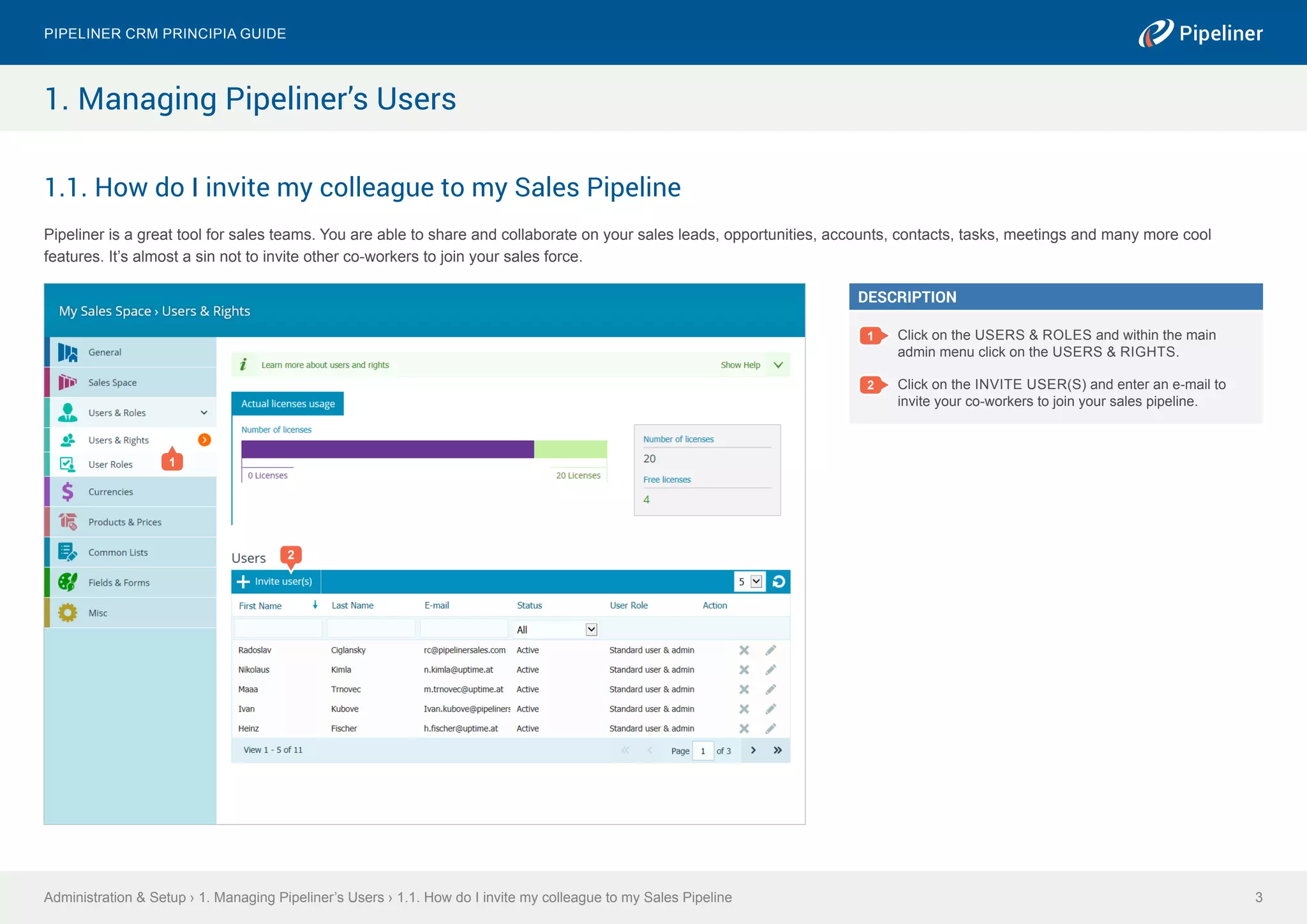
1.1. How do I invite my colleague to my Sales Pipeline
Pipeliner is a great tool for sales teams. You are able to share and collaborate on your sales leads, opportunities, accounts, contacts, tasks, meetings and many more cool
features. It’s almost a sin not to invite other co-workers to join your sales force.
Administration & Setup › 1. Managing Pipeliner’s Users › 1.1. How do I invite my colleague to my Sales Pipeline
Pipeliner CRM Principia Guide
3
1. Managing Pipeliner’s Users
2
DESCRIPTION
1 Click on the USERS & ROLES and within the main
admin menu click on the USERS & RIGHTS.
2 Click on the INVITE USER(S) and enter an e-mail to
invite your co-workers to join your sales pipeline.
1
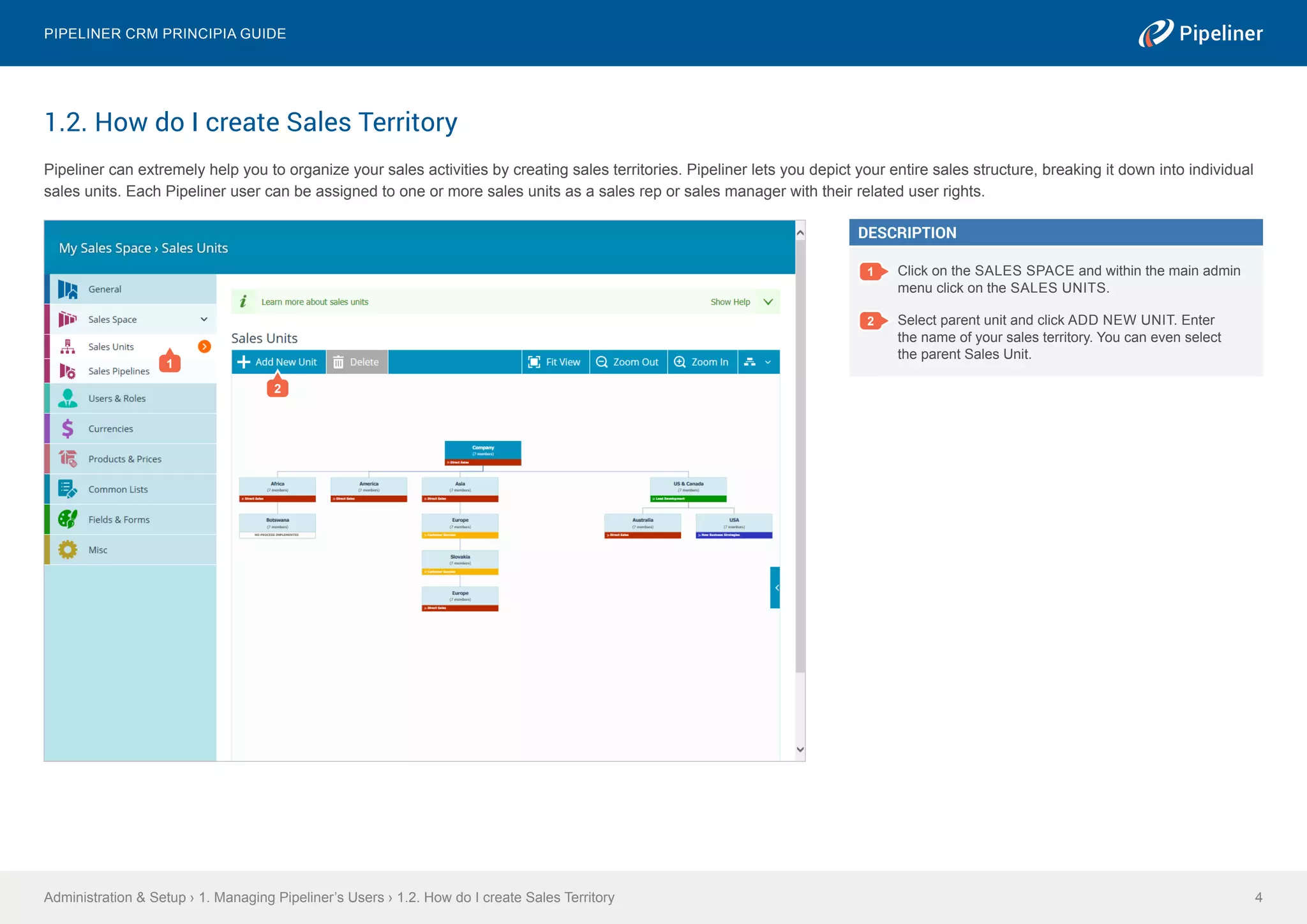
1.2. How do I create Sales Territory
Pipeliner can extremely help you to organize your sales activities by creating sales territories. Pipeliner lets you depict your entire sales structure, breaking it down into individual
sales units. Each Pipeliner user can be assigned to one or more sales units as a sales rep or sales manager with their related user rights.
Administration & Setup › 1. Managing Pipeliner’s Users › 1.2. How do I create Sales Territory
Pipeliner CRM Principia Guide
4
DESCRIPTION
1 Click on the SALES SPACE and within the main admin
menu click on the SALES UNITS.
2 Select parent unit and click ADD NEW UNIT. Enter
the name of your sales territory. You can even select
the parent Sales Unit.
1
2
1.3. How do I manage User Role & Rights
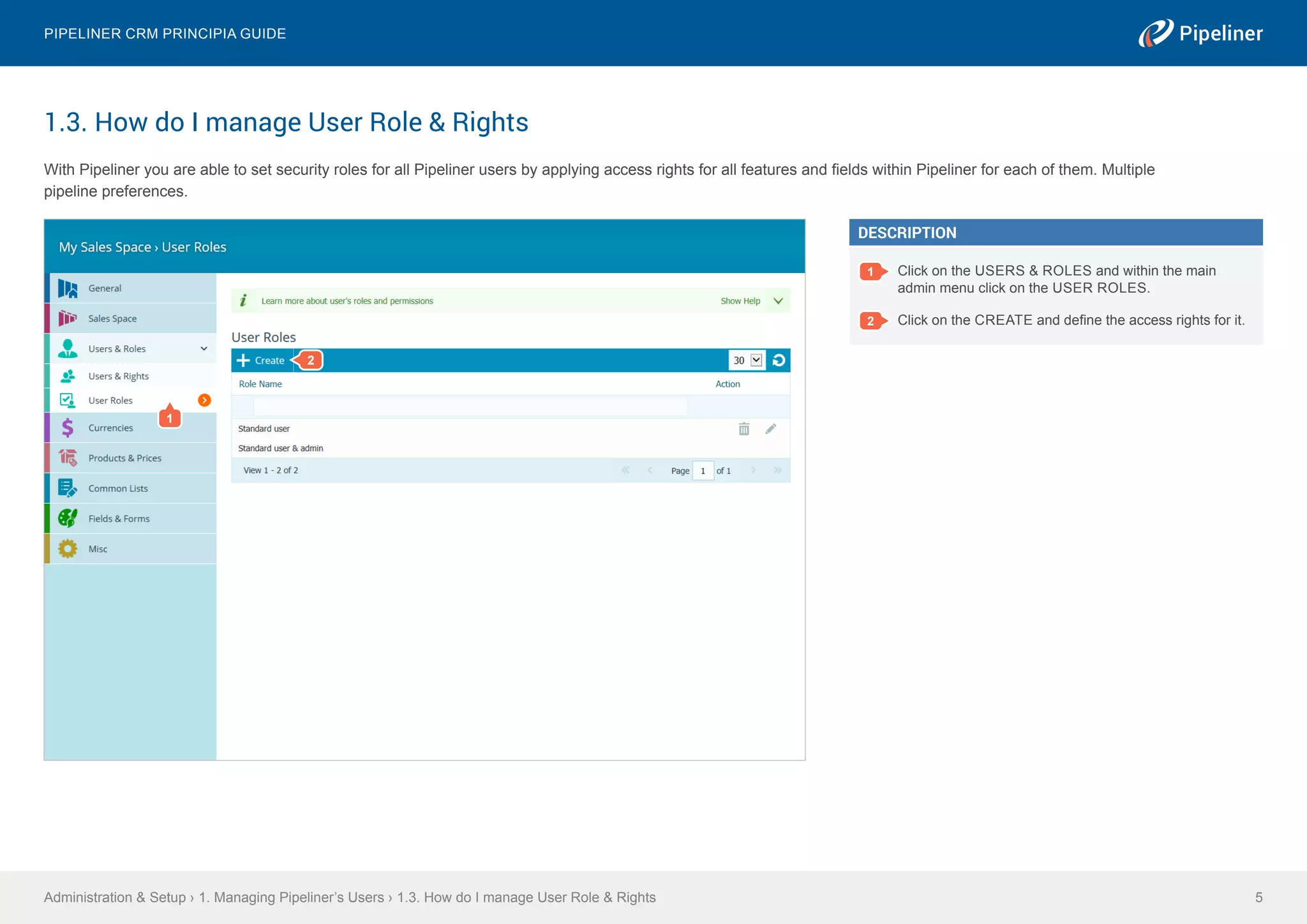
With Pipeliner you are able to set security roles for all Pipeliner users by applying access rights for all features and fields within Pipeliner for each of them. Multiple
pipeline preferences.
Administration & Setup › 1. Managing Pipeliner’s Users › 1.3. How do I manage User Role & Rights
Pipeliner CRM Principia Guide
5
DESCRIPTION
1 Click on the USERS & ROLES and within the main
admin menu click on the USER ROLES.
2 Click on the CREATE and define the access rights for it.
1
2
1.4. How do I assign Role and Rights to User
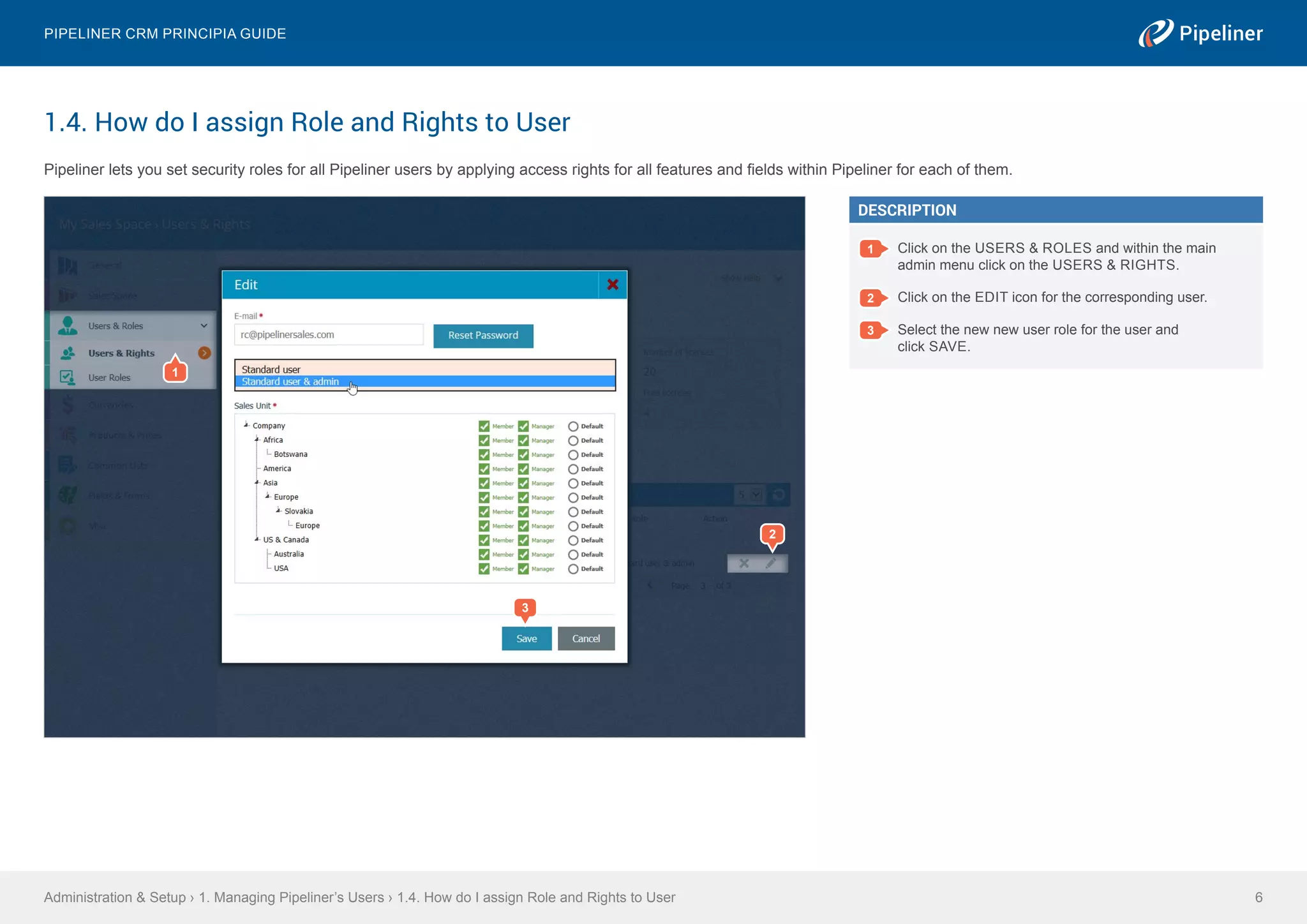
Pipeliner lets you set security roles for all Pipeliner users by applying access rights for all features and fields within Pipeliner for each of them.
Administration & Setup › 1. Managing Pipeliner’s Users › 1.4. How do I assign Role and Rights to User
Pipeliner CRM Principia Guide
6
1
3
2
DESCRIPTION
1 Click on the USERS & ROLES and within the main
admin menu click on the USERS & RIGHTS.
2 Click on the EDIT icon for the corresponding user.
3 Select the new new user role for the user and
click SAVE.
2.1. How do I configure Sales Pipeline
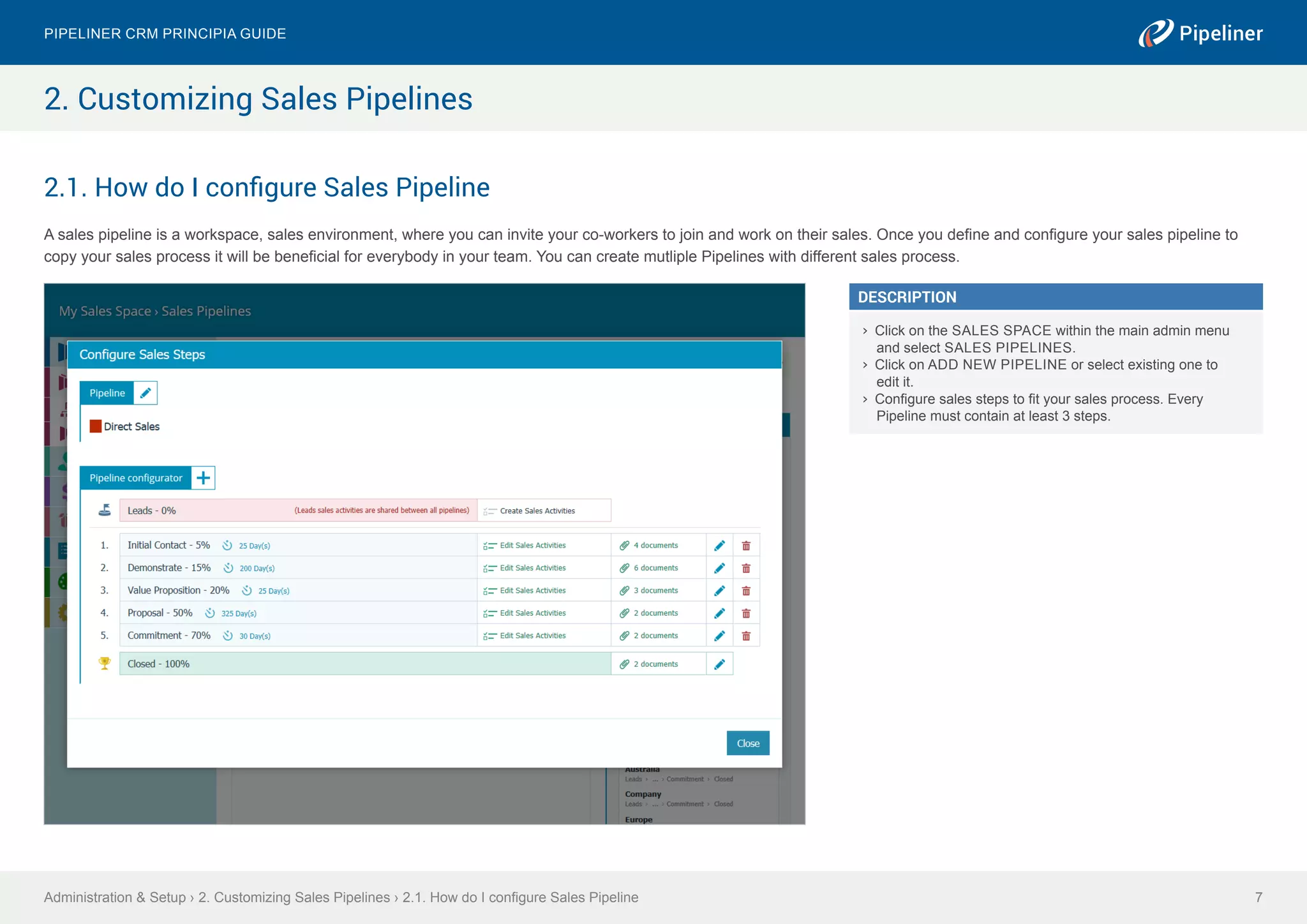
A sales pipeline is a workspace, sales environment, where you can invite your co-workers to join and work on their sales. Once you define and configure your sales pipeline to
copy your sales process it will be beneficial for everybody in your team. You can create mutliple Pipelines with different sales process.
Administration & Setup › 2. Customizing Sales Pipelines › 2.1. How do I configure Sales Pipeline
Pipeliner CRM Principia Guide
7
2. Customizing Sales Pipelines
DESCRIPTION
›› Click on the SALES SPACE within the main admin menu
and select SALES PIPELINES.
›› Click on ADD NEW PIPELINE or select existing one to
edit it.
›› Configure sales steps to fit your sales process. Every
Pipeline must contain at least 3 steps.
2.2. How do I create Custom Field
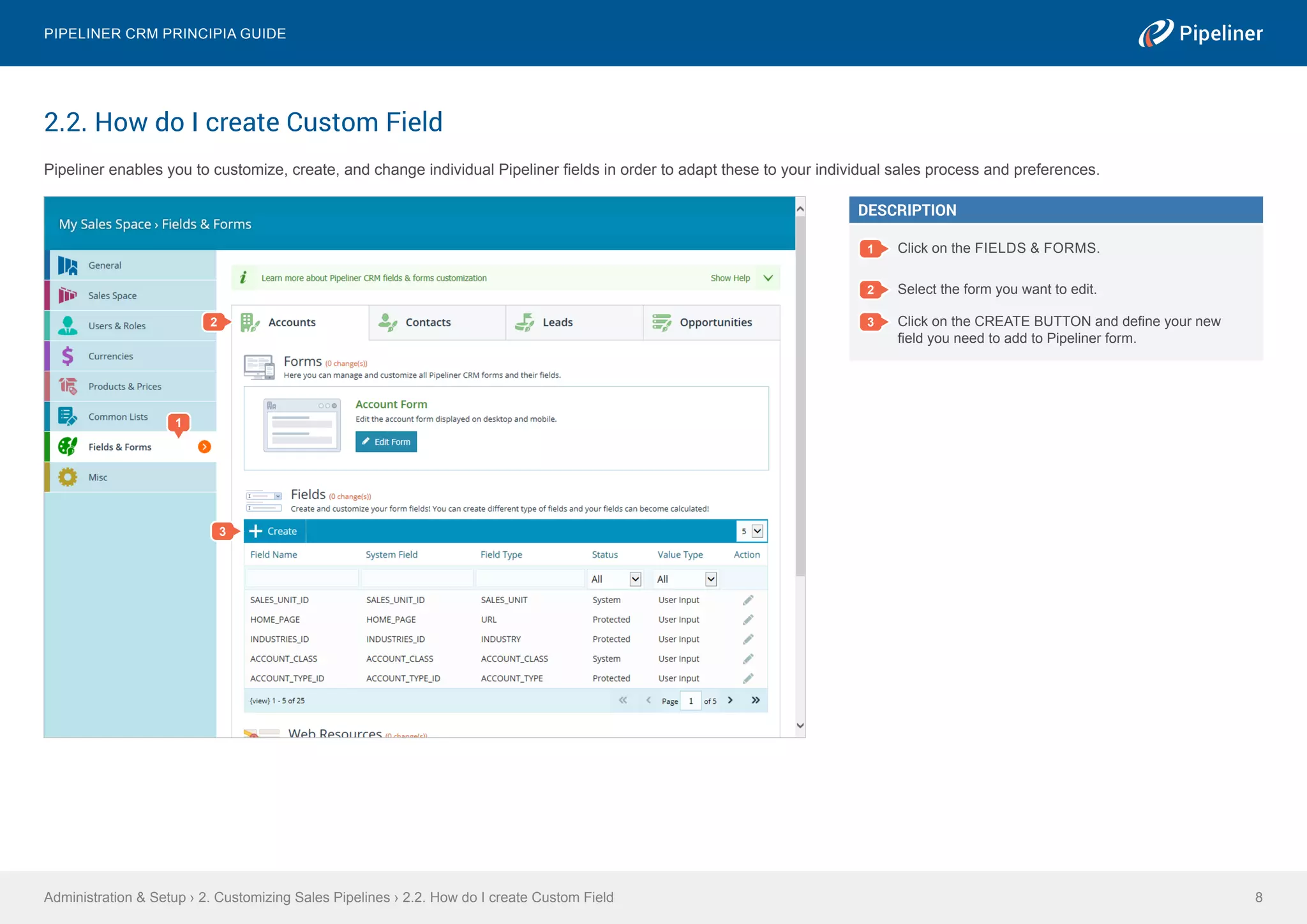
Pipeliner enables you to customize, create, and change individual Pipeliner fields in order to adapt these to your individual sales process and preferences.
Administration & Setup › 2. Customizing Sales Pipelines › 2.2. How do I create Custom Field
Pipeliner CRM Principia Guide
8
DESCRIPTION
1 Click on the FIELDS & FORMS.
2 Select the form you want to edit.
3 Click on the CREATE BUTTON and define your new
field you need to add to Pipeliner form.
2
3
1
2.3. How do I add Custom Field to Form
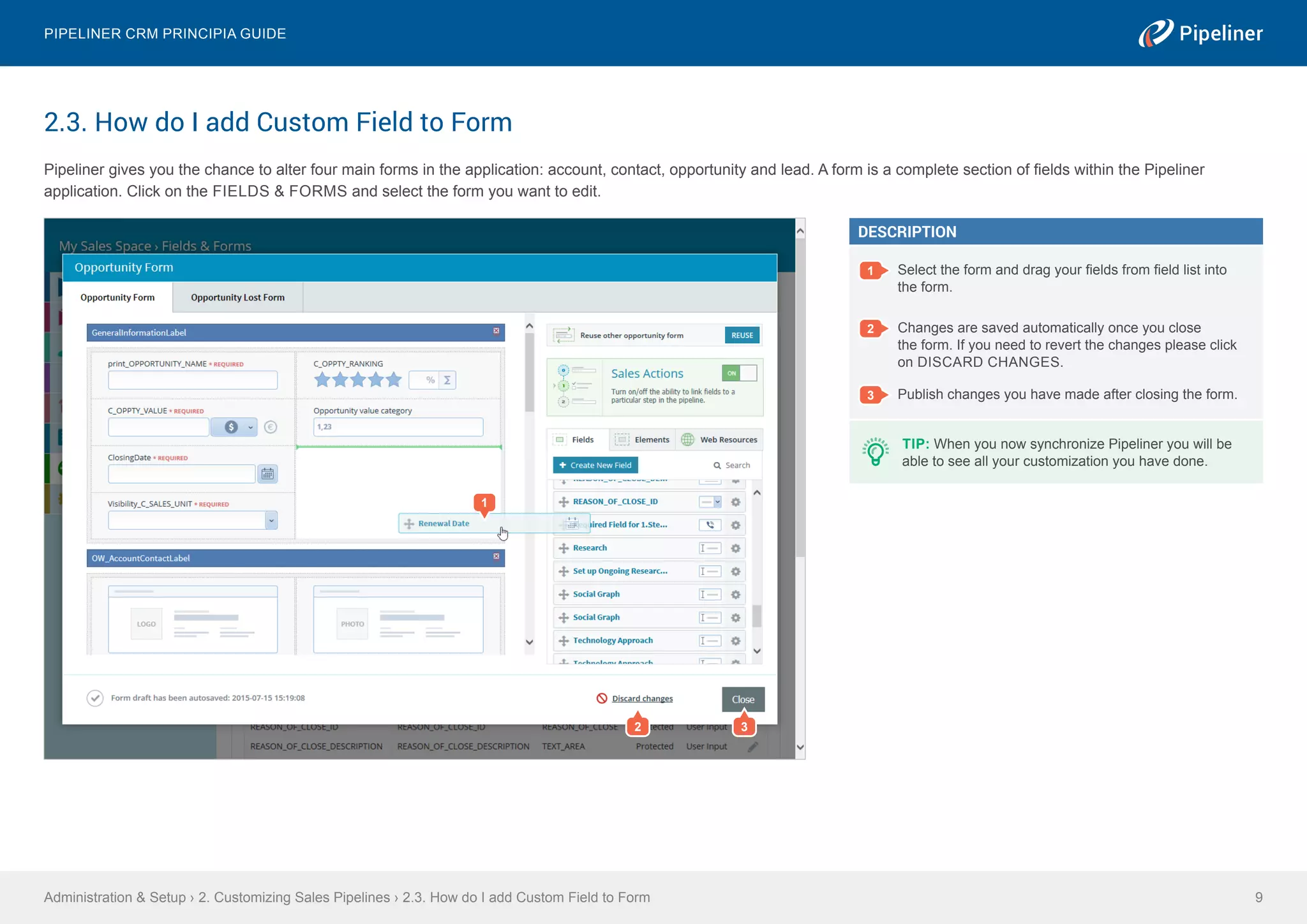
Pipeliner gives you the chance to alter four main forms in the application: account, contact, opportunity and lead. A form is a complete section of fields within the Pipeliner
application. Click on the FIELDS & FORMS and select the form you want to edit.
Administration & Setup › 2. Customizing Sales Pipelines › 2.3. How do I add Custom Field to Form
Pipeliner CRM Principia Guide
9
DESCRIPTION
1 Select the form and drag your fields from field list into
the form.
2 Changes are saved automatically once you close
the form. If you need to revert the changes please click
on DISCARD CHANGES.
3 Publish changes you have made after closing the form.
1
TIP: When you now synchronize Pipeliner you will be
able to see all your customization you have done.
2 3
2.4. How do I customize Common Lists
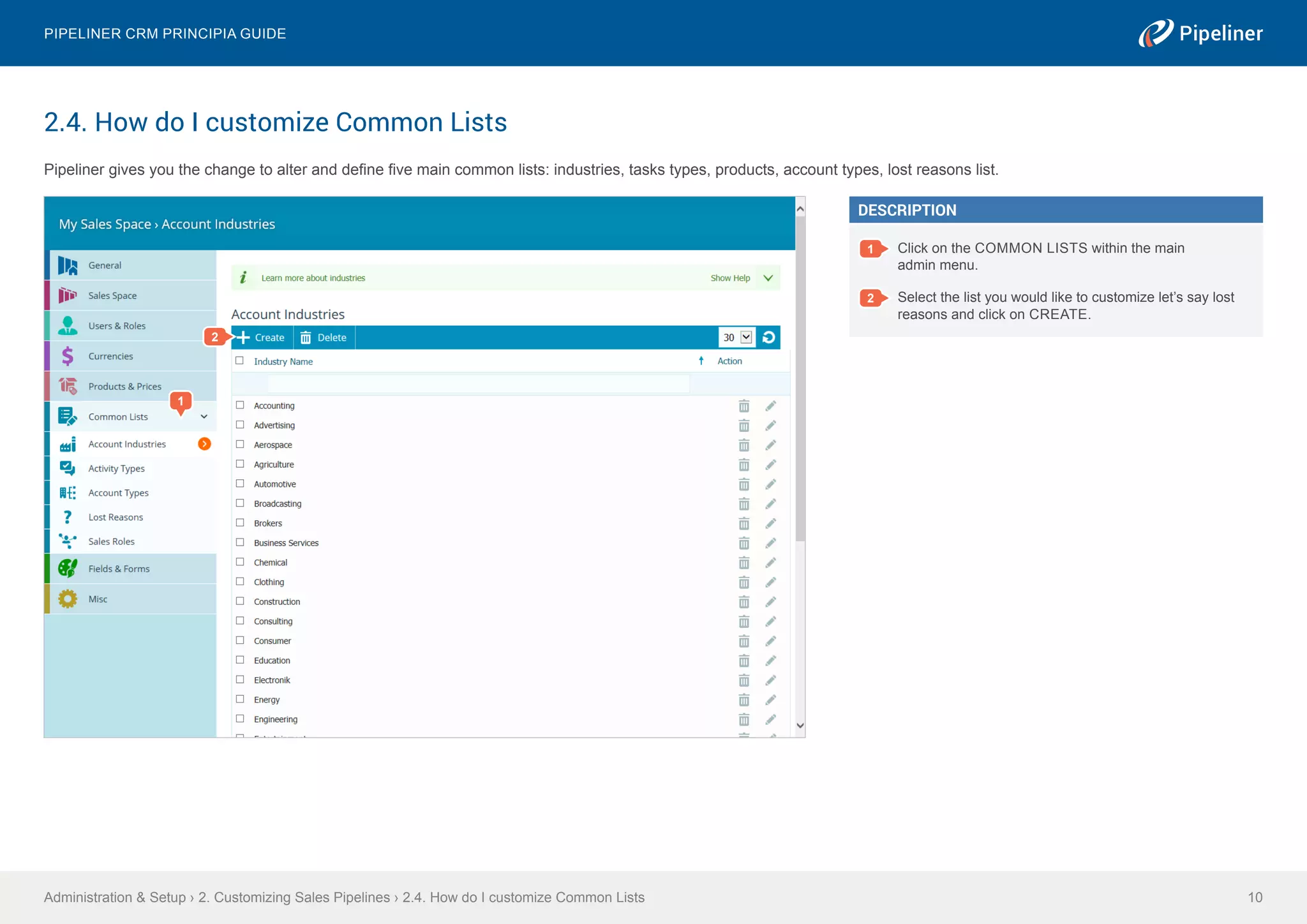
Pipeliner gives you the change to alter and define five main common lists: industries, tasks types, products, account types, lost reasons list.
Administration & Setup › 2. Customizing Sales Pipelines › 2.4. How do I customize Common Lists
Pipeliner CRM Principia Guide
10
DESCRIPTION
1 Click on the COMMON LISTS within the main
admin menu.
2 Select the list you would like to customize let’s say lost
reasons and click on CREATE.
2
1
© 2015 Pipelinersales Inc.
Microsoft® Office®, Microsoft® Outlook® are either registered trademarks or trademarks of Microsoft Corporation in the United States and/or other countries.
www.pipelinersales.com
Visit us and learn more!
The information contained in this document represents the current view of Pipelinersales Inc.
on the issues discussed as of the date of publication. Because Pipelinersales Inc. must respond
to changing market conditions, it should not be interpreted to be a commitment on the part of
Pipelinersales Inc., and Pipelinersales Inc. cannot guarantee the accuracy of any information
presented after the date of publication. This document is for informational purposes only.
PIPELINERSALES INC. MAKES NO WARRANTIES, EXPRESS, IMPLIED OR STATUTORY,
AS TO THE INFORMATION IN THIS DOCUMENT.
Information in this document, including URL and other Internet Web site references, is
subject to change without notice. Unless otherwise noted, the companies, organizations,
products, domain names, E-Mail addresses, logos, people, places, and events depicted in
examples herein are fictitious. No association with any real company, organization, product,
domain name, E-Mail address, logo, person, place, or event is intended or should be inferred.
Complying with all applicable copyright laws is the responsibility of the user. Without limiting
the rights under copyright, no part of this document may be reproduced, stored in or introduced
into a retrieval system, or transmitted in any form or by any means (electronic, mechanical, pho-
tocopying, recording, or otherwise), or for any purpose, without the express written permission
of Pipelinersales Inc.
Pipelinersales Inc. may have patents, patent applications, trademarks, copyrights, or other intel-
lectual property rights covering subject matter in this document. Except as expressly provided in
any written license agreement from Pipelinersales Inc., the furnishing of this document does not
give you any license to these patents, trademarks, copyrights, or other intellectual property.
Pipeliner CRM Principia Guide

Administration & Setup

  • 1.
    Pipeliner CRM PrincipiaGuide Administration & Setup © 2015 Pipelinersales Inc. www.pipelinersales.com
  • 2.
    CONTENT 1. Managing Pipeliner’sUsers 3 1.1. How do I invite my colleague to my Sales Pipeline 3 1.2. How do I create Sales Territory 4 1.3. How do I manage User Role & Rights 5 1.4. How do I assign Role and Rights to User 6 2. Customizing Sales Pipelines 7 2.1. How do I configure Sales Pipeline 7 2.2. How do I create Custom Field 8 2.3. How do I add Custom Field to Form 9 2.4. How do I customize Common Lists 10 Administration & Setup Learn how to manage your sales team with Pipeliner Sales CRM Application. Pipeliner CRM Principia Guide 2Administration & Setup
  • 3.
    1.1. How doI invite my colleague to my Sales Pipeline Pipeliner is a great tool for sales teams. You are able to share and collaborate on your sales leads, opportunities, accounts, contacts, tasks, meetings and many more cool features. It’s almost a sin not to invite other co-workers to join your sales force. Administration & Setup › 1. Managing Pipeliner’s Users › 1.1. How do I invite my colleague to my Sales Pipeline Pipeliner CRM Principia Guide 3 1. Managing Pipeliner’s Users 2 DESCRIPTION 1 Click on the USERS & ROLES and within the main admin menu click on the USERS & RIGHTS. 2 Click on the INVITE USER(S) and enter an e-mail to invite your co-workers to join your sales pipeline. 1
  • 4.
    1.2. How doI create Sales Territory Pipeliner can extremely help you to organize your sales activities by creating sales territories. Pipeliner lets you depict your entire sales structure, breaking it down into individual sales units. Each Pipeliner user can be assigned to one or more sales units as a sales rep or sales manager with their related user rights. Administration & Setup › 1. Managing Pipeliner’s Users › 1.2. How do I create Sales Territory Pipeliner CRM Principia Guide 4 DESCRIPTION 1 Click on the SALES SPACE and within the main admin menu click on the SALES UNITS. 2 Select parent unit and click ADD NEW UNIT. Enter the name of your sales territory. You can even select the parent Sales Unit. 1 2
  • 5.
    1.3. How doI manage User Role & Rights With Pipeliner you are able to set security roles for all Pipeliner users by applying access rights for all features and fields within Pipeliner for each of them. Multiple pipeline preferences. Administration & Setup › 1. Managing Pipeliner’s Users › 1.3. How do I manage User Role & Rights Pipeliner CRM Principia Guide 5 DESCRIPTION 1 Click on the USERS & ROLES and within the main admin menu click on the USER ROLES. 2 Click on the CREATE and define the access rights for it. 1 2
  • 6.
    1.4. How doI assign Role and Rights to User Pipeliner lets you set security roles for all Pipeliner users by applying access rights for all features and fields within Pipeliner for each of them. Administration & Setup › 1. Managing Pipeliner’s Users › 1.4. How do I assign Role and Rights to User Pipeliner CRM Principia Guide 6 1 3 2 DESCRIPTION 1 Click on the USERS & ROLES and within the main admin menu click on the USERS & RIGHTS. 2 Click on the EDIT icon for the corresponding user. 3 Select the new new user role for the user and click SAVE.
  • 7.
    2.1. How doI configure Sales Pipeline A sales pipeline is a workspace, sales environment, where you can invite your co-workers to join and work on their sales. Once you define and configure your sales pipeline to copy your sales process it will be beneficial for everybody in your team. You can create mutliple Pipelines with different sales process. Administration & Setup › 2. Customizing Sales Pipelines › 2.1. How do I configure Sales Pipeline Pipeliner CRM Principia Guide 7 2. Customizing Sales Pipelines DESCRIPTION ›› Click on the SALES SPACE within the main admin menu and select SALES PIPELINES. ›› Click on ADD NEW PIPELINE or select existing one to edit it. ›› Configure sales steps to fit your sales process. Every Pipeline must contain at least 3 steps.
  • 8.
    2.2. How doI create Custom Field Pipeliner enables you to customize, create, and change individual Pipeliner fields in order to adapt these to your individual sales process and preferences. Administration & Setup › 2. Customizing Sales Pipelines › 2.2. How do I create Custom Field Pipeliner CRM Principia Guide 8 DESCRIPTION 1 Click on the FIELDS & FORMS. 2 Select the form you want to edit. 3 Click on the CREATE BUTTON and define your new field you need to add to Pipeliner form. 2 3 1
  • 9.
    2.3. How doI add Custom Field to Form Pipeliner gives you the chance to alter four main forms in the application: account, contact, opportunity and lead. A form is a complete section of fields within the Pipeliner application. Click on the FIELDS & FORMS and select the form you want to edit. Administration & Setup › 2. Customizing Sales Pipelines › 2.3. How do I add Custom Field to Form Pipeliner CRM Principia Guide 9 DESCRIPTION 1 Select the form and drag your fields from field list into the form. 2 Changes are saved automatically once you close the form. If you need to revert the changes please click on DISCARD CHANGES. 3 Publish changes you have made after closing the form. 1 TIP: When you now synchronize Pipeliner you will be able to see all your customization you have done. 2 3
  • 10.
    2.4. How doI customize Common Lists Pipeliner gives you the change to alter and define five main common lists: industries, tasks types, products, account types, lost reasons list. Administration & Setup › 2. Customizing Sales Pipelines › 2.4. How do I customize Common Lists Pipeliner CRM Principia Guide 10 DESCRIPTION 1 Click on the COMMON LISTS within the main admin menu. 2 Select the list you would like to customize let’s say lost reasons and click on CREATE. 2 1
  • 11.
    © 2015 PipelinersalesInc. Microsoft® Office®, Microsoft® Outlook® are either registered trademarks or trademarks of Microsoft Corporation in the United States and/or other countries. www.pipelinersales.com Visit us and learn more! The information contained in this document represents the current view of Pipelinersales Inc. on the issues discussed as of the date of publication. Because Pipelinersales Inc. must respond to changing market conditions, it should not be interpreted to be a commitment on the part of Pipelinersales Inc., and Pipelinersales Inc. cannot guarantee the accuracy of any information presented after the date of publication. This document is for informational purposes only. PIPELINERSALES INC. MAKES NO WARRANTIES, EXPRESS, IMPLIED OR STATUTORY, AS TO THE INFORMATION IN THIS DOCUMENT. Information in this document, including URL and other Internet Web site references, is subject to change without notice. Unless otherwise noted, the companies, organizations, products, domain names, E-Mail addresses, logos, people, places, and events depicted in examples herein are fictitious. No association with any real company, organization, product, domain name, E-Mail address, logo, person, place, or event is intended or should be inferred. Complying with all applicable copyright laws is the responsibility of the user. Without limiting the rights under copyright, no part of this document may be reproduced, stored in or introduced into a retrieval system, or transmitted in any form or by any means (electronic, mechanical, pho- tocopying, recording, or otherwise), or for any purpose, without the express written permission of Pipelinersales Inc. Pipelinersales Inc. may have patents, patent applications, trademarks, copyrights, or other intel- lectual property rights covering subject matter in this document. Except as expressly provided in any written license agreement from Pipelinersales Inc., the furnishing of this document does not give you any license to these patents, trademarks, copyrights, or other intellectual property. Pipeliner CRM Principia Guide